INGREDIENTS
10
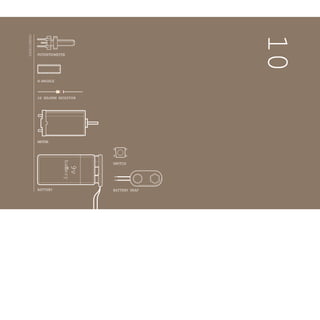
MOTOR
BATTERY SNAP
BATTERY
9v
battery
SWITCH
10 KILOHM RESISTOR
H-BRIDGE
POTENTIOMETER
CREATE MOVING IMAGES IN FORWARD AND REVERSE WITH
YOUR ARDUINO WHEN YOU CONNECT A MOTOR TO AN
H-BRIDGE AND SOME STILL IMAGES
Before the internet, television, even before movies, some of the firstmoving images
were created with a tool called a zoetrope. Zoetropes create the illusion of motion
from a group of still images that have small changes in them. They are typically
cylinders with slits cut in the side. When the cylinder spins and you look through
the slits, your eyes perceive the still images on the other side of the wall to be ani-
mated. The slits help keep the images from becoming a big blur, and the speed at
which the images appear provide cause the images to appear to move. Originally,
these novelties were spun by hand, or with a cranking mechanism.
In this project, you’ll build your own zoetrope that animates a carnivorous plant.
You’ll power the motion with a motor. To make this system even more advanced,
you’ll add a switch that lets you control direction, another to turn it off and on,
and a potentiometer to control the speed.
In the Motorized Pinwheel Project you got a motor to spin in one direction. If you
were to take power and ground on the motor and flip their orientation, the motor
would spin in the opposite direction. It’s not very practical to do that everytime
you want to spin something in a different direction, so you’ll be using a compo-
nent called an H-bridge to reverse the polarity of the motor.
H-bridges are a type of component known as integrated circuits (IC). ICs are
components that hold large circuits in a tiny package. These can help simplify
more complex circuits by placing them in an easily replaceable component. For
example, the H-bridge you’re using in this example has a number of transistors
built in. To build the circuit inside the H-bridge you would probably need another
breadboard.
Time: 30 MINUTES
Level:
Builds on projects: 1
,2,3,4,9
Discover: H-bridges
ZOETROPE
103
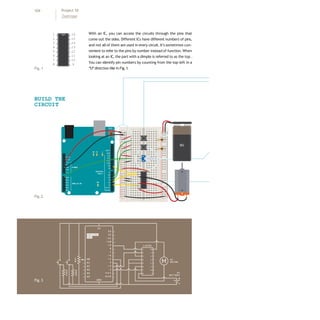
With an IC, you can access the circuits through the pins that
come out the sides. Different ICs have different numbers of pins,
and not all of them are used in every circuit. It’s sometimes con-
venient to refer to the pins by number instead of function. When
looking at an IC, the part with a dimple is referred to as the top .
You can identify pin numbers by counting from the top-left in a
“U”direction like in Fig. 1.
1
2
3
4
5
6
7
8
16
15
14
13
12
11
10
9
BUILD THE
CIRCUIT
Fig.2
Fig.3
Fig.1
+ - + -
+ -
+ -
9V
104 Project 10
Zoetrope
Connect power and ground from one side of your breadboard
to the Arduino.
Add 2 momentary switches to the breadboard, connecting one
side of each to power. Add a 10Kohm pull-down resistor in
series with ground on the output pin of both switches.
The switch on pin 4 will control direction, the switch on pin 5
will turn the motor on and off.
Connect the potentiometer to the breadboard. Wire 5V to one
side and ground to the other. Attach the center pin to analog
input 0 on the Arduino. This will be used to control the speed
of the motor.
Place the H-bridge on your breadboard so it straddles the
center (see Fig. 2 for detail of placement). Connect pin 1of the
H-bridge to digital pin 9 on the Arduino. This is the enable pin
on the H-bridge. When it receives 5V, it turns the motor on,
when it receives 0V, it turns the motor off. You will use this pin
to PWM the H-bridge, and adjust the speed of the motor.
Connect pin 2 on the H-bridge to digital pin 3 on the Arduino.
Connect pin 7 to digital pin 2. These are the pins you will use
to communicate with the H-bridge, telling it which direction to
spin. If pin 3 is LOW and pin 2 is HIGH, the motor will spin in one
direction. If pin 2 is LOW and pin 3 is HIGH, the motor will spin
in the opposite direction. If both the pins are HIGH or LOW at
the same time, the motor will stop spinning.
The H-bridge get its power from pin 16,plug that into 5V. Pins 4
and 5 both go to ground.
Attach your motor to pins 3 and 6 on the H-bridge. These two
pins will switch on and off depending on the signals you send
to pins 2 and 7.
Plug the battery connector (without the battery attached!)
to the other power rails on your breadboard. Connect ground
from your Arduino to the battery’s ground. Connect pin 8 from
the H-bridge to the battery power. This is the pin that the H-
bridge powers the motor from. Make sure you do not have
your 9V and 5V power lines connected. They must be separate,
only ground should be connected between the two.
❶
❷
❸
❹
❺
❻
❼
❽
105
Create constants for the output and input pins.
Use variables to hold the values from your inputs. You’ll be doing
state change detection for both switches, comparing the state
from one loop to the next, similar to the Hourglass Project. So,
in addition to storing the current state, you’ll need to record the
previous state of each switch.
motorDirection keeps track of which direction the motor is
spinning, and motorPower keeps track of whether the motor is
spinning or not.
In setup(), set the direction of each input and output pin.
Turn the enable pin LOW to start, so the motor isn’tspinning right
away.
In your loop(), read the state of the On/Off switch and store it
in the onOf
f
SwitchState variable.
THE CODE
Name your constants
Create variables for remem-
bering programstate
Create variables for motor
control
Declare the digital pins as
inputs andoutputs
Turn the motor off
Read sensor information
106 Project 10
Zoetrope
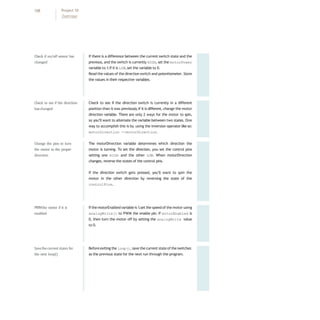
1 const int controLPin1 = 2;
2 const int controLPin2 = 3;
3 const int enabLePin = 9;
4 const int directionSwitchPin = 4;
5 const int onOffSwitchStateSwitchPin = 5;
6 const int potPin = A0;
7 int onOffSwitchState = 0;
8 int previousOnOffSwitchState = 0;
9 int directionSwitchState = 0;
10 int previousDirectionSwitchState = 0;
11 int motorEnabLed = 0;
12 int motorSpeed = 0;
13 int motorDirection = 1;
14 void setup(){
15 pinMode(directionSwitchPin, INPUT);
16 pinMode(onOffSwitchStateSwitchPin, INPUT);
17 pinMode(controLPin1, OUTPUT);
18 pinMode(controLPin2, OUTPUT);
19 pinMode(enabLePin, OUTPUT);
20 digitaLWrite(enabLePin, LOW);
21 }
22 void Loop(){
23 onOffSwitchState =
digitaLRead(onOffSwitchStateSwitchPin);
24 deLay(1);
25 directionSwitchState =
digitaLRead(directionSwitchPin);
26 motorSpeed = anaLogRead(potPin)/4;
107
If there is a difference between the current switch state and the
previous, and the switch is currently HIGH, set the motorPower
variable to 1.If it is LOW,set the variable to 0.
Read the values of the direction switch and potentiometer. Store
the values in their respective variables.
Check to see if the direction switch is currently in a different
position than it was previously.If it is different, change the motor
direction variable. There are only 2 ways for the motor to spin,
so you’ll want to alternate the variable between two states. One
way to accomplish this is by using the inversion operator like so:
motorDirection =!motorDirection.
The motorDirection variable determines which direction the
motor is turning. To set the direction, you set the control pins
setting one HIGH and the other LOW. When motorDirection
changes, reverse the states of the control pins.
If the direction switch gets pressed, you’ll want to spin the
motor in the other direction by reversing the state of the
controlPins.
If the motorEnabled variable is 1,set the speed of the motor using
analogWrite() to PWM the enable pin. If motorEnabled is
0, then turn the motor off by setting the analogWrite value
to 0.
Beforeexiting the loop(), save the current stateof the switches
as the previous state for the next run through the program.
Check if on/off sensor has
changed
Check to see if the direction
haschanged
Change the pins to turn
the motor in the proper
direction
PWMthe motor if it is
enabled
Savethecurrent states for
the next loop()
108 Project 10
Zoetrope
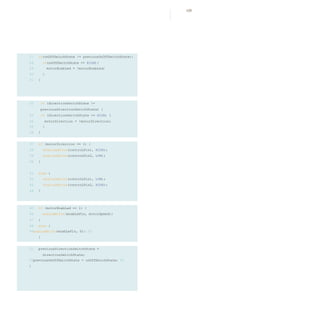
32 if (directionSwitchState !=
previousDirectionSwitchState) {
33 if (directionSwitchState == HIGH) {
34 motorDirection = !motorDirection;
35 }
36 }
37 if (motorDirection == 1) {
38 digitaLWrite(controLPin1, HIGH);
39 digitaLWrite(controLPin2, LOW);
40 }
41 eLse {
42 digitaLWrite(controLPin1, LOW);
43 digitaLWrite(controLPin2, HIGH);
44 }
45 if (motorEnabLed == 1) {
46 anaLogWrite(enabLePin, motorSpeed);
47 }
48 eLse {
49anaLogWrite(enabLePin, 0); 50
}
27 if(onOffSwitchState != previousOnOffSwitchState){
28 if(onOffSwitchState == HIGH){
29 motorEnabLed = !motorEnabLed;
30 }
31 }
51 previousDirectionSwitchState =
directionSwitchState;
52previousOnOffSwitchState = onOffSwitchState; 53
}
109
USE IT Plug your Arduino into your computer.Attach the battery to the
connector.When you press the On/Off switch, the motor should
start spinning. If you turn the potentiometer,it should speed up
and slow down. Pressing the On/Off button another time will
stop the motor. Try pressing the direction button and verify the
motor spins both ways. Also, if you turn the knob on the pot, you
should see the motor speed up or slow down depending on the
value it is sending.
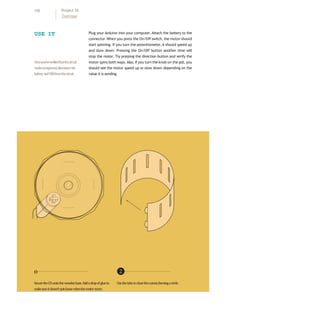
Onceyou’veverifiedthatthecircuit
worksasexpected,disconnectthe
batteryandUSBfromthecircuit.
o ❷
SecuretheCDontothewoodenbase.Addadropofglueto Usethetabstoclosethecutout,formingacircle.
makesureitdoesn’tspinloosewhenthemotorstarts.
110 Project 10
Zoetrope
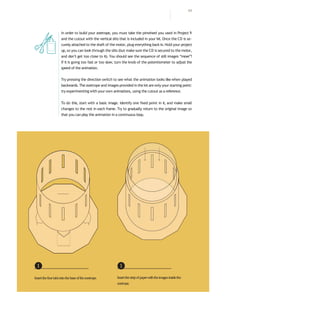
In order to build your zoetrope, you must take the pinwheel you used in Project 9
and the cutout with the vertical slits that is included in your kit. Once the CD is se-
curely attached to the shaft of the motor, plug everything back in.Hold your project
up, so you can look through the slits (but make sure the CD is secured to the motor,
and don’t get too close to it). You should see the sequence of still images “move”!
If it is going too fast or too slow, turn the knob of the potentiometer to adjust the
speed of the animation.
Try pressing the direction switch to see what the animation looks like when played
backwards. The zoetrope and images provided in the kit are only your starting point:
try experimenting with your own animations, using the cutout as a reference.
To do this, start with a basic image. Identify one fixed point in it, and make small
changes to the rest in each frame. Try to gradually return to the original image so
that you can play the animation in a continuous loop.
❶
Insertthefourtabsintothebaseofthezoetrope.
❶
Insertthestripofpaperwiththeimagesinsidethe
zoetrope.
111
Zoetropes work because of a phenomena called “persistence of vision”, sometimes
abbreviated to POV. POV describes the illusion of motion that is created when our
eyes observe still images with minor variations in rapid succession. If you search
online for “POV display”, you’ll find many projects made by people that leverage this
effect, often with LEDs and an Arduino.
Make a base to support the motor. A small cardboard box with a hole cut in it could
work as a base, leaving your hands free to play with the switches and knob. This will
make it easier to show offyour work to everyone.
With a little work, you can get your zoetrope working in low light situations as well.
Hook up an LED and resistor to one of your free digital output pins. Also add a sec-
ond potentiometer, and connect it to an analog input. Position the light so it shines
on the images. Using the analog input to time the flashes of the LED, try and time it
so the lightflashes when the slit is in front of your eyes.Thiscould takesome fiddling
with the knobs, but the resulting effect is really spectacular!
112 Project 10
Zoetrope
Electronz_Chapter_10.pptx

Electronz_Chapter_10.pptx

  • 1.
  • 2.
    CREATE MOVING IMAGESIN FORWARD AND REVERSE WITH YOUR ARDUINO WHEN YOU CONNECT A MOTOR TO AN H-BRIDGE AND SOME STILL IMAGES Before the internet, television, even before movies, some of the firstmoving images were created with a tool called a zoetrope. Zoetropes create the illusion of motion from a group of still images that have small changes in them. They are typically cylinders with slits cut in the side. When the cylinder spins and you look through the slits, your eyes perceive the still images on the other side of the wall to be ani- mated. The slits help keep the images from becoming a big blur, and the speed at which the images appear provide cause the images to appear to move. Originally, these novelties were spun by hand, or with a cranking mechanism. In this project, you’ll build your own zoetrope that animates a carnivorous plant. You’ll power the motion with a motor. To make this system even more advanced, you’ll add a switch that lets you control direction, another to turn it off and on, and a potentiometer to control the speed. In the Motorized Pinwheel Project you got a motor to spin in one direction. If you were to take power and ground on the motor and flip their orientation, the motor would spin in the opposite direction. It’s not very practical to do that everytime you want to spin something in a different direction, so you’ll be using a compo- nent called an H-bridge to reverse the polarity of the motor. H-bridges are a type of component known as integrated circuits (IC). ICs are components that hold large circuits in a tiny package. These can help simplify more complex circuits by placing them in an easily replaceable component. For example, the H-bridge you’re using in this example has a number of transistors built in. To build the circuit inside the H-bridge you would probably need another breadboard. Time: 30 MINUTES Level: Builds on projects: 1 ,2,3,4,9 Discover: H-bridges ZOETROPE 103
  • 3.
    With an IC,you can access the circuits through the pins that come out the sides. Different ICs have different numbers of pins, and not all of them are used in every circuit. It’s sometimes con- venient to refer to the pins by number instead of function. When looking at an IC, the part with a dimple is referred to as the top . You can identify pin numbers by counting from the top-left in a “U”direction like in Fig. 1. 1 2 3 4 5 6 7 8 16 15 14 13 12 11 10 9 BUILD THE CIRCUIT Fig.2 Fig.3 Fig.1 + - + - + - + - 9V 104 Project 10 Zoetrope
  • 4.
    Connect power andground from one side of your breadboard to the Arduino. Add 2 momentary switches to the breadboard, connecting one side of each to power. Add a 10Kohm pull-down resistor in series with ground on the output pin of both switches. The switch on pin 4 will control direction, the switch on pin 5 will turn the motor on and off. Connect the potentiometer to the breadboard. Wire 5V to one side and ground to the other. Attach the center pin to analog input 0 on the Arduino. This will be used to control the speed of the motor. Place the H-bridge on your breadboard so it straddles the center (see Fig. 2 for detail of placement). Connect pin 1of the H-bridge to digital pin 9 on the Arduino. This is the enable pin on the H-bridge. When it receives 5V, it turns the motor on, when it receives 0V, it turns the motor off. You will use this pin to PWM the H-bridge, and adjust the speed of the motor. Connect pin 2 on the H-bridge to digital pin 3 on the Arduino. Connect pin 7 to digital pin 2. These are the pins you will use to communicate with the H-bridge, telling it which direction to spin. If pin 3 is LOW and pin 2 is HIGH, the motor will spin in one direction. If pin 2 is LOW and pin 3 is HIGH, the motor will spin in the opposite direction. If both the pins are HIGH or LOW at the same time, the motor will stop spinning. The H-bridge get its power from pin 16,plug that into 5V. Pins 4 and 5 both go to ground. Attach your motor to pins 3 and 6 on the H-bridge. These two pins will switch on and off depending on the signals you send to pins 2 and 7. Plug the battery connector (without the battery attached!) to the other power rails on your breadboard. Connect ground from your Arduino to the battery’s ground. Connect pin 8 from the H-bridge to the battery power. This is the pin that the H- bridge powers the motor from. Make sure you do not have your 9V and 5V power lines connected. They must be separate, only ground should be connected between the two. ❶ ❷ ❸ ❹ ❺ ❻ ❼ ❽ 105
  • 5.
    Create constants forthe output and input pins. Use variables to hold the values from your inputs. You’ll be doing state change detection for both switches, comparing the state from one loop to the next, similar to the Hourglass Project. So, in addition to storing the current state, you’ll need to record the previous state of each switch. motorDirection keeps track of which direction the motor is spinning, and motorPower keeps track of whether the motor is spinning or not. In setup(), set the direction of each input and output pin. Turn the enable pin LOW to start, so the motor isn’tspinning right away. In your loop(), read the state of the On/Off switch and store it in the onOf f SwitchState variable. THE CODE Name your constants Create variables for remem- bering programstate Create variables for motor control Declare the digital pins as inputs andoutputs Turn the motor off Read sensor information 106 Project 10 Zoetrope
  • 6.
    1 const intcontroLPin1 = 2; 2 const int controLPin2 = 3; 3 const int enabLePin = 9; 4 const int directionSwitchPin = 4; 5 const int onOffSwitchStateSwitchPin = 5; 6 const int potPin = A0; 7 int onOffSwitchState = 0; 8 int previousOnOffSwitchState = 0; 9 int directionSwitchState = 0; 10 int previousDirectionSwitchState = 0; 11 int motorEnabLed = 0; 12 int motorSpeed = 0; 13 int motorDirection = 1; 14 void setup(){ 15 pinMode(directionSwitchPin, INPUT); 16 pinMode(onOffSwitchStateSwitchPin, INPUT); 17 pinMode(controLPin1, OUTPUT); 18 pinMode(controLPin2, OUTPUT); 19 pinMode(enabLePin, OUTPUT); 20 digitaLWrite(enabLePin, LOW); 21 } 22 void Loop(){ 23 onOffSwitchState = digitaLRead(onOffSwitchStateSwitchPin); 24 deLay(1); 25 directionSwitchState = digitaLRead(directionSwitchPin); 26 motorSpeed = anaLogRead(potPin)/4; 107
  • 7.
    If there isa difference between the current switch state and the previous, and the switch is currently HIGH, set the motorPower variable to 1.If it is LOW,set the variable to 0. Read the values of the direction switch and potentiometer. Store the values in their respective variables. Check to see if the direction switch is currently in a different position than it was previously.If it is different, change the motor direction variable. There are only 2 ways for the motor to spin, so you’ll want to alternate the variable between two states. One way to accomplish this is by using the inversion operator like so: motorDirection =!motorDirection. The motorDirection variable determines which direction the motor is turning. To set the direction, you set the control pins setting one HIGH and the other LOW. When motorDirection changes, reverse the states of the control pins. If the direction switch gets pressed, you’ll want to spin the motor in the other direction by reversing the state of the controlPins. If the motorEnabled variable is 1,set the speed of the motor using analogWrite() to PWM the enable pin. If motorEnabled is 0, then turn the motor off by setting the analogWrite value to 0. Beforeexiting the loop(), save the current stateof the switches as the previous state for the next run through the program. Check if on/off sensor has changed Check to see if the direction haschanged Change the pins to turn the motor in the proper direction PWMthe motor if it is enabled Savethecurrent states for the next loop() 108 Project 10 Zoetrope
  • 8.
    32 if (directionSwitchState!= previousDirectionSwitchState) { 33 if (directionSwitchState == HIGH) { 34 motorDirection = !motorDirection; 35 } 36 } 37 if (motorDirection == 1) { 38 digitaLWrite(controLPin1, HIGH); 39 digitaLWrite(controLPin2, LOW); 40 } 41 eLse { 42 digitaLWrite(controLPin1, LOW); 43 digitaLWrite(controLPin2, HIGH); 44 } 45 if (motorEnabLed == 1) { 46 anaLogWrite(enabLePin, motorSpeed); 47 } 48 eLse { 49anaLogWrite(enabLePin, 0); 50 } 27 if(onOffSwitchState != previousOnOffSwitchState){ 28 if(onOffSwitchState == HIGH){ 29 motorEnabLed = !motorEnabLed; 30 } 31 } 51 previousDirectionSwitchState = directionSwitchState; 52previousOnOffSwitchState = onOffSwitchState; 53 } 109
  • 9.
    USE IT Plugyour Arduino into your computer.Attach the battery to the connector.When you press the On/Off switch, the motor should start spinning. If you turn the potentiometer,it should speed up and slow down. Pressing the On/Off button another time will stop the motor. Try pressing the direction button and verify the motor spins both ways. Also, if you turn the knob on the pot, you should see the motor speed up or slow down depending on the value it is sending. Onceyou’veverifiedthatthecircuit worksasexpected,disconnectthe batteryandUSBfromthecircuit. o ❷ SecuretheCDontothewoodenbase.Addadropofglueto Usethetabstoclosethecutout,formingacircle. makesureitdoesn’tspinloosewhenthemotorstarts. 110 Project 10 Zoetrope
  • 10.
    In order tobuild your zoetrope, you must take the pinwheel you used in Project 9 and the cutout with the vertical slits that is included in your kit. Once the CD is se- curely attached to the shaft of the motor, plug everything back in.Hold your project up, so you can look through the slits (but make sure the CD is secured to the motor, and don’t get too close to it). You should see the sequence of still images “move”! If it is going too fast or too slow, turn the knob of the potentiometer to adjust the speed of the animation. Try pressing the direction switch to see what the animation looks like when played backwards. The zoetrope and images provided in the kit are only your starting point: try experimenting with your own animations, using the cutout as a reference. To do this, start with a basic image. Identify one fixed point in it, and make small changes to the rest in each frame. Try to gradually return to the original image so that you can play the animation in a continuous loop. ❶ Insertthefourtabsintothebaseofthezoetrope. ❶ Insertthestripofpaperwiththeimagesinsidethe zoetrope. 111
  • 11.
    Zoetropes work becauseof a phenomena called “persistence of vision”, sometimes abbreviated to POV. POV describes the illusion of motion that is created when our eyes observe still images with minor variations in rapid succession. If you search online for “POV display”, you’ll find many projects made by people that leverage this effect, often with LEDs and an Arduino. Make a base to support the motor. A small cardboard box with a hole cut in it could work as a base, leaving your hands free to play with the switches and knob. This will make it easier to show offyour work to everyone. With a little work, you can get your zoetrope working in low light situations as well. Hook up an LED and resistor to one of your free digital output pins. Also add a sec- ond potentiometer, and connect it to an analog input. Position the light so it shines on the images. Using the analog input to time the flashes of the LED, try and time it so the lightflashes when the slit is in front of your eyes.Thiscould takesome fiddling with the knobs, but the resulting effect is really spectacular! 112 Project 10 Zoetrope