Does your website speak Chinese?
Thom Robbins
Thomasr@kentico.com
Twitter: @trobbins
Agenda
• Importance of multi-language
• Adding cultures
• Translating content
• Best practices
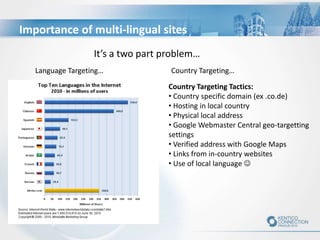
Importance of multi-lingual sites
Country Targeting Tactics:
• Country specific domain (ex .co.de)
• Hosting in local country
• Physical local address
• Google Webmaster Central geo-targetting
settings
• Verified address with Google Maps
• Links from in-country websites
• Use of local language 
It’s a two part problem…
Country Targeting…Language Targeting…
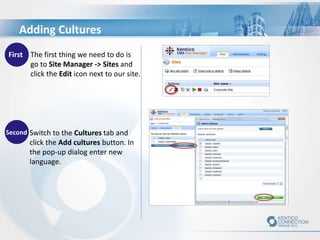
Switch to the Cultures tab and
click the Add cultures button. In
the pop-up dialog enter new
language.
First The first thing we need to do is
go to Site Manager -> Sites and
click the Edit icon next to our site.
Second
Adding Cultures
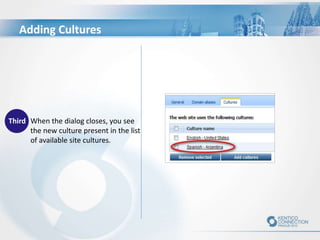
Third When the dialog closes, you see
the new culture present in the list
of available site cultures.
Adding Cultures
What do you translate?
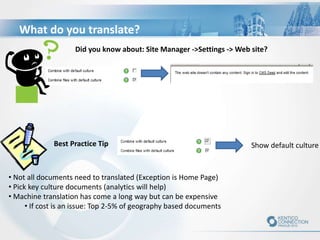
Show default culture
• Not all documents need to translated (Exception is Home Page)
• Pick key culture documents (analytics will help)
• Machine translation has come a long way but can be expensive
• If cost is an issue: Top 2-5% of geography based documents
Best Practice Tip
Did you know about: Site Manager ->Settings -> Web site?
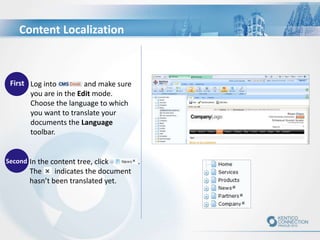
In the content tree, click .
The indicates the document
hasn’t been translated yet.
First Log into and make sure
you are in the Edit mode.
Choose the language to which
you want to translate your
documents the Language
toolbar.
Second
Content Localization
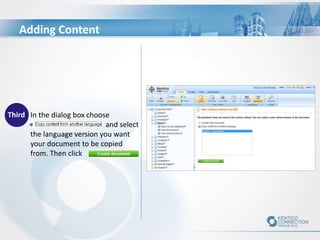
Third In the dialog box choose
and select
the language version you want
your document to be copied
from. Then click .
Adding Content
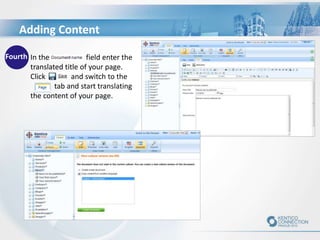
Fourth In the field enter the
translated title of your page.
Click and switch to the
tab and start translating
the content of your page.
Adding Content
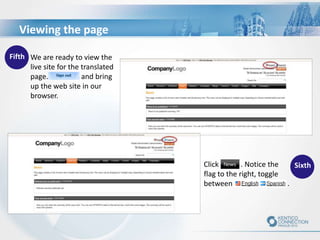
Fifth We are ready to view the
live site for the translated
page. and bring
up the web site in our
browser.
SixthClick . Notice the
flag to the right, toggle
between .
Viewing the page
Language and URL’s
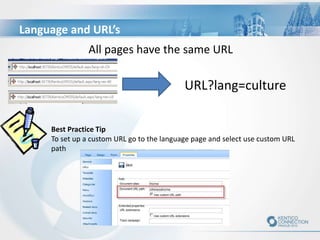
All pages have the same URL
URL?lang=culture
Best Practice Tip
To set up a custom URL go to the language page and select use custom URL
path
Translation overview
Best Practice Tip
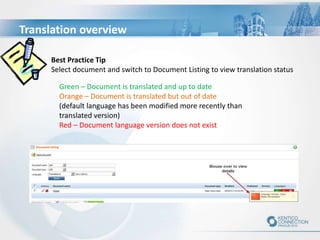
Select document and switch to Document Listing to view translation status
Green – Document is translated and up to date
Orange – Document is translated but out of date
(default language has been modified more recently than
translated version)
Red – Document language version does not exist
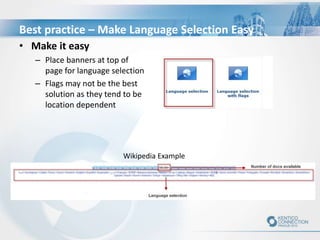
Best practice – Make Language Selection Easy
• Make it easy
– Place banners at top of
page for language selection
– Flags may not be the best
solution as they tend to be
location dependent
Wikipedia Example
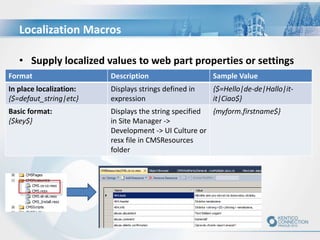
Localization Macros
• Supply localized values to web part properties or settings
Format Description Sample Value
In place localization:
{$=defaut_string|etc}
Displays strings defined in
expression
{$=Hello|de-de|Hallo|it-
it|Ciao$}
Basic format:
{$key$}
Displays the string specified
in Site Manager ->
Development -> UI Culture or
resx file in CMSResources
folder
{myform.firstname$}
Best Practice – SEO is important
• Acquire back links from the target country
– Review top sites for countries
(http://www.alexa.com/topsites/countries)
• When possible have native speakers write your copy
– Set language bound editing in Site Manager ->Administration -> Users
->Edit User -> Language tab
– Create culture dependent workflow scopes (custom workflow for a
language)
• (Option) Create separate sites for each country
• (Option) Register different domains
Additional Information
• Best samples are in your project!
• Documentation -
http://devnet.kentico.com/Documentation.aspx
• Code Snippet Library -
http://devnet.kentico.com/Blogs/Thomas-Robbins.aspx
• Marketplace -
http://devnet.kentico.com/Marketplace.aspx
Questions:
Thomasr@kentico.com
@trobbins

Does your website speak Chinese?

  • 1.
    Does your websitespeak Chinese? Thom Robbins Thomasr@kentico.com Twitter: @trobbins
  • 2.
    Agenda • Importance ofmulti-language • Adding cultures • Translating content • Best practices
  • 3.
    Importance of multi-lingualsites Country Targeting Tactics: • Country specific domain (ex .co.de) • Hosting in local country • Physical local address • Google Webmaster Central geo-targetting settings • Verified address with Google Maps • Links from in-country websites • Use of local language  It’s a two part problem… Country Targeting…Language Targeting…
  • 4.
    Switch to theCultures tab and click the Add cultures button. In the pop-up dialog enter new language. First The first thing we need to do is go to Site Manager -> Sites and click the Edit icon next to our site. Second Adding Cultures
  • 5.
    Third When thedialog closes, you see the new culture present in the list of available site cultures. Adding Cultures
  • 6.
    What do youtranslate? Show default culture • Not all documents need to translated (Exception is Home Page) • Pick key culture documents (analytics will help) • Machine translation has come a long way but can be expensive • If cost is an issue: Top 2-5% of geography based documents Best Practice Tip Did you know about: Site Manager ->Settings -> Web site?
  • 7.
    In the contenttree, click . The indicates the document hasn’t been translated yet. First Log into and make sure you are in the Edit mode. Choose the language to which you want to translate your documents the Language toolbar. Second Content Localization
  • 8.
    Third In thedialog box choose and select the language version you want your document to be copied from. Then click . Adding Content
  • 9.
    Fourth In thefield enter the translated title of your page. Click and switch to the tab and start translating the content of your page. Adding Content
  • 10.
    Fifth We areready to view the live site for the translated page. and bring up the web site in our browser. SixthClick . Notice the flag to the right, toggle between . Viewing the page
  • 11.
    Language and URL’s Allpages have the same URL URL?lang=culture Best Practice Tip To set up a custom URL go to the language page and select use custom URL path
  • 12.
    Translation overview Best PracticeTip Select document and switch to Document Listing to view translation status Green – Document is translated and up to date Orange – Document is translated but out of date (default language has been modified more recently than translated version) Red – Document language version does not exist
  • 13.
    Best practice –Make Language Selection Easy • Make it easy – Place banners at top of page for language selection – Flags may not be the best solution as they tend to be location dependent Wikipedia Example
  • 14.
    Localization Macros • Supplylocalized values to web part properties or settings Format Description Sample Value In place localization: {$=defaut_string|etc} Displays strings defined in expression {$=Hello|de-de|Hallo|it- it|Ciao$} Basic format: {$key$} Displays the string specified in Site Manager -> Development -> UI Culture or resx file in CMSResources folder {myform.firstname$}
  • 15.
    Best Practice –SEO is important • Acquire back links from the target country – Review top sites for countries (http://www.alexa.com/topsites/countries) • When possible have native speakers write your copy – Set language bound editing in Site Manager ->Administration -> Users ->Edit User -> Language tab – Create culture dependent workflow scopes (custom workflow for a language) • (Option) Create separate sites for each country • (Option) Register different domains
  • 16.
    Additional Information • Bestsamples are in your project! • Documentation - http://devnet.kentico.com/Documentation.aspx • Code Snippet Library - http://devnet.kentico.com/Blogs/Thomas-Robbins.aspx • Marketplace - http://devnet.kentico.com/Marketplace.aspx Questions: Thomasr@kentico.com @trobbins

Editor's Notes