







Agenda
Old Web Layout Techniques
Flexbox
Tea Break
CSS Grid
Practice Makes Perfect
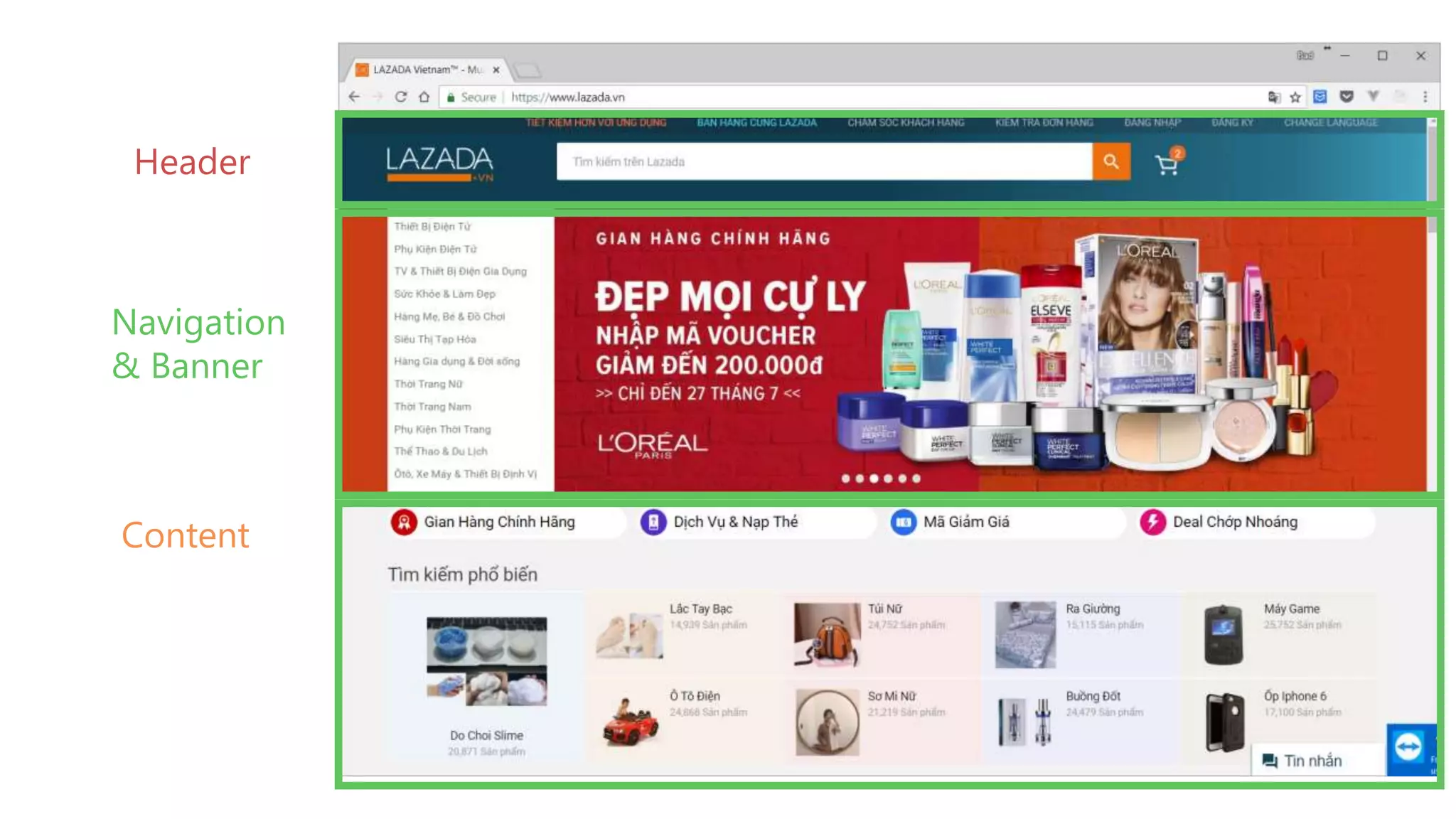
How to create Web Layout?
Header
Navigation
& Banner
Content
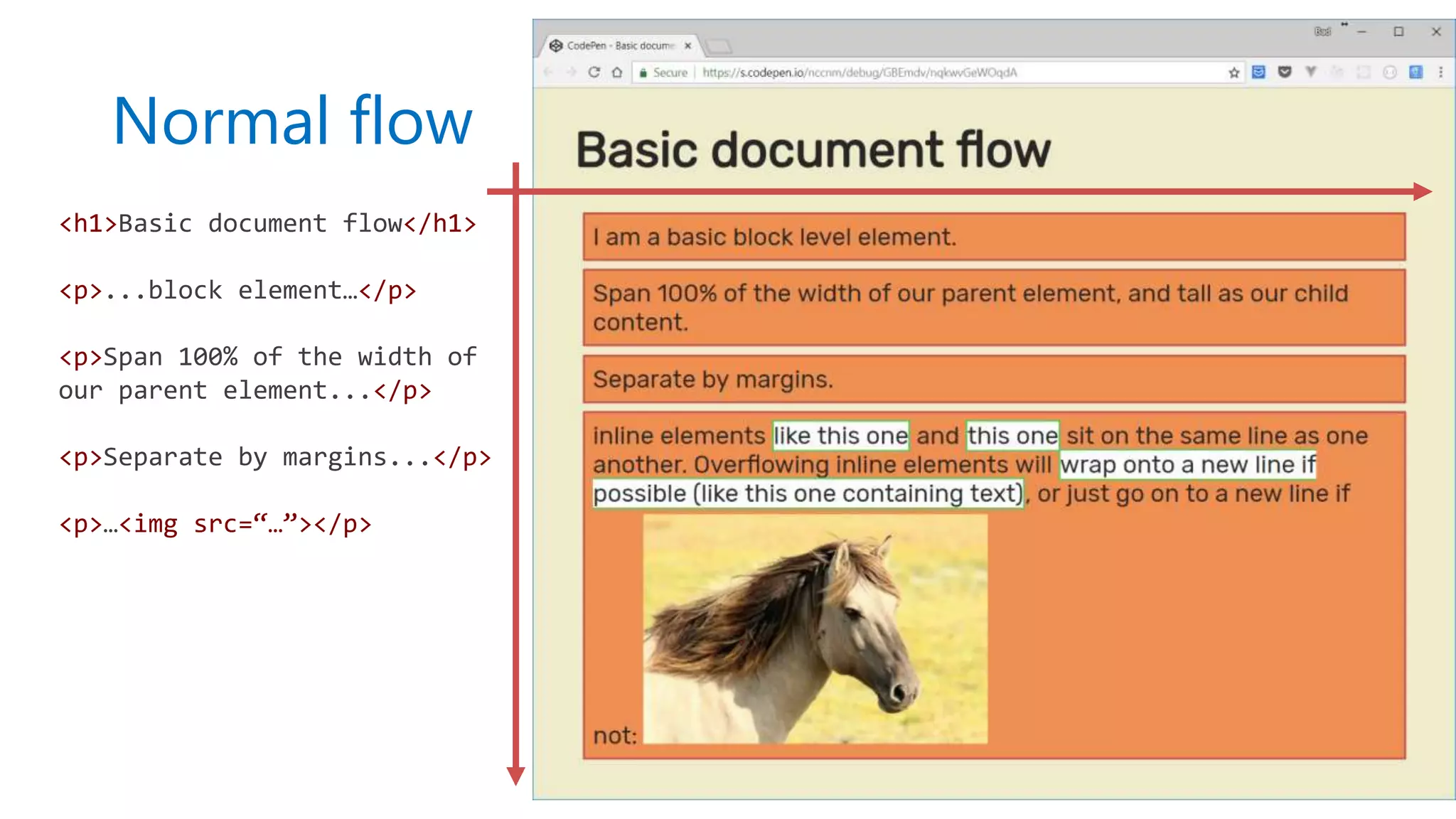
<h1>Basic document flow</h1>
<p>...block element…</p>
<p>Span 100% of the width of
our parent element...</p>
<p>Separate by margins...</p>
<p>…<img src=“…”></p>
Normal flow
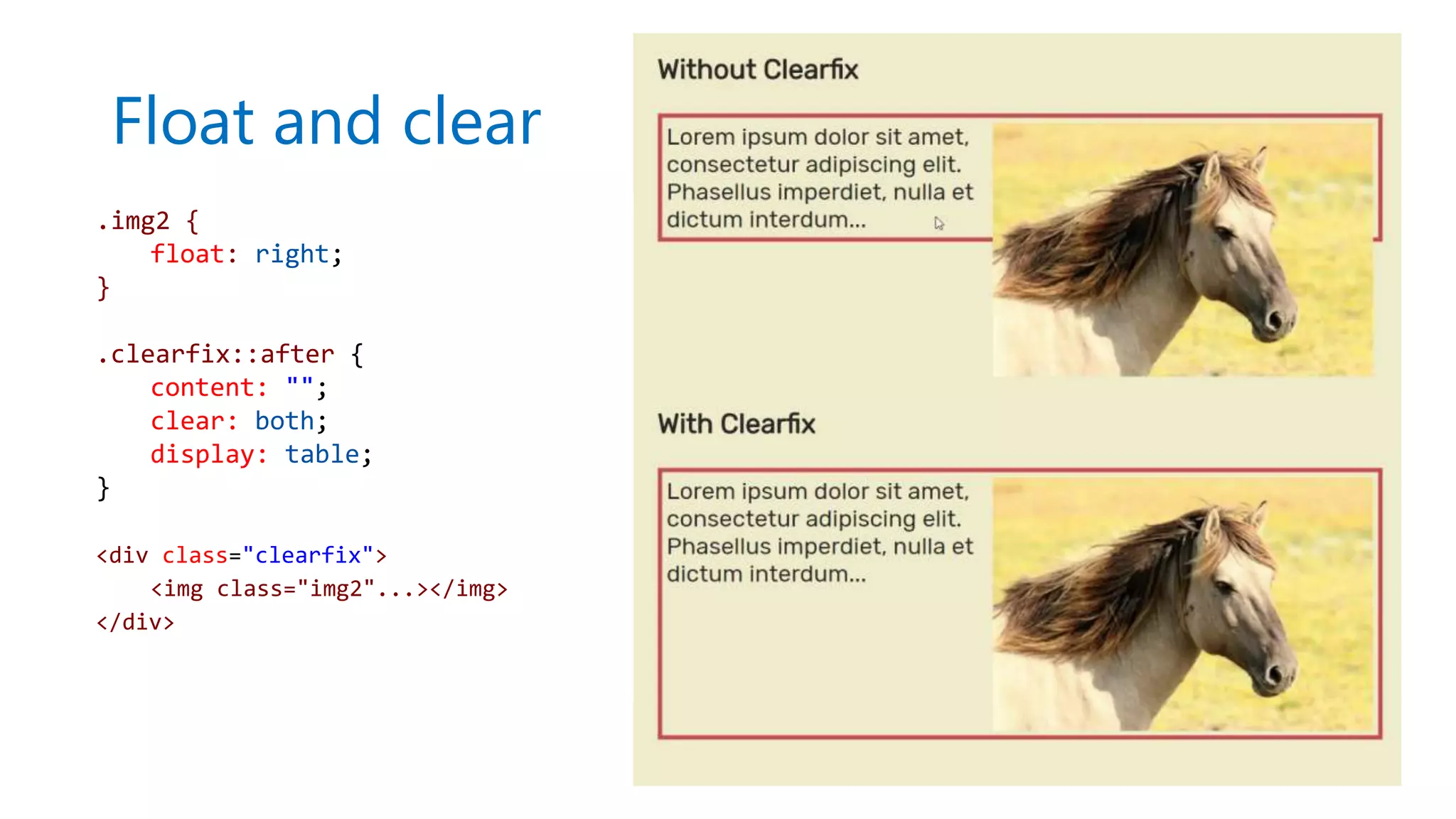
Float and clear
.img2 {
float: right;
}
.clearfix::after {
content: "";
clear: both;
display: table;
}
<div class="clearfix">
<img class="img2"...></img>
</div>
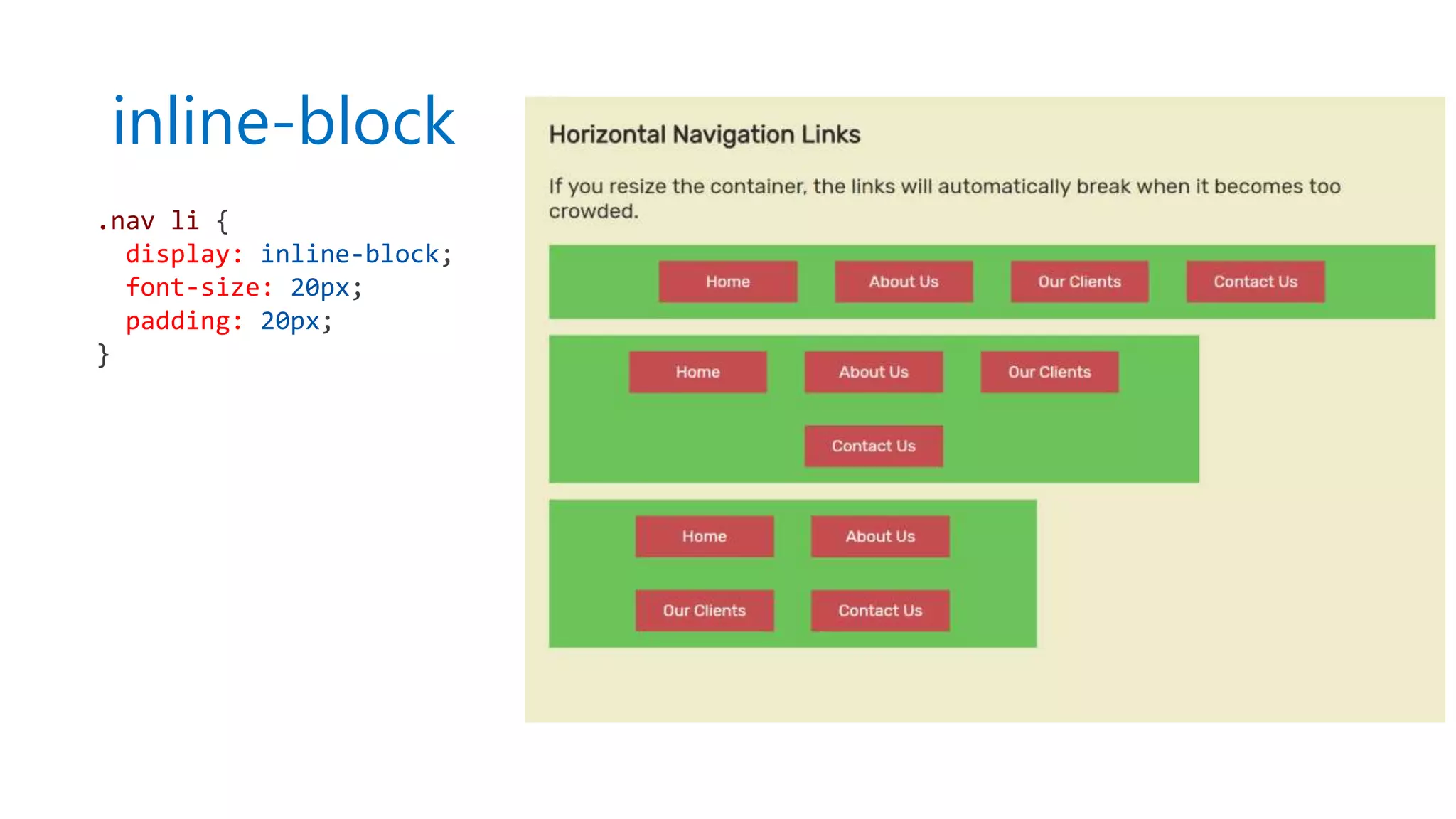
inline-block
.nav li {
display: inline-block;
font-size: 20px;
padding: 20px;
}
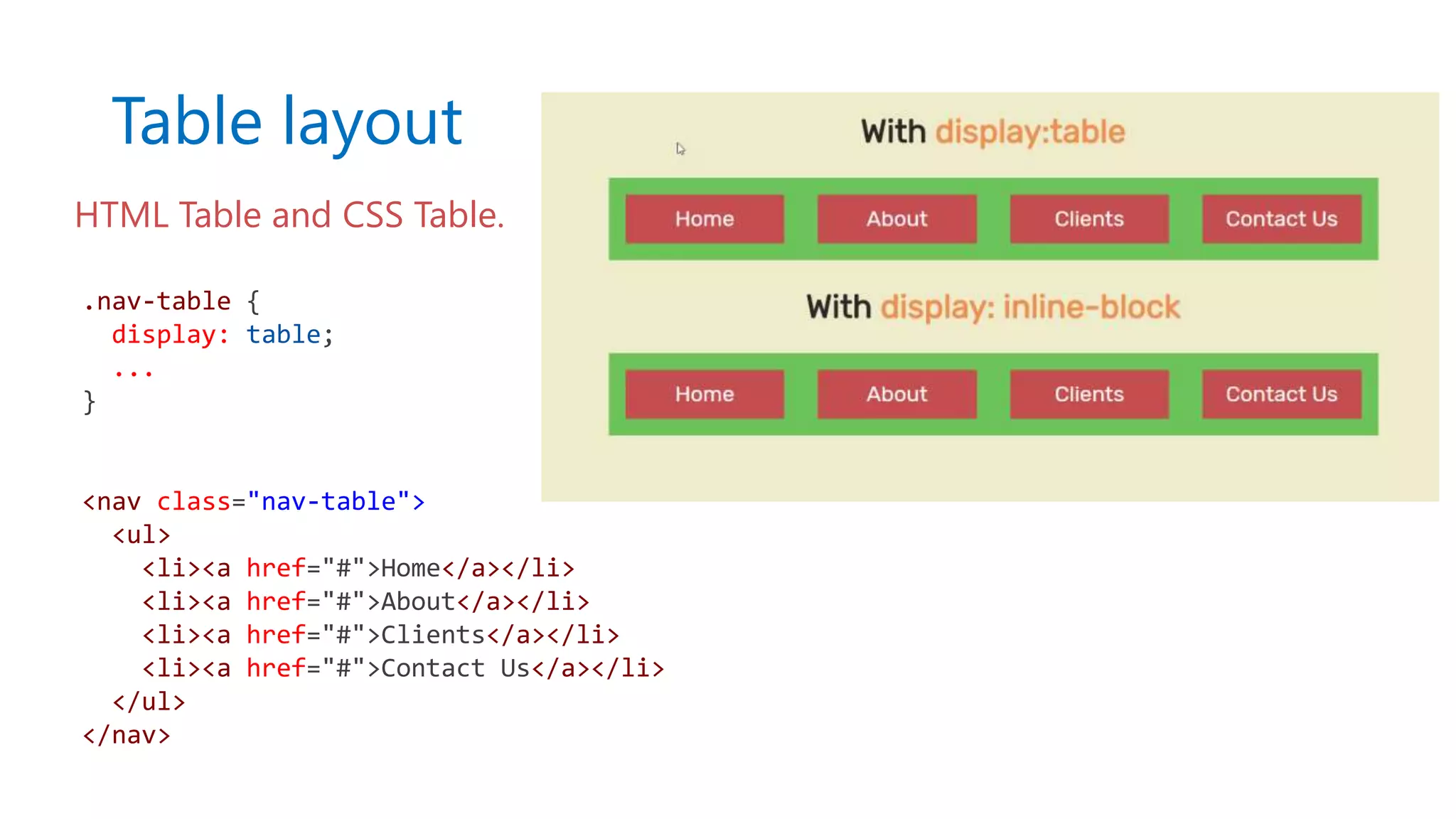
Table layout
.nav-table {
display: table;
...
}
<nav class="nav-table">
<ul>
<li><a href="#">Home</a></li>
<li><a href="#">About</a></li>
<li><a href="#">Clients</a></li>
<li><a href="#">Contact Us</a></li>
</ul>
</nav>
HTML Table and CSS Table.
Positioning techniques
1 Static positioning
3 Absolute positioning
2 Relative positioning
4 Fixed positioning
5 position: sticky
Common issues
Use tricks or hacks
No vertical centering
No equal heights
No source order independence
CSS Frameworks?
Flexbox
Nguyen Duy
Senior Web Developer - Axon Active Viet Nam
Agenda
What is Flexbox?
Flexbox container
Flexbox item
Summary
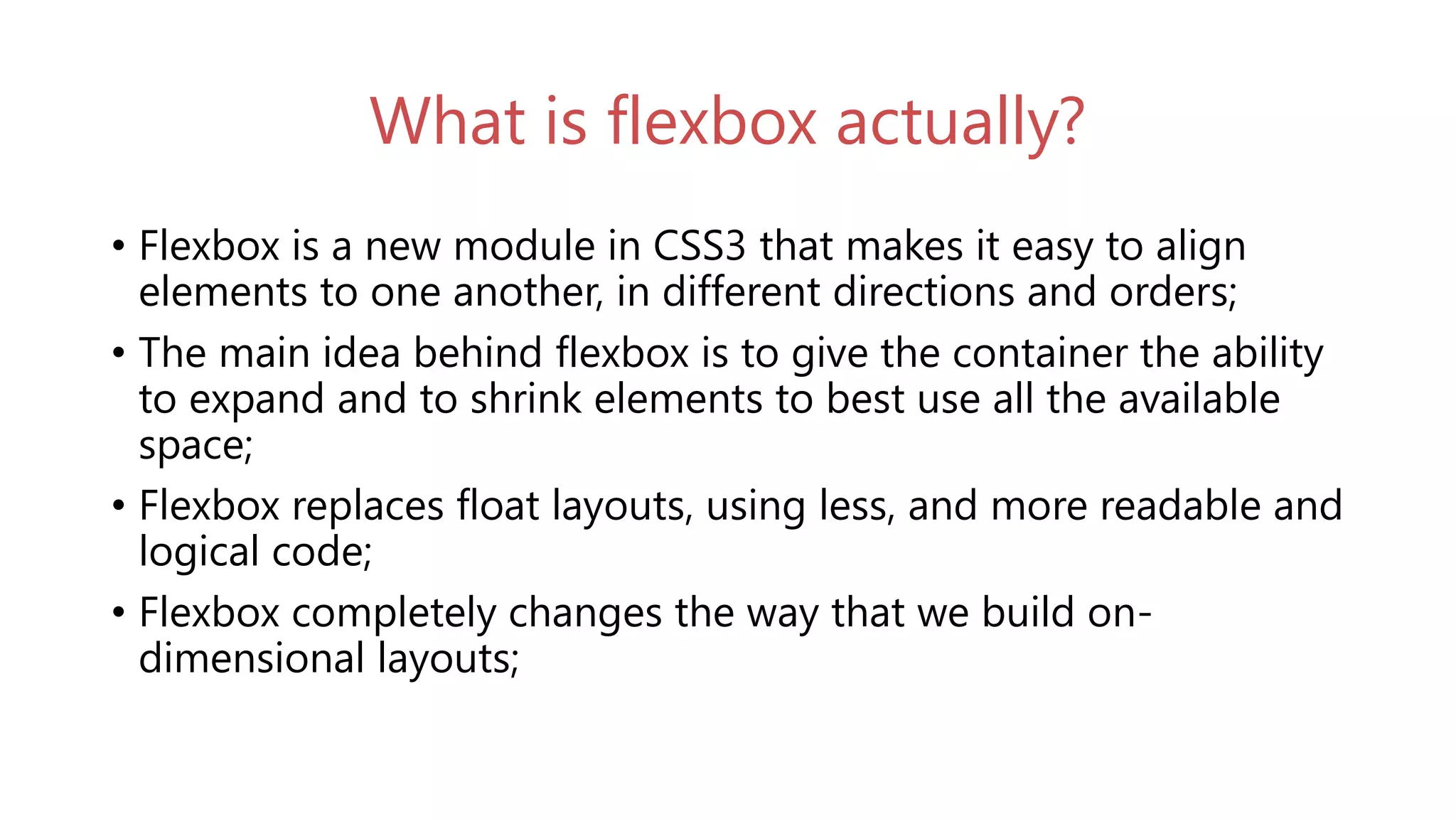
What is flexbox actually?
• Flexbox is a new module in CSS3 that makes it easy to align
elements to one another, in different directions and orders;
• The main idea behind flexbox is to give the container the ability
to expand and to shrink elements to best use all the available
space;
• Flexbox replaces float layouts, using less, and more readable and
logical code;
• Flexbox completely changes the way that we build on-
dimensional layouts;
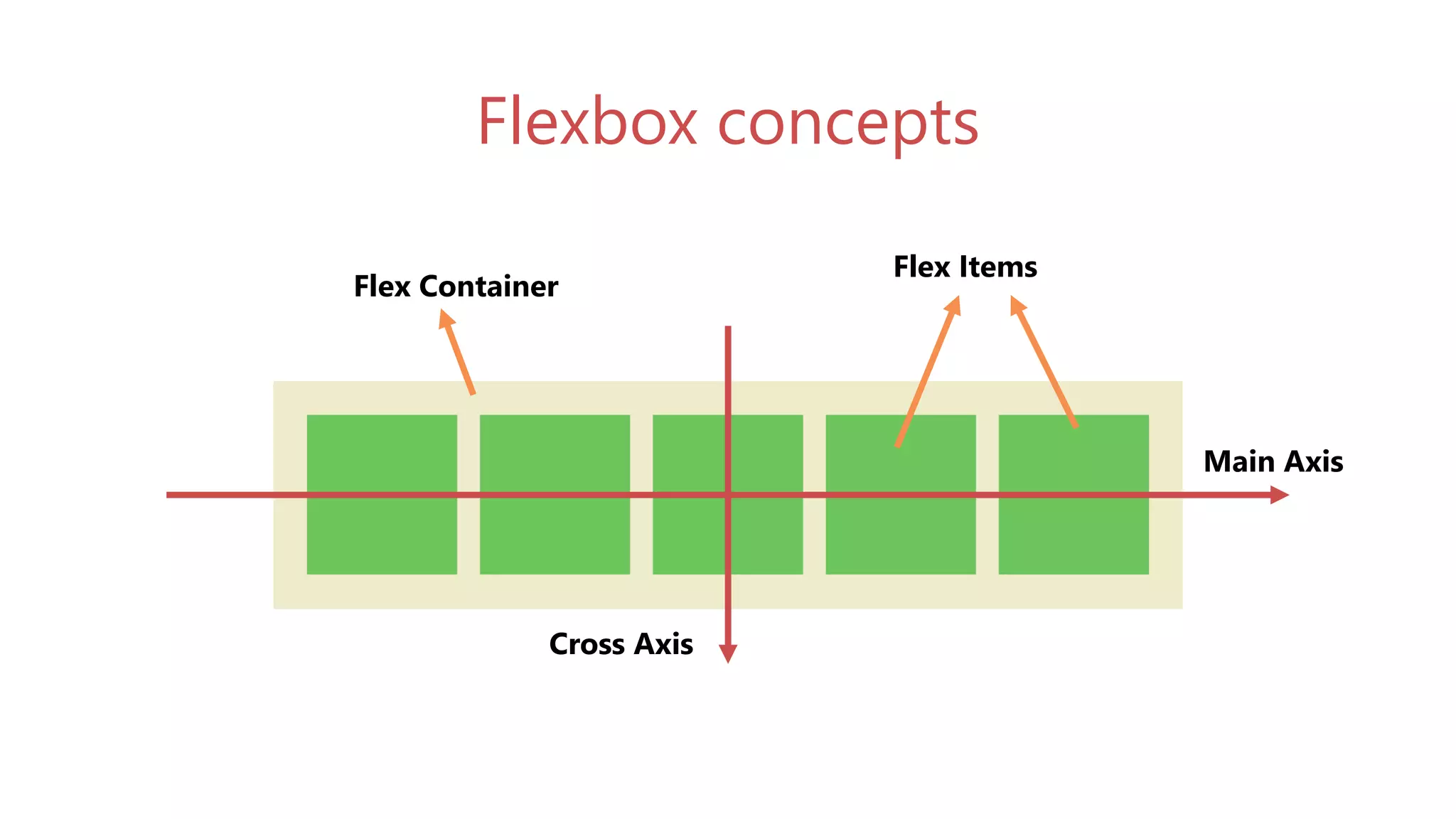
Flexbox concepts
Main Axis
Cross Axis
Flex Container
Flex Items
.containter {
display: flex;
}
<div class="containter">
<div>1</div>
<div>2</div>
<div>3</div>
<div>4</div>
<div>5</div>
</div>
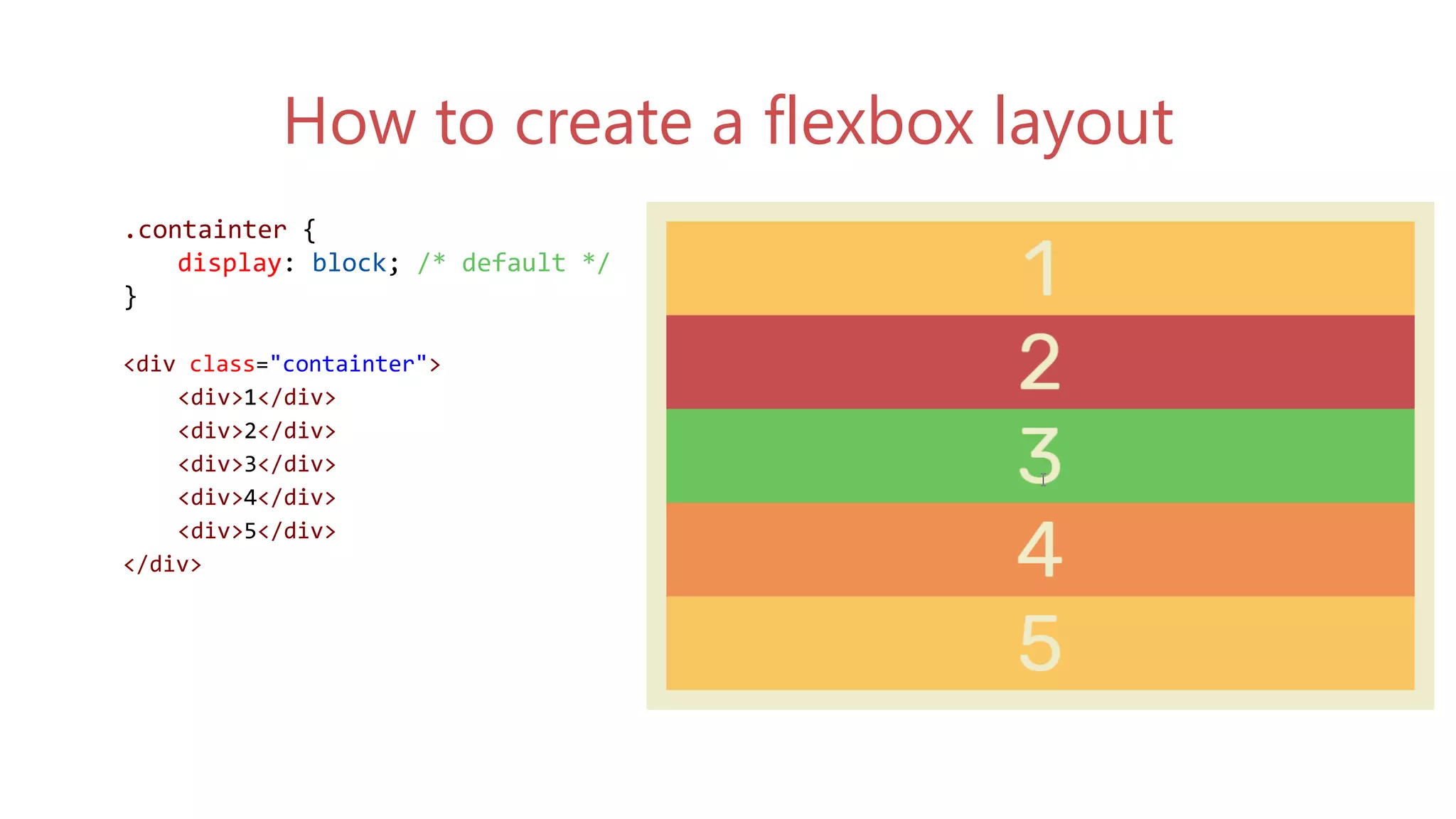
.containter {
display: block; /* default */
}
<div class="containter">
<div>1</div>
<div>2</div>
<div>3</div>
<div>4</div>
<div>5</div>
</div>
How to create a flexbox layout
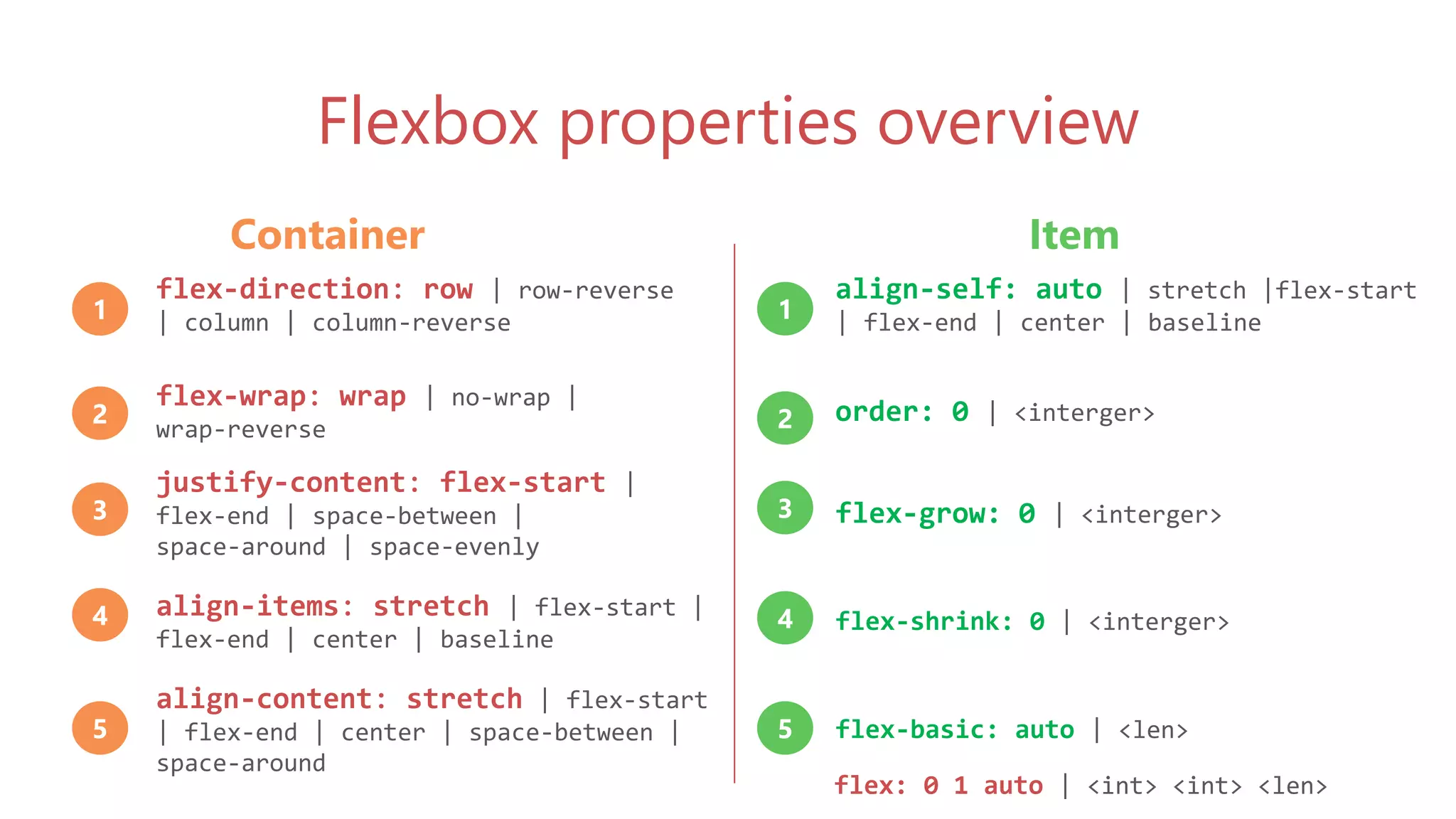
Flexbox properties overview
flex-direction: row | row-reverse
| column | column-reverse
align-self: auto | stretch |flex-start
| flex-end | center | baseline
flex-wrap: wrap | no-wrap |
wrap-reverse
order: 0 | <interger>
justify-content: flex-start |
flex-end | space-between |
space-around | space-evenly
flex-grow: 0 | <interger>
align-items: stretch | flex-start |
flex-end | center | baseline
flex-shrink: 0 | <interger>
align-content: stretch | flex-start
| flex-end | center | space-between |
space-around
flex-basic: auto | <len>
1
2
3
4
5
1
2
3
4
5
flex: 0 1 auto | <int> <int> <len>
Container Item
Flexbox container
.containter {
display: flex;
flex-direction: row;
}
<div class="containter">
<div>1</div>
<div>2</div>
<div>3</div>
<div>4</div>
<div>5</div>
</div>
.containter {
display: flex;
flex-direction: row-reverse;
}
<div class="containter">
<div>1</div>
<div>2</div>
<div>3</div>
<div>4</div>
<div>5</div>
</div>
.containter {
display: flex;
flex-direction: column;
}
<div class="containter">
<div>1</div>
<div>2</div>
<div>3</div>
<div>4</div>
<div>5</div>
</div>
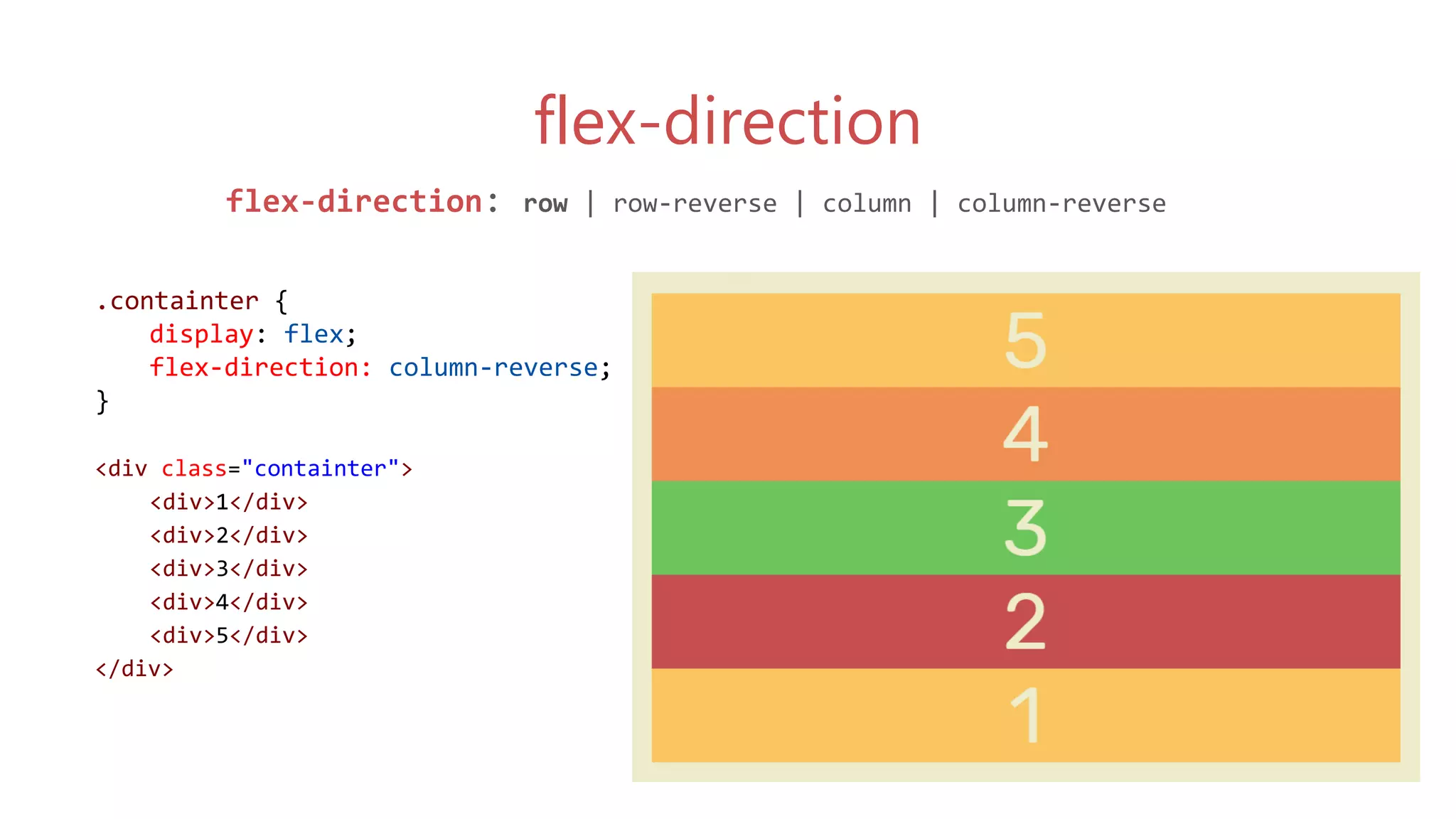
.containter {
display: flex;
flex-direction: column-reverse;
}
<div class="containter">
<div>1</div>
<div>2</div>
<div>3</div>
<div>4</div>
<div>5</div>
</div>
flex-direction
flex-direction: row | row-reverse | column | column-reverse
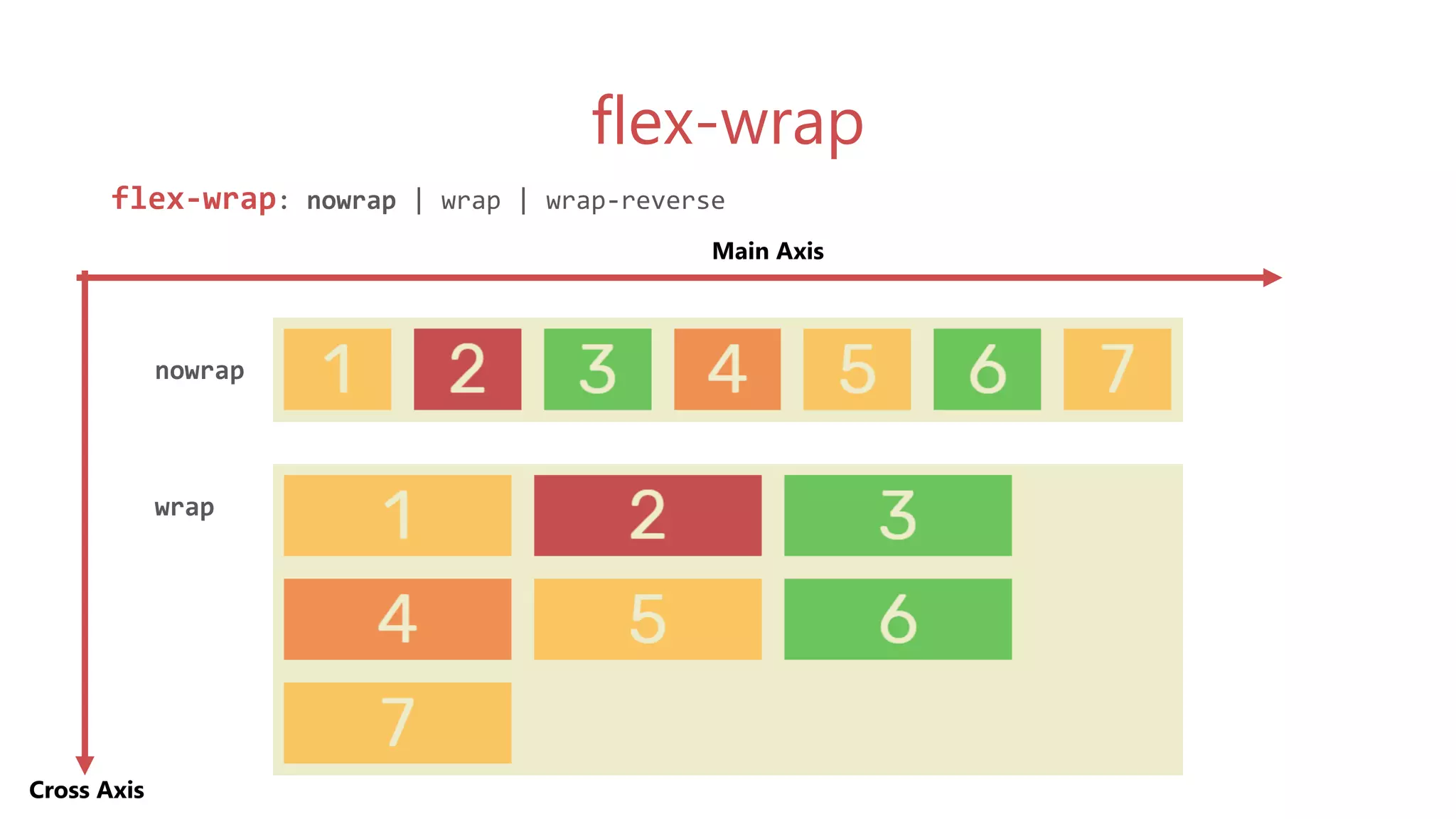
flex-wrap
flex-wrap: nowrap | wrap | wrap-reverse
Main Axis
Cross Axis
nowrap
wrap
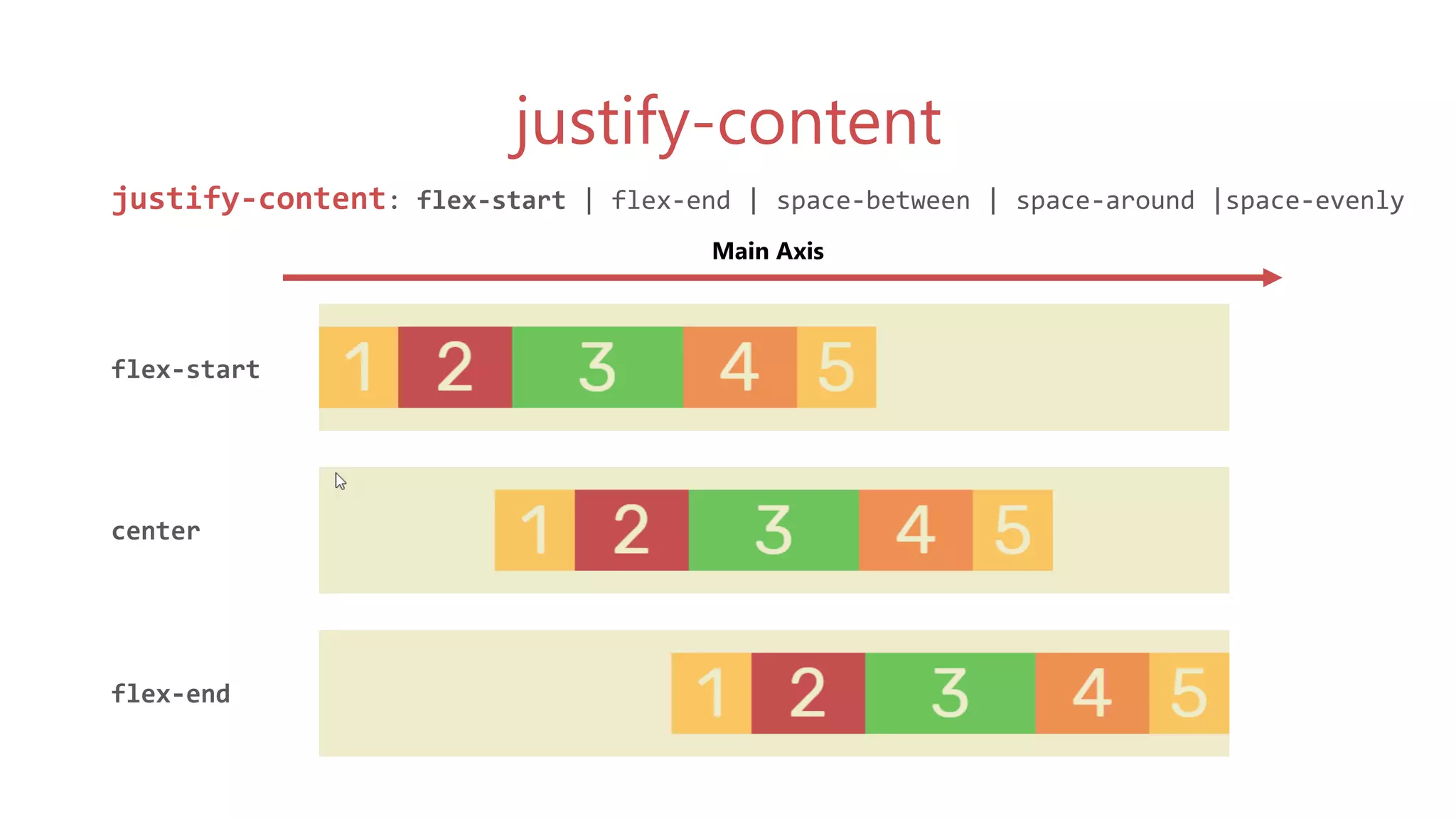
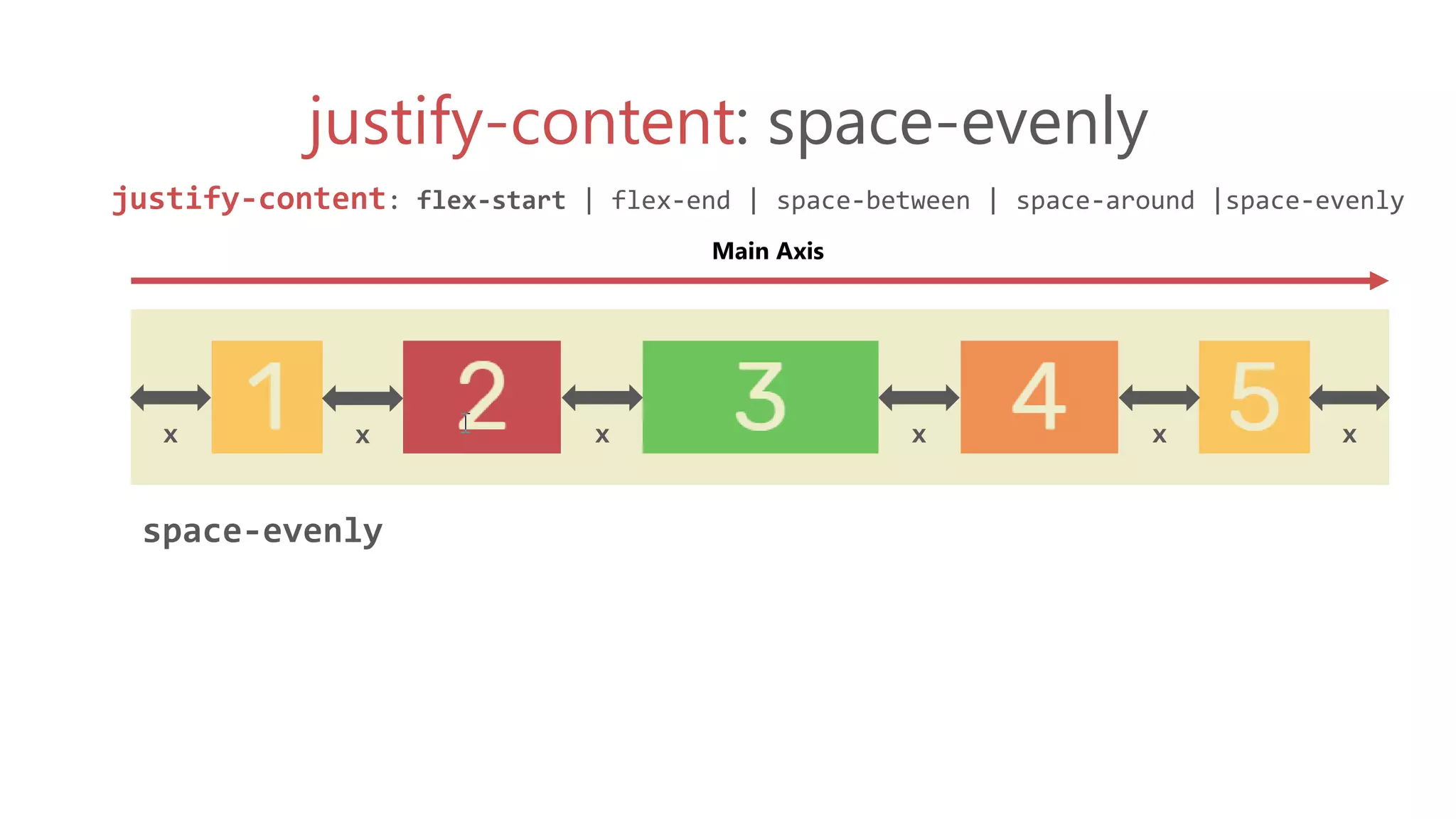
justify-content
justify-content: flex-start | flex-end | space-between | space-around |space-evenly
flex-start
center
flex-end
Main Axis
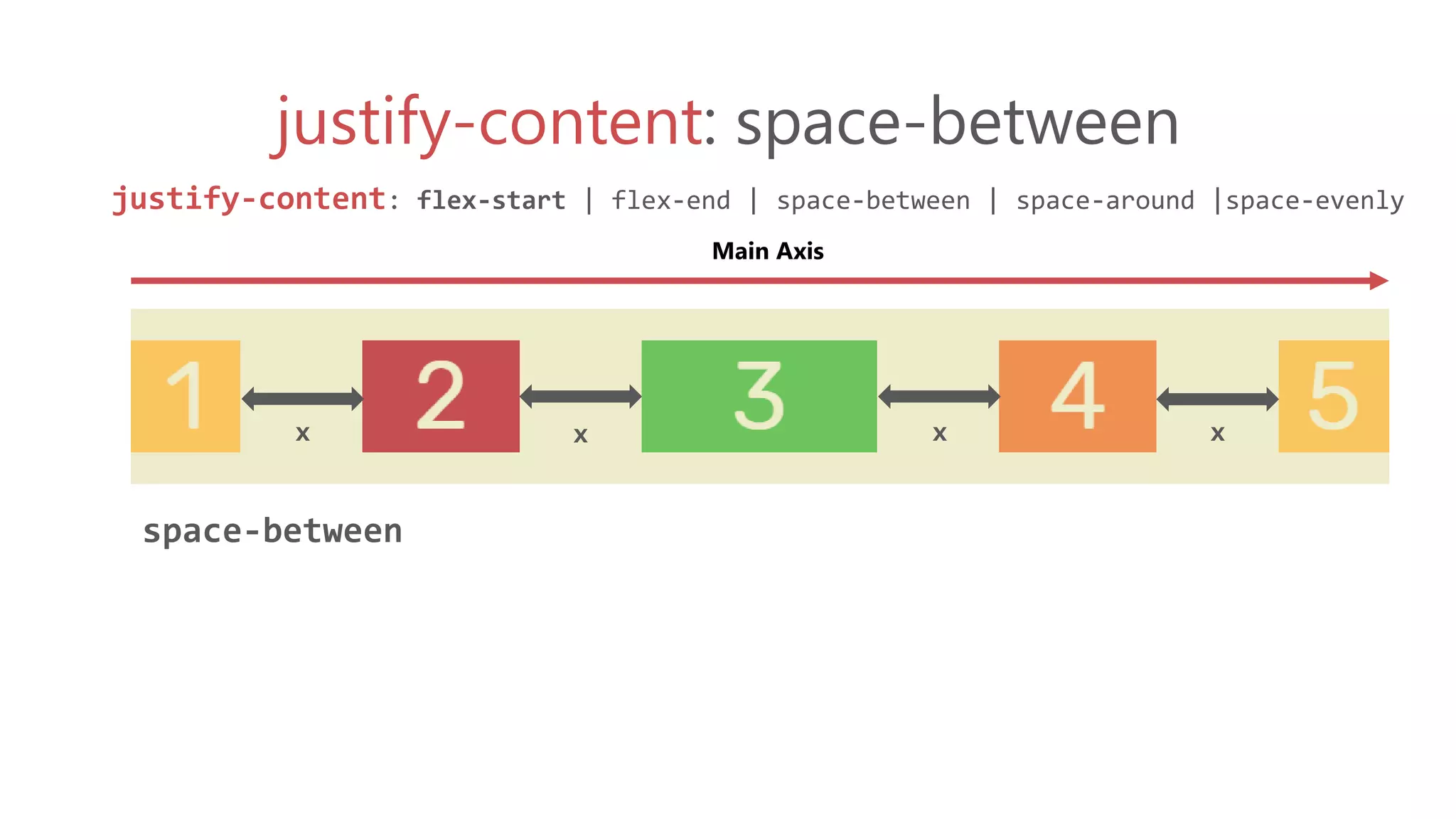
justify-content: space-between
justify-content: flex-start | flex-end | space-between | space-around |space-evenly
space-between
Main Axis
x x x x
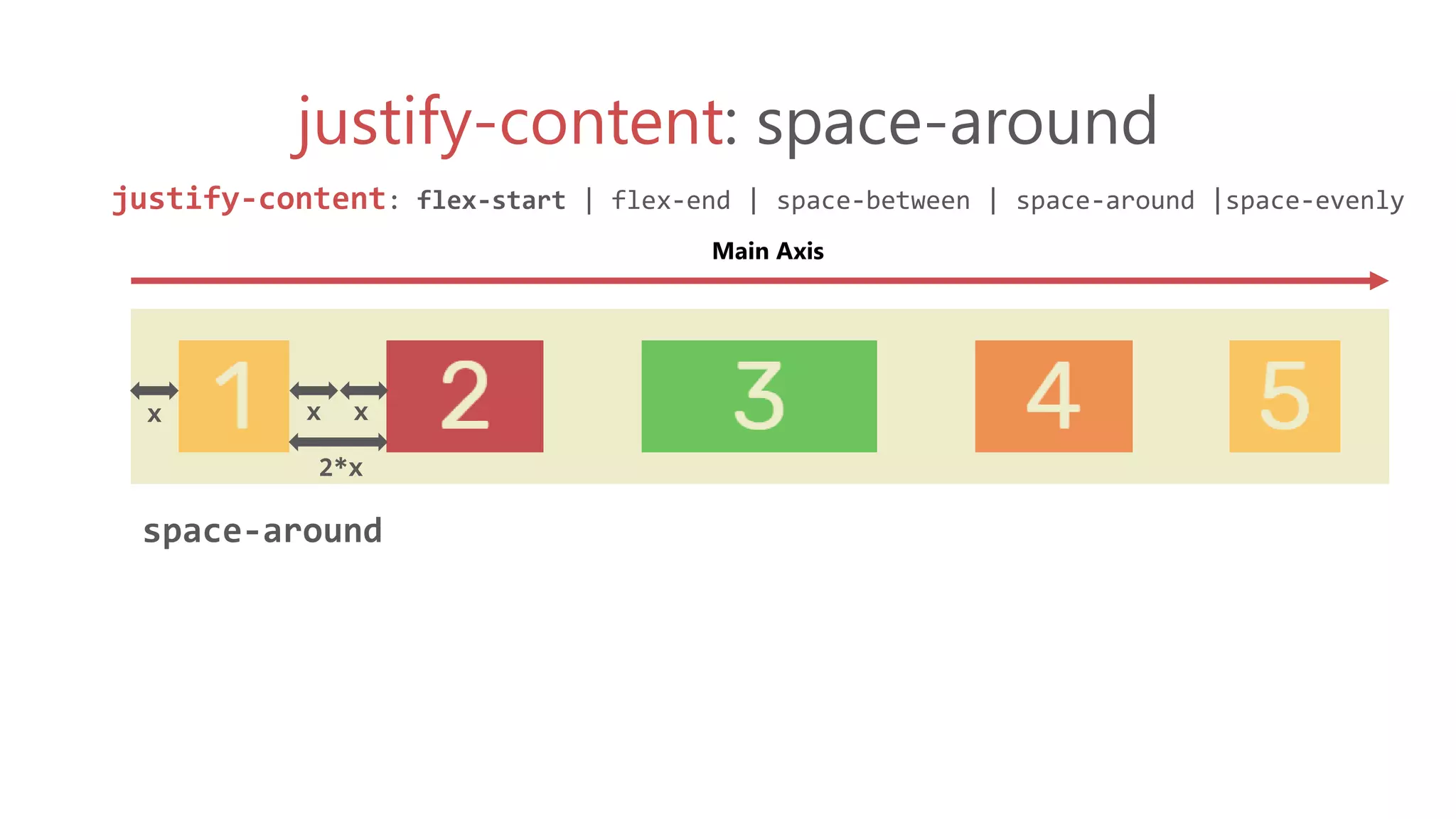
justify-content: space-around
justify-content: flex-start | flex-end | space-between | space-around |space-evenly
space-around
Main Axis
x
2*x
x x
justify-content: space-evenly
justify-content: flex-start | flex-end | space-between | space-around |space-evenly
space-evenly
Main Axis
x x x x x x
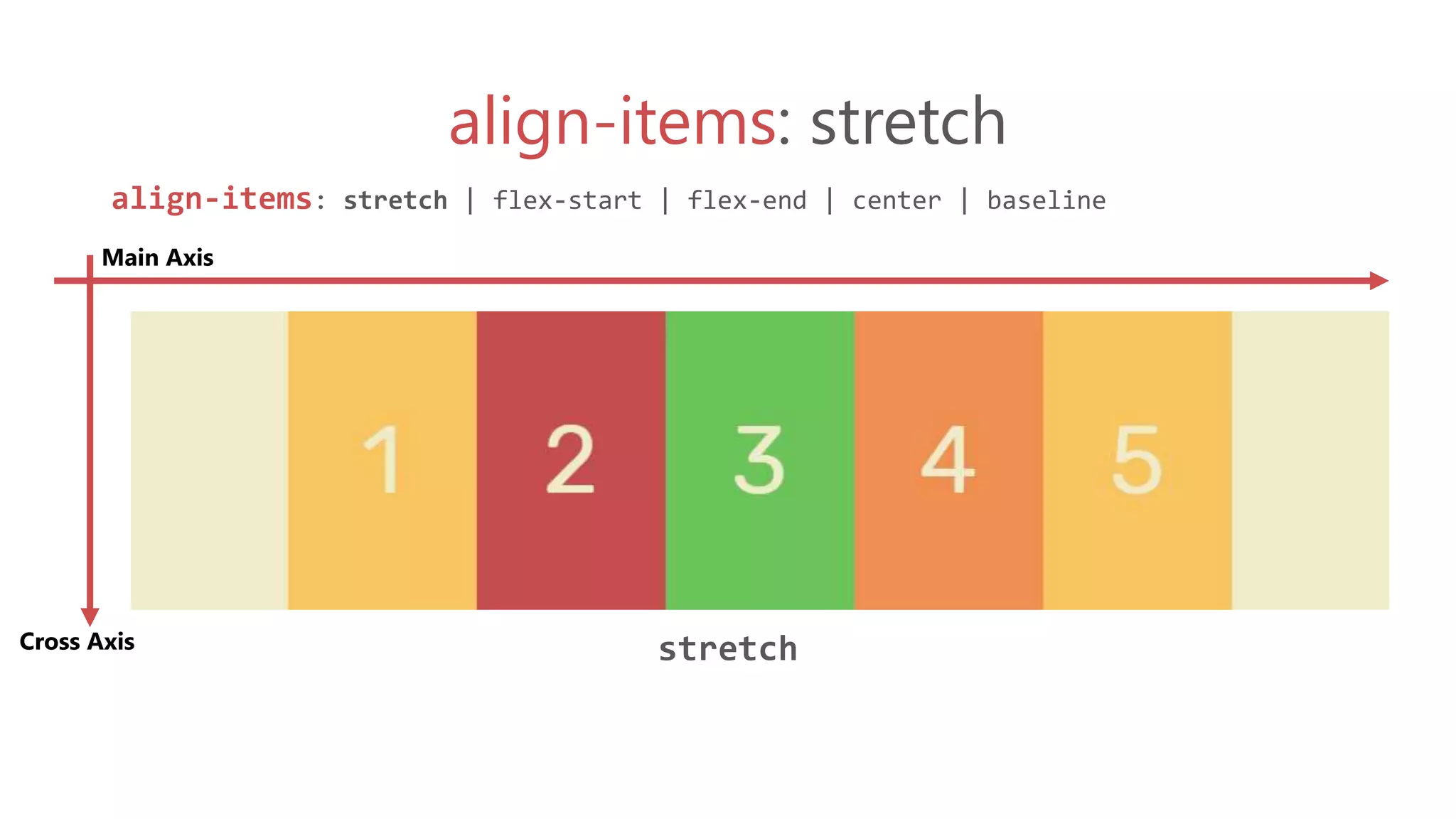
align-items: stretch
align-items: stretch | flex-start | flex-end | center | baseline
stretch
Main Axis
Cross Axis
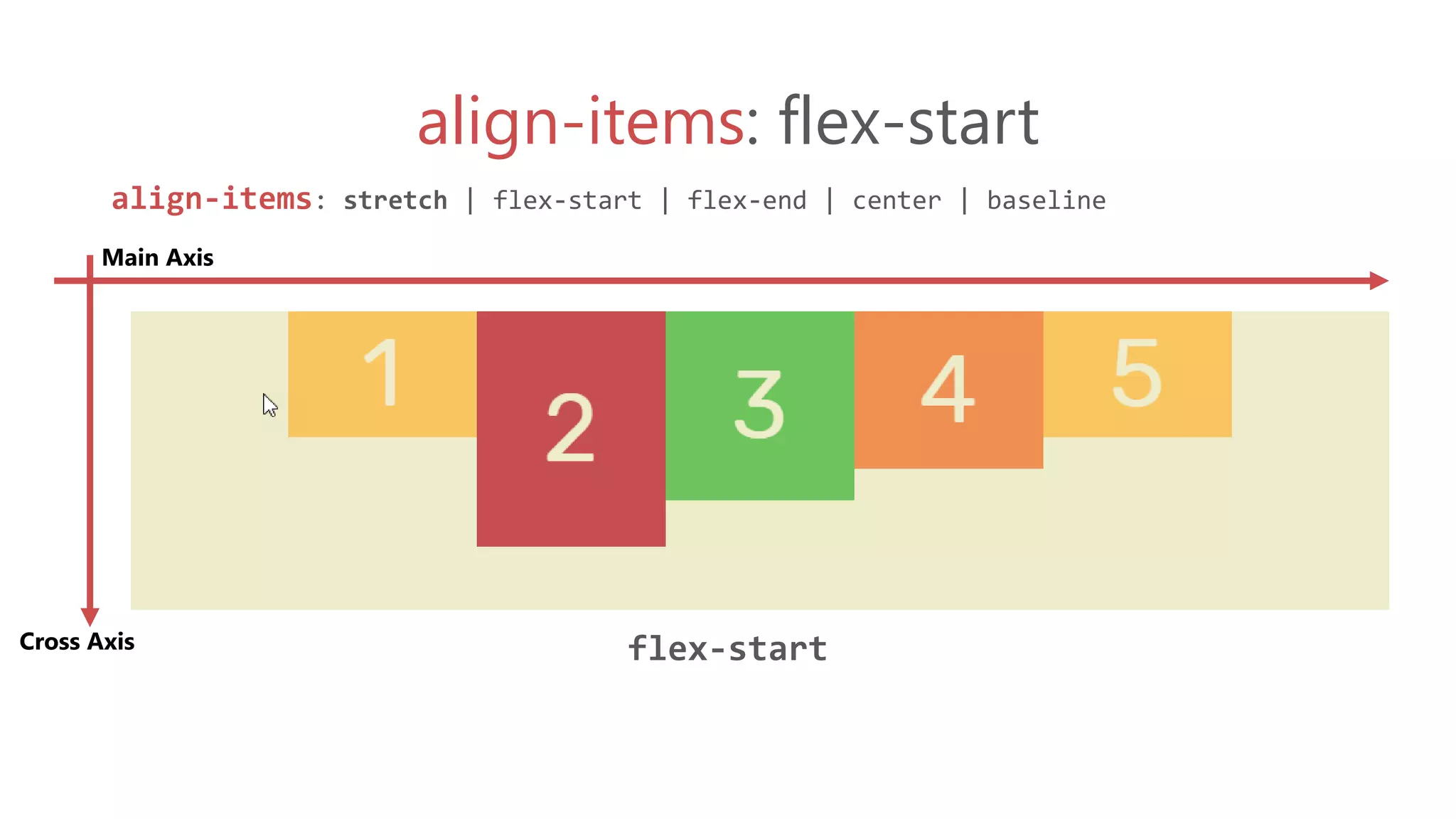
align-items: flex-start
align-items: stretch | flex-start | flex-end | center | baseline
flex-start
Main Axis
Cross Axis
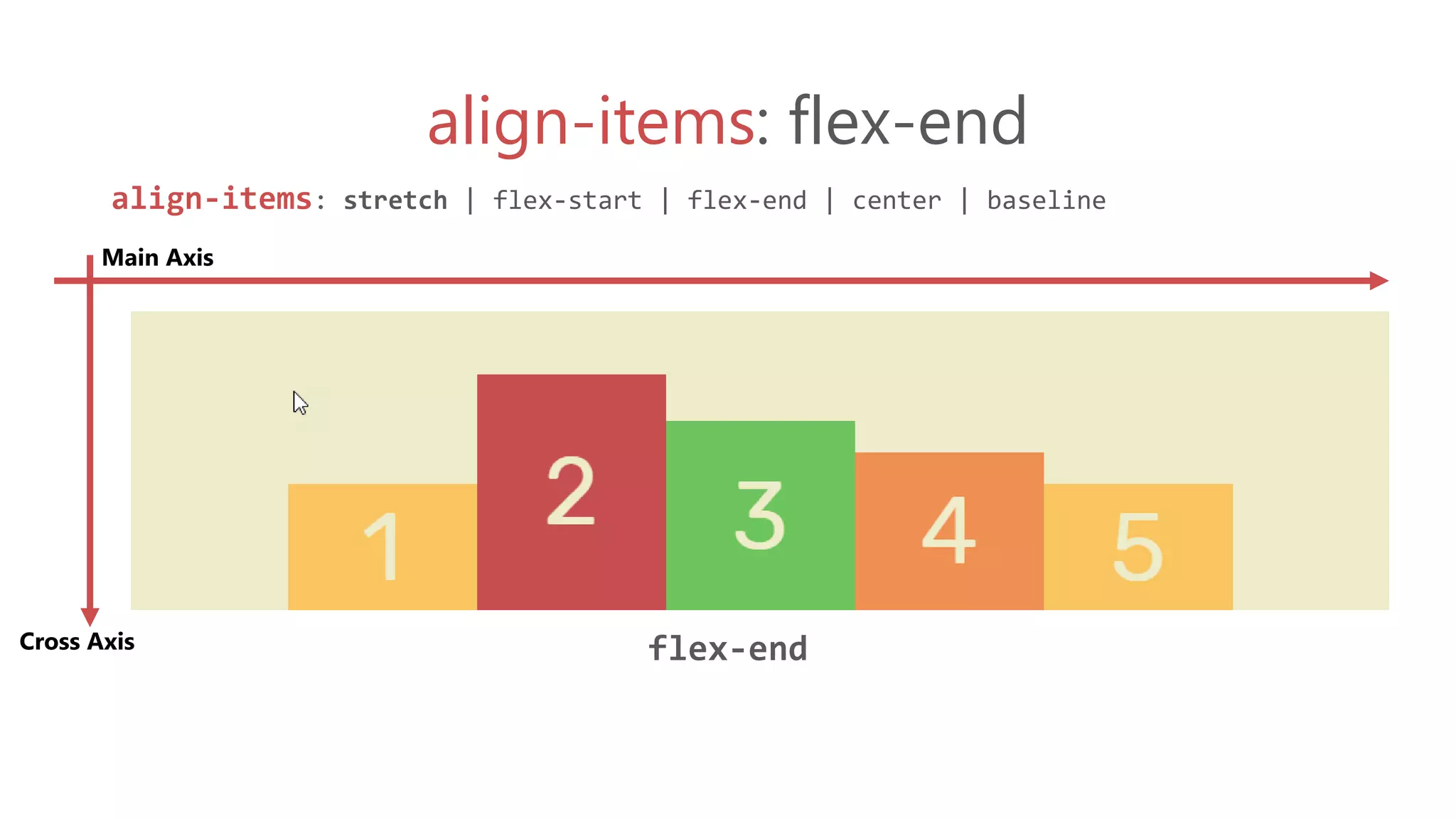
align-items: flex-end
align-items: stretch | flex-start | flex-end | center | baseline
flex-end
Main Axis
Cross Axis
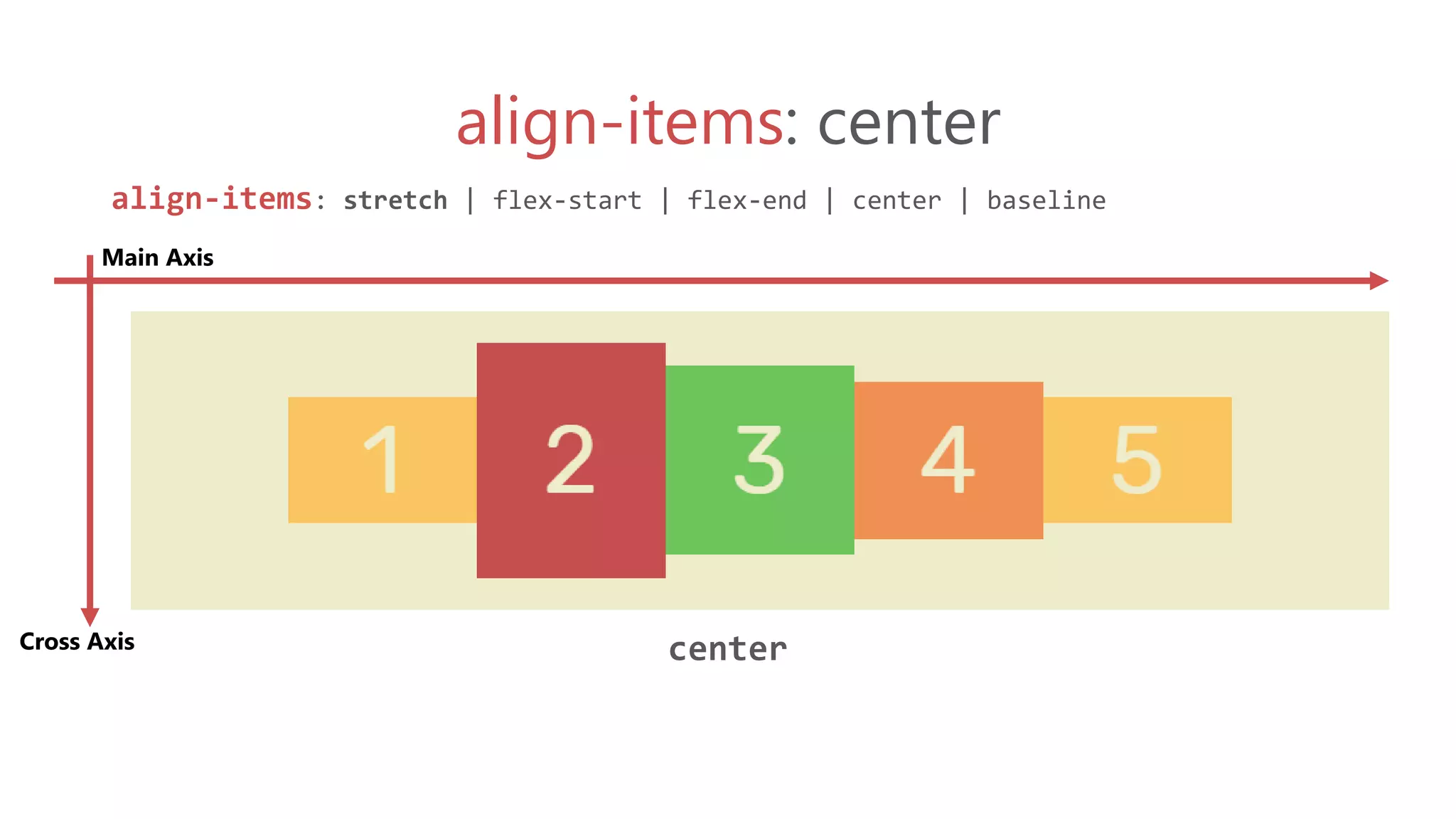
align-items: center
align-items: stretch | flex-start | flex-end | center | baseline
center
Main Axis
Cross Axis
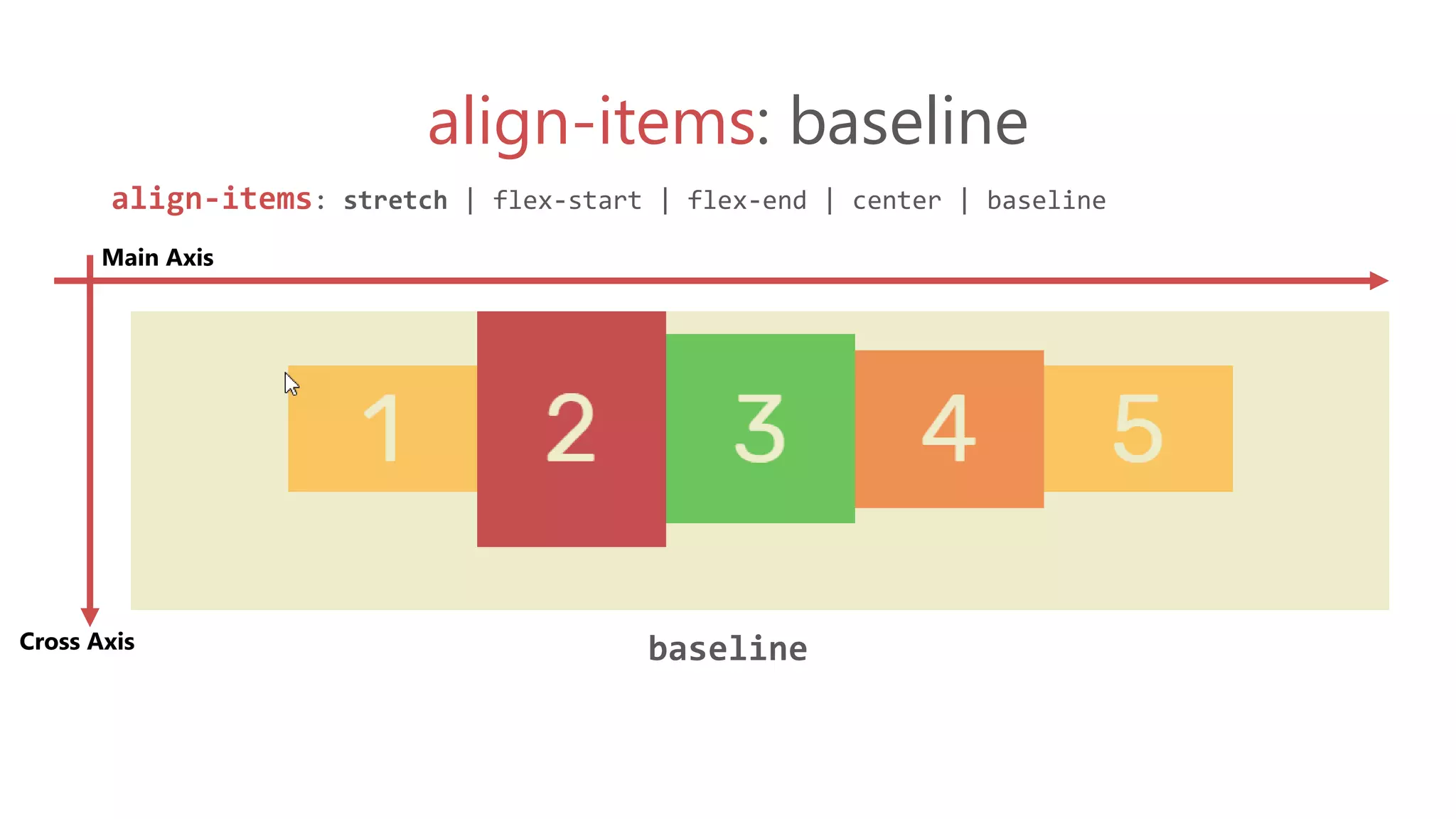
align-items: baseline
align-items: stretch | flex-start | flex-end | center | baseline
baseline
Main Axis
Cross Axis
Flexbox item
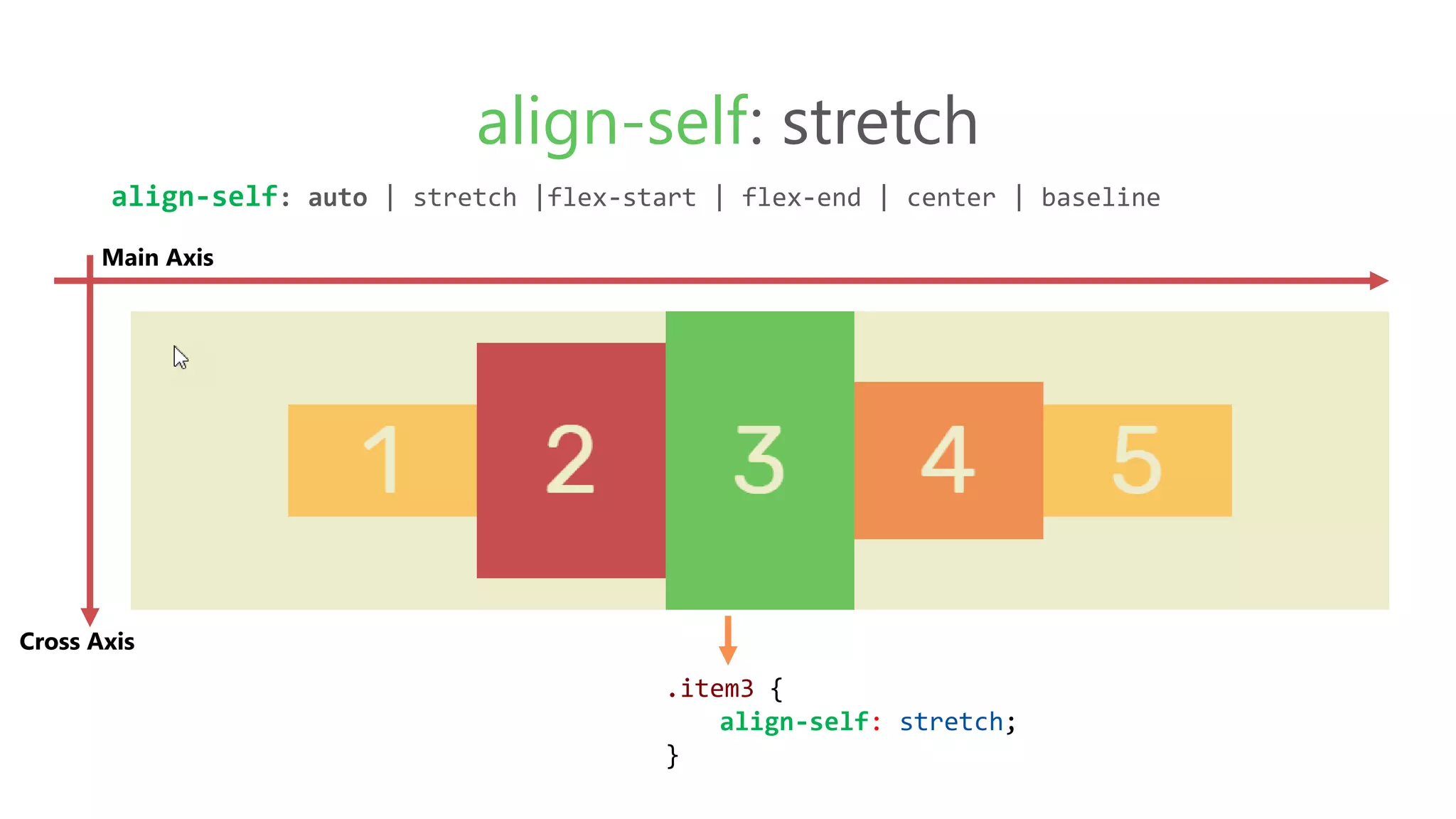
.item3 {
align-self: stretch;
}
align-self: stretch
align-self: auto | stretch |flex-start | flex-end | center | baseline
Main Axis
Cross Axis
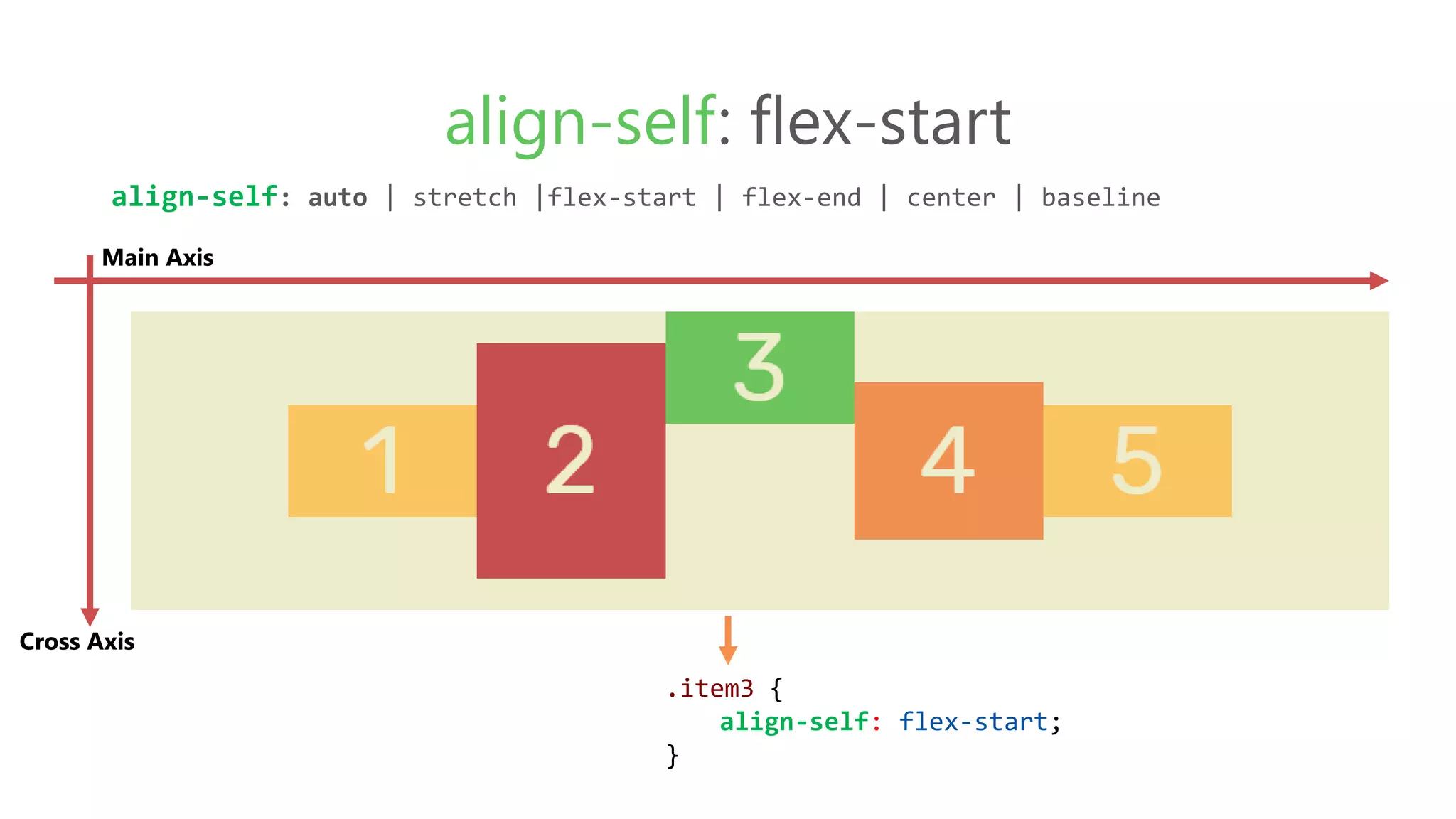
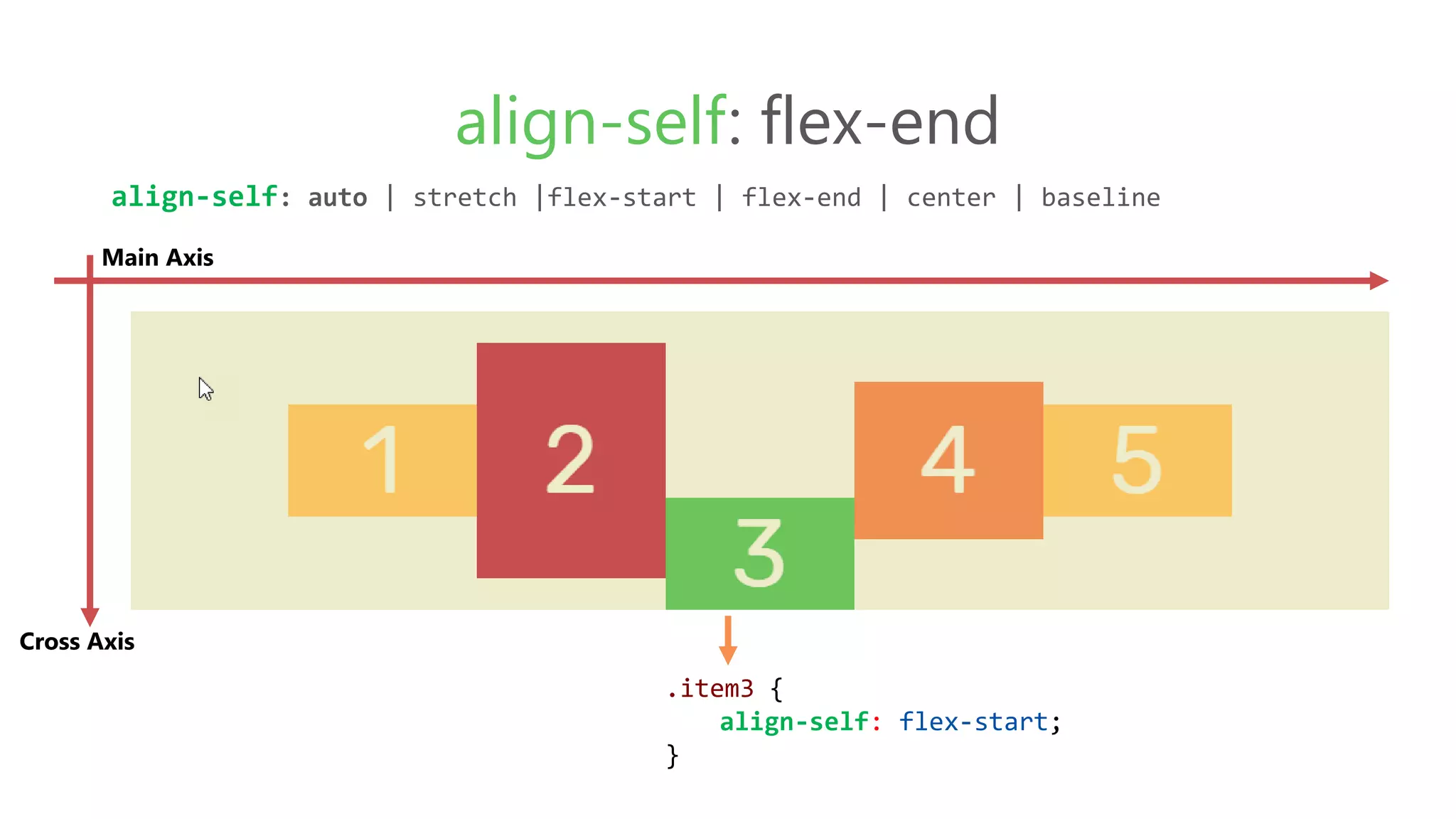
.item3 {
align-self: flex-start;
}
align-self: flex-start
align-self: auto | stretch |flex-start | flex-end | center | baseline
Main Axis
Cross Axis
.item3 {
align-self: flex-start;
}
align-self: flex-end
align-self: auto | stretch |flex-start | flex-end | center | baseline
Main Axis
Cross Axis
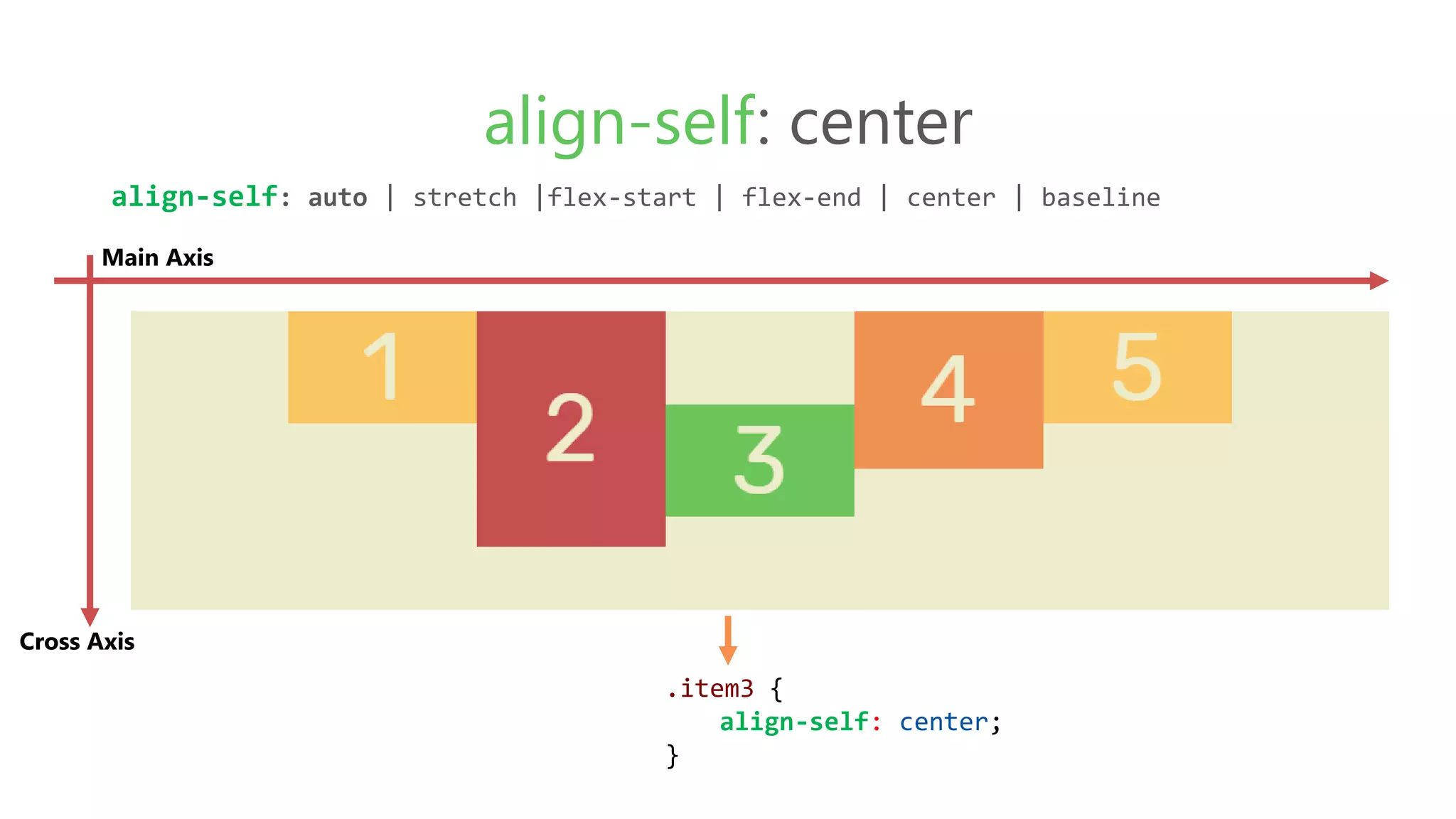
.item3 {
align-self: center;
}
align-self: center
align-self: auto | stretch |flex-start | flex-end | center | baseline
Main Axis
Cross Axis
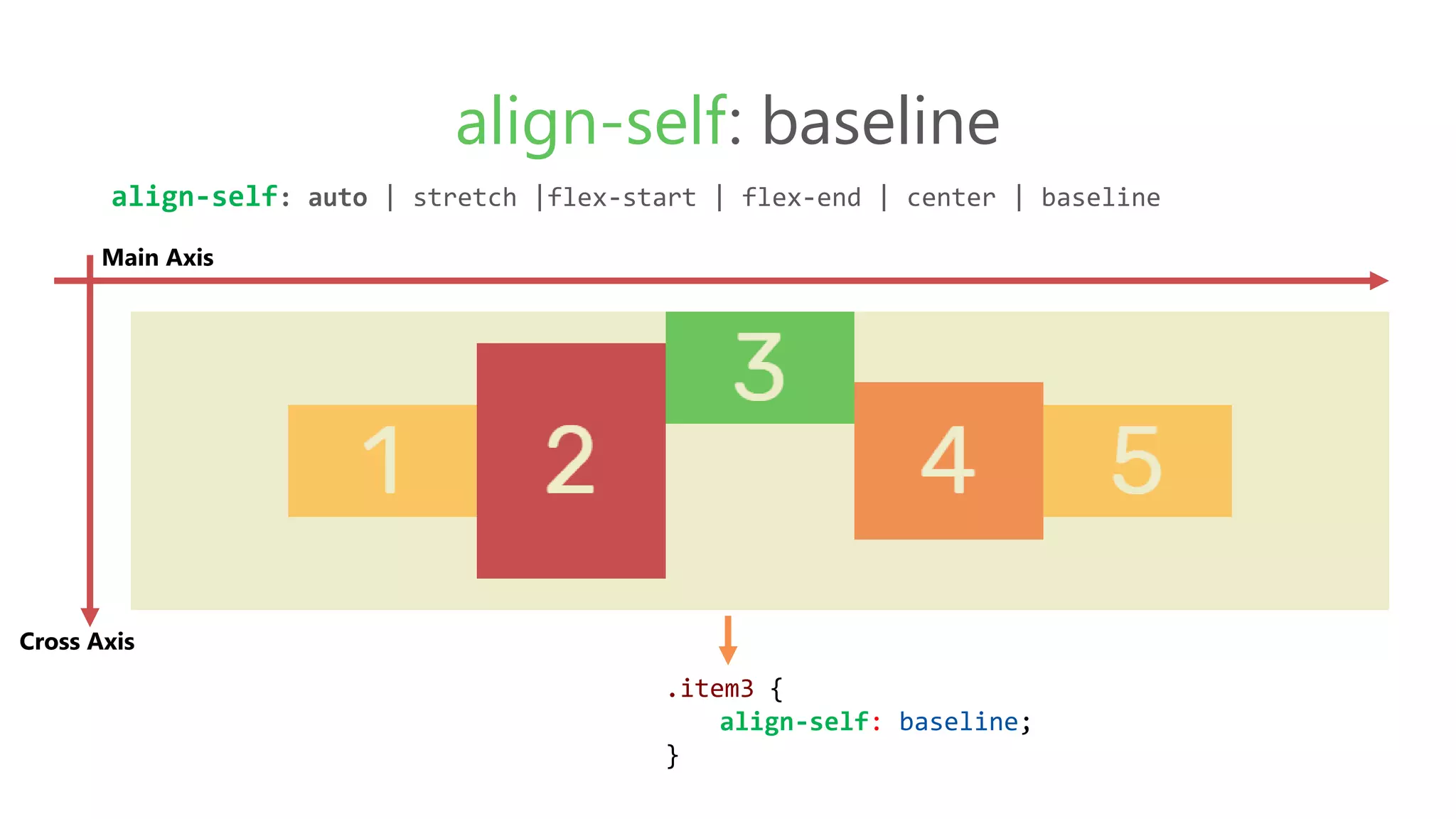
.item3 {
align-self: baseline;
}
align-self: baseline
align-self: auto | stretch |flex-start | flex-end | center | baseline
Main Axis
Cross Axis
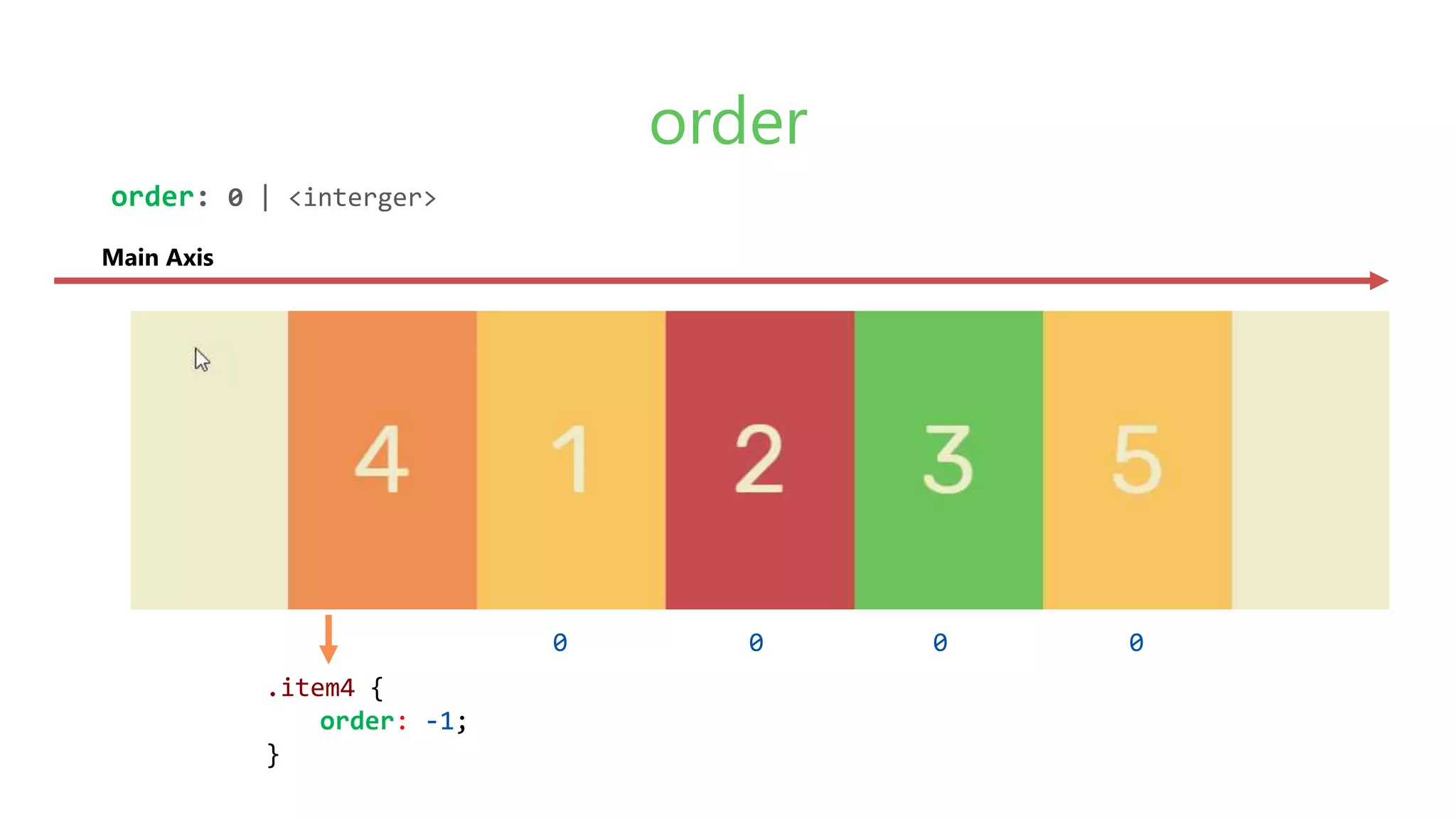
.item4 {
order: -1;
}
order
order: 0 | <interger>
Main Axis
0 0 0 0
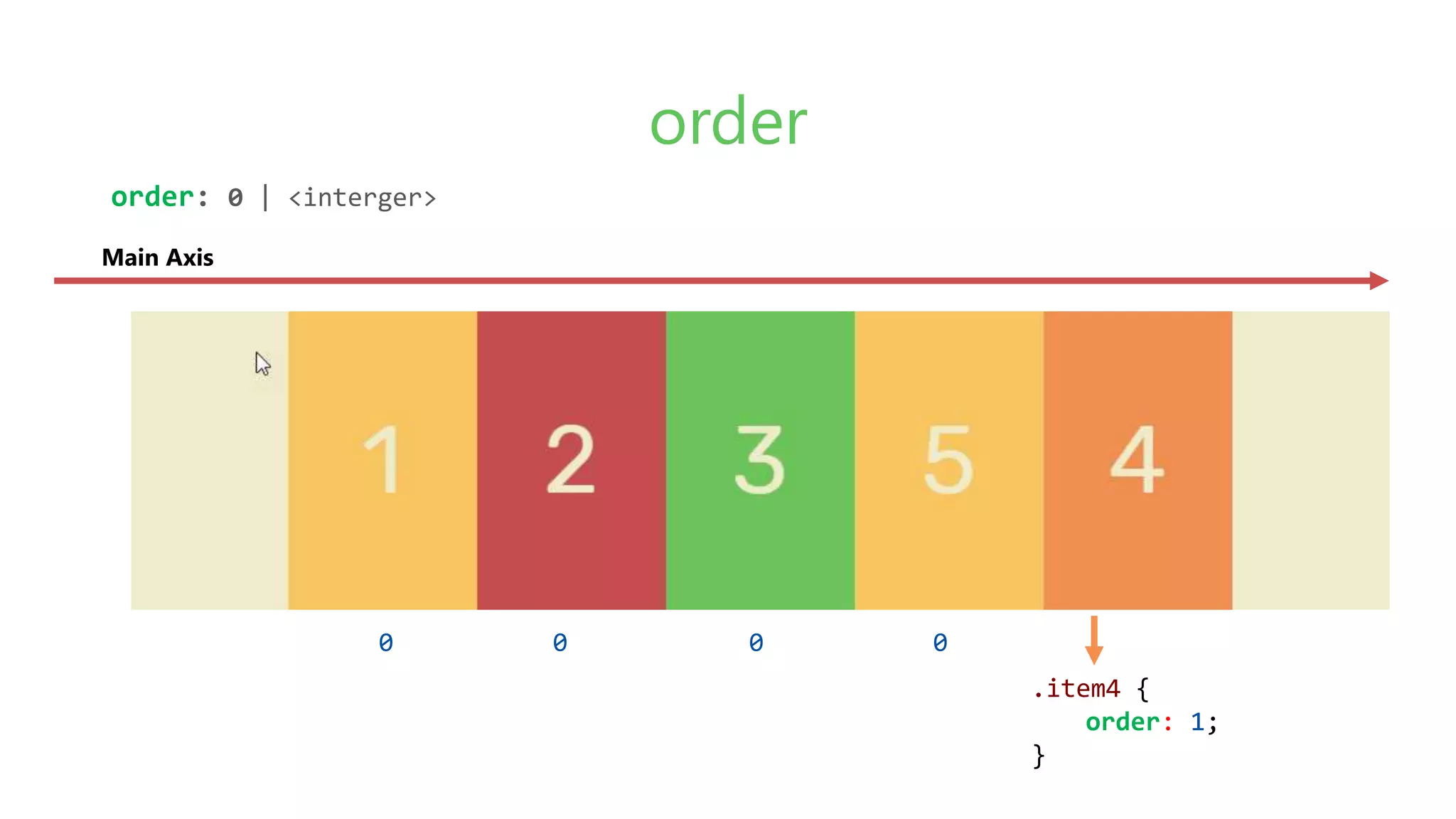
.item4 {
order: 1;
}
order
order: 0 | <interger>
Main Axis
0 0 00
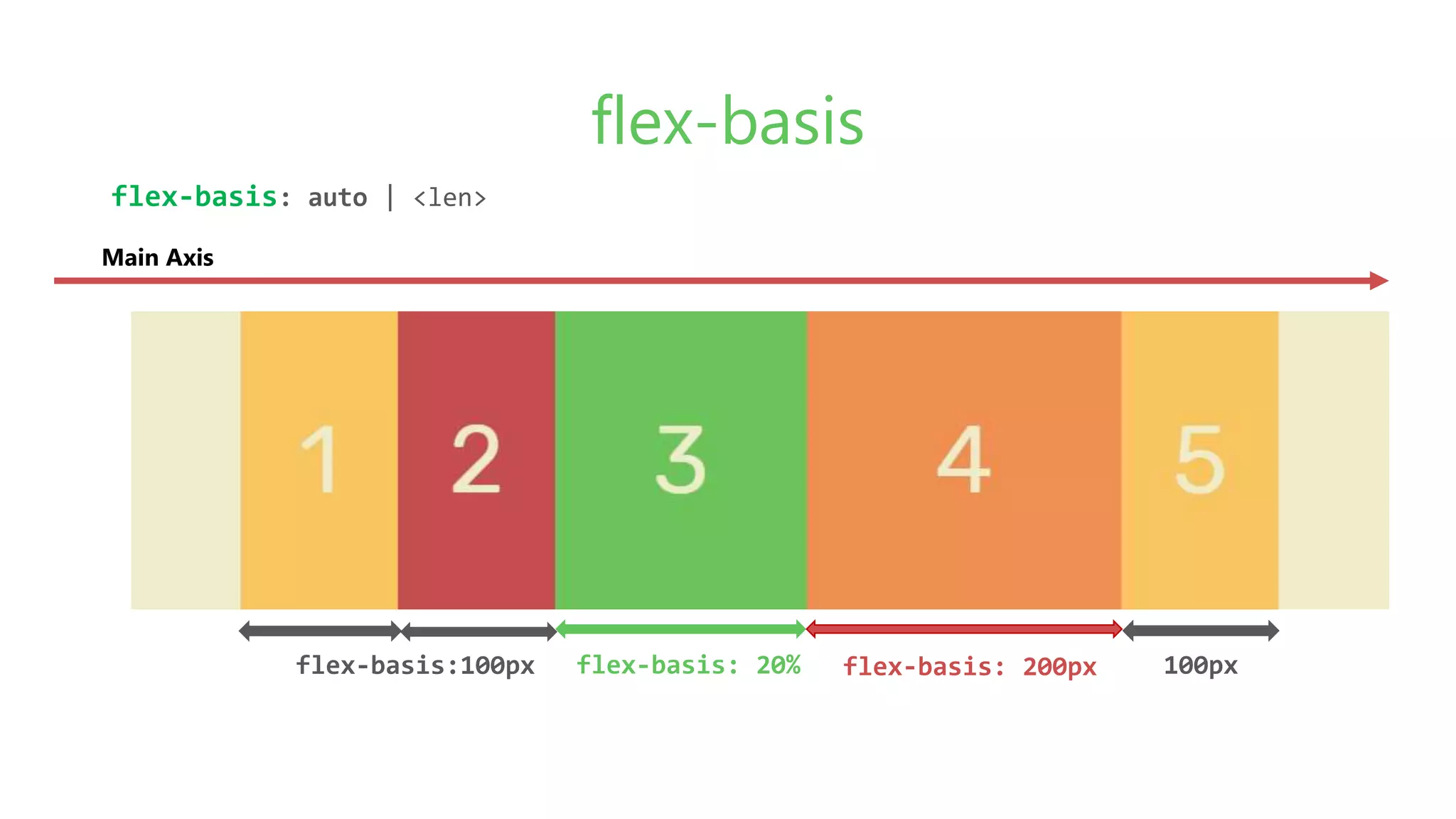
flex-basis
flex-basis: auto | <len>
Main Axis
flex-basis:100px 100pxflex-basis: 200pxflex-basis: 20%
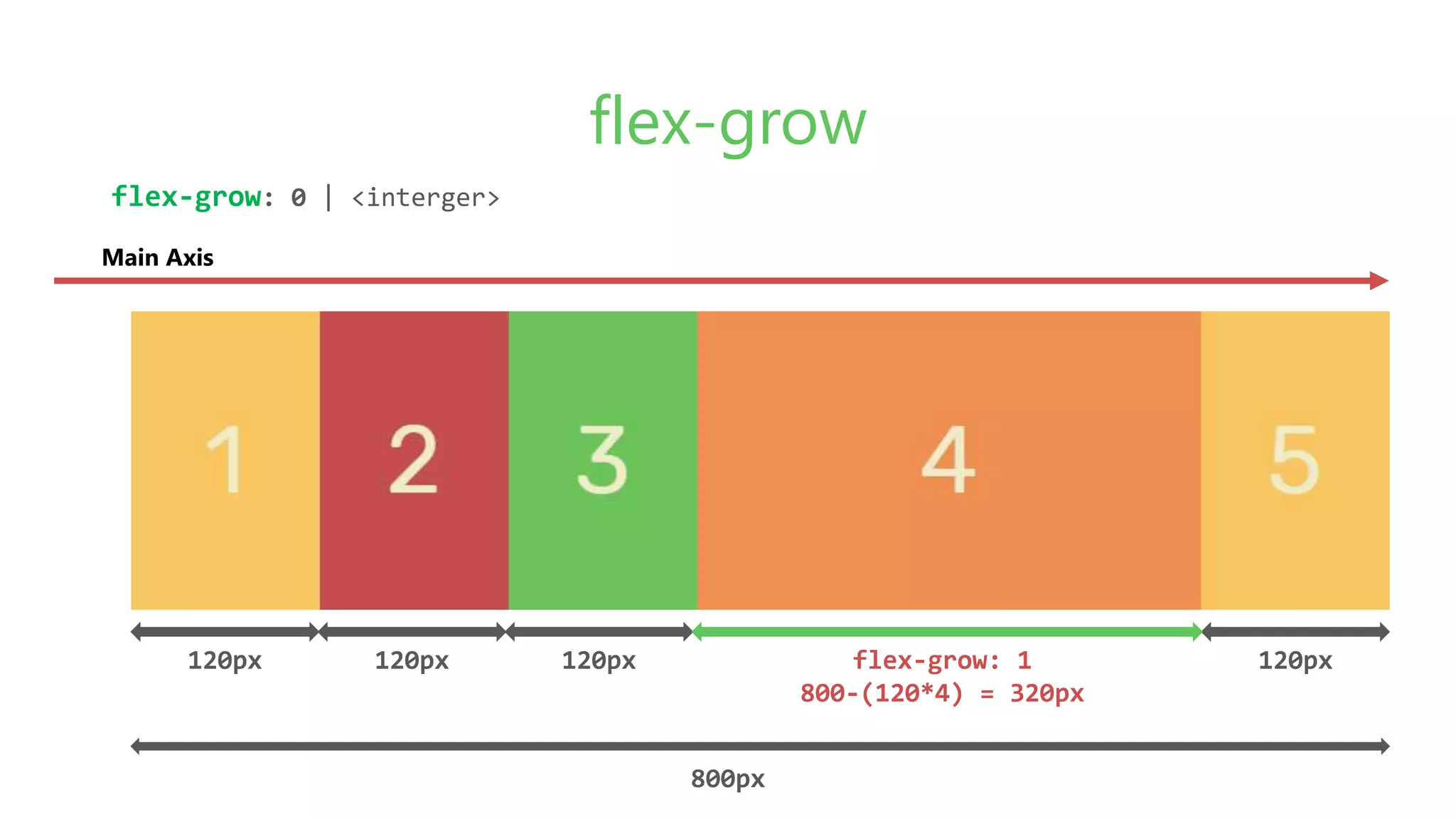
flex-grow
flex-grow: 0 | <interger>
Main Axis
120px 120px 120px 120pxflex-grow: 1
800-(120*4) = 320px
800px
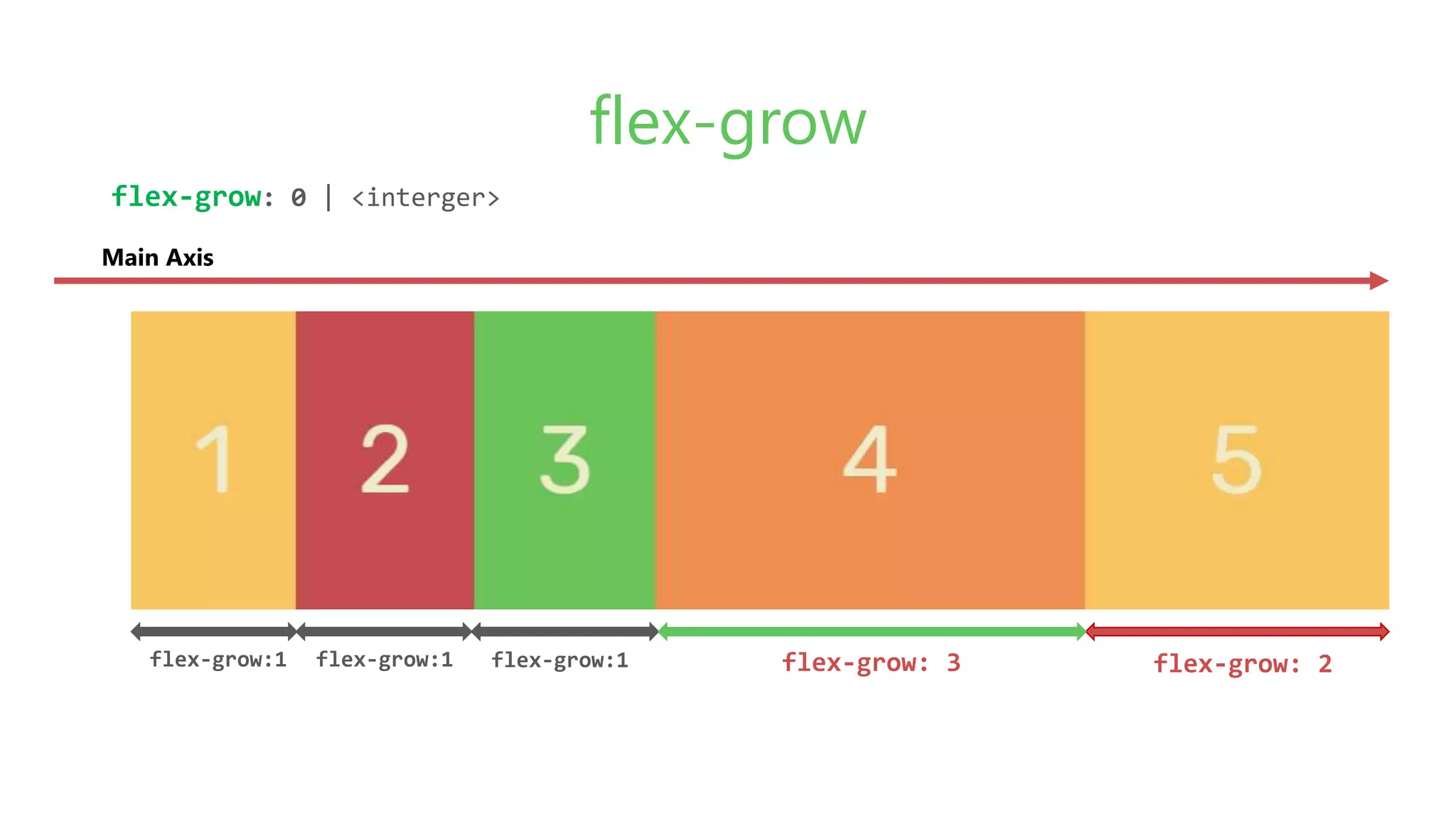
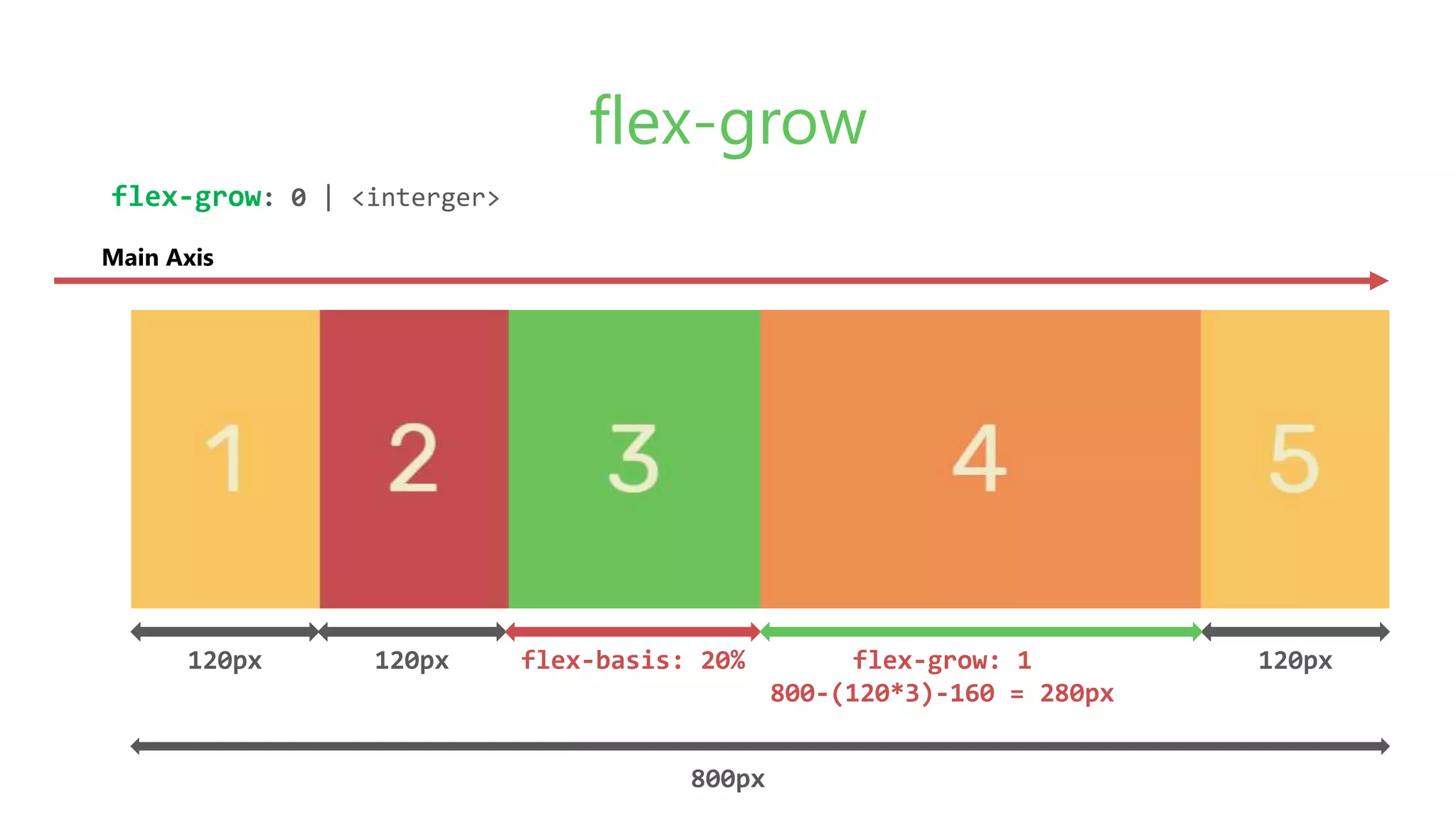
flex-grow
flex-grow: 0 | <interger>
Main Axis
flex-grow:1 flex-grow: 3flex-grow:1 flex-grow:1 flex-grow: 2
flex-grow
flex-grow: 0 | <interger>
Main Axis
120px 120px flex-basis: 20% 120pxflex-grow: 1
800-(120*3)-160 = 280px
800px
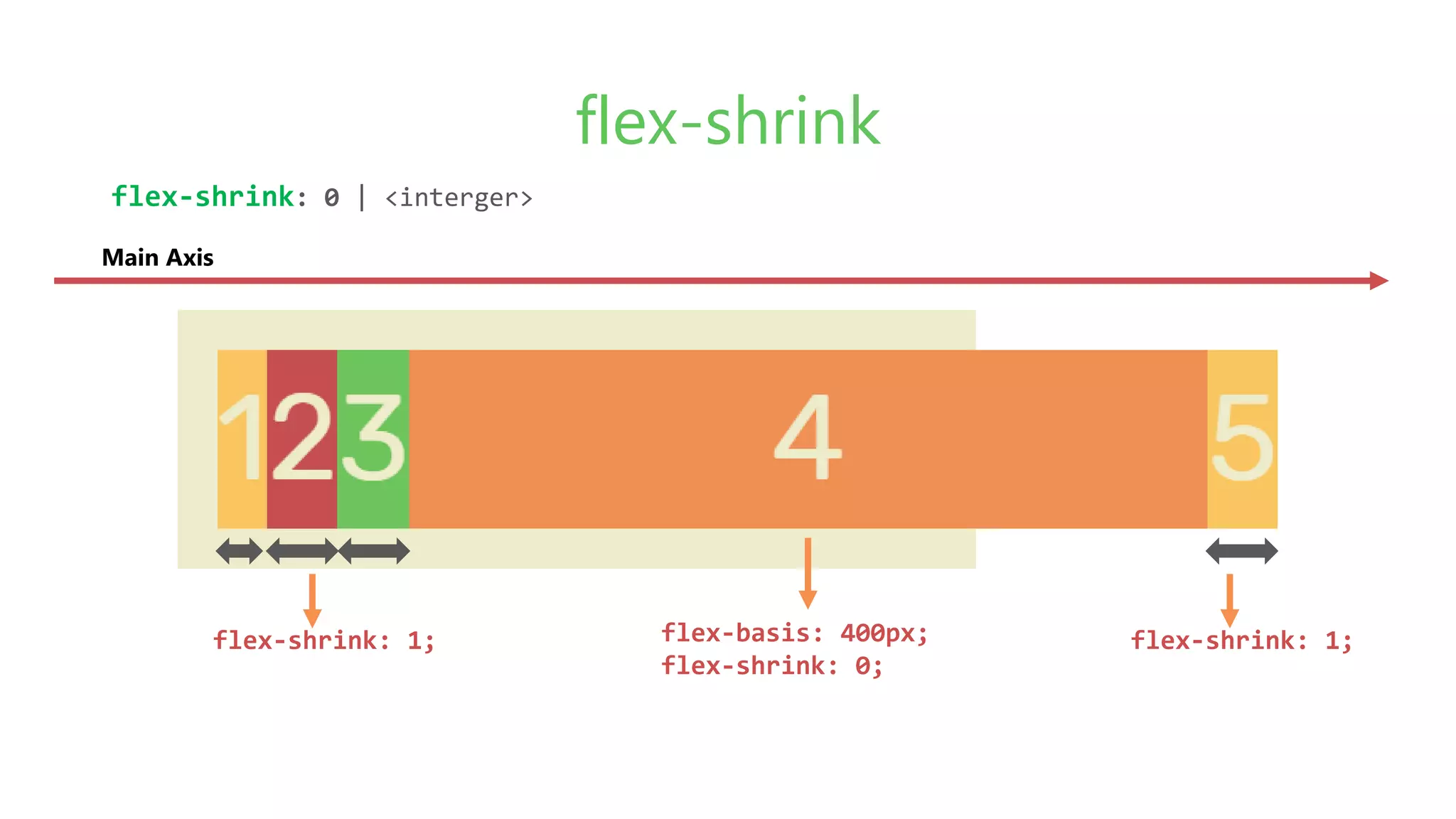
flex-shrink
flex-shrink: 0 | <interger>
Main Axis
flex-basis: 400px;
flex-shrink: 0;
flex-shrink: 1; flex-shrink: 1;
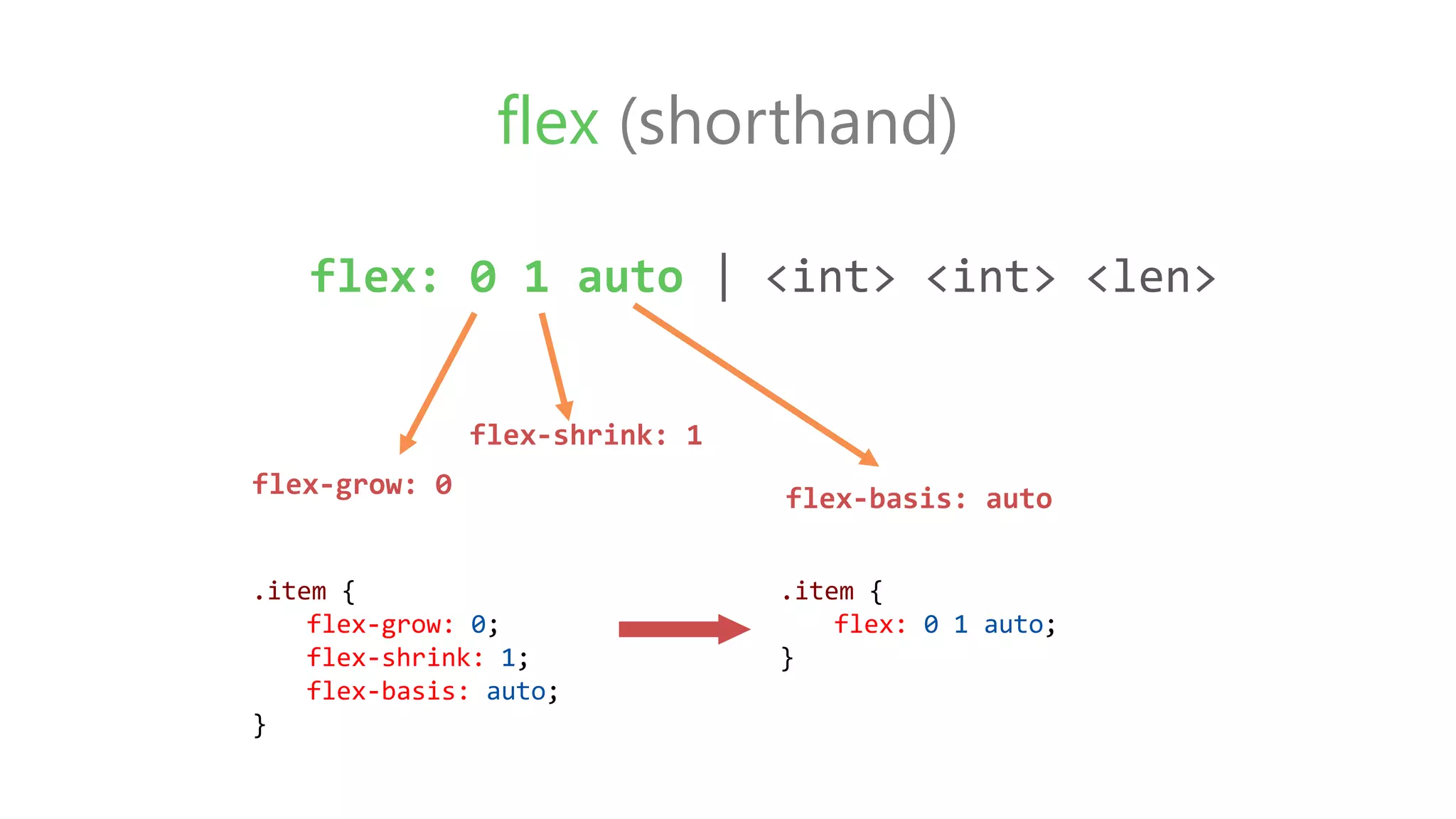
flex (shorthand)
flex-grow: 0
flex-shrink: 1
flex: 0 1 auto | <int> <int> <len>
flex-basis: auto
.item {
flex: 0 1 auto;
}
.item {
flex-grow: 0;
flex-shrink: 1;
flex-basis: auto;
}
Flexbox examples
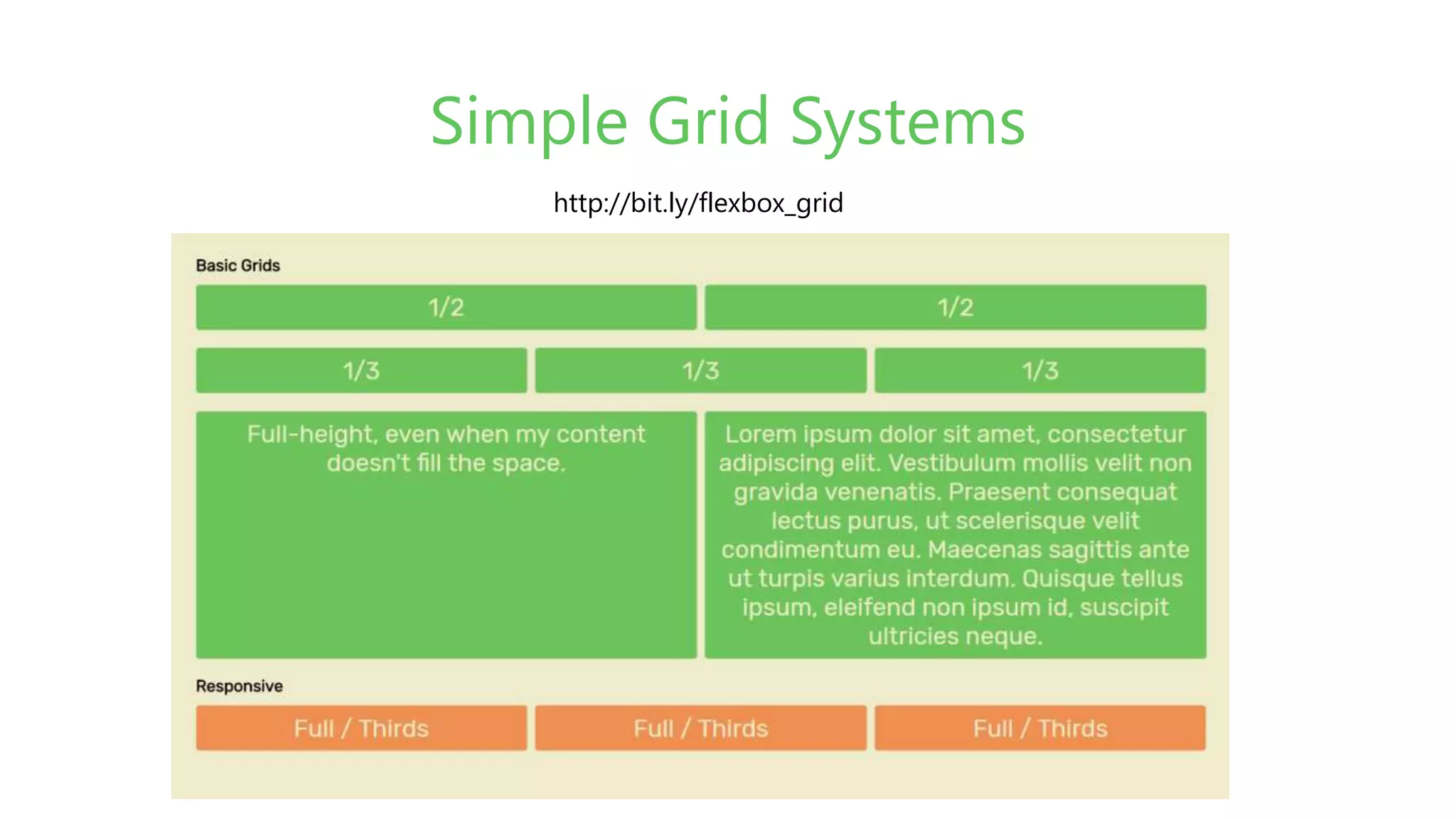
Simple Grid Systems
http://bit.ly/flexbox_grid
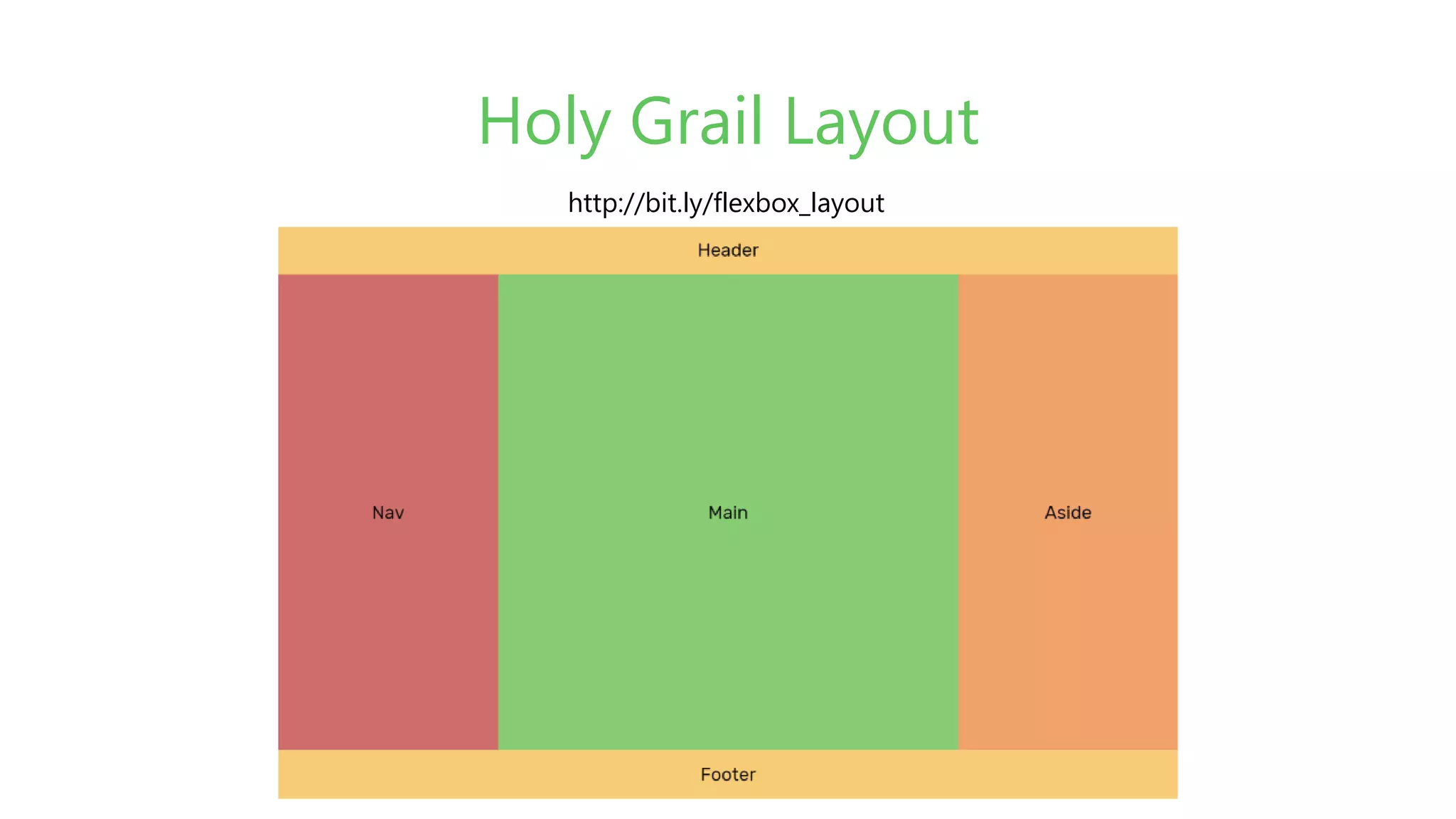
Holy Grail Layout
http://bit.ly/flexbox_layout
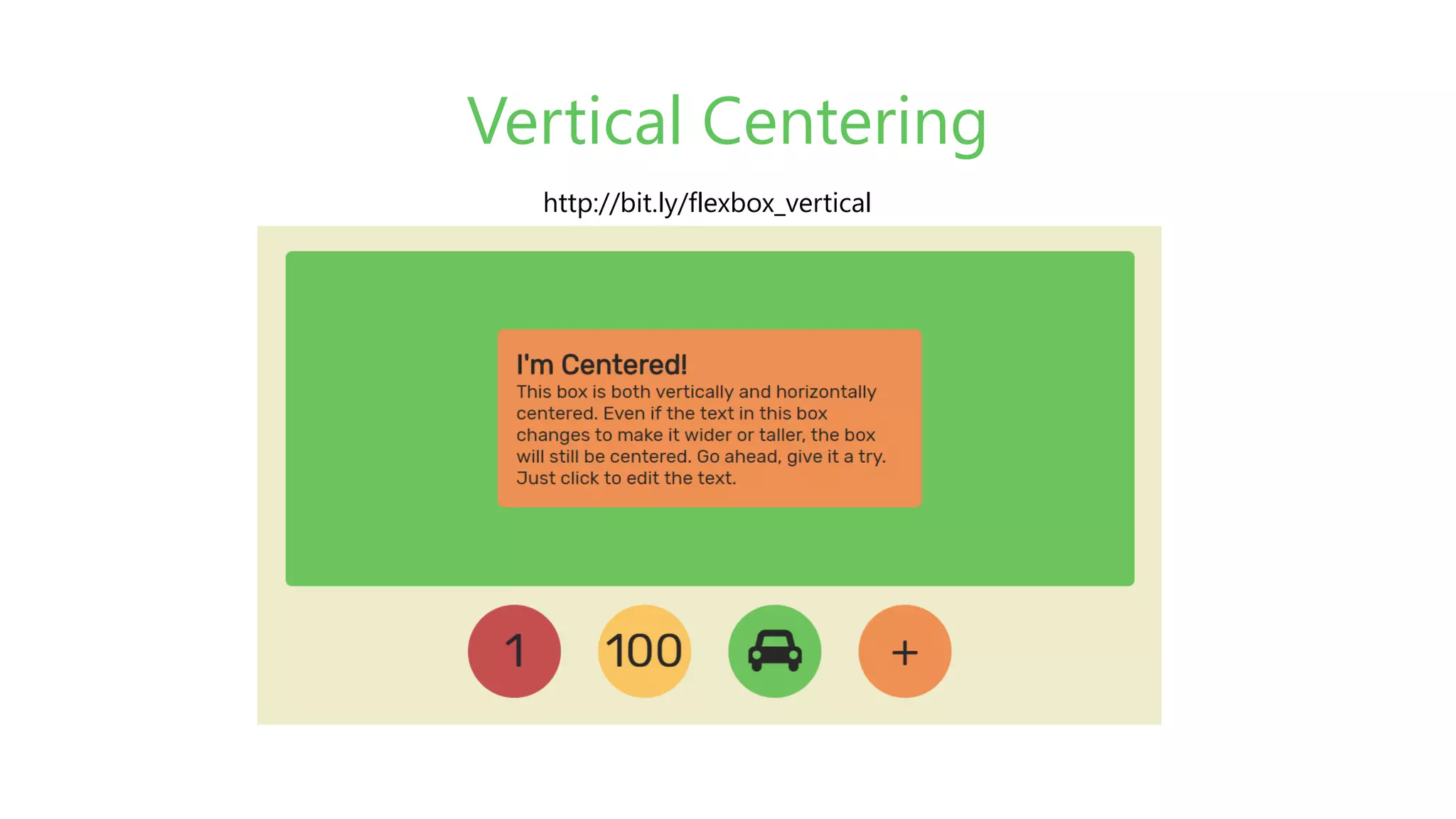
Vertical Centering
http://bit.ly/flexbox_vertical
Summary
Flexbox is easy and incredibly powerful.
• Use display: flex; to create a flex container.
• Use flex-direction if you need columns instead of rows.
• Use the row-reverse or column-reverse values to flip item order.
• Use justify-content to define the horizontal alignment of items.
• Use align-items to define the vertical alignment of items.
• Use align-self to vertically align individual items.
• Use order to customize the order of individual elements.
• Use flex to create flexible boxes that can stretch and shrink.
Q&A Time
Tea Break
CSS Grid
Hai Nguyen
Software Architecture – Axon Active Viet Nam
Agenda
What is CSS Grid?
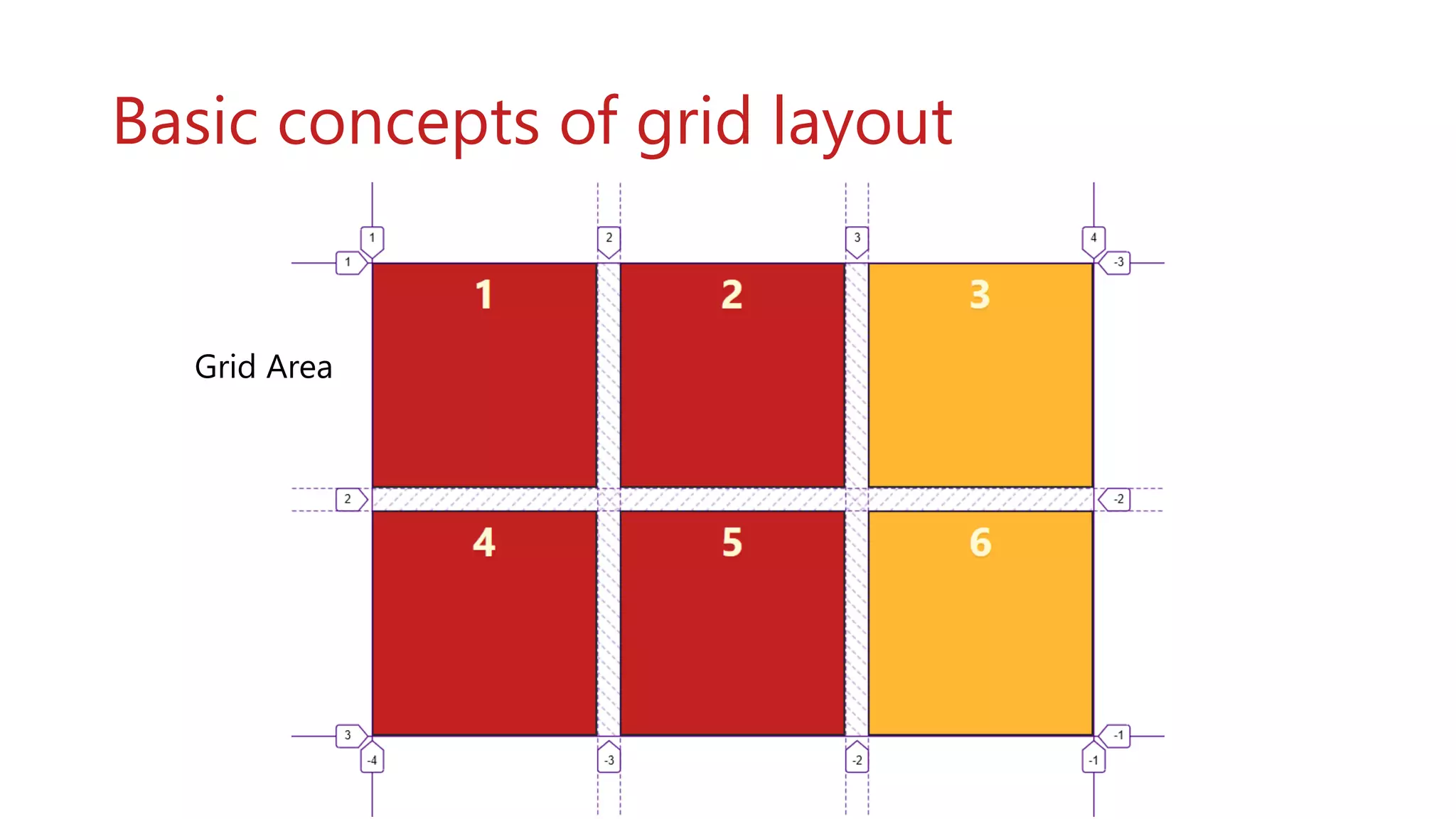
Basic concepts of grid layout
CSS Grid detail
Defining a Grid Line-based placement
Defining Grid Areas Responsive layout with Media Queries
Grid auto-placement Using Order
Alignment
CSS Grid vs Flexbox Summary
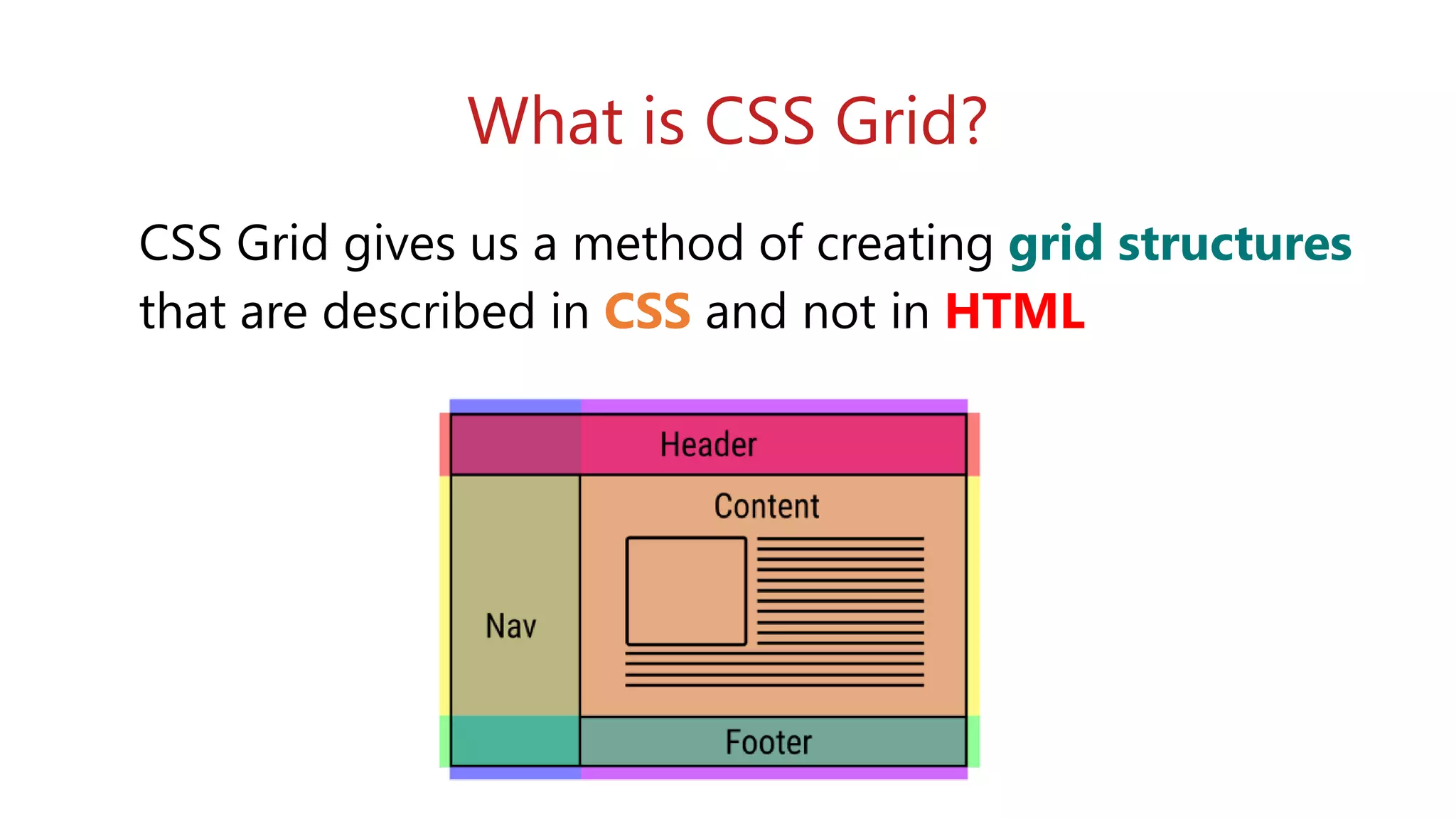
What is CSS Grid?
CSS Grid gives us a method of creating grid structures
that are described in CSS and not in HTML
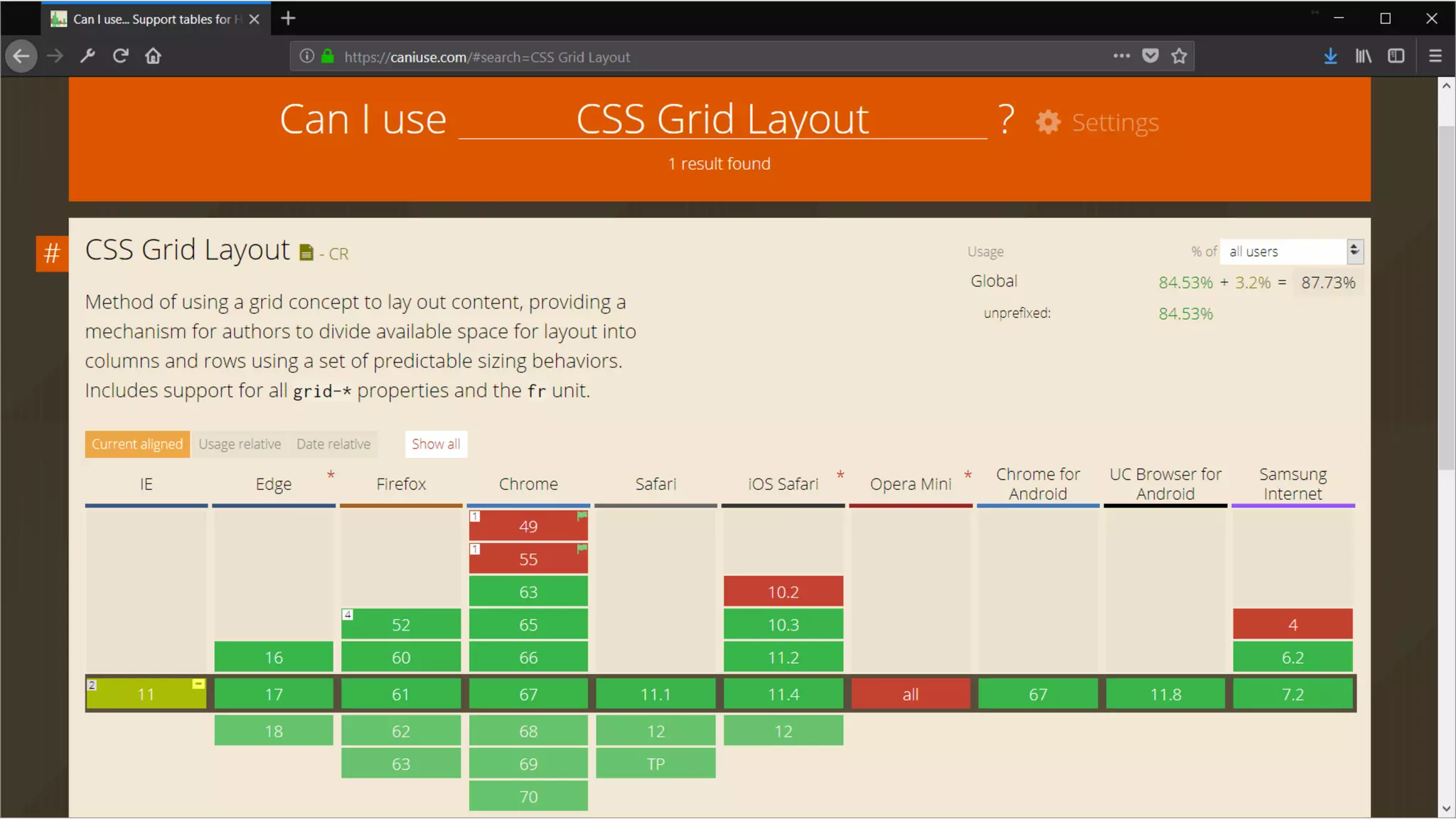
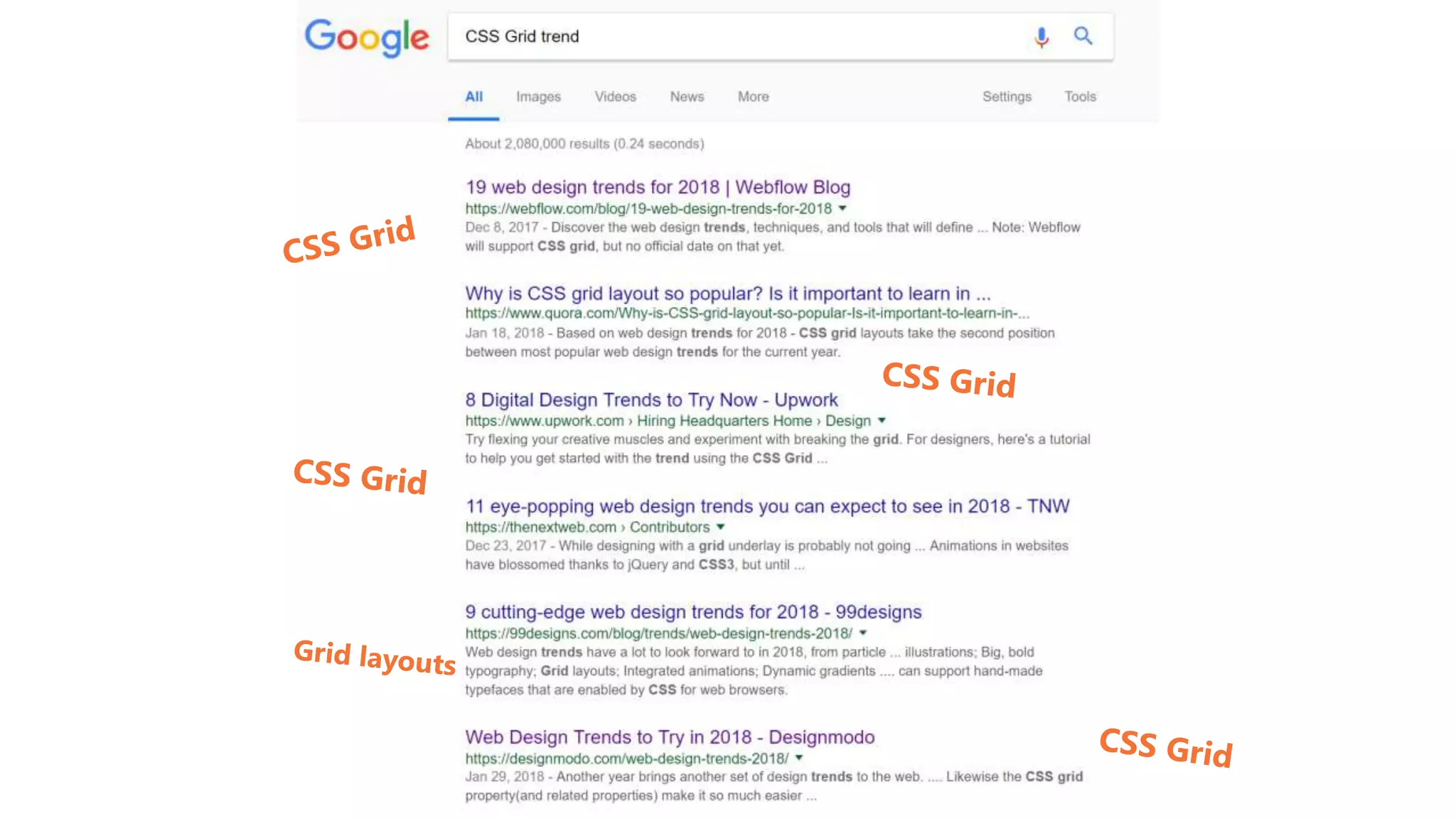
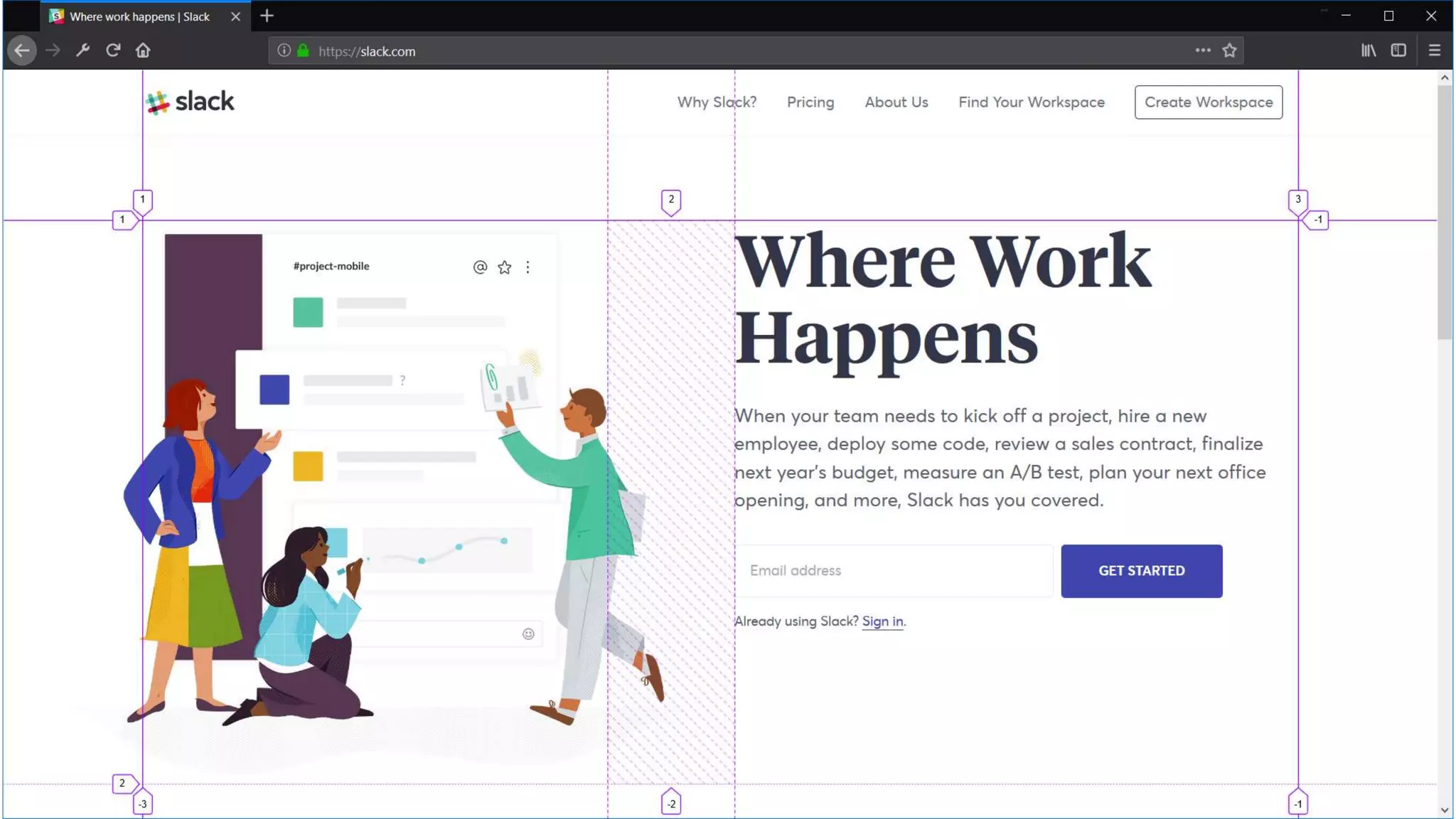
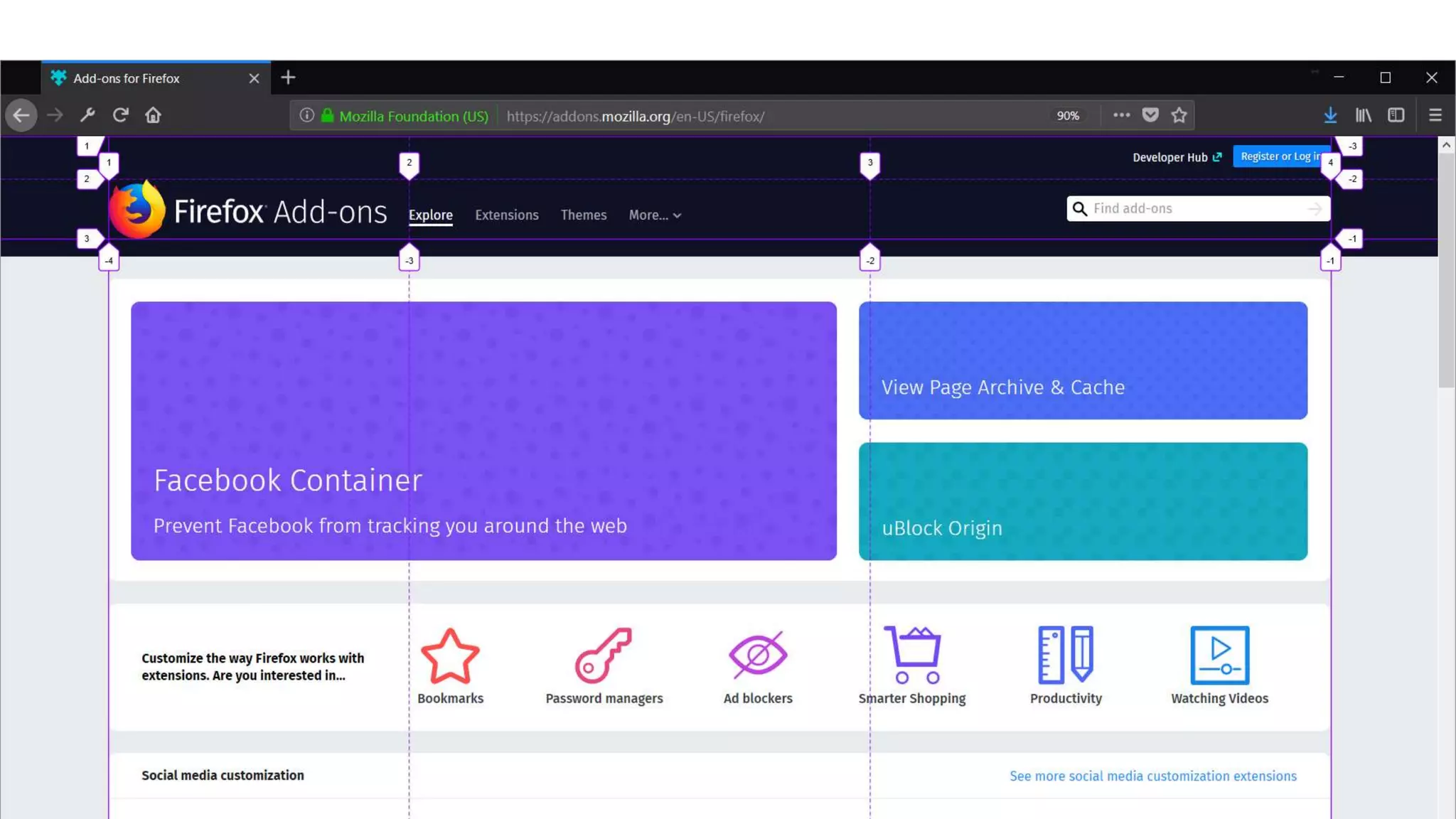
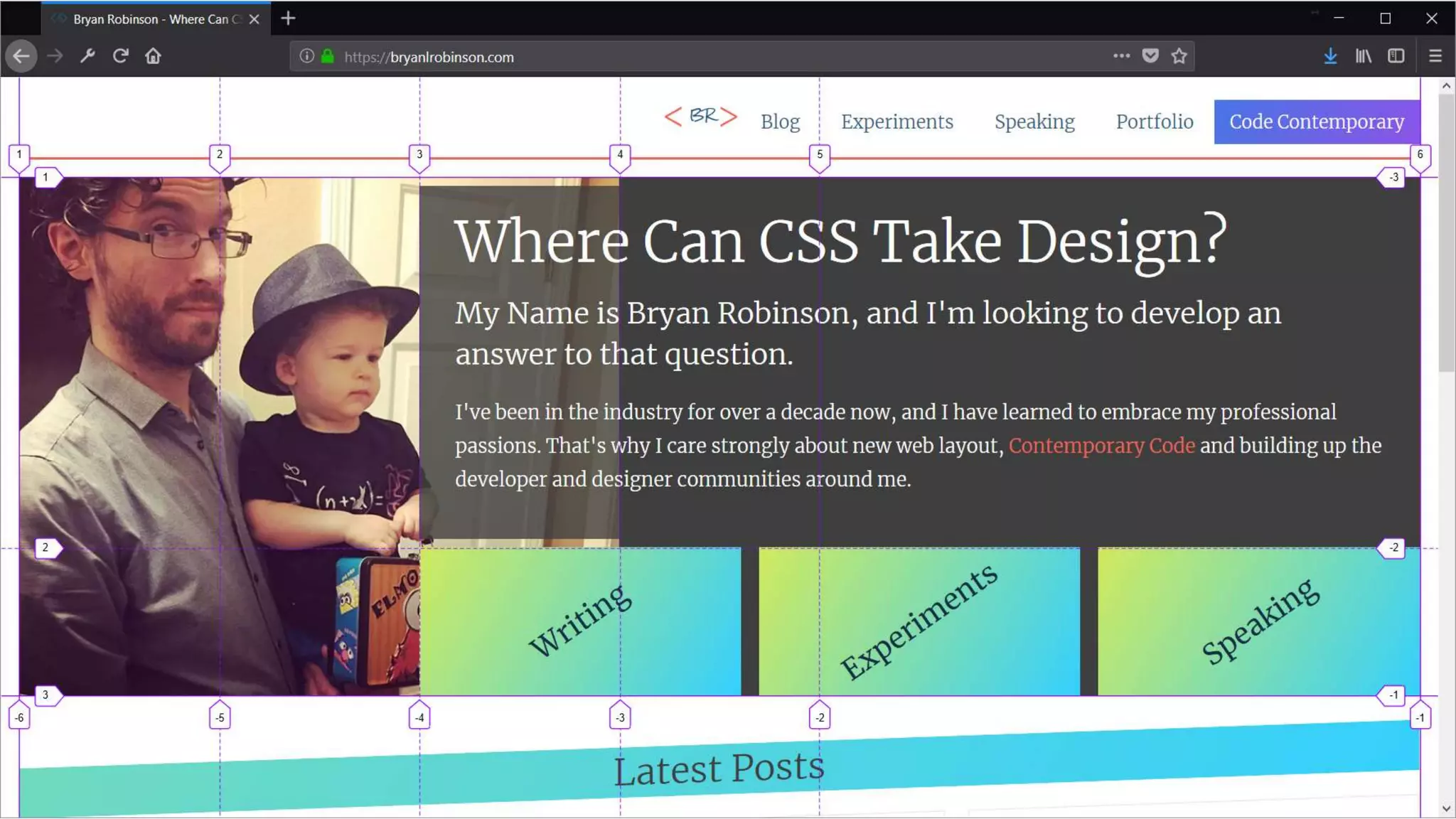
CSS Grid in Production?
Why learn CSS Grid layout?
•Easy
•Simpler markup
•Flexible
•Don't need frameworks
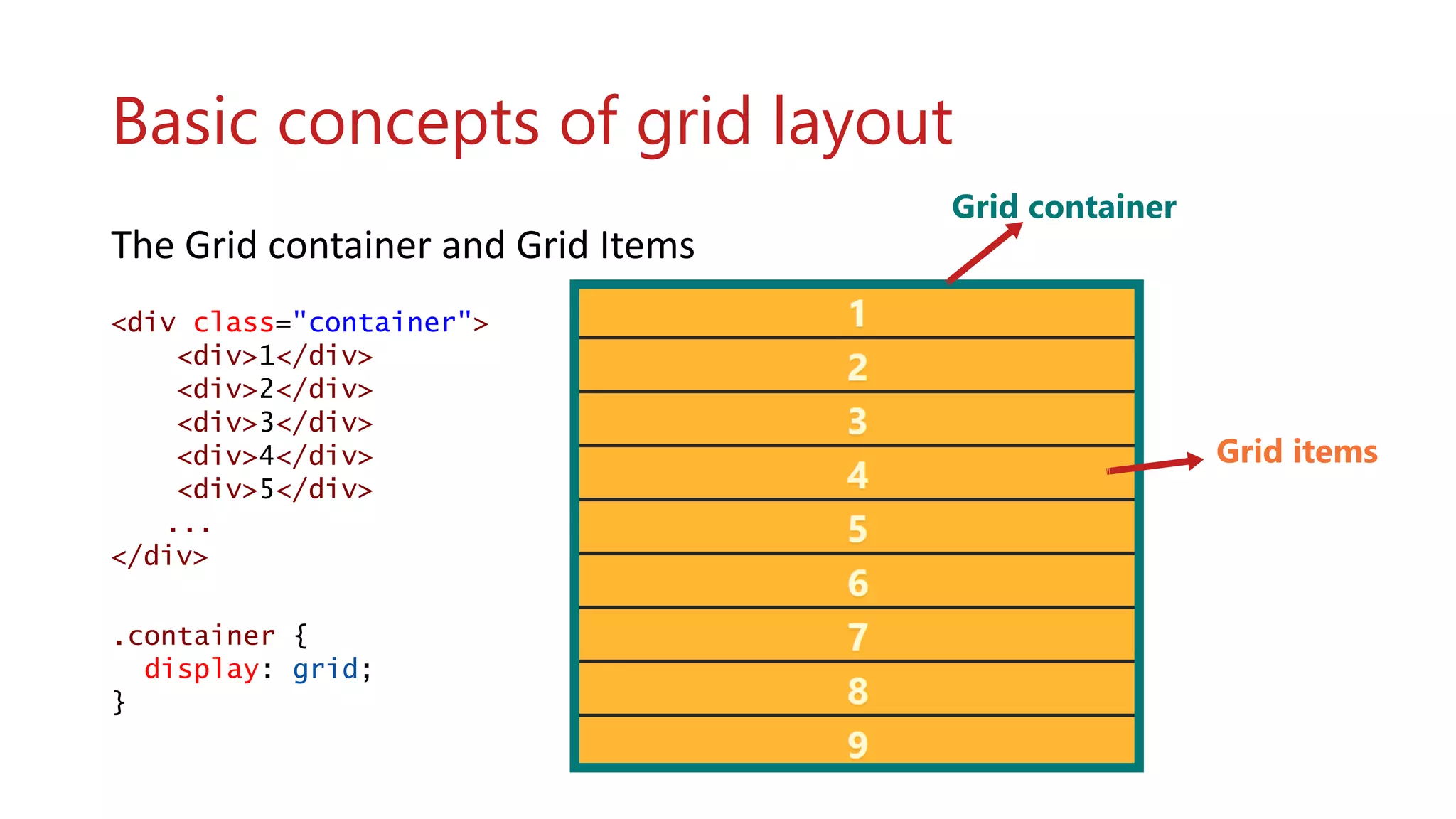
Basic concepts of grid layout
The Grid container and Grid Items
<div class="container">
<div>1</div>
<div>2</div>
<div>3</div>
<div>4</div>
<div>5</div>
...
</div>
.container {
display: grid;
}
Grid container
Grid items
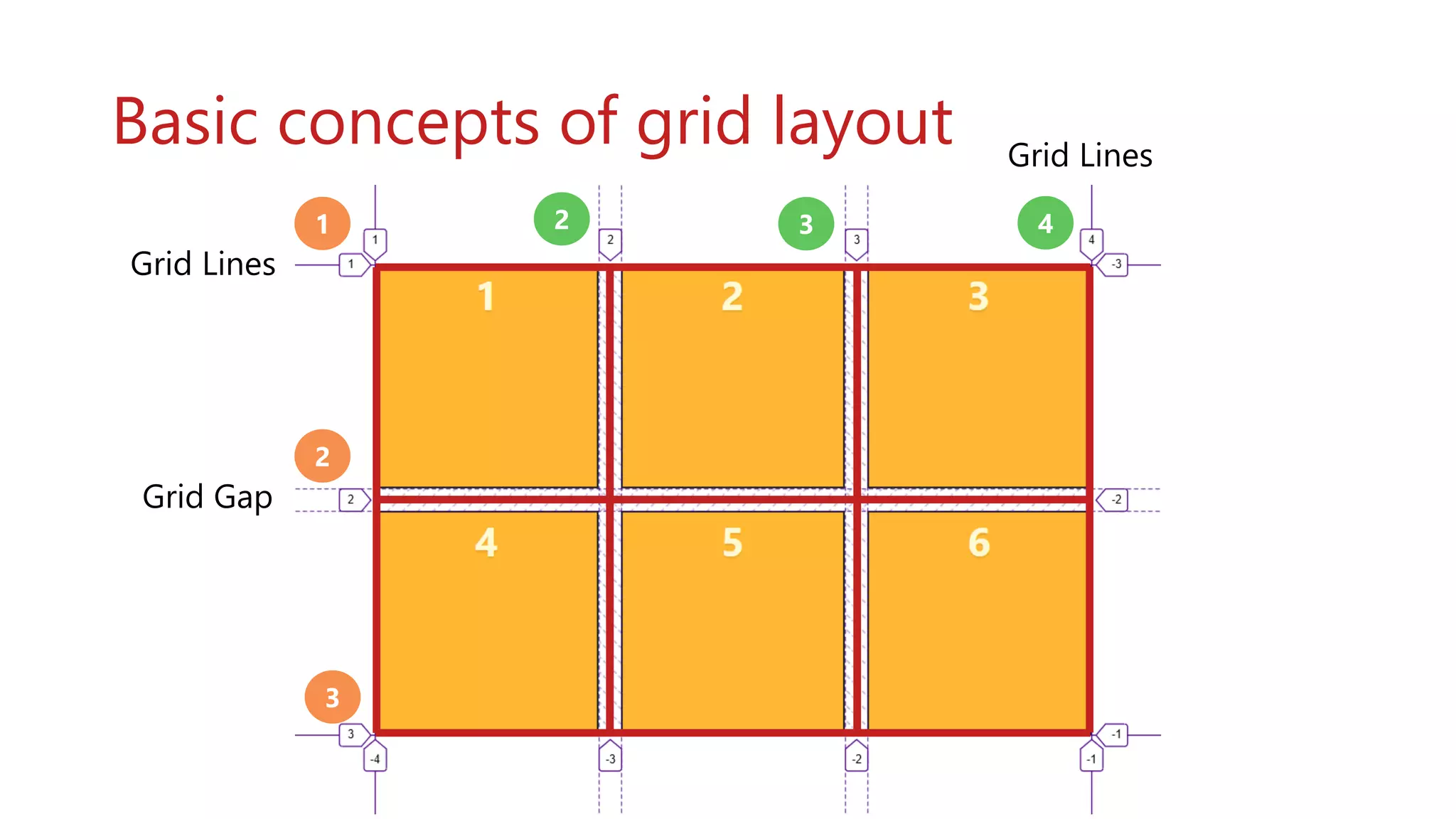
Basic concepts of grid layout
Grid Lines
Grid Gap
Grid Lines
1
2
3
2 3 4
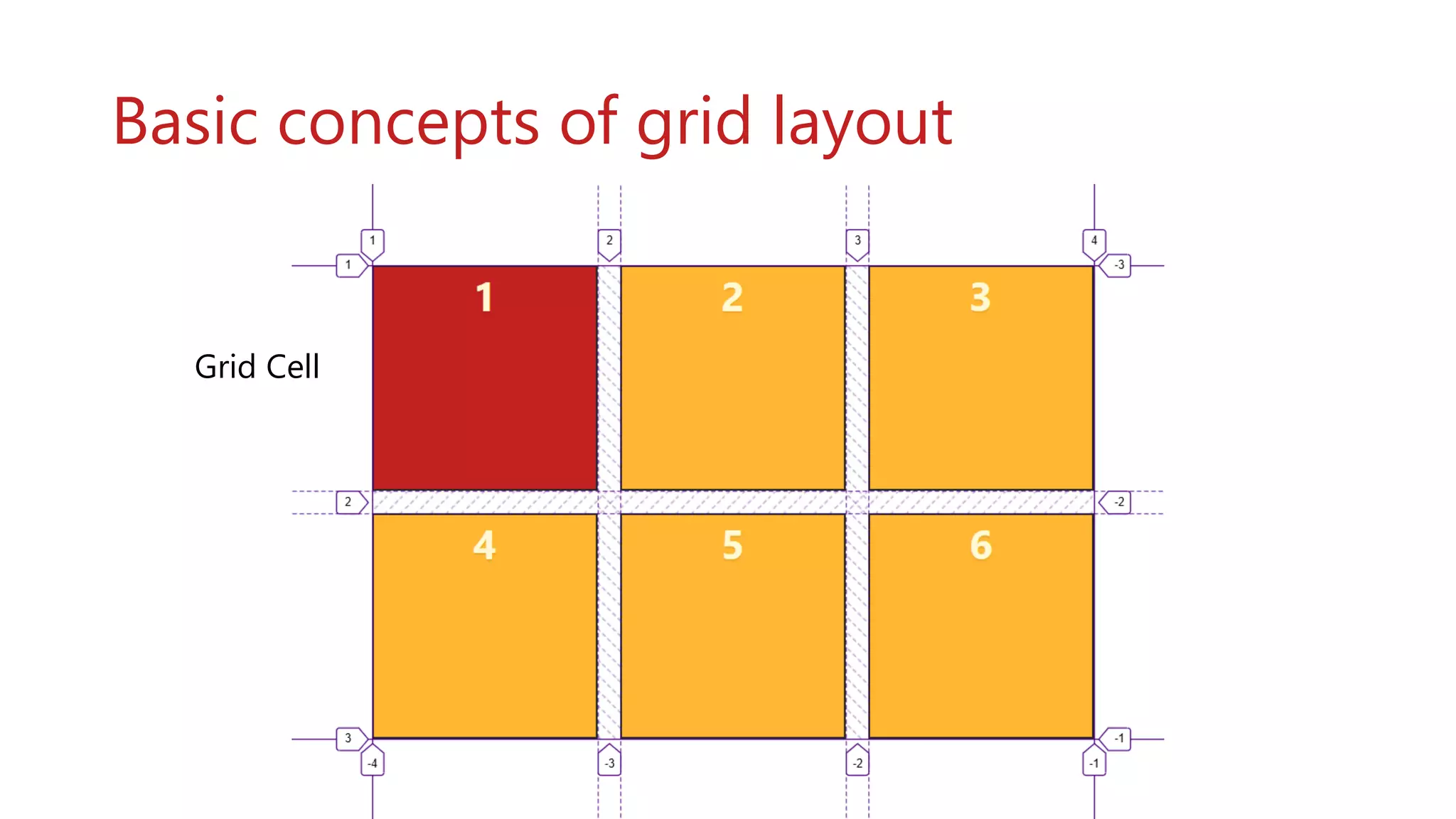
Basic concepts of grid layout
Grid Cell
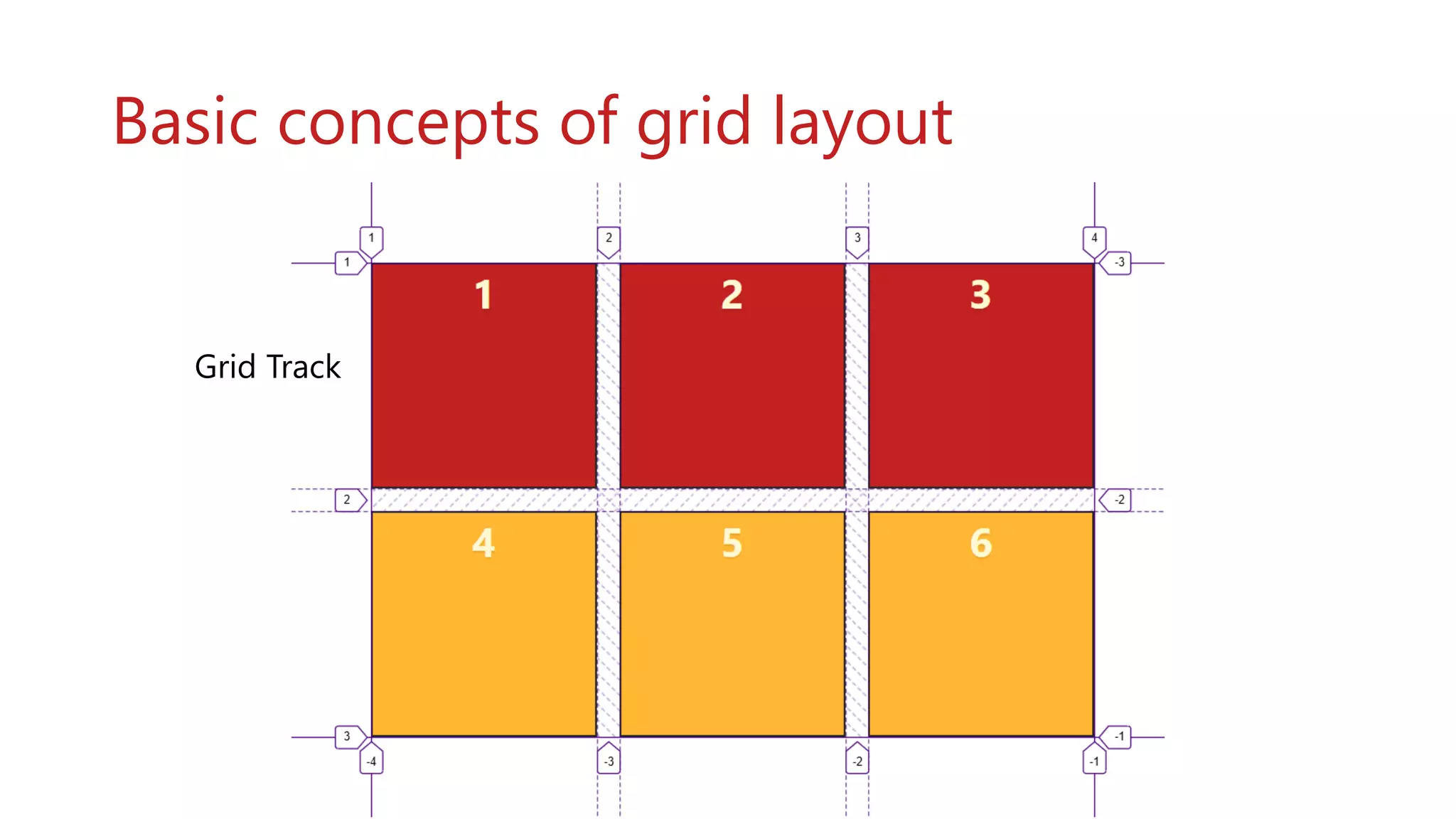
Basic concepts of grid layout
Grid Track
Basic concepts of grid layout
Grid Area
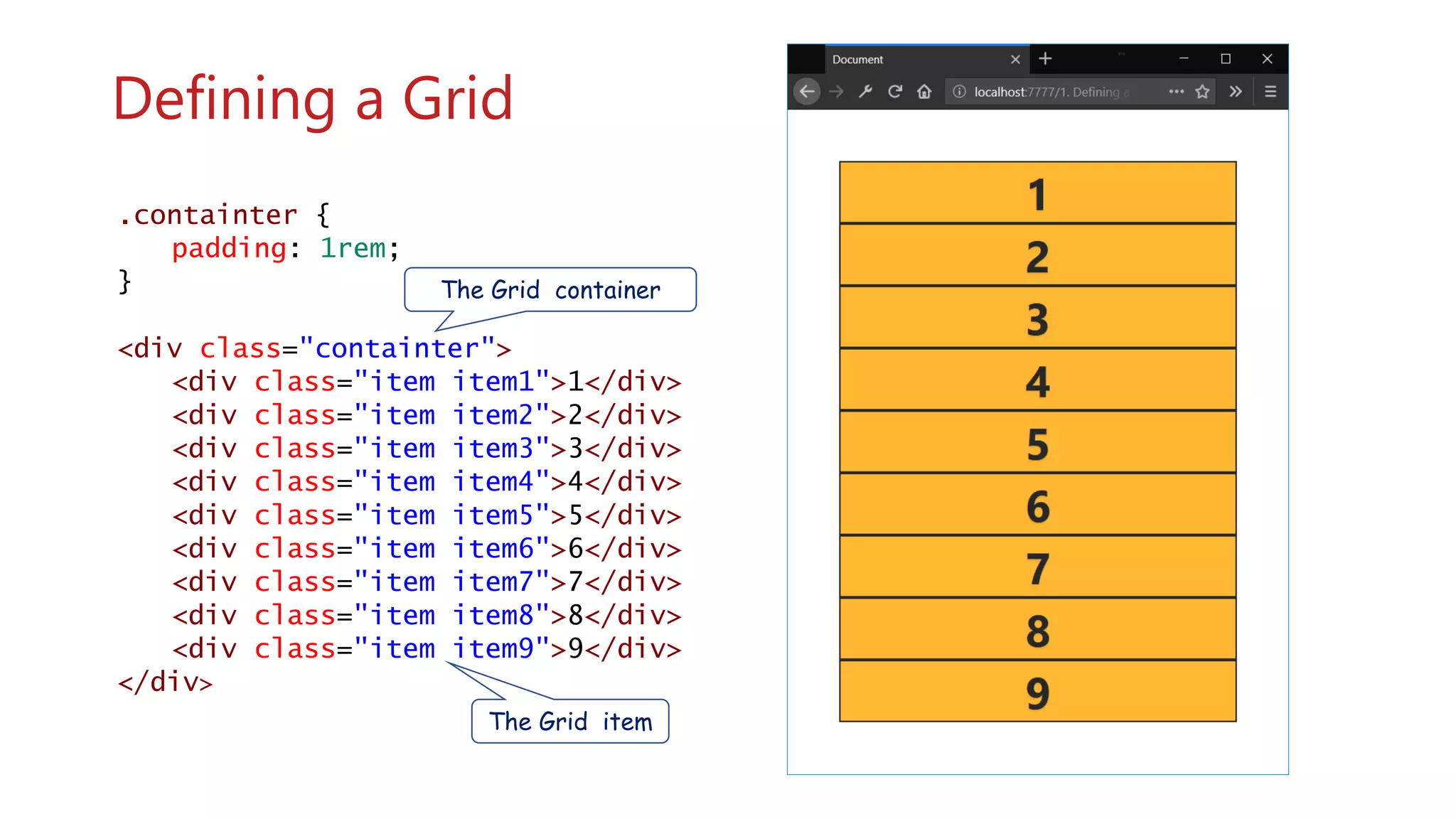
.containter {
padding: 1rem;
}
<div class="containter">
<div class="item item1">1</div>
<div class="item item2">2</div>
<div class="item item3">3</div>
<div class="item item4">4</div>
<div class="item item5">5</div>
<div class="item item6">6</div>
<div class="item item7">7</div>
<div class="item item8">8</div>
<div class="item item9">9</div>
</div>
Defining a Grid
wwww
The Grid container
The Grid item
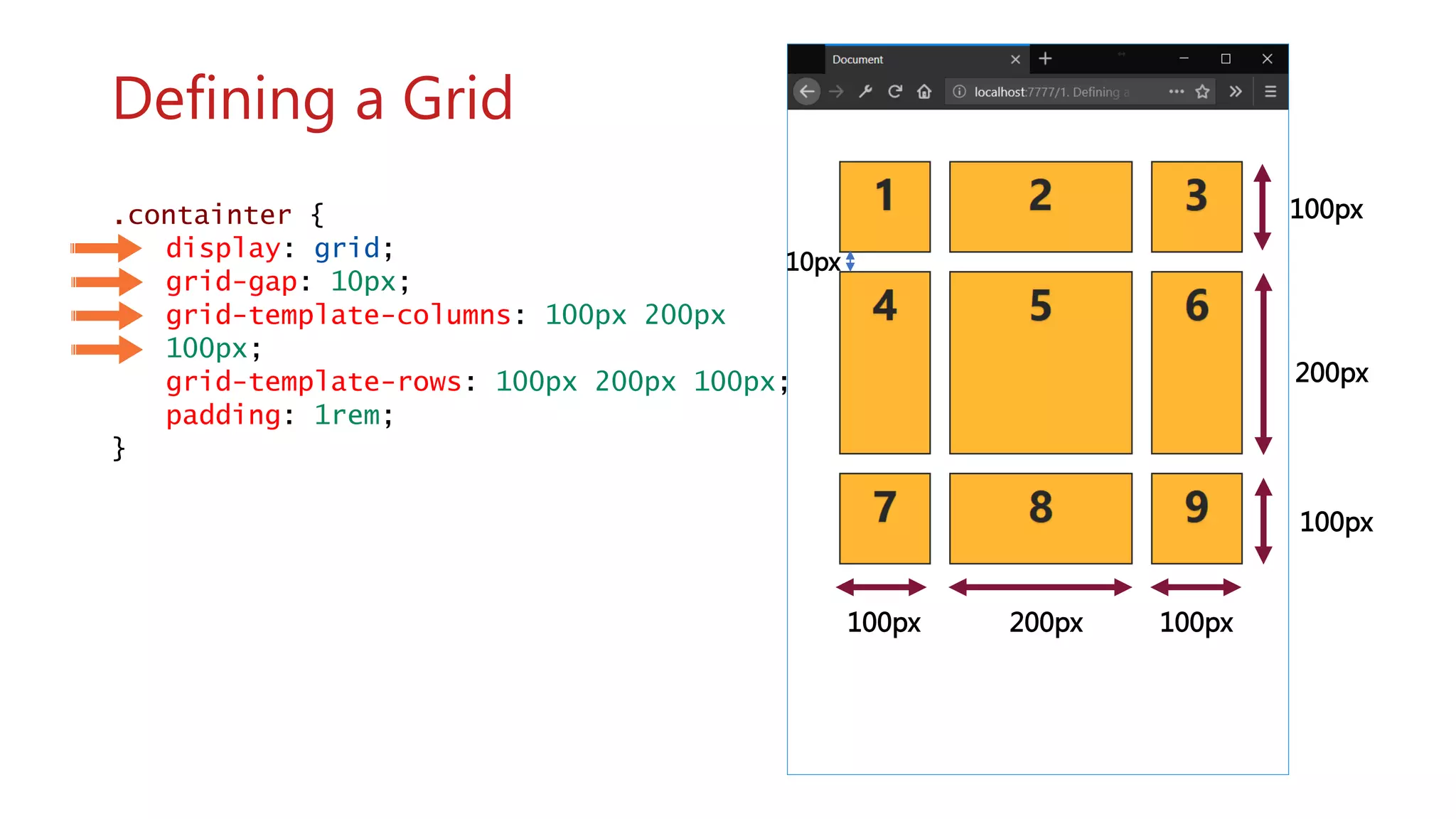
.containter {
display: grid;
grid-gap: 10px;
grid-template-columns: 100px 200px
100px;
grid-template-rows: 100px 200px 100px;
padding: 1rem;
}
100px 100px200px
10px
wwww
Defining a Grid
100px
100px
200px
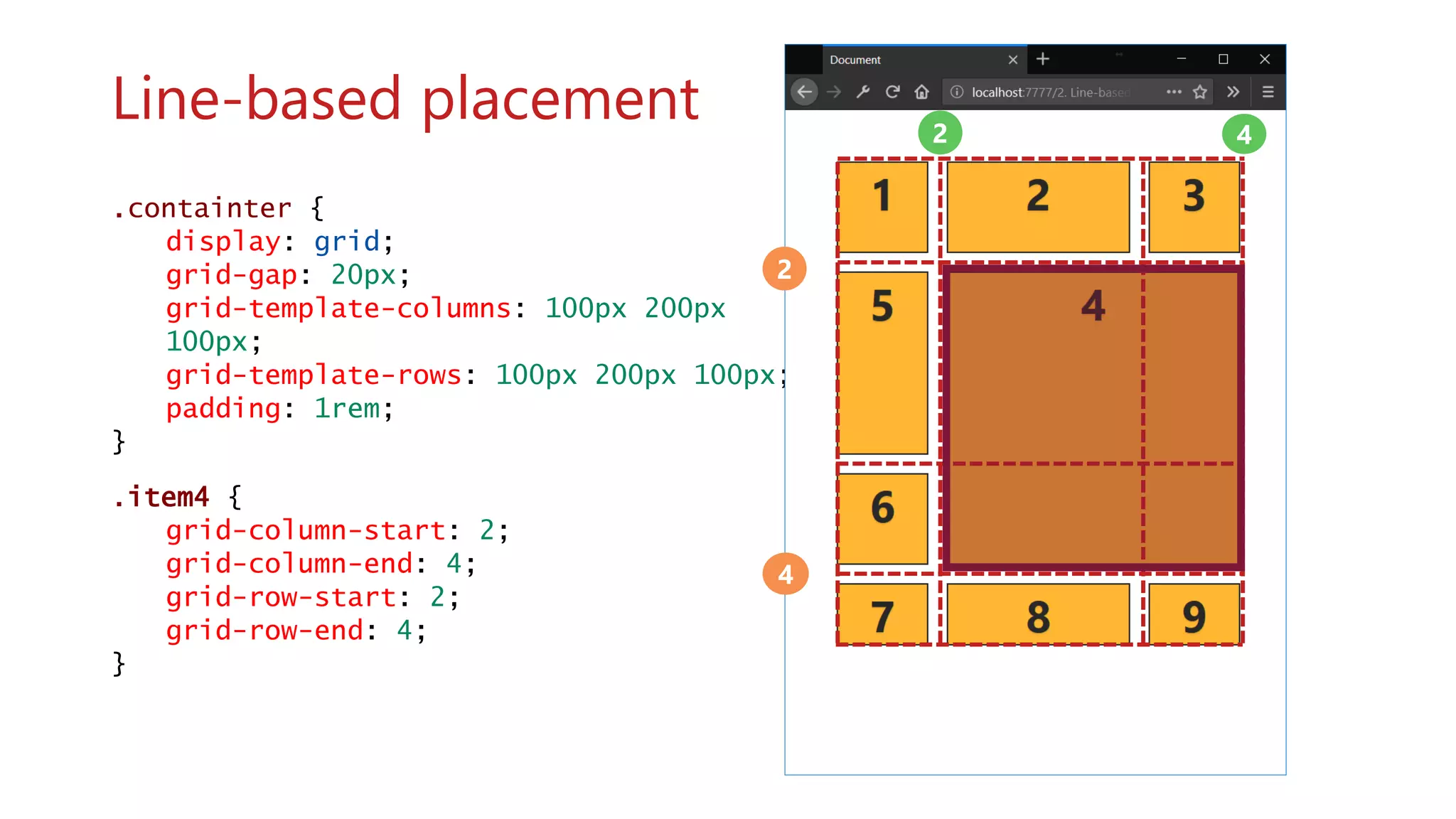
.item4 {
grid-column: 2/4; /* shorthand */
grid-row: 2/4;
}
.item4 {
grid-column: 2/ span 2; /* shorthand
*/
grid-row: 2/ span 2;
}
.item4 {
grid-column-start: 2;
grid-column-end: 4;
grid-row-start: 2;
grid-row-end: 4;
}
.containter {
display: grid;
grid-gap: 20px;
grid-template-columns: 100px 200px
100px;
grid-template-rows: 100px 200px 100px;
padding: 1rem;
}
Line-based placement
2
4
2 4
.containter {
display: grid;
grid-gap: 20px;
grid-template-columns: repeat(4, [col]
100px);
grid-template-rows: repeat(3, [row] auto);
padding: 1rem;
}
.item4 {
grid-column: col 2 / span 2;
grid-row: row 2 / span 2;
}
Using repeat notation
col col col col
header header header
sidebar1 content
sidebar3
sidebar2 content
sidebar4
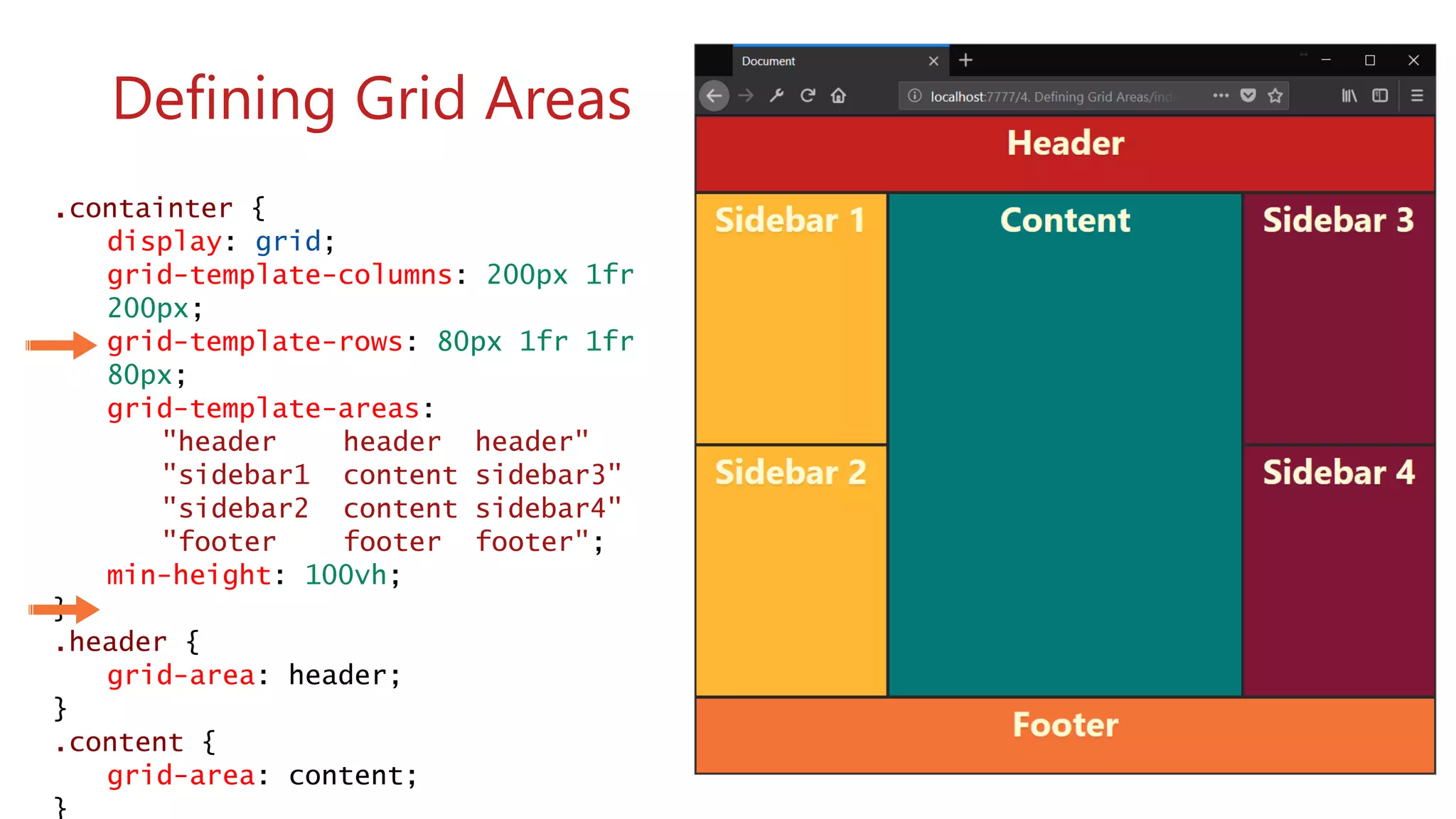
footer footer footer
.containter {
display: grid;
grid-template-columns: 200px 1fr
200px;
grid-template-rows: 80px 1fr 1fr
80px;
grid-template-areas:
"header header header"
"sidebar1 content sidebar3"
"sidebar2 content sidebar4"
"footer footer footer";
min-height: 100vh;
}
.header {
grid-area: header;
}
.content {
grid-area: content;
}
Defining Grid Areas
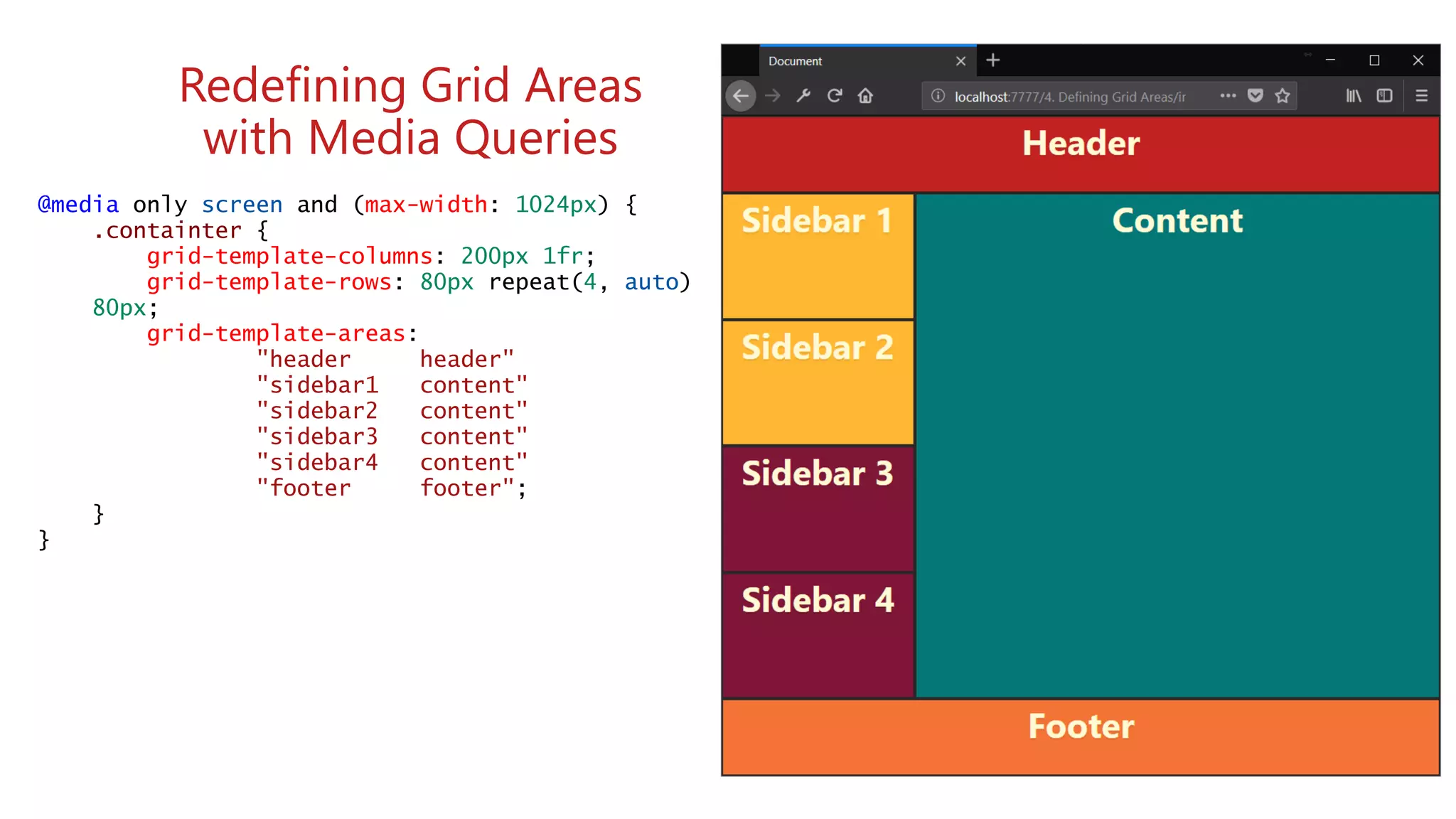
header header
sidebar1 content
sidebar2 content
sidebar3 content
sidebar4 content
footer footer
@media only screen and (max-width: 1024px) {
.containter {
grid-template-columns: 200px 1fr;
grid-template-rows: 80px repeat(4, auto)
80px;
grid-template-areas:
"header header"
"sidebar1 content"
"sidebar2 content"
"sidebar3 content"
"sidebar4 content"
"footer footer";
}
}
Redefining Grid Areas
with Media Queries
Demo Responsive Design
http://bit.ly/cssgrid_area
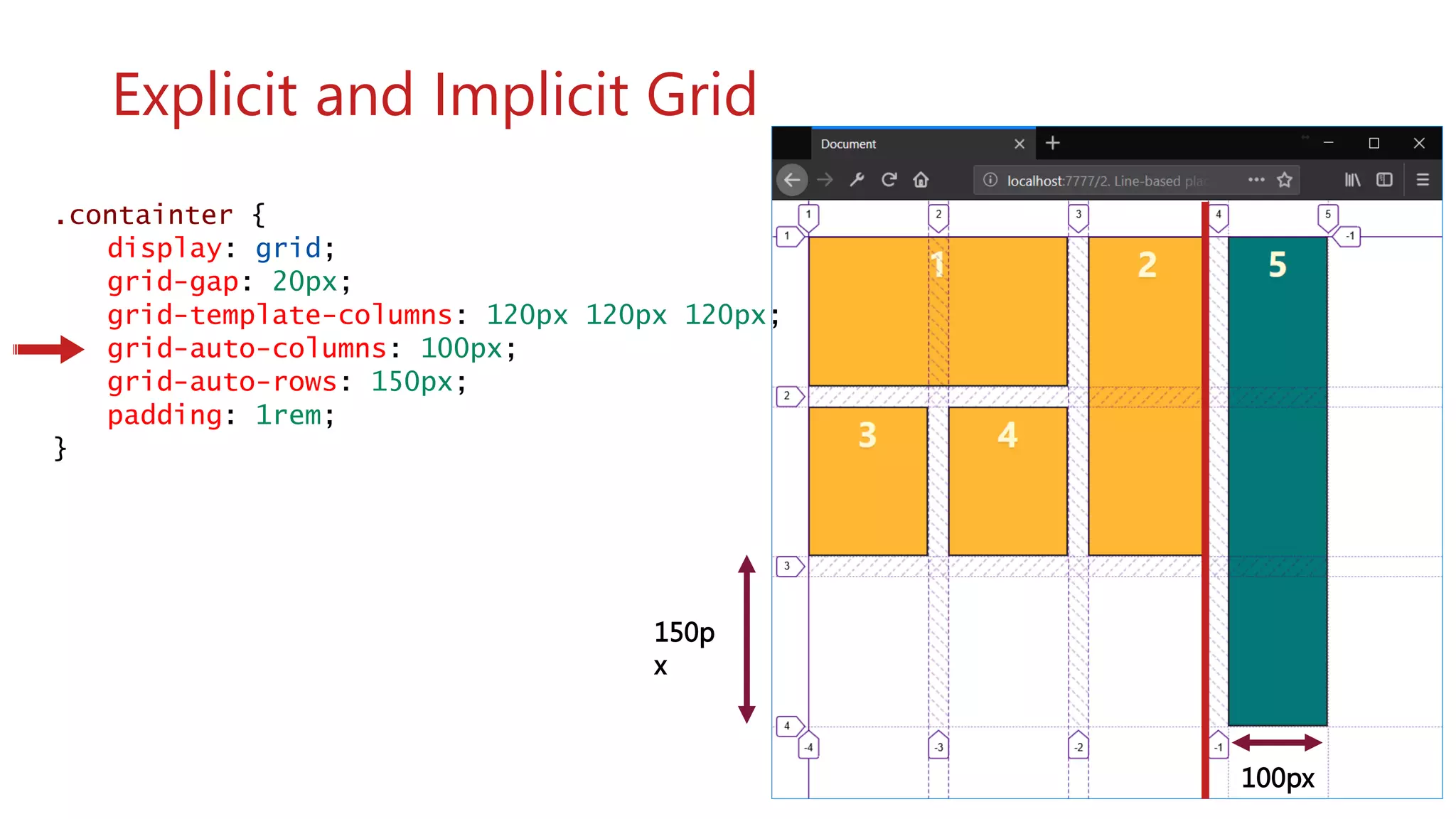
.containter {
display: grid;
grid-gap: 20px;
grid-template-columns: 120px 120px 120px;
grid-auto-columns: 100px;
grid-auto-rows: 150px;
padding: 1rem;
}
wwww
Explicit and Implicit Grid
100px
150p
x
.containter {
display: grid;
grid-gap: 20px;
grid-template-columns: repeat(3, [col]
150px);
grid-template-rows: repeat(3, [row]
100px);
grid-auto-flow: column;
padding: 1rem;
}
wwww
Grid auto-flow column grid-auto-flow:
column;
.containter {
display: grid;
grid-gap: 20px;
grid-template-columns: repeat(4, [col]
150px);
grid-template-rows: minmax(80px, auto);
grid-auto-flow: row; /* Default value */
padding: 1rem;
}
wwww
Grid auto-flow row grid-auto-flow: row;
.containter {
display: grid;
grid-gap: 20px;
grid-template-columns: repeat(4, [col]
150px);
grid-template-rows: minmax(80px, auto);
grid-auto-flow: dense;
padding: 1rem;
}
wwww
Grid auto-flow dense grid-auto-flow:
dense;
Demo Image Gallery
http://bit.ly/cssgrid_gallery
.containter {
display: grid;
grid-gap: 20px;
grid-template-columns: repeat(3, [col]
100px);
padding: 1rem;
}
.item1 {
order: 1;
}
.item4 {
order: 2;
}
.item9 {
order: 2;
}
wwww
Using Order
.containter {
display: grid;
grid-gap: 20px;
grid-template-columns: repeat(4, [col]
150px);
grid-template-rows: repeat(4, [row]
100px);
align-items: center;
}
.item2 {
grid-column: 3 / span 2;
grid-row: 1 / span 4;
align-self: stretch;
}
wwww
align align-items: center;
.containter {
display: grid;
grid-gap: 20px;
grid-template-columns: repeat(4, [col]
150px);
grid-template-rows: repeat(4, [row]
100px);
align-items: start;
}
.item2 {
grid-column: 3 / span 2;
grid-row: 1 / span 4;
align-self: stretch;
}
wwww
align align-items: start;
.containter {
display: grid;
grid-gap: 20px;
grid-template-columns: repeat(4, [col]
150px);
grid-template-rows: repeat(4, [row]
100px);
align-items: end;
}
.item2 {
grid-column: 3 / span 2;
grid-row: 1 / span 4;
align-self: stretch;
}
wwww
align align-items: end;
.containter {
display: grid;
grid-gap: 20px;
grid-template-columns: repeat(4, [col]
150px);
grid-template-rows: repeat(4, [row]
100px);
justify-items: center;
}
.item2 {
grid-column: 3 / span 2;
grid-row: 1 / span 4;
justify-self: stretch;
}
wwww
justify justify-items: end;
.containter {
display: grid;
grid-gap: 20px;
grid-template-columns: repeat(4, [col]
150px);
grid-template-rows: repeat(4, [row]
100px);
justify-items: start;
}
.item2 {
grid-column: 3 / span 2;
grid-row: 1 / span 4;
justify-self: stretch;
}
wwww
justify justify-items: end;
.containter {
display: grid;
grid-gap: 20px;
grid-template-columns: repeat(4, [col]
150px);
grid-template-rows: repeat(4, [row]
100px);
justify-items: end;
}
.item2 {
grid-column: 3 / span 2;
grid-row: 1 / span 4;
justify-self: stretch;
}
wwww
justify justify-items: end;
Demo Time
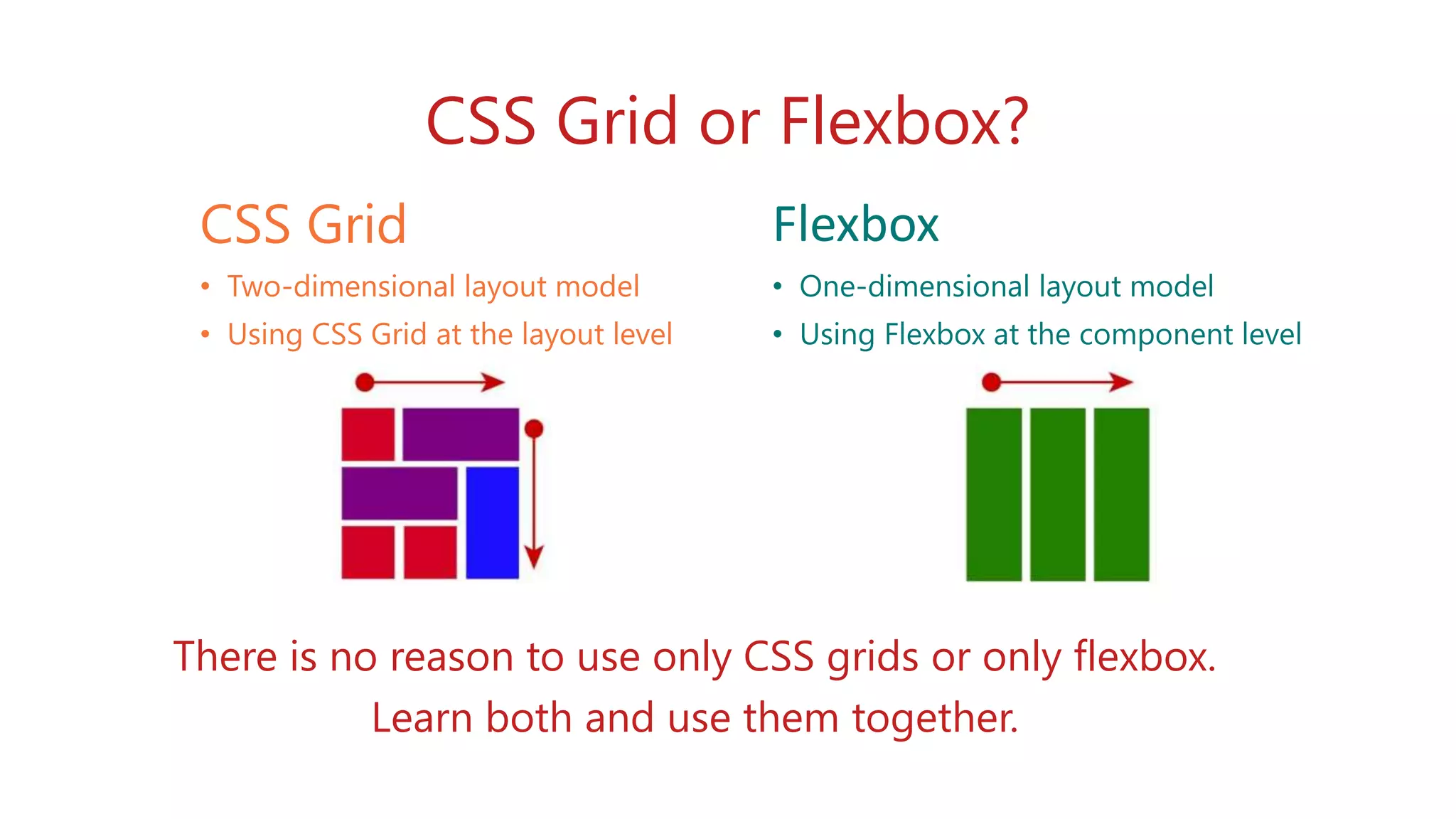
CSS Grid or Flexbox?
CSS Grid
• Two-dimensional layout model
• Using CSS Grid at the layout level
Flexbox
• One-dimensional layout model
• Using Flexbox at the component level
There is no reason to use only CSS grids or only flexbox.
Learn both and use them together.
Summary
•Easy to create web layout
•Responsive Design
•Production ready
•Become more and more popular
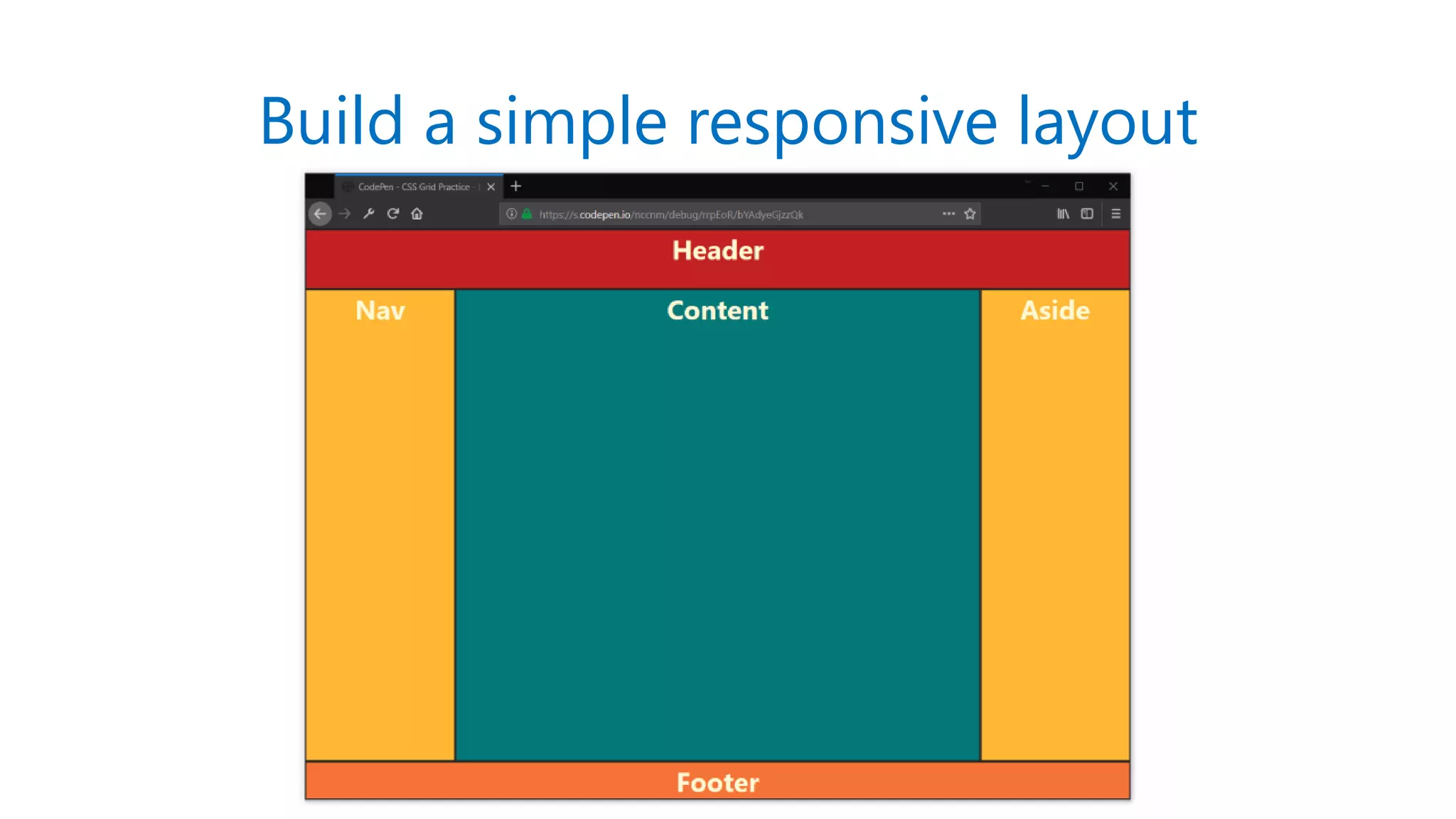
Practice makes perfect
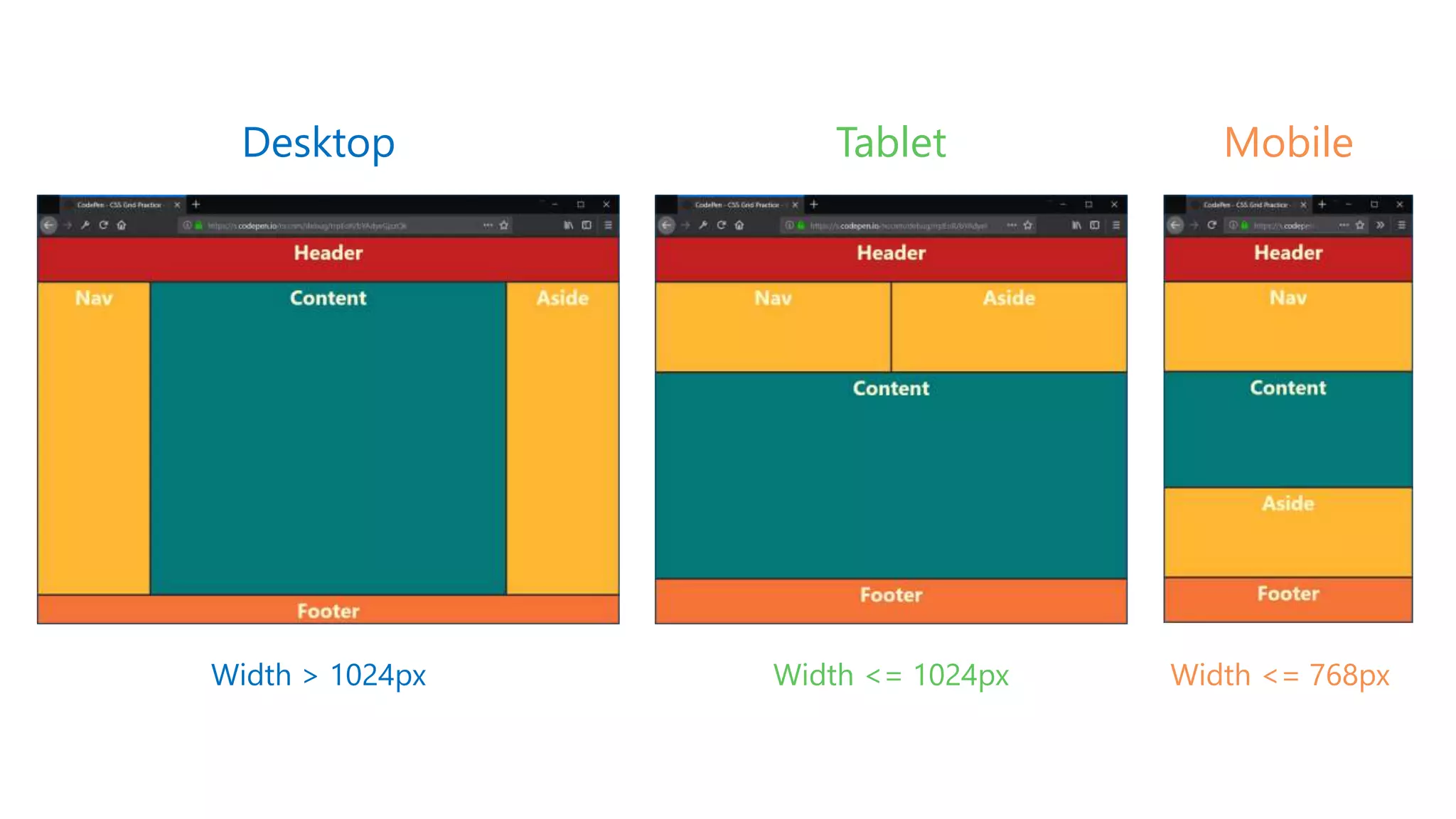
Build a simple responsive layout
Desktop Tablet Mobile
Width > 1024px Width <= 1024px Width <= 768px
Flexbox CSS Grid
bit.ly/flexbox_start bit.ly/cssgrid_start
Thanks

CSS Flexbox and Grid: The future of website layouts - DN Scrum Breakfast - August 28, 2018

  • 2.
    Agenda Old Web LayoutTechniques Flexbox Tea Break CSS Grid Practice Makes Perfect
  • 3.
    How to createWeb Layout?
  • 5.
  • 6.
    <h1>Basic document flow</h1> <p>...blockelement…</p> <p>Span 100% of the width of our parent element...</p> <p>Separate by margins...</p> <p>…<img src=“…”></p> Normal flow
  • 7.
    Float and clear .img2{ float: right; } .clearfix::after { content: ""; clear: both; display: table; } <div class="clearfix"> <img class="img2"...></img> </div>
  • 8.
    inline-block .nav li { display:inline-block; font-size: 20px; padding: 20px; }
  • 9.
    Table layout .nav-table { display:table; ... } <nav class="nav-table"> <ul> <li><a href="#">Home</a></li> <li><a href="#">About</a></li> <li><a href="#">Clients</a></li> <li><a href="#">Contact Us</a></li> </ul> </nav> HTML Table and CSS Table.
  • 10.
    Positioning techniques 1 Staticpositioning 3 Absolute positioning 2 Relative positioning 4 Fixed positioning 5 position: sticky
  • 11.
    Common issues Use tricksor hacks No vertical centering No equal heights No source order independence
  • 12.
  • 15.
    Flexbox Nguyen Duy Senior WebDeveloper - Axon Active Viet Nam
  • 16.
    Agenda What is Flexbox? Flexboxcontainer Flexbox item Summary
  • 17.
    What is flexboxactually? • Flexbox is a new module in CSS3 that makes it easy to align elements to one another, in different directions and orders; • The main idea behind flexbox is to give the container the ability to expand and to shrink elements to best use all the available space; • Flexbox replaces float layouts, using less, and more readable and logical code; • Flexbox completely changes the way that we build on- dimensional layouts;
  • 18.
    Flexbox concepts Main Axis CrossAxis Flex Container Flex Items
  • 19.
    .containter { display: flex; } <divclass="containter"> <div>1</div> <div>2</div> <div>3</div> <div>4</div> <div>5</div> </div> .containter { display: block; /* default */ } <div class="containter"> <div>1</div> <div>2</div> <div>3</div> <div>4</div> <div>5</div> </div> How to create a flexbox layout
  • 20.
    Flexbox properties overview flex-direction:row | row-reverse | column | column-reverse align-self: auto | stretch |flex-start | flex-end | center | baseline flex-wrap: wrap | no-wrap | wrap-reverse order: 0 | <interger> justify-content: flex-start | flex-end | space-between | space-around | space-evenly flex-grow: 0 | <interger> align-items: stretch | flex-start | flex-end | center | baseline flex-shrink: 0 | <interger> align-content: stretch | flex-start | flex-end | center | space-between | space-around flex-basic: auto | <len> 1 2 3 4 5 1 2 3 4 5 flex: 0 1 auto | <int> <int> <len> Container Item
  • 21.
  • 22.
    .containter { display: flex; flex-direction:row; } <div class="containter"> <div>1</div> <div>2</div> <div>3</div> <div>4</div> <div>5</div> </div> .containter { display: flex; flex-direction: row-reverse; } <div class="containter"> <div>1</div> <div>2</div> <div>3</div> <div>4</div> <div>5</div> </div> .containter { display: flex; flex-direction: column; } <div class="containter"> <div>1</div> <div>2</div> <div>3</div> <div>4</div> <div>5</div> </div> .containter { display: flex; flex-direction: column-reverse; } <div class="containter"> <div>1</div> <div>2</div> <div>3</div> <div>4</div> <div>5</div> </div> flex-direction flex-direction: row | row-reverse | column | column-reverse
  • 23.
    flex-wrap flex-wrap: nowrap |wrap | wrap-reverse Main Axis Cross Axis nowrap wrap
  • 24.
    justify-content justify-content: flex-start |flex-end | space-between | space-around |space-evenly flex-start center flex-end Main Axis
  • 25.
    justify-content: space-between justify-content: flex-start| flex-end | space-between | space-around |space-evenly space-between Main Axis x x x x
  • 26.
    justify-content: space-around justify-content: flex-start| flex-end | space-between | space-around |space-evenly space-around Main Axis x 2*x x x
  • 27.
    justify-content: space-evenly justify-content: flex-start| flex-end | space-between | space-around |space-evenly space-evenly Main Axis x x x x x x
  • 28.
    align-items: stretch align-items: stretch| flex-start | flex-end | center | baseline stretch Main Axis Cross Axis
  • 29.
    align-items: flex-start align-items: stretch| flex-start | flex-end | center | baseline flex-start Main Axis Cross Axis
  • 30.
    align-items: flex-end align-items: stretch| flex-start | flex-end | center | baseline flex-end Main Axis Cross Axis
  • 31.
    align-items: center align-items: stretch| flex-start | flex-end | center | baseline center Main Axis Cross Axis
  • 32.
    align-items: baseline align-items: stretch| flex-start | flex-end | center | baseline baseline Main Axis Cross Axis
  • 33.
  • 34.
    .item3 { align-self: stretch; } align-self:stretch align-self: auto | stretch |flex-start | flex-end | center | baseline Main Axis Cross Axis
  • 35.
    .item3 { align-self: flex-start; } align-self:flex-start align-self: auto | stretch |flex-start | flex-end | center | baseline Main Axis Cross Axis
  • 36.
    .item3 { align-self: flex-start; } align-self:flex-end align-self: auto | stretch |flex-start | flex-end | center | baseline Main Axis Cross Axis
  • 37.
    .item3 { align-self: center; } align-self:center align-self: auto | stretch |flex-start | flex-end | center | baseline Main Axis Cross Axis
  • 38.
    .item3 { align-self: baseline; } align-self:baseline align-self: auto | stretch |flex-start | flex-end | center | baseline Main Axis Cross Axis
  • 39.
    .item4 { order: -1; } order order:0 | <interger> Main Axis 0 0 0 0
  • 40.
    .item4 { order: 1; } order order:0 | <interger> Main Axis 0 0 00
  • 41.
    flex-basis flex-basis: auto |<len> Main Axis flex-basis:100px 100pxflex-basis: 200pxflex-basis: 20%
  • 42.
    flex-grow flex-grow: 0 |<interger> Main Axis 120px 120px 120px 120pxflex-grow: 1 800-(120*4) = 320px 800px
  • 43.
    flex-grow flex-grow: 0 |<interger> Main Axis flex-grow:1 flex-grow: 3flex-grow:1 flex-grow:1 flex-grow: 2
  • 44.
    flex-grow flex-grow: 0 |<interger> Main Axis 120px 120px flex-basis: 20% 120pxflex-grow: 1 800-(120*3)-160 = 280px 800px
  • 45.
    flex-shrink flex-shrink: 0 |<interger> Main Axis flex-basis: 400px; flex-shrink: 0; flex-shrink: 1; flex-shrink: 1;
  • 46.
    flex (shorthand) flex-grow: 0 flex-shrink:1 flex: 0 1 auto | <int> <int> <len> flex-basis: auto .item { flex: 0 1 auto; } .item { flex-grow: 0; flex-shrink: 1; flex-basis: auto; }
  • 47.
  • 49.
  • 50.
  • 51.
  • 52.
    Summary Flexbox is easyand incredibly powerful. • Use display: flex; to create a flex container. • Use flex-direction if you need columns instead of rows. • Use the row-reverse or column-reverse values to flip item order. • Use justify-content to define the horizontal alignment of items. • Use align-items to define the vertical alignment of items. • Use align-self to vertically align individual items. • Use order to customize the order of individual elements. • Use flex to create flexible boxes that can stretch and shrink.
  • 53.
  • 54.
  • 55.
    CSS Grid Hai Nguyen SoftwareArchitecture – Axon Active Viet Nam
  • 56.
    Agenda What is CSSGrid? Basic concepts of grid layout CSS Grid detail Defining a Grid Line-based placement Defining Grid Areas Responsive layout with Media Queries Grid auto-placement Using Order Alignment CSS Grid vs Flexbox Summary
  • 57.
    What is CSSGrid? CSS Grid gives us a method of creating grid structures that are described in CSS and not in HTML
  • 59.
    CSS Grid inProduction?
  • 63.
    Why learn CSSGrid layout? •Easy •Simpler markup •Flexible •Don't need frameworks
  • 64.
    Basic concepts ofgrid layout The Grid container and Grid Items <div class="container"> <div>1</div> <div>2</div> <div>3</div> <div>4</div> <div>5</div> ... </div> .container { display: grid; } Grid container Grid items
  • 65.
    Basic concepts ofgrid layout Grid Lines Grid Gap Grid Lines 1 2 3 2 3 4
  • 66.
    Basic concepts ofgrid layout Grid Cell
  • 67.
    Basic concepts ofgrid layout Grid Track
  • 68.
    Basic concepts ofgrid layout Grid Area
  • 69.
    .containter { padding: 1rem; } <divclass="containter"> <div class="item item1">1</div> <div class="item item2">2</div> <div class="item item3">3</div> <div class="item item4">4</div> <div class="item item5">5</div> <div class="item item6">6</div> <div class="item item7">7</div> <div class="item item8">8</div> <div class="item item9">9</div> </div> Defining a Grid wwww The Grid container The Grid item
  • 70.
    .containter { display: grid; grid-gap:10px; grid-template-columns: 100px 200px 100px; grid-template-rows: 100px 200px 100px; padding: 1rem; } 100px 100px200px 10px wwww Defining a Grid 100px 100px 200px
  • 71.
    .item4 { grid-column: 2/4;/* shorthand */ grid-row: 2/4; } .item4 { grid-column: 2/ span 2; /* shorthand */ grid-row: 2/ span 2; } .item4 { grid-column-start: 2; grid-column-end: 4; grid-row-start: 2; grid-row-end: 4; } .containter { display: grid; grid-gap: 20px; grid-template-columns: 100px 200px 100px; grid-template-rows: 100px 200px 100px; padding: 1rem; } Line-based placement 2 4 2 4
  • 72.
    .containter { display: grid; grid-gap:20px; grid-template-columns: repeat(4, [col] 100px); grid-template-rows: repeat(3, [row] auto); padding: 1rem; } .item4 { grid-column: col 2 / span 2; grid-row: row 2 / span 2; } Using repeat notation col col col col
  • 73.
    header header header sidebar1content sidebar3 sidebar2 content sidebar4 footer footer footer .containter { display: grid; grid-template-columns: 200px 1fr 200px; grid-template-rows: 80px 1fr 1fr 80px; grid-template-areas: "header header header" "sidebar1 content sidebar3" "sidebar2 content sidebar4" "footer footer footer"; min-height: 100vh; } .header { grid-area: header; } .content { grid-area: content; } Defining Grid Areas
  • 74.
    header header sidebar1 content sidebar2content sidebar3 content sidebar4 content footer footer @media only screen and (max-width: 1024px) { .containter { grid-template-columns: 200px 1fr; grid-template-rows: 80px repeat(4, auto) 80px; grid-template-areas: "header header" "sidebar1 content" "sidebar2 content" "sidebar3 content" "sidebar4 content" "footer footer"; } } Redefining Grid Areas with Media Queries
  • 75.
  • 76.
    .containter { display: grid; grid-gap:20px; grid-template-columns: 120px 120px 120px; grid-auto-columns: 100px; grid-auto-rows: 150px; padding: 1rem; } wwww Explicit and Implicit Grid 100px 150p x
  • 77.
    .containter { display: grid; grid-gap:20px; grid-template-columns: repeat(3, [col] 150px); grid-template-rows: repeat(3, [row] 100px); grid-auto-flow: column; padding: 1rem; } wwww Grid auto-flow column grid-auto-flow: column;
  • 78.
    .containter { display: grid; grid-gap:20px; grid-template-columns: repeat(4, [col] 150px); grid-template-rows: minmax(80px, auto); grid-auto-flow: row; /* Default value */ padding: 1rem; } wwww Grid auto-flow row grid-auto-flow: row;
  • 79.
    .containter { display: grid; grid-gap:20px; grid-template-columns: repeat(4, [col] 150px); grid-template-rows: minmax(80px, auto); grid-auto-flow: dense; padding: 1rem; } wwww Grid auto-flow dense grid-auto-flow: dense;
  • 80.
  • 81.
    .containter { display: grid; grid-gap:20px; grid-template-columns: repeat(3, [col] 100px); padding: 1rem; } .item1 { order: 1; } .item4 { order: 2; } .item9 { order: 2; } wwww Using Order
  • 82.
    .containter { display: grid; grid-gap:20px; grid-template-columns: repeat(4, [col] 150px); grid-template-rows: repeat(4, [row] 100px); align-items: center; } .item2 { grid-column: 3 / span 2; grid-row: 1 / span 4; align-self: stretch; } wwww align align-items: center;
  • 83.
    .containter { display: grid; grid-gap:20px; grid-template-columns: repeat(4, [col] 150px); grid-template-rows: repeat(4, [row] 100px); align-items: start; } .item2 { grid-column: 3 / span 2; grid-row: 1 / span 4; align-self: stretch; } wwww align align-items: start;
  • 84.
    .containter { display: grid; grid-gap:20px; grid-template-columns: repeat(4, [col] 150px); grid-template-rows: repeat(4, [row] 100px); align-items: end; } .item2 { grid-column: 3 / span 2; grid-row: 1 / span 4; align-self: stretch; } wwww align align-items: end;
  • 85.
    .containter { display: grid; grid-gap:20px; grid-template-columns: repeat(4, [col] 150px); grid-template-rows: repeat(4, [row] 100px); justify-items: center; } .item2 { grid-column: 3 / span 2; grid-row: 1 / span 4; justify-self: stretch; } wwww justify justify-items: end;
  • 86.
    .containter { display: grid; grid-gap:20px; grid-template-columns: repeat(4, [col] 150px); grid-template-rows: repeat(4, [row] 100px); justify-items: start; } .item2 { grid-column: 3 / span 2; grid-row: 1 / span 4; justify-self: stretch; } wwww justify justify-items: end;
  • 87.
    .containter { display: grid; grid-gap:20px; grid-template-columns: repeat(4, [col] 150px); grid-template-rows: repeat(4, [row] 100px); justify-items: end; } .item2 { grid-column: 3 / span 2; grid-row: 1 / span 4; justify-self: stretch; } wwww justify justify-items: end;
  • 88.
  • 90.
    CSS Grid orFlexbox? CSS Grid • Two-dimensional layout model • Using CSS Grid at the layout level Flexbox • One-dimensional layout model • Using Flexbox at the component level There is no reason to use only CSS grids or only flexbox. Learn both and use them together.
  • 92.
    Summary •Easy to createweb layout •Responsive Design •Production ready •Become more and more popular
  • 94.
  • 95.
    Build a simpleresponsive layout
  • 96.
    Desktop Tablet Mobile Width> 1024px Width <= 1024px Width <= 768px
  • 97.
  • 98.

Editor's Notes

  • #6 Occupations. There are two primary jobs involved in creating a website: the webdesigner and web developer, who often work closely together on a website. Theweb designers are responsible for the visual aspect, which includes the layout, coloring and typography of a web page. Page layout refers to the arrangement of text, images, and other objects on a page. The term was initially used in desktop publishing (DTP), but is now commonly used to describe the layout of webpages as well. ... The page layout of a printed or electronic document encompasses all elements of the page
  • #77 https://codepen.io/anthonydugois/pen/RpYBmy?editors=0010
  • #83 https://codepen.io/nccnm/pen/GBvrOG
  • #91 https://codepen.io/stacy/pen/ObmjeZ
  • #92 mor10.com
  • #93 Grid Template Areas — the feature that will convince most Flexbox fanatics that Grid is the superior layout approach (more on Grid vs. Flexbox further below). The ability to switch the order of elements without touching markup or implementing any JS wizardry immediately won the team over and made CSS Grid a no-brainer.