Flexbox Every Developers Dream
• Welcome to the first of Kika’s series on CSS’s newest
framework Flexbox! In this series we will look into
how to use Flexbox to build and manage your
website!
• There was a time in the not so distant future, that
tables ruled the field of HTML page development.
Developers did not bother getting bogged down in
<div> or Dreamweaver layers, as tables made up the
foundation of their website templates. Over time,
however, with advancements in multimedia and
mobile device capabilities, which required cleaner
coding, the standard shifted toward table-less html
<div>. This became the new standard for website
development.
• However, even with the simplification of coding
under the new framework, early CSS came with
challenges of its own. Simple vertical alignment
of a child div inside a parent div required writing
extra research, coding and testing. This was just
one of the many complications with early CSS
that web developers had to deal with.
• Since then, new HTML and CSS frameworks
have been developed like Bootstrap and Skeleton
that were much more developer friendly. One of
these frameworks is CSS3’s newest layout;
Flexbox.
According to W3Schools.com:
• “Use of flexbox [or Flexible Boxes] ensures that
elements behave predictably when the page
layout must accommodate different screen sizes
and different display devices.
• For many applications, the flexible box model
provides an improvement over the block model
in that it does not use floats, nor do the flex
container’s margins collapse with the margins of
its contents.”
• In order to give you a better idea of how Flexbox
can work for you, let’s take a closer look at it’s
functionality!
#1 Adjusting multiple child elements
with equal width inside a parent div
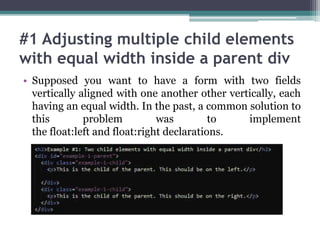
• Supposed you want to have a form with two fields
vertically aligned with one another other vertically, each
having an equal width. In the past, a common solution to
this problem was to implement
the float:left and float:right declarations.
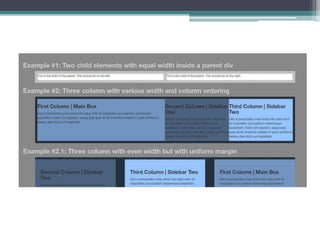
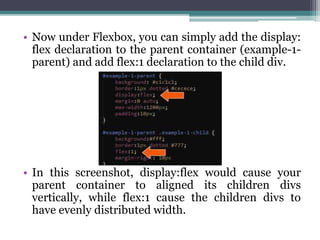
• Now under Flexbox, you can simply add the display:
flex declaration to the parent container (example-1-
parent) and add flex:1 declaration to the child div.
• In this screenshot, display:flex would cause your
parent container to aligned its children divs
vertically, while flex:1 cause the children divs to
have evenly distributed width.
#2 Setting multiple columns with
varying width, margins and ordering.
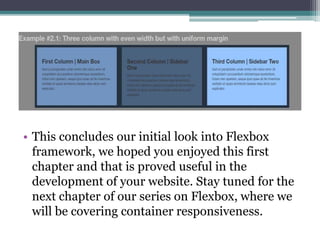
• Adding display:flex to your Container css code will
cause the Divs to sit side by side and by default
allocates more page space to the column with the
most text by default.
• This can be good as it adds more space for areas
with more content, but suppose you want all your
columns to be the same width?
• In this case, like with the previous example, you
would add the flex: 1 declaration to each child div.
This will bring each column to an equal width. The
reason for this is that the flex: 1 declaration
represents a kind of baseline value.
• In the case that you wanted to assign a given column
more space on the page, in relation to your other
columns, you would simply have to assign a higher
flex value to that column.
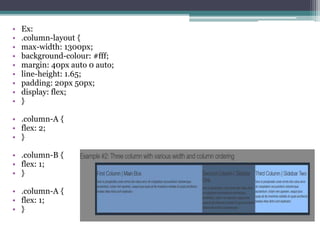
• For example, if you had 3 columns (A,B,C), and you
wanted column A to be 2x bigger than the other two,
then you would assign column a with the flex: 2
syntax. Similarly, if you wanted column A to be 3x
bigger than the other two you would assign flex: 3
syntax. As flex: 1 is the base value that makes all
elements equally distributed, then any value you
place on other divs in the same container will act as
a multiplier of the baseline.
• Ex:
• .column-layout {
• max-width: 1300px;
• background-colour: #fff;
• margin: 40px auto 0 auto;
• line-height: 1.65;
• padding: 20px 50px;
• display: flex;
• }
• .column-A {
• flex: 2;
• }
• .column-B {
• flex: 1;
• }
• .column-A {
• flex: 1;
• }
Ordering
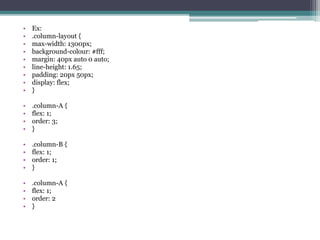
• Ordering your content is a breeze with Flexbox,
using the the previous example with our 3
columns. If you would like to reorder your
columns from the A,B,C order to B,C,A . you
must simply add the order declaration below the
flex.
• Ex:
• .column-layout {
• max-width: 1300px;
• background-colour: #fff;
• margin: 40px auto 0 auto;
• line-height: 1.65;
• padding: 20px 50px;
• display: flex;
• }
• .column-A {
• flex: 1;
• order: 3;
• }
• .column-B {
• flex: 1;
• order: 1;
• }
• .column-A {
• flex: 1;
• order: 2
• }
Margins
• So we have looked at how to set up and order
multiple content columns and reorder and
reshape them using Flexbox.
• Now let’s take a look at how we can further
customize these columns by including margins
between the columns we have set up:
• In the past, the best way of changing the margins
in your layout was to adjust the div’s width.
However with Flexbox, adding margins is as easy
as adding display:flex and justify-content:space-
between to the parent container and add the
syntaxes box-sizing:border-box (as you would in
the past) but instead of modifying the width of
the child container you would input the
following declaration: flex-basis: x%;
• Ex:
• .parent-container {
• max-width: 140px;
• margin: 40px auto 0 auto;
• display: flex;
• justify-content: space-between;
• }
• .child {
• padding: 20px;
• box-sizing: border-box;
• margin-bottom: 20px;
• flex-basis: 30%;
• }
• This concludes our initial look into Flexbox
framework, we hoped you enjoyed this first
chapter and that is proved useful in the
development of your website. Stay tuned for the
next chapter of our series on Flexbox, where we
will be covering container responsiveness.
• Created by:
Kika Marketing and Communications

Flexbox every developers dream

  • 1.
  • 2.
    • Welcome tothe first of Kika’s series on CSS’s newest framework Flexbox! In this series we will look into how to use Flexbox to build and manage your website! • There was a time in the not so distant future, that tables ruled the field of HTML page development. Developers did not bother getting bogged down in <div> or Dreamweaver layers, as tables made up the foundation of their website templates. Over time, however, with advancements in multimedia and mobile device capabilities, which required cleaner coding, the standard shifted toward table-less html <div>. This became the new standard for website development.
  • 4.
    • However, evenwith the simplification of coding under the new framework, early CSS came with challenges of its own. Simple vertical alignment of a child div inside a parent div required writing extra research, coding and testing. This was just one of the many complications with early CSS that web developers had to deal with. • Since then, new HTML and CSS frameworks have been developed like Bootstrap and Skeleton that were much more developer friendly. One of these frameworks is CSS3’s newest layout; Flexbox.
  • 5.
    According to W3Schools.com: •“Use of flexbox [or Flexible Boxes] ensures that elements behave predictably when the page layout must accommodate different screen sizes and different display devices. • For many applications, the flexible box model provides an improvement over the block model in that it does not use floats, nor do the flex container’s margins collapse with the margins of its contents.”
  • 6.
    • In orderto give you a better idea of how Flexbox can work for you, let’s take a closer look at it’s functionality!
  • 7.
    #1 Adjusting multiplechild elements with equal width inside a parent div • Supposed you want to have a form with two fields vertically aligned with one another other vertically, each having an equal width. In the past, a common solution to this problem was to implement the float:left and float:right declarations.
  • 8.
    • Now underFlexbox, you can simply add the display: flex declaration to the parent container (example-1- parent) and add flex:1 declaration to the child div. • In this screenshot, display:flex would cause your parent container to aligned its children divs vertically, while flex:1 cause the children divs to have evenly distributed width.
  • 9.
    #2 Setting multiplecolumns with varying width, margins and ordering. • Adding display:flex to your Container css code will cause the Divs to sit side by side and by default allocates more page space to the column with the most text by default. • This can be good as it adds more space for areas with more content, but suppose you want all your columns to be the same width? • In this case, like with the previous example, you would add the flex: 1 declaration to each child div. This will bring each column to an equal width. The reason for this is that the flex: 1 declaration represents a kind of baseline value.
  • 10.
    • In thecase that you wanted to assign a given column more space on the page, in relation to your other columns, you would simply have to assign a higher flex value to that column. • For example, if you had 3 columns (A,B,C), and you wanted column A to be 2x bigger than the other two, then you would assign column a with the flex: 2 syntax. Similarly, if you wanted column A to be 3x bigger than the other two you would assign flex: 3 syntax. As flex: 1 is the base value that makes all elements equally distributed, then any value you place on other divs in the same container will act as a multiplier of the baseline.
  • 11.
    • Ex: • .column-layout{ • max-width: 1300px; • background-colour: #fff; • margin: 40px auto 0 auto; • line-height: 1.65; • padding: 20px 50px; • display: flex; • } • .column-A { • flex: 2; • } • .column-B { • flex: 1; • } • .column-A { • flex: 1; • }
  • 12.
    Ordering • Ordering yourcontent is a breeze with Flexbox, using the the previous example with our 3 columns. If you would like to reorder your columns from the A,B,C order to B,C,A . you must simply add the order declaration below the flex.
  • 13.
    • Ex: • .column-layout{ • max-width: 1300px; • background-colour: #fff; • margin: 40px auto 0 auto; • line-height: 1.65; • padding: 20px 50px; • display: flex; • } • .column-A { • flex: 1; • order: 3; • } • .column-B { • flex: 1; • order: 1; • } • .column-A { • flex: 1; • order: 2 • }
  • 14.
    Margins • So wehave looked at how to set up and order multiple content columns and reorder and reshape them using Flexbox. • Now let’s take a look at how we can further customize these columns by including margins between the columns we have set up:
  • 15.
    • In thepast, the best way of changing the margins in your layout was to adjust the div’s width. However with Flexbox, adding margins is as easy as adding display:flex and justify-content:space- between to the parent container and add the syntaxes box-sizing:border-box (as you would in the past) but instead of modifying the width of the child container you would input the following declaration: flex-basis: x%;
  • 16.
    • Ex: • .parent-container{ • max-width: 140px; • margin: 40px auto 0 auto; • display: flex; • justify-content: space-between; • } • .child { • padding: 20px; • box-sizing: border-box; • margin-bottom: 20px; • flex-basis: 30%; • }
  • 17.
    • This concludesour initial look into Flexbox framework, we hoped you enjoyed this first chapter and that is proved useful in the development of your website. Stay tuned for the next chapter of our series on Flexbox, where we will be covering container responsiveness.
  • 18.
    • Created by: KikaMarketing and Communications