INDIAN INSTITUTE OF TECHNOLOGY ROORKEE
DIGITIZATION OF IITR MAP
CEN-614 THEORY AND APPLICATIONS OF GIS
CENTRE FOR TRANSPORTATION SYSTEMS
SUBMIT BY : HARSH BAMNIYA (22554003)
GUIDE : PROF. S.K. GHOSH
ASSIGNMENT 7
2
DIFFERENCE BETWEEN DIGITIZATION AND DIGITALIZATION
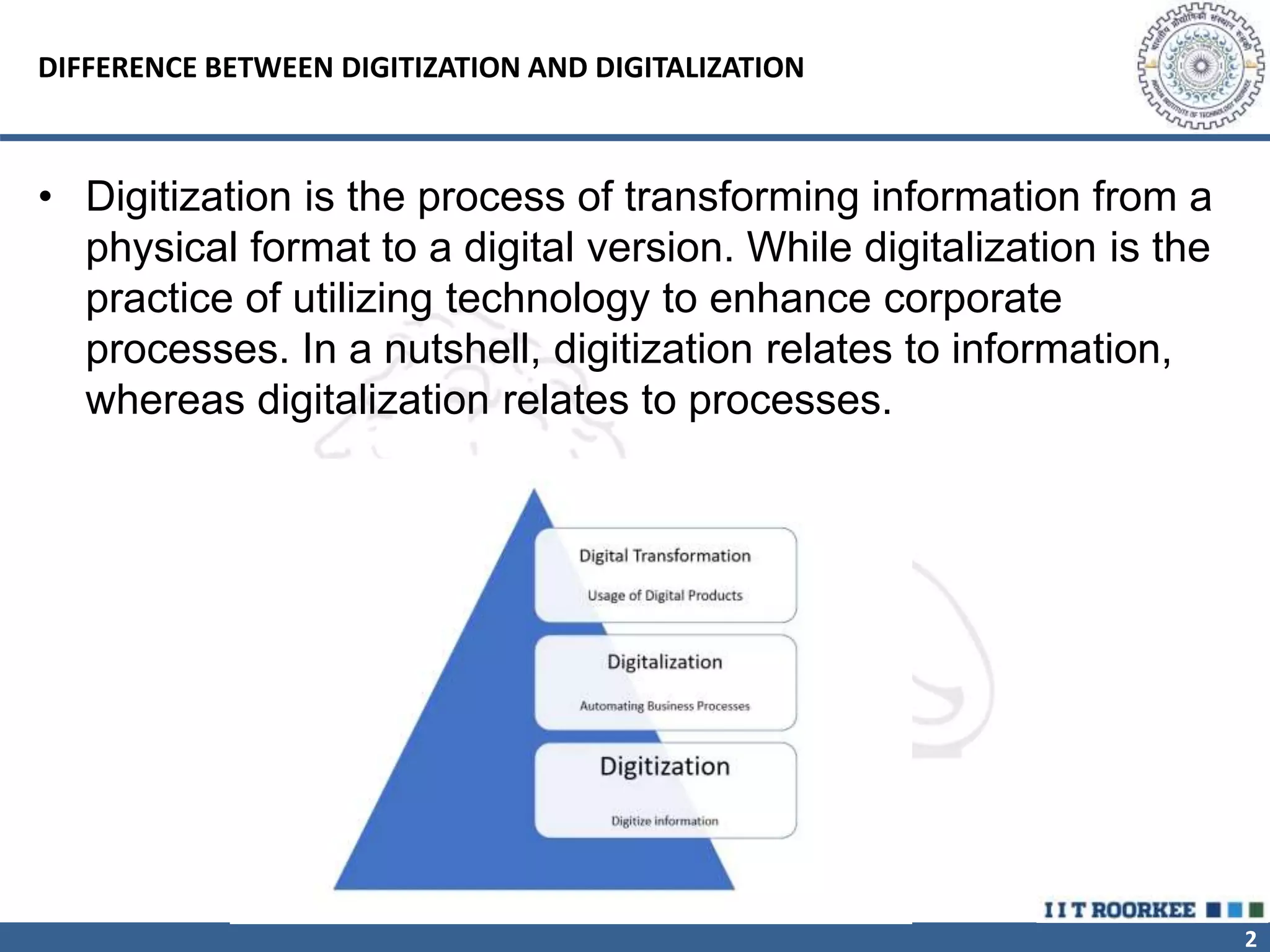
• Digitization is the process of transforming information from a
physical format to a digital version. While digitalization is the
practice of utilizing technology to enhance corporate
processes. In a nutshell, digitization relates to information,
whereas digitalization relates to processes.
3
DIFFERENCE BETWEEN DIGITIZATION AND DIGITALIZATION
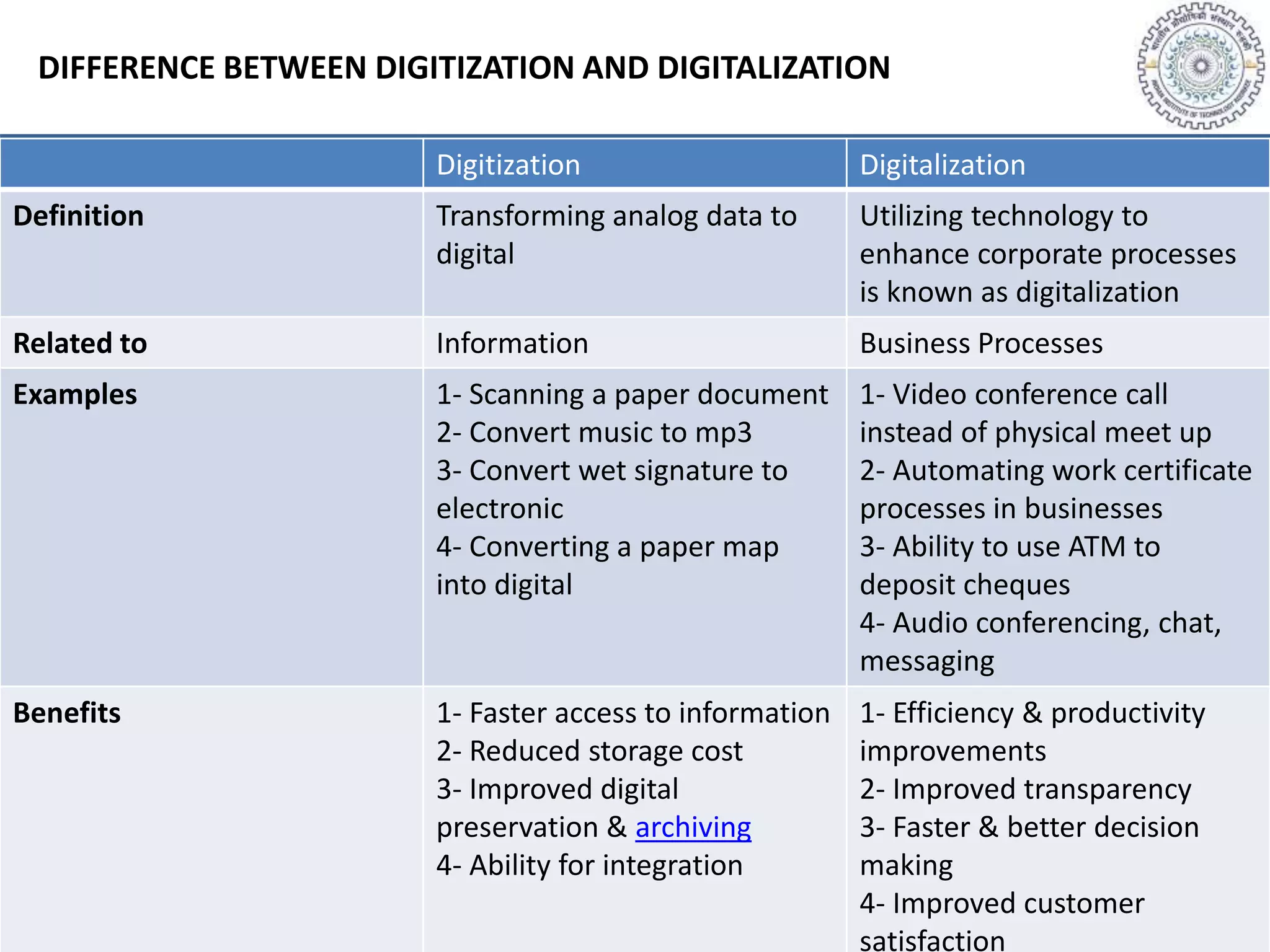
Digitization Digitalization
Definition Transforming analog data to
digital
Utilizing technology to
enhance corporate processes
is known as digitalization
Related to Information Business Processes
Examples 1- Scanning a paper document
2- Convert music to mp3
3- Convert wet signature to
electronic
4- Converting a paper map
into digital
1- Video conference call
instead of physical meet up
2- Automating work certificate
processes in businesses
3- Ability to use ATM to
deposit cheques
4- Audio conferencing, chat,
messaging
Benefits 1- Faster access to information
2- Reduced storage cost
3- Improved digital
preservation & archiving
4- Ability for integration
1- Efficiency & productivity
improvements
2- Improved transparency
3- Faster & better decision
making
4- Improved customer
satisfaction
4
STEPS FOR DIGITIZATION OF BUILDING
• 1.The georeferenced image from the last practical is use for digitization. Use both IITR
map and Google earth map.
• 2.Before starting the digitization process is to ensure that all the raster and vector layers
are in correct CRS which shows the geometrical measurements in meters.
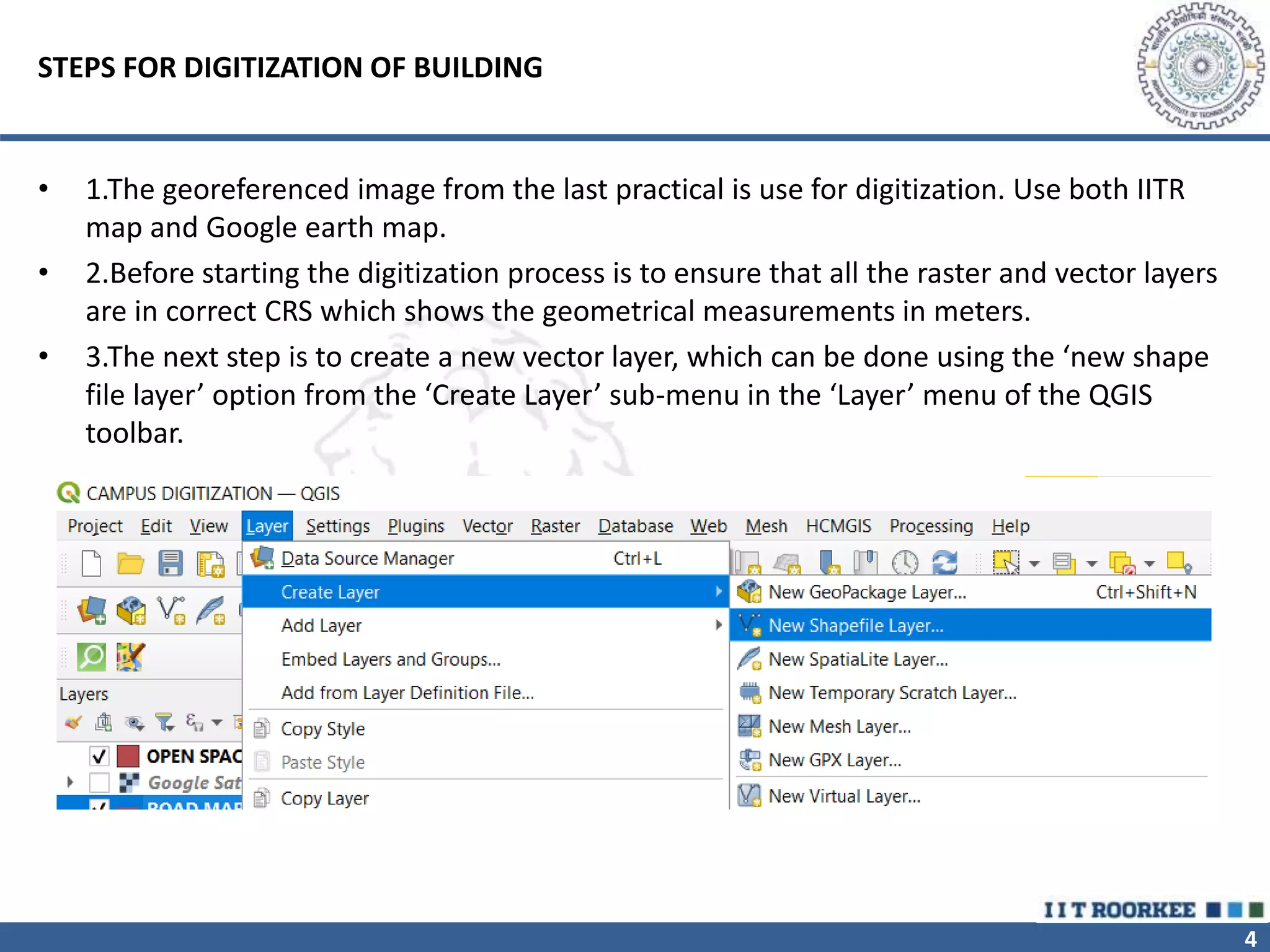
• 3.The next step is to create a new vector layer, which can be done using the ‘new shape
file layer’ option from the ‘Create Layer’ sub-menu in the ‘Layer’ menu of the QGIS
toolbar.
5
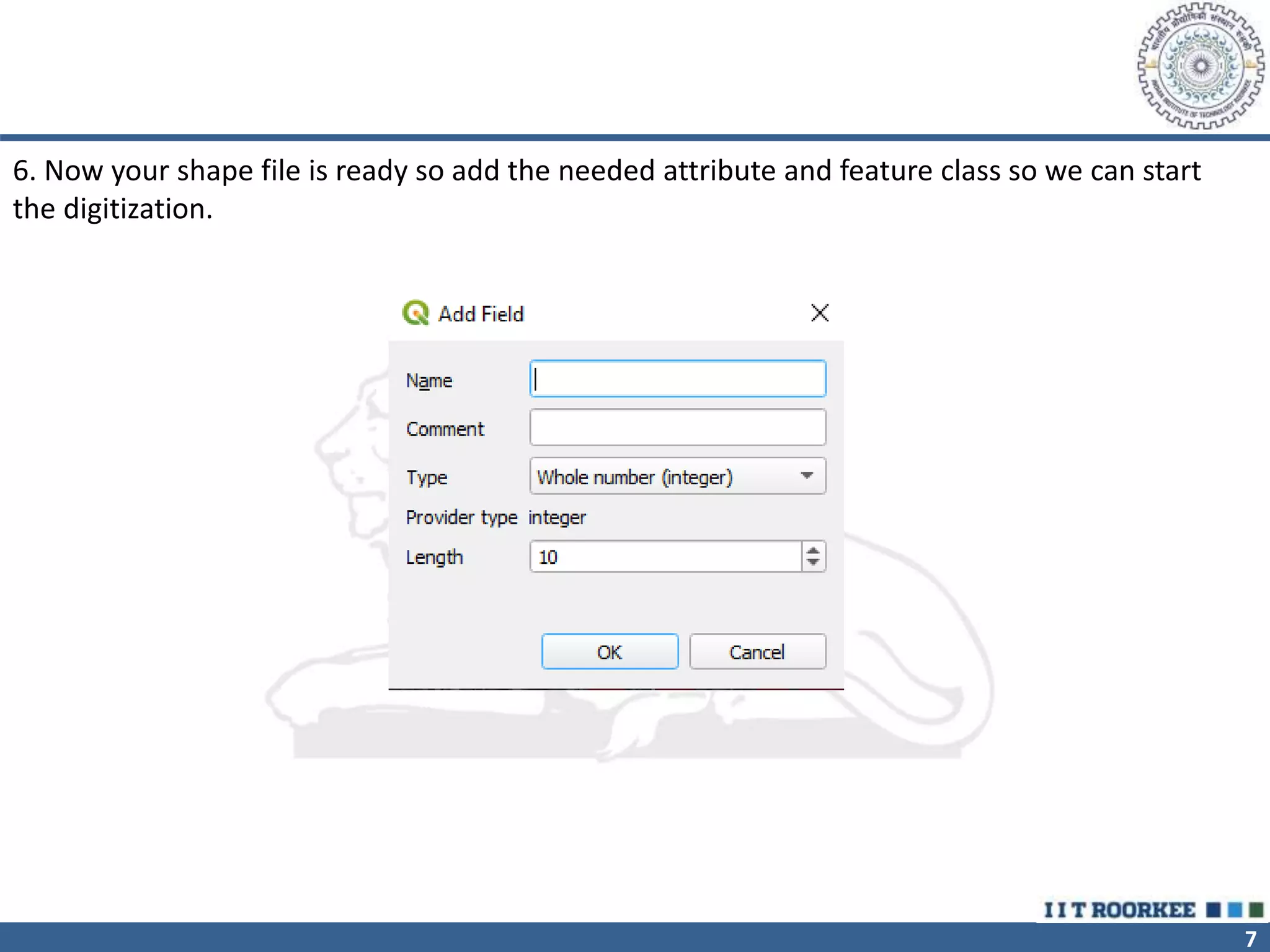
• 4.The next step is to define the features and attributes of the shape file. Initially we have
to type the name and then the features can be chosen from the list in ‘Geometry type’.
The attributes of the objects can be set by adding various fields.
• 5.This can be done using the ‘New Field’ menu. The name, type (string, decimal number,
whole number or date), length and precision of the field can be set.
6
7
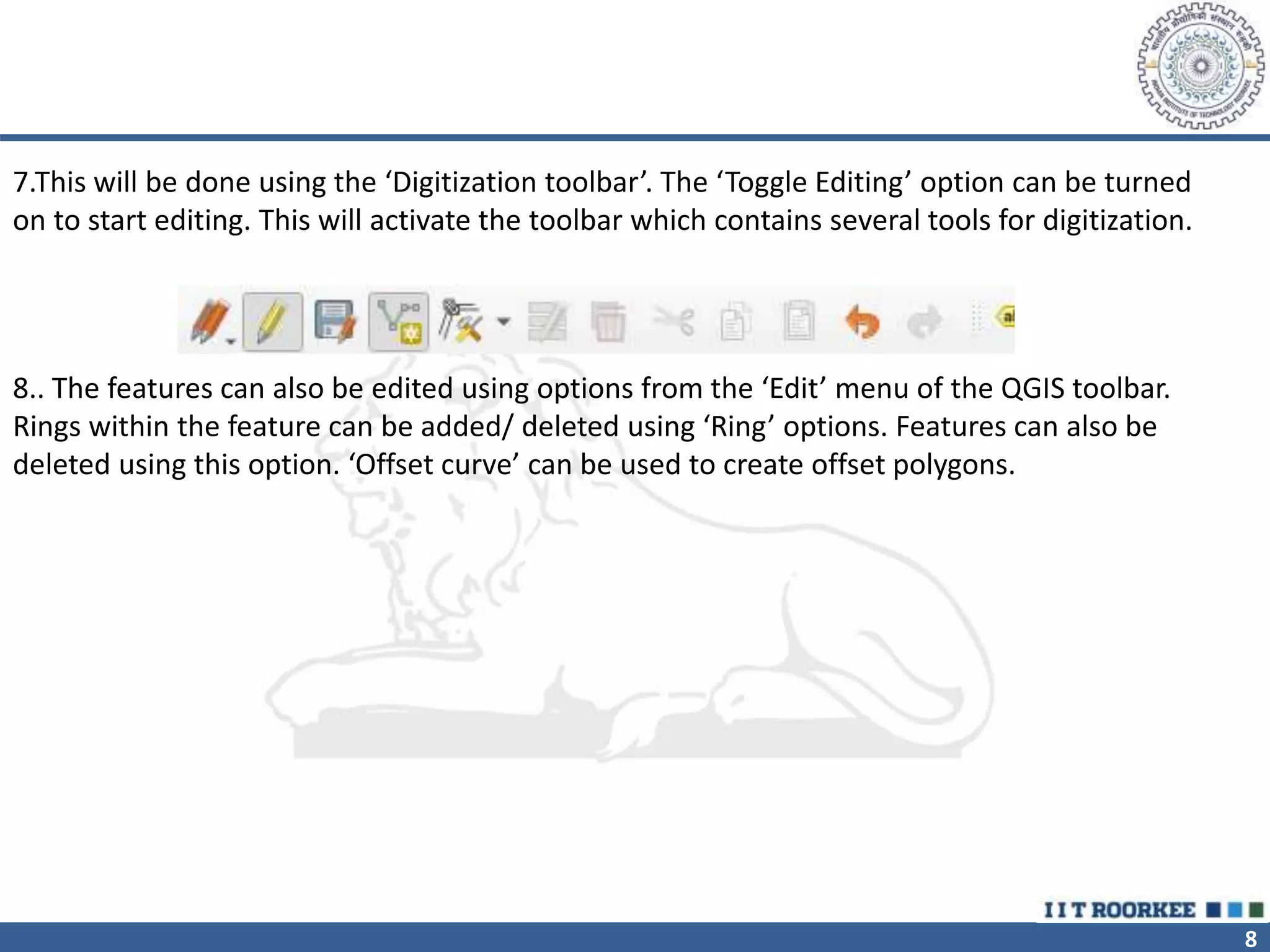
6. Now your shape file is ready so add the needed attribute and feature class so we can start
the digitization.
8
7.This will be done using the ‘Digitization toolbar’. The ‘Toggle Editing’ option can be turned
on to start editing. This will activate the toolbar which contains several tools for digitization.
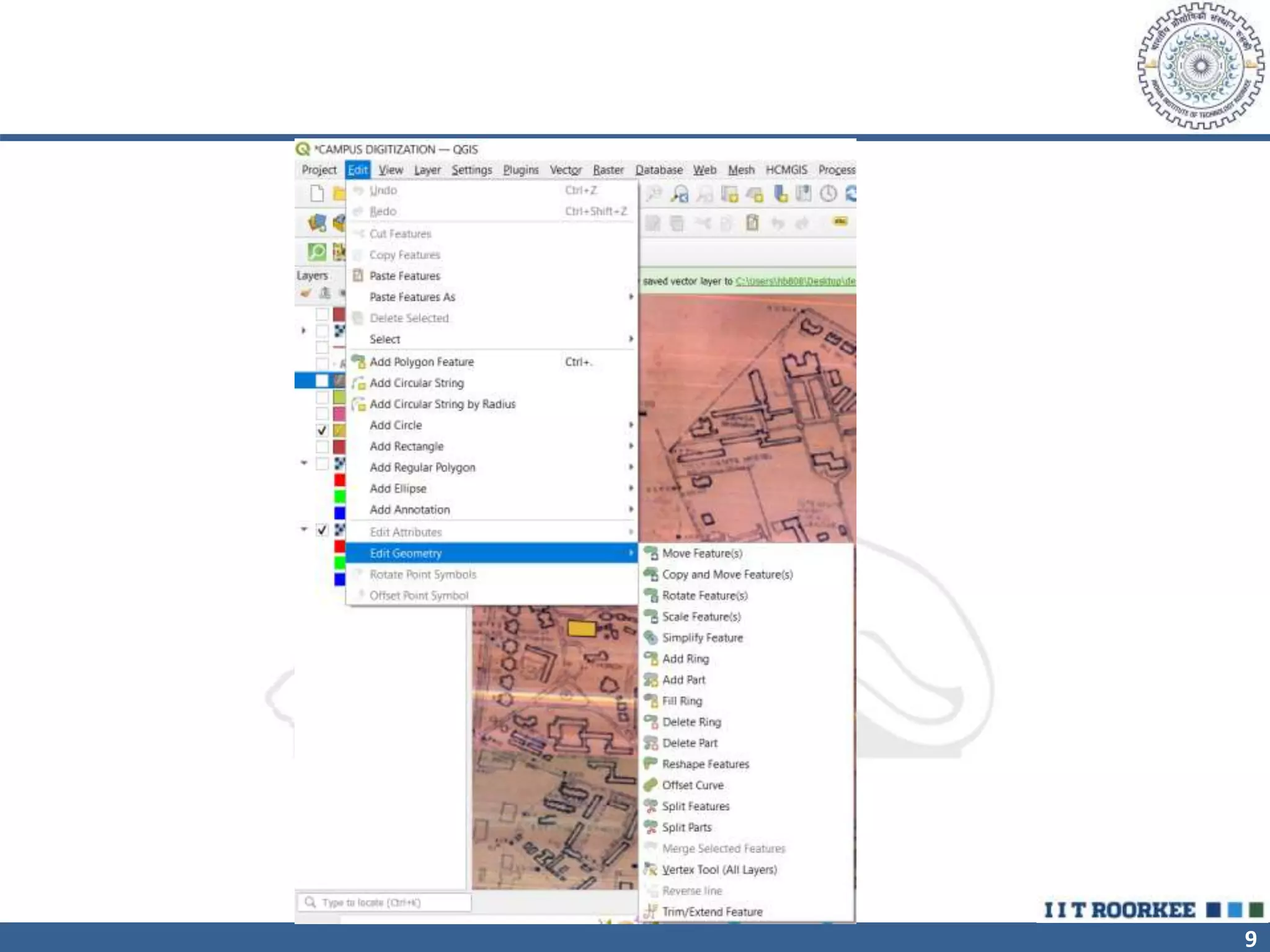
8.. The features can also be edited using options from the ‘Edit’ menu of the QGIS toolbar.
Rings within the feature can be added/ deleted using ‘Ring’ options. Features can also be
deleted using this option. ‘Offset curve’ can be used to create offset polygons.
9
10
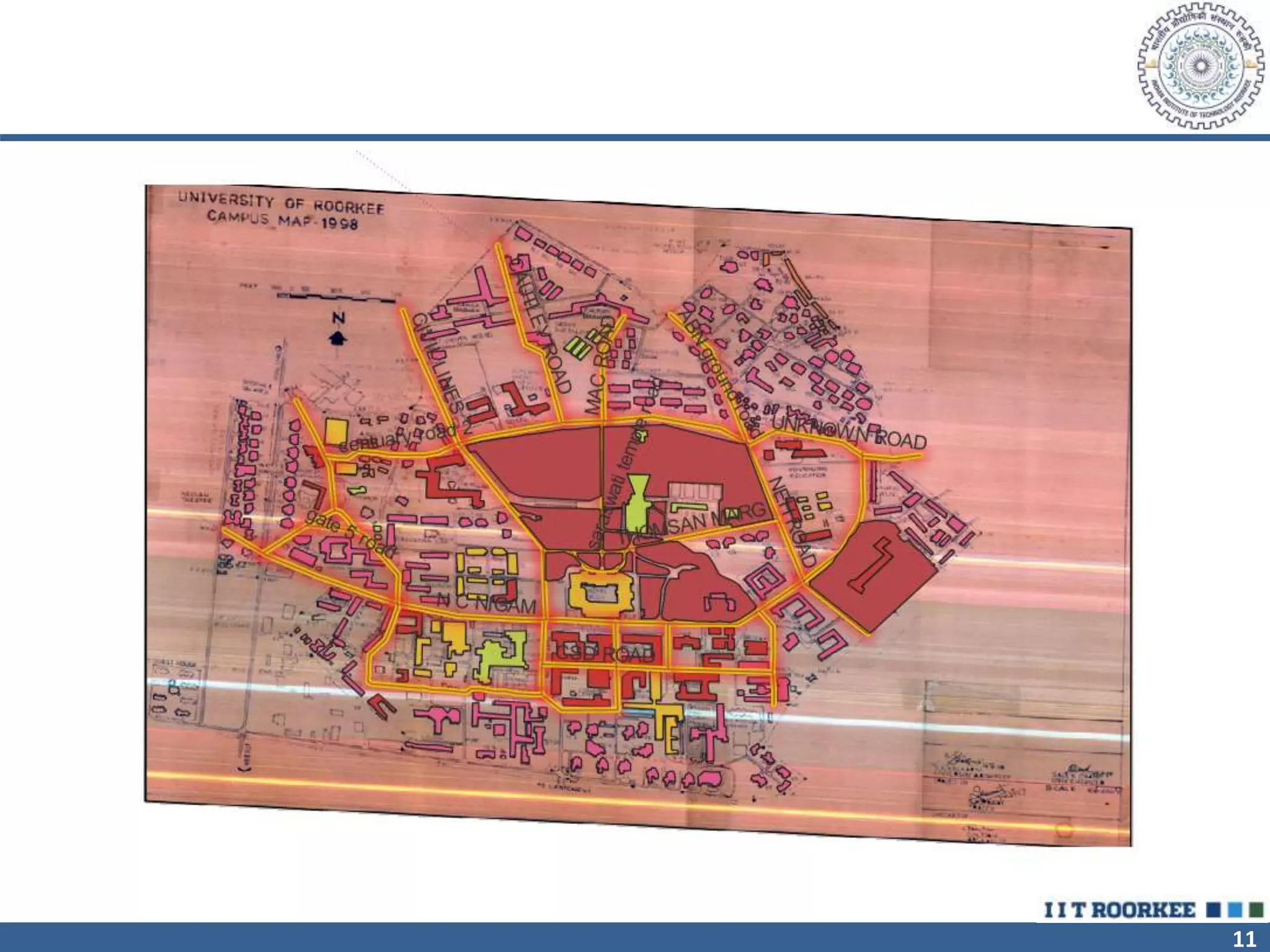
9.Polygons were used to digitize the buildings as well as open areas in
the IITR campus and Google map.
10. While digitizing, the attributes of each polygon can be added
simultaneously. The output of the buildings can be seen like this
11
12
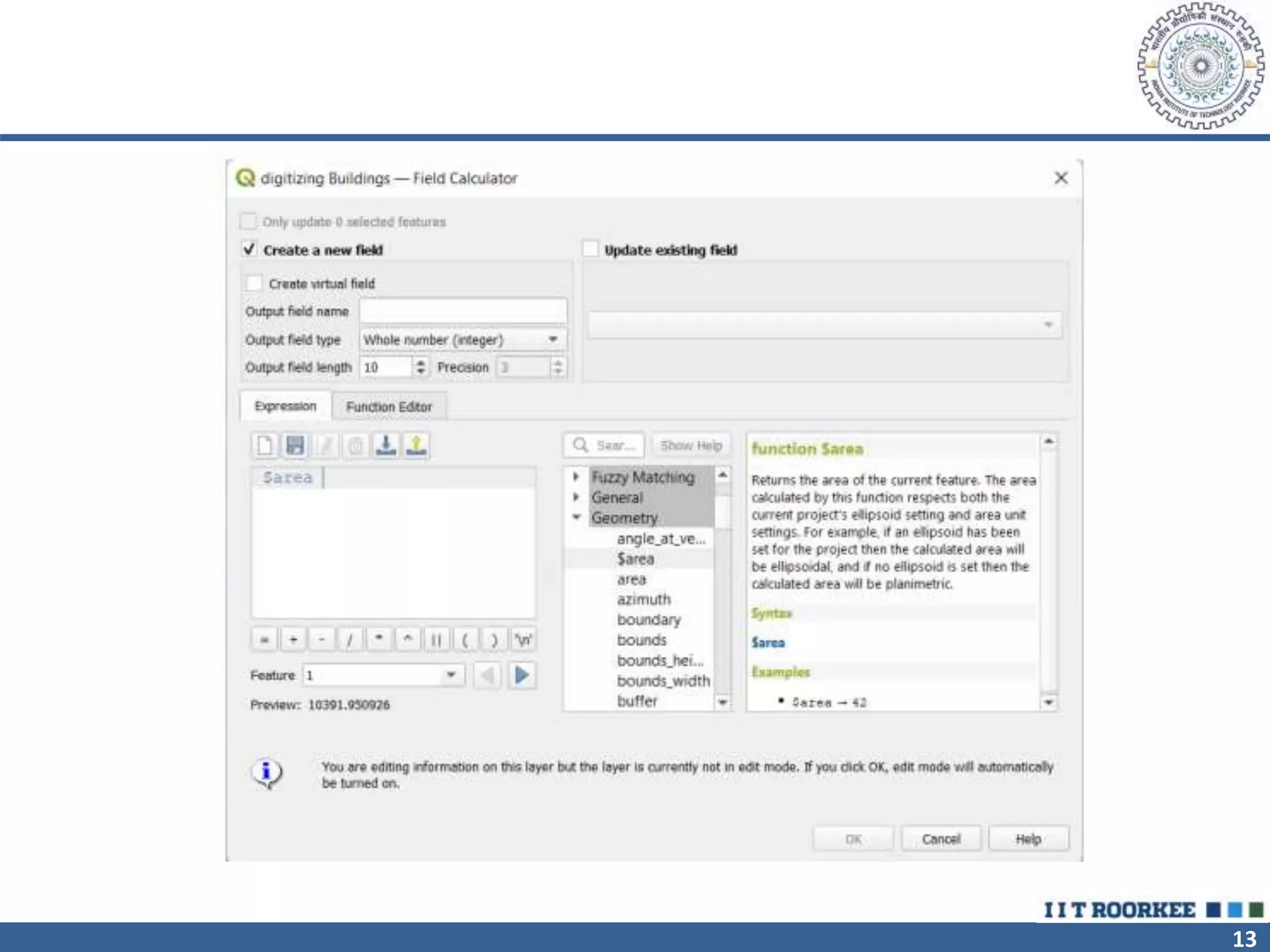
11.After all the features are added, the attribute table can be opened
and the attributes can be edited or added. And by using the field
calculator we can add different calculations.
12.Using the ‘Field Calculator’. The different function such as area
perimeter lengths can be used to calculate the area of any building or
other features.
13
14
13.Now do the same process for digitizing roads(line feature) open
spaces such as gardens(polygon), boundary(line feature) and
ATM/bank (point feature). Firstly create the shape file and then select
the feature and edit the attribute of each feature.
15
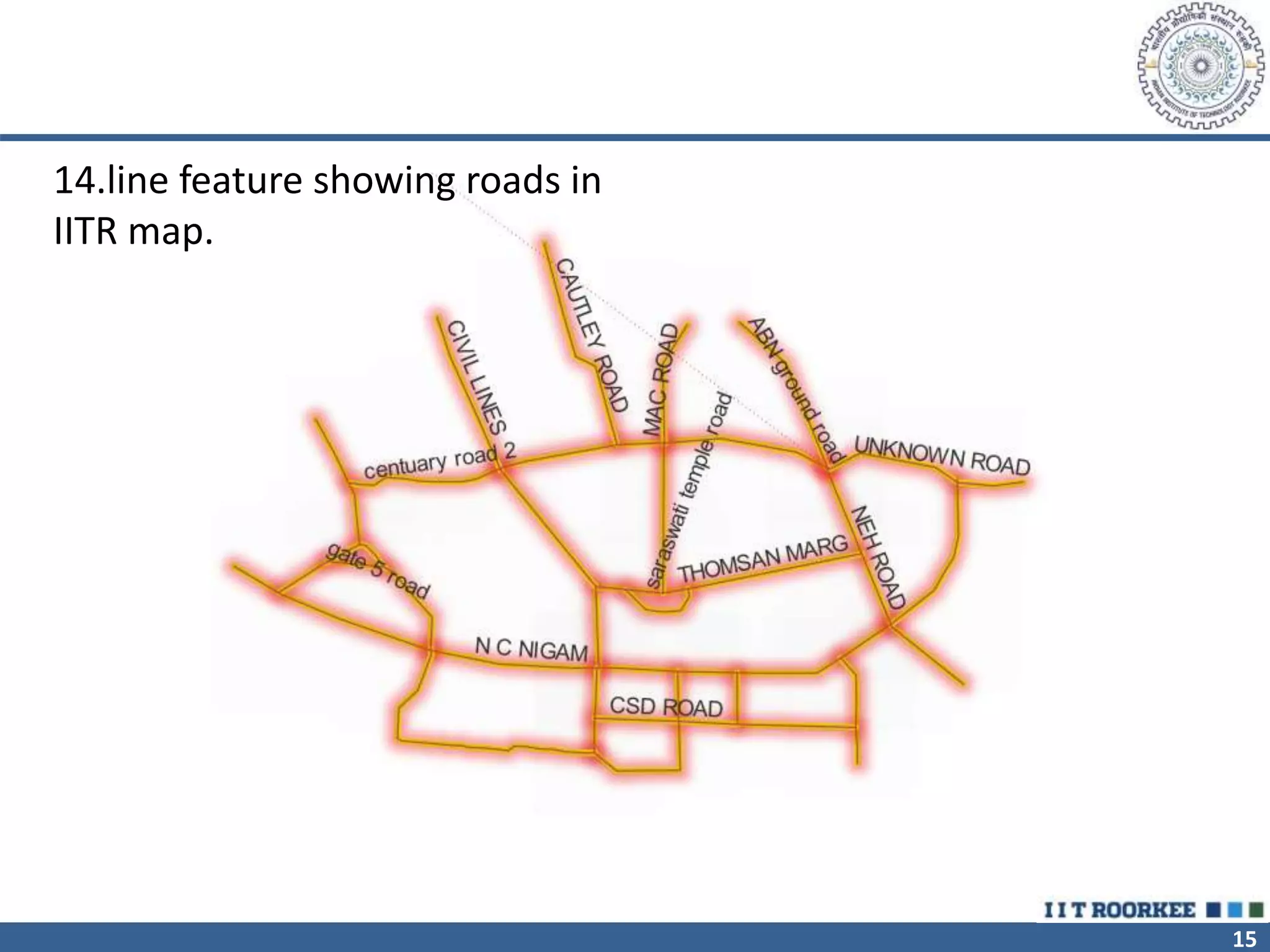
14.line feature showing roads in
IITR map.
16
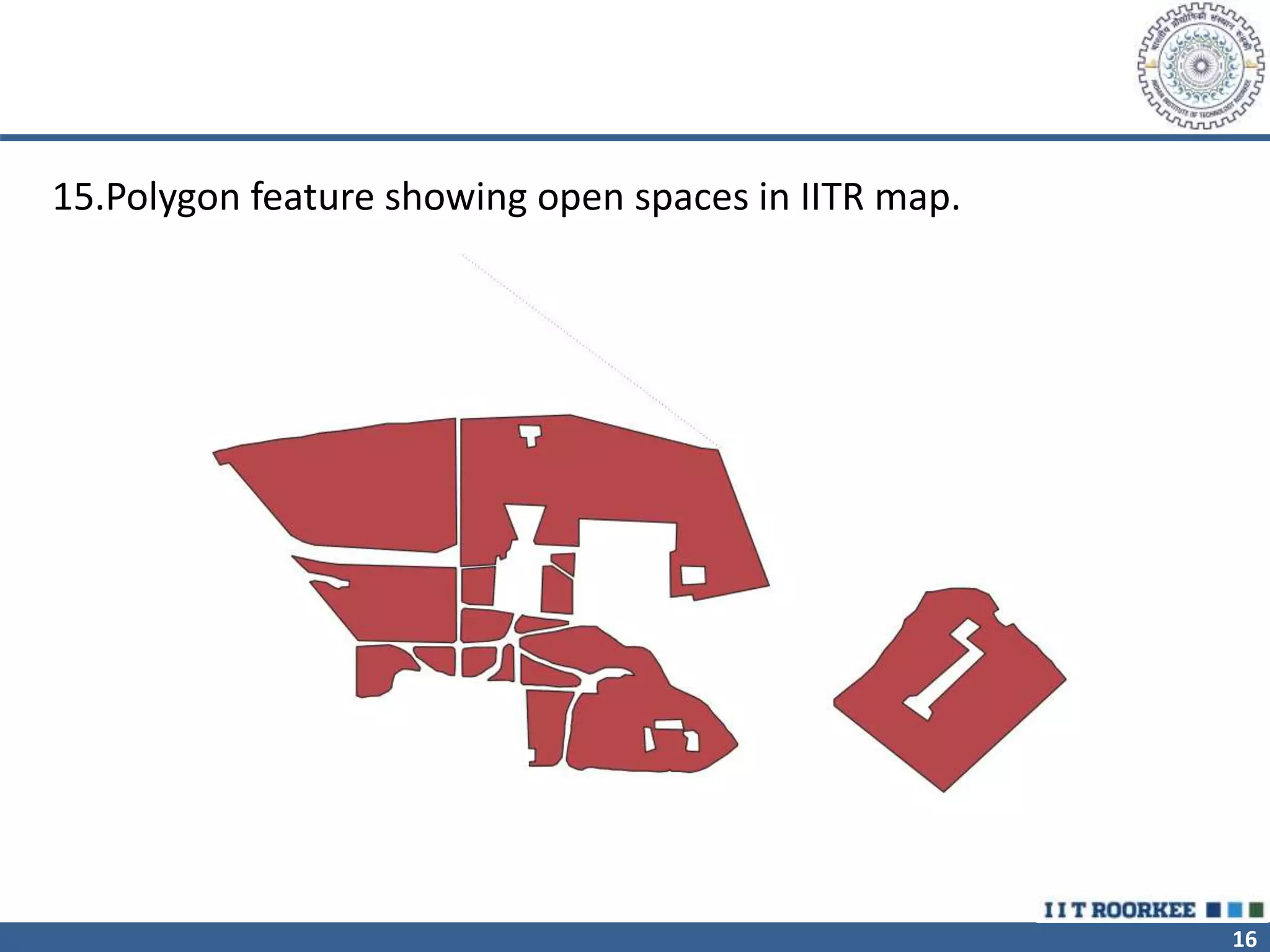
15.Polygon feature showing open spaces in IITR map.
17
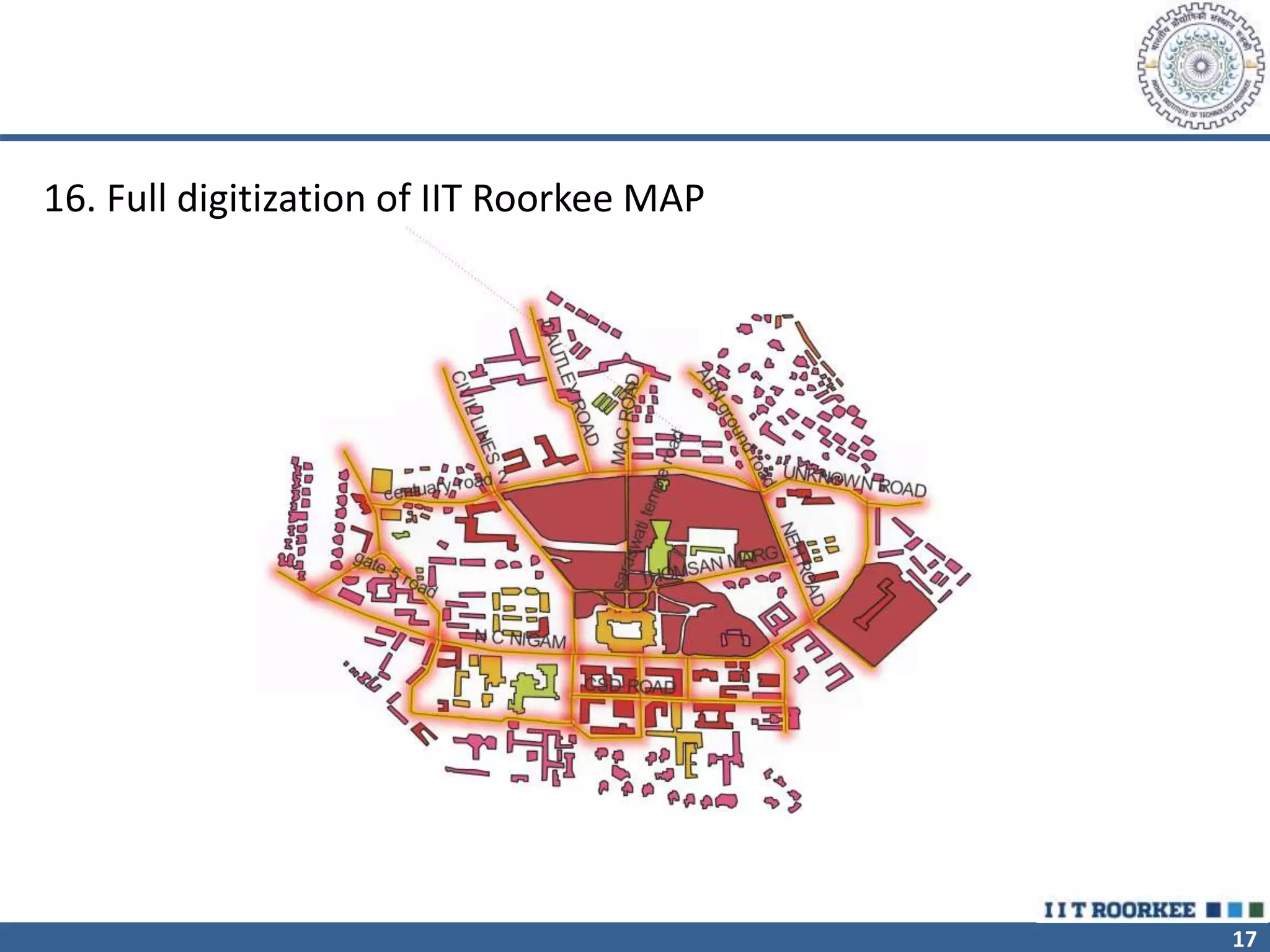
16. Full digitization of IIT Roorkee MAP
18
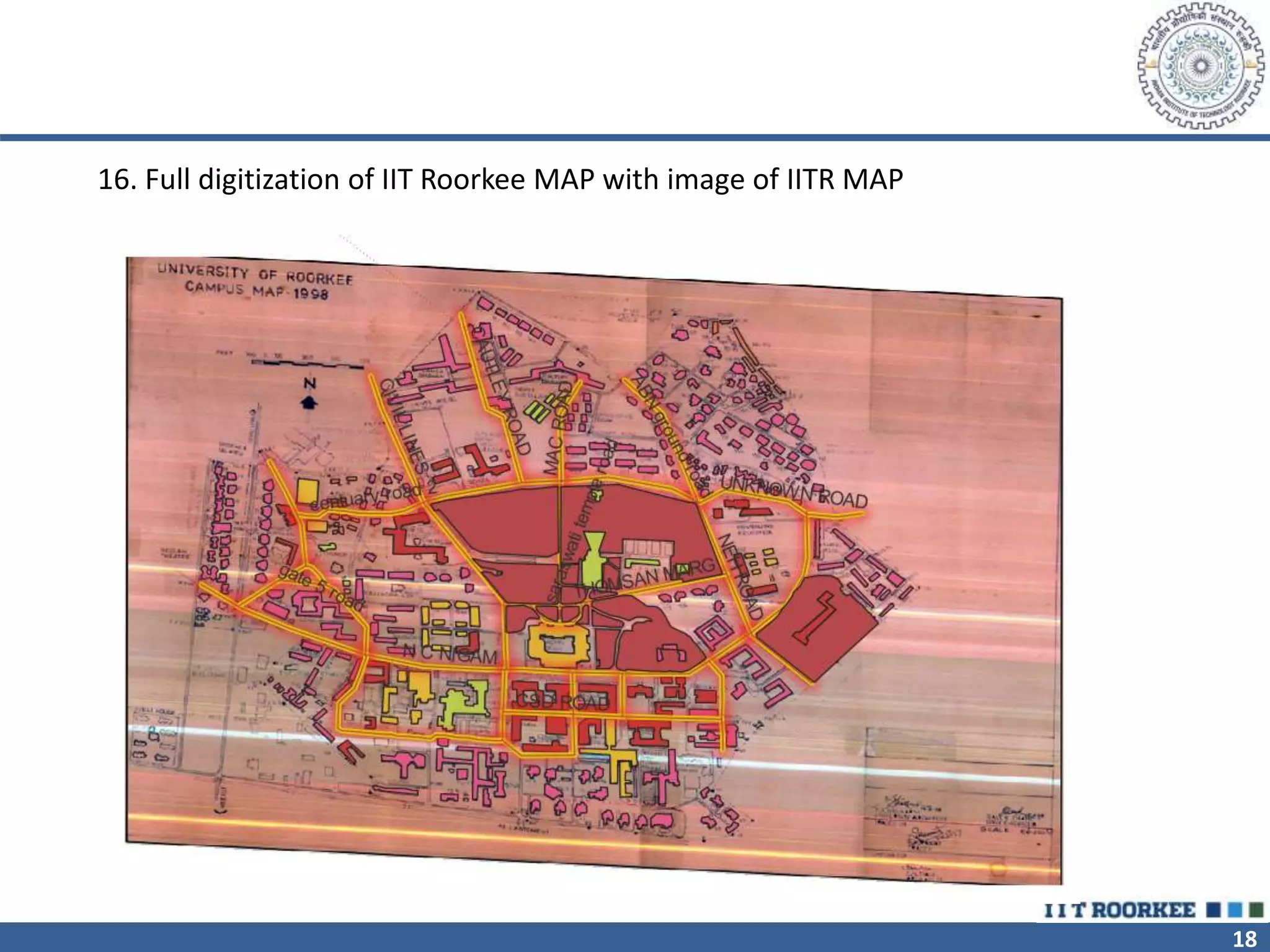
16. Full digitization of IIT Roorkee MAP with image of IITR MAP
19

DIGITIZATION.pptx

  • 1.
    INDIAN INSTITUTE OFTECHNOLOGY ROORKEE DIGITIZATION OF IITR MAP CEN-614 THEORY AND APPLICATIONS OF GIS CENTRE FOR TRANSPORTATION SYSTEMS SUBMIT BY : HARSH BAMNIYA (22554003) GUIDE : PROF. S.K. GHOSH ASSIGNMENT 7
  • 2.
    2 DIFFERENCE BETWEEN DIGITIZATIONAND DIGITALIZATION • Digitization is the process of transforming information from a physical format to a digital version. While digitalization is the practice of utilizing technology to enhance corporate processes. In a nutshell, digitization relates to information, whereas digitalization relates to processes.
  • 3.
    3 DIFFERENCE BETWEEN DIGITIZATIONAND DIGITALIZATION Digitization Digitalization Definition Transforming analog data to digital Utilizing technology to enhance corporate processes is known as digitalization Related to Information Business Processes Examples 1- Scanning a paper document 2- Convert music to mp3 3- Convert wet signature to electronic 4- Converting a paper map into digital 1- Video conference call instead of physical meet up 2- Automating work certificate processes in businesses 3- Ability to use ATM to deposit cheques 4- Audio conferencing, chat, messaging Benefits 1- Faster access to information 2- Reduced storage cost 3- Improved digital preservation & archiving 4- Ability for integration 1- Efficiency & productivity improvements 2- Improved transparency 3- Faster & better decision making 4- Improved customer satisfaction
  • 4.
    4 STEPS FOR DIGITIZATIONOF BUILDING • 1.The georeferenced image from the last practical is use for digitization. Use both IITR map and Google earth map. • 2.Before starting the digitization process is to ensure that all the raster and vector layers are in correct CRS which shows the geometrical measurements in meters. • 3.The next step is to create a new vector layer, which can be done using the ‘new shape file layer’ option from the ‘Create Layer’ sub-menu in the ‘Layer’ menu of the QGIS toolbar.
  • 5.
    5 • 4.The nextstep is to define the features and attributes of the shape file. Initially we have to type the name and then the features can be chosen from the list in ‘Geometry type’. The attributes of the objects can be set by adding various fields. • 5.This can be done using the ‘New Field’ menu. The name, type (string, decimal number, whole number or date), length and precision of the field can be set.
  • 6.
  • 7.
    7 6. Now yourshape file is ready so add the needed attribute and feature class so we can start the digitization.
  • 8.
    8 7.This will bedone using the ‘Digitization toolbar’. The ‘Toggle Editing’ option can be turned on to start editing. This will activate the toolbar which contains several tools for digitization. 8.. The features can also be edited using options from the ‘Edit’ menu of the QGIS toolbar. Rings within the feature can be added/ deleted using ‘Ring’ options. Features can also be deleted using this option. ‘Offset curve’ can be used to create offset polygons.
  • 9.
  • 10.
    10 9.Polygons were usedto digitize the buildings as well as open areas in the IITR campus and Google map. 10. While digitizing, the attributes of each polygon can be added simultaneously. The output of the buildings can be seen like this
  • 11.
  • 12.
    12 11.After all thefeatures are added, the attribute table can be opened and the attributes can be edited or added. And by using the field calculator we can add different calculations. 12.Using the ‘Field Calculator’. The different function such as area perimeter lengths can be used to calculate the area of any building or other features.
  • 13.
  • 14.
    14 13.Now do thesame process for digitizing roads(line feature) open spaces such as gardens(polygon), boundary(line feature) and ATM/bank (point feature). Firstly create the shape file and then select the feature and edit the attribute of each feature.
  • 15.
    15 14.line feature showingroads in IITR map.
  • 16.
    16 15.Polygon feature showingopen spaces in IITR map.
  • 17.
    17 16. Full digitizationof IIT Roorkee MAP
  • 18.
    18 16. Full digitizationof IIT Roorkee MAP with image of IITR MAP
  • 19.