Digipak Poster Practice
Using Photoshop
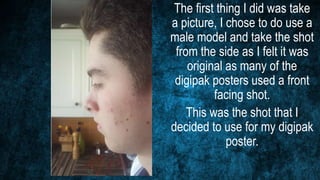
The first thing I did was take
a picture, I chose to do use a
male model and take the shot
from the side as I felt it was
original as many of the
digipak posters used a front
facing shot.
This was the shot that I
decided to use for my digipak
poster.
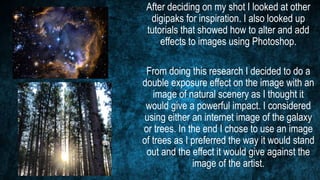
After deciding on my shot I looked at other
digipaks for inspiration. I also looked up
tutorials that showed how to alter and add
effects to images using Photoshop.
From doing this research I decided to do a
double exposure effect on the image with an
image of natural scenery as I thought it
would give a powerful impact. I considered
using either an internet image of the galaxy
or trees. In the end I chose to use an image
of trees as I preferred the way it would stand
out and the effect it would give against the
image of the artist.
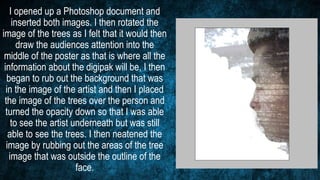
I opened up a Photoshop document and
inserted both images. I then rotated the
image of the trees as I felt that it would then
draw the audiences attention into the
middle of the poster as that is where all the
information about the digipak will be, I then
began to rub out the background that was
in the image of the artist and then I placed
the image of the trees over the person and
turned the opacity down so that I was able
to see the artist underneath but was still
able to see the trees. I then neatened the
image by rubbing out the areas of the tree
image that was outside the outline of the
face.
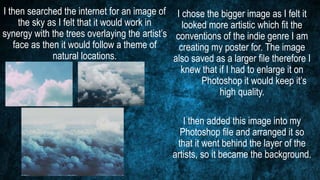
I then searched the internet for an image of
the sky as I felt that it would work in
synergy with the trees overlaying the artist’s
face as then it would follow a theme of
natural locations.
I chose the bigger image as I felt it
looked more artistic which fit the
conventions of the indie genre I am
creating my poster for. The image
also saved as a larger file therefore I
knew that if I had to enlarge it on
Photoshop it would keep it’s
high quality.
I then added this image into my
Photoshop file and arranged it so
that it went behind the layer of the
artists, so it became the background.
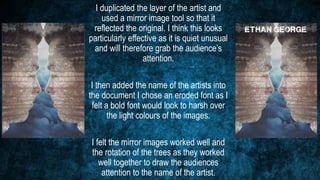
I duplicated the layer of the artist and
used a mirror image tool so that it
reflected the original. I think this looks
particularly effective as it is quiet unusual
and will therefore grab the audience’s
attention.
I then added the name of the artists into
the document I chose an eroded font as I
felt a bold font would look to harsh over
the light colours of the images.
I felt the mirror images worked well and
the rotation of the trees as they worked
well together to draw the audiences
attention to the name of the artist.
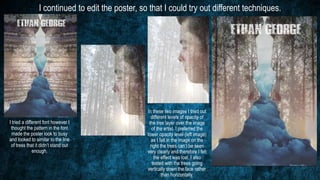
I continued to edit the poster, so that I could try out different techniques.
I tried a different font however I
thought the pattern in the font
made the poster look to busy
and looked to similar to the line
of tress that it didn’t stand out
enough.
In these two images I tried out
different levels of opacity of
the tree layer over the image
of the artist. I preferred the
lower opacity level (left image)
as I felt in the image on the
right the trees can’t be seen
very clearly and therefore I felt
the effect was lost. I also
tested with the trees going
vertically down the face rather
than horizontally.
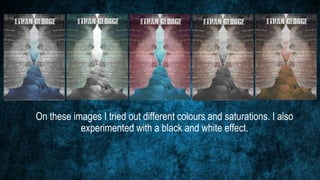
On these images I tried out different colours and saturations. I also
experimented with a black and white effect.

Digipak Poster Practice Using Photoshop

  • 1.
  • 2.
    The first thingI did was take a picture, I chose to do use a male model and take the shot from the side as I felt it was original as many of the digipak posters used a front facing shot. This was the shot that I decided to use for my digipak poster.
  • 3.
    After deciding onmy shot I looked at other digipaks for inspiration. I also looked up tutorials that showed how to alter and add effects to images using Photoshop. From doing this research I decided to do a double exposure effect on the image with an image of natural scenery as I thought it would give a powerful impact. I considered using either an internet image of the galaxy or trees. In the end I chose to use an image of trees as I preferred the way it would stand out and the effect it would give against the image of the artist.
  • 4.
    I opened upa Photoshop document and inserted both images. I then rotated the image of the trees as I felt that it would then draw the audiences attention into the middle of the poster as that is where all the information about the digipak will be, I then began to rub out the background that was in the image of the artist and then I placed the image of the trees over the person and turned the opacity down so that I was able to see the artist underneath but was still able to see the trees. I then neatened the image by rubbing out the areas of the tree image that was outside the outline of the face.
  • 5.
    I then searchedthe internet for an image of the sky as I felt that it would work in synergy with the trees overlaying the artist’s face as then it would follow a theme of natural locations. I chose the bigger image as I felt it looked more artistic which fit the conventions of the indie genre I am creating my poster for. The image also saved as a larger file therefore I knew that if I had to enlarge it on Photoshop it would keep it’s high quality. I then added this image into my Photoshop file and arranged it so that it went behind the layer of the artists, so it became the background.
  • 6.
    I duplicated thelayer of the artist and used a mirror image tool so that it reflected the original. I think this looks particularly effective as it is quiet unusual and will therefore grab the audience’s attention. I then added the name of the artists into the document I chose an eroded font as I felt a bold font would look to harsh over the light colours of the images. I felt the mirror images worked well and the rotation of the trees as they worked well together to draw the audiences attention to the name of the artist.
  • 7.
    I continued toedit the poster, so that I could try out different techniques. I tried a different font however I thought the pattern in the font made the poster look to busy and looked to similar to the line of tress that it didn’t stand out enough. In these two images I tried out different levels of opacity of the tree layer over the image of the artist. I preferred the lower opacity level (left image) as I felt in the image on the right the trees can’t be seen very clearly and therefore I felt the effect was lost. I also tested with the trees going vertically down the face rather than horizontally.
  • 8.
    On these imagesI tried out different colours and saturations. I also experimented with a black and white effect.