anthonyhortin
@maddisondesigns
#WCBNE
Developing For The
WordPress Customizer
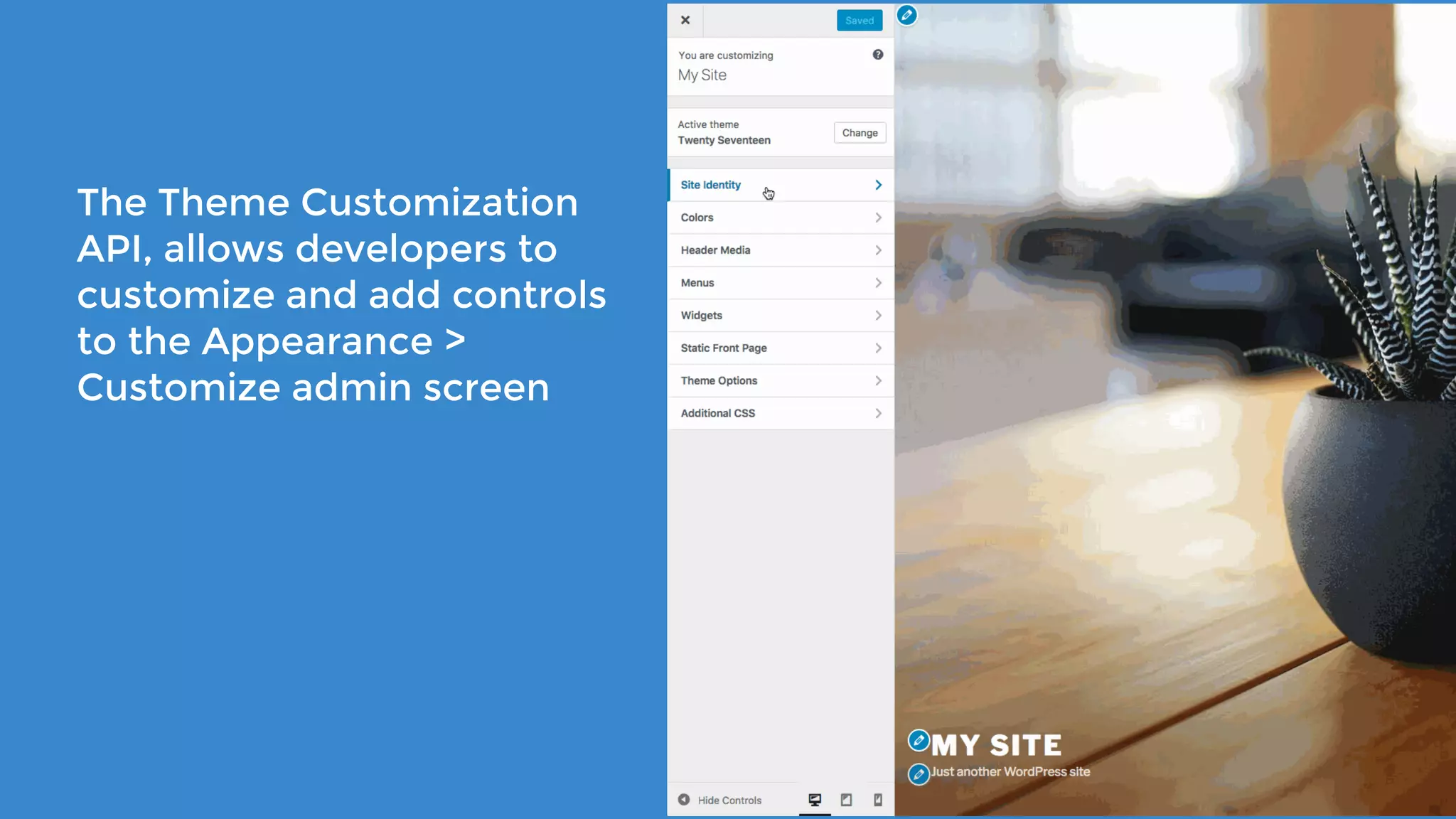
The Theme Customization
API, allows developers to
customize and add controls
to the Appearance >
Customize admin screen
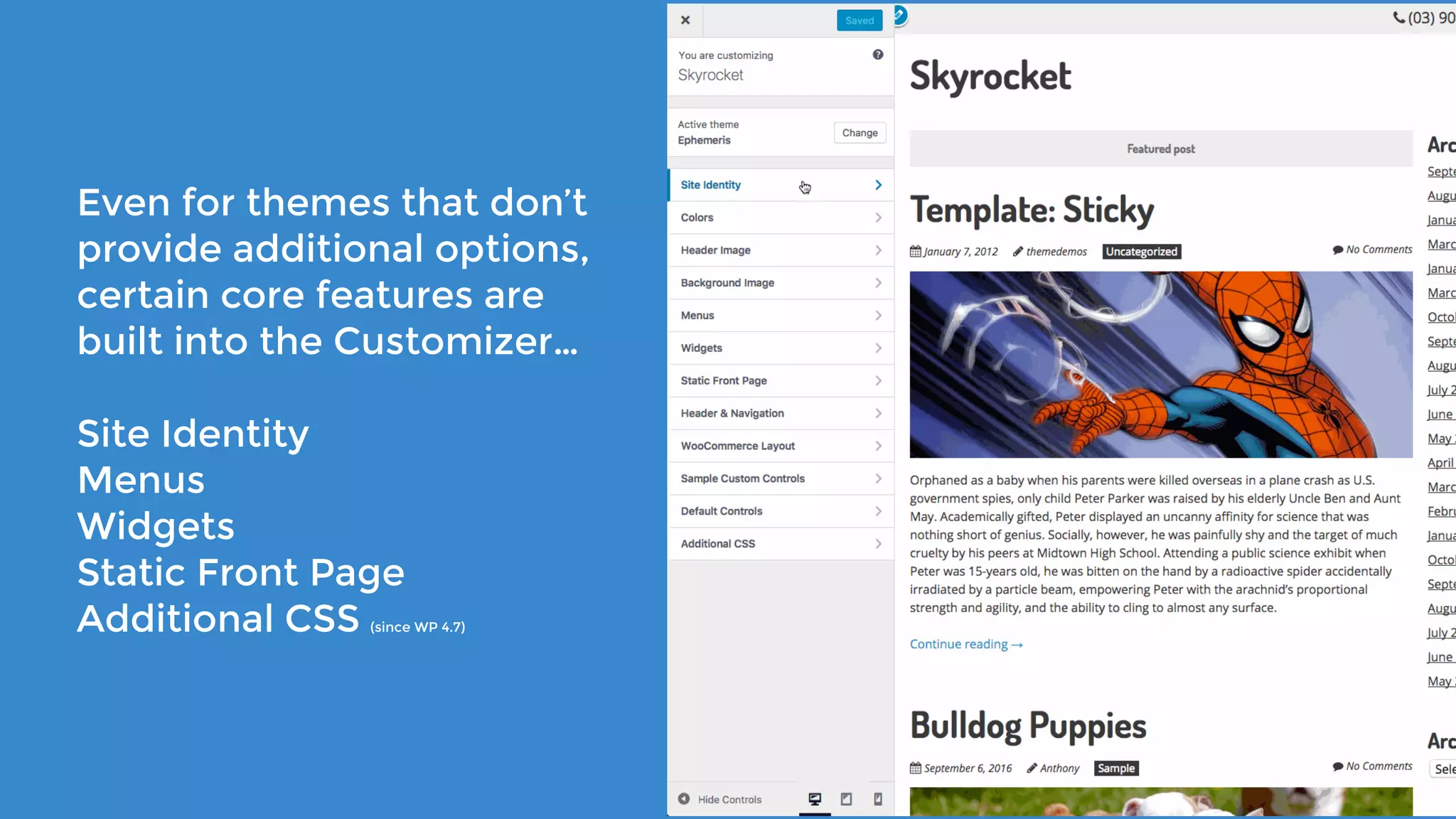
Even for themes that don’t
provide additional options,
certain core features are
built into the Customizer…
Site Identity
Menus
Widgets
Static Front Page
Additional CSS (since WP 4.7)
it is strongly recommended that developers study the core
customizer code (all core files containing “customize”). This is
considered the canonical, official documentation for the
Customize API outside of the inline documentation within the
core code.*
*According to the Theme Handbook
https://developer.wordpress.org/themes/customize-api/
There are
4 main types of
Customizer objects
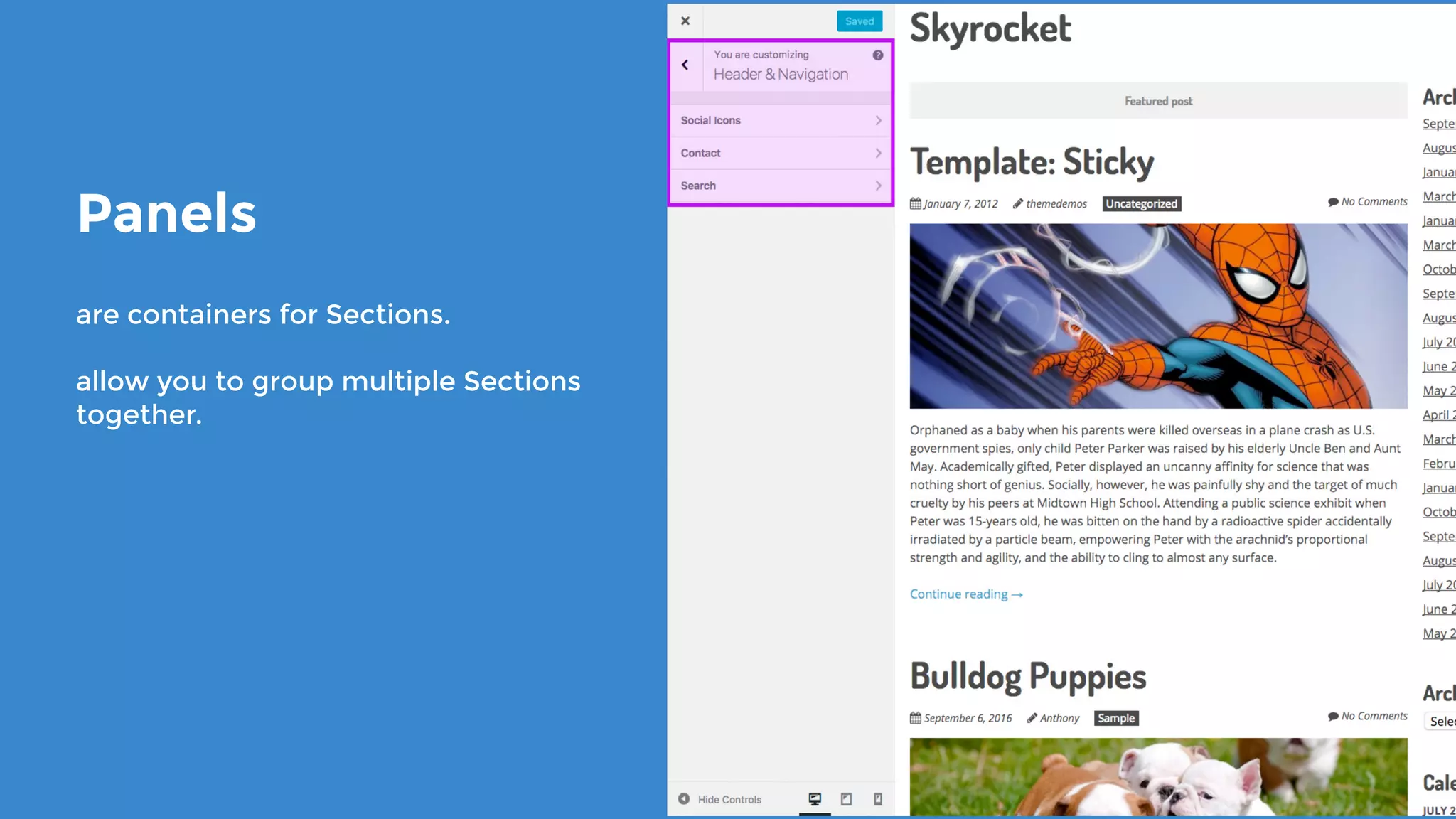
Panels
are containers for Sections.
allow you to group multiple Sections
together.
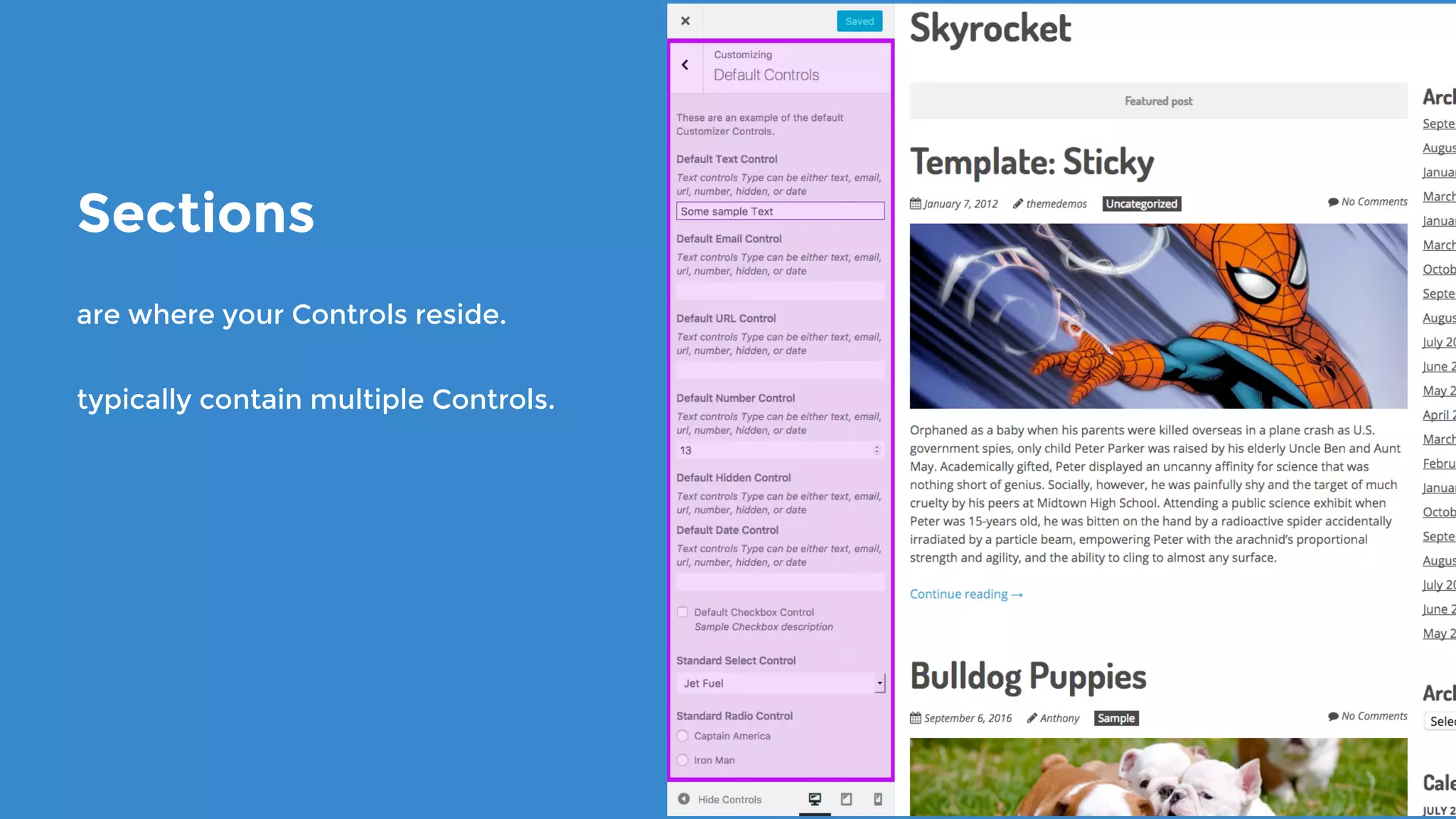
Sections
are where your Controls reside.
typically contain multiple Controls.
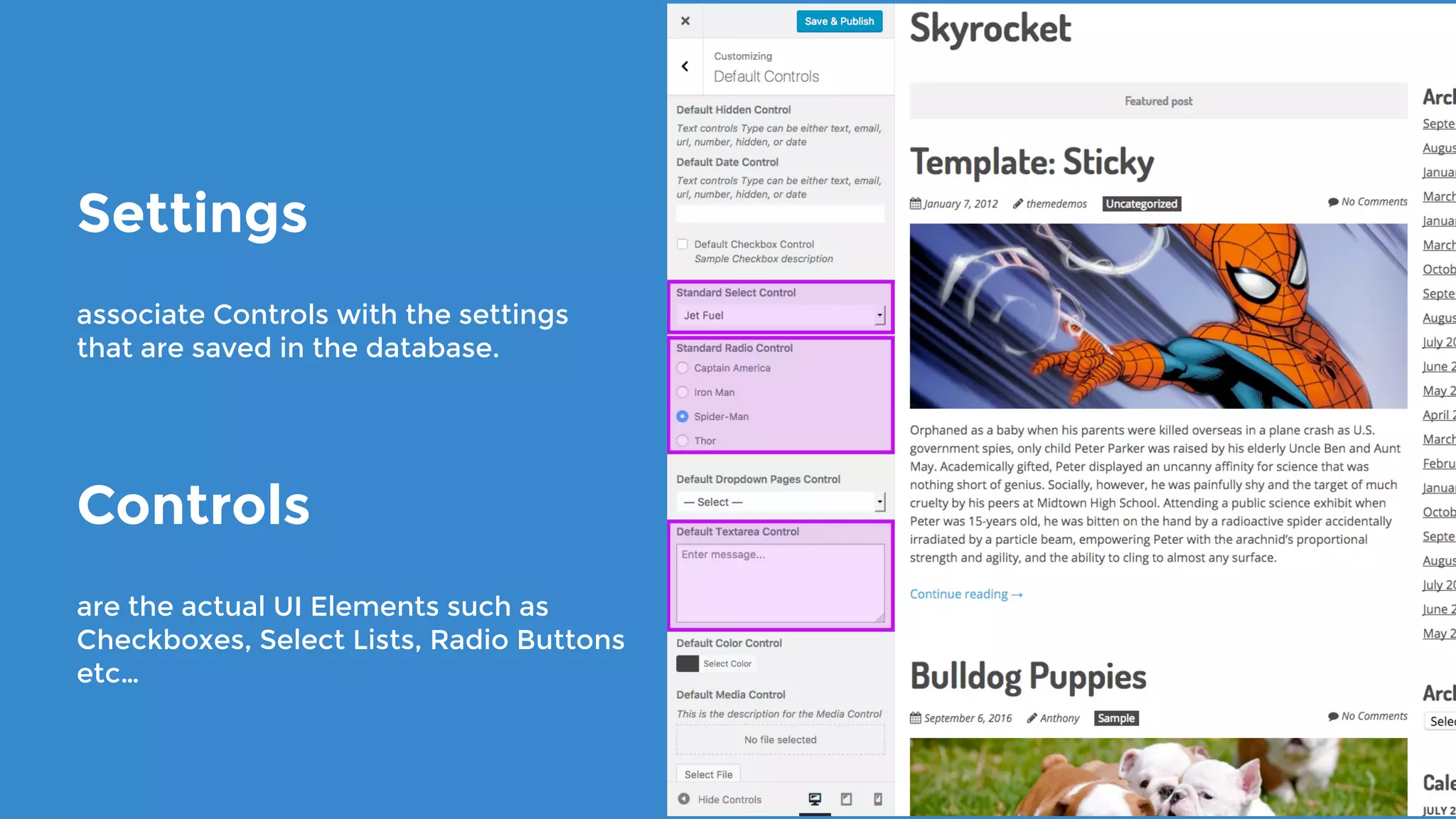
Settings
associate Controls with the settings
that are saved in the database.
Controls
are the actual UI Elements such as
Checkboxes, Select Lists, Radio Buttons
etc…
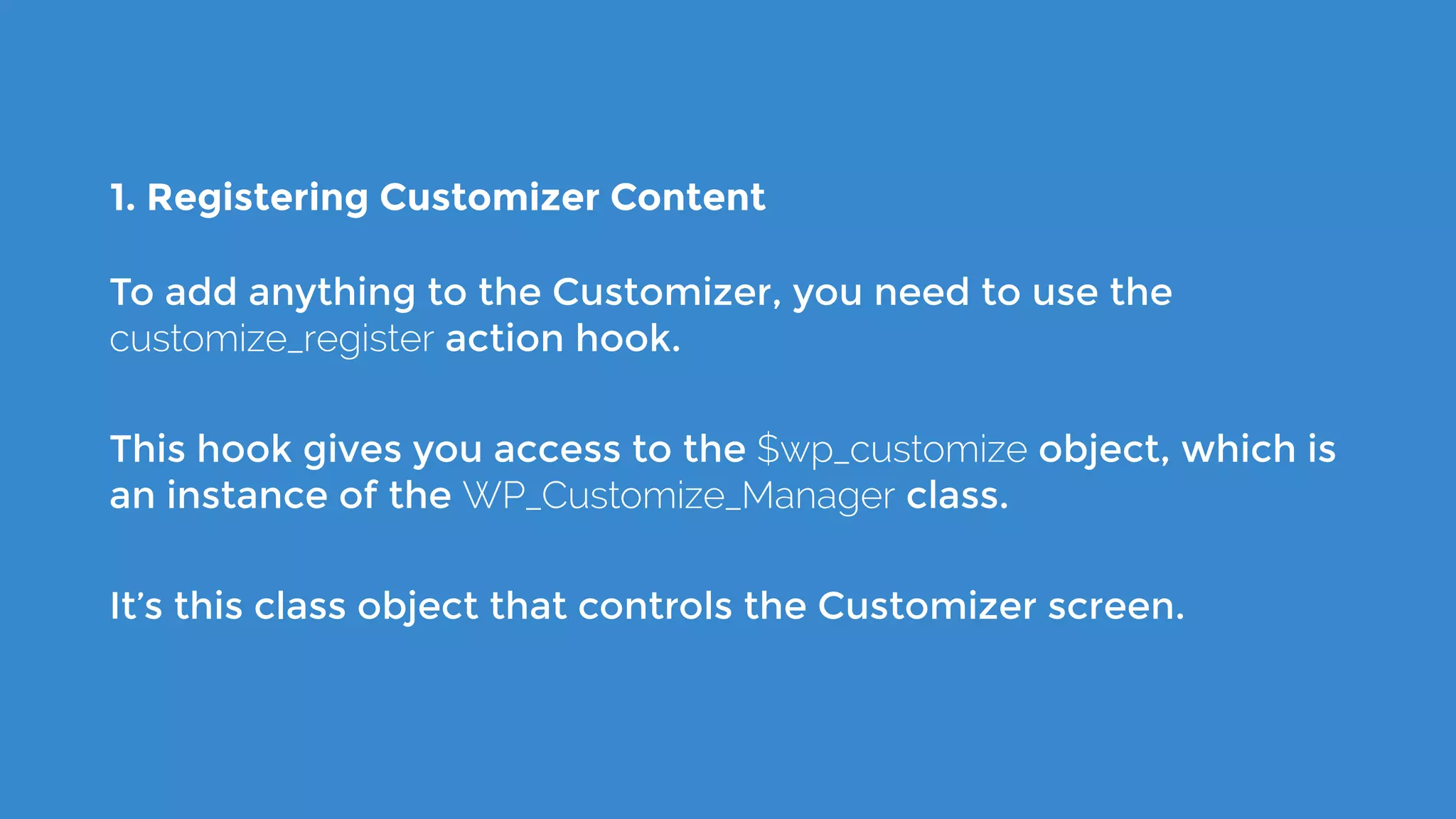
1. Registering Customizer Content
To add anything to the Customizer, you need to use the
customize_register action hook.
This hook gives you access to the $wp_customize object, which is
an instance of the WP_Customize_Manager class.
It’s this class object that controls the Customizer screen.
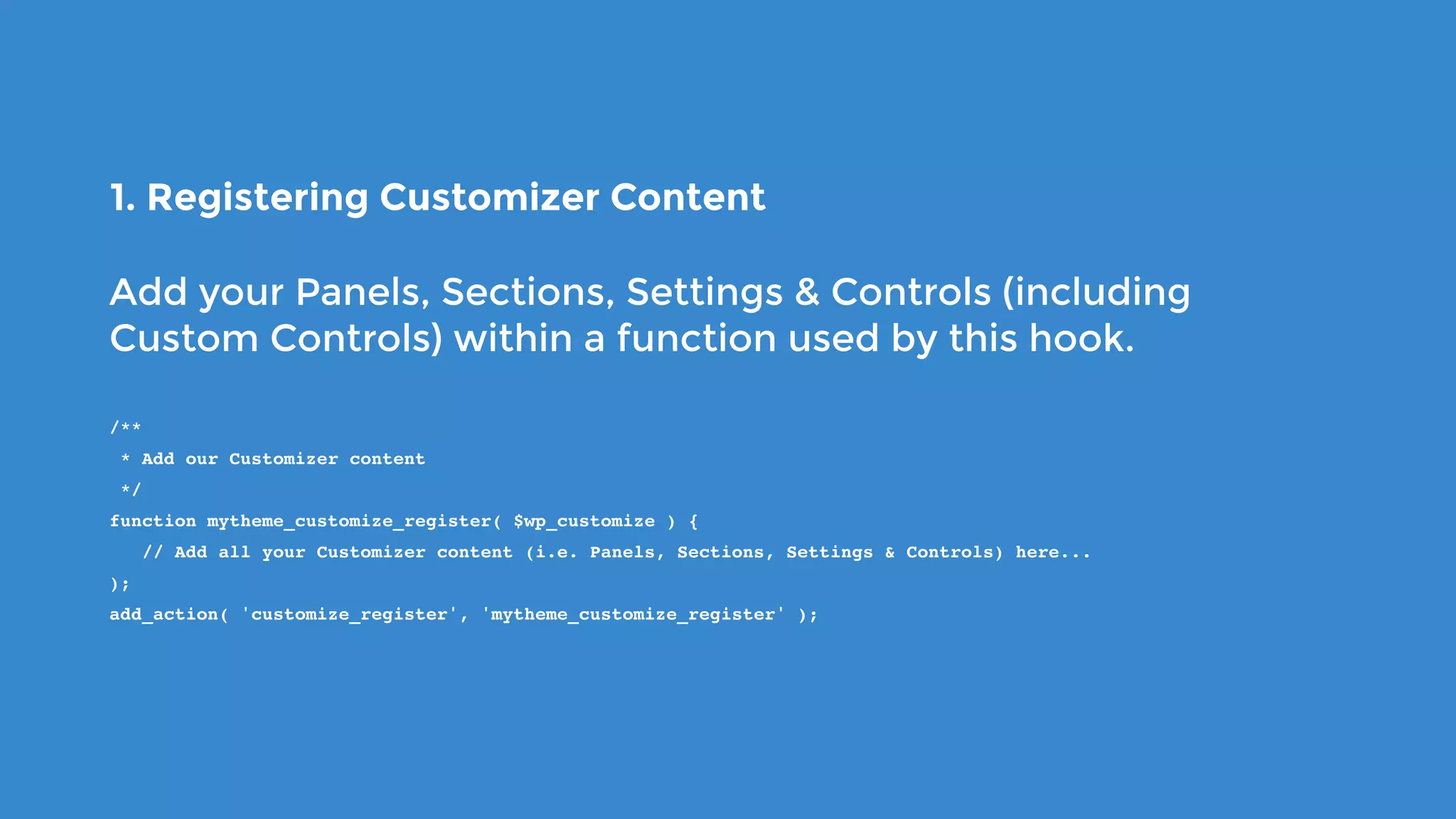
1. Registering Customizer Content
Add your Panels, Sections, Settings & Controls (including
Custom Controls) within a function used by this hook.
/**
 * Add our Customizer content
 */
function mytheme_customize_register( $wp_customize ) {
   // Add all your Customizer content (i.e. Panels, Sections, Settings & Controls) here...
);
add_action( 'customize_register', 'mytheme_customize_register' );
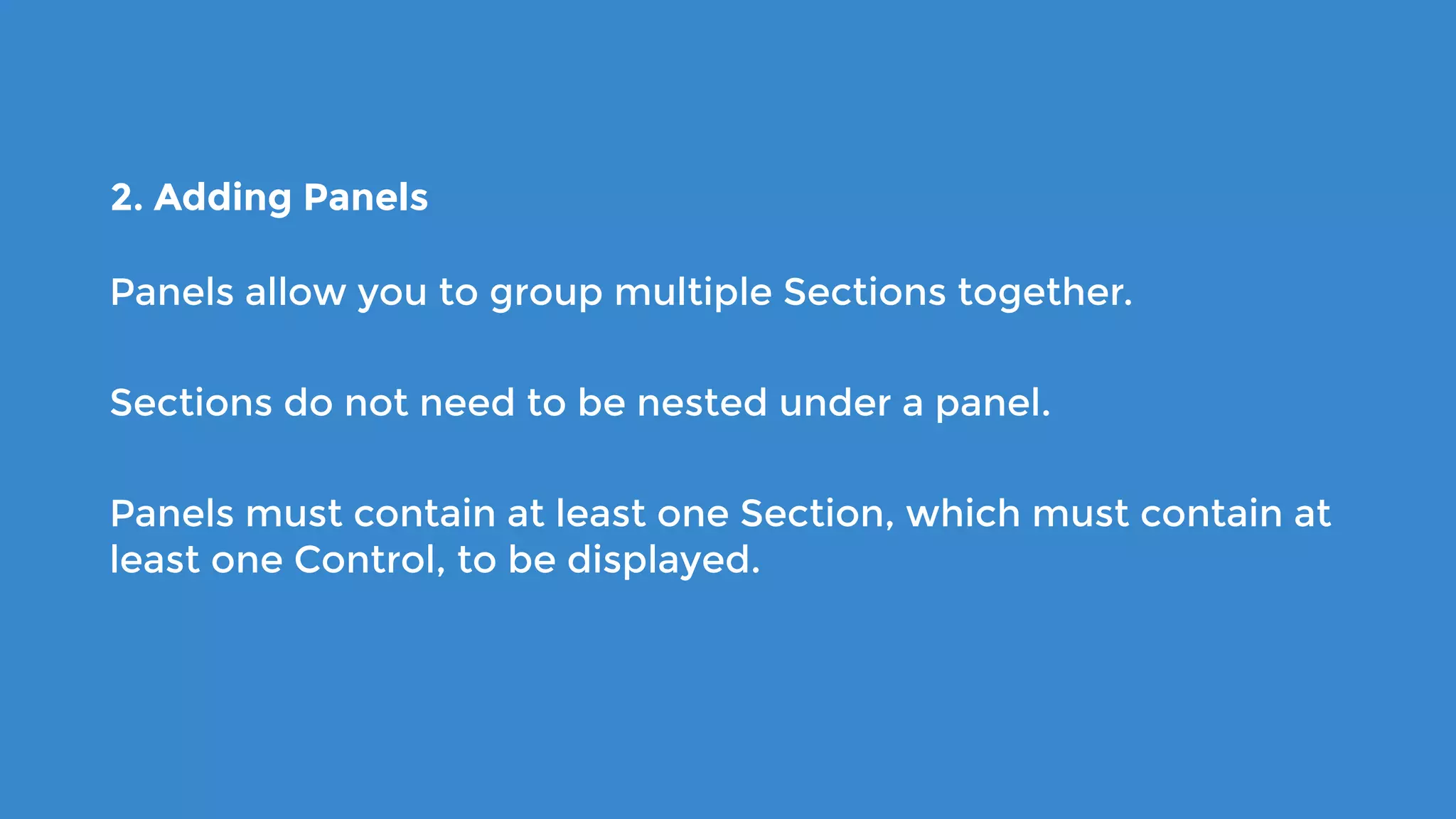
2. Adding Panels
Panels allow you to group multiple Sections together.
Sections do not need to be nested under a panel.
Panels must contain at least one Section, which must contain at
least one Control, to be displayed.
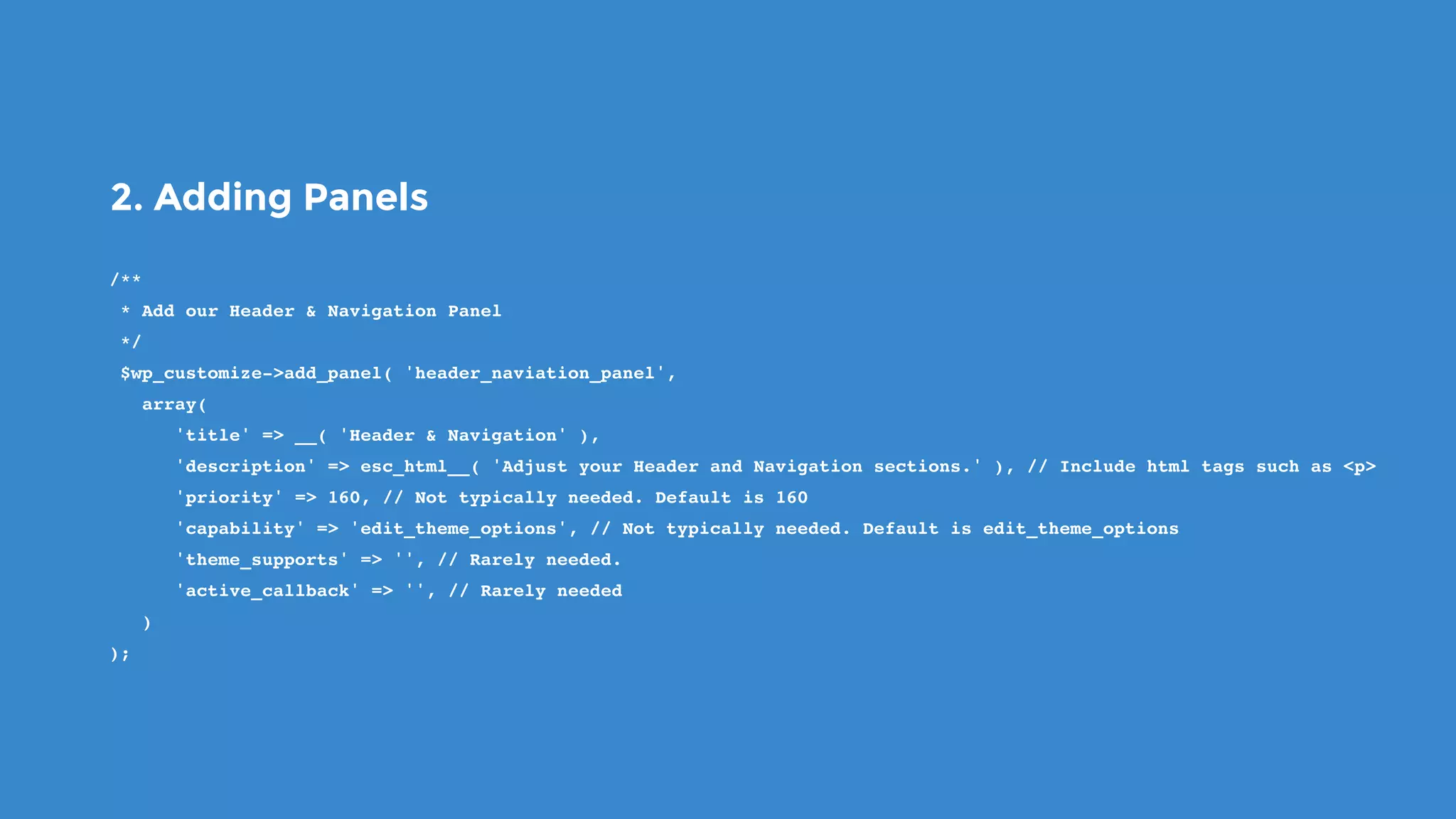
2. Adding Panels
/**
 * Add our Header & Navigation Panel
 */
 $wp_customize->add_panel( 'header_naviation_panel',
   array(
      'title' => __( 'Header & Navigation' ),
      'description' => esc_html__( 'Adjust your Header and Navigation sections.' ), // Include html tags such as <p>
      'priority' => 160, // Not typically needed. Default is 160
      'capability' => 'edit_theme_options', // Not typically needed. Default is edit_theme_options
      'theme_supports' => '', // Rarely needed.
      'active_callback' => '', // Rarely needed
   )
);
3. Adding Sections
Sections are where your Controls will reside.
You’ll typically have multiple Controls in each Section.
Sections can be added to Panels, but in most instances, this
wont be necessary.
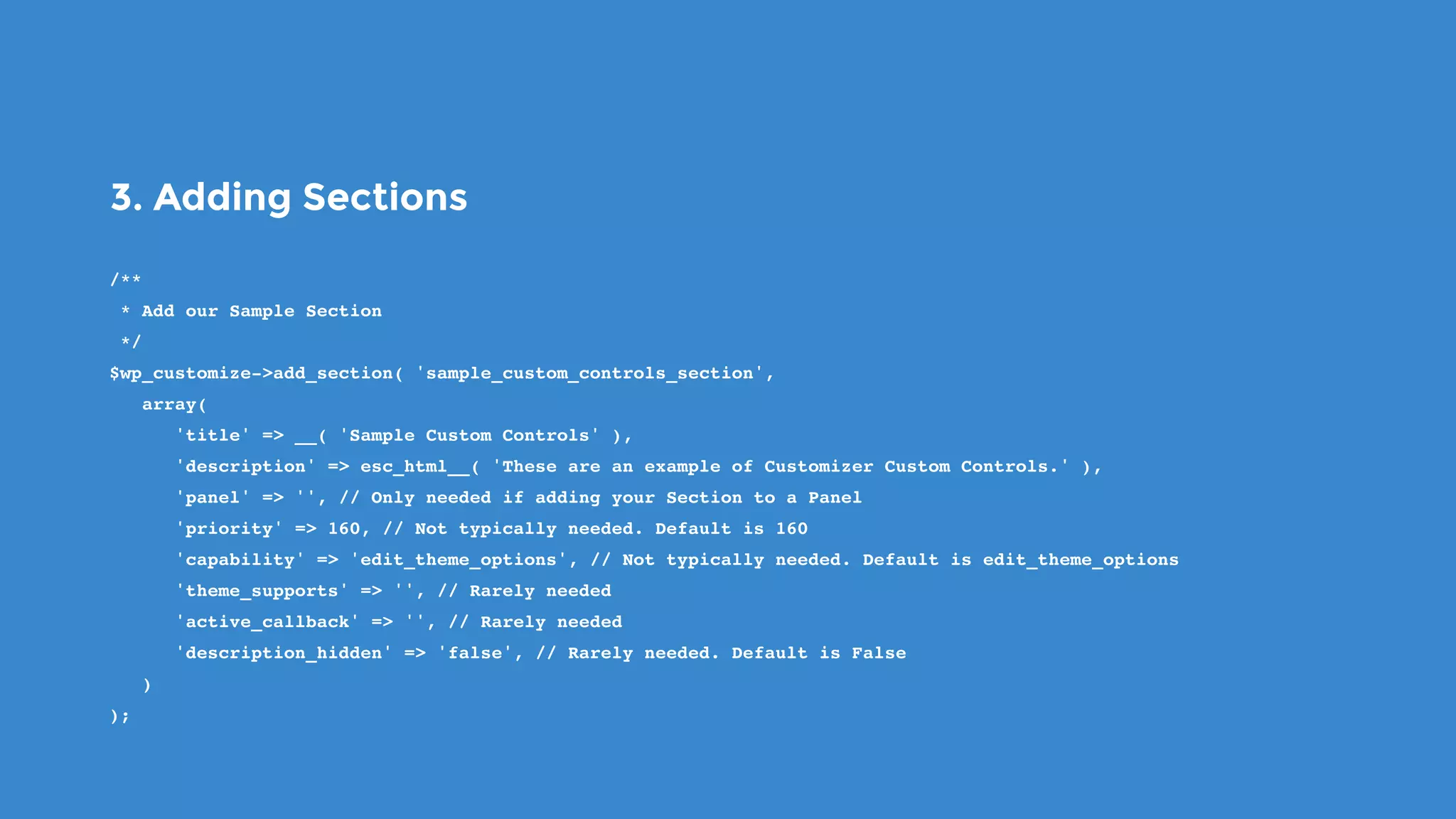
3. Adding Sections
/**
 * Add our Sample Section
 */
$wp_customize->add_section( 'sample_custom_controls_section',
   array(
      'title' => __( 'Sample Custom Controls' ),
      'description' => esc_html__( 'These are an example of Customizer Custom Controls.' ),
      'panel' => '', // Only needed if adding your Section to a Panel
      'priority' => 160, // Not typically needed. Default is 160
      'capability' => 'edit_theme_options', // Not typically needed. Default is edit_theme_options
      'theme_supports' => '', // Rarely needed
      'active_callback' => '', // Rarely needed
      'description_hidden' => 'false', // Rarely needed. Default is False
   )
);
4. Adding Settings
Settings and Controls work together.
Settings handle live-previewing, saving, and sanitization of your
customizer objects.
Each Control that you register needs to have a matching Setting.
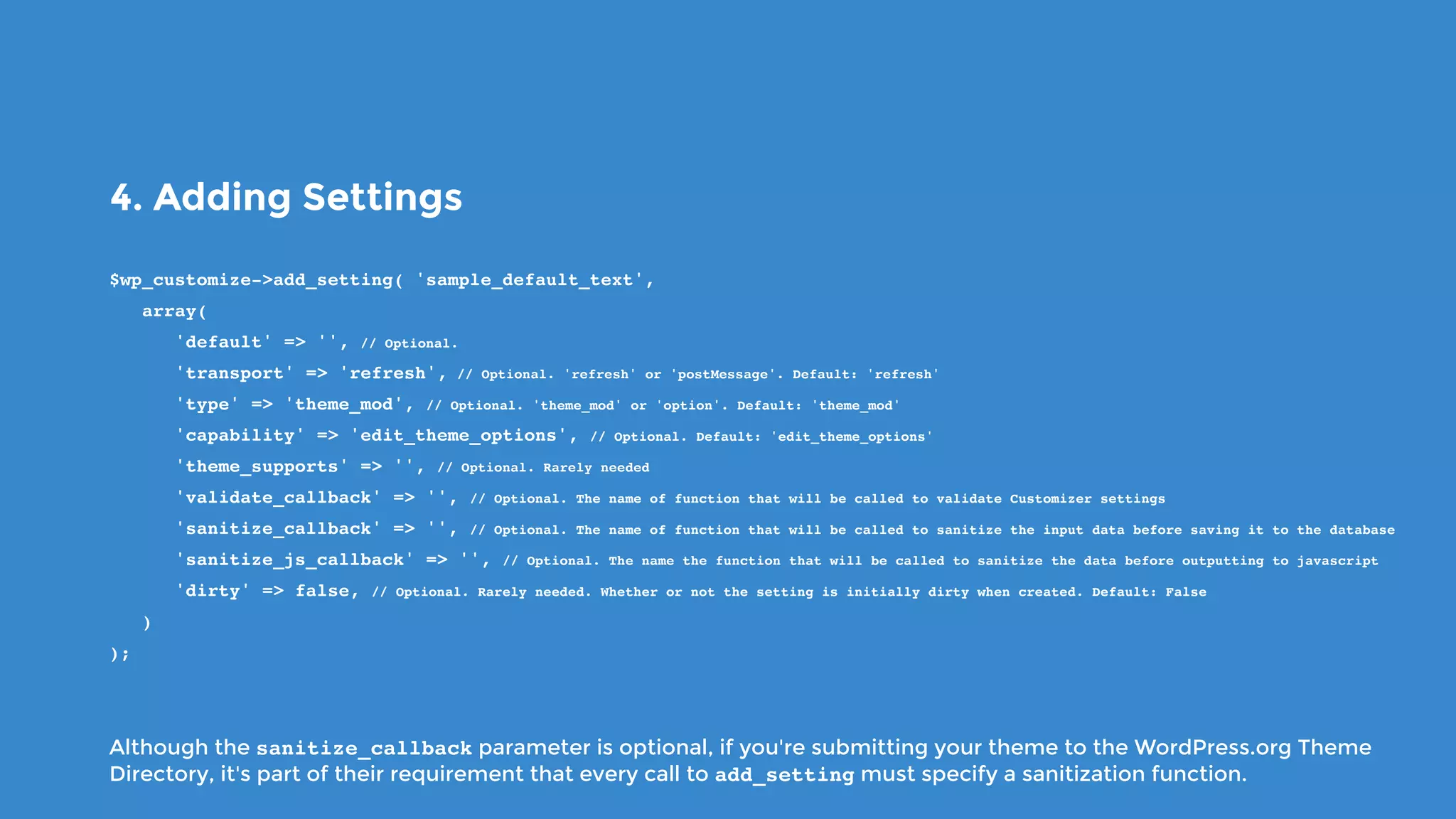
4. Adding Settings
$wp_customize->add_setting( 'sample_default_text',
   array(
      'default' => '', // Optional.
      'transport' => 'refresh', // Optional. 'refresh' or 'postMessage'. Default: 'refresh'
      'type' => 'theme_mod', // Optional. 'theme_mod' or 'option'. Default: 'theme_mod'
      'capability' => 'edit_theme_options', // Optional. Default: 'edit_theme_options'
      'theme_supports' => '', // Optional. Rarely needed
      'validate_callback' => '', // Optional. The name of function that will be called to validate Customizer settings
      'sanitize_callback' => '', // Optional. The name of function that will be called to sanitize the input data before saving it to the database
      'sanitize_js_callback' => '', // Optional. The name the function that will be called to sanitize the data before outputting to javascript
      'dirty' => false, // Optional. Rarely needed. Whether or not the setting is initially dirty when created. Default: False
   )
);
Although the sanitize_callback parameter is optional, if you're submitting your theme to the WordPress.org Theme
Directory, it's part of their requirement that every call to add_setting must specify a sanitization function.
5. Adding Controls
Controls are the actual UI Elements that you’ll use to modify
your theme settings.
There are a number of Controls built into WordPress Core (e.g.
Checkboxes, Select Lists, Radio Buttons etc.).
For all other types of controls, you’ll need to extend the
WP_Customize_Control class to create your own custom controls.
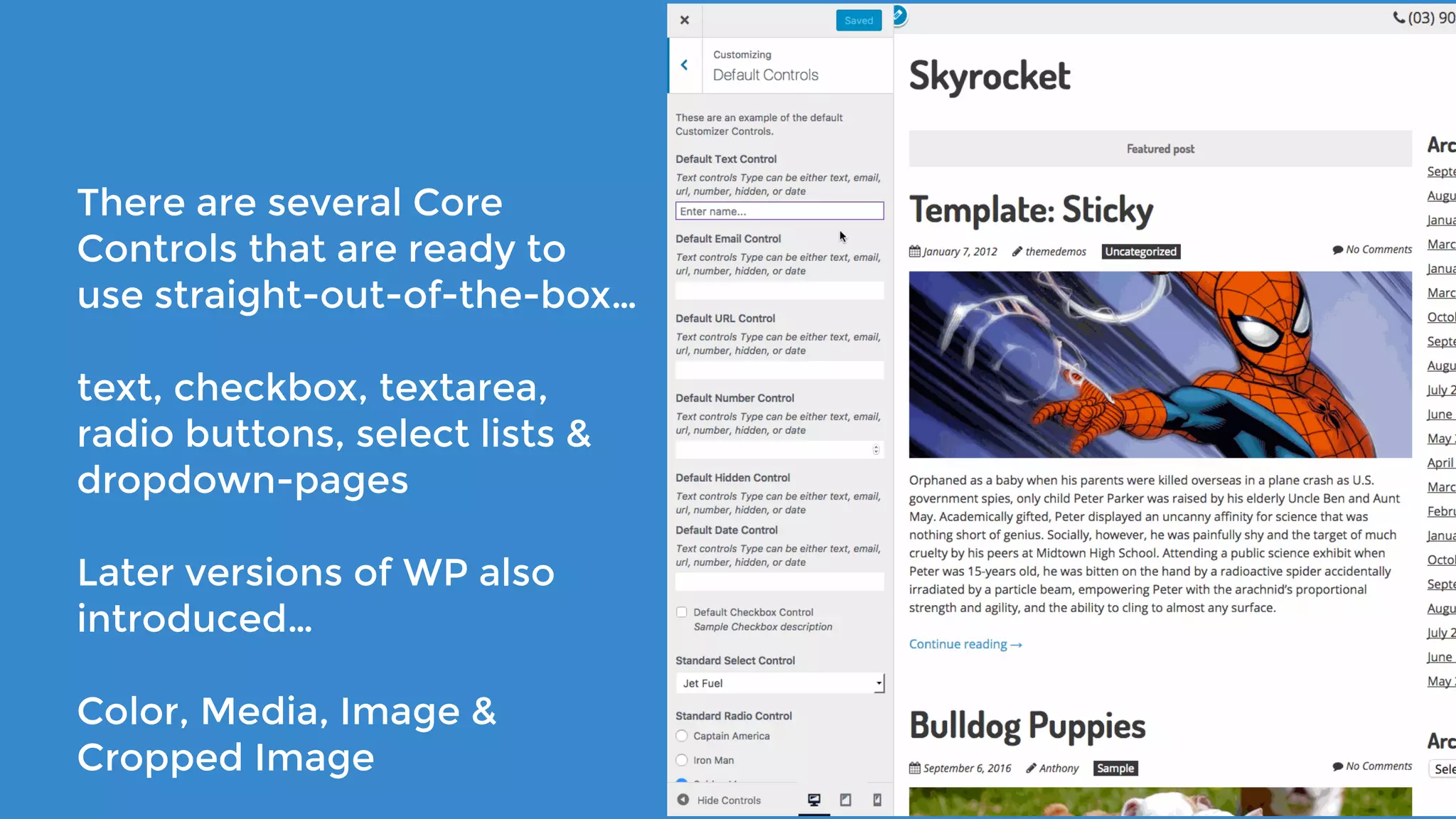
There are several Core
Controls that are ready to
use straight-out-of-the-box…
text, checkbox, textarea,
radio buttons, select lists &

dropdown-pages
Later versions of WP also
introduced…
Color, Media, Image &
Cropped Image
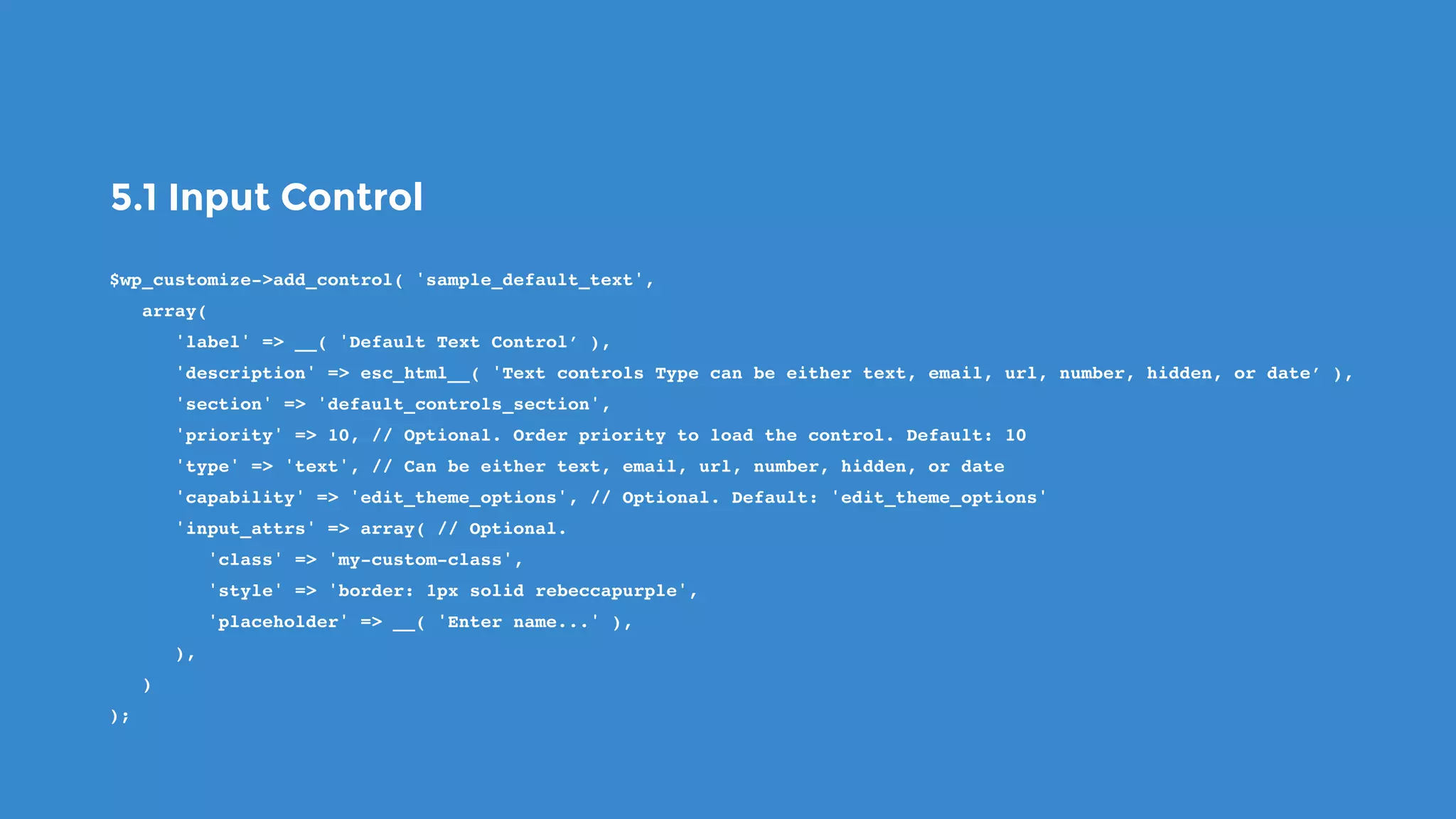
5.1 Input Control
$wp_customize->add_control( 'sample_default_text',
   array(
      'label' => __( 'Default Text Control’ ),
      'description' => esc_html__( 'Text controls Type can be either text, email, url, number, hidden, or date’ ),
      'section' => 'default_controls_section',
      'priority' => 10, // Optional. Order priority to load the control. Default: 10
      'type' => 'text', // Can be either text, email, url, number, hidden, or date
      'capability' => 'edit_theme_options', // Optional. Default: 'edit_theme_options'
      'input_attrs' => array( // Optional.
         'class' => 'my-custom-class',
         'style' => 'border: 1px solid rebeccapurple',
         'placeholder' => __( 'Enter name...' ),
      ),
   )
);
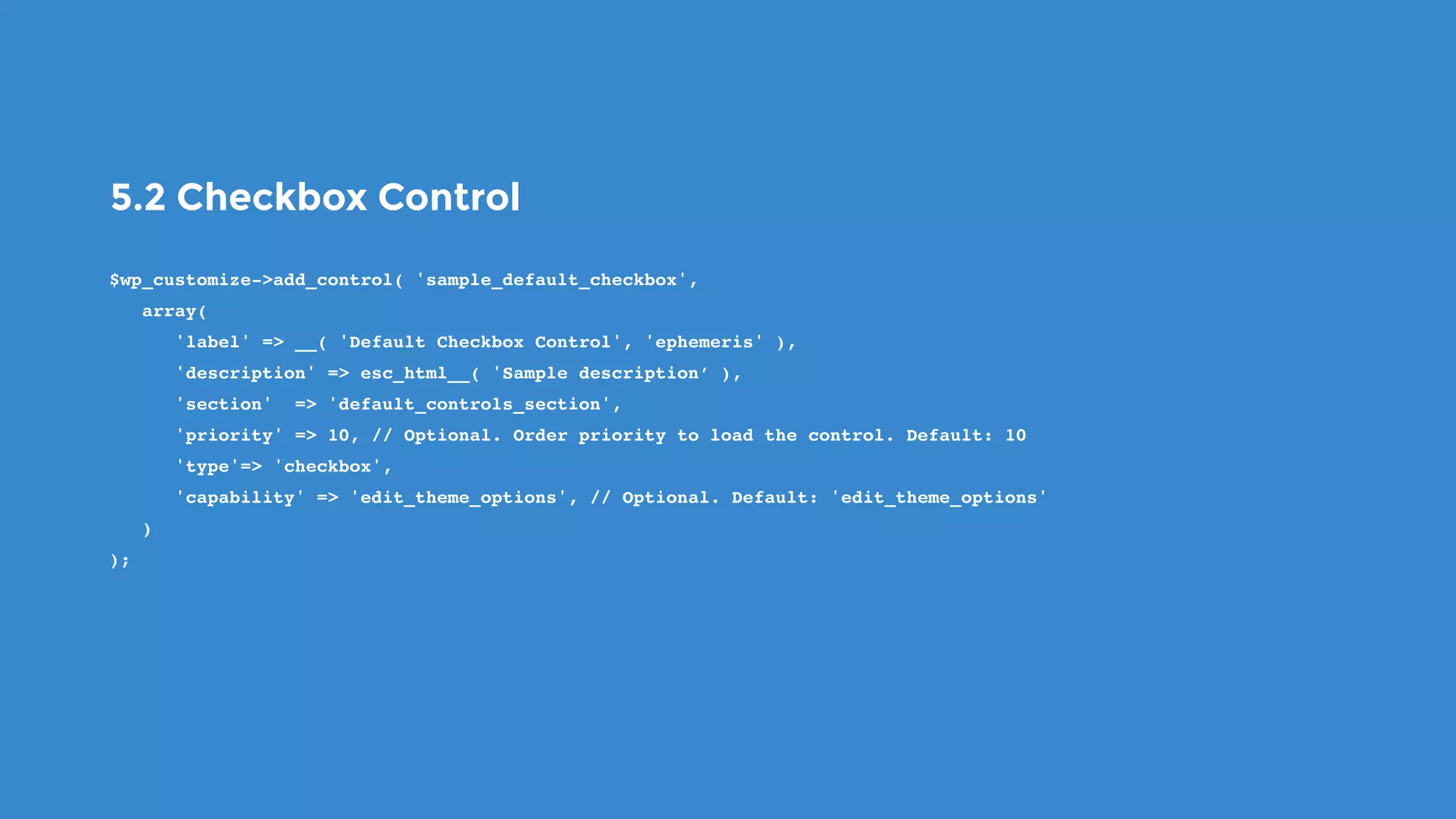
5.2 Checkbox Control
$wp_customize->add_control( 'sample_default_checkbox',
   array(
      'label' => __( 'Default Checkbox Control', 'ephemeris' ),
      'description' => esc_html__( 'Sample description’ ),
      'section'  => 'default_controls_section',
      'priority' => 10, // Optional. Order priority to load the control. Default: 10
      'type'=> 'checkbox',
      'capability' => 'edit_theme_options', // Optional. Default: 'edit_theme_options'
   )
);
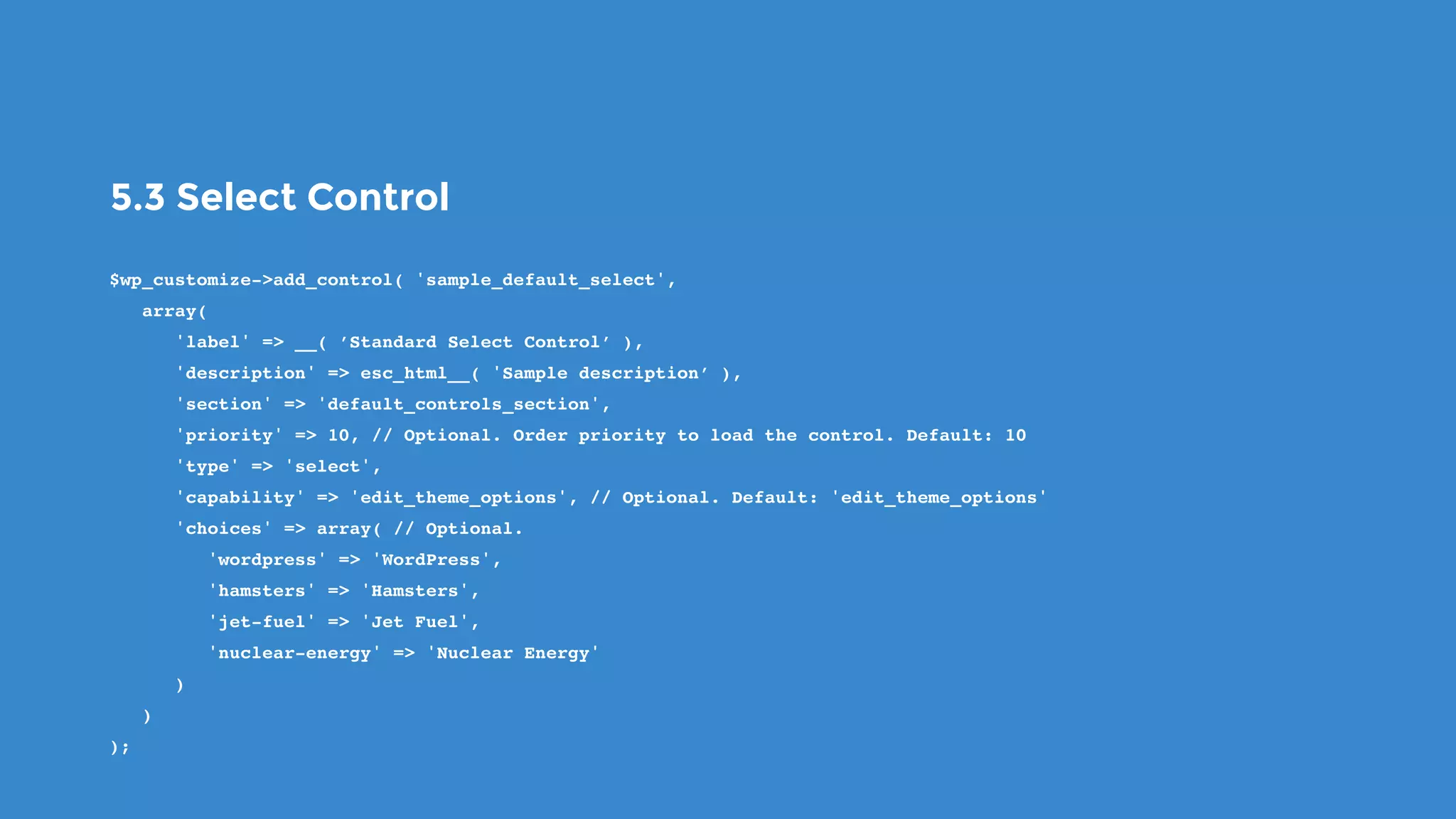
5.3 Select Control
$wp_customize->add_control( 'sample_default_select',
   array(
      'label' => __( ’Standard Select Control’ ),
      'description' => esc_html__( 'Sample description’ ),
      'section' => 'default_controls_section',
      'priority' => 10, // Optional. Order priority to load the control. Default: 10
      'type' => 'select',
      'capability' => 'edit_theme_options', // Optional. Default: 'edit_theme_options'
      'choices' => array( // Optional.
         'wordpress' => 'WordPress',
         'hamsters' => 'Hamsters',
         'jet-fuel' => 'Jet Fuel',
         'nuclear-energy' => 'Nuclear Energy'
      )
   )
);
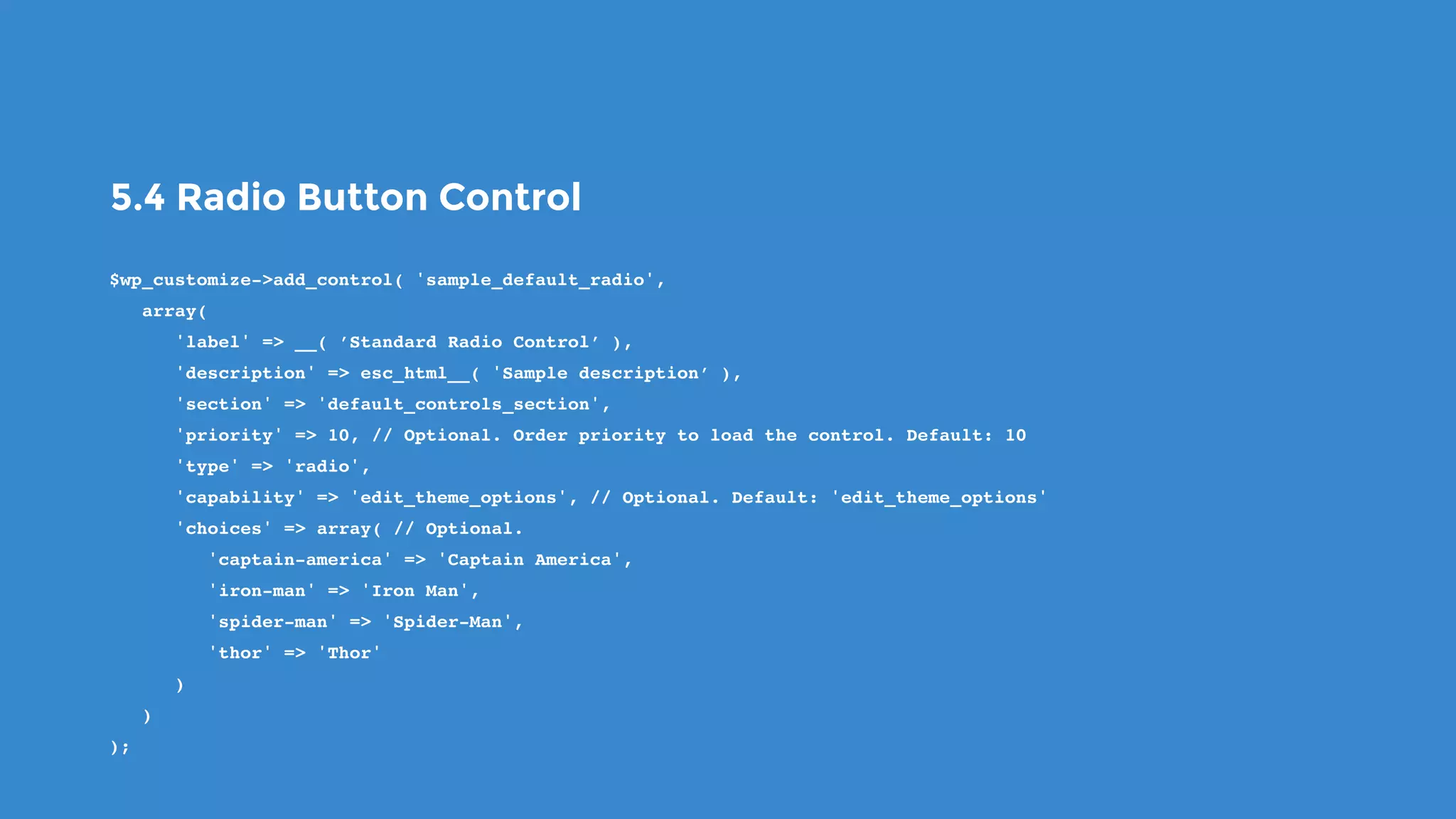
5.4 Radio Button Control
$wp_customize->add_control( 'sample_default_radio',
   array(
      'label' => __( ’Standard Radio Control’ ),
      'description' => esc_html__( 'Sample description’ ),
      'section' => 'default_controls_section',
      'priority' => 10, // Optional. Order priority to load the control. Default: 10
      'type' => 'radio',
      'capability' => 'edit_theme_options', // Optional. Default: 'edit_theme_options'
      'choices' => array( // Optional.
         'captain-america' => 'Captain America',
         'iron-man' => 'Iron Man',
         'spider-man' => 'Spider-Man',
         'thor' => 'Thor'
      )
   )
);
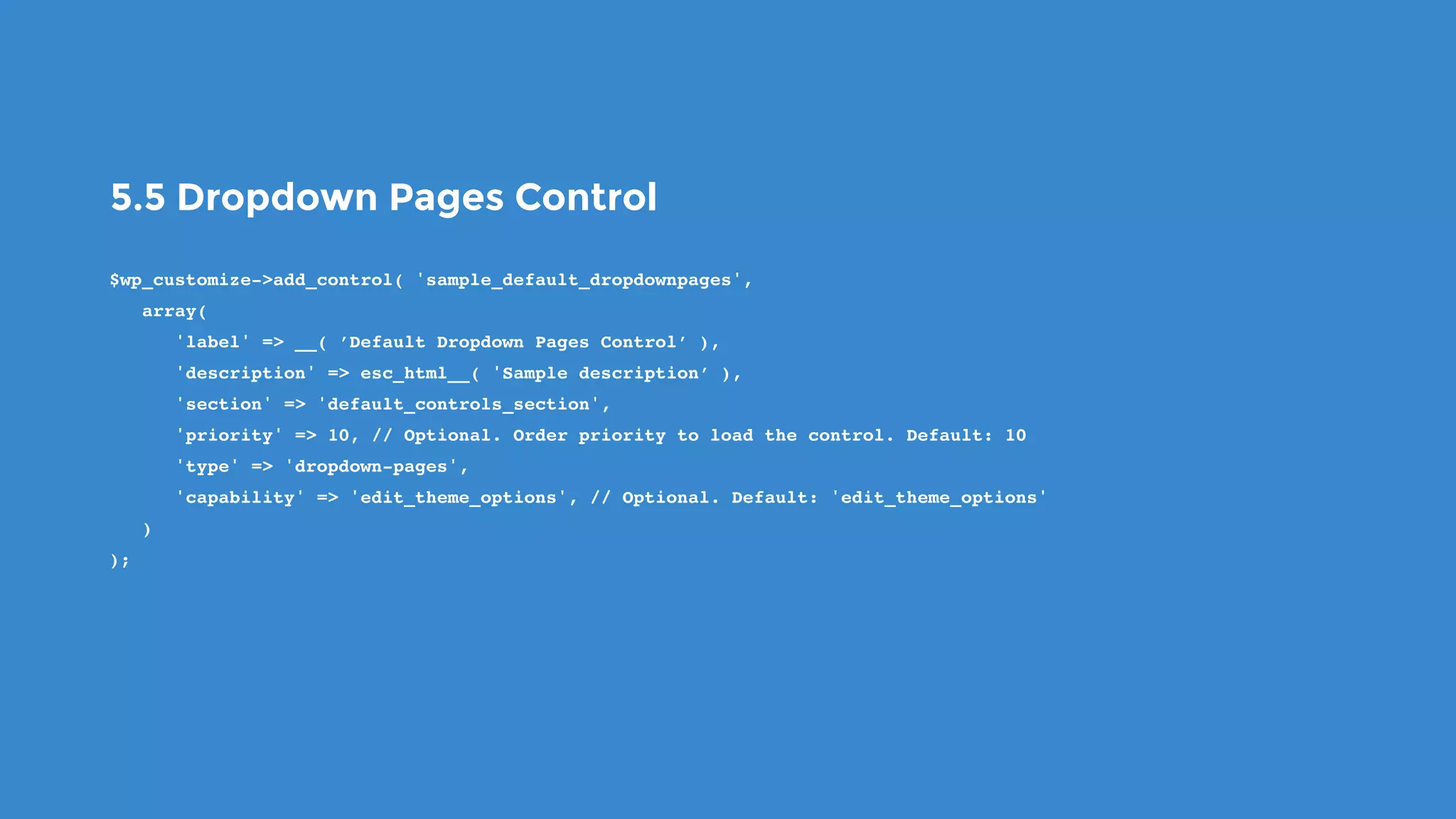
5.5 Dropdown Pages Control
$wp_customize->add_control( 'sample_default_dropdownpages',
   array(
      'label' => __( ’Default Dropdown Pages Control’ ),
      'description' => esc_html__( 'Sample description’ ),
      'section' => 'default_controls_section',
      'priority' => 10, // Optional. Order priority to load the control. Default: 10
      'type' => 'dropdown-pages',
      'capability' => 'edit_theme_options', // Optional. Default: 'edit_theme_options'
   )
);
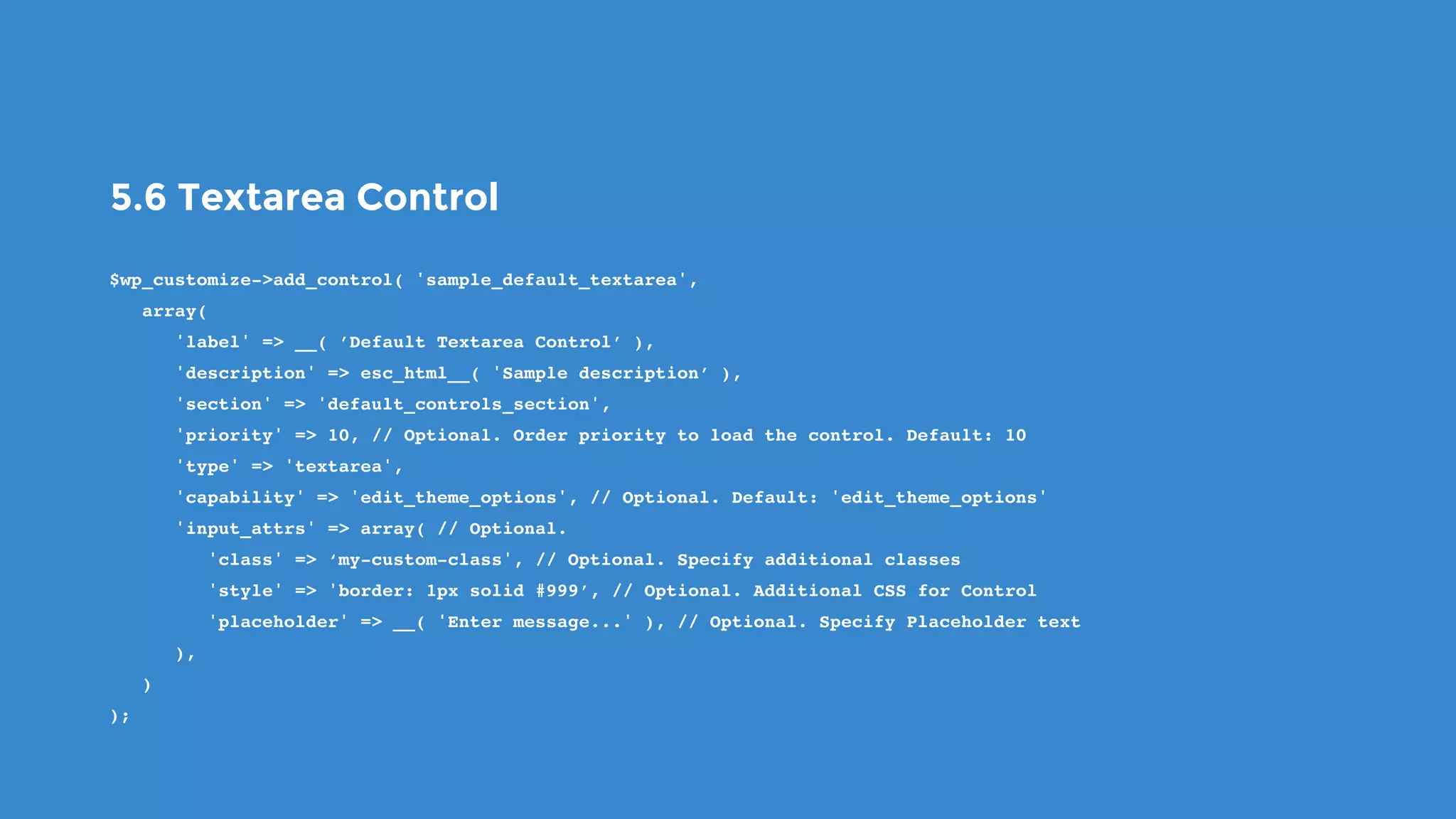
5.6 Textarea Control
$wp_customize->add_control( 'sample_default_textarea',
   array(
      'label' => __( ’Default Textarea Control’ ),
      'description' => esc_html__( 'Sample description’ ),
      'section' => 'default_controls_section',
      'priority' => 10, // Optional. Order priority to load the control. Default: 10
      'type' => 'textarea',
      'capability' => 'edit_theme_options', // Optional. Default: 'edit_theme_options'
      'input_attrs' => array( // Optional.
         'class' => ‘my-custom-class', // Optional. Specify additional classes
         'style' => 'border: 1px solid #999’, // Optional. Additional CSS for Control
         'placeholder' => __( 'Enter message...' ), // Optional. Specify Placeholder text
      ),
   )
);
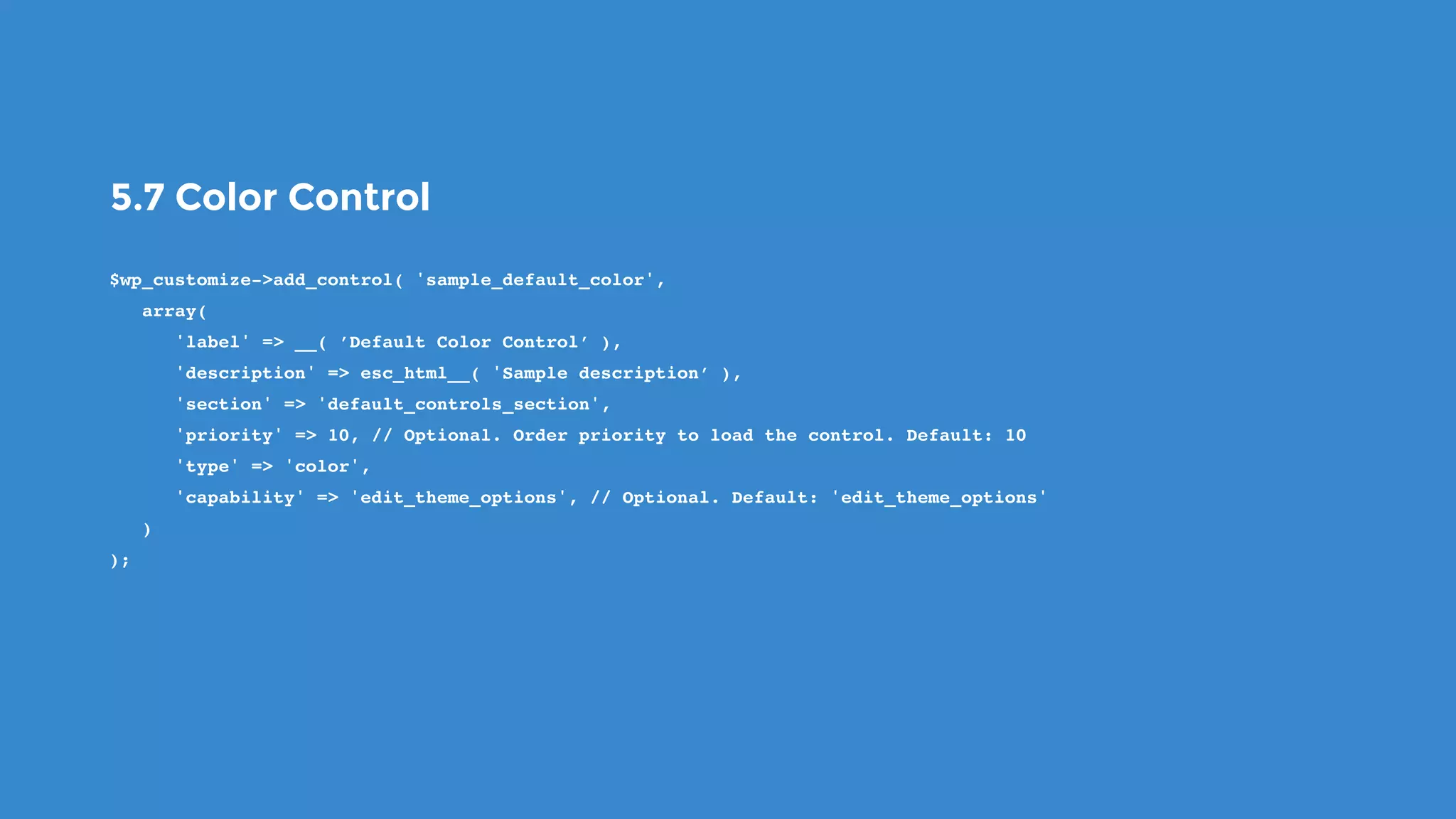
5.7 Color Control
$wp_customize->add_control( 'sample_default_color',
   array(
      'label' => __( ’Default Color Control’ ),
      'description' => esc_html__( 'Sample description’ ),
      'section' => 'default_controls_section',
      'priority' => 10, // Optional. Order priority to load the control. Default: 10
      'type' => 'color',
      'capability' => 'edit_theme_options', // Optional. Default: 'edit_theme_options'
   )
);
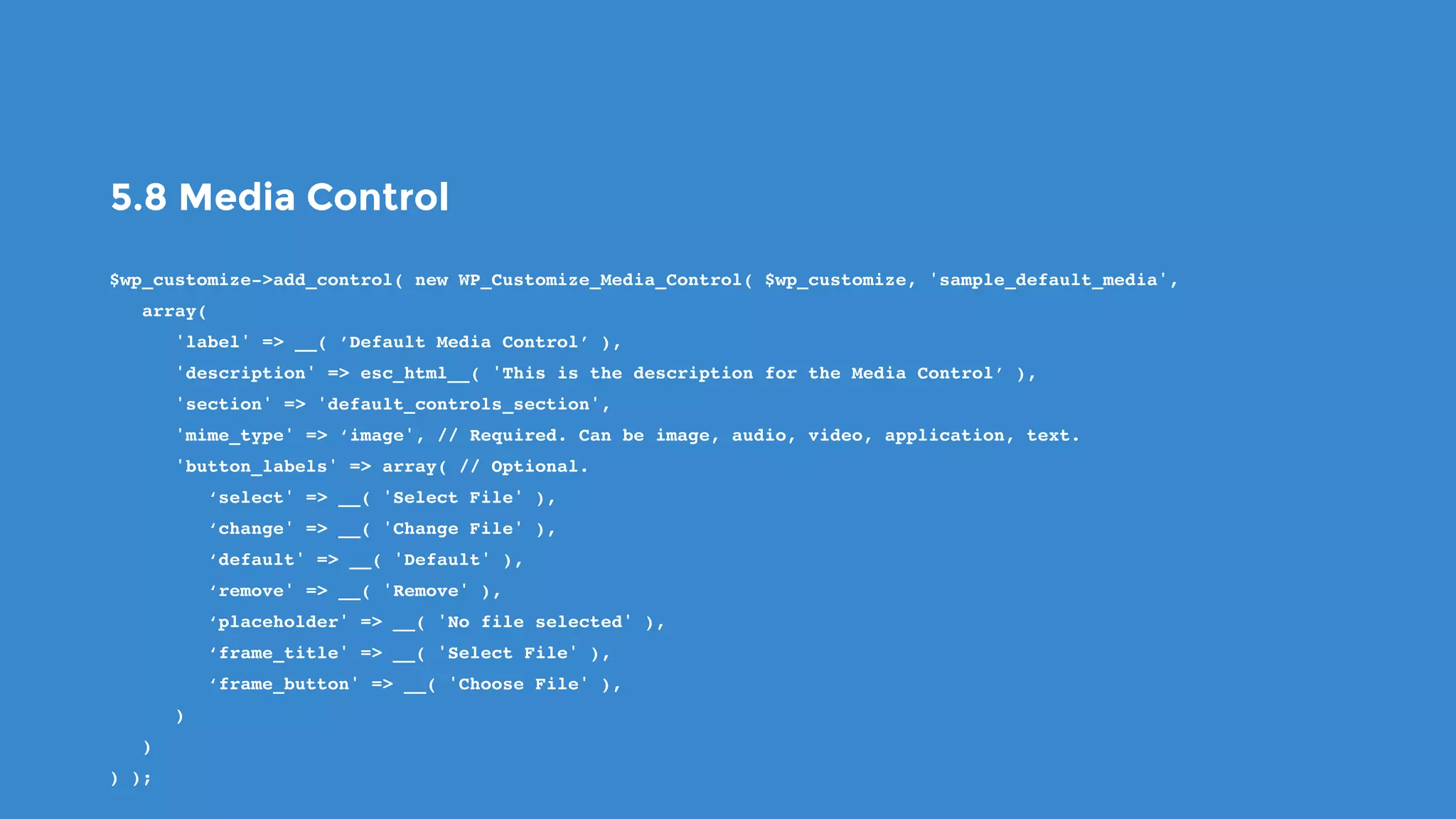
5.8 Media Control
$wp_customize->add_control( new WP_Customize_Media_Control( $wp_customize, 'sample_default_media',
   array(
      'label' => __( ’Default Media Control’ ),
      'description' => esc_html__( 'This is the description for the Media Control’ ),
      'section' => 'default_controls_section',
      'mime_type' => ‘image', // Required. Can be image, audio, video, application, text.
      'button_labels' => array( // Optional.
         ‘select' => __( 'Select File' ),
         ‘change' => __( 'Change File' ),
         ‘default' => __( 'Default' ),
         ‘remove' => __( 'Remove' ),
         ‘placeholder' => __( 'No file selected' ),
         ‘frame_title' => __( 'Select File' ),
         ‘frame_button' => __( 'Choose File' ),
      )
   )
) );
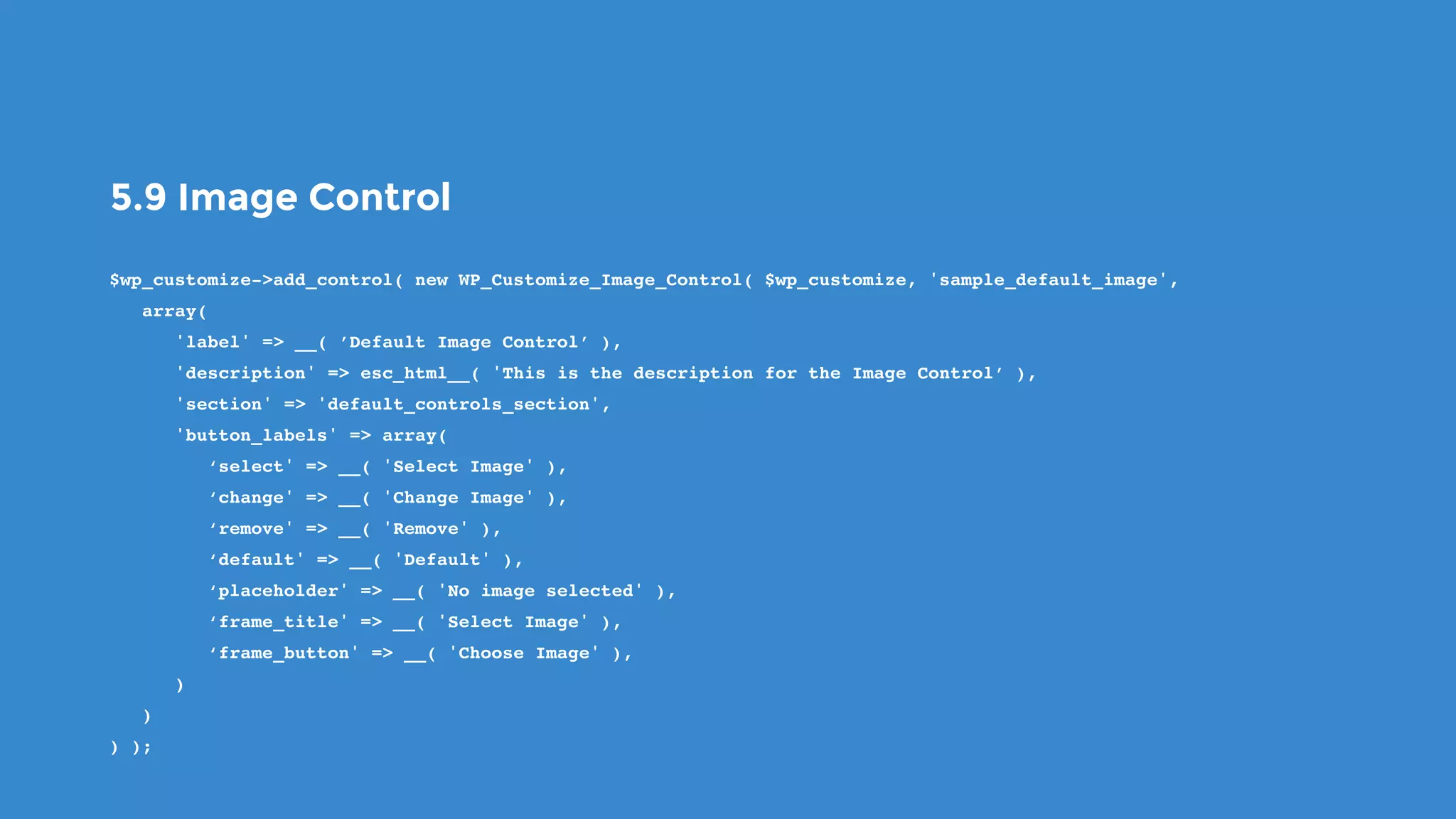
5.9 Image Control
$wp_customize->add_control( new WP_Customize_Image_Control( $wp_customize, 'sample_default_image',
   array(
      'label' => __( ’Default Image Control’ ),
      'description' => esc_html__( 'This is the description for the Image Control’ ),
      'section' => 'default_controls_section',
      'button_labels' => array(
         ‘select' => __( 'Select Image' ),
         ‘change' => __( 'Change Image' ),
         ‘remove' => __( 'Remove' ),
         ‘default' => __( 'Default' ),
         ‘placeholder' => __( 'No image selected' ),
         ‘frame_title' => __( 'Select Image' ),
         ‘frame_button' => __( 'Choose Image' ),
      )
   )
) );
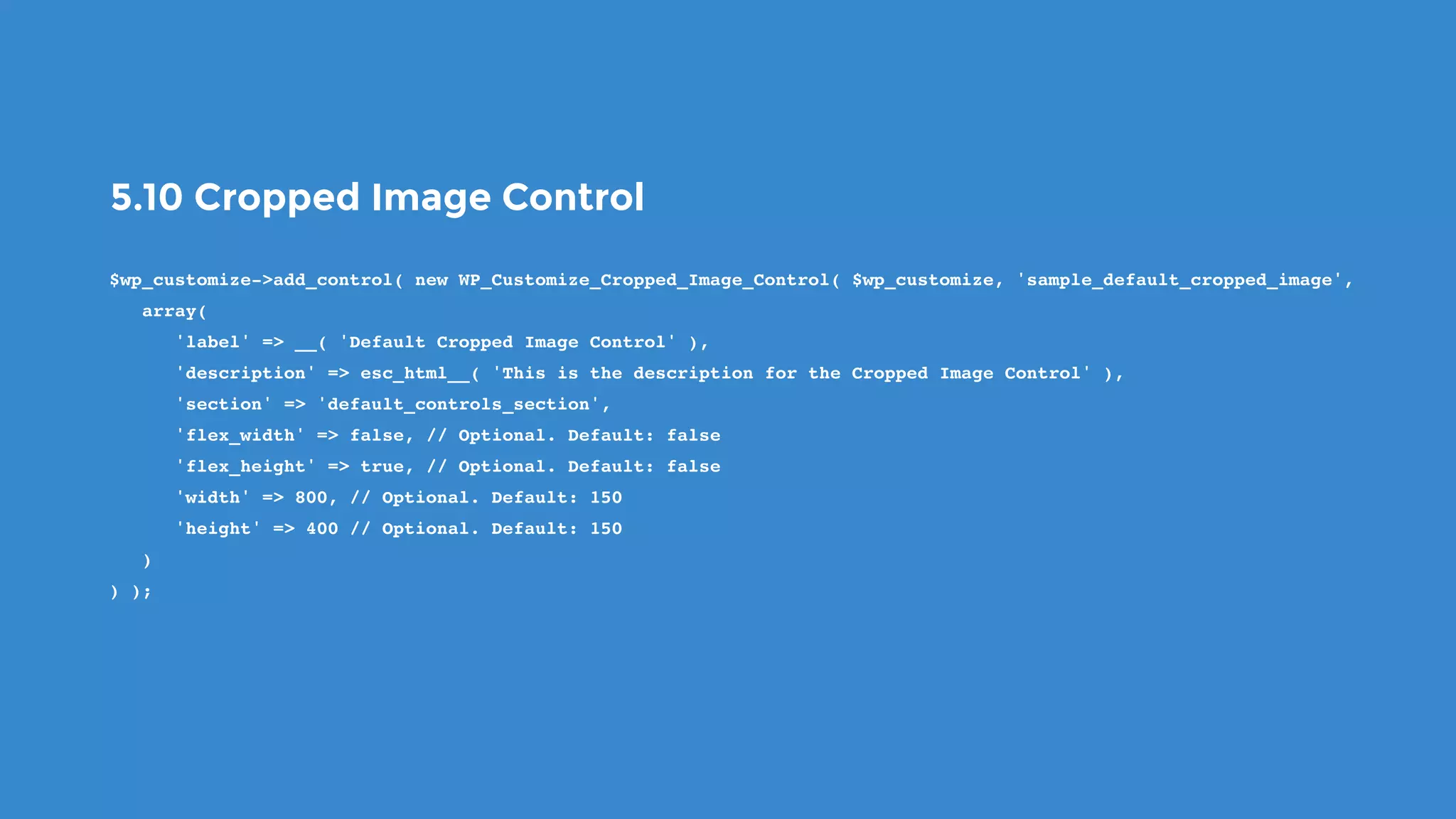
5.10 Cropped Image Control
$wp_customize->add_control( new WP_Customize_Cropped_Image_Control( $wp_customize, 'sample_default_cropped_image',
   array(
      'label' => __( 'Default Cropped Image Control' ),
      'description' => esc_html__( 'This is the description for the Cropped Image Control' ),
      'section' => 'default_controls_section',
      'flex_width' => false, // Optional. Default: false
      'flex_height' => true, // Optional. Default: false
      'width' => 800, // Optional. Default: 150
      'height' => 400 // Optional. Default: 150
   )
) );
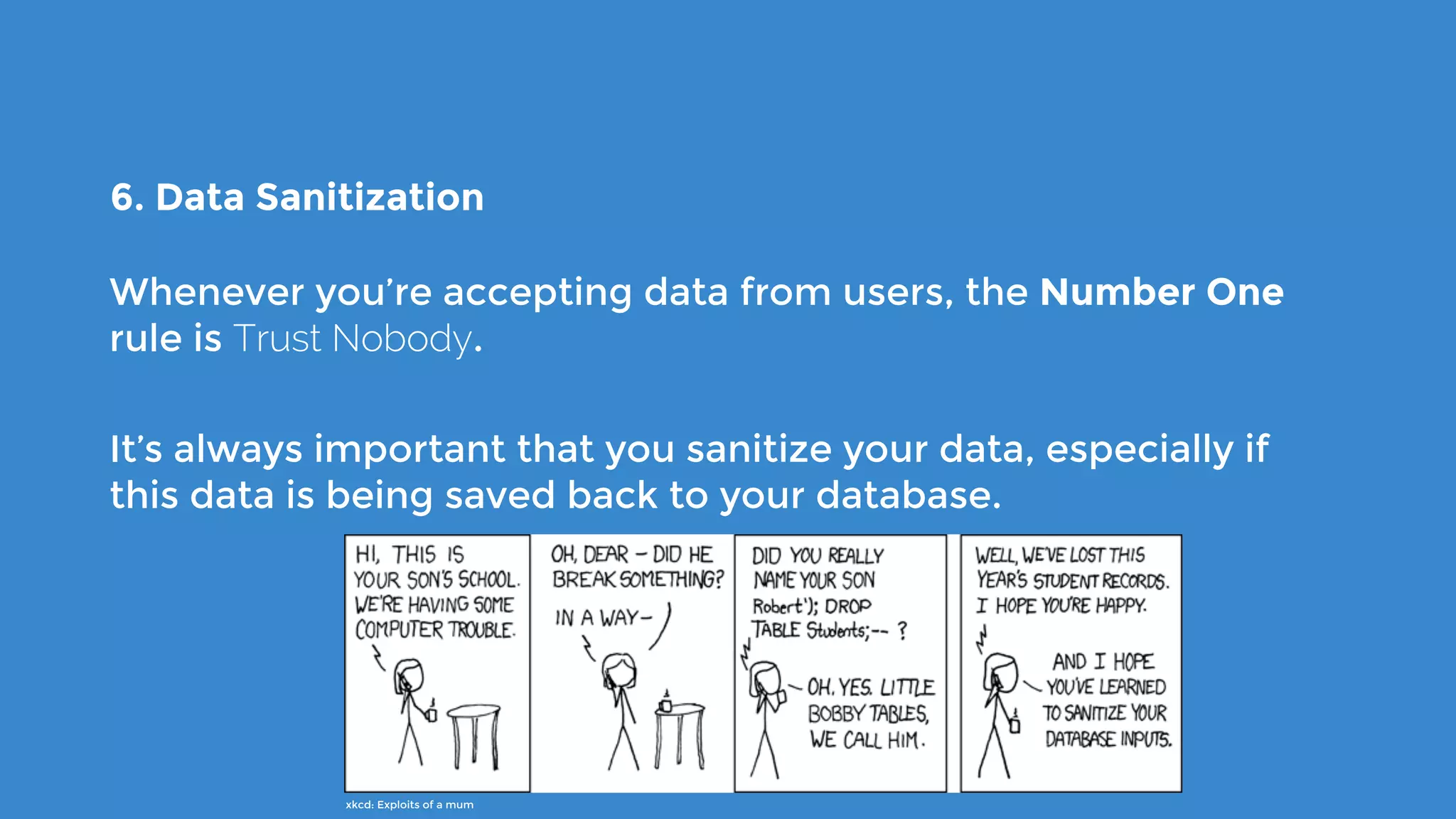
6. Data Sanitization
Whenever you’re accepting data from users, the Number One
rule is Trust Nobody.
It’s always important that you sanitize your data, especially if
this data is being saved back to your database.
xkcd: Exploits of a mum
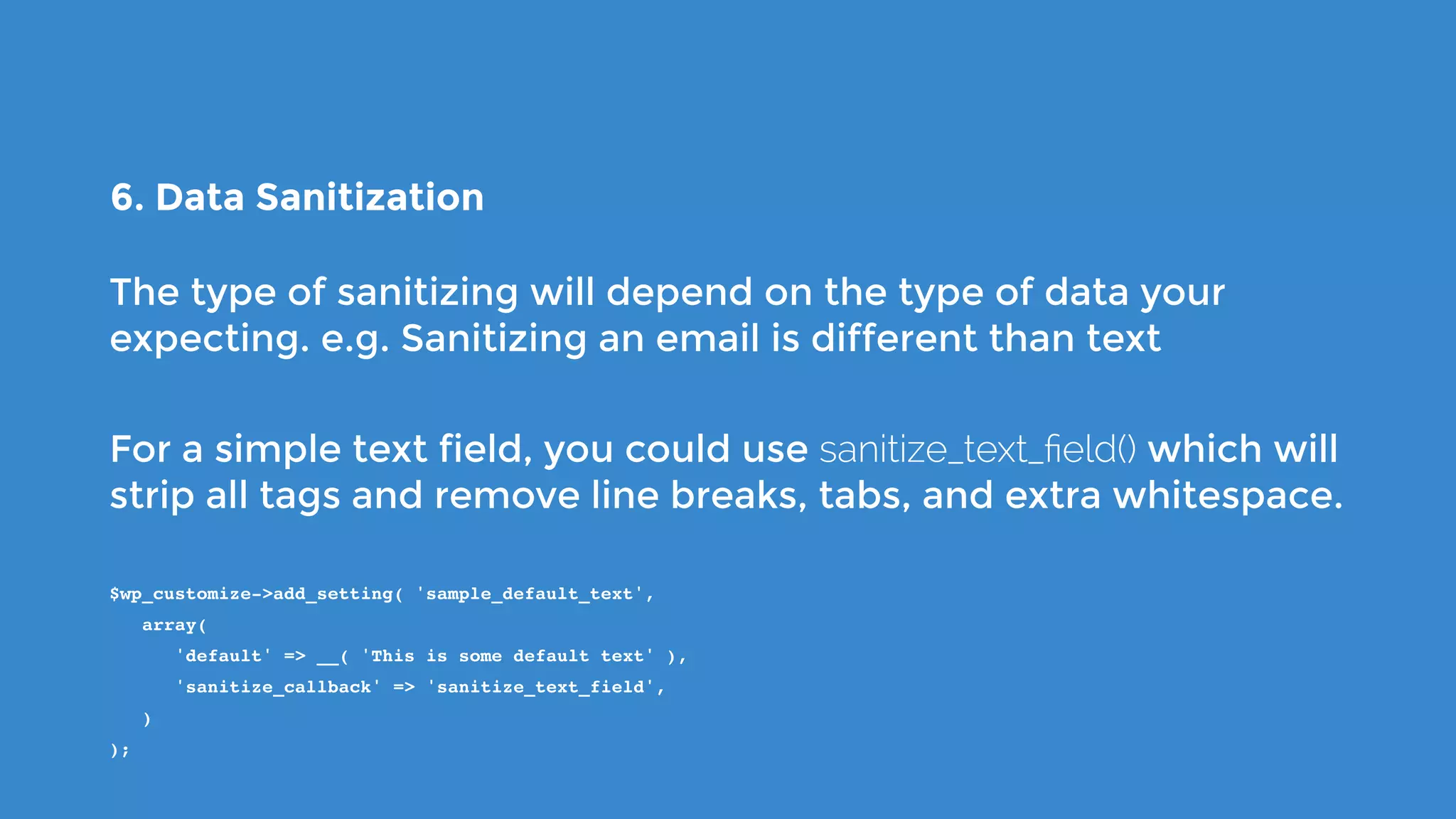
6. Data Sanitization
The type of sanitizing will depend on the type of data your
expecting. e.g. Sanitizing an email is different than text
For a simple text field, you could use sanitize_text_field() which will
strip all tags and remove line breaks, tabs, and extra whitespace.
$wp_customize->add_setting( 'sample_default_text',
   array(
      'default' => __( 'This is some default text' ),
      'sanitize_callback' => 'sanitize_text_field',
   )
);
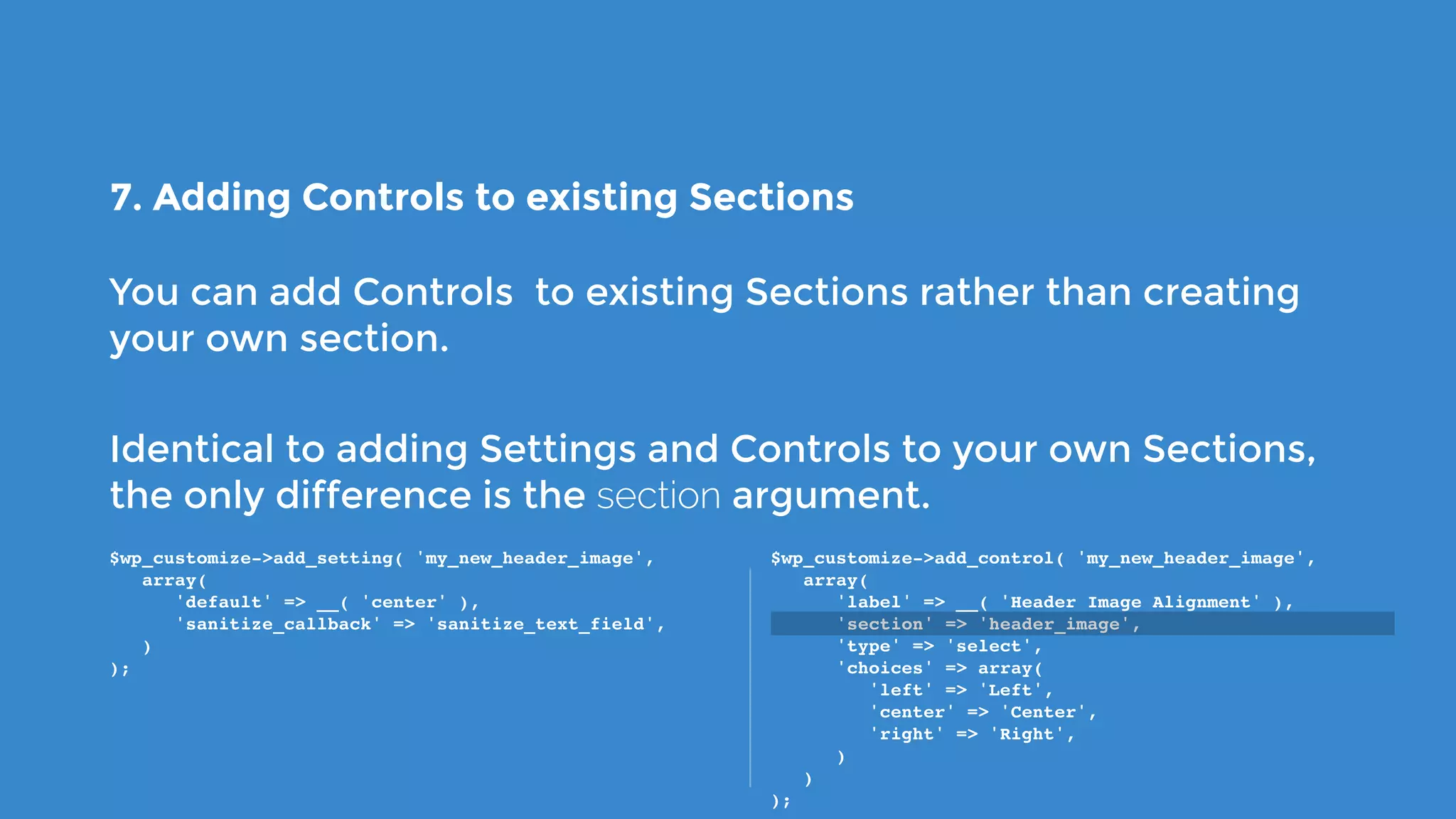
7. Adding Controls to existing Sections
You can add Controls to existing Sections rather than creating
your own section.
Identical to adding Settings and Controls to your own Sections,
the only difference is the section argument.
$wp_customize->add_setting( 'my_new_header_image',
   array(
      'default' => __( 'center' ),
      'sanitize_callback' => 'sanitize_text_field',
   )
);
$wp_customize->add_control( 'my_new_header_image',
   array(
      'label' => __( 'Header Image Alignment' ),
      'section' => 'header_image',
      'type' => 'select',
      'choices' => array(
         'left' => 'Left',
         'center' => 'Center',
         'right' => 'Right',
      )
   )
);
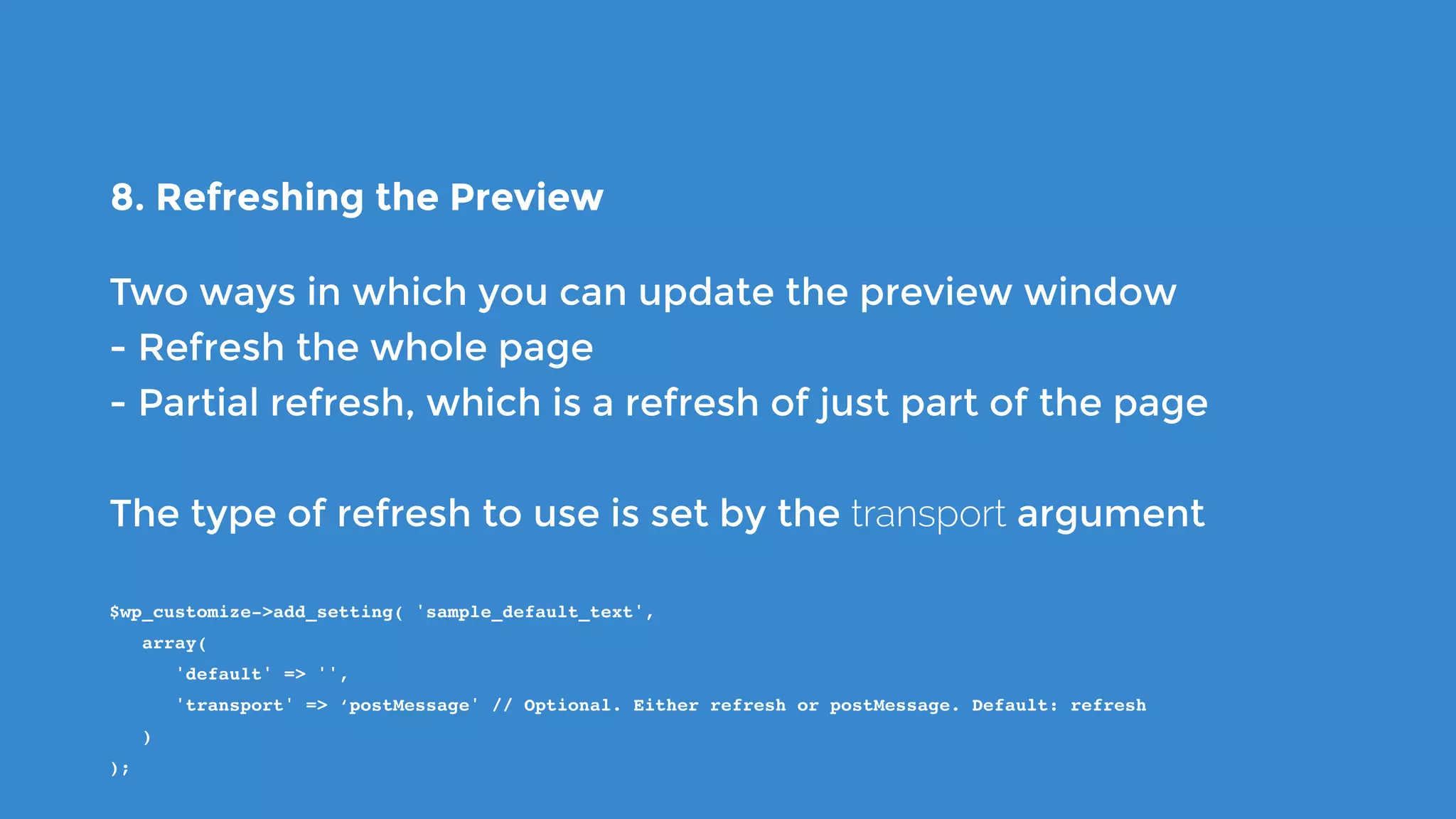
8. Refreshing the Preview
Two ways in which you can update the preview window
- Refresh the whole page
- Partial refresh, which is a refresh of just part of the page
The type of refresh to use is set by the transport argument
$wp_customize->add_setting( 'sample_default_text',
   array(
      'default' => '',
      'transport' => ‘postMessage' // Optional. Either refresh or postMessage. Default: refresh
   )
);
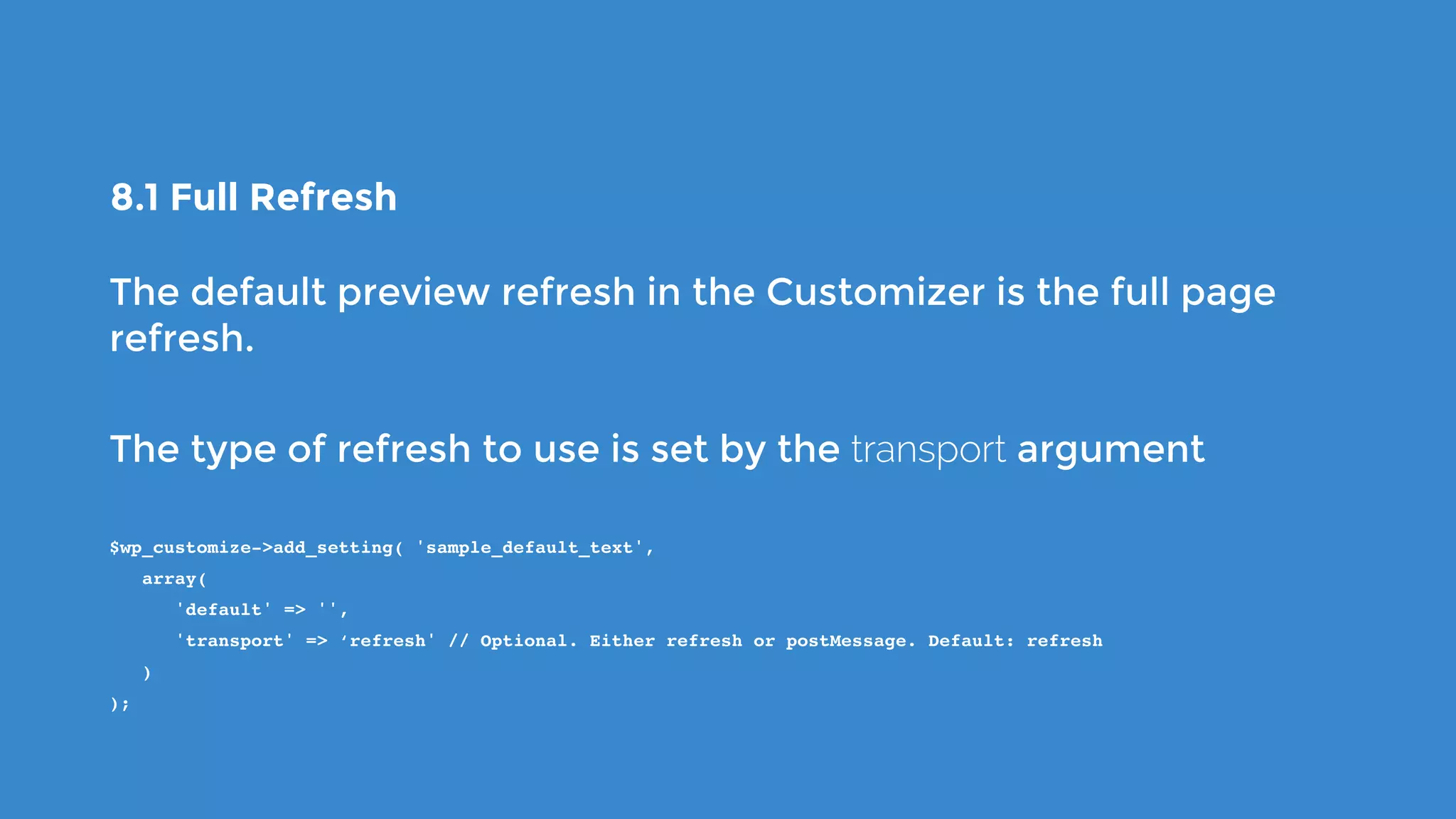
8.1 Full Refresh
The default preview refresh in the Customizer is the full page
refresh.
The type of refresh to use is set by the transport argument
$wp_customize->add_setting( 'sample_default_text',
   array(
      'default' => '',
      'transport' => ‘refresh' // Optional. Either refresh or postMessage. Default: refresh
   )
);
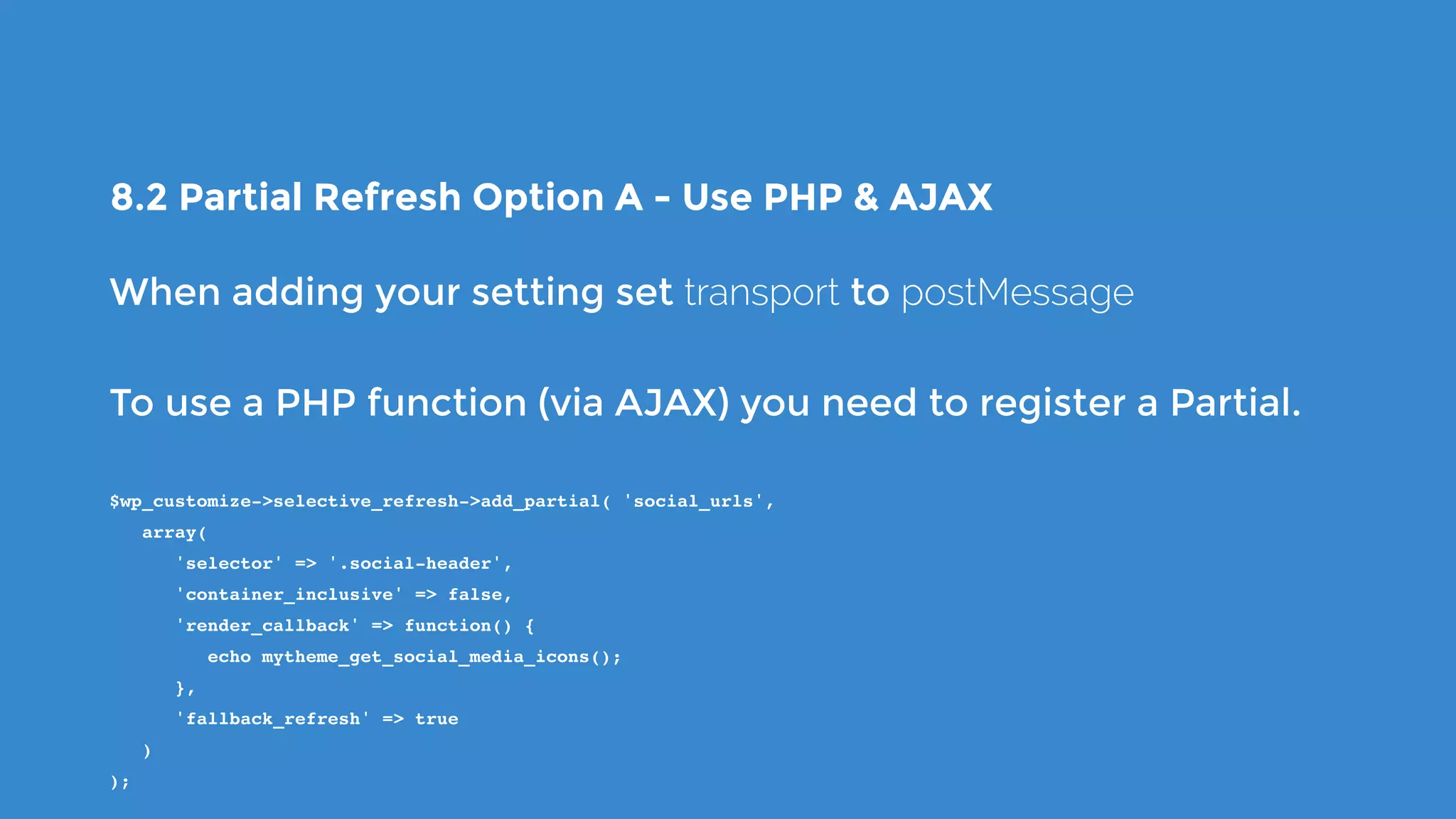
8.2 Partial Refresh Option A - Use PHP & AJAX
When adding your setting set transport to postMessage
To use a PHP function (via AJAX) you need to register a Partial.
$wp_customize->selective_refresh->add_partial( 'social_urls',
   array(
      'selector' => '.social-header',
      'container_inclusive' => false,
      'render_callback' => function() {
         echo mytheme_get_social_media_icons();
      },
      'fallback_refresh' => true
   )
);
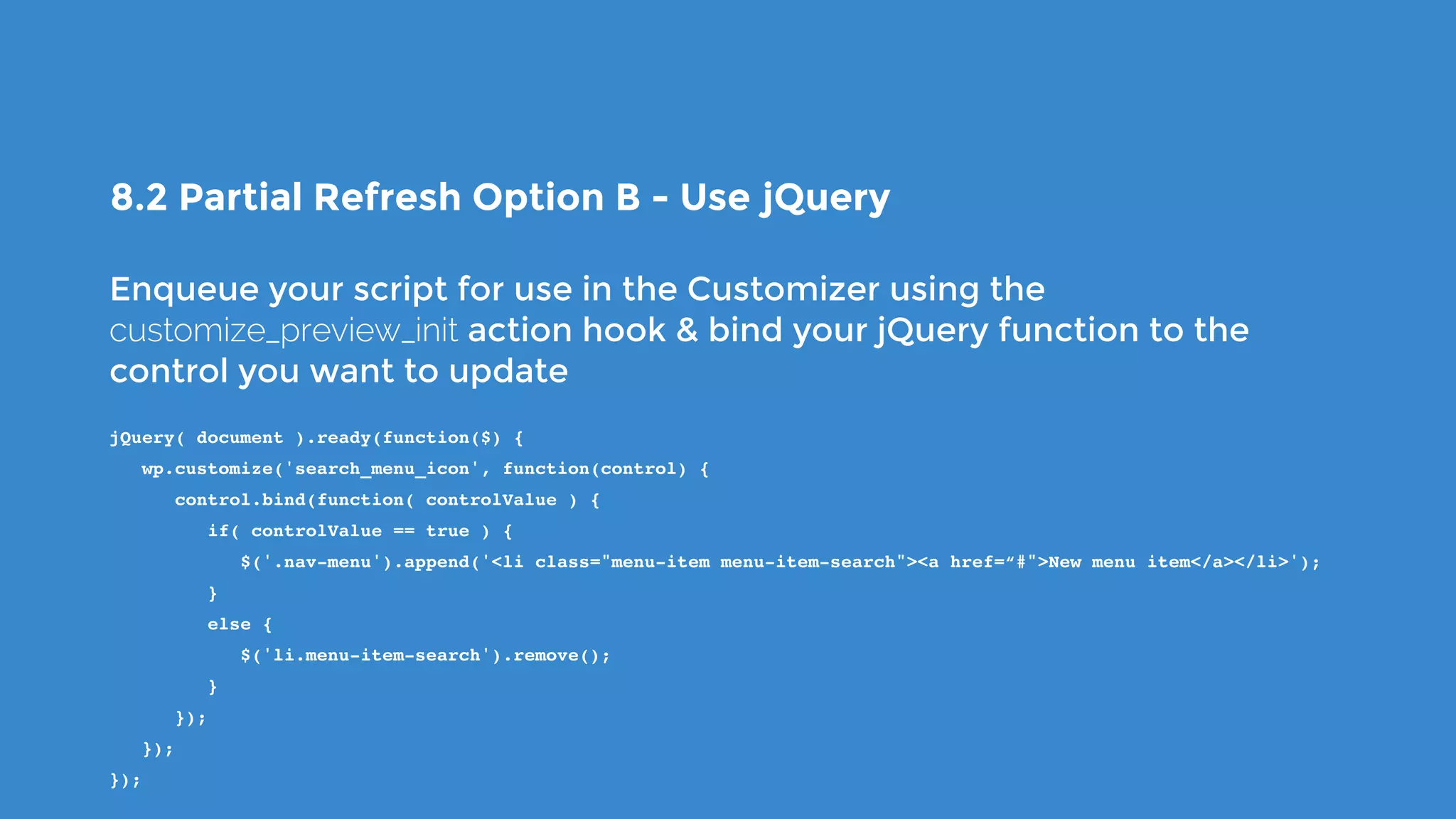
8.2 Partial Refresh Option B - Use jQuery
Enqueue your script for use in the Customizer using the
customize_preview_init action hook & bind your jQuery function to the
control you want to update
jQuery( document ).ready(function($) {
   wp.customize('search_menu_icon', function(control) {
      control.bind(function( controlValue ) {
         if( controlValue == true ) {
            $('.nav-menu').append('<li class="menu-item menu-item-search"><a href=“#">New menu item</a></li>');
         }
         else {
            $('li.menu-item-search').remove();
         }
      });
   });
});
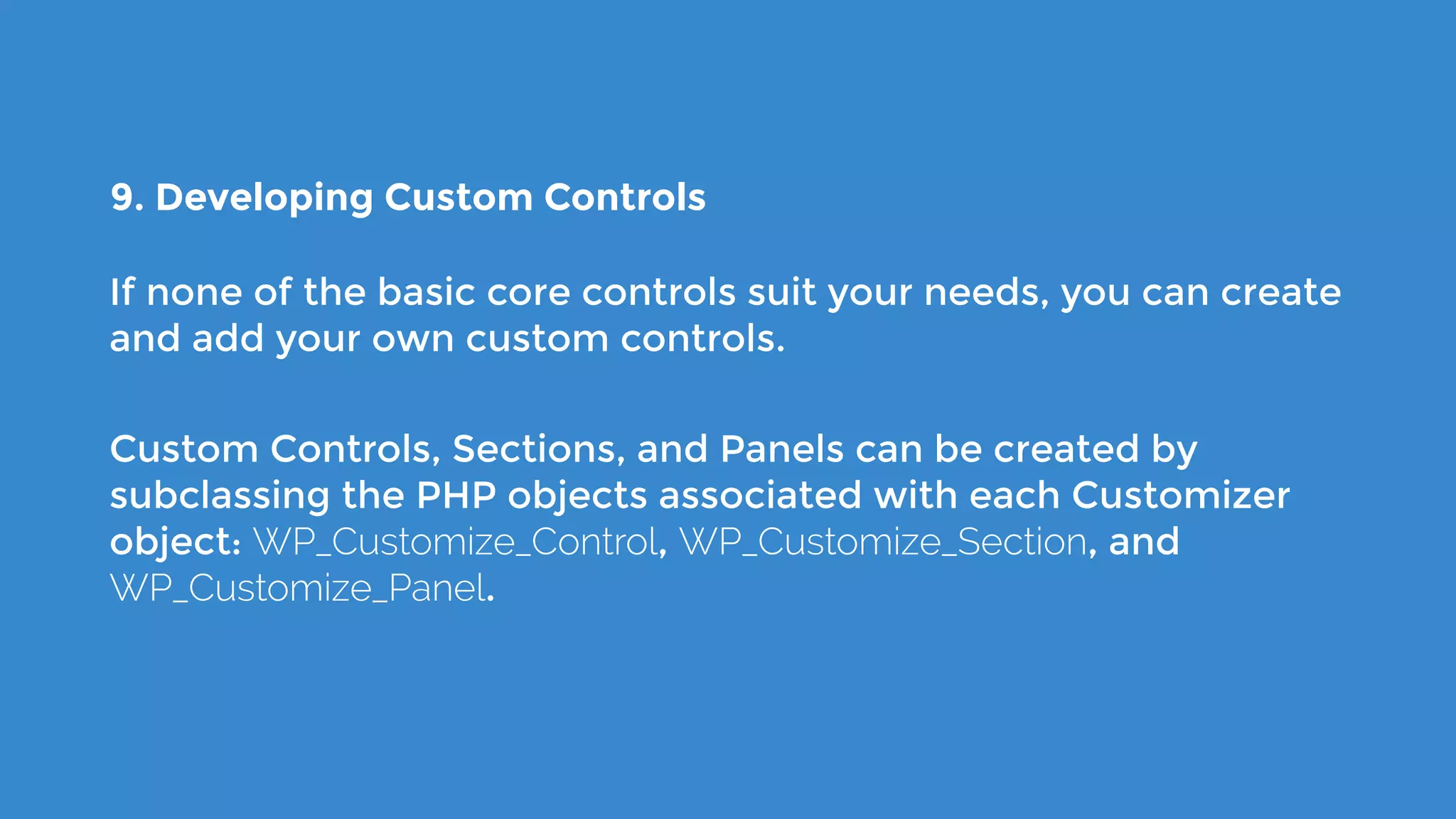
9. Developing Custom Controls
If none of the basic core controls suit your needs, you can create
and add your own custom controls.
Custom Controls, Sections, and Panels can be created by
subclassing the PHP objects associated with each Customizer
object: WP_Customize_Control, WP_Customize_Section, and
WP_Customize_Panel.
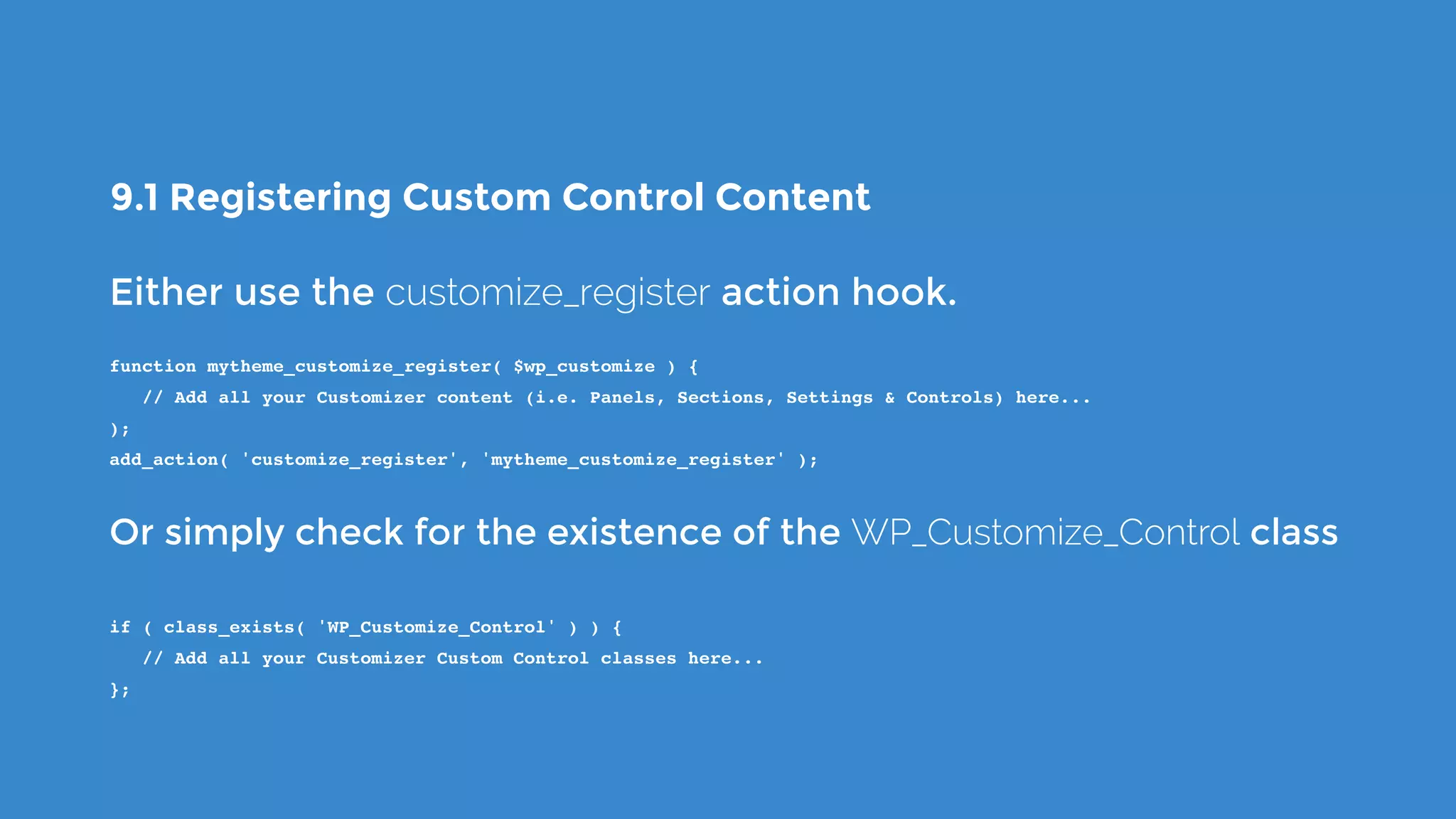
9.1 Registering Custom Control Content
Either use the customize_register action hook.
function mytheme_customize_register( $wp_customize ) {
   // Add all your Customizer content (i.e. Panels, Sections, Settings & Controls) here...
);
add_action( 'customize_register', 'mytheme_customize_register' );
Or simply check for the existence of the WP_Customize_Control class
if ( class_exists( 'WP_Customize_Control' ) ) {
   // Add all your Customizer Custom Control classes here...
};
9.2 Creating our Custom Control Class
To create our Custom Control extend the WP_Customize_Control
class.
Display our own html content for the control by overriding the
render_content() function.
Enqueue CSS and Javascript files by overriding the enqueue()
function.
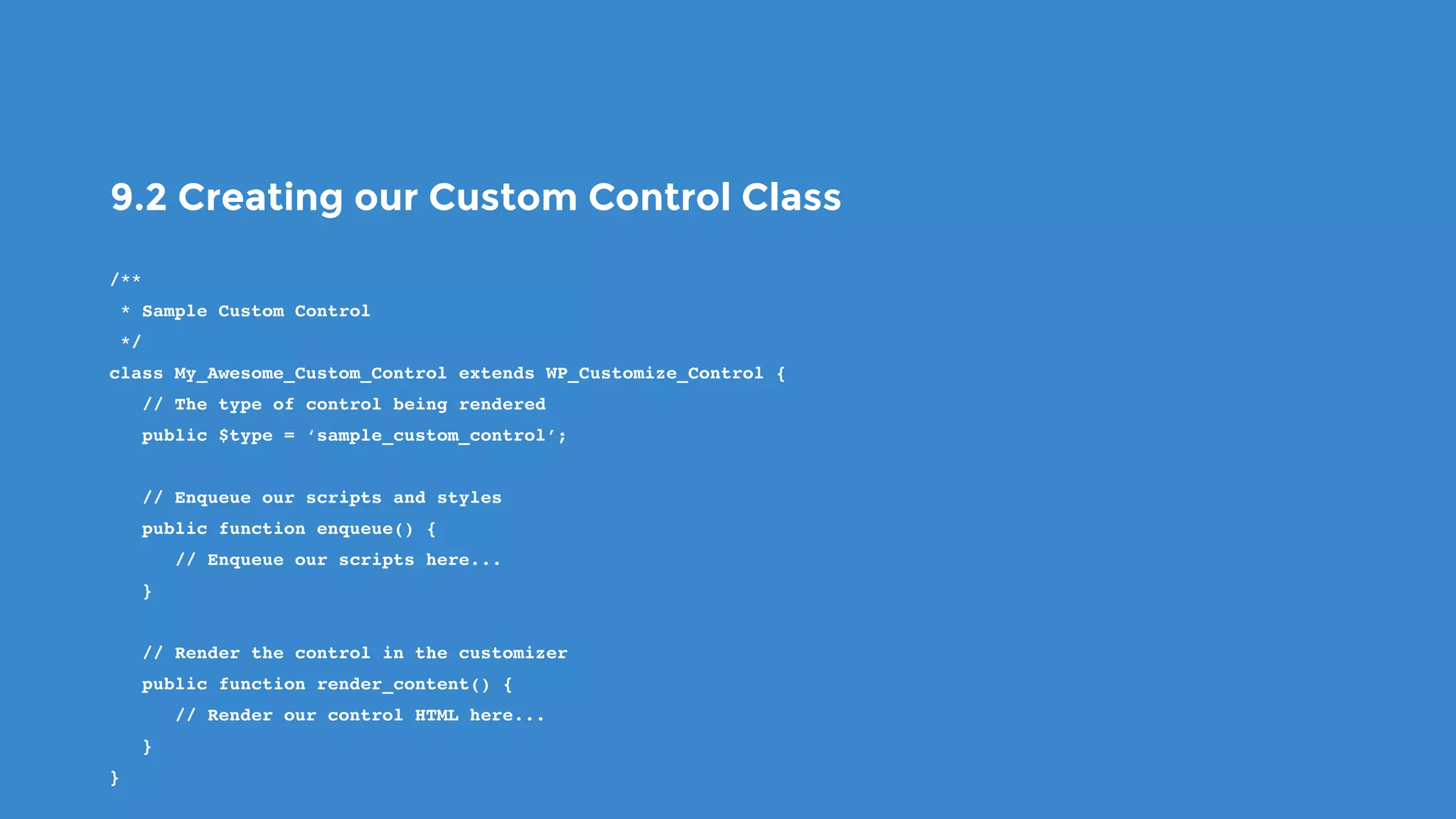
9.2 Creating our Custom Control Class
/**
 * Sample Custom Control
 */
class My_Awesome_Custom_Control extends WP_Customize_Control {
   // The type of control being rendered
   public $type = ‘sample_custom_control’;
   // Enqueue our scripts and styles
   public function enqueue() {
      // Enqueue our scripts here...
   }
   // Render the control in the customizer
   public function render_content() {
      // Render our control HTML here...
   }
}
9.3 Using our New Custom Control
Use Custom Controls in the same way as default built-in
controls.
First add the setting, then add the control. Only difference is we
have to specify our new class that we created.
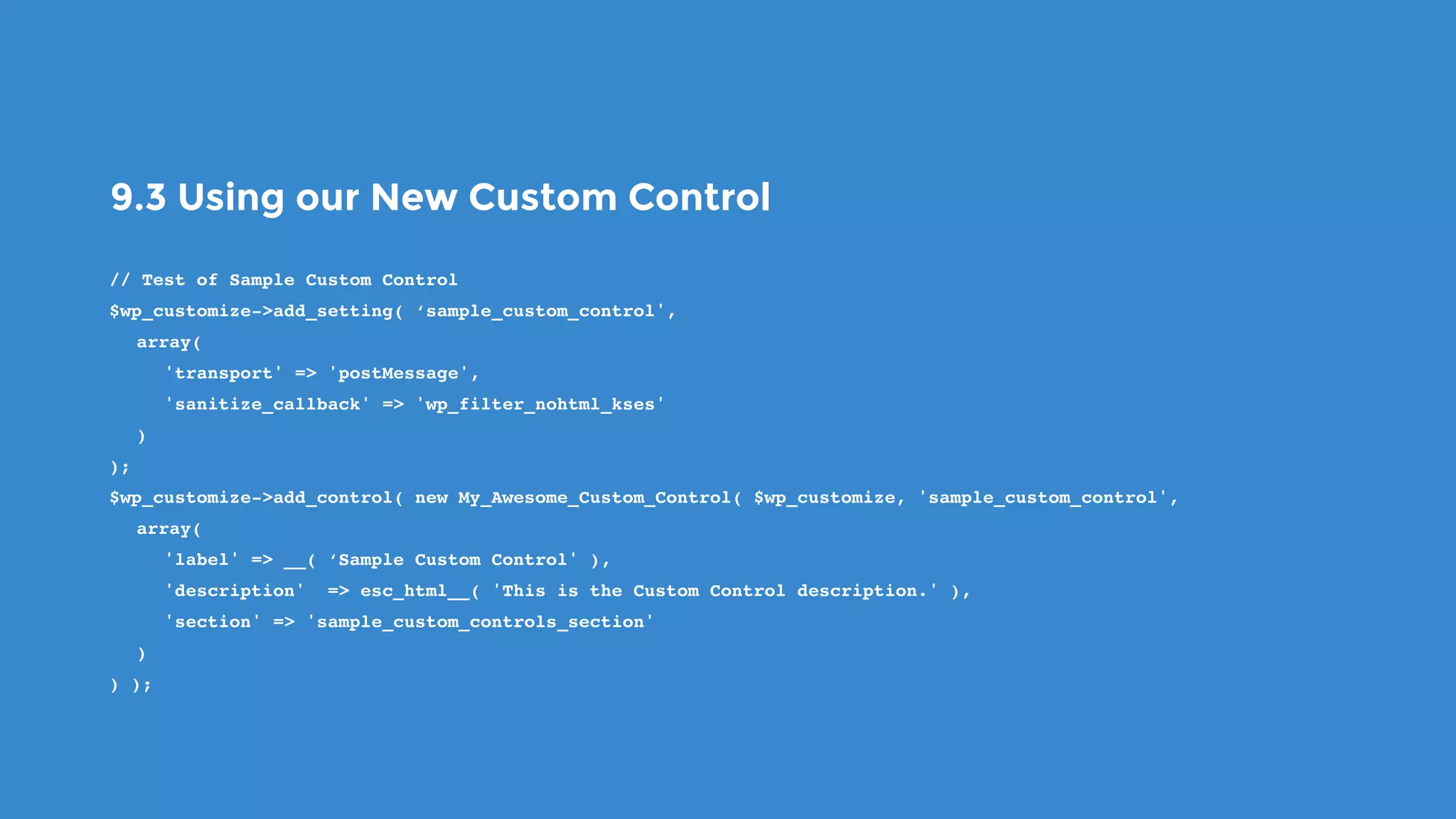
9.3 Using our New Custom Control
// Test of Sample Custom Control
$wp_customize->add_setting( ‘sample_custom_control',
array(
'transport' => 'postMessage',
'sanitize_callback' => 'wp_filter_nohtml_kses'
)
);
$wp_customize->add_control( new My_Awesome_Custom_Control( $wp_customize, 'sample_custom_control',
array(
'label' => __( ‘Sample Custom Control' ),
'description' => esc_html__( 'This is the Custom Control description.' ),
'section' => 'sample_custom_controls_section'
)
) );
10. Triggering Changes for your Control
If you dynamically alter the content of your control using jQuery,
make sure you trigger a change event.
// Important! Make sure to trigger change event so Customizer knows it has to save the field
url.val('http://' + val).trigger('change');
11. Retrieving Cutomizer Settings
To retrieve your customizer settings, use get_theme_mod()
<?php echo get_theme_mod( 'background_color', '#fff' ); ?>
This example will retrieve (and echo) the theme setting with the
id background_color. If that doesn’t exist, it will return #fff instead.
Theme Options – The Customize API

https://developer.wordpress.org/themes/customize-api
#customize on Make WordPress Core

https://make.wordpress.org/core/tag/customize
Data Sanitization/Escaping

https://developer.wordpress.org/themes/theme-security/data-sanitization-escaping
Customizer Custom Controls & Example Code

https://github.com/maddisondesigns/customizer-custom-controls
The WordPress Customizer – A Developers Guide (Pt 1 & 2)

https://maddisondesigns.com/wordpress-customizer-developers-guide-pt-1

https://maddisondesigns.com/wordpress-customizer-developers-guide-pt-2
Links to Remember
I’m Anthony Hortin
You can find me here
@maddisondesigns
maddisondesigns.com
@easywpguide
easywpguide.com
Thanks!
Questions?

Developing for the WordPress Customizer

  • 1.
  • 2.
    The Theme Customization API,allows developers to customize and add controls to the Appearance > Customize admin screen
  • 3.
    Even for themesthat don’t provide additional options, certain core features are built into the Customizer… Site Identity Menus Widgets Static Front Page Additional CSS (since WP 4.7)
  • 4.
    it is stronglyrecommended that developers study the core customizer code (all core files containing “customize”). This is considered the canonical, official documentation for the Customize API outside of the inline documentation within the core code.* *According to the Theme Handbook https://developer.wordpress.org/themes/customize-api/
  • 5.
    There are 4 maintypes of Customizer objects
  • 6.
    Panels are containers forSections. allow you to group multiple Sections together.
  • 7.
    Sections are where yourControls reside. typically contain multiple Controls.
  • 8.
    Settings associate Controls withthe settings that are saved in the database. Controls are the actual UI Elements such as Checkboxes, Select Lists, Radio Buttons etc…
  • 9.
    1. Registering CustomizerContent To add anything to the Customizer, you need to use the customize_register action hook. This hook gives you access to the $wp_customize object, which is an instance of the WP_Customize_Manager class. It’s this class object that controls the Customizer screen.
  • 10.
    1. Registering CustomizerContent Add your Panels, Sections, Settings & Controls (including Custom Controls) within a function used by this hook. /**  * Add our Customizer content  */ function mytheme_customize_register( $wp_customize ) {    // Add all your Customizer content (i.e. Panels, Sections, Settings & Controls) here... ); add_action( 'customize_register', 'mytheme_customize_register' );
  • 11.
    2. Adding Panels Panelsallow you to group multiple Sections together. Sections do not need to be nested under a panel. Panels must contain at least one Section, which must contain at least one Control, to be displayed.
  • 12.
    2. Adding Panels /**  *Add our Header & Navigation Panel  */  $wp_customize->add_panel( 'header_naviation_panel',    array(       'title' => __( 'Header & Navigation' ),       'description' => esc_html__( 'Adjust your Header and Navigation sections.' ), // Include html tags such as <p>       'priority' => 160, // Not typically needed. Default is 160       'capability' => 'edit_theme_options', // Not typically needed. Default is edit_theme_options       'theme_supports' => '', // Rarely needed.       'active_callback' => '', // Rarely needed    ) );
  • 13.
    3. Adding Sections Sectionsare where your Controls will reside. You’ll typically have multiple Controls in each Section. Sections can be added to Panels, but in most instances, this wont be necessary.
  • 14.
    3. Adding Sections /**  *Add our Sample Section  */ $wp_customize->add_section( 'sample_custom_controls_section',    array(       'title' => __( 'Sample Custom Controls' ),       'description' => esc_html__( 'These are an example of Customizer Custom Controls.' ),       'panel' => '', // Only needed if adding your Section to a Panel       'priority' => 160, // Not typically needed. Default is 160       'capability' => 'edit_theme_options', // Not typically needed. Default is edit_theme_options       'theme_supports' => '', // Rarely needed       'active_callback' => '', // Rarely needed       'description_hidden' => 'false', // Rarely needed. Default is False    ) );
  • 15.
    4. Adding Settings Settingsand Controls work together. Settings handle live-previewing, saving, and sanitization of your customizer objects. Each Control that you register needs to have a matching Setting.
  • 16.
    4. Adding Settings $wp_customize->add_setting('sample_default_text',    array(       'default' => '', // Optional.       'transport' => 'refresh', // Optional. 'refresh' or 'postMessage'. Default: 'refresh'       'type' => 'theme_mod', // Optional. 'theme_mod' or 'option'. Default: 'theme_mod'       'capability' => 'edit_theme_options', // Optional. Default: 'edit_theme_options'       'theme_supports' => '', // Optional. Rarely needed       'validate_callback' => '', // Optional. The name of function that will be called to validate Customizer settings       'sanitize_callback' => '', // Optional. The name of function that will be called to sanitize the input data before saving it to the database       'sanitize_js_callback' => '', // Optional. The name the function that will be called to sanitize the data before outputting to javascript       'dirty' => false, // Optional. Rarely needed. Whether or not the setting is initially dirty when created. Default: False    ) ); Although the sanitize_callback parameter is optional, if you're submitting your theme to the WordPress.org Theme Directory, it's part of their requirement that every call to add_setting must specify a sanitization function.
  • 17.
    5. Adding Controls Controlsare the actual UI Elements that you’ll use to modify your theme settings. There are a number of Controls built into WordPress Core (e.g. Checkboxes, Select Lists, Radio Buttons etc.). For all other types of controls, you’ll need to extend the WP_Customize_Control class to create your own custom controls.
  • 18.
    There are severalCore Controls that are ready to use straight-out-of-the-box… text, checkbox, textarea, radio buttons, select lists &
 dropdown-pages Later versions of WP also introduced… Color, Media, Image & Cropped Image
  • 19.
    5.1 Input Control $wp_customize->add_control('sample_default_text',    array(       'label' => __( 'Default Text Control’ ),       'description' => esc_html__( 'Text controls Type can be either text, email, url, number, hidden, or date’ ),       'section' => 'default_controls_section',       'priority' => 10, // Optional. Order priority to load the control. Default: 10       'type' => 'text', // Can be either text, email, url, number, hidden, or date       'capability' => 'edit_theme_options', // Optional. Default: 'edit_theme_options'       'input_attrs' => array( // Optional.          'class' => 'my-custom-class',          'style' => 'border: 1px solid rebeccapurple',          'placeholder' => __( 'Enter name...' ),       ),    ) );
  • 20.
    5.2 Checkbox Control $wp_customize->add_control('sample_default_checkbox',    array(       'label' => __( 'Default Checkbox Control', 'ephemeris' ),       'description' => esc_html__( 'Sample description’ ),       'section'  => 'default_controls_section',       'priority' => 10, // Optional. Order priority to load the control. Default: 10       'type'=> 'checkbox',       'capability' => 'edit_theme_options', // Optional. Default: 'edit_theme_options'    ) );
  • 21.
    5.3 Select Control $wp_customize->add_control('sample_default_select',    array(       'label' => __( ’Standard Select Control’ ),       'description' => esc_html__( 'Sample description’ ),       'section' => 'default_controls_section',       'priority' => 10, // Optional. Order priority to load the control. Default: 10       'type' => 'select',       'capability' => 'edit_theme_options', // Optional. Default: 'edit_theme_options'       'choices' => array( // Optional.          'wordpress' => 'WordPress',          'hamsters' => 'Hamsters',          'jet-fuel' => 'Jet Fuel',          'nuclear-energy' => 'Nuclear Energy'       )    ) );
  • 22.
    5.4 Radio ButtonControl $wp_customize->add_control( 'sample_default_radio',    array(       'label' => __( ’Standard Radio Control’ ),       'description' => esc_html__( 'Sample description’ ),       'section' => 'default_controls_section',       'priority' => 10, // Optional. Order priority to load the control. Default: 10       'type' => 'radio',       'capability' => 'edit_theme_options', // Optional. Default: 'edit_theme_options'       'choices' => array( // Optional.          'captain-america' => 'Captain America',          'iron-man' => 'Iron Man',          'spider-man' => 'Spider-Man',          'thor' => 'Thor'       )    ) );
  • 23.
    5.5 Dropdown PagesControl $wp_customize->add_control( 'sample_default_dropdownpages',    array(       'label' => __( ’Default Dropdown Pages Control’ ),       'description' => esc_html__( 'Sample description’ ),       'section' => 'default_controls_section',       'priority' => 10, // Optional. Order priority to load the control. Default: 10       'type' => 'dropdown-pages',       'capability' => 'edit_theme_options', // Optional. Default: 'edit_theme_options'    ) );
  • 24.
    5.6 Textarea Control $wp_customize->add_control('sample_default_textarea',    array(       'label' => __( ’Default Textarea Control’ ),       'description' => esc_html__( 'Sample description’ ),       'section' => 'default_controls_section',       'priority' => 10, // Optional. Order priority to load the control. Default: 10       'type' => 'textarea',       'capability' => 'edit_theme_options', // Optional. Default: 'edit_theme_options'       'input_attrs' => array( // Optional.          'class' => ‘my-custom-class', // Optional. Specify additional classes          'style' => 'border: 1px solid #999’, // Optional. Additional CSS for Control          'placeholder' => __( 'Enter message...' ), // Optional. Specify Placeholder text       ),    ) );
  • 25.
    5.7 Color Control $wp_customize->add_control('sample_default_color',    array(       'label' => __( ’Default Color Control’ ),       'description' => esc_html__( 'Sample description’ ),       'section' => 'default_controls_section',       'priority' => 10, // Optional. Order priority to load the control. Default: 10       'type' => 'color',       'capability' => 'edit_theme_options', // Optional. Default: 'edit_theme_options'    ) );
  • 26.
    5.8 Media Control $wp_customize->add_control(new WP_Customize_Media_Control( $wp_customize, 'sample_default_media',    array(       'label' => __( ’Default Media Control’ ),       'description' => esc_html__( 'This is the description for the Media Control’ ),       'section' => 'default_controls_section',       'mime_type' => ‘image', // Required. Can be image, audio, video, application, text.       'button_labels' => array( // Optional.          ‘select' => __( 'Select File' ),          ‘change' => __( 'Change File' ),          ‘default' => __( 'Default' ),          ‘remove' => __( 'Remove' ),          ‘placeholder' => __( 'No file selected' ),          ‘frame_title' => __( 'Select File' ),          ‘frame_button' => __( 'Choose File' ),       )    ) ) );
  • 27.
    5.9 Image Control $wp_customize->add_control(new WP_Customize_Image_Control( $wp_customize, 'sample_default_image',    array(       'label' => __( ’Default Image Control’ ),       'description' => esc_html__( 'This is the description for the Image Control’ ),       'section' => 'default_controls_section',       'button_labels' => array(          ‘select' => __( 'Select Image' ),          ‘change' => __( 'Change Image' ),          ‘remove' => __( 'Remove' ),          ‘default' => __( 'Default' ),          ‘placeholder' => __( 'No image selected' ),          ‘frame_title' => __( 'Select Image' ),          ‘frame_button' => __( 'Choose Image' ),       )    ) ) );
  • 28.
    5.10 Cropped ImageControl $wp_customize->add_control( new WP_Customize_Cropped_Image_Control( $wp_customize, 'sample_default_cropped_image',    array(       'label' => __( 'Default Cropped Image Control' ),       'description' => esc_html__( 'This is the description for the Cropped Image Control' ),       'section' => 'default_controls_section',       'flex_width' => false, // Optional. Default: false       'flex_height' => true, // Optional. Default: false       'width' => 800, // Optional. Default: 150       'height' => 400 // Optional. Default: 150    ) ) );
  • 29.
    6. Data Sanitization Wheneveryou’re accepting data from users, the Number One rule is Trust Nobody. It’s always important that you sanitize your data, especially if this data is being saved back to your database. xkcd: Exploits of a mum
  • 30.
    6. Data Sanitization Thetype of sanitizing will depend on the type of data your expecting. e.g. Sanitizing an email is different than text For a simple text field, you could use sanitize_text_field() which will strip all tags and remove line breaks, tabs, and extra whitespace. $wp_customize->add_setting( 'sample_default_text',    array(       'default' => __( 'This is some default text' ),       'sanitize_callback' => 'sanitize_text_field',    ) );
  • 31.
    7. Adding Controlsto existing Sections You can add Controls to existing Sections rather than creating your own section. Identical to adding Settings and Controls to your own Sections, the only difference is the section argument. $wp_customize->add_setting( 'my_new_header_image',    array(       'default' => __( 'center' ),       'sanitize_callback' => 'sanitize_text_field',    ) ); $wp_customize->add_control( 'my_new_header_image',    array(       'label' => __( 'Header Image Alignment' ),       'section' => 'header_image',       'type' => 'select',       'choices' => array(          'left' => 'Left',          'center' => 'Center',          'right' => 'Right',       )    ) );
  • 32.
    8. Refreshing thePreview Two ways in which you can update the preview window - Refresh the whole page - Partial refresh, which is a refresh of just part of the page The type of refresh to use is set by the transport argument $wp_customize->add_setting( 'sample_default_text',    array(       'default' => '',       'transport' => ‘postMessage' // Optional. Either refresh or postMessage. Default: refresh    ) );
  • 33.
    8.1 Full Refresh Thedefault preview refresh in the Customizer is the full page refresh. The type of refresh to use is set by the transport argument $wp_customize->add_setting( 'sample_default_text',    array(       'default' => '',       'transport' => ‘refresh' // Optional. Either refresh or postMessage. Default: refresh    ) );
  • 34.
    8.2 Partial RefreshOption A - Use PHP & AJAX When adding your setting set transport to postMessage To use a PHP function (via AJAX) you need to register a Partial. $wp_customize->selective_refresh->add_partial( 'social_urls',    array(       'selector' => '.social-header',       'container_inclusive' => false,       'render_callback' => function() {          echo mytheme_get_social_media_icons();       },       'fallback_refresh' => true    ) );
  • 35.
    8.2 Partial RefreshOption B - Use jQuery Enqueue your script for use in the Customizer using the customize_preview_init action hook & bind your jQuery function to the control you want to update jQuery( document ).ready(function($) {    wp.customize('search_menu_icon', function(control) {       control.bind(function( controlValue ) {          if( controlValue == true ) {             $('.nav-menu').append('<li class="menu-item menu-item-search"><a href=“#">New menu item</a></li>');          }          else {             $('li.menu-item-search').remove();          }       });    }); });
  • 36.
    9. Developing CustomControls If none of the basic core controls suit your needs, you can create and add your own custom controls. Custom Controls, Sections, and Panels can be created by subclassing the PHP objects associated with each Customizer object: WP_Customize_Control, WP_Customize_Section, and WP_Customize_Panel.
  • 37.
    9.1 Registering CustomControl Content Either use the customize_register action hook. function mytheme_customize_register( $wp_customize ) {    // Add all your Customizer content (i.e. Panels, Sections, Settings & Controls) here... ); add_action( 'customize_register', 'mytheme_customize_register' ); Or simply check for the existence of the WP_Customize_Control class if ( class_exists( 'WP_Customize_Control' ) ) {    // Add all your Customizer Custom Control classes here... };
  • 38.
    9.2 Creating ourCustom Control Class To create our Custom Control extend the WP_Customize_Control class. Display our own html content for the control by overriding the render_content() function. Enqueue CSS and Javascript files by overriding the enqueue() function.
  • 39.
    9.2 Creating ourCustom Control Class /**  * Sample Custom Control  */ class My_Awesome_Custom_Control extends WP_Customize_Control {    // The type of control being rendered    public $type = ‘sample_custom_control’;    // Enqueue our scripts and styles    public function enqueue() {       // Enqueue our scripts here...    }    // Render the control in the customizer    public function render_content() {       // Render our control HTML here...    } }
  • 40.
    9.3 Using ourNew Custom Control Use Custom Controls in the same way as default built-in controls. First add the setting, then add the control. Only difference is we have to specify our new class that we created.
  • 41.
    9.3 Using ourNew Custom Control // Test of Sample Custom Control $wp_customize->add_setting( ‘sample_custom_control', array( 'transport' => 'postMessage', 'sanitize_callback' => 'wp_filter_nohtml_kses' ) ); $wp_customize->add_control( new My_Awesome_Custom_Control( $wp_customize, 'sample_custom_control', array( 'label' => __( ‘Sample Custom Control' ), 'description' => esc_html__( 'This is the Custom Control description.' ), 'section' => 'sample_custom_controls_section' ) ) );
  • 42.
    10. Triggering Changesfor your Control If you dynamically alter the content of your control using jQuery, make sure you trigger a change event. // Important! Make sure to trigger change event so Customizer knows it has to save the field url.val('http://' + val).trigger('change');
  • 43.
    11. Retrieving CutomizerSettings To retrieve your customizer settings, use get_theme_mod() <?php echo get_theme_mod( 'background_color', '#fff' ); ?> This example will retrieve (and echo) the theme setting with the id background_color. If that doesn’t exist, it will return #fff instead.
  • 44.
    Theme Options –The Customize API
 https://developer.wordpress.org/themes/customize-api #customize on Make WordPress Core
 https://make.wordpress.org/core/tag/customize Data Sanitization/Escaping
 https://developer.wordpress.org/themes/theme-security/data-sanitization-escaping Customizer Custom Controls & Example Code
 https://github.com/maddisondesigns/customizer-custom-controls The WordPress Customizer – A Developers Guide (Pt 1 & 2)
 https://maddisondesigns.com/wordpress-customizer-developers-guide-pt-1
 https://maddisondesigns.com/wordpress-customizer-developers-guide-pt-2 Links to Remember
  • 45.
    I’m Anthony Hortin Youcan find me here @maddisondesigns maddisondesigns.com @easywpguide easywpguide.com Thanks! Questions?