Chapter 4: Customizing Your Website
Customizing your WordPress website makes it
unique and functional. This chapter covers
various methods and tools to help you effectively
customize your site.
1-Choosing and
Installing Plugins
•Plugins extend your site's
functionality.
•Select plugins that are
highly rated, compatible,
regularly updated, and
well-supported.
•Install plugins via
Plugins > Add New in
your WordPress
dashboard.
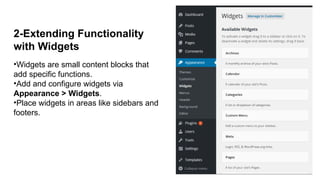
2-Extending Functionality
with Widgets
•Widgets are small content blocks that
add specific functions.
•Add and configure widgets via
Appearance > Widgets.
•Place widgets in areas like sidebars and
footers.
3-Creating Custom Menus
•Custom menus organize
site navigation.
•Create and manage menus
via Appearance > Menus.
•Add items, organize them,
and assign menus to
specific locations.
4-Optimizing Your Website for Search Engines (SEO)
•Improve visibility and ranking in search results.
•Focus on high-quality content, proper metadata, clean structure, and site
performance.
5-Integrating Social Media
•Connect your site with social media platforms.
•Add sharing buttons, social media feeds, and follow buttons to increase
engagement.
6-Enhancing Security Measures
•Protect your site from threats.
•Use strong passwords, enable HTTPS, and install security plugins.
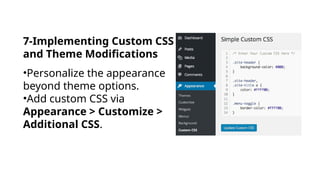
7-Implementing Custom CSS
and Theme Modifications
•Personalize the appearance
beyond theme options.
•Add custom CSS via
Appearance > Customize >
Additional CSS.
8-Using the WordPress
Customizer
•Customize your site's appearance
in real-time.
•Modify site identity, colors, fonts,
images, layout options, menus,
and widgets via Appearance >
Customize.
9-Creating and Managing Menus
•Essential for organizing navigation.
•Add, edit, and organize menu items using the built-in menu
editor.
10-Adding Widgets to Your Site
•Enhance user experience with dynamic content.
•Drag and drop widgets into widgetized areas, configure
settings, and reorder as needed.
Crucial for navigation and branding.
Modify logos, menus, images, layout, and add footer
widgets and
text.
12-Using Page Builders for Advanced Customization
Create custom layouts without coding.
Use drag-and-drop interfaces and pre-designed
templates from
plugins like Elementor, Beaver Builder, etc.
Ensure designs are responsive and properly displayed on
all
devices.
By mastering these customization techniques, you can
create a compelling and effective online presence that

Chapter 4Chapter 4Chapter 4Chapter 4.pptx

  • 1.
    Chapter 4: CustomizingYour Website Customizing your WordPress website makes it unique and functional. This chapter covers various methods and tools to help you effectively customize your site.
  • 2.
    1-Choosing and Installing Plugins •Pluginsextend your site's functionality. •Select plugins that are highly rated, compatible, regularly updated, and well-supported. •Install plugins via Plugins > Add New in your WordPress dashboard.
  • 3.
    2-Extending Functionality with Widgets •Widgetsare small content blocks that add specific functions. •Add and configure widgets via Appearance > Widgets. •Place widgets in areas like sidebars and footers.
  • 4.
    3-Creating Custom Menus •Custommenus organize site navigation. •Create and manage menus via Appearance > Menus. •Add items, organize them, and assign menus to specific locations.
  • 5.
    4-Optimizing Your Websitefor Search Engines (SEO) •Improve visibility and ranking in search results. •Focus on high-quality content, proper metadata, clean structure, and site performance. 5-Integrating Social Media •Connect your site with social media platforms. •Add sharing buttons, social media feeds, and follow buttons to increase engagement. 6-Enhancing Security Measures •Protect your site from threats. •Use strong passwords, enable HTTPS, and install security plugins.
  • 6.
    7-Implementing Custom CSS andTheme Modifications •Personalize the appearance beyond theme options. •Add custom CSS via Appearance > Customize > Additional CSS.
  • 7.
    8-Using the WordPress Customizer •Customizeyour site's appearance in real-time. •Modify site identity, colors, fonts, images, layout options, menus, and widgets via Appearance > Customize.
  • 8.
    9-Creating and ManagingMenus •Essential for organizing navigation. •Add, edit, and organize menu items using the built-in menu editor. 10-Adding Widgets to Your Site •Enhance user experience with dynamic content. •Drag and drop widgets into widgetized areas, configure settings, and reorder as needed.
  • 9.
    Crucial for navigationand branding. Modify logos, menus, images, layout, and add footer widgets and text. 12-Using Page Builders for Advanced Customization Create custom layouts without coding. Use drag-and-drop interfaces and pre-designed templates from plugins like Elementor, Beaver Builder, etc. Ensure designs are responsive and properly displayed on all devices. By mastering these customization techniques, you can create a compelling and effective online presence that