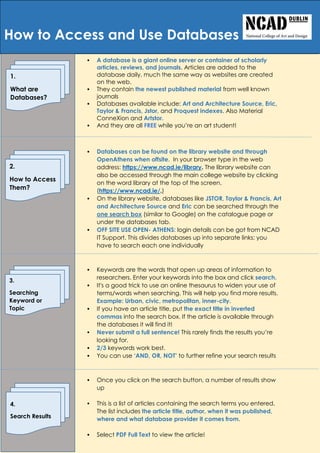
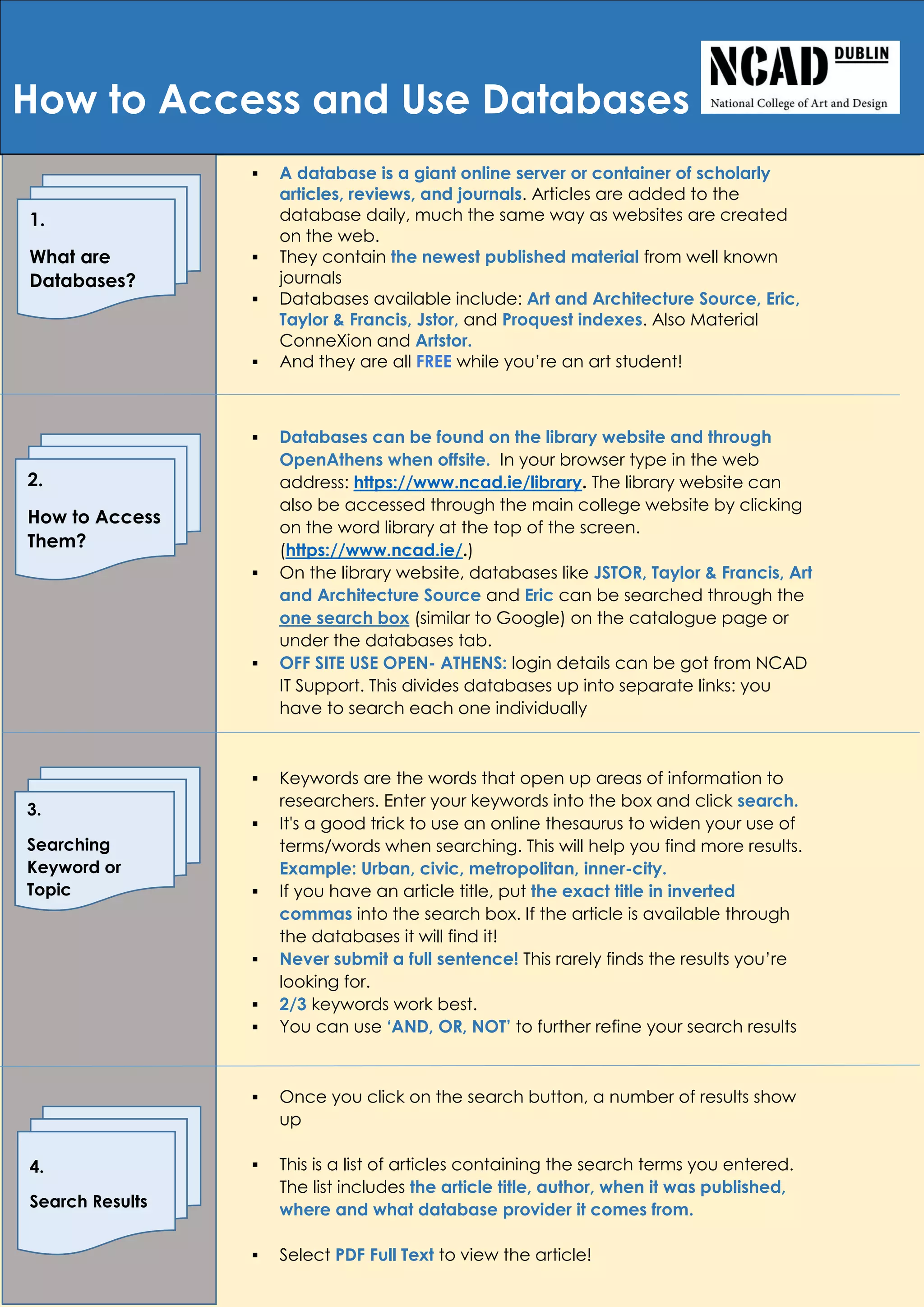
 A database is a giant online server or container of scholarly
articles, reviews, and journals. Articles are added to the
database daily, much the same way as websites are created
on the web.
 They contain the newest published material from well known
journals
 Databases available include: Art and Architecture Source, Eric,
Taylor & Francis, Jstor, and Proquest indexes. Also Material
ConneXion and Artstor.
 And they are all FREE while you’re an art student!
 And
 Databases can be found on the library website and through
OpenAthens when offsite. In your browser type in the web
address: https://www.ncad.ie/library. The library website can
also be accessed through the main college website by clicking
on the word library at the top of the screen.
(https://www.ncad.ie/.)
 On the library website, databases like JSTOR, Taylor & Francis, Art
and Architecture Source and Eric can be searched through the
one search box (similar to Google) on the catalogue page or
under the databases tab.
 OFF SITE USE OPEN- ATHENS: login details can be got from NCAD
IT Support. This divides databases up into separate links: you
have to search each one individually
 Keywords are the words that open up areas of information to
researchers. Enter your keywords into the box and click search.
 It's a good trick to use an online thesaurus to widen your use of
terms/words when searching. This will help you find more results.
Example: Urban, civic, metropolitan, inner-city.
 If you have an article title, put the exact title in inverted
commas into the search box. If the article is available through
the databases it will find it!
 Never submit a full sentence! This rarely finds the results you’re
looking for.
 2/3 keywords work best.
 You can use ‘AND, OR, NOT’ to further refine your search results
 Once you click on the search button, a number of results show
up
 This is a list of articles containing the search terms you entered.
The list includes the article title, author, when it was published,
where and what database provider it comes from.
 Select PDF Full Text to view the article!
How to Access and Use Databases
1.
What are
Databases?
2.
How to Access
Them?
3.
Searching
Keyword or
Topic
4.
Search Results
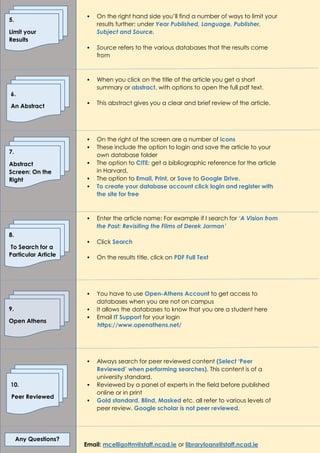
 On the right hand side you’ll find a number of ways to limit your
results further: under Year Published, Language, Publisher,
Subject and Source.
o
 Source refers to the various databases that the results come
from
 When you click on the title of the article you get a short
summary or abstract, with options to open the full pdf text.
 This abstract gives you a clear and brief review of the article.
 On the right of the screen are a number of icons
 These include the option to login and save the article to your
own database folder
 The option to CITE: get a bibliographic reference for the article
in Harvard.
 The option to Email, Print, or Save to Google Drive.
 To create your database account click login and register with
the site for free
 Enter the article name: For example if I search for ‘A Vision from
the Past: Revisiting the Films of Derek Jarman’
 Click Search
 On the results title, click on PDF Full Text
 You have to use Open-Athens Account to get access to
databases when you are not on campus
 It allows the databases to know that you are a student here
 Email IT Support for your login
o https://www.openathens.net/
 Always search for peer reviewed content (Select ‘Peer
Reviewed’ when performing searches). This content is of a
university standard.
 Reviewed by a panel of experts in the field before published
online or in print
 Gold standard, Blind, Masked etc. all refer to various levels of
peer review. Google scholar is not peer reviewed.
Email: mcelligottm@staff.ncad.ie or libraryloans@staff.ncad.ie
5.
Limit your
Results
6.
An Abstract
7.
Abstract
Screen: On the
Right
8.
To Search for a
Particular Article
9.
Open Athens
10.
Peer Reviewed
Any Questions?

Database Tips (3).pdf

  • 1.
     A databaseis a giant online server or container of scholarly articles, reviews, and journals. Articles are added to the database daily, much the same way as websites are created on the web.  They contain the newest published material from well known journals  Databases available include: Art and Architecture Source, Eric, Taylor & Francis, Jstor, and Proquest indexes. Also Material ConneXion and Artstor.  And they are all FREE while you’re an art student!  And  Databases can be found on the library website and through OpenAthens when offsite. In your browser type in the web address: https://www.ncad.ie/library. The library website can also be accessed through the main college website by clicking on the word library at the top of the screen. (https://www.ncad.ie/.)  On the library website, databases like JSTOR, Taylor & Francis, Art and Architecture Source and Eric can be searched through the one search box (similar to Google) on the catalogue page or under the databases tab.  OFF SITE USE OPEN- ATHENS: login details can be got from NCAD IT Support. This divides databases up into separate links: you have to search each one individually  Keywords are the words that open up areas of information to researchers. Enter your keywords into the box and click search.  It's a good trick to use an online thesaurus to widen your use of terms/words when searching. This will help you find more results. Example: Urban, civic, metropolitan, inner-city.  If you have an article title, put the exact title in inverted commas into the search box. If the article is available through the databases it will find it!  Never submit a full sentence! This rarely finds the results you’re looking for.  2/3 keywords work best.  You can use ‘AND, OR, NOT’ to further refine your search results  Once you click on the search button, a number of results show up  This is a list of articles containing the search terms you entered. The list includes the article title, author, when it was published, where and what database provider it comes from.  Select PDF Full Text to view the article! How to Access and Use Databases 1. What are Databases? 2. How to Access Them? 3. Searching Keyword or Topic 4. Search Results
  • 2.
     On theright hand side you’ll find a number of ways to limit your results further: under Year Published, Language, Publisher, Subject and Source. o  Source refers to the various databases that the results come from  When you click on the title of the article you get a short summary or abstract, with options to open the full pdf text.  This abstract gives you a clear and brief review of the article.  On the right of the screen are a number of icons  These include the option to login and save the article to your own database folder  The option to CITE: get a bibliographic reference for the article in Harvard.  The option to Email, Print, or Save to Google Drive.  To create your database account click login and register with the site for free  Enter the article name: For example if I search for ‘A Vision from the Past: Revisiting the Films of Derek Jarman’  Click Search  On the results title, click on PDF Full Text  You have to use Open-Athens Account to get access to databases when you are not on campus  It allows the databases to know that you are a student here  Email IT Support for your login o https://www.openathens.net/  Always search for peer reviewed content (Select ‘Peer Reviewed’ when performing searches). This content is of a university standard.  Reviewed by a panel of experts in the field before published online or in print  Gold standard, Blind, Masked etc. all refer to various levels of peer review. Google scholar is not peer reviewed. Email: mcelligottm@staff.ncad.ie or libraryloans@staff.ncad.ie 5. Limit your Results 6. An Abstract 7. Abstract Screen: On the Right 8. To Search for a Particular Article 9. Open Athens 10. Peer Reviewed Any Questions?