Curving text in PowerPoint
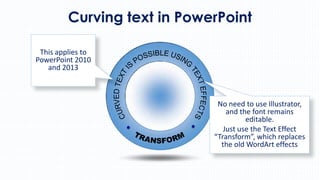
This applies to
PowerPoint 2010
and 2013

No need to use Illustrator,
and the font remains
editable.
Just use the Text Effect
“Transform”, which replaces
the old WordArt effects
Curving text in PowerPoint
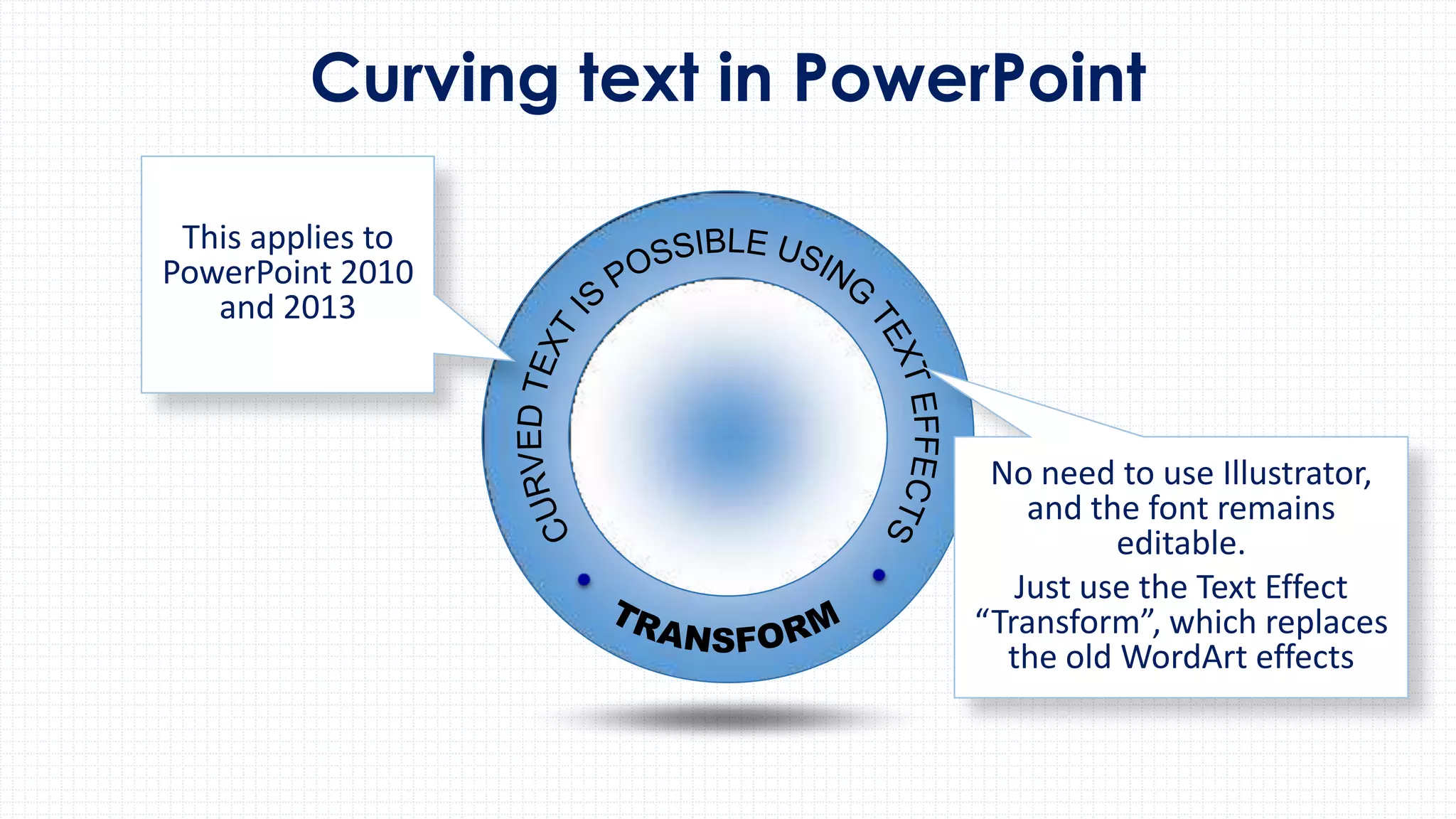
Insert text box & type in
your entry.
Pull out the text box so
it’s square and centered
over the circle element
you wish to match into.

CURVED TEXT IS
POSSIBLE USING
TEXT EFFECTS
Curving text in PowerPoint
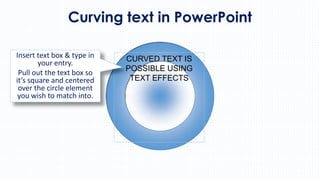
In the Ribbon, hit
FORMAT/Text Effects/
Transform

Your curve options are
under Follow Path –
hover over the effect to
see how it will look and
click the one you want…
Curving text in PowerPoint

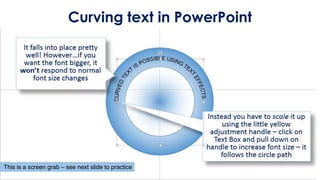
This is a screen grab – see next slide to practice
Curving text in PowerPoint
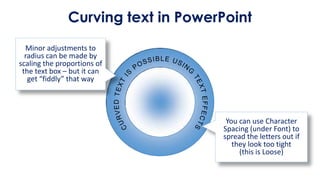
Minor adjustments to
radius can be made by
scaling the proportions of
the text box – but it can
get “fiddly” that way

You can use Character
Spacing (under Font) to
spread the letters out if
they look too tight
(this is Loose)
Curving text in PowerPoint
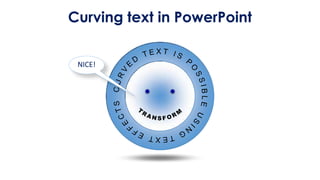
NICE!

Curving text in PowerPoint

  • 1.
    Curving text inPowerPoint This applies to PowerPoint 2010 and 2013 No need to use Illustrator, and the font remains editable. Just use the Text Effect “Transform”, which replaces the old WordArt effects
  • 2.
    Curving text inPowerPoint Insert text box & type in your entry. Pull out the text box so it’s square and centered over the circle element you wish to match into. CURVED TEXT IS POSSIBLE USING TEXT EFFECTS
  • 3.
    Curving text inPowerPoint In the Ribbon, hit FORMAT/Text Effects/ Transform Your curve options are under Follow Path – hover over the effect to see how it will look and click the one you want…
  • 4.
    Curving text inPowerPoint This is a screen grab – see next slide to practice
  • 5.
    Curving text inPowerPoint Minor adjustments to radius can be made by scaling the proportions of the text box – but it can get “fiddly” that way You can use Character Spacing (under Font) to spread the letters out if they look too tight (this is Loose)
  • 6.
    Curving text inPowerPoint NICE!