Matrix PD


      on A
Sessi
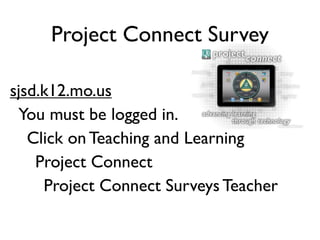
Project Connect Survey

sjsd.k12.mo.us
 You must be logged in.
   Click on Teaching and Learning
    Project Connect
     Project Connect Surveys Teacher
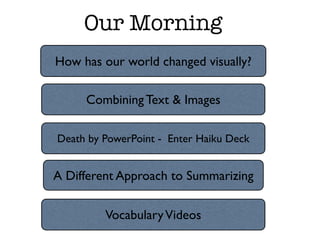
Our Morning
How has our world changed visually?

     Combining Text & Images

Death by PowerPoint - Enter Haiku Deck


A Different Approach to Summarizing

         Vocabulary Videos
Today’s Apps
             Phonto
Skitch


Haiku Deck    Qrafter
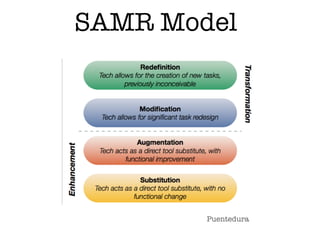
SAMR Model


        Puentedura
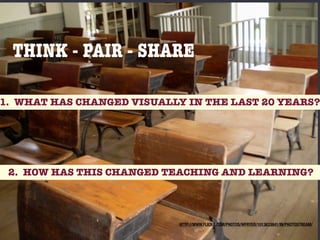
THINK - PAIR - SHARE

1. WHAT HAS CHANGED VISUALLY IN THE LAST 20 YEARS?


 2. HOW HAS THIS CHANGED TEACHING AND LEARNING?


                            HTTP://WWW.FLICKR.COM/PHOTOS/WFRYER/1013633841/IN/PHOTOSTREAM/
Digital Literacy


     The Power of
   Images & Symbols
According to research from 3M,
we process visuals 60,000x faster
           than text.
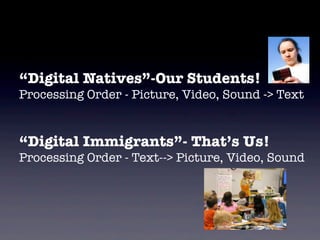
“Digital Natives”-Our Students!
Processing Order - Picture, Video, Sound -> Text


“Digital Immigrants”- That’s Us!
Processing Order - Text--> Picture, Video, Sound


                                 http://www.flickr.com/photos/judybaxter/5484879/sizes/l/
“Transfer
    (actual learning)
  improves 89% when
images are integrated
 into the instruction.”
        ~Dr. Lynell Burmark
So, if we know we need
 to use images, where
    do we get them?
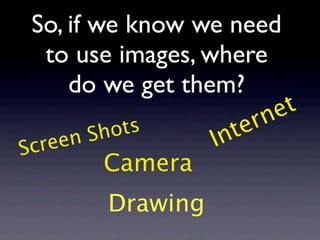
So, if we know we need
  to use images, where
     do we get them?
                              ne t
            ots        te r
    een   Sh         In
Scr
           Camera
           Drawing
IMAGE SEARCH OPTIONS


                                                  Young Men’s Tools by pj vanf
Compfight                          Pics4Learning


           Multicolr Search Lab
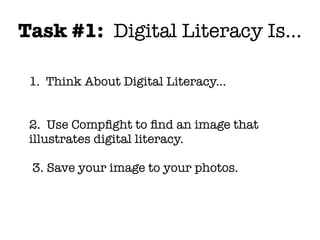
Task #1: Digital Literacy Is...

 1. Think About Digital Literacy...


 2. Use Compfight to find an image that
 illustrates digital literacy.

 3. Save your image to your photos.
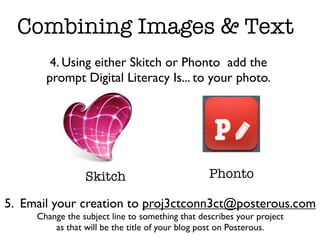
Combining Images & Text
        4. Using either Skitch or Phonto add the
       prompt Digital Literacy Is... to your photo.


                 Skitch                          Phonto

5. Email your creation to proj3ctconn3ct@posterous.com
     Change the subject line to something that describes your project
         as that will be the title of your blog post on Posterous.
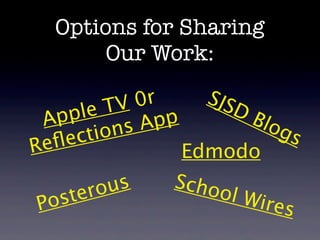
Options for Sharing
     Our Work:
Options for Sharing
       Our Work:


       ro us
Po ste
Options for Sharing
       Our Work:

          TV  0r
 Ap ple         pp
      ct io nsA
Re fle

       ro us
Po ste
Options for Sharing
       Our Work:

          TV  0r
 Ap ple         pp
      ct io nsA
Re fle

          us     Scho
   ste ro             o   l Wir
Po                              es
Options for Sharing
       Our Work:

              0r     SJS
    ple   TV            D
 Ap          sA pp          B lo
   fle ct io n                      gs
Re
          us     Scho
   ste ro             o   l Wir
Po                              es
Options for Sharing
        Our Work:

                0r     SJS
   pp le   TV             DB
  A          ns A pp         lo g
  efl ec ti o                     s
R                    Edmodo
          us      Scho
   ste ro              o   l Wir
Po                               es
App Review


         Vs.


Skitch         Phonto
Death By Powerpoint


What other PowerPoint mistakes have you seen?
Haiku Deck
Task #2 - Create a Presentation


       1. Using Haiku Deck
create a 4-5 slide presentation to...
What does sharing look like with Haiku Deck?

        To Share you have to create an account.

               Export - Saves as PPT & emails

     Email sends a link to the Haiku Deck website.
    From the web site you can get an embed code.

                   Email your creation to
              proj3ctconn3ct@posterous.com

    Change the subject line to something that describes your Haiku Deck
          as that will be the title of your blog post on Posterous.
QR Code Reader:


  Qrafter (App)
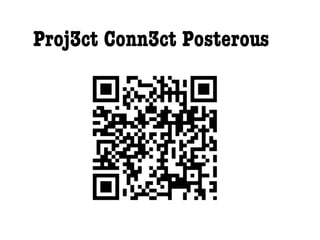
Proj3ct Conn3ct Posterous
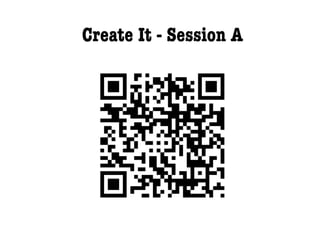
Create It - Session A
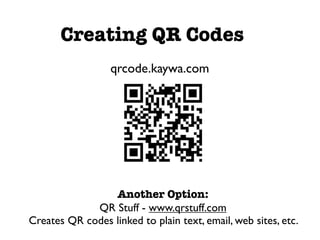
Creating QR Codes
                  qrcode.kaywa.com


                 Another Option:
             QR Stuff - www.qrstuff.com
Creates QR codes linked to plain text, email, web sites, etc.
Task 3 -
   Create a QR Code for your School
          Wires page or Blog.

1. Go to your School Wires Page or Blog in Safari.
2. Copy the URL.
3. In Safari go to qrcode.kawya.com
4. Save the QR Code to your photos.
Think - Pair - Share


Discuss ways that QR codes could be utilized in
               your classroom.

Add your ideas to the School Wires Discussion
          forum under Create It A
Task 4 - Use Comic Life to Summarize


1. Create a comic to summarize our day!
What have you learned today? What are
you excited about implementing in your
classroom?


     Email your completed comic as a
           Standard JPEG to:
     proj3ctconn3ct@posterous.com
i ew
                         e v
                  p  R
               p
          App Review
             A
         g -
    r in
 h a
S
Task #5 - Vocabulary Video

  1. Choose a tier 2 vocabulary Word.
   2. Create a 3-5 Page Educreations
  Screencast to illustrate your word.

Ideas: Include the definition, use the word in
        a sentence and use images to
 represent the word. Record your thinking!


 Email to: proj3ctconn3ct@posterous.com
ie w
                        ev
        App Reviewp   R
               Ap
         g   -
    r i n
 h a
S
We value your feedback!


       PD Evaluation

Create It Matrix PD Session A

  • 1.
    Matrix PD on A Sessi
  • 4.
    Project Connect Survey sjsd.k12.mo.us You must be logged in. Click on Teaching and Learning Project Connect Project Connect Surveys Teacher
  • 5.
    Our Morning How hasour world changed visually? Combining Text & Images Death by PowerPoint - Enter Haiku Deck A Different Approach to Summarizing Vocabulary Videos
  • 6.
    Today’s Apps Phonto Skitch Haiku Deck Qrafter
  • 7.
    SAMR Model Puentedura
  • 8.
    THINK - PAIR- SHARE 1. WHAT HAS CHANGED VISUALLY IN THE LAST 20 YEARS? 2. HOW HAS THIS CHANGED TEACHING AND LEARNING? HTTP://WWW.FLICKR.COM/PHOTOS/WFRYER/1013633841/IN/PHOTOSTREAM/
  • 9.
    Digital Literacy The Power of Images & Symbols
  • 10.
    According to researchfrom 3M, we process visuals 60,000x faster than text.
  • 11.
    “Digital Natives”-Our Students! ProcessingOrder - Picture, Video, Sound -> Text “Digital Immigrants”- That’s Us! Processing Order - Text--> Picture, Video, Sound http://www.flickr.com/photos/judybaxter/5484879/sizes/l/
  • 12.
    “Transfer (actual learning) improves 89% when images are integrated into the instruction.” ~Dr. Lynell Burmark
  • 13.
    So, if weknow we need to use images, where do we get them?
  • 14.
    So, if weknow we need to use images, where do we get them? ne t ots te r een Sh In Scr Camera Drawing

  • 15.
    IMAGE SEARCH OPTIONS Young Men’s Tools by pj vanf Compfight Pics4Learning Multicolr Search Lab
  • 16.
    Task #1: DigitalLiteracy Is... 1. Think About Digital Literacy... 2. Use Compfight to find an image that illustrates digital literacy. 3. Save your image to your photos.
  • 17.
    Combining Images &Text 4. Using either Skitch or Phonto add the prompt Digital Literacy Is... to your photo. Skitch Phonto 5. Email your creation to proj3ctconn3ct@posterous.com Change the subject line to something that describes your project as that will be the title of your blog post on Posterous.
  • 18.
  • 19.
    Options for Sharing Our Work: ro us Po ste
  • 20.
    Options for Sharing Our Work: TV 0r Ap ple pp ct io nsA Re fle ro us Po ste
  • 21.
    Options for Sharing Our Work: TV 0r Ap ple pp ct io nsA Re fle us Scho ste ro o l Wir Po es
  • 22.
    Options for Sharing Our Work: 0r SJS ple TV D Ap sA pp B lo fle ct io n gs Re us Scho ste ro o l Wir Po es
  • 23.
    Options for Sharing Our Work: 0r SJS pp le TV DB A ns A pp lo g efl ec ti o s R Edmodo us Scho ste ro o l Wir Po es
  • 24.
    App Review Vs. Skitch Phonto
  • 25.
    Death By Powerpoint Whatother PowerPoint mistakes have you seen?
  • 26.
  • 27.
    Task #2 -Create a Presentation 1. Using Haiku Deck create a 4-5 slide presentation to...
  • 29.
    What does sharinglook like with Haiku Deck? To Share you have to create an account. Export - Saves as PPT & emails Email sends a link to the Haiku Deck website. From the web site you can get an embed code. Email your creation to proj3ctconn3ct@posterous.com Change the subject line to something that describes your Haiku Deck as that will be the title of your blog post on Posterous.
  • 30.
    QR Code Reader: Qrafter (App)
  • 31.
  • 32.
    Create It -Session A
  • 33.
    Creating QR Codes qrcode.kaywa.com Another Option: QR Stuff - www.qrstuff.com Creates QR codes linked to plain text, email, web sites, etc.
  • 34.
    Task 3 - Create a QR Code for your School Wires page or Blog. 1. Go to your School Wires Page or Blog in Safari. 2. Copy the URL. 3. In Safari go to qrcode.kawya.com 4. Save the QR Code to your photos.
  • 35.
    Think - Pair- Share Discuss ways that QR codes could be utilized in your classroom. Add your ideas to the School Wires Discussion forum under Create It A
  • 37.
    Task 4 -Use Comic Life to Summarize 1. Create a comic to summarize our day! What have you learned today? What are you excited about implementing in your classroom? Email your completed comic as a Standard JPEG to: proj3ctconn3ct@posterous.com
  • 38.
    i ew e v p R p App Review A g - r in h a S
  • 40.
    Task #5 -Vocabulary Video 1. Choose a tier 2 vocabulary Word. 2. Create a 3-5 Page Educreations Screencast to illustrate your word. Ideas: Include the definition, use the word in a sentence and use images to represent the word. Record your thinking! Email to: proj3ctconn3ct@posterous.com
  • 41.
    ie w ev App Reviewp R Ap g - r i n h a S
  • 42.
    We value yourfeedback! PD Evaluation

Editor's Notes