Creating an Interactive Course Calendar within 
your Blackboard Course Site 
An interactive Course Calendar provides a seamless path to all class activities. It’s a creative way to group assignments, 
lessons, readings, etc. making it much easier for students to navigate your course site. An interactive calendar is creating 
by using “inter‐hyperlinks.” Inter‐hyperlinking is defined as linking from one area to another area within the same course 
site.  In order to do this in Blackboard, you must record the actual Web address of each area or document that you 
would like to link to. Since documents and areas are embedded within a Blackboard course frame and are not easily 
identifiable, you will need to copy each address individually.  

Warning: Inter‐hyperlinks should be checked immediately after a Blackboard upgrade as some (if not all) are usually 
broken and will need to be updated in the Word document. 

BEFORE YOU BEGIN, open a new Word document and access your 
Blackboard course site. 

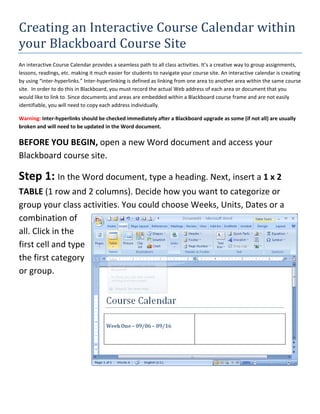
Step 1: In the Word document, type a heading. Next, insert a 1 x 2 
TABLE (1 row and 2 columns). Decide how you want to categorize or 
group your class activities. You could choose Weeks, Units, Dates or a 
combination of 
all. Click in the 
first cell and type 
the first category 
or group.  


Step 2: Click in the 
second cell and type 
the Class Activities 
for this period. 


Step 3: Next, let’s copy the Web address of each activity from 
Blackboard. Go to the first activity but DO NOT open it. Instead, right 
mouse click on the actual link and select Copy Shortcut (depending on 
                                                            your browser, 
                                                            it might be 
                                                            listed as Copy 
                                                            Link Address). 


Step 4: Return to the Word document. Highlight the text that this 
copied address needs to be associated with and either use the Insert 
menu to select [Hyper] Links or right mouse click on the highlighted text 
and select Hyperlink. 


Step 5: 
Paste the 
Address by 
holding 
down the 
CTRL key 
and 
pressing V. 
Click OK. 
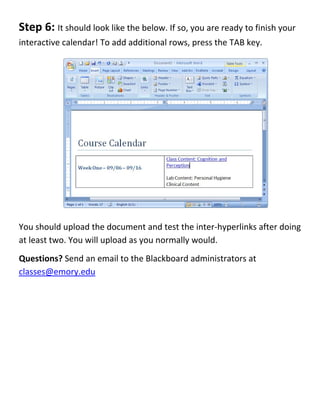
Step 6: It should look like the below. If so, you are ready to finish your 
interactive calendar! To add additional rows, press the TAB key. 


You should upload the document and test the inter‐hyperlinks after doing 
at least two. You will upload as you normally would.  
Questions? Send an email to the Blackboard administrators at 
classes@emory.edu 
 

Create interactive calendar