CoSign® Digital Signatures
CAD Applications – Bentley® MicroStation v8
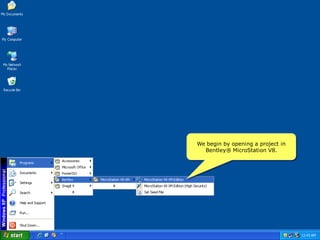
We begin by opening a project in
  Bentley® MicroStation V8.
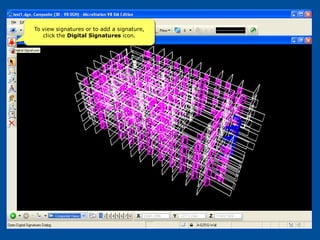
To view signatures or to add a signature,
   click the Digital Signatures icon.
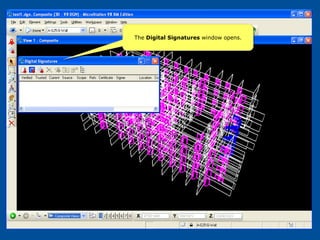
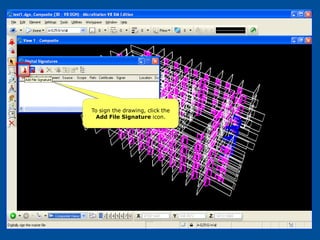
The Digital Signatures window opens.
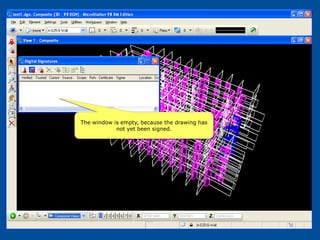
The window is empty, because the drawing has
            not yet been signed.
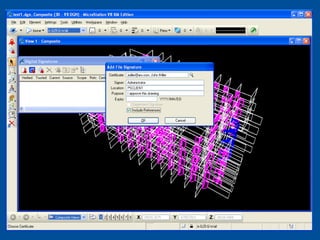
To sign the drawing, click the
 Add File Signature icon.
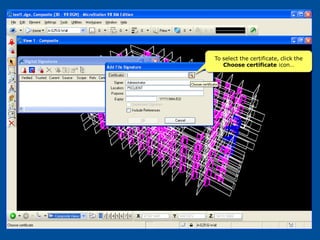
To select the certificate, click the
   Choose certificate icon…
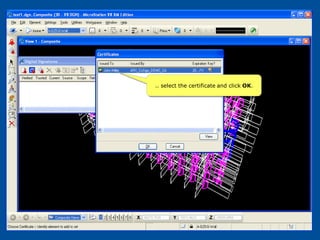
.. select the certificate and click OK.
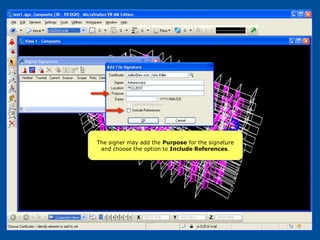
The signer may add the Purpose for the signature
 and choose the option to Include References.
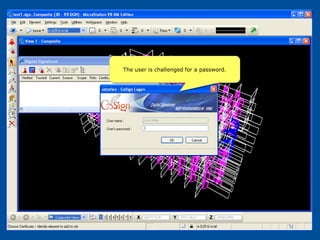
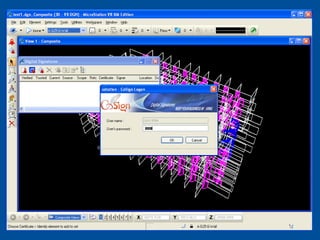
The user is challenged for a password.
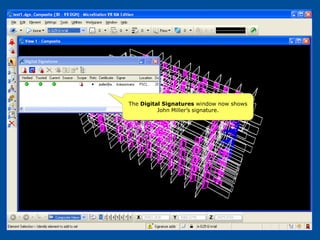
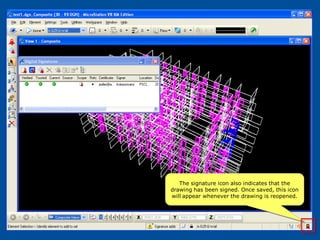
The Digital Signatures window now shows
          John Miller’s signature.
The signature icon also indicates that the
drawing has been signed. Once saved, this icon
will appear whenever the drawing is reopened.
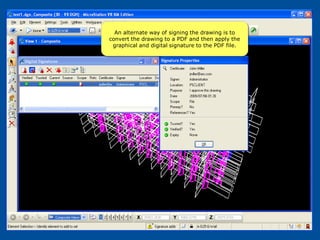
An alternate way of signing the drawing is to
convert the drawing to a PDF and then apply the
 graphical and digital signature to the PDF file.
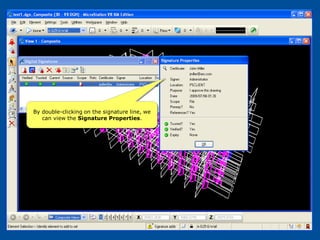
By double-clicking on the signature line, we
   can view the Signature Properties.
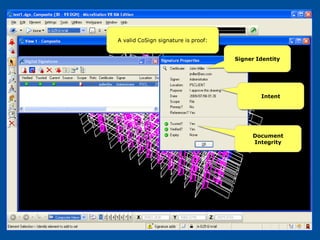
A valid CoSign signature is proof:


                                     Signer Identity


                                             Intent


                                          Document
                                          Integrity
Contact ARX:

           sales@arx.com

          (415) 839 8161

           www.arx.com

CoSign Digital Signatures For Microstation