CoSign® Digital Signatures for
TIFF Documents
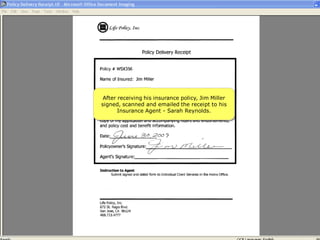
After receiving his insurance policy, Jim Miller
signed, scanned and emailed the receipt to his
       Insurance Agent - Sarah Reynolds.
The Agent reviews the TIFF and begins the
             signing process.
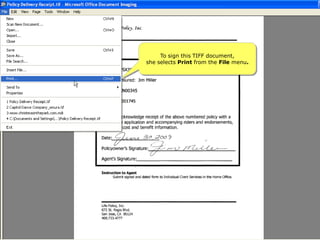
To sign this TIFF document,
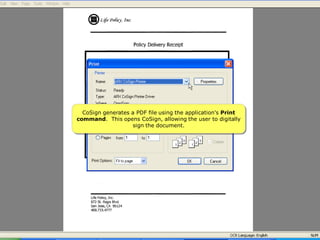
she selects Print from the File menu.
Sarah selects the ARX CoSign Printer.
CoSign generates a PDF file using the application's Print
command. This opens CoSign, allowing the user to digitally
                   sign the document.
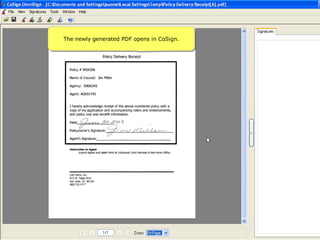
The newly generated PDF opens in CoSign.
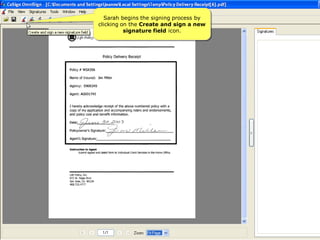
Sarah begins the signing process by
clicking on the Create and sign a new
          signature field icon.
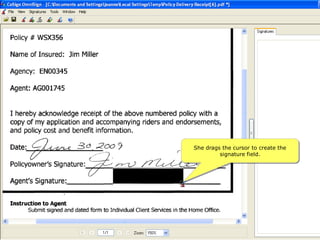
She drags the cursor to create the
         signature field.
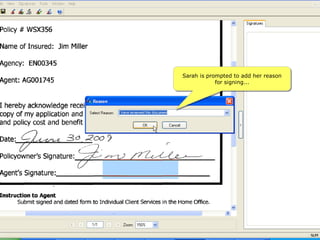
Sarah is prompted to add her reason
            for signing...
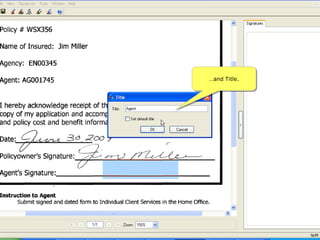
…and Title.
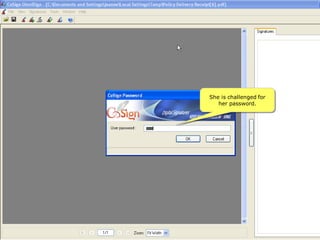
She is challenged for
   her password.
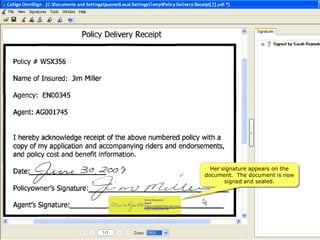
Her signature appears on the
document. The document is now
       signed and sealed.
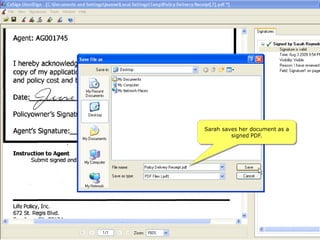
Sarah saves her document as a
         signed PDF.
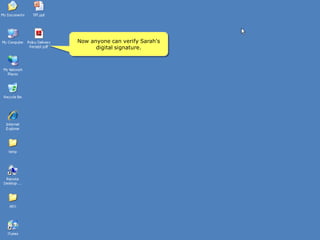
Now anyone can verify Sarah's
      digital signature.
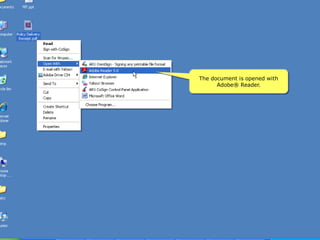
The document is opened with
      Adobe® Reader.
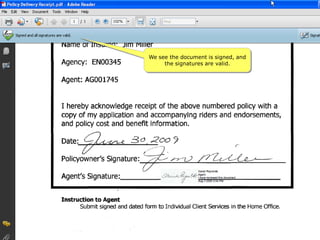
We see the document is signed, and
     the signatures are valid.
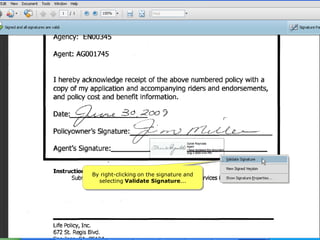
By right-clicking on the signature and
  selecting Validate Signature...
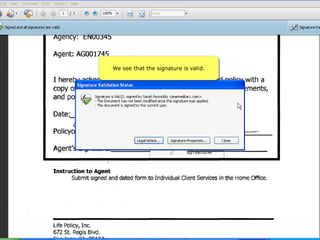
We see that the signature is valid.
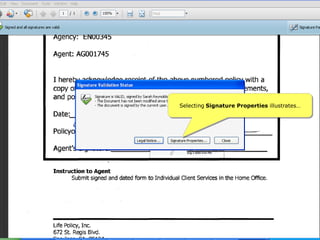
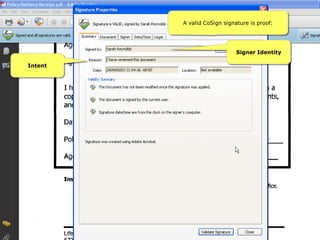
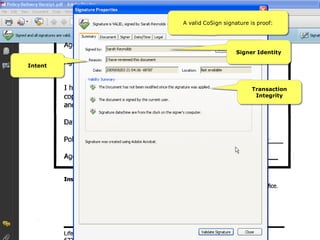
Selecting Signature Properties illustrates…
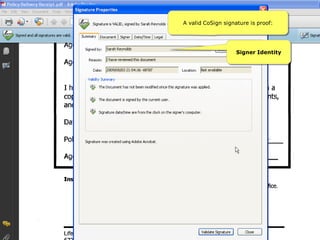
A valid CoSign signature is proof:


                    Signer Identity
A valid CoSign signature is proof:


                             Signer Identity

Intent
A valid CoSign signature is proof:


                             Signer Identity

Intent


                                   Transaction
                                    Integrity
Contact ARX:

           sales@arx.com

          (415) 839 8161

           www.arx.com

CoSign Digital Signatures for TIFF