Top 10 Configurations Tips for a Beginning AdministratorVenkatPolisettiAtlanta Salesforce User Group Leader
10. See Your “Company Profile” for User Licensing Info.What: View your organization’s user licensing information How: Setup | Administration Setup | Company Profile | Company InformationExample: How many licenses did we purchase?How many licenses do we have remaining?What are the different license types available to us?
9. Turn on the New User Interface What: Expose new features including Chatter, Global Search, Drag & Drop Dashboards, etc. via the new UIHow: Setup > Customize > User Interface > Enable New User Interface ThemeExample: Enable Chatter which automatically enables the new UI. Disabling the new UI automatically disables Chatter
8. Turn to the AppExchange for Free and paid ApplicationsWhat: Find pre-built apps & services that you can integrate with your instance of Salesforce.comHow: Select “Add AppExchange Apps…” from the Applications dropdown at the top right.Example: Install a free application on to your instance
7. User Setup Updates: Switch between LanguagesWhat: Change the display language of your Salesforce instance for your international users.How: Setup > Manage Users > Users > Edit each user > LanguageHint: Can also change Global Default Language for your organizationSetup > Company Profile > Company Information > Default Language
6. Using Login Access to Support Your UsersWhat? You can have login access granted by your users to allow you to see salesforce.com as they see it.
How? Setup > My Personal Information > Grant Login Access
Examples: Help to create a report that a user has stored in their personal reports folder; troubleshoot by seeing what they are seeing.5. Setup Profile-based Page Layouts What: Create page layouts that show relevant fields, links, and related lists important to different rolesHow: What are key processes/tasks performed by each department in my organization? Hint: keep things simple & start with one or two departmentsExample: Two Contact page layouts:Marketing team need to see key Prospect fields/related listsSales Team need to see key Customer fields/related lists
4. Create “Apps” to Organize Your OrgWhat: Create Apps in your instance to include relevant tabs used most frequently by your users.  How: Setup > Create > Apps > New > follow wizardExample: Create different app that includes Content, Documents, and URL tabs
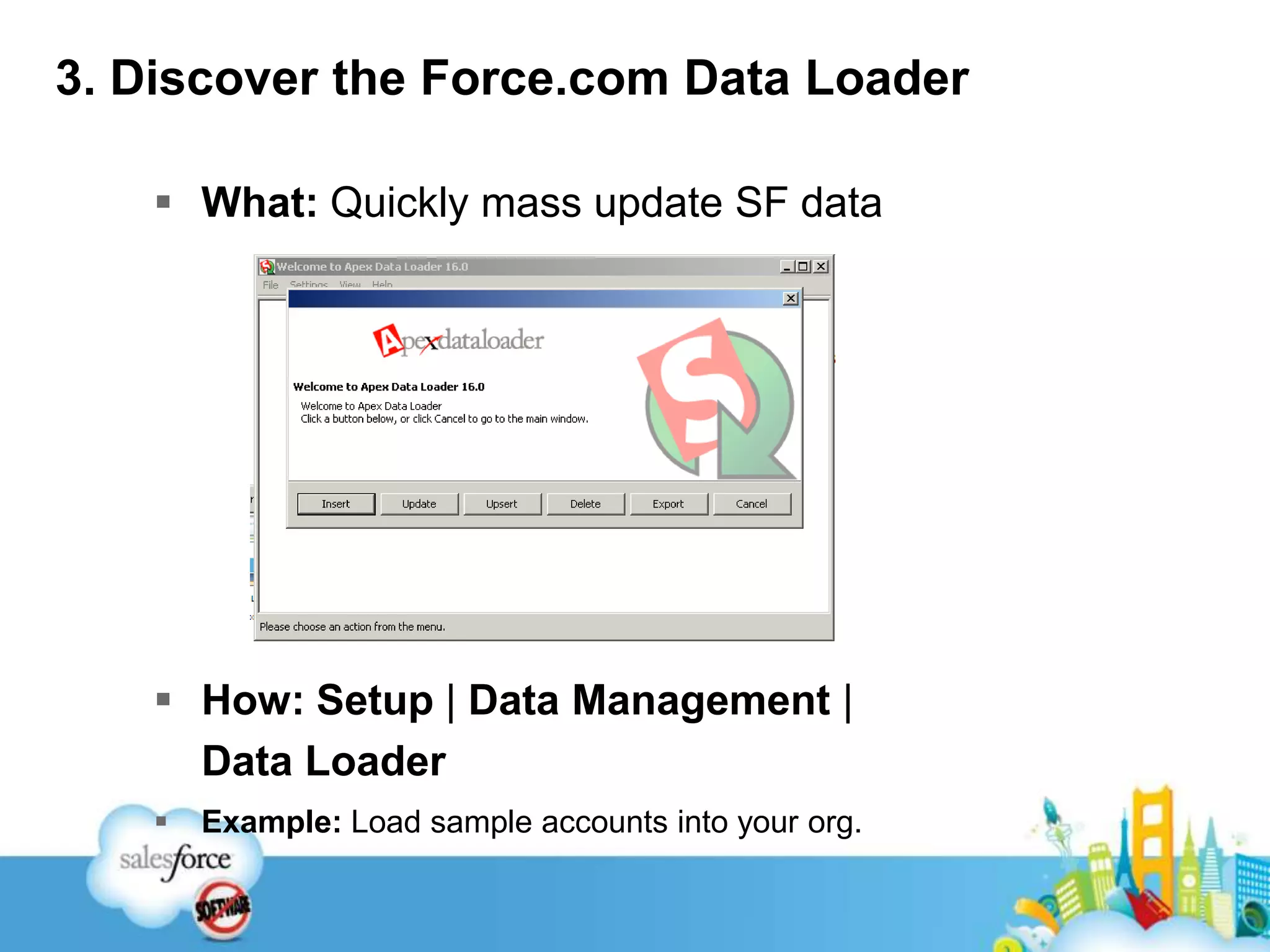
3. Discover the Force.com Data LoaderWhat: Quickly mass update SF dataHow: Setup | Data Management | Data LoaderExample: Load sample accounts into your org.
2. Build “Personalized” Sidebar ReportsWhat: Create sidebar reports specific to departments so that users have what they need at all timesHint: Use “&pv0”, “&pv1”, etc. codes on report URLs to limit report results by UserExample: Create a sidebar reports section for your users that will display various reports. When clicked on a report, the report will produce results based on the logged in user.

Configuration tips

  • 1.
    Top 10 ConfigurationsTips for a Beginning AdministratorVenkatPolisettiAtlanta Salesforce User Group Leader
  • 2.
    10. See Your“Company Profile” for User Licensing Info.What: View your organization’s user licensing information How: Setup | Administration Setup | Company Profile | Company InformationExample: How many licenses did we purchase?How many licenses do we have remaining?What are the different license types available to us?
  • 3.
    9. Turn onthe New User Interface What: Expose new features including Chatter, Global Search, Drag & Drop Dashboards, etc. via the new UIHow: Setup > Customize > User Interface > Enable New User Interface ThemeExample: Enable Chatter which automatically enables the new UI. Disabling the new UI automatically disables Chatter
  • 4.
    8. Turn tothe AppExchange for Free and paid ApplicationsWhat: Find pre-built apps & services that you can integrate with your instance of Salesforce.comHow: Select “Add AppExchange Apps…” from the Applications dropdown at the top right.Example: Install a free application on to your instance
  • 5.
    7. User SetupUpdates: Switch between LanguagesWhat: Change the display language of your Salesforce instance for your international users.How: Setup > Manage Users > Users > Edit each user > LanguageHint: Can also change Global Default Language for your organizationSetup > Company Profile > Company Information > Default Language
  • 6.
    6. Using LoginAccess to Support Your UsersWhat? You can have login access granted by your users to allow you to see salesforce.com as they see it.
  • 7.
    How? Setup >My Personal Information > Grant Login Access
  • 8.
    Examples: Help tocreate a report that a user has stored in their personal reports folder; troubleshoot by seeing what they are seeing.5. Setup Profile-based Page Layouts What: Create page layouts that show relevant fields, links, and related lists important to different rolesHow: What are key processes/tasks performed by each department in my organization? Hint: keep things simple & start with one or two departmentsExample: Two Contact page layouts:Marketing team need to see key Prospect fields/related listsSales Team need to see key Customer fields/related lists
  • 9.
    4. Create “Apps”to Organize Your OrgWhat: Create Apps in your instance to include relevant tabs used most frequently by your users. How: Setup > Create > Apps > New > follow wizardExample: Create different app that includes Content, Documents, and URL tabs
  • 10.
    3. Discover theForce.com Data LoaderWhat: Quickly mass update SF dataHow: Setup | Data Management | Data LoaderExample: Load sample accounts into your org.
  • 11.
    2. Build “Personalized”Sidebar ReportsWhat: Create sidebar reports specific to departments so that users have what they need at all timesHint: Use “&pv0”, “&pv1”, etc. codes on report URLs to limit report results by UserExample: Create a sidebar reports section for your users that will display various reports. When clicked on a report, the report will produce results based on the logged in user.
  • 12.
    1.Cross object formulasandvalidation rulesWhat: Cross object formulas help you pull information from a parent object on to a child object for display purposes. Validation rules on an object help you implement business requirements related to data input.How: Setup | App Setup | Create| Objects