Conda environment system &
how to use it on CSUC machines
Víctor Pérez
08/ 10 / 2019
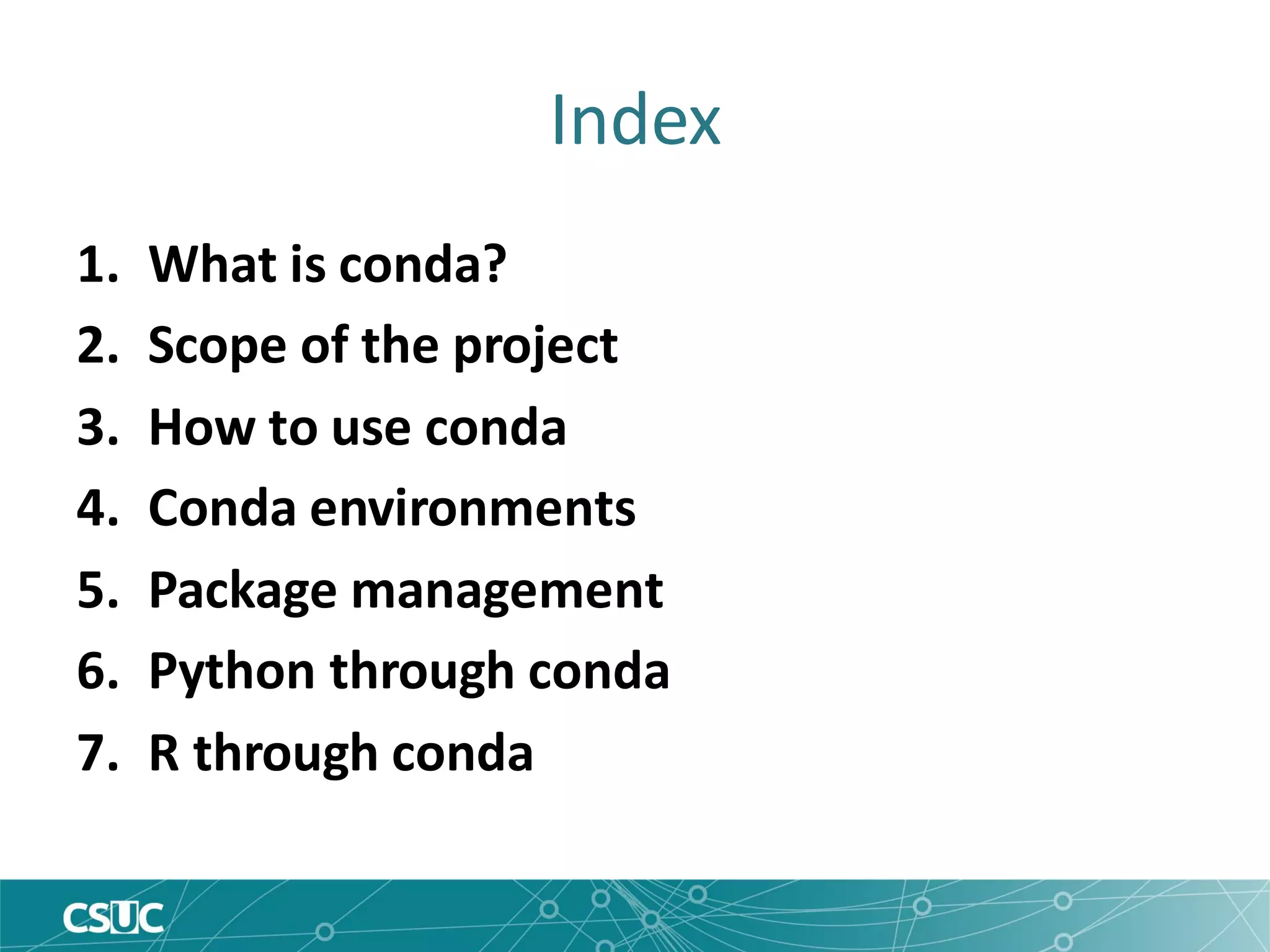
Index
1. What is conda?
2. Scope of the project
3. How to use conda
4. Conda environments
5. Package management
6. Python through conda
7. R through conda
What is conda?
• Originally: Anaconda, a distribution of Python
including common scientific packages
https://www.anaconda.com/
• Extended to include R and R packages, scientific
libraries, other software, etc.
• conda: core package manager for the Anaconda
project
What is conda?
• conda installs and updates binary versions of
Python and R packages from its own (or third
party) repositories
• It is an alternative to other repository systems,
like pip for Python or CRAN for R
• It is also a way to manage dependencies for
Python and R packages
But conda isn't...
• A repository of system software packages
(such as apt or yum)
• A repository of source code
• A replacement for environment modules
• Exhaustive or infallible
Scope of the project
• Python 2 & Python 3
• R
• Jupyter, Spyder, Rstudio...
• NumPy, SciPy, Pandas, Numba, Dask...
• Scikit-learn, TensorFlow, Theano...
• Matplotlib, Bokeh, Datashader, Holoviews...
• A variety of external libraries and tools
Conda channels
• Channels are thematic collections of packages,
useful to avoid version conflicts (equivalent to
repositories)
• Examples:
– pkgs/main: default channel
– conda-forge:large collection of third party packages
– bioconda:software for bioinformatics
– r: tailored to R users
How to use conda
• We need to load an environment module to
configure conda.
• First decision: Python 2 or Python 3?
Python 2: module load conda/2
Python 3: module load conda/3
How to use conda
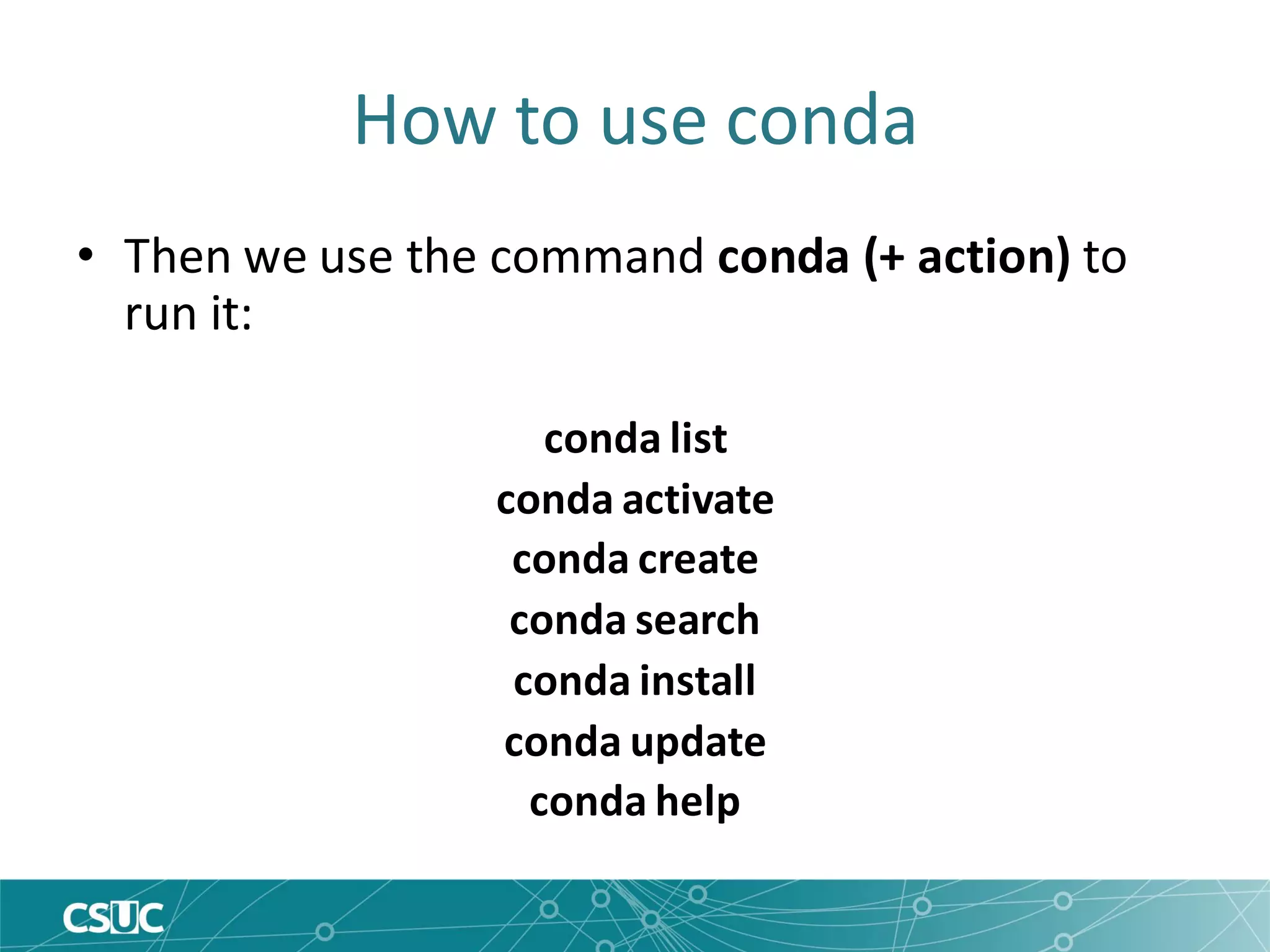
• Then we use the command conda (+ action) to
run it:
conda list
conda activate
conda create
conda search
conda install
conda update
conda help
Conda environments
• Inside a given installation of conda (conda/2 or
conda/3), there are a number of environments
• Environments are profiles: each will have a
different list of packages and versions installed
• There is a default base env, shared envs
(accessible to all users) and private envs
(accesible to the current user only)
Activating/Deactivating environments
• To see a list of environments: conda env list
• To load an env: conda activate <env_name>
• To unload: conda deactivate
Activating/Deactivating environments
• To see the contents of an env: conda list [-n env_name]
(by default, currently activated environment)
• Note: source activate and source deactivate are obsolete
Shared environments
• Maintained by our HPC team, available to all
users:
– base: Python and common Python packages
– bio-computation: Python, Biopython, Bioperl and
libraries for bioinformatics
– machine-learning:Python and R for ML, including
Scikit-learn, TensorFlow and Keras
– machine-learning-gpu: same but with GPU support
– quantum-chem: Python tools for QC, including MDtraj,
PySCF, libcint and libxc
Private environments
• Users can create their own private envs (stored at
$HOME/.conda/envs) which won't we visible for
other users
• To create a new empty environment: conda
create -n <env_name>
• To create a new environment with packages
preinstalled in it: conda create –n <env_name>
[list of packages]
Private environments
• To install one or more packages in a private env: conda
install [-n env_name] <packages>
• If no env is specified, installed in currently active
environment
• Version and channel can also be specified: conda install
[-n env_name] [-C channel] <package=version>
• Important note: users don't have permissions to install
packages in shared environments!
Private environments
• To update packages in an environment: conda
update [-n env_name] <specific packages> or
conda update [-n env_name] --all
• To uninstall packages: conda remove [-n
env_name] <packages>
• To completely delete a private environment:
conda remove -n <env_name> --all
Using Python through conda
#!/bin/bash
#SBATCH –p std
#SBATCH –N 1
#SBATCH –n 1
module load conda/3
conda activate machine-learning
python example.py
Using R through conda
#!/bin/bash
#SBATCH –p std
#SBATCH –N 1
#SBATCH –n 1
module load conda/3
conda activate machine-learning
Rscript example.R
Using R through conda
• It is possible to install R packages to the
private library directory using CRAN, although
it requires configuring a proxy!
Best practices
• Creating a private env tailored to your needs is
usually more efficient than using shared envs
• Avoid clutter in your private environments; it's
better to create multiple single-purpose
environmentes than one large environment with
too many packages
• Be mindful of version collision when updating
environments; if you don't need to update, don't
Thank you for your attention!

Conda environment system how to use it on CSUC machines

  • 1.
    Conda environment system& how to use it on CSUC machines Víctor Pérez 08/ 10 / 2019
  • 2.
    Index 1. What isconda? 2. Scope of the project 3. How to use conda 4. Conda environments 5. Package management 6. Python through conda 7. R through conda
  • 3.
    What is conda? •Originally: Anaconda, a distribution of Python including common scientific packages https://www.anaconda.com/ • Extended to include R and R packages, scientific libraries, other software, etc. • conda: core package manager for the Anaconda project
  • 4.
    What is conda? •conda installs and updates binary versions of Python and R packages from its own (or third party) repositories • It is an alternative to other repository systems, like pip for Python or CRAN for R • It is also a way to manage dependencies for Python and R packages
  • 5.
    But conda isn't... •A repository of system software packages (such as apt or yum) • A repository of source code • A replacement for environment modules • Exhaustive or infallible
  • 6.
    Scope of theproject • Python 2 & Python 3 • R • Jupyter, Spyder, Rstudio... • NumPy, SciPy, Pandas, Numba, Dask... • Scikit-learn, TensorFlow, Theano... • Matplotlib, Bokeh, Datashader, Holoviews... • A variety of external libraries and tools
  • 7.
    Conda channels • Channelsare thematic collections of packages, useful to avoid version conflicts (equivalent to repositories) • Examples: – pkgs/main: default channel – conda-forge:large collection of third party packages – bioconda:software for bioinformatics – r: tailored to R users
  • 8.
    How to useconda • We need to load an environment module to configure conda. • First decision: Python 2 or Python 3? Python 2: module load conda/2 Python 3: module load conda/3
  • 9.
    How to useconda • Then we use the command conda (+ action) to run it: conda list conda activate conda create conda search conda install conda update conda help
  • 10.
    Conda environments • Insidea given installation of conda (conda/2 or conda/3), there are a number of environments • Environments are profiles: each will have a different list of packages and versions installed • There is a default base env, shared envs (accessible to all users) and private envs (accesible to the current user only)
  • 11.
    Activating/Deactivating environments • Tosee a list of environments: conda env list • To load an env: conda activate <env_name> • To unload: conda deactivate
  • 12.
    Activating/Deactivating environments • Tosee the contents of an env: conda list [-n env_name] (by default, currently activated environment) • Note: source activate and source deactivate are obsolete
  • 13.
    Shared environments • Maintainedby our HPC team, available to all users: – base: Python and common Python packages – bio-computation: Python, Biopython, Bioperl and libraries for bioinformatics – machine-learning:Python and R for ML, including Scikit-learn, TensorFlow and Keras – machine-learning-gpu: same but with GPU support – quantum-chem: Python tools for QC, including MDtraj, PySCF, libcint and libxc
  • 14.
    Private environments • Userscan create their own private envs (stored at $HOME/.conda/envs) which won't we visible for other users • To create a new empty environment: conda create -n <env_name> • To create a new environment with packages preinstalled in it: conda create –n <env_name> [list of packages]
  • 15.
    Private environments • Toinstall one or more packages in a private env: conda install [-n env_name] <packages> • If no env is specified, installed in currently active environment • Version and channel can also be specified: conda install [-n env_name] [-C channel] <package=version> • Important note: users don't have permissions to install packages in shared environments!
  • 16.
    Private environments • Toupdate packages in an environment: conda update [-n env_name] <specific packages> or conda update [-n env_name] --all • To uninstall packages: conda remove [-n env_name] <packages> • To completely delete a private environment: conda remove -n <env_name> --all
  • 17.
    Using Python throughconda #!/bin/bash #SBATCH –p std #SBATCH –N 1 #SBATCH –n 1 module load conda/3 conda activate machine-learning python example.py
  • 18.
    Using R throughconda #!/bin/bash #SBATCH –p std #SBATCH –N 1 #SBATCH –n 1 module load conda/3 conda activate machine-learning Rscript example.R
  • 19.
    Using R throughconda • It is possible to install R packages to the private library directory using CRAN, although it requires configuring a proxy!
  • 20.
    Best practices • Creatinga private env tailored to your needs is usually more efficient than using shared envs • Avoid clutter in your private environments; it's better to create multiple single-purpose environmentes than one large environment with too many packages • Be mindful of version collision when updating environments; if you don't need to update, don't
  • 21.
    Thank you foryour attention!