Objectives:
At the endof lesson, you are expected to:
1.give examples of computer peripherals;
2.classify computer peripherals as input, output, or storage
device;
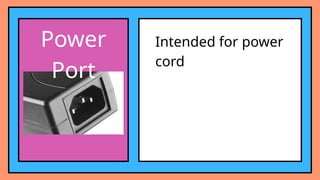
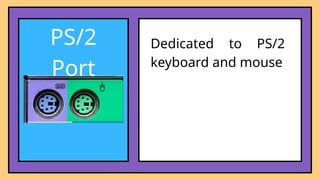
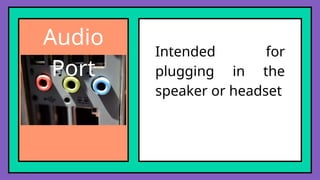
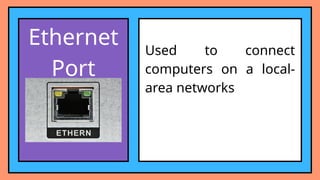
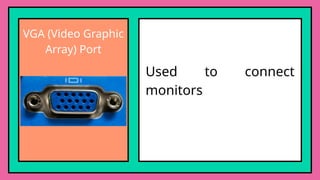
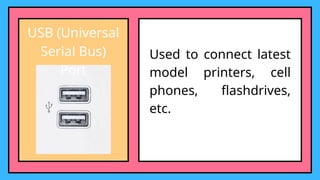
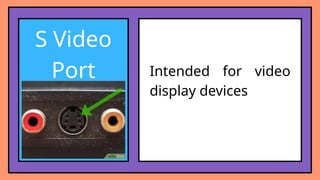
3.identify computer ports and their function;
4.determine what computer software and peripherals
(hardware) are needed in a task; and
5.explain the importance of proper handling of computers.
3.
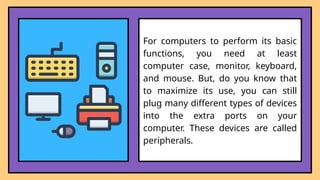
For computers toperform its basic
functions, you need at least
computer case, monitor, keyboard,
and mouse. But, do you know that
to maximize its use, you can still
plug many different types of devices
into the extra ports on your
computer. These devices are called
peripherals.
4.
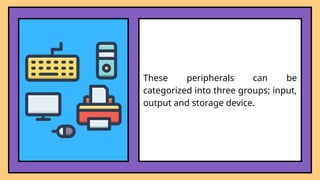
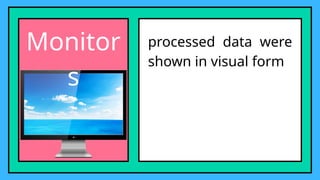
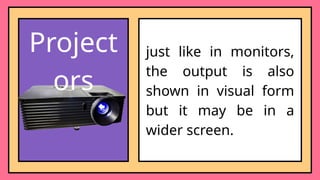
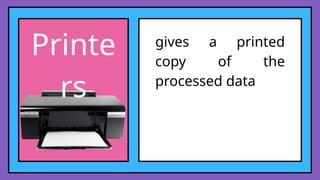
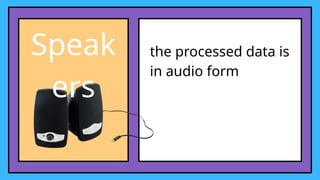
These peripherals canbe
categorized into three groups; input,
output and storage device.
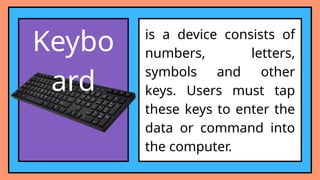
Keybo
ard
is a deviceconsists of
numbers, letters,
symbols and other
keys. Users must tap
these keys to enter the
data or command into
the computer.
7.
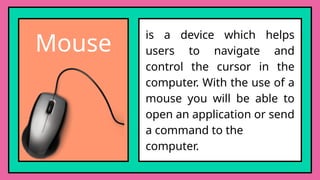
Mouse
is a devicewhich helps
users to navigate and
control the cursor in the
computer. With the use of a
mouse you will be able to
open an application or send
a command to the
computer.
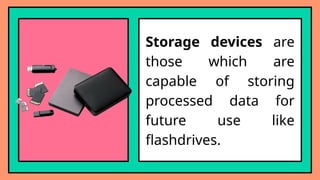
Storage devices are
thosewhich are
capable of storing
processed data for
future use like
flashdrives.
17.
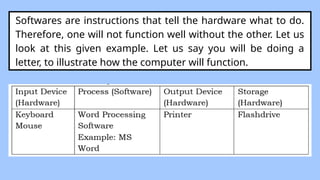
Softwares are instructionsthat tell the hardware what to do.
Therefore, one will not function well without the other. Let us
look at this given example. Let us say you will be doing a
letter, to illustrate how the computer will function.
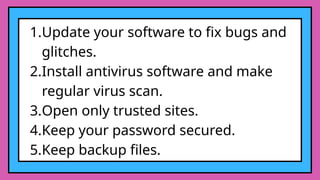
1.Update your softwareto fix bugs and
glitches.
2.Install antivirus software and make
regular virus scan.
3.Open only trusted sites.
4.Keep your password secured.
5.Keep backup files.
29.
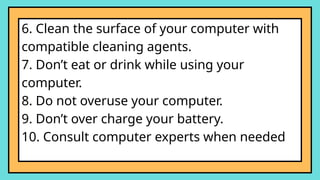
6. Clean thesurface of your computer with
compatible cleaning agents.
7. Don’t eat or drink while using your
computer.
8. Do not overuse your computer.
9. Don’t over charge your battery.
10. Consult computer experts when needed
30.
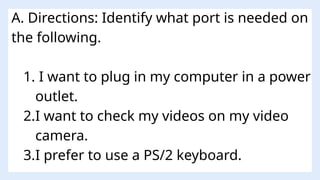
A. Directions: Identifywhat port is needed on
the following.
1. I want to plug in my computer in a power
outlet.
2.I want to check my videos on my video
camera.
3.I prefer to use a PS/2 keyboard.
31.
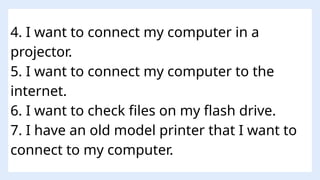
4. I wantto connect my computer in a
projector.
5. I want to connect my computer to the
internet.
6. I want to check files on my flash drive.
7. I have an old model printer that I want to
connect to my computer.
32.
8. I wantto listen to a song through using a
headphone.
9. I want to connect my old camera in my
computer.
10. I want to connect my smartphone on my
computer.
33.
B. Safety First
Directions:Read each statement carefully.
Write True if it tells proper way of handling
computer and False if it is not.
1. Do not touch computers when your hands
are wet.
2. Don’t eat and drink near your computer.
34.
3. Spray yourcomputer with soap and water
to keep it clean.
4. Spilling liquids on your computer will not
damage it.
5. Checked if all the cables are securely
plugged before turning on your computer.
6. Keep your workspace clean and free from
clutter.
35.
7. Avoid openingwebsites with untrusted
sources.
8. Adopt a good posture when using a
computer.
9. Always keep your password secured.
10. Stay in front of a computer as long as you
can until you finish a task.
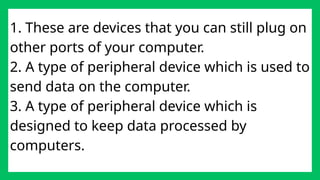
1. These aredevices that you can still plug on
other ports of your computer.
2. A type of peripheral device which is used to
send data on the computer.
3. A type of peripheral device which is
designed to keep data processed by
computers.
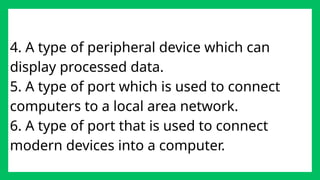
38.
4. A typeof peripheral device which can
display processed data.
5. A type of port which is used to connect
computers to a local area network.
6. A type of port that is used to connect
modern devices into a computer.
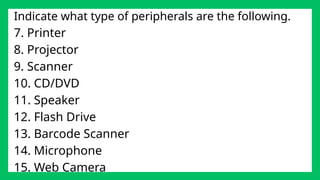
39.
Indicate what typeof peripherals are the following.
7. Printer
8. Projector
9. Scanner
10. CD/DVD
11. Speaker
12. Flash Drive
13. Barcode Scanner
14. Microphone
15. Web Camera
40.
Reflection:
Computer makes mytasks easier and therefore, I must
handle it properly in order to
__________________________________________________________
__________________________________________________________
__________________________________________________________
_______________
Editor's Notes
#17 As you can see without the software that will process the raw data encoded using the input device, there will be no output. From here, you can see how important is the role of each.
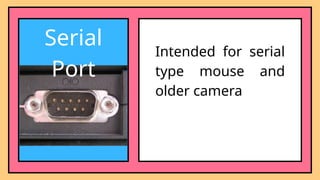
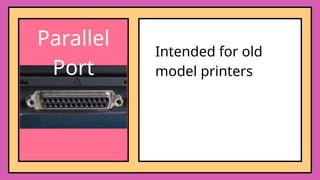
In a desktop computer, it is also important to understand the different ports that are found at the back of its system unit.
#27 Although computer can perform way better than human in terms of speed and accuracy, it is still susceptible to damage that may affect its performance. It is therefore a must to take proper care of computers to maximize its efficiency and lifespan.
#28 Bugs - an error or flaw
Glitches - a temporary malfunction
#32 1. Power Port
2. S Video Port
3. PS/2
4. VGA
5. Ethernet
6. USB
7. Parallel
8. Audio
9. Serial
10. USB