COMPUTER ASSIGNMENT (1/07/2021)
By: S Al Mohammed Musharaf
X-”A”
MICROSOFT WORD MENUS AND ITS FUNCTION:
 The File Menu
 The file menu is one you will find yourself using extensively. It is used to create new
documents, open existing documents and saving your new/updated documents. It
also includes the page setup, print preview, and other important functions relating to
your document and its properties.
 New: This creates a new Microsoft Word document. The page setup of the new
document, ie, the size, margins, etc, will depend on your page settings.
Open: This opens an existing Microsoft Word document, it will open a file explorer
window allowing you to navigate to the file you want to open.
Close: This will close the current word document. Microsoft Word may prompt you to
save the file, if you have made changes to the document since the last save.
Save: Saves the current document, replacing the existing file (if previously saved).
Save As: This allows you to save the document as a different file. This is very useful,
imagine you open your letterhead template and write a letter that you want to save, if
you just saved it (using the option above), it would replace your letterhead template.
When you click on Save As you will be able to choose the new filename and location
for your document.
MICROSOFT WORD MENUS AND ITS FUNCTION:
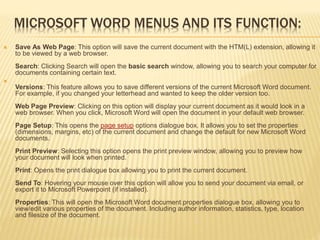
 Save As Web Page: This option will save the current document with the HTM(L) extension, allowing it
to be viewed by a web browser.
Search: Clicking Search will open the basic search window, allowing you to search your computer for
documents containing certain text.

Versions: This feature allows you to save different versions of the current Microsoft Word document.
For example, if you changed your letterhead and wanted to keep the older version too.
Web Page Preview: Clicking on this option will display your current document as it would look in a
web browser. When you click, Microsoft Word will open the document in your default web browser.
Page Setup: This opens the page setup options dialogue box. It allows you to set the properties
(dimensions, margins, etc) of the current document and change the default for new Microsoft Word
documents.
Print Preview: Selecting this option opens the print preview window, allowing you to preview how
your document will look when printed.
Print: Opens the print dialogue box allowing you to print the current document.
Send To: Hovering your mouse over this option will allow you to send your document via email, or
export it to Microsoft Powerpoint (if installed).
Properties: This will open the Microsoft Word document properties dialogue box, allowing you to
view/edit various properties of the document. Including author information, statistics, type, location
and filesize of the document.
MICROSOFT WORD MENUS AND ITS FUNCTION:
 The Edit Menu
 The edit menu, as its name suggests, includes commands relating to the editing of
your document. It includes important editing features such as undo, repeat, cut, copy,
paste, select all Undo (last task): This option allows you to undo the last thing you
did in your Microsoft Word document, in our example (fig 1.1) you can see our last
action was to type some text. This is a handy command, especially if you delete
something by accident.
Repeat (last task): This repeats your last action. In our example clicking on the
Repeat Typing will repeatedly insert the same piece of text into the document.
Cut: This command will cut (delete) the currently selected element. For example if
you highlight (select) some text and then click on cut, it will be deleted.
Copy: The Copy command will copy the curently selected element (text, image, etc)
into the office clipboard. It can then be inserted (pasted) into a document using the
Paste command (see below), which will appear in the edit menu once you have
copied something to the office clipboard.
Office Clipboard: This command will display the current contents of the office
clipboard, allowing you to click on the stored elements to insert (paste) them directly
into the current document. Elements (text, images, etc) can be added to the
clipboard using the Copy command (see above), this clipboard will also show any
elements stored in the Windows Clipboard.
MICROSOFT WORD MENUS AND ITS FUNCTION:
 Paste: This will paste (insert) into the current document the last element to be stored in the Office Clipboard.
Paste Special: Clicking on this command will bring up the Microsoft Word Paste Special dialogue box, it allows you to
control the format of the text that will be inserted (pasted) from the Office/Windows clipboard.
Paste as Hyperlink: This command allows you to link (create a hyperlink) to a certain place in another Microsoft
Word document, Excel worksheet, PowerPoint slide, or Access database. To achieve this, first copy the element that
you want to link to into the clipboard, and then select the Paste as Hyperlink command.
note: The target file must have been saved previously, likewise if you are linking to an element in the current
document, it must be saved first.
Clear: This command allows you to remove any formatting from the currently selected (highlighted) element
(text/image). It also allows you to delete the selected element.
Select All: This will select (highlight) every element in the current document.
Find: Find allows you to search the current document for a certain word or phrase.
Replace: Replace allows you to replace a given text with a substitute of your choice.
Goto: Goto allows you to go directly to a certain page, section, line, bookmark, comment, footnote, endnote, field,
table, graphic, equation, object, or heading.
Links: This allows you to manage any linked objects in the current document. A linked object is information (data) that
is stored in another file, for example a Microsoft Excel spreadsheet, Microsoft Access database, or other compatible
source. We will be covering linked objects in a future Microsoft Word tutorial.
Objects: This command allows you to manage any embedded objects within the current document.
 The View Menu
 This menu is used to control not only the visual layout of your Word document but
also the printing configuration. It is also used to select which toolbars are visible in
the Word environment. Commands include web layout, print layout, outline, task
pane, toolbars, ruler, header and footer, footnotes, full screen view and zoom.
Normal: Selecting this will show your current document in a layout without the
document margins.
Web Layout: The Web Layout view will show you how the current document will look
on a web browser, a full-screen layout.
Print Layout: This view will show the document in a layout including all margins and
page breaks.
Outline: The Outline view allows you to change the structure of your document,
when selected it will open the Outline Toolbar. The Outline Toolbar allows you to,
amongst other things, move headings up or down and/or change the heading types.
Task Pane: This command toggles (shows/hides) the Task Pane. The task pane is
designed to give you quick access to frequently used commands, including
Document Commands, The Office Clipboard, Basic Search, Style and Formatting
and more.
Toolbars: When you hover your mouse pointer over Toolbars you will be presented
with a submenu, this includes all of the different toolbars that are available. You can
MICROSOFT WORD MENUS AND ITS FUNCTION:
 Ruler: Clicking on this will toggle (hide/show) the document ruler which appears
across the top and down the side of the Microsoft Word document.
Document Map: The document map is a handy feature which allows you to navigate
the current document, it will list the headings (heading 1, heading 2, etc) in the
current document. To go directly to a certain paragraph heading, simply click on it in
the left hand pane that opens.
Header and Footer: This allows you to edit the header and footer of the current
document. We show you how to edit the header and footer in our letterhead
tutorial here.
Footnotes: This command will show all footnotes and endnotes (you will be
promoted for which) within the current document. Footnotes and Endnotes will be
covered in a future Microsoft Word tutorial.
Markup: This will toggle (hide/show) any Markup (comments and tracked
alterations/additions) in the current document.
Full Screen: This will show the current Microsoft Word document in full screen
mode.
Zoom: This will open the zoom dialogue box, enabling you to change the percentage
of zoom for the current view.
MICROSOFT WORD MENUS AND ITS FUNCTION:
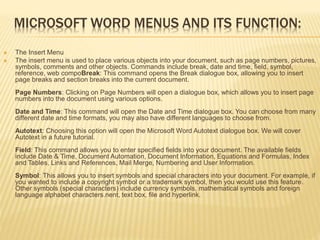
 The Insert Menu
 The insert menu is used to place various objects into your document, such as page numbers, pictures,
symbols, comments and other objects. Commands include break, date and time, field, symbol,
reference, web compoBreak: This command opens the Break dialogue box, allowing you to insert
page breaks and section breaks into the current document.
Page Numbers: Clicking on Page Numbers will open a dialogue box, which allows you to insert page
numbers into the document using various options.
Date and Time: This command will open the Date and Time dialogue box. You can choose from many
different date and time formats, you may also have different languages to choose from.
Autotext: Choosing this option will open the Microsoft Word Autotext dialogue box. We will cover
Autotext in a future tutorial.
Field: This command allows you to enter specified fields into your document. The available fields
include Date & Time, Document Automation, Document Information, Equations and Formulas, Index
and Tables, Links and References, Mail Merge, Numbering and User Information.
Symbol: This allows you to insert symbols and special characters into your document. For example, if
you wanted to include a copyright symbol or a trademark symbol, then you would use this feature.
Other symbols (special characters) include currency symbols, mathematical symbols and foreign
language alphabet characters.nent, text box, file and hyperlink.
MICROSOFT WORD MENUS AND ITS FUNCTION:
 Comment: This command will place a comment into the document at the location of the cursor. You
will be able to type your comment into the comment box, once done, simply click anywhere outside of
the comment box.
Reference: The Reference command will allow you to insert a footnote, caption, cross-reference,
index, and tables.
Web Component: This command is used to insert any web components into your Microsoft Word
document.
Picture: Allows you to insert a picture into your document. You will be offered various locations to
locate the image, including clip art, the file system on your computer, and a digital camera or scanner.
Diagram: The Diagram command will open the diagram gallery dialogue box. You can choose from a
selection of diagrams to insert into your document, including an organization chart, cycle diagram,
radial diagram, pyramid diagram, venn diagram and a target diagram. You may have less or more
diagrams available to insert, depending on your Microsoft Word installation.
Text Box: This allows you to insert text boxes, we will be covering text boxes in a future tutorial.
File: Enables you to insert part or all of a file into the current document.
Object: This command will insert an object of your choice, including media clips, Microsoft Excel
charts and worksheets, Microsoft Powerpoint slides and presentations.
Bookmark: This handy feature allows you to bookmark a certain element (text, image, etc). You can
name the bookmark and then return to it at any time by using the goto command in the edit menu.
Hyperlink: The Insert Hyperlink dialogue box allows you to add a hyperlink to an existing file, web
page, certain place in the current document, a new document, or an email address
MICROSOFT WORD MENUS AND ITS FUNCTION:
 The Format Menu
 A guide to the format menu which controls your font's properties along with
the borders and shading options. Commands include paragraph, bullets and
numbering, columns, tabs, text direction, background, autoformat, reveal
formatti Font: This will change the font attributes of either the currently
selected text, or any subsequent text, using the font dialogue box.
Paragraph: This command will open the Paragraph dialogue box, allowing
you to make changes to either existing text or subsequent text. To change
an existing paragraph, select the text you wish to change and then use this
command to make the alterations, such as alignment, indentation, and
spacing.
Bullets and Numbering: This is a handy command, it creates indented lists
with various formats. You can either click the command and then start typing
your list (pressing enter for the next line), or you can select some existing
text to convert to a list. The listing format options include bulleted,
numbered, outline numbered, and other styles.
Borders and Shading: This command allows you to create borders and
shading on elements within your Microsoft Word document. The borders and
shading can be applied to text, paragraphs, pictures, and more. ng and
MICROSOFT WORD MENUS AND ITS FUNCTION:
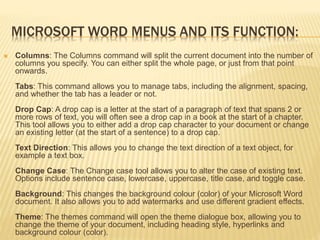
 Columns: The Columns command will split the current document into the number of
columns you specify. You can either split the whole page, or just from that point
onwards.
Tabs: This command allows you to manage tabs, including the alignment, spacing,
and whether the tab has a leader or not.
Drop Cap: A drop cap is a letter at the start of a paragraph of text that spans 2 or
more rows of text, you will often see a drop cap in a book at the start of a chapter.
This tool allows you to either add a drop cap character to your document or change
an existing letter (at the start of a sentence) to a drop cap.
Text Direction: This allows you to change the text direction of a text object, for
example a text box.
Change Case: The Change case tool allows you to alter the case of existing text.
Options include sentence case, lowercase, uppercase, title case, and toggle case.
Background: This changes the background colour (color) of your Microsoft Word
document. It also allows you to add watermarks and use different gradient effects.
Theme: The themes command will open the theme dialogue box, allowing you to
change the theme of your document, including heading style, hyperlinks and
background colour (color).
MICROSOFT WORD MENUS AND ITS FUNCTION:
 Frames: This command opens the Frames dialogue box.
AutoFormat: The AutoFormat feature will format a whole
document with preset attributes.
Styles and Formatting: This will open the Styles and
Formatting toolbar, allowing you create headings, lists
and more.
Reveal Formatting: Clicking on this will show a dialogue
box detailing the format attributes of the selected element.
Object: Allows you to make changes to any existing
objects within the current document
THANK YOU
BY: S AL MOHAMMED MUSHARAF
X-A
ACHARIYA SIKSHA
MANDIR

Computer assignment 01.07.2021.pptx

  • 1.
    COMPUTER ASSIGNMENT (1/07/2021) By:S Al Mohammed Musharaf X-”A”
  • 2.
    MICROSOFT WORD MENUSAND ITS FUNCTION:  The File Menu  The file menu is one you will find yourself using extensively. It is used to create new documents, open existing documents and saving your new/updated documents. It also includes the page setup, print preview, and other important functions relating to your document and its properties.  New: This creates a new Microsoft Word document. The page setup of the new document, ie, the size, margins, etc, will depend on your page settings. Open: This opens an existing Microsoft Word document, it will open a file explorer window allowing you to navigate to the file you want to open. Close: This will close the current word document. Microsoft Word may prompt you to save the file, if you have made changes to the document since the last save. Save: Saves the current document, replacing the existing file (if previously saved). Save As: This allows you to save the document as a different file. This is very useful, imagine you open your letterhead template and write a letter that you want to save, if you just saved it (using the option above), it would replace your letterhead template. When you click on Save As you will be able to choose the new filename and location for your document.
  • 3.
    MICROSOFT WORD MENUSAND ITS FUNCTION:  Save As Web Page: This option will save the current document with the HTM(L) extension, allowing it to be viewed by a web browser. Search: Clicking Search will open the basic search window, allowing you to search your computer for documents containing certain text.  Versions: This feature allows you to save different versions of the current Microsoft Word document. For example, if you changed your letterhead and wanted to keep the older version too. Web Page Preview: Clicking on this option will display your current document as it would look in a web browser. When you click, Microsoft Word will open the document in your default web browser. Page Setup: This opens the page setup options dialogue box. It allows you to set the properties (dimensions, margins, etc) of the current document and change the default for new Microsoft Word documents. Print Preview: Selecting this option opens the print preview window, allowing you to preview how your document will look when printed. Print: Opens the print dialogue box allowing you to print the current document. Send To: Hovering your mouse over this option will allow you to send your document via email, or export it to Microsoft Powerpoint (if installed). Properties: This will open the Microsoft Word document properties dialogue box, allowing you to view/edit various properties of the document. Including author information, statistics, type, location and filesize of the document.
  • 4.
    MICROSOFT WORD MENUSAND ITS FUNCTION:  The Edit Menu  The edit menu, as its name suggests, includes commands relating to the editing of your document. It includes important editing features such as undo, repeat, cut, copy, paste, select all Undo (last task): This option allows you to undo the last thing you did in your Microsoft Word document, in our example (fig 1.1) you can see our last action was to type some text. This is a handy command, especially if you delete something by accident. Repeat (last task): This repeats your last action. In our example clicking on the Repeat Typing will repeatedly insert the same piece of text into the document. Cut: This command will cut (delete) the currently selected element. For example if you highlight (select) some text and then click on cut, it will be deleted. Copy: The Copy command will copy the curently selected element (text, image, etc) into the office clipboard. It can then be inserted (pasted) into a document using the Paste command (see below), which will appear in the edit menu once you have copied something to the office clipboard. Office Clipboard: This command will display the current contents of the office clipboard, allowing you to click on the stored elements to insert (paste) them directly into the current document. Elements (text, images, etc) can be added to the clipboard using the Copy command (see above), this clipboard will also show any elements stored in the Windows Clipboard.
  • 5.
    MICROSOFT WORD MENUSAND ITS FUNCTION:  Paste: This will paste (insert) into the current document the last element to be stored in the Office Clipboard. Paste Special: Clicking on this command will bring up the Microsoft Word Paste Special dialogue box, it allows you to control the format of the text that will be inserted (pasted) from the Office/Windows clipboard. Paste as Hyperlink: This command allows you to link (create a hyperlink) to a certain place in another Microsoft Word document, Excel worksheet, PowerPoint slide, or Access database. To achieve this, first copy the element that you want to link to into the clipboard, and then select the Paste as Hyperlink command. note: The target file must have been saved previously, likewise if you are linking to an element in the current document, it must be saved first. Clear: This command allows you to remove any formatting from the currently selected (highlighted) element (text/image). It also allows you to delete the selected element. Select All: This will select (highlight) every element in the current document. Find: Find allows you to search the current document for a certain word or phrase. Replace: Replace allows you to replace a given text with a substitute of your choice. Goto: Goto allows you to go directly to a certain page, section, line, bookmark, comment, footnote, endnote, field, table, graphic, equation, object, or heading. Links: This allows you to manage any linked objects in the current document. A linked object is information (data) that is stored in another file, for example a Microsoft Excel spreadsheet, Microsoft Access database, or other compatible source. We will be covering linked objects in a future Microsoft Word tutorial. Objects: This command allows you to manage any embedded objects within the current document.
  • 6.
     The ViewMenu  This menu is used to control not only the visual layout of your Word document but also the printing configuration. It is also used to select which toolbars are visible in the Word environment. Commands include web layout, print layout, outline, task pane, toolbars, ruler, header and footer, footnotes, full screen view and zoom. Normal: Selecting this will show your current document in a layout without the document margins. Web Layout: The Web Layout view will show you how the current document will look on a web browser, a full-screen layout. Print Layout: This view will show the document in a layout including all margins and page breaks. Outline: The Outline view allows you to change the structure of your document, when selected it will open the Outline Toolbar. The Outline Toolbar allows you to, amongst other things, move headings up or down and/or change the heading types. Task Pane: This command toggles (shows/hides) the Task Pane. The task pane is designed to give you quick access to frequently used commands, including Document Commands, The Office Clipboard, Basic Search, Style and Formatting and more. Toolbars: When you hover your mouse pointer over Toolbars you will be presented with a submenu, this includes all of the different toolbars that are available. You can MICROSOFT WORD MENUS AND ITS FUNCTION:
  • 7.
    MICROSOFT WORD MENUSAND ITS FUNCTION:  Ruler: Clicking on this will toggle (hide/show) the document ruler which appears across the top and down the side of the Microsoft Word document. Document Map: The document map is a handy feature which allows you to navigate the current document, it will list the headings (heading 1, heading 2, etc) in the current document. To go directly to a certain paragraph heading, simply click on it in the left hand pane that opens. Header and Footer: This allows you to edit the header and footer of the current document. We show you how to edit the header and footer in our letterhead tutorial here. Footnotes: This command will show all footnotes and endnotes (you will be promoted for which) within the current document. Footnotes and Endnotes will be covered in a future Microsoft Word tutorial. Markup: This will toggle (hide/show) any Markup (comments and tracked alterations/additions) in the current document. Full Screen: This will show the current Microsoft Word document in full screen mode. Zoom: This will open the zoom dialogue box, enabling you to change the percentage of zoom for the current view.
  • 8.
    MICROSOFT WORD MENUSAND ITS FUNCTION:  The Insert Menu  The insert menu is used to place various objects into your document, such as page numbers, pictures, symbols, comments and other objects. Commands include break, date and time, field, symbol, reference, web compoBreak: This command opens the Break dialogue box, allowing you to insert page breaks and section breaks into the current document. Page Numbers: Clicking on Page Numbers will open a dialogue box, which allows you to insert page numbers into the document using various options. Date and Time: This command will open the Date and Time dialogue box. You can choose from many different date and time formats, you may also have different languages to choose from. Autotext: Choosing this option will open the Microsoft Word Autotext dialogue box. We will cover Autotext in a future tutorial. Field: This command allows you to enter specified fields into your document. The available fields include Date & Time, Document Automation, Document Information, Equations and Formulas, Index and Tables, Links and References, Mail Merge, Numbering and User Information. Symbol: This allows you to insert symbols and special characters into your document. For example, if you wanted to include a copyright symbol or a trademark symbol, then you would use this feature. Other symbols (special characters) include currency symbols, mathematical symbols and foreign language alphabet characters.nent, text box, file and hyperlink.
  • 9.
    MICROSOFT WORD MENUSAND ITS FUNCTION:  Comment: This command will place a comment into the document at the location of the cursor. You will be able to type your comment into the comment box, once done, simply click anywhere outside of the comment box. Reference: The Reference command will allow you to insert a footnote, caption, cross-reference, index, and tables. Web Component: This command is used to insert any web components into your Microsoft Word document. Picture: Allows you to insert a picture into your document. You will be offered various locations to locate the image, including clip art, the file system on your computer, and a digital camera or scanner. Diagram: The Diagram command will open the diagram gallery dialogue box. You can choose from a selection of diagrams to insert into your document, including an organization chart, cycle diagram, radial diagram, pyramid diagram, venn diagram and a target diagram. You may have less or more diagrams available to insert, depending on your Microsoft Word installation. Text Box: This allows you to insert text boxes, we will be covering text boxes in a future tutorial. File: Enables you to insert part or all of a file into the current document. Object: This command will insert an object of your choice, including media clips, Microsoft Excel charts and worksheets, Microsoft Powerpoint slides and presentations. Bookmark: This handy feature allows you to bookmark a certain element (text, image, etc). You can name the bookmark and then return to it at any time by using the goto command in the edit menu. Hyperlink: The Insert Hyperlink dialogue box allows you to add a hyperlink to an existing file, web page, certain place in the current document, a new document, or an email address
  • 10.
    MICROSOFT WORD MENUSAND ITS FUNCTION:  The Format Menu  A guide to the format menu which controls your font's properties along with the borders and shading options. Commands include paragraph, bullets and numbering, columns, tabs, text direction, background, autoformat, reveal formatti Font: This will change the font attributes of either the currently selected text, or any subsequent text, using the font dialogue box. Paragraph: This command will open the Paragraph dialogue box, allowing you to make changes to either existing text or subsequent text. To change an existing paragraph, select the text you wish to change and then use this command to make the alterations, such as alignment, indentation, and spacing. Bullets and Numbering: This is a handy command, it creates indented lists with various formats. You can either click the command and then start typing your list (pressing enter for the next line), or you can select some existing text to convert to a list. The listing format options include bulleted, numbered, outline numbered, and other styles. Borders and Shading: This command allows you to create borders and shading on elements within your Microsoft Word document. The borders and shading can be applied to text, paragraphs, pictures, and more. ng and
  • 11.
    MICROSOFT WORD MENUSAND ITS FUNCTION:  Columns: The Columns command will split the current document into the number of columns you specify. You can either split the whole page, or just from that point onwards. Tabs: This command allows you to manage tabs, including the alignment, spacing, and whether the tab has a leader or not. Drop Cap: A drop cap is a letter at the start of a paragraph of text that spans 2 or more rows of text, you will often see a drop cap in a book at the start of a chapter. This tool allows you to either add a drop cap character to your document or change an existing letter (at the start of a sentence) to a drop cap. Text Direction: This allows you to change the text direction of a text object, for example a text box. Change Case: The Change case tool allows you to alter the case of existing text. Options include sentence case, lowercase, uppercase, title case, and toggle case. Background: This changes the background colour (color) of your Microsoft Word document. It also allows you to add watermarks and use different gradient effects. Theme: The themes command will open the theme dialogue box, allowing you to change the theme of your document, including heading style, hyperlinks and background colour (color).
  • 12.
    MICROSOFT WORD MENUSAND ITS FUNCTION:  Frames: This command opens the Frames dialogue box. AutoFormat: The AutoFormat feature will format a whole document with preset attributes. Styles and Formatting: This will open the Styles and Formatting toolbar, allowing you create headings, lists and more. Reveal Formatting: Clicking on this will show a dialogue box detailing the format attributes of the selected element. Object: Allows you to make changes to any existing objects within the current document
  • 13.
    THANK YOU BY: SAL MOHAMMED MUSHARAF X-A ACHARIYA SIKSHA MANDIR