Collaborative TechnologiesWorking with your professional collaboration teams at a distance—for free.
The Problem to SolveEducators must collaborate at a distance.It must be easy to use.It must be free.They must be able to talk live (synchronously).They must be able to see each others’ computer desktops live (synchronously).They must be able to work on the same document stored in the same place at different times (asynchronously).They must be able to share their ideas and archive their thoughts and exchanges.They must be able to archive documents for trial use.
Answers for this trialSkypeMikogoGoogle DocsEdmodoEdu20
Answers for this trial.SkypeFree live audio, video, text chat conferencing.MikogoFree live desktop share.Google DocsFree document storage while multiple people can have access to view or view/edit a single document.EdmodoFree educator blog groups.Edu20Free document storage (and a whole lot more).
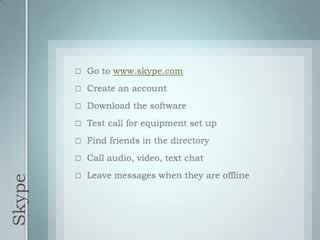
SkypeGo to www.skype.comCreate an accountDownload the softwareTest call for equipment set upFind friends in the directoryCall audio, video, text chatLeave messages when they are offline
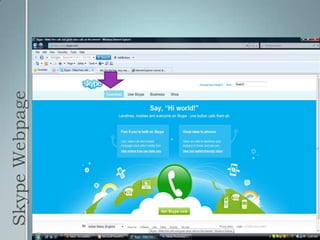
Skype Webpage
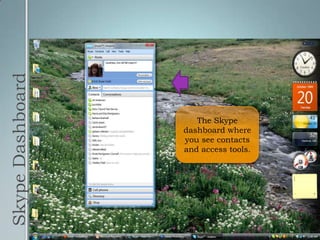
Skype DashboardThe Skype dashboard where you see contacts and access tools.
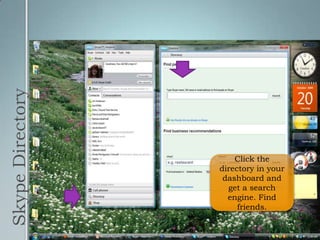
Skype DirectoryClick the directory in your dashboard and get a search engine. Find friends.
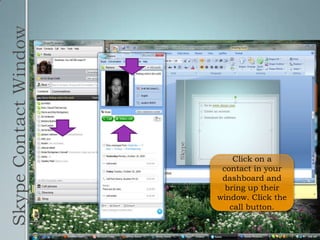
Skype Contact WindowClick on a contact in your dashboard and bring up their window. Click the call button.
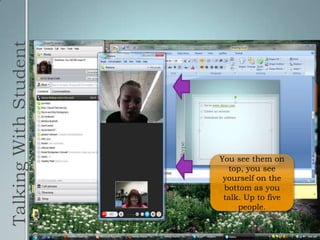
Talking With StudentYou see them on top, you see yourself on the bottom as you talk. Up to five people.
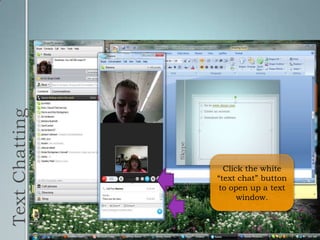
Text ChattingClick the white “text chat” button to open up a text window.
Skype Tutorialshttp://www.scribd.com/doc/5397421/Short-Takes-Tutorial-Skype-Basicshttp://www.northcanton.sparcc.org/~technology/Tutorials/skype.htmlhttp://itknowledgeexchange.techtarget.com/whatis/skype-tutorial-demos/http://www.top-windows-tutorials.com/install-skype.html
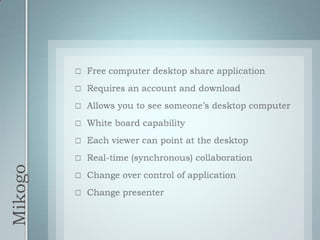
MikogoFree computer desktop share applicationRequires an account and downloadAllows you to see someone’s desktop computerWhite board capabilityEach viewer can point at the desktopReal-time (synchronous) collaborationChange over control of applicationChange presenter
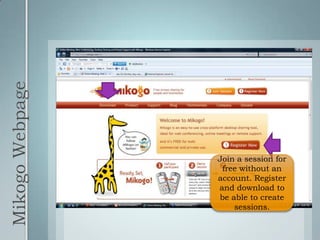
Mikogo WebpageJoin a session for free without an account. Register and download to be able to create sessions.
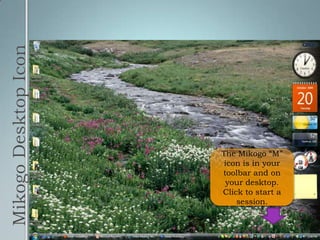
Mikogo Desktop IconThe Mikogo “M” icon is in your toolbar and on your desktop. Click to start a session.
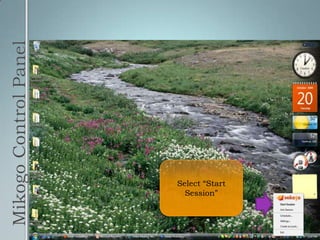
Mikogo Control PanelSelect “Start Session”
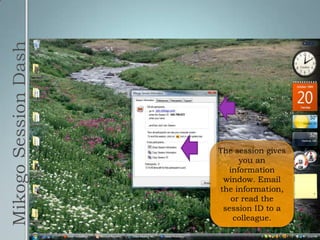
Mikogo Session DashThe session gives you an information window. Email the information, or read the session ID to a colleague.
GoogleDocsOne of many free Google Aps.Use your work email or any email you choose as your “gmail” address.Store documents to access from anywhere.Share for others to view.Let others edit and collaborate on the documents.Multiple document types.No more emailing back and forth waiting, wondering who has the latest version.
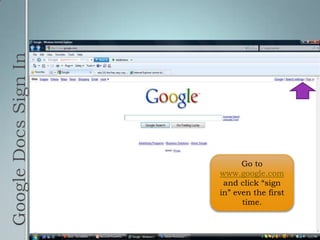
Google Docs Sign InGo to www.google.com and click “sign in” even the first time.
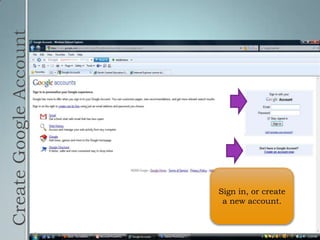
Create Google AccountSign in, or create a new account.
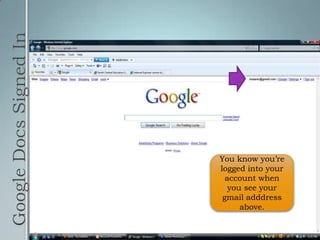
Google Docs Signed InYou know you’re logged into your account when you see your gmailadddress above.
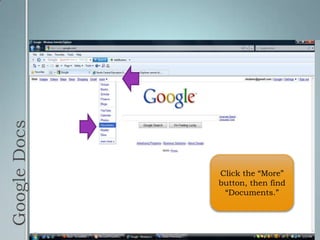
Google DocsClick the “More” button, then find “Documents.”
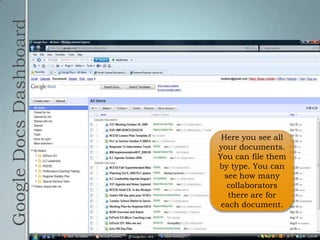
Google Docs DashboardHere you see all your documents. You can file them by type. You can see how many collaborators there are for each document.
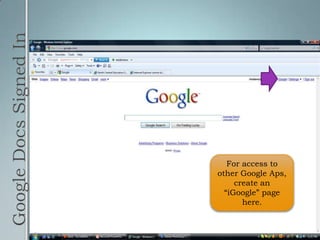
Google Docs Signed InFor access to other Google Aps, create an “iGoogle” page here.
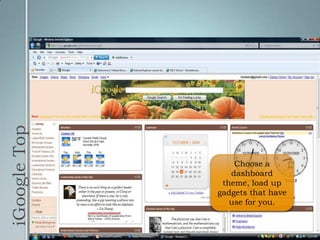
iGoogle TopChoose a dashboard theme, load up gadgets that have use for you.
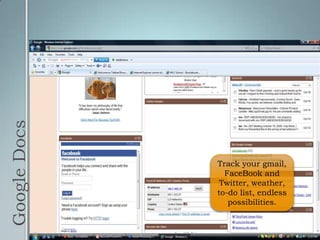
Google DocsTrack your gmail, FaceBook and Twitter, weather, to-do list, endless possibilities.
Google Docs Tutorialshttp://www.google.com/google-d-s/tour1.htmlhttp://edutech.msu.edu/online/GoogleDocs/GoogleDocs.htmlhttp://www.google.com/educators/p_docs.htmlhttp://www.youtube.com/watch?v=urrvY0YQWE4http://benjisimon.blogspot.com/2009/09/google-docs-tutorial-how-to-not-take.html
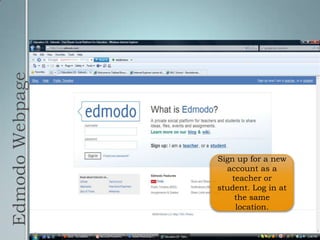
EdmodoA private social platform for teachers and students to share ideas, files, events and assignmentsFree and easyEach group is invitation onlyKeep a running record of project progress and changesAccessible asynchronouslyAlso great for use with giving assignments and sharing information
Edmodo WebpageSign up for a new account as a teacher or student. Log in at the same location.
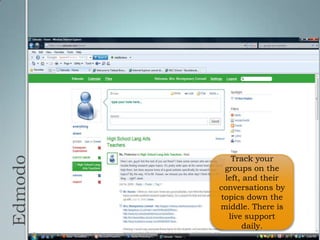
EdmodoTrack your groups on the left, and their conversations by topics down the middle. There is live support daily.
Edmodo Tutorialshttp://www.slideshare.net/zemote/edmodocom-microblogging-for-education-presentationhttp://lifefeast.blogspot.com/2008/12/edmodo-tutorial.htmlhttp://www.youtube.com/watch?v=P39rn3Fp-_A&feature=related
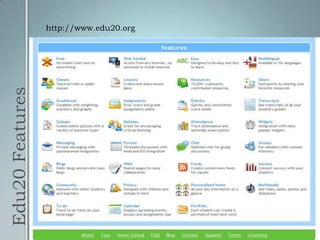
Edu20Edu2.0 is a free, web-hosted learning management system that allows anyone to create an online school in minutes. It's easy to use, comprehensive, and can be accessed from any web browser.It is also useful for creating a consortium project where multiple activities need to take place securely.It has multiple features, but we will show you the archiving and document accessing today.
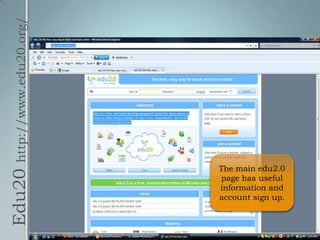
Edu20 http://www.edu20.org/The main edu2.0 page has useful information and account sign up.
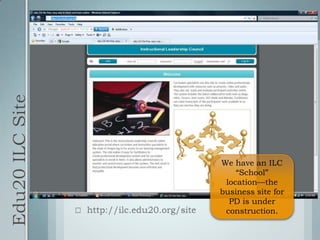
Edu20 ILC Sitehttp://ilc.edu20.org/siteWe have an ILC “School” location—the business site for PD is under construction.
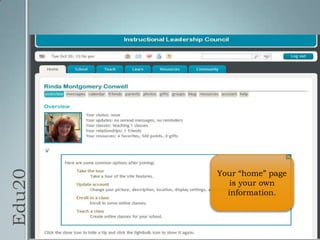
Edu20Your “home” page is your own information.
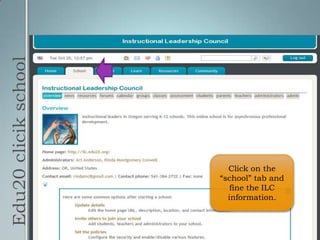
Edu20 clicik schoolClick on the “school” tab and fine the ILC information.
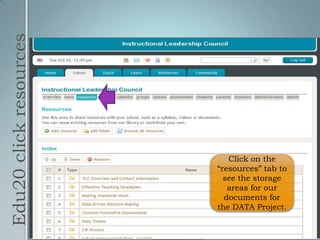
Edu20 click resourcesClick on the “resources” tab to see the storage areas for our documents for the DATA Project.
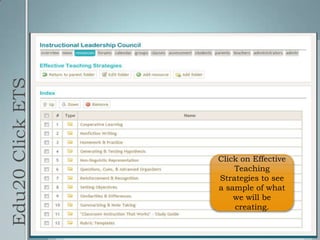
Edu20 Click ETSClick on Effective Teaching Strategies to see a sample of what we will be creating.
Edu20 Featureshttp://www.edu20.org
How did we do?Educators must collaborate at a distance. (Skype, Mikogo, GoogleDocs, Edmodo, Edu20)It must be easy to use. (All)It must be free. (All)They must be able to talk live (synchronously). (Skype)They must be able to see each others’ computer desktops live (synchronously). (Mikogo)They must be able to work on the same document stored in the same place at different times (asynchronously). (Google Docs, Edmodo)They must be able to share their ideas and archive their thoughts and exchanges. (Google Docs, Edmodo, Edu20)They must be able to archive documents for trial use. (Edu20)
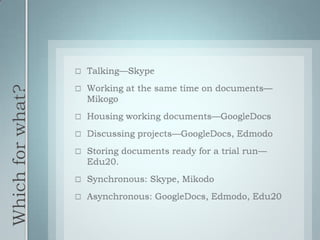
Which for what?Talking—SkypeWorking at the same time on documents—MikogoHousing working documents—GoogleDocsDiscussing projects—GoogleDocs, EdmodoStoring documents ready for a trial run—Edu20.Synchronous: Skype, MikodoAsynchronous: GoogleDocs, Edmodo, Edu20
Just the beginningWe know there are lots of tools out there.This is just a beginning.We could start an Edmodo blog and share other Web 2.0 collaborative tools we find useful, and their applications with our component schools.The goal is to work together effectively at a distance, and further the DATA Project in terms of creating useful materials for our districts and sharing those statewide.

Collaborative Technologies ILC