Blackboard Collaborate™ for
Frostburg State University
Faculty Librarians
Dr. Seán Henry, Aug. 20, 2014
What Collaborate™ can do for us:
 Empower library instruction for online
courses
 Record instruction & training sessions for
on-demand viewing
 Facilitate webconferencing, online
consortial meetings, or even search
committee interviews
Covered in this presentation:
 Collaborate screen layout
 Functionalities (described by screen
layout feature)
 Participant permissions
 Setting up a Collaborate Session
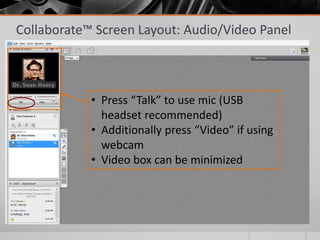
Collaborate™ Screen Layout: Audio/Video Panel
• Press “Talk” to use mic (USB
headset recommended)
• Additionally press “Video” if using
webcam
• Video box can be minimized
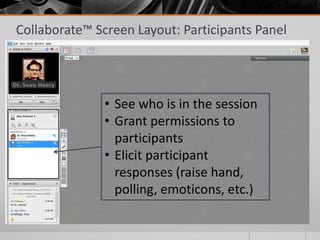
Collaborate™ Screen Layout: Participants Panel
• See who is in the session
• Grant permissions to
participants
• Elicit participant
responses (raise hand,
polling, emoticons, etc.)
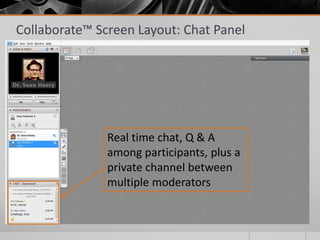
Collaborate™ Screen Layout: Chat Panel
Real time chat, Q & A
among participants, plus a
private channel between
multiple moderators
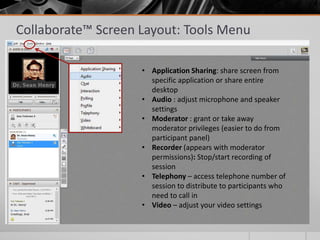
Collaborate™ Screen Layout: Tools Menu
• Application Sharing: share screen from
specific application or share entire
desktop
• Audio : adjust microphone and speaker
settings
• Moderator : grant or take away
moderator privileges (easier to do from
participant panel)
• Recorder (appears with moderator
permissions): Stop/start recording of
session
• Telephony – access telephone number of
session to distribute to participants who
need to call in
• Video – adjust your video settings
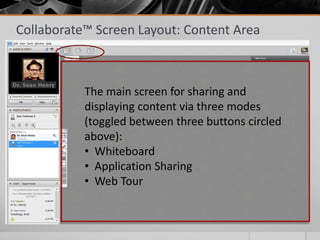
Collaborate™ Screen Layout: Content Area
The main screen for sharing and
displaying content via three modes
(toggled between three buttons circled
above):
• Whiteboard
• Application Sharing
• Web Tour
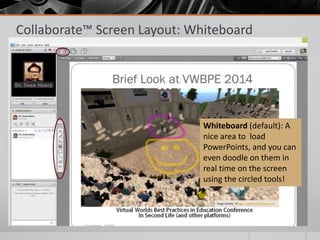
Collaborate™ Screen Layout: Whiteboard
Whiteboard (default): A
nice area to load
PowerPoints, and you can
even doodle on them in
real time on the screen
using the circled tools!
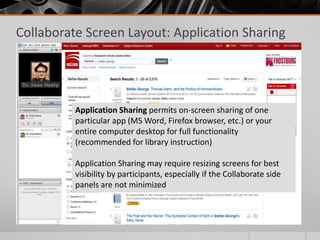
Collaborate Screen Layout: Application Sharing
Application Sharing permits on-screen sharing of one
particular app (MS Word, Firefox browser, etc.) or your
entire computer desktop for full functionality
(recommended for library instruction)
Application Sharing may require resizing screens for best
visibility by participants, especially if the Collaborate side
panels are not minimized
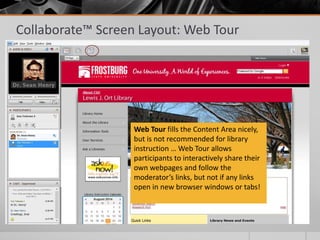
Collaborate™ Screen Layout: Web Tour
Web Tour fills the Content Area nicely,
but is not recommended for library
instruction … Web Tour allows
participants to interactively share their
own webpages and follow the
moderator’s links, but not if any links
open in new browser windows or tabs!
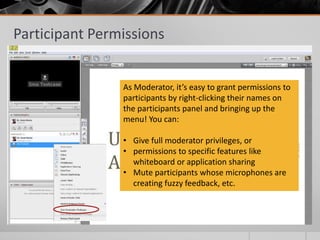
Participant Permissions
As Moderator, it’s easy to grant permissions to
participants by right-clicking their names on
the participants panel and bringing up the
menu! You can:
• Give full moderator privileges, or
• permissions to specific features like
whiteboard or application sharing
• Mute participants whose microphones are
creating fuzzy feedback, etc.
Two ways to set up a Collaborate™ session:
 Request a session from the FSU website:
http://www.frostburg.edu/bbcollab/requestfor
m/
 Create a session inside your Blackboard Learn
classroom
Pros and Cons of both discussed on the
upcoming final slides! BTW, did I mention that
a Collaborate Session lasts 365 days?
Request a Collaborate™ session via Online Form
 Pros for requesting a Collaborate session via
http://www.frostburg.edu/bbcollab/requestform/:
 Ideal for one-shot library instruction for online
classes, flexible Web conferencing, or recording
training sessions for on-demand viewing
 No need to have a Blackboard Learn classroom
 Con:
 Open to anybody with link access (less secure)
Request a Collaborate™ session via Blackboard
Learn:
 Pros:
 Collaborate sessions can be set up autonomously
 Moderator permissions for participants can be set up in advance
 Session more secure
 Cons:
 Must have a Blackboard Learn Classroom
 Collaborate participants restricted only to
students/instructors/teaching assistants enrolled in the
Blackboard Learn classroom or guests invited privately by email
Questions?
 Contact Seán at shenry@frostburg.edu
 Consult campus Collaborate support at
http://www.frostburg.edu/bbcollab/

Collaborate for Frostburg Faculty Librarians

  • 1.
    Blackboard Collaborate™ for FrostburgState University Faculty Librarians Dr. Seán Henry, Aug. 20, 2014
  • 2.
    What Collaborate™ cando for us:  Empower library instruction for online courses  Record instruction & training sessions for on-demand viewing  Facilitate webconferencing, online consortial meetings, or even search committee interviews
  • 3.
    Covered in thispresentation:  Collaborate screen layout  Functionalities (described by screen layout feature)  Participant permissions  Setting up a Collaborate Session
  • 4.
    Collaborate™ Screen Layout:Audio/Video Panel • Press “Talk” to use mic (USB headset recommended) • Additionally press “Video” if using webcam • Video box can be minimized
  • 5.
    Collaborate™ Screen Layout:Participants Panel • See who is in the session • Grant permissions to participants • Elicit participant responses (raise hand, polling, emoticons, etc.)
  • 6.
    Collaborate™ Screen Layout:Chat Panel Real time chat, Q & A among participants, plus a private channel between multiple moderators
  • 7.
    Collaborate™ Screen Layout:Tools Menu • Application Sharing: share screen from specific application or share entire desktop • Audio : adjust microphone and speaker settings • Moderator : grant or take away moderator privileges (easier to do from participant panel) • Recorder (appears with moderator permissions): Stop/start recording of session • Telephony – access telephone number of session to distribute to participants who need to call in • Video – adjust your video settings
  • 8.
    Collaborate™ Screen Layout:Content Area The main screen for sharing and displaying content via three modes (toggled between three buttons circled above): • Whiteboard • Application Sharing • Web Tour
  • 9.
    Collaborate™ Screen Layout:Whiteboard Whiteboard (default): A nice area to load PowerPoints, and you can even doodle on them in real time on the screen using the circled tools!
  • 10.
    Collaborate Screen Layout:Application Sharing Application Sharing permits on-screen sharing of one particular app (MS Word, Firefox browser, etc.) or your entire computer desktop for full functionality (recommended for library instruction) Application Sharing may require resizing screens for best visibility by participants, especially if the Collaborate side panels are not minimized
  • 11.
    Collaborate™ Screen Layout:Web Tour Web Tour fills the Content Area nicely, but is not recommended for library instruction … Web Tour allows participants to interactively share their own webpages and follow the moderator’s links, but not if any links open in new browser windows or tabs!
  • 12.
    Participant Permissions As Moderator,it’s easy to grant permissions to participants by right-clicking their names on the participants panel and bringing up the menu! You can: • Give full moderator privileges, or • permissions to specific features like whiteboard or application sharing • Mute participants whose microphones are creating fuzzy feedback, etc.
  • 13.
    Two ways toset up a Collaborate™ session:  Request a session from the FSU website: http://www.frostburg.edu/bbcollab/requestfor m/  Create a session inside your Blackboard Learn classroom Pros and Cons of both discussed on the upcoming final slides! BTW, did I mention that a Collaborate Session lasts 365 days?
  • 14.
    Request a Collaborate™session via Online Form  Pros for requesting a Collaborate session via http://www.frostburg.edu/bbcollab/requestform/:  Ideal for one-shot library instruction for online classes, flexible Web conferencing, or recording training sessions for on-demand viewing  No need to have a Blackboard Learn classroom  Con:  Open to anybody with link access (less secure)
  • 15.
    Request a Collaborate™session via Blackboard Learn:  Pros:  Collaborate sessions can be set up autonomously  Moderator permissions for participants can be set up in advance  Session more secure  Cons:  Must have a Blackboard Learn Classroom  Collaborate participants restricted only to students/instructors/teaching assistants enrolled in the Blackboard Learn classroom or guests invited privately by email
  • 16.
    Questions?  Contact Seánat shenry@frostburg.edu  Consult campus Collaborate support at http://www.frostburg.edu/bbcollab/