CocoaPods
CSTP 2305 - iOS Mobile App Programming
Nicole Tan, Yoonseo Jeong
What is CocoaPods?
- Dependency manager for XCode projects
- What are dependencies: Modules to expand and improve your projects
- CocoaPods dependencies are specified in a single text file called a Podfile
- CocoaPods fetch source code then link it together in your XCode
workspace to your project
Ruby programming
- CocoaPods is built with Ruby, installable with the default by Ruby
available on MacOS
- What is Ruby:
- A programming language used in dependencies like Cocoapods.
- it is popular because of its simplicity of language
- Why Cocoapods is written in Ruby programming?
- easy to share with Bundler/Rubygems
- a good choice to let users monkey-patch whatever they needed for their
projects
- excellent language for CLI tools that do a lot of string manipulation
Why use CocoaPods?
- CocoaPods is most used among other dependency manager such as
Carthge, Swift Package Manager
- helps search and incorporate third-party library into the swift
projects
- save you a lot of effort and time when dealing with dependencies in
the project including adding, updating, removing libraries
Important files in CocoaPods
- Podfile
- a file created during pod init or you can make one yourself
- a file that has dependencies information of the project
- Podfile.lock
- tracks the installed versions of each pod and locks those versions
- It also means the pod version is locked to a specific version
unless told otherwise
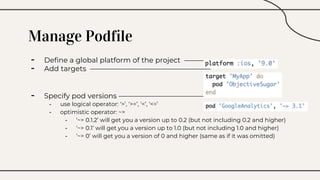
Manage Podfile
- Define a global platform of the project —————
- Add targets —————————————————
- Specify pod versions —————————————
- use logical operator: ‘>’, ‘>=’, ‘<’, ‘<=’
- optimistic operator: ~>
- ‘~> 0.1.2’ will get you a version up to 0.2 (but not including 0.2 and higher)
- ‘~> 0.1’ will get you a version up to 1.0 (but not including 1.0 and higher)
- ‘~> 0’ will get you a version of 0 and higher (same as if it was omitted)
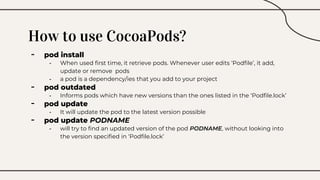
How to use CocoaPods?
- pod install
- When used first time, it retrieve pods. Whenever user edits ‘Podfile’, it add,
update or remove pods
- a pod is a dependency/ies that you add to your project
- pod outdated
- Informs pods which have new versions than the ones listed in the ‘Podfile.lock’
- pod update
- It will update the pod to the latest version possible
- pod update PODNAME
- will try to find an updated version of the pod PODNAME, without looking into
the version specified in ‘Podfile.lock’
CocoaPods Demo
- We will demo how to install CocoaPods to the project
- What you need: Xcode Project, Terminal
- Link to informations about CocoaPods: https://cocoapods.org/
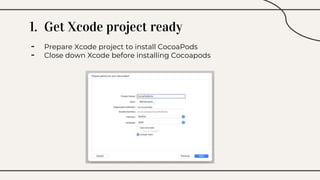
1. Get Xcode project ready
- Prepare Xcode project to install CocoaPods
- Close down Xcode before installing Cocoapods
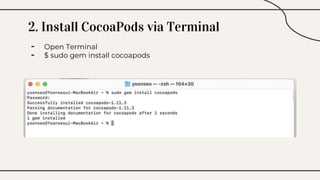
2. Install CocoaPods via Terminal
- Open Terminal
- $ sudo gem install cocoapods
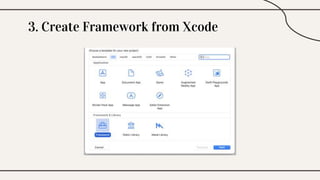
3. Create Framework from Xcode
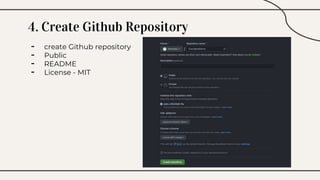
4. Create Github Repository
- create Github repository
- Public
- README
- License - MIT
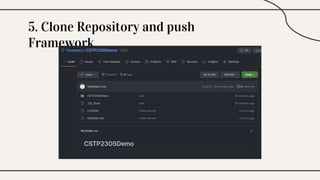
5. Clone Repository and push
Framework
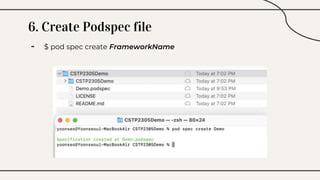
6. Create Podspec file
- $ pod spec create FrameworkName
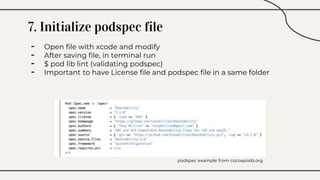
7. Initialize podspec file
- Open file with xcode and modify
- After saving file, in terminal run
- $ pod lib lint (validating podspec)
- Important to have License file and podspec file in a same folder
podspec example from cocoapods.org
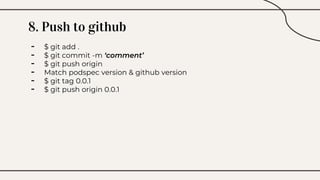
8. Push to github
- $ git add .
- $ git commit -m ‘comment’
- $ git push origin
- Match podspec version & github version
- $ git tag 0.0.1
- $ git push origin 0.0.1
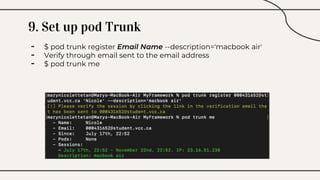
9. Set up pod Trunk
- $ pod trunk register Email Name --description='macbook air'
- Verify through email sent to the email address
- $ pod trunk me
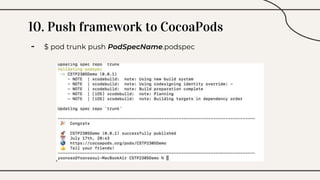
10. Push framework to CocoaPods
- $ pod trunk push PodSpecName.podspec
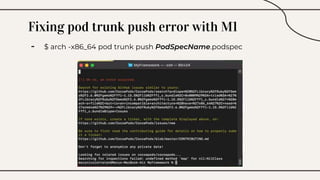
Fixing pod trunk push error with M1
- $ arch -x86_64 pod trunk push PodSpecName.podspec
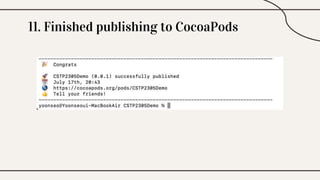
11. Finished publishing to CocoaPods
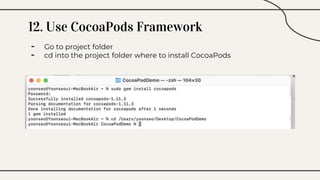
12. Use CocoaPods Framework
- Go to project folder
- cd into the project folder where to install CocoaPods
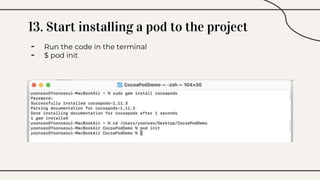
13. Start installing a pod to the project
- Run the code in the terminal
- $ pod init
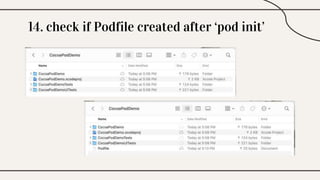
14. check if Podfile created after ‘pod init’
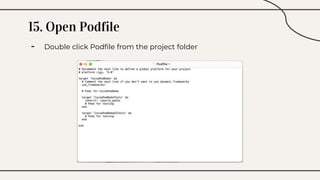
15. Open Podfile
- Double click Podfile from the project folder
16. Edit Podfile
- add ‘pod [name of dependency]’ in the Podfile
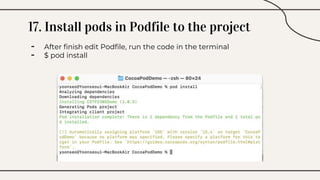
17. Install pods in Podfile to the project
- After finish edit Podfile, run the code in the terminal
- $ pod install
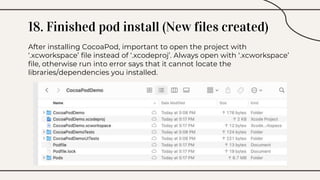
18. Finished pod install (New files created)
After installing CocoaPod, important to open the project with
‘.xcworkspace’ file instead of ‘.xcodeproj’. Always open with ‘.xcworkspace’
file, otherwise run into error says that it cannot locate the
libraries/dependencies you installed.
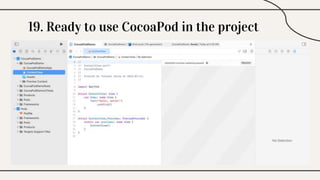
19. Ready to use CocoaPod in the project
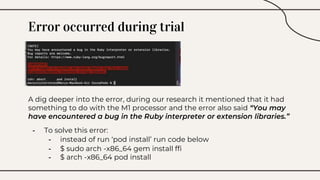
Error occurred during trial
A dig deeper into the error, during our research it mentioned that it had
something to do with the M1 processor and the error also said “You may
have encountered a bug in the Ruby interpreter or extension libraries.”
- To solve this error:
- instead of run ‘pod install’ run code below
- $ sudo arch -x86_64 gem install ffi
- $ arch -x86_64 pod install
References
● Ruby used in CocoaPods
- https://medium.com/xcblog/a-history-of-ruby-inside-ios-development-427b5a09f91e
● CocoaPods Getting Started Guides
- https://guides.cocoapods.org/using/getting-started.html
● Unix commands - sudo
- https://kb.iu.edu/d/amyi#:~:text=The%20sudo%20command%20allows%20you,which%20the%2
0system%20administrator%20configures.
● What is a PodFile?
- https://guides.cocoapods.org/using/the-podfile.html
● Pod install error
- https://github.com/CocoaPods/CocoaPods/issues/10518#issuecomment-798912624
● Arch command
- https://www.computerhope.com/unix/uarch.htm
● Public
- https://medium.com/@jeantimex/create-your-own-cocoapods-library-
da589d5cd270#:~:text=Create%20a%20Cocoa%20Touch%20Framework,the%20checkbox%20I
nclude%20Unit%20Tests%20.
- https://www.youtube.com/watch?v=vSMmZxmKIA4
CREDITS: This presentation template was
created by Slidesgo, including icons by
Flaticon,and infographics & images by Freepik
Thank you!
Do you have any questions?
Please keep this slide for attribution

CocoaPods.pptx

  • 1.
    CocoaPods CSTP 2305 -iOS Mobile App Programming Nicole Tan, Yoonseo Jeong
  • 2.
    What is CocoaPods? -Dependency manager for XCode projects - What are dependencies: Modules to expand and improve your projects - CocoaPods dependencies are specified in a single text file called a Podfile - CocoaPods fetch source code then link it together in your XCode workspace to your project
  • 3.
    Ruby programming - CocoaPodsis built with Ruby, installable with the default by Ruby available on MacOS - What is Ruby: - A programming language used in dependencies like Cocoapods. - it is popular because of its simplicity of language - Why Cocoapods is written in Ruby programming? - easy to share with Bundler/Rubygems - a good choice to let users monkey-patch whatever they needed for their projects - excellent language for CLI tools that do a lot of string manipulation
  • 4.
    Why use CocoaPods? -CocoaPods is most used among other dependency manager such as Carthge, Swift Package Manager - helps search and incorporate third-party library into the swift projects - save you a lot of effort and time when dealing with dependencies in the project including adding, updating, removing libraries
  • 5.
    Important files inCocoaPods - Podfile - a file created during pod init or you can make one yourself - a file that has dependencies information of the project - Podfile.lock - tracks the installed versions of each pod and locks those versions - It also means the pod version is locked to a specific version unless told otherwise
  • 6.
    Manage Podfile - Definea global platform of the project ————— - Add targets ————————————————— - Specify pod versions ————————————— - use logical operator: ‘>’, ‘>=’, ‘<’, ‘<=’ - optimistic operator: ~> - ‘~> 0.1.2’ will get you a version up to 0.2 (but not including 0.2 and higher) - ‘~> 0.1’ will get you a version up to 1.0 (but not including 1.0 and higher) - ‘~> 0’ will get you a version of 0 and higher (same as if it was omitted)
  • 7.
    How to useCocoaPods? - pod install - When used first time, it retrieve pods. Whenever user edits ‘Podfile’, it add, update or remove pods - a pod is a dependency/ies that you add to your project - pod outdated - Informs pods which have new versions than the ones listed in the ‘Podfile.lock’ - pod update - It will update the pod to the latest version possible - pod update PODNAME - will try to find an updated version of the pod PODNAME, without looking into the version specified in ‘Podfile.lock’
  • 8.
    CocoaPods Demo - Wewill demo how to install CocoaPods to the project - What you need: Xcode Project, Terminal - Link to informations about CocoaPods: https://cocoapods.org/
  • 9.
    1. Get Xcodeproject ready - Prepare Xcode project to install CocoaPods - Close down Xcode before installing Cocoapods
  • 10.
    2. Install CocoaPodsvia Terminal - Open Terminal - $ sudo gem install cocoapods
  • 11.
  • 12.
    4. Create GithubRepository - create Github repository - Public - README - License - MIT
  • 13.
    5. Clone Repositoryand push Framework
  • 14.
    6. Create Podspecfile - $ pod spec create FrameworkName
  • 15.
    7. Initialize podspecfile - Open file with xcode and modify - After saving file, in terminal run - $ pod lib lint (validating podspec) - Important to have License file and podspec file in a same folder podspec example from cocoapods.org
  • 16.
    8. Push togithub - $ git add . - $ git commit -m ‘comment’ - $ git push origin - Match podspec version & github version - $ git tag 0.0.1 - $ git push origin 0.0.1
  • 17.
    9. Set uppod Trunk - $ pod trunk register Email Name --description='macbook air' - Verify through email sent to the email address - $ pod trunk me
  • 18.
    10. Push frameworkto CocoaPods - $ pod trunk push PodSpecName.podspec
  • 19.
    Fixing pod trunkpush error with M1 - $ arch -x86_64 pod trunk push PodSpecName.podspec
  • 20.
  • 21.
    12. Use CocoaPodsFramework - Go to project folder - cd into the project folder where to install CocoaPods
  • 22.
    13. Start installinga pod to the project - Run the code in the terminal - $ pod init
  • 23.
    14. check ifPodfile created after ‘pod init’
  • 24.
    15. Open Podfile -Double click Podfile from the project folder
  • 25.
    16. Edit Podfile -add ‘pod [name of dependency]’ in the Podfile
  • 26.
    17. Install podsin Podfile to the project - After finish edit Podfile, run the code in the terminal - $ pod install
  • 27.
    18. Finished podinstall (New files created) After installing CocoaPod, important to open the project with ‘.xcworkspace’ file instead of ‘.xcodeproj’. Always open with ‘.xcworkspace’ file, otherwise run into error says that it cannot locate the libraries/dependencies you installed.
  • 28.
    19. Ready touse CocoaPod in the project
  • 29.
    Error occurred duringtrial A dig deeper into the error, during our research it mentioned that it had something to do with the M1 processor and the error also said “You may have encountered a bug in the Ruby interpreter or extension libraries.” - To solve this error: - instead of run ‘pod install’ run code below - $ sudo arch -x86_64 gem install ffi - $ arch -x86_64 pod install
  • 30.
    References ● Ruby usedin CocoaPods - https://medium.com/xcblog/a-history-of-ruby-inside-ios-development-427b5a09f91e ● CocoaPods Getting Started Guides - https://guides.cocoapods.org/using/getting-started.html ● Unix commands - sudo - https://kb.iu.edu/d/amyi#:~:text=The%20sudo%20command%20allows%20you,which%20the%2 0system%20administrator%20configures. ● What is a PodFile? - https://guides.cocoapods.org/using/the-podfile.html ● Pod install error - https://github.com/CocoaPods/CocoaPods/issues/10518#issuecomment-798912624 ● Arch command - https://www.computerhope.com/unix/uarch.htm ● Public - https://medium.com/@jeantimex/create-your-own-cocoapods-library- da589d5cd270#:~:text=Create%20a%20Cocoa%20Touch%20Framework,the%20checkbox%20I nclude%20Unit%20Tests%20. - https://www.youtube.com/watch?v=vSMmZxmKIA4
  • 31.
    CREDITS: This presentationtemplate was created by Slidesgo, including icons by Flaticon,and infographics & images by Freepik Thank you! Do you have any questions? Please keep this slide for attribution