THIS SESSION IS ABOUT
•   Clients, clients, clients... Management?
•   Whats new in Config Manager 2012
•   Whats new in Windows Intune 3.0 beta
•   What about Direct Access
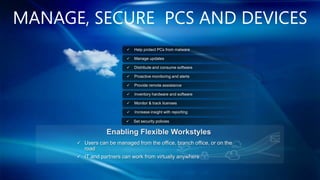
MANAGE, SECURE PCS AND DEVICES
           

           

           

           

           

           

           

           

           


      

      
CONFIG MANAGER 2012
Managing up to 400.000 devices? Yes we can!
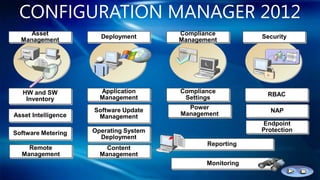
CONFIGURATION MANAGER 2012
    Asset                               Compliance
                       Deployment                           Security
  Management                            Management


   HW and SW           Application      Compliance
                                                              RBAC
    Inventory          Management        Settings

                     Software Update      Power
                                                              NAP
Asset Intelligence    Management        Management
                                                            Endpoint
                     Operating System                       Protection
Software Metering
                       Deployment
                                               Reporting
    Remote               Content
  Management           Management
                                               Monitoring
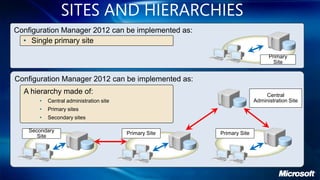
SITES AND HIERARCHIES
Configuration Manager 2012 can be implemented as:
  • Single primary site

                                                                             Primary
                                                                               Site


Configuration Manager 2012 can be implemented as:
  A hierarchy made of:                                                     Central
       •   Central administration site                                 Administration Site
       •   Primary sites
       •   Secondary sites

    Secondary                            Primary Site   Primary Site
       Site
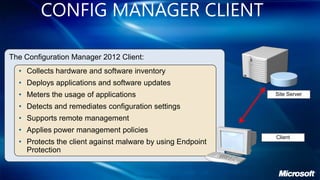
CONFIG MANAGER CLIENT

The Configuration Manager 2012 Client:
  • Collects hardware and software inventory
  • Deploys applications and software updates
  • Meters the usage of applications                        Site Server

  • Detects and remediates configuration settings
  • Supports remote management
  • Applies power management policies
                                                            Client
  • Protects the client against malware by using Endpoint
    Protection
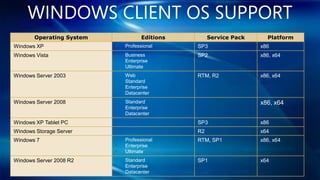
WINDOWS CLIENT OS SUPPORT
       Operating System              Editions        Service Pack     Platform
Windows XP                •   Professional      SP3                 x86
Windows Vista             •   Business          SP2                 x86, x64
                          •   Enterprise
                          •   Ultimate
Windows Server 2003       •   Web               RTM, R2             x86, x64
                          •   Standard
                          •   Enterprise
                          •   Datacenter
Windows Server 2008       •   Standard                              x86, x64
                          •   Enterprise
                          •   Datacenter
Windows XP Tablet PC                            SP3                 x86
Windows Storage Server                          R2                  x64
Windows 7                 •   Professional      RTM, SP1            x86, x64
                          •   Enterprise
                          •   Ultimate
Windows Server 2008 R2    •   Standard          SP1                 x64
                          •   Enterprise
                          •   Datacenter
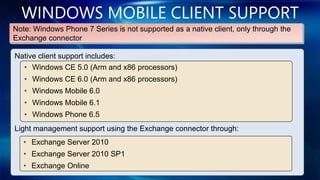
WINDOWS MOBILE CLIENT SUPPORT
Note: Windows Phone 7 Series is not supported as a native client, only through the
Exchange connector

Native client support includes:
  • Windows CE 5.0 (Arm and x86 processors)
   • Windows CE 6.0 (Arm and x86 processors)
   • Windows Mobile 6.0
   • Windows Mobile 6.1
   • Windows Phone 6.5
Light management support using the Exchange connector through:
   • Exchange Server 2010
   • Exchange Server 2010 SP1
   • Exchange Online
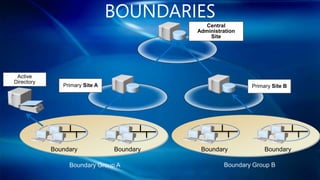
BOUNDARIES
                                              Central
                                           Administration
                                               Site


 Active
Directory
               Primary Site A                               Primary Site B


            Boundary            Boundary    Boundary             Boundary

                 Boundary Group A                   Boundary Group B
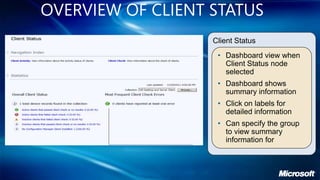
OVERVIEW OF CLIENT STATUS
                   Client Status
                    • Dashboard view when
                      Client Status node
                      selected
                    • Dashboard shows
                      summary information
                    • Click on labels for
                      detailed information
                    • Can specify the group
                      to view summary
                      information for
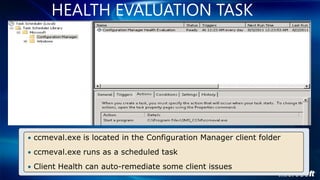
HEALTH EVALUATION TASK


• ccmeval.exe is located in the Configuration Manager client folder

• ccmeval.exe runs as a scheduled task

• Client Health can auto-remediate some client issues
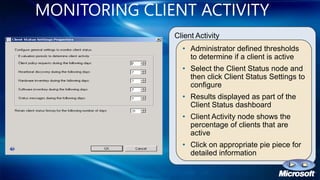
MONITORING CLIENT ACTIVITY
               Client Activity
                 • Administrator defined thresholds
                   to determine if a client is active
                 • Select the Client Status node and
                   then click Client Status Settings to
                   configure
                 • Results displayed as part of the
                   Client Status dashboard
                 • Client Activity node shows the
                   percentage of clients that are
                   active
                 • Click on appropriate pie piece for
                   detailed information
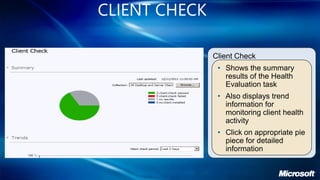
CLIENT CHECK

               Client Check
                • Shows the summary
                  results of the Health
                  Evaluation task
                • Also displays trend
                  information for
                  monitoring client health
                  activity
                • Click on appropriate pie
                  piece for detailed
                  information
WINDOWS INTUNE 3.0
Where did the device go? Who cares?
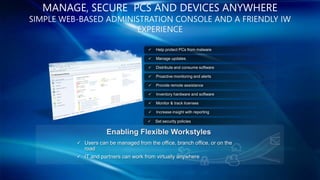
MANAGE, SECURE PCS AND DEVICES ANYWHERE
SIMPLE WEB-BASED ADMINISTRATION CONSOLE AND A FRIENDLY IW
                       EXPERIENCE

                          

                          

                         

                          

                          

                          

                          

                          

                         


          

          
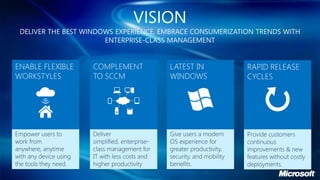
VISION
DELIVER THE BEST WINDOWS EXPERIENCE, EMBRACE CONSUMERIZATION TRENDS WITH
                      ENTERPRISE-CLASS MANAGEMENT
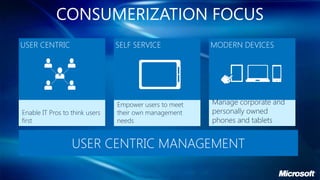
CONSUMERIZATION FOCUS
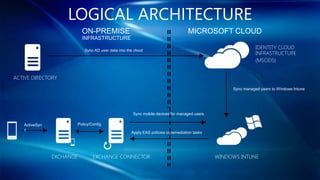
LOGICAL ARCHITECTURE
                Sync AD user data into the cloud


                                                                                   Sync managed users to Windows Intune


                                          Sync mobile devices for managed users

ActiveSyn    Policy/Config
c
                                         Apply EAS policies or remediation tasks
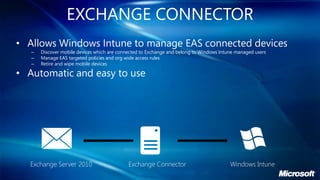
EXCHANGE CONNECTOR
• Allows Windows Intune to manage EAS connected devices
   –   Discover mobile devices which are connected to Exchange and belong to Windows Intune managed users
   –   Manage EAS targeted policies and org wide access rules
   –   Retire and wipe mobile devices

• Automatic and easy to use
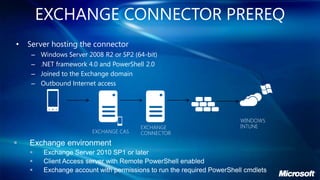
EXCHANGE CONNECTOR PREREQ
•   Server hosting the connector
     –   Windows Server 2008 R2 or SP2 (64-bit)
     –   .NET framework 4.0 and PowerShell 2.0
     –   Joined to the Exchange domain
     –   Outbound Internet access



    
    
    
Client management.ppt

Client management.ppt

  • 4.
    THIS SESSION ISABOUT • Clients, clients, clients... Management? • Whats new in Config Manager 2012 • Whats new in Windows Intune 3.0 beta • What about Direct Access
  • 5.
    MANAGE, SECURE PCSAND DEVICES           
  • 6.
    CONFIG MANAGER 2012 Managingup to 400.000 devices? Yes we can!
  • 7.
    CONFIGURATION MANAGER 2012 Asset Compliance Deployment Security Management Management HW and SW Application Compliance RBAC Inventory Management Settings Software Update Power NAP Asset Intelligence Management Management Endpoint Operating System Protection Software Metering Deployment Reporting Remote Content Management Management Monitoring
  • 8.
    SITES AND HIERARCHIES ConfigurationManager 2012 can be implemented as: • Single primary site Primary Site Configuration Manager 2012 can be implemented as: A hierarchy made of: Central • Central administration site Administration Site • Primary sites • Secondary sites Secondary Primary Site Primary Site Site
  • 9.
    CONFIG MANAGER CLIENT TheConfiguration Manager 2012 Client: • Collects hardware and software inventory • Deploys applications and software updates • Meters the usage of applications Site Server • Detects and remediates configuration settings • Supports remote management • Applies power management policies Client • Protects the client against malware by using Endpoint Protection
  • 10.
    WINDOWS CLIENT OSSUPPORT Operating System Editions Service Pack Platform Windows XP • Professional SP3 x86 Windows Vista • Business SP2 x86, x64 • Enterprise • Ultimate Windows Server 2003 • Web RTM, R2 x86, x64 • Standard • Enterprise • Datacenter Windows Server 2008 • Standard x86, x64 • Enterprise • Datacenter Windows XP Tablet PC SP3 x86 Windows Storage Server R2 x64 Windows 7 • Professional RTM, SP1 x86, x64 • Enterprise • Ultimate Windows Server 2008 R2 • Standard SP1 x64 • Enterprise • Datacenter
  • 11.
    WINDOWS MOBILE CLIENTSUPPORT Note: Windows Phone 7 Series is not supported as a native client, only through the Exchange connector Native client support includes: • Windows CE 5.0 (Arm and x86 processors) • Windows CE 6.0 (Arm and x86 processors) • Windows Mobile 6.0 • Windows Mobile 6.1 • Windows Phone 6.5 Light management support using the Exchange connector through: • Exchange Server 2010 • Exchange Server 2010 SP1 • Exchange Online
  • 12.
    BOUNDARIES Central Administration Site Active Directory Primary Site A Primary Site B Boundary Boundary Boundary Boundary Boundary Group A Boundary Group B
  • 14.
    OVERVIEW OF CLIENTSTATUS Client Status • Dashboard view when Client Status node selected • Dashboard shows summary information • Click on labels for detailed information • Can specify the group to view summary information for
  • 15.
    HEALTH EVALUATION TASK •ccmeval.exe is located in the Configuration Manager client folder • ccmeval.exe runs as a scheduled task • Client Health can auto-remediate some client issues
  • 16.
    MONITORING CLIENT ACTIVITY Client Activity • Administrator defined thresholds to determine if a client is active • Select the Client Status node and then click Client Status Settings to configure • Results displayed as part of the Client Status dashboard • Client Activity node shows the percentage of clients that are active • Click on appropriate pie piece for detailed information
  • 17.
    CLIENT CHECK Client Check • Shows the summary results of the Health Evaluation task • Also displays trend information for monitoring client health activity • Click on appropriate pie piece for detailed information
  • 18.
    WINDOWS INTUNE 3.0 Wheredid the device go? Who cares?
  • 19.
    MANAGE, SECURE PCSAND DEVICES ANYWHERE SIMPLE WEB-BASED ADMINISTRATION CONSOLE AND A FRIENDLY IW EXPERIENCE           
  • 20.
    VISION DELIVER THE BESTWINDOWS EXPERIENCE, EMBRACE CONSUMERIZATION TRENDS WITH ENTERPRISE-CLASS MANAGEMENT
  • 21.
  • 22.
    LOGICAL ARCHITECTURE Sync AD user data into the cloud Sync managed users to Windows Intune Sync mobile devices for managed users ActiveSyn Policy/Config c Apply EAS policies or remediation tasks
  • 23.
    EXCHANGE CONNECTOR • AllowsWindows Intune to manage EAS connected devices – Discover mobile devices which are connected to Exchange and belong to Windows Intune managed users – Manage EAS targeted policies and org wide access rules – Retire and wipe mobile devices • Automatic and easy to use
  • 24.
    EXCHANGE CONNECTOR PREREQ • Server hosting the connector – Windows Server 2008 R2 or SP2 (64-bit) – .NET framework 4.0 and PowerShell 2.0 – Joined to the Exchange domain – Outbound Internet access    

Editor's Notes

  • #23 Explain that client activity is monitored for each client and that you can configure which activities you want to monitor and the frequency which indicates that clients are active.Start: Client Status properties. Give a brief explanation of each settingClick: Client Status node. Give a brief explanation of the client status node