CREATE AND PROCESS
TABLE
MS Word Table create and use
Class 12th
Presented by: Mr.Vikrant Shandal
B.Tech (C.S.E.) & Certified in Tally by LearnVern
INTRODUCTION TO TABLES
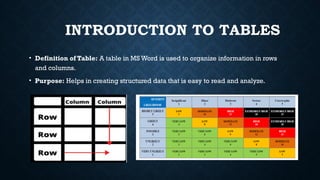
• Definition of Table: A table in MS Word is used to organize information in rows
and columns.
• Purpose: Helps in creating structured data that is easy to read and analyze.
STEPS TO CREATE A TABLE
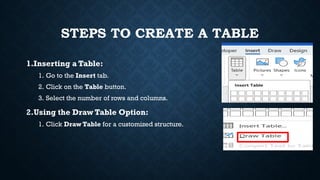
1.Inserting a Table:
1. Go to the Insert tab.
2. Click on the Table button.
3. Select the number of rows and columns.
2.Using the Draw Table Option:
1. Click Draw Table for a customized structure.
TABLE LAYOUT AND FORMATTING
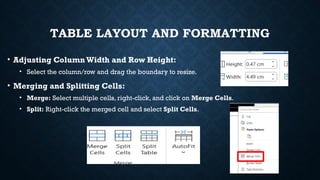
• Adjusting ColumnWidth and Row Height:
• Select the column/row and drag the boundary to resize.
• Merging and Splitting Cells:
• Merge: Select multiple cells, right-click, and click on Merge Cells.
• Split: Right-click the merged cell and select Split Cells.
TABLE DESIGN AND STYLE
• Using Predefined Styles:
• Go to the Design tab to apply different styles to your table.
• Adding Borders:
• Select the table and choose from various border styles in the Borders option.
PROCESSING DATA IN A TABLE
• Sorting Data:
• Select the data in a column.
• Go to Table Tools > Layout > Sort to sort in ascending or descending
order.
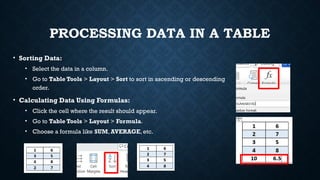
• Calculating Data Using Formulas:
• Click the cell where the result should appear.
• Go to Table Tools > Layout > Formula.
• Choose a formula like SUM, AVERAGE, etc.
ADVANCED FEATURES
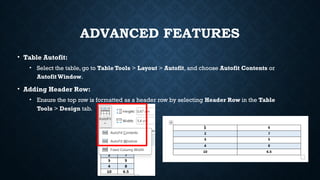
• Table Autofit:
• Select the table, go to Table Tools > Layout > Autofit, and choose Autofit Contents or
Autofit Window.
• Adding Header Row:
• Ensure the top row is formatted as a header row by selecting Header Row in the Table
Tools > Design tab.
THANKS & REGARDS
Sharing knowledge by vikrant shandal
Enginr_vikrant_shandal

class 12th create and process table.pptx

  • 1.
    CREATE AND PROCESS TABLE MSWord Table create and use Class 12th Presented by: Mr.Vikrant Shandal B.Tech (C.S.E.) & Certified in Tally by LearnVern
  • 2.
    INTRODUCTION TO TABLES •Definition of Table: A table in MS Word is used to organize information in rows and columns. • Purpose: Helps in creating structured data that is easy to read and analyze.
  • 3.
    STEPS TO CREATEA TABLE 1.Inserting a Table: 1. Go to the Insert tab. 2. Click on the Table button. 3. Select the number of rows and columns. 2.Using the Draw Table Option: 1. Click Draw Table for a customized structure.
  • 4.
    TABLE LAYOUT ANDFORMATTING • Adjusting ColumnWidth and Row Height: • Select the column/row and drag the boundary to resize. • Merging and Splitting Cells: • Merge: Select multiple cells, right-click, and click on Merge Cells. • Split: Right-click the merged cell and select Split Cells.
  • 5.
    TABLE DESIGN ANDSTYLE • Using Predefined Styles: • Go to the Design tab to apply different styles to your table. • Adding Borders: • Select the table and choose from various border styles in the Borders option.
  • 6.
    PROCESSING DATA INA TABLE • Sorting Data: • Select the data in a column. • Go to Table Tools > Layout > Sort to sort in ascending or descending order. • Calculating Data Using Formulas: • Click the cell where the result should appear. • Go to Table Tools > Layout > Formula. • Choose a formula like SUM, AVERAGE, etc.
  • 7.
    ADVANCED FEATURES • TableAutofit: • Select the table, go to Table Tools > Layout > Autofit, and choose Autofit Contents or Autofit Window. • Adding Header Row: • Ensure the top row is formatted as a header row by selecting Header Row in the Table Tools > Design tab.
  • 8.
    THANKS & REGARDS Sharingknowledge by vikrant shandal Enginr_vikrant_shandal