CSI On-Line Dual Credit Student
Registration
Fall 2012
CSI Fall 2012 Dual Credit Deadlines
• Registration and Enrollment activities (8-28
thru 9-17)
• Registration and Payment Deadline (9-21)
• Deadline for Receipt of Scholarship Requests
(9-21)
• Begin: Process to Withdraw Students for
Non-Payment of Tuition (9-24)
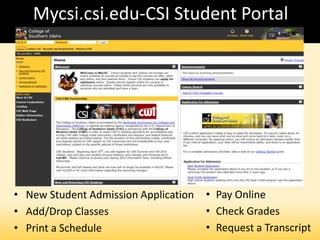
Mycsi.csi.edu-CSI Student Portal
• New Student Admission Application
• Add/Drop Classes
• Print a Schedule
• Pay Online
• Check Grades
• Request a Transcript
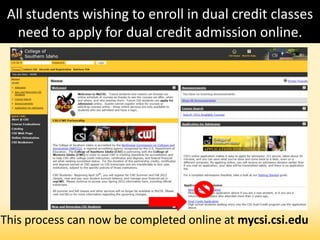
All students wishing to enroll in dual credit classes
need to apply for dual credit admission online.
This process can now be completed online at mycsi.csi.edu
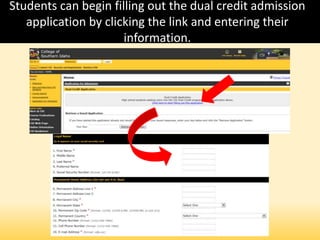
Students can begin filling out the dual credit admission
application by clicking the link and entering their
information.
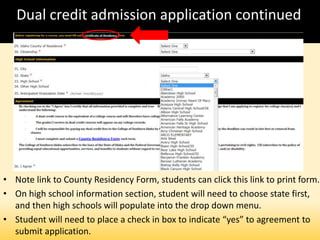
Dual credit admission application continued
• Note link to County Residency Form, students can click this link to print form.
• On high school information section, student will need to choose state first,
and then high schools will populate into the drop down menu.
• Student will need to place a check in box to indicate “yes” to agreement to
submit application.
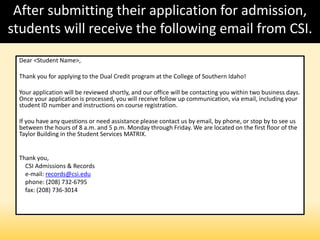
After submitting their application for admission,
students will receive the following email from CSI.
Dear <Student Name>,
Thank you for applying to the Dual Credit program at the College of Southern Idaho!
Your application will be reviewed shortly, and our office will be contacting you within two business days.
Once your application is processed, you will receive follow up communication, via email, including your
student ID number and instructions on course registration.
If you have any questions or need assistance please contact us by email, by phone, or stop by to see us
between the hours of 8 a.m. and 5 p.m. Monday through Friday. We are located on the first floor of the
Taylor Building in the Student Services MATRIX.
Thank you,
CSI Admissions & Records
e-mail: records@csi.edu
phone: (208) 732-6795
fax: (208) 736-3014
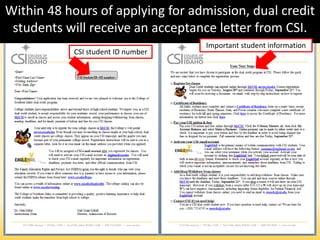
Within 48 hours of applying for admission, dual credit
students will receive an acceptance letter from CSI.
CSI student ID number
Important student information
.
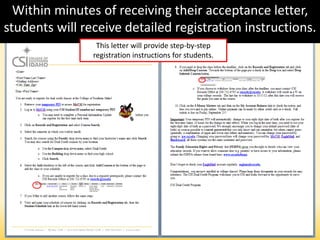
Within minutes of receiving their acceptance letter,
students will receive detailed registration instructions.
This letter will provide step-by-step
registration instructions for students.
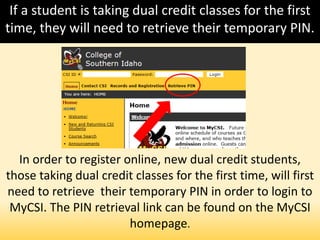
If a student is taking dual credit classes for the first
time, they will need to retrieve their temporary PIN.
In order to register online, new dual credit students,
those taking dual credit classes for the first time, will first
need to retrieve their temporary PIN in order to login to
MyCSI. The PIN retrieval link can be found on the MyCSI
homepage.
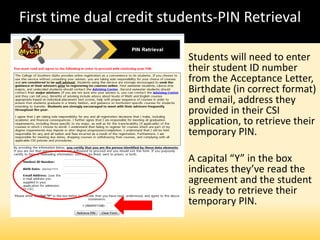
First time dual credit students-PIN Retrieval
Students will need to enter
their student ID number
from the Acceptance Letter,
Birthdate (in correct format)
and email, address they
provided in their CSI
application, to retrieve their
temporary PIN.
A capital “Y” in the box
indicates they’ve read the
agreement and the student
is ready to retrieve their
temporary PIN.
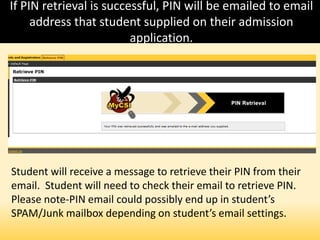
If PIN retrieval is successful, PIN will be emailed to email
address that student supplied on their admission
application.
Student will receive a message to retrieve their PIN from their
email. Student will need to check their email to retrieve PIN.
Please note-PIN email could possibly end up in student’s
SPAM/Junk mailbox depending on student’s email settings.
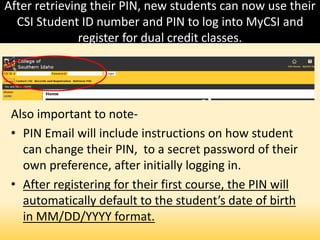
After retrieving their PIN, new students can now use their
CSI Student ID number and PIN to log into MyCSI and
register for dual credit classes.
Also important to note-
• PIN Email will include instructions on how student
can change their PIN, to a secret password of their
own preference, after initially logging in.
• After registering for their first course, the PIN will
automatically default to the student’s date of birth
in MM/DD/YYYY format.
Login process for students who have
previously taken dual credit courses
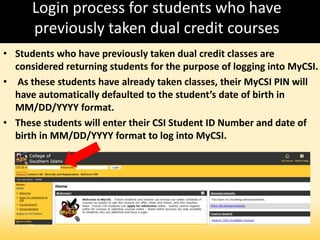
• Students who have previously taken dual credit classes are
considered returning students for the purpose of logging into MyCSI.
• As these students have already taken classes, their MyCSI PIN will
have automatically defaulted to the student’s date of birth in
MM/DD/YYYY format.
• These students will enter their CSI Student ID Number and date of
birth in MM/DD/YYYY format to log into MyCSI.
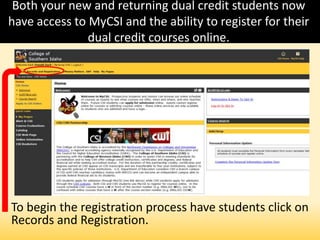
Both your new and returning dual credit students now
have access to MyCSI and the ability to register for their
dual credit courses online.
To begin the registration process have students click on
Records and Registration.
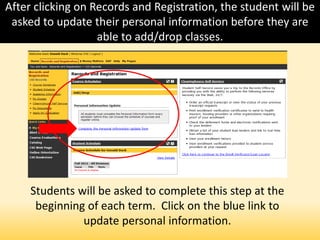
After clicking on Records and Registration, the student will be
asked to update their personal information before they are
able to add/drop classes.
Students will be asked to complete this step at the
beginning of each term. Click on the blue link to
update personal information.
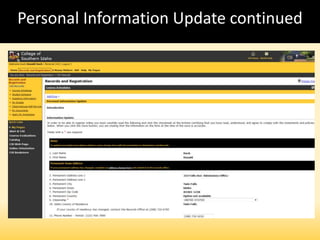
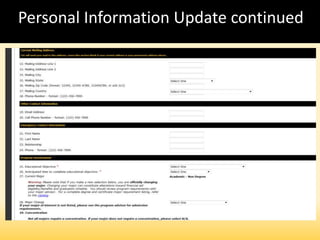
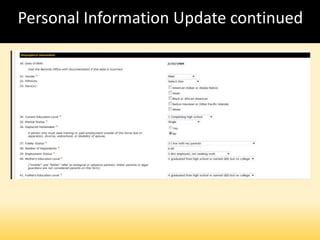
Students will be directed to an online form to
review their personal information for accuracy.
• Changes can be made by updating fields in the
form.
• Required fields will have an asterisk.
• An agreement at the bottom of the page will
remind students to complete and submit their
county residency forms.
• Students must check the box, at the bottom of
the page, indicating they have read and agree to
the advising/payment and residency policies.
Personal Information Update continued
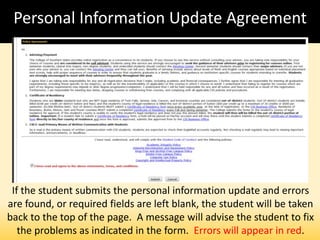
Personal Information Update Agreement
If the student submits the personal information update and errors
are found, or required fields are left blank, the student will be taken
back to the top of the page. A message will advise the student to fix
the problems as indicated in the form. Errors will appear in red.
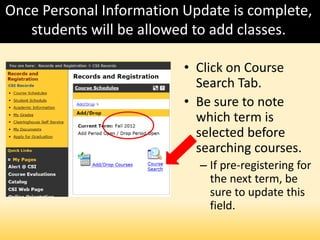
Once Personal Information Update is complete,
students will be allowed to add classes.
• Click on Course
Search Tab.
• Be sure to note
which term is
selected before
searching courses.
– If pre-registering for
the next term, be
sure to update this
field.
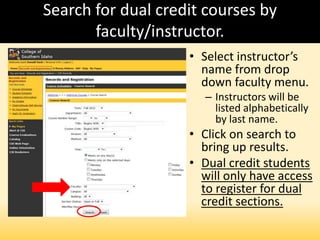
Search for dual credit courses by
faculty/instructor.
• Select instructor’s
name from drop
down faculty menu.
– Instructors will be
listed alphabetically
by last name.
• Click on search to
bring up results.
• Dual credit students
will only have access
to register for dual
credit sections.
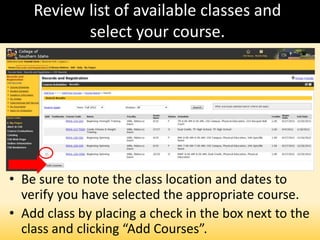
Review list of available classes and
select your course.
• Be sure to note the class location and dates to
verify you have selected the appropriate course.
• Add class by placing a check in the box next to the
class and clicking “Add Courses”.
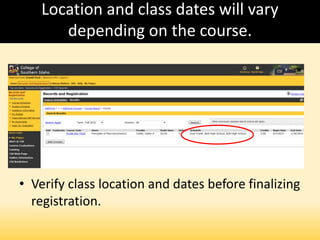
Location and class dates will vary
depending on the course.
• Verify class location and dates before finalizing
registration.
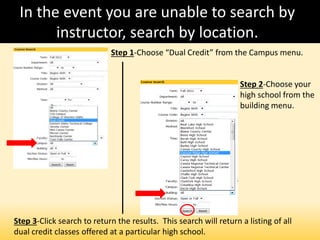
In the event you are unable to search by
instructor, search by location.
Step 1-Choose “Dual Credit” from the Campus menu.
Step 2-Choose your
high school from the
building menu.
Step 3-Click search to return the results. This search will return a listing of all
dual credit classes offered at a particular high school.
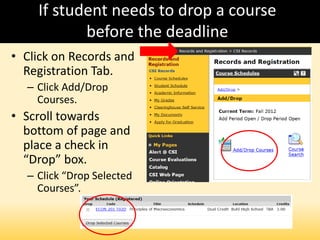
If student needs to drop a course
before the deadline
• Click on Records and
Registration Tab.
– Click Add/Drop
Courses.
• Scroll towards
bottom of page and
place a check in
“Drop” box.
– Click “Drop Selected
Courses”.
Time to pay! Make a payment online.!
• Click the $Money Matters tab at the top of the page.
• Click on the “My Account Balances” link to view account
balance and pay online.
• Fall dual credit tuition is due on Friday, September 21st.
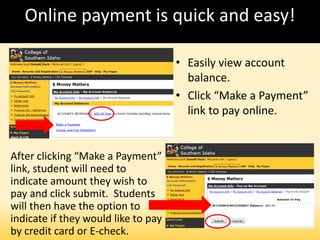
Online payment is quick and easy!
• Easily view account
balance.
• Click “Make a Payment”
link to pay online.
After clicking “Make a Payment”
link, student will need to
indicate amount they wish to
pay and click submit. Students
will then have the option to
indicate if they would like to pay
by credit card or E-check.
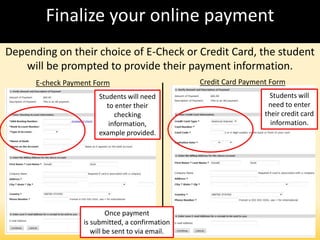
Finalize your online payment
Depending on their choice of E-Check or Credit Card, the student
will be prompted to provide their payment information.
E-check Payment Form Credit Card Payment Form
Students will need
to enter their
checking
information,
example provided.
Students will
need to enter
their credit card
information.
Once payment
is submitted, a confirmation
will be sent to via email.
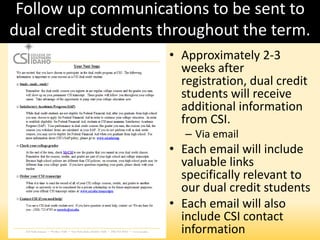
Follow up communications to be sent to
dual credit students throughout the term.
• Approximately 2-3
weeks after
registration, dual credit
students will receive
additional information
from CSI.
– Via email
• Each email will include
valuable links
specifically relevant to
our dual credit students
• Each email will also
include CSI contact
information
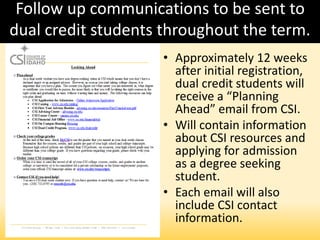
Follow up communications to be sent to
dual credit students throughout the term.
• Approximately 12 weeks
after initial registration,
dual credit students will
receive a “Planning
Ahead” email from CSI.
• Will contain information
about CSI resources and
applying for admission
as a degree seeking
student.
• Each email will also
include CSI contact
information.
Questions?
The CSI Dual Credit Program thanks you for
your collaboration in implementing this
new process.
If you have questions, we are at your service-
CSI Records-208-732-6795
Dr. John Miller-208-732-6280
Karrie Hornbacher-208-732-6276
Larrianne Rodriguez-208-732-6219

A5 chapter 4

  • 1.
    CSI On-Line DualCredit Student Registration Fall 2012
  • 2.
    CSI Fall 2012Dual Credit Deadlines • Registration and Enrollment activities (8-28 thru 9-17) • Registration and Payment Deadline (9-21) • Deadline for Receipt of Scholarship Requests (9-21) • Begin: Process to Withdraw Students for Non-Payment of Tuition (9-24)
  • 3.
    Mycsi.csi.edu-CSI Student Portal •New Student Admission Application • Add/Drop Classes • Print a Schedule • Pay Online • Check Grades • Request a Transcript
  • 4.
    All students wishingto enroll in dual credit classes need to apply for dual credit admission online. This process can now be completed online at mycsi.csi.edu
  • 5.
    Students can beginfilling out the dual credit admission application by clicking the link and entering their information.
  • 6.
    Dual credit admissionapplication continued • Note link to County Residency Form, students can click this link to print form. • On high school information section, student will need to choose state first, and then high schools will populate into the drop down menu. • Student will need to place a check in box to indicate “yes” to agreement to submit application.
  • 7.
    After submitting theirapplication for admission, students will receive the following email from CSI. Dear <Student Name>, Thank you for applying to the Dual Credit program at the College of Southern Idaho! Your application will be reviewed shortly, and our office will be contacting you within two business days. Once your application is processed, you will receive follow up communication, via email, including your student ID number and instructions on course registration. If you have any questions or need assistance please contact us by email, by phone, or stop by to see us between the hours of 8 a.m. and 5 p.m. Monday through Friday. We are located on the first floor of the Taylor Building in the Student Services MATRIX. Thank you, CSI Admissions & Records e-mail: records@csi.edu phone: (208) 732-6795 fax: (208) 736-3014
  • 8.
    Within 48 hoursof applying for admission, dual credit students will receive an acceptance letter from CSI. CSI student ID number Important student information
  • 9.
    . Within minutes ofreceiving their acceptance letter, students will receive detailed registration instructions. This letter will provide step-by-step registration instructions for students.
  • 10.
    If a studentis taking dual credit classes for the first time, they will need to retrieve their temporary PIN. In order to register online, new dual credit students, those taking dual credit classes for the first time, will first need to retrieve their temporary PIN in order to login to MyCSI. The PIN retrieval link can be found on the MyCSI homepage.
  • 11.
    First time dualcredit students-PIN Retrieval Students will need to enter their student ID number from the Acceptance Letter, Birthdate (in correct format) and email, address they provided in their CSI application, to retrieve their temporary PIN. A capital “Y” in the box indicates they’ve read the agreement and the student is ready to retrieve their temporary PIN.
  • 12.
    If PIN retrievalis successful, PIN will be emailed to email address that student supplied on their admission application. Student will receive a message to retrieve their PIN from their email. Student will need to check their email to retrieve PIN. Please note-PIN email could possibly end up in student’s SPAM/Junk mailbox depending on student’s email settings.
  • 13.
    After retrieving theirPIN, new students can now use their CSI Student ID number and PIN to log into MyCSI and register for dual credit classes. Also important to note- • PIN Email will include instructions on how student can change their PIN, to a secret password of their own preference, after initially logging in. • After registering for their first course, the PIN will automatically default to the student’s date of birth in MM/DD/YYYY format.
  • 14.
    Login process forstudents who have previously taken dual credit courses • Students who have previously taken dual credit classes are considered returning students for the purpose of logging into MyCSI. • As these students have already taken classes, their MyCSI PIN will have automatically defaulted to the student’s date of birth in MM/DD/YYYY format. • These students will enter their CSI Student ID Number and date of birth in MM/DD/YYYY format to log into MyCSI.
  • 15.
    Both your newand returning dual credit students now have access to MyCSI and the ability to register for their dual credit courses online. To begin the registration process have students click on Records and Registration.
  • 16.
    After clicking onRecords and Registration, the student will be asked to update their personal information before they are able to add/drop classes. Students will be asked to complete this step at the beginning of each term. Click on the blue link to update personal information.
  • 17.
    Students will bedirected to an online form to review their personal information for accuracy. • Changes can be made by updating fields in the form. • Required fields will have an asterisk. • An agreement at the bottom of the page will remind students to complete and submit their county residency forms. • Students must check the box, at the bottom of the page, indicating they have read and agree to the advising/payment and residency policies.
  • 18.
  • 19.
  • 20.
  • 21.
    Personal Information UpdateAgreement If the student submits the personal information update and errors are found, or required fields are left blank, the student will be taken back to the top of the page. A message will advise the student to fix the problems as indicated in the form. Errors will appear in red.
  • 22.
    Once Personal InformationUpdate is complete, students will be allowed to add classes. • Click on Course Search Tab. • Be sure to note which term is selected before searching courses. – If pre-registering for the next term, be sure to update this field.
  • 23.
    Search for dualcredit courses by faculty/instructor. • Select instructor’s name from drop down faculty menu. – Instructors will be listed alphabetically by last name. • Click on search to bring up results. • Dual credit students will only have access to register for dual credit sections.
  • 24.
    Review list ofavailable classes and select your course. • Be sure to note the class location and dates to verify you have selected the appropriate course. • Add class by placing a check in the box next to the class and clicking “Add Courses”.
  • 25.
    Location and classdates will vary depending on the course. • Verify class location and dates before finalizing registration.
  • 26.
    In the eventyou are unable to search by instructor, search by location. Step 1-Choose “Dual Credit” from the Campus menu. Step 2-Choose your high school from the building menu. Step 3-Click search to return the results. This search will return a listing of all dual credit classes offered at a particular high school.
  • 27.
    If student needsto drop a course before the deadline • Click on Records and Registration Tab. – Click Add/Drop Courses. • Scroll towards bottom of page and place a check in “Drop” box. – Click “Drop Selected Courses”.
  • 28.
    Time to pay!Make a payment online.! • Click the $Money Matters tab at the top of the page. • Click on the “My Account Balances” link to view account balance and pay online. • Fall dual credit tuition is due on Friday, September 21st.
  • 29.
    Online payment isquick and easy! • Easily view account balance. • Click “Make a Payment” link to pay online. After clicking “Make a Payment” link, student will need to indicate amount they wish to pay and click submit. Students will then have the option to indicate if they would like to pay by credit card or E-check.
  • 30.
    Finalize your onlinepayment Depending on their choice of E-Check or Credit Card, the student will be prompted to provide their payment information. E-check Payment Form Credit Card Payment Form Students will need to enter their checking information, example provided. Students will need to enter their credit card information. Once payment is submitted, a confirmation will be sent to via email.
  • 31.
    Follow up communicationsto be sent to dual credit students throughout the term. • Approximately 2-3 weeks after registration, dual credit students will receive additional information from CSI. – Via email • Each email will include valuable links specifically relevant to our dual credit students • Each email will also include CSI contact information
  • 32.
    Follow up communicationsto be sent to dual credit students throughout the term. • Approximately 12 weeks after initial registration, dual credit students will receive a “Planning Ahead” email from CSI. • Will contain information about CSI resources and applying for admission as a degree seeking student. • Each email will also include CSI contact information.
  • 33.
    Questions? The CSI DualCredit Program thanks you for your collaboration in implementing this new process. If you have questions, we are at your service- CSI Records-208-732-6795 Dr. John Miller-208-732-6280 Karrie Hornbacher-208-732-6276 Larrianne Rodriguez-208-732-6219

Editor's Notes

  • #5 Regardless of whether or not the student has taken dual credit courses before, ALL dual credit students need to complete the online dual credit admission application.
  • #7 Drop down menu includes “home school” option. If student is unable to find their high school in the drop down menu, they need to select “other” and then type their high school into Other High School field.
  • #8 This email will arrive within minutes of the student submitting their dual credit admission application.
  • #9 The acceptance letter will include the student’s CSI student ID number and valuable student information
  • #14 It’s generally a 24 hour process for the temporary PIN to default to the student’s 8 digit date of birth.
  • #24 If students wish to add regular college sections they will need to contact the CSI Records Office at 208-732-6795.
  • #28 Students only have the option to “drop” until the tuition deadline-9/21 for fall If student wants out of class after 9/21, it is a withdraw and a “W” will be placed on student’s transcript. W’s can have negative impacts. Student must contact CSI Records office to initiate a withdraw. After 10/15, student will earn grade they receive in class-no option to drop or withdraw
  • #31 The payment confirmation email will be sent to the email address provided on the payment form.
  • #32 CSI will continue to keep in touch with students throughout the term, providing important reminders such as dual credit courses/grades will stay on students’ permanent CSI records, Satisfactory Academic Progress (SAP) and its implications for dual credit students, how to check grades, and how to order your official CSI transcript.
  • #33 ¾ through the term, CSI will send it’s final student letter providing students with valuable information about checking grades and requesting transcripts along with planning ahead to become a degree seeking student at CSI.