User Manual
Version 3.0.6
Prepared by
FiNEX Solutions
Visit website: http://www.chartnexus.com
January 14, 2010
i
Copyright c 2004-2010 FiNEX Solutions
All rights reserved. No part of this document may be reproduced in any form or by any
electronic or mechanical mean, including information storage and retrieval systems,
without permission in writing from FiNEX Solutions Pte. Ltd (“FiNEX Solutions”).
Limitations of Liability/Disclaimer of Warranty
FiNEX Solutions makes no representation or warranty including, but not limited to the
accuracy or completeness of the contents of this document and specifically disclaim
all warranties, including without limitation warranty of fitness for a particular purpose.
No warranty may be created or extended by sales or promotional materials.
This document is provided with the understanding that it is for personal educational
reference, to assist you in better understanding of the ChartNexus software system. If
you require professional assistance or investment advice, you are strongly advised to
engage the services of a competent financial adviser.
FiNEX Solutions shall not be held liable for damages arising here from. The fact that
an organization or a website is referred to in this document as a citation and/or a poten-
tial source for further information does not mean that FiNEX Solutions endorses the
information or recommendations made by the organization or the website. Further, you
should be aware that the Internet websites listed in this document may have changed or
disappeared between when this document was written and when you read it.
For general information and updates on our products and services, please visit our web
site at http://www.chartnexus.com.
Trademarks
ChartNexus is a registered trademark; XPertTrader, XPertTrader TestDrive, XPert-
Trader Indicators, XPertTrader Candlesticks, ChartMaker, IndexCreator are trademarks
of FiNEX Solutions and may not be used without written permission. All other trade-
marks are the property of their respective owners.
About FiNEX Solutions
FiNEX Solutions is the developer of ChartNexus financial charting software. Estab-
lished since 2004 and based in Singapore, FiNEX Solutions has been pushing the fron-
tier of financial charting including the introduction of on-demand add-on modules. The
add-ons extend the capability of ChartNexus to include historical data, backtesting,
screening, pattern recognition and more. Besides specializing in application develop-
ment, FiNEX Solutions provides a complete range of products and services including
data services, web-based charting solutions, consultancy on integration of financial
charting systems, education and training and other solutions.
For more information, please contact support@chartnexus.com.
Preface
Born in July 2004, ChartNexus was conceived much earlier before we formed our
company FiNEX Solutions. It was then in February 2005 that we started distributing
version 1.0 free-of-charge for personal use to everyone.
Since then, ChartNexus has grown to include many functionalities and improved us-
ability. This is in part credited to the continuous contributions by many of the early
adopters who emailed us with their suggestions and feedback. We thank you !
As we continue our sculpting of ChartNexus, we felt it was critical to explain to you
about the features and functionalities so that you can get the best out of ChartNexus.
In addition to this manual, we have setup some learning resources at our website http:
//www.chartnexus.com/learning/.
If you discover any error in this document or any of the resources, kindly drop us a
mail about it support@chartnexus.com, it will certainly benefit others.
We hope that you find all these services and resources useful in helping you to become
a better chartist, trader or investor.
If you have any ideas, comments or feedback on how we can improve our products and
services, we love to hear from you ! Talk to us at support@chartnexus.com.
Happy Charting !
Always Our Best,
ChartNexus Team
ii
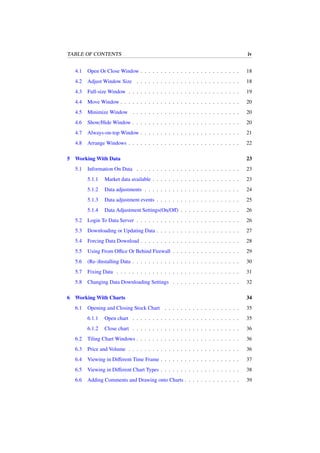
Table of Contents
1 About ChartNexus 2
1.1 What Is ChartNexus ? . . . . . . . . . . . . . . . . . . . . . . . . . . 3
1.2 Why Use ChartNexus ? . . . . . . . . . . . . . . . . . . . . . . . . . 3
1.3 Develop Your Winning Strategy . . . . . . . . . . . . . . . . . . . . 5
2 Getting Started 8
2.1 System Requirements . . . . . . . . . . . . . . . . . . . . . . . . . . 8
2.2 Sign Up Free Account . . . . . . . . . . . . . . . . . . . . . . . . . 9
2.3 Installing ChartNexus . . . . . . . . . . . . . . . . . . . . . . . . . . 9
2.4 Starting ChartNexus . . . . . . . . . . . . . . . . . . . . . . . . . . . 11
2.5 Upgrading ChartNexus . . . . . . . . . . . . . . . . . . . . . . . . . 11
2.6 Getting Help . . . . . . . . . . . . . . . . . . . . . . . . . . . . . . . 11
3 Introduction 13
3.1 Splash Window . . . . . . . . . . . . . . . . . . . . . . . . . . . . . 13
3.2 Working Windows . . . . . . . . . . . . . . . . . . . . . . . . . . . 13
3.3 Menu Bar . . . . . . . . . . . . . . . . . . . . . . . . . . . . . . . . 15
3.4 Tool Bar . . . . . . . . . . . . . . . . . . . . . . . . . . . . . . . . . 16
3.5 Drawing Tools . . . . . . . . . . . . . . . . . . . . . . . . . . . . . . 16
3.6 Listings & Watchlists . . . . . . . . . . . . . . . . . . . . . . . . . . 17
3.7 Chart Area . . . . . . . . . . . . . . . . . . . . . . . . . . . . . . . . 17
3.8 News Bar . . . . . . . . . . . . . . . . . . . . . . . . . . . . . . . . 17
4 Managing Windows 18
iii
TABLE OF CONTENTS iv
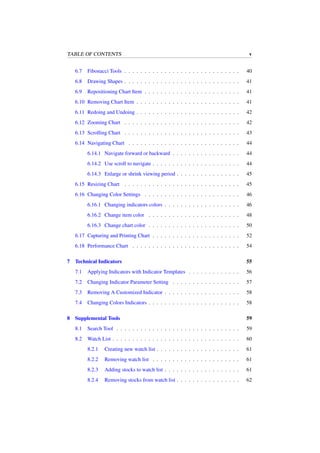
4.1 Open Or Close Window . . . . . . . . . . . . . . . . . . . . . . . . . 18
4.2 Adjust Window Size . . . . . . . . . . . . . . . . . . . . . . . . . . 18
4.3 Full-size Window . . . . . . . . . . . . . . . . . . . . . . . . . . . . 19
4.4 Move Window . . . . . . . . . . . . . . . . . . . . . . . . . . . . . . 20
4.5 Minimize Window . . . . . . . . . . . . . . . . . . . . . . . . . . . 20
4.6 Show/Hide Window . . . . . . . . . . . . . . . . . . . . . . . . . . . 20
4.7 Always-on-top Window . . . . . . . . . . . . . . . . . . . . . . . . . 21
4.8 Arrange Windows . . . . . . . . . . . . . . . . . . . . . . . . . . . . 22
5 Working With Data 23
5.1 Information On Data . . . . . . . . . . . . . . . . . . . . . . . . . . 23
5.1.1 Market data available . . . . . . . . . . . . . . . . . . . . . . 23
5.1.2 Data adjustments . . . . . . . . . . . . . . . . . . . . . . . . 24
5.1.3 Data adjustment events . . . . . . . . . . . . . . . . . . . . . 25
5.1.4 Data Adjustment Settings(On/Off) . . . . . . . . . . . . . . . 26
5.2 Login To Data Server . . . . . . . . . . . . . . . . . . . . . . . . . . 26
5.3 Downloading or Updating Data . . . . . . . . . . . . . . . . . . . . . 27
5.4 Forcing Data Download . . . . . . . . . . . . . . . . . . . . . . . . . 28
5.5 Using From Office Or Behind Firewall . . . . . . . . . . . . . . . . . 29
5.6 (Re-)Installing Data . . . . . . . . . . . . . . . . . . . . . . . . . . . 30
5.7 Fixing Data . . . . . . . . . . . . . . . . . . . . . . . . . . . . . . . 31
5.8 Changing Data Downloading Settings . . . . . . . . . . . . . . . . . 32
6 Working With Charts 34
6.1 Opening and Closing Stock Chart . . . . . . . . . . . . . . . . . . . 35
6.1.1 Open chart . . . . . . . . . . . . . . . . . . . . . . . . . . . 35
6.1.2 Close chart . . . . . . . . . . . . . . . . . . . . . . . . . . . 36
6.2 Tiling Chart Windows . . . . . . . . . . . . . . . . . . . . . . . . . . 36
6.3 Price and Volume . . . . . . . . . . . . . . . . . . . . . . . . . . . . 36
6.4 Viewing in Different Time Frame . . . . . . . . . . . . . . . . . . . . 37
6.5 Viewing in Different Chart Types . . . . . . . . . . . . . . . . . . . . 38
6.6 Adding Comments and Drawing onto Charts . . . . . . . . . . . . . . 39
TABLE OF CONTENTS v
6.7 Fibonacci Tools . . . . . . . . . . . . . . . . . . . . . . . . . . . . . 40
6.8 Drawing Shapes . . . . . . . . . . . . . . . . . . . . . . . . . . . . . 41
6.9 Repositioning Chart Item . . . . . . . . . . . . . . . . . . . . . . . . 41
6.10 Removing Chart Item . . . . . . . . . . . . . . . . . . . . . . . . . . 41
6.11 Redoing and Undoing . . . . . . . . . . . . . . . . . . . . . . . . . . 42
6.12 Zooming Chart . . . . . . . . . . . . . . . . . . . . . . . . . . . . . 42
6.13 Scrolling Chart . . . . . . . . . . . . . . . . . . . . . . . . . . . . . 43
6.14 Navigating Chart . . . . . . . . . . . . . . . . . . . . . . . . . . . . 44
6.14.1 Navigate forward or backward . . . . . . . . . . . . . . . . . 44
6.14.2 Use scroll to navigate . . . . . . . . . . . . . . . . . . . . . . 44
6.14.3 Enlarge or shrink viewing period . . . . . . . . . . . . . . . . 45
6.15 Resizing Chart . . . . . . . . . . . . . . . . . . . . . . . . . . . . . 45
6.16 Changing Color Settings . . . . . . . . . . . . . . . . . . . . . . . . 46
6.16.1 Changing indicators colors . . . . . . . . . . . . . . . . . . . 46
6.16.2 Change item color . . . . . . . . . . . . . . . . . . . . . . . 48
6.16.3 Change chart color . . . . . . . . . . . . . . . . . . . . . . . 50
6.17 Capturing and Printing Chart . . . . . . . . . . . . . . . . . . . . . . 52
6.18 Performance Chart . . . . . . . . . . . . . . . . . . . . . . . . . . . 54
7 Technical Indicators 55
7.1 Applying Indicators with Indicator Templates . . . . . . . . . . . . . 56
7.2 Changing Indicator Parameter Setting . . . . . . . . . . . . . . . . . 57
7.3 Removing A Customized Indicator . . . . . . . . . . . . . . . . . . . 58
7.4 Changing Colors Indicators . . . . . . . . . . . . . . . . . . . . . . . 58
8 Supplemental Tools 59
8.1 Search Tool . . . . . . . . . . . . . . . . . . . . . . . . . . . . . . . 59
8.2 Watch List . . . . . . . . . . . . . . . . . . . . . . . . . . . . . . . . 60
8.2.1 Creating new watch list . . . . . . . . . . . . . . . . . . . . . 61
8.2.2 Removing watch list . . . . . . . . . . . . . . . . . . . . . . 61
8.2.3 Adding stocks to watch list . . . . . . . . . . . . . . . . . . . 61
8.2.4 Removing stocks from watch list . . . . . . . . . . . . . . . . 62
TABLE OF CONTENTS vi
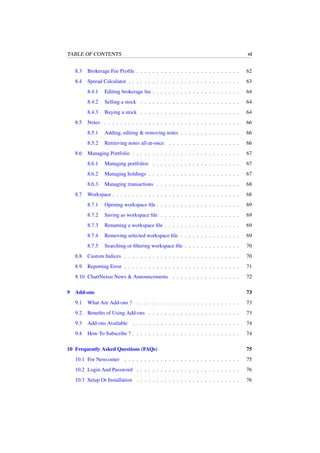
8.3 Brokerage Fee Profile . . . . . . . . . . . . . . . . . . . . . . . . . . 62
8.4 Spread Calculator . . . . . . . . . . . . . . . . . . . . . . . . . . . . 63
8.4.1 Editing brokerage fee . . . . . . . . . . . . . . . . . . . . . . 64
8.4.2 Selling a stock . . . . . . . . . . . . . . . . . . . . . . . . . 64
8.4.3 Buying a stock . . . . . . . . . . . . . . . . . . . . . . . . . 64
8.5 Notes . . . . . . . . . . . . . . . . . . . . . . . . . . . . . . . . . . 66
8.5.1 Adding, editing & removing notes . . . . . . . . . . . . . . . 66
8.5.2 Retrieving notes all-at-once . . . . . . . . . . . . . . . . . . 66
8.6 Managing Portfolio . . . . . . . . . . . . . . . . . . . . . . . . . . . 67
8.6.1 Managing portfolios . . . . . . . . . . . . . . . . . . . . . . 67
8.6.2 Managing holdings . . . . . . . . . . . . . . . . . . . . . . . 67
8.6.3 Managing transactions . . . . . . . . . . . . . . . . . . . . . 68
8.7 Workspace . . . . . . . . . . . . . . . . . . . . . . . . . . . . . . . . 68
8.7.1 Opening workspace file . . . . . . . . . . . . . . . . . . . . . 69
8.7.2 Saving as workspace file . . . . . . . . . . . . . . . . . . . . 69
8.7.3 Renaming a workspace file . . . . . . . . . . . . . . . . . . . 69
8.7.4 Removing selected workspace file . . . . . . . . . . . . . . . 69
8.7.5 Searching or filtering workspace file . . . . . . . . . . . . . . 70
8.8 Custom Indices . . . . . . . . . . . . . . . . . . . . . . . . . . . . . 70
8.9 Reporting Error . . . . . . . . . . . . . . . . . . . . . . . . . . . . . 71
8.10 ChartNexus News & Announcements . . . . . . . . . . . . . . . . . 72
9 Add-ons 73
9.1 What Are Add-ons ? . . . . . . . . . . . . . . . . . . . . . . . . . . 73
9.2 Benefits of Using Add-ons . . . . . . . . . . . . . . . . . . . . . . . 73
9.3 Add-ons Available . . . . . . . . . . . . . . . . . . . . . . . . . . . 74
9.4 How To Subscribe ? . . . . . . . . . . . . . . . . . . . . . . . . . . . 74
10 Frequently Asked Questions (FAQs) 75
10.1 For Newcomer . . . . . . . . . . . . . . . . . . . . . . . . . . . . . 75
10.2 Login And Password . . . . . . . . . . . . . . . . . . . . . . . . . . 76
10.3 Setup Or Installation . . . . . . . . . . . . . . . . . . . . . . . . . . 76
TABLE OF CONTENTS vii
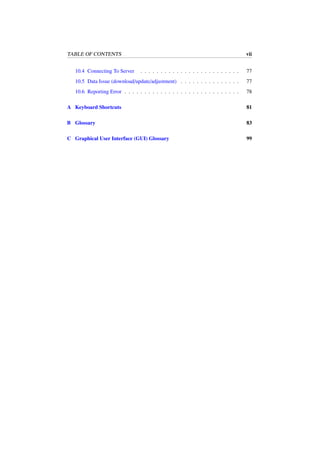
10.4 Connecting To Server . . . . . . . . . . . . . . . . . . . . . . . . . 77
10.5 Data Issue (download/update/adjustment) . . . . . . . . . . . . . . . 77
10.6 Reporting Error . . . . . . . . . . . . . . . . . . . . . . . . . . . . . 78
A Keyboard Shortcuts 81
B Glossary 83
C Graphical User Interface (GUI) Glossary 99
Release Notes
ChartNexus Version 3.0.6 contains the following changes:
• New: More market data added from other countries, e.g. China, Philippines,
Thailand, Vietnam and Taiwan.
• New: Price adjustments can now be turned on/off.
• New: Added Risk-Reward Ratio calculator.
• New: Support 3 selections of languages, i.e. English, Simplified Chinese and
Traditional Chinese.
• New: ChartNexus V3 is launched with JNLP, supporting directly execution of
ChartNexus program from other OS, e.g. Mac OS X, Linux, etc.
• Update: Change of bid size for KLSE (Bursa) market.
• Enhancement: Change default working folder as ”ChartNexus” rather than ”.Chart-
Nexus” for higher compatibility in some operating systems.
• Fix: Corrected chart display for users in other timezone, e.g. GMT-8 (US) or
any other regions.
• Fix: User login process was wrongly reporting about firewall being turned on.
Happy Charting !
Always Our Best,
ChartNexus Team
1
Chapter 1
About ChartNexus
“A picture speaks a thousand words”, a well-known adage that speaks the virtue of
picture and the wealth of information that it contains and conveys.
In the interesting world of equity market where the law of supply and demand dictates
the direction of an equity instrument (e.g. stock) and the market where the buyer and
seller often wrestle with each other on the price of the equity. And then there are cases
when both parties decide to stay on the sideline due to lack of interest or fresh leads.
In any case, when we plot the chart based on the opening and closing price and the
volume transacted, it became clear that we can visualize and observe the action going
on, of course as to what is really going on, that is still open for interpretation.
This has lead to the adoption of Technical Analysis (TA) which includes charting, var-
ious forms of simple and highly sophisticated technical indicators, Japanese candle-
sticks among investors and traders, fund managers around the world in their short-term,
mid-term or long-term investment decision-making. They use TA to better understand
market behavior (or rather the collective human behavior) to uncover opportunity or
shun potential losses.
Another reason why TA has been gaining popularity, is because we human are emo-
tional creatures and can be easily affected emotionally. Emotions such as fear or greed
often make us susceptible to irrational exuberance or even excessive gloom. By em-
ploying TA and having them implemented in computer programs, we can automate and
eliminate the emotion out of the decision making.
Quoting from the famous John Murphy (Philosophy of Technical Analysis), TA is
based on the following three premises:
• Market actions discount everything.
• Prices move in trends.
• History repeats itself.
Hence, we believe that equipping you with the prowess of technical analysis at your
fingertips, you can chart your way to success!
2
1.1. What Is ChartNexus ? 3
1.1 What Is ChartNexus ?
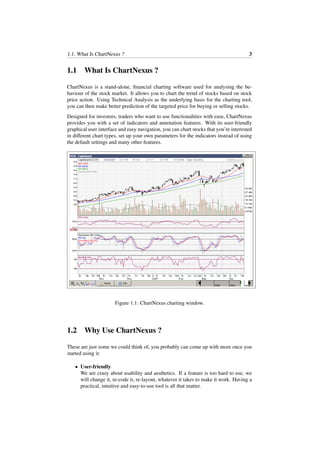
ChartNexus is a stand-alone, financial charting software used for analysing the be-
haviour of the stock market. It allows you to chart the trend of stocks based on stock
price action. Using Technical Analysis as the underlying basis for the charting tool,
you can then make better prediction of the targeted price for buying or selling stocks.
Designed for investors, traders who want to use functionalities with ease, ChartNexus
provides you with a set of indicators and annotation features. With its user-friendly
graphical user interface and easy navigation, you can chart stocks that you’re interested
in different chart types, set up your own parameters for the indicators instead of using
the default settings and many other features.
Figure 1.1: ChartNexus charting window.
1.2 Why Use ChartNexus ?
These are just some we could think of, you probably can come up with more once you
started using it:
• User-friendly
We are crazy about usability and aesthetics. If a feature is too hard to use, we
will change it, re-code it, re-layout, whatever it takes to make it work. Having a
practical, intuitive and easy-to-use tool is all that matter.
1.2. Why Use ChartNexus ? 4
• Power to customize
ChartNexus comes with a set of customizable and commonly used technical in-
dicators (i.e. MACD, Stochastic), trend-lines drawing capabilities (i.e. arrow
lines, Fibonacci lines). You can customize the parameters for all the indicators
included.
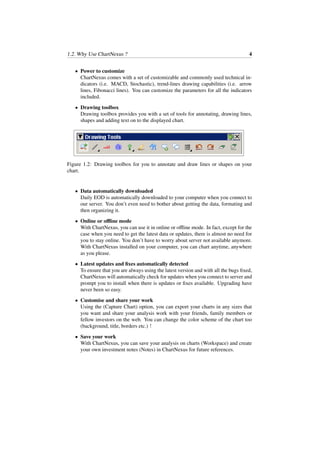
• Drawing toolbox
Drawing toolbox provides you with a set of tools for annotating, drawing lines,
shapes and adding text on to the displayed chart.
Figure 1.2: Drawing toolbox for you to annotate and draw lines or shapes on your
chart.
• Data automatically downloaded
Daily EOD is automatically downloaded to your computer when you connect to
our server. You don’t even need to bother about getting the data, formating and
then organizing it.
• Online or offline mode
With ChartNexus, you can use it in online or offline mode. In fact, except for the
case when you need to get the latest data or updates, there is almost no need for
you to stay online. You don’t have to worry about server not available anymore.
With ChartNexus installed on your computer, you can chart anytime, anywhere
as you please.
• Latest updates and fixes automatically detected
To ensure that you are always using the latest version and with all the bugs fixed,
ChartNexus will automatically check for updates when you connect to server and
prompt you to install when there is updates or fixes available. Upgrading have
never been so easy.
• Customise and share your work
Using the (Capture Chart) option, you can export your charts in any sizes that
you want and share your analysis work with your friends, family members or
fellow investors on the web. You can change the color scheme of the chart too
(background, title, borders etc.) !
• Save your work
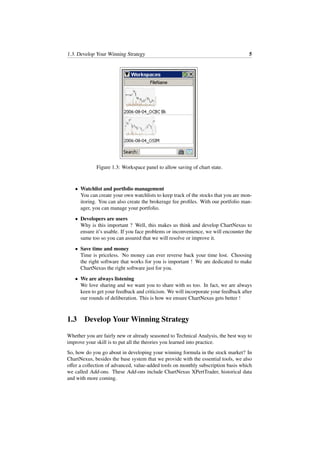
With ChartNexus, you can save your analysis on charts (Workspace) and create
your own investment notes (Notes) in ChartNexus for future references.
1.3. Develop Your Winning Strategy 5
Figure 1.3: Workspace panel to allow saving of chart state.
• Watchlist and portfolio management
You can create your own watchlists to keep track of the stocks that you are mon-
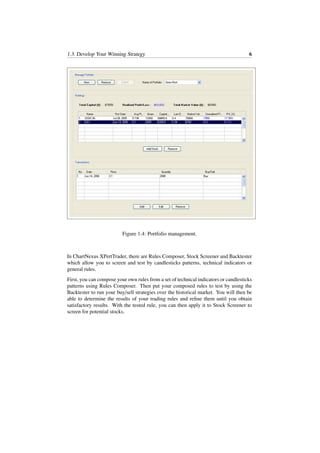
itoring. You can also create the brokerage fee profiles. With our portfolio man-
ager, you can manage your portfolio.
• Developers are users
Why is this important ? Well, this makes us think and develop ChartNexus to
ensure it’s usable. If you face problems or inconvenience, we will encounter the
same too so you can assured that we will resolve or improve it.
• Save time and money
Time is priceless. No money can ever reverse back your time lost. Choosing
the right software that works for you is important ! We are dedicated to make
ChartNexus the right software just for you.
• We are always listening
We love sharing and we want you to share with us too. In fact, we are always
keen to get your feedback and criticism. We will incorporate your feedback after
our rounds of deliberation. This is how we ensure ChartNexus gets better !
1.3 Develop Your Winning Strategy
Whether you are fairly new or already seasoned to Technical Analysis, the best way to
improve your skill is to put all the theories you learned into practice.
So, how do you go about in developing your winning formula in the stock market? In
ChartNexus, besides the base system that we provide with the essential tools, we also
offer a collection of advanced, value-added tools on monthly subscription basis which
we called Add-ons. These Add-ons include ChartNexus XPertTrader, historical data
and with more coming.
1.3. Develop Your Winning Strategy 6
Figure 1.4: Portfolio management.
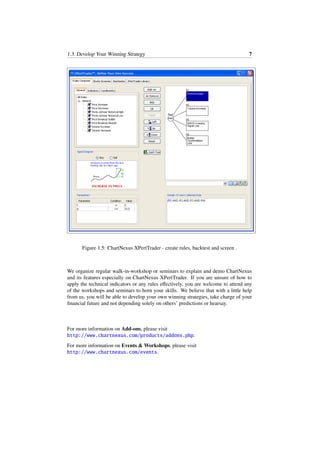
In ChartNexus XPertTrader, there are Rules Composer, Stock Screener and Backtester
which allow you to screen and test by candlesticks patterns, technical indicators or
general rules.
First, you can compose your own rules from a set of technical indicators or candlesticks
patterns using Rules Composer. Then put your composed rules to test by using the
Backtester to run your buy/sell strategies over the historical market. You will then be
able to determine the results of your trading rules and refine them until you obtain
satisfactory results. With the tested rule, you can then apply it to Stock Screener to
screen for potential stocks.
1.3. Develop Your Winning Strategy 7
Figure 1.5: ChartNexus XPertTrader - create rules, backtest and screen .
We organize regular walk-in-workshop or seminars to explain and demo ChartNexus
and its features especially on ChartNexus XPertTrader. If you are unsure of how to
apply the technical indicators or any rules effectively, you are welcome to attend any
of the workshops and seminars to horn your skills. We believe that with a little help
from us, you will be able to develop your own winning strategies, take charge of your
financial future and not depending solely on others’ predictions or hearsay.
For more information on Add-ons, please visit
http://www.chartnexus.com/products/addons.php.
For more information on Events & Workshops, please visit
http://www.chartnexus.com/events.
Chapter 2
Getting Started
In this chapter, we will guide you on how to quickly set up ChartNexus. We tried our
best to simplify and the installation as easy as possible. However, should you have any
further questions or any problems during the installation process, check out the various
resources listed under Section 2.6.
2.1 System Requirements
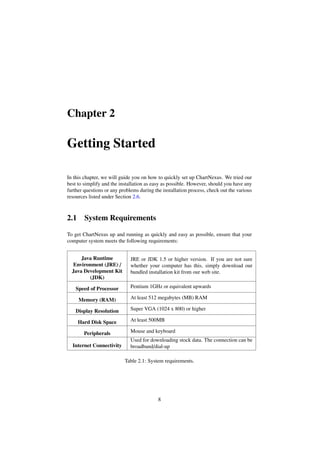
To get ChartNexus up and running as quickly and easy as possible, ensure that your
computer system meets the following requirements:
Java Runtime
Environment (JRE) /
Java Development Kit
(JDK)
JRE or JDK 1.5 or higher version. If you are not sure
whether your computer has this, simply download our
bundled installation kit from our web site.
Speed of Processor Pentium 1GHz or equivalent upwards
Memory (RAM) At least 512 megabytes (MB) RAM
Display Resolution Super VGA (1024 x 800) or higher
Hard Disk Space At least 500MB
Peripherals Mouse and keyboard
Internet Connectivity
Used for downloading stock data. The connection can be
broadband/dial-up
Table 2.1: System requirements.
8
2.2. Sign Up Free Account 9
2.2 Sign Up Free Account
Once you have checked that your computer system fulfilled the system requirements
listed in Table 2.1, download and install ChartNexus following these steps:
1. Sign up for an account
Sign up for a free account at http://www.chartnexus.com which will be used
for downloading the daily end-of-day (EOD) stock data to your computer. With
this free account, you will able to enjoy many features from ChartNexus, e.g.
managing your own portfolio, indicator templates and saving charts.
2. Activate your account
After signing up, an email containing the activation link will be sent to your
email account that you have registered with us. Click on the link to activate your
account. You may want to check inside your junk mail folder in case you didn’t
receive the mail.
3. Installing ChartNexus
Go to the our web site http://www.chartnexus.com/products/download.
php, and launch ChartNexus setup to install the software program at your ma-
chine. See more in following section.
2.3 Installing ChartNexus
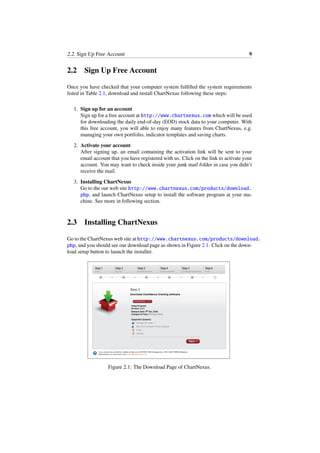
Go to the ChartNexus web site at http://www.chartnexus.com/products/download.
php, and you should see our download page as shown in Figure 2.1. Click on the down-
load setup button to launch the installer.
Figure 2.1: The Download Page of ChartNexus.
2.3. Installing ChartNexus 10
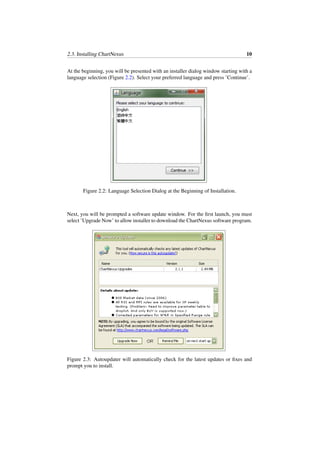
At the beginning, you will be presented with an installer dialog window starting with a
language selection (Figure 2.2). Select your preferred language and press ’Continue’.
Figure 2.2: Language Selection Dialog at the Beginning of Installation.
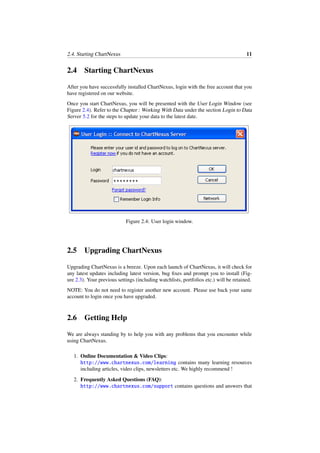
Next, you will be prompted a software update window. For the first launch, you must
select ’Upgrade Now’ to allow installer to download the ChartNexus software program.
Figure 2.3: Autoupdater will automatically check for the latest updates or fixes and
prompt you to install.
2.4. Starting ChartNexus 11
2.4 Starting ChartNexus
After you have successfully installed ChartNexus, login with the free account that you
have registered on our website.
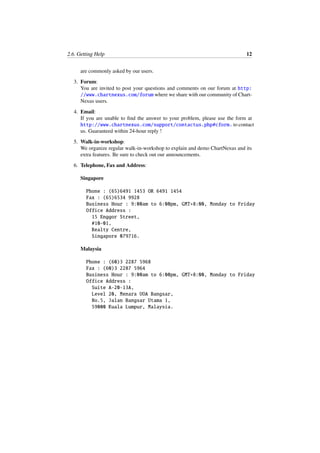
Once you start ChartNexus, you will be presented with the User Login Window (see
Figure 2.4). Refer to the Chapter : Working With Data under the section Login to Data
Server 5.2 for the steps to update your data to the latest date.
Figure 2.4: User login window.
2.5 Upgrading ChartNexus
Upgrading ChartNexus is a breeze. Upon each launch of ChartNexus, it will check for
any latest updates including latest version, bug fixes and prompt you to install (Fig-
ure 2.3). Your previous settings (including watchlists, portfolios etc.) will be retained.
NOTE: You do not need to register another new account. Please use back your same
account to login once you have upgraded.
2.6 Getting Help
We are always standing by to help you with any problems that you encounter while
using ChartNexus.
1. Online Documentation & Video Clips:
http://www.chartnexus.com/learning contains many learning resources
including articles, video clips, newsletters etc. We highly recommend !
2. Frequently Asked Questions (FAQ):
http://www.chartnexus.com/support contains questions and answers that
2.6. Getting Help 12
are commonly asked by our users.
3. Forum:
You are invited to post your questions and comments on our forum at http:
//www.chartnexus.com/forum where we share with our community of Chart-
Nexus users.
4. Email:
If you are unable to find the answer to your problem, please use the form at
http://www.chartnexus.com/support/contactus.php#cform. to contact
us. Guaranteed within 24-hour reply !
5. Walk-in-workshop:
We organize regular walk-in-workshop to explain and demo ChartNexus and its
extra features. Be sure to check out our announcements.
6. Telephone, Fax and Address:
Singapore
Phone : (65)6491 1453 OR 6491 1454
Fax : (65)6534 9928
Business Hour : 9:00am to 6:00pm, GMT+8:00, Monday to Friday
Office Address :
15 Enggor Street,
#10-01,
Realty Centre,
Singapore 079716.
Malaysia
Phone : (60)3 2287 5968
Fax : (60)3 2287 5964
Business Hour : 9:00am to 6:00pm, GMT+8:00, Monday to Friday
Office Address :
Suite A-20-13A,
Level 20, Menara UOA Bangsar,
No.5, Jalan Bangsar Utama 1,
59000 Kuala Lumpur, Malaysia.
Chapter 3
Introduction
In this chapter, we will introduce you to the various graphical user interface (GUI)
components and windows in ChartNexus so that you will know how to access and
navigate properly to maximise your usage of the features provided.
3.1 Splash Window
When you first run ChartNexus after the setup, you will be presented with a splash
window as shown in Figure 3.1.
The following information is displayed on the Splash Window:
1. The version of ChartNexus that you are using.
2. Name of the company who develops ChartNexus i.e. FiNEX Solutions.
3. ChartNexus tagline.
This splash window can be accessed later by clicking on Help and then About in the
menu.
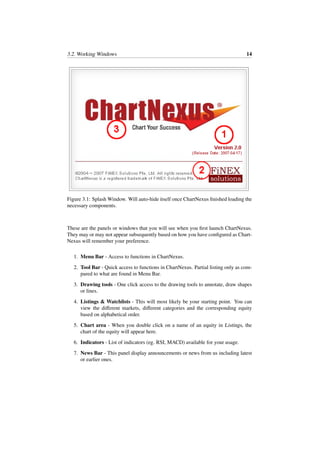
3.2 Working Windows
Figure 3.2 shows the main windows you will see after the splash window (dis)appears.
13
3.2. Working Windows 14
Figure 3.1: Splash Window. Will auto-hide itself once ChartNexus finished loading the
necessary components.
These are the panels or windows that you will see when you first launch ChartNexus.
They may or may not appear subsequently based on how you have configured as Chart-
Nexus will remember your preference.
1. Menu Bar - Access to functions in ChartNexus.
2. Tool Bar - Quick access to functions in ChartNexus. Partial listing only as com-
pared to what are found in Menu Bar.
3. Drawing tools - One click access to the drawing tools to annotate, draw shapes
or lines.
4. Listings & Watchlists - This will most likely be your starting point. You can
view the different markets, different categories and the corresponding equity
based on alphabetical order.
5. Chart area - When you double click on a name of an equity in Listings, the
chart of the equity will appear here.
6. Indicators - List of indicators (eg. RSI, MACD) available for your usage.
7. News Bar - This panel display announcements or news from us including latest
or earlier ones.
3.3. Menu Bar 15
Figure 3.2: Screenshot of the main working windows in ChartNexus (NOTE: it will
look slightly different in Windows Vista, Windows XP, Windows 9x, Windows ME or
Windows 2000).
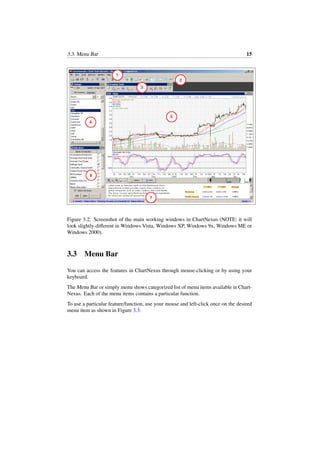
3.3 Menu Bar
You can access the features in ChartNexus through mouse-clicking or by using your
keyboard.
The Menu Bar or simply menu shows categorized list of menu items available in Chart-
Nexus. Each of the menu items contains a particular function.
To use a particular feature/function, use your mouse and left-click once on the desired
menu item as shown in Figure 3.3:
3.4. Tool Bar 16
Figure 3.3: Accessing the menu bar and menu items.
For example to close a chart, you can click on the Close menu item to close the current
selected chart. Alternatively, you can use keyboard combination key or what is termed
as accelerator key or shortcut key to conveniently and quickly invoke certain function.
Example: pressing the control key (CTRL) and the key ’W’ on your keyboard will
close the current/selected chart.
3.4 Tool Bar
Tool bar gives you one-click direct access to some of the more commonly used func-
tions.
You can click and hold on it to drag it out from its current position and make it ’float’.
To make it anchor back into it default/original location, just click on the X button found
at its top right corner.
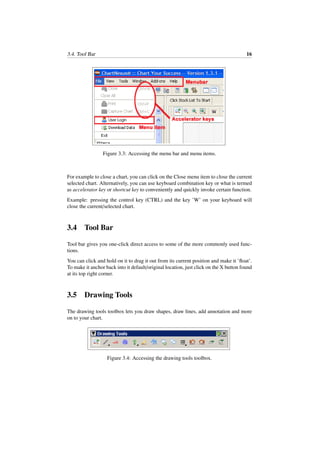
3.5 Drawing Tools
The drawing tools toolbox lets you draw shapes, draw lines, add annotation and more
on to your chart.
Figure 3.4: Accessing the drawing tools toolbox.
3.6. Listings & Watchlists 17
3.6 Listings & Watchlists
This will usually be your first point of access.
From here, you can switch around to the different market data available to you. You can
also browse through the list of equity (stocks, warrants etc.) arranged by alphabetical
order; categories e.g. top movers, top % gainers, top % losers etc.
Double click on any of the equity name and the corresponding chart will be shown in
the 3.7 Chart Area.
Besides these, the watchlist management tools are also located here. You can track your
favourite equity or you can have easy access to the equity that you have just viewed.
3.7 Chart Area
This is where the equity (stocks, warrants etc.) will be shown once you double click
on any of the equity name found in the 3.6 Listings.
3.8 News Bar
News bar displays announcements and news from us. This may include events news,
data news (in the event of any interruption), major announcements or PR news and so
on. New news item will appear in orange and indicated with the word NEW.
Move your mouse over it and click on the link will bring you to our web page for the
full coverage (NOTE: you need an Internet connection for this).
Chapter 4
Managing Windows
In this chapter, we will introduce you to the functions available for managing the win-
dows in ChartNexus. We have introduced the ’sticky’ or magnetic window into Chart-
Nexus to let you easily manage your window. The windows will also auto-adjust their
heights when you try to stack them at the left corner. For managing your opened charts,
please see the subsequent chapter on Working With Charts.
4.1 Open Or Close Window
The control buttons to show or hide windows are located in the Menu Bar or Tool Bar.
Click on the menu item or tool bar button to show or hide the window.
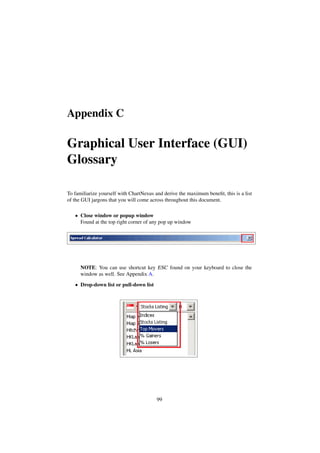
To close the window, you can also click on the ’X’ button located at the top right
corner of the window. Pressing the key ’Esc’ on your keyboard will also close the
opened window.
4.2 Adjust Window Size
To adjust the size of the window, move your mouse cursor to the edge of the window
as highlighted in Figure 4.1.
18
4.3. Full-size Window 19
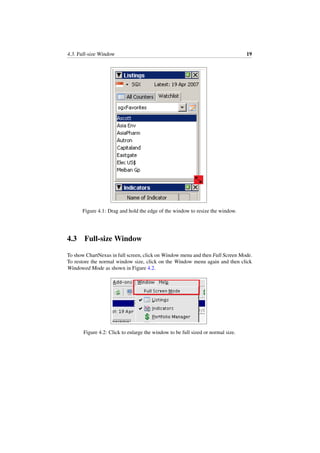
Figure 4.1: Drag and hold the edge of the window to resize the window.
4.3 Full-size Window
To show ChartNexus in full screen, click on Window menu and then Full Screen Mode.
To restore the normal window size, click on the Window menu again and then click
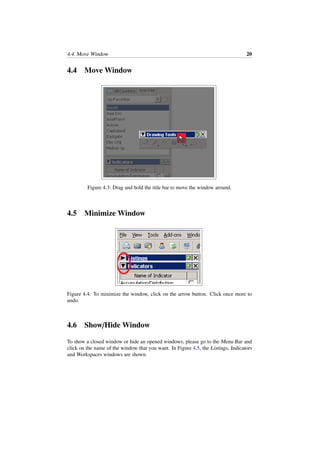
Windowed Mode as shown in Figure 4.2.
Figure 4.2: Click to enlarge the window to be full sized or normal size.
4.4. Move Window 20
4.4 Move Window
Figure 4.3: Drag and hold the title bar to move the window around.
4.5 Minimize Window
Figure 4.4: To minimize the window, click on the arrow button. Click once more to
undo.
4.6 Show/Hide Window
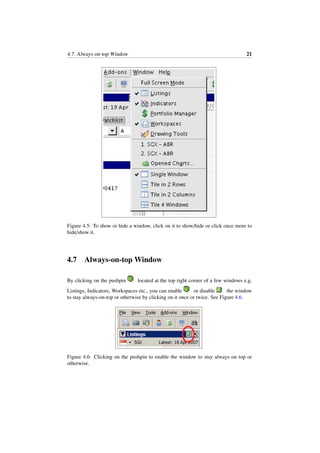
To show a closed window or hide an opened windows, please go to the Menu Bar and
click on the name of the window that you want. In Figure 4.5, the Listings, Indicators
and Workspaces windows are shown.
4.7. Always-on-top Window 21
Figure 4.5: To show or hide a window, click on it to show/hide or click once more to
hide/show it.
4.7 Always-on-top Window
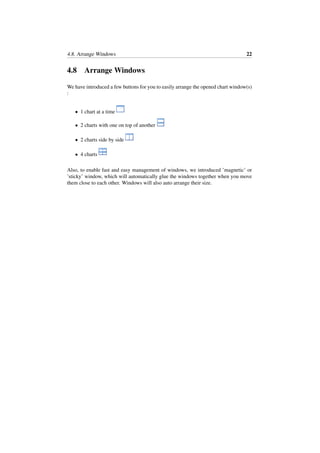
By clicking on the pushpin located at the top right corner of a few windows e.g.
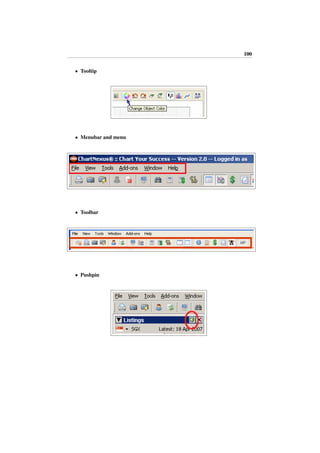
Listings, Indicators, Workspaces etc., you can enable or disable the window
to stay always-on-top or otherwise by clicking on it once or twice. See Figure 4.6.
Figure 4.6: Clicking on the pushpin to enable the window to stay always on top or
otherwise.
4.8. Arrange Windows 22
4.8 Arrange Windows
We have introduced a few buttons for you to easily arrange the opened chart window(s)
:
• 1 chart at a time
• 2 charts with one on top of another
• 2 charts side by side
• 4 charts
Also, to enable fast and easy management of windows, we introduced ’magnetic’ or
’sticky’ window, which will automatically glue the windows together when you move
them close to each other. Windows will also auto arrange their size.
Chapter 5
Working With Data
Data is what makes it possible to plot chart. In this chapter, we will look at what are
the market data that comes with ChartNexus, how you can obtain them, how you can
(re)install the data if required and fixing them if necessary.
5.1 Information On Data
We try to provide as much data as easily available to you.
Data is automatically downloaded and updated every trading day, saving you the hassle
to worry about updating and formatting your own data. On top of that, we provide
adjusted (see 5.1.2) end-of-day (EOD) and historical data. ChartNexus uses proprietary
data format.
5.1.1 Market data available
We currently provide EOD data and historical data only and do not support real-time
data.
ChartNexus comes free-of-charge (personal use) with EOD data :
1. 3 years BSE, NSE
2. 3 years HKSE
3. 3 years JSX
4. 3 years Bursa/KLSE (include both Mainboard and Mesdaq stocks and warrants)
5. 3 years SGX (include both Mainboard and Sesdaq stocks and warrants data)
6. 3 years AMEX, NASDAQ, NYSE and USINDEX
7. 3 years World Indices
23
5.1. Information On Data 24
NOTE: Data is usually updated at around 6:30pm (Singapore local time) daily. We
recommend that you update the data after 7pm or later. There maybe times when
delivery maybe late or delayed. We will make announcement on those occassion.
If you require historical data, you may want to consider subscribing to our addons -
10-year Historical Data which is adjusted for splits for more in-depth analysis.
5.1.2 Data adjustments
Many data sources, especially free ones usually do not come with data adjustment and
may not give you the true idea of the price of the equity. Data in ChartNexus is adjusted
for splits.
WITHOUT data adjustment, when stock splits, the chart will appear as shown in Fig-
ure 5.1:
Figure 5.1: Non-adjusted data with a huge gap distorting the chart.
WITH data adjustment, either/both previous price and volume data values are adjusted
to match the new valuation. This will allow the price and volume information to main-
tain a consistent scale with new data.
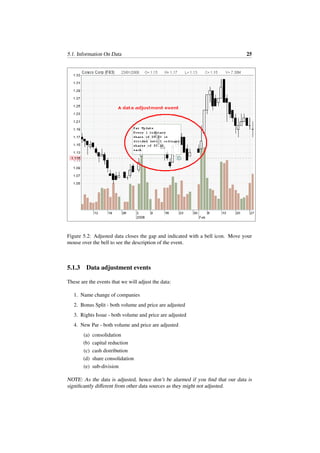
When there’s an adjustment event, a bell icon will appear in the chart as shown in
Figure 5.2:
5.1. Information On Data 25
Figure 5.2: Adjusted data closes the gap and indicated with a bell icon. Move your
mouse over the bell to see the description of the event.
5.1.3 Data adjustment events
These are the events that we will adjust the data:
1. Name change of companies
2. Bonus Split - both volume and price are adjusted
3. Rights Issue - both volume and price are adjusted
4. New Par - both volume and price are adjusted
(a) consolidation
(b) capital reduction
(c) cash distribution
(d) share consolidation
(e) sub-division
NOTE: As the data is adjusted, hence don’t be alarmed if you find that our data is
significantly different from other data sources as they might not adjusted.
5.2. Login To Data Server 26
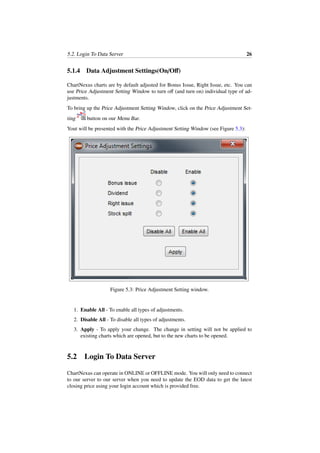
5.1.4 Data Adjustment Settings(On/Off)
ChartNexus charts are by default adjusted for Bonus Issue, Right Issue, etc. You can
use Price Adjustment Setting Window to turn off (and turn on) individual type of ad-
justments.
To bring up the Price Adjustment Setting Window, click on the Price Adjustment Set-
ting button on our Menu Bar.
Yout will be presented with the Price Adjustment Setting Window (see Figure 5.3):
Figure 5.3: Price Adjustment Setting window.
1. Enable All - To enable all types of adjustments.
2. Disable All - To disable all types of adjustments.
3. Apply - To apply your change. The change in setting will not be applied to
existing charts which are opened, but to the new charts to be opened.
5.2 Login To Data Server
ChartNexus can operate in ONLINE or OFFLINE mode. You will only need to connect
to our server to our server when you need to update the EOD data to get the latest
closing price using your login account which is provided free.
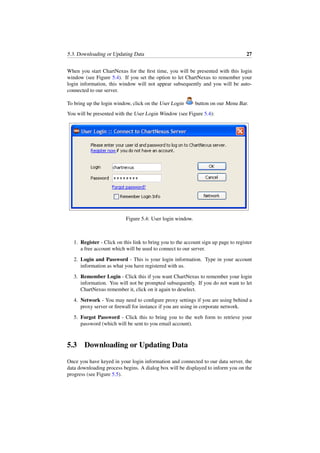
5.3. Downloading or Updating Data 27
When you start ChartNexus for the first time, you will be presented with this login
window (see Figure 5.4). If you set the option to let ChartNexus to remember your
login information, this window will not appear subsequently and you will be auto-
connected to our server.
To bring up the login window, click on the User Login button on our Menu Bar.
You will be presented with the User Login Window (see Figure 5.4):
Figure 5.4: User login window.
1. Register - Click on this link to bring you to the account sign up page to register
a free account which will be used to connect to our server.
2. Login and Password - This is your login information. Type in your account
information as what you have registered with us.
3. Remember Login - Click this if you want ChartNexus to remember your login
information. You will not be prompted subsequently. If you do not want to let
ChartNexus remember it, click on it again to deselect.
4. Network - You may need to configure proxy settings if you are using behind a
proxy server or firewall for instance if you are using in corporate network.
5. Forgot Password - Click this to bring you to the web form to retrieve your
password (which will be sent to you email account).
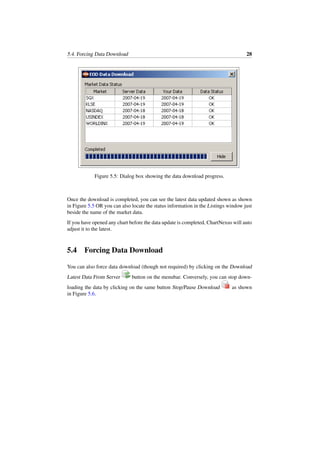
5.3 Downloading or Updating Data
Once you have keyed in your login information and connected to our data server, the
data downloading process begins. A dialog box will be displayed to inform you on the
progress (see Figure 5.5).
5.4. Forcing Data Download 28
Figure 5.5: Dialog box showing the data download progress.
Once the download is completed, you can see the latest data updated shown as shown
in Figure 5.5 OR you can also locate the status information in the Listings window just
beside the name of the market data.
If you have opened any chart before the data update is completed, ChartNexus will auto
adjust it to the latest.
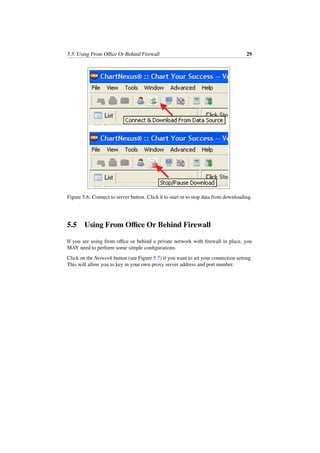
5.4 Forcing Data Download
You can also force data download (though not required) by clicking on the Download
Latest Data From Server button on the menubar. Conversely, you can stop down-
loading the data by clicking on the same button Stop/Pause Download as shown
in Figure 5.6.
5.5. Using From Office Or Behind Firewall 29
Figure 5.6: Connect to server button. Click it to start or to stop data from downloading.
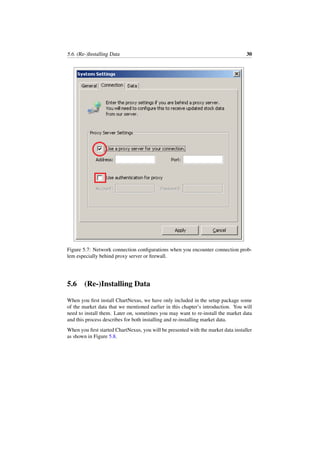
5.5 Using From Office Or Behind Firewall
If you are using from office or behind a private network with firewall in place, you
MAY need to perform some simple configurations.
Click on the Network button (see Figure 5.7) if you want to set your connection setting.
This will allow you to key in your own proxy server address and port number.
5.6. (Re-)Installing Data 30
Figure 5.7: Network connection configurations when you encounter connection prob-
lem especially behind proxy server or firewall.
5.6 (Re-)Installing Data
When you first install ChartNexus, we have only included in the setup package some
of the market data that we mentioned earlier in this chapter’s introduction. You will
need to install them. Later on, sometimes you may want to re-install the market data
and this process describes for both installing and re-installing market data.
When you first started ChartNexus, you will be presented with the market data installer
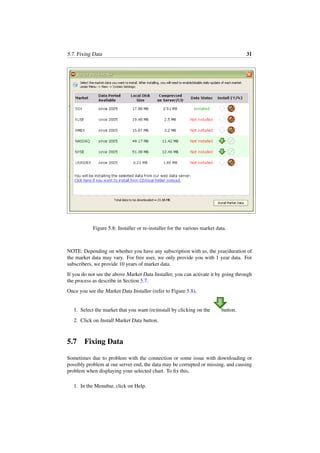
as shown in Figure 5.8.
5.7. Fixing Data 31
Figure 5.8: Installer or re-installer for the various market data.
NOTE: Depending on whether you have any subscription with us, the year/duration of
the market data may vary. For free user, we only provide you with 1 year data. For
subscribers, we provide 10 years of market data.
If you do not see the above Market Data Installer, you can activate it by going through
the process as describe in Section 5.7.
Once you see the Market Data Installer (refer to Figure 5.8),
1. Select the market that you want (re)install by clicking on the button.
2. Click on Install Market Data button.
5.7 Fixing Data
Sometimes due to problem with the connection or some issue with downloading or
possibly problem at our server end, the data may be corrupted or missing, and causing
problem when displaying your selected chart. To fix this,
1. In the Menubar, click on Help.
5.8. Changing Data Downloading Settings 32
2. Next, click on Fix Corrupted/Missing Data.
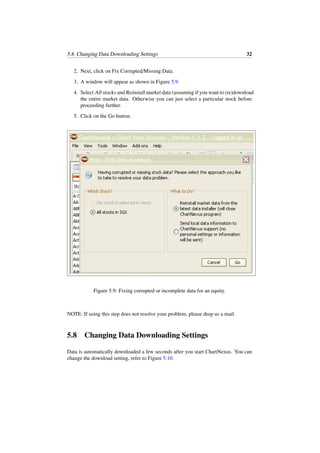
3. A window will appear as shown in Figure 5.9.
4. Select All stocks and Reinstall market data (assuming if you want to (re)download
the entire market data. Otherwise you can just select a particular stock before
proceeding further.
5. Click on the Go button.
Figure 5.9: Fixing corrupted or incomplete data for an equity.
NOTE: If using this step does not resolve your problem, please drop us a mail.
5.8 Changing Data Downloading Settings
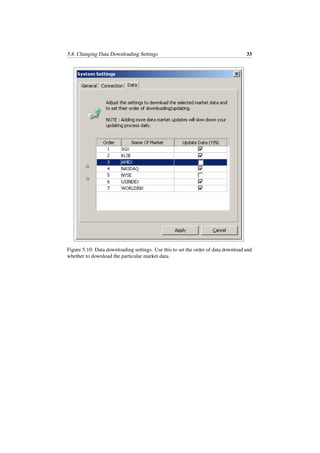
Data is automatically downloaded a few seconds after you start ChartNexus. You can
change the download setting, refer to Figure 5.10.
5.8. Changing Data Downloading Settings 33
Figure 5.10: Data downloading settings. Use this to set the order of data download and
whether to download the particular market data.
Chapter 6
Working With Charts
Now that you are familiar with the features and functions of ChartNexus, we will look
at the tools and functions that are available to you for your charting work in this chapter.
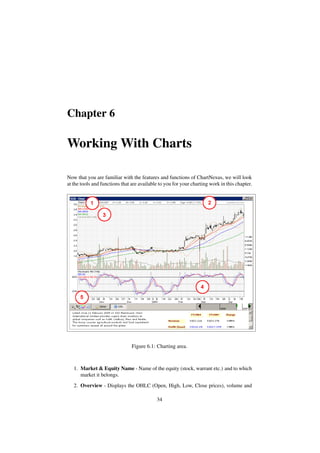
Figure 6.1: Charting area.
1. Market & Equity Name - Name of the equity (stock, warrant etc.) and to which
market it belongs.
2. Overview - Displays the OHLC (Open, High, Low, Close prices), volume and
34
6.1. Opening and Closing Stock Chart 35
the change in % from previous session close.
3. Indicators Selected - Shows the indicators used in the chart and the shorthand
description of the indicators’ settings.
4. Indicator Panel - Indicator panel showing the indicator selected.
5. Market & Equity Name - Name of the equity (stock, warrant etc.) and to which
market it belongs.
6. Chart Settings - Contains the settings for the chart : daily, weekly data; bar, line
or candlestick display; color settings; save chart as workspace.
6.1 Opening and Closing Stock Chart
6.1.1 Open chart
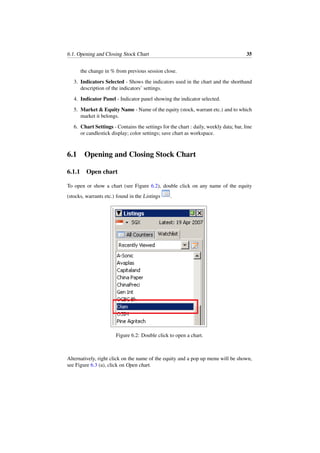
To open or show a chart (see Figure 6.2), double click on any name of the equity
(stocks, warrants etc.) found in the Listings .
Figure 6.2: Double click to open a chart.
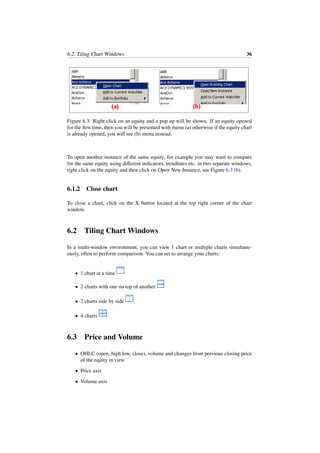
Alternatively, right click on the name of the equity and a pop up menu will be shown,
see Figure 6.3 (a), click on Open chart.
6.2. Tiling Chart Windows 36
Figure 6.3: Right click on an equity and a pop up will be shown. If an equity opened
for the first time, then you will be presented with menu (a) otherwise if the equity chart
is already opened, you will see (b) menu instead.
To open another instance of the same equity, for example you may want to compare
for the same equity using different indicators, trendlines etc. in two separate windows,
right click on the equity and then click on Open New Instance, see Figure 6.3 (b).
6.1.2 Close chart
To close a chart, click on the X button located at the top right corner of the chart
window.
6.2 Tiling Chart Windows
In a multi-window environment, you can view 1 chart or multiple charts simultane-
ously, often to perform comparison. You can set to arrange your charts:
• 1 chart at a time
• 2 charts with one on top of another
• 2 charts side by side
• 4 charts
6.3 Price and Volume
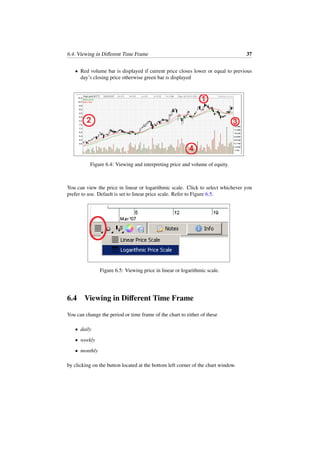
• OHLC (open, high low, close), volume and changes from previous closing price
of the equity in view
• Price axis
• Volume axis
6.4. Viewing in Different Time Frame 37
• Red volume bar is displayed if current price closes lower or equal to previous
day’s closing price otherwise green bar is displayed
Figure 6.4: Viewing and interpreting price and volume of equity.
You can view the price in linear or logarithmic scale. Click to select whichever you
prefer to use. Default is set to linear price scale. Refer to Figure 6.5.
Figure 6.5: Viewing price in linear or logarithmic scale.
6.4 Viewing in Different Time Frame
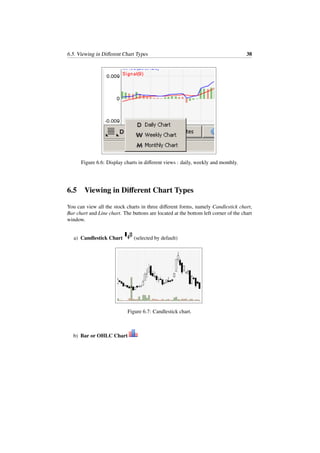
You can change the period or time frame of the chart to either of these
• daily
• weekly
• monthly
by clicking on the button located at the bottom left corner of the chart window.
6.5. Viewing in Different Chart Types 38
Figure 6.6: Display charts in different views : daily, weekly and monthly.
6.5 Viewing in Different Chart Types
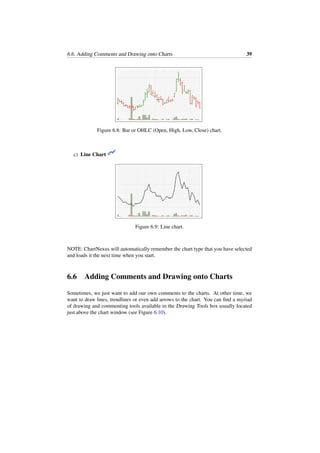
You can view all the stock charts in three different forms, namely Candlestick chart,
Bar chart and Line chart. The buttons are located at the bottom left corner of the chart
window.
a) Candlestick Chart (selected by default)
Figure 6.7: Candlestick chart.
b) Bar or OHLC Chart
6.6. Adding Comments and Drawing onto Charts 39
Figure 6.8: Bar or OHLC (Open, High, Low, Close) chart.
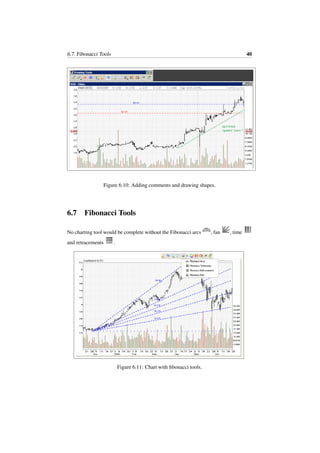
c) Line Chart
Figure 6.9: Line chart.
NOTE: ChartNexus will automatically remember the chart type that you have selected
and loads it the next time when you start.
6.6 Adding Comments and Drawing onto Charts
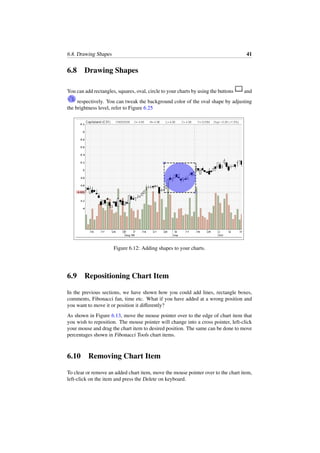
Sometimes, we just want to add our own comments to the charts. At other time, we
want to draw lines, trendlines or even add arrows to the chart. You can find a myriad
of drawing and commenting tools available in the Drawing Tools box usually located
just above the chart window (see Figure 6.10).
6.7. Fibonacci Tools 40
Figure 6.10: Adding comments and drawing shapes.
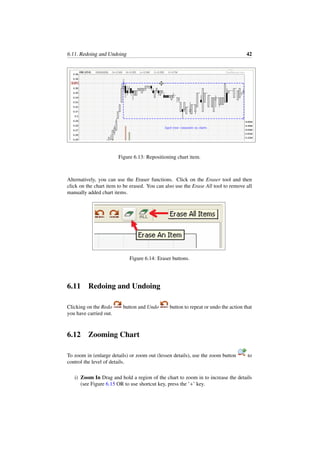
6.7 Fibonacci Tools
No charting tool would be complete without the Fibonacci arcs , fan , time
and retracements .
Figure 6.11: Chart with fibonacci tools.
6.8. Drawing Shapes 41
6.8 Drawing Shapes
You can add rectangles, squares, oval, circle to your charts by using the buttons and
respectively. You can tweak the background color of the oval shape by adjusting
the brightness level, refer to Figure 6.25
Figure 6.12: Adding shapes to your charts.
6.9 Repositioning Chart Item
In the previous sections, we have shown how you could add lines, rectangle boxes,
comments, Fibonacci fan, time etc. What if you have added at a wrong position and
you want to move it or position it differently?
As shown in Figure 6.13, move the mouse pointer over to the edge of chart item that
you wish to reposition. The mouse pointer will change into a cross pointer, left-click
your mouse and drag the chart item to desired position. The same can be done to move
percentages shown in Fibonacci Tools chart items.
6.10 Removing Chart Item
To clear or remove an added chart item, move the mouse pointer over to the chart item,
left-click on the item and press the Delete on keyboard.
6.11. Redoing and Undoing 42
Figure 6.13: Repositioning chart item.
Alternatively, you can use the Eraser functions. Click on the Eraser tool and then
click on the chart item to be erased. You can also use the Erase All tool to remove all
manually added chart items.
Figure 6.14: Eraser buttons.
6.11 Redoing and Undoing
Clicking on the Redo button and Undo button to repeat or undo the action that
you have carried out.
6.12 Zooming Chart
To zoom in (enlarge details) or zoom out (lessen details), use the zoom button to
control the level of details.
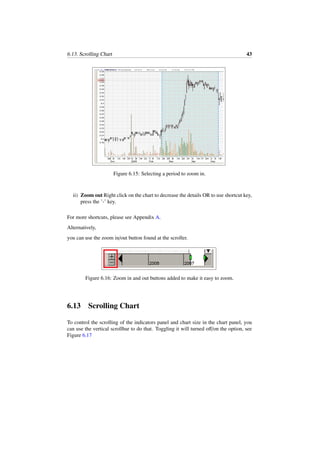
i) Zoom In Drag and hold a region of the chart to zoom in to increase the details
(see Figure 6.15 OR to use shortcut key, press the ’+’ key.
6.13. Scrolling Chart 43
Figure 6.15: Selecting a period to zoom in.
ii) Zoom out Right click on the chart to decrease the details OR to use shortcut key,
press the ’-’ key.
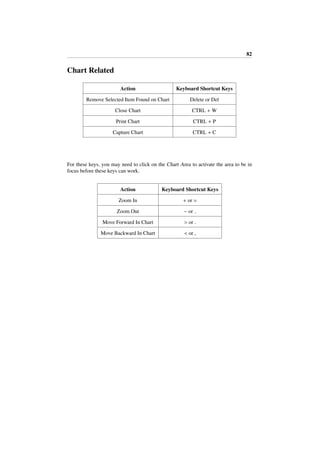
For more shortcuts, please see Appendix A.
Alternatively,
you can use the zoom in/out button found at the scroller.
Figure 6.16: Zoom in and out buttons added to make it easy to zoom.
6.13 Scrolling Chart
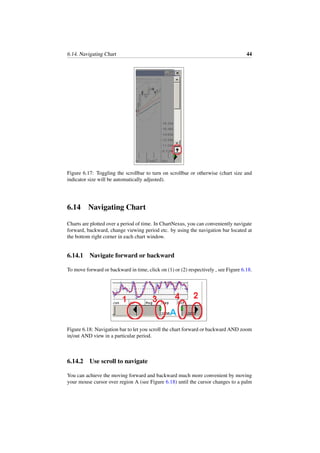
To control the scrolling of the indicators panel and chart size in the chart panel, you
can use the vertical scrollbar to do that. Toggling it will turned off/on the option, see
Figure 6.17
6.14. Navigating Chart 44
Figure 6.17: Toggling the scrollbar to turn on scrollbar or otherwise (chart size and
indicator size will be automatically adjusted).
6.14 Navigating Chart
Charts are plotted over a period of time. In ChartNexus, you can conveniently navigate
forward, backward, change viewing period etc. by using the navigation bar located at
the bottom right corner in each chart window.
6.14.1 Navigate forward or backward
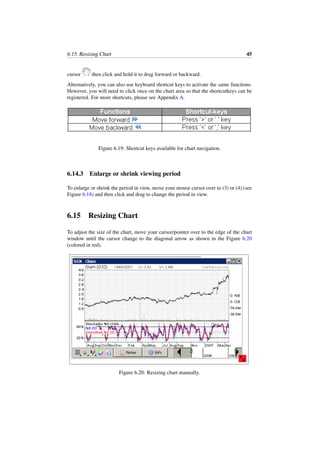
To move forward or backward in time, click on (1) or (2) respectively , see Figure 6.18.
Figure 6.18: Navigation bar to let you scroll the chart forward or backward AND zoom
in/out AND view in a particular period.
6.14.2 Use scroll to navigate
You can achieve the moving forward and backward much more convenient by moving
your mouse cursor over region A (see Figure 6.18) until the cursor changes to a palm
6.15. Resizing Chart 45
cursor then click and hold it to drag forward or backward.
Alternatively, you can also use keyboard shortcut keys to activate the same functions.
However, you will need to click once on the chart area so that the shortcutkeys can be
registered. For more shortcuts, please see Appendix A.
Figure 6.19: Shortcut keys available for chart navigation.
6.14.3 Enlarge or shrink viewing period
To enlarge or shrink the period in view, move your mouse cursor over to (3) or (4) (see
Figure 6.18) and then click and drag to change the period in view.
6.15 Resizing Chart
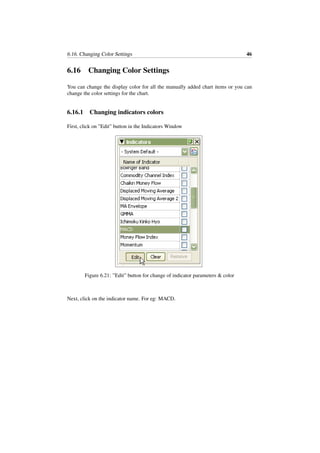
To adjust the size of the chart, move your cursor/pointer over to the edge of the chart
window until the cursor change to the diagonal arrow as shown in the Figure 6.20
(colored in red).
Figure 6.20: Resizing chart manually.
6.16. Changing Color Settings 46
6.16 Changing Color Settings
You can change the display color for all the manually added chart items or you can
change the color settings for the chart.
6.16.1 Changing indicators colors
First, click on ”Edit” button in the Indicators Window
Figure 6.21: ”Edit” button for change of indicator parameters & color
Next, click on the indicator name. For eg: MACD.
6.16. Changing Color Settings 47
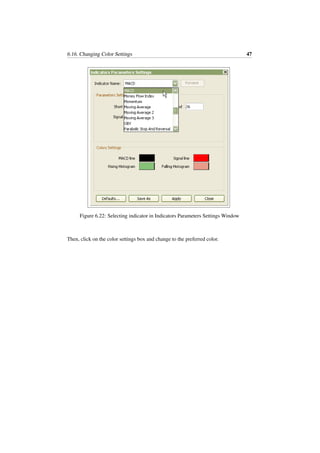
Figure 6.22: Selecting indicator in Indicators Parameters Settings Window
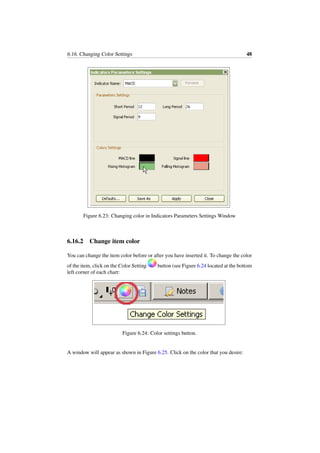
Then, click on the color settings box and change to the preferred color.
6.16. Changing Color Settings 48
Figure 6.23: Changing color in Indicators Parameters Settings Window
6.16.2 Change item color
You can change the item color before or after you have inserted it. To change the color
of the item, click on the Color Setting button (see Figure 6.24 located at the bottom
left corner of each chart:
Figure 6.24: Color settings button.
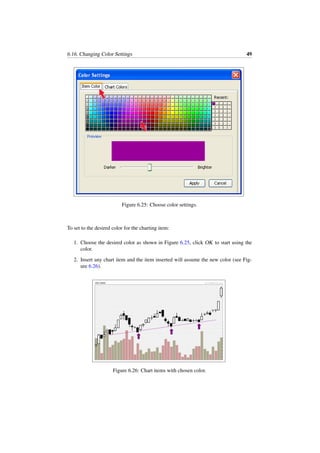
A window will appear as shown in Figure 6.25. Click on the color that you desire:
6.16. Changing Color Settings 49
Figure 6.25: Choose color settings.
To set to the desired color for the charting item:
1. Choose the desired color as shown in Figure 6.25, click OK to start using the
color.
2. Insert any chart item and the item inserted will assume the new color (see Fig-
ure 6.26).
Figure 6.26: Chart items with chosen color.
6.16. Changing Color Settings 50
6.16.3 Change chart color
Often, we want to be able to personalize the chart that we generate. You can change all
the color settings for the chart in ChartNexus.
Again, click on the Color Setting button (see Figure 6.24) located at the Minitool-
bar.
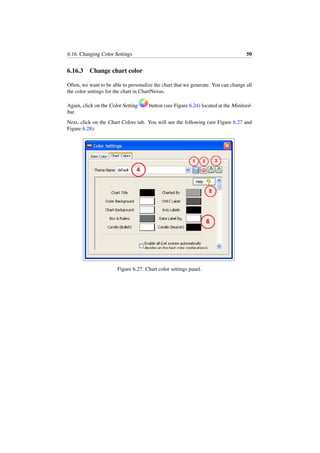
Next, click on the Chart Colors tab. You will see the following (see Figure 6.27 and
Figure 6.28):
Figure 6.27: Chart color settings panel.
6.16. Changing Color Settings 51
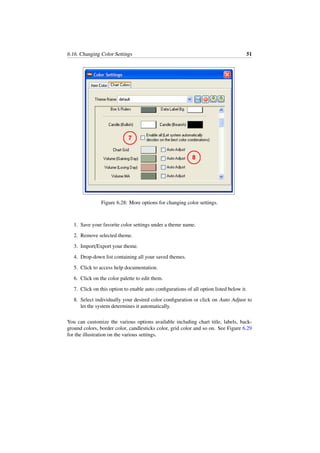
Figure 6.28: More options for changing color settings.
1. Save your favorite color settings under a theme name.
2. Remove selected theme.
3. Import/Export your theme.
4. Drop-down list containing all your saved themes.
5. Click to access help documentation.
6. Click on the color palette to edit them.
7. Click on this option to enable auto configurations of all option listed below it.
8. Select individually your desired color configuration or click on Auto Adjust to
let the system determines it automatically.
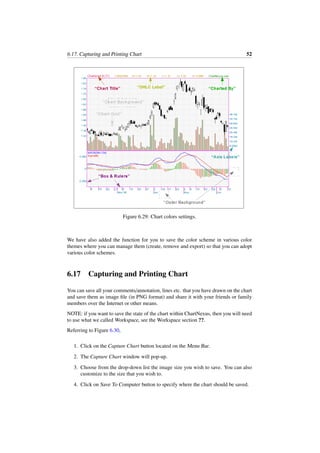
You can customize the various options available including chart title, labels, back-
ground colors, border color, candlesticks color, grid color and so on. See Figure 6.29
for the illustration on the various settings.
6.17. Capturing and Printing Chart 52
Figure 6.29: Chart colors settings.
We have also added the function for you to save the color scheme in various color
themes where you can manage them (create, remove and export) so that you can adopt
various color schemes.
6.17 Capturing and Printing Chart
You can save all your comments/annotation, lines etc. that you have drawn on the chart
and save them as image file (in PNG format) and share it with your friends or family
members over the Internet or other means.
NOTE: if you want to save the state of the chart within ChartNexus, then you will need
to use what we called Workspace, see the Workspace section ??.
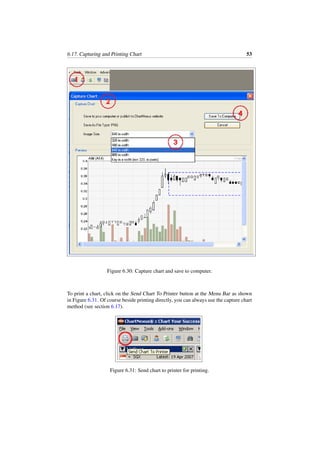
Referring to Figure 6.30,
1. Click on the Capture Chart button located on the Menu Bar.
2. The Capture Chart window will pop-up.
3. Choose from the drop-down list the image size you wish to save. You can also
customize to the size that you wish to.
4. Click on Save To Computer button to specify where the chart should be saved.
6.17. Capturing and Printing Chart 53
Figure 6.30: Capture chart and save to computer.
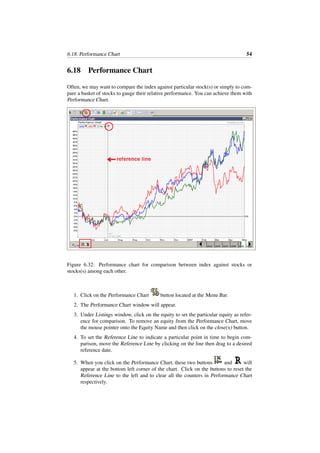
To print a chart, click on the Send Chart To Printer button at the Menu Bar as shown
in Figure 6.31. Of course beside printing directly, you can always use the capture chart
method (see section 6.17).
Figure 6.31: Send chart to printer for printing.
6.18. Performance Chart 54
6.18 Performance Chart
Often, we may want to compare the index against particular stock(s) or simply to com-
pare a basket of stocks to gauge their relative performance. You can achieve them with
Performance Chart.
Figure 6.32: Performance chart for comparison between index against stocks or
stocks(s) among each other.
1. Click on the Performance Chart button located at the Menu Bar.
2. The Performance Chart window will appear.
3. Under Listings window, click on the equity to set the particular equity as refer-
ence for comparison. To remove an equity from the Performance Chart, move
the mouse pointer onto the Equity Name and then click on the close(x) button.
4. To set the Reference Line to indicate a particular point in time to begin com-
parison, move the Reference Line by clicking on the line then drag to a desired
reference date.
5. When you click on the Performance Chart, these two buttons and will
appear at the bottom left corner of the chart. Click on the buttons to reset the
Reference Line to the left and to clear all the counters in Performance Chart
respectively.
Chapter 7
Technical Indicators
ChartNexus comes with some of the most commonly in use indicators. You can easily
access them in the Indicators list :
1. Accumulation/Distribution
2. Average Directional Index (ADX)
3. Average True Range (ATR)
4. Bollinger Band
5. Commodity Channel Index
6. Chaikin Money Flow (CMF)
7. Commodity Channel Index (CCI)
8. Guppy Multiple Moving Average (GMMA)
For details, please visit Daryl’s http://www.guppytraders.com/
9. Ichimoku Kinko Hyo
10. MA Envelope
11. Moving Average Convergence Divergence (MACD)
12. Money Flow Index (MFI)
13. Momentum
14. Moving Average (MA)
15. On Balance Volume (OBV)
16. Parabolic Stop And Reversal (Parabolic SAR)
17. Price And Volume Trend (PVT)
55
7.1. Applying Indicators with Indicator Templates 56
18. Rate Of Change (ROC)
19. Relative Strength Index (RSI)
20. Smoothed RSI
21. Stochastics
22. Volume MA
23. Williams %R
We have prepared tutorials on the various indicators with the theory and also samples
on how to apply the indicators. Please visit
http://www.chartnexus.com/learning
7.1 Applying Indicators with Indicator Templates
To access the Indicators:
1. Click on the button if the Indicators window is not shown.
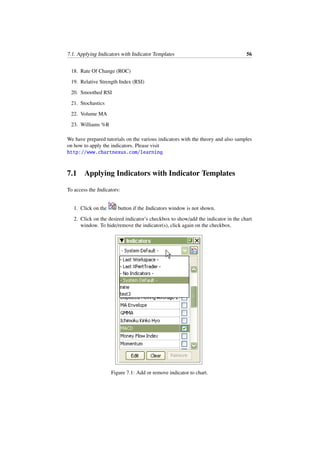
2. Click on the desired indicator’s checkbox to show/add the indicator in the chart
window. To hide/remove the indicator(s), click again on the checkbox.
Figure 7.1: Add or remove indicator to chart.
7.2. Changing Indicator Parameter Setting 57
3. Upon first installation, ChartNexus will create 4 indicator templates by default,
namely ’- Last Workspace -’, ’- Last XPertTrader -’, ’- No Indicators -’, and ’-
System Default -’(as seen in Figure 7.1). In System Default, you may add/remove
any indicator with the checkboxes, and the selections will be automatically saved.
To switch to a chart view without indicators, simply switch the template to ’- No
Indicators’ template.
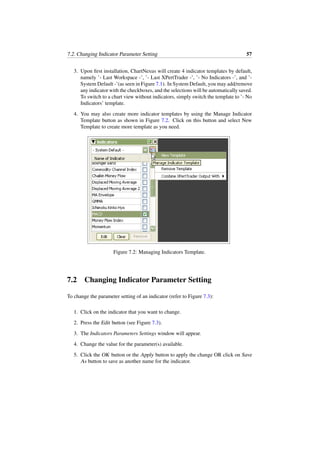
4. You may also create more indicator templates by using the Manage Indicator
Template button as shown in Figure 7.2. Click on this button and select New
Template to create more template as you need.
Figure 7.2: Managing Indicators Template.
7.2 Changing Indicator Parameter Setting
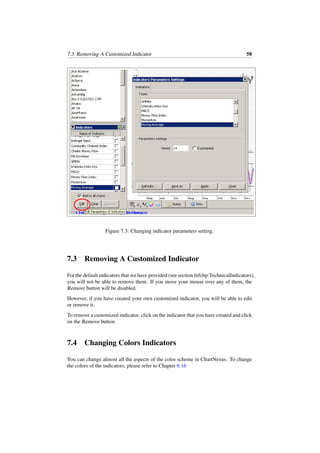
To change the parameter setting of an indicator (refer to Figure 7.3):
1. Click on the indicator that you want to change.
2. Press the Edit button (see Figure 7.3).
3. The Indicators Parameters Settings window will appear.
4. Change the value for the parameter(s) available.
5. Click the OK button or the Apply button to apply the change OR click on Save
As button to save as another name for the indicator.
7.3. Removing A Customized Indicator 58
Figure 7.3: Changing indicator parameters setting.
7.3 Removing A Customized Indicator
For the default indicators that we have provided (see section ˜refchp:TechnicalIndicators),
you will not be able to remove them. If you move your mouse over any of them, the
Remove button will be disabled.
However, if you have created your own customized indicator, you will be able to edit
or remove it.
To remove a customized indicator, click on the indicator that you have created and click
on the Remove button.
7.4 Changing Colors Indicators
You can change almost all the aspects of the color scheme in ChartNexus. To change
the colors of the indicators, please refer to Chapter 6.16
Chapter 8
Supplemental Tools
In the preceding Chapter 6 on Working With Charts we have looked at what we can
do with charting. Nonetheless, we may require various other tools to supplement or
enable our analysis work. In this chapter, we will look at the myriad of tools provided
including stock spread calculator, watchlist, portfolio manager, notes and so on.
8.1 Search Tool
You can access all the equities by accessing through the Listings window. However,
to allow faster access with less click, we have provided a search tool to allow you to
search for an equity by code or by name.
To access this, in the Menu Bar, click on Tools and then Search Tool. A dialog box will
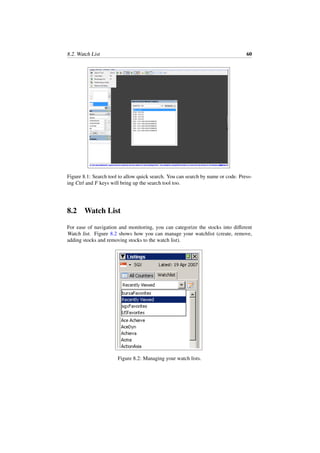
be shown, see Figure 8.1. Use your keyboard and type in e.g. the letter H and the list
of equities matching H will be shown (either by name or stock code). Stock code that
match will be indicated with the phrase (stock code). Continue to type in more letters
to narrow your search and then press on the Enter key to bring up the chart.
59
8.2. Watch List 60
Figure 8.1: Search tool to allow quick search. You can search by name or code. Press-
ing Ctrl and F keys will bring up the search tool too.
8.2 Watch List
For ease of navigation and monitoring, you can categorize the stocks into different
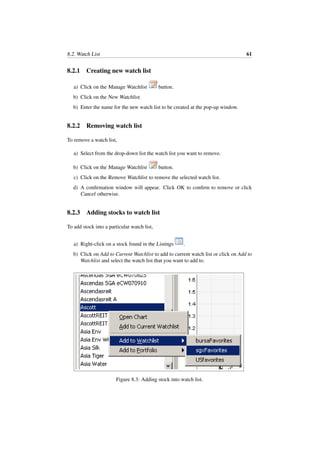
Watch list. Figure 8.2 shows how you can manage your watchlist (create, remove,
adding stocks and removing stocks to the watch list).
Figure 8.2: Managing your watch lists.
8.2. Watch List 61
8.2.1 Creating new watch list
a) Click on the Manage Watchlist button.
b) Click on the New Watchlist.
b) Enter the name for the new watch list to be created at the pop-up window.
8.2.2 Removing watch list
To remove a watch list,
a) Select from the drop-down list the watch list you want to remove.
b) Click on the Manage Watchlist button.
c) Click on the Remove Watchlist to remove the selected watch list.
d) A confirmation window will appear. Click OK to confirm to remove or click
Cancel otherwise.
8.2.3 Adding stocks to watch list
To add stock into a particular watch list,
a) Right-click on a stock found in the Listings .
b) Click on Add to Current Watchlist to add to current watch list or click on Add to
Watchlist and select the watch list that you want to add to.
Figure 8.3: Adding stock into watch list.
8.3. Brokerage Fee Profile 62
8.2.4 Removing stocks from watch list
You can remove selected stocks or remove all the stocks at once from a watch list. To
remove,
a) Select the watch list containing the stock(s) that you wish to remove.
b) Right-click on the stock found in the watch list.
c) Click on Remove Stock to that stock or click on Remove All to remove all the
stocks in that watch list.
Figure 8.4: Removing stock from watch list.
8.3 Brokerage Fee Profile
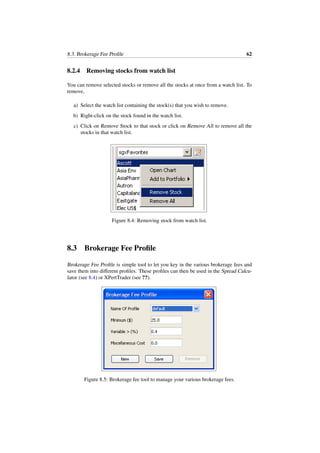
Brokerage Fee Profile is simple tool to let you key in the various brokerage fees and
save them into different profiles. These profiles can then be used in the Spread Calcu-
lator (see 8.4) or XPertTrader (see ??).
Figure 8.5: Brokerage fee tool to manage your various brokerage fees.
8.4. Spread Calculator 63
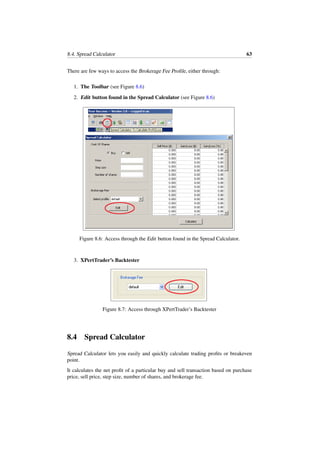
There are few ways to access the Brokerage Fee Profile, either through:
1. The Toolbar (see Figure 8.6)
2. Edit button found in the Spread Calculator (see Figure 8.6)
Figure 8.6: Access through the Edit button found in the Spread Calculator.
3. XPertTrader’s Backtester
Figure 8.7: Access through XPertTrader’s Backtester
8.4 Spread Calculator
Spread Calculator lets you easily and quickly calculate trading profits or breakeven
point.
It calculates the net profit of a particular buy and sell transaction based on purchase
price, sell price, step size, number of shares, and brokerage fee.
8.4. Spread Calculator 64
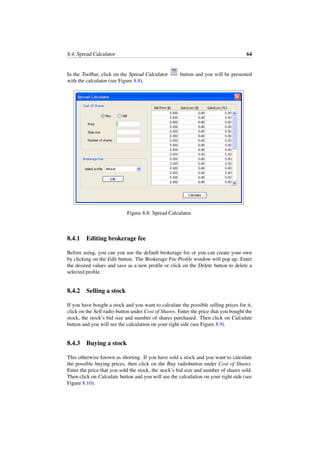
In the Toolbar, click on the Spread Calculator button and you will be presented
with the calculator (see Figure 8.8).
Figure 8.8: Spread Calculator.
8.4.1 Editing brokerage fee
Before using, you can you use the default brokerage fee or you can create your own
by clicking on the Edit button. The Brokerage Fee Profile window will pop up. Enter
the desired values and save as a new profile or click on the Delete button to delete a
selected profile.
8.4.2 Selling a stock
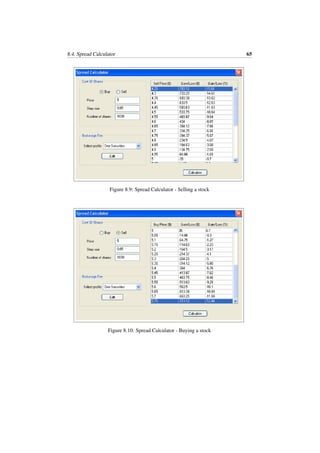
If you have bought a stock and you want to calculate the possible selling prices for it,
click on the Sell radio button under Cost of Shares. Enter the price that you bought the
stock, the stock’s bid size and number of shares purchased. Then click on Calculate
button and you will see the calculation on your right side (see Figure 8.9).
8.4.3 Buying a stock
This otherwise known as shorting. If you have sold a stock and you want to calculate
the possible buying prices, then click on the Buy radiobutton under Cost of Shares.
Enter the price that you sold the stock, the stock’s bid size and number of shares sold.
Then click on Calculate button and you will see the calculation on your right side (see
Figure 8.10).
8.4. Spread Calculator 65
Figure 8.9: Spread Calculator - Selling a stock
Figure 8.10: Spread Calculator - Buying a stock
8.5. Notes 66
8.5 Notes
8.5.1 Adding, editing & removing notes
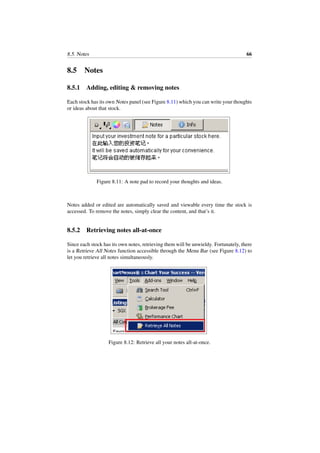
Each stock has its own Notes panel (see Figure 8.11) which you can write your thoughts
or ideas about that stock.
Figure 8.11: A note pad to record your thoughts and ideas.
Notes added or edited are automatically saved and viewable every time the stock is
accessed. To remove the notes, simply clear the content, and that’s it.
8.5.2 Retrieving notes all-at-once
Since each stock has its own notes, retrieving them will be unwieldy. Fortunately, there
is a Retrieve All Notes function accessible through the Menu Bar (see Figure 8.12) to
let you retrieve all notes simultaneously.
Figure 8.12: Retrieve all your notes all-at-once.
8.6. Managing Portfolio 67
8.6 Managing Portfolio
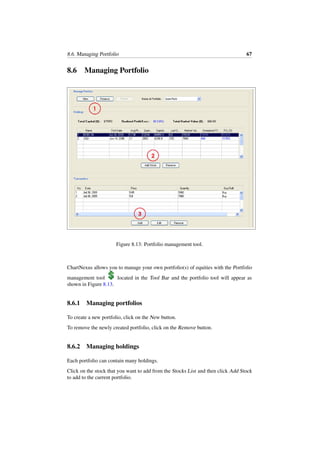
Figure 8.13: Portfolio management tool.
ChartNexus allows you to manage your own portfolio(s) of equities with the Portfolio
management tool located in the Tool Bar and the portfolio tool will appear as
shown in Figure 8.13.
8.6.1 Managing portfolios
To create a new portfolio, click on the New button.
To remove the newly created portfolio, click on the Remove button.
8.6.2 Managing holdings
Each portfolio can contain many holdings.
Click on the stock that you want to add from the Stocks List and then click Add Stock
to add to the current portfolio.
8.7. Workspace 68
Another way to add a stock to the portfolio is to right-click the stock in Stocks List and
choose Add to Portfolio.
To remove a stock from the portfolio, click on the Remove button found under Holdings
(see Figure 8.13).
8.6.3 Managing transactions
Each holding can have multiple transactions of buy or sell.
To start adding transaction to a particular holding (stock), click on the stock in the Hold-
ings table and then click on Add button under Transactions and you will be prompted
to fill in the transaction detail.
Edit and Remove buttons allow you to edit the transaction details and remove the
transaction of the stock respectively.
8.7 Workspace
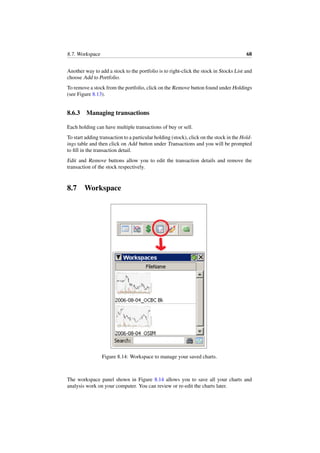
Figure 8.14: Workspace to manage your saved charts.
The workspace panel shown in Figure 8.14 allows you to save all your charts and
analysis work on your computer. You can review or re-edit the charts later.
8.7. Workspace 69
These are the things that are saved in a workspace:
1. indicators added to the chart
2. indicator parameters setting
3. drawn items
8.7.1 Opening workspace file
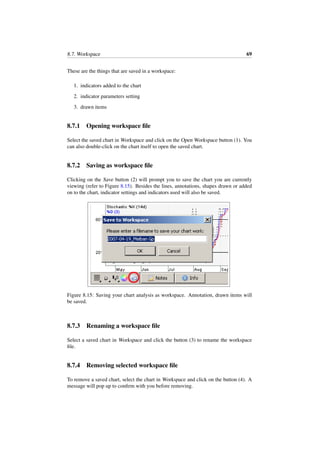
Select the saved chart in Workspace and click on the Open Workspace button (1). You
can also double-click on the chart itself to open the saved chart.
8.7.2 Saving as workspace file
Clicking on the Save button (2) will prompt you to save the chart you are currently
viewing (refer to Figure 8.15). Besides the lines, annotations, shapes drawn or added
on to the chart, indicator settings and indicators used will also be saved.
Figure 8.15: Saving your chart analysis as workspace. Annotation, drawn items will
be saved.
8.7.3 Renaming a workspace file
Select a saved chart in Workspace and click the button (3) to rename the workspace
file.
8.7.4 Removing selected workspace file
To remove a saved chart, select the chart in Workspace and click on the button (4). A
message will pop up to confirm with you before removing.
8.8. Custom Indices 70
8.7.5 Searching or filtering workspace file
To search for a saved chart, enter a name or letter of the file and click on the button (5).
Only files containing the name or letter will be displayed in Workspace panel.
To clear the filter and list back all the workspace files, click on the button (6).
8.8 Custom Indices
An equity index aggregates and tracks the underlying basket of equities. In Chart-
Nexus, you can easily create your own custom indices. The basket of equities found in
watchlist can be easily converted into an index and shown on the chart. Follow these
steps:
1. Create a new watchlist. Give it a proper name as it will be used to name the index
2. Add the stocks, warrants etc. that you’re interested in into the newly created
watchlist
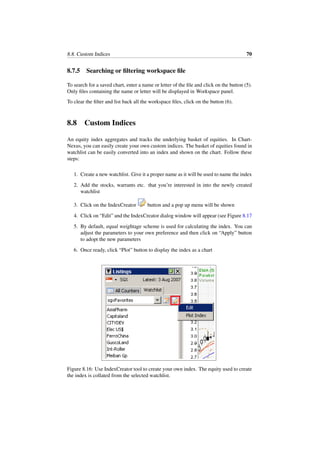
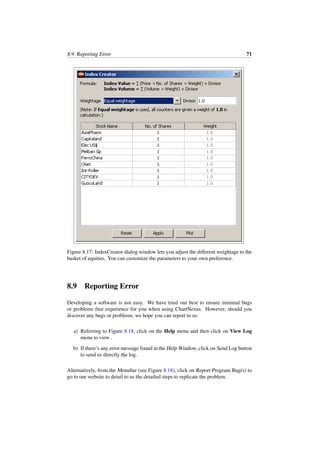
3. Click on the IndexCreator button and a pop up menu will be shown
4. Click on “Edit” and the IndexCreator dialog window will appear (see Figure 8.17
5. By default, equal weightage scheme is used for calculating the index. You can
adjust the parameters to your own preference and then click on “Apply” button
to adopt the new parameters
6. Once ready, click “Plot” button to display the index as a chart
Figure 8.16: Use IndexCreator tool to create your own index. The equity used to create
the index is collated from the selected watchlist.
8.9. Reporting Error 71
Figure 8.17: IndexCreator dialog window lets you adjust the different weightage to the
basket of equities. You can customize the parameters to your own preference.
8.9 Reporting Error
Developing a software is not easy. We have tried our best to ensure minimal bugs
or problems free experience for you when using ChartNexus. However, should you
discover any bugs or problems, we hope you can report to us.
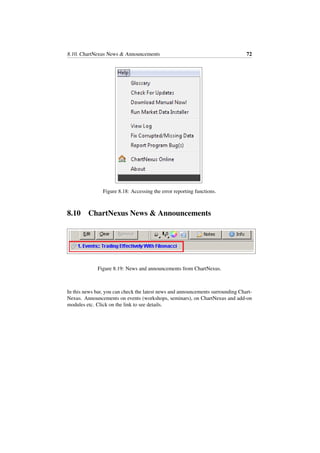
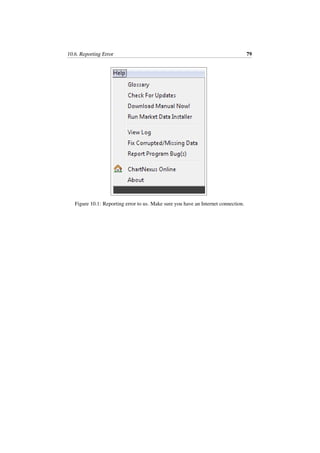
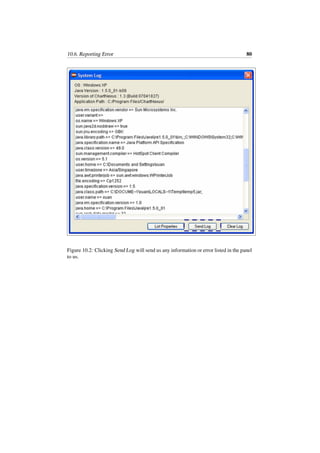
a) Referring to Figure 8.18, click on the Help menu and then click on View Log
menu to view .
b) If there’s any error message found in the Help Window, click on Send Log button
to send us directly the log.
Alternatively, from the Menubar (see Figure 8.18), click on Report Program Bug(s) to
go to our website to detail to us the detailed steps to replicate the problem.
8.10. ChartNexus News & Announcements 72
Figure 8.18: Accessing the error reporting functions.
8.10 ChartNexus News & Announcements
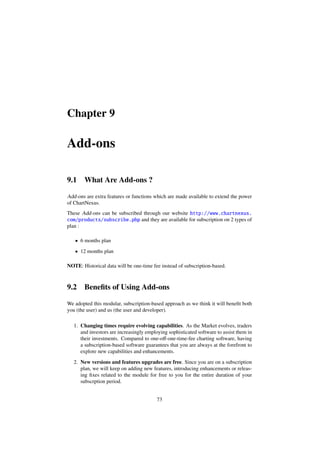
Figure 8.19: News and announcements from ChartNexus.
In this news bar, you can check the latest news and announcements surrounding Chart-
Nexus. Announcements on events (workshops, seminars), on ChartNexus and add-on
modules etc. Click on the link to see details.
Chapter 9
Add-ons
9.1 What Are Add-ons ?
Add-ons are extra features or functions which are made available to extend the power
of ChartNexus.
These Add-ons can be subscribed through our website http://www.chartnexus.
com/products/subscribe.php and they are available for subscription on 2 types of
plan :
• 6 months plan
• 12 months plan
NOTE: Historical data will be one-time fee instead of subscription-based.
9.2 Benefits of Using Add-ons
We adopted this modular, subscription-based approach as we think it will benefit both
you (the user) and us (the user and developer).
1. Changing times require evolving capabilities. As the Market evolves, traders
and investors are increasingly employing sophisticated software to assist them in
their investments. Compared to one-off-one-time-fee charting software, having
a subscription-based software guarantees that you are always at the forefront to
explore new capabilities and enhancements.
2. New versions and features upgrades are free. Since you are on a subscription
plan, we will keep on adding new features, introducing enhancements or releas-
ing fixes related to the module for free to you for the entire duration of your
subscrption period.
73
9.3. Add-ons Available 74
3. Pay for what you need. Why pay for software with 80% of the functions that
you will hardly ever used ? With our add-on modules, you can mix and match
the modules and subscribe to those that you truly need.
4. Money back guarantee. We believe in giving you only the best. If within the
period of refund (see our subscription policy http://www.chartnexus.com/
legal/software.php) you’re not satisfied or happy with the Add-ons, we will
refund you.
9.3 Add-ons Available
These are the Add-ons that are available for subscription:
• XPertTrader Indicators : This module contains the commonly used technical
indicators which you can mix and match to create more sophisticated rules.
• XPertTrader Candlesticks : This module includes the commonly used Japanese
candlestick patterns. It also comes with an editor to let you create your own pat-
terns easily.
• INDIA (BSE, NSE) 10 years adjusted historical data (one-time fee).
• HKSE 10 years adjusted historical data (one-time fee).
• JSX 10 years adjusted historical data (one-time fee).
• KLSE or Bursa 10 years adjusted historical data (one-time fee).
• SGX 10 years adjusted historical data (one-time fee).
• US (AMEX, NASDAQ, NYSE) 10 years adjusted historical data (one-time
fee).
• ChartMaker : Let you create professional-looking charts easily with superb
customization.
9.4 How To Subscribe ?
To subscribe to any of the Add-ons (see Section 9.3), please visit
http://www.chartnexus.com/products/addons.php.
To renew your subscription,
http://www.chartnexus.com/products/subscribe.php.
For more in-depth details on the various add-ons offered, you may want to download
the user manual for the add-ons instead.
http://www.chartnexus.com/download/getmanual_addons.php.
Chapter 10
Frequently Asked Questions
(FAQs)
10.1 For Newcomer
1. I’ve already signed up and activated my account. Where should I login ?
The account is for login to our data server using our desktop program. You need
to download and install from (http://www.chartnexus.com/products/download.
php). Upon installing, you will be prompted with a login window, see Sec-
tion 5.2.
2. I have signed up but yet to receive my activation code in my mailbox. What
should I do now ?
Most likely the mail has gone into your spam/junk mailbox especially if you are
using Gmail/Yahoo!Mail/Hotmail OR another possibility is that you may have
keyed in a wrong email during sign up. Please check in the mailbox junk/spam
folders of yours OR otherwise contact us (see Section 2.6) to activate your ac-
count.
3. When I tried to log in, this message appeared (usually because used behind
proxy/firewall). What should I do ?
Fail to connect to server for user authentication. OR
java.net.UnknownHostException: www.chartnexus.com
at java.net.PlainSocketImpl.connect(Unknown Source)
at java.net.Socket.connect(Unknown Source)
You are most likely using ChartNexus behind a firewall or proxy server in a
private network (e.g. in office). Please see Network settings (see Section 5.5) for
more.
4. I have just downloaded and installed ChartNexus. The chart is still not
updated or there is nothing shown. Why ?
75
10.2. Login And Password 76
You will need to key in your account information that you registered with us in
ChartNexus to connect to our server. See Login To Data Server (see 5.2) for
screenshots on how to do it.
10.2 Login And Password
1. Why do I need to sign up for an account ?
The account is provided to you free of charge where it will be used for down-
loading stock data from our server.
Sign up for the free account at
http://www.chartnexus.com/users/signupform.php
and activate your account
http://www.chartnexus.com/users/activate_accountform.php
2. I forgot my account activation key. How can I retrieve it ?
You can retrieve your account activation key using this form
http://www.chartnexus.com/users/get_keyform.php
3. How can I change my account password ?
You can change your account password using this form
http://www.chartnexus.com/users/change_passform.php
4. I forgot my password. How can I retrieve it ?
You can retrieve your account password using this form
http://www.chartnexus.com/users/get_passform.php
5. I am no longer using ChartNexus. I want to de-register my account. How
do I go about it ?
You can de-register your account using this form
(http://www.chartnexus.com/users/deregform.php
NOTE: if you have an active subscription with us, de-registering your account
will render it useless.
10.3 Setup Or Installation
1. How do I know or check if Java JDK/JRE is already installed on my com-
puter ?
In Windows, click on the START button and then click RUN and type in ”cmd”
or ”command” to bring up the COMMAND/DOS PROMPT. Then in the win-
dow/prompt, type in ”java -version”. You should be able to see the version from
there.
There are many sites and small utilities which have been written to test this. We
recommend you to use this page: http://javatester.org/version.html.
2. Is ChartNexus supported on other systems other than Windows ?
Theorectically, ChartNexus is supposed to be able to run on Mac and Linux.
However, since we don’t have a big team to provide proper support for the two
10.4. Connecting To Server 77
platforms, so we decided against of totally supporting them until we are able to
provide proper support i.e. with enough manpower. Nothing against Mac, Linux
or others, we are users of these platforms too.
3. How do I upgrade to a newer version of ChartNexus ?
ChartNexus will automatically prompt you install if there’s any newer version
available. Click and install ... it’s that simple ! See Section 2.5 for screenshots.
4. I got the error message An error occur while trying to copy a file. The source
file is corrupted. when I was trying to install the setup/installation file. What
should I do ?
You may have downloaded an incomplete version of the setup/installation file.
Re-download the setup/installation file and run it again.
10.4 Connecting To Server
1. What kind of Internet connection do I need to connect to ChartNexus data
server ?
Broadband, ADSL or dial-up connection; any of these is possible. Internet con-
nection is needed to download ChartNexus program and stock data. ChartNexus
has been designed to handle missing data if connection breaks.
2. Do I need to be connected in order to use ChartNexus ?
Not required. You can use ChartNexus in offline or online mode but you’ll need
to go online if you want to update your data.
3. I’m having problem downloading data or connecting to server. What hap-
pened and what can I do ?
Possible reasons include:
(a) You are behind a proxy server. Ask your network administrator or Internet
service provider for the proxy address. See Section 5.5 for instructions.
Add www.chartnexus.com to you allowed-list of servers
(b) Our server is probably busy. Try again later
(c) Ensure that you install/upgrade to the Java installation
(d) You have no active internet connection. Check your modem.
4. I can connect from home but I can’t seem to connect from my office. Why is
this happening ? Is there a bug with your software ?
See Section 5.5 for instructions.
10.5 Data Issue (download/update/adjustment)
1. It seems to me that your data differ from other data sources that I’m using.
Is your data corrupted or having problem ?
Our data is adjusted for various events. So naturally, they will look different
from many other data sources that you use since most of the data sources DO
NOT provide you data adjustment for FREE. Check out the adjustment events.
10.6. Reporting Error 78
2. How long does it take to download historical data ?
Downloading of historical prices should normally takes about 1-2 minutes if you
update daily. ChartNexus will check for any updates before the download. Auto
data update is turned ON by default.
3. Why is the data downloading/updating taking some time ?
If you’re first time user of ChartNexus, then the system may be downloading
the past data. Otherwise, it may be because our servers are busy or internet
connection is slow at ours or your end.
4. Can I re-distribute the stock data provided ?
Sorry, you are not allowed to. The stock data we used are licensed from our data
providers. You can only use it for your own personal usage, and aren’t allowed to
re-distribute or use it for commercial purpose. Please read our software license
agreement again, here is the online version (http://www.chartnexus.com/
legal/software.php). Contact us if you have any doubts.
5. Some of charts are not updated with the latest data. What should I do ?
It could due to incomplete download or corrupted data. Please see Section 5.7
on how to fix this.
10.6 Reporting Error
1. How do I report possible error or bug discovered ?
If you do not know the error but you suspect there might be one, then please
follow the procedures :
• Click on the Help menu
• Click on View Log menu item. See Figure 10.1
• Click on Send Log. See Figure 10.2
If you just want to report an error/bug, please follow this instead:
• Click on the Help menu
• Click on the Report Program Bug(s) menu item (see Figure 10.1), which
will bring you to our website with a web form
10.6. Reporting Error 79
Figure 10.1: Reporting error to us. Make sure you have an Internet connection.
10.6. Reporting Error 80
Figure 10.2: Clicking Send Log will send us any information or error listed in the panel
to us.
Appendix A
Keyboard Shortcuts
Keyboard shortcut keys are keyboard key or combinations of the keyboard keys when
you pressed on them to allow quick and easy access to the features without the need of
mouse click. Of course, if you prefer, you can still access those features through the
Menu Bar.
NOTE: CTRL denotes the control key or usually written as Ctrl on your keyboard.
CTRL + W means pressing and holding the Ctrl key and then pressing on the W key.
General
Action Keyboard Shortcut Keys
Close Window ESC
Bring Up The User Login Window Ctrl + L
Bring Up The Search Tool Ctrl + F
Bring Up The Spread Calculator F6
Bring Up The Brokerage Fee Profiles F7
Switch Between Full Screen and Windowed Mode F11
Exit Program Alt + F4
81
82
Chart Related
Action Keyboard Shortcut Keys
Remove Selected Item Found on Chart Delete or Del
Close Chart CTRL + W
Print Chart CTRL + P
Capture Chart CTRL + C
For these keys, you may need to click on the Chart Area to activate the area to be in
focus before these keys can work.
Action Keyboard Shortcut Keys
Zoom In + or =
Zoom Out − or
Move Forward In Chart > or .
Move Backward In Chart < or ,
Appendix B
Glossary
We have prepared a list of some of the jargons or words that you may come across
in the investment world, particular in Technical Analysis. This list is by no means
comprehensive, but it should be sufficient for most common purpose.
• Above the Market
A limit order to buy or sell a security for a specified price that is higher than the
current market price. If the market does not reach the specified price, the order
will go unfilled.
• Absolute Breadth Index
Developed by Norman Fosback, the ABI is equal to the absolute value of the
difference between the advancing issues and the declining issues. It shows how
much activity and volatility is taking place on the New York Stock Exchange
while totally ignoring the price direction.
• Absolute Price Oscillator (APO)
Also known as MACD indicator, APO is calculated by subtracting a longer-term
Exponential MA from a shorter-term Exponential MA.
• Accumulation
Occurs when the supply of a security is less than the demand. After a decline
in price, a stock may start to base and trade sideways for an extended period.
In the mean time, well-informed traders and investors may seek to establish or
increase existing long positions. In that case, the stock is said to have come under
accumulation.
• Accumulation/Distribution Line (A/D Line)
A momentum indicator that relates price changes with volume. It relates the
closing price to the range of prices (intraday high-intraday low). The closer the
close is to the high, the more volume is added to the cumulative total.
• After Hours
Any trade posting, adjusting, or changes made by specialists or member firm
after the official close of the market.
83
84
• Amortization
The paying off of debt in regular installments over a period of time.
• Analysis of Variance
A technique used to improve the analysis over regression techniques. It can
be used for identifying relationships between predictor and criterion variables,
whether the predictor variables are quantitative or qualitative in nature.
• Analyst
A person with expertise in evaluating financial instruments. He or she performs
investment research and makes recommendations to institutional and retail in-
vestors to buy, sell, or hold. Most analysts specialize in a single industry or
business sector.
• Announcement Date
The date on which a company first publicly announces an impending stock split.
• Annual Report
Yearly report made by a company to its stockholders. They usually contain a
balance sheet, an income statement, a list of changes in retained earnings, and
how income of the corporation was used.
• Annualized
The translation of periods of less than a year into an annual rate for comparative
purposes. To annualize quarterly figures, you multiply them by four.
• Arbitrage
The simultaneous buying and selling of securities to take advantage of price
discrepancies. Arbitrage opportunities usually surface after a takeover offer.
• Area Pattern
A pattern of sideways price movement that follows a stalled uptrend or down-
trend of a stock or commodity. Some of these patterns (triangles, flags, wedges
etc.) have good predictive value.
• Ascending Trend Channel
An ascending line that connects the bottoms of the down waves and is parallel
to a trendline The ascending channel line and the trendline form borders on an
uptrend.
• Ascending Triangle
A sideways price pattern between two converging trendlines in which the lower
line is rising while the upper line is flat. This is generally a bullish pattern.
• Ask
Also known as the “offer”, the price that the market maker guarantees to fill a
buy order. A buy order placed at the market will usually be filled at the current
asking (offer) price. The ask price is usually greater than the bid price.
• Assets
Any possessions that have value in an exchange.
85
• Average Directional Index (ADX)
Part of the Directional Movement Indicator system developed by J. Welles Wilder,
the ADX line is based on the spread between the +DI and -DI lines from that
same system.
• Average True Range (ATR)
An indicator that measures volatility of a security. High ATR values indicate
high volatility and may be an indication of panic selling or panic buying. Low
ATR readings indicate sideways movement by the stock.
• Bar Chart
A chart of price versus time. The horizontal axis represents the passage of time
with the most recent time periods on the right side; while the vertical axis repre-
sents the stock’s price. For each time period, a vertical line denotes the high and
low price of the security; a short horizontal protrusion to the right of the vertical
line shows the closing price.
• Basing
A period where the stock or market is “catching its breath” after a decline, char-
acterized by a flat trading range without any noticeable trend. It is common to
see a basing period after a lengthy decline of the stock price. Basing may be a
sign of accumulation.
• Basis
The difference between cash prices and the futures contract prices.
• Bear
A person who believes prices will decline and might be described as having a
“bearish” outlook. Bear markets
• Bear Market
A market when prices are declining. Occur when roughly 80% of all stocks
decline for an extended period of time.
• Bear Trap
A signal which suggests that the rising trend of an index or stock has reversed
but which proved to be false. Thus trap the bears that acted on the signal with
losses. A bear trap is a form of whipsaw and relates to the spring.
• Bearish
The belief that market prices will decline.
• Below the Market
A limit order to buy or sell a security for a specific price that is lower than the
current market price. If the market does not reach these prices, the order will go
unfilled.
• Bid
The price at which the market maker guarantees to fill a sell order. A sell order
placed at the market will usually be filled at the current bid price. The bid price
is usually less than the ask price.
• Block
A purchase or sale of a large number of shares. This term is relative.
86
• Blowoff
See Reversal Spike-High
• Blue Chip
A well known, public company that is thought to be in good financial shape and
have sound fundamentals (profitability, earnings). An investment in a blue chip
is regarded as a safe investment. Examples include DBS, UOB and OCBC.
• Bollinger Bands
An indicator that allows users to compare volatility and relative price levels over
a period of time. It consists of three bands designed to encompass the majority
of a security’s price action. Prices will often meet resistance at the upper band
and support at the lower band.
• Market Breadth
A comparison of the number of issues traded with the number of issues listed
for trading. A rally is considered a suspect if the number of advancing issues is
diminishing as the rally develops. Conversely, a decline which is associated with
fewer and fewer stocks falling is considered to be a bullish sign.
• Breakaway Gap
A price gap that forms on the completion of an important price pattern. A break-
away gap usually signals the beginning of an important price move.
• Breakout
A substantial rise in price above a resistance level or a substantial decline in
price below the support level. When a breakout occurs, a price pattern is likely
to continue.
• Bull
A person who believes prices will advance and might be described as having a
“bullish” outlook. Bull markets occur when roughly 80% of all stocks advance
over an extended period of time. 1982-87 and 1995-99 have been referred to as
bull markets.
• Bull Market
A market when prices are rising. Occur when roughly 80% of all stocks advance
over an extended period of time.
• Bull Trap
A signal which suggests that the falling trend of an index or stock has reversed
but which proved to be false. Thus trap the bulls that acted on the signal with
losses. A bull trap is a form of whipsaw and relates to the spring.
• Bump and Run Reversal
A reversal chart pattern that forms after excessive speculation drives prices up too
far, too fast. It is designed to identify speculative advances that are unsustainable
for a long period.
• Buy Signal
A condition that indicates a good time to buy a stock. The exact circumstances
of the signal will be determined by the indicator that an analyst is using. For ex-
ample, it’s considered a buy signal when the price declines while OBV increases.
87
• Buy Stop
A buy order usually placed above the current price, ensuring that a security would
have to trade at the set level before the buy order would be activated. By placing
a buy stop order just above resistance, a trader can ensure that the security will
break resistance before going long. On the other hand, traders looking to catch a
bottom or intraday low might place a buy stop below the current price, but near
support.
• Buyback
A company’s repurchase of it’s own shares of stock.
• Buying Climax
A sudden upward movement of a security’s price accompanied by extremely high
volume created by investors rushing in to buy the security. This often indicates
that a security has been overbought and the price will fall. As it often happens at
the end of an up price movement, it typically represents a good time to sell.
• Buying on Margin
A risky short-term strategy where a buyer borrows money from a broker to make
an investment. The buyer believes the stock price will rise and is trying to maxi-
mize profits by investing more money in the stock.
• Call Option
The right to buy a stock or commodity future at a given price before a given date.
The owner of the call option is speculating that the price of the stock will go up
and is therefore bullish.
• Candlestick Chart
A form of Japanese charting that has become popular in the West. A narrow line
(shadow) shows the day’s price range. A wider body marks the area between the
open and the close. If the close is above the open, the body is white (not filled);
if the close is below the open, the body is black (filled).
• Capital Gain
Profit derived from the selling price exceeding its initial purchase price. A real-
ized capital gain is an investment that has been sold at a profit. An unrealized
capital gain is an investment that has not been sold yet but would result in a profit
if sold. Capital gain is often used to mean realized capital gain.
• Chaikin Money Flow (CMF)
An oscillator that helps signal if a stock is undergoing accumulation or distribu-
tion. It is calculated from the daily readings of the Accumulation/Distribution
line (A/D line). CMF is not influenced by the daily price change, but focuses on
the location of the close relative to the range for the period (daily or weekly).
• Channel
The area between two parallel lines containing the price structure. They can
be two parallel upward trendlines (upward channel); or two parallel downward
trendlines (downward channel).
• Commodity Channel Index (CCI)
Developed by Donald Lambert, the CCI is an indicator designed to identify cycli-
cal turns in commodities. It may also be applied to stocks or bonds.
88
• Confirmation
A subsequent signal that validates a position stance. Traders and investors some-
times compare the prices with two or more technical indicators to ensure they
are pointing in the same direction and confirming one another. For example,
confirmation of a bullish trend is when the increasing prices are accompanied by
a rising OBV.
• Congestion Area
A sideways trading range where supply and demand balance out.
• Consolidation Area
A trading range in which prices move until continuing in the same direction as
the trend prior to the consolidation area.
• Continuation Pattern
Occurs in the Consolidation Area. It is a type of chart pattern that occurs in
the middle of an existing trend. The previous trend resumes when the pattern is
complete. Examples include the Pennant continuation patterns.
• Contra-Trend Signals
Bullish patterns in bear markets and vice versa.
• Correction
After an advance, price declines, but they do not penetrate the low from which the
advance began. Also referred to as a retracement, a correction usually retraces
1/3 to 2/3 of the previous advance.
• Crossover
A point on a graph where two lines intersect. Depending on which lines they
are, a crossover may indicate a buy or sell signal. For example, the price line
crossing above a moving average line may generate a buy signal. Oscillators
such as MACD and CMF experience centerline crossovers.
• Customer Free Balances
The total amount of unused money on deposit in brokerage accounts. These are
free funds representing cash which may be employed in the purchase of securi-
ties.
• Cycle
A price pattern of movement that regularly occurs in a given time interval.
• Cyclical Investing
The process of buying and selling stocks based on a longer-term or primary mar-
ket move. The cycle approximates the 4-year business cycle, to which such
primary movements in stock prices are normally related.
• Cyclical Stocks
Shares of companies that are highly sensitive to economic performance. Cyclical
stocks tend to perform well when the economy is growing and suffer when the
economy contracts.
• Day Trading
A trading style where all positions are cleared before the end of the trading day.
Contrast this with position trading, where stocks or securities may be held for
longer periods.
89
• Declining
A market stage of a stock that is characterized by a downtrend with subsequently
lower highs and lower lows.
• Descending Triangle
A sideways price pattern between two converging trendlines in which the upper
trendline is descending while the lower line is flat. This is generally a bearish
pattern.
• Directional Movement Indicator (DMI)
An indicator that plots a positive +DI line measuring buying pressure and a neg-
ative -DI line measuring selling pressure. The DMI pattern is bullish as long as
the +DI line is above the -DI line. The Average Directional Index line (ADX)
is derived from this system and is based on the spread between the +DI and -DI
lines.
• Distribution
Occurs when the demand of a security is less than the supply. After an advance
in price, a stock may start forming a top and trade sideways for an extended
period. In the mean time, well-informed traders and investors may seek to unload
positions. In that case, the stock is said to have come under distribution. A quiet
distribution period is usually subtle and not enough to put downward pressure on
the price. However, an aggressive distribution will likely put downward pressure
on prices.
• Divergence
It is the opposite of confirmation. It occurs when two or more indicators move
in opposite directions. Traders and investors often look for divergences by com-
paring a stock’s direction to the direction of its indicators. There are two kinds
of divergences: positive and negative. A positive divergence occurs when the in-
dicator moves higher while the stock is declining. A negative divergence occurs
when the indicator moves lower while the stock is rising. For example, a bearish
divergence is when increasing prices are accompanied by falling OBV. Another
example of bearish divergence is when price makes a high, pullback then makes
a higher high; but RSI makes a high, pullback then makes a lower high.
• Double Top
A reversal chart pattern displaying two prominent peaks. The reversal is com-
plete when the support trough is broken. The double bottom is a mirror image of
the top.
• Downtrend
A straight line drawn down and to the right above successive rally peaks. The
longer the down trendline has been in effect and the more times it has been tested,
the more significant it becomes. A violation of the down trendline usually signals
a reversal of the downtrend.
• Envelopes
Also known as trading band. Envelopes are lines that are placed at fixed percent-
ages above and below a moving average line. Envelopes help determine when a
market has traveled too far from its moving average and is overextended.
90
• Equity
In financial market terminology, it refers to stock or any other security represent-
ing an ownership interest. The process by which a company issues stock to raise
money is termed equity financing.
• Exchange
An exchange is a physical location where securities are bought and sold. It
consists of a primary and a secondary market. The primary market is the financial
market where securities are issued and placed whereby the secondary market
trades the issued securities.
• Ex-Dividend Date
The first day of the ex-dividend period. If an investor does not own the stock
before the ex-dividend date, they will be ineligible for the dividend payout. The
exchanges automatically reduced the price of the stock by the amount of the
dividend for all pending transactions that have not been completed by the ex-
dividend date.
• Exhaustion
When buying power is no longer enough to move prices up or when selling power
is no longer enough to move prices lower.
• Exhaustion Gap
A price gap that occurs at the end of an important trend. It signals that the trend
is concluding.
• Exponential Moving Average (EMA)
A moving average that gives greater weight to more recent data in an attempt to
smoothen the moving average.
• Extended (in price)
A term describing a stock that has risen past its pivot point. Such a stock is
considered a risky investment because it has already begun its advance and is
more likely to reverse.
• False Breakout
A breakout of a chart pattern that aborts. To ensure that a breakout is genuine,
look for confirmation by several indicators.
• Fibonacci Numbers
A number sequence (i.e. 1,2,3,5,8,...) that is constructed by adding the first two
numbers to arrive at the third. The ratio of any number to the next number is
61.8 percent, which is a popular Fibonacci retracement number. It is the ratio of
the Fibonacci sequence that is important and valuable, not the actual numbers in
the sequence.
• Flag
A continuation chart pattern that generally lasts less than three weeks and resem-
bles a parallelogram that slopes against the prevailing trend. The flag represents
a minor pause in a dynamic price trend.
• Fundamental Analysis
A market analysis that relies on economic supply and demand information based
91
on the underlying value of a company in terms of its cash, current assets and
earnings; as opposed to focusing to an analysis based on charts and market indi-
cators (technical analysis).
• Gap
Represents a price range on a chart at which no trading takes place. Also occurs
when the high of the day is below the low of the previous day or when the low
of the day is above the high of the previous day. Gaps are especially significant
when accompanied by an increase in volume.
• Head and Shoulders Bottom
A well-known reversal pattern marked by three (or more) prominent troughs with
a middle trough (the head) that is lower than the other troughs (the shoulders).
When the trendline (neckline) connecting the peaks at the top of the pattern is
broken, the pattern is complete.
• Head and Shoulders Top
A well-known reversal pattern marked by three (or more) prominent peaks with a
middle peak (the head) that is higher than the other peaks (the shoulders). When
the trendline (neckline) connecting the troughs at the bottom of the pattern is
broken, the pattern is complete.
• Indicator
A value, usually derived from a stock’s price or volume, that an investor can
use to try to anticipate future price movements. Indicators are divided into two
groups: trend following or lagging and momentum or leading. Lagging indica-
tors tell you what prices are doing now, or in the recent past, so they are useful
when stocks are trending. A moving average is an example of a lagging indica-
tor. Leading indicators are designed to anticipate future price action and many
come in the form of oscillators, e.g. RSI and MACD.
• Industry
A grouping of companies in the same line of business. Industry groupings are
more specific to the business than sector groupings.
• Initial Public Offering (IPO)
The first offering of common stock to the public.
• Insider
Any person who directly or indirectly owns more than 10
• Investor
An investor is someone who tends to take a long-term view when buying a secu-
rity, holding the security for at least several months.
• Key Reversal Day
A one day chart pattern where prices sharply reverse during an uptrend or down-
trend. In an uptrend, prices open in new highs and then close below the previous
day’s closing price. In a downtrend, prices open lower and then close higher.
The wider the price range on the key reversal day and the heavier the volume,
the greater the odds that a reversal is taking place.
92
• Limit Order
An order to buy or sell a security at a specific price. As opposed to a market
order, limit orders might not be filled immediately if the market moves away
from the specified price.
• Line Chart
Price charts that connect the closing prices of a given market over a span of time
that form a curving line on the chart.
• Liquidity
The ease with which a stock may be bought or sold in volume on the marketplace
without causing dramatic price fluctuations. A highly liquid stock is character-
ized by a large volume of trading and a large pool of interested buyers and sellers.
• Moving Average Convergence/Divergence (MACD)
An indicator developed by Gerald Appel. By comparing moving averages, MACD
displays trend following characteristics, and by plotting the difference of the
moving averages as an oscillator, MACD displays momentum characteristics.
• MACD Histogram
A visual representation of the difference between the MACD line and signal line.
The plot of this difference is presented as a histogram, making the centerline
crossovers and divergences easily identifiable.
• Market Capitalization
Also known as market cap, it is the total market value of a company (number of
shares outstanding multiplied by the price of the stock).
• Market Order
An order to buy or sell a security at the prevailing market price. A sell order will
most likely be filled at the bid price and a buy order will be filled at the ask price.
• Momentum
A leading indicator measuring a security’s price or volume’s rate of expansion.
It forms an oscillator that moves above and below 100. Bullish and bearish
interpretations are found by looking for divergences, centerline crossovers and
extreme readings.
• Money Flow Index (MFI)
A volume-weighted momentum indicator that measures the strength of money
flowing in and out of a security. It compares “positive money flow” to “negative
money flow” to create an indicator that can be compared to price in order to
identify the strength or weakness of a trend.
• Moving Average (MA)
An average of data for a certain number of time periods. It moves because for
each calculation, we use the latest x number of time periods’ data. By definition,
a moving average lags the market. An exponentially smoothed moving average
(EMA) gives greater weight to the more recent data, in an attempt to reduce the
lag.
• New Highs and New Lows
New highs refers to the number of stocks recording their highest price level in
52-weeks.
93
New lows are the number of stocks recording their lowest price level in 52-
weeks. As an indicator, new highs and new lows are usually shown as moving
averages to smooth the results and are often plotted together for easy comparison.
• Odd Lots
Stock purchased in units less than 100 shares
• Offer
See Ask
• On Balance Volume (OBV)
Introduced by Joe Granville, OBV measures positive and negative volume flow.
The concept behind the indicator is that volume precedes price. OBV is a sim-
ple indicator that adds a period’s volume when the close is up and subtracts the
period’s volume when the close is down. A cumulative total of the volume addi-
tions and subtractions forms the OBV line. OBV line can then be compared with
the price chart of the underlying security to look for divergence or confirmation.
• Oscillator
An indicator that determines when a market is in an overbought or oversold con-
dition. When the oscillator moves above the 80 level, the market is overbought.
When the oscillator line moves down to the 20 level, the market is oversold. Os-
cillator can also be compared with a security’s price to look for divergence or
confirmation.
• Over The Counter (OTC)
A securities that are traded through a telephone and computer network.
• Overbought
A technical term which means that prices are considered too high and susceptible
to a decline. Overbought conditions can be classified by analyzing the chart
pattern or with indicators such as Stochastic Oscillator and RSI. It is important
to keep in mind that overbought is not necessarily the same as being bearish.
It merely infers that the stock has risen too far too fast and might be due for a
pullback.
• Oversold
A technical term which means that prices are considered too low and may rally in
an upward direction. Oversold conditions can be classified by analyzing the chart
pattern or with indicators such as Stochastic Oscillator and RSI. It is important to
keep in mind that oversold is not necessarily the same as being bullish. It merely
infers that the security has fallen too far too fast and may be due for a reaction
rally.
• Parabolic SAR
An indicator that sets trailing price stops for long or short positions. Also referred
to as the “stop-and-reversal indicator”. If the trend is up, buy when the indicator
moves below the price. If the trend is down, sell when the indicator moves above
the price.
• Pennant
A continuation chart pattern that is similar to flag, except that it is more horizon-
tal and resembles a small symmetrical triangle.
94
• Pivot Point
The point at which resistance disintegrates and the stock price begins to rise past
the prior resistance level. This point can be considered the optimal time to buy
as the bulls are gaining strength.
• Position Trading
A style of trading characterized by holding open positions for an extended period
of time. Contrast this with day trading, where a trader buys, then sells out of a
position before the market closes that day.
• Price Channels
See Channel
• Price Objective
Technical appraisal of a security’s future value.
• Price Patterns
Patterns that appear on price charts possessing predictive values. They are either
reversal and continuation patterns.
• Primary Trend
The predominant movement of a security. When it is up, it is known as a bull
market; when it is down, it is known as a bear market.
• Proxy
A security or index whose correlation with another security or index is so strong
that it is used as a substitute for the other.
• Pullback
When a security or the overall market falls back from a previous advance.
• Range
The distance between the high price and the low price for a given time period. A
daily range is equal to intraday high minus intraday low.
• Rate of Change (ROC)
A momentum oscillator that measures the percent change in price from one pe-
riod to the next. The oscillator can be used as any other momentum oscillator
by looking for higher lows, lower highs, positive and negative divergences, and
crosses above and below zero for signals.
• Rally
A brisk advance following a decline in prices.
• Reaction
A temporary decline following an advance in prices.
• Rectangle
A continuation chart pattern where prices move sideways between two differ-
ent levels for a period of time and then continue moving in the direction of the
previous trend.
95
• Relative Strength Index (RSI)
A popular oscillator developed by Wilder. RSI is plotted on a vertical scale
from 0 to 100. Values above 70 are considered overbought and values below 30,
oversold. When prices are over 70 or below 30 and diverge from price action, a
warning is given of a possible trend reversal.
• Resistance
A price level at which there is a large enough supply of a stock available to cause
a halt in an upward trend and turn the trend down. Resistance levels indicate the
price at which most investors feel that prices will move lower.
• Retracement
A decline that retraces a portion of a previous advance, or an advance that re-
traces a portion of a previous decline. Retracements typically cover 1/3 to 2/3 of
the previous move, and a retracement of more than 2/3 typically signals a trend
reversal.
• Reversal Pattern
A chart pattern that occurs before an existing trend reverses direction, e.g. a Head
and Shoulder’s reversal pattern. A break below neckline support indicates that
the Head and Shoulder’s pattern is complete and the prior uptrend has reversed.
• Reversal Spike
Market turns that happen very quickly with little or no transition period.
• Sector
A group of companies that generate revenue in similar ways, and tend to rise and
fall with the economic cycle. Sectors are commonly broken down into smaller
groups called industries. Examples of sectors are financials sector and technol-
ogy sector.
• Security
A security is a tradeable financial instrument with a financial value such as
stocks, bonds, options and derivatives.
• Sell Signal
A condition that indicates a good time to sell a stock.
• Selling Climax
A sharp price decline accompanied by extremely high volume created by panic
stricken investors dumping securities. This often happens at the end of a bear
market and typically represents a good time to buy.
• Short Covering
The process of buying back stock that has already been sold short.
• Short Position (Interest)
The total amount of short sales outstanding on a specific exchange at a particular
time.
• Short Selling
Selling stock not owned in anticipation of buying it back later at a lower price
for a profit. It involves borrowing stock (usually from the broker) to sell short
and using margin to finance the borrowing.
96
• Signal Line
Also known as a “trigger line”, it is a moving average of another indicator that is
used to generate simple buy and sell signals. The popular signal line is the one
that is built into the MACD display. A buy signal is generated when the MACD
line crosses above the signal line and a sell signal is generated when the MACD
line crosses below the signal line.
• Spread
The difference between the bid and the ask. Generally speaking, more liquid
(heavy volume) stocks usually have smaller bid/ask spreads. Less liquid stocks
(light volume) usually have larger spreads.
• Spring
A situation that occurs when prices break below the support line, but soon reverse
course and move back above support. Prices are said to “spring” back from their
support break and indicate that the bulls are still alive. A spring can also be
referred to as a failed (bearish) signal and is considered bullish. Generally, the
reversal should occur within 1-3 days of the support break for the failed signal
to be considered valid. This is the opposite of an upthrust.
• Stochastic Oscillator
A momentum indicator developed by George Lane that measures the price of a
security relative to the high/low range over a set period of time. The Stochastic
Oscillator can be used like any other oscillator by looking for overbought/oversold
readings, positive/negative divergences and centerline crossovers.
• Stop Loss Order
An instruction to the broker to buy or sell stock when it trades beyond a specified
price. They serve to either protect the profits or limit the losses.
• Stop-And-Reversal Indicator
See Parabolic SAR.
• Support
A price level at which there is sufficient demand for a stock to cause a halt in an
downward trend and turn the trend up. Support levels indicate the price at which
most investors feel that prices will move higher.
• Symmetrical Triangle
A sideways chart pattern between two converging trendlines in which the upper
trendline is declining and the lower trendline is rising. The breakout through
either trendline signals the direction of the price trend.
• Technical Analysis
The study of market action, usually with price charts, which includes volume
and open interest patterns. Compare this to Fundamental Analysis.
• Topping
A period where the stock or market is “catching its breath” after an advance,
characterized by a flat trading range without any noticeable trend. It is common
to see a topping period after a lengthy increase of the stock price. Topping may
be a sign of distribution.
97
• Trader
A trader is someone who tends to take a short to medium-term view when buying
a security. A trader usually relies on market volatility and swings to make profits.
• Trailing Stop
A stop-loss level set above or below the current price that adjusts as the price
fluctuates. For a long position, a trailing stop would be set below the current
price and would rise as the price advances. Should the price decline and reach
the trailing stop, then a stop-loss would be triggered and the position closed. As
long as the price remains above the trailing stop, the position is held. Indicators
such as the Parabolic SAR can be used to set trailing stops.
• Trend
Refers to the direction of prices. It can be an uptrend or a downtrend.
• Trendlines
Straight lines drawn on a chart below reaction lows (in an uptrend) or above rally
peaks (in a downtrend) that determine the steepness of the current trend.
• Triangles
Sideways price patterns in which prices fluctuate with converging trendlines. The
three types of triangles are symmetrical, ascending and descending triangles.
• Triple Top
A price pattern with three prominent peaks at about the same level. The triple
bottom is the mirror image of the top.
• Typical Price
The average of intraday high, low and close.
• Uptrend
A straight line drawn upward and to the right below the reaction lows. The
longer the uptrend has been in effect and the more times it has been tested, the
more significant it becomes. Violation of the trendline usually signals that the
uptrend may be changing direction.
• Upthrust
A situation that occurs when prices break above resistance, but soon reverse
course and break back below resistance. Also referred to as a failed (bullish)
signal and is considered bearish. Generally, the reversal should occur within 1-3
days of the resistance breakout for the failed signal to be considered valid. This
is the opposite of a spring.
• Volatility
A measurement of change in price over a given period. It is usually expressed as a
percentage and computed as the annualized standard deviation of the percentage
change in daily price. The more volatile a stock or market, the more money an
investor can gain or lose in a short period of time.
• Volume
The number of trades in a security over a period of time.
98
• Wedge
A reversal chart pattern characterized by two converging trendlines that connect
at an apex. The wedge is slanted either downwards or upwards demonstrating
bullish or bearish behavior respectively.
• Weekly Reversal
An upside weekly reversal is present when prices open lower on Monday and
then on Friday close above the previous week’s close. A downside weekly rever-
sal opens the week higher but closes down by Friday.
• Weighted Moving Average
A moving average that uses a selected time span, but gives greater weight to the
more recent price data.
• Whipsaw
Occurs when a buy or sell signal is reversed in a short time. Volatile markets and
sensitive indicators can cause whipsaws.
• Williams %R
Developed by Larry Williams, Williams %R is a momentum indicator similar to
Stochastics Oscillator and is especially popular for measuring overbought and
oversold levels.
Appendix C
Graphical User Interface (GUI)
Glossary
To familiarize yourself with ChartNexus and derive the maximum benefit, this is a list
of the GUI jargons that you will come across throughout this document.
• Close window or popup window
Found at the top right corner of any pop up window
NOTE: You can use shortcut key ESC found on your keyboard to close the
window as well. See Appendix A.
• Drop-down list or pull-down list
99
100
• Tooltip
• Menubar and menu
• Toolbar
• Pushpin
101
• Menu item
The items found in the menubar
• Scrollbar
• Button
102
• Radio button
• Checkbox
To select/switch on the option, click on the checkbox once. To de-select/switch
off the option, click again on the checkbox.
• Textbox or input box
• Toggle button
To select/switch on the option, click on the toggle button once. To de-select/switch
off the option, click again on the toggle button.
103
• Table
You can change the order of the columns by left-clicking your mouse and drag-
ging it to the desired order as shown below.
• Tree

Chartnexus manual for learning

  • 1.
    User Manual Version 3.0.6 Preparedby FiNEX Solutions Visit website: http://www.chartnexus.com January 14, 2010
  • 2.
    i Copyright c 2004-2010FiNEX Solutions All rights reserved. No part of this document may be reproduced in any form or by any electronic or mechanical mean, including information storage and retrieval systems, without permission in writing from FiNEX Solutions Pte. Ltd (“FiNEX Solutions”). Limitations of Liability/Disclaimer of Warranty FiNEX Solutions makes no representation or warranty including, but not limited to the accuracy or completeness of the contents of this document and specifically disclaim all warranties, including without limitation warranty of fitness for a particular purpose. No warranty may be created or extended by sales or promotional materials. This document is provided with the understanding that it is for personal educational reference, to assist you in better understanding of the ChartNexus software system. If you require professional assistance or investment advice, you are strongly advised to engage the services of a competent financial adviser. FiNEX Solutions shall not be held liable for damages arising here from. The fact that an organization or a website is referred to in this document as a citation and/or a poten- tial source for further information does not mean that FiNEX Solutions endorses the information or recommendations made by the organization or the website. Further, you should be aware that the Internet websites listed in this document may have changed or disappeared between when this document was written and when you read it. For general information and updates on our products and services, please visit our web site at http://www.chartnexus.com. Trademarks ChartNexus is a registered trademark; XPertTrader, XPertTrader TestDrive, XPert- Trader Indicators, XPertTrader Candlesticks, ChartMaker, IndexCreator are trademarks of FiNEX Solutions and may not be used without written permission. All other trade- marks are the property of their respective owners. About FiNEX Solutions FiNEX Solutions is the developer of ChartNexus financial charting software. Estab- lished since 2004 and based in Singapore, FiNEX Solutions has been pushing the fron- tier of financial charting including the introduction of on-demand add-on modules. The add-ons extend the capability of ChartNexus to include historical data, backtesting, screening, pattern recognition and more. Besides specializing in application develop- ment, FiNEX Solutions provides a complete range of products and services including data services, web-based charting solutions, consultancy on integration of financial charting systems, education and training and other solutions. For more information, please contact support@chartnexus.com.
  • 3.
    Preface Born in July2004, ChartNexus was conceived much earlier before we formed our company FiNEX Solutions. It was then in February 2005 that we started distributing version 1.0 free-of-charge for personal use to everyone. Since then, ChartNexus has grown to include many functionalities and improved us- ability. This is in part credited to the continuous contributions by many of the early adopters who emailed us with their suggestions and feedback. We thank you ! As we continue our sculpting of ChartNexus, we felt it was critical to explain to you about the features and functionalities so that you can get the best out of ChartNexus. In addition to this manual, we have setup some learning resources at our website http: //www.chartnexus.com/learning/. If you discover any error in this document or any of the resources, kindly drop us a mail about it support@chartnexus.com, it will certainly benefit others. We hope that you find all these services and resources useful in helping you to become a better chartist, trader or investor. If you have any ideas, comments or feedback on how we can improve our products and services, we love to hear from you ! Talk to us at support@chartnexus.com. Happy Charting ! Always Our Best, ChartNexus Team ii
  • 4.
    Table of Contents 1About ChartNexus 2 1.1 What Is ChartNexus ? . . . . . . . . . . . . . . . . . . . . . . . . . . 3 1.2 Why Use ChartNexus ? . . . . . . . . . . . . . . . . . . . . . . . . . 3 1.3 Develop Your Winning Strategy . . . . . . . . . . . . . . . . . . . . 5 2 Getting Started 8 2.1 System Requirements . . . . . . . . . . . . . . . . . . . . . . . . . . 8 2.2 Sign Up Free Account . . . . . . . . . . . . . . . . . . . . . . . . . 9 2.3 Installing ChartNexus . . . . . . . . . . . . . . . . . . . . . . . . . . 9 2.4 Starting ChartNexus . . . . . . . . . . . . . . . . . . . . . . . . . . . 11 2.5 Upgrading ChartNexus . . . . . . . . . . . . . . . . . . . . . . . . . 11 2.6 Getting Help . . . . . . . . . . . . . . . . . . . . . . . . . . . . . . . 11 3 Introduction 13 3.1 Splash Window . . . . . . . . . . . . . . . . . . . . . . . . . . . . . 13 3.2 Working Windows . . . . . . . . . . . . . . . . . . . . . . . . . . . 13 3.3 Menu Bar . . . . . . . . . . . . . . . . . . . . . . . . . . . . . . . . 15 3.4 Tool Bar . . . . . . . . . . . . . . . . . . . . . . . . . . . . . . . . . 16 3.5 Drawing Tools . . . . . . . . . . . . . . . . . . . . . . . . . . . . . . 16 3.6 Listings & Watchlists . . . . . . . . . . . . . . . . . . . . . . . . . . 17 3.7 Chart Area . . . . . . . . . . . . . . . . . . . . . . . . . . . . . . . . 17 3.8 News Bar . . . . . . . . . . . . . . . . . . . . . . . . . . . . . . . . 17 4 Managing Windows 18 iii
  • 5.
    TABLE OF CONTENTSiv 4.1 Open Or Close Window . . . . . . . . . . . . . . . . . . . . . . . . . 18 4.2 Adjust Window Size . . . . . . . . . . . . . . . . . . . . . . . . . . 18 4.3 Full-size Window . . . . . . . . . . . . . . . . . . . . . . . . . . . . 19 4.4 Move Window . . . . . . . . . . . . . . . . . . . . . . . . . . . . . . 20 4.5 Minimize Window . . . . . . . . . . . . . . . . . . . . . . . . . . . 20 4.6 Show/Hide Window . . . . . . . . . . . . . . . . . . . . . . . . . . . 20 4.7 Always-on-top Window . . . . . . . . . . . . . . . . . . . . . . . . . 21 4.8 Arrange Windows . . . . . . . . . . . . . . . . . . . . . . . . . . . . 22 5 Working With Data 23 5.1 Information On Data . . . . . . . . . . . . . . . . . . . . . . . . . . 23 5.1.1 Market data available . . . . . . . . . . . . . . . . . . . . . . 23 5.1.2 Data adjustments . . . . . . . . . . . . . . . . . . . . . . . . 24 5.1.3 Data adjustment events . . . . . . . . . . . . . . . . . . . . . 25 5.1.4 Data Adjustment Settings(On/Off) . . . . . . . . . . . . . . . 26 5.2 Login To Data Server . . . . . . . . . . . . . . . . . . . . . . . . . . 26 5.3 Downloading or Updating Data . . . . . . . . . . . . . . . . . . . . . 27 5.4 Forcing Data Download . . . . . . . . . . . . . . . . . . . . . . . . . 28 5.5 Using From Office Or Behind Firewall . . . . . . . . . . . . . . . . . 29 5.6 (Re-)Installing Data . . . . . . . . . . . . . . . . . . . . . . . . . . . 30 5.7 Fixing Data . . . . . . . . . . . . . . . . . . . . . . . . . . . . . . . 31 5.8 Changing Data Downloading Settings . . . . . . . . . . . . . . . . . 32 6 Working With Charts 34 6.1 Opening and Closing Stock Chart . . . . . . . . . . . . . . . . . . . 35 6.1.1 Open chart . . . . . . . . . . . . . . . . . . . . . . . . . . . 35 6.1.2 Close chart . . . . . . . . . . . . . . . . . . . . . . . . . . . 36 6.2 Tiling Chart Windows . . . . . . . . . . . . . . . . . . . . . . . . . . 36 6.3 Price and Volume . . . . . . . . . . . . . . . . . . . . . . . . . . . . 36 6.4 Viewing in Different Time Frame . . . . . . . . . . . . . . . . . . . . 37 6.5 Viewing in Different Chart Types . . . . . . . . . . . . . . . . . . . . 38 6.6 Adding Comments and Drawing onto Charts . . . . . . . . . . . . . . 39
  • 6.
    TABLE OF CONTENTSv 6.7 Fibonacci Tools . . . . . . . . . . . . . . . . . . . . . . . . . . . . . 40 6.8 Drawing Shapes . . . . . . . . . . . . . . . . . . . . . . . . . . . . . 41 6.9 Repositioning Chart Item . . . . . . . . . . . . . . . . . . . . . . . . 41 6.10 Removing Chart Item . . . . . . . . . . . . . . . . . . . . . . . . . . 41 6.11 Redoing and Undoing . . . . . . . . . . . . . . . . . . . . . . . . . . 42 6.12 Zooming Chart . . . . . . . . . . . . . . . . . . . . . . . . . . . . . 42 6.13 Scrolling Chart . . . . . . . . . . . . . . . . . . . . . . . . . . . . . 43 6.14 Navigating Chart . . . . . . . . . . . . . . . . . . . . . . . . . . . . 44 6.14.1 Navigate forward or backward . . . . . . . . . . . . . . . . . 44 6.14.2 Use scroll to navigate . . . . . . . . . . . . . . . . . . . . . . 44 6.14.3 Enlarge or shrink viewing period . . . . . . . . . . . . . . . . 45 6.15 Resizing Chart . . . . . . . . . . . . . . . . . . . . . . . . . . . . . 45 6.16 Changing Color Settings . . . . . . . . . . . . . . . . . . . . . . . . 46 6.16.1 Changing indicators colors . . . . . . . . . . . . . . . . . . . 46 6.16.2 Change item color . . . . . . . . . . . . . . . . . . . . . . . 48 6.16.3 Change chart color . . . . . . . . . . . . . . . . . . . . . . . 50 6.17 Capturing and Printing Chart . . . . . . . . . . . . . . . . . . . . . . 52 6.18 Performance Chart . . . . . . . . . . . . . . . . . . . . . . . . . . . 54 7 Technical Indicators 55 7.1 Applying Indicators with Indicator Templates . . . . . . . . . . . . . 56 7.2 Changing Indicator Parameter Setting . . . . . . . . . . . . . . . . . 57 7.3 Removing A Customized Indicator . . . . . . . . . . . . . . . . . . . 58 7.4 Changing Colors Indicators . . . . . . . . . . . . . . . . . . . . . . . 58 8 Supplemental Tools 59 8.1 Search Tool . . . . . . . . . . . . . . . . . . . . . . . . . . . . . . . 59 8.2 Watch List . . . . . . . . . . . . . . . . . . . . . . . . . . . . . . . . 60 8.2.1 Creating new watch list . . . . . . . . . . . . . . . . . . . . . 61 8.2.2 Removing watch list . . . . . . . . . . . . . . . . . . . . . . 61 8.2.3 Adding stocks to watch list . . . . . . . . . . . . . . . . . . . 61 8.2.4 Removing stocks from watch list . . . . . . . . . . . . . . . . 62
  • 7.
    TABLE OF CONTENTSvi 8.3 Brokerage Fee Profile . . . . . . . . . . . . . . . . . . . . . . . . . . 62 8.4 Spread Calculator . . . . . . . . . . . . . . . . . . . . . . . . . . . . 63 8.4.1 Editing brokerage fee . . . . . . . . . . . . . . . . . . . . . . 64 8.4.2 Selling a stock . . . . . . . . . . . . . . . . . . . . . . . . . 64 8.4.3 Buying a stock . . . . . . . . . . . . . . . . . . . . . . . . . 64 8.5 Notes . . . . . . . . . . . . . . . . . . . . . . . . . . . . . . . . . . 66 8.5.1 Adding, editing & removing notes . . . . . . . . . . . . . . . 66 8.5.2 Retrieving notes all-at-once . . . . . . . . . . . . . . . . . . 66 8.6 Managing Portfolio . . . . . . . . . . . . . . . . . . . . . . . . . . . 67 8.6.1 Managing portfolios . . . . . . . . . . . . . . . . . . . . . . 67 8.6.2 Managing holdings . . . . . . . . . . . . . . . . . . . . . . . 67 8.6.3 Managing transactions . . . . . . . . . . . . . . . . . . . . . 68 8.7 Workspace . . . . . . . . . . . . . . . . . . . . . . . . . . . . . . . . 68 8.7.1 Opening workspace file . . . . . . . . . . . . . . . . . . . . . 69 8.7.2 Saving as workspace file . . . . . . . . . . . . . . . . . . . . 69 8.7.3 Renaming a workspace file . . . . . . . . . . . . . . . . . . . 69 8.7.4 Removing selected workspace file . . . . . . . . . . . . . . . 69 8.7.5 Searching or filtering workspace file . . . . . . . . . . . . . . 70 8.8 Custom Indices . . . . . . . . . . . . . . . . . . . . . . . . . . . . . 70 8.9 Reporting Error . . . . . . . . . . . . . . . . . . . . . . . . . . . . . 71 8.10 ChartNexus News & Announcements . . . . . . . . . . . . . . . . . 72 9 Add-ons 73 9.1 What Are Add-ons ? . . . . . . . . . . . . . . . . . . . . . . . . . . 73 9.2 Benefits of Using Add-ons . . . . . . . . . . . . . . . . . . . . . . . 73 9.3 Add-ons Available . . . . . . . . . . . . . . . . . . . . . . . . . . . 74 9.4 How To Subscribe ? . . . . . . . . . . . . . . . . . . . . . . . . . . . 74 10 Frequently Asked Questions (FAQs) 75 10.1 For Newcomer . . . . . . . . . . . . . . . . . . . . . . . . . . . . . 75 10.2 Login And Password . . . . . . . . . . . . . . . . . . . . . . . . . . 76 10.3 Setup Or Installation . . . . . . . . . . . . . . . . . . . . . . . . . . 76
  • 8.
    TABLE OF CONTENTSvii 10.4 Connecting To Server . . . . . . . . . . . . . . . . . . . . . . . . . 77 10.5 Data Issue (download/update/adjustment) . . . . . . . . . . . . . . . 77 10.6 Reporting Error . . . . . . . . . . . . . . . . . . . . . . . . . . . . . 78 A Keyboard Shortcuts 81 B Glossary 83 C Graphical User Interface (GUI) Glossary 99
  • 9.
    Release Notes ChartNexus Version3.0.6 contains the following changes: • New: More market data added from other countries, e.g. China, Philippines, Thailand, Vietnam and Taiwan. • New: Price adjustments can now be turned on/off. • New: Added Risk-Reward Ratio calculator. • New: Support 3 selections of languages, i.e. English, Simplified Chinese and Traditional Chinese. • New: ChartNexus V3 is launched with JNLP, supporting directly execution of ChartNexus program from other OS, e.g. Mac OS X, Linux, etc. • Update: Change of bid size for KLSE (Bursa) market. • Enhancement: Change default working folder as ”ChartNexus” rather than ”.Chart- Nexus” for higher compatibility in some operating systems. • Fix: Corrected chart display for users in other timezone, e.g. GMT-8 (US) or any other regions. • Fix: User login process was wrongly reporting about firewall being turned on. Happy Charting ! Always Our Best, ChartNexus Team 1
  • 10.
    Chapter 1 About ChartNexus “Apicture speaks a thousand words”, a well-known adage that speaks the virtue of picture and the wealth of information that it contains and conveys. In the interesting world of equity market where the law of supply and demand dictates the direction of an equity instrument (e.g. stock) and the market where the buyer and seller often wrestle with each other on the price of the equity. And then there are cases when both parties decide to stay on the sideline due to lack of interest or fresh leads. In any case, when we plot the chart based on the opening and closing price and the volume transacted, it became clear that we can visualize and observe the action going on, of course as to what is really going on, that is still open for interpretation. This has lead to the adoption of Technical Analysis (TA) which includes charting, var- ious forms of simple and highly sophisticated technical indicators, Japanese candle- sticks among investors and traders, fund managers around the world in their short-term, mid-term or long-term investment decision-making. They use TA to better understand market behavior (or rather the collective human behavior) to uncover opportunity or shun potential losses. Another reason why TA has been gaining popularity, is because we human are emo- tional creatures and can be easily affected emotionally. Emotions such as fear or greed often make us susceptible to irrational exuberance or even excessive gloom. By em- ploying TA and having them implemented in computer programs, we can automate and eliminate the emotion out of the decision making. Quoting from the famous John Murphy (Philosophy of Technical Analysis), TA is based on the following three premises: • Market actions discount everything. • Prices move in trends. • History repeats itself. Hence, we believe that equipping you with the prowess of technical analysis at your fingertips, you can chart your way to success! 2
  • 11.
    1.1. What IsChartNexus ? 3 1.1 What Is ChartNexus ? ChartNexus is a stand-alone, financial charting software used for analysing the be- haviour of the stock market. It allows you to chart the trend of stocks based on stock price action. Using Technical Analysis as the underlying basis for the charting tool, you can then make better prediction of the targeted price for buying or selling stocks. Designed for investors, traders who want to use functionalities with ease, ChartNexus provides you with a set of indicators and annotation features. With its user-friendly graphical user interface and easy navigation, you can chart stocks that you’re interested in different chart types, set up your own parameters for the indicators instead of using the default settings and many other features. Figure 1.1: ChartNexus charting window. 1.2 Why Use ChartNexus ? These are just some we could think of, you probably can come up with more once you started using it: • User-friendly We are crazy about usability and aesthetics. If a feature is too hard to use, we will change it, re-code it, re-layout, whatever it takes to make it work. Having a practical, intuitive and easy-to-use tool is all that matter.
  • 12.
    1.2. Why UseChartNexus ? 4 • Power to customize ChartNexus comes with a set of customizable and commonly used technical in- dicators (i.e. MACD, Stochastic), trend-lines drawing capabilities (i.e. arrow lines, Fibonacci lines). You can customize the parameters for all the indicators included. • Drawing toolbox Drawing toolbox provides you with a set of tools for annotating, drawing lines, shapes and adding text on to the displayed chart. Figure 1.2: Drawing toolbox for you to annotate and draw lines or shapes on your chart. • Data automatically downloaded Daily EOD is automatically downloaded to your computer when you connect to our server. You don’t even need to bother about getting the data, formating and then organizing it. • Online or offline mode With ChartNexus, you can use it in online or offline mode. In fact, except for the case when you need to get the latest data or updates, there is almost no need for you to stay online. You don’t have to worry about server not available anymore. With ChartNexus installed on your computer, you can chart anytime, anywhere as you please. • Latest updates and fixes automatically detected To ensure that you are always using the latest version and with all the bugs fixed, ChartNexus will automatically check for updates when you connect to server and prompt you to install when there is updates or fixes available. Upgrading have never been so easy. • Customise and share your work Using the (Capture Chart) option, you can export your charts in any sizes that you want and share your analysis work with your friends, family members or fellow investors on the web. You can change the color scheme of the chart too (background, title, borders etc.) ! • Save your work With ChartNexus, you can save your analysis on charts (Workspace) and create your own investment notes (Notes) in ChartNexus for future references.
  • 13.
    1.3. Develop YourWinning Strategy 5 Figure 1.3: Workspace panel to allow saving of chart state. • Watchlist and portfolio management You can create your own watchlists to keep track of the stocks that you are mon- itoring. You can also create the brokerage fee profiles. With our portfolio man- ager, you can manage your portfolio. • Developers are users Why is this important ? Well, this makes us think and develop ChartNexus to ensure it’s usable. If you face problems or inconvenience, we will encounter the same too so you can assured that we will resolve or improve it. • Save time and money Time is priceless. No money can ever reverse back your time lost. Choosing the right software that works for you is important ! We are dedicated to make ChartNexus the right software just for you. • We are always listening We love sharing and we want you to share with us too. In fact, we are always keen to get your feedback and criticism. We will incorporate your feedback after our rounds of deliberation. This is how we ensure ChartNexus gets better ! 1.3 Develop Your Winning Strategy Whether you are fairly new or already seasoned to Technical Analysis, the best way to improve your skill is to put all the theories you learned into practice. So, how do you go about in developing your winning formula in the stock market? In ChartNexus, besides the base system that we provide with the essential tools, we also offer a collection of advanced, value-added tools on monthly subscription basis which we called Add-ons. These Add-ons include ChartNexus XPertTrader, historical data and with more coming.
  • 14.
    1.3. Develop YourWinning Strategy 6 Figure 1.4: Portfolio management. In ChartNexus XPertTrader, there are Rules Composer, Stock Screener and Backtester which allow you to screen and test by candlesticks patterns, technical indicators or general rules. First, you can compose your own rules from a set of technical indicators or candlesticks patterns using Rules Composer. Then put your composed rules to test by using the Backtester to run your buy/sell strategies over the historical market. You will then be able to determine the results of your trading rules and refine them until you obtain satisfactory results. With the tested rule, you can then apply it to Stock Screener to screen for potential stocks.
  • 15.
    1.3. Develop YourWinning Strategy 7 Figure 1.5: ChartNexus XPertTrader - create rules, backtest and screen . We organize regular walk-in-workshop or seminars to explain and demo ChartNexus and its features especially on ChartNexus XPertTrader. If you are unsure of how to apply the technical indicators or any rules effectively, you are welcome to attend any of the workshops and seminars to horn your skills. We believe that with a little help from us, you will be able to develop your own winning strategies, take charge of your financial future and not depending solely on others’ predictions or hearsay. For more information on Add-ons, please visit http://www.chartnexus.com/products/addons.php. For more information on Events & Workshops, please visit http://www.chartnexus.com/events.
  • 16.
    Chapter 2 Getting Started Inthis chapter, we will guide you on how to quickly set up ChartNexus. We tried our best to simplify and the installation as easy as possible. However, should you have any further questions or any problems during the installation process, check out the various resources listed under Section 2.6. 2.1 System Requirements To get ChartNexus up and running as quickly and easy as possible, ensure that your computer system meets the following requirements: Java Runtime Environment (JRE) / Java Development Kit (JDK) JRE or JDK 1.5 or higher version. If you are not sure whether your computer has this, simply download our bundled installation kit from our web site. Speed of Processor Pentium 1GHz or equivalent upwards Memory (RAM) At least 512 megabytes (MB) RAM Display Resolution Super VGA (1024 x 800) or higher Hard Disk Space At least 500MB Peripherals Mouse and keyboard Internet Connectivity Used for downloading stock data. The connection can be broadband/dial-up Table 2.1: System requirements. 8
  • 17.
    2.2. Sign UpFree Account 9 2.2 Sign Up Free Account Once you have checked that your computer system fulfilled the system requirements listed in Table 2.1, download and install ChartNexus following these steps: 1. Sign up for an account Sign up for a free account at http://www.chartnexus.com which will be used for downloading the daily end-of-day (EOD) stock data to your computer. With this free account, you will able to enjoy many features from ChartNexus, e.g. managing your own portfolio, indicator templates and saving charts. 2. Activate your account After signing up, an email containing the activation link will be sent to your email account that you have registered with us. Click on the link to activate your account. You may want to check inside your junk mail folder in case you didn’t receive the mail. 3. Installing ChartNexus Go to the our web site http://www.chartnexus.com/products/download. php, and launch ChartNexus setup to install the software program at your ma- chine. See more in following section. 2.3 Installing ChartNexus Go to the ChartNexus web site at http://www.chartnexus.com/products/download. php, and you should see our download page as shown in Figure 2.1. Click on the down- load setup button to launch the installer. Figure 2.1: The Download Page of ChartNexus.
  • 18.
    2.3. Installing ChartNexus10 At the beginning, you will be presented with an installer dialog window starting with a language selection (Figure 2.2). Select your preferred language and press ’Continue’. Figure 2.2: Language Selection Dialog at the Beginning of Installation. Next, you will be prompted a software update window. For the first launch, you must select ’Upgrade Now’ to allow installer to download the ChartNexus software program. Figure 2.3: Autoupdater will automatically check for the latest updates or fixes and prompt you to install.
  • 19.
    2.4. Starting ChartNexus11 2.4 Starting ChartNexus After you have successfully installed ChartNexus, login with the free account that you have registered on our website. Once you start ChartNexus, you will be presented with the User Login Window (see Figure 2.4). Refer to the Chapter : Working With Data under the section Login to Data Server 5.2 for the steps to update your data to the latest date. Figure 2.4: User login window. 2.5 Upgrading ChartNexus Upgrading ChartNexus is a breeze. Upon each launch of ChartNexus, it will check for any latest updates including latest version, bug fixes and prompt you to install (Fig- ure 2.3). Your previous settings (including watchlists, portfolios etc.) will be retained. NOTE: You do not need to register another new account. Please use back your same account to login once you have upgraded. 2.6 Getting Help We are always standing by to help you with any problems that you encounter while using ChartNexus. 1. Online Documentation & Video Clips: http://www.chartnexus.com/learning contains many learning resources including articles, video clips, newsletters etc. We highly recommend ! 2. Frequently Asked Questions (FAQ): http://www.chartnexus.com/support contains questions and answers that
  • 20.
    2.6. Getting Help12 are commonly asked by our users. 3. Forum: You are invited to post your questions and comments on our forum at http: //www.chartnexus.com/forum where we share with our community of Chart- Nexus users. 4. Email: If you are unable to find the answer to your problem, please use the form at http://www.chartnexus.com/support/contactus.php#cform. to contact us. Guaranteed within 24-hour reply ! 5. Walk-in-workshop: We organize regular walk-in-workshop to explain and demo ChartNexus and its extra features. Be sure to check out our announcements. 6. Telephone, Fax and Address: Singapore Phone : (65)6491 1453 OR 6491 1454 Fax : (65)6534 9928 Business Hour : 9:00am to 6:00pm, GMT+8:00, Monday to Friday Office Address : 15 Enggor Street, #10-01, Realty Centre, Singapore 079716. Malaysia Phone : (60)3 2287 5968 Fax : (60)3 2287 5964 Business Hour : 9:00am to 6:00pm, GMT+8:00, Monday to Friday Office Address : Suite A-20-13A, Level 20, Menara UOA Bangsar, No.5, Jalan Bangsar Utama 1, 59000 Kuala Lumpur, Malaysia.
  • 21.
    Chapter 3 Introduction In thischapter, we will introduce you to the various graphical user interface (GUI) components and windows in ChartNexus so that you will know how to access and navigate properly to maximise your usage of the features provided. 3.1 Splash Window When you first run ChartNexus after the setup, you will be presented with a splash window as shown in Figure 3.1. The following information is displayed on the Splash Window: 1. The version of ChartNexus that you are using. 2. Name of the company who develops ChartNexus i.e. FiNEX Solutions. 3. ChartNexus tagline. This splash window can be accessed later by clicking on Help and then About in the menu. 3.2 Working Windows Figure 3.2 shows the main windows you will see after the splash window (dis)appears. 13
  • 22.
    3.2. Working Windows14 Figure 3.1: Splash Window. Will auto-hide itself once ChartNexus finished loading the necessary components. These are the panels or windows that you will see when you first launch ChartNexus. They may or may not appear subsequently based on how you have configured as Chart- Nexus will remember your preference. 1. Menu Bar - Access to functions in ChartNexus. 2. Tool Bar - Quick access to functions in ChartNexus. Partial listing only as com- pared to what are found in Menu Bar. 3. Drawing tools - One click access to the drawing tools to annotate, draw shapes or lines. 4. Listings & Watchlists - This will most likely be your starting point. You can view the different markets, different categories and the corresponding equity based on alphabetical order. 5. Chart area - When you double click on a name of an equity in Listings, the chart of the equity will appear here. 6. Indicators - List of indicators (eg. RSI, MACD) available for your usage. 7. News Bar - This panel display announcements or news from us including latest or earlier ones.
  • 23.
    3.3. Menu Bar15 Figure 3.2: Screenshot of the main working windows in ChartNexus (NOTE: it will look slightly different in Windows Vista, Windows XP, Windows 9x, Windows ME or Windows 2000). 3.3 Menu Bar You can access the features in ChartNexus through mouse-clicking or by using your keyboard. The Menu Bar or simply menu shows categorized list of menu items available in Chart- Nexus. Each of the menu items contains a particular function. To use a particular feature/function, use your mouse and left-click once on the desired menu item as shown in Figure 3.3:
  • 24.
    3.4. Tool Bar16 Figure 3.3: Accessing the menu bar and menu items. For example to close a chart, you can click on the Close menu item to close the current selected chart. Alternatively, you can use keyboard combination key or what is termed as accelerator key or shortcut key to conveniently and quickly invoke certain function. Example: pressing the control key (CTRL) and the key ’W’ on your keyboard will close the current/selected chart. 3.4 Tool Bar Tool bar gives you one-click direct access to some of the more commonly used func- tions. You can click and hold on it to drag it out from its current position and make it ’float’. To make it anchor back into it default/original location, just click on the X button found at its top right corner. 3.5 Drawing Tools The drawing tools toolbox lets you draw shapes, draw lines, add annotation and more on to your chart. Figure 3.4: Accessing the drawing tools toolbox.
  • 25.
    3.6. Listings &Watchlists 17 3.6 Listings & Watchlists This will usually be your first point of access. From here, you can switch around to the different market data available to you. You can also browse through the list of equity (stocks, warrants etc.) arranged by alphabetical order; categories e.g. top movers, top % gainers, top % losers etc. Double click on any of the equity name and the corresponding chart will be shown in the 3.7 Chart Area. Besides these, the watchlist management tools are also located here. You can track your favourite equity or you can have easy access to the equity that you have just viewed. 3.7 Chart Area This is where the equity (stocks, warrants etc.) will be shown once you double click on any of the equity name found in the 3.6 Listings. 3.8 News Bar News bar displays announcements and news from us. This may include events news, data news (in the event of any interruption), major announcements or PR news and so on. New news item will appear in orange and indicated with the word NEW. Move your mouse over it and click on the link will bring you to our web page for the full coverage (NOTE: you need an Internet connection for this).
  • 26.
    Chapter 4 Managing Windows Inthis chapter, we will introduce you to the functions available for managing the win- dows in ChartNexus. We have introduced the ’sticky’ or magnetic window into Chart- Nexus to let you easily manage your window. The windows will also auto-adjust their heights when you try to stack them at the left corner. For managing your opened charts, please see the subsequent chapter on Working With Charts. 4.1 Open Or Close Window The control buttons to show or hide windows are located in the Menu Bar or Tool Bar. Click on the menu item or tool bar button to show or hide the window. To close the window, you can also click on the ’X’ button located at the top right corner of the window. Pressing the key ’Esc’ on your keyboard will also close the opened window. 4.2 Adjust Window Size To adjust the size of the window, move your mouse cursor to the edge of the window as highlighted in Figure 4.1. 18
  • 27.
    4.3. Full-size Window19 Figure 4.1: Drag and hold the edge of the window to resize the window. 4.3 Full-size Window To show ChartNexus in full screen, click on Window menu and then Full Screen Mode. To restore the normal window size, click on the Window menu again and then click Windowed Mode as shown in Figure 4.2. Figure 4.2: Click to enlarge the window to be full sized or normal size.
  • 28.
    4.4. Move Window20 4.4 Move Window Figure 4.3: Drag and hold the title bar to move the window around. 4.5 Minimize Window Figure 4.4: To minimize the window, click on the arrow button. Click once more to undo. 4.6 Show/Hide Window To show a closed window or hide an opened windows, please go to the Menu Bar and click on the name of the window that you want. In Figure 4.5, the Listings, Indicators and Workspaces windows are shown.
  • 29.
    4.7. Always-on-top Window21 Figure 4.5: To show or hide a window, click on it to show/hide or click once more to hide/show it. 4.7 Always-on-top Window By clicking on the pushpin located at the top right corner of a few windows e.g. Listings, Indicators, Workspaces etc., you can enable or disable the window to stay always-on-top or otherwise by clicking on it once or twice. See Figure 4.6. Figure 4.6: Clicking on the pushpin to enable the window to stay always on top or otherwise.
  • 30.
    4.8. Arrange Windows22 4.8 Arrange Windows We have introduced a few buttons for you to easily arrange the opened chart window(s) : • 1 chart at a time • 2 charts with one on top of another • 2 charts side by side • 4 charts Also, to enable fast and easy management of windows, we introduced ’magnetic’ or ’sticky’ window, which will automatically glue the windows together when you move them close to each other. Windows will also auto arrange their size.
  • 31.
    Chapter 5 Working WithData Data is what makes it possible to plot chart. In this chapter, we will look at what are the market data that comes with ChartNexus, how you can obtain them, how you can (re)install the data if required and fixing them if necessary. 5.1 Information On Data We try to provide as much data as easily available to you. Data is automatically downloaded and updated every trading day, saving you the hassle to worry about updating and formatting your own data. On top of that, we provide adjusted (see 5.1.2) end-of-day (EOD) and historical data. ChartNexus uses proprietary data format. 5.1.1 Market data available We currently provide EOD data and historical data only and do not support real-time data. ChartNexus comes free-of-charge (personal use) with EOD data : 1. 3 years BSE, NSE 2. 3 years HKSE 3. 3 years JSX 4. 3 years Bursa/KLSE (include both Mainboard and Mesdaq stocks and warrants) 5. 3 years SGX (include both Mainboard and Sesdaq stocks and warrants data) 6. 3 years AMEX, NASDAQ, NYSE and USINDEX 7. 3 years World Indices 23
  • 32.
    5.1. Information OnData 24 NOTE: Data is usually updated at around 6:30pm (Singapore local time) daily. We recommend that you update the data after 7pm or later. There maybe times when delivery maybe late or delayed. We will make announcement on those occassion. If you require historical data, you may want to consider subscribing to our addons - 10-year Historical Data which is adjusted for splits for more in-depth analysis. 5.1.2 Data adjustments Many data sources, especially free ones usually do not come with data adjustment and may not give you the true idea of the price of the equity. Data in ChartNexus is adjusted for splits. WITHOUT data adjustment, when stock splits, the chart will appear as shown in Fig- ure 5.1: Figure 5.1: Non-adjusted data with a huge gap distorting the chart. WITH data adjustment, either/both previous price and volume data values are adjusted to match the new valuation. This will allow the price and volume information to main- tain a consistent scale with new data. When there’s an adjustment event, a bell icon will appear in the chart as shown in Figure 5.2:
  • 33.
    5.1. Information OnData 25 Figure 5.2: Adjusted data closes the gap and indicated with a bell icon. Move your mouse over the bell to see the description of the event. 5.1.3 Data adjustment events These are the events that we will adjust the data: 1. Name change of companies 2. Bonus Split - both volume and price are adjusted 3. Rights Issue - both volume and price are adjusted 4. New Par - both volume and price are adjusted (a) consolidation (b) capital reduction (c) cash distribution (d) share consolidation (e) sub-division NOTE: As the data is adjusted, hence don’t be alarmed if you find that our data is significantly different from other data sources as they might not adjusted.
  • 34.
    5.2. Login ToData Server 26 5.1.4 Data Adjustment Settings(On/Off) ChartNexus charts are by default adjusted for Bonus Issue, Right Issue, etc. You can use Price Adjustment Setting Window to turn off (and turn on) individual type of ad- justments. To bring up the Price Adjustment Setting Window, click on the Price Adjustment Set- ting button on our Menu Bar. Yout will be presented with the Price Adjustment Setting Window (see Figure 5.3): Figure 5.3: Price Adjustment Setting window. 1. Enable All - To enable all types of adjustments. 2. Disable All - To disable all types of adjustments. 3. Apply - To apply your change. The change in setting will not be applied to existing charts which are opened, but to the new charts to be opened. 5.2 Login To Data Server ChartNexus can operate in ONLINE or OFFLINE mode. You will only need to connect to our server to our server when you need to update the EOD data to get the latest closing price using your login account which is provided free.
  • 35.
    5.3. Downloading orUpdating Data 27 When you start ChartNexus for the first time, you will be presented with this login window (see Figure 5.4). If you set the option to let ChartNexus to remember your login information, this window will not appear subsequently and you will be auto- connected to our server. To bring up the login window, click on the User Login button on our Menu Bar. You will be presented with the User Login Window (see Figure 5.4): Figure 5.4: User login window. 1. Register - Click on this link to bring you to the account sign up page to register a free account which will be used to connect to our server. 2. Login and Password - This is your login information. Type in your account information as what you have registered with us. 3. Remember Login - Click this if you want ChartNexus to remember your login information. You will not be prompted subsequently. If you do not want to let ChartNexus remember it, click on it again to deselect. 4. Network - You may need to configure proxy settings if you are using behind a proxy server or firewall for instance if you are using in corporate network. 5. Forgot Password - Click this to bring you to the web form to retrieve your password (which will be sent to you email account). 5.3 Downloading or Updating Data Once you have keyed in your login information and connected to our data server, the data downloading process begins. A dialog box will be displayed to inform you on the progress (see Figure 5.5).
  • 36.
    5.4. Forcing DataDownload 28 Figure 5.5: Dialog box showing the data download progress. Once the download is completed, you can see the latest data updated shown as shown in Figure 5.5 OR you can also locate the status information in the Listings window just beside the name of the market data. If you have opened any chart before the data update is completed, ChartNexus will auto adjust it to the latest. 5.4 Forcing Data Download You can also force data download (though not required) by clicking on the Download Latest Data From Server button on the menubar. Conversely, you can stop down- loading the data by clicking on the same button Stop/Pause Download as shown in Figure 5.6.
  • 37.
    5.5. Using FromOffice Or Behind Firewall 29 Figure 5.6: Connect to server button. Click it to start or to stop data from downloading. 5.5 Using From Office Or Behind Firewall If you are using from office or behind a private network with firewall in place, you MAY need to perform some simple configurations. Click on the Network button (see Figure 5.7) if you want to set your connection setting. This will allow you to key in your own proxy server address and port number.
  • 38.
    5.6. (Re-)Installing Data30 Figure 5.7: Network connection configurations when you encounter connection prob- lem especially behind proxy server or firewall. 5.6 (Re-)Installing Data When you first install ChartNexus, we have only included in the setup package some of the market data that we mentioned earlier in this chapter’s introduction. You will need to install them. Later on, sometimes you may want to re-install the market data and this process describes for both installing and re-installing market data. When you first started ChartNexus, you will be presented with the market data installer as shown in Figure 5.8.
  • 39.
    5.7. Fixing Data31 Figure 5.8: Installer or re-installer for the various market data. NOTE: Depending on whether you have any subscription with us, the year/duration of the market data may vary. For free user, we only provide you with 1 year data. For subscribers, we provide 10 years of market data. If you do not see the above Market Data Installer, you can activate it by going through the process as describe in Section 5.7. Once you see the Market Data Installer (refer to Figure 5.8), 1. Select the market that you want (re)install by clicking on the button. 2. Click on Install Market Data button. 5.7 Fixing Data Sometimes due to problem with the connection or some issue with downloading or possibly problem at our server end, the data may be corrupted or missing, and causing problem when displaying your selected chart. To fix this, 1. In the Menubar, click on Help.
  • 40.
    5.8. Changing DataDownloading Settings 32 2. Next, click on Fix Corrupted/Missing Data. 3. A window will appear as shown in Figure 5.9. 4. Select All stocks and Reinstall market data (assuming if you want to (re)download the entire market data. Otherwise you can just select a particular stock before proceeding further. 5. Click on the Go button. Figure 5.9: Fixing corrupted or incomplete data for an equity. NOTE: If using this step does not resolve your problem, please drop us a mail. 5.8 Changing Data Downloading Settings Data is automatically downloaded a few seconds after you start ChartNexus. You can change the download setting, refer to Figure 5.10.
  • 41.
    5.8. Changing DataDownloading Settings 33 Figure 5.10: Data downloading settings. Use this to set the order of data download and whether to download the particular market data.
  • 42.
    Chapter 6 Working WithCharts Now that you are familiar with the features and functions of ChartNexus, we will look at the tools and functions that are available to you for your charting work in this chapter. Figure 6.1: Charting area. 1. Market & Equity Name - Name of the equity (stock, warrant etc.) and to which market it belongs. 2. Overview - Displays the OHLC (Open, High, Low, Close prices), volume and 34
  • 43.
    6.1. Opening andClosing Stock Chart 35 the change in % from previous session close. 3. Indicators Selected - Shows the indicators used in the chart and the shorthand description of the indicators’ settings. 4. Indicator Panel - Indicator panel showing the indicator selected. 5. Market & Equity Name - Name of the equity (stock, warrant etc.) and to which market it belongs. 6. Chart Settings - Contains the settings for the chart : daily, weekly data; bar, line or candlestick display; color settings; save chart as workspace. 6.1 Opening and Closing Stock Chart 6.1.1 Open chart To open or show a chart (see Figure 6.2), double click on any name of the equity (stocks, warrants etc.) found in the Listings . Figure 6.2: Double click to open a chart. Alternatively, right click on the name of the equity and a pop up menu will be shown, see Figure 6.3 (a), click on Open chart.
  • 44.
    6.2. Tiling ChartWindows 36 Figure 6.3: Right click on an equity and a pop up will be shown. If an equity opened for the first time, then you will be presented with menu (a) otherwise if the equity chart is already opened, you will see (b) menu instead. To open another instance of the same equity, for example you may want to compare for the same equity using different indicators, trendlines etc. in two separate windows, right click on the equity and then click on Open New Instance, see Figure 6.3 (b). 6.1.2 Close chart To close a chart, click on the X button located at the top right corner of the chart window. 6.2 Tiling Chart Windows In a multi-window environment, you can view 1 chart or multiple charts simultane- ously, often to perform comparison. You can set to arrange your charts: • 1 chart at a time • 2 charts with one on top of another • 2 charts side by side • 4 charts 6.3 Price and Volume • OHLC (open, high low, close), volume and changes from previous closing price of the equity in view • Price axis • Volume axis
  • 45.
    6.4. Viewing inDifferent Time Frame 37 • Red volume bar is displayed if current price closes lower or equal to previous day’s closing price otherwise green bar is displayed Figure 6.4: Viewing and interpreting price and volume of equity. You can view the price in linear or logarithmic scale. Click to select whichever you prefer to use. Default is set to linear price scale. Refer to Figure 6.5. Figure 6.5: Viewing price in linear or logarithmic scale. 6.4 Viewing in Different Time Frame You can change the period or time frame of the chart to either of these • daily • weekly • monthly by clicking on the button located at the bottom left corner of the chart window.
  • 46.
    6.5. Viewing inDifferent Chart Types 38 Figure 6.6: Display charts in different views : daily, weekly and monthly. 6.5 Viewing in Different Chart Types You can view all the stock charts in three different forms, namely Candlestick chart, Bar chart and Line chart. The buttons are located at the bottom left corner of the chart window. a) Candlestick Chart (selected by default) Figure 6.7: Candlestick chart. b) Bar or OHLC Chart
  • 47.
    6.6. Adding Commentsand Drawing onto Charts 39 Figure 6.8: Bar or OHLC (Open, High, Low, Close) chart. c) Line Chart Figure 6.9: Line chart. NOTE: ChartNexus will automatically remember the chart type that you have selected and loads it the next time when you start. 6.6 Adding Comments and Drawing onto Charts Sometimes, we just want to add our own comments to the charts. At other time, we want to draw lines, trendlines or even add arrows to the chart. You can find a myriad of drawing and commenting tools available in the Drawing Tools box usually located just above the chart window (see Figure 6.10).
  • 48.
    6.7. Fibonacci Tools40 Figure 6.10: Adding comments and drawing shapes. 6.7 Fibonacci Tools No charting tool would be complete without the Fibonacci arcs , fan , time and retracements . Figure 6.11: Chart with fibonacci tools.
  • 49.
    6.8. Drawing Shapes41 6.8 Drawing Shapes You can add rectangles, squares, oval, circle to your charts by using the buttons and respectively. You can tweak the background color of the oval shape by adjusting the brightness level, refer to Figure 6.25 Figure 6.12: Adding shapes to your charts. 6.9 Repositioning Chart Item In the previous sections, we have shown how you could add lines, rectangle boxes, comments, Fibonacci fan, time etc. What if you have added at a wrong position and you want to move it or position it differently? As shown in Figure 6.13, move the mouse pointer over to the edge of chart item that you wish to reposition. The mouse pointer will change into a cross pointer, left-click your mouse and drag the chart item to desired position. The same can be done to move percentages shown in Fibonacci Tools chart items. 6.10 Removing Chart Item To clear or remove an added chart item, move the mouse pointer over to the chart item, left-click on the item and press the Delete on keyboard.
  • 50.
    6.11. Redoing andUndoing 42 Figure 6.13: Repositioning chart item. Alternatively, you can use the Eraser functions. Click on the Eraser tool and then click on the chart item to be erased. You can also use the Erase All tool to remove all manually added chart items. Figure 6.14: Eraser buttons. 6.11 Redoing and Undoing Clicking on the Redo button and Undo button to repeat or undo the action that you have carried out. 6.12 Zooming Chart To zoom in (enlarge details) or zoom out (lessen details), use the zoom button to control the level of details. i) Zoom In Drag and hold a region of the chart to zoom in to increase the details (see Figure 6.15 OR to use shortcut key, press the ’+’ key.
  • 51.
    6.13. Scrolling Chart43 Figure 6.15: Selecting a period to zoom in. ii) Zoom out Right click on the chart to decrease the details OR to use shortcut key, press the ’-’ key. For more shortcuts, please see Appendix A. Alternatively, you can use the zoom in/out button found at the scroller. Figure 6.16: Zoom in and out buttons added to make it easy to zoom. 6.13 Scrolling Chart To control the scrolling of the indicators panel and chart size in the chart panel, you can use the vertical scrollbar to do that. Toggling it will turned off/on the option, see Figure 6.17
  • 52.
    6.14. Navigating Chart44 Figure 6.17: Toggling the scrollbar to turn on scrollbar or otherwise (chart size and indicator size will be automatically adjusted). 6.14 Navigating Chart Charts are plotted over a period of time. In ChartNexus, you can conveniently navigate forward, backward, change viewing period etc. by using the navigation bar located at the bottom right corner in each chart window. 6.14.1 Navigate forward or backward To move forward or backward in time, click on (1) or (2) respectively , see Figure 6.18. Figure 6.18: Navigation bar to let you scroll the chart forward or backward AND zoom in/out AND view in a particular period. 6.14.2 Use scroll to navigate You can achieve the moving forward and backward much more convenient by moving your mouse cursor over region A (see Figure 6.18) until the cursor changes to a palm
  • 53.
    6.15. Resizing Chart45 cursor then click and hold it to drag forward or backward. Alternatively, you can also use keyboard shortcut keys to activate the same functions. However, you will need to click once on the chart area so that the shortcutkeys can be registered. For more shortcuts, please see Appendix A. Figure 6.19: Shortcut keys available for chart navigation. 6.14.3 Enlarge or shrink viewing period To enlarge or shrink the period in view, move your mouse cursor over to (3) or (4) (see Figure 6.18) and then click and drag to change the period in view. 6.15 Resizing Chart To adjust the size of the chart, move your cursor/pointer over to the edge of the chart window until the cursor change to the diagonal arrow as shown in the Figure 6.20 (colored in red). Figure 6.20: Resizing chart manually.
  • 54.
    6.16. Changing ColorSettings 46 6.16 Changing Color Settings You can change the display color for all the manually added chart items or you can change the color settings for the chart. 6.16.1 Changing indicators colors First, click on ”Edit” button in the Indicators Window Figure 6.21: ”Edit” button for change of indicator parameters & color Next, click on the indicator name. For eg: MACD.
  • 55.
    6.16. Changing ColorSettings 47 Figure 6.22: Selecting indicator in Indicators Parameters Settings Window Then, click on the color settings box and change to the preferred color.
  • 56.
    6.16. Changing ColorSettings 48 Figure 6.23: Changing color in Indicators Parameters Settings Window 6.16.2 Change item color You can change the item color before or after you have inserted it. To change the color of the item, click on the Color Setting button (see Figure 6.24 located at the bottom left corner of each chart: Figure 6.24: Color settings button. A window will appear as shown in Figure 6.25. Click on the color that you desire:
  • 57.
    6.16. Changing ColorSettings 49 Figure 6.25: Choose color settings. To set to the desired color for the charting item: 1. Choose the desired color as shown in Figure 6.25, click OK to start using the color. 2. Insert any chart item and the item inserted will assume the new color (see Fig- ure 6.26). Figure 6.26: Chart items with chosen color.
  • 58.
    6.16. Changing ColorSettings 50 6.16.3 Change chart color Often, we want to be able to personalize the chart that we generate. You can change all the color settings for the chart in ChartNexus. Again, click on the Color Setting button (see Figure 6.24) located at the Minitool- bar. Next, click on the Chart Colors tab. You will see the following (see Figure 6.27 and Figure 6.28): Figure 6.27: Chart color settings panel.
  • 59.
    6.16. Changing ColorSettings 51 Figure 6.28: More options for changing color settings. 1. Save your favorite color settings under a theme name. 2. Remove selected theme. 3. Import/Export your theme. 4. Drop-down list containing all your saved themes. 5. Click to access help documentation. 6. Click on the color palette to edit them. 7. Click on this option to enable auto configurations of all option listed below it. 8. Select individually your desired color configuration or click on Auto Adjust to let the system determines it automatically. You can customize the various options available including chart title, labels, back- ground colors, border color, candlesticks color, grid color and so on. See Figure 6.29 for the illustration on the various settings.
  • 60.
    6.17. Capturing andPrinting Chart 52 Figure 6.29: Chart colors settings. We have also added the function for you to save the color scheme in various color themes where you can manage them (create, remove and export) so that you can adopt various color schemes. 6.17 Capturing and Printing Chart You can save all your comments/annotation, lines etc. that you have drawn on the chart and save them as image file (in PNG format) and share it with your friends or family members over the Internet or other means. NOTE: if you want to save the state of the chart within ChartNexus, then you will need to use what we called Workspace, see the Workspace section ??. Referring to Figure 6.30, 1. Click on the Capture Chart button located on the Menu Bar. 2. The Capture Chart window will pop-up. 3. Choose from the drop-down list the image size you wish to save. You can also customize to the size that you wish to. 4. Click on Save To Computer button to specify where the chart should be saved.
  • 61.
    6.17. Capturing andPrinting Chart 53 Figure 6.30: Capture chart and save to computer. To print a chart, click on the Send Chart To Printer button at the Menu Bar as shown in Figure 6.31. Of course beside printing directly, you can always use the capture chart method (see section 6.17). Figure 6.31: Send chart to printer for printing.
  • 62.
    6.18. Performance Chart54 6.18 Performance Chart Often, we may want to compare the index against particular stock(s) or simply to com- pare a basket of stocks to gauge their relative performance. You can achieve them with Performance Chart. Figure 6.32: Performance chart for comparison between index against stocks or stocks(s) among each other. 1. Click on the Performance Chart button located at the Menu Bar. 2. The Performance Chart window will appear. 3. Under Listings window, click on the equity to set the particular equity as refer- ence for comparison. To remove an equity from the Performance Chart, move the mouse pointer onto the Equity Name and then click on the close(x) button. 4. To set the Reference Line to indicate a particular point in time to begin com- parison, move the Reference Line by clicking on the line then drag to a desired reference date. 5. When you click on the Performance Chart, these two buttons and will appear at the bottom left corner of the chart. Click on the buttons to reset the Reference Line to the left and to clear all the counters in Performance Chart respectively.
  • 63.
    Chapter 7 Technical Indicators ChartNexuscomes with some of the most commonly in use indicators. You can easily access them in the Indicators list : 1. Accumulation/Distribution 2. Average Directional Index (ADX) 3. Average True Range (ATR) 4. Bollinger Band 5. Commodity Channel Index 6. Chaikin Money Flow (CMF) 7. Commodity Channel Index (CCI) 8. Guppy Multiple Moving Average (GMMA) For details, please visit Daryl’s http://www.guppytraders.com/ 9. Ichimoku Kinko Hyo 10. MA Envelope 11. Moving Average Convergence Divergence (MACD) 12. Money Flow Index (MFI) 13. Momentum 14. Moving Average (MA) 15. On Balance Volume (OBV) 16. Parabolic Stop And Reversal (Parabolic SAR) 17. Price And Volume Trend (PVT) 55
  • 64.
    7.1. Applying Indicatorswith Indicator Templates 56 18. Rate Of Change (ROC) 19. Relative Strength Index (RSI) 20. Smoothed RSI 21. Stochastics 22. Volume MA 23. Williams %R We have prepared tutorials on the various indicators with the theory and also samples on how to apply the indicators. Please visit http://www.chartnexus.com/learning 7.1 Applying Indicators with Indicator Templates To access the Indicators: 1. Click on the button if the Indicators window is not shown. 2. Click on the desired indicator’s checkbox to show/add the indicator in the chart window. To hide/remove the indicator(s), click again on the checkbox. Figure 7.1: Add or remove indicator to chart.
  • 65.
    7.2. Changing IndicatorParameter Setting 57 3. Upon first installation, ChartNexus will create 4 indicator templates by default, namely ’- Last Workspace -’, ’- Last XPertTrader -’, ’- No Indicators -’, and ’- System Default -’(as seen in Figure 7.1). In System Default, you may add/remove any indicator with the checkboxes, and the selections will be automatically saved. To switch to a chart view without indicators, simply switch the template to ’- No Indicators’ template. 4. You may also create more indicator templates by using the Manage Indicator Template button as shown in Figure 7.2. Click on this button and select New Template to create more template as you need. Figure 7.2: Managing Indicators Template. 7.2 Changing Indicator Parameter Setting To change the parameter setting of an indicator (refer to Figure 7.3): 1. Click on the indicator that you want to change. 2. Press the Edit button (see Figure 7.3). 3. The Indicators Parameters Settings window will appear. 4. Change the value for the parameter(s) available. 5. Click the OK button or the Apply button to apply the change OR click on Save As button to save as another name for the indicator.
  • 66.
    7.3. Removing ACustomized Indicator 58 Figure 7.3: Changing indicator parameters setting. 7.3 Removing A Customized Indicator For the default indicators that we have provided (see section ˜refchp:TechnicalIndicators), you will not be able to remove them. If you move your mouse over any of them, the Remove button will be disabled. However, if you have created your own customized indicator, you will be able to edit or remove it. To remove a customized indicator, click on the indicator that you have created and click on the Remove button. 7.4 Changing Colors Indicators You can change almost all the aspects of the color scheme in ChartNexus. To change the colors of the indicators, please refer to Chapter 6.16
  • 67.
    Chapter 8 Supplemental Tools Inthe preceding Chapter 6 on Working With Charts we have looked at what we can do with charting. Nonetheless, we may require various other tools to supplement or enable our analysis work. In this chapter, we will look at the myriad of tools provided including stock spread calculator, watchlist, portfolio manager, notes and so on. 8.1 Search Tool You can access all the equities by accessing through the Listings window. However, to allow faster access with less click, we have provided a search tool to allow you to search for an equity by code or by name. To access this, in the Menu Bar, click on Tools and then Search Tool. A dialog box will be shown, see Figure 8.1. Use your keyboard and type in e.g. the letter H and the list of equities matching H will be shown (either by name or stock code). Stock code that match will be indicated with the phrase (stock code). Continue to type in more letters to narrow your search and then press on the Enter key to bring up the chart. 59
  • 68.
    8.2. Watch List60 Figure 8.1: Search tool to allow quick search. You can search by name or code. Press- ing Ctrl and F keys will bring up the search tool too. 8.2 Watch List For ease of navigation and monitoring, you can categorize the stocks into different Watch list. Figure 8.2 shows how you can manage your watchlist (create, remove, adding stocks and removing stocks to the watch list). Figure 8.2: Managing your watch lists.
  • 69.
    8.2. Watch List61 8.2.1 Creating new watch list a) Click on the Manage Watchlist button. b) Click on the New Watchlist. b) Enter the name for the new watch list to be created at the pop-up window. 8.2.2 Removing watch list To remove a watch list, a) Select from the drop-down list the watch list you want to remove. b) Click on the Manage Watchlist button. c) Click on the Remove Watchlist to remove the selected watch list. d) A confirmation window will appear. Click OK to confirm to remove or click Cancel otherwise. 8.2.3 Adding stocks to watch list To add stock into a particular watch list, a) Right-click on a stock found in the Listings . b) Click on Add to Current Watchlist to add to current watch list or click on Add to Watchlist and select the watch list that you want to add to. Figure 8.3: Adding stock into watch list.
  • 70.
    8.3. Brokerage FeeProfile 62 8.2.4 Removing stocks from watch list You can remove selected stocks or remove all the stocks at once from a watch list. To remove, a) Select the watch list containing the stock(s) that you wish to remove. b) Right-click on the stock found in the watch list. c) Click on Remove Stock to that stock or click on Remove All to remove all the stocks in that watch list. Figure 8.4: Removing stock from watch list. 8.3 Brokerage Fee Profile Brokerage Fee Profile is simple tool to let you key in the various brokerage fees and save them into different profiles. These profiles can then be used in the Spread Calcu- lator (see 8.4) or XPertTrader (see ??). Figure 8.5: Brokerage fee tool to manage your various brokerage fees.
  • 71.
    8.4. Spread Calculator63 There are few ways to access the Brokerage Fee Profile, either through: 1. The Toolbar (see Figure 8.6) 2. Edit button found in the Spread Calculator (see Figure 8.6) Figure 8.6: Access through the Edit button found in the Spread Calculator. 3. XPertTrader’s Backtester Figure 8.7: Access through XPertTrader’s Backtester 8.4 Spread Calculator Spread Calculator lets you easily and quickly calculate trading profits or breakeven point. It calculates the net profit of a particular buy and sell transaction based on purchase price, sell price, step size, number of shares, and brokerage fee.
  • 72.
    8.4. Spread Calculator64 In the Toolbar, click on the Spread Calculator button and you will be presented with the calculator (see Figure 8.8). Figure 8.8: Spread Calculator. 8.4.1 Editing brokerage fee Before using, you can you use the default brokerage fee or you can create your own by clicking on the Edit button. The Brokerage Fee Profile window will pop up. Enter the desired values and save as a new profile or click on the Delete button to delete a selected profile. 8.4.2 Selling a stock If you have bought a stock and you want to calculate the possible selling prices for it, click on the Sell radio button under Cost of Shares. Enter the price that you bought the stock, the stock’s bid size and number of shares purchased. Then click on Calculate button and you will see the calculation on your right side (see Figure 8.9). 8.4.3 Buying a stock This otherwise known as shorting. If you have sold a stock and you want to calculate the possible buying prices, then click on the Buy radiobutton under Cost of Shares. Enter the price that you sold the stock, the stock’s bid size and number of shares sold. Then click on Calculate button and you will see the calculation on your right side (see Figure 8.10).
  • 73.
    8.4. Spread Calculator65 Figure 8.9: Spread Calculator - Selling a stock Figure 8.10: Spread Calculator - Buying a stock
  • 74.
    8.5. Notes 66 8.5Notes 8.5.1 Adding, editing & removing notes Each stock has its own Notes panel (see Figure 8.11) which you can write your thoughts or ideas about that stock. Figure 8.11: A note pad to record your thoughts and ideas. Notes added or edited are automatically saved and viewable every time the stock is accessed. To remove the notes, simply clear the content, and that’s it. 8.5.2 Retrieving notes all-at-once Since each stock has its own notes, retrieving them will be unwieldy. Fortunately, there is a Retrieve All Notes function accessible through the Menu Bar (see Figure 8.12) to let you retrieve all notes simultaneously. Figure 8.12: Retrieve all your notes all-at-once.
  • 75.
    8.6. Managing Portfolio67 8.6 Managing Portfolio Figure 8.13: Portfolio management tool. ChartNexus allows you to manage your own portfolio(s) of equities with the Portfolio management tool located in the Tool Bar and the portfolio tool will appear as shown in Figure 8.13. 8.6.1 Managing portfolios To create a new portfolio, click on the New button. To remove the newly created portfolio, click on the Remove button. 8.6.2 Managing holdings Each portfolio can contain many holdings. Click on the stock that you want to add from the Stocks List and then click Add Stock to add to the current portfolio.
  • 76.
    8.7. Workspace 68 Anotherway to add a stock to the portfolio is to right-click the stock in Stocks List and choose Add to Portfolio. To remove a stock from the portfolio, click on the Remove button found under Holdings (see Figure 8.13). 8.6.3 Managing transactions Each holding can have multiple transactions of buy or sell. To start adding transaction to a particular holding (stock), click on the stock in the Hold- ings table and then click on Add button under Transactions and you will be prompted to fill in the transaction detail. Edit and Remove buttons allow you to edit the transaction details and remove the transaction of the stock respectively. 8.7 Workspace Figure 8.14: Workspace to manage your saved charts. The workspace panel shown in Figure 8.14 allows you to save all your charts and analysis work on your computer. You can review or re-edit the charts later.
  • 77.
    8.7. Workspace 69 Theseare the things that are saved in a workspace: 1. indicators added to the chart 2. indicator parameters setting 3. drawn items 8.7.1 Opening workspace file Select the saved chart in Workspace and click on the Open Workspace button (1). You can also double-click on the chart itself to open the saved chart. 8.7.2 Saving as workspace file Clicking on the Save button (2) will prompt you to save the chart you are currently viewing (refer to Figure 8.15). Besides the lines, annotations, shapes drawn or added on to the chart, indicator settings and indicators used will also be saved. Figure 8.15: Saving your chart analysis as workspace. Annotation, drawn items will be saved. 8.7.3 Renaming a workspace file Select a saved chart in Workspace and click the button (3) to rename the workspace file. 8.7.4 Removing selected workspace file To remove a saved chart, select the chart in Workspace and click on the button (4). A message will pop up to confirm with you before removing.
  • 78.
    8.8. Custom Indices70 8.7.5 Searching or filtering workspace file To search for a saved chart, enter a name or letter of the file and click on the button (5). Only files containing the name or letter will be displayed in Workspace panel. To clear the filter and list back all the workspace files, click on the button (6). 8.8 Custom Indices An equity index aggregates and tracks the underlying basket of equities. In Chart- Nexus, you can easily create your own custom indices. The basket of equities found in watchlist can be easily converted into an index and shown on the chart. Follow these steps: 1. Create a new watchlist. Give it a proper name as it will be used to name the index 2. Add the stocks, warrants etc. that you’re interested in into the newly created watchlist 3. Click on the IndexCreator button and a pop up menu will be shown 4. Click on “Edit” and the IndexCreator dialog window will appear (see Figure 8.17 5. By default, equal weightage scheme is used for calculating the index. You can adjust the parameters to your own preference and then click on “Apply” button to adopt the new parameters 6. Once ready, click “Plot” button to display the index as a chart Figure 8.16: Use IndexCreator tool to create your own index. The equity used to create the index is collated from the selected watchlist.
  • 79.
    8.9. Reporting Error71 Figure 8.17: IndexCreator dialog window lets you adjust the different weightage to the basket of equities. You can customize the parameters to your own preference. 8.9 Reporting Error Developing a software is not easy. We have tried our best to ensure minimal bugs or problems free experience for you when using ChartNexus. However, should you discover any bugs or problems, we hope you can report to us. a) Referring to Figure 8.18, click on the Help menu and then click on View Log menu to view . b) If there’s any error message found in the Help Window, click on Send Log button to send us directly the log. Alternatively, from the Menubar (see Figure 8.18), click on Report Program Bug(s) to go to our website to detail to us the detailed steps to replicate the problem.
  • 80.
    8.10. ChartNexus News& Announcements 72 Figure 8.18: Accessing the error reporting functions. 8.10 ChartNexus News & Announcements Figure 8.19: News and announcements from ChartNexus. In this news bar, you can check the latest news and announcements surrounding Chart- Nexus. Announcements on events (workshops, seminars), on ChartNexus and add-on modules etc. Click on the link to see details.
  • 81.
    Chapter 9 Add-ons 9.1 WhatAre Add-ons ? Add-ons are extra features or functions which are made available to extend the power of ChartNexus. These Add-ons can be subscribed through our website http://www.chartnexus. com/products/subscribe.php and they are available for subscription on 2 types of plan : • 6 months plan • 12 months plan NOTE: Historical data will be one-time fee instead of subscription-based. 9.2 Benefits of Using Add-ons We adopted this modular, subscription-based approach as we think it will benefit both you (the user) and us (the user and developer). 1. Changing times require evolving capabilities. As the Market evolves, traders and investors are increasingly employing sophisticated software to assist them in their investments. Compared to one-off-one-time-fee charting software, having a subscription-based software guarantees that you are always at the forefront to explore new capabilities and enhancements. 2. New versions and features upgrades are free. Since you are on a subscription plan, we will keep on adding new features, introducing enhancements or releas- ing fixes related to the module for free to you for the entire duration of your subscrption period. 73
  • 82.
    9.3. Add-ons Available74 3. Pay for what you need. Why pay for software with 80% of the functions that you will hardly ever used ? With our add-on modules, you can mix and match the modules and subscribe to those that you truly need. 4. Money back guarantee. We believe in giving you only the best. If within the period of refund (see our subscription policy http://www.chartnexus.com/ legal/software.php) you’re not satisfied or happy with the Add-ons, we will refund you. 9.3 Add-ons Available These are the Add-ons that are available for subscription: • XPertTrader Indicators : This module contains the commonly used technical indicators which you can mix and match to create more sophisticated rules. • XPertTrader Candlesticks : This module includes the commonly used Japanese candlestick patterns. It also comes with an editor to let you create your own pat- terns easily. • INDIA (BSE, NSE) 10 years adjusted historical data (one-time fee). • HKSE 10 years adjusted historical data (one-time fee). • JSX 10 years adjusted historical data (one-time fee). • KLSE or Bursa 10 years adjusted historical data (one-time fee). • SGX 10 years adjusted historical data (one-time fee). • US (AMEX, NASDAQ, NYSE) 10 years adjusted historical data (one-time fee). • ChartMaker : Let you create professional-looking charts easily with superb customization. 9.4 How To Subscribe ? To subscribe to any of the Add-ons (see Section 9.3), please visit http://www.chartnexus.com/products/addons.php. To renew your subscription, http://www.chartnexus.com/products/subscribe.php. For more in-depth details on the various add-ons offered, you may want to download the user manual for the add-ons instead. http://www.chartnexus.com/download/getmanual_addons.php.
  • 83.
    Chapter 10 Frequently AskedQuestions (FAQs) 10.1 For Newcomer 1. I’ve already signed up and activated my account. Where should I login ? The account is for login to our data server using our desktop program. You need to download and install from (http://www.chartnexus.com/products/download. php). Upon installing, you will be prompted with a login window, see Sec- tion 5.2. 2. I have signed up but yet to receive my activation code in my mailbox. What should I do now ? Most likely the mail has gone into your spam/junk mailbox especially if you are using Gmail/Yahoo!Mail/Hotmail OR another possibility is that you may have keyed in a wrong email during sign up. Please check in the mailbox junk/spam folders of yours OR otherwise contact us (see Section 2.6) to activate your ac- count. 3. When I tried to log in, this message appeared (usually because used behind proxy/firewall). What should I do ? Fail to connect to server for user authentication. OR java.net.UnknownHostException: www.chartnexus.com at java.net.PlainSocketImpl.connect(Unknown Source) at java.net.Socket.connect(Unknown Source) at java.net.Socket.connect(Unknown Source) You are most likely using ChartNexus behind a firewall or proxy server in a private network (e.g. in office). Please see Network settings (see Section 5.5) for more. 4. I have just downloaded and installed ChartNexus. The chart is still not updated or there is nothing shown. Why ? 75
  • 84.
    10.2. Login AndPassword 76 You will need to key in your account information that you registered with us in ChartNexus to connect to our server. See Login To Data Server (see 5.2) for screenshots on how to do it. 10.2 Login And Password 1. Why do I need to sign up for an account ? The account is provided to you free of charge where it will be used for down- loading stock data from our server. Sign up for the free account at http://www.chartnexus.com/users/signupform.php and activate your account http://www.chartnexus.com/users/activate_accountform.php 2. I forgot my account activation key. How can I retrieve it ? You can retrieve your account activation key using this form http://www.chartnexus.com/users/get_keyform.php 3. How can I change my account password ? You can change your account password using this form http://www.chartnexus.com/users/change_passform.php 4. I forgot my password. How can I retrieve it ? You can retrieve your account password using this form http://www.chartnexus.com/users/get_passform.php 5. I am no longer using ChartNexus. I want to de-register my account. How do I go about it ? You can de-register your account using this form (http://www.chartnexus.com/users/deregform.php NOTE: if you have an active subscription with us, de-registering your account will render it useless. 10.3 Setup Or Installation 1. How do I know or check if Java JDK/JRE is already installed on my com- puter ? In Windows, click on the START button and then click RUN and type in ”cmd” or ”command” to bring up the COMMAND/DOS PROMPT. Then in the win- dow/prompt, type in ”java -version”. You should be able to see the version from there. There are many sites and small utilities which have been written to test this. We recommend you to use this page: http://javatester.org/version.html. 2. Is ChartNexus supported on other systems other than Windows ? Theorectically, ChartNexus is supposed to be able to run on Mac and Linux. However, since we don’t have a big team to provide proper support for the two
  • 85.
    10.4. Connecting ToServer 77 platforms, so we decided against of totally supporting them until we are able to provide proper support i.e. with enough manpower. Nothing against Mac, Linux or others, we are users of these platforms too. 3. How do I upgrade to a newer version of ChartNexus ? ChartNexus will automatically prompt you install if there’s any newer version available. Click and install ... it’s that simple ! See Section 2.5 for screenshots. 4. I got the error message An error occur while trying to copy a file. The source file is corrupted. when I was trying to install the setup/installation file. What should I do ? You may have downloaded an incomplete version of the setup/installation file. Re-download the setup/installation file and run it again. 10.4 Connecting To Server 1. What kind of Internet connection do I need to connect to ChartNexus data server ? Broadband, ADSL or dial-up connection; any of these is possible. Internet con- nection is needed to download ChartNexus program and stock data. ChartNexus has been designed to handle missing data if connection breaks. 2. Do I need to be connected in order to use ChartNexus ? Not required. You can use ChartNexus in offline or online mode but you’ll need to go online if you want to update your data. 3. I’m having problem downloading data or connecting to server. What hap- pened and what can I do ? Possible reasons include: (a) You are behind a proxy server. Ask your network administrator or Internet service provider for the proxy address. See Section 5.5 for instructions. Add www.chartnexus.com to you allowed-list of servers (b) Our server is probably busy. Try again later (c) Ensure that you install/upgrade to the Java installation (d) You have no active internet connection. Check your modem. 4. I can connect from home but I can’t seem to connect from my office. Why is this happening ? Is there a bug with your software ? See Section 5.5 for instructions. 10.5 Data Issue (download/update/adjustment) 1. It seems to me that your data differ from other data sources that I’m using. Is your data corrupted or having problem ? Our data is adjusted for various events. So naturally, they will look different from many other data sources that you use since most of the data sources DO NOT provide you data adjustment for FREE. Check out the adjustment events.
  • 86.
    10.6. Reporting Error78 2. How long does it take to download historical data ? Downloading of historical prices should normally takes about 1-2 minutes if you update daily. ChartNexus will check for any updates before the download. Auto data update is turned ON by default. 3. Why is the data downloading/updating taking some time ? If you’re first time user of ChartNexus, then the system may be downloading the past data. Otherwise, it may be because our servers are busy or internet connection is slow at ours or your end. 4. Can I re-distribute the stock data provided ? Sorry, you are not allowed to. The stock data we used are licensed from our data providers. You can only use it for your own personal usage, and aren’t allowed to re-distribute or use it for commercial purpose. Please read our software license agreement again, here is the online version (http://www.chartnexus.com/ legal/software.php). Contact us if you have any doubts. 5. Some of charts are not updated with the latest data. What should I do ? It could due to incomplete download or corrupted data. Please see Section 5.7 on how to fix this. 10.6 Reporting Error 1. How do I report possible error or bug discovered ? If you do not know the error but you suspect there might be one, then please follow the procedures : • Click on the Help menu • Click on View Log menu item. See Figure 10.1 • Click on Send Log. See Figure 10.2 If you just want to report an error/bug, please follow this instead: • Click on the Help menu • Click on the Report Program Bug(s) menu item (see Figure 10.1), which will bring you to our website with a web form
  • 87.
    10.6. Reporting Error79 Figure 10.1: Reporting error to us. Make sure you have an Internet connection.
  • 88.
    10.6. Reporting Error80 Figure 10.2: Clicking Send Log will send us any information or error listed in the panel to us.
  • 89.
    Appendix A Keyboard Shortcuts Keyboardshortcut keys are keyboard key or combinations of the keyboard keys when you pressed on them to allow quick and easy access to the features without the need of mouse click. Of course, if you prefer, you can still access those features through the Menu Bar. NOTE: CTRL denotes the control key or usually written as Ctrl on your keyboard. CTRL + W means pressing and holding the Ctrl key and then pressing on the W key. General Action Keyboard Shortcut Keys Close Window ESC Bring Up The User Login Window Ctrl + L Bring Up The Search Tool Ctrl + F Bring Up The Spread Calculator F6 Bring Up The Brokerage Fee Profiles F7 Switch Between Full Screen and Windowed Mode F11 Exit Program Alt + F4 81
  • 90.
    82 Chart Related Action KeyboardShortcut Keys Remove Selected Item Found on Chart Delete or Del Close Chart CTRL + W Print Chart CTRL + P Capture Chart CTRL + C For these keys, you may need to click on the Chart Area to activate the area to be in focus before these keys can work. Action Keyboard Shortcut Keys Zoom In + or = Zoom Out − or Move Forward In Chart > or . Move Backward In Chart < or ,
  • 91.
    Appendix B Glossary We haveprepared a list of some of the jargons or words that you may come across in the investment world, particular in Technical Analysis. This list is by no means comprehensive, but it should be sufficient for most common purpose. • Above the Market A limit order to buy or sell a security for a specified price that is higher than the current market price. If the market does not reach the specified price, the order will go unfilled. • Absolute Breadth Index Developed by Norman Fosback, the ABI is equal to the absolute value of the difference between the advancing issues and the declining issues. It shows how much activity and volatility is taking place on the New York Stock Exchange while totally ignoring the price direction. • Absolute Price Oscillator (APO) Also known as MACD indicator, APO is calculated by subtracting a longer-term Exponential MA from a shorter-term Exponential MA. • Accumulation Occurs when the supply of a security is less than the demand. After a decline in price, a stock may start to base and trade sideways for an extended period. In the mean time, well-informed traders and investors may seek to establish or increase existing long positions. In that case, the stock is said to have come under accumulation. • Accumulation/Distribution Line (A/D Line) A momentum indicator that relates price changes with volume. It relates the closing price to the range of prices (intraday high-intraday low). The closer the close is to the high, the more volume is added to the cumulative total. • After Hours Any trade posting, adjusting, or changes made by specialists or member firm after the official close of the market. 83
  • 92.
    84 • Amortization The payingoff of debt in regular installments over a period of time. • Analysis of Variance A technique used to improve the analysis over regression techniques. It can be used for identifying relationships between predictor and criterion variables, whether the predictor variables are quantitative or qualitative in nature. • Analyst A person with expertise in evaluating financial instruments. He or she performs investment research and makes recommendations to institutional and retail in- vestors to buy, sell, or hold. Most analysts specialize in a single industry or business sector. • Announcement Date The date on which a company first publicly announces an impending stock split. • Annual Report Yearly report made by a company to its stockholders. They usually contain a balance sheet, an income statement, a list of changes in retained earnings, and how income of the corporation was used. • Annualized The translation of periods of less than a year into an annual rate for comparative purposes. To annualize quarterly figures, you multiply them by four. • Arbitrage The simultaneous buying and selling of securities to take advantage of price discrepancies. Arbitrage opportunities usually surface after a takeover offer. • Area Pattern A pattern of sideways price movement that follows a stalled uptrend or down- trend of a stock or commodity. Some of these patterns (triangles, flags, wedges etc.) have good predictive value. • Ascending Trend Channel An ascending line that connects the bottoms of the down waves and is parallel to a trendline The ascending channel line and the trendline form borders on an uptrend. • Ascending Triangle A sideways price pattern between two converging trendlines in which the lower line is rising while the upper line is flat. This is generally a bullish pattern. • Ask Also known as the “offer”, the price that the market maker guarantees to fill a buy order. A buy order placed at the market will usually be filled at the current asking (offer) price. The ask price is usually greater than the bid price. • Assets Any possessions that have value in an exchange.
  • 93.
    85 • Average DirectionalIndex (ADX) Part of the Directional Movement Indicator system developed by J. Welles Wilder, the ADX line is based on the spread between the +DI and -DI lines from that same system. • Average True Range (ATR) An indicator that measures volatility of a security. High ATR values indicate high volatility and may be an indication of panic selling or panic buying. Low ATR readings indicate sideways movement by the stock. • Bar Chart A chart of price versus time. The horizontal axis represents the passage of time with the most recent time periods on the right side; while the vertical axis repre- sents the stock’s price. For each time period, a vertical line denotes the high and low price of the security; a short horizontal protrusion to the right of the vertical line shows the closing price. • Basing A period where the stock or market is “catching its breath” after a decline, char- acterized by a flat trading range without any noticeable trend. It is common to see a basing period after a lengthy decline of the stock price. Basing may be a sign of accumulation. • Basis The difference between cash prices and the futures contract prices. • Bear A person who believes prices will decline and might be described as having a “bearish” outlook. Bear markets • Bear Market A market when prices are declining. Occur when roughly 80% of all stocks decline for an extended period of time. • Bear Trap A signal which suggests that the rising trend of an index or stock has reversed but which proved to be false. Thus trap the bears that acted on the signal with losses. A bear trap is a form of whipsaw and relates to the spring. • Bearish The belief that market prices will decline. • Below the Market A limit order to buy or sell a security for a specific price that is lower than the current market price. If the market does not reach these prices, the order will go unfilled. • Bid The price at which the market maker guarantees to fill a sell order. A sell order placed at the market will usually be filled at the current bid price. The bid price is usually less than the ask price. • Block A purchase or sale of a large number of shares. This term is relative.
  • 94.
    86 • Blowoff See ReversalSpike-High • Blue Chip A well known, public company that is thought to be in good financial shape and have sound fundamentals (profitability, earnings). An investment in a blue chip is regarded as a safe investment. Examples include DBS, UOB and OCBC. • Bollinger Bands An indicator that allows users to compare volatility and relative price levels over a period of time. It consists of three bands designed to encompass the majority of a security’s price action. Prices will often meet resistance at the upper band and support at the lower band. • Market Breadth A comparison of the number of issues traded with the number of issues listed for trading. A rally is considered a suspect if the number of advancing issues is diminishing as the rally develops. Conversely, a decline which is associated with fewer and fewer stocks falling is considered to be a bullish sign. • Breakaway Gap A price gap that forms on the completion of an important price pattern. A break- away gap usually signals the beginning of an important price move. • Breakout A substantial rise in price above a resistance level or a substantial decline in price below the support level. When a breakout occurs, a price pattern is likely to continue. • Bull A person who believes prices will advance and might be described as having a “bullish” outlook. Bull markets occur when roughly 80% of all stocks advance over an extended period of time. 1982-87 and 1995-99 have been referred to as bull markets. • Bull Market A market when prices are rising. Occur when roughly 80% of all stocks advance over an extended period of time. • Bull Trap A signal which suggests that the falling trend of an index or stock has reversed but which proved to be false. Thus trap the bulls that acted on the signal with losses. A bull trap is a form of whipsaw and relates to the spring. • Bump and Run Reversal A reversal chart pattern that forms after excessive speculation drives prices up too far, too fast. It is designed to identify speculative advances that are unsustainable for a long period. • Buy Signal A condition that indicates a good time to buy a stock. The exact circumstances of the signal will be determined by the indicator that an analyst is using. For ex- ample, it’s considered a buy signal when the price declines while OBV increases.
  • 95.
    87 • Buy Stop Abuy order usually placed above the current price, ensuring that a security would have to trade at the set level before the buy order would be activated. By placing a buy stop order just above resistance, a trader can ensure that the security will break resistance before going long. On the other hand, traders looking to catch a bottom or intraday low might place a buy stop below the current price, but near support. • Buyback A company’s repurchase of it’s own shares of stock. • Buying Climax A sudden upward movement of a security’s price accompanied by extremely high volume created by investors rushing in to buy the security. This often indicates that a security has been overbought and the price will fall. As it often happens at the end of an up price movement, it typically represents a good time to sell. • Buying on Margin A risky short-term strategy where a buyer borrows money from a broker to make an investment. The buyer believes the stock price will rise and is trying to maxi- mize profits by investing more money in the stock. • Call Option The right to buy a stock or commodity future at a given price before a given date. The owner of the call option is speculating that the price of the stock will go up and is therefore bullish. • Candlestick Chart A form of Japanese charting that has become popular in the West. A narrow line (shadow) shows the day’s price range. A wider body marks the area between the open and the close. If the close is above the open, the body is white (not filled); if the close is below the open, the body is black (filled). • Capital Gain Profit derived from the selling price exceeding its initial purchase price. A real- ized capital gain is an investment that has been sold at a profit. An unrealized capital gain is an investment that has not been sold yet but would result in a profit if sold. Capital gain is often used to mean realized capital gain. • Chaikin Money Flow (CMF) An oscillator that helps signal if a stock is undergoing accumulation or distribu- tion. It is calculated from the daily readings of the Accumulation/Distribution line (A/D line). CMF is not influenced by the daily price change, but focuses on the location of the close relative to the range for the period (daily or weekly). • Channel The area between two parallel lines containing the price structure. They can be two parallel upward trendlines (upward channel); or two parallel downward trendlines (downward channel). • Commodity Channel Index (CCI) Developed by Donald Lambert, the CCI is an indicator designed to identify cycli- cal turns in commodities. It may also be applied to stocks or bonds.
  • 96.
    88 • Confirmation A subsequentsignal that validates a position stance. Traders and investors some- times compare the prices with two or more technical indicators to ensure they are pointing in the same direction and confirming one another. For example, confirmation of a bullish trend is when the increasing prices are accompanied by a rising OBV. • Congestion Area A sideways trading range where supply and demand balance out. • Consolidation Area A trading range in which prices move until continuing in the same direction as the trend prior to the consolidation area. • Continuation Pattern Occurs in the Consolidation Area. It is a type of chart pattern that occurs in the middle of an existing trend. The previous trend resumes when the pattern is complete. Examples include the Pennant continuation patterns. • Contra-Trend Signals Bullish patterns in bear markets and vice versa. • Correction After an advance, price declines, but they do not penetrate the low from which the advance began. Also referred to as a retracement, a correction usually retraces 1/3 to 2/3 of the previous advance. • Crossover A point on a graph where two lines intersect. Depending on which lines they are, a crossover may indicate a buy or sell signal. For example, the price line crossing above a moving average line may generate a buy signal. Oscillators such as MACD and CMF experience centerline crossovers. • Customer Free Balances The total amount of unused money on deposit in brokerage accounts. These are free funds representing cash which may be employed in the purchase of securi- ties. • Cycle A price pattern of movement that regularly occurs in a given time interval. • Cyclical Investing The process of buying and selling stocks based on a longer-term or primary mar- ket move. The cycle approximates the 4-year business cycle, to which such primary movements in stock prices are normally related. • Cyclical Stocks Shares of companies that are highly sensitive to economic performance. Cyclical stocks tend to perform well when the economy is growing and suffer when the economy contracts. • Day Trading A trading style where all positions are cleared before the end of the trading day. Contrast this with position trading, where stocks or securities may be held for longer periods.
  • 97.
    89 • Declining A marketstage of a stock that is characterized by a downtrend with subsequently lower highs and lower lows. • Descending Triangle A sideways price pattern between two converging trendlines in which the upper trendline is descending while the lower line is flat. This is generally a bearish pattern. • Directional Movement Indicator (DMI) An indicator that plots a positive +DI line measuring buying pressure and a neg- ative -DI line measuring selling pressure. The DMI pattern is bullish as long as the +DI line is above the -DI line. The Average Directional Index line (ADX) is derived from this system and is based on the spread between the +DI and -DI lines. • Distribution Occurs when the demand of a security is less than the supply. After an advance in price, a stock may start forming a top and trade sideways for an extended period. In the mean time, well-informed traders and investors may seek to unload positions. In that case, the stock is said to have come under distribution. A quiet distribution period is usually subtle and not enough to put downward pressure on the price. However, an aggressive distribution will likely put downward pressure on prices. • Divergence It is the opposite of confirmation. It occurs when two or more indicators move in opposite directions. Traders and investors often look for divergences by com- paring a stock’s direction to the direction of its indicators. There are two kinds of divergences: positive and negative. A positive divergence occurs when the in- dicator moves higher while the stock is declining. A negative divergence occurs when the indicator moves lower while the stock is rising. For example, a bearish divergence is when increasing prices are accompanied by falling OBV. Another example of bearish divergence is when price makes a high, pullback then makes a higher high; but RSI makes a high, pullback then makes a lower high. • Double Top A reversal chart pattern displaying two prominent peaks. The reversal is com- plete when the support trough is broken. The double bottom is a mirror image of the top. • Downtrend A straight line drawn down and to the right above successive rally peaks. The longer the down trendline has been in effect and the more times it has been tested, the more significant it becomes. A violation of the down trendline usually signals a reversal of the downtrend. • Envelopes Also known as trading band. Envelopes are lines that are placed at fixed percent- ages above and below a moving average line. Envelopes help determine when a market has traveled too far from its moving average and is overextended.
  • 98.
    90 • Equity In financialmarket terminology, it refers to stock or any other security represent- ing an ownership interest. The process by which a company issues stock to raise money is termed equity financing. • Exchange An exchange is a physical location where securities are bought and sold. It consists of a primary and a secondary market. The primary market is the financial market where securities are issued and placed whereby the secondary market trades the issued securities. • Ex-Dividend Date The first day of the ex-dividend period. If an investor does not own the stock before the ex-dividend date, they will be ineligible for the dividend payout. The exchanges automatically reduced the price of the stock by the amount of the dividend for all pending transactions that have not been completed by the ex- dividend date. • Exhaustion When buying power is no longer enough to move prices up or when selling power is no longer enough to move prices lower. • Exhaustion Gap A price gap that occurs at the end of an important trend. It signals that the trend is concluding. • Exponential Moving Average (EMA) A moving average that gives greater weight to more recent data in an attempt to smoothen the moving average. • Extended (in price) A term describing a stock that has risen past its pivot point. Such a stock is considered a risky investment because it has already begun its advance and is more likely to reverse. • False Breakout A breakout of a chart pattern that aborts. To ensure that a breakout is genuine, look for confirmation by several indicators. • Fibonacci Numbers A number sequence (i.e. 1,2,3,5,8,...) that is constructed by adding the first two numbers to arrive at the third. The ratio of any number to the next number is 61.8 percent, which is a popular Fibonacci retracement number. It is the ratio of the Fibonacci sequence that is important and valuable, not the actual numbers in the sequence. • Flag A continuation chart pattern that generally lasts less than three weeks and resem- bles a parallelogram that slopes against the prevailing trend. The flag represents a minor pause in a dynamic price trend. • Fundamental Analysis A market analysis that relies on economic supply and demand information based
  • 99.
    91 on the underlyingvalue of a company in terms of its cash, current assets and earnings; as opposed to focusing to an analysis based on charts and market indi- cators (technical analysis). • Gap Represents a price range on a chart at which no trading takes place. Also occurs when the high of the day is below the low of the previous day or when the low of the day is above the high of the previous day. Gaps are especially significant when accompanied by an increase in volume. • Head and Shoulders Bottom A well-known reversal pattern marked by three (or more) prominent troughs with a middle trough (the head) that is lower than the other troughs (the shoulders). When the trendline (neckline) connecting the peaks at the top of the pattern is broken, the pattern is complete. • Head and Shoulders Top A well-known reversal pattern marked by three (or more) prominent peaks with a middle peak (the head) that is higher than the other peaks (the shoulders). When the trendline (neckline) connecting the troughs at the bottom of the pattern is broken, the pattern is complete. • Indicator A value, usually derived from a stock’s price or volume, that an investor can use to try to anticipate future price movements. Indicators are divided into two groups: trend following or lagging and momentum or leading. Lagging indica- tors tell you what prices are doing now, or in the recent past, so they are useful when stocks are trending. A moving average is an example of a lagging indica- tor. Leading indicators are designed to anticipate future price action and many come in the form of oscillators, e.g. RSI and MACD. • Industry A grouping of companies in the same line of business. Industry groupings are more specific to the business than sector groupings. • Initial Public Offering (IPO) The first offering of common stock to the public. • Insider Any person who directly or indirectly owns more than 10 • Investor An investor is someone who tends to take a long-term view when buying a secu- rity, holding the security for at least several months. • Key Reversal Day A one day chart pattern where prices sharply reverse during an uptrend or down- trend. In an uptrend, prices open in new highs and then close below the previous day’s closing price. In a downtrend, prices open lower and then close higher. The wider the price range on the key reversal day and the heavier the volume, the greater the odds that a reversal is taking place.
  • 100.
    92 • Limit Order Anorder to buy or sell a security at a specific price. As opposed to a market order, limit orders might not be filled immediately if the market moves away from the specified price. • Line Chart Price charts that connect the closing prices of a given market over a span of time that form a curving line on the chart. • Liquidity The ease with which a stock may be bought or sold in volume on the marketplace without causing dramatic price fluctuations. A highly liquid stock is character- ized by a large volume of trading and a large pool of interested buyers and sellers. • Moving Average Convergence/Divergence (MACD) An indicator developed by Gerald Appel. By comparing moving averages, MACD displays trend following characteristics, and by plotting the difference of the moving averages as an oscillator, MACD displays momentum characteristics. • MACD Histogram A visual representation of the difference between the MACD line and signal line. The plot of this difference is presented as a histogram, making the centerline crossovers and divergences easily identifiable. • Market Capitalization Also known as market cap, it is the total market value of a company (number of shares outstanding multiplied by the price of the stock). • Market Order An order to buy or sell a security at the prevailing market price. A sell order will most likely be filled at the bid price and a buy order will be filled at the ask price. • Momentum A leading indicator measuring a security’s price or volume’s rate of expansion. It forms an oscillator that moves above and below 100. Bullish and bearish interpretations are found by looking for divergences, centerline crossovers and extreme readings. • Money Flow Index (MFI) A volume-weighted momentum indicator that measures the strength of money flowing in and out of a security. It compares “positive money flow” to “negative money flow” to create an indicator that can be compared to price in order to identify the strength or weakness of a trend. • Moving Average (MA) An average of data for a certain number of time periods. It moves because for each calculation, we use the latest x number of time periods’ data. By definition, a moving average lags the market. An exponentially smoothed moving average (EMA) gives greater weight to the more recent data, in an attempt to reduce the lag. • New Highs and New Lows New highs refers to the number of stocks recording their highest price level in 52-weeks.
  • 101.
    93 New lows arethe number of stocks recording their lowest price level in 52- weeks. As an indicator, new highs and new lows are usually shown as moving averages to smooth the results and are often plotted together for easy comparison. • Odd Lots Stock purchased in units less than 100 shares • Offer See Ask • On Balance Volume (OBV) Introduced by Joe Granville, OBV measures positive and negative volume flow. The concept behind the indicator is that volume precedes price. OBV is a sim- ple indicator that adds a period’s volume when the close is up and subtracts the period’s volume when the close is down. A cumulative total of the volume addi- tions and subtractions forms the OBV line. OBV line can then be compared with the price chart of the underlying security to look for divergence or confirmation. • Oscillator An indicator that determines when a market is in an overbought or oversold con- dition. When the oscillator moves above the 80 level, the market is overbought. When the oscillator line moves down to the 20 level, the market is oversold. Os- cillator can also be compared with a security’s price to look for divergence or confirmation. • Over The Counter (OTC) A securities that are traded through a telephone and computer network. • Overbought A technical term which means that prices are considered too high and susceptible to a decline. Overbought conditions can be classified by analyzing the chart pattern or with indicators such as Stochastic Oscillator and RSI. It is important to keep in mind that overbought is not necessarily the same as being bearish. It merely infers that the stock has risen too far too fast and might be due for a pullback. • Oversold A technical term which means that prices are considered too low and may rally in an upward direction. Oversold conditions can be classified by analyzing the chart pattern or with indicators such as Stochastic Oscillator and RSI. It is important to keep in mind that oversold is not necessarily the same as being bullish. It merely infers that the security has fallen too far too fast and may be due for a reaction rally. • Parabolic SAR An indicator that sets trailing price stops for long or short positions. Also referred to as the “stop-and-reversal indicator”. If the trend is up, buy when the indicator moves below the price. If the trend is down, sell when the indicator moves above the price. • Pennant A continuation chart pattern that is similar to flag, except that it is more horizon- tal and resembles a small symmetrical triangle.
  • 102.
    94 • Pivot Point Thepoint at which resistance disintegrates and the stock price begins to rise past the prior resistance level. This point can be considered the optimal time to buy as the bulls are gaining strength. • Position Trading A style of trading characterized by holding open positions for an extended period of time. Contrast this with day trading, where a trader buys, then sells out of a position before the market closes that day. • Price Channels See Channel • Price Objective Technical appraisal of a security’s future value. • Price Patterns Patterns that appear on price charts possessing predictive values. They are either reversal and continuation patterns. • Primary Trend The predominant movement of a security. When it is up, it is known as a bull market; when it is down, it is known as a bear market. • Proxy A security or index whose correlation with another security or index is so strong that it is used as a substitute for the other. • Pullback When a security or the overall market falls back from a previous advance. • Range The distance between the high price and the low price for a given time period. A daily range is equal to intraday high minus intraday low. • Rate of Change (ROC) A momentum oscillator that measures the percent change in price from one pe- riod to the next. The oscillator can be used as any other momentum oscillator by looking for higher lows, lower highs, positive and negative divergences, and crosses above and below zero for signals. • Rally A brisk advance following a decline in prices. • Reaction A temporary decline following an advance in prices. • Rectangle A continuation chart pattern where prices move sideways between two differ- ent levels for a period of time and then continue moving in the direction of the previous trend.
  • 103.
    95 • Relative StrengthIndex (RSI) A popular oscillator developed by Wilder. RSI is plotted on a vertical scale from 0 to 100. Values above 70 are considered overbought and values below 30, oversold. When prices are over 70 or below 30 and diverge from price action, a warning is given of a possible trend reversal. • Resistance A price level at which there is a large enough supply of a stock available to cause a halt in an upward trend and turn the trend down. Resistance levels indicate the price at which most investors feel that prices will move lower. • Retracement A decline that retraces a portion of a previous advance, or an advance that re- traces a portion of a previous decline. Retracements typically cover 1/3 to 2/3 of the previous move, and a retracement of more than 2/3 typically signals a trend reversal. • Reversal Pattern A chart pattern that occurs before an existing trend reverses direction, e.g. a Head and Shoulder’s reversal pattern. A break below neckline support indicates that the Head and Shoulder’s pattern is complete and the prior uptrend has reversed. • Reversal Spike Market turns that happen very quickly with little or no transition period. • Sector A group of companies that generate revenue in similar ways, and tend to rise and fall with the economic cycle. Sectors are commonly broken down into smaller groups called industries. Examples of sectors are financials sector and technol- ogy sector. • Security A security is a tradeable financial instrument with a financial value such as stocks, bonds, options and derivatives. • Sell Signal A condition that indicates a good time to sell a stock. • Selling Climax A sharp price decline accompanied by extremely high volume created by panic stricken investors dumping securities. This often happens at the end of a bear market and typically represents a good time to buy. • Short Covering The process of buying back stock that has already been sold short. • Short Position (Interest) The total amount of short sales outstanding on a specific exchange at a particular time. • Short Selling Selling stock not owned in anticipation of buying it back later at a lower price for a profit. It involves borrowing stock (usually from the broker) to sell short and using margin to finance the borrowing.
  • 104.
    96 • Signal Line Alsoknown as a “trigger line”, it is a moving average of another indicator that is used to generate simple buy and sell signals. The popular signal line is the one that is built into the MACD display. A buy signal is generated when the MACD line crosses above the signal line and a sell signal is generated when the MACD line crosses below the signal line. • Spread The difference between the bid and the ask. Generally speaking, more liquid (heavy volume) stocks usually have smaller bid/ask spreads. Less liquid stocks (light volume) usually have larger spreads. • Spring A situation that occurs when prices break below the support line, but soon reverse course and move back above support. Prices are said to “spring” back from their support break and indicate that the bulls are still alive. A spring can also be referred to as a failed (bearish) signal and is considered bullish. Generally, the reversal should occur within 1-3 days of the support break for the failed signal to be considered valid. This is the opposite of an upthrust. • Stochastic Oscillator A momentum indicator developed by George Lane that measures the price of a security relative to the high/low range over a set period of time. The Stochastic Oscillator can be used like any other oscillator by looking for overbought/oversold readings, positive/negative divergences and centerline crossovers. • Stop Loss Order An instruction to the broker to buy or sell stock when it trades beyond a specified price. They serve to either protect the profits or limit the losses. • Stop-And-Reversal Indicator See Parabolic SAR. • Support A price level at which there is sufficient demand for a stock to cause a halt in an downward trend and turn the trend up. Support levels indicate the price at which most investors feel that prices will move higher. • Symmetrical Triangle A sideways chart pattern between two converging trendlines in which the upper trendline is declining and the lower trendline is rising. The breakout through either trendline signals the direction of the price trend. • Technical Analysis The study of market action, usually with price charts, which includes volume and open interest patterns. Compare this to Fundamental Analysis. • Topping A period where the stock or market is “catching its breath” after an advance, characterized by a flat trading range without any noticeable trend. It is common to see a topping period after a lengthy increase of the stock price. Topping may be a sign of distribution.
  • 105.
    97 • Trader A traderis someone who tends to take a short to medium-term view when buying a security. A trader usually relies on market volatility and swings to make profits. • Trailing Stop A stop-loss level set above or below the current price that adjusts as the price fluctuates. For a long position, a trailing stop would be set below the current price and would rise as the price advances. Should the price decline and reach the trailing stop, then a stop-loss would be triggered and the position closed. As long as the price remains above the trailing stop, the position is held. Indicators such as the Parabolic SAR can be used to set trailing stops. • Trend Refers to the direction of prices. It can be an uptrend or a downtrend. • Trendlines Straight lines drawn on a chart below reaction lows (in an uptrend) or above rally peaks (in a downtrend) that determine the steepness of the current trend. • Triangles Sideways price patterns in which prices fluctuate with converging trendlines. The three types of triangles are symmetrical, ascending and descending triangles. • Triple Top A price pattern with three prominent peaks at about the same level. The triple bottom is the mirror image of the top. • Typical Price The average of intraday high, low and close. • Uptrend A straight line drawn upward and to the right below the reaction lows. The longer the uptrend has been in effect and the more times it has been tested, the more significant it becomes. Violation of the trendline usually signals that the uptrend may be changing direction. • Upthrust A situation that occurs when prices break above resistance, but soon reverse course and break back below resistance. Also referred to as a failed (bullish) signal and is considered bearish. Generally, the reversal should occur within 1-3 days of the resistance breakout for the failed signal to be considered valid. This is the opposite of a spring. • Volatility A measurement of change in price over a given period. It is usually expressed as a percentage and computed as the annualized standard deviation of the percentage change in daily price. The more volatile a stock or market, the more money an investor can gain or lose in a short period of time. • Volume The number of trades in a security over a period of time.
  • 106.
    98 • Wedge A reversalchart pattern characterized by two converging trendlines that connect at an apex. The wedge is slanted either downwards or upwards demonstrating bullish or bearish behavior respectively. • Weekly Reversal An upside weekly reversal is present when prices open lower on Monday and then on Friday close above the previous week’s close. A downside weekly rever- sal opens the week higher but closes down by Friday. • Weighted Moving Average A moving average that uses a selected time span, but gives greater weight to the more recent price data. • Whipsaw Occurs when a buy or sell signal is reversed in a short time. Volatile markets and sensitive indicators can cause whipsaws. • Williams %R Developed by Larry Williams, Williams %R is a momentum indicator similar to Stochastics Oscillator and is especially popular for measuring overbought and oversold levels.
  • 107.
    Appendix C Graphical UserInterface (GUI) Glossary To familiarize yourself with ChartNexus and derive the maximum benefit, this is a list of the GUI jargons that you will come across throughout this document. • Close window or popup window Found at the top right corner of any pop up window NOTE: You can use shortcut key ESC found on your keyboard to close the window as well. See Appendix A. • Drop-down list or pull-down list 99
  • 108.
    100 • Tooltip • Menubarand menu • Toolbar • Pushpin
  • 109.
    101 • Menu item Theitems found in the menubar • Scrollbar • Button
  • 110.
    102 • Radio button •Checkbox To select/switch on the option, click on the checkbox once. To de-select/switch off the option, click again on the checkbox. • Textbox or input box • Toggle button To select/switch on the option, click on the toggle button once. To de-select/switch off the option, click again on the toggle button.
  • 111.
    103 • Table You canchange the order of the columns by left-clicking your mouse and drag- ging it to the desired order as shown below. • Tree