JCHARTS QUICK REFERENCE
   Open JCHARTS (Futures/Commodities)

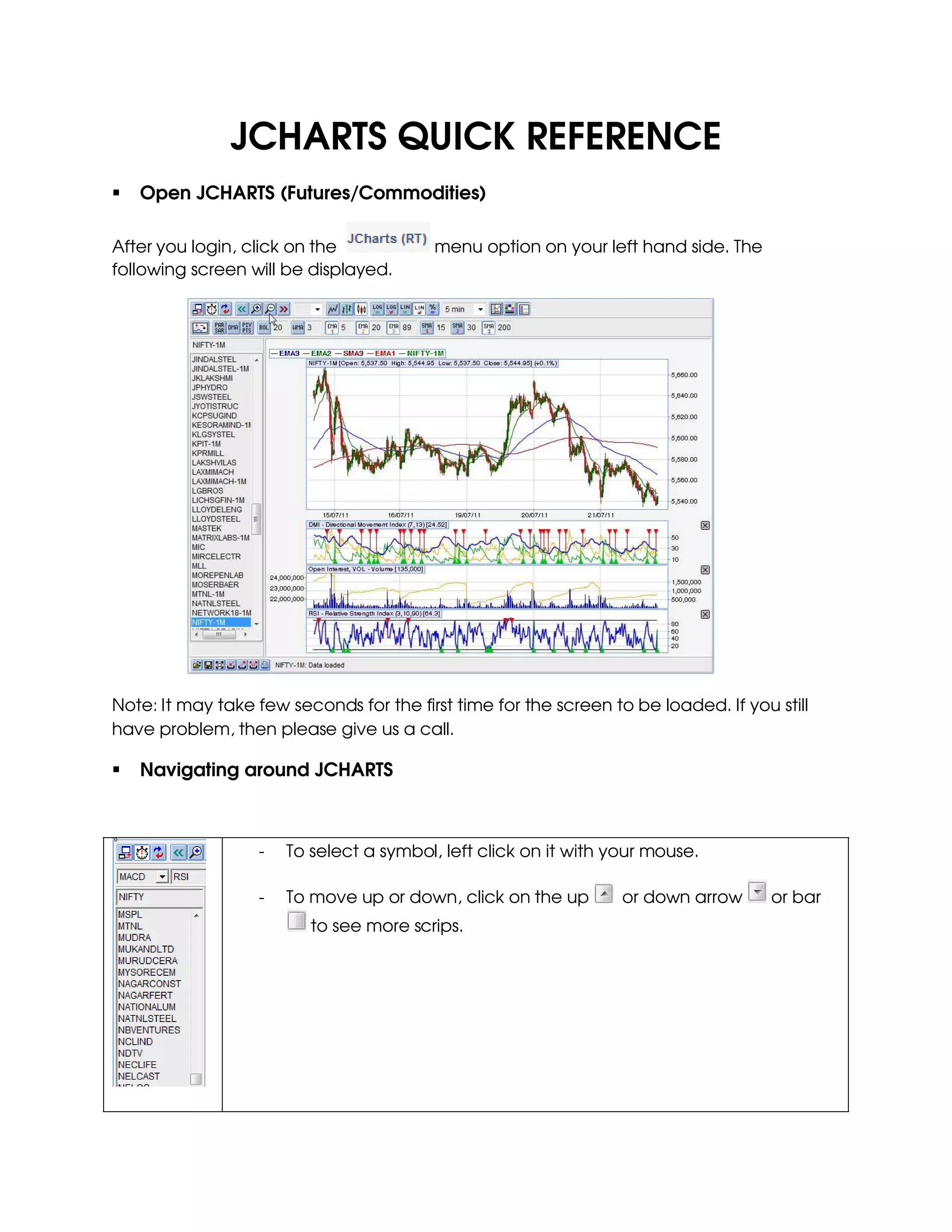
After you login, click on the            menu option on your left hand side. The
following screen will be displayed.


Note: It may take few seconds for the first time for the screen to be loaded. If you still
have problem, then please give us a call.

   Navigating around JCHARTS


                  -   To select a symbol, left click on it with your mouse.

                  -   To move up or down, click on the up        or down arrow       or bar
                         to see more scrips.
Top Navigation Bar


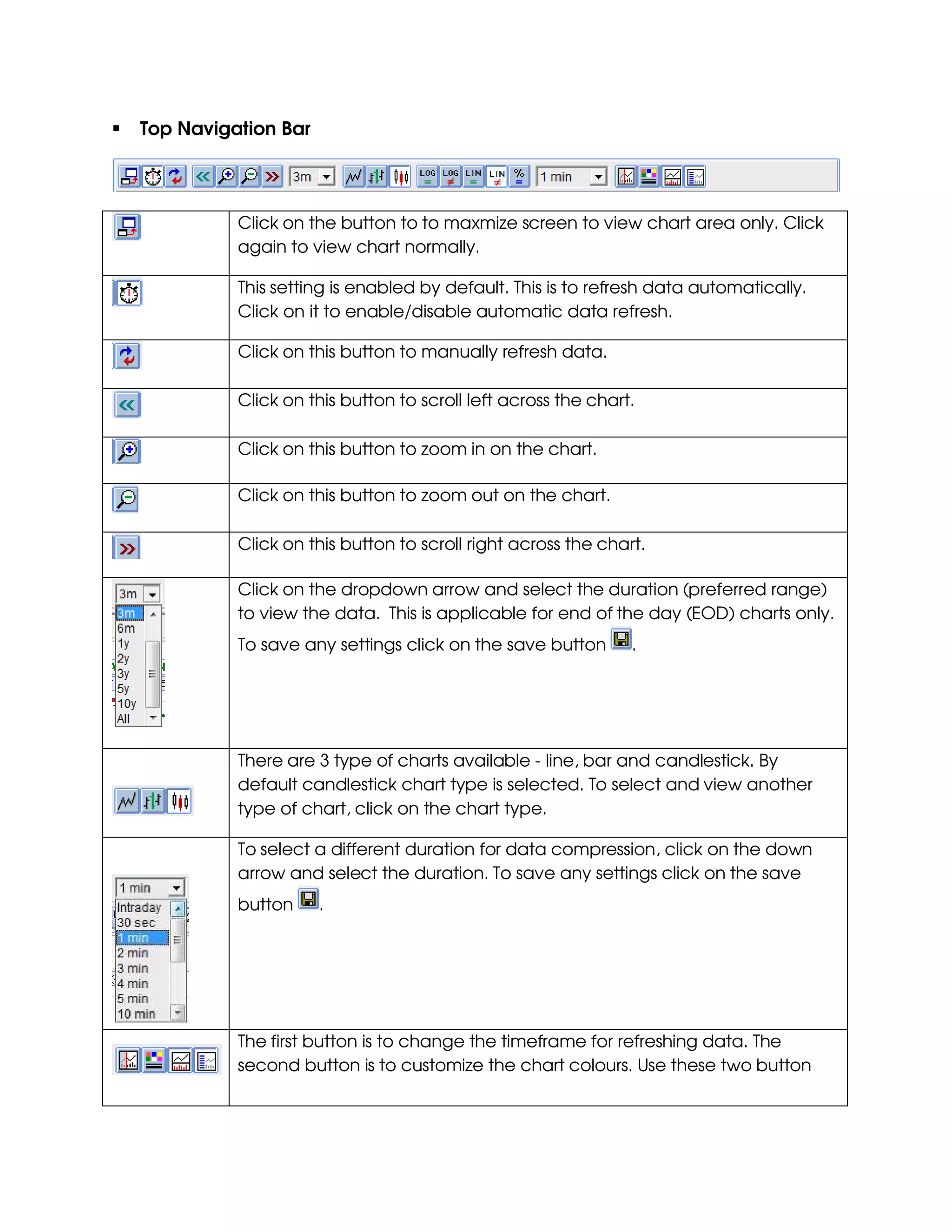
          Click on the button to to maxmize screen to view chart area only. Click
          again to view chart normally.

          This setting is enabled by default. This is to refresh data automatically.
          Click on it to enable/disable automatic data refresh.

          Click on this button to manually refresh data.

          Click on this button to scroll left across the chart.

          Click on this button to zoom in on the chart.

          Click on this button to zoom out on the chart.

          Click on this button to scroll right across the chart.

          Click on the dropdown arrow and select the duration (preferred range)
          to view the data. This is applicable for end of the day (EOD) charts only.
          To save any settings click on the save button       .


          There are 3 type of charts available - line, bar and candlestick. By
          default candlestick chart type is selected. To select and view another
          type of chart, click on the chart type.

          To select a different duration for data compression, click on the down
          arrow and select the duration. To save any settings click on the save
          button     .


          The first button is to change the timeframe for refreshing data. The
          second button is to customize the chart colours. Use these two button
only if you are an advanced user.

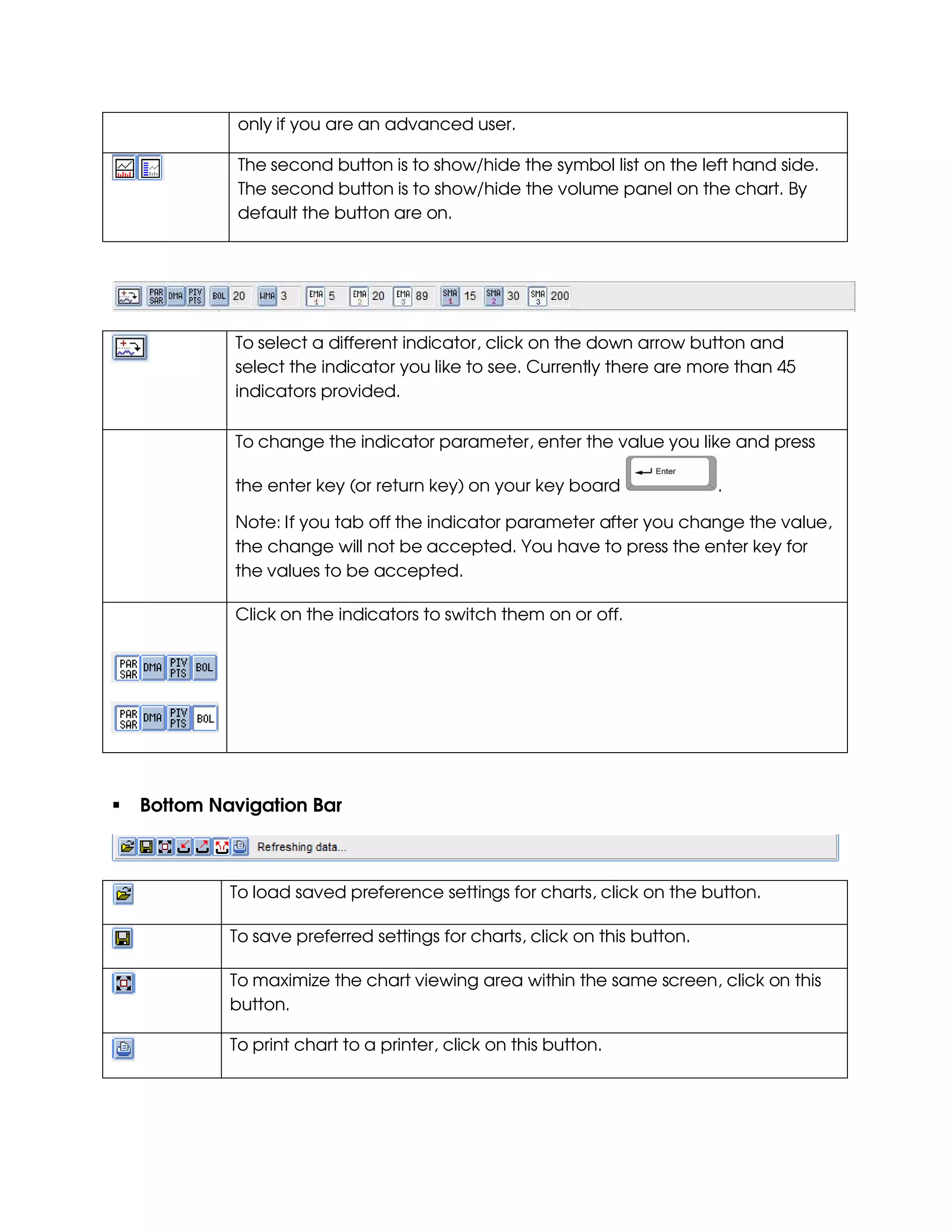
          The second button is to show/hide the symbol list on the left hand side.
          The second button is to show/hide the volume panel on the chart. By
          default the button are on.


         To select a different indicator, click on the down arrow button and
         select the indicator you like to see. Currently there are more than 45
         indicators provided.

         To change the indicator parameter, enter the value you like and press

         the enter key (or return key) on your key board                .

         Note: If you tab off the indicator parameter after you change the value,
         the change will not be accepted. You have to press the enter key for
         the values to be accepted.

         Click on the indicators to switch them on or off.


Bottom Navigation Bar


         To load saved preference settings for charts, click on the button.

         To save preferred settings for charts, click on this button.

         To maximize the chart viewing area within the same screen, click on this
         button.

         To print chart to a printer, click on this button.
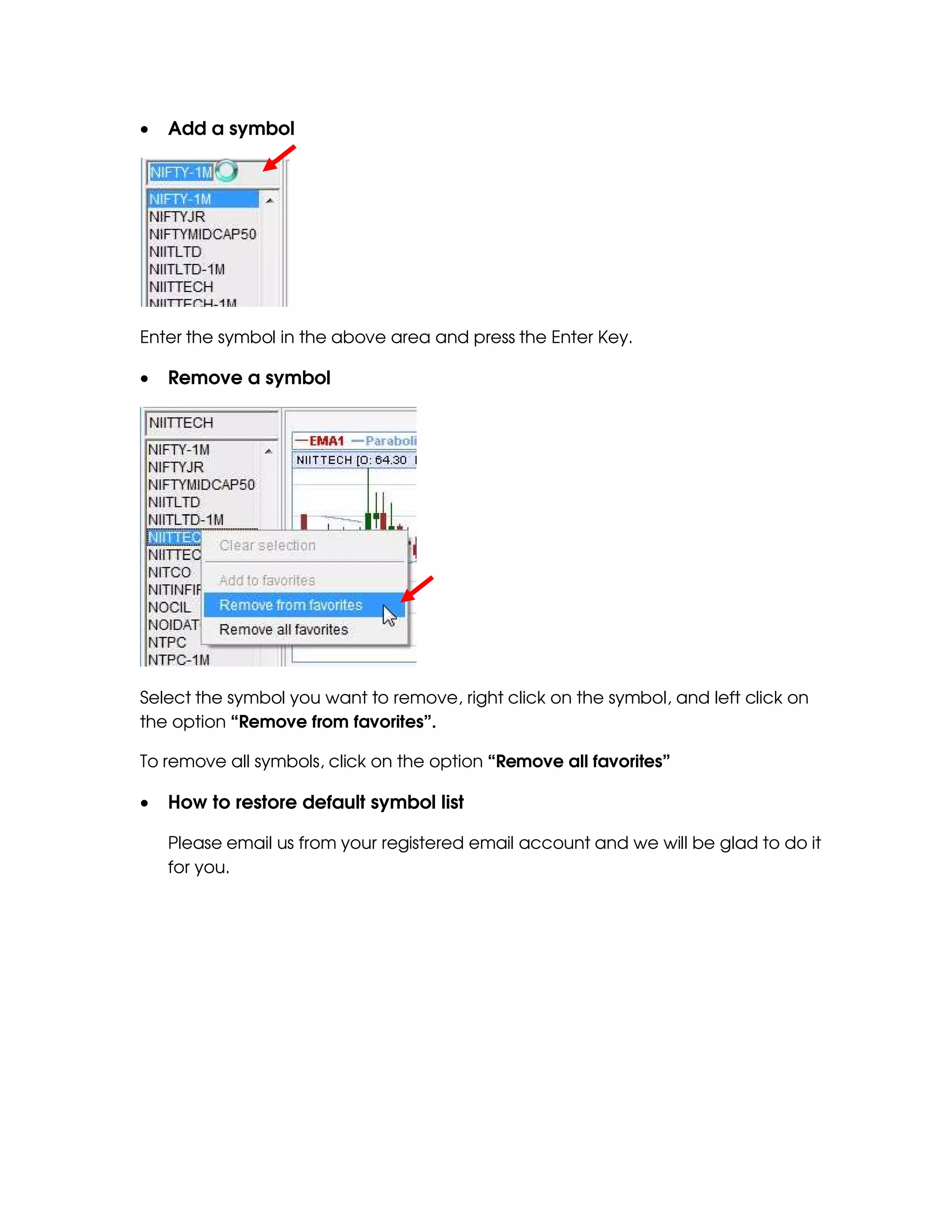
•   Add a symbol


Enter the symbol in the above area and press the Enter Key.

•   Remove a symbol


Select the symbol you want to remove, right click on the symbol, and left click on
the option “Remove from favorites”.

To remove all symbols, click on the option “Remove all favorites”

•   How to restore default symbol list

    Please email us from your registered email account and we will be glad to do it
    for you.
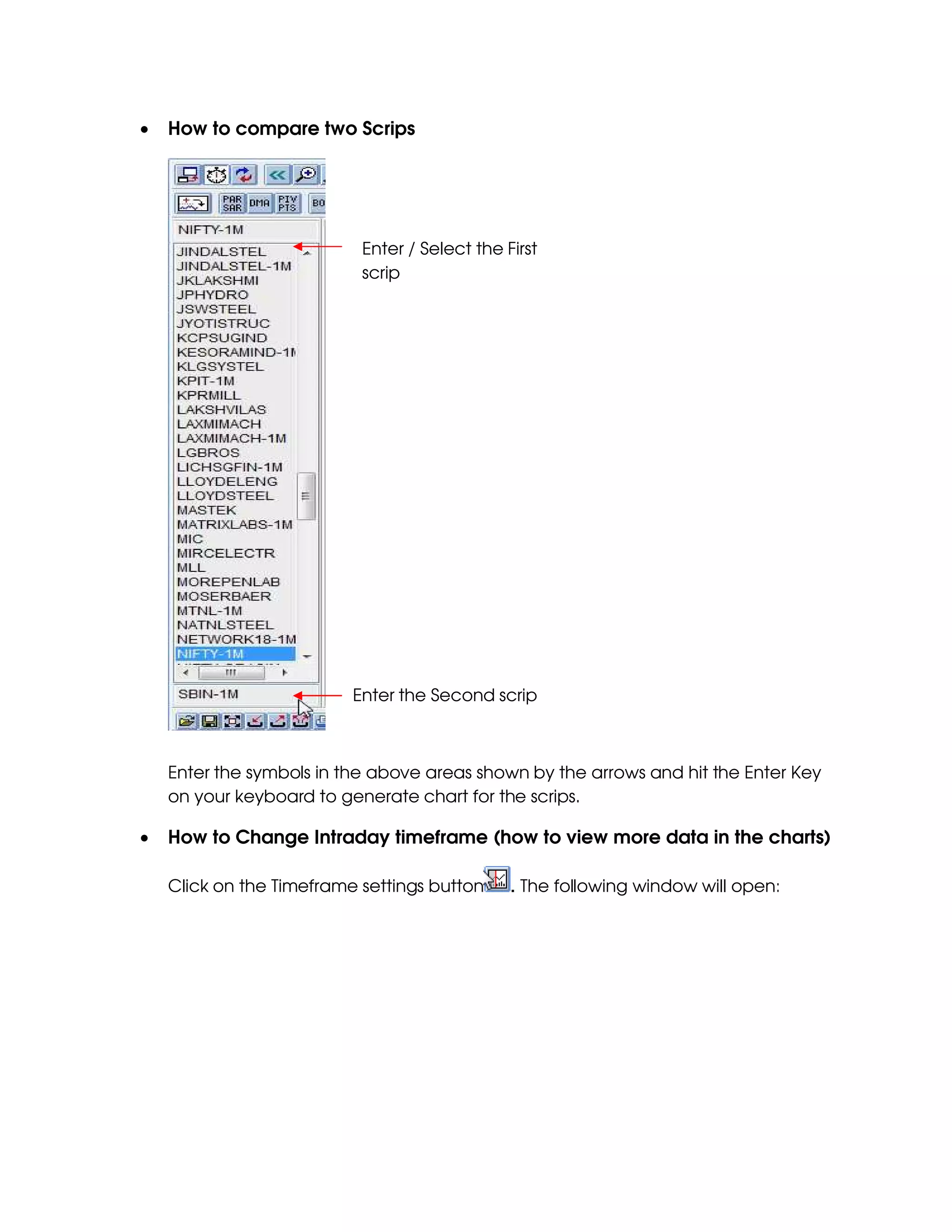
•   How to compare two Scrips


                           Enter / Select the First
                           scrip


                          Enter the Second scrip


    Enter the symbols in the above areas shown by the arrows and hit the Enter Key
    on your keyboard to generate chart for the scrips.

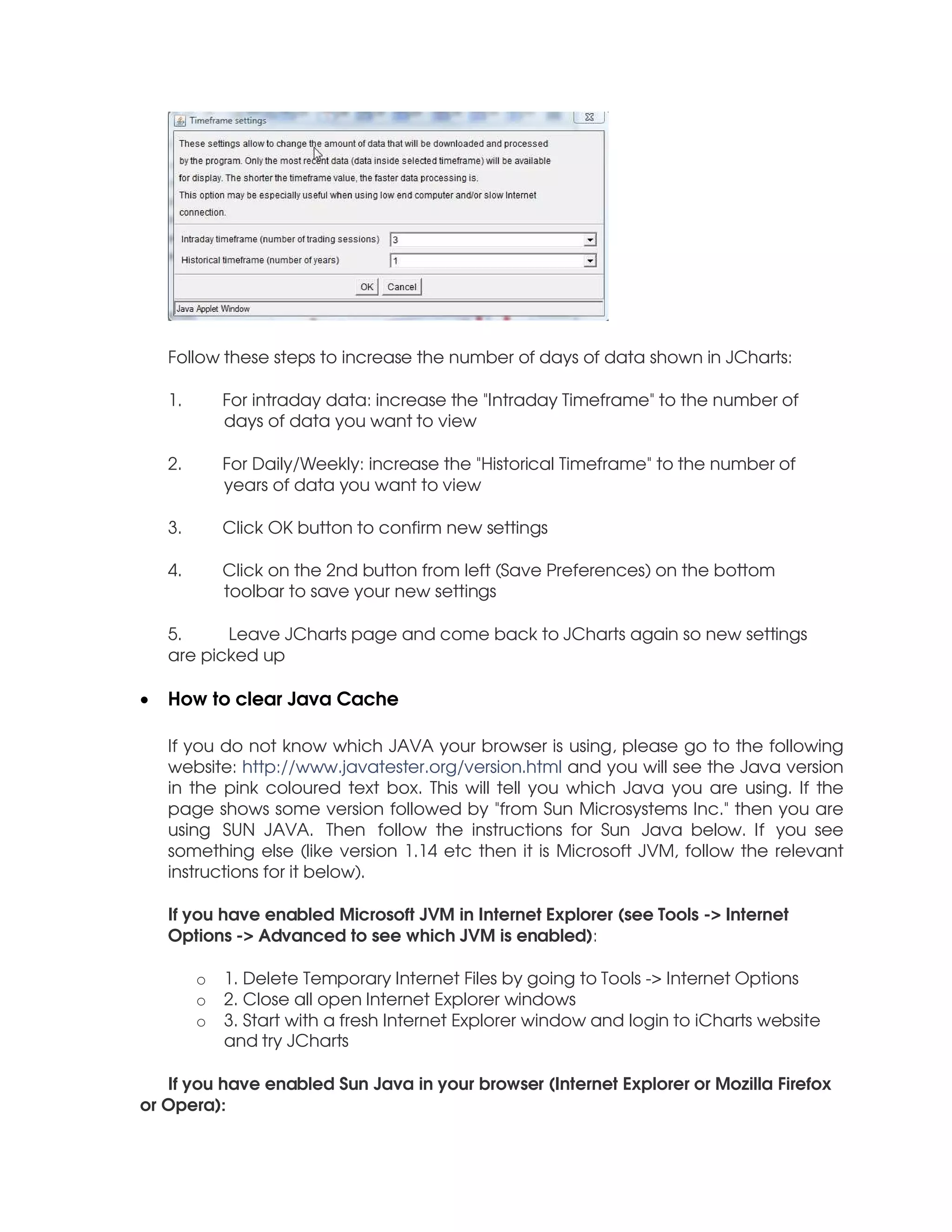
•   How to Change Intraday timeframe (how to view more data in the charts)

    Click on the Timeframe settings button     . The following window will open:
Follow these steps to increase the number of days of data shown in JCharts:

    1.       For intraday data: increase the "Intraday Timeframe" to the number of
             days of data you want to view

    2.       For Daily/Weekly: increase the "Historical Timeframe" to the number of
             years of data you want to view

    3.       Click OK button to confirm new settings

    4.       Click on the 2nd button from left (Save Preferences) on the bottom
             toolbar to save your new settings

    5.     Leave JCharts page and come back to JCharts again so new settings
    are picked up

•   How to clear Java Cache

    If you do not know which JAVA your browser is using, please go to the following
    website: http://www.javatester.org/version.html and you will see the Java version
    in the pink coloured text box. This will tell you which Java you are using. If the
    page shows some version followed by "from Sun Microsystems Inc." then you are
    using SUN JAVA. Then follow the instructions for Sun Java below. If you see
    something else (like version 1.14 etc then it is Microsoft JVM, follow the relevant
    instructions for it below).

    If you have enabled Microsoft JVM in Internet Explorer (see Tools -> Internet
    Options -> Advanced to see which JVM is enabled):

         o   1. Delete Temporary Internet Files by going to Tools -> Internet Options
         o   2. Close all open Internet Explorer windows
         o   3. Start with a fresh Internet Explorer window and login to iCharts website
             and try JCharts

   If you have enabled Sun Java in your browser (Internet Explorer or Mozilla Firefox
or Opera):
o   1. Go to Start -> Control Panel -> Java (double click on the Java icon to
           open Java control panel)
       o   2. In the Java Control Panel window, click on "Settings" button. This will
           open "Temporary Files Settings" window
       o   3. Click on "Delete Files" button, this will open "Delete Temporary Files"
           window
       o   4. Make sure "Applications and Applets" is CHECKED / SELECTED. Click OK
           button to clear Java cache
       o   5. Close all open Java Control Panel windows to close the java control
           panel. Close all open browser windows
       o   6. Start with a fresh browser window and login to iCharts website and try
           JCharts


•   How to reset setting to default

    Please email us from your registered email account and we will be glad to do it
    for you.

•   How to view Multiple Charts

    You can use the JCharts(Plus) Charts to view upto 4 Charts simultaneously. The
    other option is:

       •   Log into iCharts

       •   Go to JCharts (Premium) or JCharts(Basic) or JCharts(Comm)

       •   Click on File->New Window or Press Ctrl and N keys together on your
           keyboard

    A new window will open where you can select the scrip you want to view.

    Note: Please do not login from multiple windows on your computer. The data
refresh will stop.

•   How to change settings in RT Plus Charts

    RT-Plus-Basic will use RT-Basic Settings.

    RT-Plus-Premium will use RT-Premium settings.

    RT-Plus-Comm will use RT-Comm settings
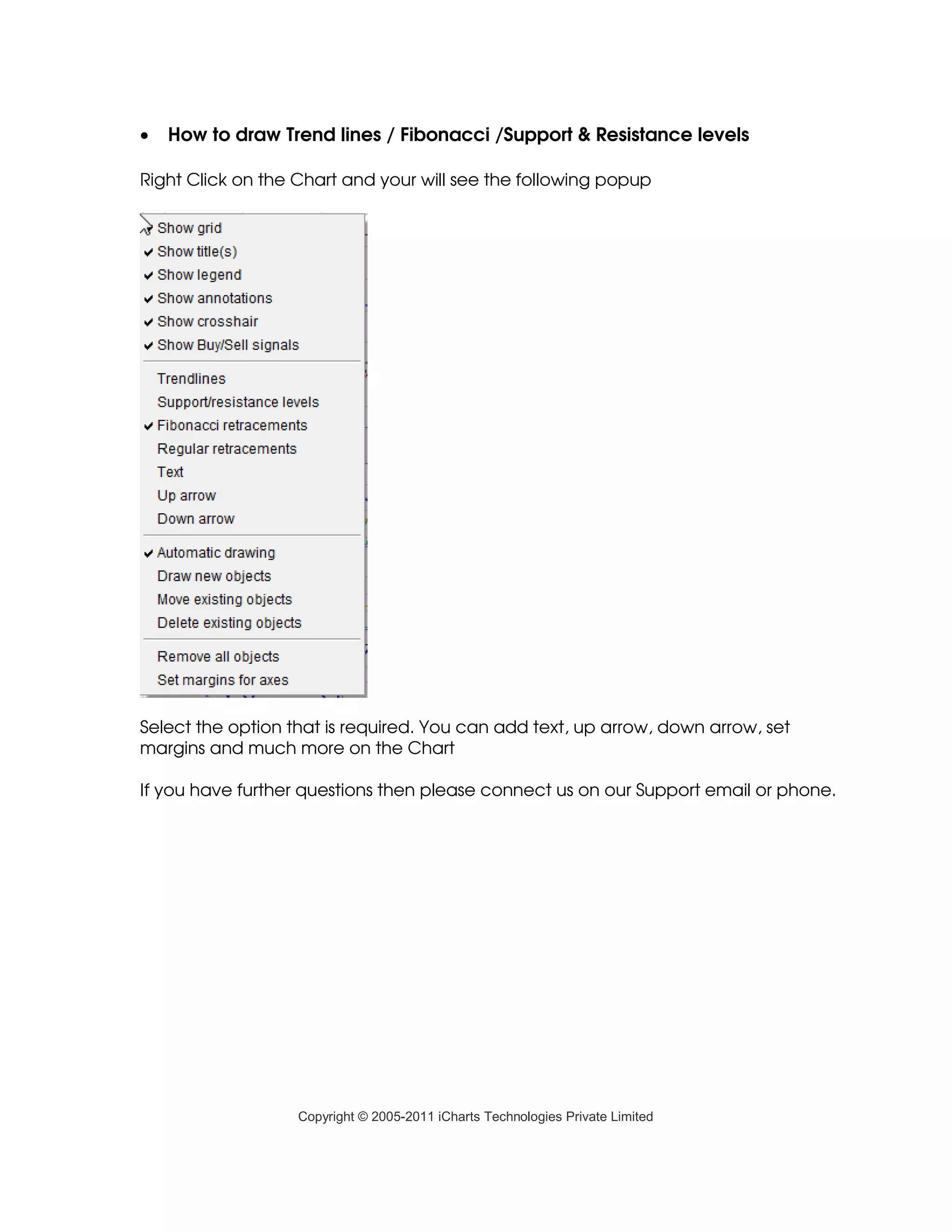
•   How to draw Trend lines / Fibonacci /Support & Resistance levels

Right Click on the Chart and your will see the following popup


Select the option that is required. You can add text, up arrow, down arrow, set
margins and much more on the Chart

If you have further questions then please connect us on our Support email or phone.


                   Copyright © 2005-2011 iCharts Technologies Private Limited

J charts help

  • 1.
    JCHARTS QUICK REFERENCE Open JCHARTS (Futures/Commodities) After you login, click on the menu option on your left hand side. The following screen will be displayed. Note: It may take few seconds for the first time for the screen to be loaded. If you still have problem, then please give us a call. Navigating around JCHARTS - To select a symbol, left click on it with your mouse. - To move up or down, click on the up or down arrow or bar to see more scrips.
  • 2.
    Top Navigation Bar Click on the button to to maxmize screen to view chart area only. Click again to view chart normally. This setting is enabled by default. This is to refresh data automatically. Click on it to enable/disable automatic data refresh. Click on this button to manually refresh data. Click on this button to scroll left across the chart. Click on this button to zoom in on the chart. Click on this button to zoom out on the chart. Click on this button to scroll right across the chart. Click on the dropdown arrow and select the duration (preferred range) to view the data. This is applicable for end of the day (EOD) charts only. To save any settings click on the save button . There are 3 type of charts available - line, bar and candlestick. By default candlestick chart type is selected. To select and view another type of chart, click on the chart type. To select a different duration for data compression, click on the down arrow and select the duration. To save any settings click on the save button . The first button is to change the timeframe for refreshing data. The second button is to customize the chart colours. Use these two button
  • 3.
    only if youare an advanced user. The second button is to show/hide the symbol list on the left hand side. The second button is to show/hide the volume panel on the chart. By default the button are on. To select a different indicator, click on the down arrow button and select the indicator you like to see. Currently there are more than 45 indicators provided. To change the indicator parameter, enter the value you like and press the enter key (or return key) on your key board . Note: If you tab off the indicator parameter after you change the value, the change will not be accepted. You have to press the enter key for the values to be accepted. Click on the indicators to switch them on or off. Bottom Navigation Bar To load saved preference settings for charts, click on the button. To save preferred settings for charts, click on this button. To maximize the chart viewing area within the same screen, click on this button. To print chart to a printer, click on this button.
  • 4.
    Add a symbol Enter the symbol in the above area and press the Enter Key. • Remove a symbol Select the symbol you want to remove, right click on the symbol, and left click on the option “Remove from favorites”. To remove all symbols, click on the option “Remove all favorites” • How to restore default symbol list Please email us from your registered email account and we will be glad to do it for you.
  • 5.
    How to compare two Scrips Enter / Select the First scrip Enter the Second scrip Enter the symbols in the above areas shown by the arrows and hit the Enter Key on your keyboard to generate chart for the scrips. • How to Change Intraday timeframe (how to view more data in the charts) Click on the Timeframe settings button . The following window will open:
  • 6.
    Follow these stepsto increase the number of days of data shown in JCharts: 1. For intraday data: increase the "Intraday Timeframe" to the number of days of data you want to view 2. For Daily/Weekly: increase the "Historical Timeframe" to the number of years of data you want to view 3. Click OK button to confirm new settings 4. Click on the 2nd button from left (Save Preferences) on the bottom toolbar to save your new settings 5. Leave JCharts page and come back to JCharts again so new settings are picked up • How to clear Java Cache If you do not know which JAVA your browser is using, please go to the following website: http://www.javatester.org/version.html and you will see the Java version in the pink coloured text box. This will tell you which Java you are using. If the page shows some version followed by "from Sun Microsystems Inc." then you are using SUN JAVA. Then follow the instructions for Sun Java below. If you see something else (like version 1.14 etc then it is Microsoft JVM, follow the relevant instructions for it below). If you have enabled Microsoft JVM in Internet Explorer (see Tools -> Internet Options -> Advanced to see which JVM is enabled): o 1. Delete Temporary Internet Files by going to Tools -> Internet Options o 2. Close all open Internet Explorer windows o 3. Start with a fresh Internet Explorer window and login to iCharts website and try JCharts If you have enabled Sun Java in your browser (Internet Explorer or Mozilla Firefox or Opera):
  • 7.
    o 1. Go to Start -> Control Panel -> Java (double click on the Java icon to open Java control panel) o 2. In the Java Control Panel window, click on "Settings" button. This will open "Temporary Files Settings" window o 3. Click on "Delete Files" button, this will open "Delete Temporary Files" window o 4. Make sure "Applications and Applets" is CHECKED / SELECTED. Click OK button to clear Java cache o 5. Close all open Java Control Panel windows to close the java control panel. Close all open browser windows o 6. Start with a fresh browser window and login to iCharts website and try JCharts • How to reset setting to default Please email us from your registered email account and we will be glad to do it for you. • How to view Multiple Charts You can use the JCharts(Plus) Charts to view upto 4 Charts simultaneously. The other option is: • Log into iCharts • Go to JCharts (Premium) or JCharts(Basic) or JCharts(Comm) • Click on File->New Window or Press Ctrl and N keys together on your keyboard A new window will open where you can select the scrip you want to view. Note: Please do not login from multiple windows on your computer. The data refresh will stop. • How to change settings in RT Plus Charts RT-Plus-Basic will use RT-Basic Settings. RT-Plus-Premium will use RT-Premium settings. RT-Plus-Comm will use RT-Comm settings
  • 8.
    How to draw Trend lines / Fibonacci /Support & Resistance levels Right Click on the Chart and your will see the following popup Select the option that is required. You can add text, up arrow, down arrow, set margins and much more on the Chart If you have further questions then please connect us on our Support email or phone. Copyright © 2005-2011 iCharts Technologies Private Limited