GETTING STARTED
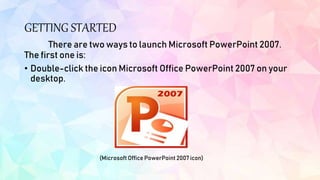
There are two ways to launch Microsoft PowerPoint 2007.
The first one is:
• Double-click the icon Microsoft Office PowerPoint 2007 on your
desktop.
(Microsoft Office PowerPoint 2007 icon)
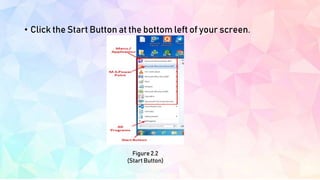
• Click the Start Button at the bottom left of your screen.
Figure 2.2
(Start Button)
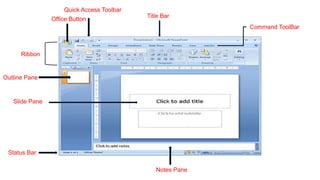
Office Button
Quick Access Toolbar
Title Bar
Notes Pane
Status Bar
Slide Pane
Command ToolBar
Ribbon
Outline Pane
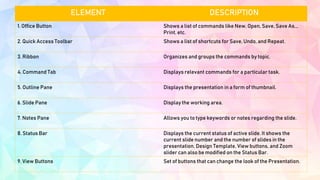
ELEMENT DESCRIPTION
1. Office Button Shows a list of commands like New, Open, Save, Save As..,
Print, etc.
2. Quick Access Toolbar Shows a list of shortcuts for Save, Undo, and Repeat.
3. Ribbon Organizes and groups the commands by topic.
4. Command Tab Displays relevant commands for a particular task.
5. Outline Pane Displays the presentation in a form of thumbnail.
6. Slide Pane Display the working area.
7. Notes Pane Allows you to type keywords or notes regarding the slide.
8. Status Bar Displays the current status of active slide. It shows the
current slide number and the number of slides in the
presentation. Design Template, View buttons, and Zoom
slider can also be modified on the Status Bar.
9. View Buttons Set of buttons that can change the look of the Presentation.

Chapter 2 VIEWING POWERPOINT.pptx.......

  • 2.
    GETTING STARTED There aretwo ways to launch Microsoft PowerPoint 2007. The first one is: • Double-click the icon Microsoft Office PowerPoint 2007 on your desktop. (Microsoft Office PowerPoint 2007 icon)
  • 3.
    • Click theStart Button at the bottom left of your screen. Figure 2.2 (Start Button)
  • 4.
    Office Button Quick AccessToolbar Title Bar Notes Pane Status Bar Slide Pane Command ToolBar Ribbon Outline Pane
  • 5.
    ELEMENT DESCRIPTION 1. OfficeButton Shows a list of commands like New, Open, Save, Save As.., Print, etc. 2. Quick Access Toolbar Shows a list of shortcuts for Save, Undo, and Repeat. 3. Ribbon Organizes and groups the commands by topic. 4. Command Tab Displays relevant commands for a particular task. 5. Outline Pane Displays the presentation in a form of thumbnail. 6. Slide Pane Display the working area. 7. Notes Pane Allows you to type keywords or notes regarding the slide. 8. Status Bar Displays the current status of active slide. It shows the current slide number and the number of slides in the presentation. Design Template, View buttons, and Zoom slider can also be modified on the Status Bar. 9. View Buttons Set of buttons that can change the look of the Presentation.