Streams and File I/O
Chapter 9
Objectives
• become familiar with the concept of an I/O
stream
• understand the difference between binary
files and text files
• learn how to save data in a file
• learn how to read data from a file
Outline
• Overview of Streams and File I/O
• Text-File I/O
• Using the File Class
• Basic Binary-File I/O
• Object I/O with Object Streams
• (optional) Graphics Supplement
Objectives, cont.
• learn how use the classes ObjectOutputStream
and ObjectInputStream to read and write class
objects with binary files
I/O Overview
• I/O = Input/Output
• In this context it is input to and output from programs
• Input can be from keyboard or a file
• Output can be to display (screen) or a file
• Advantages of file I/O
– permanent copy
– output from one program can be input to another
– input can be automated (rather than entered manually)
Note: Since the sections on text file I/O and binary file I/O have
some similar information, some duplicate (or nearly duplicate)
slides are included.
Streams
• Stream: an object that either delivers data to its destination (screen,
file, etc.) or that takes data from a source (keyboard, file, etc.)
– it acts as a buffer between the data source and destination
• Input stream: a stream that provides input to a program
– System.in is an input stream
• Output stream: a stream that accepts output from a program
– System.out is an output stream
• A stream connects a program to an I/O object
– System.out connects a program to the screen
– System.in connects a program to the keyboard
Binary Versus Text Files
• All data and programs are ultimately just zeros and ones
– each digit can have one of two values, hence binary
– bit is one binary digit
– byte is a group of eight bits
• Text files: the bits represent printable characters
– one byte per character for ASCII, the most common code
– for example, Java source files are text files
– so is any file created with a "text editor"
• Binary files: the bits represent other types of encoded information, such as
executable instructions or numeric data
– these files are easily read by the computer but not humans
– they are not "printable" files
• actually, you can print them, but they will be unintelligible
• "printable" means "easily readable by humans when printed"
Java: Text Versus Binary Files
• Text files are more readable by humans
• Binary files are more efficient
– computers read and write binary files more easily than text
• Java binary files are portable
– they can be used by Java on different machines
– Reading and writing binary files is normally done by a program
– text files are used only to communicate with humans
Java Text Files
• Source files
• Occasionally input files
• Occasionally output files
Java Binary Files
• Executable files (created by
compiling source files)
• Usually input files
• Usually output files
Text Files vs. Binary Files
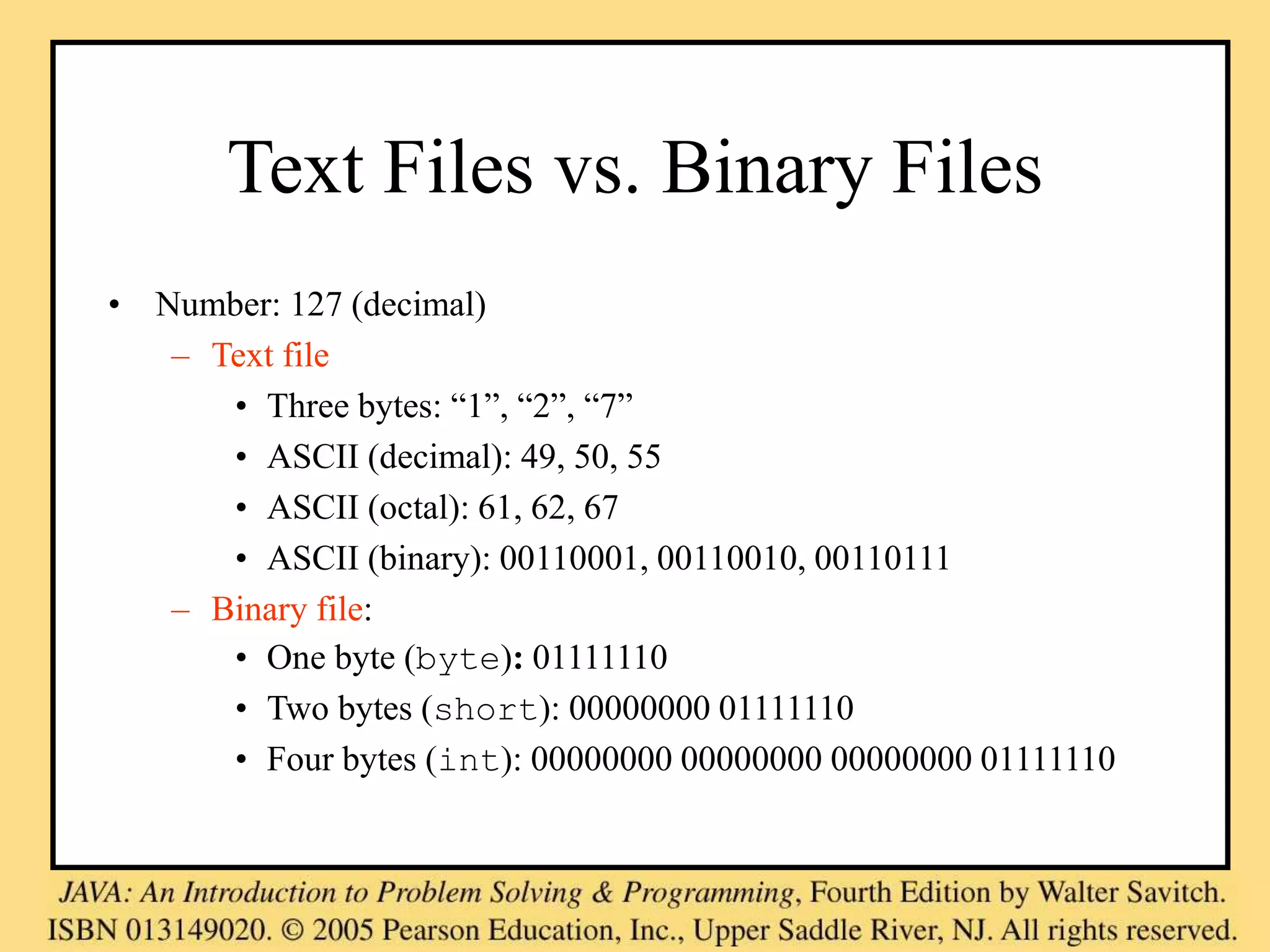
• Number: 127 (decimal)
– Text file
• Three bytes: “1”, “2”, “7”
• ASCII (decimal): 49, 50, 55
• ASCII (octal): 61, 62, 67
• ASCII (binary): 00110001, 00110010, 00110111
– Binary file:
• One byte (byte): 01111110
• Two bytes (short): 00000000 01111110
• Four bytes (int): 00000000 00000000 00000000 01111110
Text file: an example
[unix: od –w8 –bc <file>]
[http://www.muquit.com/muquit/software/hod/hod.html for a Windows tool]
127 smiley
faces
0000000 061 062 067 011 163 155 151 154
1 2 7 t s m i l
0000010 145 171 012 146 141 143 145 163
e y n f a c e s
0000020 012
n
Binary file: an example [a .class file]
0000000 312 376 272 276 000 000 000 061
312 376 272 276 0 0 0 1
0000010 000 164 012 000 051 000 062 007
0 t n 0 ) 0 2 a
0000020 000 063 007 000 064 010 000 065
0 3 a 0 4 b 0 5
0000030 012 000 003 000 066 012 000 002
n 0 003 0 6 n 0 002
...
0000630 000 145 000 146 001 000 027 152
0 e 0 f 001 0 027 j
0000640 141 166 141 057 154 141 156 147
a v a / l a n g
0000650 057 123 164 162 151 156 147 102
/ S t r i n g B
0000660 165 151 154 144 145 162 014 000
u i l d e r f 0
Text File I/O
• Important classes for text file output (to the file)
– PrintWriter
– FileOutputStream [or FileWriter]
• Important classes for text file input (from the file):
– BufferedReader
– FileReader
• FileOutputStream and FileReader take file names as arguments.
• PrintWriter and BufferedReader provide useful methods for easier
writing and reading.
• Usually need a combination of two classes
• To use these classes your program needs a line like the following:
import java.io.*;
Buffering
• Not buffered: each byte is read/written from/to disk as soon as possible
– “little” delay for each byte
– A disk operation per byte---higher overhead
• Buffered: reading/writing in “chunks”
– Some delay for some bytes
• Assume 16-byte buffers
• Reading: access the first 4 bytes, need to wait for all 16 bytes
are read from disk to memory
• Writing: save the first 4 bytes, need to wait for all 16 bytes
before writing from memory to disk
– A disk operation per a buffer of bytes---lower overhead
Every File Has Two Names
1.the stream name used by Java
– outputStream in the example
2.the name used by the operating system
– out.txt in the example
Text File Output
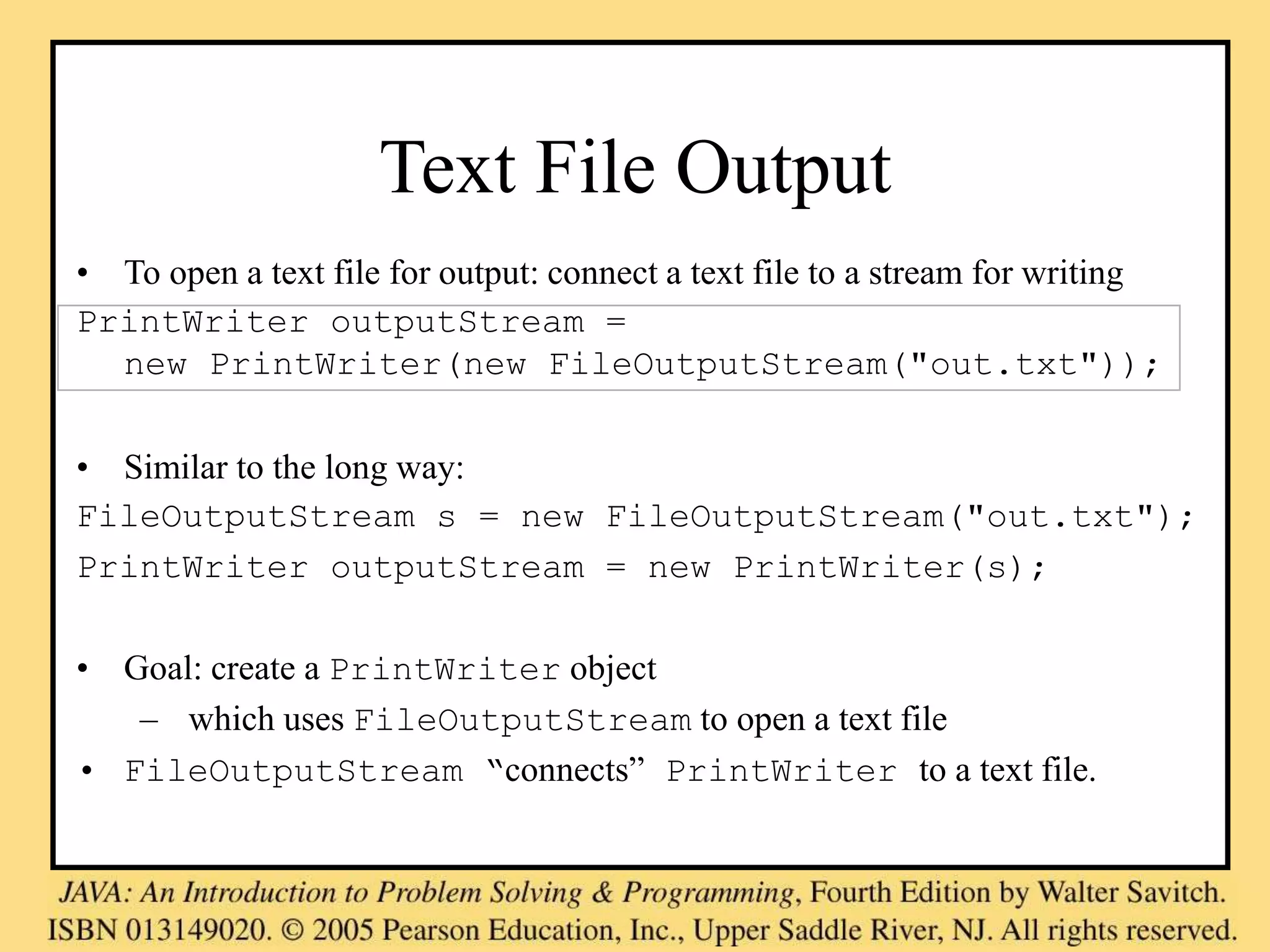
• To open a text file for output: connect a text file to a stream for writing
PrintWriter outputStream =
new PrintWriter(new FileOutputStream("out.txt"));
• Similar to the long way:
FileOutputStream s = new FileOutputStream("out.txt");
PrintWriter outputStream = new PrintWriter(s);
• Goal: create a PrintWriter object
– which uses FileOutputStream to open a text file
• FileOutputStream “connects” PrintWriter to a text file.
Output File Streams
PrintWriter FileOutputStream
Disk
Memory
smileyOutStream smiley.txt
PrintWriter smileyOutStream = new PrintWriter( new FileOutputStream(“smiley.txt”) );
Methods for PrintWriter
• Similar to methods for System.out
• println
outputStream.println(count + " " + line);
• print
• format
• flush: write buffered output to disk
• close: close the PrintWriter stream (and file)
TextFileOutputDemo
Part 1
public static void main(String[] args)
{
PrintWriter outputStream = null;
try
{
outputStream =
new PrintWriter(new FileOutputStream("out.txt"));
}
catch(FileNotFoundException e)
{
System.out.println("Error opening the file out.txt. “
+ e.getMessage());
System.exit(0);
}
A try-block is a block:
outputStream would
not be accessible to the
rest of the method if it
were declared inside the
try-block
Creating a file can cause the
FileNotFound-Exception if
the new file cannot be made.
Opening the file
TextFileOutputDemo
Part 2
System.out.println("Enter three lines of text:");
String line = null;
int count;
for (count = 1; count <= 3; count++)
{
line = keyboard.nextLine();
outputStream.println(count + " " + line);
}
outputStream.close();
System.out.println("... written to out.txt.");
} The println method is used with two different
streams: outputStream and System.out
Closing the file
Writing to the file
Gotcha: Overwriting a File
• Opening an output file creates an empty file
• Opening an output file creates a new file if it does not already exist
• Opening an output file that already exists eliminates the old file and
creates a new, empty one
– data in the original file is lost
• To see how to check for existence of a file, see the section of the text
that discusses the File class (later slides).
Java Tip: Appending to a Text File
• To add/append to a file instead of replacing it, use a different constructor
for FileOutputStream:
outputStream =
new PrintWriter(new FileOutputStream("out.txt", true));
• Second parameter: append to the end of the file if it exists?
• Sample code for letting user tell whether to replace or append:
System.out.println("A for append or N for new file:");
char ans = keyboard.next().charAt(0);
boolean append = (ans == 'A' || ans == 'a');
outputStream = new PrintWriter(
new FileOutputStream("out.txt", append));
true if user
enters 'A'
Closing a File
• An output file should be closed when you are done writing
to it (and an input file should be closed when you are done
reading from it).
• Use the close method of the class PrintWriter
(BufferedReader also has a close method).
• For example, to close the file opened in the previous
example:
outputStream.close();
• If a program ends normally it will close any files that are
open.
FAQ: Why Bother to Close a File?
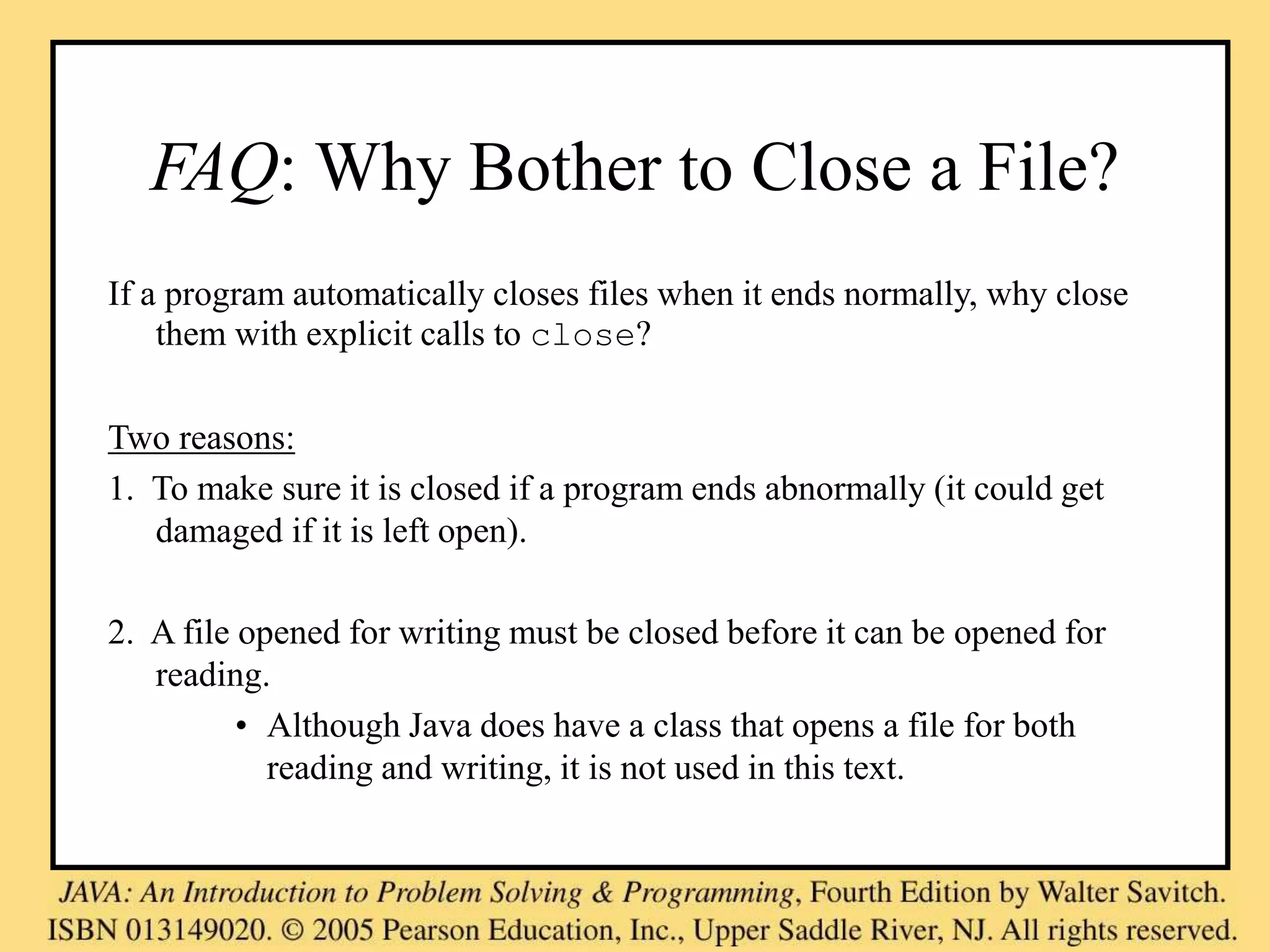
If a program automatically closes files when it ends normally, why close
them with explicit calls to close?
Two reasons:
1. To make sure it is closed if a program ends abnormally (it could get
damaged if it is left open).
2. A file opened for writing must be closed before it can be opened for
reading.
• Although Java does have a class that opens a file for both
reading and writing, it is not used in this text.
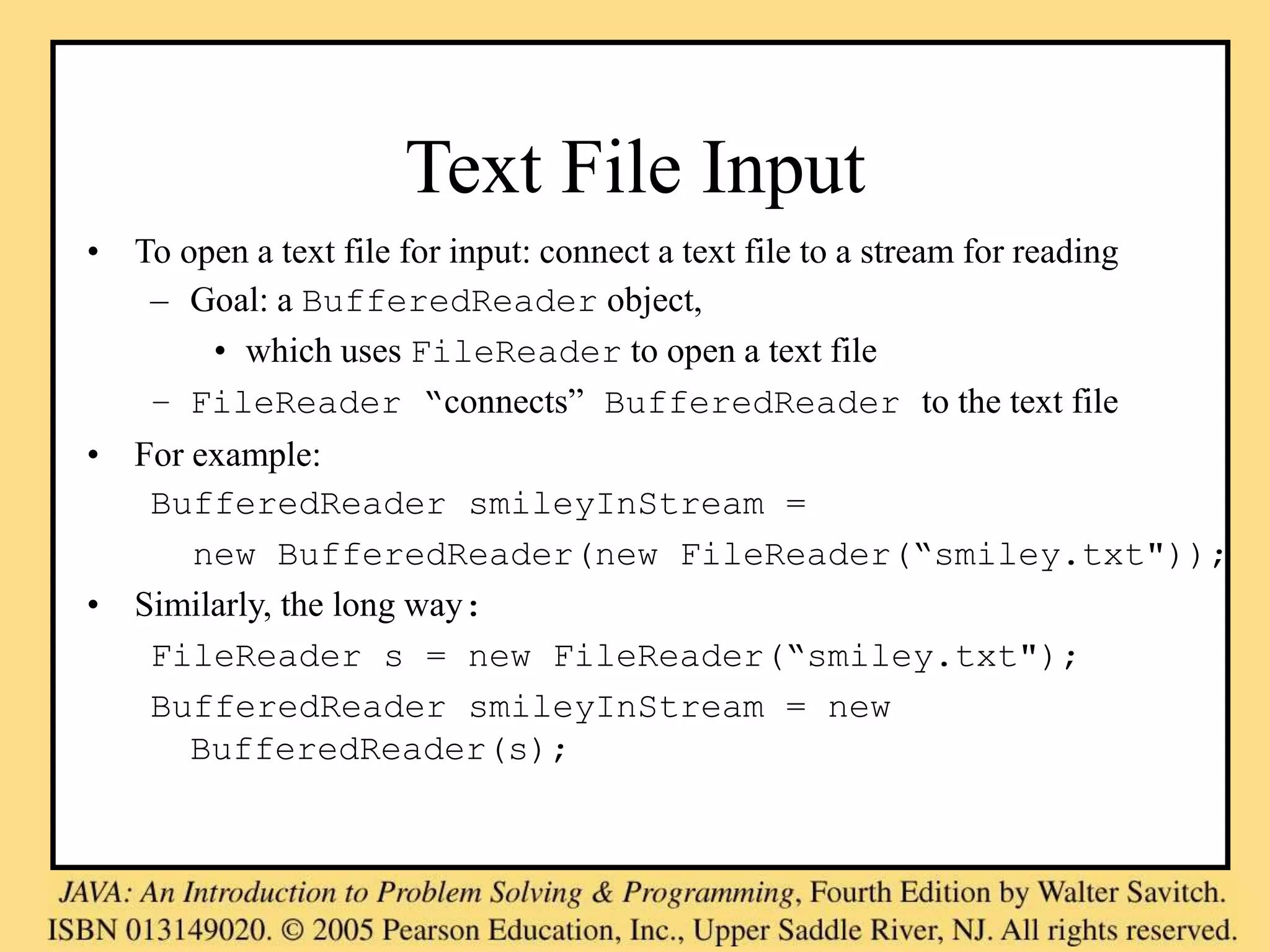
Text File Input
• To open a text file for input: connect a text file to a stream for reading
– Goal: a BufferedReader object,
• which uses FileReader to open a text file
– FileReader “connects” BufferedReader to the text file
• For example:
BufferedReader smileyInStream =
new BufferedReader(new FileReader(“smiley.txt"));
• Similarly, the long way:
FileReader s = new FileReader(“smiley.txt");
BufferedReader smileyInStream = new
BufferedReader(s);
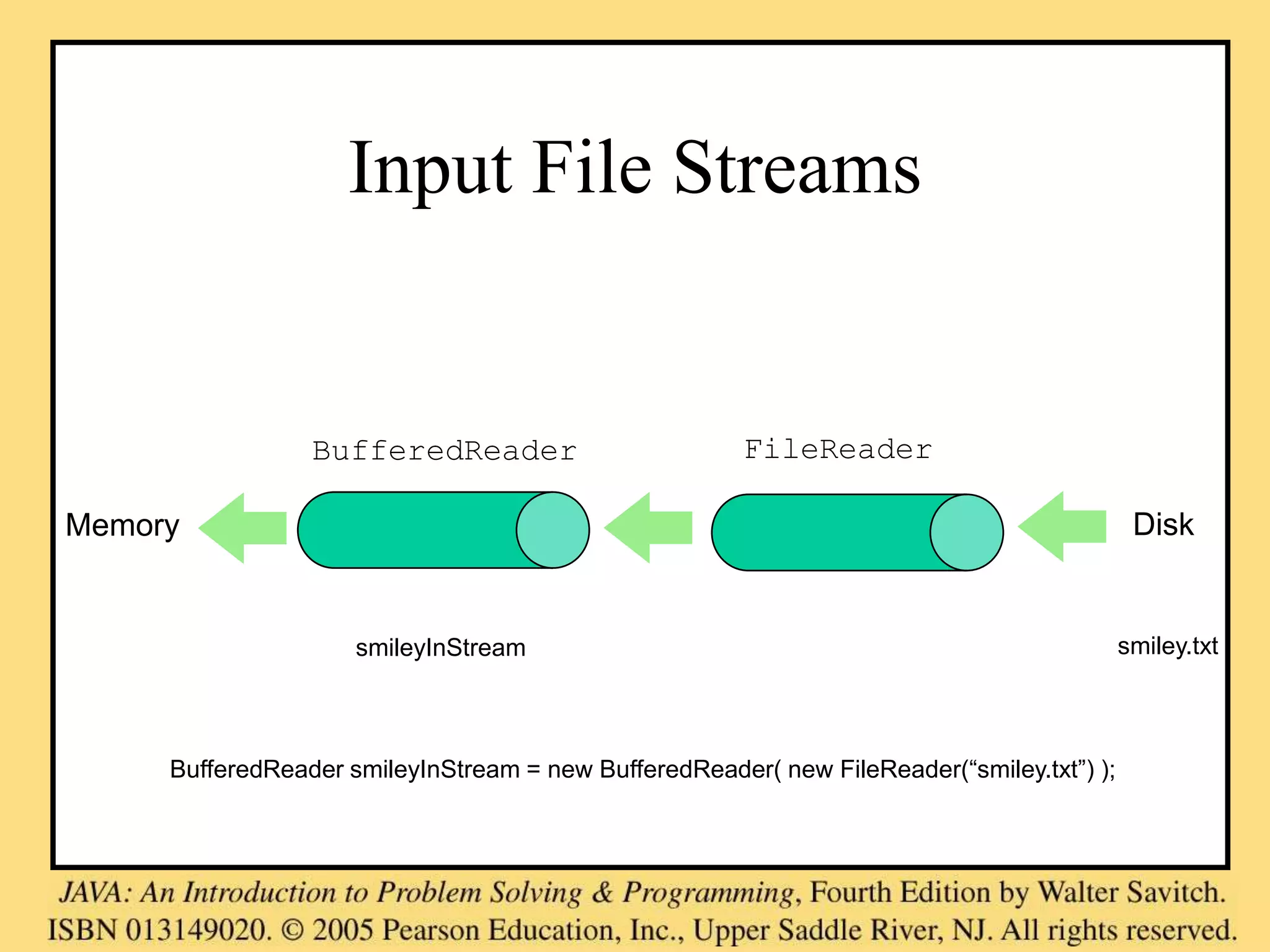
Input File Streams
BufferedReader FileReader
Disk
Memory
smileyInStream smiley.txt
BufferedReader smileyInStream = new BufferedReader( new FileReader(“smiley.txt”) );
Methods for
BufferedReader
• readLine: read a line into a String
• no methods to read numbers directly, so
read numbers as Strings and then convert
them (StringTokenizer later)
• read: read a char at a time
• close: close BufferedReader
stream
Exception Handling with File I/O
Catching IOExceptions
• IOException is a predefined class
• File I/O might throw an IOException
• catch the exception in a catch block that at least prints an error message and
ends the program
• FileNotFoundException is derived from IOException
– therefor any catch block that catches IOExceptions also catches
FileNotFoundExceptions
– put the more specific one first (the derived one) so it catches specifically
file-not-found exceptions
– then you will know that an I/O error is something other than file-not-
found
Example:
Reading a File
Name from the
Keyboard
public static void main(String[] args)
{
String fileName = null; // outside try block, can be used in catch
try
{ Scanner keyboard = new Scanner(System.in);
System.out.println("Enter file name:");
fileName = keyboard.next();
BufferedReader inputStream =
new BufferedReader(new FileReader(fileName));
String line = null;
line = inputStream.readLine();
System.out.println("The first line in " + filename + " is:");
System.out.println(line);
// . . . code for reading second line not shown here . . .
inputStream.close();
}
catch(FileNotFoundException e)
{
System.out.println("File " + filename + " not found.");
}
catch(IOException e)
{
System.out.println("Error reading from file " + fileName);
}
}
Chapter 10 Java: an Introduction to Computer Science & Programming - Walter Savitch 28
reading a file name
from the keyboard
closing the file
using the file name
read from the
keyboard
reading data
from the file
Exception.getMessage()
try
{
…
}
catch (FileNotFoundException e)
{
System.out.println(filename + “ not found”);
System.out.println(“Exception: “ +
e.getMessage());
System.exit(-1);
}
Reading Words in a String:
Using StringTokenizer Class
• There are BufferedReader methods to read a line and a character,
but not just a single word
• StringTokenizer can be used to parse a line into words
– import java.util.*
– some of its useful methods are shown in the text
• e.g. test if there are more tokens
– you can specify delimiters (the character or characters that separate
words)
• the default delimiters are "white space" (space, tab, and
newline)
Example: StringTokenizer
• Display the words separated by any of the following characters: space,
new line (n), period (.) or comma (,).
String inputLine = keyboard.nextLine();
StringTokenizer wordFinder =
new StringTokenizer(inputLine, " n.,");
//the second argument is a string of the 4 delimiters
while(wordFinder.hasMoreTokens())
{
System.out.println(wordFinder.nextToken());
}
Question
2b
or
!tooBee
Entering "Question,2b.or !tooBee."
gives this output:
Testing for End of File in a Text File
• When readLine tries to read beyond the end of a text file it returns
the special value null
– so you can test for null to stop processing a text file
• read returns -1 when it tries to read beyond the end of a text file
– the int value of all ordinary characters is nonnegative
• Neither of these two methods (read and readLine) will throw an
EOFException.
int count = 0;
String line = inputStream.readLine();
while (line != null)
{
count++;
outputStream.println(count + " " + line);
line = inputStream.readLine();
}
Chapter 9 Java: an Introduction to Computer Science & Programming - Walter Savitch 33
Excerpt from TextEOFDemo
Example: Using Null to
Test for End-of-File in a Text File
When using
readLine
test for null
When using read test for -1
File I/O example
• http://www.cs.fit.edu/~pkc/classes/cse1001/
FileIO/FileIO.java
Using Path Names
• Path name—gives name of file and tells which directory the file is in
• Relative path name—gives the path starting with the directory that the
program is in
• Typical UNIX path name:
/user/smith/home.work/java/FileClassDemo.java
• Typical Windows path name:
D:WorkJavaProgramsFileClassDemo.java
• When a backslash is used in a quoted string it must be written as two
backslashes since backslash is the escape character:
"D:WorkJavaProgramsFileClassDemo.java"
• Java will accept path names in UNIX or Windows format, regardless
of which operating system it is actually running on.
File Class [java.io]
• Acts like a wrapper class for file names
• A file name like "numbers.txt" has only String properties
• File has some very useful methods
– exists: tests if a file already exists
– canRead: tests if the OS will let you read a file
– canWrite: tests if the OS will let you write to a file
– delete: deletes the file, returns true if successful
– length: returns the number of bytes in the file
– getName: returns file name, excluding the preceding path
– getPath: returns the path name—the full name
File numFile = new File(“numbers.txt”);
if (numFile.exists())
System.out.println(numfile.length());
File Objects and Filenames
• FileInputStream and FileOutputStream have constructors
that take a File argument as well as constructors that take a String
argument
PrintWriter smileyOutStream = new PrintWriter(new
FileOutputStream(“smiley.txt”));
File smileyFile = new File(“smiley.txt”);
if (smileyFile.canWrite())
PrintWriter smileyOutStream = new
PrintWriter(new FileOutputStream(smileyFile));
Alternative with Scanner
• Instead of BufferedReader with
FileReader, then
StringTokenizer
• Use Scanner with File:
Scanner inFile =
new Scanner(new File(“in.txt”));
• Similar to Scanner with System.in:
Scanner keyboard =
new Scanner(System.in);
Reading in int’s
Scanner inFile = new Scanner(new File(“in.txt"));
int number;
while (inFile.hasInt())
{
number = inFile.nextInt();
// …
}
Reading in lines of characters
Scanner inFile = new Scanner(new File(“in.txt"));
String line;
while (inFile.hasNextLine())
{
line = inFile.nextLine();
// …
}
Multiple types on one line
// Name, id, balance
Scanner inFile = new Scanner(new File(“in.txt"));
while (inFile.hasNext())
{
name = inFile.next();
id = inFile.nextInt();
balance = inFile.nextFloat();
// … new Account(name, id, balance);
}
--------------------
String line;
while (inFile.hasNextLine())
{
line = inFile.nextLine();
Scanner parseLine = new Scanner(line) // Scanner again!
name = parseLine.next();
id = parseLine.nextInt();
balance = parseLine.nextFloat();
// … new Account(name, id, balance);
}
Multiple types on one line
// Name, id, balance
Scanner inFile = new Scanner(new File(“in.txt"));
String line;
while (inFile.hasNextLine())
{
line = inFile.nextLine();
Account account = new Account(line);
}
--------------------
public Account(String line) // constructor
{
Scanner accountLine = new Scanner(line);
_name = accountLine.next();
_id = accountLine.nextInt();
_balance = accountLine.nextFloat();
}
BufferedReader vs Scanner
(parsing primitive types)
• Scanner
– nextInt(), nextFloat(), … for
parsing types
• BufferedReader
– read(), readLine(), … none for
parsing types
– needs StringTokenizer then wrapper
class methods like
Integer.parseInt(token)
BufferedReader vs Scanner
(Checking End of File/Stream (EOF))
• BufferedReader
– readLine() returns null
– read() returns -1
• Scanner
– nextLine() throws exception
– needs hasNextLine() to check first
– nextInt(), hasNextInt(), …
BufferedReader inFile = …
line = inFile.readline();
while (line != null)
{
// …
line = inFile.readline();
}
-------------------
Scanner inFile = …
while (inFile.hasNextLine())
{
line = infile.nextLine();
// …
}
BufferedReader inFile = …
line = inFile.readline();
while (line != null)
{
// …
line = inFile.readline();
}
-------------------
BufferedReader inFile = …
while ((line = inFile.readline()) != null)
{
// …
}
My suggestion
• Use Scanner with File
– new Scanner(new File(“in.txt”))
• Use hasNext…() to check for EOF
– while (inFile.hasNext…())
• Use next…() to read
– inFile.next…()
• Simpler and you are familiar with
methods for Scanner
My suggestion cont…
• File input
– Scanner inFile =
new Scanner(new File(“in.txt”));
• File output
– PrintWriter outFile =
new PrintWriter(new File(“out.txt”));
– outFile.print(), println(),
format(), flush(), close(), …
• http://www.cs.fit.edu/~pkc/classes/cse1001/FileIO/FileIONew.java
Skipping binary file I/O for now;
if we have time, we’ll come back
Basic Binary File I/O
• Important classes for binary file output (to the file)
– ObjectOutputStream
– FileOutputStream
• Important classes for binary file input (from the file):
– ObjectInputStream
– FileInputStream
• Note that FileOutputStream and FileInputStream are used only
for their constructors, which can take file names as arguments.
– ObjectOutputStream and ObjectInputStream cannot take
file names as arguments for their constructors.
• To use these classes your program needs a line like the following:
import java.io.*;
Java File I/O: Stream Classes
• ObjectInputStream and ObjectOutputStream:
– have methods to either read or write data one byte at a time
– automatically convert numbers and characters into binary
• binary-encoded numeric files (files with numbers) are not
readable by a text editor, but store data more efficiently
• Remember:
– input means data into a program, not the file
– similarly, output means data out of a program, not the file
When Using ObjectOutputStream
to Output Data to Files:
• The output files are binary and can store any of the primitive data types
(int, char, double, etc.) and the String type
• The files created can be read by other Java programs but are not
printable
• The Java I/O library must be imported by including the line:
import java.io.*;
– it contains ObjectOutputStream and other useful class
definitions
• An IOException might be thrown
Handling IOException
• IOException cannot be ignored
– either handle it with a catch block
– or defer it with a throws-clause
We will put code to open the file and write to it in a try-block and write a
catch-block for this exception :
catch(IOException e)
{
System.out.println("Problem with output...";
}
Opening a New Output File
• The file name is given as a String
– file name rules are determined by your operating system
• Opening an output file takes two steps
1. Create a FileOutputStream object associated with the file name
String
2. Connect the FileOutputStream to an ObjectOutputStream
object
This can be done in one line of code
Example: Opening an Output File
To open a file named numbers.dat:
ObjectOutputStream outputStream =
new ObjectOutputStream(
new FileOutputStream("numbers.dat"));
• The constructor for ObjectOutputStream requires a
FileOutputStream argument
• The constructor for FileOutputStream requires a String argument
– the String argument is the output file name
• The following two statements are equivalent to the single statement above:
FileOutputStream middleman =
new FileOutputStream("numbers.dat");
ObjectOutputStream outputStream =
new ObjectOutputSteam(middleman);
Some ObjectOutputStream
Methods
• You can write data to an output file after it is connected to a stream class
– Use methods defined in ObjectOutputStream
• writeInt(int n)
• writeDouble(double x)
• writeBoolean(boolean b)
• etc.
• See the text for more
• Note that each write method throws IOException
– eventually we will have to write a catch block for it
• Also note that each write method includes the modifier final
– final methods cannot be redefined in derived classes
Closing a File
• An Output file should be closed when you are done writing
to it
• Use the close method of the class
ObjectOutputStream
• For example, to close the file opened in the previous
example:
outputStream.close();
• If a program ends normally it will close any files that are
open
Writing a Character to a File:
an Unexpected Little Complexity
• The method writeChar has an annoying property:
– it takes an int, not a char, argument
• But it is easy to fix:
– just cast the character to an int
• For example, to write the character 'A' to the file opened previously:
outputStream.writeChar((int) 'A');
• Or, just use the automatic conversion from char to int
Writing a boolean Value to a
File
• boolean values can be either of two values, true or
false
• true and false are not just names for the values, they
actually are of type boolean
• For example, to write the boolean value false to the
output file:
outputStream.writeBoolean(false);
Writing Strings to a File:
Another Little Unexpected Complexity
• Use the writeUTF method to output a value of type String
– there is no writeString method
• UTF stands for Unicode Text Format
– a special version of Unicode
• Unicode: a text (printable) code that uses 2 bytes per character
– designed to accommodate languages with a different alphabet or no
alphabet (such as Chinese and Japanese)
• ASCII: also a text (printable) code, but it uses just 1 byte per character
– the most common code for English and languages with a similar alphabet
• UTF is a modification of Unicode that uses just one byte for ASCII
characters
– allows other languages without sacrificing efficiency for ASCII files
When Using ObjectInputStream
to Read Data from Files:
• Input files are binary and contain any of the primitive data types (int,
char, double, etc.) and the String type
• The files can be read by Java programs but are not printable
• The Java I/O library must be imported including the line:
import java.io.*;
– it contains ObjectInputStream and other useful class
definitions
• An IOException might be thrown
Opening a New Input File
• Similar to opening an output file, but replace "output" with "input"
• The file name is given as a String
– file name rules are determined by your operating system
• Opening a file takes two steps
1. Creating a FileInputStream object associated with the file name
String
2. Connecting the FileInputStream to an ObjectInputStream
object
• This can be done in one line of code
Example: Opening an Input File
To open a file named numbers.dat:
ObjectInputStream inStream =
new ObjectInputStream (new
FileInputStream("numbers.dat"));
• The constructor for ObjectInputStream requires a
FileInputStream argument
• The constructor for FileInputStream requires a String argument
– the String argument is the input file name
• The following two statements are equivalent to the statement at the top of this
slide:
FileInputStream middleman =
new FileInputStream("numbers.dat");
ObjectInputStream inputStream =
new ObjectInputStream (middleman);
Some ObjectInputStream
Methods
• For every output file method there is a corresponding input file method
• You can read data from an input file after it is connected to a stream class
– Use methods defined in ObjectInputStream
• readInt()
• readDouble()
• readBoolean()
• etc.
• See the text for more
• Note that each write method throws IOException
• Also note that each write method includes the modifier final
Input File Exceptions
• A FileNotFoundException is thrown if the file is not
found when an attempt is made to open a file
• Each read method throws IOException
– we still have to write a catch block for it
• If a read goes beyond the end of the file an EOFException is
thrown
Avoiding Common ObjectInputStream
File Errors
There is no error message (or exception)
if you read the wrong data type!
• Input files can contain a mix of data types
– it is up to the programmer to know their order and use the
correct read method
• ObjectInputStream works with binary, not text files
• As with an output file, close the input file when you are done
with it
Common Methods
to Test for the End of an Input File
• A common programming situation is to read data from an
input file but not know how much data the file contains
• In these situations you need to check for the end of the file
• There are three common ways to test for the end of a file:
1. Put a sentinel value at the end of the file and test for it.
2. Throw and catch an end-of-file exception.
3. Test for a special character that signals the end of the
file (text files often have such a character).
The EOFException Class
• Many (but not all) methods that read from a file throw an end-of-file
exception (EOFException) when they try to read beyond the file
– all the ObjectInputStream methods in Display 9.3 do throw it
• The end-of-file exception can be used in an "infinite" (while(true))
loop that reads and processes data from the file
– the loop terminates when an EOFException is thrown
• The program is written to continue normally after the EOFException has
been caught
Using
EOFException
try
{
ObjectInputStream inputStream =
new ObjectInputStream(new FileInputStream("numbers.dat"));
int n;
System.out.println("Reading ALL the integers");
System.out.println("in the file numbers.dat.");
try
{
while (true)
{
n = inputStream.readInt();
System.out.println(n);
}
}
catch(EOFException e)
{
System.out.println("End of reading from file.");
}
inputStream.close();
}
catch(FileNotFoundException e)
{
System.out.println("Cannot find file numbers.dat.");
}
catch(IOException e)
{
System.out.println("Problem with input from file numbers.dat.");
}
Chapter 9 Java: an Introduction to Computer Science & Programming - Walter Savitch 69
main method from
EOFExceptionDemo
Intentional "infinite" loop to
process data from input file
Note order of catch blocks:
the most specific is first
and the most general last
Loop exits when end-of-
file exception is thrown
Processing continues
after EOFException:
the input file is closed
Binary I/O of Class Objects
• read and write class objects in binary file
• class must be serializable
– import java.io.*
– implement Serializable interface
– add implements Serializable to heading of class definition
• methods used:
to write object to file:
writeObject method in
ObjectOutputStream
to read object from file:
readObject method in
ObjectInputStream
public class Species implements Serializable
outputStream = new ObjectOutputStream(
new FileOutputStream("species.records"));
...
Species oneRecord =
new Species("Calif. Condor, 27, 0.02);
...
outputStream.writeObject(oneRecord);
inputStream = new ObjectInputStream(
new FileInputStream("species.records"));
...
Species readOne = null;
...
readOne = (Species)inputStream.readObject(oneRecord);
readObject returns a reference to
type Object so it must be cast to
Species before assigning to readOne
ClassIODemo Excerpts
The Serializable Interface
• Java assigns a serial number to each object written out.
– If the same object is written out more than once, after the first
write only the serial number will be written.
– When an object is read in more than once, then there will be more
than one reference to the same object.
• If a serializable class has class instance variables then they should also
be serializable.
• Why aren't all classes made serializable?
– security issues: serial number system can make it easier for
programmers to get access to object data
– doesn't make sense in all cases, e.g., system-dependent data
Summary
Part 1
• Text files contain strings of printable characters; they look
intelligible to humans when opened in a text editor.
• Binary files contain numbers or data in non-printable codes;
they look unintelligible to humans when opened in a text
editor.
• Java can process both binary and text files, but binary files are
more common when doing file I/O.
• The class ObjectOutputStream is used to write output to
a binary file.
Summary
Part 2
• The class ObjectInputStream is used to read input from
a binary file.
• Always check for the end of the file when reading from a file.
The way you check for end-of-file depends on the method you
use to read from the file.
• A file name can be read from the keyboard into a String
variable and the variable used in place of a file name.
• The class File has methods to test if a file exists and if it is
read- and/or write-enabled.
• Serializable class objects can be written to a binary file.

ch09.ppt

  • 1.
    Streams and FileI/O Chapter 9
  • 2.
    Objectives • become familiarwith the concept of an I/O stream • understand the difference between binary files and text files • learn how to save data in a file • learn how to read data from a file
  • 3.
    Outline • Overview ofStreams and File I/O • Text-File I/O • Using the File Class • Basic Binary-File I/O • Object I/O with Object Streams • (optional) Graphics Supplement
  • 4.
    Objectives, cont. • learnhow use the classes ObjectOutputStream and ObjectInputStream to read and write class objects with binary files
  • 5.
    I/O Overview • I/O= Input/Output • In this context it is input to and output from programs • Input can be from keyboard or a file • Output can be to display (screen) or a file • Advantages of file I/O – permanent copy – output from one program can be input to another – input can be automated (rather than entered manually) Note: Since the sections on text file I/O and binary file I/O have some similar information, some duplicate (or nearly duplicate) slides are included.
  • 6.
    Streams • Stream: anobject that either delivers data to its destination (screen, file, etc.) or that takes data from a source (keyboard, file, etc.) – it acts as a buffer between the data source and destination • Input stream: a stream that provides input to a program – System.in is an input stream • Output stream: a stream that accepts output from a program – System.out is an output stream • A stream connects a program to an I/O object – System.out connects a program to the screen – System.in connects a program to the keyboard
  • 7.
    Binary Versus TextFiles • All data and programs are ultimately just zeros and ones – each digit can have one of two values, hence binary – bit is one binary digit – byte is a group of eight bits • Text files: the bits represent printable characters – one byte per character for ASCII, the most common code – for example, Java source files are text files – so is any file created with a "text editor" • Binary files: the bits represent other types of encoded information, such as executable instructions or numeric data – these files are easily read by the computer but not humans – they are not "printable" files • actually, you can print them, but they will be unintelligible • "printable" means "easily readable by humans when printed"
  • 8.
    Java: Text VersusBinary Files • Text files are more readable by humans • Binary files are more efficient – computers read and write binary files more easily than text • Java binary files are portable – they can be used by Java on different machines – Reading and writing binary files is normally done by a program – text files are used only to communicate with humans Java Text Files • Source files • Occasionally input files • Occasionally output files Java Binary Files • Executable files (created by compiling source files) • Usually input files • Usually output files
  • 9.
    Text Files vs.Binary Files • Number: 127 (decimal) – Text file • Three bytes: “1”, “2”, “7” • ASCII (decimal): 49, 50, 55 • ASCII (octal): 61, 62, 67 • ASCII (binary): 00110001, 00110010, 00110111 – Binary file: • One byte (byte): 01111110 • Two bytes (short): 00000000 01111110 • Four bytes (int): 00000000 00000000 00000000 01111110
  • 10.
    Text file: anexample [unix: od –w8 –bc <file>] [http://www.muquit.com/muquit/software/hod/hod.html for a Windows tool] 127 smiley faces 0000000 061 062 067 011 163 155 151 154 1 2 7 t s m i l 0000010 145 171 012 146 141 143 145 163 e y n f a c e s 0000020 012 n
  • 11.
    Binary file: anexample [a .class file] 0000000 312 376 272 276 000 000 000 061 312 376 272 276 0 0 0 1 0000010 000 164 012 000 051 000 062 007 0 t n 0 ) 0 2 a 0000020 000 063 007 000 064 010 000 065 0 3 a 0 4 b 0 5 0000030 012 000 003 000 066 012 000 002 n 0 003 0 6 n 0 002 ... 0000630 000 145 000 146 001 000 027 152 0 e 0 f 001 0 027 j 0000640 141 166 141 057 154 141 156 147 a v a / l a n g 0000650 057 123 164 162 151 156 147 102 / S t r i n g B 0000660 165 151 154 144 145 162 014 000 u i l d e r f 0
  • 12.
    Text File I/O •Important classes for text file output (to the file) – PrintWriter – FileOutputStream [or FileWriter] • Important classes for text file input (from the file): – BufferedReader – FileReader • FileOutputStream and FileReader take file names as arguments. • PrintWriter and BufferedReader provide useful methods for easier writing and reading. • Usually need a combination of two classes • To use these classes your program needs a line like the following: import java.io.*;
  • 13.
    Buffering • Not buffered:each byte is read/written from/to disk as soon as possible – “little” delay for each byte – A disk operation per byte---higher overhead • Buffered: reading/writing in “chunks” – Some delay for some bytes • Assume 16-byte buffers • Reading: access the first 4 bytes, need to wait for all 16 bytes are read from disk to memory • Writing: save the first 4 bytes, need to wait for all 16 bytes before writing from memory to disk – A disk operation per a buffer of bytes---lower overhead
  • 14.
    Every File HasTwo Names 1.the stream name used by Java – outputStream in the example 2.the name used by the operating system – out.txt in the example
  • 15.
    Text File Output •To open a text file for output: connect a text file to a stream for writing PrintWriter outputStream = new PrintWriter(new FileOutputStream("out.txt")); • Similar to the long way: FileOutputStream s = new FileOutputStream("out.txt"); PrintWriter outputStream = new PrintWriter(s); • Goal: create a PrintWriter object – which uses FileOutputStream to open a text file • FileOutputStream “connects” PrintWriter to a text file.
  • 16.
    Output File Streams PrintWriterFileOutputStream Disk Memory smileyOutStream smiley.txt PrintWriter smileyOutStream = new PrintWriter( new FileOutputStream(“smiley.txt”) );
  • 17.
    Methods for PrintWriter •Similar to methods for System.out • println outputStream.println(count + " " + line); • print • format • flush: write buffered output to disk • close: close the PrintWriter stream (and file)
  • 18.
    TextFileOutputDemo Part 1 public staticvoid main(String[] args) { PrintWriter outputStream = null; try { outputStream = new PrintWriter(new FileOutputStream("out.txt")); } catch(FileNotFoundException e) { System.out.println("Error opening the file out.txt. “ + e.getMessage()); System.exit(0); } A try-block is a block: outputStream would not be accessible to the rest of the method if it were declared inside the try-block Creating a file can cause the FileNotFound-Exception if the new file cannot be made. Opening the file
  • 19.
    TextFileOutputDemo Part 2 System.out.println("Enter threelines of text:"); String line = null; int count; for (count = 1; count <= 3; count++) { line = keyboard.nextLine(); outputStream.println(count + " " + line); } outputStream.close(); System.out.println("... written to out.txt."); } The println method is used with two different streams: outputStream and System.out Closing the file Writing to the file
  • 20.
    Gotcha: Overwriting aFile • Opening an output file creates an empty file • Opening an output file creates a new file if it does not already exist • Opening an output file that already exists eliminates the old file and creates a new, empty one – data in the original file is lost • To see how to check for existence of a file, see the section of the text that discusses the File class (later slides).
  • 21.
    Java Tip: Appendingto a Text File • To add/append to a file instead of replacing it, use a different constructor for FileOutputStream: outputStream = new PrintWriter(new FileOutputStream("out.txt", true)); • Second parameter: append to the end of the file if it exists? • Sample code for letting user tell whether to replace or append: System.out.println("A for append or N for new file:"); char ans = keyboard.next().charAt(0); boolean append = (ans == 'A' || ans == 'a'); outputStream = new PrintWriter( new FileOutputStream("out.txt", append)); true if user enters 'A'
  • 22.
    Closing a File •An output file should be closed when you are done writing to it (and an input file should be closed when you are done reading from it). • Use the close method of the class PrintWriter (BufferedReader also has a close method). • For example, to close the file opened in the previous example: outputStream.close(); • If a program ends normally it will close any files that are open.
  • 23.
    FAQ: Why Botherto Close a File? If a program automatically closes files when it ends normally, why close them with explicit calls to close? Two reasons: 1. To make sure it is closed if a program ends abnormally (it could get damaged if it is left open). 2. A file opened for writing must be closed before it can be opened for reading. • Although Java does have a class that opens a file for both reading and writing, it is not used in this text.
  • 24.
    Text File Input •To open a text file for input: connect a text file to a stream for reading – Goal: a BufferedReader object, • which uses FileReader to open a text file – FileReader “connects” BufferedReader to the text file • For example: BufferedReader smileyInStream = new BufferedReader(new FileReader(“smiley.txt")); • Similarly, the long way: FileReader s = new FileReader(“smiley.txt"); BufferedReader smileyInStream = new BufferedReader(s);
  • 25.
    Input File Streams BufferedReaderFileReader Disk Memory smileyInStream smiley.txt BufferedReader smileyInStream = new BufferedReader( new FileReader(“smiley.txt”) );
  • 26.
    Methods for BufferedReader • readLine:read a line into a String • no methods to read numbers directly, so read numbers as Strings and then convert them (StringTokenizer later) • read: read a char at a time • close: close BufferedReader stream
  • 27.
    Exception Handling withFile I/O Catching IOExceptions • IOException is a predefined class • File I/O might throw an IOException • catch the exception in a catch block that at least prints an error message and ends the program • FileNotFoundException is derived from IOException – therefor any catch block that catches IOExceptions also catches FileNotFoundExceptions – put the more specific one first (the derived one) so it catches specifically file-not-found exceptions – then you will know that an I/O error is something other than file-not- found
  • 28.
    Example: Reading a File Namefrom the Keyboard public static void main(String[] args) { String fileName = null; // outside try block, can be used in catch try { Scanner keyboard = new Scanner(System.in); System.out.println("Enter file name:"); fileName = keyboard.next(); BufferedReader inputStream = new BufferedReader(new FileReader(fileName)); String line = null; line = inputStream.readLine(); System.out.println("The first line in " + filename + " is:"); System.out.println(line); // . . . code for reading second line not shown here . . . inputStream.close(); } catch(FileNotFoundException e) { System.out.println("File " + filename + " not found."); } catch(IOException e) { System.out.println("Error reading from file " + fileName); } } Chapter 10 Java: an Introduction to Computer Science & Programming - Walter Savitch 28 reading a file name from the keyboard closing the file using the file name read from the keyboard reading data from the file
  • 29.
    Exception.getMessage() try { … } catch (FileNotFoundException e) { System.out.println(filename+ “ not found”); System.out.println(“Exception: “ + e.getMessage()); System.exit(-1); }
  • 30.
    Reading Words ina String: Using StringTokenizer Class • There are BufferedReader methods to read a line and a character, but not just a single word • StringTokenizer can be used to parse a line into words – import java.util.* – some of its useful methods are shown in the text • e.g. test if there are more tokens – you can specify delimiters (the character or characters that separate words) • the default delimiters are "white space" (space, tab, and newline)
  • 31.
    Example: StringTokenizer • Displaythe words separated by any of the following characters: space, new line (n), period (.) or comma (,). String inputLine = keyboard.nextLine(); StringTokenizer wordFinder = new StringTokenizer(inputLine, " n.,"); //the second argument is a string of the 4 delimiters while(wordFinder.hasMoreTokens()) { System.out.println(wordFinder.nextToken()); } Question 2b or !tooBee Entering "Question,2b.or !tooBee." gives this output:
  • 32.
    Testing for Endof File in a Text File • When readLine tries to read beyond the end of a text file it returns the special value null – so you can test for null to stop processing a text file • read returns -1 when it tries to read beyond the end of a text file – the int value of all ordinary characters is nonnegative • Neither of these two methods (read and readLine) will throw an EOFException.
  • 33.
    int count =0; String line = inputStream.readLine(); while (line != null) { count++; outputStream.println(count + " " + line); line = inputStream.readLine(); } Chapter 9 Java: an Introduction to Computer Science & Programming - Walter Savitch 33 Excerpt from TextEOFDemo Example: Using Null to Test for End-of-File in a Text File When using readLine test for null When using read test for -1
  • 34.
    File I/O example •http://www.cs.fit.edu/~pkc/classes/cse1001/ FileIO/FileIO.java
  • 35.
    Using Path Names •Path name—gives name of file and tells which directory the file is in • Relative path name—gives the path starting with the directory that the program is in • Typical UNIX path name: /user/smith/home.work/java/FileClassDemo.java • Typical Windows path name: D:WorkJavaProgramsFileClassDemo.java • When a backslash is used in a quoted string it must be written as two backslashes since backslash is the escape character: "D:WorkJavaProgramsFileClassDemo.java" • Java will accept path names in UNIX or Windows format, regardless of which operating system it is actually running on.
  • 36.
    File Class [java.io] •Acts like a wrapper class for file names • A file name like "numbers.txt" has only String properties • File has some very useful methods – exists: tests if a file already exists – canRead: tests if the OS will let you read a file – canWrite: tests if the OS will let you write to a file – delete: deletes the file, returns true if successful – length: returns the number of bytes in the file – getName: returns file name, excluding the preceding path – getPath: returns the path name—the full name File numFile = new File(“numbers.txt”); if (numFile.exists()) System.out.println(numfile.length());
  • 37.
    File Objects andFilenames • FileInputStream and FileOutputStream have constructors that take a File argument as well as constructors that take a String argument PrintWriter smileyOutStream = new PrintWriter(new FileOutputStream(“smiley.txt”)); File smileyFile = new File(“smiley.txt”); if (smileyFile.canWrite()) PrintWriter smileyOutStream = new PrintWriter(new FileOutputStream(smileyFile));
  • 38.
    Alternative with Scanner •Instead of BufferedReader with FileReader, then StringTokenizer • Use Scanner with File: Scanner inFile = new Scanner(new File(“in.txt”)); • Similar to Scanner with System.in: Scanner keyboard = new Scanner(System.in);
  • 39.
    Reading in int’s ScannerinFile = new Scanner(new File(“in.txt")); int number; while (inFile.hasInt()) { number = inFile.nextInt(); // … }
  • 40.
    Reading in linesof characters Scanner inFile = new Scanner(new File(“in.txt")); String line; while (inFile.hasNextLine()) { line = inFile.nextLine(); // … }
  • 41.
    Multiple types onone line // Name, id, balance Scanner inFile = new Scanner(new File(“in.txt")); while (inFile.hasNext()) { name = inFile.next(); id = inFile.nextInt(); balance = inFile.nextFloat(); // … new Account(name, id, balance); } -------------------- String line; while (inFile.hasNextLine()) { line = inFile.nextLine(); Scanner parseLine = new Scanner(line) // Scanner again! name = parseLine.next(); id = parseLine.nextInt(); balance = parseLine.nextFloat(); // … new Account(name, id, balance); }
  • 42.
    Multiple types onone line // Name, id, balance Scanner inFile = new Scanner(new File(“in.txt")); String line; while (inFile.hasNextLine()) { line = inFile.nextLine(); Account account = new Account(line); } -------------------- public Account(String line) // constructor { Scanner accountLine = new Scanner(line); _name = accountLine.next(); _id = accountLine.nextInt(); _balance = accountLine.nextFloat(); }
  • 43.
    BufferedReader vs Scanner (parsingprimitive types) • Scanner – nextInt(), nextFloat(), … for parsing types • BufferedReader – read(), readLine(), … none for parsing types – needs StringTokenizer then wrapper class methods like Integer.parseInt(token)
  • 44.
    BufferedReader vs Scanner (CheckingEnd of File/Stream (EOF)) • BufferedReader – readLine() returns null – read() returns -1 • Scanner – nextLine() throws exception – needs hasNextLine() to check first – nextInt(), hasNextInt(), …
  • 45.
    BufferedReader inFile =… line = inFile.readline(); while (line != null) { // … line = inFile.readline(); } ------------------- Scanner inFile = … while (inFile.hasNextLine()) { line = infile.nextLine(); // … }
  • 46.
    BufferedReader inFile =… line = inFile.readline(); while (line != null) { // … line = inFile.readline(); } ------------------- BufferedReader inFile = … while ((line = inFile.readline()) != null) { // … }
  • 47.
    My suggestion • UseScanner with File – new Scanner(new File(“in.txt”)) • Use hasNext…() to check for EOF – while (inFile.hasNext…()) • Use next…() to read – inFile.next…() • Simpler and you are familiar with methods for Scanner
  • 48.
    My suggestion cont… •File input – Scanner inFile = new Scanner(new File(“in.txt”)); • File output – PrintWriter outFile = new PrintWriter(new File(“out.txt”)); – outFile.print(), println(), format(), flush(), close(), … • http://www.cs.fit.edu/~pkc/classes/cse1001/FileIO/FileIONew.java
  • 49.
    Skipping binary fileI/O for now; if we have time, we’ll come back
  • 50.
    Basic Binary FileI/O • Important classes for binary file output (to the file) – ObjectOutputStream – FileOutputStream • Important classes for binary file input (from the file): – ObjectInputStream – FileInputStream • Note that FileOutputStream and FileInputStream are used only for their constructors, which can take file names as arguments. – ObjectOutputStream and ObjectInputStream cannot take file names as arguments for their constructors. • To use these classes your program needs a line like the following: import java.io.*;
  • 51.
    Java File I/O:Stream Classes • ObjectInputStream and ObjectOutputStream: – have methods to either read or write data one byte at a time – automatically convert numbers and characters into binary • binary-encoded numeric files (files with numbers) are not readable by a text editor, but store data more efficiently • Remember: – input means data into a program, not the file – similarly, output means data out of a program, not the file
  • 52.
    When Using ObjectOutputStream toOutput Data to Files: • The output files are binary and can store any of the primitive data types (int, char, double, etc.) and the String type • The files created can be read by other Java programs but are not printable • The Java I/O library must be imported by including the line: import java.io.*; – it contains ObjectOutputStream and other useful class definitions • An IOException might be thrown
  • 53.
    Handling IOException • IOExceptioncannot be ignored – either handle it with a catch block – or defer it with a throws-clause We will put code to open the file and write to it in a try-block and write a catch-block for this exception : catch(IOException e) { System.out.println("Problem with output..."; }
  • 54.
    Opening a NewOutput File • The file name is given as a String – file name rules are determined by your operating system • Opening an output file takes two steps 1. Create a FileOutputStream object associated with the file name String 2. Connect the FileOutputStream to an ObjectOutputStream object This can be done in one line of code
  • 55.
    Example: Opening anOutput File To open a file named numbers.dat: ObjectOutputStream outputStream = new ObjectOutputStream( new FileOutputStream("numbers.dat")); • The constructor for ObjectOutputStream requires a FileOutputStream argument • The constructor for FileOutputStream requires a String argument – the String argument is the output file name • The following two statements are equivalent to the single statement above: FileOutputStream middleman = new FileOutputStream("numbers.dat"); ObjectOutputStream outputStream = new ObjectOutputSteam(middleman);
  • 56.
    Some ObjectOutputStream Methods • Youcan write data to an output file after it is connected to a stream class – Use methods defined in ObjectOutputStream • writeInt(int n) • writeDouble(double x) • writeBoolean(boolean b) • etc. • See the text for more • Note that each write method throws IOException – eventually we will have to write a catch block for it • Also note that each write method includes the modifier final – final methods cannot be redefined in derived classes
  • 57.
    Closing a File •An Output file should be closed when you are done writing to it • Use the close method of the class ObjectOutputStream • For example, to close the file opened in the previous example: outputStream.close(); • If a program ends normally it will close any files that are open
  • 58.
    Writing a Characterto a File: an Unexpected Little Complexity • The method writeChar has an annoying property: – it takes an int, not a char, argument • But it is easy to fix: – just cast the character to an int • For example, to write the character 'A' to the file opened previously: outputStream.writeChar((int) 'A'); • Or, just use the automatic conversion from char to int
  • 59.
    Writing a booleanValue to a File • boolean values can be either of two values, true or false • true and false are not just names for the values, they actually are of type boolean • For example, to write the boolean value false to the output file: outputStream.writeBoolean(false);
  • 60.
    Writing Strings toa File: Another Little Unexpected Complexity • Use the writeUTF method to output a value of type String – there is no writeString method • UTF stands for Unicode Text Format – a special version of Unicode • Unicode: a text (printable) code that uses 2 bytes per character – designed to accommodate languages with a different alphabet or no alphabet (such as Chinese and Japanese) • ASCII: also a text (printable) code, but it uses just 1 byte per character – the most common code for English and languages with a similar alphabet • UTF is a modification of Unicode that uses just one byte for ASCII characters – allows other languages without sacrificing efficiency for ASCII files
  • 61.
    When Using ObjectInputStream toRead Data from Files: • Input files are binary and contain any of the primitive data types (int, char, double, etc.) and the String type • The files can be read by Java programs but are not printable • The Java I/O library must be imported including the line: import java.io.*; – it contains ObjectInputStream and other useful class definitions • An IOException might be thrown
  • 62.
    Opening a NewInput File • Similar to opening an output file, but replace "output" with "input" • The file name is given as a String – file name rules are determined by your operating system • Opening a file takes two steps 1. Creating a FileInputStream object associated with the file name String 2. Connecting the FileInputStream to an ObjectInputStream object • This can be done in one line of code
  • 63.
    Example: Opening anInput File To open a file named numbers.dat: ObjectInputStream inStream = new ObjectInputStream (new FileInputStream("numbers.dat")); • The constructor for ObjectInputStream requires a FileInputStream argument • The constructor for FileInputStream requires a String argument – the String argument is the input file name • The following two statements are equivalent to the statement at the top of this slide: FileInputStream middleman = new FileInputStream("numbers.dat"); ObjectInputStream inputStream = new ObjectInputStream (middleman);
  • 64.
    Some ObjectInputStream Methods • Forevery output file method there is a corresponding input file method • You can read data from an input file after it is connected to a stream class – Use methods defined in ObjectInputStream • readInt() • readDouble() • readBoolean() • etc. • See the text for more • Note that each write method throws IOException • Also note that each write method includes the modifier final
  • 65.
    Input File Exceptions •A FileNotFoundException is thrown if the file is not found when an attempt is made to open a file • Each read method throws IOException – we still have to write a catch block for it • If a read goes beyond the end of the file an EOFException is thrown
  • 66.
    Avoiding Common ObjectInputStream FileErrors There is no error message (or exception) if you read the wrong data type! • Input files can contain a mix of data types – it is up to the programmer to know their order and use the correct read method • ObjectInputStream works with binary, not text files • As with an output file, close the input file when you are done with it
  • 67.
    Common Methods to Testfor the End of an Input File • A common programming situation is to read data from an input file but not know how much data the file contains • In these situations you need to check for the end of the file • There are three common ways to test for the end of a file: 1. Put a sentinel value at the end of the file and test for it. 2. Throw and catch an end-of-file exception. 3. Test for a special character that signals the end of the file (text files often have such a character).
  • 68.
    The EOFException Class •Many (but not all) methods that read from a file throw an end-of-file exception (EOFException) when they try to read beyond the file – all the ObjectInputStream methods in Display 9.3 do throw it • The end-of-file exception can be used in an "infinite" (while(true)) loop that reads and processes data from the file – the loop terminates when an EOFException is thrown • The program is written to continue normally after the EOFException has been caught
  • 69.
    Using EOFException try { ObjectInputStream inputStream = newObjectInputStream(new FileInputStream("numbers.dat")); int n; System.out.println("Reading ALL the integers"); System.out.println("in the file numbers.dat."); try { while (true) { n = inputStream.readInt(); System.out.println(n); } } catch(EOFException e) { System.out.println("End of reading from file."); } inputStream.close(); } catch(FileNotFoundException e) { System.out.println("Cannot find file numbers.dat."); } catch(IOException e) { System.out.println("Problem with input from file numbers.dat."); } Chapter 9 Java: an Introduction to Computer Science & Programming - Walter Savitch 69 main method from EOFExceptionDemo Intentional "infinite" loop to process data from input file Note order of catch blocks: the most specific is first and the most general last Loop exits when end-of- file exception is thrown Processing continues after EOFException: the input file is closed
  • 70.
    Binary I/O ofClass Objects • read and write class objects in binary file • class must be serializable – import java.io.* – implement Serializable interface – add implements Serializable to heading of class definition • methods used: to write object to file: writeObject method in ObjectOutputStream to read object from file: readObject method in ObjectInputStream public class Species implements Serializable
  • 71.
    outputStream = newObjectOutputStream( new FileOutputStream("species.records")); ... Species oneRecord = new Species("Calif. Condor, 27, 0.02); ... outputStream.writeObject(oneRecord); inputStream = new ObjectInputStream( new FileInputStream("species.records")); ... Species readOne = null; ... readOne = (Species)inputStream.readObject(oneRecord); readObject returns a reference to type Object so it must be cast to Species before assigning to readOne ClassIODemo Excerpts
  • 72.
    The Serializable Interface •Java assigns a serial number to each object written out. – If the same object is written out more than once, after the first write only the serial number will be written. – When an object is read in more than once, then there will be more than one reference to the same object. • If a serializable class has class instance variables then they should also be serializable. • Why aren't all classes made serializable? – security issues: serial number system can make it easier for programmers to get access to object data – doesn't make sense in all cases, e.g., system-dependent data
  • 73.
    Summary Part 1 • Textfiles contain strings of printable characters; they look intelligible to humans when opened in a text editor. • Binary files contain numbers or data in non-printable codes; they look unintelligible to humans when opened in a text editor. • Java can process both binary and text files, but binary files are more common when doing file I/O. • The class ObjectOutputStream is used to write output to a binary file.
  • 74.
    Summary Part 2 • Theclass ObjectInputStream is used to read input from a binary file. • Always check for the end of the file when reading from a file. The way you check for end-of-file depends on the method you use to read from the file. • A file name can be read from the keyboard into a String variable and the variable used in place of a file name. • The class File has methods to test if a file exists and if it is read- and/or write-enabled. • Serializable class objects can be written to a binary file.