ORIENTATION PROGRAMME
ON
18CSL67
Computer Graphics Laboratory
with Mini Project
Course Learning Objectives
❖Demonstrate simple algorithms using OpenGL Graphics
Primitives and attributes.
❖Implementation of line drawing and clipping algorithms
using OpenGL functions
❖Design and implementation of algorithms Geometric
transformations on both 2D and 3D objects.
Course Outcomes
❖ Apply the concepts of computer graphics ˆ
❖ Implement computer graphics applications using OpenGL
❖ Ânimate real world problems using OpenGL
Conduction of Examination
• All laboratory experiments from part A are to be included for
practical examination.
• Report should be prepared in a standard format prescribed for
project work
• Students are allowed to pick one experiment from the lot.
Mark Distribution
• Part A – Procedure + Execution + Viva = 6 + 28 + 6 = 40 Marks
• Part B – Procedure + Execution + Viva = 9 + 42 + 9 = 60 Marks
Getting Started with OpenGL
Atria Institute of Technology
OPENGL _INTRODUCTION
• Open Graphics Library (OpenGL) is a cross-language (language
independent), cross-platform (platform-independent) API for
rendering 2D and 3D Vector Graphics(use of polygons to represent
image).
• Mesa3D : Open Source for OpenGL
Atria Institute of Technology
Major graphics operations which OpenGL performs to
render an image on the screen.
• Construct shapes from geometric primitives, thereby creating mathematical
descriptions of objects. (OpenGL considers points, lines, polygons, images,
and bitmaps to be primitives.)
• Arrange the objects in three-dimensional space and select the desired
vantage point for viewing the composed scene.
• Calculate the color of all the objects
• Convert the mathematical description of objects and their associated color
information to pixels on the screen. This process is called rasterization.
Atria Institute of Technology
Example Program
White Rectangle on a Black Background
Atria Institute of Technology
Header Files
• #include <GL/gl.h>
• #include <GL/glu.h>
• #include <GL/glut.h>
Atria Institute of Technology
How to Program?
Installation on Ubuntu :
sudo apt-get install freeglut3-dev
Design
1. Open the terminal.
2. Create your own directory using "mkdir 1ATXXCSXXX". THIS
IS ONE TIME INSTRUCTION.
3. "cd 1ATXXCSXXX“
4. "gedit 1.cpp"
Atria Institute of Technology
How to Program?
Running Command :
gcc filename.c -lGL -lGLU -lglut
gcc 1.cpp -lGL -lGLU -lglut
./a.out
Atria Institute of Technology
For windows : Code::Block : Ready to test
OpenGL , Visual Studio
Installation of code block reference :
https://www.youtube.com/watch?v=NPcnymtP
2SE
Code Block :
• https://www.youtube.com/watch?v=wAl3tRdbtI
0
Atria Institute of Technology
Steps for program
Declare the graphic driver and graphic mode variable.
Initialize the graphic driver
Initialize the graph and set the path to the graphic support.
Draw the line
Close the graph.
Sample program on Line
#include <stdio.h>
#include <conio.h>
#include <graphics.h>
#include <stdlib.h>
int main()
{
int gdriver, gmode, userpattern;
int x, y, x_max, y_max;
gdriver = DETECT;
userpattern = 1;
initgraph(&gdriver, &gmode, "D:TURBOC3BGI");
setlinestyle(DOTTED_LINE,userpattern, 3);
x = 100;
y = 70;
x_max = 350;
y_max = 70;
line(x, y, x_max, y_max);
getch();
closegraph();
Sample Program on Rectangle
#include <graphics.h>
int main()
{
int gd = DETECT, gm;
int left = 150, top = 150;
int right = 450, bottom = 450;
initgraph(&gd, &gm, ""
rectangle(left, top, right, bottom);
getch();
closegraph();
return 0;
}
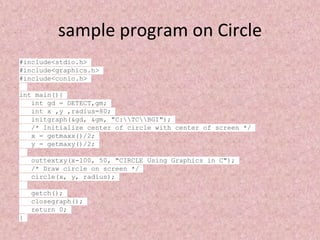
sample program on Circle
#include<stdio.h>
#include<graphics.h>
#include<conio.h>
int main(){
int gd = DETECT,gm;
int x ,y ,radius=80;
initgraph(&gd, &gm, "C:TCBGI");
/* Initialize center of circle with center of screen */
x = getmaxx()/2;
y = getmaxy()/2;
outtextxy(x-100, 50, "CIRCLE Using Graphics in C");
/* Draw circle on screen */
circle(x, y, radius);
getch();
closegraph();
return 0;
}

CG-Orientation ppt.pptx

  • 1.
  • 2.
    Course Learning Objectives ❖Demonstratesimple algorithms using OpenGL Graphics Primitives and attributes. ❖Implementation of line drawing and clipping algorithms using OpenGL functions ❖Design and implementation of algorithms Geometric transformations on both 2D and 3D objects.
  • 4.
    Course Outcomes ❖ Applythe concepts of computer graphics ˆ ❖ Implement computer graphics applications using OpenGL ❖ Ânimate real world problems using OpenGL
  • 5.
    Conduction of Examination •All laboratory experiments from part A are to be included for practical examination. • Report should be prepared in a standard format prescribed for project work • Students are allowed to pick one experiment from the lot. Mark Distribution • Part A – Procedure + Execution + Viva = 6 + 28 + 6 = 40 Marks • Part B – Procedure + Execution + Viva = 9 + 42 + 9 = 60 Marks
  • 6.
    Getting Started withOpenGL Atria Institute of Technology
  • 7.
    OPENGL _INTRODUCTION • OpenGraphics Library (OpenGL) is a cross-language (language independent), cross-platform (platform-independent) API for rendering 2D and 3D Vector Graphics(use of polygons to represent image). • Mesa3D : Open Source for OpenGL Atria Institute of Technology
  • 8.
    Major graphics operationswhich OpenGL performs to render an image on the screen. • Construct shapes from geometric primitives, thereby creating mathematical descriptions of objects. (OpenGL considers points, lines, polygons, images, and bitmaps to be primitives.) • Arrange the objects in three-dimensional space and select the desired vantage point for viewing the composed scene. • Calculate the color of all the objects • Convert the mathematical description of objects and their associated color information to pixels on the screen. This process is called rasterization. Atria Institute of Technology
  • 9.
    Example Program White Rectangleon a Black Background Atria Institute of Technology
  • 10.
  • 11.
    Header Files • #include<GL/gl.h> • #include <GL/glu.h> • #include <GL/glut.h> Atria Institute of Technology
  • 12.
    How to Program? Installationon Ubuntu : sudo apt-get install freeglut3-dev Design 1. Open the terminal. 2. Create your own directory using "mkdir 1ATXXCSXXX". THIS IS ONE TIME INSTRUCTION. 3. "cd 1ATXXCSXXX“ 4. "gedit 1.cpp" Atria Institute of Technology
  • 13.
    How to Program? RunningCommand : gcc filename.c -lGL -lGLU -lglut gcc 1.cpp -lGL -lGLU -lglut ./a.out Atria Institute of Technology
  • 14.
    For windows :Code::Block : Ready to test OpenGL , Visual Studio Installation of code block reference : https://www.youtube.com/watch?v=NPcnymtP 2SE Code Block : • https://www.youtube.com/watch?v=wAl3tRdbtI 0 Atria Institute of Technology
  • 15.
    Steps for program Declarethe graphic driver and graphic mode variable. Initialize the graphic driver Initialize the graph and set the path to the graphic support. Draw the line Close the graph.
  • 16.
    Sample program onLine #include <stdio.h> #include <conio.h> #include <graphics.h> #include <stdlib.h> int main() { int gdriver, gmode, userpattern; int x, y, x_max, y_max; gdriver = DETECT; userpattern = 1; initgraph(&gdriver, &gmode, "D:TURBOC3BGI"); setlinestyle(DOTTED_LINE,userpattern, 3); x = 100; y = 70; x_max = 350; y_max = 70; line(x, y, x_max, y_max); getch(); closegraph();
  • 17.
    Sample Program onRectangle #include <graphics.h> int main() { int gd = DETECT, gm; int left = 150, top = 150; int right = 450, bottom = 450; initgraph(&gd, &gm, "" rectangle(left, top, right, bottom); getch(); closegraph(); return 0; }
  • 18.
    sample program onCircle #include<stdio.h> #include<graphics.h> #include<conio.h> int main(){ int gd = DETECT,gm; int x ,y ,radius=80; initgraph(&gd, &gm, "C:TCBGI"); /* Initialize center of circle with center of screen */ x = getmaxx()/2; y = getmaxy()/2; outtextxy(x-100, 50, "CIRCLE Using Graphics in C"); /* Draw circle on screen */ circle(x, y, radius); getch(); closegraph(); return 0; }