Americas Headquarters
Cisco Systems, Inc.
170 West Tasman Drive
San Jose, CA 95134-1706
USA
http://www.cisco.com
Tel: 408 526-4000
800 553-NETS (6387)
Fax: 408 527-0883
Cisco IOS Configuration Fundamentals
Command Reference
April 2010
Text Part Number:
THE SPECIFICATIONS AND INFORMATION REGARDING THE PRODUCTS IN THIS MANUAL ARE SUBJECT TO CHANGE WITHOUT NOTICE. ALL
STATEMENTS, INFORMATION, AND RECOMMENDATIONS IN THIS MANUAL ARE BELIEVED TO BE ACCURATE BUT ARE PRESENTED WITHOUT
WARRANTY OF ANY KIND, EXPRESS OR IMPLIED. USERS MUST TAKE FULL RESPONSIBILITY FOR THEIR APPLICATION OF ANY PRODUCTS.
THE SOFTWARE LICENSE AND LIMITED WARRANTY FOR THE ACCOMPANYING PRODUCT ARE SET FORTH IN THE INFORMATION PACKET THAT
SHIPPED WITH THE PRODUCT AND ARE INCORPORATED HEREIN BY THIS REFERENCE. IF YOU ARE UNABLE TO LOCATE THE SOFTWARE LICENSE
OR LIMITED WARRANTY, CONTACT YOUR CISCO REPRESENTATIVE FOR A COPY.
The Cisco implementation of TCP header compression is an adaptation of a program developed by the University of California, Berkeley (UCB) as part of UCB’s public
domain version of the UNIX operating system. All rights reserved. Copyright © 1981, Regents of the University of California.
NOTWITHSTANDING ANY OTHER WARRANTY HEREIN, ALL DOCUMENT FILES AND SOFTWARE OF THESE SUPPLIERS ARE PROVIDED “AS IS” WITH
ALL FAULTS. CISCO AND THE ABOVE-NAMED SUPPLIERS DISCLAIM ALL WARRANTIES, EXPRESSED OR IMPLIED, INCLUDING, WITHOUT
LIMITATION, THOSE OF MERCHANTABILITY, FITNESS FOR A PARTICULAR PURPOSE AND NONINFRINGEMENT OR ARISING FROM A COURSE OF
DEALING, USAGE, OR TRADE PRACTICE.
IN NO EVENT SHALL CISCO OR ITS SUPPLIERS BE LIABLE FOR ANY INDIRECT, SPECIAL, CONSEQUENTIAL, OR INCIDENTAL DAMAGES, INCLUDING,
WITHOUT LIMITATION, LOST PROFITS OR LOSS OR DAMAGE TO DATA ARISING OUT OF THE USE OR INABILITY TO USE THIS MANUAL, EVEN IF CISCO
OR ITS SUPPLIERS HAVE BEEN ADVISED OF THE POSSIBILITY OF SUCH DAMAGES.
CCDE, CCENT, CCSI, Cisco Eos, Cisco Explorer, Cisco HealthPresence, Cisco IronPort, the Cisco logo, Cisco Nurse Connect, Cisco Pulse, Cisco SensorBase,
Cisco StackPower, Cisco StadiumVision, Cisco TelePresence, Cisco TrustSec, Cisco Unified Computing System, Cisco WebEx, DCE, Flip Channels, Flip for Good, Flip
Mino, Flipshare (Design), Flip Ultra, Flip Video, Flip Video (Design), Instant Broadband, and Welcome to the Human Network are trademarks; Changing the Way We Work,
Live, Play, and Learn, Cisco Capital, Cisco Capital (Design), Cisco:Financed (Stylized), Cisco Store, Flip Gift Card, and One Million Acts of Green are service marks; and
Access Registrar, Aironet, AllTouch, AsyncOS, Bringing the Meeting To You, Catalyst, CCDA, CCDP, CCIE, CCIP, CCNA, CCNP, CCSP, CCVP, Cisco, the
Cisco Certified Internetwork Expert logo, Cisco IOS, Cisco Lumin, Cisco Nexus, Cisco Press, Cisco Systems, Cisco Systems Capital, the Cisco Systems logo, Cisco Unity,
Collaboration Without Limitation, Continuum, EtherFast, EtherSwitch, Event Center, Explorer, Follow Me Browsing, GainMaker, iLYNX, IOS, iPhone, IronPort, the
IronPort logo, Laser Link, LightStream, Linksys, MeetingPlace, MeetingPlace Chime Sound, MGX, Networkers, Networking Academy, PCNow, PIX, PowerKEY,
PowerPanels, PowerTV, PowerTV (Design), PowerVu, Prisma, ProConnect, ROSA, SenderBase, SMARTnet, Spectrum Expert, StackWise, WebEx, and the WebEx logo are
registered trademarks of Cisco and/or its affiliates in the United States and certain other countries.
All other trademarks mentioned in this document or website are the property of their respective owners. The use of the word partner does not imply a partnership relationship
between Cisco and any other company. (1002R)
Any Internet Protocol (IP) addresses used in this document are not intended to be actual addresses. Any examples, command display output, and figures included in the
document are shown for illustrative purposes only. Any use of actual IP addresses in illustrative content is unintentional and coincidental.
Cisco IOS Configuration Fundamentals Command Reference
© 2010 Cisco Systems, Inc. All rights reserved.
iii
Cisco IOS Configuration Fundamentals Command Reference
April 2010
C O N T E N T S
About Cisco IOS Software Documentation xxi
Documentation Objectives xxi
Audience xxi
Documentation Conventions xxi
Typographic Conventions xxii
Command Syntax Conventions xxii
Software Conventions xxiii
Reader Alert Conventions xxiii
Documentation Organization xxiii
Cisco IOS Documentation Set xxiv
Cisco IOS Documentation on Cisco.com xxiv
Configuration Guides, Command References, and Supplementary Resources xxv
Additional Resources and Documentation Feedback xxxi
Using the Command-Line Interface in Cisco IOS Software xxxiii
Initially Configuring a Device xxxiii
Using the CLI xxxiv
Understanding Command Modes xxxiv
Using the Interactive Help Feature xxxvii
Understanding Command Syntax xxxviii
Understanding Enable and Enable Secret Passwords xxxix
Using the Command History Feature xl
Abbreviating Commands xli
Using Aliases for CLI Commands xli
Using the no and default Forms of Commands xlii
Using the debug Command xlii
Filtering Output Using Output Modifiers xlii
Understanding CLI Error Messages xliii
Saving Changes to a Configuration xliv
Additional Information xliv
Introduction CF-1
Cisco IOS IFS Command Syntax CF-2
Obtaining Documentation, Obtaining Support, and Security Guidelines CF-3
Contents
iv
Cisco IOS Configuration Fundamentals Command Reference
April 2010
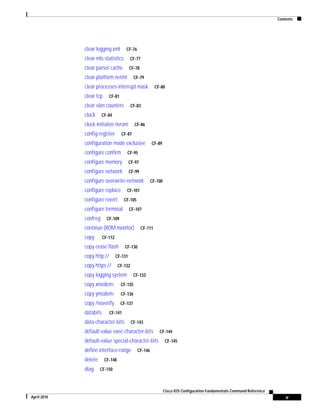
Configuration Fundamentals Commands CF-5
activation-character CF-6
alias CF-7
archive CF-11
archive config CF-12
archive log config persistent save CF-14
archive tar CF-15
async-bootp CF-18
attach CF-20
autobaud CF-23
auto-sync CF-24
autoupgrade disk-cleanup CF-26
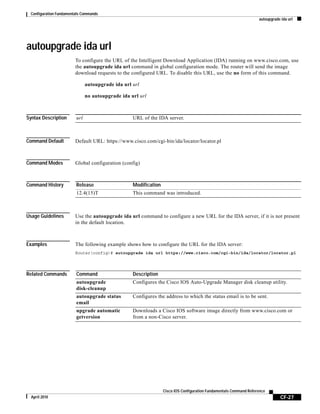
autoupgrade ida url CF-27
autoupgrade status email CF-28
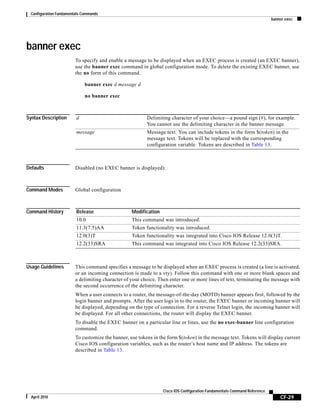
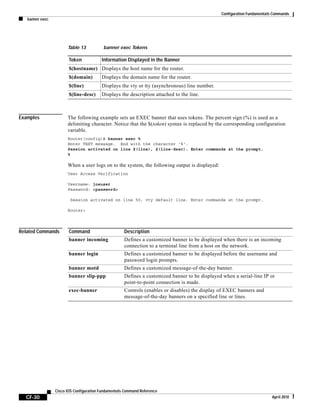
banner exec CF-29
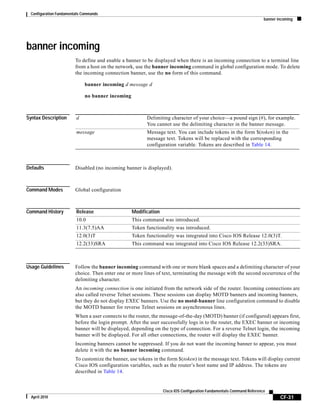
banner incoming CF-31
banner login CF-33
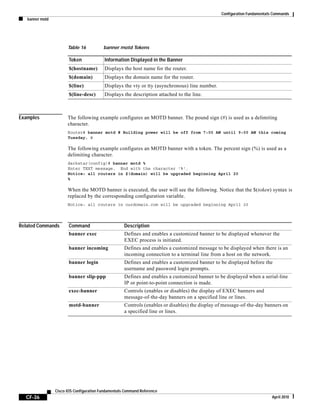
banner motd CF-35
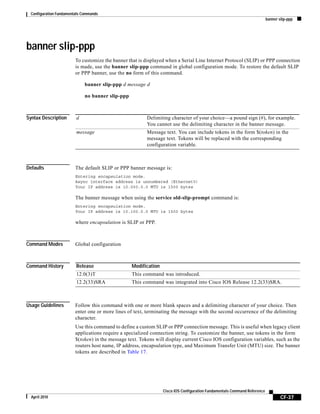
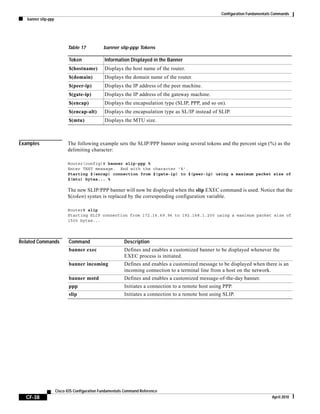
banner slip-ppp CF-37
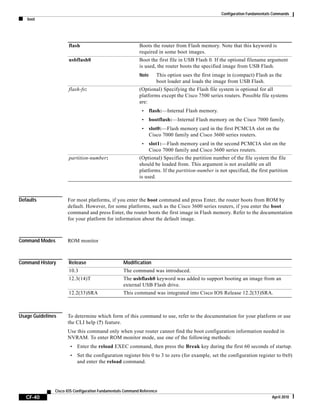
boot CF-39
boot bootldr CF-43
boot bootstrap CF-45
boot config CF-47
boot host CF-50
boot network CF-53
boot system CF-56
boot-end-marker CF-62
boot-start-marker CF-64
cd CF-66
clear archive log config CF-68
clear catalyst6000 traffic-meter CF-69
clear configuration lock CF-70
clear ip http client cache CF-72
clear logging CF-73
clear logging system CF-74
Contents
v
Cisco IOS Configuration Fundamentals Command Reference
April 2010
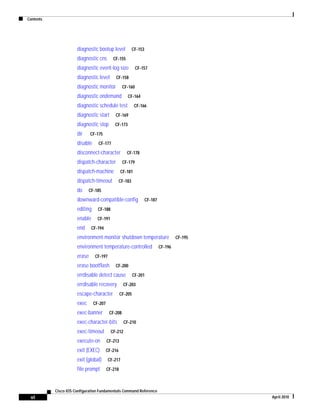
clear logging xml CF-76
clear mls statistics CF-77
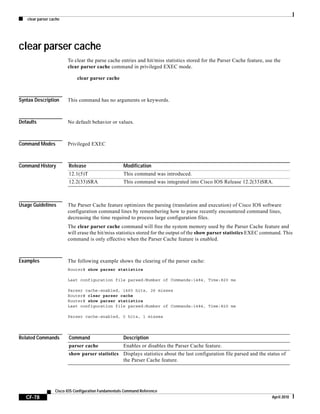
clear parser cache CF-78
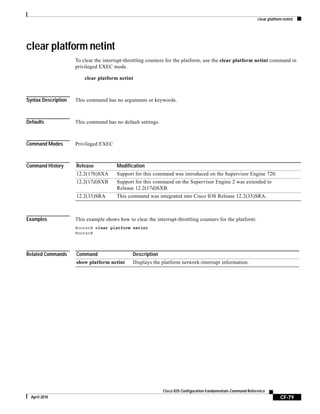
clear platform netint CF-79
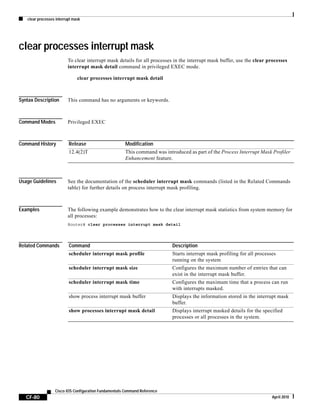
clear processes interrupt mask CF-80
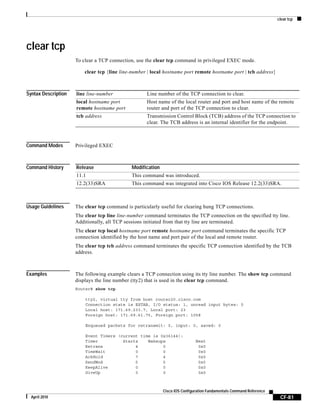
clear tcp CF-81
clear vlan counters CF-83
clock CF-84
clock initialize nvram CF-86
config-register CF-87
configuration mode exclusive CF-89
configure confirm CF-95
configure memory CF-97
configure network CF-99
configure overwrite-network CF-100
configure replace CF-101
configure revert CF-105
configure terminal CF-107
confreg CF-109
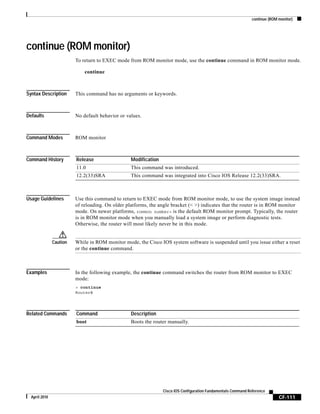
continue (ROM monitor) CF-111
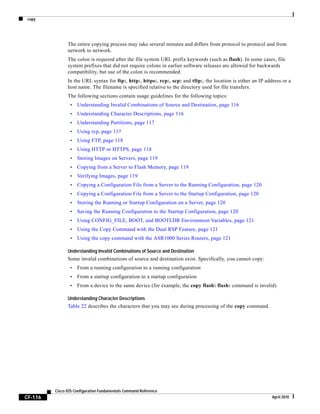
copy CF-112
copy erase flash CF-130
copy http:// CF-131
copy https:// CF-132
copy logging system CF-133
copy xmodem: CF-135
copy ymodem: CF-136
copy /noverify CF-137
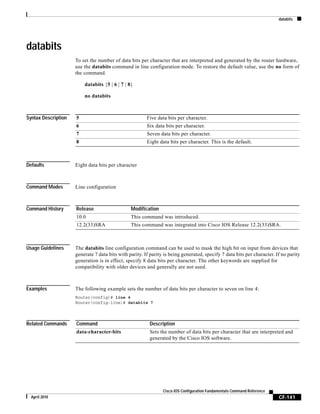
databits CF-141
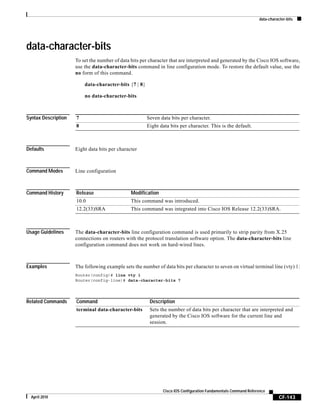
data-character-bits CF-143
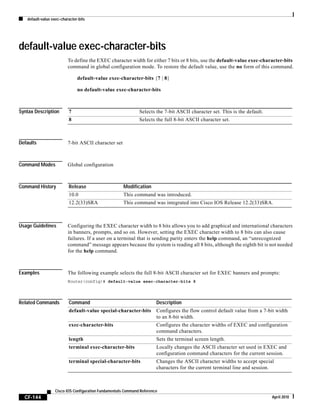
default-value exec-character-bits CF-144
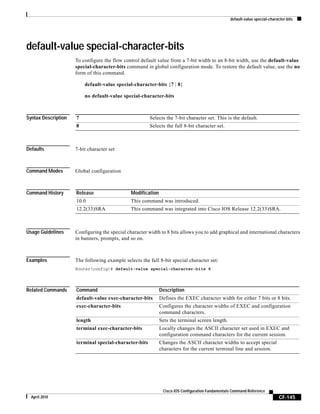
default-value special-character-bits CF-145
define interface-range CF-146
delete CF-148
diag CF-150
Contents
vi
Cisco IOS Configuration Fundamentals Command Reference
April 2010
diagnostic bootup level CF-153
diagnostic cns CF-155
diagnostic event-log size CF-157
diagnostic level CF-158
diagnostic monitor CF-160
diagnostic ondemand CF-164
diagnostic schedule test CF-166
diagnostic start CF-169
diagnostic stop CF-173
dir CF-175
disable CF-177
disconnect-character CF-178
dispatch-character CF-179
dispatch-machine CF-181
dispatch-timeout CF-183
do CF-185
downward-compatible-config CF-187
editing CF-188
enable CF-191
end CF-194
environment-monitor shutdown temperature CF-195
environment temperature-controlled CF-196
erase CF-197
erase bootflash CF-200
errdisable detect cause CF-201
errdisable recovery CF-203
escape-character CF-205
exec CF-207
exec-banner CF-208
exec-character-bits CF-210
exec-timeout CF-212
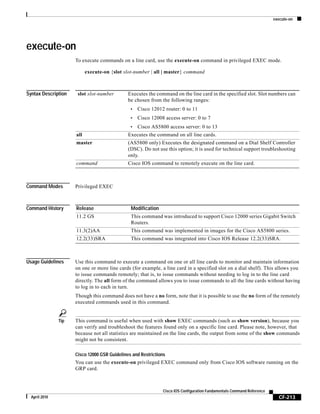
execute-on CF-213
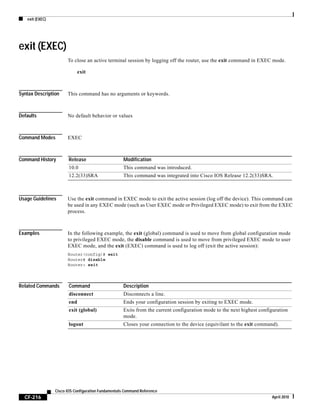
exit (EXEC) CF-216
exit (global) CF-217
file prompt CF-218
Contents
vii
Cisco IOS Configuration Fundamentals Command Reference
April 2010
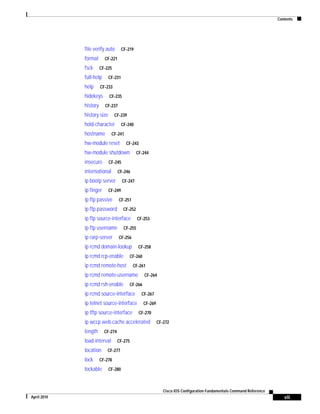
file verify auto CF-219
format CF-221
fsck CF-225
full-help CF-231
help CF-233
hidekeys CF-235
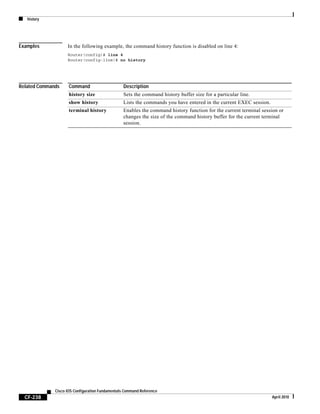
history CF-237
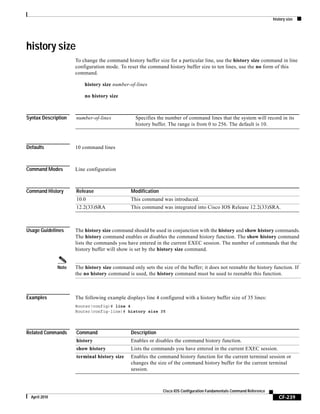
history size CF-239
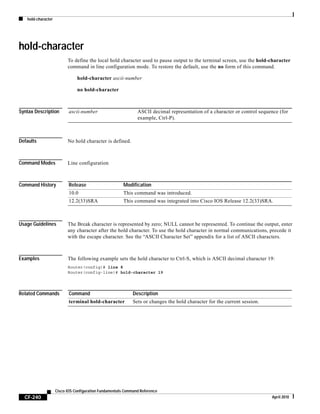
hold-character CF-240
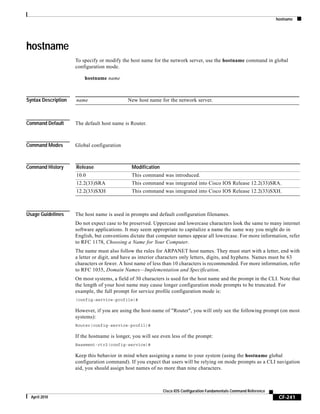
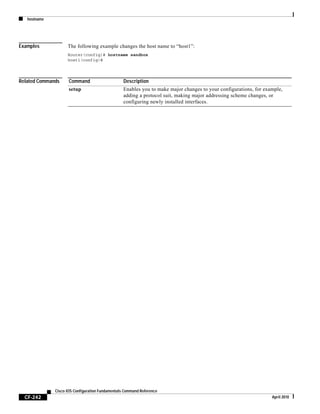
hostname CF-241
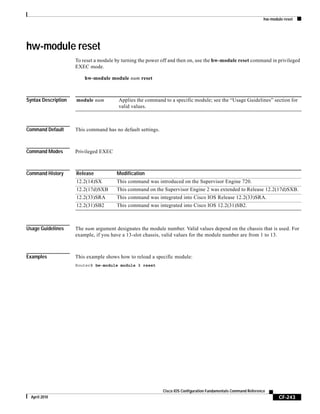
hw-module reset CF-243
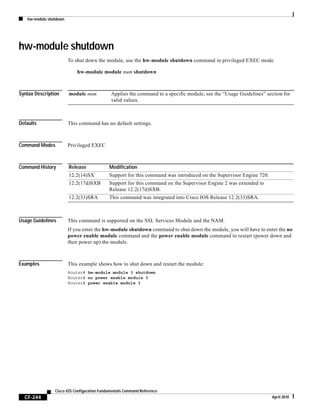
hw-module shutdown CF-244
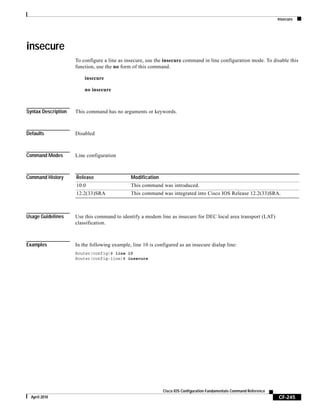
insecure CF-245
international CF-246
ip bootp server CF-247
ip finger CF-249
ip ftp passive CF-251
ip ftp password CF-252
ip ftp source-interface CF-253
ip ftp username CF-255
ip rarp-server CF-256
ip rcmd domain-lookup CF-258
ip rcmd rcp-enable CF-260
ip rcmd remote-host CF-261
ip rcmd remote-username CF-264
ip rcmd rsh-enable CF-266
ip rcmd source-interface CF-267
ip telnet source-interface CF-269
ip tftp source-interface CF-270
ip wccp web-cache accelerated CF-272
length CF-274
load-interval CF-275
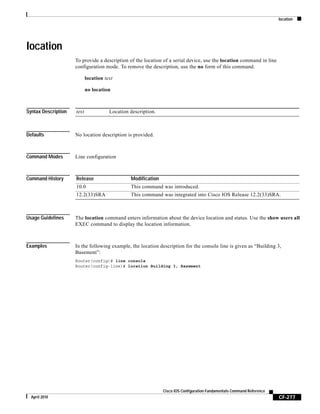
location CF-277
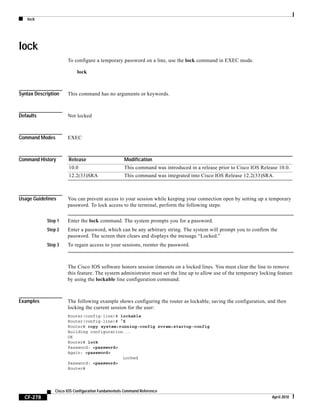
lock CF-278
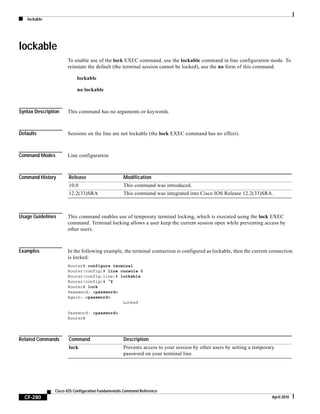
lockable CF-280
Contents
viii
Cisco IOS Configuration Fundamentals Command Reference
April 2010
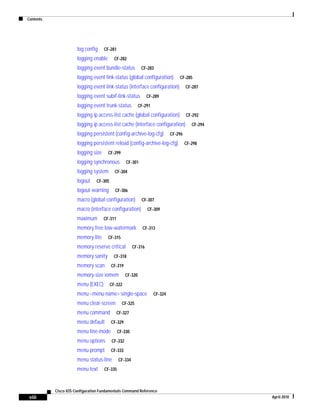
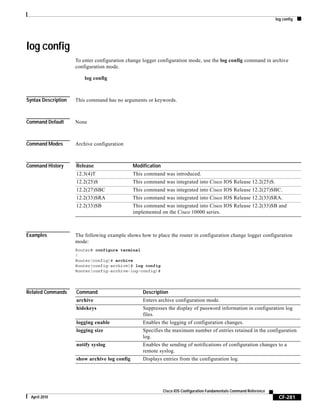
log config CF-281
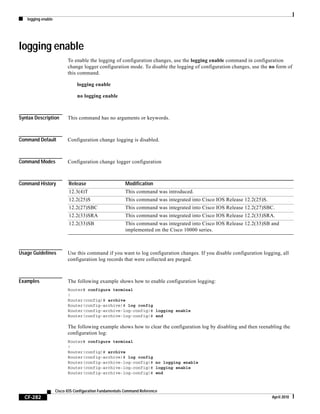
logging enable CF-282
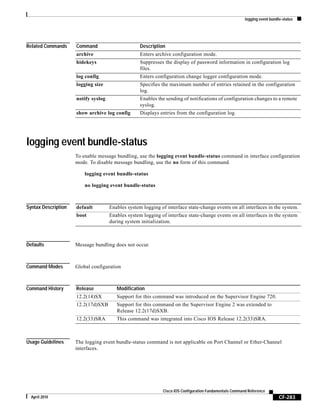
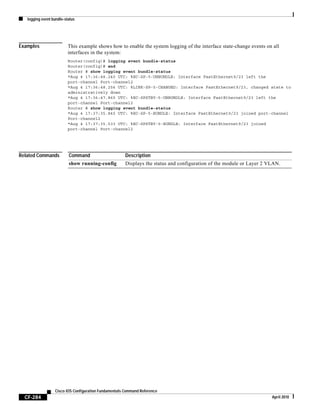
logging event bundle-status CF-283
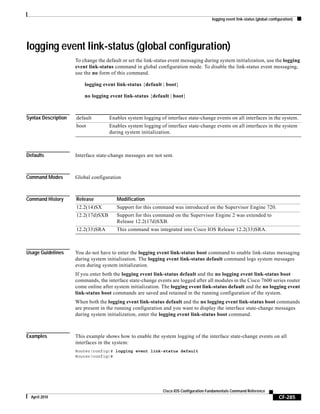
logging event link-status (global configuration) CF-285
logging event link-status (interface configuration) CF-287
logging event subif-link-status CF-289
logging event trunk-status CF-291
logging ip access-list cache (global configuration) CF-292
logging ip access-list cache (interface configuration) CF-294
logging persistent (config-archive-log-cfg) CF-296
logging persistent reload (config-archive-log-cfg) CF-298
logging size CF-299
logging synchronous CF-301
logging system CF-304
logout CF-305
logout-warning CF-306
macro (global configuration) CF-307
macro (interface configuration) CF-309
maximum CF-311
memory free low-watermark CF-313
memory lite CF-315
memory reserve critical CF-316
memory sanity CF-318
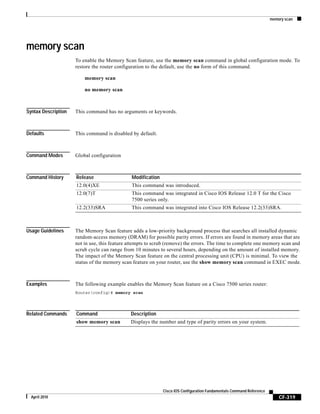
memory scan CF-319
memory-size iomem CF-320
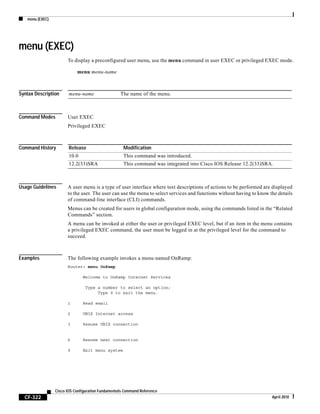
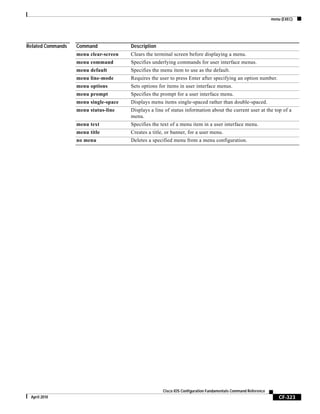
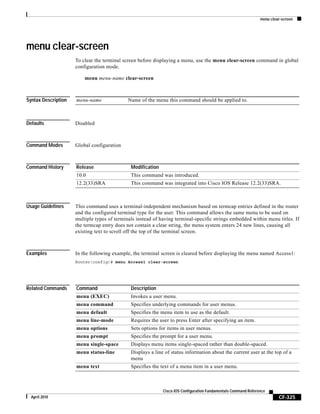
menu (EXEC) CF-322
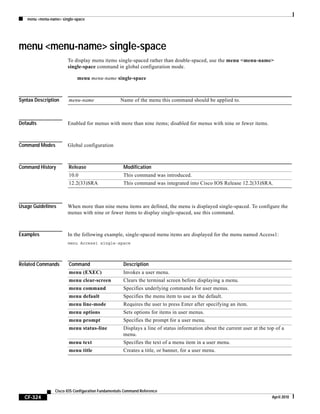
menu <menu-name> single-space CF-324
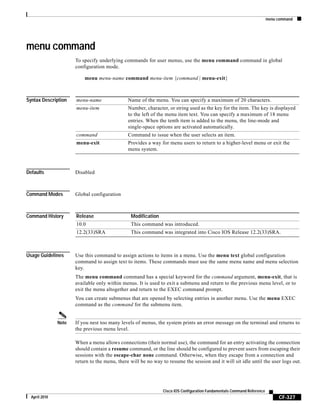
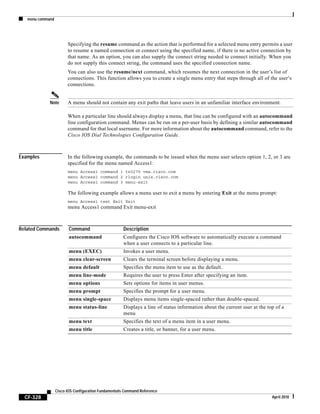
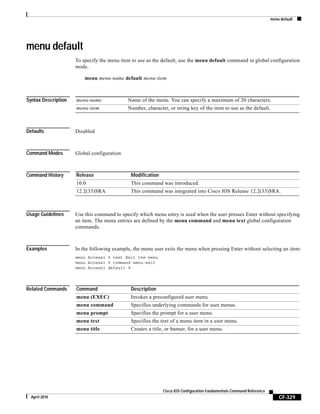
menu clear-screen CF-325
menu command CF-327
menu default CF-329
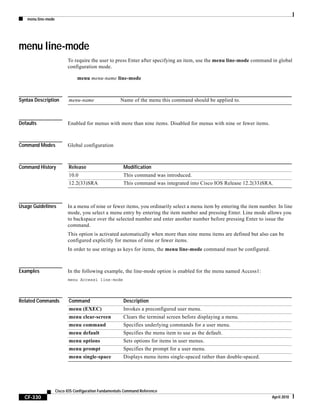
menu line-mode CF-330
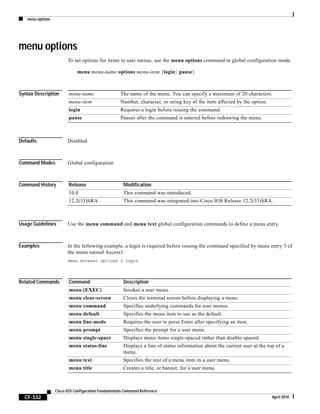
menu options CF-332
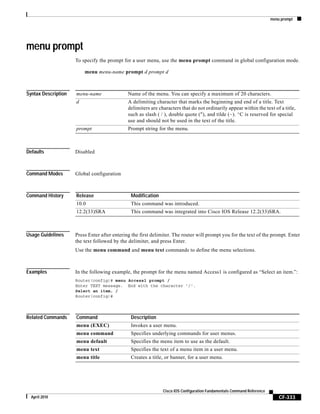
menu prompt CF-333
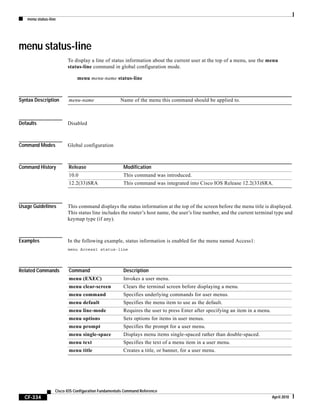
menu status-line CF-334
menu text CF-335
Contents
ix
Cisco IOS Configuration Fundamentals Command Reference
April 2010
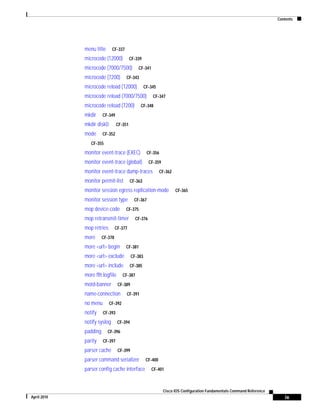
menu title CF-337
microcode (12000) CF-339
microcode (7000/7500) CF-341
microcode (7200) CF-343
microcode reload (12000) CF-345
microcode reload (7000/7500) CF-347
microcode reload (7200) CF-348
mkdir CF-349
mkdir disk0: CF-351
mode CF-352
CF-355
monitor event-trace (EXEC) CF-356
monitor event-trace (global) CF-359
monitor event-trace dump-traces CF-362
monitor permit-list CF-363
monitor session egress replication-mode CF-365
monitor session type CF-367
mop device-code CF-375
mop retransmit-timer CF-376
mop retries CF-377
more CF-378
more <url> begin CF-381
more <url> exclude CF-383
more <url> include CF-385
more flh:logfile CF-387
motd-banner CF-389
name-connection CF-391
no menu CF-392
notify CF-393
notify syslog CF-394
padding CF-396
parity CF-397
parser cache CF-399
parser command serializer CF-400
parser config cache interface CF-401
Contents
x
Cisco IOS Configuration Fundamentals Command Reference
April 2010
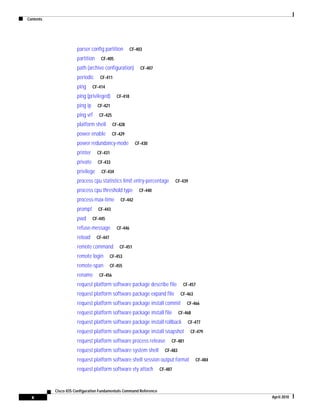
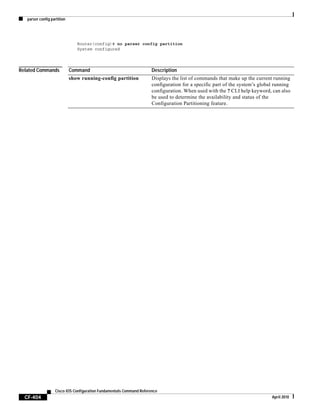
parser config partition CF-403
partition CF-405
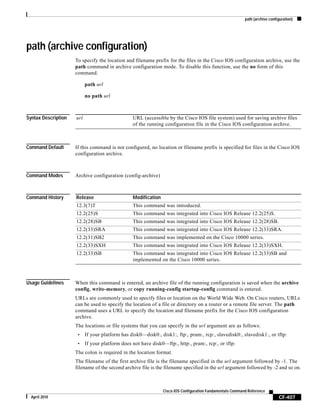
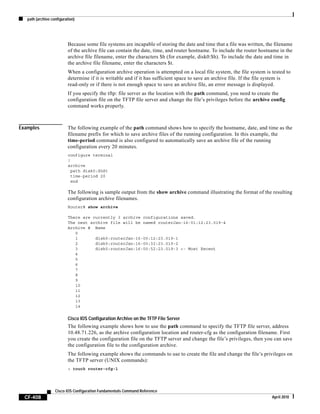
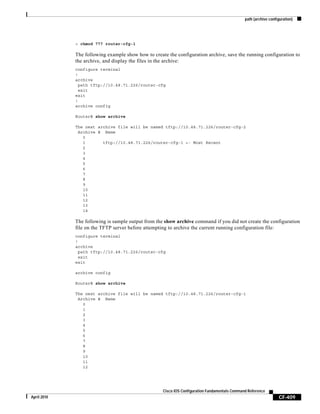
path (archive configuration) CF-407
periodic CF-411
ping CF-414
ping (privileged) CF-418
ping ip CF-421
ping vrf CF-425
platform shell CF-428
power enable CF-429
power redundancy-mode CF-430
printer CF-431
private CF-433
privilege CF-434
process cpu statistics limit entry-percentage CF-439
process cpu threshold type CF-440
process-max-time CF-442
prompt CF-443
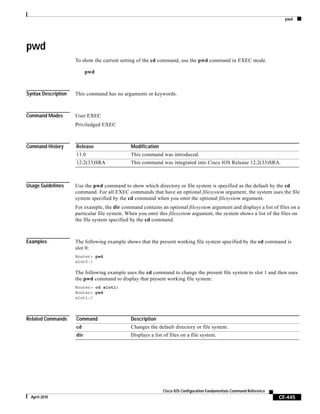
pwd CF-445
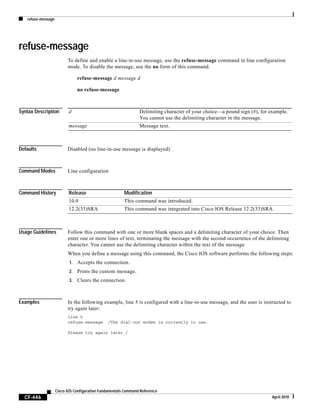
refuse-message CF-446
reload CF-447
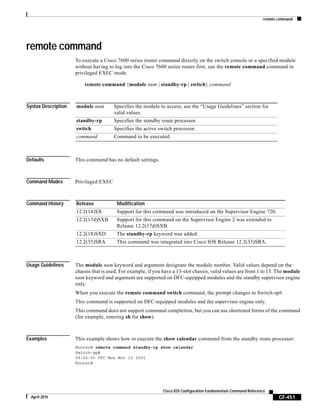
remote command CF-451
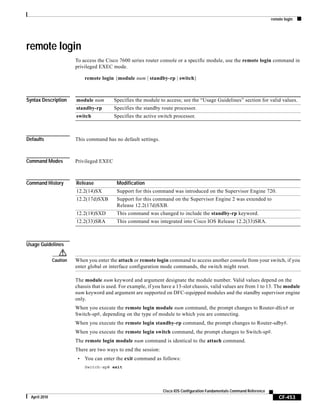
remote login CF-453
remote-span CF-455
rename CF-456
request platform software package describe file CF-457
request platform software package expand file CF-463
request platform software package install commit CF-466
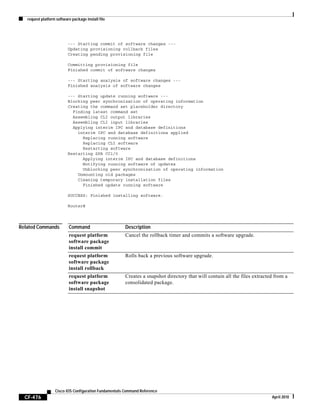
request platform software package install file CF-468
request platform software package install rollback CF-477
request platform software package install snapshot CF-479
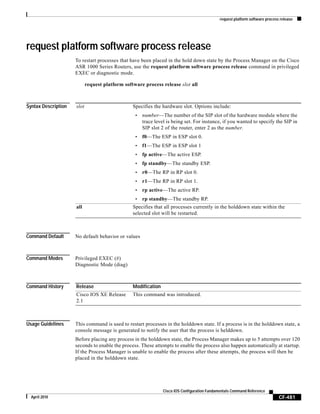
request platform software process release CF-481
request platform software system shell CF-483
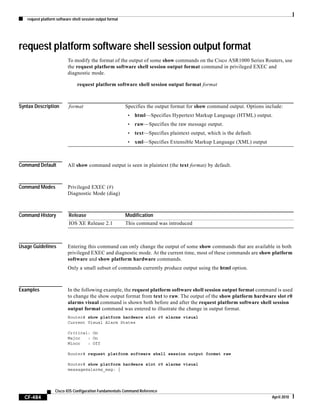
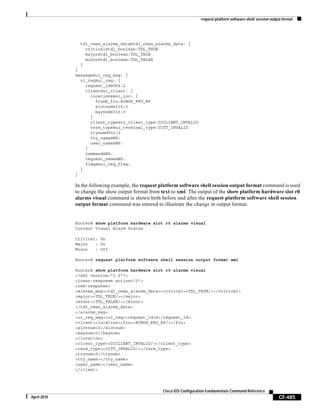
request platform software shell session output format CF-484
request platform software vty attach CF-487
Contents
xi
Cisco IOS Configuration Fundamentals Command Reference
April 2010
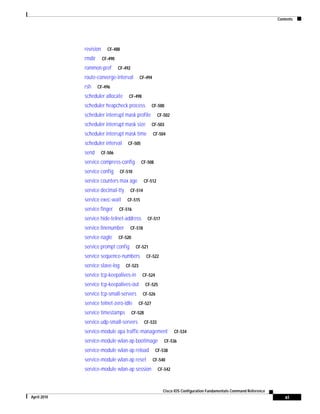
revision CF-488
rmdir CF-490
rommon-pref CF-492
route-converge-interval CF-494
rsh CF-496
scheduler allocate CF-498
scheduler heapcheck process CF-500
scheduler interrupt mask profile CF-502
scheduler interrupt mask size CF-503
scheduler interrupt mask time CF-504
scheduler interval CF-505
send CF-506
service compress-config CF-508
service config CF-510
service counters max age CF-512
service decimal-tty CF-514
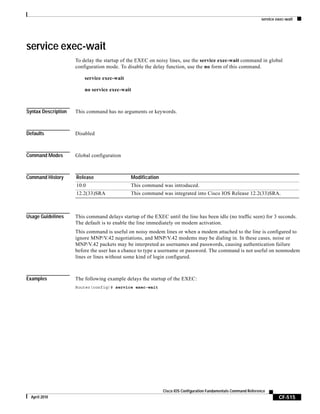
service exec-wait CF-515
service finger CF-516
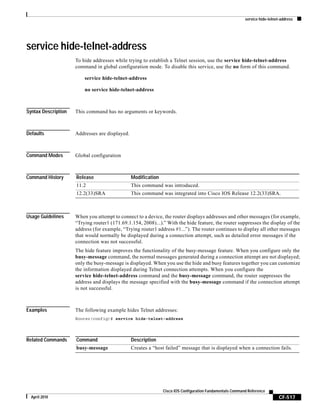
service hide-telnet-address CF-517
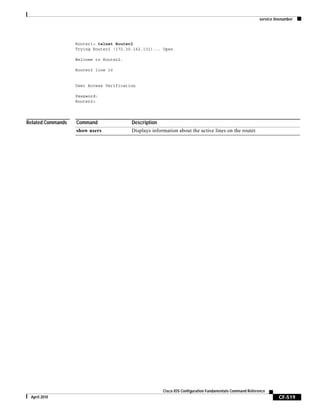
service linenumber CF-518
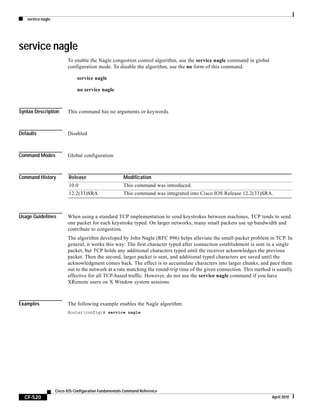
service nagle CF-520
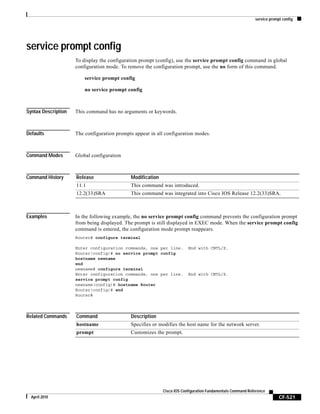
service prompt config CF-521
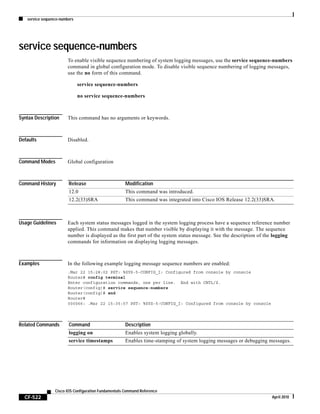
service sequence-numbers CF-522
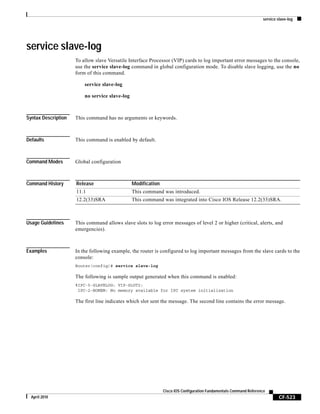
service slave-log CF-523
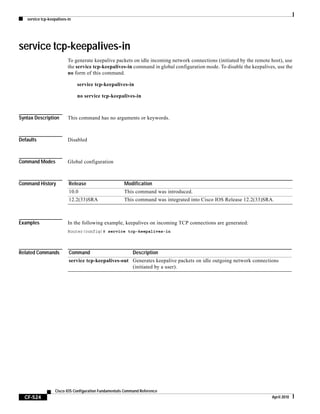
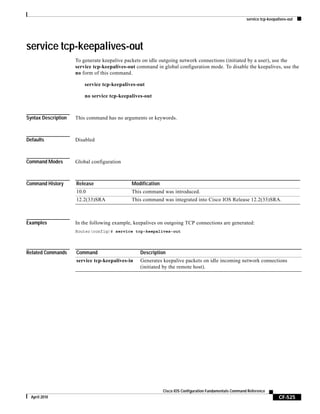
service tcp-keepalives-in CF-524
service tcp-keepalives-out CF-525
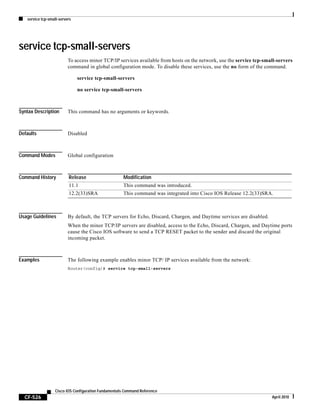
service tcp-small-servers CF-526
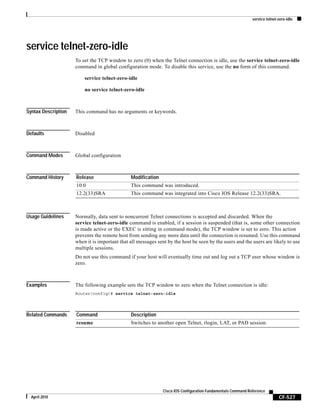
service telnet-zero-idle CF-527
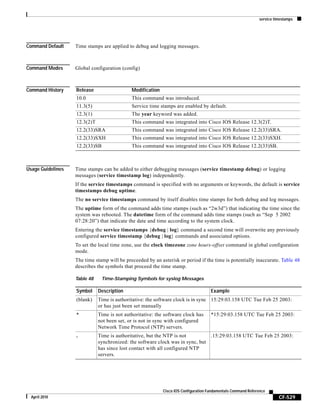
service timestamps CF-528
service udp-small-servers CF-533
service-module apa traffic-management CF-534
service-module wlan-ap bootimage CF-536
service-module wlan-ap reload CF-538
service-module wlan-ap reset CF-540
service-module wlan-ap session CF-542
Contents
xii
Cisco IOS Configuration Fundamentals Command Reference
April 2010
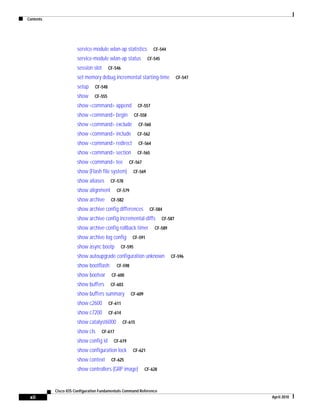
service-module wlan-ap statistics CF-544
service-module wlan-ap status CF-545
session slot CF-546
set memory debug incremental starting-time CF-547
setup CF-548
show CF-555
show <command> append CF-557
show <command> begin CF-558
show <command> exclude CF-560
show <command> include CF-562
show <command> redirect CF-564
show <command> section CF-565
show <command> tee CF-567
show (Flash file system) CF-569
show aliases CF-578
show alignment CF-579
show archive CF-582
show archive config differences CF-584
show archive config incremental-diffs CF-587
show archive config rollback timer CF-589
show archive log config CF-591
show async bootp CF-595
show autoupgrade configuration unknown CF-596
show bootflash: CF-598
show bootvar CF-600
show buffers CF-603
show buffers summary CF-609
show c2600 CF-611
show c7200 CF-614
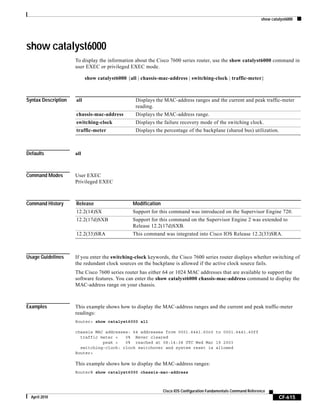
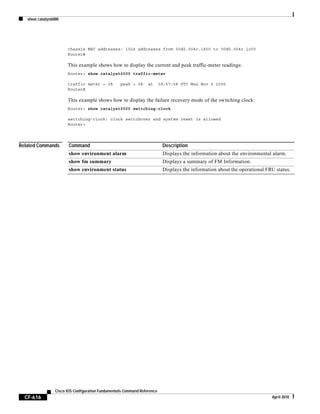
show catalyst6000 CF-615
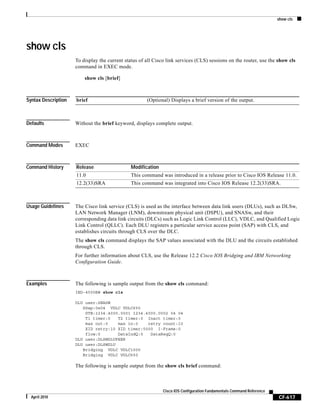
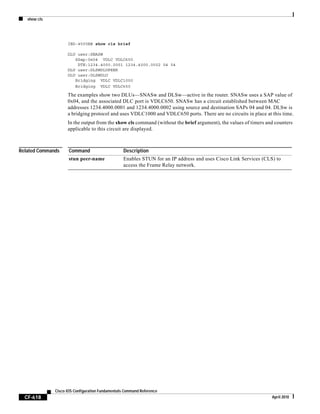
show cls CF-617
show config id CF-619
show configuration lock CF-621
show context CF-625
show controllers (GRP image) CF-628
Contents
xiii
Cisco IOS Configuration Fundamentals Command Reference
April 2010
show controllers (line card image) CF-630
show controllers logging CF-638
show controllers tech-support CF-640
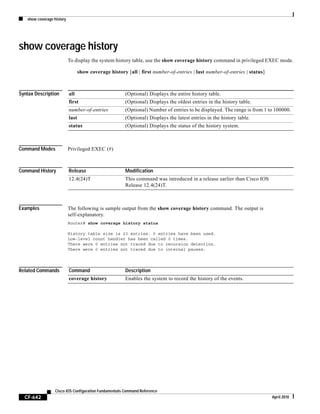
show coverage history CF-642
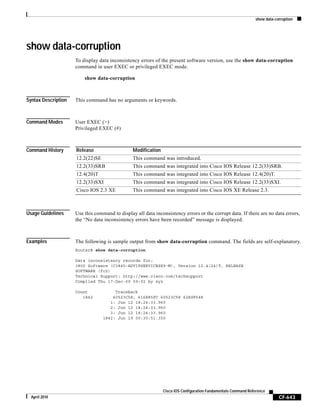
show data-corruption CF-643
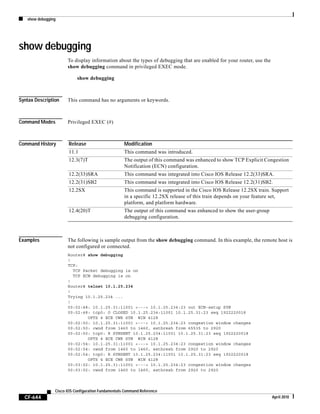
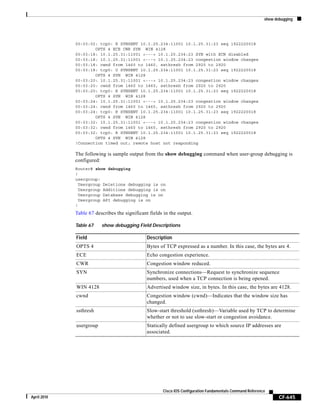
show debugging CF-644
show declassify CF-646
show derived-config CF-648
show diagnostic cns CF-651
show diagnostic sanity CF-652
show disk CF-657
show disk0: CF-659
show disk1: CF-662
show environment CF-665
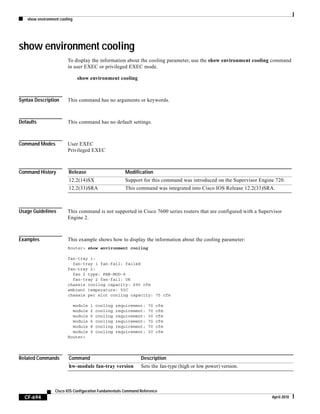
show environment alarm CF-691
show environment cooling CF-694
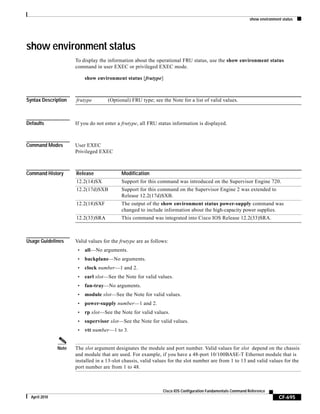
show environment status CF-695
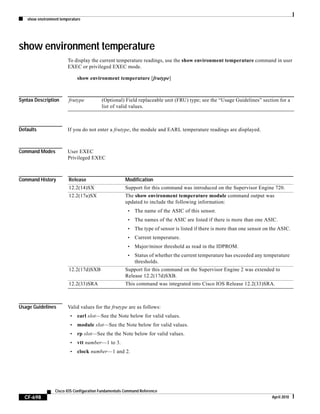
show environment temperature CF-698
show errdisable detect CF-701
show errdisable recovery CF-702
show fastblk CF-703
show file descriptors CF-705
show file information CF-706
show file systems CF-708
show flh-log CF-710
show fm inspect CF-711
show fm interface CF-713
show fm reflexive CF-716
show fm summary CF-717
show funi CF-718
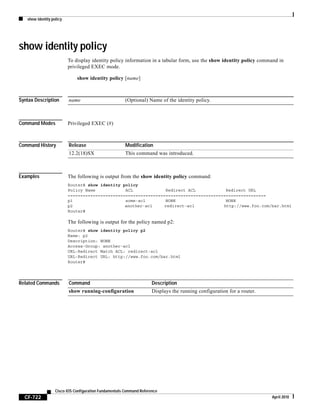
show identity policy CF-722
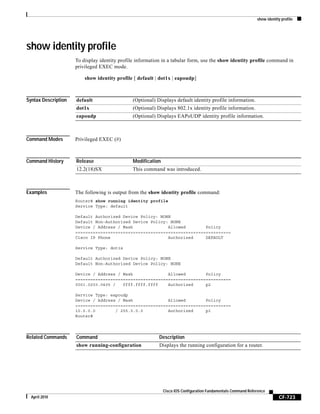
show identity profile CF-723
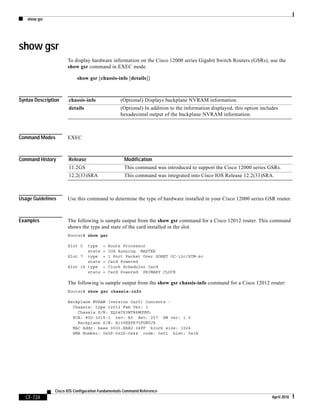
show gsr CF-724
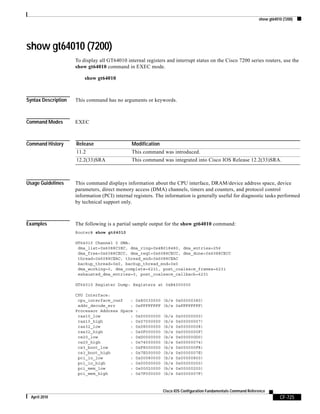
show gt64010 (7200) CF-725
show hardware CF-727
Contents
xiv
Cisco IOS Configuration Fundamentals Command Reference
April 2010
show health-monitor CF-729
show history CF-730
show history all CF-732
show hosts CF-735
show html CF-738
show idb CF-740
show idprom CF-741
show inventory CF-747
show logging CF-750
show logging count CF-756
show logging history CF-758
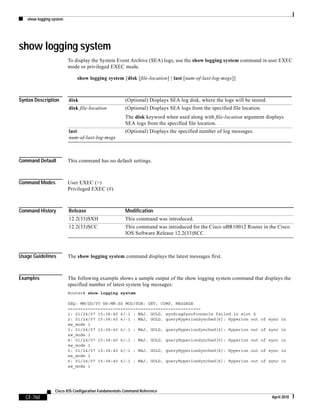
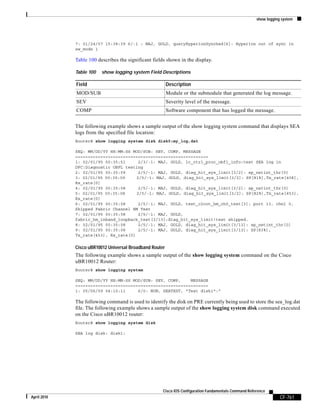
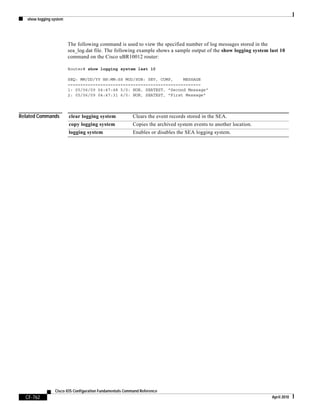
show logging system CF-760
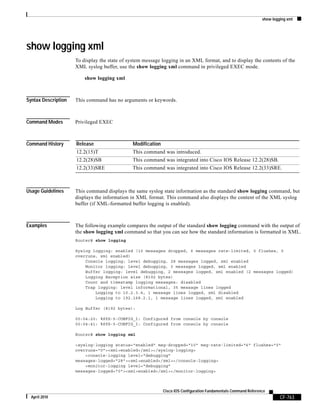
show logging xml CF-763
show memory CF-765
show memory allocating-process CF-770
show memory dead CF-773
show memory debug incremental CF-775
show memory debug leaks CF-778
show memory debug references CF-783
show memory debug unused CF-785
show memory ecc CF-787
show memory events CF-789
show memory failures alloc CF-791
show memory fast CF-792
show memory fragment CF-795
show memory multibus CF-798
show memory pci CF-800
show memory processor CF-802
show memory scan CF-806
show memory statistics history table CF-808
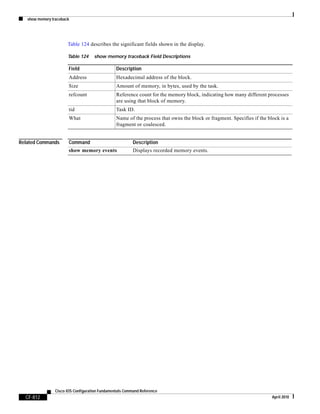
show memory traceback CF-811
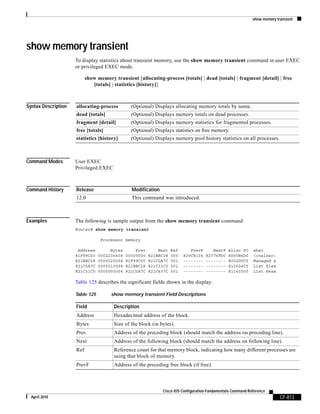
show memory transient CF-813
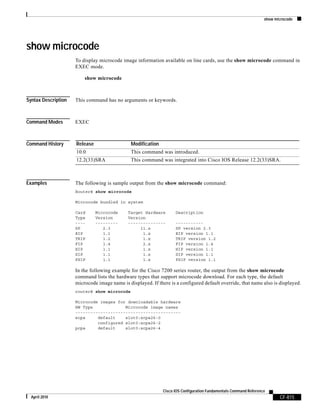
show microcode CF-815
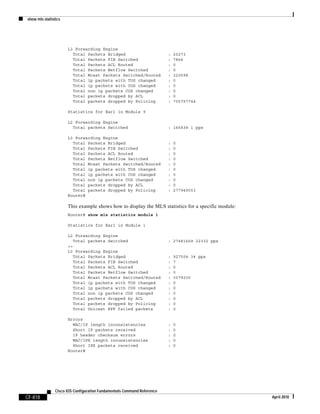
show mls statistics CF-817
show module CF-820
Contents
xv
Cisco IOS Configuration Fundamentals Command Reference
April 2010
show monitor event-trace CF-823
CF-829
show monitor permit-list CF-830
show monitor session CF-831
show msfc CF-836
show pagp CF-840
show parser dump CF-842
show parser macro CF-854
show parser statistics CF-856
show pci CF-859
show pci hardware CF-861
show perf-meas CF-863
show platform CF-865
show platform bridge CF-876
show platform cfm CF-878
show platform diag CF-880
show platform hardware capacity CF-883
show platform isg CF-890
show platform oam CF-891
show platform redundancy CF-892
show platform software filesystem CF-894
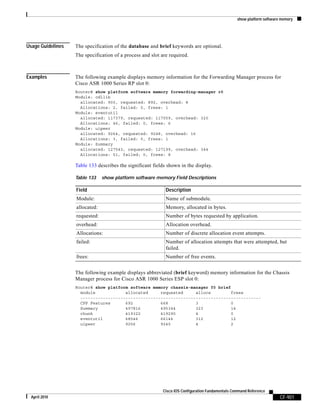
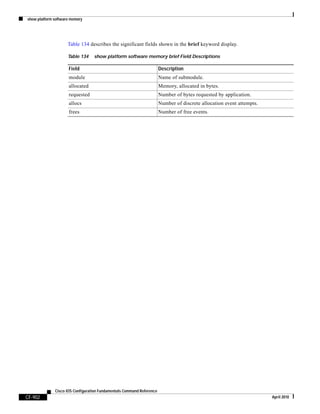
show platform software memory CF-897
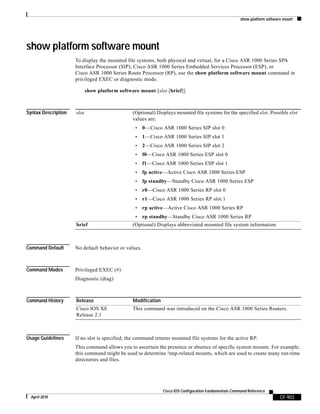
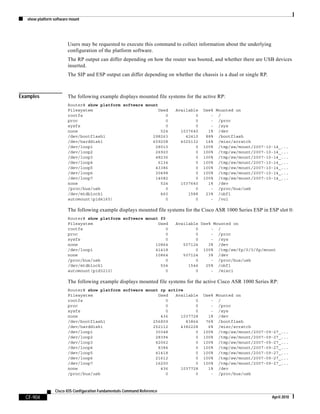
show platform software mount CF-903
show platform software process list CF-907
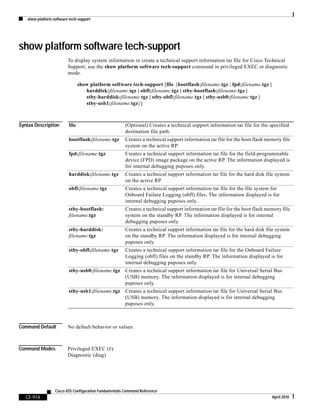
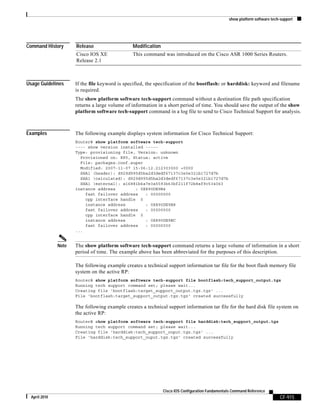
show platform software tech-support CF-914
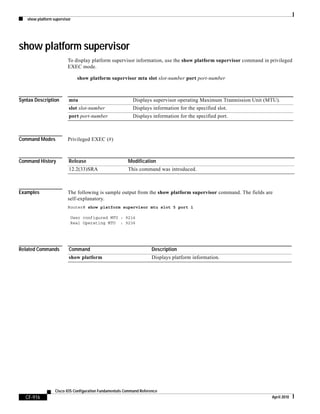
show platform supervisor CF-916
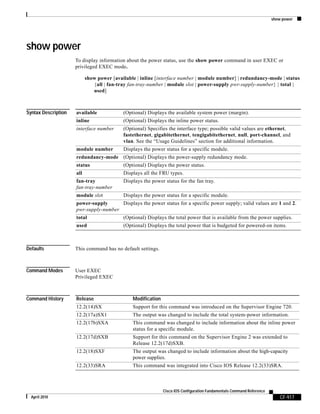
show power CF-917
show processes CF-921
show processes cpu CF-928
show processes interrupt mask buffer CF-936
show processes interrupt mask detail CF-938
show processes memory CF-940
CF-950
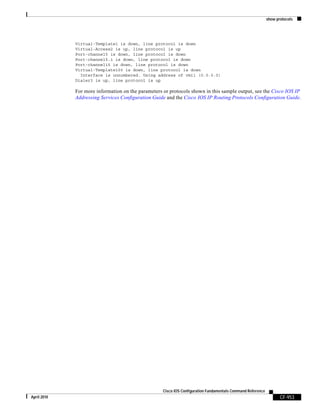
show protocols CF-951
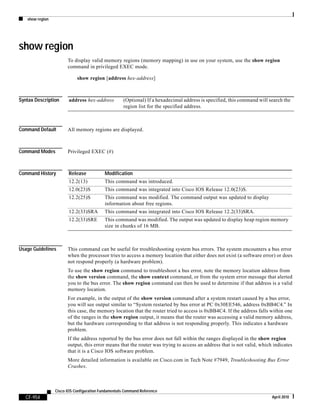
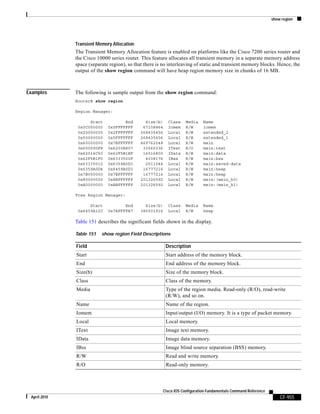
show region CF-954
Contents
xvi
Cisco IOS Configuration Fundamentals Command Reference
April 2010
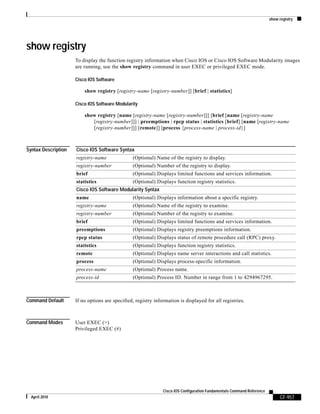
show registry CF-957
show reload CF-960
show resource-pool queue CF-961
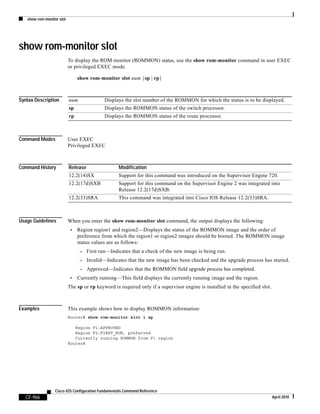
show rom-monitor CF-963
show rom-monitor slot CF-966
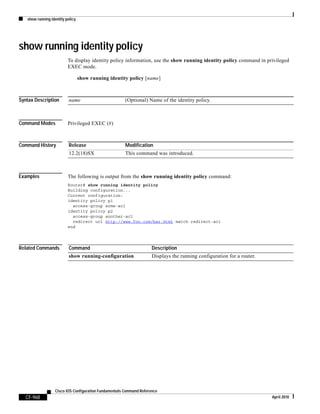
show running identity policy CF-968
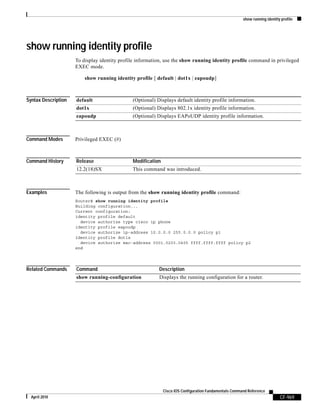
show running identity profile CF-969
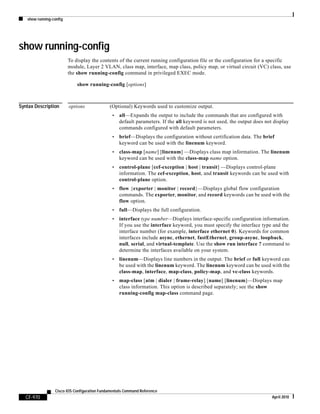
show running-config CF-970
show running-config control-plane CF-976
show running-config map-class CF-977
show running-config partition CF-980
show scp CF-983
show slot CF-985
show slot0: CF-988
show slot1: CF-991
show software authenticity file CF-994
show software authenticity keys CF-996
show software authenticity running CF-998
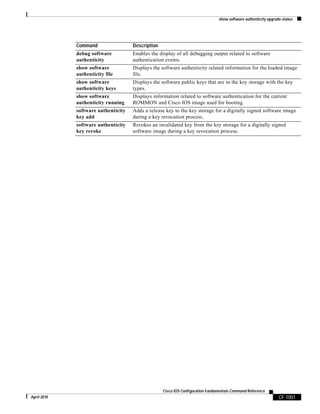
show software authenticity upgrade-status CF-1000
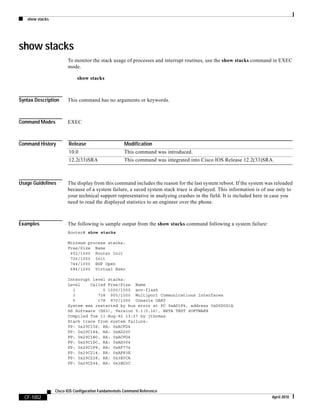
show stacks CF-1002
show startup-config CF-1004
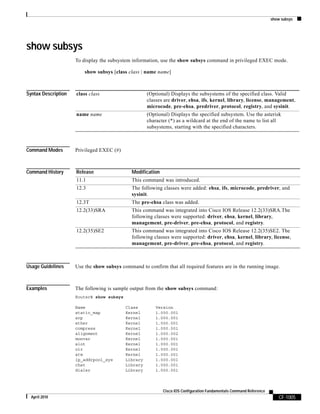
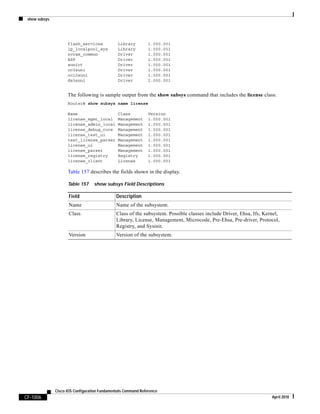
show subsys CF-1005
show sup-bootflash CF-1007
show sysctrl CF-1010
show system jumbomtu CF-1013
show tech-support CF-1014
show template CF-1021
show usb controllers CF-1022
show usb device CF-1024
show usb driver CF-1027
show usb port CF-1029
show usb tree CF-1030
show usbtoken CF-1031
show version CF-1033
show warm-reboot CF-1052
Contents
xvii
Cisco IOS Configuration Fundamentals Command Reference
April 2010
show whoami CF-1053
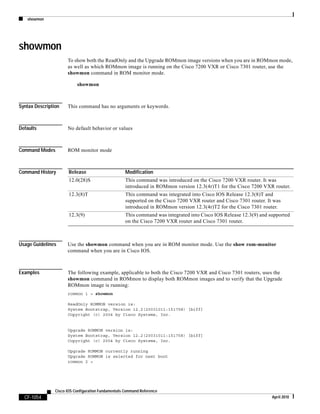
showmon CF-1054
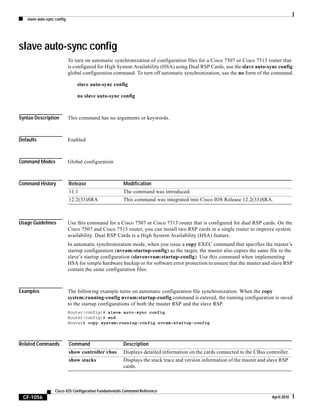
slave auto-sync config CF-1056
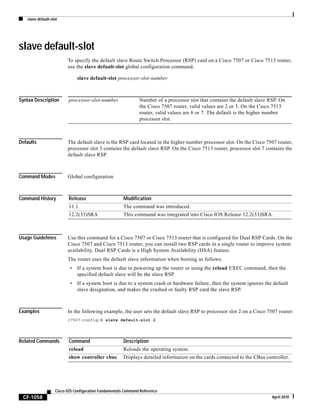
slave default-slot CF-1058
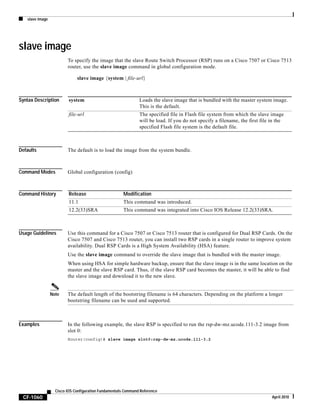
slave image CF-1060
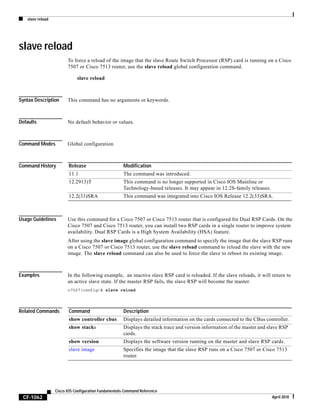
slave reload CF-1062
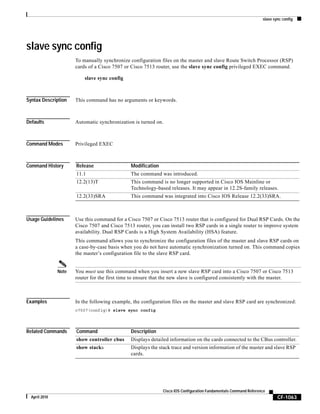
slave sync config CF-1063
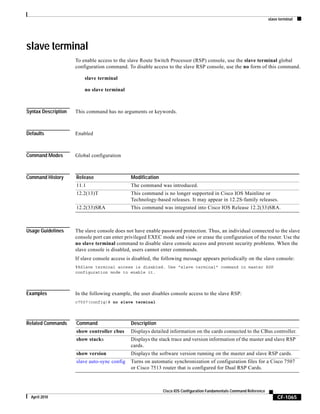
slave terminal CF-1065
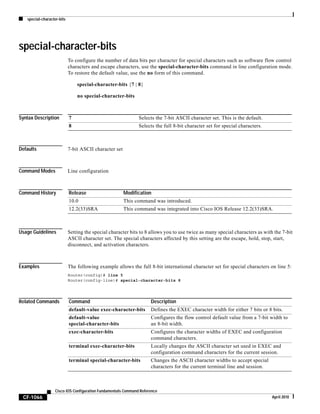
special-character-bits CF-1066
squeeze CF-1067
stack-mib portname CF-1070
state-machine CF-1071
stopbits CF-1073
storm-control level CF-1074
sync-restart-delay CF-1076
system flowcontrol bus CF-1077
system jumbomtu CF-1078
tdm clock priority CF-1080
terminal databits CF-1082
terminal data-character-bits CF-1083
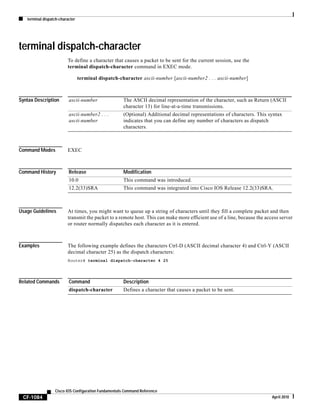
terminal dispatch-character CF-1084
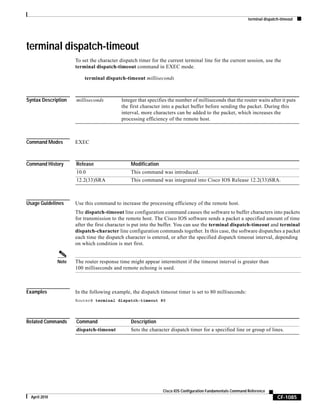
terminal dispatch-timeout CF-1085
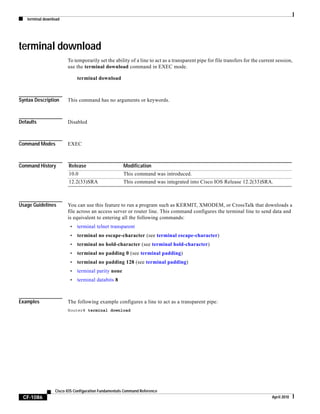
terminal download CF-1086
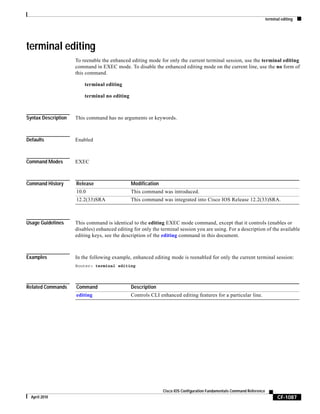
terminal editing CF-1087
terminal escape-character CF-1088
terminal exec-character-bits CF-1089
terminal flowcontrol CF-1090
terminal full-help CF-1091
terminal history CF-1093
terminal history size CF-1095
terminal hold-character CF-1097
terminal international CF-1099
terminal keymap-type CF-1100
terminal length CF-1101
terminal monitor CF-1102
Contents
xviii
Cisco IOS Configuration Fundamentals Command Reference
April 2010
terminal notify CF-1103
terminal padding CF-1104
terminal parity CF-1105
terminal rxspeed CF-1106
terminal special-character-bits CF-1107
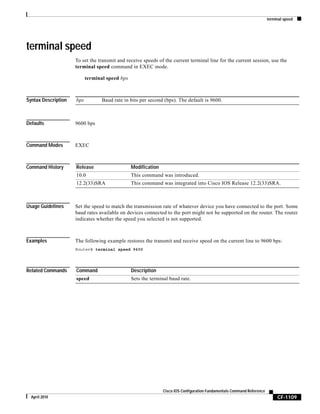
terminal speed CF-1109
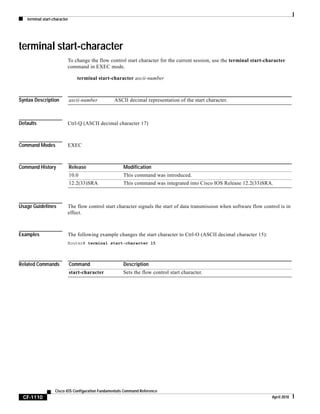
terminal start-character CF-1110
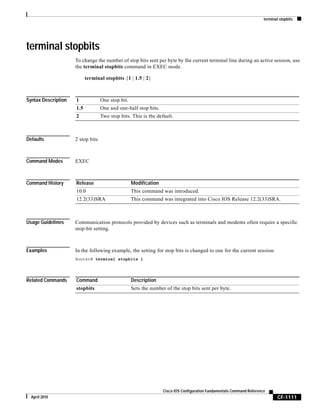
terminal stopbits CF-1111
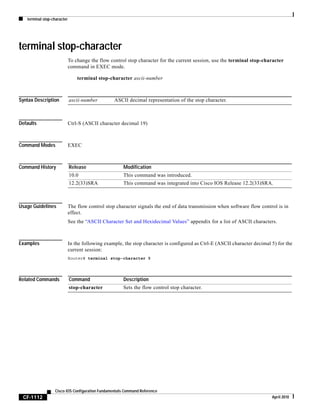
terminal stop-character CF-1112
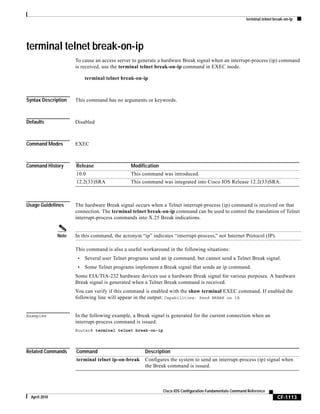
terminal telnet break-on-ip CF-1113
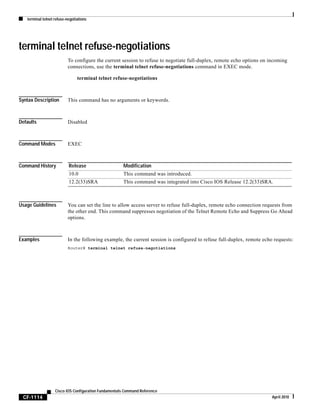
terminal telnet refuse-negotiations CF-1114
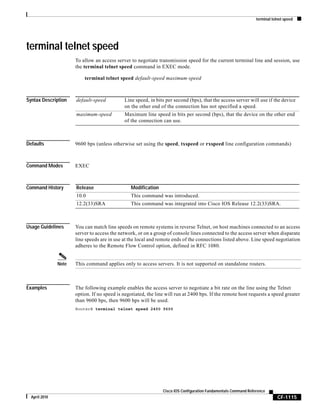
terminal telnet speed CF-1115
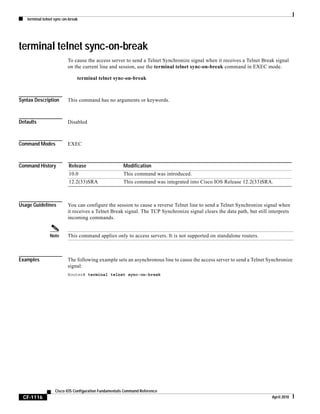
terminal telnet sync-on-break CF-1116
terminal telnet transparent CF-1117
terminal terminal-type CF-1118
terminal txspeed CF-1119
terminal width CF-1120
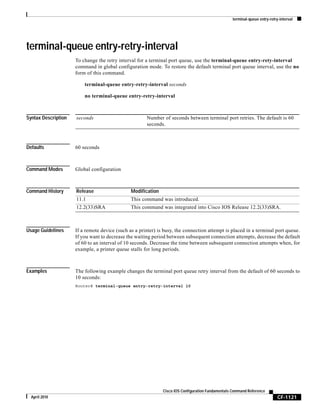
terminal-queue entry-retry-interval CF-1121
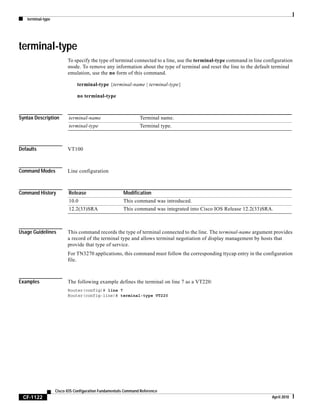
terminal-type CF-1122
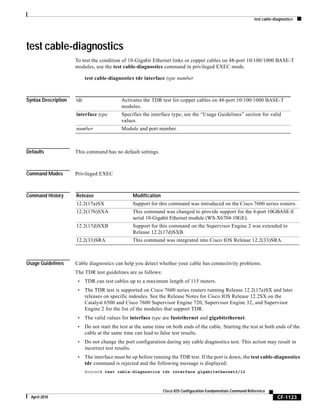
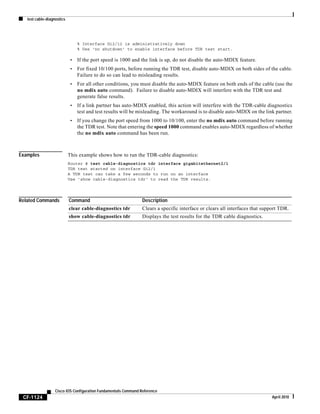
test cable-diagnostics CF-1123
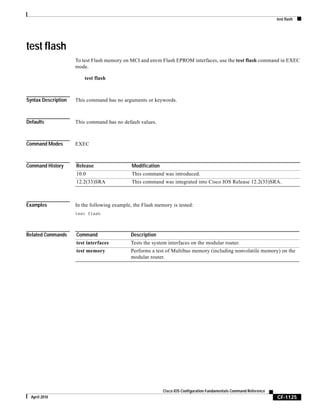
test flash CF-1125
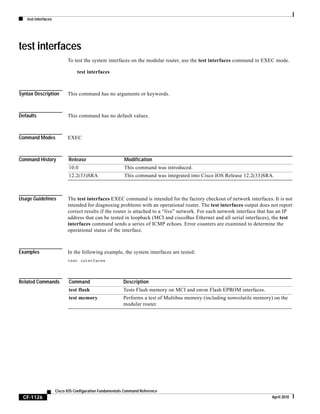
test interfaces CF-1126
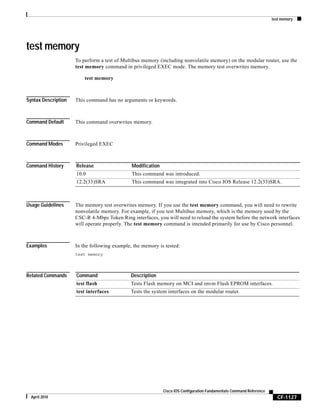
test memory CF-1127
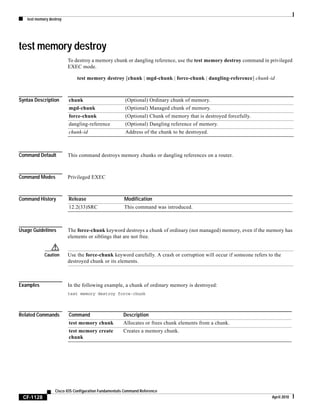
test memory destroy CF-1128
test platform police get CF-1129
test platform police set CF-1130
tftp-server CF-1132
tftp-server system CF-1135
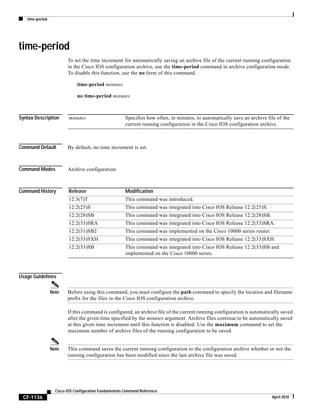
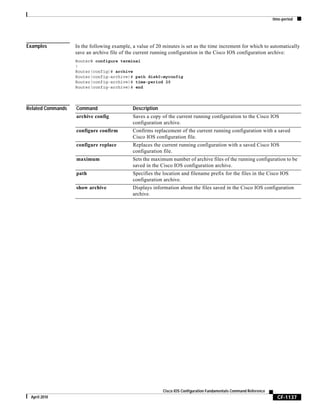
time-period CF-1136
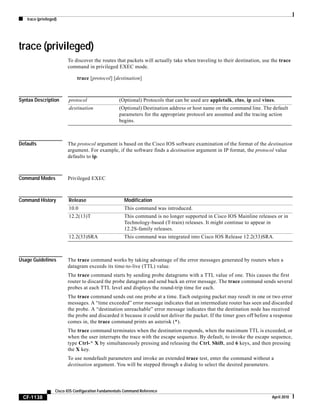
trace (privileged) CF-1138
trace (user) CF-1142
traceroute CF-1145
traceroute mac CF-1148
undelete CF-1152
upgrade automatic abortversion CF-1154
Contents
xix
Cisco IOS Configuration Fundamentals Command Reference
April 2010
upgrade automatic getversion CF-1156
upgrade automatic runversion CF-1159
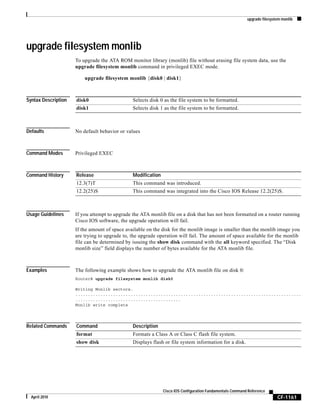
upgrade filesystem monlib CF-1161
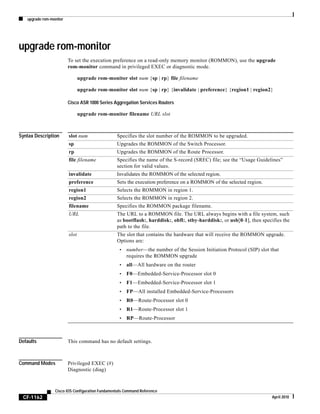
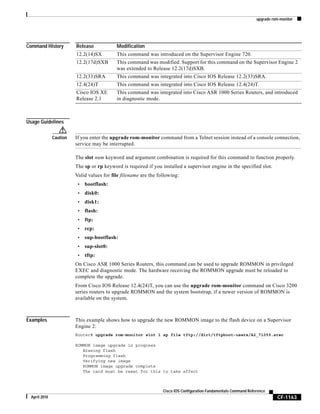
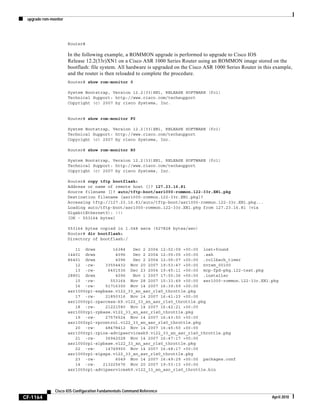
upgrade rom-monitor CF-1162
upgrade rom-monitor file CF-1167
upgrade rom-monitor preference CF-1171
vacant-message CF-1172
verify CF-1174
vtp CF-1179
warm-reboot CF-1182
where CF-1184
width CF-1185
write core CF-1186
write erase CF-1188
write memory CF-1189
write terminal CF-1190
xmodem CF-1191
ASCII Character Set and Hexadecimal Values CF-1193
Contents
xx
Cisco IOS Configuration Fundamentals Command Reference
April 2010
xxi
Cisco IOS Configuration Fundamentals Command Reference
April 2010
About Cisco IOS Software Documentation
Last Updated: March 26, 2010
This document describes the objectives, audience, conventions, and organization used in Cisco IOS
software documentation. Also included are resources for obtaining technical assistance, additional
documentation, and other information from Cisco. This document is organized into the following
sections:
• Documentation Objectives, page xxi
• Audience, page xxi
• Documentation Conventions, page xxi
• Documentation Organization, page xxiii
• Additional Resources and Documentation Feedback, page xxxi
Documentation Objectives
Cisco IOS documentation describes the tasks and commands available to configure and maintain Cisco
networking devices.
Audience
The Cisco IOS documentation set is intended for users who configure and maintain Cisco networking
devices (such as routers and switches) but who may not be familiar with the configuration and
maintenance tasks, the relationship among tasks, or the Cisco IOS commands necessary to perform
particular tasks. The Cisco IOS documentation set is also intended for those users experienced with
Cisco IOS software who need to know about new features, new configuration options, and new software
characteristics in the current Cisco IOS release.
Documentation Conventions
In Cisco IOS documentation, the term router may be used to refer to various Cisco products; for example,
routers, access servers, and switches. These and other networking devices that support Cisco IOS
software are shown interchangeably in examples and are used only for illustrative purposes. An example
that shows one product does not necessarily mean that other products are not supported.
About Cisco IOS Software Documentation
Documentation Conventions
xxii
Cisco IOS Configuration Fundamentals Command Reference
April 2010
This section contains the following topics:
• Typographic Conventions, page xxii
• Command Syntax Conventions, page xxii
• Software Conventions, page xxiii
• Reader Alert Conventions, page xxiii
Typographic Conventions
Cisco IOS documentation uses the following typographic conventions:
Command Syntax Conventions
Cisco IOS documentation uses the following command syntax conventions:
Convention Description
^ or Ctrl Both the ^ symbol and Ctrl represent the Control (Ctrl) key on a keyboard. For
example, the key combination ^D or Ctrl-D means that you hold down the
Control key while you press the D key. (Keys are indicated in capital letters but
are not case sensitive.)
string A string is a nonquoted set of characters shown in italics. For example, when
setting a Simple Network Management Protocol (SNMP) community string to
public, do not use quotation marks around the string; otherwise, the string will
include the quotation marks.
Convention Description
bold Bold text indicates commands and keywords that you enter as shown.
italic Italic text indicates arguments for which you supply values.
[x] Square brackets enclose an optional keyword or argument.
... An ellipsis (three consecutive nonbolded periods without spaces) after a syntax
element indicates that the element can be repeated.
| A vertical line, called a pipe, that is enclosed within braces or square brackets
indicates a choice within a set of keywords or arguments.
[x | y] Square brackets enclosing keywords or arguments separated by a pipe indicate
an optional choice.
{x | y} Braces enclosing keywords or arguments separated by a pipe indicate a
required choice.
[x {y | z}] Braces and a pipe within square brackets indicate a required choice within an
optional element.
About Cisco IOS Software Documentation
Documentation Organization
xxiii
Cisco IOS Configuration Fundamentals Command Reference
April 2010
Software Conventions
Cisco IOS software uses the following program code conventions:
Reader Alert Conventions
Cisco IOS documentation uses the following conventions for reader alerts:
Caution Means reader be careful. In this situation, you might do something that could result in equipment
damage or loss of data.
Note Means reader take note. Notes contain helpful suggestions or references to material not covered in the
manual.
Timesaver Means the described action saves time. You can save time by performing the action described in the
paragraph.
Documentation Organization
This section describes the Cisco IOS documentation set, how it is organized, and how to access it on
Cisco.com. It also lists the configuration guides, command references, and supplementary references
and resources that comprise the documentation set. It contains the following topics:
• Cisco IOS Documentation Set, page xxiv
• Cisco IOS Documentation on Cisco.com, page xxiv
• Configuration Guides, Command References, and Supplementary Resources, page xxv
Convention Description
Courier font Courier font is used for information that is displayed on a PC or terminal screen.
Bold Courier font Bold Courier font indicates text that the user must enter.
< > Angle brackets enclose text that is not displayed, such as a password. Angle
brackets also are used in contexts in which the italic font style is not supported;
for example, ASCII text.
! An exclamation point at the beginning of a line indicates that the text that follows
is a comment, not a line of code. An exclamation point is also displayed by
Cisco IOS software for certain processes.
[ ] Square brackets enclose default responses to system prompts.
About Cisco IOS Software Documentation
Documentation Organization
xxiv
Cisco IOS Configuration Fundamentals Command Reference
April 2010
Cisco IOS Documentation Set
The Cisco IOS documentation set consists of the following:
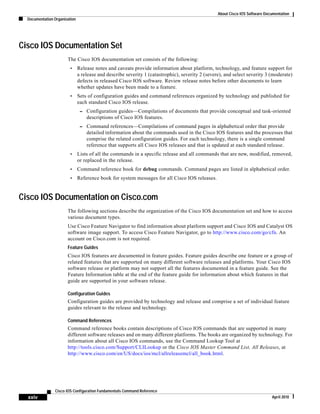
• Release notes and caveats provide information about platform, technology, and feature support for
a release and describe severity 1 (catastrophic), severity 2 (severe), and select severity 3 (moderate)
defects in released Cisco IOS software. Review release notes before other documents to learn
whether updates have been made to a feature.
• Sets of configuration guides and command references organized by technology and published for
each standard Cisco IOS release.
– Configuration guides—Compilations of documents that provide conceptual and task-oriented
descriptions of Cisco IOS features.
– Command references—Compilations of command pages in alphabetical order that provide
detailed information about the commands used in the Cisco IOS features and the processes that
comprise the related configuration guides. For each technology, there is a single command
reference that supports all Cisco IOS releases and that is updated at each standard release.
• Lists of all the commands in a specific release and all commands that are new, modified, removed,
or replaced in the release.
• Command reference book for debug commands. Command pages are listed in alphabetical order.
• Reference book for system messages for all Cisco IOS releases.
Cisco IOS Documentation on Cisco.com
The following sections describe the organization of the Cisco IOS documentation set and how to access
various document types.
Use Cisco Feature Navigator to find information about platform support and Cisco IOS and Catalyst OS
software image support. To access Cisco Feature Navigator, go to http://www.cisco.com/go/cfn. An
account on Cisco.com is not required.
Feature Guides
Cisco IOS features are documented in feature guides. Feature guides describe one feature or a group of
related features that are supported on many different software releases and platforms. Your Cisco IOS
software release or platform may not support all the features documented in a feature guide. See the
Feature Information table at the end of the feature guide for information about which features in that
guide are supported in your software release.
Configuration Guides
Configuration guides are provided by technology and release and comprise a set of individual feature
guides relevant to the release and technology.
Command References
Command reference books contain descriptions of Cisco IOS commands that are supported in many
different software releases and on many different platforms. The books are organized by technology. For
information about all Cisco IOS commands, use the Command Lookup Tool at
http://tools.cisco.com/Support/CLILookup or the Cisco IOS Master Command List, All Releases, at
http://www.cisco.com/en/US/docs/ios/mcl/allreleasemcl/all_book.html.
About Cisco IOS Software Documentation
Documentation Organization
xxv
Cisco IOS Configuration Fundamentals Command Reference
April 2010
Cisco IOS Supplementary Documents and Resources
Supplementary documents and resources are listed in Table 2 on page xxxi.
Configuration Guides, Command References, and Supplementary Resources
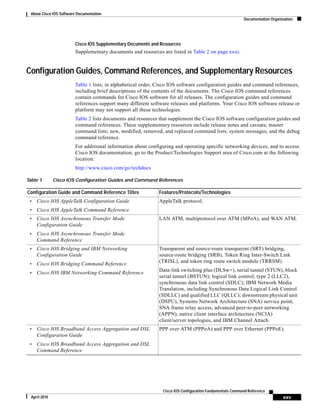
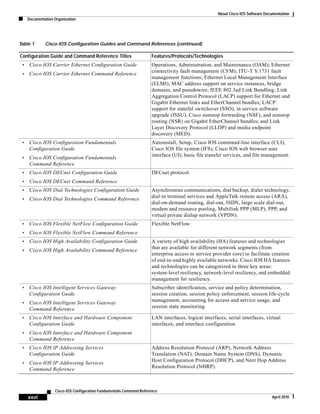
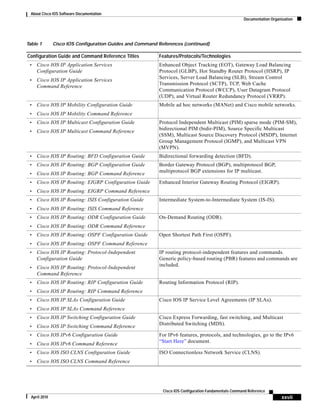
Table 1 lists, in alphabetical order, Cisco IOS software configuration guides and command references,
including brief descriptions of the contents of the documents. The Cisco IOS command references
contain commands for Cisco IOS software for all releases. The configuration guides and command
references support many different software releases and platforms. Your Cisco IOS software release or
platform may not support all these technologies.
Table 2 lists documents and resources that supplement the Cisco IOS software configuration guides and
command references. These supplementary resources include release notes and caveats; master
command lists; new, modified, removed, and replaced command lists; system messages; and the debug
command reference.
For additional information about configuring and operating specific networking devices, and to access
Cisco IOS documentation, go to the Product/Technologies Support area of Cisco.com at the following
location:
http://www.cisco.com/go/techdocs
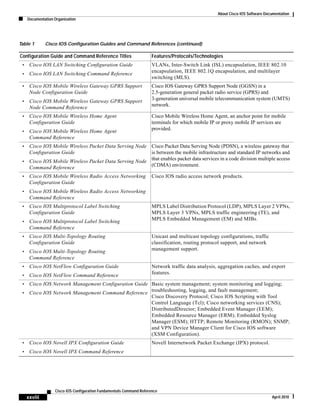
Table 1 Cisco IOS Configuration Guides and Command References
Configuration Guide and Command Reference Titles Features/Protocols/Technologies
• Cisco IOS AppleTalk Configuration Guide
• Cisco IOS AppleTalk Command Reference
AppleTalk protocol.
• Cisco IOS Asynchronous Transfer Mode
Configuration Guide
• Cisco IOS Asynchronous Transfer Mode
Command Reference
LAN ATM, multiprotocol over ATM (MPoA), and WAN ATM.
• Cisco IOS Bridging and IBM Networking
Configuration Guide
• Cisco IOS Bridging Command Reference
• Cisco IOS IBM Networking Command Reference
Transparent and source-route transparent (SRT) bridging,
source-route bridging (SRB), Token Ring Inter-Switch Link
(TRISL), and token ring route switch module (TRRSM).
Data-link switching plus (DLSw+), serial tunnel (STUN), block
serial tunnel (BSTUN); logical link control, type 2 (LLC2),
synchronous data link control (SDLC); IBM Network Media
Translation, including Synchronous Data Logical Link Control
(SDLLC) and qualified LLC (QLLC); downstream physical unit
(DSPU), Systems Network Architecture (SNA) service point,
SNA frame relay access, advanced peer-to-peer networking
(APPN), native client interface architecture (NCIA)
client/server topologies, and IBM Channel Attach.
• Cisco IOS Broadband Access Aggregation and DSL
Configuration Guide
• Cisco IOS Broadband Access Aggregation and DSL
Command Reference
PPP over ATM (PPPoA) and PPP over Ethernet (PPPoE).
About Cisco IOS Software Documentation
Documentation Organization
xxvi
Cisco IOS Configuration Fundamentals Command Reference
April 2010
• Cisco IOS Carrier Ethernet Configuration Guide
• Cisco IOS Carrier Ethernet Command Reference
Operations, Administration, and Maintenance (OAM); Ethernet
connectivity fault management (CFM); ITU-T Y.1731 fault
management functions; Ethernet Local Management Interface
(ELMI); MAC address support on service instances, bridge
domains, and pseudowire; IEEE 802.3ad Link Bundling; Link
Aggregation Control Protocol (LACP) support for Ethernet and
Gigabit Ethernet links and EtherChannel bundles; LACP
support for stateful switchover (SSO), in service software
upgrade (ISSU), Cisco nonstop forwarding (NSF), and nonstop
routing (NSR) on Gigabit EtherChannel bundles; and Link
Layer Discovery Protocol (LLDP) and media endpoint
discovery (MED).
• Cisco IOS Configuration Fundamentals
Configuration Guide
• Cisco IOS Configuration Fundamentals
Command Reference
Autoinstall, Setup, Cisco IOS command-line interface (CLI),
Cisco IOS file system (IFS), Cisco IOS web browser user
interface (UI), basic file transfer services, and file management.
• Cisco IOS DECnet Configuration Guide
• Cisco IOS DECnet Command Reference
DECnet protocol.
• Cisco IOS Dial Technologies Configuration Guide
• Cisco IOS Dial Technologies Command Reference
Asynchronous communications, dial backup, dialer technology,
dial-in terminal services and AppleTalk remote access (ARA),
dial-on-demand routing, dial-out, ISDN, large scale dial-out,
modem and resource pooling, Multilink PPP (MLP), PPP, and
virtual private dialup network (VPDN).
• Cisco IOS Flexible NetFlow Configuration Guide
• Cisco IOS Flexible NetFlow Command Reference
Flexible NetFlow.
• Cisco IOS High Availability Configuration Guide
• Cisco IOS High Availability Command Reference
A variety of high availability (HA) features and technologies
that are available for different network segments (from
enterprise access to service provider core) to facilitate creation
of end-to-end highly available networks. Cisco IOS HA features
and technologies can be categorized in three key areas:
system-level resiliency, network-level resiliency, and embedded
management for resiliency.
• Cisco IOS Intelligent Services Gateway
Configuration Guide
• Cisco IOS Intelligent Services Gateway
Command Reference
Subscriber identification, service and policy determination,
session creation, session policy enforcement, session life-cycle
management, accounting for access and service usage, and
session state monitoring.
• Cisco IOS Interface and Hardware Component
Configuration Guide
• Cisco IOS Interface and Hardware Component
Command Reference
LAN interfaces, logical interfaces, serial interfaces, virtual
interfaces, and interface configuration.
• Cisco IOS IP Addressing Services
Configuration Guide
• Cisco IOS IP Addressing Services
Command Reference
Address Resolution Protocol (ARP), Network Address
Translation (NAT), Domain Name System (DNS), Dynamic
Host Configuration Protocol (DHCP), and Next Hop Address
Resolution Protocol (NHRP).
Table 1 Cisco IOS Configuration Guides and Command References (continued)
Configuration Guide and Command Reference Titles Features/Protocols/Technologies
About Cisco IOS Software Documentation
Documentation Organization
xxvii
Cisco IOS Configuration Fundamentals Command Reference
April 2010
• Cisco IOS IP Application Services
Configuration Guide
• Cisco IOS IP Application Services
Command Reference
Enhanced Object Tracking (EOT), Gateway Load Balancing
Protocol (GLBP), Hot Standby Router Protocol (HSRP), IP
Services, Server Load Balancing (SLB), Stream Control
Transmission Protocol (SCTP), TCP, Web Cache
Communication Protocol (WCCP), User Datagram Protocol
(UDP), and Virtual Router Redundancy Protocol (VRRP).
• Cisco IOS IP Mobility Configuration Guide
• Cisco IOS IP Mobility Command Reference
Mobile ad hoc networks (MANet) and Cisco mobile networks.
• Cisco IOS IP Multicast Configuration Guide
• Cisco IOS IP Multicast Command Reference
Protocol Independent Multicast (PIM) sparse mode (PIM-SM),
bidirectional PIM (bidir-PIM), Source Specific Multicast
(SSM), Multicast Source Discovery Protocol (MSDP), Internet
Group Management Protocol (IGMP), and Multicast VPN
(MVPN).
• Cisco IOS IP Routing: BFD Configuration Guide Bidirectional forwarding detection (BFD).
• Cisco IOS IP Routing: BGP Configuration Guide
• Cisco IOS IP Routing: BGP Command Reference
Border Gateway Protocol (BGP), multiprotocol BGP,
multiprotocol BGP extensions for IP multicast.
• Cisco IOS IP Routing: EIGRP Configuration Guide
• Cisco IOS IP Routing: EIGRP Command Reference
Enhanced Interior Gateway Routing Protocol (EIGRP).
• Cisco IOS IP Routing: ISIS Configuration Guide
• Cisco IOS IP Routing: ISIS Command Reference
Intermediate System-to-Intermediate System (IS-IS).
• Cisco IOS IP Routing: ODR Configuration Guide
• Cisco IOS IP Routing: ODR Command Reference
On-Demand Routing (ODR).
• Cisco IOS IP Routing: OSPF Configuration Guide
• Cisco IOS IP Routing: OSPF Command Reference
Open Shortest Path First (OSPF).
• Cisco IOS IP Routing: Protocol-Independent
Configuration Guide
• Cisco IOS IP Routing: Protocol-Independent
Command Reference
IP routing protocol-independent features and commands.
Generic policy-based routing (PBR) features and commands are
included.
• Cisco IOS IP Routing: RIP Configuration Guide
• Cisco IOS IP Routing: RIP Command Reference
Routing Information Protocol (RIP).
• Cisco IOS IP SLAs Configuration Guide
• Cisco IOS IP SLAs Command Reference
Cisco IOS IP Service Level Agreements (IP SLAs).
• Cisco IOS IP Switching Configuration Guide
• Cisco IOS IP Switching Command Reference
Cisco Express Forwarding, fast switching, and Multicast
Distributed Switching (MDS).
• Cisco IOS IPv6 Configuration Guide
• Cisco IOS IPv6 Command Reference
For IPv6 features, protocols, and technologies, go to the IPv6
“Start Here” document.
• Cisco IOS ISO CLNS Configuration Guide
• Cisco IOS ISO CLNS Command Reference
ISO Connectionless Network Service (CLNS).
Table 1 Cisco IOS Configuration Guides and Command References (continued)
Configuration Guide and Command Reference Titles Features/Protocols/Technologies
About Cisco IOS Software Documentation
Documentation Organization
xxviii
Cisco IOS Configuration Fundamentals Command Reference
April 2010
• Cisco IOS LAN Switching Configuration Guide
• Cisco IOS LAN Switching Command Reference
VLANs, Inter-Switch Link (ISL) encapsulation, IEEE 802.10
encapsulation, IEEE 802.1Q encapsulation, and multilayer
switching (MLS).
• Cisco IOS Mobile Wireless Gateway GPRS Support
Node Configuration Guide
• Cisco IOS Mobile Wireless Gateway GPRS Support
Node Command Reference
Cisco IOS Gateway GPRS Support Node (GGSN) in a
2.5-generation general packet radio service (GPRS) and
3-generation universal mobile telecommunication system (UMTS)
network.
• Cisco IOS Mobile Wireless Home Agent
Configuration Guide
• Cisco IOS Mobile Wireless Home Agent
Command Reference
Cisco Mobile Wireless Home Agent, an anchor point for mobile
terminals for which mobile IP or proxy mobile IP services are
provided.
• Cisco IOS Mobile Wireless Packet Data Serving Node
Configuration Guide
• Cisco IOS Mobile Wireless Packet Data Serving Node
Command Reference
Cisco Packet Data Serving Node (PDSN), a wireless gateway that
is between the mobile infrastructure and standard IP networks and
that enables packet data services in a code division multiple access
(CDMA) environment.
• Cisco IOS Mobile Wireless Radio Access Networking
Configuration Guide
• Cisco IOS Mobile Wireless Radio Access Networking
Command Reference
Cisco IOS radio access network products.
• Cisco IOS Multiprotocol Label Switching
Configuration Guide
• Cisco IOS Multiprotocol Label Switching
Command Reference
MPLS Label Distribution Protocol (LDP), MPLS Layer 2 VPNs,
MPLS Layer 3 VPNs, MPLS traffic engineering (TE), and
MPLS Embedded Management (EM) and MIBs.
• Cisco IOS Multi-Topology Routing
Configuration Guide
• Cisco IOS Multi-Topology Routing
Command Reference
Unicast and multicast topology configurations, traffic
classification, routing protocol support, and network
management support.
• Cisco IOS NetFlow Configuration Guide
• Cisco IOS NetFlow Command Reference
Network traffic data analysis, aggregation caches, and export
features.
• Cisco IOS Network Management Configuration Guide
• Cisco IOS Network Management Command Reference
Basic system management; system monitoring and logging;
troubleshooting, logging, and fault management;
Cisco Discovery Protocol; Cisco IOS Scripting with Tool
Control Language (Tcl); Cisco networking services (CNS);
DistributedDirector; Embedded Event Manager (EEM);
Embedded Resource Manager (ERM); Embedded Syslog
Manager (ESM); HTTP; Remote Monitoring (RMON); SNMP;
and VPN Device Manager Client for Cisco IOS software
(XSM Configuration).
• Cisco IOS Novell IPX Configuration Guide
• Cisco IOS Novell IPX Command Reference
Novell Internetwork Packet Exchange (IPX) protocol.
Table 1 Cisco IOS Configuration Guides and Command References (continued)
Configuration Guide and Command Reference Titles Features/Protocols/Technologies
About Cisco IOS Software Documentation
Documentation Organization
xxix
Cisco IOS Configuration Fundamentals Command Reference
April 2010
• Cisco IOS Optimized Edge Routing
Command Reference
Optimized edge routing (OER) monitoring and automatic route
optimization and load distribution for multiple connections
between networks.
• Cisco IOS Performance Routing Configuration Guide Performance Routing (PfR) provides additional intelligence to
classic routing technologies to track the performance of, or
verify the quality of, a path between two devices over a WAN
infrastructure in order to determine the best egress or ingress
path for application traffic.
• Cisco IOS Quality of Service Solutions
Configuration Guide
• Cisco IOS Quality of Service Solutions
Command Reference
Traffic queueing, traffic policing, traffic shaping, Modular QoS
CLI (MQC), Network-Based Application Recognition (NBAR),
Multilink PPP (MLP) for QoS, header compression, AutoQoS,
Resource Reservation Protocol (RSVP), and weighted random
early detection (WRED).
• Cisco IOS Security Command Reference Access control lists (ACLs); authentication, authorization, and
accounting (AAA); firewalls; IP security and encryption;
neighbor router authentication; network access security;
network data encryption with router authentication; public key
infrastructure (PKI); RADIUS; TACACS+; terminal access
security; and traffic filters.
• Cisco IOS Security Configuration Guide: Securing the
Data Plane
Access Control Lists (ACLs); Firewalls: Context-Based Access
Control (CBAC) and Zone-Based Firewall; Cisco IOS Intrusion
Prevention System (IPS); Flexible Packet Matching; Unicast
Reverse Path Forwarding (uRPF); Threat Information
Distribution Protocol (TIDP) and TMS.
• Cisco IOS Security Configuration Guide: Securing the
Control Plane
Control Plane Policing, Neighborhood Router Authentication.
• Cisco IOS Security Configuration Guide: Securing
User Services
AAA (includes 802.1x authentication and Network Admission
Control [NAC]); Security Server Protocols (RADIUS and
TACACS+); Secure Shell (SSH); Secure Access for Networking
Devices (includes Autosecure and Role-Based CLI access);
Lawful Intercept.
• Cisco IOS Security Configuration Guide: Secure
Connectivity
Internet Key Exchange (IKE) for IPsec VPNs; IPsec Data Plane
features; IPsec Management features; Public Key Infrastructure
(PKI); Dynamic Multipoint VPN (DMVPN); Easy VPN; Cisco
Group Encrypted Transport VPN (GETVPN); SSL VPN.
• Cisco IOS Service Advertisement Framework
Configuration Guide
• Cisco IOS Service Advertisement Framework
Command Reference
Cisco Service Advertisement Framework.
• Cisco IOS Service Selection Gateway
Configuration Guide
• Cisco IOS Service Selection Gateway
Command Reference
Subscriber authentication, service access, and accounting.
Table 1 Cisco IOS Configuration Guides and Command References (continued)
Configuration Guide and Command Reference Titles Features/Protocols/Technologies
About Cisco IOS Software Documentation
Documentation Organization
xxx
Cisco IOS Configuration Fundamentals Command Reference
April 2010
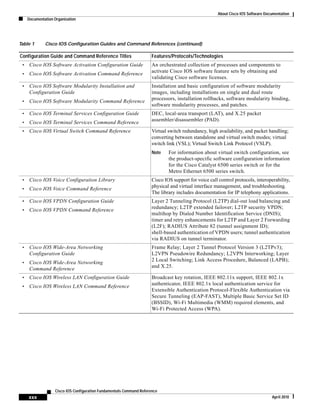
• Cisco IOS Software Activation Configuration Guide
• Cisco IOS Software Activation Command Reference
An orchestrated collection of processes and components to
activate Cisco IOS software feature sets by obtaining and
validating Cisco software licenses.
• Cisco IOS Software Modularity Installation and
Configuration Guide
• Cisco IOS Software Modularity Command Reference
Installation and basic configuration of software modularity
images, including installations on single and dual route
processors, installation rollbacks, software modularity binding,
software modularity processes, and patches.
• Cisco IOS Terminal Services Configuration Guide
• Cisco IOS Terminal Services Command Reference
DEC, local-area transport (LAT), and X.25 packet
assembler/disassembler (PAD).
• Cisco IOS Virtual Switch Command Reference Virtual switch redundancy, high availability, and packet handling;
converting between standalone and virtual switch modes; virtual
switch link (VSL); Virtual Switch Link Protocol (VSLP).
Note For information about virtual switch configuration, see
the product-specific software configuration information
for the Cisco Catalyst 6500 series switch or for the
Metro Ethernet 6500 series switch.
• Cisco IOS Voice Configuration Library
• Cisco IOS Voice Command Reference
Cisco IOS support for voice call control protocols, interoperability,
physical and virtual interface management, and troubleshooting.
The library includes documentation for IP telephony applications.
• Cisco IOS VPDN Configuration Guide
• Cisco IOS VPDN Command Reference
Layer 2 Tunneling Protocol (L2TP) dial-out load balancing and
redundancy; L2TP extended failover; L2TP security VPDN;
multihop by Dialed Number Identification Service (DNIS);
timer and retry enhancements for L2TP and Layer 2 Forwarding
(L2F); RADIUS Attribute 82 (tunnel assignment ID);
shell-based authentication of VPDN users; tunnel authentication
via RADIUS on tunnel terminator.
• Cisco IOS Wide-Area Networking
Configuration Guide
• Cisco IOS Wide-Area Networking
Command Reference
Frame Relay; Layer 2 Tunnel Protocol Version 3 (L2TPv3);
L2VPN Pseudowire Redundancy; L2VPN Interworking; Layer
2 Local Switching; Link Access Procedure, Balanced (LAPB);
and X.25.
• Cisco IOS Wireless LAN Configuration Guide
• Cisco IOS Wireless LAN Command Reference
Broadcast key rotation, IEEE 802.11x support, IEEE 802.1x
authenticator, IEEE 802.1x local authentication service for
Extensible Authentication Protocol-Flexible Authentication via
Secure Tunneling (EAP-FAST), Multiple Basic Service Set ID
(BSSID), Wi-Fi Multimedia (WMM) required elements, and
Wi-Fi Protected Access (WPA).
Table 1 Cisco IOS Configuration Guides and Command References (continued)
Configuration Guide and Command Reference Titles Features/Protocols/Technologies
About Cisco IOS Software Documentation
Additional Resources and Documentation Feedback
xxxi
Cisco IOS Configuration Fundamentals Command Reference
April 2010
Table 2 lists documents and resources that supplement the Cisco IOS software configuration guides and
command references.
Additional Resources and Documentation Feedback
What’s New in Cisco Product Documentation is released monthly and describes all new and revised
Cisco technical documentation. The What’s New in Cisco Product Documentation publication also
provides information about obtaining the following resources:
• Technical documentation
• Cisco product security overview
• Product alerts and field notices
• Technical assistance
Cisco IOS technical documentation includes embedded feedback forms where you can rate documents
and provide suggestions for improvement. Your feedback helps us improve our documentation.
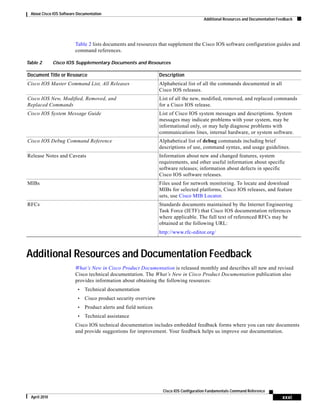
Table 2 Cisco IOS Supplementary Documents and Resources
Document Title or Resource Description
Cisco IOS Master Command List, All Releases Alphabetical list of all the commands documented in all
Cisco IOS releases.
Cisco IOS New, Modified, Removed, and
Replaced Commands
List of all the new, modified, removed, and replaced commands
for a Cisco IOS release.
Cisco IOS System Message Guide List of Cisco IOS system messages and descriptions. System
messages may indicate problems with your system, may be
informational only, or may help diagnose problems with
communications lines, internal hardware, or system software.
Cisco IOS Debug Command Reference Alphabetical list of debug commands including brief
descriptions of use, command syntax, and usage guidelines.
Release Notes and Caveats Information about new and changed features, system
requirements, and other useful information about specific
software releases; information about defects in specific
Cisco IOS software releases.
MIBs Files used for network monitoring. To locate and download
MIBs for selected platforms, Cisco IOS releases, and feature
sets, use Cisco MIB Locator.
RFCs Standards documents maintained by the Internet Engineering
Task Force (IETF) that Cisco IOS documentation references
where applicable. The full text of referenced RFCs may be
obtained at the following URL:
http://www.rfc-editor.org/
About Cisco IOS Software Documentation
Additional Resources and Documentation Feedback
xxxii
Cisco IOS Configuration Fundamentals Command Reference
April 2010
CCDE, CCENT, CCSI, Cisco Eos, Cisco Explorer, Cisco HealthPresence, Cisco IronPort, the Cisco logo, Cisco Nurse Connect, Cisco Pulse,
Cisco SensorBase, Cisco StackPower, Cisco StadiumVision, Cisco TelePresence, Cisco TrustSec, Cisco Unified Computing System, Cisco WebEx,
DCE, Flip Channels, Flip for Good, Flip Mino, Flipshare (Design), Flip Ultra, Flip Video, Flip Video (Design), Instant Broadband, and Welcome to
the Human Network are trademarks; Changing the Way We Work, Live, Play, and Learn, Cisco Capital, Cisco Capital (Design), Cisco:Financed
(Stylized), Cisco Store, Flip Gift Card, and One Million Acts of Green are service marks; and Access Registrar, Aironet, AllTouch, AsyncOS,
Bringing the Meeting To You, Catalyst, CCDA, CCDP, CCIE, CCIP, CCNA, CCNP, CCSP, CCVP, Cisco, the Cisco Certified Internetwork Expert
logo, Cisco IOS, Cisco Lumin, Cisco Nexus, Cisco Press, Cisco Systems, Cisco Systems Capital, the Cisco Systems logo, Cisco Unity,
Collaboration Without Limitation, Continuum, EtherFast, EtherSwitch, Event Center, Explorer, Follow Me Browsing, GainMaker, iLYNX, IOS,
iPhone, IronPort, the IronPort logo, Laser Link, LightStream, Linksys, MeetingPlace, MeetingPlace Chime Sound, MGX, Networkers, Networking
Academy, PCNow, PIX, PowerKEY, PowerPanels, PowerTV, PowerTV (Design), PowerVu, Prisma, ProConnect, ROSA, SenderBase, SMARTnet,
Spectrum Expert, StackWise, WebEx, and the WebEx logo are registered trademarks of Cisco and/or its affiliates in the United States and certain
other countries.
All other trademarks mentioned in this document or website are the property of their respective owners. The use of the word partner does not imply
a partnership relationship between Cisco and any other company. (1002R)
Any Internet Protocol (IP) addresses and phone numbers used in this document are not intended to be actual addresses and phone numbers. Any
examples, command display output, network topology diagrams, and other figures included in the document are shown for illustrative purposes only.
Any use of actual IP addresses or phone numbers in illustrative content is unintentional and coincidental.
© 2008–2010 Cisco Systems, Inc. All rights reserved.
xxxiii
Cisco IOS Configuration Fundamentals Command Reference
April 2010
Using the Command-Line Interface in Cisco IOS
Software
Last Updated: February 24, 2010
This document provides basic information about the command-line interface (CLI) in Cisco IOS
software and how you can use some of the CLI features. This document contains the following sections:
• Initially Configuring a Device, page xxxiii
• Using the CLI, page xxxiv
• Saving Changes to a Configuration, page xliv
• Additional Information, page xliv
For more information about using the CLI, see the “Using the Cisco IOS Command-Line Interface”
section of the Cisco IOS Configuration Fundamentals Configuration Guide.
For information about the software documentation set, see the “About Cisco IOS Software
Documentation” document.
Initially Configuring a Device
Initially configuring a device varies by platform. For information about performing an initial
configuration, see the hardware installation documentation that is provided with the original packaging
of the product or go to the Product/Technologies Support area of Cisco.com at
http://www.cisco.com/go/techdocs.
After you have performed the initial configuration and connected the device to your network, you can
configure the device by using the console port or a remote access method, such as Telnet or Secure Shell
(SSH), to access the CLI or by using the configuration method provided on the device, such as Security
Device Manager.
Using the Command-Line Interface in Cisco IOS Software
Using the CLI
xxxiv
Cisco IOS Configuration Fundamentals Command Reference
April 2010
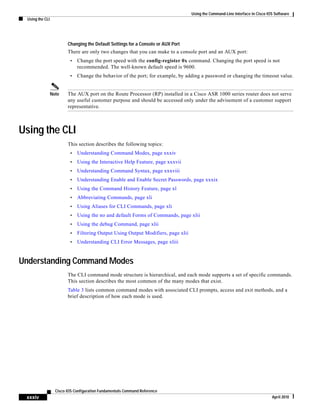
Changing the Default Settings for a Console or AUX Port
There are only two changes that you can make to a console port and an AUX port:
• Change the port speed with the config-register 0x command. Changing the port speed is not
recommended. The well-known default speed is 9600.
• Change the behavior of the port; for example, by adding a password or changing the timeout value.
Note The AUX port on the Route Processor (RP) installed in a Cisco ASR 1000 series router does not serve
any useful customer purpose and should be accessed only under the advisement of a customer support
representative.
Using the CLI
This section describes the following topics:
• Understanding Command Modes, page xxxiv
• Using the Interactive Help Feature, page xxxvii
• Understanding Command Syntax, page xxxviii
• Understanding Enable and Enable Secret Passwords, page xxxix
• Using the Command History Feature, page xl
• Abbreviating Commands, page xli
• Using Aliases for CLI Commands, page xli
• Using the no and default Forms of Commands, page xlii
• Using the debug Command, page xlii
• Filtering Output Using Output Modifiers, page xlii
• Understanding CLI Error Messages, page xliii
Understanding Command Modes
The CLI command mode structure is hierarchical, and each mode supports a set of specific commands.
This section describes the most common of the many modes that exist.
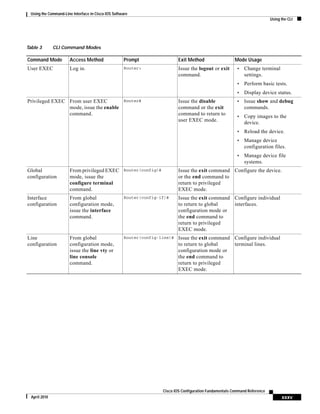
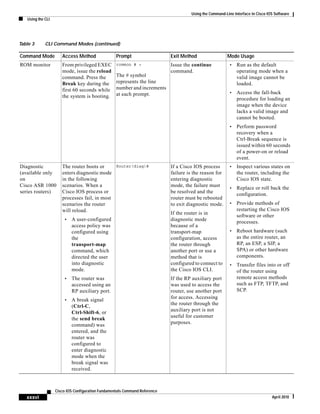
Table 3 lists common command modes with associated CLI prompts, access and exit methods, and a
brief description of how each mode is used.
Using the Command-Line Interface in Cisco IOS Software
Using the CLI
xxxv
Cisco IOS Configuration Fundamentals Command Reference
April 2010
Table 3 CLI Command Modes
Command Mode Access Method Prompt Exit Method Mode Usage
User EXEC Log in. Router> Issue the logout or exit
command.
• Change terminal
settings.
• Perform basic tests.
• Display device status.
Privileged EXEC From user EXEC
mode, issue the enable
command.
Router# Issue the disable
command or the exit
command to return to
user EXEC mode.
• Issue show and debug
commands.
• Copy images to the
device.
• Reload the device.
• Manage device
configuration files.
• Manage device file
systems.
Global
configuration
From privileged EXEC
mode, issue the
configure terminal
command.
Router(config)# Issue the exit command
or the end command to
return to privileged
EXEC mode.
Configure the device.
Interface
configuration
From global
configuration mode,
issue the interface
command.
Router(config-if)# Issue the exit command
to return to global
configuration mode or
the end command to
return to privileged
EXEC mode.
Configure individual
interfaces.
Line
configuration
From global
configuration mode,
issue the line vty or
line console
command.
Router(config-line)# Issue the exit command
to return to global
configuration mode or
the end command to
return to privileged
EXEC mode.
Configure individual
terminal lines.
Using the Command-Line Interface in Cisco IOS Software
Using the CLI
xxxvi
Cisco IOS Configuration Fundamentals Command Reference
April 2010
ROM monitor From privileged EXEC
mode, issue the reload
command. Press the
Break key during the
first 60 seconds while
the system is booting.
rommon # >
The # symbol
represents the line
number and increments
at each prompt.
Issue the continue
command.
• Run as the default
operating mode when a
valid image cannot be
loaded.
• Access the fall-back
procedure for loading an
image when the device
lacks a valid image and
cannot be booted.
• Perform password
recovery when a
Ctrl-Break sequence is
issued within 60 seconds
of a power-on or reload
event.
Diagnostic
(available only
on
Cisco ASR 1000
series routers)
The router boots or
enters diagnostic mode
in the following
scenarios. When a
Cisco IOS process or
processes fail, in most
scenarios the router
will reload.
• A user-configured
access policy was
configured using
the
transport-map
command, which
directed the user
into diagnostic
mode.
• The router was
accessed using an
RP auxiliary port.
• A break signal
(Ctrl-C,
Ctrl-Shift-6, or
the send break
command) was
entered, and the
router was
configured to
enter diagnostic
mode when the
break signal was
received.
Router(diag)# If a Cisco IOS process
failure is the reason for
entering diagnostic
mode, the failure must
be resolved and the
router must be rebooted
to exit diagnostic mode.
If the router is in
diagnostic mode
because of a
transport-map
configuration, access
the router through
another port or use a
method that is
configured to connect to
the Cisco IOS CLI.
If the RP auxiliary port
was used to access the
router, use another port
for access. Accessing
the router through the
auxiliary port is not
useful for customer
purposes.
• Inspect various states on
the router, including the
Cisco IOS state.
• Replace or roll back the
configuration.
• Provide methods of
restarting the Cisco IOS
software or other
processes.
• Reboot hardware (such
as the entire router, an
RP, an ESP, a SIP, a
SPA) or other hardware
components.
• Transfer files into or off
of the router using
remote access methods
such as FTP, TFTP, and
SCP.
Table 3 CLI Command Modes (continued)
Command Mode Access Method Prompt Exit Method Mode Usage
Using the Command-Line Interface in Cisco IOS Software
Using the CLI
xxxvii
Cisco IOS Configuration Fundamentals Command Reference
April 2010
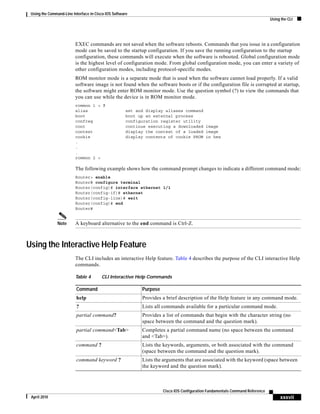
EXEC commands are not saved when the software reboots. Commands that you issue in a configuration
mode can be saved to the startup configuration. If you save the running configuration to the startup
configuration, these commands will execute when the software is rebooted. Global configuration mode
is the highest level of configuration mode. From global configuration mode, you can enter a variety of
other configuration modes, including protocol-specific modes.
ROM monitor mode is a separate mode that is used when the software cannot load properly. If a valid
software image is not found when the software boots or if the configuration file is corrupted at startup,
the software might enter ROM monitor mode. Use the question symbol (?) to view the commands that
you can use while the device is in ROM monitor mode.
rommon 1 > ?
alias set and display aliases command
boot boot up an external process
confreg configuration register utility
cont continue executing a downloaded image
context display the context of a loaded image
cookie display contents of cookie PROM in hex
.
.
.
rommon 2 >
The following example shows how the command prompt changes to indicate a different command mode:
Router> enable
Router# configure terminal
Router(config)# interface ethernet 1/1
Router(config-if)# ethernet
Router(config-line)# exit
Router(config)# end
Router#
Note A keyboard alternative to the end command is Ctrl-Z.
Using the Interactive Help Feature
The CLI includes an interactive Help feature. Table 4 describes the purpose of the CLI interactive Help
commands.
Table 4 CLI Interactive Help Commands
Command Purpose
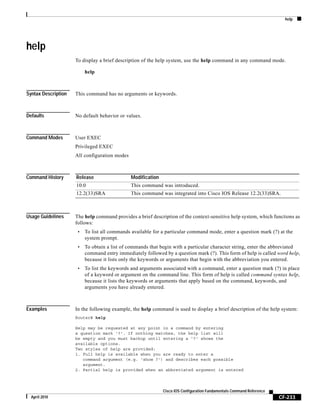
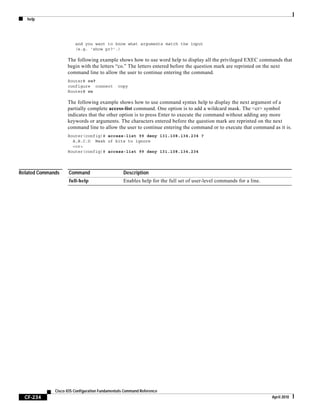
help Provides a brief description of the Help feature in any command mode.
? Lists all commands available for a particular command mode.
partial command? Provides a list of commands that begin with the character string (no
space between the command and the question mark).
partial command<Tab> Completes a partial command name (no space between the command
and <Tab>).
command ? Lists the keywords, arguments, or both associated with the command
(space between the command and the question mark).
command keyword ? Lists the arguments that are associated with the keyword (space between
the keyword and the question mark).
Using the Command-Line Interface in Cisco IOS Software
Using the CLI
xxxviii
Cisco IOS Configuration Fundamentals Command Reference
April 2010
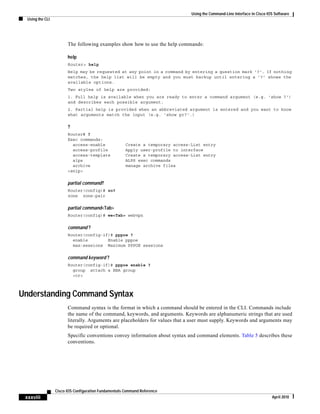
The following examples show how to use the help commands:
help
Router> help
Help may be requested at any point in a command by entering a question mark '?'. If nothing
matches, the help list will be empty and you must backup until entering a '?' shows the
available options.
Two styles of help are provided:
1. Full help is available when you are ready to enter a command argument (e.g. 'show ?')
and describes each possible argument.
2. Partial help is provided when an abbreviated argument is entered and you want to know
what arguments match the input (e.g. 'show pr?'.)
?
Router# ?
Exec commands:
access-enable Create a temporary access-List entry
access-profile Apply user-profile to interface
access-template Create a temporary access-List entry
alps ALPS exec commands
archive manage archive files
<snip>
partial command?
Router(config)# zo?
zone zone-pair
partial command<Tab>
Router(config)# we<Tab> webvpn
command ?
Router(config-if)# pppoe ?
enable Enable pppoe
max-sessions Maximum PPPOE sessions
command keyword ?
Router(config-if)# pppoe enable ?
group attach a BBA group
<cr>
Understanding Command Syntax
Command syntax is the format in which a command should be entered in the CLI. Commands include
the name of the command, keywords, and arguments. Keywords are alphanumeric strings that are used
literally. Arguments are placeholders for values that a user must supply. Keywords and arguments may
be required or optional.
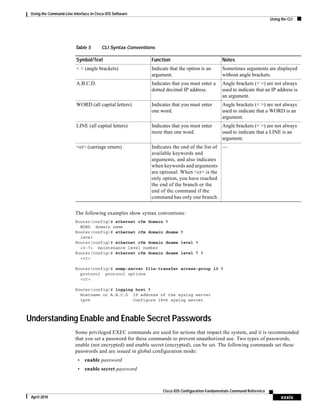
Specific conventions convey information about syntax and command elements. Table 5 describes these
conventions.
Using the Command-Line Interface in Cisco IOS Software
Using the CLI
xxxix
Cisco IOS Configuration Fundamentals Command Reference
April 2010
The following examples show syntax conventions:
Router(config)# ethernet cfm domain ?
WORD domain name
Router(config)# ethernet cfm domain dname ?
level
Router(config)# ethernet cfm domain dname level ?
<0-7> maintenance level number
Router(config)# ethernet cfm domain dname level 7 ?
<cr>
Router(config)# snmp-server file-transfer access-group 10 ?
protocol protocol options
<cr>
Router(config)# logging host ?
Hostname or A.B.C.D IP address of the syslog server
ipv6 Configure IPv6 syslog server
Understanding Enable and Enable Secret Passwords
Some privileged EXEC commands are used for actions that impact the system, and it is recommended
that you set a password for these commands to prevent unauthorized use. Two types of passwords,
enable (not encrypted) and enable secret (encrypted), can be set. The following commands set these
passwords and are issued in global configuration mode:
• enable password
• enable secret password
Table 5 CLI Syntax Conventions
Symbol/Text Function Notes
< > (angle brackets) Indicate that the option is an
argument.
Sometimes arguments are displayed
without angle brackets.
A.B.C.D. Indicates that you must enter a
dotted decimal IP address.
Angle brackets (< >) are not always
used to indicate that an IP address is
an argument.
WORD (all capital letters) Indicates that you must enter
one word.
Angle brackets (< >) are not always
used to indicate that a WORD is an
argument.
LINE (all capital letters) Indicates that you must enter
more than one word.
Angle brackets (< >) are not always
used to indicate that a LINE is an
argument.
<cr> (carriage return) Indicates the end of the list of
available keywords and
arguments, and also indicates
when keywords and arguments
are optional. When <cr> is the
only option, you have reached
the end of the branch or the
end of the command if the
command has only one branch.
—
Using the Command-Line Interface in Cisco IOS Software
Using the CLI
xl
Cisco IOS Configuration Fundamentals Command Reference
April 2010
Using an enable secret password is recommended because it is encrypted and more secure than the
enable password. When you use an enable secret password, text is encrypted (unreadable) before it is
written to the config.text file. When you use an enable password, the text is written as entered (readable)
to the config.text file.
Each type of password is case sensitive, can contain from 1 to 25 uppercase and lowercase alphanumeric
characters, and can start with a numeral. Spaces are also valid password characters; for example,
“two words” is a valid password. Leading spaces are ignored, but trailing spaces are recognized.
Note Both password commands have numeric keywords that are single integer values. If you choose a numeral
for the first character of your password followed by a space, the system will read the number as if it were
the numeric keyword and not as part of your password.
When both passwords are set, the enable secret password takes precedence over the enable password.
To remove a password, use the no form of the commands: no enable password or
no enable secret password.
For more information about password recovery procedures for Cisco products, see the following:
http://www.cisco.com/en/US/products/sw/iosswrel/ps1831/
products_tech_note09186a00801746e6.shtml
Using the Command History Feature
The command history feature saves, in a command history buffer, the commands that you enter during
a session. The default number of saved commands is 10, but the number is configurable within the range
of 0 to 256. This command history feature is particularly useful for recalling long or complex commands.
To change the number of commands saved in the history buffer for a terminal session, issue the
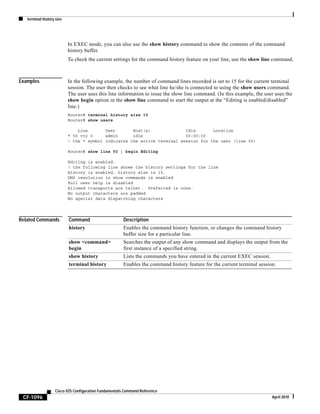
terminal history size command:
Router# terminal history size num
A command history buffer is also available in line configuration mode with the same default and
configuration options. To set the command history buffer size for a terminal session in line configuration
mode, issue the history command:
Router(config-line)# history [size num]
To recall commands from the history buffer, use the following methods:
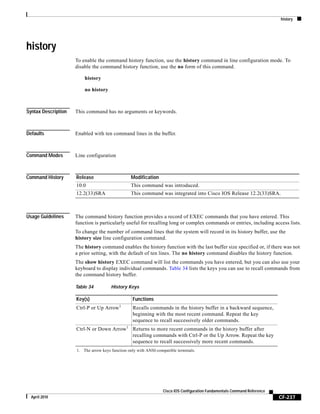
• Press Ctrl-P or the Up Arrow key—Recalls commands beginning with the most recent command.
Repeat the key sequence to recall successively older commands.
• Press Ctrl-N or the Down Arrow key—Recalls the most recent commands in the history buffer after
they have been recalled using Ctrl-P or the Up Arrow key. Repeat the key sequence to recall
successively more recent commands.
Note The arrow keys function only on ANSI-compatible terminals such as the VT100.
• Issue the show history command in user EXEC or privileged EXEC mode—Lists the most recent
commands that you entered. The number of commands that are displayed is determined by the
setting of the terminal history size and history commands.
Using the Command-Line Interface in Cisco IOS Software
Using the CLI
xli
Cisco IOS Configuration Fundamentals Command Reference
April 2010
The command history feature is enabled by default. To disable this feature for a terminal session,
issue the terminal no history command in user EXEC or privileged EXEC mode or the no history
command in line configuration mode.
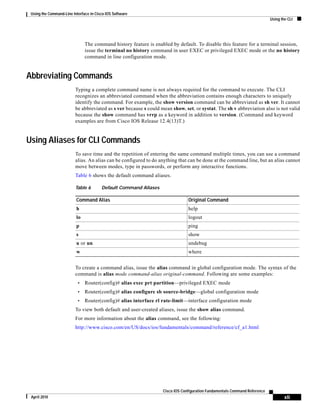
Abbreviating Commands
Typing a complete command name is not always required for the command to execute. The CLI
recognizes an abbreviated command when the abbreviation contains enough characters to uniquely
identify the command. For example, the show version command can be abbreviated as sh ver. It cannot
be abbreviated as s ver because s could mean show, set, or systat. The sh v abbreviation also is not valid
because the show command has vrrp as a keyword in addition to version. (Command and keyword
examples are from Cisco IOS Release 12.4(13)T.)
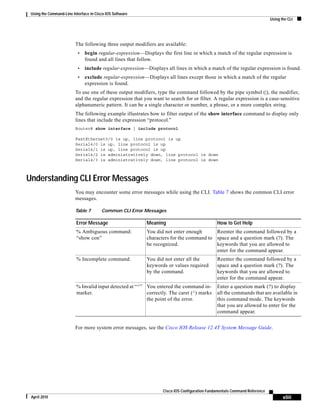
Using Aliases for CLI Commands
To save time and the repetition of entering the same command multiple times, you can use a command
alias. An alias can be configured to do anything that can be done at the command line, but an alias cannot
move between modes, type in passwords, or perform any interactive functions.
Table 6 shows the default command aliases.
To create a command alias, issue the alias command in global configuration mode. The syntax of the
command is alias mode command-alias original-command. Following are some examples:
• Router(config)# alias exec prt partition—privileged EXEC mode
• Router(config)# alias configure sb source-bridge—global configuration mode
• Router(config)# alias interface rl rate-limit—interface configuration mode
To view both default and user-created aliases, issue the show alias command.
For more information about the alias command, see the following:
http://www.cisco.com/en/US/docs/ios/fundamentals/command/reference/cf_a1.html
Table 6 Default Command Aliases
Command Alias Original Command
h help
lo logout
p ping
s show
u or un undebug
w where
Using the Command-Line Interface in Cisco IOS Software
Using the CLI
xlii
Cisco IOS Configuration Fundamentals Command Reference
April 2010
Using the no and default Forms of Commands
Most configuration commands have a no form that is used to reset a command to its default value or to
disable a feature or function. For example, the ip routing command is enabled by default. To disable
this command, you would issue the no ip routing command. To re-enable IP routing, you would issue
the ip routing command.
Configuration commands may also have a default form, which returns the command settings to their
default values. For commands that are disabled by default, using the default form has the same effect as
using the no form of the command. For commands that are enabled by default and have default settings,
the default form enables the command and returns the settings to their default values. To see what
default commands are available on your system, enter default ? in the appropriate command mode of
the command-line interface.
The no form is documented in the command pages of Cisco IOS command references. The default form
is generally documented in the command pages only when the default form performs a function different
than that of the plain and no forms of the command.
Command pages often include a “Command Default” section as well. The “Command Default” section
documents the state of the configuration if the command is not used (for configuration commands) or
the outcome of using the command if none of the optional keywords or arguments is specified (for EXEC
commands).
Using the debug Command
A debug command produces extensive output that helps you troubleshoot problems in your network.
These commands are available for many features and functions within Cisco IOS software. Some debug
commands are debug all, debug aaa accounting, and debug mpls packets. To use debug commands
during a Telnet session with a device, you must first enter the terminal monitor command. To turn off
debugging completely, you must enter the undebug all command.
For more information about debug commands, see the Cisco IOS Debug Command Reference:
http://www.cisco.com/en/US/docs/ios/debug/command/reference/db_book.html
Caution Debugging is a high priority and high CPU utilization process that can render your device unusable. Use
debug commands only to troubleshoot specific problems. The best times to run debugging are during
periods of low network traffic and when few users are interacting with the network. Debugging during
these periods decreases the likelihood that the debug command processing overhead will affect network
performance or user access or response times.
Filtering Output Using Output Modifiers
Many commands produce lengthy output that may use several screens to display. Using output
modifiers, you can filter this output to show only the information that you want to see.
Using the Command-Line Interface in Cisco IOS Software
Using the CLI
xliii
Cisco IOS Configuration Fundamentals Command Reference
April 2010
The following three output modifiers are available:
• begin regular-expression—Displays the first line in which a match of the regular expression is
found and all lines that follow.
• include regular-expression—Displays all lines in which a match of the regular expression is found.
• exclude regular-expression—Displays all lines except those in which a match of the regular
expression is found.
To use one of these output modifiers, type the command followed by the pipe symbol (|), the modifier,
and the regular expression that you want to search for or filter. A regular expression is a case-sensitive
alphanumeric pattern. It can be a single character or number, a phrase, or a more complex string.
The following example illustrates how to filter output of the show interface command to display only
lines that include the expression “protocol.”
Router# show interface | include protocol
FastEthernet0/0 is up, line protocol is up
Serial4/0 is up, line protocol is up
Serial4/1 is up, line protocol is up
Serial4/2 is administratively down, line protocol is down
Serial4/3 is administratively down, line protocol is down
Understanding CLI Error Messages
You may encounter some error messages while using the CLI. Table 7 shows the common CLI error
messages.
For more system error messages, see the Cisco IOS Release 12.4T System Message Guide.
Table 7 Common CLI Error Messages
Error Message Meaning How to Get Help
% Ambiguous command:
“show con”
You did not enter enough
characters for the command to
be recognized.
Reenter the command followed by a
space and a question mark (?). The
keywords that you are allowed to
enter for the command appear.
% Incomplete command. You did not enter all the
keywords or values required
by the command.
Reenter the command followed by a
space and a question mark (?). The
keywords that you are allowed to
enter for the command appear.
% Invalid input detected at “^”
marker.
You entered the command in-
correctly. The caret (^) marks
the point of the error.
Enter a question mark (?) to display
all the commands that are available in
this command mode. The keywords
that you are allowed to enter for the
command appear.
Using the Command-Line Interface in Cisco IOS Software
Saving Changes to a Configuration
xliv
Cisco IOS Configuration Fundamentals Command Reference
April 2010
Saving Changes to a Configuration
To save changes that you made to the configuration of a device, you must issue the copy running-config
startup-config command or the copy system:running-config nvram:startup-config command. When
you issue these commands, the configuration changes that you made are saved to the startup
configuration and saved when the software reloads or power to the device is turned off or interrupted.
The following example shows the syntax of the copy running-config startup-config command:
Router# copy running-config startup-config
Destination filename [startup-config]?
You press Enter to accept the startup-config filename (the default), or type a new filename and then press
Enter to accept that name. The following output is displayed indicating that the configuration was saved.
Building configuration...
[OK]
Router#
On most platforms, the configuration is saved to NVRAM. On platforms with a Class A flash file system,
the configuration is saved to the location specified by the CONFIG_FILE environment variable. The
CONFIG_FILE variable defaults to NVRAM.
Additional Information
• “Using the Cisco IOS Command-Line Interface” section of the Cisco IOS Configuration
Fundamentals Configuration Guide
http://www.cisco.com/en/US/docs/ios/fundamentals/configuration/guide/cf_cli-basics.html
• Cisco Product/Technology Support
http://www.cisco.com/go/techdocs
• Support area on Cisco.com (also search for documentation by task or product)
http://www.cisco.com/en/US/support/index.html
• Software Download Center (downloads; tools; licensing, registration, advisory, and general
information) (requires Cisco.com user ID and password)
http://www.cisco.com/kobayashi/sw-center/
• Error Message Decoder, a tool to help you research and resolve error messages for Cisco IOS
software
http://www.cisco.com/pcgi-bin/Support/Errordecoder/index.cgi
• Command Lookup Tool, a tool to help you find detailed descriptions of Cisco IOS commands
(requires Cisco.com user ID and password)
http://tools.cisco.com/Support/CLILookup
• Output Interpreter, a troubleshooting tool that analyzes command output of supported
show commands
https://www.cisco.com/pcgi-bin/Support/OutputInterpreter/home.pl
Using the Command-Line Interface in Cisco IOS Software
Additional Information
xlv
Cisco IOS Configuration Fundamentals Command Reference
April 2010
CCDE, CCENT, CCSI, Cisco Eos, Cisco Explorer, Cisco HealthPresence, Cisco IronPort, the Cisco logo, Cisco Nurse Connect, Cisco Pulse,
Cisco SensorBase, Cisco StackPower, Cisco StadiumVision, Cisco TelePresence, Cisco TrustSec, Cisco Unified Computing System, Cisco WebEx,
DCE, Flip Channels, Flip for Good, Flip Mino, Flipshare (Design), Flip Ultra, Flip Video, Flip Video (Design), Instant Broadband, and Welcome to
the Human Network are trademarks; Changing the Way We Work, Live, Play, and Learn, Cisco Capital, Cisco Capital (Design), Cisco:Financed
(Stylized), Cisco Store, Flip Gift Card, and One Million Acts of Green are service marks; and Access Registrar, Aironet, AllTouch, AsyncOS,
Bringing the Meeting To You, Catalyst, CCDA, CCDP, CCIE, CCIP, CCNA, CCNP, CCSP, CCVP, Cisco, the Cisco Certified Internetwork Expert
logo, Cisco IOS, Cisco Lumin, Cisco Nexus, Cisco Press, Cisco Systems, Cisco Systems Capital, the Cisco Systems logo, Cisco Unity,
Collaboration Without Limitation, Continuum, EtherFast, EtherSwitch, Event Center, Explorer, Follow Me Browsing, GainMaker, iLYNX, IOS,
iPhone, IronPort, the IronPort logo, Laser Link, LightStream, Linksys, MeetingPlace, MeetingPlace Chime Sound, MGX, Networkers, Networking
Academy, PCNow, PIX, PowerKEY, PowerPanels, PowerTV, PowerTV (Design), PowerVu, Prisma, ProConnect, ROSA, SenderBase, SMARTnet,
Spectrum Expert, StackWise, WebEx, and the WebEx logo are registered trademarks of Cisco and/or its affiliates in the United States and certain
other countries.
All other trademarks mentioned in this document or website are the property of their respective owners. The use of the word partner does not imply
a partnership relationship between Cisco and any other company. (1002R)
Any Internet Protocol (IP) addresses and phone numbers used in this document are not intended to be actual addresses and phone numbers. Any
examples, command display output, network topology diagrams, and other figures included in the document are shown for illustrative purposes only.
Any use of actual IP addresses or phone numbers in illustrative content is unintentional and coincidental.
© 2008–2010 Cisco Systems, Inc. All rights reserved.
Using the Command-Line Interface in Cisco IOS Software
Additional Information
xlvi
Cisco IOS Configuration Fundamentals Command Reference
April 2010
CF-1
Cisco IOS Configuration Fundamentals Command Reference
April 2010
Introduction
The Cisco IOS Configuration Fundamentals Command Reference provides command documentation
associated with the following tasks:
• Using the Cisco IOS Command-Line Interface (CLI)
• Configuration Using Setup and AutoInstall
• Configuring Operating Characteristics for Terminals
• Managing Connections, Logins, Menus, and System Banners
– Configure user menus and banners
• Using the Cisco Web Browser User Interface (UI)
– Using the HTTP server-based UI as an alternative to the CLI
• Using the Cisco IOS Integrated File System (IFS)
– The basics of filesystem use and Cisco IOS software’s filesystem infrastructure
• Configuring Basic File Transfer Services
– Copy, move, and delete files locally or across the network
• Managing Configuration Files
• Loading, Maintaining, and Upgrading System Images
• Rebooting
For further information about performing these tasks, refer to the Cisco IOS Configuration
Fundamentals Configuration Guide for your release.
Note Some commands previously documented in this Command Reference have been moved to other books:
Commands related to system management and network monitoring can be found in the Cisco IOS
Network Management Command Reference.
Command reference documentation for the Cisco IOS software feature “Service Assurance Agent
(SAA)” can be found in the the Cisco IOS IP SLAs Command Reference.
Introduction
Cisco IOS IFS Command Syntax
CF-2
Cisco IOS Configuration Fundamentals Command Reference
April 2010
Cisco IOS IFS Command Syntax
Some commands in this book use URLs (uniform resource locators) as part of the command syntax.
URLs used in the Cisco IOS Integrated File System (IFS) contain two parts: a file system or network
prefix, and a file identification suffix. The following tables list URL keywords that can be used in the
source-url and destination-url arguments for all commands in this book. The prefixes listed below can
also be used in the filesystem arguments in this document.
Table 8 lists common URL network prefixes used to indicate a device on the network.
Table 9 lists the available suffix options (file indentification suffixes) for the URL prefixes used in
Table 8.
Table 10 lists common URL prefixes used to indicate memory locations on the system.
Table 8 Network Prefixes for Cisco IFS URLs
Prefix Description
ftp: Specifies a File Transfer Protocol (FTP) network server.
rcp: Specifies an remote copy protocol (rcp) network server.
tftp: Specifies a TFTP server.
Table 9 File ID Suffixes for Cisco IFS URLs
Prefix Suffix Options
ftp: [[//[username[:password]@]location]/directory]/filename
For example:
ftp://network-config (prefix://filename)
ftp://user1:mypassword1@example.com/config-files
rcp: rcp:[[//[username@]location]/directory]/filename
tftp: tftp:[[//location]/directory]/filename
Table 10 File System Prefixes for Cisco IFS URLs
Prefix Description
bootflash: Boot flash memory.
disk0: Rotating disk media.
flash:
[partition-number]
Flash memory. This prefix is available on all platforms. For platforms that do not
have a device named flash:, the prefix flash: is aliased to slot0:.
Therefore, you can use the prefix flash: to refer to the main Flash memory
storage area on all platforms.
flh: Flash load helper log files.
null: Null destination for copies. You can copy a remote file to null to determine its
size.
nvram: NVRAM. This is the default location for the running-configuration file.
Introduction
Obtaining Documentation, Obtaining Support, and Security Guidelines
CF-3
Cisco IOS Configuration Fundamentals Command Reference
April 2010
For details about the Cisco IOS IFS, and for IFS configuration tasks, refer to the “Using the Cisco IOS
Integrated File System (IFS)” chapter in the latest Cisco IOS Configuration Fundamentals
Configuration Guide appropriate for your release version.
Obtaining Documentation, Obtaining Support, and Security
Guidelines
For information on obtaining documentation, obtaining support, providing documentation feedback,
security guidelines, and also recommended aliases and general Cisco documents, see the monthly
What’s New in Cisco Product Documentation, which also lists all new and revised Cisco technical
documentation, at:
http://www.cisco.com/en/US/docs/general/whatsnew/whatsnew.html
slavebootflash: Internal Flash memory on a slave RSP card of a router configured with
Dual RSPs.
slavenvram: NVRAM on a slave RSP card.
slaveslot0: First PCMCIA card on a slave RSP card.
slaveslot1: Second PCMCIA card on a slave RSP card.
slot0: First PCMCIA Flash memory card.
slot1: Second PCMCIA Flash memory card.
xmodem: Obtain the file from a network machine using the Xmodem protocol.
ymodem: Obtain the file from a network machine using the Ymodem protocol.
Table 10 File System Prefixes for Cisco IFS URLs (continued)
Prefix Description
Introduction
Obtaining Documentation, Obtaining Support, and Security Guidelines
CF-4
Cisco IOS Configuration Fundamentals Command Reference
April 2010
CF-5
Cisco IOS Configuration Fundamentals Command Reference
April 2010
Configuration Fundamentals Commands
activation-character
CF-6
Cisco IOS Configuration Fundamentals Command Reference
April 2010
activation-character
To define the character you enter at a vacant terminal to begin a terminal session, use the
activation-character command in line configuration mode. To make any character activate a terminal,
use the no form of this command.
activation-character ascii-number
no activation-character
Syntax Description
Defaults Return (decimal 13)
Command Modes Line configuration (config-line)
Command History
Usage Guidelines See the “ASCII Character Set and Hexadecimal Values” document for a list of ASCII characters.
Note If you are using the autoselect function, set the activation character to the default, Return, and
exec-character-bits to 7. If you change these defaults, the application will not recognize the activation
request.
Examples The following example shows how to set the activation character for the console to Delete, which is
decimal character 127:
Router(config)# line console
Router(config-line)# activation-character 127
ascii-number Decimal representation of the activation character.
Release Modification
10.0 This command was introduced.
This command is supported in all Cisco IOS software Releases.
Configuration Fundamentals Commands
alias
CF-7
Cisco IOS Configuration Fundamentals Command Reference
April 2010
alias
To create a command alias, use the alias command in global configuration mode. To delete all aliases in
a command mode or to delete a specific alias, and to revert to the original command syntax, use the no
form of this command.
alias mode command-alias original-command
no alias mode [command-alias]
Syntax Description
Defaults A set of six basic EXEC mode aliases are enabled by default. See the “Usage Guidelines” section of this
command for a list of default aliases.
Command Modes Global configuration
Command History
Usage Guidelines You can use simple words or abbreviations as command aliases.
Table 11 lists the basic EXEC mode aliases that are enabled by default.
The default aliases in Table 11 are predefined. These default aliases can be disabled with the
no alias exec command.
mode Command mode of the original and alias commands.
command-alias Command alias.
original-command Original command syntax.
Release Modification
10.3 This command was introduced.
12.2(33)SRA This command was integrated into Cisco IOS Release 12.2(33)SRA.
Table 11 Default Command Aliases
Command Alias Original Command
h help
lo logout
p ping
r resume
s show
w where
Configuration Fundamentals Commands
alias
CF-8
Cisco IOS Configuration Fundamentals Command Reference
April 2010
Common keyword aliases (which cannot be disabled) include running-config (keyword alias for
system:running-config) and startup-config (keyword alias for nvram:startup-config). See the
description of the copy command for more information about these keyword aliases.
Note that aliases can be configured for keywords instead of entire commands. You can create, for
example, an alias for the first part of any command and still enter the additional keywords and arguments
as normal.
To determine the value for the mode argument, enter the command mode in which you would issue the
original command (and in which you will issue the alias) and enter the ? command. The name of the
command mode should appear at the top of the list of commands. For example, the second line in the
following sample output shows the name of the command mode as “Interface configuration”:
Router# configure terminal
Enter configuration commands, one per line. End with CNTL/Z.
Router(config)# interface e0
Router(config-if)# ?
Interface configuration commands:
access-expression Build a bridge boolean access expression
.
.
.
To match the name of the command mode to the acceptable mode keyword for the alias command, issue
the alias ? command. As shown in the following sample output, the keyword needed to create a
command alias for the access-expression command is interface:
Router(config)# alias ?
accept-dialin VPDN group accept dialin configuration mode
accept-dialout VPDN group accept dialout configuration mode
address-family Address Family configuration mode
call-discriminator Call Discriminator Configuration
cascustom Cas custom configuration mode
clid-group CLID group configuration mode
configure Global configuration mode
congestion Frame Relay congestion configuration mode
controller Controller configuration mode
cptone-set custom call progress tone configuration mode
customer-profile customer profile configuration mode
dhcp DHCP pool configuration mode
dnis-group DNIS group configuration mode
exec Exec mode
flow-cache Flow aggregation cache config mode
fr-fr FR/FR connection configuration mode
interface Interface configuration mode
.
.
.
Router(config)# alias interface express access-expression
When you use online help, command aliases are indicated by an asterisk (*), and displayed in the
following format:
*command-alias=original-command
For example, the lo command alias is shown here along with other EXEC mode commands that start with
“lo”:
Router# lo?
*lo=logout lock login logout
When you use online help, aliases that contain multiple keyword elements separated by spaces are
displayed in quotes, as shown here:
Configuration Fundamentals Commands
alias
CF-9
Cisco IOS Configuration Fundamentals Command Reference
April 2010
Router(config)#alias exec device-mail telnet device.cisco.com 25
Router(config)#end
Router#device-mail?
*device-mail=”telnet device.cisco.com 25"
To list only commands and omit aliases, begin your input line with a space. In the following example,
the alias td is not shown, because there is a space before the t? command line.
Router(config)#alias exec td telnet device
Router(config)#end
Router# t?
telnet terminal test tn3270 trace
To circumvent command aliases, use a space before entering the command. In the following example,
the command alias express is not recognized because a space is used before the command.
Router(config-if)#exp?
*express=access-expression
Router(config-if)# express ?
% Unrecognized command
As with commands, you can use online help to display the arguments and keywords that can follow a
command alias. In the following example, the alias td is created to represent the command telnet device.
The /debug and /line switches can be added to telnet device to modify the command:
Router(config)#alias exec td telnet device
Router(config)#end
Router#td ?
/debug Enable telnet debugging mode
/line Enable telnet line mode
...
whois Whois port
<cr>
Router# telnet device
You must enter the complete syntax for the command alias. Partial syntax for aliases is not accepted. In
the following example, the parser does not recognize the command t as indicating the alias td:
Router# t
% Ambiguous command: “t”
Examples In the following example, the alias fixmyrt is configured for the clear iproute 192.168.116.16 EXEC
mode command:
Router(config)#alias exec fixmyrt clear ip route 192.168.116.16
In the following example, the alias express is configured for the first part of the access-expression
interface configuration command:
Router#configure terminal
Enter configuration commands, one per line. End with CNTL/Z.
Router(config)#interface e0
Router(config-if)#?
Interface configuration commands:
access-expression Build a bridge boolean access expression
.
.
.
Router(config-if)#exit
Router(config)#alias ?
accept-dialin VPDN group accept dialin configuration mode
Configuration Fundamentals Commands
alias
CF-10
Cisco IOS Configuration Fundamentals Command Reference
April 2010
accept-dialout VPDN group accept dialout configuration mode
address-family Address Family configuration mode
call-discriminator Call Discriminator Configuration
cascustom Cas custom configuration mode
clid-group CLID group configuration mode
configure Global configuration mode
congestion Frame Relay congestion configuration mode
controller Controller configuration mode
cptone-set custom call progress tone configuration mode
customer-profile customer profile configuration mode
dhcp DHCP pool configuration mode
dnis-group DNIS group configuration mode
exec Exec mode
flow-cache Flow aggregation cache config mode
fr-fr FR/FR connection configuration mode
interface Interface configuration mode
.
.
.
Router(config)#alias interface express access-expression
Router(config)#int e0
Router(config-if)#exp?
*express=access-expression
Router(config-if)#express ?
input Filter input packets
output Filter output packets
!Note that the true form of the command/keyword alias appears on the screen after issuing
!the express ? command.
Router(config-if)#access-expression ?
input Filter input packets
output Filter output packets
Router(config-if)#ex?
*express=access-expression exit
!Note that in the following line, a space is used before the ex? command
!so the alias is not displayed.
Router(config-if)# ex?
exit
!Note that in the following line, the alias cannot be recognized because
!a space is used before the command.
Router#(config-if)# express ?
% Unrecognized command
Router(config-if)# end
Router# show alias interface
Interface configuration mode aliases:
express access-expression
Related Commands Command Description
show aliases Displays command aliases.
Configuration Fundamentals Commands
archive
CF-11
Cisco IOS Configuration Fundamentals Command Reference
April 2010
archive
To enter archive configuration mode, use the archive command in global configuration mode.
archive
Syntax Description This command has no arguments or keywords.
Command Default None
Command Modes Global configuration
Command History
Examples The following example shows how to place the router in archive configuration mode:
Router# configure terminal
!
Router(config)# archive
Router(config-archive)#
Related Commands
Release Modification
12.3(4)T This command was introduced.
12.2(25)S This command was integrated into Cisco IOS Release 12.2(25)S.
12.2(33)SRA This command was integrated into Cisco IOS Release 12.2(33)SRA.
12.2(33)SB This command was integrated into Cisco IOS Release 12.2(33)SB and
implemented on the Cisco 10000 series.
Command Description
log config Enters configuration change logger configuration mode.
logging enable Enables the logging of configuration changes.
maximum Sets the maximum number of archive files of the running configuration to be
saved in the Cisco IOS configuration archive.
path Specifies the location and filename prefix for the files in the Cisco IOS
configuration archive.
time-period Sets the time increment for automatically saving an archive file of the
current running configuration in the Cisco IOS configuration archive.
Configuration Fundamentals Commands
archive config
CF-12
Cisco IOS Configuration Fundamentals Command Reference
April 2010
archive config
To save a copy of the current running configuration to the Cisco IOS configuration archive, use the
archive config command in privileged EXEC mode.
archive config
Syntax Description This command has no arguments or keywords.
Command Modes Privileged EXEC
Command History
Usage Guidelines
Note Before using this command, you must configure the path command in order to specify the location and
filename prefix for the files in the Cisco IOS configuration archive.
The Cisco IOS configuration archive is intended to provide a mechanism to store, organize, and manage
an archive of Cisco IOS configuration files to enhance the configuration rollback capability provided by
the configure replace command. Before this feature was introduced, you could save copies of the
running configuration using the copy running-config destination-url command, storing the target file
either locally or remotely. However, this method lacked any automated file management. On the other
hand, the Configuration Replace and Configuration Rollback feature provides the capability to
automatically save copies of the running configuration to the Cisco IOS configuration archive. These
archived files serve as checkpoint configuration references and can be used by the configure replace
command to revert to previous configuration states.
The archive config command allows you to save Cisco IOS configurations in the configuration archive
using a standard location and filename prefix that is automatically appended with an incremental version
number (and optional time stamp) as each consecutive file is saved. This functionality provides a means
for consistent identification of saved Cisco IOS configuration files. You can specify how many versions
of the running configuration are kept in the archive. After the maximum number of files has been saved
in the archive, the oldest file is automatically deleted when the next, most recent file is saved. The show
archive command displays information for all configuration files saved in the Cisco IOS configuration
archive.
Release Modification
12.3(7)T This command was introduced.
12.2(25)S This command was integrated into Cisco IOS Release 12.2(25)S.
12.2(28)SB This command was integrated into Cisco IOS Release 12.2(28)SB.
12.2(33)SRA This command was integrated into Cisco IOS Release 12.2(33)SRA.
12.2(31)SB2 This command was implemented on the Cisco 10000 series.
12.2(33)SXH This command was integrated into Cisco IOS Release 12.2(33)SXH.
12.2(33)SB This command was integrated into Cisco IOS Release 12.2(33)SB and
implemented on the Cisco 10000 series.
Configuration Fundamentals Commands
archive config
CF-13
Cisco IOS Configuration Fundamentals Command Reference
April 2010
Examples The following example shows how to save the current running configuration to the Cisco IOS
configuration archive using the archive config command. Before using the archive config command,
you must configure the path command to specify the location and filename prefix for the files in the
Cisco IOS configuration archive. In this example, the location and filename prefix are specified as
disk0:myconfig as follows:
configure terminal
!
archive
path disk0:myconfig
end
You then save the current running configuration in the configuration archive, as follows:
archive config
The show archive command displays information on the files saved in the configuration archive as
shown in the following sample output:
Router# show archive
There are currently 1 archive configurations saved.
The next archive file will be named disk0:myconfig-2
Archive # Name
0
1 disk0:myconfig-1 <- Most Recent
2
3
4
5
6
7
8
9
10
Related Commands Command Description
archive Enters archive configuration mode.
configure confirm Confirms replacement of the current running configuration with a saved
Cisco IOS configuration file.
configure replace Replaces the current running configuration with a saved Cisco IOS
configuration file.
maximum Sets the maximum number of archive files of the running configuration to be
saved in the Cisco IOS configuration archive.
path Specifies the location and filename prefix for the files in the Cisco IOS
configuration archive.
show archive Displays information about the files saved in the Cisco IOS configuration
archive.
time-period Sets the time increment for automatically saving an archive file of the
current running configuration in the Cisco IOS configuration archive.
Configuration Fundamentals Commands
archive log config persistent save
CF-14
Cisco IOS Configuration Fundamentals Command Reference
April 2010
archive log config persistent save
To save the persisted commands in the configuration log to the Cisco IOS secure file system, use the
archive log config persistent save command in virtually any configuration mode.
archive log config persistent save
Syntax Description This command has no arguments or keywords.
Command Default If this command is not entered, the persisted configuration commands in the archive log are not saved to
the Cisco IOS secure file system.
Command Modes Configuration change logger configuration mode in archive configuration mode is common for this
command, but the command can be used in virtually any configuration mode.
Command History
Usage Guidelines This command can be entered at any time, regardless of what mode the router is in. If the router is in the
persistent periodic mode, the persistent timer is restarted.
Examples The following example saves the persisted commands in the archive log to the Cisco IOS secure file
system:
Router(config-archive-log-cfg)# archive log config persistent save
Related Commands
Release Modification
12.2(33)SRA This command was introduced.
12.4(11)T This command was integrated into Cisco IOS Release 12.4(11)T.
12.2(33)SXH This command was integrated into Cisco IOS Release 12.2(33)SXH.
12.2(33)SB This command was integrated into Cisco IOS Release 12.2(33)SB.
Command Description
log config Enters configuration change logger configuration mode.
logging enable Enables the logging of configuration changes.
logging persistent Enables the configuration logging persistent feature.
Configuration Fundamentals Commands
archive tar
CF-15
Cisco IOS Configuration Fundamentals Command Reference
April 2010
archive tar
To create a TAR file, to list files in a TAR file, or to extract the files from a TAR file, use the archive tar
command in privileged EXEC mode.
archive tar {/create destination-url flash:/file-url | /table source-url | /xtract source-url
flash:/file-url [dir/file...]}
Syntax Description /create destination-url
flash:/file-url
Creates a new TAR file on the local or network file system.
For destination-url, specify the destination URL alias for the local or
network file system and the name of the TAR file to create. The following
options are supported:
• flash:—Syntax for the local flash file system.
• ftp:[[//username[:password]@location]/directory]/tar-filename.tar—
Syntax for FTP.
• rcp:[[//username@location]/directory]/tar-filename.tar—Syntax for
Remote Copy Protocol (RCP).
• tftp:[[//location]/directory]/tar-filename.tar —Syntax for TFTP.
The tar-filename.tar is the name of the TAR file to be created.
For flash:/file-url, specify the location on the local flash file system from
which the new TAR file is created.
An optional list of files or directories within the source directory can be
specified to write to the new TAR file. If none is specified, all files and
directories at this level are written to the newly created TAR file.
/table source-url Display the contents of an existing TAR file to the screen.
For source-url, specify the source URL alias for the local or network file
system. The following options are supported:
• flash:—Syntax for the local flash file system.
• ftp:[[//username[:password]@location]/directory]/tar-filename.tar—
Syntax for FTP.
• rcp:[[//username@location]/directory]/tar-filename.tar—Syntax for
Remote Copy Protocol (RCP).
• tftp:[[//location]/directory]/tar-filename.tar —Syntax for TFTP.
The tar-filename.tar is the name of the TAR file to be created.
Configuration Fundamentals Commands
archive tar
CF-16
Cisco IOS Configuration Fundamentals Command Reference
April 2010
Command Default The TAR archive file is not created.
Command Modes Privileged EXEC (#)
Command History
Usage Guidelines Filenames, directory names, and image names are case sensitive.
The TAR file is an archive file from which you can extract files by using the archive tar command.
Examples The following example shows how to create a TAR file. The command writes the contents of the
new-configs directory on the local flash device to a file named saved.tar on the TFTP server at
172.20.136.9.
Switch# archive tar /create tftp:172.20.136.9/saved.tar flash:/new-configs
The following example shows how to display the contents of the c2940-tv0-m.tar file that is in flash
memory. The contents of the TAR file appear on the screen.
Switch# archive tar /table flash:c2940-tv0-m.tar
info (219 bytes)
c2940-tv0-mz-121/ (directory)
c2940-tv0-mz-121/html/ (directory)
c2940-tv0-mz-121/html/foo.html (0 bytes)
c2940-tv0-mz-121/vegas-tv0-mz-121.bin (610856 bytes)
c2940-tv0-mz-121/info (219 bytes)
info.ver (219 bytes)
/xtract source-url
flash:/file-url
[dir/file...]
Extracts files from a TAR file to the local file system.
For source-url, specify the source URL alias for the local file system. These
options are supported:
• flash:—Syntax for the local flash file system.
• ftp:[[//username[:password]@location]/directory]/tar-filename.tar—
Syntax for FTP.
• rcp:[[//username@location]/directory]/tar-filename.tar—Syntax for
Remote Copy Protocol (RCP).
• tftp:[[//location]/directory]/tar-filename.tar —Syntax for TFTP.
The tar-filename.tar is the name of the TAR file to be created.
Release Modification
12.1(13)AY This command was introduced.
12.2(33)SXH This command was integrated into Cisco IOS Release 12.2(33)SXH.
12.4(22)YB This command was integrated into Cisco IOS Release 12.4(22)YB.
12.4(24)T This command was integrated into Cisco IOS Release 12.4(24)T.
Configuration Fundamentals Commands
archive tar
CF-17
Cisco IOS Configuration Fundamentals Command Reference
April 2010
The following example shows how to extract the contents of a TAR file on the TFTP server at
172.20.10.30. This command extracts only the new-configs directory into the root directory on the local
flash file system. The remaining files in the saved.tar file are ignored.
Switch# archive tar /xtract tftp:/172.20.10.30/saved.tar flash:/ new-configs
Configuration Fundamentals Commands
async-bootp
CF-18
Cisco IOS Configuration Fundamentals Command Reference
April 2010
async-bootp
To configure extended BOOTP requests for asynchronous interfaces as defined in RFC 1084, use the
async-bootp command in global configuration mode. To restore the default, use the no form of this
command.
async-bootp tag [:hostname] data
no async-bootp
Syntax Description tag Item being requested; expressed as filename, integer, or IP dotted decimal address.
See Table 12 for possible keywords.
:hostname (Optional) This entry applies only to the specified host. The :hostname argument
accepts both an IP address and a logical host name.
data List of IP addresses entered in dotted decimal notation or as logical host names, a
number, or a quoted string.
Table 12 tag Keyword Options
Keyword Description
bootfile Specifies use of a server boot file from which to download the boot program.
Use the optional :hostname argument and the data argument to specify the
filename.
subnet-mask mask Dotted decimal address specifying the network and local subnetwork mask
(as defined by RFC 950).
time-offset offset Signed 32-bit integer specifying the time offset of the local subnetwork in
seconds from Coordinated Universal Time (UTC).
gateway address Dotted decimal address specifying the IP addresses of gateways for this
subnetwork. A preferred gateway should be listed first.
time-server address Dotted decimal address specifying the IP address of time servers (as defined
by RFC 868).
IEN116-server
address
Dotted decimal address specifying the IP address of name servers (as defined
by IEN 116).
nbns-server address Dotted decimal address specifying the IP address of Windows NT servers.
DNS-server address Dotted decimal address specifying the IP address of domain name servers (as
defined by RFC 1034).
log-server address Dotted decimal address specifying the IP address of an MIT-LCS UDP log
server.
quote-server address Dotted decimal address specifying the IP address of Quote of the Day servers
(as defined in RFC 865).
lpr-server address Dotted decimal address specifying the IP address of Berkeley UNIX Version
4 BSD servers.
impress-server
address
Dotted decimal address specifying the IP address of Impress network image
servers.
Configuration Fundamentals Commands
async-bootp
CF-19
Cisco IOS Configuration Fundamentals Command Reference
April 2010
Defaults If no extended BOOTP commands are entered, the Cisco IOS software generates a gateway and subnet
mask appropriate for the local network.
Command Modes Global configuration
Command History
Usage Guidelines Use the show async-bootp EXEC command to list the configured parameters. Use the no async-bootp
command to clear the list.
Examples The following example illustrates how to specify different boot files: one for a PC, and one for a
Macintosh. With this configuration, a BOOTP request from the host on 172.30.1.1 results in a reply
listing the boot filename as pcboot. A BOOTP request from the host named “mac” results in a reply
listing the boot filename as “macboot.”
async-bootp bootfile :172.30.1.1 “pcboot”
async-bootp bootfile :mac “macboot”
The following example specifies a subnet mask of 255.255.0.0:
async-bootp subnet-mask 255.255.0.0
The following example specifies a negative time offset of the local subnetwork of 3600 seconds:
async-bootp time-offset -3600
The following example specifies the IP address of a time server:
async-bootp time-server 172.16.1.1
Related Commands
rlp-server address Dotted decimal address specifying the IP address of Resource Location
Protocol (RLP) servers (as defined in RFC 887).
hostname name The name of the client, which may or may not be domain qualified,
depending upon the site.
bootfile-size value A two-octet value specifying the number of 512-octet (byte) blocks in the
default boot file.
Table 12 tag Keyword Options (continued)
Keyword Description
Release Modification
10.0 This command was introduced.
12.2(33)SRA This command was integrated into Cisco IOS Release 12.2(33)SRA.
Command Description
show async bootp Displays the extended BOOTP request parameters that have been configured
for asynchronous interfaces.
Configuration Fundamentals Commands
attach
CF-20
Cisco IOS Configuration Fundamentals Command Reference
April 2010
attach
To connect to a specific line card or module from a remote location for the purpose of executing
monitoring and maintenance commands on that line card or module, use the attach command in
privileged EXEC mode. To exit from the Cisco IOS software image on the line card and return to the
Cisco IOS image on the main (Supervisor) module, use the exit command.
Cisco 12000 Series
attach slot-number
Cisco 7600 Series and Catalyst 6500 Series
attach module-number
Syntax Description
Defaults No default behavior or values.
Command Modes Privileged EXEC
Command History
Usage Guidelines Cisco 12000 Series
You must first use the attach privileged EXEC command to access the Cisco IOS software image on a
line card before using line card-specific show EXEC commands. Alternatively, you can use the
execute-on privileged EXEC command to execute a show command on a specific line card.
After you connect to the Cisco IOS image on the line card using the attach command, the prompt
changes to LC-Slotx#, where x is the slot number of the line card.
The commands executed on the line card use the Cisco IOS image on that line card.
You can also use the execute-on slot privileged EXEC command to execute commands on one or all line
cards.
Note Do not execute the config EXEC command from the Cisco IOS software image on the line card.
slot-number Slot number of the line card to which you wish to connect.
If you omit the slot number, you will be prompted for it.
module-number Module number; see the “Usage Guidelines” section for valid values.
Release Modification
11.2GS This command was introduced on the Cisco 12000 series.
12.2(14)SX This command was implemented on the Supervisor Engine 720.
12.2(17d)SXB Support was added for the Supervisor Engine 2.
12.2(33)SRA This command was integrated into Cisco IOS Release 12.2(33)SRA.
Configuration Fundamentals Commands
attach
CF-21
Cisco IOS Configuration Fundamentals Command Reference
April 2010
Cisco 7600 Series and Catalyst 6500 Series
Caution After you enter the attach or remote login command to access another console from your switch, if you
enter global or interface configuration mode commands, the switch might reset.
The valid values for the module-number argument depend on the chassis that is used. For example, if
you have a 13-slot chassis, valid values for the module number are from 1 to 13.
This command is supported on Distributed Forwarding Card (DFC)-equipped modules, FlexWan
modules, and the supervisor engine only.
When you execute the attach module-number command, the prompt changes to Router-dfcx# or
Switch-sp#, depending on the type of module to which you are connecting.
The behavior of the attach command is identical to that of the remote login module num command.
There are two ways to end this session:
• You can enter the exit command as follows:
Router-dfc3# exit
[Connection to Switch closed by foreign host]
Router#
• You can press Ctrl-C three times as follows:
Router-dfc3# ^C
Router-dfc3# ^C
Router-dfc3# ^C
Terminate remote login session? [confirm] y
[Connection to Switch closed by local host]
Router#
Examples In the following example, the user connects to the Cisco IOS image running on the line card in slot 9,
gets a list of valid show commands, and returns the Cisco IOS image running on the GRP:
Router# attach 9
Entering Console for 4 Port Packet Over SONET OC-3c/STM-1 in Slot: 9
Type exit to end this session
Press RETURN to get started!
LC-Slot9# show ?
cef Cisco Express Forwarding
clock Display the system clock
context Show context information about recent crash(s)
history Display the session command history
hosts IP domain-name, lookup style, nameservers, and host table
ipc Interprocess communications commands
location Display the system location
sessions Information about Telnet connections
terminal Display terminal configuration parameters
users Display information about terminal lines
version System hardware and software status
LC-Slot9# exit
Disconnecting from slot 9.
Configuration Fundamentals Commands
attach
CF-22
Cisco IOS Configuration Fundamentals Command Reference
April 2010
Connection Duration: 00:01:04
Router#
Note Because not all statistics are maintained on line cards, the output from some of show commands may be
inconsistent.
The following example shows how to log in remotely to the DFC-equipped module:
Console# attach 3
Trying Switch ...
Entering CONSOLE for Switch
Type "^C^C^C" to end this session
Router-dfc3#
Related Commands Command Description
attach shelf Connects you to a specific (managed) shelf for the purpose of remotely
executing commands on that shelf only.
execute-on slot Executes commands remotely on a specific line card, or on all line cards
simultaneously.
remote login Accesses the Cisco 7600 series router console or a specific module.
Configuration Fundamentals Commands
autobaud
CF-23
Cisco IOS Configuration Fundamentals Command Reference
April 2010
autobaud
To set the line for automatic baud rate detection (autobaud), use the autobaud command in line
configuration mode. To disable automatic baud detection, use the no form of this command.
autobaud
no autobaud
Syntax Description This command has no arguments or keywords.
Defaults Autobaud detection is disabled. Fixed speed of 9600 bps.
Command Modes Line configuration
Command History
Usage Guidelines The autobaud detection supports a range from 300 to 19200 baud. A line set for autobaud cannot be used
for outgoing connections, nor can you set autobaud capability on a line using 19200 baud when the parity
bit is set (because of hardware limitations).
Note Automatic baud detection must be disabled by using the no autobaud command prior to setting the
txspeed, rxspeed, or speed commands.
Examples In the following example, the auxiliary port is configured for autobaud detection:
Router(config)# line aux
Router(config-line)# autobaud
Release Modification
10.0 This command was introduced.
12.2(33)SRA This command was integrated into Cisco IOS Release 12.2(33)SRA.
Configuration Fundamentals Commands
auto-sync
CF-24
Cisco IOS Configuration Fundamentals Command Reference
April 2010
auto-sync
To enable automatic synchronization of the configuration files in NVRAM, use the auto-sync command
in main-cpu redundancy configuration mode. To disable automatic synchronization, use the no form of
this command.
auto-sync {startup-config | config-register | bootvar | running-config | standard}
no auto-sync {startup-config | config-register | bootvar | standard}
Syntax Description
Defaults For the Performance Routing Engines (PREs) on the Cisco uBR10012 universal broadband router, the
system defaults to synchronizing all system files on the (auto-sync standard).
For the Supervisor Engines on the Cisco 7600 series routers, the system defaults to synchronizing the
running configuration. (running-config).
Command Modes Main-cpu redundancy configuration
Command History
Usage Guidelines Cisco 7600 Series Routers
If you enter the no auto-sync standard command, no automatic synchronizations occur. If you want to
enable any of the keywords, you have to enter the appropriate command for each keyword.
The auto-sync command is not supported in RPR+ mode.
startup-config Specifies synchronization of the startup configuration files.
config-register Specifies synchronization of the configuration register values.
bootvar Specifies synchronization of the following boot variables:
• BOOT—Set by the boot system device:filename command.
• CONFIG_FILE—Set by the boot config device:filename command.
• BOOTLDR—Set by the boot bootldr device:filename command.
running-config Specifies synchronization of the running configuration files.
standard Specifies synchronization of all of the system files (startup configuration, boot
variables, and config configuration registers).
Release Modification
12.2(4)XF1 This command was introduced on the Cisco uBR10012 universal broadband router.
12.2(14)SX This command was integrated into the Supervisor Engine 720.
12.2(17d)SXB Support was added for the Supervisor Engine 2.
12.2(18)SXD Support for this command on the Cisco 7600 series routers was removed.
12.3BC This command was integrated into Cisco IOS Release 12.3BC for the
Cisco uBR10012 router.
12.2(33)SCA This command is obsolete on the Cisco uBR10012 universal broadband router.
Configuration Fundamentals Commands
auto-sync
CF-25
Cisco IOS Configuration Fundamentals Command Reference
April 2010
Cisco uBR10012 Universal Broadband Router
By default, the system synchronizes all system files, which is the typical setting for most applications.
However, you might want exclude certain files from synchronization for specialized applications.
For example, if you have configured the active and standby PRE1 (or PRE2) modules to run different
versions of Cisco IOS software, you might want to use different configuration files as well. In this case,
you would not synchronize the startup configuration file.
Examples Cisco 7600 Series Routers
The following example shows how (from the default configuration) to enable automatic synchronization
of the configuration register in the main CPU:
Router# configure terminal
Router (config)# redundancy
Router (config-r)# main-cpu
Router (config-r-mc)# no auto-sync standard
Router (config-r-mc)# auto-sync config-register
Cisco uBR10012 Universal Broadband Router
The following example shows the system being configured to synchronize only the startup configuration
file:
router(config)# redundancy
router(config-r)# main-cpu
router(config-r-mc)# auto-sync startup-config
router(config-r-mc)# exit
router(config-r)# exit
The following example shows how to configure the system to synchronize all system files except for the
startup configuration file. This typically is done when the two PRE1 (or PRE2) modules are running
different software images.
router(config)# redundancy
router(config-r)# main-cpu
router(config-r-mc)# no auto-sync startup-config
router(config-r-mc)# auto-sync config-register
router(config-r-mc)# auto-sync bootvar
router(config-r-mc)# exit
router(config-r)# exit
Related Commands Command Description
redundancy Enters redundancy configuration mode.
main-cpu Enters main CPU redundancy configuration mode.
Configuration Fundamentals Commands
autoupgrade disk-cleanup
CF-26
Cisco IOS Configuration Fundamentals Command Reference
April 2010
autoupgrade disk-cleanup
To configure the Cisco IOS Auto-Upgrade Manager disk cleanup utility, use the autoupgrade
disk-cleanup command in global configuration mode. To disable this configuration, use the no form of
this command.
autoupgrade disk-cleanup [crashinfo | core | image | irrecoverable]
no autoupgrade disk-cleanup [crashinfo | core | image | irrecoverable]
Syntax Description
Command Default By default, the crashinfo files, the core files, and the Cisco IOS software images are deleted by the
Cisco IOS Auto-Upgrade Manager disk cleanup utility, and the filesystems that support the undelete
operation are not cleaned up.
Command Modes Global configuration (config)
Command History
Examples The following example shows how to clean-up filesystems that support undelete operation:
Router(config)# autoupgrade disk-cleanup irrecoverable
The following example shows how to avoid deleting the Cisco IOS software images:
Router(config)# no autoupgrade disk-cleanup image
Related Commands
crashinfo (Optional) Deletes crashinfo files during disk-cleanup before an image is
downloaded.
core (Optional) Deletes core files during disk-cleanup before an image is
downloaded.
image (Optional) Deletes the Cisco IOS images, except the default boot image and
the current image, during disk-cleanup before an image is downloaded.
irrecoverable (Optional) Deletes files irretrievably (in a file-system that supports the
undelete operation) during disk-cleanup before an image is downloaded.
Release Modification
12.4(15)T This command was introduced.
Command Description
autoupgrade ida url Configures the URL of the server on www.cisco.com where the image
download requests will be sent by Auto-Upgrade Manager.
autoupgrade status
email
Configures the address to which the status email is to be sent.
upgrade automatic
getversion
Downloads a Cisco IOS software image directly from www.cisco.com or
from a non-Cisco server.
Configuration Fundamentals Commands
autoupgrade ida url
CF-27
Cisco IOS Configuration Fundamentals Command Reference
April 2010
autoupgrade ida url
To configure the URL of the Intelligent Download Application (IDA) running on www.cisco.com, use
the autoupgrade ida url command in global configuration mode. The router will send the image
download requests to the configured URL. To disable this URL, use the no form of this command.
autoupgrade ida url url
no autoupgrade ida url url
Syntax Description
Command Default Default URL: https://www.cisco.com/cgi-bin/ida/locator/locator.pl
Command Modes Global configuration (config)
Command History
Usage Guidelines Use the autoupgrade ida url command to configure a new URL for the IDA server, if it is not present
in the default location.
Examples The following example shows how to configure the URL for the IDA server:
Router(config)# autoupgrade ida url https://www.cisco.com/cgi-bin/ida/locator/locator.pl
Related Commands
url URL of the IDA server.
Release Modification
12.4(15)T This command was introduced.
Command Description
autoupgrade
disk-cleanup
Configures the Cisco IOS Auto-Upgrade Manager disk cleanup utility.
autoupgrade status
email
Configures the address to which the status email is to be sent.
upgrade automatic
getversion
Downloads a Cisco IOS software image directly from www.cisco.com or
from a non-Cisco server.
Configuration Fundamentals Commands
autoupgrade status email
CF-28
Cisco IOS Configuration Fundamentals Command Reference
April 2010
autoupgrade status email
To configure the address to which status email is to be sent and the outgoing email server, use the
autoupgrade status email command in global configuration mode. To disable status email, use the no
form of this command.
autoupgrade status email [recipient [email-address]] [smtp-server[smtp-server]]
no autoupgrade status email [recipient [email-address]] [smtp-server[smtp-server]]
Syntax Description
Command Default Status email is not sent unless the address is configured. The recipient email address and SMTP server
have to be configured in order to receive AUM status email.
Command Modes Global configuration (config)
Command History
Usage Guidelines Use this command to configure the email-address where AUM status email can be sent.
Examples The following example shows how to configure the address to which status email is to be sent:
Router(config)# autoupgrade status email recipient tree@abc.com
Router(config)# autoupgrade status email smtp-server smtpserver.abc.com
Related Commands
recipient The address to which the Cisco IOS Auto-Upgrade Manager (AUM) status
is to be sent.
smtp-server The outgoing email server to which the AUM email is sent.
email-address The email address to which the AUM status is to be sent.
Release Modification
12.4(15)T This command was introduced.
Command Description
autoupgrade
disk-cleanup
Configures the Cisco IOS Auto-Upgrade Manager disk cleanup utility.
autoupgrade ida url Configures the URL of the server running on www.cisco.com to which the
router sends the image download requests.
upgrade automatic
getversion
Downloads a Cisco IOS software image directly from www.cisco.com or
from a non-Cisco server.
Configuration Fundamentals Commands
banner exec
CF-29
Cisco IOS Configuration Fundamentals Command Reference
April 2010
banner exec
To specify and enable a message to be displayed when an EXEC process is created (an EXEC banner),
use the banner exec command in global configuration mode. To delete the existing EXEC banner, use
the no form of this command.
banner exec d message d
no banner exec
Syntax Description
Defaults Disabled (no EXEC banner is displayed).
Command Modes Global configuration
Command History
Usage Guidelines This command specifies a message to be displayed when an EXEC process is created (a line is activated,
or an incoming connection is made to a vty). Follow this command with one or more blank spaces and
a delimiting character of your choice. Then enter one or more lines of text, terminating the message with
the second occurrence of the delimiting character.
When a user connects to a router, the message-of-the-day (MOTD) banner appears first, followed by the
login banner and prompts. After the user logs in to the router, the EXEC banner or incoming banner will
be displayed, depending on the type of connection. For a reverse Telnet login, the incoming banner will
be displayed. For all other connections, the router will display the EXEC banner.
To disable the EXEC banner on a particular line or lines, use the no exec-banner line configuration
command.
To customize the banner, use tokens in the form $(token) in the message text. Tokens will display current
Cisco IOS configuration variables, such as the router’s host name and IP address. The tokens are
described in Table 13.
d Delimiting character of your choice—a pound sign (#), for example.
You cannot use the delimiting character in the banner message.
message Message text. You can include tokens in the form $(token) in the
message text. Tokens will be replaced with the corresponding
configuration variable. Tokens are described in Table 13.
Release Modification
10.0 This command was introduced.
11.3(7.5)AA Token functionality was introduced.
12.0(3)T Token functionality was integrated into Cisco IOS Release 12.0(3)T.
12.2(33)SRA This command was integrated into Cisco IOS Release 12.2(33)SRA.
Configuration Fundamentals Commands
banner exec
CF-30
Cisco IOS Configuration Fundamentals Command Reference
April 2010
Examples The following example sets an EXEC banner that uses tokens. The percent sign (%) is used as a
delimiting character. Notice that the $(token) syntax is replaced by the corresponding configuration
variable.
Router(config)# banner exec %
Enter TEXT message. End with the character '%'.
Session activated on line $(line), $(line-desc). Enter commands at the prompt.
%
When a user logs on to the system, the following output is displayed:
User Access Verification
Username: joeuser
Password: <password>
Session activated on line 50, vty default line. Enter commands at the prompt.
Router>
Related Commands
Table 13 banner exec Tokens
Token Information Displayed in the Banner
$(hostname) Displays the host name for the router.
$(domain) Displays the domain name for the router.
$(line) Displays the vty or tty (asynchronous) line number.
$(line-desc) Displays the description attached to the line.
Command Description
banner incoming Defines a customized banner to be displayed when there is an incoming
connection to a terminal line from a host on the network.
banner login Defines a customized banner to be displayed before the username and
password login prompts.
banner motd Defines a customized message-of-the-day banner.
banner slip-ppp Defines a customized banner to be displayed when a serial-line IP or
point-to-point connection is made.
exec-banner Controls (enables or disables) the display of EXEC banners and
message-of-the-day banners on a specified line or lines.
Configuration Fundamentals Commands
banner incoming
CF-31
Cisco IOS Configuration Fundamentals Command Reference
April 2010
banner incoming
To define and enable a banner to be displayed when there is an incoming connection to a terminal line
from a host on the network, use the banner incoming command in global configuration mode. To delete
the incoming connection banner, use the no form of this command.
banner incoming d message d
no banner incoming
Syntax Description
Defaults Disabled (no incoming banner is displayed).
Command Modes Global configuration
Command History
Usage Guidelines Follow the banner incoming command with one or more blank spaces and a delimiting character of your
choice. Then enter one or more lines of text, terminating the message with the second occurrence of the
delimiting character.
An incoming connection is one initiated from the network side of the router. Incoming connections are
also called reverse Telnet sessions. These sessions can display MOTD banners and incoming banners,
but they do not display EXEC banners. Use the no motd-banner line configuration command to disable
the MOTD banner for reverse Telnet sessions on asynchronous lines.
When a user connects to the router, the message-of-the-day (MOTD) banner (if configured) appears first,
before the login prompt. After the user successfully logs in to the router, the EXEC banner or incoming
banner will be displayed, depending on the type of connection. For a reverse Telnet login, the incoming
banner will be displayed. For all other connections, the router will display the EXEC banner.
Incoming banners cannot be suppressed. If you do not want the incoming banner to appear, you must
delete it with the no banner incoming command.
To customize the banner, use tokens in the form $(token) in the message text. Tokens will display current
Cisco IOS configuration variables, such as the router’s host name and IP address. The tokens are
described in Table 14.
d Delimiting character of your choice—a pound sign (#), for example.
You cannot use the delimiting character in the banner message.
message Message text. You can include tokens in the form $(token) in the
message text. Tokens will be replaced with the corresponding
configuration variable. Tokens are described in Table 14.
Release Modification
10.0 This command was introduced.
11.3(7.5)AA Token functionality was introduced.
12.0(3)T Token functionality was integrated into Cisco IOS Release 12.0(3)T.
12.2(33)SRA This command was integrated into Cisco IOS Release 12.2(33)SRA.
Configuration Fundamentals Commands
banner incoming
CF-32
Cisco IOS Configuration Fundamentals Command Reference
April 2010
Examples The following example sets an incoming connection banner. The pound sign (#) is used as a delimiting
character.
Router(config)# banner incoming #
This is the Reuses router.
#
The following example sets an incoming connection banner that uses several tokens. The percent sign
(%) is used as a delimiting character.
darkstar(config)# banner incoming %
Enter TEXT message. End with the character '%'.
You have entered $(hostname).$(domain) on line $(line) ($(line-desc)) %
When the incoming connection banner is executed, the user will see the following banner. Notice that
the $(token) syntax is replaced by the corresponding configuration variable.
You have entered darkstar.ourdomain.com on line 5 (Dialin Modem)
Related Commands
Table 14 banner incoming Tokens
Token Information Displayed in the Banner
$(hostname) Displays the host name for the router.
$(domain) Displays the domain name for the router.
$(line) Displays the vty or tty (asynchronous) line number.
$(line-desc) Displays the description attached to the line.
Command Description
banner exec Defines a customized banner to be displayed whenever the EXEC process is
initiated.
banner login Defines a customized banner to be displayed before the username and
password login prompts.
banner motd Defines a customized message-of-the-day banner.
banner slip-ppp Defines a customized banner to be displayed when a serial-line IP or
point-to-point connection is made.
Configuration Fundamentals Commands
banner login
CF-33
Cisco IOS Configuration Fundamentals Command Reference
April 2010
banner login
To define and enable a customized banner to be displayed before the username and password login
prompts, use the banner login command in global configuration mode. To disable the login banner, use
no form of this command.
banner login d message d
no banner login
Syntax Description
Defaults Disabled (no login banner is displayed).
Command Modes Global configuration
Command History
Usage Guidelines Follow the banner login command with one or more blank spaces and a delimiting character of your
choice. Then enter one or more lines of text, terminating the message with the second occurrence of the
delimiting character.
When a user connects to the router, the message-of-the-day (MOTD) banner (if configured) appears first,
followed by the login banner and prompts. After the user successfully logs in to the router, the EXEC
banner or incoming banner will be displayed, depending on the type of connection. For a reverse Telnet
login, the incoming banner will be displayed. For all other connections, the router will display the EXEC
banner.
To customize the banner, use tokens in the form $(token) in the message text. Tokens will display current
Cisco IOS configuration variables, such as the router’s host name and IP address. The tokens are
described in Table 15.
d Delimiting character of your choice—a pound sign (#), for example.
You cannot use the delimiting character in the banner message.
message Message text. You can include tokens in the form $(token) in the
message text. Tokens will be replaced with the corresponding
configuration variable. Tokens are described in Table 15.
Release Modification
10.0 This command was introduced.
11.3(7.5)AA Token functionality was introduced.
12.0(3)T Token functionality was integrated into Cisco IOS Release 12.0(3)T.
12.2(14)SX This command was integrated into Cisco IOS Release 12.2(14)SX.
12.2(33)SRA This command was integrated into Cisco IOS Release 12.2(33)SRA.
Configuration Fundamentals Commands
banner login
CF-34
Cisco IOS Configuration Fundamentals Command Reference
April 2010
Examples The following example sets a login banner. Double quotes (") are used as the delimiting character.
Router# banner login " Access for authorized users only. Please enter your username and
password. "
The following example sets a login banner that uses several tokens. The percent sign (%) is used as the
delimiting character.
darkstar(config)# banner login %
Enter TEXT message. End with the character '%'.
You have entered $(hostname).$(domain) on line $(line) ($(line-desc)) %
When the login banner is executed, the user will see the following banner. Notice that the $(token) syntax
is replaced by the corresponding configuration variable.
You have entered darkstar.ourdomain.com on line 5 (Dialin Modem)
Related Commands
Table 15 banner login Tokens
Token Information Displayed in the Banner
$(hostname) Displays the host name for the router.
$(domain) Displays the domain name for the router.
$(line) Displays the vty or tty (asynchronous) line number.
$(line-desc) Displays the description attached to the line.
Command Description
banner exec Defines a customized banner to be displayed whenever the EXEC process is
initiated.
banner incoming Defines a customized message to be displayed when there is an incoming
connection to a terminal line from a host on the network.
banner motd Defines a customized message-of-the-day banner.
banner slip-ppp Defines a customized banner to be displayed when a serial-line IP or
point-to-point connection is made.
Configuration Fundamentals Commands
banner motd
CF-35
Cisco IOS Configuration Fundamentals Command Reference
April 2010
banner motd
To define and enable a message-of-the-day (MOTD) banner, use the banner motd command in global
configuration mode. To delete the MOTD banner, use the no form of this command.
banner motd d message d
no banner motd
Syntax Description
Defaults Disabled (no MOTD banner is displayed).
Command Modes Global configuration
Command History
Usage Guidelines Follow this command with one or more blank spaces and a delimiting character of your choice. Then
enter one or more lines of text, terminating the message with the second occurrence of the delimiting
character.
This MOTD banner is displayed to all terminals connected and is useful for sending messages that affect
all users (such as impending system shutdowns). Use the no exec-banner or no motd-banner command
to disable the MOTD banner on a line. The no exec-banner command also disables the EXEC banner
on the line.
When a user connects to the router, the MOTD banner appears before the login prompt. After the user
logs in to the router, the EXEC banner or incoming banner will be displayed, depending on the type of
connection. For a reverse Telnet login, the incoming banner will be displayed. For all other connections,
the router will display the EXEC banner.
To customize the banner, use tokens in the form $(token) in the message text. Tokens will display current
Cisco IOS configuration variables, such as the router’s host name and IP address. The tokens are
described in Table 16.
d Delimiting character of your choice—a pound sign (#), for example.
You cannot use the delimiting character in the banner message.
message Message text. You can include tokens in the form $(token) in the
message text. Tokens will be replaced with the corresponding
configuration variable.
Release Modification
10.0 This command was introduced.
11.3(7.5)AA Token functionality was introduced.
12.0(3)T Token functionality was integrated into Cisco IOS Release 12.0(3)T.
12.2(33)SRA This command was integrated into Cisco IOS Release 12.2(33)SRA.
Configuration Fundamentals Commands
banner motd
CF-36
Cisco IOS Configuration Fundamentals Command Reference
April 2010
Examples The following example configures an MOTD banner. The pound sign (#) is used as a delimiting
character.
Router# banner motd # Building power will be off from 7:00 AM until 9:00 AM this coming
Tuesday. #
The following example configures an MOTD banner with a token. The percent sign (%) is used as a
delimiting character.
darkstar(config)# banner motd %
Enter TEXT message. End with the character '%'.
Notice: all routers in $(domain) will be upgraded beginning April 20
%
When the MOTD banner is executed, the user will see the following. Notice that the $(token) syntax is
replaced by the corresponding configuration variable.
Notice: all routers in ourdomain.com will be upgraded beginning April 20
Related Commands
Table 16 banner motd Tokens
Token Information Displayed in the Banner
$(hostname) Displays the host name for the router.
$(domain) Displays the domain name for the router.
$(line) Displays the vty or tty (asynchronous) line number.
$(line-desc) Displays the description attached to the line.
Command Description
banner exec Defines and enables a customized banner to be displayed whenever the
EXEC process is initiated.
banner incoming Defines and enables a customized message to be displayed when there is an
incoming connection to a terminal line from a host on the network.
banner login Defines and enables a customized banner to be displayed before the
username and password login prompts.
banner slip-ppp Defines and enables a customized banner to be displayed when a serial-line
IP or point-to-point connection is made.
exec-banner Controls (enables or disables) the display of EXEC banners and
message-of-the-day banners on a specified line or lines.
motd-banner Controls (enables or disables) the display of message-of-the-day banners on
a specified line or lines.
Configuration Fundamentals Commands
banner slip-ppp
CF-37
Cisco IOS Configuration Fundamentals Command Reference
April 2010
banner slip-ppp
To customize the banner that is displayed when a Serial Line Internet Protocol (SLIP) or PPP connection
is made, use the banner slip-ppp command in global configuration mode. To restore the default SLIP
or PPP banner, use the no form of this command.
banner slip-ppp d message d
no banner slip-ppp
Syntax Description
Defaults The default SLIP or PPP banner message is:
Entering encapsulation mode.
Async interface address is unnumbered (Ethernet0)
Your IP address is 10.000.0.0 MTU is 1500 bytes
The banner message when using the service old-slip-prompt command is:
Entering encapsulation mode.
Your IP address is 10.100.0.0 MTU is 1500 bytes
where encapsulation is SLIP or PPP.
Command Modes Global configuration
Command History
Usage Guidelines Follow this command with one or more blank spaces and a delimiting character of your choice. Then
enter one or more lines of text, terminating the message with the second occurrence of the delimiting
character.
Use this command to define a custom SLIP or PPP connection message. This is useful when legacy client
applications require a specialized connection string. To customize the banner, use tokens in the form
$(token) in the message text. Tokens will display current Cisco IOS configuration variables, such as the
routers host name, IP address, encapsulation type, and Maximum Transfer Unit (MTU) size. The banner
tokens are described in Table 17.
d Delimiting character of your choice—a pound sign (#), for example.
You cannot use the delimiting character in the banner message.
message Message text. You can include tokens in the form $(token) in the
message text. Tokens will be replaced with the corresponding
configuration variable.
Release Modification
12.0(3)T This command was introduced.
12.2(33)SRA This command was integrated into Cisco IOS Release 12.2(33)SRA.
Configuration Fundamentals Commands
banner slip-ppp
CF-38
Cisco IOS Configuration Fundamentals Command Reference
April 2010
Examples The following example sets the SLIP/PPP banner using several tokens and the percent sign (%) as the
delimiting character:
Router(config)# banner slip-ppp %
Enter TEXT message. End with the character '%'.
Starting $(encap) connection from $(gate-ip) to $(peer-ip) using a maximum packet size of
$(mtu) bytes... %
The new SLIP/PPP banner will now be displayed when the slip EXEC command is used. Notice that the
$(token) syntax is replaced by the corresponding configuration variable.
Router# slip
Starting SLIP connection from 172.16.69.96 to 192.168.1.200 using a maximum packet size of
1500 bytes...
Related Commands
Table 17 banner slip-ppp Tokens
Token Information Displayed in the Banner
$(hostname) Displays the host name of the router.
$(domain) Displays the domain name of the router.
$(peer-ip) Displays the IP address of the peer machine.
$(gate-ip) Displays the IP address of the gateway machine.
$(encap) Displays the encapsulation type (SLIP, PPP, and so on).
$(encap-alt) Displays the encapsulation type as SL/IP instead of SLIP.
$(mtu) Displays the MTU size.
Command Description
banner exec Defines and enables a customized banner to be displayed whenever the
EXEC process is initiated.
banner incoming Defines and enables a customized message to be displayed when there is an
incoming connection to a terminal line from a host on the network.
banner motd Defines and enables a customized message-of-the-day banner.
ppp Initiates a connection to a remote host using PPP.
slip Initiates a connection to a remote host using SLIP.
Configuration Fundamentals Commands
boot
CF-39
Cisco IOS Configuration Fundamentals Command Reference
April 2010
boot
To boot the router manually, use the boot command in ROM monitor mode. The syntax of this command
varies according to the platform and ROM monitor version.
boot
boot file-url
boot filename [tftp-ip-address]
boot flash [flash-fs:][partition-number:][filename]
Cisco 7000 Series, 7200 Series, 7500 Series Routers
boot flash-fs:[filename]
Cisco 1600 and Cisco 3600 Series Routers
boot [flash-fs:][partition-number:][filename]
Cisco 1800 Series, 2800 Series, and 3800 Series Routers
boot usbflash0[:filename]
Syntax Description file-url URL of the image to boot (for example,
boot tftp://172.16.15.112/routertest).
filename When used in conjunction with the ip-address argument, the filename
argument is the name of the system image file to boot from a network
server. The filename is case sensitive.
When used in conjunction with the flash keyword, the filename
argument is the name of the system image file to boot from Flash
memory.
On all platforms except the Cisco 1600 series, Cisco 3600 series, and
Cisco 7000 family routers, the system obtains the image file from
internal Flash memory.
On the Cisco 1600 series, Cisco 3600 series and Cisco 7000 family
routers, the flash-fs: argument specifies the Flash memory device
from which to obtain the system image. (See the flash-fs: argument
later in this table for valid device values.) The filename is case
sensitive. Without the filename argument, the first valid file in Flash
memory is loaded.
If the filename is not specified, the first file in the partition or file
system is used. (A USB Flash uses the first image in (compact) Flash
as the boot loader and loads the image from USB Flash.)
tftp-ip-address (optional) IP address of the TFTP server on which the system image
resides. If omitted, this value defaults to the IP broadcast address of
255.255.255.255.
Configuration Fundamentals Commands
boot
CF-40
Cisco IOS Configuration Fundamentals Command Reference
April 2010
Defaults For most platforms, if you enter the boot command and press Enter, the router boots from ROM by
default. However, for some platforms, such as the Cisco 3600 series routers, if you enter the boot
command and press Enter, the router boots the first image in Flash memory. Refer to the documentation
for your platform for information about the default image.
Command Modes ROM monitor
Command History
Usage Guidelines To determine which form of this command to use, refer to the documentation for your platform or use
the CLI help (?) feature.
Use this command only when your router cannot find the boot configuration information needed in
NVRAM. To enter ROM monitor mode, use one of the following methods:
• Enter the reload EXEC command, then press the Break key during the first 60 seconds of startup.
• Set the configuration register bits 0 to 3 to zero (for example, set the configuration register to 0x0)
and enter the reload command.
flash Boots the router from Flash memory. Note that this keyword is
required in some boot images.
usbflash0 Boot the first file in USB Flash 0. If the optional filename argument
is used, the router boots the specified image from USB Flash.
Note This option uses the first image in (compact) Flash as the
boot loader and loads the image from USB Flash.
flash-fs: (Optional) Specifying the Flash file system is optional for all
platforms except the Cisco 7500 series routers. Possible file systems
are:
• flash:—Internal Flash memory.
• bootflash:—Internal Flash memory on the Cisco 7000 family.
• slot0:—Flash memory card in the first PCMCIA slot on the
Cisco 7000 family and Cisco 3600 series routers.
• slot1:—Flash memory card in the second PCMCIA slot on the
Cisco 7000 family and Cisco 3600 series routers.
partition-number: (Optional) Specifies the partition number of the file system the file
should be loaded from. This argument is not available on all
platforms. If the partition-number is not specified, the first partition
is used.
Release Modification
10.3 The command was introduced.
12.3(14)T The usbflash0 keyword was added to support booting an image from an
external USB Flash drive.
12.2(33)SRA This command was integrated into Cisco IOS Release 12.2(33)SRA.
Configuration Fundamentals Commands
boot
CF-41
Cisco IOS Configuration Fundamentals Command Reference
April 2010
The ROM Monitor prompt is either “>” or, for newer platforms, “rommon x>”. Enter only lowercase
commands.
These commands work only if there is a valid image to boot. Also, from the ROM monitor prompt,
issuing a prior reset command is necessary for the boot to be consistently successful.
In Cisco IOS Release 12.3(4)T, MONLIB was modified to search in media for a valid Cisco IOS image.
This change prevents boot failures that result when the first file read in disk or flash is not a valid Cisco
IOS image.
Refer to your hardware documentation for information on correct jumper settings for your platform.
Note For some platforms the flash keyword is now required. If your attempts to use the boot command are
failing using the older boot flash:x:[filename] syntax, try using the boot flash flash:x:[filename] syntax.
Examples In the following example, a router is manually booted from ROM:
> boot
F3:
(ROM Monitor copyrights)
In the following example, a router boots the file named routertest from a network server with the IP
address 172.16.15.112 using the file-url syntax:
> boot tftp://172.16.15.112/routertest
F3
(ROM Monitor copyrights)
The following example shows the boot flash command without the filename argument. The first valid
file in Flash memory is loaded.
> boot flash
F3: 1858656+45204+166896 at 0x1000
Booting gs7-k from flash memory RRRRRRRRRRRRRRRRRRRRRRRRRRRRRRRRRRRRR
RRRRRRRRRRRRRRRRRRRRRRRRRRRRRRRRRRRRRRRRRRRRRRRRRRRRRRRRRRRRRRRRRRRRRRRRRRR
RRRRRRRRRRRRRRRRRRRRRRRRRRRRRRRRRR [OK - 1903912/13765276 bytes]
F3: 1858676+45204+166896 at 0x1000
(ROM Monitor copyrights)
The following example boots from Flash memory using the file named gs7-k:
> boot flash gs7-k
F3: 1858656+45204+166896 at 0x1000
Booting gs7-k from flash memory RRRRRRRRRRRRRRRRRRRRRRRRRRRRRRRRRRRRRRRRRR
RRRRRRRRRRRRRRRRRRRRRRRRRRRRRRRRRRRRRRRRRRRRRRRRRRRRRRRRRRRRRRRRRRRRRRRRRR
RRRRRRRRRRRRRR [OK - 1903912/13765276 bytes]
F3: 1858676+45204+166896 at 0x1000
(ROM Monitor copyrights)
In the following example, the boot flash flash: command boots the relocatable image file named
igs-bpx-l from partition 2 in Flash memory:
Configuration Fundamentals Commands
boot
CF-42
Cisco IOS Configuration Fundamentals Command Reference
April 2010
> boot flash flash:2:igs-bpx-l
F3: 3562264+98228+303632 at 0x30000B4
(ROM Monitor copyrights)
In the following command, the Cisco 7000 family router accepts the flash keyword for compatibility but
ignores it, and boots from slot 0:
> boot flash slot0:gs7-k-mz.103-9
F3: 8468+3980384+165008 at 0x1000
In the following example, the command did not function because it must be entered in lowercase:
rommon 10 > BOOT
command “BOOT” not found
The following example boots the first file in the first partition of internal Flash memory of a Cisco 3600
series router:
> boot flash:
The following example boots the first image file in the first partition of the Flash memory card in slot 0
of a Cisco 3600 series router:
> boot slot0:
The following example shows the ROM monitor booting the first file in the first Flash memory partition
on a Cisco 1600 series router:
> boot flash:
Related Commands Command Description
continue Returns to EXEC mode from ROM monitor mode by completing the boot
process.
Configuration Fundamentals Commands
boot bootldr
CF-43
Cisco IOS Configuration Fundamentals Command Reference
April 2010
boot bootldr
To specify the location of the boot image that ROM uses for booting, use the boot bootldr command in
global configuration mode. To remove this boot image specification, use the no form of this command.
boot bootldr file-url
no boot bootldr
Syntax Description
Defaults Refer to your platform documentation for the location of the default boot image.
Command Modes Global configuration (config)
Command History
Usage Guidelines The boot bootldr command sets the BOOTLDR variable in the current running configuration. You must
specify both the Flash file system and the filename.
Note When you use this global configuration command, you affect only the running configuration. You must
save the variable setting to your startup configuration to place the information under ROM monitor
control and to have the variable function as expected. Use the copy system:running-config
nvram:startup-config command to save the variable from your running configuration to your startup
configuration.
Note The default length of the bootstring filename is 64 characters. Depending on the platform a longer
bootstring filename can be used and supported.
The no form of the command sets the BOOTLDR variable to a null string. On the Cisco 7000 family
routers, a null string causes the first image file in boot Flash memory to be used as the boot image that
ROM uses for booting.
Use the show boot command to display the current value for the BOOTLDR variable.
Examples In the following example, the internal Flash memory contains the boot image:
boot bootldr bootflash:boot-image
file-url URL of the boot image on a Flash file system.
Release Modification
11.0 This command was introduced.
12.2(33)SRA This command was integrated into Cisco IOS Release 12.2(33)SRA.
Configuration Fundamentals Commands
boot bootldr
CF-44
Cisco IOS Configuration Fundamentals Command Reference
April 2010
The following example specifies that the Flash memory card inserted in slot 0 contains the boot image:
boot bootldr slot0:boot-image
Related Commands Command Description
copy system:running-config
nvram:startup-config
Copies any file from a source to a destination.
show (flash file system) Displays the layout and contents of a Flash memory file system.
show bootvar Displays the contents of the BOOT variable, the name of the
configuration file pointed to by the CONFIG_FILE variable, the
contents of the BOOTLDR variable, and the configuration register
setting.
Configuration Fundamentals Commands
boot bootstrap
CF-45
Cisco IOS Configuration Fundamentals Command Reference
April 2010
boot bootstrap
To configure the filename that is used to boot a secondary bootstrap image, use the boot bootstrap
command in global configuration mode. To disable booting from a secondary bootstrap image, use the
no form of this command.
boot bootstrap file-url
no boot bootstrap file-url
boot bootstrap flash [filename]
no boot bootstrap flash [filename]
boot bootstrap [tftp] filename [ip-address]
no boot bootstrap [tftp] filename [ip-address]
Syntax Description
Defaults No secondary bootstrap
Command Modes Global configuration
Command History
Usage Guidelines The boot bootstrap command causes the router to load a secondary bootstrap image from the specied
URL, such as from a remote server. After the bootstrap image is loaded, the bootstrap image loads the
specified system image file. See the appropriate hardware installation guide for details on the setting the
configuration register and secondary bootstrap filename.
Use this command when you have attempted to load a system image but have run out of memory even
after compressing the system image. Secondary bootstrap images allows you to load a larger system
image through a smaller secondary image.
file-url URL of the bootstrap image.
flash Boots the router from Flash memory.
filename (Optional with flash) Name of the system image to boot from a network server or
from Flash memory. If you omit the filename when booting from Flash memory,
the router uses the first system image stored in Flash memory.
tftp (Optional) Boots the router from a system image stored on a TFTP server.
ip-address (Optional) IP address of the TFTP server on which the system image resides. If
omitted, this value defaults to the IP broadcast address of 255.255.255.255.
Release Modification
10.0 This command was introduced.
12.2(33)SRA This command was integrated into Cisco IOS Release 12.2(33)SRA.
Configuration Fundamentals Commands
boot bootstrap
CF-46
Cisco IOS Configuration Fundamentals Command Reference
April 2010
Examples In the following example, the system image file named sysimage-2 will be loaded by using a secondary
bootstrap image:
Router(config)# boot bootstrap bootflash:sysimage-2
Configuration Fundamentals Commands
boot config
CF-47
Cisco IOS Configuration Fundamentals Command Reference
April 2010
boot config
To specify the device and filename of the configuration file from which the system configures itself
during initialization (startup), use the boot config command in global configuration mode. To return to
the default location for the configuration file, use the no form of this command.
Platforms Other than Cisco 7600 Series Router
boot config file-system-prefix:[directory/]filename [nvbypass]
no boot config
Cisco 7600 Series Router
boot config device:filename [nvbypass]
no boot config
Syntax Description
Command Default The default location for the configuration file is NVRAM (nvram:).
Command Modes Global configuration (config)
Command History
Supported Platforms Other than Cisco 7600 Series Router
This command is available only on Class A and Class B file system platforms.
file-system-prefix: File system, followed by a colon (for example, nvram:, flash:, slot0:,
usbflash[0-9]:, or usbtoken[0-9]:). The default is nvram:.
directory/ (Optional) File system directory where the configuration file is
located, followed by a forward slash (/).
filename Name of the configuration file.
device: Device identification, followed by a colon; see the “Usage
Guidelines” section for a list of the valid values.
nvbypass (Optional) Specifies that the distilled configuration is not written to
nonvolatile random access memory (NVRAM).
Release Modification
12.2(33)SRA This command was integrated into Cisco IOS Release 12.2(33)SRA.
12.2(14)SX Support for this command was added for the Cisco 7600 Supervisor
Engine 720.
12.2(17d)SXB Support for this command on the cisco 7600 Supervisor Engine 2 was
extended to Release 12.2(17d)SXB.
11.0 This command was introduced.
12.3(14)T Support for Class B file system platforms and the following file system
prefix options were added: usbflash[0-9]: and usbtoken[0-9]:.
Configuration Fundamentals Commands
boot config
CF-48
Cisco IOS Configuration Fundamentals Command Reference
April 2010
You set the CONFIG_FILE environment variable in the current running memory when you use the
boot config command. This variable specifies the configuration file used for initialization (startup). The
configuration file must be an ASCII file located in either NVRAM or flash memory.
Cisco 7600 Series Router
The valid values for the device: argument and colon are as follows:
• For systems that are configured with a Supervisor Engine 2, the valid values are bootflash:,
const_nvram:, flash:, nvram:, slot0:, sup-slot0:, and sup-bootflash:.
• For systems that are configured with a Supervisor Engine 720, the valid values are disk0: and
disk1:.
The configuration file must be an ASCII file that is located in the specified file system.
The disk0: and disk1: keywords are for Class C file systems.
The bootflash:, slot0:, and sup-bootflash: keywords are for Class A file systems.
For Class A flash file systems, the CONFIG_FILE environment variable specifies the file system and
filename of the configuration file to use for initialization (startup). You set the CONFIG_FILE
environment variable in the current running memory when you use the boot config command. This
variable specifies the configuration file used for initialization (startup).
All Supported Platforms
When you use the boot config command, you affect only the running configuration. You must save the
environment variable setting to your startup configuration to place the information under ROM monitor
control and to have the environment variable function as expected. Use the copy system:running-config
nvram:startup-config command to save the environment variable from your running configuration to
your startup configuration.
The software displays an error message and does not update the CONFIG_FILE environment variable in
the following situations:
• You specify nvram: as the file system, and it contains only a distilled version of the configuration.
(A distilled configuration is one that does not contain access lists.)
• You specify a configuration file in the filename argument that does not exist or is not valid.
The router uses the NVRAM configuration during initialization when the CONFIG_FILE environment
variable does not exist or when it is null (such as at first-time startup). If the software detects a problem
with NVRAM or the configuration it contains, the device enters setup mode.
When you use the no form of this command, the router returns to using the default NVRAM
configuration file as the startup configuration.
You can display the contents of the BOOT, BOOTLDR, and the CONFIG_FILE environment variables
using the show bootvar command. This command displays the settings for these variables as they exist
in the startup configuration and in the running configuration if a running configuration setting differs
from a startup configuration setting.
When the boot config command is used, the distilled configuration is written into NVRAM and the
system configuration is written into the file specified by the boot config command. If the distilled
configuration exceeds the size of NVRAM, the system configuration gets truncated. Use the nvbypass
keyword to prevent the system configuration from being truncated when the distilled configuration is
larger than the size of NVRAM.
Configuration Fundamentals Commands
boot config
CF-49
Cisco IOS Configuration Fundamentals Command Reference
April 2010
Examples The following example shows how to set the configuration file that is located in internal flash memory
to configure itself during initialization. The third line copies the specification to the startup
configuration, ensuring that this specification will take effect upon the next reload.
Router(config)# boot config flash:router-config
Router(config)# end
Router# copy system:running-config nvram:startup-config
The following example instructs a Cisco 7500 series router to use the configuration file named
router-config located on the flash memory card inserted in the second Personal Computer Memory Card
Industry Association (PCMCIA) slot of the Route Switch Processor (RSP) card during initialization. The
third line copies the specification to the startup configuration, ensuring that this specification will take
effect upon the next reload.
Router (config)# boot config slot1:router-config
Router (config)# end
Router# copy system:running-config nvram:startup-config
Related Commands Command Description
copy system:running-config
nvram:startup-config
Saves the environment variable from the running configuration to the
startup configuration.
show bootvar Displays the contents of the BOOT environment variable, the name of
the configuration file pointed to by the CONFIG_FILE environment
variable, the contents of the BOOTLDR environment variable, and the
configuration register setting.
Configuration Fundamentals Commands
boot host
CF-50
Cisco IOS Configuration Fundamentals Command Reference
April 2010
boot host
To specify the host-specific configuration file to be used at the next system startup, use the boot host
command in global configuration mode. To restore the host configuration filename to the default, use the
no form of this command.
boot host remote-url
no boot host remote-url
Syntax Description
Defaults If you do not specify a filename using this command, the router uses its configured host name to request
a configuration file from a remote server. To form the configuration filename, the router converts its
name to all lowercase letters, removes all domain information, and appends -confg or -config.
Command Modes Global configuration
Command History
Usage Guidelines This command instructs the system to “Boot using host-specific configuration file x,” where x is the
filename specified in the remote-url argument. In other words, this command specifies the remote
location and filename of the host-specific configuration file to be used at the next system startup, as well
as the protocol to be used to obtain the file.
Before using the boot host command, use the service config global configuration command to enable
the loading of the specified configuration file at reboot time. Without this command, the router ignores
the boot host command and uses the configuration information in NVRAM. If the configuration
information in NVRAM is invalid or missing, the service config command is enabled automatically.
The network server will attempt to load two configuration files from remote hosts. The first is the
network configuration file containing commands that apply to all network servers on a network. Use the
boot network command to identify the network configuration file. The second is the host configuration
file containing commands that apply to one network server in particular. Use the boot host command to
identify the host configuration file.
remote-url Location of the configuration file. Use the following syntax:
• ftp:[[[//[username[:password]@]location]/directory]/filename]
• rcp:[[[//[username@]location]/directory]/filename]
• tftp:[[[//location]/directory]/filename]
Release Modification
10.0 This command was introduced.
12.2(33)SRA This command was integrated into Cisco IOS Release 12.2(33)SRA.
Configuration Fundamentals Commands
boot host
CF-51
Cisco IOS Configuration Fundamentals Command Reference
April 2010
Note Usually, the service config command is used in conjunction with the boot host or boot network
command. You must enter the service config command to enable the router to automatically configure
the system from the file specified by the boot host or boot network command.
With IOS software versions 12.3(2)T , 12.3(1)B, and later, you no longer have to specify the service
config command for the boot host or boot network command to be active.
If you specify both the no service config command and the boot host command, the router attempts to
find the specified host configuration file. The service config command can also be used without the boot
host or boot network command. If you do not specify host or network configuration filenames, the
router uses the default configuration files. The default network configuration file is network-confg. The
default host configuration file is host-confg, where host is the hostname of the router. If the Cisco IOS
software cannot resolve its hostname, the default host configuration file is router-confg.
Loading a Configuration File Using rcp
The rcp software requires that a client send the remote username on each rcp request to the network
server. If the server has a directory structure (such as UNIX systems), the rcp implementation searches
for the configuration files starting in the directory associated with the remote username.
When you load a configuration file from a server using rcp, the Cisco IOS software sends the first valid
username in the following list:
1. The username specified in the file-URL, if a username is specified.
2. The username set by the ip rcmd remote-username command, if the command is configured.
3. The router host name.
Note An account for the username must be defined on the destination server. If the network administrator of
the destination server did not establish an account for the username, this command will not execute
successfully.
Loading a Configuration File Using FTP
The FTP protocol requires a client to send a remote username and password on each FTP request to a
server. The username and password must be associated with an account on the FTP server. If the server
has a directory structure, the configuration file or image copied from the directory is associated with the
username on the server. Refer to the documentation for your FTP server for more details.
When you load a configuration file from a server using FTP, the Cisco IOS software sends the first valid
username in the following list:
1. The username specified in the boot host command, if a username is specified.
2. The username set by the ip ftp username command, if the command is configured.
3. Anonymous.
The router sends the first valid password in the following list:
1. The password specified in the boot host command, if a password is specified.
2. The password set by the ip ftp password command, if the command is configured.
Configuration Fundamentals Commands
boot host
CF-52
Cisco IOS Configuration Fundamentals Command Reference
April 2010
3. The router forms a password username@routername.domain. The variable username is the
username associated with the current session, routername is the configured host name, and domain
is the domain of the router.
Examples The following example sets the host filename to wilma-confg at address 192.168.7.19:
Router(config)# boot host tftp://192.168.7.19/usr/local/tftpdir/wilma-confg
Router(config)# service config
Related Commands Command Description
boot network Specifies the remote location and filename of the network configuration file
to be used at the next system boot (startup).
service config Enables autoloading of configuration files from a network server.
Configuration Fundamentals Commands
boot network
CF-53
Cisco IOS Configuration Fundamentals Command Reference
April 2010
boot network
To change the default name of the network configuration file from which to load configuration
commands, use the boot network command in global configuration mode. To restore the network
configuration filename to the default, use the no form of this command.
boot network remote-url
no boot network remote-url
Syntax Description
Defaults The default filename is network-config.
Command Modes Global configuration
Command History
Usage Guidelines This command instructs the system to “Boot using network configuration file x,” where x is the filename
specified in the remote-url argument. This command specifies the remote location and filename of the
network configuration file to be used at the next system startup, as well as the protocol to be used to
obtain the file.
When booting from a network server, routers ignore routing information, static IP routes, and bridging
information. As a result, intermediate routers are responsible for handling FTP, rcp, or TFTP requests.
Before booting from a network server, verify that a server is available by using the ping command.
Use the service config command to enable the loading of the specified configuration file at reboot time.
Without this command, the router ignores the boot network command and uses the configuration
information in NVRAM. If the configuration information in NVRAM is invalid or missing, the service
config command is enabled automatically.
The network server will attempt to load two configuration files from remote hosts. The first is the
network configuration file containing commands that apply to all network servers on a network. Use the
boot network command to identify the network configuration file. The second is the host configuration
file containing commands that apply to one network server in particular. Use the boot host command to
identify the host configuration file.
remote-url Location of the configuration file. Use the following syntax:
• ftp:[[[//[username[:password]@]location]/directory]/filename]
• rcp:[[[//[username@]location]/directory]/filename]
• tftp:[[[//location]/directory]/filename]
Release Modification
10.0 This command was introduced.
12.2(33)SRA This command was integrated into Cisco IOS Release 12.2(33)SRA.
Configuration Fundamentals Commands
boot network
CF-54
Cisco IOS Configuration Fundamentals Command Reference
April 2010
Note Usually, the service config command is used in conjunction with the boot host or boot network
command. You must enter the service config command to enable the router to automatically configure
the system from the file specified by the boot host or boot network command.
With IOS software versions 12.3(2)T , 12.3(1)B, and later, you no longer have to specify the service
config command for the boot host or boot network command to be active.
If you specify both the no service config command and the boot host command, the router attempts to
find the specified host configuration file. The service config command can also be used without the boot
host or boot network command. If you do not specify host or network configuration filenames, the
router uses the default configuration files. The default network configuration file is network-confg. The
default host configuration file is host-confg, where host is the hostname of the router. If the Cisco IOS
software cannot resolve its hostname, the default host configuration file is router-confg.
Loading a Configuration File Using rcp
The rcp software requires that a client send the remote username on each rcp request to the network
server. If the server has a directory structure (such as UNIX systems), the rcp implementation searches
for the configuration files starting in the directory associated with the remote username.
When you load a configuration file from a server using rcp, the Cisco IOS software sends the first valid
username in the following list:
1. The username specified in the file-URL, if a username is specified.
2. The username set by the ip rcmd remote-username command, if the command is configured.
3. The router host name.
Note An account for the username must be defined on the destination server. If the network administrator of
the destination server did not establish an account for the username, this command will not execute
successfully.
Loading a Configuration File Using FTP
The FTP protocol requires a client to send a remote username and password on each FTP request to a
server. The username and password must be associated with an account on the FTP server. If the server
has a directory structure, the configuration file or image copied from the directory associated with the
username on the server. Refer to the documentation for your FTP server for more details.
When you load a configuration file from a server using FTP, the Cisco IOS software sends the first valid
username in the following list:
1. The username specified in the boot network command, if a username is specified.
2. The username set by the ip ftp username command, if the command is configured.
3. Anonymous.
The router sends the first valid password in the following list:
1. The password specified in the boot network command, if a password is specified.
2. The password set by the ip ftp password command, if the command is configured.
Configuration Fundamentals Commands
boot network
CF-55
Cisco IOS Configuration Fundamentals Command Reference
April 2010
3. The router forms a password username@routername.domain. The variable username is the
username associated with the current session, routername is the configured host name, and domain
is the domain of the router.
Examples The following example changes the network configuration filename to bridge_9.1 and uses the default
broadcast address:
Router(config)# boot network tftp:bridge_9.1
Router(config)# service config
The following example changes the network configuration filename to bridge_9.1, specifies that rcp is
to be used as the transport mechanism, and gives 172.16.1.111 as the IP address of the server on which
the network configuration file resides:
Router(config)# service config
Router(config)# boot network rcp://172.16.1.111/bridge_9.1
Related Commands Command Description
boot host Specifies the remote location and filename of the host-specific configuration
file to be used at the next system boot (startup).
service config Enables autoloading of configuration files from a remote host.
Configuration Fundamentals Commands
boot system
CF-56
Cisco IOS Configuration Fundamentals Command Reference
April 2010
boot system
To specify the system image that the router loads at startup, use one of the following boot system
command in global configuration mode. To remove the startup system image specification, use the no
form of this command.
Loading System Image from a URL or a TFTP File
boot system {file-url | filename}
no boot system {file-url | filename}
Booting from a System Image in Internal Flash
boot system flash [flash-fs:] [partition-number:] [filename]
no boot system flash [flash-fs:] [partition-number:] [filename]
Booting from a MOP Server
boot system mop filename [mac-address] [interface]
no boot system mop filename [mac-address] [interface]
Booting from ROM
boot system rom
no boot system rom
Booting a System Image from a Network, TFTP, or FTP Server
boot system {rcp | tftp | ftp} filename [ip-address]
no boot system {rcp | tftp | ftp} filename [ip-address]
Syntax Description file-url The URL of the system image to load at system startup.
filename The TFTP filename of the system image to load at system startup.
flash On all platforms except the Cisco 1600 series, Cisco 3600 series, and
Cisco 7000 family routers, this keyword boots the router from internal flash
memory. If you omit all arguments that follow this keyword, the system
searches internal Flash for the first bootable image.
On the Cisco 1600 series, Cisco 3600 series, and Cisco 7000 family routers,
this keyword boots the router from the flash system specified by the flash-fs:
argument. On the Cisco 1600 series and Cisco 3600 series routers, if you
omit all optional arguments, the router searches internal flash memory for the
first bootable image. On the Cisco 7000 family routers, when you omit all
arguments that follow this keyword, the system searches the Personal
Computer Memory Card Industry Association (PCMCIA) slot 0 for the first
bootable image.
Configuration Fundamentals Commands
boot system
CF-57
Cisco IOS Configuration Fundamentals Command Reference
April 2010
flash-fs: (Optional) Flash file system containing the system image to load at startup.
The colon is required. Valid file systems are as follows:
• flash:—Internal flash memory on the Cisco 1600 series and
Cisco 3600 series routers. For the Cisco 1600 series and Cisco 3600
series routers, this file system is the default if you do not specify a file
system. This is the only valid file system for the Cisco 1600 series.
• bootflash:—Internal flash memory in the Cisco 7000 family.
• slot0:—First PCMCIA slot on the Cisco 3600 series and
Cisco 7000 family routers. For the Cisco 7000 family routers, this file
system is the default if you do not specify a file system.
• slot1:—Flash memory card in the second PCMCIA slot on the
Cisco 3600 series and Cisco 7000 family routers.
On the Cisco 2600 series routers, a file system should be specified.
Otherwise, the router may attempt to load the Cisco IOS software twice with
unexpected results.
partition-number: (Optional) Number of the flash memory partition that contains the system
image to boot, specified by the optional filename argument. If you do not
specify a filename, the router loads the first valid file in the specified
partition of flash memory. This argument is valid only on routers that can be
partitioned.
filename (Optional when used with the boot system flash command) Name of the
system image to load at startup. This argument is case sensitive. If you do not
specify a value for the filename argument, the router loads the first valid file
in the following:
• The specified flash file system
• The specified partition of flash memory
• The default flash file system if you also omitted the flash-fs: argument
mop Boots the router from a system image stored on a DECNET Maintenance
Operations Protocol (MOP) server. Do not use this keyword with the Cisco
3600 series or Cisco 7000 family routers.
mac-address (Optional) MAC address of the MOP server containing the specified system
image file. If you do not include the MAC address argument, the router sends
a broadcast message to all MOP boot servers. The first MOP server to
indicate that it has the specified file is the server from which the router gets
the boot image.
interface (Optional) Interface the router uses to send out MOP requests to the MOP
server. The interface options are async, dialer, ethernet, serial, and tunnel.
If you do not specify the interface argument, the router sends a request out
on all interfaces that have MOP enabled. The interface that receives the first
response is the interface the router uses to load the software.
rom Boots the router from ROM. Do not use this keyword with the
Cisco 3600 series or the Cisco 7000 family routers.
rcp Boots the router from a system image stored on a network server using rcp.
tftp Boots the router from a system image stored on a TFTP server.
Configuration Fundamentals Commands
boot system
CF-58
Cisco IOS Configuration Fundamentals Command Reference
April 2010
Command Default If you configure the router to boot from a network server but do not specify a system image file with the
boot system command, the router uses the configuration register settings to determine the default system
image filename. The router forms the default boot filename by starting with the word cisco and then
appending the octal equivalent of the boot field number in the configuration register, followed by a
hyphen (-) and the processor type name (cisconn-cpu). Refer to the appropriate hardware installation
guide for details on the configuration register and default filename. See also the config-register or
confreg command.
Command Modes Global configuration
Command History
Usage Guidelines For this command to work, the config-register command must be set properly.
Enter several boot system commands to provide a fail-safe method for booting your router. The router
stores and executes the boot system commands in the order in which you enter them in the configuration
file. If you enter multiple boot commands of the same type—for example, if you enter two commands
that instruct the router to boot from different network servers—then the router tries them in the order in
which they appear in the configuration file. If a boot system command entry in the list specifies an
invalid device, the router omits that entry. Use the boot system rom command to specify use of the ROM
system image as a backup to other boot system commands in the configuration.
For some platforms, the boot image must be loaded before the system image is loaded. However, on
many platforms, the boot image is loaded only if the router is booting from a network server or if the
flash file system is not specified. If the file system is specified, the router will boot faster because it need
not load the boot image first.
This section contains the following topics:
• Changing the List of Boot System Commands
• Booting Compressed Images
• Understanding rcp
• Understanding TFTP
• Understanding FTP
ftp Boots the router from a system image stored on an FTP server.
ip-address (Optional) IP address of the server containing the system image file. If
omitted, this value defaults to the IP broadcast address of 255.255.255.255.
Release Modification
10.0 This command was introduced.
12.2(14)SX Support for this command was added for the Supervisor Engine 720.
12.2(17d)SXB Support for this command on the Supervisor Engine 2 was extended to
Release 12.2(17d)SXB.
12.2(33)SRA This command was integrated into Cisco IOS Release 12.2(33)SRA.
12.2(31)SB2 This command was integrated into Cisco IOS Release 12.2(31)SB.
12.2(33)SXH This command was integrated into Cisco IOS Release 12.2(33)SXH.
Configuration Fundamentals Commands
boot system
CF-59
Cisco IOS Configuration Fundamentals Command Reference
April 2010
• Stopping Booting and Entering ROM Monitor Mode
• Cisco 1600 Series, Cisco 3600 Series, Cisco 7000 Family, and Cisco 7600 Series Router Notes
Changing the List of Boot System Commands
To remove a single entry from the bootable image list, use the no form of the command with an
argument. For example, to remove the entry that specifies a bootable image on a flash memory card
inserted in the second slot, use the no boot system flash slot1:[filename] command. All other entries in
the list remain.
To eliminate all entries in the bootable image list, use the no boot system command. At this point, you
can redefine the list of bootable images using the previous boot system commands. Remember to save
your changes to your startup configuration by issuing the copy system:running-config
nvram:startup-config command.
Each time you write a new software image to flash memory, you must delete the existing filename in the
configuration file with the no boot system flash filename command. Then add a new line in the
configuration file with the boot system flash filename command.
Note If you want to rearrange the order of the entries in the configuration file, you must first issue the no boot
system command and then redefine the list.
Booting Compressed Images
You can boot the router from a compressed image on a network server. When a network server boots
software, both the image being booted and the running image must be able to fit into memory. Use
compressed images to ensure that enough memory is available to boot the router. You can compress a
software image on any UNIX platform using the compress command. Refer to your UNIX platform’s
documentation for the exact usage of the compress command. (You can also uncompress data with the
UNIX uncompress command.)
Understanding rcp
The rcp requires that a client send the remote username in an rcp request to a server. When the router
executes the boot system rcp command, the Cisco IOS software sends the hostname as both the remote
and local usernames by default. Before the rcp can execute properly, an account must be defined on the
network server for the remote username configured on the router.
If the server has a directory structure, the rcp software searches for the system image to boot from the
remote server relative to the directory of the remote username.
By default, the router software sends the hostname as the remote username. You can override the default
remote username by using the ip rcmd remote-username command. For example, if the system image
resides in the home directory of a user on the server, you can specify that user’s name as the remote
username.
Understanding TFTP
You need a TFTP server running to retrieve the router image from the host.
Understanding FTP
You need an FTP server running to retrieve the router image from the host. You also need an account on
the server or anonymous file access to the server.
Configuration Fundamentals Commands
boot system
CF-60
Cisco IOS Configuration Fundamentals Command Reference
April 2010
Stopping Booting and Entering ROM Monitor Mode
During the first 60 seconds of startup, you can force the router to stop booting by pressing the Break key.
The router will enter ROM monitor mode, where you can change the configuration register value or boot
the router manually.
Cisco 1600 Series, Cisco 3600 Series, Cisco 7000 Family, and Cisco 7600 Series Router Notes
For the Cisco 3600 series and Cisco 7000 family, the boot system command modifies the BOOT variable
in the running configuration. The BOOT variable specifies a list of bootable images on various devices.
Note When you use the boot system command on the Cisco 1600 series, Cisco 3600 series, Cisco 7000
family, and Cisco 7600 series, you affect only the running configuration. You must save the BOOT
variable settings to your startup configuration to place the information under ROM monitor control and
to have the variable function as expected. Use the copy system:running-config nvram:startup-config
privileged EXEC command to save the variable from your running configuration to your startup
configuration.
To display the contents of the BOOT variable, use the show bootvar EXEC command.
Examples The following example illustrates a configuration that specifies two possible internetwork locations for
a system image, with the ROM software being used as a backup:
Router(config)# boot system tftp://192.168.7.24/cs3-rx.90-1
Router(config)# boot system tftp://192.168.7.19/cs3-rx.83-2
Router(config)# boot system rom
The following example boots the system boot relocatable image file named igs-bpx-l from partition 2 of
the flash device:
Router(config)# boot system flash:2:igs-bpx-l
The following example instructs the router to boot from an image located on the flash memory card
inserted in slot 0:
Router(config)# boot system slot0:new-config
The following example specifies the file named new-ios-image as the system image for a Cisco 3600
series router to load at startup. This file is located in the fourth partition of the flash memory card in
slot 0.
Router(config)# boot system slot0:4:dirt/images/new-ios-image
This example boots from the image file named c1600-y-l in partition 2 of flash memory of a Cisco 1600
series router:
Router(config)# boot system flash:2:c1600-y-l
Related Commands Command Description
boot Boots the router manually.
config-register Changes the configuration register settings.
Configuration Fundamentals Commands
boot system
CF-61
Cisco IOS Configuration Fundamentals Command Reference
April 2010
confreg Changes the configuration register settings while in ROM monitor
mode.
copy Copies any file from a source to a destination.
copy system:running-config
nvram:startup-config
Copies the running configuration to the startup configuration.
ip rcmd remote username Configures the remote username to be used when requesting a
remote copy using rcp.
show bootvar Displays the contents of the BOOT variable, the name of the
configuration file pointed to by the CONFIG_FILE variable, the
contents of the BOOTLDR variable, and the configuration register
setting.
Command Description
Configuration Fundamentals Commands
boot-end-marker
CF-62
Cisco IOS Configuration Fundamentals Command Reference
April 2010
boot-end-marker
The boot-start-marker and boot-end-marker flags, which can be seen in Cisco IOS software
configuration files, are not CLI commands. These markers are written to configuration files
automatically to flag the beginning and end of the boot commands (boot statements). By flagging boot
statements, these markers allow the router to more reliably load Cisco IOS images during bootup.
A boot statement is one or more lines in a configuration file that tells the router which software image
to load after a powercycling (reboot). The boot-start-marker and boot-end-marker flags will appear
around any boot commands, including:
• boot bootstrap
• boot config
• boot host
• boot network
• boot system
Note, however, that these markers will always appear in the output of the show running-config or more
system:running-config commands, regardless of whether any actual boot commands have been entered.
This means that no boot commands will appear between the markers if no boot commands have been
entered, or if all boot commands have been removed from the configuration, as shown in the “Examples”
section.
The boot-start-marker and boot-end-marker flags cannot be removed or modified using the CLI.
These markers are written to the startup configuration file whenever a copy running-config
startup-config command is issued.
These flags were also introduced to circumvent errors in the configuration file, such as a leading space
before a boot command (such as those sometimes introduced by manually edited configuration files), or
the use of text strings that include the word “boot” in banners or other user-specified text.
If the “boot start-marker” flag is not found in the configuration file, the system will use the traditional
method to identify the boot commands. However, if you are manually creating configuration files, or
copying from older Cisco IOS software releases, the addition of these markers is recommended.
Command History
Examples In the following example, a boot command is entered, and the boot-start-marker and boot-end-marker
flags are shown in the context of the startup configuration file:
Router# configure terminal
Enter configuration commands, one per line. End with the end command.
Router(config)# boot system slot0:
Router(config)# end
Router# copy running-config startup-config
Router# show startup-config
Using 1398 out of 129016 bytes
!
Release Modification
12.3(3), 12.3(4)T,
12.0(26)S, 12.0(27)SV,
12.3(3)B,
The boot-start-marker and boot-end-marker flags were introduced.
Configuration Fundamentals Commands
boot-end-marker
CF-63
Cisco IOS Configuration Fundamentals Command Reference
April 2010
version 12.3
service timestamps debug uptime
service timestamps log uptime
no service password-encryption
!
hostname C3660-2
!
boot-start-marker
boot system slot0:
boot-end-marker
!
logging count
.
.
.
In the following example, the boot-start-marker and boot-end-marker flags appear in the configuration
file even though no boot commands have been entered:
Router# show running-configuration
Current configuration :3055 bytes
!
! No configuration change since last restart
!
version 12.3
service timestamps debug datetime msec
service timestamps log datetime msec
no service password-encryption
!
hostname Router
!
boot-start-marker
boot-end-marker
!
.
.
.
Related Commands Command Description
boot bootstrap Specifies the filename and location of a secondary bootstrap image (to be
used if a valid software image cannot be loaded).
boot config Specifies the device and filename of the configuration file from which the
router boots during startup (for Class A filesytems).
boot host Specifies a remote host location for the host-specific (router-specific)
configuration file to be used at the next system startup.
boot network Specifies a remote location for the network (network-wide) configuration
file to be used at the next system startup.
boot system Specifies the system software image that the router loads at startup.
Configuration Fundamentals Commands
boot-start-marker
CF-64
Cisco IOS Configuration Fundamentals Command Reference
April 2010
boot-start-marker
The boot-start-marker and boot-end-marker flags, which can be seen in Cisco IOS software
configuration files, are not CLI commands. These markers are written to configuration files
automatically to flag the beginning and end of the boot commands (boot statements). By flagging boot
statements, these markers allow the router to more reliably load Cisco IOS images during bootup.
A boot statement is one or more lines in a configuration file that tells the router which software image
to load after a powercycling (reboot). The boot-start-marker and boot-end-marker flags will appear
around any boot commands, including:
• boot bootstrap
• boot config
• boot host
• boot network
• boot system
Note, however, that these markers will always appear in the output of the show running-config or more
system:running-config commands, regardless of whether any actual boot commands have been entered.
This means that no boot commands will appear between the markers if no boot commands have been
entered, or if all boot commands have been removed from the configuration, as shown in the “Examples”
section.
The boot-start-marker and boot-end-marker flags cannot be removed or modified using the CLI.
These markers are written to the startup configuration file whenever a copy running-config
startup-config command is issued.
These flags were also introduced to circumvent errors in the configuration file, such as a leading space
before a boot command (such as those sometimes introduced by manually edited configuration files), or
the use of text strings that include the word “boot” in banners or other user-specified text.
If the “boot start-marker” flag is not found in the configuration file, the system will use the traditional
method to identify the boot commands. However, if you are manually creating configuration files, or
copying from older Cisco IOS software releases, the addition of these markers is recommended.
Command History
Examples In the following example, a boot command is entered, and the boot-start-marker and boot-end-marker
flags are shown in the context of the startup configuration file:
Router# configure terminal
Enter configuration commands, one per line. End with the end command.
Router(config)# boot system slot0:
Router(config)# end
Router# copy running-config startup-config
Router# show startup-config
Using 1398 out of 129016 bytes
!
Release Modification
12.3(3), 12.3(4)T,
12.0(26)S, 12.0(27)SV,
12.3(3)B
The boot-start-marker and boot-end-marker flags were introduced.
Configuration Fundamentals Commands
boot-start-marker
CF-65
Cisco IOS Configuration Fundamentals Command Reference
April 2010
version 12.3
service timestamps debug uptime
service timestamps log uptime
no service password-encryption
!
hostname C3660-2
!
boot-start-marker
boot system slot0:
boot-end-marker
!
logging count
.
.
.
In the following example, the boot-start-marker and boot-end-marker flags appear in the configuration
file even though no boot commands have been entered:
Router# show running-configuration
Current configuration :3055 bytes
!
! No configuration change since last restart
!
version 12.3
service timestamps debug datetime msec
service timestamps log datetime msec
no service password-encryption
!
hostname Router
!
boot-start-marker
boot-end-marker
!
.
.
.
Related Commands Command Description
boot bootstrap Specifies the filename and location of a secondary bootstrap image (to be
used if a valid software image cannot be loaded).
boot config Specifies the device and filename of the configuration file from which the
router boots during startup (for Class A filesytems).
boot host Specifies a remote host location for the host-specific (router-specific)
configuration file to be used at the next system startup.
boot network Specifies a remote location for the network (network-wide) configuration
file to be used at the next system startup.
boot system Specifies the system software image that the router loads at startup.
cd
CF-66
Cisco IOS Configuration Fundamentals Command Reference
April 2010
cd
To change the default directory or file system, use the cd command in user EXEC or privileged EXEC
mode.
cd [filesystem:][directory]
Syntax Description
Defaults The initial default file system is flash:. For platforms that do not have a physical device named flash:,
the keyword flash: is aliased to the default Flash device.
For the Supervisor Engine, the initial default file system is disk0:.
If you do not specify a directory on a file system, the default is the root directory on that file system.
Command Modes User EXEC
Privileged EXEC
Command History
Usage Guidelines The valid values for filesystem: are as follows:
• For systems that are configured with a Supervisor Engine 2, valid values are bootflash:,
const_nvram:, disk0:, flash:, nvram:, slot0:, sup-slot0:, and sup-bootflash:.
• For systems that are configured with a Supervisor Engine 720, valid values are disk0: and disk1:.
For all EXEC commands that have an optional filesystem argument, the system uses the file system
specified by the cd command when you omit the optional filesystem argument. For example, the dir
command, which displays a list of files on a file system, contains an optional filesystem argument. When
you omit this argument, the system lists the files on the file system specified by the cd command.
If you do not specify a directory on a file system, the default is the root directory on that file system.
Examples In the following example, the cd command is used to set the default file system to the Flash memory
card inserted in slot 0:
Router# pwd
filesystem: (Optional) The URL or alias of the directory or file systems followed by a
colon.
directory (Optional) Name of the directory.
Release Modification
11.0 This command was introduced.
12.2(14)SX This command was integrated into Cisco IOS Release 12.2(14)SX, and
support was introduced on the Supervisor Engine 720.
12.2(17d)SXB Support was added for the Supervisor Engine 2.
12.2(33)SRA This command was integrated into Cisco IOS Release 12.2(33)SRA.
cd
CF-67
Cisco IOS Configuration Fundamentals Command Reference
April 2010
bootflash:/
Router# cd slot0:
Router# pwd
slot0:/
Cisco 7600 Series
This example sets the default file system to the Flash PC card that is inserted in disk 0:
Router# cd disk0:
Router# pwd
disk0:/
Related Commands Command Description
copy Copies any file from a source to a destination.
delete Deletes a file on a Flash memory device.
dir Displays a list of files on a file system.
mkdir disk0: Creates a new directory in a Flash file system.
pwd Displays the current setting of the cd command.
show file systems Lists available file systems and their alias prefix names.
undelete Recovers a file marked “deleted” on a Class A or Class B Flash file system.
clear archive log config
CF-68
Cisco IOS Configuration Fundamentals Command Reference
April 2010
clear archive log config
To purge the configuration logging database entries, use the clear archive log config command in
privileged EXEC mode.
clear archive log config [force | persistent]
Syntax Description
Command Default If this command is not used, the database entries accumulate in the archive log.
Command Modes Privileged EXEC (#)
Command History
Usage Guidelines When the clear archive log config command is entered, only the entries in the configuration logging
database file are deleted. The file itself is not deleted; it will be used in the future to log new entries as
they occur.
Examples The following example clears the database entries that have been saved to the config log without asking
you to confirm the action before the entries are cleared:
Router# clear archive log config force
Related Commands
force (Optional) Eliminates the confirm step before the contents of the archive
log are cleared.
persistent (Optional) Purges the configuration logging persistent-command database
entries.
Release Modification
12.2(33)SRA This command was introduced.
12.4(11)T This command was integrated into Cisco IOS Release 12.4(11)T.
12.2(33)SXH This command was integrated into Cisco IOS Release 12.2(33)SXH.
12.2(33)SB This command was integrated into Cisco IOS Release 12.2(33)SB.
Command Description
show archive log
config all persistent
Displays the persisted commands in configlet format.
clear catalyst6000 traffic-meter
CF-69
Cisco IOS Configuration Fundamentals Command Reference
April 2010
clear catalyst6000 traffic-meter
To clear the traffic meter counters, use the clear catalyst6000 traffic-meter command in privileged
EXEC mode.
clear catalyst6000 traffic-meter
Syntax Description This command has no arguments or keywords.
Defaults This command has no default settings.
Command Modes Privileged EXEC
Command History
Examples This example shows how to clear the traffic meter counters:
Router# clear catalyst6000 traffic-meter
Router#
Release Modification
12.2(17a)SX Support for this command was introduced on the Supervisor Engine 720.
12.2(17d)SXB Support for this command on the Supervisor Engine 2 was extended to
Release 12.2(17d)SXB.
12.2(33)SRA This command was integrated into Cisco IOS Release 12.2(33)SRA.
clear configuration lock
CF-70
Cisco IOS Configuration Fundamentals Command Reference
April 2010
clear configuration lock
To clear the lock on the running configuration file, use the clear configuration lock command in
privileged EXEC mode.
clear configuration lock
Syntax Description This command has no arguments or keywords.
Command Modes Privileged EXEC
Command History
Examples The following is sample output from the clear configuration lock command when the running
configuration file is not locked by the configure replace command:
Router# clear configuration lock
Parser Config not locked.
The following is sample output from the clear configuration lock command when the running
configuration file is locked by the configure replace command:
Router# clear configuration lock
Process <3> is holding the EXCLUSIVE lock !
Do you want to clear the lock?[confirm] y
The following example shows how to use the clear configuration lock command to display the owner
or process ID of the lock and prompt the user for confirmation:
Router# clear configuration lock
Process <46> is holding the EXCLUSIVE lock.
Do you want to clear the lock?[confirm] y
After the lock is cleared, a message will be sent to the terminal if the owner of the lock is a TTY user:
Router(config)# The configuration lock was cleared by user <steve> from terminal <5>
Release Modification
12.2(25)S This command was introduced.
12.3(14)T This command was enhanced to allow the exclusive configuration lock to be
cleared during erratic or abnormal behavior.
12.0(31)S This command was integrated into Cisco IOS Release 12.0(31)S.
12.2(28)SB This command was integrated into Cisco IOS Release 12.2(28)SB.
12.2(33)SRA This command was integrated into Cisco IOS Release 12.2(33)SRA.
12.2(33)SXH This command was integrated into Cisco IOS Release 12.2(31)SXH.
clear configuration lock
CF-71
Cisco IOS Configuration Fundamentals Command Reference
April 2010
Related Commands Command Description
configuration mode exclusive Enables single-user (exclusive) access functionality for the
Cisco IOS CLI.
debug configuration lock Enables debugging of the Cisco IOS configuration lock.
show configuration lock Displays information about the lock status of the running
configuration file during a configuration replace operation.
clear ip http client cache
CF-72
Cisco IOS Configuration Fundamentals Command Reference
April 2010
clear ip http client cache
To remove information from the HTTP client cache, use the clear ip http client cache command in
privileged EXEC mode.
clear ip http client cache {all | session session-name | url complete-url}
Syntax Description
Command Default None
Command Modes Privileged EXEC
Command History
Usage Guidelines Use this command to clear entries from the HTTP client cache pool: all the entries, all the entries owned
by a specific session, or only the entry associated with a specific request from an HTTP server.
Examples The following example clears all entries in the HTTP client cache:
Router# clear ip http client cache all
The following example removes HTTP client cache entries that belong to the HTTP Client File System
(CFS) application:
Router# clear ip http client cache session HTTP CFS
The following example removes HTTP client cache entries at the location
http://myrouter.cisco.com/flash:/:
Router# clear ip http client cache url http://myrouter.cisco.com/flash:/
Related Commands
cache all Removes all HTTP client cache entries.
cache session
session-name
Removes HTTP client cache entries of the HTTP client application session
specified by the session-name argument.
cache url complete-url Removes the HTTP client cache entry whose location is specified by the
complete-url argument, a Cisco IOS File System (IFS) Uniform Resource
Locator (URL), and that consists of HTML files used by an HTTP server.
Release Modification
12.2(31)SB2 This command was introduced.
Command Description
ip http path Specifies the base path used to locate files for use by the HTTP server.
show ip http client Displays a report about the HTTP client.
clear logging
CF-73
Cisco IOS Configuration Fundamentals Command Reference
April 2010
clear logging
To clear messages from the logging buffer, use the clear logging command in privileged EXEC mode.
clear logging
Syntax Description This command has no arguments or keywords.
Command Modes Privileged EXEC
Command History
Examples In the following example, the logging buffer is cleared:
Router# clear logging
Clear logging buffer [confirm]
Router#
Related Commands
Release Modification
11.2 This command was introduced.
12.2(33)SRA This command was integrated into Cisco IOS Release 12.2(33)SRA.
Command Description
logging buffered Logs messages to an internal buffer.
show logging Displays the state of logging (syslog).
clear logging system
CF-74
Cisco IOS Configuration Fundamentals Command Reference
April 2010
clear logging system
To clear event records stored in the System Event Archive (SEA) log file sea_log.dat, use the clear
logging system command in user EXEC mode.
clear logging system [disk name]
Syntax Description
Command Default This command has no default settings.
Command Modes User EXEC (>)
Command History
Usage Guidelines SEA is supported on switches that have a Supervisor Engine 32 or Supervisor Engine 720 with a compact
flash adapter and a Compact Flash card (WS-CF-UPG= for Supervisor Engine 720).
Cisco Universal Broadband Router 10012
The SEA feature is used to address debug trace and system console constraints. SEA is a logging feature
that allows the modules in the system to report major and critical events to the route processor (RP). The
events occurring on the line card or jacket card are also sent to the RP using Inter-Process
Communication (IPC) capability. Use the clear logging system command to clear the event records
stored in the SEA log file.
Note To store the system event logs, the SEA requires either the PCMCIA ATA disk or Compact Flash Disk
in compact flash adapter for PRE2.
Examples This example shows how to clear the SEA:
Router# clear logging system
Clear logging system operation will take a while.
Do you want to continue? [no]: yes
Router#
Related Commands
disk name (Optional) Stores the system event log in the specified disk.
Release Modification
12.2(33)SXH This command was introduced.
12.2(33)SCC This command was introduced for the Cisco uBR10012 router in the Cisco
IOS Software Release 12.2(33)SCC.
copy logging system Copies the archived system events to another location.
clear logging system
CF-75
Cisco IOS Configuration Fundamentals Command Reference
April 2010
logging system Enables or disables the SEA logging system.
show logging system Displays the SEA logging system disk.
clear logging xml
CF-76
Cisco IOS Configuration Fundamentals Command Reference
April 2010
clear logging xml
To clear the contents of the XML system message logging (syslog) buffer, use the clear logging xml
command in User EXEC or Priviledged EXEC mode..
clear logging xml
Syntax Description This command has no arguments or keywords.
Defaults No default behavior or values.
Command Modes User EXEC
Privileged EXEC
Command History
Usage Guidelines This command clears the contents of the XML-formatted logging buffer, but does not clear the contents
of the standard logging buffer. The system will prompt you to confirm the action before clearing the
buffer.
Examples In the following example, the XML-specific buffer is cleared:
Router# clear logging xml
Clear XML logging buffer [confirm]?y
Related Commands
Release Modification
12.2(15)T This command was introduced.
12.2(28)SB This command was integrated into Cisco IOS Release 12.2(28)SB.
12.2(33)SRE This command was integrated into Cisco IOS Release 12.2(33)SRE .
Command Description
logging buffered xml Enables system message logging (syslog) to the XML-specific buffer in
XML format.
show logging xml Displays the state of XML-formatted system message logging, followed by
the contents of the XML-specific buffer.
clear mls statistics
CF-77
Cisco IOS Configuration Fundamentals Command Reference
April 2010
clear mls statistics
To reset the Multilayer Switching (MLS) statistics counters, use the clear mls statistics command in
privileged EXEC mode.
clear mls statistics [module num]
Syntax Description
Defaults This command has no default settings.
Command Modes Privileged EXEC
Command History
Usage Guidelines This command replaces the clear mls stats command, which was introduced on the Supervisor
Engine 720 in Cisco IOS Release 12.2(17a)SX, and on the Supervisor Engine 2 in Cisco IOS
Release 12.2(17d)SXB.
Examples This example shows how to reset the MLS statistics counters for all modules:
Router# clear mls statistics
Router#
This example shows how to reset the MLS statistics counters for a specific module:
Router# clear mls statistics module 5
Router#
Related Commands
module num (Optional) Specifies the module number.
Release Modification
12.2(17d)SXB1 This command was introduced on the Supervisor Engine 720 and
the Supervisor Engine 2.
12.2(17d)SXB5 The module num keyword and argument pair were added.
12.2(33)SRA This command was integrated into Cisco IOS Release
12.2(33)SRA.
Command Description
show mls statistics Displays the MLS statistics for the IP, IPX, multicast, Layer 2 protocol, and
QoS.
clear parser cache
CF-78
Cisco IOS Configuration Fundamentals Command Reference
April 2010
clear parser cache
To clear the parse cache entries and hit/miss statistics stored for the Parser Cache feature, use the
clear parser cache command in privileged EXEC mode.
clear parser cache
Syntax Description This command has no arguments or keywords.
Defaults No default behavior or values.
Command Modes Privileged EXEC
Command History
Usage Guidelines The Parser Cache feature optimizes the parsing (translation and execution) of Cisco IOS software
configuration command lines by remembering how to parse recently encountered command lines,
decreasing the time required to process large configuration files.
The clear parser cache command will free the system memory used by the Parser Cache feature and
will erase the hit/miss statistics stored for the output of the show parser statistics EXEC command. This
command is only effective when the Parser Cache feature is enabled.
Examples The following example shows the clearing of the parser cache:
Router# show parser statistics
Last configuration file parsed:Number of Commands:1484, Time:820 ms
Parser cache:enabled, 1460 hits, 26 misses
Router# clear parser cache
Router# show parser statistics
Last configuration file parsed:Number of Commands:1484, Time:820 ms
Parser cache:enabled, 0 hits, 1 misses
Related Commands
Release Modification
12.1(5)T This command was introduced.
12.2(33)SRA This command was integrated into Cisco IOS Release 12.2(33)SRA.
Command Description
parser cache Enables or disables the Parser Cache feature.
show parser statistics Displays statistics about the last configuration file parsed and the status of
the Parser Cache feature.
clear platform netint
CF-79
Cisco IOS Configuration Fundamentals Command Reference
April 2010
clear platform netint
To clear the interrupt-throttling counters for the platform, use the clear platform netint command in
privileged EXEC mode.
clear platform netint
Syntax Description This command has no arguments or keywords.
Defaults This command has no default settings.
Command Modes Privileged EXEC
Command History
Examples This example shows how to clear the interrupt-throttling counters for the platform:
Router# clear platform netint
Router#
Related Commands
Release Modification
12.2(17b)SXA Support for this command was introduced on the Supervisor Engine 720.
12.2(17d)SXB Support for this command on the Supervisor Engine 2 was extended to
Release 12.2(17d)SXB.
12.2(33)SRA This command was integrated into Cisco IOS Release 12.2(33)SRA.
Command Description
show platform netint Displays the platform network-interrupt information.
clear processes interrupt mask
CF-80
Cisco IOS Configuration Fundamentals Command Reference
April 2010
clear processes interrupt mask
To clear interrupt mask details for all processes in the interrupt mask buffer, use the clear processes
interrupt mask detail command in privileged EXEC mode.
clear processes interrupt mask detail
Syntax Description This command has no arguments or keywords.
Command Modes Privileged EXEC
Command History
Usage Guidelines See the documentation of the scheduler interrupt mask commands (listed in the Related Commands
table) for further details on process interrupt mask profiling.
Examples The following example demonstrates how to the clear interrupt mask statistics from system memory for
all processes:
Router# clear processes interrupt mask detail
Related Commands
Release Modification
12.4(2)T This command was introduced as part of the Process Interrupt Mask Profiler
Enhancement feature.
Command Description
scheduler interrupt mask profile Starts interrupt mask profiling for all processes
running on the system
scheduler interrupt mask size Configures the maximum number of entries that can
exist in the interrupt mask buffer.
scheduler interrupt mask time Configures the maximum time that a process can run
with interrupts masked.
show process interrupt mask buffer Displays the information stored in the interrupt mask
buffer.
show processes interrupt mask detail Displays interrupt masked details for the specified
processes or all processes in the system.
clear tcp
CF-81
Cisco IOS Configuration Fundamentals Command Reference
April 2010
clear tcp
To clear a TCP connection, use the clear tcp command in privileged EXEC mode.
clear tcp {line line-number | local hostname port remote hostname port | tcb address}
Syntax Description
Command Modes Privileged EXEC
Command History
Usage Guidelines The clear tcp command is particularly useful for clearing hung TCP connections.
The clear tcp line line-number command terminates the TCP connection on the specified tty line.
Additionally, all TCP sessions initiated from that tty line are terminated.
The clear tcp local hostname port remote hostname port command terminates the specific TCP
connection identified by the host name and port pair of the local and remote router.
The clear tcp tcb address command terminates the specific TCP connection identified by the TCB
address.
Examples The following example clears a TCP connection using its tty line number. The show tcp command
displays the line number (tty2) that is used in the clear tcp command.
Router# show tcp
tty2, virtual tty from host router20.cisco.com
Connection state is ESTAB, I/O status: 1, unread input bytes: 0
Local host: 171.69.233.7, Local port: 23
Foreign host: 171.69.61.75, Foreign port: 1058
Enqueued packets for retransmit: 0, input: 0, saved: 0
Event Timers (current time is 0x36144):
Timer Starts Wakeups Next
Retrans 4 0 0x0
TimeWait 0 0 0x0
AckHold 7 4 0x0
SendWnd 0 0 0x0
KeepAlive 0 0 0x0
GiveUp 0 0 0x0
line line-number Line number of the TCP connection to clear.
local hostname port
remote hostname port
Host name of the local router and port and host name of the remote
router and port of the TCP connection to clear.
tcb address Transmission Control Block (TCB) address of the TCP connection to
clear. The TCB address is an internal identifier for the endpoint.
Release Modification
11.1 This command was introduced.
12.2(33)SRA This command was integrated into Cisco IOS Release 12.2(33)SRA.
clear tcp
CF-82
Cisco IOS Configuration Fundamentals Command Reference
April 2010
PmtuAger 0 0 0x0
iss: 4151109680 snduna: 4151109752 sndnxt: 4151109752 sndwnd: 24576
irs: 1249472001 rcvnxt: 1249472032 rcvwnd: 4258 delrcvwnd: 30
SRTT: 710 ms, RTTO: 4442 ms, RTV: 1511 ms, KRTT: 0 ms
minRTT: 0 ms, maxRTT: 300 ms, ACK hold: 300 ms
Router# clear tcp line 2
[confirm]
[OK]
The following example clears a TCP connection by specifying its local router host name and port and its
remote router host name and port. The show tcp brief command displays the local (Local Address) and
remote (Foreign Address) host names and ports to use in the clear tcp command.
Router# show tcp brief
TCB Local Address Foreign Address (state)
60A34E9C router1.cisco.com.23 router20.cisco.1055 ESTAB
Router# clear tcp local router1 23 remote router20 1055
[confirm]
[OK]
The following example clears a TCP connection using its TCB address. The show tcp brief command
displays the TCB address to use in the clear tcp command.
Router# show tcp brief
TCB Local Address Foreign Address (state)
60B75E48 router1.cisco.com.23 router20.cisco.1054 ESTAB
Router# clear tcp tcb 60B75E48
[confirm]
[OK]
Related Commands Command Description
show tcp Displays the status of TCP connections.
show tcp brief Displays a concise description of TCP connection endpoints.
clear vlan counters
CF-83
Cisco IOS Configuration Fundamentals Command Reference
April 2010
clear vlan counters
To clear the software-cached counter values to start from zero again for a specified VLAN or all existing
VLANs, use the clear vlan counters command in privileged EXEC mode.
clear vlan [vlan-id] counters
Syntax Description
Defaults This command has no default settings.
Command Modes Privileged EXEC
Command History
Usage Guidelines If you do not specify a vlan-id; the software-cached counter values for all existing VLANs are cleared.
Examples This example shows how to clear the software-cached counter values for a specific VLAN:
Router# clear vlan 10 counters
Clear "show vlan" counters on this vlan [confirm]y
Router#
Related Commands
vlan-id (Optional) The ID of a specific VLAN. Range: 1 to 4094.
Release Modification
12.2(14)SX Support for this command was introduced on the Supervisor Engine 720.
12.2(17d)SXB Support for this command on the Supervisor Engine 2 was extended to
Release 12.2(17d)SXB.
12.2(33)SRA This command was integrated into Cisco IOS Release 12.2(33)SRA.
Command Description
show vlan counters Displays the software-cached counter values.
clock
CF-84
Cisco IOS Configuration Fundamentals Command Reference
April 2010
clock
To configure the port clocking mode for the 1000BASE-T transceivers, use the clock command in
interface configuration mode. To return to the default settings,use the no form of this command.
clock {auto | active [prefer] | passive [prefer]}
no clock
Syntax Description
Defaults auto
Command Modes Interface configuration
Command History
Usage Guidelines This command is supported on the 1000BASE-T transceivers only.
If the clock mode of the near end of a link does not match the clock mode of the far end, the line protocol
does not come up.
The active and passive clock status is determined during the auto negotiation process before the
transmission link is established.
The clock command supports the following configurations:
• auto—Auto negotiates with the far end of the link but preference is given to the active-clock switch.
• active—Uses a local clock to determine transmitter-operation timing.
• passive—Recovers the clock from the received signal and uses the recovered clock to determine
transmitter-operation timing.
• active prefer—Auto negotiates with the far end of the link but preference is given to the
active-clock switch.
• passive prefer—Auto negotiates with the far end of the link but preference is given to the
passive-clock switch.
Enter the show running-config interface command to display the current clock mode.
Enter the show interfaces command to display the clock mode that is negotiated by the firmware.
auto Enables the automatic-clock configuration.
active Enables the active operation.
prefer (Optional) Negotiates the specified mode with the far end of the link.
passive Enables the passive operation.
Release Modification
12.2(17a)SX Support for this command was introduced on the Supervisor Engine 720.
12.2(33)SRA This command was integrated into Cisco IOS Release 12.2(33)SRA.
clock
CF-85
Cisco IOS Configuration Fundamentals Command Reference
April 2010
Examples This example shows how to enable the active-clock operation:
Router(config-if)# clock active
Router(config-if)#
Related Commands Command Description
show interfaces Displays traffic that is seen by a specific interface.
show running-config
interface
Displays the status and configuration of the module or Layer 2 VLAN.
clock initialize nvram
CF-86
Cisco IOS Configuration Fundamentals Command Reference
April 2010
clock initialize nvram
To restart the system clock from the last known system clock value, use the clock initialize nvram
command in global configuration mode. To disable the restart of the system clock from the last known
system clock value, use the no form of this command.
clock initialize nvram
no clock initialize nvram
Syntax Description This command has no arguments or keywords.
Command Default By default, the system clock is set to restart from the last known system clock value for platforms that
have no hardware calendar.
Command Modes Global configuration (config)
Command History
Usage Guidelines For platforms that have hardware calendars, the clock initialize nvram command is not available. When
the no form of the command is configured, the system clock gets initialized to default standard values.
The default values can be either 1MAR1993 or 1MAR2002.
Examples The following example shows how to set the system clock to restart from the last known system clock
value:
Router(config)# clock initialize nvram
Release Modification
12.3(4)T This command was introduced.
config-register
CF-87
Cisco IOS Configuration Fundamentals Command Reference
April 2010
config-register
To change the configuration register settings, use the config-register command in global configuration
mode.
config-register value
Syntax Description
Command Default Refer to the documentation for your platform for the default configuration register value. For many
newer platforms, the default is 0x2102, which causes the router to boot from Flash memory and the
Break key to be ignored.
Command Modes Global configuration
Command History
Usage Guidelines This command applies only to platforms that use a software configuration register.
The lowest four bits of the configuration register (bits 3, 2, 1, and 0) form the boot field. The boot field
determines if the router boots manually, from ROM, or from Flash or the network.
To change the boot field value and leave all other bits set to their default values, follow these guidelines:
• If you set the configuration register boot field value to 0x0, you must boot the operating system
manually with the boot command.
• If you set the configuration register boot field value to 0x1, the router boots using the default ROM
software.
• If you set the configuration register boot field to any value from 0x2 to 0xF, the router uses the boot
field value to form a default boot filename for booting from a network server.
For more information about the configuration register bit settings and default filenames, refer to the
appropriate router hardware installation guide.
Note In a virtual switch application, If you have configured your config-register with a value that would skip
file parsing during the bootup process, your change to either a standalone or virtual switch will not take
place until you reconfigure your config-register. The config-register must be allowed to parse files in
order to ensure the conversion from either a standalone or virtual switch.
value Hexadecimal or decimal value that represents the 16-bit configuration register
value that you want to use the next time the router is restarted. The value range is
from 0x0 to 0xFFFF (0 to 65535 in decimal).
Release Modification
10.0 This command was introduced.
12.2(33)SRA This command was integrated into Cisco IOS Release 12.2(33)SRA.
12.2(31)SB2 This command was integrated into Cisco IOS Release 12.2(31)SB2.
12.2(33)SXH This command was integrated into Cisco IOS Release 12.2(31)SXH.
config-register
CF-88
Cisco IOS Configuration Fundamentals Command Reference
April 2010
Examples In the following example, the configuration register is set to boot the system image from Flash memory:
config-register 0x2102
Related Commands Command Description
boot system Specifies the system image that the router loads at startup.
confreg Changes the configuration register settings while in ROM monitor mode.
o Lists the value of the boot field (bits 0 to 3) in the configuration register.
show version Displays the configuration of the system hardware, the software version, the
names and sources of configuration files, and the boot images.
configuration mode exclusive
CF-89
Cisco IOS Configuration Fundamentals Command Reference
April 2010
configuration mode exclusive
To enable single-user (exclusive) access functionality for the Cisco IOS command-line interface (CLI),
use the configuration mode exclusive command in global configuration mode. To disable the
single-user access (configuration locking) feature, use the no form of this command.
Syntax for Releases 12.3T/12.2S:
configuration mode exclusive {auto | manual}
no configuration mode exclusive {auto | manual}
Syntax for Release 12.0(31)S, 12.2(33)SRA, and Later Releases:
configuration mode exclusive {auto | manual} [expire seconds] [lock-show] [interleave]
[terminate] [config_wait seconds] [retry_wait seconds]
Syntax Description auto Automatically limits configuration to single-user mode.
manual Allows you to manually limit the configuration file to single-user mode.
expire seconds (Optional) Specifies the number of seconds in which the configuration lock
is released after the user stops making configuration changes.
lock-show (Optional) Gives priority to configuration commands being executed from
the exclusive configuration session, and prevents the execution of show
commands.
interleave (Optional) Allows show commands from sessions that are not holding the
configuration lock to be executed when the user in the session holding the
configuration lock is not making configuration changes.
Note If you entered lock-show, you should enter this keyword.
terminate (Optional) Causes the configuration command executed from the exclusive
configuration session to terminate show and clear commands being
executed in other sessions.
config_wait seconds (Optional) Amount of time, in seconds, that a configuration command
entered by a user in single user mode waits for show commands entered by
other users to finish being executed. If the show command is still being
executed when the timer expires and if the terminate option is set, the
configuration command terminates the show command. If the configuration
command completes execution before the specified number of seconds, the
show command begins execution.
retry_wait seconds (Optional) Specifies the amount of time, in seconds, that show and clear
EXEC commands will wait for a configuration command entered by a user
in exclusive configuration mode to complete execution.
If the configuration command is still being executed when the specified
amount of time has passed, the EXEC commands generate an error message
and are terminated.
If execution of the configuration command is completed before the specified
number of seconds, the EXEC commands are executed.
configuration mode exclusive
CF-90
Cisco IOS Configuration Fundamentals Command Reference
April 2010
Defaults Single-user mode is disabled.
Command Modes Global configuration
Command History
Usage Guidelines The configuration mode exclusive command enables the exclusive configuration lock feature. The
exclusive configuration lock allows single-user access to configuration modes using single-user
configuration mode. While the device configuration is locked, no other users can enter configuration
commands.
Users accessing the device using the state-full, session-based transports (telnet, SSH) are able to enter
single-user configuration mode. The user enters single-user configuration mode by acquiring the
exclusive configuration lock using the configure terminal lock privileged EXEC mode command. The
configuration lock is released when the user exits configuration mode by using the end or exit command,
or by pressing Ctrl-Z. While a user is in single-user configuration mode, no other users can configure
the device. Users accessing CLI options through stateless protocols (that is, the HTTP web-based user
interface) cannot access single-user configuration mode. (However, an API allows the stateless
transports to lock the configuration mode, complete its operations, and release the lock.)
Examples The following example shows how to configure the configuration file for single-user autoconfiguration
mode by using the configuration mode exclusive auto command. Use the configuration terminal
command to enter global configuration mode and lock the configuration mode exclusively. After the
Cisco IOS configuration mode is locked exclusively, you can verify this configuration by entering the
show configuration lock command.
Router# configure terminal
Enter configuration commands, one per line. End with CNTL/Z.
Router(config)# configuration mode exclusive auto
Router(config)# end
Router# show running-configuration | include config
Building configuration...
Current configuration : 2296 bytes
configuration mode exclusive auto <========== auto policy
Router#
Router# configure terminal ? <======== lock option not displayed when in auto policy
Router# configure terminal <======= acquires the lock
Release Modification
12.3(14)T This command was introduced.
12.0(31)S This command was integrated into Cisco IOS Release 12.0(31)S. The
following keywords were added: expire, lock-show, interleave, terminate,
config_wait, and retry_wait. New functionality was added, including
Access Session Locking.
12.2(33)SRA This command was integrated into Cisco IOS Release 12.2(33)SRA.
12.2(33)SB This command was integrated into Cisco IOS Release 12.2(33)SB.
configuration mode exclusive
CF-91
Cisco IOS Configuration Fundamentals Command Reference
April 2010
The configuration mode is locked exclusively. The lock is cleared after you exit from configuration
mode by entering end or exit.
Enter configuration commands, one per line. End with CNTL/Z.
Router(config)#
Router(config)# show configuration lock
Parser Configure Lock
---------------------
Owner PID : 3
User : unknown
TTY : 0
Type : EXCLUSIVE
State : LOCKED
Class : EXPOSED
Count : 1
Pending Requests : 0
User debug info : configure terminal
Session idle state : TRUE
No of exec cmds getting executed : 0
No of exec cmds blocked : 0
Config wait for show completion : FALSE
Remote ip address : Unknown
Lock active time (in Sec) : 6
Lock Expiration timer (in Sec) : 593
Router(config)#
Router(config)# end <========= releases the lock
Router#
Router# show configuration lock
Parser Configure Lock
---------------------
Owner PID : -1
User : unknown
TTY : -1
Type : NO LOCK
State : FREE
Class : unknown
Count : 0
Pending Requests : 0
User debug info :
Session idle state : TRUE
No of exec cmds getting executed : 0
No of exec cmds blocked : 0
Config wait for show completion : FALSE
Remote ip address : Unknown
Lock active time (in Sec) : 0
Lock Expiration timer (in Sec) : 0
Router#
The following example shows how to enable the exclusive locking feature in manual mode by using the
configuration mode exclusive manual command. Once you have configured manual exclusive mode,
you can lock the configuration mode by using the configure terminal lock command. In this mode, the
configure terminal command does not automatically lock the parser configuration mode. The lock is
cleared after you exit from configuration mode by entering end or exit.
Router#
Router# configure terminal
Configuration mode locked exclusively. The lock will be cleared once you exit out of
configuration mode using end/exit
configuration mode exclusive
CF-92
Cisco IOS Configuration Fundamentals Command Reference
April 2010
Enter configuration commands, one per line. End with CNTL/Z.
Router(config)#
Router(config)# configuration mode exclusive manual
Router(config)# end
Router#
Router# show running-configuration | include configuration
Building configuration...
Current configuration : 2298 bytes
configuration mode exclusive manual <==== 'manual' policy
Router# show configuration lock
Parser Configure Lock
---------------------
Owner PID : -1
User : unknown
TTY : -1
Type : NO LOCK
State : FREE
Class : unknown
Count : 0
Pending Requests : 0
User debug info :
Session idle state : TRUE
No of exec cmds getting executed : 0
No of exec cmds blocked : 0
Config wait for show completion : FALSE
Remote ip address : Unknown
Lock active time (in Sec) : 0
Lock Expiration timer (in Sec) : 0
Router#
Router# configure terminal ?
lock Lock configuration mode <========= 'lock' option displayed in 'manual' policy
Router# configure terminal <============ ‘configure terminal’ won't acquire lock
automatically
Enter configuration commands, one per line. End with CNTL/Z.
Router(config)# show configuration lock
Parser Configure Lock
---------------------
Owner PID : -1
User : unknown
TTY : -1
Type : NO LOCK
State : FREE
Class : unknown
Count : 0
Pending Requests : 0
User debug info :
Session idle state : TRUE
No of exec cmds getting executed : 0
No of exec cmds blocked : 0
Config wait for show completion : FALSE
Remote ip address : Unknown
Lock active time (in Sec) : 0
Lock Expiration timer (in Sec) : 0
Router(config)# end
Router# show configuration lock
Parser Configure Lock
---------------------
Owner PID : -1
configuration mode exclusive
CF-93
Cisco IOS Configuration Fundamentals Command Reference
April 2010
User : unknown
TTY : -1
Type : NO LOCK
State : FREE
Class : unknown
Count : 0
Pending Requests : 0
User debug info :
Session idle state : TRUE
No of exec cmds getting executed : 0
No of exec cmds blocked : 0
Config wait for show completion : FALSE
Remote ip address : Unknown
Lock active time (in Sec) : 0
Lock Expiration timer (in Sec) : 0
Router#
Router# configure
Router# configure terminal
Router# configure terminal ?
lock Lock configuration mode <======= 'lock' option displayed when in 'manual' policy
Router# configure terminal lock
Router# configure terminal lock <============ acquires exclusive configuration lock
Configuration mode is locked exclusively. The lock is cleared after you exit from
configuration mode by entering the end or exit command.
Enter configuration commands, one per line. End with CNTL/Z.
Router(config)#
Router(config)# show configuration lock
Parser Configure Lock
---------------------
Owner PID : 3
User : unknown
TTY : 0
Type : EXCLUSIVE
State : LOCKED
Class : EXPOSED
Count : 1
Pending Requests : 0
User debug info : configure terminal lock
Session idle state : TRUE
No of exec cmds getting executed : 0
No of exec cmds blocked : 0
Config wait for show completion : FALSE
Remote ip address : Unknown
Lock active time (in Sec) : 5
Lock Expiration timer (in Sec) : 594
Router(config)# end <================ 'end' releases exclusive configuration lock
Router#
Router# show configuration lock
Parser Configure Lock
---------------------
Owner PID : -1
User : unknown
TTY : -1
Type : NO LOCK
State : FREE
Class : unknown
Count : 0
Pending Requests : 0
configuration mode exclusive
CF-94
Cisco IOS Configuration Fundamentals Command Reference
April 2010
User debug info :
Session idle state : TRUE
No of exec cmds getting executed : 0
No of exec cmds blocked : 0
Config wait for show completion : FALSE
Remote ip address : Unknown
Lock active time (in Sec) : 0
Lock Expiration timer (in Sec) : 0
Router#
Related Commands Command Description
configure terminal Enters global configuration mode.
debug configuration lock Enables debugging of the Cisco IOS configuration lock.
show configuration lock Displays information about the lock status of the running
configuration file during a configuration replace operation.
configure confirm
CF-95
Cisco IOS Configuration Fundamentals Command Reference
April 2010
configure confirm
To confirm replacement of the current running configuration with a saved Cisco IOS configuration file,
use the configure confirm command in privileged EXEC mode.
configure confirm
Syntax Description This command has no arguments or keywords.
Command Modes Privileged EXEC (#)
Command History
Usage Guidelines The configure confirm command is used only if the time seconds keyword and argument of the
configure replace command are specified. If the configure confirm command is not entered within the
specified time limit, the configuration replace operation is automatically reversed (in other words, the
current running configuration file is restored to the configuration state that existed prior to entering the
configure replace command).
Examples The following example shows the use of the configure replace command with the time seconds
keyword and argument. You must enter the configure confirm command within the specified time limit
to confirm replacement of the current running configuration file:
Router# configure replace nvram:startup-config time 120
This will apply all necessary additions and deletions
to replace the current running configuration with the
contents of the specified configuration file, which is
assumed to be a complete configuration, not a partial
configuration. Enter Y if you are sure you want to proceed. ? [no]: Y
Total number of passes: 1
Rollback Done
Router# configure confirm
Release Modification
12.3(7)T This command was introduced.
12.2(25)S This command was integrated into Cisco IOS Release 12.2S.
12.2(28)SB This command was integrated into Cisco IOS Release 12.2SB.
12.2(33)SRA This command was integrated into Cisco IOS Release 12.2SR.
12.2(33)SXH This command was integrated into Cisco IOS Release 12.2SX.
12.2(33)SB This command was integrated into Cisco IOS Release 12.2(33)SB and
implemented on the Cisco 10000 series.
12.2(33)SXI This command was integrated into Cisco IOS Release 12.2(33)SXI.
configure confirm
CF-96
Cisco IOS Configuration Fundamentals Command Reference
April 2010
Related Commands Command Description
archive config Saves a copy of the current running configuration to the Cisco IOS
configuration archive.
configure replace Replaces the current running configuration with a saved Cisco IOS
configuration file.
maximum Sets the maximum number of archive files of the running configuration to be
saved in the Cisco IOS configuration archive.
path (config-archive) Specifies the location and filename prefix for the files in the Cisco IOS
configuration archive.
show archive Displays information about the files saved in the Cisco IOS configuration
archive.
time-period Sets the time increment for automatically saving an archive file of the
current running configuration in the Cisco IOS configuration archive.
configure memory
CF-97
Cisco IOS Configuration Fundamentals Command Reference
April 2010
configure memory
To configure the system from the system memory, use the configure memory command in privileged
EXEC mode.
configure memory
Syntax Description This command has no arguments or keywords.
Command Modes Privileged EXEC
Command History
Usage Guidelines On all platforms except Class A Flash file system platforms, this command executes the commands
located in the configuration file in NVRAM (the “startup configuration file”).
On Class A Flash file system platforms, if you specify the configure memory command, the router
executes the commands pointed to by the CONFIG_FILE environment variable. The CONFIG_FILE
environment variable specifies the location of the configuration file that the router uses to configure
itself during initialization. The file can be located in NVRAM or any of the Flash file systems supported
by the platform.
When the CONFIG_FILE environment variable specifies NVRAM, the router executes the NVRAM
configuration only if it is an entire configuration, not a distilled version. A distilled configuration is one
that does not contain access lists.
To view the contents of the CONFIG_FILE environment variable, use the show bootvar EXEC
command. To modify the CONFIG_FILE environment variable, use the boot config command and then
save your changes by issuing the copy system:running-config nvram:startup-config command.
Examples In the following example, a router is configured from the configuration file in the memory location
pointed to by the CONFIG_FILE environment variable:
Router# configure memory
Related Commands
Release Modification
10.0 This command was introduced.
12.2(33)SRA This command was integrated into Cisco IOS Release 12.2(33)SRA.
Command Description
boot config Specifies the device and filename of the configuration file from which
the router configures itself during initialization (startup).
configure memory
CF-98
Cisco IOS Configuration Fundamentals Command Reference
April 2010
copy system:running-config
nvram:startup-config
Saves the running configuration as the startup configuration file.
show bootvar Displays the contents of the BOOT environment variable, the name of
the configuration file pointed to by the CONFIG_FILE environment
variable, the contents of the BOOTLDR environment variable, and the
configuration register setting.
Command Description
configure network
CF-99
Cisco IOS Configuration Fundamentals Command Reference
April 2010
configure network
The configure network command was replaced by the copy {rcp | tftp} running-config command in
Cisco IOS Release 11.0. To maintain backward compatibility, the configure network command
continues to function in Cisco IOS Release 12.2(11)T for most systems, but support for this command
may be removed in a future release.
The copy {rcp | tftp} running-config command was replaced by the
copy {ftp: | rcp: | tftp:}[filename] system:running-config command in Cisco IOS Release 12.1.
The copy {ftp: | rcp: | tftp:}[filename] system:running-config command specifies that a configuration
file should be copied from a FTP, rcp, or TFTP source to the running configuration. See the description
of the copy command in this chapter for more information.
configure overwrite-network
CF-100
Cisco IOS Configuration Fundamentals Command Reference
April 2010
configure overwrite-network
The configure overwrite-network has been replaced by the copy {ftp-url | rcp-url | tftp-url}
nvram:startup-config command. See the description of the copy command in the “Cisco IOS File
System Commands” chapter for more information.
configure replace
CF-101
Cisco IOS Configuration Fundamentals Command Reference
April 2010
configure replace
To replace the current running configuration with a saved Cisco IOS configuration file, use the
configure replace command in privileged EXEC mode.
configure replace target-url [nolock] [list] [force] [ignorecase] [revert trigger [error] [timer
minutes] | time minutes]
Syntax Description
Command Modes Privileged EXEC (#)
Command History
target-url URL (accessible by the Cisco IOS file system) of the saved Cisco IOS
configuration file that is to replace the current running configuration.
nolock (Optional) Disables the locking of the running configuration file that
prevents other users from changing the running configuration during a
configuration replace operation.
list (Optional) Displays a list of the command lines applied by the Cisco IOS
software parser during each pass of the configuration replace operation. The
total number of passes performed is also displayed.
force (Optional) Replaces the current running configuration file with the specified
saved Cisco IOS configuration file without prompting you for confirmation.
ignorecase (Optional) Instructs the configuration to ignore the case of the configuration
confirmation.
revert trigger (Optional) Sets the triggers for reverting to the original configuration.
• error—Reverts to the original configuration upon error.
• timer minutes—Reverts to the original configuration if the specified
time elapses.
time minutes (Optional) Time (in minutes) within which you must enter the configure
confirm command to confirm replacement of the current running
configuration file. If the configure confirm command is not entered within
the specified time limit, the configuration replace operation is automatically
reversed (in other words, the current running configuration file is restored to
the configuration state that existed prior to entering the configure replace
command).
Release Modification
12.3(7)T This command was introduced.
12.2(25)S The nolock keyword was added.
12.2(28)SB This command was integrated into Cisco IOS Release 12.2(28)SB.
12.2(33)SRA This command was integrated into Cisco IOS Release 12.2(33)SRA.
12.2(31)SB2 This command was implemented on the Cisco 10000 series.
12.2(33)SXH This command was integrated into Cisco IOS Release 12.2(33)SXH.
12.2(33)SXI This command was integrated into Cisco IOS Release 12.2(33)SXI.
12.4(20)T The revert and trigger keywords were added.
configure replace
CF-102
Cisco IOS Configuration Fundamentals Command Reference
April 2010
Usage Guidelines When configuring more than one keyword option, the following rules apply:
• The list keyword must be entered before the force and time keywords.
• The force keyword must be entered before the time keyword.
If the current running configuration is replaced with a saved Cisco IOS configuration file that contains
commands unaccepted by the Cisco IOS software parser, an error message is displayed listing the
commands that were unaccepted. The total number of passes performed in the configuration replace
operation is also displayed.
Note In Cisco IOS Release 12.2(25)S, a locking feature for the configuration replace operation was
introduced. When the configure replace command is enabled, the Cisco IOS running configuration file
is locked by default for the duration of the configuration replace operation. This locking mechanism
prevents other users from changing the running configuration while the replace operation is taking place,
which might otherwise cause the replace operation to terminate unsuccessfully. You can disable the
locking of the running configuration using the configure replace nolock command.
The running configuration lock is automatically cleared at the end of the configuration replace operation.
It is not expected that you should need to clear the lock manually during the replace operation, but as a
protection against any unforeseen circumstances, you can manually clear the lock using the clear
configuration lock command. You can also display any locks that may be currently applied to the
running configuration using the show configuration lock command.
Examples This section contains the following examples:
• Replacing the Current Running Configuration with a Saved Cisco IOS Configuration File
• Reverting to the Startup Configuration File
• Performing a Configuration Replace Operation with the configure confirm Command
• Performing a Configuration Rollback Operation
Replacing the Current Running Configuration with a Saved Cisco IOS Configuration File
The following example shows how to replace the current running configuration with a saved Cisco IOS
configuration file named disk0:myconfig. Note that the configure replace command interactively
prompts you to confirm the operation.
Router# configure replace disk0:myconfig
This will apply all necessary additions and deletions
to replace the current running configuration with the
contents of the specified configuration file, which is
assumed to be a complete configuration, not a partial
configuration. Enter Y if you are sure you want to proceed. ? [no]: Y
Total number of passes: 1
12.2(33)SRC The ignorecase keyword was added.
12.2(33)SB This command was integrated into Cisco IOS Release 12.2(33)SB and
implemented on the Cisco 10000 series.
Release Modification
configure replace
CF-103
Cisco IOS Configuration Fundamentals Command Reference
April 2010
Rollback Done
In the following example, the list keyword is specified to display the command lines that were applied
during the configuration replace operation:
Router# configure replace disk0:myconfig list
This will apply all necessary additions and deletions
to replace the current running configuration with the
contents of the specified configuration file, which is
assumed to be a complete configuration, not a partial
configuration. Enter Y if you are sure you want to proceed. ? [no]: Y
!Pass 1
!List of Commands:
no snmp-server community public ro
snmp-server community mystring ro
end
Total number of passes: 1
Rollback Done
Reverting to the Startup Configuration File
The following example shows how to revert to the Cisco IOS startup configuration file. This example
also shows the use of the optional force keyword to override the interactive user prompt.
Router# configure replace nvram:startup-config force
Total number of passes: 1
Rollback Done
Performing a Configuration Replace Operation with the configure confirm Command
The following example shows the use of the configure replace command with the time seconds
keyword and argument. You must enter the configure confirm command within the specified time limit
to confirm replacement of the current running configuration file. If the configure confirm command is
not entered within the specified time limit, the configuration replace operation is automatically reversed
(in other words, the current running configuration file is restored to the configuration state that existed
prior to entering the configure replace command).
Router# configure replace nvram:startup-config time 120
This will apply all necessary additions and deletions
to replace the current running configuration with the
contents of the specified configuration file, which is
assumed to be a complete configuration, not a partial
configuration. Enter Y if you are sure you want to proceed. ? [no]: Y
Total number of passes: 1
Rollback Done
Router# configure confirm
Performing a Configuration Rollback Operation
The following example shows how to make changes to the current running configuration and then roll
back the changes. As part of the configuration rollback operation, you must save the current running
configuration before making changes to the file. In this example, the archive config command is used
to save the current running configuration. Note that the generated output of the configure replace
command indicates that only one pass was performed to complete the rollback operation.
configure replace
CF-104
Cisco IOS Configuration Fundamentals Command Reference
April 2010
Note The path command must be configured before using the archive config command.
You first save the current running configuration in the configuration archive as follows:
Router# archive config
You then enter configuration changes as shown in the following example:
Router# configure terminal
Router(config)# user netops2 password rain
Router(config)# user netops3 password snow
Router(config)# exit
After making changes to the running configuration file, you might want to roll back these changes and
revert to the configuration that existed before the changes were made. The show archive command is
used to verify the version of the configuration to be used as a target file. The configure replace
command is then used to revert to the target configuration file as shown in the following example:
Router# show archive
There are currently 1 archive configurations saved.
The next archive file will be named disk0:myconfig-2
Archive # Name
0
1 disk0:myconfig-1 <- Most Recent
2
3
4
5
6
7
8
9
10
Router# configure replace disk0:myconfig-1
Total number of passes: 1
Rollback Done
Related Commands Command Description
archive config Saves a copy of the current running configuration to the Cisco IOS
configuration archive.
configure confirm Confirms replacement of the current running configuration with a saved
Cisco IOS configuration file.
maximum Sets the maximum number of archive files of the running configuration to be
saved in the Cisco IOS configuration archive.
path Specifies the location and filename prefix for the files in the Cisco IOS
configuration archive.
show archive Displays information about the files saved in the Cisco IOS configuration
archive.
time-period Sets the time increment for automatically saving an archive file of the
current running configuration in the Cisco IOS configuration archive.
configure revert
CF-105
Cisco IOS Configuration Fundamentals Command Reference
April 2010
configure revert
To cancel the timed rollback and trigger the rollback immediately, or to reset parameters for the timed
rollback, use the configure revert command in privileged EXEC mode.
configure revert {now | timer {minutes | idle minutes}}
Syntax Description
Command Modes Privileged EXEC (#)
Command History
Usage Guidelines In order to use the configure revert command to configure a timed rollback, the Configuration Archive
functionality must be enable first. The Configuration Archive APIs are used to store the current
configuration before applying any changes or rolling back to the previous configuration.
In case of multi-user environments, only the user who enabled the timed rollback functionality will have
the permission to perform the following operations:
• Confirm the configuration change
• Reset the timer
• Cancel the timer and trigger rollback immediately
Examples The following example shows how to cancel the timed rollback and revert to the saved configuration
immediately:
Rourter(config)# archive
Router(config-archive)# path disk0:abc
Router# configure revert now
now Cancels the timed rollback and reverts immediately.
timer Resets the confirmation timer.
minutes Time in minutes (1-120).
idle minutes Idle time in minutes (1-120) for which to wait before rollback.
Release Modification
12.2(33)SRC This command was introduced.
12.2(33)SB This command was integrated into Cisco IOS Release 12.2(33)SB and
implemented on the Cisco 10000 series.
12.4(20)T This command was integrated into Cisco IOS Release 12.4(20)T.
12.2(33)SXI This command was integrated into Cisco IOS Release 12.2(33)SXI.
configure revert
CF-106
Cisco IOS Configuration Fundamentals Command Reference
April 2010
Related Commands Command Description
archive config Saves a copy of the current running configuration to the Cisco IOS
configuration archive.
configure replace Replaces the current running configuration with a saved Cisco IOS
configuration file.
maximum Sets the maximum number of archive files of the running configuration to be
saved in the Cisco IOS configuration archive.
path (config-archive) Specifies the location and filename prefix for the files in the Cisco IOS
configuration archive.
show archive Displays information about the files saved in the Cisco IOS configuration
archive.
time-period Sets the time increment for automatically saving an archive file of the
current running configuration in the Cisco IOS configuration archive.
configure terminal
CF-107
Cisco IOS Configuration Fundamentals Command Reference
April 2010
configure terminal
To enter global configuration mode, use the configure terminal command in privileged EXEC mode.
configure terminal
Cisco IOS Releases 12.3(14)T and Subsequent Releases:
configure terminal [lock]
Cisco IOS Releases 12.2(33)SRC and Subsequent Releases:
configure terminal [revert {timer minutes | idle minutes}]
Syntax Description
Command Modes Privileged EXEC (#)
Command History
Usage Guidelines Use this command to enter global configuration mode. Note that commands in this mode are written to
the running configuration file as soon as you enter them (using the Enter key/Carriage Return).
After you enter the configure terminal command, the system prompt changes from <router-name># to
<router-name>(config)#, indicating that the router is in global configuration mode. To leave global
configuration mode and return to privileged EXEC mode, type exit or press Ctrl-Z.
To view the changes to the configuration you have made, use the more system:running-config
command or show running-config command in user EXEC or privileged EXEC mode.
lock (Optional) Locks the running configuration into exclusive configuration
mode for the duration of your configuration session. This keyword only
functions if the configuration mode exclusive command was previously
enabled.
revert (Optional) Sets the parameters for reverting the configuration if
confirmation of the new configuration is not received.
timer minutes Time in minutes (1-120) for which to wait for confirmation.
idle minutes Idle time in minutes (1-120) for which to wait for confirmation.
Release Modification
10.0 This command was introduced.
12.3(14)T The lock keyword option was added.
12.0(31)S This command was integrated into Cisco IOS Release 12.0(31)S.
12.2(33)SRA This command was integrated into Cisco IOS Release 12.2(33)SRA.
12.4(20)T The revert keyword option was added, along with the timer parameters of
idle and minutes.
12.2(33)SB This command was integrated into Cisco IOS Release 12.2(33)SB and
implemented on the Cisco 10000 series.
12.2(33)SXI This command was integrated into Cisco IOS Release 12.2(33)SXI.
configure terminal
CF-108
Cisco IOS Configuration Fundamentals Command Reference
April 2010
Configuration Locking
The first user to enter the configure terminal lock command acquires the configuration lock (exclusive
configuration mode).
Examples The following example shows how to enter global configuration mode and lock the Cisco IOS software
in exclusive mode:
Router(config)# configure terminal lock
Enter configuration commands, one per line. End with CNTL/Z.
Router(config)#
Related Commands Command Description
boot config Specifies the device and filename of the configuration file from
which the router configures itself during initialization (startup).
configuration mode exclusive Enables locking of the configuration file for single user access.
copy running-config startup-config
or
copy system:running-config
nvram:startup-config
Saves the running configuration as the startup configuration
file.
show running-config
or
more system:running-config
Displays the currently running configuration.
confreg
CF-109
Cisco IOS Configuration Fundamentals Command Reference
April 2010
confreg
To change the configuration register settings while in ROM monitor mode, use the confreg command in
ROM monitor mode.
confreg [value]
Syntax Description
Defaults Refer to your platform documentation for the default configuration register value.
Command Modes ROM monitor
Command History
Usage Guidelines Not all versions in the ROM monitor support this command. Refer to your platform documentation for
more information on ROM monitor mode.
If you use this command without specifying the configuration register value, the router prompts for each
bit of the configuration register.
The lowest four bits of the configuration register (bits 3, 2, 1, and 0) form the boot field. The boot field
determines if the router boots manually, from ROM, or from Flash or the network.
To change the boot field value and leave all other bits set to their default values, follow these guidelines:
• If you set the configuration register boot field value to 0x0, you must boot the operating system
manually with the boot command.
• If you set the configuration register boot field value to 0x1, the router boots using the default ROM
software.
• If you set the configuration register boot field to any value from 0x2 to 0xF, the router uses the boot
field value to form a default boot filename for booting from a network server.
For more information about the configuration register bit settings and default filenames, refer to the
appropriate router hardware installation guide.
Examples In the following example, the configuration register is set to boot the system image from Flash memory:
confreg 0x210F
In the following example, no configuration value is entered, so the system prompts for each bit in the
register:
value (Optional) Hexadecimal value that represents the 16-bit configuration register
value that you want to use the next time the router is restarted. The value range is
from 0x0 to 0xFFFF.
Release Modification
10.0 This command was introduced.
12.2(33)SRA This command was integrated into Cisco IOS Release 12.2(33)SRA.
confreg
CF-110
Cisco IOS Configuration Fundamentals Command Reference
April 2010
rommon 7 > confreg
Configuration Summary
enabled are:
console baud: 9600
boot: the ROM Monitor
do you wish to change the configuration? y/n [n]: y
enable "diagnostic mode"? y/n [n]: y
enable "use net in IP bcast address"? y/n [n]:
enable "load rom after netboot fails"? y/n [n]:
enable "use all zero broadcast"? y/n [n]:
enable "break/abort has effect"? y/n [n]:
enable "ignore system config info"? y/n [n]:
change console baud rate? y/n [n]: y
enter rate: 0 = 9600, 1 = 4800, 2 = 1200, 3 = 2400 [0]: 0
change the boot characteristics? y/n [n]: y
enter to boot:
0 = ROM Monitor
1 = the boot helper image
2-15 = boot system
[0]: 0
Configuration Summary
enabled are:
diagnostic mode
console baud: 9600
boot: the ROM Monitor
do you wish to change the configuration? y/n [n]:
You must reset or power cycle for new config to take effect.
rommon 8>
continue (ROM monitor)
CF-111
Cisco IOS Configuration Fundamentals Command Reference
April 2010
continue (ROM monitor)
To return to EXEC mode from ROM monitor mode, use the continue command in ROM monitor mode.
continue
Syntax Description This command has no arguments or keywords.
Defaults No default behavior or values.
Command Modes ROM monitor
Command History
Usage Guidelines Use this command to return to EXEC mode from ROM monitor mode, to use the system image instead
of reloading. On older platforms, the angle bracket (< >) indicates that the router is in ROM monitor
mode. On newer platforms, rommon number> is the default ROM monitor prompt. Typically, the router
is in ROM monitor mode when you manually load a system image or perform diagnostic tests.
Otherwise, the router will most likely never be in this mode.
Caution While in ROM monitor mode, the Cisco IOS system software is suspended until you issue either a reset
or the continue command.
Examples In the following example, the continue command switches the router from ROM monitor to EXEC
mode:
> continue
Router#
Related Commands
Release Modification
11.0 This command was introduced.
12.2(33)SRA This command was integrated into Cisco IOS Release 12.2(33)SRA.
Command Description
boot Boots the router manually.
copy
CF-112
Cisco IOS Configuration Fundamentals Command Reference
April 2010
copy
To copy any file from a source to a destination, use the copy command in privileged EXEC or diagnostic
mode.
copy [/erase] [/verify | /noverify] source-url destination-url
Syntax Description
The exact format of the source and destination URLs varies according to the file or directory location.
You may enter either an alias keyword for a particular file or a filename that follows the standard
Cisco IOS file system syntax (filesystem:[/filepath][/filename]).
Table 18 shows two keyword shortcuts to URLs.
/erase (Optional) Erases the destination file system before copying.
Note This option is typically provided on platforms with limited memory to
allow for an easy way to clear local flash memory space.
/verify (Optional) Verifies the digital signature of the destination file. If verification
fails, the file is deleted from the destination file system. This option applies to
Cisco IOS software image files only.
/noverify (Optional) If the file being copied is an image file, this keyword disables the
automatic image verification that occurs after an image is copied.
Note This keyword is often issued if the file verify auto command is
enabled, which automatically verifies the digital signature of all
images that are copied.
source-url The location URL (or alias) of the source file or directory to be copied. The
source can be either local or remote, depending upon whether the file is being
downloaded or uploaded.
destination-url The destination URL (or alias) of the copied file or directory. The destination
can be either local or remote, depending upon whether the file is being
downloaded or uploaded.
Table 18 Common Keyword Aliases to URLs
Keyword Source or Destination
running-config (Optional) Keyword alias for the system:running-config URL.
The system:running-config keyword represents the current running
configuration file. This keyword does not work in more and show file EXEC
command syntaxes.
startup-config (Optional) Keyword alias for the nvram:startup-config URL.
The nvram:startup-config keyword represents the configuration file used
during initialization (startup). This file is contained in NVRAM for all
platforms except the Cisco 7000 family, which uses the CONFIG_FILE
environment variable to specify the startup configuration. The Cisco 4500
series cannot use the copy running-config startup-config command. This
keyword does not work in more and show file EXEC command syntaxes.
copy
CF-113
Cisco IOS Configuration Fundamentals Command Reference
April 2010
The following tables list URL prefix keywords by file system type. The available file systems will vary
by platform. If you do not specify a URL prefix keyword, the router looks for a file in the current
directory.
Table 19 lists URL prefix keywords for Special (opaque) file systems. Table 20 lists them for remote
file systems, and Table 21 lists them for local writable storage.
Table 19 URL Prefix Keywords for Special File Systems
Keyword Source or Destination
cns: Source URL for Cisco Networking Services files.
flh: Source URL for flash load helper log files.
logging Source URL which copies messages from the logging buffer to a file.
modem: Destination URL for loading modem firmware on to supported networking
devices.
null: Null destination for copies or files. You can copy a remote file to null to
determine its size.
nvram: Router NVRAM. You can copy the startup configuration to NVRAM or from
NVRAM.
obfl: Source or destination URL for Onboard Failure Logging files.
stby-nvram: Router NVRAM on the standby hardware. You can copy the startup
configuration to NVRAM or from NVRAM.
stby-obfl: Source or destination URL for Onboard Failure Logging files on the standby
hardware.
system: Source or destination URL for system memory, which includes the running
configuration.
tar: Source URL for the archive file system.
tmpsys: Source or destination URL for the temporary system files.
xmodem: Source or destination for a file from a network machine that uses the Xmodem
protocol.
ymodem: Source or destination for a file from a network machine that uses the Ymodem
protocol.
Table 20 URL Prefix Keywords for Remote File Systems
Keyword Source or Destination
ftp: Source or destination URL for FTP network server. The syntax for this alias is
as follows:
ftp:[[[//username [:password]@]location]/directory]/filename.
http:// Source or destination URL for an HTTP server (also called a web server). The
syntax for this alias is as follows:
http://[[username:password]@]{hostname | host-ip}[/filepath]/filename
https:// Source or destination URL for a Secure HTTP (HTTPS) server. HTTPS uses
Secure Socket Layer (SSL) encryption. The syntax for this alias is as follows:
https://[[username:password]@]{hostname | host-ip}[/filepath]/filename
copy
CF-114
Cisco IOS Configuration Fundamentals Command Reference
April 2010
rcp: Source or destination URL for a remote copy protocol (rcp) network server.
The syntax for this alias is as follows:
rcp:[[[//username@]location]/directory]/filename
scp: Source or destination URL for a network server that supports Secure Shell
(SSH) and accepts copies of files using the secure copy protocol (scp). The
syntax for this alias is as follows:
scp://username@location[/directory][/filename]
tftp: Source or destination URL for a TFTP network server. The syntax for this alias
is as follows:
tftp:[[//location]/directory]/filename.
Table 21 URL Prefix Keywords for Local Writable Storage File Systems
Alias Source or Destination
bootflash: Source or destination URL for boot flash memory.
disk0: and disk1: Source or destination URL of disk-based media.
flash: Source or destination URL for flash memory. This alias is available on all
platforms. For platforms that lack a flash: device, note that flash: is
aliased to slot0:, allowing you to refer to the main flash memory storage
area on all platforms.
harddisk: Source or destination URL of the active harddisk file system.
slavebootflash: Source or destination URL for internal flash memory on the slave RSP
card of a router configured for HSA.
slaveram: NVRAM on a slave RSP card of a router configured for HSA.
slaveslot0: Source or destination URL of the first Personal Computer Memory Card
International Association (PCMCIA) card on a slave RSP card of a router
configured for HSA.
slaveslot1: Source or destination URL of the second PCMCIA slot on a slave RSP
card of a router configured for HSA.
slot0: Source or destination URL of the first PCMCIA flash memory card.
slot1: Source or destination URL of the second PCMCIA flash memory card.
stby-bootflash: Source or destination URL for boot flash memory in standby RP.
stby-harddisk: Source or destination URL for the standby harddisk.
stby-usb[0-1]: Source or destination URL for the Universal Serial Bus (USB) flash drive
that has been plugged into the router and is located on the standby RP.
usb[0-1]: Source or destination URL for the Universal Serial Bus (USB) flash drive
that has been plugged into the router and is located on the active RP.
usbflash[0-9]: Source or destination URL for the Universal Serial Bus (USB) flash drive
that has been plugged into the router.
usbtoken[0-9]: Source or destination URL for the USB eToken that has been plugged into
the router.
Table 20 URL Prefix Keywords for Remote File Systems
Keyword Source or Destination
copy
CF-115
Cisco IOS Configuration Fundamentals Command Reference
April 2010
Command Modes Privileged EXEC (#)
Diagnostic (diag)
Command History
Usage Guidelines The fundamental function of the copy command is to allow you to copy a file (such as a system image
or configuration file) from one location to another location. The source and destination for the file is
specified using a Cisco IOS File System URL, which allows you to specify any supported local or remote
file location. The file system being used (such as a local memory source, or a remote server) dictates the
syntax used in the command.
You can enter on the command line all necessary source- and destination-URL information and the
username and password to use, or you can enter the copy command and have the router prompt you for
any missing information.
For local file systems, two commonly used aliases exist for the system:running-config and
nvram:startup-config files; these aliases are running-config and startup-config, respectively.
Timesaver Aliases are used to reduce the amount of typing you need to perform. For example, it is easier to type
copy run start (the abbreviated form of the copy running-config startup-config command) than it is
to type copy system:r nvram:s (the abbreviated form of the copy system:running-config
nvram:startup-config command). These aliases also allow you to continue using some of the common
commands used in previous versions of Cisco IOS software.
Release Modification
11.3T This command was introduced.
12.3(2)T • The http:// and https:// keywords were added as supported remote
source locations (file system URL prefixes) for files.
• This command was enhanced to support copying files to servers that
support SSH and the scp.
12.2(14)S This command was integrated into Cisco IOS Release 12.2(14)S.
12.2(18)S The /verify and /noverify keywords were added.
12.0(26)S The /verify and /noverify keywords were integrated into Cisco IOS
Release 12.0(26)S.
12.3(4)T The /verify and /noverify keywords were integrated into Cisco IOS
Release 12.3(4)T.
12.3(7)T The http:// and https:// keywords were enhanced to support file uploads.
12.3(14)T The usbflash[0-9]: and usbtoken[0-9]: keywords were added to support
USB storage.
12.2(28)SB This command was integrated into Cisco IOS Release 12.2(28)SB.
12.2(25)SG This command was integrated into Cisco IOS Release 12.2(25)SG.
12.4(11)T This command was integrated into the Cisco 7200VXR NPE-G2 platform.
12.2(33)SXH This command was integrated into Cisco IOS Release 12.2(33)SXH.
Cisco IOS XE Release
2.1
The Cisco ASR1000 series routers became available, and introduced the
copy command in diagnostic mode.
copy
CF-116
Cisco IOS Configuration Fundamentals Command Reference
April 2010
The entire copying process may take several minutes and differs from protocol to protocol and from
network to network.
The colon is required after the file system URL prefix keywords (such as flash). In some cases, file
system prefixes that did not require colons in earlier software releases are allowed for backwards
compatibility, but use of the colon is recommended.
In the URL syntax for ftp:, http:, https:, rcp:, scp: and tftp:, the location is either an IP address or a
host name. The filename is specified relative to the directory used for file transfers.
The following sections contain usage guidelines for the following topics:
• Understanding Invalid Combinations of Source and Destination, page 116
• Understanding Character Descriptions, page 116
• Understanding Partitions, page 117
• Using rcp, page 117
• Using FTP, page 118
• Using HTTP or HTTPS, page 118
• Storing Images on Servers, page 119
• Copying from a Server to Flash Memory, page 119
• Verifying Images, page 119
• Copying a Configuration File from a Server to the Running Configuration, page 120
• Copying a Configuration File from a Server to the Startup Configuration, page 120
• Storing the Running or Startup Configuration on a Server, page 120
• Saving the Running Configuration to the Startup Configuration, page 120
• Using CONFIG_FILE, BOOT, and BOOTLDR Environment Variables, page 121
• Using the Copy Command with the Dual RSP Feature, page 121
• Using the copy command with the ASR1000 Series Routers, page 121
Understanding Invalid Combinations of Source and Destination
Some invalid combinations of source and destination exist. Specifically, you cannot copy:
• From a running configuration to a running configuration
• From a startup configuration to a startup configuration
• From a device to the same device (for example, the copy flash: flash: command is invalid)
Understanding Character Descriptions
Table 22 describes the characters that you may see during processing of the copy command.
copy
CF-117
Cisco IOS Configuration Fundamentals Command Reference
April 2010
Understanding Partitions
You cannot copy an image or configuration file to a flash partition from which you are currently running.
For example, if partition 1 is running the current system image, copy the configuration file or image to
partition 2. Otherwise, the copy operation will fail.
You can identify the available flash partitions by entering the show file system EXEC command.
Using rcp
The rcp requires a client to send a remote username upon each rcp request to a server. When you copy
a configuration file or image between the router and a server using rcp, the Cisco IOS software sends
the first valid username it encounters in the following sequence:
1. The remote username specified in the copy command, if a username is specified.
2. The username set by the ip rcmd remote-username global configuration command, if the command
is configured.
3. The remote username associated with the current tty (terminal) process. For example, if the user is
connected to the router through Telnet and was authenticated through the username command, the
router software sends the Telnet username as the remote username.
4. The router host name.
For the rcp copy request to process, an account must be defined on the network server for the remote
username. If the network administrator of the destination server did not establish an account for the
remote username, this command will not run. If the server has a directory structure, the configuration
file or image is written to or copied from the directory associated with the remote username on the server.
For example, if the system image resides in the home directory of a user on the server, specify that
username as the remote username.
If you are writing to the server, the rcp server must be properly configured to accept the rcp write request
from the user on the router. For UNIX systems, add an entry to the .rhosts file for the remote user on the
rcp server. Suppose the router contains the following configuration lines:
hostname Rtr1
ip rcmd remote-username User0
Table 22 copy Character Descriptions
Character Description
! For network transfers, an exclamation point indicates that the copy
process is taking place. Each exclamation point indicates the successful
transfer of ten packets (512 bytes each).
. For network transfers, a period indicates that the copy process timed
out. Many periods in a row typically mean that the copy process may
fail.
O For network transfers, an uppercase O indicates that a packet was
received out of order and the copy process may fail.
e For flash erasures, a lowercase e indicates that a device is being erased.
E An uppercase E indicates an error. The copy process may fail.
V A series of uppercase Vs indicates the progress during the verification
of the image checksum.
copy
CF-118
Cisco IOS Configuration Fundamentals Command Reference
April 2010
If the router IP address translates to Router1.company.com, then the .rhosts file for User0 on the rcp
server should contain the following line:
Router1.company.com Rtr1
Refer to the documentation for your rcp server for more details.
If you are using a personal computer as a file server, the computer must support the remote shell protocol
(rsh).
Using FTP
The FTP protocol requires a client to send a username and password with each FTP request to a remote
FTP server. Use the ip ftp username and ip ftp password global configuration commands to specify a
default username and password for all copy operations to or from an FTP server. Include the username
in the copy command syntax if you want to specify a username for that copy operation only.
When you copy a file from the router to a server using FTP, the Cisco IOS software sends the first valid
username that it encounters in the following sequence:
1. The username specified in the copy command, if a username is specified.
2. The username set by the ip ftp username command, if the command is configured.
3. Anonymous.
The router sends the first valid password in the following list:
1. The password specified in the copy command, if a password is specified.
2. The password set by the ip ftp password command, if the command is configured.
3. The router forms a password username@routername.domain. The variable username is the
username associated with the current session, routername is the configured host name, and domain
is the domain of the router.
The username and password must be associated with an account on the FTP server. If you are writing to
the server, the FTP server must be properly configured to accept the FTP write request from the user on
the router.
If the server has a directory structure, the configuration file or image is written to or copied from the
directory associated with the username on the server. For example, if the system image resides in the
home directory of a user on the server, specify that username as the remote username.
Refer to the documentation for your FTP server for details on setting up the server.
Using HTTP or HTTPS
Copying a file to or from a remote HTTP or HTTPS server, to or from a local file system, is performed
using the embedded Secure HTTP client that is integrated in Cisco IOS software. The HTTP client is
enabled by default.
Downloading files from a remote HTTP or HTTPS server is performed using the HTTP client integrated
in Cisco IOS software.
If a username and password are not specified in the copy command syntax, the system uses the default
HTTP client username and password, if configured.
When you copy a file from a remote HTTP or HTTPS server, the Cisco IOS software sends the first valid
username that it encounters in the following sequence:
1. The username specified in the copy command, if a username is specified.
2. The username set by the ip http client username command, if the command is configured.
3. Anonymous.
copy
CF-119
Cisco IOS Configuration Fundamentals Command Reference
April 2010
The router sends the first valid password in the following list:
1. The password specified in the copy command, if a password is specified.
2. The password set by the ip http client password command, if the command is configured.
3. The router forms the password username@routername.domain. The variable username is the
username associated with the current session, routername is the configured host name, and domain
is the domain of the router.
Storing Images on Servers
Use the copy flash: destination-url command (for example, copy flash: tftp:) to copy a system image
or boot image from flash memory to a network server. You can use the copy of the image as a backup
copy. Also, you can also use the image backup file to verify that the image in flash memory is the same
as that in the original file.
Copying from a Server to Flash Memory
Use the copy destination-url flash: command (for example, copy tftp: flash:) to copy an image from a
server to flash memory.
On Class B file system platforms, the system provides an option to erase existing flash memory before
writing onto it.
Note Verify the image in flash memory before booting the image.
Verifying Images
When copying a new image to your router, you should confirm that the image was not corrupted during
the copy process. You can verify the integrity of the image in any of the following ways:
• Depending on the destination file system type, a checksum for the image file may be displayed when
the copy command completes. You can verify this checksum by comparing it to the checksum value
provided for your image file on Cisco.com.
Caution If the checksum values do not match, do not reboot the router. Instead, reissue the copy command and
compare the checksums again. If the checksum is repeatedly wrong, copy the original image back into
flash memory before you reboot the router from flash memory. If you have a corrupted image in flash
memory and try to boot from flash memory, the router will start the system image contained in ROM
(assuming booting from a network server is not configured). If ROM does not contain a fully functional
system image, the router might not function and will need to be reconfigured through a direct console
port connection.
• Use the /verify keyword.
• Enable automatic image verification by default by issuing the file verify auto command. This
command will automatically check the integrity of each file that is copied via the copy command
(without specifying the /verify option) to the router unless the /noverify keyword is specified.
• Use the UNIX 'diff' command. This method can also be applied to file types other than Cisco IOS
images. If you suspect that a file is corrupted, copy the suspect file and the original file to a UNIX
server. (The file names may need to be modified if you try to save the files in the same directory.)
Then run the UNIX 'diff' command on the two files. If there is no difference, then the file has not
been corrupted.
copy
CF-120
Cisco IOS Configuration Fundamentals Command Reference
April 2010
Copying a Configuration File from a Server to the Running Configuration
Use the copy {ftp: | rcp: | scp: | tftp:} running-config command to load a configuration file from a
network server to the running configuration of the router. (Note that running-config is the alias for the
system:running-config keyword.) The configuration will be added to the running configuration as if the
commands were typed in the command-line interface (CLI). Thus, the resulting configuration file will
be a combination of the previous running configuration and the loaded configuration file, with the loaded
configuration file having precedence.
You can copy either a host configuration file or a network configuration file. Accept the default value
of host to copy and load a host configuration file containing commands that apply to one network server
in particular. Enter network to copy and load a network configuration file containing commands that
apply to all network servers on a network.
Copying a Configuration File from a Server to the Startup Configuration
Use the copy {ftp: | rcp: | scp: | tftp:} nvram:startup-config command to copy a configuration file
from a network server to the router startup configuration. These commands replace the startup
configuration file with the copied configuration file.
Storing the Running or Startup Configuration on a Server
Use the copy system:running-config {ftp: | rcp: | scp: | tftp:} command to copy the current
configuration file to a network server using FTP, rcp, scp, or TFTP. Use the copy nvram:startup-config
{ftp: | rcp: | scp: | tftp:} command to copy the startup configuration file to a network server.
The configuration file copy can serve as a backup copy.
Saving the Running Configuration to the Startup Configuration
Use the copy system:running-config nvram:startup-config command to copy the running
configuration to the startup configuration.
Note Some specific commands might not get saved to NVRAM. You will need to enter these commands again
if you reboot the machine. These commands are noted in the documentation. We recommend that you
keep a listing of these settings so you can quickly reconfigure your router after rebooting.
If you issue the copy system:running-config nvram:startup-config command from a bootstrap system
image, a warning will instruct you to indicate whether you want your previous NVRAM configuration
to be overwritten and configuration commands to be lost. This warning does not appear if NVRAM
contains an invalid configuration or if the previous configuration in NVRAM was generated by a
bootstrap system image.
On all platforms except Class A file system platforms, the copy system:running-config
nvram:startup-config command copies the currently running configuration to NVRAM.
On the Class A flash file system platforms, the copy system:running-config nvram:startup-config
command copies the currently running configuration to the location specified by the CONFIG_FILE
environment variable. This variable specifies the device and configuration file used for initialization.
When the CONFIG_FILE environment variable points to NVRAM or when this variable does not exist
(such as at first-time startup), the software writes the current configuration to NVRAM. If the current
configuration is too large for NVRAM, the software displays a message and stops executing the
command.
copy
CF-121
Cisco IOS Configuration Fundamentals Command Reference
April 2010
When the CONFIG_FILE environment variable specifies a valid device other than nvram: (that is,
flash:, bootflash:, slot0:, or slot1:), the software writes the current configuration to the specified device
and filename, and stores a distilled version of the configuration in NVRAM. A distilled version is one
that does not contain access list information. If NVRAM already contains a copy of a complete
configuration, the router prompts you to confirm the copy.
Using CONFIG_FILE, BOOT, and BOOTLDR Environment Variables
For the Class A flash file system platforms, specifications are as follows:
• The CONFIG_FILE environment variable specifies the configuration file used during router
initialization.
• The BOOT environment variable specifies a list of bootable images on various devices.
• The BOOTLDR environment variable specifies the flash device and filename containing the rxboot
image that ROM uses for booting.
• Cisco 3600 routers do not use a dedicated boot helper image (rxboot), which many other routers use
to help with the boot process. Instead, the BOOTLDR ROM monitor environment variable identifies
the flash memory device and filename that are used as the boot helper; the default is the first system
image in flash memory.
To view the contents of environment variables, use the show bootvar EXEC command. To modify the
CONFIG_FILE environment variable, use the boot config global configuration command. To modify
the BOOTLDR environment variable, use the boot bootldr global configuration command. To modify
the BOOT environment variable, use the boot system global configuration command. To save your
modifications, use the copy system:running-config nvram:startup-config command.
When the destination of a copy command is specified by the CONFIG_FILE or BOOTLDR environment
variable, the router prompts you for confirmation before proceeding with the copy. When the destination
is the only valid image in the BOOT environment variable, the router also prompts you for confirmation
before proceeding with the copy.
Using the Copy Command with the Dual RSP Feature
The Dual RSP feature allows you to install two Route Switch Processor (RSP) cards in a single router
on the Cisco 7507 and Cisco 7513 platforms.
On a Cisco 7507 or Cisco 7513 router configured for Dual RSPs, if you copy a file to
nvram:startup-configuration with automatic synchronization disabled, the system prompts whether
you also want to copy the file to the slave startup configuration. The default answer is yes. If automatic
synchronization is enabled, the system automatically copies the file to the slave startup configuration
each time you use a copy command with nvram:startup-configuration as the destination.
Using the copy command with the ASR1000 Series Routers
The copy command is available in both privileged EXEC and diagnostic mode on the Cisco ASR1000
series routers. Because the copy command is available in diagnostic mode, it can be used to copy all
types of files between directories and remote locations even in the event of an IOS failure.
Examples The following examples illustrate uses of the copy command:
• Verifying the Integrity of the Image Before It Is Copied Example, page 122
• Copying an Image from a Server to Flash Memory Examples, page 122
• Saving a Copy of an Image on a Server Examples, page 124
• Copying a Configuration File from a Server to the Running Configuration Example, page 126
copy
CF-122
Cisco IOS Configuration Fundamentals Command Reference
April 2010
• Copying a Configuration File from a Server to the Startup Configuration Example, page 126
• Copying the Running Configuration to a Server Example, page 126
• Copying the Startup Configuration to a Server Example, page 127
• Saving the Current Running Configuration Example, page 127
• Moving Configuration Files to Other Locations Examples, page 127
• Copying a File from a Remote Web Server Examples, page 129
• Copying an Image from the Master RSP Card to the Slave RSP Card Example, page 129
Verifying the Integrity of the Image Before It Is Copied Example
The following example shows how to specify image verification before copying an image:
Router# copy /verify tftp://10.1.1.1/cisco/c7200-js-mz disk0:
Destination filename [c7200-js-mz]?
Accessing tftp://10.1.1.1/cisco/c7200-js-mz...
Loading cisco/c7200-js-mz from 10.1.1.1 (via FastEthernet0/0):!!!!!!!!!!!!!!!!!!!!
!!!!!!!!!!!!!!!!!!!!!!!!!!!!!!!!!!!!!!!!!!!!!!!!!!!!!!!!!!!!!!!!!!!!!!!!!!!!!!!!!!!!!!!!!!
!!!!!!!!!!!!!!!!!!!!!!!!!!!!!!!!!!!!!!!!!!!!!!!!!!!!!!!!!!!!!!!!!!!
[OK - 19879944 bytes]
19879944 bytes copied in 108.632 secs (183003 bytes/sec)
Verifying file integrity of disk0:/c7200-js-mz
.........................................................................................
..........................................................................................
..........................................................................................
......................Done!
Embedded Hash MD5 :CFA258948C4ECE52085DCF428A426DCD
Computed Hash MD5 :CFA258948C4ECE52085DCF428A426DCD
CCO Hash MD5 :44A7B9BDDD9638128C35528466318183
Signature Verified
Copying an Image from a Server to Flash Memory Examples
The following examples use a copy rcp:, copy tftp:, or copy ftp: command to copy an image file from
a server to flash memory:
• Copying an Image from a Server to Flash Memory Example, page 122
• Copying an Image from a Server to a Flash Memory Using Flash Load Helper Example, page 123
• Copying an Image from a Server to a Flash Memory Card Partition Example, page 123
Copying an Image from a Server to Flash Memory Example
The following example copies a system image named file1 from the remote rcp server with an IP address
of 172.16.101.101 to flash memory. On Class B file system platforms, the Cisco IOS software allows
you to first erase the contents of flash memory to ensure that enough flash memory is available to
accommodate the system image.
Router# copy rcp://netadmin@172.16.101.101/file1 flash:file1
Destination file name [file1]?
Accessing file 'file1' on 172.16.101.101...
Loading file1 from 172.16.101.101 (via Ethernet0): ! [OK]
Erase flash device before writing? [confirm]
Flash contains files. Are you sure you want to erase? [confirm]
copy
CF-123
Cisco IOS Configuration Fundamentals Command Reference
April 2010
Copy 'file1' from server
as 'file1' into Flash WITH erase? [yes/no] yes
Erasing device... eeeeeeeeeeeeeeeeeeeeeeeeeeeeeeee...erased
Loading file1 from 172.16.101.101 (via Ethernet0): !
[OK - 984/8388608 bytes]
Verifying checksum... OK (0x14B3)
Flash copy took 0:00:01 [hh:mm:ss]
Copying an Image from a Server to a Flash Memory Using Flash Load Helper Example
The following example copies a system image into a partition of flash memory. The system will prompt
for a partition number only if there are two or more read/write partitions or one read-only and one
read/write partition and dual flash bank support in boot ROMs. If the partition entered is not valid, the
process terminates. You can enter a partition number, a question mark (?) for a directory display of all
partitions, or a question mark and a number (?number) for directory display of a particular partition. The
default is the first read/write partition. In this case, the partition is read-only and has dual flash bank
support in boot ROM, so the system uses flash Load Helper.
Router# copy tftp: flash:
System flash partition information:
Partition Size Used Free Bank-Size State Copy-Mode
1 4096K 2048K 2048K 2048K Read Only RXBOOT-FLH
2 4096K 2048K 2048K 2048K Read/Write Direct
[Type ?<no> for partition directory; ? for full directory; q to abort]
Which partition? [default = 2]
**** NOTICE ****
Flash load helper v1.0
This process will accept the copy options and then terminate
the current system image to use the ROM based image for the copy.
Routing functionality will not be available during that time.
If you are logged in via telnet, this connection will terminate.
Users with console access can see the results of the copy operation.
---- ******** ----
Proceed? [confirm]
System flash directory, partition 1:
File Length Name/status
1 3459720 master/igs-bfpx.100-4.3
[3459784 bytes used, 734520 available, 4194304 total]
Address or name of remote host [255.255.255.255]? 172.16.1.1
Source file name? master/igs-bfpx-100.4.3
Destination file name [default = source name]?
Loading master/igs-bfpx.100-4.3 from 172.16.1.111: !
Erase flash device before writing? [confirm]
Flash contains files. Are you sure? [confirm]
Copy 'master/igs-bfpx.100-4.3' from TFTP server
as 'master/igs-bfpx.100-4.3' into Flash WITH erase? [yes/no] yes
Copying an Image from a Server to a Flash Memory Card Partition Example
The following example copies the file c3600-i-mz from the rcp server at IP address 172.23.1.129 to the
flash memory card in slot 0 of a Cisco 3600 series router, which has only one partition. As the operation
progresses, the Cisco IOS software prompts you to erase the files on the flash memory PC card to
accommodate the incoming file. This entire operation takes 18 seconds to perform, as indicated at the
end of the example.
Router# copy rcp: slot0:
PCMCIA Slot0 flash
copy
CF-124
Cisco IOS Configuration Fundamentals Command Reference
April 2010
Partition Size Used Free Bank-Size State Copy Mode
1 4096K 3068K 1027K 4096K Read/Write Direct
2 4096K 1671K 2424K 4096K Read/Write Direct
3 4096K 0K 4095K 4096K Read/Write Direct
4 4096K 3825K 270K 4096K Read/Write Direct
[Type ?<no> for partition directory; ? for full directory; q to abort]
Which partition? [default = 1]
PCMCIA Slot0 flash directory, partition 1:
File Length Name/status
1 3142288 c3600-j-mz.test
[3142352 bytes used, 1051952 available, 4194304 total]
Address or name of remote host [172.23.1.129]?
Source file name? /tftpboot/images/c3600-i-mz
Destination file name [/tftpboot/images/c3600-i-mz]?
Accessing file '/tftpboot/images/c3600-i-mz' on 172.23.1.129...
Connected to 172.23.1.129
Loading 1711088 byte file c3600-i-mz: ! [OK]
Erase flash device before writing? [confirm]
Flash contains files. Are you sure you want to erase? [confirm]
Copy '/tftpboot/images/c3600-i-mz' from server
as '/tftpboot/images/c3600-i-mz' into Flash WITH erase? [yes/no] yes
Erasing device... eeeeeeeeeeeeeeeeeeeeeeeeeeeeeeee ...erased
Connected to 172.23.1.129
Loading 1711088 byte file c3600-i-mz:
!!!!!!!!!!!!!!!!!!!!!!!!!!!!!!!!!!!!!!!!!!!!!!!!!!!!!!!!!!!!!!!!!!!!!!!!!!!!!!!!!!!!!!!!!!
!!!!!!!!!!!!!!!!!!!!!!!!!!!!!!!!!!!!!!!!!!!!!!!!!!!!!!!!!!!!!!!!!!!!!!!!!!!!!!!!!!!!!!!!!!
!!!!!!!!!!!!!!!!!!!!!!!!!!!!!!!!!!!!!!!!!!!!!!!!!!!!!!!!!!!!!!!!!!!!!!!!!!!!!!!!!!!!!!!
Verifying checksum... OK (0xF89A)
Flash device copy took 00:00:18 [hh:mm:ss]
Saving a Copy of an Image on a Server Examples
The following examples use copy commands to copy image files to a server for storage:
• Copy an Image from Flash Memory to an rcp Server Example, page 124
• Copy an Image from Flash Memory to an SSH Server Using scp Example, page 125
• Copy an Image from a Partition of Flash Memory to a Server Example, page 125
• Copying an Image from a Flash Memory File System to an FTP Server Example, page 125
• Copying an Image from Boot Flash Memory to a TFTP Server Example, page 126
Copy an Image from Flash Memory to an rcp Server Example
The following example copies a system image from flash Memory to an rcp server using the default
remote username. Because the rcp server address and filename are not included in the command, the
router prompts for it.
Router# copy flash: rcp:
IP address of remote host [255.255.255.255]? 172.16.13.110
Name of file to copy? gsxx
writing gsxx - copy complete
copy
CF-125
Cisco IOS Configuration Fundamentals Command Reference
April 2010
Copy an Image from Flash Memory to an SSH Server Using scp Example
The following example shows how to use scp to copy a system image from flash memory to a server that
supports SSH:
Router# copy flash:c4500-ik2s-mz.scp scp://user1@host1/
Address or name of remote host [host1]?
Destination username [user1]?
Destination filename [c4500-ik2s-mz.scp]?
Writing c4500-ik2s-mz.scp
Password:
!!!!!!!!!!!!!!!!!!!!!!!!!!!!!!!!!!!!!!!!!!!!!!!!!!!!!!!!!!!!!!!!!!!!!!!!!!!!!!!!
Before you can use the server-side functionality, SSH, authentication, and authorization must be
properly configured so the router can determine whether a user is at the right privilege level. The scp
server-side functionality is configured with the ip scp server enable command.
Copy an Image from a Partition of Flash Memory to a Server Example
The following example copies an image from a particular partition of flash memory to an rcp server
using a remote username of netadmin1.
The system will prompt if there are two or more partitions. If the partition entered is not valid, the
process terminates. You have the option to enter a partition number, a question mark (?) for a directory
display of all partitions, or a question mark and a number (?number) for a directory display of a
particular partition. The default is the first partition.
Router# configure terminal
Router# ip rcmd remote-username netadmin1
Router# end
Router# copy flash: rcp:
System flash partition information:
Partition Size Used Free Bank-Size State Copy-Mode
1 4096K 2048K 2048K 2048K Read Only RXBOOT-FLH
2 4096K 2048K 2048K 2048K Read/Write Direct
[Type ?<number> for partition directory; ? for full directory; q to abort]
Which partition? [1] 2
System flash directory, partition 2:
File Length Name/status
1 3459720 master/igs-bfpx.100-4.3
[3459784 bytes used, 734520 available, 4194304 total]
Address or name of remote host [ABC.CISCO.COM]?
Source file name? master/igs-bfpx.100-4.3
Destination file name [master/igs-bfpx.100-4.3]?
Verifying checksum for 'master/igs-bfpx.100-4.3' (file # 1)... OK
Copy 'master/igs-bfpx.100-4.3' from Flash to server
as 'master/igs-bfpx.100-4.3'? [yes/no] yes
!!!!...
Upload to server done
Flash copy took 0:00:00 [hh:mm:ss]
Copying an Image from a Flash Memory File System to an FTP Server Example
The following example copies the file c3600-i-mz from partition 1 of the flash memory card in slot 0 to
an FTP server at IP address 172.23.1.129:
Router# show slot0: partition 1
PCMCIA Slot0 flash directory, partition 1:
File Length Name/status
1 1711088 c3600-i-mz
[1711152 bytes used, 2483152 available, 4194304 total]
copy
CF-126
Cisco IOS Configuration Fundamentals Command Reference
April 2010
Router# copy slot0:1:c3600-i-mz ftp://myuser:mypass@172.23.1.129/c3600-i-mz
Verifying checksum for '/tftpboot/cisco_rules/c3600-i-mz' (file # 1)... OK
Copy '/tftpboot/cisco_rules/c3600-i-mz' from Flash to server
as 'c3700-i-mz'? [yes/no] yes
!!!!!!!!!!!!!!!!!!!!!!!!!!!!!!!!!!!!!!!!!!!!!!!!!!!!!!!!!!!!!!!!!!!!!!!!!!!!!!!!!!!!!!!!!!
!!!!!!!!!!!!!!!!!!!!!!!!!!!!!!!!!!!!!!!!!!!!!!!!!!!!!!!!!!!!!!!!!!!!!!!!!!!!!!!!!!!!!!!!!!
!!!!!!!!!!!!!!!!!!!!!!!!!!!!!!!!!!!!!!!!!!!!!!!!!!!!!!!!!!!!!!!!!!!!!!!!!!!!!!!!!!!!!!!!!!
!!!!!!!!!!!!!!!!!!!!!!!!!!!!!!!!!!!!!!!!!!!!!!!!!!!!!!!!!!!!!!!!!!
Upload to server done
Flash device copy took 00:00:23 [hh:mm:ss]
Copying an Image from Boot Flash Memory to a TFTP Server Example
The following example copies an image from boot flash memory to a TFTP server:
Router# copy bootflash:file1 tftp://192.168.117.23/file1
Verifying checksum for 'file1' (file # 1)... OK
Copy 'file1' from Flash to server
as 'file1'? [yes/no]y
!!!!...
Upload to server done
Flash copy took 0:00:00 [hh:mm:ss]
Copying a Configuration File from a Server to the Running Configuration Example
The following example copies and runs a configuration filename host1-confg from the netadmin1
directory on the remote server with an IP address of 172.16.101.101:
Router# copy rcp://netadmin1@172.16.101.101/host1-confg system:running-config
Configure using host1-confg from 172.16.101.101? [confirm]
Connected to 172.16.101.101
Loading 1112 byte file host1-confg:![OK]
Router#
%SYS-5-CONFIG: Configured from host1-config by rcp from 172.16.101.101
Copying a Configuration File from a Server to the Startup Configuration Example
The following example copies a configuration file host2-confg from a remote FTP server to the startup
configuration. The IP address is172.16.101.101, the remote username is netadmin1, and the remote
password is ftppass.
Router# copy ftp://netadmin1:ftppass@172.16.101.101/host2-confg nvram:startup-config
Configure using rtr2-confg from 172.16.101.101?[confirm]
Connected to 172.16.101.101
Loading 1112 byte file rtr2-confg:![OK]
[OK]
Router#
%SYS-5-CONFIG_NV:Non-volatile store configured from rtr2-config by
FTP from 172.16.101.101
Copying the Running Configuration to a Server Example
The following example specifies a remote username of netadmin1. Then it copies the running
configuration file named rtr2-confg to the netadmin1 directory on the remote host with an IP address of
172.16.101.101.
Router# configure terminal
Router(config)# ip rcmd remote-username netadmin1
Router(config)# end
Router# copy system:running-config rcp:
copy
CF-127
Cisco IOS Configuration Fundamentals Command Reference
April 2010
Remote host[]? 172.16.101.101
Name of configuration file to write [Rtr2-confg]?
Write file rtr2-confg on host 172.16.101.101?[confirm]
Building configuration...[OK]
Connected to 172.16.101.101
Copying the Startup Configuration to a Server Example
The following example copies the startup configuration to a TFTP server:
Router# copy nvram:startup-config tftp:
Remote host[]? 172.16.101.101
Name of configuration file to write [rtr2-confg]? <cr>
Write file rtr2-confg on host 172.16.101.101?[confirm] <cr>
![OK]
Saving the Current Running Configuration Example
The following example copies the running configuration to the startup configuration. On a Class A flash
file system platform, this command copies the running configuration to the startup configuration
specified by the CONFIG_FILE variable.
copy system:running-config nvram:startup-config
The following example shows the warning that the system provides if you try to save configuration
information from bootstrap into the system:
Router(boot)# copy system:running-config nvram:startup-config
Warning: Attempting to overwrite an NVRAM configuration written
by a full system image. This bootstrap software does not support
the full configuration command set. If you perform this command now,
some configuration commands may be lost.
Overwrite the previous NVRAM configuration?[confirm]
Enter no to escape writing the configuration information to memory.
Moving Configuration Files to Other Locations Examples
On some routers, you can store copies of configuration files on a flash memory device. Five examples
follow:
• Copying the Startup Configuration to a Flash Memory Device Example, page 127
• Copying the Running Configuration to a Flash Memory Device Example, page 127
• Copying to the Running Configuration from a Flash Memory Device Example, page 128
• Copying to the Startup Configuration from a Flash Memory Device Example, page 128
• Copying a Configuration File from one Flash Device to Another Example, page 128
Copying the Startup Configuration to a Flash Memory Device Example
The following example copies the startup configuration file (specified by the CONFIG_FILE
environment variable) to a flash memory card inserted in slot 0:
Router# copy nvram:startup-config slot0:router-confg
Copying the Running Configuration to a Flash Memory Device Example
The following example copies the running configuration from the router to the flash memory PC card in
slot 0:
copy
CF-128
Cisco IOS Configuration Fundamentals Command Reference
April 2010
Router# copy system:running-config slot0:berlin-cfg
Building configuration...
5267 bytes copied in 0.720 secs
Copying to the Running Configuration from a Flash Memory Device Example
The following example copies the file named ios-upgrade-1 from the flash memory card in slot 0 to the
running configuration:
Router# copy slot0:4:ios-upgrade-1 system:running-config
Copy 'ios-upgrade-1' from flash device
as 'running-config' ? [yes/no] yes
Copying to the Startup Configuration from a Flash Memory Device Example
The following example copies the router-image file from the flash memory to the startup configuration:
Router# copy flash:router-image nvram:startup-config
Copying a Configuration File from one Flash Device to Another Example
The following example copies the file running-config from the first partition in internal flash memory
to the flash memory PC card in slot 1. The checksum of the file is verified, and its copying time of
30 seconds is displayed.
Router# copy flash: slot1:
System flash
Partition Size Used Free Bank-Size State Copy Mode
1 4096K 3070K 1025K 4096K Read/Write Direct
2 16384K 1671K 14712K 8192K Read/Write Direct
[Type ?<no> for partition directory; ? for full directory; q to abort]
Which partition? [default = 1]
System flash directory, partition 1:
File Length Name/status
1 3142748 dirt/images/mars-test/c3600-j-mz.latest
2 850 running-config
[3143728 bytes used, 1050576 available, 4194304 total]
PCMCIA Slot1 flash directory:
File Length Name/status
1 1711088 dirt/images/c3600-i-mz
2 850 running-config
[1712068 bytes used, 2482236 available, 4194304 total]
Source file name? running-config
Destination file name [running-config]?
Verifying checksum for 'running-config' (file # 2)... OK
Erase flash device before writing? [confirm]
Flash contains files. Are you sure you want to erase? [confirm]
Copy 'running-config' from flash: device
as 'running-config' into slot1: device WITH erase? [yes/no] yes
Erasing device... eeeeeeeeeeeeeeeeeeeeeeeeeeeeeeeeeeeeeeeeeeeeeeeeeeeeeeee ...erased
!
[OK - 850/4194304 bytes]
Flash device copy took 00:00:30 [hh:mm:ss]
Verifying checksum... OK (0x16)
copy
CF-129
Cisco IOS Configuration Fundamentals Command Reference
April 2010
Copying a File from a Remote Web Server Examples
In the following example, the file config1 is copied from a remote server to flash memory using HTTP:
Router# copy http://www.example.com:8080/configs/config1 flash:config1
In the following example, a default username and password for HTTP Client communications is
configured, and then the file sample.scr is copied from a secure HTTP server using HTTPS:
Router# configure terminal
Router(config)# ip http client username joeuser
Router(config)# ip http client password letmein
Router(config)# end
Router# copy https://www.example_secure.com/scripts/sample.scr flash:
In the following example, an HTTP proxy server is specified before using the copy http:// command:
Router# configure terminal
Router(config)# ip http client proxy-server edge2 proxy-port 29
Router(config)# end
Router# copy http://www.example.com/configs/config3 flash:/configs/config3
Copying an Image from the Master RSP Card to the Slave RSP Card Example
The following example copies the router-image file from the flash memory card inserted in slot 1 of the
master RSP card to slot 0 of the slave RSP card in the same router:
Router# copy slot1:router-image slaveslot0:
Related Commands Command Description
boot config Specifies the device and filename of the configuration file from
which the router configures itself during initialization (startup).
boot system Specifies the system image that the router loads at startup.
cd Changes the default directory or file system.
copy xmodem: flash: Copies any file from a source to a destination.
copy ymodem: flash: Copies any file from a source to a destination.
delete Deletes a file on a flash memory device.
dir Displays a list of files on a file system.
erase Erases a file system.
ip rcmd remote-username Configures the remote username to be used when requesting a
remote copy using rcp.
ip scp server enable Enables scp server-side functionality.
reload Reloads the operating system.
show bootvar Displays the contents of the BOOT environment variable, the name
of the configuration file pointed to by the CONFIG_FILE
environment variable, the contents of the BOOTLDR environment
variable, and the configuration register setting.
show (flash file system) Displays the layout and contents of a flash memory file system.
slave auto-sync config Turns on automatic synchronization of configuration files for a
Cisco 7507 or Cisco 7513 router that is configured for Dual RSP
Backup.
verify bootflash: File system or directory containing the files to list, followed by a
colon.
copy erase flash
CF-130
Cisco IOS Configuration Fundamentals Command Reference
April 2010
copy erase flash
The copy erase flash command has been replaced by the erase flash: command. See the description of
the erase command for more information.
On some platforms, use can use the copy /erase source-url flash: syntax to erase the local Flash file
system before copying a new file into Flash. See the desciption of the copy command for details on this
option.
copy http://
CF-131
Cisco IOS Configuration Fundamentals Command Reference
April 2010
copy http://
The copy http:// command is documented as part of the copy command.
copy https://
CF-132
Cisco IOS Configuration Fundamentals Command Reference
April 2010
copy https://
The copy https:// command is documented as part of the copy command.
copy logging system
CF-133
Cisco IOS Configuration Fundamentals Command Reference
April 2010
copy logging system
To copy archived system events to a destination file system, use the copy logging system command in
privileged EXEC mode. To stop copying the archived system events, use the no form of the command.
copy logging system target: filename
no copy logging system
Syntax Description
Command Default This command has no default settings.
Command Modes Privileged EXEC (#)
Command History
target: Specifies the destination file system; Valid values are as follows:
• bootflash:
• disk0:
• disk1:
• ftp:
• http:
• https:
• rcp:
• slavebootflash:
• slavedisk0:
• slavedisk1:
• slavesup-bootdisk:
• slavesup-bootflash:
• sup-bootdisk:
• sup-bootflash:
• tftp:
filename Name of the file.
Release Modification
12.2(33)SXH This command was introduced.
12.2(33)SCC The command was introduced for the Cisco uBR10012 router in the Cisco
IOS Software Release 12.2(33)SCC.
copy logging system
CF-134
Cisco IOS Configuration Fundamentals Command Reference
April 2010
Usage Guidelines Cisco Universal Broadband Router 10012
The System Event Archive (SEA) feature is used to address the debug trace and system console
constraints. Use the copy logging system command to copy the major and critical events stored in the
sea_log.dat file, to the destination file system.
Note To store the system event logs, the SEA requires either the PCMCIA ATA disk or Compact Flash Disk
in compact flash adapter for PRE2.
The following example shows how to copy the SEA to the file system of disk0:
Router# copy logging system disk0:
Destination filename [sea_log.dat]?
The following example shows how to copy the SEA using the remote file copy function (rcp):
Router# copy logging system rcp:
Address or name of remote host []? 192.0.2.1
Destination username [Router]? username1
Destination filename [sea_log.dat]? /auto/tftpboot-users/username1/sea_log.dat
Related Commands clear logging system Clears the event records stored in the SEA.
logging system Enables or disables SEA logging system.
show logging system Displays the SEA logging system disk.
copy xmodem:
CF-135
Cisco IOS Configuration Fundamentals Command Reference
April 2010
copy xmodem:
To copy a Cisco IOS image from a local or remote computer (such as a PC, Macintosh, or UNIX
workstation) to Flash memory on a Cisco 3600 series router using the Xmodem protocol, use the copy
xmodem: command in EXEC mode.
copy xmodem: flash-filesystem:
Syntax Description
Command Modes EXEC
Command History
Usage Guidelines This command is a form of the copy command. The copy xmodem: and copy xmodem commands are
identical. See the description of the copy command for more information.
Copying a file using FTP, rcp, or TFTP is much faster than copying a file using Xmodem. Use the
copy xmodem: command only if you do not have access to an FTP, TFTP, or rcp server.
This copy operation is performed through the console or AUX port. The AUX port, which supports
hardware flow control, is recommended.
No output is displayed on the port over which the transfer is occurring. You can use the logging buffered
command to log all router messages sent to the console port during the file transfer.
Examples The following example initiates a file transfer from a local or remote computer to the router’s internal
Flash memory using the Xmodem protocol:
copy xmodem: flash:
Related Commands
flash-filesystem: Destination of the copied file, followed by a colon.
Release Modification
11.2 P This command was introduced.
12.2(15)T This command is no longer supported in Cisco IOS Mainline or
Technology-based (T) releases. It may continue to appear in Cisco IOS
12.2S-family releases.
12.2(33)SRA This command was integrated into Cisco IOS Release 12.2(33)SRA.
Command Description
copy Copies any file from a source to a destination.
copy ymodem: Copies a Cisco IOS image from a local or remote computer (such as a PC,
Macintosh, or UNIX workstation) to Flash memory on a Cisco 3600 series
router using the Ymodem protocol.
copy ymodem:
CF-136
Cisco IOS Configuration Fundamentals Command Reference
April 2010
copy ymodem:
To copy a Cisco IOS image from a local or remote computer (such as a PC, Macintosh, or UNIX
workstation) to Flash memory on a Cisco 3600 series router using the Ymodem protocol, use the copy
ymodem: command in EXEC mode.
copy ymodem: flash-filesystem:
Syntax Description
Command Modes EXEC
Command History
Usage Guidelines The copy ymodem: and copy ymodem commands are identical. See the description of the copy
command for more information.
Copying a file using FTP, rcp, or TFTP is much faster than copying a file using Ymodem. Use the
copy ymodem: command only if you do not have access to an FTP, rcp, or TFTP server.
This copy operation is performed through the console or AUX port. The AUX port, which supports
hardware flow control, is recommended.
No output is displayed on the port over which the transfer is occurring. You can use the logging buffered
command to log all router messages sent to the console port during the file transfer.
Examples The following example initiates a file transfer from a local or remote computer to the router’s internal
Flash memory using the Ymodem protocol:
copy ymodem: flash:
Related Commands
flash-filesystem: Destination of the copied file, followed by a colon.
Release Modification
11.2 P This command was introduced.
12.2(15)T This command is no longer supported in Cisco IOS Mainline or
Technology-based (T) releases. It may continue to appear in Cisco IOS
12.2S-family releases.
12.2(33)SRA This command was integrated into Cisco IOS Release 12.2(33)SRA.
Command Description
copy xmodem: Copies a Cisco IOS image from a local or remote computer (such as a PC,
Macintosh, or UNIX workstation) to Flash memory on a Cisco 3600 series
router using the Xmodem protocol.
copy /noverify
CF-137
Cisco IOS Configuration Fundamentals Command Reference
April 2010
copy /noverify
To disable the automatic image verification for the current copy operation, use the copy /noverify
command.
copy /noverify source-url destination-url
Syntax Description
Defaults Verification is done automatically after completion of a copy operation.
Command Modes Privileged EXEC
Command History
Usage Guidelines The exact format of the source and destination URLs varies according to the file or directory location.
You may enter either an alias keyword for a particular file or an alias keyword for a file system type (not
a file within a type).
Timesaver Aliases are used to cut down on the amount of typing that you need to perform. For example, it is easier
to type copy run start (the abbreviated form of the copy running-config startup-config command)
than it is to type copy system:r nvram:s (the abbreviated form of the copy system:running-config
nvram:startup-config command). These aliases allow you to continue using some of the common
commands that are used in previous versions of Cisco IOS software.
Table 23 shows two keyword shortcuts to URLs.
source-url Location URL or alias of the source file or directory to be copied; see the
“Usage Guidelines” section for additional information.
destination-url Destination URL or alias of the copied file or directory; see the “Usage
Guidelines” section for additional information.
Release Modification
12.2(14)SX Support for this command was introduced on the Supervisor Engine 720.
12.2(17d)SXB Support for this command on the Supervisor Engine 2 was extended to
Release 12.2(17d)SXB.
12.2(33)SRA This command was integrated into Cisco IOS Release 12.2(33)SRA.
copy /noverify
CF-138
Cisco IOS Configuration Fundamentals Command Reference
April 2010
Table 24 through Table 26 list aliases by file system type. If you do not specify an alias, the system looks
for a file in the current directory.
Table 24 lists the URL prefix aliases for special (opaque) file systems, Table 25 lists the URL prefix
aliases for network file systems, and Table 26 lists the URL prefix aliases for local writable storage file
systems.
Table 23 Common Keyword Aliases to URLs
Keyword Source or Destination
running-config (Optional) Specifies the alias for the system:running-config URL. This
keyword does not work in the more and show file command syntaxes.
startup-config (Optional) Specifies the alias for the nvram:startup-config URL. The
nvram:startup-config keyword represents the configuration file that is used
during initialization (startup). This file is contained in NVRAM. This keyword
does not work in more and show file EXEC command syntaxes.
Table 24 URL Prefix Aliases for Special File Systems
Alias Source or Destination
flh: Source URL for Flash load helper log files.
nvram: Router NVRAM. You can copy the startup configuration into or from NVRAM. You can
also display the size of a private configuration file.
null: Null destination for copies or files. You can copy a remote file to null to determine its
size.
system: Source or destination URL for system memory, which includes the running configuration.
xmodem: Source destination for the file from a network device that uses the Xmodem protocol.
ymodem: Source destination for the file from a network device that uses the Ymodem protocol.
Table 25 URL Prefix Aliases for Network File Systems
Alias Source or Destination
ftp: Source or destination URL for an FTP network server. The syntax for this alias is as
follows:
ftp:[[[//username [:password]@]location]/directory]/filename.
rcp: Source or destination URL for an rcp network server. The syntax for this alias is as
follows: rcp:[[[//username@]location]/directory]/filename.
tftp: Source or destination URL for a TFTP network server. The syntax for this alias is
tftp:[[//location]/directory]/filename.
copy /noverify
CF-139
Cisco IOS Configuration Fundamentals Command Reference
April 2010
You can enter on the command line all necessary source- and destination-URL information and the
username and password to use, or you can enter the copy command and have the switch prompt you for
any missing information.
If you enter information, choose one of the following three options: running-config, startup-config, or
a file system alias (see Table 23 through Table 26). The location of a file system dictates the format of
the source or destination URL.
The colon is required after the alias. However, earlier commands that do not require a colon remain
supported but are unavailable in context-sensitive help.
The entire copying process may take several minutes and differs from protocol to protocol and from
network to network.
In the alias syntax for ftp:, rcp:, and tftp:, the location is either an IP address or a hostname. The
filename is specified for the directory that is used for file transfers.
Enter the file verify auto command to set up verification globally.
Examples This example shows how to disable the automatic image verification for the current copy operation:
Router# copy /noverify tftp: sup-bootflash:
.................................................
Table 26 URL Prefix Aliases for Local Writable Storage File Systems
Alias Source or Destination
bootflash: Source or destination URL for boot flash memory.
disk0: and
disk1:
Source or destination URL of rotating media.
flash: Source or destination URL for Flash memory. This alias is available on all platforms.
For platforms that lack a Flash: device, note that flash: is aliased to slot0:, allowing
you to refer to the main Flash memory storage area on all platforms.
slavebootflas
h:
Source or destination URL for internal Flash memory on the slave RSP card of a
device that is configured for HSA.
slaveram: NVRAM on a slave RSP card of a device that is configured for HSA.
slavedisk0: Source or destination URL of the first PCMCIA card on a slave RSP card of a device
that is configured for HSA.
slavedisk1: Source or destination URL of the second PCMCIA slot on a slave RSP card of a device
that is configured for HSA.
slaveslot0: Source or destination URL of the first PCMCIA card on a slave RSP card of a router
configured for HSA—Available on systems that are configured with a Supervisor
Engine 2.
slaveslot1: Source or destination URL of the second PCMCIA slot on a slave RSP card of a router
configured for HSA—Available on systems that are configured with a Supervisor
Engine 2.
slot0: Source or destination URL of the first PCMCIA Flash memory card—Available on
systems that are configured with a Supervisor Engine 2.
slot1: Source or destination URL of the second PCMCIA Flash memory card—Available on
systems that are configured with a Supervisor Engine 2.
copy /noverify
CF-140
Cisco IOS Configuration Fundamentals Command Reference
April 2010
[OK - 24301348 bytes]
24301348 bytes copied in 157.328 secs (154463 bytes/sec)
Router#
Related Commands Command Description
file verify auto Verifies the compressed Cisco IOS image checksum.
verify Verifies the checksum of a file on a Flash memory file system or compute an MD5
signature for a file.
databits
CF-141
Cisco IOS Configuration Fundamentals Command Reference
April 2010
databits
To set the number of data bits per character that are interpreted and generated by the router hardware,
use the databits command in line configuration mode. To restore the default value, use the no form of
the command.
databits {5 | 6 | 7 | 8}
no databits
Syntax Description
Defaults Eight data bits per character
Command Modes Line configuration
Command History
Usage Guidelines The databits line configuration command can be used to mask the high bit on input from devices that
generate 7 data bits with parity. If parity is being generated, specify 7 data bits per character. If no parity
generation is in effect, specify 8 data bits per character. The other keywords are supplied for
compatibility with older devices and generally are not used.
Examples The following example sets the number of data bits per character to seven on line 4:
Router(config)# line 4
Router(config-line)# databits 7
Related Commands
5 Five data bits per character.
6 Six data bits per character.
7 Seven data bits per character.
8 Eight data bits per character. This is the default.
Release Modification
10.0 This command was introduced.
12.2(33)SRA This command was integrated into Cisco IOS Release 12.2(33)SRA.
Command Description
data-character-bits Sets the number of data bits per character that are interpreted and
generated by the Cisco IOS software.
databits
CF-142
Cisco IOS Configuration Fundamentals Command Reference
April 2010
terminal databits Changes the number of data bits per character for the current
terminal line for this session.
terminal data-character-bits Sets the number of data bits per character that are interpreted and
generated by the Cisco IOS software for the current line and
session.
Command Description
data-character-bits
CF-143
Cisco IOS Configuration Fundamentals Command Reference
April 2010
data-character-bits
To set the number of data bits per character that are interpreted and generated by the Cisco IOS software,
use the data-character-bits command in line configuration mode. To restore the default value, use the
no form of this command.
data-character-bits {7 | 8}
no data-character-bits
Syntax Description
Defaults Eight data bits per character
Command Modes Line configuration
Command History
Usage Guidelines The data-character-bits line configuration command is used primarily to strip parity from X.25
connections on routers with the protocol translation software option. The data-character-bits line
configuration command does not work on hard-wired lines.
Examples The following example sets the number of data bits per character to seven on virtual terminal line (vty) 1:
Router(config)# line vty 1
Router(config-line)# data-character-bits 7
Related Commands
7 Seven data bits per character.
8 Eight data bits per character. This is the default.
Release Modification
10.0 This command was introduced.
12.2(33)SRA This command was integrated into Cisco IOS Release 12.2(33)SRA.
Command Description
terminal data-character-bits Sets the number of data bits per character that are interpreted and
generated by the Cisco IOS software for the current line and
session.
default-value exec-character-bits
CF-144
Cisco IOS Configuration Fundamentals Command Reference
April 2010
default-value exec-character-bits
To define the EXEC character width for either 7 bits or 8 bits, use the default-value exec-character-bits
command in global configuration mode. To restore the default value, use the no form of this command.
default-value exec-character-bits {7 | 8}
no default-value exec-character-bits
Syntax Description
Defaults 7-bit ASCII character set
Command Modes Global configuration
Command History
Usage Guidelines Configuring the EXEC character width to 8 bits allows you to add graphical and international characters
in banners, prompts, and so on. However, setting the EXEC character width to 8 bits can also cause
failures. If a user on a terminal that is sending parity enters the help command, an “unrecognized
command” message appears because the system is reading all 8 bits, although the eighth bit is not needed
for the help command.
Examples The following example selects the full 8-bit ASCII character set for EXEC banners and prompts:
Router(config)# default-value exec-character-bits 8
Related Commands
7 Selects the 7-bit ASCII character set. This is the default.
8 Selects the full 8-bit ASCII character set.
Release Modification
10.0 This command was introduced.
12.2(33)SRA This command was integrated into Cisco IOS Release 12.2(33)SRA.
Command Description
default-value special-character-bits Configures the flow control default value from a 7-bit width
to an 8-bit width.
exec-character-bits Configures the character widths of EXEC and configuration
command characters.
length Sets the terminal screen length.
terminal exec-character-bits Locally changes the ASCII character set used in EXEC and
configuration command characters for the current session.
terminal special-character-bits Changes the ASCII character widths to accept special
characters for the current terminal line and session.
default-value special-character-bits
CF-145
Cisco IOS Configuration Fundamentals Command Reference
April 2010
default-value special-character-bits
To configure the flow control default value from a 7-bit width to an 8-bit width, use the default-value
special-character-bits command in global configuration mode. To restore the default value, use the no
form of this command.
default-value special-character-bits {7 | 8}
no default-value special-character-bits
Syntax Description
Defaults 7-bit character set
Command Modes Global configuration
Command History
Usage Guidelines Configuring the special character width to 8 bits allows you to add graphical and international characters
in banners, prompts, and so on.
Examples The following example selects the full 8-bit special character set:
Router(config)# default-value special-character-bits 8
Related Commands
7 Selects the 7-bit character set. This is the default.
8 Selects the full 8-bit character set.
Release Modification
10.0 This command was introduced.
12.2(33)SRA This command was integrated into Cisco IOS Release 12.2(33)SRA.
Command Description
default-value exec-character-bits Defines the EXEC character width for either 7 bits or 8 bits.
exec-character-bits Configures the character widths of EXEC and configuration
command characters.
length Sets the terminal screen length.
terminal exec-character-bits Locally changes the ASCII character set used in EXEC and
configuration command characters for the current session.
terminal special-character-bits Changes the ASCII character widths to accept special
characters for the current terminal line and session.
define interface-range
CF-146
Cisco IOS Configuration Fundamentals Command Reference
April 2010
define interface-range
To create an interface-range macro, use the define interface-range command in global configuration
mode.
define interface-range macro-name interface-range
Syntax Description
Defaults This command has no default settings.
Command Modes Global configuration
Command History
Usage Guidelines The macro name is a 32-character maximum character string.
Amn interface range for a macro can contain up to five ranges. An interface range cannot span slots. Use
this format when entering the interface-range:
• interface-type slot/first-interface - last-interface
Valid values for card-type are as follows:
• ethernet
• fastethernet
• gigabitethernet
• loopback
• tengigabitethernet
• tunnel
• vlan vlan-id (valid values are from 1 to 4094)
• port-channel interface-number (valid values are from 1 to 256)
• ge-wan—supported on Cisco 7600 series routers that are configured with a Supervisor Engine 2
• pos—supported on Cisco 7600 series routers that are configured with a Supervisor Engine 2
• atm—supported on Cisco 7600 series routers that are configured with a Supervisor Engine 2
macro-name Name of the interface range macro; the macro name can contain up to
32 characters.
interface-range Interface range. For a list of valid values for interface ranges, see the “Usage
Guidelines” section.
Release Modification
12.2(14)SX Support for this command was introduced on the Supervisor Engine 720.
12.2(17d)SXB Support for this command on the Supervisor Engine 2 was extended to
Release 12.2(17d)SXB.
12.2(33)SRA This command was integrated into Cisco IOS Release 12.2(33)SRA.
define interface-range
CF-147
Cisco IOS Configuration Fundamentals Command Reference
April 2010
Examples This example shows how to create a multiple-interface macro:
Router(config)# define interface-range macro1 ethernet 1/2 - 5, fastethernet 5/5 - 10
Router(config)#
Related Commands Command Description
interface range Executes a command on multiple ports at the same time.
delete
CF-148
Cisco IOS Configuration Fundamentals Command Reference
April 2010
delete
To delete a file on a Flash memory device or NVRAM, use the delete command in EXEC, privileged
EXEC, or diagnostic mode.
delete url [/force | /recursive]
Syntax Description
Command Modes EXEC (>)
Privileged EXEC (#)
Diagnostic (diag)
Command History
Usage Guidelines If you attempt to delete the configuration file or image specified by the CONFIG_FILE or BOOTLDR
environment variable, the system prompts you to confirm the deletion. Also, if you attempt to delete the
last valid system image specified in the BOOT environment variable, the system prompts you to confirm
the deletion.
When you delete a file in Flash memory, the software simply marks the file as deleted, but it does not
erase the file. To later recover a “deleted” file in Flash memory, use the undelete EXEC command. You
can delete and undelete a file up to 15 times.
url Cisco IOS File System URL of the file to be deleted. Include the file
system prefix, followed by a colon, and, optionally, the name of a file
or directory. See Table 27 for list of supported URLs.
/force (Optional) Deletes the specified file or directory without prompting
you for verification.
Note Use this keyword with caution: the system will not ask you to
confirm the file deletion.
/recursive (Optional) Deletes all files in the specified directory, as well as the
directory itself.
Release Modification
11.0 This command was introduced.
12.3(14)T The usbflash[0-9]: and usbtoken[0-9]: options were added to the list of
Cisco IOS File System URLs.
12.2(33)SRA This command was integrated into Cisco IOS Release 12.2(33)SRA.
Cisco IOS XE Release
2.1
This command was introduced on the Cisco ASR 1000 Series Routers and
the following enhancements were introduced:
• This command was introduced in diagnostic mode for the first time. The
command can be entered in both privileged EXEC and diagnostic mode
on the Cisco ASR1000 Series Routers.
• The harddisk:, obfl:, stby-bootflash:, stby-harddisk:, stby-nvram:,
stby-obfl:, stby-usb[0-1]:, and usb[0-1]: url options were introduced.
delete
CF-149
Cisco IOS Configuration Fundamentals Command Reference
April 2010
To permanently delete all files marked “deleted” on a linear Flash memory device, use the squeeze
EXEC command.
Table 27 contains a list of Cisco IOS File System URLs.
Examples The following example deletes the file named test from the Flash card inserted in slot 0:
Router# delete slot0:test
Delete slot0:test? [confirm]
Related Commands
Table 27 URL File System Prefix Keywords
Prefix Filesystem
bootflash: Delete the file from boot Flash memory.
flash: Delete the file from Flash memory.
harddisk: Delete the file from the harddisk file system.
nvram: Delete the from the router NVRAM.
obfl: Delete the file from the onboard failure logging file system.
slot0: Delete the file from the first PCMCIA Flash memory card.
stby-bootflash: Delete the file from the standby bootflash file system.
stby-harddisk: Delete the file from the standby harddisk file system.
stby-nvram: Delete the from the router NVRAM on the standby hardware.
stby-obfl: Delete the file from the onboard failure logging file system on the standby
hardware.
stby-usb[0-1]: Delete the file from the standby USB Flash drive.
usb[0-1]; Delete the file from the USB Flash drive.
usbflash[0-9]: Delete the file from the USB Flash drive.
usbtoken[0-9]: Delete the file from the USB eToken.
Command Description
cd Changes the default directory or file system.
dir Displays a list of files on a file system.
show bootvar Displays the contents of the BOOT environment variable, the name of the
configuration file pointed to by the CONFIG_FILE environment variable,
the contents of the BOOTLDR environment variable, and the configuration
register setting.
squeeze Permanently deletes Flash files by squeezing a Class A Flash file system.
undelete Recovers a file marked “deleted” on a Class A or Class B Flash file system.
diag
CF-150
Cisco IOS Configuration Fundamentals Command Reference
April 2010
diag
To perform field diagnostics on a line card, on the Gigabit Route Processor (GRP), on the Switch Fabric
Cards (SFCs), and on the Clock Scheduler Card (CSC) in Cisco 12000 series Gigabit Switch Routers
(GSRs), use the diag command in privileged EXEC mode. To disable field diagnostics on a line card,
use the no form of this command.
diag slot-number [halt | previous | post | verbose [wait] | wait]
no diag slot-number
Syntax Description
Defaults No field diagnostics tests are performed on the line card.
Command Modes Privileged EXEC
Command History
Usage Guidelines The diag command must be executed from the GRP main console port.
Perform diagnostics on the CSC only if a redundant CSC is in the router.
slot-number Slot number of the line card you want to test. Slot numbers range from 0 to 11
for the Cisco 12012 and 0 to 7 for the Cisco 12008 router. Slot numbers for
the CSC are 16 and 17, and for the FSC are 18, 19, and 20.
halt (Optional) Stops the field diagnostic testing on the line card.
previous (Optional) Displays previous test results (if any) for the line card.
post (Optional) Initiates an EPROM-based extended power-on self-test (EPOST)
only. The EPOST test suite is not as comprehensive as the field diagnostics,
and a pass/fail message is the only message displayed on the console.
verbose [wait] (Optional) Enables the maximum status messages to be displayed on the
console. By default, only the minimum status messages are displayed on the
console. If you specify the optional wait keyword, the Cisco IOS software is
not automatically reloaded on the line card after the test completes.
wait (Optional) Stops the automatic reloading of the Cisco IOS software on the line
card after the completion of the field diagnostic testing. If you use this
keyword, you must use the microcode reload slot global configuration
command, or manually remove and insert the line card (to power it up) in the
slot so that the GRP will recognize the line card and download the Cisco IOS
software image to the line card.
Release Modification
11.2 GS This command was introduced to support the Cisco 12000 series GSR.
12.2(33)SRA This command was integrated into Cisco IOS Release 12.2(33)SRA.
diag
CF-151
Cisco IOS Configuration Fundamentals Command Reference
April 2010
Diagnostics will stop and ask you for confirmation before altering the router’s configuration. For
example, running diagnostics on a SFC or CSC will cause the fabric to go from full bandwidth to
one-fourth bandwidth. Bandwidth is not affected by GRP or line card diagnostics.
The field diagnostic software image is bundled with the Cisco IOS software and is downloaded
automatically from the GRP to the target line card prior to testing.
Caution Performing field diagnostics on a line card stops all activity on the line card. Before the diag EXEC
command begins running diagnostics, you are prompted to confirm the request to perform field
diagnostics on the line card.
In normal mode, if a test fails, the title of the failed test is displayed on the console. However, not all
tests that are performed are displayed. To view all the tests that are performed, use the verbose keyword.
After all diagnostic tests are completed on the line card, a PASSED or TEST FAILURE message is
displayed. If the line card sends a PASSED message, the Cisco IOS software image on the line card is
automatically reloaded unless the wait keyword is specified. If the line card sends a TEST FAILURE
message, the Cisco IOS software image on the line card is not automatically reloaded.
If you want to reload the line card after it fails diagnostic testing, use the microcode reload slot global
configuration command.
Note When you stop the field diagnostic test, the line card remains down (that is, in an unbooted state). In
most cases, you stopped the testing because you need to remove the line card or replace the line card. If
that is not the case, and you want to bring the line card back up (that is, online), you must use the
microcode reload global configuration command or power cycle the line card.
If the line card fails the test, the line card is defective and should be replaced. In future releases this
might not be the case because DRAM and SDRAM SIMM modules might be field replaceable units. For
example, if the DRAM test failed you might only need to replace the DRAM on the line card.
For more information, refer to the Cisco 12000 series installation and configuration guides.
Examples In the following example, a user is shown the output when field diagnostics are performed on the line
card in slot 3. After the line card passes all field diagnostic tests, the Cisco IOS software is automatically
reloaded on the card. Before starting the diagnostic tests, you must confirm the request to perform these
tests on the line card because all activity on the line card is halted. The total/indiv. timeout set to 600/220
sec. message indicates that 600 seconds are allowed to perform all field diagnostics tests, and that no
single test should exceed 220 seconds to complete.
Router# diag 3
Running Diags will halt ALL activity on the requested slot. [confirm]
Router#
Launching a Field Diagnostic for slot 3
Running DIAG config check
RUNNING DIAG download to slot 3 (timeout set to 400 sec.)
sending cmd FDIAG-DO ALL to fdiag in slot 3
(total/indiv. timeout set to 600/220 sec.)
Field Diagnostic ****PASSED**** for slot 3
Field Diag eeprom values: run 159 fial mode 0 (PASS) slot 3
last test failed was 0, error code 0
diag
CF-152
Cisco IOS Configuration Fundamentals Command Reference
April 2010
sending SHUTDOWN FDIAG_QUIT to fdiag in slot 3
Board will reload
.
.
.
Router#
In the following example, a user is shown the output when field diagnostics are performed on the line
card in slot 3 in verbose mode:
Router# diag 3 verbose
Running Diags will halt ALL activity on the requested slot. [confirm]
Router#
Launching a Field Diagnostic for slot 3
Running DIAG config check
RUNNING DIAG download to slot 3 (timeout set to 400 sec.)
sending cmd FDIAG-DO ALL to fdiag in slot 3
(total/indiv. timeout set to 600/220 sec.)
FDIAG_STAT_IN_PROGRESS: test #1 R5K Internal Cache
FDIAG_STAT_PASS test_num 1
FDIAG_STAT_IN_PROGRESS: test #2 Sunblock Ordering
FDIAG_STAT_PASS test_num 2
FDIAG_STAT_IN_PROGRESS: test #3 Dram Datapins
FDIAG_STAT_PASS test_num 3
.
.
.
Field Diags: FDIAG_STAT_DONE
Field Diagnostic ****PASSED**** for slot 3
Field Diag eeprom values: run 159 fial mode 0 (PASS) slot 3
last test failed was 0, error code 0
sending SHUTDOWN FDIAG_QUIT to fdiag in slot 3
Board will reload
.
.
.
Router#
Related Commands Command Description
microcode reload Reloads the Cisco IOS image on a line card on the Cisco 7000 series with
RSP7000, Cisco 7500 series, or Cisco 12000 series routers after all
microcode configuration commands have been entered.
diagnostic bootup level
CF-153
Cisco IOS Configuration Fundamentals Command Reference
April 2010
diagnostic bootup level
To set the diagnostic bootup level, use the diagnostic bootup level command in global configuration mode.
To skip all diagnostic tests, use the no form of this command.
diagnostic bootup level {minimal | complete}
no diagnostic bootup level
Syntax Description
Command Default None
Command Modes Global configuration (config)
Command History
Usage Guidelines Setting the diagnostic level determines the level of testing that occurs when the system or module is
reset. The two levels are as follows:
• Complete—Runs all tests.
• Minimal—Runs only EARL tests for the supervisor engine and loopback tests for all ports in the
system.
Note Although the default is minimal, you can set the diagnostic level to complete for troubleshooting
hardware problems.
In certain circumstances, you might want to skip the bootup online diagnostics completely. For example,
you might skip the bootup online diagnostics to verify that a port is as bad as online diagnostics reports.
To skip online diagnostic testing completely, use the no diagnostic bootup level command.
For information on the diagnostic test types, use the show diagnostic command.
minimal Specifies minimal diagnostics. See the Usage Guidelines section for additional
information.
complete Specifies complete diagnostics. See the Usage Guidelines section for additional
information.
Release Modification
12.2(14)SX Support for this command was introduced on the Supervisor Engine 720.
12.2(17d)SXB Support for this command on the Supervisor Engine 2 was extended to
Release 12.2(17d)SXB.
12.2(33)SRA This command was integrated into Cisco IOS Release 12.2(33)SRA.
12.2(33)SCC The command was integrated in this release to support Generic Online Diagnostics
(GOLD) functionality for Cisco UBR10012 Universal Broadband Router.
diagnostic bootup level
CF-154
Cisco IOS Configuration Fundamentals Command Reference
April 2010
The new level takes effect at the next reload or the next time that an online insertion and removal is
performed.
Examples The following example shows how to set the diagnostic bootup level:
Router(config)# diagnostic bootup level complete
Related Commands Command Description
show diagnostic bootup level Displays the coverage level for the configured bootup
diagnostics.
diagnostic cns
CF-155
Cisco IOS Configuration Fundamentals Command Reference
April 2010
diagnostic cns
To configure the Cisco Networking Services (CNS) diagnostics, use the diagnostic cns command in
global configuration mode. To disable sending diagnostic results to the CNS event bus., use the no form
of this command.
diagnostic cns {publish | subscribe} [subject]
no diagnostic cns {publish | subscribe} [subject]
Syntax Description
Defaults This command has no default settings.
Command Modes Global configuration
Command History
Usage Guidelines The online diagnostics receive events by subscribing to an event subject name. The subject is the event
that you subscribe (receive) or publish (generate) through the CNS bus.
The diagnostic cns publish command sends diagnostic results to a remote network application to make
decisions and take corrective actions that are based on the diagnostic results.
The diagnostic cns subscribe command receives messages from remote network applications to
perform diagnostic tests or retrieve diagnostic results.
Examples This example shows how to enable the publishing of diagnostic results:
Router(config)# diagnostic cns publish
Router(config)#
This example shows how to receive messages from remote network applications to perform diagnostic
tests or retrieve diagnostic results:
Router(config)# diagnostic cns subscribe
Router(config)#
publish Sends diagnostic results to a remote network application to make decisions and take
corrective actions that are based on the diagnostic results.
subscribe Receives messages from remote network applications to perform diagnostic tests or
retrieve diagnostic results.
subject (Optional) Event subject name.
Release Modification
12.2(14)SX Support for this command was introduced on the Supervisor Engine 720.
12.2(17d)SXB Support for this command on the Supervisor Engine 2 was extended to
Release 12.2(17d)SXB.
12.2(33)SRA. This command was integrated into Cisco IOS Release 12.2(33)SRA.
diagnostic cns
CF-156
Cisco IOS Configuration Fundamentals Command Reference
April 2010
This example shows how to set the default to publish:
Router(config)# default diagnostic cns publish
Router(config)#
Related Commands Command Description
show diagnostic cns Displays the information about the CNS subject.
diagnostic event-log size
CF-157
Cisco IOS Configuration Fundamentals Command Reference
April 2010
diagnostic event-log size
To modify the diagnostic event log size dynamically, use the diagnostic event-log size command in
global configuration mode. To return to the default settings, use the no form of this command.
diagnostic event-log size size
no diagnostic event-log size
Syntax Description
Command Default The event log size is 500 entries.
Command Modes Global configuration (config)
Command History
Usage Guidelines The events are dynamically allocated and stored in a circular queue.
You can enter either the default diagnostic event-log size command or the no diagnostic event-log size
command to return to the default settings.
Examples The following example shows how to set the diagnostic event-log size:
Router(config)# diagnostic event-log size 600
Related Commands
size Diagnostic event-log sizes. The valid values range from 1 to 10000 entries.
Release Modification
12.2(14)SX Support for this command was introduced on the Supervisor Engine 720.
12.2(17d)SXB Support for this command on the Supervisor Engine 2 was extended to
Release 12.2(17d)SXB.
12.2(33)SRA. This command was integrated into Cisco IOS Release 12.2(33)SRA.
12.2(33)SCC The command was integrated in this release to support Generic Online Diagnostics
(GOLD) functionality for Cisco UBR10012 Universal Broadband Router.
Command Description
show diagnostic events Displays the event log for the diagnostic events.
diagnostic level
CF-158
Cisco IOS Configuration Fundamentals Command Reference
April 2010
diagnostic level
To turn on power-on diagnostic tests for the network service engines (NSEs) installed in a Cisco 7300
series router, use the diagnostic level command in privileged EXEC configuration mode. There is no no
form of this command.
diagnostic level {power-on | bypass}
Syntax Description
Defaults No diagnostic tests are performed.
Command Modes Privileged EXEC
Command History
Usage Guidelines Use this command to enable power-on diagnostic tests to run on the installed NSEs of a Cisco 7300
series router when the system is booted. It is recommended that you issue this command only if you are
experiencing problems with an NSE and are planning on rebooting the router. Issuing this command
causes an increase in the boot time.
Examples The following example shows how to enable diagnostic power-on tests:
diagnostic level power-on
The following sample output shows the output that is displayed upon system bootup after a power cycle
or router crash:
.
.
.
System Power On Diagnostics
DRAM Size ....................128 MB
Testing DRAM..................Passed
Level2 Cache .................Present
Testing Level2 Cache (256 KB)Passed
Level3 Cache .................Present
power-on Power-on diagnostic tests are performed at system bootup on the NSEs.
bypass No diagnostic tests are performed. This is the default.
Release Modification
12.1(10)EX2 This command was introduced.
12.2(18)S This command was introduced on Cisco 7304 routers running Cisco IOS
Release 12.2 S.
12.2(33)SRA This command was integrated into Cisco IOS Release 12.2(33)SRA.
12.2SX This command is supported in the Cisco IOS Release 12.2SX train. Support
in a specific 12.2SX release of this train depends on your feature set,
platform, and platform hardware.
diagnostic level
CF-159
Cisco IOS Configuration Fundamentals Command Reference
April 2010
Testing Level3 Cache (1024 KB)Passed
System Power On Diagnostics Complete
Note This output is displayed when the system is booting, not when the command is issued.
Related Commands Command Description
debug redundancy Enables NSE redundancy debugging.
show c7300 Displays the types of cards (NSE and line cards) installed in a Cisco 7300
series router.
show redundancy
(7300)
Displays redundancy information for the active and standby NSEs.
diagnostic monitor
CF-160
Cisco IOS Configuration Fundamentals Command Reference
April 2010
diagnostic monitor
To configure health-monitoring diagnostic testing, use the diagnostic monitor command in global
configuration mode. To disable testing, use the no form of this command.
diagnostic monitor interval {module num} test {test-id | test-id-range | all} [hour hh] [min mm]
[second ss] [millisec ms] [day day]
diagnostic monitor syslog
diagnostic monitor {module num} test {test-id | test-id-range | all}
no diagnostic monitor {interval | syslog}
Cisco UBR10012 Router
diagnostic monitor {bay slot/bay | slot slot-no | subslot slot/sub-slot} test {test-id | test-id-range
| all}
diagnostic monitor interval {bay slot/bay | slot slot-no | subslot slot/sub-slot} test {test-id |
test-id-range | all} {hh:mm:ss} {milliseconds} {number-of-days}
diagnostic monitor syslog
diagnostic monitor threshold {bay slot/bay | slot slot-no | subslot slot/sub-slot} test {test-id |
test-id-range | all} {failure count no-of-allowed-failures}
Syntax Description interval Sets the interval between testing.
module num Specifies the module number.
test Specifies a test to run.
test-id Identification number for the test to run. See the Usage Guidelines section for
additional information.
test-id-range Range of identification numbers for tests to be run. run. See the Usage Guidelines
section for additional information.
all Runs all the diagnostic tests.
hour hh (Optional) Specifies the number of hours between tests. See the Usage Guidelines
section for formatting guidelines.
min mm (Optional) Specifies the number of minutes between tests. See the Usage
Guidelines section for formatting guidelines.
second ss (Optional) Specifies the number of seconds between tests. See the Usage
Guidelines section for formatting guidelines.
millisec ms (Optional) Specifies the number of milliseconds between tests; see the “Usage
Guidelines” section for formatting guidelines.
day day (Optional) Specifies the number of days between tests. See the Usage Guidelines
section for formatting guidelines.
syslog Enables system logging messages when a health-monitoring test fails.
diagnostic monitor
CF-161
Cisco IOS Configuration Fundamentals Command Reference
April 2010
Command Default The defaults are as follows:
• Depending on the test run, monitoring may be enabled or disabled.
• Depending on the test run, the default monitoring interval varies.
• syslog is enabled.
Command Modes Global configuration (config)
Command History
Usage Guidelines Use these guidelines when scheduling testing:
• test-id—Enter the show diagnostic content command to display the test ID list.
• test-id-range—Enter the show diagnostic content command to display the test ID list. Enter the
range as integers separated by a comma and a hyphen (for example, 1,3-6 specifies test IDs 1, 3, 4,
5, and 6).
• hh—Enter the hours from 1 to 24.
bay slot/bay Indicates the card slot and bay number where the diagnostic test is run periodically
and monitored. The bay keyword is used to refer a SPA on the router. The valid
range for the slot number is from 1 to 8 and 0 to 3 for the bay number.
slot slot-no Indicates the slot number of the full-height line card where the diagnostic test is
run periodically and monitored. The slot keyword is used to refer a full-height line
card on the router. The valid range for the slot is from 1 to 8.
subslot
slot/sub-slot
Indicates the slot and subslot number of half-height line card on which the
diagnostic test is run periodically and monitored. The subslot keyword is used to
refer a half-height line card on the router. The valid range for the slot number is
from 1 to 8 and 0 to 1 for the subslot number.
threshold Configures the failure threshold value for the specified bay, slot, or subslot.
failure count
no-of-allowed-fail
ures
Configures the count for maximum failures allowed after which the failed test
results are displayed in the output of the show diagnostic results command. The
range for number of allowed failures is 0 to 99.
hh:mm:ss Hours, minutes, and seconds interval configured to run the test again.
milliseconds Number of milliseconds between tests.
no-of -days Number of days between tests.
Release Modification
12.2(14)SX Support for this command was introduced on the Supervisor Engine 720.
12.2(17d)SXB Support for this command on the Supervisor Engine 2 was extended to
Release 12.2(17d)SXB.
12.2(33)SRA This command was integrated into Cisco IOS Release 12.2(33)SRA.
12.2(33)SCC The command was integrated in this release to support Generic Online Diagnostics
(GOLD) functionality for Cisco UBR10012 Universal Broadband Router. The
keywords bay, slot, and subslot were added for the Cisco UBR10012 Universal
Broadband Router.
diagnostic monitor
CF-162
Cisco IOS Configuration Fundamentals Command Reference
April 2010
• mm—Enter the minutes from 1 to 60.
• day—Enter the day of the week as a number from 1 to 7 (1 is Sunday).
• ss—Enter the seconds from 1 to 60.
• ms—Enter the milliseconds from 1 to 1000.
Enter the [no] diagnostic monitor test {test-id | test-id-range | all} command to enable or disable the
specified health monitoring test.
When entering the diagnostic monitor {module num} test {test-id | test-id-range | all} command,
observe the following:
• Required
– Isolate network traffic by disabling all connected ports and do not pump test packets during the
test.
– Remove all modules for testing FIB TCAM and SSRAM memory on the PFC of the supervisor
engine.
– Reset the system or the test module before putting the system back into the normal operating
mode.
• Recommended
– If the DFC module is present, remove all modules, and then reboot the system before starting
the memory test on the central PFC3B of the supervisor engine.
– Turn off all background health-monitoring tests on the supervisor engine and the modules using
the no diagnostic monitor {module num} test {test-id | test-id-range | all} command.
The FIB TCAM test for central PFC3BXL or PFC3B (on the supervisor engine) takes approximately
4 hours and 30 minutes.
The FIB TCAM test for the distributed PFC3BXL or PFC3B (on the DFC module) takes approximately
16 hours.
You can run the FIB TCAM test on multiple DFC3BX modules simultaneously.
Cisco UBR10012 Router
The command syntax to refer a line card or SPAs is different on Cisco UBR10012 Router. The keyword
is slot x for a full-height line card, slot x/y for a half-height card, and bay x/y for a SPA.
To monitor a diagnostic test periodically, you first need to configure the hours, minutes, and seconds
interval to run the diagnostic test using the diagnostic monitor interval command. An error message is
displayed, if the interval is not configured before enabling the monitoring.
To store log details for failed tests, execute the diagnostic monitor syslog command. A threshold value
to specify the maximum count for allowed failures is configured using the diagnostic monitor
threshold command. The failed test results can be viewed using the show diagnostic results command,
after the number of failed test reaches the maximum number of allowed failures configured using the
diagnostic monitor threshold command.
diagnostic monitor
CF-163
Cisco IOS Configuration Fundamentals Command Reference
April 2010
Examples The following example shows how to run the specified test every 3 days, 10 hours, and 2 minutes:
Router(config)# diagnostic monitor interval module 1 test 1 day 3 hours 10 min 2
The following example shows how to enable the generation of a syslog message when any
health-monitoring test fails:
Router(config)# diagnostic monitor syslog
Cisco UBR10012 Router
The following example shows a sample output of an error message displayed when monitoring is
enabled before configuring the test interval:
Router(config)# diagnostic monitor bay 1/0 test 2
Aug 12 18:04:56.280: %DIAG-3-MONITOR_INTERVAL_ZERO: Bay 1/0: Monitoring interval
is 0. Cannot enable monitoring for Test #2
The following example shows how to configure the periodic interval for running diagnostic tests on the
the router before enabling monitoring:
Router(config)# diagnostic monitor interval bay 1/0 test 2 06:00:00 100 10
The following example shows how to enable the diagnostic monitoring on bay 1/0:
Router(config)# diangostic monitor bay 1/0 test 2
The following example shows how to enable logging of failed messages to syslog:
Router(config)# diangostic monitor syslog
The following example shows how to configure the failure threshold value after which the failed test
results are displayed in the command output for show diagnostic results:
Router(config)# diagnostic monitor threshold bay 1/0 test 2 failure count 10
Related Commands Command Description
show diagnostic content Displays test information including test ID, test attributes, and
supported coverage test levels for each test and for all modules.
diagnostic ondemand
CF-164
Cisco IOS Configuration Fundamentals Command Reference
April 2010
diagnostic ondemand
To configure the on-demand diagnostics, use the diagnostic ondemand command in privileged EXEC
mode.
diagnostic ondemand {iteration iteration-count | action-on-failure {continue error-count |
stop}}
Syntax Description
Command Default The default settings are as follows:
• iteration-count is 1.
• action-on-error is continue.
• error-count is 0.
Command Modes Privileged EXEC (#)
Command History
Usage Guidelines Entering 0 for the error-count sets the number of errors that are allowed to unlimited.
iteration
iteration-count
Sets the number of times the same test to rerun when the command is issued. The
valid range for iteration-count is between 1 to 999.
action-on-failure Sets the execution action when a failure is detected.
continue Continues testing when a test failure is detected.
stop Stops testing when a test failure is detected.
error-count (Optional) Number of errors that are allowed before stopping. This argument is
used with the continue option. The valid range for error-count is from 0 to
65534.
Release Modification
12.2(14)SX Support for this command was introduced on the Supervisor Engine 720.
12.2(17d)SXB Support for this command on the Supervisor Engine 2 was extended to
Release 12.2(17d)SXB.
12.2(33)SRA This command was integrated into Cisco IOS Release 12.2(33)SRA.
12.2(33)SCC The command was integrated in this release to support Generic Online Diagnostics
(GOLD) functionality for Cisco UBR10012 Universal Broadband Router.
diagnostic ondemand
CF-165
Cisco IOS Configuration Fundamentals Command Reference
April 2010
Examples The following example shows how to set the ondemand testing iteration count:
Router# diagnostic ondemand iteration 4
Router#
The following example shows how to set the execution action when an error is detected:
Router# diagnostic ondemand action-on-failure continue 2
Router#
Related Commands Command Description
show diagnostic ondemand settings Displays the settings for on-demand diagnostics.
diagnostic schedule test
CF-166
Cisco IOS Configuration Fundamentals Command Reference
April 2010
diagnostic schedule test
To set the scheduling of test-based diagnostic testing for a specific module or schedule a supervisor engine
switchover, use the diagnostic schedule test command in global configuration mode. To remove the
scheduling, use the no form of this command.
diagnostic schedule module {num | active-sup-slot} test {test-id | test-id-range | all} [port {num
| num-range | all}] {on mm dd yyyy hh:mm | daily hh:mm} | weekly day-of-week hh:mm}
no diagnostic schedule test
Syntax Description
Defaults This command has no default settings.
Command Modes Global configuration
Command History
module num Specifies the module number.
module
active-sup-slot
Specifies the slot number of the active supervisor engine.
test-id Identification number for the test to be run; see the “Usage Guidelines” section
for additional information.
test-id-range Range of identification numbers for tests to be run; see the “Usage Guidelines”
section for additional information.
all Runs all diagnostic tests.
port (Optional) Specifies the port to schedule testing.
num (Optional) Port number.
num-range (Optional) Range of port numbers, separated by a hyphen.
all Specifies all ports.
on mm dd yyyy
hh:mm
Specifies the scheduling of a test-based diagnostic task; see the “Usage
Guidelines” section for formatting guidelines.
daily hh:mm Specifies the daily scheduling of a test-based diagnostic task; see the “Usage
Guidelines” section for formatting guidelines.
weekly day-of-week
hh:mm
Specifies the weekly scheduling of a test-based diagnostic task; see the “Usage
Guidelines” section for formatting guidelines.
Release Modification
12.2(14)SX Support for this command was introduced on the Supervisor Engine 720.
12.2(17b)SXA This command was changed to support scheduled switchover for supervisor
engines.
12.2(17d)SXB Support for this command on the Supervisor Engine 2 was extended to
Release 12.2(17d)SXB.
12.2(33)SRA This command was integrated into Cisco IOS Release 12.2(33)SRA.
diagnostic schedule test
CF-167
Cisco IOS Configuration Fundamentals Command Reference
April 2010
Usage Guidelines Use these guidelines when scheduling testing:
• test-id—Enter the show diagnostic content command to display the test ID list.
• test-id-range—Enter the show diagnostic content command to display the test ID list. Enter the
range as integers separated by a comma and a hyphen (for example, 1,3-6 specifies test IDs 1, 3, 4,
5, and 6).
• num-range—Enter the range as integers separated by a comma and a hyphen (for example, you can
enter 1,3-6 to specify ports 1, 3, 4, 5, and 6).
• mm—Spell out the month such as january, february ... december (either uppercase or lowercase
characters).
• dd—Enter the day as a 2-digit number.
• yyyy—Enter the year as a 4-digit number.
• hh:mm—Enter the time as a 2-digit number (for a 24-hour clock) for hours:minutes; the colon (:) is
required.
• day-of-week—Spell out the day of the week, such as monday, tuesday... sunday (either uppercase or
lowercase characters).
• port {num | num-range | all}—Is not supported when specifying a scheduled switchover.
Enter the show diagnostic content command to display the test ID list.
You can use the diagnostic schedule module active-sup-slot test test-id command to schedule a
switchover from the active supervisor engine to the standby supervisor engine.
Enter the show diagnostic content active-sup-slot command to display the test ID list and look for the
test ID in the ScheduleSwitchover field.
You can specify a periodic switchover (daily or weekly) or a single switchover occurrence at a specific
time using these commands:
• diagnostic schedule module active-sup-slot test test-id on mm dd yyyy hh:mm
• diagnostic schedule module active-sup-slot test test-id daily hh:mm
• diagnostic schedule module active-sup-slot test test-id weekly day-of-week hh:mm
Note To avoid system downtime in the event that the standby supervisor engine cannot switch over the
system, we recommend that you schedule a switchover from the standby supervisor engine to the active
supervisor engine 10 minutes after the switchover occurs. See the “Examples” section for additional
information.
Examples This example shows how to schedule the diagnostic testing on a specific date and time for a specific module
and port:
Router(config)# diagnostic schedule module 1 test 1,2,5-9 port 3 on january 3 2003 23:32
Router(config)#
This example shows how to schedule the diagnostic testing to occur daily at a certain time for a specific port
and module:
Router(config)# diagnostic schedule module 1 test 1,2,5-9 port 3 daily 12:34
Router(config)#
diagnostic schedule test
CF-168
Cisco IOS Configuration Fundamentals Command Reference
April 2010
This example shows how to schedule the diagnostic testing to occur weekly on a certain day for a specific
port and module:
Router(config)# diagnostic schedule module 1 test 1,2,5-9 port 3 weekly friday 09:23
Router(config)#
This example shows how to schedule a switchover for the active supervisor engine every Friday at
10:00 pm, and switch the standby supervisor engine back to the active supervisor engine 10 minutes after
the switchover occurs. For this example, these conditions apply:
• test-id is 32.
• The active supervisor engine is in slot 5.
• The standby supervisor engine is in slot 6.
Related Commands Command Description
show diagnostic content Displays test information including test ID, test attributes, and
supported coverage test levels for each test and for all modules.
show diagnostic schedule Displays the current scheduled diagnostic tasks.
diagnostic start
CF-169
Cisco IOS Configuration Fundamentals Command Reference
April 2010
diagnostic start
To run the specified diagnostic test, use the diagnostic start command in privileged EXEC mode.
diagnostic start module num test {test-id | test-id-range | minimal | complete | basic | per-port |
non-disruptive | all} [port {num | port#-range | all}]
diagnostic start system test all
Cisco UBR10012 Universal Broadband Router
diagnostic start {bay slot/bay | slot slot-no} test {test-id | test-id-range | all | complete | minimal
| non-disruptive}
diagnostic start {subslot slot/sub-slot} test {test-id | test-id-range | all | complete | minimal |
non-disruptive | per-port [port {num | port#-range | all}]}
Syntax Description module num Specifies the module number.
test Specifies a test to run.
test-id Identification number for the test to run. See the Usage Guidelines section for
additional information.
test-id-range Range of identification numbers for tests to run. See the Usage Guidelines section
for additional information.
minimal Runs minimal bootup diagnostic tests.
complete Runs complete bootup diagnostic tests.
basic Runs basic on-demand diagnostic tests.
per-port Runs per-port level tests.
non-disruptive Runs the non disruptive health-monitoring tests.
all Runs all diagnostic tests.
port num (Optional) Specifies the interface port number.
port port#-range (Optional) Specifies the interface port number range. See the Usage Guidelines
section for additional information.
port all (Optional) Specifies all ports.
system test all Runs all disruptive and nondisruptive diagnostic tests at once. All test
dependencies are handled automatically.
bay slot/bay Indicates the card slot and bay number where the diagnostic test is executed. The
bay keyword is used to refer a SPA on the router. The valid range for the slot
number is from 1 to 8 and 0 to 3 for the bay number.
slot slot-no Indicates the slot number of the full-height line card where the diagnostic test is
executed. The slot keyword is used to refer a full-height line card on the router. The
valid range for slot is from 1 to 8.
subslot
slot/sub-slot
Indicates the slot and subslot number of half-height line card where the diagnostic
test is executed. The subslot keyword is used to refer a half-height line card on the
router. The valid range for the slot number is from 1 to 8 and 0 to 1 for the subslot
number.
diagnostic start
CF-170
Cisco IOS Configuration Fundamentals Command Reference
April 2010
Command Default None
Command Modes Privileged EXEC (#)
Command History
Usage Guidelines
Note Running all online diagnostic tests disrupts normal system operation. Reset the system after the
diagnostic start system test all command has completed.
Do not insert, remove, or power down line cards or the supervisor while the system test is running.
Do not issue any diagnostic command other than the diagnostic stop system test all command while the
system test is running.
Make sure no traffic is running in background.
Note Do not enter the diagnostic start module x test all command on systems that are configured with a
DFC3A because this command causes the TCAM test to fail.
Enter the show diagnostic content command to display the test ID list.
Enter the test-id-range or port#-range as integers separated by a comma and a hyphen (for example,
1,3-6 specifies test IDs 1, 3, 4, 5, and 6).
Use diagnostic stop command to stop the testing process.
Cisco UBR10012 Router
The command syntax to refer a line card or SPAs is different on Cisco UBR10012 Router. The keyword
is slot x for a full-height line card, slot x/y for a half-height card, and bay x/y for a SPA.
Note To start a diagnostic test on the Cisco UBR10012 Router execute the command diagnostic stop with the
bay, slot or subslot keyword respectively.
Release Modification
12.2(14)SX Support for this command was introduced on the Supervisor Engine 720.
12.2(17a)SX This command was changed to include the complete and basic keywords.
12.2(17d)SXB Support for this command on the Supervisor Engine 2 was extended to
Release 12.2(17d)SXB.
12.2(33)SRA This command was integrated into Cisco IOS Release 12.2(33)SRA.
12.2.(33)SXH This command was changed to include the system test all keywords.
12.2(33)SCC The command was integrated in this release to support Generic Online Diagnostics
(GOLD) functionality for Cisco UBR10012 Universal Broadband Router. The
keywords bay, slot, and subslot were added for the Cisco UBR10012 Universal
Broadband Router.
diagnostic start
CF-171
Cisco IOS Configuration Fundamentals Command Reference
April 2010
The GOLD test cases used to poll for system errors in Cisco IOS Software Release 12.2(33)SCC are
Low Latency Queueing (LLQ) drop, Cable Line Card (CLC) memory leak, and Guardian index leak
tests.
Examples The following example shows how to run the specified diagnostic test at the specified slot:
Router# diagnostic start module 1 test 5
Module 1:Running test(s) 5 may disrupt normal system operation
Do you want to run disruptive tests? [no] yes
00:48:14:Running OnDemand Diagnostics [Iteration #1] ...
00:48:14:%DIAG-SP-6-TEST_RUNNING:Module 1:Running TestNewLearn{ID=5} ...
00:48:14:%DIAG-SP-6-TEST_OK:Module 1:TestNewLearn{ID=5} has completed successfully
00:48:14:Running OnDemand Diagnostics [Iteration #2] ...
00:48:14:%DIAG-SP-6-TEST_RUNNING:Module 1:Running TestNewLearn{ID=5} ...
00:48:14:%DIAG-SP-6-TEST_OK:Module 1:TestNewLearn{ID=5} has completed successfully
Router#
This example shows how to start all online diagnostic tests:
Router# diagnostic start system test all
*************************************************************************
* WARNING: *
* 'diagnostic start system test all' will disrupt normal system *
* operation. The system requires RESET after the command *
* 'diagnostic start system test all' has completed prior to *
* normal use. *
* *
* IMPORTANT: *
* 1. DO NOT INSERT, OIR, or POWER DOWN Linecards or *
* Supervisor while system test is running. *
* *
* 2. DO NOT ISSUE ANY DIAGNOSTIC COMMAND except *
* "diagnostic stop system test all" while system test *
* is running. *
* *
* 3. PLEASE MAKE SURE no traffic is running in background. *
*************************************************************************
Do you want to continue? [no]:
Cisco UBR10012 Router
The following example shows how to run a diagnostic test with test id 2 on a SPA:
ubr-122s-1# diagnostic start bay 1/0 test 2
ubr-122s-1#
Aug 5 09:24:42.019: %DIAG-6-TEST_RUNNING: Bay 1/0: Running TestModenaLLQDrops{I
D=2} ...
Aug 5 09:24:42.019: %DIAG-6-TEST_OK: Bay 1/0: TestModenaLLQDrops{ID=2} has comp
leted successfully
Related Commands Command Description
diagnostic schedule Sets the diagnostic test schedule for a particular bay, slot, or subslot.
show diagnostic description Provides the description for the diagnostic tests.
diagnostic stop Runs the specified diagnostic test.
show diagnostic content
module
Displays the available diagnostic tests.
diagnostic start
CF-172
Cisco IOS Configuration Fundamentals Command Reference
April 2010
diagnostic bootup level Configures the diagnostic bootup level.
diagnostic event-log size Modifies the diagnostic event-log size dynamically.
diagnostic monitor Configures the health-monitoring diagnostic testing.
diagnostic ondemand Configures the on-demand diagnostics.
show diagnostic bootup Displays the configured diagnostics level at bootup.
show diagnostic events Displays the diagnostic event log.
show diagnostic ondemand
settings
Displays the settings for the on-demand diagnostics.
show diagnostic result Displays the diagnostic test results for a module.
show diagnostic schedule Displays the current scheduled diagnostic tasks.
show diagnostic status Displays the running diagnostics tests.
Command Description
diagnostic stop
CF-173
Cisco IOS Configuration Fundamentals Command Reference
April 2010
diagnostic stop
To stop the testing process, use the diagnostic stop command in privileged EXEC mode.
diagnostic stop module num
Cisco UBR10012 Universal Broadband Router
diagnostic stop {bay slot/bay | slot slot-no | subslot slot/subslot}
Syntax Description
Command Default None
Command Modes Privileged EXEC (#)
Command History
Usage Guidelines Use the diagnostic start command to start the testing process.
Cisco UBR10012 Router
The command syntax to refer a line card or SPAs is different on Cisco UBR10012 Router. The keyword
is slot x for a full-height line card, slot x/y for a half-height card, and bay x/y for a SPA.
module num Module number.
bay slot/bay Indicates the card slot and bay number of the SPA for which the diagnostic test has
stopped. The bay keyword is used to refer a SPA on the router. The valid range for
the slot number is from 1 to 8 and 0 to 3 for the bay number.
slot slot-no Indicates the slot number of full height line card for which the diagnostic test has
to be stopped. The slot keyword is used to refer a full-height line card on the router.
Valid range for the slot is from 1 to 8.
subslot
slot/subslot
Indicates the slot and subslot number of half-height line card for which the
diagnostic test has to be stopped. The subslot keyword is used to refer a half-height
line card on the router. The valid range for the slot number is from 1 to 8 and 0 to
1 for the subslot number.
Release Modification
12.2(14)SX Support for this command was introduced on the Supervisor Engine 720.
12.2(17d)SXB Support for this command on the Supervisor Engine 2 was extended to
Release 12.2(17d)SXB.
12.2(33)SRA This command was integrated into Cisco IOS Release 12.2(33)SRA.
12.2(33)SCC The command was integrated in this release to support Generic Online Diagnostics
(GOLD) functionality for Cisco UBR10012 Universal Broadband Router. The
keywords bay, slot, and subslot were added for the Cisco UBR10012 Universal
Broadband Router.
diagnostic stop
CF-174
Cisco IOS Configuration Fundamentals Command Reference
April 2010
Note To stop a diagnostic test on the Cisco UBR10012 Router execute the command diagnostic stop with the
bay, slot or subslot keyword respectively.
The GOLD test cases used to poll for system errors in Cisco IOS Software Release 12.2(33)SCC are
Low Latency Queueing (LLQ) drop, Cable Line Card (CLC) memory leak, and line card index leak tests.
Examples This example shows how to stop the diagnostic test process:
Router# diagnostic stop module 3
Router#
This example shows how to stop the diagnostic test process for subslot 5/0 on the Cisco UBR10012
Universal Broadband Router:
Router# diagnostic stop subslot 5/0
Router#
Related Commands Command Description
diagnostic schedule Sets the diagnostic test schedule for a particular bay, slot, or subslot.
show diagnostic description Provides the description for the diagnostic tests.
diagnostic start Stops the specified diagnostic test.
show diagnostic content
module
Displays the available diagnostic tests.
diagnostic bootup level Configures the diagnostic bootup level.
diagnostic event-log size Modifies the diagnostic event-log size dynamically.
diagnostic monitor Configures the health-monitoring diagnostic testing.
diagnostic ondemand Configures the on-demand diagnostics.
show diagnostic bootup Displays the configured diagnostics level at bootup.
show diagnostic events Displays the diagnostic event log.
show diagnostic ondemand
settings
Displays the settings for the on-demand diagnostics.
show diagnostic result Displays the diagnostic test results for a module.
show diagnostic schedule Displays the current scheduled diagnostic tasks.
show diagnostic status Displays the running diagnostics tests.
dir
CF-175
Cisco IOS Configuration Fundamentals Command Reference
April 2010
dir
To display a list of files on a file system, use the dir command in EXEC, privileged EXEC, or diagnostic
mode.
dir [/all] [/recursive] [all-filesystems] [filesystem:][file-url]
Syntax Description
Defaults The default file system is specified by the cd command. When you omit the /all keyword, the Cisco IOS
software displays only undeleted files.
Command Modes EXEC (>)
Privileged EXEC (#)
Diagnostic (diag)
Command History
Usage Guidelines Use the show (flash file system) command to display more detail about the files in a particular file
system.
/all (Optional) Lists deleted files, undeleted files, and files with errors.
/recursive (Optional) Lists files recursively.
all-filesystems (Optional) Lists all files in all filesystems on the router.
filesystem: (Optional) File system or directory containing the files to list,
followed by a colon.
file-url (Optional) The name of the files to display on a specified device. The
files can be of any type. You can use wildcards in the filename. A
wildcard character (*) matches all patterns. Strings after a wildcard
are ignored.
Release Modification
11.0 This command was introduced.
12.3 A timestamp that shows the offset from Coordinated Universal Time (UTC)
was added to the dir command display.
12.3(14)T The usbflash[0-9]: and usbtoken[0-9]: options were added as available file
systems.
12.2(33)SRA This command was integrated into Cisco IOS Release 12.2(33)SRA.
12.4(11)T This command was integrated into the Cisco 7200VXR NPE-G2 platform.
Cisco IOS XE Release
2.1
This command was introduced on the Cisco ASR 1000 Series Routers, and
the following enhancements were introduced:
• The command was made available in diagnostic mode.
• The /recursive option was introduced.
• The file systems available with the Cisco ASR 1000 Series Routers
became available as filesystem: options.
dir
CF-176
Cisco IOS Configuration Fundamentals Command Reference
April 2010
Examples The following is sample output from the dir command:
Router# dir slot0:
Directory of slot0:/
1 -rw- 4720148 Dec 29 2003 17:49:36 -08:00 hampton/nitro/c7200-j-mz
2 -rw- 4767328 Jan 02 2004 18:42:53 -08:00 c7200-js-mz
5 -rw- 639 Jan 03 2004 12:09:32 -08:00 rally
7 -rw- 639 Jan 03 2004 12:37:13 -08:00 the_time
20578304 bytes total (3104544 bytes free)
Router# dir /all slot0:
Directory of slot0:/
1 -rw- 4720148 Dec 15 2003 17:49:36 -08:00 hampton/nitro/c7200-j-mz
2 -rw- 4767328 Jan 02 2004 18:42:53 -08:00 c7200-js-mz
3 -rw- 7982828 Jan 02 2004 18:48:14 -08:00 [rsp-jsv-mz]
4 -rw- 639 Jan 03 2004 12:09:17 -08:00 the_time]
5 -rw- 639 Jan 03 1994 12:09:32 -08:00 rally
6 -rw- 639 Jan 03 1994 12:37:01 -08:00 [the_time]
7 -rw- 639 Jan 03 1994 12:37:13 -08:00
Table 28 describes the significant fields shown in the output.
Related Commands
Table 28 dir Field Descriptions
Field Description
1 Index number of the file.
-rw- Permissions. The file can be any or all of the following:
• d—directory
• r—readable
• w—writable
• x—executable
4720148 Size of the file.
Dec 15 2003 17:49:36 Last modification date.
-08:00 Conversion to local time in hours from Coordinated Universal
Time (UTC). In the example, -08:00 indicates that the given time
is 8 hours behind UTC or Pacific Standard Time (PST).
hampton/nitro/c7200-j-mz Filename. Deleted files are indicated by square brackets around the
filename.
Command Description
cd Changes the default directory or file system.
delete Deletes a file on a Flash memory device.
undelete Recovers a file marked “deleted” on a Class A or Class B Flash file system.
disable
CF-177
Cisco IOS Configuration Fundamentals Command Reference
April 2010
disable
To exit privileged EXEC mode and return to user EXEC mode, or to exit to a lower privilege level, enter
the disable command in EXEC, privileged EXEC, or diagnostic mode.
disable [privilege-level]
Syntax Description
Command Modes EXEC (>)
Privileged EXEC (#)
Diagnostic (diag)
Command History
Usage Guidelines Up to 16 security levels can be configured using Cisco IOS software. If such levels are configured on a
system, using this command with the privilege-level option allows you to exit to a lower security level.
If a level is not specified, the user will exit to the user EXEC mode, which is the default.
Note Five EXEC commands are associated with privilege level 0: disable, enable, exit, help, and logout. If
you configure a privilege level greater than 0, these five commands will not be included in the command
set for that privilege level.
Examples In the following example, the user enters privileged EXEC mode using the enable command, then exits
back to user EXEC mode using the disable command. Note that the prompt for user EXEC mode is >,
and the prompt for privileged EXEC mode is #.
Router> enable
Password: <letmein>
Router# disable
Router>
Related Commands
privilege-level (Optional) Specific privilege level (other than user EXEC mode).
Release Modification
10.0 This command was introduced.
12.2(33)SRA This command was integrated into Cisco IOS Release 12.2(33)SRA.
Cisco IOS XE Release
2.1
This command was introduced on the Cisco ASR 1000 Series Routers, and
became available in diagnostic mode.
Command Description
enable Enables higher privilege level access, such as privileged EXEC mode.
disconnect-character
CF-178
Cisco IOS Configuration Fundamentals Command Reference
April 2010
disconnect-character
To define a character to disconnect a session, use the disconnect-character command in line
configuration mode. To remove the disconnect character, use the no form of this command.
disconnect-character ascii-number
no disconnect-character
Syntax Description
Defaults No disconnect character is defined.
Command Modes Line configuration
Command History
Usage Guidelines See the “ASCII Character Set and Hex Values” appendix for a list of ASCII characters.
The Break character is represented by zero; NULL cannot be represented.
To use the session-disconnect character in normal communications, precede it with the escape character.
Examples The following example defines the disconnect character for virtual terminal line 4 as Escape, which is
decimal character 27:
Router(config)# line vty 4
Router(config-line)# disconnect-character 27
ascii-number Decimal representation of the session disconnect character.
Release Modification
10.0 This command was introduced.
12.2(33)SRA This command was integrated into Cisco IOS Release 12.2(33)SRA.
dispatch-character
CF-179
Cisco IOS Configuration Fundamentals Command Reference
April 2010
dispatch-character
To define a character that causes a packet to be sent, use the dispatch-character command in line
configuration mode. To remove the definition of the specified dispatch character, use the no form of this
command.
dispatch-character ascii-number1 [ascii-number2 . . . ascii-number]
no dispatch-character ascii-number1 [ascii-number2 . . . ascii-number]
Syntax Description
Defaults No dispatch character is defined.
Command Modes Line configuration
Command History
Usage Guidelines See the “ASCII Character Set and Hex Values” appendix for a list of ASCII characters.
The dispatch-character command defines one or more dispatch characters that cause a packet to be sent
even if the dispatch timer has not expired. Use of a dispatch character causes the Cisco IOS software to
attempt to buffer characters into larger-sized packets for transmission to the remote host.
Enable the dispatch-character command from the session that initiates the connection, not from the
incoming side of a streaming Telnet session.
This command can take multiple arguments, so you can define any number of characters as dispatch
characters.
Examples The following example defines the Return character (decimal 13) as the dispatch character for virtual
terminal line (vty) line 4:
Router(config)# line vty 4
Router(config-line)# dispatch-character 13
ascii-number1 Decimal representation of the desired dispatch character.
ascii-number2 . . . ascii-number (Optional) Additional decimal representations of characters. This
syntax indicates that you can define any number of characters as
dispatch characters.
Release Modification
10.0 This command was introduced.
12.2(33)SRA This command was integrated into Cisco IOS Release 12.2(33)SRA.
dispatch-character
CF-180
Cisco IOS Configuration Fundamentals Command Reference
April 2010
Related Commands Command Description
dispatch-machine Specifies an identifier for a TCP packet dispatch state machine on a
particular line.
dispatch-timeout Sets the character dispatch timer.
state-machine Specifies the transition criteria for the state of a particular state
machine.
terminal dispatch-character Defines a character that causes a packet to be sent for the current
session.
dispatch-machine
CF-181
Cisco IOS Configuration Fundamentals Command Reference
April 2010
dispatch-machine
To specify an identifier for a TCP packet dispatch state machine on a particular line, use the
dispatch-machine command in line configuration mode. To disable a state machine on a particular line,
use the no form of this command.
dispatch-machine name
no dispatch-machine
Syntax Description
Defaults No dispatch state machine identifier is defined.
Command Modes Line configuration
Command History
Usage Guidelines When the dispatch-timeout command is specified, a packet being built will be sent when the timer
expires, and the state will be reset to zero.
Any dispatch characters specified using the dispatch-character command are ignored when a state
machine is also specified.
If a packet becomes full, it will be sent regardless of the current state, but the state will not be reset. The
packet size depends on the traffic level on the asynchronous line and the dispatch-timeout value. There
is always room for 60 data bytes. If the dispatch-timeout value is greater than or equal to
100 milliseconds, a packet size of 536 (data bytes) is allocated.
Examples The following example specifies the name linefeed for the state machine:
Router(config)# state-machine linefeed 0 0 9 0
Router(config)# state-machine linefeed 0 11 255 0
Router(config)# state-machine linefeed 0 10 10 transmit
Router(config)# line 1
Router(config-line)# dispatch-machine linefeed
Related Commands
name Name of the state machine that determines when to send packets on
the asynchronous line.
Release Modification
10.0 This command was introduced.
12.2(33)SRA This command was integrated into Cisco IOS Release 12.2(33)SRA.
Command Description
dispatch-character Defines a character that causes a packet to be sent.
dispatch-machine
CF-182
Cisco IOS Configuration Fundamentals Command Reference
April 2010
dispatch-timeout Sets the character dispatch timer.
state-machine Specifies the transition criteria for the state of a particular state machine.
Command Description
dispatch-timeout
CF-183
Cisco IOS Configuration Fundamentals Command Reference
April 2010
dispatch-timeout
To set the character dispatch timer, use the dispatch-timeout command in line configuration mode. To
remove the timeout definition, use the no form of this command.
dispatch-timeout milliseconds
no dispatch-timeout
Syntax Description
Defaults No dispatch timeout is defined.
Command Modes Line configuration
Command History
Usage Guidelines Use this command to increase the processing efficiency for the remote host.
The dispatch-timeout line configuration command causes the software to buffer characters into packets
for transmission to the remote host. The Cisco IOS software sends a packet a specified amount of time
after the first character is put into the buffer. You can use the dispatch-timeout and dispatch-character
line configuration commands together. In this case, the software dispatches a packet each time the
dispatch character is entered, or after the specified dispatch timeout interval, depending on which
condition is met first.
Note The system response time might appear intermittent if the timeout interval is greater than
100 milliseconds and remote echoing is used. For lines with a reverse-Telnet connection, use a
dispatch-timeout value less than 10 milliseconds.
Examples The following example sets the dispatch timer to 80 milliseconds for virtual terminal line (vty) lines 0
through 4:
Router(config)# line vty 0 4
Router(config-line)# dispatch-timeout 80
milliseconds Integer that specifies the number of milliseconds (ms) that the Cisco IOS
software waits after putting the first character into a packet buffer before
sending the packet. During this interval, more characters can be added to the
packet, which increases the processing efficiency of the remote host.
Release Modification
10.0 This command was introduced.
12.2(33)SRA This command was integrated into Cisco IOS Release 12.2(33)SRA.
dispatch-timeout
CF-184
Cisco IOS Configuration Fundamentals Command Reference
April 2010
Related Commands Command Description
buffer-length Specifies the maximum length of data streams forwarded on a line.
dispatch-character Defines a character that causes a packet to be sent.
dispatch-machine Specifies an identifier for a TCP packet dispatch state machine on a
particular line.
state-machine Specifies the transition criteria for the state of a particular state
machine.
terminal dispatch-timeout Sets the character dispatch timer for the current session.
do
CF-185
Cisco IOS Configuration Fundamentals Command Reference
April 2010
do
To execute user EXEC or privileged EXEC commands from global configuration mode or other
configuration modes or submodes, use the do command in any configuration mode.
do command
Syntax Description
Command Default A user EXEC or privileged EXEC command is not executed from a configuration mode.
Command Modes All configuration modes
Command History
Usage Guidelines Use this command to execute user EXEC or privileged EXEC commands (such as show, clear, and
debug commands) while configuring your routing device. After the EXEC command is executed, the
system will return to the configuration mode you were using.
Tip This command can be useful for saving your configuration to the startup-config file without having to
return to the user EXEC mode or privileged EXEC mode (do copy running-config startup-config) or
for checking the status of a feature (using a do show command) while configuring the feature.
Caution Do not enter the do command in user EXEC mode or privileged EXEC mode. Interruption of service
might occur.
You cannot use the do command to execute the configure terminal command because entering the
configure terminal command changes the user EXEC mode or privileged EXEC mode to the global
configuration mode.
You cannot use the do command to execute copy or write commands in the global configuration or any
other configuration mode or submode.
command The user EXEC or privileged EXEC command to be executed.
Release Modification
12.2(8)T This command was introduced.
12.2(14)S This command was integrated into Cisco IOS Release 12.2(14)S.
12.2(14)SX Support for this command was added for the Supervisor Engine 720.
12.2(17a)SX This command was changed to support the copy command restriction.
12.2(17d)SXB Support for this command on the Supervisor Engine 2 was extended to
Release 12.2(17d)SXB.
12.2(33)SRA This command was integrated into Cisco IOS Release 12.2(33)SRA.
do
CF-186
Cisco IOS Configuration Fundamentals Command Reference
April 2010
Examples The following example shows how to enter the show interfaces serial privileged EXEC command from
within global configuration mode:
Router(config)# do show interfaces serial 3/0
Serial3/0 is up, line protocol is up
Hardware is M8T-RS232
MTU 1500 bytes, BW 1544 Kbit, DLY 20000 usec, rely 255/255, load 1/255
Encapsulation HDLC, loopback not set, keepalive set (10 sec)
Last input never, output 1d17h, output hang never
Last clearing of “show interface” counters never
.
.
.
The following example shows how to enter the clear vpdn tunnel user EXEC or privileged EXEC
command from within VPDN configuration mode:
Router(config-vpdn)# do clear vpdn tunnel
Related Commands Command Description
clear vpdn tunnel Shuts down a specified VPDN tunnel and all sessions within the tunnel.
configure terminal Enters global configuration mode.
copy Copies any file from a source to a destination.
show interfaces Displays statistics for all interfaces configured on the router or access
server.
write core Tests the configuration of a core dump setup.
downward-compatible-config
CF-187
Cisco IOS Configuration Fundamentals Command Reference
April 2010
downward-compatible-config
To generate a configuration that is compatible with an earlier Cisco IOS release, use the
downward-compatible-config command in global configuration mode. To disable this function, use the
no form of this command.
downward-compatible-config version
no downward-compatible-config
Syntax Description
Defaults Disabled
Command Modes Global configuration
Command History
Usage Guidelines In Cisco IOS Release 10.3, IP access lists changed format. Use the downward-compatible-config
command to regenerate a configuration in a format prior to Release 10.3 if you are going to downgrade
from your software version to version 10.2 or 10.3. The earliest version value this command accepts
is 10.2.
When this command is configured, the router attempts to generate a configuration that is compatible
with the specified version. Note that this command affects only IP access lists.
Under some circumstances, the software might not be able to generate a fully backward-compatible
configuration. In such a case, the software issues a warning message.
Examples The following example generates a configuration file compatible with Cisco IOS Release 10.2 access
lists:
Router(config)# downward-compatible-config 10.2
Related Commands
version Cisco IOS release number, not earlier than Release 10.2.
Release Modification
11.1 This command was introduced.
12.2(33)SRA This command was integrated into Cisco IOS Release 12.2(33)SRA.
Command Description
access-list (extended) Provides extended access lists that allow more detailed access lists.
access-list (standard) Defines a standard XNS access list.
editing
CF-188
Cisco IOS Configuration Fundamentals Command Reference
April 2010
editing
To reenable Cisco IOS enhanced editing features for a particular line after they have been disabled, use
the editing command in line configuration mode. To disable these features, use the no form of this
command.
editing
no editing
Syntax Description This command has no arguments or keywords.
Defaults Enabled
Command Modes Line configuration
Command History
Usage Guidelines Enhanced editing features are enabled by default. However, there may be situations in which you need
to disable these features. The no form of this command disables these enhanced editing features, and the
plain form of the command can be used to reenable these features.
Table 29 provides a description of the keys used to enter and edit commands when the editing features
are enabled. Ctrl indicates the Control key, which must be pressed simultaneously with its associated
letter key. Esc indicates the Escape key, which must be pressed first, followed by its associated letter
key. A comma is used in the following table to indicate a key sequence (the comma key should not be
pressed). Keys are not case sensitive. Many letters used for CLI navigation and editing were chosen to
provide an easy way of remembering their functions. In the following table (Table 29), characters are
bolded in the “Function Summary” column to indicate the relation between the letter used and the
function.
Release Modification
10.0 This command was introduced.
12.2(33)SRA This command was integrated into Cisco IOS Release 12.2(33)SRA.
editing
CF-189
Cisco IOS Configuration Fundamentals Command Reference
April 2010
Table 29 Command Editing Keys and Functions
Keys Function Summary Function Details
Tab Complete command Completes a partial command name entry. When
you enter a unique set of characters and press the
Tab key, the system completes the command name.
If you enter a set of characters that could indicate
more than one command, the system beeps to
indicate an error.
To view the commands which match the set of
characters you have entered, enter a question mark
(?) immediately following the partial command (no
space). The CLI will then list the commands that
begin with that string.
Return
(at the command
line)
Execute Executes the command.
Return
(at the --More--
prompt)
Continue Displays the next line of output.
Space Bar
(at the --More--
prompt)
Continue Displays the next screen of output. The amount of
output you see will depend on the screen depth
setting of your terminal.
Delete or
Backspace
Backspace Erases the character to the left of the cursor.
Left Arrow1
or
Ctrl-B
Back character Moves the cursor one character to the left.
When you enter a command that extends beyond a
single line, you can press the Left Arrow or Ctrl-B
keys repeatedly to scroll back toward the system
prompt and verify the beginning of the command
entry.
Right Arrow1
or
Ctrl-F
Forward character Moves the cursor one character to the right.
Esc, B Back word Moves the cursor back one word.
Esc, F Forward word Moves the cursor forward one word.
Ctrl-A Beginning of line Moves the cursor to the beginning of the line.
Ctrl-E End of line Moves the cursor to the end of the command line.
Ctrl-D Delete character Deletes the character at the cursor.
Esc, D Delete next word Deletes from the cursor to the end of the word.
Ctrl-W Delete previous word Deletes the word to the left of the cursor.
Ctrl-K Delete line forward Deletes all characters from the cursor to the end of
the command line.
Ctrl-U or Ctrl-X Delete line backward Deletes all characters from the cursor back to the
beginning of the command line.
Ctrl-T Transpose characters Transposes the character to the left of the cursor with
the character located at the cursor.
editing
CF-190
Cisco IOS Configuration Fundamentals Command Reference
April 2010
Examples In the following example, enhanced editing mode is disabled on line 3:
Router(config)# line 3
Router(config-line)# no editing
Related Commands
Ctrl-R or Ctrl-L Redisplay line Redisplays the system prompt and command line.
Ctrl-V or Esc, Q Ignore editing Inserts a code to indicate to the system that the
keystroke immediately following should be treated
as a command entry, not as an editing key.
Up Arrow1
or
Ctrl-P
Previous command Recalls commands in the history buffer, beginning
with the most recent command. Repeat the key
sequence to recall successively older commands.
Down Arrow1
or
Ctrl-N (next)
Next command Returns to more recent commands in the history
buffer (after recalling commands with the Up Arrow
or Ctrl-P). Repeat the key sequence to recall
successively more recent commands.
Ctrl-Y Recall last deleted
command
Recalls the most recent entry in the delete buffer.
The delete buffer contains the last ten items you
have deleted or cut. Ctrl-Y can be used in
conjunction with Esc Y.
Esc, Y Recall next deleted
command
Recalls the next entry in the delete buffer. The delete
buffer contains the last ten items you have deleted.
Press Ctrl-Y first to recall the most recent entry.
Then press Esc Y up to nine times to recall the
remaining entries in the buffer. If you bypass an
entry, continue to press Esc Y to cycle back to it.
Esc, C Capitalize word Capitalizes the word from the cursor to the end of the
word.
Esc, U Make word uppercase Changes all letters from the cursor to the next space
on the line appear in uppercase letters.
Esc, L Make word lowercase Changes the word to lowercase from the cursor to
the end of the word.
1. The arrow keys function only with ANSI-compatible terminals.
Table 29 Command Editing Keys and Functions (continued)
Keys Function Summary Function Details
Command Description
terminal editing Controls CLI enhanced editing feature for the current terminal session.
enable
CF-191
Cisco IOS Configuration Fundamentals Command Reference
April 2010
enable
To change the privilege level for a CLI session or to use a CLI view for a CLI session, use the enable
command in either user EXEC, privileged EXEC, or diagnostic mode.
enable [privilege-level] [view [view-name]]
Syntax Description
Defaults Privilege-level 15 (privileged EXEC)
Command Modes User EXEC (>)
Privileged EXEC (#)
Diagnostic Mode (diag)
Command History
Usage Guidelines By default, using the enable command without the privilege-level argument in user EXEC mode causes
the router to enter privileged EXEC mode (privilege-level 15).
Entering privileged EXEC mode enables the use of privileged commands. Because many of the
privileged commands set operating parameters, privileged access should be password-protected to
prevent unauthorized use. If the system administrator has set a password with the enable password
global configuration command, you are prompted to enter the password before being allowed access to
privileged EXEC mode. The password is case sensitive.
privilege-level (Optional) Privilege level at which to log in.
view (Optional) Enters into root view, which enables users to configure
CLI views.
Note This keyword is required if you want to configure a CLI view.
view-name (Optional) Enters or exits a specified command-line interface (CLI)
view. This keyword can be used to switch from one CLI view to
another CLI view.
Release Modification
10.0 This command was introduced.
12.3(7)T The view keyword and view-name argument were added.
12.2(33)SRA This command was integrated into Cisco IOS Release 12.2(33)SRA.
12.2(33)SRB The view keyword and view-name argument were integrated into Cisco IOS
Release 12.2(33)SRB.
12.2SX This command is supported in the Cisco IOS Release 12.2SX train. Support
in a specific 12.2SX release of this train depends on your feature set,
platform, and platform hardware.
12.2(33)SB This command was integrated into Cisco IOS Release 12.2(22)SB.
Cisco IOS XE Release
2.1
This command became available on the ASR 1000 Series Routers, and
became available in diagnostic mode for the first time.
enable
CF-192
Cisco IOS Configuration Fundamentals Command Reference
April 2010
If an enable password has not been set, only enable mode can be accessed through the console
connection.
Security levels can be set by an administrator using the enable password and privilege level commands.
Up to 16 privilege levels can be specified, using the numbers 0 through 15. Using these privilege levels,
the administrator can allow or deny access to specific commands. Privilege level 0 is associated with
user EXEC mode, and privilege level 15 is associated with privileged EXEC mode.
For more information on defined privilege levels, see the Cisco IOS Security Configuration Guide and
the Cisco IOS Security Command Reference publications.
If a level is not specified when entering the enable command, the user will enter the default mode of
privileged EXEC (level 15).
Accessing a CLI View
CLI views restrict user access to specified CLI and configuration information. To configure and access
CLI views, users must first enter into root view, which is accomplished via the enable view command
(without the view-name argument). Thereafter, users are prompted for a password, which is the same
password as the privilege level 15 password.
The view-name argument is used to switch from one view to another view.
To prevent dictionary attacks, a user is prompted for a password even if an incorrect view name is given.
The user is denied access only after an incorrect view name and password are given.
Examples In the following example, the user enters privileged EXEC mode (changes to privilege-level 15) by using
the enable command without a privilege-level argument. The system prompts the user for a password
before allowing access to the privileged EXEC mode. The password is not printed to the screen. The user
then exits back to user EXEC mode using the disable command. Note that the prompt for user EXEC
mode is the greater than symbol (>), and the prompt for privileged EXEC mode is the number sign (#).
Router> enable
Password: <letmein>
Router# disable
Router>
The following example shows which commands are available inside the CLI view “first” after the user
has logged into this view:
Router# enable view first
Password:
00:28:23:%PARSER-6-VIEW_SWITCH:successfully set to view 'first'.
Router# ?
Exec commands:
configure Enter configuration mode
enable Turn on privileged commands
exit Exit from the EXEC
show Show running system information
Router# show ?
ip IP information
parser Display parser information
version System hardware and software status
enable
CF-193
Cisco IOS Configuration Fundamentals Command Reference
April 2010
Router# show ip ?
access-lists List IP access lists
accounting The active IP accounting database
aliases IP alias table
arp IP ARP table
as-path-access-list List AS path access lists
bgp BGP information
cache IP fast-switching route cache
casa display casa information
cef Cisco Express Forwarding
community-list List community-list
dfp DFP information
dhcp Show items in the DHCP database
drp Director response protocol
dvmrp DVMRP information
eigrp IP-EIGRP show commands
extcommunity-list List extended-community list
flow NetFlow switching
helper-address helper-address table
http HTTP information
igmp IGMP information
irdp ICMP Router Discovery Protocol
.
.
The following example shows how to use the enable view command to switch from the root view to the
CLI view “first”:
Router# enable view
Router#
01:08:16:%PARSER-6-VIEW_SWITCH:successfully set to view 'root'.
Router#
! Enable the show parser view command from the root view
Router# show parser view
Current view is 'root'
! Enable the show parser view command from the root view to display all views
Router# show parser view all
Views Present in System:
View Name: first
View Name: second
! Switch to the CLI view “first.”
Router# enable view first
Router#
01:08:09:%PARSER-6-VIEW_SWITCH:successfully set to view 'first'.
! Enable the show parser view command from the CLI view “first.”
Router# show parser view
Current view is 'first'
Related Commands Command Description
disable Exits from privileged EXEC mode to user EXEC mode, or, if privilege
levels are set, to the specified privilege level.
enable password Sets a local password to control access to various privilege levels.
privilege level (global) Sets a privilege level for a command.
privilege level (line) Sets a privilege level for a command for a specific line.
end
CF-194
Cisco IOS Configuration Fundamentals Command Reference
April 2010
end
To end the current configuration session and return to privileged EXEC mode, use the end command in
global configuration mode.
end
Syntax Description This command has no arguments or keywords.
Defaults No default behavior or values.
Command Modes Global configuration
Command History
Usage Guidelines This command will bring you back to privileged EXEC mode regardless of what configuration mode or
configuration submode you are in.
Note This global configuration command can be used in any configuration mode.
Use this command when you are done configuring the system and you want to return to EXEC mode to
perform verification steps.
Examples In the following example, the end command is used to exit from ALPS ASCU configuration mode and
return to privileged EXEC mode. A show command is used in privileged EXEC mode to verify the
configuration.
Router# configure terminal
Router(config)# interface serial 1:1
Router(config-if)# alps ascu 4B
Router(config-alps-ascu)# end
Router# show interface serial 1:1
Related Commands
Release Modification
10.0 This command was introduced.
12.2(33)SRA This command was integrated into Cisco IOS Release 12.2(33)SRA.
Command Description
exit (global) Exits from the current configuration mode.
environment-monitor shutdown temperature
CF-195
Cisco IOS Configuration Fundamentals Command Reference
April 2010
environment-monitor shutdown temperature
To enable monitoring of the environment sensors, use the environment-monitor shutdown
temperature command in global configuration mode. To disable monitoring of the environment
sensors, use the no form of this command.
environment-monitor shutdown temperature [rommon | powerdown]
no environment-monitor shutdown temperature [rommon | powerdown]
Syntax Description
Defaults By default, rommon is enabled.
Command Modes Global configuration
Command History
Examples This example shows how to place the supervisor engine in ROMMON when a major active alarm occurs:
Router(config)# environment-monitor shutdown temperature rommon
Router(config)#
This example shows how to power down the supervisor engine when a major active alarm occurs:
Router(config)# environment-monitor shutdown temperature powerdown
Router(config)#
rommon (Optional) Places the supervisor engine in ROMMON when a major active alarm is
identified.
powerdown (Optional) Powers down the supervisor engine when a new active major alarm is
identified.
Release Modification
12.2(14)SX Support for this command was introduced on the Supervisor Engine 720.
12.2(18)SXF17 Support for powerdown keyword added.
12.2(33)SXH6 Support for powerdown keyword added.
environment temperature-controlled
CF-196
Cisco IOS Configuration Fundamentals Command Reference
April 2010
environment temperature-controlled
To enable the ambient temperature control, use the environment temperature-controlled command in
global configuration mode. To disable the ambient temperature control, use the no form of this
command.
environment temperature-controlled
no environment temperature-controlled
Syntax Description This command has no arguments or keywords.
Defaults This command has no default settings.
Command Modes Global configuration
Command History
Usage Guidelines This command does not affect temperature monitoring and alarm thresholds; it only affects whether a
module may be powered on. The software does not validate the inlet temperature.
If you enter the no form of this command and the cooling capacity is reduced below the module cooling
requirement, a syslog warning (and SNMP alarm) is generated. This module status does not change, and
an environmental alarm is not raised when you enter the no form of this command.
Examples This example shows how to enable the ambient temperature control:
Router(config)# environment temperature-controlled
Router(config)#
This example shows how to disable the ambient temperature control:
Router(config)# no environment temperature-controlled
Router(config)#
Release Modification
12.2(14)SX Support for this command was introduced on the Supervisor Engine 720.
12.2(17d)SXB Support for this command on the Supervisor Engine 2 was extended to
Release 12.2(17d)SXB.
12.2(33)SRA This command was integrated into Cisco IOS Release 12.2(33)SRA.
erase
CF-197
Cisco IOS Configuration Fundamentals Command Reference
April 2010
erase
To erase a file system or all files available on a file system, use the erase command in privileged EXEC
or diagnostic mode.
erase {/all nvram: | /no-squeeze-reserve-space | filesystem: | startup-config}
Cisco 7600 Series Routers and Cisco ASR1000 Series Routers
erase {/all nvram: | filesystem: | startup-config}
Syntax Description
Command Modes Privileged EXEC (#)
Diagnostic (#)
Command History
Usage Guidelines The erase nvram: command replaces the write erase command and the erase startup-config
command.
Caution When you use the erase command to erase a file system, you cannot recover the files in the file system.
The word help feature is disabled for the erase command. You must enter the complete command name
to enable the command. The parser does not complete the command name if you enter partial syntax of
the command and press the Tab key. For more information on the word help feature, refer to the Using
the Cisco IOS Command-Line Interface feature guide.
The erase command can be used on Class B and Class C flash file systems only.
/all Erases all files in the specified file system.
filesystem: File system name, followed by a colon. For example, flash: or
nvram:.
/no-squeeze-reserve-space Disables the squeeze operation to conserve memory and makes the
erase command compatible with older file systems.
startup-config Erases the contents of the configuration memory.
Release Modification
11.0 This command was introduced.
12.2(11)T This command was modified. The /no-squeeze-reserve-space keyword was
added.
12.2(14)SX This command was modified. Support for this command was added for the
Supervisor Engine 720.
12.2(33)SRA This command was integrated into Cisco IOS Release 12.2(33)SRA.
Cisco IOS XE
Release 2.1
This command was modified. The command was introduced in diagnostic
mode on the Cisco ASR 1000 Series Routers, and the /all keyword was
added.
erase
CF-198
Cisco IOS Configuration Fundamentals Command Reference
April 2010
Class A flash file systems cannot be erased. You can delete individual files using the delete command
and then reclaim the space using the squeeze command. You can use the format command to format the
flash file system. The format command when used on ATA disk clears the File Allocation Table (FAT)
and root directory entries only. The data is not erased.
The erase nvram: command erases NVRAM. On Class A file system platforms, if the CONFIG_FILE
variable specifies a file in flash memory, the specified file will be marked “deleted.”
The erase /all nvram: command erases all files on NVRAM, including private NVRAM.
The /no-squeeze-reserve-space keyword is available on systems with small amounts of flash memory
in order to conserve memory. When a squeeze operation is performed, the last two erase sectors are
permanently reserved for the squeeze logs and squeeze buffer. The /no-squeeze-reserve-space keyword
prevents the reservation of space that guarantees the ability to run the squeeze command. Disabling the
squeeze operation keeps these memory sectors free. If any sectors using squeeze data are detected, they
will be erased when the /no-squeeze-reserve-space keyword is used. The /no-squeeze-reserve-space
keyword increases the available amount of usable flash space, but you may not be able to run the squeeze
command. This is typically fine if the file system (such as flash) is used to store a single, large file. For
example, an IOS image.
On Class C flash file systems, space is dynamically reclaimed when you use the delete command. You
can also use either the format or erase command to reinitialize a Class C flash file system.
Note Use the context-sensitive help to determine which file systems can be used for the erase command. The
output will vary based on the platform.
Examples The following example shows how to erase the NVRAM, including the startup configuration located
there:
Router# erase nvram:
The following example shows how to erase all of partition 2 in internal flash memory:
Router# erase flash:2
System flash directory, partition 2:
File Length Name/status
1 1711088 dirt/images/c3600-i-mz
[1711152 bytes used, 15066064 available, 16777216 total]
Erase flash device, partition 2? [confirm]
Are you sure? [yes/no]: yes
Erasing device... eeeeeeeeeeeeeeeeeeeeeeeeeeeeeeeeeeeeeeeeeeeeeeeeeeeeee ...erased
The following example shows how to erase flash memory when flash is partitioned, but no partition is
specified in the command:
Router# erase flash:
System flash partition information:
Partition Size Used Free Bank-Size State Copy-Mode
1 4096K 2048K 2048K 2048K Read Only RXBOOT-FLH
2 4096K 2048K 2048K 2048K Read/Write Direct
[Type ?<no> for partition directory; ? for full directory; q to abort]
Which partition? [default = 2]
erase
CF-199
Cisco IOS Configuration Fundamentals Command Reference
April 2010
The system will prompt only if there are two or more read/write partitions. If the partition entered is not
valid or is the read-only partition, the process terminates. You can enter a partition number, a question
mark (?) for a directory display of all partitions, or a question mark and a number (?number) for
directory display of a particular partition. The default is the first read/write partition.
System flash directory, partition 2:
File Length Name/status
1 3459720 master/igs-bfpx.100-4.3
[3459784 bytes used, 734520 available, 4194304 total]
Erase flash device, partition 2? [confirm] <Return>
Related Commands Command Description
boot config Specifies the device and filename of the configuration file from which
the router configures itself during initialization (startup).
delete Deletes a file on a flash memory device.
more
nvram:startup-config
Displays the startup configuration file contained in NVRAM or
specified by the CONFIG_FILE environment variable.
squeeze Removes all deleted files from the flash file system and recovers the
memory space used by deleted files.
show bootvar Displays the contents of the BOOT environment variable, the name of
the configuration file pointed to by the CONFIG_FILE environment
variable, the contents of the BOOTLDR environment variable, and the
configuration register setting.
undelete Recovers a file marked “deleted” on a Class A or Class B flash file
system.
write erase The write erase command is replaced by the erase nvram: command.
See the description of the erase command for more information
erase bootflash
CF-200
Cisco IOS Configuration Fundamentals Command Reference
April 2010
erase bootflash
The erase bootflash: and erase bootflash commands have identical functions. See the description of
the erase command in this chapter for more information.
errdisable detect cause
CF-201
Cisco IOS Configuration Fundamentals Command Reference
April 2010
errdisable detect cause
To enable the error-disable detection, use the errdisable detect cause command in global configuration
mode. To disable the error-disable detection, use the no form of this command.
errdisable detect cause {all | dtp-flap | l2ptguard | link-flap | packet-buffer-error | pagp-flap |
udld}
no errdisable detect cause {all | dtp-flap | l2ptguard | link-flap | pagp-flap | udld}
Syntax Description
Defaults Enabled for all causes
Command Modes Global configuration
Command History
Usage Guidelines
Note Entering the no errdisable detect cause packet-buffer-error command allows you to detect the fault
that triggers a power cycle of the affected module.
A cause (bpduguard, dtp-flap, link-flap, pagp-flap, root-guard, udld) is defined as the reason why the
error-disabled state occurred. When a cause is detected on an interface, the interface is placed in an
error-disabled state (an operational state that is similiar to the link-down state).
You must enter the shutdown and then the no shutdown commands to recover an interface manually
from the error-disable state.
all Specifies error-disable detection for all error-disable causes.
dtp-flap Specifies detection for the DTP flap error-disable cause.
l2ptguard Specifies detection for the Layer 2 protocol-tunnel error-disable cause.
link-flap Specifies detection for the link flap error-disable cause.
packet-buffer-error Causes the packet buffer error to error-disable the affected port.
pagp-flap Specifies detection for the PAgP flap error-disable cause.
udld Specifies detection for the UDLD error-disable cause.
Release Modification
12.2(14)SX Support for this command was introduced on the Supervisor Engine 720.
12.2(17b)SXA This command was changed to include the packet-buffer-error keyword.
12.2(17d)SXB Support for this command on the Supervisor Engine 2 was extended to
Release 12.2(17d)SXB.
12.2(33)SRA This command was integrated into Cisco IOS Release 12.2(33)SRA.
errdisable detect cause
CF-202
Cisco IOS Configuration Fundamentals Command Reference
April 2010
Examples This example shows how to enable the error-disable detection for the Layer 2 protocol-tunnel guard
error-disable cause:
Router(config)# errdisable detect cause l2ptguard
Router(config)#
Related Commands Command Description
show errdisable detect Displays the error-disable detection status.
show interfaces status Displays the interface status or a list of interfaces in an error-disabled state
on LAN ports only.
errdisable recovery
CF-203
Cisco IOS Configuration Fundamentals Command Reference
April 2010
errdisable recovery
To configure the recovery mechanism variables, use the errdisable recovery command in global
configuration mode. To return to the default state, use the no form of this command.
errdisable recovery {cause {all | arp-inspection | bpduguard | channel-misconfig |
dhcp-rate-limit | dtp-flap | gbic-invalid | l2ptguard | link-flap | pagp-flap |
psecure-violation | security-violation | udld | unicast-flood} | interval interval}
no errdisable recovery {cause {all | arp-inspection | bpduguard | channel-misconfig |
dhcp-rate-limit | dtp-flap | gbic-invalid | l2ptguard | link-flap | pagp-flap |
psecure-violation | security-violation | udld | unicast-flood} | interval interval}
Syntax Description
Command Default The recovery mechanisms are disabled.
Command Modes Global configuration
Command History
cause Enables error-disable recovery from a specific cause.
all Enables the recovery timers for all error-disable causes.
arp-inspection Enables error-disable recovery from an ARP inspection cause.
bpduguard Enables the recovery timer for the BPDU-guard error-disable cause.
channel-misconfig Enables the recovery timer for the channel-misconfig error-disable cause.
dhcp-rate-limit Enables the recovery timer for the DHCP-rate-limit error-disable cause.
dtp-flap Enables the recovery timer for the DTP-flap error-disable cause.
gbic-invalid Enables the recovery timer for the GBIC-invalid error-disable cause.
l2ptguard Enables the recovery timer for the L2PT error-disable cause.
link-flap Enables the recovery timer for the link-flap error-disable cause.
pagp-flap Enables the recovery timer for the PAgP-flap error-disable cause.
psecure-violation Enables the recovery timer for the psecure-violation error-disable cause.
security-violation Enables the automatic recovery of ports that were disabled because of 802.1X
security violations.
udld Enables the recovery timer for the UDLD error-disable cause.
unicast-flood Enables the recovery timer for the unicast-flood error-disable cause.
interval interval Specifies the time, in seconds, to recover from a specified error-disable cause.
Range: 30 to 86400. Default: 300.
Release Modification
12.2(14)SX This command was introduced on the Supervisor Engine 720.
12.2(17d)SXB This command was implemented on the Supervisor Engine 2.
12.2(18)SXD The arp-inspection keyword was added.
12.2(33)SRA This command was integrated into Cisco IOS Release 12.2(33)SRA.
errdisable recovery
CF-204
Cisco IOS Configuration Fundamentals Command Reference
April 2010
Usage Guidelines A cause (bpduguard, channel-misconfig, dhcp-rate-limit, dtp-flap, l2ptguard, link-flap, pagp-flap,
psecure-violation, security-violation, udld, or unicast-flood) is defined as the reason why the
error-disabled state occurred. When a cause is detected on an interface, the interface is placed in an
error-disabled state (an operational state that is similar to the link-down state). If you do not enable
error-disable recovery for the cause, the interface stays in the error-disabled state until a shutdown and
no shutdown occurs. If you enable recovery for a cause, the interface is brought out of the error-disabled
state and allowed to retry operation once all the causes have timed out.
You must enter the shutdown command and then the no shutdown command to manually recover an
interface from the error-disabled state.
Note Each time you want enter the errdisable recovery cause command to add a new reason for recovery, it
takes up a separate line; each new reason does not get appended to the original single line. This means
you must enter each new reason separately.
Examples This example shows how to enable the recovery timer for the BPDU-guard error-disable cause:
Router(config)# errdisable recovery cause bpduguard
This example shows how to set the recovery timer to 300 seconds:
Router(config)# errdisable recovery interval 300
Related Commands Command Description
show errdisable
recovery
Displays the information about the error-disable recovery timer.
show interfaces status Displays the interface status or a list of interfaces in an error-disabled state
on LAN ports only.
escape-character
CF-205
Cisco IOS Configuration Fundamentals Command Reference
April 2010
escape-character
To define a system escape character, use the escape-character command in line configuration mode. To
set the escape character to Break, use the no or default form of this command.
escape-character {break | char | default | none | soft}
no escape-character [soft]
default escape-character [soft]
Syntax Description
Defaults The default escape key sequence is Ctrl-Shift-6 (Ctrl-^) or Ctrl-Shift-6, X (^^X). The X is generally only
required for modem connections.
The default escape-character command sets the escape character to Break (the default setting for Break
is Ctrl-C).
Command Modes Line configuration
Command History
Usage Guidelines See the “ASCII Character Set and Hexidecimal Values” appendix for a list of ASCII characters.
The escape character (or key sequence) suspends any actively running processes and returns you to
privileged EXEC mode or, if a menu is being used, to the system menu interface. The escape character
is used for interrupting or aborting a process started by previously executed command. Examples of
processes from which you can escape include Domain-Name lookup, ping, trace, and Telnet sessions
initiated from the device to which you are connected.
To view the current setting of the escape sequence for a line, use the show line command followed by
the specific line identifier (for example, show line 0, or show line console). The default escape sequence
for a line is often displayed as ^^X . The first caret symbol represents the Control (Ctrl) key, the second
caret symbol is literal (Shift-6), and the X is literal (for most systems, the X is not required).
break Sets the escape character to Break. Note that the Break key should not
be used as an escape character on a console terminal.
char Character (for example, !) or its ASCII decimal representation
(integer in the range of 0 to 255) to be used as the escape character.
default Sets the escape key sequence to the default of Ctrl-^, X.
none Disables escape entirely.
soft Sets an escape character that will wait until pending input is
processed before it executes.
Release Modification
10.0 This command was introduced.
11.3 The soft keyword was added.
12.2(33)SRA This command was integrated into Cisco IOS Release 12.2(33)SRA.
escape-character
CF-206
Cisco IOS Configuration Fundamentals Command Reference
April 2010
To set the escape key for the active terminal line session, use the terminal escape-character command.
The Break key cannot be used as an escape character on a console terminal because the Cisco IOS
software interprets Break as an instruction to halt the system. Depending upon the configuration register
setting, break commands issued from the console line either will be ignored or cause the server to shut
down.
To send an escape sequence over a Telnet connection, press Ctrl-Shift-6 twice.
The escape-character soft form of this command defines a character or character sequence that will
cause the system to wait until pending input is processed before suspending the current session. This
option allows you to program a key sequence to perform multiple actions, such as using the F1 key to
execute a command, then execute the escape function after the first command is executed.
The following restrictions apply when using the soft keyword:
• The length of the logout sequence must be 14 characters or fewer.
• The soft escape character cannot be the same as the generic Cisco escape character, Break, or the
characters b, d, n, or s.
• The soft escape character should be an ASCII value from 1 to 127. Do not use the number 30.
Examples The following example sets the escape character for the console line to the keyboard entry Ctrl-P, which
is represented by the ASCII decimal value of 16:
Router(config)# line console
Router(config-line)# escape-character 16
The following example sets the escape character for line 1 to !, which is represented in the configuration
file as the ASCII number 33:
Router(config)# line 1
Router(config-line)# escape-character !
Router(config-line)# end
Router# show running-config
Building configuration...
.
.
.
line 1
autoselect during-login
autoselect ppp
modem InOut
transport preferred none
transport output telnet
escape-character 33
Related Commands Command Description
show line Displays information about the specified line connection, or all the
lines.
terminal escape-character Sets the escape character for the current terminal line for the current
session.
exec
CF-207
Cisco IOS Configuration Fundamentals Command Reference
April 2010
exec
To allow an EXEC process on a line, use the exec command in line configuration mode. To turn off the
EXEC process for the specified line, use the no form of this command.
exec
no exec
Syntax Description This command has no arguments or keywords.
Defaults The EXEC processes is enabled on all lines.
Command Modes Line configuration
Command History
Usage Guidelines When you want to allow only an outgoing connection on a line, use the no exec command.
The no exec command allows you to disable the EXEC process for connections which may attempt to
send unsolicited data to the router. (For example, the control port of a rack of modems attached to an
auxiliary port of router.) When certain types of data are sent to a line connection, an EXEC process can
start, which makes the line unavailable.
When a user tries to Telnet to a line with the EXEC process disabled, the user will get no response when
attempting to log on.
Examples The following example disables the EXEC process on line 7.
Router(config)# line 7
Router(config-line)# no exec
Release Modification
10.0 This command was introduced.
12.2(33)SRA This command was integrated into Cisco IOS Release 12.2(33)SRA.
exec-banner
CF-208
Cisco IOS Configuration Fundamentals Command Reference
April 2010
exec-banner
To reenable the display of EXEC and message-of-the-day (MOTD) banners on the specified line or lines,
use the exec-banner command in line configuration mode. To suppress the banners on the specified line
or lines, use the no form of this command.
exec-banner
no exec-banner
Syntax Description This command has no arguments or keywords.
Defaults Enabled on all lines
Command Modes Line configuration
Command History
Usage Guidelines This command determines whether the router will display the EXEC banner and the message-of-the-day
(MOTD) banner when an EXEC session is created. These banners are defined with the banner exec and
banner motd global configuration commands. By default, these banner are enabled on all lines. Disable
the EXEC and MOTD banners using the no exec-banner command.
This command has no effect on the incoming banner, which is controlled by the banner incoming
command.
The MOTD banners can also be disabled by the no motd-banner line configuration command, which
disables MOTD banners on a line. If the no exec-banner command is configured on a line, the MOTD
banner will be disabled regardless of whether the motd-banner command is enabled or disabled.
Table 30 summarizes the effects of the exec-banner command and the motd-banner command.
For reverse Telnet connections, the EXEC banner is never displayed. Instead, the incoming banner is
displayed. The MOTD banner is displayed by default, but it is disabled if either the no exec-banner
command or no motd-banner command is configured. Table 31 summarizes the effects of the
exec-banner command and the motd-banner command for reverse Telnet connections.
Release Modification
10.0 This command was introduced.
12.2(33)SRA This command was integrated into Cisco IOS Release 12.2(33)SRA.
Table 30 Banners Displayed Based On exec-banner and motd-banner Combinations
exec-banner (default) no exec-banner
motd-banner (default)
MOTD banner
EXEC banner
None
no motd-banner EXEC banner None
exec-banner
CF-209
Cisco IOS Configuration Fundamentals Command Reference
April 2010
Examples The following example suppresses the EXEC and MOTD banners on virtual terminal lines 0 to 4:
Router(config)# line vty 0 4
Router(config-line)# no exec-banner
Related Commands
Table 31 Banners Displayed Based On exec-banner and motd-banner Combinations
for Reverse Telnet Sessions to Async Lines
exec-banner (default) no exec-banner
motd-banner (default)
MOTD banner
Incoming banner
Incoming banner
no motd-banner Incoming banner Incoming banner
Command Description
banner exec Defines and enables a customized banner to be displayed whenever the
EXEC process is initiated.
banner incoming Defines and enables a customized message to be displayed when there is an
incoming connection to a terminal line from a host on the network.
banner motd Defines and enables a customized message-of-the-day banner.
motd-banner Controls (enables or disables) the display of message-of-the-day banners on
a specified line or lines.
exec-character-bits
CF-210
Cisco IOS Configuration Fundamentals Command Reference
April 2010
exec-character-bits
To configure the character widths of EXEC and configuration command characters, use the
exec-character-bits command in line configuration mode. To restore the default value, use the no form
of this command.
exec-character-bits {7 | 8}
no exec-character-bits
Syntax Description
Defaults 7-bit ASCII character set
Command Modes Line configuration
Command History
Usage Guidelines Setting the EXEC character width to 8 allows you to use special graphical and international characters
in banners, prompts, and so on. However, setting the EXEC character width to 8 bits can cause failures.
If a user on a terminal that is sending parity enters the help command, an “unrecognized command”
message appears because the system is reading all 8 bits, and the eighth bit is not needed for the help
command.
Note If you are using the autoselect function, set the activation character to the default (Return) and the value
for exec-character-bits to 7. If you change these defaults, the application will not recognize the
activation request.
Examples The following example enables full 8-bit international character sets, except for the console, which is an
ASCII terminal. It illustrates use of the default-value exec-character-bits global configuration
command and the exec-character-bits line configuration command.
Router(config)# default-value exec-character-bits 8
Router(config)# line 0
Router(config-line)# exec-character-bits 7
7 Selects the 7-bit character set. This is the default.
8 Selects the full 8-bit character set for use of international and
graphical characters in banner messages, prompts, and so on.
Release Modification
10.0 This command was introduced.
12.2(33)SRA This command was integrated into Cisco IOS Release 12.2(33)SRA.
exec-character-bits
CF-211
Cisco IOS Configuration Fundamentals Command Reference
April 2010
Related Commands Command Description
default-value exec-character-bits Defines the EXEC character width for either 7 bits or 8 bits.
default-value
special-character-bits
Configures the flow control default value from a 7-bit width to
an 8-bit width.
length Sets the terminal screen length.
terminal exec-character-bits Locally changes the ASCII character set used in EXEC and
configuration command characters for the current session.
terminal special-character-bits Changes the ASCII character widths to accept special
characters for the current terminal line and session.
exec-timeout
CF-212
Cisco IOS Configuration Fundamentals Command Reference
April 2010
exec-timeout
To set the interval that the EXEC command interpreter waits until user input is detected, use the
exec-timeout command in line configuration mode. To remove the timeout definition, use the no form
of this command.
exec-timeout minutes [seconds]
no exec-timeout
Syntax Description
Defaults 10 minutes
Command Modes Line configuration
Command History
Usage Guidelines If no input is detected during the interval, the EXEC facility resumes the current connection. If no
connections exist, the EXEC facility returns the terminal to the idle state and disconnects the incoming
session.
To specify no timeout, enter the exec-timeout 0 0 command.
Examples The following example sets a time interval of 2 minutes, 30 seconds:
Router(config)# line console
Router(config-line)# exec-timeout 2 30
The following example sets a time interval of 10 seconds:
Router(config)# line console
Router(config-line)# exec-timeout 0 10
minutes Integer that specifies the number of minutes. The default is 10
minutes.
seconds (Optional) Additional time intervals in seconds.
Release Modification
10.0 This command was introduced.
12.2(33)SRA This command was integrated into Cisco IOS Release 12.2(33)SRA.
execute-on
CF-213
Cisco IOS Configuration Fundamentals Command Reference
April 2010
execute-on
To execute commands on a line card, use the execute-on command in privileged EXEC mode.
execute-on {slot slot-number | all | master} command
Syntax Description
Command Modes Privileged EXEC
Command History
Usage Guidelines Use this command to execute a command on one or all line cards to monitor and maintain information
on one or more line cards (for example, a line card in a specified slot on a dial shelf). This allows you
to issue commands remotely; that is, to issue commands without needing to log in to the line card
directly. The all form of the command allows you to issue commands to all the line cards without having
to log in to each in turn.
Though this command does not have a no form, note that it is possible to use the no form of the remotely
executed commands used in this command.
Tip This command is useful when used with show EXEC commands (such as show version), because you
can verify and troubleshoot the features found only on a specific line card. Please note, however, that
because not all statistics are maintained on the line cards, the output from some of the show commands
might not be consistent.
Cisco 12000 GSR Guidelines and Restrictions
You can use the execute-on privileged EXEC command only from Cisco IOS software running on the
GRP card.
slot slot-number Executes the command on the line card in the specified slot. Slot numbers can
be chosen from the following ranges:
• Cisco 12012 router: 0 to 11
• Cisco 12008 access server: 0 to 7
• Cisco AS5800 access server: 0 to 13
all Executes the command on all line cards.
master (AS5800 only) Executes the designated command on a Dial Shelf Controller
(DSC). Do not use this option; it is used for technical support troubleshooting
only.
command Cisco IOS command to remotely execute on the line card.
Release Modification
11.2 GS This command was introduced to support Cisco 12000 series Gigabit Switch
Routers.
11.3(2)AA This command was implemented in images for the Cisco AS5800 series.
12.2(33)SRA This command was integrated into Cisco IOS Release 12.2(33)SRA.
execute-on
CF-214
Cisco IOS Configuration Fundamentals Command Reference
April 2010
Timesaver Though you can use the attach privileged EXEC command to execute commands on a specific line card,
using the execute-on slot command saves you some steps. For example, first you must use the attach
command to connect to the Cisco IOS software running on the line card. Next you must issue the
command. Finally you must disconnect from the line card to return to the Cisco IOS software running
on the GRP card. With the execute-on slot command, you can perform three steps with one command.
In addition, the execute-on all command allows you to perform the same command on all line cards
simultaneously.
Cisco AS5800 Guidelines and Restrictions
The purpose of the command is to conveniently enable certain commands to be remotely executed on
the dial shelf cards from the router without connecting to each line card. This is the recommended
procedure, because it avoids the possibility of adversely affecting a good configuration of a line card in
the process. The execute-on command does not give access to every Cisco IOS command available on
the Cisco AS5800 access server. In general, the purpose of the execute-on command is to provide access
to statistical reports from line cards without directly connecting to the dial shelf line cards.
Caution Do not use this command to change configurations on dial shelf cards, because such changes will not be
reflected in the router shelf.
Using this command makes it possible to accumulate inputs for inclusion in the show tech-support
command.
The master form of the command can run a designated command remotely on the router from the DSC
card. However, using the console on the DSC is not recommended. It is used for technical support
troubleshooting only.
The show tech-support command for each dial shelf card is bundled into the router shelf's show
tech-support command via the execute-on facility.
The execute-on command also support interactive commands such as the following:
router: execute-on slave slot slot ping
The execute-on command has the same limitations and restrictions as a vty telnet client has; that is, it
cannot reload DSC using the following command:
router: execute-on slave slot slot reload
You can use the execute-on command to enable remote execution of the commands included in the
following partial list:
• debug dsc clock
• show context
• show diag
• show environment
• show dsc clock
• show dsi
• show dsip
• show tech-support
execute-on
CF-215
Cisco IOS Configuration Fundamentals Command Reference
April 2010
Examples In the following example, the user executes the show controllers command on the line card in slot 4 of
a Cisco 12000 series GSR:
Router# execute-on slot 4 show controllers
========= Line Card (Slot 4) =======
Interface POS0
Hardware is BFLC POS
lcpos_instance struct 6033A6E0
RX POS ASIC addr space 12000000
TX POS ASIC addr space 12000100
SUNI framer addr space 12000400
SUNI rsop intr status 00
CRC16 enabled, HDLC enc, int clock
no loop
Interface POS1
Hardware is BFLC POS
lcpos_instance struct 6033CEC0
RX POS ASIC addr space 12000000
TX POS ASIC addr space 12000100
SUNI framer addr space 12000600
SUNI rsop intr status 00
CRC32 enabled, HDLC enc, int clock
no loop
Interface POS2
Hardware is BFLC POS
lcpos_instance struct 6033F6A0
RX POS ASIC addr space 12000000
TX POS ASIC addr space 12000100
SUNI framer addr space 12000800
SUNI rsop intr status 00
CRC32 enabled, HDLC enc, int clock
no loop
Interface POS3
Hardware is BFLC POS
lcpos_instance struct 60341E80
RX POS ASIC addr space 12000000
TX POS ASIC addr space 12000100
SUNI framer addr space 12000A00
SUNI rsop intr status 00
CRC32 enabled, HDLC enc, ext clock
no loop
Router#
Related Commands Command Description
attach Connects you to a specific line card for the purpose of executing commands
using the Cisco IOS software image on that line card.
exit (EXEC)
CF-216
Cisco IOS Configuration Fundamentals Command Reference
April 2010
exit (EXEC)
To close an active terminal session by logging off the router, use the exit command in EXEC mode.
exit
Syntax Description This command has no arguments or keywords.
Defaults No default behavior or values
Command Modes EXEC
Command History
Usage Guidelines Use the exit command in EXEC mode to exit the active session (log off the device). This command can
be used in any EXEC mode (such as User EXEC mode or Privileged EXEC mode) to exit from the EXEC
process.
Examples In the following example, the exit (global) command is used to move from global configuration mode
to privileged EXEC mode, the disable command is used to move from privileged EXEC mode to user
EXEC mode, and the exit (EXEC) command is used to log off (exit the active session):
Router(config)# exit
Router# disable
Router> exit
Related Commands
Release Modification
10.0 This command was introduced.
12.2(33)SRA This command was integrated into Cisco IOS Release 12.2(33)SRA.
Command Description
disconnect Disconnects a line.
end Ends your configuration session by exiting to EXEC mode.
exit (global) Exits from the current configuration mode to the next highest configuration
mode.
logout Closes your connection to the device (equivilant to the exit command).
exit (global)
CF-217
Cisco IOS Configuration Fundamentals Command Reference
April 2010
exit (global)
To exit any configuration mode to the next highest mode in the CLI mode hierarchy, use the exit
command in any configuration mode.
exit
Syntax Description This command has no arguments or keywords.
Defaults No default behavior or values
Command Modes All configuration modes
Command History
Usage Guidelines The exit command is used in the Cisco IOS CLI to exit from the current command mode to the next
highest command mode in the CLI mode hierarchy.
For example, use the exit command in global configuration mode to return to privileged EXEC mode.
Use the exit command in interface, line, or router configuration mode to return to global configuration
mode. Use the exit command in subinterface configuration mode to return to interface configuration
mode. At the highest level, EXEC mode, the exit command will exit the EXEC mode and disconnect
from the router interface (see the description of the exit (EXEC) command for details).
Examples The following example shows how to exit from the subinterface configuration mode and to return to the
interface configuration mode:
Router(config-subif)# exit
Router(config-if)#
The following example displays an exit from the interface configuration mode to return to
the global configuration mode:
Router(config-if)# exit
Router(config)#
Related Commands
Release Modification
10.0 This command was introduced.
12.2(33)SRA This command was integrated into Cisco IOS Release 12.2(33)SRA.
Command Description
disconnect Disconnects a line.
end Ends your configuration session by exiting to privileged EXEC mode.
exit (EXEC) Closes the active terminal session by logging off the router.
file prompt
CF-218
Cisco IOS Configuration Fundamentals Command Reference
April 2010
file prompt
To specify the level of prompting, use the file prompt command in global configuration mode.
file prompt [alert | noisy | quiet]
Syntax Description
Defaults alert
Command Modes Global configuration
Command History
Usage Guidelines Use this command to change the amount of confirmation needed for different file operations.
This command affects only prompts for confirmation of operations. The router will always prompt for
missing information.
Examples The following example configures confirmation prompting for all file operations:
Router(config)# file prompt noisy
alert (Optional) Prompts only for destructive file operations. This is the
default.
noisy (Optional) Confirms all file operation parameters.
quiet (Optional) Seldom prompts for file operations.
Release Modification
11.0 This command was introduced.
12.2(33)SRA This command was integrated into Cisco IOS Release 12.2(33)SRA.
file verify auto
CF-219
Cisco IOS Configuration Fundamentals Command Reference
April 2010
file verify auto
To enable automatic image verification, use the file verify auto command in global configuration mode.
To disable automatic image verification, use the no form of this command.
file verify auto
no file verify auto
Syntax Description This command has no arguments or keywords.
Defaults Image verification is not automatically applied to all images that are copied or reloaded onto a router.
Command Modes Global configuration
Command History
Usage Guidelines Image verification is accomplished by verifying the compressed Cisco IOS image checksum.
Image verification allows users to automatically verify the integrity of all Cisco IOS images. Thus, users
can be sure that the image is protected from accidental corruption, which can occur at any time during
transit, starting from the moment the files are generated by Cisco until they reach the user.
The file verify auto command enables image verification globally; that is, all images that are to be
copied (via the copy command) or reloaded (via the reload command) are automatically verified.
Although both the copy and reload commands have a /verify keyword that enables image verification,
you must issue the keyword each time you want to copy or reload an image. The file verify auto
command enables image verification by default so you no longer have to specify image verification
multiple times.
If you have enabled image verification by default but prefer to disable verification for a specific image
copy or reload, the /noverify keyword along with either the copy or the reload command will override
the file verify auto command.
Examples The following example shows how to enable automatic image verification:
Router(config)# file verify auto
Release Modification
12.2(18)S This command was introduced.
12.0(26)S This command was integrated into Cisco IOS Release 12.0(26)S.
12.2(14)SX This command was integrated into Cisco IOS Release 12.2(14)SX and
implemented on the Supervisor Engine 720.
12.2(17d)SXB Support was added for the Supervisor Engine 2.
12.3(4)T This command was integrated into Cisco IOS Release 12.3(4)T.
12.2(33)SRA This command was integrated into Cisco IOS Release 12.2(33)SRA.
file verify auto
CF-220
Cisco IOS Configuration Fundamentals Command Reference
April 2010
Related Commands Command Description
copy Copies any file from a source to a destination.
copy/noverify Disables the automatic image verification for the current copy operation.
reload Reloads the operating system.
verify Verifies the checksum of a file on a Flash memory file system or computes
an MD5 signature for a file.
format
CF-221
Cisco IOS Configuration Fundamentals Command Reference
April 2010
format
To format a Class A, Class B, or Class C flash memory file system, use the format command in
privileged EXEC or diagnostic mode.
Class B and Class C Flash File Systems
format filesystem1:
Class A Flash File System
format [spare spare-number] filesystem1: [[filesystem2:][monlib-filename]]
Syntax Description
Command Default spare-number: 0
monlib-filename: The monlib file bundled with the system software
Command Modes Privileged EXEC (#)
Diagnostic (diag)
spare (Optional) Reserves spare sectors as specified by the spare-number
argument when you format flash memory.
spare-number (Optional) Number of the spare sectors to reserve in formatted flash
memory. Valid values are from 0 to 16. The default value is 0.
filesystem1: Flash memory to format, followed by a colon.
Valid values for use with the Cisco 7600 series router are disk0:,
disk1:, bootflash:, slot0:, sup-slot0:, and sup-bootflash:; see the
“Usage Guidelines” section for additional information.
Valid values for use with the ASR1000 Series Routers are
bootflash:, harddisk:, stby-harddisk:, obfl:, and usb[0-1];.
filesystem2: (Optional) File system containing the monlib file to use for
formatting the argument filesystem1 followed by a colon.
monlib-filename (Optional) Name of the ROM monitor library file (monlib file) to use
for formatting the filesystem1 argument. The default monlib file is
the one bundled with the system software.
Dual Route Switch Processors (RSP) High System Availability (HSA)
Functionality
When this command is used with Dual RSPs and you do not specify
the monlib-filename argument, the system takes the ROM monitor
library file from the slave image bundle. If you specify the
monlib-filename argument, the system assumes that the files reside
on the slave devices.
format
CF-222
Cisco IOS Configuration Fundamentals Command Reference
April 2010
Command History
Usage Guidelines Reserve a certain number of memory sectors as spares, so that if some sectors fail, most of the flash
memory card can still be used. Otherwise, you must reformat the flash card after some of the sectors fail.
Use this command to format Class A, B, or C flash memory file systems. The Cisco 7600 series router
supports only Class A and Class C flash file systems.
In some cases, you might need to insert a new Personal Computer Memory Card Industry Association
(PCMCIA) flash memory or flash PC card and load images or backup configuration files onto it. Before
you can use a new flash memory or flash PC card, you must format it.
Sectors in flash memory or flash PC cards can fail. Reserve certain flash memory or flash PC sectors as
“spares” by using the optional spare-number argument on the format command to specify 0 to 16 sectors
as spares. If you reserve a small number of spare sectors for emergencies, you can still use most of the
flash memory or flash PC card. If you specify 0 spare sectors and some sectors fail, you must reformat
the flash memory or flash PC card, thereby erasing all existing data.
The monlib file is the ROM monitor library. The ROM monitor uses this file to access files in the flash
file system. The Cisco IOS system software contains a monlib file. Use the show disk0: all command
to display monlib file details.
When this command is used with HSA and you do not specify the monlib-filename argument, the system
takes the ROM monitor library file from the slave image bundle. If you specify the monlib-filename
argument, the system assumes that the files reside on the slave devices.
In the command syntax, the filesystem1: argument specifies the device to format and the filesystem2:
argument specifies the optional device containing the monlib file used to format the filesystem1:
argument. The device determines which monlib file to use, as follows:
• If you omit the optional filesystem2: and monlib-filename arguments, the system formats the
filesystem1: argument using the monlib file already bundled with the system software.
• If you omit only the optional filesystem2: argument, the system formats the filesystem1: argument
using the monlib file from the device you specified with the cd command.
• If you omit only the optional monlib-filename argument, the system formats filesystem1: using the
filesystem2: monlib file.
Release Modification
11.0 This command was introduced.
12.2(14)SX Support for this command was added for the Supervisor Engine 720.
12.2(17d)SXB Support for this command on the Supervisor Engine 2 was extended to
Release 12.2(17d)SXB.
12.3(14)T Support for Class B Flash (USB Flash and USB eToken) File Systems was
added as part of the “USB Storage” feature.
12.2(33)SRA This command was integrated into Cisco IOS Release 12.2(33)SRA.
Cisco IOS XE Release
2.1
This command was introduced on the Cisco ASR1000 Series Routers and the
following enhancements were introduced:
• This command was introduced in diagnostic mode for the first time. The
command can be entered in both privileged EXEC and diagnostic mode
on the Cisco ASR1000 Series Routers.
• The harddisk:, obfl:, stby-harddisk:, stby-usb[0-1]: and usb[0-1]:
filesystem1: options were introduced.
format
CF-223
Cisco IOS Configuration Fundamentals Command Reference
April 2010
• When you specify both arguments—filesystem2: and monlib-filename—the system formats the
filesystem1: argument using the monlib file from the specified device.
• You can specify the filesystem1: arguments’s own monlib file in this argument. If the system cannot
find a monlib file, it terminates its formatting.
Note Most platforms do not support booting from images stored on flash memory cards. You should reboot
your device only from integrated memory locations, such as NVRAM.
Cisco 7600 Series Router Notes
The bootflash:, slot0:, sup-slot0:, and sup-bootflash: keywords are supported on Cisco 7600 series
routers that are configured with a Supervisor Engine 2.
Use the format command to format Class A or C flash memory file systems.
• The disk0: and disk1: keywords are for Class C file systems.
• The bootflash:, slot0:, sup-slot0:, and sup-bootflash: keywords are for Class A file systems.
The disk0: keyword is supported on Cisco 7600 series routers that are configured with a Supervisor
Engine 2 only.
Cisco ASR 1000 Series Routers Notes
This command is available in both privileged EXEC and diagnostic mode on the Cisco ASR1000 Series
Routers.
Examples The following example shows how to format a flash memory card that is inserted in slot 0:
Router# format slot0:
Running config file on this device, proceed? [confirm] y
All sectors will be erased, proceed? [confirm] y
Enter volume id (up to 31 characters): <Return>
Formatting sector 1 (erasing)
Format device slot0 completed
When the console returns to the EXEC prompt, the new flash memory card is formatted and ready for
use.
This example shows how to format a CompactFlash PC card that is inserted in slot 0:
Router# format disk0:
Running config file on this device, proceed? [confirm] y
All sectors will be erased, proceed? [confirm] y
Enter volume id (up to 31 characters): <Return>
Formatting sector 1 (erasing)
Format device disk0 completed
When the console returns to the EXEC prompt, the new CompactFlash PC card is formatted and ready
for use.
Related Commands Command Description
cd Changes the default directory or file system.
copy Copies any file from a source to a destination.
format
CF-224
Cisco IOS Configuration Fundamentals Command Reference
April 2010
delete Deletes a file on a flash memory device.
show disk0: all Displays ATA MONLIB file information for disk0.
show file systems Lists available file systems.
squeeze Permanently deletes flash files by squeezing a Class A flash file system.
undelete Recovers a file marked “deleted” on a Class A or Class B flash file system.
Command Description
fsck
CF-225
Cisco IOS Configuration Fundamentals Command Reference
April 2010
fsck
To check a File Allocation Table (FAT)-based disk, a flash file system, or a Class C file system for
damage and to repair any problems, use the fsck command in privileged EXEC or diagnostic mode.
Supported Platforms Other than the Cisco 7600 Series and Cisco ASR1000 Series Routers
fsck [/nocrc] [/automatic] [/all] [/force] [filesystem:]
Cisco 7600 Series Routers
fsck [/automatic] [/all] [/force] [filesystem:]
Cisco ASR 1000 Series Routers
fsck [/all] [/force] [filesystem:]
Syntax Description
Command Default A FAT-based disk, flash file system, or Class C file system is not checked for damage and repaired. If
you do not enter the /automatic keyword, command-line interface (CLI) prompts for actions are issued.
For the Cisco 7600 series router, if you do not specify the disk0: keyword, the current file system is
checked.
This command is available in both privileged EXEC and diagnostic mode on the Cisco ASR1000 series
routers.
Command Modes Privileged EXEC (#)
Diagnostic (diag)
/nocrc (Optional) This keyword is available for Class C flash file systems only.
Omits cyclic redundancy checks (CRCs).
/automatic (Optional) This keyword is available for Advanced Technology Attachment
(ATA) FAT-based disks only. Specifies that the check and repair actions
should proceed automatically. This option can be used to skip the prompts
for each check and repair action.
Note This command also specifies the automatic mode for the Cisco 7600
series router; see the “Usage Guidelines” section for additional
information.
/all (Optional) Specifies that all partitions on the disk be checked for problems.
/force (Optional) Ensures forced termination of simultaneous file operations on the
same device.
filesystem: The file system prefix indicating the disk to be checked. The colon (:) is
required. Typically, the file system prefix will be disk0: or disk1:. In case
of dual processors, the file system on the redundant supervisor engine can
also be specified.
fsck
CF-226
Cisco IOS Configuration Fundamentals Command Reference
April 2010
Command History
Usage Guidelines Supported Platforms Other than Cisco 7600 Series Router
This command performs all steps necessary to remove corrupted files and reclaim unused disk space.
Changes include checking for incorrect file sizes, cluster loops, and so on. The default form of this
command issues multiple prompts to confirm each of the changes. However, you can skip these prompts
by using the /automatic keyword when issuing the command.
When you use the /automatic keyword you are prompted to confirm that you want the automatic option.
Prompts for actions will be skipped, but all actions performed are displayed to the terminal (see the
example below).
This command works with ATA Personal Computer Memory Card Industry Association (PCMCIA)
cards formatted in Disk Operating System (DOS), or for Class C flash file systems.
Note Only one partition (the active partition) is checked in the ATA disk.
Cisco 7600 Series Router
The disk0: or slavedisk0: file systems are the only file systems in the Cisco 7600 series routers on which
you can run the File-System-Check (fsck) utility. The slavedisk0: file system appears in redundant
supervisor engine systems only.
This command is valid only on Class C flash file systems and only on PCMCIA ATA flash disks and
CompactFlash disks.
The output for the fsck slavedisk0: command is similar to the fsck disk0: command output.
If you do not enter any arguments, the current file system is used. Use the pwd command to display the
current file system.
Release Modification
11.3 AA This command was introduced.
12.0(22)S This command was implemented on the Cisco 7000 family of routers and on
the Cisco 10000 series router and the Gigabit Switch Router (GSR) to
support ATA disks.
12.2(13)T This command was integrated into Cisco IOS Release 12.2(13)T.
12.2(14)SX This command was modified. Support for this command was added for the
Supervisor Engine 720.
12.2(17d)SXB This command was modified. Support for this command on the Supervisor
Engine 2 was extended to Release 12.2(17d)SXB.
12.2(33)SRA This command was integrated into Cisco IOS Release 12.2(33)SRA.
Cisco IOS XE Release
2.1
This command was introduced on the Cisco ASR 1000 Series Routers and
the following enhancements were introduced:
• This command was introduced in diagnostic mode for the first time. The
command can be entered in both privileged EXEC and diagnostic mode
on the Cisco ASR 1000 series routers.
• The /all option was introduced.
• The harddisk:, obfl:, stby-harddisk:, stby-usb[0-1]:,and usb[0-1]:
filesystem: options were introduced.
15.0(1)M This command was modified. The /force keyword was added.
fsck
CF-227
Cisco IOS Configuration Fundamentals Command Reference
April 2010
If you enter the disk0: or slavedisk0: keyword, the fsck utility checks the selected file system for
problems. If a problem is detected, a prompt is displayed asking if you want the problem fixed.
If you enter the /automatic keyword, you are prompted to confirm that you want the automatic mode.
In automatic mode, problems are fixed automatically and you are not prompted to confirm.
If you do not specify the /force keyword, any simultaneous file operations on the same device are not
terminated. Instead, an error message stating files are open for read or write access appears. If you
specify the /force keyword, the fsck utility terminates files that are open for read or write access and
continues to check for problems.
Table 32 lists the checks and actions that are performed by the fsck utility.
Table 32 fsck Utility Checks and Actions
Checks Actions
Checks the boot sector and the partition table and reports
the errors.
No action.
Validates the media with the signature in the last 2 bytes
of the first sector (0x55 and 0xaa, respectively).
No action.
Checks the os_id to find whether this is a FAT-12 or
FAT-16 file system (valid values include 0, 1, 4, and 6).
No action.
Checks the number of FAT’s field (correct values are 1
and 2).
No action.
Checks these values:
• n_fat_sectors cannot be less than 1.
• n_root_entries cannot be less than 16.
• n_root_sectors cannot be less than 2.
• base_fat_sector, n_sectors_per_cluster, n_heads,
n_sectors_per_track is not 0.
No action.
Checks the files and FAT for these errors:
Checks the FAT for invalid cluster numbers. If the cluster is a part of a file chain, the cluster is changed to end
of file (EOF). If the cluster is not part of a file chain, it is added
to the free list and unused cluster chain. Table 33 lists valid
cluster numbers; numbers other than those listed in Table 33 are
invalid numbers.
Checks the file’s cluster chain for loops. If the loop is broken, the file is truncated at the cluster where the
looping occurred.
Checks the directories for nonzero size fields. If directories are found with nonzero size fields, the size is reset
to zero.
Checks for invalid start cluster file numbers. If the start cluster number of a file is invalid, the file is deleted.
Checks files for bad or free clusters. If the file contains bad or free clusters, the file is truncated at the
last good cluster; an example is the cluster that points to this
bad/free cluster.
Checks to see if the file’s cluster chain is longer than
indicated by the size fields.
If the file’s cluster chain is longer than indicated by the size
fields, the file size is recalculated and the directory entry is
updated.
fsck
CF-228
Cisco IOS Configuration Fundamentals Command Reference
April 2010
Table 33 lists the valid cluster numbers. Numbers other than those listed in Table 33 are invalid
numbers.
Examples Supported Platforms Other than the Cisco 7600 Series Router
The following example shows sample output from the fsck command in automatic mode:
Router# fsck /automatic disk1:
Proceed with the automatic mode? [yes] y
Checking the boot sector and partition table...
Checking FAT, Files and Directories...
Start cluster of file disk1:/file1 is invalid, removing file
File disk1:/file2 has a free/bad cluster, truncating...
File disk1:/file2 truncated.
File disk1:/file3 has a free/bad cluster, truncating...
File disk1:/file3 truncated.
File disk1:/file4 has a invalid cluster, truncating...
File disk1:/file4 truncated.
File disk1:/file5 has a invalid cluster, truncating...
File disk1:/file5 truncated.
File disk1:/file6 has a invalid cluster, truncating...
File disk1:/file6 truncated.
File size of disk1:/file7 is not correct, correcting it
File disk1:/file8 cluster chain has a loop, truncating it
File disk1:/file8 truncated.
File disk1:/file9 cluster chain has a loop, truncating it
File disk1:/file9 truncated.
File disk1:/file16 has a free/bad cluster, truncating...
File disk1:/file16 truncated.
File disk1:/file20 has a free/bad cluster, truncating...
File disk1:/file20 truncated.
Reclaiming unused space...
Created file disk1:/fsck-4 for an unused cluster chain
Created file disk1:/fsck-41 for an unused cluster chain
Checks to see if two or more files share the same cluster
(crosslinked).
If two or more files are crosslinked, you are prompted to accept
the repair, and one of the files is truncated.
Checks to see if the file’s cluster chain is shorter than is
indicated by the size fields.
If the file’s cluster chain is shorter than is indicated by the size
fields, the file size is recalculated and the directory entry is
updated.
Checks to see if there are any unused cluster chains. If unused cluster chains are found, new files are created and
linked to that file with the name fsck-start cluster.
Table 32 fsck Utility Checks and Actions (continued)
Checks Actions
Table 33 Valid Cluster Numbers
Cluster FAT-12 FAT-16
Next entry in the chain 2-FEF 2-FFEF
Last entry in chain FF8-FFF FFF8-FFFF
Available cluster 0 0
Bad Cluster FF7 FFF7
fsck
CF-229
Cisco IOS Configuration Fundamentals Command Reference
April 2010
Created file disk1:/fsck-73 for an unused cluster chain
Created file disk1:/fsck-106 for an unused cluster chain
Created file disk1:/fsck-121 for an unused cluster chain
Created file disk1:/fsck-132 for an unused cluster chain
Created file disk1:/fsck-140 for an unused cluster chain
Created file disk1:/fsck-156 for an unused cluster chain
Created file disk1:/fsck-171 for an unused cluster chain
Created file disk1:/fsck-186 for an unused cluster chain
Created file disk1:/fsck-196 for an unused cluster chain
Created file disk1:/fsck-235 for an unused cluster chain
Created file disk1:/fsck-239 for an unused cluster chain
Updating FAT...
fsck of disk1: complete
Cisco 7600 Series Router
This example shows how to run a check of the current file system:
Router# fsck
Checking the boot sector and partition table...
Checking FAT, Files and Directories...
Files
1) disk0:/FILE3 and
2) disk0:/FILE2
have a common cluster.
Press 1/2 to truncate or any other character to ignore[confirm] q
Ignoring this error and continuing with the rest of the check...
Files
1) disk0:/FILE5 and
2) disk0:/FILE4
have a common cluster.
Press 1/2 to truncate or any other character to ignore[confirm] 1
File disk0:/FILE5 truncated.
Files
1) disk0:/FILE7 and
2) disk0:/FILE6
have a common cluster.
.
.
.
1) disk0:/FILE15 and
2) disk0:/FILE13
have a common cluster.
Press 1/2 to truncate or any other character to ignore[confirm] i
Ignoring this error and continuing with the rest of the check...
Reclaiming unused space...
Created file disk0:/fsck-11 for an unused cluster chain
Created file disk0:/fsck-20 for an unused cluster chain
Created file disk0:/fsck-30 for an unused cluster chain
Created file disk0:/fsck-35 for an unused cluster chain
Created file disk0:/fsck-40 for an unused cluster chain
Created file disk0:/fsck-46 for an unused cluster chain
Created file disk0:/fsck-55 for an unused cluster chain
Created file disk0:/fsck-62 for an unused cluster chain
Created file disk0:/fsck-90 for an unused cluster chain
Updating FAT...
fsck of disk0: complete
Related Commands
fsck
CF-230
Cisco IOS Configuration Fundamentals Command Reference
April 2010
Command Description
cd Changes the default directory or file system.
pwd Shows the current setting of the cd command.
full-help
CF-231
Cisco IOS Configuration Fundamentals Command Reference
April 2010
full-help
To get help for the full set of user-level commands, use the full-help command in line configuration
mode.
full-help
Syntax Description This command has no arguments or keywords.
Defaults Disabled
Command Modes Line configuration
Command History
Usage Guidelines The full-help command enables (or disables) an unprivileged user to see all of the help messages
available. It is used with the show ? command.
Examples In the following example, the show ? command is used first with full-help disabled. Then full-help is
enabled for the line, and the show ? command is used again to demonstrate the additional help output
that is displayed.
Router> show ?
bootflash Boot Flash information
calendar Display the hardware calendar
clock Display the system clock
context Show context information
dialer Dialer parameters and statistics
history Display the session command history
hosts IP domain-name, lookup style, nameservers, and host table
isdn ISDN information
kerberos Show Kerberos Values
modemcap Show Modem Capabilities database
ppp PPP parameters and statistics
rmon rmon statistics
sessions Information about Telnet connections
snmp snmp statistics
terminal Display terminal configuration parameters
users Display information about terminal lines
version System hardware and software status
Router> enable
Password:<letmein>
Release Modification
10.0 This command was introduced.
12.2(33)SRA This command was integrated into Cisco IOS Release 12.2(33)SRA.
full-help
CF-232
Cisco IOS Configuration Fundamentals Command Reference
April 2010
Router# configure terminal
Enter configuration commands, one per line. End with CNTL/Z.
Router(config)# line console 0
Router(config-line)# full-help
Router(config-line)# exit
Router#
%SYS-5-CONFIG_I: Configured from console by console
Router# disable
Router> show ?
access-expression List access expression
access-lists List access lists
aliases Display alias commands
apollo Apollo network information
appletalk AppleTalk information
arp ARP table
async Information on terminal lines used as router interfaces
bootflash Boot Flash information
bridge Bridge Forwarding/Filtering Database [verbose]
bsc BSC interface information
bstun BSTUN interface information
buffers Buffer pool statistics
calendar Display the hardware calendar
.
.
.
translate Protocol translation information
ttycap Terminal capability tables
users Display information about terminal lines
version System hardware and software status
vines VINES information
vlans Virtual LANs Information
whoami Info on current tty line
x25 X.25 information
xns XNS information
xremote XRemote statistics
Related Commands Command Description
help Displays a brief description of the help system.
help
CF-233
Cisco IOS Configuration Fundamentals Command Reference
April 2010
help
To display a brief description of the help system, use the help command in any command mode.
help
Syntax Description This command has no arguments or keywords.
Defaults No default behavior or values.
Command Modes User EXEC
Privileged EXEC
All configuration modes
Command History
Usage Guidelines The help command provides a brief description of the context-sensitive help system, which functions as
follows:
• To list all commands available for a particular command mode, enter a question mark (?) at the
system prompt.
• To obtain a list of commands that begin with a particular character string, enter the abbreviated
command entry immediately followed by a question mark (?). This form of help is called word help,
because it lists only the keywords or arguments that begin with the abbreviation you entered.
• To list the keywords and arguments associated with a command, enter a question mark (?) in place
of a keyword or argument on the command line. This form of help is called command syntax help,
because it lists the keywords or arguments that apply based on the command, keywords, and
arguments you have already entered.
Examples In the following example, the help command is used to display a brief description of the help system:
Router# help
Help may be requested at any point in a command by entering
a question mark '?'. If nothing matches, the help list will
be empty and you must backup until entering a '?' shows the
available options.
Two styles of help are provided:
1. Full help is available when you are ready to enter a
command argument (e.g. 'show ?') and describes each possible
argument.
2. Partial help is provided when an abbreviated argument is entered
Release Modification
10.0 This command was introduced.
12.2(33)SRA This command was integrated into Cisco IOS Release 12.2(33)SRA.
help
CF-234
Cisco IOS Configuration Fundamentals Command Reference
April 2010
and you want to know what arguments match the input
(e.g. 'show pr?'.)
The following example shows how to use word help to display all the privileged EXEC commands that
begin with the letters “co.” The letters entered before the question mark are reprinted on the next
command line to allow the user to continue entering the command.
Router# co?
configure connect copy
Router# co
The following example shows how to use command syntax help to display the next argument of a
partially complete access-list command. One option is to add a wildcard mask. The <cr> symbol
indicates that the other option is to press Enter to execute the command without adding any more
keywords or arguments. The characters entered before the question mark are reprinted on the next
command line to allow the user to continue entering the command or to execute that command as it is.
Router(config)# access-list 99 deny 131.108.134.234 ?
A.B.C.D Mask of bits to ignore
<cr>
Router(config)# access-list 99 deny 131.108.134.234
Related Commands Command Description
full-help Enables help for the full set of user-level commands for a line.
hidekeys
CF-235
Cisco IOS Configuration Fundamentals Command Reference
April 2010
hidekeys
To suppress the display of password information in configuration log files, use the hidekeys command
in configuration change logger configuration mode. To allow the display of password information in
configuration log files, use the no form of this command.
hidekeys
no hidekeys
Syntax Description This command has no arguments or keywords.
Command Default Password information is displayed.
Command Modes Configuration change logger configuration
Command History
Usage Guidelines Enabling the hidekeys command increases security by preventing password information from being
displayed in configuration log files.
Examples The following example shows how to prevent password information from being displayed in
configuration log files:
Router# configure terminal
!
Router(config)# archive
Router(config-archive)# log config
Router(config-archive-log-config)# hidekeys
Router(config-archive-log-config)# end
Related Commands
Release Modification
12.3(4)T This command was introduced.
12.2(25)S This command was integrated into Cisco IOS Release 12.2(25)S.
12.2(27)SBC This command was integrated into Cisco IOS Release 12.2(27)SBC.
12.2(33)SRA This command was integrated into Cisco IOS Release 12.2(33)SRA.
12.2(33)SB This command was integrated into Cisco IOS Release 12.2(33)SB and
implemented on the Cisco 10000 series.
Command Description
archive Enters archive configuration mode.
log config Enters configuration change logger configuration mode.
logging enable Enables the logging of configuration changes.
hidekeys
CF-236
Cisco IOS Configuration Fundamentals Command Reference
April 2010
logging size Specifies the maximum number of entries retained in the configuration
log.
notify syslog Enables the sending of notifications of configuration changes to a remote
syslog.
show archive log config Displays entries from the configuration log.
Command Description
history
CF-237
Cisco IOS Configuration Fundamentals Command Reference
April 2010
history
To enable the command history function, use the history command in line configuration mode. To
disable the command history function, use the no form of this command.
history
no history
Syntax Description This command has no arguments or keywords.
Defaults Enabled with ten command lines in the buffer.
Command Modes Line configuration
Command History
Usage Guidelines The command history function provides a record of EXEC commands that you have entered. This
function is particularly useful for recalling long or complex commands or entries, including access lists.
To change the number of command lines that the system will record in its history buffer, use the
history size line configuration command.
The history command enables the history function with the last buffer size specified or, if there was not
a prior setting, with the default of ten lines. The no history command disables the history function.
The show history EXEC command will list the commands you have entered, but you can also use your
keyboard to display individual commands. Table 34 lists the keys you can use to recall commands from
the command history buffer.
Release Modification
10.0 This command was introduced.
12.2(33)SRA This command was integrated into Cisco IOS Release 12.2(33)SRA.
Table 34 History Keys
Key(s) Functions
Ctrl-P or Up Arrow1
1. The arrow keys function only with ANSI-compatible terminals.
Recalls commands in the history buffer in a backward sequence,
beginning with the most recent command. Repeat the key
sequence to recall successively older commands.
Ctrl-N or Down Arrow1
Returns to more recent commands in the history buffer after
recalling commands with Ctrl-P or the Up Arrow. Repeat the key
sequence to recall successively more recent commands.
history
CF-238
Cisco IOS Configuration Fundamentals Command Reference
April 2010
Examples In the following example, the command history function is disabled on line 4:
Router(config)# line 4
Router(config-line)# no history
Related Commands Command Description
history size Sets the command history buffer size for a particular line.
show history Lists the commands you have entered in the current EXEC session.
terminal history Enables the command history function for the current terminal session or
changes the size of the command history buffer for the current terminal
session.
history size
CF-239
Cisco IOS Configuration Fundamentals Command Reference
April 2010
history size
To change the command history buffer size for a particular line, use the history size command in line
configuration mode. To reset the command history buffer size to ten lines, use the no form of this
command.
history size number-of-lines
no history size
Syntax Description
Defaults 10 command lines
Command Modes Line configuration
Command History
Usage Guidelines The history size command should be used in conjunction with the history and show history commands.
The history command enables or disables the command history function. The show history command
lists the commands you have entered in the current EXEC session. The number of commands that the
history buffer will show is set by the history size command.
Note The history size command only sets the size of the buffer; it does not reenable the history function. If
the no history command is used, the history command must be used to reenable this function.
Examples The following example displays line 4 configured with a history buffer size of 35 lines:
Router(config)# line 4
Router(config-line)# history size 35
Related Commands
number-of-lines Specifies the number of command lines that the system will record in its
history buffer. The range is from 0 to 256. The default is 10.
Release Modification
10.0 This command was introduced.
12.2(33)SRA This command was integrated into Cisco IOS Release 12.2(33)SRA.
Command Description
history Enables or disables the command history function.
show history Lists the commands you have entered in the current EXEC session.
terminal history size Enables the command history function for the current terminal session or
changes the size of the command history buffer for the current terminal
session.
hold-character
CF-240
Cisco IOS Configuration Fundamentals Command Reference
April 2010
hold-character
To define the local hold character used to pause output to the terminal screen, use the hold-character
command in line configuration mode. To restore the default, use the no form of this command.
hold-character ascii-number
no hold-character
Syntax Description
Defaults No hold character is defined.
Command Modes Line configuration
Command History
Usage Guidelines The Break character is represented by zero; NULL cannot be represented. To continue the output, enter
any character after the hold character. To use the hold character in normal communications, precede it
with the escape character. See the “ASCII Character Set” appendix for a list of ASCII characters.
Examples The following example sets the hold character to Ctrl-S, which is ASCII decimal character 19:
Router(config)# line 8
Router(config-line)# hold-character 19
Related Commands
ascii-number ASCII decimal representation of a character or control sequence (for
example, Ctrl-P).
Release Modification
10.0 This command was introduced.
12.2(33)SRA This command was integrated into Cisco IOS Release 12.2(33)SRA.
Command Description
terminal hold-character Sets or changes the hold character for the current session.
hostname
CF-241
Cisco IOS Configuration Fundamentals Command Reference
April 2010
hostname
To specify or modify the host name for the network server, use the hostname command in global
configuration mode.
hostname name
Syntax Description
Command Default The default host name is Router.
Command Modes Global configuration
Command History
Usage Guidelines The host name is used in prompts and default configuration filenames.
Do not expect case to be preserved. Uppercase and lowercase characters look the same to many internet
software applications. It may seem appropriate to capitalize a name the same way you might do in
English, but conventions dictate that computer names appear all lowercase. For more information, refer
to RFC 1178, Choosing a Name for Your Computer.
The name must also follow the rules for ARPANET host names. They must start with a letter, end with
a letter or digit, and have as interior characters only letters, digits, and hyphens. Names must be 63
characters or fewer. A host name of less than 10 characters is recommended. For more information, refer
to RFC 1035, Domain Names—Implementation and Specification.
On most systems, a field of 30 characters is used for the host name and the prompt in the CLI. Note that
the length of your host name may cause longer configuration mode prompts to be truncated. For
example, the full prompt for service profile configuration mode is:
(config-service-profile)#
However, if you are using the host-name of "Router", you will only see the following prompt (on most
systems):
Router(config-service-profil)#
If the hostname is longer, you will see even less of the prompt:
Basement-rtr2(config-service)#
Keep this behavior in mind when assigning a name to your system (using the hostname global
configuration command). If you expect that users will be relying on mode prompts as a CLI navigation
aid, you should assign host names of no more than nine characters.
name New host name for the network server.
Release Modification
10.0 This command was introduced.
12.2(33)SRA This command was integrated into Cisco IOS Release 12.2(33)SRA.
12.2(33)SXH This command was integrated into Cisco IOS Release 12.2(33)SXH.
hostname
CF-242
Cisco IOS Configuration Fundamentals Command Reference
April 2010
Examples The following example changes the host name to “host1”:
Router(config)# hostname sandbox
host1(config)#
Related Commands Command Description
setup Enables you to make major changes to your configurations, for example,
adding a protocol suit, making major addressing scheme changes, or
configuring newly installed interfaces.
hw-module reset
CF-243
Cisco IOS Configuration Fundamentals Command Reference
April 2010
hw-module reset
To reset a module by turning the power off and then on, use the hw-module reset command in privileged
EXEC mode.
hw-module module num reset
Syntax Description
Command Default This command has no default settings.
Command Modes Privileged EXEC
Command History
Usage Guidelines The num argument designates the module number. Valid values depend on the chassis that is used. For
example, if you have a 13-slot chassis, valid values for the module number are from 1 to 13.
Examples This example shows how to reload a specific module:
Router# hw-module module 3 reset
module num Applies the command to a specific module; see the “Usage Guidelines” section for
valid values.
Release Modification
12.2(14)SX This command was introduced on the Supervisor Engine 720.
12.2(17d)SXB This command on the Supervisor Engine 2 was extended to Release 12.2(17d)SXB.
12.2(33)SRA This command was integrated into Cisco IOS Release 12.2(33)SRA.
12.2(31)SB2 This command was integrated into Cisco IOS 12.2(31)SB2.
hw-module shutdown
CF-244
Cisco IOS Configuration Fundamentals Command Reference
April 2010
hw-module shutdown
To shut down the module, use the hw-module shutdown command in privileged EXEC mode.
hw-module module num shutdown
Syntax Description
Defaults This command has no default settings.
Command Modes Privileged EXEC
Command History
Usage Guidelines This command is supported on the SSL Services Module and the NAM.
If you enter the hw-module shutdown command to shut down the module, you will have to enter the no
power enable module command and the power enable module command to restart (power down and
then power up) the module.
Examples This example shows how to shut down and restart the module:
Router# hw-module module 3 shutdown
Router# no power enable module 3
Router# power enable module 3
module num Applies the command to a specific module; see the “Usage Guidelines” section for
valid values.
Release Modification
12.2(14)SX Support for this command was introduced on the Supervisor Engine 720.
12.2(17d)SXB Support for this command on the Supervisor Engine 2 was extended to
Release 12.2(17d)SXB.
12.2(33)SRA This command was integrated into Cisco IOS Release 12.2(33)SRA.
insecure
CF-245
Cisco IOS Configuration Fundamentals Command Reference
April 2010
insecure
To configure a line as insecure, use the insecure command in line configuration mode. To disable this
function, use the no form of this command.
insecure
no insecure
Syntax Description This command has no arguments or keywords.
Defaults Disabled
Command Modes Line configuration
Command History
Usage Guidelines Use this command to identify a modem line as insecure for DEC local area transport (LAT)
classification.
Examples In the following example, line 10 is configured as an insecure dialup line:
Router(config)# line 10
Router(config-line)# insecure
Release Modification
10.0 This command was introduced.
12.2(33)SRA This command was integrated into Cisco IOS Release 12.2(33)SRA.
international
CF-246
Cisco IOS Configuration Fundamentals Command Reference
April 2010
international
If you are using Telnet to access a Cisco IOS platform and you want to display 8-bit and multibyte
international characters (for example, Kanji) and print the Escape character as a single character instead
of as the caret and bracket symbols (^[), use the international command in line configuration mode. To
display characters in 7-bit format, use the no form of this command.
international
no international
Syntax Description This command has no arguments or keywords.
Defaults Disabled
Command Modes Line configuration
Command History
Usage Guidelines If you are configuring a Cisco IOS platform using the Cisco web browser user interface (UI), this
function is enabled automatically when you enable the Cisco web browser UI using the ip http server
global configuration command.
Examples The following example enables a Cisco IOS platform to display 8-bit and multibyte characters and print
the Escape character as a single character instead of as the caret and bracket symbols (^[) when you are
using Telnet to access the platform:
line vty 4
international
Related Commands
Release Modification
11.3 This command was introduced.
12.2(33)SRA This command was integrated into Cisco IOS Release 12.2(33)SRA.
Command Description
terminal international Prints the Escape character as a single character instead of as the caret and
bracket symbols (^[) for a current Telnet session in instances when you
are using Telnet to access a Cisco IOS platform and you want to display
8-bit and multibyte international characters (for example, Kanji).
ip bootp server
CF-247
Cisco IOS Configuration Fundamentals Command Reference
April 2010
ip bootp server
To enable the Bootstrap Protocol (BOOTP) service on your routing device, use the ip bootp server
command in global configuration mode. To disable BOOTP services, use the no form of the command.
ip bootp server
no ip bootp server
Syntax Description This command has no arguments or keywords.
Defaults Enabled
Command Modes Global configuration
Command History
Usage Guidelines By default, the BOOTP service is enabled. When disabled, the no ip bootp server command will appear
in the configuration file.
The integrated Dynamic Host Configuration Protocol (DHCP) server was introduced in Cisco IOS
Release 12.0(1)T. Because DHCP is based on BOOTP, both of these services share the “well-known”
UDP server port of 67 (per RFC 951, RFC 1534, and RFC 2131; the client port is 68). To disable DHCP
services (DHCP relay and DHCP server), use the no service dhcp command. To disable BOOTP
services (in releases 12.2(8)T and later), but leave DHCP services enabled, use the ip dhcp bootp ignore
command.
If both the BOOTP server and DHCP server are disabled, “ICMP port unreachable” messages will be
sent in response to incoming requests on port 67, and the original incoming packet will be discarded. If
DHCP is enabled, using the no ip bootp server command by itself will not stop the router from listening
on UDP port 67.
Note As with all minor services, the async line BOOTP service should be disabled on your system if you do
not have a need for it in your network.
Any network device that has User Data Protocol (UDP), TCP, BOOTP, DHCP, or Finger services should
be protected by a firewall or have the services disabled to protect against Denial of Service attacks.
Release Modification
11.2 This command was introduced.
12.0(1)T The DHCP relay agent and DHCP server features were introduced. BOOTP
forwarding is now handled by the DHCP relay agent implementation.
12.2(8)T The ip dhcp bootp ignore command was introduced.
12.2(33)SRA This command was integrated into Cisco IOS Release 12.2(33)SRA.
ip bootp server
CF-248
Cisco IOS Configuration Fundamentals Command Reference
April 2010
Examples In the following example, BOOTP and DHCP services are disabled on the router:
Router(config)# no ip bootp server
Router(config)# no service dhcp
Related Commands Command Description
ip dhcp bootp ignore Configures the Cisco IOS DHCP server to selectively ignore and not reply
to received Bootstrap Protocol (BOOTP) request packets, allowing you
continue using DHCP while disabling BOOTP.
service dhcp Enables the Cisco IOS Dynamic Host Configuration Protocol (DHCP)
server and relay agent features.
ip finger
CF-249
Cisco IOS Configuration Fundamentals Command Reference
April 2010
ip finger
To configure a system to accept Finger protocol requests (defined in RFC 742), use the ip finger
command in global configuration mode. To disable this service, use the no form of this command.
ip finger [rfc-compliant]
no ip finger
Syntax Description
Defaults Disabled
Command Modes Global configuration
Command History
Usage Guidelines The Finger service allows remote users to view the output equivalent to the show users [wide]
command.
When ip finger is configured, the router will respond to a telnet a.b.c.d finger command from a remote
host by immediately displaying the output of the show users command and then closing the connection.
When the ip finger rfc-compliant command is configured, the router will wait for input before
displaying anything (as required by RFC 1288). The remote user can then enter the Return key to display
the output of the show users EXEC command, or enter /W to display the output of the show users wide
EXEC command. After this information is displayed, the connection is closed.
Note As with all minor services, the Finger service should be disabled on your system if you do not have
a need for it in your network.
Any network device that has UDP, TCP, BOOTP, or Finger services should be protected by a firewall
or have the services disabled to protect against Denial of Service attacks.
Because of the potential for hung lines, the rfc-compliant form of this command should not be
configured for devices with more than 20 simultaneous users.
rfc-compliant (Optional) Configures the system to wait for “Return” or “/W” input when
processing Finger requests. This keyword should not be used for those
systems.
Release Modification
11.3 This command was introduced.
12.1(5), 12.1(5)T This command was changed from being enabled by default to being disabled
by default.
12.2(33)SRA This command was integrated into Cisco IOS Release 12.2(33)SRA.
ip finger
CF-250
Cisco IOS Configuration Fundamentals Command Reference
April 2010
Examples The following example disables the Finger protocol:
Router(config)# no ip finger
ip ftp passive
CF-251
Cisco IOS Configuration Fundamentals Command Reference
April 2010
ip ftp passive
To configure the router to use only passive FTP connections, use the ip ftp passive command in global
configuration mode. To allow all types of FTP connections, use the no form of this command.
ip ftp passive
no ip ftp passive
Syntax Description This command has no arguments or keywords.
Defaults All types of FTP connections are allowed.
Command Modes Global configuration
Command History
Examples In the following example, the router is configured to use only passive FTP connections:
Router(config)# ip ftp passive
Related Commands
Release Modification
10.3 This command was introduced.
12.2(33)SRA This command was integrated into Cisco IOS Release 12.2(33)SRA.
Command Description
ip ftp password Specifies the password to be used for FTP connections.
ip ftp source-interface Specifies the source IP address for FTP connections.
ip ftp username Configures the username for FTP connections.
ip ftp password
CF-252
Cisco IOS Configuration Fundamentals Command Reference
April 2010
ip ftp password
To specify the password to be used for File Transfer Protocol (FTP) connections, use the ip ftp
password command in global configuration mode. To return the password to its default, use the no form
of this command.
ip ftp password [type] password
no ip ftp password
Syntax Description
Defaults The router forms a password username@routername.domain. The variable username is the username
associated with the current session, routername is the configured host name, and domain is the domain
of the router.
Command Modes Global configuration
Command History
Examples The following example configures the router to use the username “red” and the password “blue” for FTP
connections:
Router(config)# ip ftp username red
Router(config)# ip ftp password blue
Related Commands
type (Optional) Type of encryption to use on the password. A value
of 0 disables encryption. A value of 7 indicates proprietary encryption.
password Password to use for FTP connections.
Release Modification
10.3 This command was introduced.
12.2(33)SRA This command was integrated into Cisco IOS Release 12.2(33)SRA.
Command Description
ip ftp password Specifies the password to be used for FTP connections.
ip ftp source-interface Specifies the source IP address for FTP connections.
ip ftp username Configures the username for FTP connections.
ip ftp source-interface
CF-253
Cisco IOS Configuration Fundamentals Command Reference
April 2010
ip ftp source-interface
To specify the source IP address for File Transfer Protocol (FTP) connections, use the
ip ftp source-interface command in global configuration mode. To use the address of the interface
where the connection is made, use the no form of this command.
ip ftp source-interface interface-type interface-number
no ip ftp source-interface
Syntax Description
Command Default The FTP source address is the IP address of the interface that the FTP packets use to leave the router.
Command Modes Global configuration (config)
Command History
Usage Guidelines Use this command to set the same source address for all FTP connections.
In Cisco IOS 12.3(6) and later releases, FTP is VRF-aware, which means that FTP transfer is supported
across an interface within a VRF instance. To specify a VRF as a source for FTP connections, the VRF
must be associated with the same interface that you configure with the ip ftp source-interface
command. In this configuration, FTP looks for the destination IP address for file transfer in the specified
VRF table. If the specified source interface is not up, Cisco IOS software selects the address of the
interface closest to the destination as the source address.
Examples The following example shows how to configure the router to use the IP address associated with Ethernet
interface 0 as the source address on all FTP packets, regardless of which interface is actually used to
send the packet:
Router> enable
Router# configure terminal
Router(config)# ip ftp source-interface ethernet 0
The following example shows how to configure the router to use the VRF table named vpn1 to look for
the destination IP address for the transfer of FTP packets:
interface-type
interface-number
The interface type and number to use to obtain the source address for
FTP connections.
Release Modification
10.3 This command was introduced.
12.3(6) Destination address lookup in a Virtual Private Network (VPN) routing and
forwarding (VRF) table was added for the transfer of FTP packets.
12.3(8)T This command was integrated into Cisco IOS Release 12.3(8)T.
12.2(33)SRA This command was integrated into Cisco IOS Release 12.2(33)SRA.
ip ftp source-interface
CF-254
Cisco IOS Configuration Fundamentals Command Reference
April 2010
Router# configure terminal
Router(config)# ip ftp source-interface ethernet 0
Router(config)# ip vrf vpn1
Router(config-vrf)# rd 200:1
Router(config-vrf)# route-target both 200:1
Router(config-vrf)# interface ethernet 0
Router(config-if)# ip vrf forwarding vpn1
Router(config-if)# end
Related Commands Command Description
ip ftp passive Configures the router to use only passive FTP connections.
ip ftp password Specifies the password to be used for FTP connections.
ip ftp username Configures the username for FTP connections.
ip ftp username
CF-255
Cisco IOS Configuration Fundamentals Command Reference
April 2010
ip ftp username
To configure the username for File Transfer Protocol (FTP) connections, use the ip ftp username
command in global configuration mode. To configure the router to attempt anonymous FTP, use the no
form of this command.
ip ftp username username
no ip ftp username
Syntax Description
Defaults The Cisco IOS software attempts an anonymous FTP.
Command Modes Global configuration
Command History
Usage Guidelines The remote username must be associated with an account on the destination server.
Examples In the following example, the router is configured to use the username “red” and the password “blue”
for FTP connections:
Router(config)# ip ftp username red
Router(config)# ip ftp password blue
Related Commands
username Username for FTP connections.
Release Modification
10.3 This command was introduced.
12.2(33)SRA This command was integrated into Cisco IOS Release 12.2(33)SRA.
Command Description
ip ftp passive Configures the router to use only passive FTP connections.
ip ftp password Specifies the password to be used for FTP connections.
ip ftp source-interface Specifies the source IP address for FTP connections.
ip rarp-server
CF-256
Cisco IOS Configuration Fundamentals Command Reference
April 2010
ip rarp-server
To enable the router to act as a Reverse Address Resolution Protocol (RARP) server, use the
ip rarp-server command in interface configuration mode. To restore the interface to the default of no
RARP server support, use the no form of this command.
ip rarp-server ip-address
no ip rarp-server ip-address
Syntax Description
Defaults Disabled
Command Modes Interface configuration
Command History
Usage Guidelines This feature makes diskless booting of clients possible between network subnets where the client and
server are on separate subnets.
RARP server support is configurable on a per-interface basis, so that the router does not interfere with
RARP traffic on subnets that need no RARP assistance.
The Cisco IOS software answers incoming RARP requests only if both of the following two conditions
are met:
• The ip rarp-server command has been configured for the interface on which the request was
received.
• A static entry is found in the IP ARP table that maps the MAC address contained in the RARP
request to an IP address.
Use the show ip arp EXEC command to display the contents of the IP ARP cache.
Sun Microsystems, Inc. makes use of RARP and UDP-based network services to facilitate
network-based booting of SunOS on it’s workstations. By bridging RARP packets and using both the ip
helper-address interface configuration command and the ip forward-protocol global configuration
command, the Cisco IOS software should be able to perform the necessary packet switching to enable
booting of Sun workstations across subnets. Unfortunately, some Sun workstations assume that the
sender of the RARP response, in this case the router, is the host that the client can contact to TFTP load
the bootstrap image. This causes the workstations to fail to boot.
ip-address IP address that is to be provided in the source protocol address field of the RARP
response packet. Normally, this is set to whatever address you configure as the
primary address for the interface.
Release Modification
10.0 This command was introduced.
12.2(33)SRA This command was integrated into Cisco IOS Release 12.2(33)SRA.
ip rarp-server
CF-257
Cisco IOS Configuration Fundamentals Command Reference
April 2010
By using the ip rarp-server command, the Cisco IOS software can be configured to answer these RARP
requests, and the client machine should be able to reach its server by having its TFTP requests forwarded
through the router that acts as the RARP server.
In the case of RARP responses to Sun workstations attempting to diskless boot, the IP address specified
in the ip rarp-server interface configuration command should be the IP address of the TFTP server. In
addition to configuring RARP service, the Cisco IOS software must be configured to forward
UDP-based Sun portmapper requests to completely support diskless booting of Sun workstations. This
can be accomplished using configuration commands of the following form:
ip forward-protocol udp 111
interface interface name
ip helper-address target-address
RFC 903 documents the RARP.
Examples The following partial example configures a router to act as a RARP server. The router is configured to
use the primary address of the specified interface in its RARP responses.
arp 172.30.2.5 0800.2002.ff5b arpa
interface ethernet 0
ip address 172.30.3.100 255.255.255.0
ip rarp-server 172.30.3.100
In the following example, a router is configured to act as a RARP server, with TFTP and portmapper
requests forwarded to the Sun server:
! Allow the router to forward broadcast portmapper requests
ip forward-protocol udp 111
! Provide the router with the IP address of the diskless sun
arp 172.30.2.5 0800.2002.ff5b arpa
interface ethernet 0
! Configure the router to act as a RARP server, using the Sun Server's IP
! address in the RARP response packet.
ip rarp-server 172.30.3.100
! Portmapper broadcasts from this interface are sent to the Sun Server.
ip helper-address 172.30.3.100
Related Commands Command Description
ip forward-protocol Speeds up flooding of UDP datagrams using the spanning-tree algorithm.
ip helper-address Forwards UDP broadcasts, including BOOTP, received on an interface.
ip rcmd domain-lookup
CF-258
Cisco IOS Configuration Fundamentals Command Reference
April 2010
ip rcmd domain-lookup
To reenable the basic Domain Name Service (DNS) security check for rcp and rsh, use the ip rcmd
domain-lookup command in global configuration mode. To disable the basic DNS security check for
remote copy protocol (rcp) and remote shell protoco (rsh), use the no form of this command.
ip rcmd domain-lookup
no ip rcmd domain-lookup
Syntax Description This command has no arguments or keywords.
Defaults Enabled
Command Modes Global configuration
Command History
Usage Guidelines The abbreviation RCMD (remote command) is used to indicate both rsh and rcp.
DNS lookup for RCMD is enabled by default (provided general DNS services are enabled on the system
using the ip domain-lookup command).
The no ip rcmd domain-lookup command is used to disable the DNS lookup for RCMD. The ip rcmd
domain-lookup command is used to reenable the DNS lookup for RCMD.
DNS lookup for RCMD is performed as a basic security check. This check is performed using a host
authentication process. When enabled, the system records the address of the requesting client. That
address is mapped to a host name using DNS. Then a DNS request is made for the IP address for that
host name. The IP address received is then checked against the original requesting address. If the address
does not match with any of the addresses received from DNS, the RCMD request will not be serviced.
This reverse lookup is intended to help protect against spoofing. However, please note that the process
only confirms that the IP address is a valid “routable” address; it is still possible for a hacker to spoof
the valid IP address of a known host.
The DNS lookup is done after the TCP handshake but before the router (which is acting as a rsh/rcp
server) sends any data to the remote client.
The no ip rcmd domain-lookup will turn off DNS lookups for rsh and rcp only. The no ip
domain-lookup command takes precedence over the ip rcmd domain-lookup command. This means
that if the no ip domain-lookup command is in the current configuration, DNS will be bypassed for rcp
and rsh even if the ip rcmd domain-lookup command is enabled.
Release Modification
10.3 This command was introduced.
12.2(33)SRA This command was integrated into Cisco IOS Release 12.2(33)SRA.
ip rcmd domain-lookup
CF-259
Cisco IOS Configuration Fundamentals Command Reference
April 2010
Examples In the following example, the DNS security check is disabled for RCMD (rsh/rcp):
Router(config)# no ip rcmd domain-lookup
Related Commands Command Description
ip domain-lookup Enables the IP DNS-based host name-to-address translation.
ip rcmd rcp-enable
CF-260
Cisco IOS Configuration Fundamentals Command Reference
April 2010
ip rcmd rcp-enable
To configure the Cisco IOS software to allow remote users to copy files to and from the router using
remote copy protocol (rcp), use the ip rcmd rcp-enable command in global configuration mode. To
disable rcp on the device, use the no form of this command.
ip rcmd rcp-enable
no ip rcmd rcp-enable
Syntax Description This command has no arguments or keywords.
Defaults To ensure security, the router is not enabled for rcp by default.
Command Modes Global configuration
Command History
Usage Guidelines To allow a remote user to execute rcp commands on the router, you must also create an entry for the
remote user in the local authentication database using the ip rcmd remote-host command.
The no ip rcmd rcp-enable command does not prohibit a local user from using rcp to copy system
images and configuration files to and from the router.
To protect against unauthorized users copying the system image or configuration files, the router is not
enabled for rcp by default.
Examples In the following example, the rcp service is enabled on the system, the IP address assigned to the
Loopback0 interface is used as the source address for outbound rcp and rsh packets, and access is granted
to the user “netadmin3”on the remote host 172.16.101.101:
Router(config)# ip rcmd rcp-enable
Router(config)# ip rcmd source-interface Loopback0
Router(config)# ip rcmd remote-host router1 172.16.101.101 netadmin3
Related Commands
Release Modification
10.3 This command was introduced.
12.2(33)SRA This command was integrated into Cisco IOS Release 12.2(33)SRA.
Command Description
ip rcmd remote-host Creates an entry for the remote user in a local authentication database so that
remote users can execute commands on the router using rsh or rcp.
ip rcmd remote-host
CF-261
Cisco IOS Configuration Fundamentals Command Reference
April 2010
ip rcmd remote-host
To create an entry for the remote user in a local authentication database so that remote users can execute
commands on the router using remote shell protocol (rsh) or remote copy protocol (rcp), use the ip rcmd
remote-host command in global configuration mode. To remove an entry for a remote user from the
local authentication database, use the no form of this command.
ip rcmd remote-host local-username {ip-address | host-name} remote-username [enable [level]]
no ip rcmd remote-host local-username {ip-address | host-name} remote-username [enable
[level]]
Syntax Description
Defaults No entries are in the local authentication database.
Command Modes Global configuration
Command History
Usage Guidelines A TCP connection to a router is established using an IP address. Using the host name is valid only when
you are initiating an rcp or rsh command from a local router. The host name is converted to an IP address
using DNS or host-name aliasing.
local-username Name of the user on the local router. You can specify the router name
as the username. This name needs to be communicated to the network
administrator or to the user on the remote system. To be allowed to
remotely execute commands on the router, the remote user must
specify this value correctly.
ip-address IP address of the remote host from which the local router will accept
remotely executed commands. Either the IP address or the host name
is required.
host-name Name of the remote host from which the local router will accept
remotely executed commands. Either the host name or the IP address
is required.
remote-username Name of the user on the remote host from which the router will accept
remotely executed commands.
enable [level] (Optional) Enables the remote user to execute privileged EXEC
commands using rsh or to copy files to the router using rcp. The range
is from 1 to 15. The default is 15. For information on the enable level,
refer to the privilege level global configuration command in the
Release 12.2 Cisco IOS Security Command Reference.
Release Modification
10.3 This command was introduced.
12.2(33)SRA This command was integrated into Cisco IOS Release 12.2(33)SRA.
ip rcmd remote-host
CF-262
Cisco IOS Configuration Fundamentals Command Reference
April 2010
To allow a remote user to execute rcp or rsh commands on a local router, you must create an entry for
the remote user in the local authentication database. You must also enable the router to act as an rsh or
rcp server.
To enable the router to act as an rsh server, issue the ip rcmd rsh-enable command. To enable the router
to act as an rcp server, issue the ip rcmd rcp-enable command.The router cannot act as a server for
either of these protocols unless you explicitly enable the capacity.
A local authentication database, which is similar to a UNIX .rhosts file, is used to enforce security on
the router through access control. Each entry that you configure in the authentication database identifies
the local user, the remote host, and the remote user. To permit a remote user of rsh to execute commands
in privileged EXEC mode or to permit a remote user of rcp to copy files to the router, specify the enable
keyword and level. For information on the enable level, refer to the privilege level global configuration
command in the Release 12.2 Cisco IOS Security Command Reference.
An entry that you configure in the authentication database differs from an entry in a UNIX .rhosts file
in the following aspect. Because the .rhosts file on a UNIX system resides in the home directory of a
local user account, an entry in a UNIX .rhosts file need not include the local username; the local
username is determined from the user account. To provide equivalent support on a router, specify the
local username along with the remote host and remote username in each authentication database entry
that you configure.
For a remote user to be able to execute commands on the router in its capacity as a server, the local
username, host address or name, and remote username sent with the remote client request must match
values configured in an entry in the local authentication file.
A remote client host should be registered with DNS. The Cisco IOS software uses DNS to authenticate
the remote host’s name and address. Because DNS can return several valid IP addresses for a host name,
the Cisco IOS software checks the address of the requesting client against all of the IP addresses for the
named host returned by DNS. If the address sent by the requester is considered invalid, that is, it does
not match any address listed with DNS for the host name, then the software will reject the
remote-command execution request.
Note that if no DNS servers are configured for the router, then that device cannot authenticate the host
in this manner. In this case, the Cisco IOS software sends a broadcast request to attempt to gain access
to DNS services on another server. If DNS services are not available, you must use the no ip
domain-lookup command to disable the attempt to gain access to a DNS server by sending a broadcast
request.
If DNS services are not available and, therefore, you bypass the DNS security check, the software will
accept the request to remotely execute a command only if all three values sent with the request match
exactly the values configured for an entry in the local authentication file.
Examples The following example allows the remote user named netadmin3 on a remote host with the IP address
172.16.101.101 to execute commands on router1 using the rsh or rcp protocol. User netadmin3 is
allowed to execute commands in privileged EXEC mode.
Router(config)# ip rcmd remote-host router1 172.16.101.101 netadmin3 enable
Related Commands Command Description
ip rcmd rcp-enable Configures the Cisco IOS software to allow remote users to copy files to and
from the router.
ip rcmd remote-host
CF-263
Cisco IOS Configuration Fundamentals Command Reference
April 2010
ip domain-lookup Enables the IP DNS-based host name-to-address translation.
ip rcmd rsh-enable Configures the router to allow remote users to execute commands on it using
the rsh protocol.
Command Description
ip rcmd remote-username
CF-264
Cisco IOS Configuration Fundamentals Command Reference
April 2010
ip rcmd remote-username
To configure the remote username to be used when requesting a remote copy using remote copy protocol
(rcp), use the ip rcmd remote-username command in global configuration mode. To remove from the
configuration the remote username, use the no form of this command.
ip rcmd remote-username username
no ip rcmd remote-username username
Syntax Description
Defaults If you do not issue this command, the Cisco IOS software sends the remote username associated with
the current tty process, if that name is valid, for rcp copy commands. For example, if the user is
connected to the router through Telnet and the user was authenticated through the username command,
then the software sends that username as the remote username.
Note The remote username must be associated with an account on the destination server.
If the username for the current tty process is not valid, the Cisco IOS software sends the host name as
the remote username. For rcp boot commands, the Cisco IOS software sends the access server host name
by default.
Note For Cisco, tty lines are commonly used for access services. The concept of tty originated with UNIX.
For UNIX systems, each physical device is represented in the file system. Terminals are called tty
devices (tty stands for teletype, the original UNIX terminal).
Command Modes Global configuration
Command History
Usage Guidelines The rcp protocol requires that a client send the remote username on an rcp request to the server. Use this
command to specify the remote username to be sent to the server for an rcp copy request. If the server
has a directory structure, as do UNIX systems, all files and images to be copied are searched for or
written relative to the directory of the remote user’s account.
username Name of the remote user on the server. This name is used for rcp copy
requests. All files and images to be copied are searched for or written
relative to the directory of the remote user’s account, if the server has
a directory structure, for example, as do UNIX systems.
Release Modification
10.3 This command was introduced.
12.2(33)SRA This command was integrated into Cisco IOS Release 12.2(33)SRA.
ip rcmd remote-username
CF-265
Cisco IOS Configuration Fundamentals Command Reference
April 2010
Note Cisco IOS Release 10.3 added the ip keyword to rcmd commands. If you are upgrading from
Release 10.2 to Release 10.3 or a later release, this keyword is automatically added to any rcmd
commands you have in your Release 10.2 configuration files.
Examples The following example configures the remote username to netadmin1:
Router(config)# ip rcmd remote-username netadmin1
Related Commands Command Description
boot network rcp Changes the default name of the network configuration file from which to
load configuration commands.
boot system rcp Specifies the system image that the router loads at startup.
bridge acquire Forwards any frames for stations that the system has learned about
dynamically.
copy Copies any file from a source to a destination.
ip rcmd rsh-enable
CF-266
Cisco IOS Configuration Fundamentals Command Reference
April 2010
ip rcmd rsh-enable
To configure the router to allow remote users to execute commands on it using remote shell protocol
(rsh), use the ip rcmd rsh-enable command in global configuration mode. To disable a router that is
enabled for rsh, use the no form of this command.
ip rcmd rsh-enable
no ip rcmd rsh-enable
Syntax Description This command has no arguments or keywords.
Defaults To ensure security, the router is not enabled for rsh by default.
Command Modes Global configuration
Command History
Usage Guidelines rsh, used as a client process, gives users the ability to remotely get router information (such as status)
without the need to connect into the router and then disconnect. This is valuable when looking at many
statistics on many different routers.
Use this command to enable the router to receive rsh requests from remote users. In addition to issuing
this command, you must create an entry for the remote user in the local authentication database to allow
a remote user to execute rsh commands on the router.
The no ip rcmd rsh-enable command does not prohibit a local user of the router from executing a
command on other routers and UNIX hosts on the network using rsh. The no form of this command only
disables remote access to rsh on the router.
Examples The following example enables a router as an rsh server:
Router(config)# ip rcmd rsh-enable
Related Commands
Release Modification
10.3 This command was introduced.
12.2(33)SRA This command was integrated into Cisco IOS Release 12.2(33)SRA.
Command Description
ip rcmd remote-host Creates an entry for the remote user in a local authentication database so that
remote users can execute commands on the router using rsh or rcp.
ip rcmd source-interface
CF-267
Cisco IOS Configuration Fundamentals Command Reference
April 2010
ip rcmd source-interface
To force remote copy protocol (rcp) or remote shell protocol (rsh) to use the IP address of a specified
interface for all outgoing rcp/rsh communication packets, use the ip rcmd source-interface command
in global configuration mode. To disable a previously configured ip rcmd source-interface command,
use the no form of this command.
ip rcmd source-interface interface-id
no ip rcmd source-interface interface-id
Syntax Description
Defaults The address of the interface closest to the destination is used as the source interface for rcp/rsh
communications.
Command Modes Global configuration
Command History
Usage Guidelines If this command is not used, or if the interface specified in this command is not available (not up), the
Cisco IOS software uses the address of the interface closest to the destination as the source address.
Use this command to force the system to tag all outgoing rcp/rsh packets with the IP address associated
with the specified interface. This address is used as the source address as long as the interface is in the
up state.
This command is especially useful in cases where the router has many interfaces, and you want to ensure
that all rcp and/or rsh packets from this router have the same source IP address. A consistent address is
preferred so that the other end of the connection (the rcp/rsh server or client) can maintain a single
session. The other benefit of a consistent address is that an access list can be configured on the remote
device.
The specified interface must have an IP address associated with it. If the specified interface does not
have an IP address or is in a down state, then rcp/rsh reverts to the default. To avoid this, add an IP
address to the subinterface or bring the interface to the up state.
Examples In the following example, Loopback interface 0 is assigned an IP address of 220.144.159.200, and the
ip rcmd source-interface command is used to specify that the source IP address for all rcp/rsh packets
will be the IP address assigned to the Loopback0 interface:
interface Loopback0
interface-id The name and number used to identify the interface. For example,
Loopback2.
Release Modification
11.3 This command was introduced.
12.2(33)SRA This command was integrated into Cisco IOS Release 12.2(33)SRA.
ip rcmd source-interface
CF-268
Cisco IOS Configuration Fundamentals Command Reference
April 2010
description Loopback interface
ip address 220.144.159.200 255.255.255.255
no ip directed-broadcast
!
.
.
.
clock timezone GMT 0
ip subnet-zero
no ip source-route
no ip finger
ip rcmd source-interface Loopback0
ip telnet source-interface Loopback0
ip tftp source-interface Loopback0
ip ftp source-interface Loopback0
ip ftp username cisco
ip ftp password shhhhsecret
no ip bootp server
ip domain-name net.galaxy
ip name-server 220.144.159.1
ip name-server 220.144.159.2
ip name-server 219.10.2.1
!
.
.
.
Related Commands Command Description
ip rcmd remote-host Creates an entry for the remote user in a local authentication database so that
remote users can execute commands on the router using rsh or rcp.
ip telnet source-interface
CF-269
Cisco IOS Configuration Fundamentals Command Reference
April 2010
ip telnet source-interface
To specify the IP address of an interface as the source address for Telnet connections, use the ip telnet
source-interface command in global configuration mode. To reset the source address to the default for
each connection, use the no form of this command.
ip telnet source-interface interface
no ip telnet source-interface
Syntax Description
Defaults The address of the closest interface to the destination is the source address.
Command Modes Global configuration
Command History
Usage Guidelines Use this command to set the IP address of an interface as the source for all Telnet connections.
If the specified interface is not up, the Cisco IOS software selects the address of the interface closest to
the destination as the source address.
Examples The following example forces the IP address for Ethernet interface 1 as the source address for Telnet
connections:
Router(config)# ip telnet source-interface Ethernet1
Related Commands
interface The interface whose address is to be used as the source for Telnet connections.
Release Modification
11.1 This command was introduced.
12.2(33)SRA This command was integrated into Cisco IOS Release 12.2(33)SRA.
Command Description
ip radius
source-interface
Forces RADIUS to use the IP address of a specified interface for all
outgoing RADIUS packets.
ip tftp source-interface
CF-270
Cisco IOS Configuration Fundamentals Command Reference
April 2010
ip tftp source-interface
To specify the IP address of an interface as the source address for TFTP connections, use the ip tftp
source-interface command in global configuration mode. To return to the default, use the no form of
this command.
ip tftp source-interface interface-type interface-number
no ip tftp source-interface
Syntax Description
Command Default The address of the closest interface to the destination is selected as the source address.
Command Modes Global configuration
Command History
Usage Guidelines Use this command to set the IP address of an interface as the source for all TFTP connections.
If the specified interface is not up, the Cisco IOS software selects the address of the interface closest to
the destination as the source address.
In Cisco IOS 12.3(6) and later releases, TFTP is VRF-aware, which means that TFTP transfer is
supported across an interface within a Virtual Private Network (VPN) routing and forwarding (VRF)
instance. To specify a VRF as a source for TFTP connections, the VRF must be associated with the same
interface that you configure with the ip tftp source-interface command. In this configuration, TFTP
looks for the destination IP address for file transfer in the specified VRF table.
Examples The following example shows how to configure the router to use the IP address associated with loopback
interface 0 as the source address for TFTP connections:
configure terminal
!
ip tftp source-interface loopback0
The following example shows how to configure the router to use the VRF table named vpn1 to look for
the destination IP address for TFTP connections:
interface-type
interface-number
The interface type and number whose address is to be used as the source for
TFTP connections.
Release Modification
11.1 This command was introduced.
12.3(6) Destination address lookup in a Virtual Private Network (VPN) routing and
forwarding (VRF) table was added for the transfer of TFTP packets.
12.3(8)T This command was integrated into Cisco IOS Release 12.3(8)T.
12.2(33)SRA This command was integrated into Cisco IOS Release 12.2(33)SRA.
ip tftp source-interface
CF-271
Cisco IOS Configuration Fundamentals Command Reference
April 2010
configure terminal
!
ip tftp source-interface ethernet 1/0
!
ip vrf vpn1
rd 100:1
route-target both 100:1
!
interface ethernet 1/0
ip vrf forwarding vpn1
end
In this example, file transfer using TFTP is accomplished across an interface within a VRF (VRF vpn1)
link.
Related Commands Command Description
ip ftp source-interface Forces outgoing FTP packets to use the IP address of a specified
interface as the source address.
ip radius source-interface Forces outgoing RADIUS packets to use the IP address of a
specified interface as the source address.
ip wccp web-cache accelerated
CF-272
Cisco IOS Configuration Fundamentals Command Reference
April 2010
ip wccp web-cache accelerated
To enable the hardware acceleration for WCCP version 1, use the ip wccp web-cache accelerated
command in global configuration mode. To disable hardware acceleration, use the no form of this
command.
ip wccp web-cache accelerated [[group-address groupaddress] | [redirect-list access-list] |
[group-list access-list] | [password password]]
no ip wccp web-cache accelerated
Syntax Description
Defaults Disabled
Command Modes Global configuration (config)
Command History
Usage Guidelines This command is supported on software releases later than cache engine software Release ACNS 4.2.1.
The group-address group-address option requires a multicast address that is used by the router to
determine which cache engine should receive redirected messages. This option instructs the router to use
the specified multicast IP address to coalesce the “I See You” responses for the “Here I Am” messages
that it has received on this group address. In addition, the response is sent to the group address. The
default is for no group-address to be configured, so that all “Here I Am” messages are responded to
with a unicast reply.
group-address
group-address
(Optional) Directs the router to use a specified multicast IP address for
communication with the WCCP service group. See the “Usage Guidelines”
section for additional information.
redirect-list
access-list
(Optional) Directs the router to use an access list to control traffic that is
redirected to this service group. See the “Usage Guidelines” section for
additional information.
group-list
access-list
(Optional) Directs the router to use an access list to determine which cache
engines are allowed to participate in the service group. See the “Usage
Guidelines” section for additional information.
password
password
(Optional) Specifies a string that directs the router to apply MD5 authentication
to messages received from the service group specified by the service name given.
See the “Usage Guidelines” section for additional information.
Release Modification
12.2(17d)SXB Support for this command on the Supervisor Engine 2 was extended to
Cisco IOS Release 12.2(17d)SXB.
12.2(18)SXD1 This command was changed to support the Supervisor Engine 720.
12.2(33)SRA This command was integrated into Cisco IOS Release 12.2(33)SRA.
ip wccp web-cache accelerated
CF-273
Cisco IOS Configuration Fundamentals Command Reference
April 2010
The redirect-list access-list option instructs the router to use an access list to control the traffic that is
redirected to the cache engines of the service group that is specified by the service-name given. The
access-list argument specifies either a number from 1 to 99 to represent a standard or extended
access-list number, or a name to represent a named standard or extended access list. The access list itself
specifies the traffic that is permitted to be redirected. The default is for no redirect-list to be configured
(all traffic is redirected).
The group-list access-list option instructs the router to use an access list to control the cache engines
that are allowed to participate in the specified service group. The access-list argument specifies either a
number from 1 to 99 to represent a standard access-list number, or a name to represent a named standard
access list. The access list specifies which cache engines are permitted to participate in the service group.
The default is for no group-list to be configured, so that all cache engines may participate in the service
group.
The password can be up to seven characters. When you designate a password, the messages that are not
accepted by the authentication are discarded. The password name is combined with the HMAC MD5
value to create security for the connection between the router and the cache engine.
Examples This example shows how to enable the hardware acceleration for WCCP version 1:
Router(config)# ip wccp web-cache accelerated
Related Commands Command Description
ip wccp version Specifies which version of WCCP to configure on your router.
length
CF-274
Cisco IOS Configuration Fundamentals Command Reference
April 2010
length
To set the terminal screen length, use the length command in line configuration mode. To restore the
default value, use the no form of this command.
length screen-length
no length
Syntax Description
Defaults Screen length of 24 lines
Command Modes Line configuration
Command History
Usage Guidelines The Cisco IOS software uses the value of this command to determine when to pause during
multiple-screen output. Not all commands recognize the configured screen length. For example, the
show terminal command assumes a screen length of 24 lines or more.
Examples In the following example, the terminal type is specified and the screen pause function is disabled for the
terminal connection on line 6:
Router(config)# line 6
Router(config-line)# terminal-type VT220
Router(config-line)# length 0
Related Commands
screen-length The number of lines on the screen. A value of zero disables pausing
between screens of output.
Release Modification
10.0 This command was introduced.
12.2(33)SRA This command was integrated into Cisco IOS Release 12.2(33)SRA.
Command Description
terminal length Sets the number of lines on the current terminal screen for the current
session.
load-interval
CF-275
Cisco IOS Configuration Fundamentals Command Reference
April 2010
load-interval
To change the length of time for which data is used to compute load statistics, use the load-interval
command in interface configuration mode or Frame Relay DLCI configuration mode. To revert to the
default setting, use the no form of this command.
load-interval seconds
no load-interval seconds
Syntax Description
Command Default Enabled
Command Modes Interface configuration
Frame Relay DLCI configuration
Command History
Usage Guidelines To make computations more reactive to short bursts of traffic, you can shorten the length of time over
which load averages are computed.
If the load interval is set to 30 seconds, new data is used for load calculations over a 30-second period.
This data is used to compute load statistics, including the input rate in bits and packets per second, the
output rate in bits and packets per second, the load, and reliability.
Load data is gathered every five seconds. This data is used for a weighted-average calculation in which
recent load data has more weight in the computation than older load data. If the load interval is set to 30
seconds, the average is computed for the last 30 seconds of load data.
If you change the calculation interval from the default of five minutes to a shorter period of time, the
input and output statistics that are displayed by the show interface command or the show frame-relay
pvc command will be more current and will be based on more nearly instantaneous data, rather than
reflecting the average load over a longer period of time.
This command is often used for dial backup purposes to increase or decrease the likelihood of
implementation of a backup interface, but it can be used on any interface.
seconds Length of time for which data is used to compute load statistics. Value is a
multiple of 30, from 30 to 600 (30, 60, 90, 120, and so on). The default is 300
seconds.
Release Modification
10.3 This command was introduced.
12.2(4)T This command was made available in Frame Relay DLCI configuration
mode.
12.2(18)SXF Support for this command was introduced on the Supervisor Engine 720.
12.2(28)SB This command was integrated into Cisco IOS Release 12.2(28)SB.
12.2(33)SRA This command was integrated into Cisco IOS Release 12.2(33)SRA.
load-interval
CF-276
Cisco IOS Configuration Fundamentals Command Reference
April 2010
Examples Interface Example
In the following example, the default average of five minutes is changed to a 30-second average. A burst
in traffic that would not trigger a dial backup for an interface configured with the default five-minute
interval might trigger a dial backup for this interface, which is set for the shorter 30-second interval.
Router(config)# interface serial 0
Router(config-if)# load-interval 30
Frame Relay PVC Example
In the following example, the load interval is set to 60 seconds for a Frame Relay PVC with the
DLCI 100:
Router(config)# interface serial 1/1
Router(config-if)# frame-relay interface-dlci 100
Router(config-fr-dlci)# load-interval 60
Related Commands Command Description
show interfaces Displays statistics for all interfaces configured on the router or access server.
location
CF-277
Cisco IOS Configuration Fundamentals Command Reference
April 2010
location
To provide a description of the location of a serial device, use the location command in line
configuration mode. To remove the description, use the no form of this command.
location text
no location
Syntax Description
Defaults No location description is provided.
Command Modes Line configuration
Command History
Usage Guidelines The location command enters information about the device location and status. Use the show users all
EXEC command to display the location information.
Examples In the following example, the location description for the console line is given as “Building 3,
Basement”:
Router(config)# line console
Router(config-line)# location Building 3, Basement
text Location description.
Release Modification
10.0 This command was introduced.
12.2(33)SRA This command was integrated into Cisco IOS Release 12.2(33)SRA.
lock
CF-278
Cisco IOS Configuration Fundamentals Command Reference
April 2010
lock
To configure a temporary password on a line, use the lock command in EXEC mode.
lock
Syntax Description This command has no arguments or keywords.
Defaults Not locked
Command Modes EXEC
Command History
Usage Guidelines You can prevent access to your session while keeping your connection open by setting up a temporary
password. To lock access to the terminal, perform the following steps:
Step 1 Enter the lock command. The system prompts you for a password.
Step 2 Enter a password, which can be any arbitrary string. The system will prompt you to confirm the
password. The screen then clears and displays the message “Locked.”
Step 3 To regain access to your sessions, reenter the password.
The Cisco IOS software honors session timeouts on a locked lines. You must clear the line to remove
this feature. The system administrator must set the line up to allow use of the temporary locking feature
by using the lockable line configuration command.
Examples The following example shows configuring the router as lockable, saving the configuration, and then
locking the current session for the user:
Router(config-line)# lockable
Router(config-line)# ^Z
Router# copy system:running-config nvram:startup-config
Building configuration...
OK
Router# lock
Password: <password>
Again: <password>
Locked
Password: <password>
Router#
Release Modification
10.0 This command was introduced in a release prior to Cisco IOS Release 10.0.
12.2(33)SRA This command was integrated into Cisco IOS Release 12.2(33)SRA.
lock
CF-279
Cisco IOS Configuration Fundamentals Command Reference
April 2010
Related Commands Command Description
lockable Enables the lock EXEC command.
login (EXEC) Enables or changes a login username.
lockable
CF-280
Cisco IOS Configuration Fundamentals Command Reference
April 2010
lockable
To enable use of the lock EXEC command, use the lockable command in line configuration mode. To
reinstate the default (the terminal session cannot be locked), use the no form of this command.
lockable
no lockable
Syntax Description This command has no arguments or keywords.
Defaults Sessions on the line are not lockable (the lock EXEC command has no effect).
Command Modes Line configuration
Command History
Usage Guidelines This command enables use of temporary terminal locking, which is executed using the lock EXEC
command. Terminal locking allows a user keep the current session open while preventing access by
other users.
Examples In the following example, the terminal connection is configured as lockable, then the current connection
is locked:
Router# configure terminal
Router(config)# line console 0
Router(config-line)# lockable
Router(config)# ^Z
Router# lock
Password: <password>
Again: <password>
Locked
Password: <password>
Router#
Related Commands
Release Modification
10.0 This command was introduced.
12.2(33)SRA This command was integrated into Cisco IOS Release 12.2(33)SRA.
Command Description
lock Prevents access to your session by other users by setting a temporary
password on your terminal line.
log config
CF-281
Cisco IOS Configuration Fundamentals Command Reference
April 2010
log config
To enter configuration change logger configuration mode, use the log config command in archive
configuration mode.
log config
Syntax Description This command has no arguments or keywords.
Command Default None
Command Modes Archive configuration
Command History
Examples The following example shows how to place the router in configuration change logger configuration
mode:
Router# configure terminal
!
Router(config)# archive
Router(config-archive)# log config
Router(config-archive-log-config)#
Related Commands
Release Modification
12.3(4)T This command was introduced.
12.2(25)S This command was integrated into Cisco IOS Release 12.2(25)S.
12.2(27)SBC This command was integrated into Cisco IOS Release 12.2(27)SBC.
12.2(33)SRA This command was integrated into Cisco IOS Release 12.2(33)SRA.
12.2(33)SB This command was integrated into Cisco IOS Release 12.2(33)SB and
implemented on the Cisco 10000 series.
Command Description
archive Enters archive configuration mode.
hidekeys Suppresses the display of password information in configuration log
files.
logging enable Enables the logging of configuration changes.
logging size Specifies the maximum number of entries retained in the configuration
log.
notify syslog Enables the sending of notifications of configuration changes to a
remote syslog.
show archive log config Displays entries from the configuration log.
logging enable
CF-282
Cisco IOS Configuration Fundamentals Command Reference
April 2010
logging enable
To enable the logging of configuration changes, use the logging enable command in configuration
change logger configuration mode. To disable the logging of configuration changes, use the no form of
this command.
logging enable
no logging enable
Syntax Description This command has no arguments or keywords.
Command Default Configuration change logging is disabled.
Command Modes Configuration change logger configuration
Command History
Usage Guidelines Use this command if you want to log configuration changes. If you disable configuration logging, all
configuration log records that were collected are purged.
Examples The following example shows how to enable configuration logging:
Router# configure terminal
!
Router(config)# archive
Router(config-archive)# log config
Router(config-archive-log-config)# logging enable
Router(config-archive-log-config)# end
The following example shows how to clear the configuration log by disabling and then reenabling the
configuration log:
Router# configure terminal
!
Router(config)# archive
Router(config-archive)# log config
Router(config-archive-log-config)# no logging enable
Router(config-archive-log-config)# logging enable
Router(config-archive-log-config)# end
Release Modification
12.3(4)T This command was introduced.
12.2(25)S This command was integrated into Cisco IOS Release 12.2(25)S.
12.2(27)SBC This command was integrated into Cisco IOS Release 12.2(27)SBC.
12.2(33)SRA This command was integrated into Cisco IOS Release 12.2(33)SRA.
12.2(33)SB This command was integrated into Cisco IOS Release 12.2(33)SB and
implemented on the Cisco 10000 series.
logging event bundle-status
CF-283
Cisco IOS Configuration Fundamentals Command Reference
April 2010
Related Commands
logging event bundle-status
To enable message bundling, use the logging event bundle-status command in interface configuration
mode. To disable message bundling, use the no form of this command.
logging event bundle-status
no logging event bundle-status
Syntax Description
Defaults Message bundling does not occur.
Command Modes Global configuration
Command History
Usage Guidelines The logging event bundle-status command is not applicable on Port Channel or Ether-Channel
interfaces.
Command Description
archive Enters archive configuration mode.
hidekeys Suppresses the display of password information in configuration log
files.
log config Enters configuration change logger configuration mode.
logging size Specifies the maximum number of entries retained in the configuration
log.
notify syslog Enables the sending of notifications of configuration changes to a remote
syslog.
show archive log config Displays entries from the configuration log.
default Enables system logging of interface state-change events on all interfaces in the system.
boot Enables system logging of interface state-change events on all interfaces in the system
during system initialization.
Release Modification
12.2(14)SX Support for this command was introduced on the Supervisor Engine 720.
12.2(17d)SXB Support for this command on the Supervisor Engine 2 was extended to
Release 12.2(17d)SXB.
12.2(33)SRA This command was integrated into Cisco IOS Release 12.2(33)SRA.
logging event bundle-status
CF-284
Cisco IOS Configuration Fundamentals Command Reference
April 2010
Examples This example shows how to enable the system logging of the interface state-change events on all
interfaces in the system:
Router(config)# logging event bundle-status
Router(config)# end
Router # show logging event bundle-status
*Aug 4 17:36:48.240 UTC: %EC-SP-5-UNBUNDLE: Interface FastEthernet9/23 left the
port-channel Port-channel2
*Aug 4 17:36:48.256 UTC: %LINK-SP-5-CHANGED: Interface FastEthernet9/23, changed state to
administratively down
*Aug 4 17:36:47.865 UTC: %EC-SPSTBY-5-UNBUNDLE: Interface FastEthernet9/23 left the
port-channel Port-channel2
Router # show logging event bundle-status
*Aug 4 17:37:35.845 UTC: %EC-SP-5-BUNDLE: Interface FastEthernet9/23 joined port-channel
Port-channel2
*Aug 4 17:37:35.533 UTC: %EC-SPSTBY-5-BUNDLE: Interface FastEthernet9/23 joined
port-channel Port-channel2
Related Commands Command Description
show running-config Displays the status and configuration of the module or Layer 2 VLAN.
logging event link-status (global configuration)
CF-285
Cisco IOS Configuration Fundamentals Command Reference
April 2010
logging event link-status (global configuration)
To change the default or set the link-status event messaging during system initialization, use the logging
event link-status command in global configuration mode. To disable the link-status event messaging,
use the no form of this command.
logging event link-status {default | boot}
no logging event link-status {default | boot}
Syntax Description
Defaults Interface state-change messages are not sent.
Command Modes Global configuration
Command History
Usage Guidelines You do not have to enter the logging event link-status boot command to enable link-status messaging
during system initialization. The logging event link-status default command logs system messages
even during system initialization.
If you enter both the logging event link-status default and the no logging event link-status boot
commands, the interface state-change events are logged after all modules in the Cisco 7600 series router
come online after system initialization. The logging event link-status default and the no logging event
link-status boot commands are saved and retained in the running configuration of the system.
When both the logging event link-status default and the no logging event link-status boot commands
are present in the running configuration and you want to display the interface state-change messages
during system initialization, enter the logging event link-status boot command.
Examples This example shows how to enable the system logging of the interface state-change events on all
interfaces in the system:
Router(config)# logging event link-status default
Router(config)#
default Enables system logging of interface state-change events on all interfaces in the system.
boot Enables system logging of interface state-change events on all interfaces in the system
during system initialization.
Release Modification
12.2(14)SX Support for this command was introduced on the Supervisor Engine 720.
12.2(17d)SXB Support for this command on the Supervisor Engine 2 was extended to
Release 12.2(17d)SXB.
12.2(33)SRA This command was integrated into Cisco IOS Release 12.2(33)SRA.
logging event link-status (global configuration)
CF-286
Cisco IOS Configuration Fundamentals Command Reference
April 2010
This example shows how to enable the system logging of interface state-change events on all interfaces
during system initialization:
Router(config)# logging event link-status boot
Router(config)#
This example shows how to disable the system logging of interface state-change events on all interfaces:
Router(config)# no logging event link-status default
Router(config)#
This example shows how to disable the system logging of interface state-change events during system
initialization:
Router(config)# no logging event link-status boot
Router(config)#
Related Commands Command Description
show running-config Displays the status and configuration of the module or Layer 2 VLAN.
logging event link-status (interface configuration)
CF-287
Cisco IOS Configuration Fundamentals Command Reference
April 2010
logging event link-status (interface configuration)
To enable the link-status event messaging on an interface, use the logging event link-status command
in interface configuration mode. To disable the link-status event messaging, use the no form of this
command.
logging event link-status
no logging event link-status
Syntax Description This command has no arguments or keywords.
Defaults Interface state-change messages are not sent.
Command Modes Interface configuration
Command History
Usage Guidelines To enable system logging of interface state-change events on a specific interface, enter the logging event
link-status command.
To enable system logging of interface state-change events on all interfaces in the system, enter the
logging event link-status command.
Examples This example shows how to enable the system logging of the interface state-change events on an
interface:
Router(config-if)# logging event link-status
Router(config-if)#
This example shows how to disable the system logging of the interface state-change events on an
interface:
Router(config-if)# no logging event link-status
Router(config-if)#
Release Modification
12.2(14)SX Support for this command was introduced on the Supervisor Engine 720.
12.2(17d)SXB Support for this command on the Supervisor Engine 2 was extended to
Release 12.2(17d)SXB.
12.2(33)SRA This command was integrated into Cisco IOS Release 12.2(33)SRA.
12.2SX This command is supported in the Cisco IOS Release 12.2SX train. Support in a
specific 12.2SX release of this train depends on your feature set, platform, and
platform hardware.
logging event link-status (interface configuration)
CF-288
Cisco IOS Configuration Fundamentals Command Reference
April 2010
Related Commands Command Description
show running-config Displays the status and configuration of the module or Layer 2 VLAN.
logging event subif-link-status
CF-289
Cisco IOS Configuration Fundamentals Command Reference
April 2010
logging event subif-link-status
To enable the link-status event messaging on a subinterface, use the logging event subif-link-status
command in interface configuration mode. To disable the link-status event messaging on a subinterface,
use the no form of this command.
logging event subif-link-status
no logging event subif-link-status
Syntax Description This command has no arguments or keywords.
Defaults Subinterface state-change messages are not sent.
Command Modes Interface configuration
Command History
Usage Guidelines This command is not supported on Cisco 7600 series routers that are configured with a Supervisor
Engine 720.
To enable system logging of interface state-change events on a specific subinterface, enter the logging
event subif-link-status command.
To enable system logging of interface state-change events on a specific interface, enter the logging event
link-status command.
To enable system logging of interface state-change events on all interfaces in the system, enter the
logging event link-status command.
Examples This example shows how to enable the system logging of the interface state-change events on a
subinterface:
Router(config-if)# logging event subif-link-status
Router(config-if)#
This example shows how to disable the system logging of the interface state-change events on a
subinterface:
Router(config-if)# no logging event subif-link-status
Router(config-if)#
Release Modification
12.2(17d)SXB Support for this command on the Supervisor Engine 2 was extended to
Release 12.2(17d)SXB.
12.2(33)SRA This command was integrated into Cisco IOS Release 12.2(33)SRA.
logging event subif-link-status
CF-290
Cisco IOS Configuration Fundamentals Command Reference
April 2010
Related Commands Command Description
show running-config Displays the status and configuration of the module or Layer 2 VLAN.
logging event trunk-status
CF-291
Cisco IOS Configuration Fundamentals Command Reference
April 2010
logging event trunk-status
To enable trunk status messaging, use the logging event trunk-status command in interface
configuration mode. To disable trunk status messaging, use the no form of this command.
logging event trunk-status
no logging event trunk-status
Syntax Description This command has no keywords or variables.
Defaults This command has no default settings.
Command Modes Interface configuration mode
Command History
Usage Guidelines The logging event bundle-status command is not applicable on Port Channel or Ether-Channel
interfaces.
Examples This example shows how to enable the trunk status messaging on physical ports:
Router(config)# logging event trunk-status
Router(config)# end
Router# show logging event trunk-status
*Aug 4 17:27:01.404 UTC: %DTP-SPSTBY-5-NONTRUNKPORTON: Port Gi3/3 has become non-trunk
*Aug 4 17:27:00.773 UTC: %DTP-SP-5-NONTRUNKPORTON: Port Gi3/3 has become non-trunk
Router#
Release Modification
12.2(14)SX Support for this command was introduced.
logging ip access-list cache (global configuration)
CF-292
Cisco IOS Configuration Fundamentals Command Reference
April 2010
logging ip access-list cache (global configuration)
To configure the Optimized ACL Logging (OAL) parameters, use the logging ip access-list cache
command in global configuration mode. To return to the default settings, use the no form of this
command.
logging ip access-list cache {entries entries | {interval seconds | rate-limit pps |
threshold packets}
no logging ip access-list cache [entries | interval | rate-limit | threshold]
Syntax Description
Defaults The defaults are as follows:
• entries—8000 entries.
• seconds—300 seconds (5 minutes).
• rate-limit pps—0 (rate limiting is off) and all packets are logged.
• threshold packets—0 (rate limiting is off) and the system log is not triggered by the number of
packet matches.
Command Modes Global configuration
Command History
Usage Guidelines This command is supported on Cisco 7600 series routers that are configured with a Supervisor
Engine 720 only.
OAL is supported on IPv4 unicast traffic only.
You cannot configure OAL and VACL capture on the same chassis. OAL and VACL capture are
incompatible. With OAL configured, use SPAN to capture traffic.
If the entry is inactive for the duration that is specified in the update-interval seconds command, the
entry is removed from the cache.
entries entries Specifies the maximum number of log entries that are cached in the
software; valid values are from 0 to 1048576 entries.
interval seconds Specifies the maximum time interval before an entry is sent to syslog; valid
values are from 5 to 86400 seconds.
rate-limit pps Specifies the number of packets that are logged per second in the software;
valid values are from 10 to 1000000 pps.
threshold packets Specifies the number of packet matches before an entry is sent to syslog;
valid values are from 1 to 1000000 packets.
Release Modification
12.2(17d)SXB Support for this command was introduced on the Supervisor Engine 720.
12.2(33)SRA This command was integrated into Cisco IOS Release 12.2(33)SRA.
logging ip access-list cache (global configuration)
CF-293
Cisco IOS Configuration Fundamentals Command Reference
April 2010
If you enter the no logging ip access-list cache command without keywords, all the parameters are
returned to the default values.
You must set ICMP unreachable rate limiting to 0 if the OAL is configured to log denied packets.
When enabling the IP "too short" check using the mls verify ip length minimum command, valid IP
packets with with an IP protocol field of ICMP(1), IGMP(2), IP(4), TCP(6), UDP(17), IPv6(41),
GRE(47), or SIPP-ESP(50) will be hardware switched. All other IP protocol fields are software
switched.
Caution Using optimized access-list logging (OAL) and the mls verify ip length minimum command together can
cause routing protocol neighbor flapping as they are incompatible
Examples This example shows how to specify the maximum number of log entries that are cached in the software:
Router(config)# logging ip access-list cache entries 200
This example shows how to specify the maximum time interval before an entry is sent to the system log:
Router(config)# logging ip access-list cache interval 350
This example shows how to specify the number of packets that are logged per second in the software:
Router(config)# logging ip access-list cache rate-limit 100
This example shows how to specify the number of packet matches before an entry is sent to the system
log:
Router(config)# logging ip access-list cache threshold 125
Related Commands Command Description
clear logging ip
access-list cache
Clears all the entries from the OAL cache and sends them to the syslog.
logging ip access-list
cache (interface
configuration)
Enables an OAL-logging cache on an interface that is based on direction.
show logging ip
access-list
Displays information about the logging IP access list.
update-interval
seconds
Removes entries from the cache that are inactive for the duration that is
specified in the command.
logging ip access-list cache (interface configuration)
CF-294
Cisco IOS Configuration Fundamentals Command Reference
April 2010
logging ip access-list cache (interface configuration)
To enable an Optimized ACL Logging (OAL)-logging cache on an interface that is based on direction,
use the logging ip access-list cache command in interface configuration mode. To disable OAL, use the
no form of this command.
logging ip access-list cache [in | out]
no logging ip access-list cache
Syntax Description
Defaults Disabled
Command Modes Interface configuration
Command History
Usage Guidelines This command is supported on Cisco 7600 series routers that are configured with a Supervisor
Engine 720 only.
This command is supported on traffic that matches the log keyword in the applied ACL. You must set
ICMP unreachable rate limiting to 0 if the OAL is configured to log denied packets.
On systems that are configured with a PFC3A, support for the egress direction on tunnel interfaces is
not supported.
OAL is supported on IPv4 unicast traffic only.
You cannot configure OAL and VACL capture on the same chassis. OAL and VACL capture are
incompatible. With OAL configured, use SPAN to capture traffic.
If the entry is inactive for the duration that is specified in the update-interval seconds command, the
entry is removed from the cache.
If you enter the no logging ip access-list cache command without keywords, all the parameters are
returned to the default values.
When enabling the IP "too short" check using the mls verify ip length minimum command, valid IP
packets with with an IP protocol field of ICMP(1), IGMP(2), IP(4), TCP(6), UDP(17), IPv6(41),
GRE(47), or SIPP-ESP(50) will be hardware switched. All other IP protocol fields are software
switched.
in (Optional) Enables OAL on ingress packets.
out (Optional) Enables OAL on egress packets.
Release Modification
12.2(17d)SXB Support for this command was introduced on the Supervisor Engine 720.
12.2(33)SRA This command was integrated into Cisco IOS Release 12.2(33)SRA.
logging ip access-list cache (interface configuration)
CF-295
Cisco IOS Configuration Fundamentals Command Reference
April 2010
Caution Using optimized access-list logging (OAL) and the mls verify ip length minimum command together can
cause routing protocol neighbor flapping as they are incompatible
Examples This example shows how to enable OAL on ingress packets:
Router(config-if)# logging ip access-list cache in
This example shows how to enable OAL on egress packets:
Router(config-if)# logging ip access-list cache out
Related Commands Command Description
clear logging ip
access-list cache
Clears all the entries from the OAL cache and sends them to the syslog.
logging ip access-list
cache (global
configuration)
Configures the OAL parameters.
show logging ip
access-list
Displays information about the logging IP access list.
update-interval
seconds
Removes entries from the cache that are inactive for the duration that is
specified in the command.
logging persistent (config-archive-log-cfg)
CF-296
Cisco IOS Configuration Fundamentals Command Reference
April 2010
logging persistent (config-archive-log-cfg)
To enable the configuration logging persistent feature and to select how the configuration commands are
to be saved to the Cisco IOS secure file system, use the logging persistent command in the log config
submode of archive configuration mode. To disable this capability, use the no form of this command.
logging persistent {auto | manual}
no logging persistent {auto | manual}
Syntax Description
Command Default The configuration commands are not saved to the Cisco IOS secure file system.
Command Modes Archive configuration mode, log config (configuration-change logger) submode
(config-archive-log-cfg)#
Command History
Usage Guidelines When you use the manual keyword, you must save each configuration command manually to the
Cisco IOS secure file system. To do this, you must use the archive log config persistent save command.
Examples The following example automatically saves the configuration commands to the Cisco IOS secure file
system:
Router(config)# archive
Router(config-archive)# log config
Router(config-archive-log-cfg)# logging enable
Router(config-archive-log-cfg)# logging persistent auto
auto Specifies that each configuration command will be saved automatically to
the Cisco IOS secure file system.
manual Specifies that each configuration command must be saved manually to the
Cisco IOS secure file system.
Release Modification
12.0(26)S This command was introduced.
12.2(25)S This command was integrated into Cisco IOS Release 12.2(25)S.
12.2(28)SB This command was integrated into Cisco IOS Release 12.2(28)SB.
12.2(33)SRA This command was integrated into Cisco IOS Release 12.2(33)SRA.
12.4(11)T This command was integrated into Cisco IOS Release 12.4(11)T.
12.2(33)SXH This command was integrated into Cisco IOS Release 12.2(33)SXH.
12.2(33)SB This command was integrated into Cisco IOS Release 12.2(33)SB.
logging persistent (config-archive-log-cfg)
CF-297
Cisco IOS Configuration Fundamentals Command Reference
April 2010
Related Commands Command Description
logging persistent reload Sequentially applies configuration commands in the configuration
logger database to the running-config file after a reload.
archive log config persistent
save
Saves the persisted commands in the configuration log to the
Cisco IOS secure file system.
logging persistent reload (config-archive-log-cfg)
CF-298
Cisco IOS Configuration Fundamentals Command Reference
April 2010
logging persistent reload (config-archive-log-cfg)
To sequentially apply the configuration commands saved in the configuration logger database (since the
last write memory command) to the running-config file after a reload, use the logging persistent reload
command in configuration change logger configuration mode in archive configuration mode. To disable
this capability, use the no form of this command.
logging persistent reload
no logging persistent reload
Syntax Description This command has no arguments or keywords.
Command Default The configuration commands saved in the configuration logger database are not applied to the
running-config file.
Command Modes Archive config mode; log config (configuration change logger) submode
(config-archive-log-cfg)#
Command History
Usage Guidelines Use the logging persistent reload command when you want changed configuration commands to take
effect on the next reload of the router.
Examples The following example applies the configuration commands in the configuration logger database to the
running-config file after the next reload:
Router(config-archive-log-cfg)# logging persistent reload
Related Commands
Release Modification
12.2(33)SRA This command was introduced.
12.4(11)T This command was integrated into Cisco IOS Release 12.4(11)T.
12.2(33)SXH This command was integrated into Cisco IOS Release 12.2(33)SXH.
12.2(33)SB This command was integrated into Cisco IOS Release 12.2(33)SB.
Command Description
logging persistent Enables the configuration logging persistent feature.
logging size
CF-299
Cisco IOS Configuration Fundamentals Command Reference
April 2010
logging size
To specify the maximum number of entries retained in the configuration log, use the logging size
command in configuration change logger configuration mode. To reset the default value, use the no form
of this command.
logging size entries
no logging size
Syntax Description
Defaults 100 entries
Command Modes Configuration change logger configuration
Command History
Usage Guidelines When the configuration log is full, the oldest log entry will be removed every time a new entry is added.
Note If a new log size is specified that is smaller than the current log size, the oldest entries will be
immediately purged until the new log size is satisfied, regardless of the age of the log entries.
Examples The following example shows how to specify that the configuration log may have a maximum of 200
entries:
Router(config-archive-log-config)# logging size 200
The following example shows how to clear the configuration log by reducing the log size to 1, then
resetting the log size to the desired value. Only the most recent configuration log file will be saved.
Router(config)# archive
Router(config-archive)# log config
Router(config-archive-log-config)# logging size 1
Router(config-archive-log-config)# logging size 200
entries The maximum number of entries retained in the configuration log. Valid
values range from 1 to 1000. The default value is 100 entries.
Release Modification
12.3(4)T This command was introduced.
12.2(25)S This command was integrated into Cisco IOS Release 12.2(25)S.
12.2(27)SBC This command was integrated into Cisco IOS Release 12.2(27)SBC.
12.2(33)SRA This command was integrated into Cisco IOS Release 12.2(33)SRA.
12.2(33)SB This command was integrated into Cisco IOS Release 12.2(33)SB and
implemented on the Cisco 10000 series.
logging size
CF-300
Cisco IOS Configuration Fundamentals Command Reference
April 2010
Related Commands Command Description
archive Enters archive configuration mode.
hidekeys Suppresses the display of password information in configuration log files.
log config Enters configuration change logger configuration mode.
logging enable Enables the logging of configuration changes.
notify syslog Enables the sending of notifications of configuration changes to a remote
syslog.
show archive log
config
Displays entries from the configuration log.
logging synchronous
CF-301
Cisco IOS Configuration Fundamentals Command Reference
April 2010
logging synchronous
To synchronize unsolicited messages and debug output with solicited Cisco IOS software output and
prompts for a specific console port line, auxiliary port line, or vty, use the logging synchronous
command in line configuration mode. To disable synchronization of unsolicited messages and debug
output, use the no form of this command.
logging synchronous [level severity-level | all] [limit number-of-lines]
no logging synchronous [level severity-level | all] [limit number-of-lines]
Syntax Description
Defaults This command is disabled.
If you do not specify a severity level, the default value of 2 is assumed.
If you do not specify the maximum number of buffers to be queued, the default value of 20 is assumed.
Command Modes Line configuration
Command History
Usage Guidelines When synchronous logging of unsolicited messages and debug output is turned on, unsolicited
Cisco IOS software output is displayed on the console or printed after solicited Cisco IOS software
output is displayed or printed. This keeps unsolicited messages and debug output from being
interspersed with solicited software output and prompts.
Tip This command is useful for keeping system messages from interrupting your typing. By default,
messages will appear immediately when they are processed by the system, and the CLI cursor will
appear at the end of the displayed message. For example, the line “Configured by console from console”
level severity-level (Optional) Specifies the message severity level. Messages with a
severity level equal to or higher than this value are printed
asynchronously. Low numbers indicate greater severity and high
numbers indicate lesser severity. The default value is 2.
all (Optional) Specifies that all messages are printed asynchronously,
regardless of the severity level.
limit number-of-lines (Optional) Specifies the number of buffer lines to be queued for the
terminal, after which new messages are dropped. The default value is
20.
Release Modification
10.0 This command was introduced.
12.2(33)SRA This command was integrated into Cisco IOS Release 12.2(33)SRA.
12.2SX This command is supported in the Cisco IOS Release 12.2SX train. Support
in a specific 12.2SX release of this train depends on your feature set,
platform, and platform hardware.
logging synchronous
CF-302
Cisco IOS Configuration Fundamentals Command Reference
April 2010
may be printed to the screen, interrupting whatever command you are currently typing. The logging
synchronous command allows you to avoid these potentially annoying interruptions without have to
turn off logging to the console entirely.
When this command is enabled, unsolicited messages and debug output are displayed on a separate line
than user input. After the unsolicited messages are displayed, the CLI returns to the user prompt.
Note This command is also useful for allowing you to continue typing when debugging is enabled.
When specifying a severity level number, consider that for the logging system, low numbers indicate
greater severity and high numbers indicate lesser severity.
When a message queue limit of a terminal line is reached, new messages are dropped from the line,
although these messages might be displayed on other lines. If messages are dropped, the notice
“%SYS-3-MSGLOST number-of-messages due to overflow” follows any messages that are displayed.
This notice is displayed only on the terminal that lost the messages. It is not sent to any other lines, any
logging servers, or the logging buffer.
Caution By configuring abnormally large message queue limits and setting the terminal to “terminal monitor” on
a terminal that is accessible to intruders, you expose yourself to “denial of service” attacks. An intruder
could carry out the attack by putting the terminal in synchronous output mode, making a Telnet
connection to a remote host, and leaving the connection idle. This could cause large numbers of
messages to be generated and queued, and these messages could consume all available RAM. You
should guard against this type of attack through proper configuration.
Examples In the following example, a system message appears in the middle of typing the show running-config
command:
Router(config-line)# end
Router# show ru
2w1d: %SYS-5-CONFIG_I: Configured from console by consolenning-config
.
.
.
The user then enables synchronous logging for the current line (indicated by the * symbol in the show
line command), after which the system displays the system message on a separate line, and returns the
user to the prompt to allow the user to finish typing the command on a single line:
Router# show line
Tty Typ Tx/Rx A Modem Roty AccO AccI Uses Noise Overruns Int
* 0 CTY - - - - - 0 3 0/0 -
.
.
.
Router# configure terminal
Enter configuration commands, one per line. End with CNTL/Z.
Router(config)# line 0
Router(config-line)# logging syn<tab>
Router(config-line)# logging synchronous
Router(config-line)# end
Router# show ru
2w1d: %SYS-5-CONFIG_I: Configured from console by console
Router# show running-config
logging synchronous
CF-303
Cisco IOS Configuration Fundamentals Command Reference
April 2010
In the following example, synchronous logging for line 4 is enabled with a severity level of 6. Then
synchronous logging for line 2 is enabled with a severity level of 7 and is specified with a maximum
number of buffer lines of 1,000.
Router(config)# line 4
Router(config-line)# logging synchronous level 6
Router(config-line)# exit
Router(config)# line 2
Router(config-line)# logging synchronous level 7 limit 1000
Router(config-line)# end
Router#
Related Commands Command Description
line Identifies a specific line for configuration and starts the line configuration
command collection mode.
logging on Controls logging of error messages and sends debug or error messages to a
logging process, which logs messages to designated locations
asynchronously to the processes that generated the messages.
logging system
CF-304
Cisco IOS Configuration Fundamentals Command Reference
April 2010
logging system
To enable System Event Archive (SEA) logging, use the logging system command in global
configuration mode. To disable SEA logging, use the no form of this command.
logging system [disk name]
no logging system
Syntax Description
Command Default By default, SEA logging feature is enabled, and the events are logged to a file on a persistent storage
device (bootflash: or disk:).
Command Modes Global configuration (config)
Command History
Usage Guidelines Cisco Universal Broadband Router 100112
The SEA feature is used to address the deficiencies of the debug trace and system console. Support for
SEA feature was introduced on Cisco uBR10012 Router in the Cisco IOS Release 12.2(33)SCC. Use the
logging system disk command to change the location of the disk used to store the sea_log.dat file.
Note To store the system event logs, the SEA requires either PCMCIA ATA disk or Compact Flash disk in
compact flash adapter for PRE2.
Examples The following example shows how to specify that the SEA log file should be written to the disk “disk1:”:
Router(config)# logging system disk disk1:
Router(config)# end
Related Commands
disk name (Optional) Stores the system event archive (system event log file) in the
specified disk. The specified disk must be already have been configured to
allow for the storage of the system event archive.
Release Modification
12.2(33)SXH This command was introduced.
12.2(33)SCC The command was introduced for the Cisco uBR10012 router in the Cisco
IOS Software Release 12.2(33)SCC.
clear logging system Clears the event records stored in the SEA.
copy logging system Copies the archived system event log to another location.
show logging system Displays the SEA logging system disk.
logout
CF-305
Cisco IOS Configuration Fundamentals Command Reference
April 2010
logout
To close an active terminal session by logging off the router, use the logout command in user EXEC
mode.
logout
Syntax Description This command has no arguments or keywords.
Defaults No default behavior or values.
Command Modes User EXEC
Command History
Examples In the following example, the exit (global) command is used to move from global configuration mode
to privileged EXEC mode, the disable command is used to move from privileged EXEC mode to user
EXEC mode, and the logout command is used to log off (exit from the active session):
Router(config)# exit
Router# disable
Router> logout
Release Modification
10.0 This command was introduced.
12.2(33)SRA This command was integrated into Cisco IOS Release 12.2(33)SRA.
logout-warning
CF-306
Cisco IOS Configuration Fundamentals Command Reference
April 2010
logout-warning
To warn users of an impending forced timeout, use the logout-warning command in line configuration
mode. To restore the default, use the no form of this command.
logout-warning [seconds]
logout-warning
Syntax Description
Defaults No warning is sent to the user.
Command Modes Line configuration
Command History
Usage Guidelines This command notifies the user of an impending forced timeout (set using the absolute-timeout
command).
Examples In the following example, a logout warning is configured on line 5 with a countdown value of 30
seconds:
Router(config)# line 5
Router(config-line)# logout-warning 30
Related Commands
seconds (Optional) Number of seconds that are counted down before session
termination. If no number is specified, the default of 20 seconds is used.
Release Modification
10.3 This command was introduced.
12.2(33)SRA This command was integrated into Cisco IOS Release 12.2(33)SRA.
Command Description
absolute-timeout Sets the interval for closing user connections on a specific line or port.
session-timeout Sets the interval for closing the connection when there is no input or output
traffic.
macro (global configuration)
CF-307
Cisco IOS Configuration Fundamentals Command Reference
April 2010
macro (global configuration)
To create a global command macro, use the macro command in global configuration mode. To remove
the macro, use the no form of this command.
macro {global {apply macro-name | description text | trace macro-name [keyword-to-value]
value-first-keyword [keyword-to-value] value-second-keyword [keyword-to-value]
value-third-keyword [keyword-to-value]} | name macro-name}
no macro {global {apply macro-name | description text | trace macro-name [keyword-to-value]
value-first-keyword [keyword-to-value] value-second-keyword [keyword-to-value]
value-third-keyword [keyword-to-value]} | name macro-name}
Syntax Description
Defaults This command has no default setting.
Command Modes Global configuration (config)
Command History
Usage Guidelines You can enter up to three keyword pairs using the macro global trace command.
You can enter the macro global description command on the switch stack or on a standalone switch.
Use the description text keyword and argument to associate comment text, or the macro name, with a
switch. When multiple macros are applied on a switch, the description text will be from the last applied
macro. You can verify the global description settings by entering the show parser macro description
command.
To find any syntax or configuration errors, enter the macro global trace macro-name command to apply
and debug the macro.
To display a list of any keyword-value pairs defined in the macro, enter the macro global apply
macro-name ? command.
You can delete a global macro-applied configuration on a switch only by entering the no version of each
command that is in the macro.
global Applies the macro globally.
apply macro-name Applies a specified macro.
description text Specifies a description about the macros that are applied to the switch.
trace macro-name Applies a specified macro with trace enabled.
keyword-to-value (Optional) Keyword to replace with a value.
value-first-keyword Value of the keyword to replace.
name macro-name Specifies the name of a macro.
Release Modification
12.2(33)SXH This command was introduced.
macro (global configuration)
CF-308
Cisco IOS Configuration Fundamentals Command Reference
April 2010
Keyword matching is case sensitive.
In the commands that the macro applies, all matching occurrences of keywords are replaced with the
corresponding values.
The no form of the macro name global configuration command only deletes the macro definition. It
does not affect the configuration of those interfaces on which the macro is already applied.
Examples This example shows how to apply the user-created macro called snmp, to set the host name address to
test-server and to set the IP precedence value to 7:
Router(config)# macro global apply snmp ADDRESS test-server VALUE 7
This example shows how to debug the user-created macro called snmp by using the macro global trace
global configuration command to find any syntax or configuration errors in the macro when it is applied
to the switch.
Router(config)# macro global trace snmp VALUE 7
Applying command...`snmp-server enable traps port-security'
Applying command...`snmp-server enable traps linkup'
Applying command...`snmp-server enable traps linkdown'
Applying command...`snmp-server host'
%Error Unknown error.
Applying command...`snmp-server ip precedence 7'
Router(config)#
Related Commands Command Description
macro (interface
configuration)
Creates an interface-specific command macro.
show parser macro Displays the smart port macros.
macro (interface configuration)
CF-309
Cisco IOS Configuration Fundamentals Command Reference
April 2010
macro (interface configuration)
To create an interface-specific command macro, use the macro command in interface configuration
mode. To remove the macro, use the no form of this command.
macro {apply macro-name | description text | trace macro-name [keyword-to-value]
value-first-keyword [keyword-to-value] value-second-keyword [keyword-to-value]
value-third-keyword [keyword-to-value]}
no macro {apply macro-name | description text | trace macro-name [keyword-to-value]
value-first-keyword [keyword-to-value] value-second-keyword [keyword-to-value]
value-third-keyword [keyword-to-value]}
Syntax Description
Defaults This command has no default setting.
Command Modes Interface configuration (config-if)
Command History
Usage Guidelines You can enter up to three keyword changes using the macro trace command.
You can enter the macro description command on the switch stack or on a standalone switch.
Use the description text keyword and argument to associate comment text, or the macro name, with a
switch. When multiple macros are applied on a switch, the description text will be from the last applied
macro. You can verify the description settings by entering the show parser macro description
command.
To find any syntax or configuration errors, enter the macro trace macro-name command to apply and
debug the macro.
To display a list of any keyword-value pairs defined in the macro, enter the macro apply macro-name
? command.
To successfully apply the macro, you must enter any required keyword-value pairs.
Keyword matching is case sensitive.
In the commands that the macro applies, all matching occurrences of keywords are replaced with the
corresponding values.
apply macro-name Applies a specified macro.
description text Specifies a description about the macros that are applied to the interface.
trace macro-name Applies a specified macro with trace enabled.
keyword-to-value (Optional) Keyword to replace with a value.
value-first-keyword Value of the keyword to replace.
Release Modification
12.2(33)SXH This command was introduced.
macro (interface configuration)
CF-310
Cisco IOS Configuration Fundamentals Command Reference
April 2010
You can delete all configuration on an interface by entering the default interface interface interface
configuration command.
Examples The following example shows how to apply the user-created macro called desktop-config and to verify
the configuration:
Router(config)# interface fastethernet1/2
Router(config-if)# macro apply desktop-config
The following example shows how to apply the user-created macro called desktop-config and to replace
all occurrences of vlan with VLAN ID 25:
Router(config-if)# macro apply desktop-config vlan 25
Related Commands Command Description
macro (global
configuration)
Creates a command macro.
show parser macro Displays the smart port macros.
maximum
CF-311
Cisco IOS Configuration Fundamentals Command Reference
April 2010
maximum
To set the maximum number of archive files of the running configuration to be saved in the Cisco IOS
configuration archive, use the maximum command in archive configuration mode. To reset this
command to its default, use the no form of this command.
maximum number
no maximum number
Syntax Description
Command Default By default, a maximum of 10 archive files of the running configuration are saved in the Cisco IOS
configuration archive.
Command Modes Archive configuration
Command History
Usage Guidelines
Note Before using this command, you must configure the path command to specify the location and filename
prefix for the files in the Cisco IOS configuration archive.
After the maximum number of files are saved in the Cisco IOS configuration archive, the oldest file is
automatically deleted when the next, most recent file is saved.
Note This command should only be used when a local writable file system is specified in the url argument of
the path command. Network file systems may not support deletion of previously saved files.
number Maximum number of archive files of the running configuration to be saved
in the Cisco IOS configuration archive. You can archive from 1 to 14
configuration files. The default is 10.
Release Modification
12.3(7)T This command was introduced.
12.2(25)S This command was integrated into Cisco IOS Release 12.2(25)S.
12.2(28)SB This command was integrated into Cisco IOS Release 12.2(28)SB.
12.2(33)SRA This command was integrated into Cisco IOS Release 12.2(33)SRA.
12.2(31)SB2 This command was implemented on the Cisco 10000 series.
12.2(33)SXH This command was integrated into Cisco IOS Release 12.2(33)SXH.
12.2(33)SB This command was integrated into Cisco IOS Release 12.2(33)SB and
implemented on the Cisco 10000 series.
maximum
CF-312
Cisco IOS Configuration Fundamentals Command Reference
April 2010
Examples In the following example, a value of 5 is set as the maximum number of archive files of the running
configuration to be saved in the Cisco IOS configuration archive:
configure terminal
!
archive
path disk0:myconfig
maximum 5
end
Related Commands Command Description
archive config Saves a copy of the current running configuration to the Cisco IOS
configuration archive.
configure confirm Confirms replacement of the current running configuration with a saved
Cisco IOS configuration file.
configure replace Replaces the current running configuration with a saved Cisco IOS
configuration file.
path Specifies the location and filename prefix for the files in the Cisco IOS
configuration archive.
show archive Displays information about the files saved in the Cisco IOS configuration
archive.
time-period Sets the time increment for automatically saving an archive file of the
current running configuration in the Cisco IOS configuration archive.
memory free low-watermark
CF-313
Cisco IOS Configuration Fundamentals Command Reference
April 2010
memory free low-watermark
To configure a router to issue system logging message notifications when available memory falls below
a specified threshold, use the memory free low-watermark command in global configuration mode. To
disable memory threshold notifications, use the no form of this command.
memory free low-watermark {processor threshold | io threshold}
no memory free low-watermark
Syntax Description
Defaults Memory threshold notifications are disabled.
Command Modes Global configuration
Command History
Usage Guidelines Using this command, you can configure a router to issue a system logging message each time available
free memory falls below a specified threshold (“low-watermark”). Once available free memory rises to
5 percent above the threshold, another notification message is generated.
Examples The following example specifies a free processor memory notification threshold of 20000 KB:
Router(config)# memory free low-watermark processor 200000
If available free processor memory falls below this threshold, the router sends a notification message
like this one:
000029: *Aug 12 22:31:19.559: %SYS-4-FREEMEMLOW: Free Memory has dropped below 20000k
Pool: Processor Free: 66814056 freemem_lwm: 204800000
Once available free processor memory rises to a point 5 percent above the threshold, another notification
message like this is sent:
processor threshold Sets the processor memory threshold in kilobytes. When available processor
memory falls below this threshold, a notification message is triggered. Valid
values are 1 to 4294967295.
io threshold Sets the input/output (I/O) memory threshold in kilobytes. When available
I/O memory falls below this threshold, a notification message is triggered.
Valid values are 1 to 4294967295.
Release Modification
12.2(18)S This command was introduced.
12.0(26)S This command was integrated into Cisco IOS Release 12.0(26)S.
12.3(4)T This command was integrated into Cisco IOS Release 12.3(4)T.
12.2(27)SBC This command was integrated into Cisco IOS Release 12.2(27)SBC.
12.2(33)SRA This command was integrated into Cisco IOS Release 12.2(33)SRA.
memory free low-watermark
CF-314
Cisco IOS Configuration Fundamentals Command Reference
April 2010
000032: *Aug 12 22:33:29.411: %SYS-5-FREEMEMRECOVER: Free Memory has recovered 20000k
Pool: Processor Free: 66813960 freemem_lwm: 0
Related Commands Command Description
memory reserve critical Reserves memory for use by critical processes.
memory lite
CF-315
Cisco IOS Configuration Fundamentals Command Reference
April 2010
memory lite
To enable the memory allocation lite (malloc_lite) feature, use the memory lite command in global
configuration mode. To disable this feature, use the no form of this command.
memory lite
no memory lite
Syntax Description This command has no arguments or keywords.
Defaults This command is enabled by default.
Command Modes Global configuration
Command History
Usage Guidelines The malloc_lite feature was implemented to avoid excessive memory allocation overhead for situations
where less than 128 bytes were required. This feature is supported for processor memory pools only.
The malloc_lite feature is enabled by default. If the malloc_lite feature is disabled using the no memory
lite command, you can re-enable the feature by entering the memory lite command.
Examples The following example shows how to disable the malloc_lite feature:
no memory lite
Related Commands
Release Modification
12.3(11)T This command was introduced.
Command Description
scheduler heapcheck
process
Performs a “sanity check” for corruption in memory blocks when a process
switch occurs.
memory reserve critical
CF-316
Cisco IOS Configuration Fundamentals Command Reference
April 2010
memory reserve critical
Note Effective with Cisco IOS Release 12.4(15)T1, the memory reserve critical command is replaced by the
memory reserve command. See the memory reserve command for more information.
To configure the size of the memory region to be used for critical notifications (system logging
messages), use the memory reserve critical command in global configuration mode. To disable the
reservation of memory for critical notifications, use the no form of this command.
memory reserve critical kilobytes
no memory reserve critical
Syntax Description
Defaults 100 kilobytes of memory is reserved for the logging process.
Command Modes Global configuration (config)
Command History
Usage Guidelines This command reserves a region of memory on the router so that, when system resources are overloaded,
the router retains enough memory to issue critical system logging messages.
Note Once the size of the reserved memory region is specified, any change to the specified value takes effect
only after the current configuration is saved and the system has been reloaded.
Examples The following example shows how to reserve 1,000 KB of system memory for logging messages at the
next system restart:
Router(config)# memory reserve critical 1000
kilobytes Specifies the amount of memory to be reserved in kilobytes. Valid values are
1 to 4294967295, but the value you specify cannot exceed 25 percent of total
memory. The default is 100 kilobytes.
Release Modification
12.2(18)S This command was introduced.
12.0(26)S This command was integrated into Cisco IOS Release 12.0(26)S.
12.3(4)T This command was integrated into Cisco IOS Release 12.3(4)T.
12.2(27)SBC This command was integrated into Cisco IOS Release 12.2(27)SBC.
12.2(33)SRA This command was integrated into Cisco IOS Release 12.2(33)SRA.
12.4(15)T1 This command was replaced by the memory reserve command.
memory reserve critical
CF-317
Cisco IOS Configuration Fundamentals Command Reference
April 2010
Related Commands Command Description
memory free
low-watermark
Configures a router to issue syslog notifications when available memory
falls below a specified threshold.
memory sanity
CF-318
Cisco IOS Configuration Fundamentals Command Reference
April 2010
memory sanity
To perform a “sanity check” for corruption in buffers and queues, use the memory sanity command in
global configuration mode. To disable this feature, use the no form of this command.
memory sanity [buffer | queue | all]
no memory sanity
Syntax Description
Defaults This command is not enabled by default.
If the buffer or queue keyword is not specified, a sanity check will be performed on all buffers and
queues.
Command Modes Global configuration
Command History
Usage Guidelines When the memory sanity buffer command is enabled, a sanity check is performed on buffers when a
packet buffer is allocated or when a packet buffer is returned to the buffer pool. This command also
time-stamps the buffer, which may be useful when tracking the age of a buffer.
The memory sanity command can be saved in the startup configuration file and, therefore, it is not
necessary to reconfigure this command each time the router is reloaded. Like the scheduler heapcheck
process memory command, the memory sanity command can check for corruption in the I/O memory
block.
Enabling the memory sanity command may result in slight router performance degradation.
Examples The following example shows how to perform a sanity check for corruption in all buffers and queues:
memory sanity all
Related Commands
buffer (Optional) Specifies checking all buffers.
queue (Optional) Specifies checking all queues.
all (Optional) Specifies checking all buffers and queues.
Release Modification
12.2(15)T This command was introduced.
Command Description
scheduler heapcheck
process memory
Performs a “sanity check” for corruption in memory blocks when a process
switch occurs.
memory scan
CF-319
Cisco IOS Configuration Fundamentals Command Reference
April 2010
memory scan
To enable the Memory Scan feature, use the memory scan command in global configuration mode. To
restore the router configuration to the default, use the no form of this command.
memory scan
no memory scan
Syntax Description This command has no arguments or keywords.
Defaults This command is disabled by default.
Command Modes Global configuration
Command History
Usage Guidelines The Memory Scan feature adds a low-priority background process that searches all installed dynamic
random-access memory (DRAM) for possible parity errors. If errors are found in memory areas that are
not in use, this feature attempts to scrub (remove) the errors. The time to complete one memory scan and
scrub cycle can range from 10 minutes to several hours, depending on the amount of installed memory.
The impact of the Memory Scan feature on the central processing unit (CPU) is minimal. To view the
status of the memory scan feature on your router, use the show memory scan command in EXEC mode.
Examples The following example enables the Memory Scan feature on a Cisco 7500 series router:
Router(config)# memory scan
Related Commands
Release Modification
12.0(4)XE This command was introduced.
12.0(7)T This command was integrated in Cisco IOS Release 12.0 T for the Cisco
7500 series only.
12.2(33)SRA This command was integrated into Cisco IOS Release 12.2(33)SRA.
Command Description
show memory scan Displays the number and type of parity errors on your system.
memory-size iomem
CF-320
Cisco IOS Configuration Fundamentals Command Reference
April 2010
memory-size iomem
To reallocate the percentage of DRAM to use for I/O memory and processor memory on Cisco 3600
series routers, use the memory-size iomem command in global configuration mode. To revert to the
default memory allocation, use the no form of this command.
memory-size iomem i/o-memory-percentage
no memory-size iomem i/o-memory-percentage
Syntax Description
Defaults The default memory allocation is 25 percent I/O memory and 75 percent processor memory.
Note If the smartinit process has been enabled, the default memory allocation of 25 percent to I/O does not
apply. Instead, smartinit examines the network modules and then calculates the I/O memory required.
Command Modes Global configuration
Command History
Usage Guidelines When you specify the percentage of I/O memory in the command line, processor memory automatically
acquires the remaining percentage of DRAM memory.
Examples The following example allocates 40 percent of the DRAM memory to I/O memory and the remaining
60 percent to processor memory:
Router# configure terminal
Enter configuration commands, one per line. End with CNTL/Z.
Router(config)# memory-size iomem 40
Router(config)# exit
Router# copy system:running-config nvram:startup-config
Building configuration...
[OK]
Router# reload
rommon 1 > boot
program load complete, entry point: 0x80008000, size: 0x32ea24
i/o-memory-percentage The percentage of DRAM allocated to I/O memory. The values permitted
are 10, 15, 20, 25, 30, 40, and 50. A minimum of 4 MB of memory is
required for I/O memory.
Release Modification
11.2 P This command was introduced.
12.2(33)SRA This command was integrated into Cisco IOS Release 12.2(33)SRA.
memory-size iomem
CF-321
Cisco IOS Configuration Fundamentals Command Reference
April 2010
Self decompressing the image :
##########################################################################################
##########################################################################################
################################################################## [OK]
menu (EXEC)
CF-322
Cisco IOS Configuration Fundamentals Command Reference
April 2010
menu (EXEC)
To display a preconfigured user menu, use the menu command in user EXEC or privileged EXEC mode.
menu menu-name
Syntax Description
Command Modes User EXEC
Privileged EXEC
Command History
Usage Guidelines A user menu is a type of user interface where text descriptions of actions to be performed are displayed
to the user. The user can use the menu to select services and functions without having to know the details
of command-line interface (CLI) commands.
Menus can be created for users in global configuration mode, using the commands listed in the “Related
Commands” section.
A menu can be invoked at either the user or privileged EXEC level, but if an item in the menu contains
a privileged EXEC command, the user must be logged in at the privileged level for the command to
succeed.
Examples The following example invokes a menu named OnRamp:
Router> menu OnRamp
Welcome to OnRamp Internet Services
Type a number to select an option;
Type 9 to exit the menu.
1 Read email
2 UNIX Internet access
3 Resume UNIX connection
6 Resume next connection
9 Exit menu system
menu-name The name of the menu.
Release Modification
10.0 This command was introduced.
12.2(33)SRA This command was integrated into Cisco IOS Release 12.2(33)SRA.
menu (EXEC)
CF-323
Cisco IOS Configuration Fundamentals Command Reference
April 2010
Related Commands Command Description
menu clear-screen Clears the terminal screen before displaying a menu.
menu command Specifies underlying commands for user interface menus.
menu default Specifies the menu item to use as the default.
menu line-mode Requires the user to press Enter after specifying an option number.
menu options Sets options for items in user interface menus.
menu prompt Specifies the prompt for a user interface menu.
menu single-space Displays menu items single-spaced rather than double-spaced.
menu status-line Displays a line of status information about the current user at the top of a
menu.
menu text Specifies the text of a menu item in a user interface menu.
menu title Creates a title, or banner, for a user menu.
no menu Deletes a specified menu from a menu configuration.
menu <menu-name> single-space
CF-324
Cisco IOS Configuration Fundamentals Command Reference
April 2010
menu <menu-name> single-space
To display menu items single-spaced rather than double-spaced, use the menu <menu-name>
single-space command in global configuration mode.
menu menu-name single-space
Syntax Description
Defaults Enabled for menus with more than nine items; disabled for menus with nine or fewer items.
Command Modes Global configuration
Command History
Usage Guidelines When more than nine menu items are defined, the menu is displayed single-spaced. To configure the
menus with nine or fewer items to display single-spaced, use this command.
Examples In the following example, single-spaced menu items are displayed for the menu named Access1:
menu Access1 single-space
Related Commands
menu-name Name of the menu this command should be applied to.
Release Modification
10.0 This command was introduced.
12.2(33)SRA This command was integrated into Cisco IOS Release 12.2(33)SRA.
Command Description
menu (EXEC) Invokes a user menu.
menu clear-screen Clears the terminal screen before displaying a menu.
menu command Specifies underlying commands for user menus.
menu default Specifies the menu item to use as the default.
menu line-mode Requires the user to press Enter after specifying an item.
menu options Sets options for items in user menus.
menu prompt Specifies the prompt for a user menu.
menu status-line Displays a line of status information about the current user at the top of a
menu.
menu text Specifies the text of a menu item in a user menu.
menu title Creates a title, or banner, for a user menu.
menu clear-screen
CF-325
Cisco IOS Configuration Fundamentals Command Reference
April 2010
menu clear-screen
To clear the terminal screen before displaying a menu, use the menu clear-screen command in global
configuration mode.
menu menu-name clear-screen
Syntax Description
Defaults Disabled
Command Modes Global configuration
Command History
Usage Guidelines This command uses a terminal-independent mechanism based on termcap entries defined in the router
and the configured terminal type for the user. This command allows the same menu to be used on
multiple types of terminals instead of having terminal-specific strings embedded within menu titles. If
the termcap entry does not contain a clear string, the menu system enters 24 new lines, causing all
existing text to scroll off the top of the terminal screen.
Examples In the following example, the terminal screen is cleared before displaying the menu named Access1:
Router(config)# menu Access1 clear-screen
Related Commands
menu-name Name of the menu this command should be applied to.
Release Modification
10.0 This command was introduced.
12.2(33)SRA This command was integrated into Cisco IOS Release 12.2(33)SRA.
Command Description
menu (EXEC) Invokes a user menu.
menu command Specifies underlying commands for user menus.
menu default Specifies the menu item to use as the default.
menu line-mode Requires the user to press Enter after specifying an item.
menu options Sets options for items in user menus.
menu prompt Specifies the prompt for a user menu.
menu single-space Displays menu items single-spaced rather than double-spaced.
menu status-line Displays a line of status information about the current user at the top of a
menu
menu text Specifies the text of a menu item in a user menu.
menu clear-screen
CF-326
Cisco IOS Configuration Fundamentals Command Reference
April 2010
menu title Creates a title, or banner, for a user menu.
no menu Deletes a specified menu from a menu configuration.
Command Description
menu command
CF-327
Cisco IOS Configuration Fundamentals Command Reference
April 2010
menu command
To specify underlying commands for user menus, use the menu command command in global
configuration mode.
menu menu-name command menu-item {command | menu-exit}
Syntax Description
Defaults Disabled
Command Modes Global configuration
Command History
Usage Guidelines Use this command to assign actions to items in a menu. Use the menu text global configuration
command to assign text to items. These commands must use the same menu name and menu selection
key.
The menu command command has a special keyword for the command argument, menu-exit, that is
available only within menus. It is used to exit a submenu and return to the previous menu level, or to
exit the menu altogether and return to the EXEC command prompt.
You can create submenus that are opened by selecting entries in another menu. Use the menu EXEC
command as the command for the submenu item.
Note If you nest too many levels of menus, the system prints an error message on the terminal and returns to
the previous menu level.
When a menu allows connections (their normal use), the command for an entry activating the connection
should contain a resume command, or the line should be configured to prevent users from escaping their
sessions with the escape-char none command. Otherwise, when they escape from a connection and
return to the menu, there will be no way to resume the session and it will sit idle until the user logs out.
menu-name Name of the menu. You can specify a maximum of 20 characters.
menu-item Number, character, or string used as the key for the item. The key is displayed
to the left of the menu item text. You can specify a maximum of 18 menu
entries. When the tenth item is added to the menu, the line-mode and
single-space options are activated automatically.
command Command to issue when the user selects an item.
menu-exit Provides a way for menu users to return to a higher-level menu or exit the
menu system.
Release Modification
10.0 This command was introduced.
12.2(33)SRA This command was integrated into Cisco IOS Release 12.2(33)SRA.
menu command
CF-328
Cisco IOS Configuration Fundamentals Command Reference
April 2010
Specifying the resume command as the action that is performed for a selected menu entry permits a user
to resume a named connection or connect using the specified name, if there is no active connection by
that name. As an option, you can also supply the connect string needed to connect initially. When you
do not supply this connect string, the command uses the specified connection name.
You can also use the resume/next command, which resumes the next connection in the user’s list of
connections. This function allows you to create a single menu entry that steps through all of the user’s
connections.
Note A menu should not contain any exit paths that leave users in an unfamiliar interface environment.
When a particular line should always display a menu, that line can be configured with an autocommand
line configuration command. Menus can be run on a per-user basis by defining a similar autocommand
command for that local username. For more information about the autocommand command, refer to the
Cisco IOS Dial Technologies Configuration Guide.
Examples In the following example, the commands to be issued when the menu user selects option 1, 2, or 3 are
specified for the menu named Access1:
menu Access1 command 1 tn3270 vms.cisco.com
menu Access1 command 2 rlogin unix.cisco.com
menu Access1 command 3 menu-exit
The following example allows a menu user to exit a menu by entering Exit at the menu prompt:
menu Access1 text Exit Exit
menu Access1 command Exit menu-exit
Related Commands Command Description
autocommand Configures the Cisco IOS software to automatically execute a command
when a user connects to a particular line.
menu (EXEC) Invokes a user menu.
menu clear-screen Clears the terminal screen before displaying a menu.
menu default Specifies the menu item to use as the default.
menu line-mode Requires the user to press Enter after specifying an item.
menu options Sets options for items in user menus.
menu prompt Specifies the prompt for a user menu.
menu single-space Displays menu items single-spaced rather than double-spaced.
menu status-line Displays a line of status information about the current user at the top of a
menu
menu text Specifies the text of a menu item in a user menu.
menu title Creates a title, or banner, for a user menu.
menu default
CF-329
Cisco IOS Configuration Fundamentals Command Reference
April 2010
menu default
To specify the menu item to use as the default, use the menu default command in global configuration
mode.
menu menu-name default menu-item
Syntax Description
Defaults Disabled
Command Modes Global configuration
Command History
Usage Guidelines Use this command to specify which menu entry is used when the user presses Enter without specifying
an item. The menu entries are defined by the menu command and menu text global configuration
commands.
Examples In the following example, the menu user exits the menu when pressing Enter without selecting an item:
menu Access1 9 text Exit the menu
menu Access1 9 command menu-exit
menu Access1 default 9
Related Commands
menu-name Name of the menu. You can specify a maximum of 20 characters.
menu-item Number, character, or string key of the item to use as the default.
Release Modification
10.0 This command was introduced.
12.2(33)SRA This command was integrated into Cisco IOS Release 12.2(33)SRA.
Command Description
menu (EXEC) Invokes a preconfigured user menu.
menu command Specifies underlying commands for user menus.
menu prompt Specifies the prompt for a user menu.
menu text Specifies the text of a menu item in a user menu.
menu title Creates a title, or banner, for a user menu.
menu line-mode
CF-330
Cisco IOS Configuration Fundamentals Command Reference
April 2010
menu line-mode
To require the user to press Enter after specifying an item, use the menu line-mode command in global
configuration mode.
menu menu-name line-mode
Syntax Description
Defaults Enabled for menus with more than nine items. Disabled for menus with nine or fewer items.
Command Modes Global configuration
Command History
Usage Guidelines In a menu of nine or fewer items, you ordinarily select a menu item by entering the item number. In line
mode, you select a menu entry by entering the item number and pressing Enter. Line mode allows you
to backspace over the selected number and enter another number before pressing Enter to issue the
command.
This option is activated automatically when more than nine menu items are defined but also can be
configured explicitly for menus of nine or fewer items.
In order to use strings as keys for items, the menu line-mode command must be configured.
Examples In the following example, the line-mode option is enabled for the menu named Access1:
menu Access1 line-mode
Related Commands
menu-name Name of the menu this command should be applied to.
Release Modification
10.0 This command was introduced.
12.2(33)SRA This command was integrated into Cisco IOS Release 12.2(33)SRA.
Command Description
menu (EXEC) Invokes a preconfigured user menu.
menu clear-screen Clears the terminal screen before displaying a menu.
menu command Specifies underlying commands for a user menu.
menu default Specifies the menu item to use as the default.
menu options Sets options for items in user menus.
menu prompt Specifies the prompt for a user menu.
menu single-space Displays menu items single-spaced rather than double-spaced.
menu line-mode
CF-331
Cisco IOS Configuration Fundamentals Command Reference
April 2010
menu status-line Displays a line of status information about the current user at the top of a
menu.
menu text Specifies the text of a menu item in a user menu.
Command Description
menu options
CF-332
Cisco IOS Configuration Fundamentals Command Reference
April 2010
menu options
To set options for items in user menus, use the menu options command in global configuration mode.
menu menu-name options menu-item {login | pause}
Syntax Description
Defaults Disabled
Command Modes Global configuration
Command History
Usage Guidelines Use the menu command and menu text global configuration commands to define a menu entry.
Examples In the following example, a login is required before issuing the command specified by menu entry 3 of
the menu named Access1:
menu Access1 options 3 login
Related Commands
menu-name The name of the menu. You can specify a maximum of 20 characters.
menu-item Number, character, or string key of the item affected by the option.
login Requires a login before issuing the command.
pause Pauses after the command is entered before redrawing the menu.
Release Modification
10.0 This command was introduced.
12.2(33)SRA This command was integrated into Cisco IOS Release 12.2(33)SRA.
Command Description
menu (EXEC) Invokes a user menu.
menu clear-screen Clears the terminal screen before displaying a menu.
menu command Specifies underlying commands for user menus.
menu default Specifies the menu item to use as the default.
menu line-mode Requires the user to press Enter after specifying an item.
menu prompt Specifies the prompt for a user menu.
menu single-space Displays menu items single-spaced rather than double-spaced.
menu status-line Displays a line of status information about the current user at the top of a
menu.
menu text Specifies the text of a menu item in a user menu.
menu title Creates a title, or banner, for a user menu.
menu prompt
CF-333
Cisco IOS Configuration Fundamentals Command Reference
April 2010
menu prompt
To specify the prompt for a user menu, use the menu prompt command in global configuration mode.
menu menu-name prompt d prompt d
Syntax Description
Defaults Disabled
Command Modes Global configuration
Command History
Usage Guidelines Press Enter after entering the first delimiter. The router will prompt you for the text of the prompt. Enter
the text followed by the delimiter, and press Enter.
Use the menu command and menu text commands to define the menu selections.
Examples In the following example, the prompt for the menu named Access1 is configured as “Select an item.”:
Router(config)# menu Access1 prompt /
Enter TEXT message. End with the character '/'.
Select an item. /
Router(config)#
Related Commands
menu-name Name of the menu. You can specify a maximum of 20 characters.
d A delimiting character that marks the beginning and end of a title. Text
delimiters are characters that do not ordinarily appear within the text of a title,
such as slash ( / ), double quote ("), and tilde (~). ^C is reserved for special
use and should not be used in the text of the title.
prompt Prompt string for the menu.
Release Modification
10.0 This command was introduced.
12.2(33)SRA This command was integrated into Cisco IOS Release 12.2(33)SRA.
Command Description
menu (EXEC) Invokes a user menu.
menu command Specifies underlying commands for user menus.
menu default Specifies the menu item to use as the default.
menu text Specifies the text of a menu item in a user menu.
menu title Creates a title, or banner, for a user menu.
menu status-line
CF-334
Cisco IOS Configuration Fundamentals Command Reference
April 2010
menu status-line
To display a line of status information about the current user at the top of a menu, use the menu
status-line command in global configuration mode.
menu menu-name status-line
Syntax Description
Defaults Disabled
Command Modes Global configuration
Command History
Usage Guidelines This command displays the status information at the top of the screen before the menu title is displayed.
This status line includes the router’s host name, the user’s line number, and the current terminal type and
keymap type (if any).
Examples In the following example, status information is enabled for the menu named Access1:
menu Access1 status-line
Related Commands
menu-name Name of the menu this command should be applied to.
Release Modification
10.0 This command was introduced.
12.2(33)SRA This command was integrated into Cisco IOS Release 12.2(33)SRA.
Command Description
menu (EXEC) Invokes a user menu.
menu clear-screen Clears the terminal screen before displaying a menu.
menu command Specifies underlying commands for user menus.
menu default Specifies the menu item to use as the default.
menu line-mode Requires the user to press Enter after specifying an item in a menu.
menu options Sets options for items in user menus.
menu prompt Specifies the prompt for a user menu.
menu single-space Displays menu items single-spaced rather than double-spaced.
menu text Specifies the text of a menu item in a user menu.
menu title Creates a title, or banner, for a user menu.
menu text
CF-335
Cisco IOS Configuration Fundamentals Command Reference
April 2010
menu text
To specify the text of a menu item in a user menu, use the menu text command in global configuration
mode.
menu menu-name text menu-item menu-text
Syntax Description
Defaults No text appears for the menu item.
Command Modes Global configuration
Command History
Usage Guidelines Use this command to assign text to items in a menu. Use the menu command command to assign actions
to items. These commands must use the same menu name and menu selection key.
You can specify a maximum of 18 items in a menu.
Examples In the following example, the descriptive text for the three entries is specified for options 1, 2, and 3 in
the menu named Access1:
menu Access1 text 1 IBM Information Systems
menu Access1 text 2 UNIX Internet Access
menu Access1 text 3 Exit menu system
Related Commands
menu-name Name of the menu. You can specify a maximum of 20 characters.
menu-item Number, character, or string used as the key for the item. The key is displayed
to the left of the menu item text. You can specify a maximum of 18 menu
items. When the tenth item is added to the menu, the menu line-mode and
menu single-space commands are activated automatically.
menu-text Text of the menu item.
Release Modification
10.0 This command was introduced.
12.2(33)SRA This command was integrated into Cisco IOS Release 12.2(33)SRA.
Command Description
menu (EXEC) Invokes a user menu.
menu clear-screen Clears the terminal screen before displaying a menu.
menu command Specifies underlying commands for user menus.
menu default Specifies the menu item to use as the default.
menu line-mode Requires the user to press Enter after specifying an item.
menu text
CF-336
Cisco IOS Configuration Fundamentals Command Reference
April 2010
menu options Sets options for items in user menus.
menu prompt Specifies the prompt for a user menu.
menu single-space Displays menu items single-spaced rather than double-spaced.
menu status-line Displays a line of status information about the current user at the top of a
menu.
menu title Creates a title, or banner, for a user menu.
Command Description
menu title
CF-337
Cisco IOS Configuration Fundamentals Command Reference
April 2010
menu title
To create a title (banner) for a user menu, use the menu title command in global configuration mode.
menu menu-name title d menu-title d
Syntax Description
Defaults The menu does not have a title.
Command Modes Global configuration
Command History
Usage Guidelines The menu title command must use the same menu name used with the menu text and menu command
commands used to create a menu.
You can position the title of the menu horizontally by preceding the title text with blank characters. You
can also add lines of space above and below the title by pressing Enter.
Follow the title keyword with one or more blank characters and a delimiting character of your choice.
Then enter one or more lines of text, ending the title with the same delimiting character. You cannot use
the delimiting character within the text of the message.
When you are configuring from a terminal and are attempting to include special control characters, such
as a screen-clearing string, you must use Ctrl-V before the special control characters so that they are
accepted as part of the title string. The string ^[[H^[[J is an escape string used by many
VT100-compatible terminals to clear the screen. To use a special string, you must enter Ctrl-V before
each escape character.
You also can use the menu clear-screen global configuration command to clear the screen before
displaying menus and submenus, instead of embedding a terminal-specific string in the menu title. The
menu clear-screen command allows the same menu to be used on different types of terminals.
menu-name Name of the menu. You can specify a maximum of 20 characters.
d A delimiting character that marks the beginning and end of a title. Text
delimiters are characters that do not ordinarily appear within the text of a title,
such as slash ( / ), double quote ("), and tilde (~). ^C is reserved for special
use and should not be used in the text of the title.
menu-title Lines of text to appear at the top of the menu.
Release Modification
10.0 This command was introduced.
12.2(33)SRA This command was integrated into Cisco IOS Release 12.2(33)SRA.
menu title
CF-338
Cisco IOS Configuration Fundamentals Command Reference
April 2010
Examples In the following example, the title that will be displayed is specified when the menu named Access1 is
invoked. Press Enter after the second slash (/) to display the prompt.
Router(config)# menu Access1 title /^[[H^[[J
Enter TEXT message. End with the character '/'.
Welcome to Access1 Internet Services
Type a number to select an option;
Type 9 to exit the menu.
/
Router(config)#
Related Commands Command Description
menu (EXEC) Invokes a user menu.
menu clear-screen Clears the terminal screen before displaying a menu.
menu command Specifies underlying commands for user menus.
menu default Specifies the menu item to use as the default.
menu line-mode Requires the user to press Enter after specifying an item.
menu options Sets options for items in user menus.
menu prompt Specifies the prompt for a user menu.
menu single-space Displays menu items single-spaced rather than double-spaced.
menu status-line Displays a line of status information about the current user at the top of a
menu.
menu text Specifies the text of a menu item in a user menu.
microcode (12000)
CF-339
Cisco IOS Configuration Fundamentals Command Reference
April 2010
microcode (12000)
To load a Cisco IOS software image on a line card from Flash memory or the GRP card on a
Cisco 12000 series Gigabit Switch Router (GSR), use the microcode command in global configuration
mode. To load the microcode bundled with the GRP system image, use the no form of this command.
microcode {oc12-atm | oc12-pos | oc3-pos4} {flash file-id [slot] | system [slot]}
no microcode {oc12-atm | oc12-pos | oc3-pos4} [flash file-id [slot] | system [slot]]
Syntax Description
Defaults The default is to load the image from the GRP card (system).
Command Modes Global configuration
Command History
Usage Guidelines In addition to the Cisco IOS image that resides on the GRP card, each line card on a Cisco 12000 series
has a Cisco IOS image. When the router is reloaded, the specified image is loaded onto the GRP card
and then automatically downloaded to all the line cards.
Normally, you want the same Cisco IOS image on the GRP card and all line cards. However, if you want
to upgrade a line card with a new version of microcode for testing or to fix a defect, you might need to
load a Cisco IOS image that is different from the one on the line card. Additionally, you might need to
load a new image on the line card to work around a problem that is affecting only one of the line cards.
oc12-atm | oc12-pos |
oc3-pos4
Interface name.
flash Loads the image from the Flash file system.
file-id Specifies the device and filename of the image file to download
from Flash memory. A colon (:) must separate the device and
filename (for example, slot0:gsr-p-mz). Valid devices include:
• bootflash:—Internal Flash memory.
• slot0:—First PCMCIA slot.
• slot1:—Second PCMCIA slot.
slot (Optional) Slot number of the line card that you want to copy the
software image to. Slot numbers range from 0 to 11 for the
Cisco 12012 router and 0 to 7 for the Cisco 12008 router. If you do
not specify a slot number, the Cisco IOS software image is
downloaded on all line cards.
system Loads the image from the software image on the GRP card.
Release Modification
11.2 GS This command was introduced for Cisco 12000 series GSRs.
12.2(33)SRA This command was integrated into Cisco IOS Release 12.2(33)SRA.
microcode (12000)
CF-340
Cisco IOS Configuration Fundamentals Command Reference
April 2010
To load a Cisco IOS image on a line card, first use the copy tftp command to download the Cisco IOS
image to a slot on one of the PCMCIA Flash memory cards. Then use the microcode command to
download the image to the line card, followed by the microcode reload command to start the image.
Immediately after you enter the microcode reload command and press Return, the system reloads all
microcode. Global configuration mode remains enabled. After the reloading is complete, enter the exit
command to return to the EXEC system prompt.
To verify that the correct image is running on the line card, use the execute-on slot slot show version
command.
For additional information on GSR configuration, refer to the documentation specific to your Cisco IOS
software release.
Examples In the following example, the Cisco IOS software image in slot 0 is downloaded to the line card in
slot 10. This software image is used when the system is booted, a line card is inserted or removed, or the
microcode reload global configuration command is issued.
Router(config)# microcode oc3-POS-4 flash slot0:fip.v141-7 10
Router(config)# microcode reload 10
In this example, the user would issue the execute-on slot 10 show version command to verify that the
correct version is loaded.
Related Commands Command Description
microcode reload (12000) Reloads microcode on Cisco 12000 series GSRs.
microcode (7000/7500)
CF-341
Cisco IOS Configuration Fundamentals Command Reference
April 2010
microcode (7000/7500)
To specify the location of the microcode that you want to download from Flash memory into the writable
control store (WCS) on Cisco 7000 series (including RSP based routers) or Cisco 7500 series routers,
use the microcode command in global configuration mode. To load the microcode bundled with the
system image, use the no form of this command.
microcode interface-type {flash-filesystem:filename [slot] | rom | system [slot]]}
no microcode interface-type {flash-filesystem:filename [slot] | rom | system [slot]}
Syntax Description
Defaults The default is to load from the microcode bundled in the system image.
Command Modes Global configuration
Command History
Usage Guidelines If you do not use the microcode reload command after using the microcode command, the microcode
reload command will be written to the configuration file automatically.
When using Dual RSPs for simple hardware backup, ensure that the master and slave RSP card contain
the same microcode image in the same location when the router is to load the interface processor
microcode from a Flash file system. Thus, if the slave RSP becomes the master, it will be able to find
the microcode image and download it to the interface processor.
interface-type One of the following interface processor names: aip, cip, eip, feip, fip, fsip, hip,
mip, sip, sp, ssp, trip, vip, or vip2.
flash-filesystem: Flash file system, followed by a colon. Valid file systems are bootflash, slot0,
and slot1.
Slave devices such as slaveslot0 are invalid. The slave’s file system is not
available during microcode reloads.
filename Name of the microcode file.
slot (Optional) Number of the slot. Range is from 0 to 15.
rom If ROM is specified, the router loads from the onboard ROM microcode.
system If the system keyword is specified, the router loads the microcode from the
microcode bundled into the system image you are running for that interface type.
Release Modification
10.3 This command was introduced.
12.2(33)SRA This command was integrated into Cisco IOS Release 12.2(33)SRA.
microcode (7000/7500)
CF-342
Cisco IOS Configuration Fundamentals Command Reference
April 2010
Examples In the following example, all FIP cards will be loaded with the microcode found in Flash memory
file fip.v141-7 when the system is booted, when a card is inserted or removed, or when the microcode
reload global configuration command is issued. The configuration is then written to the startup
configuration file.
Router(config)# microcode fip slot0:fip.v141-7
Router(config)# end
Router# copy system:running-config nvram:startup-config
Related Commands Command Description
more flh:logfile Displays the system console output generated during the Flash load helper
operation.
microcode (7200)
CF-343
Cisco IOS Configuration Fundamentals Command Reference
April 2010
microcode (7200)
To configure a default override for the microcode that is downloaded to the hardware on a Cisco 7200
series router, use the microcode command in global configuration mode. To revert to the default
microcode for the current running version of the Cisco IOS software, use the no form of this command.
microcode {ecpa | pcpa} location
no microcode {ecpa | pcpa}
Syntax Description
Defaults If the default or no form of the command is specified, the driver uses the default microcode for the
current running version of the Cisco IOS software.
Command Modes Global configuration
Command History
Usage Guidelines If there are any default overrides when the configuration is written, then the microcode reload command
will be written to the configuration automatically. This action enables the configured microcode to be
downloaded at system startup.
The CPA microcode image is preloaded on Flash memory cards for Cisco 7200-series routers for
Cisco IOS Release 11.3(3)T and later releases. You may be required to copy a new image to Flash
memory when a new microcode image becomes available.
For more information on the CPA configuration and maintenance, refer to the “Configuring Cisco
Mainframe Channel Connection Adapters” chapter in the Release 12.2 Cisco IOS Bridging and IBM
Networking Configuration Guide.
Examples The following example instructs the Cisco IOS software to load the microcode from an individual
microcode image that is stored as a file on the Flash card inserted in Flash card slot 0:
microcode ecpa slot0:xcpa26-1
ecpa ESCON Channel Port Adapter (CPA) interface.
pcpa Parallel CPA interface.
location Location of microcode, including the device and filename.
Release Modification
11.3(3)T This command was introduced.
12.2(33)SRA This command was integrated into Cisco IOS Release 12.2(33)SRA.
microcode (7200)
CF-344
Cisco IOS Configuration Fundamentals Command Reference
April 2010
Related Commands Command Description
microcode reload
(7200)
Resets and reloads the specified hardware in a Cisco 7200 series router.
show microcode Displays microcode information.
microcode reload (12000)
CF-345
Cisco IOS Configuration Fundamentals Command Reference
April 2010
microcode reload (12000)
To reload the Cisco IOS image from a line card on Cisco 12000 series routers, use the microcode reload
command in global configuration mode.
microcode reload [slot-number]
Syntax Description
Command Modes Global configuration
Command History
Usage Guidelines In addition to the Cisco IOS image that resides on the GRP card, each line card on Cisco 12000 series
routers has a Cisco IOS image. When the router is reloaded, the specified Cisco IOS image is loaded
onto the GRP card and automatically downloaded to all the line cards.
Normally, you want the same Cisco IOS image on the GRP card and all line cards. However, if you want
to upgrade a line card with a new version of microcode for testing or to fix a defect, you might need to
load a different Cisco IOS image. Additionally, you might need to load a new image on the line card to
work around a problem affecting only one of the line cards.
To load a Cisco IOS image on a line card, first use the copy tftp command to download the Cisco IOS
image to a slot on one of the PCMCIA Flash memory cards. Then use the microcode command to
download the image to the line card, followed by the microcode reload command to start the image. To
verify that the correct image is running on the line card, use the execute-on slot slot show version
command.
For additional information on GSR configuration, refer to the “Observing System Startup and
Performing a Basic Configuration” chapter in the Cisco 12000 series installation and configuration
guides.
The microcode reload (12000) command allows you to issue another command immediately.
Note Issuing a microcode reload command on any of the line cards in a Cisco 12000 GSR immediately
returns the console command prompt. This allows you to issue a subsequent command immediately to
the reloading line card. However, any commands entered at this time will not execute, and often no
indication will be given that such a command failed to run. Verify that the microcode has reloaded before
issuing new commands.
slot-number (Optional) Slot number of the line card that you want to reload the
Cisco IOS software image on. Slot numbers range from 0 to 11 for the
Cisco 12012 and from 0 to 7 for the Cisco 12008 router. If you do not
specify a slot number, the Cisco IOS software image is reloaded on all
line cards.
Release Modification
11.2 GS This command was introduced for Cisco 12000 series GSRs.
12.2(33)SRA This command was integrated into Cisco IOS Release 12.2(33)SRA.
microcode reload (12000)
CF-346
Cisco IOS Configuration Fundamentals Command Reference
April 2010
Examples In the following example, the mirocode firmware is reloaded on the line card in slot 10:
Router(config)# microcode reload 10
Related Commands Command Description
microcode (12000) Loads a Cisco IOS software image on a line card from Flash memory
or the GRP card on a Cisco 12000 series GSR.
microcode reload (7000/7500)
CF-347
Cisco IOS Configuration Fundamentals Command Reference
April 2010
microcode reload (7000/7500)
To reload the processor card on the Cisco 7000 series with RSP7000 or Cisco 7500 series routers, use
the microcode reload command in global configuration mode.
microcode reload [slot-number]
Syntax Description
Defaults No default behaviors or values.
Command Modes Global configuration
Command History
Usage Guidelines This command reloads the microcode without rebooting the router. Immediately after you enter the
microcode reload command, the system reloads all microcode. Global configuration mode remains
enabled.
Note If you modify the system configuration to load a microcode image, the microcode reload command will
be written to the configuration file automatically following the use of a microcode command. This
action enables the configured microcode to be downloaded at system startup.
Examples In the following example, all controllers are reset, and the microcode specified in the current
configuration is loaded:
Router(config)# microcode reload
Related Commands
slot-number (Optional) Reloads the specified processor card slot on a Cisco 7500
series router.
Release Modification
10.3 This command was introduced for Cisco 7500 series routers.
12.3(8)T The slot-number argument was added for Cisco 7500 series routers.
12.2(33)SRA This command was integrated into Cisco IOS Release 12.2(33)SRA.
Command Description
microcode (7000/7500) Specifies the location from where microcode should be loaded when
the microcode reload command is processed on RSP-based routers.
microcode reload (7200)
CF-348
Cisco IOS Configuration Fundamentals Command Reference
April 2010
microcode reload (7200)
To reload the Cisco IOS microcode image on an ESCON CPA card in the Cisco 7200 series router, use
the microcode reload command in privileged EXEC mode.
microcode reload {all | ecpa [slot slot-number] | pcpa [slot slot-number]}
Syntax Description
Command Modes Privileged EXEC
Command History
Usage Guidelines Hardware types that do not support downloadable microcode are unaffected by the microcode reload
all command.
You will be prompted for confirmation before the microcode reload command is executed.
Examples The following example reloads the ESCON CPA microcode in slot 5 with the currently configured
microcode:
Router# microcode reload ecpa slot 5
Related Commands
all Resets and reloads all hardware types that support downloadable
microcode.
ecpa Resets and reloads only those slots that contain hardware type ecpa.
pcpa Resets and reloads only those slots that contain hardware type pcpa.
slot slot-number (Optional) Resets and reloads only the slot specified, and only if it
contains the hardware specified.
Release Modification
11.3(3)T This command was introduced.
12.2(33)SRA This command was integrated into Cisco IOS Release 12.2(33)SRA.
Command Description
microcode (7200) Configures a default override for the microcode that is downloaded
to the hardware on a Cisco 7200 series router.
show microcode Displays the microcode bundled into a Cisco 7000 series with
RSP7000, Cisco 7200 series, or Cisco 7500 series router.
mkdir
CF-349
Cisco IOS Configuration Fundamentals Command Reference
April 2010
mkdir
To create a new directory in a Class C Flash file system, use the mkdir command in EXEC, privileged
EXEC, or diagnostic mode.
mkdir directory
Syntax Description
Command Modes EXEC (>)
Privileged EXEC (#)
Diagnostic (diag)
Command History
Usage Guidelines This command is only valid on Class C Flash file systems.
If you do not specify the directory name in the command line, the router prompts you for it.
Examples The following example creates a directory named newdir:
Router# mkdir newdir
Mkdir file name [newdir]?
Created dir flash:newdir
Router# dir
Directory of flash:
2 drwx 0 Mar 13 1993 13:16:21 newdir
8128000 bytes total (8126976 bytes free)
directory The name of the directory to create.
Release Modification
11.3 AA This command was introduced.
12.2(33)SRA This command was integrated into Cisco IOS Release 12.2(33)SRA.
Cisco IOS XE Release
2.1
This command was introduced on the Cisco ASR 1000 Series Routers and
the following enhancements were introduced:
• This command was introduced in diagnostic mode for the first time. The
command can be entered in both privileged EXEC and diagnostic mode
on the Cisco ASR 1000 Series Routers.
• The harddisk:, obfl:, stby-harddisk:, stby-nvram:, stby-obfl:,
stby-usb[0-1]:,and usb[0-1]: directory options were introduced.
mkdir
CF-350
Cisco IOS Configuration Fundamentals Command Reference
April 2010
Related Commands Command Description
dir Displays a list of files on a file system.
rmdir Removes an existing directory in a Class C Flash file system.
mkdir disk0:
CF-351
Cisco IOS Configuration Fundamentals Command Reference
April 2010
mkdir disk0:
To create a new directory in a Flash file system, use the mkdir disk0: command.
mkdir disk0:
Syntax Description This command has no arguments or keywords.
Defaults This command has no default settings.
Command Modes EXEC
Command History
Usage Guidelines This command is valid only on Flash file systems.
After you enter the mkdir disk0: command, you are prompted to enter the new directory filename.
To check your entry, enter the dir command.
To remove a directory, enter the rmdir command.
Examples This example shows how to create a directory named newdir:
Router# mkdir disk0:
Create directory filename [ ]? newdir
Created dir disk0: newdir
Router#
Related Commands
Release Modification
12.2(14)SX Support for this command was introduced on the Supervisor
Engine 720.
12.2(17d)SXB Support for this command on the Supervisor Engine 2 was extended to
the 12.2 SX release.
12.2(33)SRA This command was integrated into Cisco IOS Release 12.2(33)SRA.
Command Description
cd Changes the default directory or file system.
dir Displays a list of files on a file system.
rmdir Removes an existing directory in a Class C Flash file system.
mode
CF-352
Cisco IOS Configuration Fundamentals Command Reference
April 2010
mode
To set the redundancy mode, use the mode command in redundancy configuration mode.
Syntax for 12.2S Release
mode {rpr | rpr-plus | sso}
Syntax for Cisco IOS XE Release 2.5 and Later Releases
mode {rpr | sso}
Syntax for 12.2XNE Release
mode sso
Syntax Description
Command Default Cisco 7600 series routers That Are Configured with a Supervisor Engine 720
• The default is SSO mode if the system is not configured for redundancy and the active and standby
supervisor engines have the same image.
• The default is RPR mode if different versions are installed.
• If redundancy is enabled, the default is the mode that you have configured.
Cisco 7600 series routers That Are Configured with a Supervisor Engine 2
• The default is RPR+ mode if the system is not configured for redundancy and the active and standby
supervisor engines have the same image.
• The default is RPR mode if different versions are installed.
• If redundancy is enabled, the default is the mode that you have configured.
Cisco ASR 1000 Series Aggregation Services Routers That Are Configured with a Supervisor Engine
• The default is SSO mode if the system is not configured for redundancy and the active and standby
supervisor engines have the same image.
• The default is RPR mode if different versions are installed.
Cisco 10000 Router That Is Configured with a Supervisor Engine
• The default is SSO mode if the system is not configured for redundancy and the active and standby
supervisor engines have the same image.
• The default is RPR mode if different versions are installed.
Command Modes Redundancy configuration (config-red)
rpr Specifies Route Processor Redundancy (RPR) mode.
rpr-plus Specifies Route Processor Redundancy Plus (RPR+) mode.
sso Specifies stateful switchover (SSO) mode.
mode
CF-353
Cisco IOS Configuration Fundamentals Command Reference
April 2010
Command History
Usage Guidelines Cisco IOS Release 12.2S and 7600 Series Routers
SSO is not supported on Cisco 7600 series routers that are configured with a Supervisor Engine 2.
On releases prior to Release 12.2(17d)SXB, single router mode (SRM) with SSO redundancy does not
support stateful switchover for multicast traffic. When a switchover occurs, all multicast hardware
switching entries are removed and are then re-created and reinstalled in the hardware by the newly active
multilayer switch feature card (MSFC).
SRM/SSO is supported in the following releases only:
• Release 12.2(17b)SXA and subsequent rebuilds.
• Release 12.2(17d)SXB and subsequent rebuilds.
Nonstop forwarding (NSF) with SSO redundancy mode supports IPv4. NSF with SSO redundancy mode
does not support IPv6, Internetwork Packet Exchange (IPX), and Multiprotocol Label Switching
(MPLS).
If you have configured MPLS on the Cisco 7600 series routers with redundant supervisor engines, you
must configure the Cisco 7600 series router in RPR mode. The switch should not be running in the
default mode of SSO.
Enter the redundancy command in global configuration mode to enter redundancy configuration mode.
You can enter the mode command within redundancy configuration mode.
Follow these guidelines when configuring your system for RPR+ mode:
• You must install compatible images on the active and standby supervisor engines to support RPR+
mode and SSO mode.
• Both supervisor engines must run the same Cisco IOS software version.
• Any modules that are not online at the time of a switchover are reset and reloaded on a switchover.
• The Forwarding Information Base (FIB) tables are cleared on a switchover. As a result, routed
traffic is interrupted until route tables reconverge.
The standby supervisor engine reloads on any change of mode and begins to work in the current mode.
When you use this command to force the standby supervisor engine to run as a Distributed Forwarding
Card (DFC) card, the uplink ports in the standby engine continue to be in use and are not disabled.
Release Modification
12.2(14)SX This command was introduced on the Supervisor Engine 720.
12.2(17b)SXA This command was modified. Support was added for SSO mode and the default
mode change.
12.2(17d)SXB This command was modified. Support was added for multicast and unicast traffic.
12.2(33)SRA This command was integrated into Cisco IOS Release 12.2(33)SRA.
12.2(33)XNE This command was modified. This command was implemented on the Cisco 10000
router.
Cisco IOS XE
Release 2.5
This command was modified. This command was implemented on the Cisco ASR
1000 Series Routers.
mode
CF-354
Cisco IOS Configuration Fundamentals Command Reference
April 2010
Cisco IOS Release XE Release 2.5 and ASR 1000 Series Routers
For Cisco ASR 1002 and 1004 routers, RRP and stateful switchover can be used to switch between
Cisco IOS processes. RPR and SSO need to be configured by the user, however, because a second
Cisco IOS process is not available by default on Cisco ASR 1002 and 1004 routers. Enter the
redundancy command in global configuration mode to enter redundancy configuration mode. You can
enter the mode command within redundancy configuration mode.
The Cisco ASR 1006 Router supports a second Route Processor. The second Cisco IOS process can run
only on the standby Route Processor. This means that hardware redundancy is available and RPR and
SSO do not need to be configured by the user because a second Cisco IOS process is available by default
on the Cisco ASR 1006 router.
RPR+ mode is not supported on the Cisco ASR 1000 Series Routers.
Cisco IOS Release 12.2XNE and 1000 Series Routers
Enter the redundancy command in global configuration mode to enter redundancy configuration mode.
You can enter the mode command within redundancy configuration mode.
RPR mode is not supported on the Cisco 10000 router.
Examples This example shows how to set the redundancy mode to RPR+:
Router(config)# redundancy
Router(config-red)# mode rpr-plus
This example shows how to set the redundancy mode to SSO:
Router(config)# redundancy
Router(config-red)# mode sso
Related Commands Command Description
redundancy Enters redundancy configuration mode.
redundancy
force-switchover
Forces a switchover from the active to the standby supervisor engine.
route-converge-interval Configures the time interval after which the old FIB entries are purged.
show redundancy Displays RF information.
show running-config Displays the status and configuration of the module or Layer 2 VLAN.
CF-355
Cisco IOS Configuration Fundamentals Command Reference
April 2010
monitor event-trace (EXEC)
CF-356
Cisco IOS Configuration Fundamentals Command Reference
April 2010
monitor event-trace (EXEC)
To monitor and control the event trace function for a specified Cisco IOS software subsystem
component, use the monitor event-trace command in privileged EXEC mode.
monitor event-trace component {clear | continuous | disable | dump [pretty] | enable | one-shot}
Cisco 10000 Series Routers
monitor event-trace component {disable | dump | enable | size | stacktrace}
Catalyst 6500 Series Switches and Cisco 7600 Series Routers
monitor event-trace all-traces {continuous [cancel] | dump [merged] [pretty]}
monitor event-trace l3 {clear | continuous [cancel] | disable | dump [pretty] | enable | interface
type mod/port | one-shot}
monitor event-trace spa {clear | continuous [cancel] | disable | dump [pretty] | enable |
one-shot}
monitor event-trace subsys {clear | continuous [cancel] | disable | dump [pretty] | enable |
one-shot}
Syntax Description component Name of the Cisco IOS software subsystem component that is the subject of
the event trace. To get a list of components that support event tracing, use
the monitor event-trace ? command.
clear Clears existing trace messages for the specified component from memory
on the networking device.
continuous Continuously displays the latest event trace entries.
disable Turns off event tracing for the specified component.
dump Writes the event trace results to the file configured using the monitor
event-trace command in global configuration mode. The trace messages
are saved in binary format.
pretty (Optional) Saves the event trace message in ASCII format.
enable Turns on event tracing for the specified component.
one-shot Clears any existing trace information from memory, starts event tracing
again, and disables the trace when the trace reaches the size specified using
the monitor event-trace command in global configuration mode.
size Sets the number of messages that can be written to memory for a single
instance of a trace.
Note Some Cisco IOS software subsystem components set the size by
default. To display the size parameter, use the show monitor
event-trace component parameters command.
When the number of event trace messages in memory exceeds the size, new
messages will begin to overwrite the older messages in the file.
stacktrace Enables the stack trace at tracepoints.
all-traces Displays the configured merged-event traces.
monitor event-trace (EXEC)
CF-357
Cisco IOS Configuration Fundamentals Command Reference
April 2010
Command Default The event trace function is disabled by default.
Command Modes Privileged EXEC (#)
Command History
Usage Guidelines Use the monitor event-trace command to control what, when, and how event trace data is collected.
Use this command after you have configured the event trace functionality on the networking device
using the monitor event-trace command in global configuration mode.
Note The amount of data collected from the trace depends on the trace message size configured using
the monitor event-trace command in global configuration mode for each instance of a trace.
The Cisco IOS software allows for the subsystem components to define whether support for event
tracing is enabled or disabled at boot time. You can enable or disable event tracing in two ways: using
the monitor event-trace command in privileged EXEC mode or using the monitor event-trace
command in global configuration mode. To disable event tracing, you would enter either of these
commands with the disable keyword. To enable event tracing again, you would enter either of these
commands with the enable keyword.
To determine whether you can enable event tracing on a subsystem, use the monitor event-trace ?
command to get a list of software components that support event tracing. To determine whether event
tracing is enabled by default for the subsystem, use the show monitor event-trace command to display
trace messages.
merged (Optional) Dumps the entries in all event traces sorted by time.
l3 Displays information about the Layer 3 trace.
spa Displays information about the Shared Port Adapter (SPA) trace.
interface type mod/port Specifies the interface to be logged.
cancel (Optional) Cancels the continuous display of latest trace entries.
subsys Displays information about the subsystem’s initial trace.
Release Modification
12.0(18)S This command was introduced.
12.2(8)T This command was integrated into Cisco IOS Release 12.2(8)T.
12.2(14)SX Support for this command was introduced on the Supervisor Engine 720.
12.2(25)S This command was integrated into Cisco IOS Release 12.2(25)S. The monitor
event-trace cef ipv4 clear command replaces the clear ip cef event-log command.
12.2(28)SB This command was integrated into Cisco IOS Release 12.2(28)SB and
implemented on the Cisco 10000 series routers.
12.2(33)SRA This command was integrated into Cisco IOS Release 12.2(33)SRA.
12.2(33)SXH This command was integrated into Cisco IOS Release 12.2(33)SXH.
12.4(20)T This command was integrated into Cisco IOS Release 12.4(20)T.
monitor event-trace (EXEC)
CF-358
Cisco IOS Configuration Fundamentals Command Reference
April 2010
Use the show monitor event-trace command to display trace messages. Use the monitor event-trace
component dump command to save trace message information for a single event. By default, trace
information is saved in binary format. If you want to save trace messages in ASCII format, possibly for
additional application processing, use the monitor event-trace component dump pretty command.
To write the trace messages for all events currently enabled on a networking device to a file, enter the
monitor event-trace dump command.
To configure the file where you want to save trace information, use the monitor event-trace command
in global configuration mode. The trace messages are saved in a binary format.
Examples The following example shows the privileged EXEC commands to stop event tracing, clear the current
contents of memory, and reenable the trace function for the interprocess communication (IPC)
component. This example assumes that the tracing function is configured and enabled on the networking
device.
Router# monitor event-trace ipc disable
Router# monitor event-trace ipc clear
Router# monitor event-trace ipc enable
The following example shows how the monitor event-trace one-shot command accomplishes the same
function as the previous example except in one command. In this example, once the size of the trace
message file has been exceeded, the trace is terminated.
Router# monitor event-trace ipc one-shot
The following example shows the command for writing trace messages for an event in binary format. In
this example, the trace messages for the IPC component are written to a file.
Router# monitor event-trace ipc dump
The following example shows the command for writing trace messages for an event in ASCII format. In
this example, the trace messages for the MBUS component are written to a file.
Router# monitor event-trace mbus dump pretty
Catalyst 6500 Series Switches and Cisco 7600 Series Routers Examples Only
This example shows how to stop event tracing, clear the current contents of memory, and reenable the
trace function for the SPA component. This example assumes that the tracing function is configured and
enabled on the networking device.
Router# monitor event-trace spa disable
Router# monitor event-trace spa clear
Router# monitor event-trace spa enable
Related Commands Command Description
monitor event-trace (global) Configures event tracing for a specified Cisco IOS software
subsystem component.
monitor event-trace dump-traces Saves trace messages for all event traces currently enabled on
the networking device.
show monitor event-trace Displays event trace messages for Cisco IOS software
subsystem components.
monitor event-trace (global)
CF-359
Cisco IOS Configuration Fundamentals Command Reference
April 2010
monitor event-trace (global)
To configure event tracing for a specified Cisco IOS software subsystem component, use the monitor
event-trace command in global configuration mode.
monitor event-trace component {disable | dump-file filename | enable | size number | stacktrace
number}
monitor event-trace timestamps [datetime [localtime] [msec] [show-timezone] | uptime]
Cisco 10000 Series Routers
monitor event-trace component {disable | dump-file filename | enable | clear | continuous |
one-shot}
Syntax Description component Name of the Cisco IOS software subsystem component that is the object of
the event trace. To get a list of components that support event tracing, use
the monitor event-trace ? command.
disable Turns off event tracing for the specified component.
dump-file filename Specifies the file where event trace messages are written from memory on
the networking device. The maximum length of the filename (path and
filename) is 100 characters, and the path can point to flash memory on the
networking device or to a TFTP or FTP server.
enable Turns on event tracing for the specified component provided that the
component has been configured using the monitor event-trace command.
size number Sets the number of messages that can be written to memory for a single
instance of a trace. Valid values are from1 to 65536.
Note Some Cisco IOS software subsystem components set the size by
default. To display the size parameter, use the show monitor
event-trace component parameters command.
When the number of event trace messages in memory exceeds the
configured size, new messages will begin to overwrite the older messages
in the file.
stacktrace number Enables the stack trace at tracepoints and specifies the depth of the stack
trace stored. Valid values are from 1 to 16.
timestamps Includes time stamp information with the event trace messages for the
specified component.
datetime (Optional) Specifies that the time stamp information included with event
trace messages will consist of the date and time of the event trace.
localtime (Optional) Specifies that the time given in the time stamp will be local time.
msec (Optional) Includes milliseconds in the time stamp.
show-timezone (Optional) Includes time zone information in the time stamp.
uptime (Optional) Displays time stamped information about the system uptime.
clear Clears existing trace messages for the specified component from memory
on the networking device.
monitor event-trace (global)
CF-360
Cisco IOS Configuration Fundamentals Command Reference
April 2010
Command Default Event tracing is enabled or disabled depending on the software component.
Command Modes Global configuration (config)
Command History
Usage Guidelines Use the monitor event-trace command to enable or disable event tracing and to configure event trace
parameters for Cisco IOS software subsystem components.
Note Event tracing is intended for use as a software diagnostic tool and should be configured only under the
direction of a Technical Assistance Center (TAC) representative. In Cisco IOS software images that do
not provide subsystem support for the event trace function, the monitor event-trace command is not
available.
The Cisco IOS software allows the subsystem components to define whether support for event tracing
is enabled or disabled by default. The command interface for event tracing allows you to change the
default two ways: using the monitor event-trace command in privileged EXEC mode or using the
monitor event-trace command in global configuration mode.
Additionally, default settings do not show up in the configuration file. If the subsystem software enables
event tracing by default, the monitor event-trace component enable command will not show up in the
configuration file of the networking device; however, disabling event tracing that has been enabled by
default by the subsystem will create a command entry in the configuration file.
Note The amount of data collected from the trace depends on the trace message size configured using the
monitor event-trace command for each instance of a trace.
To determine whether you can enable event tracing on a subsystem, use the monitor event-trace ?
command to get a list of software components that support event tracing.
continuous Continuously displays the latest event trace entries.
one-shot Clears any existing trace information from memory, starts event tracing
again, and disables the trace when the trace reaches the size specified using
the monitor event-trace command.
Release Modification
12.0(18)S This command was introduced.
12.2(8)T This command was integrated into Cisco IOS Release 12.2(8)T.
12.2(14)SX This command was integrated into Cisco IOS Release 12.2(14)SX and
implemented on the Supervisor Engine 720.
12.2(25)S This command was integrated into Cisco IOS Release 12.2(25)S.
12.2(28)SB This command was integrated into Cisco IOS Release 12.2(28)SB and
implemented on the Cisco 10000 series routers.
12.2(33)SRA This command was integrated into Cisco IOS Release 12.2(33)SRA.
12.4(20)T This command was integrated into Cisco IOS Release 12.4(20)T.
monitor event-trace (global)
CF-361
Cisco IOS Configuration Fundamentals Command Reference
April 2010
To determine whether event tracing is enabled by default for the subsystem, use the show monitor
event-trace command to display trace messages.
To specify the trace call stack at tracepoints, you must first clear the trace buffer.
Examples The following example shows how to enable event tracing for the interprocess communication (IPC)
subsystem component in Cisco IOS software and configure the size to 4096 messages. The trace
messages file is set to ipc-dump in slot0 (flash memory).
configure terminal
!
monitor event-trace ipc enable
monitor event-trace ipc dump-file slot0:ipc-dump
monitor event-trace ipc size 4096
When you select Cisco Express Forwarding as the component for which to enable event tracing, you can
use the following additional arguments and keywords: monitor event-trace cef [events | interface |
ipv6 | ipv4][all]. The following example shows how to enable event tracing for IPv4 or IPv6 events of
the Cisco Express Forwarding component in Cisco IOS software:
configure terminal
!
monitor event-trace cef ipv4 enable
configure terminal
!
monitor event-trace cef ipv6 enable
exit
The following example shows what happens when you try to enable event tracing for a component (in
this case, adjacency events) when it is already enabled:
configure terminal
!
monitor event-trace adjacency enable
%EVENT_TRACE-6-ENABLE: Trace already enabled.
Related Commands Command Description
monitor event-trace (EXEC) Controls the event trace function for a specified Cisco IOS
software subsystem component.
monitor event-trace dump-traces Saves trace messages for all event traces currently enabled on
the networking device.
show monitor event-trace Displays event trace messages for Cisco IOS software
subsystem components.
monitor event-trace dump-traces
CF-362
Cisco IOS Configuration Fundamentals Command Reference
April 2010
monitor event-trace dump-traces
To save trace messages for all event traces currently enabled on the networking device, use the monitor
event-trace dump-traces command in privileged EXEC mode.
monitor event-trace dump-traces [pretty]
Syntax Description
Command Modes Privileged EXEC
Command History
Usage Guidelines Use the monitor event-trace dump-traces command to save trace message information for all event
traces currently enabled on a networking device. By default, trace information is saved in binary format.
If you want to save trace messages in ASCII format, possibly for additional application processing, use
the monitor event-trace dump-traces pretty command.
To write the trace messages for an individual trace event to a file, enter the monitor event-trace (EXEC)
command.
To configure the file where you want to save messages, use the monitor event-trace (global) command.
Examples The following example shows how to save the trace messages in binary format for all event traces
enabled on the networking device.
monitor event-trace dump-traces
The following example shows how to save the trace messages in ASCII format for all event traces
enabled on the networking device.
monitor event-trace dump-traces pretty
Related Commands
pretty (Optional) Saves the event trace message in ASCII format.
Release Modification
12.0(18)S This command was introduced.
12.2(8)T This command was integrated into Cisco IOS Release 12.2(8)T.
Command Description
monitor event-trace
(EXEC)
Controls event trace function for a specified Cisco IOS software subsystem
component.
monitor event-trace
(global)
Configures event tracing for a specified Cisco IOS software subsystem
component.
show monitor
event-trace
Displays event trace messages for Cisco IOS software subsystem
components.
monitor permit-list
CF-363
Cisco IOS Configuration Fundamentals Command Reference
April 2010
monitor permit-list
To configure a destination port permit list or add to an existing destination port permit list, use the
monitor permit-list command in global configuration mode. To delete from or clear an existing
destination port permit list, use the no form of this command.
Activate monitoring
monitor permit-list
no monitor permit-list
Activate monitoring on one port
monitor permit-list destination interface interface-type slot/port
no monitor permit-list destination interface interface-type slot/port
Activate monitoring on one range of ports
monitor permit-list destination interface interface-type slot/port-last-port
no monitor permit-list destination interface interface-type slot/port-last-port
Activate monitoring on two or more ranges of ports
monitor permit-list destination interface interface-type slot/port-last-port , [port-last-port ]
no monitor permit-list destination interface interface-type slot/port-last-port , [port-last-port ]
Syntax Description
Defaults Disabled
Command Modes Global configuration
destination Specifies a destination port.
interface interface-type Specifies the interface type; valid values are ethernet, fastethernet,
gigabitethernet, or tengigabitethernet.
slot The slot that the interface module is installed in.
port Specifies a single port on an interface module, or the first port on an
interface module used in a range of ports.
last-port (Optional) Specifies the port on an interface module used as the last port in
a range of ports.
, (Optional) Separates each instance of a port, or range of ports, that are
monitored. See the Usage Guidelines and the Examples for more
information.
monitor permit-list
CF-364
Cisco IOS Configuration Fundamentals Command Reference
April 2010
Command History
Usage Guidelines To prevent accidental configuration of ports as destinations, you can create a permit list of the ports that
are valid for use as destinations. With a destination port permit list configured, you can only configure
the ports in the permit list as destinations.
When you enter multiple instances of interface interface-type slot/port-last-port, you must enter a space
before and after the comma. For example, interface interface-type slot/port-last-port , interface-type
slot/port-last-port , interface-type slot/port-last-port.
Examples This example shows how to configure a destination port permit list that includes Gigabit Ethernet
ports 5/1 through 5/4, and activate monitoring:
Router# configure terminal
Router(config)# monitor permit-list destination interface gigabitethernet 5/1-4
Router(config)# monitor permit-list
This example shows how to configure a destination port permit list that includes Fast Ethernet ports
1/1-48, 2/1-48, and Gigabit Ethernet ports 3/1 through 3/4, and activate monitoring:
Router# configure terminal
Router(config)# monitor permit-list destination interface fastEthernet 1/1-48 ,
fastEthernet 2/1-48 , gigabitEthernet 3/1-4
Router(config)# monitor permit-list
Related Commands
Release Modification
12.2(18)SXE Support for this command was introduced on the Supervisor Engine 720.
12.2(33)SRA This command was integrated into Cisco IOS Release 12.2(33)SRA.
Command Description
show monitor
permit-list
Displays the permit-list state and interfaces configured.
monitor session egress replication-mode
CF-365
Cisco IOS Configuration Fundamentals Command Reference
April 2010
monitor session egress replication-mode
To switch the egress-span mode from the default mode (either centralized or distributed depending on
your Cisco IOS software release), use the monitor session egress replication-mode command in global
configuration mode. To return to the default mode, use the no form of the command.
Cisco IOS Release 12.2(33)SXH2a and Later Releases
monitor session egress replication-mode centralized
no monitor session egress replication-mode centralized
Cisco IOS Release 12.2(33)SXH, SXH1, and SXH2
monitor session egress replication-mode distributed
no monitor session egress replication-mode distributed
Syntax Description
Command Default Cisco IOS Releases 12.2(33)SXH2a and later releases: Centralized mode
Cisco IOS Releases 12.2(33)SXH, SXH1, and SXH2: Distributed mode
Command Modes Global configuration (config)
Command History
Usage Guidelines
Note Prior to Cisco IOS Release 12.2(33)SXH and the introduction of this feature, the operating mode was
centralized and could not be changed.
Centralized egress span monitoring redirects traffic to the supervisor engine for egress monitoring.
centralized In Cisco IOS Release 12.2(33)SXH2a and later releases: Specifies
centralized egress span monitoring as the default mode.
distributed In Cisco IOS Release 12.2(33)SXH, SXH1, and SXH2: Specifies
distributed egress span monitoring as the default mode.
Release Modification
12.2(33)SXH This command was introduced.
12.2(33)SXH2a The command was changed as follows:
• The default mode was changed from distributed mode to centralized
mode.
• The centralized keyword was removed and the distributed keyword
was added.
monitor session egress replication-mode
CF-366
Cisco IOS Configuration Fundamentals Command Reference
April 2010
Distributed egress span monitoring is performed in the ingress module. Distributed replication for
Switched Port Analyzer (SPAN), Remote SPAN (RSPAN), and Encapsulated RSPAN (ERSPAN)
increases the total throughput at the span destination.
Note Distributed egress span (DES) mode is applied to ASIC-based sessions only.
Examples Cisco IOS Release 12.2(33)SXH, SXH1, and SXH2
The following example shows how to switch the egress-span mode from the distributed default to
centralized mode:
Router(config)# monitor session egress replication-mode centralized
The following example shows how to switch the egress-span mode from centralized back to distributed
mode:
Router(config)# no monitor session egress replication-mode centralized
Cisco IOS Release 12.2(33)SXH2a and Later Releases
The following example shows how to switch the egress-span mode from the centralized default to
distributed mode:
Router(config)# monitor session egress replication-mode distributed
The following example shows how to switch the egress-span mode from distributed back to centralized
mode:
Router(config)# no monitor session egress replication-mode distributed
Related Commands Command Description
show monitor session Displays the operational mode and configured mode of the session and
module session capabilities.
monitor session type
CF-367
Cisco IOS Configuration Fundamentals Command Reference
April 2010
monitor session type
To configure a local Switched Port Analyzer (SPAN), RSPAN, or ERSPAN, use the monitor session
type command in global configuration mode. To remove one or more source or destination interfaces
from the SPAN session, use the no form of this command.
monitor session span-session-number type {erspan-destination | erspan-source | local | local-tx
| rspan-destination | rspan-source}
no monitor session span-session-number type {erspan-destination | erspan-source | local |
local-tx | rspan-destination | rspan-source}
Syntax Description
Defaults This command has no default settings.
Command Modes Global configuration (config)
Command History
Usage Guidelines Release 12.2(18)SXE and later releases support ERSPAN with the Supervisor Engine 720, hardware
revision 3.2 or higher. Enter the show module version | include WS-SUP720-BASE command to
display the hardware revision.
span-session-number Number of the local SPAN or ERSPAN session; valid values are from 1
to 66.
erspan-destination Specifies the ERSPAN destination-session configuration mode.
erspan-source Specifies the ERSPAN source-session configuration mode.
local Specifies the local SPAN session configuration mode.
local-tx Specifies the local egress-only SPAN session configuration mode.
rspan-destination Specifies the RSPAN destination-session configuration mode.
rspan-source Specifies the RSPAN source-session configuration mode.
Release Modification
12.2(18)SXE Support for this command was introduced on the Supervisor Engine 720.
12.2(18)SXF This command was changed as follows:
• Support for this command was introduced on the Supervisor Engine 32.
• ERSPAN is supported in any switch fabric module functionality
switching mode.
12.2(33)SXH This command was changed to include the following keywords:
• local
• local-tx
• rspan-destination
• rspan-source
monitor session type
CF-368
Cisco IOS Configuration Fundamentals Command Reference
April 2010
ERSPAN traffic is GRE-encapsulated SPAN traffic that can only be processed by an ERSPAN
destination session.
This command is not supported on Catalyst 6500 series switches that are configured with a Supervisor
Engine 2.
All ERSPAN source sessions on a switch must use the same source IP address. You enter the origin ip
address command to configure the IP address for the ERSPAN source sessions.
All ERSPAN destination sessions on a switch must use the same IP address. You enter the ip address
command to configure the IP address for the ERSPAN destination sessions. If the ERSPAN destination
IP address is not a Supervisor Engine 720 (for example, it is a network sniffer), the traffic arrives with
the GRE and RSPAN headers/encapsulation intact.
The ERSPAN source session destination IP address, which must be configured on an interface on the
destination switch, is the source of traffic that an ERSPAN destination session sends to the destination
ports. You configure the same address in both the source and destination sessions with the ip address
command.
The ERSPAN ID differentiates the ERSPAN traffic arriving at the same destination IP address from
different ERSPAN source sessions.
The local ERSPAN session limits are as follows:
• Total sessions—66
• Source sessions—2 (ingress or egress or both)
• Destination sessions—23
The monitor session type command creates a new ERSPAN session or allows you to enter the ERSPAN
session configuration mode. ERSPAN uses separate source and destination sessions. You configure the
source and destination sessions on different switches. The ERSPAN session configuration mode prompts
are as follows:
• Router(config-mon-erspan-src)—Indicates the ERSPAN source session configuration mode.
• Router(config-mon-erspan-src-dst)—Indicates the ERSPAN source session destination
configuration mode.
• Router(config-mon-erspan-dst)—Indicates the ERSPAN destination session configuration mode.
• Router(config-mon-erspan-dst-src)—Indicates the ERSPAN destination session source
configuration mode
Table 35 lists the ERSPAN destination session configuration mode syntaxes.
Table 35 ERSPAN Destination Session Configuration Mode Syntaxes
Syntax Description
Global Configuration Mode
monitor session erspan-destination-session-number |
rspan-destination-session-number type erspan-destination
| erspan-destination
Enters ERSPAN or RSPAN destination session
configuration mode and changes the prompt to the
following:
Router(config-mon-erspan-dst)#
Router(config-mon-rspan-dst)#
Destination Session Configuration Mode
description session-description (Optional) Describes the ERSPAN or RSPAN destination
session.
monitor session type
CF-369
Cisco IOS Configuration Fundamentals Command Reference
April 2010
Table 36 lists the ERSPAN source session configuration mode syntaxes.
shutdown (Optional) (Default) Inactivates the ERSPAN destination
session.
no shutdown Activates the ERSPAN destination session.
destination {single-interface | interface-list |
interface-range | mixed-interface-list}
Associates the ERSPAN destination session number with
the destination ports.
source Enters ERSPAN destination session source configuration
mode and changes the prompt to the following:
Router(config-mon-erspan-dst-src)#
Destination Session Source Configuration Mode
ip address ip-address [force] Configures the ERSPAN flow destination IP address,
which must also be configured on an interface on the
destination switch and be entered in the ERSPAN
destination session configuration.
erspan-id erspan-flow-id Configures the ID number used by the destination and
destination sessions to identify the ERSPAN traffic.
vrf vrf-name (Optional) Configures the VRF name of the packets in the
ERSPAN traffic.
Table 35 ERSPAN Destination Session Configuration Mode Syntaxes
Syntax Description
Table 36 ERSPAN or RSPAN Source Session Configuration Mode Syntaxes
Syntax Description
Global Configuration Mode
monitor session erspan-source-session-number type
erspan-source | rspan-source
Enters ERSPAN or RSPAN source session configuration
mode and changes the prompt as appropriate to the
following:
Router(config-mon-erspan-src)#
Router(config-mon-rspan-src)#
Source Session Configuration Mode
description session-description (Optional) Describes the ERSPAN or RSPAN source
session.
shutdown (Optional) (Default) Inactivates the ERSPAN or RSPAN
source session.
no shutdown Activates the ERSPAN or RSPAN source session.
source {{single-interface | interface-list | interface-range |
mixed-interface-list | single-vlan | vlan-list | vlan-range |
mixed-vlan-list} [rx | tx | both]}
Associates the ERSPAN or RSPAN source session number
with the source ports or VLANs, and selects the traffic
direction to be monitored.
filter {single-vlan | vlan-list | vlan-range | mixed-vlan-list} (Optional) Configures source VLAN filtering when the
ERSPAN or RSPAN source is a trunk port.
description session-description (Optional) Describes the ERSPAN or RSPAN source
session.
monitor session type
CF-370
Cisco IOS Configuration Fundamentals Command Reference
April 2010
When you configure the monitor sessions, follow these syntax guidelines:
• erspan-destination-span-session-number can range from 1 to 66.
• single-interface is interface type slot/port; type is fastethernet, gigabitethernet, or
tengigabitethernet.
• interface-list is single-interface , single-interface , single-interface ...
Note In lists, you must enter a space before and after the comma. In ranges, you must enter a space
before and after the dash.
• interface-range is interface type slot/first-port - last-port .
• mixed-interface-list is, in any order, single-interface , interface-range , ...
• erspan-flow-id can range from 1 to 1023.
When you clear the monitor sessions, follow these syntax guidelines:
• The no monitor session session-number command entered with no other parameters clears the
session session-number.
• session-range is first-session-number-last-session-number.
Note When you enter the no monitor session range command, do not enter spaces before or after
the dash. If you enter multiple ranges, do not enter spaces before or after the commas.
Use the monitor session type local command to configure ingress, egress, or both ingress and egress
SPAN sessions.
Source Session Destination Configuration Mode
ip address ip-address Configures the ERSPAN or RSPAN flow destination IP
address, which must also be configured on an interface on
the destination switch and be entered in the ERSPAN or
RSPAN destination session configuration.
erspan-id erspan-flow-id Configures the ID number used by the source and
destination sessions to identify the ERSPAN or RSPAN
traffic.
origin ip address ip-address Configures the IP address used as the source of the
ERSPAN or RSPAN traffic.
ip {{ttl ttl-value} | {prec ipp-value} | {dscp dscp-value}} (Optional) Configures the following packet values in the
ERSPAN or RSPAN traffic:
• ttl ttl-value—IP time-to-live (TTL) value
• prec ipp-value—IP-precedence value
• dscp dscp-value—IP-precedence value
vrf vrf-name (Optional) Configures the VRF name of the packets in the
ERSPAN or RSPAN traffic.
Table 36 ERSPAN or RSPAN Source Session Configuration Mode Syntaxes
Syntax Description
monitor session type
CF-371
Cisco IOS Configuration Fundamentals Command Reference
April 2010
Use the monitor session type local-tx command to configure egress-only SPAN sessions.
When you enter the local or the local egress-only SPAN session configuration mode, the prompt changes
accordingly to Router(config-mon-local)# or Router(config-mon-local-tx)#, and the following
commands are available:
• description—Describes the properties for this session using this syntax:
description description
The description can be up to 240 characters and cannot contain special characters or spaces.
• destination—Specifies the destination and the destination properties using this syntax:
destination {analysis-module num | anomaly-detector-module num | interface type number |
intrusion-detection-module num}
• exit—Exits from configuration session mode.
• filter vlan vlan-id—Limits the SPAN source traffic to specific VLANs; valid values are from 1 to
4096.
• no—Negates a command or sets its defaults.
• shutdown—Shuts down this session
• source—Specifies the SPAN source interface or VLAN using the following syntax:
source {cpu {rp | sp} | {interface type number} | {intrusion-detection-module num} | {vlan
vlan-id}} [, | - | rx | tx | both]
analysis-module num Specifies the SPAN destination analysis-module.
anomaly-detector-module num Specifies the SPAN destination anomaly-detector-module.
interface type number Specifies the interface type and number as follows:
• GigabitEthernet mod/port
• port-channel num—Ethernet Channel of interfaces; valid
values are from 1 to 496.
ingress (Optional) Configures destinations to receive traffic from
attached devices.
learning (Optional) Enables MAC address learning from the
destinations, which allows the switch to transmit traffic that is
addressed to devices attached to the destinations.
intrusion-detection-module num Specifies the SPAN destination intrusion-detection-module.
cpu rp Associates the local SPAN session number with the CPU on the route
processor.
cpu sp Associates the local SPAN session number with the CPU on the switch
processor.
monitor session type
CF-372
Cisco IOS Configuration Fundamentals Command Reference
April 2010
The local SPAN session limits are as follows:
• Total sessions—80
• Source sessions—2 (ingress or egress or both)
• Egress only—14
If you enter the filter keyword on a monitored trunk interface, only traffic on the set of specified VLANs
is monitored.
Only one destination per SPAN session is supported. If you attempt to add another destination interface
to a session that already has a destination interface configured, you get an error. You must first remove
a SPAN destination interface before changing the SPAN destination to a different interface.
You can configure up to 64 SPAN destination interfaces, but you can have one egress SPAN source
interface and up to 128 ingress source interfaces only.
A SPAN session can either monitor VLANs or monitor individual interfaces, but it cannot monitor both
specific interfaces and specific VLANs. Configuring a SPAN session with a source interface and then
trying to add a source VLAN to the same SPAN session causes an error. Configuring a SPAN session
with a source VLAN and then trying to add a source interface to that session also causes an error. You
must first clear any sources for a SPAN session before switching to another type of source.
Port channel interfaces display in the list of interface options if you have them configured. VLAN
interfaces are not supported. However, you can span a particular VLAN by entering the monitor session
session source vlan vlan-id command.
When you configure the destination, use these guidelines:
• A single-interface is as follows:
– interface type slot/port; type is fastethernet, gigabitethernet, or tengigabitethernet.
– interface port-channel number
Note Destination port channel interfaces must be configured with the channel-group group-num
mode on command and the no channel-protocol command.
• An interface-list is single-interface , single-interface , single-interface ...
interface type number Specifies the interface type and number as follows:
• FastEthernet mod/port
• GigabitEthernet mod/port
• Port-channel num—Ethernet Channel of interfaces; valid values are
from 1 to 496.
vlan vlan-id Specifies the VLAN; valid values are from 1 to 4094.
, (Optional) Specifies another range of interfaces.
- (Optional) Specifies a range of interfaces.
both (Optional) Monitors the received and the transmitted traffic.
rx (Optional) Monitors the received traffic only.
tx1
(Optional) Monitors the transmitted traffic only.
1. When you enter the local-tx keyword, the rx and both keywords are not available and the tx keyword is required.
monitor session type
CF-373
Cisco IOS Configuration Fundamentals Command Reference
April 2010
Note In lists, you must enter a space before and after the comma. In ranges, you must enter a space
before and after the dash.
• An interface-range is interface type slot/first-port - last-port.
• A mixed-interface-list is, in any order, single-interface , interface-range , ...
• A single-vlan is the ID number of a single VLAN.
• A single-list is single-vlan , single-vlan , single-vlan ...
• A vlan-range is first-vlan-ID - last-vlan-ID.
• A mixed-vlan-list is, in any order, single-vlan , vlan-range , ...
When you clear the monitor sessions, follow these syntax guidelines:
• The no monitor session session-number command entered with no other parameters clears the
session session-number.
• session-range is first-session-number-last-session-number.
Note When you enter the no monitor session range command, do not enter spaces before or after
the dash. If you enter multiple ranges, do not enter spaces before or after the commas.
Examples This example shows how to configure an ERSPAN source session number and enter the ERSPAN source
session configuration mode for the session:
Router(config)# monitor session 55 type erspan-source
Router(config-mon-erspan-src)#
This example shows how to configure an ERSPAN destination session number and enter the ERSPAN
destination session configuration mode for the session:
Router(config)# monitor session 55 type erspan-destination
Router(config-mon-erspan-dst)#
This example shows how to associate the ERSPAN destination session number with the destination
ports:
Router(config-mon-erspan-dst) destination interface fastethernet 1/2 , 2/3
This example shows how to enter the ERSPAN destination session source configuration:
Router(config-mon-erspan-dst)# source
Router(config-mon-erspan-dst-src)#
This example shows how to enter the ERSPAN destination session source configuration mode:
Router(config-mon-erspan-dst)# source
Router(config-mon-erspan-dst-src)#
This example shows how to configure multiple sources for a session:
Router(config-mon-erspan-src)# source interface fastethernet 5/15 , 7/3 rx
Router(config-mon-erspan-src)# source interface gigabitethernet 1/2 tx
Router(config-mon-erspan-src)# source interface port-channel 102
Router(config-mon-erspan-src)# source filter vlan 2 - 3
Router(config-mon-erspan-src)#
monitor session type
CF-374
Cisco IOS Configuration Fundamentals Command Reference
April 2010
This example shows how to enter the ERSPAN source session destination configuration mode:
Router(config-mon-erspan-src)# destination
Router(config-mon-erspan-src-dst)#
This example shows how to configure the ID number that is used by the source and destination sessions
to identify the ERSPAN traffic:
Router(config-mon-erspan-src-dst)# erspan-id 1005
Router(config-mon-erspan-src-dst)#
This example shows how to configure session 1 to monitor ingress traffic from Gigabit Ethernet port 1/1
and configure Gigabit Ethernet port 1/2 as the destination:
Router(config)# monitor session 1 type local
Router(config-mon-local)# source interface gigabitethernet 1/1 rx
Router(config-mon-local)# destination interface gigabitethernet 1/2
This example shows how to configure session 1 to monitor egress-only traffic from Gigabit Ethernet
port 5/1 and configure Gigabit Ethernet port 5/2 as the destination:
Router(config)# monitor session 1 type local-tx
Router(config-mon-local)# source interface gigabitethernet 5/1 rx
Router(config-mon-local)# destination interface gigabitethernet 5/2
This example shows how to remove an interface from a session:
Router(config)# no monitor session 1 type local-tx
Related Commands Command Description
monitor session type Creates an ERSPAN source session number or enters the ERSPAN session
configuration mode for the session.
show monitor session Displays information about the ERSPAN, SPAN, and RSPAN sessions.
mop device-code
CF-375
Cisco IOS Configuration Fundamentals Command Reference
April 2010
mop device-code
To identify the type of device sending Maintenance Operation Protocol (MOP) System Identification
(sysid) messages and request program messages, use the mop device-code command in global
configuration mode. To set the identity to the default value, use the no form of this command.
mop device-code {cisco | ds200}
no mop device-code {cisco | ds200}
Syntax Description
Defaults Cisco device code
Command Modes Global configuration
Command History
Usage Guidelines The sysid messages and request program messages use the identity information indicated by this
command.
Examples The following example identifies a DECserver 200 device as sending MOP sysid and request program
messages:
mop device-code ds200
Related Commands
cisco Denotes a Cisco device code. This is the default.
ds200 Denotes a DECserver 200 device code.
Release Modification
10.0 This command was introduced.
12.2(33)SRA This command was integrated into Cisco IOS Release 12.2(33)SRA.
Command Description
mop sysid Enables an interface to send out periodic MOP system identification
messages.
mop retransmit-timer
CF-376
Cisco IOS Configuration Fundamentals Command Reference
April 2010
mop retransmit-timer
To configure the length of time that the Cisco IOS software waits before resending boot requests to a
Maintenance Operation Protocol (MOP) server, use the mop retransmit-timer command in global
configuration mode. To reinstate the default value, use the no form of this command.
mop retransmit-timer seconds
no mop retransmit-timer
Syntax Description
Defaults 4 seconds
Command Modes Global configuration
Command History
Usage Guidelines By default, when the software sends a request that requires a response from a MOP boot server and the
server does not respond, the message is re-sent after 4 seconds. If the MOP boot server and router are
separated by a slow serial link, it might take longer than 4 seconds for the software to receive a response
to its message. Therefore, you might want to configure the software to wait longer than 4 seconds before
resending the message if you are using such a link.
Examples In the following example, if the MOP boot server does not respond within 10 seconds after the router
sends a message, the server will resend the message:
mop retransmit-timer 10
Related Commands
seconds Sets the length of time (in seconds) that the software waits before resending a
message. The value is a number from 1 to 20.
Release Modification
10.0 This command was introduced.
12.2(33)SRA This command was integrated into Cisco IOS Release 12.2(33)SRA.
Command Description
mop device-code Identifies the type of device sending MOP sysid messages and requests
program messages.
mop enabled Enables an interface to support the MOP.
mop retries
CF-377
Cisco IOS Configuration Fundamentals Command Reference
April 2010
mop retries
To configure the number of times the Cisco IOS software will resend boot requests to a Maintenance
Operation Protocol (MOP) server, use the mop retries command in global configuration mode. To
reinstate the default value, use the no form of this command.
mop retries count
no mop retries
Syntax Description
Defaults 8 times
Command Modes Global configuration
Command History
Examples In the following example, the software will attempt to resend a message to an unresponsive host 11 times
before declaring a failure:
Router(config)# mop retries 11
Related Commands
count Indicates the number of times the software will resend a MOP boot request. The
value is a number from 3 to 24. The default is 8.
Release Modification
10.0 This command was introduced.
12.2(33)SRA This command was integrated into Cisco IOS Release 12.2(33)SRA.
Command Description
mop device-code Identifies the type of device sending MOP sysid messages and requests
program messages.
mop enabled Enables an interface to support the MOP server.
mop retransmit-timer Configures the length of time that the Cisco IOS software waits before
resending boot requests to a MOP server.
more
CF-378
Cisco IOS Configuration Fundamentals Command Reference
April 2010
more
To display the contents of a file, use the more command in EXEC mode.
more [/ascii | /binary | /ebcdic] url
Syntax Description
Defaults The command displays the conent of a file in its native format. Optional formats include ascii, binary,
and ebcdic.
Command Modes EXEC
Command History
Usage Guidelines The more system:running-config command displays the same output as the show running-config
command. The more nvram:startup-config command is recommended as a replacement for the show
startup-config command and the show configuration command.
You can use this command to display configuration files, as follows:
• The more nvram:startup-config command displays the startup configuration file contained in
NVRAM or specified by the CONFIG_FILE environment variable. The Cisco IOS software informs
you whether the displayed configuration is a complete configuration or a distilled version. A
distilled configuration is one that does not contain access lists.
• The more system:running-config command displays the running configuration.
These commands show the version number of the software used when you last changed the configuration
file.
You can also display the contents of files on remote systems using the more command. For example,
you could display a saved running configuration file on an FTP server using
more ftp://username:password@ftp-host1/mydirectory/7200-basic-running-config. See the
description of the copy command for more information on file-system prefixes available in the Cisco
IOS CLI.
Options for filtering and redirecting the output of this command are available by appending a pipe
character (|). See the Related Commands table for a list of more <url> command extensions.
/ascii (Optional) Displays a binary file in ASCII format.
/binary (Optional) Displays a file in hex/text format.
/ebcdic (Optional) Displays a binary file in EBCDIC format.
url The URL of the file to display. A URL in the CLI consists of a file-system prefix (such
as system: or nvram:), an optional path (such as a folder name), and the name of a file.
Release Modification
11.3 AA This command was introduced.
12.2(33)SRA This command was integrated into Cisco IOS Release 12.2(33)SRA.
more
CF-379
Cisco IOS Configuration Fundamentals Command Reference
April 2010
Examples The following partial sample output displays the configuration file named startup-config in NVRAM:
Router# more nvram:startup-config
!
! No configuration change since last restart
! NVRAM config last updated at 02:03:26 PDT Thu Oct 2 1997
!
version 12.1
service timestamps debug uptime
service timestamps log uptime
service password-encryption
service udp-small-servers
service tcp-small-servers
.
.
.
end
The following is partial sample output from the more nvram:startup-config command when the
configuration file has been compressed:
Router# more nvram:startup-config
Using 21542 out of 65536 bytes, uncompressed size = 142085 bytes
!
version 12.1
service compress-config
!
hostname rose
!
.
.
.
The following partial sample output displays the running configuration:
Router2# more system:running-config
Building configuration...
Current configuration:
!
version 12.1
no service udp-small-servers
no service tcp-small-servers
!
hostname Router2
!
.
.
.
!
end
Related Commands Command Description
boot config Specifies the device and filename of the configuration file from
which the router configures itself during initialization (startup).
more <url> begin Begins the output of any more command from a matched string.
more
CF-380
Cisco IOS Configuration Fundamentals Command Reference
April 2010
more <url> exclude Filters the output of any more command to exclude a matched
string.
more <url> include Filters the output of any more command to display only the lines
that match the specified string.
service compress-config Compresses startup configuration files.
show bootvar Displays the contents of the BOOT environment variable, the name
of the configuration file pointed to by the CONFIG_FILE
environment variable, the contents of the BOOTLDR environment
variable, and the configuration register setting.
Command Description
more <url> begin
CF-381
Cisco IOS Configuration Fundamentals Command Reference
April 2010
more <url> begin
To search the output of any more command, use the more url | begin command in EXEC mode. This
command begins unfiltered output of the more command with the first line that contains the regular
expression you specify.
more url | begin regular-expression
Syntax Description
Command Modes User EXEC
Privileged EXEC
Command History
Usage Guidelines The regular-expression argument is case sensitive and allows for complex matching requirements.
You can specify a new search at every --More-- prompt.
To search the remaining output of the more command, use the following command at the --More--
prompt:
/regular-expression
To filter the remaining output of the more command, use one of the following commands at the --More--
prompt:
-regular-expression
+regular-expression
When output volume is large, the search can produce long lists of output. To interrupt the output, press
Ctrl-^ (Ctrl-Shift-6) or Ctrl-Z.
url The Universal Resource Locator (RLl) of the file to display. More
commands are advanced show commands; for details, see the command
reference page in this book for the more command.
| A vertical bar (the “pipe” symbol) indicates that an output processing
specification follows.
regular-expression Any regular expression found in more command output.
/ Specifies a search at a --More-- prompt that begins unfiltered output with
the first line that contains the regular expression.
- Specifies a filter at a --More-- prompt that only displays output lines that
do not contain the regular expression.
+ Specifies a filter at a --More-- prompt that only displays output lines that
contain the regular expression.
Release Modification
11.3 AA The more command was introduced.
12.0(1)T This extension of the more command was introduced.
12.2(33)SRA This command was integrated into Cisco IOS Release 12.2(33)SRA.
more <url> begin
CF-382
Cisco IOS Configuration Fundamentals Command Reference
April 2010
Note Once you specify a filter for a more command, you cannot specify another filter at a --More-- prompt.
The first specified filter remains until the more command output finishes or until you interrupt the
output. The use of the keyword begin does not constitute a filter.
Because prior output is not saved, you cannot search or filter backward through prior output.
Examples The following is partial sample output of the more nvram:startup-config | begin command that begins
unfiltered output with the first line that contain the regular expression “ip.” At the --More-- prompt, the
user specifies a filter to exclude output lines that contain the regular expression “ip.”
router# more nvram:startup-config | begin ip
ip subnet-zero
ip domain-name cisco.com
ip name-server 198.92.30.32
ip name-server 171.69.2.132
!
isdn switch-type primary-5ess
.
.
.
interface Ethernet1
ip address 5.5.5.99 255.255.255.0
--More--
-ip
filtering...
media-type 10BaseT
!
interface Serial0:23
encapsulation frame-relay
no keepalive
dialer string 4001
dialer-group 1
isdn switch-type primary-5ess
no fair-queue
Related Commands Command Description
more <url> exclude Filters more command output so that it excludes lines that contain a
particular regular expression.
more <url> include Filters more command output so that it displays only lines that contain
a particular regular expression.
show <command> begin Searches the output of any show command and displays the output
from the first instance of a specified string.
show <command> exclude Filters show command output so that it excludes lines that contain a
particular regular expression.
show <command> include Filters show command output so that it displays only lines that contain
a particular regular expression.
more <url> exclude
CF-383
Cisco IOS Configuration Fundamentals Command Reference
April 2010
more <url> exclude
To filter more command output so that it excludes lines that contain a particular regular expression, use
the more exclude command in EXEC mode.
more url | exclude regular-expression
Syntax Description
Command Modes EXEC
Command History
Usage Guidelines The regular-expression argument is case sensitive and allows for complex matching requirements.
You can specify a new search at any --More-- prompt. To search the remaining output of the more
command, use the following command at the --More-- prompt:
/regular-expression
When output volume is large, the search can produce long lists of output. To interrupt the output, press
Ctrl-^ (Ctrl-Shift-6) or Ctrl-Z.
Because prior output is not saved, you cannot search or filter backward through prior output.
url The Universal Resource Locator (URL) of the file to display. More
commands are advanced show commands; for details, see the command
reference page in this book for the more command.
The Cisco IOS File System (IFS) uses URLs to specify the location of a
file system, directory, and file. Typical URL elements include:
prefix:[directory/]filename
Prefixes can be local file systems or file locations, such as nvram: or
system:. Alternatively, you can specify network locations using the
following syntax:
ftp:[[//[username[:password]@]location]/directory]/filename
tftp:[[//location]/directory]/filename
rcp:[[//[username@]location]/directory]/filename
| A vertical bar (the “pipe” symbol) indicates that an output processing
specification follows.
regular-expression Any regular expression found in more command output.
/ Specifies a search at a --More-- prompt that begins unfiltered output with
the first line that contains the regular expression.
Release Modification
11.3 AA The more command was introduced.
12.0(1)T This extension of the more command was introduced.
12.2(33)SRA This command was integrated into Cisco IOS Release 12.2(33)SRA.
more <url> exclude
CF-384
Cisco IOS Configuration Fundamentals Command Reference
April 2010
Examples The following is partial sample output of the more nvram:startup-config | exclude command. The use
of | exclude service in the command specifies a filter that excludes lines that contain the regular
expression “service.” At the --More-- prompt, the user searches for the regular expression “Dialer1,”
which continues filtered output with the first line that contains “Dialer1.”
router# more nvram:startup-config | exclude service
!
version 12.0
!
hostname router
!
boot system flash
no logging buffered
!
ip subnet-zero
ip domain-name cisco.com
.
.
.
--More--
/Dialer1
filtering...
interface Dialer1
no ip address
no ip directed-broadcast
dialer in-band
no cdp enable
Related Commands Command Description
more <url> begin Begins unfiltered output of the more command with the first line that
contains the regular expression you specify.
more <url> include Filters more command output so that it displays only lines that contain a
particular regular expression.
show <command>
begin
Searches the output of any show command and displays the output from the
first instance of a specified string.
show <command>
exclude
Filters show command output so that it excludes lines that contain a
particular regular expression.
show <command>
include
Filters show command output so that it displays only lines that contain a
particular regular expression.
more <url> include
CF-385
Cisco IOS Configuration Fundamentals Command Reference
April 2010
more <url> include
To filter more command output so that it displays only lines that contain a particular regular expression,
use the more include command in EXEC mode.
more url | include regular-expression
Syntax Description
Command Modes EXEC
Command History
Usage Guidelines The regular-expression argument is case sensitive and allows for complex matching requirements.
You can specify a new search at any --More-- prompt. To search the remaining output of the more
command, use the following syntax at the --More-- prompt:
/regular-expression
When output volume is large, the search can produce long lists of output. To interrupt the output, press
Ctrl-^ (Ctrl-Shift-6) or Ctrl-Z.
Because prior output is not saved, you cannot search or filter backward through prior output.
Examples The following is partial sample output of the more nvram:startup-config | include command. It only
displays lines that contain the regular expression “ip.”
router# more nvram:startup-config | include ip
ip subnet-zero
ip domain-name cisco.com
ip name-server 198.92.30.32
ip name-server 171.69.2.132
description ip address 172.21.53.199 255.255.255.0
ip address 172.21.53.199 255.255.255.0
url The Universal Resource Locator (URL) of the file to display. More
commands are advanced show commands; for details, see the command
reference page in this book for the more command.
| A vertical bar (the “pipe” symbol) indicates that an output processing
specification follows.
regular-expression Any regular expression found in more command output.
/ Specifies a search at a --More-- prompt that begins unfiltered output with
the first line that contains the regular expression.
Release Modification
11.3 AA The more command was introduced.
12.0(1)T This extension of the more command was introduced.
12.2(33)SRA This command was integrated into Cisco IOS Release 12.2(33)SRA.
more <url> include
CF-386
Cisco IOS Configuration Fundamentals Command Reference
April 2010
Related Commands Command Description
more <url> begin Begins unfiltered output of the more command with the first line that
contains the regular expression you specify.
more <url> exclude Filters more command output so that it excludes lines that contain a
particular regular expression.
show <command> begin Searches the output of any show command and displays the output from
the first instance of a specified string.
show <command> exclude Filters show command output so that it excludes lines that contain a
particular regular expression.
show <command> include Filters show command output so that it displays only lines that contain
a particular regular expression.
more flh:logfile
CF-387
Cisco IOS Configuration Fundamentals Command Reference
April 2010
more flh:logfile
To view the system console output generated during the Flash load helper operation, use the
more flh:logfile privileged EXEC command.
more flh:logfile
Syntax Description This command has no arguments or keywords.
Command Modes Privileged EXEC
Command History
Usage Guidelines If you are a remote Telnet user performing the Flash upgrade without a console connection, this
command allows you to retrieve console output when your Telnet connection has terminated due to the
switch to the ROM image. The output indicates what happened during the download, and is particularly
useful if the download fails.
This command is a form of the more command. See the more command for more information.
Examples The following is sample output from the more flh:logfile command:
Router# more flh:logfile
%FLH: abc/igs-kf.914 from 172.16.1.111 to flash...
System flash directory:
File Length Name/status
1 2251320 abc/igs-kf.914
[2251384 bytes used, 1942920 available, 4194304 total]
Accessing file 'abc/igs-kf.914' on 172.16.1.111...
Loading from 172.16.13.111:
Erasing device...... erased
Loading from 172.16.13.111:
- [OK -
2251320/4194304 bytes]
Verifying checksum... OK (0x97FA)
Flash copy took 79292 msecs
%FLH: Re-booting system after download
Loading abc/igs-kf.914 at 0x3000040, size = 2251320 bytes [OK]
F3: 2183364+67924+259584 at 0x3000060
Restricted Rights Legend
Release Modification
11.3 AA This command was introduced.
12.2(33)SRA This command was integrated into Cisco IOS Release 12.2(33)SRA.
more flh:logfile
CF-388
Cisco IOS Configuration Fundamentals Command Reference
April 2010
Use, duplication, or disclosure by the Government is
subject to restrictions as set forth in subparagraph
(c) of the Commercial Computer Software - Restricted
Rights clause at FAR sec. 52.227-19 and subparagraph
(c) (1) (ii) of the Rights in Technical Data and Computer
Software clause at DFARS sec. 252.227-7013.
cisco Systems, Inc.
170 West Tasman Drive
San Jose, California 95134
Cisco Internetwork Operating System Software
Cisco IOS (tm) GS Software (GS7), Version 11.0
Copyright (c) 1986-1995 by cisco Systems, Inc.
Compiled Tue 06-Dec-94 14:01 by smith
Image text-base: 0x00001000, data-base: 0x005A9C94
cisco 2500 (68030) processor (revision 0x00) with 4092K/2048K bytes of
memory.
Processor board serial number 00000000
DDN X.25 software, Version 2.0, NET2 and BFE compliant.
ISDN software, Version 1.0.
Bridging software.
Enterprise software set supported. (0x0)
1 Ethernet/IEEE 802.3 interface.
2 Serial network interfaces.
--More--
1 ISDN Basic Rate interface.
32K bytes of non-volatile configuration memory.
4096K bytes of processor board System flash (Read ONLY)
Related Commands Command Description
more Displays a file.
motd-banner
CF-389
Cisco IOS Configuration Fundamentals Command Reference
April 2010
motd-banner
To enable the display of message-of-the-day (MOTD) banners on the specified line or lines, use the
motd-banner command in line configuration mode. To suppress the MOTD banners on the specified
line or lines, use the no form of this command.
motd-banner
no motd-banner
Syntax Description This command has no arguments or keywords.
Defaults Enabled on all lines.
Command Modes Line configuration
Command History
Usage Guidelines This command determines whether the router will display the MOTD banner when an EXEC session is
created on the specified line or lines. The MOTD banner is defined with the banner motd global
configuration command. By default, the MOTD banner is enabled on all lines. Disable the MOTD
banner on specific lines using the no motd-banner line configuration command.
The MOTD banners can also be disabled by the no exec-banner line configuration command, which
disables both MOTD banners and EXEC banners on a line. If the no exec-banner command is
configured on a line, the MOTD banner will be disabled regardless of whether the motd-banner
command is enabled or disabled. Table 37 summarizes the effects of the exec-banner command and the
motd-banner command.
For reverse Telnet connections, the EXEC banner is never displayed. Instead, the incoming banner is
displayed. The MOTD banner is displayed by default, but it is disabled if either the no exec-banner
command or no motd-banner command is configured. Table 38 summarizes the effects of the
exec-banner command and the motd-banner command for reverse Telnet connections.
Release Modification
11.1 This command was introduced.
12.2(33)SRA This command was integrated into Cisco IOS Release 12.2(33)SRA.
Table 37 Banners Displayed Based On exec-banner and motd-banner Combinations
exec-banner (default) no exec-banner
motd-banner (default)
MOTD banner
EXEC banner
None
no motd-banner EXEC banner None
motd-banner
CF-390
Cisco IOS Configuration Fundamentals Command Reference
April 2010
Examples The following example suppresses the MOTD banner on vty lines 0 through 4:
line vty 0 4
no motd-banner
Related Commands
Table 38 Banners Displayed Based On exec-banner and motd-banner Combinations
for Reverse Telnet Sessions to Async Lines
exec-banner (default) no exec-banner
motd-banner (default)
MOTD banner
Incoming banner
Incoming banner
no motd-banner Incoming banner Incoming banner
Command Description
banner exec Defines and enables a customized banner to be displayed whenever the
EXEC process is initiated.
banner incoming Defines and enables a customized message to be displayed when there is an
incoming connection to a terminal line from a host on the network.
banner motd Defines and enables a customized message-of-the-day banner.
motd-banner Controls (enables or disables) the display of message-of-the-day banners on
a specified line or lines.
name-connection
CF-391
Cisco IOS Configuration Fundamentals Command Reference
April 2010
name-connection
To assign a logical name to a connection, use the name-connection command in user EXEC mode.
name-connection
Syntax Description This command has no arguments or keywords.
Defaults No logical name is defined.
Command Modes User EXEC
Command History
Usage Guidelines This command can be useful for keeping track of multiple connections.
You are prompted for the connection number and name to assign. The where command displays a list
of the assigned logical connection names.
Examples The following example assigns the logical name blue to the connection:
Router> where
Conn Host Address Byte Idle Conn Name
* 1 doc-2509 172.30.162.131 0 0 doc-2509
Router> name-connection
Connection number: 1
Enter logical name: blue
Connection 1 to doc-2509 will be named "BLUE" [confirm]
Related Commands
Release Modification
10.0 This command was introduced.
12.2(33)SRA This command was integrated into Cisco IOS Release 12.2(33)SRA.
Command Description
where Lists open sessions associated with the current terminal line.
no menu
CF-392
Cisco IOS Configuration Fundamentals Command Reference
April 2010
no menu
To delete a user menu from the configuration file, use the no menu command in global configuration
mode.
no menu menu-name
Syntax Description
Defaults No default behavior or values.
Command Modes Global configuration
Command History
Usage Guidelines Use this command to remove any menu commands for a particular menu from the configuration file.
As with all global configuration commands, this command will only effect the startup configuration file
when you save the running configuration using the copy running-config startup-config EXEC
command.
Examples The following example deletes the menu named Access1:
no menu Access1
Related Commands
menu-name Name of the menu to delete from the configuration file.
Release Modification
10.0 This command was introduced.
12.2(33)SRA This command was integrated into Cisco IOS Release 12.2(33)SRA.
Command Description
menu (EXEC) Invokes a user menu.
menu command Specifies underlying commands for user menus.
menu prompt Specifies the prompt for a user menu.
menu text Specifies the text of a menu item in a user menu.
menu title Creates a title, or banner, for a user menu.
notify
CF-393
Cisco IOS Configuration Fundamentals Command Reference
April 2010
notify
To enable terminal notification about pending output from other Telnet connections, use the notify
command in line configuration mode. To disable notifications, use the no form of this command.
notify
no notify
Syntax Description This command has no arguments or keywords.
Defaults Disabled
Command Modes Line configuration
Command History
Usage Guidelines This command sets a line to inform a user that has multiple, concurrent Telnet connections when output
is pending on a connection other than the current one.
Examples In the following example, notification of pending output from connections is enabled on virtual terminal
lines 0 to 4:
Router(config)# line vty 0 4
Router(config-line)# notify
Related Commands
Release Modification
10.0 This command was introduced.
12.2(33)SRA This command was integrated into Cisco IOS Release 12.2(33)SRA.
Command Description
terminal notify Configures a line to inform a user that has multiple, concurrent Telnet
connections when output is pending on a connection other than the current
one.
notify syslog
CF-394
Cisco IOS Configuration Fundamentals Command Reference
April 2010
notify syslog
To enable the sending of notifications of configuration changes to a remote system message logging
(syslog), use the notify syslog command in configuration change logger configuration mode. To disable
the sending of notifications of configuration changes to the syslog, use the no form of this command.
notify syslog [contenttype {plaintext | xml}]
no notify syslog [contenttype {plaintext | xml}]
Syntax Description
Command Default Notifications are not sent to the syslog.
Command Modes Configuration change logger configuration (config-archive-log-config)
Command History
Usage Guidelines Enable the notify syslog command if you use the syslog to monitor your router. Syslog monitoring
prevents the need to gather configuration log information manually.
Examples The following example shows how to enable the router to send notifications (in XML format) to the
syslog:
Router# configure terminal
!
Router(config)# archive
Router(config-archive)# log config
Router(config-archive-log-config)# notify syslog contenttype xml
Router(config-archive-log-config)# end
contenttype (Optional) Allows you to choose a format for the configuration change
messages that are sent via syslog.
plaintext (Optional) Specifies that the configuration change messages are sent as plain
text.
xml (Optional) Specifies that the configuration change messages are sent in XML
format.
Release Modification
12.3(4)T This command was introduced.
12.2(25)S This command was integrated into Cisco IOS Release 12.2(25)S.
12.2(27)SBC This command was integrated into Cisco IOS Release 12.2(27)SBC.
12.2(33)SRA The contenttype, plaintext, and xml keywords were added.
12.2(33)SB This command was integrated into Cisco IOS Release 12.2(33)SB and
implemented on the Cisco 10000 series.
notify syslog
CF-395
Cisco IOS Configuration Fundamentals Command Reference
April 2010
Related Commands Command Description
archive Enters archive configuration mode.
hidekeys Suppresses the display of password information in configuration log
files.
log config Enters configuration change logger configuration mode.
logging enable Enables the logging of configuration changes.
logging size Specifies the maximum number of entries retained in the
configuration log.
show archive log config Displays entries from the configuration log.
padding
CF-396
Cisco IOS Configuration Fundamentals Command Reference
April 2010
padding
To set the padding on a specific output character, use the padding command in line configuration mode.
To remove padding for the specified output character, use the no form of this command.
padding ascii-number count
no padding ascii-number
Syntax Description
Defaults No padding
Command Modes Line configuration
Command History
Usage Guidelines Use this command when the attached device is an old terminal that requires padding after certain
characters (such as ones that scrolled or moved the carriage). See the “ASCII Character Set and Hex
Values” appendix for a list of ASCII characters.
Examples In the following example, the Return (decimal character 13) is padded with 25 NULL bytes on the
console line:
Router(config)# line console
Router(config-line)# padding 13 25
Related Commands
ascii-number ACII decimal representation of the character.
count Number of NULL bytes sent after the specified character, up to 255
padding characters in length.
Release Modification
10.0 This command was introduced.
12.2(33)SRA This command was integrated into Cisco IOS Release 12.2(33)SRA.
Command Description
terminal padding Changes the character padding on a specific output character for the current
session.
parity
CF-397
Cisco IOS Configuration Fundamentals Command Reference
April 2010
parity
To define generation of a parity bit, use the parity command in line configuration mode. To specify no
parity, use the no form of this command.
parity {none | even | odd | space | mark}
no parity
Syntax Description
Defaults No parity.
Command Modes Line configuration
Command History
Usage Guidelines Communication protocols provided by devices such as terminals and modems sometimes require a
specific parity bit setting. Refer to the documentation for your device to determine required parity
settings.
If you use this command to set parity on Cisco AS5350 and Cisco AS5400 NextPort lines, do not also
set parity by means of S-register settings in a modemcap. (A modemcap is a series of parameter settings
that are sent to your modem to configure it to interact with a Cisco device in a specified way. Cisco IOS
software defines modemcaps that have been found to properly initialize most modems so that they
function properly with Cisco routers and access servers.)
Examples In the following example, even parity is configured for line 34:
Router(config)# line 34
Router(config-line)# parity even
none No parity. This is the default.
even Even parity.
odd Odd parity.
space Space parity.
mark Mark parity.
Release Modification
10.0 This command was introduced.
12.4 This command was modified to enable parity setting on Cisco AS5350 and
Cisco AS5400 NextPort lines.
12.2(33)SRA This command was integrated into Cisco IOS Release 12.2(33)SRA.
parity
CF-398
Cisco IOS Configuration Fundamentals Command Reference
April 2010
Related Commands Command Description
terminal parity Defines the generation of the parity bit for the current for the current session
and line.
parser cache
CF-399
Cisco IOS Configuration Fundamentals Command Reference
April 2010
parser cache
To reenable the Cisco IOS software parser cache after disabling it, use the parser cache command in
global configuration mode. To disable the parser cache, use the no form of this command.
parser cache
no parser cache
Syntax Description This command has no arguments or keywords.
Defaults Parser cache is enabled by default.
Command Modes Global configuration
Command History
Usage Guidelines The Parser Cache feature optimizes the parsing (translation and execution) of Cisco IOS software
configuration command lines by remembering how to parse recently encountered command lines,
decreasing the time required to process large configuration files.
The parser cache is enabled by default. However, if you wish to disable the parser cache, you may do so
using the no parser cache command in global configuration mode. To reenable the parser cache after it
has been disabled, use the parser cache command.
When the no parser cache is issued, the command line appears in the running configuration file.
However, if the parser cache is reenabled, no command line appears in the running configuration file.
Examples In the following example, the Cisco IOS software Parser Cache feature is disabled:
Router(config)# no parser cache
Related Commands
Release Modification
12.1(5)T This command was introduced.
12.2(33)SRA This command was integrated into Cisco IOS Release 12.2(33)SRA.
Command Description
clear parser cache Clears the parse cache entries and hit/miss statistics stored for the Parser
Cache feature.
show parser statistics Displays statistics about the last configuration file parsed and the status of
the Parser Cache feature.
parser command serializer
CF-400
Cisco IOS Configuration Fundamentals Command Reference
April 2010
parser command serializer
To enable configuration access only to the users holding a configuration lock and to prevent other clients
from accessing the running configuration, use the parser command serializer command in global
configuration mode. To disable this configuration, use the no form of this command.
parser command serializer
no parser command serializer
Syntax Description This command has no arguments or keywords.
Command Default Access is granted only to the user holding the lock.
Command Modes Global configuration (config)
Command History
Usage Guidelines The Parser Concurrency and Locking Improvements feature ensures that exclusive access is granted only
to a requested process and prevents other users from concurrently accessing the Cisco IOS
configuration. That is, it prevents simultaneous execution of two or more commands. Use the parser
command serializer command to configure the Parser Concurrency and Locking Improvements feature.
Examples The following example shows how to configure the Parser Concurrency and Locking Improvements
feature:
Router# configure terminal
Router(config)# parser command serializer
Related Commands
Release Modification
12.2(33)SRE This command was introduced.
Command Description
configuration mode
exclusive
Enables single-user (exclusive) access functionality for the Cisco IOS CLI.
configure terminal
lock
Locks the running configuration into exclusive configuration mode for the
duration of your configuration session.
test parser
session-lock
Tests the behavior of the Parser Concurrency and Locking Improvements
feature.
parser config cache interface
CF-401
Cisco IOS Configuration Fundamentals Command Reference
April 2010
parser config cache interface
To reduce the time required for the command-line interpreter to execute commands that manage the
running system configuration files, use the parser config cache interface command in global
configuration mode. To disable the reduced command execution time functionality, use the no form of
this command.
parser config cache interface
no parser config cache interface
Syntax Description This command has no arguments or keywords.
Defaults Disabled
Command Modes Global configuration (config)
Command History
Usage Guidelines Enable the parser config cache interface command to reduce the execution time required for running
configuration management commands such as the show running-configuration, write terminal, and
copy system:running-configuration commands. Information for these configuration management
commands is supplied by nonvolatile generation (NVGEN) processes that query the system for
configuration details. The parser config cache interface command is especially useful for managing
large system configurations that contain numerous interface configurations.
Once enabled, the command provides faster execution of the NVGEN commands that process the
running system configuration by caching interface configurations in system memory, and by retrieving
only configuration information that has changed. For this reason, the device on which this command is
enabled must have enough memory available to store the interface configuration. For example, if the
interface configurations take up 15 KB of memory, using this command would require having an
additional 15 KB of memory space available.
The first time you display the configuration file, you will not see much evidence of improvement in
performance because the interface cache will be filled up. However, you will notice performance
improvements when you enter subsequent NVGEN-type commands such as the show
running-configuration EXEC command.
Release Modification
12.3(7)T This command was introduced.
12.2(25)S This command was integrated into Cisco IOS Release 12.2(25)S.
12.2(27)SBC This command was integrated into Cisco IOS Release 12.2(27)SBC.
12.2(33)SRC This command was integrated into Cisco IOS Release 12.2(33)SRC.
12.2(33)SB This command was integrated into Cisco IOS Release 12.2(33)SB and
implemented on the Cisco 10000 series.
12.2(33)SXI This command was integrated into Cisco IOS Release 12.2(33)SXI.
parser config cache interface
CF-402
Cisco IOS Configuration Fundamentals Command Reference
April 2010
Each time the interface configuration is changed, the interface cache is flushed. Entering an
NVGEN-type command after modifying the interface configuration will once again not show any
performance improvement until the next NVGEN-type command is entered.
Examples The following example shows how to enable the functionality for reducing the time required for the
command-line interpreter to execute commands that manage the running system configuration files:
Router(config)# parser config cache interface
Related Commands Command Description
copy
system:running-configuration
Copies the running configuration to another destination.
show running-configuration Displays the configuration currently running on the terminal.
write terminal Displays the configuration currently running on the terminal.
parser config partition
CF-403
Cisco IOS Configuration Fundamentals Command Reference
April 2010
parser config partition
To enable configuration partitioning, use the parser config partition command. To disable the
partitioning of the running configuration, use the no form of this command.
parser config partition
no parser config partition
Syntax Description No arguments or keywords.
Command Default This command is enabled by default.
Command Modes Global configuration (config)
Command History
Usage Guidelines This command controls (enables or disables) the Configuration Partitioning feature.
Note This command is not related to disk partitions or disk partitioning.
To display the list of commands that make up the current running configuration for a specific part
(“partition”) of the system’s global running configuration, use the show running-config partition
command in privileged Exec mode.
The Configuration Partitioning feature uses a small amount of system resources. The no parser config
partition command allows you to disable this feature if the feature is not needed on your system.
Note Only the no form of this command will appear in configuration files. To determine if config partitioning
is supported on your system and whether it is enabled, use the show running-config parser ? command.
Examples The following example shows how to disable partitioning of the system running configuration:
Router> enable
Router# config t
Enter configuration commands, one per line. End with CNTL/Z.
Release Modification
12.2(33)SRB This command was introduced as part of the Configuration Partitioning
feature.
12.2(33)SB This command was integrated into Cisco IOS Release 12.2(33)SB and
implemented on the Cisco 10000 series.
12.2(33)SXI This command was integrated into Cisco IOS Release 12.2(33)SXI.
parser config partition
CF-404
Cisco IOS Configuration Fundamentals Command Reference
April 2010
Router(config)# no parser config partition
System configured
Related Commands Command Description
show running-config partition Displays the list of commands that make up the current running
configuration for a specific part of the system’s global running
configuration. When used with the ? CLI help keyword, can also
be used to determine the availability and status of the
Configuration Partitioning feature.
partition
CF-405
Cisco IOS Configuration Fundamentals Command Reference
April 2010
partition
To separate Flash memory into partitions on Class B file system platforms, use the partition command
in global configuration mode. To undo partitioning and to restore Flash memory to one partition, use the
no form of this command.
Cisco 1600 Series and Cisco 3600 Series Routers
partition flash-filesystem: [number-of-partitions][partition-size]
no partition flash-filesystem:
All Other Class B Platforms
partition flash partitions [size1 size2]
no partition flash
Syntax Description
Defaults Flash memory consists of one partition.
If the partition size is not specified, partitions of equal size are created.
Command Modes Global configuration
Command History
flash-filesystem: One of the following Flash file systems, which must be followed by
a colon (:). The Cisco 1600 series can only use the flash: keyword.
• flash:—Internal Flash memory
• slot0:—Flash memory card in PCMCIA slot 0
• slot1:—Flash memory card in PCMCIA slot 1
number-of-partitions (Optional) Number of partitions in Flash memory.
partition-size (Optional) Size of each partition. The number of partition size entries
must be equal to the number of specified partitions.
partitions Number of partitions in Flash memory. Can be 1 or 2.
size1 (Optional) Size of the first partition (in megabytes).
size2 (Optional) Size of the second partition (in megabytes).
Release Modification
10.3 This command was introduced.
12.2(33)SRA This command was integrated into Cisco IOS Release 12.2(33)SRA.
partition
CF-406
Cisco IOS Configuration Fundamentals Command Reference
April 2010
Usage Guidelines For the Cisco 1600 series and Cisco 3600 series routers, to undo partitioning, use the partition
flash-filesystem:1 or no partition flash-filesystem: command. For other Class B platforms, use either
the partition flash 1 or no partition flash command. If there are files in a partition other than the first,
you must use the erase flash-filesystem:partition-number command to erase the partition before
reverting to a single partition.
When creating two partitions, you must not truncate a file or cause a file to spill over into the second
partition.
Examples The following example creates two partitions of 4 MB each in Flash memory:
Router(config)# partition flash 2 4 4
The following example divides the Flash memory card in slot 0 into two partitions, each 8 MB in size
on a Cisco 3600 series router:
Router(config)# partition slot0: 2 8 8
The following example creates four partitions of equal size in the card on a Cisco 1600 series router:
Router(config)# partition flash: 4
path (archive configuration)
CF-407
Cisco IOS Configuration Fundamentals Command Reference
April 2010
path (archive configuration)
To specify the location and filename prefix for the files in the Cisco IOS configuration archive, use the
path command in archive configuration mode. To disable this function, use the no form of this
command.
path url
no path url
Syntax Description
Command Default If this command is not configured, no location or filename prefix is specified for files in the Cisco IOS
configuration archive.
Command Modes Archive configuration (config-archive)
Command History
Usage Guidelines When this command is entered, an archive file of the running configuration is saved when the archive
config, write-memory, or copy running-config startup-config command is entered.
URLs are commonly used to specify files or location on the World Wide Web. On Cisco routers, URLs
can be used to specify the location of a file or directory on a router or a remote file server. The path
command uses a URL to specify the location and filename prefix for the Cisco IOS configuration
archive.
The locations or file systems that you can specify in the url argument are as follows:
• If your platform has disk0—disk0:, disk1:, ftp:, pram:, rcp:, slavedisk0:, slavedisk1:, or tftp:
• If your platform does not have disk0—ftp:, http:, pram:, rcp:, or tftp:
The colon is required in the location format.
The filename of the first archive file is the filename specified in the url argument followed by -1. The
filename of the second archive file is the filename specified in the url argument followed by -2 and so on.
url URL (accessible by the Cisco IOS file system) used for saving archive files
of the running configuration file in the Cisco IOS configuration archive.
Release Modification
12.3(7)T This command was introduced.
12.2(25)S This command was integrated into Cisco IOS Release 12.2(25)S.
12.2(28)SB This command was integrated into Cisco IOS Release 12.2(28)SB.
12.2(33)SRA This command was integrated into Cisco IOS Release 12.2(33)SRA.
12.2(31)SB2 This command was implemented on the Cisco 10000 series.
12.2(33)SXH This command was integrated into Cisco IOS Release 12.2(33)SXH.
12.2(33)SB This command was integrated into Cisco IOS Release 12.2(33)SB and
implemented on the Cisco 10000 series.
path (archive configuration)
CF-408
Cisco IOS Configuration Fundamentals Command Reference
April 2010
Because some file systems are incapable of storing the date and time that a file was written, the filename
of the archive file can contain the date, time, and router hostname. To include the router hostname in the
archive file filename, enter the characters $h (for example, disk0:$h). To include the date and time in
the archive file filename, enter the characters $t.
When a configuration archive operation is attempted on a local file system, the file system is tested to
determine if it is writable and if it has sufficient space to save an archive file. If the file system is
read-only or if there is not enough space to save an archive file, an error message is displayed.
If you specify the tftp: file server as the location with the path command, you need to create the
configuration file on the TFTP file server and change the file’s privileges before the archive config
command works properly.
Examples The following example of the path command shows how to specify the hostname, date, and time as the
filename prefix for which to save archive files of the running configuration. In this example, the
time-period command is also configured to automatically save an archive file of the running
configuration every 20 minutes.
configure terminal
!
archive
path disk0:$h$t
time-period 20
end
The following is sample output from the show archive command illustrating the format of the resulting
configuration archive filenames.
Router# show archive
There are currently 3 archive configurations saved.
The next archive file will be named routerJan-16-01:12:23.019-4
Archive # Name
0
1 disk0:routerJan-16-00:12:23.019-1
2 disk0:routerJan-16-00:32:23.019-2
3 disk0:routerJan-16-00:52:23.019-3 <- Most Recent
4
5
6
7
8
9
10
11
12
13
14
Cisco IOS Configuration Archive on the TFTP File Server
The following example shows how to use the path command to specify the TFTP file server, address
10.48.71.226, as the archive configuration location and router-cfg as the configuration filename. First
you create the configuration file on the TFTP server and change the file’s privileges, then you can save
the configuration file to the configuration archive.
The following example shows the commands to use to create the file and change the file’s privileges on
the TFTP server (UNIX commands):
> touch router-cfg-1
path (archive configuration)
CF-409
Cisco IOS Configuration Fundamentals Command Reference
April 2010
> chmod 777 router-cfg-1
The following example show how to create the configuration archive, save the running configuration to
the archive, and display the files in the archive:
configure terminal
!
archive
path tftp://10.48.71.226/router-cfg
exit
exit
!
archive config
Router# show archive
The next archive file will be named tftp://10.48.71.226/router-cfg-2
Archive # Name
0
1 tftp://10.48.71.226/router-cfg-1 <- Most Recent
2
3
4
5
6
7
8
9
10
11
12
13
14
The following is sample output from the show archive command if you did not create the configuration
file on the TFTP server before attempting to archive the current running configuration file:
configure terminal
!
archive
path tftp://10.48.71.226/router-cfg
exit
exit
archive config
Router# show archive
The next archive file will be named tftp://10.48.71.226/router-cfg-1
Archive # Name
0
1
2
3
4
5
6
7
8
9
10
11
12
path (archive configuration)
CF-410
Cisco IOS Configuration Fundamentals Command Reference
April 2010
13
14
Related Commands Command Description
archive Enters archive configuration mode.
archive config Saves a copy of the current running configuration to the Cisco IOS
configuration archive.
configure confirm Confirms replacement of the current running configuration with a saved
Cisco IOS configuration file.
configure replace Replaces the current running configuration with a saved Cisco IOS
configuration file.
maximum Sets the maximum number of archive files of the running configuration to be
saved in the Cisco IOS configuration archive.
show archive Displays information about the files saved in the Cisco IOS configuration
archive.
time-period Sets the time increment for automatically saving an archive file of the
current running configuration in the Cisco IOS configuration archive.
periodic
CF-411
Cisco IOS Configuration Fundamentals Command Reference
April 2010
periodic
To specify a recurring (weekly) time range for functions that support the time-range feature, use the
periodic command in time-range configuration mode. To remove the time limitation, use the no form
of this command.
periodic days-of-the-week hh:mm to [days-of-the-week] hh:mm
no periodic days-of-the-week hh:mm to [days-of-the-week] hh:mm
Syntax Description
Defaults No recurring time range is defined.
Command Modes Time-range configuration (config-time-range)
Command History
Usage Guidelines For Cisco IOS Release 12.2(11)T, IP and Internetwork Packet Exchange (IPX) extended access lists are
the only functions that can use time ranges. For further information on using these functions, refer to the
Cisco IOS IP Configuration Guide and the Cisco IOS AppleTalk and Novell IPX Configuration Guide.
days-of-the-week The first occurrence of this argument is the starting day or day of the week that the
associated time range is in effect. The second occurrence is the ending day or day
of the week the associated statement is in effect.
This argument can be any single day or combinations of days: Monday, Tuesday,
Wednesday, Thursday, Friday, Saturday, and Sunday. Other possible values
are:
• daily—Monday through Sunday
• weekdays—Monday through Friday
• weekend—Saturday and Sunday
If the ending days of the week are the same as the starting days of the week, they
can be omitted.
hh:mm The first occurrence of this argument is the starting hours:minutes that the
associated time range is in effect. The second occurrence is the ending
hours:minutes the associated statement is in effect.
The hours:minutes are expressed in a 24-hour clock. For example, 8:00 is
8:00 a.m. and 20:00 is 8:00 p.m.
to Entry of the to keyword is required to complete the range “from start-time to
end-time.”
Release Modification
12.0(1)T This command was introduced.
12.2(33)SRA This command was integrated into Cisco IOS Release 12.2(33)SRA.
periodic
CF-412
Cisco IOS Configuration Fundamentals Command Reference
April 2010
The periodic command is one way to specify when a time range is in effect. Another way is to specify
an absolute time period with the absolute command. Use either of these commands after the time-range
global configuration command, which specifies the name of the time range. Multiple periodic entries
are allowed per time-range command.
If the end days-of-the-week value is the same as the start value, they can be omitted.
If a time-range command has both absolute and periodic values specified, then the periodic items are
evaluated only after the absolute start time is reached, and are not further evaluated after the absolute
end time is reached.
Note All time specifications are taken as local time. To ensure that the time range entries take effect at the
desired times, you should synchronize the system software clock using Network Time Protocol (NTP).
Table 39 lists some typical settings for your convenience:
Examples The following example configuration denies HTTP traffic on Monday through Friday from 8:00 a.m. to
6:00 p.m.:
Router# show startup-config
.
.
.
time-range no-http
periodic weekdays 8:00 to 18:00
!
ip access-list extended strict
deny tcp any any eq http time-range no-http
!
interface ethernet 0
ip access-group strict in
.
.
.
The following example configuration permits Telnet traffic on Mondays, Tuesdays, and Fridays from
9:00 a.m. to 5:00 p.m.:
Router# show startup-config
.
.
.
Table 39 Typical Examples of periodic Command Syntax
If you want: Configure this:
Monday through Friday, 8:00 a.m. to 6:00 p.m.
only
periodic weekday 8:00 to 18:00
Every day of the week, from 8:00 a.m. to 6:00 p.m.
only
periodic daily 8:00 to 18:00
Every minute from Monday 8:00 a.m. to Friday
8:00 p.m.
periodic monday 8:00 to friday 20:00
All weekend, from Saturday morning through
Sunday night
periodic weekend 00:00 to 23:59
Saturdays and Sundays, from noon to midnight periodic weekend 12:00 to 23:59
periodic
CF-413
Cisco IOS Configuration Fundamentals Command Reference
April 2010
time-range testing
periodic Monday Tuesday Friday 9:00 to 17:00
!
ip access-list extended legal
permit tcp any any eq telnet time-range testing
!
interface ethernet 0
ip access-group legal in
.
.
.
Related Commands Command Description
absolute Specifies an absolute start and end time for a time range.
access-list (extended) Defines an extended IP access list.
deny (IP) Sets conditions under which a packet does not pass a named IP access list.
permit (IP) Sets conditions under which a packet passes a named IP access list.
time-range Enables time-range configuration mode and names a time range definition.
ping
CF-414
Cisco IOS Configuration Fundamentals Command Reference
April 2010
ping
To diagnose basic network connectivity on AppleTalk, ATM, Connectionless Network Service (CLNS),
DECnet, IP, Novell IPX, or source-route bridging (SRB) networks, use the ping command in user EXEC
or privileged EXEC mode.
ping [[protocol [tag] {host-name | system-address}]
Syntax Description
Command Default This command has no default values.
Command Modes User EXEC (>)
Privileged EXEC (#)
Command History
protocol (Optional) Protocol keyword, either appletalk, atm, clns, decnet, ipx, or
srb. If a protocol is not specified, a basic ping will be sent using IP (IPv4).
For extended options for ping over IP, see the documentation for the ping ip
command.
The ping atm interface atm, ping ip, ping ipv6, ping sna, and ping vrf
commands are documented separately.
tag (Optional) Specifies a tag encapsulated IP (tagIP) ping.
host-name Hostname of the system to ping. If a host-name or system-address is not
specified at the command line, it will be required in the ping system dialog.
system-address Address of the system to ping. If a host-name or system-address is not
specified at the command line, it will be required in the ping system dialog.
Release Modification
10.0 This command was introduced.
12.0(7)T The ping sna command was introduced.
12.1(12c)E The ping vrf command was introduced.
12.2(2)T Support for the IPv6 protocol was added.
12.2(13)T The atm protocol keyword was added.
The following keywords were removed because the Apollo Domain, Banyan
VINES, and XNS protocols are no longer supported in Cisco IOS software:
• apollo
• vines
• xns
12.2(28)SB This command was integrated into Cisco IOS Release 12.2(28)SB.
12.2(25)SG This command was integrated into Cisco IOS Release 12.2(25)SG.
12.2(33)SRA This command was integrated into Cisco IOS Release 12.2(33)SRA.
12.2(33)SXH This command was integrated into Cisco IOS Release 12.2(33)SXH.
ping
CF-415
Cisco IOS Configuration Fundamentals Command Reference
April 2010
Usage Guidelines The ping command sends an echo request packet to an address then waits for a reply. Ping output can
help you evaluate path-to-host reliability, delays over the path, and whether the host can be reached or
is functioning. For example, the ping clns command sends International Organization for
Standardization (ISO) CLNS echo packets to test the reachability of a remote router over a
connectionless Open System Interconnection (OSI) network.
If you enter the ping command without any keywords or argument values, an interactive system dialog
prompts you for the additional syntax appropriate to the protocol you specify. (See the “Examples”
section.)
To exit the interactive ping dialog before responding to all the prompts, type the escape sequence. The
default escape sequence is Ctrl-^, X (Simultaneously press and release the Ctrl, Shift, and 6 keys and
then press the X key). The escape sequence will vary depending on your line configuration. For example,
another commonly used escape sequence is Ctrl-c.
Table 40 describes the test characters sent by the ping facility.
Note Not all protocols require hosts to support pings. For some protocols, the pings are Cisco defined and can
be answered only by another Cisco router.
The availability of protocol keywords depends on what protocols are enabled on your system.
Issuing the ping command in user EXEC mode will generally offer fewer syntax options than issuing
the ping command in privileged EXEC mode.
Examples After you enter the ping command in privileged EXEC mode, the system prompts you for a protocol
keyword. The default protocol is IP.
If you enter a hostname or address on the same line as the ping command, the default action is taken as
appropriate for the protocol type of that name or address.
The following example is sample dialog from the ping command using default values. The specific
dialog varies somewhat from protocol to protocol.
Router# ping
Protocol [ip]:
Table 40 ping Test Characters
Character Description
! Each exclamation point indicates receipt of a reply.
. Each period indicates that the network server timed out while waiting for a reply.
U A destination unreachable error protocol data unit (PDU) was received.
C A congestion experienced packet was received.
I User interrupted test.
M A destination unreachable error protocol data unit (PDU) was received (Type 3)
MTU required but DF bit set (code 4) with the “Next-Hop MTU” set to a non-zero
value. If the “Next-hop MTU“ is zero then ‘U’ is printed.
? Unknown packet type.
& Packet lifetime exceeded.
ping
CF-416
Cisco IOS Configuration Fundamentals Command Reference
April 2010
Target IP address: 192.168.7.27
Repeat count [5]:
Datagram size [100]:
Timeout in seconds [2]:
Extended commands [n]:
Sweep range of sizes [n]:
Type escape sequence to abort.
Sending 5, 100-byte ICMP Echos to 192.168.7.27, timeout is 2 seconds:
!!!!!
Success rate is 100 percent, round-trip min/avg/max = 1/2/4 ms
Table 41 describes the significant fields shown in the display.
The following example verifies connectivity to the neighboring ATM device for the ATM permanent
virtual circuit (PVC) with the virtual path identifier (VPI)/virtual channel identifier (VCI) value 0/16:
Router# ping
Protocol [ip]:atm
Table 41 ping Field Descriptions for IP
Field Description
Protocol [ip]: Prompt for a supported protocol. Default: ip.
Target IP address: Prompt for the IP address or hostname of the destination
node you plan to ping. If you have specified a supported
protocol other than IP, enter an appropriate address for that
protocol here. Default: none.
Repeat count [5]: Number of ping packets that will be sent to the destination
address. Default: 5.
Datagram size [100]: Size of the ping packet (in bytes). Default: 100 bytes.
Timeout in seconds [2]: Timeout interval. Default: 2 (seconds).
Extended commands [n]: Specifies whether a series of additional commands
appears.
Sweep range of sizes [n]: Allows you to vary the sizes of the echo packets being sent.
This capability is useful for determining the minimum
sizes of the maximum transmission units (MTUs)
configured on the nodes along the path to the destination
address. Packet fragmentation contributing to performance
problems can then be reduced.
!!!!! Each exclamation point (!) indicates receipt of a reply. A
period (.) indicates that the network server timed out while
waiting for a reply. Other characters may appear in the ping
output display, depending on the protocol type.
Success rate is 100 percent Percentage of packets successfully echoed back to the
router. Anything less than 80 percent is usually considered
problematic.
round-trip min/avg/max = 1/2/4 ms Round-trip travel time intervals for the protocol echo
packets, including minimum/average/maximum (in
milliseconds).
ping
CF-417
Cisco IOS Configuration Fundamentals Command Reference
April 2010
ATM Interface:atm1/0
VPI value [0]:
VCI value [1]:16
Loopback - End(0), Segment(1) [0]:1
Repeat Count [5]:
Timeout [2]:
Type escape sequence to abort.
Sending 5, 53-byte segment OAM echoes, timeout is 2 seconds:
!!!!!
Success rate is 100 percent (5/5), round-trip min/avg/max = 1/1/1 ms
Table 42 describes the default ping fields shown in the display.
Related Commands
Table 42 ping Field Descriptions for ATM
Field Description
Protocol [ip]: Prompt for a supported protocol. Default: ip.
ATM Interface: Prompt for the ATM interface.
VPI value [0]: Prompt for the virtual path identifier. Default: 0.
VCI value [1]: Prompt for the virtual channel identifier. Default:1.
Loopback - End(0), Segment(1) [0]: Prompt to specify end loopback, which verifies end-to-end
PVC integrity, or segment loopback, which verifies PVC
integrity to the neighboring ATM device. Default: segment
loopback.
Repeat Count [5]: Number of ping packets that will be sent to the destination
address. Default: 5.
Timeout [2]: Timeout interval. Default: 2 (seconds).
!!!!! Each exclamation point (!) indicates receipt of a reply. A
period (.) indicates that the network server timed out while
waiting for a reply. Other characters may appear in the ping
output display, depending on the protocol type.
Success rate is 100 percent Percentage of packets successfully echoed back to the
router. Anything less than 80 percent is usually considered
problematic.
round-trip min/avg/max = 1/1/1 ms Round-trip travel time intervals for the protocol echo
packets, including minimum/average/maximum (in
milliseconds).
Command Description
ping atm interface atm Tests the connectivity of a specific PVC.
ping ip Tests network connectivity on IP networks.
ping ipv6 Tests the connection to a remote host on the network using IPv6.
ping sna Tests network integrity and timing characteristics over an SNA
Switching network.
ping vrf Tests the connection in the context of a specific VPN (VRF).
ping (privileged)
CF-418
Cisco IOS Configuration Fundamentals Command Reference
April 2010
ping (privileged)
To diagnose basic network connectivity on Apollo, AppleTalk, Connectionless Network Service
(CLNS), DECnet, IP, Novell IPX, VINES, or XNS networks, use the ping command in privileged EXEC
command mode.
ping [hostname | system-address | [protocol | tag] {hostname | system-address}] [data
[hex-data-pattern] | df-bit | repeat [repeat-count] | size [datagram-size] | source
[source-address | async | bvi | ctunnel | dialer | ethernet | fastethernet | lex | loopback |
multilink | null | port-channel | tunnel | vif | virtual-template | virtual-tokenring | xtagatm]
| timeout [seconds] | validate]
Syntax Description hostname (Optional) Hostname of the system to ping.
system-address (Optional) Address of the system to ping.
protocol (Optional) Protocol to use for the ping. Valid values are: apollo, appletalk,
clns, decnet, ethernet, ip, ipv6, ipx, srb, vines, xns.
tag (Optional) Specifies a tag encapsulated IP ping.
data (Optional) Specifies the data pattern.
hex-data-pattern (Optional) Hexidecimal value of the data in the range of 0 to FFFF.
df-bit (Optional) Enables the “do not fragment” bit in the IP header.
repeat (Optional) Specifies the number of times the ping should be sent.
repeat-count (Optional) Integer in the range of 1 to 2147483647. The default is 5.
size (Optional) Size, in bytes, of the ping datagram.
datagram-size (Optional) Integer in the range of 40 to 18024.
source (Optional) Device sending the ping
source-address (Optional) Address or name of the device sending the ping.
async (Optional) Asynchronous interface.
bvi (Optional) Bridge-Group Virtual interface.
ctunnel (Optional) CTunnel interface.
dialer (Optional) Dialer interface.
ethernet (Optional) Ethernet IEEE 802.3 interface.
fastethernet (Optional) FastEthernet IEEE 802.3 interface.
lex (Optional) Lex interface.
loopback (Optional) Loopback interface.
multilink (Optional) Multilink-group interface.
null (Optional) Null interface.
port-channel (Optional) Ethernet channel of interfaces.
tunnel (Optional) Tunnel interface
vif (Optional) Pragmatic General Multicast (PGM) host interface
virtual-template (Optional) Virtual Template interface.
virtual-tokenring (Optional) Virtual TokenRing.
xtagatm (Optional) Extended Tag ATM interface.
timeout (Optional) Specifies the timeout interval in seconds.
ping (privileged)
CF-419
Cisco IOS Configuration Fundamentals Command Reference
April 2010
Command Default A ping operation is not performed.
Command Modes Privileged EXEC
Command History
Usage Guidelines The ping (packet internet groper) command tests the reachability of a remote router over a
connectionless Open System Interconnection (OSI) network. The command sends ISO CLNS echo
packets to an address and waits for a reply. Ping output can help you evaluate path-to-host reliability,
delays over the path, and whether the host can be reached or is functioning.
When you type the ping command, you are prompted to enter options before the ping command
executes. The characters in brackets ([]) indicate default values. When you want to use a default value,
press Enter on your keyboard.
If you enter a hostname or system address when you enter the ping command, the default action is taken
for the protocol type of that hostname or system address.
The optional data, df-bit, repeat, size, source, timeout, and validate keywords can be used to prevent
extended ping command output. You can use as many of these keywords as you need, and you can use
them in any order after the hostname or system-address arguments.
When you enter the ethernet protocol option, you will be prompted to enter MAC address and
maintenance domain in addition to the information common across protocols.
To terminate a ping session before it completes, type the escape sequence (Ctrl-^ X) by simultaneously
pressing and releasing the Ctrl, Shift, and 6 keys and then pressing the X key.
Note Not all protocols require hosts to support pings. For some protocols, the pings are defined by
Cisco and answered only by a Cisco router.
Table 43 describes the test characters that the ping operation uses.
ng
seconds (Optional) Integer in the range of 0 to 3600. The default is 2.
validate (Optional) Validates the reply data.
Release Modification
10.0 This command was introduced.
12.0 The following keywords were added in Cisco IOS Release 12.0:
data, df-bit, repeat, size, source, timeout, validate.
12.2(33)SRA The ethernet option for protocol was added in Cisco IOS
Release 12.2(33)SRA.
Table 43 ping Command Response Characters and Their Meanings
Character Description
! Receipt of a reply.
. Network server timed out while waiting for a
reply.
ping (privileged)
CF-420
Cisco IOS Configuration Fundamentals Command Reference
April 2010
Examples The following example shows a ping command and output. The precise dialog varies from protocol to
protocol, but all are similar to the ping session shown here using default values.
Router# ping
Protocol [ip]:
Target IP address: 192.168.7.27
Repeat count [5]:
Datagram size [100]:
Timeout in seconds [2]:
Extended commands [n]:
Sweep range of sizes [n]:
Type escape sequence to abort.
Sending 5, 100-byte ICMP Echos to 192.168.7.27, timeout is 2 seconds:
!!!!
Success rate is 100 percent, round-trip min/avg/max = 1/2/4 ms
The following example shows how to send a ping specifying the ethernet protocol option, MAC
address, and maintenance domain and using the default values for the remaining parameters:
Router# ping
Protocol [ip]: ethernet
Mac Address : aabb.cc00.0410
Maintenance Domain : DOMAIN_PROVIDER_L5_1 VLAN [0]: 2 Source MPID [1522]:
Repeat Count [5]:
Datagram Size [107]:
Timeout in seconds [2]:
Sweep range of sizes [n]:
Type escape sequence to abort.
Sending 5 Ethernet CFM loopback messages, timeout is 2 seconds:
!!!!!
Success rate is 100 percent (5/5), round-trip min/avg/max = 1/4/8 ms.
Related Commands
U Destination unreachable error protocol data unit
(PDU) was received.
C Congestion experienced packet was received.
I User interrupted test.
? Unknown packet type.
& Packet lifetime exceeded.
Table 43 ping Command Response Characters and Their Meanings (continued)
Character Description
Command Description
ping ethernet Sends Ethernet CFM loopback messages to a destination MAC
address.
ping (user) Tests the connection to a remote host on the network.
ping vrf Tests the connection to a remote device in a VPN.
ping ip
CF-421
Cisco IOS Configuration Fundamentals Command Reference
April 2010
ping ip
To test network connectivity on IP networks, use the ping ip command in privileged EXEC mode.
ping ip {host-name | ip-address} [data [hex-data-pattern] | df-bit | repeat [repeat-count] | size
[datagram-size] [source {source-address | source-interface} ] [timeout seconds] [validate]
[verbose]
Syntax Description host-name Host name of the system to ping.
system-address Address of the system to ping.
data hex-data-pattern (Optional) Specifies the data pattern. Range is from 0 to FFFF.
df-bit (Optional) Enables the “do-not-fragment” bit in the IP header.
repeat repeat-count (Optional) Specifies the number of pings sent. The range is from 1 to
2147483647. The default is 5.
size (Optional) Specifies the datagram size. Datagram size is the number of
bytes in each ping.
datagram-size (Optional) Range is from 40 to 18024.
source (Optional) Specifies the source address or source interface.
source-address (Optional) IP address to use as the source in the ping packets.
source-interface (Optional) Name of the interface from which the ping should be sent, and
the Interface ID (slot/port/number). Interface name keywords include the
following:
• async (Asynchronous Interface)
• bvi (Bridge-Group Virtual Interface)
• ctunnel
• dialer
• ethernet
• fastEthernet
• lex
• loopback
• multilink (Multilink-group interface)
• null
• port-channel (Ethernet channel of interfaces)
• tunnel
• vif (PGM Multicast Host interface)
• virtual-template
• virtual-tokenring
• xtagatm (Extended Tag ATM interface)
The availability of these keywords depends on your system hardware.
timeout seconds (Optional) Specifies the timeout interval in seconds. The default is 2
seconds. Range is from 0 to 3600.
ping ip
CF-422
Cisco IOS Configuration Fundamentals Command Reference
April 2010
Command Modes Privileged Exec
Command History
Usage Guidelines The ping command sends an echo request packet to an address, then awaits a reply. Ping output can help
you evaluate path-to-host reliability, delays over the path, and whether the host can be reached or is
functioning.
To abnormally terminate a ping session, type the escape sequence—by default, Ctrl-^ X. You type the
default by simultaneously pressing and releasing the Ctrl, Shift, and 6 keys, and then pressing the X key.
Table 44 describes the test characters that the ping facility sends.
Note Not all protocols require hosts to support pings. For some protocols, the pings are Cisco-defined and are
only answered by another Cisco router.
Examples After you enter the ping command in privileged mode, the system prompts you for a protocol keyword.
The default protocol is IP.
If you enter a host name or address on the same line as the ping command, the default action is taken as
appropriate for the protocol type of that name or address.
validate (Optional) Validates the reply data.
verbose (Optional) Enables verbose output, which lists individual ICMP packets,
as well as Echo Responses.
Release Modification
10.0 This command was introduced.
12.0 The data, df-bit, repeat, size, source, timeout, and validate keywords were
added.
12.2(33)SRA This command was integrated into Cisco IOS Release 12.2(33)SRA.
Table 44 ping Test Characters
Character Description
! Each exclamation point indicates receipt of a reply.
. Each period indicates that the network server timed out while waiting for a reply.
U A destination unreachable error protocol data unit (PDU) was received.
C A congestion experienced packet was received.
I User interrupted test.
? Unknown packet type.
& Packet lifetime exceeded.
ping ip
CF-423
Cisco IOS Configuration Fundamentals Command Reference
April 2010
The optional data, df-bit, repeat, size, source, timeout, and validate keywords can be used to avoid
extended ping command output. You can use as many of these keywords as you need, and you can use
them in any order after the host-name or system-address arguments.
Although the precise dialog varies somewhat from protocol to protocol, all are similar to the ping session
using default values shown in the following output:
Router# ping
Protocol [ip]:
Target IP address: 192.168.7.27
Repeat count [5]:
Datagram size [100]:
Timeout in seconds [2]:
Extended commands [n]:
Sweep range of sizes [n]:
Type escape sequence to abort.
Sending 5, 100-byte ICMP Echos to 192.168.7.27, timeout is 2 seconds:
!!!!!
Success rate is 100 percent, round-trip min/avg/max = 1/2/4 ms
Table 45 describes the default ping fields shown in the display.
Table 45 ping Field Descriptions
Field Description
Protocol [ip]: Prompts for a supported protocol. The default is IP.
Target IP address: Prompts for the IP address or host name of the destination node you
plan to ping. If you have specified a supported protocol other than IP,
enter an appropriate address for that protocol here. The default is none.
Repeat count [5]: Prompts for the number of ping packets that will be sent to the
destination address. The default is 5 packets.
Datagram size [100]: Prompts for the size of the ping packet (in bytes). The default is 100
bytes.
Timeout in seconds [2]: Prompts for the timeout interval. The default is 2 seconds.
Extended commands [n]: Specifies whether a series of additional commands appears.
Sweep range of sizes [n]: Allows you to vary the sizes of the echo packets being sent. This
capability is useful for determining the minimum sizes of the MTUs
configured on the nodes along the path to the destination address.
Packet fragmentation contributing to performance problems can then
be reduced.
!!!!! Each exclamation point (!) indicates receipt of a reply. A period (.)
indicates that the network server timed out while waiting for a reply.
Other characters may appear in the ping output display, depending on
the protocol type.
Success rate is 100 percent Indicates the percentage of packets successfully echoed back to the
router. Anything less than 80 percent is usually considered
problematic.
round-trip min/avg/max =
1/2/4 ms
Indicates the round-trip travel time intervals for the protocol echo
packets, including minimum/average/maximum (in milliseconds).
ping ip
CF-424
Cisco IOS Configuration Fundamentals Command Reference
April 2010
Related Commands Command Description
ping ipv6 Tests the connection to a remote host on the network using IPv6.
ping vrf Tests the connection in the context of a specific VPN (VRF).
ping vrf
CF-425
Cisco IOS Configuration Fundamentals Command Reference
April 2010
ping vrf
To test a connection in the context of a specific VPN connection, use the ping vrf command in user
EXEC or privileged EXEC mode.
ping vrf vrf-name [tag] [connection] target-address [connection-options]
Syntax Description
Command Default The default connection type for ping is IPv4.
Command Modes User EXEC
Privileged EXEC
Command History
Usage Guidelines A VPN routing/forwarding (VRF) instance is used to identify a VPN. To check if a configured VRF is
working, you can use the ping vrf command.
When attempting to ping from a provider edge (PE) router to a customer edge (CE) router, or from a PE
router to PE router, the standard ping command will not usually work. The ping vrf command allows
you to ping the IP addresses of LAN interfaces on CE routers.
If you are on a PE router, be sure to indicate the specific VRF (VPN) name, as shown in the “Examples”
section.
If all required information is not provided at the command line, the system will enter the interactive
dialog (extended mode) for ping.
vrf-name The name of the VPN (VRF context).
tag (Optional) Specifies a tag encapsulated IP (tagIP) ping.
connection (Optional) Connection options include atm, clns, decnet, ip, ipv6, ipx, sna,
or srb. The default is ip.
target-address The destination ID for the ping operation. Usually, this is the IPv4 address
of the host. For example, the target for an IPv4 ping in a VRF context would
be the IPv4 address or domain name of the target host. The target for an IPv6
ping in a VRF context would be the IPv6 prefix or domain name of the target
host.
• If the target address is not specified, the CLI will enter the interactive
dialog for ping.
connection-options (Optional) Each connection type may have its own set of connection options.
For example, connection options for IPv4 include source, df-bit, and
timeout. See the appropriate ping command documentation for details.
Release Modification
12.1(12c)E, 12.2 This command was introduced.
12.2(33)SRA This command was integrated into Cisco IOS Release 12.2(33)SRA.
12.2(33)SXH This command was integrated into Cisco IOS Release 12.2(33)SXH.
ping vrf
CF-426
Cisco IOS Configuration Fundamentals Command Reference
April 2010
Examples In the following example, the target host in the domain 209.165.201.1 is pinged (using IP/ICMP) in the
context of the “Customer_A” VPN connection.
Router# ping vrf Customer_A 209.165.201.1
Type escape sequence to abort.
Sending 5, 100-byte ICMP Echos to 209.165.201.1, timeout is 2 seconds:
!!!!!
Success rate is 100 percent (5/5), round-trip min/avg/max = 176/264/576 ms
Pressing the Enter key before providing all of the required options will begin the interactive dialog for
ping. In the following example, the interactive dialog is started after the “ip” protocol is specified, but
no address is given:
Router# ping vrf Customer_B ip
Target IP address: 209.165.200.225
Repeat count [5]:
Datagram size [100]:
Timeout in seconds [2]:
Extended commands [n]: y
Source address or interface:
Type of service [0]:
Set DF bit in IP header? [no]:
Validate reply data? [no]:
Data pattern [0xABCD]:
Loose, Strict, Record, Timestamp, Verbose[none]: Record
Number of hops [ 9 ]:
Loose, Strict, Record, Timestamp, Verbose[RV]:
Sweep range of sizes [n]:
Type escape sequence to abort.
Sending 5, 100-byte ICMP Echos to 209.165.200.225, timeout is 2 seconds:
Packet has IP options: Total option bytes= 39, padded length=40
Record route: <*>
(0.0.0.0)
(0.0.0.0)
(0.0.0.0)
(0.0.0.0)
(0.0.0.0)
(0.0.0.0)
(0.0.0.0)
(0.0.0.0)
(0.0.0.0)
.
.
.
Success rate is 100 percent (5/5), round-trip min/avg/max = 4/4/4 ms
The following example shows the various options for IP in the ping vrf command:
Router# show parser dump exec | include ping vrf
1 ping vrf <string>
1 ping vrf <string> ip <string>
1 ping vrf <string> ip (interactive)
1 ping vrf <string> ip <string>
1 ping vrf <string> ip <string> source <address>
1 ping vrf <string> ip <string> source <interface>
1 ping vrf <string> ip <string> repeat <1-2147483647>
1 ping vrf <string> ip <string> size Number
1 ping vrf <string> ip <string> df-bit
1 ping vrf <string> ip <string> validate
1 ping vrf <string> ip <string> data <0-65535>
1 ping vrf <string> ip <string> timeout <0-3600>
ping vrf
CF-427
Cisco IOS Configuration Fundamentals Command Reference
April 2010
1 ping vrf <string> ip <string> verbose
1 ping vrf <string> ip <string> data <0-65535>
1 ping vrf <string> ip <string> timeout <0-3600>
1 ping vrf <string> tag
1 ping vrf <string> atm
1 ping vrf <string> ipv6
1 ping vrf <string> appletalk
1 ping vrf <string> decnet
1 ping vrf <string> clns
1 ping vrf <string> ipx
1 ping vrf <string> sna
1 ping vrf <string> srb
Related Commands Command Description
ping Diagnoses basic network connectivity to a specific host.
ping atm interface atm Tests the connectivity of a specific PVC.
ping ip Tests the connection to a remote host on the network using IPv4.
ping ipv6 Tests the connection to a remote host on the network using IPv6.
ping sna Tests network integrity and timing characteristics over an SNA
Switching network.
platform shell
CF-428
Cisco IOS Configuration Fundamentals Command Reference
April 2010
platform shell
To grant shell access and enter shell access grant configuration mode, use the platform shell command
in global configuration mode. To disable this function, use the no form of this command.
platform shell
no platform shell
Syntax Description This command has no arguments or keywords.
Command Default This command is disabled.
Command Modes Global configuration (config)
Command History
Usage Guidelines This command should be entered before using the request platform software system shell command.
Examples The following example shows how to grant shell access:
Router(config)# platform shell
Router(config)#
Related Commands
Release Modification
12.2(33)XNC This command was introduced.
Command Description
request platform
software system shell
Requests platform shelll access.
power enable
CF-429
Cisco IOS Configuration Fundamentals Command Reference
April 2010
power enable
To turn on power for the modules, use the power enable command in global configuration mode. To
power down a module, use the no form of this command.
power enable module slot
no power enable module slot
Syntax Description
Defaults Enabled
Command Modes Global configuration
Command History
Usage Guidelines When you enter the no power enable module slot command to power down a module, the module’s
configuration is not saved.
When you enter the no power enable module slot command to power down an empty slot, the
configuration is saved.
The slot argument designates the module number. Valid values for slot depend on the chassis that is
used. For example, if you have a 13-slot chassis, valid values for the module number are from 1 to 13.
Examples This example shows how to turn on the power for a module that was previously powered down:
Router(config)# power enable module 5
Router(config)#
This example shows how to power down a module:
Router(config)# no power enable module 5
Router(config)#
Related Commands
module slot Specifies a module slot number; see the “Usage Guidelines” section for valid
values.
Release Modification
12.2(14)SX Support for this command was introduced on the Supervisor Engine 720.
12.2(17d)SXB Support for this command on the Supervisor Engine 2 was extended to
Release 12.2(17d)SXB.
12.2(18)SXD This command was changed to allow you to disable power to empty slots.
12.2(33)SRA This command was integrated into Cisco IOS Release 12.2(33)SRA.
Command Description
show power Displays information about the power status.
power redundancy-mode
CF-430
Cisco IOS Configuration Fundamentals Command Reference
April 2010
power redundancy-mode
To set the power-supply redundancy mode, use the power redundancy-mode command in global
configuration mode.
power redundancy-mode {combined | redundant}
Syntax Description
Defaults redundant
Command Modes Global configuration
Command History
Examples This example shows how to set the power supplies to the no-redundancy mode:
Router(config)# power redundancy-mode combined
Router(config)#
This example shows how to set the power supplies to the redundancy mode:
Router(config)# power redundancy-mode redundant
Router(config)#
Related Commands
combined Specifies no redundancy (combine power-supply outputs).
redundant Specifies redundancy (either power supply can operate the system).
Release Modification
12.2(14)SX Support for this command was introduced on the Supervisor Engine 720.
12.2(17d)SXB Support for this command on the Supervisor Engine 2 was extended to
Release 12.2(17d)SXB.
12.2(33)SRA This command was integrated into Cisco IOS Release 12.2(33)SRA.
Command Description
show power Displays information about the power status.
printer
CF-431
Cisco IOS Configuration Fundamentals Command Reference
April 2010
printer
To configure a printer and assign a server tty line (or lines) to it, use the printer command in global
configuration mode. To disable printing on a tty line, use the no form of this command.
printer printer-name {line number | rotary number} [newline-convert | formfeed]
no printer
Syntax Description
Defaults No printers are defined by default.
Command Modes Global configuration
Command History
Usage Guidelines This command enables you to configure a printer for operations and assign either a single tty line or a
group of tty lines to it. To make multiple printers available through the same printer name, specify the
number of a rotary group.
In addition to configuring the printer with the printer command, you must modify the file /etc/printcap
on your UNIX system to include the definition of the remote printer in the Cisco IOS software. Refer to
the Cisco IOS Configuration Fundamentals Configuration Guide for additional information.
Use the optional newline-convert keyword in UNIX environments that cannot handle single-character
line terminators. This converts newline characters to a carriage-return, linefeed sequence. Use the
formfeed keyword when using the line printer daemon (lpd) protocol to print and your system is unable
to separate individual output jobs with a form feed (page eject). You can enter the newline-convert and
formfeed keywords together and in any order.
Examples In the following example a printer named printer1 is configured and output is assigned to tty line 4:
Router(config)# printer printer1 line 4
printer-name Printer name.
line number Assigns a tty line to the printer.
rotary number Assigns a rotary group of tty lines to the printer.
newline-convert (Optional) Converts newline (linefeed) characters to a two-character
sequence “carriage-return, linefeed” (CR+LF).
formfeed (Optional) Causes the Cisco IOS software to send a form-feed
character (ASCII 0x0C) to the printer tty line immediately following
each print job received from the network.
Release Modification
10.3 This command was introduced.
12.2(33)SRA This command was integrated into Cisco IOS Release 12.2(33)SRA.
printer
CF-432
Cisco IOS Configuration Fundamentals Command Reference
April 2010
Related Commands Command Description
clear line Returns a terminal line to idle state.
private
CF-433
Cisco IOS Configuration Fundamentals Command Reference
April 2010
private
To save user EXEC command changes between terminal sessions, use the private command in line
configuration mode. To restore the default condition, use the no form of this command.
private
no private
Syntax Description This command has no arguments or keywords.
Defaults User-set configuration options are cleared with the exit EXEC command or when the interval set with
the exec-timeout line configuration command has passed.
Command Modes Line configuration
Command History
Usage Guidelines This command ensures that the terminal parameters set by the user remain in effect between terminal
sessions. This behavior is desirable for terminals in private offices.
Examples In the following example, line 15 (in this example, vty 1) is configured to keep all user-supplied settings
at system restarts:
Router(config)# line 15
Router(config-line)# private
Related Commands
Release Modification
10.0 This command was introduced.
12.2(33)SRA This command was integrated into Cisco IOS Release 12.2(33)SRA.
Command Description
exec-timeout Sets the interval that the EXEC command interpreter waits until user input
is detected.
exit Exits any configuration mode, or closes an active terminal session and
terminates the EXEC.
privilege
CF-434
Cisco IOS Configuration Fundamentals Command Reference
April 2010
privilege
To configure a new privilege level for users and associate commands with that privilege level, use the
privilege command in global configuration mode. To reset the privilege level of the specified command
or commands to the default and remove the privilege level configuration from the running configuration
file, use the no form of this command.
Note As of Cisco IOS Releases 12.3(6) and 12.3(6)T, the no form of the privilege command and the reset
keyword perform the same functions.
privilege mode [all] {level level | reset} command-string
no privilege mode [all] {level level | reset} command-string
Syntax Description
Defaults User EXEC mode commands are privilege level 1.
Privileged EXEC mode and configuration mode commands are privilege level 15.
Command Modes Global configuration
mode Configuration mode for the specified command. See Table 46 in the “Usage
Guidelines” section for a list of options for this argument.
all (Optional) Changes the privilege level for all the suboptions to the same
level.
level level Specifies the privilege level you are configuring for the specified command
or commands. The level argument must be a number from 0 to 15.
reset Resets the privilege level of the specified command or commands to the
default and removes the privilege level configuration from the running
configuration file.
Note For Cisco IOS software releases earlier than Release 12.3(6) and
Release 12.3(6)T, you use the no form of this command to reset the
privilege level to the default. The default form of this command will
still appear in the configuration file. To completely remove a
privilege configuration, use the reset keyword.
command-string Command associated with the specified privilege level. If the all keyword is
used, specifies the command and subcommands associated with the privilege
level.
privilege
CF-435
Cisco IOS Configuration Fundamentals Command Reference
April 2010
Command History
Usage Guidelines The password for a privilege level defined using the privilege global configuration command is
configured using the enable secret command.
Level 0 can be used to specify a more-limited subset of commands for specific users or lines. For
example, you can allow user “guest” to use only the show users and exit commands.
Note There are five commands associated with privilege level 0: disable, enable, exit, help, and logout. If
you configure AAA authorization for a privilege level greater than 0, these five commands will not be
included.
When you set the privilege level for a command with multiple words, note that the commands starting
with the first word will also have the specified access level. For example, if you set the show ip route
command to level 15, the show commands and show ip commands are automatically set to privilege
level 15—unless you set them individually to different levels. This is necessary because you can’t
execute, for example, the show ip command unless you have access to show commands.
To change the privilege level of a group of commands, use the all keyword. When you set a group of
commands to a privilege level using the all keyword, all commands which match the beginning string
are enabled for that level, and all commands which are available in submodes of that command are
enabled for that level. For example, if you set the show ip keywords to level 5, show and ip will be
changed to level 5 and all the options that follow the show ip string (such as show ip accounting, show
ip aliases, show ip bgp, and so on) will be available at privilege level 5.
Table 46 shows some of the keyword options for the mode argument in the privilege command. The
available mode keywords will vary depending on your hardware and software version. To see a list of
available mode options on your system, use the privilege ? command.
.
Release Modification
10.3 This command was introduced.
12.0(22)S, 12.2(13)T The all keyword was added.
12.3(6), 12.3(6)T The no form of the command performs the same function as the reset
keyword.
12.2(33)SRA This command was integrated into Cisco IOS release 12.(33)SRA.
12.2SX This command is supported in the Cisco IOS Release 12.2SX train. Support
in a specific 12.2SX release of this train depends on your feature set,
platform, and platform hardware.
12.2(33)SRE This command was integrated into Cisco IOS release 12.(33)SRE.
Table 46 mode Argument Options
Command Description
accept-dialin VPDN group accept dialin configuration mode
accept-dialout VPDN group accept dialout configuration mode
address-family Address Family configuration mode
alps-ascu ALPS ASCU configuration mode
alps-circuit ALPS circuit configuration mode
atm-bm-config ATM bundle member configuration mode
privilege
CF-436
Cisco IOS Configuration Fundamentals Command Reference
April 2010
atm-bundle-config ATM bundle configuration mode
atm-vc-config ATM virtual circuit configuration mode
atmsig_e164_table_mode ATMSIG E164 Table
cascustom Channel-associated signalling (cas) custom
configuration mode
config-rtr-http RTR HTTP raw request Configuration
configure Global configuration mode
controller Controller configuration mode
crypto-map Crypto map config mode
crypto-transform Crypto transform config modeCrypto transform
configuration mode
dhcp DHCP pool configuration mode
dspfarm DSP farm configuration mode
exec Exec mode
flow-cache Flow aggregation cache configuration mode
gateway Gateway configuration mode
interface Interface configuration mode
interface-dlci Frame Relay DLCI configuration mode
ipenacl IP named extended access-list configuration mode
ipsnacl IP named simple access-list configuration mode
ip-vrf Configure IP VRF parameters
lane ATM Lan Emulation Lecs Configuration Table
line Line configuration mode
map-class Map class configuration mode
map-list Map list configuration mode
mpoa-client MPOA Client
mpoa-server MPOA Server
null-interface Null interface configuration mode
preaut AAA Preauth definitions
request-dialin VPDN group request dialin configuration mode
request-dialout VPDN group request dialout configuration mode
route-map Route map configuration mode
router Router configuration mode
rsvp_policy_local
rtr RTR Entry Configuration
sg-radius RADIUS server group definition
sg-tacacs+ TACACS+ server group
Table 46 mode Argument Options (continued)
Command Description
privilege
CF-437
Cisco IOS Configuration Fundamentals Command Reference
April 2010
Examples The following example shows how to set the configure command to privilege level 14 and establish
SecretPswd14 as the password users must enter to use level 14 commands:
privilege exec level 14 configure
enable secret level 14 SecretPswd14
The following example shows how to set the show and ip keywords to level 5. The suboptions coming
under ip will also be allowed to users with privilege level 5 access:
Router(config)# privilege exec all level 5 show ip
The following two examples demonstate the difference in behavior between the no form of the command
and the use of the reset keyword when using Cisco IOS software releases earlier than Releases 12.3(6)
and Release 12.3(6)T.
Note As of Cisco IOS Releases 12.3(6) and 12.3(6)T, the no form of the privilege command and the reset
keyword perform the same functions.
! show currently configured privilege commands
Router# show running-config | include priv
privilege configure all level 3 interface
privilege exec level 3 configure terminal
privilege exec level 3 configure
Router# configure terminal
Enter configuration commands, one per line. End with CNTL/Z.
Router(config)# no privilege exec level 3 configure terminal
Router(config)# end
! show currently configured privilege commands
Router# show running-config | include priv
privilege configure all level 3 interface
privilege exec level 15 configure terminal
privilege exec level 15 configure
sip-ua SIP UA configuration mode
subscriber-policy Subscriber policy configuration mode
tcl Tcl mode
tdm-conn TDM connection configuration mode
template Template configuration mode
translation-rule Translation Rule configuration mode
vc-class VC class configuration mode
voiceclass Voice Class configuration mode
voiceport Voice configuration mode
voipdialpeer Dial Peer configuration mode
vpdn-group VPDN group configuration mode
Table 46 mode Argument Options (continued)
Command Description
privilege
CF-438
Cisco IOS Configuration Fundamentals Command Reference
April 2010
Note that in the show running-config output above, the privilege command for “configure terminal”
still appears, but now has the default privilege level assigned.
To remove a previously configured privilege command entirely from the configuration, use the reset
keyword, as shown in the following example:
! show currently configured privilege commands
Router# show running-config | include priv
privilege configure all level 3 interface
privilege exec level 3 configure terminal
privilege exec level 3 configure
Router# configure terminal
Enter configuration commands, one per line. End with CNTL/Z.
Router(config)# privilege exec reset configure terminal
Router(config)#
Router# show running-config | include priv
privilege configure all level 3 interface
Router#
Related Commands Command Description
enable password Sets a local password to control access to various privilege levels.
enable secret Specifies an additional layer of security over the enable password
command.
privilege level Sets the default privilege level for a line.
process cpu statistics limit entry-percentage
CF-439
Cisco IOS Configuration Fundamentals Command Reference
April 2010
process cpu statistics limit entry-percentage
To set the process entry limit and the size of the history table for CPU utilization statistics, use the
process cpu statistics limit entry-percentage command in global configuration mode. To disable CPU
utilization statistics, use the no form of this command.
process cpu statistics limit entry-percentage number [size seconds]
no process cpu statistics limit entry-percentage
Syntax Description
Command Default size seconds: 600 seconds
Command Modes Global configuration
Command History
Usage Guidelines Use the process cpu statistics limit entry-percentage command to set the entry limit and size of CPU
utilization statistics.
Examples The following example shows how to set an entry limit at 40 percent and a size of 300 seconds:
configure terminal
!
process cpu statistics limit entry-percentage 40 size 300
end
Related Commands
number Integer from 1 to 100 that indicates the percentage of CPU utilization that a
process must use to become part of the history table.
size seconds (Optional) Changes the duration of time in seconds for which CPU statistics
are stored in the history table. Valid values are 5 to 86400. The default is
600.
Release Modification
12.0(26)S This command was introduced.
12.3(4)T This command was integrated into Cisco IOS Release 12.3(4)T.
12.2(25)S This command was integrated into Cisco IOS Release 12.2(25)S.
Command Description
process cpu threshold type Defines CPU usage thresholds that, when crossed, cause a CPU
threshold notification.
snmp-server enable traps cpu Enables CPU threshold violations traps.
snmp-server host Specifies the recipient of SNMP notifications.
process cpu threshold type
CF-440
Cisco IOS Configuration Fundamentals Command Reference
April 2010
process cpu threshold type
To set CPU thresholding notification types and values, use the process cpu threshold type command
in global configuration mode. To disable CPU thresholding notifications, use the no form of this
command.
process cpu threshold type {total | process | interrupt} rising percentage interval seconds
[falling fall-percentage interval seconds]
no process cpu threshold type {total | process | interrupt}
Syntax Description
Command Default CPU thresholding notifications are disabled.
Command Modes Global configuration
Command History
Usage Guidelines This command defines CPU usage thresholds that, when crossed, cause a CPU thresholding notification.
When this command is enabled, Cisco IOS software polls the system at the configured interval.
Notification occurs in two situations:
• When a configured CPU usage threshold is exceeded (rising percentage)
• When CPU usage falls below the configured threshold (falling fall-percentage)
total Sets the CPU threshold type to total CPU utilization.
process Sets the CPU threshold type to CPU process utilization.
interrupt Sets the CPU threshold type to CPU interrupt utilization.
rising percentage The percentage (1 to 100) of CPU resources that, when exceeded for the
configured interval, triggers a CPU thresholding notification.
interval seconds The duration of the CPU threshold violation, in seconds (5 to 86400), that
must be met to trigger a CPU thresholding notification.
falling fall-percentage (Optional) The percentage (1 to 100) of CPU resources that, when usage falls
below this level for the configured interval, triggers a CPU thresholding
notification.
• This value must be equal to or less than the rising percentage value.
• If not specified, the falling fall-percentage value is set to the same value
as the rising percentage value.
Release Modification
12.0(26)S This command was introduced.
12.3(4)T This command was integrated into Cisco IOS Release 12.3(4)T.
12.2(25)S This command was integrated into Cisco IOS Release 12.2(25)S.
process cpu threshold type
CF-441
Cisco IOS Configuration Fundamentals Command Reference
April 2010
Examples The following example shows how to set the total CPU utilization notification threshold at 80 percent
for a rising threshold notification and 20 percent for a falling threshold notification, with a 5-second
polling interval:
configure terminal
!
process cpu threshold type total rising 80 interval 5 falling 20 interval 5
end
Related Commands Command Description
process cpu statistics limit entry Sets the entry limit and size of CPU utilization statistics.
snmp-server enable traps cpu Enables CPU threshold violations traps.
snmp-server host Specifies the recipient of SNMP notifications.
process-max-time
CF-442
Cisco IOS Configuration Fundamentals Command Reference
April 2010
process-max-time
To configure the amount of time after which a process should voluntarily yield to another process, use
the process-max-time command in global configuration mode. To reset this value to the system default,
use the no form of this command.
process-max-time milliseconds
no process-max-time milliseconds
Syntax Description
Defaults The default maximum process time is 200 milliseconds.
Command Modes Global configuration
Command History
Usage Guidelines Lowering the maximum time a process can run is useful in some circumstances to ensure equitable
division of CPU time among different tasks.
Only use this command if recommended to do so by the Cisco Technical Assistance Center (TAC).
Examples The following example limits the duration that a process will run to 100 milliseconds:
Router(config)# process-max-time 100
milliseconds Maximum duration (in milliseconds) that a process can run before
suspension. The range is from 20to 200 milliseconds.
Release Modification
12.1 This command was introduced.
12.2(33)SRA This command was integrated into Cisco IOS Release 12.2(33)SRA.
prompt
CF-443
Cisco IOS Configuration Fundamentals Command Reference
April 2010
prompt
To customize the CLI prompt, use the prompt command in global configuration mode. To revert to the
default prompt, use the no form of this command.
prompt string
no prompt [string]
Syntax Description
Defaults The default prompt is either Router or the name defined with the hostname global configuration
command, followed by an angle bracket (>) for user EXEC mode or a pound sign (#) for privileged
EXEC mode.
Command Modes Global configuration
Command History
Usage Guidelines You can include customized variables when specifying the prompt. All prompt variables are preceded
by a percent sign (%). Table 47 lists the available prompt variables.
Issuing the prompt %h command has the same effect as issuing the no prompt command.
string Text that will be displayed on screen as the CLI prompt, including
any desired prompt variables.
Release Modification
10.3 This command was introduced.
12.2(33)SRA This command was integrated into Cisco IOS Release 12.2(33)SRA.
Table 47 Custom Prompt Variables
Prompt Variable Interpretation
%h Host name. This is either Router or the name defined with the
hostname global configuration command.
%n Physical terminal line (tty) number of the EXEC user.
%p Prompt character itself. It is either an angle bracket (>) for
user EXEC mode or a pound sign (#) for privileged EXEC
mode.
%s Space.
%t Tab.
%% Percent sign (%)
prompt
CF-444
Cisco IOS Configuration Fundamentals Command Reference
April 2010
Examples The following example changes the EXEC prompt to include the tty number, followed by the name and
a space:
Router(config)# prompt TTY%n@%h%s%p
The following are examples of user and privileged EXEC prompts that result from the previous
command:
TTY17@Router1 > enable
TTY17@Router1 #
Related Commands Command Description
hostname Specifies or modifies the host name for the network server.
pwd
CF-445
Cisco IOS Configuration Fundamentals Command Reference
April 2010
pwd
To show the current setting of the cd command, use the pwd command in EXEC mode.
pwd
Syntax Description This command has no arguments or keywords.
Command Modes User EXEC
Priviledged EXEC
Command History
Usage Guidelines Use the pwd command to show which directory or file system is specified as the default by the cd
command. For all EXEC commands that have an optional filesystem argument, the system uses the file
system specified by the cd command when you omit the optional filesystem argument.
For example, the dir command contains an optional filesystem argument and displays a list of files on a
particular file system. When you omit this filesystem argument, the system shows a list of the files on
the file system specified by the cd command.
Examples The following example shows that the present working file system specified by the cd command is
slot 0:
Router> pwd
slot0:/
The following example uses the cd command to change the present file system to slot 1 and then uses
the pwd command to display that present working file system:
Router> cd slot1:
Router> pwd
slot1:/
Related Commands
Release Modification
11.0 This command was introduced.
12.2(33)SRA This command was integrated into Cisco IOS Release 12.2(33)SRA.
Command Description
cd Changes the default directory or file system.
dir Displays a list of files on a file system.
refuse-message
CF-446
Cisco IOS Configuration Fundamentals Command Reference
April 2010
refuse-message
To define and enable a line-in-use message, use the refuse-message command in line configuration
mode. To disable the message, use the no form of this command.
refuse-message d message d
no refuse-message
Syntax Description
Defaults Disabled (no line-in-use message is displayed).
Command Modes Line configuration
Command History
Usage Guidelines Follow this command with one or more blank spaces and a delimiting character of your choice. Then
enter one or more lines of text, terminating the message with the second occurrence of the delimiting
character. You cannot use the delimiting character within the text of the message.
When you define a message using this command, the Cisco IOS software performs the following steps:
1. Accepts the connection.
2. Prints the custom message.
3. Clears the connection.
Examples In the following example, line 5 is configured with a line-in-use message, and the user is instructed to
try again later:
line 5
refuse-message /The dial-out modem is currently in use.
Please try again later./
d Delimiting character of your choice—a pound sign (#), for example.
You cannot use the delimiting character in the message.
message Message text.
Release Modification
10.0 This command was introduced.
12.2(33)SRA This command was integrated into Cisco IOS Release 12.2(33)SRA.
reload
CF-447
Cisco IOS Configuration Fundamentals Command Reference
April 2010
reload
To reload the operating system, use the reload command in privileged EXEC or diagnostic mode.
reload [/verify | /noverify] [line | in [hhh:mm | mmm [text]] | at hh:mm [text] | reason [reason
string] | cancel]
Syntax Description
Command Modes Privileged EXEC (#)
Diagnostic (diag)
Command History
/verify (Optional) Verifies the digital signature of the file that will be loaded onto the
operating system.
/noverify (Optional) Does not verify the digital signature of the file that will be loaded onto the
operating system.
Note This keyword is often issued if the file verify auto command is enabled, which
automatically verifies the digital signature of all images that are copied.
line (Optional) Reason for reloading; the string can be from 1 to 255 characters long.
in hhh:mm |
mmm
(Optional) Schedules a reload of the software to take effect in the specified minutes or
hours and minutes. The reload must take place within approximately 24 days.
text (Optional) Reason for reloading; the string can be from 1 to 255 characters long.
at hh:mm (Optional) Schedules a reload of the software to take place at the specified time (using
a 24-hour clock). If you specify the month and day, the reload is scheduled to take
place at the specified time and date. If you do not specify the month and day, the reload
takes place at the specified time on the current day (if the specified time is later than
the current time) or on the next day (if the specified time is earlier than the current
time). Specifying 00:00 schedules the reload for midnight. The reload must take place
within 24 days.
day (Optional) Number of the day in the range from 1 to 31.
reason
reason string
(Optional) Used to specify a reason for reloading.
cancel (Optional) Cancels a scheduled reload.
Release Modification
10.0 This command was introduced.
12.2(14)SX Support for this command was added for the Supervisor Engine 720.
12.3(2)T The warm keyword was added.
12.2(18)S This command was integrated into Cisco IOS Release 12.2(18)S. The /verify
and /noverify keywords were added.
12.2(20)S Support was added for the Cisco 7304 router. The Cisco 7500 series router
in not supported in Cisco IOS Release 12.2(20)S.
12.0(26)S The /verify and /noverify keywords were integrated into Cisco IOS
Release 12.0(26)S.
reload
CF-448
Cisco IOS Configuration Fundamentals Command Reference
April 2010
Usage Guidelines The reload command halts the system. If the system is set to restart on error, it reboots itself. Use the
reload command after configuration information is entered into a file and saved to the startup
configuration.
You cannot reload from a virtual terminal if the system is not set up for automatic booting. This
restriction prevents the system from using an image stored in the ROM monitor and taking the system
out of the remote user’s control.
If you modify your configuration file, the system prompts you to save the configuration. During a save
operation, the system prompts whether you want to proceed with the save if the CONFIG_FILE variable
points to a startup configuration file that no longer exists. If you respond “yes” in this situation, the
system enters setup mode upon reload.
When you schedule a reload to occur at a later time (using the in keyword), it must take place within 24
days.
The at keyword can be used only if the system clock has been set on the router (either through Network
Time Protocol [NTP], the hardware calendar, or manually). The time is relative to the configured time
zone on the router. To schedule reloads across several routers to occur simultaneously, synchronize the
time on each router with NTP.
When you specify the reload time using the at keyword, if you specify the month and day, the reload
takes place at the specified time and date. If you do not specify the month and day, the reload takes place
at the specified time on the current day (if the specified time is later than the current time), or on the next
day (if the specified time is earlier than the current time). Specifying 00:00 schedules the reload for
midnight. The reload must take place within 24 days.
To display information about a scheduled reload, use the show reload command.
The /verify and /noverify Keywords
If the /verify keyword is specified, the integrity of the image will be verified before it is reloaded onto
a router. If verification fails, the image reload will not occur. Image verification is important because it
assures the user that the image is protected from accidental corruption, which can occur at any time
during transit, starting from the moment the files are generated by Cisco until they reach the user.
The /noverify keyword overrides any global automatic image verification that may be enabled via the
file verify auto command.
12.3(4)T The /verify and /noverify keywords were integrated into Cisco IOS
Release 12.3(4)T.
12.2(17d)SXB Support for this command on the Supervisor Engine 2 was extended to
Release 12.2(17d)SXB.
12.3(11)T The file keyword and url argument were added.
12.2(28)SB This command was integrated into Cisco IOS Release 12.2(28)SB.
12.2(33)SRA This command was integrated into Cisco IOS Release 12.2(33)SRA.
15.0(1)M The reason keyword and reason string argument were added.
Cisco IOS XE Release
2.1
This command was introduced on the Cisco ASR 1000 Series Router and
was made available in diagnostic mode.
Release Modification
reload
CF-449
Cisco IOS Configuration Fundamentals Command Reference
April 2010
The warm Keyword
If you issue the reload command after you have configured the warm-reboot global configuration
command, a cold reboot will occur. Thus, if you want to reload your system, but do not want to override
the warm reboot functionality, you should specify the warm keyword with the reload command. The
warm reboot functionality allows a Cisco IOS image to reload without ROM monitor intervention. That
is, read-write data is saved in RAM during a cold startup and restored during a warm reboot. Warm
rebooting allows the router to reboot quicker than conventional rebooting (where control is transferred
to ROM monitor and back to the image) because nothing is copied from flash to RAM.
Examples The following example shows how to immediately reload the software on the router:
Router# reload
The following example shows how to reload the software on the router in 10 minutes:
Router# reload in 10
Router# Reload scheduled for 11:57:08 PDT Fri Apr 21 1996 (in 10 minutes)
Proceed with reload? [confirm]
The following example shows how to reload the software on the router at 1:00 p.m. today:
Router# reload at 13:00
Router# Reload scheduled for 13:00:00 PDT Fri Apr 21 1996 (in 1 hour and 2 minutes)
Proceed with reload? [confirm]
The following example shows how to reload the software on the router on April 21 at 2:00 a.m.:
Router# reload at 02:00 apr 21
Router# Reload scheduled for 02:00:00 PDT Sat Apr 21 1996 (in 38 hours and 9 minutes)
Proceed with reload? [confirm]
The following example shows how to cancel a pending reload:
Router# reload cancel
%Reload cancelled.
The following example shows how to perform a warm reboot at 4:00 today:
Router# reload warm at 4:00
The following example shows how to specify a reason for the reload:
Router# reload reason reason string
The following example shows how to specify image verification via the /verify keyword before
reloading an image onto the router:
Router# reload /verify
Verifying file integrity of bootflash:c7200-kboot-mz.121-8a.E
%ERROR:Signature not found in file bootflash:c7200-kboot-mz.121-8a.E.
Signature not present. Proceed with verify? [confirm]
Verifying file disk0:c7200-js-mz
..........................................................................
............................................................Done!
Embedded Hash MD5 :CFA258948C4ECE52085DCF428A426DCD
reload
CF-450
Cisco IOS Configuration Fundamentals Command Reference
April 2010
Computed Hash MD5 :CFA258948C4ECE52085DCF428A426DCD
CCO Hash MD5 :44A7B9BDDD9638128C35528466318183
Signature Verified
Proceed with reload? [confirm]n
Related Commands Command Description
copy system:running-config
nvram:startup-config
Copies any file from a source to a destination.
file verify auto Enables automatic image verification.
show reload Displays the reload status on the router.
warm-reboot Enables router reloading with reading images from storage.
remote command
CF-451
Cisco IOS Configuration Fundamentals Command Reference
April 2010
remote command
To execute a Cisco 7600 series router command directly on the switch console or a specified module
without having to log into the Cisco 7600 series router first, use the remote command command in
privileged EXEC mode.
remote command {module num | standby-rp | switch} command
Syntax Description
Defaults This command has no default settings.
Command Modes Privileged EXEC
Command History
Usage Guidelines The module num keyword and argument designate the module number. Valid values depend on the
chassis that is used. For example, if you have a 13-slot chassis, valid values are from 1 to 13. The module
num keyword and argument are supported on DFC-equipped modules and the standby supervisor engine
only.
When you execute the remote command switch command, the prompt changes to Switch-sp#.
This command is supported on DFC-equipped modules and the supervisor engine only.
This command does not support command completion, but you can use shortened forms of the command
(for example, entering sh for show).
Examples This example shows how to execute the show calendar command from the standby route processor:
Router# remote command standby-rp show calendar
Switch-sp#
09:52:50 UTC Mon Nov 12 2001
Router#
module num Specifies the module to access; see the “Usage Guidelines” section for
valid values.
standby-rp Specifies the standby route processor.
switch Specifies the active switch processor.
command Command to be executed.
Release Modification
12.2(14)SX Support for this command was introduced on the Supervisor Engine 720.
12.2(17d)SXB Support for this command on the Supervisor Engine 2 was extended to
Release 12.2(17d)SXB.
12.2(18)SXD The standby-rp keyword was added.
12.2(33)SRA This command was integrated into Cisco IOS Release 12.2(33)SRA.
remote command
CF-452
Cisco IOS Configuration Fundamentals Command Reference
April 2010
Related Commands Command Description
remote login Accesses the Cisco 7600 series router console or a specific module.
remote login
CF-453
Cisco IOS Configuration Fundamentals Command Reference
April 2010
remote login
To access the Cisco 7600 series router console or a specific module, use the remote login command in
privileged EXEC mode.
remote login {module num | standby-rp | switch}
Syntax Description
Defaults This command has no default settings.
Command Modes Privileged EXEC
Command History
Usage Guidelines
Caution When you enter the attach or remote login command to access another console from your switch, if you
enter global or interface configuration mode commands, the switch might reset.
The module num keyword and argument designate the module number. Valid values depend on the
chassis that is used. For example, if you have a 13-slot chassis, valid values are from 1 to 13. The module
num keyword and argument are supported on DFC-equipped modules and the standby supervisor engine
only.
When you execute the remote login module num command, the prompt changes to Router-dfcx# or
Switch-sp#, depending on the type of module to which you are connecting.
When you execute the remote login standby-rp command, the prompt changes to Router-sdby#.
When you execute the remote login switch command, the prompt changes to Switch-sp#.
The remote login module num command is identical to the attach command.
There are two ways to end the session:
• You can enter the exit command as follows:
Switch-sp# exit
module num Specifies the module to access; see the “Usage Guidelines” section for valid values.
standby-rp Specifies the standby route processor.
switch Specifies the active switch processor.
Release Modification
12.2(14)SX Support for this command was introduced on the Supervisor Engine 720.
12.2(17d)SXB Support for this command on the Supervisor Engine 2 was extended to
Release 12.2(17d)SXB.
12.2(18)SXD This command was changed to include the standby-rp keyword.
12.2(33)SRA This command was integrated into Cisco IOS Release 12.2(33)SRA.
remote login
CF-454
Cisco IOS Configuration Fundamentals Command Reference
April 2010
[Connection to Switch closed by foreign host]
Router#
• You can press Ctrl-C three times as follows:
Switch-sp# ^C
Switch-sp# ^C
Switch-sp# ^C
Terminate remote login session? [confirm] y
[Connection to Switch closed by local host]
Router#
Examples This example shows how to perform a remote login to a specific module:
Router# remote login module 1
Trying Switch ...
Entering CONSOLE for Switch
Type "^C^C^C" to end this session
Switch-sp#
This example shows how to perform a remote login to the Cisco 7600 series router processor:
Router# remote login switch
Trying Switch ...
Entering CONSOLE for Switch
Type "^C^C^C" to end this session
Switch-sp#
This example shows how to perform a remote login to the standby route processor:
Router# remote login standby-rp
Trying Switch ...
Entering CONSOLE for Switch
Type "^C^C^C" to end this session
Router-sdby#
Related Commands Command Description
attach Connects to a specific module from a remote location.
remote-span
CF-455
Cisco IOS Configuration Fundamentals Command Reference
April 2010
remote-span
To configure a virtual local area network (VLAN) as a remote switched port analyzer (RSPAN) VLAN,
use the remote-span command in config-VLAN mode. To remove the RSPAN designation, use the no
form of this command.
remote-span
no remote-span
Syntax Description This command has no arguments or keywords.
Defaults This command has no default settings.
Command Modes Config-VLAN mode
Command History
Usage Guidelines This command is not supported in the VLAN database mode.
You can enter the show vlan remote-span command to display the RSPAN VLANs in the Cisco 7600
series router.
Examples This example shows how to configure a VLAN as an RSPAN VLAN:
Router(config-vlan)# remote-span
Router(config-vlan)
This example shows how to remove the RSPAN designation:
Router(config-vlan)# no remote-span
Router(config-vlan)
Related Commands
Release Modification
12.2(14)SX Support for this command was introduced on the Supervisor Engine 720.
12.2(17d)SXB Support for this command on the Supervisor Engine 2 was extended to
Release 12.2(17d)SXB.
12.2(33)SRA This command was integrated into Cisco IOS Release 12.2(33)SRA.
Connect Description
show vlan remote-span Displays a list of RSPAN VLANs.
rename
CF-456
Cisco IOS Configuration Fundamentals Command Reference
April 2010
rename
To rename a file in a Class C Flash file system, use the rename command in EXEC, privileged EXEC,
or diagnostic mode.
rename url1 url2
Syntax Description
Command Modes User EXEC (>)
Privileged EXEC (#)
Diagnostic (diag)
Command History
Usage Guidelines This command is valid only on Class C Flash file systems.
Examples In the following example, the file named Karen.1 is renamed test:
Router# dir
Directory of disk0:/Karen.dir/
0 -rw- 0 Jan 21 1998 09:51:29 Karen.1
0 -rw- 0 Jan 21 1998 09:51:29 Karen.2
0 -rw- 0 Jan 21 1998 09:51:29 Karen.3
0 -rw- 0 Jan 21 1998 09:51:31 Karen.4
243 -rw- 165 Jan 21 1998 09:53:17 Karen.cur
340492288 bytes total (328400896 bytes free)
Router# rename disk0:Karen.dir/Karen.1 disk0:Karen.dir/test
Router# dir
Directory of disk0:/Karen.dir/
0 -rw- 0 Jan 21 1998 09:51:29 Karen.2
0 -rw- 0 Jan 21 1998 09:51:29 Karen.3
0 -rw- 0 Jan 21 1998 09:51:31 Karen.4
243 -rw- 165 Jan 21 1998 09:53:17 Karen.cur
0 -rw- 0 Apr 24 1998 09:49:19 test
340492288 bytes total (328384512 bytes free)
url1 The original path and filename.
url2 The new path and filename.
Release Modification
11.3 AA This command was introduced.
12.2(33)SRA This command was integrated into Cisco IOS Release 12.2(33)SRA.
Cisco IOS XE Release 2.1 This command was introduced on the Cisco ASR 1000 Series Router and
was made available in diagnostic mode.
request platform software package describe file
CF-457
Cisco IOS Configuration Fundamentals Command Reference
April 2010
request platform software package describe file
To gather descriptive information about an individual module or a Cisco IOS-XE image file, use the
request platform software package describe file command in privileged EXEC or diagnostic mode.
request platform software package describe file URL [detail] [verbose]
Syntax Description
Command Default No default behavior or values.
Command Modes Privileged EXEC (#)
Diagnostic (diag)
Command History
Usage Guidelines This command can only be used to gather information on individual module and Cisco IOS-XE image
files. Using this command to collect information on any other file will generate output, but the generated
output is useless.
The output of this command can be used for the following functions:
• To confirm the individual module files that are part of a Cisco IOS-XE image.
• To confirm whether or not a file is bootable.
• To confirm the contexts in which a file must be reloaded or booted.
• To confirm whether or not a file is corrupted.
• To confirm file and header sizes, build dates, and various other general information.
Examples In the following example, this command is entered to gather information about an individual SIP Base
module file on the bootflash: file system.
Router# request platform software package describe file
bootflash:asr1000rp1-sipbase.v122_33_xn_asr_rls0_throttle_20071204_051318.pkg
Package: asr1000rp1-sipbase.v122_33_xn_asr_rls0_throttle_20071204_051318.pkg
Size: 36954316
Timestamp: 2007-12-05 15:36:27 UTC
Canonical path:
/bootflash/asr1000rp1-sipbase.v122_33_xn_asr_rls0_throttle_20071204_051318.pkg
URL Specifies the URL to the file. The URL contains the file system, directories,
and the filename.
detail Specifies detailed output.
verbose Displays verbose information, meaning all information that can be displayed
on the console about the file will be displayed.
Release Modification
IOS XE Release 2.1 This command was introduced.
request platform software package describe file
CF-458
Cisco IOS Configuration Fundamentals Command Reference
April 2010
Raw disk-file SHA1sum:
3ee37cdbe276316968866b16df7d8a5733a1502e
Computed SHA1sum:
f2db80416a1245a5b1abf2988088860b38ce7898
Contained SHA1sum:
f2db80416a1245a5b1abf2988088860b38ce7898
Hashes match. Package is valid.
Header size: 204 bytes
Package type: 10000
Package flags: 0
Header version: 0
Internal package information:
Name: cc
BuildTime: 2007-12-04_05.24
ReleaseDate: Tue 04-Dec-07 01:00
RouteProcessor: rp1
Platform: ASR1000
User: mcpre
PackageName: sipbase
Build: v122_33_xn_asr_rls0_throttle_20071204_051318
Package is bootable on SIP when specified
by packages provisioning file.
In the following example, this command is used to gather information about a Cisco IOS-XE image on
the bootflash: file system.
Router# request platform software package describe file
bootflash:ASR1000rp1-advipservicesk9.01.00.00.12-33.XN.bin
Package: ASR1000rp1-advipservicesk9.01.00.00.12-33.XN.bin
Size: 218783948
Timestamp: 2007-12-04 17:14:09 UTC
Canonical path: /bootflash/ASR1000rp1-advipservicesk9.01.00.00.12-33.XN.bin
Raw disk-file SHA1sum:
d2999fc7e27e01344903a42ffacd62c156eba4cc
Computed SHA1sum:
5f8cda8518d01d8282d80ecd34f7715783f4a813
Contained SHA1sum:
5f8cda8518d01d8282d80ecd34f7715783f4a813
Hashes match. Package is valid.
Header size: 204 bytes
Package type: 30000
Package flags: 0
Header version: 0
Internal package information:
Name: rp_super
BuildTime: 2007-12-04_05.24
ReleaseDate: Tue 04-Dec-07 01:00
RouteProcessor: rp1
Platform: ASR1000
User: mcpre
PackageName: advipservicesk9
Build: v122_33_xn_asr_rls0_throttle_20071204_051318
request platform software package describe file
CF-459
Cisco IOS Configuration Fundamentals Command Reference
April 2010
Package is bootable from media and tftp.
Package contents:
Package: asr1000rp1-espbase.v122_33_xn_asr_rls0_throttle_20071204_051318.pkg
Size: 52072652
Timestamp: 2007-12-04 13:33:13 UTC
Raw disk-file SHA1sum:
f1aad6d687256aa327a4efa84deab949fbed12b8
Computed SHA1sum:
15502fd1b8f9ffd4af4014ad4d8026c837929fe6
Contained SHA1sum:
15502fd1b8f9ffd4af4014ad4d8026c837929fe6
Hashes match. Package is valid.
Header size: 204 bytes
Package type: 20000
Package flags: 0
Header version: 0
Internal package information:
Name: fp
BuildTime: 2007-12-04_05.24
ReleaseDate: Tue 04-Dec-07 01:00
RouteProcessor: rp1
Platform: ASR1000
User: mcpre
PackageName: espbase
Build: v122_33_xn_asr_rls0_throttle_20071204_051318
Package is bootable on ESP when specified
by packages provisioning file.
Package: asr1000rp1-rpaccess-k9.v122_33_xn_asr_rls0_throttle_20071204_051318.pkg
Size: 21844172
Timestamp: 2007-12-04 13:33:01 UTC
Raw disk-file SHA1sum:
025e6159dd91cef9d254ca9fff2602d8ce065939
Computed SHA1sum:
ea1b358324ba5815b9ea623b453a98800eae1c78
Contained SHA1sum:
ea1b358324ba5815b9ea623b453a98800eae1c78
Hashes match. Package is valid.
Header size: 204 bytes
Package type: 30004
Package flags: 0
Header version: 0
Internal package information:
Name: rp_security
BuildTime: 2007-12-04_05.24
ReleaseDate: Tue 04-Dec-07 01:00
RouteProcessor: rp1
Platform: ASR1000
User: mcpre
PackageName: rpaccess-k9
Build: v122_33_xn_asr_rls0_throttle_20071204_051318
request platform software package describe file
CF-460
Cisco IOS Configuration Fundamentals Command Reference
April 2010
Package is not bootable.
Package: asr1000rp1-rpbase.v122_33_xn_asr_rls0_throttle_20071204_051318.pkg
Size: 21520588
Timestamp: 2007-12-04 13:33:06 UTC
Raw disk-file SHA1sum:
432dfa61736d8a51baefbb2d70199d712618dcd2
Computed SHA1sum:
83c0335a3adcea574bff237a6c8640a110a045d4
Contained SHA1sum:
83c0335a3adcea574bff237a6c8640a110a045d4
Hashes match. Package is valid.
Header size: 204 bytes
Package type: 30001
Package flags: 0
Header version: 0
Internal package information:
Name: rp_base
BuildTime: 2007-12-04_05.24
ReleaseDate: Tue 04-Dec-07 01:00
RouteProcessor: rp1
Platform: ASR1000
User: mcpre
PackageName: rpbase
Build: v122_33_xn_asr_rls0_throttle_20071204_051318
Package is bootable on RP when specified
by packages provisioning file.
Package: asr1000rp1-rpcontrol.v122_33_xn_asr_rls0_throttle_20071204_051318.pkg
Size: 24965324
Timestamp: 2007-12-04 13:33:08 UTC
Raw disk-file SHA1sum:
eb964b33d4959c21b605d0989e7151cd73488a8f
Computed SHA1sum:
19b58886f97c79f885ab76c1695d1a6f4348674e
Contained SHA1sum:
19b58886f97c79f885ab76c1695d1a6f4348674e
Hashes match. Package is valid.
Header size: 204 bytes
Package type: 30002
Package flags: 0
Header version: 0
Internal package information:
Name: rp_daemons
BuildTime: 2007-12-04_05.24
ReleaseDate: Tue 04-Dec-07 01:00
RouteProcessor: rp1
Platform: ASR1000
User: mcpre
PackageName: rpcontrol
Build: v122_33_xn_asr_rls0_throttle_20071204_051318
request platform software package describe file
CF-461
Cisco IOS Configuration Fundamentals Command Reference
April 2010
Package is not bootable.
Package:
asr1000rp1-rpios-advipservicesk9.v122_33_xn_asr_rls0_throttle_20071204_051318.pkg
Size: 48515276
Timestamp: 2007-12-04 13:33:13 UTC
Raw disk-file SHA1sum:
bc13462d6a4af7a817a7346a44a0ef7270e3a81b
Computed SHA1sum:
f1235d703cc422e53bce850c032ff3363b587d70
Contained SHA1sum:
f1235d703cc422e53bce850c032ff3363b587d70
Hashes match. Package is valid.
Header size: 204 bytes
Package type: 30003
Package flags: 0
Header version: 0
Internal package information:
Name: rp_iosd
BuildTime: 2007-12-04_05.24
ReleaseDate: Tue 04-Dec-07 01:00
RouteProcessor: rp1
Platform: ASR1000
User: mcpre
PackageName: rpios-advipservicesk9
Build: v122_33_xn_asr_rls0_throttle_20071204_051318
Package is not bootable.
Package: asr1000rp1-sipbase.v122_33_xn_asr_rls0_throttle_20071204_051318.pkg
Size: 36954316
Timestamp: 2007-12-04 13:33:11 UTC
Raw disk-file SHA1sum:
3ee37cdbe276316968866b16df7d8a5733a1502e
Computed SHA1sum:
f2db80416a1245a5b1abf2988088860b38ce7898
Contained SHA1sum:
f2db80416a1245a5b1abf2988088860b38ce7898
Hashes match. Package is valid.
Header size: 204 bytes
Package type: 10000
Package flags: 0
Header version: 0
Internal package information:
Name: cc
BuildTime: 2007-12-04_05.24
ReleaseDate: Tue 04-Dec-07 01:00
RouteProcessor: rp1
Platform: ASR1000
User: mcpre
PackageName: sipbase
Build: v122_33_xn_asr_rls0_throttle_20071204_051318
Package is bootable on SIP when specified
request platform software package describe file
CF-462
Cisco IOS Configuration Fundamentals Command Reference
April 2010
by packages provisioning file.
Package: asr1000rp1-sipspa.v122_33_xn_asr_rls0_throttle_20071204_051318.pkg
Size: 19933388
Timestamp: 2007-12-04 13:33:06 UTC
Raw disk-file SHA1sum:
44b6d15cba31fb0e9b27464665ee8a24b92adfd2
Computed SHA1sum:
b1d5faf093b183e196c7c8e1023fe1f7aafdd36d
Contained SHA1sum:
b1d5faf093b183e196c7c8e1023fe1f7aafdd36d
Hashes match. Package is valid.
Header size: 204 bytes
Package type: 10001
Package flags: 0
Header version: 0
Internal package information:
Name: cc_spa
BuildTime: 2007-12-04_05.24
ReleaseDate: Tue 04-Dec-07 01:00
RouteProcessor: rp1
Platform: ASR1000
User: mcpre
PackageName: sipspa
Build: v122_33_xn_asr_rls0_throttle_20071204_051318
Package is not bootable.
Related Commands Command Description
request platform
software package
install file
Upgrades an individual package or a superpackage file.
request platform software package expand file
CF-463
Cisco IOS Configuration Fundamentals Command Reference
April 2010
request platform software package expand file
To extract the individual modules from a Cisco IOS-XE image, use the request platform software
package expand file command in privileged EXEC or diagnostic mode.
request platform software package expand file source-URL [to destination-URL] [force]
[verbose] [wipe]
Syntax Description
Command Default No default behavior or values
Command Modes Privileged EXEC (#)
Diagnostic Mode (diag)
Command History
Usage Guidelines This command only extracts individual module files and a provisioning file from the Cisco IOS-XE
image. Additional configuration is needed to configure the router to boot using the provisioning files
and run using the individual modules.
When this command is used, copies of each module and the provisioning file within the Cisco IOS-XE
image are copied and placed on the destination directory. The Cisco IOS-XE image file is unchanged
after the operation is complete.
If the to destination-URL option is not entered, the Cisco IOS-XE image contents will be extracted onto
the same directory where the Cisco IOS-XE image is currently stored.
If this command is used to extract individual module files onto a directory that already contains
individual module files, the files that would have been extracted onto the same directory are instead
extracted to an automatically created directory on the destination device.
source-URL Specifies the URL to the Cisco IOS-XE file that stores the contents that will
be extracted.
to destination-URL Specifies the destination URL where the files that were extracted from the
Cisco IOS-XE file are left after the operation is complete.
If this option is not entered, the Cisco IOS-XE image file contents are
extracted onto the same directory where the Cisco IOS-XE image file is
currently stored.
force (Optional) Specifies that the operation will be forced, meaning that the
upgrade will proceed despite any warning messages.
verbose (Optional) Displays verbose information, meaning all output that can be
displayed on the console during the process will be displayed.
wipe (Optional) Erases all content on the destination snapshot directory before
extracting the files and placing them on the snapshot directory.
Release Modification
IOS XE Release 2.1 This command was introduced.
request platform software package expand file
CF-464
Cisco IOS Configuration Fundamentals Command Reference
April 2010
Examples The following example shows how to extract the individual modules and the provisioning file from a
Cisco IOS-XE image that has already been placed in the directory where the user wants to store the
individual modules and the provisioning file.
Output of the directory before and after the extraction is given to confirm the files were extracted.
Router# dir bootflash:
Directory of bootflash:/
11 drwx 16384 Dec 4 2007 11:26:07 +00:00 lost+found
14401 drwx 4096 Dec 4 2007 11:27:41 +00:00 .installer
12 -rw- 218783948 Dec 4 2007 12:12:16 +00:00
ASR1000rp1-advipservicesk9.01.00.00.12-33.XN.bin
Router# request platform software package expand file
bootflash:ASR1000rp1-advipservicesk9.01.00.00.12-33.XN.bin
Verifying parameters
Validating package type
Copying package files
Router# dir bootflash:
Directory of bootflash:/
11 drwx 16384 Dec 4 2007 11:26:07 +00:00 lost+found
14401 drwx 4096 Dec 4 2007 11:27:41 +00:00 .installer
12 -rw- 218783948 Dec 4 2007 12:12:16 +00:00
ASR1000rp1-advipservicesk9.01.00.00.12-33.XN.bin
28803 -rw- 52072652 Dec 4 2007 12:14:17 +00:00
asr1000rp1-espbase.v122_33_xn_asr_rls0_throttle_20071204_051318.pkg
28804 -rw- 21844172 Dec 4 2007 12:14:17 +00:00
asr1000rp1-rpaccess-k9.v122_33_xn_asr_rls0_throttle_20071204_051318.pkg
28805 -rw- 21520588 Dec 4 2007 12:14:18 +00:00
asr1000rp1-rpbase.v122_33_xn_asr_rls0_throttle_20071204_051318.pkg
28806 -rw- 24965324 Dec 4 2007 12:14:19 +00:00
asr1000rp1-rpcontrol.v122_33_xn_asr_rls0_throttle_20071204_051318.pkg
28807 -rw- 48515276 Dec 4 2007 12:14:20 +00:00
asr1000rp1-rpios-advipservicesk9.v122_33_xn_asr_rls0_throttle_20071204_051318.pkg
28808 -rw- 36954316 Dec 4 2007 12:14:21 +00:00
asr1000rp1-sipbase.v122_33_xn_asr_rls0_throttle_20071204_051318.pkg
28809 -rw- 19933388 Dec 4 2007 12:14:22 +00:00
asr1000rp1-sipspa.v122_33_xn_asr_rls0_throttle_20071204_051318.pkg
28802 -rw- 7145 Dec 4 2007 12:14:22 +00:00 packages.conf
928833536 bytes total (483700736 bytes free)
The following example shows how to extract the individual modules and the provisioning file from a
Cisco IOS-XE image that has already been placed on the router in a directory that will not store the
individual modules and the provisioning file. In this particular example, the contents of a Cisco IOS-XE
image stored in usb0: are extracted into bootflash:.
Output of the bootflash: directory before and after the extraction is given to confirm the files were
extracted.
Router# dir usb0:
Directory of usb0:/
1120 -rwx 213225676 Dec 4 2007 10:50:36 +00:00
asr1000rp1-advipservicesk9.v122_33_xn_asr_rls0_throttle.bin
Router# dir bootflash:
Directory of bootflash:/
11 drwx 16384 Dec 4 2007 12:32:46 +00:00 lost+found
request platform software package expand file
CF-465
Cisco IOS Configuration Fundamentals Command Reference
April 2010
86401 drwx 4096 Dec 4 2007 14:06:24 +00:00 .ssh
14401 drwx 4096 Dec 4 2007 14:06:36 +00:00 .rollback_timer
43201 drwx 4096 Dec 4 2007 12:34:45 +00:00 .installer
Router# request platform software package expand file
usb0:asr1000rp1-advipservicesk9.v122_33_xn_asr_rls0_throttle.bin to bootflash:
Verifying parameters
Validating package type
Copying package files
Router# dir bootflash:
Directory of bootflash:/
11 drwx 16384 Dec 4 2007 12:32:46 +00:00 lost+found
86401 drwx 4096 Dec 4 2007 14:06:24 +00:00 .ssh
14401 drwx 4096 Dec 4 2007 14:06:36 +00:00 .rollback_timer
43201 drwx 4096 Dec 4 2007 12:34:45 +00:00 .installer
28803 -rw- 51986636 Dec 4 2007 16:40:38 +00:00
asr1000rp1-espbase.v122_33_xn_asr_rls0_throttle.pkg
28804 -rw- 21838028 Dec 4 2007 16:40:39 +00:00
asr1000rp1-rpaccess-k9.v122_33_xn_asr_rls0_throttle.pkg
28805 -rw- 21508300 Dec 4 2007 16:40:39 +00:00
asr1000rp1-rpbase.v122_33_xn_asr_rls0_throttle.pkg
28806 -rw- 24963276 Dec 4 2007 16:40:40 +00:00
asr1000rp1-rpcontrol.v122_33_xn_asr_rls0_throttle.pkg
28807 -rw- 48419020 Dec 4 2007 16:40:41 +00:00
asr1000rp1-rpios-advipservicesk9.v122_33_xn_asr_rls0_throttle.pkg
28808 -rw- 36946124 Dec 4 2007 16:40:43 +00:00
asr1000rp1-sipbase.v122_33_xn_asr_rls0_throttle.pkg
28809 -rw- 14670028 Dec 4 2007 16:40:43 +00:00
asr1000rp1-sipspa.v122_33_xn_asr_rls0_throttle.pkg
28802 -rw- 6563 Dec 4 2007 16:40:43 +00:00 packages.conf
928862208 bytes total (708186112 bytes free)
Related Commands Command Description
request platform
software package
install file
Upgrades an individual module or a Cisco IOS-XE file.
request platform software package install commit
CF-466
Cisco IOS Configuration Fundamentals Command Reference
April 2010
request platform software package install commit
To cancel the rollback timer and commit a software upgrade, use the request platform software
package install commit command in privileged EXEC or diagnostic mode.
request platform software package install rp rp-slot-number commit [verbose]
Syntax Description
Command Default No default behavior or values.
Command Modes Privileged EXEC (#)
Diagnostic Mode (diag)
Command History
Usage Guidelines This command is entered after the request platform software package install rp rp-slot-number file
command is used with the auto-rollback minutes option to begin an individual sub-package or a
consolidated package upgrade. When the auto-rollback minutes option is used in this context, a rollback
timer that cancels the upgrade after the number of specified minutes cancels the upgrade if the request
platform software package install rp rp-slot-number commit command is not entered to commit the
upgrade.
If this command is not entered after the request platform software package install rp rp-slot-number
file command is used with the auto-rollback minutes option to upgrade an individual sub-package or a
consolidated package and the rollback timer expires, the upgrade does not complete and the router
continues running the previous sub-package or consolidated package.
Examples In the following example, this command is entered to commit an upgrade:
request platform software package install rp 1 commit
rp rp-slot-number Specifies the RP slot number.
commit Specifies that an upgrade that was done using a rollback timer that has not
expired can be committed.
verbose (Optional) Displays verbose information, meaning all information that can
be displayed on the console during the process will be displayed.
Release Modification
Cisco IOS XE Release
2.1
This command was introduced.
request platform software package install commit
CF-467
Cisco IOS Configuration Fundamentals Command Reference
April 2010
Related Commands Command Description
request platform
software package
install file
Upgrades a consolidated package or sub-package.
request platform
software package
install rollback
Rolls back a previous software upgrade.
request platform software package install file
CF-468
Cisco IOS Configuration Fundamentals Command Reference
April 2010
request platform software package install file
To upgrade a consolidated package or an individual sub-package, use the request platform software
package install file command in privileged EXEC or diagnostic mode.
request platform software package install rp rp-slot-number file file-URL [auto-rollback
minutes] [provisioning-file URL] [slot slot-number] [bay bay-number] [force] [on-reboot]
[verbose]
Syntax Description
Command Default No default behavior or values.
Command Modes Privileged EXEC (#)
Diagnostic (diag)
Command History
Usage Guidelines This command is used to upgrade consolidated packages and individual sub-packages.
When this command is used to upgrade a SIPBASE sub-package, the slot slot-number of the SIP must
be specified.
When this command is used to upgrade a SIPSPA sub-package, the slot slot-number of the SIP and the
bay bay-number of the SPA must be specified.
rp rp-slot-number Specifies the RP slot number.
file file-URL Specifies the URL to the consolidated package or sub-package.
auto-rollback minutes Specifies the setting of a rollback timer, and sets the number of minutes on
the rollback timer before the rollback timer expires.
provisioning-file
provisioning-file-URL
Specifies the URL to the provisioning file. A provisioning file is used for
booting only when a Cisco ASR 1000 Series Router is booted using
individual sub-packages.
slot slot-number Specifies the router slot number where a SIP can be installed.
bay bay-number Specifies the SPA bay number within a SIP.
force Specifies that the operation will be forced, meaning that the upgrade will
proceed despite any warning messages.
on-reboot Specifies that the installation will not be completed until the next RP reboot.
verbose Displays verbose information, meaning all output that can be displayed on
the console during the process will be displayed.
Release Modification
Cisco IOS XE Release
2.1
This command was introduced.
request platform software package install file
CF-469
Cisco IOS Configuration Fundamentals Command Reference
April 2010
When the auto-rollback minutes option is used, the request platform software package install rp
rp-slot-number commit command must be entered before the rollback timer expires to complete the
upgrade. If this command is not entered, the router rolls back to the previous software version. The
rollback timer expires after the number of specified minutes. If the auto-rollback minutes option is not
used, the upgrade simply occurs.
Examples Managing and Configuring a consolidated package using the request platform package command
In the following example, the request platform software package install command is used to upgrade
a consolidated package running on RP 0. The force option, which forces the upgrade past any prompt
(such as already having the same consolidated package installed), is used in this example.
Router# request platform software package install rp 0 file
bootflash:ASR1000rp1-advipservicesk9.01.00.00.12-33.XN.bin force
--- Starting installation state synchronization ---
Finished installation state synchronization
--- Starting file path checking ---
Finished file path checking
--- Starting image file verification ---
Checking image file names
Verifying image file locations
Locating image files and validating name syntax
Inspecting image file types
Processing image file constraints
Extracting super package content
Verifying parameters
Validating package type
Copying package files
Checking and verifying packages contained in super package
Creating candidate provisioning file
WARNING:
WARNING: Candidate software will be installed upon reboot
WARNING:
Finished image file verification
--- Starting candidate package set construction ---
Verifying existing software set
Processing candidate provisioning file
Constructing working set for candidate package set
Constructing working set for running package set
Checking command output
Constructing merge of running and candidate packages
Finished candidate package set construction
--- Starting compatibility testing ---
Determining whether candidate package set is compatible
WARNING:
WARNING: Candidate software combination not found in compatibility database
WARNING:
request platform software package install file
CF-470
Cisco IOS Configuration Fundamentals Command Reference
April 2010
Determining whether installation is valid
Determining whether installation is valid ... skipped
Checking IPC compatibility with running software
Checking IPC compatibility with running software ... skipped
Checking candidate package set infrastructure compatibility
Checking infrastructure compatibility with running software
Checking infrastructure compatibility with running software ... skipped
Finished compatibility testing
--- Starting commit of software changes ---
Updating provisioning rollback files
Creating pending provisioning file
Committing provisioning file
Finished commit of software changes
SUCCESS: Software provisioned. New software will load on reboot.
Router# reload
Note A reload must be performed to finish this procedure.
SIP Sub-package Installation with Verbose Option
In the following example, the SIP sub-package for the SIP in slot 1 is installed using the request
platform software package install command. In this example, the force option, which forces the
upgrade past any prompt (such as already having the same sub-package installed), and the verbose
option, which displays all possible output during the installation, are used.
Router# request platform software package install rp 0 file
bootflash:asr1000rp1-sipspa.v122_33_xn_asr_rls0_throttle.pkg slot 1 force verbose
--- Starting installation state synchronization ---
Finished installation state synchronization
--- Starting file path checking ---
Finished file path checking
--- Starting image file verification ---
Checking image file names
... file names checked
Verifying image file locations
... image file locations verified
Locating image files and validating name syntax
... image file names validated
Inspecting image file types
... image file types acceptable
Processing image file constraints
... constraints satisfied
Creating candidate provisioning file
... created candidate provisioning file
Finished image file verification
--- Starting candidate package set construction ---
Verifying existing software set
... verified existing software set is valid
Processing candidate provisioning file
... candidate provisioning file processed
Constructing working set for candidate package set
... working set constructed
Constructing working set for running package set
request platform software package install file
CF-471
Cisco IOS Configuration Fundamentals Command Reference
April 2010
... working set for running package set constructed
Checking command output
... command output is consistent with command set
Constructing merge of running and candidate packages
... merged running and candidate packages
Finished candidate package set construction
--- Starting compatibility testing ---
Determining whether candidate package set is compatible
WARNING:
WARNING: Candidate software combination not found in compatibility database
WARNING:
... candidate package set is valid
Determining whether installation is valid
Software is unchanged
Software sets are identified as compatible
... installation is valid
Checking IPC compatibility with running software
calling minime_merge.sh for /tmp/tdlresolve/compat/_tmp_issu_provision_sw_
minime_merge done for /tmp/tdlresolve/compat/_tmp_issu_provision_sw_
... IPC is compatible with running software
Checking candidate package set infrastructure compatibility
... candidate package set infrastructure is compatible
Checking infrastructure compatibility with running software
... infrastructure is compatible with running software
Finished compatibility testing
--- Starting impact testing ---
Checking operational impact of change
... operational impact of change is allowable
Finished impact testing
--- Starting commit of software changes ---
Updating provisioning rollback files
... rollback provisioning files updated
Creating pending provisioning file
Ensuring that cached content is written to media
... cached content flushed to media
... pending provisioning file created
Committing provisioning file
Ensuring that cached content is written to media
... cached content flushed to media
... running provisioning file committed
Finished commit of software changes
--- Starting analysis of software changes ---
------------ changes to running software ------------
0 0 cc
-----------------------------------------------------
Finished analysis of software changes
--- Starting update running software ---
Blocking peer synchronization of operating information
... peer synchronization blocked
Creating the command set placeholder directory
Finding latest command set
... latest command set identified
Assembling CLI output libraries
... CLI output libraries assembled
request platform software package install file
CF-472
Cisco IOS Configuration Fundamentals Command Reference
April 2010
Assembling CLI input libraries
... CLI input libraries assembled
Applying interim IPC and database definitions
interim IPC and database definitions applied
Replacing running software
... running software replaced
Replacing CLI software
... CLI software replaced
Restarting software
Restarting CC0
Restarting CC0
... software restarted
Applying interim IPC and database definitions
*Oct 9 09:52:25.333: %MCP_OIR-6-OFFLINECARD: Card (cc) offline in slot 0
*Oct 9 09:52:25.334: %MCP_OIR-6-REMSPA: SPA removed from subslot 0/0,
interfaces disabled
*Oct 9 09:52:25.334: %MCP_OIR-6-REMSPA: SPA removed from subslot 0/1,
interfaces disabled
*Oct 9 09:52:25.334: %MCP_OIR-6-REMSPA: SPA removed from subslot 0/2,
interfaces disabled
*Oct 9 09:52:25.334: %MCP_OIR-6-REMSPA: SPA removed from subslot 0/3,
interfaces disabled ... interim IPC and database definitions applied
Notifying running software of updates
... running software notified
Unblocking peer synchronization of operating information
... peer synchronization unblocked
... unmount of old packages scheduled
Unmounting old packages
... inactive old packages unmounted
Cleaning temporary installation files
... temporary installation files cleaned
Finished update running software
SUCCESS: Finished installing software.
Router#
Upgrading SIP Sub-package without using the verbose option
In the following example, the SIP sub-package for the SIP in slot 1 is installed using the request
platform software package install command. In this example, the force option, which forces the
upgrade past any prompt (such as already having the same sub-package installed), is used. The verbose
option is not used in this example.
Router# request platform software package install rp 0 file
bootflash:asr1000rp1-sipspa.v122_33_xn_asr_rls0_throttle.pkg slot 1 force
--- Starting installation state synchronization ---
Finished installation state synchronization
--- Starting file path checking ---
Finished file path checking
--- Starting image file verification ---
Checking image file names
Verifying image file locations
Locating image files and validating name syntax
Inspecting image file types
Processing image file constraints
Creating candidate provisioning file
Finished image file verification
request platform software package install file
CF-473
Cisco IOS Configuration Fundamentals Command Reference
April 2010
--- Starting candidate package set construction ---
Verifying existing software set
Processing candidate provisioning file
Constructing working set for candidate package set
Constructing working set for running package set
Checking command output
Constructing merge of running and candidate packages
Finished candidate package set construction
--- Starting compatibility testing ---
Determining whether candidate package set is compatible
WARNING:
WARNING: Candidate software combination not found in compatibility database
WARNING:
Determining whether installation is valid
Software sets are identified as compatible
Checking IPC compatibility with running software
Checking candidate package set infrastructure compatibility
Checking infrastructure compatibility with running software
Finished compatibility testing
--- Starting impact testing ---
Checking operational impact of change
Finished impact testing
--- Starting commit of software changes ---
Updating provisioning rollback files
Creating pending provisioning file
Committing provisioning file
Finished commit of software changes
--- Starting analysis of software changes ---
Finished analysis of software changes
--- Starting update running software ---
Blocking peer synchronization of operating information
Creating the command set placeholder directory
Finding latest command set
Assembling CLI output libraries
Assembling CLI input libraries
Applying interim IPC and database definitions
interim IPC and database definitions applied
Replacing running software
Replacing CLI software
Restarting software
Restarting CC1
Restarting CC1
Applying interim IPC and database definitions
*Oct 9 09:54:55.365: %MCP_OIR-6-OFFLINECARD: Card (cc) offline in slot 1
*Oct 9 09:54:55.365: %MCP_OIR-6-REMSPA: SPA removed from subslot 1/1,
interfaces disabled
*Oct 9 09:54:55.365: %MCP_OIR-6-REMSPA: SPA removed from subslot 1/2,
interfaces disabled Notifying running software of updates
Unblocking peer synchronization of operating information
Unmounting old packages
Cleaning temporary installation files
Finished update running software
SUCCESS: Finished installing software.
request platform software package install file
CF-474
Cisco IOS Configuration Fundamentals Command Reference
April 2010
Router#
Upgrading IOS Sub-package
In the following example, the request platform software package install command is used to upgrade
an IOS sub-package. In this example, the force option, which forces the upgrade past any prompt (such
as already having the same module installed), is used.
Router# request platform software package install rp 0 file
bootflash:asr1000rp1-rpios-advipservicesk9.v122_33_xn_asr_rls0_throttle_20071204_051318.pk
g force
--- Starting installation state synchronization ---
Finished installation state synchronization
--- Starting file path checking ---
Finished file path checking
--- Starting image file verification ---
Checking image file names
Verifying image file locations
Locating image files and validating name syntax
Inspecting image file types
WARNING: In-service installation of IOSD package
WARNING: requires software redundancy on target RP
WARNING: or on-reboot parameter
WARNING: Automatically setting the on-reboot flag
Processing image file constraints
Creating candidate provisioning file
Finished image file verification
--- Starting candidate package set construction ---
Verifying existing software set
Processing candidate provisioning file
Constructing working set for candidate package set
Constructing working set for running package set
Checking command output
Constructing merge of running and candidate packages
Finished candidate package set construction
--- Starting compatibility testing ---
Determining whether candidate package set is compatible
WARNING:
WARNING: Candidate software combination not found in compatibility database
WARNING:
Determining whether installation is valid
Determining whether installation is valid ... skipped
Checking IPC compatibility with running software
Checking IPC compatibility with running software ... skipped
Checking candidate package set infrastructure compatibility
Checking infrastructure compatibility with running software
Checking infrastructure compatibility with running software ... skipped
Finished compatibility testing
--- Starting commit of software changes ---
Updating provisioning rollback files
Creating pending provisioning file
Committing provisioning file
request platform software package install file
CF-475
Cisco IOS Configuration Fundamentals Command Reference
April 2010
Finished commit of software changes
SUCCESS: Software provisioned. New software will load on reboot.
Router#
Note that the new RPIOS sub-package will become active only after a reboot. Reboot the router to finish
this procedure.
Upgrading SPA Sub-package
In the following example, the request platform software package install command is use to upgrade
a SIPSPA sub-package for the SPA in bay 0 of router slot 1. In this example, the force option, which
forces the upgrade past any prompt (such as already having the same module installed), is used.
Router# request platform software package install rp 0 file
bootflash:asr1000rp1-sipspa.v122_33_xn_asr_rls0_throttle_20071204_051318.pkg slot 1 bay 0
force
--- Starting installation state synchronization ---
Finished installation state synchronization
--- Starting file path checking ---
Finished file path checking
--- Starting image file verification ---
Checking image file names
Verifying image file locations
Locating image files and validating name syntax
Inspecting image file types
Processing image file constraints
Creating candidate provisioning file
Finished image file verification
--- Starting candidate package set construction ---
Verifying existing software set
Processing candidate provisioning file
Constructing working set for candidate package set
Constructing working set for running package set
Checking command output
Constructing merge of running and candidate packages
Finished candidate package set construction
--- Starting compatibility testing ---
Determining whether candidate package set is compatible
WARNING:
WARNING: Candidate software combination not found in compatibility database
WARNING:
Determining whether installation is valid
Software sets are identified as compatible
Checking IPC compatibility with running software
Checking candidate package set infrastructure compatibility
Checking infrastructure compatibility with running software
Finished compatibility testing
--- Starting impact testing ---
Checking operational impact of change
Finished impact testing
request platform software package install file
CF-476
Cisco IOS Configuration Fundamentals Command Reference
April 2010
--- Starting commit of software changes ---
Updating provisioning rollback files
Creating pending provisioning file
Committing provisioning file
Finished commit of software changes
--- Starting analysis of software changes ---
Finished analysis of software changes
--- Starting update running software ---
Blocking peer synchronization of operating information
Creating the command set placeholder directory
Finding latest command set
Assembling CLI output libraries
Assembling CLI input libraries
Applying interim IPC and database definitions
interim IPC and database definitions applied
Replacing running software
Replacing CLI software
Restarting software
Restarting SPA CC1/0
Applying interim IPC and database definitions
Notifying running software of updates
Unblocking peer synchronization of operating information
Unmounting old packages
Cleaning temporary installation files
Finished update running software
SUCCESS: Finished installing software.
Router#
Related Commands Command Description
request platform
software package
install commit
Cancel the rollback timer and commits a software upgrade.
request platform
software package
install rollback
Rolls back a previous software upgrade.
request platform
software package
install snapshot
Creates a snapshot directory that will contain all the files extracted from a
consolidated package.
request platform software package install rollback
CF-477
Cisco IOS Configuration Fundamentals Command Reference
April 2010
request platform software package install rollback
To roll back a previous software upgrade, use the request platform software package install rollback
command in privileged EXEC or diagnostic mode.
request platform software package install rp rp-slot-number rollback [as-booted |
provisioning-file provisioning-file-URL] [force] [on-reboot] [verbose]
Syntax Description
Command Default No default behavior or values
Command Modes Privileged EXEC (#)
Diagnostic (diag)
Command History
Usage Guidelines This command rolls back a configuration that has an active rollback timer. Active rollback timers are
used when the auto-rollback option is entered when software is being upgraded using the request
platform software package install file command.
Examples In the following example, an upgrade that was using a rollback timer is rolled back to the previous
configuration instead of upgraded:
request platform software package install rp 0 rollback
rp rp-slot-number Specifies the slot number of the RP doing the request.
as-booted Specifies that the software update will not occur, and that the router will
instead boot using the same procedure that it used during the last bootup.
provisioning-file
provisioning-file-URL
Specifies that the software update will not occur, and that the router will
instead boot using the specified provisioning file.
force Specifies that the operation will be forced, meaning that the upgrade will
proceed despite any warning messages.
on-reboot Specifies that the installation will not be completed until the next RP reboot.
verbose Displays verbose information, meaning all output that can be displayed on
the console during the process will be displayed.
Release Modification
Cisco IOS XE Release
2.1
This command was introduced.
request platform software package install rollback
CF-478
Cisco IOS Configuration Fundamentals Command Reference
April 2010
Related Commands Command Description
request platform
software package
install commit
Cancel the rollback timer and commits a software upgrade.
request platform
software package
install file
Upgrades a consolidated package or an individual sub-package.
request platform software package install snapshot
CF-479
Cisco IOS Configuration Fundamentals Command Reference
April 2010
request platform software package install snapshot
To create a snapshot directory that contains all the files extracted from a consolidated package, use the
request platform software package install snapshot command in privileged EXEC or diagnostic
mode.
request platform software package install rp rp-slot-number snapshot to URL [as
snapshot-provisioning-filename] [force] [verbose] [wipe]
Syntax Description
Command Default No default behavior or values
Command Modes Privileged EXEC (#)
Diagnostic (diag)
Command History
Usage Guidelines This command is used to create a directory at the destination device and extract the individual
sub-packages in a consolidated package to that directory.
The request platform software package expand command is the only other command that can be used
to extract individual sub-packages from a consolidated package.
rp rp-slot-number Specifies the slot number.
snapshot to URL Creates a directory and extracts all files from the consolidated package into
that directory. The directory is named in the command-line as part of the
URL_FS.
If the URL_FS is specified as a file system, the files in the consolidated
package will be extracted onto the file system and not a directory on the file
system.
as
snapshot-provisionin
g-filename
(Optional) Renames the provisioning file in the snapshot directory.
If this option is not used, the existing provisioning filename of the
provisioning file in the consolidated package is used as the provisioning
filename.
wipe (Optional) Erases all content on the destination snapshot directory before
extracting the files and placing them on the snapshot directory.
force (Optional) Specifies that the operation will be forced, meaning that the
upgrade will proceed despite any warning messages.
verbose (Optional) Displays verbose information, meaning all output that can be
displayed on the console during the process will be displayed.
Release Modification
Cisco IOS XE Release
2.1
This command was introduced.
request platform software package install snapshot
CF-480
Cisco IOS Configuration Fundamentals Command Reference
April 2010
Examples In the following example, a snapshot directory named snapdir1_snap is created in the bootflash: file
system, and the individual sub-package files from the consolidated package are extracted into the
snapshot directory.
The second portion of the example first sets up the router to reboot using the files in the snapshot
directory (deletes all previous boot system commands, configures the configuration register, then enters
a boot system command to boot using the extracted provisioning file), saves the new configuration, then
reboots so the router will boot using the extracted provisioning file, which allows the router to run using
the extracted individual sub-package files.
Router(diag)# request platform software package install rp 0 snapshot to
bootflash:snapdir1_snap
--- Starting active image file snapshot --- Validating snapshot parameters Creating
destination directory Copying files to destination media
Copied provisioning file as packages.conf
Copying package file asr1000rp1-rpbase.v122_33_xn_asr_rls0_throttle_20071204_051318.pkg
Copying package file
asr1000rp1-rpcontrol.v122_33_xn_asr_rls0_throttle_20071204_051318.pkg
Copying package file
asr1000rp1-rpios-advipservicesk9.v122_33_xn_asr_rls0_throttle_20071204_051318.pkg
Copying package file
asr1000rp1-rpaccess-k9.v122_33_xn_asr_rls0_throttle_20071204_051318.pkg
Copying package file
asr1000rp1-sipbase.v122_33_xn_asr_rls0_throttle_20071204_051318.pkg
Copying package file asr1000rp1-sipspa.v122_33_xn_asr_rls0_throttle_20071204_051318.pkg
Copying package file
asr1000rp1-espbase.v122_33_xn_asr_rls0_throttle_20071204_051318.pkg
Moving files into final location Finished active image file snapshot
Router(config)# no boot system
Router(config)# config-register 0x1
Router(config)# boot system harddisk:snapdir1_snap/packages.conf
Router(config)# exit
*May 11 01:31:04.815: %SYS-5-CONFIG_I: Configured from console by con
Router# write mem
Building configuration...
[OK]
Router# reload
Related Commands Command Description
request platform
software package
install file
Upgrades a consolidated package or an indivual sub-package.
request platform software process release
CF-481
Cisco IOS Configuration Fundamentals Command Reference
April 2010
request platform software process release
To restart processes that have been placed in the hold down state by the Process Manager on the Cisco
ASR 1000 Series Routers, use the request platform software process release command in privileged
EXEC or diagnostic mode.
request platform software process release slot all
Syntax Description
Command Default No default behavior or values
Command Modes Privileged EXEC (#)
Diagnostic Mode (diag)
Command History
Usage Guidelines This command is used to restart processes in the holddown state. If a process is in the holddown state, a
console message is generated to notify the user that the process is helddown.
Before placing any process in the holddown state, the Process Manager makes up to 5 attempts over 120
seconds to enable the process. These attempts to enable the process also happen automatically at startup.
If the Process Manager is unable to enable the process after these attempts, the process will then be
placed in the holddown state.
slot Specifies the hardware slot. Options include:
• number—The number of the SIP slot of the hardware module where the
trace level is being set. For instance, if you wanted to specify the SIP in
SIP slot 2 of the router, enter 2 as the number.
• f0—The ESP in ESP slot 0.
• f1—The ESP in ESP slot 1
• fp active—The active ESP.
• fp standby—The standby ESP.
• r0—The RP in RP slot 0.
• r1—The RP in RP slot 1.
• rp active—The active RP.
• rp standby—The standby RP.
all Specifies that all processes currently in the holddown state within the
selected slot will be restarted.
Release Modification
Cisco IOS XE Release
2.1
This command was introduced.
request platform software process release
CF-482
Cisco IOS Configuration Fundamentals Command Reference
April 2010
When this command is entered, it only attempts to restart processes currently in the holddown state.
Active processes will not be affected by entering this command.
Examples In the following example, this command is entered to restart any process currently on RP 0 in the
holddown state:
request platform software process release r0 all
request platform software system shell
CF-483
Cisco IOS Configuration Fundamentals Command Reference
April 2010
request platform software system shell
To request platform shell access, use the request platform software system shell command in
privileged EXEC mode.
request platform software system shell [rp | esp | sip]
Syntax Description
Command Modes Privileged EXEC (#)
Command History
Usage Guidelines The platform shell command needs to be entered before before using the request platform software
system shell command. Providing shell access would not be necessary. However, there might be some
cases where the command may not be available, or the IOS process hangs, or IOS console may not be
available. In such cases, you can login to the shell and see the status of the system.
The shell should be accessed under Cisco supervision, and no support is provided if accessed without
supervision. The following message is displayed , before the shell access is granted:
"Activity within this shell can jeopardize the functioning of the system.
Use this functionality only under supervision of Cisco Support."
Examples In the following example, a request to theplatform shell is made
Router(config)# platform shell
Router(config)# exit
Router# request platform software shell system
Activity within this shell can jeopardize the functioning of the system.
Are you sure you want to continue? [y/n] y
**********************************************************************
Activity within this shell can jeopardize the functioning
of the system.
Use this functionality only under supervision of Cisco Support.
Related Commands
rp Specifies the Route Processor (RP); it can be either active or standby.
esp Specifies the Embedded Services Processor (ESP) control processor; it can
be either active or standby.
sip Specifies the SPA Interface Processor (SIP).
Release Modification
12.2(33)XNC This command was introduced.
Command Description
platform shell Grants shell and enters shell access grant configuration mode.
request platform software shell session output format
CF-484
Cisco IOS Configuration Fundamentals Command Reference
April 2010
request platform software shell session output format
To modify the format of the output of some show commands on the Cisco ASR1000 Series Routers, use
the request platform software shell session output format command in privileged EXEC and
diagnostic mode.
request platform software shell session output format format
Syntax Description
Command Default All show command output is seen in plaintext (the text format) by default.
Command Modes Privileged EXEC (#)
Diagnostic Mode (diag)
Command History
Usage Guidelines Entering this command can only change the output of some show commands that are available in both
privileged EXEC and diagnostic mode. At the current time, most of these commands are show platform
software and show platform hardware commands.
Only a small subset of commands currently produce output using the html option.
Examples In the following example, the request platform software shell session output format command is used
to change the show output format from text to raw. The output of the show platform hardware slot r0
alarms visual command is shown both before and after the request platform software shell session
output format command was entered to illustrate the change in output format.
Router# show platform hardware slot r0 alarms visual
Current Visual Alarm States
Critical: On
Major : On
Minor : Off
Router# request platform software shell session output format raw
Router# show platform hardware slot r0 alarms visual
message@alarms_msg: {
format Specifies the output format for show command output. Options include:
• html—Specifies Hypertext Markup Language (HTML) output.
• raw—Specifies the raw message output.
• text—Specifies plaintext output, which is the default.
• xml—Specifies Extensible Markup Language (XML) output
Release Modification
IOS XE Release 2.1 This command was introduced
request platform software shell session output format
CF-485
Cisco IOS Configuration Fundamentals Command Reference
April 2010
tdl_cman_alarms_data@tdl_cman_alarms_data: {
critical@tdl_boolean:TDL_TRUE
major@tdl_boolean:TDL_TRUE
minor@tdl_boolean:TDL_FALSE
}
}
message@ui_req_msg: {
ui_req@ui_req: {
request_id@U64:2
client@ui_client: {
location@svc_loc: {
fru@b_fru:BINOS_FRU_RP
slotnum@I16:0
baynum@I16:0
}
client_type@ui_client_type:UICLIENT_INVALID
term_type@ui_terminal_type:UITT_INVALID
ttynum@U32:0
tty_name@NS:
user_name@NS:
}
command@NS:
request_name@NS:
flags@ui_req_flag:
}
}
In the following example, the request platform software shell session output format command is used
to change the show output format from text to xml. The output of the show platform hardware slot r0
alarms visual command is shown both before and after the request platform software shell session
output format command was entered to illustrate the change in output format.
Router# show platform hardware slot r0 alarms visual
Current Visual Alarm States
Critical: On
Major : On
Minor : Off
Router# request platform software shell session output format xml
Router# show platform hardware slot r0 alarms visual
<?xml version="1.0"?>
<iossr-response action="3">
<cmd-response>
<alarms_msg><tdl_cman_alarms_data><critical><TDL_TRUE/></critical>
<major><TDL_TRUE/></major>
<minor><TDL_FALSE/></minor>
</tdl_cman_alarms_data>
</alarms_msg>
<ui_req_msg><ui_req><request_id>4</request_id>
<client><location><fru><BINOS_FRU_RP/></fru>
<slotnum>0</slotnum>
<baynum>0</baynum>
</location>
<client_type><UICLIENT_INVALID/></client_type>
<term_type><UITT_INVALID/></term_type>
<ttynum>0</ttynum>
<tty_name></tty_name>
<user_name></user_name>
</client>
request platform software shell session output format
CF-486
Cisco IOS Configuration Fundamentals Command Reference
April 2010
<command></command>
<request_name></request_name>
<flags></flags>
</ui_req>
</ui_req_msg>
</cmd-response>
</iossr-response>
request platform software vty attach
CF-487
Cisco IOS Configuration Fundamentals Command Reference
April 2010
request platform software vty attach
To enter EXEC mode on a router after persistent SSH or persistent Telnet is configured to connect to the
router in diagnostic mode, use the request platform software vty attach command in diagnostic mode.
request platform software vty attach [permanent]
Syntax Description
Command Default No default behavior or values
Command Modes Diagnostic (diag)
Command History
Usage Guidelines If persistent Telnet or persistent SSH is configured to make users wait for an IOS vty line before
allowing them to access the IOS CLI, this command can be used to attach to an IOS vty line and place
the user in EXEC mode. Exiting EXEC mode returns the user to diagnostic mode unless the permanent
keyword is entered. When the permanent keyword is entered, exiting EXEC mode exits the router.
The vty lines must be configured to allow local login for this command to work. The vty lines must also
be configured to accept the type of transport traffic (SSH or Telnet) being used to connect to the router
for the session in which the request platform software vty attach command is entered.
Examples In the following example, this command is used to leave diagnostic mode and enter privileged EXEC
mode:
Router(diag)# request platform software vty attach
Router#
In the following example, this command is used to leave diagnostic mode and enter privileged EXEC
mode. The user then re-enters diagnostic mode by exiting privileged EXEC mode:
Router(diag)# request platform software vty attach
Router# exit
Router(diag)#
In the following example, this command is used with the permanent option to leave diagnostic mode
and enter privileged EXEC mode. The user then exits the router by exiting privileged EXEC mode:
Router(diag)# request platform software vty attach permanent
Router# exit
Connection to Router closed.
permanent (Optional) Specifies that the router should not return to diagnostic mode if
EXEC mode is exited.
Release Modification
Cisco IOS XE Release
2.1
This command was introduced.
revision
CF-488
Cisco IOS Configuration Fundamentals Command Reference
April 2010
revision
To set the revision number for the Multiple Spanning Tree (802.1s) (MST) configuration, use the
revision command in MST configuration submode. To return to the default settings, use the no form of
this command.
revision version
no revision
Syntax Description
Defaults version is 0.
Command Modes MST configuration submode
Command History
Usage Guidelines Two Cisco 7600 series routers that have the same configuration but different revision numbers are
considered to be part of two different regions.
Caution Be careful when using the revision command to set the revision number of the MST configuration
because a mistake can put the switch in a different region.
Examples This example shows how to set the revision number of the MST configuration:
Router(config-mst)# revision 5
Router(config-mst)#
Related Commands
version Revision number for the configuration; valid values are from 0 to 65535.
Release Modification
12.2(14)SX Support for this command was introduced on the Supervisor Engine 720.
12.2(17d)SXB Support for this command on the Supervisor Engine 2 was extended to
Release 12.2(17d)SXB.
12.2(33)SRA This command was integrated into Cisco IOS Release 12.2(33)SRA.
revision
CF-489
Cisco IOS Configuration Fundamentals Command Reference
April 2010
Command Description
instance Maps a VLAN or a set of VLANs to an MST instance.
name (MST configuration submode) Sets the name of an MST region.
show Verifies the MST configuration.
show spanning-tree Displays information about the spanning-tree state.
spanning-tree mst configuration Enters MST-configuration submode.
rmdir
CF-490
Cisco IOS Configuration Fundamentals Command Reference
April 2010
rmdir
To remove an existing directory in a Class C Flash file system, use the rmdir command in EXEC,
privileged EXEC, or diagnostic mode.
rmdir directory
Syntax Description
Command Modes User EXEC
Privileged EXEC
Diagnostic
Command History
Usage Guidelines This command is valid only on Class C Flash file systems.
Caution You can use the rmdir command to remove a directory that another user is currently accessing in
read-only mode, for example if it is that user’s default working directory. If you use the rmdir command
to remove such a directory and a user whose current directory is set to the deleted directory then uses
the pwd command to display the current working directory, the following error message is displayed:
Cannot determine current directory.
Examples The following example deletes the directory named newdir:
Router# dir
Directory of flash:
2 drwx 0 Mar 13 1993 13:16:21 newdir
8128000 bytes total (8126976 bytes free)
Router# rmdir newdir
Rmdir file name [newdir]?
Delete flash:newdir? [confirm]
Removed dir flash:newdir
Router# dir
Directory of flash:
No files in directory
8128000 bytes total (8126976 bytes free)
directory Directory to delete.
Release Modification
11.3 AA This command was introduced.
12.2(33)SRA This command was integrated into Cisco IOS Release 12.2(33)SRA.
Cisco IOS XE Release 2.1 This command was introduced on the Cisco ASR1000 Series Router and
was made available in diagnostic mode.
rmdir
CF-491
Cisco IOS Configuration Fundamentals Command Reference
April 2010
Related Commands Command Description
dir Displays a list of files on a file system.
mkdir Creates a new directory in a Class C Flash file system.
rommon-pref
CF-492
Cisco IOS Configuration Fundamentals Command Reference
April 2010
rommon-pref
To select a ReadOnly or Upgrade ROMmon image to be booted on the next reload of a Cisco 7200 VXR
router or Cisco 7301 router when you are in ROMmon, use the rommon-pref command in ROM monitor
mode.
rommon-pref [readonly | upgrade]
Syntax Description
Defaults No default behavior or values
Command Modes ROM monitor mode
Command History
Usage Guidelines You might select the ReadOnly ROMmon image to be booted on the next reload because the Upgrade
image has features or side effects you do not like.
When you are in ROMmon, there is no descriptive output to inform you whether the ReadOnly ROMmon
image was reloaded. To confirm the reload, use the showmon command after entering the rommon-pref
readonly command.
Use this command when you are in ROMmon mode. Use the upgrade rom-monitor preference
command when you are in Cisco IOS.
Examples The following example, applicable to both the Cisco 7200 VXR and Cisco 7301 routers, shows how to
select the ReadOnly ROMmon image to be booted on the next reload of the router when you are already
in ROMmon mode:
rommon 2 > rommon-pref readonly
readonly Selects the ReadOnly ROMmon image to be booted on the next reload.
upgrade Selects the Upgrade, second ROMmon image to be booted on the next
reload.
Release Modification
12.0(28)S This command was introduced on the Cisco 7200 VXR router. It was
introduced in ROMmon version 12.3(4r)T1 for the Cisco 7200 VXR router.
12.3(8)T This command was integrated into Cisco IOS Release 12.3(8)T and
supported on the Cisco 7200 VXR router and Cisco 7301 router. It was
introduced in ROMmon version 12.3(4r)T2 for the Cisco 7301 router.
12.3(9) This command was integrated into Cisco IOS Release 12.3(9) and supported
on the Cisco 7200 VXR router and Cisco 7301 router.
rommon-pref
CF-493
Cisco IOS Configuration Fundamentals Command Reference
April 2010
Related Commands Command Description
showmon Shows both the ReadOnly and the Upgrade ROMmon image versions when
you are in ROMmon mode, as well as which ROMmon image is running.
route-converge-interval
CF-494
Cisco IOS Configuration Fundamentals Command Reference
April 2010
route-converge-interval
To configure the time interval after which the old FIB entries are purged, use the
route-converge-interval command in main CPU submode. To return to the default settings, use the no
form of this command.
route-converge-interval seconds
no route-converge-interval
Syntax Description
Defaults seconds is 120 seconds (2 minutes).
Command Modes Main CPU submode
Command History
Usage Guidelines SRM/SSO is supported in the following releases only.
• Release 12.2(17b)SXA and later rebuilds of Release 12.2(17b)SXA
• Release 12.2(17d)SXB and later rebuilds of Release 12.2(17d)SXB
This command is not supported in Cisco 7600 series routers that are configured with a Supervisor
Engine 2.
The time interval for route-converge delay is needed to simulate the route-converge time when routing
protocols restart on switchover.
Examples This example shows how to set the time interval for the route-converge delay:
Router(config)# redundancy
Router(config-red)# main-cpu
Router(config-red-main)# route-converge-interval 90
Router(config-red-main)#
This example shows how to return to the default time interval for the route-converge delay:
Router(config)# redundancy
Router(config-red)# main-cpu
Router(config-red-main)# no route-converge-interval
Router(config-red-main)#
seconds Time interval, in seconds, after which the old FIB entries are purged; valid values
are from 60 to 3600 seconds.
Release Modification
12.2(17b)SXA Support for this command was introduced on the Supervisor Engine 720.
12.2(18)SXD This command is supported on releases prior to Release 12.2(18)SXD.
12.2(33)SRA This command was integrated into Cisco IOS Release 12.2(33)SRA.
route-converge-interval
CF-495
Cisco IOS Configuration Fundamentals Command Reference
April 2010
Related Commands Command Description
redundancy Enters redundancy configuration mode.
rsh
CF-496
Cisco IOS Configuration Fundamentals Command Reference
April 2010
rsh
To execute a command remotely on a remote shell protocol (rsh) host, use the rsh command in privileged
EXEC mode.
rsh {ip-address | host} [/user username] remote-command
Syntax Description
Defaults If you do not specify the /user username keyword and argument, the Cisco IOS software sends a default
remote username. As the default value of the remote username, the software sends the username
associated with the current tty process, if that name is valid. For example, if the user is connected to the
router through Telnet and the user was authenticated through the username command, then the software
sends that username as the remote username. If the tty username is invalid, the software uses the host
name as the both the remote and local usernames.
Note For Cisco, tty lines are commonly used for access services. The concept of tty originated with UNIX.
For UNIX systems, each physical device is represented in the file system. Terminals are sometimes
called tty devices (tty stands for teletype, the original UNIX terminal).
Command Modes Privileged EXEC
Command History
Usage Guidelines Use the rsh command to execute commands remotely. The host on which you remotely execute the
command must support the rsh protocol, and the .rhosts files on the rsh host must include an entry that
permits you to remotely execute commands on that host.
For security reasons, the software does not default to a remote login if no command is specified, as does
UNIX. Instead, the router provides Telnet and connect services that you can use rather than rsh.
ip-address IP address of the remote host on which to execute the rsh command.
Either the IP address or the host name is required.
host Name of the remote host on which to execute the command. Either the
host name or the IP address is required.
/user username (Optional) Remote username.
remote-command Command to be executed remotely.
Release Modification
10.0 This command was introduced.
12.2(33)SRA This command was integrated into Cisco IOS Release 12.2(33)SRA.
rsh
CF-497
Cisco IOS Configuration Fundamentals Command Reference
April 2010
Examples The following command specifies that the user named sharon attempts to remotely execute the UNIX ls
command with the -a argument on the remote host named mysys.cisco.com. The command output
resulting from the remote execution follows the command example:
Router1# rsh mysys.cisco.com /user sharon ls -a
.
.
.
.alias
.cshrc
.emacs
.exrc
.history
.login
.mailrc
.newsrc
.oldnewsrc
.rhosts
.twmrc
.xsession
jazz
scheduler allocate
CF-498
Cisco IOS Configuration Fundamentals Command Reference
April 2010
scheduler allocate
To guarantee CPU time for processes, use the scheduler allocate command in global configuration
mode. To restore the default, use the no form of this command.
scheduler allocate interrupt-time process-time
no scheduler allocate
Syntax Description
Defaults Approximately 5 percent of the CPU is available for process tasks.
Command Modes Global configuration
Command History
Usage Guidelines This command applies to the Catalyst 6500 series switches, Cisco 7200 series, Cisco 7500 series, and
Cisco 7600 series routers.
Caution We recommend that you do not change the default settings. Changing settings associated with CPU
processes can negatively impact system performance.
Entering the scheduler allocate command without arguments is the same as entering the no scheduler
allocate or the default scheduler allocate command.
interrupt-time Integer (in microseconds) that limits the maximum number of microseconds to spend
on fast switching within any one network interrupt context. The range is from 400 to
60000 microseconds. The default is 4000 microseconds.
process-time Integer (in microseconds) that guarantees the minimum number of microseconds to
spend at the process level when network interrupts are disabled. The range is from
100 to 4000 microseconds.The default is 200 microseconds. The default for Catalyst
6500 series switches and Cisco 7600 series routers is 800 microseconds.
Release Modification
11.2 This command was introduced.
12.2(14)SX Support for this command was introduced on the Supervisor Engine 720.
12.2(17a)SX This command was changed as follows:
• The process-time default setting was changed from 200 microseconds to
800 microseconds.
• The no scheduler allocate action was changed to return to the default
settings.
12.2(17d)SXB Support for this command on the Supervisor Engine 2 was extended to the
12.2(17d)SXB release.
12.2(33)SRA This command was integrated into Cisco IOS Release 12.2(33)SRA.
scheduler allocate
CF-499
Cisco IOS Configuration Fundamentals Command Reference
April 2010
Examples The following example makes 20 percent of the CPU available for process tasks:
Router(config)# scheduler allocate 2000 500
Related Commands Command Description
scheduler interval Controls the maximum amount of time that can elapse without running
system processes.
scheduler heapcheck process
CF-500
Cisco IOS Configuration Fundamentals Command Reference
April 2010
scheduler heapcheck process
To perform a “sanity check” for corruption in memory blocks when a process switch occurs, use the
scheduler heapcheck process command in global configuration mode. To disable this feature, use the
no form of this command.
scheduler heapcheck process [memory [fast] [io] [multibus] [pci] [processor] [checktype {all |
magic | pointer | refcount | lite-chunks}]]
no scheduler heapcheck process
Syntax Description
Defaults This command is disabled by default. If no keywords are specified, a sanity check will be performed on
all the memory blocks and memory pools.
Command Modes Global configuration
Command History
Usage Guidelines When configuring this command, you can choose none or all memory block keywords (fast, io,
multibus, pci, processor, and checktype).
Enabling this command has a significant impact on router performance.
memory (Optional) Specifies checking all memory blocks and memory pools.
fast (Optional) Specifies checking the fast memory block.
io (Optional) Specifies checking the I/O memory block.
multibus (Optional) Specifies checking the multibus memory block.
pci (Optional) Specifies checking the process control information (PCI) memory
block.
processor (Optional) Specifies checking the processor memory block.
checktype (Optional) Specifies checking specific memory pools.
all (Optional) Specifies checking the value of the block magic, red zone, size,
refcount, and pointers (next and previous).
magic (Optional) Specifies checking the value of the block magic, red zone, and
size.
pointer (Optional) Specifies checking the value of the next and previous pointers.
refcount (Optional) Specifies checking the value of the block magic and refcount.
lite-chunks (Optional) Specifies checking the memory blocks allocated by the memory
allocation lite (malloc_lite) feature.
Release Modification
12.2(15)T This command was introduced.
12.3(11)T The lite-chunks keyword was added.
scheduler heapcheck process
CF-501
Cisco IOS Configuration Fundamentals Command Reference
April 2010
Examples The following example shows how to sanity check for corruption in the I/O memory block when a
process switch occurs. In this example, the values of only the block magic, red zone, and size will be
checked.
scheduler heapcheck process memory io checktype magic
The following example shows how to sanity check for corruption in the processor memory block when
a process switch occurs. In this example, the values of only the next and previous pointers will be
checked.
scheduler heapcheck process memory processor checktype pointer
Related Commands Command Description
memory lite Enables the malloc_lite feature.
memory sanity Performs a “sanity check” for corruption in buffers and queues.
scheduler interrupt mask profile
CF-502
Cisco IOS Configuration Fundamentals Command Reference
April 2010
scheduler interrupt mask profile
To start interrupt mask profiling for all processes running on the system, use the scheduler interrupt
mask profile command in global configuration mode. To stop interrupt mask profiling, use the no form
of this command.
scheduler interrupt mask profile
no scheduler interrupt mask profile
Syntax Description This command has no arguments or keywords.
Defaults Interrupt mask profiling is disabled by default.
Command Modes Global configuration
Command History
Usage Guidelines This command enables the collection of details regarding the total amount of time a process has masked
interrupts since the interrupt mask profiler was enabled.
Examples The following example shows how to enable interrupt mask profiling:
Router(config)# scheduler interrupt mask profile
Related Commands
Release Modification
12.4(2)T This command was introduced.
Command Description
clear processes
interrupt mask detail
Clears the interrupt masked details for all processes and stack traces that
have been dumped into the interrupt mask buffer.
scheduler interrupt
mask size
Configures the maximum number of entries that can exist in the interrupt
mask buffer.
scheduler interrupt
mask time
Configures the maximum allowed time that a process can run with interrupts
masked.
show process interrupt
mask buffer
Displays the information stored in the interrupt mask buffer.
show processes
interrupt mask detail
Displays interrupt masked details for the specified process or all processes
in the system.
scheduler interrupt mask size
CF-503
Cisco IOS Configuration Fundamentals Command Reference
April 2010
scheduler interrupt mask size
To configure the maximum number of entries that can exist in the interrupt mask buffer, use the
scheduler interrupt mask size command in global configuration mode. To reset the maximum number
of entries that can exist in the interrupt mask buffer to the default, use the no form of this command.
scheduler interrupt mask size buffersize
no scheduler interrupt mask size
Syntax Description
Defaults The default buffer size is 50 entries.
Command Modes Global configuration
Command History
Examples The following example shows how to configure 100 entries the maximum number of entries that can
exist in the interrupt mask buffer:
Router(config)# scheduler interrupt mask size 100
Related Commands
buffersize Specifies the number of entries that can exist in the interrupt mask buffer.
Release Modification
12.4(2)T This command was introduced.
Command Description
clear processes
interrupt mask detail
Clears the interrupt masked details for all processes and stack traces that
have been dumped into the interrupt mask buffer.
scheduler interrupt
mask profile
Enables or disables interrupt mask profiling for all processes running on the
system.
scheduler interrupt
mask time
Configures the maximum amount of time a process can run with interrupts
masked.
show processes
interrupt mask buffer
Displays interrupt masked details for the specified process or all processes
in the system and displays information stored in the interrupt mask buffer.
show processes
interrupt mask detail
Displays interrupt masked details for the specified or all processes in the
system.
scheduler interrupt mask time
CF-504
Cisco IOS Configuration Fundamentals Command Reference
April 2010
scheduler interrupt mask time
To configure the maximum time that a process can run with interrupts masked before another entry is
created in the interrupt mask buffer, use the scheduler interrupt mask time command in global
configuration mode. To reset the threshold time to the default, use the no form of this command.
scheduler interrupt mask time threshold-time
no scheduler interrupt mask time
Syntax Description
Defaults The default threshold time value is 50 microseconds.
Command Modes Global configuration
Command History
Examples The following shows how to configure 100 microseconds as the maximum time a process can run with
interrupts masked before another entry is created in the interrupt mask buffer:
Router(config)# scheduler interrupt mask time 100
Related Commands
threshold-time Specifies the maximum amount of timein microseconds a process can be in
interrupt masked state without creating an entry in the interrupt mask buffer.
Release Modification
12.4(2)T This command was introduced.
Command Description
clear processes
interrupt mask detail
Clears the interrupt masked details for all processes and stack traces that
have been dumped into the interrupt mask buffer.
scheduler interrupt
mask profile
Enables or disables interrupt mask profiling for all processes running on the
system.
scheduler interrupt
mask size
Configures the maximum number of entries that can exist in the interrupt
mask buffer.
show processes
interrupt mask buffer
Displays the information stored in the interrupt mask buffer.
show processes
interrupt mask detail
Displays interrupt masked details for the specified process or all processes
in the system.
scheduler interval
CF-505
Cisco IOS Configuration Fundamentals Command Reference
April 2010
scheduler interval
To control the maximum amount of time that can elapse without running system processes, use the
scheduler interval command in global configuration mode. To restore the default, use the no form of
this command.
scheduler interval milliseconds
no scheduler interval
Syntax Description
Defaults High-priority operations are allowed to use as much of the CPU as needed.
Command Modes Global configuration
Command History
Usage Guidelines The normal operation of the network server allows the switching operations to use as much of the central
processor as is required. If the network is running unusually heavy loads that do not allow the processor
the time to handle the routing protocols, give priority to the system process scheduler. High-priority
operations are allowed to use as much of the CPU as needed.
Note Changing settings associated with CPU processes can negatively impact system performance.
On the Cisco 7200 series and Cisco 7500 series, use the scheduler allocate global configuration
command instead of the scheduler interval command.
Examples The following example changes the low-priority process schedule to an interval of 750 milliseconds:
Router(config)# scheduler interval 750
Related Commands
milliseconds Integer that specifies the interval (in milliseconds). The minimum interval that
you can specify is 500 milliseconds; there is no maximum value.
Release Modification
10.0 This command was introduced.
12.2(33)SRA This command was integrated into Cisco IOS Release 12.2(33)SRA.
Command Description
scheduler allocate Guarantees CPU time for processes.
send
CF-506
Cisco IOS Configuration Fundamentals Command Reference
April 2010
send
To send messages to one or all terminal lines, use the send command in EXEC mode.
send {line-number | * | aux number | console number | tty number | vty number}
Syntax Description
Defaults No messages are sent.
Command Modes User EXEC
Priviledged EXEC
Command History
Usage Guidelines After entering this command, the system prompts for the message to be sent, which can be up to 500
characters long. Enter Ctrl-Z to end the message. Enter Ctrl-C to abort this command.
Caution Be aware that in some circumstances text sent using the send command may be interpreted as an
executable command by the receiving device. For example, if the receiving device is Unix workstation,
and the receiving device is in a state (shell) where commands can be executed, the incoming text, if a
properly formated Unix command, will be accepted by the workstation as a command. For this reason,
you should limit your exposure to potential messages from terminal servers or other Cisco IOS-based
devices when running an interactive shell.
Examples The following example sends a message to all lines:
2509# send *
Enter message, end with CTRL/Z; abort with CTRL/C:
The system 2509 will be shut down in 10 minutes for repairs.^Z
Send message? [confirm]
2509#
line-number Line number to which the message will be sent.
* Sends a message to all lines.
aux number Sends a message to the specified AUX port.
console number Sends a message to the specified console port.
tty number Sends a message to the specified asynchronous line.
vty number Sends a message to the specified virtual asynchronous line.
Release Modification
11.2 This command was introduced.
12.2(33)SRA This command was integrated into Cisco IOS Release 12.2(33)SRA.
send
CF-507
Cisco IOS Configuration Fundamentals Command Reference
April 2010
***
***
*** Message from tty0 to all terminals:
***
The system 2509 will be shut down in 10 minutes for repairs.
service compress-config
CF-508
Cisco IOS Configuration Fundamentals Command Reference
April 2010
service compress-config
To compress startup configuration files, use the service compress-config command in global
configuration mode. To disable compression, use the no form of this command.
service compress-config
no service compress-config
Syntax Description This command has no arguments or keywords.
Defaults Disabled
Command Modes Global configuration
Command History
Usage Guidelines After you configure the service compress-config command, the router will compress configuration files
every time you save a configuration to the startup configuration. For example, when you enter the copy
system:running-config nvram:startup-config command, the running configuration will be
compressed before storage in NVRAM.
If the file compression succeeds, the following message is displayed:
Compressing configuration from configuration-size to compressed-size
[OK]
If the boot ROMs do not recognize a compressed configuration, the following message is displayed:
Boot ROMs do not support NVRAM compression Config NOT written to NVRAM
If the file compression fails, the following message is displayed:
Error trying to compress nvram
One way to determine whether a configuration file will be compressed enough to fit into NVRAM is to
use a text editor to enter the configuration, then use the UNIX compress command to check the
compressed size. To get a closer approximation of the compression ratio, use the UNIX compress -b12
command.
Once the configuration file has been compressed, the router functions normally. At boot time, the system
recognizes that the configuration file is compressed, uncompresses it, and proceeds normally. A
partition nvram:startup-config command uncompresses the configuration before displaying it.
To disable compression of the configuration file, enter configuration mode and specify the no service
compress-config command. Then, exit global configuration mode and enter the copy
system:running-config nvram:startup-config command. The router displays an OK message if it is
Release Modification
10.0 This command was introduced.
12.2(33)SRA This command was integrated into Cisco IOS Release 12.2(33)SRA.
service compress-config
CF-509
Cisco IOS Configuration Fundamentals Command Reference
April 2010
able to write the uncompressed configuration to NVRAM. Otherwise, the router displays an error
message indicating that the configuration is too large to store. If the configuration file is larger than the
physical NVRAM, the following message is displayed:
##Configuration too large to fit uncompressed in NVRAM Truncate configuration? [confirm]
When the file is truncated, commands at the end of the file are erased. Therefore, you will lose part of
your configuration. To truncate and save the configuration, type Y. To not truncate and not save the
configuration, type N.
Examples In the following example, the configuration file is compressed:
Router# configure terminal
Enter configuration commands, one per line. End with CNTL/Z.
Router(config)# service compress-config
Router(config)# end
Router#
%SYS-5-CONFIG_I: Configured from console by console
Router# copy system:running-config nvram:startup-config
Building configuration...
Compressing configuration from 1179 bytes to 674 bytes
[OK]
Related Commands Command Description
partition nvram:startup-config Separates Flash memory into partitions on Class B file system
platforms.
service config
CF-510
Cisco IOS Configuration Fundamentals Command Reference
April 2010
service config
To enable autoloading of configuration files from a network server, use the service config command in
global configuration mode. To restore the default, use the no form of this command.
service config
no service config
Syntax Description This command has no arguments or keywords.
Defaults Disabled, except on systems without NVRAM or with invalid or incomplete information in NVRAM. In
these cases, autoloading of configuration files from a network server is enabled automatically.
Command Modes Global configuration
Command History
Usage Guidelines Usually, the service config command is used in conjunction with the boot host or boot network
command. You must enter the service config command to enable the router to automatically configure
the system from the file specified by the boot host or boot network command.
With IOS software versions 12.3(2)T , 12.3(1)B, and later, you no longer have to specify the service
config command for the boot host or boot network command to be active.
If you specify both the no service config command and the boot host command, the router attempts to
find the specified host configuration file. The service config command can also be used without the boot
host or boot network command. If you do not specify host or network configuration filenames, the
router uses the default configuration files. The default network configuration file is network-confg. The
default host configuration file is host-confg, where host is the hostname of the router. If the Cisco IOS
software cannot resolve its hostname, the default host configuration file is router-confg.
Examples In the following example, a router is configured to autoload the default network and host configuration
files. Because no boot host or boot network commands are specified, the router uses the broadcast
address to request the files from a TFTP server.
Router(config)# service config
Release Modification
10.0 This command was introduced.
12.2(33)SRA This command was integrated into Cisco IOS Release 12.2(33)SRA.
service config
CF-511
Cisco IOS Configuration Fundamentals Command Reference
April 2010
The following example changes the network configuration filename to bridge_9.1, specifies that rcp is
to be used as the transport mechanism, and gives 172.16.1.111 as the IP address of the server on which
the network configuration file resides:
Router(config)# service config
Router(config)# boot network rcp://172.16.1.111/bridge_9.1
Related Commands Command Description
boot host Changes the default name of the host configuration filename from which to
load configuration commands.
boot network Changes the default name of the network configuration file from which to
load configuration commands.
service counters max age
CF-512
Cisco IOS Configuration Fundamentals Command Reference
April 2010
service counters max age
To set the time interval for retrieving statistics, use the service counters max age command in global
configuration mode. To return to the default settings, use the no form of this command.
service counters max age seconds
no service counters max age
Syntax Description
Defaults seconds is 5 seconds.
Command Modes Global configuration
Command History
Usage Guidelines A fully loaded Catalyst 6500 series switch chassis running Cisco IOS software version 12.2(18)SXF or
its minor variants (SXF through SXF5) takes 1-2 minutes to update the SNMP counters maintained
under ifTable and ifXTable.
Polling the ifTable/ifXTable is done with the need to understand how much traffic is being handled by
a specific port/interface. The typical polling interval to meet this need is 3-5 minutes. No gain is achived
by reducing the polling interval to intervals lesser than 3 minutes.
Note If you decrease the time interval for retrieving statistics from the default setting (5 seconds), traffic
congestion may result in situations where frequent SNMP (SMNP bulk) retrievals occur.
Examples This example shows how to set the time interval for retrieving statistics:
Router(config)# service counters max age 10
Router(config)#
seconds Maximum age, in seconds, of the statistics retrieved from the CLI or SNMP; valid
values are from 0 to 60 seconds.
Release Modification
12.2(18)SXD Support for this command was introduced on the Supervisor Engine 720 and the
Supervisor Engine 2.
12.2(18)SXF This command was changed as follows:
• The default was changed from 10 seconds to 5 seconds.
• The valid values for seconds was changed from 1 to 60 seconds to 0 to 60
seconds.
12.2(33)SRA This command was integrated into Cisco IOS Release 12.2(33)SRA.
service counters max age
CF-513
Cisco IOS Configuration Fundamentals Command Reference
April 2010
This example shows how to return to the default setting:
Router(config)# no service counters max age
Router(config)#
service decimal-tty
CF-514
Cisco IOS Configuration Fundamentals Command Reference
April 2010
service decimal-tty
To specify that line numbers be displayed and interpreted as octal numbers rather than decimal numbers,
use the no service decimal-tty command in global configuration mode. To restore the default, use the
service decimal-tty command.
service decimal-tty
no service decimal-tty
Syntax Description This command has no arguments or keywords.
Defaults Enabled (line numbers displayed as decimal numbers)
Command Modes Global configuration
Command History
Examples In the following example, the router is configured to display decimal rather than octal line numbers:
Router(config)# service decimal-tty
Release Modification
10.0 This command was introduced.
12.2(33)SRA This command was integrated into Cisco IOS Release 12.2(33)SRA.
service exec-wait
CF-515
Cisco IOS Configuration Fundamentals Command Reference
April 2010
service exec-wait
To delay the startup of the EXEC on noisy lines, use the service exec-wait command in global
configuration mode. To disable the delay function, use the no form of this command.
service exec-wait
no service exec-wait
Syntax Description This command has no arguments or keywords.
Defaults Disabled
Command Modes Global configuration
Command History
Usage Guidelines This command delays startup of the EXEC until the line has been idle (no traffic seen) for 3 seconds.
The default is to enable the line immediately on modem activation.
This command is useful on noisy modem lines or when a modem attached to the line is configured to
ignore MNP/V.42 negotiations, and MNP/V.42 modems may be dialing in. In these cases, noise or
MNP/V.42 packets may be interpreted as usernames and passwords, causing authentication failure
before the user has a chance to type a username or password. The command is not useful on nonmodem
lines or lines without some kind of login configured.
Examples The following example delays the startup of the EXEC:
Router(config)# service exec-wait
Release Modification
10.0 This command was introduced.
12.2(33)SRA This command was integrated into Cisco IOS Release 12.2(33)SRA.
service finger
CF-516
Cisco IOS Configuration Fundamentals Command Reference
April 2010
service finger
The service finger command has been replaced by the ip finger command. However, the service finger
and no service finger commands continue to function to maintain backward compatibility with older
versions of Cisco IOS software. Support for this command may be removed in a future release. See the
description of the ip finger command for more information.
service hide-telnet-address
CF-517
Cisco IOS Configuration Fundamentals Command Reference
April 2010
service hide-telnet-address
To hide addresses while trying to establish a Telnet session, use the service hide-telnet-address
command in global configuration mode. To disable this service, use the no form of this command.
service hide-telnet-address
no service hide-telnet-address
Syntax Description This command has no arguments or keywords.
Defaults Addresses are displayed.
Command Modes Global configuration
Command History
Usage Guidelines When you attempt to connect to a device, the router displays addresses and other messages (for example,
“Trying router1 (171.69.1.154, 2008)...).” With the hide feature, the router suppresses the display of the
address (for example, “Trying router1 address #1...”). The router continues to display all other messages
that would normally be displayed during a connection attempt, such as detailed error messages if the
connection was not successful.
The hide feature improves the functionality of the busy-message feature. When you configure only the
busy-message command, the normal messages generated during a connection attempt are not displayed;
only the busy-message is displayed. When you use the hide and busy features together you can customize
the information displayed during Telnet connection attempts. When you configure the
service hide-telnet-address command and the busy-message command, the router suppresses the
address and displays the message specified with the busy-message command if the connection attempt
is not successful.
Examples The following example hides Telnet addresses:
Router(config)# service hide-telnet-address
Related Commands
Release Modification
11.2 This command was introduced.
12.2(33)SRA This command was integrated into Cisco IOS Release 12.2(33)SRA.
Command Description
busy-message Creates a “host failed” message that is displayed when a connection fails.
service linenumber
CF-518
Cisco IOS Configuration Fundamentals Command Reference
April 2010
service linenumber
To configure the Cisco IOS software to display line number information after the EXEC or incoming
banner, use the service linenumber command in global configuration mode. To disable this function,
use the no form of this command.
service linenumber
no service linenumber
Syntax Description This command has no arguments or keywords.
Defaults Disabled
Command Modes Global configuration
Command History
Usage Guidelines With the service linenumber command, you can have the Cisco IOS software display the host name,
line number, and location each time an EXEC process is started, or an incoming connection is made. The
line number banner appears immediately after the EXEC banner or incoming banner. This feature is
useful for tracking problems with modems, because the host and line for the modem connection are
listed. Modem type information can also be included.
Examples In the following example, a user Telnets to Router2 before and after the service linenumber command
is enabled. The second time, information about the line is displayed after the banner.
Router1> telnet Router2
Trying Router2 (172.30.162.131)... Open
Welcome to Router2.
User Access Verification
Password:
Router2> enable
Password:
Router2# configure terminal
Enter configuration commands, one per line. End with CNTL/Z.
Router2(config)# service linenumber
Router2(config)# end
Router2# logout
[Connection to Router2 closed by foreign host]
Release Modification
10.0 This command was introduced.
12.2(33)SRA This command was integrated into Cisco IOS Release 12.2(33)SRA.
service linenumber
CF-519
Cisco IOS Configuration Fundamentals Command Reference
April 2010
Router1> telnet Router2
Trying Router2 (172.30.162.131)... Open
Welcome to Router2.
Router2 line 10
User Access Verification
Password:
Router2>
Related Commands Command Description
show users Displays information about the active lines on the router.
service nagle
CF-520
Cisco IOS Configuration Fundamentals Command Reference
April 2010
service nagle
To enable the Nagle congestion control algorithm, use the service nagle command in global
configuration mode. To disable the algorithm, use the no form of this command.
service nagle
no service nagle
Syntax Description This command has no arguments or keywords.
Defaults Disabled
Command Modes Global configuration
Command History
Usage Guidelines When using a standard TCP implementation to send keystrokes between machines, TCP tends to send
one packet for each keystroke typed. On larger networks, many small packets use up bandwidth and
contribute to congestion.
The algorithm developed by John Nagle (RFC 896) helps alleviate the small-packet problem in TCP. In
general, it works this way: The first character typed after connection establishment is sent in a single
packet, but TCP holds any additional characters typed until the receiver acknowledges the previous
packet. Then the second, larger packet is sent, and additional typed characters are saved until the
acknowledgment comes back. The effect is to accumulate characters into larger chunks, and pace them
out to the network at a rate matching the round-trip time of the given connection. This method is usually
effective for all TCP-based traffic. However, do not use the service nagle command if you have
XRemote users on X Window system sessions.
Examples The following example enables the Nagle algorithm:
Router(config)# service nagle
Release Modification
10.0 This command was introduced.
12.2(33)SRA This command was integrated into Cisco IOS Release 12.2(33)SRA.
service prompt config
CF-521
Cisco IOS Configuration Fundamentals Command Reference
April 2010
service prompt config
To display the configuration prompt (config), use the service prompt config command in global
configuration mode. To remove the configuration prompt, use the no form of this command.
service prompt config
no service prompt config
Syntax Description This command has no arguments or keywords.
Defaults The configuration prompts appear in all configuration modes.
Command Modes Global configuration
Command History
Examples In the following example, the no service prompt config command prevents the configuration prompt
from being displayed. The prompt is still displayed in EXEC mode. When the service prompt config
command is entered, the configuration mode prompt reappears.
Router# configure terminal
Enter configuration commands, one per line. End with CNTL/Z.
Router(config)# no service prompt config
hostname newname
end
newname# configure terminal
Enter configuration commands, one per line. End with CNTL/Z.
service prompt config
newname(config)# hostname Router
Router(config)# end
Router#
Related Commands
Release Modification
11.1 This command was introduced.
12.2(33)SRA This command was integrated into Cisco IOS Release 12.2(33)SRA.
Command Description
hostname Specifies or modifies the host name for the network server.
prompt Customizes the prompt.
service sequence-numbers
CF-522
Cisco IOS Configuration Fundamentals Command Reference
April 2010
service sequence-numbers
To enable visible sequence numbering of system logging messages, use the service sequence-numbers
command in global configuration mode. To disable visible sequence numbering of logging messages,
use the no form of this command.
service sequence-numbers
no service sequence-numbers
Syntax Description This command has no arguments or keywords.
Defaults Disabled.
Command Modes Global configuration
Command History
Usage Guidelines Each system status messages logged in the system logging process have a sequence reference number
applied. This command makes that number visible by displaying it with the message. The sequence
number is displayed as the first part of the system status message. See the description of the logging
commands for information on displaying logging messages.
Examples In the following example logging message sequence numbers are enabled:
.Mar 22 15:28:02 PST: %SYS-5-CONFIG_I: Configured from console by console
Router# config terminal
Enter configuration commands, one per line. End with CNTL/Z.
Router(config)# service sequence-numbers
Router(config)# end
Router#
000066: .Mar 22 15:35:57 PST: %SYS-5-CONFIG_I: Configured from console by console
Related Commands
Release Modification
12.0 This command was introduced.
12.2(33)SRA This command was integrated into Cisco IOS Release 12.2(33)SRA.
Command Description
logging on Enables system logging globally.
service timestamps Enables time-stamping of system logging messages or debugging messages.
service slave-log
CF-523
Cisco IOS Configuration Fundamentals Command Reference
April 2010
service slave-log
To allow slave Versatile Interface Processor (VIP) cards to log important error messages to the console,
use the service slave-log command in global configuration mode. To disable slave logging, use the no
form of this command.
service slave-log
no service slave-log
Syntax Description This command has no arguments or keywords.
Defaults This command is enabled by default.
Command Modes Global configuration
Command History
Usage Guidelines This command allows slave slots to log error messages of level 2 or higher (critical, alerts, and
emergencies).
Examples In the following example, the router is configured to log important messages from the slave cards to the
console:
Router(config)# service slave-log
The following is sample output generated when this command is enabled:
%IPC-5-SLAVELOG: VIP-SLOT2:
IPC-2-NOMEM: No memory available for IPC system initialization
The first line indicates which slot sent the message. The second line contains the error message.
Release Modification
11.1 This command was introduced.
12.2(33)SRA This command was integrated into Cisco IOS Release 12.2(33)SRA.
service tcp-keepalives-in
CF-524
Cisco IOS Configuration Fundamentals Command Reference
April 2010
service tcp-keepalives-in
To generate keepalive packets on idle incoming network connections (initiated by the remote host), use
the service tcp-keepalives-in command in global configuration mode. To disable the keepalives, use the
no form of this command.
service tcp-keepalives-in
no service tcp-keepalives-in
Syntax Description This command has no arguments or keywords.
Defaults Disabled
Command Modes Global configuration
Command History
Examples In the following example, keepalives on incoming TCP connections are generated:
Router(config)# service tcp-keepalives-in
Related Commands
Release Modification
10.0 This command was introduced.
12.2(33)SRA This command was integrated into Cisco IOS Release 12.2(33)SRA.
Command Description
service tcp-keepalives-out Generates keepalive packets on idle outgoing network connections
(initiated by a user).
service tcp-keepalives-out
CF-525
Cisco IOS Configuration Fundamentals Command Reference
April 2010
service tcp-keepalives-out
To generate keepalive packets on idle outgoing network connections (initiated by a user), use the
service tcp-keepalives-out command in global configuration mode. To disable the keepalives, use the
no form of this command.
service tcp-keepalives-out
no service tcp-keepalives-out
Syntax Description This command has no arguments or keywords.
Defaults Disabled
Command Modes Global configuration
Command History
Examples In the following example, keepalives on outgoing TCP connections are generated:
Router(config)# service tcp-keepalives-out
Related Commands
Release Modification
10.0 This command was introduced.
12.2(33)SRA This command was integrated into Cisco IOS Release 12.2(33)SRA.
Command Description
service tcp-keepalives-in Generates keepalive packets on idle incoming network connections
(initiated by the remote host).
service tcp-small-servers
CF-526
Cisco IOS Configuration Fundamentals Command Reference
April 2010
service tcp-small-servers
To access minor TCP/IP services available from hosts on the network, use the service tcp-small-servers
command in global configuration mode. To disable these services, use the no form of the command.
service tcp-small-servers
no service tcp-small-servers
Syntax Description This command has no arguments or keywords.
Defaults Disabled
Command Modes Global configuration
Command History
Usage Guidelines By default, the TCP servers for Echo, Discard, Chargen, and Daytime services are disabled.
When the minor TCP/IP servers are disabled, access to the Echo, Discard, Chargen, and Daytime ports
cause the Cisco IOS software to send a TCP RESET packet to the sender and discard the original
incoming packet.
Examples The following example enables minor TCP/ IP services available from the network:
Router(config)# service tcp-small-servers
Release Modification
11.1 This command was introduced.
12.2(33)SRA This command was integrated into Cisco IOS Release 12.2(33)SRA.
service telnet-zero-idle
CF-527
Cisco IOS Configuration Fundamentals Command Reference
April 2010
service telnet-zero-idle
To set the TCP window to zero (0) when the Telnet connection is idle, use the service telnet-zero-idle
command in global configuration mode. To disable this service, use the no form of this command.
service telnet-zero-idle
no service telnet-zero-idle
Syntax Description This command has no arguments or keywords.
Defaults Disabled
Command Modes Global configuration
Command History
Usage Guidelines Normally, data sent to noncurrent Telnet connections is accepted and discarded. When the
service telnet-zero-idle command is enabled, if a session is suspended (that is, some other connection
is made active or the EXEC is sitting in command mode), the TCP window is set to zero. This action
prevents the remote host from sending any more data until the connection is resumed. Use this command
when it is important that all messages sent by the host be seen by the users and the users are likely to use
multiple sessions.
Do not use this command if your host will eventually time out and log out a TCP user whose window is
zero.
Examples The following example sets the TCP window to zero when the Telnet connection is idle:
Router(config)# service telnet-zero-idle
Related Commands
Release Modification
10.0 This command was introduced.
12.2(33)SRA This command was integrated into Cisco IOS Release 12.2(33)SRA.
Command Description
resume Switches to another open Telnet, rlogin, LAT, or PAD session.
service timestamps
CF-528
Cisco IOS Configuration Fundamentals Command Reference
April 2010
service timestamps
To configure the system to apply a time stamp to debugging messages or system logging messages, use
the service timestamps command in global configuration mode. To disable this service, use the no form
of this command.
service timestamps [debug | log] [uptime | datetime [msec]] [localtime] [show-timezone] [year]
no service timestamps [debug | log]
Syntax Description debug (Optional) Indicates time-stamping for debugging messages.
log (Optional) Indicates time-stamping for system logging messages.
uptime (Optional) Specifies that the time stamp should consist of the time since the
system was last rebooted. For example “4w6d” (time since last reboot is 4 weeks
and 6 days).
• This is the default time-stamp format for both debugging messages and
logging messages.
• The format for uptime varies depending on how much time has elapsed:
– HHHH:MM:SS (HHHH hours: MM minutes: SS seconds) for the first 24
hours
– DdHHh (D days HH hours) after the first day
– WwDd (W weeks D days) after the first week
datetime (Optional) Specifies that the time stamp should consist of the date and time.
• The time-stamp format for datetime is MMM DD HH:MM:SS, where MMM
is the month, DD is the date, HH is the hour (in 24-hour notation), MM is the
minute, and SS is the second.
• If the datetime keyword is specified, you can optionally add the msec
localtime, show-timezone, or year keywords.
• If the service timestamps datetime command is used without addtional
keywords, time stamps will be shown using UTC, without the year, without
milliseconds, and without a time zone name.
msec (Optional) Includes milliseconds in the time stamp, in the format
HH:DD:MM:SS.mmm, where .mmm is milliseconds
localtime (Optional) Time stamp relative to the local time zone.
year (Optional) Include the year in the date-time format.
show-timezone (Optional) Include the time zone name in the time stamp.
Note If the localtime keyword option is not used (or if the local time zone has
not been configured using the clock timezone command), time will be
displayed in Coordinated Universal Time (UTC).
service timestamps
CF-529
Cisco IOS Configuration Fundamentals Command Reference
April 2010
Command Default Time stamps are applied to debug and logging messages.
Command Modes Global configuration (config)
Command History
Usage Guidelines Time stamps can be added to either debugging messages (service timestamp debug) or logging
messages (service timestamp log) independently.
If the service timestamps command is specified with no arguments or keywords, the default is service
timestamps debug uptime.
The no service timestamps command by itself disables time stamps for both debug and log messages.
The uptime form of the command adds time stamps (such as “2w3d”) that indicating the time since the
system was rebooted. The datetime form of the command adds time stamps (such as “Sep 5 2002
07:28:20”) that indicate the date and time according to the system clock.
Entering the service timestamps {debug | log} command a second time will overwrite any previously
configured service timestamp {debug | log} commands and associated options.
To set the local time zone, use the clock timezone zone hours-offset command in global configuration
mode.
The time stamp will be preceeded by an asterisk or period if the time is potentially inaccurate. Table 48
describes the symbols that proceed the time stamp.
Release Modification
10.0 This command was introduced.
11.3(5) Service time stamps are enabled by default.
12.3(1) The year keyword was added.
12.3(2)T This command was integrated into Cisco IOS Release 12.3(2)T.
12.2(33)SRA This command was integrated into Cisco IOS Release 12.2(33)SRA.
12.2(33)SXH This command was integrated into Cisco IOS Release 12.2(33)SXH.
12.2(33)SB This command was integrated into Cisco IOS Release 12.2(33)SB.
Table 48 Time-Stamping Symbols for syslog Messages
Symbol Description Example
(blank) Time is authoritative: the software clock is in sync
or has just been set manually
15:29:03.158 UTC Tue Feb 25 2003:
* Time is not authoritative: the software clock has
not been set, or is not in sync with configured
Network Time Protocol (NTP) servers.
*15:29:03.158 UTC Tue Feb 25 2003:
. Time is authoritative, but the NTP is not
synchronized: the software clock was in sync, but
has since lost contact with all configured NTP
servers.
.15:29:03.158 UTC Tue Feb 25 2003:
service timestamps
CF-530
Cisco IOS Configuration Fundamentals Command Reference
April 2010
Examples In the following example, the router begins with time-stamping disabled. Then, the default
time-stamping is enabled (uptime time stamps applied to debug output). Then, the default time-stamping
for logging is enabled (uptime time stamps applied to logging output).
Router# show running-config | include time
no service timestamps debug uptime
no service timestamps log uptime
Router# config terminal
Router(config)# service timestamps
! issue the show running-config command in config mode using do
Router(config)# do show running-config | inc time
! shows that debug timestamping is enabled, log timestamping is disabled
service timestamps debug uptime
no service timestamps log uptime
! enable timestamps for logging messages
Router(config)# service timestamps log
Router(config)# do show run | inc time
service timestamps debug uptime
service timestamps log uptime
Router(config)# service sequence-numbers
Router(config)# end
000075: 5w0d: %SYS-5-CONFIG_I: Configured from console by console
! The following is a level 5 system logging message
! The leading number comes from the service sequence-numbers command.
! 4w6d indicates the timestamp of 4 weeks, 6 days
000075: 4w6d: %SYS-5-CONFIG_I: Configured from console by console
In the following example, the user enables time-stamping on logging messages using the current time
and date in Coordinated Universal Time/Greenwich Mean Time (UTC/GMT), and enables the year to be
shown.
Router(config)#
! The following line shows the timestamp with uptime (1 week 0 days)
1w0d: %SYS-5-CONFIG_I: Configured from console by console
Router(config)# service timestamps log datetime show-timezone year
Router(config)# end
! The following line shows the timestamp with datetime (11:13 PM March 22nd)
.Mar 22 2004 23:13:25 UTC: %SYS-5-CONFIG_I: Configured from console by console
The following example shows the change from UTC to local time:
Router# configure terminal
! Logging output can be quite long; first changing line width to show full
! logging message
Router(config)# line 0
Router(config-line)# width 180
Router(config-line)# logging synchronous
Router(config-line)# end
service timestamps
CF-531
Cisco IOS Configuration Fundamentals Command Reference
April 2010
! Timestamping already enabled for logging messages; time shown in UTC.
Oct 13 23:20:05 UTC: %SYS-5-CONFIG_I: Configured from console by console
Router# show clock
23:20:53.919 UTC Wed Oct 13 2004
Router# configure terminal
Enter configuration commands, one per line. End with the end command.
! Timezone set as Pacific Standard Time, with an 8 hour offset from UTC
Router(config)# clock timezone PST -8
Router(config)#
Oct 13 23:21:27 UTC: %SYS-6-CLOCKUPDATE:
System clock has been updated from 23:21:27 UTC Wed Oct 13 2004
to 15:21:27 PST Wed Oct 13 2004, configured from console by console.
Router(config)#
! Pacific Daylight Time (PDT) configured to start in April and end in October.
! Default offset is +1 hour.
Router(config)# clock summer-time PDT recurring first Sunday April 2:00 last Sunday
October 2:00
Router(config)#
! Time changed from 3:22 P.M. Pacific Standard Time (15:22 PST)
! to 4:22 P.M. Pacific Daylight (16:22 PDT)
Oct 13 23:22:09 UTC: %SYS-6-CLOCKUPDATE:
System clock has been updated from 15:22:09 PST Wed Oct 13 2004
to 16:22:09 PDT Wed Oct 13 2004, configured from console by console.
! Change the timestamp to show the local time and timezone.
Router(config)# service timestamps log datetime localtime show-timezone
Router(config)# end
Oct 13 16:23:19 PDT: %SYS-5-CONFIG_I: Configured from console by console
Router# show clock
16:23:58.747 PDT Wed Oct 13 2004
Router# config t
Enter configuration commands, one per line. End with the end command.
Router(config)# service sequence-numbers
Router(config)# end
Router#
In the following example, the service timestamps log datetime command is used to change previously
configured options for the date-time time stamp.
Router(config)# service timestamps log datetime localtime show-timezone
Router(config)# end
! The year is not displayed.
Oct 13 15:44:46 PDT: %SYS-5-CONFIG_I: Configured from console by console
Router# config t
service timestamps
CF-532
Cisco IOS Configuration Fundamentals Command Reference
April 2010
Enter configuration commands, one per line. End with the end command.
Router(config)# service timestamps log datetime show-timezone year
Router(config)# end
! note: because the localtime option was not specified again, that option is
! removed from the output, and time is displayed in UTC (the default)
Oct 13 2004 22:45:31 UTC: %SYS-5-CONFIG_I: Configured from console by console
Related Commands Command Description
clock set Manually sets the system clock.
ntp Controls access to the system’s NTP services.
service sequence-numbers Stamps system logging messages with a sequence number.
service udp-small-servers
CF-533
Cisco IOS Configuration Fundamentals Command Reference
April 2010
service udp-small-servers
To access minor User Datagram Protocol (UDP) services available from hosts on the network, use the
service udp-small-servers command in global configuration mode. To disable these services, use the
no form of this command.
service udp-small-servers
no service udp-small-servers
Syntax Description This command has no arguments or keywords.
Defaults Disabled
Command Modes Global configuration
Command History
Usage Guidelines By default the UPD servers for Echo, Discard, and Chargen services are disabled.
When the servers are disabled, access to Echo, Discard, and Chargen ports causes the Cisco IOS software
to send an “ICMP port unreachable” message to the sender and discard the original incoming packet.
Examples In the following example, the UDP server (UDP services) is enabled:
Router(config)# service udp-small-servers
Release Modification
11.2 This command was introduced.
12.2(33)SRA This command was integrated into Cisco IOS Release 12.2(33)SRA.
service-module apa traffic-management
CF-534
Cisco IOS Configuration Fundamentals Command Reference
April 2010
service-module apa traffic-management
To configure traffic management on the router, use the service-module apa traffic-management
command in interface configuration mode.
service-module apa traffic-management [ monitor | inline ]
Syntax Description
Command Default None
Command Modes Interface configuration mode
Command History
Usage Guidelines To perform traffic management, you enable or disable the flow of packets by configuring the service
module interface and the router interface.
• Configure the router interface with the service-module apa traffic-management [monitor | inline]
command.
Two traffic management options are available:
– Monitor—will copy the packet and designate the copy as the one forwarded to the Application
Performance Assurance module (NME-APA).
– Inline—will send the packet to the NME-APA, rather than sending a copy of the packet. After
the NME-APA has processes the packet, it sends it back to the router.
Note Enable only one traffic management option on the router, but not both concurrently.
• Configure the service module interface with the Application Performance Assurance (APA)
graphical user interface (GUI). See the Cisco Application Performance Assurance User Guide on
Cisco.com for details.
monitor Enables promiscuous monitoring.
inline Enables inline monitoring.
Release Modification
12.4(20)YA This command was introduced for the NME-APA on Cisco 2811, 2821,
2851, and Cisco 3800 Series Integrated Services Routers.
service-module apa traffic-management
CF-535
Cisco IOS Configuration Fundamentals Command Reference
April 2010
Examples The following example configures an interface on a Cisco 2851 Integrated Services Router for inline
traffic management.
Router> enable
Router# configure terminal
Router(config)# interface gigabitethernet 0/1
Router(config-if)# ip address 10.10.10.43 255.255.255.0
Router(config-if)# service-module apa traffic-management inline
Router(config-if)# exit
end
Related Commands Command Description
interface gigabitethernet Defines the interface on the router
ip address Defines the IP address and subnet mask on the interface
service-module wlan-ap bootimage
CF-536
Cisco IOS Configuration Fundamentals Command Reference
April 2010
service-module wlan-ap bootimage
To configure the boot image on the service module, use the service-module wlan-ap bootimage
command in privileged EXEC mode.
service-module wlan-ap interface number bootimage [autonomous|unified]
Syntax Description
Command Default Autonomous software image
Command Modes Privileged EXEC
Command History
Usage Guidelines When running the advanced IP services feature set on either Cisco 880 Series routers or Cisco 890 Series
routers, use the service-module wlan-ap 0 bootimage unified command to enable the Cisco unified
software upgrade image on the embedded wireless access point. After enabling the unified image, use
the service-module wlan-ap 0 reload command to perform a graceful shutdown and reboot of the access
point.
Note The service-module wlan-ap 0 bootimage command does not support recovery images on the
embedded access point. Use the service-module wlan-ap 0 reload command to shutdown and reboot
the access point.
Cisco 880 Series and Cisco 890 Series routers with embedded access point running the unified software
image require DHCP to obtain an IP address for the access point. An IP address is needed to
communicate with the Wireless LAN Controller (WLC) and to download its image upon boot up. The
host router can provide DHCP server functionality through the DHCP pool to reach the WLC, and setup
option 43 for the controller IP address in the DHCP pool configuration.
Use the following guideline to setup a DHCP pool on the host router.
ip dhcp pool embedded-ap-pool
network 60.0.0.0 255.255.255.0
default router 60.0.0.1
option 43 hex f104.0a0a.0a0f /* Single WLC IP address (10.10.10.15) in HEX format */
int vlan 1 /* Default Vlan */
ip address 60.0.0.1 255.255.255.0
int Wlan-GigabitEthernet0 /* internal switch-port to AP */
switchport access vlan 1
interface number The interface number for the wireless device. Always use 0.
autonomous Autonomous software image.
unified Upgrade image with Lightweight Access Point Protocol (LWAPP).
Release Modification
12.4(20) T This command was introduced for wireless-enabled Cisco 880 Series and
Cisco 890 Series Integrated Services Routers.
service-module wlan-ap bootimage
CF-537
Cisco IOS Configuration Fundamentals Command Reference
April 2010
Examples The following example upgrades the embedded access point image from autonomous to unified.
Router#configure terminal
Router(config)#service-module wlan-ap 0 bootimage unified *Jan 18 05:31:58.172:
%WLAN_AP_SM-6-UNIFIED_IMAGE: Embedded AP will change boot image to mini-IOS also called
LWAPP recovery Please check router config to ensure connectivity between WLC and AP. Use
service-module wlan-ap 0 reload to bootup mini-IOS image on AP
Router(config)#end
Router#
*Jan 18 05:32:04.136: %SYS-5-CONFIG_I: Configured from console by console
Router#service-module wlan-ap 0 reload Reload will save AP config....
Do you want to proceed with reload?[confirm] Trying to reload Service Module wlan-ap0.
Router#
Service Module saved config, start reset.
Received reload request from router
Saving configuration...
Building configuration...
Related Commands Command Description
interface wlan-ap Enters wireless interface configuration mode to configure an
interface.
service-module wlan-ap reload Performs a graceful shutdown and reboot of the service module.
service-module wlan-ap reset Resets the service module hardware.
service-module wlan-ap reload
CF-538
Cisco IOS Configuration Fundamentals Command Reference
April 2010
service-module wlan-ap reload
To perform a graceful shutdown and reboot of the service module use the service-module wlan-ap
reload command in privileged EXEC mode.
service-module wlan-ap interface number reload
Syntax Description
Command Default None
Command Modes Privileged EXEC
Command History
Usage Guidelines Autonomous Mode
At the confirmation prompt, press Enter to confirm the action, or press n to cancel.
Note When running in autonomous mode, the reload command saves the configuration before
rebooting. If the attempt is unsuccessful, the following message displays:
Failed to save service module configuration.
Unified Mode
The service module reload command is usually handled by the Wireless LAN Controller (WLC).
Note When running in Unified mode, the reload command will produce the following message:
The embedded wireless device is in Unified mode. Reload/reset is normally handled by
WLC controller.
Still want to proceed? [yes]
interface number The interface number for the wireless device. Always use 0.
Release Modification
12.4(20)T This command was introduced for wireless-enabled Cisco 860, 880, and
890 Integrated Services Routers.
service-module wlan-ap reload
CF-539
Cisco IOS Configuration Fundamentals Command Reference
April 2010
Examples The following examples show a graceful shut down and reboot of the service module:
Autonomous Mode
Router# service-module wlan-ap0 reload
Do you want to proceed with reload?[confirm]
Router# reload
Do you want to reload the internal AP ? [yes/no]:
Do you want to save the configuration of the AP ? [yes/no]:
System configuration has been modified. Save [yes/no]:
Proceed with reload? [confirm]
Unified Mode
Router# service-module wlan-ap0 reload
The embedded AP is in Unified mode. Reload/reset is normally handled by WLC controller.
Still want to proceed? [yes]
Router# reload
The embedded AP is in Unified mode. Reload/reset is normally handled by WLC controller.
Do you want to reload the internal AP [yes/no]:
System configuration has been modified. Save [yes/no]:
Proceed with reload [Confirm]
Related Commands Command Description
interface wlan-ap Enters wireless interface configuration mode to configure an
interface.
service-module wlan-ap reset Resets the service module hardware.
service-module wlan-ap reset
CF-540
Cisco IOS Configuration Fundamentals Command Reference
April 2010
service-module wlan-ap reset
To reset the service module hardware, software, and configuration, use the service-module wlan-ap
reset command in privileged EXEC mode.
service-module wlan-ap interface number reset [bootloader | default-config]
Syntax Description
Command Default None
Command Modes Privileged EXEC
Command History
Usage Guidelines At the confirmation prompt, press Enter to confirm the action, or press n to cancel.
Caution Because you may lose data, use the service-module wlan-ap reset command only to recover from a
shutdown or failed state.
Examples The following example resets a wireless device on a router that is operating in either autonomous mode
or LWAPP mode:
Autonomous Mode
Router# service-module wlan-ap0 reset
Use reset only to recover from shutdown or failed state.
LWAPP Mode
Router# service-module wlan-ap0 reset
The embedded device is in LWAPP mode. Reload/reset is normally handled by WLC controller.
Still want to proceed? [yes]
interface number The interface number for the wireless device. Always use 0.
bootloader Resets the wireless device to the bootloader for manual image recovery.
default-config Resets the wireless device to the factory default configuration.
Release Modification
12.4(20)T This command was introduced for wireless-enabled Cisco 860, 880, and
890 Integrated Services Routers.
service-module wlan-ap reset
CF-541
Cisco IOS Configuration Fundamentals Command Reference
April 2010
Resetting the Factory Default Configuration on the Wireless Device
The following example resets the wireless device to the default configuration.
Router#service-module wlan-ap 0 reset default-config
Router#
Recovering the Image on the Wireless Device
The following example resets the wireless device down to the bootloader level for manual image
recovery.
Router#service-module wlan-ap0 reset bootloader
Router#
Related Commands Command Description
interface wlan-ap Enters wireless interface configuration mode to configure an
interface.
service-module wlan-ap reload Performs a graceful shutdown and reboot of the service module.
service-module wlan-ap session
CF-542
Cisco IOS Configuration Fundamentals Command Reference
April 2010
service-module wlan-ap session
To begin a configuration session with a service module through a console connection use the
service-module wlan-ap session command in privileged EXEC mode.
service-module wlan-ap interface number session [clear | disconnect]
Syntax Description
Command Default None
Command Modes Privileged EXEC
Command History
Usage Guidelines Only one session is allowed at a time into the wireless device from a router console-port connection.
After starting a session, perform configuration tasks on the wireless device. You first access the router
in a user-level shell. To access the privileged EXEC command shell, where most commands are
available, use the enable command.
When you finish configuring the device, and would like to exit the console session, type Ctrl-Shift 6x to
return to the router’s console. Type service-module wlan-ap session clear or disconnect to close the
session with the device. At the confirmation prompt, press Enter twice to confirm the action or n to
cancel.
Note If you do not clear or disconnect the session on the service module, it will remain open in the
background after you return to the router’s console prompt. When the session is open in the background,
pressing Enter will toggle you back to the wireless device prompt.
Examples The following example shows a session being opened on a service-module in an ISR:
Router# service-module wlan-ap 0 session
Trying 1.2.3.4, 2002 ... Open
AP#
The following example clears the session on the service-module in the ISR:
Router#service-module wlan-ap 0 session clear
[confirm]
[OK]
interface number The interface number for the wireless device. Always use 0.
clear (Optional) Clears the wireless device configuration session.
Release Modification
12.4(20)T This command was introduced for wireless-enabled Cisco 860, 880, and
890 Integrated Services Routers.
service-module wlan-ap session
CF-543
Cisco IOS Configuration Fundamentals Command Reference
April 2010
Related Commands Command Description
enable Enters privileged EXEC mode.
interface wlan-ap Enters wireless interface configuration mode to configure an
interface.
service-module wlan-ap statistics
CF-544
Cisco IOS Configuration Fundamentals Command Reference
April 2010
service-module wlan-ap statistics
To display reset and reload information for a service module and its operating system software, use the
service-module wlan-ap statistics command in privileged EXEC mode.
service-module wlan-ap interface number statistics
Syntax Description
Command Default none
Command Modes Privileged EXEC
Command History
Examples The following example displays information for wireless-enabled Cisco ISRs:
Router#service-module wlan-ap 0 statistics
Module Reset Statistics:
CLI reset count = 0
CLI reload count = 1
Registration request timeout reset count = 0
Error recovery timeout reset count = 0
Module registration count = 10
The last IOS initiated event was a cli reload at *04:27:32.041 UTC Fri Mar 8 2007
Related Commands
interface number The interface number for the wireless device. Always use 0.
Release Modification
12.4(20)T This command was introduced for wireless-enabled Cisco 860, 880, and 890
Integrated Services Routers.
Command Description
interface wlan-ap Enters wireless interface configuration mode and configures a
wireless device.
service-module wlan-ap reset Resets the wireless device.
service-module wlan-ap reload Performs a graceful shutdown and reboot on the wireless
device.
service-module wlan-ap status
CF-545
Cisco IOS Configuration Fundamentals Command Reference
April 2010
service-module wlan-ap status
To display configuration information related to hardware and software on the service module, use the
service-module wlan-ap status command in privileged EXEC mode.
service-module wlan-ap interface number status
Syntax Description
Command Default None
Command Modes Privileged EXEC
Command History
Usage Guidelines Use the service-module wlan-ap status command to
• Display the wireless device’s software release version
• Check the wireless device’s status (steady or down)
• Display hardware information for the wireless device, including image, memory, interface, and
system uptime
Examples The following example displays information for the wireless device on a Cisco Integrated Services
Router:
Router#service-module wlan-ap 0 status
Service Module is Cisco wlan-ap0
Service Module supports session via TTY line 2
Service Module is in Steady state
Service Module reset on error is disabled
Getting status from the Service Module, please wait..
Image path = flash:c8xx_19xx_ap-k9w7-mx.acregr/c8xx_19xx_ap-k9w7-mx.acre
gr
System uptime = 0 days, 4 hours, 28 minutes, 5 seconds
Router#d was introduced for embedded wireless LAN access points on Cisco 860 and 880
Series Integrated Services Routers.
interface number The interface number for the wireless device. Aways use 0.
Release Modification
12.4(20)T This command was introduced for wireless-enabled Cisco 860, 880, and
890 Integrated Services Routers.
session slot
CF-546
Cisco IOS Configuration Fundamentals Command Reference
April 2010
Related Commands
session slot
To open a session with a module (for example, the Multilayer Switch Module (MSM), Network Analysis
Module (NAM), or Asynchronous Transfer Mode (ATM)), use the session slot command in EXEC
mode.
session slot mod processor processor-id
Syntax Description
Defaults This command has no default settings.
Command Modes EXEC
Command History
Usage Guidelines To end the session, enter the quit command.
This command allows you to use the module-specific CLI.
Examples This example shows how to open a session with an MSM (module 4):
Router# session slot 4 processor 2
Router#
Command Description
interface wlan-ap Enters wireless service module's console interface.
mod Slot number.
processor
processor-id
Specifies the processor ID.
Release Modification
12.2(14)SX Support for this command was introduced on the Supervisor Engine 720.
12.2(17d)SXB Support for this command on the Supervisor Engine 2 was extended to
Release 12.2(17d)SXB.
12.2(33)SRA This command was integrated into Cisco IOS Release 12.2(33)SRA.
set memory debug incremental starting-time
CF-547
Cisco IOS Configuration Fundamentals Command Reference
April 2010
set memory debug incremental starting-time
To set the current time as the starting time for incremental analysis, use the set memory debug
incremental starting-time command in privileged EXEC mode.
set memory debug incremental starting-time [none]
Syntax Description
Defaults No default behavior or values.
Command Modes Privileged EXEC
Command History
Usage Guidelines For incremental analysis, a starting point can be defined by using the set memory debug incremental
starting-time command. When a starting time is set, only memory allocated after that starting time will
be considered for reporting as leaks.
Examples The following example shows the command used to set the starting time for incremental analysis to the
time when the command was issued:
Router# set memory debug incremental starting-time
Related Commands
none (Optional) Resets the defined start time for incremental analysis.
Release Modification
12.3(8)T1 This command was introduced.
12.2(25)S This command was integrated into Cisco IOS Release 12.2(25)S.
12.2(33)SRA This command was integrated into Cisco IOS Release 12.2(33)SRA.
Command Description
show memory debug
incremental allocation
Displays all memory blocks that were allocated after the issue of the set
memory debug incremental starting-time command.
show memory debug
incremental leaks
Displays only memory that was leaked after the issue of the set memory
debug incremental starting-time command.
show memory debug
incremental leaks
lowmem
Forces incremental memory leak detection to work in low memory mode.
Displays only memory that was leaked after the issue of the set memory
debug incremental starting-time command.
show memory debug
incremental status
Displays if the starting point of incremental analysis has been defined and
the time elapsed since then.
show memory debug
leaks
Displays detected memory leaks.
setup
CF-548
Cisco IOS Configuration Fundamentals Command Reference
April 2010
setup
To enter Setup mode, use the setup command in privileged EXEC mode.
setup
Syntax Description This command has no arguments or keywords.
Command Modes Privileged EXEC
Command History
Usage Guidelines Setup mode gives you the option of configuring your system without using the Cisco IOS Command
Line Interface (CLI). For some tasks, you may find it easier to use Setup than to enter Cisco IOS
commands individually. For example, you might want to use Setup to add a protocol suite, to make major
addressing scheme changes, or to configure a newly installed interface. Although you can use the CLI
to make these changes, Setup provides you with a high-level view of the configuration and guides you
through the configuration process.
If you are not familiar with Cisco products and the CLI, Setup is a particularly valuable tool because it
prompts you for the specific information required to configure your system.
Note If you use the Setup mode to modify a configuration because you have added or modified the hardware,
be sure to verify the physical connections using the show version EXEC command. Also, verify the
logical port assignments using the show running-config EXEC command to ensure that you configure
the correct port. Refer to the hardware documentation for your platform for more information on
physical and logical port assignments.
Before using the Setup mode, you should have the following information so that you can configure the
system properly:
• Which interfaces you want to configure
• Which routing protocols you wish to enable
• Whether the router is to perform bridging
• Network addresses for the protocols being configured
• Password strategy for your environment
When you enter the setup EXEC command after first-time startup, an interactive dialog called the
System Configuration Dialog appears on the system console screen. The System Configuration Dialog
guides you through the configuration process. It prompts you first for global parameters and then for
interface parameters. The values shown in brackets next to each prompt reflect either the default settings
or the last configured setting.
Release Modification
11.1 This command was introduced.
12.2(33)SRA This command was integrated into Cisco IOS Release 12.2(33)SRA.
setup
CF-549
Cisco IOS Configuration Fundamentals Command Reference
April 2010
The prompts and the order in which they appear on the screen vary depending on the platform and the
interfaces installed in the device.
You must progress through the System Configuration Dialog until you come to the item that you intend
to change. To accept default settings for items that you do not want to change, press the Return or Enter
key. The default choice is indicated by square brackets (for example, [yes]) before the prompt colon (:).
To exit Setup mode and return to privileged EXEC mode without making changes and without
progressing through the entire System Configuration Dialog, press Ctrl-C.
The facility also provides help text for each prompt. To access help text, press the question mark (?) key
at a prompt.
When you complete your changes, the system will automatically display the configuration file that was
created during the Setup session. It also asks you if you want to use this configuration. If you answer
Yes, the configuration is saved to NVRAM as the startup configuration file. If you answer No, the
configuration is not saved and the process begins again. There is no default for this prompt; you must
answer either Yes or No.
Examples The following example displays the setup command facility to configure serial interface 0 and to add
ARAP and IP/IPX PPP support on the asynchronous interfaces:
Router# setup
--- System Configuration Dialog ---
At any point you may enter a question mark '?' for help.
Use ctrl-c to abort configuration dialog at any prompt.
Default settings are in square brackets '[]'.
Continue with configuration dialog? [yes]:
First, would you like to see the current interface summary? [yes]:
Interface IP-Address OK? Method Status Protocol
Ethernet0 172.16.72.2 YES manual up up
Serial0 unassigned YES not set administratively down down
Serial1 172.16.72.2 YES not set up up
Configuring global parameters:
Enter host name [Router]:
The enable secret is a one-way cryptographic secret used
instead of the enable password when it exists.
Enter enable secret [<Use current secret>]:
The enable password is used when there is no enable secret
and when using older software and some boot images.
Enter enable password [ww]:
Enter virtual terminal password [ww]:
Configure SNMP Network Management? [yes]:
Community string [public]:
Configure DECnet? [no]:
Configure AppleTalk? [yes]:
Multizone networks? [no]: yes
Configure IPX? [yes]:
Configure IP? [yes]:
setup
CF-550
Cisco IOS Configuration Fundamentals Command Reference
April 2010
Configure IGRP routing? [yes]:
Your IGRP autonomous system number [15]:
Configure Async lines? [yes]:
Async line speed [9600]: 57600
Configure for HW flow control? [yes]:
Configure for modems? [yes/no]: yes
Configure for default chat script? [yes]: no
Configure for Dial-in IP SLIP/PPP access? [no]: yes
Configure for Dynamic IP addresses? [yes]: no
Configure Default IP addresses? [no]: yes
Configure for TCP Header Compression? [yes]: no
Configure for routing updates on async links? [no]:
Configure for Async IPX? [yes]:
Configure for Appletalk Remote Access? [yes]:
AppleTalk Network for ARAP clients [1]: 20
Zone name for ARAP clients [ARA Dialins]:
Configuring interface parameters:
Configuring interface Ethernet0:
Is this interface in use? [yes]:
Configure IP on this interface? [yes]:
IP address for this interface [172.16.72.2]:
Number of bits in subnet field [8]:
Class B network is 172.16.0.0, 8 subnet bits; mask is /24
Configure AppleTalk on this interface? [yes]:
Extended AppleTalk network? [yes]:
AppleTalk starting cable range [1]:
AppleTalk ending cable range [1]:
AppleTalk zone name [Sales]:
AppleTalk additional zone name:
Configure IPX on this interface? [yes]:
IPX network number [1]:
Configuring interface Serial0:
Is this interface in use? [no]: yes
Configure IP on this interface? [no]: yes
Configure IP unnumbered on this interface? [no]: yes
Assign to which interface [Ethernet0]:
Configure AppleTalk on this interface? [no]: yes
Extended AppleTalk network? [yes]:
AppleTalk starting cable range [2]: 3
AppleTalk ending cable range [3]: 3
AppleTalk zone name [myzone]: ZZ Serial
AppleTalk additional zone name:
Configure IPX on this interface? [no]: yes
IPX network number [2]: 3
Configuring interface Serial1:
Is this interface in use? [yes]:
Configure IP on this interface? [yes]:
Configure IP unnumbered on this interface? [yes]:
Assign to which interface [Ethernet0]:
Configure AppleTalk on this interface? [yes]:
Extended AppleTalk network? [yes]:
AppleTalk starting cable range [2]:
AppleTalk ending cable range [2]:
AppleTalk zone name [ZZ Serial]:
AppleTalk additional zone name:
Configure IPX on this interface? [yes]:
IPX network number [2]:
Configuring interface Async1:
IPX network number [4]:
Default client IP address for this interface [none]: 172.16.72.4
setup
CF-551
Cisco IOS Configuration Fundamentals Command Reference
April 2010
Configuring interface Async2:
IPX network number [5]:
Default client IP address for this interface [172.16.72.5]:
Configuring interface Async3:
IPX network number [6]:
Default client IP address for this interface [172.16.72.6]:
Configuring interface Async4:
IPX network number [7]:
Default client IP address for this interface [172.16.72.7]:
Configuring interface Async5:
IPX network number [8]:
Default client IP address for this interface [172.16.72.8]:
Configuring interface Async6:
IPX network number [9]:
Default client IP address for this interface [172.16.72.9]:
Configuring interface Async7:
IPX network number [A]:
Default client IP address for this interface [172.16.72.10]:
Configuring interface Async8:
IPX network number [B]:
Default client IP address for this interface [172.16.72.11]:
Configuring interface Async9:
IPX network number [C]:
Default client IP address for this interface [172.16.72.12]:
Configuring interface Async10:
IPX network number [D]:
Default client IP address for this interface [172.16.72.13]:
Configuring interface Async11:
IPX network number [E]:
Default client IP address for this interface [172.16.72.14]:
Configuring interface Async12:
IPX network number [F]:
Default client IP address for this interface [172.16.72.15]:
Configuring interface Async13:
IPX network number [10]:
Default client IP address for this interface [172.16.72.16]:
Configuring interface Async14:
IPX network number [11]:
Default client IP address for this interface [172.16.72.17]:
Configuring interface Async15:
IPX network number [12]:
Default client IP address for this interface [172.16.72.18]:
Configuring interface Async16:
IPX network number [13]:
Default client IP address for this interface [172.16.72.19]:
The following configuration command script was created:
hostname Router
enable secret 5 $1$krIg$emfYm/1OwHVspDuS8Gy0K1
enable password ww
line vty 0 4
password ww
snmp-server community public
!
no decnet routing
appletalk routing
ipx routing
ip routing
!
line 1 16
speed 57600
flowcontrol hardware
modem inout
setup
CF-552
Cisco IOS Configuration Fundamentals Command Reference
April 2010
!
arap network 20 ARA Dialins
line 1 16
arap enable
autoselect
!
! Turn off IPX to prevent network conflicts.
interface Ethernet0
no ipx network
interface Serial0
no ipx network
interface Serial1
no ipx network
!
interface Ethernet0
ip address 172.16.72.2 255.255.255.0
appletalk cable-range 1-1 1.204
appletalk zone Sales
ipx network 1
no mop enabled
!
interface Serial0
no shutdown
no ip address
ip unnumbered Ethernet0
appletalk cable-range 3-3
appletalk zone ZZ Serial
ipx network 3
no mop enabled
!
interface Serial1
no ip address
ip unnumbered Ethernet0
appletalk cable-range 2-2 2.2
appletalk zone ZZ Serial
ipx network 2
no mop enabled
!
Interface Async1
ipx network 4
ip unnumbered Ethernet0
peer default ip address 172.16.72.4
async mode interactive
!
Interface Async2
ipx network 5
ip unnumbered Ethernet0
peer default ip address 172.16.72.5
async mode interactive
!
Interface Async3
ipx network 6
ip unnumbered Ethernet0
peer default ip address 172.16.72.6
async mode interactive
!
Interface Async4
ipx network 7
ip unnumbered Ethernet0
peer default ip address 172.16.72.7
async mode interactive
async dynamic address
!
Interface Async5
setup
CF-553
Cisco IOS Configuration Fundamentals Command Reference
April 2010
ipx network 8
ip unnumbered Ethernet0
peer default ip address 172.16.72.8
async mode interactive
!
Interface Async6
ipx network 9
ip unnumbered Ethernet0
peer default ip address 172.16.72.9
async mode interactive
!
Interface Async7
ipx network A
ip unnumbered Ethernet0
peer default ip address 172.16.72.10
async mode interactive
!
Interface Async8
ipx network B
ip unnumbered Ethernet0
peer default ip address 172.16.72.11
async mode interactive
!
Interface Async9
ipx network C
ip unnumbered Ethernet0
peer default ip address 172.16.72.12
async mode interactive
!
Interface Async10
ipx network D
ip unnumbered Ethernet0
peer default ip address 172.16.72.13
async mode interactive
!
Interface Async11
ipx network E
ip unnumbered Ethernet0
peer default ip address 172.16.72.14
async mode interactive
!
Interface Async12
ipx network F
ip unnumbered Ethernet0
peer default ip address 172.16.72.15
async mode interactive
!
Interface Async13
ipx network 10
ip unnumbered Ethernet0
peer default ip address 172.16.72.16
async mode interactive
!
Interface Async14
ipx network 11
ip unnumbered Ethernet0
peer default ip address 172.16.72.17
async mode interactive
!
Interface Async15
ipx network 12
ip unnumbered Ethernet0
peer default ip address 172.16.72.18
async mode interactive
setup
CF-554
Cisco IOS Configuration Fundamentals Command Reference
April 2010
!
Interface Async16
ipx network 13
ip unnumbered Ethernet0
peer default ip address 172.16.72.19
async mode interactive
!
router igrp 15
network 172.16.0.0
!
end
Use this configuration? [yes/no]: yes
Building configuration...
Use the enabled mode 'configure' command to modify this configuration.
Router#
Related Commands Command Description
erase nvram: Erases a file system.
show running-config Displays the running configuration file. Command alias for the
more system:running-config command.
show startup-config Displays the startup configuration file. Command alias for the more
system:startup-config command.
show version Displays the configuration of the system hardware, the software
version, the names and sources of configuration files, and the boot
images.
show
CF-555
Cisco IOS Configuration Fundamentals Command Reference
April 2010
show
To verify the Multiple Spanning Tree (MST) configuration, use the show command. in MST
configuration submode.
show [current | pending]
Syntax Description
Defaults This command has no default settings.
Command Modes MST configuration submode
Command History
Usage Guidelines The display output from the show pending command is the edited configuration that will replace the
current configuration if you enter the exit command to exit MST configuration mode.
Entering the show command with no arguments displays the pending configurations.
Examples This example shows how to display the edited configuration:
Router(config-mst)# show pending
Pending MST configuration
Name [zorglub]
Version 31415
Instance Vlans Mapped
-------- ---------------------------------------------------------------------
0 4001-4096
2 1010, 1020, 1030, 1040, 1050, 1060, 1070, 1080, 1090, 1100, 1110
1120
3 1-1009, 1011-1019, 1021-1029, 1031-1039, 1041-1049, 1051-1059
1061-1069, 1071-1079, 1081-1089, 1091-1099, 1101-1109, 1111-1119
1121-4000
------------------------------------------------------------------------------
Router(config-mst)#
This example shows how to display the current configuration:
Router(config-mst)# show current
current (Optional) Displays the current configuration that is used to run MST.
pending (Optional) Displays the edited configuration that will replace the current configuration.
Release Modification
12.2(14)SX Support for this command was introduced on the Supervisor Engine 720.
12.2(17d)SXB Support for this command on the Supervisor Engine 2 was extended to
Release 12.2(17d)SXB.
12.2(33)SRA This command was integrated into Cisco IOS Release 12.2(33)SRA.
show
CF-556
Cisco IOS Configuration Fundamentals Command Reference
April 2010
Current MST configuration
Name []
Revision 0
Instance Vlans mapped
-------- ---------------------------------------------------------------------
0 1-4094
-------------------------------------------------------------------------------
Related Commands Command Description
instance Maps a VLAN or a set of VLANs to an MST instance.
name (MST configuration submode) Sets the name of an MST region.
revision Sets the revision number for the MST configuration.
show spanning-tree mst Displays the information about the MST protocol.
spanning-tree mst configuration Enters MST-configuration submode.
show <command> append
CF-557
Cisco IOS Configuration Fundamentals Command Reference
April 2010
show <command> append
To redirect and add the output of any show command to an existing file, use the show command | append
command in privileged EXEC mode.
show command | append url
Syntax Description
Command Modes Privileged EXEC
Command History
Usage Guidelines To display all URL prefixes that are supported for this command, use the show command | append ?
command.
This command adds the show command output to the end of the specified file.
Examples In the following example, output from the show tech-support command is redirected to an existing file
on Disk 1 with the file-name of “showoutput.txt.” This output is added at the end of any existing data in
the file.
Router# show tech-support | append disk1:showoutput.txt
Related Commands
command Any Cisco IOS show command.
| append url The addition of this syntax redirects the command output to the file location
specified in the Universal Resource Locator (URL). The pipe (|) is required.
The Cisco IOS File System (IFS) uses URLs to specify the location of a file
system, directory, and file. Typical URL elements include:
prefix:[directory/]filename
Prefixes can be local file locations, such as flash: or disk0:. Alternatively,
you can specify network locations using the following syntax:
ftp:[[//[username[:password]@]location]/directory]/filename
tftp:[[//location]/directory]/filename
The rcp: prefix is not supported.
Release Modification
12.0(21)S This command was introduced.
12.2(13)T This command was integrated into Cisco IOS Release 12.2(13)T.
Command Description
show <command> redirect Redirects the output of any show command to a specified file.
show <command> tee Copies the show command output to a file while displaying it on the
terminal.
show <command> begin
CF-558
Cisco IOS Configuration Fundamentals Command Reference
April 2010
show <command> begin
To begin the output of any show command from a specified string, use the show command | begin
command in EXEC mode.
show command | begin regular-expression
Syntax Description
Command Modes EXEC
Command History
Usage Guidelines The regular-expression argument is case sensitive and allows for complex matching requirements. Use
parenthesis to indicate a literal use of spaces. For example, | begin u indicates that the show output
should begin with any line that contains a u; | begin ( u) indicates that the show output should begin with
any line that contains a space and a u together (line has a word that begins with a lowercase u).
To search the remaining output of the show command, use the following command at the --More--
prompt:
/regular-expression
You can specify a filtered search at any --More-- prompt. To filter the remaining output of the show
command, use one of the following commands at the --More-- prompt:
-regular-expression
+regular-expression
When output volume is large, the search can produce long lists of output. To interrupt the output, press
Ctrl-^ (Ctrl-Shift-6) or Ctrl-z.
command Any supported show command.
| A vertical bar (the “pipe” symbol) indicates that an output processing
specification follows.
regular-expression Any regular expression found in show command output. The show output
will begin from the first instance of this string (output prior to this string
will not be printed to the screen). The string is case-sensitive. Use
parenthesis to indicate a literal use of spaces.
/ Specifies a search at a --More-- prompt that begins unfiltered output with
the first line that contains the regular expression.
- Specifies a filter at a --More-- prompt that only displays output lines that
do not contain the regular expression.
+ Specifies a filter at a --More-- prompt that only displays output lines that
contain the regular expression.
Release Modification
8.3 The show command was introduced.
12.0(1)T This extension of the show command was introduced..
12.2(33)SRA This command was integrated into Cisco IOS Release 12.2(33)SRA.
show <command> begin
CF-559
Cisco IOS Configuration Fundamentals Command Reference
April 2010
Note Once you specify a filter for a show command, you cannot specify another filter at the next --More--
prompt. The first specified filter remains until the more command output finishes or until you interrupt
the output. The use of the keyword begin does not constitute a filter.
Because prior output is not saved, you cannot search or filter backward through prior output.
Note A few show commands that have long output requirements do not require user input at the --More--
prompt to jump to the next table of output; these types of output require you to enter the same number
of Ctrl-^ or Ctrl-Z combinations as there are --More-- prompts to completely abort output.
Examples The following is partial sample output of the show interface | begin command that begins unfiltered
output with the first line that contains the regular expression “Ethernet.” At the --More-- prompt, the
user specifies a filter to show only the lines in the remaining output that contain the regular expression
“Serial.”
Router# show interface | begin Ethernet
Ethernet0 is up, line protocol is up
Hardware is Lance, address is 0060.837c.6399 (bia 0060.837c.6399)
Description: ip address is 172.1.2.14 255.255.255.0
Internet address is 172.1.2.14/24
.
.
.
0 lost carrier, 0 no carrier
0 output buffer failures, 0 output buffers swapped out
--More--
+Serial
filtering...
Serial1 is up, line protocol is up
Serial2 is up, line protocol is up
Serial3 is up, line protocol is down
Serial4 is down, line protocol is down
Serial5 is up, line protocol is up
Serial6 is up, line protocol is up
Serial7 is up, line protocol is up
Related Commands Command Description
more <url> begin Begins unfiltered output of the more command with the first line that
contains the regular expression you specify.
more <url> exclude Filters more command output so that it excludes lines that contain a
particular regular expression.
more <url> include Filters more command output so that it displays only lines that contain
a particular regular expression.
show <command>
exclude
Filters show command output so that it excludes lines that contain a
particular regular expression.
show <command> include Filters show command output so that it displays only lines that contain
a particular regular expression.
show <command> exclude
CF-560
Cisco IOS Configuration Fundamentals Command Reference
April 2010
show <command> exclude
To filter show command output so that it excludes lines that contain a particular regular expression, use
the show command | exclude command in EXEC mode.
show command | exclude regular-expression
Syntax Description
Command Modes EXEC
Command History
Usage Guidelines The regular-expression argument is case sensitive and allows for complex matching requirements.
You can specify a new search at every --More-- prompt. To search the remaining output of the show
command, use the following syntax at the --More-- prompt:
/regular-expression
When output volume is large, the search can produce long lists of output. To interrupt the output, press
Ctrl-^ (Ctrl-Shift-6) or Ctrl-Z.
Because prior output is not saved, you cannot search or filter backward through prior output.
Note A few show commands that have long output requirements do not require user input at the --More--
prompt to jump to the next table of output; these types of output require you to enter the same number
of Ctrl-^ or Ctrl-Z combinations as there are --More-- prompts to completely abort output.
Examples The following is partial sample output of the show | exclude command used with the show buffers
command. It excludes lines that contain the regular expression “0 misses.” At the --More-- prompt, the
user searches for the regular expression “Serial0,” which continues the filtered output with the first line
that contains “Serial0.”
Router# show buffers | exclude 0 misses
Buffer elements:
398 in free list (500 max allowed)
Public buffer pools:
command Any supported show command.
| A vertical bar (the “pipe” symbol) indicates that an output processing
specification follows.
regular-expression Any regular expression found in show command output.
/ Specifies a search at a --More-- prompt that begins unfiltered output with
the first line that contains the regular expression.
Release Modification
12.0(1)T This command was introduced.
12.2(33)SRA This command was integrated into Cisco IOS Release 12.2(33)SRA.
show <command> exclude
CF-561
Cisco IOS Configuration Fundamentals Command Reference
April 2010
Small buffers, 104 bytes (total 50, permanent 50):
50 in free list (20 min, 150 max allowed)
551 hits, 3 misses, 0 trims, 0 created
Big buffers, 1524 bytes (total 50, permanent 50):
49 in free list (5 min, 150 max allowed)
Very Big buffers, 4520 bytes (total 10, permanent 10):
.
.
.
Huge buffers, 18024 bytes (total 0 permanent 0):
0 in free list (0 min, 4 max allowed)
--More--
/Serial0
filtering...
Serial0 buffers, 1543 bytes (total 64, permanent 64):
16 in free list (0 min, 64 max allowed)
48 hits, 0 fallbacks
Related Commands Command Description
more <url> begin Begins unfiltered output of the more command with the first line that
contains the regular expression you specify.
more <url> exclude Filters more command output so that it excludes lines that contain a
particular regular expression.
more <url> include Filters more command output so that it displays only lines that contain
a particular regular expression.
show <command> begin Searches the output of any show command and displays the output from
the first instance of a specified string.
show <command> include Filters show command output so that it displays only lines that contain
a particular regular expression.
show <command> include
CF-562
Cisco IOS Configuration Fundamentals Command Reference
April 2010
show <command> include
To filter show command output so that it only displays lines that contain a particular regular expression,
use the show command | include command in EXEC mode.
show command | include regular-expression
Syntax Description
Command Modes EXEC
Command History
Usage Guidelines The regular-expression argument is case sensitive and allows for complex matching requirements.
You can specify a new search at every --More-- prompt. To search the remaining output of the show
command, use the following syntax at the --More-- prompt:
/regular-expression
When output volume is large, the search can produce long lists of output. To interrupt the output, press
Ctrl-^ (Ctrl-Shift-6) or Ctrl-Z.
Because prior output is not saved, you cannot search or filter backward through prior output.
Note A few show commands that have long output requirements do not require user input at the --More--
prompt to jump to the next table of output; these types of output require you to enter the same number
of Ctrl-^ or Ctrl-Z combinations as there are --More-- prompts to completely abort output.
Examples The following is partial sample output of the show interface | include command. It displays only lines
that contain the regular expression “( is ).” The parentheses force the inclusion of the spaces before and
after “is.” Use of the parenthesis ensures that only lines containing “is” with a space both before and
after it will be included in the output. Lines with words like “disconnect” will be excluded because there
are not spaces around the instance of the string “is”.
Router# show interface | include ( is )
command Any supported show command.
| A vertical bar (the “pipe” symbol) indicates that an output processing
specification follows.
regular-expression Any regular expression found in show command output. Use parenthesis
to include spaces in the expression.
/ Specifies a search at a --More-- prompt that begins unfiltered output with
the first line that contains the regular expression.
Release Modification
12.0(1)T This command was introduced.
12.2(33)SRA This command was integrated into Cisco IOS Release 12.2(33)SRA.
show <command> include
CF-563
Cisco IOS Configuration Fundamentals Command Reference
April 2010
ATM0 is administratively down, line protocol is down
Hardware is ATMizer BX-50
Dialer1 is up (spoofing), line protocol is up (spoofing)
Hardware is Unknown
DTR is pulsed for 1 seconds on reset
Ethernet0 is up, line protocol is up
Hardware is Lance, address is 0060.837c.6399 (bia 0060.837c.6399)
Internet address is 172.21.53.199/24
Ethernet1 is up, line protocol is up
Hardware is Lance, address is 0060.837c.639c (bia 0060.837c.639c)
Internet address is 5.5.5.99/24
Serial0:0 is down, line protocol is down
Hardware is DSX1
.
.
.
--More--
At the --More-- prompt, the user searches for the regular expression “Serial0:13”, which continues
filtered output with the first line that contains “Serial0:13.”
/Serial0:13
filtering...
Serial0:13 is down, line protocol is down
Hardware is DSX1
Internet address is 11.0.0.2/8
0 output errors, 0 collisions, 2 interface resets
Timeslot(s) Used:14, Transmitter delay is 0 flags
Related Commands Command Description
more <url> begin Begins unfiltered output of the more command with the first line that
contains the regular expression you specify.
more <url> exclude Filters more command output so that it excludes lines that contain a
particular regular expression.
more <url> include Filters more command output so that it displays only lines that contain
a particular regular expression.
show <command> begin Searches the output of any show command and displays the output from
the first instance of a specified string.
show <command>
exclude
Filters show command output so that it excludes lines that contain a
particular regular expression.
show <command> redirect
CF-564
Cisco IOS Configuration Fundamentals Command Reference
April 2010
show <command> redirect
To redirect the output of any show command to a file, use the show command | redirect command in
privileged EXEC mode.
show command | redirect url
Syntax Description
Command Modes Privileged EXEC
Command History
Usage Guidelines To display all URL prefixes that are supported for this command, use the show command | redirect ?
command.
This command creates a new file at the specified location, or overwrites an existing file.
Examples In the following example, output from the show tech-support command is write to the file
“showtech.txt” on the host at 172.16.101.101 in the directory “//tftpboot/docs/” using FTP:
Router# show tech | redirect
ftp://USER:MYPASSWORD@172.16.101.101//tftpboot/docs/showtech.txt
Related Commands
command Any Cisco IOS show command.
| redirect url The addition of this syntax redirects the command output to the file location
specified in the Universal Resource Locator (URL). The pipe (|) is required.
The Cisco IOS File System (IFS) uses URLs to specify the location of a file
system, directory, and file. Typical URL elements include:
prefix:[directory/]filename
Prefixes can be local file locations, such as flash: or disk0:. Alternatively,
you can specify network locations using the following syntax:
ftp:[[//[username[:password]@]location]/directory]/filename
tftp:[[//location]/directory]/filename
The rcp: prefix is not supported.
Release Modification
12.0(21)S This command was introduced.
12.2(13)T This command was integrated into Cisco IOS Release 12.2(13)T.
Command Description
show <command> append Redirects and appends show command output to the end of an existing
file.
show <command> tee Copies the show command output to a file while displaying it on the
terminal.
show <command> section
CF-565
Cisco IOS Configuration Fundamentals Command Reference
April 2010
show <command> section
To filter the output of a show command to match a given expression as well as any lines associated with
that expression, use the show command section command in privileged EXEC mode.
show command | section [include | exclude] regular-expression
Syntax Description
Command Modes Privileged EXEC
Command History
Usage Guidelines In many cases, it is useful to filter the output of a show command to match a specific expression.
Filtering provides some control over the type and amount of information displayed by the system. The
show section command provides enhanced filtering capabilities by matching lines in the
show command output containing specific expressions as well as matching any entries associated with
those expressions. Filtering is especially useful, for example, when displaying large configuration files
using the show running-configuration command or the show interfaces command.
If the include or exclude keyword is not specified, include is the default.
If there are no associated entries for an expression, then only the line matching the expression is
displayed.
Examples The following examples compare the filtering characteristics of the show running-config | include
command with the show running-config | section command. The first example gathers just the lines
from the configuration file with “interface” in them.
Router# show running-config | include interface
interface Ethernet0/0
interface Ethernet1/0
interface Serial2/0
interface Serial3/0
The next example uses the show command section command to gather the lines in the configuration file
with “interface” in them as well as any lines associated with those entries. In this example, interface
configuration information is captured.
command Any Cisco IOS show command.
include (Optional) Includes only the lines that contain a particular regular
expression. This is the default keyword when none is specified.
exclude (Optional) Excludes any lines that contain a particular regular expression.
regular-expression Any regular expression or plain text string found in show command output.
The syntax of the regular expression conforms to that of Bell V8 regexp(3).
Release Modification
12.3(2)T This command was introduced.
12.2(33)SRE This command was integrated into Cisco IOS release 12.(33)SRE.
show <command> section
CF-566
Cisco IOS Configuration Fundamentals Command Reference
April 2010
Router# show running-config | section include interface
interface Ethernet0/0
shutdown
no cdp enable
interface Ethernet1/0
shutdown
no cdp enable
interface Serial2/0
shutdown
no cdp enable
interface Serial3/0
shutdown
no cdp enable
Related Commands Command Description
show <command> append Redirects the output of any show command and adds it to the end of
an existing file.
show <command> exclude Filters show command output so that it excludes lines that contain a
particular regular expression.
show <command> include Filters show command output so that it displays only lines that
contain a particular regular expression.
show <command> redirect Redirects the output of any show command to a specified file.
show <command> tee
CF-567
Cisco IOS Configuration Fundamentals Command Reference
April 2010
show <command> tee
To copy the output of any show command to a file while displaying it on the terminal, use the show
command | tee command in privileged EXEC mode.
show command | tee [/append] url
Syntax Description
Command Modes Privileged EXEC
Command History
Usage Guidelines To display all URL prefixes that are supported for this command, use the show command | tee ?
command.
The tee keyword was chosen to reflect that output is redirected to two locations; the terminal and a file
(as a tee plumbing junction redirects water to two different pipes).
Examples In the following example, output from the show tech-support command is displayed on-screen while it
is written to the file “showoutput.txt” at the host 172.16.101.101 using TFTP:
Router# show tech-support | tee tftp://172.16.101.101/docs/showoutput.txt
The following example performs the same function as above, but in this case the output is added at the
end of any existing data in the file “showoutput.txt”:
Router# show tech-support | tee /append tftp://172.16.101.101/docs/showoutput.txt
command Any Cisco IOS show command.
| tee url The addition of this syntax copies the command output to the file location
specified in the Universal Resource Locator (URL). The pipe (|) is required.
The Cisco IOS File System (IFS) uses URLs to specify the location of a file
system, directory, and file. Typical URL elements include:
prefix:[directory/]filename
Prefixes can be local file locations, such as flash: or disk0:. Alternatively,
you can specify network locations using the following syntax:
ftp:[[//[username[:password]@]location]/directory]/filename
tftp:[[//location]/directory]/filename
The rcp: prefix is not supported.
/append (Optional) Adds the show command output to the end of an existing file.
Release Modification
12.0(21)S This command was introduced.
12.2(13)T This command was integrated into Cisco IOS Release 12.2(13)T.
show <command> tee
CF-568
Cisco IOS Configuration Fundamentals Command Reference
April 2010
Related Commands Command Description
show <command> append Redirects the output of any show command and adds it to the end of
existing file.
show <command> redirect Redirects the output of any show command to a specified file.
show (Flash file system)
CF-569
Cisco IOS Configuration Fundamentals Command Reference
April 2010
show (Flash file system)
To display the layout and contents of a Flash memory file system, use the show flash-filesystem
command in EXEC mode.
Class A Flash File Systems
show flash-filesystem: [all | chips | filesys]
Class B Flash File Systems
show flash-filesystem:[partition-number:] [all | chips | detailed | err | summary]
Class C Flash File Systems
show flash-filesystem:
Syntax Description flash-filesystem: Flash memory file system, followed by a colon. The availablity of
Flash file system keywords will vary by platform. Valid flash file
system keywords inlude:
• bootflash
• flash
• slot0
• slot1
• slavebootflash
• slaveslot0
• slaveslot1
all (Optional) On Class B Flash file systems, all keyword displays
complete information about Flash memory, including information
about the individual ROM devices in Flash memory and the names
and sizes of all system image files stored in Flash memory, including
those that are invalid.
On Class A Flash file systems, the all keyword displays the following
information:
• The information displayed when no keywords are used.
• The information displayed by the filesys keyword.
• The information displayed by the chips keyword.
chips (Optional) Displays information per partition and per chip, including
which bank the chip is in, plus its code, size, and name.
filesys (Optional) Displays the Device Info Block, the Status Info, and the
Usage Info.
partition-number (Optional) Displays output for the specified partition number. If you
do not specify a partition in the command, the router displays output
for all partitions. You can use this keyword only when Flash memory
has multiple partitions.
show (Flash file system)
CF-570
Cisco IOS Configuration Fundamentals Command Reference
April 2010
Command Modes EXEC
Command History
Usage Guidelines If Flash memory is partitioned, the command displays the requested output for each partition, unless you
use the partition keyword.
The command also specifies the location of the current image.
To display the contents of boot Flash memory on Class A or B file systems, use the show bootflash:
command as follows:
Class A Flash file systems
show bootflash: [all | chips | filesys]
Class B Flash file systems
show bootflash:[partition-number] [all | chips | detailed | err]
To display the contents of internal Flash memory on Class A or B file systems, use the show flash:
command as follows:
Class A Flash file systems
show flash: [all | chips | filesys]
Class B Flash file systems
show flash:[partition-number][all | chips | detailed | err | summary]
The show (Flash file system) command replaces the show flash devices command.
Examples The output of the show command depends on the type of Flash file system you select. Types include
flash:, bootflash:, slot0:, slot1:, slavebootflash:, slaveslot0:, and slaveslot1:.
detailed (Optional) Displays detailed file directory information per partition,
including file length, address, name, Flash memory checksum,
computer checksum, bytes used, bytes available, total bytes, and bytes
of system Flash memory.
err (Optional) Displays write or erase failures in the form of number of
retries.
summary (Optional) Displays summary information per partition, including the
partition size, bank size, state, and method by which files can be
copied into a particular partition. You can use this keyword only when
Flash memory has multiple partitions.
Release Modification
11.3 AA This command was introduced.
12.3 A timestamp that shows the offset from Coordinated Universal Time (UTC)
was added to the show command display.
12.2(33)SRA This command was integrated into Cisco IOS Release 12.2(33)SRA.
show (Flash file system)
CF-571
Cisco IOS Configuration Fundamentals Command Reference
April 2010
Examples of output from the show flash command are provided in the following sections:
• Class A Flash File System
• Class B Flash File Systems
Although the examples use flash: as the Flash file system, you may also use the other Flash file systems
listed.
Class A Flash File System
The following three examples show sample output for Class A Flash file systems. Table 49 describes the
significant fields shown in the display.
The following is sample output from the show flash: command.
Router# show flash:
-#- ED --type-- --crc--- -seek-- nlen -length- -----date/time------ name
1 .. unknown 317FBA1B 4A0694 24 4720148 Dec 15 2003 17:49:36 -08:00
hampton/nitro/c7200-j-mz
2 .. unknown 9237F3FF 92C574 11 4767328 Jan 02 2004 18:42:53 -08:00 c7200-js-mz
3 .D unknown 71AB01F1 10C94E0 10 7982828 Jan 02 2004 18:48:14 -08:00 rsp-jsv-mz
4 .D unknown 96DACD45 10C97E0 8 639 Jan 03 2004 12:09:17 -08:00 the_time
5 .. unknown 96DACD45 10C9AE0 3 639 Jan 03 2004 12:09:32 -08:00 the_time
6 .D unknown 96DACD45 10C9DE0 8 639 Jan 03 2004 12:37:01 -08:00 the_time
7 .. unknown 96DACD45 10CA0E0 8 639 Jan 03 2004 12:37:13 -08:00 the_time
3104544 bytes available (17473760 bytes used)
The following is sample output from the show flash: chips command:
RouterA# show flash: chips
******** Intel Series 2+ Status/Register Dump ********
ATTRIBUTE MEMORY REGISTERS:
Config Option Reg (4000): 2
Table 49 show (Class A Flash File System) Field Descriptions
Field Description
# Index number for the file.
ED Whether the file contains an error (E) or is deleted (D).
type File type (1 = configuration file, 2 = image file). The software
displays these values only when the file type is certain. When
the file type is unknown, the system displays “unknown” in
this field.
crc Cyclic redundant check for the file.
seek Offset into the file system of the next file.
nlen Name length—Length of the filename.
length Length of the file itself.
date/time Date and time the file was created. In the example, -08:00
indicates that the given date and time is 8 hours behind
Coordinated Universal Time (UTC).
name Name of the file.
show (Flash file system)
CF-572
Cisco IOS Configuration Fundamentals Command Reference
April 2010
Config Status Reg (4002): 0
Card Status Reg (4100): 1
Write Protect Reg (4104): 4
Voltage Cntrl Reg (410C): 0
Rdy/Busy Mode Reg (4140): 2
COMMON MEMORY REGISTERS: Bank 0
Intelligent ID Code : 8989A0A0
Compatible Status Reg: 8080
Global Status Reg: B0B0
Block Status Regs:
0 : B0B0 B0B0 B0B0 B0B0 B0B0 B0B0 B0B0 B0B0
8 : B0B0 B0B0 B0B0 B0B0 B0B0 B0B0 B0B0 B0B0
16 : B0B0 B0B0 B0B0 B0B0 B0B0 B0B0 B0B0 B0B0
24 : B0B0 B0B0 B0B0 B0B0 B0B0 B0B0 B0B0 B0B0
COMMON MEMORY REGISTERS: Bank 1
Intelligent ID Code : 8989A0A0
Compatible Status Reg: 8080
Global Status Reg: B0B0
Block Status Regs:
0 : B0B0 B0B0 B0B0 B0B0 B0B0 B0B0 B0B0 B0B0
8 : B0B0 B0B0 B0B0 B0B0 B0B0 B0B0 B0B0 B0B0
16 : B0B0 B0B0 B0B0 B0B0 B0B0 B0B0 B0B0 B0B0
24 : B0B0 B0B0 B0B0 B0B0 B0B0 B0B0 B0B0 B0B0
COMMON MEMORY REGISTERS: Bank 2
Intelligent ID Code : 8989A0A0
Compatible Status Reg: 8080
Global Status Reg: B0B0
Block Status Regs:
0 : B0B0 B0B0 B0B0 B0B0 B0B0 B0B0 B0B0 B0B0
8 : B0B0 B0B0 B0B0 B0B0 B0B0 B0B0 B0B0 B0B0
16 : B0B0 B0B0 B0B0 B0B0 B0B0 B0B0 B0B0 B0B0
24 : B0B0 B0B0 B0B0 B0B0 B0B0 B0B0 B0B0 B0B0
COMMON MEMORY REGISTERS: Bank 3
Intelligent ID Code : 8989A0A0
Compatible Status Reg: 8080
Global Status Reg: B0B0
Block Status Regs:
0 : B0B0 B0B0 B0B0 B0B0 B0B0 B0B0 B0B0 B0B0
8 : B0B0 B0B0 B0B0 B0B0 B0B0 B0B0 B0B0 B0B0
16 : B0B0 B0B0 B0B0 B0B0 B0B0 B0B0 B0B0 B0B0
24 : B0B0 B0B0 B0B0 B0B0 B0B0 B0B0 B0B0 B0B0
COMMON MEMORY REGISTERS: Bank 4
Intelligent ID Code : 8989A0A0
Compatible Status Reg: 8080
Global Status Reg: B0B0
Block Status Regs:
0 : B0B0 B0B0 B0B0 B0B0 B0B0 B0B0 B0B0 B0B0
8 : B0B0 B0B0 B0B0 B0B0 B0B0 B0B0 B0B0 B0B0
16 : B0B0 B0B0 B0B0 B0B0 B0B0 B0B0 B0B0 B0B0
24 : B0B0 B0B0 B0B0 B0B0 B0B0 B0B0 B0B0 B0B0
The following is sample output from the show flash: filesys command:
RouterA# show flash: filesys
-------- F I L E S Y S T E M S T A T U S --------
Device Number = 0
DEVICE INFO BLOCK:
Magic Number = 6887635 File System Vers = 10000 (1.0)
show (Flash file system)
CF-573
Cisco IOS Configuration Fundamentals Command Reference
April 2010
Length = 1400000 Sector Size = 20000
Programming Algorithm = 4 Erased State = FFFFFFFF
File System Offset = 20000 Length = 13A0000
MONLIB Offset = 100 Length = C730
Bad Sector Map Offset = 1FFEC Length = 14
Squeeze Log Offset = 13C0000 Length = 20000
Squeeze Buffer Offset = 13E0000 Length = 20000
Num Spare Sectors = 0
Spares:
STATUS INFO:
Writable
NO File Open for Write
Complete Stats
No Unrecovered Errors
No Squeeze in progress
USAGE INFO:
Bytes Used = 10AA0E0 Bytes Available = 2F5F20
Bad Sectors = 0 Spared Sectors = 0
OK Files = 4 Bytes = 90C974
Deleted Files = 3 Bytes = 79D3EC
Files w/Errors = 0 Bytes = 0
The following is sample output from the show flash: command:
RouterB> show flash:
System flash directory:
File Length Name/status
1 4137888 c3640-c2is-mz.Feb24
[4137952 bytes used, 12639264 available, 16777216 total]
16384K bytes of processor board System flash (Read/Write)
The following example shows detailed information about the second partition in internal Flash memory:
RouterB# show flash:2
System flash directory, partition 2:
File Length Name/status
1 1711088 dirt/images/c3600-i-mz
[1711152 bytes used, 15066064 available, 16777216 total]
16384K bytes of processor board System flash (Read/Write)
Class B Flash File Systems
Table 50 describes the significant fields shown in the displays.
Table 50 show (Class B Flash File System) all Fields
Field Description
addr Address of the file in Flash memory.
available Total number of bytes available in Flash memory.
Bank Bank number.
Bank-Size Size of bank in bytes.
bytes used Total number of bytes used in Flash memory.
ccksum Computed checksum.
Chip Chip number.
Code Code number.
show (Flash file system)
CF-574
Cisco IOS Configuration Fundamentals Command Reference
April 2010
The following is sample output from the show flash: all command:
RouterB> show flash: all
Partition Size Used Free Bank-Size State Copy Mode
1 16384K 4040K 12343K 4096K Read/Write Direct
System flash directory:
File Length Name/status
addr fcksum ccksum
1 4137888 c3640-c2is-mz.Feb24
0x40 0xED65 0xED65
Copy-Mode Method by which the partition can be copied to:
• RXBOOT-MANUAL indicates a user can copy manually
by reloading to the boot ROM image.
• RXBOOT-FLH indicates user can copy via Flash load
helper.
• Direct indicates user can copy directly into Flash memory.
• None indicates that it is not possible to copy into that
partition.
fcksum Checksum recorded in Flash memory.
File Number of the system image file. If no filename is specified in
the boot system flash command, the router boots the system
image file with the lowest file number.
Free Number of bytes free in partition.
Length Size of the system image file (in bytes).
Name Name of chip manufacturer and chip type.
Name/status Filename and status of a system image file. The status
[invalidated] appears when a file has been rewritten (recopied)
into Flash memory. The first (now invalidated) copy of the file
is still present within Flash memory, but it is rendered unusable
in favor of the newest version. The [invalidated] status can also
indicate an incomplete file that results from the user abnormally
terminating the copy process, a network timeout, or a Flash
memory overflow.
Partition Partition number in Flash memory.
Size Size of partition (in bytes) or size of chip.
State State of the partition. It can be one of the following values:
• Read-Only indicates the partition that is being executed
from.
• Read/Write is a partition that can be copied to.
System flash directory Flash directory and its contents.
total Total size of Flash memory (in bytes).
Used Number of bytes used in partition.
Table 50 show (Class B Flash File System) all Fields (continued)
Field Description
show (Flash file system)
CF-575
Cisco IOS Configuration Fundamentals Command Reference
April 2010
[4137952 bytes used, 12639264 available, 16777216 total]
16384K bytes of processor board System flash (Read/Write)
Chip Bank Code Size Name
1 1 01D5 1024KB AMD 29F080
2 1 01D5 1024KB AMD 29F080
3 1 01D5 1024KB AMD 29F080
4 1 01D5 1024KB AMD 29F080
1 2 01D5 1024KB AMD 29F080
2 2 01D5 1024KB AMD 29F080
3 2 01D5 1024KB AMD 29F080
4 2 01D5 1024KB AMD 29F080
1 3 01D5 1024KB AMD 29F080
2 3 01D5 1024KB AMD 29F080
3 3 01D5 1024KB AMD 29F080
4 3 01D5 1024KB AMD 29F080
1 4 01D5 1024KB AMD 29F080
2 4 01D5 1024KB AMD 29F080
3 4 01D5 1024KB AMD 29F080
4 4 01D5 1024KB AMD 29F080
The following is sample output from the show flash: all command on a router with Flash memory
partitioned:
Router# show flash: all
System flash partition information:
Partition Size Used Free Bank-Size State Copy-Mode
1 4096K 3459K 637K 4096K Read Only RXBOOT-FLH
2 4096K 3224K 872K 4096K Read/Write Direct
System flash directory, partition 1:
File Length Name/status
addr fcksum ccksum
1 3459720 master/igs-bfpx.100-4.3
0x40 0x3DE1 0x3DE1
[3459784 bytes used, 734520 available, 4194304 total]
4096K bytes of processor board System flash (Read ONLY)
Chip Bank Code Size Name
1 1 89A2 1024KB INTEL 28F008SA
2 1 89A2 1024KB INTEL 28F008SA
3 1 89A2 1024KB INTEL 28F008SA
4 1 89A2 1024KB INTEL 28F008SA
Executing current image from System flash [partition 1]
System flash directory, partition2:
File Length Name/status
addr fcksum ccksum
1 3224008 igs-kf.100
0x40 0xEE91 0xEE91
[3224072 bytes used, 970232 available, 4194304 total]
4096K bytes of processor board System flash (Read/Write)
Chip Bank Code Size Name
1 2 89A2 1024KB INTEL 28F008SA
2 2 89A2 1024KB INTEL 28F008SA
3 2 89A2 1024KB INTEL 28F008SA
4 2 89A2 1024KB INTEL 28F008SA
The following is sample output from the show flash: chips command:
show (Flash file system)
CF-576
Cisco IOS Configuration Fundamentals Command Reference
April 2010
RouterB> show flash: chips
16384K bytes of processor board System flash (Read/Write)
Chip Bank Code Size Name
1 1 01D5 1024KB AMD 29F080
2 1 01D5 1024KB AMD 29F080
3 1 01D5 1024KB AMD 29F080
4 1 01D5 1024KB AMD 29F080
1 2 01D5 1024KB AMD 29F080
2 2 01D5 1024KB AMD 29F080
3 2 01D5 1024KB AMD 29F080
4 2 01D5 1024KB AMD 29F080
1 3 01D5 1024KB AMD 29F080
2 3 01D5 1024KB AMD 29F080
3 3 01D5 1024KB AMD 29F080
4 3 01D5 1024KB AMD 29F080
1 4 01D5 1024KB AMD 29F080
2 4 01D5 1024KB AMD 29F080
3 4 01D5 1024KB AMD 29F080
4 4 01D5 1024KB AMD 29F080
The following is sample output from the show flash: detailed command:
RouterB> show flash: detailed
System flash directory:
File Length Name/status
addr fcksum ccksum
1 4137888 c3640-c2is-mz.Feb24
0x40 0xED65 0xED65
[4137952 bytes used, 12639264 available, 16777216 total]
16384K bytes of processor board System flash (Read/Write)
The following is sample output from the show flash: err command:
RouterB> show flash: err
System flash directory:
File Length Name/status
1 4137888 c3640-c2is-mz.Feb24
[4137952 bytes used, 12639264 available, 16777216 total]
16384K bytes of processor board System flash (Read/Write)
Chip Bank Code Size Name erase write
1 1 01D5 1024KB AMD 29F080 0 0
2 1 01D5 1024KB AMD 29F080 0 0
3 1 01D5 1024KB AMD 29F080 0 0
4 1 01D5 1024KB AMD 29F080 0 0
1 2 01D5 1024KB AMD 29F080 0 0
2 2 01D5 1024KB AMD 29F080 0 0
3 2 01D5 1024KB AMD 29F080 0 0
4 2 01D5 1024KB AMD 29F080 0 0
1 3 01D5 1024KB AMD 29F080 0 0
2 3 01D5 1024KB AMD 29F080 0 0
3 3 01D5 1024KB AMD 29F080 0 0
4 3 01D5 1024KB AMD 29F080 0 0
1 4 01D5 1024KB AMD 29F080 0 0
2 4 01D5 1024KB AMD 29F080 0 0
3 4 01D5 1024KB AMD 29F080 0 0
4 4 01D5 1024KB AMD 29F080 0 0
show (Flash file system)
CF-577
Cisco IOS Configuration Fundamentals Command Reference
April 2010
See Table 50 for a description of the fields. The show flash: err command also displays two extra fields:
erase and write. The erase field indications the number of erase errors. The write field indicates the
number of write errors.
The following is sample output from the show flash summary command on a router with Flash memory
partitioned. The partition in the Read Only state is the partition from which the Cisco IOS image is being
executed.
Router# show flash summary
System flash partition information:
Partition Size Used Free Bank-Size State Copy-Mode
1 4096K 2048K 2048K 2048K Read Only RXBOOT-FLH
2 4096K 2048K 2048K 2048K Read/Write Direct
Related Commands Command Description
more Displays the contents of any file in the Cisco IOS File System.
show aliases
CF-578
Cisco IOS Configuration Fundamentals Command Reference
April 2010
show aliases
To display all alias commands, or the alias commands in a specified mode, use the show aliases
command in EXEC mode.
show aliases [mode]
Syntax Description
Command Modes EXEC
Command History
Usage Guidelines When used without the mode argument, this command will display all aliases currently configured on
the system. Use the mode argument to display only the aliases configured for the specified command
mode.
To display a list of the command mode keywords available for your system, use the show aliases ?
command.
The following is sample output from the show aliases exec commands. The aliases configured for
commands in EXEC mode are displayed.
Router> show aliases exec
Exec mode aliases:
h help
lo logout
p ping
r resume
s show
w where
Related Commands
mode (Optional) Name of a specific command or configuration mode. Specifies that
only aliases configured for this mode should be displayed.
Release Modification
10.3 This command was introduced.
12.2(33)SRA This command was integrated into Cisco IOS Release 12.2(33)SRA.
Command Description
alias Creates a command alias.
show alignment
CF-579
Cisco IOS Configuration Fundamentals Command Reference
April 2010
show alignment
To display alignment errors and spurious memory access errors, use the show alignment command in
privileged EXEC mode.
show alignment
Syntax Description This command has no arguments or keywords.
Command Modes Privileged EXEC
Command History
Usage Guidelines Alignment Errors
Alignment errors are caused by misaligned reads and writes. For example, a two-byte read where the
memory address is not an even multiple of two bytes is an alignment error. Alignment errors are caused
by a software defect.
Alignment errors are reported in the system log and recorded by the router. Output from the show
alignment command provides a record of these errors along with potentially useful traceback
information. The traceback information for alignment errors can generally be decoded to reveal the
function causing the alignment problems.
Spurious Memory Access Errors
Spurious memory access errors occur when a software process attempts to access memory in a restricted
location. A read operation to this region of memory is usually caused when a nonexisting value is
returned to a function in the software, or in other words, when a null pointer is passed to a function.
Spurious memory access errors are counted and recorded, if possible, by the software. This information
is displayed with the show alignment command.
Examples The following is sample output from the show alignment command when alignment detection is
disabled. To enable alignment detection, use the enable command to enter privileged EXEC mode
Router# show alignment
Unaligned handler is disabled
Router#
The following is sample output from the show alignment command when there are no alignment or
spurious memory errors:
Router# show alignment
Release Modification
12.3(7)T This command was introduced.
12.2(22)S This command was integrated into Cisco IOS Release 12.2(22)S.
12.2(18)SXE This command was integrated into Cisco IOS Release 12.2(18)SXE.
12.2(33)SRA This command was integrated into Cisco IOS Release 12.2(33)SRA.
show alignment
CF-580
Cisco IOS Configuration Fundamentals Command Reference
April 2010
No alignment data has been recorded.
No spurious memory references have been recorded.
Router#
The following is sample output from the show alignment command when there are only alignment
errors. The traceback information is necessary to determine the cause and the fix of the alignment errors.
Router# show alignment
Total Corrections 134, Recorded 1, Reads 134, Writes 0
Initial Initial
Address Count Access Type Traceback
1A014C5 134 32bit read 0x6012F538 0x601338F8 0x601344D8 0x6022D528
No spurious memory references have been recorded.
Router#
Table 51 describes the significant fields shown in the display.
The following is sample output from the show alignment command when there are only spurious
memory access errors:
Router# show alignment
No alignment data has been recorded.
Total Spurious Accesses 50, Recorded 3
Address Count Traceback
E 10 0x605351A0 0x603CA084 0x606C4060 0x606D6368 0x60743284 0x60743270
E 20 0x605351A0 0x6036EE7C 0x606C4060 0x606D6368 0x60743284 0x60743270
E 20 0x605351A0 0x603C998C 0x606D53EC 0x606C4060 0x606D6368 0x60743284
Router#
Table 52 describes the significant fields shown in the display.
Table 51 show alignment Field Descriptions
Field Description
Total Corrections Total number of alignment corrections made.
Recorded Number of alignment entries.
Reads Number of misaligned reads.
Writes Number of misaligned writes.
Initial Address Address of where the alignment error occurred.
Count Number of times the alignment occurred at this address.
Initial Access Address of where the alignment error occurred.
Type Type of alignment error: read or write.
Traceback The traceback address information necessary to determine
the cause of the misalignment.
show alignment
CF-581
Cisco IOS Configuration Fundamentals Command Reference
April 2010
The following is sample output from the show alignment command when there are alignment errors and
spurious memory access errors:
Router# show alignment
Total Corrections 134, Recorded 1, Reads 134, Writes 0
Initial Initial
Address Count Access Type Traceback
1A014C5 134 32bit read 0x6012F538 0x601338F8 0x601344D8 0x6022D528
Total Spurious Accesses 50, Recorded 3
Address Count Traceback
E 10 0x605351A0 0x603CA084 0x606C4060 0x606D6368 0x60743284 0x60743270
E 20 0x605351A0 0x6036EE7C 0x606C4060 0x606D6368 0x60743284 0x60743270
E 20 0x605351A0 0x603C998C 0x606D53EC 0x606C4060 0x606D6368 0x60743284 x60743270
Related Commands
Table 52 show alignment Field Descriptions for Spurious Memory Access Errors
Field Description
Total Spurious Accesses Total number of spurious memory accesses made.
Recorded Number of recorded spurious memory access entries.
Address Address at which the spurious memory access error occurred.
Count Number of times the spurious memory access occurred at
each address. The sum equals the Total Spurious Accesses.
Traceback The traceback address information necessary to determine
the cause of the misalignment.
Command Description
enable To enter privileged EXEC mode, or any other security level set by a
system administrator, use the enable command in user EXEC or
privileged EXEC mode.
show archive
CF-582
Cisco IOS Configuration Fundamentals Command Reference
April 2010
show archive
To display information about the files saved in the Cisco IOS configuration archive, use the show
archive command in privileged EXEC mode.
show archive
Syntax Description This command has no arguments or keywords.
Command Modes Privileged EXEC
Command History
Examples The following is sample output from the show archive command:
Router# show archive
There are currently 1 archive configurations saved.
The next archive file will be named disk0:myconfig-2
Archive # Name
0
1 disk0:myconfig-1 <- Most Recent
2
3
4
5
6
7
8
9
10
11
12
13
14
The following is sample output from the show archive command after several archive files of the
running configuration have been saved. In this example, the maximum number of archive files to be
saved is set to three.
Router# show archive
There are currently 3 archive configurations saved.
Release Modification
12.3(7)T This command was introduced.
12.2(25)S This command was integrated into Cisco IOS Release 12.2(25)S.
12.2(28)SB This command was integrated into Cisco IOS Release 12.2(28)SB.
12.2(33)SRA This command was integrated into Cisco IOS Release 12.2(33)SRA.
12.2(31)SB2 This command was implemented on the Cisco 10000 series.
12.2(33)SB This command was integrated into Cisco IOS Release 12.2(33)SB and
implemented on the Cisco 10000 series.
show archive
CF-583
Cisco IOS Configuration Fundamentals Command Reference
April 2010
The next archive file will be named disk0:myconfig-8
Archive # Name
0
1 :Deleted
2 :Deleted
3 :Deleted
4 :Deleted
5 disk0:myconfig-5
6 disk0:myconfig-6
7 disk0:myconfig-7 <- Most Recent
8
9
10
11
12
13
14
Table 53 describes the significant fields shown in the displays.
Related Commands
Table 53 show archive Field Descriptions
Field Description
Archive # Indicates the number of the running configuration file saved to the Cisco
IOS configuration archive. You can set the maximum number of archive
files of the running configuration to be saved in the configuration archive.
The most recent archive file is the last one shown in the display.
Name Indicates the name of the running configuration file saved to the Cisco IOS
configuration archive.
Command Description
archive config Saves a copy of the current running configuration to the Cisco IOS
configuration archive.
configure confirm Confirms replacement of the current running configuration with a saved
Cisco IOS configuration file.
configure replace Replaces the current running configuration with a saved Cisco IOS
configuration file.
maximum Sets the maximum number of archive files of the running configuration to be
saved in the Cisco IOS configuration archive.
path Specifies the location and filename prefix for the files in the Cisco IOS
configuration archive.
time-period Sets the time increment for automatically saving an archive file of the
current running configuration in the Cisco IOS configuration archive.
show archive config differences
CF-584
Cisco IOS Configuration Fundamentals Command Reference
April 2010
show archive config differences
To perform a line-by-line comparison of any two configuration files (accessible through the Cisco IOS
File System [IFS]) and generate a list of the differences between them, use the show archive config
differences command in user EXEC or privileged EXEC mode.
show archive config differences [filename1(path)[filename2(path)][ignorecase]]
Syntax Description
Command Default If the filename1(path) and filename2(path) arguments are not specified, the first configuration file is
assumed to be the running configuration file and the second to be the startup configuration file.
If only the filename1(path) argument is specified, the second configuration file is assumed to be the
running configuration file.
Command Modes User EXEC
Privileged EXEC
Command History
Usage Guidelines Interpreting the output of the show archive config differences command is dependent on the order in
which the two files are configured. Each entry in the generated output list is prefixed with a unique text
symbol to indicate the type of difference found. The text symbols and their meanings are as follows:
• A minus symbol (-) indicates that the configuration line exists in filename1(path) but not in
filename2(path).
filename1(path) (Optional) The filename (path) of the first configuration file. Can be files in
the following locations: bootflash:, cns:, fpd:, ftp:, harddisk:, http:, https:,
null:, nvram:, obfl:, pram:, rcp:, revrcsf:, scp:, stby-bootflash:, stby-harddisk:,
stby-nvram:, stby-obfl:, stby-rcsf:, stby-usb0:, stby-usb1:, system:, tar:, tftp:,
tmpsys:, usb0:
filename2(path) (Optional) The filename of the second configuration file. Can be files in the
following locations: bootflash:, cns:, fpd:, ftp:, harddisk:, http:, https:, null:,
nvram:, obfl:, pram:, rcp:, revrcsf:, scp:, stby-bootflash:, stby-harddisk:,
stby-nvram:, stby-obfl:, stby-rcsf:, stby-usb0:, stby-usb1:, system:, tar:,
tftp:, tmpsys:, usb0:
ignorecase (Optional) Indicates that the case of the filenames should be ignored.
Release Modification
12.3(4)T This command was introduced.
12.2(25)S This command was integrated into Cisco IOS Release 12.2(25)S.
12.2(27)SBC This command was integrated into Cisco IOS Release 12.2(27)SBC.
12.2(33)SRA This command was integrated into Cisco IOS Release 12.2(33)SRA.
12.2(33)SB This command was integrated into Cisco IOS Release 12.2(33)SB and
implemented on the Cisco 10000 series.
show archive config differences
CF-585
Cisco IOS Configuration Fundamentals Command Reference
April 2010
• A plus symbol (+) indicates that the configuration line exists in filename2(path) but not in
filename1(path).
• An exclamation point (!) with descriptive comments is used to identify order-sensitive configuration
lines whose location is different in filename1(path) than in filename2(path).
Examples In this example, a diff operation is performed on the running and startup configuration files. Table 54
shows the configuration files used for this example.
The following is sample output from the show archive config differences command. This sample output
displays the results of the diff operation performed on the configuration files in Table 54.
Router# show archive config differences running-config startup-config
+ip subnet-zero
+ip name-server 10.4.4.4
+voice dnis-map 1
+dnis 111
interface Ethernet1/0
+no ip address
+shutdown
+ip default-gateway 10.5.5.5
+ip classless
+access-list 110 deny ip any host 10.1.1.1
+access-list 110 deny ip any host 10.1.1.2
+access-list 110 deny ip any host 10.1.1.3
+snmp-server community private RW
-no ip subnet-zero
interface Ethernet1/0
-ip address 10.7.7.7 255.0.0.0
-no ip classless
-snmp-server community public RO
Related Commands
Table 54 Configuration Files Used for the Diff Operation Example
Running Configuration File Startup Configuration File
no ip subnet-zero
ip cef
interface Ethernet1/0
ip address 10.7.7.7 255.0.0.0
no ip route-cache
no ip mroute-cache
duplex half
no ip classless
snmp-server community public RO
ip subnet-zero
ip cef
ip name-server 10.4.4.4
voice dnis-map 1
dnis 111
interface Ethernet1/0
no ip address
no ip route-cache
no ip mroute-cache
shutdown
duplex half
ip default-gateway 10.5.5.5
ip classless
access-list 110 deny ip any host 10.1.1.1
access-list 110 deny ip any host 10.1.1.2
access-list 110 deny ip any host 10.1.1.3
snmp-server community private RW
show archive config differences
CF-586
Cisco IOS Configuration Fundamentals Command Reference
April 2010
Command Description
more nvram:startup-config Displays the startup configuration file contained in NVRAM or
specified by the CONFIG_FILE environment variable.
more system:running-config Displays the contents of the currently running configuration file.
show archive config
incremental-diffs
Performs a line-by-line comparison of a specified configuration file to
the running configuration file and generates a list of the configuration
lines that do not appear in the running configuration file.
show archive config incremental-diffs
CF-587
Cisco IOS Configuration Fundamentals Command Reference
April 2010
show archive config incremental-diffs
To perform a line-by-line comparison of a specified configuration file to the running configuration file
and generate a list of the configuration lines that do not appear in the running configuration file, use the
show archive config incremental-diffs command in user EXEC or privileged EXEC mode.
show archive config incremental-diffs file
Syntax Description
Command Modes User EXEC
Privileged EXEC
Command History
Usage Guidelines When an incremental diff operation is performed, a list of the configuration lines that do not appear in
the running configuration file (in other words, configuration lines that only appear in the specified file
that is being compared to the running configuration file) is generated as output. An exclamation point
(!) with descriptive comments is used to identify order-sensitive configuration lines whose location is
different in the specified configuration file than in the running configuration file.
Examples In this example, an incremental diff operation is performed on the startup and running configuration
files. Table 55 shows the configuration files used for this example.
file The filename of the configuration file to be compared to the running
configuration file.
Release Modification
12.3(4)T This command was introduced.
12.2(25)S This command was integrated into Cisco IOS Release 12.2(25)S.
12.2(27)SBC This command was integrated into Cisco IOS Release 12.2(27)SBC.
12.2(33)SRA This command was integrated into Cisco IOS Release 12.2(33)SRA.
12.2(33)SB This command was integrated into Cisco IOS Release 12.2(33)SB and
implemented on the Cisco 10000 series.
show archive config incremental-diffs
CF-588
Cisco IOS Configuration Fundamentals Command Reference
April 2010
The following is sample output from the show archive config incremental-diffs command. This sample
output displays the results of the incremental diff operation performed on the configuration files in
Table 55.
Router# show archive config incremental-diffs nvram:startup-config
ip subnet-zero
ip name-server 10.4.4.4
voice dnis-map 1
dnis 111
interface Ethernet1/0
no ip address
shutdown
ip default-gateway 10.5.5.5
ip classless
access-list 110 deny ip any host 10.1.1.1
access-list 110 deny ip any host 10.1.1.2
access-list 110 deny ip any host 10.1.1.3
snmp-server community private RW
Related Commands
Table 55 Configuration Files Used for the Incremental Diff Operation Example
Startup Configuration File Running Configuration File
ip subnet-zero
ip cef
ip name-server 10.4.4.4
voice dnis-map 1
dnis 111
interface Ethernet1/0
no ip address
no ip route-cache
no ip mroute-cache
shutdown
duplex half
ip default-gateway 10.5.5.5
ip classless
access-list 110 deny ip any host 10.1.1.1
access-list 110 deny ip any host 10.1.1.2
access-list 110 deny ip any host 10.1.1.3
snmp-server community private RW
no ip subnet-zero
ip cef
interface Ethernet1/0
ip address 10.7.7.7 255.0.0.0
no ip route-cache
no ip mroute-cache
duplex half
no ip classless
snmp-server community public RO
Command Description
more nvram:startup-config Displays the startup configuration file contained in NVRAM or
specified by the CONFIG_FILE environment variable.
more system:running-config Displays the contents of the currently running configuration file.
show archive config differences Performs a line-by-line comparison of any two configuration files
(accessible through the IFS) and generates a list of the differences
between them.
show archive config rollback timer
CF-589
Cisco IOS Configuration Fundamentals Command Reference
April 2010
show archive config rollback timer
To display settings of the timed rollback, use the show archive config rollback timer command in
privileged EXEC mode.
show archive config rollback timer
Syntax Description This command has no arguments or keywords.
Command Modes Privileged EXEC (#)
Command History
Usage Guidelines Use the show archive config rollback timer command to display the timed rollback settings, such as
the timer type (idle timer or absolute timer) and timer value, after a timed rollback is configured on a
router.
Examples The following is sample output from the show archive config rollback timer command:
Router# show archive config rollback timer
Time configured(or reconfigured): 22:50:48 UTC Sat Feb 21 2009
Timer type: absolute timer
Timer value: 2 min
User: console
Table 56 describes the significant fields shown in the display.
Release Modification
12.4(15)T This command was introduced in Cisco IOS Release12.4(15)T.
12.2(33)SRC This command was integrated into a release earlier than Cisco IOS
Release 12.2(33)SRC.
12.2(33)SXI This command was integrated into a release earlier than Cisco IOS
Release 12.2(33)SXI.
Cisco IOS XE
Release 2.1
This command was integrated into Cisco IOS XE Release 2.1.
Table 56 show archive config rollback timer Field Descriptions
Field Description
Time configured (or reconfigured) The time at which the timer refreshes every time the Enter key
is pressed.
Timer type The type of the timer: Idle or absolute.
Timer value Displays the time, in minutes, for which to wait for confirma-
tion.
User Displays the username.
show archive config rollback timer
CF-590
Cisco IOS Configuration Fundamentals Command Reference
April 2010
Related Commands Command Description
configure revert Cancels the timed rollback and trigger the rollback immediately or resets
parameters for the timed rollback.
configure terminal
revert timer
Enter global configuration mode and sets the parameters for reverting the
configuration if confirmation of the new configuration is not received.
show archive log config
CF-591
Cisco IOS Configuration Fundamentals Command Reference
April 2010
show archive log config
To display entries from the configuration log, use the show archive log config command in privileged
EXEC mode.
show archive log config {all | record-number [end-number] | user username [session
session-number] record-number [end-number] | statistics} [provisioning] [contenttype
{plaintext | xml}] [persistent]
Syntax Description
Command Modes Privileged EXEC
Command History
all Displays all configuration log entries.
record-number
[end-number]
Displays the log entry by record number. If you specify a record number for
the optional end-number argument, all log entries with record numbers
between the values entered for the record-number and end-number
arguments are displayed. Valid values for the record-number and
end-number arguments range from 1 to 2147483647.
user username Displays log entries attributed to a particular user.
session session-number (Optional) Displays log entries attributed to a particular session. Valid
values for the session-number argument range from 1 to 1000.
statistics Displays memory usage information for the configuration log.
provisioning (Optional) Displays configuration log file information as it would appear in
a configuration file, rather than in tabular format.
contenttype (Optional) Specifies the format for the display of configuration change
results.
plaintext Specifies that the configuration change results will be formatted as plain
text. This keyword appears only if the contenttype keyword has been
entered.
xml Specifies that the configuration change results will be in eXtensible Markup
Language (XML) format. This keyword appears only if the contenttype
keyword has been entered.
persistent (Optional) Displays the persistent configuration changes in a configlet
format.
Release Modification
12.3(4)T This command was introduced.
12.2(25)S This command was integrated into Cisco IOS Release 12.2(25)S.
12.2(27)SBC This command was integrated into Cisco IOS Release 12.2(27)SBC.
12.2(33)SRA The contenttype, plaintext, xml, and persistent keywords were added.
12.4(11)T This command was integrated into Cisco IOS Release 12.4(11)T.
show archive log config
CF-592
Cisco IOS Configuration Fundamentals Command Reference
April 2010
Usage Guidelines If you do not specify the all keyword, you must specify a record number with the record-number
argument. You can optionally specify an end record number with the end-number argument to display a
range of records. If you use the end-number argument to specify a record number that does not exist, all
records after the starting record number with a record number lower than that specified with the
end-number argument are displayed.
Specifying the provisioning keyword results in the display appearing as it would in a configuration file,
rather than in tabular format. This output includes commands used to change configuration modes and
logged configuration commands. This output can be used to set up another router if desired.
Examples The following is sample output from the show archive log config command, which displays
configuration log entry numbers 1 and 2:
Router# show archive log config 1 2
idx sess user@line Logged command
1 1 user1@console logging enable
2 1 user1@console logging size 200
Table 57 describes the significant fields shown in the display.
The following example results in the display of all configuration log files as they would appear in a
configuration file rather than in tabular format. In addition to displaying logged commands, the example
shows the commands used to change configuration modes that are required to correctly apply the logged
commands.
Router# show archive log config all provisioning
archive
log config
logging enable
logging size 200
The following example results in the display of memory usage statistics for the configuration log:
Router# show archive log config statistics
12.2(33)SXH This command was integrated into Cisco IOS Release 12.2(33)SXH.
12.2(33)SB This command with syntax updated in 12.2(33)SRA was integrated into
Cisco IOS Release 12.2(33)SB. This command was implemented on the
Cisco 10000 series.
Release Modification
Table 57 show archive log config Field Descriptions
Field Description
idx The record number of the configuration log entry.
sess The session number associated with the configuration log entry.
user@line The username of the user who executed the command that generated the
configuration log entry.
Logged command The command that was executed.
show archive log config
CF-593
Cisco IOS Configuration Fundamentals Command Reference
April 2010
Config Log Session Info:
Number of sessions being tracked: 1
Memory being held: 3910 bytes
Total memory allocated for session tracking: 3910 bytes
Total memory freed from session tracking: 0 bytes
Config Log log-queue Info:
Number of entries in the log-queue: 3
Memory being held in the log-queue: 671 bytes
Total memory allocated for log entries: 671 bytes
Total memory freed from log entries:: 0 bytes
The output is self-explanatory.
The following example shows the contents of the archive log in XML format:
Router# show archive log config all contenttype xml
<?xml version="1.0" encoding="UTF-8"?>
<configLoggerMsg version="1.0">
<configChanged>
<changeInfo>
<user>jdoe</user>
<async>
<port>con_0</port>
</async>
<when>
<absoluteTime>2003-04-23T20:25:19.847Z</absoluteTime>
</when>
</changeInfo>
<logComment>begin test test1</logComment>
</configChanged>
<configChanged>
<changeInfo>
<user>jdoe</user>
<async>
<port>con_0</port>
</async>
<when>
<absoluteTime>2003-04-23T20:27:19.847Z</absoluteTime>
</when>
</changeInfo>
<changeItem>
<context/>
<enteredCommand>
<cli>interface e0</cli>
</enteredCommand>
<prcResultType>
<prcSuccess>
<change>PRC_CHANGE</change>
</prcSuccess>
</prcResultType>
<oldConfigState>
<cli></cli>
</oldConfigState>
<newConfigState>
<cli>interface e0</cli>
</newConfigState>
</changeItem>
</configChanged>
<configChanged>
<changeInfo>
<user>jdoe</user>
<async>
show archive log config
CF-594
Cisco IOS Configuration Fundamentals Command Reference
April 2010
<port>con_0</port>
</async>
<when>
<absoluteTime>2003-04-23T20:28:19.847Z</absoluteTime>
</when>
</changeInfo>
<changeItem>
<context><cli>interface e0</cli></context>
<enteredCommand>
<cli>ip address 10.1.1.1 255.255.255.0</cli>
</enteredCommand>
<prcResultType>
<prcSuccess>
<change>PRC_CHANGE</change>
</prcSuccess>
</prcResultType>
<oldConfigState/>
<newConfigState>
<cli>ip address 10.1.1.1 255.255.255.0</cli>
</newConfigState>
</changeItem>
</configChanged>
<configChanged>
<changeInfo>
<user>jdoe</user>
<async>
<port>con_0</port>
</async>
<when>
<absoluteTime>2003-04-23T20:29:19.847Z</absoluteTime>
</when>
</changeInfo>
<logComment>end test test1</logComment>
</configChanged>
</configLoggerMsg>
show async bootp
CF-595
Cisco IOS Configuration Fundamentals Command Reference
April 2010
show async bootp
To display the extended BOOTP request parameters that have been configured for asynchronous
interfaces, use the show async bootp command in privileged EXEC mode.
show async bootp
Syntax Description This command has no arguments or keywords.
Command Modes Privileged EXEC
Command History
Examples The following is sample output from the show async bootp command:
Router# show async bootp
The following extended data will be sent in BOOTP responses:
bootfile (for address 192.168.1.1) “pcboot”
bootfile (for address 172.16.1.111) “dirtboot”
subnet-mask 255.255.0.0
time-offset -3600
time-server 192.168.1.1
Table 58 describes the significant fields shown in the display.
Related Commands
Release Modification
10.0 This command was introduced.
12.2(33)SRA This command was integrated into Cisco IOS Release 12.2(33)SRA.
Table 58 show async bootp Field Descriptions
Field Description
bootfile... “pcboot” Boot file for address 192.168.1.1 is named pcboot.
subnet-mask 255.255.0.0 Subnet mask.
time-offset -3600 Local time is one hour (3600 seconds) earlier than UTC time.
time-server 192.168.1.1 Address of the time server for the network.
Command Description
async-bootp Configures extended BOOTP requests for asynchronous interfaces as
defined in RFC 1084.
show autoupgrade configuration unknown
CF-596
Cisco IOS Configuration Fundamentals Command Reference
April 2010
show autoupgrade configuration unknown
To display all of the unknown start-up configuration lines that the auto-upgraded Cisco IOS software
image does not understand, use the show autoupgrade configuration unknown command in privileged
EXEC mode.
show autoupgrade configuration unknown
Syntax Description This command has no arguments or keywords.
Command Modes Privileged EXEC (#)
Command History
Usage Guidelines Use the show autoupgrade configuration unknown command to view any invalid start-up
configuration. This command prints invalid start-up configuration data only when run from an an image
which was upgraded using the Auto-Upgrade Manager. This command output is useful when you are
upgrading to an image with a different feature set.
Examples The following example shows how to view the invalid start-up configuration lines that the Cisco IOS
software image, upgraded on the router using AUM, does not understand:
Router# show autoupgrade configuration unknown
! Config Lines not understood by the current image:
voice-card 0
no dspfarm
crypto pki trustpoint aum_cisco_ca
enrollment terminal
revocation-check none
crypto pki certificate chain aum_cisco_ca
certificate ca 40DCB71E54EE24CBE5326F8006BBA4F6 nvram:SecureServer#A4F6CA.cer
no ip http secure-server
transport output lat pad telnet rlogin lapb-ta mop udptn v120 ssh
Total 9 Invalid Config Lines
Router#
Related Commands
Release Modification
12.4(15)T This command was introduced.
Command Description
upgrade automatic
abortversion
Cancels a scheduled reloading of the device with a new Cisco IOS software
image.
show autoupgrade configuration unknown
CF-597
Cisco IOS Configuration Fundamentals Command Reference
April 2010
upgrade automatic
getversion
Downloads a Cisco IOS software image directly from www.cisco.com or
from a non-Cisco server.
upgrade automatic
runversion
Reloads the device with a new Cisco IOS software image.
Command Description
show bootflash:
CF-598
Cisco IOS Configuration Fundamentals Command Reference
April 2010
show bootflash:
To display information about the bootflash: file system, use the show bootflash: command in user
EXEC or privileged EXEC mode.
show bootflash: [all | chips | filesys]
Syntax Description
Defaults This command has no default settings.
Command Modes User EXEC
Privileged EXEC
Command History
Examples This example shows how to display information about the file system status:
Router> show bootflash: filesys
-------- F I L E S Y S T E M S T A T U S --------
Device Number = 0
DEVICE INFO BLOCK: bootflash
Magic Number = 6887635 File System Vers = 10000 (1.0)
Length = 1000000 Sector Size = 40000
Programming Algorithm = 39 Erased State = FFFFFFFF
File System Offset = 40000 Length = F40000
MONLIB Offset = 100 Length = C628
Bad Sector Map Offset = 3FFF8 Length = 8
Squeeze Log Offset = F80000 Length = 40000
Squeeze Buffer Offset = FC0000 Length = 40000
Num Spare Sectors = 0
Spares:
STATUS INFO:
Writable
NO File Open for Write
Complete Stats
No Unrecovered Errors
No Squeeze in progress
USAGE INFO:
Bytes Used = 917CE8 Bytes Available = 628318
Bad Sectors = 0 Spared Sectors = 0
all (Optional) Displays all possible Flash information.
chips (Optional) Displays information about the Flash chip.
filesys (Optional) Displays information about the file system.
Release Modification
12.2(14)SX Support for this command was introduced on the Supervisor Engine 720.
12.2(17d)SXB Support for this command on the Supervisor Engine 2 was extended to
Release 12.2(17d)SXB.
12.2(33)SRA This command was integrated into Cisco IOS Release 12.2(33)SRA.
show bootflash:
CF-599
Cisco IOS Configuration Fundamentals Command Reference
April 2010
OK Files = 2 Bytes = 917BE8
Deleted Files = 0 Bytes = 0
Files w/Errors = 0 Bytes = 0
Router>
This example shows how to display image information:
Router> show bootflash:
-#- ED --type-- --crc--- -seek-- nlen -length- -----date/time------ name
1 .. image 8C5A393A 237E3C 14 2063804 Aug 23 1999 16:18:45 c6msfc-boot-mz
2 .. image D86EE0AD 957CE8 9 7470636 Sep 20 1999 13:48:49 rp.halley
Router>
This example shows how to display all bootflash information:
Router> show bootflash: all
-#- ED --type-- --crc--- -seek-- nlen -length- -----date/time------ name
1 .. image 8C5A393A 237E3C 14 2063804 Aug 23 1999 16:18:45 c6msfc-boot-
mz
2 .. image D86EE0AD 957CE8 9 7470636 Sep 20 1999 13:48:49 rp.halley
6456088 bytes available (9534696 bytes used)
-------- F I L E S Y S T E M S T A T U S --------
Device Number = 0
DEVICE INFO BLOCK: bootflash
Magic Number = 6887635 File System Vers = 10000 (1.0)
Length = 1000000 Sector Size = 40000
Programming Algorithm = 39 Erased State = FFFFFFFF
File System Offset = 40000 Length = F40000
MONLIB Offset = 100 Length = C628
Bad Sector Map Offset = 3FFF8 Length =
Cf book
Cf book
Cf book
Cf book
Cf book
Cf book
Cf book
Cf book
Cf book
Cf book
Cf book
Cf book
Cf book
Cf book
Cf book
Cf book
Cf book
Cf book
Cf book
Cf book
Cf book
Cf book
Cf book
Cf book
Cf book
Cf book
Cf book
Cf book
Cf book
Cf book
Cf book
Cf book
Cf book
Cf book
Cf book
Cf book
Cf book
Cf book
Cf book
Cf book
Cf book
Cf book
Cf book
Cf book
Cf book
Cf book
Cf book
Cf book
Cf book
Cf book
Cf book
Cf book
Cf book
Cf book
Cf book
Cf book
Cf book
Cf book
Cf book
Cf book
Cf book
Cf book
Cf book
Cf book
Cf book
Cf book
Cf book
Cf book
Cf book
Cf book
Cf book
Cf book
Cf book
Cf book
Cf book
Cf book
Cf book
Cf book
Cf book
Cf book
Cf book
Cf book
Cf book
Cf book
Cf book
Cf book
Cf book
Cf book
Cf book
Cf book
Cf book
Cf book
Cf book
Cf book
Cf book
Cf book
Cf book
Cf book
Cf book
Cf book
Cf book
Cf book
Cf book
Cf book
Cf book
Cf book
Cf book
Cf book
Cf book
Cf book
Cf book
Cf book
Cf book
Cf book
Cf book
Cf book
Cf book
Cf book
Cf book
Cf book
Cf book
Cf book
Cf book
Cf book
Cf book
Cf book
Cf book
Cf book
Cf book
Cf book
Cf book
Cf book
Cf book
Cf book
Cf book
Cf book
Cf book
Cf book
Cf book
Cf book
Cf book
Cf book
Cf book
Cf book
Cf book
Cf book
Cf book
Cf book
Cf book
Cf book
Cf book
Cf book
Cf book
Cf book
Cf book
Cf book
Cf book
Cf book
Cf book
Cf book
Cf book
Cf book
Cf book
Cf book
Cf book
Cf book
Cf book
Cf book
Cf book
Cf book
Cf book
Cf book
Cf book
Cf book
Cf book
Cf book
Cf book
Cf book
Cf book
Cf book
Cf book
Cf book
Cf book
Cf book
Cf book
Cf book
Cf book
Cf book
Cf book
Cf book
Cf book
Cf book
Cf book
Cf book
Cf book
Cf book
Cf book
Cf book
Cf book
Cf book
Cf book
Cf book
Cf book
Cf book
Cf book
Cf book
Cf book
Cf book
Cf book
Cf book
Cf book
Cf book
Cf book
Cf book
Cf book
Cf book
Cf book
Cf book
Cf book
Cf book
Cf book
Cf book
Cf book
Cf book
Cf book
Cf book
Cf book
Cf book
Cf book
Cf book
Cf book
Cf book
Cf book
Cf book
Cf book
Cf book
Cf book
Cf book
Cf book
Cf book
Cf book
Cf book
Cf book
Cf book
Cf book
Cf book
Cf book
Cf book
Cf book
Cf book
Cf book
Cf book
Cf book
Cf book
Cf book
Cf book
Cf book
Cf book
Cf book
Cf book
Cf book
Cf book
Cf book
Cf book
Cf book
Cf book
Cf book
Cf book
Cf book
Cf book
Cf book
Cf book
Cf book
Cf book
Cf book
Cf book
Cf book
Cf book
Cf book
Cf book
Cf book
Cf book
Cf book
Cf book
Cf book
Cf book
Cf book
Cf book
Cf book
Cf book
Cf book
Cf book
Cf book
Cf book
Cf book
Cf book
Cf book
Cf book
Cf book
Cf book
Cf book
Cf book
Cf book
Cf book
Cf book
Cf book
Cf book
Cf book
Cf book
Cf book
Cf book
Cf book
Cf book
Cf book
Cf book
Cf book
Cf book
Cf book
Cf book
Cf book
Cf book
Cf book
Cf book
Cf book
Cf book
Cf book
Cf book
Cf book
Cf book
Cf book
Cf book
Cf book
Cf book
Cf book
Cf book
Cf book
Cf book
Cf book
Cf book
Cf book
Cf book
Cf book
Cf book
Cf book
Cf book
Cf book
Cf book
Cf book
Cf book
Cf book
Cf book
Cf book
Cf book
Cf book
Cf book
Cf book
Cf book
Cf book
Cf book
Cf book
Cf book
Cf book
Cf book
Cf book
Cf book
Cf book
Cf book
Cf book
Cf book
Cf book
Cf book
Cf book
Cf book
Cf book
Cf book
Cf book
Cf book
Cf book
Cf book
Cf book
Cf book
Cf book
Cf book
Cf book
Cf book
Cf book
Cf book
Cf book
Cf book
Cf book
Cf book
Cf book
Cf book
Cf book
Cf book
Cf book
Cf book
Cf book
Cf book
Cf book
Cf book
Cf book
Cf book
Cf book
Cf book
Cf book
Cf book
Cf book
Cf book
Cf book
Cf book
Cf book
Cf book
Cf book
Cf book
Cf book
Cf book
Cf book
Cf book
Cf book
Cf book
Cf book
Cf book
Cf book
Cf book
Cf book
Cf book
Cf book
Cf book
Cf book
Cf book
Cf book
Cf book
Cf book
Cf book
Cf book
Cf book
Cf book
Cf book
Cf book
Cf book
Cf book
Cf book
Cf book
Cf book
Cf book
Cf book
Cf book
Cf book
Cf book
Cf book
Cf book
Cf book
Cf book
Cf book
Cf book
Cf book
Cf book
Cf book
Cf book
Cf book
Cf book
Cf book
Cf book
Cf book
Cf book
Cf book
Cf book
Cf book
Cf book
Cf book
Cf book
Cf book
Cf book
Cf book
Cf book
Cf book
Cf book
Cf book
Cf book
Cf book
Cf book
Cf book
Cf book
Cf book
Cf book
Cf book
Cf book
Cf book
Cf book
Cf book
Cf book
Cf book
Cf book
Cf book
Cf book
Cf book
Cf book
Cf book
Cf book
Cf book
Cf book
Cf book
Cf book
Cf book
Cf book
Cf book
Cf book
Cf book
Cf book
Cf book
Cf book
Cf book
Cf book
Cf book
Cf book
Cf book
Cf book
Cf book
Cf book
Cf book
Cf book
Cf book
Cf book
Cf book
Cf book
Cf book
Cf book
Cf book
Cf book
Cf book
Cf book
Cf book
Cf book
Cf book
Cf book
Cf book
Cf book
Cf book
Cf book
Cf book
Cf book
Cf book
Cf book
Cf book
Cf book
Cf book
Cf book
Cf book
Cf book
Cf book
Cf book
Cf book
Cf book
Cf book
Cf book
Cf book
Cf book
Cf book
Cf book
Cf book
Cf book
Cf book
Cf book
Cf book
Cf book
Cf book
Cf book
Cf book
Cf book
Cf book
Cf book
Cf book
Cf book
Cf book
Cf book
Cf book
Cf book
Cf book
Cf book
Cf book
Cf book
Cf book
Cf book
Cf book
Cf book
Cf book
Cf book
Cf book
Cf book
Cf book
Cf book
Cf book
Cf book
Cf book
Cf book
Cf book
Cf book
Cf book

Cf book

  • 1.
    Americas Headquarters Cisco Systems,Inc. 170 West Tasman Drive San Jose, CA 95134-1706 USA http://www.cisco.com Tel: 408 526-4000 800 553-NETS (6387) Fax: 408 527-0883 Cisco IOS Configuration Fundamentals Command Reference April 2010 Text Part Number:
  • 2.
    THE SPECIFICATIONS ANDINFORMATION REGARDING THE PRODUCTS IN THIS MANUAL ARE SUBJECT TO CHANGE WITHOUT NOTICE. ALL STATEMENTS, INFORMATION, AND RECOMMENDATIONS IN THIS MANUAL ARE BELIEVED TO BE ACCURATE BUT ARE PRESENTED WITHOUT WARRANTY OF ANY KIND, EXPRESS OR IMPLIED. USERS MUST TAKE FULL RESPONSIBILITY FOR THEIR APPLICATION OF ANY PRODUCTS. THE SOFTWARE LICENSE AND LIMITED WARRANTY FOR THE ACCOMPANYING PRODUCT ARE SET FORTH IN THE INFORMATION PACKET THAT SHIPPED WITH THE PRODUCT AND ARE INCORPORATED HEREIN BY THIS REFERENCE. IF YOU ARE UNABLE TO LOCATE THE SOFTWARE LICENSE OR LIMITED WARRANTY, CONTACT YOUR CISCO REPRESENTATIVE FOR A COPY. The Cisco implementation of TCP header compression is an adaptation of a program developed by the University of California, Berkeley (UCB) as part of UCB’s public domain version of the UNIX operating system. All rights reserved. Copyright © 1981, Regents of the University of California. NOTWITHSTANDING ANY OTHER WARRANTY HEREIN, ALL DOCUMENT FILES AND SOFTWARE OF THESE SUPPLIERS ARE PROVIDED “AS IS” WITH ALL FAULTS. CISCO AND THE ABOVE-NAMED SUPPLIERS DISCLAIM ALL WARRANTIES, EXPRESSED OR IMPLIED, INCLUDING, WITHOUT LIMITATION, THOSE OF MERCHANTABILITY, FITNESS FOR A PARTICULAR PURPOSE AND NONINFRINGEMENT OR ARISING FROM A COURSE OF DEALING, USAGE, OR TRADE PRACTICE. IN NO EVENT SHALL CISCO OR ITS SUPPLIERS BE LIABLE FOR ANY INDIRECT, SPECIAL, CONSEQUENTIAL, OR INCIDENTAL DAMAGES, INCLUDING, WITHOUT LIMITATION, LOST PROFITS OR LOSS OR DAMAGE TO DATA ARISING OUT OF THE USE OR INABILITY TO USE THIS MANUAL, EVEN IF CISCO OR ITS SUPPLIERS HAVE BEEN ADVISED OF THE POSSIBILITY OF SUCH DAMAGES. CCDE, CCENT, CCSI, Cisco Eos, Cisco Explorer, Cisco HealthPresence, Cisco IronPort, the Cisco logo, Cisco Nurse Connect, Cisco Pulse, Cisco SensorBase, Cisco StackPower, Cisco StadiumVision, Cisco TelePresence, Cisco TrustSec, Cisco Unified Computing System, Cisco WebEx, DCE, Flip Channels, Flip for Good, Flip Mino, Flipshare (Design), Flip Ultra, Flip Video, Flip Video (Design), Instant Broadband, and Welcome to the Human Network are trademarks; Changing the Way We Work, Live, Play, and Learn, Cisco Capital, Cisco Capital (Design), Cisco:Financed (Stylized), Cisco Store, Flip Gift Card, and One Million Acts of Green are service marks; and Access Registrar, Aironet, AllTouch, AsyncOS, Bringing the Meeting To You, Catalyst, CCDA, CCDP, CCIE, CCIP, CCNA, CCNP, CCSP, CCVP, Cisco, the Cisco Certified Internetwork Expert logo, Cisco IOS, Cisco Lumin, Cisco Nexus, Cisco Press, Cisco Systems, Cisco Systems Capital, the Cisco Systems logo, Cisco Unity, Collaboration Without Limitation, Continuum, EtherFast, EtherSwitch, Event Center, Explorer, Follow Me Browsing, GainMaker, iLYNX, IOS, iPhone, IronPort, the IronPort logo, Laser Link, LightStream, Linksys, MeetingPlace, MeetingPlace Chime Sound, MGX, Networkers, Networking Academy, PCNow, PIX, PowerKEY, PowerPanels, PowerTV, PowerTV (Design), PowerVu, Prisma, ProConnect, ROSA, SenderBase, SMARTnet, Spectrum Expert, StackWise, WebEx, and the WebEx logo are registered trademarks of Cisco and/or its affiliates in the United States and certain other countries. All other trademarks mentioned in this document or website are the property of their respective owners. The use of the word partner does not imply a partnership relationship between Cisco and any other company. (1002R) Any Internet Protocol (IP) addresses used in this document are not intended to be actual addresses. Any examples, command display output, and figures included in the document are shown for illustrative purposes only. Any use of actual IP addresses in illustrative content is unintentional and coincidental. Cisco IOS Configuration Fundamentals Command Reference © 2010 Cisco Systems, Inc. All rights reserved.
  • 3.
    iii Cisco IOS ConfigurationFundamentals Command Reference April 2010 C O N T E N T S About Cisco IOS Software Documentation xxi Documentation Objectives xxi Audience xxi Documentation Conventions xxi Typographic Conventions xxii Command Syntax Conventions xxii Software Conventions xxiii Reader Alert Conventions xxiii Documentation Organization xxiii Cisco IOS Documentation Set xxiv Cisco IOS Documentation on Cisco.com xxiv Configuration Guides, Command References, and Supplementary Resources xxv Additional Resources and Documentation Feedback xxxi Using the Command-Line Interface in Cisco IOS Software xxxiii Initially Configuring a Device xxxiii Using the CLI xxxiv Understanding Command Modes xxxiv Using the Interactive Help Feature xxxvii Understanding Command Syntax xxxviii Understanding Enable and Enable Secret Passwords xxxix Using the Command History Feature xl Abbreviating Commands xli Using Aliases for CLI Commands xli Using the no and default Forms of Commands xlii Using the debug Command xlii Filtering Output Using Output Modifiers xlii Understanding CLI Error Messages xliii Saving Changes to a Configuration xliv Additional Information xliv Introduction CF-1 Cisco IOS IFS Command Syntax CF-2 Obtaining Documentation, Obtaining Support, and Security Guidelines CF-3
  • 4.
    Contents iv Cisco IOS ConfigurationFundamentals Command Reference April 2010 Configuration Fundamentals Commands CF-5 activation-character CF-6 alias CF-7 archive CF-11 archive config CF-12 archive log config persistent save CF-14 archive tar CF-15 async-bootp CF-18 attach CF-20 autobaud CF-23 auto-sync CF-24 autoupgrade disk-cleanup CF-26 autoupgrade ida url CF-27 autoupgrade status email CF-28 banner exec CF-29 banner incoming CF-31 banner login CF-33 banner motd CF-35 banner slip-ppp CF-37 boot CF-39 boot bootldr CF-43 boot bootstrap CF-45 boot config CF-47 boot host CF-50 boot network CF-53 boot system CF-56 boot-end-marker CF-62 boot-start-marker CF-64 cd CF-66 clear archive log config CF-68 clear catalyst6000 traffic-meter CF-69 clear configuration lock CF-70 clear ip http client cache CF-72 clear logging CF-73 clear logging system CF-74
  • 5.
    Contents v Cisco IOS ConfigurationFundamentals Command Reference April 2010 clear logging xml CF-76 clear mls statistics CF-77 clear parser cache CF-78 clear platform netint CF-79 clear processes interrupt mask CF-80 clear tcp CF-81 clear vlan counters CF-83 clock CF-84 clock initialize nvram CF-86 config-register CF-87 configuration mode exclusive CF-89 configure confirm CF-95 configure memory CF-97 configure network CF-99 configure overwrite-network CF-100 configure replace CF-101 configure revert CF-105 configure terminal CF-107 confreg CF-109 continue (ROM monitor) CF-111 copy CF-112 copy erase flash CF-130 copy http:// CF-131 copy https:// CF-132 copy logging system CF-133 copy xmodem: CF-135 copy ymodem: CF-136 copy /noverify CF-137 databits CF-141 data-character-bits CF-143 default-value exec-character-bits CF-144 default-value special-character-bits CF-145 define interface-range CF-146 delete CF-148 diag CF-150
  • 6.
    Contents vi Cisco IOS ConfigurationFundamentals Command Reference April 2010 diagnostic bootup level CF-153 diagnostic cns CF-155 diagnostic event-log size CF-157 diagnostic level CF-158 diagnostic monitor CF-160 diagnostic ondemand CF-164 diagnostic schedule test CF-166 diagnostic start CF-169 diagnostic stop CF-173 dir CF-175 disable CF-177 disconnect-character CF-178 dispatch-character CF-179 dispatch-machine CF-181 dispatch-timeout CF-183 do CF-185 downward-compatible-config CF-187 editing CF-188 enable CF-191 end CF-194 environment-monitor shutdown temperature CF-195 environment temperature-controlled CF-196 erase CF-197 erase bootflash CF-200 errdisable detect cause CF-201 errdisable recovery CF-203 escape-character CF-205 exec CF-207 exec-banner CF-208 exec-character-bits CF-210 exec-timeout CF-212 execute-on CF-213 exit (EXEC) CF-216 exit (global) CF-217 file prompt CF-218
  • 7.
    Contents vii Cisco IOS ConfigurationFundamentals Command Reference April 2010 file verify auto CF-219 format CF-221 fsck CF-225 full-help CF-231 help CF-233 hidekeys CF-235 history CF-237 history size CF-239 hold-character CF-240 hostname CF-241 hw-module reset CF-243 hw-module shutdown CF-244 insecure CF-245 international CF-246 ip bootp server CF-247 ip finger CF-249 ip ftp passive CF-251 ip ftp password CF-252 ip ftp source-interface CF-253 ip ftp username CF-255 ip rarp-server CF-256 ip rcmd domain-lookup CF-258 ip rcmd rcp-enable CF-260 ip rcmd remote-host CF-261 ip rcmd remote-username CF-264 ip rcmd rsh-enable CF-266 ip rcmd source-interface CF-267 ip telnet source-interface CF-269 ip tftp source-interface CF-270 ip wccp web-cache accelerated CF-272 length CF-274 load-interval CF-275 location CF-277 lock CF-278 lockable CF-280
  • 8.
    Contents viii Cisco IOS ConfigurationFundamentals Command Reference April 2010 log config CF-281 logging enable CF-282 logging event bundle-status CF-283 logging event link-status (global configuration) CF-285 logging event link-status (interface configuration) CF-287 logging event subif-link-status CF-289 logging event trunk-status CF-291 logging ip access-list cache (global configuration) CF-292 logging ip access-list cache (interface configuration) CF-294 logging persistent (config-archive-log-cfg) CF-296 logging persistent reload (config-archive-log-cfg) CF-298 logging size CF-299 logging synchronous CF-301 logging system CF-304 logout CF-305 logout-warning CF-306 macro (global configuration) CF-307 macro (interface configuration) CF-309 maximum CF-311 memory free low-watermark CF-313 memory lite CF-315 memory reserve critical CF-316 memory sanity CF-318 memory scan CF-319 memory-size iomem CF-320 menu (EXEC) CF-322 menu <menu-name> single-space CF-324 menu clear-screen CF-325 menu command CF-327 menu default CF-329 menu line-mode CF-330 menu options CF-332 menu prompt CF-333 menu status-line CF-334 menu text CF-335
  • 9.
    Contents ix Cisco IOS ConfigurationFundamentals Command Reference April 2010 menu title CF-337 microcode (12000) CF-339 microcode (7000/7500) CF-341 microcode (7200) CF-343 microcode reload (12000) CF-345 microcode reload (7000/7500) CF-347 microcode reload (7200) CF-348 mkdir CF-349 mkdir disk0: CF-351 mode CF-352 CF-355 monitor event-trace (EXEC) CF-356 monitor event-trace (global) CF-359 monitor event-trace dump-traces CF-362 monitor permit-list CF-363 monitor session egress replication-mode CF-365 monitor session type CF-367 mop device-code CF-375 mop retransmit-timer CF-376 mop retries CF-377 more CF-378 more <url> begin CF-381 more <url> exclude CF-383 more <url> include CF-385 more flh:logfile CF-387 motd-banner CF-389 name-connection CF-391 no menu CF-392 notify CF-393 notify syslog CF-394 padding CF-396 parity CF-397 parser cache CF-399 parser command serializer CF-400 parser config cache interface CF-401
  • 10.
    Contents x Cisco IOS ConfigurationFundamentals Command Reference April 2010 parser config partition CF-403 partition CF-405 path (archive configuration) CF-407 periodic CF-411 ping CF-414 ping (privileged) CF-418 ping ip CF-421 ping vrf CF-425 platform shell CF-428 power enable CF-429 power redundancy-mode CF-430 printer CF-431 private CF-433 privilege CF-434 process cpu statistics limit entry-percentage CF-439 process cpu threshold type CF-440 process-max-time CF-442 prompt CF-443 pwd CF-445 refuse-message CF-446 reload CF-447 remote command CF-451 remote login CF-453 remote-span CF-455 rename CF-456 request platform software package describe file CF-457 request platform software package expand file CF-463 request platform software package install commit CF-466 request platform software package install file CF-468 request platform software package install rollback CF-477 request platform software package install snapshot CF-479 request platform software process release CF-481 request platform software system shell CF-483 request platform software shell session output format CF-484 request platform software vty attach CF-487
  • 11.
    Contents xi Cisco IOS ConfigurationFundamentals Command Reference April 2010 revision CF-488 rmdir CF-490 rommon-pref CF-492 route-converge-interval CF-494 rsh CF-496 scheduler allocate CF-498 scheduler heapcheck process CF-500 scheduler interrupt mask profile CF-502 scheduler interrupt mask size CF-503 scheduler interrupt mask time CF-504 scheduler interval CF-505 send CF-506 service compress-config CF-508 service config CF-510 service counters max age CF-512 service decimal-tty CF-514 service exec-wait CF-515 service finger CF-516 service hide-telnet-address CF-517 service linenumber CF-518 service nagle CF-520 service prompt config CF-521 service sequence-numbers CF-522 service slave-log CF-523 service tcp-keepalives-in CF-524 service tcp-keepalives-out CF-525 service tcp-small-servers CF-526 service telnet-zero-idle CF-527 service timestamps CF-528 service udp-small-servers CF-533 service-module apa traffic-management CF-534 service-module wlan-ap bootimage CF-536 service-module wlan-ap reload CF-538 service-module wlan-ap reset CF-540 service-module wlan-ap session CF-542
  • 12.
    Contents xii Cisco IOS ConfigurationFundamentals Command Reference April 2010 service-module wlan-ap statistics CF-544 service-module wlan-ap status CF-545 session slot CF-546 set memory debug incremental starting-time CF-547 setup CF-548 show CF-555 show <command> append CF-557 show <command> begin CF-558 show <command> exclude CF-560 show <command> include CF-562 show <command> redirect CF-564 show <command> section CF-565 show <command> tee CF-567 show (Flash file system) CF-569 show aliases CF-578 show alignment CF-579 show archive CF-582 show archive config differences CF-584 show archive config incremental-diffs CF-587 show archive config rollback timer CF-589 show archive log config CF-591 show async bootp CF-595 show autoupgrade configuration unknown CF-596 show bootflash: CF-598 show bootvar CF-600 show buffers CF-603 show buffers summary CF-609 show c2600 CF-611 show c7200 CF-614 show catalyst6000 CF-615 show cls CF-617 show config id CF-619 show configuration lock CF-621 show context CF-625 show controllers (GRP image) CF-628
  • 13.
    Contents xiii Cisco IOS ConfigurationFundamentals Command Reference April 2010 show controllers (line card image) CF-630 show controllers logging CF-638 show controllers tech-support CF-640 show coverage history CF-642 show data-corruption CF-643 show debugging CF-644 show declassify CF-646 show derived-config CF-648 show diagnostic cns CF-651 show diagnostic sanity CF-652 show disk CF-657 show disk0: CF-659 show disk1: CF-662 show environment CF-665 show environment alarm CF-691 show environment cooling CF-694 show environment status CF-695 show environment temperature CF-698 show errdisable detect CF-701 show errdisable recovery CF-702 show fastblk CF-703 show file descriptors CF-705 show file information CF-706 show file systems CF-708 show flh-log CF-710 show fm inspect CF-711 show fm interface CF-713 show fm reflexive CF-716 show fm summary CF-717 show funi CF-718 show identity policy CF-722 show identity profile CF-723 show gsr CF-724 show gt64010 (7200) CF-725 show hardware CF-727
  • 14.
    Contents xiv Cisco IOS ConfigurationFundamentals Command Reference April 2010 show health-monitor CF-729 show history CF-730 show history all CF-732 show hosts CF-735 show html CF-738 show idb CF-740 show idprom CF-741 show inventory CF-747 show logging CF-750 show logging count CF-756 show logging history CF-758 show logging system CF-760 show logging xml CF-763 show memory CF-765 show memory allocating-process CF-770 show memory dead CF-773 show memory debug incremental CF-775 show memory debug leaks CF-778 show memory debug references CF-783 show memory debug unused CF-785 show memory ecc CF-787 show memory events CF-789 show memory failures alloc CF-791 show memory fast CF-792 show memory fragment CF-795 show memory multibus CF-798 show memory pci CF-800 show memory processor CF-802 show memory scan CF-806 show memory statistics history table CF-808 show memory traceback CF-811 show memory transient CF-813 show microcode CF-815 show mls statistics CF-817 show module CF-820
  • 15.
    Contents xv Cisco IOS ConfigurationFundamentals Command Reference April 2010 show monitor event-trace CF-823 CF-829 show monitor permit-list CF-830 show monitor session CF-831 show msfc CF-836 show pagp CF-840 show parser dump CF-842 show parser macro CF-854 show parser statistics CF-856 show pci CF-859 show pci hardware CF-861 show perf-meas CF-863 show platform CF-865 show platform bridge CF-876 show platform cfm CF-878 show platform diag CF-880 show platform hardware capacity CF-883 show platform isg CF-890 show platform oam CF-891 show platform redundancy CF-892 show platform software filesystem CF-894 show platform software memory CF-897 show platform software mount CF-903 show platform software process list CF-907 show platform software tech-support CF-914 show platform supervisor CF-916 show power CF-917 show processes CF-921 show processes cpu CF-928 show processes interrupt mask buffer CF-936 show processes interrupt mask detail CF-938 show processes memory CF-940 CF-950 show protocols CF-951 show region CF-954
  • 16.
    Contents xvi Cisco IOS ConfigurationFundamentals Command Reference April 2010 show registry CF-957 show reload CF-960 show resource-pool queue CF-961 show rom-monitor CF-963 show rom-monitor slot CF-966 show running identity policy CF-968 show running identity profile CF-969 show running-config CF-970 show running-config control-plane CF-976 show running-config map-class CF-977 show running-config partition CF-980 show scp CF-983 show slot CF-985 show slot0: CF-988 show slot1: CF-991 show software authenticity file CF-994 show software authenticity keys CF-996 show software authenticity running CF-998 show software authenticity upgrade-status CF-1000 show stacks CF-1002 show startup-config CF-1004 show subsys CF-1005 show sup-bootflash CF-1007 show sysctrl CF-1010 show system jumbomtu CF-1013 show tech-support CF-1014 show template CF-1021 show usb controllers CF-1022 show usb device CF-1024 show usb driver CF-1027 show usb port CF-1029 show usb tree CF-1030 show usbtoken CF-1031 show version CF-1033 show warm-reboot CF-1052
  • 17.
    Contents xvii Cisco IOS ConfigurationFundamentals Command Reference April 2010 show whoami CF-1053 showmon CF-1054 slave auto-sync config CF-1056 slave default-slot CF-1058 slave image CF-1060 slave reload CF-1062 slave sync config CF-1063 slave terminal CF-1065 special-character-bits CF-1066 squeeze CF-1067 stack-mib portname CF-1070 state-machine CF-1071 stopbits CF-1073 storm-control level CF-1074 sync-restart-delay CF-1076 system flowcontrol bus CF-1077 system jumbomtu CF-1078 tdm clock priority CF-1080 terminal databits CF-1082 terminal data-character-bits CF-1083 terminal dispatch-character CF-1084 terminal dispatch-timeout CF-1085 terminal download CF-1086 terminal editing CF-1087 terminal escape-character CF-1088 terminal exec-character-bits CF-1089 terminal flowcontrol CF-1090 terminal full-help CF-1091 terminal history CF-1093 terminal history size CF-1095 terminal hold-character CF-1097 terminal international CF-1099 terminal keymap-type CF-1100 terminal length CF-1101 terminal monitor CF-1102
  • 18.
    Contents xviii Cisco IOS ConfigurationFundamentals Command Reference April 2010 terminal notify CF-1103 terminal padding CF-1104 terminal parity CF-1105 terminal rxspeed CF-1106 terminal special-character-bits CF-1107 terminal speed CF-1109 terminal start-character CF-1110 terminal stopbits CF-1111 terminal stop-character CF-1112 terminal telnet break-on-ip CF-1113 terminal telnet refuse-negotiations CF-1114 terminal telnet speed CF-1115 terminal telnet sync-on-break CF-1116 terminal telnet transparent CF-1117 terminal terminal-type CF-1118 terminal txspeed CF-1119 terminal width CF-1120 terminal-queue entry-retry-interval CF-1121 terminal-type CF-1122 test cable-diagnostics CF-1123 test flash CF-1125 test interfaces CF-1126 test memory CF-1127 test memory destroy CF-1128 test platform police get CF-1129 test platform police set CF-1130 tftp-server CF-1132 tftp-server system CF-1135 time-period CF-1136 trace (privileged) CF-1138 trace (user) CF-1142 traceroute CF-1145 traceroute mac CF-1148 undelete CF-1152 upgrade automatic abortversion CF-1154
  • 19.
    Contents xix Cisco IOS ConfigurationFundamentals Command Reference April 2010 upgrade automatic getversion CF-1156 upgrade automatic runversion CF-1159 upgrade filesystem monlib CF-1161 upgrade rom-monitor CF-1162 upgrade rom-monitor file CF-1167 upgrade rom-monitor preference CF-1171 vacant-message CF-1172 verify CF-1174 vtp CF-1179 warm-reboot CF-1182 where CF-1184 width CF-1185 write core CF-1186 write erase CF-1188 write memory CF-1189 write terminal CF-1190 xmodem CF-1191 ASCII Character Set and Hexadecimal Values CF-1193
  • 20.
    Contents xx Cisco IOS ConfigurationFundamentals Command Reference April 2010
  • 21.
    xxi Cisco IOS ConfigurationFundamentals Command Reference April 2010 About Cisco IOS Software Documentation Last Updated: March 26, 2010 This document describes the objectives, audience, conventions, and organization used in Cisco IOS software documentation. Also included are resources for obtaining technical assistance, additional documentation, and other information from Cisco. This document is organized into the following sections: • Documentation Objectives, page xxi • Audience, page xxi • Documentation Conventions, page xxi • Documentation Organization, page xxiii • Additional Resources and Documentation Feedback, page xxxi Documentation Objectives Cisco IOS documentation describes the tasks and commands available to configure and maintain Cisco networking devices. Audience The Cisco IOS documentation set is intended for users who configure and maintain Cisco networking devices (such as routers and switches) but who may not be familiar with the configuration and maintenance tasks, the relationship among tasks, or the Cisco IOS commands necessary to perform particular tasks. The Cisco IOS documentation set is also intended for those users experienced with Cisco IOS software who need to know about new features, new configuration options, and new software characteristics in the current Cisco IOS release. Documentation Conventions In Cisco IOS documentation, the term router may be used to refer to various Cisco products; for example, routers, access servers, and switches. These and other networking devices that support Cisco IOS software are shown interchangeably in examples and are used only for illustrative purposes. An example that shows one product does not necessarily mean that other products are not supported.
  • 22.
    About Cisco IOSSoftware Documentation Documentation Conventions xxii Cisco IOS Configuration Fundamentals Command Reference April 2010 This section contains the following topics: • Typographic Conventions, page xxii • Command Syntax Conventions, page xxii • Software Conventions, page xxiii • Reader Alert Conventions, page xxiii Typographic Conventions Cisco IOS documentation uses the following typographic conventions: Command Syntax Conventions Cisco IOS documentation uses the following command syntax conventions: Convention Description ^ or Ctrl Both the ^ symbol and Ctrl represent the Control (Ctrl) key on a keyboard. For example, the key combination ^D or Ctrl-D means that you hold down the Control key while you press the D key. (Keys are indicated in capital letters but are not case sensitive.) string A string is a nonquoted set of characters shown in italics. For example, when setting a Simple Network Management Protocol (SNMP) community string to public, do not use quotation marks around the string; otherwise, the string will include the quotation marks. Convention Description bold Bold text indicates commands and keywords that you enter as shown. italic Italic text indicates arguments for which you supply values. [x] Square brackets enclose an optional keyword or argument. ... An ellipsis (three consecutive nonbolded periods without spaces) after a syntax element indicates that the element can be repeated. | A vertical line, called a pipe, that is enclosed within braces or square brackets indicates a choice within a set of keywords or arguments. [x | y] Square brackets enclosing keywords or arguments separated by a pipe indicate an optional choice. {x | y} Braces enclosing keywords or arguments separated by a pipe indicate a required choice. [x {y | z}] Braces and a pipe within square brackets indicate a required choice within an optional element.
  • 23.
    About Cisco IOSSoftware Documentation Documentation Organization xxiii Cisco IOS Configuration Fundamentals Command Reference April 2010 Software Conventions Cisco IOS software uses the following program code conventions: Reader Alert Conventions Cisco IOS documentation uses the following conventions for reader alerts: Caution Means reader be careful. In this situation, you might do something that could result in equipment damage or loss of data. Note Means reader take note. Notes contain helpful suggestions or references to material not covered in the manual. Timesaver Means the described action saves time. You can save time by performing the action described in the paragraph. Documentation Organization This section describes the Cisco IOS documentation set, how it is organized, and how to access it on Cisco.com. It also lists the configuration guides, command references, and supplementary references and resources that comprise the documentation set. It contains the following topics: • Cisco IOS Documentation Set, page xxiv • Cisco IOS Documentation on Cisco.com, page xxiv • Configuration Guides, Command References, and Supplementary Resources, page xxv Convention Description Courier font Courier font is used for information that is displayed on a PC or terminal screen. Bold Courier font Bold Courier font indicates text that the user must enter. < > Angle brackets enclose text that is not displayed, such as a password. Angle brackets also are used in contexts in which the italic font style is not supported; for example, ASCII text. ! An exclamation point at the beginning of a line indicates that the text that follows is a comment, not a line of code. An exclamation point is also displayed by Cisco IOS software for certain processes. [ ] Square brackets enclose default responses to system prompts.
  • 24.
    About Cisco IOSSoftware Documentation Documentation Organization xxiv Cisco IOS Configuration Fundamentals Command Reference April 2010 Cisco IOS Documentation Set The Cisco IOS documentation set consists of the following: • Release notes and caveats provide information about platform, technology, and feature support for a release and describe severity 1 (catastrophic), severity 2 (severe), and select severity 3 (moderate) defects in released Cisco IOS software. Review release notes before other documents to learn whether updates have been made to a feature. • Sets of configuration guides and command references organized by technology and published for each standard Cisco IOS release. – Configuration guides—Compilations of documents that provide conceptual and task-oriented descriptions of Cisco IOS features. – Command references—Compilations of command pages in alphabetical order that provide detailed information about the commands used in the Cisco IOS features and the processes that comprise the related configuration guides. For each technology, there is a single command reference that supports all Cisco IOS releases and that is updated at each standard release. • Lists of all the commands in a specific release and all commands that are new, modified, removed, or replaced in the release. • Command reference book for debug commands. Command pages are listed in alphabetical order. • Reference book for system messages for all Cisco IOS releases. Cisco IOS Documentation on Cisco.com The following sections describe the organization of the Cisco IOS documentation set and how to access various document types. Use Cisco Feature Navigator to find information about platform support and Cisco IOS and Catalyst OS software image support. To access Cisco Feature Navigator, go to http://www.cisco.com/go/cfn. An account on Cisco.com is not required. Feature Guides Cisco IOS features are documented in feature guides. Feature guides describe one feature or a group of related features that are supported on many different software releases and platforms. Your Cisco IOS software release or platform may not support all the features documented in a feature guide. See the Feature Information table at the end of the feature guide for information about which features in that guide are supported in your software release. Configuration Guides Configuration guides are provided by technology and release and comprise a set of individual feature guides relevant to the release and technology. Command References Command reference books contain descriptions of Cisco IOS commands that are supported in many different software releases and on many different platforms. The books are organized by technology. For information about all Cisco IOS commands, use the Command Lookup Tool at http://tools.cisco.com/Support/CLILookup or the Cisco IOS Master Command List, All Releases, at http://www.cisco.com/en/US/docs/ios/mcl/allreleasemcl/all_book.html.
  • 25.
    About Cisco IOSSoftware Documentation Documentation Organization xxv Cisco IOS Configuration Fundamentals Command Reference April 2010 Cisco IOS Supplementary Documents and Resources Supplementary documents and resources are listed in Table 2 on page xxxi. Configuration Guides, Command References, and Supplementary Resources Table 1 lists, in alphabetical order, Cisco IOS software configuration guides and command references, including brief descriptions of the contents of the documents. The Cisco IOS command references contain commands for Cisco IOS software for all releases. The configuration guides and command references support many different software releases and platforms. Your Cisco IOS software release or platform may not support all these technologies. Table 2 lists documents and resources that supplement the Cisco IOS software configuration guides and command references. These supplementary resources include release notes and caveats; master command lists; new, modified, removed, and replaced command lists; system messages; and the debug command reference. For additional information about configuring and operating specific networking devices, and to access Cisco IOS documentation, go to the Product/Technologies Support area of Cisco.com at the following location: http://www.cisco.com/go/techdocs Table 1 Cisco IOS Configuration Guides and Command References Configuration Guide and Command Reference Titles Features/Protocols/Technologies • Cisco IOS AppleTalk Configuration Guide • Cisco IOS AppleTalk Command Reference AppleTalk protocol. • Cisco IOS Asynchronous Transfer Mode Configuration Guide • Cisco IOS Asynchronous Transfer Mode Command Reference LAN ATM, multiprotocol over ATM (MPoA), and WAN ATM. • Cisco IOS Bridging and IBM Networking Configuration Guide • Cisco IOS Bridging Command Reference • Cisco IOS IBM Networking Command Reference Transparent and source-route transparent (SRT) bridging, source-route bridging (SRB), Token Ring Inter-Switch Link (TRISL), and token ring route switch module (TRRSM). Data-link switching plus (DLSw+), serial tunnel (STUN), block serial tunnel (BSTUN); logical link control, type 2 (LLC2), synchronous data link control (SDLC); IBM Network Media Translation, including Synchronous Data Logical Link Control (SDLLC) and qualified LLC (QLLC); downstream physical unit (DSPU), Systems Network Architecture (SNA) service point, SNA frame relay access, advanced peer-to-peer networking (APPN), native client interface architecture (NCIA) client/server topologies, and IBM Channel Attach. • Cisco IOS Broadband Access Aggregation and DSL Configuration Guide • Cisco IOS Broadband Access Aggregation and DSL Command Reference PPP over ATM (PPPoA) and PPP over Ethernet (PPPoE).
  • 26.
    About Cisco IOSSoftware Documentation Documentation Organization xxvi Cisco IOS Configuration Fundamentals Command Reference April 2010 • Cisco IOS Carrier Ethernet Configuration Guide • Cisco IOS Carrier Ethernet Command Reference Operations, Administration, and Maintenance (OAM); Ethernet connectivity fault management (CFM); ITU-T Y.1731 fault management functions; Ethernet Local Management Interface (ELMI); MAC address support on service instances, bridge domains, and pseudowire; IEEE 802.3ad Link Bundling; Link Aggregation Control Protocol (LACP) support for Ethernet and Gigabit Ethernet links and EtherChannel bundles; LACP support for stateful switchover (SSO), in service software upgrade (ISSU), Cisco nonstop forwarding (NSF), and nonstop routing (NSR) on Gigabit EtherChannel bundles; and Link Layer Discovery Protocol (LLDP) and media endpoint discovery (MED). • Cisco IOS Configuration Fundamentals Configuration Guide • Cisco IOS Configuration Fundamentals Command Reference Autoinstall, Setup, Cisco IOS command-line interface (CLI), Cisco IOS file system (IFS), Cisco IOS web browser user interface (UI), basic file transfer services, and file management. • Cisco IOS DECnet Configuration Guide • Cisco IOS DECnet Command Reference DECnet protocol. • Cisco IOS Dial Technologies Configuration Guide • Cisco IOS Dial Technologies Command Reference Asynchronous communications, dial backup, dialer technology, dial-in terminal services and AppleTalk remote access (ARA), dial-on-demand routing, dial-out, ISDN, large scale dial-out, modem and resource pooling, Multilink PPP (MLP), PPP, and virtual private dialup network (VPDN). • Cisco IOS Flexible NetFlow Configuration Guide • Cisco IOS Flexible NetFlow Command Reference Flexible NetFlow. • Cisco IOS High Availability Configuration Guide • Cisco IOS High Availability Command Reference A variety of high availability (HA) features and technologies that are available for different network segments (from enterprise access to service provider core) to facilitate creation of end-to-end highly available networks. Cisco IOS HA features and technologies can be categorized in three key areas: system-level resiliency, network-level resiliency, and embedded management for resiliency. • Cisco IOS Intelligent Services Gateway Configuration Guide • Cisco IOS Intelligent Services Gateway Command Reference Subscriber identification, service and policy determination, session creation, session policy enforcement, session life-cycle management, accounting for access and service usage, and session state monitoring. • Cisco IOS Interface and Hardware Component Configuration Guide • Cisco IOS Interface and Hardware Component Command Reference LAN interfaces, logical interfaces, serial interfaces, virtual interfaces, and interface configuration. • Cisco IOS IP Addressing Services Configuration Guide • Cisco IOS IP Addressing Services Command Reference Address Resolution Protocol (ARP), Network Address Translation (NAT), Domain Name System (DNS), Dynamic Host Configuration Protocol (DHCP), and Next Hop Address Resolution Protocol (NHRP). Table 1 Cisco IOS Configuration Guides and Command References (continued) Configuration Guide and Command Reference Titles Features/Protocols/Technologies
  • 27.
    About Cisco IOSSoftware Documentation Documentation Organization xxvii Cisco IOS Configuration Fundamentals Command Reference April 2010 • Cisco IOS IP Application Services Configuration Guide • Cisco IOS IP Application Services Command Reference Enhanced Object Tracking (EOT), Gateway Load Balancing Protocol (GLBP), Hot Standby Router Protocol (HSRP), IP Services, Server Load Balancing (SLB), Stream Control Transmission Protocol (SCTP), TCP, Web Cache Communication Protocol (WCCP), User Datagram Protocol (UDP), and Virtual Router Redundancy Protocol (VRRP). • Cisco IOS IP Mobility Configuration Guide • Cisco IOS IP Mobility Command Reference Mobile ad hoc networks (MANet) and Cisco mobile networks. • Cisco IOS IP Multicast Configuration Guide • Cisco IOS IP Multicast Command Reference Protocol Independent Multicast (PIM) sparse mode (PIM-SM), bidirectional PIM (bidir-PIM), Source Specific Multicast (SSM), Multicast Source Discovery Protocol (MSDP), Internet Group Management Protocol (IGMP), and Multicast VPN (MVPN). • Cisco IOS IP Routing: BFD Configuration Guide Bidirectional forwarding detection (BFD). • Cisco IOS IP Routing: BGP Configuration Guide • Cisco IOS IP Routing: BGP Command Reference Border Gateway Protocol (BGP), multiprotocol BGP, multiprotocol BGP extensions for IP multicast. • Cisco IOS IP Routing: EIGRP Configuration Guide • Cisco IOS IP Routing: EIGRP Command Reference Enhanced Interior Gateway Routing Protocol (EIGRP). • Cisco IOS IP Routing: ISIS Configuration Guide • Cisco IOS IP Routing: ISIS Command Reference Intermediate System-to-Intermediate System (IS-IS). • Cisco IOS IP Routing: ODR Configuration Guide • Cisco IOS IP Routing: ODR Command Reference On-Demand Routing (ODR). • Cisco IOS IP Routing: OSPF Configuration Guide • Cisco IOS IP Routing: OSPF Command Reference Open Shortest Path First (OSPF). • Cisco IOS IP Routing: Protocol-Independent Configuration Guide • Cisco IOS IP Routing: Protocol-Independent Command Reference IP routing protocol-independent features and commands. Generic policy-based routing (PBR) features and commands are included. • Cisco IOS IP Routing: RIP Configuration Guide • Cisco IOS IP Routing: RIP Command Reference Routing Information Protocol (RIP). • Cisco IOS IP SLAs Configuration Guide • Cisco IOS IP SLAs Command Reference Cisco IOS IP Service Level Agreements (IP SLAs). • Cisco IOS IP Switching Configuration Guide • Cisco IOS IP Switching Command Reference Cisco Express Forwarding, fast switching, and Multicast Distributed Switching (MDS). • Cisco IOS IPv6 Configuration Guide • Cisco IOS IPv6 Command Reference For IPv6 features, protocols, and technologies, go to the IPv6 “Start Here” document. • Cisco IOS ISO CLNS Configuration Guide • Cisco IOS ISO CLNS Command Reference ISO Connectionless Network Service (CLNS). Table 1 Cisco IOS Configuration Guides and Command References (continued) Configuration Guide and Command Reference Titles Features/Protocols/Technologies
  • 28.
    About Cisco IOSSoftware Documentation Documentation Organization xxviii Cisco IOS Configuration Fundamentals Command Reference April 2010 • Cisco IOS LAN Switching Configuration Guide • Cisco IOS LAN Switching Command Reference VLANs, Inter-Switch Link (ISL) encapsulation, IEEE 802.10 encapsulation, IEEE 802.1Q encapsulation, and multilayer switching (MLS). • Cisco IOS Mobile Wireless Gateway GPRS Support Node Configuration Guide • Cisco IOS Mobile Wireless Gateway GPRS Support Node Command Reference Cisco IOS Gateway GPRS Support Node (GGSN) in a 2.5-generation general packet radio service (GPRS) and 3-generation universal mobile telecommunication system (UMTS) network. • Cisco IOS Mobile Wireless Home Agent Configuration Guide • Cisco IOS Mobile Wireless Home Agent Command Reference Cisco Mobile Wireless Home Agent, an anchor point for mobile terminals for which mobile IP or proxy mobile IP services are provided. • Cisco IOS Mobile Wireless Packet Data Serving Node Configuration Guide • Cisco IOS Mobile Wireless Packet Data Serving Node Command Reference Cisco Packet Data Serving Node (PDSN), a wireless gateway that is between the mobile infrastructure and standard IP networks and that enables packet data services in a code division multiple access (CDMA) environment. • Cisco IOS Mobile Wireless Radio Access Networking Configuration Guide • Cisco IOS Mobile Wireless Radio Access Networking Command Reference Cisco IOS radio access network products. • Cisco IOS Multiprotocol Label Switching Configuration Guide • Cisco IOS Multiprotocol Label Switching Command Reference MPLS Label Distribution Protocol (LDP), MPLS Layer 2 VPNs, MPLS Layer 3 VPNs, MPLS traffic engineering (TE), and MPLS Embedded Management (EM) and MIBs. • Cisco IOS Multi-Topology Routing Configuration Guide • Cisco IOS Multi-Topology Routing Command Reference Unicast and multicast topology configurations, traffic classification, routing protocol support, and network management support. • Cisco IOS NetFlow Configuration Guide • Cisco IOS NetFlow Command Reference Network traffic data analysis, aggregation caches, and export features. • Cisco IOS Network Management Configuration Guide • Cisco IOS Network Management Command Reference Basic system management; system monitoring and logging; troubleshooting, logging, and fault management; Cisco Discovery Protocol; Cisco IOS Scripting with Tool Control Language (Tcl); Cisco networking services (CNS); DistributedDirector; Embedded Event Manager (EEM); Embedded Resource Manager (ERM); Embedded Syslog Manager (ESM); HTTP; Remote Monitoring (RMON); SNMP; and VPN Device Manager Client for Cisco IOS software (XSM Configuration). • Cisco IOS Novell IPX Configuration Guide • Cisco IOS Novell IPX Command Reference Novell Internetwork Packet Exchange (IPX) protocol. Table 1 Cisco IOS Configuration Guides and Command References (continued) Configuration Guide and Command Reference Titles Features/Protocols/Technologies
  • 29.
    About Cisco IOSSoftware Documentation Documentation Organization xxix Cisco IOS Configuration Fundamentals Command Reference April 2010 • Cisco IOS Optimized Edge Routing Command Reference Optimized edge routing (OER) monitoring and automatic route optimization and load distribution for multiple connections between networks. • Cisco IOS Performance Routing Configuration Guide Performance Routing (PfR) provides additional intelligence to classic routing technologies to track the performance of, or verify the quality of, a path between two devices over a WAN infrastructure in order to determine the best egress or ingress path for application traffic. • Cisco IOS Quality of Service Solutions Configuration Guide • Cisco IOS Quality of Service Solutions Command Reference Traffic queueing, traffic policing, traffic shaping, Modular QoS CLI (MQC), Network-Based Application Recognition (NBAR), Multilink PPP (MLP) for QoS, header compression, AutoQoS, Resource Reservation Protocol (RSVP), and weighted random early detection (WRED). • Cisco IOS Security Command Reference Access control lists (ACLs); authentication, authorization, and accounting (AAA); firewalls; IP security and encryption; neighbor router authentication; network access security; network data encryption with router authentication; public key infrastructure (PKI); RADIUS; TACACS+; terminal access security; and traffic filters. • Cisco IOS Security Configuration Guide: Securing the Data Plane Access Control Lists (ACLs); Firewalls: Context-Based Access Control (CBAC) and Zone-Based Firewall; Cisco IOS Intrusion Prevention System (IPS); Flexible Packet Matching; Unicast Reverse Path Forwarding (uRPF); Threat Information Distribution Protocol (TIDP) and TMS. • Cisco IOS Security Configuration Guide: Securing the Control Plane Control Plane Policing, Neighborhood Router Authentication. • Cisco IOS Security Configuration Guide: Securing User Services AAA (includes 802.1x authentication and Network Admission Control [NAC]); Security Server Protocols (RADIUS and TACACS+); Secure Shell (SSH); Secure Access for Networking Devices (includes Autosecure and Role-Based CLI access); Lawful Intercept. • Cisco IOS Security Configuration Guide: Secure Connectivity Internet Key Exchange (IKE) for IPsec VPNs; IPsec Data Plane features; IPsec Management features; Public Key Infrastructure (PKI); Dynamic Multipoint VPN (DMVPN); Easy VPN; Cisco Group Encrypted Transport VPN (GETVPN); SSL VPN. • Cisco IOS Service Advertisement Framework Configuration Guide • Cisco IOS Service Advertisement Framework Command Reference Cisco Service Advertisement Framework. • Cisco IOS Service Selection Gateway Configuration Guide • Cisco IOS Service Selection Gateway Command Reference Subscriber authentication, service access, and accounting. Table 1 Cisco IOS Configuration Guides and Command References (continued) Configuration Guide and Command Reference Titles Features/Protocols/Technologies
  • 30.
    About Cisco IOSSoftware Documentation Documentation Organization xxx Cisco IOS Configuration Fundamentals Command Reference April 2010 • Cisco IOS Software Activation Configuration Guide • Cisco IOS Software Activation Command Reference An orchestrated collection of processes and components to activate Cisco IOS software feature sets by obtaining and validating Cisco software licenses. • Cisco IOS Software Modularity Installation and Configuration Guide • Cisco IOS Software Modularity Command Reference Installation and basic configuration of software modularity images, including installations on single and dual route processors, installation rollbacks, software modularity binding, software modularity processes, and patches. • Cisco IOS Terminal Services Configuration Guide • Cisco IOS Terminal Services Command Reference DEC, local-area transport (LAT), and X.25 packet assembler/disassembler (PAD). • Cisco IOS Virtual Switch Command Reference Virtual switch redundancy, high availability, and packet handling; converting between standalone and virtual switch modes; virtual switch link (VSL); Virtual Switch Link Protocol (VSLP). Note For information about virtual switch configuration, see the product-specific software configuration information for the Cisco Catalyst 6500 series switch or for the Metro Ethernet 6500 series switch. • Cisco IOS Voice Configuration Library • Cisco IOS Voice Command Reference Cisco IOS support for voice call control protocols, interoperability, physical and virtual interface management, and troubleshooting. The library includes documentation for IP telephony applications. • Cisco IOS VPDN Configuration Guide • Cisco IOS VPDN Command Reference Layer 2 Tunneling Protocol (L2TP) dial-out load balancing and redundancy; L2TP extended failover; L2TP security VPDN; multihop by Dialed Number Identification Service (DNIS); timer and retry enhancements for L2TP and Layer 2 Forwarding (L2F); RADIUS Attribute 82 (tunnel assignment ID); shell-based authentication of VPDN users; tunnel authentication via RADIUS on tunnel terminator. • Cisco IOS Wide-Area Networking Configuration Guide • Cisco IOS Wide-Area Networking Command Reference Frame Relay; Layer 2 Tunnel Protocol Version 3 (L2TPv3); L2VPN Pseudowire Redundancy; L2VPN Interworking; Layer 2 Local Switching; Link Access Procedure, Balanced (LAPB); and X.25. • Cisco IOS Wireless LAN Configuration Guide • Cisco IOS Wireless LAN Command Reference Broadcast key rotation, IEEE 802.11x support, IEEE 802.1x authenticator, IEEE 802.1x local authentication service for Extensible Authentication Protocol-Flexible Authentication via Secure Tunneling (EAP-FAST), Multiple Basic Service Set ID (BSSID), Wi-Fi Multimedia (WMM) required elements, and Wi-Fi Protected Access (WPA). Table 1 Cisco IOS Configuration Guides and Command References (continued) Configuration Guide and Command Reference Titles Features/Protocols/Technologies
  • 31.
    About Cisco IOSSoftware Documentation Additional Resources and Documentation Feedback xxxi Cisco IOS Configuration Fundamentals Command Reference April 2010 Table 2 lists documents and resources that supplement the Cisco IOS software configuration guides and command references. Additional Resources and Documentation Feedback What’s New in Cisco Product Documentation is released monthly and describes all new and revised Cisco technical documentation. The What’s New in Cisco Product Documentation publication also provides information about obtaining the following resources: • Technical documentation • Cisco product security overview • Product alerts and field notices • Technical assistance Cisco IOS technical documentation includes embedded feedback forms where you can rate documents and provide suggestions for improvement. Your feedback helps us improve our documentation. Table 2 Cisco IOS Supplementary Documents and Resources Document Title or Resource Description Cisco IOS Master Command List, All Releases Alphabetical list of all the commands documented in all Cisco IOS releases. Cisco IOS New, Modified, Removed, and Replaced Commands List of all the new, modified, removed, and replaced commands for a Cisco IOS release. Cisco IOS System Message Guide List of Cisco IOS system messages and descriptions. System messages may indicate problems with your system, may be informational only, or may help diagnose problems with communications lines, internal hardware, or system software. Cisco IOS Debug Command Reference Alphabetical list of debug commands including brief descriptions of use, command syntax, and usage guidelines. Release Notes and Caveats Information about new and changed features, system requirements, and other useful information about specific software releases; information about defects in specific Cisco IOS software releases. MIBs Files used for network monitoring. To locate and download MIBs for selected platforms, Cisco IOS releases, and feature sets, use Cisco MIB Locator. RFCs Standards documents maintained by the Internet Engineering Task Force (IETF) that Cisco IOS documentation references where applicable. The full text of referenced RFCs may be obtained at the following URL: http://www.rfc-editor.org/
  • 32.
    About Cisco IOSSoftware Documentation Additional Resources and Documentation Feedback xxxii Cisco IOS Configuration Fundamentals Command Reference April 2010 CCDE, CCENT, CCSI, Cisco Eos, Cisco Explorer, Cisco HealthPresence, Cisco IronPort, the Cisco logo, Cisco Nurse Connect, Cisco Pulse, Cisco SensorBase, Cisco StackPower, Cisco StadiumVision, Cisco TelePresence, Cisco TrustSec, Cisco Unified Computing System, Cisco WebEx, DCE, Flip Channels, Flip for Good, Flip Mino, Flipshare (Design), Flip Ultra, Flip Video, Flip Video (Design), Instant Broadband, and Welcome to the Human Network are trademarks; Changing the Way We Work, Live, Play, and Learn, Cisco Capital, Cisco Capital (Design), Cisco:Financed (Stylized), Cisco Store, Flip Gift Card, and One Million Acts of Green are service marks; and Access Registrar, Aironet, AllTouch, AsyncOS, Bringing the Meeting To You, Catalyst, CCDA, CCDP, CCIE, CCIP, CCNA, CCNP, CCSP, CCVP, Cisco, the Cisco Certified Internetwork Expert logo, Cisco IOS, Cisco Lumin, Cisco Nexus, Cisco Press, Cisco Systems, Cisco Systems Capital, the Cisco Systems logo, Cisco Unity, Collaboration Without Limitation, Continuum, EtherFast, EtherSwitch, Event Center, Explorer, Follow Me Browsing, GainMaker, iLYNX, IOS, iPhone, IronPort, the IronPort logo, Laser Link, LightStream, Linksys, MeetingPlace, MeetingPlace Chime Sound, MGX, Networkers, Networking Academy, PCNow, PIX, PowerKEY, PowerPanels, PowerTV, PowerTV (Design), PowerVu, Prisma, ProConnect, ROSA, SenderBase, SMARTnet, Spectrum Expert, StackWise, WebEx, and the WebEx logo are registered trademarks of Cisco and/or its affiliates in the United States and certain other countries. All other trademarks mentioned in this document or website are the property of their respective owners. The use of the word partner does not imply a partnership relationship between Cisco and any other company. (1002R) Any Internet Protocol (IP) addresses and phone numbers used in this document are not intended to be actual addresses and phone numbers. Any examples, command display output, network topology diagrams, and other figures included in the document are shown for illustrative purposes only. Any use of actual IP addresses or phone numbers in illustrative content is unintentional and coincidental. © 2008–2010 Cisco Systems, Inc. All rights reserved.
  • 33.
    xxxiii Cisco IOS ConfigurationFundamentals Command Reference April 2010 Using the Command-Line Interface in Cisco IOS Software Last Updated: February 24, 2010 This document provides basic information about the command-line interface (CLI) in Cisco IOS software and how you can use some of the CLI features. This document contains the following sections: • Initially Configuring a Device, page xxxiii • Using the CLI, page xxxiv • Saving Changes to a Configuration, page xliv • Additional Information, page xliv For more information about using the CLI, see the “Using the Cisco IOS Command-Line Interface” section of the Cisco IOS Configuration Fundamentals Configuration Guide. For information about the software documentation set, see the “About Cisco IOS Software Documentation” document. Initially Configuring a Device Initially configuring a device varies by platform. For information about performing an initial configuration, see the hardware installation documentation that is provided with the original packaging of the product or go to the Product/Technologies Support area of Cisco.com at http://www.cisco.com/go/techdocs. After you have performed the initial configuration and connected the device to your network, you can configure the device by using the console port or a remote access method, such as Telnet or Secure Shell (SSH), to access the CLI or by using the configuration method provided on the device, such as Security Device Manager.
  • 34.
    Using the Command-LineInterface in Cisco IOS Software Using the CLI xxxiv Cisco IOS Configuration Fundamentals Command Reference April 2010 Changing the Default Settings for a Console or AUX Port There are only two changes that you can make to a console port and an AUX port: • Change the port speed with the config-register 0x command. Changing the port speed is not recommended. The well-known default speed is 9600. • Change the behavior of the port; for example, by adding a password or changing the timeout value. Note The AUX port on the Route Processor (RP) installed in a Cisco ASR 1000 series router does not serve any useful customer purpose and should be accessed only under the advisement of a customer support representative. Using the CLI This section describes the following topics: • Understanding Command Modes, page xxxiv • Using the Interactive Help Feature, page xxxvii • Understanding Command Syntax, page xxxviii • Understanding Enable and Enable Secret Passwords, page xxxix • Using the Command History Feature, page xl • Abbreviating Commands, page xli • Using Aliases for CLI Commands, page xli • Using the no and default Forms of Commands, page xlii • Using the debug Command, page xlii • Filtering Output Using Output Modifiers, page xlii • Understanding CLI Error Messages, page xliii Understanding Command Modes The CLI command mode structure is hierarchical, and each mode supports a set of specific commands. This section describes the most common of the many modes that exist. Table 3 lists common command modes with associated CLI prompts, access and exit methods, and a brief description of how each mode is used.
  • 35.
    Using the Command-LineInterface in Cisco IOS Software Using the CLI xxxv Cisco IOS Configuration Fundamentals Command Reference April 2010 Table 3 CLI Command Modes Command Mode Access Method Prompt Exit Method Mode Usage User EXEC Log in. Router> Issue the logout or exit command. • Change terminal settings. • Perform basic tests. • Display device status. Privileged EXEC From user EXEC mode, issue the enable command. Router# Issue the disable command or the exit command to return to user EXEC mode. • Issue show and debug commands. • Copy images to the device. • Reload the device. • Manage device configuration files. • Manage device file systems. Global configuration From privileged EXEC mode, issue the configure terminal command. Router(config)# Issue the exit command or the end command to return to privileged EXEC mode. Configure the device. Interface configuration From global configuration mode, issue the interface command. Router(config-if)# Issue the exit command to return to global configuration mode or the end command to return to privileged EXEC mode. Configure individual interfaces. Line configuration From global configuration mode, issue the line vty or line console command. Router(config-line)# Issue the exit command to return to global configuration mode or the end command to return to privileged EXEC mode. Configure individual terminal lines.
  • 36.
    Using the Command-LineInterface in Cisco IOS Software Using the CLI xxxvi Cisco IOS Configuration Fundamentals Command Reference April 2010 ROM monitor From privileged EXEC mode, issue the reload command. Press the Break key during the first 60 seconds while the system is booting. rommon # > The # symbol represents the line number and increments at each prompt. Issue the continue command. • Run as the default operating mode when a valid image cannot be loaded. • Access the fall-back procedure for loading an image when the device lacks a valid image and cannot be booted. • Perform password recovery when a Ctrl-Break sequence is issued within 60 seconds of a power-on or reload event. Diagnostic (available only on Cisco ASR 1000 series routers) The router boots or enters diagnostic mode in the following scenarios. When a Cisco IOS process or processes fail, in most scenarios the router will reload. • A user-configured access policy was configured using the transport-map command, which directed the user into diagnostic mode. • The router was accessed using an RP auxiliary port. • A break signal (Ctrl-C, Ctrl-Shift-6, or the send break command) was entered, and the router was configured to enter diagnostic mode when the break signal was received. Router(diag)# If a Cisco IOS process failure is the reason for entering diagnostic mode, the failure must be resolved and the router must be rebooted to exit diagnostic mode. If the router is in diagnostic mode because of a transport-map configuration, access the router through another port or use a method that is configured to connect to the Cisco IOS CLI. If the RP auxiliary port was used to access the router, use another port for access. Accessing the router through the auxiliary port is not useful for customer purposes. • Inspect various states on the router, including the Cisco IOS state. • Replace or roll back the configuration. • Provide methods of restarting the Cisco IOS software or other processes. • Reboot hardware (such as the entire router, an RP, an ESP, a SIP, a SPA) or other hardware components. • Transfer files into or off of the router using remote access methods such as FTP, TFTP, and SCP. Table 3 CLI Command Modes (continued) Command Mode Access Method Prompt Exit Method Mode Usage
  • 37.
    Using the Command-LineInterface in Cisco IOS Software Using the CLI xxxvii Cisco IOS Configuration Fundamentals Command Reference April 2010 EXEC commands are not saved when the software reboots. Commands that you issue in a configuration mode can be saved to the startup configuration. If you save the running configuration to the startup configuration, these commands will execute when the software is rebooted. Global configuration mode is the highest level of configuration mode. From global configuration mode, you can enter a variety of other configuration modes, including protocol-specific modes. ROM monitor mode is a separate mode that is used when the software cannot load properly. If a valid software image is not found when the software boots or if the configuration file is corrupted at startup, the software might enter ROM monitor mode. Use the question symbol (?) to view the commands that you can use while the device is in ROM monitor mode. rommon 1 > ? alias set and display aliases command boot boot up an external process confreg configuration register utility cont continue executing a downloaded image context display the context of a loaded image cookie display contents of cookie PROM in hex . . . rommon 2 > The following example shows how the command prompt changes to indicate a different command mode: Router> enable Router# configure terminal Router(config)# interface ethernet 1/1 Router(config-if)# ethernet Router(config-line)# exit Router(config)# end Router# Note A keyboard alternative to the end command is Ctrl-Z. Using the Interactive Help Feature The CLI includes an interactive Help feature. Table 4 describes the purpose of the CLI interactive Help commands. Table 4 CLI Interactive Help Commands Command Purpose help Provides a brief description of the Help feature in any command mode. ? Lists all commands available for a particular command mode. partial command? Provides a list of commands that begin with the character string (no space between the command and the question mark). partial command<Tab> Completes a partial command name (no space between the command and <Tab>). command ? Lists the keywords, arguments, or both associated with the command (space between the command and the question mark). command keyword ? Lists the arguments that are associated with the keyword (space between the keyword and the question mark).
  • 38.
    Using the Command-LineInterface in Cisco IOS Software Using the CLI xxxviii Cisco IOS Configuration Fundamentals Command Reference April 2010 The following examples show how to use the help commands: help Router> help Help may be requested at any point in a command by entering a question mark '?'. If nothing matches, the help list will be empty and you must backup until entering a '?' shows the available options. Two styles of help are provided: 1. Full help is available when you are ready to enter a command argument (e.g. 'show ?') and describes each possible argument. 2. Partial help is provided when an abbreviated argument is entered and you want to know what arguments match the input (e.g. 'show pr?'.) ? Router# ? Exec commands: access-enable Create a temporary access-List entry access-profile Apply user-profile to interface access-template Create a temporary access-List entry alps ALPS exec commands archive manage archive files <snip> partial command? Router(config)# zo? zone zone-pair partial command<Tab> Router(config)# we<Tab> webvpn command ? Router(config-if)# pppoe ? enable Enable pppoe max-sessions Maximum PPPOE sessions command keyword ? Router(config-if)# pppoe enable ? group attach a BBA group <cr> Understanding Command Syntax Command syntax is the format in which a command should be entered in the CLI. Commands include the name of the command, keywords, and arguments. Keywords are alphanumeric strings that are used literally. Arguments are placeholders for values that a user must supply. Keywords and arguments may be required or optional. Specific conventions convey information about syntax and command elements. Table 5 describes these conventions.
  • 39.
    Using the Command-LineInterface in Cisco IOS Software Using the CLI xxxix Cisco IOS Configuration Fundamentals Command Reference April 2010 The following examples show syntax conventions: Router(config)# ethernet cfm domain ? WORD domain name Router(config)# ethernet cfm domain dname ? level Router(config)# ethernet cfm domain dname level ? <0-7> maintenance level number Router(config)# ethernet cfm domain dname level 7 ? <cr> Router(config)# snmp-server file-transfer access-group 10 ? protocol protocol options <cr> Router(config)# logging host ? Hostname or A.B.C.D IP address of the syslog server ipv6 Configure IPv6 syslog server Understanding Enable and Enable Secret Passwords Some privileged EXEC commands are used for actions that impact the system, and it is recommended that you set a password for these commands to prevent unauthorized use. Two types of passwords, enable (not encrypted) and enable secret (encrypted), can be set. The following commands set these passwords and are issued in global configuration mode: • enable password • enable secret password Table 5 CLI Syntax Conventions Symbol/Text Function Notes < > (angle brackets) Indicate that the option is an argument. Sometimes arguments are displayed without angle brackets. A.B.C.D. Indicates that you must enter a dotted decimal IP address. Angle brackets (< >) are not always used to indicate that an IP address is an argument. WORD (all capital letters) Indicates that you must enter one word. Angle brackets (< >) are not always used to indicate that a WORD is an argument. LINE (all capital letters) Indicates that you must enter more than one word. Angle brackets (< >) are not always used to indicate that a LINE is an argument. <cr> (carriage return) Indicates the end of the list of available keywords and arguments, and also indicates when keywords and arguments are optional. When <cr> is the only option, you have reached the end of the branch or the end of the command if the command has only one branch. —
  • 40.
    Using the Command-LineInterface in Cisco IOS Software Using the CLI xl Cisco IOS Configuration Fundamentals Command Reference April 2010 Using an enable secret password is recommended because it is encrypted and more secure than the enable password. When you use an enable secret password, text is encrypted (unreadable) before it is written to the config.text file. When you use an enable password, the text is written as entered (readable) to the config.text file. Each type of password is case sensitive, can contain from 1 to 25 uppercase and lowercase alphanumeric characters, and can start with a numeral. Spaces are also valid password characters; for example, “two words” is a valid password. Leading spaces are ignored, but trailing spaces are recognized. Note Both password commands have numeric keywords that are single integer values. If you choose a numeral for the first character of your password followed by a space, the system will read the number as if it were the numeric keyword and not as part of your password. When both passwords are set, the enable secret password takes precedence over the enable password. To remove a password, use the no form of the commands: no enable password or no enable secret password. For more information about password recovery procedures for Cisco products, see the following: http://www.cisco.com/en/US/products/sw/iosswrel/ps1831/ products_tech_note09186a00801746e6.shtml Using the Command History Feature The command history feature saves, in a command history buffer, the commands that you enter during a session. The default number of saved commands is 10, but the number is configurable within the range of 0 to 256. This command history feature is particularly useful for recalling long or complex commands. To change the number of commands saved in the history buffer for a terminal session, issue the terminal history size command: Router# terminal history size num A command history buffer is also available in line configuration mode with the same default and configuration options. To set the command history buffer size for a terminal session in line configuration mode, issue the history command: Router(config-line)# history [size num] To recall commands from the history buffer, use the following methods: • Press Ctrl-P or the Up Arrow key—Recalls commands beginning with the most recent command. Repeat the key sequence to recall successively older commands. • Press Ctrl-N or the Down Arrow key—Recalls the most recent commands in the history buffer after they have been recalled using Ctrl-P or the Up Arrow key. Repeat the key sequence to recall successively more recent commands. Note The arrow keys function only on ANSI-compatible terminals such as the VT100. • Issue the show history command in user EXEC or privileged EXEC mode—Lists the most recent commands that you entered. The number of commands that are displayed is determined by the setting of the terminal history size and history commands.
  • 41.
    Using the Command-LineInterface in Cisco IOS Software Using the CLI xli Cisco IOS Configuration Fundamentals Command Reference April 2010 The command history feature is enabled by default. To disable this feature for a terminal session, issue the terminal no history command in user EXEC or privileged EXEC mode or the no history command in line configuration mode. Abbreviating Commands Typing a complete command name is not always required for the command to execute. The CLI recognizes an abbreviated command when the abbreviation contains enough characters to uniquely identify the command. For example, the show version command can be abbreviated as sh ver. It cannot be abbreviated as s ver because s could mean show, set, or systat. The sh v abbreviation also is not valid because the show command has vrrp as a keyword in addition to version. (Command and keyword examples are from Cisco IOS Release 12.4(13)T.) Using Aliases for CLI Commands To save time and the repetition of entering the same command multiple times, you can use a command alias. An alias can be configured to do anything that can be done at the command line, but an alias cannot move between modes, type in passwords, or perform any interactive functions. Table 6 shows the default command aliases. To create a command alias, issue the alias command in global configuration mode. The syntax of the command is alias mode command-alias original-command. Following are some examples: • Router(config)# alias exec prt partition—privileged EXEC mode • Router(config)# alias configure sb source-bridge—global configuration mode • Router(config)# alias interface rl rate-limit—interface configuration mode To view both default and user-created aliases, issue the show alias command. For more information about the alias command, see the following: http://www.cisco.com/en/US/docs/ios/fundamentals/command/reference/cf_a1.html Table 6 Default Command Aliases Command Alias Original Command h help lo logout p ping s show u or un undebug w where
  • 42.
    Using the Command-LineInterface in Cisco IOS Software Using the CLI xlii Cisco IOS Configuration Fundamentals Command Reference April 2010 Using the no and default Forms of Commands Most configuration commands have a no form that is used to reset a command to its default value or to disable a feature or function. For example, the ip routing command is enabled by default. To disable this command, you would issue the no ip routing command. To re-enable IP routing, you would issue the ip routing command. Configuration commands may also have a default form, which returns the command settings to their default values. For commands that are disabled by default, using the default form has the same effect as using the no form of the command. For commands that are enabled by default and have default settings, the default form enables the command and returns the settings to their default values. To see what default commands are available on your system, enter default ? in the appropriate command mode of the command-line interface. The no form is documented in the command pages of Cisco IOS command references. The default form is generally documented in the command pages only when the default form performs a function different than that of the plain and no forms of the command. Command pages often include a “Command Default” section as well. The “Command Default” section documents the state of the configuration if the command is not used (for configuration commands) or the outcome of using the command if none of the optional keywords or arguments is specified (for EXEC commands). Using the debug Command A debug command produces extensive output that helps you troubleshoot problems in your network. These commands are available for many features and functions within Cisco IOS software. Some debug commands are debug all, debug aaa accounting, and debug mpls packets. To use debug commands during a Telnet session with a device, you must first enter the terminal monitor command. To turn off debugging completely, you must enter the undebug all command. For more information about debug commands, see the Cisco IOS Debug Command Reference: http://www.cisco.com/en/US/docs/ios/debug/command/reference/db_book.html Caution Debugging is a high priority and high CPU utilization process that can render your device unusable. Use debug commands only to troubleshoot specific problems. The best times to run debugging are during periods of low network traffic and when few users are interacting with the network. Debugging during these periods decreases the likelihood that the debug command processing overhead will affect network performance or user access or response times. Filtering Output Using Output Modifiers Many commands produce lengthy output that may use several screens to display. Using output modifiers, you can filter this output to show only the information that you want to see.
  • 43.
    Using the Command-LineInterface in Cisco IOS Software Using the CLI xliii Cisco IOS Configuration Fundamentals Command Reference April 2010 The following three output modifiers are available: • begin regular-expression—Displays the first line in which a match of the regular expression is found and all lines that follow. • include regular-expression—Displays all lines in which a match of the regular expression is found. • exclude regular-expression—Displays all lines except those in which a match of the regular expression is found. To use one of these output modifiers, type the command followed by the pipe symbol (|), the modifier, and the regular expression that you want to search for or filter. A regular expression is a case-sensitive alphanumeric pattern. It can be a single character or number, a phrase, or a more complex string. The following example illustrates how to filter output of the show interface command to display only lines that include the expression “protocol.” Router# show interface | include protocol FastEthernet0/0 is up, line protocol is up Serial4/0 is up, line protocol is up Serial4/1 is up, line protocol is up Serial4/2 is administratively down, line protocol is down Serial4/3 is administratively down, line protocol is down Understanding CLI Error Messages You may encounter some error messages while using the CLI. Table 7 shows the common CLI error messages. For more system error messages, see the Cisco IOS Release 12.4T System Message Guide. Table 7 Common CLI Error Messages Error Message Meaning How to Get Help % Ambiguous command: “show con” You did not enter enough characters for the command to be recognized. Reenter the command followed by a space and a question mark (?). The keywords that you are allowed to enter for the command appear. % Incomplete command. You did not enter all the keywords or values required by the command. Reenter the command followed by a space and a question mark (?). The keywords that you are allowed to enter for the command appear. % Invalid input detected at “^” marker. You entered the command in- correctly. The caret (^) marks the point of the error. Enter a question mark (?) to display all the commands that are available in this command mode. The keywords that you are allowed to enter for the command appear.
  • 44.
    Using the Command-LineInterface in Cisco IOS Software Saving Changes to a Configuration xliv Cisco IOS Configuration Fundamentals Command Reference April 2010 Saving Changes to a Configuration To save changes that you made to the configuration of a device, you must issue the copy running-config startup-config command or the copy system:running-config nvram:startup-config command. When you issue these commands, the configuration changes that you made are saved to the startup configuration and saved when the software reloads or power to the device is turned off or interrupted. The following example shows the syntax of the copy running-config startup-config command: Router# copy running-config startup-config Destination filename [startup-config]? You press Enter to accept the startup-config filename (the default), or type a new filename and then press Enter to accept that name. The following output is displayed indicating that the configuration was saved. Building configuration... [OK] Router# On most platforms, the configuration is saved to NVRAM. On platforms with a Class A flash file system, the configuration is saved to the location specified by the CONFIG_FILE environment variable. The CONFIG_FILE variable defaults to NVRAM. Additional Information • “Using the Cisco IOS Command-Line Interface” section of the Cisco IOS Configuration Fundamentals Configuration Guide http://www.cisco.com/en/US/docs/ios/fundamentals/configuration/guide/cf_cli-basics.html • Cisco Product/Technology Support http://www.cisco.com/go/techdocs • Support area on Cisco.com (also search for documentation by task or product) http://www.cisco.com/en/US/support/index.html • Software Download Center (downloads; tools; licensing, registration, advisory, and general information) (requires Cisco.com user ID and password) http://www.cisco.com/kobayashi/sw-center/ • Error Message Decoder, a tool to help you research and resolve error messages for Cisco IOS software http://www.cisco.com/pcgi-bin/Support/Errordecoder/index.cgi • Command Lookup Tool, a tool to help you find detailed descriptions of Cisco IOS commands (requires Cisco.com user ID and password) http://tools.cisco.com/Support/CLILookup • Output Interpreter, a troubleshooting tool that analyzes command output of supported show commands https://www.cisco.com/pcgi-bin/Support/OutputInterpreter/home.pl
  • 45.
    Using the Command-LineInterface in Cisco IOS Software Additional Information xlv Cisco IOS Configuration Fundamentals Command Reference April 2010 CCDE, CCENT, CCSI, Cisco Eos, Cisco Explorer, Cisco HealthPresence, Cisco IronPort, the Cisco logo, Cisco Nurse Connect, Cisco Pulse, Cisco SensorBase, Cisco StackPower, Cisco StadiumVision, Cisco TelePresence, Cisco TrustSec, Cisco Unified Computing System, Cisco WebEx, DCE, Flip Channels, Flip for Good, Flip Mino, Flipshare (Design), Flip Ultra, Flip Video, Flip Video (Design), Instant Broadband, and Welcome to the Human Network are trademarks; Changing the Way We Work, Live, Play, and Learn, Cisco Capital, Cisco Capital (Design), Cisco:Financed (Stylized), Cisco Store, Flip Gift Card, and One Million Acts of Green are service marks; and Access Registrar, Aironet, AllTouch, AsyncOS, Bringing the Meeting To You, Catalyst, CCDA, CCDP, CCIE, CCIP, CCNA, CCNP, CCSP, CCVP, Cisco, the Cisco Certified Internetwork Expert logo, Cisco IOS, Cisco Lumin, Cisco Nexus, Cisco Press, Cisco Systems, Cisco Systems Capital, the Cisco Systems logo, Cisco Unity, Collaboration Without Limitation, Continuum, EtherFast, EtherSwitch, Event Center, Explorer, Follow Me Browsing, GainMaker, iLYNX, IOS, iPhone, IronPort, the IronPort logo, Laser Link, LightStream, Linksys, MeetingPlace, MeetingPlace Chime Sound, MGX, Networkers, Networking Academy, PCNow, PIX, PowerKEY, PowerPanels, PowerTV, PowerTV (Design), PowerVu, Prisma, ProConnect, ROSA, SenderBase, SMARTnet, Spectrum Expert, StackWise, WebEx, and the WebEx logo are registered trademarks of Cisco and/or its affiliates in the United States and certain other countries. All other trademarks mentioned in this document or website are the property of their respective owners. The use of the word partner does not imply a partnership relationship between Cisco and any other company. (1002R) Any Internet Protocol (IP) addresses and phone numbers used in this document are not intended to be actual addresses and phone numbers. Any examples, command display output, network topology diagrams, and other figures included in the document are shown for illustrative purposes only. Any use of actual IP addresses or phone numbers in illustrative content is unintentional and coincidental. © 2008–2010 Cisco Systems, Inc. All rights reserved.
  • 46.
    Using the Command-LineInterface in Cisco IOS Software Additional Information xlvi Cisco IOS Configuration Fundamentals Command Reference April 2010
  • 47.
    CF-1 Cisco IOS ConfigurationFundamentals Command Reference April 2010 Introduction The Cisco IOS Configuration Fundamentals Command Reference provides command documentation associated with the following tasks: • Using the Cisco IOS Command-Line Interface (CLI) • Configuration Using Setup and AutoInstall • Configuring Operating Characteristics for Terminals • Managing Connections, Logins, Menus, and System Banners – Configure user menus and banners • Using the Cisco Web Browser User Interface (UI) – Using the HTTP server-based UI as an alternative to the CLI • Using the Cisco IOS Integrated File System (IFS) – The basics of filesystem use and Cisco IOS software’s filesystem infrastructure • Configuring Basic File Transfer Services – Copy, move, and delete files locally or across the network • Managing Configuration Files • Loading, Maintaining, and Upgrading System Images • Rebooting For further information about performing these tasks, refer to the Cisco IOS Configuration Fundamentals Configuration Guide for your release. Note Some commands previously documented in this Command Reference have been moved to other books: Commands related to system management and network monitoring can be found in the Cisco IOS Network Management Command Reference. Command reference documentation for the Cisco IOS software feature “Service Assurance Agent (SAA)” can be found in the the Cisco IOS IP SLAs Command Reference.
  • 48.
    Introduction Cisco IOS IFSCommand Syntax CF-2 Cisco IOS Configuration Fundamentals Command Reference April 2010 Cisco IOS IFS Command Syntax Some commands in this book use URLs (uniform resource locators) as part of the command syntax. URLs used in the Cisco IOS Integrated File System (IFS) contain two parts: a file system or network prefix, and a file identification suffix. The following tables list URL keywords that can be used in the source-url and destination-url arguments for all commands in this book. The prefixes listed below can also be used in the filesystem arguments in this document. Table 8 lists common URL network prefixes used to indicate a device on the network. Table 9 lists the available suffix options (file indentification suffixes) for the URL prefixes used in Table 8. Table 10 lists common URL prefixes used to indicate memory locations on the system. Table 8 Network Prefixes for Cisco IFS URLs Prefix Description ftp: Specifies a File Transfer Protocol (FTP) network server. rcp: Specifies an remote copy protocol (rcp) network server. tftp: Specifies a TFTP server. Table 9 File ID Suffixes for Cisco IFS URLs Prefix Suffix Options ftp: [[//[username[:password]@]location]/directory]/filename For example: ftp://network-config (prefix://filename) ftp://user1:mypassword1@example.com/config-files rcp: rcp:[[//[username@]location]/directory]/filename tftp: tftp:[[//location]/directory]/filename Table 10 File System Prefixes for Cisco IFS URLs Prefix Description bootflash: Boot flash memory. disk0: Rotating disk media. flash: [partition-number] Flash memory. This prefix is available on all platforms. For platforms that do not have a device named flash:, the prefix flash: is aliased to slot0:. Therefore, you can use the prefix flash: to refer to the main Flash memory storage area on all platforms. flh: Flash load helper log files. null: Null destination for copies. You can copy a remote file to null to determine its size. nvram: NVRAM. This is the default location for the running-configuration file.
  • 49.
    Introduction Obtaining Documentation, ObtainingSupport, and Security Guidelines CF-3 Cisco IOS Configuration Fundamentals Command Reference April 2010 For details about the Cisco IOS IFS, and for IFS configuration tasks, refer to the “Using the Cisco IOS Integrated File System (IFS)” chapter in the latest Cisco IOS Configuration Fundamentals Configuration Guide appropriate for your release version. Obtaining Documentation, Obtaining Support, and Security Guidelines For information on obtaining documentation, obtaining support, providing documentation feedback, security guidelines, and also recommended aliases and general Cisco documents, see the monthly What’s New in Cisco Product Documentation, which also lists all new and revised Cisco technical documentation, at: http://www.cisco.com/en/US/docs/general/whatsnew/whatsnew.html slavebootflash: Internal Flash memory on a slave RSP card of a router configured with Dual RSPs. slavenvram: NVRAM on a slave RSP card. slaveslot0: First PCMCIA card on a slave RSP card. slaveslot1: Second PCMCIA card on a slave RSP card. slot0: First PCMCIA Flash memory card. slot1: Second PCMCIA Flash memory card. xmodem: Obtain the file from a network machine using the Xmodem protocol. ymodem: Obtain the file from a network machine using the Ymodem protocol. Table 10 File System Prefixes for Cisco IFS URLs (continued) Prefix Description
  • 50.
    Introduction Obtaining Documentation, ObtainingSupport, and Security Guidelines CF-4 Cisco IOS Configuration Fundamentals Command Reference April 2010
  • 51.
    CF-5 Cisco IOS ConfigurationFundamentals Command Reference April 2010 Configuration Fundamentals Commands
  • 52.
    Configuration Fundamentals Commands activation-character CF-6 CiscoIOS Configuration Fundamentals Command Reference April 2010 activation-character To define the character you enter at a vacant terminal to begin a terminal session, use the activation-character command in line configuration mode. To make any character activate a terminal, use the no form of this command. activation-character ascii-number no activation-character Syntax Description Defaults Return (decimal 13) Command Modes Line configuration (config-line) Command History Usage Guidelines See the “ASCII Character Set and Hexadecimal Values” document for a list of ASCII characters. Note If you are using the autoselect function, set the activation character to the default, Return, and exec-character-bits to 7. If you change these defaults, the application will not recognize the activation request. Examples The following example shows how to set the activation character for the console to Delete, which is decimal character 127: Router(config)# line console Router(config-line)# activation-character 127 ascii-number Decimal representation of the activation character. Release Modification 10.0 This command was introduced. This command is supported in all Cisco IOS software Releases.
  • 53.
    Configuration Fundamentals Commands alias CF-7 CiscoIOS Configuration Fundamentals Command Reference April 2010 alias To create a command alias, use the alias command in global configuration mode. To delete all aliases in a command mode or to delete a specific alias, and to revert to the original command syntax, use the no form of this command. alias mode command-alias original-command no alias mode [command-alias] Syntax Description Defaults A set of six basic EXEC mode aliases are enabled by default. See the “Usage Guidelines” section of this command for a list of default aliases. Command Modes Global configuration Command History Usage Guidelines You can use simple words or abbreviations as command aliases. Table 11 lists the basic EXEC mode aliases that are enabled by default. The default aliases in Table 11 are predefined. These default aliases can be disabled with the no alias exec command. mode Command mode of the original and alias commands. command-alias Command alias. original-command Original command syntax. Release Modification 10.3 This command was introduced. 12.2(33)SRA This command was integrated into Cisco IOS Release 12.2(33)SRA. Table 11 Default Command Aliases Command Alias Original Command h help lo logout p ping r resume s show w where
  • 54.
    Configuration Fundamentals Commands alias CF-8 CiscoIOS Configuration Fundamentals Command Reference April 2010 Common keyword aliases (which cannot be disabled) include running-config (keyword alias for system:running-config) and startup-config (keyword alias for nvram:startup-config). See the description of the copy command for more information about these keyword aliases. Note that aliases can be configured for keywords instead of entire commands. You can create, for example, an alias for the first part of any command and still enter the additional keywords and arguments as normal. To determine the value for the mode argument, enter the command mode in which you would issue the original command (and in which you will issue the alias) and enter the ? command. The name of the command mode should appear at the top of the list of commands. For example, the second line in the following sample output shows the name of the command mode as “Interface configuration”: Router# configure terminal Enter configuration commands, one per line. End with CNTL/Z. Router(config)# interface e0 Router(config-if)# ? Interface configuration commands: access-expression Build a bridge boolean access expression . . . To match the name of the command mode to the acceptable mode keyword for the alias command, issue the alias ? command. As shown in the following sample output, the keyword needed to create a command alias for the access-expression command is interface: Router(config)# alias ? accept-dialin VPDN group accept dialin configuration mode accept-dialout VPDN group accept dialout configuration mode address-family Address Family configuration mode call-discriminator Call Discriminator Configuration cascustom Cas custom configuration mode clid-group CLID group configuration mode configure Global configuration mode congestion Frame Relay congestion configuration mode controller Controller configuration mode cptone-set custom call progress tone configuration mode customer-profile customer profile configuration mode dhcp DHCP pool configuration mode dnis-group DNIS group configuration mode exec Exec mode flow-cache Flow aggregation cache config mode fr-fr FR/FR connection configuration mode interface Interface configuration mode . . . Router(config)# alias interface express access-expression When you use online help, command aliases are indicated by an asterisk (*), and displayed in the following format: *command-alias=original-command For example, the lo command alias is shown here along with other EXEC mode commands that start with “lo”: Router# lo? *lo=logout lock login logout When you use online help, aliases that contain multiple keyword elements separated by spaces are displayed in quotes, as shown here:
  • 55.
    Configuration Fundamentals Commands alias CF-9 CiscoIOS Configuration Fundamentals Command Reference April 2010 Router(config)#alias exec device-mail telnet device.cisco.com 25 Router(config)#end Router#device-mail? *device-mail=”telnet device.cisco.com 25" To list only commands and omit aliases, begin your input line with a space. In the following example, the alias td is not shown, because there is a space before the t? command line. Router(config)#alias exec td telnet device Router(config)#end Router# t? telnet terminal test tn3270 trace To circumvent command aliases, use a space before entering the command. In the following example, the command alias express is not recognized because a space is used before the command. Router(config-if)#exp? *express=access-expression Router(config-if)# express ? % Unrecognized command As with commands, you can use online help to display the arguments and keywords that can follow a command alias. In the following example, the alias td is created to represent the command telnet device. The /debug and /line switches can be added to telnet device to modify the command: Router(config)#alias exec td telnet device Router(config)#end Router#td ? /debug Enable telnet debugging mode /line Enable telnet line mode ... whois Whois port <cr> Router# telnet device You must enter the complete syntax for the command alias. Partial syntax for aliases is not accepted. In the following example, the parser does not recognize the command t as indicating the alias td: Router# t % Ambiguous command: “t” Examples In the following example, the alias fixmyrt is configured for the clear iproute 192.168.116.16 EXEC mode command: Router(config)#alias exec fixmyrt clear ip route 192.168.116.16 In the following example, the alias express is configured for the first part of the access-expression interface configuration command: Router#configure terminal Enter configuration commands, one per line. End with CNTL/Z. Router(config)#interface e0 Router(config-if)#? Interface configuration commands: access-expression Build a bridge boolean access expression . . . Router(config-if)#exit Router(config)#alias ? accept-dialin VPDN group accept dialin configuration mode
  • 56.
    Configuration Fundamentals Commands alias CF-10 CiscoIOS Configuration Fundamentals Command Reference April 2010 accept-dialout VPDN group accept dialout configuration mode address-family Address Family configuration mode call-discriminator Call Discriminator Configuration cascustom Cas custom configuration mode clid-group CLID group configuration mode configure Global configuration mode congestion Frame Relay congestion configuration mode controller Controller configuration mode cptone-set custom call progress tone configuration mode customer-profile customer profile configuration mode dhcp DHCP pool configuration mode dnis-group DNIS group configuration mode exec Exec mode flow-cache Flow aggregation cache config mode fr-fr FR/FR connection configuration mode interface Interface configuration mode . . . Router(config)#alias interface express access-expression Router(config)#int e0 Router(config-if)#exp? *express=access-expression Router(config-if)#express ? input Filter input packets output Filter output packets !Note that the true form of the command/keyword alias appears on the screen after issuing !the express ? command. Router(config-if)#access-expression ? input Filter input packets output Filter output packets Router(config-if)#ex? *express=access-expression exit !Note that in the following line, a space is used before the ex? command !so the alias is not displayed. Router(config-if)# ex? exit !Note that in the following line, the alias cannot be recognized because !a space is used before the command. Router#(config-if)# express ? % Unrecognized command Router(config-if)# end Router# show alias interface Interface configuration mode aliases: express access-expression Related Commands Command Description show aliases Displays command aliases.
  • 57.
    Configuration Fundamentals Commands archive CF-11 CiscoIOS Configuration Fundamentals Command Reference April 2010 archive To enter archive configuration mode, use the archive command in global configuration mode. archive Syntax Description This command has no arguments or keywords. Command Default None Command Modes Global configuration Command History Examples The following example shows how to place the router in archive configuration mode: Router# configure terminal ! Router(config)# archive Router(config-archive)# Related Commands Release Modification 12.3(4)T This command was introduced. 12.2(25)S This command was integrated into Cisco IOS Release 12.2(25)S. 12.2(33)SRA This command was integrated into Cisco IOS Release 12.2(33)SRA. 12.2(33)SB This command was integrated into Cisco IOS Release 12.2(33)SB and implemented on the Cisco 10000 series. Command Description log config Enters configuration change logger configuration mode. logging enable Enables the logging of configuration changes. maximum Sets the maximum number of archive files of the running configuration to be saved in the Cisco IOS configuration archive. path Specifies the location and filename prefix for the files in the Cisco IOS configuration archive. time-period Sets the time increment for automatically saving an archive file of the current running configuration in the Cisco IOS configuration archive.
  • 58.
    Configuration Fundamentals Commands archiveconfig CF-12 Cisco IOS Configuration Fundamentals Command Reference April 2010 archive config To save a copy of the current running configuration to the Cisco IOS configuration archive, use the archive config command in privileged EXEC mode. archive config Syntax Description This command has no arguments or keywords. Command Modes Privileged EXEC Command History Usage Guidelines Note Before using this command, you must configure the path command in order to specify the location and filename prefix for the files in the Cisco IOS configuration archive. The Cisco IOS configuration archive is intended to provide a mechanism to store, organize, and manage an archive of Cisco IOS configuration files to enhance the configuration rollback capability provided by the configure replace command. Before this feature was introduced, you could save copies of the running configuration using the copy running-config destination-url command, storing the target file either locally or remotely. However, this method lacked any automated file management. On the other hand, the Configuration Replace and Configuration Rollback feature provides the capability to automatically save copies of the running configuration to the Cisco IOS configuration archive. These archived files serve as checkpoint configuration references and can be used by the configure replace command to revert to previous configuration states. The archive config command allows you to save Cisco IOS configurations in the configuration archive using a standard location and filename prefix that is automatically appended with an incremental version number (and optional time stamp) as each consecutive file is saved. This functionality provides a means for consistent identification of saved Cisco IOS configuration files. You can specify how many versions of the running configuration are kept in the archive. After the maximum number of files has been saved in the archive, the oldest file is automatically deleted when the next, most recent file is saved. The show archive command displays information for all configuration files saved in the Cisco IOS configuration archive. Release Modification 12.3(7)T This command was introduced. 12.2(25)S This command was integrated into Cisco IOS Release 12.2(25)S. 12.2(28)SB This command was integrated into Cisco IOS Release 12.2(28)SB. 12.2(33)SRA This command was integrated into Cisco IOS Release 12.2(33)SRA. 12.2(31)SB2 This command was implemented on the Cisco 10000 series. 12.2(33)SXH This command was integrated into Cisco IOS Release 12.2(33)SXH. 12.2(33)SB This command was integrated into Cisco IOS Release 12.2(33)SB and implemented on the Cisco 10000 series.
  • 59.
    Configuration Fundamentals Commands archiveconfig CF-13 Cisco IOS Configuration Fundamentals Command Reference April 2010 Examples The following example shows how to save the current running configuration to the Cisco IOS configuration archive using the archive config command. Before using the archive config command, you must configure the path command to specify the location and filename prefix for the files in the Cisco IOS configuration archive. In this example, the location and filename prefix are specified as disk0:myconfig as follows: configure terminal ! archive path disk0:myconfig end You then save the current running configuration in the configuration archive, as follows: archive config The show archive command displays information on the files saved in the configuration archive as shown in the following sample output: Router# show archive There are currently 1 archive configurations saved. The next archive file will be named disk0:myconfig-2 Archive # Name 0 1 disk0:myconfig-1 <- Most Recent 2 3 4 5 6 7 8 9 10 Related Commands Command Description archive Enters archive configuration mode. configure confirm Confirms replacement of the current running configuration with a saved Cisco IOS configuration file. configure replace Replaces the current running configuration with a saved Cisco IOS configuration file. maximum Sets the maximum number of archive files of the running configuration to be saved in the Cisco IOS configuration archive. path Specifies the location and filename prefix for the files in the Cisco IOS configuration archive. show archive Displays information about the files saved in the Cisco IOS configuration archive. time-period Sets the time increment for automatically saving an archive file of the current running configuration in the Cisco IOS configuration archive.
  • 60.
    Configuration Fundamentals Commands archivelog config persistent save CF-14 Cisco IOS Configuration Fundamentals Command Reference April 2010 archive log config persistent save To save the persisted commands in the configuration log to the Cisco IOS secure file system, use the archive log config persistent save command in virtually any configuration mode. archive log config persistent save Syntax Description This command has no arguments or keywords. Command Default If this command is not entered, the persisted configuration commands in the archive log are not saved to the Cisco IOS secure file system. Command Modes Configuration change logger configuration mode in archive configuration mode is common for this command, but the command can be used in virtually any configuration mode. Command History Usage Guidelines This command can be entered at any time, regardless of what mode the router is in. If the router is in the persistent periodic mode, the persistent timer is restarted. Examples The following example saves the persisted commands in the archive log to the Cisco IOS secure file system: Router(config-archive-log-cfg)# archive log config persistent save Related Commands Release Modification 12.2(33)SRA This command was introduced. 12.4(11)T This command was integrated into Cisco IOS Release 12.4(11)T. 12.2(33)SXH This command was integrated into Cisco IOS Release 12.2(33)SXH. 12.2(33)SB This command was integrated into Cisco IOS Release 12.2(33)SB. Command Description log config Enters configuration change logger configuration mode. logging enable Enables the logging of configuration changes. logging persistent Enables the configuration logging persistent feature.
  • 61.
    Configuration Fundamentals Commands archivetar CF-15 Cisco IOS Configuration Fundamentals Command Reference April 2010 archive tar To create a TAR file, to list files in a TAR file, or to extract the files from a TAR file, use the archive tar command in privileged EXEC mode. archive tar {/create destination-url flash:/file-url | /table source-url | /xtract source-url flash:/file-url [dir/file...]} Syntax Description /create destination-url flash:/file-url Creates a new TAR file on the local or network file system. For destination-url, specify the destination URL alias for the local or network file system and the name of the TAR file to create. The following options are supported: • flash:—Syntax for the local flash file system. • ftp:[[//username[:password]@location]/directory]/tar-filename.tar— Syntax for FTP. • rcp:[[//username@location]/directory]/tar-filename.tar—Syntax for Remote Copy Protocol (RCP). • tftp:[[//location]/directory]/tar-filename.tar —Syntax for TFTP. The tar-filename.tar is the name of the TAR file to be created. For flash:/file-url, specify the location on the local flash file system from which the new TAR file is created. An optional list of files or directories within the source directory can be specified to write to the new TAR file. If none is specified, all files and directories at this level are written to the newly created TAR file. /table source-url Display the contents of an existing TAR file to the screen. For source-url, specify the source URL alias for the local or network file system. The following options are supported: • flash:—Syntax for the local flash file system. • ftp:[[//username[:password]@location]/directory]/tar-filename.tar— Syntax for FTP. • rcp:[[//username@location]/directory]/tar-filename.tar—Syntax for Remote Copy Protocol (RCP). • tftp:[[//location]/directory]/tar-filename.tar —Syntax for TFTP. The tar-filename.tar is the name of the TAR file to be created.
  • 62.
    Configuration Fundamentals Commands archivetar CF-16 Cisco IOS Configuration Fundamentals Command Reference April 2010 Command Default The TAR archive file is not created. Command Modes Privileged EXEC (#) Command History Usage Guidelines Filenames, directory names, and image names are case sensitive. The TAR file is an archive file from which you can extract files by using the archive tar command. Examples The following example shows how to create a TAR file. The command writes the contents of the new-configs directory on the local flash device to a file named saved.tar on the TFTP server at 172.20.136.9. Switch# archive tar /create tftp:172.20.136.9/saved.tar flash:/new-configs The following example shows how to display the contents of the c2940-tv0-m.tar file that is in flash memory. The contents of the TAR file appear on the screen. Switch# archive tar /table flash:c2940-tv0-m.tar info (219 bytes) c2940-tv0-mz-121/ (directory) c2940-tv0-mz-121/html/ (directory) c2940-tv0-mz-121/html/foo.html (0 bytes) c2940-tv0-mz-121/vegas-tv0-mz-121.bin (610856 bytes) c2940-tv0-mz-121/info (219 bytes) info.ver (219 bytes) /xtract source-url flash:/file-url [dir/file...] Extracts files from a TAR file to the local file system. For source-url, specify the source URL alias for the local file system. These options are supported: • flash:—Syntax for the local flash file system. • ftp:[[//username[:password]@location]/directory]/tar-filename.tar— Syntax for FTP. • rcp:[[//username@location]/directory]/tar-filename.tar—Syntax for Remote Copy Protocol (RCP). • tftp:[[//location]/directory]/tar-filename.tar —Syntax for TFTP. The tar-filename.tar is the name of the TAR file to be created. Release Modification 12.1(13)AY This command was introduced. 12.2(33)SXH This command was integrated into Cisco IOS Release 12.2(33)SXH. 12.4(22)YB This command was integrated into Cisco IOS Release 12.4(22)YB. 12.4(24)T This command was integrated into Cisco IOS Release 12.4(24)T.
  • 63.
    Configuration Fundamentals Commands archivetar CF-17 Cisco IOS Configuration Fundamentals Command Reference April 2010 The following example shows how to extract the contents of a TAR file on the TFTP server at 172.20.10.30. This command extracts only the new-configs directory into the root directory on the local flash file system. The remaining files in the saved.tar file are ignored. Switch# archive tar /xtract tftp:/172.20.10.30/saved.tar flash:/ new-configs
  • 64.
    Configuration Fundamentals Commands async-bootp CF-18 CiscoIOS Configuration Fundamentals Command Reference April 2010 async-bootp To configure extended BOOTP requests for asynchronous interfaces as defined in RFC 1084, use the async-bootp command in global configuration mode. To restore the default, use the no form of this command. async-bootp tag [:hostname] data no async-bootp Syntax Description tag Item being requested; expressed as filename, integer, or IP dotted decimal address. See Table 12 for possible keywords. :hostname (Optional) This entry applies only to the specified host. The :hostname argument accepts both an IP address and a logical host name. data List of IP addresses entered in dotted decimal notation or as logical host names, a number, or a quoted string. Table 12 tag Keyword Options Keyword Description bootfile Specifies use of a server boot file from which to download the boot program. Use the optional :hostname argument and the data argument to specify the filename. subnet-mask mask Dotted decimal address specifying the network and local subnetwork mask (as defined by RFC 950). time-offset offset Signed 32-bit integer specifying the time offset of the local subnetwork in seconds from Coordinated Universal Time (UTC). gateway address Dotted decimal address specifying the IP addresses of gateways for this subnetwork. A preferred gateway should be listed first. time-server address Dotted decimal address specifying the IP address of time servers (as defined by RFC 868). IEN116-server address Dotted decimal address specifying the IP address of name servers (as defined by IEN 116). nbns-server address Dotted decimal address specifying the IP address of Windows NT servers. DNS-server address Dotted decimal address specifying the IP address of domain name servers (as defined by RFC 1034). log-server address Dotted decimal address specifying the IP address of an MIT-LCS UDP log server. quote-server address Dotted decimal address specifying the IP address of Quote of the Day servers (as defined in RFC 865). lpr-server address Dotted decimal address specifying the IP address of Berkeley UNIX Version 4 BSD servers. impress-server address Dotted decimal address specifying the IP address of Impress network image servers.
  • 65.
    Configuration Fundamentals Commands async-bootp CF-19 CiscoIOS Configuration Fundamentals Command Reference April 2010 Defaults If no extended BOOTP commands are entered, the Cisco IOS software generates a gateway and subnet mask appropriate for the local network. Command Modes Global configuration Command History Usage Guidelines Use the show async-bootp EXEC command to list the configured parameters. Use the no async-bootp command to clear the list. Examples The following example illustrates how to specify different boot files: one for a PC, and one for a Macintosh. With this configuration, a BOOTP request from the host on 172.30.1.1 results in a reply listing the boot filename as pcboot. A BOOTP request from the host named “mac” results in a reply listing the boot filename as “macboot.” async-bootp bootfile :172.30.1.1 “pcboot” async-bootp bootfile :mac “macboot” The following example specifies a subnet mask of 255.255.0.0: async-bootp subnet-mask 255.255.0.0 The following example specifies a negative time offset of the local subnetwork of 3600 seconds: async-bootp time-offset -3600 The following example specifies the IP address of a time server: async-bootp time-server 172.16.1.1 Related Commands rlp-server address Dotted decimal address specifying the IP address of Resource Location Protocol (RLP) servers (as defined in RFC 887). hostname name The name of the client, which may or may not be domain qualified, depending upon the site. bootfile-size value A two-octet value specifying the number of 512-octet (byte) blocks in the default boot file. Table 12 tag Keyword Options (continued) Keyword Description Release Modification 10.0 This command was introduced. 12.2(33)SRA This command was integrated into Cisco IOS Release 12.2(33)SRA. Command Description show async bootp Displays the extended BOOTP request parameters that have been configured for asynchronous interfaces.
  • 66.
    Configuration Fundamentals Commands attach CF-20 CiscoIOS Configuration Fundamentals Command Reference April 2010 attach To connect to a specific line card or module from a remote location for the purpose of executing monitoring and maintenance commands on that line card or module, use the attach command in privileged EXEC mode. To exit from the Cisco IOS software image on the line card and return to the Cisco IOS image on the main (Supervisor) module, use the exit command. Cisco 12000 Series attach slot-number Cisco 7600 Series and Catalyst 6500 Series attach module-number Syntax Description Defaults No default behavior or values. Command Modes Privileged EXEC Command History Usage Guidelines Cisco 12000 Series You must first use the attach privileged EXEC command to access the Cisco IOS software image on a line card before using line card-specific show EXEC commands. Alternatively, you can use the execute-on privileged EXEC command to execute a show command on a specific line card. After you connect to the Cisco IOS image on the line card using the attach command, the prompt changes to LC-Slotx#, where x is the slot number of the line card. The commands executed on the line card use the Cisco IOS image on that line card. You can also use the execute-on slot privileged EXEC command to execute commands on one or all line cards. Note Do not execute the config EXEC command from the Cisco IOS software image on the line card. slot-number Slot number of the line card to which you wish to connect. If you omit the slot number, you will be prompted for it. module-number Module number; see the “Usage Guidelines” section for valid values. Release Modification 11.2GS This command was introduced on the Cisco 12000 series. 12.2(14)SX This command was implemented on the Supervisor Engine 720. 12.2(17d)SXB Support was added for the Supervisor Engine 2. 12.2(33)SRA This command was integrated into Cisco IOS Release 12.2(33)SRA.
  • 67.
    Configuration Fundamentals Commands attach CF-21 CiscoIOS Configuration Fundamentals Command Reference April 2010 Cisco 7600 Series and Catalyst 6500 Series Caution After you enter the attach or remote login command to access another console from your switch, if you enter global or interface configuration mode commands, the switch might reset. The valid values for the module-number argument depend on the chassis that is used. For example, if you have a 13-slot chassis, valid values for the module number are from 1 to 13. This command is supported on Distributed Forwarding Card (DFC)-equipped modules, FlexWan modules, and the supervisor engine only. When you execute the attach module-number command, the prompt changes to Router-dfcx# or Switch-sp#, depending on the type of module to which you are connecting. The behavior of the attach command is identical to that of the remote login module num command. There are two ways to end this session: • You can enter the exit command as follows: Router-dfc3# exit [Connection to Switch closed by foreign host] Router# • You can press Ctrl-C three times as follows: Router-dfc3# ^C Router-dfc3# ^C Router-dfc3# ^C Terminate remote login session? [confirm] y [Connection to Switch closed by local host] Router# Examples In the following example, the user connects to the Cisco IOS image running on the line card in slot 9, gets a list of valid show commands, and returns the Cisco IOS image running on the GRP: Router# attach 9 Entering Console for 4 Port Packet Over SONET OC-3c/STM-1 in Slot: 9 Type exit to end this session Press RETURN to get started! LC-Slot9# show ? cef Cisco Express Forwarding clock Display the system clock context Show context information about recent crash(s) history Display the session command history hosts IP domain-name, lookup style, nameservers, and host table ipc Interprocess communications commands location Display the system location sessions Information about Telnet connections terminal Display terminal configuration parameters users Display information about terminal lines version System hardware and software status LC-Slot9# exit Disconnecting from slot 9.
  • 68.
    Configuration Fundamentals Commands attach CF-22 CiscoIOS Configuration Fundamentals Command Reference April 2010 Connection Duration: 00:01:04 Router# Note Because not all statistics are maintained on line cards, the output from some of show commands may be inconsistent. The following example shows how to log in remotely to the DFC-equipped module: Console# attach 3 Trying Switch ... Entering CONSOLE for Switch Type "^C^C^C" to end this session Router-dfc3# Related Commands Command Description attach shelf Connects you to a specific (managed) shelf for the purpose of remotely executing commands on that shelf only. execute-on slot Executes commands remotely on a specific line card, or on all line cards simultaneously. remote login Accesses the Cisco 7600 series router console or a specific module.
  • 69.
    Configuration Fundamentals Commands autobaud CF-23 CiscoIOS Configuration Fundamentals Command Reference April 2010 autobaud To set the line for automatic baud rate detection (autobaud), use the autobaud command in line configuration mode. To disable automatic baud detection, use the no form of this command. autobaud no autobaud Syntax Description This command has no arguments or keywords. Defaults Autobaud detection is disabled. Fixed speed of 9600 bps. Command Modes Line configuration Command History Usage Guidelines The autobaud detection supports a range from 300 to 19200 baud. A line set for autobaud cannot be used for outgoing connections, nor can you set autobaud capability on a line using 19200 baud when the parity bit is set (because of hardware limitations). Note Automatic baud detection must be disabled by using the no autobaud command prior to setting the txspeed, rxspeed, or speed commands. Examples In the following example, the auxiliary port is configured for autobaud detection: Router(config)# line aux Router(config-line)# autobaud Release Modification 10.0 This command was introduced. 12.2(33)SRA This command was integrated into Cisco IOS Release 12.2(33)SRA.
  • 70.
    Configuration Fundamentals Commands auto-sync CF-24 CiscoIOS Configuration Fundamentals Command Reference April 2010 auto-sync To enable automatic synchronization of the configuration files in NVRAM, use the auto-sync command in main-cpu redundancy configuration mode. To disable automatic synchronization, use the no form of this command. auto-sync {startup-config | config-register | bootvar | running-config | standard} no auto-sync {startup-config | config-register | bootvar | standard} Syntax Description Defaults For the Performance Routing Engines (PREs) on the Cisco uBR10012 universal broadband router, the system defaults to synchronizing all system files on the (auto-sync standard). For the Supervisor Engines on the Cisco 7600 series routers, the system defaults to synchronizing the running configuration. (running-config). Command Modes Main-cpu redundancy configuration Command History Usage Guidelines Cisco 7600 Series Routers If you enter the no auto-sync standard command, no automatic synchronizations occur. If you want to enable any of the keywords, you have to enter the appropriate command for each keyword. The auto-sync command is not supported in RPR+ mode. startup-config Specifies synchronization of the startup configuration files. config-register Specifies synchronization of the configuration register values. bootvar Specifies synchronization of the following boot variables: • BOOT—Set by the boot system device:filename command. • CONFIG_FILE—Set by the boot config device:filename command. • BOOTLDR—Set by the boot bootldr device:filename command. running-config Specifies synchronization of the running configuration files. standard Specifies synchronization of all of the system files (startup configuration, boot variables, and config configuration registers). Release Modification 12.2(4)XF1 This command was introduced on the Cisco uBR10012 universal broadband router. 12.2(14)SX This command was integrated into the Supervisor Engine 720. 12.2(17d)SXB Support was added for the Supervisor Engine 2. 12.2(18)SXD Support for this command on the Cisco 7600 series routers was removed. 12.3BC This command was integrated into Cisco IOS Release 12.3BC for the Cisco uBR10012 router. 12.2(33)SCA This command is obsolete on the Cisco uBR10012 universal broadband router.
  • 71.
    Configuration Fundamentals Commands auto-sync CF-25 CiscoIOS Configuration Fundamentals Command Reference April 2010 Cisco uBR10012 Universal Broadband Router By default, the system synchronizes all system files, which is the typical setting for most applications. However, you might want exclude certain files from synchronization for specialized applications. For example, if you have configured the active and standby PRE1 (or PRE2) modules to run different versions of Cisco IOS software, you might want to use different configuration files as well. In this case, you would not synchronize the startup configuration file. Examples Cisco 7600 Series Routers The following example shows how (from the default configuration) to enable automatic synchronization of the configuration register in the main CPU: Router# configure terminal Router (config)# redundancy Router (config-r)# main-cpu Router (config-r-mc)# no auto-sync standard Router (config-r-mc)# auto-sync config-register Cisco uBR10012 Universal Broadband Router The following example shows the system being configured to synchronize only the startup configuration file: router(config)# redundancy router(config-r)# main-cpu router(config-r-mc)# auto-sync startup-config router(config-r-mc)# exit router(config-r)# exit The following example shows how to configure the system to synchronize all system files except for the startup configuration file. This typically is done when the two PRE1 (or PRE2) modules are running different software images. router(config)# redundancy router(config-r)# main-cpu router(config-r-mc)# no auto-sync startup-config router(config-r-mc)# auto-sync config-register router(config-r-mc)# auto-sync bootvar router(config-r-mc)# exit router(config-r)# exit Related Commands Command Description redundancy Enters redundancy configuration mode. main-cpu Enters main CPU redundancy configuration mode.
  • 72.
    Configuration Fundamentals Commands autoupgradedisk-cleanup CF-26 Cisco IOS Configuration Fundamentals Command Reference April 2010 autoupgrade disk-cleanup To configure the Cisco IOS Auto-Upgrade Manager disk cleanup utility, use the autoupgrade disk-cleanup command in global configuration mode. To disable this configuration, use the no form of this command. autoupgrade disk-cleanup [crashinfo | core | image | irrecoverable] no autoupgrade disk-cleanup [crashinfo | core | image | irrecoverable] Syntax Description Command Default By default, the crashinfo files, the core files, and the Cisco IOS software images are deleted by the Cisco IOS Auto-Upgrade Manager disk cleanup utility, and the filesystems that support the undelete operation are not cleaned up. Command Modes Global configuration (config) Command History Examples The following example shows how to clean-up filesystems that support undelete operation: Router(config)# autoupgrade disk-cleanup irrecoverable The following example shows how to avoid deleting the Cisco IOS software images: Router(config)# no autoupgrade disk-cleanup image Related Commands crashinfo (Optional) Deletes crashinfo files during disk-cleanup before an image is downloaded. core (Optional) Deletes core files during disk-cleanup before an image is downloaded. image (Optional) Deletes the Cisco IOS images, except the default boot image and the current image, during disk-cleanup before an image is downloaded. irrecoverable (Optional) Deletes files irretrievably (in a file-system that supports the undelete operation) during disk-cleanup before an image is downloaded. Release Modification 12.4(15)T This command was introduced. Command Description autoupgrade ida url Configures the URL of the server on www.cisco.com where the image download requests will be sent by Auto-Upgrade Manager. autoupgrade status email Configures the address to which the status email is to be sent. upgrade automatic getversion Downloads a Cisco IOS software image directly from www.cisco.com or from a non-Cisco server.
  • 73.
    Configuration Fundamentals Commands autoupgradeida url CF-27 Cisco IOS Configuration Fundamentals Command Reference April 2010 autoupgrade ida url To configure the URL of the Intelligent Download Application (IDA) running on www.cisco.com, use the autoupgrade ida url command in global configuration mode. The router will send the image download requests to the configured URL. To disable this URL, use the no form of this command. autoupgrade ida url url no autoupgrade ida url url Syntax Description Command Default Default URL: https://www.cisco.com/cgi-bin/ida/locator/locator.pl Command Modes Global configuration (config) Command History Usage Guidelines Use the autoupgrade ida url command to configure a new URL for the IDA server, if it is not present in the default location. Examples The following example shows how to configure the URL for the IDA server: Router(config)# autoupgrade ida url https://www.cisco.com/cgi-bin/ida/locator/locator.pl Related Commands url URL of the IDA server. Release Modification 12.4(15)T This command was introduced. Command Description autoupgrade disk-cleanup Configures the Cisco IOS Auto-Upgrade Manager disk cleanup utility. autoupgrade status email Configures the address to which the status email is to be sent. upgrade automatic getversion Downloads a Cisco IOS software image directly from www.cisco.com or from a non-Cisco server.
  • 74.
    Configuration Fundamentals Commands autoupgradestatus email CF-28 Cisco IOS Configuration Fundamentals Command Reference April 2010 autoupgrade status email To configure the address to which status email is to be sent and the outgoing email server, use the autoupgrade status email command in global configuration mode. To disable status email, use the no form of this command. autoupgrade status email [recipient [email-address]] [smtp-server[smtp-server]] no autoupgrade status email [recipient [email-address]] [smtp-server[smtp-server]] Syntax Description Command Default Status email is not sent unless the address is configured. The recipient email address and SMTP server have to be configured in order to receive AUM status email. Command Modes Global configuration (config) Command History Usage Guidelines Use this command to configure the email-address where AUM status email can be sent. Examples The following example shows how to configure the address to which status email is to be sent: Router(config)# autoupgrade status email recipient tree@abc.com Router(config)# autoupgrade status email smtp-server smtpserver.abc.com Related Commands recipient The address to which the Cisco IOS Auto-Upgrade Manager (AUM) status is to be sent. smtp-server The outgoing email server to which the AUM email is sent. email-address The email address to which the AUM status is to be sent. Release Modification 12.4(15)T This command was introduced. Command Description autoupgrade disk-cleanup Configures the Cisco IOS Auto-Upgrade Manager disk cleanup utility. autoupgrade ida url Configures the URL of the server running on www.cisco.com to which the router sends the image download requests. upgrade automatic getversion Downloads a Cisco IOS software image directly from www.cisco.com or from a non-Cisco server.
  • 75.
    Configuration Fundamentals Commands bannerexec CF-29 Cisco IOS Configuration Fundamentals Command Reference April 2010 banner exec To specify and enable a message to be displayed when an EXEC process is created (an EXEC banner), use the banner exec command in global configuration mode. To delete the existing EXEC banner, use the no form of this command. banner exec d message d no banner exec Syntax Description Defaults Disabled (no EXEC banner is displayed). Command Modes Global configuration Command History Usage Guidelines This command specifies a message to be displayed when an EXEC process is created (a line is activated, or an incoming connection is made to a vty). Follow this command with one or more blank spaces and a delimiting character of your choice. Then enter one or more lines of text, terminating the message with the second occurrence of the delimiting character. When a user connects to a router, the message-of-the-day (MOTD) banner appears first, followed by the login banner and prompts. After the user logs in to the router, the EXEC banner or incoming banner will be displayed, depending on the type of connection. For a reverse Telnet login, the incoming banner will be displayed. For all other connections, the router will display the EXEC banner. To disable the EXEC banner on a particular line or lines, use the no exec-banner line configuration command. To customize the banner, use tokens in the form $(token) in the message text. Tokens will display current Cisco IOS configuration variables, such as the router’s host name and IP address. The tokens are described in Table 13. d Delimiting character of your choice—a pound sign (#), for example. You cannot use the delimiting character in the banner message. message Message text. You can include tokens in the form $(token) in the message text. Tokens will be replaced with the corresponding configuration variable. Tokens are described in Table 13. Release Modification 10.0 This command was introduced. 11.3(7.5)AA Token functionality was introduced. 12.0(3)T Token functionality was integrated into Cisco IOS Release 12.0(3)T. 12.2(33)SRA This command was integrated into Cisco IOS Release 12.2(33)SRA.
  • 76.
    Configuration Fundamentals Commands bannerexec CF-30 Cisco IOS Configuration Fundamentals Command Reference April 2010 Examples The following example sets an EXEC banner that uses tokens. The percent sign (%) is used as a delimiting character. Notice that the $(token) syntax is replaced by the corresponding configuration variable. Router(config)# banner exec % Enter TEXT message. End with the character '%'. Session activated on line $(line), $(line-desc). Enter commands at the prompt. % When a user logs on to the system, the following output is displayed: User Access Verification Username: joeuser Password: <password> Session activated on line 50, vty default line. Enter commands at the prompt. Router> Related Commands Table 13 banner exec Tokens Token Information Displayed in the Banner $(hostname) Displays the host name for the router. $(domain) Displays the domain name for the router. $(line) Displays the vty or tty (asynchronous) line number. $(line-desc) Displays the description attached to the line. Command Description banner incoming Defines a customized banner to be displayed when there is an incoming connection to a terminal line from a host on the network. banner login Defines a customized banner to be displayed before the username and password login prompts. banner motd Defines a customized message-of-the-day banner. banner slip-ppp Defines a customized banner to be displayed when a serial-line IP or point-to-point connection is made. exec-banner Controls (enables or disables) the display of EXEC banners and message-of-the-day banners on a specified line or lines.
  • 77.
    Configuration Fundamentals Commands bannerincoming CF-31 Cisco IOS Configuration Fundamentals Command Reference April 2010 banner incoming To define and enable a banner to be displayed when there is an incoming connection to a terminal line from a host on the network, use the banner incoming command in global configuration mode. To delete the incoming connection banner, use the no form of this command. banner incoming d message d no banner incoming Syntax Description Defaults Disabled (no incoming banner is displayed). Command Modes Global configuration Command History Usage Guidelines Follow the banner incoming command with one or more blank spaces and a delimiting character of your choice. Then enter one or more lines of text, terminating the message with the second occurrence of the delimiting character. An incoming connection is one initiated from the network side of the router. Incoming connections are also called reverse Telnet sessions. These sessions can display MOTD banners and incoming banners, but they do not display EXEC banners. Use the no motd-banner line configuration command to disable the MOTD banner for reverse Telnet sessions on asynchronous lines. When a user connects to the router, the message-of-the-day (MOTD) banner (if configured) appears first, before the login prompt. After the user successfully logs in to the router, the EXEC banner or incoming banner will be displayed, depending on the type of connection. For a reverse Telnet login, the incoming banner will be displayed. For all other connections, the router will display the EXEC banner. Incoming banners cannot be suppressed. If you do not want the incoming banner to appear, you must delete it with the no banner incoming command. To customize the banner, use tokens in the form $(token) in the message text. Tokens will display current Cisco IOS configuration variables, such as the router’s host name and IP address. The tokens are described in Table 14. d Delimiting character of your choice—a pound sign (#), for example. You cannot use the delimiting character in the banner message. message Message text. You can include tokens in the form $(token) in the message text. Tokens will be replaced with the corresponding configuration variable. Tokens are described in Table 14. Release Modification 10.0 This command was introduced. 11.3(7.5)AA Token functionality was introduced. 12.0(3)T Token functionality was integrated into Cisco IOS Release 12.0(3)T. 12.2(33)SRA This command was integrated into Cisco IOS Release 12.2(33)SRA.
  • 78.
    Configuration Fundamentals Commands bannerincoming CF-32 Cisco IOS Configuration Fundamentals Command Reference April 2010 Examples The following example sets an incoming connection banner. The pound sign (#) is used as a delimiting character. Router(config)# banner incoming # This is the Reuses router. # The following example sets an incoming connection banner that uses several tokens. The percent sign (%) is used as a delimiting character. darkstar(config)# banner incoming % Enter TEXT message. End with the character '%'. You have entered $(hostname).$(domain) on line $(line) ($(line-desc)) % When the incoming connection banner is executed, the user will see the following banner. Notice that the $(token) syntax is replaced by the corresponding configuration variable. You have entered darkstar.ourdomain.com on line 5 (Dialin Modem) Related Commands Table 14 banner incoming Tokens Token Information Displayed in the Banner $(hostname) Displays the host name for the router. $(domain) Displays the domain name for the router. $(line) Displays the vty or tty (asynchronous) line number. $(line-desc) Displays the description attached to the line. Command Description banner exec Defines a customized banner to be displayed whenever the EXEC process is initiated. banner login Defines a customized banner to be displayed before the username and password login prompts. banner motd Defines a customized message-of-the-day banner. banner slip-ppp Defines a customized banner to be displayed when a serial-line IP or point-to-point connection is made.
  • 79.
    Configuration Fundamentals Commands bannerlogin CF-33 Cisco IOS Configuration Fundamentals Command Reference April 2010 banner login To define and enable a customized banner to be displayed before the username and password login prompts, use the banner login command in global configuration mode. To disable the login banner, use no form of this command. banner login d message d no banner login Syntax Description Defaults Disabled (no login banner is displayed). Command Modes Global configuration Command History Usage Guidelines Follow the banner login command with one or more blank spaces and a delimiting character of your choice. Then enter one or more lines of text, terminating the message with the second occurrence of the delimiting character. When a user connects to the router, the message-of-the-day (MOTD) banner (if configured) appears first, followed by the login banner and prompts. After the user successfully logs in to the router, the EXEC banner or incoming banner will be displayed, depending on the type of connection. For a reverse Telnet login, the incoming banner will be displayed. For all other connections, the router will display the EXEC banner. To customize the banner, use tokens in the form $(token) in the message text. Tokens will display current Cisco IOS configuration variables, such as the router’s host name and IP address. The tokens are described in Table 15. d Delimiting character of your choice—a pound sign (#), for example. You cannot use the delimiting character in the banner message. message Message text. You can include tokens in the form $(token) in the message text. Tokens will be replaced with the corresponding configuration variable. Tokens are described in Table 15. Release Modification 10.0 This command was introduced. 11.3(7.5)AA Token functionality was introduced. 12.0(3)T Token functionality was integrated into Cisco IOS Release 12.0(3)T. 12.2(14)SX This command was integrated into Cisco IOS Release 12.2(14)SX. 12.2(33)SRA This command was integrated into Cisco IOS Release 12.2(33)SRA.
  • 80.
    Configuration Fundamentals Commands bannerlogin CF-34 Cisco IOS Configuration Fundamentals Command Reference April 2010 Examples The following example sets a login banner. Double quotes (") are used as the delimiting character. Router# banner login " Access for authorized users only. Please enter your username and password. " The following example sets a login banner that uses several tokens. The percent sign (%) is used as the delimiting character. darkstar(config)# banner login % Enter TEXT message. End with the character '%'. You have entered $(hostname).$(domain) on line $(line) ($(line-desc)) % When the login banner is executed, the user will see the following banner. Notice that the $(token) syntax is replaced by the corresponding configuration variable. You have entered darkstar.ourdomain.com on line 5 (Dialin Modem) Related Commands Table 15 banner login Tokens Token Information Displayed in the Banner $(hostname) Displays the host name for the router. $(domain) Displays the domain name for the router. $(line) Displays the vty or tty (asynchronous) line number. $(line-desc) Displays the description attached to the line. Command Description banner exec Defines a customized banner to be displayed whenever the EXEC process is initiated. banner incoming Defines a customized message to be displayed when there is an incoming connection to a terminal line from a host on the network. banner motd Defines a customized message-of-the-day banner. banner slip-ppp Defines a customized banner to be displayed when a serial-line IP or point-to-point connection is made.
  • 81.
    Configuration Fundamentals Commands bannermotd CF-35 Cisco IOS Configuration Fundamentals Command Reference April 2010 banner motd To define and enable a message-of-the-day (MOTD) banner, use the banner motd command in global configuration mode. To delete the MOTD banner, use the no form of this command. banner motd d message d no banner motd Syntax Description Defaults Disabled (no MOTD banner is displayed). Command Modes Global configuration Command History Usage Guidelines Follow this command with one or more blank spaces and a delimiting character of your choice. Then enter one or more lines of text, terminating the message with the second occurrence of the delimiting character. This MOTD banner is displayed to all terminals connected and is useful for sending messages that affect all users (such as impending system shutdowns). Use the no exec-banner or no motd-banner command to disable the MOTD banner on a line. The no exec-banner command also disables the EXEC banner on the line. When a user connects to the router, the MOTD banner appears before the login prompt. After the user logs in to the router, the EXEC banner or incoming banner will be displayed, depending on the type of connection. For a reverse Telnet login, the incoming banner will be displayed. For all other connections, the router will display the EXEC banner. To customize the banner, use tokens in the form $(token) in the message text. Tokens will display current Cisco IOS configuration variables, such as the router’s host name and IP address. The tokens are described in Table 16. d Delimiting character of your choice—a pound sign (#), for example. You cannot use the delimiting character in the banner message. message Message text. You can include tokens in the form $(token) in the message text. Tokens will be replaced with the corresponding configuration variable. Release Modification 10.0 This command was introduced. 11.3(7.5)AA Token functionality was introduced. 12.0(3)T Token functionality was integrated into Cisco IOS Release 12.0(3)T. 12.2(33)SRA This command was integrated into Cisco IOS Release 12.2(33)SRA.
  • 82.
    Configuration Fundamentals Commands bannermotd CF-36 Cisco IOS Configuration Fundamentals Command Reference April 2010 Examples The following example configures an MOTD banner. The pound sign (#) is used as a delimiting character. Router# banner motd # Building power will be off from 7:00 AM until 9:00 AM this coming Tuesday. # The following example configures an MOTD banner with a token. The percent sign (%) is used as a delimiting character. darkstar(config)# banner motd % Enter TEXT message. End with the character '%'. Notice: all routers in $(domain) will be upgraded beginning April 20 % When the MOTD banner is executed, the user will see the following. Notice that the $(token) syntax is replaced by the corresponding configuration variable. Notice: all routers in ourdomain.com will be upgraded beginning April 20 Related Commands Table 16 banner motd Tokens Token Information Displayed in the Banner $(hostname) Displays the host name for the router. $(domain) Displays the domain name for the router. $(line) Displays the vty or tty (asynchronous) line number. $(line-desc) Displays the description attached to the line. Command Description banner exec Defines and enables a customized banner to be displayed whenever the EXEC process is initiated. banner incoming Defines and enables a customized message to be displayed when there is an incoming connection to a terminal line from a host on the network. banner login Defines and enables a customized banner to be displayed before the username and password login prompts. banner slip-ppp Defines and enables a customized banner to be displayed when a serial-line IP or point-to-point connection is made. exec-banner Controls (enables or disables) the display of EXEC banners and message-of-the-day banners on a specified line or lines. motd-banner Controls (enables or disables) the display of message-of-the-day banners on a specified line or lines.
  • 83.
    Configuration Fundamentals Commands bannerslip-ppp CF-37 Cisco IOS Configuration Fundamentals Command Reference April 2010 banner slip-ppp To customize the banner that is displayed when a Serial Line Internet Protocol (SLIP) or PPP connection is made, use the banner slip-ppp command in global configuration mode. To restore the default SLIP or PPP banner, use the no form of this command. banner slip-ppp d message d no banner slip-ppp Syntax Description Defaults The default SLIP or PPP banner message is: Entering encapsulation mode. Async interface address is unnumbered (Ethernet0) Your IP address is 10.000.0.0 MTU is 1500 bytes The banner message when using the service old-slip-prompt command is: Entering encapsulation mode. Your IP address is 10.100.0.0 MTU is 1500 bytes where encapsulation is SLIP or PPP. Command Modes Global configuration Command History Usage Guidelines Follow this command with one or more blank spaces and a delimiting character of your choice. Then enter one or more lines of text, terminating the message with the second occurrence of the delimiting character. Use this command to define a custom SLIP or PPP connection message. This is useful when legacy client applications require a specialized connection string. To customize the banner, use tokens in the form $(token) in the message text. Tokens will display current Cisco IOS configuration variables, such as the routers host name, IP address, encapsulation type, and Maximum Transfer Unit (MTU) size. The banner tokens are described in Table 17. d Delimiting character of your choice—a pound sign (#), for example. You cannot use the delimiting character in the banner message. message Message text. You can include tokens in the form $(token) in the message text. Tokens will be replaced with the corresponding configuration variable. Release Modification 12.0(3)T This command was introduced. 12.2(33)SRA This command was integrated into Cisco IOS Release 12.2(33)SRA.
  • 84.
    Configuration Fundamentals Commands bannerslip-ppp CF-38 Cisco IOS Configuration Fundamentals Command Reference April 2010 Examples The following example sets the SLIP/PPP banner using several tokens and the percent sign (%) as the delimiting character: Router(config)# banner slip-ppp % Enter TEXT message. End with the character '%'. Starting $(encap) connection from $(gate-ip) to $(peer-ip) using a maximum packet size of $(mtu) bytes... % The new SLIP/PPP banner will now be displayed when the slip EXEC command is used. Notice that the $(token) syntax is replaced by the corresponding configuration variable. Router# slip Starting SLIP connection from 172.16.69.96 to 192.168.1.200 using a maximum packet size of 1500 bytes... Related Commands Table 17 banner slip-ppp Tokens Token Information Displayed in the Banner $(hostname) Displays the host name of the router. $(domain) Displays the domain name of the router. $(peer-ip) Displays the IP address of the peer machine. $(gate-ip) Displays the IP address of the gateway machine. $(encap) Displays the encapsulation type (SLIP, PPP, and so on). $(encap-alt) Displays the encapsulation type as SL/IP instead of SLIP. $(mtu) Displays the MTU size. Command Description banner exec Defines and enables a customized banner to be displayed whenever the EXEC process is initiated. banner incoming Defines and enables a customized message to be displayed when there is an incoming connection to a terminal line from a host on the network. banner motd Defines and enables a customized message-of-the-day banner. ppp Initiates a connection to a remote host using PPP. slip Initiates a connection to a remote host using SLIP.
  • 85.
    Configuration Fundamentals Commands boot CF-39 CiscoIOS Configuration Fundamentals Command Reference April 2010 boot To boot the router manually, use the boot command in ROM monitor mode. The syntax of this command varies according to the platform and ROM monitor version. boot boot file-url boot filename [tftp-ip-address] boot flash [flash-fs:][partition-number:][filename] Cisco 7000 Series, 7200 Series, 7500 Series Routers boot flash-fs:[filename] Cisco 1600 and Cisco 3600 Series Routers boot [flash-fs:][partition-number:][filename] Cisco 1800 Series, 2800 Series, and 3800 Series Routers boot usbflash0[:filename] Syntax Description file-url URL of the image to boot (for example, boot tftp://172.16.15.112/routertest). filename When used in conjunction with the ip-address argument, the filename argument is the name of the system image file to boot from a network server. The filename is case sensitive. When used in conjunction with the flash keyword, the filename argument is the name of the system image file to boot from Flash memory. On all platforms except the Cisco 1600 series, Cisco 3600 series, and Cisco 7000 family routers, the system obtains the image file from internal Flash memory. On the Cisco 1600 series, Cisco 3600 series and Cisco 7000 family routers, the flash-fs: argument specifies the Flash memory device from which to obtain the system image. (See the flash-fs: argument later in this table for valid device values.) The filename is case sensitive. Without the filename argument, the first valid file in Flash memory is loaded. If the filename is not specified, the first file in the partition or file system is used. (A USB Flash uses the first image in (compact) Flash as the boot loader and loads the image from USB Flash.) tftp-ip-address (optional) IP address of the TFTP server on which the system image resides. If omitted, this value defaults to the IP broadcast address of 255.255.255.255.
  • 86.
    Configuration Fundamentals Commands boot CF-40 CiscoIOS Configuration Fundamentals Command Reference April 2010 Defaults For most platforms, if you enter the boot command and press Enter, the router boots from ROM by default. However, for some platforms, such as the Cisco 3600 series routers, if you enter the boot command and press Enter, the router boots the first image in Flash memory. Refer to the documentation for your platform for information about the default image. Command Modes ROM monitor Command History Usage Guidelines To determine which form of this command to use, refer to the documentation for your platform or use the CLI help (?) feature. Use this command only when your router cannot find the boot configuration information needed in NVRAM. To enter ROM monitor mode, use one of the following methods: • Enter the reload EXEC command, then press the Break key during the first 60 seconds of startup. • Set the configuration register bits 0 to 3 to zero (for example, set the configuration register to 0x0) and enter the reload command. flash Boots the router from Flash memory. Note that this keyword is required in some boot images. usbflash0 Boot the first file in USB Flash 0. If the optional filename argument is used, the router boots the specified image from USB Flash. Note This option uses the first image in (compact) Flash as the boot loader and loads the image from USB Flash. flash-fs: (Optional) Specifying the Flash file system is optional for all platforms except the Cisco 7500 series routers. Possible file systems are: • flash:—Internal Flash memory. • bootflash:—Internal Flash memory on the Cisco 7000 family. • slot0:—Flash memory card in the first PCMCIA slot on the Cisco 7000 family and Cisco 3600 series routers. • slot1:—Flash memory card in the second PCMCIA slot on the Cisco 7000 family and Cisco 3600 series routers. partition-number: (Optional) Specifies the partition number of the file system the file should be loaded from. This argument is not available on all platforms. If the partition-number is not specified, the first partition is used. Release Modification 10.3 The command was introduced. 12.3(14)T The usbflash0 keyword was added to support booting an image from an external USB Flash drive. 12.2(33)SRA This command was integrated into Cisco IOS Release 12.2(33)SRA.
  • 87.
    Configuration Fundamentals Commands boot CF-41 CiscoIOS Configuration Fundamentals Command Reference April 2010 The ROM Monitor prompt is either “>” or, for newer platforms, “rommon x>”. Enter only lowercase commands. These commands work only if there is a valid image to boot. Also, from the ROM monitor prompt, issuing a prior reset command is necessary for the boot to be consistently successful. In Cisco IOS Release 12.3(4)T, MONLIB was modified to search in media for a valid Cisco IOS image. This change prevents boot failures that result when the first file read in disk or flash is not a valid Cisco IOS image. Refer to your hardware documentation for information on correct jumper settings for your platform. Note For some platforms the flash keyword is now required. If your attempts to use the boot command are failing using the older boot flash:x:[filename] syntax, try using the boot flash flash:x:[filename] syntax. Examples In the following example, a router is manually booted from ROM: > boot F3: (ROM Monitor copyrights) In the following example, a router boots the file named routertest from a network server with the IP address 172.16.15.112 using the file-url syntax: > boot tftp://172.16.15.112/routertest F3 (ROM Monitor copyrights) The following example shows the boot flash command without the filename argument. The first valid file in Flash memory is loaded. > boot flash F3: 1858656+45204+166896 at 0x1000 Booting gs7-k from flash memory RRRRRRRRRRRRRRRRRRRRRRRRRRRRRRRRRRRRR RRRRRRRRRRRRRRRRRRRRRRRRRRRRRRRRRRRRRRRRRRRRRRRRRRRRRRRRRRRRRRRRRRRRRRRRRRR RRRRRRRRRRRRRRRRRRRRRRRRRRRRRRRRRRRRRRRRRRRRRRRRRRRRRRRRRRRRRRRRRRRRRRRRRRR RRRRRRRRRRRRRRRRRRRRRRRRRRRRRRRRRRRRRRRRRRRRRRRRRRRRRRRRRRRRRRRRRRRRRRRRRRR RRRRRRRRRRRRRRRRRRRRRRRRRRRRRRRRRRRRRRRRRRRRRRRRRRRRRRRRRRRRRRRRRRRRRRRRRRR RRRRRRRRRRRRRRRRRRRRRRRRRRRRRRRRRR [OK - 1903912/13765276 bytes] F3: 1858676+45204+166896 at 0x1000 (ROM Monitor copyrights) The following example boots from Flash memory using the file named gs7-k: > boot flash gs7-k F3: 1858656+45204+166896 at 0x1000 Booting gs7-k from flash memory RRRRRRRRRRRRRRRRRRRRRRRRRRRRRRRRRRRRRRRRRR RRRRRRRRRRRRRRRRRRRRRRRRRRRRRRRRRRRRRRRRRRRRRRRRRRRRRRRRRRRRRRRRRRRRRRRRRR RRRRRRRRRRRRRRRRRRRRRRRRRRRRRRRRRRRRRRRRRRRRRRRRRRRRRRRRRRRRRRRRRRRRRRRRRR RRRRRRRRRRRRRRRRRRRRRRRRRRRRRRRRRRRRRRRRRRRRRRRRRRRRRRRRRRRRRRRRRRRRRRRRRR RRRRRRRRRRRRRRRRRRRRRRRRRRRRRRRRRRRRRRRRRRRRRRRRRRRRRRRRRRRRRRRRRRRRRRRRRR RRRRRRRRRRRRRR [OK - 1903912/13765276 bytes] F3: 1858676+45204+166896 at 0x1000 (ROM Monitor copyrights) In the following example, the boot flash flash: command boots the relocatable image file named igs-bpx-l from partition 2 in Flash memory:
  • 88.
    Configuration Fundamentals Commands boot CF-42 CiscoIOS Configuration Fundamentals Command Reference April 2010 > boot flash flash:2:igs-bpx-l F3: 3562264+98228+303632 at 0x30000B4 (ROM Monitor copyrights) In the following command, the Cisco 7000 family router accepts the flash keyword for compatibility but ignores it, and boots from slot 0: > boot flash slot0:gs7-k-mz.103-9 F3: 8468+3980384+165008 at 0x1000 In the following example, the command did not function because it must be entered in lowercase: rommon 10 > BOOT command “BOOT” not found The following example boots the first file in the first partition of internal Flash memory of a Cisco 3600 series router: > boot flash: The following example boots the first image file in the first partition of the Flash memory card in slot 0 of a Cisco 3600 series router: > boot slot0: The following example shows the ROM monitor booting the first file in the first Flash memory partition on a Cisco 1600 series router: > boot flash: Related Commands Command Description continue Returns to EXEC mode from ROM monitor mode by completing the boot process.
  • 89.
    Configuration Fundamentals Commands bootbootldr CF-43 Cisco IOS Configuration Fundamentals Command Reference April 2010 boot bootldr To specify the location of the boot image that ROM uses for booting, use the boot bootldr command in global configuration mode. To remove this boot image specification, use the no form of this command. boot bootldr file-url no boot bootldr Syntax Description Defaults Refer to your platform documentation for the location of the default boot image. Command Modes Global configuration (config) Command History Usage Guidelines The boot bootldr command sets the BOOTLDR variable in the current running configuration. You must specify both the Flash file system and the filename. Note When you use this global configuration command, you affect only the running configuration. You must save the variable setting to your startup configuration to place the information under ROM monitor control and to have the variable function as expected. Use the copy system:running-config nvram:startup-config command to save the variable from your running configuration to your startup configuration. Note The default length of the bootstring filename is 64 characters. Depending on the platform a longer bootstring filename can be used and supported. The no form of the command sets the BOOTLDR variable to a null string. On the Cisco 7000 family routers, a null string causes the first image file in boot Flash memory to be used as the boot image that ROM uses for booting. Use the show boot command to display the current value for the BOOTLDR variable. Examples In the following example, the internal Flash memory contains the boot image: boot bootldr bootflash:boot-image file-url URL of the boot image on a Flash file system. Release Modification 11.0 This command was introduced. 12.2(33)SRA This command was integrated into Cisco IOS Release 12.2(33)SRA.
  • 90.
    Configuration Fundamentals Commands bootbootldr CF-44 Cisco IOS Configuration Fundamentals Command Reference April 2010 The following example specifies that the Flash memory card inserted in slot 0 contains the boot image: boot bootldr slot0:boot-image Related Commands Command Description copy system:running-config nvram:startup-config Copies any file from a source to a destination. show (flash file system) Displays the layout and contents of a Flash memory file system. show bootvar Displays the contents of the BOOT variable, the name of the configuration file pointed to by the CONFIG_FILE variable, the contents of the BOOTLDR variable, and the configuration register setting.
  • 91.
    Configuration Fundamentals Commands bootbootstrap CF-45 Cisco IOS Configuration Fundamentals Command Reference April 2010 boot bootstrap To configure the filename that is used to boot a secondary bootstrap image, use the boot bootstrap command in global configuration mode. To disable booting from a secondary bootstrap image, use the no form of this command. boot bootstrap file-url no boot bootstrap file-url boot bootstrap flash [filename] no boot bootstrap flash [filename] boot bootstrap [tftp] filename [ip-address] no boot bootstrap [tftp] filename [ip-address] Syntax Description Defaults No secondary bootstrap Command Modes Global configuration Command History Usage Guidelines The boot bootstrap command causes the router to load a secondary bootstrap image from the specied URL, such as from a remote server. After the bootstrap image is loaded, the bootstrap image loads the specified system image file. See the appropriate hardware installation guide for details on the setting the configuration register and secondary bootstrap filename. Use this command when you have attempted to load a system image but have run out of memory even after compressing the system image. Secondary bootstrap images allows you to load a larger system image through a smaller secondary image. file-url URL of the bootstrap image. flash Boots the router from Flash memory. filename (Optional with flash) Name of the system image to boot from a network server or from Flash memory. If you omit the filename when booting from Flash memory, the router uses the first system image stored in Flash memory. tftp (Optional) Boots the router from a system image stored on a TFTP server. ip-address (Optional) IP address of the TFTP server on which the system image resides. If omitted, this value defaults to the IP broadcast address of 255.255.255.255. Release Modification 10.0 This command was introduced. 12.2(33)SRA This command was integrated into Cisco IOS Release 12.2(33)SRA.
  • 92.
    Configuration Fundamentals Commands bootbootstrap CF-46 Cisco IOS Configuration Fundamentals Command Reference April 2010 Examples In the following example, the system image file named sysimage-2 will be loaded by using a secondary bootstrap image: Router(config)# boot bootstrap bootflash:sysimage-2
  • 93.
    Configuration Fundamentals Commands bootconfig CF-47 Cisco IOS Configuration Fundamentals Command Reference April 2010 boot config To specify the device and filename of the configuration file from which the system configures itself during initialization (startup), use the boot config command in global configuration mode. To return to the default location for the configuration file, use the no form of this command. Platforms Other than Cisco 7600 Series Router boot config file-system-prefix:[directory/]filename [nvbypass] no boot config Cisco 7600 Series Router boot config device:filename [nvbypass] no boot config Syntax Description Command Default The default location for the configuration file is NVRAM (nvram:). Command Modes Global configuration (config) Command History Supported Platforms Other than Cisco 7600 Series Router This command is available only on Class A and Class B file system platforms. file-system-prefix: File system, followed by a colon (for example, nvram:, flash:, slot0:, usbflash[0-9]:, or usbtoken[0-9]:). The default is nvram:. directory/ (Optional) File system directory where the configuration file is located, followed by a forward slash (/). filename Name of the configuration file. device: Device identification, followed by a colon; see the “Usage Guidelines” section for a list of the valid values. nvbypass (Optional) Specifies that the distilled configuration is not written to nonvolatile random access memory (NVRAM). Release Modification 12.2(33)SRA This command was integrated into Cisco IOS Release 12.2(33)SRA. 12.2(14)SX Support for this command was added for the Cisco 7600 Supervisor Engine 720. 12.2(17d)SXB Support for this command on the cisco 7600 Supervisor Engine 2 was extended to Release 12.2(17d)SXB. 11.0 This command was introduced. 12.3(14)T Support for Class B file system platforms and the following file system prefix options were added: usbflash[0-9]: and usbtoken[0-9]:.
  • 94.
    Configuration Fundamentals Commands bootconfig CF-48 Cisco IOS Configuration Fundamentals Command Reference April 2010 You set the CONFIG_FILE environment variable in the current running memory when you use the boot config command. This variable specifies the configuration file used for initialization (startup). The configuration file must be an ASCII file located in either NVRAM or flash memory. Cisco 7600 Series Router The valid values for the device: argument and colon are as follows: • For systems that are configured with a Supervisor Engine 2, the valid values are bootflash:, const_nvram:, flash:, nvram:, slot0:, sup-slot0:, and sup-bootflash:. • For systems that are configured with a Supervisor Engine 720, the valid values are disk0: and disk1:. The configuration file must be an ASCII file that is located in the specified file system. The disk0: and disk1: keywords are for Class C file systems. The bootflash:, slot0:, and sup-bootflash: keywords are for Class A file systems. For Class A flash file systems, the CONFIG_FILE environment variable specifies the file system and filename of the configuration file to use for initialization (startup). You set the CONFIG_FILE environment variable in the current running memory when you use the boot config command. This variable specifies the configuration file used for initialization (startup). All Supported Platforms When you use the boot config command, you affect only the running configuration. You must save the environment variable setting to your startup configuration to place the information under ROM monitor control and to have the environment variable function as expected. Use the copy system:running-config nvram:startup-config command to save the environment variable from your running configuration to your startup configuration. The software displays an error message and does not update the CONFIG_FILE environment variable in the following situations: • You specify nvram: as the file system, and it contains only a distilled version of the configuration. (A distilled configuration is one that does not contain access lists.) • You specify a configuration file in the filename argument that does not exist or is not valid. The router uses the NVRAM configuration during initialization when the CONFIG_FILE environment variable does not exist or when it is null (such as at first-time startup). If the software detects a problem with NVRAM or the configuration it contains, the device enters setup mode. When you use the no form of this command, the router returns to using the default NVRAM configuration file as the startup configuration. You can display the contents of the BOOT, BOOTLDR, and the CONFIG_FILE environment variables using the show bootvar command. This command displays the settings for these variables as they exist in the startup configuration and in the running configuration if a running configuration setting differs from a startup configuration setting. When the boot config command is used, the distilled configuration is written into NVRAM and the system configuration is written into the file specified by the boot config command. If the distilled configuration exceeds the size of NVRAM, the system configuration gets truncated. Use the nvbypass keyword to prevent the system configuration from being truncated when the distilled configuration is larger than the size of NVRAM.
  • 95.
    Configuration Fundamentals Commands bootconfig CF-49 Cisco IOS Configuration Fundamentals Command Reference April 2010 Examples The following example shows how to set the configuration file that is located in internal flash memory to configure itself during initialization. The third line copies the specification to the startup configuration, ensuring that this specification will take effect upon the next reload. Router(config)# boot config flash:router-config Router(config)# end Router# copy system:running-config nvram:startup-config The following example instructs a Cisco 7500 series router to use the configuration file named router-config located on the flash memory card inserted in the second Personal Computer Memory Card Industry Association (PCMCIA) slot of the Route Switch Processor (RSP) card during initialization. The third line copies the specification to the startup configuration, ensuring that this specification will take effect upon the next reload. Router (config)# boot config slot1:router-config Router (config)# end Router# copy system:running-config nvram:startup-config Related Commands Command Description copy system:running-config nvram:startup-config Saves the environment variable from the running configuration to the startup configuration. show bootvar Displays the contents of the BOOT environment variable, the name of the configuration file pointed to by the CONFIG_FILE environment variable, the contents of the BOOTLDR environment variable, and the configuration register setting.
  • 96.
    Configuration Fundamentals Commands boothost CF-50 Cisco IOS Configuration Fundamentals Command Reference April 2010 boot host To specify the host-specific configuration file to be used at the next system startup, use the boot host command in global configuration mode. To restore the host configuration filename to the default, use the no form of this command. boot host remote-url no boot host remote-url Syntax Description Defaults If you do not specify a filename using this command, the router uses its configured host name to request a configuration file from a remote server. To form the configuration filename, the router converts its name to all lowercase letters, removes all domain information, and appends -confg or -config. Command Modes Global configuration Command History Usage Guidelines This command instructs the system to “Boot using host-specific configuration file x,” where x is the filename specified in the remote-url argument. In other words, this command specifies the remote location and filename of the host-specific configuration file to be used at the next system startup, as well as the protocol to be used to obtain the file. Before using the boot host command, use the service config global configuration command to enable the loading of the specified configuration file at reboot time. Without this command, the router ignores the boot host command and uses the configuration information in NVRAM. If the configuration information in NVRAM is invalid or missing, the service config command is enabled automatically. The network server will attempt to load two configuration files from remote hosts. The first is the network configuration file containing commands that apply to all network servers on a network. Use the boot network command to identify the network configuration file. The second is the host configuration file containing commands that apply to one network server in particular. Use the boot host command to identify the host configuration file. remote-url Location of the configuration file. Use the following syntax: • ftp:[[[//[username[:password]@]location]/directory]/filename] • rcp:[[[//[username@]location]/directory]/filename] • tftp:[[[//location]/directory]/filename] Release Modification 10.0 This command was introduced. 12.2(33)SRA This command was integrated into Cisco IOS Release 12.2(33)SRA.
  • 97.
    Configuration Fundamentals Commands boothost CF-51 Cisco IOS Configuration Fundamentals Command Reference April 2010 Note Usually, the service config command is used in conjunction with the boot host or boot network command. You must enter the service config command to enable the router to automatically configure the system from the file specified by the boot host or boot network command. With IOS software versions 12.3(2)T , 12.3(1)B, and later, you no longer have to specify the service config command for the boot host or boot network command to be active. If you specify both the no service config command and the boot host command, the router attempts to find the specified host configuration file. The service config command can also be used without the boot host or boot network command. If you do not specify host or network configuration filenames, the router uses the default configuration files. The default network configuration file is network-confg. The default host configuration file is host-confg, where host is the hostname of the router. If the Cisco IOS software cannot resolve its hostname, the default host configuration file is router-confg. Loading a Configuration File Using rcp The rcp software requires that a client send the remote username on each rcp request to the network server. If the server has a directory structure (such as UNIX systems), the rcp implementation searches for the configuration files starting in the directory associated with the remote username. When you load a configuration file from a server using rcp, the Cisco IOS software sends the first valid username in the following list: 1. The username specified in the file-URL, if a username is specified. 2. The username set by the ip rcmd remote-username command, if the command is configured. 3. The router host name. Note An account for the username must be defined on the destination server. If the network administrator of the destination server did not establish an account for the username, this command will not execute successfully. Loading a Configuration File Using FTP The FTP protocol requires a client to send a remote username and password on each FTP request to a server. The username and password must be associated with an account on the FTP server. If the server has a directory structure, the configuration file or image copied from the directory is associated with the username on the server. Refer to the documentation for your FTP server for more details. When you load a configuration file from a server using FTP, the Cisco IOS software sends the first valid username in the following list: 1. The username specified in the boot host command, if a username is specified. 2. The username set by the ip ftp username command, if the command is configured. 3. Anonymous. The router sends the first valid password in the following list: 1. The password specified in the boot host command, if a password is specified. 2. The password set by the ip ftp password command, if the command is configured.
  • 98.
    Configuration Fundamentals Commands boothost CF-52 Cisco IOS Configuration Fundamentals Command Reference April 2010 3. The router forms a password username@routername.domain. The variable username is the username associated with the current session, routername is the configured host name, and domain is the domain of the router. Examples The following example sets the host filename to wilma-confg at address 192.168.7.19: Router(config)# boot host tftp://192.168.7.19/usr/local/tftpdir/wilma-confg Router(config)# service config Related Commands Command Description boot network Specifies the remote location and filename of the network configuration file to be used at the next system boot (startup). service config Enables autoloading of configuration files from a network server.
  • 99.
    Configuration Fundamentals Commands bootnetwork CF-53 Cisco IOS Configuration Fundamentals Command Reference April 2010 boot network To change the default name of the network configuration file from which to load configuration commands, use the boot network command in global configuration mode. To restore the network configuration filename to the default, use the no form of this command. boot network remote-url no boot network remote-url Syntax Description Defaults The default filename is network-config. Command Modes Global configuration Command History Usage Guidelines This command instructs the system to “Boot using network configuration file x,” where x is the filename specified in the remote-url argument. This command specifies the remote location and filename of the network configuration file to be used at the next system startup, as well as the protocol to be used to obtain the file. When booting from a network server, routers ignore routing information, static IP routes, and bridging information. As a result, intermediate routers are responsible for handling FTP, rcp, or TFTP requests. Before booting from a network server, verify that a server is available by using the ping command. Use the service config command to enable the loading of the specified configuration file at reboot time. Without this command, the router ignores the boot network command and uses the configuration information in NVRAM. If the configuration information in NVRAM is invalid or missing, the service config command is enabled automatically. The network server will attempt to load two configuration files from remote hosts. The first is the network configuration file containing commands that apply to all network servers on a network. Use the boot network command to identify the network configuration file. The second is the host configuration file containing commands that apply to one network server in particular. Use the boot host command to identify the host configuration file. remote-url Location of the configuration file. Use the following syntax: • ftp:[[[//[username[:password]@]location]/directory]/filename] • rcp:[[[//[username@]location]/directory]/filename] • tftp:[[[//location]/directory]/filename] Release Modification 10.0 This command was introduced. 12.2(33)SRA This command was integrated into Cisco IOS Release 12.2(33)SRA.
  • 100.
    Configuration Fundamentals Commands bootnetwork CF-54 Cisco IOS Configuration Fundamentals Command Reference April 2010 Note Usually, the service config command is used in conjunction with the boot host or boot network command. You must enter the service config command to enable the router to automatically configure the system from the file specified by the boot host or boot network command. With IOS software versions 12.3(2)T , 12.3(1)B, and later, you no longer have to specify the service config command for the boot host or boot network command to be active. If you specify both the no service config command and the boot host command, the router attempts to find the specified host configuration file. The service config command can also be used without the boot host or boot network command. If you do not specify host or network configuration filenames, the router uses the default configuration files. The default network configuration file is network-confg. The default host configuration file is host-confg, where host is the hostname of the router. If the Cisco IOS software cannot resolve its hostname, the default host configuration file is router-confg. Loading a Configuration File Using rcp The rcp software requires that a client send the remote username on each rcp request to the network server. If the server has a directory structure (such as UNIX systems), the rcp implementation searches for the configuration files starting in the directory associated with the remote username. When you load a configuration file from a server using rcp, the Cisco IOS software sends the first valid username in the following list: 1. The username specified in the file-URL, if a username is specified. 2. The username set by the ip rcmd remote-username command, if the command is configured. 3. The router host name. Note An account for the username must be defined on the destination server. If the network administrator of the destination server did not establish an account for the username, this command will not execute successfully. Loading a Configuration File Using FTP The FTP protocol requires a client to send a remote username and password on each FTP request to a server. The username and password must be associated with an account on the FTP server. If the server has a directory structure, the configuration file or image copied from the directory associated with the username on the server. Refer to the documentation for your FTP server for more details. When you load a configuration file from a server using FTP, the Cisco IOS software sends the first valid username in the following list: 1. The username specified in the boot network command, if a username is specified. 2. The username set by the ip ftp username command, if the command is configured. 3. Anonymous. The router sends the first valid password in the following list: 1. The password specified in the boot network command, if a password is specified. 2. The password set by the ip ftp password command, if the command is configured.
  • 101.
    Configuration Fundamentals Commands bootnetwork CF-55 Cisco IOS Configuration Fundamentals Command Reference April 2010 3. The router forms a password username@routername.domain. The variable username is the username associated with the current session, routername is the configured host name, and domain is the domain of the router. Examples The following example changes the network configuration filename to bridge_9.1 and uses the default broadcast address: Router(config)# boot network tftp:bridge_9.1 Router(config)# service config The following example changes the network configuration filename to bridge_9.1, specifies that rcp is to be used as the transport mechanism, and gives 172.16.1.111 as the IP address of the server on which the network configuration file resides: Router(config)# service config Router(config)# boot network rcp://172.16.1.111/bridge_9.1 Related Commands Command Description boot host Specifies the remote location and filename of the host-specific configuration file to be used at the next system boot (startup). service config Enables autoloading of configuration files from a remote host.
  • 102.
    Configuration Fundamentals Commands bootsystem CF-56 Cisco IOS Configuration Fundamentals Command Reference April 2010 boot system To specify the system image that the router loads at startup, use one of the following boot system command in global configuration mode. To remove the startup system image specification, use the no form of this command. Loading System Image from a URL or a TFTP File boot system {file-url | filename} no boot system {file-url | filename} Booting from a System Image in Internal Flash boot system flash [flash-fs:] [partition-number:] [filename] no boot system flash [flash-fs:] [partition-number:] [filename] Booting from a MOP Server boot system mop filename [mac-address] [interface] no boot system mop filename [mac-address] [interface] Booting from ROM boot system rom no boot system rom Booting a System Image from a Network, TFTP, or FTP Server boot system {rcp | tftp | ftp} filename [ip-address] no boot system {rcp | tftp | ftp} filename [ip-address] Syntax Description file-url The URL of the system image to load at system startup. filename The TFTP filename of the system image to load at system startup. flash On all platforms except the Cisco 1600 series, Cisco 3600 series, and Cisco 7000 family routers, this keyword boots the router from internal flash memory. If you omit all arguments that follow this keyword, the system searches internal Flash for the first bootable image. On the Cisco 1600 series, Cisco 3600 series, and Cisco 7000 family routers, this keyword boots the router from the flash system specified by the flash-fs: argument. On the Cisco 1600 series and Cisco 3600 series routers, if you omit all optional arguments, the router searches internal flash memory for the first bootable image. On the Cisco 7000 family routers, when you omit all arguments that follow this keyword, the system searches the Personal Computer Memory Card Industry Association (PCMCIA) slot 0 for the first bootable image.
  • 103.
    Configuration Fundamentals Commands bootsystem CF-57 Cisco IOS Configuration Fundamentals Command Reference April 2010 flash-fs: (Optional) Flash file system containing the system image to load at startup. The colon is required. Valid file systems are as follows: • flash:—Internal flash memory on the Cisco 1600 series and Cisco 3600 series routers. For the Cisco 1600 series and Cisco 3600 series routers, this file system is the default if you do not specify a file system. This is the only valid file system for the Cisco 1600 series. • bootflash:—Internal flash memory in the Cisco 7000 family. • slot0:—First PCMCIA slot on the Cisco 3600 series and Cisco 7000 family routers. For the Cisco 7000 family routers, this file system is the default if you do not specify a file system. • slot1:—Flash memory card in the second PCMCIA slot on the Cisco 3600 series and Cisco 7000 family routers. On the Cisco 2600 series routers, a file system should be specified. Otherwise, the router may attempt to load the Cisco IOS software twice with unexpected results. partition-number: (Optional) Number of the flash memory partition that contains the system image to boot, specified by the optional filename argument. If you do not specify a filename, the router loads the first valid file in the specified partition of flash memory. This argument is valid only on routers that can be partitioned. filename (Optional when used with the boot system flash command) Name of the system image to load at startup. This argument is case sensitive. If you do not specify a value for the filename argument, the router loads the first valid file in the following: • The specified flash file system • The specified partition of flash memory • The default flash file system if you also omitted the flash-fs: argument mop Boots the router from a system image stored on a DECNET Maintenance Operations Protocol (MOP) server. Do not use this keyword with the Cisco 3600 series or Cisco 7000 family routers. mac-address (Optional) MAC address of the MOP server containing the specified system image file. If you do not include the MAC address argument, the router sends a broadcast message to all MOP boot servers. The first MOP server to indicate that it has the specified file is the server from which the router gets the boot image. interface (Optional) Interface the router uses to send out MOP requests to the MOP server. The interface options are async, dialer, ethernet, serial, and tunnel. If you do not specify the interface argument, the router sends a request out on all interfaces that have MOP enabled. The interface that receives the first response is the interface the router uses to load the software. rom Boots the router from ROM. Do not use this keyword with the Cisco 3600 series or the Cisco 7000 family routers. rcp Boots the router from a system image stored on a network server using rcp. tftp Boots the router from a system image stored on a TFTP server.
  • 104.
    Configuration Fundamentals Commands bootsystem CF-58 Cisco IOS Configuration Fundamentals Command Reference April 2010 Command Default If you configure the router to boot from a network server but do not specify a system image file with the boot system command, the router uses the configuration register settings to determine the default system image filename. The router forms the default boot filename by starting with the word cisco and then appending the octal equivalent of the boot field number in the configuration register, followed by a hyphen (-) and the processor type name (cisconn-cpu). Refer to the appropriate hardware installation guide for details on the configuration register and default filename. See also the config-register or confreg command. Command Modes Global configuration Command History Usage Guidelines For this command to work, the config-register command must be set properly. Enter several boot system commands to provide a fail-safe method for booting your router. The router stores and executes the boot system commands in the order in which you enter them in the configuration file. If you enter multiple boot commands of the same type—for example, if you enter two commands that instruct the router to boot from different network servers—then the router tries them in the order in which they appear in the configuration file. If a boot system command entry in the list specifies an invalid device, the router omits that entry. Use the boot system rom command to specify use of the ROM system image as a backup to other boot system commands in the configuration. For some platforms, the boot image must be loaded before the system image is loaded. However, on many platforms, the boot image is loaded only if the router is booting from a network server or if the flash file system is not specified. If the file system is specified, the router will boot faster because it need not load the boot image first. This section contains the following topics: • Changing the List of Boot System Commands • Booting Compressed Images • Understanding rcp • Understanding TFTP • Understanding FTP ftp Boots the router from a system image stored on an FTP server. ip-address (Optional) IP address of the server containing the system image file. If omitted, this value defaults to the IP broadcast address of 255.255.255.255. Release Modification 10.0 This command was introduced. 12.2(14)SX Support for this command was added for the Supervisor Engine 720. 12.2(17d)SXB Support for this command on the Supervisor Engine 2 was extended to Release 12.2(17d)SXB. 12.2(33)SRA This command was integrated into Cisco IOS Release 12.2(33)SRA. 12.2(31)SB2 This command was integrated into Cisco IOS Release 12.2(31)SB. 12.2(33)SXH This command was integrated into Cisco IOS Release 12.2(33)SXH.
  • 105.
    Configuration Fundamentals Commands bootsystem CF-59 Cisco IOS Configuration Fundamentals Command Reference April 2010 • Stopping Booting and Entering ROM Monitor Mode • Cisco 1600 Series, Cisco 3600 Series, Cisco 7000 Family, and Cisco 7600 Series Router Notes Changing the List of Boot System Commands To remove a single entry from the bootable image list, use the no form of the command with an argument. For example, to remove the entry that specifies a bootable image on a flash memory card inserted in the second slot, use the no boot system flash slot1:[filename] command. All other entries in the list remain. To eliminate all entries in the bootable image list, use the no boot system command. At this point, you can redefine the list of bootable images using the previous boot system commands. Remember to save your changes to your startup configuration by issuing the copy system:running-config nvram:startup-config command. Each time you write a new software image to flash memory, you must delete the existing filename in the configuration file with the no boot system flash filename command. Then add a new line in the configuration file with the boot system flash filename command. Note If you want to rearrange the order of the entries in the configuration file, you must first issue the no boot system command and then redefine the list. Booting Compressed Images You can boot the router from a compressed image on a network server. When a network server boots software, both the image being booted and the running image must be able to fit into memory. Use compressed images to ensure that enough memory is available to boot the router. You can compress a software image on any UNIX platform using the compress command. Refer to your UNIX platform’s documentation for the exact usage of the compress command. (You can also uncompress data with the UNIX uncompress command.) Understanding rcp The rcp requires that a client send the remote username in an rcp request to a server. When the router executes the boot system rcp command, the Cisco IOS software sends the hostname as both the remote and local usernames by default. Before the rcp can execute properly, an account must be defined on the network server for the remote username configured on the router. If the server has a directory structure, the rcp software searches for the system image to boot from the remote server relative to the directory of the remote username. By default, the router software sends the hostname as the remote username. You can override the default remote username by using the ip rcmd remote-username command. For example, if the system image resides in the home directory of a user on the server, you can specify that user’s name as the remote username. Understanding TFTP You need a TFTP server running to retrieve the router image from the host. Understanding FTP You need an FTP server running to retrieve the router image from the host. You also need an account on the server or anonymous file access to the server.
  • 106.
    Configuration Fundamentals Commands bootsystem CF-60 Cisco IOS Configuration Fundamentals Command Reference April 2010 Stopping Booting and Entering ROM Monitor Mode During the first 60 seconds of startup, you can force the router to stop booting by pressing the Break key. The router will enter ROM monitor mode, where you can change the configuration register value or boot the router manually. Cisco 1600 Series, Cisco 3600 Series, Cisco 7000 Family, and Cisco 7600 Series Router Notes For the Cisco 3600 series and Cisco 7000 family, the boot system command modifies the BOOT variable in the running configuration. The BOOT variable specifies a list of bootable images on various devices. Note When you use the boot system command on the Cisco 1600 series, Cisco 3600 series, Cisco 7000 family, and Cisco 7600 series, you affect only the running configuration. You must save the BOOT variable settings to your startup configuration to place the information under ROM monitor control and to have the variable function as expected. Use the copy system:running-config nvram:startup-config privileged EXEC command to save the variable from your running configuration to your startup configuration. To display the contents of the BOOT variable, use the show bootvar EXEC command. Examples The following example illustrates a configuration that specifies two possible internetwork locations for a system image, with the ROM software being used as a backup: Router(config)# boot system tftp://192.168.7.24/cs3-rx.90-1 Router(config)# boot system tftp://192.168.7.19/cs3-rx.83-2 Router(config)# boot system rom The following example boots the system boot relocatable image file named igs-bpx-l from partition 2 of the flash device: Router(config)# boot system flash:2:igs-bpx-l The following example instructs the router to boot from an image located on the flash memory card inserted in slot 0: Router(config)# boot system slot0:new-config The following example specifies the file named new-ios-image as the system image for a Cisco 3600 series router to load at startup. This file is located in the fourth partition of the flash memory card in slot 0. Router(config)# boot system slot0:4:dirt/images/new-ios-image This example boots from the image file named c1600-y-l in partition 2 of flash memory of a Cisco 1600 series router: Router(config)# boot system flash:2:c1600-y-l Related Commands Command Description boot Boots the router manually. config-register Changes the configuration register settings.
  • 107.
    Configuration Fundamentals Commands bootsystem CF-61 Cisco IOS Configuration Fundamentals Command Reference April 2010 confreg Changes the configuration register settings while in ROM monitor mode. copy Copies any file from a source to a destination. copy system:running-config nvram:startup-config Copies the running configuration to the startup configuration. ip rcmd remote username Configures the remote username to be used when requesting a remote copy using rcp. show bootvar Displays the contents of the BOOT variable, the name of the configuration file pointed to by the CONFIG_FILE variable, the contents of the BOOTLDR variable, and the configuration register setting. Command Description
  • 108.
    Configuration Fundamentals Commands boot-end-marker CF-62 CiscoIOS Configuration Fundamentals Command Reference April 2010 boot-end-marker The boot-start-marker and boot-end-marker flags, which can be seen in Cisco IOS software configuration files, are not CLI commands. These markers are written to configuration files automatically to flag the beginning and end of the boot commands (boot statements). By flagging boot statements, these markers allow the router to more reliably load Cisco IOS images during bootup. A boot statement is one or more lines in a configuration file that tells the router which software image to load after a powercycling (reboot). The boot-start-marker and boot-end-marker flags will appear around any boot commands, including: • boot bootstrap • boot config • boot host • boot network • boot system Note, however, that these markers will always appear in the output of the show running-config or more system:running-config commands, regardless of whether any actual boot commands have been entered. This means that no boot commands will appear between the markers if no boot commands have been entered, or if all boot commands have been removed from the configuration, as shown in the “Examples” section. The boot-start-marker and boot-end-marker flags cannot be removed or modified using the CLI. These markers are written to the startup configuration file whenever a copy running-config startup-config command is issued. These flags were also introduced to circumvent errors in the configuration file, such as a leading space before a boot command (such as those sometimes introduced by manually edited configuration files), or the use of text strings that include the word “boot” in banners or other user-specified text. If the “boot start-marker” flag is not found in the configuration file, the system will use the traditional method to identify the boot commands. However, if you are manually creating configuration files, or copying from older Cisco IOS software releases, the addition of these markers is recommended. Command History Examples In the following example, a boot command is entered, and the boot-start-marker and boot-end-marker flags are shown in the context of the startup configuration file: Router# configure terminal Enter configuration commands, one per line. End with the end command. Router(config)# boot system slot0: Router(config)# end Router# copy running-config startup-config Router# show startup-config Using 1398 out of 129016 bytes ! Release Modification 12.3(3), 12.3(4)T, 12.0(26)S, 12.0(27)SV, 12.3(3)B, The boot-start-marker and boot-end-marker flags were introduced.
  • 109.
    Configuration Fundamentals Commands boot-end-marker CF-63 CiscoIOS Configuration Fundamentals Command Reference April 2010 version 12.3 service timestamps debug uptime service timestamps log uptime no service password-encryption ! hostname C3660-2 ! boot-start-marker boot system slot0: boot-end-marker ! logging count . . . In the following example, the boot-start-marker and boot-end-marker flags appear in the configuration file even though no boot commands have been entered: Router# show running-configuration Current configuration :3055 bytes ! ! No configuration change since last restart ! version 12.3 service timestamps debug datetime msec service timestamps log datetime msec no service password-encryption ! hostname Router ! boot-start-marker boot-end-marker ! . . . Related Commands Command Description boot bootstrap Specifies the filename and location of a secondary bootstrap image (to be used if a valid software image cannot be loaded). boot config Specifies the device and filename of the configuration file from which the router boots during startup (for Class A filesytems). boot host Specifies a remote host location for the host-specific (router-specific) configuration file to be used at the next system startup. boot network Specifies a remote location for the network (network-wide) configuration file to be used at the next system startup. boot system Specifies the system software image that the router loads at startup.
  • 110.
    Configuration Fundamentals Commands boot-start-marker CF-64 CiscoIOS Configuration Fundamentals Command Reference April 2010 boot-start-marker The boot-start-marker and boot-end-marker flags, which can be seen in Cisco IOS software configuration files, are not CLI commands. These markers are written to configuration files automatically to flag the beginning and end of the boot commands (boot statements). By flagging boot statements, these markers allow the router to more reliably load Cisco IOS images during bootup. A boot statement is one or more lines in a configuration file that tells the router which software image to load after a powercycling (reboot). The boot-start-marker and boot-end-marker flags will appear around any boot commands, including: • boot bootstrap • boot config • boot host • boot network • boot system Note, however, that these markers will always appear in the output of the show running-config or more system:running-config commands, regardless of whether any actual boot commands have been entered. This means that no boot commands will appear between the markers if no boot commands have been entered, or if all boot commands have been removed from the configuration, as shown in the “Examples” section. The boot-start-marker and boot-end-marker flags cannot be removed or modified using the CLI. These markers are written to the startup configuration file whenever a copy running-config startup-config command is issued. These flags were also introduced to circumvent errors in the configuration file, such as a leading space before a boot command (such as those sometimes introduced by manually edited configuration files), or the use of text strings that include the word “boot” in banners or other user-specified text. If the “boot start-marker” flag is not found in the configuration file, the system will use the traditional method to identify the boot commands. However, if you are manually creating configuration files, or copying from older Cisco IOS software releases, the addition of these markers is recommended. Command History Examples In the following example, a boot command is entered, and the boot-start-marker and boot-end-marker flags are shown in the context of the startup configuration file: Router# configure terminal Enter configuration commands, one per line. End with the end command. Router(config)# boot system slot0: Router(config)# end Router# copy running-config startup-config Router# show startup-config Using 1398 out of 129016 bytes ! Release Modification 12.3(3), 12.3(4)T, 12.0(26)S, 12.0(27)SV, 12.3(3)B The boot-start-marker and boot-end-marker flags were introduced.
  • 111.
    Configuration Fundamentals Commands boot-start-marker CF-65 CiscoIOS Configuration Fundamentals Command Reference April 2010 version 12.3 service timestamps debug uptime service timestamps log uptime no service password-encryption ! hostname C3660-2 ! boot-start-marker boot system slot0: boot-end-marker ! logging count . . . In the following example, the boot-start-marker and boot-end-marker flags appear in the configuration file even though no boot commands have been entered: Router# show running-configuration Current configuration :3055 bytes ! ! No configuration change since last restart ! version 12.3 service timestamps debug datetime msec service timestamps log datetime msec no service password-encryption ! hostname Router ! boot-start-marker boot-end-marker ! . . . Related Commands Command Description boot bootstrap Specifies the filename and location of a secondary bootstrap image (to be used if a valid software image cannot be loaded). boot config Specifies the device and filename of the configuration file from which the router boots during startup (for Class A filesytems). boot host Specifies a remote host location for the host-specific (router-specific) configuration file to be used at the next system startup. boot network Specifies a remote location for the network (network-wide) configuration file to be used at the next system startup. boot system Specifies the system software image that the router loads at startup.
  • 112.
    cd CF-66 Cisco IOS ConfigurationFundamentals Command Reference April 2010 cd To change the default directory or file system, use the cd command in user EXEC or privileged EXEC mode. cd [filesystem:][directory] Syntax Description Defaults The initial default file system is flash:. For platforms that do not have a physical device named flash:, the keyword flash: is aliased to the default Flash device. For the Supervisor Engine, the initial default file system is disk0:. If you do not specify a directory on a file system, the default is the root directory on that file system. Command Modes User EXEC Privileged EXEC Command History Usage Guidelines The valid values for filesystem: are as follows: • For systems that are configured with a Supervisor Engine 2, valid values are bootflash:, const_nvram:, disk0:, flash:, nvram:, slot0:, sup-slot0:, and sup-bootflash:. • For systems that are configured with a Supervisor Engine 720, valid values are disk0: and disk1:. For all EXEC commands that have an optional filesystem argument, the system uses the file system specified by the cd command when you omit the optional filesystem argument. For example, the dir command, which displays a list of files on a file system, contains an optional filesystem argument. When you omit this argument, the system lists the files on the file system specified by the cd command. If you do not specify a directory on a file system, the default is the root directory on that file system. Examples In the following example, the cd command is used to set the default file system to the Flash memory card inserted in slot 0: Router# pwd filesystem: (Optional) The URL or alias of the directory or file systems followed by a colon. directory (Optional) Name of the directory. Release Modification 11.0 This command was introduced. 12.2(14)SX This command was integrated into Cisco IOS Release 12.2(14)SX, and support was introduced on the Supervisor Engine 720. 12.2(17d)SXB Support was added for the Supervisor Engine 2. 12.2(33)SRA This command was integrated into Cisco IOS Release 12.2(33)SRA.
  • 113.
    cd CF-67 Cisco IOS ConfigurationFundamentals Command Reference April 2010 bootflash:/ Router# cd slot0: Router# pwd slot0:/ Cisco 7600 Series This example sets the default file system to the Flash PC card that is inserted in disk 0: Router# cd disk0: Router# pwd disk0:/ Related Commands Command Description copy Copies any file from a source to a destination. delete Deletes a file on a Flash memory device. dir Displays a list of files on a file system. mkdir disk0: Creates a new directory in a Flash file system. pwd Displays the current setting of the cd command. show file systems Lists available file systems and their alias prefix names. undelete Recovers a file marked “deleted” on a Class A or Class B Flash file system.
  • 114.
    clear archive logconfig CF-68 Cisco IOS Configuration Fundamentals Command Reference April 2010 clear archive log config To purge the configuration logging database entries, use the clear archive log config command in privileged EXEC mode. clear archive log config [force | persistent] Syntax Description Command Default If this command is not used, the database entries accumulate in the archive log. Command Modes Privileged EXEC (#) Command History Usage Guidelines When the clear archive log config command is entered, only the entries in the configuration logging database file are deleted. The file itself is not deleted; it will be used in the future to log new entries as they occur. Examples The following example clears the database entries that have been saved to the config log without asking you to confirm the action before the entries are cleared: Router# clear archive log config force Related Commands force (Optional) Eliminates the confirm step before the contents of the archive log are cleared. persistent (Optional) Purges the configuration logging persistent-command database entries. Release Modification 12.2(33)SRA This command was introduced. 12.4(11)T This command was integrated into Cisco IOS Release 12.4(11)T. 12.2(33)SXH This command was integrated into Cisco IOS Release 12.2(33)SXH. 12.2(33)SB This command was integrated into Cisco IOS Release 12.2(33)SB. Command Description show archive log config all persistent Displays the persisted commands in configlet format.
  • 115.
    clear catalyst6000 traffic-meter CF-69 CiscoIOS Configuration Fundamentals Command Reference April 2010 clear catalyst6000 traffic-meter To clear the traffic meter counters, use the clear catalyst6000 traffic-meter command in privileged EXEC mode. clear catalyst6000 traffic-meter Syntax Description This command has no arguments or keywords. Defaults This command has no default settings. Command Modes Privileged EXEC Command History Examples This example shows how to clear the traffic meter counters: Router# clear catalyst6000 traffic-meter Router# Release Modification 12.2(17a)SX Support for this command was introduced on the Supervisor Engine 720. 12.2(17d)SXB Support for this command on the Supervisor Engine 2 was extended to Release 12.2(17d)SXB. 12.2(33)SRA This command was integrated into Cisco IOS Release 12.2(33)SRA.
  • 116.
    clear configuration lock CF-70 CiscoIOS Configuration Fundamentals Command Reference April 2010 clear configuration lock To clear the lock on the running configuration file, use the clear configuration lock command in privileged EXEC mode. clear configuration lock Syntax Description This command has no arguments or keywords. Command Modes Privileged EXEC Command History Examples The following is sample output from the clear configuration lock command when the running configuration file is not locked by the configure replace command: Router# clear configuration lock Parser Config not locked. The following is sample output from the clear configuration lock command when the running configuration file is locked by the configure replace command: Router# clear configuration lock Process <3> is holding the EXCLUSIVE lock ! Do you want to clear the lock?[confirm] y The following example shows how to use the clear configuration lock command to display the owner or process ID of the lock and prompt the user for confirmation: Router# clear configuration lock Process <46> is holding the EXCLUSIVE lock. Do you want to clear the lock?[confirm] y After the lock is cleared, a message will be sent to the terminal if the owner of the lock is a TTY user: Router(config)# The configuration lock was cleared by user <steve> from terminal <5> Release Modification 12.2(25)S This command was introduced. 12.3(14)T This command was enhanced to allow the exclusive configuration lock to be cleared during erratic or abnormal behavior. 12.0(31)S This command was integrated into Cisco IOS Release 12.0(31)S. 12.2(28)SB This command was integrated into Cisco IOS Release 12.2(28)SB. 12.2(33)SRA This command was integrated into Cisco IOS Release 12.2(33)SRA. 12.2(33)SXH This command was integrated into Cisco IOS Release 12.2(31)SXH.
  • 117.
    clear configuration lock CF-71 CiscoIOS Configuration Fundamentals Command Reference April 2010 Related Commands Command Description configuration mode exclusive Enables single-user (exclusive) access functionality for the Cisco IOS CLI. debug configuration lock Enables debugging of the Cisco IOS configuration lock. show configuration lock Displays information about the lock status of the running configuration file during a configuration replace operation.
  • 118.
    clear ip httpclient cache CF-72 Cisco IOS Configuration Fundamentals Command Reference April 2010 clear ip http client cache To remove information from the HTTP client cache, use the clear ip http client cache command in privileged EXEC mode. clear ip http client cache {all | session session-name | url complete-url} Syntax Description Command Default None Command Modes Privileged EXEC Command History Usage Guidelines Use this command to clear entries from the HTTP client cache pool: all the entries, all the entries owned by a specific session, or only the entry associated with a specific request from an HTTP server. Examples The following example clears all entries in the HTTP client cache: Router# clear ip http client cache all The following example removes HTTP client cache entries that belong to the HTTP Client File System (CFS) application: Router# clear ip http client cache session HTTP CFS The following example removes HTTP client cache entries at the location http://myrouter.cisco.com/flash:/: Router# clear ip http client cache url http://myrouter.cisco.com/flash:/ Related Commands cache all Removes all HTTP client cache entries. cache session session-name Removes HTTP client cache entries of the HTTP client application session specified by the session-name argument. cache url complete-url Removes the HTTP client cache entry whose location is specified by the complete-url argument, a Cisco IOS File System (IFS) Uniform Resource Locator (URL), and that consists of HTML files used by an HTTP server. Release Modification 12.2(31)SB2 This command was introduced. Command Description ip http path Specifies the base path used to locate files for use by the HTTP server. show ip http client Displays a report about the HTTP client.
  • 119.
    clear logging CF-73 Cisco IOSConfiguration Fundamentals Command Reference April 2010 clear logging To clear messages from the logging buffer, use the clear logging command in privileged EXEC mode. clear logging Syntax Description This command has no arguments or keywords. Command Modes Privileged EXEC Command History Examples In the following example, the logging buffer is cleared: Router# clear logging Clear logging buffer [confirm] Router# Related Commands Release Modification 11.2 This command was introduced. 12.2(33)SRA This command was integrated into Cisco IOS Release 12.2(33)SRA. Command Description logging buffered Logs messages to an internal buffer. show logging Displays the state of logging (syslog).
  • 120.
    clear logging system CF-74 CiscoIOS Configuration Fundamentals Command Reference April 2010 clear logging system To clear event records stored in the System Event Archive (SEA) log file sea_log.dat, use the clear logging system command in user EXEC mode. clear logging system [disk name] Syntax Description Command Default This command has no default settings. Command Modes User EXEC (>) Command History Usage Guidelines SEA is supported on switches that have a Supervisor Engine 32 or Supervisor Engine 720 with a compact flash adapter and a Compact Flash card (WS-CF-UPG= for Supervisor Engine 720). Cisco Universal Broadband Router 10012 The SEA feature is used to address debug trace and system console constraints. SEA is a logging feature that allows the modules in the system to report major and critical events to the route processor (RP). The events occurring on the line card or jacket card are also sent to the RP using Inter-Process Communication (IPC) capability. Use the clear logging system command to clear the event records stored in the SEA log file. Note To store the system event logs, the SEA requires either the PCMCIA ATA disk or Compact Flash Disk in compact flash adapter for PRE2. Examples This example shows how to clear the SEA: Router# clear logging system Clear logging system operation will take a while. Do you want to continue? [no]: yes Router# Related Commands disk name (Optional) Stores the system event log in the specified disk. Release Modification 12.2(33)SXH This command was introduced. 12.2(33)SCC This command was introduced for the Cisco uBR10012 router in the Cisco IOS Software Release 12.2(33)SCC. copy logging system Copies the archived system events to another location.
  • 121.
    clear logging system CF-75 CiscoIOS Configuration Fundamentals Command Reference April 2010 logging system Enables or disables the SEA logging system. show logging system Displays the SEA logging system disk.
  • 122.
    clear logging xml CF-76 CiscoIOS Configuration Fundamentals Command Reference April 2010 clear logging xml To clear the contents of the XML system message logging (syslog) buffer, use the clear logging xml command in User EXEC or Priviledged EXEC mode.. clear logging xml Syntax Description This command has no arguments or keywords. Defaults No default behavior or values. Command Modes User EXEC Privileged EXEC Command History Usage Guidelines This command clears the contents of the XML-formatted logging buffer, but does not clear the contents of the standard logging buffer. The system will prompt you to confirm the action before clearing the buffer. Examples In the following example, the XML-specific buffer is cleared: Router# clear logging xml Clear XML logging buffer [confirm]?y Related Commands Release Modification 12.2(15)T This command was introduced. 12.2(28)SB This command was integrated into Cisco IOS Release 12.2(28)SB. 12.2(33)SRE This command was integrated into Cisco IOS Release 12.2(33)SRE . Command Description logging buffered xml Enables system message logging (syslog) to the XML-specific buffer in XML format. show logging xml Displays the state of XML-formatted system message logging, followed by the contents of the XML-specific buffer.
  • 123.
    clear mls statistics CF-77 CiscoIOS Configuration Fundamentals Command Reference April 2010 clear mls statistics To reset the Multilayer Switching (MLS) statistics counters, use the clear mls statistics command in privileged EXEC mode. clear mls statistics [module num] Syntax Description Defaults This command has no default settings. Command Modes Privileged EXEC Command History Usage Guidelines This command replaces the clear mls stats command, which was introduced on the Supervisor Engine 720 in Cisco IOS Release 12.2(17a)SX, and on the Supervisor Engine 2 in Cisco IOS Release 12.2(17d)SXB. Examples This example shows how to reset the MLS statistics counters for all modules: Router# clear mls statistics Router# This example shows how to reset the MLS statistics counters for a specific module: Router# clear mls statistics module 5 Router# Related Commands module num (Optional) Specifies the module number. Release Modification 12.2(17d)SXB1 This command was introduced on the Supervisor Engine 720 and the Supervisor Engine 2. 12.2(17d)SXB5 The module num keyword and argument pair were added. 12.2(33)SRA This command was integrated into Cisco IOS Release 12.2(33)SRA. Command Description show mls statistics Displays the MLS statistics for the IP, IPX, multicast, Layer 2 protocol, and QoS.
  • 124.
    clear parser cache CF-78 CiscoIOS Configuration Fundamentals Command Reference April 2010 clear parser cache To clear the parse cache entries and hit/miss statistics stored for the Parser Cache feature, use the clear parser cache command in privileged EXEC mode. clear parser cache Syntax Description This command has no arguments or keywords. Defaults No default behavior or values. Command Modes Privileged EXEC Command History Usage Guidelines The Parser Cache feature optimizes the parsing (translation and execution) of Cisco IOS software configuration command lines by remembering how to parse recently encountered command lines, decreasing the time required to process large configuration files. The clear parser cache command will free the system memory used by the Parser Cache feature and will erase the hit/miss statistics stored for the output of the show parser statistics EXEC command. This command is only effective when the Parser Cache feature is enabled. Examples The following example shows the clearing of the parser cache: Router# show parser statistics Last configuration file parsed:Number of Commands:1484, Time:820 ms Parser cache:enabled, 1460 hits, 26 misses Router# clear parser cache Router# show parser statistics Last configuration file parsed:Number of Commands:1484, Time:820 ms Parser cache:enabled, 0 hits, 1 misses Related Commands Release Modification 12.1(5)T This command was introduced. 12.2(33)SRA This command was integrated into Cisco IOS Release 12.2(33)SRA. Command Description parser cache Enables or disables the Parser Cache feature. show parser statistics Displays statistics about the last configuration file parsed and the status of the Parser Cache feature.
  • 125.
    clear platform netint CF-79 CiscoIOS Configuration Fundamentals Command Reference April 2010 clear platform netint To clear the interrupt-throttling counters for the platform, use the clear platform netint command in privileged EXEC mode. clear platform netint Syntax Description This command has no arguments or keywords. Defaults This command has no default settings. Command Modes Privileged EXEC Command History Examples This example shows how to clear the interrupt-throttling counters for the platform: Router# clear platform netint Router# Related Commands Release Modification 12.2(17b)SXA Support for this command was introduced on the Supervisor Engine 720. 12.2(17d)SXB Support for this command on the Supervisor Engine 2 was extended to Release 12.2(17d)SXB. 12.2(33)SRA This command was integrated into Cisco IOS Release 12.2(33)SRA. Command Description show platform netint Displays the platform network-interrupt information.
  • 126.
    clear processes interruptmask CF-80 Cisco IOS Configuration Fundamentals Command Reference April 2010 clear processes interrupt mask To clear interrupt mask details for all processes in the interrupt mask buffer, use the clear processes interrupt mask detail command in privileged EXEC mode. clear processes interrupt mask detail Syntax Description This command has no arguments or keywords. Command Modes Privileged EXEC Command History Usage Guidelines See the documentation of the scheduler interrupt mask commands (listed in the Related Commands table) for further details on process interrupt mask profiling. Examples The following example demonstrates how to the clear interrupt mask statistics from system memory for all processes: Router# clear processes interrupt mask detail Related Commands Release Modification 12.4(2)T This command was introduced as part of the Process Interrupt Mask Profiler Enhancement feature. Command Description scheduler interrupt mask profile Starts interrupt mask profiling for all processes running on the system scheduler interrupt mask size Configures the maximum number of entries that can exist in the interrupt mask buffer. scheduler interrupt mask time Configures the maximum time that a process can run with interrupts masked. show process interrupt mask buffer Displays the information stored in the interrupt mask buffer. show processes interrupt mask detail Displays interrupt masked details for the specified processes or all processes in the system.
  • 127.
    clear tcp CF-81 Cisco IOSConfiguration Fundamentals Command Reference April 2010 clear tcp To clear a TCP connection, use the clear tcp command in privileged EXEC mode. clear tcp {line line-number | local hostname port remote hostname port | tcb address} Syntax Description Command Modes Privileged EXEC Command History Usage Guidelines The clear tcp command is particularly useful for clearing hung TCP connections. The clear tcp line line-number command terminates the TCP connection on the specified tty line. Additionally, all TCP sessions initiated from that tty line are terminated. The clear tcp local hostname port remote hostname port command terminates the specific TCP connection identified by the host name and port pair of the local and remote router. The clear tcp tcb address command terminates the specific TCP connection identified by the TCB address. Examples The following example clears a TCP connection using its tty line number. The show tcp command displays the line number (tty2) that is used in the clear tcp command. Router# show tcp tty2, virtual tty from host router20.cisco.com Connection state is ESTAB, I/O status: 1, unread input bytes: 0 Local host: 171.69.233.7, Local port: 23 Foreign host: 171.69.61.75, Foreign port: 1058 Enqueued packets for retransmit: 0, input: 0, saved: 0 Event Timers (current time is 0x36144): Timer Starts Wakeups Next Retrans 4 0 0x0 TimeWait 0 0 0x0 AckHold 7 4 0x0 SendWnd 0 0 0x0 KeepAlive 0 0 0x0 GiveUp 0 0 0x0 line line-number Line number of the TCP connection to clear. local hostname port remote hostname port Host name of the local router and port and host name of the remote router and port of the TCP connection to clear. tcb address Transmission Control Block (TCB) address of the TCP connection to clear. The TCB address is an internal identifier for the endpoint. Release Modification 11.1 This command was introduced. 12.2(33)SRA This command was integrated into Cisco IOS Release 12.2(33)SRA.
  • 128.
    clear tcp CF-82 Cisco IOSConfiguration Fundamentals Command Reference April 2010 PmtuAger 0 0 0x0 iss: 4151109680 snduna: 4151109752 sndnxt: 4151109752 sndwnd: 24576 irs: 1249472001 rcvnxt: 1249472032 rcvwnd: 4258 delrcvwnd: 30 SRTT: 710 ms, RTTO: 4442 ms, RTV: 1511 ms, KRTT: 0 ms minRTT: 0 ms, maxRTT: 300 ms, ACK hold: 300 ms Router# clear tcp line 2 [confirm] [OK] The following example clears a TCP connection by specifying its local router host name and port and its remote router host name and port. The show tcp brief command displays the local (Local Address) and remote (Foreign Address) host names and ports to use in the clear tcp command. Router# show tcp brief TCB Local Address Foreign Address (state) 60A34E9C router1.cisco.com.23 router20.cisco.1055 ESTAB Router# clear tcp local router1 23 remote router20 1055 [confirm] [OK] The following example clears a TCP connection using its TCB address. The show tcp brief command displays the TCB address to use in the clear tcp command. Router# show tcp brief TCB Local Address Foreign Address (state) 60B75E48 router1.cisco.com.23 router20.cisco.1054 ESTAB Router# clear tcp tcb 60B75E48 [confirm] [OK] Related Commands Command Description show tcp Displays the status of TCP connections. show tcp brief Displays a concise description of TCP connection endpoints.
  • 129.
    clear vlan counters CF-83 CiscoIOS Configuration Fundamentals Command Reference April 2010 clear vlan counters To clear the software-cached counter values to start from zero again for a specified VLAN or all existing VLANs, use the clear vlan counters command in privileged EXEC mode. clear vlan [vlan-id] counters Syntax Description Defaults This command has no default settings. Command Modes Privileged EXEC Command History Usage Guidelines If you do not specify a vlan-id; the software-cached counter values for all existing VLANs are cleared. Examples This example shows how to clear the software-cached counter values for a specific VLAN: Router# clear vlan 10 counters Clear "show vlan" counters on this vlan [confirm]y Router# Related Commands vlan-id (Optional) The ID of a specific VLAN. Range: 1 to 4094. Release Modification 12.2(14)SX Support for this command was introduced on the Supervisor Engine 720. 12.2(17d)SXB Support for this command on the Supervisor Engine 2 was extended to Release 12.2(17d)SXB. 12.2(33)SRA This command was integrated into Cisco IOS Release 12.2(33)SRA. Command Description show vlan counters Displays the software-cached counter values.
  • 130.
    clock CF-84 Cisco IOS ConfigurationFundamentals Command Reference April 2010 clock To configure the port clocking mode for the 1000BASE-T transceivers, use the clock command in interface configuration mode. To return to the default settings,use the no form of this command. clock {auto | active [prefer] | passive [prefer]} no clock Syntax Description Defaults auto Command Modes Interface configuration Command History Usage Guidelines This command is supported on the 1000BASE-T transceivers only. If the clock mode of the near end of a link does not match the clock mode of the far end, the line protocol does not come up. The active and passive clock status is determined during the auto negotiation process before the transmission link is established. The clock command supports the following configurations: • auto—Auto negotiates with the far end of the link but preference is given to the active-clock switch. • active—Uses a local clock to determine transmitter-operation timing. • passive—Recovers the clock from the received signal and uses the recovered clock to determine transmitter-operation timing. • active prefer—Auto negotiates with the far end of the link but preference is given to the active-clock switch. • passive prefer—Auto negotiates with the far end of the link but preference is given to the passive-clock switch. Enter the show running-config interface command to display the current clock mode. Enter the show interfaces command to display the clock mode that is negotiated by the firmware. auto Enables the automatic-clock configuration. active Enables the active operation. prefer (Optional) Negotiates the specified mode with the far end of the link. passive Enables the passive operation. Release Modification 12.2(17a)SX Support for this command was introduced on the Supervisor Engine 720. 12.2(33)SRA This command was integrated into Cisco IOS Release 12.2(33)SRA.
  • 131.
    clock CF-85 Cisco IOS ConfigurationFundamentals Command Reference April 2010 Examples This example shows how to enable the active-clock operation: Router(config-if)# clock active Router(config-if)# Related Commands Command Description show interfaces Displays traffic that is seen by a specific interface. show running-config interface Displays the status and configuration of the module or Layer 2 VLAN.
  • 132.
    clock initialize nvram CF-86 CiscoIOS Configuration Fundamentals Command Reference April 2010 clock initialize nvram To restart the system clock from the last known system clock value, use the clock initialize nvram command in global configuration mode. To disable the restart of the system clock from the last known system clock value, use the no form of this command. clock initialize nvram no clock initialize nvram Syntax Description This command has no arguments or keywords. Command Default By default, the system clock is set to restart from the last known system clock value for platforms that have no hardware calendar. Command Modes Global configuration (config) Command History Usage Guidelines For platforms that have hardware calendars, the clock initialize nvram command is not available. When the no form of the command is configured, the system clock gets initialized to default standard values. The default values can be either 1MAR1993 or 1MAR2002. Examples The following example shows how to set the system clock to restart from the last known system clock value: Router(config)# clock initialize nvram Release Modification 12.3(4)T This command was introduced.
  • 133.
    config-register CF-87 Cisco IOS ConfigurationFundamentals Command Reference April 2010 config-register To change the configuration register settings, use the config-register command in global configuration mode. config-register value Syntax Description Command Default Refer to the documentation for your platform for the default configuration register value. For many newer platforms, the default is 0x2102, which causes the router to boot from Flash memory and the Break key to be ignored. Command Modes Global configuration Command History Usage Guidelines This command applies only to platforms that use a software configuration register. The lowest four bits of the configuration register (bits 3, 2, 1, and 0) form the boot field. The boot field determines if the router boots manually, from ROM, or from Flash or the network. To change the boot field value and leave all other bits set to their default values, follow these guidelines: • If you set the configuration register boot field value to 0x0, you must boot the operating system manually with the boot command. • If you set the configuration register boot field value to 0x1, the router boots using the default ROM software. • If you set the configuration register boot field to any value from 0x2 to 0xF, the router uses the boot field value to form a default boot filename for booting from a network server. For more information about the configuration register bit settings and default filenames, refer to the appropriate router hardware installation guide. Note In a virtual switch application, If you have configured your config-register with a value that would skip file parsing during the bootup process, your change to either a standalone or virtual switch will not take place until you reconfigure your config-register. The config-register must be allowed to parse files in order to ensure the conversion from either a standalone or virtual switch. value Hexadecimal or decimal value that represents the 16-bit configuration register value that you want to use the next time the router is restarted. The value range is from 0x0 to 0xFFFF (0 to 65535 in decimal). Release Modification 10.0 This command was introduced. 12.2(33)SRA This command was integrated into Cisco IOS Release 12.2(33)SRA. 12.2(31)SB2 This command was integrated into Cisco IOS Release 12.2(31)SB2. 12.2(33)SXH This command was integrated into Cisco IOS Release 12.2(31)SXH.
  • 134.
    config-register CF-88 Cisco IOS ConfigurationFundamentals Command Reference April 2010 Examples In the following example, the configuration register is set to boot the system image from Flash memory: config-register 0x2102 Related Commands Command Description boot system Specifies the system image that the router loads at startup. confreg Changes the configuration register settings while in ROM monitor mode. o Lists the value of the boot field (bits 0 to 3) in the configuration register. show version Displays the configuration of the system hardware, the software version, the names and sources of configuration files, and the boot images.
  • 135.
    configuration mode exclusive CF-89 CiscoIOS Configuration Fundamentals Command Reference April 2010 configuration mode exclusive To enable single-user (exclusive) access functionality for the Cisco IOS command-line interface (CLI), use the configuration mode exclusive command in global configuration mode. To disable the single-user access (configuration locking) feature, use the no form of this command. Syntax for Releases 12.3T/12.2S: configuration mode exclusive {auto | manual} no configuration mode exclusive {auto | manual} Syntax for Release 12.0(31)S, 12.2(33)SRA, and Later Releases: configuration mode exclusive {auto | manual} [expire seconds] [lock-show] [interleave] [terminate] [config_wait seconds] [retry_wait seconds] Syntax Description auto Automatically limits configuration to single-user mode. manual Allows you to manually limit the configuration file to single-user mode. expire seconds (Optional) Specifies the number of seconds in which the configuration lock is released after the user stops making configuration changes. lock-show (Optional) Gives priority to configuration commands being executed from the exclusive configuration session, and prevents the execution of show commands. interleave (Optional) Allows show commands from sessions that are not holding the configuration lock to be executed when the user in the session holding the configuration lock is not making configuration changes. Note If you entered lock-show, you should enter this keyword. terminate (Optional) Causes the configuration command executed from the exclusive configuration session to terminate show and clear commands being executed in other sessions. config_wait seconds (Optional) Amount of time, in seconds, that a configuration command entered by a user in single user mode waits for show commands entered by other users to finish being executed. If the show command is still being executed when the timer expires and if the terminate option is set, the configuration command terminates the show command. If the configuration command completes execution before the specified number of seconds, the show command begins execution. retry_wait seconds (Optional) Specifies the amount of time, in seconds, that show and clear EXEC commands will wait for a configuration command entered by a user in exclusive configuration mode to complete execution. If the configuration command is still being executed when the specified amount of time has passed, the EXEC commands generate an error message and are terminated. If execution of the configuration command is completed before the specified number of seconds, the EXEC commands are executed.
  • 136.
    configuration mode exclusive CF-90 CiscoIOS Configuration Fundamentals Command Reference April 2010 Defaults Single-user mode is disabled. Command Modes Global configuration Command History Usage Guidelines The configuration mode exclusive command enables the exclusive configuration lock feature. The exclusive configuration lock allows single-user access to configuration modes using single-user configuration mode. While the device configuration is locked, no other users can enter configuration commands. Users accessing the device using the state-full, session-based transports (telnet, SSH) are able to enter single-user configuration mode. The user enters single-user configuration mode by acquiring the exclusive configuration lock using the configure terminal lock privileged EXEC mode command. The configuration lock is released when the user exits configuration mode by using the end or exit command, or by pressing Ctrl-Z. While a user is in single-user configuration mode, no other users can configure the device. Users accessing CLI options through stateless protocols (that is, the HTTP web-based user interface) cannot access single-user configuration mode. (However, an API allows the stateless transports to lock the configuration mode, complete its operations, and release the lock.) Examples The following example shows how to configure the configuration file for single-user autoconfiguration mode by using the configuration mode exclusive auto command. Use the configuration terminal command to enter global configuration mode and lock the configuration mode exclusively. After the Cisco IOS configuration mode is locked exclusively, you can verify this configuration by entering the show configuration lock command. Router# configure terminal Enter configuration commands, one per line. End with CNTL/Z. Router(config)# configuration mode exclusive auto Router(config)# end Router# show running-configuration | include config Building configuration... Current configuration : 2296 bytes configuration mode exclusive auto <========== auto policy Router# Router# configure terminal ? <======== lock option not displayed when in auto policy Router# configure terminal <======= acquires the lock Release Modification 12.3(14)T This command was introduced. 12.0(31)S This command was integrated into Cisco IOS Release 12.0(31)S. The following keywords were added: expire, lock-show, interleave, terminate, config_wait, and retry_wait. New functionality was added, including Access Session Locking. 12.2(33)SRA This command was integrated into Cisco IOS Release 12.2(33)SRA. 12.2(33)SB This command was integrated into Cisco IOS Release 12.2(33)SB.
  • 137.
    configuration mode exclusive CF-91 CiscoIOS Configuration Fundamentals Command Reference April 2010 The configuration mode is locked exclusively. The lock is cleared after you exit from configuration mode by entering end or exit. Enter configuration commands, one per line. End with CNTL/Z. Router(config)# Router(config)# show configuration lock Parser Configure Lock --------------------- Owner PID : 3 User : unknown TTY : 0 Type : EXCLUSIVE State : LOCKED Class : EXPOSED Count : 1 Pending Requests : 0 User debug info : configure terminal Session idle state : TRUE No of exec cmds getting executed : 0 No of exec cmds blocked : 0 Config wait for show completion : FALSE Remote ip address : Unknown Lock active time (in Sec) : 6 Lock Expiration timer (in Sec) : 593 Router(config)# Router(config)# end <========= releases the lock Router# Router# show configuration lock Parser Configure Lock --------------------- Owner PID : -1 User : unknown TTY : -1 Type : NO LOCK State : FREE Class : unknown Count : 0 Pending Requests : 0 User debug info : Session idle state : TRUE No of exec cmds getting executed : 0 No of exec cmds blocked : 0 Config wait for show completion : FALSE Remote ip address : Unknown Lock active time (in Sec) : 0 Lock Expiration timer (in Sec) : 0 Router# The following example shows how to enable the exclusive locking feature in manual mode by using the configuration mode exclusive manual command. Once you have configured manual exclusive mode, you can lock the configuration mode by using the configure terminal lock command. In this mode, the configure terminal command does not automatically lock the parser configuration mode. The lock is cleared after you exit from configuration mode by entering end or exit. Router# Router# configure terminal Configuration mode locked exclusively. The lock will be cleared once you exit out of configuration mode using end/exit
  • 138.
    configuration mode exclusive CF-92 CiscoIOS Configuration Fundamentals Command Reference April 2010 Enter configuration commands, one per line. End with CNTL/Z. Router(config)# Router(config)# configuration mode exclusive manual Router(config)# end Router# Router# show running-configuration | include configuration Building configuration... Current configuration : 2298 bytes configuration mode exclusive manual <==== 'manual' policy Router# show configuration lock Parser Configure Lock --------------------- Owner PID : -1 User : unknown TTY : -1 Type : NO LOCK State : FREE Class : unknown Count : 0 Pending Requests : 0 User debug info : Session idle state : TRUE No of exec cmds getting executed : 0 No of exec cmds blocked : 0 Config wait for show completion : FALSE Remote ip address : Unknown Lock active time (in Sec) : 0 Lock Expiration timer (in Sec) : 0 Router# Router# configure terminal ? lock Lock configuration mode <========= 'lock' option displayed in 'manual' policy Router# configure terminal <============ ‘configure terminal’ won't acquire lock automatically Enter configuration commands, one per line. End with CNTL/Z. Router(config)# show configuration lock Parser Configure Lock --------------------- Owner PID : -1 User : unknown TTY : -1 Type : NO LOCK State : FREE Class : unknown Count : 0 Pending Requests : 0 User debug info : Session idle state : TRUE No of exec cmds getting executed : 0 No of exec cmds blocked : 0 Config wait for show completion : FALSE Remote ip address : Unknown Lock active time (in Sec) : 0 Lock Expiration timer (in Sec) : 0 Router(config)# end Router# show configuration lock Parser Configure Lock --------------------- Owner PID : -1
  • 139.
    configuration mode exclusive CF-93 CiscoIOS Configuration Fundamentals Command Reference April 2010 User : unknown TTY : -1 Type : NO LOCK State : FREE Class : unknown Count : 0 Pending Requests : 0 User debug info : Session idle state : TRUE No of exec cmds getting executed : 0 No of exec cmds blocked : 0 Config wait for show completion : FALSE Remote ip address : Unknown Lock active time (in Sec) : 0 Lock Expiration timer (in Sec) : 0 Router# Router# configure Router# configure terminal Router# configure terminal ? lock Lock configuration mode <======= 'lock' option displayed when in 'manual' policy Router# configure terminal lock Router# configure terminal lock <============ acquires exclusive configuration lock Configuration mode is locked exclusively. The lock is cleared after you exit from configuration mode by entering the end or exit command. Enter configuration commands, one per line. End with CNTL/Z. Router(config)# Router(config)# show configuration lock Parser Configure Lock --------------------- Owner PID : 3 User : unknown TTY : 0 Type : EXCLUSIVE State : LOCKED Class : EXPOSED Count : 1 Pending Requests : 0 User debug info : configure terminal lock Session idle state : TRUE No of exec cmds getting executed : 0 No of exec cmds blocked : 0 Config wait for show completion : FALSE Remote ip address : Unknown Lock active time (in Sec) : 5 Lock Expiration timer (in Sec) : 594 Router(config)# end <================ 'end' releases exclusive configuration lock Router# Router# show configuration lock Parser Configure Lock --------------------- Owner PID : -1 User : unknown TTY : -1 Type : NO LOCK State : FREE Class : unknown Count : 0 Pending Requests : 0
  • 140.
    configuration mode exclusive CF-94 CiscoIOS Configuration Fundamentals Command Reference April 2010 User debug info : Session idle state : TRUE No of exec cmds getting executed : 0 No of exec cmds blocked : 0 Config wait for show completion : FALSE Remote ip address : Unknown Lock active time (in Sec) : 0 Lock Expiration timer (in Sec) : 0 Router# Related Commands Command Description configure terminal Enters global configuration mode. debug configuration lock Enables debugging of the Cisco IOS configuration lock. show configuration lock Displays information about the lock status of the running configuration file during a configuration replace operation.
  • 141.
    configure confirm CF-95 Cisco IOSConfiguration Fundamentals Command Reference April 2010 configure confirm To confirm replacement of the current running configuration with a saved Cisco IOS configuration file, use the configure confirm command in privileged EXEC mode. configure confirm Syntax Description This command has no arguments or keywords. Command Modes Privileged EXEC (#) Command History Usage Guidelines The configure confirm command is used only if the time seconds keyword and argument of the configure replace command are specified. If the configure confirm command is not entered within the specified time limit, the configuration replace operation is automatically reversed (in other words, the current running configuration file is restored to the configuration state that existed prior to entering the configure replace command). Examples The following example shows the use of the configure replace command with the time seconds keyword and argument. You must enter the configure confirm command within the specified time limit to confirm replacement of the current running configuration file: Router# configure replace nvram:startup-config time 120 This will apply all necessary additions and deletions to replace the current running configuration with the contents of the specified configuration file, which is assumed to be a complete configuration, not a partial configuration. Enter Y if you are sure you want to proceed. ? [no]: Y Total number of passes: 1 Rollback Done Router# configure confirm Release Modification 12.3(7)T This command was introduced. 12.2(25)S This command was integrated into Cisco IOS Release 12.2S. 12.2(28)SB This command was integrated into Cisco IOS Release 12.2SB. 12.2(33)SRA This command was integrated into Cisco IOS Release 12.2SR. 12.2(33)SXH This command was integrated into Cisco IOS Release 12.2SX. 12.2(33)SB This command was integrated into Cisco IOS Release 12.2(33)SB and implemented on the Cisco 10000 series. 12.2(33)SXI This command was integrated into Cisco IOS Release 12.2(33)SXI.
  • 142.
    configure confirm CF-96 Cisco IOSConfiguration Fundamentals Command Reference April 2010 Related Commands Command Description archive config Saves a copy of the current running configuration to the Cisco IOS configuration archive. configure replace Replaces the current running configuration with a saved Cisco IOS configuration file. maximum Sets the maximum number of archive files of the running configuration to be saved in the Cisco IOS configuration archive. path (config-archive) Specifies the location and filename prefix for the files in the Cisco IOS configuration archive. show archive Displays information about the files saved in the Cisco IOS configuration archive. time-period Sets the time increment for automatically saving an archive file of the current running configuration in the Cisco IOS configuration archive.
  • 143.
    configure memory CF-97 Cisco IOSConfiguration Fundamentals Command Reference April 2010 configure memory To configure the system from the system memory, use the configure memory command in privileged EXEC mode. configure memory Syntax Description This command has no arguments or keywords. Command Modes Privileged EXEC Command History Usage Guidelines On all platforms except Class A Flash file system platforms, this command executes the commands located in the configuration file in NVRAM (the “startup configuration file”). On Class A Flash file system platforms, if you specify the configure memory command, the router executes the commands pointed to by the CONFIG_FILE environment variable. The CONFIG_FILE environment variable specifies the location of the configuration file that the router uses to configure itself during initialization. The file can be located in NVRAM or any of the Flash file systems supported by the platform. When the CONFIG_FILE environment variable specifies NVRAM, the router executes the NVRAM configuration only if it is an entire configuration, not a distilled version. A distilled configuration is one that does not contain access lists. To view the contents of the CONFIG_FILE environment variable, use the show bootvar EXEC command. To modify the CONFIG_FILE environment variable, use the boot config command and then save your changes by issuing the copy system:running-config nvram:startup-config command. Examples In the following example, a router is configured from the configuration file in the memory location pointed to by the CONFIG_FILE environment variable: Router# configure memory Related Commands Release Modification 10.0 This command was introduced. 12.2(33)SRA This command was integrated into Cisco IOS Release 12.2(33)SRA. Command Description boot config Specifies the device and filename of the configuration file from which the router configures itself during initialization (startup).
  • 144.
    configure memory CF-98 Cisco IOSConfiguration Fundamentals Command Reference April 2010 copy system:running-config nvram:startup-config Saves the running configuration as the startup configuration file. show bootvar Displays the contents of the BOOT environment variable, the name of the configuration file pointed to by the CONFIG_FILE environment variable, the contents of the BOOTLDR environment variable, and the configuration register setting. Command Description
  • 145.
    configure network CF-99 Cisco IOSConfiguration Fundamentals Command Reference April 2010 configure network The configure network command was replaced by the copy {rcp | tftp} running-config command in Cisco IOS Release 11.0. To maintain backward compatibility, the configure network command continues to function in Cisco IOS Release 12.2(11)T for most systems, but support for this command may be removed in a future release. The copy {rcp | tftp} running-config command was replaced by the copy {ftp: | rcp: | tftp:}[filename] system:running-config command in Cisco IOS Release 12.1. The copy {ftp: | rcp: | tftp:}[filename] system:running-config command specifies that a configuration file should be copied from a FTP, rcp, or TFTP source to the running configuration. See the description of the copy command in this chapter for more information.
  • 146.
    configure overwrite-network CF-100 Cisco IOSConfiguration Fundamentals Command Reference April 2010 configure overwrite-network The configure overwrite-network has been replaced by the copy {ftp-url | rcp-url | tftp-url} nvram:startup-config command. See the description of the copy command in the “Cisco IOS File System Commands” chapter for more information.
  • 147.
    configure replace CF-101 Cisco IOSConfiguration Fundamentals Command Reference April 2010 configure replace To replace the current running configuration with a saved Cisco IOS configuration file, use the configure replace command in privileged EXEC mode. configure replace target-url [nolock] [list] [force] [ignorecase] [revert trigger [error] [timer minutes] | time minutes] Syntax Description Command Modes Privileged EXEC (#) Command History target-url URL (accessible by the Cisco IOS file system) of the saved Cisco IOS configuration file that is to replace the current running configuration. nolock (Optional) Disables the locking of the running configuration file that prevents other users from changing the running configuration during a configuration replace operation. list (Optional) Displays a list of the command lines applied by the Cisco IOS software parser during each pass of the configuration replace operation. The total number of passes performed is also displayed. force (Optional) Replaces the current running configuration file with the specified saved Cisco IOS configuration file without prompting you for confirmation. ignorecase (Optional) Instructs the configuration to ignore the case of the configuration confirmation. revert trigger (Optional) Sets the triggers for reverting to the original configuration. • error—Reverts to the original configuration upon error. • timer minutes—Reverts to the original configuration if the specified time elapses. time minutes (Optional) Time (in minutes) within which you must enter the configure confirm command to confirm replacement of the current running configuration file. If the configure confirm command is not entered within the specified time limit, the configuration replace operation is automatically reversed (in other words, the current running configuration file is restored to the configuration state that existed prior to entering the configure replace command). Release Modification 12.3(7)T This command was introduced. 12.2(25)S The nolock keyword was added. 12.2(28)SB This command was integrated into Cisco IOS Release 12.2(28)SB. 12.2(33)SRA This command was integrated into Cisco IOS Release 12.2(33)SRA. 12.2(31)SB2 This command was implemented on the Cisco 10000 series. 12.2(33)SXH This command was integrated into Cisco IOS Release 12.2(33)SXH. 12.2(33)SXI This command was integrated into Cisco IOS Release 12.2(33)SXI. 12.4(20)T The revert and trigger keywords were added.
  • 148.
    configure replace CF-102 Cisco IOSConfiguration Fundamentals Command Reference April 2010 Usage Guidelines When configuring more than one keyword option, the following rules apply: • The list keyword must be entered before the force and time keywords. • The force keyword must be entered before the time keyword. If the current running configuration is replaced with a saved Cisco IOS configuration file that contains commands unaccepted by the Cisco IOS software parser, an error message is displayed listing the commands that were unaccepted. The total number of passes performed in the configuration replace operation is also displayed. Note In Cisco IOS Release 12.2(25)S, a locking feature for the configuration replace operation was introduced. When the configure replace command is enabled, the Cisco IOS running configuration file is locked by default for the duration of the configuration replace operation. This locking mechanism prevents other users from changing the running configuration while the replace operation is taking place, which might otherwise cause the replace operation to terminate unsuccessfully. You can disable the locking of the running configuration using the configure replace nolock command. The running configuration lock is automatically cleared at the end of the configuration replace operation. It is not expected that you should need to clear the lock manually during the replace operation, but as a protection against any unforeseen circumstances, you can manually clear the lock using the clear configuration lock command. You can also display any locks that may be currently applied to the running configuration using the show configuration lock command. Examples This section contains the following examples: • Replacing the Current Running Configuration with a Saved Cisco IOS Configuration File • Reverting to the Startup Configuration File • Performing a Configuration Replace Operation with the configure confirm Command • Performing a Configuration Rollback Operation Replacing the Current Running Configuration with a Saved Cisco IOS Configuration File The following example shows how to replace the current running configuration with a saved Cisco IOS configuration file named disk0:myconfig. Note that the configure replace command interactively prompts you to confirm the operation. Router# configure replace disk0:myconfig This will apply all necessary additions and deletions to replace the current running configuration with the contents of the specified configuration file, which is assumed to be a complete configuration, not a partial configuration. Enter Y if you are sure you want to proceed. ? [no]: Y Total number of passes: 1 12.2(33)SRC The ignorecase keyword was added. 12.2(33)SB This command was integrated into Cisco IOS Release 12.2(33)SB and implemented on the Cisco 10000 series. Release Modification
  • 149.
    configure replace CF-103 Cisco IOSConfiguration Fundamentals Command Reference April 2010 Rollback Done In the following example, the list keyword is specified to display the command lines that were applied during the configuration replace operation: Router# configure replace disk0:myconfig list This will apply all necessary additions and deletions to replace the current running configuration with the contents of the specified configuration file, which is assumed to be a complete configuration, not a partial configuration. Enter Y if you are sure you want to proceed. ? [no]: Y !Pass 1 !List of Commands: no snmp-server community public ro snmp-server community mystring ro end Total number of passes: 1 Rollback Done Reverting to the Startup Configuration File The following example shows how to revert to the Cisco IOS startup configuration file. This example also shows the use of the optional force keyword to override the interactive user prompt. Router# configure replace nvram:startup-config force Total number of passes: 1 Rollback Done Performing a Configuration Replace Operation with the configure confirm Command The following example shows the use of the configure replace command with the time seconds keyword and argument. You must enter the configure confirm command within the specified time limit to confirm replacement of the current running configuration file. If the configure confirm command is not entered within the specified time limit, the configuration replace operation is automatically reversed (in other words, the current running configuration file is restored to the configuration state that existed prior to entering the configure replace command). Router# configure replace nvram:startup-config time 120 This will apply all necessary additions and deletions to replace the current running configuration with the contents of the specified configuration file, which is assumed to be a complete configuration, not a partial configuration. Enter Y if you are sure you want to proceed. ? [no]: Y Total number of passes: 1 Rollback Done Router# configure confirm Performing a Configuration Rollback Operation The following example shows how to make changes to the current running configuration and then roll back the changes. As part of the configuration rollback operation, you must save the current running configuration before making changes to the file. In this example, the archive config command is used to save the current running configuration. Note that the generated output of the configure replace command indicates that only one pass was performed to complete the rollback operation.
  • 150.
    configure replace CF-104 Cisco IOSConfiguration Fundamentals Command Reference April 2010 Note The path command must be configured before using the archive config command. You first save the current running configuration in the configuration archive as follows: Router# archive config You then enter configuration changes as shown in the following example: Router# configure terminal Router(config)# user netops2 password rain Router(config)# user netops3 password snow Router(config)# exit After making changes to the running configuration file, you might want to roll back these changes and revert to the configuration that existed before the changes were made. The show archive command is used to verify the version of the configuration to be used as a target file. The configure replace command is then used to revert to the target configuration file as shown in the following example: Router# show archive There are currently 1 archive configurations saved. The next archive file will be named disk0:myconfig-2 Archive # Name 0 1 disk0:myconfig-1 <- Most Recent 2 3 4 5 6 7 8 9 10 Router# configure replace disk0:myconfig-1 Total number of passes: 1 Rollback Done Related Commands Command Description archive config Saves a copy of the current running configuration to the Cisco IOS configuration archive. configure confirm Confirms replacement of the current running configuration with a saved Cisco IOS configuration file. maximum Sets the maximum number of archive files of the running configuration to be saved in the Cisco IOS configuration archive. path Specifies the location and filename prefix for the files in the Cisco IOS configuration archive. show archive Displays information about the files saved in the Cisco IOS configuration archive. time-period Sets the time increment for automatically saving an archive file of the current running configuration in the Cisco IOS configuration archive.
  • 151.
    configure revert CF-105 Cisco IOSConfiguration Fundamentals Command Reference April 2010 configure revert To cancel the timed rollback and trigger the rollback immediately, or to reset parameters for the timed rollback, use the configure revert command in privileged EXEC mode. configure revert {now | timer {minutes | idle minutes}} Syntax Description Command Modes Privileged EXEC (#) Command History Usage Guidelines In order to use the configure revert command to configure a timed rollback, the Configuration Archive functionality must be enable first. The Configuration Archive APIs are used to store the current configuration before applying any changes or rolling back to the previous configuration. In case of multi-user environments, only the user who enabled the timed rollback functionality will have the permission to perform the following operations: • Confirm the configuration change • Reset the timer • Cancel the timer and trigger rollback immediately Examples The following example shows how to cancel the timed rollback and revert to the saved configuration immediately: Rourter(config)# archive Router(config-archive)# path disk0:abc Router# configure revert now now Cancels the timed rollback and reverts immediately. timer Resets the confirmation timer. minutes Time in minutes (1-120). idle minutes Idle time in minutes (1-120) for which to wait before rollback. Release Modification 12.2(33)SRC This command was introduced. 12.2(33)SB This command was integrated into Cisco IOS Release 12.2(33)SB and implemented on the Cisco 10000 series. 12.4(20)T This command was integrated into Cisco IOS Release 12.4(20)T. 12.2(33)SXI This command was integrated into Cisco IOS Release 12.2(33)SXI.
  • 152.
    configure revert CF-106 Cisco IOSConfiguration Fundamentals Command Reference April 2010 Related Commands Command Description archive config Saves a copy of the current running configuration to the Cisco IOS configuration archive. configure replace Replaces the current running configuration with a saved Cisco IOS configuration file. maximum Sets the maximum number of archive files of the running configuration to be saved in the Cisco IOS configuration archive. path (config-archive) Specifies the location and filename prefix for the files in the Cisco IOS configuration archive. show archive Displays information about the files saved in the Cisco IOS configuration archive. time-period Sets the time increment for automatically saving an archive file of the current running configuration in the Cisco IOS configuration archive.
  • 153.
    configure terminal CF-107 Cisco IOSConfiguration Fundamentals Command Reference April 2010 configure terminal To enter global configuration mode, use the configure terminal command in privileged EXEC mode. configure terminal Cisco IOS Releases 12.3(14)T and Subsequent Releases: configure terminal [lock] Cisco IOS Releases 12.2(33)SRC and Subsequent Releases: configure terminal [revert {timer minutes | idle minutes}] Syntax Description Command Modes Privileged EXEC (#) Command History Usage Guidelines Use this command to enter global configuration mode. Note that commands in this mode are written to the running configuration file as soon as you enter them (using the Enter key/Carriage Return). After you enter the configure terminal command, the system prompt changes from <router-name># to <router-name>(config)#, indicating that the router is in global configuration mode. To leave global configuration mode and return to privileged EXEC mode, type exit or press Ctrl-Z. To view the changes to the configuration you have made, use the more system:running-config command or show running-config command in user EXEC or privileged EXEC mode. lock (Optional) Locks the running configuration into exclusive configuration mode for the duration of your configuration session. This keyword only functions if the configuration mode exclusive command was previously enabled. revert (Optional) Sets the parameters for reverting the configuration if confirmation of the new configuration is not received. timer minutes Time in minutes (1-120) for which to wait for confirmation. idle minutes Idle time in minutes (1-120) for which to wait for confirmation. Release Modification 10.0 This command was introduced. 12.3(14)T The lock keyword option was added. 12.0(31)S This command was integrated into Cisco IOS Release 12.0(31)S. 12.2(33)SRA This command was integrated into Cisco IOS Release 12.2(33)SRA. 12.4(20)T The revert keyword option was added, along with the timer parameters of idle and minutes. 12.2(33)SB This command was integrated into Cisco IOS Release 12.2(33)SB and implemented on the Cisco 10000 series. 12.2(33)SXI This command was integrated into Cisco IOS Release 12.2(33)SXI.
  • 154.
    configure terminal CF-108 Cisco IOSConfiguration Fundamentals Command Reference April 2010 Configuration Locking The first user to enter the configure terminal lock command acquires the configuration lock (exclusive configuration mode). Examples The following example shows how to enter global configuration mode and lock the Cisco IOS software in exclusive mode: Router(config)# configure terminal lock Enter configuration commands, one per line. End with CNTL/Z. Router(config)# Related Commands Command Description boot config Specifies the device and filename of the configuration file from which the router configures itself during initialization (startup). configuration mode exclusive Enables locking of the configuration file for single user access. copy running-config startup-config or copy system:running-config nvram:startup-config Saves the running configuration as the startup configuration file. show running-config or more system:running-config Displays the currently running configuration.
  • 155.
    confreg CF-109 Cisco IOS ConfigurationFundamentals Command Reference April 2010 confreg To change the configuration register settings while in ROM monitor mode, use the confreg command in ROM monitor mode. confreg [value] Syntax Description Defaults Refer to your platform documentation for the default configuration register value. Command Modes ROM monitor Command History Usage Guidelines Not all versions in the ROM monitor support this command. Refer to your platform documentation for more information on ROM monitor mode. If you use this command without specifying the configuration register value, the router prompts for each bit of the configuration register. The lowest four bits of the configuration register (bits 3, 2, 1, and 0) form the boot field. The boot field determines if the router boots manually, from ROM, or from Flash or the network. To change the boot field value and leave all other bits set to their default values, follow these guidelines: • If you set the configuration register boot field value to 0x0, you must boot the operating system manually with the boot command. • If you set the configuration register boot field value to 0x1, the router boots using the default ROM software. • If you set the configuration register boot field to any value from 0x2 to 0xF, the router uses the boot field value to form a default boot filename for booting from a network server. For more information about the configuration register bit settings and default filenames, refer to the appropriate router hardware installation guide. Examples In the following example, the configuration register is set to boot the system image from Flash memory: confreg 0x210F In the following example, no configuration value is entered, so the system prompts for each bit in the register: value (Optional) Hexadecimal value that represents the 16-bit configuration register value that you want to use the next time the router is restarted. The value range is from 0x0 to 0xFFFF. Release Modification 10.0 This command was introduced. 12.2(33)SRA This command was integrated into Cisco IOS Release 12.2(33)SRA.
  • 156.
    confreg CF-110 Cisco IOS ConfigurationFundamentals Command Reference April 2010 rommon 7 > confreg Configuration Summary enabled are: console baud: 9600 boot: the ROM Monitor do you wish to change the configuration? y/n [n]: y enable "diagnostic mode"? y/n [n]: y enable "use net in IP bcast address"? y/n [n]: enable "load rom after netboot fails"? y/n [n]: enable "use all zero broadcast"? y/n [n]: enable "break/abort has effect"? y/n [n]: enable "ignore system config info"? y/n [n]: change console baud rate? y/n [n]: y enter rate: 0 = 9600, 1 = 4800, 2 = 1200, 3 = 2400 [0]: 0 change the boot characteristics? y/n [n]: y enter to boot: 0 = ROM Monitor 1 = the boot helper image 2-15 = boot system [0]: 0 Configuration Summary enabled are: diagnostic mode console baud: 9600 boot: the ROM Monitor do you wish to change the configuration? y/n [n]: You must reset or power cycle for new config to take effect. rommon 8>
  • 157.
    continue (ROM monitor) CF-111 CiscoIOS Configuration Fundamentals Command Reference April 2010 continue (ROM monitor) To return to EXEC mode from ROM monitor mode, use the continue command in ROM monitor mode. continue Syntax Description This command has no arguments or keywords. Defaults No default behavior or values. Command Modes ROM monitor Command History Usage Guidelines Use this command to return to EXEC mode from ROM monitor mode, to use the system image instead of reloading. On older platforms, the angle bracket (< >) indicates that the router is in ROM monitor mode. On newer platforms, rommon number> is the default ROM monitor prompt. Typically, the router is in ROM monitor mode when you manually load a system image or perform diagnostic tests. Otherwise, the router will most likely never be in this mode. Caution While in ROM monitor mode, the Cisco IOS system software is suspended until you issue either a reset or the continue command. Examples In the following example, the continue command switches the router from ROM monitor to EXEC mode: > continue Router# Related Commands Release Modification 11.0 This command was introduced. 12.2(33)SRA This command was integrated into Cisco IOS Release 12.2(33)SRA. Command Description boot Boots the router manually.
  • 158.
    copy CF-112 Cisco IOS ConfigurationFundamentals Command Reference April 2010 copy To copy any file from a source to a destination, use the copy command in privileged EXEC or diagnostic mode. copy [/erase] [/verify | /noverify] source-url destination-url Syntax Description The exact format of the source and destination URLs varies according to the file or directory location. You may enter either an alias keyword for a particular file or a filename that follows the standard Cisco IOS file system syntax (filesystem:[/filepath][/filename]). Table 18 shows two keyword shortcuts to URLs. /erase (Optional) Erases the destination file system before copying. Note This option is typically provided on platforms with limited memory to allow for an easy way to clear local flash memory space. /verify (Optional) Verifies the digital signature of the destination file. If verification fails, the file is deleted from the destination file system. This option applies to Cisco IOS software image files only. /noverify (Optional) If the file being copied is an image file, this keyword disables the automatic image verification that occurs after an image is copied. Note This keyword is often issued if the file verify auto command is enabled, which automatically verifies the digital signature of all images that are copied. source-url The location URL (or alias) of the source file or directory to be copied. The source can be either local or remote, depending upon whether the file is being downloaded or uploaded. destination-url The destination URL (or alias) of the copied file or directory. The destination can be either local or remote, depending upon whether the file is being downloaded or uploaded. Table 18 Common Keyword Aliases to URLs Keyword Source or Destination running-config (Optional) Keyword alias for the system:running-config URL. The system:running-config keyword represents the current running configuration file. This keyword does not work in more and show file EXEC command syntaxes. startup-config (Optional) Keyword alias for the nvram:startup-config URL. The nvram:startup-config keyword represents the configuration file used during initialization (startup). This file is contained in NVRAM for all platforms except the Cisco 7000 family, which uses the CONFIG_FILE environment variable to specify the startup configuration. The Cisco 4500 series cannot use the copy running-config startup-config command. This keyword does not work in more and show file EXEC command syntaxes.
  • 159.
    copy CF-113 Cisco IOS ConfigurationFundamentals Command Reference April 2010 The following tables list URL prefix keywords by file system type. The available file systems will vary by platform. If you do not specify a URL prefix keyword, the router looks for a file in the current directory. Table 19 lists URL prefix keywords for Special (opaque) file systems. Table 20 lists them for remote file systems, and Table 21 lists them for local writable storage. Table 19 URL Prefix Keywords for Special File Systems Keyword Source or Destination cns: Source URL for Cisco Networking Services files. flh: Source URL for flash load helper log files. logging Source URL which copies messages from the logging buffer to a file. modem: Destination URL for loading modem firmware on to supported networking devices. null: Null destination for copies or files. You can copy a remote file to null to determine its size. nvram: Router NVRAM. You can copy the startup configuration to NVRAM or from NVRAM. obfl: Source or destination URL for Onboard Failure Logging files. stby-nvram: Router NVRAM on the standby hardware. You can copy the startup configuration to NVRAM or from NVRAM. stby-obfl: Source or destination URL for Onboard Failure Logging files on the standby hardware. system: Source or destination URL for system memory, which includes the running configuration. tar: Source URL for the archive file system. tmpsys: Source or destination URL for the temporary system files. xmodem: Source or destination for a file from a network machine that uses the Xmodem protocol. ymodem: Source or destination for a file from a network machine that uses the Ymodem protocol. Table 20 URL Prefix Keywords for Remote File Systems Keyword Source or Destination ftp: Source or destination URL for FTP network server. The syntax for this alias is as follows: ftp:[[[//username [:password]@]location]/directory]/filename. http:// Source or destination URL for an HTTP server (also called a web server). The syntax for this alias is as follows: http://[[username:password]@]{hostname | host-ip}[/filepath]/filename https:// Source or destination URL for a Secure HTTP (HTTPS) server. HTTPS uses Secure Socket Layer (SSL) encryption. The syntax for this alias is as follows: https://[[username:password]@]{hostname | host-ip}[/filepath]/filename
  • 160.
    copy CF-114 Cisco IOS ConfigurationFundamentals Command Reference April 2010 rcp: Source or destination URL for a remote copy protocol (rcp) network server. The syntax for this alias is as follows: rcp:[[[//username@]location]/directory]/filename scp: Source or destination URL for a network server that supports Secure Shell (SSH) and accepts copies of files using the secure copy protocol (scp). The syntax for this alias is as follows: scp://username@location[/directory][/filename] tftp: Source or destination URL for a TFTP network server. The syntax for this alias is as follows: tftp:[[//location]/directory]/filename. Table 21 URL Prefix Keywords for Local Writable Storage File Systems Alias Source or Destination bootflash: Source or destination URL for boot flash memory. disk0: and disk1: Source or destination URL of disk-based media. flash: Source or destination URL for flash memory. This alias is available on all platforms. For platforms that lack a flash: device, note that flash: is aliased to slot0:, allowing you to refer to the main flash memory storage area on all platforms. harddisk: Source or destination URL of the active harddisk file system. slavebootflash: Source or destination URL for internal flash memory on the slave RSP card of a router configured for HSA. slaveram: NVRAM on a slave RSP card of a router configured for HSA. slaveslot0: Source or destination URL of the first Personal Computer Memory Card International Association (PCMCIA) card on a slave RSP card of a router configured for HSA. slaveslot1: Source or destination URL of the second PCMCIA slot on a slave RSP card of a router configured for HSA. slot0: Source or destination URL of the first PCMCIA flash memory card. slot1: Source or destination URL of the second PCMCIA flash memory card. stby-bootflash: Source or destination URL for boot flash memory in standby RP. stby-harddisk: Source or destination URL for the standby harddisk. stby-usb[0-1]: Source or destination URL for the Universal Serial Bus (USB) flash drive that has been plugged into the router and is located on the standby RP. usb[0-1]: Source or destination URL for the Universal Serial Bus (USB) flash drive that has been plugged into the router and is located on the active RP. usbflash[0-9]: Source or destination URL for the Universal Serial Bus (USB) flash drive that has been plugged into the router. usbtoken[0-9]: Source or destination URL for the USB eToken that has been plugged into the router. Table 20 URL Prefix Keywords for Remote File Systems Keyword Source or Destination
  • 161.
    copy CF-115 Cisco IOS ConfigurationFundamentals Command Reference April 2010 Command Modes Privileged EXEC (#) Diagnostic (diag) Command History Usage Guidelines The fundamental function of the copy command is to allow you to copy a file (such as a system image or configuration file) from one location to another location. The source and destination for the file is specified using a Cisco IOS File System URL, which allows you to specify any supported local or remote file location. The file system being used (such as a local memory source, or a remote server) dictates the syntax used in the command. You can enter on the command line all necessary source- and destination-URL information and the username and password to use, or you can enter the copy command and have the router prompt you for any missing information. For local file systems, two commonly used aliases exist for the system:running-config and nvram:startup-config files; these aliases are running-config and startup-config, respectively. Timesaver Aliases are used to reduce the amount of typing you need to perform. For example, it is easier to type copy run start (the abbreviated form of the copy running-config startup-config command) than it is to type copy system:r nvram:s (the abbreviated form of the copy system:running-config nvram:startup-config command). These aliases also allow you to continue using some of the common commands used in previous versions of Cisco IOS software. Release Modification 11.3T This command was introduced. 12.3(2)T • The http:// and https:// keywords were added as supported remote source locations (file system URL prefixes) for files. • This command was enhanced to support copying files to servers that support SSH and the scp. 12.2(14)S This command was integrated into Cisco IOS Release 12.2(14)S. 12.2(18)S The /verify and /noverify keywords were added. 12.0(26)S The /verify and /noverify keywords were integrated into Cisco IOS Release 12.0(26)S. 12.3(4)T The /verify and /noverify keywords were integrated into Cisco IOS Release 12.3(4)T. 12.3(7)T The http:// and https:// keywords were enhanced to support file uploads. 12.3(14)T The usbflash[0-9]: and usbtoken[0-9]: keywords were added to support USB storage. 12.2(28)SB This command was integrated into Cisco IOS Release 12.2(28)SB. 12.2(25)SG This command was integrated into Cisco IOS Release 12.2(25)SG. 12.4(11)T This command was integrated into the Cisco 7200VXR NPE-G2 platform. 12.2(33)SXH This command was integrated into Cisco IOS Release 12.2(33)SXH. Cisco IOS XE Release 2.1 The Cisco ASR1000 series routers became available, and introduced the copy command in diagnostic mode.
  • 162.
    copy CF-116 Cisco IOS ConfigurationFundamentals Command Reference April 2010 The entire copying process may take several minutes and differs from protocol to protocol and from network to network. The colon is required after the file system URL prefix keywords (such as flash). In some cases, file system prefixes that did not require colons in earlier software releases are allowed for backwards compatibility, but use of the colon is recommended. In the URL syntax for ftp:, http:, https:, rcp:, scp: and tftp:, the location is either an IP address or a host name. The filename is specified relative to the directory used for file transfers. The following sections contain usage guidelines for the following topics: • Understanding Invalid Combinations of Source and Destination, page 116 • Understanding Character Descriptions, page 116 • Understanding Partitions, page 117 • Using rcp, page 117 • Using FTP, page 118 • Using HTTP or HTTPS, page 118 • Storing Images on Servers, page 119 • Copying from a Server to Flash Memory, page 119 • Verifying Images, page 119 • Copying a Configuration File from a Server to the Running Configuration, page 120 • Copying a Configuration File from a Server to the Startup Configuration, page 120 • Storing the Running or Startup Configuration on a Server, page 120 • Saving the Running Configuration to the Startup Configuration, page 120 • Using CONFIG_FILE, BOOT, and BOOTLDR Environment Variables, page 121 • Using the Copy Command with the Dual RSP Feature, page 121 • Using the copy command with the ASR1000 Series Routers, page 121 Understanding Invalid Combinations of Source and Destination Some invalid combinations of source and destination exist. Specifically, you cannot copy: • From a running configuration to a running configuration • From a startup configuration to a startup configuration • From a device to the same device (for example, the copy flash: flash: command is invalid) Understanding Character Descriptions Table 22 describes the characters that you may see during processing of the copy command.
  • 163.
    copy CF-117 Cisco IOS ConfigurationFundamentals Command Reference April 2010 Understanding Partitions You cannot copy an image or configuration file to a flash partition from which you are currently running. For example, if partition 1 is running the current system image, copy the configuration file or image to partition 2. Otherwise, the copy operation will fail. You can identify the available flash partitions by entering the show file system EXEC command. Using rcp The rcp requires a client to send a remote username upon each rcp request to a server. When you copy a configuration file or image between the router and a server using rcp, the Cisco IOS software sends the first valid username it encounters in the following sequence: 1. The remote username specified in the copy command, if a username is specified. 2. The username set by the ip rcmd remote-username global configuration command, if the command is configured. 3. The remote username associated with the current tty (terminal) process. For example, if the user is connected to the router through Telnet and was authenticated through the username command, the router software sends the Telnet username as the remote username. 4. The router host name. For the rcp copy request to process, an account must be defined on the network server for the remote username. If the network administrator of the destination server did not establish an account for the remote username, this command will not run. If the server has a directory structure, the configuration file or image is written to or copied from the directory associated with the remote username on the server. For example, if the system image resides in the home directory of a user on the server, specify that username as the remote username. If you are writing to the server, the rcp server must be properly configured to accept the rcp write request from the user on the router. For UNIX systems, add an entry to the .rhosts file for the remote user on the rcp server. Suppose the router contains the following configuration lines: hostname Rtr1 ip rcmd remote-username User0 Table 22 copy Character Descriptions Character Description ! For network transfers, an exclamation point indicates that the copy process is taking place. Each exclamation point indicates the successful transfer of ten packets (512 bytes each). . For network transfers, a period indicates that the copy process timed out. Many periods in a row typically mean that the copy process may fail. O For network transfers, an uppercase O indicates that a packet was received out of order and the copy process may fail. e For flash erasures, a lowercase e indicates that a device is being erased. E An uppercase E indicates an error. The copy process may fail. V A series of uppercase Vs indicates the progress during the verification of the image checksum.
  • 164.
    copy CF-118 Cisco IOS ConfigurationFundamentals Command Reference April 2010 If the router IP address translates to Router1.company.com, then the .rhosts file for User0 on the rcp server should contain the following line: Router1.company.com Rtr1 Refer to the documentation for your rcp server for more details. If you are using a personal computer as a file server, the computer must support the remote shell protocol (rsh). Using FTP The FTP protocol requires a client to send a username and password with each FTP request to a remote FTP server. Use the ip ftp username and ip ftp password global configuration commands to specify a default username and password for all copy operations to or from an FTP server. Include the username in the copy command syntax if you want to specify a username for that copy operation only. When you copy a file from the router to a server using FTP, the Cisco IOS software sends the first valid username that it encounters in the following sequence: 1. The username specified in the copy command, if a username is specified. 2. The username set by the ip ftp username command, if the command is configured. 3. Anonymous. The router sends the first valid password in the following list: 1. The password specified in the copy command, if a password is specified. 2. The password set by the ip ftp password command, if the command is configured. 3. The router forms a password username@routername.domain. The variable username is the username associated with the current session, routername is the configured host name, and domain is the domain of the router. The username and password must be associated with an account on the FTP server. If you are writing to the server, the FTP server must be properly configured to accept the FTP write request from the user on the router. If the server has a directory structure, the configuration file or image is written to or copied from the directory associated with the username on the server. For example, if the system image resides in the home directory of a user on the server, specify that username as the remote username. Refer to the documentation for your FTP server for details on setting up the server. Using HTTP or HTTPS Copying a file to or from a remote HTTP or HTTPS server, to or from a local file system, is performed using the embedded Secure HTTP client that is integrated in Cisco IOS software. The HTTP client is enabled by default. Downloading files from a remote HTTP or HTTPS server is performed using the HTTP client integrated in Cisco IOS software. If a username and password are not specified in the copy command syntax, the system uses the default HTTP client username and password, if configured. When you copy a file from a remote HTTP or HTTPS server, the Cisco IOS software sends the first valid username that it encounters in the following sequence: 1. The username specified in the copy command, if a username is specified. 2. The username set by the ip http client username command, if the command is configured. 3. Anonymous.
  • 165.
    copy CF-119 Cisco IOS ConfigurationFundamentals Command Reference April 2010 The router sends the first valid password in the following list: 1. The password specified in the copy command, if a password is specified. 2. The password set by the ip http client password command, if the command is configured. 3. The router forms the password username@routername.domain. The variable username is the username associated with the current session, routername is the configured host name, and domain is the domain of the router. Storing Images on Servers Use the copy flash: destination-url command (for example, copy flash: tftp:) to copy a system image or boot image from flash memory to a network server. You can use the copy of the image as a backup copy. Also, you can also use the image backup file to verify that the image in flash memory is the same as that in the original file. Copying from a Server to Flash Memory Use the copy destination-url flash: command (for example, copy tftp: flash:) to copy an image from a server to flash memory. On Class B file system platforms, the system provides an option to erase existing flash memory before writing onto it. Note Verify the image in flash memory before booting the image. Verifying Images When copying a new image to your router, you should confirm that the image was not corrupted during the copy process. You can verify the integrity of the image in any of the following ways: • Depending on the destination file system type, a checksum for the image file may be displayed when the copy command completes. You can verify this checksum by comparing it to the checksum value provided for your image file on Cisco.com. Caution If the checksum values do not match, do not reboot the router. Instead, reissue the copy command and compare the checksums again. If the checksum is repeatedly wrong, copy the original image back into flash memory before you reboot the router from flash memory. If you have a corrupted image in flash memory and try to boot from flash memory, the router will start the system image contained in ROM (assuming booting from a network server is not configured). If ROM does not contain a fully functional system image, the router might not function and will need to be reconfigured through a direct console port connection. • Use the /verify keyword. • Enable automatic image verification by default by issuing the file verify auto command. This command will automatically check the integrity of each file that is copied via the copy command (without specifying the /verify option) to the router unless the /noverify keyword is specified. • Use the UNIX 'diff' command. This method can also be applied to file types other than Cisco IOS images. If you suspect that a file is corrupted, copy the suspect file and the original file to a UNIX server. (The file names may need to be modified if you try to save the files in the same directory.) Then run the UNIX 'diff' command on the two files. If there is no difference, then the file has not been corrupted.
  • 166.
    copy CF-120 Cisco IOS ConfigurationFundamentals Command Reference April 2010 Copying a Configuration File from a Server to the Running Configuration Use the copy {ftp: | rcp: | scp: | tftp:} running-config command to load a configuration file from a network server to the running configuration of the router. (Note that running-config is the alias for the system:running-config keyword.) The configuration will be added to the running configuration as if the commands were typed in the command-line interface (CLI). Thus, the resulting configuration file will be a combination of the previous running configuration and the loaded configuration file, with the loaded configuration file having precedence. You can copy either a host configuration file or a network configuration file. Accept the default value of host to copy and load a host configuration file containing commands that apply to one network server in particular. Enter network to copy and load a network configuration file containing commands that apply to all network servers on a network. Copying a Configuration File from a Server to the Startup Configuration Use the copy {ftp: | rcp: | scp: | tftp:} nvram:startup-config command to copy a configuration file from a network server to the router startup configuration. These commands replace the startup configuration file with the copied configuration file. Storing the Running or Startup Configuration on a Server Use the copy system:running-config {ftp: | rcp: | scp: | tftp:} command to copy the current configuration file to a network server using FTP, rcp, scp, or TFTP. Use the copy nvram:startup-config {ftp: | rcp: | scp: | tftp:} command to copy the startup configuration file to a network server. The configuration file copy can serve as a backup copy. Saving the Running Configuration to the Startup Configuration Use the copy system:running-config nvram:startup-config command to copy the running configuration to the startup configuration. Note Some specific commands might not get saved to NVRAM. You will need to enter these commands again if you reboot the machine. These commands are noted in the documentation. We recommend that you keep a listing of these settings so you can quickly reconfigure your router after rebooting. If you issue the copy system:running-config nvram:startup-config command from a bootstrap system image, a warning will instruct you to indicate whether you want your previous NVRAM configuration to be overwritten and configuration commands to be lost. This warning does not appear if NVRAM contains an invalid configuration or if the previous configuration in NVRAM was generated by a bootstrap system image. On all platforms except Class A file system platforms, the copy system:running-config nvram:startup-config command copies the currently running configuration to NVRAM. On the Class A flash file system platforms, the copy system:running-config nvram:startup-config command copies the currently running configuration to the location specified by the CONFIG_FILE environment variable. This variable specifies the device and configuration file used for initialization. When the CONFIG_FILE environment variable points to NVRAM or when this variable does not exist (such as at first-time startup), the software writes the current configuration to NVRAM. If the current configuration is too large for NVRAM, the software displays a message and stops executing the command.
  • 167.
    copy CF-121 Cisco IOS ConfigurationFundamentals Command Reference April 2010 When the CONFIG_FILE environment variable specifies a valid device other than nvram: (that is, flash:, bootflash:, slot0:, or slot1:), the software writes the current configuration to the specified device and filename, and stores a distilled version of the configuration in NVRAM. A distilled version is one that does not contain access list information. If NVRAM already contains a copy of a complete configuration, the router prompts you to confirm the copy. Using CONFIG_FILE, BOOT, and BOOTLDR Environment Variables For the Class A flash file system platforms, specifications are as follows: • The CONFIG_FILE environment variable specifies the configuration file used during router initialization. • The BOOT environment variable specifies a list of bootable images on various devices. • The BOOTLDR environment variable specifies the flash device and filename containing the rxboot image that ROM uses for booting. • Cisco 3600 routers do not use a dedicated boot helper image (rxboot), which many other routers use to help with the boot process. Instead, the BOOTLDR ROM monitor environment variable identifies the flash memory device and filename that are used as the boot helper; the default is the first system image in flash memory. To view the contents of environment variables, use the show bootvar EXEC command. To modify the CONFIG_FILE environment variable, use the boot config global configuration command. To modify the BOOTLDR environment variable, use the boot bootldr global configuration command. To modify the BOOT environment variable, use the boot system global configuration command. To save your modifications, use the copy system:running-config nvram:startup-config command. When the destination of a copy command is specified by the CONFIG_FILE or BOOTLDR environment variable, the router prompts you for confirmation before proceeding with the copy. When the destination is the only valid image in the BOOT environment variable, the router also prompts you for confirmation before proceeding with the copy. Using the Copy Command with the Dual RSP Feature The Dual RSP feature allows you to install two Route Switch Processor (RSP) cards in a single router on the Cisco 7507 and Cisco 7513 platforms. On a Cisco 7507 or Cisco 7513 router configured for Dual RSPs, if you copy a file to nvram:startup-configuration with automatic synchronization disabled, the system prompts whether you also want to copy the file to the slave startup configuration. The default answer is yes. If automatic synchronization is enabled, the system automatically copies the file to the slave startup configuration each time you use a copy command with nvram:startup-configuration as the destination. Using the copy command with the ASR1000 Series Routers The copy command is available in both privileged EXEC and diagnostic mode on the Cisco ASR1000 series routers. Because the copy command is available in diagnostic mode, it can be used to copy all types of files between directories and remote locations even in the event of an IOS failure. Examples The following examples illustrate uses of the copy command: • Verifying the Integrity of the Image Before It Is Copied Example, page 122 • Copying an Image from a Server to Flash Memory Examples, page 122 • Saving a Copy of an Image on a Server Examples, page 124 • Copying a Configuration File from a Server to the Running Configuration Example, page 126
  • 168.
    copy CF-122 Cisco IOS ConfigurationFundamentals Command Reference April 2010 • Copying a Configuration File from a Server to the Startup Configuration Example, page 126 • Copying the Running Configuration to a Server Example, page 126 • Copying the Startup Configuration to a Server Example, page 127 • Saving the Current Running Configuration Example, page 127 • Moving Configuration Files to Other Locations Examples, page 127 • Copying a File from a Remote Web Server Examples, page 129 • Copying an Image from the Master RSP Card to the Slave RSP Card Example, page 129 Verifying the Integrity of the Image Before It Is Copied Example The following example shows how to specify image verification before copying an image: Router# copy /verify tftp://10.1.1.1/cisco/c7200-js-mz disk0: Destination filename [c7200-js-mz]? Accessing tftp://10.1.1.1/cisco/c7200-js-mz... Loading cisco/c7200-js-mz from 10.1.1.1 (via FastEthernet0/0):!!!!!!!!!!!!!!!!!!!! !!!!!!!!!!!!!!!!!!!!!!!!!!!!!!!!!!!!!!!!!!!!!!!!!!!!!!!!!!!!!!!!!!!!!!!!!!!!!!!!!!!!!!!!!! !!!!!!!!!!!!!!!!!!!!!!!!!!!!!!!!!!!!!!!!!!!!!!!!!!!!!!!!!!!!!!!!!!! [OK - 19879944 bytes] 19879944 bytes copied in 108.632 secs (183003 bytes/sec) Verifying file integrity of disk0:/c7200-js-mz ......................................................................................... .......................................................................................... .......................................................................................... ......................Done! Embedded Hash MD5 :CFA258948C4ECE52085DCF428A426DCD Computed Hash MD5 :CFA258948C4ECE52085DCF428A426DCD CCO Hash MD5 :44A7B9BDDD9638128C35528466318183 Signature Verified Copying an Image from a Server to Flash Memory Examples The following examples use a copy rcp:, copy tftp:, or copy ftp: command to copy an image file from a server to flash memory: • Copying an Image from a Server to Flash Memory Example, page 122 • Copying an Image from a Server to a Flash Memory Using Flash Load Helper Example, page 123 • Copying an Image from a Server to a Flash Memory Card Partition Example, page 123 Copying an Image from a Server to Flash Memory Example The following example copies a system image named file1 from the remote rcp server with an IP address of 172.16.101.101 to flash memory. On Class B file system platforms, the Cisco IOS software allows you to first erase the contents of flash memory to ensure that enough flash memory is available to accommodate the system image. Router# copy rcp://netadmin@172.16.101.101/file1 flash:file1 Destination file name [file1]? Accessing file 'file1' on 172.16.101.101... Loading file1 from 172.16.101.101 (via Ethernet0): ! [OK] Erase flash device before writing? [confirm] Flash contains files. Are you sure you want to erase? [confirm]
  • 169.
    copy CF-123 Cisco IOS ConfigurationFundamentals Command Reference April 2010 Copy 'file1' from server as 'file1' into Flash WITH erase? [yes/no] yes Erasing device... eeeeeeeeeeeeeeeeeeeeeeeeeeeeeeee...erased Loading file1 from 172.16.101.101 (via Ethernet0): ! [OK - 984/8388608 bytes] Verifying checksum... OK (0x14B3) Flash copy took 0:00:01 [hh:mm:ss] Copying an Image from a Server to a Flash Memory Using Flash Load Helper Example The following example copies a system image into a partition of flash memory. The system will prompt for a partition number only if there are two or more read/write partitions or one read-only and one read/write partition and dual flash bank support in boot ROMs. If the partition entered is not valid, the process terminates. You can enter a partition number, a question mark (?) for a directory display of all partitions, or a question mark and a number (?number) for directory display of a particular partition. The default is the first read/write partition. In this case, the partition is read-only and has dual flash bank support in boot ROM, so the system uses flash Load Helper. Router# copy tftp: flash: System flash partition information: Partition Size Used Free Bank-Size State Copy-Mode 1 4096K 2048K 2048K 2048K Read Only RXBOOT-FLH 2 4096K 2048K 2048K 2048K Read/Write Direct [Type ?<no> for partition directory; ? for full directory; q to abort] Which partition? [default = 2] **** NOTICE **** Flash load helper v1.0 This process will accept the copy options and then terminate the current system image to use the ROM based image for the copy. Routing functionality will not be available during that time. If you are logged in via telnet, this connection will terminate. Users with console access can see the results of the copy operation. ---- ******** ---- Proceed? [confirm] System flash directory, partition 1: File Length Name/status 1 3459720 master/igs-bfpx.100-4.3 [3459784 bytes used, 734520 available, 4194304 total] Address or name of remote host [255.255.255.255]? 172.16.1.1 Source file name? master/igs-bfpx-100.4.3 Destination file name [default = source name]? Loading master/igs-bfpx.100-4.3 from 172.16.1.111: ! Erase flash device before writing? [confirm] Flash contains files. Are you sure? [confirm] Copy 'master/igs-bfpx.100-4.3' from TFTP server as 'master/igs-bfpx.100-4.3' into Flash WITH erase? [yes/no] yes Copying an Image from a Server to a Flash Memory Card Partition Example The following example copies the file c3600-i-mz from the rcp server at IP address 172.23.1.129 to the flash memory card in slot 0 of a Cisco 3600 series router, which has only one partition. As the operation progresses, the Cisco IOS software prompts you to erase the files on the flash memory PC card to accommodate the incoming file. This entire operation takes 18 seconds to perform, as indicated at the end of the example. Router# copy rcp: slot0: PCMCIA Slot0 flash
  • 170.
    copy CF-124 Cisco IOS ConfigurationFundamentals Command Reference April 2010 Partition Size Used Free Bank-Size State Copy Mode 1 4096K 3068K 1027K 4096K Read/Write Direct 2 4096K 1671K 2424K 4096K Read/Write Direct 3 4096K 0K 4095K 4096K Read/Write Direct 4 4096K 3825K 270K 4096K Read/Write Direct [Type ?<no> for partition directory; ? for full directory; q to abort] Which partition? [default = 1] PCMCIA Slot0 flash directory, partition 1: File Length Name/status 1 3142288 c3600-j-mz.test [3142352 bytes used, 1051952 available, 4194304 total] Address or name of remote host [172.23.1.129]? Source file name? /tftpboot/images/c3600-i-mz Destination file name [/tftpboot/images/c3600-i-mz]? Accessing file '/tftpboot/images/c3600-i-mz' on 172.23.1.129... Connected to 172.23.1.129 Loading 1711088 byte file c3600-i-mz: ! [OK] Erase flash device before writing? [confirm] Flash contains files. Are you sure you want to erase? [confirm] Copy '/tftpboot/images/c3600-i-mz' from server as '/tftpboot/images/c3600-i-mz' into Flash WITH erase? [yes/no] yes Erasing device... eeeeeeeeeeeeeeeeeeeeeeeeeeeeeeee ...erased Connected to 172.23.1.129 Loading 1711088 byte file c3600-i-mz: !!!!!!!!!!!!!!!!!!!!!!!!!!!!!!!!!!!!!!!!!!!!!!!!!!!!!!!!!!!!!!!!!!!!!!!!!!!!!!!!!!!!!!!!!! !!!!!!!!!!!!!!!!!!!!!!!!!!!!!!!!!!!!!!!!!!!!!!!!!!!!!!!!!!!!!!!!!!!!!!!!!!!!!!!!!!!!!!!!!! !!!!!!!!!!!!!!!!!!!!!!!!!!!!!!!!!!!!!!!!!!!!!!!!!!!!!!!!!!!!!!!!!!!!!!!!!!!!!!!!!!!!!!! Verifying checksum... OK (0xF89A) Flash device copy took 00:00:18 [hh:mm:ss] Saving a Copy of an Image on a Server Examples The following examples use copy commands to copy image files to a server for storage: • Copy an Image from Flash Memory to an rcp Server Example, page 124 • Copy an Image from Flash Memory to an SSH Server Using scp Example, page 125 • Copy an Image from a Partition of Flash Memory to a Server Example, page 125 • Copying an Image from a Flash Memory File System to an FTP Server Example, page 125 • Copying an Image from Boot Flash Memory to a TFTP Server Example, page 126 Copy an Image from Flash Memory to an rcp Server Example The following example copies a system image from flash Memory to an rcp server using the default remote username. Because the rcp server address and filename are not included in the command, the router prompts for it. Router# copy flash: rcp: IP address of remote host [255.255.255.255]? 172.16.13.110 Name of file to copy? gsxx writing gsxx - copy complete
  • 171.
    copy CF-125 Cisco IOS ConfigurationFundamentals Command Reference April 2010 Copy an Image from Flash Memory to an SSH Server Using scp Example The following example shows how to use scp to copy a system image from flash memory to a server that supports SSH: Router# copy flash:c4500-ik2s-mz.scp scp://user1@host1/ Address or name of remote host [host1]? Destination username [user1]? Destination filename [c4500-ik2s-mz.scp]? Writing c4500-ik2s-mz.scp Password: !!!!!!!!!!!!!!!!!!!!!!!!!!!!!!!!!!!!!!!!!!!!!!!!!!!!!!!!!!!!!!!!!!!!!!!!!!!!!!!! Before you can use the server-side functionality, SSH, authentication, and authorization must be properly configured so the router can determine whether a user is at the right privilege level. The scp server-side functionality is configured with the ip scp server enable command. Copy an Image from a Partition of Flash Memory to a Server Example The following example copies an image from a particular partition of flash memory to an rcp server using a remote username of netadmin1. The system will prompt if there are two or more partitions. If the partition entered is not valid, the process terminates. You have the option to enter a partition number, a question mark (?) for a directory display of all partitions, or a question mark and a number (?number) for a directory display of a particular partition. The default is the first partition. Router# configure terminal Router# ip rcmd remote-username netadmin1 Router# end Router# copy flash: rcp: System flash partition information: Partition Size Used Free Bank-Size State Copy-Mode 1 4096K 2048K 2048K 2048K Read Only RXBOOT-FLH 2 4096K 2048K 2048K 2048K Read/Write Direct [Type ?<number> for partition directory; ? for full directory; q to abort] Which partition? [1] 2 System flash directory, partition 2: File Length Name/status 1 3459720 master/igs-bfpx.100-4.3 [3459784 bytes used, 734520 available, 4194304 total] Address or name of remote host [ABC.CISCO.COM]? Source file name? master/igs-bfpx.100-4.3 Destination file name [master/igs-bfpx.100-4.3]? Verifying checksum for 'master/igs-bfpx.100-4.3' (file # 1)... OK Copy 'master/igs-bfpx.100-4.3' from Flash to server as 'master/igs-bfpx.100-4.3'? [yes/no] yes !!!!... Upload to server done Flash copy took 0:00:00 [hh:mm:ss] Copying an Image from a Flash Memory File System to an FTP Server Example The following example copies the file c3600-i-mz from partition 1 of the flash memory card in slot 0 to an FTP server at IP address 172.23.1.129: Router# show slot0: partition 1 PCMCIA Slot0 flash directory, partition 1: File Length Name/status 1 1711088 c3600-i-mz [1711152 bytes used, 2483152 available, 4194304 total]
  • 172.
    copy CF-126 Cisco IOS ConfigurationFundamentals Command Reference April 2010 Router# copy slot0:1:c3600-i-mz ftp://myuser:mypass@172.23.1.129/c3600-i-mz Verifying checksum for '/tftpboot/cisco_rules/c3600-i-mz' (file # 1)... OK Copy '/tftpboot/cisco_rules/c3600-i-mz' from Flash to server as 'c3700-i-mz'? [yes/no] yes !!!!!!!!!!!!!!!!!!!!!!!!!!!!!!!!!!!!!!!!!!!!!!!!!!!!!!!!!!!!!!!!!!!!!!!!!!!!!!!!!!!!!!!!!! !!!!!!!!!!!!!!!!!!!!!!!!!!!!!!!!!!!!!!!!!!!!!!!!!!!!!!!!!!!!!!!!!!!!!!!!!!!!!!!!!!!!!!!!!! !!!!!!!!!!!!!!!!!!!!!!!!!!!!!!!!!!!!!!!!!!!!!!!!!!!!!!!!!!!!!!!!!!!!!!!!!!!!!!!!!!!!!!!!!! !!!!!!!!!!!!!!!!!!!!!!!!!!!!!!!!!!!!!!!!!!!!!!!!!!!!!!!!!!!!!!!!!! Upload to server done Flash device copy took 00:00:23 [hh:mm:ss] Copying an Image from Boot Flash Memory to a TFTP Server Example The following example copies an image from boot flash memory to a TFTP server: Router# copy bootflash:file1 tftp://192.168.117.23/file1 Verifying checksum for 'file1' (file # 1)... OK Copy 'file1' from Flash to server as 'file1'? [yes/no]y !!!!... Upload to server done Flash copy took 0:00:00 [hh:mm:ss] Copying a Configuration File from a Server to the Running Configuration Example The following example copies and runs a configuration filename host1-confg from the netadmin1 directory on the remote server with an IP address of 172.16.101.101: Router# copy rcp://netadmin1@172.16.101.101/host1-confg system:running-config Configure using host1-confg from 172.16.101.101? [confirm] Connected to 172.16.101.101 Loading 1112 byte file host1-confg:![OK] Router# %SYS-5-CONFIG: Configured from host1-config by rcp from 172.16.101.101 Copying a Configuration File from a Server to the Startup Configuration Example The following example copies a configuration file host2-confg from a remote FTP server to the startup configuration. The IP address is172.16.101.101, the remote username is netadmin1, and the remote password is ftppass. Router# copy ftp://netadmin1:ftppass@172.16.101.101/host2-confg nvram:startup-config Configure using rtr2-confg from 172.16.101.101?[confirm] Connected to 172.16.101.101 Loading 1112 byte file rtr2-confg:![OK] [OK] Router# %SYS-5-CONFIG_NV:Non-volatile store configured from rtr2-config by FTP from 172.16.101.101 Copying the Running Configuration to a Server Example The following example specifies a remote username of netadmin1. Then it copies the running configuration file named rtr2-confg to the netadmin1 directory on the remote host with an IP address of 172.16.101.101. Router# configure terminal Router(config)# ip rcmd remote-username netadmin1 Router(config)# end Router# copy system:running-config rcp:
  • 173.
    copy CF-127 Cisco IOS ConfigurationFundamentals Command Reference April 2010 Remote host[]? 172.16.101.101 Name of configuration file to write [Rtr2-confg]? Write file rtr2-confg on host 172.16.101.101?[confirm] Building configuration...[OK] Connected to 172.16.101.101 Copying the Startup Configuration to a Server Example The following example copies the startup configuration to a TFTP server: Router# copy nvram:startup-config tftp: Remote host[]? 172.16.101.101 Name of configuration file to write [rtr2-confg]? <cr> Write file rtr2-confg on host 172.16.101.101?[confirm] <cr> ![OK] Saving the Current Running Configuration Example The following example copies the running configuration to the startup configuration. On a Class A flash file system platform, this command copies the running configuration to the startup configuration specified by the CONFIG_FILE variable. copy system:running-config nvram:startup-config The following example shows the warning that the system provides if you try to save configuration information from bootstrap into the system: Router(boot)# copy system:running-config nvram:startup-config Warning: Attempting to overwrite an NVRAM configuration written by a full system image. This bootstrap software does not support the full configuration command set. If you perform this command now, some configuration commands may be lost. Overwrite the previous NVRAM configuration?[confirm] Enter no to escape writing the configuration information to memory. Moving Configuration Files to Other Locations Examples On some routers, you can store copies of configuration files on a flash memory device. Five examples follow: • Copying the Startup Configuration to a Flash Memory Device Example, page 127 • Copying the Running Configuration to a Flash Memory Device Example, page 127 • Copying to the Running Configuration from a Flash Memory Device Example, page 128 • Copying to the Startup Configuration from a Flash Memory Device Example, page 128 • Copying a Configuration File from one Flash Device to Another Example, page 128 Copying the Startup Configuration to a Flash Memory Device Example The following example copies the startup configuration file (specified by the CONFIG_FILE environment variable) to a flash memory card inserted in slot 0: Router# copy nvram:startup-config slot0:router-confg Copying the Running Configuration to a Flash Memory Device Example The following example copies the running configuration from the router to the flash memory PC card in slot 0:
  • 174.
    copy CF-128 Cisco IOS ConfigurationFundamentals Command Reference April 2010 Router# copy system:running-config slot0:berlin-cfg Building configuration... 5267 bytes copied in 0.720 secs Copying to the Running Configuration from a Flash Memory Device Example The following example copies the file named ios-upgrade-1 from the flash memory card in slot 0 to the running configuration: Router# copy slot0:4:ios-upgrade-1 system:running-config Copy 'ios-upgrade-1' from flash device as 'running-config' ? [yes/no] yes Copying to the Startup Configuration from a Flash Memory Device Example The following example copies the router-image file from the flash memory to the startup configuration: Router# copy flash:router-image nvram:startup-config Copying a Configuration File from one Flash Device to Another Example The following example copies the file running-config from the first partition in internal flash memory to the flash memory PC card in slot 1. The checksum of the file is verified, and its copying time of 30 seconds is displayed. Router# copy flash: slot1: System flash Partition Size Used Free Bank-Size State Copy Mode 1 4096K 3070K 1025K 4096K Read/Write Direct 2 16384K 1671K 14712K 8192K Read/Write Direct [Type ?<no> for partition directory; ? for full directory; q to abort] Which partition? [default = 1] System flash directory, partition 1: File Length Name/status 1 3142748 dirt/images/mars-test/c3600-j-mz.latest 2 850 running-config [3143728 bytes used, 1050576 available, 4194304 total] PCMCIA Slot1 flash directory: File Length Name/status 1 1711088 dirt/images/c3600-i-mz 2 850 running-config [1712068 bytes used, 2482236 available, 4194304 total] Source file name? running-config Destination file name [running-config]? Verifying checksum for 'running-config' (file # 2)... OK Erase flash device before writing? [confirm] Flash contains files. Are you sure you want to erase? [confirm] Copy 'running-config' from flash: device as 'running-config' into slot1: device WITH erase? [yes/no] yes Erasing device... eeeeeeeeeeeeeeeeeeeeeeeeeeeeeeeeeeeeeeeeeeeeeeeeeeeeeeee ...erased ! [OK - 850/4194304 bytes] Flash device copy took 00:00:30 [hh:mm:ss] Verifying checksum... OK (0x16)
  • 175.
    copy CF-129 Cisco IOS ConfigurationFundamentals Command Reference April 2010 Copying a File from a Remote Web Server Examples In the following example, the file config1 is copied from a remote server to flash memory using HTTP: Router# copy http://www.example.com:8080/configs/config1 flash:config1 In the following example, a default username and password for HTTP Client communications is configured, and then the file sample.scr is copied from a secure HTTP server using HTTPS: Router# configure terminal Router(config)# ip http client username joeuser Router(config)# ip http client password letmein Router(config)# end Router# copy https://www.example_secure.com/scripts/sample.scr flash: In the following example, an HTTP proxy server is specified before using the copy http:// command: Router# configure terminal Router(config)# ip http client proxy-server edge2 proxy-port 29 Router(config)# end Router# copy http://www.example.com/configs/config3 flash:/configs/config3 Copying an Image from the Master RSP Card to the Slave RSP Card Example The following example copies the router-image file from the flash memory card inserted in slot 1 of the master RSP card to slot 0 of the slave RSP card in the same router: Router# copy slot1:router-image slaveslot0: Related Commands Command Description boot config Specifies the device and filename of the configuration file from which the router configures itself during initialization (startup). boot system Specifies the system image that the router loads at startup. cd Changes the default directory or file system. copy xmodem: flash: Copies any file from a source to a destination. copy ymodem: flash: Copies any file from a source to a destination. delete Deletes a file on a flash memory device. dir Displays a list of files on a file system. erase Erases a file system. ip rcmd remote-username Configures the remote username to be used when requesting a remote copy using rcp. ip scp server enable Enables scp server-side functionality. reload Reloads the operating system. show bootvar Displays the contents of the BOOT environment variable, the name of the configuration file pointed to by the CONFIG_FILE environment variable, the contents of the BOOTLDR environment variable, and the configuration register setting. show (flash file system) Displays the layout and contents of a flash memory file system. slave auto-sync config Turns on automatic synchronization of configuration files for a Cisco 7507 or Cisco 7513 router that is configured for Dual RSP Backup. verify bootflash: File system or directory containing the files to list, followed by a colon.
  • 176.
    copy erase flash CF-130 CiscoIOS Configuration Fundamentals Command Reference April 2010 copy erase flash The copy erase flash command has been replaced by the erase flash: command. See the description of the erase command for more information. On some platforms, use can use the copy /erase source-url flash: syntax to erase the local Flash file system before copying a new file into Flash. See the desciption of the copy command for details on this option.
  • 177.
    copy http:// CF-131 Cisco IOSConfiguration Fundamentals Command Reference April 2010 copy http:// The copy http:// command is documented as part of the copy command.
  • 178.
    copy https:// CF-132 Cisco IOSConfiguration Fundamentals Command Reference April 2010 copy https:// The copy https:// command is documented as part of the copy command.
  • 179.
    copy logging system CF-133 CiscoIOS Configuration Fundamentals Command Reference April 2010 copy logging system To copy archived system events to a destination file system, use the copy logging system command in privileged EXEC mode. To stop copying the archived system events, use the no form of the command. copy logging system target: filename no copy logging system Syntax Description Command Default This command has no default settings. Command Modes Privileged EXEC (#) Command History target: Specifies the destination file system; Valid values are as follows: • bootflash: • disk0: • disk1: • ftp: • http: • https: • rcp: • slavebootflash: • slavedisk0: • slavedisk1: • slavesup-bootdisk: • slavesup-bootflash: • sup-bootdisk: • sup-bootflash: • tftp: filename Name of the file. Release Modification 12.2(33)SXH This command was introduced. 12.2(33)SCC The command was introduced for the Cisco uBR10012 router in the Cisco IOS Software Release 12.2(33)SCC.
  • 180.
    copy logging system CF-134 CiscoIOS Configuration Fundamentals Command Reference April 2010 Usage Guidelines Cisco Universal Broadband Router 10012 The System Event Archive (SEA) feature is used to address the debug trace and system console constraints. Use the copy logging system command to copy the major and critical events stored in the sea_log.dat file, to the destination file system. Note To store the system event logs, the SEA requires either the PCMCIA ATA disk or Compact Flash Disk in compact flash adapter for PRE2. The following example shows how to copy the SEA to the file system of disk0: Router# copy logging system disk0: Destination filename [sea_log.dat]? The following example shows how to copy the SEA using the remote file copy function (rcp): Router# copy logging system rcp: Address or name of remote host []? 192.0.2.1 Destination username [Router]? username1 Destination filename [sea_log.dat]? /auto/tftpboot-users/username1/sea_log.dat Related Commands clear logging system Clears the event records stored in the SEA. logging system Enables or disables SEA logging system. show logging system Displays the SEA logging system disk.
  • 181.
    copy xmodem: CF-135 Cisco IOSConfiguration Fundamentals Command Reference April 2010 copy xmodem: To copy a Cisco IOS image from a local or remote computer (such as a PC, Macintosh, or UNIX workstation) to Flash memory on a Cisco 3600 series router using the Xmodem protocol, use the copy xmodem: command in EXEC mode. copy xmodem: flash-filesystem: Syntax Description Command Modes EXEC Command History Usage Guidelines This command is a form of the copy command. The copy xmodem: and copy xmodem commands are identical. See the description of the copy command for more information. Copying a file using FTP, rcp, or TFTP is much faster than copying a file using Xmodem. Use the copy xmodem: command only if you do not have access to an FTP, TFTP, or rcp server. This copy operation is performed through the console or AUX port. The AUX port, which supports hardware flow control, is recommended. No output is displayed on the port over which the transfer is occurring. You can use the logging buffered command to log all router messages sent to the console port during the file transfer. Examples The following example initiates a file transfer from a local or remote computer to the router’s internal Flash memory using the Xmodem protocol: copy xmodem: flash: Related Commands flash-filesystem: Destination of the copied file, followed by a colon. Release Modification 11.2 P This command was introduced. 12.2(15)T This command is no longer supported in Cisco IOS Mainline or Technology-based (T) releases. It may continue to appear in Cisco IOS 12.2S-family releases. 12.2(33)SRA This command was integrated into Cisco IOS Release 12.2(33)SRA. Command Description copy Copies any file from a source to a destination. copy ymodem: Copies a Cisco IOS image from a local or remote computer (such as a PC, Macintosh, or UNIX workstation) to Flash memory on a Cisco 3600 series router using the Ymodem protocol.
  • 182.
    copy ymodem: CF-136 Cisco IOSConfiguration Fundamentals Command Reference April 2010 copy ymodem: To copy a Cisco IOS image from a local or remote computer (such as a PC, Macintosh, or UNIX workstation) to Flash memory on a Cisco 3600 series router using the Ymodem protocol, use the copy ymodem: command in EXEC mode. copy ymodem: flash-filesystem: Syntax Description Command Modes EXEC Command History Usage Guidelines The copy ymodem: and copy ymodem commands are identical. See the description of the copy command for more information. Copying a file using FTP, rcp, or TFTP is much faster than copying a file using Ymodem. Use the copy ymodem: command only if you do not have access to an FTP, rcp, or TFTP server. This copy operation is performed through the console or AUX port. The AUX port, which supports hardware flow control, is recommended. No output is displayed on the port over which the transfer is occurring. You can use the logging buffered command to log all router messages sent to the console port during the file transfer. Examples The following example initiates a file transfer from a local or remote computer to the router’s internal Flash memory using the Ymodem protocol: copy ymodem: flash: Related Commands flash-filesystem: Destination of the copied file, followed by a colon. Release Modification 11.2 P This command was introduced. 12.2(15)T This command is no longer supported in Cisco IOS Mainline or Technology-based (T) releases. It may continue to appear in Cisco IOS 12.2S-family releases. 12.2(33)SRA This command was integrated into Cisco IOS Release 12.2(33)SRA. Command Description copy xmodem: Copies a Cisco IOS image from a local or remote computer (such as a PC, Macintosh, or UNIX workstation) to Flash memory on a Cisco 3600 series router using the Xmodem protocol.
  • 183.
    copy /noverify CF-137 Cisco IOSConfiguration Fundamentals Command Reference April 2010 copy /noverify To disable the automatic image verification for the current copy operation, use the copy /noverify command. copy /noverify source-url destination-url Syntax Description Defaults Verification is done automatically after completion of a copy operation. Command Modes Privileged EXEC Command History Usage Guidelines The exact format of the source and destination URLs varies according to the file or directory location. You may enter either an alias keyword for a particular file or an alias keyword for a file system type (not a file within a type). Timesaver Aliases are used to cut down on the amount of typing that you need to perform. For example, it is easier to type copy run start (the abbreviated form of the copy running-config startup-config command) than it is to type copy system:r nvram:s (the abbreviated form of the copy system:running-config nvram:startup-config command). These aliases allow you to continue using some of the common commands that are used in previous versions of Cisco IOS software. Table 23 shows two keyword shortcuts to URLs. source-url Location URL or alias of the source file or directory to be copied; see the “Usage Guidelines” section for additional information. destination-url Destination URL or alias of the copied file or directory; see the “Usage Guidelines” section for additional information. Release Modification 12.2(14)SX Support for this command was introduced on the Supervisor Engine 720. 12.2(17d)SXB Support for this command on the Supervisor Engine 2 was extended to Release 12.2(17d)SXB. 12.2(33)SRA This command was integrated into Cisco IOS Release 12.2(33)SRA.
  • 184.
    copy /noverify CF-138 Cisco IOSConfiguration Fundamentals Command Reference April 2010 Table 24 through Table 26 list aliases by file system type. If you do not specify an alias, the system looks for a file in the current directory. Table 24 lists the URL prefix aliases for special (opaque) file systems, Table 25 lists the URL prefix aliases for network file systems, and Table 26 lists the URL prefix aliases for local writable storage file systems. Table 23 Common Keyword Aliases to URLs Keyword Source or Destination running-config (Optional) Specifies the alias for the system:running-config URL. This keyword does not work in the more and show file command syntaxes. startup-config (Optional) Specifies the alias for the nvram:startup-config URL. The nvram:startup-config keyword represents the configuration file that is used during initialization (startup). This file is contained in NVRAM. This keyword does not work in more and show file EXEC command syntaxes. Table 24 URL Prefix Aliases for Special File Systems Alias Source or Destination flh: Source URL for Flash load helper log files. nvram: Router NVRAM. You can copy the startup configuration into or from NVRAM. You can also display the size of a private configuration file. null: Null destination for copies or files. You can copy a remote file to null to determine its size. system: Source or destination URL for system memory, which includes the running configuration. xmodem: Source destination for the file from a network device that uses the Xmodem protocol. ymodem: Source destination for the file from a network device that uses the Ymodem protocol. Table 25 URL Prefix Aliases for Network File Systems Alias Source or Destination ftp: Source or destination URL for an FTP network server. The syntax for this alias is as follows: ftp:[[[//username [:password]@]location]/directory]/filename. rcp: Source or destination URL for an rcp network server. The syntax for this alias is as follows: rcp:[[[//username@]location]/directory]/filename. tftp: Source or destination URL for a TFTP network server. The syntax for this alias is tftp:[[//location]/directory]/filename.
  • 185.
    copy /noverify CF-139 Cisco IOSConfiguration Fundamentals Command Reference April 2010 You can enter on the command line all necessary source- and destination-URL information and the username and password to use, or you can enter the copy command and have the switch prompt you for any missing information. If you enter information, choose one of the following three options: running-config, startup-config, or a file system alias (see Table 23 through Table 26). The location of a file system dictates the format of the source or destination URL. The colon is required after the alias. However, earlier commands that do not require a colon remain supported but are unavailable in context-sensitive help. The entire copying process may take several minutes and differs from protocol to protocol and from network to network. In the alias syntax for ftp:, rcp:, and tftp:, the location is either an IP address or a hostname. The filename is specified for the directory that is used for file transfers. Enter the file verify auto command to set up verification globally. Examples This example shows how to disable the automatic image verification for the current copy operation: Router# copy /noverify tftp: sup-bootflash: ................................................. Table 26 URL Prefix Aliases for Local Writable Storage File Systems Alias Source or Destination bootflash: Source or destination URL for boot flash memory. disk0: and disk1: Source or destination URL of rotating media. flash: Source or destination URL for Flash memory. This alias is available on all platforms. For platforms that lack a Flash: device, note that flash: is aliased to slot0:, allowing you to refer to the main Flash memory storage area on all platforms. slavebootflas h: Source or destination URL for internal Flash memory on the slave RSP card of a device that is configured for HSA. slaveram: NVRAM on a slave RSP card of a device that is configured for HSA. slavedisk0: Source or destination URL of the first PCMCIA card on a slave RSP card of a device that is configured for HSA. slavedisk1: Source or destination URL of the second PCMCIA slot on a slave RSP card of a device that is configured for HSA. slaveslot0: Source or destination URL of the first PCMCIA card on a slave RSP card of a router configured for HSA—Available on systems that are configured with a Supervisor Engine 2. slaveslot1: Source or destination URL of the second PCMCIA slot on a slave RSP card of a router configured for HSA—Available on systems that are configured with a Supervisor Engine 2. slot0: Source or destination URL of the first PCMCIA Flash memory card—Available on systems that are configured with a Supervisor Engine 2. slot1: Source or destination URL of the second PCMCIA Flash memory card—Available on systems that are configured with a Supervisor Engine 2.
  • 186.
    copy /noverify CF-140 Cisco IOSConfiguration Fundamentals Command Reference April 2010 [OK - 24301348 bytes] 24301348 bytes copied in 157.328 secs (154463 bytes/sec) Router# Related Commands Command Description file verify auto Verifies the compressed Cisco IOS image checksum. verify Verifies the checksum of a file on a Flash memory file system or compute an MD5 signature for a file.
  • 187.
    databits CF-141 Cisco IOS ConfigurationFundamentals Command Reference April 2010 databits To set the number of data bits per character that are interpreted and generated by the router hardware, use the databits command in line configuration mode. To restore the default value, use the no form of the command. databits {5 | 6 | 7 | 8} no databits Syntax Description Defaults Eight data bits per character Command Modes Line configuration Command History Usage Guidelines The databits line configuration command can be used to mask the high bit on input from devices that generate 7 data bits with parity. If parity is being generated, specify 7 data bits per character. If no parity generation is in effect, specify 8 data bits per character. The other keywords are supplied for compatibility with older devices and generally are not used. Examples The following example sets the number of data bits per character to seven on line 4: Router(config)# line 4 Router(config-line)# databits 7 Related Commands 5 Five data bits per character. 6 Six data bits per character. 7 Seven data bits per character. 8 Eight data bits per character. This is the default. Release Modification 10.0 This command was introduced. 12.2(33)SRA This command was integrated into Cisco IOS Release 12.2(33)SRA. Command Description data-character-bits Sets the number of data bits per character that are interpreted and generated by the Cisco IOS software.
  • 188.
    databits CF-142 Cisco IOS ConfigurationFundamentals Command Reference April 2010 terminal databits Changes the number of data bits per character for the current terminal line for this session. terminal data-character-bits Sets the number of data bits per character that are interpreted and generated by the Cisco IOS software for the current line and session. Command Description
  • 189.
    data-character-bits CF-143 Cisco IOS ConfigurationFundamentals Command Reference April 2010 data-character-bits To set the number of data bits per character that are interpreted and generated by the Cisco IOS software, use the data-character-bits command in line configuration mode. To restore the default value, use the no form of this command. data-character-bits {7 | 8} no data-character-bits Syntax Description Defaults Eight data bits per character Command Modes Line configuration Command History Usage Guidelines The data-character-bits line configuration command is used primarily to strip parity from X.25 connections on routers with the protocol translation software option. The data-character-bits line configuration command does not work on hard-wired lines. Examples The following example sets the number of data bits per character to seven on virtual terminal line (vty) 1: Router(config)# line vty 1 Router(config-line)# data-character-bits 7 Related Commands 7 Seven data bits per character. 8 Eight data bits per character. This is the default. Release Modification 10.0 This command was introduced. 12.2(33)SRA This command was integrated into Cisco IOS Release 12.2(33)SRA. Command Description terminal data-character-bits Sets the number of data bits per character that are interpreted and generated by the Cisco IOS software for the current line and session.
  • 190.
    default-value exec-character-bits CF-144 Cisco IOSConfiguration Fundamentals Command Reference April 2010 default-value exec-character-bits To define the EXEC character width for either 7 bits or 8 bits, use the default-value exec-character-bits command in global configuration mode. To restore the default value, use the no form of this command. default-value exec-character-bits {7 | 8} no default-value exec-character-bits Syntax Description Defaults 7-bit ASCII character set Command Modes Global configuration Command History Usage Guidelines Configuring the EXEC character width to 8 bits allows you to add graphical and international characters in banners, prompts, and so on. However, setting the EXEC character width to 8 bits can also cause failures. If a user on a terminal that is sending parity enters the help command, an “unrecognized command” message appears because the system is reading all 8 bits, although the eighth bit is not needed for the help command. Examples The following example selects the full 8-bit ASCII character set for EXEC banners and prompts: Router(config)# default-value exec-character-bits 8 Related Commands 7 Selects the 7-bit ASCII character set. This is the default. 8 Selects the full 8-bit ASCII character set. Release Modification 10.0 This command was introduced. 12.2(33)SRA This command was integrated into Cisco IOS Release 12.2(33)SRA. Command Description default-value special-character-bits Configures the flow control default value from a 7-bit width to an 8-bit width. exec-character-bits Configures the character widths of EXEC and configuration command characters. length Sets the terminal screen length. terminal exec-character-bits Locally changes the ASCII character set used in EXEC and configuration command characters for the current session. terminal special-character-bits Changes the ASCII character widths to accept special characters for the current terminal line and session.
  • 191.
    default-value special-character-bits CF-145 Cisco IOSConfiguration Fundamentals Command Reference April 2010 default-value special-character-bits To configure the flow control default value from a 7-bit width to an 8-bit width, use the default-value special-character-bits command in global configuration mode. To restore the default value, use the no form of this command. default-value special-character-bits {7 | 8} no default-value special-character-bits Syntax Description Defaults 7-bit character set Command Modes Global configuration Command History Usage Guidelines Configuring the special character width to 8 bits allows you to add graphical and international characters in banners, prompts, and so on. Examples The following example selects the full 8-bit special character set: Router(config)# default-value special-character-bits 8 Related Commands 7 Selects the 7-bit character set. This is the default. 8 Selects the full 8-bit character set. Release Modification 10.0 This command was introduced. 12.2(33)SRA This command was integrated into Cisco IOS Release 12.2(33)SRA. Command Description default-value exec-character-bits Defines the EXEC character width for either 7 bits or 8 bits. exec-character-bits Configures the character widths of EXEC and configuration command characters. length Sets the terminal screen length. terminal exec-character-bits Locally changes the ASCII character set used in EXEC and configuration command characters for the current session. terminal special-character-bits Changes the ASCII character widths to accept special characters for the current terminal line and session.
  • 192.
    define interface-range CF-146 Cisco IOSConfiguration Fundamentals Command Reference April 2010 define interface-range To create an interface-range macro, use the define interface-range command in global configuration mode. define interface-range macro-name interface-range Syntax Description Defaults This command has no default settings. Command Modes Global configuration Command History Usage Guidelines The macro name is a 32-character maximum character string. Amn interface range for a macro can contain up to five ranges. An interface range cannot span slots. Use this format when entering the interface-range: • interface-type slot/first-interface - last-interface Valid values for card-type are as follows: • ethernet • fastethernet • gigabitethernet • loopback • tengigabitethernet • tunnel • vlan vlan-id (valid values are from 1 to 4094) • port-channel interface-number (valid values are from 1 to 256) • ge-wan—supported on Cisco 7600 series routers that are configured with a Supervisor Engine 2 • pos—supported on Cisco 7600 series routers that are configured with a Supervisor Engine 2 • atm—supported on Cisco 7600 series routers that are configured with a Supervisor Engine 2 macro-name Name of the interface range macro; the macro name can contain up to 32 characters. interface-range Interface range. For a list of valid values for interface ranges, see the “Usage Guidelines” section. Release Modification 12.2(14)SX Support for this command was introduced on the Supervisor Engine 720. 12.2(17d)SXB Support for this command on the Supervisor Engine 2 was extended to Release 12.2(17d)SXB. 12.2(33)SRA This command was integrated into Cisco IOS Release 12.2(33)SRA.
  • 193.
    define interface-range CF-147 Cisco IOSConfiguration Fundamentals Command Reference April 2010 Examples This example shows how to create a multiple-interface macro: Router(config)# define interface-range macro1 ethernet 1/2 - 5, fastethernet 5/5 - 10 Router(config)# Related Commands Command Description interface range Executes a command on multiple ports at the same time.
  • 194.
    delete CF-148 Cisco IOS ConfigurationFundamentals Command Reference April 2010 delete To delete a file on a Flash memory device or NVRAM, use the delete command in EXEC, privileged EXEC, or diagnostic mode. delete url [/force | /recursive] Syntax Description Command Modes EXEC (>) Privileged EXEC (#) Diagnostic (diag) Command History Usage Guidelines If you attempt to delete the configuration file or image specified by the CONFIG_FILE or BOOTLDR environment variable, the system prompts you to confirm the deletion. Also, if you attempt to delete the last valid system image specified in the BOOT environment variable, the system prompts you to confirm the deletion. When you delete a file in Flash memory, the software simply marks the file as deleted, but it does not erase the file. To later recover a “deleted” file in Flash memory, use the undelete EXEC command. You can delete and undelete a file up to 15 times. url Cisco IOS File System URL of the file to be deleted. Include the file system prefix, followed by a colon, and, optionally, the name of a file or directory. See Table 27 for list of supported URLs. /force (Optional) Deletes the specified file or directory without prompting you for verification. Note Use this keyword with caution: the system will not ask you to confirm the file deletion. /recursive (Optional) Deletes all files in the specified directory, as well as the directory itself. Release Modification 11.0 This command was introduced. 12.3(14)T The usbflash[0-9]: and usbtoken[0-9]: options were added to the list of Cisco IOS File System URLs. 12.2(33)SRA This command was integrated into Cisco IOS Release 12.2(33)SRA. Cisco IOS XE Release 2.1 This command was introduced on the Cisco ASR 1000 Series Routers and the following enhancements were introduced: • This command was introduced in diagnostic mode for the first time. The command can be entered in both privileged EXEC and diagnostic mode on the Cisco ASR1000 Series Routers. • The harddisk:, obfl:, stby-bootflash:, stby-harddisk:, stby-nvram:, stby-obfl:, stby-usb[0-1]:, and usb[0-1]: url options were introduced.
  • 195.
    delete CF-149 Cisco IOS ConfigurationFundamentals Command Reference April 2010 To permanently delete all files marked “deleted” on a linear Flash memory device, use the squeeze EXEC command. Table 27 contains a list of Cisco IOS File System URLs. Examples The following example deletes the file named test from the Flash card inserted in slot 0: Router# delete slot0:test Delete slot0:test? [confirm] Related Commands Table 27 URL File System Prefix Keywords Prefix Filesystem bootflash: Delete the file from boot Flash memory. flash: Delete the file from Flash memory. harddisk: Delete the file from the harddisk file system. nvram: Delete the from the router NVRAM. obfl: Delete the file from the onboard failure logging file system. slot0: Delete the file from the first PCMCIA Flash memory card. stby-bootflash: Delete the file from the standby bootflash file system. stby-harddisk: Delete the file from the standby harddisk file system. stby-nvram: Delete the from the router NVRAM on the standby hardware. stby-obfl: Delete the file from the onboard failure logging file system on the standby hardware. stby-usb[0-1]: Delete the file from the standby USB Flash drive. usb[0-1]; Delete the file from the USB Flash drive. usbflash[0-9]: Delete the file from the USB Flash drive. usbtoken[0-9]: Delete the file from the USB eToken. Command Description cd Changes the default directory or file system. dir Displays a list of files on a file system. show bootvar Displays the contents of the BOOT environment variable, the name of the configuration file pointed to by the CONFIG_FILE environment variable, the contents of the BOOTLDR environment variable, and the configuration register setting. squeeze Permanently deletes Flash files by squeezing a Class A Flash file system. undelete Recovers a file marked “deleted” on a Class A or Class B Flash file system.
  • 196.
    diag CF-150 Cisco IOS ConfigurationFundamentals Command Reference April 2010 diag To perform field diagnostics on a line card, on the Gigabit Route Processor (GRP), on the Switch Fabric Cards (SFCs), and on the Clock Scheduler Card (CSC) in Cisco 12000 series Gigabit Switch Routers (GSRs), use the diag command in privileged EXEC mode. To disable field diagnostics on a line card, use the no form of this command. diag slot-number [halt | previous | post | verbose [wait] | wait] no diag slot-number Syntax Description Defaults No field diagnostics tests are performed on the line card. Command Modes Privileged EXEC Command History Usage Guidelines The diag command must be executed from the GRP main console port. Perform diagnostics on the CSC only if a redundant CSC is in the router. slot-number Slot number of the line card you want to test. Slot numbers range from 0 to 11 for the Cisco 12012 and 0 to 7 for the Cisco 12008 router. Slot numbers for the CSC are 16 and 17, and for the FSC are 18, 19, and 20. halt (Optional) Stops the field diagnostic testing on the line card. previous (Optional) Displays previous test results (if any) for the line card. post (Optional) Initiates an EPROM-based extended power-on self-test (EPOST) only. The EPOST test suite is not as comprehensive as the field diagnostics, and a pass/fail message is the only message displayed on the console. verbose [wait] (Optional) Enables the maximum status messages to be displayed on the console. By default, only the minimum status messages are displayed on the console. If you specify the optional wait keyword, the Cisco IOS software is not automatically reloaded on the line card after the test completes. wait (Optional) Stops the automatic reloading of the Cisco IOS software on the line card after the completion of the field diagnostic testing. If you use this keyword, you must use the microcode reload slot global configuration command, or manually remove and insert the line card (to power it up) in the slot so that the GRP will recognize the line card and download the Cisco IOS software image to the line card. Release Modification 11.2 GS This command was introduced to support the Cisco 12000 series GSR. 12.2(33)SRA This command was integrated into Cisco IOS Release 12.2(33)SRA.
  • 197.
    diag CF-151 Cisco IOS ConfigurationFundamentals Command Reference April 2010 Diagnostics will stop and ask you for confirmation before altering the router’s configuration. For example, running diagnostics on a SFC or CSC will cause the fabric to go from full bandwidth to one-fourth bandwidth. Bandwidth is not affected by GRP or line card diagnostics. The field diagnostic software image is bundled with the Cisco IOS software and is downloaded automatically from the GRP to the target line card prior to testing. Caution Performing field diagnostics on a line card stops all activity on the line card. Before the diag EXEC command begins running diagnostics, you are prompted to confirm the request to perform field diagnostics on the line card. In normal mode, if a test fails, the title of the failed test is displayed on the console. However, not all tests that are performed are displayed. To view all the tests that are performed, use the verbose keyword. After all diagnostic tests are completed on the line card, a PASSED or TEST FAILURE message is displayed. If the line card sends a PASSED message, the Cisco IOS software image on the line card is automatically reloaded unless the wait keyword is specified. If the line card sends a TEST FAILURE message, the Cisco IOS software image on the line card is not automatically reloaded. If you want to reload the line card after it fails diagnostic testing, use the microcode reload slot global configuration command. Note When you stop the field diagnostic test, the line card remains down (that is, in an unbooted state). In most cases, you stopped the testing because you need to remove the line card or replace the line card. If that is not the case, and you want to bring the line card back up (that is, online), you must use the microcode reload global configuration command or power cycle the line card. If the line card fails the test, the line card is defective and should be replaced. In future releases this might not be the case because DRAM and SDRAM SIMM modules might be field replaceable units. For example, if the DRAM test failed you might only need to replace the DRAM on the line card. For more information, refer to the Cisco 12000 series installation and configuration guides. Examples In the following example, a user is shown the output when field diagnostics are performed on the line card in slot 3. After the line card passes all field diagnostic tests, the Cisco IOS software is automatically reloaded on the card. Before starting the diagnostic tests, you must confirm the request to perform these tests on the line card because all activity on the line card is halted. The total/indiv. timeout set to 600/220 sec. message indicates that 600 seconds are allowed to perform all field diagnostics tests, and that no single test should exceed 220 seconds to complete. Router# diag 3 Running Diags will halt ALL activity on the requested slot. [confirm] Router# Launching a Field Diagnostic for slot 3 Running DIAG config check RUNNING DIAG download to slot 3 (timeout set to 400 sec.) sending cmd FDIAG-DO ALL to fdiag in slot 3 (total/indiv. timeout set to 600/220 sec.) Field Diagnostic ****PASSED**** for slot 3 Field Diag eeprom values: run 159 fial mode 0 (PASS) slot 3 last test failed was 0, error code 0
  • 198.
    diag CF-152 Cisco IOS ConfigurationFundamentals Command Reference April 2010 sending SHUTDOWN FDIAG_QUIT to fdiag in slot 3 Board will reload . . . Router# In the following example, a user is shown the output when field diagnostics are performed on the line card in slot 3 in verbose mode: Router# diag 3 verbose Running Diags will halt ALL activity on the requested slot. [confirm] Router# Launching a Field Diagnostic for slot 3 Running DIAG config check RUNNING DIAG download to slot 3 (timeout set to 400 sec.) sending cmd FDIAG-DO ALL to fdiag in slot 3 (total/indiv. timeout set to 600/220 sec.) FDIAG_STAT_IN_PROGRESS: test #1 R5K Internal Cache FDIAG_STAT_PASS test_num 1 FDIAG_STAT_IN_PROGRESS: test #2 Sunblock Ordering FDIAG_STAT_PASS test_num 2 FDIAG_STAT_IN_PROGRESS: test #3 Dram Datapins FDIAG_STAT_PASS test_num 3 . . . Field Diags: FDIAG_STAT_DONE Field Diagnostic ****PASSED**** for slot 3 Field Diag eeprom values: run 159 fial mode 0 (PASS) slot 3 last test failed was 0, error code 0 sending SHUTDOWN FDIAG_QUIT to fdiag in slot 3 Board will reload . . . Router# Related Commands Command Description microcode reload Reloads the Cisco IOS image on a line card on the Cisco 7000 series with RSP7000, Cisco 7500 series, or Cisco 12000 series routers after all microcode configuration commands have been entered.
  • 199.
    diagnostic bootup level CF-153 CiscoIOS Configuration Fundamentals Command Reference April 2010 diagnostic bootup level To set the diagnostic bootup level, use the diagnostic bootup level command in global configuration mode. To skip all diagnostic tests, use the no form of this command. diagnostic bootup level {minimal | complete} no diagnostic bootup level Syntax Description Command Default None Command Modes Global configuration (config) Command History Usage Guidelines Setting the diagnostic level determines the level of testing that occurs when the system or module is reset. The two levels are as follows: • Complete—Runs all tests. • Minimal—Runs only EARL tests for the supervisor engine and loopback tests for all ports in the system. Note Although the default is minimal, you can set the diagnostic level to complete for troubleshooting hardware problems. In certain circumstances, you might want to skip the bootup online diagnostics completely. For example, you might skip the bootup online diagnostics to verify that a port is as bad as online diagnostics reports. To skip online diagnostic testing completely, use the no diagnostic bootup level command. For information on the diagnostic test types, use the show diagnostic command. minimal Specifies minimal diagnostics. See the Usage Guidelines section for additional information. complete Specifies complete diagnostics. See the Usage Guidelines section for additional information. Release Modification 12.2(14)SX Support for this command was introduced on the Supervisor Engine 720. 12.2(17d)SXB Support for this command on the Supervisor Engine 2 was extended to Release 12.2(17d)SXB. 12.2(33)SRA This command was integrated into Cisco IOS Release 12.2(33)SRA. 12.2(33)SCC The command was integrated in this release to support Generic Online Diagnostics (GOLD) functionality for Cisco UBR10012 Universal Broadband Router.
  • 200.
    diagnostic bootup level CF-154 CiscoIOS Configuration Fundamentals Command Reference April 2010 The new level takes effect at the next reload or the next time that an online insertion and removal is performed. Examples The following example shows how to set the diagnostic bootup level: Router(config)# diagnostic bootup level complete Related Commands Command Description show diagnostic bootup level Displays the coverage level for the configured bootup diagnostics.
  • 201.
    diagnostic cns CF-155 Cisco IOSConfiguration Fundamentals Command Reference April 2010 diagnostic cns To configure the Cisco Networking Services (CNS) diagnostics, use the diagnostic cns command in global configuration mode. To disable sending diagnostic results to the CNS event bus., use the no form of this command. diagnostic cns {publish | subscribe} [subject] no diagnostic cns {publish | subscribe} [subject] Syntax Description Defaults This command has no default settings. Command Modes Global configuration Command History Usage Guidelines The online diagnostics receive events by subscribing to an event subject name. The subject is the event that you subscribe (receive) or publish (generate) through the CNS bus. The diagnostic cns publish command sends diagnostic results to a remote network application to make decisions and take corrective actions that are based on the diagnostic results. The diagnostic cns subscribe command receives messages from remote network applications to perform diagnostic tests or retrieve diagnostic results. Examples This example shows how to enable the publishing of diagnostic results: Router(config)# diagnostic cns publish Router(config)# This example shows how to receive messages from remote network applications to perform diagnostic tests or retrieve diagnostic results: Router(config)# diagnostic cns subscribe Router(config)# publish Sends diagnostic results to a remote network application to make decisions and take corrective actions that are based on the diagnostic results. subscribe Receives messages from remote network applications to perform diagnostic tests or retrieve diagnostic results. subject (Optional) Event subject name. Release Modification 12.2(14)SX Support for this command was introduced on the Supervisor Engine 720. 12.2(17d)SXB Support for this command on the Supervisor Engine 2 was extended to Release 12.2(17d)SXB. 12.2(33)SRA. This command was integrated into Cisco IOS Release 12.2(33)SRA.
  • 202.
    diagnostic cns CF-156 Cisco IOSConfiguration Fundamentals Command Reference April 2010 This example shows how to set the default to publish: Router(config)# default diagnostic cns publish Router(config)# Related Commands Command Description show diagnostic cns Displays the information about the CNS subject.
  • 203.
    diagnostic event-log size CF-157 CiscoIOS Configuration Fundamentals Command Reference April 2010 diagnostic event-log size To modify the diagnostic event log size dynamically, use the diagnostic event-log size command in global configuration mode. To return to the default settings, use the no form of this command. diagnostic event-log size size no diagnostic event-log size Syntax Description Command Default The event log size is 500 entries. Command Modes Global configuration (config) Command History Usage Guidelines The events are dynamically allocated and stored in a circular queue. You can enter either the default diagnostic event-log size command or the no diagnostic event-log size command to return to the default settings. Examples The following example shows how to set the diagnostic event-log size: Router(config)# diagnostic event-log size 600 Related Commands size Diagnostic event-log sizes. The valid values range from 1 to 10000 entries. Release Modification 12.2(14)SX Support for this command was introduced on the Supervisor Engine 720. 12.2(17d)SXB Support for this command on the Supervisor Engine 2 was extended to Release 12.2(17d)SXB. 12.2(33)SRA. This command was integrated into Cisco IOS Release 12.2(33)SRA. 12.2(33)SCC The command was integrated in this release to support Generic Online Diagnostics (GOLD) functionality for Cisco UBR10012 Universal Broadband Router. Command Description show diagnostic events Displays the event log for the diagnostic events.
  • 204.
    diagnostic level CF-158 Cisco IOSConfiguration Fundamentals Command Reference April 2010 diagnostic level To turn on power-on diagnostic tests for the network service engines (NSEs) installed in a Cisco 7300 series router, use the diagnostic level command in privileged EXEC configuration mode. There is no no form of this command. diagnostic level {power-on | bypass} Syntax Description Defaults No diagnostic tests are performed. Command Modes Privileged EXEC Command History Usage Guidelines Use this command to enable power-on diagnostic tests to run on the installed NSEs of a Cisco 7300 series router when the system is booted. It is recommended that you issue this command only if you are experiencing problems with an NSE and are planning on rebooting the router. Issuing this command causes an increase in the boot time. Examples The following example shows how to enable diagnostic power-on tests: diagnostic level power-on The following sample output shows the output that is displayed upon system bootup after a power cycle or router crash: . . . System Power On Diagnostics DRAM Size ....................128 MB Testing DRAM..................Passed Level2 Cache .................Present Testing Level2 Cache (256 KB)Passed Level3 Cache .................Present power-on Power-on diagnostic tests are performed at system bootup on the NSEs. bypass No diagnostic tests are performed. This is the default. Release Modification 12.1(10)EX2 This command was introduced. 12.2(18)S This command was introduced on Cisco 7304 routers running Cisco IOS Release 12.2 S. 12.2(33)SRA This command was integrated into Cisco IOS Release 12.2(33)SRA. 12.2SX This command is supported in the Cisco IOS Release 12.2SX train. Support in a specific 12.2SX release of this train depends on your feature set, platform, and platform hardware.
  • 205.
    diagnostic level CF-159 Cisco IOSConfiguration Fundamentals Command Reference April 2010 Testing Level3 Cache (1024 KB)Passed System Power On Diagnostics Complete Note This output is displayed when the system is booting, not when the command is issued. Related Commands Command Description debug redundancy Enables NSE redundancy debugging. show c7300 Displays the types of cards (NSE and line cards) installed in a Cisco 7300 series router. show redundancy (7300) Displays redundancy information for the active and standby NSEs.
  • 206.
    diagnostic monitor CF-160 Cisco IOSConfiguration Fundamentals Command Reference April 2010 diagnostic monitor To configure health-monitoring diagnostic testing, use the diagnostic monitor command in global configuration mode. To disable testing, use the no form of this command. diagnostic monitor interval {module num} test {test-id | test-id-range | all} [hour hh] [min mm] [second ss] [millisec ms] [day day] diagnostic monitor syslog diagnostic monitor {module num} test {test-id | test-id-range | all} no diagnostic monitor {interval | syslog} Cisco UBR10012 Router diagnostic monitor {bay slot/bay | slot slot-no | subslot slot/sub-slot} test {test-id | test-id-range | all} diagnostic monitor interval {bay slot/bay | slot slot-no | subslot slot/sub-slot} test {test-id | test-id-range | all} {hh:mm:ss} {milliseconds} {number-of-days} diagnostic monitor syslog diagnostic monitor threshold {bay slot/bay | slot slot-no | subslot slot/sub-slot} test {test-id | test-id-range | all} {failure count no-of-allowed-failures} Syntax Description interval Sets the interval between testing. module num Specifies the module number. test Specifies a test to run. test-id Identification number for the test to run. See the Usage Guidelines section for additional information. test-id-range Range of identification numbers for tests to be run. run. See the Usage Guidelines section for additional information. all Runs all the diagnostic tests. hour hh (Optional) Specifies the number of hours between tests. See the Usage Guidelines section for formatting guidelines. min mm (Optional) Specifies the number of minutes between tests. See the Usage Guidelines section for formatting guidelines. second ss (Optional) Specifies the number of seconds between tests. See the Usage Guidelines section for formatting guidelines. millisec ms (Optional) Specifies the number of milliseconds between tests; see the “Usage Guidelines” section for formatting guidelines. day day (Optional) Specifies the number of days between tests. See the Usage Guidelines section for formatting guidelines. syslog Enables system logging messages when a health-monitoring test fails.
  • 207.
    diagnostic monitor CF-161 Cisco IOSConfiguration Fundamentals Command Reference April 2010 Command Default The defaults are as follows: • Depending on the test run, monitoring may be enabled or disabled. • Depending on the test run, the default monitoring interval varies. • syslog is enabled. Command Modes Global configuration (config) Command History Usage Guidelines Use these guidelines when scheduling testing: • test-id—Enter the show diagnostic content command to display the test ID list. • test-id-range—Enter the show diagnostic content command to display the test ID list. Enter the range as integers separated by a comma and a hyphen (for example, 1,3-6 specifies test IDs 1, 3, 4, 5, and 6). • hh—Enter the hours from 1 to 24. bay slot/bay Indicates the card slot and bay number where the diagnostic test is run periodically and monitored. The bay keyword is used to refer a SPA on the router. The valid range for the slot number is from 1 to 8 and 0 to 3 for the bay number. slot slot-no Indicates the slot number of the full-height line card where the diagnostic test is run periodically and monitored. The slot keyword is used to refer a full-height line card on the router. The valid range for the slot is from 1 to 8. subslot slot/sub-slot Indicates the slot and subslot number of half-height line card on which the diagnostic test is run periodically and monitored. The subslot keyword is used to refer a half-height line card on the router. The valid range for the slot number is from 1 to 8 and 0 to 1 for the subslot number. threshold Configures the failure threshold value for the specified bay, slot, or subslot. failure count no-of-allowed-fail ures Configures the count for maximum failures allowed after which the failed test results are displayed in the output of the show diagnostic results command. The range for number of allowed failures is 0 to 99. hh:mm:ss Hours, minutes, and seconds interval configured to run the test again. milliseconds Number of milliseconds between tests. no-of -days Number of days between tests. Release Modification 12.2(14)SX Support for this command was introduced on the Supervisor Engine 720. 12.2(17d)SXB Support for this command on the Supervisor Engine 2 was extended to Release 12.2(17d)SXB. 12.2(33)SRA This command was integrated into Cisco IOS Release 12.2(33)SRA. 12.2(33)SCC The command was integrated in this release to support Generic Online Diagnostics (GOLD) functionality for Cisco UBR10012 Universal Broadband Router. The keywords bay, slot, and subslot were added for the Cisco UBR10012 Universal Broadband Router.
  • 208.
    diagnostic monitor CF-162 Cisco IOSConfiguration Fundamentals Command Reference April 2010 • mm—Enter the minutes from 1 to 60. • day—Enter the day of the week as a number from 1 to 7 (1 is Sunday). • ss—Enter the seconds from 1 to 60. • ms—Enter the milliseconds from 1 to 1000. Enter the [no] diagnostic monitor test {test-id | test-id-range | all} command to enable or disable the specified health monitoring test. When entering the diagnostic monitor {module num} test {test-id | test-id-range | all} command, observe the following: • Required – Isolate network traffic by disabling all connected ports and do not pump test packets during the test. – Remove all modules for testing FIB TCAM and SSRAM memory on the PFC of the supervisor engine. – Reset the system or the test module before putting the system back into the normal operating mode. • Recommended – If the DFC module is present, remove all modules, and then reboot the system before starting the memory test on the central PFC3B of the supervisor engine. – Turn off all background health-monitoring tests on the supervisor engine and the modules using the no diagnostic monitor {module num} test {test-id | test-id-range | all} command. The FIB TCAM test for central PFC3BXL or PFC3B (on the supervisor engine) takes approximately 4 hours and 30 minutes. The FIB TCAM test for the distributed PFC3BXL or PFC3B (on the DFC module) takes approximately 16 hours. You can run the FIB TCAM test on multiple DFC3BX modules simultaneously. Cisco UBR10012 Router The command syntax to refer a line card or SPAs is different on Cisco UBR10012 Router. The keyword is slot x for a full-height line card, slot x/y for a half-height card, and bay x/y for a SPA. To monitor a diagnostic test periodically, you first need to configure the hours, minutes, and seconds interval to run the diagnostic test using the diagnostic monitor interval command. An error message is displayed, if the interval is not configured before enabling the monitoring. To store log details for failed tests, execute the diagnostic monitor syslog command. A threshold value to specify the maximum count for allowed failures is configured using the diagnostic monitor threshold command. The failed test results can be viewed using the show diagnostic results command, after the number of failed test reaches the maximum number of allowed failures configured using the diagnostic monitor threshold command.
  • 209.
    diagnostic monitor CF-163 Cisco IOSConfiguration Fundamentals Command Reference April 2010 Examples The following example shows how to run the specified test every 3 days, 10 hours, and 2 minutes: Router(config)# diagnostic monitor interval module 1 test 1 day 3 hours 10 min 2 The following example shows how to enable the generation of a syslog message when any health-monitoring test fails: Router(config)# diagnostic monitor syslog Cisco UBR10012 Router The following example shows a sample output of an error message displayed when monitoring is enabled before configuring the test interval: Router(config)# diagnostic monitor bay 1/0 test 2 Aug 12 18:04:56.280: %DIAG-3-MONITOR_INTERVAL_ZERO: Bay 1/0: Monitoring interval is 0. Cannot enable monitoring for Test #2 The following example shows how to configure the periodic interval for running diagnostic tests on the the router before enabling monitoring: Router(config)# diagnostic monitor interval bay 1/0 test 2 06:00:00 100 10 The following example shows how to enable the diagnostic monitoring on bay 1/0: Router(config)# diangostic monitor bay 1/0 test 2 The following example shows how to enable logging of failed messages to syslog: Router(config)# diangostic monitor syslog The following example shows how to configure the failure threshold value after which the failed test results are displayed in the command output for show diagnostic results: Router(config)# diagnostic monitor threshold bay 1/0 test 2 failure count 10 Related Commands Command Description show diagnostic content Displays test information including test ID, test attributes, and supported coverage test levels for each test and for all modules.
  • 210.
    diagnostic ondemand CF-164 Cisco IOSConfiguration Fundamentals Command Reference April 2010 diagnostic ondemand To configure the on-demand diagnostics, use the diagnostic ondemand command in privileged EXEC mode. diagnostic ondemand {iteration iteration-count | action-on-failure {continue error-count | stop}} Syntax Description Command Default The default settings are as follows: • iteration-count is 1. • action-on-error is continue. • error-count is 0. Command Modes Privileged EXEC (#) Command History Usage Guidelines Entering 0 for the error-count sets the number of errors that are allowed to unlimited. iteration iteration-count Sets the number of times the same test to rerun when the command is issued. The valid range for iteration-count is between 1 to 999. action-on-failure Sets the execution action when a failure is detected. continue Continues testing when a test failure is detected. stop Stops testing when a test failure is detected. error-count (Optional) Number of errors that are allowed before stopping. This argument is used with the continue option. The valid range for error-count is from 0 to 65534. Release Modification 12.2(14)SX Support for this command was introduced on the Supervisor Engine 720. 12.2(17d)SXB Support for this command on the Supervisor Engine 2 was extended to Release 12.2(17d)SXB. 12.2(33)SRA This command was integrated into Cisco IOS Release 12.2(33)SRA. 12.2(33)SCC The command was integrated in this release to support Generic Online Diagnostics (GOLD) functionality for Cisco UBR10012 Universal Broadband Router.
  • 211.
    diagnostic ondemand CF-165 Cisco IOSConfiguration Fundamentals Command Reference April 2010 Examples The following example shows how to set the ondemand testing iteration count: Router# diagnostic ondemand iteration 4 Router# The following example shows how to set the execution action when an error is detected: Router# diagnostic ondemand action-on-failure continue 2 Router# Related Commands Command Description show diagnostic ondemand settings Displays the settings for on-demand diagnostics.
  • 212.
    diagnostic schedule test CF-166 CiscoIOS Configuration Fundamentals Command Reference April 2010 diagnostic schedule test To set the scheduling of test-based diagnostic testing for a specific module or schedule a supervisor engine switchover, use the diagnostic schedule test command in global configuration mode. To remove the scheduling, use the no form of this command. diagnostic schedule module {num | active-sup-slot} test {test-id | test-id-range | all} [port {num | num-range | all}] {on mm dd yyyy hh:mm | daily hh:mm} | weekly day-of-week hh:mm} no diagnostic schedule test Syntax Description Defaults This command has no default settings. Command Modes Global configuration Command History module num Specifies the module number. module active-sup-slot Specifies the slot number of the active supervisor engine. test-id Identification number for the test to be run; see the “Usage Guidelines” section for additional information. test-id-range Range of identification numbers for tests to be run; see the “Usage Guidelines” section for additional information. all Runs all diagnostic tests. port (Optional) Specifies the port to schedule testing. num (Optional) Port number. num-range (Optional) Range of port numbers, separated by a hyphen. all Specifies all ports. on mm dd yyyy hh:mm Specifies the scheduling of a test-based diagnostic task; see the “Usage Guidelines” section for formatting guidelines. daily hh:mm Specifies the daily scheduling of a test-based diagnostic task; see the “Usage Guidelines” section for formatting guidelines. weekly day-of-week hh:mm Specifies the weekly scheduling of a test-based diagnostic task; see the “Usage Guidelines” section for formatting guidelines. Release Modification 12.2(14)SX Support for this command was introduced on the Supervisor Engine 720. 12.2(17b)SXA This command was changed to support scheduled switchover for supervisor engines. 12.2(17d)SXB Support for this command on the Supervisor Engine 2 was extended to Release 12.2(17d)SXB. 12.2(33)SRA This command was integrated into Cisco IOS Release 12.2(33)SRA.
  • 213.
    diagnostic schedule test CF-167 CiscoIOS Configuration Fundamentals Command Reference April 2010 Usage Guidelines Use these guidelines when scheduling testing: • test-id—Enter the show diagnostic content command to display the test ID list. • test-id-range—Enter the show diagnostic content command to display the test ID list. Enter the range as integers separated by a comma and a hyphen (for example, 1,3-6 specifies test IDs 1, 3, 4, 5, and 6). • num-range—Enter the range as integers separated by a comma and a hyphen (for example, you can enter 1,3-6 to specify ports 1, 3, 4, 5, and 6). • mm—Spell out the month such as january, february ... december (either uppercase or lowercase characters). • dd—Enter the day as a 2-digit number. • yyyy—Enter the year as a 4-digit number. • hh:mm—Enter the time as a 2-digit number (for a 24-hour clock) for hours:minutes; the colon (:) is required. • day-of-week—Spell out the day of the week, such as monday, tuesday... sunday (either uppercase or lowercase characters). • port {num | num-range | all}—Is not supported when specifying a scheduled switchover. Enter the show diagnostic content command to display the test ID list. You can use the diagnostic schedule module active-sup-slot test test-id command to schedule a switchover from the active supervisor engine to the standby supervisor engine. Enter the show diagnostic content active-sup-slot command to display the test ID list and look for the test ID in the ScheduleSwitchover field. You can specify a periodic switchover (daily or weekly) or a single switchover occurrence at a specific time using these commands: • diagnostic schedule module active-sup-slot test test-id on mm dd yyyy hh:mm • diagnostic schedule module active-sup-slot test test-id daily hh:mm • diagnostic schedule module active-sup-slot test test-id weekly day-of-week hh:mm Note To avoid system downtime in the event that the standby supervisor engine cannot switch over the system, we recommend that you schedule a switchover from the standby supervisor engine to the active supervisor engine 10 minutes after the switchover occurs. See the “Examples” section for additional information. Examples This example shows how to schedule the diagnostic testing on a specific date and time for a specific module and port: Router(config)# diagnostic schedule module 1 test 1,2,5-9 port 3 on january 3 2003 23:32 Router(config)# This example shows how to schedule the diagnostic testing to occur daily at a certain time for a specific port and module: Router(config)# diagnostic schedule module 1 test 1,2,5-9 port 3 daily 12:34 Router(config)#
  • 214.
    diagnostic schedule test CF-168 CiscoIOS Configuration Fundamentals Command Reference April 2010 This example shows how to schedule the diagnostic testing to occur weekly on a certain day for a specific port and module: Router(config)# diagnostic schedule module 1 test 1,2,5-9 port 3 weekly friday 09:23 Router(config)# This example shows how to schedule a switchover for the active supervisor engine every Friday at 10:00 pm, and switch the standby supervisor engine back to the active supervisor engine 10 minutes after the switchover occurs. For this example, these conditions apply: • test-id is 32. • The active supervisor engine is in slot 5. • The standby supervisor engine is in slot 6. Related Commands Command Description show diagnostic content Displays test information including test ID, test attributes, and supported coverage test levels for each test and for all modules. show diagnostic schedule Displays the current scheduled diagnostic tasks.
  • 215.
    diagnostic start CF-169 Cisco IOSConfiguration Fundamentals Command Reference April 2010 diagnostic start To run the specified diagnostic test, use the diagnostic start command in privileged EXEC mode. diagnostic start module num test {test-id | test-id-range | minimal | complete | basic | per-port | non-disruptive | all} [port {num | port#-range | all}] diagnostic start system test all Cisco UBR10012 Universal Broadband Router diagnostic start {bay slot/bay | slot slot-no} test {test-id | test-id-range | all | complete | minimal | non-disruptive} diagnostic start {subslot slot/sub-slot} test {test-id | test-id-range | all | complete | minimal | non-disruptive | per-port [port {num | port#-range | all}]} Syntax Description module num Specifies the module number. test Specifies a test to run. test-id Identification number for the test to run. See the Usage Guidelines section for additional information. test-id-range Range of identification numbers for tests to run. See the Usage Guidelines section for additional information. minimal Runs minimal bootup diagnostic tests. complete Runs complete bootup diagnostic tests. basic Runs basic on-demand diagnostic tests. per-port Runs per-port level tests. non-disruptive Runs the non disruptive health-monitoring tests. all Runs all diagnostic tests. port num (Optional) Specifies the interface port number. port port#-range (Optional) Specifies the interface port number range. See the Usage Guidelines section for additional information. port all (Optional) Specifies all ports. system test all Runs all disruptive and nondisruptive diagnostic tests at once. All test dependencies are handled automatically. bay slot/bay Indicates the card slot and bay number where the diagnostic test is executed. The bay keyword is used to refer a SPA on the router. The valid range for the slot number is from 1 to 8 and 0 to 3 for the bay number. slot slot-no Indicates the slot number of the full-height line card where the diagnostic test is executed. The slot keyword is used to refer a full-height line card on the router. The valid range for slot is from 1 to 8. subslot slot/sub-slot Indicates the slot and subslot number of half-height line card where the diagnostic test is executed. The subslot keyword is used to refer a half-height line card on the router. The valid range for the slot number is from 1 to 8 and 0 to 1 for the subslot number.
  • 216.
    diagnostic start CF-170 Cisco IOSConfiguration Fundamentals Command Reference April 2010 Command Default None Command Modes Privileged EXEC (#) Command History Usage Guidelines Note Running all online diagnostic tests disrupts normal system operation. Reset the system after the diagnostic start system test all command has completed. Do not insert, remove, or power down line cards or the supervisor while the system test is running. Do not issue any diagnostic command other than the diagnostic stop system test all command while the system test is running. Make sure no traffic is running in background. Note Do not enter the diagnostic start module x test all command on systems that are configured with a DFC3A because this command causes the TCAM test to fail. Enter the show diagnostic content command to display the test ID list. Enter the test-id-range or port#-range as integers separated by a comma and a hyphen (for example, 1,3-6 specifies test IDs 1, 3, 4, 5, and 6). Use diagnostic stop command to stop the testing process. Cisco UBR10012 Router The command syntax to refer a line card or SPAs is different on Cisco UBR10012 Router. The keyword is slot x for a full-height line card, slot x/y for a half-height card, and bay x/y for a SPA. Note To start a diagnostic test on the Cisco UBR10012 Router execute the command diagnostic stop with the bay, slot or subslot keyword respectively. Release Modification 12.2(14)SX Support for this command was introduced on the Supervisor Engine 720. 12.2(17a)SX This command was changed to include the complete and basic keywords. 12.2(17d)SXB Support for this command on the Supervisor Engine 2 was extended to Release 12.2(17d)SXB. 12.2(33)SRA This command was integrated into Cisco IOS Release 12.2(33)SRA. 12.2.(33)SXH This command was changed to include the system test all keywords. 12.2(33)SCC The command was integrated in this release to support Generic Online Diagnostics (GOLD) functionality for Cisco UBR10012 Universal Broadband Router. The keywords bay, slot, and subslot were added for the Cisco UBR10012 Universal Broadband Router.
  • 217.
    diagnostic start CF-171 Cisco IOSConfiguration Fundamentals Command Reference April 2010 The GOLD test cases used to poll for system errors in Cisco IOS Software Release 12.2(33)SCC are Low Latency Queueing (LLQ) drop, Cable Line Card (CLC) memory leak, and Guardian index leak tests. Examples The following example shows how to run the specified diagnostic test at the specified slot: Router# diagnostic start module 1 test 5 Module 1:Running test(s) 5 may disrupt normal system operation Do you want to run disruptive tests? [no] yes 00:48:14:Running OnDemand Diagnostics [Iteration #1] ... 00:48:14:%DIAG-SP-6-TEST_RUNNING:Module 1:Running TestNewLearn{ID=5} ... 00:48:14:%DIAG-SP-6-TEST_OK:Module 1:TestNewLearn{ID=5} has completed successfully 00:48:14:Running OnDemand Diagnostics [Iteration #2] ... 00:48:14:%DIAG-SP-6-TEST_RUNNING:Module 1:Running TestNewLearn{ID=5} ... 00:48:14:%DIAG-SP-6-TEST_OK:Module 1:TestNewLearn{ID=5} has completed successfully Router# This example shows how to start all online diagnostic tests: Router# diagnostic start system test all ************************************************************************* * WARNING: * * 'diagnostic start system test all' will disrupt normal system * * operation. The system requires RESET after the command * * 'diagnostic start system test all' has completed prior to * * normal use. * * * * IMPORTANT: * * 1. DO NOT INSERT, OIR, or POWER DOWN Linecards or * * Supervisor while system test is running. * * * * 2. DO NOT ISSUE ANY DIAGNOSTIC COMMAND except * * "diagnostic stop system test all" while system test * * is running. * * * * 3. PLEASE MAKE SURE no traffic is running in background. * ************************************************************************* Do you want to continue? [no]: Cisco UBR10012 Router The following example shows how to run a diagnostic test with test id 2 on a SPA: ubr-122s-1# diagnostic start bay 1/0 test 2 ubr-122s-1# Aug 5 09:24:42.019: %DIAG-6-TEST_RUNNING: Bay 1/0: Running TestModenaLLQDrops{I D=2} ... Aug 5 09:24:42.019: %DIAG-6-TEST_OK: Bay 1/0: TestModenaLLQDrops{ID=2} has comp leted successfully Related Commands Command Description diagnostic schedule Sets the diagnostic test schedule for a particular bay, slot, or subslot. show diagnostic description Provides the description for the diagnostic tests. diagnostic stop Runs the specified diagnostic test. show diagnostic content module Displays the available diagnostic tests.
  • 218.
    diagnostic start CF-172 Cisco IOSConfiguration Fundamentals Command Reference April 2010 diagnostic bootup level Configures the diagnostic bootup level. diagnostic event-log size Modifies the diagnostic event-log size dynamically. diagnostic monitor Configures the health-monitoring diagnostic testing. diagnostic ondemand Configures the on-demand diagnostics. show diagnostic bootup Displays the configured diagnostics level at bootup. show diagnostic events Displays the diagnostic event log. show diagnostic ondemand settings Displays the settings for the on-demand diagnostics. show diagnostic result Displays the diagnostic test results for a module. show diagnostic schedule Displays the current scheduled diagnostic tasks. show diagnostic status Displays the running diagnostics tests. Command Description
  • 219.
    diagnostic stop CF-173 Cisco IOSConfiguration Fundamentals Command Reference April 2010 diagnostic stop To stop the testing process, use the diagnostic stop command in privileged EXEC mode. diagnostic stop module num Cisco UBR10012 Universal Broadband Router diagnostic stop {bay slot/bay | slot slot-no | subslot slot/subslot} Syntax Description Command Default None Command Modes Privileged EXEC (#) Command History Usage Guidelines Use the diagnostic start command to start the testing process. Cisco UBR10012 Router The command syntax to refer a line card or SPAs is different on Cisco UBR10012 Router. The keyword is slot x for a full-height line card, slot x/y for a half-height card, and bay x/y for a SPA. module num Module number. bay slot/bay Indicates the card slot and bay number of the SPA for which the diagnostic test has stopped. The bay keyword is used to refer a SPA on the router. The valid range for the slot number is from 1 to 8 and 0 to 3 for the bay number. slot slot-no Indicates the slot number of full height line card for which the diagnostic test has to be stopped. The slot keyword is used to refer a full-height line card on the router. Valid range for the slot is from 1 to 8. subslot slot/subslot Indicates the slot and subslot number of half-height line card for which the diagnostic test has to be stopped. The subslot keyword is used to refer a half-height line card on the router. The valid range for the slot number is from 1 to 8 and 0 to 1 for the subslot number. Release Modification 12.2(14)SX Support for this command was introduced on the Supervisor Engine 720. 12.2(17d)SXB Support for this command on the Supervisor Engine 2 was extended to Release 12.2(17d)SXB. 12.2(33)SRA This command was integrated into Cisco IOS Release 12.2(33)SRA. 12.2(33)SCC The command was integrated in this release to support Generic Online Diagnostics (GOLD) functionality for Cisco UBR10012 Universal Broadband Router. The keywords bay, slot, and subslot were added for the Cisco UBR10012 Universal Broadband Router.
  • 220.
    diagnostic stop CF-174 Cisco IOSConfiguration Fundamentals Command Reference April 2010 Note To stop a diagnostic test on the Cisco UBR10012 Router execute the command diagnostic stop with the bay, slot or subslot keyword respectively. The GOLD test cases used to poll for system errors in Cisco IOS Software Release 12.2(33)SCC are Low Latency Queueing (LLQ) drop, Cable Line Card (CLC) memory leak, and line card index leak tests. Examples This example shows how to stop the diagnostic test process: Router# diagnostic stop module 3 Router# This example shows how to stop the diagnostic test process for subslot 5/0 on the Cisco UBR10012 Universal Broadband Router: Router# diagnostic stop subslot 5/0 Router# Related Commands Command Description diagnostic schedule Sets the diagnostic test schedule for a particular bay, slot, or subslot. show diagnostic description Provides the description for the diagnostic tests. diagnostic start Stops the specified diagnostic test. show diagnostic content module Displays the available diagnostic tests. diagnostic bootup level Configures the diagnostic bootup level. diagnostic event-log size Modifies the diagnostic event-log size dynamically. diagnostic monitor Configures the health-monitoring diagnostic testing. diagnostic ondemand Configures the on-demand diagnostics. show diagnostic bootup Displays the configured diagnostics level at bootup. show diagnostic events Displays the diagnostic event log. show diagnostic ondemand settings Displays the settings for the on-demand diagnostics. show diagnostic result Displays the diagnostic test results for a module. show diagnostic schedule Displays the current scheduled diagnostic tasks. show diagnostic status Displays the running diagnostics tests.
  • 221.
    dir CF-175 Cisco IOS ConfigurationFundamentals Command Reference April 2010 dir To display a list of files on a file system, use the dir command in EXEC, privileged EXEC, or diagnostic mode. dir [/all] [/recursive] [all-filesystems] [filesystem:][file-url] Syntax Description Defaults The default file system is specified by the cd command. When you omit the /all keyword, the Cisco IOS software displays only undeleted files. Command Modes EXEC (>) Privileged EXEC (#) Diagnostic (diag) Command History Usage Guidelines Use the show (flash file system) command to display more detail about the files in a particular file system. /all (Optional) Lists deleted files, undeleted files, and files with errors. /recursive (Optional) Lists files recursively. all-filesystems (Optional) Lists all files in all filesystems on the router. filesystem: (Optional) File system or directory containing the files to list, followed by a colon. file-url (Optional) The name of the files to display on a specified device. The files can be of any type. You can use wildcards in the filename. A wildcard character (*) matches all patterns. Strings after a wildcard are ignored. Release Modification 11.0 This command was introduced. 12.3 A timestamp that shows the offset from Coordinated Universal Time (UTC) was added to the dir command display. 12.3(14)T The usbflash[0-9]: and usbtoken[0-9]: options were added as available file systems. 12.2(33)SRA This command was integrated into Cisco IOS Release 12.2(33)SRA. 12.4(11)T This command was integrated into the Cisco 7200VXR NPE-G2 platform. Cisco IOS XE Release 2.1 This command was introduced on the Cisco ASR 1000 Series Routers, and the following enhancements were introduced: • The command was made available in diagnostic mode. • The /recursive option was introduced. • The file systems available with the Cisco ASR 1000 Series Routers became available as filesystem: options.
  • 222.
    dir CF-176 Cisco IOS ConfigurationFundamentals Command Reference April 2010 Examples The following is sample output from the dir command: Router# dir slot0: Directory of slot0:/ 1 -rw- 4720148 Dec 29 2003 17:49:36 -08:00 hampton/nitro/c7200-j-mz 2 -rw- 4767328 Jan 02 2004 18:42:53 -08:00 c7200-js-mz 5 -rw- 639 Jan 03 2004 12:09:32 -08:00 rally 7 -rw- 639 Jan 03 2004 12:37:13 -08:00 the_time 20578304 bytes total (3104544 bytes free) Router# dir /all slot0: Directory of slot0:/ 1 -rw- 4720148 Dec 15 2003 17:49:36 -08:00 hampton/nitro/c7200-j-mz 2 -rw- 4767328 Jan 02 2004 18:42:53 -08:00 c7200-js-mz 3 -rw- 7982828 Jan 02 2004 18:48:14 -08:00 [rsp-jsv-mz] 4 -rw- 639 Jan 03 2004 12:09:17 -08:00 the_time] 5 -rw- 639 Jan 03 1994 12:09:32 -08:00 rally 6 -rw- 639 Jan 03 1994 12:37:01 -08:00 [the_time] 7 -rw- 639 Jan 03 1994 12:37:13 -08:00 Table 28 describes the significant fields shown in the output. Related Commands Table 28 dir Field Descriptions Field Description 1 Index number of the file. -rw- Permissions. The file can be any or all of the following: • d—directory • r—readable • w—writable • x—executable 4720148 Size of the file. Dec 15 2003 17:49:36 Last modification date. -08:00 Conversion to local time in hours from Coordinated Universal Time (UTC). In the example, -08:00 indicates that the given time is 8 hours behind UTC or Pacific Standard Time (PST). hampton/nitro/c7200-j-mz Filename. Deleted files are indicated by square brackets around the filename. Command Description cd Changes the default directory or file system. delete Deletes a file on a Flash memory device. undelete Recovers a file marked “deleted” on a Class A or Class B Flash file system.
  • 223.
    disable CF-177 Cisco IOS ConfigurationFundamentals Command Reference April 2010 disable To exit privileged EXEC mode and return to user EXEC mode, or to exit to a lower privilege level, enter the disable command in EXEC, privileged EXEC, or diagnostic mode. disable [privilege-level] Syntax Description Command Modes EXEC (>) Privileged EXEC (#) Diagnostic (diag) Command History Usage Guidelines Up to 16 security levels can be configured using Cisco IOS software. If such levels are configured on a system, using this command with the privilege-level option allows you to exit to a lower security level. If a level is not specified, the user will exit to the user EXEC mode, which is the default. Note Five EXEC commands are associated with privilege level 0: disable, enable, exit, help, and logout. If you configure a privilege level greater than 0, these five commands will not be included in the command set for that privilege level. Examples In the following example, the user enters privileged EXEC mode using the enable command, then exits back to user EXEC mode using the disable command. Note that the prompt for user EXEC mode is >, and the prompt for privileged EXEC mode is #. Router> enable Password: <letmein> Router# disable Router> Related Commands privilege-level (Optional) Specific privilege level (other than user EXEC mode). Release Modification 10.0 This command was introduced. 12.2(33)SRA This command was integrated into Cisco IOS Release 12.2(33)SRA. Cisco IOS XE Release 2.1 This command was introduced on the Cisco ASR 1000 Series Routers, and became available in diagnostic mode. Command Description enable Enables higher privilege level access, such as privileged EXEC mode.
  • 224.
    disconnect-character CF-178 Cisco IOS ConfigurationFundamentals Command Reference April 2010 disconnect-character To define a character to disconnect a session, use the disconnect-character command in line configuration mode. To remove the disconnect character, use the no form of this command. disconnect-character ascii-number no disconnect-character Syntax Description Defaults No disconnect character is defined. Command Modes Line configuration Command History Usage Guidelines See the “ASCII Character Set and Hex Values” appendix for a list of ASCII characters. The Break character is represented by zero; NULL cannot be represented. To use the session-disconnect character in normal communications, precede it with the escape character. Examples The following example defines the disconnect character for virtual terminal line 4 as Escape, which is decimal character 27: Router(config)# line vty 4 Router(config-line)# disconnect-character 27 ascii-number Decimal representation of the session disconnect character. Release Modification 10.0 This command was introduced. 12.2(33)SRA This command was integrated into Cisco IOS Release 12.2(33)SRA.
  • 225.
    dispatch-character CF-179 Cisco IOS ConfigurationFundamentals Command Reference April 2010 dispatch-character To define a character that causes a packet to be sent, use the dispatch-character command in line configuration mode. To remove the definition of the specified dispatch character, use the no form of this command. dispatch-character ascii-number1 [ascii-number2 . . . ascii-number] no dispatch-character ascii-number1 [ascii-number2 . . . ascii-number] Syntax Description Defaults No dispatch character is defined. Command Modes Line configuration Command History Usage Guidelines See the “ASCII Character Set and Hex Values” appendix for a list of ASCII characters. The dispatch-character command defines one or more dispatch characters that cause a packet to be sent even if the dispatch timer has not expired. Use of a dispatch character causes the Cisco IOS software to attempt to buffer characters into larger-sized packets for transmission to the remote host. Enable the dispatch-character command from the session that initiates the connection, not from the incoming side of a streaming Telnet session. This command can take multiple arguments, so you can define any number of characters as dispatch characters. Examples The following example defines the Return character (decimal 13) as the dispatch character for virtual terminal line (vty) line 4: Router(config)# line vty 4 Router(config-line)# dispatch-character 13 ascii-number1 Decimal representation of the desired dispatch character. ascii-number2 . . . ascii-number (Optional) Additional decimal representations of characters. This syntax indicates that you can define any number of characters as dispatch characters. Release Modification 10.0 This command was introduced. 12.2(33)SRA This command was integrated into Cisco IOS Release 12.2(33)SRA.
  • 226.
    dispatch-character CF-180 Cisco IOS ConfigurationFundamentals Command Reference April 2010 Related Commands Command Description dispatch-machine Specifies an identifier for a TCP packet dispatch state machine on a particular line. dispatch-timeout Sets the character dispatch timer. state-machine Specifies the transition criteria for the state of a particular state machine. terminal dispatch-character Defines a character that causes a packet to be sent for the current session.
  • 227.
    dispatch-machine CF-181 Cisco IOS ConfigurationFundamentals Command Reference April 2010 dispatch-machine To specify an identifier for a TCP packet dispatch state machine on a particular line, use the dispatch-machine command in line configuration mode. To disable a state machine on a particular line, use the no form of this command. dispatch-machine name no dispatch-machine Syntax Description Defaults No dispatch state machine identifier is defined. Command Modes Line configuration Command History Usage Guidelines When the dispatch-timeout command is specified, a packet being built will be sent when the timer expires, and the state will be reset to zero. Any dispatch characters specified using the dispatch-character command are ignored when a state machine is also specified. If a packet becomes full, it will be sent regardless of the current state, but the state will not be reset. The packet size depends on the traffic level on the asynchronous line and the dispatch-timeout value. There is always room for 60 data bytes. If the dispatch-timeout value is greater than or equal to 100 milliseconds, a packet size of 536 (data bytes) is allocated. Examples The following example specifies the name linefeed for the state machine: Router(config)# state-machine linefeed 0 0 9 0 Router(config)# state-machine linefeed 0 11 255 0 Router(config)# state-machine linefeed 0 10 10 transmit Router(config)# line 1 Router(config-line)# dispatch-machine linefeed Related Commands name Name of the state machine that determines when to send packets on the asynchronous line. Release Modification 10.0 This command was introduced. 12.2(33)SRA This command was integrated into Cisco IOS Release 12.2(33)SRA. Command Description dispatch-character Defines a character that causes a packet to be sent.
  • 228.
    dispatch-machine CF-182 Cisco IOS ConfigurationFundamentals Command Reference April 2010 dispatch-timeout Sets the character dispatch timer. state-machine Specifies the transition criteria for the state of a particular state machine. Command Description
  • 229.
    dispatch-timeout CF-183 Cisco IOS ConfigurationFundamentals Command Reference April 2010 dispatch-timeout To set the character dispatch timer, use the dispatch-timeout command in line configuration mode. To remove the timeout definition, use the no form of this command. dispatch-timeout milliseconds no dispatch-timeout Syntax Description Defaults No dispatch timeout is defined. Command Modes Line configuration Command History Usage Guidelines Use this command to increase the processing efficiency for the remote host. The dispatch-timeout line configuration command causes the software to buffer characters into packets for transmission to the remote host. The Cisco IOS software sends a packet a specified amount of time after the first character is put into the buffer. You can use the dispatch-timeout and dispatch-character line configuration commands together. In this case, the software dispatches a packet each time the dispatch character is entered, or after the specified dispatch timeout interval, depending on which condition is met first. Note The system response time might appear intermittent if the timeout interval is greater than 100 milliseconds and remote echoing is used. For lines with a reverse-Telnet connection, use a dispatch-timeout value less than 10 milliseconds. Examples The following example sets the dispatch timer to 80 milliseconds for virtual terminal line (vty) lines 0 through 4: Router(config)# line vty 0 4 Router(config-line)# dispatch-timeout 80 milliseconds Integer that specifies the number of milliseconds (ms) that the Cisco IOS software waits after putting the first character into a packet buffer before sending the packet. During this interval, more characters can be added to the packet, which increases the processing efficiency of the remote host. Release Modification 10.0 This command was introduced. 12.2(33)SRA This command was integrated into Cisco IOS Release 12.2(33)SRA.
  • 230.
    dispatch-timeout CF-184 Cisco IOS ConfigurationFundamentals Command Reference April 2010 Related Commands Command Description buffer-length Specifies the maximum length of data streams forwarded on a line. dispatch-character Defines a character that causes a packet to be sent. dispatch-machine Specifies an identifier for a TCP packet dispatch state machine on a particular line. state-machine Specifies the transition criteria for the state of a particular state machine. terminal dispatch-timeout Sets the character dispatch timer for the current session.
  • 231.
    do CF-185 Cisco IOS ConfigurationFundamentals Command Reference April 2010 do To execute user EXEC or privileged EXEC commands from global configuration mode or other configuration modes or submodes, use the do command in any configuration mode. do command Syntax Description Command Default A user EXEC or privileged EXEC command is not executed from a configuration mode. Command Modes All configuration modes Command History Usage Guidelines Use this command to execute user EXEC or privileged EXEC commands (such as show, clear, and debug commands) while configuring your routing device. After the EXEC command is executed, the system will return to the configuration mode you were using. Tip This command can be useful for saving your configuration to the startup-config file without having to return to the user EXEC mode or privileged EXEC mode (do copy running-config startup-config) or for checking the status of a feature (using a do show command) while configuring the feature. Caution Do not enter the do command in user EXEC mode or privileged EXEC mode. Interruption of service might occur. You cannot use the do command to execute the configure terminal command because entering the configure terminal command changes the user EXEC mode or privileged EXEC mode to the global configuration mode. You cannot use the do command to execute copy or write commands in the global configuration or any other configuration mode or submode. command The user EXEC or privileged EXEC command to be executed. Release Modification 12.2(8)T This command was introduced. 12.2(14)S This command was integrated into Cisco IOS Release 12.2(14)S. 12.2(14)SX Support for this command was added for the Supervisor Engine 720. 12.2(17a)SX This command was changed to support the copy command restriction. 12.2(17d)SXB Support for this command on the Supervisor Engine 2 was extended to Release 12.2(17d)SXB. 12.2(33)SRA This command was integrated into Cisco IOS Release 12.2(33)SRA.
  • 232.
    do CF-186 Cisco IOS ConfigurationFundamentals Command Reference April 2010 Examples The following example shows how to enter the show interfaces serial privileged EXEC command from within global configuration mode: Router(config)# do show interfaces serial 3/0 Serial3/0 is up, line protocol is up Hardware is M8T-RS232 MTU 1500 bytes, BW 1544 Kbit, DLY 20000 usec, rely 255/255, load 1/255 Encapsulation HDLC, loopback not set, keepalive set (10 sec) Last input never, output 1d17h, output hang never Last clearing of “show interface” counters never . . . The following example shows how to enter the clear vpdn tunnel user EXEC or privileged EXEC command from within VPDN configuration mode: Router(config-vpdn)# do clear vpdn tunnel Related Commands Command Description clear vpdn tunnel Shuts down a specified VPDN tunnel and all sessions within the tunnel. configure terminal Enters global configuration mode. copy Copies any file from a source to a destination. show interfaces Displays statistics for all interfaces configured on the router or access server. write core Tests the configuration of a core dump setup.
  • 233.
    downward-compatible-config CF-187 Cisco IOS ConfigurationFundamentals Command Reference April 2010 downward-compatible-config To generate a configuration that is compatible with an earlier Cisco IOS release, use the downward-compatible-config command in global configuration mode. To disable this function, use the no form of this command. downward-compatible-config version no downward-compatible-config Syntax Description Defaults Disabled Command Modes Global configuration Command History Usage Guidelines In Cisco IOS Release 10.3, IP access lists changed format. Use the downward-compatible-config command to regenerate a configuration in a format prior to Release 10.3 if you are going to downgrade from your software version to version 10.2 or 10.3. The earliest version value this command accepts is 10.2. When this command is configured, the router attempts to generate a configuration that is compatible with the specified version. Note that this command affects only IP access lists. Under some circumstances, the software might not be able to generate a fully backward-compatible configuration. In such a case, the software issues a warning message. Examples The following example generates a configuration file compatible with Cisco IOS Release 10.2 access lists: Router(config)# downward-compatible-config 10.2 Related Commands version Cisco IOS release number, not earlier than Release 10.2. Release Modification 11.1 This command was introduced. 12.2(33)SRA This command was integrated into Cisco IOS Release 12.2(33)SRA. Command Description access-list (extended) Provides extended access lists that allow more detailed access lists. access-list (standard) Defines a standard XNS access list.
  • 234.
    editing CF-188 Cisco IOS ConfigurationFundamentals Command Reference April 2010 editing To reenable Cisco IOS enhanced editing features for a particular line after they have been disabled, use the editing command in line configuration mode. To disable these features, use the no form of this command. editing no editing Syntax Description This command has no arguments or keywords. Defaults Enabled Command Modes Line configuration Command History Usage Guidelines Enhanced editing features are enabled by default. However, there may be situations in which you need to disable these features. The no form of this command disables these enhanced editing features, and the plain form of the command can be used to reenable these features. Table 29 provides a description of the keys used to enter and edit commands when the editing features are enabled. Ctrl indicates the Control key, which must be pressed simultaneously with its associated letter key. Esc indicates the Escape key, which must be pressed first, followed by its associated letter key. A comma is used in the following table to indicate a key sequence (the comma key should not be pressed). Keys are not case sensitive. Many letters used for CLI navigation and editing were chosen to provide an easy way of remembering their functions. In the following table (Table 29), characters are bolded in the “Function Summary” column to indicate the relation between the letter used and the function. Release Modification 10.0 This command was introduced. 12.2(33)SRA This command was integrated into Cisco IOS Release 12.2(33)SRA.
  • 235.
    editing CF-189 Cisco IOS ConfigurationFundamentals Command Reference April 2010 Table 29 Command Editing Keys and Functions Keys Function Summary Function Details Tab Complete command Completes a partial command name entry. When you enter a unique set of characters and press the Tab key, the system completes the command name. If you enter a set of characters that could indicate more than one command, the system beeps to indicate an error. To view the commands which match the set of characters you have entered, enter a question mark (?) immediately following the partial command (no space). The CLI will then list the commands that begin with that string. Return (at the command line) Execute Executes the command. Return (at the --More-- prompt) Continue Displays the next line of output. Space Bar (at the --More-- prompt) Continue Displays the next screen of output. The amount of output you see will depend on the screen depth setting of your terminal. Delete or Backspace Backspace Erases the character to the left of the cursor. Left Arrow1 or Ctrl-B Back character Moves the cursor one character to the left. When you enter a command that extends beyond a single line, you can press the Left Arrow or Ctrl-B keys repeatedly to scroll back toward the system prompt and verify the beginning of the command entry. Right Arrow1 or Ctrl-F Forward character Moves the cursor one character to the right. Esc, B Back word Moves the cursor back one word. Esc, F Forward word Moves the cursor forward one word. Ctrl-A Beginning of line Moves the cursor to the beginning of the line. Ctrl-E End of line Moves the cursor to the end of the command line. Ctrl-D Delete character Deletes the character at the cursor. Esc, D Delete next word Deletes from the cursor to the end of the word. Ctrl-W Delete previous word Deletes the word to the left of the cursor. Ctrl-K Delete line forward Deletes all characters from the cursor to the end of the command line. Ctrl-U or Ctrl-X Delete line backward Deletes all characters from the cursor back to the beginning of the command line. Ctrl-T Transpose characters Transposes the character to the left of the cursor with the character located at the cursor.
  • 236.
    editing CF-190 Cisco IOS ConfigurationFundamentals Command Reference April 2010 Examples In the following example, enhanced editing mode is disabled on line 3: Router(config)# line 3 Router(config-line)# no editing Related Commands Ctrl-R or Ctrl-L Redisplay line Redisplays the system prompt and command line. Ctrl-V or Esc, Q Ignore editing Inserts a code to indicate to the system that the keystroke immediately following should be treated as a command entry, not as an editing key. Up Arrow1 or Ctrl-P Previous command Recalls commands in the history buffer, beginning with the most recent command. Repeat the key sequence to recall successively older commands. Down Arrow1 or Ctrl-N (next) Next command Returns to more recent commands in the history buffer (after recalling commands with the Up Arrow or Ctrl-P). Repeat the key sequence to recall successively more recent commands. Ctrl-Y Recall last deleted command Recalls the most recent entry in the delete buffer. The delete buffer contains the last ten items you have deleted or cut. Ctrl-Y can be used in conjunction with Esc Y. Esc, Y Recall next deleted command Recalls the next entry in the delete buffer. The delete buffer contains the last ten items you have deleted. Press Ctrl-Y first to recall the most recent entry. Then press Esc Y up to nine times to recall the remaining entries in the buffer. If you bypass an entry, continue to press Esc Y to cycle back to it. Esc, C Capitalize word Capitalizes the word from the cursor to the end of the word. Esc, U Make word uppercase Changes all letters from the cursor to the next space on the line appear in uppercase letters. Esc, L Make word lowercase Changes the word to lowercase from the cursor to the end of the word. 1. The arrow keys function only with ANSI-compatible terminals. Table 29 Command Editing Keys and Functions (continued) Keys Function Summary Function Details Command Description terminal editing Controls CLI enhanced editing feature for the current terminal session.
  • 237.
    enable CF-191 Cisco IOS ConfigurationFundamentals Command Reference April 2010 enable To change the privilege level for a CLI session or to use a CLI view for a CLI session, use the enable command in either user EXEC, privileged EXEC, or diagnostic mode. enable [privilege-level] [view [view-name]] Syntax Description Defaults Privilege-level 15 (privileged EXEC) Command Modes User EXEC (>) Privileged EXEC (#) Diagnostic Mode (diag) Command History Usage Guidelines By default, using the enable command without the privilege-level argument in user EXEC mode causes the router to enter privileged EXEC mode (privilege-level 15). Entering privileged EXEC mode enables the use of privileged commands. Because many of the privileged commands set operating parameters, privileged access should be password-protected to prevent unauthorized use. If the system administrator has set a password with the enable password global configuration command, you are prompted to enter the password before being allowed access to privileged EXEC mode. The password is case sensitive. privilege-level (Optional) Privilege level at which to log in. view (Optional) Enters into root view, which enables users to configure CLI views. Note This keyword is required if you want to configure a CLI view. view-name (Optional) Enters or exits a specified command-line interface (CLI) view. This keyword can be used to switch from one CLI view to another CLI view. Release Modification 10.0 This command was introduced. 12.3(7)T The view keyword and view-name argument were added. 12.2(33)SRA This command was integrated into Cisco IOS Release 12.2(33)SRA. 12.2(33)SRB The view keyword and view-name argument were integrated into Cisco IOS Release 12.2(33)SRB. 12.2SX This command is supported in the Cisco IOS Release 12.2SX train. Support in a specific 12.2SX release of this train depends on your feature set, platform, and platform hardware. 12.2(33)SB This command was integrated into Cisco IOS Release 12.2(22)SB. Cisco IOS XE Release 2.1 This command became available on the ASR 1000 Series Routers, and became available in diagnostic mode for the first time.
  • 238.
    enable CF-192 Cisco IOS ConfigurationFundamentals Command Reference April 2010 If an enable password has not been set, only enable mode can be accessed through the console connection. Security levels can be set by an administrator using the enable password and privilege level commands. Up to 16 privilege levels can be specified, using the numbers 0 through 15. Using these privilege levels, the administrator can allow or deny access to specific commands. Privilege level 0 is associated with user EXEC mode, and privilege level 15 is associated with privileged EXEC mode. For more information on defined privilege levels, see the Cisco IOS Security Configuration Guide and the Cisco IOS Security Command Reference publications. If a level is not specified when entering the enable command, the user will enter the default mode of privileged EXEC (level 15). Accessing a CLI View CLI views restrict user access to specified CLI and configuration information. To configure and access CLI views, users must first enter into root view, which is accomplished via the enable view command (without the view-name argument). Thereafter, users are prompted for a password, which is the same password as the privilege level 15 password. The view-name argument is used to switch from one view to another view. To prevent dictionary attacks, a user is prompted for a password even if an incorrect view name is given. The user is denied access only after an incorrect view name and password are given. Examples In the following example, the user enters privileged EXEC mode (changes to privilege-level 15) by using the enable command without a privilege-level argument. The system prompts the user for a password before allowing access to the privileged EXEC mode. The password is not printed to the screen. The user then exits back to user EXEC mode using the disable command. Note that the prompt for user EXEC mode is the greater than symbol (>), and the prompt for privileged EXEC mode is the number sign (#). Router> enable Password: <letmein> Router# disable Router> The following example shows which commands are available inside the CLI view “first” after the user has logged into this view: Router# enable view first Password: 00:28:23:%PARSER-6-VIEW_SWITCH:successfully set to view 'first'. Router# ? Exec commands: configure Enter configuration mode enable Turn on privileged commands exit Exit from the EXEC show Show running system information Router# show ? ip IP information parser Display parser information version System hardware and software status
  • 239.
    enable CF-193 Cisco IOS ConfigurationFundamentals Command Reference April 2010 Router# show ip ? access-lists List IP access lists accounting The active IP accounting database aliases IP alias table arp IP ARP table as-path-access-list List AS path access lists bgp BGP information cache IP fast-switching route cache casa display casa information cef Cisco Express Forwarding community-list List community-list dfp DFP information dhcp Show items in the DHCP database drp Director response protocol dvmrp DVMRP information eigrp IP-EIGRP show commands extcommunity-list List extended-community list flow NetFlow switching helper-address helper-address table http HTTP information igmp IGMP information irdp ICMP Router Discovery Protocol . . The following example shows how to use the enable view command to switch from the root view to the CLI view “first”: Router# enable view Router# 01:08:16:%PARSER-6-VIEW_SWITCH:successfully set to view 'root'. Router# ! Enable the show parser view command from the root view Router# show parser view Current view is 'root' ! Enable the show parser view command from the root view to display all views Router# show parser view all Views Present in System: View Name: first View Name: second ! Switch to the CLI view “first.” Router# enable view first Router# 01:08:09:%PARSER-6-VIEW_SWITCH:successfully set to view 'first'. ! Enable the show parser view command from the CLI view “first.” Router# show parser view Current view is 'first' Related Commands Command Description disable Exits from privileged EXEC mode to user EXEC mode, or, if privilege levels are set, to the specified privilege level. enable password Sets a local password to control access to various privilege levels. privilege level (global) Sets a privilege level for a command. privilege level (line) Sets a privilege level for a command for a specific line.
  • 240.
    end CF-194 Cisco IOS ConfigurationFundamentals Command Reference April 2010 end To end the current configuration session and return to privileged EXEC mode, use the end command in global configuration mode. end Syntax Description This command has no arguments or keywords. Defaults No default behavior or values. Command Modes Global configuration Command History Usage Guidelines This command will bring you back to privileged EXEC mode regardless of what configuration mode or configuration submode you are in. Note This global configuration command can be used in any configuration mode. Use this command when you are done configuring the system and you want to return to EXEC mode to perform verification steps. Examples In the following example, the end command is used to exit from ALPS ASCU configuration mode and return to privileged EXEC mode. A show command is used in privileged EXEC mode to verify the configuration. Router# configure terminal Router(config)# interface serial 1:1 Router(config-if)# alps ascu 4B Router(config-alps-ascu)# end Router# show interface serial 1:1 Related Commands Release Modification 10.0 This command was introduced. 12.2(33)SRA This command was integrated into Cisco IOS Release 12.2(33)SRA. Command Description exit (global) Exits from the current configuration mode.
  • 241.
    environment-monitor shutdown temperature CF-195 CiscoIOS Configuration Fundamentals Command Reference April 2010 environment-monitor shutdown temperature To enable monitoring of the environment sensors, use the environment-monitor shutdown temperature command in global configuration mode. To disable monitoring of the environment sensors, use the no form of this command. environment-monitor shutdown temperature [rommon | powerdown] no environment-monitor shutdown temperature [rommon | powerdown] Syntax Description Defaults By default, rommon is enabled. Command Modes Global configuration Command History Examples This example shows how to place the supervisor engine in ROMMON when a major active alarm occurs: Router(config)# environment-monitor shutdown temperature rommon Router(config)# This example shows how to power down the supervisor engine when a major active alarm occurs: Router(config)# environment-monitor shutdown temperature powerdown Router(config)# rommon (Optional) Places the supervisor engine in ROMMON when a major active alarm is identified. powerdown (Optional) Powers down the supervisor engine when a new active major alarm is identified. Release Modification 12.2(14)SX Support for this command was introduced on the Supervisor Engine 720. 12.2(18)SXF17 Support for powerdown keyword added. 12.2(33)SXH6 Support for powerdown keyword added.
  • 242.
    environment temperature-controlled CF-196 Cisco IOSConfiguration Fundamentals Command Reference April 2010 environment temperature-controlled To enable the ambient temperature control, use the environment temperature-controlled command in global configuration mode. To disable the ambient temperature control, use the no form of this command. environment temperature-controlled no environment temperature-controlled Syntax Description This command has no arguments or keywords. Defaults This command has no default settings. Command Modes Global configuration Command History Usage Guidelines This command does not affect temperature monitoring and alarm thresholds; it only affects whether a module may be powered on. The software does not validate the inlet temperature. If you enter the no form of this command and the cooling capacity is reduced below the module cooling requirement, a syslog warning (and SNMP alarm) is generated. This module status does not change, and an environmental alarm is not raised when you enter the no form of this command. Examples This example shows how to enable the ambient temperature control: Router(config)# environment temperature-controlled Router(config)# This example shows how to disable the ambient temperature control: Router(config)# no environment temperature-controlled Router(config)# Release Modification 12.2(14)SX Support for this command was introduced on the Supervisor Engine 720. 12.2(17d)SXB Support for this command on the Supervisor Engine 2 was extended to Release 12.2(17d)SXB. 12.2(33)SRA This command was integrated into Cisco IOS Release 12.2(33)SRA.
  • 243.
    erase CF-197 Cisco IOS ConfigurationFundamentals Command Reference April 2010 erase To erase a file system or all files available on a file system, use the erase command in privileged EXEC or diagnostic mode. erase {/all nvram: | /no-squeeze-reserve-space | filesystem: | startup-config} Cisco 7600 Series Routers and Cisco ASR1000 Series Routers erase {/all nvram: | filesystem: | startup-config} Syntax Description Command Modes Privileged EXEC (#) Diagnostic (#) Command History Usage Guidelines The erase nvram: command replaces the write erase command and the erase startup-config command. Caution When you use the erase command to erase a file system, you cannot recover the files in the file system. The word help feature is disabled for the erase command. You must enter the complete command name to enable the command. The parser does not complete the command name if you enter partial syntax of the command and press the Tab key. For more information on the word help feature, refer to the Using the Cisco IOS Command-Line Interface feature guide. The erase command can be used on Class B and Class C flash file systems only. /all Erases all files in the specified file system. filesystem: File system name, followed by a colon. For example, flash: or nvram:. /no-squeeze-reserve-space Disables the squeeze operation to conserve memory and makes the erase command compatible with older file systems. startup-config Erases the contents of the configuration memory. Release Modification 11.0 This command was introduced. 12.2(11)T This command was modified. The /no-squeeze-reserve-space keyword was added. 12.2(14)SX This command was modified. Support for this command was added for the Supervisor Engine 720. 12.2(33)SRA This command was integrated into Cisco IOS Release 12.2(33)SRA. Cisco IOS XE Release 2.1 This command was modified. The command was introduced in diagnostic mode on the Cisco ASR 1000 Series Routers, and the /all keyword was added.
  • 244.
    erase CF-198 Cisco IOS ConfigurationFundamentals Command Reference April 2010 Class A flash file systems cannot be erased. You can delete individual files using the delete command and then reclaim the space using the squeeze command. You can use the format command to format the flash file system. The format command when used on ATA disk clears the File Allocation Table (FAT) and root directory entries only. The data is not erased. The erase nvram: command erases NVRAM. On Class A file system platforms, if the CONFIG_FILE variable specifies a file in flash memory, the specified file will be marked “deleted.” The erase /all nvram: command erases all files on NVRAM, including private NVRAM. The /no-squeeze-reserve-space keyword is available on systems with small amounts of flash memory in order to conserve memory. When a squeeze operation is performed, the last two erase sectors are permanently reserved for the squeeze logs and squeeze buffer. The /no-squeeze-reserve-space keyword prevents the reservation of space that guarantees the ability to run the squeeze command. Disabling the squeeze operation keeps these memory sectors free. If any sectors using squeeze data are detected, they will be erased when the /no-squeeze-reserve-space keyword is used. The /no-squeeze-reserve-space keyword increases the available amount of usable flash space, but you may not be able to run the squeeze command. This is typically fine if the file system (such as flash) is used to store a single, large file. For example, an IOS image. On Class C flash file systems, space is dynamically reclaimed when you use the delete command. You can also use either the format or erase command to reinitialize a Class C flash file system. Note Use the context-sensitive help to determine which file systems can be used for the erase command. The output will vary based on the platform. Examples The following example shows how to erase the NVRAM, including the startup configuration located there: Router# erase nvram: The following example shows how to erase all of partition 2 in internal flash memory: Router# erase flash:2 System flash directory, partition 2: File Length Name/status 1 1711088 dirt/images/c3600-i-mz [1711152 bytes used, 15066064 available, 16777216 total] Erase flash device, partition 2? [confirm] Are you sure? [yes/no]: yes Erasing device... eeeeeeeeeeeeeeeeeeeeeeeeeeeeeeeeeeeeeeeeeeeeeeeeeeeeee ...erased The following example shows how to erase flash memory when flash is partitioned, but no partition is specified in the command: Router# erase flash: System flash partition information: Partition Size Used Free Bank-Size State Copy-Mode 1 4096K 2048K 2048K 2048K Read Only RXBOOT-FLH 2 4096K 2048K 2048K 2048K Read/Write Direct [Type ?<no> for partition directory; ? for full directory; q to abort] Which partition? [default = 2]
  • 245.
    erase CF-199 Cisco IOS ConfigurationFundamentals Command Reference April 2010 The system will prompt only if there are two or more read/write partitions. If the partition entered is not valid or is the read-only partition, the process terminates. You can enter a partition number, a question mark (?) for a directory display of all partitions, or a question mark and a number (?number) for directory display of a particular partition. The default is the first read/write partition. System flash directory, partition 2: File Length Name/status 1 3459720 master/igs-bfpx.100-4.3 [3459784 bytes used, 734520 available, 4194304 total] Erase flash device, partition 2? [confirm] <Return> Related Commands Command Description boot config Specifies the device and filename of the configuration file from which the router configures itself during initialization (startup). delete Deletes a file on a flash memory device. more nvram:startup-config Displays the startup configuration file contained in NVRAM or specified by the CONFIG_FILE environment variable. squeeze Removes all deleted files from the flash file system and recovers the memory space used by deleted files. show bootvar Displays the contents of the BOOT environment variable, the name of the configuration file pointed to by the CONFIG_FILE environment variable, the contents of the BOOTLDR environment variable, and the configuration register setting. undelete Recovers a file marked “deleted” on a Class A or Class B flash file system. write erase The write erase command is replaced by the erase nvram: command. See the description of the erase command for more information
  • 246.
    erase bootflash CF-200 Cisco IOSConfiguration Fundamentals Command Reference April 2010 erase bootflash The erase bootflash: and erase bootflash commands have identical functions. See the description of the erase command in this chapter for more information.
  • 247.
    errdisable detect cause CF-201 CiscoIOS Configuration Fundamentals Command Reference April 2010 errdisable detect cause To enable the error-disable detection, use the errdisable detect cause command in global configuration mode. To disable the error-disable detection, use the no form of this command. errdisable detect cause {all | dtp-flap | l2ptguard | link-flap | packet-buffer-error | pagp-flap | udld} no errdisable detect cause {all | dtp-flap | l2ptguard | link-flap | pagp-flap | udld} Syntax Description Defaults Enabled for all causes Command Modes Global configuration Command History Usage Guidelines Note Entering the no errdisable detect cause packet-buffer-error command allows you to detect the fault that triggers a power cycle of the affected module. A cause (bpduguard, dtp-flap, link-flap, pagp-flap, root-guard, udld) is defined as the reason why the error-disabled state occurred. When a cause is detected on an interface, the interface is placed in an error-disabled state (an operational state that is similiar to the link-down state). You must enter the shutdown and then the no shutdown commands to recover an interface manually from the error-disable state. all Specifies error-disable detection for all error-disable causes. dtp-flap Specifies detection for the DTP flap error-disable cause. l2ptguard Specifies detection for the Layer 2 protocol-tunnel error-disable cause. link-flap Specifies detection for the link flap error-disable cause. packet-buffer-error Causes the packet buffer error to error-disable the affected port. pagp-flap Specifies detection for the PAgP flap error-disable cause. udld Specifies detection for the UDLD error-disable cause. Release Modification 12.2(14)SX Support for this command was introduced on the Supervisor Engine 720. 12.2(17b)SXA This command was changed to include the packet-buffer-error keyword. 12.2(17d)SXB Support for this command on the Supervisor Engine 2 was extended to Release 12.2(17d)SXB. 12.2(33)SRA This command was integrated into Cisco IOS Release 12.2(33)SRA.
  • 248.
    errdisable detect cause CF-202 CiscoIOS Configuration Fundamentals Command Reference April 2010 Examples This example shows how to enable the error-disable detection for the Layer 2 protocol-tunnel guard error-disable cause: Router(config)# errdisable detect cause l2ptguard Router(config)# Related Commands Command Description show errdisable detect Displays the error-disable detection status. show interfaces status Displays the interface status or a list of interfaces in an error-disabled state on LAN ports only.
  • 249.
    errdisable recovery CF-203 Cisco IOSConfiguration Fundamentals Command Reference April 2010 errdisable recovery To configure the recovery mechanism variables, use the errdisable recovery command in global configuration mode. To return to the default state, use the no form of this command. errdisable recovery {cause {all | arp-inspection | bpduguard | channel-misconfig | dhcp-rate-limit | dtp-flap | gbic-invalid | l2ptguard | link-flap | pagp-flap | psecure-violation | security-violation | udld | unicast-flood} | interval interval} no errdisable recovery {cause {all | arp-inspection | bpduguard | channel-misconfig | dhcp-rate-limit | dtp-flap | gbic-invalid | l2ptguard | link-flap | pagp-flap | psecure-violation | security-violation | udld | unicast-flood} | interval interval} Syntax Description Command Default The recovery mechanisms are disabled. Command Modes Global configuration Command History cause Enables error-disable recovery from a specific cause. all Enables the recovery timers for all error-disable causes. arp-inspection Enables error-disable recovery from an ARP inspection cause. bpduguard Enables the recovery timer for the BPDU-guard error-disable cause. channel-misconfig Enables the recovery timer for the channel-misconfig error-disable cause. dhcp-rate-limit Enables the recovery timer for the DHCP-rate-limit error-disable cause. dtp-flap Enables the recovery timer for the DTP-flap error-disable cause. gbic-invalid Enables the recovery timer for the GBIC-invalid error-disable cause. l2ptguard Enables the recovery timer for the L2PT error-disable cause. link-flap Enables the recovery timer for the link-flap error-disable cause. pagp-flap Enables the recovery timer for the PAgP-flap error-disable cause. psecure-violation Enables the recovery timer for the psecure-violation error-disable cause. security-violation Enables the automatic recovery of ports that were disabled because of 802.1X security violations. udld Enables the recovery timer for the UDLD error-disable cause. unicast-flood Enables the recovery timer for the unicast-flood error-disable cause. interval interval Specifies the time, in seconds, to recover from a specified error-disable cause. Range: 30 to 86400. Default: 300. Release Modification 12.2(14)SX This command was introduced on the Supervisor Engine 720. 12.2(17d)SXB This command was implemented on the Supervisor Engine 2. 12.2(18)SXD The arp-inspection keyword was added. 12.2(33)SRA This command was integrated into Cisco IOS Release 12.2(33)SRA.
  • 250.
    errdisable recovery CF-204 Cisco IOSConfiguration Fundamentals Command Reference April 2010 Usage Guidelines A cause (bpduguard, channel-misconfig, dhcp-rate-limit, dtp-flap, l2ptguard, link-flap, pagp-flap, psecure-violation, security-violation, udld, or unicast-flood) is defined as the reason why the error-disabled state occurred. When a cause is detected on an interface, the interface is placed in an error-disabled state (an operational state that is similar to the link-down state). If you do not enable error-disable recovery for the cause, the interface stays in the error-disabled state until a shutdown and no shutdown occurs. If you enable recovery for a cause, the interface is brought out of the error-disabled state and allowed to retry operation once all the causes have timed out. You must enter the shutdown command and then the no shutdown command to manually recover an interface from the error-disabled state. Note Each time you want enter the errdisable recovery cause command to add a new reason for recovery, it takes up a separate line; each new reason does not get appended to the original single line. This means you must enter each new reason separately. Examples This example shows how to enable the recovery timer for the BPDU-guard error-disable cause: Router(config)# errdisable recovery cause bpduguard This example shows how to set the recovery timer to 300 seconds: Router(config)# errdisable recovery interval 300 Related Commands Command Description show errdisable recovery Displays the information about the error-disable recovery timer. show interfaces status Displays the interface status or a list of interfaces in an error-disabled state on LAN ports only.
  • 251.
    escape-character CF-205 Cisco IOS ConfigurationFundamentals Command Reference April 2010 escape-character To define a system escape character, use the escape-character command in line configuration mode. To set the escape character to Break, use the no or default form of this command. escape-character {break | char | default | none | soft} no escape-character [soft] default escape-character [soft] Syntax Description Defaults The default escape key sequence is Ctrl-Shift-6 (Ctrl-^) or Ctrl-Shift-6, X (^^X). The X is generally only required for modem connections. The default escape-character command sets the escape character to Break (the default setting for Break is Ctrl-C). Command Modes Line configuration Command History Usage Guidelines See the “ASCII Character Set and Hexidecimal Values” appendix for a list of ASCII characters. The escape character (or key sequence) suspends any actively running processes and returns you to privileged EXEC mode or, if a menu is being used, to the system menu interface. The escape character is used for interrupting or aborting a process started by previously executed command. Examples of processes from which you can escape include Domain-Name lookup, ping, trace, and Telnet sessions initiated from the device to which you are connected. To view the current setting of the escape sequence for a line, use the show line command followed by the specific line identifier (for example, show line 0, or show line console). The default escape sequence for a line is often displayed as ^^X . The first caret symbol represents the Control (Ctrl) key, the second caret symbol is literal (Shift-6), and the X is literal (for most systems, the X is not required). break Sets the escape character to Break. Note that the Break key should not be used as an escape character on a console terminal. char Character (for example, !) or its ASCII decimal representation (integer in the range of 0 to 255) to be used as the escape character. default Sets the escape key sequence to the default of Ctrl-^, X. none Disables escape entirely. soft Sets an escape character that will wait until pending input is processed before it executes. Release Modification 10.0 This command was introduced. 11.3 The soft keyword was added. 12.2(33)SRA This command was integrated into Cisco IOS Release 12.2(33)SRA.
  • 252.
    escape-character CF-206 Cisco IOS ConfigurationFundamentals Command Reference April 2010 To set the escape key for the active terminal line session, use the terminal escape-character command. The Break key cannot be used as an escape character on a console terminal because the Cisco IOS software interprets Break as an instruction to halt the system. Depending upon the configuration register setting, break commands issued from the console line either will be ignored or cause the server to shut down. To send an escape sequence over a Telnet connection, press Ctrl-Shift-6 twice. The escape-character soft form of this command defines a character or character sequence that will cause the system to wait until pending input is processed before suspending the current session. This option allows you to program a key sequence to perform multiple actions, such as using the F1 key to execute a command, then execute the escape function after the first command is executed. The following restrictions apply when using the soft keyword: • The length of the logout sequence must be 14 characters or fewer. • The soft escape character cannot be the same as the generic Cisco escape character, Break, or the characters b, d, n, or s. • The soft escape character should be an ASCII value from 1 to 127. Do not use the number 30. Examples The following example sets the escape character for the console line to the keyboard entry Ctrl-P, which is represented by the ASCII decimal value of 16: Router(config)# line console Router(config-line)# escape-character 16 The following example sets the escape character for line 1 to !, which is represented in the configuration file as the ASCII number 33: Router(config)# line 1 Router(config-line)# escape-character ! Router(config-line)# end Router# show running-config Building configuration... . . . line 1 autoselect during-login autoselect ppp modem InOut transport preferred none transport output telnet escape-character 33 Related Commands Command Description show line Displays information about the specified line connection, or all the lines. terminal escape-character Sets the escape character for the current terminal line for the current session.
  • 253.
    exec CF-207 Cisco IOS ConfigurationFundamentals Command Reference April 2010 exec To allow an EXEC process on a line, use the exec command in line configuration mode. To turn off the EXEC process for the specified line, use the no form of this command. exec no exec Syntax Description This command has no arguments or keywords. Defaults The EXEC processes is enabled on all lines. Command Modes Line configuration Command History Usage Guidelines When you want to allow only an outgoing connection on a line, use the no exec command. The no exec command allows you to disable the EXEC process for connections which may attempt to send unsolicited data to the router. (For example, the control port of a rack of modems attached to an auxiliary port of router.) When certain types of data are sent to a line connection, an EXEC process can start, which makes the line unavailable. When a user tries to Telnet to a line with the EXEC process disabled, the user will get no response when attempting to log on. Examples The following example disables the EXEC process on line 7. Router(config)# line 7 Router(config-line)# no exec Release Modification 10.0 This command was introduced. 12.2(33)SRA This command was integrated into Cisco IOS Release 12.2(33)SRA.
  • 254.
    exec-banner CF-208 Cisco IOS ConfigurationFundamentals Command Reference April 2010 exec-banner To reenable the display of EXEC and message-of-the-day (MOTD) banners on the specified line or lines, use the exec-banner command in line configuration mode. To suppress the banners on the specified line or lines, use the no form of this command. exec-banner no exec-banner Syntax Description This command has no arguments or keywords. Defaults Enabled on all lines Command Modes Line configuration Command History Usage Guidelines This command determines whether the router will display the EXEC banner and the message-of-the-day (MOTD) banner when an EXEC session is created. These banners are defined with the banner exec and banner motd global configuration commands. By default, these banner are enabled on all lines. Disable the EXEC and MOTD banners using the no exec-banner command. This command has no effect on the incoming banner, which is controlled by the banner incoming command. The MOTD banners can also be disabled by the no motd-banner line configuration command, which disables MOTD banners on a line. If the no exec-banner command is configured on a line, the MOTD banner will be disabled regardless of whether the motd-banner command is enabled or disabled. Table 30 summarizes the effects of the exec-banner command and the motd-banner command. For reverse Telnet connections, the EXEC banner is never displayed. Instead, the incoming banner is displayed. The MOTD banner is displayed by default, but it is disabled if either the no exec-banner command or no motd-banner command is configured. Table 31 summarizes the effects of the exec-banner command and the motd-banner command for reverse Telnet connections. Release Modification 10.0 This command was introduced. 12.2(33)SRA This command was integrated into Cisco IOS Release 12.2(33)SRA. Table 30 Banners Displayed Based On exec-banner and motd-banner Combinations exec-banner (default) no exec-banner motd-banner (default) MOTD banner EXEC banner None no motd-banner EXEC banner None
  • 255.
    exec-banner CF-209 Cisco IOS ConfigurationFundamentals Command Reference April 2010 Examples The following example suppresses the EXEC and MOTD banners on virtual terminal lines 0 to 4: Router(config)# line vty 0 4 Router(config-line)# no exec-banner Related Commands Table 31 Banners Displayed Based On exec-banner and motd-banner Combinations for Reverse Telnet Sessions to Async Lines exec-banner (default) no exec-banner motd-banner (default) MOTD banner Incoming banner Incoming banner no motd-banner Incoming banner Incoming banner Command Description banner exec Defines and enables a customized banner to be displayed whenever the EXEC process is initiated. banner incoming Defines and enables a customized message to be displayed when there is an incoming connection to a terminal line from a host on the network. banner motd Defines and enables a customized message-of-the-day banner. motd-banner Controls (enables or disables) the display of message-of-the-day banners on a specified line or lines.
  • 256.
    exec-character-bits CF-210 Cisco IOS ConfigurationFundamentals Command Reference April 2010 exec-character-bits To configure the character widths of EXEC and configuration command characters, use the exec-character-bits command in line configuration mode. To restore the default value, use the no form of this command. exec-character-bits {7 | 8} no exec-character-bits Syntax Description Defaults 7-bit ASCII character set Command Modes Line configuration Command History Usage Guidelines Setting the EXEC character width to 8 allows you to use special graphical and international characters in banners, prompts, and so on. However, setting the EXEC character width to 8 bits can cause failures. If a user on a terminal that is sending parity enters the help command, an “unrecognized command” message appears because the system is reading all 8 bits, and the eighth bit is not needed for the help command. Note If you are using the autoselect function, set the activation character to the default (Return) and the value for exec-character-bits to 7. If you change these defaults, the application will not recognize the activation request. Examples The following example enables full 8-bit international character sets, except for the console, which is an ASCII terminal. It illustrates use of the default-value exec-character-bits global configuration command and the exec-character-bits line configuration command. Router(config)# default-value exec-character-bits 8 Router(config)# line 0 Router(config-line)# exec-character-bits 7 7 Selects the 7-bit character set. This is the default. 8 Selects the full 8-bit character set for use of international and graphical characters in banner messages, prompts, and so on. Release Modification 10.0 This command was introduced. 12.2(33)SRA This command was integrated into Cisco IOS Release 12.2(33)SRA.
  • 257.
    exec-character-bits CF-211 Cisco IOS ConfigurationFundamentals Command Reference April 2010 Related Commands Command Description default-value exec-character-bits Defines the EXEC character width for either 7 bits or 8 bits. default-value special-character-bits Configures the flow control default value from a 7-bit width to an 8-bit width. length Sets the terminal screen length. terminal exec-character-bits Locally changes the ASCII character set used in EXEC and configuration command characters for the current session. terminal special-character-bits Changes the ASCII character widths to accept special characters for the current terminal line and session.
  • 258.
    exec-timeout CF-212 Cisco IOS ConfigurationFundamentals Command Reference April 2010 exec-timeout To set the interval that the EXEC command interpreter waits until user input is detected, use the exec-timeout command in line configuration mode. To remove the timeout definition, use the no form of this command. exec-timeout minutes [seconds] no exec-timeout Syntax Description Defaults 10 minutes Command Modes Line configuration Command History Usage Guidelines If no input is detected during the interval, the EXEC facility resumes the current connection. If no connections exist, the EXEC facility returns the terminal to the idle state and disconnects the incoming session. To specify no timeout, enter the exec-timeout 0 0 command. Examples The following example sets a time interval of 2 minutes, 30 seconds: Router(config)# line console Router(config-line)# exec-timeout 2 30 The following example sets a time interval of 10 seconds: Router(config)# line console Router(config-line)# exec-timeout 0 10 minutes Integer that specifies the number of minutes. The default is 10 minutes. seconds (Optional) Additional time intervals in seconds. Release Modification 10.0 This command was introduced. 12.2(33)SRA This command was integrated into Cisco IOS Release 12.2(33)SRA.
  • 259.
    execute-on CF-213 Cisco IOS ConfigurationFundamentals Command Reference April 2010 execute-on To execute commands on a line card, use the execute-on command in privileged EXEC mode. execute-on {slot slot-number | all | master} command Syntax Description Command Modes Privileged EXEC Command History Usage Guidelines Use this command to execute a command on one or all line cards to monitor and maintain information on one or more line cards (for example, a line card in a specified slot on a dial shelf). This allows you to issue commands remotely; that is, to issue commands without needing to log in to the line card directly. The all form of the command allows you to issue commands to all the line cards without having to log in to each in turn. Though this command does not have a no form, note that it is possible to use the no form of the remotely executed commands used in this command. Tip This command is useful when used with show EXEC commands (such as show version), because you can verify and troubleshoot the features found only on a specific line card. Please note, however, that because not all statistics are maintained on the line cards, the output from some of the show commands might not be consistent. Cisco 12000 GSR Guidelines and Restrictions You can use the execute-on privileged EXEC command only from Cisco IOS software running on the GRP card. slot slot-number Executes the command on the line card in the specified slot. Slot numbers can be chosen from the following ranges: • Cisco 12012 router: 0 to 11 • Cisco 12008 access server: 0 to 7 • Cisco AS5800 access server: 0 to 13 all Executes the command on all line cards. master (AS5800 only) Executes the designated command on a Dial Shelf Controller (DSC). Do not use this option; it is used for technical support troubleshooting only. command Cisco IOS command to remotely execute on the line card. Release Modification 11.2 GS This command was introduced to support Cisco 12000 series Gigabit Switch Routers. 11.3(2)AA This command was implemented in images for the Cisco AS5800 series. 12.2(33)SRA This command was integrated into Cisco IOS Release 12.2(33)SRA.
  • 260.
    execute-on CF-214 Cisco IOS ConfigurationFundamentals Command Reference April 2010 Timesaver Though you can use the attach privileged EXEC command to execute commands on a specific line card, using the execute-on slot command saves you some steps. For example, first you must use the attach command to connect to the Cisco IOS software running on the line card. Next you must issue the command. Finally you must disconnect from the line card to return to the Cisco IOS software running on the GRP card. With the execute-on slot command, you can perform three steps with one command. In addition, the execute-on all command allows you to perform the same command on all line cards simultaneously. Cisco AS5800 Guidelines and Restrictions The purpose of the command is to conveniently enable certain commands to be remotely executed on the dial shelf cards from the router without connecting to each line card. This is the recommended procedure, because it avoids the possibility of adversely affecting a good configuration of a line card in the process. The execute-on command does not give access to every Cisco IOS command available on the Cisco AS5800 access server. In general, the purpose of the execute-on command is to provide access to statistical reports from line cards without directly connecting to the dial shelf line cards. Caution Do not use this command to change configurations on dial shelf cards, because such changes will not be reflected in the router shelf. Using this command makes it possible to accumulate inputs for inclusion in the show tech-support command. The master form of the command can run a designated command remotely on the router from the DSC card. However, using the console on the DSC is not recommended. It is used for technical support troubleshooting only. The show tech-support command for each dial shelf card is bundled into the router shelf's show tech-support command via the execute-on facility. The execute-on command also support interactive commands such as the following: router: execute-on slave slot slot ping The execute-on command has the same limitations and restrictions as a vty telnet client has; that is, it cannot reload DSC using the following command: router: execute-on slave slot slot reload You can use the execute-on command to enable remote execution of the commands included in the following partial list: • debug dsc clock • show context • show diag • show environment • show dsc clock • show dsi • show dsip • show tech-support
  • 261.
    execute-on CF-215 Cisco IOS ConfigurationFundamentals Command Reference April 2010 Examples In the following example, the user executes the show controllers command on the line card in slot 4 of a Cisco 12000 series GSR: Router# execute-on slot 4 show controllers ========= Line Card (Slot 4) ======= Interface POS0 Hardware is BFLC POS lcpos_instance struct 6033A6E0 RX POS ASIC addr space 12000000 TX POS ASIC addr space 12000100 SUNI framer addr space 12000400 SUNI rsop intr status 00 CRC16 enabled, HDLC enc, int clock no loop Interface POS1 Hardware is BFLC POS lcpos_instance struct 6033CEC0 RX POS ASIC addr space 12000000 TX POS ASIC addr space 12000100 SUNI framer addr space 12000600 SUNI rsop intr status 00 CRC32 enabled, HDLC enc, int clock no loop Interface POS2 Hardware is BFLC POS lcpos_instance struct 6033F6A0 RX POS ASIC addr space 12000000 TX POS ASIC addr space 12000100 SUNI framer addr space 12000800 SUNI rsop intr status 00 CRC32 enabled, HDLC enc, int clock no loop Interface POS3 Hardware is BFLC POS lcpos_instance struct 60341E80 RX POS ASIC addr space 12000000 TX POS ASIC addr space 12000100 SUNI framer addr space 12000A00 SUNI rsop intr status 00 CRC32 enabled, HDLC enc, ext clock no loop Router# Related Commands Command Description attach Connects you to a specific line card for the purpose of executing commands using the Cisco IOS software image on that line card.
  • 262.
    exit (EXEC) CF-216 Cisco IOSConfiguration Fundamentals Command Reference April 2010 exit (EXEC) To close an active terminal session by logging off the router, use the exit command in EXEC mode. exit Syntax Description This command has no arguments or keywords. Defaults No default behavior or values Command Modes EXEC Command History Usage Guidelines Use the exit command in EXEC mode to exit the active session (log off the device). This command can be used in any EXEC mode (such as User EXEC mode or Privileged EXEC mode) to exit from the EXEC process. Examples In the following example, the exit (global) command is used to move from global configuration mode to privileged EXEC mode, the disable command is used to move from privileged EXEC mode to user EXEC mode, and the exit (EXEC) command is used to log off (exit the active session): Router(config)# exit Router# disable Router> exit Related Commands Release Modification 10.0 This command was introduced. 12.2(33)SRA This command was integrated into Cisco IOS Release 12.2(33)SRA. Command Description disconnect Disconnects a line. end Ends your configuration session by exiting to EXEC mode. exit (global) Exits from the current configuration mode to the next highest configuration mode. logout Closes your connection to the device (equivilant to the exit command).
  • 263.
    exit (global) CF-217 Cisco IOSConfiguration Fundamentals Command Reference April 2010 exit (global) To exit any configuration mode to the next highest mode in the CLI mode hierarchy, use the exit command in any configuration mode. exit Syntax Description This command has no arguments or keywords. Defaults No default behavior or values Command Modes All configuration modes Command History Usage Guidelines The exit command is used in the Cisco IOS CLI to exit from the current command mode to the next highest command mode in the CLI mode hierarchy. For example, use the exit command in global configuration mode to return to privileged EXEC mode. Use the exit command in interface, line, or router configuration mode to return to global configuration mode. Use the exit command in subinterface configuration mode to return to interface configuration mode. At the highest level, EXEC mode, the exit command will exit the EXEC mode and disconnect from the router interface (see the description of the exit (EXEC) command for details). Examples The following example shows how to exit from the subinterface configuration mode and to return to the interface configuration mode: Router(config-subif)# exit Router(config-if)# The following example displays an exit from the interface configuration mode to return to the global configuration mode: Router(config-if)# exit Router(config)# Related Commands Release Modification 10.0 This command was introduced. 12.2(33)SRA This command was integrated into Cisco IOS Release 12.2(33)SRA. Command Description disconnect Disconnects a line. end Ends your configuration session by exiting to privileged EXEC mode. exit (EXEC) Closes the active terminal session by logging off the router.
  • 264.
    file prompt CF-218 Cisco IOSConfiguration Fundamentals Command Reference April 2010 file prompt To specify the level of prompting, use the file prompt command in global configuration mode. file prompt [alert | noisy | quiet] Syntax Description Defaults alert Command Modes Global configuration Command History Usage Guidelines Use this command to change the amount of confirmation needed for different file operations. This command affects only prompts for confirmation of operations. The router will always prompt for missing information. Examples The following example configures confirmation prompting for all file operations: Router(config)# file prompt noisy alert (Optional) Prompts only for destructive file operations. This is the default. noisy (Optional) Confirms all file operation parameters. quiet (Optional) Seldom prompts for file operations. Release Modification 11.0 This command was introduced. 12.2(33)SRA This command was integrated into Cisco IOS Release 12.2(33)SRA.
  • 265.
    file verify auto CF-219 CiscoIOS Configuration Fundamentals Command Reference April 2010 file verify auto To enable automatic image verification, use the file verify auto command in global configuration mode. To disable automatic image verification, use the no form of this command. file verify auto no file verify auto Syntax Description This command has no arguments or keywords. Defaults Image verification is not automatically applied to all images that are copied or reloaded onto a router. Command Modes Global configuration Command History Usage Guidelines Image verification is accomplished by verifying the compressed Cisco IOS image checksum. Image verification allows users to automatically verify the integrity of all Cisco IOS images. Thus, users can be sure that the image is protected from accidental corruption, which can occur at any time during transit, starting from the moment the files are generated by Cisco until they reach the user. The file verify auto command enables image verification globally; that is, all images that are to be copied (via the copy command) or reloaded (via the reload command) are automatically verified. Although both the copy and reload commands have a /verify keyword that enables image verification, you must issue the keyword each time you want to copy or reload an image. The file verify auto command enables image verification by default so you no longer have to specify image verification multiple times. If you have enabled image verification by default but prefer to disable verification for a specific image copy or reload, the /noverify keyword along with either the copy or the reload command will override the file verify auto command. Examples The following example shows how to enable automatic image verification: Router(config)# file verify auto Release Modification 12.2(18)S This command was introduced. 12.0(26)S This command was integrated into Cisco IOS Release 12.0(26)S. 12.2(14)SX This command was integrated into Cisco IOS Release 12.2(14)SX and implemented on the Supervisor Engine 720. 12.2(17d)SXB Support was added for the Supervisor Engine 2. 12.3(4)T This command was integrated into Cisco IOS Release 12.3(4)T. 12.2(33)SRA This command was integrated into Cisco IOS Release 12.2(33)SRA.
  • 266.
    file verify auto CF-220 CiscoIOS Configuration Fundamentals Command Reference April 2010 Related Commands Command Description copy Copies any file from a source to a destination. copy/noverify Disables the automatic image verification for the current copy operation. reload Reloads the operating system. verify Verifies the checksum of a file on a Flash memory file system or computes an MD5 signature for a file.
  • 267.
    format CF-221 Cisco IOS ConfigurationFundamentals Command Reference April 2010 format To format a Class A, Class B, or Class C flash memory file system, use the format command in privileged EXEC or diagnostic mode. Class B and Class C Flash File Systems format filesystem1: Class A Flash File System format [spare spare-number] filesystem1: [[filesystem2:][monlib-filename]] Syntax Description Command Default spare-number: 0 monlib-filename: The monlib file bundled with the system software Command Modes Privileged EXEC (#) Diagnostic (diag) spare (Optional) Reserves spare sectors as specified by the spare-number argument when you format flash memory. spare-number (Optional) Number of the spare sectors to reserve in formatted flash memory. Valid values are from 0 to 16. The default value is 0. filesystem1: Flash memory to format, followed by a colon. Valid values for use with the Cisco 7600 series router are disk0:, disk1:, bootflash:, slot0:, sup-slot0:, and sup-bootflash:; see the “Usage Guidelines” section for additional information. Valid values for use with the ASR1000 Series Routers are bootflash:, harddisk:, stby-harddisk:, obfl:, and usb[0-1];. filesystem2: (Optional) File system containing the monlib file to use for formatting the argument filesystem1 followed by a colon. monlib-filename (Optional) Name of the ROM monitor library file (monlib file) to use for formatting the filesystem1 argument. The default monlib file is the one bundled with the system software. Dual Route Switch Processors (RSP) High System Availability (HSA) Functionality When this command is used with Dual RSPs and you do not specify the monlib-filename argument, the system takes the ROM monitor library file from the slave image bundle. If you specify the monlib-filename argument, the system assumes that the files reside on the slave devices.
  • 268.
    format CF-222 Cisco IOS ConfigurationFundamentals Command Reference April 2010 Command History Usage Guidelines Reserve a certain number of memory sectors as spares, so that if some sectors fail, most of the flash memory card can still be used. Otherwise, you must reformat the flash card after some of the sectors fail. Use this command to format Class A, B, or C flash memory file systems. The Cisco 7600 series router supports only Class A and Class C flash file systems. In some cases, you might need to insert a new Personal Computer Memory Card Industry Association (PCMCIA) flash memory or flash PC card and load images or backup configuration files onto it. Before you can use a new flash memory or flash PC card, you must format it. Sectors in flash memory or flash PC cards can fail. Reserve certain flash memory or flash PC sectors as “spares” by using the optional spare-number argument on the format command to specify 0 to 16 sectors as spares. If you reserve a small number of spare sectors for emergencies, you can still use most of the flash memory or flash PC card. If you specify 0 spare sectors and some sectors fail, you must reformat the flash memory or flash PC card, thereby erasing all existing data. The monlib file is the ROM monitor library. The ROM monitor uses this file to access files in the flash file system. The Cisco IOS system software contains a monlib file. Use the show disk0: all command to display monlib file details. When this command is used with HSA and you do not specify the monlib-filename argument, the system takes the ROM monitor library file from the slave image bundle. If you specify the monlib-filename argument, the system assumes that the files reside on the slave devices. In the command syntax, the filesystem1: argument specifies the device to format and the filesystem2: argument specifies the optional device containing the monlib file used to format the filesystem1: argument. The device determines which monlib file to use, as follows: • If you omit the optional filesystem2: and monlib-filename arguments, the system formats the filesystem1: argument using the monlib file already bundled with the system software. • If you omit only the optional filesystem2: argument, the system formats the filesystem1: argument using the monlib file from the device you specified with the cd command. • If you omit only the optional monlib-filename argument, the system formats filesystem1: using the filesystem2: monlib file. Release Modification 11.0 This command was introduced. 12.2(14)SX Support for this command was added for the Supervisor Engine 720. 12.2(17d)SXB Support for this command on the Supervisor Engine 2 was extended to Release 12.2(17d)SXB. 12.3(14)T Support for Class B Flash (USB Flash and USB eToken) File Systems was added as part of the “USB Storage” feature. 12.2(33)SRA This command was integrated into Cisco IOS Release 12.2(33)SRA. Cisco IOS XE Release 2.1 This command was introduced on the Cisco ASR1000 Series Routers and the following enhancements were introduced: • This command was introduced in diagnostic mode for the first time. The command can be entered in both privileged EXEC and diagnostic mode on the Cisco ASR1000 Series Routers. • The harddisk:, obfl:, stby-harddisk:, stby-usb[0-1]: and usb[0-1]: filesystem1: options were introduced.
  • 269.
    format CF-223 Cisco IOS ConfigurationFundamentals Command Reference April 2010 • When you specify both arguments—filesystem2: and monlib-filename—the system formats the filesystem1: argument using the monlib file from the specified device. • You can specify the filesystem1: arguments’s own monlib file in this argument. If the system cannot find a monlib file, it terminates its formatting. Note Most platforms do not support booting from images stored on flash memory cards. You should reboot your device only from integrated memory locations, such as NVRAM. Cisco 7600 Series Router Notes The bootflash:, slot0:, sup-slot0:, and sup-bootflash: keywords are supported on Cisco 7600 series routers that are configured with a Supervisor Engine 2. Use the format command to format Class A or C flash memory file systems. • The disk0: and disk1: keywords are for Class C file systems. • The bootflash:, slot0:, sup-slot0:, and sup-bootflash: keywords are for Class A file systems. The disk0: keyword is supported on Cisco 7600 series routers that are configured with a Supervisor Engine 2 only. Cisco ASR 1000 Series Routers Notes This command is available in both privileged EXEC and diagnostic mode on the Cisco ASR1000 Series Routers. Examples The following example shows how to format a flash memory card that is inserted in slot 0: Router# format slot0: Running config file on this device, proceed? [confirm] y All sectors will be erased, proceed? [confirm] y Enter volume id (up to 31 characters): <Return> Formatting sector 1 (erasing) Format device slot0 completed When the console returns to the EXEC prompt, the new flash memory card is formatted and ready for use. This example shows how to format a CompactFlash PC card that is inserted in slot 0: Router# format disk0: Running config file on this device, proceed? [confirm] y All sectors will be erased, proceed? [confirm] y Enter volume id (up to 31 characters): <Return> Formatting sector 1 (erasing) Format device disk0 completed When the console returns to the EXEC prompt, the new CompactFlash PC card is formatted and ready for use. Related Commands Command Description cd Changes the default directory or file system. copy Copies any file from a source to a destination.
  • 270.
    format CF-224 Cisco IOS ConfigurationFundamentals Command Reference April 2010 delete Deletes a file on a flash memory device. show disk0: all Displays ATA MONLIB file information for disk0. show file systems Lists available file systems. squeeze Permanently deletes flash files by squeezing a Class A flash file system. undelete Recovers a file marked “deleted” on a Class A or Class B flash file system. Command Description
  • 271.
    fsck CF-225 Cisco IOS ConfigurationFundamentals Command Reference April 2010 fsck To check a File Allocation Table (FAT)-based disk, a flash file system, or a Class C file system for damage and to repair any problems, use the fsck command in privileged EXEC or diagnostic mode. Supported Platforms Other than the Cisco 7600 Series and Cisco ASR1000 Series Routers fsck [/nocrc] [/automatic] [/all] [/force] [filesystem:] Cisco 7600 Series Routers fsck [/automatic] [/all] [/force] [filesystem:] Cisco ASR 1000 Series Routers fsck [/all] [/force] [filesystem:] Syntax Description Command Default A FAT-based disk, flash file system, or Class C file system is not checked for damage and repaired. If you do not enter the /automatic keyword, command-line interface (CLI) prompts for actions are issued. For the Cisco 7600 series router, if you do not specify the disk0: keyword, the current file system is checked. This command is available in both privileged EXEC and diagnostic mode on the Cisco ASR1000 series routers. Command Modes Privileged EXEC (#) Diagnostic (diag) /nocrc (Optional) This keyword is available for Class C flash file systems only. Omits cyclic redundancy checks (CRCs). /automatic (Optional) This keyword is available for Advanced Technology Attachment (ATA) FAT-based disks only. Specifies that the check and repair actions should proceed automatically. This option can be used to skip the prompts for each check and repair action. Note This command also specifies the automatic mode for the Cisco 7600 series router; see the “Usage Guidelines” section for additional information. /all (Optional) Specifies that all partitions on the disk be checked for problems. /force (Optional) Ensures forced termination of simultaneous file operations on the same device. filesystem: The file system prefix indicating the disk to be checked. The colon (:) is required. Typically, the file system prefix will be disk0: or disk1:. In case of dual processors, the file system on the redundant supervisor engine can also be specified.
  • 272.
    fsck CF-226 Cisco IOS ConfigurationFundamentals Command Reference April 2010 Command History Usage Guidelines Supported Platforms Other than Cisco 7600 Series Router This command performs all steps necessary to remove corrupted files and reclaim unused disk space. Changes include checking for incorrect file sizes, cluster loops, and so on. The default form of this command issues multiple prompts to confirm each of the changes. However, you can skip these prompts by using the /automatic keyword when issuing the command. When you use the /automatic keyword you are prompted to confirm that you want the automatic option. Prompts for actions will be skipped, but all actions performed are displayed to the terminal (see the example below). This command works with ATA Personal Computer Memory Card Industry Association (PCMCIA) cards formatted in Disk Operating System (DOS), or for Class C flash file systems. Note Only one partition (the active partition) is checked in the ATA disk. Cisco 7600 Series Router The disk0: or slavedisk0: file systems are the only file systems in the Cisco 7600 series routers on which you can run the File-System-Check (fsck) utility. The slavedisk0: file system appears in redundant supervisor engine systems only. This command is valid only on Class C flash file systems and only on PCMCIA ATA flash disks and CompactFlash disks. The output for the fsck slavedisk0: command is similar to the fsck disk0: command output. If you do not enter any arguments, the current file system is used. Use the pwd command to display the current file system. Release Modification 11.3 AA This command was introduced. 12.0(22)S This command was implemented on the Cisco 7000 family of routers and on the Cisco 10000 series router and the Gigabit Switch Router (GSR) to support ATA disks. 12.2(13)T This command was integrated into Cisco IOS Release 12.2(13)T. 12.2(14)SX This command was modified. Support for this command was added for the Supervisor Engine 720. 12.2(17d)SXB This command was modified. Support for this command on the Supervisor Engine 2 was extended to Release 12.2(17d)SXB. 12.2(33)SRA This command was integrated into Cisco IOS Release 12.2(33)SRA. Cisco IOS XE Release 2.1 This command was introduced on the Cisco ASR 1000 Series Routers and the following enhancements were introduced: • This command was introduced in diagnostic mode for the first time. The command can be entered in both privileged EXEC and diagnostic mode on the Cisco ASR 1000 series routers. • The /all option was introduced. • The harddisk:, obfl:, stby-harddisk:, stby-usb[0-1]:,and usb[0-1]: filesystem: options were introduced. 15.0(1)M This command was modified. The /force keyword was added.
  • 273.
    fsck CF-227 Cisco IOS ConfigurationFundamentals Command Reference April 2010 If you enter the disk0: or slavedisk0: keyword, the fsck utility checks the selected file system for problems. If a problem is detected, a prompt is displayed asking if you want the problem fixed. If you enter the /automatic keyword, you are prompted to confirm that you want the automatic mode. In automatic mode, problems are fixed automatically and you are not prompted to confirm. If you do not specify the /force keyword, any simultaneous file operations on the same device are not terminated. Instead, an error message stating files are open for read or write access appears. If you specify the /force keyword, the fsck utility terminates files that are open for read or write access and continues to check for problems. Table 32 lists the checks and actions that are performed by the fsck utility. Table 32 fsck Utility Checks and Actions Checks Actions Checks the boot sector and the partition table and reports the errors. No action. Validates the media with the signature in the last 2 bytes of the first sector (0x55 and 0xaa, respectively). No action. Checks the os_id to find whether this is a FAT-12 or FAT-16 file system (valid values include 0, 1, 4, and 6). No action. Checks the number of FAT’s field (correct values are 1 and 2). No action. Checks these values: • n_fat_sectors cannot be less than 1. • n_root_entries cannot be less than 16. • n_root_sectors cannot be less than 2. • base_fat_sector, n_sectors_per_cluster, n_heads, n_sectors_per_track is not 0. No action. Checks the files and FAT for these errors: Checks the FAT for invalid cluster numbers. If the cluster is a part of a file chain, the cluster is changed to end of file (EOF). If the cluster is not part of a file chain, it is added to the free list and unused cluster chain. Table 33 lists valid cluster numbers; numbers other than those listed in Table 33 are invalid numbers. Checks the file’s cluster chain for loops. If the loop is broken, the file is truncated at the cluster where the looping occurred. Checks the directories for nonzero size fields. If directories are found with nonzero size fields, the size is reset to zero. Checks for invalid start cluster file numbers. If the start cluster number of a file is invalid, the file is deleted. Checks files for bad or free clusters. If the file contains bad or free clusters, the file is truncated at the last good cluster; an example is the cluster that points to this bad/free cluster. Checks to see if the file’s cluster chain is longer than indicated by the size fields. If the file’s cluster chain is longer than indicated by the size fields, the file size is recalculated and the directory entry is updated.
  • 274.
    fsck CF-228 Cisco IOS ConfigurationFundamentals Command Reference April 2010 Table 33 lists the valid cluster numbers. Numbers other than those listed in Table 33 are invalid numbers. Examples Supported Platforms Other than the Cisco 7600 Series Router The following example shows sample output from the fsck command in automatic mode: Router# fsck /automatic disk1: Proceed with the automatic mode? [yes] y Checking the boot sector and partition table... Checking FAT, Files and Directories... Start cluster of file disk1:/file1 is invalid, removing file File disk1:/file2 has a free/bad cluster, truncating... File disk1:/file2 truncated. File disk1:/file3 has a free/bad cluster, truncating... File disk1:/file3 truncated. File disk1:/file4 has a invalid cluster, truncating... File disk1:/file4 truncated. File disk1:/file5 has a invalid cluster, truncating... File disk1:/file5 truncated. File disk1:/file6 has a invalid cluster, truncating... File disk1:/file6 truncated. File size of disk1:/file7 is not correct, correcting it File disk1:/file8 cluster chain has a loop, truncating it File disk1:/file8 truncated. File disk1:/file9 cluster chain has a loop, truncating it File disk1:/file9 truncated. File disk1:/file16 has a free/bad cluster, truncating... File disk1:/file16 truncated. File disk1:/file20 has a free/bad cluster, truncating... File disk1:/file20 truncated. Reclaiming unused space... Created file disk1:/fsck-4 for an unused cluster chain Created file disk1:/fsck-41 for an unused cluster chain Checks to see if two or more files share the same cluster (crosslinked). If two or more files are crosslinked, you are prompted to accept the repair, and one of the files is truncated. Checks to see if the file’s cluster chain is shorter than is indicated by the size fields. If the file’s cluster chain is shorter than is indicated by the size fields, the file size is recalculated and the directory entry is updated. Checks to see if there are any unused cluster chains. If unused cluster chains are found, new files are created and linked to that file with the name fsck-start cluster. Table 32 fsck Utility Checks and Actions (continued) Checks Actions Table 33 Valid Cluster Numbers Cluster FAT-12 FAT-16 Next entry in the chain 2-FEF 2-FFEF Last entry in chain FF8-FFF FFF8-FFFF Available cluster 0 0 Bad Cluster FF7 FFF7
  • 275.
    fsck CF-229 Cisco IOS ConfigurationFundamentals Command Reference April 2010 Created file disk1:/fsck-73 for an unused cluster chain Created file disk1:/fsck-106 for an unused cluster chain Created file disk1:/fsck-121 for an unused cluster chain Created file disk1:/fsck-132 for an unused cluster chain Created file disk1:/fsck-140 for an unused cluster chain Created file disk1:/fsck-156 for an unused cluster chain Created file disk1:/fsck-171 for an unused cluster chain Created file disk1:/fsck-186 for an unused cluster chain Created file disk1:/fsck-196 for an unused cluster chain Created file disk1:/fsck-235 for an unused cluster chain Created file disk1:/fsck-239 for an unused cluster chain Updating FAT... fsck of disk1: complete Cisco 7600 Series Router This example shows how to run a check of the current file system: Router# fsck Checking the boot sector and partition table... Checking FAT, Files and Directories... Files 1) disk0:/FILE3 and 2) disk0:/FILE2 have a common cluster. Press 1/2 to truncate or any other character to ignore[confirm] q Ignoring this error and continuing with the rest of the check... Files 1) disk0:/FILE5 and 2) disk0:/FILE4 have a common cluster. Press 1/2 to truncate or any other character to ignore[confirm] 1 File disk0:/FILE5 truncated. Files 1) disk0:/FILE7 and 2) disk0:/FILE6 have a common cluster. . . . 1) disk0:/FILE15 and 2) disk0:/FILE13 have a common cluster. Press 1/2 to truncate or any other character to ignore[confirm] i Ignoring this error and continuing with the rest of the check... Reclaiming unused space... Created file disk0:/fsck-11 for an unused cluster chain Created file disk0:/fsck-20 for an unused cluster chain Created file disk0:/fsck-30 for an unused cluster chain Created file disk0:/fsck-35 for an unused cluster chain Created file disk0:/fsck-40 for an unused cluster chain Created file disk0:/fsck-46 for an unused cluster chain Created file disk0:/fsck-55 for an unused cluster chain Created file disk0:/fsck-62 for an unused cluster chain Created file disk0:/fsck-90 for an unused cluster chain Updating FAT... fsck of disk0: complete Related Commands
  • 276.
    fsck CF-230 Cisco IOS ConfigurationFundamentals Command Reference April 2010 Command Description cd Changes the default directory or file system. pwd Shows the current setting of the cd command.
  • 277.
    full-help CF-231 Cisco IOS ConfigurationFundamentals Command Reference April 2010 full-help To get help for the full set of user-level commands, use the full-help command in line configuration mode. full-help Syntax Description This command has no arguments or keywords. Defaults Disabled Command Modes Line configuration Command History Usage Guidelines The full-help command enables (or disables) an unprivileged user to see all of the help messages available. It is used with the show ? command. Examples In the following example, the show ? command is used first with full-help disabled. Then full-help is enabled for the line, and the show ? command is used again to demonstrate the additional help output that is displayed. Router> show ? bootflash Boot Flash information calendar Display the hardware calendar clock Display the system clock context Show context information dialer Dialer parameters and statistics history Display the session command history hosts IP domain-name, lookup style, nameservers, and host table isdn ISDN information kerberos Show Kerberos Values modemcap Show Modem Capabilities database ppp PPP parameters and statistics rmon rmon statistics sessions Information about Telnet connections snmp snmp statistics terminal Display terminal configuration parameters users Display information about terminal lines version System hardware and software status Router> enable Password:<letmein> Release Modification 10.0 This command was introduced. 12.2(33)SRA This command was integrated into Cisco IOS Release 12.2(33)SRA.
  • 278.
    full-help CF-232 Cisco IOS ConfigurationFundamentals Command Reference April 2010 Router# configure terminal Enter configuration commands, one per line. End with CNTL/Z. Router(config)# line console 0 Router(config-line)# full-help Router(config-line)# exit Router# %SYS-5-CONFIG_I: Configured from console by console Router# disable Router> show ? access-expression List access expression access-lists List access lists aliases Display alias commands apollo Apollo network information appletalk AppleTalk information arp ARP table async Information on terminal lines used as router interfaces bootflash Boot Flash information bridge Bridge Forwarding/Filtering Database [verbose] bsc BSC interface information bstun BSTUN interface information buffers Buffer pool statistics calendar Display the hardware calendar . . . translate Protocol translation information ttycap Terminal capability tables users Display information about terminal lines version System hardware and software status vines VINES information vlans Virtual LANs Information whoami Info on current tty line x25 X.25 information xns XNS information xremote XRemote statistics Related Commands Command Description help Displays a brief description of the help system.
  • 279.
    help CF-233 Cisco IOS ConfigurationFundamentals Command Reference April 2010 help To display a brief description of the help system, use the help command in any command mode. help Syntax Description This command has no arguments or keywords. Defaults No default behavior or values. Command Modes User EXEC Privileged EXEC All configuration modes Command History Usage Guidelines The help command provides a brief description of the context-sensitive help system, which functions as follows: • To list all commands available for a particular command mode, enter a question mark (?) at the system prompt. • To obtain a list of commands that begin with a particular character string, enter the abbreviated command entry immediately followed by a question mark (?). This form of help is called word help, because it lists only the keywords or arguments that begin with the abbreviation you entered. • To list the keywords and arguments associated with a command, enter a question mark (?) in place of a keyword or argument on the command line. This form of help is called command syntax help, because it lists the keywords or arguments that apply based on the command, keywords, and arguments you have already entered. Examples In the following example, the help command is used to display a brief description of the help system: Router# help Help may be requested at any point in a command by entering a question mark '?'. If nothing matches, the help list will be empty and you must backup until entering a '?' shows the available options. Two styles of help are provided: 1. Full help is available when you are ready to enter a command argument (e.g. 'show ?') and describes each possible argument. 2. Partial help is provided when an abbreviated argument is entered Release Modification 10.0 This command was introduced. 12.2(33)SRA This command was integrated into Cisco IOS Release 12.2(33)SRA.
  • 280.
    help CF-234 Cisco IOS ConfigurationFundamentals Command Reference April 2010 and you want to know what arguments match the input (e.g. 'show pr?'.) The following example shows how to use word help to display all the privileged EXEC commands that begin with the letters “co.” The letters entered before the question mark are reprinted on the next command line to allow the user to continue entering the command. Router# co? configure connect copy Router# co The following example shows how to use command syntax help to display the next argument of a partially complete access-list command. One option is to add a wildcard mask. The <cr> symbol indicates that the other option is to press Enter to execute the command without adding any more keywords or arguments. The characters entered before the question mark are reprinted on the next command line to allow the user to continue entering the command or to execute that command as it is. Router(config)# access-list 99 deny 131.108.134.234 ? A.B.C.D Mask of bits to ignore <cr> Router(config)# access-list 99 deny 131.108.134.234 Related Commands Command Description full-help Enables help for the full set of user-level commands for a line.
  • 281.
    hidekeys CF-235 Cisco IOS ConfigurationFundamentals Command Reference April 2010 hidekeys To suppress the display of password information in configuration log files, use the hidekeys command in configuration change logger configuration mode. To allow the display of password information in configuration log files, use the no form of this command. hidekeys no hidekeys Syntax Description This command has no arguments or keywords. Command Default Password information is displayed. Command Modes Configuration change logger configuration Command History Usage Guidelines Enabling the hidekeys command increases security by preventing password information from being displayed in configuration log files. Examples The following example shows how to prevent password information from being displayed in configuration log files: Router# configure terminal ! Router(config)# archive Router(config-archive)# log config Router(config-archive-log-config)# hidekeys Router(config-archive-log-config)# end Related Commands Release Modification 12.3(4)T This command was introduced. 12.2(25)S This command was integrated into Cisco IOS Release 12.2(25)S. 12.2(27)SBC This command was integrated into Cisco IOS Release 12.2(27)SBC. 12.2(33)SRA This command was integrated into Cisco IOS Release 12.2(33)SRA. 12.2(33)SB This command was integrated into Cisco IOS Release 12.2(33)SB and implemented on the Cisco 10000 series. Command Description archive Enters archive configuration mode. log config Enters configuration change logger configuration mode. logging enable Enables the logging of configuration changes.
  • 282.
    hidekeys CF-236 Cisco IOS ConfigurationFundamentals Command Reference April 2010 logging size Specifies the maximum number of entries retained in the configuration log. notify syslog Enables the sending of notifications of configuration changes to a remote syslog. show archive log config Displays entries from the configuration log. Command Description
  • 283.
    history CF-237 Cisco IOS ConfigurationFundamentals Command Reference April 2010 history To enable the command history function, use the history command in line configuration mode. To disable the command history function, use the no form of this command. history no history Syntax Description This command has no arguments or keywords. Defaults Enabled with ten command lines in the buffer. Command Modes Line configuration Command History Usage Guidelines The command history function provides a record of EXEC commands that you have entered. This function is particularly useful for recalling long or complex commands or entries, including access lists. To change the number of command lines that the system will record in its history buffer, use the history size line configuration command. The history command enables the history function with the last buffer size specified or, if there was not a prior setting, with the default of ten lines. The no history command disables the history function. The show history EXEC command will list the commands you have entered, but you can also use your keyboard to display individual commands. Table 34 lists the keys you can use to recall commands from the command history buffer. Release Modification 10.0 This command was introduced. 12.2(33)SRA This command was integrated into Cisco IOS Release 12.2(33)SRA. Table 34 History Keys Key(s) Functions Ctrl-P or Up Arrow1 1. The arrow keys function only with ANSI-compatible terminals. Recalls commands in the history buffer in a backward sequence, beginning with the most recent command. Repeat the key sequence to recall successively older commands. Ctrl-N or Down Arrow1 Returns to more recent commands in the history buffer after recalling commands with Ctrl-P or the Up Arrow. Repeat the key sequence to recall successively more recent commands.
  • 284.
    history CF-238 Cisco IOS ConfigurationFundamentals Command Reference April 2010 Examples In the following example, the command history function is disabled on line 4: Router(config)# line 4 Router(config-line)# no history Related Commands Command Description history size Sets the command history buffer size for a particular line. show history Lists the commands you have entered in the current EXEC session. terminal history Enables the command history function for the current terminal session or changes the size of the command history buffer for the current terminal session.
  • 285.
    history size CF-239 Cisco IOSConfiguration Fundamentals Command Reference April 2010 history size To change the command history buffer size for a particular line, use the history size command in line configuration mode. To reset the command history buffer size to ten lines, use the no form of this command. history size number-of-lines no history size Syntax Description Defaults 10 command lines Command Modes Line configuration Command History Usage Guidelines The history size command should be used in conjunction with the history and show history commands. The history command enables or disables the command history function. The show history command lists the commands you have entered in the current EXEC session. The number of commands that the history buffer will show is set by the history size command. Note The history size command only sets the size of the buffer; it does not reenable the history function. If the no history command is used, the history command must be used to reenable this function. Examples The following example displays line 4 configured with a history buffer size of 35 lines: Router(config)# line 4 Router(config-line)# history size 35 Related Commands number-of-lines Specifies the number of command lines that the system will record in its history buffer. The range is from 0 to 256. The default is 10. Release Modification 10.0 This command was introduced. 12.2(33)SRA This command was integrated into Cisco IOS Release 12.2(33)SRA. Command Description history Enables or disables the command history function. show history Lists the commands you have entered in the current EXEC session. terminal history size Enables the command history function for the current terminal session or changes the size of the command history buffer for the current terminal session.
  • 286.
    hold-character CF-240 Cisco IOS ConfigurationFundamentals Command Reference April 2010 hold-character To define the local hold character used to pause output to the terminal screen, use the hold-character command in line configuration mode. To restore the default, use the no form of this command. hold-character ascii-number no hold-character Syntax Description Defaults No hold character is defined. Command Modes Line configuration Command History Usage Guidelines The Break character is represented by zero; NULL cannot be represented. To continue the output, enter any character after the hold character. To use the hold character in normal communications, precede it with the escape character. See the “ASCII Character Set” appendix for a list of ASCII characters. Examples The following example sets the hold character to Ctrl-S, which is ASCII decimal character 19: Router(config)# line 8 Router(config-line)# hold-character 19 Related Commands ascii-number ASCII decimal representation of a character or control sequence (for example, Ctrl-P). Release Modification 10.0 This command was introduced. 12.2(33)SRA This command was integrated into Cisco IOS Release 12.2(33)SRA. Command Description terminal hold-character Sets or changes the hold character for the current session.
  • 287.
    hostname CF-241 Cisco IOS ConfigurationFundamentals Command Reference April 2010 hostname To specify or modify the host name for the network server, use the hostname command in global configuration mode. hostname name Syntax Description Command Default The default host name is Router. Command Modes Global configuration Command History Usage Guidelines The host name is used in prompts and default configuration filenames. Do not expect case to be preserved. Uppercase and lowercase characters look the same to many internet software applications. It may seem appropriate to capitalize a name the same way you might do in English, but conventions dictate that computer names appear all lowercase. For more information, refer to RFC 1178, Choosing a Name for Your Computer. The name must also follow the rules for ARPANET host names. They must start with a letter, end with a letter or digit, and have as interior characters only letters, digits, and hyphens. Names must be 63 characters or fewer. A host name of less than 10 characters is recommended. For more information, refer to RFC 1035, Domain Names—Implementation and Specification. On most systems, a field of 30 characters is used for the host name and the prompt in the CLI. Note that the length of your host name may cause longer configuration mode prompts to be truncated. For example, the full prompt for service profile configuration mode is: (config-service-profile)# However, if you are using the host-name of "Router", you will only see the following prompt (on most systems): Router(config-service-profil)# If the hostname is longer, you will see even less of the prompt: Basement-rtr2(config-service)# Keep this behavior in mind when assigning a name to your system (using the hostname global configuration command). If you expect that users will be relying on mode prompts as a CLI navigation aid, you should assign host names of no more than nine characters. name New host name for the network server. Release Modification 10.0 This command was introduced. 12.2(33)SRA This command was integrated into Cisco IOS Release 12.2(33)SRA. 12.2(33)SXH This command was integrated into Cisco IOS Release 12.2(33)SXH.
  • 288.
    hostname CF-242 Cisco IOS ConfigurationFundamentals Command Reference April 2010 Examples The following example changes the host name to “host1”: Router(config)# hostname sandbox host1(config)# Related Commands Command Description setup Enables you to make major changes to your configurations, for example, adding a protocol suit, making major addressing scheme changes, or configuring newly installed interfaces.
  • 289.
    hw-module reset CF-243 Cisco IOSConfiguration Fundamentals Command Reference April 2010 hw-module reset To reset a module by turning the power off and then on, use the hw-module reset command in privileged EXEC mode. hw-module module num reset Syntax Description Command Default This command has no default settings. Command Modes Privileged EXEC Command History Usage Guidelines The num argument designates the module number. Valid values depend on the chassis that is used. For example, if you have a 13-slot chassis, valid values for the module number are from 1 to 13. Examples This example shows how to reload a specific module: Router# hw-module module 3 reset module num Applies the command to a specific module; see the “Usage Guidelines” section for valid values. Release Modification 12.2(14)SX This command was introduced on the Supervisor Engine 720. 12.2(17d)SXB This command on the Supervisor Engine 2 was extended to Release 12.2(17d)SXB. 12.2(33)SRA This command was integrated into Cisco IOS Release 12.2(33)SRA. 12.2(31)SB2 This command was integrated into Cisco IOS 12.2(31)SB2.
  • 290.
    hw-module shutdown CF-244 Cisco IOSConfiguration Fundamentals Command Reference April 2010 hw-module shutdown To shut down the module, use the hw-module shutdown command in privileged EXEC mode. hw-module module num shutdown Syntax Description Defaults This command has no default settings. Command Modes Privileged EXEC Command History Usage Guidelines This command is supported on the SSL Services Module and the NAM. If you enter the hw-module shutdown command to shut down the module, you will have to enter the no power enable module command and the power enable module command to restart (power down and then power up) the module. Examples This example shows how to shut down and restart the module: Router# hw-module module 3 shutdown Router# no power enable module 3 Router# power enable module 3 module num Applies the command to a specific module; see the “Usage Guidelines” section for valid values. Release Modification 12.2(14)SX Support for this command was introduced on the Supervisor Engine 720. 12.2(17d)SXB Support for this command on the Supervisor Engine 2 was extended to Release 12.2(17d)SXB. 12.2(33)SRA This command was integrated into Cisco IOS Release 12.2(33)SRA.
  • 291.
    insecure CF-245 Cisco IOS ConfigurationFundamentals Command Reference April 2010 insecure To configure a line as insecure, use the insecure command in line configuration mode. To disable this function, use the no form of this command. insecure no insecure Syntax Description This command has no arguments or keywords. Defaults Disabled Command Modes Line configuration Command History Usage Guidelines Use this command to identify a modem line as insecure for DEC local area transport (LAT) classification. Examples In the following example, line 10 is configured as an insecure dialup line: Router(config)# line 10 Router(config-line)# insecure Release Modification 10.0 This command was introduced. 12.2(33)SRA This command was integrated into Cisco IOS Release 12.2(33)SRA.
  • 292.
    international CF-246 Cisco IOS ConfigurationFundamentals Command Reference April 2010 international If you are using Telnet to access a Cisco IOS platform and you want to display 8-bit and multibyte international characters (for example, Kanji) and print the Escape character as a single character instead of as the caret and bracket symbols (^[), use the international command in line configuration mode. To display characters in 7-bit format, use the no form of this command. international no international Syntax Description This command has no arguments or keywords. Defaults Disabled Command Modes Line configuration Command History Usage Guidelines If you are configuring a Cisco IOS platform using the Cisco web browser user interface (UI), this function is enabled automatically when you enable the Cisco web browser UI using the ip http server global configuration command. Examples The following example enables a Cisco IOS platform to display 8-bit and multibyte characters and print the Escape character as a single character instead of as the caret and bracket symbols (^[) when you are using Telnet to access the platform: line vty 4 international Related Commands Release Modification 11.3 This command was introduced. 12.2(33)SRA This command was integrated into Cisco IOS Release 12.2(33)SRA. Command Description terminal international Prints the Escape character as a single character instead of as the caret and bracket symbols (^[) for a current Telnet session in instances when you are using Telnet to access a Cisco IOS platform and you want to display 8-bit and multibyte international characters (for example, Kanji).
  • 293.
    ip bootp server CF-247 CiscoIOS Configuration Fundamentals Command Reference April 2010 ip bootp server To enable the Bootstrap Protocol (BOOTP) service on your routing device, use the ip bootp server command in global configuration mode. To disable BOOTP services, use the no form of the command. ip bootp server no ip bootp server Syntax Description This command has no arguments or keywords. Defaults Enabled Command Modes Global configuration Command History Usage Guidelines By default, the BOOTP service is enabled. When disabled, the no ip bootp server command will appear in the configuration file. The integrated Dynamic Host Configuration Protocol (DHCP) server was introduced in Cisco IOS Release 12.0(1)T. Because DHCP is based on BOOTP, both of these services share the “well-known” UDP server port of 67 (per RFC 951, RFC 1534, and RFC 2131; the client port is 68). To disable DHCP services (DHCP relay and DHCP server), use the no service dhcp command. To disable BOOTP services (in releases 12.2(8)T and later), but leave DHCP services enabled, use the ip dhcp bootp ignore command. If both the BOOTP server and DHCP server are disabled, “ICMP port unreachable” messages will be sent in response to incoming requests on port 67, and the original incoming packet will be discarded. If DHCP is enabled, using the no ip bootp server command by itself will not stop the router from listening on UDP port 67. Note As with all minor services, the async line BOOTP service should be disabled on your system if you do not have a need for it in your network. Any network device that has User Data Protocol (UDP), TCP, BOOTP, DHCP, or Finger services should be protected by a firewall or have the services disabled to protect against Denial of Service attacks. Release Modification 11.2 This command was introduced. 12.0(1)T The DHCP relay agent and DHCP server features were introduced. BOOTP forwarding is now handled by the DHCP relay agent implementation. 12.2(8)T The ip dhcp bootp ignore command was introduced. 12.2(33)SRA This command was integrated into Cisco IOS Release 12.2(33)SRA.
  • 294.
    ip bootp server CF-248 CiscoIOS Configuration Fundamentals Command Reference April 2010 Examples In the following example, BOOTP and DHCP services are disabled on the router: Router(config)# no ip bootp server Router(config)# no service dhcp Related Commands Command Description ip dhcp bootp ignore Configures the Cisco IOS DHCP server to selectively ignore and not reply to received Bootstrap Protocol (BOOTP) request packets, allowing you continue using DHCP while disabling BOOTP. service dhcp Enables the Cisco IOS Dynamic Host Configuration Protocol (DHCP) server and relay agent features.
  • 295.
    ip finger CF-249 Cisco IOSConfiguration Fundamentals Command Reference April 2010 ip finger To configure a system to accept Finger protocol requests (defined in RFC 742), use the ip finger command in global configuration mode. To disable this service, use the no form of this command. ip finger [rfc-compliant] no ip finger Syntax Description Defaults Disabled Command Modes Global configuration Command History Usage Guidelines The Finger service allows remote users to view the output equivalent to the show users [wide] command. When ip finger is configured, the router will respond to a telnet a.b.c.d finger command from a remote host by immediately displaying the output of the show users command and then closing the connection. When the ip finger rfc-compliant command is configured, the router will wait for input before displaying anything (as required by RFC 1288). The remote user can then enter the Return key to display the output of the show users EXEC command, or enter /W to display the output of the show users wide EXEC command. After this information is displayed, the connection is closed. Note As with all minor services, the Finger service should be disabled on your system if you do not have a need for it in your network. Any network device that has UDP, TCP, BOOTP, or Finger services should be protected by a firewall or have the services disabled to protect against Denial of Service attacks. Because of the potential for hung lines, the rfc-compliant form of this command should not be configured for devices with more than 20 simultaneous users. rfc-compliant (Optional) Configures the system to wait for “Return” or “/W” input when processing Finger requests. This keyword should not be used for those systems. Release Modification 11.3 This command was introduced. 12.1(5), 12.1(5)T This command was changed from being enabled by default to being disabled by default. 12.2(33)SRA This command was integrated into Cisco IOS Release 12.2(33)SRA.
  • 296.
    ip finger CF-250 Cisco IOSConfiguration Fundamentals Command Reference April 2010 Examples The following example disables the Finger protocol: Router(config)# no ip finger
  • 297.
    ip ftp passive CF-251 CiscoIOS Configuration Fundamentals Command Reference April 2010 ip ftp passive To configure the router to use only passive FTP connections, use the ip ftp passive command in global configuration mode. To allow all types of FTP connections, use the no form of this command. ip ftp passive no ip ftp passive Syntax Description This command has no arguments or keywords. Defaults All types of FTP connections are allowed. Command Modes Global configuration Command History Examples In the following example, the router is configured to use only passive FTP connections: Router(config)# ip ftp passive Related Commands Release Modification 10.3 This command was introduced. 12.2(33)SRA This command was integrated into Cisco IOS Release 12.2(33)SRA. Command Description ip ftp password Specifies the password to be used for FTP connections. ip ftp source-interface Specifies the source IP address for FTP connections. ip ftp username Configures the username for FTP connections.
  • 298.
    ip ftp password CF-252 CiscoIOS Configuration Fundamentals Command Reference April 2010 ip ftp password To specify the password to be used for File Transfer Protocol (FTP) connections, use the ip ftp password command in global configuration mode. To return the password to its default, use the no form of this command. ip ftp password [type] password no ip ftp password Syntax Description Defaults The router forms a password username@routername.domain. The variable username is the username associated with the current session, routername is the configured host name, and domain is the domain of the router. Command Modes Global configuration Command History Examples The following example configures the router to use the username “red” and the password “blue” for FTP connections: Router(config)# ip ftp username red Router(config)# ip ftp password blue Related Commands type (Optional) Type of encryption to use on the password. A value of 0 disables encryption. A value of 7 indicates proprietary encryption. password Password to use for FTP connections. Release Modification 10.3 This command was introduced. 12.2(33)SRA This command was integrated into Cisco IOS Release 12.2(33)SRA. Command Description ip ftp password Specifies the password to be used for FTP connections. ip ftp source-interface Specifies the source IP address for FTP connections. ip ftp username Configures the username for FTP connections.
  • 299.
    ip ftp source-interface CF-253 CiscoIOS Configuration Fundamentals Command Reference April 2010 ip ftp source-interface To specify the source IP address for File Transfer Protocol (FTP) connections, use the ip ftp source-interface command in global configuration mode. To use the address of the interface where the connection is made, use the no form of this command. ip ftp source-interface interface-type interface-number no ip ftp source-interface Syntax Description Command Default The FTP source address is the IP address of the interface that the FTP packets use to leave the router. Command Modes Global configuration (config) Command History Usage Guidelines Use this command to set the same source address for all FTP connections. In Cisco IOS 12.3(6) and later releases, FTP is VRF-aware, which means that FTP transfer is supported across an interface within a VRF instance. To specify a VRF as a source for FTP connections, the VRF must be associated with the same interface that you configure with the ip ftp source-interface command. In this configuration, FTP looks for the destination IP address for file transfer in the specified VRF table. If the specified source interface is not up, Cisco IOS software selects the address of the interface closest to the destination as the source address. Examples The following example shows how to configure the router to use the IP address associated with Ethernet interface 0 as the source address on all FTP packets, regardless of which interface is actually used to send the packet: Router> enable Router# configure terminal Router(config)# ip ftp source-interface ethernet 0 The following example shows how to configure the router to use the VRF table named vpn1 to look for the destination IP address for the transfer of FTP packets: interface-type interface-number The interface type and number to use to obtain the source address for FTP connections. Release Modification 10.3 This command was introduced. 12.3(6) Destination address lookup in a Virtual Private Network (VPN) routing and forwarding (VRF) table was added for the transfer of FTP packets. 12.3(8)T This command was integrated into Cisco IOS Release 12.3(8)T. 12.2(33)SRA This command was integrated into Cisco IOS Release 12.2(33)SRA.
  • 300.
    ip ftp source-interface CF-254 CiscoIOS Configuration Fundamentals Command Reference April 2010 Router# configure terminal Router(config)# ip ftp source-interface ethernet 0 Router(config)# ip vrf vpn1 Router(config-vrf)# rd 200:1 Router(config-vrf)# route-target both 200:1 Router(config-vrf)# interface ethernet 0 Router(config-if)# ip vrf forwarding vpn1 Router(config-if)# end Related Commands Command Description ip ftp passive Configures the router to use only passive FTP connections. ip ftp password Specifies the password to be used for FTP connections. ip ftp username Configures the username for FTP connections.
  • 301.
    ip ftp username CF-255 CiscoIOS Configuration Fundamentals Command Reference April 2010 ip ftp username To configure the username for File Transfer Protocol (FTP) connections, use the ip ftp username command in global configuration mode. To configure the router to attempt anonymous FTP, use the no form of this command. ip ftp username username no ip ftp username Syntax Description Defaults The Cisco IOS software attempts an anonymous FTP. Command Modes Global configuration Command History Usage Guidelines The remote username must be associated with an account on the destination server. Examples In the following example, the router is configured to use the username “red” and the password “blue” for FTP connections: Router(config)# ip ftp username red Router(config)# ip ftp password blue Related Commands username Username for FTP connections. Release Modification 10.3 This command was introduced. 12.2(33)SRA This command was integrated into Cisco IOS Release 12.2(33)SRA. Command Description ip ftp passive Configures the router to use only passive FTP connections. ip ftp password Specifies the password to be used for FTP connections. ip ftp source-interface Specifies the source IP address for FTP connections.
  • 302.
    ip rarp-server CF-256 Cisco IOSConfiguration Fundamentals Command Reference April 2010 ip rarp-server To enable the router to act as a Reverse Address Resolution Protocol (RARP) server, use the ip rarp-server command in interface configuration mode. To restore the interface to the default of no RARP server support, use the no form of this command. ip rarp-server ip-address no ip rarp-server ip-address Syntax Description Defaults Disabled Command Modes Interface configuration Command History Usage Guidelines This feature makes diskless booting of clients possible between network subnets where the client and server are on separate subnets. RARP server support is configurable on a per-interface basis, so that the router does not interfere with RARP traffic on subnets that need no RARP assistance. The Cisco IOS software answers incoming RARP requests only if both of the following two conditions are met: • The ip rarp-server command has been configured for the interface on which the request was received. • A static entry is found in the IP ARP table that maps the MAC address contained in the RARP request to an IP address. Use the show ip arp EXEC command to display the contents of the IP ARP cache. Sun Microsystems, Inc. makes use of RARP and UDP-based network services to facilitate network-based booting of SunOS on it’s workstations. By bridging RARP packets and using both the ip helper-address interface configuration command and the ip forward-protocol global configuration command, the Cisco IOS software should be able to perform the necessary packet switching to enable booting of Sun workstations across subnets. Unfortunately, some Sun workstations assume that the sender of the RARP response, in this case the router, is the host that the client can contact to TFTP load the bootstrap image. This causes the workstations to fail to boot. ip-address IP address that is to be provided in the source protocol address field of the RARP response packet. Normally, this is set to whatever address you configure as the primary address for the interface. Release Modification 10.0 This command was introduced. 12.2(33)SRA This command was integrated into Cisco IOS Release 12.2(33)SRA.
  • 303.
    ip rarp-server CF-257 Cisco IOSConfiguration Fundamentals Command Reference April 2010 By using the ip rarp-server command, the Cisco IOS software can be configured to answer these RARP requests, and the client machine should be able to reach its server by having its TFTP requests forwarded through the router that acts as the RARP server. In the case of RARP responses to Sun workstations attempting to diskless boot, the IP address specified in the ip rarp-server interface configuration command should be the IP address of the TFTP server. In addition to configuring RARP service, the Cisco IOS software must be configured to forward UDP-based Sun portmapper requests to completely support diskless booting of Sun workstations. This can be accomplished using configuration commands of the following form: ip forward-protocol udp 111 interface interface name ip helper-address target-address RFC 903 documents the RARP. Examples The following partial example configures a router to act as a RARP server. The router is configured to use the primary address of the specified interface in its RARP responses. arp 172.30.2.5 0800.2002.ff5b arpa interface ethernet 0 ip address 172.30.3.100 255.255.255.0 ip rarp-server 172.30.3.100 In the following example, a router is configured to act as a RARP server, with TFTP and portmapper requests forwarded to the Sun server: ! Allow the router to forward broadcast portmapper requests ip forward-protocol udp 111 ! Provide the router with the IP address of the diskless sun arp 172.30.2.5 0800.2002.ff5b arpa interface ethernet 0 ! Configure the router to act as a RARP server, using the Sun Server's IP ! address in the RARP response packet. ip rarp-server 172.30.3.100 ! Portmapper broadcasts from this interface are sent to the Sun Server. ip helper-address 172.30.3.100 Related Commands Command Description ip forward-protocol Speeds up flooding of UDP datagrams using the spanning-tree algorithm. ip helper-address Forwards UDP broadcasts, including BOOTP, received on an interface.
  • 304.
    ip rcmd domain-lookup CF-258 CiscoIOS Configuration Fundamentals Command Reference April 2010 ip rcmd domain-lookup To reenable the basic Domain Name Service (DNS) security check for rcp and rsh, use the ip rcmd domain-lookup command in global configuration mode. To disable the basic DNS security check for remote copy protocol (rcp) and remote shell protoco (rsh), use the no form of this command. ip rcmd domain-lookup no ip rcmd domain-lookup Syntax Description This command has no arguments or keywords. Defaults Enabled Command Modes Global configuration Command History Usage Guidelines The abbreviation RCMD (remote command) is used to indicate both rsh and rcp. DNS lookup for RCMD is enabled by default (provided general DNS services are enabled on the system using the ip domain-lookup command). The no ip rcmd domain-lookup command is used to disable the DNS lookup for RCMD. The ip rcmd domain-lookup command is used to reenable the DNS lookup for RCMD. DNS lookup for RCMD is performed as a basic security check. This check is performed using a host authentication process. When enabled, the system records the address of the requesting client. That address is mapped to a host name using DNS. Then a DNS request is made for the IP address for that host name. The IP address received is then checked against the original requesting address. If the address does not match with any of the addresses received from DNS, the RCMD request will not be serviced. This reverse lookup is intended to help protect against spoofing. However, please note that the process only confirms that the IP address is a valid “routable” address; it is still possible for a hacker to spoof the valid IP address of a known host. The DNS lookup is done after the TCP handshake but before the router (which is acting as a rsh/rcp server) sends any data to the remote client. The no ip rcmd domain-lookup will turn off DNS lookups for rsh and rcp only. The no ip domain-lookup command takes precedence over the ip rcmd domain-lookup command. This means that if the no ip domain-lookup command is in the current configuration, DNS will be bypassed for rcp and rsh even if the ip rcmd domain-lookup command is enabled. Release Modification 10.3 This command was introduced. 12.2(33)SRA This command was integrated into Cisco IOS Release 12.2(33)SRA.
  • 305.
    ip rcmd domain-lookup CF-259 CiscoIOS Configuration Fundamentals Command Reference April 2010 Examples In the following example, the DNS security check is disabled for RCMD (rsh/rcp): Router(config)# no ip rcmd domain-lookup Related Commands Command Description ip domain-lookup Enables the IP DNS-based host name-to-address translation.
  • 306.
    ip rcmd rcp-enable CF-260 CiscoIOS Configuration Fundamentals Command Reference April 2010 ip rcmd rcp-enable To configure the Cisco IOS software to allow remote users to copy files to and from the router using remote copy protocol (rcp), use the ip rcmd rcp-enable command in global configuration mode. To disable rcp on the device, use the no form of this command. ip rcmd rcp-enable no ip rcmd rcp-enable Syntax Description This command has no arguments or keywords. Defaults To ensure security, the router is not enabled for rcp by default. Command Modes Global configuration Command History Usage Guidelines To allow a remote user to execute rcp commands on the router, you must also create an entry for the remote user in the local authentication database using the ip rcmd remote-host command. The no ip rcmd rcp-enable command does not prohibit a local user from using rcp to copy system images and configuration files to and from the router. To protect against unauthorized users copying the system image or configuration files, the router is not enabled for rcp by default. Examples In the following example, the rcp service is enabled on the system, the IP address assigned to the Loopback0 interface is used as the source address for outbound rcp and rsh packets, and access is granted to the user “netadmin3”on the remote host 172.16.101.101: Router(config)# ip rcmd rcp-enable Router(config)# ip rcmd source-interface Loopback0 Router(config)# ip rcmd remote-host router1 172.16.101.101 netadmin3 Related Commands Release Modification 10.3 This command was introduced. 12.2(33)SRA This command was integrated into Cisco IOS Release 12.2(33)SRA. Command Description ip rcmd remote-host Creates an entry for the remote user in a local authentication database so that remote users can execute commands on the router using rsh or rcp.
  • 307.
    ip rcmd remote-host CF-261 CiscoIOS Configuration Fundamentals Command Reference April 2010 ip rcmd remote-host To create an entry for the remote user in a local authentication database so that remote users can execute commands on the router using remote shell protocol (rsh) or remote copy protocol (rcp), use the ip rcmd remote-host command in global configuration mode. To remove an entry for a remote user from the local authentication database, use the no form of this command. ip rcmd remote-host local-username {ip-address | host-name} remote-username [enable [level]] no ip rcmd remote-host local-username {ip-address | host-name} remote-username [enable [level]] Syntax Description Defaults No entries are in the local authentication database. Command Modes Global configuration Command History Usage Guidelines A TCP connection to a router is established using an IP address. Using the host name is valid only when you are initiating an rcp or rsh command from a local router. The host name is converted to an IP address using DNS or host-name aliasing. local-username Name of the user on the local router. You can specify the router name as the username. This name needs to be communicated to the network administrator or to the user on the remote system. To be allowed to remotely execute commands on the router, the remote user must specify this value correctly. ip-address IP address of the remote host from which the local router will accept remotely executed commands. Either the IP address or the host name is required. host-name Name of the remote host from which the local router will accept remotely executed commands. Either the host name or the IP address is required. remote-username Name of the user on the remote host from which the router will accept remotely executed commands. enable [level] (Optional) Enables the remote user to execute privileged EXEC commands using rsh or to copy files to the router using rcp. The range is from 1 to 15. The default is 15. For information on the enable level, refer to the privilege level global configuration command in the Release 12.2 Cisco IOS Security Command Reference. Release Modification 10.3 This command was introduced. 12.2(33)SRA This command was integrated into Cisco IOS Release 12.2(33)SRA.
  • 308.
    ip rcmd remote-host CF-262 CiscoIOS Configuration Fundamentals Command Reference April 2010 To allow a remote user to execute rcp or rsh commands on a local router, you must create an entry for the remote user in the local authentication database. You must also enable the router to act as an rsh or rcp server. To enable the router to act as an rsh server, issue the ip rcmd rsh-enable command. To enable the router to act as an rcp server, issue the ip rcmd rcp-enable command.The router cannot act as a server for either of these protocols unless you explicitly enable the capacity. A local authentication database, which is similar to a UNIX .rhosts file, is used to enforce security on the router through access control. Each entry that you configure in the authentication database identifies the local user, the remote host, and the remote user. To permit a remote user of rsh to execute commands in privileged EXEC mode or to permit a remote user of rcp to copy files to the router, specify the enable keyword and level. For information on the enable level, refer to the privilege level global configuration command in the Release 12.2 Cisco IOS Security Command Reference. An entry that you configure in the authentication database differs from an entry in a UNIX .rhosts file in the following aspect. Because the .rhosts file on a UNIX system resides in the home directory of a local user account, an entry in a UNIX .rhosts file need not include the local username; the local username is determined from the user account. To provide equivalent support on a router, specify the local username along with the remote host and remote username in each authentication database entry that you configure. For a remote user to be able to execute commands on the router in its capacity as a server, the local username, host address or name, and remote username sent with the remote client request must match values configured in an entry in the local authentication file. A remote client host should be registered with DNS. The Cisco IOS software uses DNS to authenticate the remote host’s name and address. Because DNS can return several valid IP addresses for a host name, the Cisco IOS software checks the address of the requesting client against all of the IP addresses for the named host returned by DNS. If the address sent by the requester is considered invalid, that is, it does not match any address listed with DNS for the host name, then the software will reject the remote-command execution request. Note that if no DNS servers are configured for the router, then that device cannot authenticate the host in this manner. In this case, the Cisco IOS software sends a broadcast request to attempt to gain access to DNS services on another server. If DNS services are not available, you must use the no ip domain-lookup command to disable the attempt to gain access to a DNS server by sending a broadcast request. If DNS services are not available and, therefore, you bypass the DNS security check, the software will accept the request to remotely execute a command only if all three values sent with the request match exactly the values configured for an entry in the local authentication file. Examples The following example allows the remote user named netadmin3 on a remote host with the IP address 172.16.101.101 to execute commands on router1 using the rsh or rcp protocol. User netadmin3 is allowed to execute commands in privileged EXEC mode. Router(config)# ip rcmd remote-host router1 172.16.101.101 netadmin3 enable Related Commands Command Description ip rcmd rcp-enable Configures the Cisco IOS software to allow remote users to copy files to and from the router.
  • 309.
    ip rcmd remote-host CF-263 CiscoIOS Configuration Fundamentals Command Reference April 2010 ip domain-lookup Enables the IP DNS-based host name-to-address translation. ip rcmd rsh-enable Configures the router to allow remote users to execute commands on it using the rsh protocol. Command Description
  • 310.
    ip rcmd remote-username CF-264 CiscoIOS Configuration Fundamentals Command Reference April 2010 ip rcmd remote-username To configure the remote username to be used when requesting a remote copy using remote copy protocol (rcp), use the ip rcmd remote-username command in global configuration mode. To remove from the configuration the remote username, use the no form of this command. ip rcmd remote-username username no ip rcmd remote-username username Syntax Description Defaults If you do not issue this command, the Cisco IOS software sends the remote username associated with the current tty process, if that name is valid, for rcp copy commands. For example, if the user is connected to the router through Telnet and the user was authenticated through the username command, then the software sends that username as the remote username. Note The remote username must be associated with an account on the destination server. If the username for the current tty process is not valid, the Cisco IOS software sends the host name as the remote username. For rcp boot commands, the Cisco IOS software sends the access server host name by default. Note For Cisco, tty lines are commonly used for access services. The concept of tty originated with UNIX. For UNIX systems, each physical device is represented in the file system. Terminals are called tty devices (tty stands for teletype, the original UNIX terminal). Command Modes Global configuration Command History Usage Guidelines The rcp protocol requires that a client send the remote username on an rcp request to the server. Use this command to specify the remote username to be sent to the server for an rcp copy request. If the server has a directory structure, as do UNIX systems, all files and images to be copied are searched for or written relative to the directory of the remote user’s account. username Name of the remote user on the server. This name is used for rcp copy requests. All files and images to be copied are searched for or written relative to the directory of the remote user’s account, if the server has a directory structure, for example, as do UNIX systems. Release Modification 10.3 This command was introduced. 12.2(33)SRA This command was integrated into Cisco IOS Release 12.2(33)SRA.
  • 311.
    ip rcmd remote-username CF-265 CiscoIOS Configuration Fundamentals Command Reference April 2010 Note Cisco IOS Release 10.3 added the ip keyword to rcmd commands. If you are upgrading from Release 10.2 to Release 10.3 or a later release, this keyword is automatically added to any rcmd commands you have in your Release 10.2 configuration files. Examples The following example configures the remote username to netadmin1: Router(config)# ip rcmd remote-username netadmin1 Related Commands Command Description boot network rcp Changes the default name of the network configuration file from which to load configuration commands. boot system rcp Specifies the system image that the router loads at startup. bridge acquire Forwards any frames for stations that the system has learned about dynamically. copy Copies any file from a source to a destination.
  • 312.
    ip rcmd rsh-enable CF-266 CiscoIOS Configuration Fundamentals Command Reference April 2010 ip rcmd rsh-enable To configure the router to allow remote users to execute commands on it using remote shell protocol (rsh), use the ip rcmd rsh-enable command in global configuration mode. To disable a router that is enabled for rsh, use the no form of this command. ip rcmd rsh-enable no ip rcmd rsh-enable Syntax Description This command has no arguments or keywords. Defaults To ensure security, the router is not enabled for rsh by default. Command Modes Global configuration Command History Usage Guidelines rsh, used as a client process, gives users the ability to remotely get router information (such as status) without the need to connect into the router and then disconnect. This is valuable when looking at many statistics on many different routers. Use this command to enable the router to receive rsh requests from remote users. In addition to issuing this command, you must create an entry for the remote user in the local authentication database to allow a remote user to execute rsh commands on the router. The no ip rcmd rsh-enable command does not prohibit a local user of the router from executing a command on other routers and UNIX hosts on the network using rsh. The no form of this command only disables remote access to rsh on the router. Examples The following example enables a router as an rsh server: Router(config)# ip rcmd rsh-enable Related Commands Release Modification 10.3 This command was introduced. 12.2(33)SRA This command was integrated into Cisco IOS Release 12.2(33)SRA. Command Description ip rcmd remote-host Creates an entry for the remote user in a local authentication database so that remote users can execute commands on the router using rsh or rcp.
  • 313.
    ip rcmd source-interface CF-267 CiscoIOS Configuration Fundamentals Command Reference April 2010 ip rcmd source-interface To force remote copy protocol (rcp) or remote shell protocol (rsh) to use the IP address of a specified interface for all outgoing rcp/rsh communication packets, use the ip rcmd source-interface command in global configuration mode. To disable a previously configured ip rcmd source-interface command, use the no form of this command. ip rcmd source-interface interface-id no ip rcmd source-interface interface-id Syntax Description Defaults The address of the interface closest to the destination is used as the source interface for rcp/rsh communications. Command Modes Global configuration Command History Usage Guidelines If this command is not used, or if the interface specified in this command is not available (not up), the Cisco IOS software uses the address of the interface closest to the destination as the source address. Use this command to force the system to tag all outgoing rcp/rsh packets with the IP address associated with the specified interface. This address is used as the source address as long as the interface is in the up state. This command is especially useful in cases where the router has many interfaces, and you want to ensure that all rcp and/or rsh packets from this router have the same source IP address. A consistent address is preferred so that the other end of the connection (the rcp/rsh server or client) can maintain a single session. The other benefit of a consistent address is that an access list can be configured on the remote device. The specified interface must have an IP address associated with it. If the specified interface does not have an IP address or is in a down state, then rcp/rsh reverts to the default. To avoid this, add an IP address to the subinterface or bring the interface to the up state. Examples In the following example, Loopback interface 0 is assigned an IP address of 220.144.159.200, and the ip rcmd source-interface command is used to specify that the source IP address for all rcp/rsh packets will be the IP address assigned to the Loopback0 interface: interface Loopback0 interface-id The name and number used to identify the interface. For example, Loopback2. Release Modification 11.3 This command was introduced. 12.2(33)SRA This command was integrated into Cisco IOS Release 12.2(33)SRA.
  • 314.
    ip rcmd source-interface CF-268 CiscoIOS Configuration Fundamentals Command Reference April 2010 description Loopback interface ip address 220.144.159.200 255.255.255.255 no ip directed-broadcast ! . . . clock timezone GMT 0 ip subnet-zero no ip source-route no ip finger ip rcmd source-interface Loopback0 ip telnet source-interface Loopback0 ip tftp source-interface Loopback0 ip ftp source-interface Loopback0 ip ftp username cisco ip ftp password shhhhsecret no ip bootp server ip domain-name net.galaxy ip name-server 220.144.159.1 ip name-server 220.144.159.2 ip name-server 219.10.2.1 ! . . . Related Commands Command Description ip rcmd remote-host Creates an entry for the remote user in a local authentication database so that remote users can execute commands on the router using rsh or rcp.
  • 315.
    ip telnet source-interface CF-269 CiscoIOS Configuration Fundamentals Command Reference April 2010 ip telnet source-interface To specify the IP address of an interface as the source address for Telnet connections, use the ip telnet source-interface command in global configuration mode. To reset the source address to the default for each connection, use the no form of this command. ip telnet source-interface interface no ip telnet source-interface Syntax Description Defaults The address of the closest interface to the destination is the source address. Command Modes Global configuration Command History Usage Guidelines Use this command to set the IP address of an interface as the source for all Telnet connections. If the specified interface is not up, the Cisco IOS software selects the address of the interface closest to the destination as the source address. Examples The following example forces the IP address for Ethernet interface 1 as the source address for Telnet connections: Router(config)# ip telnet source-interface Ethernet1 Related Commands interface The interface whose address is to be used as the source for Telnet connections. Release Modification 11.1 This command was introduced. 12.2(33)SRA This command was integrated into Cisco IOS Release 12.2(33)SRA. Command Description ip radius source-interface Forces RADIUS to use the IP address of a specified interface for all outgoing RADIUS packets.
  • 316.
    ip tftp source-interface CF-270 CiscoIOS Configuration Fundamentals Command Reference April 2010 ip tftp source-interface To specify the IP address of an interface as the source address for TFTP connections, use the ip tftp source-interface command in global configuration mode. To return to the default, use the no form of this command. ip tftp source-interface interface-type interface-number no ip tftp source-interface Syntax Description Command Default The address of the closest interface to the destination is selected as the source address. Command Modes Global configuration Command History Usage Guidelines Use this command to set the IP address of an interface as the source for all TFTP connections. If the specified interface is not up, the Cisco IOS software selects the address of the interface closest to the destination as the source address. In Cisco IOS 12.3(6) and later releases, TFTP is VRF-aware, which means that TFTP transfer is supported across an interface within a Virtual Private Network (VPN) routing and forwarding (VRF) instance. To specify a VRF as a source for TFTP connections, the VRF must be associated with the same interface that you configure with the ip tftp source-interface command. In this configuration, TFTP looks for the destination IP address for file transfer in the specified VRF table. Examples The following example shows how to configure the router to use the IP address associated with loopback interface 0 as the source address for TFTP connections: configure terminal ! ip tftp source-interface loopback0 The following example shows how to configure the router to use the VRF table named vpn1 to look for the destination IP address for TFTP connections: interface-type interface-number The interface type and number whose address is to be used as the source for TFTP connections. Release Modification 11.1 This command was introduced. 12.3(6) Destination address lookup in a Virtual Private Network (VPN) routing and forwarding (VRF) table was added for the transfer of TFTP packets. 12.3(8)T This command was integrated into Cisco IOS Release 12.3(8)T. 12.2(33)SRA This command was integrated into Cisco IOS Release 12.2(33)SRA.
  • 317.
    ip tftp source-interface CF-271 CiscoIOS Configuration Fundamentals Command Reference April 2010 configure terminal ! ip tftp source-interface ethernet 1/0 ! ip vrf vpn1 rd 100:1 route-target both 100:1 ! interface ethernet 1/0 ip vrf forwarding vpn1 end In this example, file transfer using TFTP is accomplished across an interface within a VRF (VRF vpn1) link. Related Commands Command Description ip ftp source-interface Forces outgoing FTP packets to use the IP address of a specified interface as the source address. ip radius source-interface Forces outgoing RADIUS packets to use the IP address of a specified interface as the source address.
  • 318.
    ip wccp web-cacheaccelerated CF-272 Cisco IOS Configuration Fundamentals Command Reference April 2010 ip wccp web-cache accelerated To enable the hardware acceleration for WCCP version 1, use the ip wccp web-cache accelerated command in global configuration mode. To disable hardware acceleration, use the no form of this command. ip wccp web-cache accelerated [[group-address groupaddress] | [redirect-list access-list] | [group-list access-list] | [password password]] no ip wccp web-cache accelerated Syntax Description Defaults Disabled Command Modes Global configuration (config) Command History Usage Guidelines This command is supported on software releases later than cache engine software Release ACNS 4.2.1. The group-address group-address option requires a multicast address that is used by the router to determine which cache engine should receive redirected messages. This option instructs the router to use the specified multicast IP address to coalesce the “I See You” responses for the “Here I Am” messages that it has received on this group address. In addition, the response is sent to the group address. The default is for no group-address to be configured, so that all “Here I Am” messages are responded to with a unicast reply. group-address group-address (Optional) Directs the router to use a specified multicast IP address for communication with the WCCP service group. See the “Usage Guidelines” section for additional information. redirect-list access-list (Optional) Directs the router to use an access list to control traffic that is redirected to this service group. See the “Usage Guidelines” section for additional information. group-list access-list (Optional) Directs the router to use an access list to determine which cache engines are allowed to participate in the service group. See the “Usage Guidelines” section for additional information. password password (Optional) Specifies a string that directs the router to apply MD5 authentication to messages received from the service group specified by the service name given. See the “Usage Guidelines” section for additional information. Release Modification 12.2(17d)SXB Support for this command on the Supervisor Engine 2 was extended to Cisco IOS Release 12.2(17d)SXB. 12.2(18)SXD1 This command was changed to support the Supervisor Engine 720. 12.2(33)SRA This command was integrated into Cisco IOS Release 12.2(33)SRA.
  • 319.
    ip wccp web-cacheaccelerated CF-273 Cisco IOS Configuration Fundamentals Command Reference April 2010 The redirect-list access-list option instructs the router to use an access list to control the traffic that is redirected to the cache engines of the service group that is specified by the service-name given. The access-list argument specifies either a number from 1 to 99 to represent a standard or extended access-list number, or a name to represent a named standard or extended access list. The access list itself specifies the traffic that is permitted to be redirected. The default is for no redirect-list to be configured (all traffic is redirected). The group-list access-list option instructs the router to use an access list to control the cache engines that are allowed to participate in the specified service group. The access-list argument specifies either a number from 1 to 99 to represent a standard access-list number, or a name to represent a named standard access list. The access list specifies which cache engines are permitted to participate in the service group. The default is for no group-list to be configured, so that all cache engines may participate in the service group. The password can be up to seven characters. When you designate a password, the messages that are not accepted by the authentication are discarded. The password name is combined with the HMAC MD5 value to create security for the connection between the router and the cache engine. Examples This example shows how to enable the hardware acceleration for WCCP version 1: Router(config)# ip wccp web-cache accelerated Related Commands Command Description ip wccp version Specifies which version of WCCP to configure on your router.
  • 320.
    length CF-274 Cisco IOS ConfigurationFundamentals Command Reference April 2010 length To set the terminal screen length, use the length command in line configuration mode. To restore the default value, use the no form of this command. length screen-length no length Syntax Description Defaults Screen length of 24 lines Command Modes Line configuration Command History Usage Guidelines The Cisco IOS software uses the value of this command to determine when to pause during multiple-screen output. Not all commands recognize the configured screen length. For example, the show terminal command assumes a screen length of 24 lines or more. Examples In the following example, the terminal type is specified and the screen pause function is disabled for the terminal connection on line 6: Router(config)# line 6 Router(config-line)# terminal-type VT220 Router(config-line)# length 0 Related Commands screen-length The number of lines on the screen. A value of zero disables pausing between screens of output. Release Modification 10.0 This command was introduced. 12.2(33)SRA This command was integrated into Cisco IOS Release 12.2(33)SRA. Command Description terminal length Sets the number of lines on the current terminal screen for the current session.
  • 321.
    load-interval CF-275 Cisco IOS ConfigurationFundamentals Command Reference April 2010 load-interval To change the length of time for which data is used to compute load statistics, use the load-interval command in interface configuration mode or Frame Relay DLCI configuration mode. To revert to the default setting, use the no form of this command. load-interval seconds no load-interval seconds Syntax Description Command Default Enabled Command Modes Interface configuration Frame Relay DLCI configuration Command History Usage Guidelines To make computations more reactive to short bursts of traffic, you can shorten the length of time over which load averages are computed. If the load interval is set to 30 seconds, new data is used for load calculations over a 30-second period. This data is used to compute load statistics, including the input rate in bits and packets per second, the output rate in bits and packets per second, the load, and reliability. Load data is gathered every five seconds. This data is used for a weighted-average calculation in which recent load data has more weight in the computation than older load data. If the load interval is set to 30 seconds, the average is computed for the last 30 seconds of load data. If you change the calculation interval from the default of five minutes to a shorter period of time, the input and output statistics that are displayed by the show interface command or the show frame-relay pvc command will be more current and will be based on more nearly instantaneous data, rather than reflecting the average load over a longer period of time. This command is often used for dial backup purposes to increase or decrease the likelihood of implementation of a backup interface, but it can be used on any interface. seconds Length of time for which data is used to compute load statistics. Value is a multiple of 30, from 30 to 600 (30, 60, 90, 120, and so on). The default is 300 seconds. Release Modification 10.3 This command was introduced. 12.2(4)T This command was made available in Frame Relay DLCI configuration mode. 12.2(18)SXF Support for this command was introduced on the Supervisor Engine 720. 12.2(28)SB This command was integrated into Cisco IOS Release 12.2(28)SB. 12.2(33)SRA This command was integrated into Cisco IOS Release 12.2(33)SRA.
  • 322.
    load-interval CF-276 Cisco IOS ConfigurationFundamentals Command Reference April 2010 Examples Interface Example In the following example, the default average of five minutes is changed to a 30-second average. A burst in traffic that would not trigger a dial backup for an interface configured with the default five-minute interval might trigger a dial backup for this interface, which is set for the shorter 30-second interval. Router(config)# interface serial 0 Router(config-if)# load-interval 30 Frame Relay PVC Example In the following example, the load interval is set to 60 seconds for a Frame Relay PVC with the DLCI 100: Router(config)# interface serial 1/1 Router(config-if)# frame-relay interface-dlci 100 Router(config-fr-dlci)# load-interval 60 Related Commands Command Description show interfaces Displays statistics for all interfaces configured on the router or access server.
  • 323.
    location CF-277 Cisco IOS ConfigurationFundamentals Command Reference April 2010 location To provide a description of the location of a serial device, use the location command in line configuration mode. To remove the description, use the no form of this command. location text no location Syntax Description Defaults No location description is provided. Command Modes Line configuration Command History Usage Guidelines The location command enters information about the device location and status. Use the show users all EXEC command to display the location information. Examples In the following example, the location description for the console line is given as “Building 3, Basement”: Router(config)# line console Router(config-line)# location Building 3, Basement text Location description. Release Modification 10.0 This command was introduced. 12.2(33)SRA This command was integrated into Cisco IOS Release 12.2(33)SRA.
  • 324.
    lock CF-278 Cisco IOS ConfigurationFundamentals Command Reference April 2010 lock To configure a temporary password on a line, use the lock command in EXEC mode. lock Syntax Description This command has no arguments or keywords. Defaults Not locked Command Modes EXEC Command History Usage Guidelines You can prevent access to your session while keeping your connection open by setting up a temporary password. To lock access to the terminal, perform the following steps: Step 1 Enter the lock command. The system prompts you for a password. Step 2 Enter a password, which can be any arbitrary string. The system will prompt you to confirm the password. The screen then clears and displays the message “Locked.” Step 3 To regain access to your sessions, reenter the password. The Cisco IOS software honors session timeouts on a locked lines. You must clear the line to remove this feature. The system administrator must set the line up to allow use of the temporary locking feature by using the lockable line configuration command. Examples The following example shows configuring the router as lockable, saving the configuration, and then locking the current session for the user: Router(config-line)# lockable Router(config-line)# ^Z Router# copy system:running-config nvram:startup-config Building configuration... OK Router# lock Password: <password> Again: <password> Locked Password: <password> Router# Release Modification 10.0 This command was introduced in a release prior to Cisco IOS Release 10.0. 12.2(33)SRA This command was integrated into Cisco IOS Release 12.2(33)SRA.
  • 325.
    lock CF-279 Cisco IOS ConfigurationFundamentals Command Reference April 2010 Related Commands Command Description lockable Enables the lock EXEC command. login (EXEC) Enables or changes a login username.
  • 326.
    lockable CF-280 Cisco IOS ConfigurationFundamentals Command Reference April 2010 lockable To enable use of the lock EXEC command, use the lockable command in line configuration mode. To reinstate the default (the terminal session cannot be locked), use the no form of this command. lockable no lockable Syntax Description This command has no arguments or keywords. Defaults Sessions on the line are not lockable (the lock EXEC command has no effect). Command Modes Line configuration Command History Usage Guidelines This command enables use of temporary terminal locking, which is executed using the lock EXEC command. Terminal locking allows a user keep the current session open while preventing access by other users. Examples In the following example, the terminal connection is configured as lockable, then the current connection is locked: Router# configure terminal Router(config)# line console 0 Router(config-line)# lockable Router(config)# ^Z Router# lock Password: <password> Again: <password> Locked Password: <password> Router# Related Commands Release Modification 10.0 This command was introduced. 12.2(33)SRA This command was integrated into Cisco IOS Release 12.2(33)SRA. Command Description lock Prevents access to your session by other users by setting a temporary password on your terminal line.
  • 327.
    log config CF-281 Cisco IOSConfiguration Fundamentals Command Reference April 2010 log config To enter configuration change logger configuration mode, use the log config command in archive configuration mode. log config Syntax Description This command has no arguments or keywords. Command Default None Command Modes Archive configuration Command History Examples The following example shows how to place the router in configuration change logger configuration mode: Router# configure terminal ! Router(config)# archive Router(config-archive)# log config Router(config-archive-log-config)# Related Commands Release Modification 12.3(4)T This command was introduced. 12.2(25)S This command was integrated into Cisco IOS Release 12.2(25)S. 12.2(27)SBC This command was integrated into Cisco IOS Release 12.2(27)SBC. 12.2(33)SRA This command was integrated into Cisco IOS Release 12.2(33)SRA. 12.2(33)SB This command was integrated into Cisco IOS Release 12.2(33)SB and implemented on the Cisco 10000 series. Command Description archive Enters archive configuration mode. hidekeys Suppresses the display of password information in configuration log files. logging enable Enables the logging of configuration changes. logging size Specifies the maximum number of entries retained in the configuration log. notify syslog Enables the sending of notifications of configuration changes to a remote syslog. show archive log config Displays entries from the configuration log.
  • 328.
    logging enable CF-282 Cisco IOSConfiguration Fundamentals Command Reference April 2010 logging enable To enable the logging of configuration changes, use the logging enable command in configuration change logger configuration mode. To disable the logging of configuration changes, use the no form of this command. logging enable no logging enable Syntax Description This command has no arguments or keywords. Command Default Configuration change logging is disabled. Command Modes Configuration change logger configuration Command History Usage Guidelines Use this command if you want to log configuration changes. If you disable configuration logging, all configuration log records that were collected are purged. Examples The following example shows how to enable configuration logging: Router# configure terminal ! Router(config)# archive Router(config-archive)# log config Router(config-archive-log-config)# logging enable Router(config-archive-log-config)# end The following example shows how to clear the configuration log by disabling and then reenabling the configuration log: Router# configure terminal ! Router(config)# archive Router(config-archive)# log config Router(config-archive-log-config)# no logging enable Router(config-archive-log-config)# logging enable Router(config-archive-log-config)# end Release Modification 12.3(4)T This command was introduced. 12.2(25)S This command was integrated into Cisco IOS Release 12.2(25)S. 12.2(27)SBC This command was integrated into Cisco IOS Release 12.2(27)SBC. 12.2(33)SRA This command was integrated into Cisco IOS Release 12.2(33)SRA. 12.2(33)SB This command was integrated into Cisco IOS Release 12.2(33)SB and implemented on the Cisco 10000 series.
  • 329.
    logging event bundle-status CF-283 CiscoIOS Configuration Fundamentals Command Reference April 2010 Related Commands logging event bundle-status To enable message bundling, use the logging event bundle-status command in interface configuration mode. To disable message bundling, use the no form of this command. logging event bundle-status no logging event bundle-status Syntax Description Defaults Message bundling does not occur. Command Modes Global configuration Command History Usage Guidelines The logging event bundle-status command is not applicable on Port Channel or Ether-Channel interfaces. Command Description archive Enters archive configuration mode. hidekeys Suppresses the display of password information in configuration log files. log config Enters configuration change logger configuration mode. logging size Specifies the maximum number of entries retained in the configuration log. notify syslog Enables the sending of notifications of configuration changes to a remote syslog. show archive log config Displays entries from the configuration log. default Enables system logging of interface state-change events on all interfaces in the system. boot Enables system logging of interface state-change events on all interfaces in the system during system initialization. Release Modification 12.2(14)SX Support for this command was introduced on the Supervisor Engine 720. 12.2(17d)SXB Support for this command on the Supervisor Engine 2 was extended to Release 12.2(17d)SXB. 12.2(33)SRA This command was integrated into Cisco IOS Release 12.2(33)SRA.
  • 330.
    logging event bundle-status CF-284 CiscoIOS Configuration Fundamentals Command Reference April 2010 Examples This example shows how to enable the system logging of the interface state-change events on all interfaces in the system: Router(config)# logging event bundle-status Router(config)# end Router # show logging event bundle-status *Aug 4 17:36:48.240 UTC: %EC-SP-5-UNBUNDLE: Interface FastEthernet9/23 left the port-channel Port-channel2 *Aug 4 17:36:48.256 UTC: %LINK-SP-5-CHANGED: Interface FastEthernet9/23, changed state to administratively down *Aug 4 17:36:47.865 UTC: %EC-SPSTBY-5-UNBUNDLE: Interface FastEthernet9/23 left the port-channel Port-channel2 Router # show logging event bundle-status *Aug 4 17:37:35.845 UTC: %EC-SP-5-BUNDLE: Interface FastEthernet9/23 joined port-channel Port-channel2 *Aug 4 17:37:35.533 UTC: %EC-SPSTBY-5-BUNDLE: Interface FastEthernet9/23 joined port-channel Port-channel2 Related Commands Command Description show running-config Displays the status and configuration of the module or Layer 2 VLAN.
  • 331.
    logging event link-status(global configuration) CF-285 Cisco IOS Configuration Fundamentals Command Reference April 2010 logging event link-status (global configuration) To change the default or set the link-status event messaging during system initialization, use the logging event link-status command in global configuration mode. To disable the link-status event messaging, use the no form of this command. logging event link-status {default | boot} no logging event link-status {default | boot} Syntax Description Defaults Interface state-change messages are not sent. Command Modes Global configuration Command History Usage Guidelines You do not have to enter the logging event link-status boot command to enable link-status messaging during system initialization. The logging event link-status default command logs system messages even during system initialization. If you enter both the logging event link-status default and the no logging event link-status boot commands, the interface state-change events are logged after all modules in the Cisco 7600 series router come online after system initialization. The logging event link-status default and the no logging event link-status boot commands are saved and retained in the running configuration of the system. When both the logging event link-status default and the no logging event link-status boot commands are present in the running configuration and you want to display the interface state-change messages during system initialization, enter the logging event link-status boot command. Examples This example shows how to enable the system logging of the interface state-change events on all interfaces in the system: Router(config)# logging event link-status default Router(config)# default Enables system logging of interface state-change events on all interfaces in the system. boot Enables system logging of interface state-change events on all interfaces in the system during system initialization. Release Modification 12.2(14)SX Support for this command was introduced on the Supervisor Engine 720. 12.2(17d)SXB Support for this command on the Supervisor Engine 2 was extended to Release 12.2(17d)SXB. 12.2(33)SRA This command was integrated into Cisco IOS Release 12.2(33)SRA.
  • 332.
    logging event link-status(global configuration) CF-286 Cisco IOS Configuration Fundamentals Command Reference April 2010 This example shows how to enable the system logging of interface state-change events on all interfaces during system initialization: Router(config)# logging event link-status boot Router(config)# This example shows how to disable the system logging of interface state-change events on all interfaces: Router(config)# no logging event link-status default Router(config)# This example shows how to disable the system logging of interface state-change events during system initialization: Router(config)# no logging event link-status boot Router(config)# Related Commands Command Description show running-config Displays the status and configuration of the module or Layer 2 VLAN.
  • 333.
    logging event link-status(interface configuration) CF-287 Cisco IOS Configuration Fundamentals Command Reference April 2010 logging event link-status (interface configuration) To enable the link-status event messaging on an interface, use the logging event link-status command in interface configuration mode. To disable the link-status event messaging, use the no form of this command. logging event link-status no logging event link-status Syntax Description This command has no arguments or keywords. Defaults Interface state-change messages are not sent. Command Modes Interface configuration Command History Usage Guidelines To enable system logging of interface state-change events on a specific interface, enter the logging event link-status command. To enable system logging of interface state-change events on all interfaces in the system, enter the logging event link-status command. Examples This example shows how to enable the system logging of the interface state-change events on an interface: Router(config-if)# logging event link-status Router(config-if)# This example shows how to disable the system logging of the interface state-change events on an interface: Router(config-if)# no logging event link-status Router(config-if)# Release Modification 12.2(14)SX Support for this command was introduced on the Supervisor Engine 720. 12.2(17d)SXB Support for this command on the Supervisor Engine 2 was extended to Release 12.2(17d)SXB. 12.2(33)SRA This command was integrated into Cisco IOS Release 12.2(33)SRA. 12.2SX This command is supported in the Cisco IOS Release 12.2SX train. Support in a specific 12.2SX release of this train depends on your feature set, platform, and platform hardware.
  • 334.
    logging event link-status(interface configuration) CF-288 Cisco IOS Configuration Fundamentals Command Reference April 2010 Related Commands Command Description show running-config Displays the status and configuration of the module or Layer 2 VLAN.
  • 335.
    logging event subif-link-status CF-289 CiscoIOS Configuration Fundamentals Command Reference April 2010 logging event subif-link-status To enable the link-status event messaging on a subinterface, use the logging event subif-link-status command in interface configuration mode. To disable the link-status event messaging on a subinterface, use the no form of this command. logging event subif-link-status no logging event subif-link-status Syntax Description This command has no arguments or keywords. Defaults Subinterface state-change messages are not sent. Command Modes Interface configuration Command History Usage Guidelines This command is not supported on Cisco 7600 series routers that are configured with a Supervisor Engine 720. To enable system logging of interface state-change events on a specific subinterface, enter the logging event subif-link-status command. To enable system logging of interface state-change events on a specific interface, enter the logging event link-status command. To enable system logging of interface state-change events on all interfaces in the system, enter the logging event link-status command. Examples This example shows how to enable the system logging of the interface state-change events on a subinterface: Router(config-if)# logging event subif-link-status Router(config-if)# This example shows how to disable the system logging of the interface state-change events on a subinterface: Router(config-if)# no logging event subif-link-status Router(config-if)# Release Modification 12.2(17d)SXB Support for this command on the Supervisor Engine 2 was extended to Release 12.2(17d)SXB. 12.2(33)SRA This command was integrated into Cisco IOS Release 12.2(33)SRA.
  • 336.
    logging event subif-link-status CF-290 CiscoIOS Configuration Fundamentals Command Reference April 2010 Related Commands Command Description show running-config Displays the status and configuration of the module or Layer 2 VLAN.
  • 337.
    logging event trunk-status CF-291 CiscoIOS Configuration Fundamentals Command Reference April 2010 logging event trunk-status To enable trunk status messaging, use the logging event trunk-status command in interface configuration mode. To disable trunk status messaging, use the no form of this command. logging event trunk-status no logging event trunk-status Syntax Description This command has no keywords or variables. Defaults This command has no default settings. Command Modes Interface configuration mode Command History Usage Guidelines The logging event bundle-status command is not applicable on Port Channel or Ether-Channel interfaces. Examples This example shows how to enable the trunk status messaging on physical ports: Router(config)# logging event trunk-status Router(config)# end Router# show logging event trunk-status *Aug 4 17:27:01.404 UTC: %DTP-SPSTBY-5-NONTRUNKPORTON: Port Gi3/3 has become non-trunk *Aug 4 17:27:00.773 UTC: %DTP-SP-5-NONTRUNKPORTON: Port Gi3/3 has become non-trunk Router# Release Modification 12.2(14)SX Support for this command was introduced.
  • 338.
    logging ip access-listcache (global configuration) CF-292 Cisco IOS Configuration Fundamentals Command Reference April 2010 logging ip access-list cache (global configuration) To configure the Optimized ACL Logging (OAL) parameters, use the logging ip access-list cache command in global configuration mode. To return to the default settings, use the no form of this command. logging ip access-list cache {entries entries | {interval seconds | rate-limit pps | threshold packets} no logging ip access-list cache [entries | interval | rate-limit | threshold] Syntax Description Defaults The defaults are as follows: • entries—8000 entries. • seconds—300 seconds (5 minutes). • rate-limit pps—0 (rate limiting is off) and all packets are logged. • threshold packets—0 (rate limiting is off) and the system log is not triggered by the number of packet matches. Command Modes Global configuration Command History Usage Guidelines This command is supported on Cisco 7600 series routers that are configured with a Supervisor Engine 720 only. OAL is supported on IPv4 unicast traffic only. You cannot configure OAL and VACL capture on the same chassis. OAL and VACL capture are incompatible. With OAL configured, use SPAN to capture traffic. If the entry is inactive for the duration that is specified in the update-interval seconds command, the entry is removed from the cache. entries entries Specifies the maximum number of log entries that are cached in the software; valid values are from 0 to 1048576 entries. interval seconds Specifies the maximum time interval before an entry is sent to syslog; valid values are from 5 to 86400 seconds. rate-limit pps Specifies the number of packets that are logged per second in the software; valid values are from 10 to 1000000 pps. threshold packets Specifies the number of packet matches before an entry is sent to syslog; valid values are from 1 to 1000000 packets. Release Modification 12.2(17d)SXB Support for this command was introduced on the Supervisor Engine 720. 12.2(33)SRA This command was integrated into Cisco IOS Release 12.2(33)SRA.
  • 339.
    logging ip access-listcache (global configuration) CF-293 Cisco IOS Configuration Fundamentals Command Reference April 2010 If you enter the no logging ip access-list cache command without keywords, all the parameters are returned to the default values. You must set ICMP unreachable rate limiting to 0 if the OAL is configured to log denied packets. When enabling the IP "too short" check using the mls verify ip length minimum command, valid IP packets with with an IP protocol field of ICMP(1), IGMP(2), IP(4), TCP(6), UDP(17), IPv6(41), GRE(47), or SIPP-ESP(50) will be hardware switched. All other IP protocol fields are software switched. Caution Using optimized access-list logging (OAL) and the mls verify ip length minimum command together can cause routing protocol neighbor flapping as they are incompatible Examples This example shows how to specify the maximum number of log entries that are cached in the software: Router(config)# logging ip access-list cache entries 200 This example shows how to specify the maximum time interval before an entry is sent to the system log: Router(config)# logging ip access-list cache interval 350 This example shows how to specify the number of packets that are logged per second in the software: Router(config)# logging ip access-list cache rate-limit 100 This example shows how to specify the number of packet matches before an entry is sent to the system log: Router(config)# logging ip access-list cache threshold 125 Related Commands Command Description clear logging ip access-list cache Clears all the entries from the OAL cache and sends them to the syslog. logging ip access-list cache (interface configuration) Enables an OAL-logging cache on an interface that is based on direction. show logging ip access-list Displays information about the logging IP access list. update-interval seconds Removes entries from the cache that are inactive for the duration that is specified in the command.
  • 340.
    logging ip access-listcache (interface configuration) CF-294 Cisco IOS Configuration Fundamentals Command Reference April 2010 logging ip access-list cache (interface configuration) To enable an Optimized ACL Logging (OAL)-logging cache on an interface that is based on direction, use the logging ip access-list cache command in interface configuration mode. To disable OAL, use the no form of this command. logging ip access-list cache [in | out] no logging ip access-list cache Syntax Description Defaults Disabled Command Modes Interface configuration Command History Usage Guidelines This command is supported on Cisco 7600 series routers that are configured with a Supervisor Engine 720 only. This command is supported on traffic that matches the log keyword in the applied ACL. You must set ICMP unreachable rate limiting to 0 if the OAL is configured to log denied packets. On systems that are configured with a PFC3A, support for the egress direction on tunnel interfaces is not supported. OAL is supported on IPv4 unicast traffic only. You cannot configure OAL and VACL capture on the same chassis. OAL and VACL capture are incompatible. With OAL configured, use SPAN to capture traffic. If the entry is inactive for the duration that is specified in the update-interval seconds command, the entry is removed from the cache. If you enter the no logging ip access-list cache command without keywords, all the parameters are returned to the default values. When enabling the IP "too short" check using the mls verify ip length minimum command, valid IP packets with with an IP protocol field of ICMP(1), IGMP(2), IP(4), TCP(6), UDP(17), IPv6(41), GRE(47), or SIPP-ESP(50) will be hardware switched. All other IP protocol fields are software switched. in (Optional) Enables OAL on ingress packets. out (Optional) Enables OAL on egress packets. Release Modification 12.2(17d)SXB Support for this command was introduced on the Supervisor Engine 720. 12.2(33)SRA This command was integrated into Cisco IOS Release 12.2(33)SRA.
  • 341.
    logging ip access-listcache (interface configuration) CF-295 Cisco IOS Configuration Fundamentals Command Reference April 2010 Caution Using optimized access-list logging (OAL) and the mls verify ip length minimum command together can cause routing protocol neighbor flapping as they are incompatible Examples This example shows how to enable OAL on ingress packets: Router(config-if)# logging ip access-list cache in This example shows how to enable OAL on egress packets: Router(config-if)# logging ip access-list cache out Related Commands Command Description clear logging ip access-list cache Clears all the entries from the OAL cache and sends them to the syslog. logging ip access-list cache (global configuration) Configures the OAL parameters. show logging ip access-list Displays information about the logging IP access list. update-interval seconds Removes entries from the cache that are inactive for the duration that is specified in the command.
  • 342.
    logging persistent (config-archive-log-cfg) CF-296 CiscoIOS Configuration Fundamentals Command Reference April 2010 logging persistent (config-archive-log-cfg) To enable the configuration logging persistent feature and to select how the configuration commands are to be saved to the Cisco IOS secure file system, use the logging persistent command in the log config submode of archive configuration mode. To disable this capability, use the no form of this command. logging persistent {auto | manual} no logging persistent {auto | manual} Syntax Description Command Default The configuration commands are not saved to the Cisco IOS secure file system. Command Modes Archive configuration mode, log config (configuration-change logger) submode (config-archive-log-cfg)# Command History Usage Guidelines When you use the manual keyword, you must save each configuration command manually to the Cisco IOS secure file system. To do this, you must use the archive log config persistent save command. Examples The following example automatically saves the configuration commands to the Cisco IOS secure file system: Router(config)# archive Router(config-archive)# log config Router(config-archive-log-cfg)# logging enable Router(config-archive-log-cfg)# logging persistent auto auto Specifies that each configuration command will be saved automatically to the Cisco IOS secure file system. manual Specifies that each configuration command must be saved manually to the Cisco IOS secure file system. Release Modification 12.0(26)S This command was introduced. 12.2(25)S This command was integrated into Cisco IOS Release 12.2(25)S. 12.2(28)SB This command was integrated into Cisco IOS Release 12.2(28)SB. 12.2(33)SRA This command was integrated into Cisco IOS Release 12.2(33)SRA. 12.4(11)T This command was integrated into Cisco IOS Release 12.4(11)T. 12.2(33)SXH This command was integrated into Cisco IOS Release 12.2(33)SXH. 12.2(33)SB This command was integrated into Cisco IOS Release 12.2(33)SB.
  • 343.
    logging persistent (config-archive-log-cfg) CF-297 CiscoIOS Configuration Fundamentals Command Reference April 2010 Related Commands Command Description logging persistent reload Sequentially applies configuration commands in the configuration logger database to the running-config file after a reload. archive log config persistent save Saves the persisted commands in the configuration log to the Cisco IOS secure file system.
  • 344.
    logging persistent reload(config-archive-log-cfg) CF-298 Cisco IOS Configuration Fundamentals Command Reference April 2010 logging persistent reload (config-archive-log-cfg) To sequentially apply the configuration commands saved in the configuration logger database (since the last write memory command) to the running-config file after a reload, use the logging persistent reload command in configuration change logger configuration mode in archive configuration mode. To disable this capability, use the no form of this command. logging persistent reload no logging persistent reload Syntax Description This command has no arguments or keywords. Command Default The configuration commands saved in the configuration logger database are not applied to the running-config file. Command Modes Archive config mode; log config (configuration change logger) submode (config-archive-log-cfg)# Command History Usage Guidelines Use the logging persistent reload command when you want changed configuration commands to take effect on the next reload of the router. Examples The following example applies the configuration commands in the configuration logger database to the running-config file after the next reload: Router(config-archive-log-cfg)# logging persistent reload Related Commands Release Modification 12.2(33)SRA This command was introduced. 12.4(11)T This command was integrated into Cisco IOS Release 12.4(11)T. 12.2(33)SXH This command was integrated into Cisco IOS Release 12.2(33)SXH. 12.2(33)SB This command was integrated into Cisco IOS Release 12.2(33)SB. Command Description logging persistent Enables the configuration logging persistent feature.
  • 345.
    logging size CF-299 Cisco IOSConfiguration Fundamentals Command Reference April 2010 logging size To specify the maximum number of entries retained in the configuration log, use the logging size command in configuration change logger configuration mode. To reset the default value, use the no form of this command. logging size entries no logging size Syntax Description Defaults 100 entries Command Modes Configuration change logger configuration Command History Usage Guidelines When the configuration log is full, the oldest log entry will be removed every time a new entry is added. Note If a new log size is specified that is smaller than the current log size, the oldest entries will be immediately purged until the new log size is satisfied, regardless of the age of the log entries. Examples The following example shows how to specify that the configuration log may have a maximum of 200 entries: Router(config-archive-log-config)# logging size 200 The following example shows how to clear the configuration log by reducing the log size to 1, then resetting the log size to the desired value. Only the most recent configuration log file will be saved. Router(config)# archive Router(config-archive)# log config Router(config-archive-log-config)# logging size 1 Router(config-archive-log-config)# logging size 200 entries The maximum number of entries retained in the configuration log. Valid values range from 1 to 1000. The default value is 100 entries. Release Modification 12.3(4)T This command was introduced. 12.2(25)S This command was integrated into Cisco IOS Release 12.2(25)S. 12.2(27)SBC This command was integrated into Cisco IOS Release 12.2(27)SBC. 12.2(33)SRA This command was integrated into Cisco IOS Release 12.2(33)SRA. 12.2(33)SB This command was integrated into Cisco IOS Release 12.2(33)SB and implemented on the Cisco 10000 series.
  • 346.
    logging size CF-300 Cisco IOSConfiguration Fundamentals Command Reference April 2010 Related Commands Command Description archive Enters archive configuration mode. hidekeys Suppresses the display of password information in configuration log files. log config Enters configuration change logger configuration mode. logging enable Enables the logging of configuration changes. notify syslog Enables the sending of notifications of configuration changes to a remote syslog. show archive log config Displays entries from the configuration log.
  • 347.
    logging synchronous CF-301 Cisco IOSConfiguration Fundamentals Command Reference April 2010 logging synchronous To synchronize unsolicited messages and debug output with solicited Cisco IOS software output and prompts for a specific console port line, auxiliary port line, or vty, use the logging synchronous command in line configuration mode. To disable synchronization of unsolicited messages and debug output, use the no form of this command. logging synchronous [level severity-level | all] [limit number-of-lines] no logging synchronous [level severity-level | all] [limit number-of-lines] Syntax Description Defaults This command is disabled. If you do not specify a severity level, the default value of 2 is assumed. If you do not specify the maximum number of buffers to be queued, the default value of 20 is assumed. Command Modes Line configuration Command History Usage Guidelines When synchronous logging of unsolicited messages and debug output is turned on, unsolicited Cisco IOS software output is displayed on the console or printed after solicited Cisco IOS software output is displayed or printed. This keeps unsolicited messages and debug output from being interspersed with solicited software output and prompts. Tip This command is useful for keeping system messages from interrupting your typing. By default, messages will appear immediately when they are processed by the system, and the CLI cursor will appear at the end of the displayed message. For example, the line “Configured by console from console” level severity-level (Optional) Specifies the message severity level. Messages with a severity level equal to or higher than this value are printed asynchronously. Low numbers indicate greater severity and high numbers indicate lesser severity. The default value is 2. all (Optional) Specifies that all messages are printed asynchronously, regardless of the severity level. limit number-of-lines (Optional) Specifies the number of buffer lines to be queued for the terminal, after which new messages are dropped. The default value is 20. Release Modification 10.0 This command was introduced. 12.2(33)SRA This command was integrated into Cisco IOS Release 12.2(33)SRA. 12.2SX This command is supported in the Cisco IOS Release 12.2SX train. Support in a specific 12.2SX release of this train depends on your feature set, platform, and platform hardware.
  • 348.
    logging synchronous CF-302 Cisco IOSConfiguration Fundamentals Command Reference April 2010 may be printed to the screen, interrupting whatever command you are currently typing. The logging synchronous command allows you to avoid these potentially annoying interruptions without have to turn off logging to the console entirely. When this command is enabled, unsolicited messages and debug output are displayed on a separate line than user input. After the unsolicited messages are displayed, the CLI returns to the user prompt. Note This command is also useful for allowing you to continue typing when debugging is enabled. When specifying a severity level number, consider that for the logging system, low numbers indicate greater severity and high numbers indicate lesser severity. When a message queue limit of a terminal line is reached, new messages are dropped from the line, although these messages might be displayed on other lines. If messages are dropped, the notice “%SYS-3-MSGLOST number-of-messages due to overflow” follows any messages that are displayed. This notice is displayed only on the terminal that lost the messages. It is not sent to any other lines, any logging servers, or the logging buffer. Caution By configuring abnormally large message queue limits and setting the terminal to “terminal monitor” on a terminal that is accessible to intruders, you expose yourself to “denial of service” attacks. An intruder could carry out the attack by putting the terminal in synchronous output mode, making a Telnet connection to a remote host, and leaving the connection idle. This could cause large numbers of messages to be generated and queued, and these messages could consume all available RAM. You should guard against this type of attack through proper configuration. Examples In the following example, a system message appears in the middle of typing the show running-config command: Router(config-line)# end Router# show ru 2w1d: %SYS-5-CONFIG_I: Configured from console by consolenning-config . . . The user then enables synchronous logging for the current line (indicated by the * symbol in the show line command), after which the system displays the system message on a separate line, and returns the user to the prompt to allow the user to finish typing the command on a single line: Router# show line Tty Typ Tx/Rx A Modem Roty AccO AccI Uses Noise Overruns Int * 0 CTY - - - - - 0 3 0/0 - . . . Router# configure terminal Enter configuration commands, one per line. End with CNTL/Z. Router(config)# line 0 Router(config-line)# logging syn<tab> Router(config-line)# logging synchronous Router(config-line)# end Router# show ru 2w1d: %SYS-5-CONFIG_I: Configured from console by console Router# show running-config
  • 349.
    logging synchronous CF-303 Cisco IOSConfiguration Fundamentals Command Reference April 2010 In the following example, synchronous logging for line 4 is enabled with a severity level of 6. Then synchronous logging for line 2 is enabled with a severity level of 7 and is specified with a maximum number of buffer lines of 1,000. Router(config)# line 4 Router(config-line)# logging synchronous level 6 Router(config-line)# exit Router(config)# line 2 Router(config-line)# logging synchronous level 7 limit 1000 Router(config-line)# end Router# Related Commands Command Description line Identifies a specific line for configuration and starts the line configuration command collection mode. logging on Controls logging of error messages and sends debug or error messages to a logging process, which logs messages to designated locations asynchronously to the processes that generated the messages.
  • 350.
    logging system CF-304 Cisco IOSConfiguration Fundamentals Command Reference April 2010 logging system To enable System Event Archive (SEA) logging, use the logging system command in global configuration mode. To disable SEA logging, use the no form of this command. logging system [disk name] no logging system Syntax Description Command Default By default, SEA logging feature is enabled, and the events are logged to a file on a persistent storage device (bootflash: or disk:). Command Modes Global configuration (config) Command History Usage Guidelines Cisco Universal Broadband Router 100112 The SEA feature is used to address the deficiencies of the debug trace and system console. Support for SEA feature was introduced on Cisco uBR10012 Router in the Cisco IOS Release 12.2(33)SCC. Use the logging system disk command to change the location of the disk used to store the sea_log.dat file. Note To store the system event logs, the SEA requires either PCMCIA ATA disk or Compact Flash disk in compact flash adapter for PRE2. Examples The following example shows how to specify that the SEA log file should be written to the disk “disk1:”: Router(config)# logging system disk disk1: Router(config)# end Related Commands disk name (Optional) Stores the system event archive (system event log file) in the specified disk. The specified disk must be already have been configured to allow for the storage of the system event archive. Release Modification 12.2(33)SXH This command was introduced. 12.2(33)SCC The command was introduced for the Cisco uBR10012 router in the Cisco IOS Software Release 12.2(33)SCC. clear logging system Clears the event records stored in the SEA. copy logging system Copies the archived system event log to another location. show logging system Displays the SEA logging system disk.
  • 351.
    logout CF-305 Cisco IOS ConfigurationFundamentals Command Reference April 2010 logout To close an active terminal session by logging off the router, use the logout command in user EXEC mode. logout Syntax Description This command has no arguments or keywords. Defaults No default behavior or values. Command Modes User EXEC Command History Examples In the following example, the exit (global) command is used to move from global configuration mode to privileged EXEC mode, the disable command is used to move from privileged EXEC mode to user EXEC mode, and the logout command is used to log off (exit from the active session): Router(config)# exit Router# disable Router> logout Release Modification 10.0 This command was introduced. 12.2(33)SRA This command was integrated into Cisco IOS Release 12.2(33)SRA.
  • 352.
    logout-warning CF-306 Cisco IOS ConfigurationFundamentals Command Reference April 2010 logout-warning To warn users of an impending forced timeout, use the logout-warning command in line configuration mode. To restore the default, use the no form of this command. logout-warning [seconds] logout-warning Syntax Description Defaults No warning is sent to the user. Command Modes Line configuration Command History Usage Guidelines This command notifies the user of an impending forced timeout (set using the absolute-timeout command). Examples In the following example, a logout warning is configured on line 5 with a countdown value of 30 seconds: Router(config)# line 5 Router(config-line)# logout-warning 30 Related Commands seconds (Optional) Number of seconds that are counted down before session termination. If no number is specified, the default of 20 seconds is used. Release Modification 10.3 This command was introduced. 12.2(33)SRA This command was integrated into Cisco IOS Release 12.2(33)SRA. Command Description absolute-timeout Sets the interval for closing user connections on a specific line or port. session-timeout Sets the interval for closing the connection when there is no input or output traffic.
  • 353.
    macro (global configuration) CF-307 CiscoIOS Configuration Fundamentals Command Reference April 2010 macro (global configuration) To create a global command macro, use the macro command in global configuration mode. To remove the macro, use the no form of this command. macro {global {apply macro-name | description text | trace macro-name [keyword-to-value] value-first-keyword [keyword-to-value] value-second-keyword [keyword-to-value] value-third-keyword [keyword-to-value]} | name macro-name} no macro {global {apply macro-name | description text | trace macro-name [keyword-to-value] value-first-keyword [keyword-to-value] value-second-keyword [keyword-to-value] value-third-keyword [keyword-to-value]} | name macro-name} Syntax Description Defaults This command has no default setting. Command Modes Global configuration (config) Command History Usage Guidelines You can enter up to three keyword pairs using the macro global trace command. You can enter the macro global description command on the switch stack or on a standalone switch. Use the description text keyword and argument to associate comment text, or the macro name, with a switch. When multiple macros are applied on a switch, the description text will be from the last applied macro. You can verify the global description settings by entering the show parser macro description command. To find any syntax or configuration errors, enter the macro global trace macro-name command to apply and debug the macro. To display a list of any keyword-value pairs defined in the macro, enter the macro global apply macro-name ? command. You can delete a global macro-applied configuration on a switch only by entering the no version of each command that is in the macro. global Applies the macro globally. apply macro-name Applies a specified macro. description text Specifies a description about the macros that are applied to the switch. trace macro-name Applies a specified macro with trace enabled. keyword-to-value (Optional) Keyword to replace with a value. value-first-keyword Value of the keyword to replace. name macro-name Specifies the name of a macro. Release Modification 12.2(33)SXH This command was introduced.
  • 354.
    macro (global configuration) CF-308 CiscoIOS Configuration Fundamentals Command Reference April 2010 Keyword matching is case sensitive. In the commands that the macro applies, all matching occurrences of keywords are replaced with the corresponding values. The no form of the macro name global configuration command only deletes the macro definition. It does not affect the configuration of those interfaces on which the macro is already applied. Examples This example shows how to apply the user-created macro called snmp, to set the host name address to test-server and to set the IP precedence value to 7: Router(config)# macro global apply snmp ADDRESS test-server VALUE 7 This example shows how to debug the user-created macro called snmp by using the macro global trace global configuration command to find any syntax or configuration errors in the macro when it is applied to the switch. Router(config)# macro global trace snmp VALUE 7 Applying command...`snmp-server enable traps port-security' Applying command...`snmp-server enable traps linkup' Applying command...`snmp-server enable traps linkdown' Applying command...`snmp-server host' %Error Unknown error. Applying command...`snmp-server ip precedence 7' Router(config)# Related Commands Command Description macro (interface configuration) Creates an interface-specific command macro. show parser macro Displays the smart port macros.
  • 355.
    macro (interface configuration) CF-309 CiscoIOS Configuration Fundamentals Command Reference April 2010 macro (interface configuration) To create an interface-specific command macro, use the macro command in interface configuration mode. To remove the macro, use the no form of this command. macro {apply macro-name | description text | trace macro-name [keyword-to-value] value-first-keyword [keyword-to-value] value-second-keyword [keyword-to-value] value-third-keyword [keyword-to-value]} no macro {apply macro-name | description text | trace macro-name [keyword-to-value] value-first-keyword [keyword-to-value] value-second-keyword [keyword-to-value] value-third-keyword [keyword-to-value]} Syntax Description Defaults This command has no default setting. Command Modes Interface configuration (config-if) Command History Usage Guidelines You can enter up to three keyword changes using the macro trace command. You can enter the macro description command on the switch stack or on a standalone switch. Use the description text keyword and argument to associate comment text, or the macro name, with a switch. When multiple macros are applied on a switch, the description text will be from the last applied macro. You can verify the description settings by entering the show parser macro description command. To find any syntax or configuration errors, enter the macro trace macro-name command to apply and debug the macro. To display a list of any keyword-value pairs defined in the macro, enter the macro apply macro-name ? command. To successfully apply the macro, you must enter any required keyword-value pairs. Keyword matching is case sensitive. In the commands that the macro applies, all matching occurrences of keywords are replaced with the corresponding values. apply macro-name Applies a specified macro. description text Specifies a description about the macros that are applied to the interface. trace macro-name Applies a specified macro with trace enabled. keyword-to-value (Optional) Keyword to replace with a value. value-first-keyword Value of the keyword to replace. Release Modification 12.2(33)SXH This command was introduced.
  • 356.
    macro (interface configuration) CF-310 CiscoIOS Configuration Fundamentals Command Reference April 2010 You can delete all configuration on an interface by entering the default interface interface interface configuration command. Examples The following example shows how to apply the user-created macro called desktop-config and to verify the configuration: Router(config)# interface fastethernet1/2 Router(config-if)# macro apply desktop-config The following example shows how to apply the user-created macro called desktop-config and to replace all occurrences of vlan with VLAN ID 25: Router(config-if)# macro apply desktop-config vlan 25 Related Commands Command Description macro (global configuration) Creates a command macro. show parser macro Displays the smart port macros.
  • 357.
    maximum CF-311 Cisco IOS ConfigurationFundamentals Command Reference April 2010 maximum To set the maximum number of archive files of the running configuration to be saved in the Cisco IOS configuration archive, use the maximum command in archive configuration mode. To reset this command to its default, use the no form of this command. maximum number no maximum number Syntax Description Command Default By default, a maximum of 10 archive files of the running configuration are saved in the Cisco IOS configuration archive. Command Modes Archive configuration Command History Usage Guidelines Note Before using this command, you must configure the path command to specify the location and filename prefix for the files in the Cisco IOS configuration archive. After the maximum number of files are saved in the Cisco IOS configuration archive, the oldest file is automatically deleted when the next, most recent file is saved. Note This command should only be used when a local writable file system is specified in the url argument of the path command. Network file systems may not support deletion of previously saved files. number Maximum number of archive files of the running configuration to be saved in the Cisco IOS configuration archive. You can archive from 1 to 14 configuration files. The default is 10. Release Modification 12.3(7)T This command was introduced. 12.2(25)S This command was integrated into Cisco IOS Release 12.2(25)S. 12.2(28)SB This command was integrated into Cisco IOS Release 12.2(28)SB. 12.2(33)SRA This command was integrated into Cisco IOS Release 12.2(33)SRA. 12.2(31)SB2 This command was implemented on the Cisco 10000 series. 12.2(33)SXH This command was integrated into Cisco IOS Release 12.2(33)SXH. 12.2(33)SB This command was integrated into Cisco IOS Release 12.2(33)SB and implemented on the Cisco 10000 series.
  • 358.
    maximum CF-312 Cisco IOS ConfigurationFundamentals Command Reference April 2010 Examples In the following example, a value of 5 is set as the maximum number of archive files of the running configuration to be saved in the Cisco IOS configuration archive: configure terminal ! archive path disk0:myconfig maximum 5 end Related Commands Command Description archive config Saves a copy of the current running configuration to the Cisco IOS configuration archive. configure confirm Confirms replacement of the current running configuration with a saved Cisco IOS configuration file. configure replace Replaces the current running configuration with a saved Cisco IOS configuration file. path Specifies the location and filename prefix for the files in the Cisco IOS configuration archive. show archive Displays information about the files saved in the Cisco IOS configuration archive. time-period Sets the time increment for automatically saving an archive file of the current running configuration in the Cisco IOS configuration archive.
  • 359.
    memory free low-watermark CF-313 CiscoIOS Configuration Fundamentals Command Reference April 2010 memory free low-watermark To configure a router to issue system logging message notifications when available memory falls below a specified threshold, use the memory free low-watermark command in global configuration mode. To disable memory threshold notifications, use the no form of this command. memory free low-watermark {processor threshold | io threshold} no memory free low-watermark Syntax Description Defaults Memory threshold notifications are disabled. Command Modes Global configuration Command History Usage Guidelines Using this command, you can configure a router to issue a system logging message each time available free memory falls below a specified threshold (“low-watermark”). Once available free memory rises to 5 percent above the threshold, another notification message is generated. Examples The following example specifies a free processor memory notification threshold of 20000 KB: Router(config)# memory free low-watermark processor 200000 If available free processor memory falls below this threshold, the router sends a notification message like this one: 000029: *Aug 12 22:31:19.559: %SYS-4-FREEMEMLOW: Free Memory has dropped below 20000k Pool: Processor Free: 66814056 freemem_lwm: 204800000 Once available free processor memory rises to a point 5 percent above the threshold, another notification message like this is sent: processor threshold Sets the processor memory threshold in kilobytes. When available processor memory falls below this threshold, a notification message is triggered. Valid values are 1 to 4294967295. io threshold Sets the input/output (I/O) memory threshold in kilobytes. When available I/O memory falls below this threshold, a notification message is triggered. Valid values are 1 to 4294967295. Release Modification 12.2(18)S This command was introduced. 12.0(26)S This command was integrated into Cisco IOS Release 12.0(26)S. 12.3(4)T This command was integrated into Cisco IOS Release 12.3(4)T. 12.2(27)SBC This command was integrated into Cisco IOS Release 12.2(27)SBC. 12.2(33)SRA This command was integrated into Cisco IOS Release 12.2(33)SRA.
  • 360.
    memory free low-watermark CF-314 CiscoIOS Configuration Fundamentals Command Reference April 2010 000032: *Aug 12 22:33:29.411: %SYS-5-FREEMEMRECOVER: Free Memory has recovered 20000k Pool: Processor Free: 66813960 freemem_lwm: 0 Related Commands Command Description memory reserve critical Reserves memory for use by critical processes.
  • 361.
    memory lite CF-315 Cisco IOSConfiguration Fundamentals Command Reference April 2010 memory lite To enable the memory allocation lite (malloc_lite) feature, use the memory lite command in global configuration mode. To disable this feature, use the no form of this command. memory lite no memory lite Syntax Description This command has no arguments or keywords. Defaults This command is enabled by default. Command Modes Global configuration Command History Usage Guidelines The malloc_lite feature was implemented to avoid excessive memory allocation overhead for situations where less than 128 bytes were required. This feature is supported for processor memory pools only. The malloc_lite feature is enabled by default. If the malloc_lite feature is disabled using the no memory lite command, you can re-enable the feature by entering the memory lite command. Examples The following example shows how to disable the malloc_lite feature: no memory lite Related Commands Release Modification 12.3(11)T This command was introduced. Command Description scheduler heapcheck process Performs a “sanity check” for corruption in memory blocks when a process switch occurs.
  • 362.
    memory reserve critical CF-316 CiscoIOS Configuration Fundamentals Command Reference April 2010 memory reserve critical Note Effective with Cisco IOS Release 12.4(15)T1, the memory reserve critical command is replaced by the memory reserve command. See the memory reserve command for more information. To configure the size of the memory region to be used for critical notifications (system logging messages), use the memory reserve critical command in global configuration mode. To disable the reservation of memory for critical notifications, use the no form of this command. memory reserve critical kilobytes no memory reserve critical Syntax Description Defaults 100 kilobytes of memory is reserved for the logging process. Command Modes Global configuration (config) Command History Usage Guidelines This command reserves a region of memory on the router so that, when system resources are overloaded, the router retains enough memory to issue critical system logging messages. Note Once the size of the reserved memory region is specified, any change to the specified value takes effect only after the current configuration is saved and the system has been reloaded. Examples The following example shows how to reserve 1,000 KB of system memory for logging messages at the next system restart: Router(config)# memory reserve critical 1000 kilobytes Specifies the amount of memory to be reserved in kilobytes. Valid values are 1 to 4294967295, but the value you specify cannot exceed 25 percent of total memory. The default is 100 kilobytes. Release Modification 12.2(18)S This command was introduced. 12.0(26)S This command was integrated into Cisco IOS Release 12.0(26)S. 12.3(4)T This command was integrated into Cisco IOS Release 12.3(4)T. 12.2(27)SBC This command was integrated into Cisco IOS Release 12.2(27)SBC. 12.2(33)SRA This command was integrated into Cisco IOS Release 12.2(33)SRA. 12.4(15)T1 This command was replaced by the memory reserve command.
  • 363.
    memory reserve critical CF-317 CiscoIOS Configuration Fundamentals Command Reference April 2010 Related Commands Command Description memory free low-watermark Configures a router to issue syslog notifications when available memory falls below a specified threshold.
  • 364.
    memory sanity CF-318 Cisco IOSConfiguration Fundamentals Command Reference April 2010 memory sanity To perform a “sanity check” for corruption in buffers and queues, use the memory sanity command in global configuration mode. To disable this feature, use the no form of this command. memory sanity [buffer | queue | all] no memory sanity Syntax Description Defaults This command is not enabled by default. If the buffer or queue keyword is not specified, a sanity check will be performed on all buffers and queues. Command Modes Global configuration Command History Usage Guidelines When the memory sanity buffer command is enabled, a sanity check is performed on buffers when a packet buffer is allocated or when a packet buffer is returned to the buffer pool. This command also time-stamps the buffer, which may be useful when tracking the age of a buffer. The memory sanity command can be saved in the startup configuration file and, therefore, it is not necessary to reconfigure this command each time the router is reloaded. Like the scheduler heapcheck process memory command, the memory sanity command can check for corruption in the I/O memory block. Enabling the memory sanity command may result in slight router performance degradation. Examples The following example shows how to perform a sanity check for corruption in all buffers and queues: memory sanity all Related Commands buffer (Optional) Specifies checking all buffers. queue (Optional) Specifies checking all queues. all (Optional) Specifies checking all buffers and queues. Release Modification 12.2(15)T This command was introduced. Command Description scheduler heapcheck process memory Performs a “sanity check” for corruption in memory blocks when a process switch occurs.
  • 365.
    memory scan CF-319 Cisco IOSConfiguration Fundamentals Command Reference April 2010 memory scan To enable the Memory Scan feature, use the memory scan command in global configuration mode. To restore the router configuration to the default, use the no form of this command. memory scan no memory scan Syntax Description This command has no arguments or keywords. Defaults This command is disabled by default. Command Modes Global configuration Command History Usage Guidelines The Memory Scan feature adds a low-priority background process that searches all installed dynamic random-access memory (DRAM) for possible parity errors. If errors are found in memory areas that are not in use, this feature attempts to scrub (remove) the errors. The time to complete one memory scan and scrub cycle can range from 10 minutes to several hours, depending on the amount of installed memory. The impact of the Memory Scan feature on the central processing unit (CPU) is minimal. To view the status of the memory scan feature on your router, use the show memory scan command in EXEC mode. Examples The following example enables the Memory Scan feature on a Cisco 7500 series router: Router(config)# memory scan Related Commands Release Modification 12.0(4)XE This command was introduced. 12.0(7)T This command was integrated in Cisco IOS Release 12.0 T for the Cisco 7500 series only. 12.2(33)SRA This command was integrated into Cisco IOS Release 12.2(33)SRA. Command Description show memory scan Displays the number and type of parity errors on your system.
  • 366.
    memory-size iomem CF-320 Cisco IOSConfiguration Fundamentals Command Reference April 2010 memory-size iomem To reallocate the percentage of DRAM to use for I/O memory and processor memory on Cisco 3600 series routers, use the memory-size iomem command in global configuration mode. To revert to the default memory allocation, use the no form of this command. memory-size iomem i/o-memory-percentage no memory-size iomem i/o-memory-percentage Syntax Description Defaults The default memory allocation is 25 percent I/O memory and 75 percent processor memory. Note If the smartinit process has been enabled, the default memory allocation of 25 percent to I/O does not apply. Instead, smartinit examines the network modules and then calculates the I/O memory required. Command Modes Global configuration Command History Usage Guidelines When you specify the percentage of I/O memory in the command line, processor memory automatically acquires the remaining percentage of DRAM memory. Examples The following example allocates 40 percent of the DRAM memory to I/O memory and the remaining 60 percent to processor memory: Router# configure terminal Enter configuration commands, one per line. End with CNTL/Z. Router(config)# memory-size iomem 40 Router(config)# exit Router# copy system:running-config nvram:startup-config Building configuration... [OK] Router# reload rommon 1 > boot program load complete, entry point: 0x80008000, size: 0x32ea24 i/o-memory-percentage The percentage of DRAM allocated to I/O memory. The values permitted are 10, 15, 20, 25, 30, 40, and 50. A minimum of 4 MB of memory is required for I/O memory. Release Modification 11.2 P This command was introduced. 12.2(33)SRA This command was integrated into Cisco IOS Release 12.2(33)SRA.
  • 367.
    memory-size iomem CF-321 Cisco IOSConfiguration Fundamentals Command Reference April 2010 Self decompressing the image : ########################################################################################## ########################################################################################## ################################################################## [OK]
  • 368.
    menu (EXEC) CF-322 Cisco IOSConfiguration Fundamentals Command Reference April 2010 menu (EXEC) To display a preconfigured user menu, use the menu command in user EXEC or privileged EXEC mode. menu menu-name Syntax Description Command Modes User EXEC Privileged EXEC Command History Usage Guidelines A user menu is a type of user interface where text descriptions of actions to be performed are displayed to the user. The user can use the menu to select services and functions without having to know the details of command-line interface (CLI) commands. Menus can be created for users in global configuration mode, using the commands listed in the “Related Commands” section. A menu can be invoked at either the user or privileged EXEC level, but if an item in the menu contains a privileged EXEC command, the user must be logged in at the privileged level for the command to succeed. Examples The following example invokes a menu named OnRamp: Router> menu OnRamp Welcome to OnRamp Internet Services Type a number to select an option; Type 9 to exit the menu. 1 Read email 2 UNIX Internet access 3 Resume UNIX connection 6 Resume next connection 9 Exit menu system menu-name The name of the menu. Release Modification 10.0 This command was introduced. 12.2(33)SRA This command was integrated into Cisco IOS Release 12.2(33)SRA.
  • 369.
    menu (EXEC) CF-323 Cisco IOSConfiguration Fundamentals Command Reference April 2010 Related Commands Command Description menu clear-screen Clears the terminal screen before displaying a menu. menu command Specifies underlying commands for user interface menus. menu default Specifies the menu item to use as the default. menu line-mode Requires the user to press Enter after specifying an option number. menu options Sets options for items in user interface menus. menu prompt Specifies the prompt for a user interface menu. menu single-space Displays menu items single-spaced rather than double-spaced. menu status-line Displays a line of status information about the current user at the top of a menu. menu text Specifies the text of a menu item in a user interface menu. menu title Creates a title, or banner, for a user menu. no menu Deletes a specified menu from a menu configuration.
  • 370.
    menu <menu-name> single-space CF-324 CiscoIOS Configuration Fundamentals Command Reference April 2010 menu <menu-name> single-space To display menu items single-spaced rather than double-spaced, use the menu <menu-name> single-space command in global configuration mode. menu menu-name single-space Syntax Description Defaults Enabled for menus with more than nine items; disabled for menus with nine or fewer items. Command Modes Global configuration Command History Usage Guidelines When more than nine menu items are defined, the menu is displayed single-spaced. To configure the menus with nine or fewer items to display single-spaced, use this command. Examples In the following example, single-spaced menu items are displayed for the menu named Access1: menu Access1 single-space Related Commands menu-name Name of the menu this command should be applied to. Release Modification 10.0 This command was introduced. 12.2(33)SRA This command was integrated into Cisco IOS Release 12.2(33)SRA. Command Description menu (EXEC) Invokes a user menu. menu clear-screen Clears the terminal screen before displaying a menu. menu command Specifies underlying commands for user menus. menu default Specifies the menu item to use as the default. menu line-mode Requires the user to press Enter after specifying an item. menu options Sets options for items in user menus. menu prompt Specifies the prompt for a user menu. menu status-line Displays a line of status information about the current user at the top of a menu. menu text Specifies the text of a menu item in a user menu. menu title Creates a title, or banner, for a user menu.
  • 371.
    menu clear-screen CF-325 Cisco IOSConfiguration Fundamentals Command Reference April 2010 menu clear-screen To clear the terminal screen before displaying a menu, use the menu clear-screen command in global configuration mode. menu menu-name clear-screen Syntax Description Defaults Disabled Command Modes Global configuration Command History Usage Guidelines This command uses a terminal-independent mechanism based on termcap entries defined in the router and the configured terminal type for the user. This command allows the same menu to be used on multiple types of terminals instead of having terminal-specific strings embedded within menu titles. If the termcap entry does not contain a clear string, the menu system enters 24 new lines, causing all existing text to scroll off the top of the terminal screen. Examples In the following example, the terminal screen is cleared before displaying the menu named Access1: Router(config)# menu Access1 clear-screen Related Commands menu-name Name of the menu this command should be applied to. Release Modification 10.0 This command was introduced. 12.2(33)SRA This command was integrated into Cisco IOS Release 12.2(33)SRA. Command Description menu (EXEC) Invokes a user menu. menu command Specifies underlying commands for user menus. menu default Specifies the menu item to use as the default. menu line-mode Requires the user to press Enter after specifying an item. menu options Sets options for items in user menus. menu prompt Specifies the prompt for a user menu. menu single-space Displays menu items single-spaced rather than double-spaced. menu status-line Displays a line of status information about the current user at the top of a menu menu text Specifies the text of a menu item in a user menu.
  • 372.
    menu clear-screen CF-326 Cisco IOSConfiguration Fundamentals Command Reference April 2010 menu title Creates a title, or banner, for a user menu. no menu Deletes a specified menu from a menu configuration. Command Description
  • 373.
    menu command CF-327 Cisco IOSConfiguration Fundamentals Command Reference April 2010 menu command To specify underlying commands for user menus, use the menu command command in global configuration mode. menu menu-name command menu-item {command | menu-exit} Syntax Description Defaults Disabled Command Modes Global configuration Command History Usage Guidelines Use this command to assign actions to items in a menu. Use the menu text global configuration command to assign text to items. These commands must use the same menu name and menu selection key. The menu command command has a special keyword for the command argument, menu-exit, that is available only within menus. It is used to exit a submenu and return to the previous menu level, or to exit the menu altogether and return to the EXEC command prompt. You can create submenus that are opened by selecting entries in another menu. Use the menu EXEC command as the command for the submenu item. Note If you nest too many levels of menus, the system prints an error message on the terminal and returns to the previous menu level. When a menu allows connections (their normal use), the command for an entry activating the connection should contain a resume command, or the line should be configured to prevent users from escaping their sessions with the escape-char none command. Otherwise, when they escape from a connection and return to the menu, there will be no way to resume the session and it will sit idle until the user logs out. menu-name Name of the menu. You can specify a maximum of 20 characters. menu-item Number, character, or string used as the key for the item. The key is displayed to the left of the menu item text. You can specify a maximum of 18 menu entries. When the tenth item is added to the menu, the line-mode and single-space options are activated automatically. command Command to issue when the user selects an item. menu-exit Provides a way for menu users to return to a higher-level menu or exit the menu system. Release Modification 10.0 This command was introduced. 12.2(33)SRA This command was integrated into Cisco IOS Release 12.2(33)SRA.
  • 374.
    menu command CF-328 Cisco IOSConfiguration Fundamentals Command Reference April 2010 Specifying the resume command as the action that is performed for a selected menu entry permits a user to resume a named connection or connect using the specified name, if there is no active connection by that name. As an option, you can also supply the connect string needed to connect initially. When you do not supply this connect string, the command uses the specified connection name. You can also use the resume/next command, which resumes the next connection in the user’s list of connections. This function allows you to create a single menu entry that steps through all of the user’s connections. Note A menu should not contain any exit paths that leave users in an unfamiliar interface environment. When a particular line should always display a menu, that line can be configured with an autocommand line configuration command. Menus can be run on a per-user basis by defining a similar autocommand command for that local username. For more information about the autocommand command, refer to the Cisco IOS Dial Technologies Configuration Guide. Examples In the following example, the commands to be issued when the menu user selects option 1, 2, or 3 are specified for the menu named Access1: menu Access1 command 1 tn3270 vms.cisco.com menu Access1 command 2 rlogin unix.cisco.com menu Access1 command 3 menu-exit The following example allows a menu user to exit a menu by entering Exit at the menu prompt: menu Access1 text Exit Exit menu Access1 command Exit menu-exit Related Commands Command Description autocommand Configures the Cisco IOS software to automatically execute a command when a user connects to a particular line. menu (EXEC) Invokes a user menu. menu clear-screen Clears the terminal screen before displaying a menu. menu default Specifies the menu item to use as the default. menu line-mode Requires the user to press Enter after specifying an item. menu options Sets options for items in user menus. menu prompt Specifies the prompt for a user menu. menu single-space Displays menu items single-spaced rather than double-spaced. menu status-line Displays a line of status information about the current user at the top of a menu menu text Specifies the text of a menu item in a user menu. menu title Creates a title, or banner, for a user menu.
  • 375.
    menu default CF-329 Cisco IOSConfiguration Fundamentals Command Reference April 2010 menu default To specify the menu item to use as the default, use the menu default command in global configuration mode. menu menu-name default menu-item Syntax Description Defaults Disabled Command Modes Global configuration Command History Usage Guidelines Use this command to specify which menu entry is used when the user presses Enter without specifying an item. The menu entries are defined by the menu command and menu text global configuration commands. Examples In the following example, the menu user exits the menu when pressing Enter without selecting an item: menu Access1 9 text Exit the menu menu Access1 9 command menu-exit menu Access1 default 9 Related Commands menu-name Name of the menu. You can specify a maximum of 20 characters. menu-item Number, character, or string key of the item to use as the default. Release Modification 10.0 This command was introduced. 12.2(33)SRA This command was integrated into Cisco IOS Release 12.2(33)SRA. Command Description menu (EXEC) Invokes a preconfigured user menu. menu command Specifies underlying commands for user menus. menu prompt Specifies the prompt for a user menu. menu text Specifies the text of a menu item in a user menu. menu title Creates a title, or banner, for a user menu.
  • 376.
    menu line-mode CF-330 Cisco IOSConfiguration Fundamentals Command Reference April 2010 menu line-mode To require the user to press Enter after specifying an item, use the menu line-mode command in global configuration mode. menu menu-name line-mode Syntax Description Defaults Enabled for menus with more than nine items. Disabled for menus with nine or fewer items. Command Modes Global configuration Command History Usage Guidelines In a menu of nine or fewer items, you ordinarily select a menu item by entering the item number. In line mode, you select a menu entry by entering the item number and pressing Enter. Line mode allows you to backspace over the selected number and enter another number before pressing Enter to issue the command. This option is activated automatically when more than nine menu items are defined but also can be configured explicitly for menus of nine or fewer items. In order to use strings as keys for items, the menu line-mode command must be configured. Examples In the following example, the line-mode option is enabled for the menu named Access1: menu Access1 line-mode Related Commands menu-name Name of the menu this command should be applied to. Release Modification 10.0 This command was introduced. 12.2(33)SRA This command was integrated into Cisco IOS Release 12.2(33)SRA. Command Description menu (EXEC) Invokes a preconfigured user menu. menu clear-screen Clears the terminal screen before displaying a menu. menu command Specifies underlying commands for a user menu. menu default Specifies the menu item to use as the default. menu options Sets options for items in user menus. menu prompt Specifies the prompt for a user menu. menu single-space Displays menu items single-spaced rather than double-spaced.
  • 377.
    menu line-mode CF-331 Cisco IOSConfiguration Fundamentals Command Reference April 2010 menu status-line Displays a line of status information about the current user at the top of a menu. menu text Specifies the text of a menu item in a user menu. Command Description
  • 378.
    menu options CF-332 Cisco IOSConfiguration Fundamentals Command Reference April 2010 menu options To set options for items in user menus, use the menu options command in global configuration mode. menu menu-name options menu-item {login | pause} Syntax Description Defaults Disabled Command Modes Global configuration Command History Usage Guidelines Use the menu command and menu text global configuration commands to define a menu entry. Examples In the following example, a login is required before issuing the command specified by menu entry 3 of the menu named Access1: menu Access1 options 3 login Related Commands menu-name The name of the menu. You can specify a maximum of 20 characters. menu-item Number, character, or string key of the item affected by the option. login Requires a login before issuing the command. pause Pauses after the command is entered before redrawing the menu. Release Modification 10.0 This command was introduced. 12.2(33)SRA This command was integrated into Cisco IOS Release 12.2(33)SRA. Command Description menu (EXEC) Invokes a user menu. menu clear-screen Clears the terminal screen before displaying a menu. menu command Specifies underlying commands for user menus. menu default Specifies the menu item to use as the default. menu line-mode Requires the user to press Enter after specifying an item. menu prompt Specifies the prompt for a user menu. menu single-space Displays menu items single-spaced rather than double-spaced. menu status-line Displays a line of status information about the current user at the top of a menu. menu text Specifies the text of a menu item in a user menu. menu title Creates a title, or banner, for a user menu.
  • 379.
    menu prompt CF-333 Cisco IOSConfiguration Fundamentals Command Reference April 2010 menu prompt To specify the prompt for a user menu, use the menu prompt command in global configuration mode. menu menu-name prompt d prompt d Syntax Description Defaults Disabled Command Modes Global configuration Command History Usage Guidelines Press Enter after entering the first delimiter. The router will prompt you for the text of the prompt. Enter the text followed by the delimiter, and press Enter. Use the menu command and menu text commands to define the menu selections. Examples In the following example, the prompt for the menu named Access1 is configured as “Select an item.”: Router(config)# menu Access1 prompt / Enter TEXT message. End with the character '/'. Select an item. / Router(config)# Related Commands menu-name Name of the menu. You can specify a maximum of 20 characters. d A delimiting character that marks the beginning and end of a title. Text delimiters are characters that do not ordinarily appear within the text of a title, such as slash ( / ), double quote ("), and tilde (~). ^C is reserved for special use and should not be used in the text of the title. prompt Prompt string for the menu. Release Modification 10.0 This command was introduced. 12.2(33)SRA This command was integrated into Cisco IOS Release 12.2(33)SRA. Command Description menu (EXEC) Invokes a user menu. menu command Specifies underlying commands for user menus. menu default Specifies the menu item to use as the default. menu text Specifies the text of a menu item in a user menu. menu title Creates a title, or banner, for a user menu.
  • 380.
    menu status-line CF-334 Cisco IOSConfiguration Fundamentals Command Reference April 2010 menu status-line To display a line of status information about the current user at the top of a menu, use the menu status-line command in global configuration mode. menu menu-name status-line Syntax Description Defaults Disabled Command Modes Global configuration Command History Usage Guidelines This command displays the status information at the top of the screen before the menu title is displayed. This status line includes the router’s host name, the user’s line number, and the current terminal type and keymap type (if any). Examples In the following example, status information is enabled for the menu named Access1: menu Access1 status-line Related Commands menu-name Name of the menu this command should be applied to. Release Modification 10.0 This command was introduced. 12.2(33)SRA This command was integrated into Cisco IOS Release 12.2(33)SRA. Command Description menu (EXEC) Invokes a user menu. menu clear-screen Clears the terminal screen before displaying a menu. menu command Specifies underlying commands for user menus. menu default Specifies the menu item to use as the default. menu line-mode Requires the user to press Enter after specifying an item in a menu. menu options Sets options for items in user menus. menu prompt Specifies the prompt for a user menu. menu single-space Displays menu items single-spaced rather than double-spaced. menu text Specifies the text of a menu item in a user menu. menu title Creates a title, or banner, for a user menu.
  • 381.
    menu text CF-335 Cisco IOSConfiguration Fundamentals Command Reference April 2010 menu text To specify the text of a menu item in a user menu, use the menu text command in global configuration mode. menu menu-name text menu-item menu-text Syntax Description Defaults No text appears for the menu item. Command Modes Global configuration Command History Usage Guidelines Use this command to assign text to items in a menu. Use the menu command command to assign actions to items. These commands must use the same menu name and menu selection key. You can specify a maximum of 18 items in a menu. Examples In the following example, the descriptive text for the three entries is specified for options 1, 2, and 3 in the menu named Access1: menu Access1 text 1 IBM Information Systems menu Access1 text 2 UNIX Internet Access menu Access1 text 3 Exit menu system Related Commands menu-name Name of the menu. You can specify a maximum of 20 characters. menu-item Number, character, or string used as the key for the item. The key is displayed to the left of the menu item text. You can specify a maximum of 18 menu items. When the tenth item is added to the menu, the menu line-mode and menu single-space commands are activated automatically. menu-text Text of the menu item. Release Modification 10.0 This command was introduced. 12.2(33)SRA This command was integrated into Cisco IOS Release 12.2(33)SRA. Command Description menu (EXEC) Invokes a user menu. menu clear-screen Clears the terminal screen before displaying a menu. menu command Specifies underlying commands for user menus. menu default Specifies the menu item to use as the default. menu line-mode Requires the user to press Enter after specifying an item.
  • 382.
    menu text CF-336 Cisco IOSConfiguration Fundamentals Command Reference April 2010 menu options Sets options for items in user menus. menu prompt Specifies the prompt for a user menu. menu single-space Displays menu items single-spaced rather than double-spaced. menu status-line Displays a line of status information about the current user at the top of a menu. menu title Creates a title, or banner, for a user menu. Command Description
  • 383.
    menu title CF-337 Cisco IOSConfiguration Fundamentals Command Reference April 2010 menu title To create a title (banner) for a user menu, use the menu title command in global configuration mode. menu menu-name title d menu-title d Syntax Description Defaults The menu does not have a title. Command Modes Global configuration Command History Usage Guidelines The menu title command must use the same menu name used with the menu text and menu command commands used to create a menu. You can position the title of the menu horizontally by preceding the title text with blank characters. You can also add lines of space above and below the title by pressing Enter. Follow the title keyword with one or more blank characters and a delimiting character of your choice. Then enter one or more lines of text, ending the title with the same delimiting character. You cannot use the delimiting character within the text of the message. When you are configuring from a terminal and are attempting to include special control characters, such as a screen-clearing string, you must use Ctrl-V before the special control characters so that they are accepted as part of the title string. The string ^[[H^[[J is an escape string used by many VT100-compatible terminals to clear the screen. To use a special string, you must enter Ctrl-V before each escape character. You also can use the menu clear-screen global configuration command to clear the screen before displaying menus and submenus, instead of embedding a terminal-specific string in the menu title. The menu clear-screen command allows the same menu to be used on different types of terminals. menu-name Name of the menu. You can specify a maximum of 20 characters. d A delimiting character that marks the beginning and end of a title. Text delimiters are characters that do not ordinarily appear within the text of a title, such as slash ( / ), double quote ("), and tilde (~). ^C is reserved for special use and should not be used in the text of the title. menu-title Lines of text to appear at the top of the menu. Release Modification 10.0 This command was introduced. 12.2(33)SRA This command was integrated into Cisco IOS Release 12.2(33)SRA.
  • 384.
    menu title CF-338 Cisco IOSConfiguration Fundamentals Command Reference April 2010 Examples In the following example, the title that will be displayed is specified when the menu named Access1 is invoked. Press Enter after the second slash (/) to display the prompt. Router(config)# menu Access1 title /^[[H^[[J Enter TEXT message. End with the character '/'. Welcome to Access1 Internet Services Type a number to select an option; Type 9 to exit the menu. / Router(config)# Related Commands Command Description menu (EXEC) Invokes a user menu. menu clear-screen Clears the terminal screen before displaying a menu. menu command Specifies underlying commands for user menus. menu default Specifies the menu item to use as the default. menu line-mode Requires the user to press Enter after specifying an item. menu options Sets options for items in user menus. menu prompt Specifies the prompt for a user menu. menu single-space Displays menu items single-spaced rather than double-spaced. menu status-line Displays a line of status information about the current user at the top of a menu. menu text Specifies the text of a menu item in a user menu.
  • 385.
    microcode (12000) CF-339 Cisco IOSConfiguration Fundamentals Command Reference April 2010 microcode (12000) To load a Cisco IOS software image on a line card from Flash memory or the GRP card on a Cisco 12000 series Gigabit Switch Router (GSR), use the microcode command in global configuration mode. To load the microcode bundled with the GRP system image, use the no form of this command. microcode {oc12-atm | oc12-pos | oc3-pos4} {flash file-id [slot] | system [slot]} no microcode {oc12-atm | oc12-pos | oc3-pos4} [flash file-id [slot] | system [slot]] Syntax Description Defaults The default is to load the image from the GRP card (system). Command Modes Global configuration Command History Usage Guidelines In addition to the Cisco IOS image that resides on the GRP card, each line card on a Cisco 12000 series has a Cisco IOS image. When the router is reloaded, the specified image is loaded onto the GRP card and then automatically downloaded to all the line cards. Normally, you want the same Cisco IOS image on the GRP card and all line cards. However, if you want to upgrade a line card with a new version of microcode for testing or to fix a defect, you might need to load a Cisco IOS image that is different from the one on the line card. Additionally, you might need to load a new image on the line card to work around a problem that is affecting only one of the line cards. oc12-atm | oc12-pos | oc3-pos4 Interface name. flash Loads the image from the Flash file system. file-id Specifies the device and filename of the image file to download from Flash memory. A colon (:) must separate the device and filename (for example, slot0:gsr-p-mz). Valid devices include: • bootflash:—Internal Flash memory. • slot0:—First PCMCIA slot. • slot1:—Second PCMCIA slot. slot (Optional) Slot number of the line card that you want to copy the software image to. Slot numbers range from 0 to 11 for the Cisco 12012 router and 0 to 7 for the Cisco 12008 router. If you do not specify a slot number, the Cisco IOS software image is downloaded on all line cards. system Loads the image from the software image on the GRP card. Release Modification 11.2 GS This command was introduced for Cisco 12000 series GSRs. 12.2(33)SRA This command was integrated into Cisco IOS Release 12.2(33)SRA.
  • 386.
    microcode (12000) CF-340 Cisco IOSConfiguration Fundamentals Command Reference April 2010 To load a Cisco IOS image on a line card, first use the copy tftp command to download the Cisco IOS image to a slot on one of the PCMCIA Flash memory cards. Then use the microcode command to download the image to the line card, followed by the microcode reload command to start the image. Immediately after you enter the microcode reload command and press Return, the system reloads all microcode. Global configuration mode remains enabled. After the reloading is complete, enter the exit command to return to the EXEC system prompt. To verify that the correct image is running on the line card, use the execute-on slot slot show version command. For additional information on GSR configuration, refer to the documentation specific to your Cisco IOS software release. Examples In the following example, the Cisco IOS software image in slot 0 is downloaded to the line card in slot 10. This software image is used when the system is booted, a line card is inserted or removed, or the microcode reload global configuration command is issued. Router(config)# microcode oc3-POS-4 flash slot0:fip.v141-7 10 Router(config)# microcode reload 10 In this example, the user would issue the execute-on slot 10 show version command to verify that the correct version is loaded. Related Commands Command Description microcode reload (12000) Reloads microcode on Cisco 12000 series GSRs.
  • 387.
    microcode (7000/7500) CF-341 Cisco IOSConfiguration Fundamentals Command Reference April 2010 microcode (7000/7500) To specify the location of the microcode that you want to download from Flash memory into the writable control store (WCS) on Cisco 7000 series (including RSP based routers) or Cisco 7500 series routers, use the microcode command in global configuration mode. To load the microcode bundled with the system image, use the no form of this command. microcode interface-type {flash-filesystem:filename [slot] | rom | system [slot]]} no microcode interface-type {flash-filesystem:filename [slot] | rom | system [slot]} Syntax Description Defaults The default is to load from the microcode bundled in the system image. Command Modes Global configuration Command History Usage Guidelines If you do not use the microcode reload command after using the microcode command, the microcode reload command will be written to the configuration file automatically. When using Dual RSPs for simple hardware backup, ensure that the master and slave RSP card contain the same microcode image in the same location when the router is to load the interface processor microcode from a Flash file system. Thus, if the slave RSP becomes the master, it will be able to find the microcode image and download it to the interface processor. interface-type One of the following interface processor names: aip, cip, eip, feip, fip, fsip, hip, mip, sip, sp, ssp, trip, vip, or vip2. flash-filesystem: Flash file system, followed by a colon. Valid file systems are bootflash, slot0, and slot1. Slave devices such as slaveslot0 are invalid. The slave’s file system is not available during microcode reloads. filename Name of the microcode file. slot (Optional) Number of the slot. Range is from 0 to 15. rom If ROM is specified, the router loads from the onboard ROM microcode. system If the system keyword is specified, the router loads the microcode from the microcode bundled into the system image you are running for that interface type. Release Modification 10.3 This command was introduced. 12.2(33)SRA This command was integrated into Cisco IOS Release 12.2(33)SRA.
  • 388.
    microcode (7000/7500) CF-342 Cisco IOSConfiguration Fundamentals Command Reference April 2010 Examples In the following example, all FIP cards will be loaded with the microcode found in Flash memory file fip.v141-7 when the system is booted, when a card is inserted or removed, or when the microcode reload global configuration command is issued. The configuration is then written to the startup configuration file. Router(config)# microcode fip slot0:fip.v141-7 Router(config)# end Router# copy system:running-config nvram:startup-config Related Commands Command Description more flh:logfile Displays the system console output generated during the Flash load helper operation.
  • 389.
    microcode (7200) CF-343 Cisco IOSConfiguration Fundamentals Command Reference April 2010 microcode (7200) To configure a default override for the microcode that is downloaded to the hardware on a Cisco 7200 series router, use the microcode command in global configuration mode. To revert to the default microcode for the current running version of the Cisco IOS software, use the no form of this command. microcode {ecpa | pcpa} location no microcode {ecpa | pcpa} Syntax Description Defaults If the default or no form of the command is specified, the driver uses the default microcode for the current running version of the Cisco IOS software. Command Modes Global configuration Command History Usage Guidelines If there are any default overrides when the configuration is written, then the microcode reload command will be written to the configuration automatically. This action enables the configured microcode to be downloaded at system startup. The CPA microcode image is preloaded on Flash memory cards for Cisco 7200-series routers for Cisco IOS Release 11.3(3)T and later releases. You may be required to copy a new image to Flash memory when a new microcode image becomes available. For more information on the CPA configuration and maintenance, refer to the “Configuring Cisco Mainframe Channel Connection Adapters” chapter in the Release 12.2 Cisco IOS Bridging and IBM Networking Configuration Guide. Examples The following example instructs the Cisco IOS software to load the microcode from an individual microcode image that is stored as a file on the Flash card inserted in Flash card slot 0: microcode ecpa slot0:xcpa26-1 ecpa ESCON Channel Port Adapter (CPA) interface. pcpa Parallel CPA interface. location Location of microcode, including the device and filename. Release Modification 11.3(3)T This command was introduced. 12.2(33)SRA This command was integrated into Cisco IOS Release 12.2(33)SRA.
  • 390.
    microcode (7200) CF-344 Cisco IOSConfiguration Fundamentals Command Reference April 2010 Related Commands Command Description microcode reload (7200) Resets and reloads the specified hardware in a Cisco 7200 series router. show microcode Displays microcode information.
  • 391.
    microcode reload (12000) CF-345 CiscoIOS Configuration Fundamentals Command Reference April 2010 microcode reload (12000) To reload the Cisco IOS image from a line card on Cisco 12000 series routers, use the microcode reload command in global configuration mode. microcode reload [slot-number] Syntax Description Command Modes Global configuration Command History Usage Guidelines In addition to the Cisco IOS image that resides on the GRP card, each line card on Cisco 12000 series routers has a Cisco IOS image. When the router is reloaded, the specified Cisco IOS image is loaded onto the GRP card and automatically downloaded to all the line cards. Normally, you want the same Cisco IOS image on the GRP card and all line cards. However, if you want to upgrade a line card with a new version of microcode for testing or to fix a defect, you might need to load a different Cisco IOS image. Additionally, you might need to load a new image on the line card to work around a problem affecting only one of the line cards. To load a Cisco IOS image on a line card, first use the copy tftp command to download the Cisco IOS image to a slot on one of the PCMCIA Flash memory cards. Then use the microcode command to download the image to the line card, followed by the microcode reload command to start the image. To verify that the correct image is running on the line card, use the execute-on slot slot show version command. For additional information on GSR configuration, refer to the “Observing System Startup and Performing a Basic Configuration” chapter in the Cisco 12000 series installation and configuration guides. The microcode reload (12000) command allows you to issue another command immediately. Note Issuing a microcode reload command on any of the line cards in a Cisco 12000 GSR immediately returns the console command prompt. This allows you to issue a subsequent command immediately to the reloading line card. However, any commands entered at this time will not execute, and often no indication will be given that such a command failed to run. Verify that the microcode has reloaded before issuing new commands. slot-number (Optional) Slot number of the line card that you want to reload the Cisco IOS software image on. Slot numbers range from 0 to 11 for the Cisco 12012 and from 0 to 7 for the Cisco 12008 router. If you do not specify a slot number, the Cisco IOS software image is reloaded on all line cards. Release Modification 11.2 GS This command was introduced for Cisco 12000 series GSRs. 12.2(33)SRA This command was integrated into Cisco IOS Release 12.2(33)SRA.
  • 392.
    microcode reload (12000) CF-346 CiscoIOS Configuration Fundamentals Command Reference April 2010 Examples In the following example, the mirocode firmware is reloaded on the line card in slot 10: Router(config)# microcode reload 10 Related Commands Command Description microcode (12000) Loads a Cisco IOS software image on a line card from Flash memory or the GRP card on a Cisco 12000 series GSR.
  • 393.
    microcode reload (7000/7500) CF-347 CiscoIOS Configuration Fundamentals Command Reference April 2010 microcode reload (7000/7500) To reload the processor card on the Cisco 7000 series with RSP7000 or Cisco 7500 series routers, use the microcode reload command in global configuration mode. microcode reload [slot-number] Syntax Description Defaults No default behaviors or values. Command Modes Global configuration Command History Usage Guidelines This command reloads the microcode without rebooting the router. Immediately after you enter the microcode reload command, the system reloads all microcode. Global configuration mode remains enabled. Note If you modify the system configuration to load a microcode image, the microcode reload command will be written to the configuration file automatically following the use of a microcode command. This action enables the configured microcode to be downloaded at system startup. Examples In the following example, all controllers are reset, and the microcode specified in the current configuration is loaded: Router(config)# microcode reload Related Commands slot-number (Optional) Reloads the specified processor card slot on a Cisco 7500 series router. Release Modification 10.3 This command was introduced for Cisco 7500 series routers. 12.3(8)T The slot-number argument was added for Cisco 7500 series routers. 12.2(33)SRA This command was integrated into Cisco IOS Release 12.2(33)SRA. Command Description microcode (7000/7500) Specifies the location from where microcode should be loaded when the microcode reload command is processed on RSP-based routers.
  • 394.
    microcode reload (7200) CF-348 CiscoIOS Configuration Fundamentals Command Reference April 2010 microcode reload (7200) To reload the Cisco IOS microcode image on an ESCON CPA card in the Cisco 7200 series router, use the microcode reload command in privileged EXEC mode. microcode reload {all | ecpa [slot slot-number] | pcpa [slot slot-number]} Syntax Description Command Modes Privileged EXEC Command History Usage Guidelines Hardware types that do not support downloadable microcode are unaffected by the microcode reload all command. You will be prompted for confirmation before the microcode reload command is executed. Examples The following example reloads the ESCON CPA microcode in slot 5 with the currently configured microcode: Router# microcode reload ecpa slot 5 Related Commands all Resets and reloads all hardware types that support downloadable microcode. ecpa Resets and reloads only those slots that contain hardware type ecpa. pcpa Resets and reloads only those slots that contain hardware type pcpa. slot slot-number (Optional) Resets and reloads only the slot specified, and only if it contains the hardware specified. Release Modification 11.3(3)T This command was introduced. 12.2(33)SRA This command was integrated into Cisco IOS Release 12.2(33)SRA. Command Description microcode (7200) Configures a default override for the microcode that is downloaded to the hardware on a Cisco 7200 series router. show microcode Displays the microcode bundled into a Cisco 7000 series with RSP7000, Cisco 7200 series, or Cisco 7500 series router.
  • 395.
    mkdir CF-349 Cisco IOS ConfigurationFundamentals Command Reference April 2010 mkdir To create a new directory in a Class C Flash file system, use the mkdir command in EXEC, privileged EXEC, or diagnostic mode. mkdir directory Syntax Description Command Modes EXEC (>) Privileged EXEC (#) Diagnostic (diag) Command History Usage Guidelines This command is only valid on Class C Flash file systems. If you do not specify the directory name in the command line, the router prompts you for it. Examples The following example creates a directory named newdir: Router# mkdir newdir Mkdir file name [newdir]? Created dir flash:newdir Router# dir Directory of flash: 2 drwx 0 Mar 13 1993 13:16:21 newdir 8128000 bytes total (8126976 bytes free) directory The name of the directory to create. Release Modification 11.3 AA This command was introduced. 12.2(33)SRA This command was integrated into Cisco IOS Release 12.2(33)SRA. Cisco IOS XE Release 2.1 This command was introduced on the Cisco ASR 1000 Series Routers and the following enhancements were introduced: • This command was introduced in diagnostic mode for the first time. The command can be entered in both privileged EXEC and diagnostic mode on the Cisco ASR 1000 Series Routers. • The harddisk:, obfl:, stby-harddisk:, stby-nvram:, stby-obfl:, stby-usb[0-1]:,and usb[0-1]: directory options were introduced.
  • 396.
    mkdir CF-350 Cisco IOS ConfigurationFundamentals Command Reference April 2010 Related Commands Command Description dir Displays a list of files on a file system. rmdir Removes an existing directory in a Class C Flash file system.
  • 397.
    mkdir disk0: CF-351 Cisco IOSConfiguration Fundamentals Command Reference April 2010 mkdir disk0: To create a new directory in a Flash file system, use the mkdir disk0: command. mkdir disk0: Syntax Description This command has no arguments or keywords. Defaults This command has no default settings. Command Modes EXEC Command History Usage Guidelines This command is valid only on Flash file systems. After you enter the mkdir disk0: command, you are prompted to enter the new directory filename. To check your entry, enter the dir command. To remove a directory, enter the rmdir command. Examples This example shows how to create a directory named newdir: Router# mkdir disk0: Create directory filename [ ]? newdir Created dir disk0: newdir Router# Related Commands Release Modification 12.2(14)SX Support for this command was introduced on the Supervisor Engine 720. 12.2(17d)SXB Support for this command on the Supervisor Engine 2 was extended to the 12.2 SX release. 12.2(33)SRA This command was integrated into Cisco IOS Release 12.2(33)SRA. Command Description cd Changes the default directory or file system. dir Displays a list of files on a file system. rmdir Removes an existing directory in a Class C Flash file system.
  • 398.
    mode CF-352 Cisco IOS ConfigurationFundamentals Command Reference April 2010 mode To set the redundancy mode, use the mode command in redundancy configuration mode. Syntax for 12.2S Release mode {rpr | rpr-plus | sso} Syntax for Cisco IOS XE Release 2.5 and Later Releases mode {rpr | sso} Syntax for 12.2XNE Release mode sso Syntax Description Command Default Cisco 7600 series routers That Are Configured with a Supervisor Engine 720 • The default is SSO mode if the system is not configured for redundancy and the active and standby supervisor engines have the same image. • The default is RPR mode if different versions are installed. • If redundancy is enabled, the default is the mode that you have configured. Cisco 7600 series routers That Are Configured with a Supervisor Engine 2 • The default is RPR+ mode if the system is not configured for redundancy and the active and standby supervisor engines have the same image. • The default is RPR mode if different versions are installed. • If redundancy is enabled, the default is the mode that you have configured. Cisco ASR 1000 Series Aggregation Services Routers That Are Configured with a Supervisor Engine • The default is SSO mode if the system is not configured for redundancy and the active and standby supervisor engines have the same image. • The default is RPR mode if different versions are installed. Cisco 10000 Router That Is Configured with a Supervisor Engine • The default is SSO mode if the system is not configured for redundancy and the active and standby supervisor engines have the same image. • The default is RPR mode if different versions are installed. Command Modes Redundancy configuration (config-red) rpr Specifies Route Processor Redundancy (RPR) mode. rpr-plus Specifies Route Processor Redundancy Plus (RPR+) mode. sso Specifies stateful switchover (SSO) mode.
  • 399.
    mode CF-353 Cisco IOS ConfigurationFundamentals Command Reference April 2010 Command History Usage Guidelines Cisco IOS Release 12.2S and 7600 Series Routers SSO is not supported on Cisco 7600 series routers that are configured with a Supervisor Engine 2. On releases prior to Release 12.2(17d)SXB, single router mode (SRM) with SSO redundancy does not support stateful switchover for multicast traffic. When a switchover occurs, all multicast hardware switching entries are removed and are then re-created and reinstalled in the hardware by the newly active multilayer switch feature card (MSFC). SRM/SSO is supported in the following releases only: • Release 12.2(17b)SXA and subsequent rebuilds. • Release 12.2(17d)SXB and subsequent rebuilds. Nonstop forwarding (NSF) with SSO redundancy mode supports IPv4. NSF with SSO redundancy mode does not support IPv6, Internetwork Packet Exchange (IPX), and Multiprotocol Label Switching (MPLS). If you have configured MPLS on the Cisco 7600 series routers with redundant supervisor engines, you must configure the Cisco 7600 series router in RPR mode. The switch should not be running in the default mode of SSO. Enter the redundancy command in global configuration mode to enter redundancy configuration mode. You can enter the mode command within redundancy configuration mode. Follow these guidelines when configuring your system for RPR+ mode: • You must install compatible images on the active and standby supervisor engines to support RPR+ mode and SSO mode. • Both supervisor engines must run the same Cisco IOS software version. • Any modules that are not online at the time of a switchover are reset and reloaded on a switchover. • The Forwarding Information Base (FIB) tables are cleared on a switchover. As a result, routed traffic is interrupted until route tables reconverge. The standby supervisor engine reloads on any change of mode and begins to work in the current mode. When you use this command to force the standby supervisor engine to run as a Distributed Forwarding Card (DFC) card, the uplink ports in the standby engine continue to be in use and are not disabled. Release Modification 12.2(14)SX This command was introduced on the Supervisor Engine 720. 12.2(17b)SXA This command was modified. Support was added for SSO mode and the default mode change. 12.2(17d)SXB This command was modified. Support was added for multicast and unicast traffic. 12.2(33)SRA This command was integrated into Cisco IOS Release 12.2(33)SRA. 12.2(33)XNE This command was modified. This command was implemented on the Cisco 10000 router. Cisco IOS XE Release 2.5 This command was modified. This command was implemented on the Cisco ASR 1000 Series Routers.
  • 400.
    mode CF-354 Cisco IOS ConfigurationFundamentals Command Reference April 2010 Cisco IOS Release XE Release 2.5 and ASR 1000 Series Routers For Cisco ASR 1002 and 1004 routers, RRP and stateful switchover can be used to switch between Cisco IOS processes. RPR and SSO need to be configured by the user, however, because a second Cisco IOS process is not available by default on Cisco ASR 1002 and 1004 routers. Enter the redundancy command in global configuration mode to enter redundancy configuration mode. You can enter the mode command within redundancy configuration mode. The Cisco ASR 1006 Router supports a second Route Processor. The second Cisco IOS process can run only on the standby Route Processor. This means that hardware redundancy is available and RPR and SSO do not need to be configured by the user because a second Cisco IOS process is available by default on the Cisco ASR 1006 router. RPR+ mode is not supported on the Cisco ASR 1000 Series Routers. Cisco IOS Release 12.2XNE and 1000 Series Routers Enter the redundancy command in global configuration mode to enter redundancy configuration mode. You can enter the mode command within redundancy configuration mode. RPR mode is not supported on the Cisco 10000 router. Examples This example shows how to set the redundancy mode to RPR+: Router(config)# redundancy Router(config-red)# mode rpr-plus This example shows how to set the redundancy mode to SSO: Router(config)# redundancy Router(config-red)# mode sso Related Commands Command Description redundancy Enters redundancy configuration mode. redundancy force-switchover Forces a switchover from the active to the standby supervisor engine. route-converge-interval Configures the time interval after which the old FIB entries are purged. show redundancy Displays RF information. show running-config Displays the status and configuration of the module or Layer 2 VLAN.
  • 401.
    CF-355 Cisco IOS ConfigurationFundamentals Command Reference April 2010
  • 402.
    monitor event-trace (EXEC) CF-356 CiscoIOS Configuration Fundamentals Command Reference April 2010 monitor event-trace (EXEC) To monitor and control the event trace function for a specified Cisco IOS software subsystem component, use the monitor event-trace command in privileged EXEC mode. monitor event-trace component {clear | continuous | disable | dump [pretty] | enable | one-shot} Cisco 10000 Series Routers monitor event-trace component {disable | dump | enable | size | stacktrace} Catalyst 6500 Series Switches and Cisco 7600 Series Routers monitor event-trace all-traces {continuous [cancel] | dump [merged] [pretty]} monitor event-trace l3 {clear | continuous [cancel] | disable | dump [pretty] | enable | interface type mod/port | one-shot} monitor event-trace spa {clear | continuous [cancel] | disable | dump [pretty] | enable | one-shot} monitor event-trace subsys {clear | continuous [cancel] | disable | dump [pretty] | enable | one-shot} Syntax Description component Name of the Cisco IOS software subsystem component that is the subject of the event trace. To get a list of components that support event tracing, use the monitor event-trace ? command. clear Clears existing trace messages for the specified component from memory on the networking device. continuous Continuously displays the latest event trace entries. disable Turns off event tracing for the specified component. dump Writes the event trace results to the file configured using the monitor event-trace command in global configuration mode. The trace messages are saved in binary format. pretty (Optional) Saves the event trace message in ASCII format. enable Turns on event tracing for the specified component. one-shot Clears any existing trace information from memory, starts event tracing again, and disables the trace when the trace reaches the size specified using the monitor event-trace command in global configuration mode. size Sets the number of messages that can be written to memory for a single instance of a trace. Note Some Cisco IOS software subsystem components set the size by default. To display the size parameter, use the show monitor event-trace component parameters command. When the number of event trace messages in memory exceeds the size, new messages will begin to overwrite the older messages in the file. stacktrace Enables the stack trace at tracepoints. all-traces Displays the configured merged-event traces.
  • 403.
    monitor event-trace (EXEC) CF-357 CiscoIOS Configuration Fundamentals Command Reference April 2010 Command Default The event trace function is disabled by default. Command Modes Privileged EXEC (#) Command History Usage Guidelines Use the monitor event-trace command to control what, when, and how event trace data is collected. Use this command after you have configured the event trace functionality on the networking device using the monitor event-trace command in global configuration mode. Note The amount of data collected from the trace depends on the trace message size configured using the monitor event-trace command in global configuration mode for each instance of a trace. The Cisco IOS software allows for the subsystem components to define whether support for event tracing is enabled or disabled at boot time. You can enable or disable event tracing in two ways: using the monitor event-trace command in privileged EXEC mode or using the monitor event-trace command in global configuration mode. To disable event tracing, you would enter either of these commands with the disable keyword. To enable event tracing again, you would enter either of these commands with the enable keyword. To determine whether you can enable event tracing on a subsystem, use the monitor event-trace ? command to get a list of software components that support event tracing. To determine whether event tracing is enabled by default for the subsystem, use the show monitor event-trace command to display trace messages. merged (Optional) Dumps the entries in all event traces sorted by time. l3 Displays information about the Layer 3 trace. spa Displays information about the Shared Port Adapter (SPA) trace. interface type mod/port Specifies the interface to be logged. cancel (Optional) Cancels the continuous display of latest trace entries. subsys Displays information about the subsystem’s initial trace. Release Modification 12.0(18)S This command was introduced. 12.2(8)T This command was integrated into Cisco IOS Release 12.2(8)T. 12.2(14)SX Support for this command was introduced on the Supervisor Engine 720. 12.2(25)S This command was integrated into Cisco IOS Release 12.2(25)S. The monitor event-trace cef ipv4 clear command replaces the clear ip cef event-log command. 12.2(28)SB This command was integrated into Cisco IOS Release 12.2(28)SB and implemented on the Cisco 10000 series routers. 12.2(33)SRA This command was integrated into Cisco IOS Release 12.2(33)SRA. 12.2(33)SXH This command was integrated into Cisco IOS Release 12.2(33)SXH. 12.4(20)T This command was integrated into Cisco IOS Release 12.4(20)T.
  • 404.
    monitor event-trace (EXEC) CF-358 CiscoIOS Configuration Fundamentals Command Reference April 2010 Use the show monitor event-trace command to display trace messages. Use the monitor event-trace component dump command to save trace message information for a single event. By default, trace information is saved in binary format. If you want to save trace messages in ASCII format, possibly for additional application processing, use the monitor event-trace component dump pretty command. To write the trace messages for all events currently enabled on a networking device to a file, enter the monitor event-trace dump command. To configure the file where you want to save trace information, use the monitor event-trace command in global configuration mode. The trace messages are saved in a binary format. Examples The following example shows the privileged EXEC commands to stop event tracing, clear the current contents of memory, and reenable the trace function for the interprocess communication (IPC) component. This example assumes that the tracing function is configured and enabled on the networking device. Router# monitor event-trace ipc disable Router# monitor event-trace ipc clear Router# monitor event-trace ipc enable The following example shows how the monitor event-trace one-shot command accomplishes the same function as the previous example except in one command. In this example, once the size of the trace message file has been exceeded, the trace is terminated. Router# monitor event-trace ipc one-shot The following example shows the command for writing trace messages for an event in binary format. In this example, the trace messages for the IPC component are written to a file. Router# monitor event-trace ipc dump The following example shows the command for writing trace messages for an event in ASCII format. In this example, the trace messages for the MBUS component are written to a file. Router# monitor event-trace mbus dump pretty Catalyst 6500 Series Switches and Cisco 7600 Series Routers Examples Only This example shows how to stop event tracing, clear the current contents of memory, and reenable the trace function for the SPA component. This example assumes that the tracing function is configured and enabled on the networking device. Router# monitor event-trace spa disable Router# monitor event-trace spa clear Router# monitor event-trace spa enable Related Commands Command Description monitor event-trace (global) Configures event tracing for a specified Cisco IOS software subsystem component. monitor event-trace dump-traces Saves trace messages for all event traces currently enabled on the networking device. show monitor event-trace Displays event trace messages for Cisco IOS software subsystem components.
  • 405.
    monitor event-trace (global) CF-359 CiscoIOS Configuration Fundamentals Command Reference April 2010 monitor event-trace (global) To configure event tracing for a specified Cisco IOS software subsystem component, use the monitor event-trace command in global configuration mode. monitor event-trace component {disable | dump-file filename | enable | size number | stacktrace number} monitor event-trace timestamps [datetime [localtime] [msec] [show-timezone] | uptime] Cisco 10000 Series Routers monitor event-trace component {disable | dump-file filename | enable | clear | continuous | one-shot} Syntax Description component Name of the Cisco IOS software subsystem component that is the object of the event trace. To get a list of components that support event tracing, use the monitor event-trace ? command. disable Turns off event tracing for the specified component. dump-file filename Specifies the file where event trace messages are written from memory on the networking device. The maximum length of the filename (path and filename) is 100 characters, and the path can point to flash memory on the networking device or to a TFTP or FTP server. enable Turns on event tracing for the specified component provided that the component has been configured using the monitor event-trace command. size number Sets the number of messages that can be written to memory for a single instance of a trace. Valid values are from1 to 65536. Note Some Cisco IOS software subsystem components set the size by default. To display the size parameter, use the show monitor event-trace component parameters command. When the number of event trace messages in memory exceeds the configured size, new messages will begin to overwrite the older messages in the file. stacktrace number Enables the stack trace at tracepoints and specifies the depth of the stack trace stored. Valid values are from 1 to 16. timestamps Includes time stamp information with the event trace messages for the specified component. datetime (Optional) Specifies that the time stamp information included with event trace messages will consist of the date and time of the event trace. localtime (Optional) Specifies that the time given in the time stamp will be local time. msec (Optional) Includes milliseconds in the time stamp. show-timezone (Optional) Includes time zone information in the time stamp. uptime (Optional) Displays time stamped information about the system uptime. clear Clears existing trace messages for the specified component from memory on the networking device.
  • 406.
    monitor event-trace (global) CF-360 CiscoIOS Configuration Fundamentals Command Reference April 2010 Command Default Event tracing is enabled or disabled depending on the software component. Command Modes Global configuration (config) Command History Usage Guidelines Use the monitor event-trace command to enable or disable event tracing and to configure event trace parameters for Cisco IOS software subsystem components. Note Event tracing is intended for use as a software diagnostic tool and should be configured only under the direction of a Technical Assistance Center (TAC) representative. In Cisco IOS software images that do not provide subsystem support for the event trace function, the monitor event-trace command is not available. The Cisco IOS software allows the subsystem components to define whether support for event tracing is enabled or disabled by default. The command interface for event tracing allows you to change the default two ways: using the monitor event-trace command in privileged EXEC mode or using the monitor event-trace command in global configuration mode. Additionally, default settings do not show up in the configuration file. If the subsystem software enables event tracing by default, the monitor event-trace component enable command will not show up in the configuration file of the networking device; however, disabling event tracing that has been enabled by default by the subsystem will create a command entry in the configuration file. Note The amount of data collected from the trace depends on the trace message size configured using the monitor event-trace command for each instance of a trace. To determine whether you can enable event tracing on a subsystem, use the monitor event-trace ? command to get a list of software components that support event tracing. continuous Continuously displays the latest event trace entries. one-shot Clears any existing trace information from memory, starts event tracing again, and disables the trace when the trace reaches the size specified using the monitor event-trace command. Release Modification 12.0(18)S This command was introduced. 12.2(8)T This command was integrated into Cisco IOS Release 12.2(8)T. 12.2(14)SX This command was integrated into Cisco IOS Release 12.2(14)SX and implemented on the Supervisor Engine 720. 12.2(25)S This command was integrated into Cisco IOS Release 12.2(25)S. 12.2(28)SB This command was integrated into Cisco IOS Release 12.2(28)SB and implemented on the Cisco 10000 series routers. 12.2(33)SRA This command was integrated into Cisco IOS Release 12.2(33)SRA. 12.4(20)T This command was integrated into Cisco IOS Release 12.4(20)T.
  • 407.
    monitor event-trace (global) CF-361 CiscoIOS Configuration Fundamentals Command Reference April 2010 To determine whether event tracing is enabled by default for the subsystem, use the show monitor event-trace command to display trace messages. To specify the trace call stack at tracepoints, you must first clear the trace buffer. Examples The following example shows how to enable event tracing for the interprocess communication (IPC) subsystem component in Cisco IOS software and configure the size to 4096 messages. The trace messages file is set to ipc-dump in slot0 (flash memory). configure terminal ! monitor event-trace ipc enable monitor event-trace ipc dump-file slot0:ipc-dump monitor event-trace ipc size 4096 When you select Cisco Express Forwarding as the component for which to enable event tracing, you can use the following additional arguments and keywords: monitor event-trace cef [events | interface | ipv6 | ipv4][all]. The following example shows how to enable event tracing for IPv4 or IPv6 events of the Cisco Express Forwarding component in Cisco IOS software: configure terminal ! monitor event-trace cef ipv4 enable configure terminal ! monitor event-trace cef ipv6 enable exit The following example shows what happens when you try to enable event tracing for a component (in this case, adjacency events) when it is already enabled: configure terminal ! monitor event-trace adjacency enable %EVENT_TRACE-6-ENABLE: Trace already enabled. Related Commands Command Description monitor event-trace (EXEC) Controls the event trace function for a specified Cisco IOS software subsystem component. monitor event-trace dump-traces Saves trace messages for all event traces currently enabled on the networking device. show monitor event-trace Displays event trace messages for Cisco IOS software subsystem components.
  • 408.
    monitor event-trace dump-traces CF-362 CiscoIOS Configuration Fundamentals Command Reference April 2010 monitor event-trace dump-traces To save trace messages for all event traces currently enabled on the networking device, use the monitor event-trace dump-traces command in privileged EXEC mode. monitor event-trace dump-traces [pretty] Syntax Description Command Modes Privileged EXEC Command History Usage Guidelines Use the monitor event-trace dump-traces command to save trace message information for all event traces currently enabled on a networking device. By default, trace information is saved in binary format. If you want to save trace messages in ASCII format, possibly for additional application processing, use the monitor event-trace dump-traces pretty command. To write the trace messages for an individual trace event to a file, enter the monitor event-trace (EXEC) command. To configure the file where you want to save messages, use the monitor event-trace (global) command. Examples The following example shows how to save the trace messages in binary format for all event traces enabled on the networking device. monitor event-trace dump-traces The following example shows how to save the trace messages in ASCII format for all event traces enabled on the networking device. monitor event-trace dump-traces pretty Related Commands pretty (Optional) Saves the event trace message in ASCII format. Release Modification 12.0(18)S This command was introduced. 12.2(8)T This command was integrated into Cisco IOS Release 12.2(8)T. Command Description monitor event-trace (EXEC) Controls event trace function for a specified Cisco IOS software subsystem component. monitor event-trace (global) Configures event tracing for a specified Cisco IOS software subsystem component. show monitor event-trace Displays event trace messages for Cisco IOS software subsystem components.
  • 409.
    monitor permit-list CF-363 Cisco IOSConfiguration Fundamentals Command Reference April 2010 monitor permit-list To configure a destination port permit list or add to an existing destination port permit list, use the monitor permit-list command in global configuration mode. To delete from or clear an existing destination port permit list, use the no form of this command. Activate monitoring monitor permit-list no monitor permit-list Activate monitoring on one port monitor permit-list destination interface interface-type slot/port no monitor permit-list destination interface interface-type slot/port Activate monitoring on one range of ports monitor permit-list destination interface interface-type slot/port-last-port no monitor permit-list destination interface interface-type slot/port-last-port Activate monitoring on two or more ranges of ports monitor permit-list destination interface interface-type slot/port-last-port , [port-last-port ] no monitor permit-list destination interface interface-type slot/port-last-port , [port-last-port ] Syntax Description Defaults Disabled Command Modes Global configuration destination Specifies a destination port. interface interface-type Specifies the interface type; valid values are ethernet, fastethernet, gigabitethernet, or tengigabitethernet. slot The slot that the interface module is installed in. port Specifies a single port on an interface module, or the first port on an interface module used in a range of ports. last-port (Optional) Specifies the port on an interface module used as the last port in a range of ports. , (Optional) Separates each instance of a port, or range of ports, that are monitored. See the Usage Guidelines and the Examples for more information.
  • 410.
    monitor permit-list CF-364 Cisco IOSConfiguration Fundamentals Command Reference April 2010 Command History Usage Guidelines To prevent accidental configuration of ports as destinations, you can create a permit list of the ports that are valid for use as destinations. With a destination port permit list configured, you can only configure the ports in the permit list as destinations. When you enter multiple instances of interface interface-type slot/port-last-port, you must enter a space before and after the comma. For example, interface interface-type slot/port-last-port , interface-type slot/port-last-port , interface-type slot/port-last-port. Examples This example shows how to configure a destination port permit list that includes Gigabit Ethernet ports 5/1 through 5/4, and activate monitoring: Router# configure terminal Router(config)# monitor permit-list destination interface gigabitethernet 5/1-4 Router(config)# monitor permit-list This example shows how to configure a destination port permit list that includes Fast Ethernet ports 1/1-48, 2/1-48, and Gigabit Ethernet ports 3/1 through 3/4, and activate monitoring: Router# configure terminal Router(config)# monitor permit-list destination interface fastEthernet 1/1-48 , fastEthernet 2/1-48 , gigabitEthernet 3/1-4 Router(config)# monitor permit-list Related Commands Release Modification 12.2(18)SXE Support for this command was introduced on the Supervisor Engine 720. 12.2(33)SRA This command was integrated into Cisco IOS Release 12.2(33)SRA. Command Description show monitor permit-list Displays the permit-list state and interfaces configured.
  • 411.
    monitor session egressreplication-mode CF-365 Cisco IOS Configuration Fundamentals Command Reference April 2010 monitor session egress replication-mode To switch the egress-span mode from the default mode (either centralized or distributed depending on your Cisco IOS software release), use the monitor session egress replication-mode command in global configuration mode. To return to the default mode, use the no form of the command. Cisco IOS Release 12.2(33)SXH2a and Later Releases monitor session egress replication-mode centralized no monitor session egress replication-mode centralized Cisco IOS Release 12.2(33)SXH, SXH1, and SXH2 monitor session egress replication-mode distributed no monitor session egress replication-mode distributed Syntax Description Command Default Cisco IOS Releases 12.2(33)SXH2a and later releases: Centralized mode Cisco IOS Releases 12.2(33)SXH, SXH1, and SXH2: Distributed mode Command Modes Global configuration (config) Command History Usage Guidelines Note Prior to Cisco IOS Release 12.2(33)SXH and the introduction of this feature, the operating mode was centralized and could not be changed. Centralized egress span monitoring redirects traffic to the supervisor engine for egress monitoring. centralized In Cisco IOS Release 12.2(33)SXH2a and later releases: Specifies centralized egress span monitoring as the default mode. distributed In Cisco IOS Release 12.2(33)SXH, SXH1, and SXH2: Specifies distributed egress span monitoring as the default mode. Release Modification 12.2(33)SXH This command was introduced. 12.2(33)SXH2a The command was changed as follows: • The default mode was changed from distributed mode to centralized mode. • The centralized keyword was removed and the distributed keyword was added.
  • 412.
    monitor session egressreplication-mode CF-366 Cisco IOS Configuration Fundamentals Command Reference April 2010 Distributed egress span monitoring is performed in the ingress module. Distributed replication for Switched Port Analyzer (SPAN), Remote SPAN (RSPAN), and Encapsulated RSPAN (ERSPAN) increases the total throughput at the span destination. Note Distributed egress span (DES) mode is applied to ASIC-based sessions only. Examples Cisco IOS Release 12.2(33)SXH, SXH1, and SXH2 The following example shows how to switch the egress-span mode from the distributed default to centralized mode: Router(config)# monitor session egress replication-mode centralized The following example shows how to switch the egress-span mode from centralized back to distributed mode: Router(config)# no monitor session egress replication-mode centralized Cisco IOS Release 12.2(33)SXH2a and Later Releases The following example shows how to switch the egress-span mode from the centralized default to distributed mode: Router(config)# monitor session egress replication-mode distributed The following example shows how to switch the egress-span mode from distributed back to centralized mode: Router(config)# no monitor session egress replication-mode distributed Related Commands Command Description show monitor session Displays the operational mode and configured mode of the session and module session capabilities.
  • 413.
    monitor session type CF-367 CiscoIOS Configuration Fundamentals Command Reference April 2010 monitor session type To configure a local Switched Port Analyzer (SPAN), RSPAN, or ERSPAN, use the monitor session type command in global configuration mode. To remove one or more source or destination interfaces from the SPAN session, use the no form of this command. monitor session span-session-number type {erspan-destination | erspan-source | local | local-tx | rspan-destination | rspan-source} no monitor session span-session-number type {erspan-destination | erspan-source | local | local-tx | rspan-destination | rspan-source} Syntax Description Defaults This command has no default settings. Command Modes Global configuration (config) Command History Usage Guidelines Release 12.2(18)SXE and later releases support ERSPAN with the Supervisor Engine 720, hardware revision 3.2 or higher. Enter the show module version | include WS-SUP720-BASE command to display the hardware revision. span-session-number Number of the local SPAN or ERSPAN session; valid values are from 1 to 66. erspan-destination Specifies the ERSPAN destination-session configuration mode. erspan-source Specifies the ERSPAN source-session configuration mode. local Specifies the local SPAN session configuration mode. local-tx Specifies the local egress-only SPAN session configuration mode. rspan-destination Specifies the RSPAN destination-session configuration mode. rspan-source Specifies the RSPAN source-session configuration mode. Release Modification 12.2(18)SXE Support for this command was introduced on the Supervisor Engine 720. 12.2(18)SXF This command was changed as follows: • Support for this command was introduced on the Supervisor Engine 32. • ERSPAN is supported in any switch fabric module functionality switching mode. 12.2(33)SXH This command was changed to include the following keywords: • local • local-tx • rspan-destination • rspan-source
  • 414.
    monitor session type CF-368 CiscoIOS Configuration Fundamentals Command Reference April 2010 ERSPAN traffic is GRE-encapsulated SPAN traffic that can only be processed by an ERSPAN destination session. This command is not supported on Catalyst 6500 series switches that are configured with a Supervisor Engine 2. All ERSPAN source sessions on a switch must use the same source IP address. You enter the origin ip address command to configure the IP address for the ERSPAN source sessions. All ERSPAN destination sessions on a switch must use the same IP address. You enter the ip address command to configure the IP address for the ERSPAN destination sessions. If the ERSPAN destination IP address is not a Supervisor Engine 720 (for example, it is a network sniffer), the traffic arrives with the GRE and RSPAN headers/encapsulation intact. The ERSPAN source session destination IP address, which must be configured on an interface on the destination switch, is the source of traffic that an ERSPAN destination session sends to the destination ports. You configure the same address in both the source and destination sessions with the ip address command. The ERSPAN ID differentiates the ERSPAN traffic arriving at the same destination IP address from different ERSPAN source sessions. The local ERSPAN session limits are as follows: • Total sessions—66 • Source sessions—2 (ingress or egress or both) • Destination sessions—23 The monitor session type command creates a new ERSPAN session or allows you to enter the ERSPAN session configuration mode. ERSPAN uses separate source and destination sessions. You configure the source and destination sessions on different switches. The ERSPAN session configuration mode prompts are as follows: • Router(config-mon-erspan-src)—Indicates the ERSPAN source session configuration mode. • Router(config-mon-erspan-src-dst)—Indicates the ERSPAN source session destination configuration mode. • Router(config-mon-erspan-dst)—Indicates the ERSPAN destination session configuration mode. • Router(config-mon-erspan-dst-src)—Indicates the ERSPAN destination session source configuration mode Table 35 lists the ERSPAN destination session configuration mode syntaxes. Table 35 ERSPAN Destination Session Configuration Mode Syntaxes Syntax Description Global Configuration Mode monitor session erspan-destination-session-number | rspan-destination-session-number type erspan-destination | erspan-destination Enters ERSPAN or RSPAN destination session configuration mode and changes the prompt to the following: Router(config-mon-erspan-dst)# Router(config-mon-rspan-dst)# Destination Session Configuration Mode description session-description (Optional) Describes the ERSPAN or RSPAN destination session.
  • 415.
    monitor session type CF-369 CiscoIOS Configuration Fundamentals Command Reference April 2010 Table 36 lists the ERSPAN source session configuration mode syntaxes. shutdown (Optional) (Default) Inactivates the ERSPAN destination session. no shutdown Activates the ERSPAN destination session. destination {single-interface | interface-list | interface-range | mixed-interface-list} Associates the ERSPAN destination session number with the destination ports. source Enters ERSPAN destination session source configuration mode and changes the prompt to the following: Router(config-mon-erspan-dst-src)# Destination Session Source Configuration Mode ip address ip-address [force] Configures the ERSPAN flow destination IP address, which must also be configured on an interface on the destination switch and be entered in the ERSPAN destination session configuration. erspan-id erspan-flow-id Configures the ID number used by the destination and destination sessions to identify the ERSPAN traffic. vrf vrf-name (Optional) Configures the VRF name of the packets in the ERSPAN traffic. Table 35 ERSPAN Destination Session Configuration Mode Syntaxes Syntax Description Table 36 ERSPAN or RSPAN Source Session Configuration Mode Syntaxes Syntax Description Global Configuration Mode monitor session erspan-source-session-number type erspan-source | rspan-source Enters ERSPAN or RSPAN source session configuration mode and changes the prompt as appropriate to the following: Router(config-mon-erspan-src)# Router(config-mon-rspan-src)# Source Session Configuration Mode description session-description (Optional) Describes the ERSPAN or RSPAN source session. shutdown (Optional) (Default) Inactivates the ERSPAN or RSPAN source session. no shutdown Activates the ERSPAN or RSPAN source session. source {{single-interface | interface-list | interface-range | mixed-interface-list | single-vlan | vlan-list | vlan-range | mixed-vlan-list} [rx | tx | both]} Associates the ERSPAN or RSPAN source session number with the source ports or VLANs, and selects the traffic direction to be monitored. filter {single-vlan | vlan-list | vlan-range | mixed-vlan-list} (Optional) Configures source VLAN filtering when the ERSPAN or RSPAN source is a trunk port. description session-description (Optional) Describes the ERSPAN or RSPAN source session.
  • 416.
    monitor session type CF-370 CiscoIOS Configuration Fundamentals Command Reference April 2010 When you configure the monitor sessions, follow these syntax guidelines: • erspan-destination-span-session-number can range from 1 to 66. • single-interface is interface type slot/port; type is fastethernet, gigabitethernet, or tengigabitethernet. • interface-list is single-interface , single-interface , single-interface ... Note In lists, you must enter a space before and after the comma. In ranges, you must enter a space before and after the dash. • interface-range is interface type slot/first-port - last-port . • mixed-interface-list is, in any order, single-interface , interface-range , ... • erspan-flow-id can range from 1 to 1023. When you clear the monitor sessions, follow these syntax guidelines: • The no monitor session session-number command entered with no other parameters clears the session session-number. • session-range is first-session-number-last-session-number. Note When you enter the no monitor session range command, do not enter spaces before or after the dash. If you enter multiple ranges, do not enter spaces before or after the commas. Use the monitor session type local command to configure ingress, egress, or both ingress and egress SPAN sessions. Source Session Destination Configuration Mode ip address ip-address Configures the ERSPAN or RSPAN flow destination IP address, which must also be configured on an interface on the destination switch and be entered in the ERSPAN or RSPAN destination session configuration. erspan-id erspan-flow-id Configures the ID number used by the source and destination sessions to identify the ERSPAN or RSPAN traffic. origin ip address ip-address Configures the IP address used as the source of the ERSPAN or RSPAN traffic. ip {{ttl ttl-value} | {prec ipp-value} | {dscp dscp-value}} (Optional) Configures the following packet values in the ERSPAN or RSPAN traffic: • ttl ttl-value—IP time-to-live (TTL) value • prec ipp-value—IP-precedence value • dscp dscp-value—IP-precedence value vrf vrf-name (Optional) Configures the VRF name of the packets in the ERSPAN or RSPAN traffic. Table 36 ERSPAN or RSPAN Source Session Configuration Mode Syntaxes Syntax Description
  • 417.
    monitor session type CF-371 CiscoIOS Configuration Fundamentals Command Reference April 2010 Use the monitor session type local-tx command to configure egress-only SPAN sessions. When you enter the local or the local egress-only SPAN session configuration mode, the prompt changes accordingly to Router(config-mon-local)# or Router(config-mon-local-tx)#, and the following commands are available: • description—Describes the properties for this session using this syntax: description description The description can be up to 240 characters and cannot contain special characters or spaces. • destination—Specifies the destination and the destination properties using this syntax: destination {analysis-module num | anomaly-detector-module num | interface type number | intrusion-detection-module num} • exit—Exits from configuration session mode. • filter vlan vlan-id—Limits the SPAN source traffic to specific VLANs; valid values are from 1 to 4096. • no—Negates a command or sets its defaults. • shutdown—Shuts down this session • source—Specifies the SPAN source interface or VLAN using the following syntax: source {cpu {rp | sp} | {interface type number} | {intrusion-detection-module num} | {vlan vlan-id}} [, | - | rx | tx | both] analysis-module num Specifies the SPAN destination analysis-module. anomaly-detector-module num Specifies the SPAN destination anomaly-detector-module. interface type number Specifies the interface type and number as follows: • GigabitEthernet mod/port • port-channel num—Ethernet Channel of interfaces; valid values are from 1 to 496. ingress (Optional) Configures destinations to receive traffic from attached devices. learning (Optional) Enables MAC address learning from the destinations, which allows the switch to transmit traffic that is addressed to devices attached to the destinations. intrusion-detection-module num Specifies the SPAN destination intrusion-detection-module. cpu rp Associates the local SPAN session number with the CPU on the route processor. cpu sp Associates the local SPAN session number with the CPU on the switch processor.
  • 418.
    monitor session type CF-372 CiscoIOS Configuration Fundamentals Command Reference April 2010 The local SPAN session limits are as follows: • Total sessions—80 • Source sessions—2 (ingress or egress or both) • Egress only—14 If you enter the filter keyword on a monitored trunk interface, only traffic on the set of specified VLANs is monitored. Only one destination per SPAN session is supported. If you attempt to add another destination interface to a session that already has a destination interface configured, you get an error. You must first remove a SPAN destination interface before changing the SPAN destination to a different interface. You can configure up to 64 SPAN destination interfaces, but you can have one egress SPAN source interface and up to 128 ingress source interfaces only. A SPAN session can either monitor VLANs or monitor individual interfaces, but it cannot monitor both specific interfaces and specific VLANs. Configuring a SPAN session with a source interface and then trying to add a source VLAN to the same SPAN session causes an error. Configuring a SPAN session with a source VLAN and then trying to add a source interface to that session also causes an error. You must first clear any sources for a SPAN session before switching to another type of source. Port channel interfaces display in the list of interface options if you have them configured. VLAN interfaces are not supported. However, you can span a particular VLAN by entering the monitor session session source vlan vlan-id command. When you configure the destination, use these guidelines: • A single-interface is as follows: – interface type slot/port; type is fastethernet, gigabitethernet, or tengigabitethernet. – interface port-channel number Note Destination port channel interfaces must be configured with the channel-group group-num mode on command and the no channel-protocol command. • An interface-list is single-interface , single-interface , single-interface ... interface type number Specifies the interface type and number as follows: • FastEthernet mod/port • GigabitEthernet mod/port • Port-channel num—Ethernet Channel of interfaces; valid values are from 1 to 496. vlan vlan-id Specifies the VLAN; valid values are from 1 to 4094. , (Optional) Specifies another range of interfaces. - (Optional) Specifies a range of interfaces. both (Optional) Monitors the received and the transmitted traffic. rx (Optional) Monitors the received traffic only. tx1 (Optional) Monitors the transmitted traffic only. 1. When you enter the local-tx keyword, the rx and both keywords are not available and the tx keyword is required.
  • 419.
    monitor session type CF-373 CiscoIOS Configuration Fundamentals Command Reference April 2010 Note In lists, you must enter a space before and after the comma. In ranges, you must enter a space before and after the dash. • An interface-range is interface type slot/first-port - last-port. • A mixed-interface-list is, in any order, single-interface , interface-range , ... • A single-vlan is the ID number of a single VLAN. • A single-list is single-vlan , single-vlan , single-vlan ... • A vlan-range is first-vlan-ID - last-vlan-ID. • A mixed-vlan-list is, in any order, single-vlan , vlan-range , ... When you clear the monitor sessions, follow these syntax guidelines: • The no monitor session session-number command entered with no other parameters clears the session session-number. • session-range is first-session-number-last-session-number. Note When you enter the no monitor session range command, do not enter spaces before or after the dash. If you enter multiple ranges, do not enter spaces before or after the commas. Examples This example shows how to configure an ERSPAN source session number and enter the ERSPAN source session configuration mode for the session: Router(config)# monitor session 55 type erspan-source Router(config-mon-erspan-src)# This example shows how to configure an ERSPAN destination session number and enter the ERSPAN destination session configuration mode for the session: Router(config)# monitor session 55 type erspan-destination Router(config-mon-erspan-dst)# This example shows how to associate the ERSPAN destination session number with the destination ports: Router(config-mon-erspan-dst) destination interface fastethernet 1/2 , 2/3 This example shows how to enter the ERSPAN destination session source configuration: Router(config-mon-erspan-dst)# source Router(config-mon-erspan-dst-src)# This example shows how to enter the ERSPAN destination session source configuration mode: Router(config-mon-erspan-dst)# source Router(config-mon-erspan-dst-src)# This example shows how to configure multiple sources for a session: Router(config-mon-erspan-src)# source interface fastethernet 5/15 , 7/3 rx Router(config-mon-erspan-src)# source interface gigabitethernet 1/2 tx Router(config-mon-erspan-src)# source interface port-channel 102 Router(config-mon-erspan-src)# source filter vlan 2 - 3 Router(config-mon-erspan-src)#
  • 420.
    monitor session type CF-374 CiscoIOS Configuration Fundamentals Command Reference April 2010 This example shows how to enter the ERSPAN source session destination configuration mode: Router(config-mon-erspan-src)# destination Router(config-mon-erspan-src-dst)# This example shows how to configure the ID number that is used by the source and destination sessions to identify the ERSPAN traffic: Router(config-mon-erspan-src-dst)# erspan-id 1005 Router(config-mon-erspan-src-dst)# This example shows how to configure session 1 to monitor ingress traffic from Gigabit Ethernet port 1/1 and configure Gigabit Ethernet port 1/2 as the destination: Router(config)# monitor session 1 type local Router(config-mon-local)# source interface gigabitethernet 1/1 rx Router(config-mon-local)# destination interface gigabitethernet 1/2 This example shows how to configure session 1 to monitor egress-only traffic from Gigabit Ethernet port 5/1 and configure Gigabit Ethernet port 5/2 as the destination: Router(config)# monitor session 1 type local-tx Router(config-mon-local)# source interface gigabitethernet 5/1 rx Router(config-mon-local)# destination interface gigabitethernet 5/2 This example shows how to remove an interface from a session: Router(config)# no monitor session 1 type local-tx Related Commands Command Description monitor session type Creates an ERSPAN source session number or enters the ERSPAN session configuration mode for the session. show monitor session Displays information about the ERSPAN, SPAN, and RSPAN sessions.
  • 421.
    mop device-code CF-375 Cisco IOSConfiguration Fundamentals Command Reference April 2010 mop device-code To identify the type of device sending Maintenance Operation Protocol (MOP) System Identification (sysid) messages and request program messages, use the mop device-code command in global configuration mode. To set the identity to the default value, use the no form of this command. mop device-code {cisco | ds200} no mop device-code {cisco | ds200} Syntax Description Defaults Cisco device code Command Modes Global configuration Command History Usage Guidelines The sysid messages and request program messages use the identity information indicated by this command. Examples The following example identifies a DECserver 200 device as sending MOP sysid and request program messages: mop device-code ds200 Related Commands cisco Denotes a Cisco device code. This is the default. ds200 Denotes a DECserver 200 device code. Release Modification 10.0 This command was introduced. 12.2(33)SRA This command was integrated into Cisco IOS Release 12.2(33)SRA. Command Description mop sysid Enables an interface to send out periodic MOP system identification messages.
  • 422.
    mop retransmit-timer CF-376 Cisco IOSConfiguration Fundamentals Command Reference April 2010 mop retransmit-timer To configure the length of time that the Cisco IOS software waits before resending boot requests to a Maintenance Operation Protocol (MOP) server, use the mop retransmit-timer command in global configuration mode. To reinstate the default value, use the no form of this command. mop retransmit-timer seconds no mop retransmit-timer Syntax Description Defaults 4 seconds Command Modes Global configuration Command History Usage Guidelines By default, when the software sends a request that requires a response from a MOP boot server and the server does not respond, the message is re-sent after 4 seconds. If the MOP boot server and router are separated by a slow serial link, it might take longer than 4 seconds for the software to receive a response to its message. Therefore, you might want to configure the software to wait longer than 4 seconds before resending the message if you are using such a link. Examples In the following example, if the MOP boot server does not respond within 10 seconds after the router sends a message, the server will resend the message: mop retransmit-timer 10 Related Commands seconds Sets the length of time (in seconds) that the software waits before resending a message. The value is a number from 1 to 20. Release Modification 10.0 This command was introduced. 12.2(33)SRA This command was integrated into Cisco IOS Release 12.2(33)SRA. Command Description mop device-code Identifies the type of device sending MOP sysid messages and requests program messages. mop enabled Enables an interface to support the MOP.
  • 423.
    mop retries CF-377 Cisco IOSConfiguration Fundamentals Command Reference April 2010 mop retries To configure the number of times the Cisco IOS software will resend boot requests to a Maintenance Operation Protocol (MOP) server, use the mop retries command in global configuration mode. To reinstate the default value, use the no form of this command. mop retries count no mop retries Syntax Description Defaults 8 times Command Modes Global configuration Command History Examples In the following example, the software will attempt to resend a message to an unresponsive host 11 times before declaring a failure: Router(config)# mop retries 11 Related Commands count Indicates the number of times the software will resend a MOP boot request. The value is a number from 3 to 24. The default is 8. Release Modification 10.0 This command was introduced. 12.2(33)SRA This command was integrated into Cisco IOS Release 12.2(33)SRA. Command Description mop device-code Identifies the type of device sending MOP sysid messages and requests program messages. mop enabled Enables an interface to support the MOP server. mop retransmit-timer Configures the length of time that the Cisco IOS software waits before resending boot requests to a MOP server.
  • 424.
    more CF-378 Cisco IOS ConfigurationFundamentals Command Reference April 2010 more To display the contents of a file, use the more command in EXEC mode. more [/ascii | /binary | /ebcdic] url Syntax Description Defaults The command displays the conent of a file in its native format. Optional formats include ascii, binary, and ebcdic. Command Modes EXEC Command History Usage Guidelines The more system:running-config command displays the same output as the show running-config command. The more nvram:startup-config command is recommended as a replacement for the show startup-config command and the show configuration command. You can use this command to display configuration files, as follows: • The more nvram:startup-config command displays the startup configuration file contained in NVRAM or specified by the CONFIG_FILE environment variable. The Cisco IOS software informs you whether the displayed configuration is a complete configuration or a distilled version. A distilled configuration is one that does not contain access lists. • The more system:running-config command displays the running configuration. These commands show the version number of the software used when you last changed the configuration file. You can also display the contents of files on remote systems using the more command. For example, you could display a saved running configuration file on an FTP server using more ftp://username:password@ftp-host1/mydirectory/7200-basic-running-config. See the description of the copy command for more information on file-system prefixes available in the Cisco IOS CLI. Options for filtering and redirecting the output of this command are available by appending a pipe character (|). See the Related Commands table for a list of more <url> command extensions. /ascii (Optional) Displays a binary file in ASCII format. /binary (Optional) Displays a file in hex/text format. /ebcdic (Optional) Displays a binary file in EBCDIC format. url The URL of the file to display. A URL in the CLI consists of a file-system prefix (such as system: or nvram:), an optional path (such as a folder name), and the name of a file. Release Modification 11.3 AA This command was introduced. 12.2(33)SRA This command was integrated into Cisco IOS Release 12.2(33)SRA.
  • 425.
    more CF-379 Cisco IOS ConfigurationFundamentals Command Reference April 2010 Examples The following partial sample output displays the configuration file named startup-config in NVRAM: Router# more nvram:startup-config ! ! No configuration change since last restart ! NVRAM config last updated at 02:03:26 PDT Thu Oct 2 1997 ! version 12.1 service timestamps debug uptime service timestamps log uptime service password-encryption service udp-small-servers service tcp-small-servers . . . end The following is partial sample output from the more nvram:startup-config command when the configuration file has been compressed: Router# more nvram:startup-config Using 21542 out of 65536 bytes, uncompressed size = 142085 bytes ! version 12.1 service compress-config ! hostname rose ! . . . The following partial sample output displays the running configuration: Router2# more system:running-config Building configuration... Current configuration: ! version 12.1 no service udp-small-servers no service tcp-small-servers ! hostname Router2 ! . . . ! end Related Commands Command Description boot config Specifies the device and filename of the configuration file from which the router configures itself during initialization (startup). more <url> begin Begins the output of any more command from a matched string.
  • 426.
    more CF-380 Cisco IOS ConfigurationFundamentals Command Reference April 2010 more <url> exclude Filters the output of any more command to exclude a matched string. more <url> include Filters the output of any more command to display only the lines that match the specified string. service compress-config Compresses startup configuration files. show bootvar Displays the contents of the BOOT environment variable, the name of the configuration file pointed to by the CONFIG_FILE environment variable, the contents of the BOOTLDR environment variable, and the configuration register setting. Command Description
  • 427.
    more <url> begin CF-381 CiscoIOS Configuration Fundamentals Command Reference April 2010 more <url> begin To search the output of any more command, use the more url | begin command in EXEC mode. This command begins unfiltered output of the more command with the first line that contains the regular expression you specify. more url | begin regular-expression Syntax Description Command Modes User EXEC Privileged EXEC Command History Usage Guidelines The regular-expression argument is case sensitive and allows for complex matching requirements. You can specify a new search at every --More-- prompt. To search the remaining output of the more command, use the following command at the --More-- prompt: /regular-expression To filter the remaining output of the more command, use one of the following commands at the --More-- prompt: -regular-expression +regular-expression When output volume is large, the search can produce long lists of output. To interrupt the output, press Ctrl-^ (Ctrl-Shift-6) or Ctrl-Z. url The Universal Resource Locator (RLl) of the file to display. More commands are advanced show commands; for details, see the command reference page in this book for the more command. | A vertical bar (the “pipe” symbol) indicates that an output processing specification follows. regular-expression Any regular expression found in more command output. / Specifies a search at a --More-- prompt that begins unfiltered output with the first line that contains the regular expression. - Specifies a filter at a --More-- prompt that only displays output lines that do not contain the regular expression. + Specifies a filter at a --More-- prompt that only displays output lines that contain the regular expression. Release Modification 11.3 AA The more command was introduced. 12.0(1)T This extension of the more command was introduced. 12.2(33)SRA This command was integrated into Cisco IOS Release 12.2(33)SRA.
  • 428.
    more <url> begin CF-382 CiscoIOS Configuration Fundamentals Command Reference April 2010 Note Once you specify a filter for a more command, you cannot specify another filter at a --More-- prompt. The first specified filter remains until the more command output finishes or until you interrupt the output. The use of the keyword begin does not constitute a filter. Because prior output is not saved, you cannot search or filter backward through prior output. Examples The following is partial sample output of the more nvram:startup-config | begin command that begins unfiltered output with the first line that contain the regular expression “ip.” At the --More-- prompt, the user specifies a filter to exclude output lines that contain the regular expression “ip.” router# more nvram:startup-config | begin ip ip subnet-zero ip domain-name cisco.com ip name-server 198.92.30.32 ip name-server 171.69.2.132 ! isdn switch-type primary-5ess . . . interface Ethernet1 ip address 5.5.5.99 255.255.255.0 --More-- -ip filtering... media-type 10BaseT ! interface Serial0:23 encapsulation frame-relay no keepalive dialer string 4001 dialer-group 1 isdn switch-type primary-5ess no fair-queue Related Commands Command Description more <url> exclude Filters more command output so that it excludes lines that contain a particular regular expression. more <url> include Filters more command output so that it displays only lines that contain a particular regular expression. show <command> begin Searches the output of any show command and displays the output from the first instance of a specified string. show <command> exclude Filters show command output so that it excludes lines that contain a particular regular expression. show <command> include Filters show command output so that it displays only lines that contain a particular regular expression.
  • 429.
    more <url> exclude CF-383 CiscoIOS Configuration Fundamentals Command Reference April 2010 more <url> exclude To filter more command output so that it excludes lines that contain a particular regular expression, use the more exclude command in EXEC mode. more url | exclude regular-expression Syntax Description Command Modes EXEC Command History Usage Guidelines The regular-expression argument is case sensitive and allows for complex matching requirements. You can specify a new search at any --More-- prompt. To search the remaining output of the more command, use the following command at the --More-- prompt: /regular-expression When output volume is large, the search can produce long lists of output. To interrupt the output, press Ctrl-^ (Ctrl-Shift-6) or Ctrl-Z. Because prior output is not saved, you cannot search or filter backward through prior output. url The Universal Resource Locator (URL) of the file to display. More commands are advanced show commands; for details, see the command reference page in this book for the more command. The Cisco IOS File System (IFS) uses URLs to specify the location of a file system, directory, and file. Typical URL elements include: prefix:[directory/]filename Prefixes can be local file systems or file locations, such as nvram: or system:. Alternatively, you can specify network locations using the following syntax: ftp:[[//[username[:password]@]location]/directory]/filename tftp:[[//location]/directory]/filename rcp:[[//[username@]location]/directory]/filename | A vertical bar (the “pipe” symbol) indicates that an output processing specification follows. regular-expression Any regular expression found in more command output. / Specifies a search at a --More-- prompt that begins unfiltered output with the first line that contains the regular expression. Release Modification 11.3 AA The more command was introduced. 12.0(1)T This extension of the more command was introduced. 12.2(33)SRA This command was integrated into Cisco IOS Release 12.2(33)SRA.
  • 430.
    more <url> exclude CF-384 CiscoIOS Configuration Fundamentals Command Reference April 2010 Examples The following is partial sample output of the more nvram:startup-config | exclude command. The use of | exclude service in the command specifies a filter that excludes lines that contain the regular expression “service.” At the --More-- prompt, the user searches for the regular expression “Dialer1,” which continues filtered output with the first line that contains “Dialer1.” router# more nvram:startup-config | exclude service ! version 12.0 ! hostname router ! boot system flash no logging buffered ! ip subnet-zero ip domain-name cisco.com . . . --More-- /Dialer1 filtering... interface Dialer1 no ip address no ip directed-broadcast dialer in-band no cdp enable Related Commands Command Description more <url> begin Begins unfiltered output of the more command with the first line that contains the regular expression you specify. more <url> include Filters more command output so that it displays only lines that contain a particular regular expression. show <command> begin Searches the output of any show command and displays the output from the first instance of a specified string. show <command> exclude Filters show command output so that it excludes lines that contain a particular regular expression. show <command> include Filters show command output so that it displays only lines that contain a particular regular expression.
  • 431.
    more <url> include CF-385 CiscoIOS Configuration Fundamentals Command Reference April 2010 more <url> include To filter more command output so that it displays only lines that contain a particular regular expression, use the more include command in EXEC mode. more url | include regular-expression Syntax Description Command Modes EXEC Command History Usage Guidelines The regular-expression argument is case sensitive and allows for complex matching requirements. You can specify a new search at any --More-- prompt. To search the remaining output of the more command, use the following syntax at the --More-- prompt: /regular-expression When output volume is large, the search can produce long lists of output. To interrupt the output, press Ctrl-^ (Ctrl-Shift-6) or Ctrl-Z. Because prior output is not saved, you cannot search or filter backward through prior output. Examples The following is partial sample output of the more nvram:startup-config | include command. It only displays lines that contain the regular expression “ip.” router# more nvram:startup-config | include ip ip subnet-zero ip domain-name cisco.com ip name-server 198.92.30.32 ip name-server 171.69.2.132 description ip address 172.21.53.199 255.255.255.0 ip address 172.21.53.199 255.255.255.0 url The Universal Resource Locator (URL) of the file to display. More commands are advanced show commands; for details, see the command reference page in this book for the more command. | A vertical bar (the “pipe” symbol) indicates that an output processing specification follows. regular-expression Any regular expression found in more command output. / Specifies a search at a --More-- prompt that begins unfiltered output with the first line that contains the regular expression. Release Modification 11.3 AA The more command was introduced. 12.0(1)T This extension of the more command was introduced. 12.2(33)SRA This command was integrated into Cisco IOS Release 12.2(33)SRA.
  • 432.
    more <url> include CF-386 CiscoIOS Configuration Fundamentals Command Reference April 2010 Related Commands Command Description more <url> begin Begins unfiltered output of the more command with the first line that contains the regular expression you specify. more <url> exclude Filters more command output so that it excludes lines that contain a particular regular expression. show <command> begin Searches the output of any show command and displays the output from the first instance of a specified string. show <command> exclude Filters show command output so that it excludes lines that contain a particular regular expression. show <command> include Filters show command output so that it displays only lines that contain a particular regular expression.
  • 433.
    more flh:logfile CF-387 Cisco IOSConfiguration Fundamentals Command Reference April 2010 more flh:logfile To view the system console output generated during the Flash load helper operation, use the more flh:logfile privileged EXEC command. more flh:logfile Syntax Description This command has no arguments or keywords. Command Modes Privileged EXEC Command History Usage Guidelines If you are a remote Telnet user performing the Flash upgrade without a console connection, this command allows you to retrieve console output when your Telnet connection has terminated due to the switch to the ROM image. The output indicates what happened during the download, and is particularly useful if the download fails. This command is a form of the more command. See the more command for more information. Examples The following is sample output from the more flh:logfile command: Router# more flh:logfile %FLH: abc/igs-kf.914 from 172.16.1.111 to flash... System flash directory: File Length Name/status 1 2251320 abc/igs-kf.914 [2251384 bytes used, 1942920 available, 4194304 total] Accessing file 'abc/igs-kf.914' on 172.16.1.111... Loading from 172.16.13.111: Erasing device...... erased Loading from 172.16.13.111: - [OK - 2251320/4194304 bytes] Verifying checksum... OK (0x97FA) Flash copy took 79292 msecs %FLH: Re-booting system after download Loading abc/igs-kf.914 at 0x3000040, size = 2251320 bytes [OK] F3: 2183364+67924+259584 at 0x3000060 Restricted Rights Legend Release Modification 11.3 AA This command was introduced. 12.2(33)SRA This command was integrated into Cisco IOS Release 12.2(33)SRA.
  • 434.
    more flh:logfile CF-388 Cisco IOSConfiguration Fundamentals Command Reference April 2010 Use, duplication, or disclosure by the Government is subject to restrictions as set forth in subparagraph (c) of the Commercial Computer Software - Restricted Rights clause at FAR sec. 52.227-19 and subparagraph (c) (1) (ii) of the Rights in Technical Data and Computer Software clause at DFARS sec. 252.227-7013. cisco Systems, Inc. 170 West Tasman Drive San Jose, California 95134 Cisco Internetwork Operating System Software Cisco IOS (tm) GS Software (GS7), Version 11.0 Copyright (c) 1986-1995 by cisco Systems, Inc. Compiled Tue 06-Dec-94 14:01 by smith Image text-base: 0x00001000, data-base: 0x005A9C94 cisco 2500 (68030) processor (revision 0x00) with 4092K/2048K bytes of memory. Processor board serial number 00000000 DDN X.25 software, Version 2.0, NET2 and BFE compliant. ISDN software, Version 1.0. Bridging software. Enterprise software set supported. (0x0) 1 Ethernet/IEEE 802.3 interface. 2 Serial network interfaces. --More-- 1 ISDN Basic Rate interface. 32K bytes of non-volatile configuration memory. 4096K bytes of processor board System flash (Read ONLY) Related Commands Command Description more Displays a file.
  • 435.
    motd-banner CF-389 Cisco IOS ConfigurationFundamentals Command Reference April 2010 motd-banner To enable the display of message-of-the-day (MOTD) banners on the specified line or lines, use the motd-banner command in line configuration mode. To suppress the MOTD banners on the specified line or lines, use the no form of this command. motd-banner no motd-banner Syntax Description This command has no arguments or keywords. Defaults Enabled on all lines. Command Modes Line configuration Command History Usage Guidelines This command determines whether the router will display the MOTD banner when an EXEC session is created on the specified line or lines. The MOTD banner is defined with the banner motd global configuration command. By default, the MOTD banner is enabled on all lines. Disable the MOTD banner on specific lines using the no motd-banner line configuration command. The MOTD banners can also be disabled by the no exec-banner line configuration command, which disables both MOTD banners and EXEC banners on a line. If the no exec-banner command is configured on a line, the MOTD banner will be disabled regardless of whether the motd-banner command is enabled or disabled. Table 37 summarizes the effects of the exec-banner command and the motd-banner command. For reverse Telnet connections, the EXEC banner is never displayed. Instead, the incoming banner is displayed. The MOTD banner is displayed by default, but it is disabled if either the no exec-banner command or no motd-banner command is configured. Table 38 summarizes the effects of the exec-banner command and the motd-banner command for reverse Telnet connections. Release Modification 11.1 This command was introduced. 12.2(33)SRA This command was integrated into Cisco IOS Release 12.2(33)SRA. Table 37 Banners Displayed Based On exec-banner and motd-banner Combinations exec-banner (default) no exec-banner motd-banner (default) MOTD banner EXEC banner None no motd-banner EXEC banner None
  • 436.
    motd-banner CF-390 Cisco IOS ConfigurationFundamentals Command Reference April 2010 Examples The following example suppresses the MOTD banner on vty lines 0 through 4: line vty 0 4 no motd-banner Related Commands Table 38 Banners Displayed Based On exec-banner and motd-banner Combinations for Reverse Telnet Sessions to Async Lines exec-banner (default) no exec-banner motd-banner (default) MOTD banner Incoming banner Incoming banner no motd-banner Incoming banner Incoming banner Command Description banner exec Defines and enables a customized banner to be displayed whenever the EXEC process is initiated. banner incoming Defines and enables a customized message to be displayed when there is an incoming connection to a terminal line from a host on the network. banner motd Defines and enables a customized message-of-the-day banner. motd-banner Controls (enables or disables) the display of message-of-the-day banners on a specified line or lines.
  • 437.
    name-connection CF-391 Cisco IOS ConfigurationFundamentals Command Reference April 2010 name-connection To assign a logical name to a connection, use the name-connection command in user EXEC mode. name-connection Syntax Description This command has no arguments or keywords. Defaults No logical name is defined. Command Modes User EXEC Command History Usage Guidelines This command can be useful for keeping track of multiple connections. You are prompted for the connection number and name to assign. The where command displays a list of the assigned logical connection names. Examples The following example assigns the logical name blue to the connection: Router> where Conn Host Address Byte Idle Conn Name * 1 doc-2509 172.30.162.131 0 0 doc-2509 Router> name-connection Connection number: 1 Enter logical name: blue Connection 1 to doc-2509 will be named "BLUE" [confirm] Related Commands Release Modification 10.0 This command was introduced. 12.2(33)SRA This command was integrated into Cisco IOS Release 12.2(33)SRA. Command Description where Lists open sessions associated with the current terminal line.
  • 438.
    no menu CF-392 Cisco IOSConfiguration Fundamentals Command Reference April 2010 no menu To delete a user menu from the configuration file, use the no menu command in global configuration mode. no menu menu-name Syntax Description Defaults No default behavior or values. Command Modes Global configuration Command History Usage Guidelines Use this command to remove any menu commands for a particular menu from the configuration file. As with all global configuration commands, this command will only effect the startup configuration file when you save the running configuration using the copy running-config startup-config EXEC command. Examples The following example deletes the menu named Access1: no menu Access1 Related Commands menu-name Name of the menu to delete from the configuration file. Release Modification 10.0 This command was introduced. 12.2(33)SRA This command was integrated into Cisco IOS Release 12.2(33)SRA. Command Description menu (EXEC) Invokes a user menu. menu command Specifies underlying commands for user menus. menu prompt Specifies the prompt for a user menu. menu text Specifies the text of a menu item in a user menu. menu title Creates a title, or banner, for a user menu.
  • 439.
    notify CF-393 Cisco IOS ConfigurationFundamentals Command Reference April 2010 notify To enable terminal notification about pending output from other Telnet connections, use the notify command in line configuration mode. To disable notifications, use the no form of this command. notify no notify Syntax Description This command has no arguments or keywords. Defaults Disabled Command Modes Line configuration Command History Usage Guidelines This command sets a line to inform a user that has multiple, concurrent Telnet connections when output is pending on a connection other than the current one. Examples In the following example, notification of pending output from connections is enabled on virtual terminal lines 0 to 4: Router(config)# line vty 0 4 Router(config-line)# notify Related Commands Release Modification 10.0 This command was introduced. 12.2(33)SRA This command was integrated into Cisco IOS Release 12.2(33)SRA. Command Description terminal notify Configures a line to inform a user that has multiple, concurrent Telnet connections when output is pending on a connection other than the current one.
  • 440.
    notify syslog CF-394 Cisco IOSConfiguration Fundamentals Command Reference April 2010 notify syslog To enable the sending of notifications of configuration changes to a remote system message logging (syslog), use the notify syslog command in configuration change logger configuration mode. To disable the sending of notifications of configuration changes to the syslog, use the no form of this command. notify syslog [contenttype {plaintext | xml}] no notify syslog [contenttype {plaintext | xml}] Syntax Description Command Default Notifications are not sent to the syslog. Command Modes Configuration change logger configuration (config-archive-log-config) Command History Usage Guidelines Enable the notify syslog command if you use the syslog to monitor your router. Syslog monitoring prevents the need to gather configuration log information manually. Examples The following example shows how to enable the router to send notifications (in XML format) to the syslog: Router# configure terminal ! Router(config)# archive Router(config-archive)# log config Router(config-archive-log-config)# notify syslog contenttype xml Router(config-archive-log-config)# end contenttype (Optional) Allows you to choose a format for the configuration change messages that are sent via syslog. plaintext (Optional) Specifies that the configuration change messages are sent as plain text. xml (Optional) Specifies that the configuration change messages are sent in XML format. Release Modification 12.3(4)T This command was introduced. 12.2(25)S This command was integrated into Cisco IOS Release 12.2(25)S. 12.2(27)SBC This command was integrated into Cisco IOS Release 12.2(27)SBC. 12.2(33)SRA The contenttype, plaintext, and xml keywords were added. 12.2(33)SB This command was integrated into Cisco IOS Release 12.2(33)SB and implemented on the Cisco 10000 series.
  • 441.
    notify syslog CF-395 Cisco IOSConfiguration Fundamentals Command Reference April 2010 Related Commands Command Description archive Enters archive configuration mode. hidekeys Suppresses the display of password information in configuration log files. log config Enters configuration change logger configuration mode. logging enable Enables the logging of configuration changes. logging size Specifies the maximum number of entries retained in the configuration log. show archive log config Displays entries from the configuration log.
  • 442.
    padding CF-396 Cisco IOS ConfigurationFundamentals Command Reference April 2010 padding To set the padding on a specific output character, use the padding command in line configuration mode. To remove padding for the specified output character, use the no form of this command. padding ascii-number count no padding ascii-number Syntax Description Defaults No padding Command Modes Line configuration Command History Usage Guidelines Use this command when the attached device is an old terminal that requires padding after certain characters (such as ones that scrolled or moved the carriage). See the “ASCII Character Set and Hex Values” appendix for a list of ASCII characters. Examples In the following example, the Return (decimal character 13) is padded with 25 NULL bytes on the console line: Router(config)# line console Router(config-line)# padding 13 25 Related Commands ascii-number ACII decimal representation of the character. count Number of NULL bytes sent after the specified character, up to 255 padding characters in length. Release Modification 10.0 This command was introduced. 12.2(33)SRA This command was integrated into Cisco IOS Release 12.2(33)SRA. Command Description terminal padding Changes the character padding on a specific output character for the current session.
  • 443.
    parity CF-397 Cisco IOS ConfigurationFundamentals Command Reference April 2010 parity To define generation of a parity bit, use the parity command in line configuration mode. To specify no parity, use the no form of this command. parity {none | even | odd | space | mark} no parity Syntax Description Defaults No parity. Command Modes Line configuration Command History Usage Guidelines Communication protocols provided by devices such as terminals and modems sometimes require a specific parity bit setting. Refer to the documentation for your device to determine required parity settings. If you use this command to set parity on Cisco AS5350 and Cisco AS5400 NextPort lines, do not also set parity by means of S-register settings in a modemcap. (A modemcap is a series of parameter settings that are sent to your modem to configure it to interact with a Cisco device in a specified way. Cisco IOS software defines modemcaps that have been found to properly initialize most modems so that they function properly with Cisco routers and access servers.) Examples In the following example, even parity is configured for line 34: Router(config)# line 34 Router(config-line)# parity even none No parity. This is the default. even Even parity. odd Odd parity. space Space parity. mark Mark parity. Release Modification 10.0 This command was introduced. 12.4 This command was modified to enable parity setting on Cisco AS5350 and Cisco AS5400 NextPort lines. 12.2(33)SRA This command was integrated into Cisco IOS Release 12.2(33)SRA.
  • 444.
    parity CF-398 Cisco IOS ConfigurationFundamentals Command Reference April 2010 Related Commands Command Description terminal parity Defines the generation of the parity bit for the current for the current session and line.
  • 445.
    parser cache CF-399 Cisco IOSConfiguration Fundamentals Command Reference April 2010 parser cache To reenable the Cisco IOS software parser cache after disabling it, use the parser cache command in global configuration mode. To disable the parser cache, use the no form of this command. parser cache no parser cache Syntax Description This command has no arguments or keywords. Defaults Parser cache is enabled by default. Command Modes Global configuration Command History Usage Guidelines The Parser Cache feature optimizes the parsing (translation and execution) of Cisco IOS software configuration command lines by remembering how to parse recently encountered command lines, decreasing the time required to process large configuration files. The parser cache is enabled by default. However, if you wish to disable the parser cache, you may do so using the no parser cache command in global configuration mode. To reenable the parser cache after it has been disabled, use the parser cache command. When the no parser cache is issued, the command line appears in the running configuration file. However, if the parser cache is reenabled, no command line appears in the running configuration file. Examples In the following example, the Cisco IOS software Parser Cache feature is disabled: Router(config)# no parser cache Related Commands Release Modification 12.1(5)T This command was introduced. 12.2(33)SRA This command was integrated into Cisco IOS Release 12.2(33)SRA. Command Description clear parser cache Clears the parse cache entries and hit/miss statistics stored for the Parser Cache feature. show parser statistics Displays statistics about the last configuration file parsed and the status of the Parser Cache feature.
  • 446.
    parser command serializer CF-400 CiscoIOS Configuration Fundamentals Command Reference April 2010 parser command serializer To enable configuration access only to the users holding a configuration lock and to prevent other clients from accessing the running configuration, use the parser command serializer command in global configuration mode. To disable this configuration, use the no form of this command. parser command serializer no parser command serializer Syntax Description This command has no arguments or keywords. Command Default Access is granted only to the user holding the lock. Command Modes Global configuration (config) Command History Usage Guidelines The Parser Concurrency and Locking Improvements feature ensures that exclusive access is granted only to a requested process and prevents other users from concurrently accessing the Cisco IOS configuration. That is, it prevents simultaneous execution of two or more commands. Use the parser command serializer command to configure the Parser Concurrency and Locking Improvements feature. Examples The following example shows how to configure the Parser Concurrency and Locking Improvements feature: Router# configure terminal Router(config)# parser command serializer Related Commands Release Modification 12.2(33)SRE This command was introduced. Command Description configuration mode exclusive Enables single-user (exclusive) access functionality for the Cisco IOS CLI. configure terminal lock Locks the running configuration into exclusive configuration mode for the duration of your configuration session. test parser session-lock Tests the behavior of the Parser Concurrency and Locking Improvements feature.
  • 447.
    parser config cacheinterface CF-401 Cisco IOS Configuration Fundamentals Command Reference April 2010 parser config cache interface To reduce the time required for the command-line interpreter to execute commands that manage the running system configuration files, use the parser config cache interface command in global configuration mode. To disable the reduced command execution time functionality, use the no form of this command. parser config cache interface no parser config cache interface Syntax Description This command has no arguments or keywords. Defaults Disabled Command Modes Global configuration (config) Command History Usage Guidelines Enable the parser config cache interface command to reduce the execution time required for running configuration management commands such as the show running-configuration, write terminal, and copy system:running-configuration commands. Information for these configuration management commands is supplied by nonvolatile generation (NVGEN) processes that query the system for configuration details. The parser config cache interface command is especially useful for managing large system configurations that contain numerous interface configurations. Once enabled, the command provides faster execution of the NVGEN commands that process the running system configuration by caching interface configurations in system memory, and by retrieving only configuration information that has changed. For this reason, the device on which this command is enabled must have enough memory available to store the interface configuration. For example, if the interface configurations take up 15 KB of memory, using this command would require having an additional 15 KB of memory space available. The first time you display the configuration file, you will not see much evidence of improvement in performance because the interface cache will be filled up. However, you will notice performance improvements when you enter subsequent NVGEN-type commands such as the show running-configuration EXEC command. Release Modification 12.3(7)T This command was introduced. 12.2(25)S This command was integrated into Cisco IOS Release 12.2(25)S. 12.2(27)SBC This command was integrated into Cisco IOS Release 12.2(27)SBC. 12.2(33)SRC This command was integrated into Cisco IOS Release 12.2(33)SRC. 12.2(33)SB This command was integrated into Cisco IOS Release 12.2(33)SB and implemented on the Cisco 10000 series. 12.2(33)SXI This command was integrated into Cisco IOS Release 12.2(33)SXI.
  • 448.
    parser config cacheinterface CF-402 Cisco IOS Configuration Fundamentals Command Reference April 2010 Each time the interface configuration is changed, the interface cache is flushed. Entering an NVGEN-type command after modifying the interface configuration will once again not show any performance improvement until the next NVGEN-type command is entered. Examples The following example shows how to enable the functionality for reducing the time required for the command-line interpreter to execute commands that manage the running system configuration files: Router(config)# parser config cache interface Related Commands Command Description copy system:running-configuration Copies the running configuration to another destination. show running-configuration Displays the configuration currently running on the terminal. write terminal Displays the configuration currently running on the terminal.
  • 449.
    parser config partition CF-403 CiscoIOS Configuration Fundamentals Command Reference April 2010 parser config partition To enable configuration partitioning, use the parser config partition command. To disable the partitioning of the running configuration, use the no form of this command. parser config partition no parser config partition Syntax Description No arguments or keywords. Command Default This command is enabled by default. Command Modes Global configuration (config) Command History Usage Guidelines This command controls (enables or disables) the Configuration Partitioning feature. Note This command is not related to disk partitions or disk partitioning. To display the list of commands that make up the current running configuration for a specific part (“partition”) of the system’s global running configuration, use the show running-config partition command in privileged Exec mode. The Configuration Partitioning feature uses a small amount of system resources. The no parser config partition command allows you to disable this feature if the feature is not needed on your system. Note Only the no form of this command will appear in configuration files. To determine if config partitioning is supported on your system and whether it is enabled, use the show running-config parser ? command. Examples The following example shows how to disable partitioning of the system running configuration: Router> enable Router# config t Enter configuration commands, one per line. End with CNTL/Z. Release Modification 12.2(33)SRB This command was introduced as part of the Configuration Partitioning feature. 12.2(33)SB This command was integrated into Cisco IOS Release 12.2(33)SB and implemented on the Cisco 10000 series. 12.2(33)SXI This command was integrated into Cisco IOS Release 12.2(33)SXI.
  • 450.
    parser config partition CF-404 CiscoIOS Configuration Fundamentals Command Reference April 2010 Router(config)# no parser config partition System configured Related Commands Command Description show running-config partition Displays the list of commands that make up the current running configuration for a specific part of the system’s global running configuration. When used with the ? CLI help keyword, can also be used to determine the availability and status of the Configuration Partitioning feature.
  • 451.
    partition CF-405 Cisco IOS ConfigurationFundamentals Command Reference April 2010 partition To separate Flash memory into partitions on Class B file system platforms, use the partition command in global configuration mode. To undo partitioning and to restore Flash memory to one partition, use the no form of this command. Cisco 1600 Series and Cisco 3600 Series Routers partition flash-filesystem: [number-of-partitions][partition-size] no partition flash-filesystem: All Other Class B Platforms partition flash partitions [size1 size2] no partition flash Syntax Description Defaults Flash memory consists of one partition. If the partition size is not specified, partitions of equal size are created. Command Modes Global configuration Command History flash-filesystem: One of the following Flash file systems, which must be followed by a colon (:). The Cisco 1600 series can only use the flash: keyword. • flash:—Internal Flash memory • slot0:—Flash memory card in PCMCIA slot 0 • slot1:—Flash memory card in PCMCIA slot 1 number-of-partitions (Optional) Number of partitions in Flash memory. partition-size (Optional) Size of each partition. The number of partition size entries must be equal to the number of specified partitions. partitions Number of partitions in Flash memory. Can be 1 or 2. size1 (Optional) Size of the first partition (in megabytes). size2 (Optional) Size of the second partition (in megabytes). Release Modification 10.3 This command was introduced. 12.2(33)SRA This command was integrated into Cisco IOS Release 12.2(33)SRA.
  • 452.
    partition CF-406 Cisco IOS ConfigurationFundamentals Command Reference April 2010 Usage Guidelines For the Cisco 1600 series and Cisco 3600 series routers, to undo partitioning, use the partition flash-filesystem:1 or no partition flash-filesystem: command. For other Class B platforms, use either the partition flash 1 or no partition flash command. If there are files in a partition other than the first, you must use the erase flash-filesystem:partition-number command to erase the partition before reverting to a single partition. When creating two partitions, you must not truncate a file or cause a file to spill over into the second partition. Examples The following example creates two partitions of 4 MB each in Flash memory: Router(config)# partition flash 2 4 4 The following example divides the Flash memory card in slot 0 into two partitions, each 8 MB in size on a Cisco 3600 series router: Router(config)# partition slot0: 2 8 8 The following example creates four partitions of equal size in the card on a Cisco 1600 series router: Router(config)# partition flash: 4
  • 453.
    path (archive configuration) CF-407 CiscoIOS Configuration Fundamentals Command Reference April 2010 path (archive configuration) To specify the location and filename prefix for the files in the Cisco IOS configuration archive, use the path command in archive configuration mode. To disable this function, use the no form of this command. path url no path url Syntax Description Command Default If this command is not configured, no location or filename prefix is specified for files in the Cisco IOS configuration archive. Command Modes Archive configuration (config-archive) Command History Usage Guidelines When this command is entered, an archive file of the running configuration is saved when the archive config, write-memory, or copy running-config startup-config command is entered. URLs are commonly used to specify files or location on the World Wide Web. On Cisco routers, URLs can be used to specify the location of a file or directory on a router or a remote file server. The path command uses a URL to specify the location and filename prefix for the Cisco IOS configuration archive. The locations or file systems that you can specify in the url argument are as follows: • If your platform has disk0—disk0:, disk1:, ftp:, pram:, rcp:, slavedisk0:, slavedisk1:, or tftp: • If your platform does not have disk0—ftp:, http:, pram:, rcp:, or tftp: The colon is required in the location format. The filename of the first archive file is the filename specified in the url argument followed by -1. The filename of the second archive file is the filename specified in the url argument followed by -2 and so on. url URL (accessible by the Cisco IOS file system) used for saving archive files of the running configuration file in the Cisco IOS configuration archive. Release Modification 12.3(7)T This command was introduced. 12.2(25)S This command was integrated into Cisco IOS Release 12.2(25)S. 12.2(28)SB This command was integrated into Cisco IOS Release 12.2(28)SB. 12.2(33)SRA This command was integrated into Cisco IOS Release 12.2(33)SRA. 12.2(31)SB2 This command was implemented on the Cisco 10000 series. 12.2(33)SXH This command was integrated into Cisco IOS Release 12.2(33)SXH. 12.2(33)SB This command was integrated into Cisco IOS Release 12.2(33)SB and implemented on the Cisco 10000 series.
  • 454.
    path (archive configuration) CF-408 CiscoIOS Configuration Fundamentals Command Reference April 2010 Because some file systems are incapable of storing the date and time that a file was written, the filename of the archive file can contain the date, time, and router hostname. To include the router hostname in the archive file filename, enter the characters $h (for example, disk0:$h). To include the date and time in the archive file filename, enter the characters $t. When a configuration archive operation is attempted on a local file system, the file system is tested to determine if it is writable and if it has sufficient space to save an archive file. If the file system is read-only or if there is not enough space to save an archive file, an error message is displayed. If you specify the tftp: file server as the location with the path command, you need to create the configuration file on the TFTP file server and change the file’s privileges before the archive config command works properly. Examples The following example of the path command shows how to specify the hostname, date, and time as the filename prefix for which to save archive files of the running configuration. In this example, the time-period command is also configured to automatically save an archive file of the running configuration every 20 minutes. configure terminal ! archive path disk0:$h$t time-period 20 end The following is sample output from the show archive command illustrating the format of the resulting configuration archive filenames. Router# show archive There are currently 3 archive configurations saved. The next archive file will be named routerJan-16-01:12:23.019-4 Archive # Name 0 1 disk0:routerJan-16-00:12:23.019-1 2 disk0:routerJan-16-00:32:23.019-2 3 disk0:routerJan-16-00:52:23.019-3 <- Most Recent 4 5 6 7 8 9 10 11 12 13 14 Cisco IOS Configuration Archive on the TFTP File Server The following example shows how to use the path command to specify the TFTP file server, address 10.48.71.226, as the archive configuration location and router-cfg as the configuration filename. First you create the configuration file on the TFTP server and change the file’s privileges, then you can save the configuration file to the configuration archive. The following example shows the commands to use to create the file and change the file’s privileges on the TFTP server (UNIX commands): > touch router-cfg-1
  • 455.
    path (archive configuration) CF-409 CiscoIOS Configuration Fundamentals Command Reference April 2010 > chmod 777 router-cfg-1 The following example show how to create the configuration archive, save the running configuration to the archive, and display the files in the archive: configure terminal ! archive path tftp://10.48.71.226/router-cfg exit exit ! archive config Router# show archive The next archive file will be named tftp://10.48.71.226/router-cfg-2 Archive # Name 0 1 tftp://10.48.71.226/router-cfg-1 <- Most Recent 2 3 4 5 6 7 8 9 10 11 12 13 14 The following is sample output from the show archive command if you did not create the configuration file on the TFTP server before attempting to archive the current running configuration file: configure terminal ! archive path tftp://10.48.71.226/router-cfg exit exit archive config Router# show archive The next archive file will be named tftp://10.48.71.226/router-cfg-1 Archive # Name 0 1 2 3 4 5 6 7 8 9 10 11 12
  • 456.
    path (archive configuration) CF-410 CiscoIOS Configuration Fundamentals Command Reference April 2010 13 14 Related Commands Command Description archive Enters archive configuration mode. archive config Saves a copy of the current running configuration to the Cisco IOS configuration archive. configure confirm Confirms replacement of the current running configuration with a saved Cisco IOS configuration file. configure replace Replaces the current running configuration with a saved Cisco IOS configuration file. maximum Sets the maximum number of archive files of the running configuration to be saved in the Cisco IOS configuration archive. show archive Displays information about the files saved in the Cisco IOS configuration archive. time-period Sets the time increment for automatically saving an archive file of the current running configuration in the Cisco IOS configuration archive.
  • 457.
    periodic CF-411 Cisco IOS ConfigurationFundamentals Command Reference April 2010 periodic To specify a recurring (weekly) time range for functions that support the time-range feature, use the periodic command in time-range configuration mode. To remove the time limitation, use the no form of this command. periodic days-of-the-week hh:mm to [days-of-the-week] hh:mm no periodic days-of-the-week hh:mm to [days-of-the-week] hh:mm Syntax Description Defaults No recurring time range is defined. Command Modes Time-range configuration (config-time-range) Command History Usage Guidelines For Cisco IOS Release 12.2(11)T, IP and Internetwork Packet Exchange (IPX) extended access lists are the only functions that can use time ranges. For further information on using these functions, refer to the Cisco IOS IP Configuration Guide and the Cisco IOS AppleTalk and Novell IPX Configuration Guide. days-of-the-week The first occurrence of this argument is the starting day or day of the week that the associated time range is in effect. The second occurrence is the ending day or day of the week the associated statement is in effect. This argument can be any single day or combinations of days: Monday, Tuesday, Wednesday, Thursday, Friday, Saturday, and Sunday. Other possible values are: • daily—Monday through Sunday • weekdays—Monday through Friday • weekend—Saturday and Sunday If the ending days of the week are the same as the starting days of the week, they can be omitted. hh:mm The first occurrence of this argument is the starting hours:minutes that the associated time range is in effect. The second occurrence is the ending hours:minutes the associated statement is in effect. The hours:minutes are expressed in a 24-hour clock. For example, 8:00 is 8:00 a.m. and 20:00 is 8:00 p.m. to Entry of the to keyword is required to complete the range “from start-time to end-time.” Release Modification 12.0(1)T This command was introduced. 12.2(33)SRA This command was integrated into Cisco IOS Release 12.2(33)SRA.
  • 458.
    periodic CF-412 Cisco IOS ConfigurationFundamentals Command Reference April 2010 The periodic command is one way to specify when a time range is in effect. Another way is to specify an absolute time period with the absolute command. Use either of these commands after the time-range global configuration command, which specifies the name of the time range. Multiple periodic entries are allowed per time-range command. If the end days-of-the-week value is the same as the start value, they can be omitted. If a time-range command has both absolute and periodic values specified, then the periodic items are evaluated only after the absolute start time is reached, and are not further evaluated after the absolute end time is reached. Note All time specifications are taken as local time. To ensure that the time range entries take effect at the desired times, you should synchronize the system software clock using Network Time Protocol (NTP). Table 39 lists some typical settings for your convenience: Examples The following example configuration denies HTTP traffic on Monday through Friday from 8:00 a.m. to 6:00 p.m.: Router# show startup-config . . . time-range no-http periodic weekdays 8:00 to 18:00 ! ip access-list extended strict deny tcp any any eq http time-range no-http ! interface ethernet 0 ip access-group strict in . . . The following example configuration permits Telnet traffic on Mondays, Tuesdays, and Fridays from 9:00 a.m. to 5:00 p.m.: Router# show startup-config . . . Table 39 Typical Examples of periodic Command Syntax If you want: Configure this: Monday through Friday, 8:00 a.m. to 6:00 p.m. only periodic weekday 8:00 to 18:00 Every day of the week, from 8:00 a.m. to 6:00 p.m. only periodic daily 8:00 to 18:00 Every minute from Monday 8:00 a.m. to Friday 8:00 p.m. periodic monday 8:00 to friday 20:00 All weekend, from Saturday morning through Sunday night periodic weekend 00:00 to 23:59 Saturdays and Sundays, from noon to midnight periodic weekend 12:00 to 23:59
  • 459.
    periodic CF-413 Cisco IOS ConfigurationFundamentals Command Reference April 2010 time-range testing periodic Monday Tuesday Friday 9:00 to 17:00 ! ip access-list extended legal permit tcp any any eq telnet time-range testing ! interface ethernet 0 ip access-group legal in . . . Related Commands Command Description absolute Specifies an absolute start and end time for a time range. access-list (extended) Defines an extended IP access list. deny (IP) Sets conditions under which a packet does not pass a named IP access list. permit (IP) Sets conditions under which a packet passes a named IP access list. time-range Enables time-range configuration mode and names a time range definition.
  • 460.
    ping CF-414 Cisco IOS ConfigurationFundamentals Command Reference April 2010 ping To diagnose basic network connectivity on AppleTalk, ATM, Connectionless Network Service (CLNS), DECnet, IP, Novell IPX, or source-route bridging (SRB) networks, use the ping command in user EXEC or privileged EXEC mode. ping [[protocol [tag] {host-name | system-address}] Syntax Description Command Default This command has no default values. Command Modes User EXEC (>) Privileged EXEC (#) Command History protocol (Optional) Protocol keyword, either appletalk, atm, clns, decnet, ipx, or srb. If a protocol is not specified, a basic ping will be sent using IP (IPv4). For extended options for ping over IP, see the documentation for the ping ip command. The ping atm interface atm, ping ip, ping ipv6, ping sna, and ping vrf commands are documented separately. tag (Optional) Specifies a tag encapsulated IP (tagIP) ping. host-name Hostname of the system to ping. If a host-name or system-address is not specified at the command line, it will be required in the ping system dialog. system-address Address of the system to ping. If a host-name or system-address is not specified at the command line, it will be required in the ping system dialog. Release Modification 10.0 This command was introduced. 12.0(7)T The ping sna command was introduced. 12.1(12c)E The ping vrf command was introduced. 12.2(2)T Support for the IPv6 protocol was added. 12.2(13)T The atm protocol keyword was added. The following keywords were removed because the Apollo Domain, Banyan VINES, and XNS protocols are no longer supported in Cisco IOS software: • apollo • vines • xns 12.2(28)SB This command was integrated into Cisco IOS Release 12.2(28)SB. 12.2(25)SG This command was integrated into Cisco IOS Release 12.2(25)SG. 12.2(33)SRA This command was integrated into Cisco IOS Release 12.2(33)SRA. 12.2(33)SXH This command was integrated into Cisco IOS Release 12.2(33)SXH.
  • 461.
    ping CF-415 Cisco IOS ConfigurationFundamentals Command Reference April 2010 Usage Guidelines The ping command sends an echo request packet to an address then waits for a reply. Ping output can help you evaluate path-to-host reliability, delays over the path, and whether the host can be reached or is functioning. For example, the ping clns command sends International Organization for Standardization (ISO) CLNS echo packets to test the reachability of a remote router over a connectionless Open System Interconnection (OSI) network. If you enter the ping command without any keywords or argument values, an interactive system dialog prompts you for the additional syntax appropriate to the protocol you specify. (See the “Examples” section.) To exit the interactive ping dialog before responding to all the prompts, type the escape sequence. The default escape sequence is Ctrl-^, X (Simultaneously press and release the Ctrl, Shift, and 6 keys and then press the X key). The escape sequence will vary depending on your line configuration. For example, another commonly used escape sequence is Ctrl-c. Table 40 describes the test characters sent by the ping facility. Note Not all protocols require hosts to support pings. For some protocols, the pings are Cisco defined and can be answered only by another Cisco router. The availability of protocol keywords depends on what protocols are enabled on your system. Issuing the ping command in user EXEC mode will generally offer fewer syntax options than issuing the ping command in privileged EXEC mode. Examples After you enter the ping command in privileged EXEC mode, the system prompts you for a protocol keyword. The default protocol is IP. If you enter a hostname or address on the same line as the ping command, the default action is taken as appropriate for the protocol type of that name or address. The following example is sample dialog from the ping command using default values. The specific dialog varies somewhat from protocol to protocol. Router# ping Protocol [ip]: Table 40 ping Test Characters Character Description ! Each exclamation point indicates receipt of a reply. . Each period indicates that the network server timed out while waiting for a reply. U A destination unreachable error protocol data unit (PDU) was received. C A congestion experienced packet was received. I User interrupted test. M A destination unreachable error protocol data unit (PDU) was received (Type 3) MTU required but DF bit set (code 4) with the “Next-Hop MTU” set to a non-zero value. If the “Next-hop MTU“ is zero then ‘U’ is printed. ? Unknown packet type. & Packet lifetime exceeded.
  • 462.
    ping CF-416 Cisco IOS ConfigurationFundamentals Command Reference April 2010 Target IP address: 192.168.7.27 Repeat count [5]: Datagram size [100]: Timeout in seconds [2]: Extended commands [n]: Sweep range of sizes [n]: Type escape sequence to abort. Sending 5, 100-byte ICMP Echos to 192.168.7.27, timeout is 2 seconds: !!!!! Success rate is 100 percent, round-trip min/avg/max = 1/2/4 ms Table 41 describes the significant fields shown in the display. The following example verifies connectivity to the neighboring ATM device for the ATM permanent virtual circuit (PVC) with the virtual path identifier (VPI)/virtual channel identifier (VCI) value 0/16: Router# ping Protocol [ip]:atm Table 41 ping Field Descriptions for IP Field Description Protocol [ip]: Prompt for a supported protocol. Default: ip. Target IP address: Prompt for the IP address or hostname of the destination node you plan to ping. If you have specified a supported protocol other than IP, enter an appropriate address for that protocol here. Default: none. Repeat count [5]: Number of ping packets that will be sent to the destination address. Default: 5. Datagram size [100]: Size of the ping packet (in bytes). Default: 100 bytes. Timeout in seconds [2]: Timeout interval. Default: 2 (seconds). Extended commands [n]: Specifies whether a series of additional commands appears. Sweep range of sizes [n]: Allows you to vary the sizes of the echo packets being sent. This capability is useful for determining the minimum sizes of the maximum transmission units (MTUs) configured on the nodes along the path to the destination address. Packet fragmentation contributing to performance problems can then be reduced. !!!!! Each exclamation point (!) indicates receipt of a reply. A period (.) indicates that the network server timed out while waiting for a reply. Other characters may appear in the ping output display, depending on the protocol type. Success rate is 100 percent Percentage of packets successfully echoed back to the router. Anything less than 80 percent is usually considered problematic. round-trip min/avg/max = 1/2/4 ms Round-trip travel time intervals for the protocol echo packets, including minimum/average/maximum (in milliseconds).
  • 463.
    ping CF-417 Cisco IOS ConfigurationFundamentals Command Reference April 2010 ATM Interface:atm1/0 VPI value [0]: VCI value [1]:16 Loopback - End(0), Segment(1) [0]:1 Repeat Count [5]: Timeout [2]: Type escape sequence to abort. Sending 5, 53-byte segment OAM echoes, timeout is 2 seconds: !!!!! Success rate is 100 percent (5/5), round-trip min/avg/max = 1/1/1 ms Table 42 describes the default ping fields shown in the display. Related Commands Table 42 ping Field Descriptions for ATM Field Description Protocol [ip]: Prompt for a supported protocol. Default: ip. ATM Interface: Prompt for the ATM interface. VPI value [0]: Prompt for the virtual path identifier. Default: 0. VCI value [1]: Prompt for the virtual channel identifier. Default:1. Loopback - End(0), Segment(1) [0]: Prompt to specify end loopback, which verifies end-to-end PVC integrity, or segment loopback, which verifies PVC integrity to the neighboring ATM device. Default: segment loopback. Repeat Count [5]: Number of ping packets that will be sent to the destination address. Default: 5. Timeout [2]: Timeout interval. Default: 2 (seconds). !!!!! Each exclamation point (!) indicates receipt of a reply. A period (.) indicates that the network server timed out while waiting for a reply. Other characters may appear in the ping output display, depending on the protocol type. Success rate is 100 percent Percentage of packets successfully echoed back to the router. Anything less than 80 percent is usually considered problematic. round-trip min/avg/max = 1/1/1 ms Round-trip travel time intervals for the protocol echo packets, including minimum/average/maximum (in milliseconds). Command Description ping atm interface atm Tests the connectivity of a specific PVC. ping ip Tests network connectivity on IP networks. ping ipv6 Tests the connection to a remote host on the network using IPv6. ping sna Tests network integrity and timing characteristics over an SNA Switching network. ping vrf Tests the connection in the context of a specific VPN (VRF).
  • 464.
    ping (privileged) CF-418 Cisco IOSConfiguration Fundamentals Command Reference April 2010 ping (privileged) To diagnose basic network connectivity on Apollo, AppleTalk, Connectionless Network Service (CLNS), DECnet, IP, Novell IPX, VINES, or XNS networks, use the ping command in privileged EXEC command mode. ping [hostname | system-address | [protocol | tag] {hostname | system-address}] [data [hex-data-pattern] | df-bit | repeat [repeat-count] | size [datagram-size] | source [source-address | async | bvi | ctunnel | dialer | ethernet | fastethernet | lex | loopback | multilink | null | port-channel | tunnel | vif | virtual-template | virtual-tokenring | xtagatm] | timeout [seconds] | validate] Syntax Description hostname (Optional) Hostname of the system to ping. system-address (Optional) Address of the system to ping. protocol (Optional) Protocol to use for the ping. Valid values are: apollo, appletalk, clns, decnet, ethernet, ip, ipv6, ipx, srb, vines, xns. tag (Optional) Specifies a tag encapsulated IP ping. data (Optional) Specifies the data pattern. hex-data-pattern (Optional) Hexidecimal value of the data in the range of 0 to FFFF. df-bit (Optional) Enables the “do not fragment” bit in the IP header. repeat (Optional) Specifies the number of times the ping should be sent. repeat-count (Optional) Integer in the range of 1 to 2147483647. The default is 5. size (Optional) Size, in bytes, of the ping datagram. datagram-size (Optional) Integer in the range of 40 to 18024. source (Optional) Device sending the ping source-address (Optional) Address or name of the device sending the ping. async (Optional) Asynchronous interface. bvi (Optional) Bridge-Group Virtual interface. ctunnel (Optional) CTunnel interface. dialer (Optional) Dialer interface. ethernet (Optional) Ethernet IEEE 802.3 interface. fastethernet (Optional) FastEthernet IEEE 802.3 interface. lex (Optional) Lex interface. loopback (Optional) Loopback interface. multilink (Optional) Multilink-group interface. null (Optional) Null interface. port-channel (Optional) Ethernet channel of interfaces. tunnel (Optional) Tunnel interface vif (Optional) Pragmatic General Multicast (PGM) host interface virtual-template (Optional) Virtual Template interface. virtual-tokenring (Optional) Virtual TokenRing. xtagatm (Optional) Extended Tag ATM interface. timeout (Optional) Specifies the timeout interval in seconds.
  • 465.
    ping (privileged) CF-419 Cisco IOSConfiguration Fundamentals Command Reference April 2010 Command Default A ping operation is not performed. Command Modes Privileged EXEC Command History Usage Guidelines The ping (packet internet groper) command tests the reachability of a remote router over a connectionless Open System Interconnection (OSI) network. The command sends ISO CLNS echo packets to an address and waits for a reply. Ping output can help you evaluate path-to-host reliability, delays over the path, and whether the host can be reached or is functioning. When you type the ping command, you are prompted to enter options before the ping command executes. The characters in brackets ([]) indicate default values. When you want to use a default value, press Enter on your keyboard. If you enter a hostname or system address when you enter the ping command, the default action is taken for the protocol type of that hostname or system address. The optional data, df-bit, repeat, size, source, timeout, and validate keywords can be used to prevent extended ping command output. You can use as many of these keywords as you need, and you can use them in any order after the hostname or system-address arguments. When you enter the ethernet protocol option, you will be prompted to enter MAC address and maintenance domain in addition to the information common across protocols. To terminate a ping session before it completes, type the escape sequence (Ctrl-^ X) by simultaneously pressing and releasing the Ctrl, Shift, and 6 keys and then pressing the X key. Note Not all protocols require hosts to support pings. For some protocols, the pings are defined by Cisco and answered only by a Cisco router. Table 43 describes the test characters that the ping operation uses. ng seconds (Optional) Integer in the range of 0 to 3600. The default is 2. validate (Optional) Validates the reply data. Release Modification 10.0 This command was introduced. 12.0 The following keywords were added in Cisco IOS Release 12.0: data, df-bit, repeat, size, source, timeout, validate. 12.2(33)SRA The ethernet option for protocol was added in Cisco IOS Release 12.2(33)SRA. Table 43 ping Command Response Characters and Their Meanings Character Description ! Receipt of a reply. . Network server timed out while waiting for a reply.
  • 466.
    ping (privileged) CF-420 Cisco IOSConfiguration Fundamentals Command Reference April 2010 Examples The following example shows a ping command and output. The precise dialog varies from protocol to protocol, but all are similar to the ping session shown here using default values. Router# ping Protocol [ip]: Target IP address: 192.168.7.27 Repeat count [5]: Datagram size [100]: Timeout in seconds [2]: Extended commands [n]: Sweep range of sizes [n]: Type escape sequence to abort. Sending 5, 100-byte ICMP Echos to 192.168.7.27, timeout is 2 seconds: !!!! Success rate is 100 percent, round-trip min/avg/max = 1/2/4 ms The following example shows how to send a ping specifying the ethernet protocol option, MAC address, and maintenance domain and using the default values for the remaining parameters: Router# ping Protocol [ip]: ethernet Mac Address : aabb.cc00.0410 Maintenance Domain : DOMAIN_PROVIDER_L5_1 VLAN [0]: 2 Source MPID [1522]: Repeat Count [5]: Datagram Size [107]: Timeout in seconds [2]: Sweep range of sizes [n]: Type escape sequence to abort. Sending 5 Ethernet CFM loopback messages, timeout is 2 seconds: !!!!! Success rate is 100 percent (5/5), round-trip min/avg/max = 1/4/8 ms. Related Commands U Destination unreachable error protocol data unit (PDU) was received. C Congestion experienced packet was received. I User interrupted test. ? Unknown packet type. & Packet lifetime exceeded. Table 43 ping Command Response Characters and Their Meanings (continued) Character Description Command Description ping ethernet Sends Ethernet CFM loopback messages to a destination MAC address. ping (user) Tests the connection to a remote host on the network. ping vrf Tests the connection to a remote device in a VPN.
  • 467.
    ping ip CF-421 Cisco IOSConfiguration Fundamentals Command Reference April 2010 ping ip To test network connectivity on IP networks, use the ping ip command in privileged EXEC mode. ping ip {host-name | ip-address} [data [hex-data-pattern] | df-bit | repeat [repeat-count] | size [datagram-size] [source {source-address | source-interface} ] [timeout seconds] [validate] [verbose] Syntax Description host-name Host name of the system to ping. system-address Address of the system to ping. data hex-data-pattern (Optional) Specifies the data pattern. Range is from 0 to FFFF. df-bit (Optional) Enables the “do-not-fragment” bit in the IP header. repeat repeat-count (Optional) Specifies the number of pings sent. The range is from 1 to 2147483647. The default is 5. size (Optional) Specifies the datagram size. Datagram size is the number of bytes in each ping. datagram-size (Optional) Range is from 40 to 18024. source (Optional) Specifies the source address or source interface. source-address (Optional) IP address to use as the source in the ping packets. source-interface (Optional) Name of the interface from which the ping should be sent, and the Interface ID (slot/port/number). Interface name keywords include the following: • async (Asynchronous Interface) • bvi (Bridge-Group Virtual Interface) • ctunnel • dialer • ethernet • fastEthernet • lex • loopback • multilink (Multilink-group interface) • null • port-channel (Ethernet channel of interfaces) • tunnel • vif (PGM Multicast Host interface) • virtual-template • virtual-tokenring • xtagatm (Extended Tag ATM interface) The availability of these keywords depends on your system hardware. timeout seconds (Optional) Specifies the timeout interval in seconds. The default is 2 seconds. Range is from 0 to 3600.
  • 468.
    ping ip CF-422 Cisco IOSConfiguration Fundamentals Command Reference April 2010 Command Modes Privileged Exec Command History Usage Guidelines The ping command sends an echo request packet to an address, then awaits a reply. Ping output can help you evaluate path-to-host reliability, delays over the path, and whether the host can be reached or is functioning. To abnormally terminate a ping session, type the escape sequence—by default, Ctrl-^ X. You type the default by simultaneously pressing and releasing the Ctrl, Shift, and 6 keys, and then pressing the X key. Table 44 describes the test characters that the ping facility sends. Note Not all protocols require hosts to support pings. For some protocols, the pings are Cisco-defined and are only answered by another Cisco router. Examples After you enter the ping command in privileged mode, the system prompts you for a protocol keyword. The default protocol is IP. If you enter a host name or address on the same line as the ping command, the default action is taken as appropriate for the protocol type of that name or address. validate (Optional) Validates the reply data. verbose (Optional) Enables verbose output, which lists individual ICMP packets, as well as Echo Responses. Release Modification 10.0 This command was introduced. 12.0 The data, df-bit, repeat, size, source, timeout, and validate keywords were added. 12.2(33)SRA This command was integrated into Cisco IOS Release 12.2(33)SRA. Table 44 ping Test Characters Character Description ! Each exclamation point indicates receipt of a reply. . Each period indicates that the network server timed out while waiting for a reply. U A destination unreachable error protocol data unit (PDU) was received. C A congestion experienced packet was received. I User interrupted test. ? Unknown packet type. & Packet lifetime exceeded.
  • 469.
    ping ip CF-423 Cisco IOSConfiguration Fundamentals Command Reference April 2010 The optional data, df-bit, repeat, size, source, timeout, and validate keywords can be used to avoid extended ping command output. You can use as many of these keywords as you need, and you can use them in any order after the host-name or system-address arguments. Although the precise dialog varies somewhat from protocol to protocol, all are similar to the ping session using default values shown in the following output: Router# ping Protocol [ip]: Target IP address: 192.168.7.27 Repeat count [5]: Datagram size [100]: Timeout in seconds [2]: Extended commands [n]: Sweep range of sizes [n]: Type escape sequence to abort. Sending 5, 100-byte ICMP Echos to 192.168.7.27, timeout is 2 seconds: !!!!! Success rate is 100 percent, round-trip min/avg/max = 1/2/4 ms Table 45 describes the default ping fields shown in the display. Table 45 ping Field Descriptions Field Description Protocol [ip]: Prompts for a supported protocol. The default is IP. Target IP address: Prompts for the IP address or host name of the destination node you plan to ping. If you have specified a supported protocol other than IP, enter an appropriate address for that protocol here. The default is none. Repeat count [5]: Prompts for the number of ping packets that will be sent to the destination address. The default is 5 packets. Datagram size [100]: Prompts for the size of the ping packet (in bytes). The default is 100 bytes. Timeout in seconds [2]: Prompts for the timeout interval. The default is 2 seconds. Extended commands [n]: Specifies whether a series of additional commands appears. Sweep range of sizes [n]: Allows you to vary the sizes of the echo packets being sent. This capability is useful for determining the minimum sizes of the MTUs configured on the nodes along the path to the destination address. Packet fragmentation contributing to performance problems can then be reduced. !!!!! Each exclamation point (!) indicates receipt of a reply. A period (.) indicates that the network server timed out while waiting for a reply. Other characters may appear in the ping output display, depending on the protocol type. Success rate is 100 percent Indicates the percentage of packets successfully echoed back to the router. Anything less than 80 percent is usually considered problematic. round-trip min/avg/max = 1/2/4 ms Indicates the round-trip travel time intervals for the protocol echo packets, including minimum/average/maximum (in milliseconds).
  • 470.
    ping ip CF-424 Cisco IOSConfiguration Fundamentals Command Reference April 2010 Related Commands Command Description ping ipv6 Tests the connection to a remote host on the network using IPv6. ping vrf Tests the connection in the context of a specific VPN (VRF).
  • 471.
    ping vrf CF-425 Cisco IOSConfiguration Fundamentals Command Reference April 2010 ping vrf To test a connection in the context of a specific VPN connection, use the ping vrf command in user EXEC or privileged EXEC mode. ping vrf vrf-name [tag] [connection] target-address [connection-options] Syntax Description Command Default The default connection type for ping is IPv4. Command Modes User EXEC Privileged EXEC Command History Usage Guidelines A VPN routing/forwarding (VRF) instance is used to identify a VPN. To check if a configured VRF is working, you can use the ping vrf command. When attempting to ping from a provider edge (PE) router to a customer edge (CE) router, or from a PE router to PE router, the standard ping command will not usually work. The ping vrf command allows you to ping the IP addresses of LAN interfaces on CE routers. If you are on a PE router, be sure to indicate the specific VRF (VPN) name, as shown in the “Examples” section. If all required information is not provided at the command line, the system will enter the interactive dialog (extended mode) for ping. vrf-name The name of the VPN (VRF context). tag (Optional) Specifies a tag encapsulated IP (tagIP) ping. connection (Optional) Connection options include atm, clns, decnet, ip, ipv6, ipx, sna, or srb. The default is ip. target-address The destination ID for the ping operation. Usually, this is the IPv4 address of the host. For example, the target for an IPv4 ping in a VRF context would be the IPv4 address or domain name of the target host. The target for an IPv6 ping in a VRF context would be the IPv6 prefix or domain name of the target host. • If the target address is not specified, the CLI will enter the interactive dialog for ping. connection-options (Optional) Each connection type may have its own set of connection options. For example, connection options for IPv4 include source, df-bit, and timeout. See the appropriate ping command documentation for details. Release Modification 12.1(12c)E, 12.2 This command was introduced. 12.2(33)SRA This command was integrated into Cisco IOS Release 12.2(33)SRA. 12.2(33)SXH This command was integrated into Cisco IOS Release 12.2(33)SXH.
  • 472.
    ping vrf CF-426 Cisco IOSConfiguration Fundamentals Command Reference April 2010 Examples In the following example, the target host in the domain 209.165.201.1 is pinged (using IP/ICMP) in the context of the “Customer_A” VPN connection. Router# ping vrf Customer_A 209.165.201.1 Type escape sequence to abort. Sending 5, 100-byte ICMP Echos to 209.165.201.1, timeout is 2 seconds: !!!!! Success rate is 100 percent (5/5), round-trip min/avg/max = 176/264/576 ms Pressing the Enter key before providing all of the required options will begin the interactive dialog for ping. In the following example, the interactive dialog is started after the “ip” protocol is specified, but no address is given: Router# ping vrf Customer_B ip Target IP address: 209.165.200.225 Repeat count [5]: Datagram size [100]: Timeout in seconds [2]: Extended commands [n]: y Source address or interface: Type of service [0]: Set DF bit in IP header? [no]: Validate reply data? [no]: Data pattern [0xABCD]: Loose, Strict, Record, Timestamp, Verbose[none]: Record Number of hops [ 9 ]: Loose, Strict, Record, Timestamp, Verbose[RV]: Sweep range of sizes [n]: Type escape sequence to abort. Sending 5, 100-byte ICMP Echos to 209.165.200.225, timeout is 2 seconds: Packet has IP options: Total option bytes= 39, padded length=40 Record route: <*> (0.0.0.0) (0.0.0.0) (0.0.0.0) (0.0.0.0) (0.0.0.0) (0.0.0.0) (0.0.0.0) (0.0.0.0) (0.0.0.0) . . . Success rate is 100 percent (5/5), round-trip min/avg/max = 4/4/4 ms The following example shows the various options for IP in the ping vrf command: Router# show parser dump exec | include ping vrf 1 ping vrf <string> 1 ping vrf <string> ip <string> 1 ping vrf <string> ip (interactive) 1 ping vrf <string> ip <string> 1 ping vrf <string> ip <string> source <address> 1 ping vrf <string> ip <string> source <interface> 1 ping vrf <string> ip <string> repeat <1-2147483647> 1 ping vrf <string> ip <string> size Number 1 ping vrf <string> ip <string> df-bit 1 ping vrf <string> ip <string> validate 1 ping vrf <string> ip <string> data <0-65535> 1 ping vrf <string> ip <string> timeout <0-3600>
  • 473.
    ping vrf CF-427 Cisco IOSConfiguration Fundamentals Command Reference April 2010 1 ping vrf <string> ip <string> verbose 1 ping vrf <string> ip <string> data <0-65535> 1 ping vrf <string> ip <string> timeout <0-3600> 1 ping vrf <string> tag 1 ping vrf <string> atm 1 ping vrf <string> ipv6 1 ping vrf <string> appletalk 1 ping vrf <string> decnet 1 ping vrf <string> clns 1 ping vrf <string> ipx 1 ping vrf <string> sna 1 ping vrf <string> srb Related Commands Command Description ping Diagnoses basic network connectivity to a specific host. ping atm interface atm Tests the connectivity of a specific PVC. ping ip Tests the connection to a remote host on the network using IPv4. ping ipv6 Tests the connection to a remote host on the network using IPv6. ping sna Tests network integrity and timing characteristics over an SNA Switching network.
  • 474.
    platform shell CF-428 Cisco IOSConfiguration Fundamentals Command Reference April 2010 platform shell To grant shell access and enter shell access grant configuration mode, use the platform shell command in global configuration mode. To disable this function, use the no form of this command. platform shell no platform shell Syntax Description This command has no arguments or keywords. Command Default This command is disabled. Command Modes Global configuration (config) Command History Usage Guidelines This command should be entered before using the request platform software system shell command. Examples The following example shows how to grant shell access: Router(config)# platform shell Router(config)# Related Commands Release Modification 12.2(33)XNC This command was introduced. Command Description request platform software system shell Requests platform shelll access.
  • 475.
    power enable CF-429 Cisco IOSConfiguration Fundamentals Command Reference April 2010 power enable To turn on power for the modules, use the power enable command in global configuration mode. To power down a module, use the no form of this command. power enable module slot no power enable module slot Syntax Description Defaults Enabled Command Modes Global configuration Command History Usage Guidelines When you enter the no power enable module slot command to power down a module, the module’s configuration is not saved. When you enter the no power enable module slot command to power down an empty slot, the configuration is saved. The slot argument designates the module number. Valid values for slot depend on the chassis that is used. For example, if you have a 13-slot chassis, valid values for the module number are from 1 to 13. Examples This example shows how to turn on the power for a module that was previously powered down: Router(config)# power enable module 5 Router(config)# This example shows how to power down a module: Router(config)# no power enable module 5 Router(config)# Related Commands module slot Specifies a module slot number; see the “Usage Guidelines” section for valid values. Release Modification 12.2(14)SX Support for this command was introduced on the Supervisor Engine 720. 12.2(17d)SXB Support for this command on the Supervisor Engine 2 was extended to Release 12.2(17d)SXB. 12.2(18)SXD This command was changed to allow you to disable power to empty slots. 12.2(33)SRA This command was integrated into Cisco IOS Release 12.2(33)SRA. Command Description show power Displays information about the power status.
  • 476.
    power redundancy-mode CF-430 Cisco IOSConfiguration Fundamentals Command Reference April 2010 power redundancy-mode To set the power-supply redundancy mode, use the power redundancy-mode command in global configuration mode. power redundancy-mode {combined | redundant} Syntax Description Defaults redundant Command Modes Global configuration Command History Examples This example shows how to set the power supplies to the no-redundancy mode: Router(config)# power redundancy-mode combined Router(config)# This example shows how to set the power supplies to the redundancy mode: Router(config)# power redundancy-mode redundant Router(config)# Related Commands combined Specifies no redundancy (combine power-supply outputs). redundant Specifies redundancy (either power supply can operate the system). Release Modification 12.2(14)SX Support for this command was introduced on the Supervisor Engine 720. 12.2(17d)SXB Support for this command on the Supervisor Engine 2 was extended to Release 12.2(17d)SXB. 12.2(33)SRA This command was integrated into Cisco IOS Release 12.2(33)SRA. Command Description show power Displays information about the power status.
  • 477.
    printer CF-431 Cisco IOS ConfigurationFundamentals Command Reference April 2010 printer To configure a printer and assign a server tty line (or lines) to it, use the printer command in global configuration mode. To disable printing on a tty line, use the no form of this command. printer printer-name {line number | rotary number} [newline-convert | formfeed] no printer Syntax Description Defaults No printers are defined by default. Command Modes Global configuration Command History Usage Guidelines This command enables you to configure a printer for operations and assign either a single tty line or a group of tty lines to it. To make multiple printers available through the same printer name, specify the number of a rotary group. In addition to configuring the printer with the printer command, you must modify the file /etc/printcap on your UNIX system to include the definition of the remote printer in the Cisco IOS software. Refer to the Cisco IOS Configuration Fundamentals Configuration Guide for additional information. Use the optional newline-convert keyword in UNIX environments that cannot handle single-character line terminators. This converts newline characters to a carriage-return, linefeed sequence. Use the formfeed keyword when using the line printer daemon (lpd) protocol to print and your system is unable to separate individual output jobs with a form feed (page eject). You can enter the newline-convert and formfeed keywords together and in any order. Examples In the following example a printer named printer1 is configured and output is assigned to tty line 4: Router(config)# printer printer1 line 4 printer-name Printer name. line number Assigns a tty line to the printer. rotary number Assigns a rotary group of tty lines to the printer. newline-convert (Optional) Converts newline (linefeed) characters to a two-character sequence “carriage-return, linefeed” (CR+LF). formfeed (Optional) Causes the Cisco IOS software to send a form-feed character (ASCII 0x0C) to the printer tty line immediately following each print job received from the network. Release Modification 10.3 This command was introduced. 12.2(33)SRA This command was integrated into Cisco IOS Release 12.2(33)SRA.
  • 478.
    printer CF-432 Cisco IOS ConfigurationFundamentals Command Reference April 2010 Related Commands Command Description clear line Returns a terminal line to idle state.
  • 479.
    private CF-433 Cisco IOS ConfigurationFundamentals Command Reference April 2010 private To save user EXEC command changes between terminal sessions, use the private command in line configuration mode. To restore the default condition, use the no form of this command. private no private Syntax Description This command has no arguments or keywords. Defaults User-set configuration options are cleared with the exit EXEC command or when the interval set with the exec-timeout line configuration command has passed. Command Modes Line configuration Command History Usage Guidelines This command ensures that the terminal parameters set by the user remain in effect between terminal sessions. This behavior is desirable for terminals in private offices. Examples In the following example, line 15 (in this example, vty 1) is configured to keep all user-supplied settings at system restarts: Router(config)# line 15 Router(config-line)# private Related Commands Release Modification 10.0 This command was introduced. 12.2(33)SRA This command was integrated into Cisco IOS Release 12.2(33)SRA. Command Description exec-timeout Sets the interval that the EXEC command interpreter waits until user input is detected. exit Exits any configuration mode, or closes an active terminal session and terminates the EXEC.
  • 480.
    privilege CF-434 Cisco IOS ConfigurationFundamentals Command Reference April 2010 privilege To configure a new privilege level for users and associate commands with that privilege level, use the privilege command in global configuration mode. To reset the privilege level of the specified command or commands to the default and remove the privilege level configuration from the running configuration file, use the no form of this command. Note As of Cisco IOS Releases 12.3(6) and 12.3(6)T, the no form of the privilege command and the reset keyword perform the same functions. privilege mode [all] {level level | reset} command-string no privilege mode [all] {level level | reset} command-string Syntax Description Defaults User EXEC mode commands are privilege level 1. Privileged EXEC mode and configuration mode commands are privilege level 15. Command Modes Global configuration mode Configuration mode for the specified command. See Table 46 in the “Usage Guidelines” section for a list of options for this argument. all (Optional) Changes the privilege level for all the suboptions to the same level. level level Specifies the privilege level you are configuring for the specified command or commands. The level argument must be a number from 0 to 15. reset Resets the privilege level of the specified command or commands to the default and removes the privilege level configuration from the running configuration file. Note For Cisco IOS software releases earlier than Release 12.3(6) and Release 12.3(6)T, you use the no form of this command to reset the privilege level to the default. The default form of this command will still appear in the configuration file. To completely remove a privilege configuration, use the reset keyword. command-string Command associated with the specified privilege level. If the all keyword is used, specifies the command and subcommands associated with the privilege level.
  • 481.
    privilege CF-435 Cisco IOS ConfigurationFundamentals Command Reference April 2010 Command History Usage Guidelines The password for a privilege level defined using the privilege global configuration command is configured using the enable secret command. Level 0 can be used to specify a more-limited subset of commands for specific users or lines. For example, you can allow user “guest” to use only the show users and exit commands. Note There are five commands associated with privilege level 0: disable, enable, exit, help, and logout. If you configure AAA authorization for a privilege level greater than 0, these five commands will not be included. When you set the privilege level for a command with multiple words, note that the commands starting with the first word will also have the specified access level. For example, if you set the show ip route command to level 15, the show commands and show ip commands are automatically set to privilege level 15—unless you set them individually to different levels. This is necessary because you can’t execute, for example, the show ip command unless you have access to show commands. To change the privilege level of a group of commands, use the all keyword. When you set a group of commands to a privilege level using the all keyword, all commands which match the beginning string are enabled for that level, and all commands which are available in submodes of that command are enabled for that level. For example, if you set the show ip keywords to level 5, show and ip will be changed to level 5 and all the options that follow the show ip string (such as show ip accounting, show ip aliases, show ip bgp, and so on) will be available at privilege level 5. Table 46 shows some of the keyword options for the mode argument in the privilege command. The available mode keywords will vary depending on your hardware and software version. To see a list of available mode options on your system, use the privilege ? command. . Release Modification 10.3 This command was introduced. 12.0(22)S, 12.2(13)T The all keyword was added. 12.3(6), 12.3(6)T The no form of the command performs the same function as the reset keyword. 12.2(33)SRA This command was integrated into Cisco IOS release 12.(33)SRA. 12.2SX This command is supported in the Cisco IOS Release 12.2SX train. Support in a specific 12.2SX release of this train depends on your feature set, platform, and platform hardware. 12.2(33)SRE This command was integrated into Cisco IOS release 12.(33)SRE. Table 46 mode Argument Options Command Description accept-dialin VPDN group accept dialin configuration mode accept-dialout VPDN group accept dialout configuration mode address-family Address Family configuration mode alps-ascu ALPS ASCU configuration mode alps-circuit ALPS circuit configuration mode atm-bm-config ATM bundle member configuration mode
  • 482.
    privilege CF-436 Cisco IOS ConfigurationFundamentals Command Reference April 2010 atm-bundle-config ATM bundle configuration mode atm-vc-config ATM virtual circuit configuration mode atmsig_e164_table_mode ATMSIG E164 Table cascustom Channel-associated signalling (cas) custom configuration mode config-rtr-http RTR HTTP raw request Configuration configure Global configuration mode controller Controller configuration mode crypto-map Crypto map config mode crypto-transform Crypto transform config modeCrypto transform configuration mode dhcp DHCP pool configuration mode dspfarm DSP farm configuration mode exec Exec mode flow-cache Flow aggregation cache configuration mode gateway Gateway configuration mode interface Interface configuration mode interface-dlci Frame Relay DLCI configuration mode ipenacl IP named extended access-list configuration mode ipsnacl IP named simple access-list configuration mode ip-vrf Configure IP VRF parameters lane ATM Lan Emulation Lecs Configuration Table line Line configuration mode map-class Map class configuration mode map-list Map list configuration mode mpoa-client MPOA Client mpoa-server MPOA Server null-interface Null interface configuration mode preaut AAA Preauth definitions request-dialin VPDN group request dialin configuration mode request-dialout VPDN group request dialout configuration mode route-map Route map configuration mode router Router configuration mode rsvp_policy_local rtr RTR Entry Configuration sg-radius RADIUS server group definition sg-tacacs+ TACACS+ server group Table 46 mode Argument Options (continued) Command Description
  • 483.
    privilege CF-437 Cisco IOS ConfigurationFundamentals Command Reference April 2010 Examples The following example shows how to set the configure command to privilege level 14 and establish SecretPswd14 as the password users must enter to use level 14 commands: privilege exec level 14 configure enable secret level 14 SecretPswd14 The following example shows how to set the show and ip keywords to level 5. The suboptions coming under ip will also be allowed to users with privilege level 5 access: Router(config)# privilege exec all level 5 show ip The following two examples demonstate the difference in behavior between the no form of the command and the use of the reset keyword when using Cisco IOS software releases earlier than Releases 12.3(6) and Release 12.3(6)T. Note As of Cisco IOS Releases 12.3(6) and 12.3(6)T, the no form of the privilege command and the reset keyword perform the same functions. ! show currently configured privilege commands Router# show running-config | include priv privilege configure all level 3 interface privilege exec level 3 configure terminal privilege exec level 3 configure Router# configure terminal Enter configuration commands, one per line. End with CNTL/Z. Router(config)# no privilege exec level 3 configure terminal Router(config)# end ! show currently configured privilege commands Router# show running-config | include priv privilege configure all level 3 interface privilege exec level 15 configure terminal privilege exec level 15 configure sip-ua SIP UA configuration mode subscriber-policy Subscriber policy configuration mode tcl Tcl mode tdm-conn TDM connection configuration mode template Template configuration mode translation-rule Translation Rule configuration mode vc-class VC class configuration mode voiceclass Voice Class configuration mode voiceport Voice configuration mode voipdialpeer Dial Peer configuration mode vpdn-group VPDN group configuration mode Table 46 mode Argument Options (continued) Command Description
  • 484.
    privilege CF-438 Cisco IOS ConfigurationFundamentals Command Reference April 2010 Note that in the show running-config output above, the privilege command for “configure terminal” still appears, but now has the default privilege level assigned. To remove a previously configured privilege command entirely from the configuration, use the reset keyword, as shown in the following example: ! show currently configured privilege commands Router# show running-config | include priv privilege configure all level 3 interface privilege exec level 3 configure terminal privilege exec level 3 configure Router# configure terminal Enter configuration commands, one per line. End with CNTL/Z. Router(config)# privilege exec reset configure terminal Router(config)# Router# show running-config | include priv privilege configure all level 3 interface Router# Related Commands Command Description enable password Sets a local password to control access to various privilege levels. enable secret Specifies an additional layer of security over the enable password command. privilege level Sets the default privilege level for a line.
  • 485.
    process cpu statisticslimit entry-percentage CF-439 Cisco IOS Configuration Fundamentals Command Reference April 2010 process cpu statistics limit entry-percentage To set the process entry limit and the size of the history table for CPU utilization statistics, use the process cpu statistics limit entry-percentage command in global configuration mode. To disable CPU utilization statistics, use the no form of this command. process cpu statistics limit entry-percentage number [size seconds] no process cpu statistics limit entry-percentage Syntax Description Command Default size seconds: 600 seconds Command Modes Global configuration Command History Usage Guidelines Use the process cpu statistics limit entry-percentage command to set the entry limit and size of CPU utilization statistics. Examples The following example shows how to set an entry limit at 40 percent and a size of 300 seconds: configure terminal ! process cpu statistics limit entry-percentage 40 size 300 end Related Commands number Integer from 1 to 100 that indicates the percentage of CPU utilization that a process must use to become part of the history table. size seconds (Optional) Changes the duration of time in seconds for which CPU statistics are stored in the history table. Valid values are 5 to 86400. The default is 600. Release Modification 12.0(26)S This command was introduced. 12.3(4)T This command was integrated into Cisco IOS Release 12.3(4)T. 12.2(25)S This command was integrated into Cisco IOS Release 12.2(25)S. Command Description process cpu threshold type Defines CPU usage thresholds that, when crossed, cause a CPU threshold notification. snmp-server enable traps cpu Enables CPU threshold violations traps. snmp-server host Specifies the recipient of SNMP notifications.
  • 486.
    process cpu thresholdtype CF-440 Cisco IOS Configuration Fundamentals Command Reference April 2010 process cpu threshold type To set CPU thresholding notification types and values, use the process cpu threshold type command in global configuration mode. To disable CPU thresholding notifications, use the no form of this command. process cpu threshold type {total | process | interrupt} rising percentage interval seconds [falling fall-percentage interval seconds] no process cpu threshold type {total | process | interrupt} Syntax Description Command Default CPU thresholding notifications are disabled. Command Modes Global configuration Command History Usage Guidelines This command defines CPU usage thresholds that, when crossed, cause a CPU thresholding notification. When this command is enabled, Cisco IOS software polls the system at the configured interval. Notification occurs in two situations: • When a configured CPU usage threshold is exceeded (rising percentage) • When CPU usage falls below the configured threshold (falling fall-percentage) total Sets the CPU threshold type to total CPU utilization. process Sets the CPU threshold type to CPU process utilization. interrupt Sets the CPU threshold type to CPU interrupt utilization. rising percentage The percentage (1 to 100) of CPU resources that, when exceeded for the configured interval, triggers a CPU thresholding notification. interval seconds The duration of the CPU threshold violation, in seconds (5 to 86400), that must be met to trigger a CPU thresholding notification. falling fall-percentage (Optional) The percentage (1 to 100) of CPU resources that, when usage falls below this level for the configured interval, triggers a CPU thresholding notification. • This value must be equal to or less than the rising percentage value. • If not specified, the falling fall-percentage value is set to the same value as the rising percentage value. Release Modification 12.0(26)S This command was introduced. 12.3(4)T This command was integrated into Cisco IOS Release 12.3(4)T. 12.2(25)S This command was integrated into Cisco IOS Release 12.2(25)S.
  • 487.
    process cpu thresholdtype CF-441 Cisco IOS Configuration Fundamentals Command Reference April 2010 Examples The following example shows how to set the total CPU utilization notification threshold at 80 percent for a rising threshold notification and 20 percent for a falling threshold notification, with a 5-second polling interval: configure terminal ! process cpu threshold type total rising 80 interval 5 falling 20 interval 5 end Related Commands Command Description process cpu statistics limit entry Sets the entry limit and size of CPU utilization statistics. snmp-server enable traps cpu Enables CPU threshold violations traps. snmp-server host Specifies the recipient of SNMP notifications.
  • 488.
    process-max-time CF-442 Cisco IOS ConfigurationFundamentals Command Reference April 2010 process-max-time To configure the amount of time after which a process should voluntarily yield to another process, use the process-max-time command in global configuration mode. To reset this value to the system default, use the no form of this command. process-max-time milliseconds no process-max-time milliseconds Syntax Description Defaults The default maximum process time is 200 milliseconds. Command Modes Global configuration Command History Usage Guidelines Lowering the maximum time a process can run is useful in some circumstances to ensure equitable division of CPU time among different tasks. Only use this command if recommended to do so by the Cisco Technical Assistance Center (TAC). Examples The following example limits the duration that a process will run to 100 milliseconds: Router(config)# process-max-time 100 milliseconds Maximum duration (in milliseconds) that a process can run before suspension. The range is from 20to 200 milliseconds. Release Modification 12.1 This command was introduced. 12.2(33)SRA This command was integrated into Cisco IOS Release 12.2(33)SRA.
  • 489.
    prompt CF-443 Cisco IOS ConfigurationFundamentals Command Reference April 2010 prompt To customize the CLI prompt, use the prompt command in global configuration mode. To revert to the default prompt, use the no form of this command. prompt string no prompt [string] Syntax Description Defaults The default prompt is either Router or the name defined with the hostname global configuration command, followed by an angle bracket (>) for user EXEC mode or a pound sign (#) for privileged EXEC mode. Command Modes Global configuration Command History Usage Guidelines You can include customized variables when specifying the prompt. All prompt variables are preceded by a percent sign (%). Table 47 lists the available prompt variables. Issuing the prompt %h command has the same effect as issuing the no prompt command. string Text that will be displayed on screen as the CLI prompt, including any desired prompt variables. Release Modification 10.3 This command was introduced. 12.2(33)SRA This command was integrated into Cisco IOS Release 12.2(33)SRA. Table 47 Custom Prompt Variables Prompt Variable Interpretation %h Host name. This is either Router or the name defined with the hostname global configuration command. %n Physical terminal line (tty) number of the EXEC user. %p Prompt character itself. It is either an angle bracket (>) for user EXEC mode or a pound sign (#) for privileged EXEC mode. %s Space. %t Tab. %% Percent sign (%)
  • 490.
    prompt CF-444 Cisco IOS ConfigurationFundamentals Command Reference April 2010 Examples The following example changes the EXEC prompt to include the tty number, followed by the name and a space: Router(config)# prompt TTY%n@%h%s%p The following are examples of user and privileged EXEC prompts that result from the previous command: TTY17@Router1 > enable TTY17@Router1 # Related Commands Command Description hostname Specifies or modifies the host name for the network server.
  • 491.
    pwd CF-445 Cisco IOS ConfigurationFundamentals Command Reference April 2010 pwd To show the current setting of the cd command, use the pwd command in EXEC mode. pwd Syntax Description This command has no arguments or keywords. Command Modes User EXEC Priviledged EXEC Command History Usage Guidelines Use the pwd command to show which directory or file system is specified as the default by the cd command. For all EXEC commands that have an optional filesystem argument, the system uses the file system specified by the cd command when you omit the optional filesystem argument. For example, the dir command contains an optional filesystem argument and displays a list of files on a particular file system. When you omit this filesystem argument, the system shows a list of the files on the file system specified by the cd command. Examples The following example shows that the present working file system specified by the cd command is slot 0: Router> pwd slot0:/ The following example uses the cd command to change the present file system to slot 1 and then uses the pwd command to display that present working file system: Router> cd slot1: Router> pwd slot1:/ Related Commands Release Modification 11.0 This command was introduced. 12.2(33)SRA This command was integrated into Cisco IOS Release 12.2(33)SRA. Command Description cd Changes the default directory or file system. dir Displays a list of files on a file system.
  • 492.
    refuse-message CF-446 Cisco IOS ConfigurationFundamentals Command Reference April 2010 refuse-message To define and enable a line-in-use message, use the refuse-message command in line configuration mode. To disable the message, use the no form of this command. refuse-message d message d no refuse-message Syntax Description Defaults Disabled (no line-in-use message is displayed). Command Modes Line configuration Command History Usage Guidelines Follow this command with one or more blank spaces and a delimiting character of your choice. Then enter one or more lines of text, terminating the message with the second occurrence of the delimiting character. You cannot use the delimiting character within the text of the message. When you define a message using this command, the Cisco IOS software performs the following steps: 1. Accepts the connection. 2. Prints the custom message. 3. Clears the connection. Examples In the following example, line 5 is configured with a line-in-use message, and the user is instructed to try again later: line 5 refuse-message /The dial-out modem is currently in use. Please try again later./ d Delimiting character of your choice—a pound sign (#), for example. You cannot use the delimiting character in the message. message Message text. Release Modification 10.0 This command was introduced. 12.2(33)SRA This command was integrated into Cisco IOS Release 12.2(33)SRA.
  • 493.
    reload CF-447 Cisco IOS ConfigurationFundamentals Command Reference April 2010 reload To reload the operating system, use the reload command in privileged EXEC or diagnostic mode. reload [/verify | /noverify] [line | in [hhh:mm | mmm [text]] | at hh:mm [text] | reason [reason string] | cancel] Syntax Description Command Modes Privileged EXEC (#) Diagnostic (diag) Command History /verify (Optional) Verifies the digital signature of the file that will be loaded onto the operating system. /noverify (Optional) Does not verify the digital signature of the file that will be loaded onto the operating system. Note This keyword is often issued if the file verify auto command is enabled, which automatically verifies the digital signature of all images that are copied. line (Optional) Reason for reloading; the string can be from 1 to 255 characters long. in hhh:mm | mmm (Optional) Schedules a reload of the software to take effect in the specified minutes or hours and minutes. The reload must take place within approximately 24 days. text (Optional) Reason for reloading; the string can be from 1 to 255 characters long. at hh:mm (Optional) Schedules a reload of the software to take place at the specified time (using a 24-hour clock). If you specify the month and day, the reload is scheduled to take place at the specified time and date. If you do not specify the month and day, the reload takes place at the specified time on the current day (if the specified time is later than the current time) or on the next day (if the specified time is earlier than the current time). Specifying 00:00 schedules the reload for midnight. The reload must take place within 24 days. day (Optional) Number of the day in the range from 1 to 31. reason reason string (Optional) Used to specify a reason for reloading. cancel (Optional) Cancels a scheduled reload. Release Modification 10.0 This command was introduced. 12.2(14)SX Support for this command was added for the Supervisor Engine 720. 12.3(2)T The warm keyword was added. 12.2(18)S This command was integrated into Cisco IOS Release 12.2(18)S. The /verify and /noverify keywords were added. 12.2(20)S Support was added for the Cisco 7304 router. The Cisco 7500 series router in not supported in Cisco IOS Release 12.2(20)S. 12.0(26)S The /verify and /noverify keywords were integrated into Cisco IOS Release 12.0(26)S.
  • 494.
    reload CF-448 Cisco IOS ConfigurationFundamentals Command Reference April 2010 Usage Guidelines The reload command halts the system. If the system is set to restart on error, it reboots itself. Use the reload command after configuration information is entered into a file and saved to the startup configuration. You cannot reload from a virtual terminal if the system is not set up for automatic booting. This restriction prevents the system from using an image stored in the ROM monitor and taking the system out of the remote user’s control. If you modify your configuration file, the system prompts you to save the configuration. During a save operation, the system prompts whether you want to proceed with the save if the CONFIG_FILE variable points to a startup configuration file that no longer exists. If you respond “yes” in this situation, the system enters setup mode upon reload. When you schedule a reload to occur at a later time (using the in keyword), it must take place within 24 days. The at keyword can be used only if the system clock has been set on the router (either through Network Time Protocol [NTP], the hardware calendar, or manually). The time is relative to the configured time zone on the router. To schedule reloads across several routers to occur simultaneously, synchronize the time on each router with NTP. When you specify the reload time using the at keyword, if you specify the month and day, the reload takes place at the specified time and date. If you do not specify the month and day, the reload takes place at the specified time on the current day (if the specified time is later than the current time), or on the next day (if the specified time is earlier than the current time). Specifying 00:00 schedules the reload for midnight. The reload must take place within 24 days. To display information about a scheduled reload, use the show reload command. The /verify and /noverify Keywords If the /verify keyword is specified, the integrity of the image will be verified before it is reloaded onto a router. If verification fails, the image reload will not occur. Image verification is important because it assures the user that the image is protected from accidental corruption, which can occur at any time during transit, starting from the moment the files are generated by Cisco until they reach the user. The /noverify keyword overrides any global automatic image verification that may be enabled via the file verify auto command. 12.3(4)T The /verify and /noverify keywords were integrated into Cisco IOS Release 12.3(4)T. 12.2(17d)SXB Support for this command on the Supervisor Engine 2 was extended to Release 12.2(17d)SXB. 12.3(11)T The file keyword and url argument were added. 12.2(28)SB This command was integrated into Cisco IOS Release 12.2(28)SB. 12.2(33)SRA This command was integrated into Cisco IOS Release 12.2(33)SRA. 15.0(1)M The reason keyword and reason string argument were added. Cisco IOS XE Release 2.1 This command was introduced on the Cisco ASR 1000 Series Router and was made available in diagnostic mode. Release Modification
  • 495.
    reload CF-449 Cisco IOS ConfigurationFundamentals Command Reference April 2010 The warm Keyword If you issue the reload command after you have configured the warm-reboot global configuration command, a cold reboot will occur. Thus, if you want to reload your system, but do not want to override the warm reboot functionality, you should specify the warm keyword with the reload command. The warm reboot functionality allows a Cisco IOS image to reload without ROM monitor intervention. That is, read-write data is saved in RAM during a cold startup and restored during a warm reboot. Warm rebooting allows the router to reboot quicker than conventional rebooting (where control is transferred to ROM monitor and back to the image) because nothing is copied from flash to RAM. Examples The following example shows how to immediately reload the software on the router: Router# reload The following example shows how to reload the software on the router in 10 minutes: Router# reload in 10 Router# Reload scheduled for 11:57:08 PDT Fri Apr 21 1996 (in 10 minutes) Proceed with reload? [confirm] The following example shows how to reload the software on the router at 1:00 p.m. today: Router# reload at 13:00 Router# Reload scheduled for 13:00:00 PDT Fri Apr 21 1996 (in 1 hour and 2 minutes) Proceed with reload? [confirm] The following example shows how to reload the software on the router on April 21 at 2:00 a.m.: Router# reload at 02:00 apr 21 Router# Reload scheduled for 02:00:00 PDT Sat Apr 21 1996 (in 38 hours and 9 minutes) Proceed with reload? [confirm] The following example shows how to cancel a pending reload: Router# reload cancel %Reload cancelled. The following example shows how to perform a warm reboot at 4:00 today: Router# reload warm at 4:00 The following example shows how to specify a reason for the reload: Router# reload reason reason string The following example shows how to specify image verification via the /verify keyword before reloading an image onto the router: Router# reload /verify Verifying file integrity of bootflash:c7200-kboot-mz.121-8a.E %ERROR:Signature not found in file bootflash:c7200-kboot-mz.121-8a.E. Signature not present. Proceed with verify? [confirm] Verifying file disk0:c7200-js-mz .......................................................................... ............................................................Done! Embedded Hash MD5 :CFA258948C4ECE52085DCF428A426DCD
  • 496.
    reload CF-450 Cisco IOS ConfigurationFundamentals Command Reference April 2010 Computed Hash MD5 :CFA258948C4ECE52085DCF428A426DCD CCO Hash MD5 :44A7B9BDDD9638128C35528466318183 Signature Verified Proceed with reload? [confirm]n Related Commands Command Description copy system:running-config nvram:startup-config Copies any file from a source to a destination. file verify auto Enables automatic image verification. show reload Displays the reload status on the router. warm-reboot Enables router reloading with reading images from storage.
  • 497.
    remote command CF-451 Cisco IOSConfiguration Fundamentals Command Reference April 2010 remote command To execute a Cisco 7600 series router command directly on the switch console or a specified module without having to log into the Cisco 7600 series router first, use the remote command command in privileged EXEC mode. remote command {module num | standby-rp | switch} command Syntax Description Defaults This command has no default settings. Command Modes Privileged EXEC Command History Usage Guidelines The module num keyword and argument designate the module number. Valid values depend on the chassis that is used. For example, if you have a 13-slot chassis, valid values are from 1 to 13. The module num keyword and argument are supported on DFC-equipped modules and the standby supervisor engine only. When you execute the remote command switch command, the prompt changes to Switch-sp#. This command is supported on DFC-equipped modules and the supervisor engine only. This command does not support command completion, but you can use shortened forms of the command (for example, entering sh for show). Examples This example shows how to execute the show calendar command from the standby route processor: Router# remote command standby-rp show calendar Switch-sp# 09:52:50 UTC Mon Nov 12 2001 Router# module num Specifies the module to access; see the “Usage Guidelines” section for valid values. standby-rp Specifies the standby route processor. switch Specifies the active switch processor. command Command to be executed. Release Modification 12.2(14)SX Support for this command was introduced on the Supervisor Engine 720. 12.2(17d)SXB Support for this command on the Supervisor Engine 2 was extended to Release 12.2(17d)SXB. 12.2(18)SXD The standby-rp keyword was added. 12.2(33)SRA This command was integrated into Cisco IOS Release 12.2(33)SRA.
  • 498.
    remote command CF-452 Cisco IOSConfiguration Fundamentals Command Reference April 2010 Related Commands Command Description remote login Accesses the Cisco 7600 series router console or a specific module.
  • 499.
    remote login CF-453 Cisco IOSConfiguration Fundamentals Command Reference April 2010 remote login To access the Cisco 7600 series router console or a specific module, use the remote login command in privileged EXEC mode. remote login {module num | standby-rp | switch} Syntax Description Defaults This command has no default settings. Command Modes Privileged EXEC Command History Usage Guidelines Caution When you enter the attach or remote login command to access another console from your switch, if you enter global or interface configuration mode commands, the switch might reset. The module num keyword and argument designate the module number. Valid values depend on the chassis that is used. For example, if you have a 13-slot chassis, valid values are from 1 to 13. The module num keyword and argument are supported on DFC-equipped modules and the standby supervisor engine only. When you execute the remote login module num command, the prompt changes to Router-dfcx# or Switch-sp#, depending on the type of module to which you are connecting. When you execute the remote login standby-rp command, the prompt changes to Router-sdby#. When you execute the remote login switch command, the prompt changes to Switch-sp#. The remote login module num command is identical to the attach command. There are two ways to end the session: • You can enter the exit command as follows: Switch-sp# exit module num Specifies the module to access; see the “Usage Guidelines” section for valid values. standby-rp Specifies the standby route processor. switch Specifies the active switch processor. Release Modification 12.2(14)SX Support for this command was introduced on the Supervisor Engine 720. 12.2(17d)SXB Support for this command on the Supervisor Engine 2 was extended to Release 12.2(17d)SXB. 12.2(18)SXD This command was changed to include the standby-rp keyword. 12.2(33)SRA This command was integrated into Cisco IOS Release 12.2(33)SRA.
  • 500.
    remote login CF-454 Cisco IOSConfiguration Fundamentals Command Reference April 2010 [Connection to Switch closed by foreign host] Router# • You can press Ctrl-C three times as follows: Switch-sp# ^C Switch-sp# ^C Switch-sp# ^C Terminate remote login session? [confirm] y [Connection to Switch closed by local host] Router# Examples This example shows how to perform a remote login to a specific module: Router# remote login module 1 Trying Switch ... Entering CONSOLE for Switch Type "^C^C^C" to end this session Switch-sp# This example shows how to perform a remote login to the Cisco 7600 series router processor: Router# remote login switch Trying Switch ... Entering CONSOLE for Switch Type "^C^C^C" to end this session Switch-sp# This example shows how to perform a remote login to the standby route processor: Router# remote login standby-rp Trying Switch ... Entering CONSOLE for Switch Type "^C^C^C" to end this session Router-sdby# Related Commands Command Description attach Connects to a specific module from a remote location.
  • 501.
    remote-span CF-455 Cisco IOS ConfigurationFundamentals Command Reference April 2010 remote-span To configure a virtual local area network (VLAN) as a remote switched port analyzer (RSPAN) VLAN, use the remote-span command in config-VLAN mode. To remove the RSPAN designation, use the no form of this command. remote-span no remote-span Syntax Description This command has no arguments or keywords. Defaults This command has no default settings. Command Modes Config-VLAN mode Command History Usage Guidelines This command is not supported in the VLAN database mode. You can enter the show vlan remote-span command to display the RSPAN VLANs in the Cisco 7600 series router. Examples This example shows how to configure a VLAN as an RSPAN VLAN: Router(config-vlan)# remote-span Router(config-vlan) This example shows how to remove the RSPAN designation: Router(config-vlan)# no remote-span Router(config-vlan) Related Commands Release Modification 12.2(14)SX Support for this command was introduced on the Supervisor Engine 720. 12.2(17d)SXB Support for this command on the Supervisor Engine 2 was extended to Release 12.2(17d)SXB. 12.2(33)SRA This command was integrated into Cisco IOS Release 12.2(33)SRA. Connect Description show vlan remote-span Displays a list of RSPAN VLANs.
  • 502.
    rename CF-456 Cisco IOS ConfigurationFundamentals Command Reference April 2010 rename To rename a file in a Class C Flash file system, use the rename command in EXEC, privileged EXEC, or diagnostic mode. rename url1 url2 Syntax Description Command Modes User EXEC (>) Privileged EXEC (#) Diagnostic (diag) Command History Usage Guidelines This command is valid only on Class C Flash file systems. Examples In the following example, the file named Karen.1 is renamed test: Router# dir Directory of disk0:/Karen.dir/ 0 -rw- 0 Jan 21 1998 09:51:29 Karen.1 0 -rw- 0 Jan 21 1998 09:51:29 Karen.2 0 -rw- 0 Jan 21 1998 09:51:29 Karen.3 0 -rw- 0 Jan 21 1998 09:51:31 Karen.4 243 -rw- 165 Jan 21 1998 09:53:17 Karen.cur 340492288 bytes total (328400896 bytes free) Router# rename disk0:Karen.dir/Karen.1 disk0:Karen.dir/test Router# dir Directory of disk0:/Karen.dir/ 0 -rw- 0 Jan 21 1998 09:51:29 Karen.2 0 -rw- 0 Jan 21 1998 09:51:29 Karen.3 0 -rw- 0 Jan 21 1998 09:51:31 Karen.4 243 -rw- 165 Jan 21 1998 09:53:17 Karen.cur 0 -rw- 0 Apr 24 1998 09:49:19 test 340492288 bytes total (328384512 bytes free) url1 The original path and filename. url2 The new path and filename. Release Modification 11.3 AA This command was introduced. 12.2(33)SRA This command was integrated into Cisco IOS Release 12.2(33)SRA. Cisco IOS XE Release 2.1 This command was introduced on the Cisco ASR 1000 Series Router and was made available in diagnostic mode.
  • 503.
    request platform softwarepackage describe file CF-457 Cisco IOS Configuration Fundamentals Command Reference April 2010 request platform software package describe file To gather descriptive information about an individual module or a Cisco IOS-XE image file, use the request platform software package describe file command in privileged EXEC or diagnostic mode. request platform software package describe file URL [detail] [verbose] Syntax Description Command Default No default behavior or values. Command Modes Privileged EXEC (#) Diagnostic (diag) Command History Usage Guidelines This command can only be used to gather information on individual module and Cisco IOS-XE image files. Using this command to collect information on any other file will generate output, but the generated output is useless. The output of this command can be used for the following functions: • To confirm the individual module files that are part of a Cisco IOS-XE image. • To confirm whether or not a file is bootable. • To confirm the contexts in which a file must be reloaded or booted. • To confirm whether or not a file is corrupted. • To confirm file and header sizes, build dates, and various other general information. Examples In the following example, this command is entered to gather information about an individual SIP Base module file on the bootflash: file system. Router# request platform software package describe file bootflash:asr1000rp1-sipbase.v122_33_xn_asr_rls0_throttle_20071204_051318.pkg Package: asr1000rp1-sipbase.v122_33_xn_asr_rls0_throttle_20071204_051318.pkg Size: 36954316 Timestamp: 2007-12-05 15:36:27 UTC Canonical path: /bootflash/asr1000rp1-sipbase.v122_33_xn_asr_rls0_throttle_20071204_051318.pkg URL Specifies the URL to the file. The URL contains the file system, directories, and the filename. detail Specifies detailed output. verbose Displays verbose information, meaning all information that can be displayed on the console about the file will be displayed. Release Modification IOS XE Release 2.1 This command was introduced.
  • 504.
    request platform softwarepackage describe file CF-458 Cisco IOS Configuration Fundamentals Command Reference April 2010 Raw disk-file SHA1sum: 3ee37cdbe276316968866b16df7d8a5733a1502e Computed SHA1sum: f2db80416a1245a5b1abf2988088860b38ce7898 Contained SHA1sum: f2db80416a1245a5b1abf2988088860b38ce7898 Hashes match. Package is valid. Header size: 204 bytes Package type: 10000 Package flags: 0 Header version: 0 Internal package information: Name: cc BuildTime: 2007-12-04_05.24 ReleaseDate: Tue 04-Dec-07 01:00 RouteProcessor: rp1 Platform: ASR1000 User: mcpre PackageName: sipbase Build: v122_33_xn_asr_rls0_throttle_20071204_051318 Package is bootable on SIP when specified by packages provisioning file. In the following example, this command is used to gather information about a Cisco IOS-XE image on the bootflash: file system. Router# request platform software package describe file bootflash:ASR1000rp1-advipservicesk9.01.00.00.12-33.XN.bin Package: ASR1000rp1-advipservicesk9.01.00.00.12-33.XN.bin Size: 218783948 Timestamp: 2007-12-04 17:14:09 UTC Canonical path: /bootflash/ASR1000rp1-advipservicesk9.01.00.00.12-33.XN.bin Raw disk-file SHA1sum: d2999fc7e27e01344903a42ffacd62c156eba4cc Computed SHA1sum: 5f8cda8518d01d8282d80ecd34f7715783f4a813 Contained SHA1sum: 5f8cda8518d01d8282d80ecd34f7715783f4a813 Hashes match. Package is valid. Header size: 204 bytes Package type: 30000 Package flags: 0 Header version: 0 Internal package information: Name: rp_super BuildTime: 2007-12-04_05.24 ReleaseDate: Tue 04-Dec-07 01:00 RouteProcessor: rp1 Platform: ASR1000 User: mcpre PackageName: advipservicesk9 Build: v122_33_xn_asr_rls0_throttle_20071204_051318
  • 505.
    request platform softwarepackage describe file CF-459 Cisco IOS Configuration Fundamentals Command Reference April 2010 Package is bootable from media and tftp. Package contents: Package: asr1000rp1-espbase.v122_33_xn_asr_rls0_throttle_20071204_051318.pkg Size: 52072652 Timestamp: 2007-12-04 13:33:13 UTC Raw disk-file SHA1sum: f1aad6d687256aa327a4efa84deab949fbed12b8 Computed SHA1sum: 15502fd1b8f9ffd4af4014ad4d8026c837929fe6 Contained SHA1sum: 15502fd1b8f9ffd4af4014ad4d8026c837929fe6 Hashes match. Package is valid. Header size: 204 bytes Package type: 20000 Package flags: 0 Header version: 0 Internal package information: Name: fp BuildTime: 2007-12-04_05.24 ReleaseDate: Tue 04-Dec-07 01:00 RouteProcessor: rp1 Platform: ASR1000 User: mcpre PackageName: espbase Build: v122_33_xn_asr_rls0_throttle_20071204_051318 Package is bootable on ESP when specified by packages provisioning file. Package: asr1000rp1-rpaccess-k9.v122_33_xn_asr_rls0_throttle_20071204_051318.pkg Size: 21844172 Timestamp: 2007-12-04 13:33:01 UTC Raw disk-file SHA1sum: 025e6159dd91cef9d254ca9fff2602d8ce065939 Computed SHA1sum: ea1b358324ba5815b9ea623b453a98800eae1c78 Contained SHA1sum: ea1b358324ba5815b9ea623b453a98800eae1c78 Hashes match. Package is valid. Header size: 204 bytes Package type: 30004 Package flags: 0 Header version: 0 Internal package information: Name: rp_security BuildTime: 2007-12-04_05.24 ReleaseDate: Tue 04-Dec-07 01:00 RouteProcessor: rp1 Platform: ASR1000 User: mcpre PackageName: rpaccess-k9 Build: v122_33_xn_asr_rls0_throttle_20071204_051318
  • 506.
    request platform softwarepackage describe file CF-460 Cisco IOS Configuration Fundamentals Command Reference April 2010 Package is not bootable. Package: asr1000rp1-rpbase.v122_33_xn_asr_rls0_throttle_20071204_051318.pkg Size: 21520588 Timestamp: 2007-12-04 13:33:06 UTC Raw disk-file SHA1sum: 432dfa61736d8a51baefbb2d70199d712618dcd2 Computed SHA1sum: 83c0335a3adcea574bff237a6c8640a110a045d4 Contained SHA1sum: 83c0335a3adcea574bff237a6c8640a110a045d4 Hashes match. Package is valid. Header size: 204 bytes Package type: 30001 Package flags: 0 Header version: 0 Internal package information: Name: rp_base BuildTime: 2007-12-04_05.24 ReleaseDate: Tue 04-Dec-07 01:00 RouteProcessor: rp1 Platform: ASR1000 User: mcpre PackageName: rpbase Build: v122_33_xn_asr_rls0_throttle_20071204_051318 Package is bootable on RP when specified by packages provisioning file. Package: asr1000rp1-rpcontrol.v122_33_xn_asr_rls0_throttle_20071204_051318.pkg Size: 24965324 Timestamp: 2007-12-04 13:33:08 UTC Raw disk-file SHA1sum: eb964b33d4959c21b605d0989e7151cd73488a8f Computed SHA1sum: 19b58886f97c79f885ab76c1695d1a6f4348674e Contained SHA1sum: 19b58886f97c79f885ab76c1695d1a6f4348674e Hashes match. Package is valid. Header size: 204 bytes Package type: 30002 Package flags: 0 Header version: 0 Internal package information: Name: rp_daemons BuildTime: 2007-12-04_05.24 ReleaseDate: Tue 04-Dec-07 01:00 RouteProcessor: rp1 Platform: ASR1000 User: mcpre PackageName: rpcontrol Build: v122_33_xn_asr_rls0_throttle_20071204_051318
  • 507.
    request platform softwarepackage describe file CF-461 Cisco IOS Configuration Fundamentals Command Reference April 2010 Package is not bootable. Package: asr1000rp1-rpios-advipservicesk9.v122_33_xn_asr_rls0_throttle_20071204_051318.pkg Size: 48515276 Timestamp: 2007-12-04 13:33:13 UTC Raw disk-file SHA1sum: bc13462d6a4af7a817a7346a44a0ef7270e3a81b Computed SHA1sum: f1235d703cc422e53bce850c032ff3363b587d70 Contained SHA1sum: f1235d703cc422e53bce850c032ff3363b587d70 Hashes match. Package is valid. Header size: 204 bytes Package type: 30003 Package flags: 0 Header version: 0 Internal package information: Name: rp_iosd BuildTime: 2007-12-04_05.24 ReleaseDate: Tue 04-Dec-07 01:00 RouteProcessor: rp1 Platform: ASR1000 User: mcpre PackageName: rpios-advipservicesk9 Build: v122_33_xn_asr_rls0_throttle_20071204_051318 Package is not bootable. Package: asr1000rp1-sipbase.v122_33_xn_asr_rls0_throttle_20071204_051318.pkg Size: 36954316 Timestamp: 2007-12-04 13:33:11 UTC Raw disk-file SHA1sum: 3ee37cdbe276316968866b16df7d8a5733a1502e Computed SHA1sum: f2db80416a1245a5b1abf2988088860b38ce7898 Contained SHA1sum: f2db80416a1245a5b1abf2988088860b38ce7898 Hashes match. Package is valid. Header size: 204 bytes Package type: 10000 Package flags: 0 Header version: 0 Internal package information: Name: cc BuildTime: 2007-12-04_05.24 ReleaseDate: Tue 04-Dec-07 01:00 RouteProcessor: rp1 Platform: ASR1000 User: mcpre PackageName: sipbase Build: v122_33_xn_asr_rls0_throttle_20071204_051318 Package is bootable on SIP when specified
  • 508.
    request platform softwarepackage describe file CF-462 Cisco IOS Configuration Fundamentals Command Reference April 2010 by packages provisioning file. Package: asr1000rp1-sipspa.v122_33_xn_asr_rls0_throttle_20071204_051318.pkg Size: 19933388 Timestamp: 2007-12-04 13:33:06 UTC Raw disk-file SHA1sum: 44b6d15cba31fb0e9b27464665ee8a24b92adfd2 Computed SHA1sum: b1d5faf093b183e196c7c8e1023fe1f7aafdd36d Contained SHA1sum: b1d5faf093b183e196c7c8e1023fe1f7aafdd36d Hashes match. Package is valid. Header size: 204 bytes Package type: 10001 Package flags: 0 Header version: 0 Internal package information: Name: cc_spa BuildTime: 2007-12-04_05.24 ReleaseDate: Tue 04-Dec-07 01:00 RouteProcessor: rp1 Platform: ASR1000 User: mcpre PackageName: sipspa Build: v122_33_xn_asr_rls0_throttle_20071204_051318 Package is not bootable. Related Commands Command Description request platform software package install file Upgrades an individual package or a superpackage file.
  • 509.
    request platform softwarepackage expand file CF-463 Cisco IOS Configuration Fundamentals Command Reference April 2010 request platform software package expand file To extract the individual modules from a Cisco IOS-XE image, use the request platform software package expand file command in privileged EXEC or diagnostic mode. request platform software package expand file source-URL [to destination-URL] [force] [verbose] [wipe] Syntax Description Command Default No default behavior or values Command Modes Privileged EXEC (#) Diagnostic Mode (diag) Command History Usage Guidelines This command only extracts individual module files and a provisioning file from the Cisco IOS-XE image. Additional configuration is needed to configure the router to boot using the provisioning files and run using the individual modules. When this command is used, copies of each module and the provisioning file within the Cisco IOS-XE image are copied and placed on the destination directory. The Cisco IOS-XE image file is unchanged after the operation is complete. If the to destination-URL option is not entered, the Cisco IOS-XE image contents will be extracted onto the same directory where the Cisco IOS-XE image is currently stored. If this command is used to extract individual module files onto a directory that already contains individual module files, the files that would have been extracted onto the same directory are instead extracted to an automatically created directory on the destination device. source-URL Specifies the URL to the Cisco IOS-XE file that stores the contents that will be extracted. to destination-URL Specifies the destination URL where the files that were extracted from the Cisco IOS-XE file are left after the operation is complete. If this option is not entered, the Cisco IOS-XE image file contents are extracted onto the same directory where the Cisco IOS-XE image file is currently stored. force (Optional) Specifies that the operation will be forced, meaning that the upgrade will proceed despite any warning messages. verbose (Optional) Displays verbose information, meaning all output that can be displayed on the console during the process will be displayed. wipe (Optional) Erases all content on the destination snapshot directory before extracting the files and placing them on the snapshot directory. Release Modification IOS XE Release 2.1 This command was introduced.
  • 510.
    request platform softwarepackage expand file CF-464 Cisco IOS Configuration Fundamentals Command Reference April 2010 Examples The following example shows how to extract the individual modules and the provisioning file from a Cisco IOS-XE image that has already been placed in the directory where the user wants to store the individual modules and the provisioning file. Output of the directory before and after the extraction is given to confirm the files were extracted. Router# dir bootflash: Directory of bootflash:/ 11 drwx 16384 Dec 4 2007 11:26:07 +00:00 lost+found 14401 drwx 4096 Dec 4 2007 11:27:41 +00:00 .installer 12 -rw- 218783948 Dec 4 2007 12:12:16 +00:00 ASR1000rp1-advipservicesk9.01.00.00.12-33.XN.bin Router# request platform software package expand file bootflash:ASR1000rp1-advipservicesk9.01.00.00.12-33.XN.bin Verifying parameters Validating package type Copying package files Router# dir bootflash: Directory of bootflash:/ 11 drwx 16384 Dec 4 2007 11:26:07 +00:00 lost+found 14401 drwx 4096 Dec 4 2007 11:27:41 +00:00 .installer 12 -rw- 218783948 Dec 4 2007 12:12:16 +00:00 ASR1000rp1-advipservicesk9.01.00.00.12-33.XN.bin 28803 -rw- 52072652 Dec 4 2007 12:14:17 +00:00 asr1000rp1-espbase.v122_33_xn_asr_rls0_throttle_20071204_051318.pkg 28804 -rw- 21844172 Dec 4 2007 12:14:17 +00:00 asr1000rp1-rpaccess-k9.v122_33_xn_asr_rls0_throttle_20071204_051318.pkg 28805 -rw- 21520588 Dec 4 2007 12:14:18 +00:00 asr1000rp1-rpbase.v122_33_xn_asr_rls0_throttle_20071204_051318.pkg 28806 -rw- 24965324 Dec 4 2007 12:14:19 +00:00 asr1000rp1-rpcontrol.v122_33_xn_asr_rls0_throttle_20071204_051318.pkg 28807 -rw- 48515276 Dec 4 2007 12:14:20 +00:00 asr1000rp1-rpios-advipservicesk9.v122_33_xn_asr_rls0_throttle_20071204_051318.pkg 28808 -rw- 36954316 Dec 4 2007 12:14:21 +00:00 asr1000rp1-sipbase.v122_33_xn_asr_rls0_throttle_20071204_051318.pkg 28809 -rw- 19933388 Dec 4 2007 12:14:22 +00:00 asr1000rp1-sipspa.v122_33_xn_asr_rls0_throttle_20071204_051318.pkg 28802 -rw- 7145 Dec 4 2007 12:14:22 +00:00 packages.conf 928833536 bytes total (483700736 bytes free) The following example shows how to extract the individual modules and the provisioning file from a Cisco IOS-XE image that has already been placed on the router in a directory that will not store the individual modules and the provisioning file. In this particular example, the contents of a Cisco IOS-XE image stored in usb0: are extracted into bootflash:. Output of the bootflash: directory before and after the extraction is given to confirm the files were extracted. Router# dir usb0: Directory of usb0:/ 1120 -rwx 213225676 Dec 4 2007 10:50:36 +00:00 asr1000rp1-advipservicesk9.v122_33_xn_asr_rls0_throttle.bin Router# dir bootflash: Directory of bootflash:/ 11 drwx 16384 Dec 4 2007 12:32:46 +00:00 lost+found
  • 511.
    request platform softwarepackage expand file CF-465 Cisco IOS Configuration Fundamentals Command Reference April 2010 86401 drwx 4096 Dec 4 2007 14:06:24 +00:00 .ssh 14401 drwx 4096 Dec 4 2007 14:06:36 +00:00 .rollback_timer 43201 drwx 4096 Dec 4 2007 12:34:45 +00:00 .installer Router# request platform software package expand file usb0:asr1000rp1-advipservicesk9.v122_33_xn_asr_rls0_throttle.bin to bootflash: Verifying parameters Validating package type Copying package files Router# dir bootflash: Directory of bootflash:/ 11 drwx 16384 Dec 4 2007 12:32:46 +00:00 lost+found 86401 drwx 4096 Dec 4 2007 14:06:24 +00:00 .ssh 14401 drwx 4096 Dec 4 2007 14:06:36 +00:00 .rollback_timer 43201 drwx 4096 Dec 4 2007 12:34:45 +00:00 .installer 28803 -rw- 51986636 Dec 4 2007 16:40:38 +00:00 asr1000rp1-espbase.v122_33_xn_asr_rls0_throttle.pkg 28804 -rw- 21838028 Dec 4 2007 16:40:39 +00:00 asr1000rp1-rpaccess-k9.v122_33_xn_asr_rls0_throttle.pkg 28805 -rw- 21508300 Dec 4 2007 16:40:39 +00:00 asr1000rp1-rpbase.v122_33_xn_asr_rls0_throttle.pkg 28806 -rw- 24963276 Dec 4 2007 16:40:40 +00:00 asr1000rp1-rpcontrol.v122_33_xn_asr_rls0_throttle.pkg 28807 -rw- 48419020 Dec 4 2007 16:40:41 +00:00 asr1000rp1-rpios-advipservicesk9.v122_33_xn_asr_rls0_throttle.pkg 28808 -rw- 36946124 Dec 4 2007 16:40:43 +00:00 asr1000rp1-sipbase.v122_33_xn_asr_rls0_throttle.pkg 28809 -rw- 14670028 Dec 4 2007 16:40:43 +00:00 asr1000rp1-sipspa.v122_33_xn_asr_rls0_throttle.pkg 28802 -rw- 6563 Dec 4 2007 16:40:43 +00:00 packages.conf 928862208 bytes total (708186112 bytes free) Related Commands Command Description request platform software package install file Upgrades an individual module or a Cisco IOS-XE file.
  • 512.
    request platform softwarepackage install commit CF-466 Cisco IOS Configuration Fundamentals Command Reference April 2010 request platform software package install commit To cancel the rollback timer and commit a software upgrade, use the request platform software package install commit command in privileged EXEC or diagnostic mode. request platform software package install rp rp-slot-number commit [verbose] Syntax Description Command Default No default behavior or values. Command Modes Privileged EXEC (#) Diagnostic Mode (diag) Command History Usage Guidelines This command is entered after the request platform software package install rp rp-slot-number file command is used with the auto-rollback minutes option to begin an individual sub-package or a consolidated package upgrade. When the auto-rollback minutes option is used in this context, a rollback timer that cancels the upgrade after the number of specified minutes cancels the upgrade if the request platform software package install rp rp-slot-number commit command is not entered to commit the upgrade. If this command is not entered after the request platform software package install rp rp-slot-number file command is used with the auto-rollback minutes option to upgrade an individual sub-package or a consolidated package and the rollback timer expires, the upgrade does not complete and the router continues running the previous sub-package or consolidated package. Examples In the following example, this command is entered to commit an upgrade: request platform software package install rp 1 commit rp rp-slot-number Specifies the RP slot number. commit Specifies that an upgrade that was done using a rollback timer that has not expired can be committed. verbose (Optional) Displays verbose information, meaning all information that can be displayed on the console during the process will be displayed. Release Modification Cisco IOS XE Release 2.1 This command was introduced.
  • 513.
    request platform softwarepackage install commit CF-467 Cisco IOS Configuration Fundamentals Command Reference April 2010 Related Commands Command Description request platform software package install file Upgrades a consolidated package or sub-package. request platform software package install rollback Rolls back a previous software upgrade.
  • 514.
    request platform softwarepackage install file CF-468 Cisco IOS Configuration Fundamentals Command Reference April 2010 request platform software package install file To upgrade a consolidated package or an individual sub-package, use the request platform software package install file command in privileged EXEC or diagnostic mode. request platform software package install rp rp-slot-number file file-URL [auto-rollback minutes] [provisioning-file URL] [slot slot-number] [bay bay-number] [force] [on-reboot] [verbose] Syntax Description Command Default No default behavior or values. Command Modes Privileged EXEC (#) Diagnostic (diag) Command History Usage Guidelines This command is used to upgrade consolidated packages and individual sub-packages. When this command is used to upgrade a SIPBASE sub-package, the slot slot-number of the SIP must be specified. When this command is used to upgrade a SIPSPA sub-package, the slot slot-number of the SIP and the bay bay-number of the SPA must be specified. rp rp-slot-number Specifies the RP slot number. file file-URL Specifies the URL to the consolidated package or sub-package. auto-rollback minutes Specifies the setting of a rollback timer, and sets the number of minutes on the rollback timer before the rollback timer expires. provisioning-file provisioning-file-URL Specifies the URL to the provisioning file. A provisioning file is used for booting only when a Cisco ASR 1000 Series Router is booted using individual sub-packages. slot slot-number Specifies the router slot number where a SIP can be installed. bay bay-number Specifies the SPA bay number within a SIP. force Specifies that the operation will be forced, meaning that the upgrade will proceed despite any warning messages. on-reboot Specifies that the installation will not be completed until the next RP reboot. verbose Displays verbose information, meaning all output that can be displayed on the console during the process will be displayed. Release Modification Cisco IOS XE Release 2.1 This command was introduced.
  • 515.
    request platform softwarepackage install file CF-469 Cisco IOS Configuration Fundamentals Command Reference April 2010 When the auto-rollback minutes option is used, the request platform software package install rp rp-slot-number commit command must be entered before the rollback timer expires to complete the upgrade. If this command is not entered, the router rolls back to the previous software version. The rollback timer expires after the number of specified minutes. If the auto-rollback minutes option is not used, the upgrade simply occurs. Examples Managing and Configuring a consolidated package using the request platform package command In the following example, the request platform software package install command is used to upgrade a consolidated package running on RP 0. The force option, which forces the upgrade past any prompt (such as already having the same consolidated package installed), is used in this example. Router# request platform software package install rp 0 file bootflash:ASR1000rp1-advipservicesk9.01.00.00.12-33.XN.bin force --- Starting installation state synchronization --- Finished installation state synchronization --- Starting file path checking --- Finished file path checking --- Starting image file verification --- Checking image file names Verifying image file locations Locating image files and validating name syntax Inspecting image file types Processing image file constraints Extracting super package content Verifying parameters Validating package type Copying package files Checking and verifying packages contained in super package Creating candidate provisioning file WARNING: WARNING: Candidate software will be installed upon reboot WARNING: Finished image file verification --- Starting candidate package set construction --- Verifying existing software set Processing candidate provisioning file Constructing working set for candidate package set Constructing working set for running package set Checking command output Constructing merge of running and candidate packages Finished candidate package set construction --- Starting compatibility testing --- Determining whether candidate package set is compatible WARNING: WARNING: Candidate software combination not found in compatibility database WARNING:
  • 516.
    request platform softwarepackage install file CF-470 Cisco IOS Configuration Fundamentals Command Reference April 2010 Determining whether installation is valid Determining whether installation is valid ... skipped Checking IPC compatibility with running software Checking IPC compatibility with running software ... skipped Checking candidate package set infrastructure compatibility Checking infrastructure compatibility with running software Checking infrastructure compatibility with running software ... skipped Finished compatibility testing --- Starting commit of software changes --- Updating provisioning rollback files Creating pending provisioning file Committing provisioning file Finished commit of software changes SUCCESS: Software provisioned. New software will load on reboot. Router# reload Note A reload must be performed to finish this procedure. SIP Sub-package Installation with Verbose Option In the following example, the SIP sub-package for the SIP in slot 1 is installed using the request platform software package install command. In this example, the force option, which forces the upgrade past any prompt (such as already having the same sub-package installed), and the verbose option, which displays all possible output during the installation, are used. Router# request platform software package install rp 0 file bootflash:asr1000rp1-sipspa.v122_33_xn_asr_rls0_throttle.pkg slot 1 force verbose --- Starting installation state synchronization --- Finished installation state synchronization --- Starting file path checking --- Finished file path checking --- Starting image file verification --- Checking image file names ... file names checked Verifying image file locations ... image file locations verified Locating image files and validating name syntax ... image file names validated Inspecting image file types ... image file types acceptable Processing image file constraints ... constraints satisfied Creating candidate provisioning file ... created candidate provisioning file Finished image file verification --- Starting candidate package set construction --- Verifying existing software set ... verified existing software set is valid Processing candidate provisioning file ... candidate provisioning file processed Constructing working set for candidate package set ... working set constructed Constructing working set for running package set
  • 517.
    request platform softwarepackage install file CF-471 Cisco IOS Configuration Fundamentals Command Reference April 2010 ... working set for running package set constructed Checking command output ... command output is consistent with command set Constructing merge of running and candidate packages ... merged running and candidate packages Finished candidate package set construction --- Starting compatibility testing --- Determining whether candidate package set is compatible WARNING: WARNING: Candidate software combination not found in compatibility database WARNING: ... candidate package set is valid Determining whether installation is valid Software is unchanged Software sets are identified as compatible ... installation is valid Checking IPC compatibility with running software calling minime_merge.sh for /tmp/tdlresolve/compat/_tmp_issu_provision_sw_ minime_merge done for /tmp/tdlresolve/compat/_tmp_issu_provision_sw_ ... IPC is compatible with running software Checking candidate package set infrastructure compatibility ... candidate package set infrastructure is compatible Checking infrastructure compatibility with running software ... infrastructure is compatible with running software Finished compatibility testing --- Starting impact testing --- Checking operational impact of change ... operational impact of change is allowable Finished impact testing --- Starting commit of software changes --- Updating provisioning rollback files ... rollback provisioning files updated Creating pending provisioning file Ensuring that cached content is written to media ... cached content flushed to media ... pending provisioning file created Committing provisioning file Ensuring that cached content is written to media ... cached content flushed to media ... running provisioning file committed Finished commit of software changes --- Starting analysis of software changes --- ------------ changes to running software ------------ 0 0 cc ----------------------------------------------------- Finished analysis of software changes --- Starting update running software --- Blocking peer synchronization of operating information ... peer synchronization blocked Creating the command set placeholder directory Finding latest command set ... latest command set identified Assembling CLI output libraries ... CLI output libraries assembled
  • 518.
    request platform softwarepackage install file CF-472 Cisco IOS Configuration Fundamentals Command Reference April 2010 Assembling CLI input libraries ... CLI input libraries assembled Applying interim IPC and database definitions interim IPC and database definitions applied Replacing running software ... running software replaced Replacing CLI software ... CLI software replaced Restarting software Restarting CC0 Restarting CC0 ... software restarted Applying interim IPC and database definitions *Oct 9 09:52:25.333: %MCP_OIR-6-OFFLINECARD: Card (cc) offline in slot 0 *Oct 9 09:52:25.334: %MCP_OIR-6-REMSPA: SPA removed from subslot 0/0, interfaces disabled *Oct 9 09:52:25.334: %MCP_OIR-6-REMSPA: SPA removed from subslot 0/1, interfaces disabled *Oct 9 09:52:25.334: %MCP_OIR-6-REMSPA: SPA removed from subslot 0/2, interfaces disabled *Oct 9 09:52:25.334: %MCP_OIR-6-REMSPA: SPA removed from subslot 0/3, interfaces disabled ... interim IPC and database definitions applied Notifying running software of updates ... running software notified Unblocking peer synchronization of operating information ... peer synchronization unblocked ... unmount of old packages scheduled Unmounting old packages ... inactive old packages unmounted Cleaning temporary installation files ... temporary installation files cleaned Finished update running software SUCCESS: Finished installing software. Router# Upgrading SIP Sub-package without using the verbose option In the following example, the SIP sub-package for the SIP in slot 1 is installed using the request platform software package install command. In this example, the force option, which forces the upgrade past any prompt (such as already having the same sub-package installed), is used. The verbose option is not used in this example. Router# request platform software package install rp 0 file bootflash:asr1000rp1-sipspa.v122_33_xn_asr_rls0_throttle.pkg slot 1 force --- Starting installation state synchronization --- Finished installation state synchronization --- Starting file path checking --- Finished file path checking --- Starting image file verification --- Checking image file names Verifying image file locations Locating image files and validating name syntax Inspecting image file types Processing image file constraints Creating candidate provisioning file Finished image file verification
  • 519.
    request platform softwarepackage install file CF-473 Cisco IOS Configuration Fundamentals Command Reference April 2010 --- Starting candidate package set construction --- Verifying existing software set Processing candidate provisioning file Constructing working set for candidate package set Constructing working set for running package set Checking command output Constructing merge of running and candidate packages Finished candidate package set construction --- Starting compatibility testing --- Determining whether candidate package set is compatible WARNING: WARNING: Candidate software combination not found in compatibility database WARNING: Determining whether installation is valid Software sets are identified as compatible Checking IPC compatibility with running software Checking candidate package set infrastructure compatibility Checking infrastructure compatibility with running software Finished compatibility testing --- Starting impact testing --- Checking operational impact of change Finished impact testing --- Starting commit of software changes --- Updating provisioning rollback files Creating pending provisioning file Committing provisioning file Finished commit of software changes --- Starting analysis of software changes --- Finished analysis of software changes --- Starting update running software --- Blocking peer synchronization of operating information Creating the command set placeholder directory Finding latest command set Assembling CLI output libraries Assembling CLI input libraries Applying interim IPC and database definitions interim IPC and database definitions applied Replacing running software Replacing CLI software Restarting software Restarting CC1 Restarting CC1 Applying interim IPC and database definitions *Oct 9 09:54:55.365: %MCP_OIR-6-OFFLINECARD: Card (cc) offline in slot 1 *Oct 9 09:54:55.365: %MCP_OIR-6-REMSPA: SPA removed from subslot 1/1, interfaces disabled *Oct 9 09:54:55.365: %MCP_OIR-6-REMSPA: SPA removed from subslot 1/2, interfaces disabled Notifying running software of updates Unblocking peer synchronization of operating information Unmounting old packages Cleaning temporary installation files Finished update running software SUCCESS: Finished installing software.
  • 520.
    request platform softwarepackage install file CF-474 Cisco IOS Configuration Fundamentals Command Reference April 2010 Router# Upgrading IOS Sub-package In the following example, the request platform software package install command is used to upgrade an IOS sub-package. In this example, the force option, which forces the upgrade past any prompt (such as already having the same module installed), is used. Router# request platform software package install rp 0 file bootflash:asr1000rp1-rpios-advipservicesk9.v122_33_xn_asr_rls0_throttle_20071204_051318.pk g force --- Starting installation state synchronization --- Finished installation state synchronization --- Starting file path checking --- Finished file path checking --- Starting image file verification --- Checking image file names Verifying image file locations Locating image files and validating name syntax Inspecting image file types WARNING: In-service installation of IOSD package WARNING: requires software redundancy on target RP WARNING: or on-reboot parameter WARNING: Automatically setting the on-reboot flag Processing image file constraints Creating candidate provisioning file Finished image file verification --- Starting candidate package set construction --- Verifying existing software set Processing candidate provisioning file Constructing working set for candidate package set Constructing working set for running package set Checking command output Constructing merge of running and candidate packages Finished candidate package set construction --- Starting compatibility testing --- Determining whether candidate package set is compatible WARNING: WARNING: Candidate software combination not found in compatibility database WARNING: Determining whether installation is valid Determining whether installation is valid ... skipped Checking IPC compatibility with running software Checking IPC compatibility with running software ... skipped Checking candidate package set infrastructure compatibility Checking infrastructure compatibility with running software Checking infrastructure compatibility with running software ... skipped Finished compatibility testing --- Starting commit of software changes --- Updating provisioning rollback files Creating pending provisioning file Committing provisioning file
  • 521.
    request platform softwarepackage install file CF-475 Cisco IOS Configuration Fundamentals Command Reference April 2010 Finished commit of software changes SUCCESS: Software provisioned. New software will load on reboot. Router# Note that the new RPIOS sub-package will become active only after a reboot. Reboot the router to finish this procedure. Upgrading SPA Sub-package In the following example, the request platform software package install command is use to upgrade a SIPSPA sub-package for the SPA in bay 0 of router slot 1. In this example, the force option, which forces the upgrade past any prompt (such as already having the same module installed), is used. Router# request platform software package install rp 0 file bootflash:asr1000rp1-sipspa.v122_33_xn_asr_rls0_throttle_20071204_051318.pkg slot 1 bay 0 force --- Starting installation state synchronization --- Finished installation state synchronization --- Starting file path checking --- Finished file path checking --- Starting image file verification --- Checking image file names Verifying image file locations Locating image files and validating name syntax Inspecting image file types Processing image file constraints Creating candidate provisioning file Finished image file verification --- Starting candidate package set construction --- Verifying existing software set Processing candidate provisioning file Constructing working set for candidate package set Constructing working set for running package set Checking command output Constructing merge of running and candidate packages Finished candidate package set construction --- Starting compatibility testing --- Determining whether candidate package set is compatible WARNING: WARNING: Candidate software combination not found in compatibility database WARNING: Determining whether installation is valid Software sets are identified as compatible Checking IPC compatibility with running software Checking candidate package set infrastructure compatibility Checking infrastructure compatibility with running software Finished compatibility testing --- Starting impact testing --- Checking operational impact of change Finished impact testing
  • 522.
    request platform softwarepackage install file CF-476 Cisco IOS Configuration Fundamentals Command Reference April 2010 --- Starting commit of software changes --- Updating provisioning rollback files Creating pending provisioning file Committing provisioning file Finished commit of software changes --- Starting analysis of software changes --- Finished analysis of software changes --- Starting update running software --- Blocking peer synchronization of operating information Creating the command set placeholder directory Finding latest command set Assembling CLI output libraries Assembling CLI input libraries Applying interim IPC and database definitions interim IPC and database definitions applied Replacing running software Replacing CLI software Restarting software Restarting SPA CC1/0 Applying interim IPC and database definitions Notifying running software of updates Unblocking peer synchronization of operating information Unmounting old packages Cleaning temporary installation files Finished update running software SUCCESS: Finished installing software. Router# Related Commands Command Description request platform software package install commit Cancel the rollback timer and commits a software upgrade. request platform software package install rollback Rolls back a previous software upgrade. request platform software package install snapshot Creates a snapshot directory that will contain all the files extracted from a consolidated package.
  • 523.
    request platform softwarepackage install rollback CF-477 Cisco IOS Configuration Fundamentals Command Reference April 2010 request platform software package install rollback To roll back a previous software upgrade, use the request platform software package install rollback command in privileged EXEC or diagnostic mode. request platform software package install rp rp-slot-number rollback [as-booted | provisioning-file provisioning-file-URL] [force] [on-reboot] [verbose] Syntax Description Command Default No default behavior or values Command Modes Privileged EXEC (#) Diagnostic (diag) Command History Usage Guidelines This command rolls back a configuration that has an active rollback timer. Active rollback timers are used when the auto-rollback option is entered when software is being upgraded using the request platform software package install file command. Examples In the following example, an upgrade that was using a rollback timer is rolled back to the previous configuration instead of upgraded: request platform software package install rp 0 rollback rp rp-slot-number Specifies the slot number of the RP doing the request. as-booted Specifies that the software update will not occur, and that the router will instead boot using the same procedure that it used during the last bootup. provisioning-file provisioning-file-URL Specifies that the software update will not occur, and that the router will instead boot using the specified provisioning file. force Specifies that the operation will be forced, meaning that the upgrade will proceed despite any warning messages. on-reboot Specifies that the installation will not be completed until the next RP reboot. verbose Displays verbose information, meaning all output that can be displayed on the console during the process will be displayed. Release Modification Cisco IOS XE Release 2.1 This command was introduced.
  • 524.
    request platform softwarepackage install rollback CF-478 Cisco IOS Configuration Fundamentals Command Reference April 2010 Related Commands Command Description request platform software package install commit Cancel the rollback timer and commits a software upgrade. request platform software package install file Upgrades a consolidated package or an individual sub-package.
  • 525.
    request platform softwarepackage install snapshot CF-479 Cisco IOS Configuration Fundamentals Command Reference April 2010 request platform software package install snapshot To create a snapshot directory that contains all the files extracted from a consolidated package, use the request platform software package install snapshot command in privileged EXEC or diagnostic mode. request platform software package install rp rp-slot-number snapshot to URL [as snapshot-provisioning-filename] [force] [verbose] [wipe] Syntax Description Command Default No default behavior or values Command Modes Privileged EXEC (#) Diagnostic (diag) Command History Usage Guidelines This command is used to create a directory at the destination device and extract the individual sub-packages in a consolidated package to that directory. The request platform software package expand command is the only other command that can be used to extract individual sub-packages from a consolidated package. rp rp-slot-number Specifies the slot number. snapshot to URL Creates a directory and extracts all files from the consolidated package into that directory. The directory is named in the command-line as part of the URL_FS. If the URL_FS is specified as a file system, the files in the consolidated package will be extracted onto the file system and not a directory on the file system. as snapshot-provisionin g-filename (Optional) Renames the provisioning file in the snapshot directory. If this option is not used, the existing provisioning filename of the provisioning file in the consolidated package is used as the provisioning filename. wipe (Optional) Erases all content on the destination snapshot directory before extracting the files and placing them on the snapshot directory. force (Optional) Specifies that the operation will be forced, meaning that the upgrade will proceed despite any warning messages. verbose (Optional) Displays verbose information, meaning all output that can be displayed on the console during the process will be displayed. Release Modification Cisco IOS XE Release 2.1 This command was introduced.
  • 526.
    request platform softwarepackage install snapshot CF-480 Cisco IOS Configuration Fundamentals Command Reference April 2010 Examples In the following example, a snapshot directory named snapdir1_snap is created in the bootflash: file system, and the individual sub-package files from the consolidated package are extracted into the snapshot directory. The second portion of the example first sets up the router to reboot using the files in the snapshot directory (deletes all previous boot system commands, configures the configuration register, then enters a boot system command to boot using the extracted provisioning file), saves the new configuration, then reboots so the router will boot using the extracted provisioning file, which allows the router to run using the extracted individual sub-package files. Router(diag)# request platform software package install rp 0 snapshot to bootflash:snapdir1_snap --- Starting active image file snapshot --- Validating snapshot parameters Creating destination directory Copying files to destination media Copied provisioning file as packages.conf Copying package file asr1000rp1-rpbase.v122_33_xn_asr_rls0_throttle_20071204_051318.pkg Copying package file asr1000rp1-rpcontrol.v122_33_xn_asr_rls0_throttle_20071204_051318.pkg Copying package file asr1000rp1-rpios-advipservicesk9.v122_33_xn_asr_rls0_throttle_20071204_051318.pkg Copying package file asr1000rp1-rpaccess-k9.v122_33_xn_asr_rls0_throttle_20071204_051318.pkg Copying package file asr1000rp1-sipbase.v122_33_xn_asr_rls0_throttle_20071204_051318.pkg Copying package file asr1000rp1-sipspa.v122_33_xn_asr_rls0_throttle_20071204_051318.pkg Copying package file asr1000rp1-espbase.v122_33_xn_asr_rls0_throttle_20071204_051318.pkg Moving files into final location Finished active image file snapshot Router(config)# no boot system Router(config)# config-register 0x1 Router(config)# boot system harddisk:snapdir1_snap/packages.conf Router(config)# exit *May 11 01:31:04.815: %SYS-5-CONFIG_I: Configured from console by con Router# write mem Building configuration... [OK] Router# reload Related Commands Command Description request platform software package install file Upgrades a consolidated package or an indivual sub-package.
  • 527.
    request platform softwareprocess release CF-481 Cisco IOS Configuration Fundamentals Command Reference April 2010 request platform software process release To restart processes that have been placed in the hold down state by the Process Manager on the Cisco ASR 1000 Series Routers, use the request platform software process release command in privileged EXEC or diagnostic mode. request platform software process release slot all Syntax Description Command Default No default behavior or values Command Modes Privileged EXEC (#) Diagnostic Mode (diag) Command History Usage Guidelines This command is used to restart processes in the holddown state. If a process is in the holddown state, a console message is generated to notify the user that the process is helddown. Before placing any process in the holddown state, the Process Manager makes up to 5 attempts over 120 seconds to enable the process. These attempts to enable the process also happen automatically at startup. If the Process Manager is unable to enable the process after these attempts, the process will then be placed in the holddown state. slot Specifies the hardware slot. Options include: • number—The number of the SIP slot of the hardware module where the trace level is being set. For instance, if you wanted to specify the SIP in SIP slot 2 of the router, enter 2 as the number. • f0—The ESP in ESP slot 0. • f1—The ESP in ESP slot 1 • fp active—The active ESP. • fp standby—The standby ESP. • r0—The RP in RP slot 0. • r1—The RP in RP slot 1. • rp active—The active RP. • rp standby—The standby RP. all Specifies that all processes currently in the holddown state within the selected slot will be restarted. Release Modification Cisco IOS XE Release 2.1 This command was introduced.
  • 528.
    request platform softwareprocess release CF-482 Cisco IOS Configuration Fundamentals Command Reference April 2010 When this command is entered, it only attempts to restart processes currently in the holddown state. Active processes will not be affected by entering this command. Examples In the following example, this command is entered to restart any process currently on RP 0 in the holddown state: request platform software process release r0 all
  • 529.
    request platform softwaresystem shell CF-483 Cisco IOS Configuration Fundamentals Command Reference April 2010 request platform software system shell To request platform shell access, use the request platform software system shell command in privileged EXEC mode. request platform software system shell [rp | esp | sip] Syntax Description Command Modes Privileged EXEC (#) Command History Usage Guidelines The platform shell command needs to be entered before before using the request platform software system shell command. Providing shell access would not be necessary. However, there might be some cases where the command may not be available, or the IOS process hangs, or IOS console may not be available. In such cases, you can login to the shell and see the status of the system. The shell should be accessed under Cisco supervision, and no support is provided if accessed without supervision. The following message is displayed , before the shell access is granted: "Activity within this shell can jeopardize the functioning of the system. Use this functionality only under supervision of Cisco Support." Examples In the following example, a request to theplatform shell is made Router(config)# platform shell Router(config)# exit Router# request platform software shell system Activity within this shell can jeopardize the functioning of the system. Are you sure you want to continue? [y/n] y ********************************************************************** Activity within this shell can jeopardize the functioning of the system. Use this functionality only under supervision of Cisco Support. Related Commands rp Specifies the Route Processor (RP); it can be either active or standby. esp Specifies the Embedded Services Processor (ESP) control processor; it can be either active or standby. sip Specifies the SPA Interface Processor (SIP). Release Modification 12.2(33)XNC This command was introduced. Command Description platform shell Grants shell and enters shell access grant configuration mode.
  • 530.
    request platform softwareshell session output format CF-484 Cisco IOS Configuration Fundamentals Command Reference April 2010 request platform software shell session output format To modify the format of the output of some show commands on the Cisco ASR1000 Series Routers, use the request platform software shell session output format command in privileged EXEC and diagnostic mode. request platform software shell session output format format Syntax Description Command Default All show command output is seen in plaintext (the text format) by default. Command Modes Privileged EXEC (#) Diagnostic Mode (diag) Command History Usage Guidelines Entering this command can only change the output of some show commands that are available in both privileged EXEC and diagnostic mode. At the current time, most of these commands are show platform software and show platform hardware commands. Only a small subset of commands currently produce output using the html option. Examples In the following example, the request platform software shell session output format command is used to change the show output format from text to raw. The output of the show platform hardware slot r0 alarms visual command is shown both before and after the request platform software shell session output format command was entered to illustrate the change in output format. Router# show platform hardware slot r0 alarms visual Current Visual Alarm States Critical: On Major : On Minor : Off Router# request platform software shell session output format raw Router# show platform hardware slot r0 alarms visual message@alarms_msg: { format Specifies the output format for show command output. Options include: • html—Specifies Hypertext Markup Language (HTML) output. • raw—Specifies the raw message output. • text—Specifies plaintext output, which is the default. • xml—Specifies Extensible Markup Language (XML) output Release Modification IOS XE Release 2.1 This command was introduced
  • 531.
    request platform softwareshell session output format CF-485 Cisco IOS Configuration Fundamentals Command Reference April 2010 tdl_cman_alarms_data@tdl_cman_alarms_data: { critical@tdl_boolean:TDL_TRUE major@tdl_boolean:TDL_TRUE minor@tdl_boolean:TDL_FALSE } } message@ui_req_msg: { ui_req@ui_req: { request_id@U64:2 client@ui_client: { location@svc_loc: { fru@b_fru:BINOS_FRU_RP slotnum@I16:0 baynum@I16:0 } client_type@ui_client_type:UICLIENT_INVALID term_type@ui_terminal_type:UITT_INVALID ttynum@U32:0 tty_name@NS: user_name@NS: } command@NS: request_name@NS: flags@ui_req_flag: } } In the following example, the request platform software shell session output format command is used to change the show output format from text to xml. The output of the show platform hardware slot r0 alarms visual command is shown both before and after the request platform software shell session output format command was entered to illustrate the change in output format. Router# show platform hardware slot r0 alarms visual Current Visual Alarm States Critical: On Major : On Minor : Off Router# request platform software shell session output format xml Router# show platform hardware slot r0 alarms visual <?xml version="1.0"?> <iossr-response action="3"> <cmd-response> <alarms_msg><tdl_cman_alarms_data><critical><TDL_TRUE/></critical> <major><TDL_TRUE/></major> <minor><TDL_FALSE/></minor> </tdl_cman_alarms_data> </alarms_msg> <ui_req_msg><ui_req><request_id>4</request_id> <client><location><fru><BINOS_FRU_RP/></fru> <slotnum>0</slotnum> <baynum>0</baynum> </location> <client_type><UICLIENT_INVALID/></client_type> <term_type><UITT_INVALID/></term_type> <ttynum>0</ttynum> <tty_name></tty_name> <user_name></user_name> </client>
  • 532.
    request platform softwareshell session output format CF-486 Cisco IOS Configuration Fundamentals Command Reference April 2010 <command></command> <request_name></request_name> <flags></flags> </ui_req> </ui_req_msg> </cmd-response> </iossr-response>
  • 533.
    request platform softwarevty attach CF-487 Cisco IOS Configuration Fundamentals Command Reference April 2010 request platform software vty attach To enter EXEC mode on a router after persistent SSH or persistent Telnet is configured to connect to the router in diagnostic mode, use the request platform software vty attach command in diagnostic mode. request platform software vty attach [permanent] Syntax Description Command Default No default behavior or values Command Modes Diagnostic (diag) Command History Usage Guidelines If persistent Telnet or persistent SSH is configured to make users wait for an IOS vty line before allowing them to access the IOS CLI, this command can be used to attach to an IOS vty line and place the user in EXEC mode. Exiting EXEC mode returns the user to diagnostic mode unless the permanent keyword is entered. When the permanent keyword is entered, exiting EXEC mode exits the router. The vty lines must be configured to allow local login for this command to work. The vty lines must also be configured to accept the type of transport traffic (SSH or Telnet) being used to connect to the router for the session in which the request platform software vty attach command is entered. Examples In the following example, this command is used to leave diagnostic mode and enter privileged EXEC mode: Router(diag)# request platform software vty attach Router# In the following example, this command is used to leave diagnostic mode and enter privileged EXEC mode. The user then re-enters diagnostic mode by exiting privileged EXEC mode: Router(diag)# request platform software vty attach Router# exit Router(diag)# In the following example, this command is used with the permanent option to leave diagnostic mode and enter privileged EXEC mode. The user then exits the router by exiting privileged EXEC mode: Router(diag)# request platform software vty attach permanent Router# exit Connection to Router closed. permanent (Optional) Specifies that the router should not return to diagnostic mode if EXEC mode is exited. Release Modification Cisco IOS XE Release 2.1 This command was introduced.
  • 534.
    revision CF-488 Cisco IOS ConfigurationFundamentals Command Reference April 2010 revision To set the revision number for the Multiple Spanning Tree (802.1s) (MST) configuration, use the revision command in MST configuration submode. To return to the default settings, use the no form of this command. revision version no revision Syntax Description Defaults version is 0. Command Modes MST configuration submode Command History Usage Guidelines Two Cisco 7600 series routers that have the same configuration but different revision numbers are considered to be part of two different regions. Caution Be careful when using the revision command to set the revision number of the MST configuration because a mistake can put the switch in a different region. Examples This example shows how to set the revision number of the MST configuration: Router(config-mst)# revision 5 Router(config-mst)# Related Commands version Revision number for the configuration; valid values are from 0 to 65535. Release Modification 12.2(14)SX Support for this command was introduced on the Supervisor Engine 720. 12.2(17d)SXB Support for this command on the Supervisor Engine 2 was extended to Release 12.2(17d)SXB. 12.2(33)SRA This command was integrated into Cisco IOS Release 12.2(33)SRA.
  • 535.
    revision CF-489 Cisco IOS ConfigurationFundamentals Command Reference April 2010 Command Description instance Maps a VLAN or a set of VLANs to an MST instance. name (MST configuration submode) Sets the name of an MST region. show Verifies the MST configuration. show spanning-tree Displays information about the spanning-tree state. spanning-tree mst configuration Enters MST-configuration submode.
  • 536.
    rmdir CF-490 Cisco IOS ConfigurationFundamentals Command Reference April 2010 rmdir To remove an existing directory in a Class C Flash file system, use the rmdir command in EXEC, privileged EXEC, or diagnostic mode. rmdir directory Syntax Description Command Modes User EXEC Privileged EXEC Diagnostic Command History Usage Guidelines This command is valid only on Class C Flash file systems. Caution You can use the rmdir command to remove a directory that another user is currently accessing in read-only mode, for example if it is that user’s default working directory. If you use the rmdir command to remove such a directory and a user whose current directory is set to the deleted directory then uses the pwd command to display the current working directory, the following error message is displayed: Cannot determine current directory. Examples The following example deletes the directory named newdir: Router# dir Directory of flash: 2 drwx 0 Mar 13 1993 13:16:21 newdir 8128000 bytes total (8126976 bytes free) Router# rmdir newdir Rmdir file name [newdir]? Delete flash:newdir? [confirm] Removed dir flash:newdir Router# dir Directory of flash: No files in directory 8128000 bytes total (8126976 bytes free) directory Directory to delete. Release Modification 11.3 AA This command was introduced. 12.2(33)SRA This command was integrated into Cisco IOS Release 12.2(33)SRA. Cisco IOS XE Release 2.1 This command was introduced on the Cisco ASR1000 Series Router and was made available in diagnostic mode.
  • 537.
    rmdir CF-491 Cisco IOS ConfigurationFundamentals Command Reference April 2010 Related Commands Command Description dir Displays a list of files on a file system. mkdir Creates a new directory in a Class C Flash file system.
  • 538.
    rommon-pref CF-492 Cisco IOS ConfigurationFundamentals Command Reference April 2010 rommon-pref To select a ReadOnly or Upgrade ROMmon image to be booted on the next reload of a Cisco 7200 VXR router or Cisco 7301 router when you are in ROMmon, use the rommon-pref command in ROM monitor mode. rommon-pref [readonly | upgrade] Syntax Description Defaults No default behavior or values Command Modes ROM monitor mode Command History Usage Guidelines You might select the ReadOnly ROMmon image to be booted on the next reload because the Upgrade image has features or side effects you do not like. When you are in ROMmon, there is no descriptive output to inform you whether the ReadOnly ROMmon image was reloaded. To confirm the reload, use the showmon command after entering the rommon-pref readonly command. Use this command when you are in ROMmon mode. Use the upgrade rom-monitor preference command when you are in Cisco IOS. Examples The following example, applicable to both the Cisco 7200 VXR and Cisco 7301 routers, shows how to select the ReadOnly ROMmon image to be booted on the next reload of the router when you are already in ROMmon mode: rommon 2 > rommon-pref readonly readonly Selects the ReadOnly ROMmon image to be booted on the next reload. upgrade Selects the Upgrade, second ROMmon image to be booted on the next reload. Release Modification 12.0(28)S This command was introduced on the Cisco 7200 VXR router. It was introduced in ROMmon version 12.3(4r)T1 for the Cisco 7200 VXR router. 12.3(8)T This command was integrated into Cisco IOS Release 12.3(8)T and supported on the Cisco 7200 VXR router and Cisco 7301 router. It was introduced in ROMmon version 12.3(4r)T2 for the Cisco 7301 router. 12.3(9) This command was integrated into Cisco IOS Release 12.3(9) and supported on the Cisco 7200 VXR router and Cisco 7301 router.
  • 539.
    rommon-pref CF-493 Cisco IOS ConfigurationFundamentals Command Reference April 2010 Related Commands Command Description showmon Shows both the ReadOnly and the Upgrade ROMmon image versions when you are in ROMmon mode, as well as which ROMmon image is running.
  • 540.
    route-converge-interval CF-494 Cisco IOS ConfigurationFundamentals Command Reference April 2010 route-converge-interval To configure the time interval after which the old FIB entries are purged, use the route-converge-interval command in main CPU submode. To return to the default settings, use the no form of this command. route-converge-interval seconds no route-converge-interval Syntax Description Defaults seconds is 120 seconds (2 minutes). Command Modes Main CPU submode Command History Usage Guidelines SRM/SSO is supported in the following releases only. • Release 12.2(17b)SXA and later rebuilds of Release 12.2(17b)SXA • Release 12.2(17d)SXB and later rebuilds of Release 12.2(17d)SXB This command is not supported in Cisco 7600 series routers that are configured with a Supervisor Engine 2. The time interval for route-converge delay is needed to simulate the route-converge time when routing protocols restart on switchover. Examples This example shows how to set the time interval for the route-converge delay: Router(config)# redundancy Router(config-red)# main-cpu Router(config-red-main)# route-converge-interval 90 Router(config-red-main)# This example shows how to return to the default time interval for the route-converge delay: Router(config)# redundancy Router(config-red)# main-cpu Router(config-red-main)# no route-converge-interval Router(config-red-main)# seconds Time interval, in seconds, after which the old FIB entries are purged; valid values are from 60 to 3600 seconds. Release Modification 12.2(17b)SXA Support for this command was introduced on the Supervisor Engine 720. 12.2(18)SXD This command is supported on releases prior to Release 12.2(18)SXD. 12.2(33)SRA This command was integrated into Cisco IOS Release 12.2(33)SRA.
  • 541.
    route-converge-interval CF-495 Cisco IOS ConfigurationFundamentals Command Reference April 2010 Related Commands Command Description redundancy Enters redundancy configuration mode.
  • 542.
    rsh CF-496 Cisco IOS ConfigurationFundamentals Command Reference April 2010 rsh To execute a command remotely on a remote shell protocol (rsh) host, use the rsh command in privileged EXEC mode. rsh {ip-address | host} [/user username] remote-command Syntax Description Defaults If you do not specify the /user username keyword and argument, the Cisco IOS software sends a default remote username. As the default value of the remote username, the software sends the username associated with the current tty process, if that name is valid. For example, if the user is connected to the router through Telnet and the user was authenticated through the username command, then the software sends that username as the remote username. If the tty username is invalid, the software uses the host name as the both the remote and local usernames. Note For Cisco, tty lines are commonly used for access services. The concept of tty originated with UNIX. For UNIX systems, each physical device is represented in the file system. Terminals are sometimes called tty devices (tty stands for teletype, the original UNIX terminal). Command Modes Privileged EXEC Command History Usage Guidelines Use the rsh command to execute commands remotely. The host on which you remotely execute the command must support the rsh protocol, and the .rhosts files on the rsh host must include an entry that permits you to remotely execute commands on that host. For security reasons, the software does not default to a remote login if no command is specified, as does UNIX. Instead, the router provides Telnet and connect services that you can use rather than rsh. ip-address IP address of the remote host on which to execute the rsh command. Either the IP address or the host name is required. host Name of the remote host on which to execute the command. Either the host name or the IP address is required. /user username (Optional) Remote username. remote-command Command to be executed remotely. Release Modification 10.0 This command was introduced. 12.2(33)SRA This command was integrated into Cisco IOS Release 12.2(33)SRA.
  • 543.
    rsh CF-497 Cisco IOS ConfigurationFundamentals Command Reference April 2010 Examples The following command specifies that the user named sharon attempts to remotely execute the UNIX ls command with the -a argument on the remote host named mysys.cisco.com. The command output resulting from the remote execution follows the command example: Router1# rsh mysys.cisco.com /user sharon ls -a . . . .alias .cshrc .emacs .exrc .history .login .mailrc .newsrc .oldnewsrc .rhosts .twmrc .xsession jazz
  • 544.
    scheduler allocate CF-498 Cisco IOSConfiguration Fundamentals Command Reference April 2010 scheduler allocate To guarantee CPU time for processes, use the scheduler allocate command in global configuration mode. To restore the default, use the no form of this command. scheduler allocate interrupt-time process-time no scheduler allocate Syntax Description Defaults Approximately 5 percent of the CPU is available for process tasks. Command Modes Global configuration Command History Usage Guidelines This command applies to the Catalyst 6500 series switches, Cisco 7200 series, Cisco 7500 series, and Cisco 7600 series routers. Caution We recommend that you do not change the default settings. Changing settings associated with CPU processes can negatively impact system performance. Entering the scheduler allocate command without arguments is the same as entering the no scheduler allocate or the default scheduler allocate command. interrupt-time Integer (in microseconds) that limits the maximum number of microseconds to spend on fast switching within any one network interrupt context. The range is from 400 to 60000 microseconds. The default is 4000 microseconds. process-time Integer (in microseconds) that guarantees the minimum number of microseconds to spend at the process level when network interrupts are disabled. The range is from 100 to 4000 microseconds.The default is 200 microseconds. The default for Catalyst 6500 series switches and Cisco 7600 series routers is 800 microseconds. Release Modification 11.2 This command was introduced. 12.2(14)SX Support for this command was introduced on the Supervisor Engine 720. 12.2(17a)SX This command was changed as follows: • The process-time default setting was changed from 200 microseconds to 800 microseconds. • The no scheduler allocate action was changed to return to the default settings. 12.2(17d)SXB Support for this command on the Supervisor Engine 2 was extended to the 12.2(17d)SXB release. 12.2(33)SRA This command was integrated into Cisco IOS Release 12.2(33)SRA.
  • 545.
    scheduler allocate CF-499 Cisco IOSConfiguration Fundamentals Command Reference April 2010 Examples The following example makes 20 percent of the CPU available for process tasks: Router(config)# scheduler allocate 2000 500 Related Commands Command Description scheduler interval Controls the maximum amount of time that can elapse without running system processes.
  • 546.
    scheduler heapcheck process CF-500 CiscoIOS Configuration Fundamentals Command Reference April 2010 scheduler heapcheck process To perform a “sanity check” for corruption in memory blocks when a process switch occurs, use the scheduler heapcheck process command in global configuration mode. To disable this feature, use the no form of this command. scheduler heapcheck process [memory [fast] [io] [multibus] [pci] [processor] [checktype {all | magic | pointer | refcount | lite-chunks}]] no scheduler heapcheck process Syntax Description Defaults This command is disabled by default. If no keywords are specified, a sanity check will be performed on all the memory blocks and memory pools. Command Modes Global configuration Command History Usage Guidelines When configuring this command, you can choose none or all memory block keywords (fast, io, multibus, pci, processor, and checktype). Enabling this command has a significant impact on router performance. memory (Optional) Specifies checking all memory blocks and memory pools. fast (Optional) Specifies checking the fast memory block. io (Optional) Specifies checking the I/O memory block. multibus (Optional) Specifies checking the multibus memory block. pci (Optional) Specifies checking the process control information (PCI) memory block. processor (Optional) Specifies checking the processor memory block. checktype (Optional) Specifies checking specific memory pools. all (Optional) Specifies checking the value of the block magic, red zone, size, refcount, and pointers (next and previous). magic (Optional) Specifies checking the value of the block magic, red zone, and size. pointer (Optional) Specifies checking the value of the next and previous pointers. refcount (Optional) Specifies checking the value of the block magic and refcount. lite-chunks (Optional) Specifies checking the memory blocks allocated by the memory allocation lite (malloc_lite) feature. Release Modification 12.2(15)T This command was introduced. 12.3(11)T The lite-chunks keyword was added.
  • 547.
    scheduler heapcheck process CF-501 CiscoIOS Configuration Fundamentals Command Reference April 2010 Examples The following example shows how to sanity check for corruption in the I/O memory block when a process switch occurs. In this example, the values of only the block magic, red zone, and size will be checked. scheduler heapcheck process memory io checktype magic The following example shows how to sanity check for corruption in the processor memory block when a process switch occurs. In this example, the values of only the next and previous pointers will be checked. scheduler heapcheck process memory processor checktype pointer Related Commands Command Description memory lite Enables the malloc_lite feature. memory sanity Performs a “sanity check” for corruption in buffers and queues.
  • 548.
    scheduler interrupt maskprofile CF-502 Cisco IOS Configuration Fundamentals Command Reference April 2010 scheduler interrupt mask profile To start interrupt mask profiling for all processes running on the system, use the scheduler interrupt mask profile command in global configuration mode. To stop interrupt mask profiling, use the no form of this command. scheduler interrupt mask profile no scheduler interrupt mask profile Syntax Description This command has no arguments or keywords. Defaults Interrupt mask profiling is disabled by default. Command Modes Global configuration Command History Usage Guidelines This command enables the collection of details regarding the total amount of time a process has masked interrupts since the interrupt mask profiler was enabled. Examples The following example shows how to enable interrupt mask profiling: Router(config)# scheduler interrupt mask profile Related Commands Release Modification 12.4(2)T This command was introduced. Command Description clear processes interrupt mask detail Clears the interrupt masked details for all processes and stack traces that have been dumped into the interrupt mask buffer. scheduler interrupt mask size Configures the maximum number of entries that can exist in the interrupt mask buffer. scheduler interrupt mask time Configures the maximum allowed time that a process can run with interrupts masked. show process interrupt mask buffer Displays the information stored in the interrupt mask buffer. show processes interrupt mask detail Displays interrupt masked details for the specified process or all processes in the system.
  • 549.
    scheduler interrupt masksize CF-503 Cisco IOS Configuration Fundamentals Command Reference April 2010 scheduler interrupt mask size To configure the maximum number of entries that can exist in the interrupt mask buffer, use the scheduler interrupt mask size command in global configuration mode. To reset the maximum number of entries that can exist in the interrupt mask buffer to the default, use the no form of this command. scheduler interrupt mask size buffersize no scheduler interrupt mask size Syntax Description Defaults The default buffer size is 50 entries. Command Modes Global configuration Command History Examples The following example shows how to configure 100 entries the maximum number of entries that can exist in the interrupt mask buffer: Router(config)# scheduler interrupt mask size 100 Related Commands buffersize Specifies the number of entries that can exist in the interrupt mask buffer. Release Modification 12.4(2)T This command was introduced. Command Description clear processes interrupt mask detail Clears the interrupt masked details for all processes and stack traces that have been dumped into the interrupt mask buffer. scheduler interrupt mask profile Enables or disables interrupt mask profiling for all processes running on the system. scheduler interrupt mask time Configures the maximum amount of time a process can run with interrupts masked. show processes interrupt mask buffer Displays interrupt masked details for the specified process or all processes in the system and displays information stored in the interrupt mask buffer. show processes interrupt mask detail Displays interrupt masked details for the specified or all processes in the system.
  • 550.
    scheduler interrupt masktime CF-504 Cisco IOS Configuration Fundamentals Command Reference April 2010 scheduler interrupt mask time To configure the maximum time that a process can run with interrupts masked before another entry is created in the interrupt mask buffer, use the scheduler interrupt mask time command in global configuration mode. To reset the threshold time to the default, use the no form of this command. scheduler interrupt mask time threshold-time no scheduler interrupt mask time Syntax Description Defaults The default threshold time value is 50 microseconds. Command Modes Global configuration Command History Examples The following shows how to configure 100 microseconds as the maximum time a process can run with interrupts masked before another entry is created in the interrupt mask buffer: Router(config)# scheduler interrupt mask time 100 Related Commands threshold-time Specifies the maximum amount of timein microseconds a process can be in interrupt masked state without creating an entry in the interrupt mask buffer. Release Modification 12.4(2)T This command was introduced. Command Description clear processes interrupt mask detail Clears the interrupt masked details for all processes and stack traces that have been dumped into the interrupt mask buffer. scheduler interrupt mask profile Enables or disables interrupt mask profiling for all processes running on the system. scheduler interrupt mask size Configures the maximum number of entries that can exist in the interrupt mask buffer. show processes interrupt mask buffer Displays the information stored in the interrupt mask buffer. show processes interrupt mask detail Displays interrupt masked details for the specified process or all processes in the system.
  • 551.
    scheduler interval CF-505 Cisco IOSConfiguration Fundamentals Command Reference April 2010 scheduler interval To control the maximum amount of time that can elapse without running system processes, use the scheduler interval command in global configuration mode. To restore the default, use the no form of this command. scheduler interval milliseconds no scheduler interval Syntax Description Defaults High-priority operations are allowed to use as much of the CPU as needed. Command Modes Global configuration Command History Usage Guidelines The normal operation of the network server allows the switching operations to use as much of the central processor as is required. If the network is running unusually heavy loads that do not allow the processor the time to handle the routing protocols, give priority to the system process scheduler. High-priority operations are allowed to use as much of the CPU as needed. Note Changing settings associated with CPU processes can negatively impact system performance. On the Cisco 7200 series and Cisco 7500 series, use the scheduler allocate global configuration command instead of the scheduler interval command. Examples The following example changes the low-priority process schedule to an interval of 750 milliseconds: Router(config)# scheduler interval 750 Related Commands milliseconds Integer that specifies the interval (in milliseconds). The minimum interval that you can specify is 500 milliseconds; there is no maximum value. Release Modification 10.0 This command was introduced. 12.2(33)SRA This command was integrated into Cisco IOS Release 12.2(33)SRA. Command Description scheduler allocate Guarantees CPU time for processes.
  • 552.
    send CF-506 Cisco IOS ConfigurationFundamentals Command Reference April 2010 send To send messages to one or all terminal lines, use the send command in EXEC mode. send {line-number | * | aux number | console number | tty number | vty number} Syntax Description Defaults No messages are sent. Command Modes User EXEC Priviledged EXEC Command History Usage Guidelines After entering this command, the system prompts for the message to be sent, which can be up to 500 characters long. Enter Ctrl-Z to end the message. Enter Ctrl-C to abort this command. Caution Be aware that in some circumstances text sent using the send command may be interpreted as an executable command by the receiving device. For example, if the receiving device is Unix workstation, and the receiving device is in a state (shell) where commands can be executed, the incoming text, if a properly formated Unix command, will be accepted by the workstation as a command. For this reason, you should limit your exposure to potential messages from terminal servers or other Cisco IOS-based devices when running an interactive shell. Examples The following example sends a message to all lines: 2509# send * Enter message, end with CTRL/Z; abort with CTRL/C: The system 2509 will be shut down in 10 minutes for repairs.^Z Send message? [confirm] 2509# line-number Line number to which the message will be sent. * Sends a message to all lines. aux number Sends a message to the specified AUX port. console number Sends a message to the specified console port. tty number Sends a message to the specified asynchronous line. vty number Sends a message to the specified virtual asynchronous line. Release Modification 11.2 This command was introduced. 12.2(33)SRA This command was integrated into Cisco IOS Release 12.2(33)SRA.
  • 553.
    send CF-507 Cisco IOS ConfigurationFundamentals Command Reference April 2010 *** *** *** Message from tty0 to all terminals: *** The system 2509 will be shut down in 10 minutes for repairs.
  • 554.
    service compress-config CF-508 Cisco IOSConfiguration Fundamentals Command Reference April 2010 service compress-config To compress startup configuration files, use the service compress-config command in global configuration mode. To disable compression, use the no form of this command. service compress-config no service compress-config Syntax Description This command has no arguments or keywords. Defaults Disabled Command Modes Global configuration Command History Usage Guidelines After you configure the service compress-config command, the router will compress configuration files every time you save a configuration to the startup configuration. For example, when you enter the copy system:running-config nvram:startup-config command, the running configuration will be compressed before storage in NVRAM. If the file compression succeeds, the following message is displayed: Compressing configuration from configuration-size to compressed-size [OK] If the boot ROMs do not recognize a compressed configuration, the following message is displayed: Boot ROMs do not support NVRAM compression Config NOT written to NVRAM If the file compression fails, the following message is displayed: Error trying to compress nvram One way to determine whether a configuration file will be compressed enough to fit into NVRAM is to use a text editor to enter the configuration, then use the UNIX compress command to check the compressed size. To get a closer approximation of the compression ratio, use the UNIX compress -b12 command. Once the configuration file has been compressed, the router functions normally. At boot time, the system recognizes that the configuration file is compressed, uncompresses it, and proceeds normally. A partition nvram:startup-config command uncompresses the configuration before displaying it. To disable compression of the configuration file, enter configuration mode and specify the no service compress-config command. Then, exit global configuration mode and enter the copy system:running-config nvram:startup-config command. The router displays an OK message if it is Release Modification 10.0 This command was introduced. 12.2(33)SRA This command was integrated into Cisco IOS Release 12.2(33)SRA.
  • 555.
    service compress-config CF-509 Cisco IOSConfiguration Fundamentals Command Reference April 2010 able to write the uncompressed configuration to NVRAM. Otherwise, the router displays an error message indicating that the configuration is too large to store. If the configuration file is larger than the physical NVRAM, the following message is displayed: ##Configuration too large to fit uncompressed in NVRAM Truncate configuration? [confirm] When the file is truncated, commands at the end of the file are erased. Therefore, you will lose part of your configuration. To truncate and save the configuration, type Y. To not truncate and not save the configuration, type N. Examples In the following example, the configuration file is compressed: Router# configure terminal Enter configuration commands, one per line. End with CNTL/Z. Router(config)# service compress-config Router(config)# end Router# %SYS-5-CONFIG_I: Configured from console by console Router# copy system:running-config nvram:startup-config Building configuration... Compressing configuration from 1179 bytes to 674 bytes [OK] Related Commands Command Description partition nvram:startup-config Separates Flash memory into partitions on Class B file system platforms.
  • 556.
    service config CF-510 Cisco IOSConfiguration Fundamentals Command Reference April 2010 service config To enable autoloading of configuration files from a network server, use the service config command in global configuration mode. To restore the default, use the no form of this command. service config no service config Syntax Description This command has no arguments or keywords. Defaults Disabled, except on systems without NVRAM or with invalid or incomplete information in NVRAM. In these cases, autoloading of configuration files from a network server is enabled automatically. Command Modes Global configuration Command History Usage Guidelines Usually, the service config command is used in conjunction with the boot host or boot network command. You must enter the service config command to enable the router to automatically configure the system from the file specified by the boot host or boot network command. With IOS software versions 12.3(2)T , 12.3(1)B, and later, you no longer have to specify the service config command for the boot host or boot network command to be active. If you specify both the no service config command and the boot host command, the router attempts to find the specified host configuration file. The service config command can also be used without the boot host or boot network command. If you do not specify host or network configuration filenames, the router uses the default configuration files. The default network configuration file is network-confg. The default host configuration file is host-confg, where host is the hostname of the router. If the Cisco IOS software cannot resolve its hostname, the default host configuration file is router-confg. Examples In the following example, a router is configured to autoload the default network and host configuration files. Because no boot host or boot network commands are specified, the router uses the broadcast address to request the files from a TFTP server. Router(config)# service config Release Modification 10.0 This command was introduced. 12.2(33)SRA This command was integrated into Cisco IOS Release 12.2(33)SRA.
  • 557.
    service config CF-511 Cisco IOSConfiguration Fundamentals Command Reference April 2010 The following example changes the network configuration filename to bridge_9.1, specifies that rcp is to be used as the transport mechanism, and gives 172.16.1.111 as the IP address of the server on which the network configuration file resides: Router(config)# service config Router(config)# boot network rcp://172.16.1.111/bridge_9.1 Related Commands Command Description boot host Changes the default name of the host configuration filename from which to load configuration commands. boot network Changes the default name of the network configuration file from which to load configuration commands.
  • 558.
    service counters maxage CF-512 Cisco IOS Configuration Fundamentals Command Reference April 2010 service counters max age To set the time interval for retrieving statistics, use the service counters max age command in global configuration mode. To return to the default settings, use the no form of this command. service counters max age seconds no service counters max age Syntax Description Defaults seconds is 5 seconds. Command Modes Global configuration Command History Usage Guidelines A fully loaded Catalyst 6500 series switch chassis running Cisco IOS software version 12.2(18)SXF or its minor variants (SXF through SXF5) takes 1-2 minutes to update the SNMP counters maintained under ifTable and ifXTable. Polling the ifTable/ifXTable is done with the need to understand how much traffic is being handled by a specific port/interface. The typical polling interval to meet this need is 3-5 minutes. No gain is achived by reducing the polling interval to intervals lesser than 3 minutes. Note If you decrease the time interval for retrieving statistics from the default setting (5 seconds), traffic congestion may result in situations where frequent SNMP (SMNP bulk) retrievals occur. Examples This example shows how to set the time interval for retrieving statistics: Router(config)# service counters max age 10 Router(config)# seconds Maximum age, in seconds, of the statistics retrieved from the CLI or SNMP; valid values are from 0 to 60 seconds. Release Modification 12.2(18)SXD Support for this command was introduced on the Supervisor Engine 720 and the Supervisor Engine 2. 12.2(18)SXF This command was changed as follows: • The default was changed from 10 seconds to 5 seconds. • The valid values for seconds was changed from 1 to 60 seconds to 0 to 60 seconds. 12.2(33)SRA This command was integrated into Cisco IOS Release 12.2(33)SRA.
  • 559.
    service counters maxage CF-513 Cisco IOS Configuration Fundamentals Command Reference April 2010 This example shows how to return to the default setting: Router(config)# no service counters max age Router(config)#
  • 560.
    service decimal-tty CF-514 Cisco IOSConfiguration Fundamentals Command Reference April 2010 service decimal-tty To specify that line numbers be displayed and interpreted as octal numbers rather than decimal numbers, use the no service decimal-tty command in global configuration mode. To restore the default, use the service decimal-tty command. service decimal-tty no service decimal-tty Syntax Description This command has no arguments or keywords. Defaults Enabled (line numbers displayed as decimal numbers) Command Modes Global configuration Command History Examples In the following example, the router is configured to display decimal rather than octal line numbers: Router(config)# service decimal-tty Release Modification 10.0 This command was introduced. 12.2(33)SRA This command was integrated into Cisco IOS Release 12.2(33)SRA.
  • 561.
    service exec-wait CF-515 Cisco IOSConfiguration Fundamentals Command Reference April 2010 service exec-wait To delay the startup of the EXEC on noisy lines, use the service exec-wait command in global configuration mode. To disable the delay function, use the no form of this command. service exec-wait no service exec-wait Syntax Description This command has no arguments or keywords. Defaults Disabled Command Modes Global configuration Command History Usage Guidelines This command delays startup of the EXEC until the line has been idle (no traffic seen) for 3 seconds. The default is to enable the line immediately on modem activation. This command is useful on noisy modem lines or when a modem attached to the line is configured to ignore MNP/V.42 negotiations, and MNP/V.42 modems may be dialing in. In these cases, noise or MNP/V.42 packets may be interpreted as usernames and passwords, causing authentication failure before the user has a chance to type a username or password. The command is not useful on nonmodem lines or lines without some kind of login configured. Examples The following example delays the startup of the EXEC: Router(config)# service exec-wait Release Modification 10.0 This command was introduced. 12.2(33)SRA This command was integrated into Cisco IOS Release 12.2(33)SRA.
  • 562.
    service finger CF-516 Cisco IOSConfiguration Fundamentals Command Reference April 2010 service finger The service finger command has been replaced by the ip finger command. However, the service finger and no service finger commands continue to function to maintain backward compatibility with older versions of Cisco IOS software. Support for this command may be removed in a future release. See the description of the ip finger command for more information.
  • 563.
    service hide-telnet-address CF-517 Cisco IOSConfiguration Fundamentals Command Reference April 2010 service hide-telnet-address To hide addresses while trying to establish a Telnet session, use the service hide-telnet-address command in global configuration mode. To disable this service, use the no form of this command. service hide-telnet-address no service hide-telnet-address Syntax Description This command has no arguments or keywords. Defaults Addresses are displayed. Command Modes Global configuration Command History Usage Guidelines When you attempt to connect to a device, the router displays addresses and other messages (for example, “Trying router1 (171.69.1.154, 2008)...).” With the hide feature, the router suppresses the display of the address (for example, “Trying router1 address #1...”). The router continues to display all other messages that would normally be displayed during a connection attempt, such as detailed error messages if the connection was not successful. The hide feature improves the functionality of the busy-message feature. When you configure only the busy-message command, the normal messages generated during a connection attempt are not displayed; only the busy-message is displayed. When you use the hide and busy features together you can customize the information displayed during Telnet connection attempts. When you configure the service hide-telnet-address command and the busy-message command, the router suppresses the address and displays the message specified with the busy-message command if the connection attempt is not successful. Examples The following example hides Telnet addresses: Router(config)# service hide-telnet-address Related Commands Release Modification 11.2 This command was introduced. 12.2(33)SRA This command was integrated into Cisco IOS Release 12.2(33)SRA. Command Description busy-message Creates a “host failed” message that is displayed when a connection fails.
  • 564.
    service linenumber CF-518 Cisco IOSConfiguration Fundamentals Command Reference April 2010 service linenumber To configure the Cisco IOS software to display line number information after the EXEC or incoming banner, use the service linenumber command in global configuration mode. To disable this function, use the no form of this command. service linenumber no service linenumber Syntax Description This command has no arguments or keywords. Defaults Disabled Command Modes Global configuration Command History Usage Guidelines With the service linenumber command, you can have the Cisco IOS software display the host name, line number, and location each time an EXEC process is started, or an incoming connection is made. The line number banner appears immediately after the EXEC banner or incoming banner. This feature is useful for tracking problems with modems, because the host and line for the modem connection are listed. Modem type information can also be included. Examples In the following example, a user Telnets to Router2 before and after the service linenumber command is enabled. The second time, information about the line is displayed after the banner. Router1> telnet Router2 Trying Router2 (172.30.162.131)... Open Welcome to Router2. User Access Verification Password: Router2> enable Password: Router2# configure terminal Enter configuration commands, one per line. End with CNTL/Z. Router2(config)# service linenumber Router2(config)# end Router2# logout [Connection to Router2 closed by foreign host] Release Modification 10.0 This command was introduced. 12.2(33)SRA This command was integrated into Cisco IOS Release 12.2(33)SRA.
  • 565.
    service linenumber CF-519 Cisco IOSConfiguration Fundamentals Command Reference April 2010 Router1> telnet Router2 Trying Router2 (172.30.162.131)... Open Welcome to Router2. Router2 line 10 User Access Verification Password: Router2> Related Commands Command Description show users Displays information about the active lines on the router.
  • 566.
    service nagle CF-520 Cisco IOSConfiguration Fundamentals Command Reference April 2010 service nagle To enable the Nagle congestion control algorithm, use the service nagle command in global configuration mode. To disable the algorithm, use the no form of this command. service nagle no service nagle Syntax Description This command has no arguments or keywords. Defaults Disabled Command Modes Global configuration Command History Usage Guidelines When using a standard TCP implementation to send keystrokes between machines, TCP tends to send one packet for each keystroke typed. On larger networks, many small packets use up bandwidth and contribute to congestion. The algorithm developed by John Nagle (RFC 896) helps alleviate the small-packet problem in TCP. In general, it works this way: The first character typed after connection establishment is sent in a single packet, but TCP holds any additional characters typed until the receiver acknowledges the previous packet. Then the second, larger packet is sent, and additional typed characters are saved until the acknowledgment comes back. The effect is to accumulate characters into larger chunks, and pace them out to the network at a rate matching the round-trip time of the given connection. This method is usually effective for all TCP-based traffic. However, do not use the service nagle command if you have XRemote users on X Window system sessions. Examples The following example enables the Nagle algorithm: Router(config)# service nagle Release Modification 10.0 This command was introduced. 12.2(33)SRA This command was integrated into Cisco IOS Release 12.2(33)SRA.
  • 567.
    service prompt config CF-521 CiscoIOS Configuration Fundamentals Command Reference April 2010 service prompt config To display the configuration prompt (config), use the service prompt config command in global configuration mode. To remove the configuration prompt, use the no form of this command. service prompt config no service prompt config Syntax Description This command has no arguments or keywords. Defaults The configuration prompts appear in all configuration modes. Command Modes Global configuration Command History Examples In the following example, the no service prompt config command prevents the configuration prompt from being displayed. The prompt is still displayed in EXEC mode. When the service prompt config command is entered, the configuration mode prompt reappears. Router# configure terminal Enter configuration commands, one per line. End with CNTL/Z. Router(config)# no service prompt config hostname newname end newname# configure terminal Enter configuration commands, one per line. End with CNTL/Z. service prompt config newname(config)# hostname Router Router(config)# end Router# Related Commands Release Modification 11.1 This command was introduced. 12.2(33)SRA This command was integrated into Cisco IOS Release 12.2(33)SRA. Command Description hostname Specifies or modifies the host name for the network server. prompt Customizes the prompt.
  • 568.
    service sequence-numbers CF-522 Cisco IOSConfiguration Fundamentals Command Reference April 2010 service sequence-numbers To enable visible sequence numbering of system logging messages, use the service sequence-numbers command in global configuration mode. To disable visible sequence numbering of logging messages, use the no form of this command. service sequence-numbers no service sequence-numbers Syntax Description This command has no arguments or keywords. Defaults Disabled. Command Modes Global configuration Command History Usage Guidelines Each system status messages logged in the system logging process have a sequence reference number applied. This command makes that number visible by displaying it with the message. The sequence number is displayed as the first part of the system status message. See the description of the logging commands for information on displaying logging messages. Examples In the following example logging message sequence numbers are enabled: .Mar 22 15:28:02 PST: %SYS-5-CONFIG_I: Configured from console by console Router# config terminal Enter configuration commands, one per line. End with CNTL/Z. Router(config)# service sequence-numbers Router(config)# end Router# 000066: .Mar 22 15:35:57 PST: %SYS-5-CONFIG_I: Configured from console by console Related Commands Release Modification 12.0 This command was introduced. 12.2(33)SRA This command was integrated into Cisco IOS Release 12.2(33)SRA. Command Description logging on Enables system logging globally. service timestamps Enables time-stamping of system logging messages or debugging messages.
  • 569.
    service slave-log CF-523 Cisco IOSConfiguration Fundamentals Command Reference April 2010 service slave-log To allow slave Versatile Interface Processor (VIP) cards to log important error messages to the console, use the service slave-log command in global configuration mode. To disable slave logging, use the no form of this command. service slave-log no service slave-log Syntax Description This command has no arguments or keywords. Defaults This command is enabled by default. Command Modes Global configuration Command History Usage Guidelines This command allows slave slots to log error messages of level 2 or higher (critical, alerts, and emergencies). Examples In the following example, the router is configured to log important messages from the slave cards to the console: Router(config)# service slave-log The following is sample output generated when this command is enabled: %IPC-5-SLAVELOG: VIP-SLOT2: IPC-2-NOMEM: No memory available for IPC system initialization The first line indicates which slot sent the message. The second line contains the error message. Release Modification 11.1 This command was introduced. 12.2(33)SRA This command was integrated into Cisco IOS Release 12.2(33)SRA.
  • 570.
    service tcp-keepalives-in CF-524 Cisco IOSConfiguration Fundamentals Command Reference April 2010 service tcp-keepalives-in To generate keepalive packets on idle incoming network connections (initiated by the remote host), use the service tcp-keepalives-in command in global configuration mode. To disable the keepalives, use the no form of this command. service tcp-keepalives-in no service tcp-keepalives-in Syntax Description This command has no arguments or keywords. Defaults Disabled Command Modes Global configuration Command History Examples In the following example, keepalives on incoming TCP connections are generated: Router(config)# service tcp-keepalives-in Related Commands Release Modification 10.0 This command was introduced. 12.2(33)SRA This command was integrated into Cisco IOS Release 12.2(33)SRA. Command Description service tcp-keepalives-out Generates keepalive packets on idle outgoing network connections (initiated by a user).
  • 571.
    service tcp-keepalives-out CF-525 Cisco IOSConfiguration Fundamentals Command Reference April 2010 service tcp-keepalives-out To generate keepalive packets on idle outgoing network connections (initiated by a user), use the service tcp-keepalives-out command in global configuration mode. To disable the keepalives, use the no form of this command. service tcp-keepalives-out no service tcp-keepalives-out Syntax Description This command has no arguments or keywords. Defaults Disabled Command Modes Global configuration Command History Examples In the following example, keepalives on outgoing TCP connections are generated: Router(config)# service tcp-keepalives-out Related Commands Release Modification 10.0 This command was introduced. 12.2(33)SRA This command was integrated into Cisco IOS Release 12.2(33)SRA. Command Description service tcp-keepalives-in Generates keepalive packets on idle incoming network connections (initiated by the remote host).
  • 572.
    service tcp-small-servers CF-526 Cisco IOSConfiguration Fundamentals Command Reference April 2010 service tcp-small-servers To access minor TCP/IP services available from hosts on the network, use the service tcp-small-servers command in global configuration mode. To disable these services, use the no form of the command. service tcp-small-servers no service tcp-small-servers Syntax Description This command has no arguments or keywords. Defaults Disabled Command Modes Global configuration Command History Usage Guidelines By default, the TCP servers for Echo, Discard, Chargen, and Daytime services are disabled. When the minor TCP/IP servers are disabled, access to the Echo, Discard, Chargen, and Daytime ports cause the Cisco IOS software to send a TCP RESET packet to the sender and discard the original incoming packet. Examples The following example enables minor TCP/ IP services available from the network: Router(config)# service tcp-small-servers Release Modification 11.1 This command was introduced. 12.2(33)SRA This command was integrated into Cisco IOS Release 12.2(33)SRA.
  • 573.
    service telnet-zero-idle CF-527 Cisco IOSConfiguration Fundamentals Command Reference April 2010 service telnet-zero-idle To set the TCP window to zero (0) when the Telnet connection is idle, use the service telnet-zero-idle command in global configuration mode. To disable this service, use the no form of this command. service telnet-zero-idle no service telnet-zero-idle Syntax Description This command has no arguments or keywords. Defaults Disabled Command Modes Global configuration Command History Usage Guidelines Normally, data sent to noncurrent Telnet connections is accepted and discarded. When the service telnet-zero-idle command is enabled, if a session is suspended (that is, some other connection is made active or the EXEC is sitting in command mode), the TCP window is set to zero. This action prevents the remote host from sending any more data until the connection is resumed. Use this command when it is important that all messages sent by the host be seen by the users and the users are likely to use multiple sessions. Do not use this command if your host will eventually time out and log out a TCP user whose window is zero. Examples The following example sets the TCP window to zero when the Telnet connection is idle: Router(config)# service telnet-zero-idle Related Commands Release Modification 10.0 This command was introduced. 12.2(33)SRA This command was integrated into Cisco IOS Release 12.2(33)SRA. Command Description resume Switches to another open Telnet, rlogin, LAT, or PAD session.
  • 574.
    service timestamps CF-528 Cisco IOSConfiguration Fundamentals Command Reference April 2010 service timestamps To configure the system to apply a time stamp to debugging messages or system logging messages, use the service timestamps command in global configuration mode. To disable this service, use the no form of this command. service timestamps [debug | log] [uptime | datetime [msec]] [localtime] [show-timezone] [year] no service timestamps [debug | log] Syntax Description debug (Optional) Indicates time-stamping for debugging messages. log (Optional) Indicates time-stamping for system logging messages. uptime (Optional) Specifies that the time stamp should consist of the time since the system was last rebooted. For example “4w6d” (time since last reboot is 4 weeks and 6 days). • This is the default time-stamp format for both debugging messages and logging messages. • The format for uptime varies depending on how much time has elapsed: – HHHH:MM:SS (HHHH hours: MM minutes: SS seconds) for the first 24 hours – DdHHh (D days HH hours) after the first day – WwDd (W weeks D days) after the first week datetime (Optional) Specifies that the time stamp should consist of the date and time. • The time-stamp format for datetime is MMM DD HH:MM:SS, where MMM is the month, DD is the date, HH is the hour (in 24-hour notation), MM is the minute, and SS is the second. • If the datetime keyword is specified, you can optionally add the msec localtime, show-timezone, or year keywords. • If the service timestamps datetime command is used without addtional keywords, time stamps will be shown using UTC, without the year, without milliseconds, and without a time zone name. msec (Optional) Includes milliseconds in the time stamp, in the format HH:DD:MM:SS.mmm, where .mmm is milliseconds localtime (Optional) Time stamp relative to the local time zone. year (Optional) Include the year in the date-time format. show-timezone (Optional) Include the time zone name in the time stamp. Note If the localtime keyword option is not used (or if the local time zone has not been configured using the clock timezone command), time will be displayed in Coordinated Universal Time (UTC).
  • 575.
    service timestamps CF-529 Cisco IOSConfiguration Fundamentals Command Reference April 2010 Command Default Time stamps are applied to debug and logging messages. Command Modes Global configuration (config) Command History Usage Guidelines Time stamps can be added to either debugging messages (service timestamp debug) or logging messages (service timestamp log) independently. If the service timestamps command is specified with no arguments or keywords, the default is service timestamps debug uptime. The no service timestamps command by itself disables time stamps for both debug and log messages. The uptime form of the command adds time stamps (such as “2w3d”) that indicating the time since the system was rebooted. The datetime form of the command adds time stamps (such as “Sep 5 2002 07:28:20”) that indicate the date and time according to the system clock. Entering the service timestamps {debug | log} command a second time will overwrite any previously configured service timestamp {debug | log} commands and associated options. To set the local time zone, use the clock timezone zone hours-offset command in global configuration mode. The time stamp will be preceeded by an asterisk or period if the time is potentially inaccurate. Table 48 describes the symbols that proceed the time stamp. Release Modification 10.0 This command was introduced. 11.3(5) Service time stamps are enabled by default. 12.3(1) The year keyword was added. 12.3(2)T This command was integrated into Cisco IOS Release 12.3(2)T. 12.2(33)SRA This command was integrated into Cisco IOS Release 12.2(33)SRA. 12.2(33)SXH This command was integrated into Cisco IOS Release 12.2(33)SXH. 12.2(33)SB This command was integrated into Cisco IOS Release 12.2(33)SB. Table 48 Time-Stamping Symbols for syslog Messages Symbol Description Example (blank) Time is authoritative: the software clock is in sync or has just been set manually 15:29:03.158 UTC Tue Feb 25 2003: * Time is not authoritative: the software clock has not been set, or is not in sync with configured Network Time Protocol (NTP) servers. *15:29:03.158 UTC Tue Feb 25 2003: . Time is authoritative, but the NTP is not synchronized: the software clock was in sync, but has since lost contact with all configured NTP servers. .15:29:03.158 UTC Tue Feb 25 2003:
  • 576.
    service timestamps CF-530 Cisco IOSConfiguration Fundamentals Command Reference April 2010 Examples In the following example, the router begins with time-stamping disabled. Then, the default time-stamping is enabled (uptime time stamps applied to debug output). Then, the default time-stamping for logging is enabled (uptime time stamps applied to logging output). Router# show running-config | include time no service timestamps debug uptime no service timestamps log uptime Router# config terminal Router(config)# service timestamps ! issue the show running-config command in config mode using do Router(config)# do show running-config | inc time ! shows that debug timestamping is enabled, log timestamping is disabled service timestamps debug uptime no service timestamps log uptime ! enable timestamps for logging messages Router(config)# service timestamps log Router(config)# do show run | inc time service timestamps debug uptime service timestamps log uptime Router(config)# service sequence-numbers Router(config)# end 000075: 5w0d: %SYS-5-CONFIG_I: Configured from console by console ! The following is a level 5 system logging message ! The leading number comes from the service sequence-numbers command. ! 4w6d indicates the timestamp of 4 weeks, 6 days 000075: 4w6d: %SYS-5-CONFIG_I: Configured from console by console In the following example, the user enables time-stamping on logging messages using the current time and date in Coordinated Universal Time/Greenwich Mean Time (UTC/GMT), and enables the year to be shown. Router(config)# ! The following line shows the timestamp with uptime (1 week 0 days) 1w0d: %SYS-5-CONFIG_I: Configured from console by console Router(config)# service timestamps log datetime show-timezone year Router(config)# end ! The following line shows the timestamp with datetime (11:13 PM March 22nd) .Mar 22 2004 23:13:25 UTC: %SYS-5-CONFIG_I: Configured from console by console The following example shows the change from UTC to local time: Router# configure terminal ! Logging output can be quite long; first changing line width to show full ! logging message Router(config)# line 0 Router(config-line)# width 180 Router(config-line)# logging synchronous Router(config-line)# end
  • 577.
    service timestamps CF-531 Cisco IOSConfiguration Fundamentals Command Reference April 2010 ! Timestamping already enabled for logging messages; time shown in UTC. Oct 13 23:20:05 UTC: %SYS-5-CONFIG_I: Configured from console by console Router# show clock 23:20:53.919 UTC Wed Oct 13 2004 Router# configure terminal Enter configuration commands, one per line. End with the end command. ! Timezone set as Pacific Standard Time, with an 8 hour offset from UTC Router(config)# clock timezone PST -8 Router(config)# Oct 13 23:21:27 UTC: %SYS-6-CLOCKUPDATE: System clock has been updated from 23:21:27 UTC Wed Oct 13 2004 to 15:21:27 PST Wed Oct 13 2004, configured from console by console. Router(config)# ! Pacific Daylight Time (PDT) configured to start in April and end in October. ! Default offset is +1 hour. Router(config)# clock summer-time PDT recurring first Sunday April 2:00 last Sunday October 2:00 Router(config)# ! Time changed from 3:22 P.M. Pacific Standard Time (15:22 PST) ! to 4:22 P.M. Pacific Daylight (16:22 PDT) Oct 13 23:22:09 UTC: %SYS-6-CLOCKUPDATE: System clock has been updated from 15:22:09 PST Wed Oct 13 2004 to 16:22:09 PDT Wed Oct 13 2004, configured from console by console. ! Change the timestamp to show the local time and timezone. Router(config)# service timestamps log datetime localtime show-timezone Router(config)# end Oct 13 16:23:19 PDT: %SYS-5-CONFIG_I: Configured from console by console Router# show clock 16:23:58.747 PDT Wed Oct 13 2004 Router# config t Enter configuration commands, one per line. End with the end command. Router(config)# service sequence-numbers Router(config)# end Router# In the following example, the service timestamps log datetime command is used to change previously configured options for the date-time time stamp. Router(config)# service timestamps log datetime localtime show-timezone Router(config)# end ! The year is not displayed. Oct 13 15:44:46 PDT: %SYS-5-CONFIG_I: Configured from console by console Router# config t
  • 578.
    service timestamps CF-532 Cisco IOSConfiguration Fundamentals Command Reference April 2010 Enter configuration commands, one per line. End with the end command. Router(config)# service timestamps log datetime show-timezone year Router(config)# end ! note: because the localtime option was not specified again, that option is ! removed from the output, and time is displayed in UTC (the default) Oct 13 2004 22:45:31 UTC: %SYS-5-CONFIG_I: Configured from console by console Related Commands Command Description clock set Manually sets the system clock. ntp Controls access to the system’s NTP services. service sequence-numbers Stamps system logging messages with a sequence number.
  • 579.
    service udp-small-servers CF-533 Cisco IOSConfiguration Fundamentals Command Reference April 2010 service udp-small-servers To access minor User Datagram Protocol (UDP) services available from hosts on the network, use the service udp-small-servers command in global configuration mode. To disable these services, use the no form of this command. service udp-small-servers no service udp-small-servers Syntax Description This command has no arguments or keywords. Defaults Disabled Command Modes Global configuration Command History Usage Guidelines By default the UPD servers for Echo, Discard, and Chargen services are disabled. When the servers are disabled, access to Echo, Discard, and Chargen ports causes the Cisco IOS software to send an “ICMP port unreachable” message to the sender and discard the original incoming packet. Examples In the following example, the UDP server (UDP services) is enabled: Router(config)# service udp-small-servers Release Modification 11.2 This command was introduced. 12.2(33)SRA This command was integrated into Cisco IOS Release 12.2(33)SRA.
  • 580.
    service-module apa traffic-management CF-534 CiscoIOS Configuration Fundamentals Command Reference April 2010 service-module apa traffic-management To configure traffic management on the router, use the service-module apa traffic-management command in interface configuration mode. service-module apa traffic-management [ monitor | inline ] Syntax Description Command Default None Command Modes Interface configuration mode Command History Usage Guidelines To perform traffic management, you enable or disable the flow of packets by configuring the service module interface and the router interface. • Configure the router interface with the service-module apa traffic-management [monitor | inline] command. Two traffic management options are available: – Monitor—will copy the packet and designate the copy as the one forwarded to the Application Performance Assurance module (NME-APA). – Inline—will send the packet to the NME-APA, rather than sending a copy of the packet. After the NME-APA has processes the packet, it sends it back to the router. Note Enable only one traffic management option on the router, but not both concurrently. • Configure the service module interface with the Application Performance Assurance (APA) graphical user interface (GUI). See the Cisco Application Performance Assurance User Guide on Cisco.com for details. monitor Enables promiscuous monitoring. inline Enables inline monitoring. Release Modification 12.4(20)YA This command was introduced for the NME-APA on Cisco 2811, 2821, 2851, and Cisco 3800 Series Integrated Services Routers.
  • 581.
    service-module apa traffic-management CF-535 CiscoIOS Configuration Fundamentals Command Reference April 2010 Examples The following example configures an interface on a Cisco 2851 Integrated Services Router for inline traffic management. Router> enable Router# configure terminal Router(config)# interface gigabitethernet 0/1 Router(config-if)# ip address 10.10.10.43 255.255.255.0 Router(config-if)# service-module apa traffic-management inline Router(config-if)# exit end Related Commands Command Description interface gigabitethernet Defines the interface on the router ip address Defines the IP address and subnet mask on the interface
  • 582.
    service-module wlan-ap bootimage CF-536 CiscoIOS Configuration Fundamentals Command Reference April 2010 service-module wlan-ap bootimage To configure the boot image on the service module, use the service-module wlan-ap bootimage command in privileged EXEC mode. service-module wlan-ap interface number bootimage [autonomous|unified] Syntax Description Command Default Autonomous software image Command Modes Privileged EXEC Command History Usage Guidelines When running the advanced IP services feature set on either Cisco 880 Series routers or Cisco 890 Series routers, use the service-module wlan-ap 0 bootimage unified command to enable the Cisco unified software upgrade image on the embedded wireless access point. After enabling the unified image, use the service-module wlan-ap 0 reload command to perform a graceful shutdown and reboot of the access point. Note The service-module wlan-ap 0 bootimage command does not support recovery images on the embedded access point. Use the service-module wlan-ap 0 reload command to shutdown and reboot the access point. Cisco 880 Series and Cisco 890 Series routers with embedded access point running the unified software image require DHCP to obtain an IP address for the access point. An IP address is needed to communicate with the Wireless LAN Controller (WLC) and to download its image upon boot up. The host router can provide DHCP server functionality through the DHCP pool to reach the WLC, and setup option 43 for the controller IP address in the DHCP pool configuration. Use the following guideline to setup a DHCP pool on the host router. ip dhcp pool embedded-ap-pool network 60.0.0.0 255.255.255.0 default router 60.0.0.1 option 43 hex f104.0a0a.0a0f /* Single WLC IP address (10.10.10.15) in HEX format */ int vlan 1 /* Default Vlan */ ip address 60.0.0.1 255.255.255.0 int Wlan-GigabitEthernet0 /* internal switch-port to AP */ switchport access vlan 1 interface number The interface number for the wireless device. Always use 0. autonomous Autonomous software image. unified Upgrade image with Lightweight Access Point Protocol (LWAPP). Release Modification 12.4(20) T This command was introduced for wireless-enabled Cisco 880 Series and Cisco 890 Series Integrated Services Routers.
  • 583.
    service-module wlan-ap bootimage CF-537 CiscoIOS Configuration Fundamentals Command Reference April 2010 Examples The following example upgrades the embedded access point image from autonomous to unified. Router#configure terminal Router(config)#service-module wlan-ap 0 bootimage unified *Jan 18 05:31:58.172: %WLAN_AP_SM-6-UNIFIED_IMAGE: Embedded AP will change boot image to mini-IOS also called LWAPP recovery Please check router config to ensure connectivity between WLC and AP. Use service-module wlan-ap 0 reload to bootup mini-IOS image on AP Router(config)#end Router# *Jan 18 05:32:04.136: %SYS-5-CONFIG_I: Configured from console by console Router#service-module wlan-ap 0 reload Reload will save AP config.... Do you want to proceed with reload?[confirm] Trying to reload Service Module wlan-ap0. Router# Service Module saved config, start reset. Received reload request from router Saving configuration... Building configuration... Related Commands Command Description interface wlan-ap Enters wireless interface configuration mode to configure an interface. service-module wlan-ap reload Performs a graceful shutdown and reboot of the service module. service-module wlan-ap reset Resets the service module hardware.
  • 584.
    service-module wlan-ap reload CF-538 CiscoIOS Configuration Fundamentals Command Reference April 2010 service-module wlan-ap reload To perform a graceful shutdown and reboot of the service module use the service-module wlan-ap reload command in privileged EXEC mode. service-module wlan-ap interface number reload Syntax Description Command Default None Command Modes Privileged EXEC Command History Usage Guidelines Autonomous Mode At the confirmation prompt, press Enter to confirm the action, or press n to cancel. Note When running in autonomous mode, the reload command saves the configuration before rebooting. If the attempt is unsuccessful, the following message displays: Failed to save service module configuration. Unified Mode The service module reload command is usually handled by the Wireless LAN Controller (WLC). Note When running in Unified mode, the reload command will produce the following message: The embedded wireless device is in Unified mode. Reload/reset is normally handled by WLC controller. Still want to proceed? [yes] interface number The interface number for the wireless device. Always use 0. Release Modification 12.4(20)T This command was introduced for wireless-enabled Cisco 860, 880, and 890 Integrated Services Routers.
  • 585.
    service-module wlan-ap reload CF-539 CiscoIOS Configuration Fundamentals Command Reference April 2010 Examples The following examples show a graceful shut down and reboot of the service module: Autonomous Mode Router# service-module wlan-ap0 reload Do you want to proceed with reload?[confirm] Router# reload Do you want to reload the internal AP ? [yes/no]: Do you want to save the configuration of the AP ? [yes/no]: System configuration has been modified. Save [yes/no]: Proceed with reload? [confirm] Unified Mode Router# service-module wlan-ap0 reload The embedded AP is in Unified mode. Reload/reset is normally handled by WLC controller. Still want to proceed? [yes] Router# reload The embedded AP is in Unified mode. Reload/reset is normally handled by WLC controller. Do you want to reload the internal AP [yes/no]: System configuration has been modified. Save [yes/no]: Proceed with reload [Confirm] Related Commands Command Description interface wlan-ap Enters wireless interface configuration mode to configure an interface. service-module wlan-ap reset Resets the service module hardware.
  • 586.
    service-module wlan-ap reset CF-540 CiscoIOS Configuration Fundamentals Command Reference April 2010 service-module wlan-ap reset To reset the service module hardware, software, and configuration, use the service-module wlan-ap reset command in privileged EXEC mode. service-module wlan-ap interface number reset [bootloader | default-config] Syntax Description Command Default None Command Modes Privileged EXEC Command History Usage Guidelines At the confirmation prompt, press Enter to confirm the action, or press n to cancel. Caution Because you may lose data, use the service-module wlan-ap reset command only to recover from a shutdown or failed state. Examples The following example resets a wireless device on a router that is operating in either autonomous mode or LWAPP mode: Autonomous Mode Router# service-module wlan-ap0 reset Use reset only to recover from shutdown or failed state. LWAPP Mode Router# service-module wlan-ap0 reset The embedded device is in LWAPP mode. Reload/reset is normally handled by WLC controller. Still want to proceed? [yes] interface number The interface number for the wireless device. Always use 0. bootloader Resets the wireless device to the bootloader for manual image recovery. default-config Resets the wireless device to the factory default configuration. Release Modification 12.4(20)T This command was introduced for wireless-enabled Cisco 860, 880, and 890 Integrated Services Routers.
  • 587.
    service-module wlan-ap reset CF-541 CiscoIOS Configuration Fundamentals Command Reference April 2010 Resetting the Factory Default Configuration on the Wireless Device The following example resets the wireless device to the default configuration. Router#service-module wlan-ap 0 reset default-config Router# Recovering the Image on the Wireless Device The following example resets the wireless device down to the bootloader level for manual image recovery. Router#service-module wlan-ap0 reset bootloader Router# Related Commands Command Description interface wlan-ap Enters wireless interface configuration mode to configure an interface. service-module wlan-ap reload Performs a graceful shutdown and reboot of the service module.
  • 588.
    service-module wlan-ap session CF-542 CiscoIOS Configuration Fundamentals Command Reference April 2010 service-module wlan-ap session To begin a configuration session with a service module through a console connection use the service-module wlan-ap session command in privileged EXEC mode. service-module wlan-ap interface number session [clear | disconnect] Syntax Description Command Default None Command Modes Privileged EXEC Command History Usage Guidelines Only one session is allowed at a time into the wireless device from a router console-port connection. After starting a session, perform configuration tasks on the wireless device. You first access the router in a user-level shell. To access the privileged EXEC command shell, where most commands are available, use the enable command. When you finish configuring the device, and would like to exit the console session, type Ctrl-Shift 6x to return to the router’s console. Type service-module wlan-ap session clear or disconnect to close the session with the device. At the confirmation prompt, press Enter twice to confirm the action or n to cancel. Note If you do not clear or disconnect the session on the service module, it will remain open in the background after you return to the router’s console prompt. When the session is open in the background, pressing Enter will toggle you back to the wireless device prompt. Examples The following example shows a session being opened on a service-module in an ISR: Router# service-module wlan-ap 0 session Trying 1.2.3.4, 2002 ... Open AP# The following example clears the session on the service-module in the ISR: Router#service-module wlan-ap 0 session clear [confirm] [OK] interface number The interface number for the wireless device. Always use 0. clear (Optional) Clears the wireless device configuration session. Release Modification 12.4(20)T This command was introduced for wireless-enabled Cisco 860, 880, and 890 Integrated Services Routers.
  • 589.
    service-module wlan-ap session CF-543 CiscoIOS Configuration Fundamentals Command Reference April 2010 Related Commands Command Description enable Enters privileged EXEC mode. interface wlan-ap Enters wireless interface configuration mode to configure an interface.
  • 590.
    service-module wlan-ap statistics CF-544 CiscoIOS Configuration Fundamentals Command Reference April 2010 service-module wlan-ap statistics To display reset and reload information for a service module and its operating system software, use the service-module wlan-ap statistics command in privileged EXEC mode. service-module wlan-ap interface number statistics Syntax Description Command Default none Command Modes Privileged EXEC Command History Examples The following example displays information for wireless-enabled Cisco ISRs: Router#service-module wlan-ap 0 statistics Module Reset Statistics: CLI reset count = 0 CLI reload count = 1 Registration request timeout reset count = 0 Error recovery timeout reset count = 0 Module registration count = 10 The last IOS initiated event was a cli reload at *04:27:32.041 UTC Fri Mar 8 2007 Related Commands interface number The interface number for the wireless device. Always use 0. Release Modification 12.4(20)T This command was introduced for wireless-enabled Cisco 860, 880, and 890 Integrated Services Routers. Command Description interface wlan-ap Enters wireless interface configuration mode and configures a wireless device. service-module wlan-ap reset Resets the wireless device. service-module wlan-ap reload Performs a graceful shutdown and reboot on the wireless device.
  • 591.
    service-module wlan-ap status CF-545 CiscoIOS Configuration Fundamentals Command Reference April 2010 service-module wlan-ap status To display configuration information related to hardware and software on the service module, use the service-module wlan-ap status command in privileged EXEC mode. service-module wlan-ap interface number status Syntax Description Command Default None Command Modes Privileged EXEC Command History Usage Guidelines Use the service-module wlan-ap status command to • Display the wireless device’s software release version • Check the wireless device’s status (steady or down) • Display hardware information for the wireless device, including image, memory, interface, and system uptime Examples The following example displays information for the wireless device on a Cisco Integrated Services Router: Router#service-module wlan-ap 0 status Service Module is Cisco wlan-ap0 Service Module supports session via TTY line 2 Service Module is in Steady state Service Module reset on error is disabled Getting status from the Service Module, please wait.. Image path = flash:c8xx_19xx_ap-k9w7-mx.acregr/c8xx_19xx_ap-k9w7-mx.acre gr System uptime = 0 days, 4 hours, 28 minutes, 5 seconds Router#d was introduced for embedded wireless LAN access points on Cisco 860 and 880 Series Integrated Services Routers. interface number The interface number for the wireless device. Aways use 0. Release Modification 12.4(20)T This command was introduced for wireless-enabled Cisco 860, 880, and 890 Integrated Services Routers.
  • 592.
    session slot CF-546 Cisco IOSConfiguration Fundamentals Command Reference April 2010 Related Commands session slot To open a session with a module (for example, the Multilayer Switch Module (MSM), Network Analysis Module (NAM), or Asynchronous Transfer Mode (ATM)), use the session slot command in EXEC mode. session slot mod processor processor-id Syntax Description Defaults This command has no default settings. Command Modes EXEC Command History Usage Guidelines To end the session, enter the quit command. This command allows you to use the module-specific CLI. Examples This example shows how to open a session with an MSM (module 4): Router# session slot 4 processor 2 Router# Command Description interface wlan-ap Enters wireless service module's console interface. mod Slot number. processor processor-id Specifies the processor ID. Release Modification 12.2(14)SX Support for this command was introduced on the Supervisor Engine 720. 12.2(17d)SXB Support for this command on the Supervisor Engine 2 was extended to Release 12.2(17d)SXB. 12.2(33)SRA This command was integrated into Cisco IOS Release 12.2(33)SRA.
  • 593.
    set memory debugincremental starting-time CF-547 Cisco IOS Configuration Fundamentals Command Reference April 2010 set memory debug incremental starting-time To set the current time as the starting time for incremental analysis, use the set memory debug incremental starting-time command in privileged EXEC mode. set memory debug incremental starting-time [none] Syntax Description Defaults No default behavior or values. Command Modes Privileged EXEC Command History Usage Guidelines For incremental analysis, a starting point can be defined by using the set memory debug incremental starting-time command. When a starting time is set, only memory allocated after that starting time will be considered for reporting as leaks. Examples The following example shows the command used to set the starting time for incremental analysis to the time when the command was issued: Router# set memory debug incremental starting-time Related Commands none (Optional) Resets the defined start time for incremental analysis. Release Modification 12.3(8)T1 This command was introduced. 12.2(25)S This command was integrated into Cisco IOS Release 12.2(25)S. 12.2(33)SRA This command was integrated into Cisco IOS Release 12.2(33)SRA. Command Description show memory debug incremental allocation Displays all memory blocks that were allocated after the issue of the set memory debug incremental starting-time command. show memory debug incremental leaks Displays only memory that was leaked after the issue of the set memory debug incremental starting-time command. show memory debug incremental leaks lowmem Forces incremental memory leak detection to work in low memory mode. Displays only memory that was leaked after the issue of the set memory debug incremental starting-time command. show memory debug incremental status Displays if the starting point of incremental analysis has been defined and the time elapsed since then. show memory debug leaks Displays detected memory leaks.
  • 594.
    setup CF-548 Cisco IOS ConfigurationFundamentals Command Reference April 2010 setup To enter Setup mode, use the setup command in privileged EXEC mode. setup Syntax Description This command has no arguments or keywords. Command Modes Privileged EXEC Command History Usage Guidelines Setup mode gives you the option of configuring your system without using the Cisco IOS Command Line Interface (CLI). For some tasks, you may find it easier to use Setup than to enter Cisco IOS commands individually. For example, you might want to use Setup to add a protocol suite, to make major addressing scheme changes, or to configure a newly installed interface. Although you can use the CLI to make these changes, Setup provides you with a high-level view of the configuration and guides you through the configuration process. If you are not familiar with Cisco products and the CLI, Setup is a particularly valuable tool because it prompts you for the specific information required to configure your system. Note If you use the Setup mode to modify a configuration because you have added or modified the hardware, be sure to verify the physical connections using the show version EXEC command. Also, verify the logical port assignments using the show running-config EXEC command to ensure that you configure the correct port. Refer to the hardware documentation for your platform for more information on physical and logical port assignments. Before using the Setup mode, you should have the following information so that you can configure the system properly: • Which interfaces you want to configure • Which routing protocols you wish to enable • Whether the router is to perform bridging • Network addresses for the protocols being configured • Password strategy for your environment When you enter the setup EXEC command after first-time startup, an interactive dialog called the System Configuration Dialog appears on the system console screen. The System Configuration Dialog guides you through the configuration process. It prompts you first for global parameters and then for interface parameters. The values shown in brackets next to each prompt reflect either the default settings or the last configured setting. Release Modification 11.1 This command was introduced. 12.2(33)SRA This command was integrated into Cisco IOS Release 12.2(33)SRA.
  • 595.
    setup CF-549 Cisco IOS ConfigurationFundamentals Command Reference April 2010 The prompts and the order in which they appear on the screen vary depending on the platform and the interfaces installed in the device. You must progress through the System Configuration Dialog until you come to the item that you intend to change. To accept default settings for items that you do not want to change, press the Return or Enter key. The default choice is indicated by square brackets (for example, [yes]) before the prompt colon (:). To exit Setup mode and return to privileged EXEC mode without making changes and without progressing through the entire System Configuration Dialog, press Ctrl-C. The facility also provides help text for each prompt. To access help text, press the question mark (?) key at a prompt. When you complete your changes, the system will automatically display the configuration file that was created during the Setup session. It also asks you if you want to use this configuration. If you answer Yes, the configuration is saved to NVRAM as the startup configuration file. If you answer No, the configuration is not saved and the process begins again. There is no default for this prompt; you must answer either Yes or No. Examples The following example displays the setup command facility to configure serial interface 0 and to add ARAP and IP/IPX PPP support on the asynchronous interfaces: Router# setup --- System Configuration Dialog --- At any point you may enter a question mark '?' for help. Use ctrl-c to abort configuration dialog at any prompt. Default settings are in square brackets '[]'. Continue with configuration dialog? [yes]: First, would you like to see the current interface summary? [yes]: Interface IP-Address OK? Method Status Protocol Ethernet0 172.16.72.2 YES manual up up Serial0 unassigned YES not set administratively down down Serial1 172.16.72.2 YES not set up up Configuring global parameters: Enter host name [Router]: The enable secret is a one-way cryptographic secret used instead of the enable password when it exists. Enter enable secret [<Use current secret>]: The enable password is used when there is no enable secret and when using older software and some boot images. Enter enable password [ww]: Enter virtual terminal password [ww]: Configure SNMP Network Management? [yes]: Community string [public]: Configure DECnet? [no]: Configure AppleTalk? [yes]: Multizone networks? [no]: yes Configure IPX? [yes]: Configure IP? [yes]:
  • 596.
    setup CF-550 Cisco IOS ConfigurationFundamentals Command Reference April 2010 Configure IGRP routing? [yes]: Your IGRP autonomous system number [15]: Configure Async lines? [yes]: Async line speed [9600]: 57600 Configure for HW flow control? [yes]: Configure for modems? [yes/no]: yes Configure for default chat script? [yes]: no Configure for Dial-in IP SLIP/PPP access? [no]: yes Configure for Dynamic IP addresses? [yes]: no Configure Default IP addresses? [no]: yes Configure for TCP Header Compression? [yes]: no Configure for routing updates on async links? [no]: Configure for Async IPX? [yes]: Configure for Appletalk Remote Access? [yes]: AppleTalk Network for ARAP clients [1]: 20 Zone name for ARAP clients [ARA Dialins]: Configuring interface parameters: Configuring interface Ethernet0: Is this interface in use? [yes]: Configure IP on this interface? [yes]: IP address for this interface [172.16.72.2]: Number of bits in subnet field [8]: Class B network is 172.16.0.0, 8 subnet bits; mask is /24 Configure AppleTalk on this interface? [yes]: Extended AppleTalk network? [yes]: AppleTalk starting cable range [1]: AppleTalk ending cable range [1]: AppleTalk zone name [Sales]: AppleTalk additional zone name: Configure IPX on this interface? [yes]: IPX network number [1]: Configuring interface Serial0: Is this interface in use? [no]: yes Configure IP on this interface? [no]: yes Configure IP unnumbered on this interface? [no]: yes Assign to which interface [Ethernet0]: Configure AppleTalk on this interface? [no]: yes Extended AppleTalk network? [yes]: AppleTalk starting cable range [2]: 3 AppleTalk ending cable range [3]: 3 AppleTalk zone name [myzone]: ZZ Serial AppleTalk additional zone name: Configure IPX on this interface? [no]: yes IPX network number [2]: 3 Configuring interface Serial1: Is this interface in use? [yes]: Configure IP on this interface? [yes]: Configure IP unnumbered on this interface? [yes]: Assign to which interface [Ethernet0]: Configure AppleTalk on this interface? [yes]: Extended AppleTalk network? [yes]: AppleTalk starting cable range [2]: AppleTalk ending cable range [2]: AppleTalk zone name [ZZ Serial]: AppleTalk additional zone name: Configure IPX on this interface? [yes]: IPX network number [2]: Configuring interface Async1: IPX network number [4]: Default client IP address for this interface [none]: 172.16.72.4
  • 597.
    setup CF-551 Cisco IOS ConfigurationFundamentals Command Reference April 2010 Configuring interface Async2: IPX network number [5]: Default client IP address for this interface [172.16.72.5]: Configuring interface Async3: IPX network number [6]: Default client IP address for this interface [172.16.72.6]: Configuring interface Async4: IPX network number [7]: Default client IP address for this interface [172.16.72.7]: Configuring interface Async5: IPX network number [8]: Default client IP address for this interface [172.16.72.8]: Configuring interface Async6: IPX network number [9]: Default client IP address for this interface [172.16.72.9]: Configuring interface Async7: IPX network number [A]: Default client IP address for this interface [172.16.72.10]: Configuring interface Async8: IPX network number [B]: Default client IP address for this interface [172.16.72.11]: Configuring interface Async9: IPX network number [C]: Default client IP address for this interface [172.16.72.12]: Configuring interface Async10: IPX network number [D]: Default client IP address for this interface [172.16.72.13]: Configuring interface Async11: IPX network number [E]: Default client IP address for this interface [172.16.72.14]: Configuring interface Async12: IPX network number [F]: Default client IP address for this interface [172.16.72.15]: Configuring interface Async13: IPX network number [10]: Default client IP address for this interface [172.16.72.16]: Configuring interface Async14: IPX network number [11]: Default client IP address for this interface [172.16.72.17]: Configuring interface Async15: IPX network number [12]: Default client IP address for this interface [172.16.72.18]: Configuring interface Async16: IPX network number [13]: Default client IP address for this interface [172.16.72.19]: The following configuration command script was created: hostname Router enable secret 5 $1$krIg$emfYm/1OwHVspDuS8Gy0K1 enable password ww line vty 0 4 password ww snmp-server community public ! no decnet routing appletalk routing ipx routing ip routing ! line 1 16 speed 57600 flowcontrol hardware modem inout
  • 598.
    setup CF-552 Cisco IOS ConfigurationFundamentals Command Reference April 2010 ! arap network 20 ARA Dialins line 1 16 arap enable autoselect ! ! Turn off IPX to prevent network conflicts. interface Ethernet0 no ipx network interface Serial0 no ipx network interface Serial1 no ipx network ! interface Ethernet0 ip address 172.16.72.2 255.255.255.0 appletalk cable-range 1-1 1.204 appletalk zone Sales ipx network 1 no mop enabled ! interface Serial0 no shutdown no ip address ip unnumbered Ethernet0 appletalk cable-range 3-3 appletalk zone ZZ Serial ipx network 3 no mop enabled ! interface Serial1 no ip address ip unnumbered Ethernet0 appletalk cable-range 2-2 2.2 appletalk zone ZZ Serial ipx network 2 no mop enabled ! Interface Async1 ipx network 4 ip unnumbered Ethernet0 peer default ip address 172.16.72.4 async mode interactive ! Interface Async2 ipx network 5 ip unnumbered Ethernet0 peer default ip address 172.16.72.5 async mode interactive ! Interface Async3 ipx network 6 ip unnumbered Ethernet0 peer default ip address 172.16.72.6 async mode interactive ! Interface Async4 ipx network 7 ip unnumbered Ethernet0 peer default ip address 172.16.72.7 async mode interactive async dynamic address ! Interface Async5
  • 599.
    setup CF-553 Cisco IOS ConfigurationFundamentals Command Reference April 2010 ipx network 8 ip unnumbered Ethernet0 peer default ip address 172.16.72.8 async mode interactive ! Interface Async6 ipx network 9 ip unnumbered Ethernet0 peer default ip address 172.16.72.9 async mode interactive ! Interface Async7 ipx network A ip unnumbered Ethernet0 peer default ip address 172.16.72.10 async mode interactive ! Interface Async8 ipx network B ip unnumbered Ethernet0 peer default ip address 172.16.72.11 async mode interactive ! Interface Async9 ipx network C ip unnumbered Ethernet0 peer default ip address 172.16.72.12 async mode interactive ! Interface Async10 ipx network D ip unnumbered Ethernet0 peer default ip address 172.16.72.13 async mode interactive ! Interface Async11 ipx network E ip unnumbered Ethernet0 peer default ip address 172.16.72.14 async mode interactive ! Interface Async12 ipx network F ip unnumbered Ethernet0 peer default ip address 172.16.72.15 async mode interactive ! Interface Async13 ipx network 10 ip unnumbered Ethernet0 peer default ip address 172.16.72.16 async mode interactive ! Interface Async14 ipx network 11 ip unnumbered Ethernet0 peer default ip address 172.16.72.17 async mode interactive ! Interface Async15 ipx network 12 ip unnumbered Ethernet0 peer default ip address 172.16.72.18 async mode interactive
  • 600.
    setup CF-554 Cisco IOS ConfigurationFundamentals Command Reference April 2010 ! Interface Async16 ipx network 13 ip unnumbered Ethernet0 peer default ip address 172.16.72.19 async mode interactive ! router igrp 15 network 172.16.0.0 ! end Use this configuration? [yes/no]: yes Building configuration... Use the enabled mode 'configure' command to modify this configuration. Router# Related Commands Command Description erase nvram: Erases a file system. show running-config Displays the running configuration file. Command alias for the more system:running-config command. show startup-config Displays the startup configuration file. Command alias for the more system:startup-config command. show version Displays the configuration of the system hardware, the software version, the names and sources of configuration files, and the boot images.
  • 601.
    show CF-555 Cisco IOS ConfigurationFundamentals Command Reference April 2010 show To verify the Multiple Spanning Tree (MST) configuration, use the show command. in MST configuration submode. show [current | pending] Syntax Description Defaults This command has no default settings. Command Modes MST configuration submode Command History Usage Guidelines The display output from the show pending command is the edited configuration that will replace the current configuration if you enter the exit command to exit MST configuration mode. Entering the show command with no arguments displays the pending configurations. Examples This example shows how to display the edited configuration: Router(config-mst)# show pending Pending MST configuration Name [zorglub] Version 31415 Instance Vlans Mapped -------- --------------------------------------------------------------------- 0 4001-4096 2 1010, 1020, 1030, 1040, 1050, 1060, 1070, 1080, 1090, 1100, 1110 1120 3 1-1009, 1011-1019, 1021-1029, 1031-1039, 1041-1049, 1051-1059 1061-1069, 1071-1079, 1081-1089, 1091-1099, 1101-1109, 1111-1119 1121-4000 ------------------------------------------------------------------------------ Router(config-mst)# This example shows how to display the current configuration: Router(config-mst)# show current current (Optional) Displays the current configuration that is used to run MST. pending (Optional) Displays the edited configuration that will replace the current configuration. Release Modification 12.2(14)SX Support for this command was introduced on the Supervisor Engine 720. 12.2(17d)SXB Support for this command on the Supervisor Engine 2 was extended to Release 12.2(17d)SXB. 12.2(33)SRA This command was integrated into Cisco IOS Release 12.2(33)SRA.
  • 602.
    show CF-556 Cisco IOS ConfigurationFundamentals Command Reference April 2010 Current MST configuration Name [] Revision 0 Instance Vlans mapped -------- --------------------------------------------------------------------- 0 1-4094 ------------------------------------------------------------------------------- Related Commands Command Description instance Maps a VLAN or a set of VLANs to an MST instance. name (MST configuration submode) Sets the name of an MST region. revision Sets the revision number for the MST configuration. show spanning-tree mst Displays the information about the MST protocol. spanning-tree mst configuration Enters MST-configuration submode.
  • 603.
    show <command> append CF-557 CiscoIOS Configuration Fundamentals Command Reference April 2010 show <command> append To redirect and add the output of any show command to an existing file, use the show command | append command in privileged EXEC mode. show command | append url Syntax Description Command Modes Privileged EXEC Command History Usage Guidelines To display all URL prefixes that are supported for this command, use the show command | append ? command. This command adds the show command output to the end of the specified file. Examples In the following example, output from the show tech-support command is redirected to an existing file on Disk 1 with the file-name of “showoutput.txt.” This output is added at the end of any existing data in the file. Router# show tech-support | append disk1:showoutput.txt Related Commands command Any Cisco IOS show command. | append url The addition of this syntax redirects the command output to the file location specified in the Universal Resource Locator (URL). The pipe (|) is required. The Cisco IOS File System (IFS) uses URLs to specify the location of a file system, directory, and file. Typical URL elements include: prefix:[directory/]filename Prefixes can be local file locations, such as flash: or disk0:. Alternatively, you can specify network locations using the following syntax: ftp:[[//[username[:password]@]location]/directory]/filename tftp:[[//location]/directory]/filename The rcp: prefix is not supported. Release Modification 12.0(21)S This command was introduced. 12.2(13)T This command was integrated into Cisco IOS Release 12.2(13)T. Command Description show <command> redirect Redirects the output of any show command to a specified file. show <command> tee Copies the show command output to a file while displaying it on the terminal.
  • 604.
    show <command> begin CF-558 CiscoIOS Configuration Fundamentals Command Reference April 2010 show <command> begin To begin the output of any show command from a specified string, use the show command | begin command in EXEC mode. show command | begin regular-expression Syntax Description Command Modes EXEC Command History Usage Guidelines The regular-expression argument is case sensitive and allows for complex matching requirements. Use parenthesis to indicate a literal use of spaces. For example, | begin u indicates that the show output should begin with any line that contains a u; | begin ( u) indicates that the show output should begin with any line that contains a space and a u together (line has a word that begins with a lowercase u). To search the remaining output of the show command, use the following command at the --More-- prompt: /regular-expression You can specify a filtered search at any --More-- prompt. To filter the remaining output of the show command, use one of the following commands at the --More-- prompt: -regular-expression +regular-expression When output volume is large, the search can produce long lists of output. To interrupt the output, press Ctrl-^ (Ctrl-Shift-6) or Ctrl-z. command Any supported show command. | A vertical bar (the “pipe” symbol) indicates that an output processing specification follows. regular-expression Any regular expression found in show command output. The show output will begin from the first instance of this string (output prior to this string will not be printed to the screen). The string is case-sensitive. Use parenthesis to indicate a literal use of spaces. / Specifies a search at a --More-- prompt that begins unfiltered output with the first line that contains the regular expression. - Specifies a filter at a --More-- prompt that only displays output lines that do not contain the regular expression. + Specifies a filter at a --More-- prompt that only displays output lines that contain the regular expression. Release Modification 8.3 The show command was introduced. 12.0(1)T This extension of the show command was introduced.. 12.2(33)SRA This command was integrated into Cisco IOS Release 12.2(33)SRA.
  • 605.
    show <command> begin CF-559 CiscoIOS Configuration Fundamentals Command Reference April 2010 Note Once you specify a filter for a show command, you cannot specify another filter at the next --More-- prompt. The first specified filter remains until the more command output finishes or until you interrupt the output. The use of the keyword begin does not constitute a filter. Because prior output is not saved, you cannot search or filter backward through prior output. Note A few show commands that have long output requirements do not require user input at the --More-- prompt to jump to the next table of output; these types of output require you to enter the same number of Ctrl-^ or Ctrl-Z combinations as there are --More-- prompts to completely abort output. Examples The following is partial sample output of the show interface | begin command that begins unfiltered output with the first line that contains the regular expression “Ethernet.” At the --More-- prompt, the user specifies a filter to show only the lines in the remaining output that contain the regular expression “Serial.” Router# show interface | begin Ethernet Ethernet0 is up, line protocol is up Hardware is Lance, address is 0060.837c.6399 (bia 0060.837c.6399) Description: ip address is 172.1.2.14 255.255.255.0 Internet address is 172.1.2.14/24 . . . 0 lost carrier, 0 no carrier 0 output buffer failures, 0 output buffers swapped out --More-- +Serial filtering... Serial1 is up, line protocol is up Serial2 is up, line protocol is up Serial3 is up, line protocol is down Serial4 is down, line protocol is down Serial5 is up, line protocol is up Serial6 is up, line protocol is up Serial7 is up, line protocol is up Related Commands Command Description more <url> begin Begins unfiltered output of the more command with the first line that contains the regular expression you specify. more <url> exclude Filters more command output so that it excludes lines that contain a particular regular expression. more <url> include Filters more command output so that it displays only lines that contain a particular regular expression. show <command> exclude Filters show command output so that it excludes lines that contain a particular regular expression. show <command> include Filters show command output so that it displays only lines that contain a particular regular expression.
  • 606.
    show <command> exclude CF-560 CiscoIOS Configuration Fundamentals Command Reference April 2010 show <command> exclude To filter show command output so that it excludes lines that contain a particular regular expression, use the show command | exclude command in EXEC mode. show command | exclude regular-expression Syntax Description Command Modes EXEC Command History Usage Guidelines The regular-expression argument is case sensitive and allows for complex matching requirements. You can specify a new search at every --More-- prompt. To search the remaining output of the show command, use the following syntax at the --More-- prompt: /regular-expression When output volume is large, the search can produce long lists of output. To interrupt the output, press Ctrl-^ (Ctrl-Shift-6) or Ctrl-Z. Because prior output is not saved, you cannot search or filter backward through prior output. Note A few show commands that have long output requirements do not require user input at the --More-- prompt to jump to the next table of output; these types of output require you to enter the same number of Ctrl-^ or Ctrl-Z combinations as there are --More-- prompts to completely abort output. Examples The following is partial sample output of the show | exclude command used with the show buffers command. It excludes lines that contain the regular expression “0 misses.” At the --More-- prompt, the user searches for the regular expression “Serial0,” which continues the filtered output with the first line that contains “Serial0.” Router# show buffers | exclude 0 misses Buffer elements: 398 in free list (500 max allowed) Public buffer pools: command Any supported show command. | A vertical bar (the “pipe” symbol) indicates that an output processing specification follows. regular-expression Any regular expression found in show command output. / Specifies a search at a --More-- prompt that begins unfiltered output with the first line that contains the regular expression. Release Modification 12.0(1)T This command was introduced. 12.2(33)SRA This command was integrated into Cisco IOS Release 12.2(33)SRA.
  • 607.
    show <command> exclude CF-561 CiscoIOS Configuration Fundamentals Command Reference April 2010 Small buffers, 104 bytes (total 50, permanent 50): 50 in free list (20 min, 150 max allowed) 551 hits, 3 misses, 0 trims, 0 created Big buffers, 1524 bytes (total 50, permanent 50): 49 in free list (5 min, 150 max allowed) Very Big buffers, 4520 bytes (total 10, permanent 10): . . . Huge buffers, 18024 bytes (total 0 permanent 0): 0 in free list (0 min, 4 max allowed) --More-- /Serial0 filtering... Serial0 buffers, 1543 bytes (total 64, permanent 64): 16 in free list (0 min, 64 max allowed) 48 hits, 0 fallbacks Related Commands Command Description more <url> begin Begins unfiltered output of the more command with the first line that contains the regular expression you specify. more <url> exclude Filters more command output so that it excludes lines that contain a particular regular expression. more <url> include Filters more command output so that it displays only lines that contain a particular regular expression. show <command> begin Searches the output of any show command and displays the output from the first instance of a specified string. show <command> include Filters show command output so that it displays only lines that contain a particular regular expression.
  • 608.
    show <command> include CF-562 CiscoIOS Configuration Fundamentals Command Reference April 2010 show <command> include To filter show command output so that it only displays lines that contain a particular regular expression, use the show command | include command in EXEC mode. show command | include regular-expression Syntax Description Command Modes EXEC Command History Usage Guidelines The regular-expression argument is case sensitive and allows for complex matching requirements. You can specify a new search at every --More-- prompt. To search the remaining output of the show command, use the following syntax at the --More-- prompt: /regular-expression When output volume is large, the search can produce long lists of output. To interrupt the output, press Ctrl-^ (Ctrl-Shift-6) or Ctrl-Z. Because prior output is not saved, you cannot search or filter backward through prior output. Note A few show commands that have long output requirements do not require user input at the --More-- prompt to jump to the next table of output; these types of output require you to enter the same number of Ctrl-^ or Ctrl-Z combinations as there are --More-- prompts to completely abort output. Examples The following is partial sample output of the show interface | include command. It displays only lines that contain the regular expression “( is ).” The parentheses force the inclusion of the spaces before and after “is.” Use of the parenthesis ensures that only lines containing “is” with a space both before and after it will be included in the output. Lines with words like “disconnect” will be excluded because there are not spaces around the instance of the string “is”. Router# show interface | include ( is ) command Any supported show command. | A vertical bar (the “pipe” symbol) indicates that an output processing specification follows. regular-expression Any regular expression found in show command output. Use parenthesis to include spaces in the expression. / Specifies a search at a --More-- prompt that begins unfiltered output with the first line that contains the regular expression. Release Modification 12.0(1)T This command was introduced. 12.2(33)SRA This command was integrated into Cisco IOS Release 12.2(33)SRA.
  • 609.
    show <command> include CF-563 CiscoIOS Configuration Fundamentals Command Reference April 2010 ATM0 is administratively down, line protocol is down Hardware is ATMizer BX-50 Dialer1 is up (spoofing), line protocol is up (spoofing) Hardware is Unknown DTR is pulsed for 1 seconds on reset Ethernet0 is up, line protocol is up Hardware is Lance, address is 0060.837c.6399 (bia 0060.837c.6399) Internet address is 172.21.53.199/24 Ethernet1 is up, line protocol is up Hardware is Lance, address is 0060.837c.639c (bia 0060.837c.639c) Internet address is 5.5.5.99/24 Serial0:0 is down, line protocol is down Hardware is DSX1 . . . --More-- At the --More-- prompt, the user searches for the regular expression “Serial0:13”, which continues filtered output with the first line that contains “Serial0:13.” /Serial0:13 filtering... Serial0:13 is down, line protocol is down Hardware is DSX1 Internet address is 11.0.0.2/8 0 output errors, 0 collisions, 2 interface resets Timeslot(s) Used:14, Transmitter delay is 0 flags Related Commands Command Description more <url> begin Begins unfiltered output of the more command with the first line that contains the regular expression you specify. more <url> exclude Filters more command output so that it excludes lines that contain a particular regular expression. more <url> include Filters more command output so that it displays only lines that contain a particular regular expression. show <command> begin Searches the output of any show command and displays the output from the first instance of a specified string. show <command> exclude Filters show command output so that it excludes lines that contain a particular regular expression.
  • 610.
    show <command> redirect CF-564 CiscoIOS Configuration Fundamentals Command Reference April 2010 show <command> redirect To redirect the output of any show command to a file, use the show command | redirect command in privileged EXEC mode. show command | redirect url Syntax Description Command Modes Privileged EXEC Command History Usage Guidelines To display all URL prefixes that are supported for this command, use the show command | redirect ? command. This command creates a new file at the specified location, or overwrites an existing file. Examples In the following example, output from the show tech-support command is write to the file “showtech.txt” on the host at 172.16.101.101 in the directory “//tftpboot/docs/” using FTP: Router# show tech | redirect ftp://USER:MYPASSWORD@172.16.101.101//tftpboot/docs/showtech.txt Related Commands command Any Cisco IOS show command. | redirect url The addition of this syntax redirects the command output to the file location specified in the Universal Resource Locator (URL). The pipe (|) is required. The Cisco IOS File System (IFS) uses URLs to specify the location of a file system, directory, and file. Typical URL elements include: prefix:[directory/]filename Prefixes can be local file locations, such as flash: or disk0:. Alternatively, you can specify network locations using the following syntax: ftp:[[//[username[:password]@]location]/directory]/filename tftp:[[//location]/directory]/filename The rcp: prefix is not supported. Release Modification 12.0(21)S This command was introduced. 12.2(13)T This command was integrated into Cisco IOS Release 12.2(13)T. Command Description show <command> append Redirects and appends show command output to the end of an existing file. show <command> tee Copies the show command output to a file while displaying it on the terminal.
  • 611.
    show <command> section CF-565 CiscoIOS Configuration Fundamentals Command Reference April 2010 show <command> section To filter the output of a show command to match a given expression as well as any lines associated with that expression, use the show command section command in privileged EXEC mode. show command | section [include | exclude] regular-expression Syntax Description Command Modes Privileged EXEC Command History Usage Guidelines In many cases, it is useful to filter the output of a show command to match a specific expression. Filtering provides some control over the type and amount of information displayed by the system. The show section command provides enhanced filtering capabilities by matching lines in the show command output containing specific expressions as well as matching any entries associated with those expressions. Filtering is especially useful, for example, when displaying large configuration files using the show running-configuration command or the show interfaces command. If the include or exclude keyword is not specified, include is the default. If there are no associated entries for an expression, then only the line matching the expression is displayed. Examples The following examples compare the filtering characteristics of the show running-config | include command with the show running-config | section command. The first example gathers just the lines from the configuration file with “interface” in them. Router# show running-config | include interface interface Ethernet0/0 interface Ethernet1/0 interface Serial2/0 interface Serial3/0 The next example uses the show command section command to gather the lines in the configuration file with “interface” in them as well as any lines associated with those entries. In this example, interface configuration information is captured. command Any Cisco IOS show command. include (Optional) Includes only the lines that contain a particular regular expression. This is the default keyword when none is specified. exclude (Optional) Excludes any lines that contain a particular regular expression. regular-expression Any regular expression or plain text string found in show command output. The syntax of the regular expression conforms to that of Bell V8 regexp(3). Release Modification 12.3(2)T This command was introduced. 12.2(33)SRE This command was integrated into Cisco IOS release 12.(33)SRE.
  • 612.
    show <command> section CF-566 CiscoIOS Configuration Fundamentals Command Reference April 2010 Router# show running-config | section include interface interface Ethernet0/0 shutdown no cdp enable interface Ethernet1/0 shutdown no cdp enable interface Serial2/0 shutdown no cdp enable interface Serial3/0 shutdown no cdp enable Related Commands Command Description show <command> append Redirects the output of any show command and adds it to the end of an existing file. show <command> exclude Filters show command output so that it excludes lines that contain a particular regular expression. show <command> include Filters show command output so that it displays only lines that contain a particular regular expression. show <command> redirect Redirects the output of any show command to a specified file.
  • 613.
    show <command> tee CF-567 CiscoIOS Configuration Fundamentals Command Reference April 2010 show <command> tee To copy the output of any show command to a file while displaying it on the terminal, use the show command | tee command in privileged EXEC mode. show command | tee [/append] url Syntax Description Command Modes Privileged EXEC Command History Usage Guidelines To display all URL prefixes that are supported for this command, use the show command | tee ? command. The tee keyword was chosen to reflect that output is redirected to two locations; the terminal and a file (as a tee plumbing junction redirects water to two different pipes). Examples In the following example, output from the show tech-support command is displayed on-screen while it is written to the file “showoutput.txt” at the host 172.16.101.101 using TFTP: Router# show tech-support | tee tftp://172.16.101.101/docs/showoutput.txt The following example performs the same function as above, but in this case the output is added at the end of any existing data in the file “showoutput.txt”: Router# show tech-support | tee /append tftp://172.16.101.101/docs/showoutput.txt command Any Cisco IOS show command. | tee url The addition of this syntax copies the command output to the file location specified in the Universal Resource Locator (URL). The pipe (|) is required. The Cisco IOS File System (IFS) uses URLs to specify the location of a file system, directory, and file. Typical URL elements include: prefix:[directory/]filename Prefixes can be local file locations, such as flash: or disk0:. Alternatively, you can specify network locations using the following syntax: ftp:[[//[username[:password]@]location]/directory]/filename tftp:[[//location]/directory]/filename The rcp: prefix is not supported. /append (Optional) Adds the show command output to the end of an existing file. Release Modification 12.0(21)S This command was introduced. 12.2(13)T This command was integrated into Cisco IOS Release 12.2(13)T.
  • 614.
    show <command> tee CF-568 CiscoIOS Configuration Fundamentals Command Reference April 2010 Related Commands Command Description show <command> append Redirects the output of any show command and adds it to the end of existing file. show <command> redirect Redirects the output of any show command to a specified file.
  • 615.
    show (Flash filesystem) CF-569 Cisco IOS Configuration Fundamentals Command Reference April 2010 show (Flash file system) To display the layout and contents of a Flash memory file system, use the show flash-filesystem command in EXEC mode. Class A Flash File Systems show flash-filesystem: [all | chips | filesys] Class B Flash File Systems show flash-filesystem:[partition-number:] [all | chips | detailed | err | summary] Class C Flash File Systems show flash-filesystem: Syntax Description flash-filesystem: Flash memory file system, followed by a colon. The availablity of Flash file system keywords will vary by platform. Valid flash file system keywords inlude: • bootflash • flash • slot0 • slot1 • slavebootflash • slaveslot0 • slaveslot1 all (Optional) On Class B Flash file systems, all keyword displays complete information about Flash memory, including information about the individual ROM devices in Flash memory and the names and sizes of all system image files stored in Flash memory, including those that are invalid. On Class A Flash file systems, the all keyword displays the following information: • The information displayed when no keywords are used. • The information displayed by the filesys keyword. • The information displayed by the chips keyword. chips (Optional) Displays information per partition and per chip, including which bank the chip is in, plus its code, size, and name. filesys (Optional) Displays the Device Info Block, the Status Info, and the Usage Info. partition-number (Optional) Displays output for the specified partition number. If you do not specify a partition in the command, the router displays output for all partitions. You can use this keyword only when Flash memory has multiple partitions.
  • 616.
    show (Flash filesystem) CF-570 Cisco IOS Configuration Fundamentals Command Reference April 2010 Command Modes EXEC Command History Usage Guidelines If Flash memory is partitioned, the command displays the requested output for each partition, unless you use the partition keyword. The command also specifies the location of the current image. To display the contents of boot Flash memory on Class A or B file systems, use the show bootflash: command as follows: Class A Flash file systems show bootflash: [all | chips | filesys] Class B Flash file systems show bootflash:[partition-number] [all | chips | detailed | err] To display the contents of internal Flash memory on Class A or B file systems, use the show flash: command as follows: Class A Flash file systems show flash: [all | chips | filesys] Class B Flash file systems show flash:[partition-number][all | chips | detailed | err | summary] The show (Flash file system) command replaces the show flash devices command. Examples The output of the show command depends on the type of Flash file system you select. Types include flash:, bootflash:, slot0:, slot1:, slavebootflash:, slaveslot0:, and slaveslot1:. detailed (Optional) Displays detailed file directory information per partition, including file length, address, name, Flash memory checksum, computer checksum, bytes used, bytes available, total bytes, and bytes of system Flash memory. err (Optional) Displays write or erase failures in the form of number of retries. summary (Optional) Displays summary information per partition, including the partition size, bank size, state, and method by which files can be copied into a particular partition. You can use this keyword only when Flash memory has multiple partitions. Release Modification 11.3 AA This command was introduced. 12.3 A timestamp that shows the offset from Coordinated Universal Time (UTC) was added to the show command display. 12.2(33)SRA This command was integrated into Cisco IOS Release 12.2(33)SRA.
  • 617.
    show (Flash filesystem) CF-571 Cisco IOS Configuration Fundamentals Command Reference April 2010 Examples of output from the show flash command are provided in the following sections: • Class A Flash File System • Class B Flash File Systems Although the examples use flash: as the Flash file system, you may also use the other Flash file systems listed. Class A Flash File System The following three examples show sample output for Class A Flash file systems. Table 49 describes the significant fields shown in the display. The following is sample output from the show flash: command. Router# show flash: -#- ED --type-- --crc--- -seek-- nlen -length- -----date/time------ name 1 .. unknown 317FBA1B 4A0694 24 4720148 Dec 15 2003 17:49:36 -08:00 hampton/nitro/c7200-j-mz 2 .. unknown 9237F3FF 92C574 11 4767328 Jan 02 2004 18:42:53 -08:00 c7200-js-mz 3 .D unknown 71AB01F1 10C94E0 10 7982828 Jan 02 2004 18:48:14 -08:00 rsp-jsv-mz 4 .D unknown 96DACD45 10C97E0 8 639 Jan 03 2004 12:09:17 -08:00 the_time 5 .. unknown 96DACD45 10C9AE0 3 639 Jan 03 2004 12:09:32 -08:00 the_time 6 .D unknown 96DACD45 10C9DE0 8 639 Jan 03 2004 12:37:01 -08:00 the_time 7 .. unknown 96DACD45 10CA0E0 8 639 Jan 03 2004 12:37:13 -08:00 the_time 3104544 bytes available (17473760 bytes used) The following is sample output from the show flash: chips command: RouterA# show flash: chips ******** Intel Series 2+ Status/Register Dump ******** ATTRIBUTE MEMORY REGISTERS: Config Option Reg (4000): 2 Table 49 show (Class A Flash File System) Field Descriptions Field Description # Index number for the file. ED Whether the file contains an error (E) or is deleted (D). type File type (1 = configuration file, 2 = image file). The software displays these values only when the file type is certain. When the file type is unknown, the system displays “unknown” in this field. crc Cyclic redundant check for the file. seek Offset into the file system of the next file. nlen Name length—Length of the filename. length Length of the file itself. date/time Date and time the file was created. In the example, -08:00 indicates that the given date and time is 8 hours behind Coordinated Universal Time (UTC). name Name of the file.
  • 618.
    show (Flash filesystem) CF-572 Cisco IOS Configuration Fundamentals Command Reference April 2010 Config Status Reg (4002): 0 Card Status Reg (4100): 1 Write Protect Reg (4104): 4 Voltage Cntrl Reg (410C): 0 Rdy/Busy Mode Reg (4140): 2 COMMON MEMORY REGISTERS: Bank 0 Intelligent ID Code : 8989A0A0 Compatible Status Reg: 8080 Global Status Reg: B0B0 Block Status Regs: 0 : B0B0 B0B0 B0B0 B0B0 B0B0 B0B0 B0B0 B0B0 8 : B0B0 B0B0 B0B0 B0B0 B0B0 B0B0 B0B0 B0B0 16 : B0B0 B0B0 B0B0 B0B0 B0B0 B0B0 B0B0 B0B0 24 : B0B0 B0B0 B0B0 B0B0 B0B0 B0B0 B0B0 B0B0 COMMON MEMORY REGISTERS: Bank 1 Intelligent ID Code : 8989A0A0 Compatible Status Reg: 8080 Global Status Reg: B0B0 Block Status Regs: 0 : B0B0 B0B0 B0B0 B0B0 B0B0 B0B0 B0B0 B0B0 8 : B0B0 B0B0 B0B0 B0B0 B0B0 B0B0 B0B0 B0B0 16 : B0B0 B0B0 B0B0 B0B0 B0B0 B0B0 B0B0 B0B0 24 : B0B0 B0B0 B0B0 B0B0 B0B0 B0B0 B0B0 B0B0 COMMON MEMORY REGISTERS: Bank 2 Intelligent ID Code : 8989A0A0 Compatible Status Reg: 8080 Global Status Reg: B0B0 Block Status Regs: 0 : B0B0 B0B0 B0B0 B0B0 B0B0 B0B0 B0B0 B0B0 8 : B0B0 B0B0 B0B0 B0B0 B0B0 B0B0 B0B0 B0B0 16 : B0B0 B0B0 B0B0 B0B0 B0B0 B0B0 B0B0 B0B0 24 : B0B0 B0B0 B0B0 B0B0 B0B0 B0B0 B0B0 B0B0 COMMON MEMORY REGISTERS: Bank 3 Intelligent ID Code : 8989A0A0 Compatible Status Reg: 8080 Global Status Reg: B0B0 Block Status Regs: 0 : B0B0 B0B0 B0B0 B0B0 B0B0 B0B0 B0B0 B0B0 8 : B0B0 B0B0 B0B0 B0B0 B0B0 B0B0 B0B0 B0B0 16 : B0B0 B0B0 B0B0 B0B0 B0B0 B0B0 B0B0 B0B0 24 : B0B0 B0B0 B0B0 B0B0 B0B0 B0B0 B0B0 B0B0 COMMON MEMORY REGISTERS: Bank 4 Intelligent ID Code : 8989A0A0 Compatible Status Reg: 8080 Global Status Reg: B0B0 Block Status Regs: 0 : B0B0 B0B0 B0B0 B0B0 B0B0 B0B0 B0B0 B0B0 8 : B0B0 B0B0 B0B0 B0B0 B0B0 B0B0 B0B0 B0B0 16 : B0B0 B0B0 B0B0 B0B0 B0B0 B0B0 B0B0 B0B0 24 : B0B0 B0B0 B0B0 B0B0 B0B0 B0B0 B0B0 B0B0 The following is sample output from the show flash: filesys command: RouterA# show flash: filesys -------- F I L E S Y S T E M S T A T U S -------- Device Number = 0 DEVICE INFO BLOCK: Magic Number = 6887635 File System Vers = 10000 (1.0)
  • 619.
    show (Flash filesystem) CF-573 Cisco IOS Configuration Fundamentals Command Reference April 2010 Length = 1400000 Sector Size = 20000 Programming Algorithm = 4 Erased State = FFFFFFFF File System Offset = 20000 Length = 13A0000 MONLIB Offset = 100 Length = C730 Bad Sector Map Offset = 1FFEC Length = 14 Squeeze Log Offset = 13C0000 Length = 20000 Squeeze Buffer Offset = 13E0000 Length = 20000 Num Spare Sectors = 0 Spares: STATUS INFO: Writable NO File Open for Write Complete Stats No Unrecovered Errors No Squeeze in progress USAGE INFO: Bytes Used = 10AA0E0 Bytes Available = 2F5F20 Bad Sectors = 0 Spared Sectors = 0 OK Files = 4 Bytes = 90C974 Deleted Files = 3 Bytes = 79D3EC Files w/Errors = 0 Bytes = 0 The following is sample output from the show flash: command: RouterB> show flash: System flash directory: File Length Name/status 1 4137888 c3640-c2is-mz.Feb24 [4137952 bytes used, 12639264 available, 16777216 total] 16384K bytes of processor board System flash (Read/Write) The following example shows detailed information about the second partition in internal Flash memory: RouterB# show flash:2 System flash directory, partition 2: File Length Name/status 1 1711088 dirt/images/c3600-i-mz [1711152 bytes used, 15066064 available, 16777216 total] 16384K bytes of processor board System flash (Read/Write) Class B Flash File Systems Table 50 describes the significant fields shown in the displays. Table 50 show (Class B Flash File System) all Fields Field Description addr Address of the file in Flash memory. available Total number of bytes available in Flash memory. Bank Bank number. Bank-Size Size of bank in bytes. bytes used Total number of bytes used in Flash memory. ccksum Computed checksum. Chip Chip number. Code Code number.
  • 620.
    show (Flash filesystem) CF-574 Cisco IOS Configuration Fundamentals Command Reference April 2010 The following is sample output from the show flash: all command: RouterB> show flash: all Partition Size Used Free Bank-Size State Copy Mode 1 16384K 4040K 12343K 4096K Read/Write Direct System flash directory: File Length Name/status addr fcksum ccksum 1 4137888 c3640-c2is-mz.Feb24 0x40 0xED65 0xED65 Copy-Mode Method by which the partition can be copied to: • RXBOOT-MANUAL indicates a user can copy manually by reloading to the boot ROM image. • RXBOOT-FLH indicates user can copy via Flash load helper. • Direct indicates user can copy directly into Flash memory. • None indicates that it is not possible to copy into that partition. fcksum Checksum recorded in Flash memory. File Number of the system image file. If no filename is specified in the boot system flash command, the router boots the system image file with the lowest file number. Free Number of bytes free in partition. Length Size of the system image file (in bytes). Name Name of chip manufacturer and chip type. Name/status Filename and status of a system image file. The status [invalidated] appears when a file has been rewritten (recopied) into Flash memory. The first (now invalidated) copy of the file is still present within Flash memory, but it is rendered unusable in favor of the newest version. The [invalidated] status can also indicate an incomplete file that results from the user abnormally terminating the copy process, a network timeout, or a Flash memory overflow. Partition Partition number in Flash memory. Size Size of partition (in bytes) or size of chip. State State of the partition. It can be one of the following values: • Read-Only indicates the partition that is being executed from. • Read/Write is a partition that can be copied to. System flash directory Flash directory and its contents. total Total size of Flash memory (in bytes). Used Number of bytes used in partition. Table 50 show (Class B Flash File System) all Fields (continued) Field Description
  • 621.
    show (Flash filesystem) CF-575 Cisco IOS Configuration Fundamentals Command Reference April 2010 [4137952 bytes used, 12639264 available, 16777216 total] 16384K bytes of processor board System flash (Read/Write) Chip Bank Code Size Name 1 1 01D5 1024KB AMD 29F080 2 1 01D5 1024KB AMD 29F080 3 1 01D5 1024KB AMD 29F080 4 1 01D5 1024KB AMD 29F080 1 2 01D5 1024KB AMD 29F080 2 2 01D5 1024KB AMD 29F080 3 2 01D5 1024KB AMD 29F080 4 2 01D5 1024KB AMD 29F080 1 3 01D5 1024KB AMD 29F080 2 3 01D5 1024KB AMD 29F080 3 3 01D5 1024KB AMD 29F080 4 3 01D5 1024KB AMD 29F080 1 4 01D5 1024KB AMD 29F080 2 4 01D5 1024KB AMD 29F080 3 4 01D5 1024KB AMD 29F080 4 4 01D5 1024KB AMD 29F080 The following is sample output from the show flash: all command on a router with Flash memory partitioned: Router# show flash: all System flash partition information: Partition Size Used Free Bank-Size State Copy-Mode 1 4096K 3459K 637K 4096K Read Only RXBOOT-FLH 2 4096K 3224K 872K 4096K Read/Write Direct System flash directory, partition 1: File Length Name/status addr fcksum ccksum 1 3459720 master/igs-bfpx.100-4.3 0x40 0x3DE1 0x3DE1 [3459784 bytes used, 734520 available, 4194304 total] 4096K bytes of processor board System flash (Read ONLY) Chip Bank Code Size Name 1 1 89A2 1024KB INTEL 28F008SA 2 1 89A2 1024KB INTEL 28F008SA 3 1 89A2 1024KB INTEL 28F008SA 4 1 89A2 1024KB INTEL 28F008SA Executing current image from System flash [partition 1] System flash directory, partition2: File Length Name/status addr fcksum ccksum 1 3224008 igs-kf.100 0x40 0xEE91 0xEE91 [3224072 bytes used, 970232 available, 4194304 total] 4096K bytes of processor board System flash (Read/Write) Chip Bank Code Size Name 1 2 89A2 1024KB INTEL 28F008SA 2 2 89A2 1024KB INTEL 28F008SA 3 2 89A2 1024KB INTEL 28F008SA 4 2 89A2 1024KB INTEL 28F008SA The following is sample output from the show flash: chips command:
  • 622.
    show (Flash filesystem) CF-576 Cisco IOS Configuration Fundamentals Command Reference April 2010 RouterB> show flash: chips 16384K bytes of processor board System flash (Read/Write) Chip Bank Code Size Name 1 1 01D5 1024KB AMD 29F080 2 1 01D5 1024KB AMD 29F080 3 1 01D5 1024KB AMD 29F080 4 1 01D5 1024KB AMD 29F080 1 2 01D5 1024KB AMD 29F080 2 2 01D5 1024KB AMD 29F080 3 2 01D5 1024KB AMD 29F080 4 2 01D5 1024KB AMD 29F080 1 3 01D5 1024KB AMD 29F080 2 3 01D5 1024KB AMD 29F080 3 3 01D5 1024KB AMD 29F080 4 3 01D5 1024KB AMD 29F080 1 4 01D5 1024KB AMD 29F080 2 4 01D5 1024KB AMD 29F080 3 4 01D5 1024KB AMD 29F080 4 4 01D5 1024KB AMD 29F080 The following is sample output from the show flash: detailed command: RouterB> show flash: detailed System flash directory: File Length Name/status addr fcksum ccksum 1 4137888 c3640-c2is-mz.Feb24 0x40 0xED65 0xED65 [4137952 bytes used, 12639264 available, 16777216 total] 16384K bytes of processor board System flash (Read/Write) The following is sample output from the show flash: err command: RouterB> show flash: err System flash directory: File Length Name/status 1 4137888 c3640-c2is-mz.Feb24 [4137952 bytes used, 12639264 available, 16777216 total] 16384K bytes of processor board System flash (Read/Write) Chip Bank Code Size Name erase write 1 1 01D5 1024KB AMD 29F080 0 0 2 1 01D5 1024KB AMD 29F080 0 0 3 1 01D5 1024KB AMD 29F080 0 0 4 1 01D5 1024KB AMD 29F080 0 0 1 2 01D5 1024KB AMD 29F080 0 0 2 2 01D5 1024KB AMD 29F080 0 0 3 2 01D5 1024KB AMD 29F080 0 0 4 2 01D5 1024KB AMD 29F080 0 0 1 3 01D5 1024KB AMD 29F080 0 0 2 3 01D5 1024KB AMD 29F080 0 0 3 3 01D5 1024KB AMD 29F080 0 0 4 3 01D5 1024KB AMD 29F080 0 0 1 4 01D5 1024KB AMD 29F080 0 0 2 4 01D5 1024KB AMD 29F080 0 0 3 4 01D5 1024KB AMD 29F080 0 0 4 4 01D5 1024KB AMD 29F080 0 0
  • 623.
    show (Flash filesystem) CF-577 Cisco IOS Configuration Fundamentals Command Reference April 2010 See Table 50 for a description of the fields. The show flash: err command also displays two extra fields: erase and write. The erase field indications the number of erase errors. The write field indicates the number of write errors. The following is sample output from the show flash summary command on a router with Flash memory partitioned. The partition in the Read Only state is the partition from which the Cisco IOS image is being executed. Router# show flash summary System flash partition information: Partition Size Used Free Bank-Size State Copy-Mode 1 4096K 2048K 2048K 2048K Read Only RXBOOT-FLH 2 4096K 2048K 2048K 2048K Read/Write Direct Related Commands Command Description more Displays the contents of any file in the Cisco IOS File System.
  • 624.
    show aliases CF-578 Cisco IOSConfiguration Fundamentals Command Reference April 2010 show aliases To display all alias commands, or the alias commands in a specified mode, use the show aliases command in EXEC mode. show aliases [mode] Syntax Description Command Modes EXEC Command History Usage Guidelines When used without the mode argument, this command will display all aliases currently configured on the system. Use the mode argument to display only the aliases configured for the specified command mode. To display a list of the command mode keywords available for your system, use the show aliases ? command. The following is sample output from the show aliases exec commands. The aliases configured for commands in EXEC mode are displayed. Router> show aliases exec Exec mode aliases: h help lo logout p ping r resume s show w where Related Commands mode (Optional) Name of a specific command or configuration mode. Specifies that only aliases configured for this mode should be displayed. Release Modification 10.3 This command was introduced. 12.2(33)SRA This command was integrated into Cisco IOS Release 12.2(33)SRA. Command Description alias Creates a command alias.
  • 625.
    show alignment CF-579 Cisco IOSConfiguration Fundamentals Command Reference April 2010 show alignment To display alignment errors and spurious memory access errors, use the show alignment command in privileged EXEC mode. show alignment Syntax Description This command has no arguments or keywords. Command Modes Privileged EXEC Command History Usage Guidelines Alignment Errors Alignment errors are caused by misaligned reads and writes. For example, a two-byte read where the memory address is not an even multiple of two bytes is an alignment error. Alignment errors are caused by a software defect. Alignment errors are reported in the system log and recorded by the router. Output from the show alignment command provides a record of these errors along with potentially useful traceback information. The traceback information for alignment errors can generally be decoded to reveal the function causing the alignment problems. Spurious Memory Access Errors Spurious memory access errors occur when a software process attempts to access memory in a restricted location. A read operation to this region of memory is usually caused when a nonexisting value is returned to a function in the software, or in other words, when a null pointer is passed to a function. Spurious memory access errors are counted and recorded, if possible, by the software. This information is displayed with the show alignment command. Examples The following is sample output from the show alignment command when alignment detection is disabled. To enable alignment detection, use the enable command to enter privileged EXEC mode Router# show alignment Unaligned handler is disabled Router# The following is sample output from the show alignment command when there are no alignment or spurious memory errors: Router# show alignment Release Modification 12.3(7)T This command was introduced. 12.2(22)S This command was integrated into Cisco IOS Release 12.2(22)S. 12.2(18)SXE This command was integrated into Cisco IOS Release 12.2(18)SXE. 12.2(33)SRA This command was integrated into Cisco IOS Release 12.2(33)SRA.
  • 626.
    show alignment CF-580 Cisco IOSConfiguration Fundamentals Command Reference April 2010 No alignment data has been recorded. No spurious memory references have been recorded. Router# The following is sample output from the show alignment command when there are only alignment errors. The traceback information is necessary to determine the cause and the fix of the alignment errors. Router# show alignment Total Corrections 134, Recorded 1, Reads 134, Writes 0 Initial Initial Address Count Access Type Traceback 1A014C5 134 32bit read 0x6012F538 0x601338F8 0x601344D8 0x6022D528 No spurious memory references have been recorded. Router# Table 51 describes the significant fields shown in the display. The following is sample output from the show alignment command when there are only spurious memory access errors: Router# show alignment No alignment data has been recorded. Total Spurious Accesses 50, Recorded 3 Address Count Traceback E 10 0x605351A0 0x603CA084 0x606C4060 0x606D6368 0x60743284 0x60743270 E 20 0x605351A0 0x6036EE7C 0x606C4060 0x606D6368 0x60743284 0x60743270 E 20 0x605351A0 0x603C998C 0x606D53EC 0x606C4060 0x606D6368 0x60743284 Router# Table 52 describes the significant fields shown in the display. Table 51 show alignment Field Descriptions Field Description Total Corrections Total number of alignment corrections made. Recorded Number of alignment entries. Reads Number of misaligned reads. Writes Number of misaligned writes. Initial Address Address of where the alignment error occurred. Count Number of times the alignment occurred at this address. Initial Access Address of where the alignment error occurred. Type Type of alignment error: read or write. Traceback The traceback address information necessary to determine the cause of the misalignment.
  • 627.
    show alignment CF-581 Cisco IOSConfiguration Fundamentals Command Reference April 2010 The following is sample output from the show alignment command when there are alignment errors and spurious memory access errors: Router# show alignment Total Corrections 134, Recorded 1, Reads 134, Writes 0 Initial Initial Address Count Access Type Traceback 1A014C5 134 32bit read 0x6012F538 0x601338F8 0x601344D8 0x6022D528 Total Spurious Accesses 50, Recorded 3 Address Count Traceback E 10 0x605351A0 0x603CA084 0x606C4060 0x606D6368 0x60743284 0x60743270 E 20 0x605351A0 0x6036EE7C 0x606C4060 0x606D6368 0x60743284 0x60743270 E 20 0x605351A0 0x603C998C 0x606D53EC 0x606C4060 0x606D6368 0x60743284 x60743270 Related Commands Table 52 show alignment Field Descriptions for Spurious Memory Access Errors Field Description Total Spurious Accesses Total number of spurious memory accesses made. Recorded Number of recorded spurious memory access entries. Address Address at which the spurious memory access error occurred. Count Number of times the spurious memory access occurred at each address. The sum equals the Total Spurious Accesses. Traceback The traceback address information necessary to determine the cause of the misalignment. Command Description enable To enter privileged EXEC mode, or any other security level set by a system administrator, use the enable command in user EXEC or privileged EXEC mode.
  • 628.
    show archive CF-582 Cisco IOSConfiguration Fundamentals Command Reference April 2010 show archive To display information about the files saved in the Cisco IOS configuration archive, use the show archive command in privileged EXEC mode. show archive Syntax Description This command has no arguments or keywords. Command Modes Privileged EXEC Command History Examples The following is sample output from the show archive command: Router# show archive There are currently 1 archive configurations saved. The next archive file will be named disk0:myconfig-2 Archive # Name 0 1 disk0:myconfig-1 <- Most Recent 2 3 4 5 6 7 8 9 10 11 12 13 14 The following is sample output from the show archive command after several archive files of the running configuration have been saved. In this example, the maximum number of archive files to be saved is set to three. Router# show archive There are currently 3 archive configurations saved. Release Modification 12.3(7)T This command was introduced. 12.2(25)S This command was integrated into Cisco IOS Release 12.2(25)S. 12.2(28)SB This command was integrated into Cisco IOS Release 12.2(28)SB. 12.2(33)SRA This command was integrated into Cisco IOS Release 12.2(33)SRA. 12.2(31)SB2 This command was implemented on the Cisco 10000 series. 12.2(33)SB This command was integrated into Cisco IOS Release 12.2(33)SB and implemented on the Cisco 10000 series.
  • 629.
    show archive CF-583 Cisco IOSConfiguration Fundamentals Command Reference April 2010 The next archive file will be named disk0:myconfig-8 Archive # Name 0 1 :Deleted 2 :Deleted 3 :Deleted 4 :Deleted 5 disk0:myconfig-5 6 disk0:myconfig-6 7 disk0:myconfig-7 <- Most Recent 8 9 10 11 12 13 14 Table 53 describes the significant fields shown in the displays. Related Commands Table 53 show archive Field Descriptions Field Description Archive # Indicates the number of the running configuration file saved to the Cisco IOS configuration archive. You can set the maximum number of archive files of the running configuration to be saved in the configuration archive. The most recent archive file is the last one shown in the display. Name Indicates the name of the running configuration file saved to the Cisco IOS configuration archive. Command Description archive config Saves a copy of the current running configuration to the Cisco IOS configuration archive. configure confirm Confirms replacement of the current running configuration with a saved Cisco IOS configuration file. configure replace Replaces the current running configuration with a saved Cisco IOS configuration file. maximum Sets the maximum number of archive files of the running configuration to be saved in the Cisco IOS configuration archive. path Specifies the location and filename prefix for the files in the Cisco IOS configuration archive. time-period Sets the time increment for automatically saving an archive file of the current running configuration in the Cisco IOS configuration archive.
  • 630.
    show archive configdifferences CF-584 Cisco IOS Configuration Fundamentals Command Reference April 2010 show archive config differences To perform a line-by-line comparison of any two configuration files (accessible through the Cisco IOS File System [IFS]) and generate a list of the differences between them, use the show archive config differences command in user EXEC or privileged EXEC mode. show archive config differences [filename1(path)[filename2(path)][ignorecase]] Syntax Description Command Default If the filename1(path) and filename2(path) arguments are not specified, the first configuration file is assumed to be the running configuration file and the second to be the startup configuration file. If only the filename1(path) argument is specified, the second configuration file is assumed to be the running configuration file. Command Modes User EXEC Privileged EXEC Command History Usage Guidelines Interpreting the output of the show archive config differences command is dependent on the order in which the two files are configured. Each entry in the generated output list is prefixed with a unique text symbol to indicate the type of difference found. The text symbols and their meanings are as follows: • A minus symbol (-) indicates that the configuration line exists in filename1(path) but not in filename2(path). filename1(path) (Optional) The filename (path) of the first configuration file. Can be files in the following locations: bootflash:, cns:, fpd:, ftp:, harddisk:, http:, https:, null:, nvram:, obfl:, pram:, rcp:, revrcsf:, scp:, stby-bootflash:, stby-harddisk:, stby-nvram:, stby-obfl:, stby-rcsf:, stby-usb0:, stby-usb1:, system:, tar:, tftp:, tmpsys:, usb0: filename2(path) (Optional) The filename of the second configuration file. Can be files in the following locations: bootflash:, cns:, fpd:, ftp:, harddisk:, http:, https:, null:, nvram:, obfl:, pram:, rcp:, revrcsf:, scp:, stby-bootflash:, stby-harddisk:, stby-nvram:, stby-obfl:, stby-rcsf:, stby-usb0:, stby-usb1:, system:, tar:, tftp:, tmpsys:, usb0: ignorecase (Optional) Indicates that the case of the filenames should be ignored. Release Modification 12.3(4)T This command was introduced. 12.2(25)S This command was integrated into Cisco IOS Release 12.2(25)S. 12.2(27)SBC This command was integrated into Cisco IOS Release 12.2(27)SBC. 12.2(33)SRA This command was integrated into Cisco IOS Release 12.2(33)SRA. 12.2(33)SB This command was integrated into Cisco IOS Release 12.2(33)SB and implemented on the Cisco 10000 series.
  • 631.
    show archive configdifferences CF-585 Cisco IOS Configuration Fundamentals Command Reference April 2010 • A plus symbol (+) indicates that the configuration line exists in filename2(path) but not in filename1(path). • An exclamation point (!) with descriptive comments is used to identify order-sensitive configuration lines whose location is different in filename1(path) than in filename2(path). Examples In this example, a diff operation is performed on the running and startup configuration files. Table 54 shows the configuration files used for this example. The following is sample output from the show archive config differences command. This sample output displays the results of the diff operation performed on the configuration files in Table 54. Router# show archive config differences running-config startup-config +ip subnet-zero +ip name-server 10.4.4.4 +voice dnis-map 1 +dnis 111 interface Ethernet1/0 +no ip address +shutdown +ip default-gateway 10.5.5.5 +ip classless +access-list 110 deny ip any host 10.1.1.1 +access-list 110 deny ip any host 10.1.1.2 +access-list 110 deny ip any host 10.1.1.3 +snmp-server community private RW -no ip subnet-zero interface Ethernet1/0 -ip address 10.7.7.7 255.0.0.0 -no ip classless -snmp-server community public RO Related Commands Table 54 Configuration Files Used for the Diff Operation Example Running Configuration File Startup Configuration File no ip subnet-zero ip cef interface Ethernet1/0 ip address 10.7.7.7 255.0.0.0 no ip route-cache no ip mroute-cache duplex half no ip classless snmp-server community public RO ip subnet-zero ip cef ip name-server 10.4.4.4 voice dnis-map 1 dnis 111 interface Ethernet1/0 no ip address no ip route-cache no ip mroute-cache shutdown duplex half ip default-gateway 10.5.5.5 ip classless access-list 110 deny ip any host 10.1.1.1 access-list 110 deny ip any host 10.1.1.2 access-list 110 deny ip any host 10.1.1.3 snmp-server community private RW
  • 632.
    show archive configdifferences CF-586 Cisco IOS Configuration Fundamentals Command Reference April 2010 Command Description more nvram:startup-config Displays the startup configuration file contained in NVRAM or specified by the CONFIG_FILE environment variable. more system:running-config Displays the contents of the currently running configuration file. show archive config incremental-diffs Performs a line-by-line comparison of a specified configuration file to the running configuration file and generates a list of the configuration lines that do not appear in the running configuration file.
  • 633.
    show archive configincremental-diffs CF-587 Cisco IOS Configuration Fundamentals Command Reference April 2010 show archive config incremental-diffs To perform a line-by-line comparison of a specified configuration file to the running configuration file and generate a list of the configuration lines that do not appear in the running configuration file, use the show archive config incremental-diffs command in user EXEC or privileged EXEC mode. show archive config incremental-diffs file Syntax Description Command Modes User EXEC Privileged EXEC Command History Usage Guidelines When an incremental diff operation is performed, a list of the configuration lines that do not appear in the running configuration file (in other words, configuration lines that only appear in the specified file that is being compared to the running configuration file) is generated as output. An exclamation point (!) with descriptive comments is used to identify order-sensitive configuration lines whose location is different in the specified configuration file than in the running configuration file. Examples In this example, an incremental diff operation is performed on the startup and running configuration files. Table 55 shows the configuration files used for this example. file The filename of the configuration file to be compared to the running configuration file. Release Modification 12.3(4)T This command was introduced. 12.2(25)S This command was integrated into Cisco IOS Release 12.2(25)S. 12.2(27)SBC This command was integrated into Cisco IOS Release 12.2(27)SBC. 12.2(33)SRA This command was integrated into Cisco IOS Release 12.2(33)SRA. 12.2(33)SB This command was integrated into Cisco IOS Release 12.2(33)SB and implemented on the Cisco 10000 series.
  • 634.
    show archive configincremental-diffs CF-588 Cisco IOS Configuration Fundamentals Command Reference April 2010 The following is sample output from the show archive config incremental-diffs command. This sample output displays the results of the incremental diff operation performed on the configuration files in Table 55. Router# show archive config incremental-diffs nvram:startup-config ip subnet-zero ip name-server 10.4.4.4 voice dnis-map 1 dnis 111 interface Ethernet1/0 no ip address shutdown ip default-gateway 10.5.5.5 ip classless access-list 110 deny ip any host 10.1.1.1 access-list 110 deny ip any host 10.1.1.2 access-list 110 deny ip any host 10.1.1.3 snmp-server community private RW Related Commands Table 55 Configuration Files Used for the Incremental Diff Operation Example Startup Configuration File Running Configuration File ip subnet-zero ip cef ip name-server 10.4.4.4 voice dnis-map 1 dnis 111 interface Ethernet1/0 no ip address no ip route-cache no ip mroute-cache shutdown duplex half ip default-gateway 10.5.5.5 ip classless access-list 110 deny ip any host 10.1.1.1 access-list 110 deny ip any host 10.1.1.2 access-list 110 deny ip any host 10.1.1.3 snmp-server community private RW no ip subnet-zero ip cef interface Ethernet1/0 ip address 10.7.7.7 255.0.0.0 no ip route-cache no ip mroute-cache duplex half no ip classless snmp-server community public RO Command Description more nvram:startup-config Displays the startup configuration file contained in NVRAM or specified by the CONFIG_FILE environment variable. more system:running-config Displays the contents of the currently running configuration file. show archive config differences Performs a line-by-line comparison of any two configuration files (accessible through the IFS) and generates a list of the differences between them.
  • 635.
    show archive configrollback timer CF-589 Cisco IOS Configuration Fundamentals Command Reference April 2010 show archive config rollback timer To display settings of the timed rollback, use the show archive config rollback timer command in privileged EXEC mode. show archive config rollback timer Syntax Description This command has no arguments or keywords. Command Modes Privileged EXEC (#) Command History Usage Guidelines Use the show archive config rollback timer command to display the timed rollback settings, such as the timer type (idle timer or absolute timer) and timer value, after a timed rollback is configured on a router. Examples The following is sample output from the show archive config rollback timer command: Router# show archive config rollback timer Time configured(or reconfigured): 22:50:48 UTC Sat Feb 21 2009 Timer type: absolute timer Timer value: 2 min User: console Table 56 describes the significant fields shown in the display. Release Modification 12.4(15)T This command was introduced in Cisco IOS Release12.4(15)T. 12.2(33)SRC This command was integrated into a release earlier than Cisco IOS Release 12.2(33)SRC. 12.2(33)SXI This command was integrated into a release earlier than Cisco IOS Release 12.2(33)SXI. Cisco IOS XE Release 2.1 This command was integrated into Cisco IOS XE Release 2.1. Table 56 show archive config rollback timer Field Descriptions Field Description Time configured (or reconfigured) The time at which the timer refreshes every time the Enter key is pressed. Timer type The type of the timer: Idle or absolute. Timer value Displays the time, in minutes, for which to wait for confirma- tion. User Displays the username.
  • 636.
    show archive configrollback timer CF-590 Cisco IOS Configuration Fundamentals Command Reference April 2010 Related Commands Command Description configure revert Cancels the timed rollback and trigger the rollback immediately or resets parameters for the timed rollback. configure terminal revert timer Enter global configuration mode and sets the parameters for reverting the configuration if confirmation of the new configuration is not received.
  • 637.
    show archive logconfig CF-591 Cisco IOS Configuration Fundamentals Command Reference April 2010 show archive log config To display entries from the configuration log, use the show archive log config command in privileged EXEC mode. show archive log config {all | record-number [end-number] | user username [session session-number] record-number [end-number] | statistics} [provisioning] [contenttype {plaintext | xml}] [persistent] Syntax Description Command Modes Privileged EXEC Command History all Displays all configuration log entries. record-number [end-number] Displays the log entry by record number. If you specify a record number for the optional end-number argument, all log entries with record numbers between the values entered for the record-number and end-number arguments are displayed. Valid values for the record-number and end-number arguments range from 1 to 2147483647. user username Displays log entries attributed to a particular user. session session-number (Optional) Displays log entries attributed to a particular session. Valid values for the session-number argument range from 1 to 1000. statistics Displays memory usage information for the configuration log. provisioning (Optional) Displays configuration log file information as it would appear in a configuration file, rather than in tabular format. contenttype (Optional) Specifies the format for the display of configuration change results. plaintext Specifies that the configuration change results will be formatted as plain text. This keyword appears only if the contenttype keyword has been entered. xml Specifies that the configuration change results will be in eXtensible Markup Language (XML) format. This keyword appears only if the contenttype keyword has been entered. persistent (Optional) Displays the persistent configuration changes in a configlet format. Release Modification 12.3(4)T This command was introduced. 12.2(25)S This command was integrated into Cisco IOS Release 12.2(25)S. 12.2(27)SBC This command was integrated into Cisco IOS Release 12.2(27)SBC. 12.2(33)SRA The contenttype, plaintext, xml, and persistent keywords were added. 12.4(11)T This command was integrated into Cisco IOS Release 12.4(11)T.
  • 638.
    show archive logconfig CF-592 Cisco IOS Configuration Fundamentals Command Reference April 2010 Usage Guidelines If you do not specify the all keyword, you must specify a record number with the record-number argument. You can optionally specify an end record number with the end-number argument to display a range of records. If you use the end-number argument to specify a record number that does not exist, all records after the starting record number with a record number lower than that specified with the end-number argument are displayed. Specifying the provisioning keyword results in the display appearing as it would in a configuration file, rather than in tabular format. This output includes commands used to change configuration modes and logged configuration commands. This output can be used to set up another router if desired. Examples The following is sample output from the show archive log config command, which displays configuration log entry numbers 1 and 2: Router# show archive log config 1 2 idx sess user@line Logged command 1 1 user1@console logging enable 2 1 user1@console logging size 200 Table 57 describes the significant fields shown in the display. The following example results in the display of all configuration log files as they would appear in a configuration file rather than in tabular format. In addition to displaying logged commands, the example shows the commands used to change configuration modes that are required to correctly apply the logged commands. Router# show archive log config all provisioning archive log config logging enable logging size 200 The following example results in the display of memory usage statistics for the configuration log: Router# show archive log config statistics 12.2(33)SXH This command was integrated into Cisco IOS Release 12.2(33)SXH. 12.2(33)SB This command with syntax updated in 12.2(33)SRA was integrated into Cisco IOS Release 12.2(33)SB. This command was implemented on the Cisco 10000 series. Release Modification Table 57 show archive log config Field Descriptions Field Description idx The record number of the configuration log entry. sess The session number associated with the configuration log entry. user@line The username of the user who executed the command that generated the configuration log entry. Logged command The command that was executed.
  • 639.
    show archive logconfig CF-593 Cisco IOS Configuration Fundamentals Command Reference April 2010 Config Log Session Info: Number of sessions being tracked: 1 Memory being held: 3910 bytes Total memory allocated for session tracking: 3910 bytes Total memory freed from session tracking: 0 bytes Config Log log-queue Info: Number of entries in the log-queue: 3 Memory being held in the log-queue: 671 bytes Total memory allocated for log entries: 671 bytes Total memory freed from log entries:: 0 bytes The output is self-explanatory. The following example shows the contents of the archive log in XML format: Router# show archive log config all contenttype xml <?xml version="1.0" encoding="UTF-8"?> <configLoggerMsg version="1.0"> <configChanged> <changeInfo> <user>jdoe</user> <async> <port>con_0</port> </async> <when> <absoluteTime>2003-04-23T20:25:19.847Z</absoluteTime> </when> </changeInfo> <logComment>begin test test1</logComment> </configChanged> <configChanged> <changeInfo> <user>jdoe</user> <async> <port>con_0</port> </async> <when> <absoluteTime>2003-04-23T20:27:19.847Z</absoluteTime> </when> </changeInfo> <changeItem> <context/> <enteredCommand> <cli>interface e0</cli> </enteredCommand> <prcResultType> <prcSuccess> <change>PRC_CHANGE</change> </prcSuccess> </prcResultType> <oldConfigState> <cli></cli> </oldConfigState> <newConfigState> <cli>interface e0</cli> </newConfigState> </changeItem> </configChanged> <configChanged> <changeInfo> <user>jdoe</user> <async>
  • 640.
    show archive logconfig CF-594 Cisco IOS Configuration Fundamentals Command Reference April 2010 <port>con_0</port> </async> <when> <absoluteTime>2003-04-23T20:28:19.847Z</absoluteTime> </when> </changeInfo> <changeItem> <context><cli>interface e0</cli></context> <enteredCommand> <cli>ip address 10.1.1.1 255.255.255.0</cli> </enteredCommand> <prcResultType> <prcSuccess> <change>PRC_CHANGE</change> </prcSuccess> </prcResultType> <oldConfigState/> <newConfigState> <cli>ip address 10.1.1.1 255.255.255.0</cli> </newConfigState> </changeItem> </configChanged> <configChanged> <changeInfo> <user>jdoe</user> <async> <port>con_0</port> </async> <when> <absoluteTime>2003-04-23T20:29:19.847Z</absoluteTime> </when> </changeInfo> <logComment>end test test1</logComment> </configChanged> </configLoggerMsg>
  • 641.
    show async bootp CF-595 CiscoIOS Configuration Fundamentals Command Reference April 2010 show async bootp To display the extended BOOTP request parameters that have been configured for asynchronous interfaces, use the show async bootp command in privileged EXEC mode. show async bootp Syntax Description This command has no arguments or keywords. Command Modes Privileged EXEC Command History Examples The following is sample output from the show async bootp command: Router# show async bootp The following extended data will be sent in BOOTP responses: bootfile (for address 192.168.1.1) “pcboot” bootfile (for address 172.16.1.111) “dirtboot” subnet-mask 255.255.0.0 time-offset -3600 time-server 192.168.1.1 Table 58 describes the significant fields shown in the display. Related Commands Release Modification 10.0 This command was introduced. 12.2(33)SRA This command was integrated into Cisco IOS Release 12.2(33)SRA. Table 58 show async bootp Field Descriptions Field Description bootfile... “pcboot” Boot file for address 192.168.1.1 is named pcboot. subnet-mask 255.255.0.0 Subnet mask. time-offset -3600 Local time is one hour (3600 seconds) earlier than UTC time. time-server 192.168.1.1 Address of the time server for the network. Command Description async-bootp Configures extended BOOTP requests for asynchronous interfaces as defined in RFC 1084.
  • 642.
    show autoupgrade configurationunknown CF-596 Cisco IOS Configuration Fundamentals Command Reference April 2010 show autoupgrade configuration unknown To display all of the unknown start-up configuration lines that the auto-upgraded Cisco IOS software image does not understand, use the show autoupgrade configuration unknown command in privileged EXEC mode. show autoupgrade configuration unknown Syntax Description This command has no arguments or keywords. Command Modes Privileged EXEC (#) Command History Usage Guidelines Use the show autoupgrade configuration unknown command to view any invalid start-up configuration. This command prints invalid start-up configuration data only when run from an an image which was upgraded using the Auto-Upgrade Manager. This command output is useful when you are upgrading to an image with a different feature set. Examples The following example shows how to view the invalid start-up configuration lines that the Cisco IOS software image, upgraded on the router using AUM, does not understand: Router# show autoupgrade configuration unknown ! Config Lines not understood by the current image: voice-card 0 no dspfarm crypto pki trustpoint aum_cisco_ca enrollment terminal revocation-check none crypto pki certificate chain aum_cisco_ca certificate ca 40DCB71E54EE24CBE5326F8006BBA4F6 nvram:SecureServer#A4F6CA.cer no ip http secure-server transport output lat pad telnet rlogin lapb-ta mop udptn v120 ssh Total 9 Invalid Config Lines Router# Related Commands Release Modification 12.4(15)T This command was introduced. Command Description upgrade automatic abortversion Cancels a scheduled reloading of the device with a new Cisco IOS software image.
  • 643.
    show autoupgrade configurationunknown CF-597 Cisco IOS Configuration Fundamentals Command Reference April 2010 upgrade automatic getversion Downloads a Cisco IOS software image directly from www.cisco.com or from a non-Cisco server. upgrade automatic runversion Reloads the device with a new Cisco IOS software image. Command Description
  • 644.
    show bootflash: CF-598 Cisco IOSConfiguration Fundamentals Command Reference April 2010 show bootflash: To display information about the bootflash: file system, use the show bootflash: command in user EXEC or privileged EXEC mode. show bootflash: [all | chips | filesys] Syntax Description Defaults This command has no default settings. Command Modes User EXEC Privileged EXEC Command History Examples This example shows how to display information about the file system status: Router> show bootflash: filesys -------- F I L E S Y S T E M S T A T U S -------- Device Number = 0 DEVICE INFO BLOCK: bootflash Magic Number = 6887635 File System Vers = 10000 (1.0) Length = 1000000 Sector Size = 40000 Programming Algorithm = 39 Erased State = FFFFFFFF File System Offset = 40000 Length = F40000 MONLIB Offset = 100 Length = C628 Bad Sector Map Offset = 3FFF8 Length = 8 Squeeze Log Offset = F80000 Length = 40000 Squeeze Buffer Offset = FC0000 Length = 40000 Num Spare Sectors = 0 Spares: STATUS INFO: Writable NO File Open for Write Complete Stats No Unrecovered Errors No Squeeze in progress USAGE INFO: Bytes Used = 917CE8 Bytes Available = 628318 Bad Sectors = 0 Spared Sectors = 0 all (Optional) Displays all possible Flash information. chips (Optional) Displays information about the Flash chip. filesys (Optional) Displays information about the file system. Release Modification 12.2(14)SX Support for this command was introduced on the Supervisor Engine 720. 12.2(17d)SXB Support for this command on the Supervisor Engine 2 was extended to Release 12.2(17d)SXB. 12.2(33)SRA This command was integrated into Cisco IOS Release 12.2(33)SRA.
  • 645.
    show bootflash: CF-599 Cisco IOSConfiguration Fundamentals Command Reference April 2010 OK Files = 2 Bytes = 917BE8 Deleted Files = 0 Bytes = 0 Files w/Errors = 0 Bytes = 0 Router> This example shows how to display image information: Router> show bootflash: -#- ED --type-- --crc--- -seek-- nlen -length- -----date/time------ name 1 .. image 8C5A393A 237E3C 14 2063804 Aug 23 1999 16:18:45 c6msfc-boot-mz 2 .. image D86EE0AD 957CE8 9 7470636 Sep 20 1999 13:48:49 rp.halley Router> This example shows how to display all bootflash information: Router> show bootflash: all -#- ED --type-- --crc--- -seek-- nlen -length- -----date/time------ name 1 .. image 8C5A393A 237E3C 14 2063804 Aug 23 1999 16:18:45 c6msfc-boot- mz 2 .. image D86EE0AD 957CE8 9 7470636 Sep 20 1999 13:48:49 rp.halley 6456088 bytes available (9534696 bytes used) -------- F I L E S Y S T E M S T A T U S -------- Device Number = 0 DEVICE INFO BLOCK: bootflash Magic Number = 6887635 File System Vers = 10000 (1.0) Length = 1000000 Sector Size = 40000 Programming Algorithm = 39 Erased State = FFFFFFFF File System Offset = 40000 Length = F40000 MONLIB Offset = 100 Length = C628 Bad Sector Map Offset = 3FFF8 Length =