Capturing Comprehensive Storage
Workload Traces in Windows
Dr. Bruce Worthington
Windows Server Performance
Microsoft Corporation
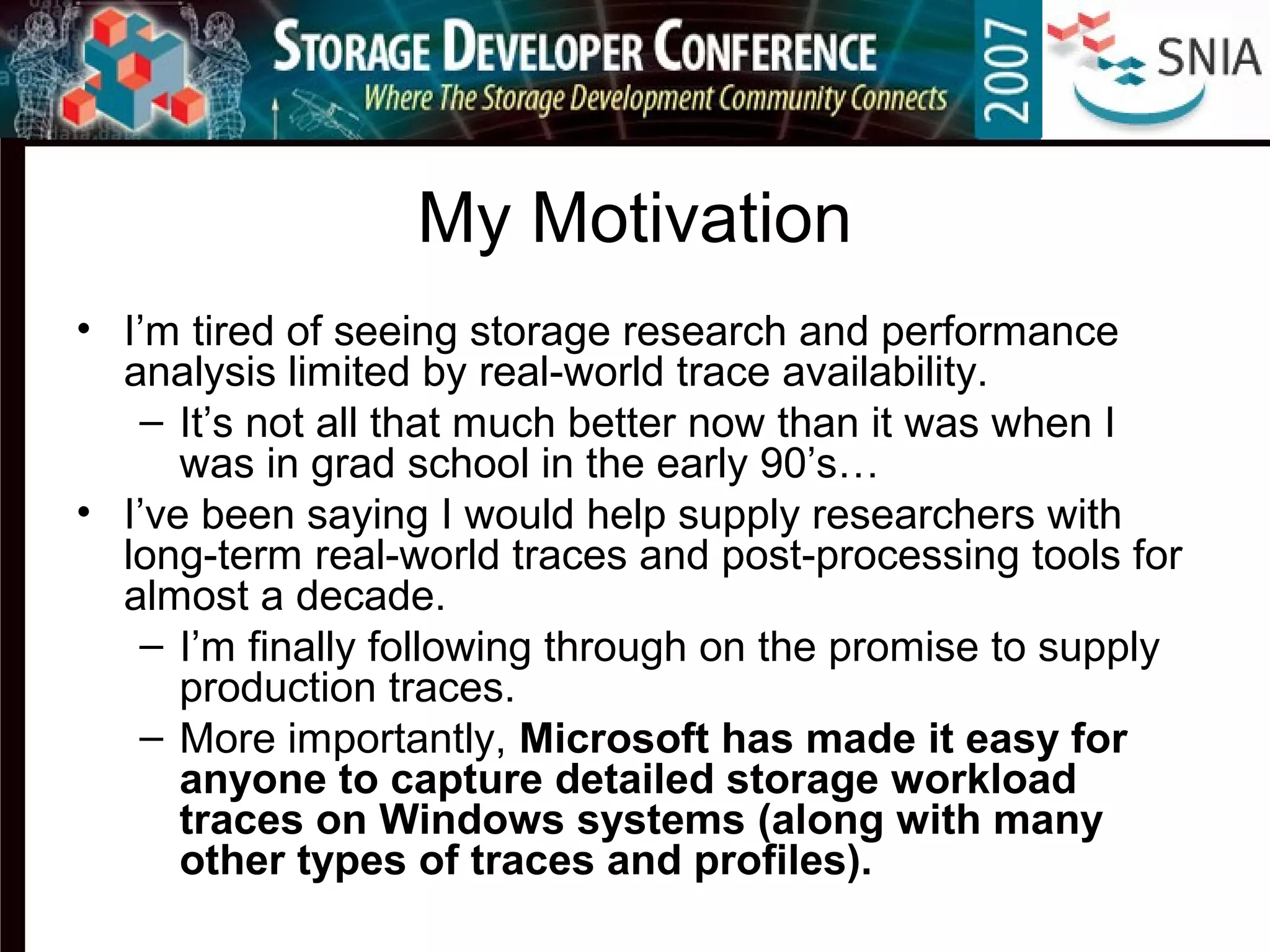
My Motivation
• I’m tired of seeing storage research and performance
analysis limited by real-world trace availability.
– It’s not all that much better now than it was when I
was in grad school in the early 90’s…
• I’ve been saying I would help supply researchers with
long-term real-world traces and post-processing tools for
almost a decade.
– I’m finally following through on the promise to supply
production traces.
– More importantly, Microsoft has made it easy for
anyone to capture detailed storage workload
traces on Windows systems (along with many
other types of traces and profiles).
Outline
• The tools
– Event Tracing for Windows (ETW)
– New: xperf, xperfinfo
– Old: logman, trace*
• The traces
– Benchmark (steady-state) workloads
– Production workloads
• The challenge
Event Tracing for Windows (ETW)
• ETW has been the core Windows tracing component
since Windows 2000 and is continually improved
• Many Windows components, including the kernel,
produce events describing their behavior
• Events from user-mode applications and kernel-mode
drivers can be logged
• High performance, low overhead, highly scalable
– Efficient buffering and non-blocking logging
mechanisms using per-processor buffers written to
disk by a separate thread
• Tracing can be enabled/disabled dynamically without
requiring system reboots or application restarts
Event Tracing for Windows (ETW)
• Events can be sample-based, but most are single-instance (event A
occurred at time T)
• Support for real-time consumption and file-based tracing
• Configurable logging mode, buffer size, buffer count
– Sequential traces
– Circular traces
– Circular traces in memory (flight black-box) [Vista]
• Adding custom events enables better correlation of application activity with
low-level resource usage
• On a standard Vista computer, the logging API (EventWrite) takes about
5,000 cycles, mostly spent in acquiring the timestamp via
QueryPerformanceCounter (QPC)
– About 2.5% processor overhead for a sustained rate of 10,000
events/second on a 2GHz processor – not including the cost of flushing
trace buffers to disk
• Postprocessing the binary disk log correlates events with context and
domain specific knowledge
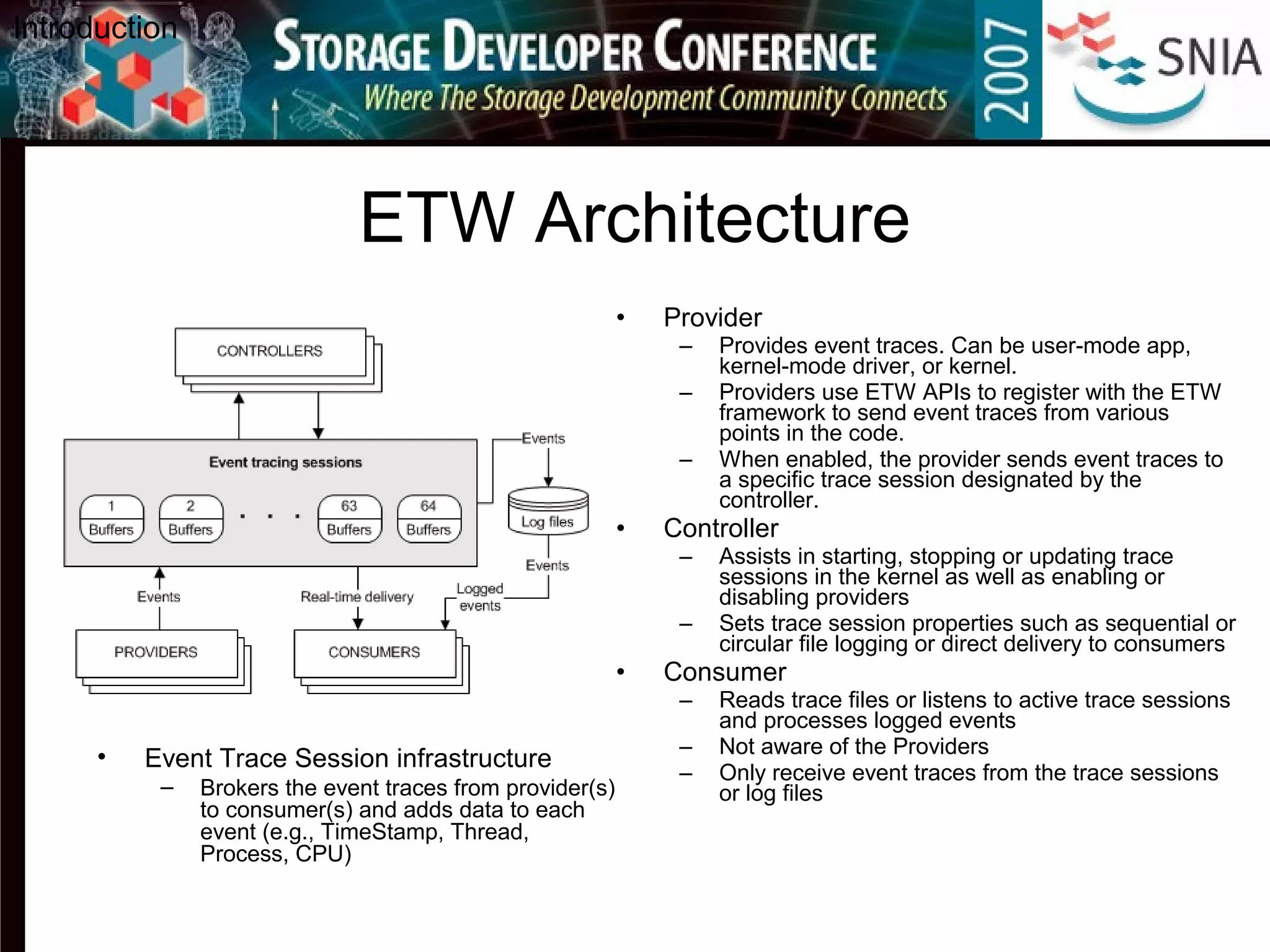
ETW Architecture
• Provider
– Provides event traces. Can be user-mode app,
kernel-mode driver, or kernel.
– Providers use ETW APIs to register with the ETW
framework to send event traces from various
points in the code.
– When enabled, the provider sends event traces to
a specific trace session designated by the
controller.
• Controller
– Assists in starting, stopping or updating trace
sessions in the kernel as well as enabling or
disabling providers
– Sets trace session properties such as sequential or
circular file logging or direct delivery to consumers
• Consumer
– Reads trace files or listens to active trace sessions
and processes logged events
– Not aware of the Providers
– Only receive event traces from the trace sessions
or log files
Introduction
• Event Trace Session infrastructure
– Brokers the event traces from provider(s)
to consumer(s) and adds data to each
event (e.g., TimeStamp, Thread,
Process, CPU)
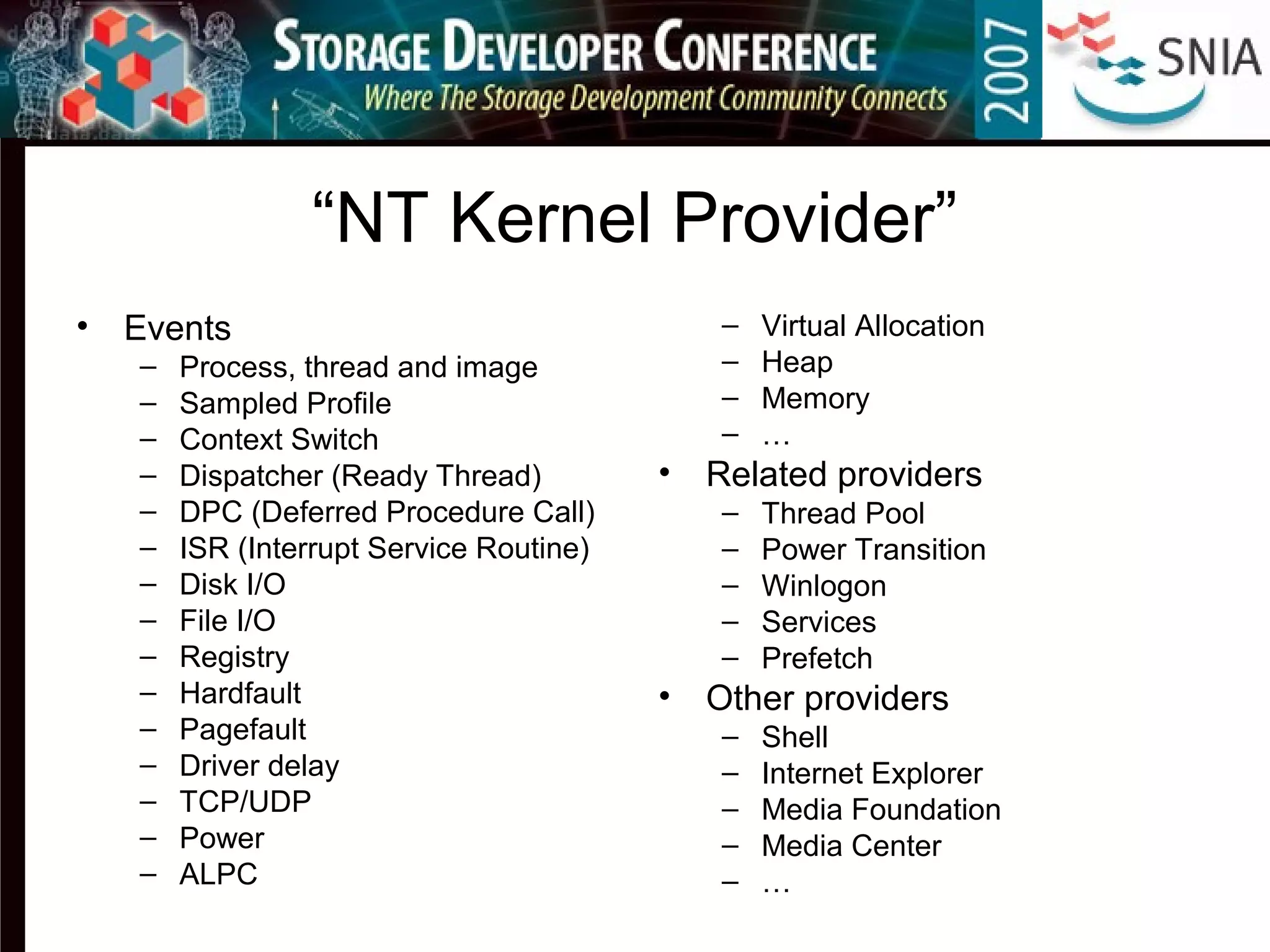
“NT Kernel Provider”
• Events
– Process, thread and image
– Sampled Profile
– Context Switch
– Dispatcher (Ready Thread)
– DPC (Deferred Procedure Call)
– ISR (Interrupt Service Routine)
– Disk I/O
– File I/O
– Registry
– Hardfault
– Pagefault
– Driver delay
– TCP/UDP
– Power
– ALPC
– Virtual Allocation
– Heap
– Memory
– …
• Related providers
– Thread Pool
– Power Transition
– Winlogon
– Services
– Prefetch
• Other providers
– Shell
– Internet Explorer
– Media Foundation
– Media Center
– …
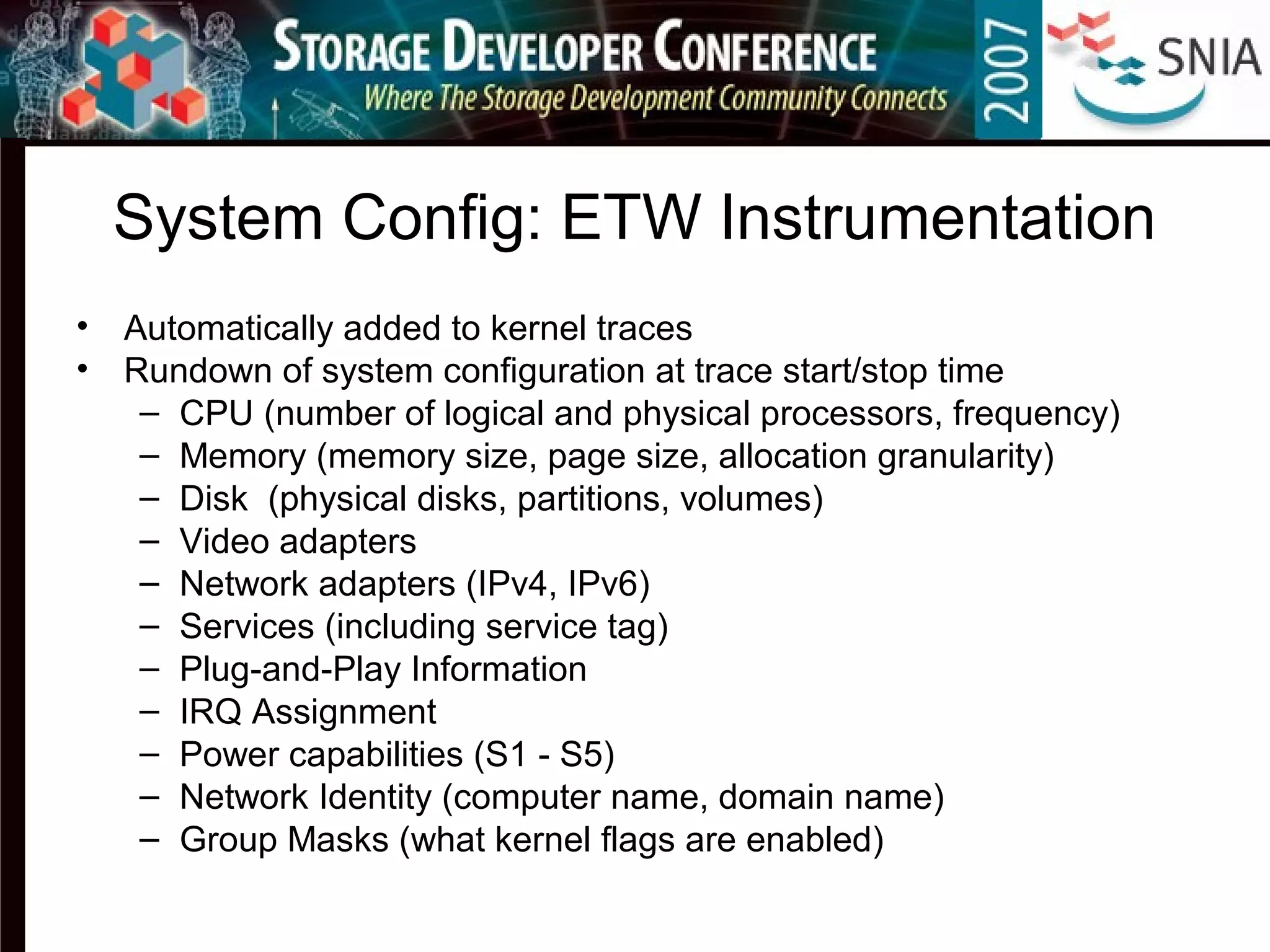
System Config: ETW Instrumentation
• Automatically added to kernel traces
• Rundown of system configuration at trace start/stop time
– CPU (number of logical and physical processors, frequency)
– Memory (memory size, page size, allocation granularity)
– Disk (physical disks, partitions, volumes)
– Video adapters
– Network adapters (IPv4, IPv6)
– Services (including service tag)
– Plug-and-Play Information
– IRQ Assignment
– Power capabilities (S1 - S5)
– Network Identity (computer name, domain name)
– Group Masks (what kernel flags are enabled)
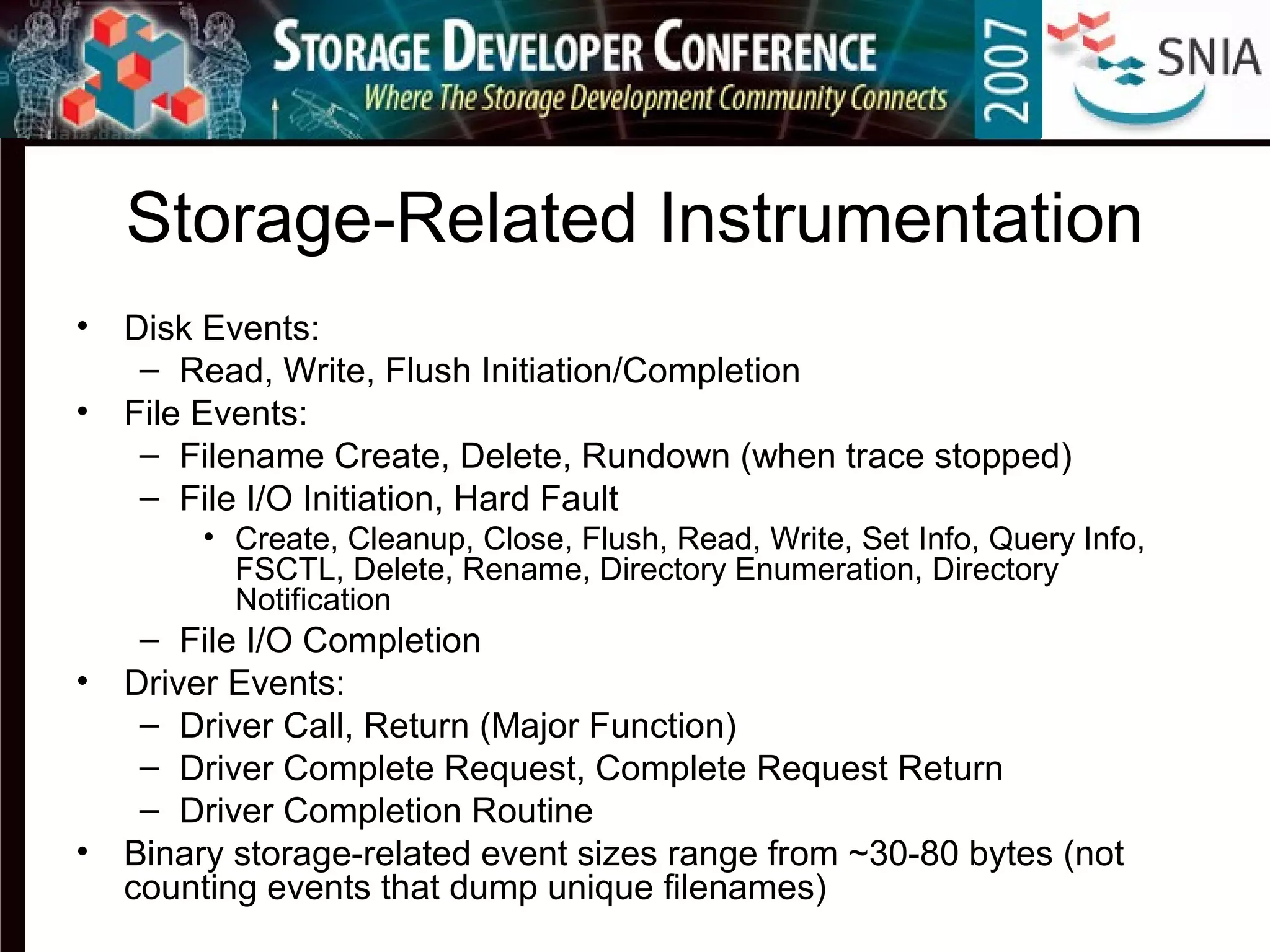
Storage-Related Instrumentation
• Disk Events:
– Read, Write, Flush Initiation/Completion
• File Events:
– Filename Create, Delete, Rundown (when trace stopped)
– File I/O Initiation, Hard Fault
• Create, Cleanup, Close, Flush, Read, Write, Set Info, Query Info,
FSCTL, Delete, Rename, Directory Enumeration, Directory
Notification
– File I/O Completion
• Driver Events:
– Driver Call, Return (Major Function)
– Driver Complete Request, Complete Request Return
– Driver Completion Routine
• Binary storage-related event sizes range from ~30-80 bytes (not
counting events that dump unique filenames)
The new tools: xperf & xperfinfo
• Extensible performance analysis toolset
• High-level control and decoding of ETW traces
– Emphasis on kernel events and system-wide
resource usage
– Support for 3rd
-party events, primarily in
conjunction with kernel events
• Cross-platform
– Windows XP SP1+, Vista
– Windows Server 2003, Windows Server 2008
• Cross-architecture (x86, x64, ia64)
• Capture-anywhere, process-anywhere
xperf
• Detailed interactive analysis of performance
traces
• High-level resource usage graphs on common
trace timeline with zoom capability
• Low-level discrete graphs for resource state
transitions
– Individual context switch and disk I/O events
• Powerful interactive summary tables with
dynamic grouping, sorting and aggregation
capability
Currently Available Graphs and
Summary Tables
– Disk I/O Counts
– Disk I/O Detail
– Disk Utilization
– File I/O
– DPC (Deferred
Procedure Call)
– ISR (Interrupt Service
Routine)
– Hardfault
– Pagefault
– Driver Delay
– Sample Profile
– CPU Availability
– CPU Scheduling
– Process Lifetime
– Registry counts
– Services
– Plug ’n’ Play
– Marks
– Generic
– …
Overview of xperf
Storage Activity Notes
• Disk Reads, Writes and Flushes
– Vista introduced low-priority I/Os, which are deferred in a special queue
to allow current and near-term future normal priority I/Os to complete
– Flushes may be “completed” by low-level storage drivers under certain
conditions
• Hard Faults
– Synchronous I/Os that block execution of issuing thread
– Paging-in from disk pages not currently present in memory
• Communication aspect: System read-ahead and write-back
– Asynchronous just-in-time prefetch for sequentially read buffered files
– Asynchronous buffered writes
– Issued from “System (4)” process
• xperf & xperfinfo infer disk “queue” parameters (wait time, service time,
queue depths, skip behavior) assuming a single serialized spindle
– not a valid assumption for disk arrays
– Queue depth can be thought of as “number of requests in flight”
xperf Demo
• System Config
• CPU
• DPC & ISR
• Process
• Disk Summary Table
• Disk I/O Detail
• Disk I/O Detail Summary
• Hard Faults
Sample xperf Screenshots
• Sidebar chart selection
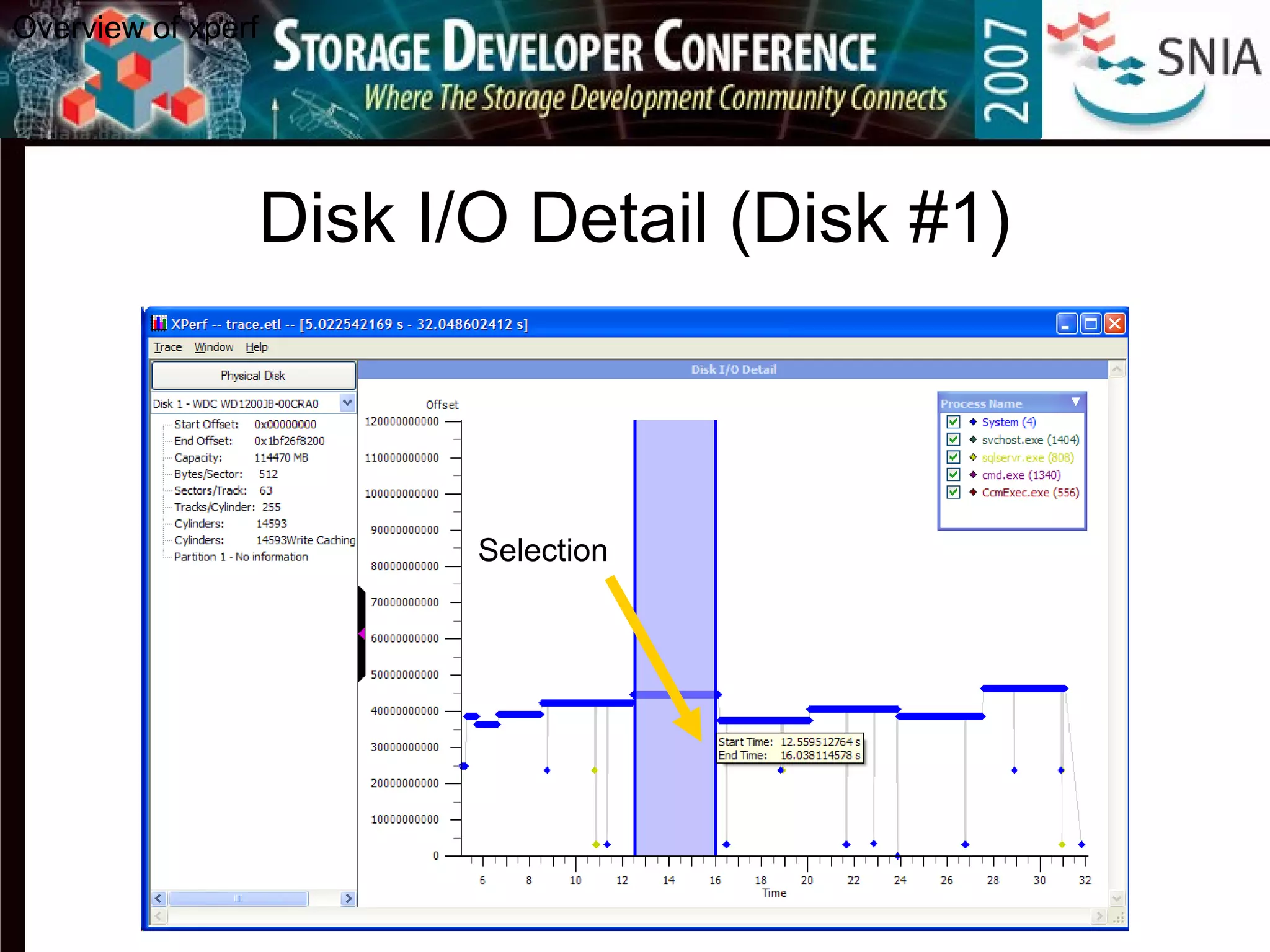
• Selecting a time range
• CPU Usage Summary Table
• DPC and ISR CPU Usage Frames
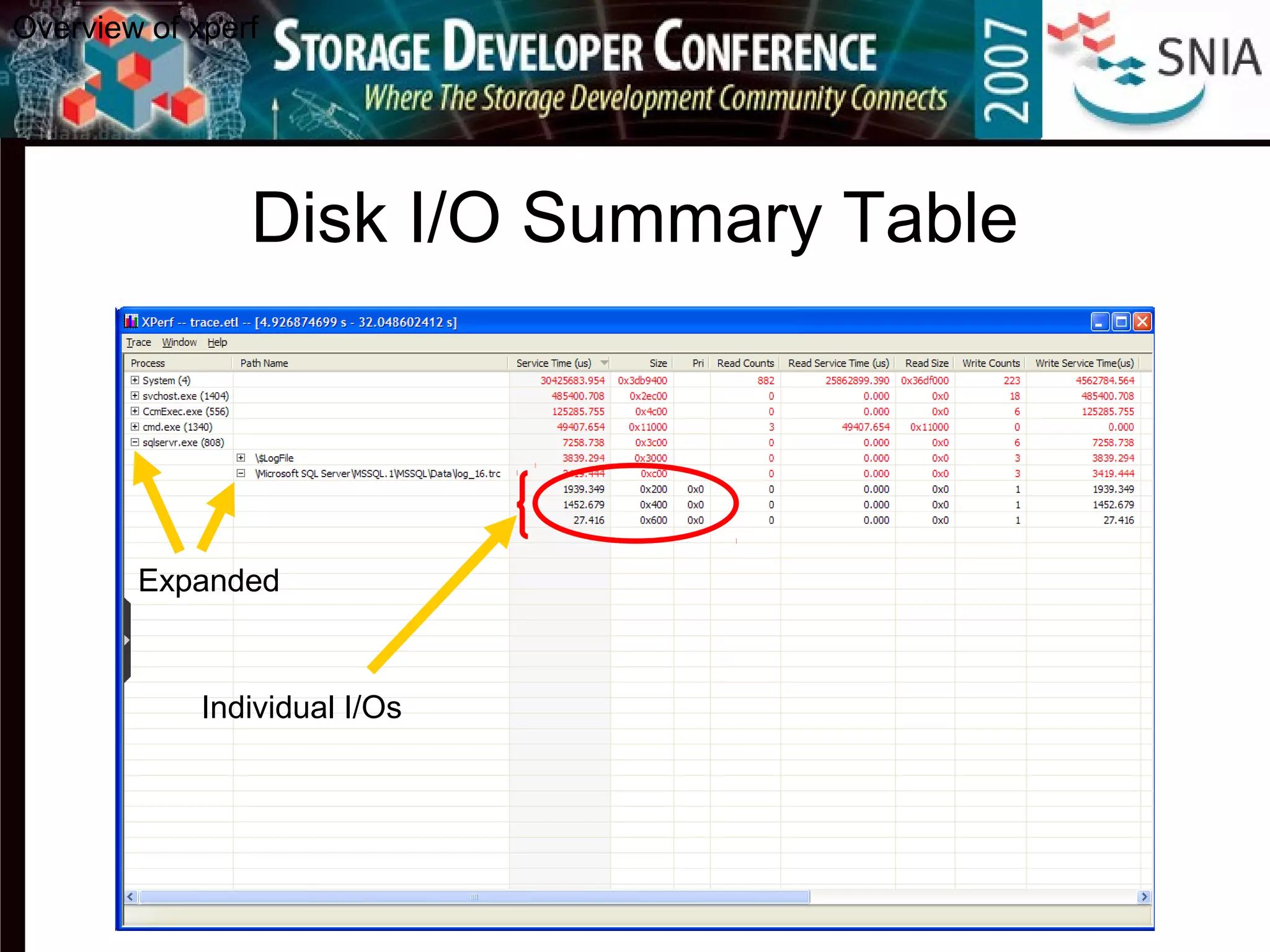
• Disk I/O Summary Table
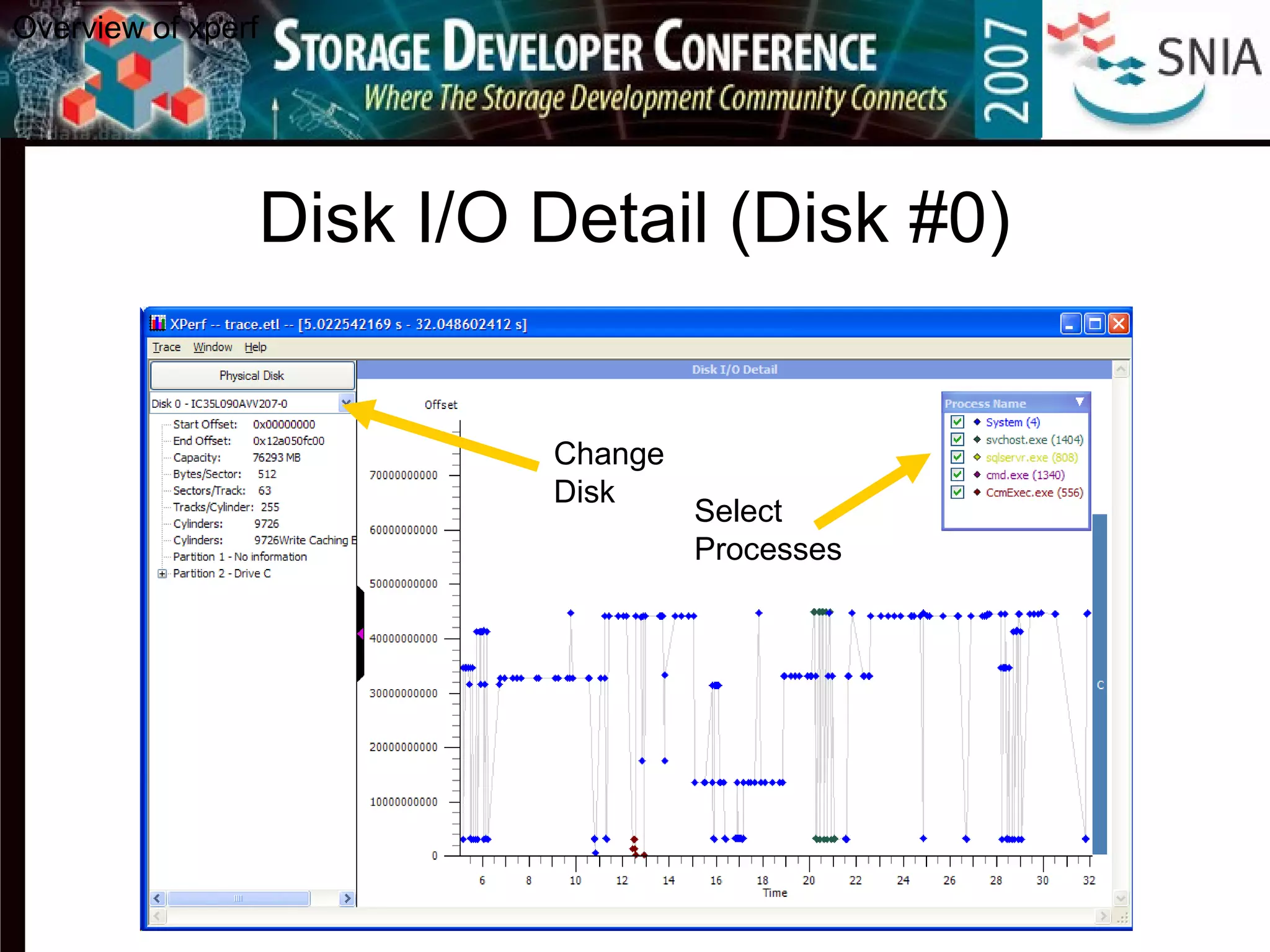
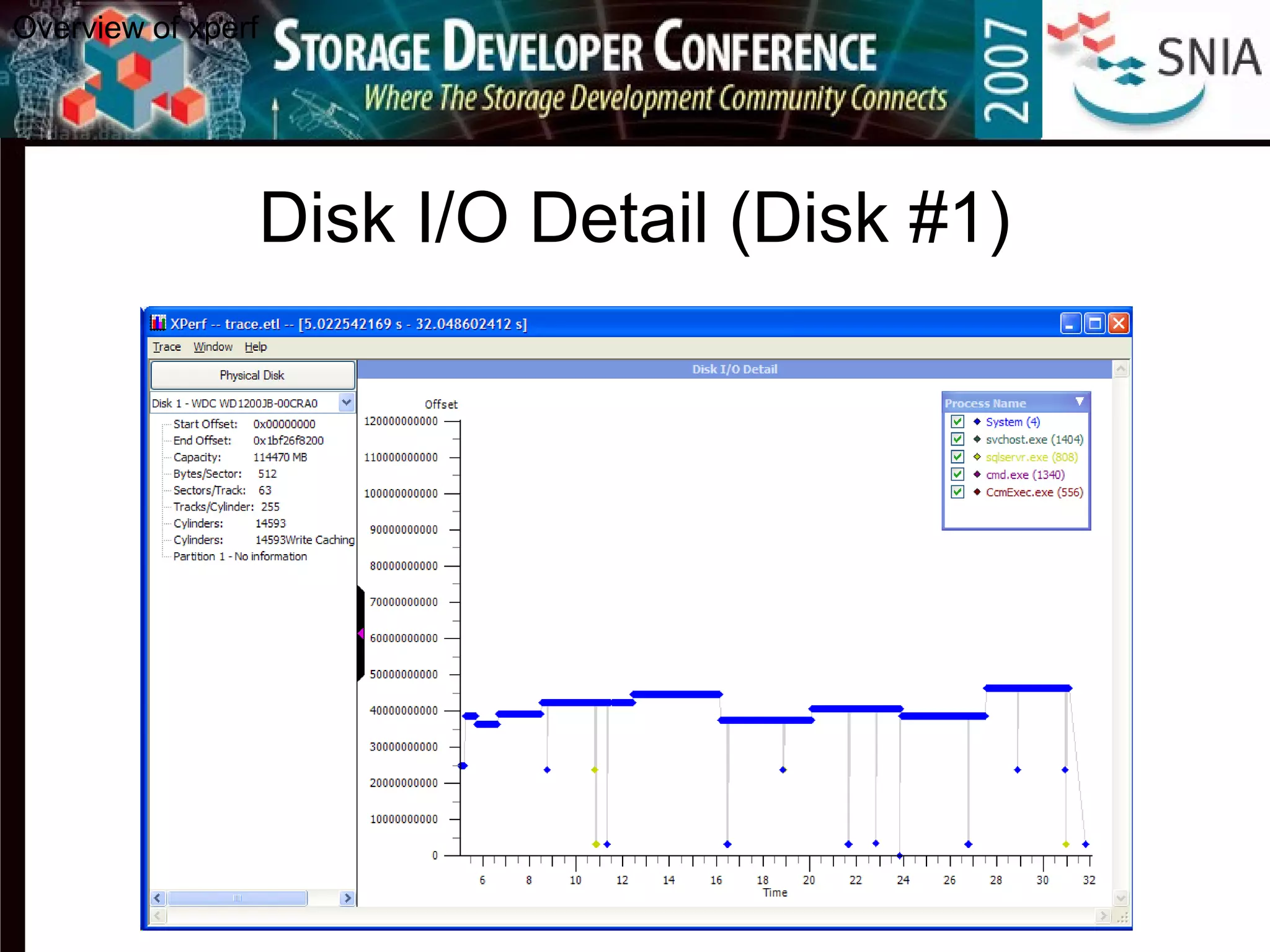
• Disk I/O Detail
• Disk I/O Detail Summary Table
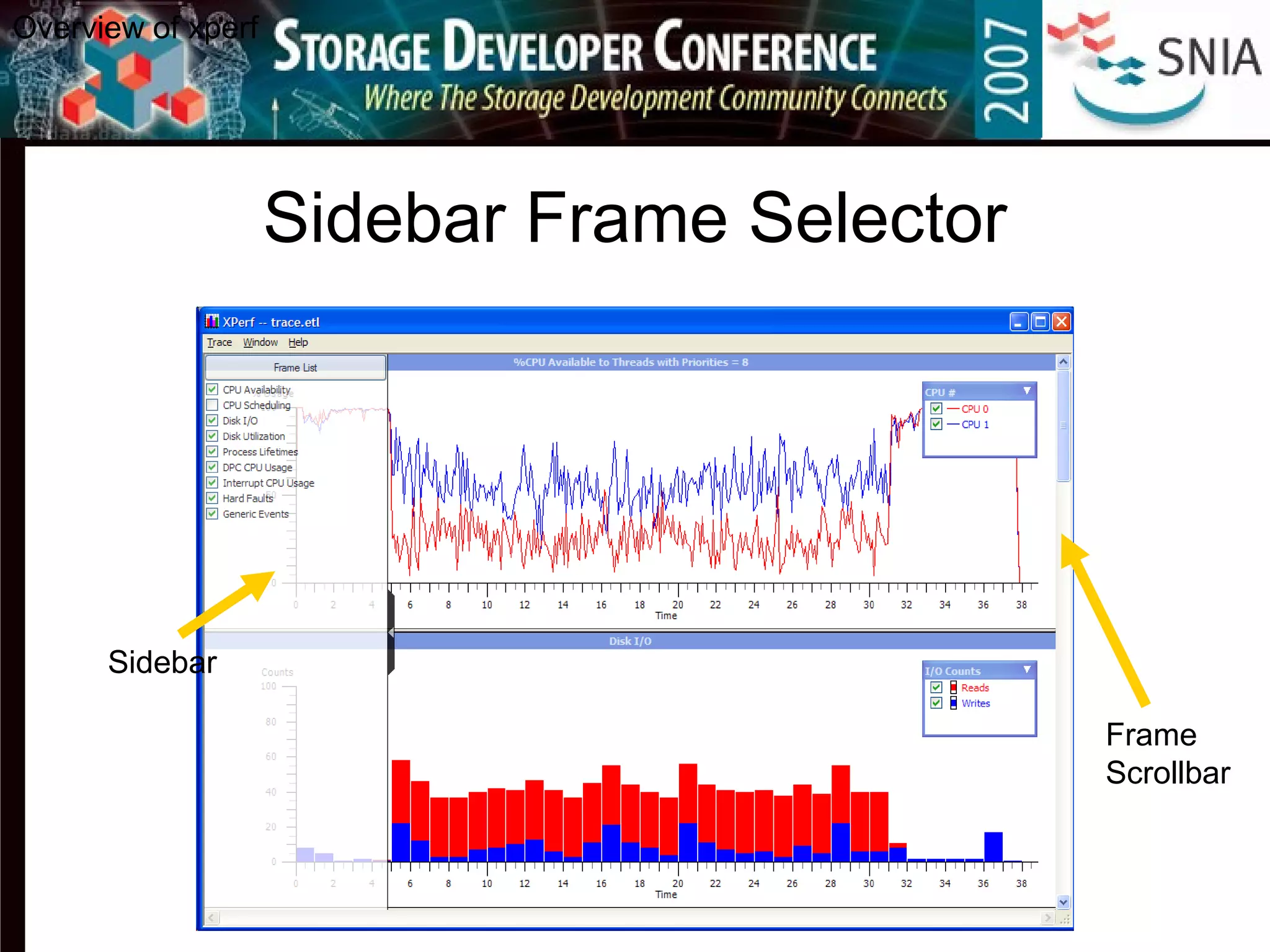
Sidebar Frame Selector
Sidebar
Overview of xperf
Frame
Scrollbar
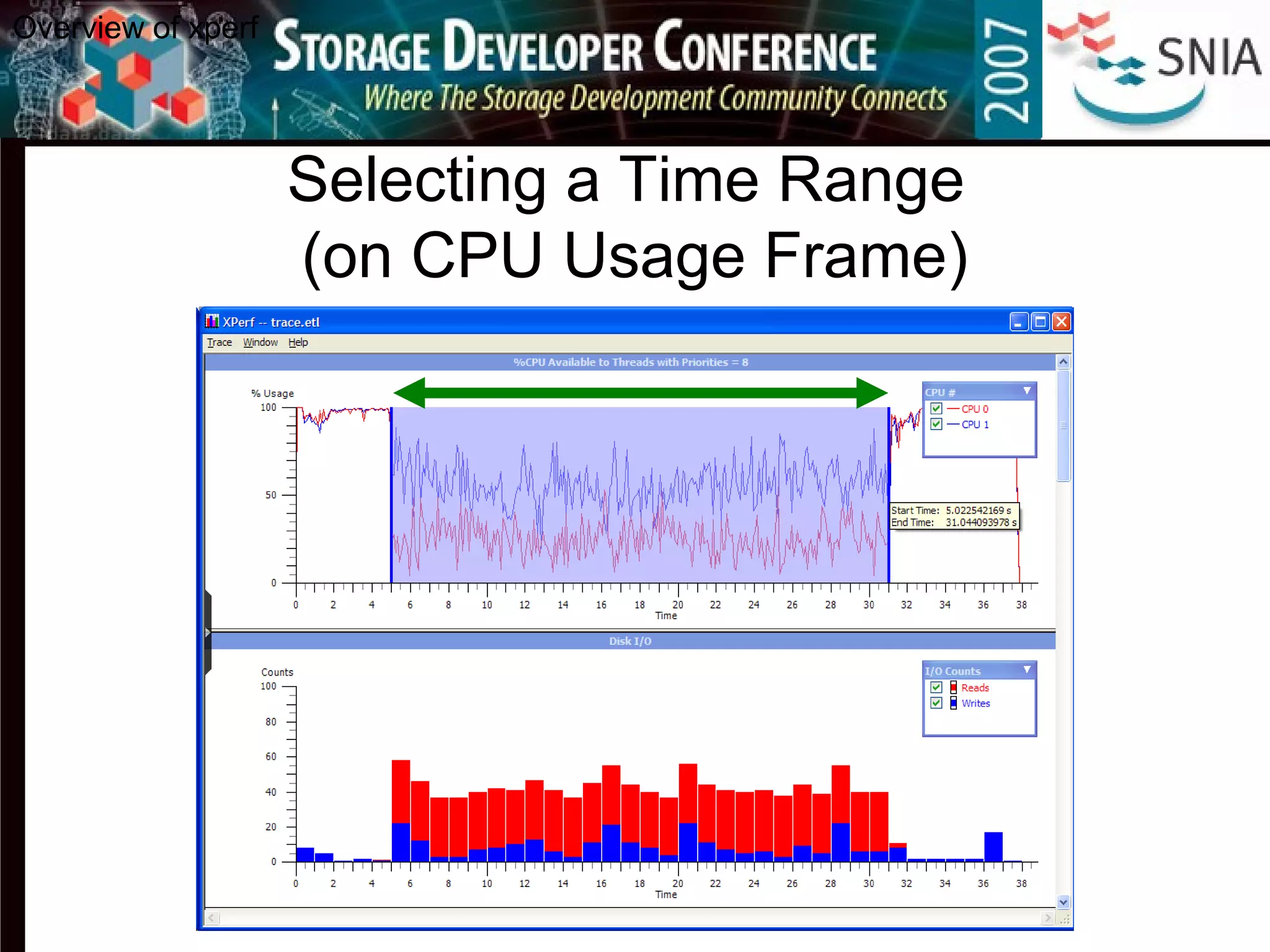
Selecting a Time Range
(on CPU Usage Frame)
Overview of xperf
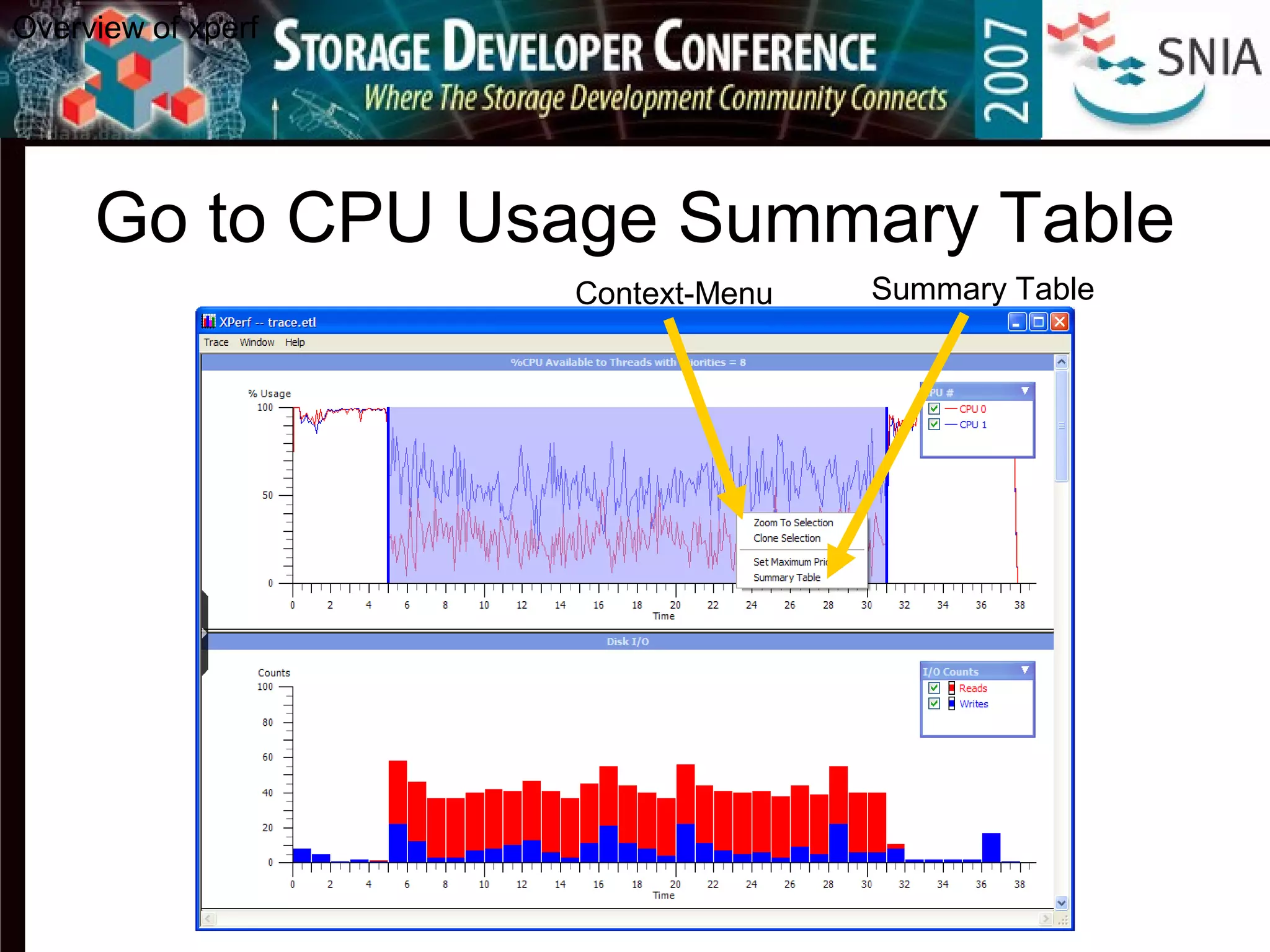
Go to CPU Usage Summary Table
Context-Menu Summary Table
Overview of xperf
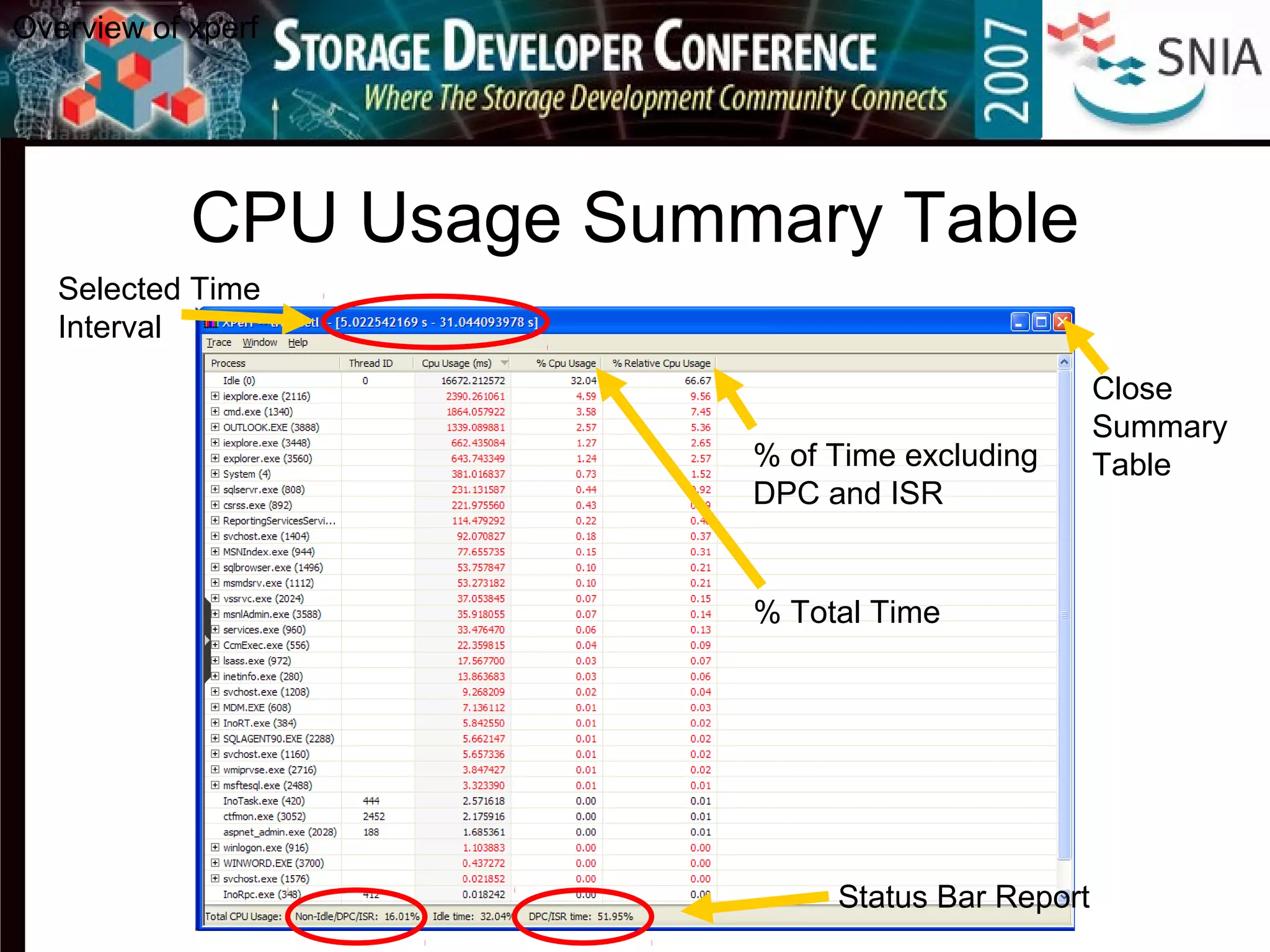
CPU Usage Summary Table
Status Bar Report
% of Time excluding
DPC and ISR
% Total Time
Selected Time
Interval
Close
Summary
Table
Overview of xperf
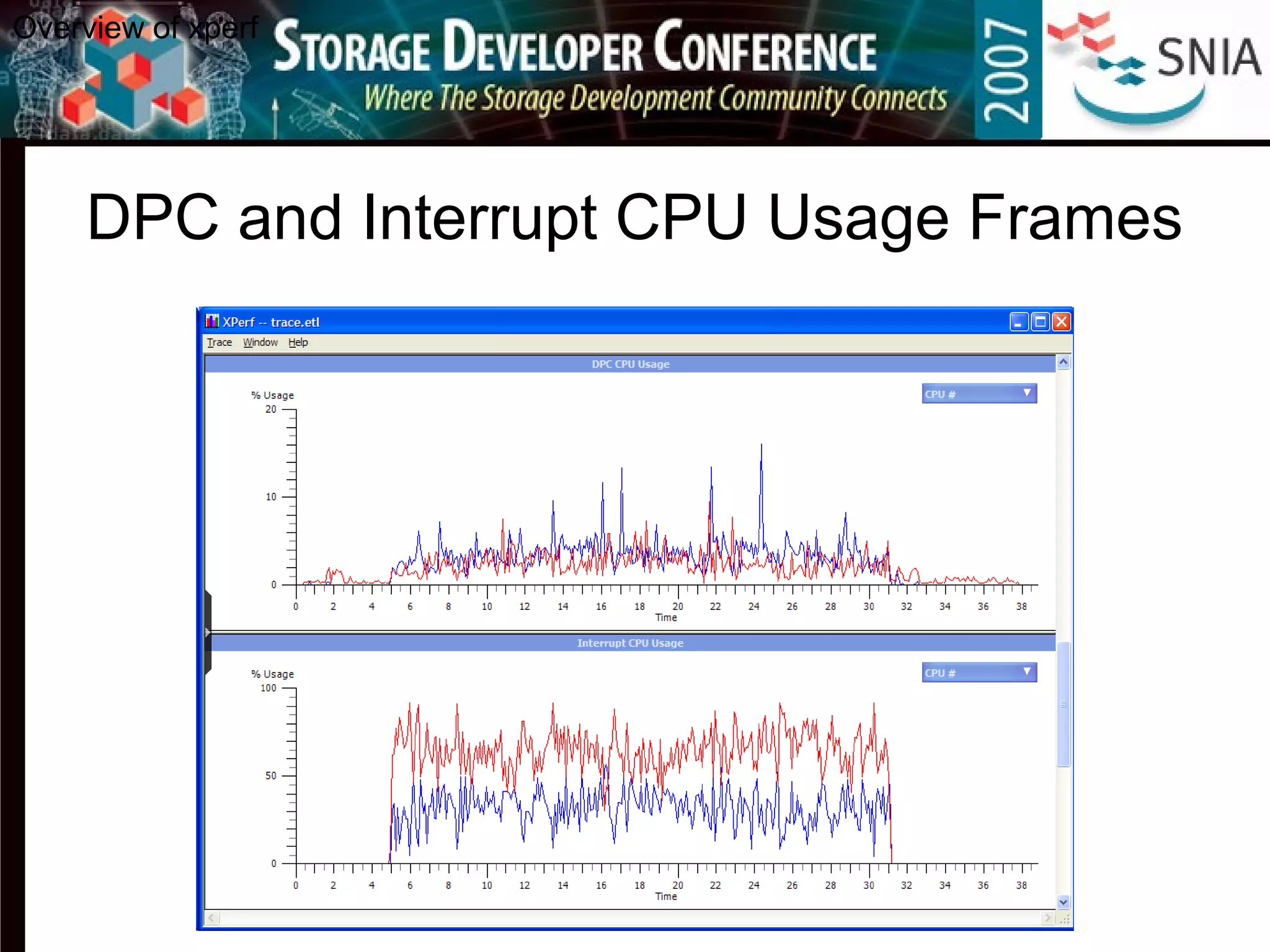
DPC and Interrupt CPU Usage Frames
Overview of xperf
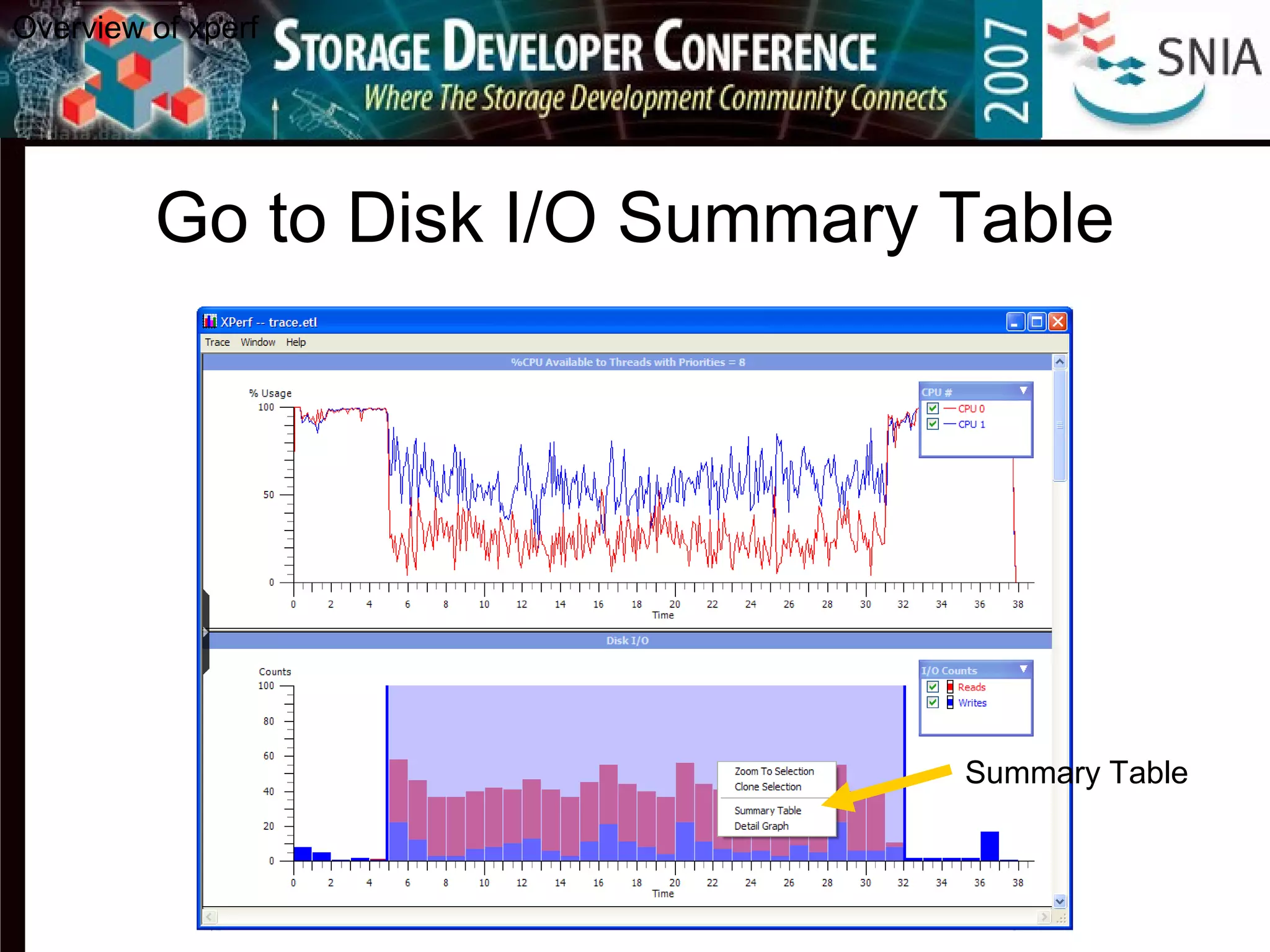
Go to Disk I/O Summary Table
Summary Table
Overview of xperf
Disk I/O Summary Table
Expanded
Individual I/Os
Overview of xperf
Go to Disk I/O Detail
Detail
Graph
Overview of xperf
Disk I/O Detail (Disk #0)
Overview of xperf
Change
Disk
Select
Processes
Disk I/O Detail (Disk #1)
Overview of xperf
Disk I/O Detail (Disk #1)
Selection
Overview of xperf
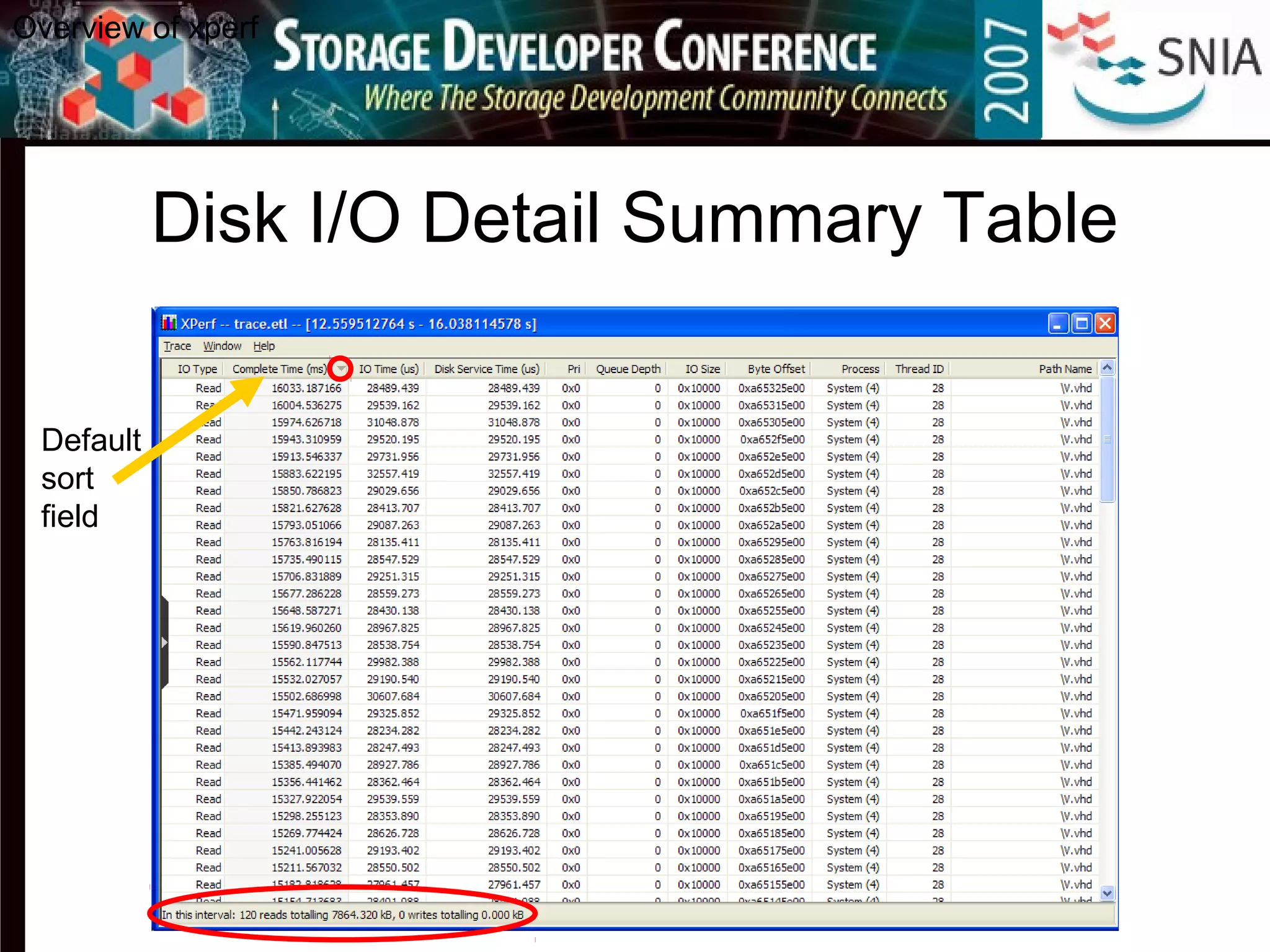
Disk I/O Detail Summary Table
Default
sort
field
Overview of xperf
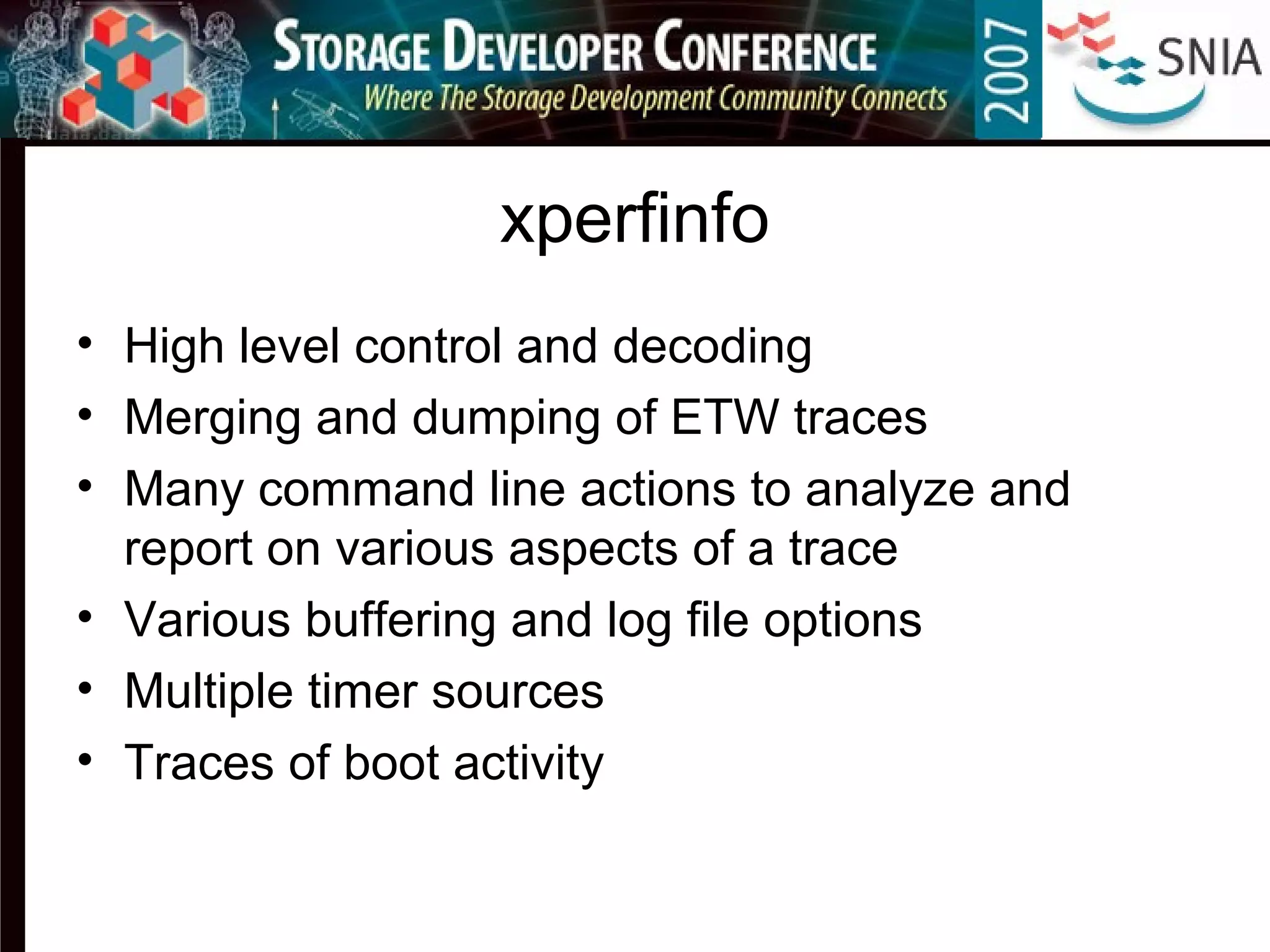
xperfinfo
• High level control and decoding
• Merging and dumping of ETW traces
• Many command line actions to analyze and
report on various aspects of a trace
• Various buffering and log file options
• Multiple timer sources
• Traces of boot activity
xperfinfo Demo
• Start/stop
• Provider list
• Dump
• Postprocessing summaries
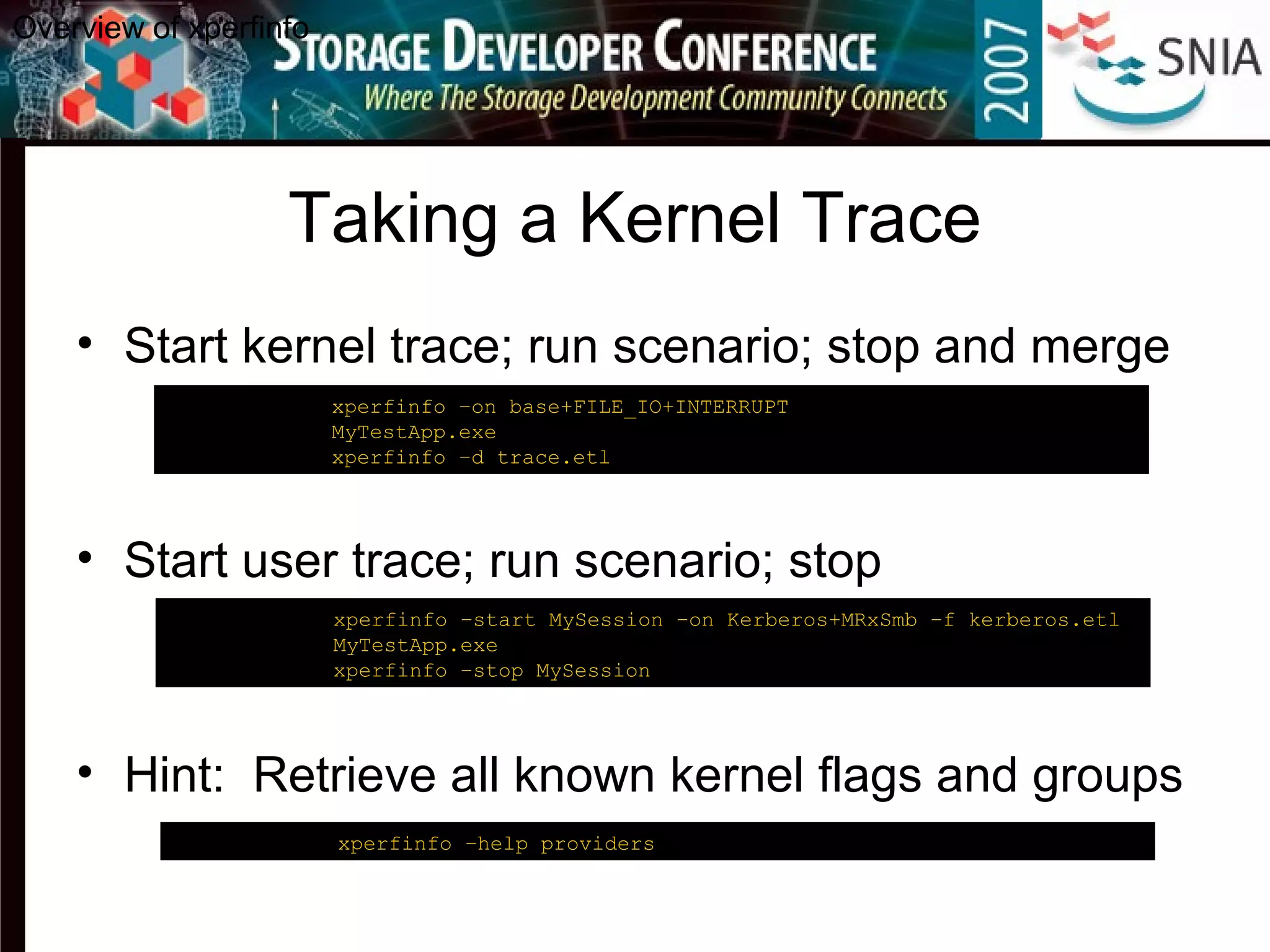
Taking a Kernel Trace
• Start kernel trace; run scenario; stop and merge
• Start user trace; run scenario; stop
• Hint: Retrieve all known kernel flags and groups
Overview of xperfinfo
C:analysis> xperfinfo –on base+FILE_IO+INTERRUPT
C:analysis> MyTestApp.exe
C:analysis> xperfinfo –d trace.etl
C:analysis> xperfinfo –help providers
C:analysis> xperfinfo –start MySession –on Kerberos+MRxSmb –f kerberos.etl
C:analysis> MyTestApp.exe
C:analysis> xperfinfo –stop MySession
Dumping a Trace
Overview of xperfinfo
C:analysis> xperfinfo -i trace.etl –o trace.txt
[1/2] 100.0%
[2/2] 100.0%
C:analysis> notepad trace.txt
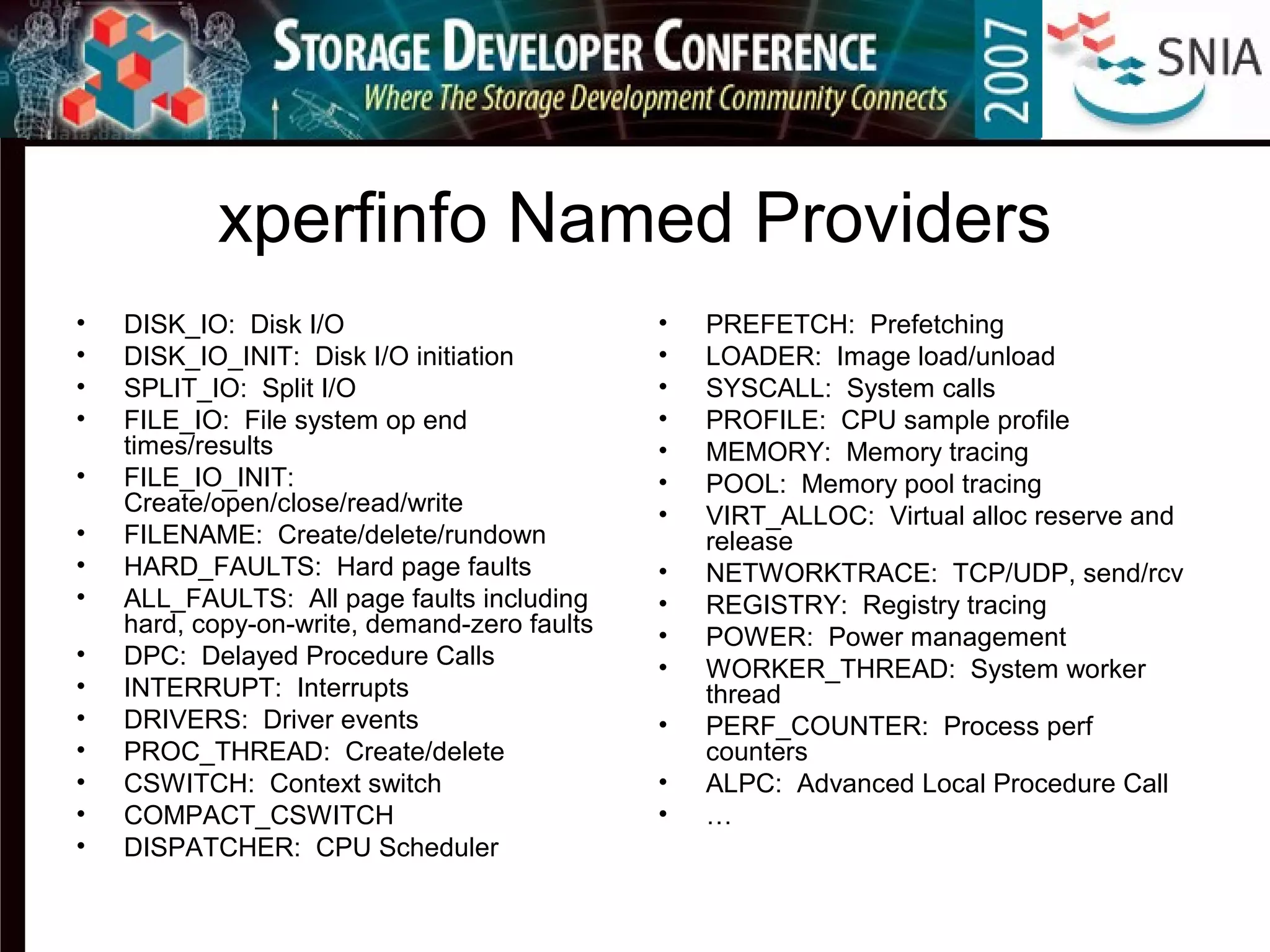
xperfinfo Named Providers
• DISK_IO: Disk I/O
• DISK_IO_INIT: Disk I/O initiation
• SPLIT_IO: Split I/O
• FILE_IO: File system op end
times/results
• FILE_IO_INIT:
Create/open/close/read/write
• FILENAME: Create/delete/rundown
• HARD_FAULTS: Hard page faults
• ALL_FAULTS: All page faults including
hard, copy-on-write, demand-zero faults
• DPC: Delayed Procedure Calls
• INTERRUPT: Interrupts
• DRIVERS: Driver events
• PROC_THREAD: Create/delete
• CSWITCH: Context switch
• COMPACT_CSWITCH
• DISPATCHER: CPU Scheduler
• PREFETCH: Prefetching
• LOADER: Image load/unload
• SYSCALL: System calls
• PROFILE: CPU sample profile
• MEMORY: Memory tracing
• POOL: Memory pool tracing
• VIRT_ALLOC: Virtual alloc reserve and
release
• NETWORKTRACE: TCP/UDP, send/rcv
• REGISTRY: Registry tracing
• POWER: Power management
• WORKER_THREAD: System worker
thread
• PERF_COUNTER: Process perf
counters
• ALPC: Advanced Local Procedure Call
• …
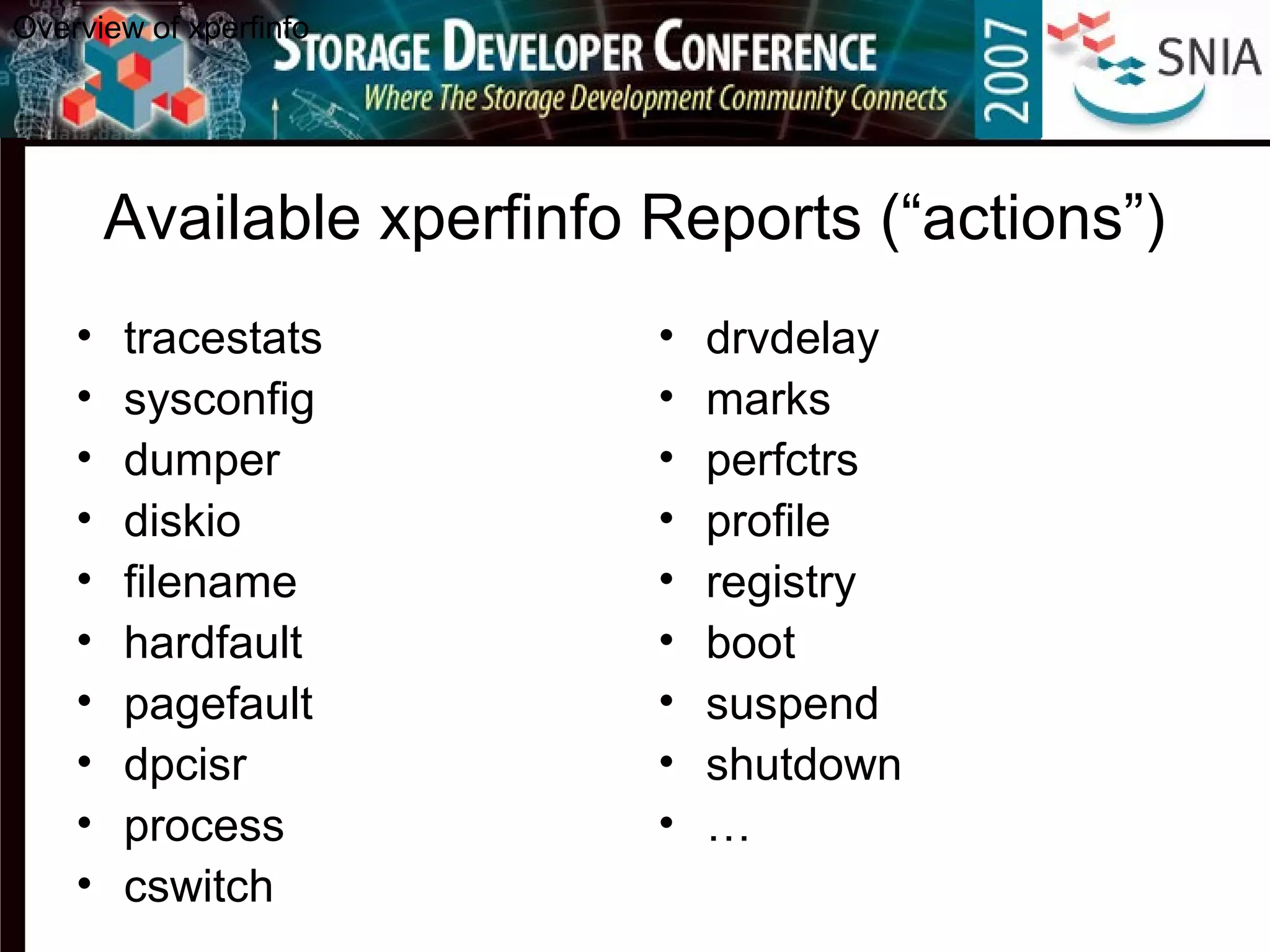
Available xperfinfo Reports (“actions”)
• tracestats
• sysconfig
• dumper
• diskio
• filename
• hardfault
• pagefault
• dpcisr
• process
• cswitch
• drvdelay
• marks
• perfctrs
• profile
• registry
• boot
• suspend
• shutdown
• …
Overview of xperfinfo
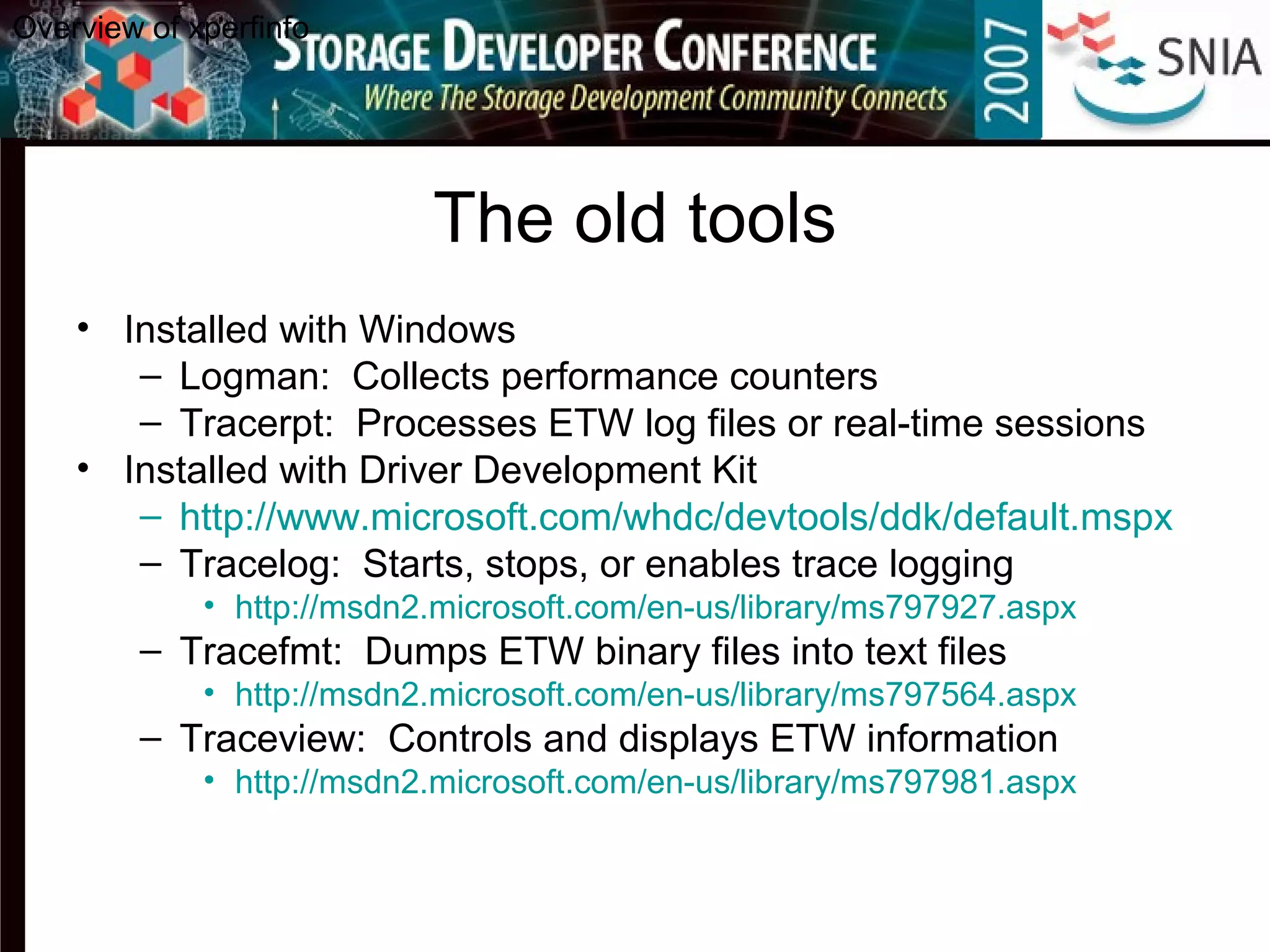
The old tools
• Installed with Windows
– Logman: Collects performance counters
– Tracerpt: Processes ETW log files or real-time sessions
• Installed with Driver Development Kit
– http://www.microsoft.com/whdc/devtools/ddk/default.mspx
– Tracelog: Starts, stops, or enables trace logging
• http://msdn2.microsoft.com/en-us/library/ms797927.aspx
– Tracefmt: Dumps ETW binary files into text files
• http://msdn2.microsoft.com/en-us/library/ms797564.aspx
– Traceview: Controls and displays ETW information
• http://msdn2.microsoft.com/en-us/library/ms797981.aspx
Overview of xperfinfo
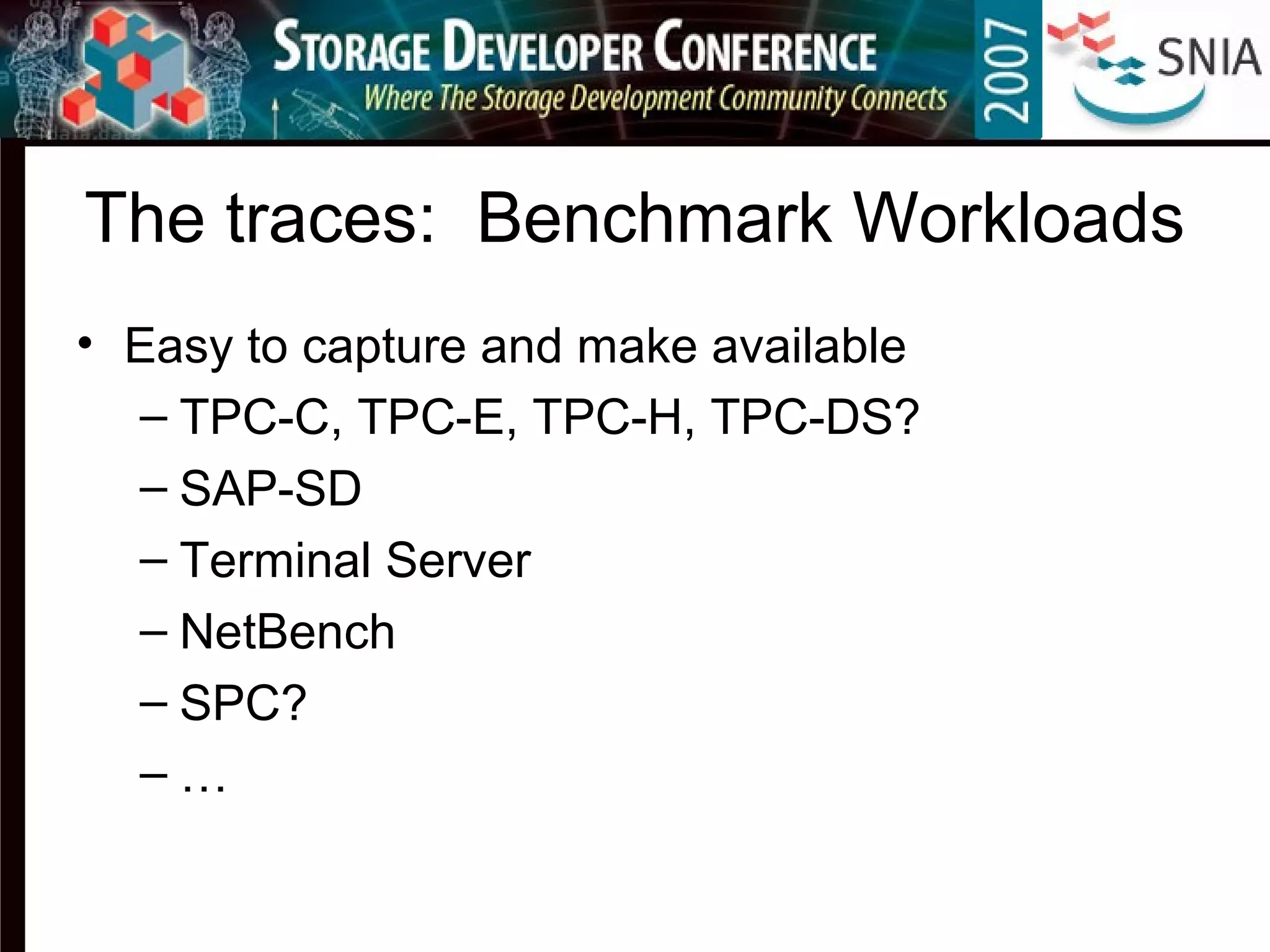
The traces: Benchmark Workloads
• Easy to capture and make available
– TPC-C, TPC-E, TPC-H, TPC-DS?
– SAP-SD
– Terminal Server
– NetBench
– SPC?
– …
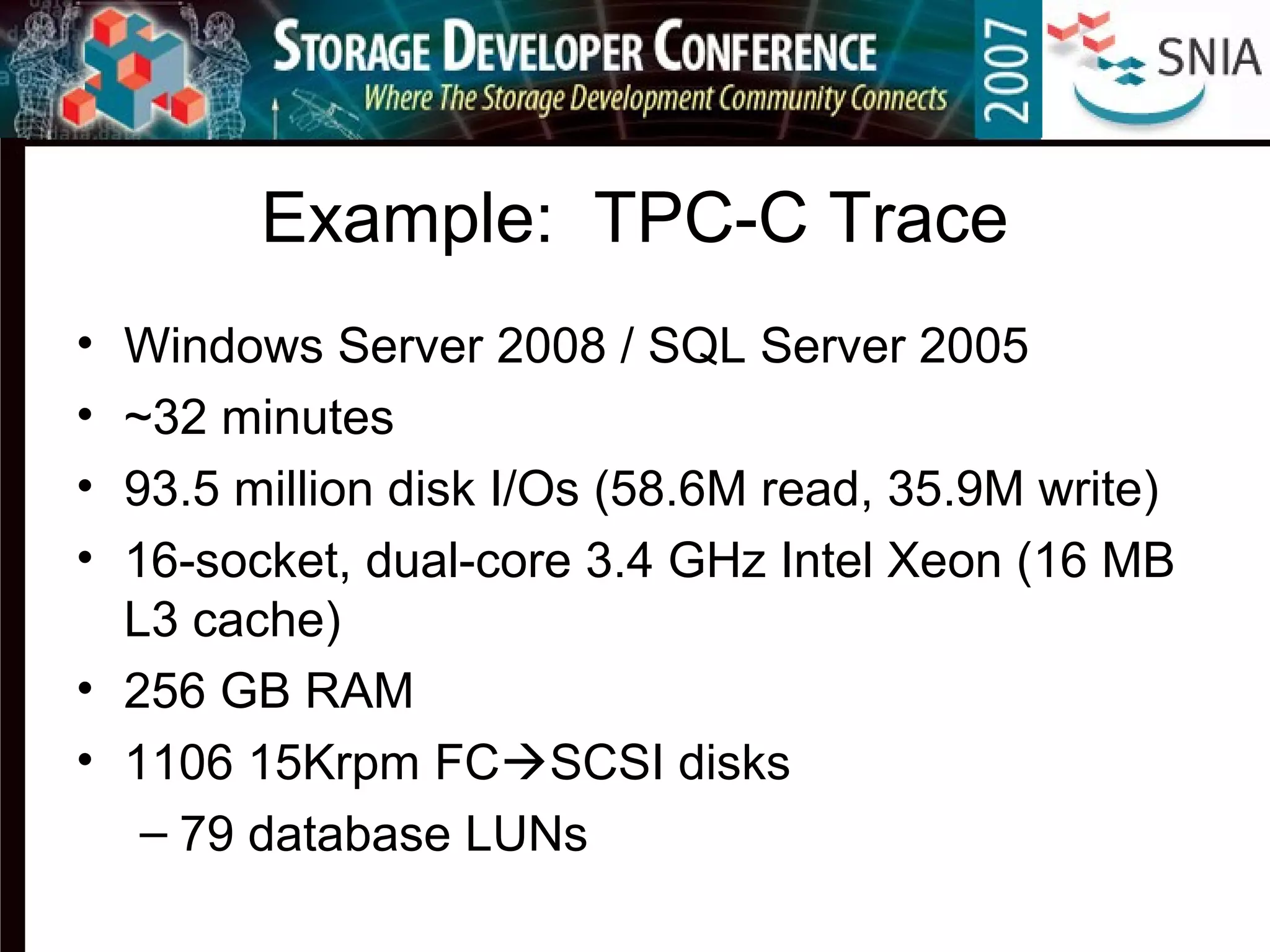
Example: TPC-C Trace
• Windows Server 2008 / SQL Server 2005
• ~32 minutes
• 93.5 million disk I/Os (58.6M read, 35.9M write)
• 16-socket, dual-core 3.4 GHz Intel Xeon (16 MB
L3 cache)
• 256 GB RAM
• 1106 15Krpm FCSCSI disks
– 79 database LUNs
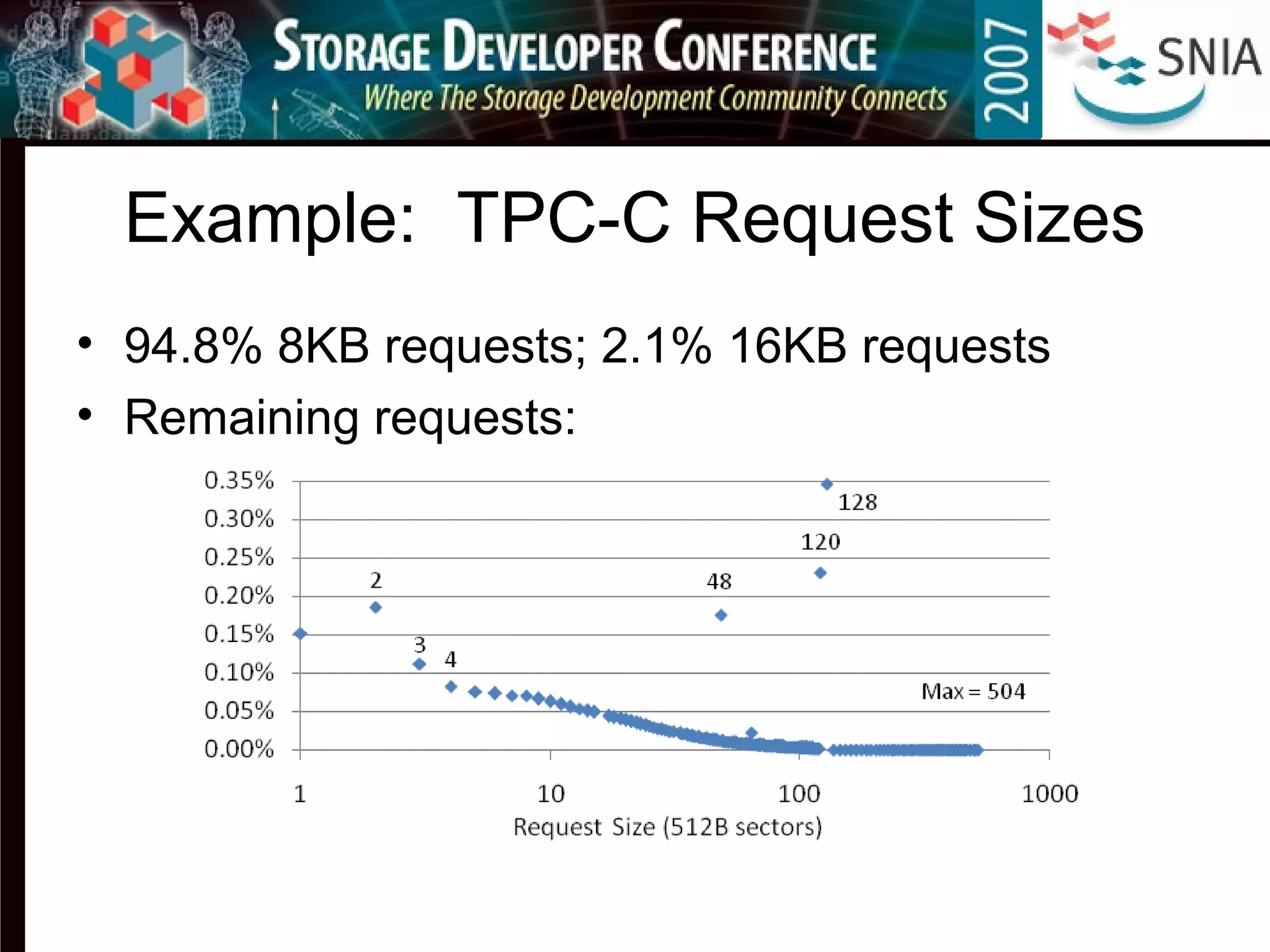
Example: TPC-C Request Sizes
• 94.8% 8KB requests; 2.1% 16KB requests
• Remaining requests:
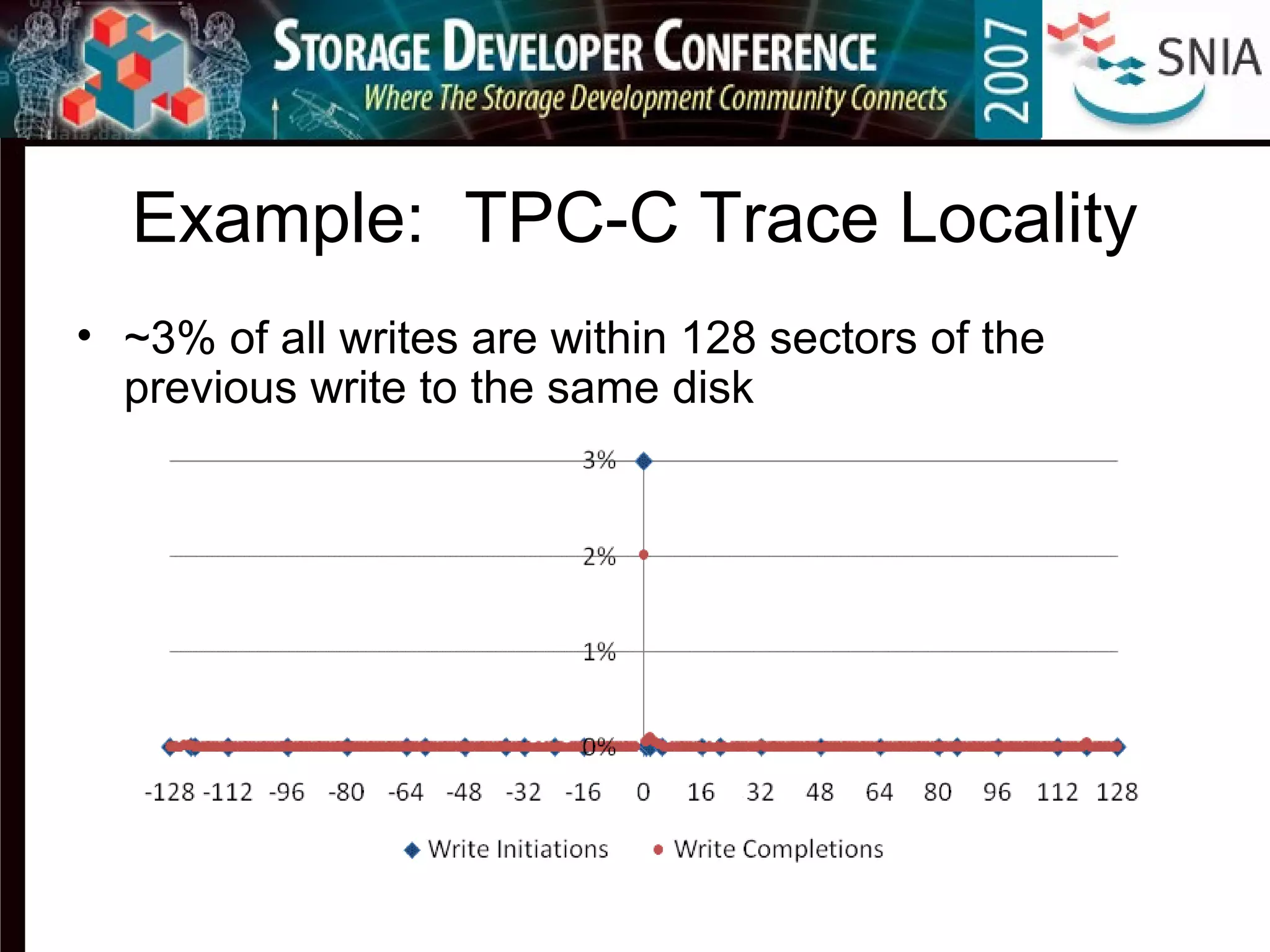
Example: TPC-C Trace Locality
• ~3% of all writes are within 128 sectors of the
previous write to the same disk
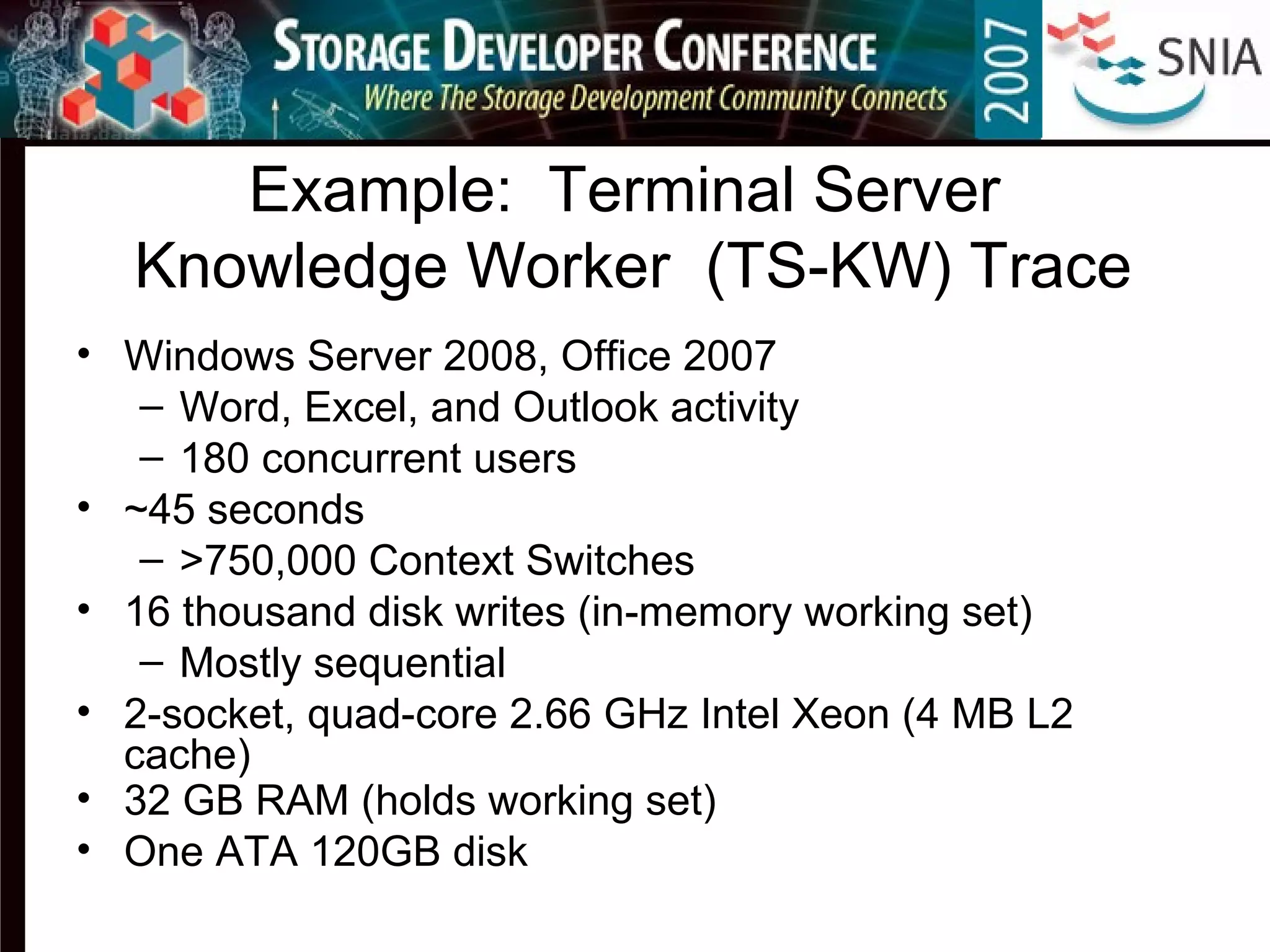
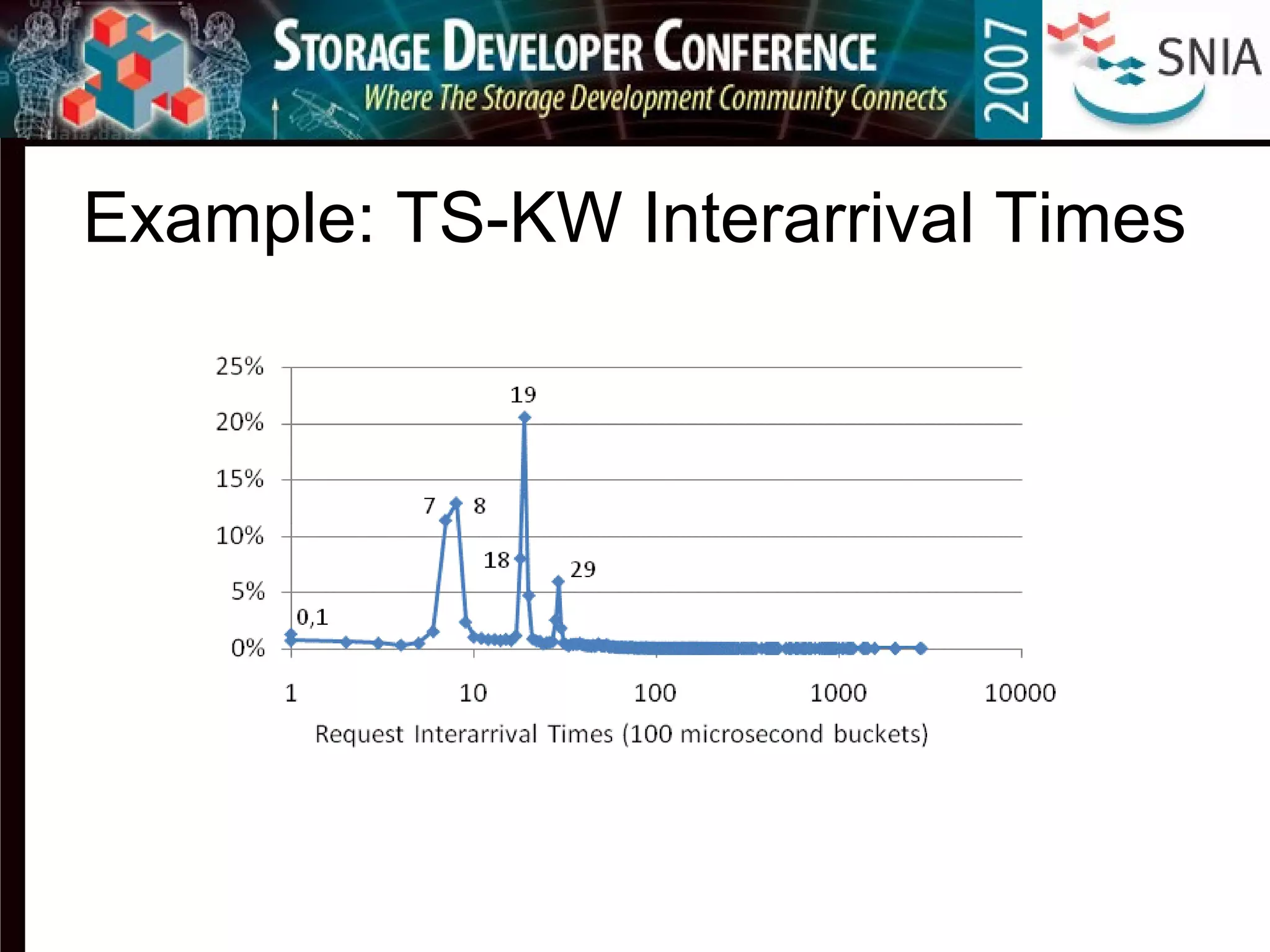
Example: Terminal Server
Knowledge Worker (TS-KW) Trace
• Windows Server 2008, Office 2007
– Word, Excel, and Outlook activity
– 180 concurrent users
• ~45 seconds
– >750,000 Context Switches
• 16 thousand disk writes (in-memory working set)
– Mostly sequential
• 2-socket, quad-core 2.66 GHz Intel Xeon (4 MB L2
cache)
• 32 GB RAM (holds working set)
• One ATA 120GB disk
Example: TS-KW Interarrival Times
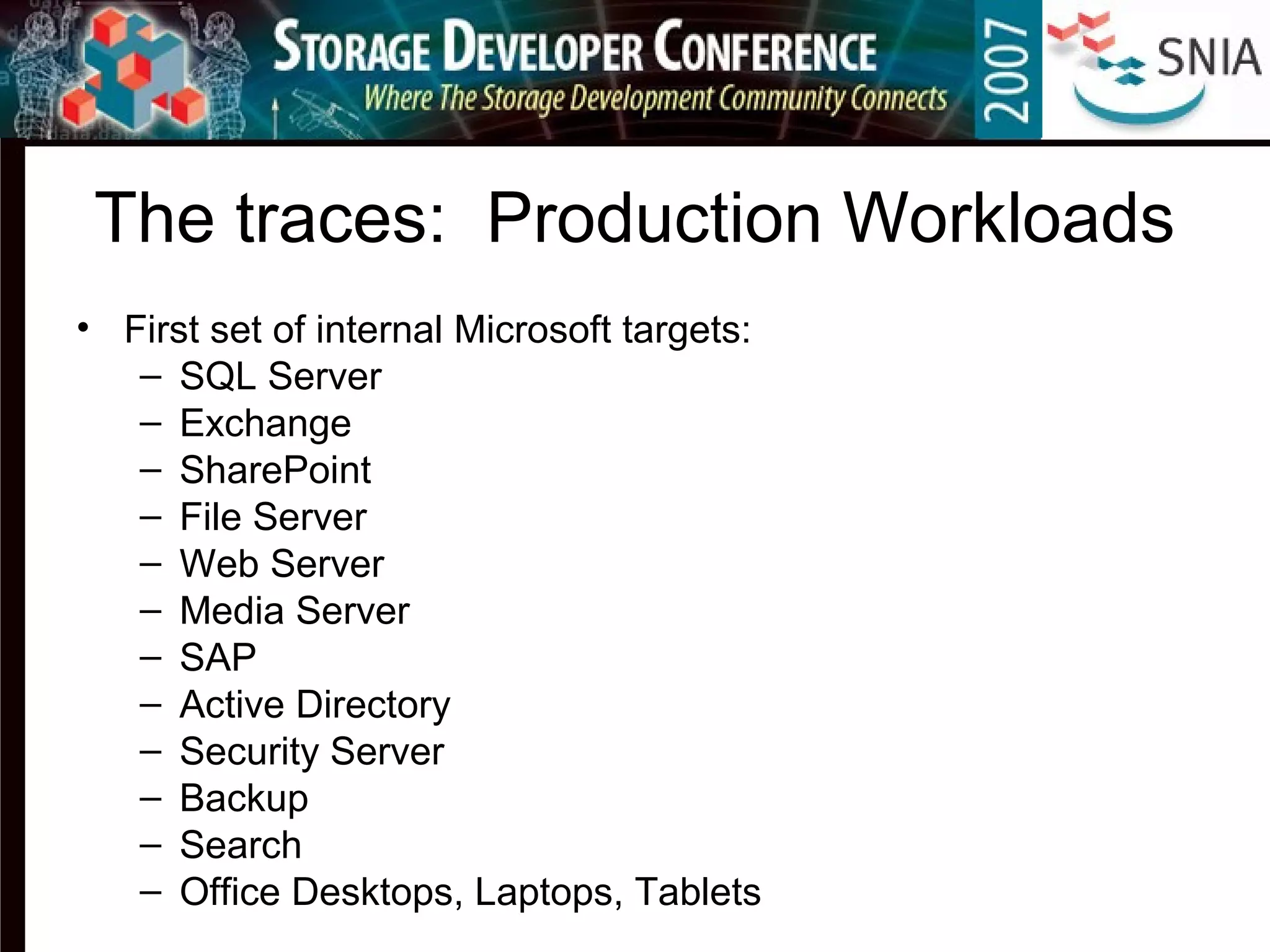
The traces: Production Workloads
• First set of internal Microsoft targets:
– SQL Server
– Exchange
– SharePoint
– File Server
– Web Server
– Media Server
– SAP
– Active Directory
– Security Server
– Backup
– Search
– Office Desktops, Laptops, Tablets
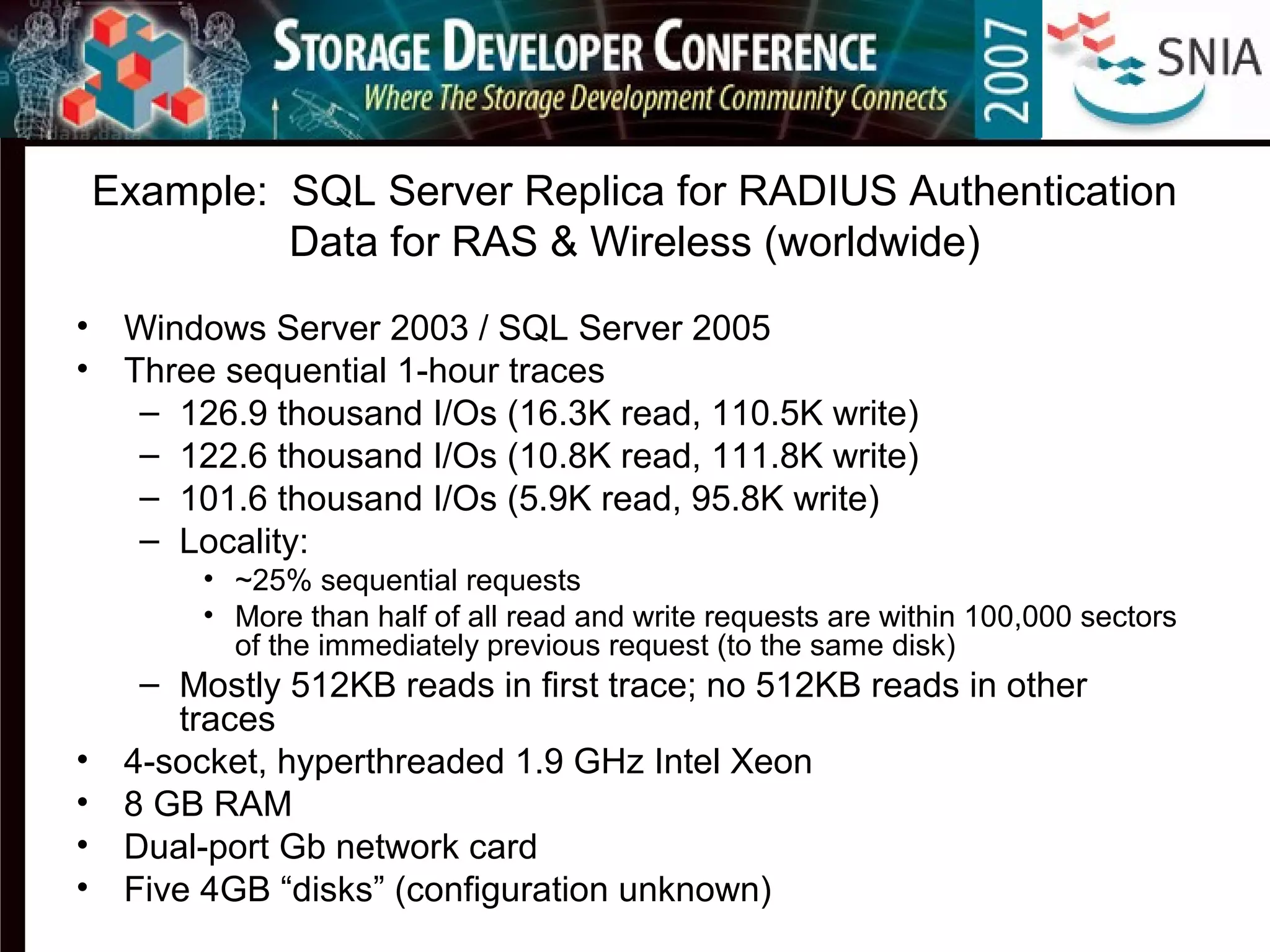
Example: SQL Server Replica for RADIUS Authentication
Data for RAS & Wireless (worldwide)
• Windows Server 2003 / SQL Server 2005
• Three sequential 1-hour traces
– 126.9 thousand I/Os (16.3K read, 110.5K write)
– 122.6 thousand I/Os (10.8K read, 111.8K write)
– 101.6 thousand I/Os (5.9K read, 95.8K write)
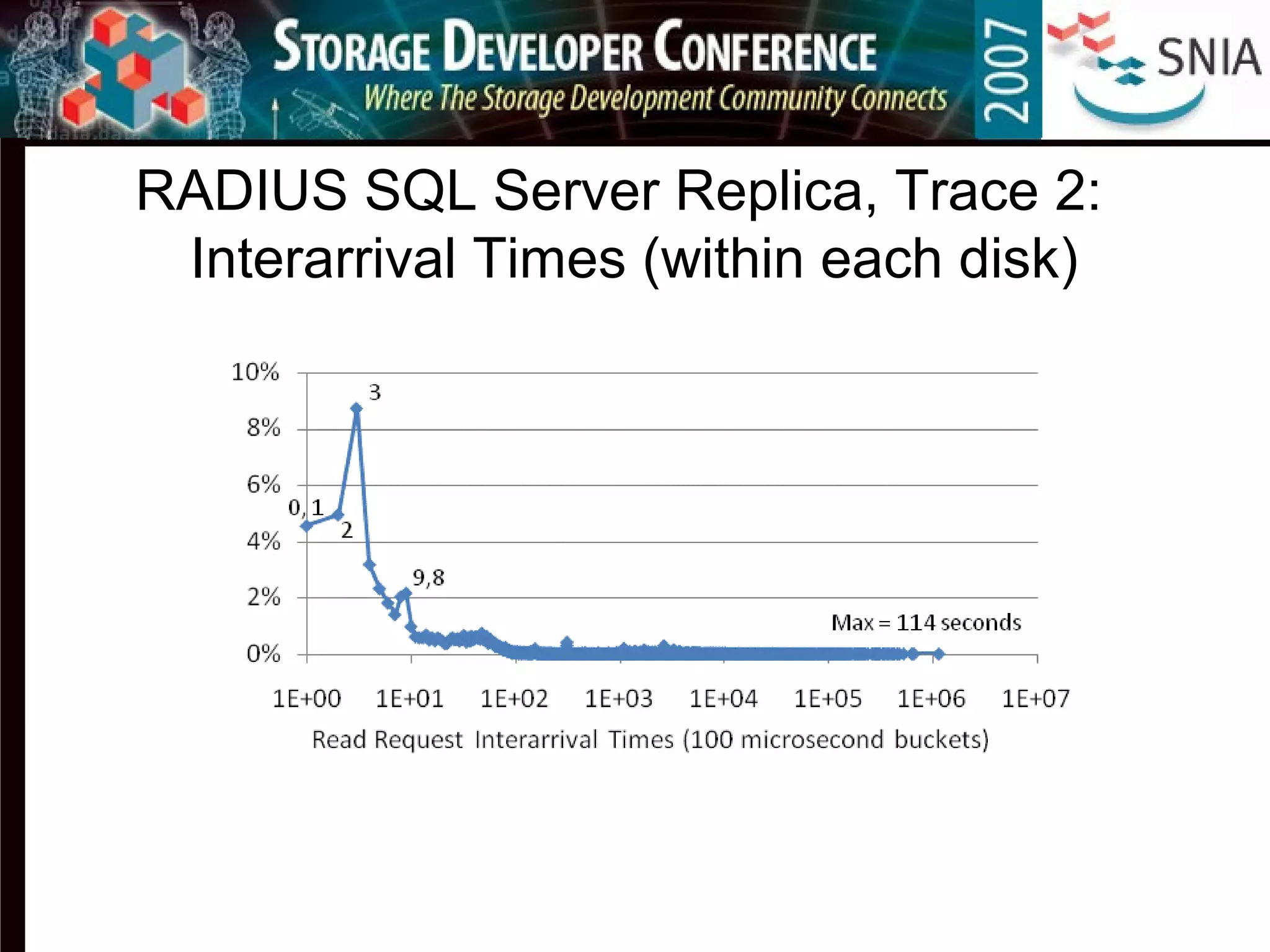
– Locality:
• ~25% sequential requests
• More than half of all read and write requests are within 100,000 sectors
of the immediately previous request (to the same disk)
– Mostly 512KB reads in first trace; no 512KB reads in other
traces
• 4-socket, hyperthreaded 1.9 GHz Intel Xeon
• 8 GB RAM
• Dual-port Gb network card
• Five 4GB “disks” (configuration unknown)
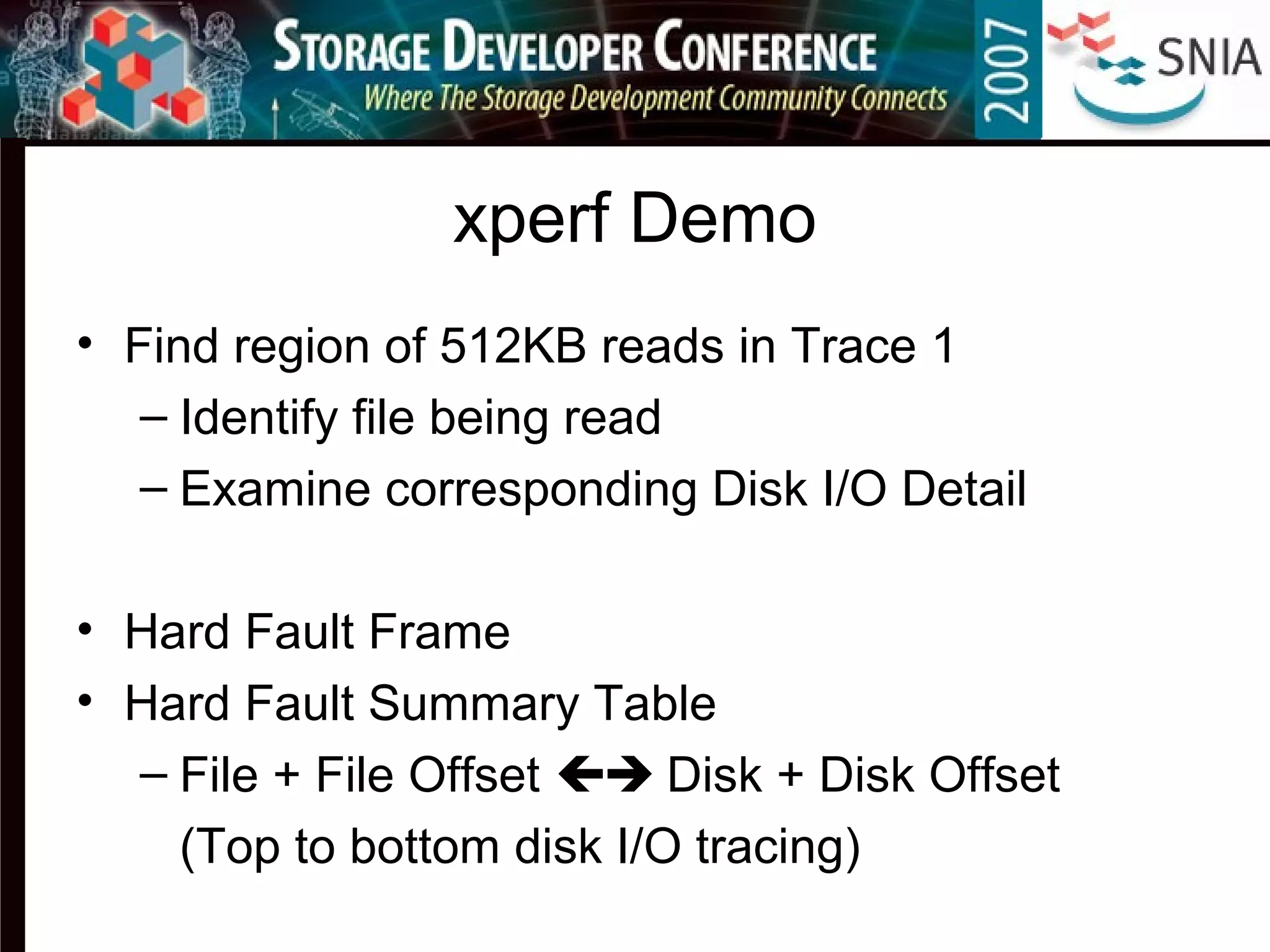
xperf Demo
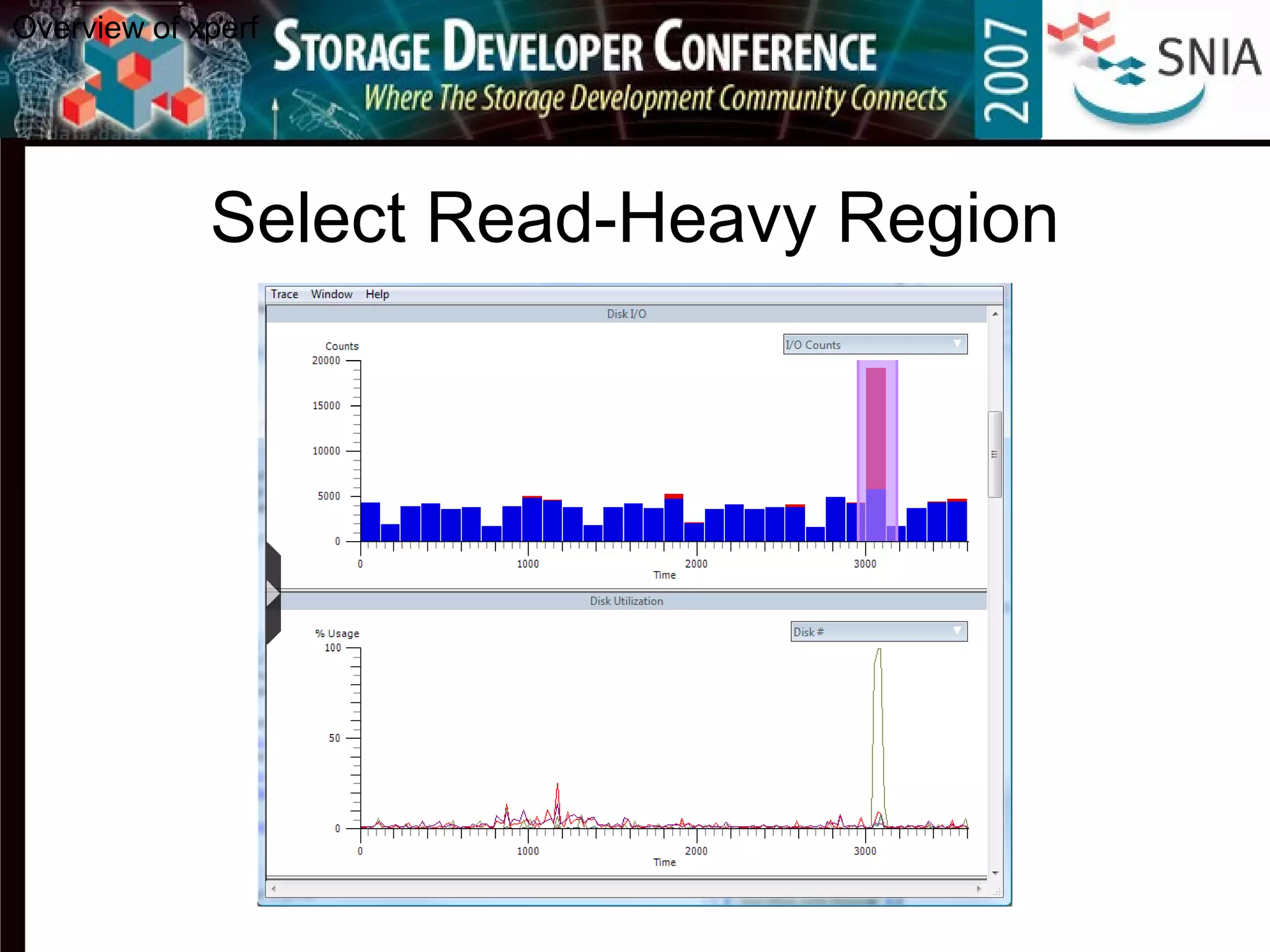
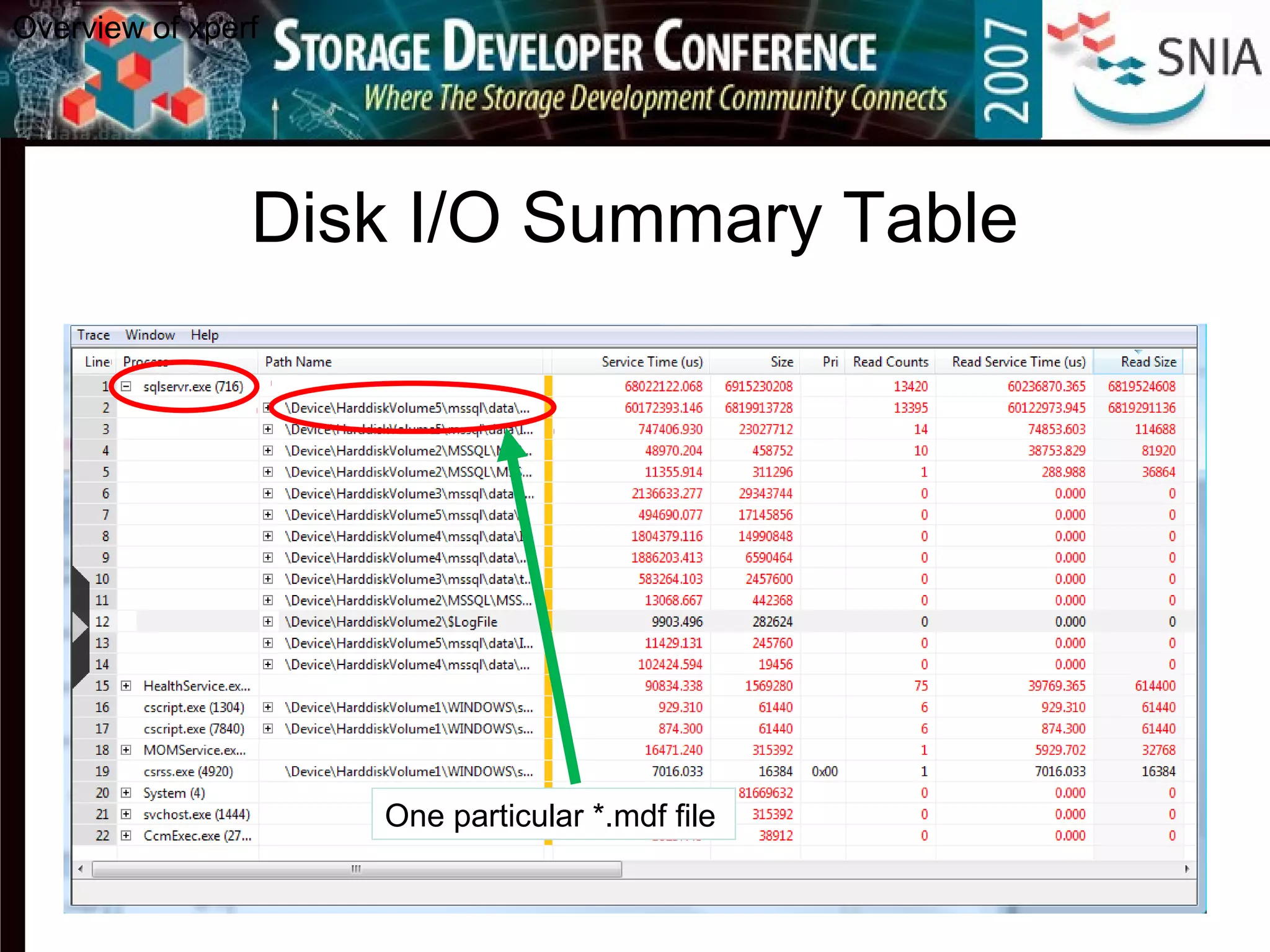
• Find region of 512KB reads in Trace 1
– Identify file being read
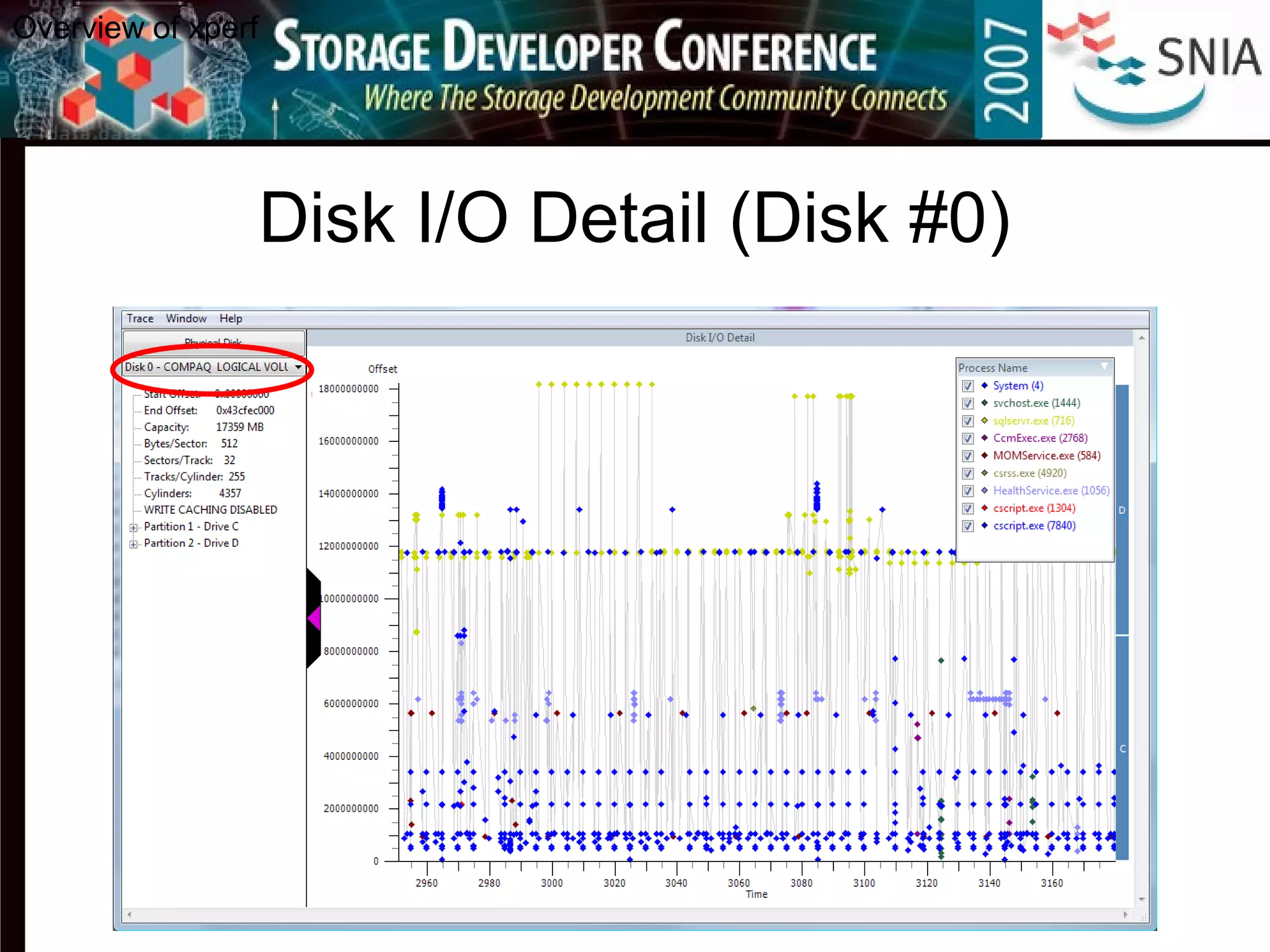
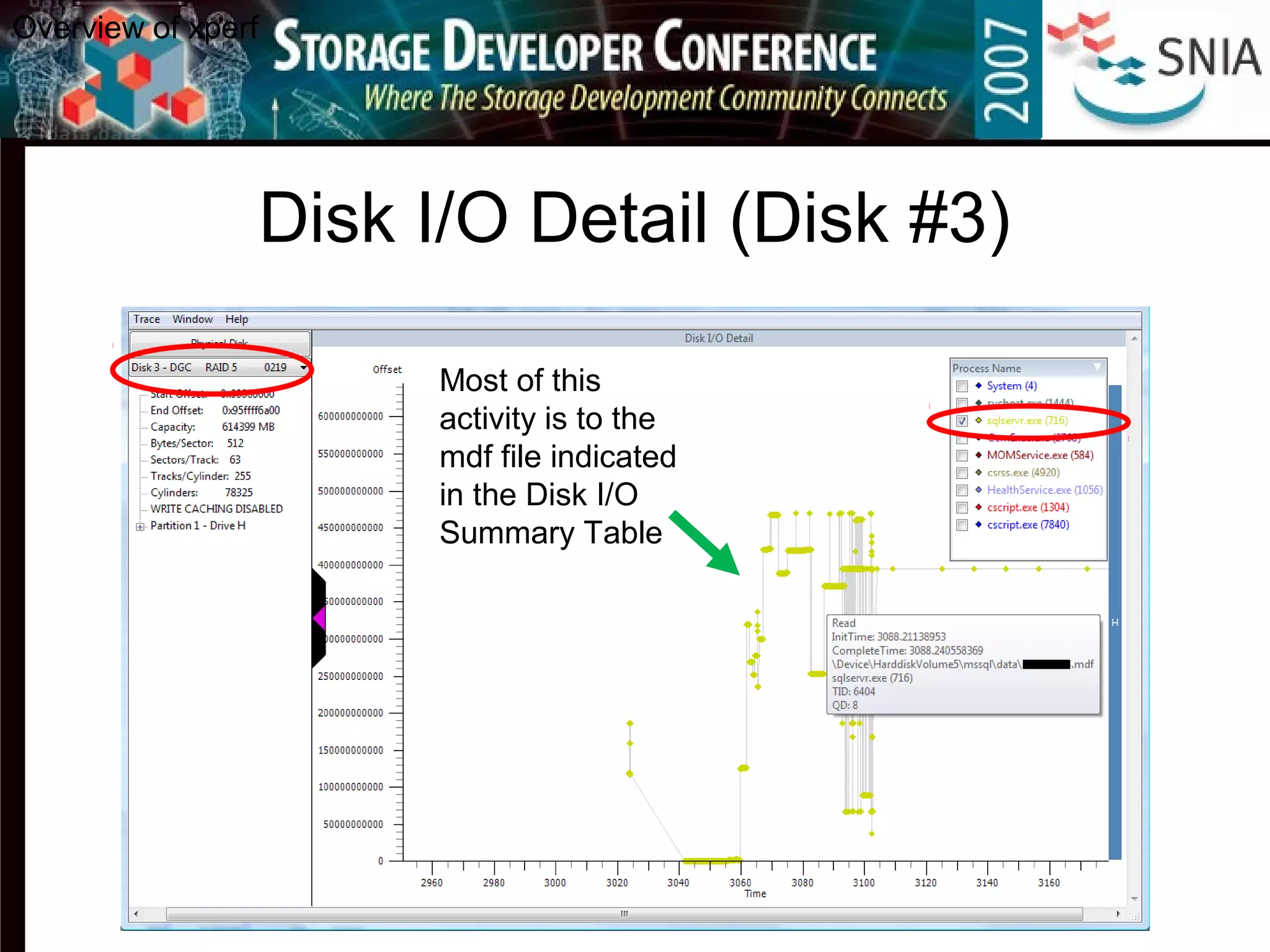
– Examine corresponding Disk I/O Detail
• Hard Fault Frame
• Hard Fault Summary Table
– File + File Offset  Disk + Disk Offset
(Top to bottom disk I/O tracing)
Select Read-Heavy Region
Overview of xperf
Disk I/O Summary Table
Overview of xperf
One particular *.mdf file
Disk I/O Detail (Disk #0)
Overview of xperf
Disk I/O Detail (Disk #3)
Overview of xperf
Most of this
activity is to the
mdf file indicated
in the Disk I/O
Summary Table
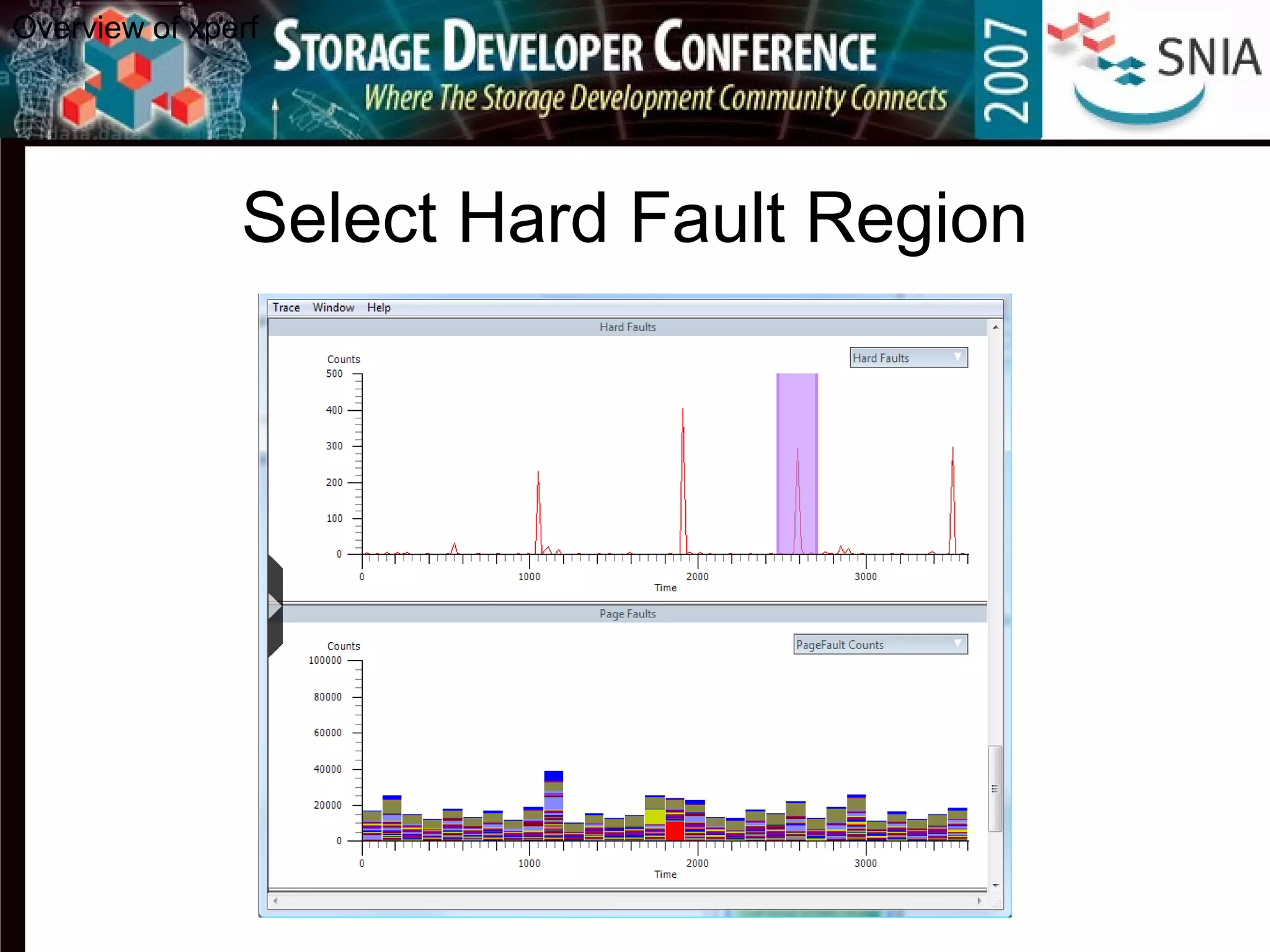
Select Hard Fault Region
Overview of xperf
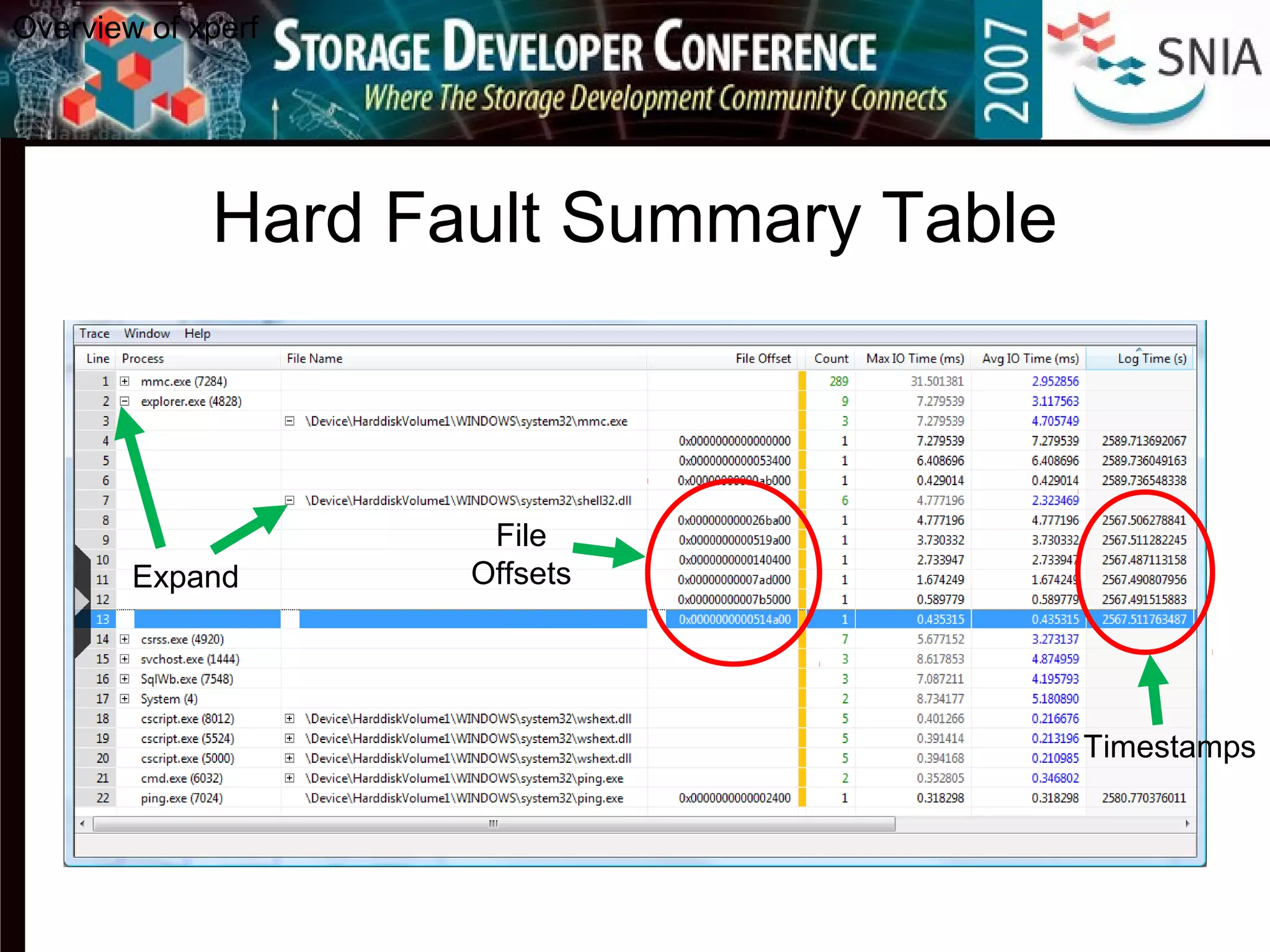
Hard Fault Summary Table
Overview of xperf
Expand
File
Offsets
Timestamps
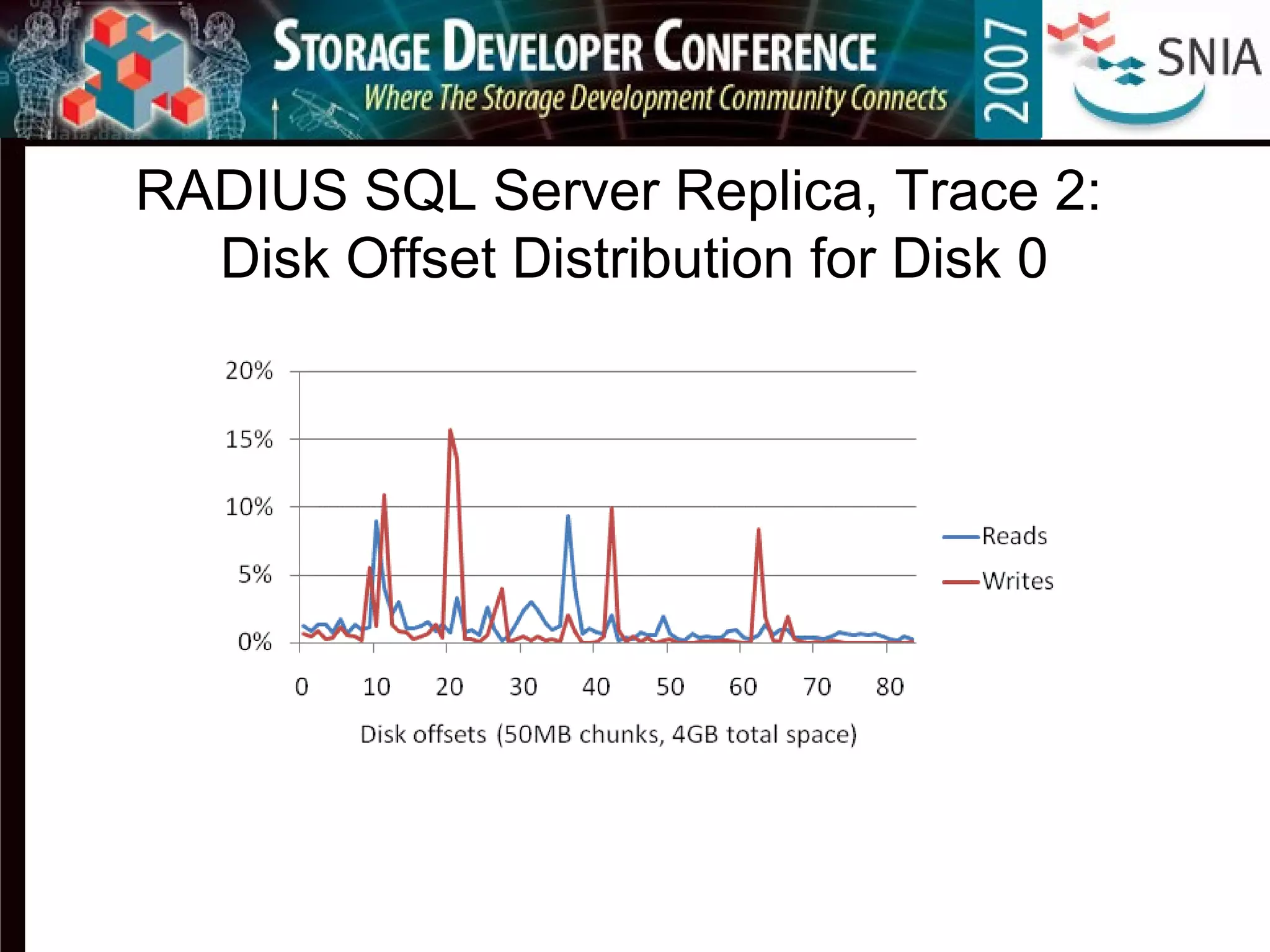
RADIUS SQL Server Replica, Trace 2:
Disk Offset Distribution for Disk 0
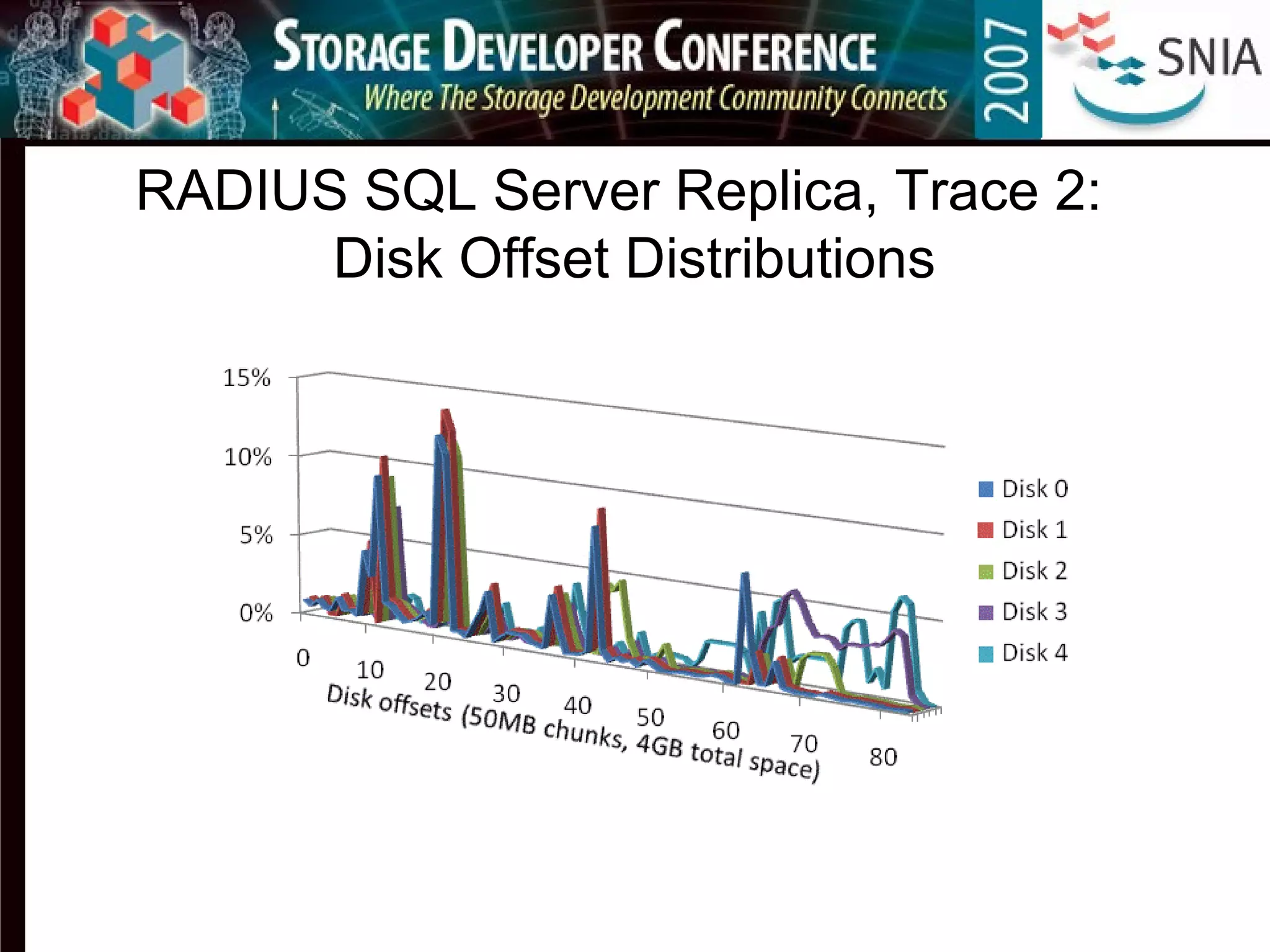
RADIUS SQL Server Replica, Trace 2:
Disk Offset Distributions
RADIUS SQL Server Replica, Trace 2:
Interarrival Times (within each disk)
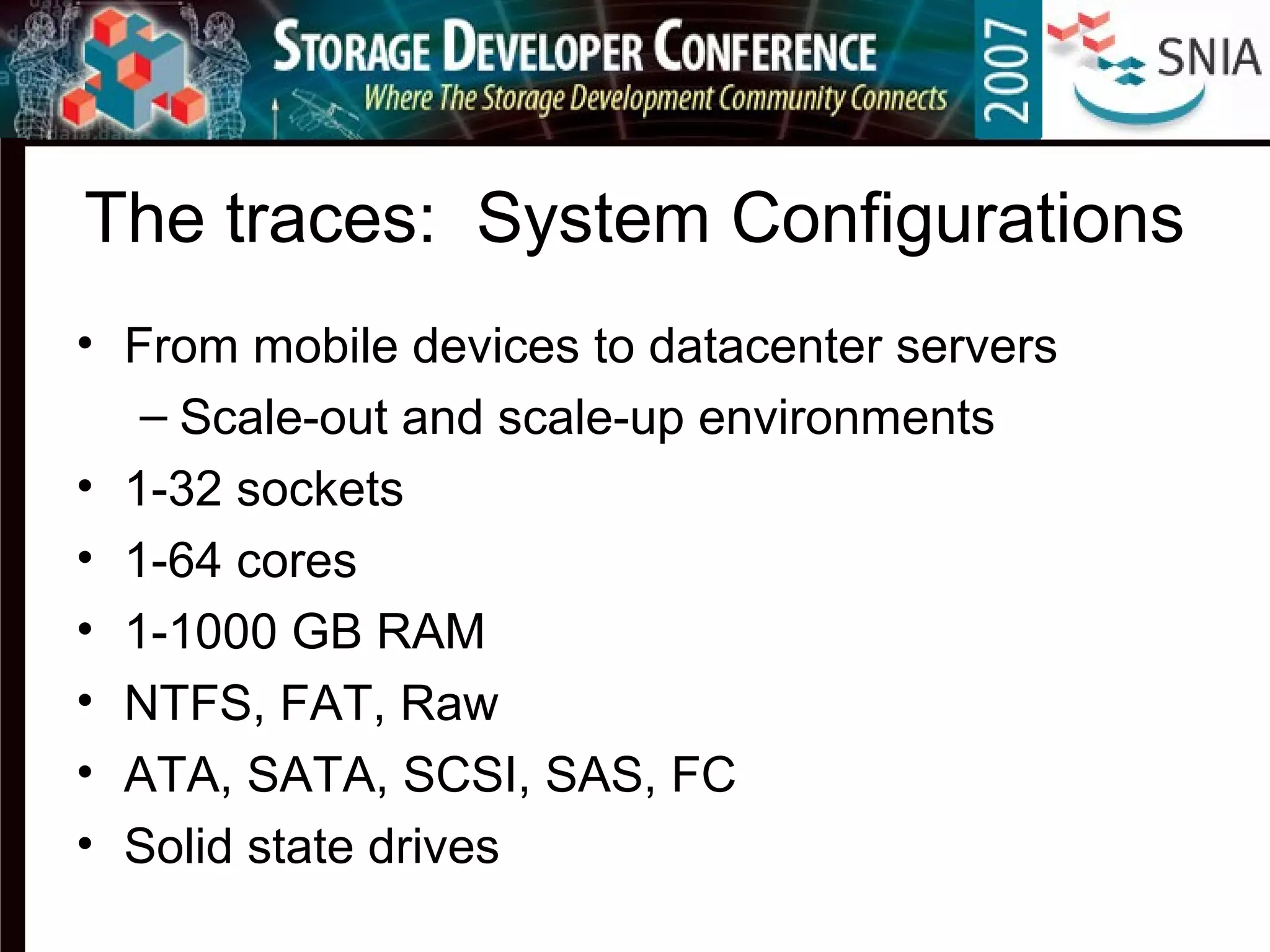
The traces: System Configurations
• From mobile devices to datacenter servers
– Scale-out and scale-up environments
• 1-32 sockets
• 1-64 cores
• 1-1000 GB RAM
• NTFS, FAT, Raw
• ATA, SATA, SCSI, SAS, FC
• Solid state drives
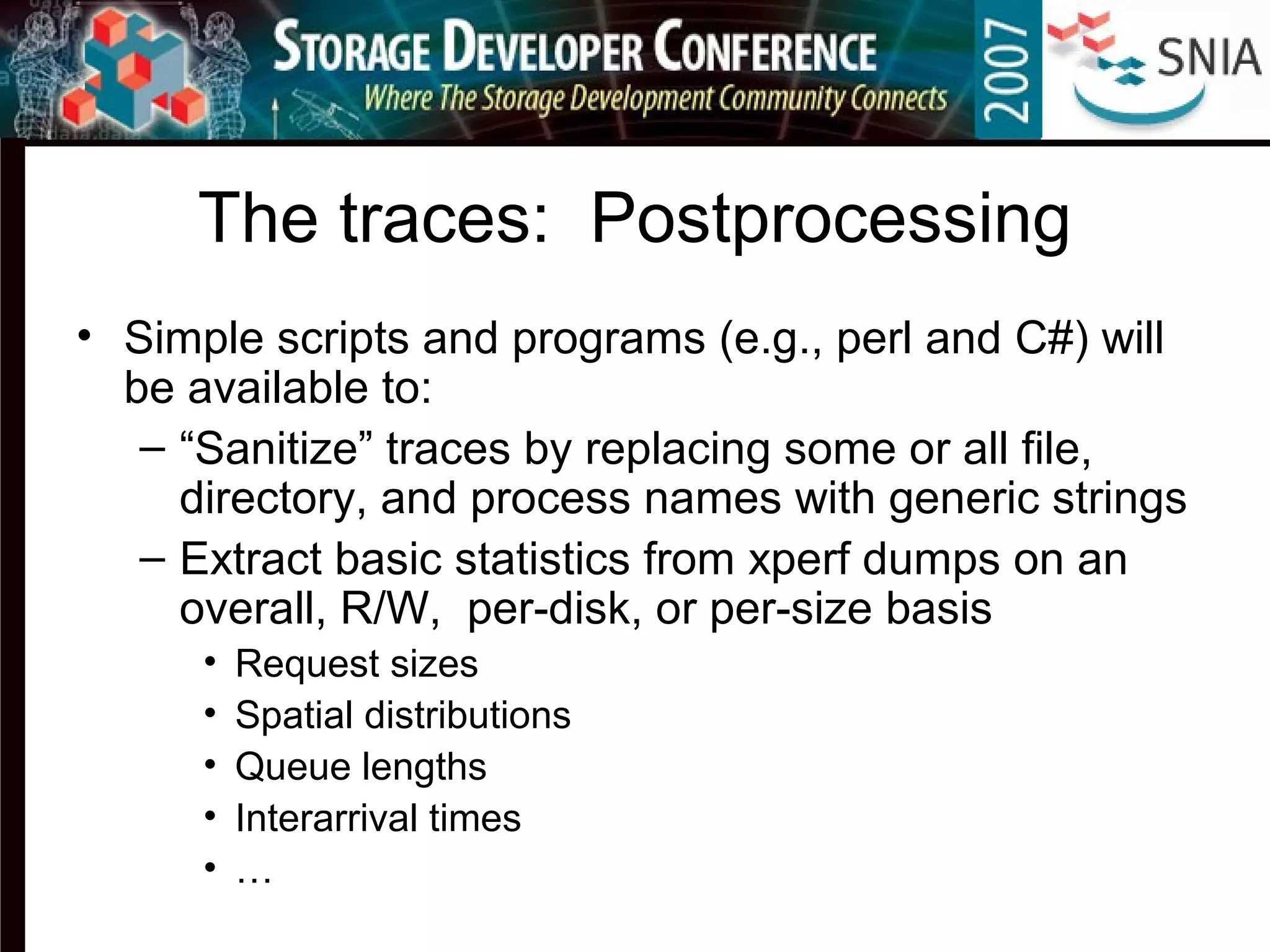
The traces: Postprocessing
• Simple scripts and programs (e.g., perl and C#) will
be available to:
– “Sanitize” traces by replacing some or all file,
directory, and process names with generic strings
– Extract basic statistics from xperf dumps on an
overall, R/W, per-disk, or per-size basis
• Request sizes
• Spatial distributions
• Queue lengths
• Interarrival times
• …
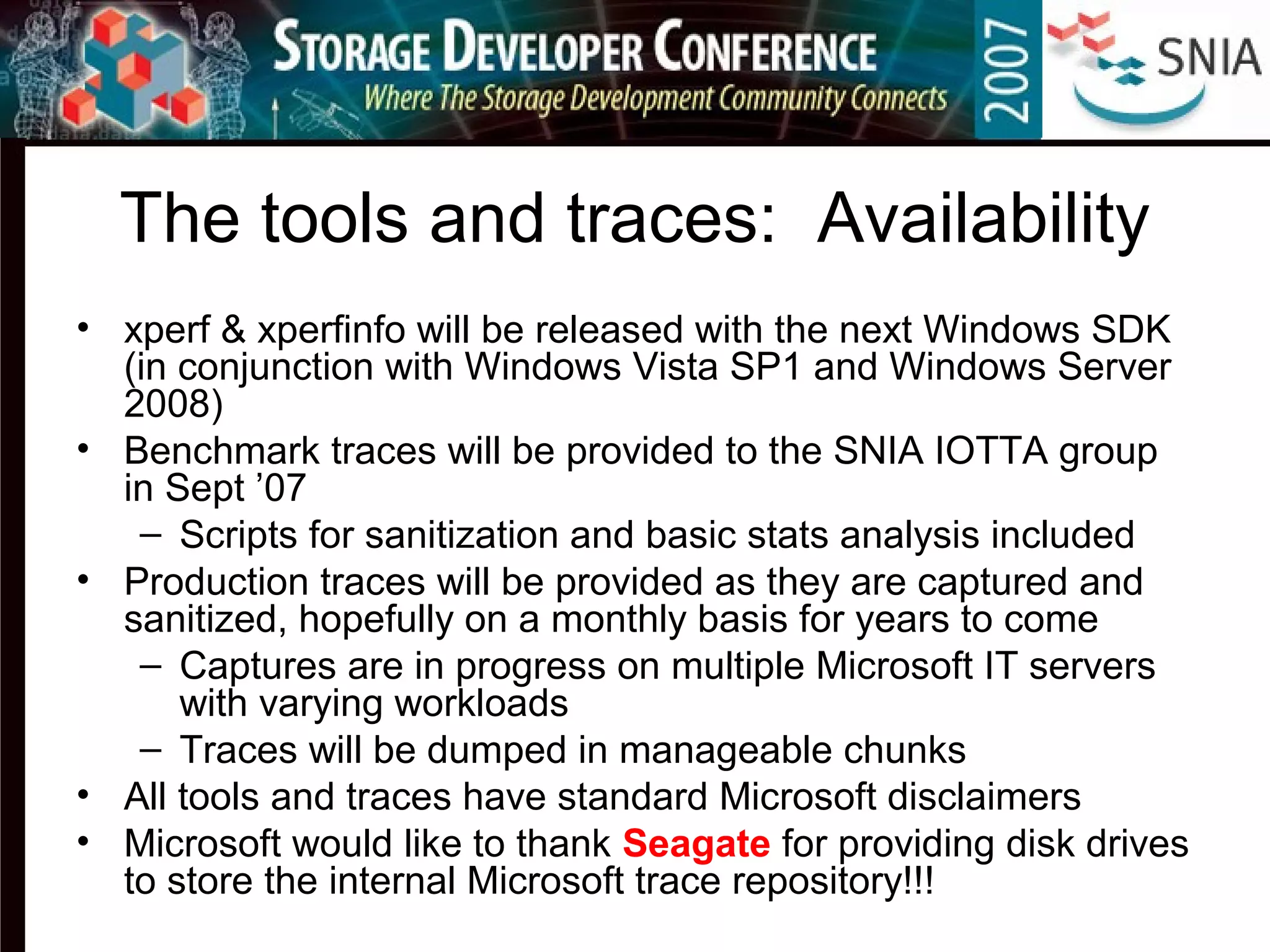
The tools and traces: Availability
• xperf & xperfinfo will be released with the next Windows SDK
(in conjunction with Windows Vista SP1 and Windows Server
2008)
• Benchmark traces will be provided to the SNIA IOTTA group
in Sept ’07
– Scripts for sanitization and basic stats analysis included
• Production traces will be provided as they are captured and
sanitized, hopefully on a monthly basis for years to come
– Captures are in progress on multiple Microsoft IT servers
with varying workloads
– Traces will be dumped in manageable chunks
• All tools and traces have standard Microsoft disclaimers
• Microsoft would like to thank Seagate for providing disk drives
to store the internal Microsoft trace repository!!!
xperf/xperfinfo Future Enhancements
• Equivalent file block  disk block event
correlation for write requests (a la hard fault reads)
– Mapped file writes
– Lazy writer
– Dirty page writer
– Unbuffered writes
– In the mean time, write-after-read’s and (in some
cases) sequential writes can be translated
• Built-in process/file/directory sanitization
• Extensibility
• …and much more!
Summary
• Event Tracing for Windows (ETW) = the engine
– Instrumentation built into the retail Windows operating system
– The NT Kernel Provider provides coverage of kernel-level activity
• xperf = the interactive browser
– High-level graphs
– Summary tables
– Individual event detail
• xperfinfo = the command line automation tool
– ETW controller and decoder
– Exports human-readable decoding of all trace events
– Many custom actions distilling various aspects of the trace
• Alpha version of xperf/xperfinfo can be requested from:
– wperftkt@microsoft.com
– Bruce.Worthington@microsoft.com
• Additional Resources
– Event Tracing for Windows on MSDN
http://msdn2.microsoft.com/en-us/library/aa363787.aspx
– “Windows Internals 4th edition” by Russinovich and Solomon
The challenge: Capture and Share Traces!
• Microsoft is committed to gathering long-term
(weeks/months) traces on many production systems
within the corporate IT environment
• Start the wheels rolling in your organization to allow
similar traces to be captured, sanitized, and published;
use existing tools to start with and xperf/xperfinfo when
they become available
• Create and share post-processing tools, simulators,
models, etc., via SNIA IOTTA repository
– http://iotta.snia.org
• Provide feedback on xperf & xperfinfo
– Be patient, as this is an engineering analysis tool (not
an MS product) and is supported as such. 
Q & A
Backup Slides
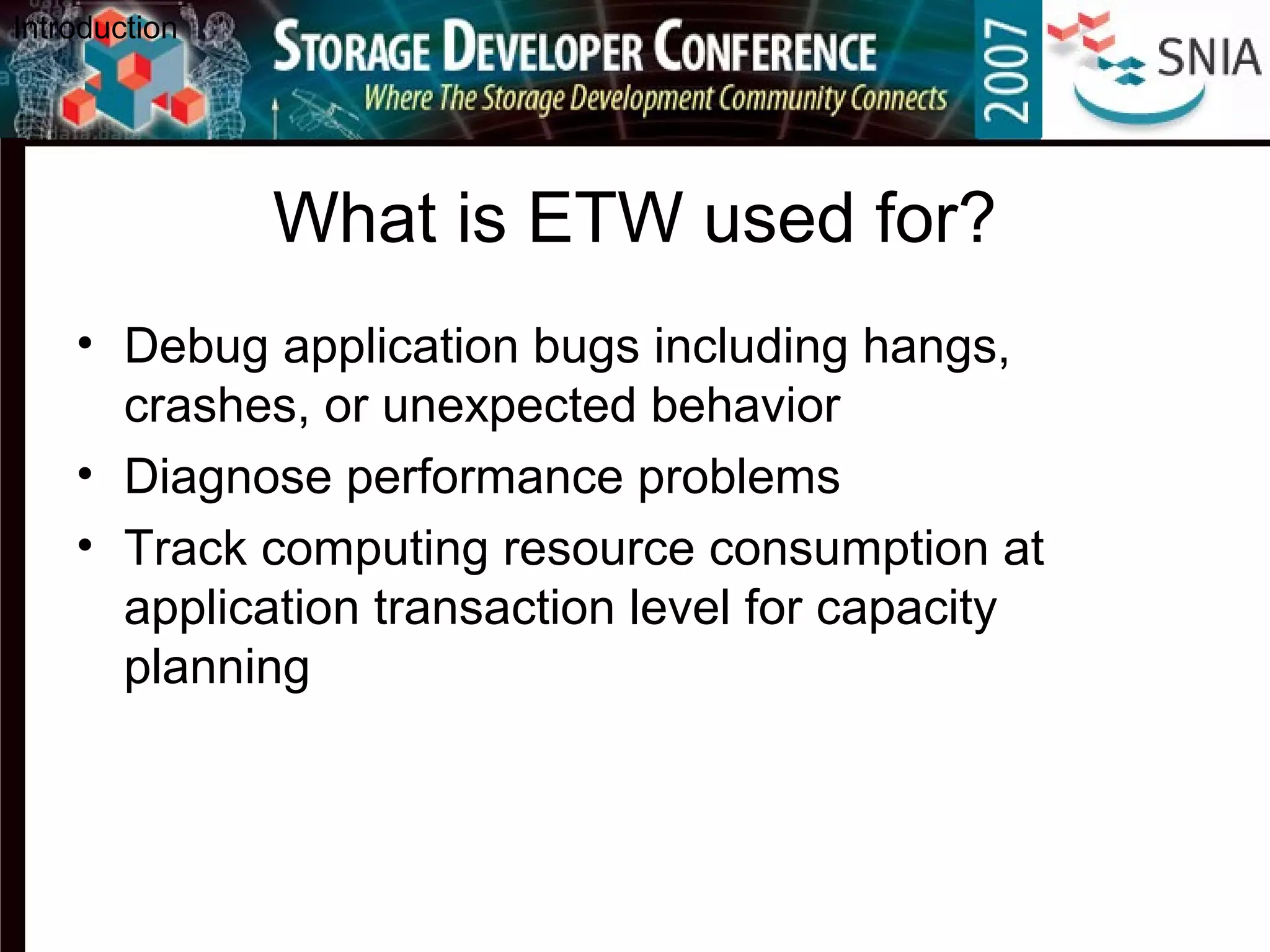
What is ETW used for?
• Debug application bugs including hangs,
crashes, or unexpected behavior
• Diagnose performance problems
• Track computing resource consumption at
application transaction level for capacity
planning
Introduction
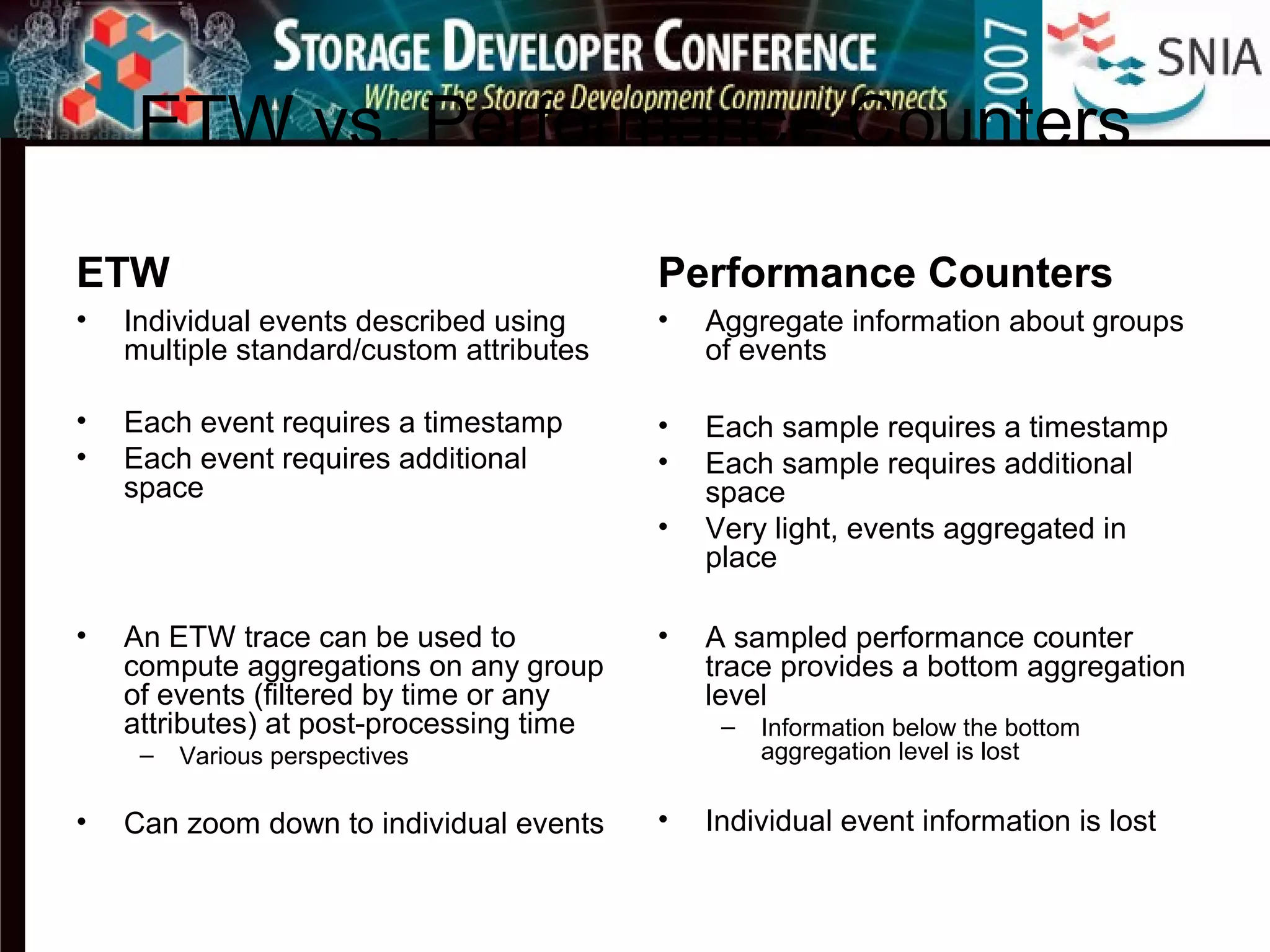
ETW vs. Performance Counters
ETW
• Individual events described using
multiple standard/custom attributes
• Each event requires a timestamp
• Each event requires additional
space
• An ETW trace can be used to
compute aggregations on any group
of events (filtered by time or any
attributes) at post-processing time
– Various perspectives
• Can zoom down to individual events
Performance Counters
• Aggregate information about groups
of events
• Each sample requires a timestamp
• Each sample requires additional
space
• Very light, events aggregated in
place
• A sampled performance counter
trace provides a bottom aggregation
level
– Information below the bottom
aggregation level is lost
• Individual event information is lost

Capturing comprehensive storage workload traces in windows

  • 1.
    Capturing Comprehensive Storage WorkloadTraces in Windows Dr. Bruce Worthington Windows Server Performance Microsoft Corporation
  • 2.
    My Motivation • I’mtired of seeing storage research and performance analysis limited by real-world trace availability. – It’s not all that much better now than it was when I was in grad school in the early 90’s… • I’ve been saying I would help supply researchers with long-term real-world traces and post-processing tools for almost a decade. – I’m finally following through on the promise to supply production traces. – More importantly, Microsoft has made it easy for anyone to capture detailed storage workload traces on Windows systems (along with many other types of traces and profiles).
  • 3.
    Outline • The tools –Event Tracing for Windows (ETW) – New: xperf, xperfinfo – Old: logman, trace* • The traces – Benchmark (steady-state) workloads – Production workloads • The challenge
  • 4.
    Event Tracing forWindows (ETW) • ETW has been the core Windows tracing component since Windows 2000 and is continually improved • Many Windows components, including the kernel, produce events describing their behavior • Events from user-mode applications and kernel-mode drivers can be logged • High performance, low overhead, highly scalable – Efficient buffering and non-blocking logging mechanisms using per-processor buffers written to disk by a separate thread • Tracing can be enabled/disabled dynamically without requiring system reboots or application restarts
  • 5.
    Event Tracing forWindows (ETW) • Events can be sample-based, but most are single-instance (event A occurred at time T) • Support for real-time consumption and file-based tracing • Configurable logging mode, buffer size, buffer count – Sequential traces – Circular traces – Circular traces in memory (flight black-box) [Vista] • Adding custom events enables better correlation of application activity with low-level resource usage • On a standard Vista computer, the logging API (EventWrite) takes about 5,000 cycles, mostly spent in acquiring the timestamp via QueryPerformanceCounter (QPC) – About 2.5% processor overhead for a sustained rate of 10,000 events/second on a 2GHz processor – not including the cost of flushing trace buffers to disk • Postprocessing the binary disk log correlates events with context and domain specific knowledge
  • 6.
    ETW Architecture • Provider –Provides event traces. Can be user-mode app, kernel-mode driver, or kernel. – Providers use ETW APIs to register with the ETW framework to send event traces from various points in the code. – When enabled, the provider sends event traces to a specific trace session designated by the controller. • Controller – Assists in starting, stopping or updating trace sessions in the kernel as well as enabling or disabling providers – Sets trace session properties such as sequential or circular file logging or direct delivery to consumers • Consumer – Reads trace files or listens to active trace sessions and processes logged events – Not aware of the Providers – Only receive event traces from the trace sessions or log files Introduction • Event Trace Session infrastructure – Brokers the event traces from provider(s) to consumer(s) and adds data to each event (e.g., TimeStamp, Thread, Process, CPU)
  • 7.
    “NT Kernel Provider” •Events – Process, thread and image – Sampled Profile – Context Switch – Dispatcher (Ready Thread) – DPC (Deferred Procedure Call) – ISR (Interrupt Service Routine) – Disk I/O – File I/O – Registry – Hardfault – Pagefault – Driver delay – TCP/UDP – Power – ALPC – Virtual Allocation – Heap – Memory – … • Related providers – Thread Pool – Power Transition – Winlogon – Services – Prefetch • Other providers – Shell – Internet Explorer – Media Foundation – Media Center – …
  • 8.
    System Config: ETWInstrumentation • Automatically added to kernel traces • Rundown of system configuration at trace start/stop time – CPU (number of logical and physical processors, frequency) – Memory (memory size, page size, allocation granularity) – Disk (physical disks, partitions, volumes) – Video adapters – Network adapters (IPv4, IPv6) – Services (including service tag) – Plug-and-Play Information – IRQ Assignment – Power capabilities (S1 - S5) – Network Identity (computer name, domain name) – Group Masks (what kernel flags are enabled)
  • 9.
    Storage-Related Instrumentation • DiskEvents: – Read, Write, Flush Initiation/Completion • File Events: – Filename Create, Delete, Rundown (when trace stopped) – File I/O Initiation, Hard Fault • Create, Cleanup, Close, Flush, Read, Write, Set Info, Query Info, FSCTL, Delete, Rename, Directory Enumeration, Directory Notification – File I/O Completion • Driver Events: – Driver Call, Return (Major Function) – Driver Complete Request, Complete Request Return – Driver Completion Routine • Binary storage-related event sizes range from ~30-80 bytes (not counting events that dump unique filenames)
  • 10.
    The new tools:xperf & xperfinfo • Extensible performance analysis toolset • High-level control and decoding of ETW traces – Emphasis on kernel events and system-wide resource usage – Support for 3rd -party events, primarily in conjunction with kernel events • Cross-platform – Windows XP SP1+, Vista – Windows Server 2003, Windows Server 2008 • Cross-architecture (x86, x64, ia64) • Capture-anywhere, process-anywhere
  • 11.
    xperf • Detailed interactiveanalysis of performance traces • High-level resource usage graphs on common trace timeline with zoom capability • Low-level discrete graphs for resource state transitions – Individual context switch and disk I/O events • Powerful interactive summary tables with dynamic grouping, sorting and aggregation capability
  • 12.
    Currently Available Graphsand Summary Tables – Disk I/O Counts – Disk I/O Detail – Disk Utilization – File I/O – DPC (Deferred Procedure Call) – ISR (Interrupt Service Routine) – Hardfault – Pagefault – Driver Delay – Sample Profile – CPU Availability – CPU Scheduling – Process Lifetime – Registry counts – Services – Plug ’n’ Play – Marks – Generic – … Overview of xperf
  • 13.
    Storage Activity Notes •Disk Reads, Writes and Flushes – Vista introduced low-priority I/Os, which are deferred in a special queue to allow current and near-term future normal priority I/Os to complete – Flushes may be “completed” by low-level storage drivers under certain conditions • Hard Faults – Synchronous I/Os that block execution of issuing thread – Paging-in from disk pages not currently present in memory • Communication aspect: System read-ahead and write-back – Asynchronous just-in-time prefetch for sequentially read buffered files – Asynchronous buffered writes – Issued from “System (4)” process • xperf & xperfinfo infer disk “queue” parameters (wait time, service time, queue depths, skip behavior) assuming a single serialized spindle – not a valid assumption for disk arrays – Queue depth can be thought of as “number of requests in flight”
  • 14.
    xperf Demo • SystemConfig • CPU • DPC & ISR • Process • Disk Summary Table • Disk I/O Detail • Disk I/O Detail Summary • Hard Faults
  • 15.
    Sample xperf Screenshots •Sidebar chart selection • Selecting a time range • CPU Usage Summary Table • DPC and ISR CPU Usage Frames • Disk I/O Summary Table • Disk I/O Detail • Disk I/O Detail Summary Table
  • 16.
  • 17.
    Selecting a TimeRange (on CPU Usage Frame) Overview of xperf
  • 18.
    Go to CPUUsage Summary Table Context-Menu Summary Table Overview of xperf
  • 19.
    CPU Usage SummaryTable Status Bar Report % of Time excluding DPC and ISR % Total Time Selected Time Interval Close Summary Table Overview of xperf
  • 20.
    DPC and InterruptCPU Usage Frames Overview of xperf
  • 21.
    Go to DiskI/O Summary Table Summary Table Overview of xperf
  • 22.
    Disk I/O SummaryTable Expanded Individual I/Os Overview of xperf
  • 23.
    Go to DiskI/O Detail Detail Graph Overview of xperf
  • 24.
    Disk I/O Detail(Disk #0) Overview of xperf Change Disk Select Processes
  • 25.
    Disk I/O Detail(Disk #1) Overview of xperf
  • 26.
    Disk I/O Detail(Disk #1) Selection Overview of xperf
  • 27.
    Disk I/O DetailSummary Table Default sort field Overview of xperf
  • 28.
    xperfinfo • High levelcontrol and decoding • Merging and dumping of ETW traces • Many command line actions to analyze and report on various aspects of a trace • Various buffering and log file options • Multiple timer sources • Traces of boot activity
  • 29.
    xperfinfo Demo • Start/stop •Provider list • Dump • Postprocessing summaries
  • 30.
    Taking a KernelTrace • Start kernel trace; run scenario; stop and merge • Start user trace; run scenario; stop • Hint: Retrieve all known kernel flags and groups Overview of xperfinfo C:analysis> xperfinfo –on base+FILE_IO+INTERRUPT C:analysis> MyTestApp.exe C:analysis> xperfinfo –d trace.etl C:analysis> xperfinfo –help providers C:analysis> xperfinfo –start MySession –on Kerberos+MRxSmb –f kerberos.etl C:analysis> MyTestApp.exe C:analysis> xperfinfo –stop MySession
  • 31.
    Dumping a Trace Overviewof xperfinfo C:analysis> xperfinfo -i trace.etl –o trace.txt [1/2] 100.0% [2/2] 100.0% C:analysis> notepad trace.txt
  • 32.
    xperfinfo Named Providers •DISK_IO: Disk I/O • DISK_IO_INIT: Disk I/O initiation • SPLIT_IO: Split I/O • FILE_IO: File system op end times/results • FILE_IO_INIT: Create/open/close/read/write • FILENAME: Create/delete/rundown • HARD_FAULTS: Hard page faults • ALL_FAULTS: All page faults including hard, copy-on-write, demand-zero faults • DPC: Delayed Procedure Calls • INTERRUPT: Interrupts • DRIVERS: Driver events • PROC_THREAD: Create/delete • CSWITCH: Context switch • COMPACT_CSWITCH • DISPATCHER: CPU Scheduler • PREFETCH: Prefetching • LOADER: Image load/unload • SYSCALL: System calls • PROFILE: CPU sample profile • MEMORY: Memory tracing • POOL: Memory pool tracing • VIRT_ALLOC: Virtual alloc reserve and release • NETWORKTRACE: TCP/UDP, send/rcv • REGISTRY: Registry tracing • POWER: Power management • WORKER_THREAD: System worker thread • PERF_COUNTER: Process perf counters • ALPC: Advanced Local Procedure Call • …
  • 33.
    Available xperfinfo Reports(“actions”) • tracestats • sysconfig • dumper • diskio • filename • hardfault • pagefault • dpcisr • process • cswitch • drvdelay • marks • perfctrs • profile • registry • boot • suspend • shutdown • … Overview of xperfinfo
  • 34.
    The old tools •Installed with Windows – Logman: Collects performance counters – Tracerpt: Processes ETW log files or real-time sessions • Installed with Driver Development Kit – http://www.microsoft.com/whdc/devtools/ddk/default.mspx – Tracelog: Starts, stops, or enables trace logging • http://msdn2.microsoft.com/en-us/library/ms797927.aspx – Tracefmt: Dumps ETW binary files into text files • http://msdn2.microsoft.com/en-us/library/ms797564.aspx – Traceview: Controls and displays ETW information • http://msdn2.microsoft.com/en-us/library/ms797981.aspx Overview of xperfinfo
  • 35.
    The traces: BenchmarkWorkloads • Easy to capture and make available – TPC-C, TPC-E, TPC-H, TPC-DS? – SAP-SD – Terminal Server – NetBench – SPC? – …
  • 36.
    Example: TPC-C Trace •Windows Server 2008 / SQL Server 2005 • ~32 minutes • 93.5 million disk I/Os (58.6M read, 35.9M write) • 16-socket, dual-core 3.4 GHz Intel Xeon (16 MB L3 cache) • 256 GB RAM • 1106 15Krpm FCSCSI disks – 79 database LUNs
  • 37.
    Example: TPC-C RequestSizes • 94.8% 8KB requests; 2.1% 16KB requests • Remaining requests:
  • 38.
    Example: TPC-C TraceLocality • ~3% of all writes are within 128 sectors of the previous write to the same disk
  • 39.
    Example: Terminal Server KnowledgeWorker (TS-KW) Trace • Windows Server 2008, Office 2007 – Word, Excel, and Outlook activity – 180 concurrent users • ~45 seconds – >750,000 Context Switches • 16 thousand disk writes (in-memory working set) – Mostly sequential • 2-socket, quad-core 2.66 GHz Intel Xeon (4 MB L2 cache) • 32 GB RAM (holds working set) • One ATA 120GB disk
  • 40.
  • 41.
    The traces: ProductionWorkloads • First set of internal Microsoft targets: – SQL Server – Exchange – SharePoint – File Server – Web Server – Media Server – SAP – Active Directory – Security Server – Backup – Search – Office Desktops, Laptops, Tablets
  • 42.
    Example: SQL ServerReplica for RADIUS Authentication Data for RAS & Wireless (worldwide) • Windows Server 2003 / SQL Server 2005 • Three sequential 1-hour traces – 126.9 thousand I/Os (16.3K read, 110.5K write) – 122.6 thousand I/Os (10.8K read, 111.8K write) – 101.6 thousand I/Os (5.9K read, 95.8K write) – Locality: • ~25% sequential requests • More than half of all read and write requests are within 100,000 sectors of the immediately previous request (to the same disk) – Mostly 512KB reads in first trace; no 512KB reads in other traces • 4-socket, hyperthreaded 1.9 GHz Intel Xeon • 8 GB RAM • Dual-port Gb network card • Five 4GB “disks” (configuration unknown)
  • 43.
    xperf Demo • Findregion of 512KB reads in Trace 1 – Identify file being read – Examine corresponding Disk I/O Detail • Hard Fault Frame • Hard Fault Summary Table – File + File Offset  Disk + Disk Offset (Top to bottom disk I/O tracing)
  • 44.
  • 45.
    Disk I/O SummaryTable Overview of xperf One particular *.mdf file
  • 46.
    Disk I/O Detail(Disk #0) Overview of xperf
  • 47.
    Disk I/O Detail(Disk #3) Overview of xperf Most of this activity is to the mdf file indicated in the Disk I/O Summary Table
  • 48.
    Select Hard FaultRegion Overview of xperf
  • 49.
    Hard Fault SummaryTable Overview of xperf Expand File Offsets Timestamps
  • 50.
    RADIUS SQL ServerReplica, Trace 2: Disk Offset Distribution for Disk 0
  • 51.
    RADIUS SQL ServerReplica, Trace 2: Disk Offset Distributions
  • 52.
    RADIUS SQL ServerReplica, Trace 2: Interarrival Times (within each disk)
  • 53.
    The traces: SystemConfigurations • From mobile devices to datacenter servers – Scale-out and scale-up environments • 1-32 sockets • 1-64 cores • 1-1000 GB RAM • NTFS, FAT, Raw • ATA, SATA, SCSI, SAS, FC • Solid state drives
  • 54.
    The traces: Postprocessing •Simple scripts and programs (e.g., perl and C#) will be available to: – “Sanitize” traces by replacing some or all file, directory, and process names with generic strings – Extract basic statistics from xperf dumps on an overall, R/W, per-disk, or per-size basis • Request sizes • Spatial distributions • Queue lengths • Interarrival times • …
  • 55.
    The tools andtraces: Availability • xperf & xperfinfo will be released with the next Windows SDK (in conjunction with Windows Vista SP1 and Windows Server 2008) • Benchmark traces will be provided to the SNIA IOTTA group in Sept ’07 – Scripts for sanitization and basic stats analysis included • Production traces will be provided as they are captured and sanitized, hopefully on a monthly basis for years to come – Captures are in progress on multiple Microsoft IT servers with varying workloads – Traces will be dumped in manageable chunks • All tools and traces have standard Microsoft disclaimers • Microsoft would like to thank Seagate for providing disk drives to store the internal Microsoft trace repository!!!
  • 56.
    xperf/xperfinfo Future Enhancements •Equivalent file block  disk block event correlation for write requests (a la hard fault reads) – Mapped file writes – Lazy writer – Dirty page writer – Unbuffered writes – In the mean time, write-after-read’s and (in some cases) sequential writes can be translated • Built-in process/file/directory sanitization • Extensibility • …and much more!
  • 57.
    Summary • Event Tracingfor Windows (ETW) = the engine – Instrumentation built into the retail Windows operating system – The NT Kernel Provider provides coverage of kernel-level activity • xperf = the interactive browser – High-level graphs – Summary tables – Individual event detail • xperfinfo = the command line automation tool – ETW controller and decoder – Exports human-readable decoding of all trace events – Many custom actions distilling various aspects of the trace • Alpha version of xperf/xperfinfo can be requested from: – wperftkt@microsoft.com – Bruce.Worthington@microsoft.com • Additional Resources – Event Tracing for Windows on MSDN http://msdn2.microsoft.com/en-us/library/aa363787.aspx – “Windows Internals 4th edition” by Russinovich and Solomon
  • 58.
    The challenge: Captureand Share Traces! • Microsoft is committed to gathering long-term (weeks/months) traces on many production systems within the corporate IT environment • Start the wheels rolling in your organization to allow similar traces to be captured, sanitized, and published; use existing tools to start with and xperf/xperfinfo when they become available • Create and share post-processing tools, simulators, models, etc., via SNIA IOTTA repository – http://iotta.snia.org • Provide feedback on xperf & xperfinfo – Be patient, as this is an engineering analysis tool (not an MS product) and is supported as such. 
  • 59.
  • 60.
  • 61.
    What is ETWused for? • Debug application bugs including hangs, crashes, or unexpected behavior • Diagnose performance problems • Track computing resource consumption at application transaction level for capacity planning Introduction
  • 62.
    ETW vs. PerformanceCounters ETW • Individual events described using multiple standard/custom attributes • Each event requires a timestamp • Each event requires additional space • An ETW trace can be used to compute aggregations on any group of events (filtered by time or any attributes) at post-processing time – Various perspectives • Can zoom down to individual events Performance Counters • Aggregate information about groups of events • Each sample requires a timestamp • Each sample requires additional space • Very light, events aggregated in place • A sampled performance counter trace provides a bottom aggregation level – Information below the bottom aggregation level is lost • Individual event information is lost