Capital Software Installation
Tier-2 Installation (Server & Client)
By,
Somashekar S M, ME
Senior Application Engineer
1. Download the Software
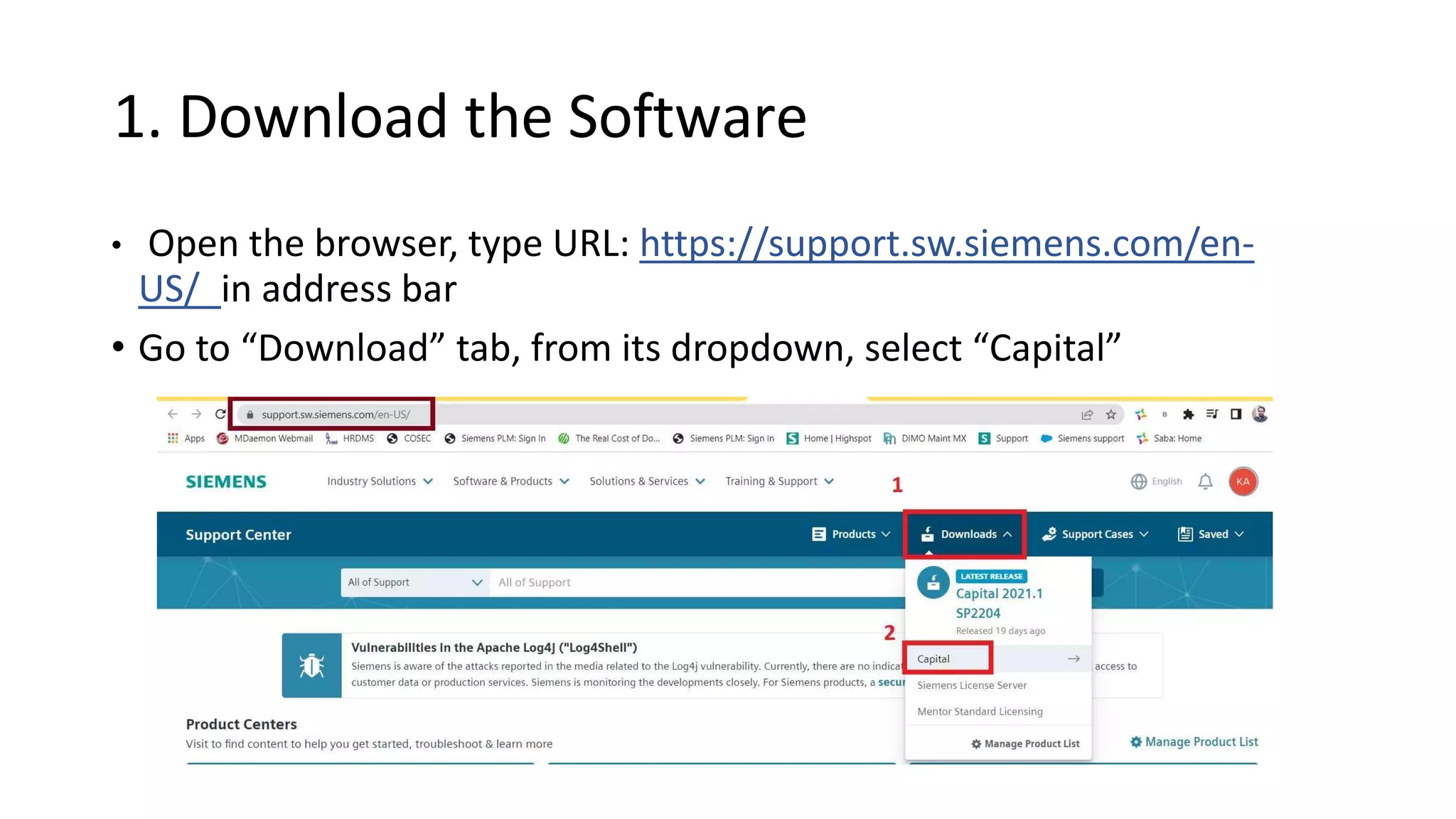
• Open the browser, type URL: https://support.sw.siemens.com/en-
US/ in address bar
• Go to “Download” tab, from its dropdown, select “Capital”
1. Download the Software
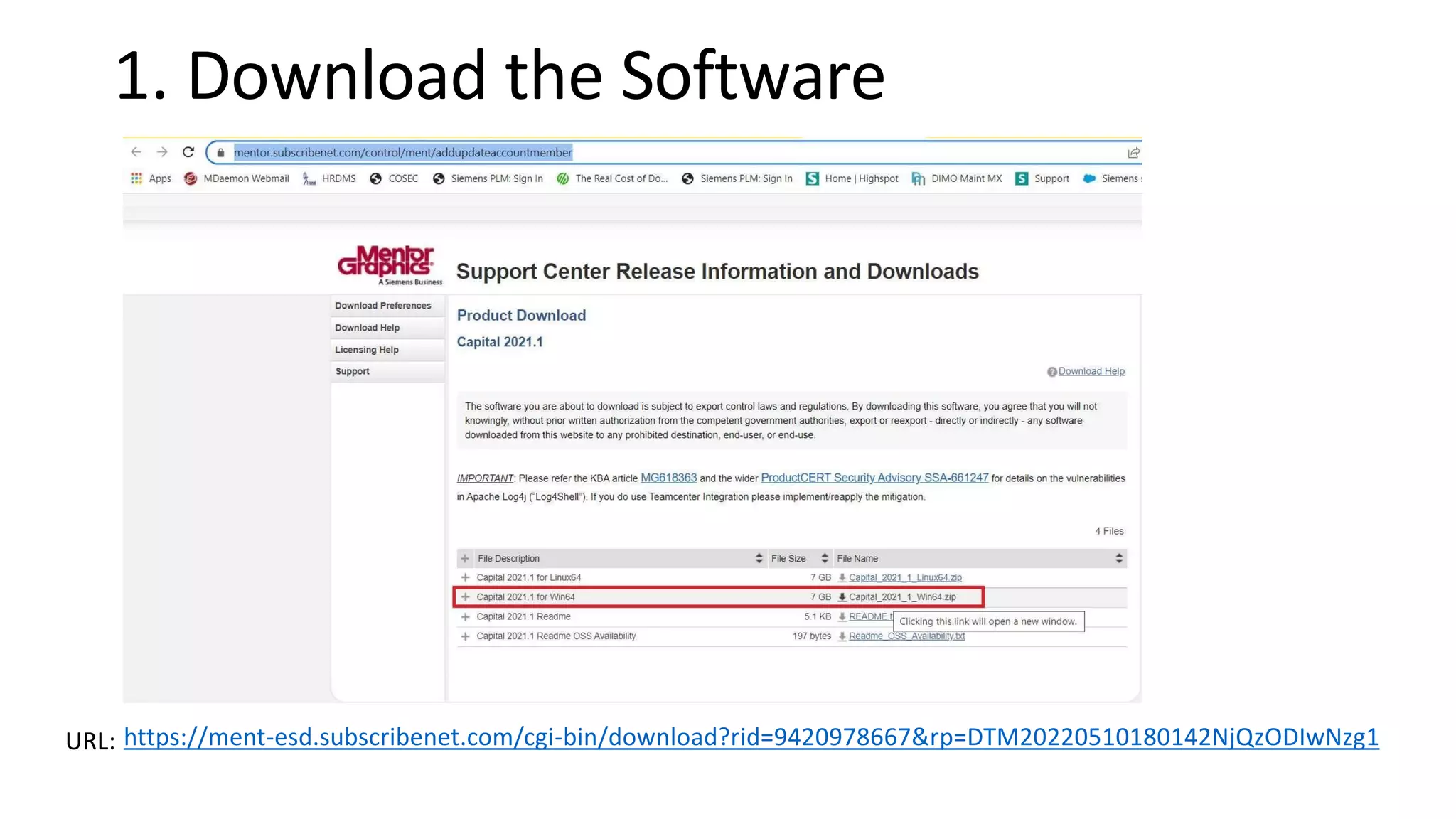
• It will be directed to
https://mentor.subscribenet.com/control/ment/addupdateaccountme
mber site
1. Download the Software
URL: https://ment-esd.subscribenet.com/cgi-bin/download?rid=9420978667&rp=DTM20220510180142NjQzODIwNzg1
2. Extract the contents
3. To Install the license Server
i) Verify MAC ID mentioned in the license wrt server system.
ii) Launch “getcid.exe”
getcid.exe
iii) Verify with license MAC ID
Site_3147433.txt
3. To Install the license Server
iv) Open the extracted setup folder “Capital_2021_1_Win64”.
v) Open “Licensing folder”
3. To Install the license Server
vi) Extract pcls_v9.23.5.3.1.zip file
3. To Install the license Server
vii) Open extracted “pcls_v9.23.5.3.1” folder, double click on “setup.bat” file
3. To Install the license Server
It runs the batch script in DOS
3. To Install the license Server
After completion, it opens the license manager setup
3. To Install the license Server
viii) Ensure, licensing installation location has set and 64 bit option got
checked in, Click on “Install” in the bottom right.
3. To Install the license Server
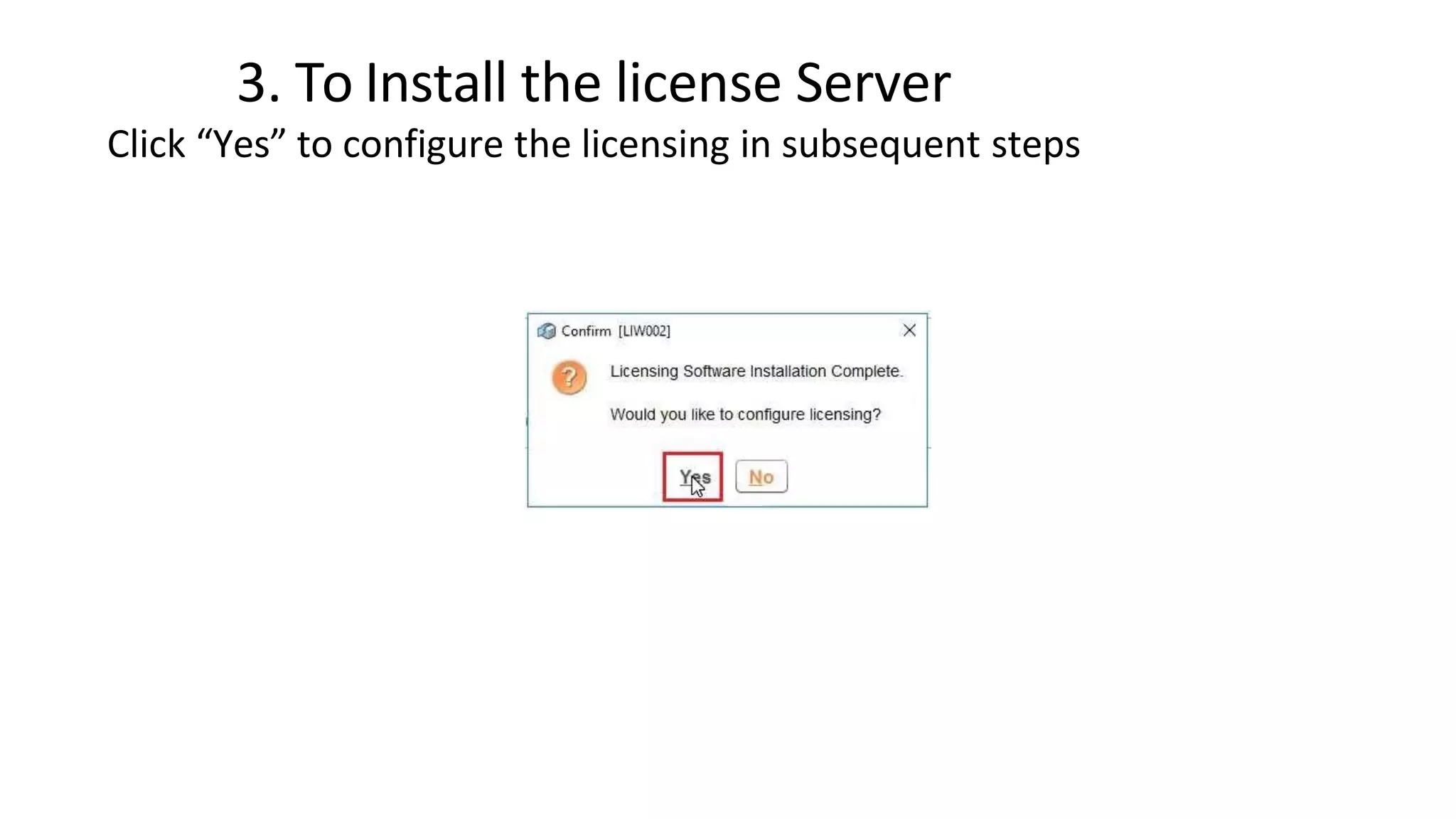
Click “Yes” to configure the licensing in subsequent steps
3. To Install the license Server
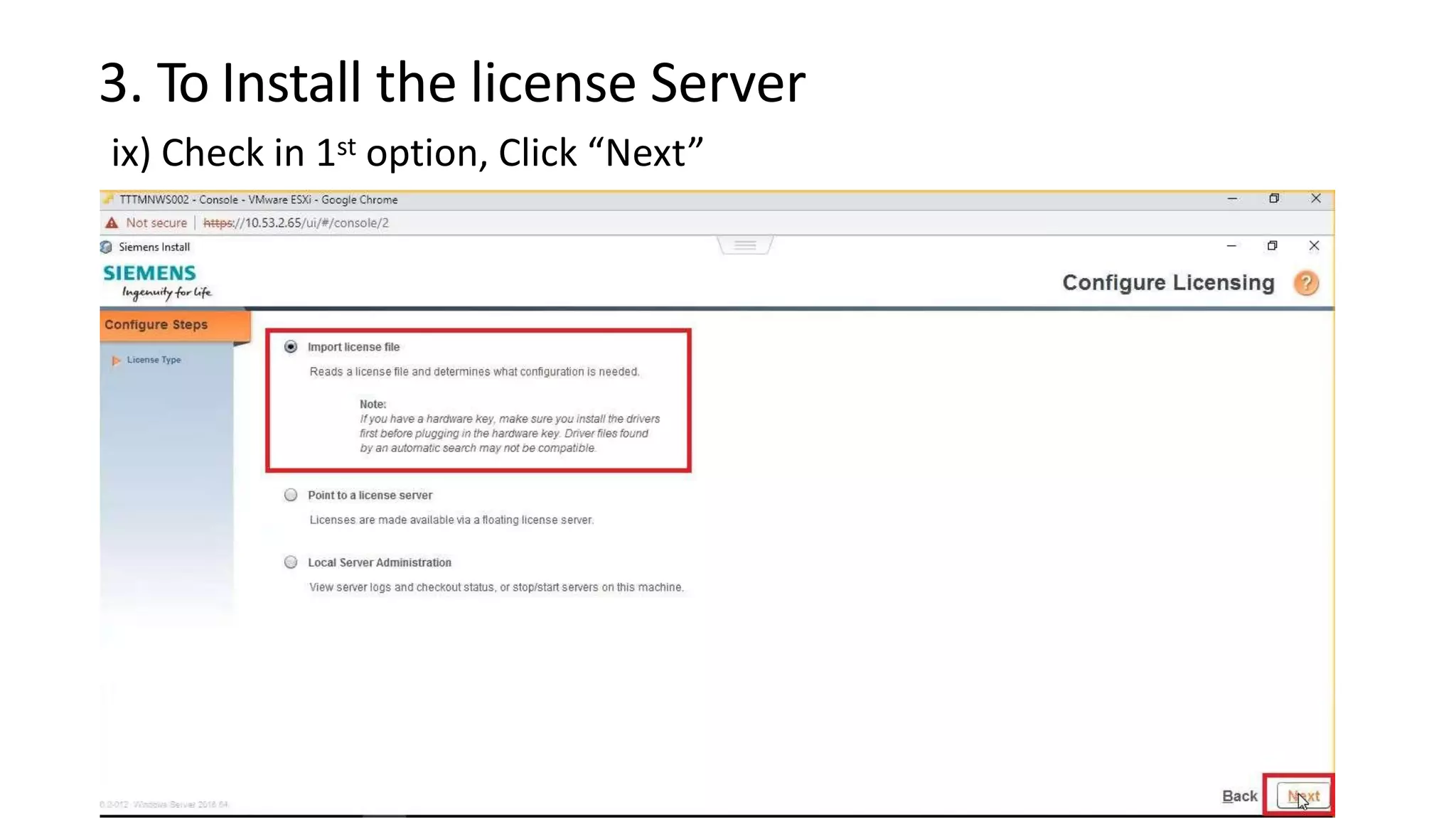
ix) Check in 1st option, Click “Next”
3. To Install the license Server
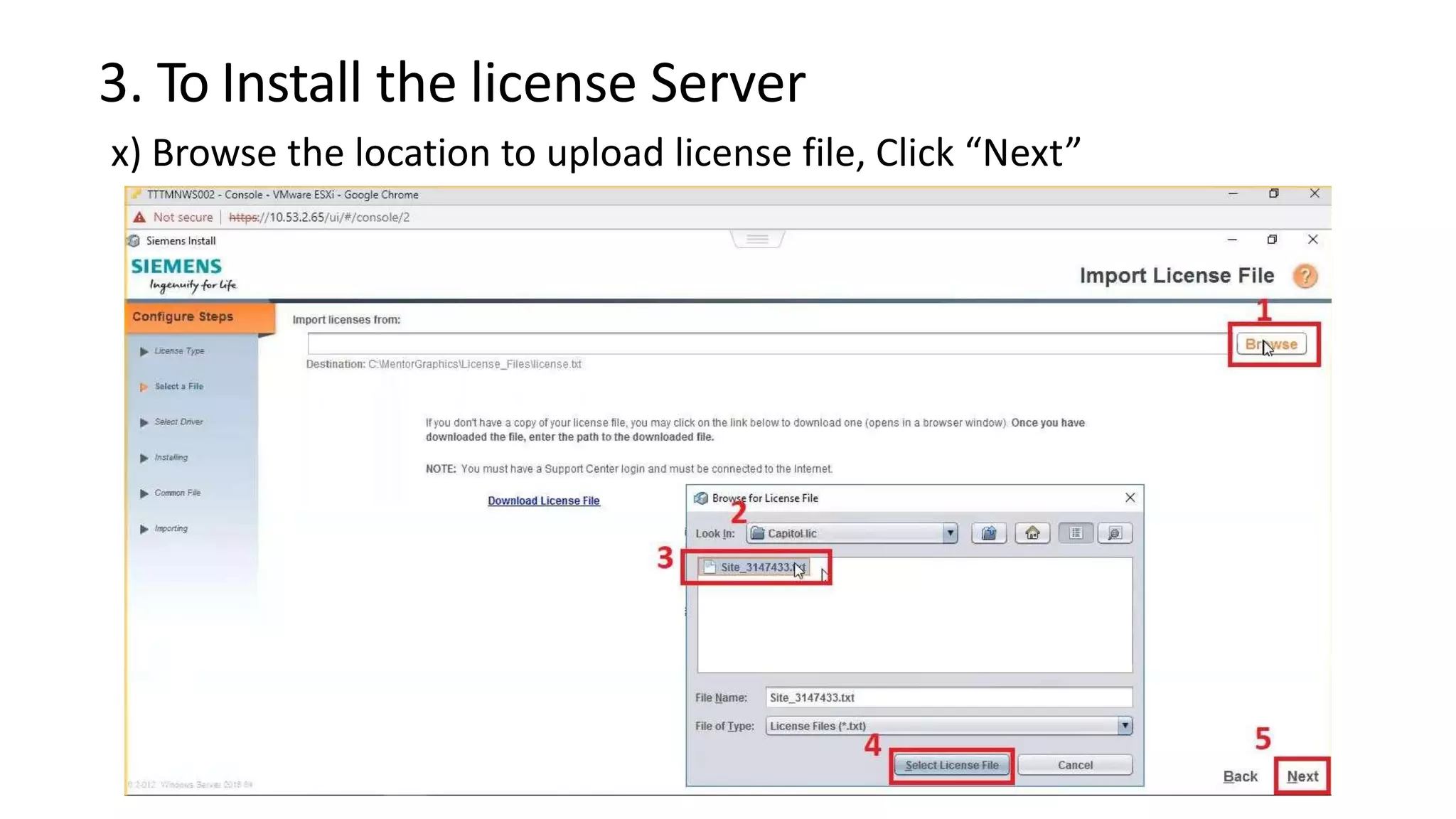
x) Browse the location to upload license file, Click “Next”
3. To Install the license Server
Click “Yes” to proceed
3. To Install the license Server
Click on “Done”, after license server got installed successfully
3. To Install the license Server
Confirm “No”
3. To Install the license Server
To check the working of license server, visit to
C:MentorGraphicsLicensing & launch lmtools.exe
3. To Install the license Server
Go to “Server Status” tab and Select “Perform status enquiry”
3. To Install the license Server
Scroll down slowly until you find release of license from Manager. Close
LMTOOLS.
3. To Install the license Server
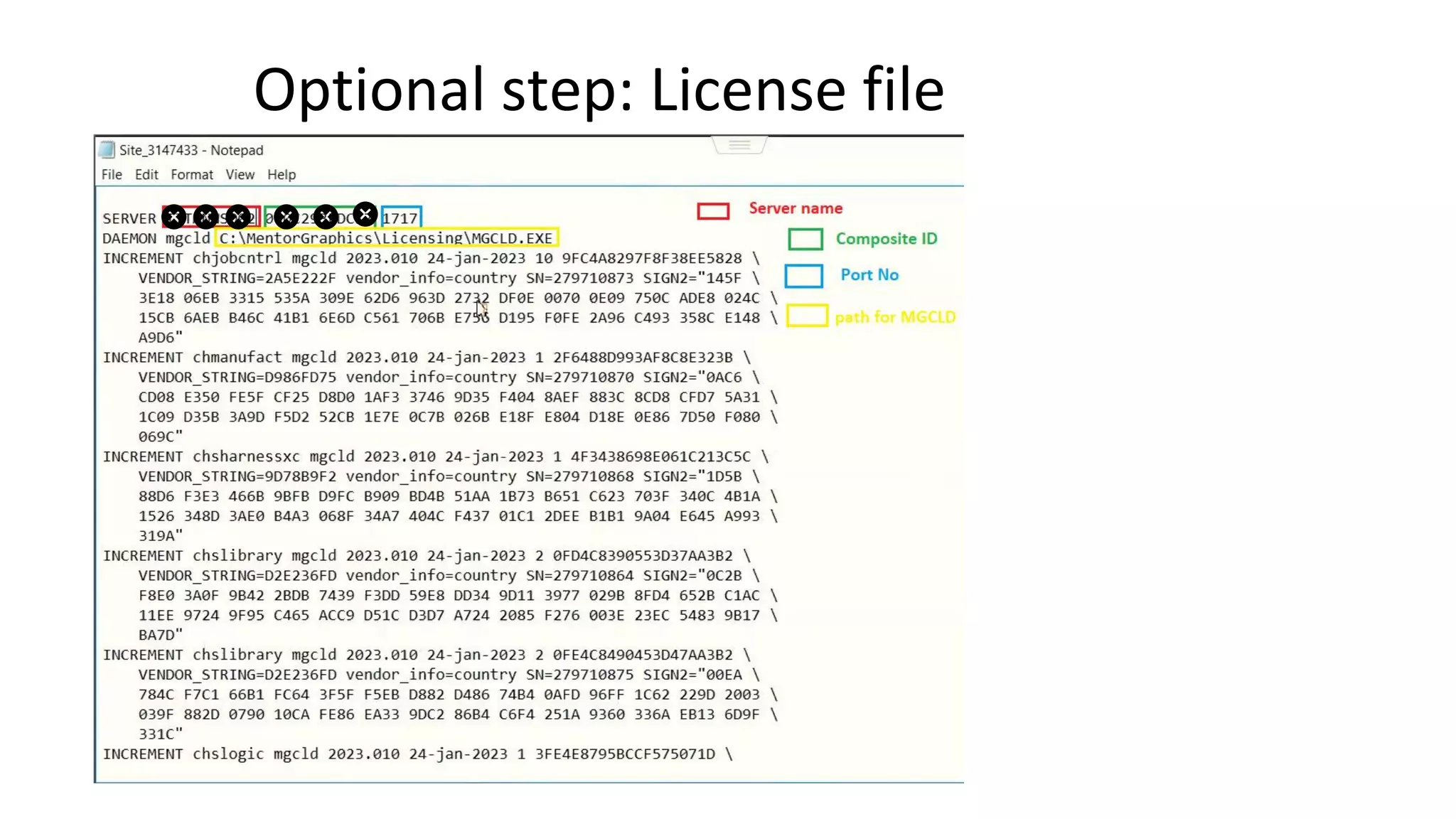
Path to license File
3. To Install the license Server
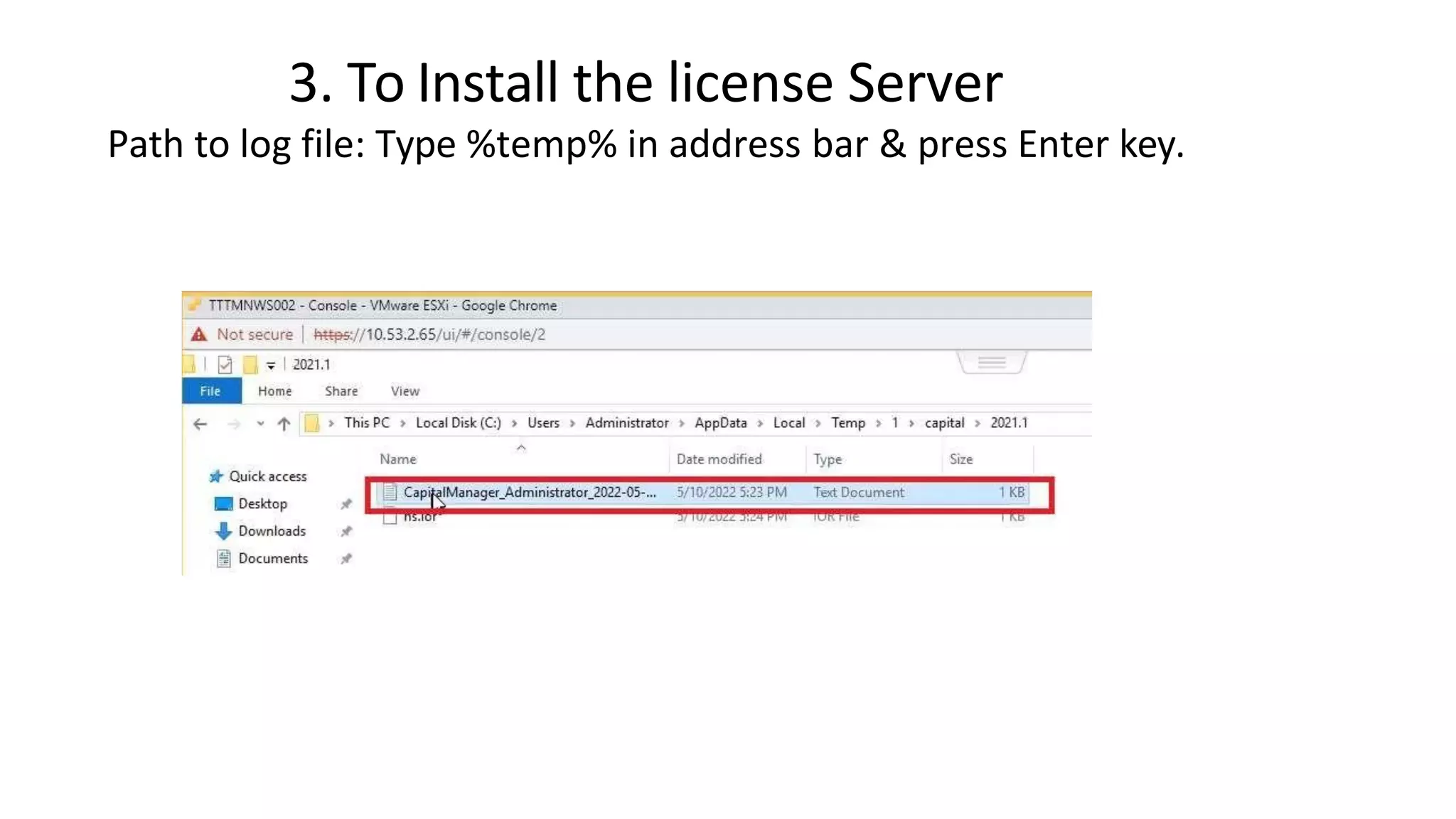
Path to log file: Type %temp% in address bar & press Enter key.
Optional step: License file
4. To Install the software in Server system
i) Open the extracted installation folder D:Capital_2021_1_Win64Win64
ii ) Extract the install_capital_2021.1.722_win64.zip file
4. To Install the software in Server system
iii) Open extracted “install_capital_2021.1.722_win64” folder & Right click on
Install.exe, select “Run as Administrator”
4. To Install the software in Server system
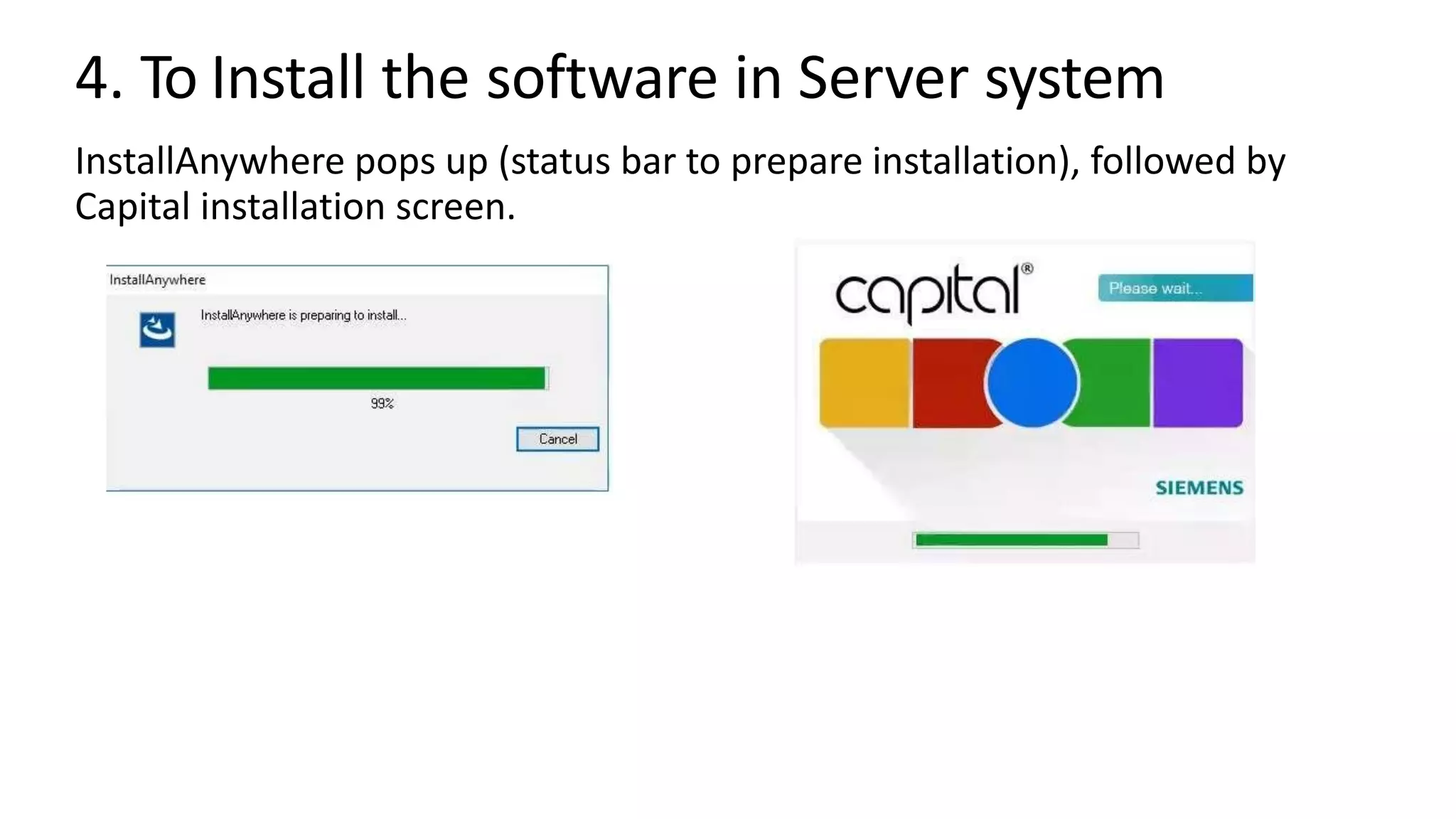
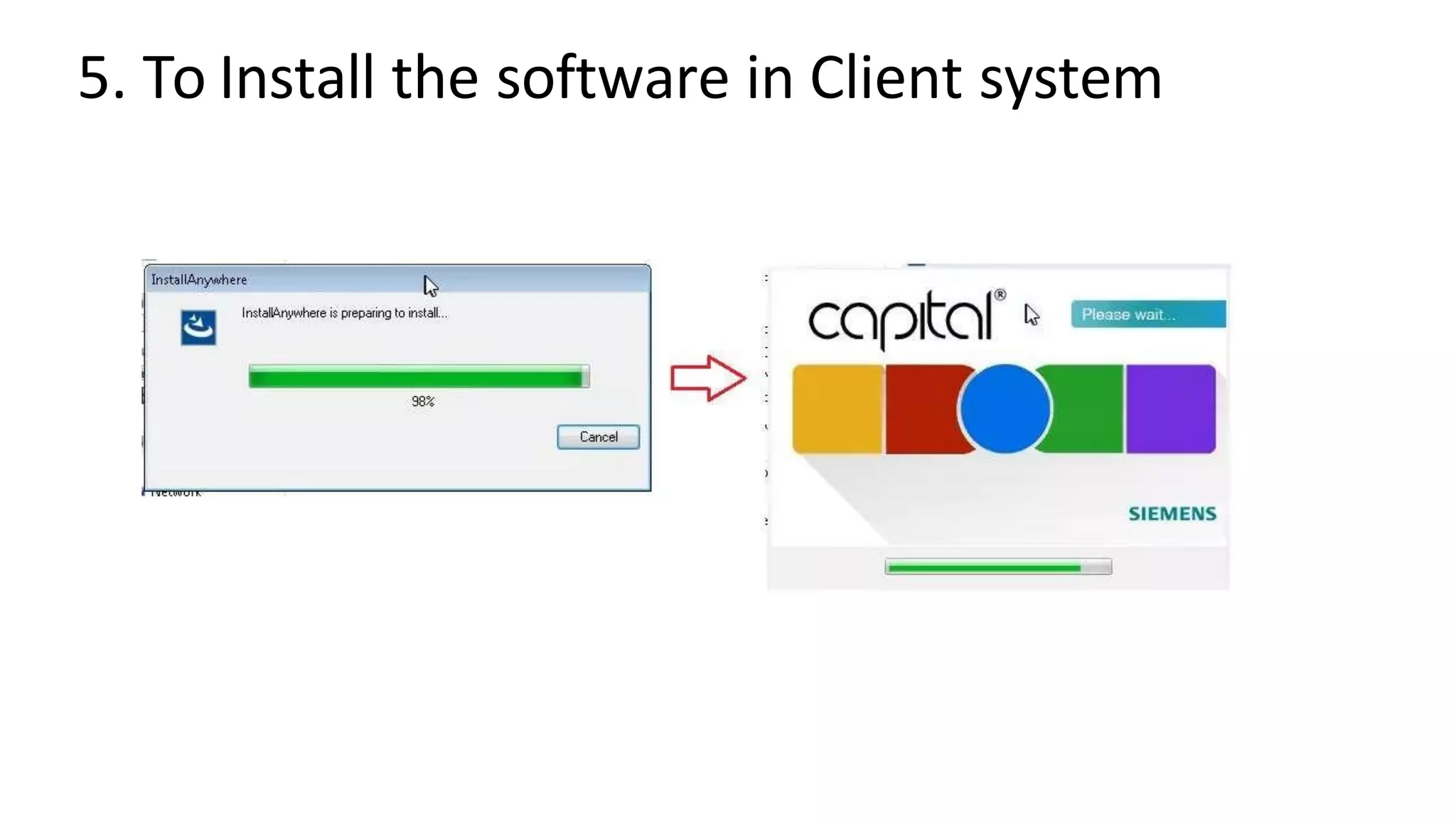
InstallAnywhere pops up (status bar to prepare installation), followed by
Capital installation screen.
4. To Install the software in Server system
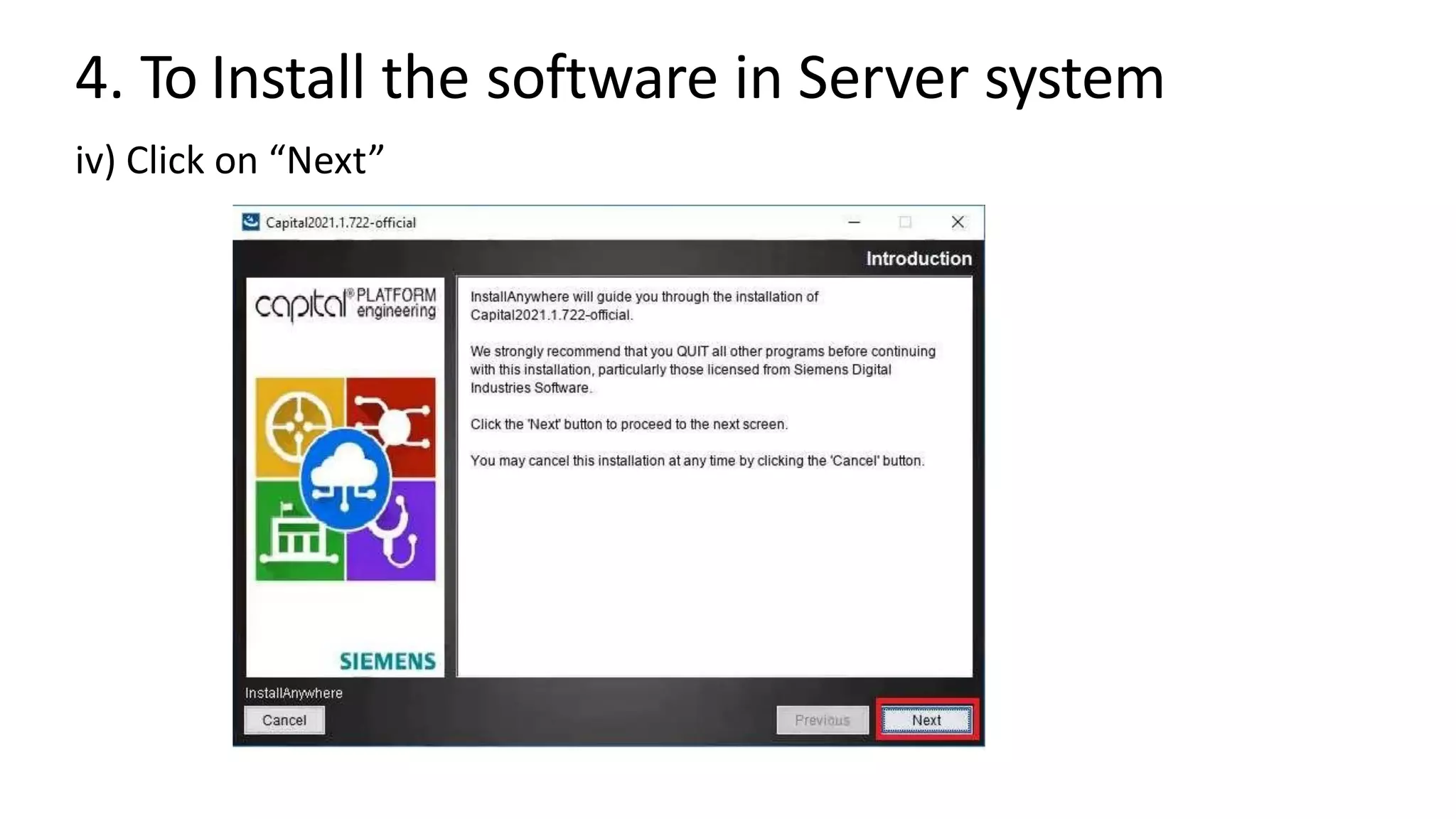
iv) Click on “Next”
4. To Install the software in Server system
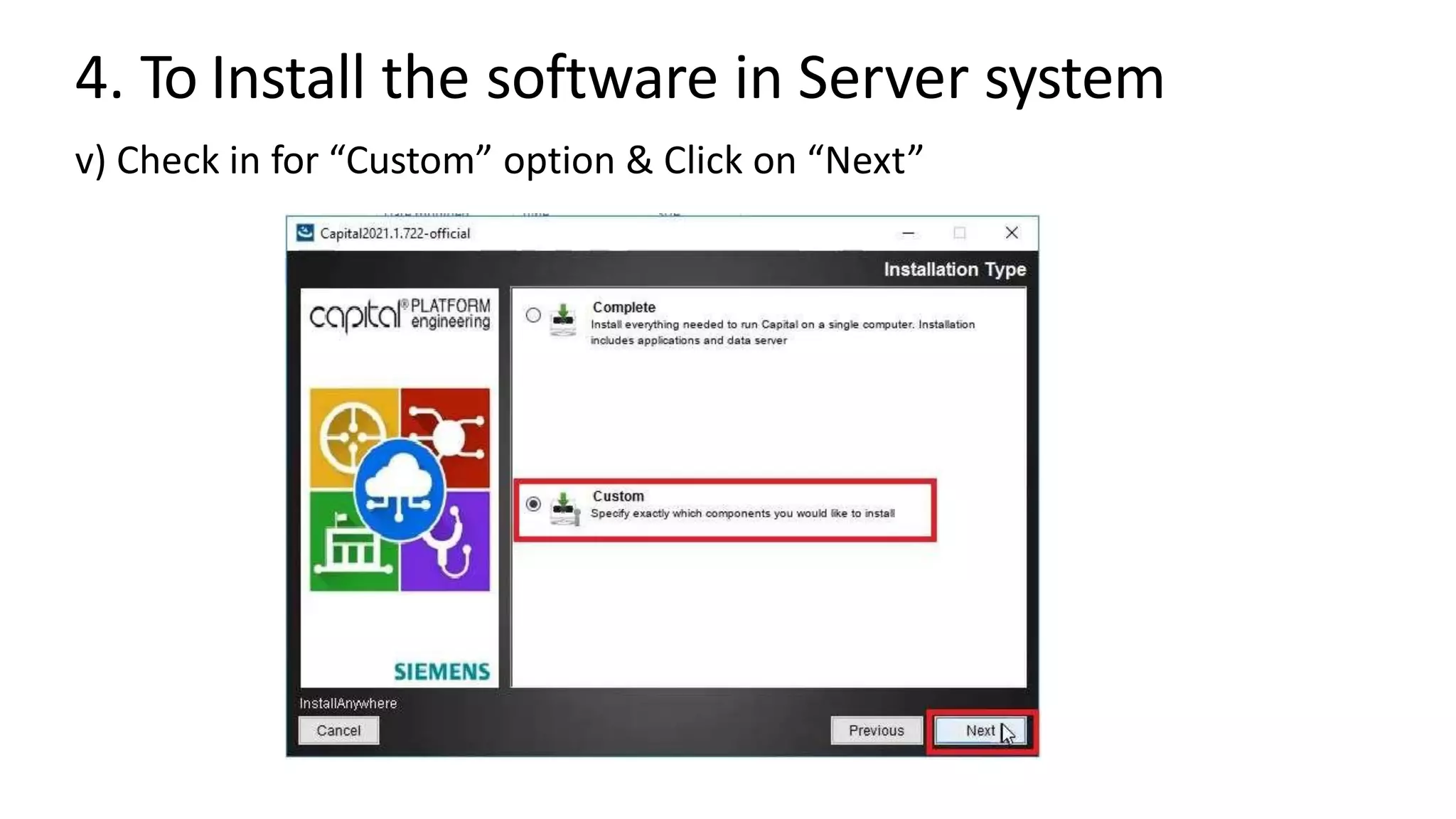
v) Check in for “Custom” option & Click on “Next”
4. To Install the software in Server system
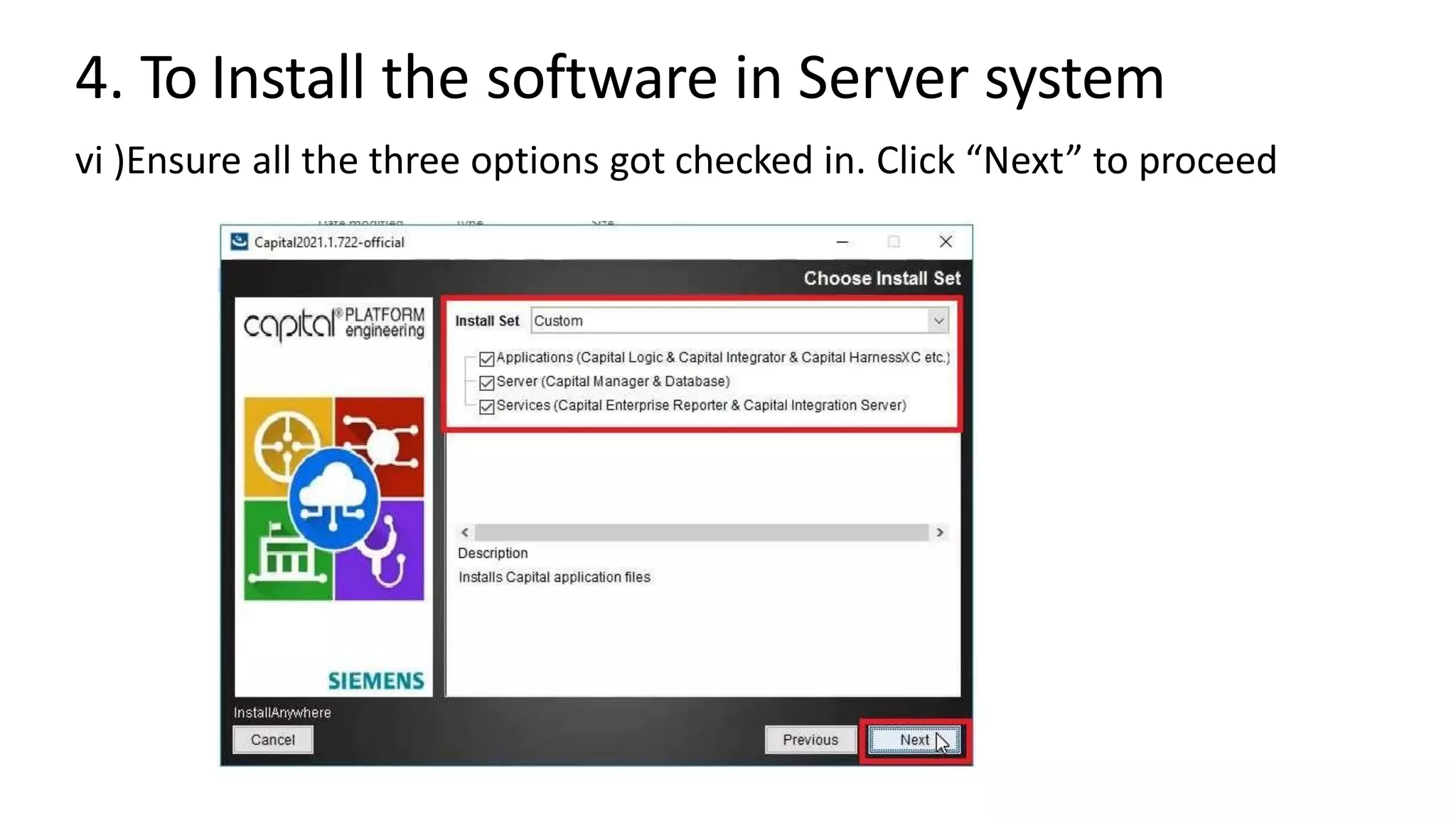
vi )Ensure all the three options got checked in. Click “Next” to proceed
4. To Install the software in Server system
vii )Click on “Next”
4. To Install the software in Server system
viii )Choose the directory for installation & Click on Next.
4. To Install the software in Server system
Wait till it get processed
4. To Install the software in Server system
ix )Ensure both the services got checked in, before you Click “Next”
4. To Install the software in Server system
x) Ensure licenses got enabled to start services. Click on Next
4. To Install the software in Server system
xi) Select “Embedded” DB option among the line items. Click on “Next”
4. To Install the software in Server system
xii) Select “Empty database” option. Click on “Next”
4. To Install the software in Server system
xiii) Select 1st option & Click on “Next”
4. To Install the software in Server system
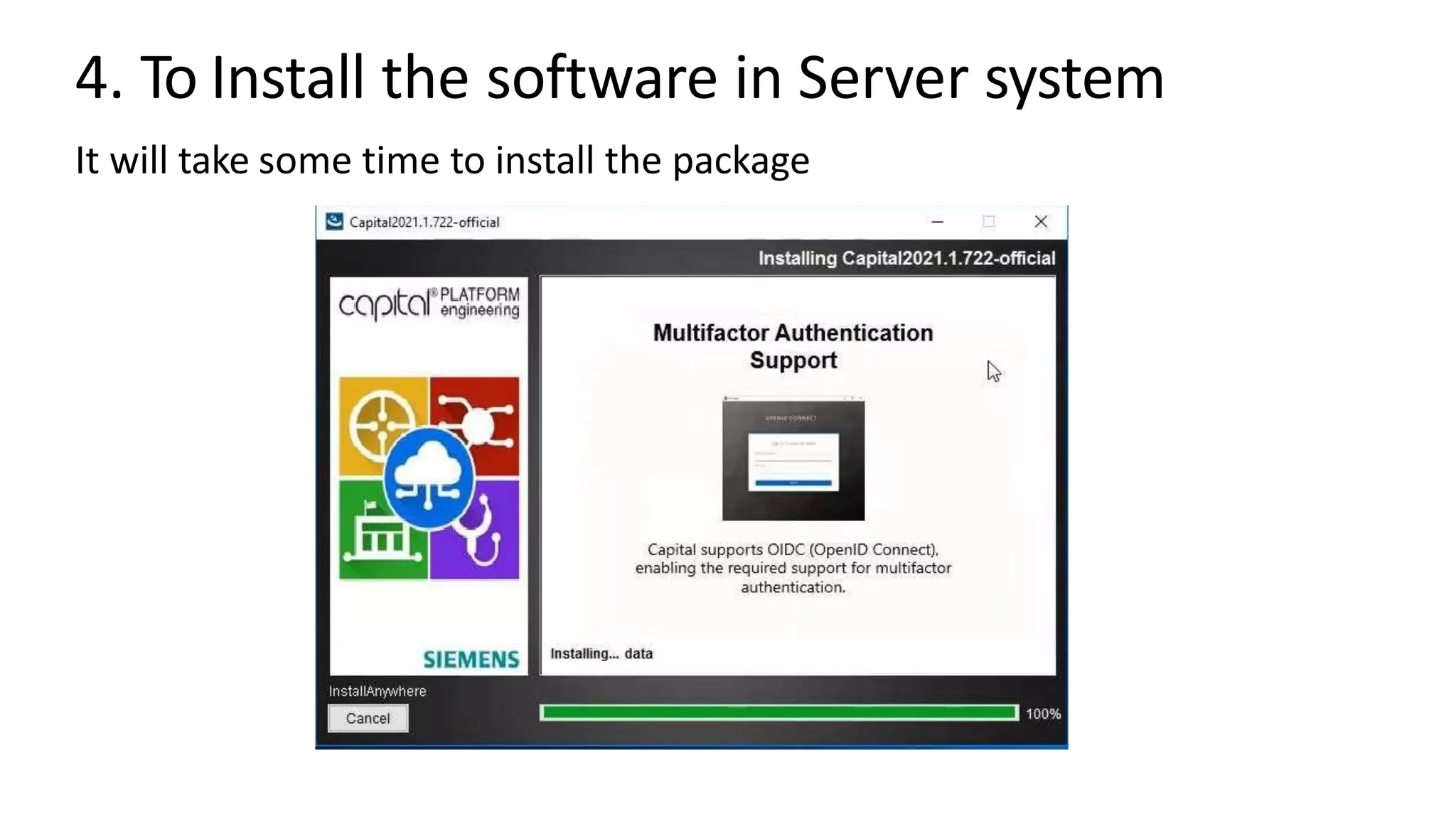
It will take some time to install the package
4. To Install the software in Server system
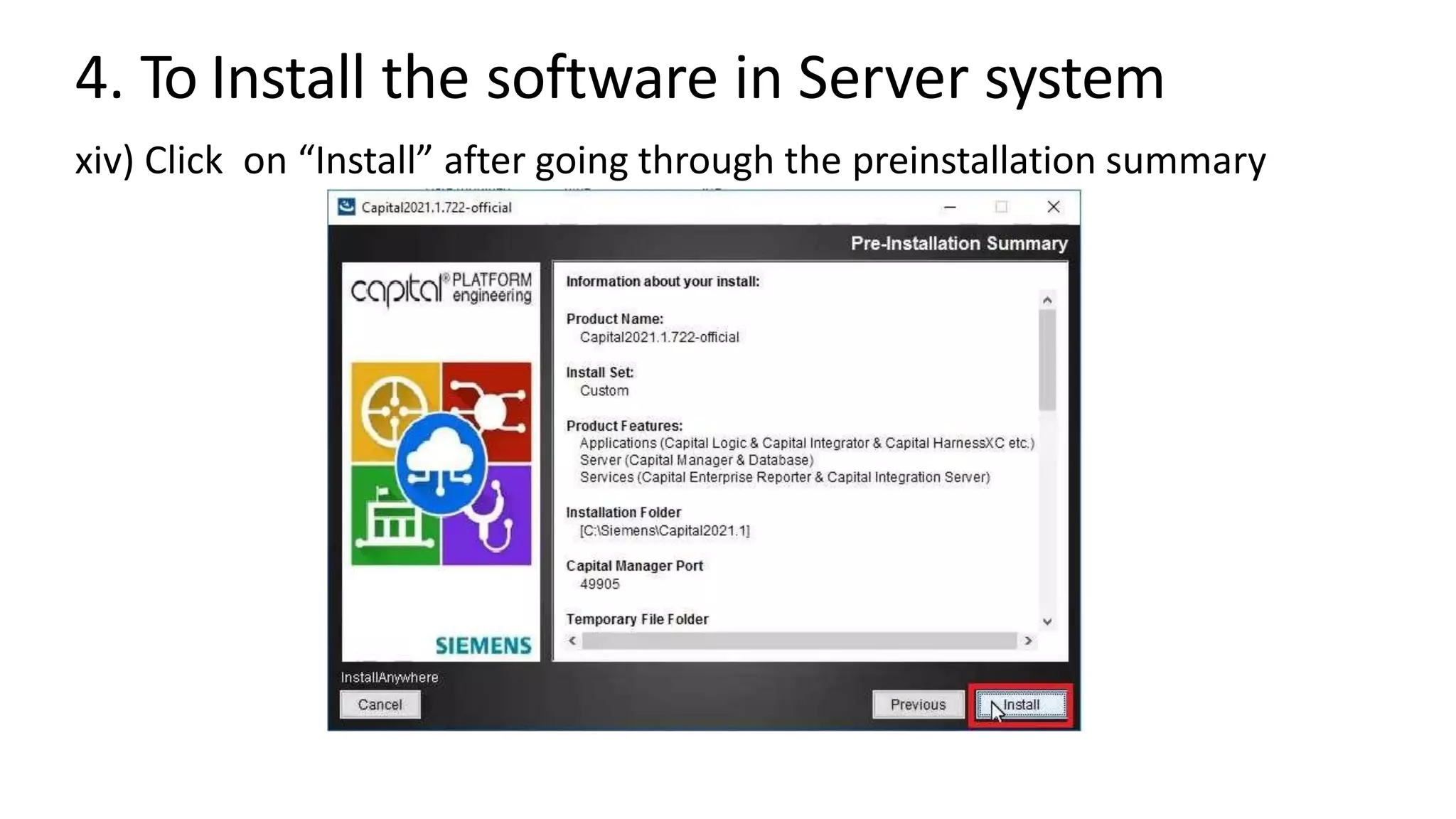
xiv) Click on “Install” after going through the preinstallation summary
4. To Install the software in Server system
xv) Click on “Done” to complete the installation
4. To Install the software in Server system
xvi) Open Task Manager, Go to Processes tab and End the task for Capital
Manager
4. To Install the software in Server system
xvi) Open Task Manager, Go to Processes tab and End the task for Capital
Manager
4. To Install the software in Server system
xvii) Go to Services Tab, Restart the Services for “Capital Embedded Database”
4. To Install the software in Server system
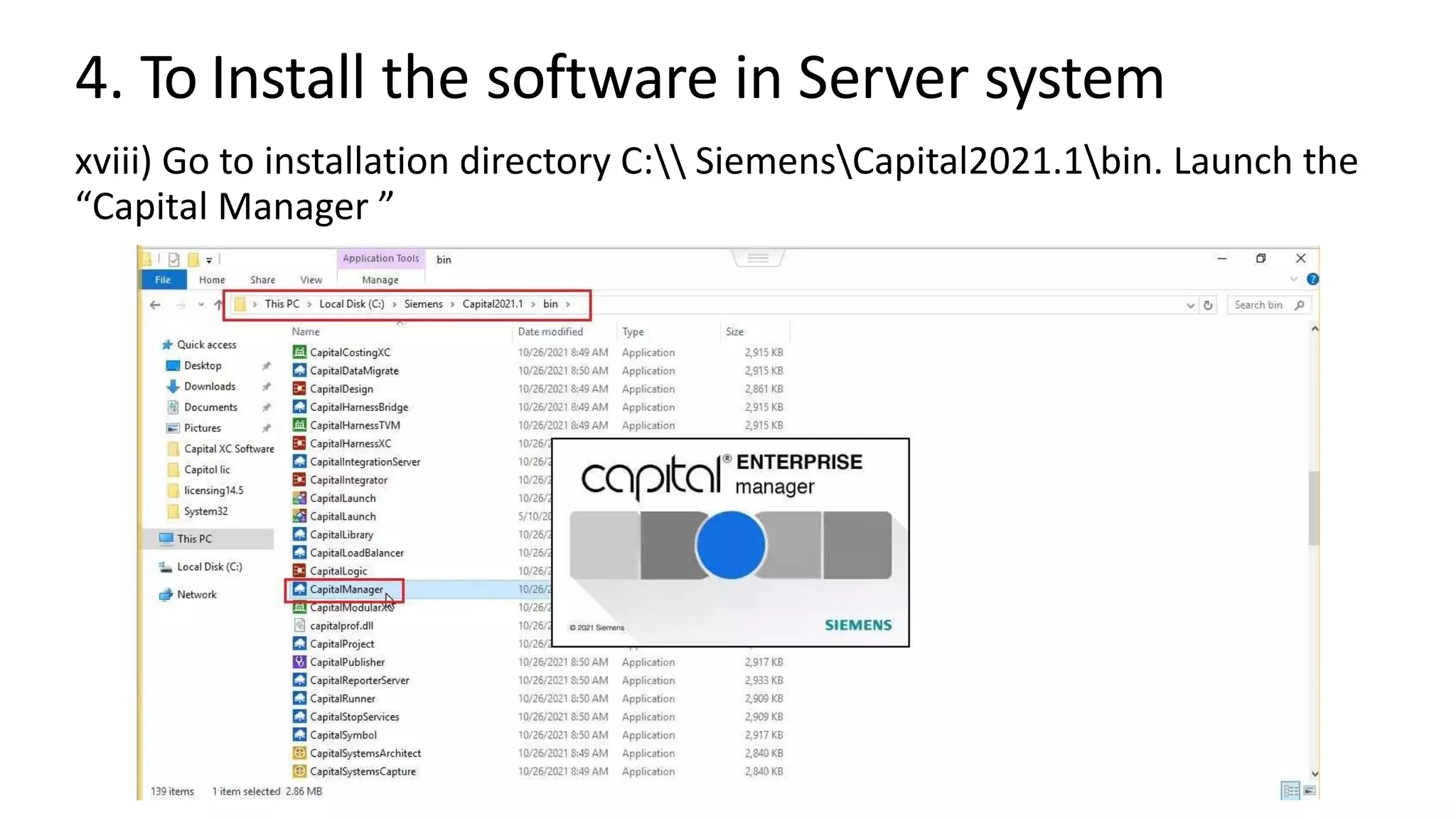
xviii) Go to installation directory C: SiemensCapital2021.1bin. Launch the
“Capital Manager ”
4. To Install the software in Server system
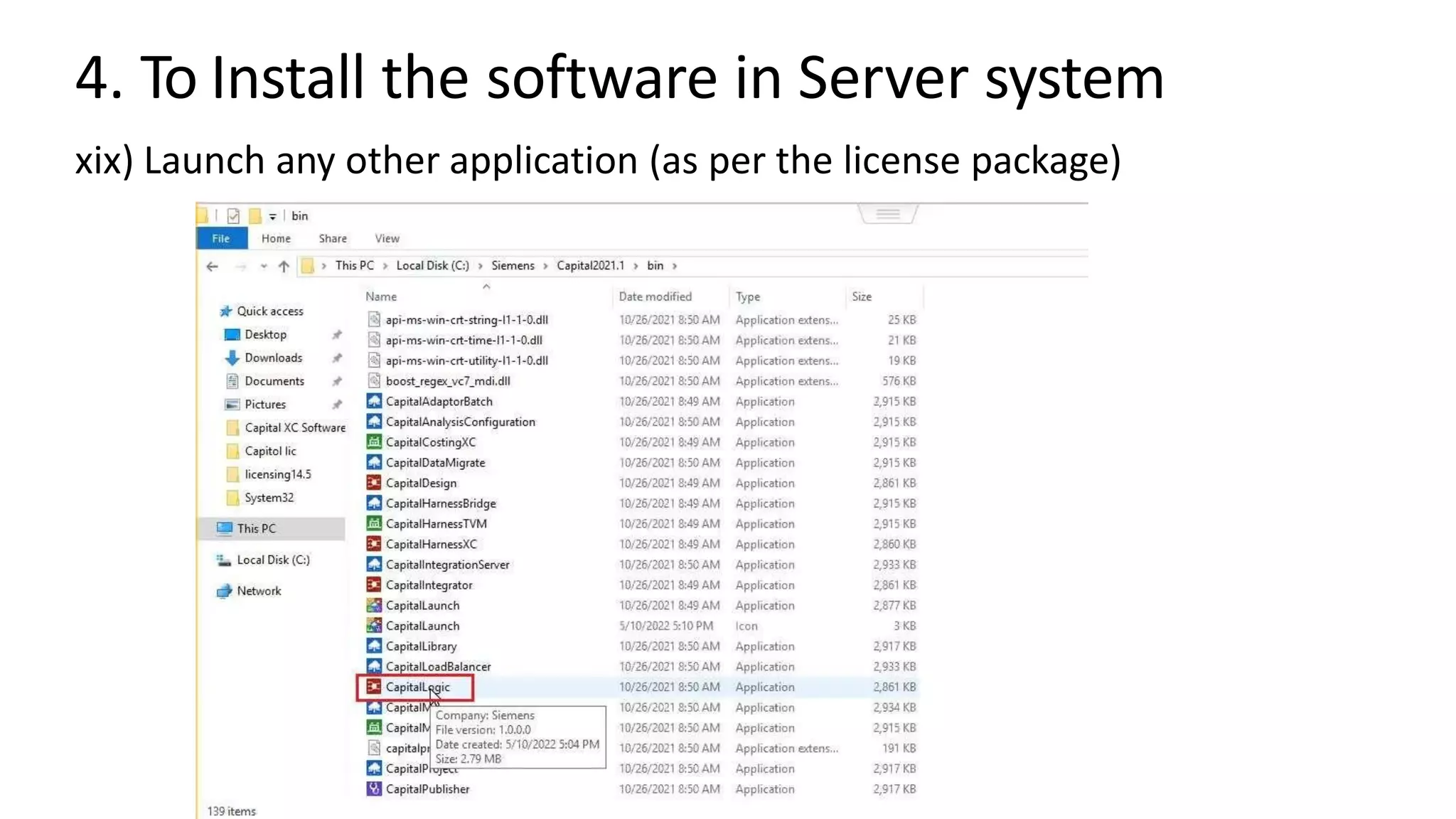
xix) Launch any other application (as per the license package)
4. To Install the software in Server system
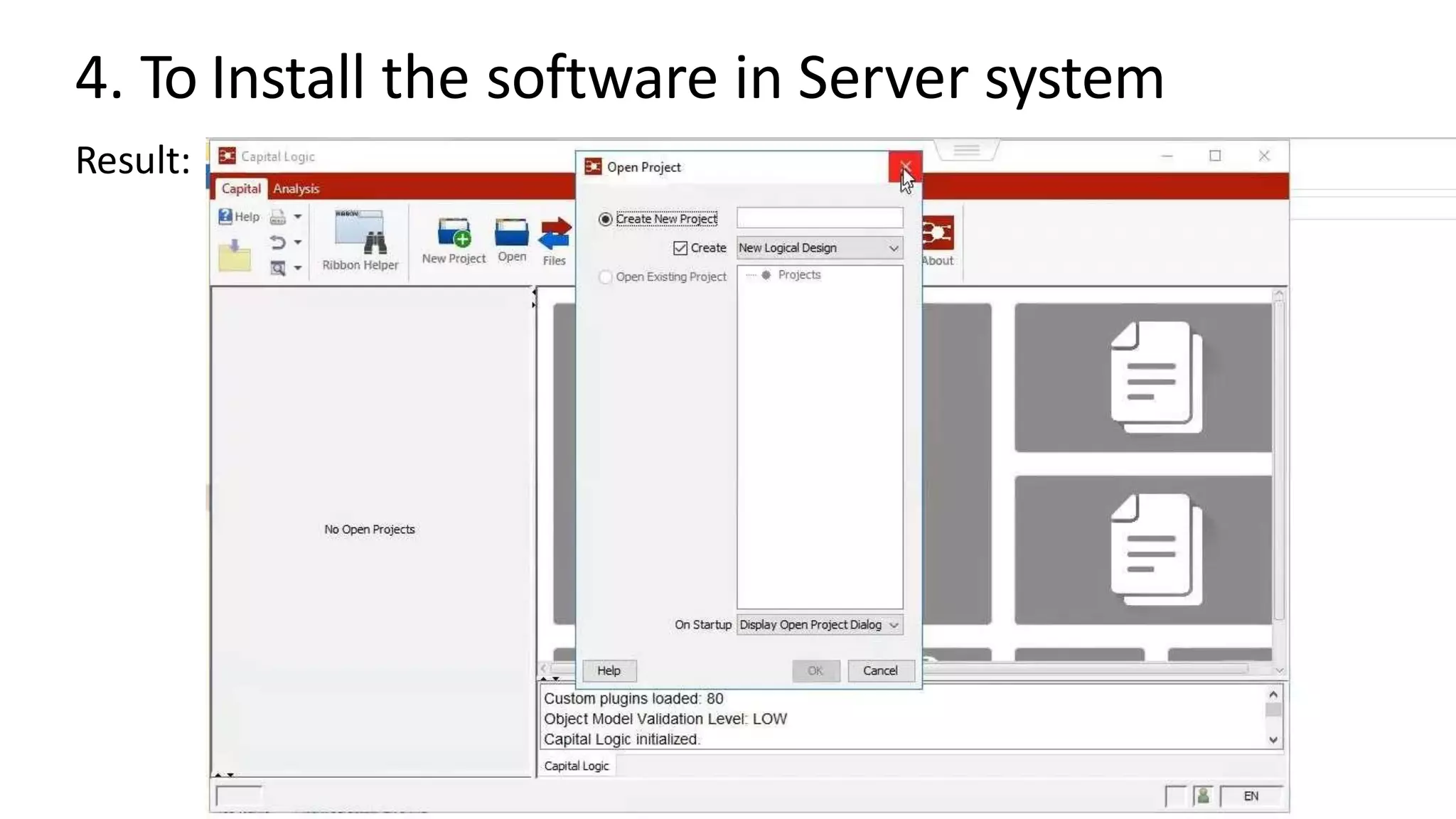
Result:
5. To Install the software in Client system
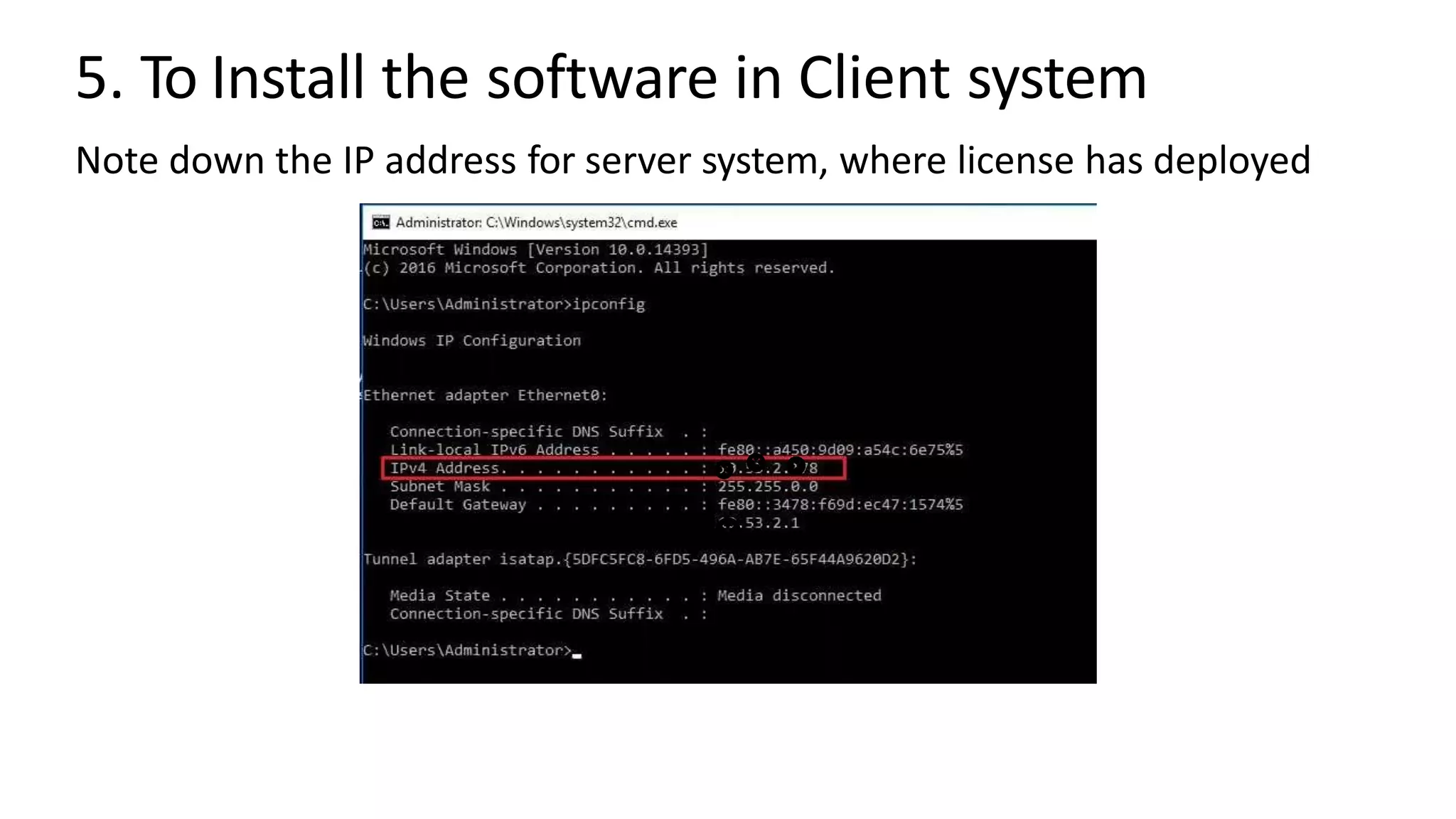
Note down the IP address for server system, where license has deployed
5. To Install the software in Client system
i) Open the extracted installation folder D:Capital_2021_1_Win64Win64
ii ) Extract the install_capital_2021.1.722_win64.zip file
5. To Install the software in Client system
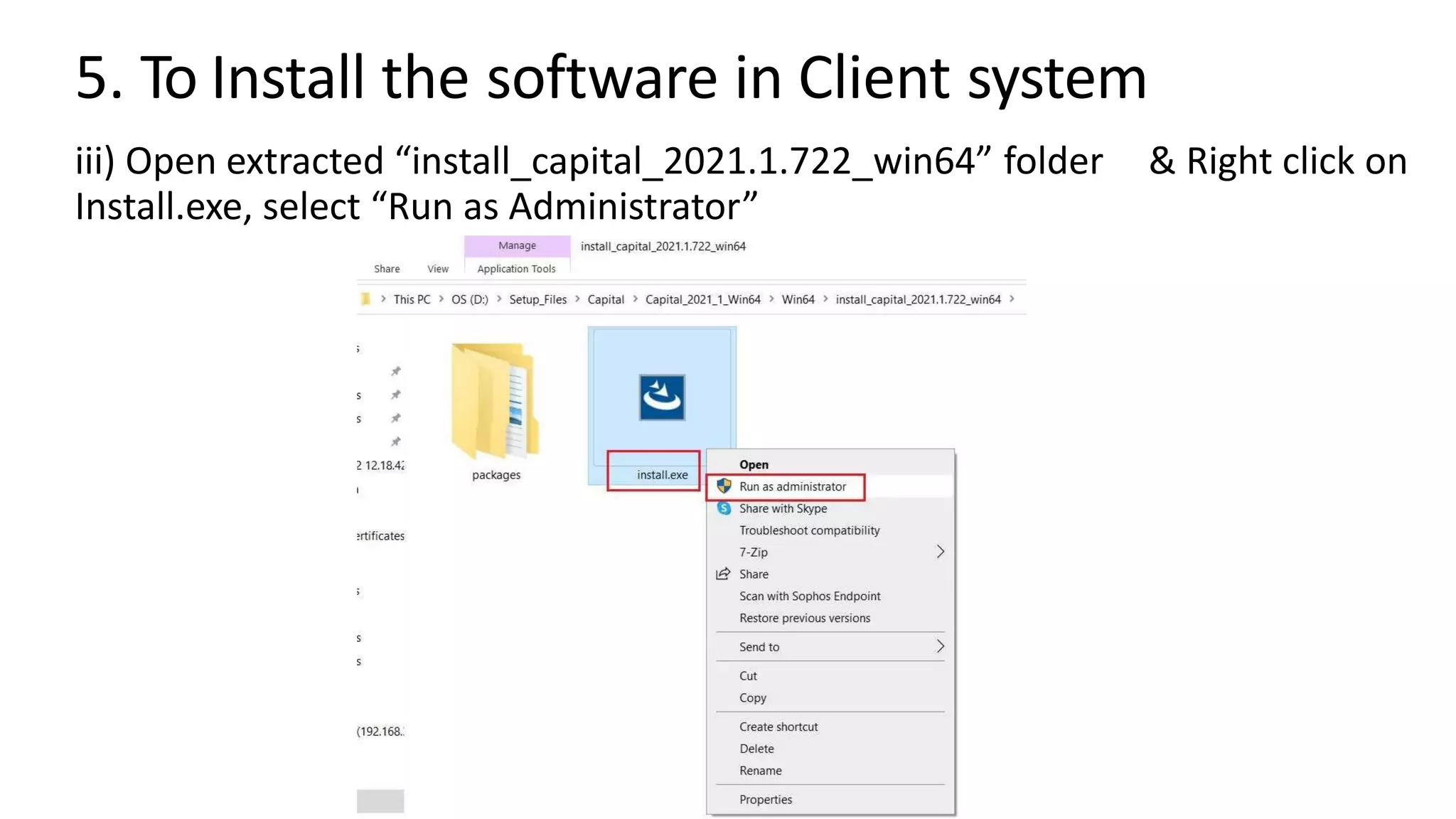
iii) Open extracted “install_capital_2021.1.722_win64” folder & Right click on
Install.exe, select “Run as Administrator”
5. To Install the software in Client system
iv) Check in for only 1st option and check out other 2 options. Click on “Next”
5. To Install the software in Client system
v) Specify the directory to install. Click on “Next”
5. To Install the software in Client system
iv) Check in for only 1st option and check out other 2 options. Click on “Next”
5. To Install the software in Client system
v) Enter IP address of Server system. Click on “Next”
5. To Install the software in Client system
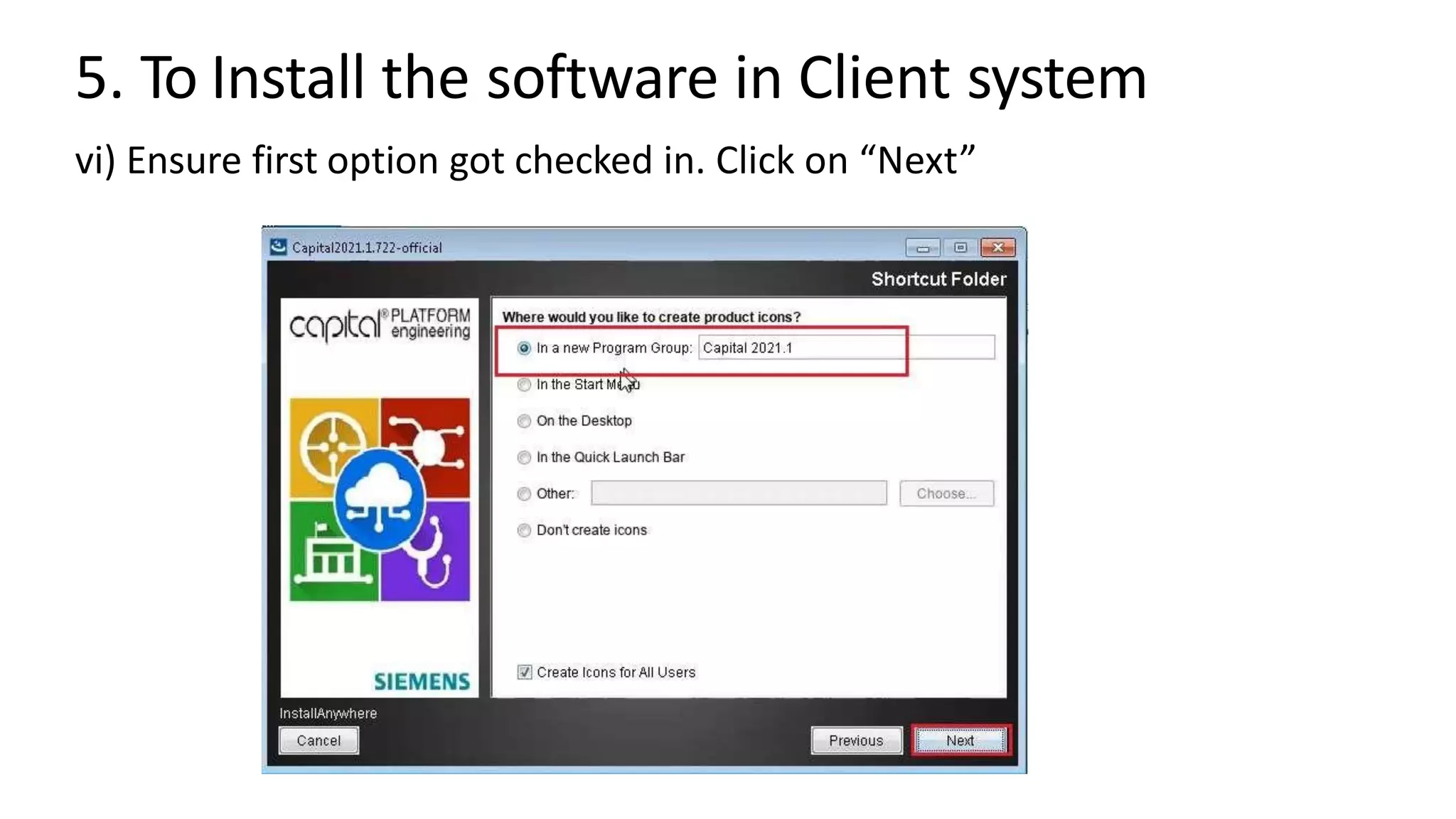
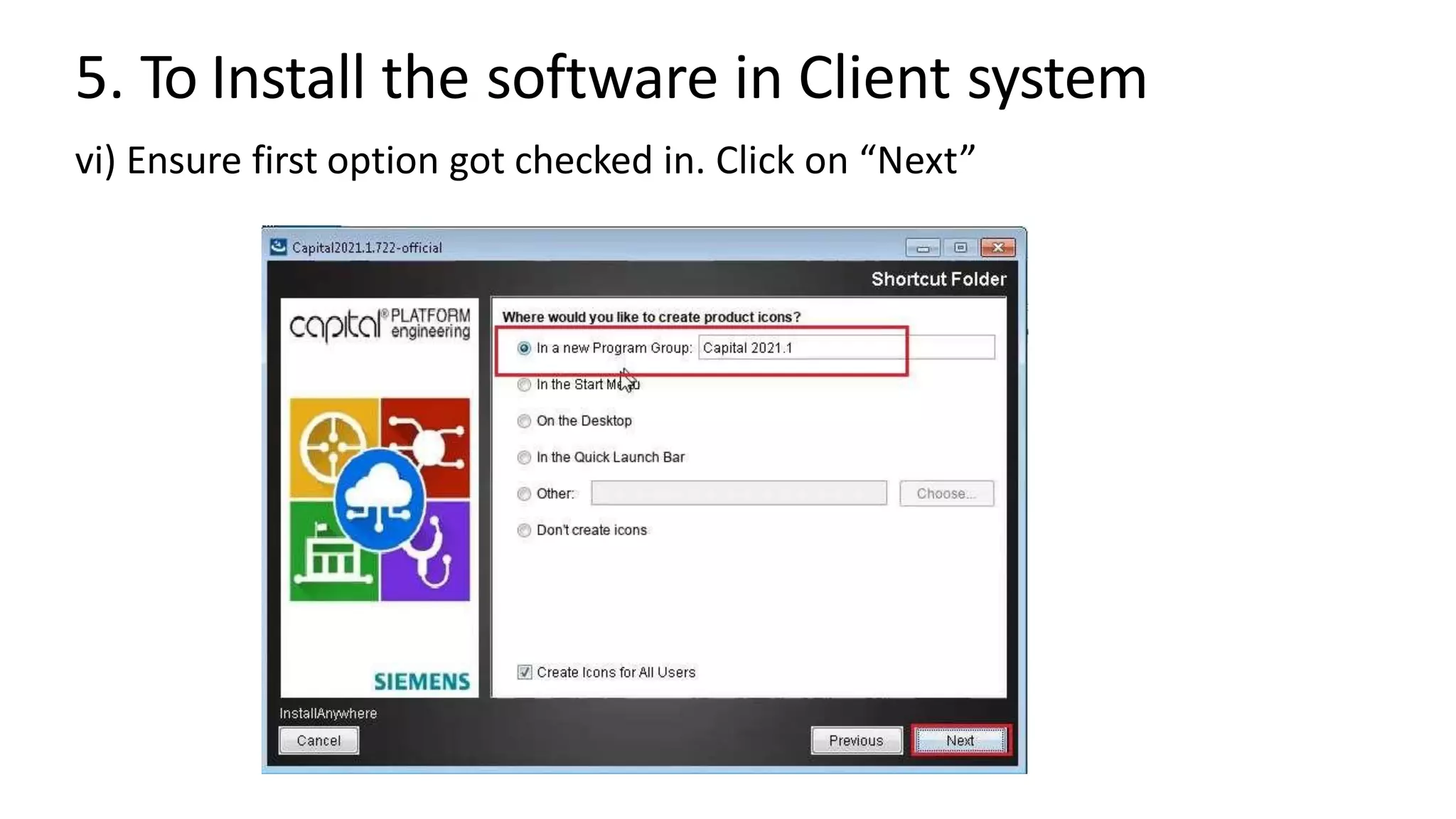
vi) Ensure first option got checked in. Click on “Next”
5. To Install the software in Client system
vi) Ensure first option got checked in. Click on “Next”
5. To Install the software in Client system
vii) Click on “Install”
5. To Install the software in Client system
viii) Click on “Done” to complete the installation
5. To Install the software in Client system
Now you can launch the Capital application.
Key points to troubleshoot Server-Client
connectivity issue
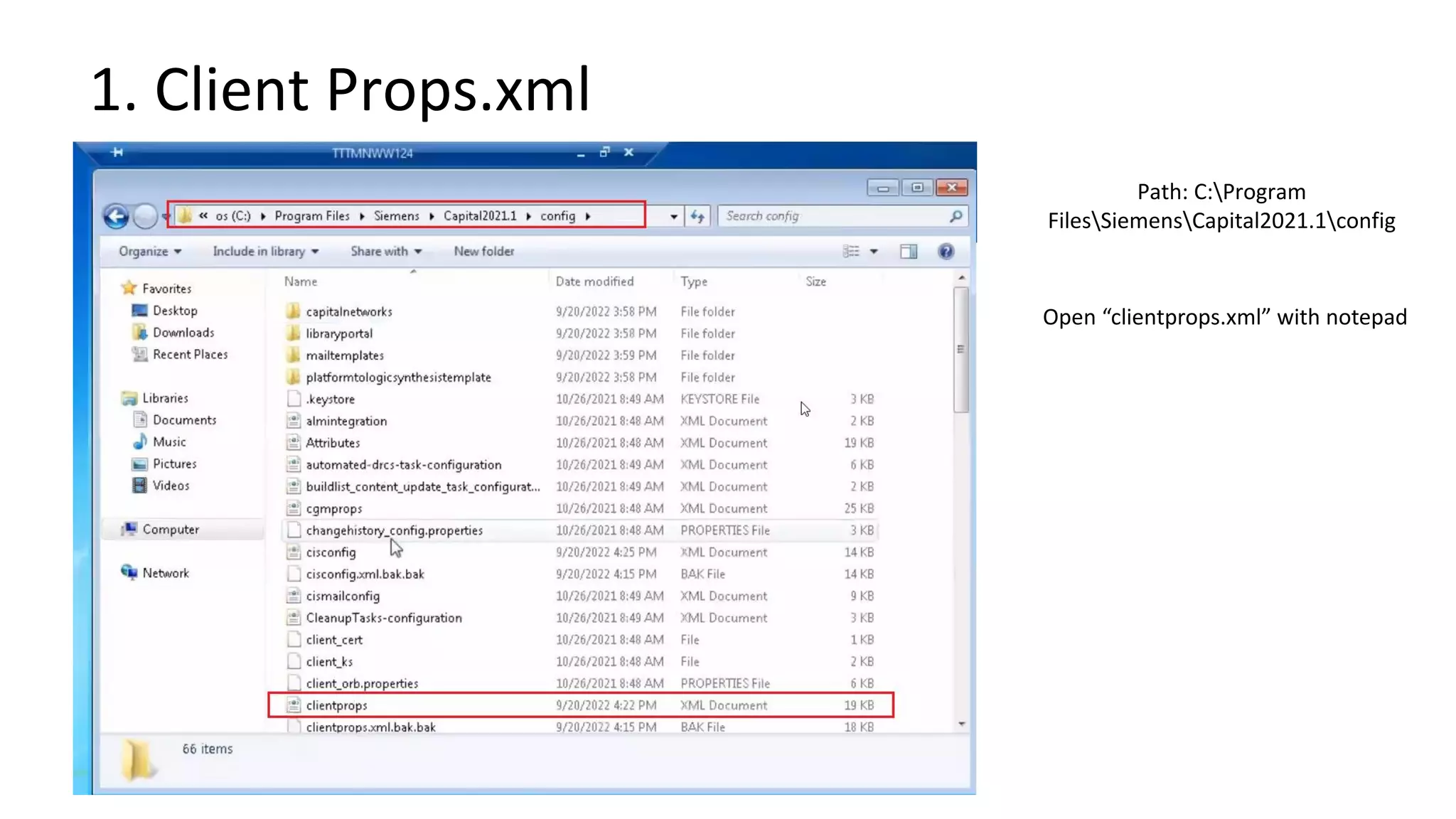
1. Client Props.xml
Path: C:Program
FilesSiemensCapital2021.1config
Open “clientprops.xml” with notepad
1. Client Props.xml Verify the IP address boxed in blue color is same as server ip
address. Edit for only ip address, do not erase “:49905/ns.ior”
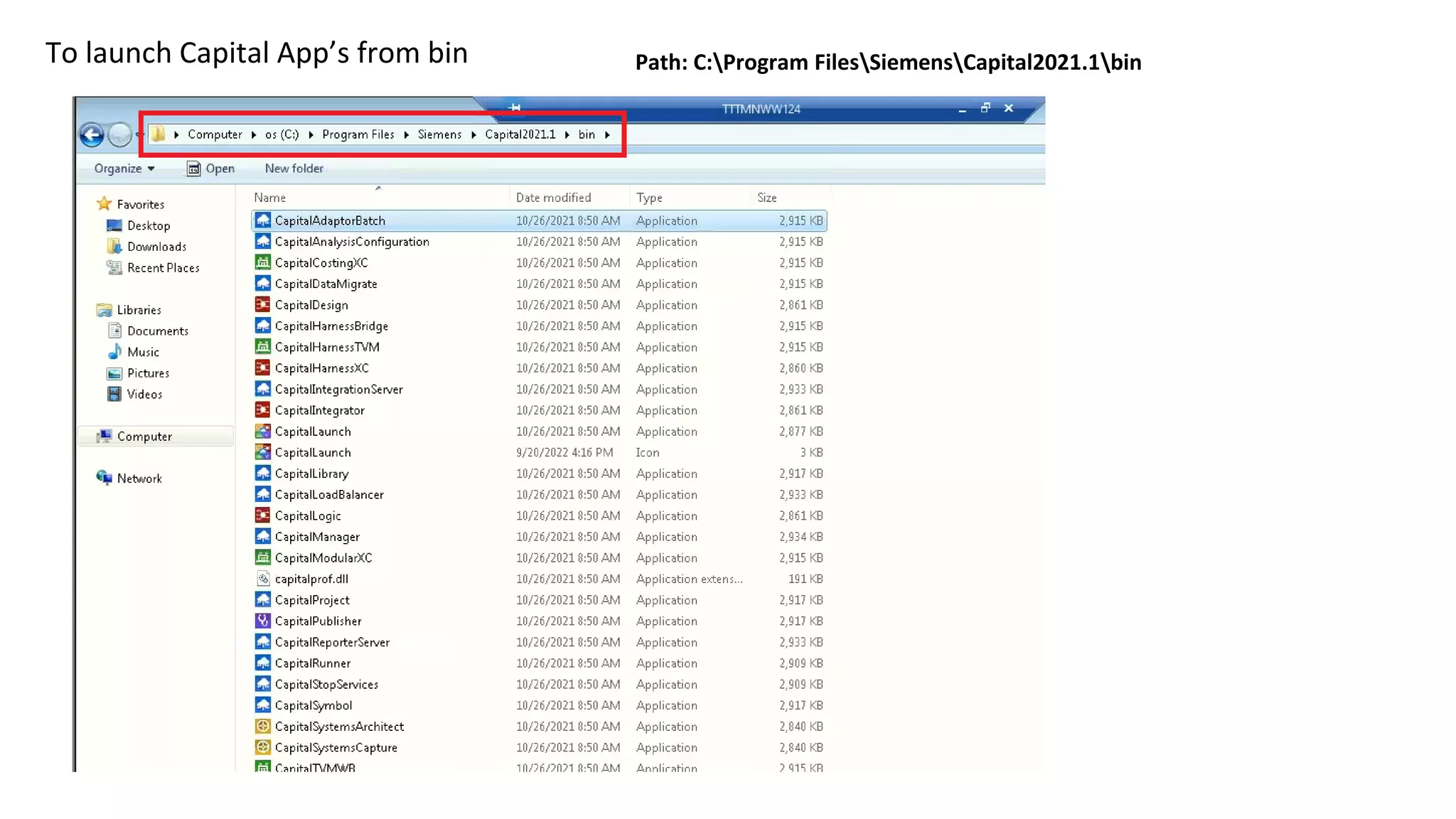
Path: C:Program FilesSiemensCapital2021.1bin
To launch Capital App’s from bin
Services to be running on server system

Capital software installation procedure

  • 1.
    Capital Software Installation Tier-2Installation (Server & Client) By, Somashekar S M, ME Senior Application Engineer
  • 2.
    1. Download theSoftware • Open the browser, type URL: https://support.sw.siemens.com/en- US/ in address bar • Go to “Download” tab, from its dropdown, select “Capital”
  • 3.
  • 4.
  • 5.
    1. Download theSoftware • It will be directed to https://mentor.subscribenet.com/control/ment/addupdateaccountme mber site
  • 6.
    1. Download theSoftware URL: https://ment-esd.subscribenet.com/cgi-bin/download?rid=9420978667&rp=DTM20220510180142NjQzODIwNzg1
  • 7.
  • 8.
    3. To Installthe license Server i) Verify MAC ID mentioned in the license wrt server system. ii) Launch “getcid.exe” getcid.exe iii) Verify with license MAC ID Site_3147433.txt
  • 9.
    3. To Installthe license Server iv) Open the extracted setup folder “Capital_2021_1_Win64”. v) Open “Licensing folder”
  • 10.
    3. To Installthe license Server vi) Extract pcls_v9.23.5.3.1.zip file
  • 11.
    3. To Installthe license Server vii) Open extracted “pcls_v9.23.5.3.1” folder, double click on “setup.bat” file
  • 12.
    3. To Installthe license Server It runs the batch script in DOS
  • 13.
    3. To Installthe license Server After completion, it opens the license manager setup
  • 14.
    3. To Installthe license Server viii) Ensure, licensing installation location has set and 64 bit option got checked in, Click on “Install” in the bottom right.
  • 15.
    3. To Installthe license Server Click “Yes” to configure the licensing in subsequent steps
  • 16.
    3. To Installthe license Server ix) Check in 1st option, Click “Next”
  • 17.
    3. To Installthe license Server x) Browse the location to upload license file, Click “Next”
  • 18.
    3. To Installthe license Server Click “Yes” to proceed
  • 19.
    3. To Installthe license Server Click on “Done”, after license server got installed successfully
  • 20.
    3. To Installthe license Server Confirm “No”
  • 21.
    3. To Installthe license Server To check the working of license server, visit to C:MentorGraphicsLicensing & launch lmtools.exe
  • 22.
    3. To Installthe license Server Go to “Server Status” tab and Select “Perform status enquiry”
  • 23.
    3. To Installthe license Server Scroll down slowly until you find release of license from Manager. Close LMTOOLS.
  • 24.
    3. To Installthe license Server Path to license File
  • 25.
    3. To Installthe license Server Path to log file: Type %temp% in address bar & press Enter key.
  • 26.
  • 27.
    4. To Installthe software in Server system i) Open the extracted installation folder D:Capital_2021_1_Win64Win64 ii ) Extract the install_capital_2021.1.722_win64.zip file
  • 28.
    4. To Installthe software in Server system iii) Open extracted “install_capital_2021.1.722_win64” folder & Right click on Install.exe, select “Run as Administrator”
  • 29.
    4. To Installthe software in Server system InstallAnywhere pops up (status bar to prepare installation), followed by Capital installation screen.
  • 30.
    4. To Installthe software in Server system iv) Click on “Next”
  • 31.
    4. To Installthe software in Server system v) Check in for “Custom” option & Click on “Next”
  • 32.
    4. To Installthe software in Server system vi )Ensure all the three options got checked in. Click “Next” to proceed
  • 33.
    4. To Installthe software in Server system vii )Click on “Next”
  • 34.
    4. To Installthe software in Server system viii )Choose the directory for installation & Click on Next.
  • 35.
    4. To Installthe software in Server system Wait till it get processed
  • 36.
    4. To Installthe software in Server system ix )Ensure both the services got checked in, before you Click “Next”
  • 37.
    4. To Installthe software in Server system x) Ensure licenses got enabled to start services. Click on Next
  • 38.
    4. To Installthe software in Server system xi) Select “Embedded” DB option among the line items. Click on “Next”
  • 39.
    4. To Installthe software in Server system xii) Select “Empty database” option. Click on “Next”
  • 40.
    4. To Installthe software in Server system xiii) Select 1st option & Click on “Next”
  • 41.
    4. To Installthe software in Server system It will take some time to install the package
  • 42.
    4. To Installthe software in Server system xiv) Click on “Install” after going through the preinstallation summary
  • 43.
    4. To Installthe software in Server system xv) Click on “Done” to complete the installation
  • 44.
    4. To Installthe software in Server system xvi) Open Task Manager, Go to Processes tab and End the task for Capital Manager
  • 45.
    4. To Installthe software in Server system xvi) Open Task Manager, Go to Processes tab and End the task for Capital Manager
  • 46.
    4. To Installthe software in Server system xvii) Go to Services Tab, Restart the Services for “Capital Embedded Database”
  • 47.
    4. To Installthe software in Server system xviii) Go to installation directory C: SiemensCapital2021.1bin. Launch the “Capital Manager ”
  • 48.
    4. To Installthe software in Server system xix) Launch any other application (as per the license package)
  • 49.
    4. To Installthe software in Server system Result:
  • 50.
    5. To Installthe software in Client system Note down the IP address for server system, where license has deployed
  • 51.
    5. To Installthe software in Client system i) Open the extracted installation folder D:Capital_2021_1_Win64Win64 ii ) Extract the install_capital_2021.1.722_win64.zip file
  • 52.
    5. To Installthe software in Client system iii) Open extracted “install_capital_2021.1.722_win64” folder & Right click on Install.exe, select “Run as Administrator”
  • 53.
    5. To Installthe software in Client system
  • 54.
    5. To Installthe software in Client system iv) Check in for only 1st option and check out other 2 options. Click on “Next”
  • 55.
    5. To Installthe software in Client system v) Specify the directory to install. Click on “Next”
  • 56.
    5. To Installthe software in Client system iv) Check in for only 1st option and check out other 2 options. Click on “Next”
  • 57.
    5. To Installthe software in Client system v) Enter IP address of Server system. Click on “Next”
  • 58.
    5. To Installthe software in Client system vi) Ensure first option got checked in. Click on “Next”
  • 59.
    5. To Installthe software in Client system vi) Ensure first option got checked in. Click on “Next”
  • 60.
    5. To Installthe software in Client system vii) Click on “Install”
  • 61.
    5. To Installthe software in Client system viii) Click on “Done” to complete the installation
  • 62.
    5. To Installthe software in Client system Now you can launch the Capital application.
  • 63.
    Key points totroubleshoot Server-Client connectivity issue
  • 64.
    1. Client Props.xml Path:C:Program FilesSiemensCapital2021.1config Open “clientprops.xml” with notepad
  • 65.
    1. Client Props.xmlVerify the IP address boxed in blue color is same as server ip address. Edit for only ip address, do not erase “:49905/ns.ior”
  • 66.
    Path: C:Program FilesSiemensCapital2021.1bin Tolaunch Capital App’s from bin
  • 67.
    Services to berunning on server system