Murach’s C#
2010, C25 © 2010, Mike Murach & Associates, Inc.Slide 1
Chapter 25
How to
deploy an application
Murach’s C#
2010, C25 © 2010, Mike Murach & Associates, Inc.Slide 2
Objectives
Applied
1. Use the ClickOnce feature to deploy an application.
2. Use a Setup program to deploy an application.
Knowledge
1. In general terms, describe these techniques for deploying an
application: XCopy, ClickOnce, and Setup program.
Murach’s C#
2010, C25 © 2010, Mike Murach & Associates, Inc.Slide 3
Deploying a Windows Forms application
Option 1: XCopy deployment
• Installs the application by copying the folder for the application to
the user’s hard drive.
• Allows the user to start the application by double-clicking on the
exe file for the application or by using a shortcut once the
application is installed.
• Allows the user to remove the application by deleting the folder
for the application.
• Works as long as all files required by the application are included
in the folder for the application.
• Is adequate for some simple applications with just a few users.
Murach’s C#
2010, C25 © 2010, Mike Murach & Associates, Inc.Slide 4
Option 2: ClickOnce deployment
• Allows users to install the application by clicking a link from a
web page.
• Creates an icon for the application in the Start menu.
• Allows the application to be uninstalled using the Uninstall or
Change a Program window (Windows 7 and Windows Vista) or
the Add or Remove Programs window (Windows XP) that can be
accessed from the Control Panel.
• Provides a way to automatically check for and install any files
needed by the application.
• Provides a way to automatically distribute updates to the
application.
• Is adequate for many types of applications with multiple users.
Murach’s C#
2010, C25 © 2010, Mike Murach & Associates, Inc.Slide 5
Option 3: Setup program deployment
• Allows users to install the application by running a Windows
Setup program.
• Allows users to specify the installation directory.
• Creates an icon for the application in the Start menu.
• Allows the application to be uninstalled using the Uninstall or
Change a Program window (Windows 7 and Windows Vista) or
the Add or Remove Programs window (Windows XP) that can be
accessed from the Control Panel.
• Provides a way to automatically check for and install any files
needed by the application.
• Can be used to install shared components in the global assembly
cache (GAC).
• Can be used to modify the registry to install COM components.
• Is adequate for all but the most complex applications.
Murach’s C#
2010, C25 © 2010, Mike Murach & Associates, Inc.Slide 6
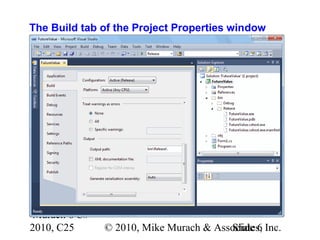
The Build tab of the Project Properties window
Murach’s C#
2010, C25 © 2010, Mike Murach & Associates, Inc.Slide 7
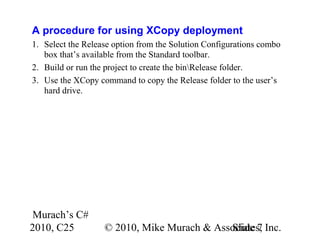
A procedure for using XCopy deployment
1. Select the Release option from the Solution Configurations combo
box that’s available from the Standard toolbar.
2. Build or run the project to create the binRelease folder.
3. Use the XCopy command to copy the Release folder to the user’s
hard drive.
Murach’s C#
2010, C25 © 2010, Mike Murach & Associates, Inc.Slide 8
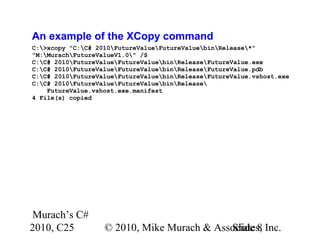
An example of the XCopy command
C:>xcopy "C:C# 2010FutureValueFutureValuebinRelease*"
"M:MurachFutureValueV1.0" /S
C:C# 2010FutureValueFutureValuebinReleaseFutureValue.exe
C:C# 2010FutureValueFutureValuebinReleaseFutureValue.pdb
C:C# 2010FutureValueFutureValuebinReleaseFutureValue.vshost.exe
C:C# 2010FutureValueFutureValuebinRelease
FutureValue.vshost.exe.manifest
4 File(s) copied
Murach’s C#
2010, C25 © 2010, Mike Murach & Associates, Inc.Slide 9
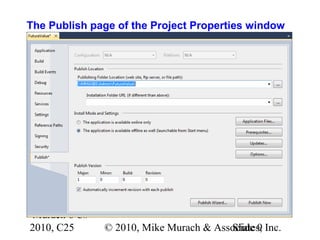
The Publish page of the Project Properties window
Murach’s C#
2010, C25 © 2010, Mike Murach & Associates, Inc.Slide 10
The Application Files dialog box
Murach’s C#
2010, C25 © 2010, Mike Murach & Associates, Inc.Slide 11
The Prerequisites dialog box
Murach’s C#
2010, C25 © 2010, Mike Murach & Associates, Inc.Slide 12
The Application Updates dialog box
Murach’s C#
2010, C25 © 2010, Mike Murach & Associates, Inc.Slide 13
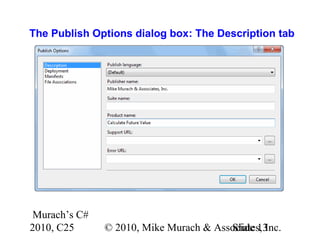
The Publish Options dialog box: The Description tab
Murach’s C#
2010, C25 © 2010, Mike Murach & Associates, Inc.Slide 14
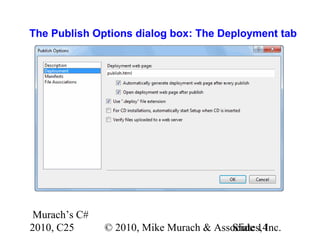
The Publish Options dialog box: The Deployment tab
Murach’s C#
2010, C25 © 2010, Mike Murach & Associates, Inc.Slide 15
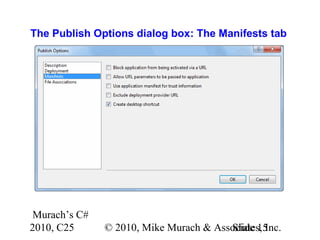
The Publish Options dialog box: The Manifests tab
Murach’s C#
2010, C25 © 2010, Mike Murach & Associates, Inc.Slide 16
The Publish Options dialog box:
The File Associations tab
Murach’s C#
2010, C25 © 2010, Mike Murach & Associates, Inc.Slide 17
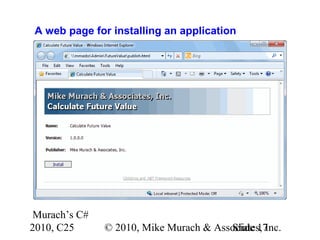
A web page for installing an application
Murach’s C#
2010, C25 © 2010, Mike Murach & Associates, Inc.Slide 18
The dialog box that’s displayed
if an update is available
Murach’s C#
2010, C25 © 2010, Mike Murach & Associates, Inc.Slide 19
The Add New Project dialog box for a Setup project
Murach’s C#
2010, C25 © 2010, Mike Murach & Associates, Inc.Slide 20
A Setup project displayed in Visual Studio
Murach’s C#
2010, C25 © 2010, Mike Murach & Associates, Inc.Slide 21
The Setup editors for customizing a Setup project
• File System Editor
• Registry Editor
• File Types Editor
• User Interface Editor
• Custom Actions Editor
• Launch Conditions Editor
Common properties of a Setup project
• Manufacturer
• ProductName
• ProductCode
• Version
• RemovePreviousVersions
Murach’s C#
2010, C25 © 2010, Mike Murach & Associates, Inc.Slide 22
The first step of the Setup program
Murach’s C#
2010, C25 © 2010, Mike Murach & Associates, Inc.Slide 23
The second step of the Setup program
Murach’s C#
2010, C25 © 2010, Mike Murach & Associates, Inc.Slide 24
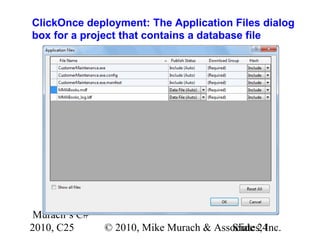
ClickOnce deployment: The Application Files dialog
box for a project that contains a database file
Murach’s C#
2010, C25 © 2010, Mike Murach & Associates, Inc.Slide 25
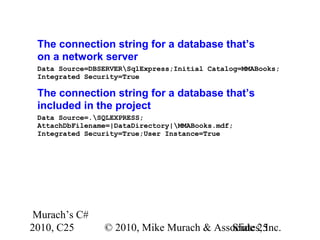
The connection string for a database that’s
on a network server
Data Source=DBSERVERSqlExpress;Initial Catalog=MMABooks;
Integrated Security=True
The connection string for a database that’s
included in the project
Data Source=.SQLEXPRESS;
AttachDbFilename=|DataDirectory|MMABooks.mdf;
Integrated Security=True;User Instance=True
Murach’s C#
2010, C25 © 2010, Mike Murach & Associates, Inc.Slide 26
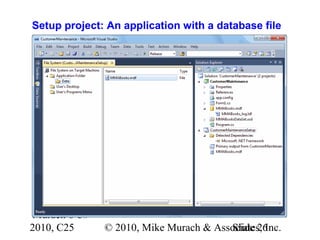
Setup project: An application with a database file
Murach’s C#
2010, C25 © 2010, Mike Murach & Associates, Inc.Slide 27
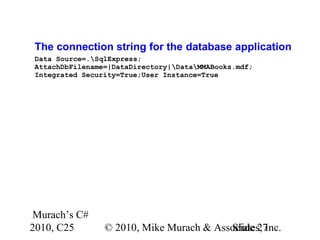
The connection string for the database application
Data Source=.SqlExpress;
AttachDbFilename=|DataDirectory|DataMMABooks.mdf;
Integrated Security=True;User Instance=True

C# Tutorial MSM_Murach chapter-25-slides

  • 1.
    Murach’s C# 2010, C25© 2010, Mike Murach & Associates, Inc.Slide 1 Chapter 25 How to deploy an application
  • 2.
    Murach’s C# 2010, C25© 2010, Mike Murach & Associates, Inc.Slide 2 Objectives Applied 1. Use the ClickOnce feature to deploy an application. 2. Use a Setup program to deploy an application. Knowledge 1. In general terms, describe these techniques for deploying an application: XCopy, ClickOnce, and Setup program.
  • 3.
    Murach’s C# 2010, C25© 2010, Mike Murach & Associates, Inc.Slide 3 Deploying a Windows Forms application Option 1: XCopy deployment • Installs the application by copying the folder for the application to the user’s hard drive. • Allows the user to start the application by double-clicking on the exe file for the application or by using a shortcut once the application is installed. • Allows the user to remove the application by deleting the folder for the application. • Works as long as all files required by the application are included in the folder for the application. • Is adequate for some simple applications with just a few users.
  • 4.
    Murach’s C# 2010, C25© 2010, Mike Murach & Associates, Inc.Slide 4 Option 2: ClickOnce deployment • Allows users to install the application by clicking a link from a web page. • Creates an icon for the application in the Start menu. • Allows the application to be uninstalled using the Uninstall or Change a Program window (Windows 7 and Windows Vista) or the Add or Remove Programs window (Windows XP) that can be accessed from the Control Panel. • Provides a way to automatically check for and install any files needed by the application. • Provides a way to automatically distribute updates to the application. • Is adequate for many types of applications with multiple users.
  • 5.
    Murach’s C# 2010, C25© 2010, Mike Murach & Associates, Inc.Slide 5 Option 3: Setup program deployment • Allows users to install the application by running a Windows Setup program. • Allows users to specify the installation directory. • Creates an icon for the application in the Start menu. • Allows the application to be uninstalled using the Uninstall or Change a Program window (Windows 7 and Windows Vista) or the Add or Remove Programs window (Windows XP) that can be accessed from the Control Panel. • Provides a way to automatically check for and install any files needed by the application. • Can be used to install shared components in the global assembly cache (GAC). • Can be used to modify the registry to install COM components. • Is adequate for all but the most complex applications.
  • 6.
    Murach’s C# 2010, C25© 2010, Mike Murach & Associates, Inc.Slide 6 The Build tab of the Project Properties window
  • 7.
    Murach’s C# 2010, C25© 2010, Mike Murach & Associates, Inc.Slide 7 A procedure for using XCopy deployment 1. Select the Release option from the Solution Configurations combo box that’s available from the Standard toolbar. 2. Build or run the project to create the binRelease folder. 3. Use the XCopy command to copy the Release folder to the user’s hard drive.
  • 8.
    Murach’s C# 2010, C25© 2010, Mike Murach & Associates, Inc.Slide 8 An example of the XCopy command C:>xcopy "C:C# 2010FutureValueFutureValuebinRelease*" "M:MurachFutureValueV1.0" /S C:C# 2010FutureValueFutureValuebinReleaseFutureValue.exe C:C# 2010FutureValueFutureValuebinReleaseFutureValue.pdb C:C# 2010FutureValueFutureValuebinReleaseFutureValue.vshost.exe C:C# 2010FutureValueFutureValuebinRelease FutureValue.vshost.exe.manifest 4 File(s) copied
  • 9.
    Murach’s C# 2010, C25© 2010, Mike Murach & Associates, Inc.Slide 9 The Publish page of the Project Properties window
  • 10.
    Murach’s C# 2010, C25© 2010, Mike Murach & Associates, Inc.Slide 10 The Application Files dialog box
  • 11.
    Murach’s C# 2010, C25© 2010, Mike Murach & Associates, Inc.Slide 11 The Prerequisites dialog box
  • 12.
    Murach’s C# 2010, C25© 2010, Mike Murach & Associates, Inc.Slide 12 The Application Updates dialog box
  • 13.
    Murach’s C# 2010, C25© 2010, Mike Murach & Associates, Inc.Slide 13 The Publish Options dialog box: The Description tab
  • 14.
    Murach’s C# 2010, C25© 2010, Mike Murach & Associates, Inc.Slide 14 The Publish Options dialog box: The Deployment tab
  • 15.
    Murach’s C# 2010, C25© 2010, Mike Murach & Associates, Inc.Slide 15 The Publish Options dialog box: The Manifests tab
  • 16.
    Murach’s C# 2010, C25© 2010, Mike Murach & Associates, Inc.Slide 16 The Publish Options dialog box: The File Associations tab
  • 17.
    Murach’s C# 2010, C25© 2010, Mike Murach & Associates, Inc.Slide 17 A web page for installing an application
  • 18.
    Murach’s C# 2010, C25© 2010, Mike Murach & Associates, Inc.Slide 18 The dialog box that’s displayed if an update is available
  • 19.
    Murach’s C# 2010, C25© 2010, Mike Murach & Associates, Inc.Slide 19 The Add New Project dialog box for a Setup project
  • 20.
    Murach’s C# 2010, C25© 2010, Mike Murach & Associates, Inc.Slide 20 A Setup project displayed in Visual Studio
  • 21.
    Murach’s C# 2010, C25© 2010, Mike Murach & Associates, Inc.Slide 21 The Setup editors for customizing a Setup project • File System Editor • Registry Editor • File Types Editor • User Interface Editor • Custom Actions Editor • Launch Conditions Editor Common properties of a Setup project • Manufacturer • ProductName • ProductCode • Version • RemovePreviousVersions
  • 22.
    Murach’s C# 2010, C25© 2010, Mike Murach & Associates, Inc.Slide 22 The first step of the Setup program
  • 23.
    Murach’s C# 2010, C25© 2010, Mike Murach & Associates, Inc.Slide 23 The second step of the Setup program
  • 24.
    Murach’s C# 2010, C25© 2010, Mike Murach & Associates, Inc.Slide 24 ClickOnce deployment: The Application Files dialog box for a project that contains a database file
  • 25.
    Murach’s C# 2010, C25© 2010, Mike Murach & Associates, Inc.Slide 25 The connection string for a database that’s on a network server Data Source=DBSERVERSqlExpress;Initial Catalog=MMABooks; Integrated Security=True The connection string for a database that’s included in the project Data Source=.SQLEXPRESS; AttachDbFilename=|DataDirectory|MMABooks.mdf; Integrated Security=True;User Instance=True
  • 26.
    Murach’s C# 2010, C25© 2010, Mike Murach & Associates, Inc.Slide 26 Setup project: An application with a database file
  • 27.
    Murach’s C# 2010, C25© 2010, Mike Murach & Associates, Inc.Slide 27 The connection string for the database application Data Source=.SqlExpress; AttachDbFilename=|DataDirectory|DataMMABooks.mdf; Integrated Security=True;User Instance=True