ArcGIS & Business Analyst Training Modules for Site Selection Mike Reibel, Ph.D. Dept. of Geography and Anthropology Cal Poly Pomona These modules made possible by a grant from the California State University  GIS Specialty Center
Copyright 2006 by Mike Reibel.  Permission is granted for academic use only.
Module 1:  Business  Analyst Startup ArcGIS & Business Analyst  Training Modules for Site Selection Mike Reibel, PhD
ArcMap, ArcCatalog, and ArcToolbox   Represent the fundamental methods people use to interact with a GIS:  Data, maps, and tools ArcCatalog  - browse geographic data sources, create and update metadata  ArcMap  - display and query geographic data on maps, edit and output data  ArcToolbox  - geographic analysis and data conversion (in v.9, ArcToolbox is incorporated within ArcMap)                                                                                                                
ArcMap and Business Analyst ArcMap is the interface under which Business Analyst (BA) runs Business Analyst is an  extension  of ArcMap, essentially a special toolbox and special suite of data sets For BA to work, the extension must be installed and turned on.  From the main pull down menu: Tools > Extensions > click Business Analyst
Starting Business Analyst (BA)   1 Business Analyst is always on when ArcMap is running if the extension is installed and activated, in which case: ArcGIS prompts you on start-up to load a map file template that loads default Business Analyst data sets You can run BA without the template, but normally you will want to use it
Starting Business Analyst (BA) 2 Alternatively, you can start BA directly as an application: Click Start > Programs > ArcGIS > Business Analyst and finally Business Analyst.mxd This launches ArcMap and the BA tools and loads the BA data
 
Module 2:  Business  Analyst File Management ArcGIS & Business Analyst  Training Modules for Site Selection Mike Reibel, PhD
File Management 1 Analyses and reports are automatically written to the default study area path If you work in a non-default path, e.g.  J:\StudyAreas, analyses will be written to J:\StudyAreas\[AreaName]\Analyses\temp\*.* You may wish to store finished map files and reports in a separate location on disk from your preferred working path
File Management 2 Consider clipping data in study areas Writing your map files as well as your study areas and analyses to your preferred study area path Copying only exported and extracted report output to the appropriate project folder for inclusion in reports Deleting map file copies and (possibly) study area layers after project is complete
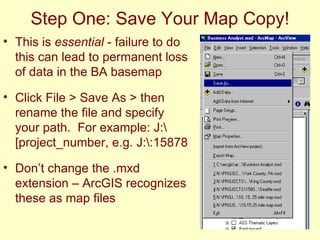
Step One: Save Your Map Copy! This is  essential  - failure to do this can lead to permanent loss of data in the BA basemap Click File > Save As > then rename the file and specify your path.  For example: J:\[project_number, e.g. J:\:15878  Don’t change the .mxd extension – ArcGIS recognizes these as map files
Module 3:  Defining the Business Analyst Study Area ArcGIS & Business Analyst  Training Modules for Site Selection Mike Reibel, PhD
Choosing/ Creating the Study Area Warning! This creates and stores files! Check for saved study area definitions first - BA will find them all >
Clipping Data to Fit You Study Area Right-click the data frame (top level of the TOC hierarchy) and click Properties Click Data Frame tab in dialog box Check Enable box and click Specify Shape
Click Outline of Features Click the dropdown arrow and specify clip layer Then click other dropdown to select features (default=all) OK, then Apply in Data Frame Properties box OK (Can take several minutes)
Defining New Study Areas After determining the appropriate study area is not yet available, Choose scale (e.g. state, zip) and click From a List Navigate to desired area, click next, name it in next dialog
Module 4:  Site Prospecting in Business Analyst ArcGIS & Business Analyst  Training Modules for Site Selection Mike Reibel, PhD
Site Prospecting From BA menu choose Site Prospecting, then Select Point on Map > Click tool on map location  You will be prompted for selection method
Prospecting Rings Choose Simple Ring type from box This creates market areas that are circles Drive time rings adjust for transport
Dialog to determine number, radius and topology of rings
(Optional) select Report Choose scale (layer) – block groups are most detailed Choose report Click Next, name report in next window OK
Module 5:  Store Layer Setup in Business Analyst ArcGIS & Business Analyst  Training Modules for Site Selection Mike Reibel, PhD
Store Analysis Very similar to site prospecting, except: Permits simultaneous geocoding & analysis of multiple candidate sites Enables data-driven analysis tools Requires store setup:
Setting up a “store” (study site) location From BA menu click Store Setup In Store Setup dialogs choose: Create new store layer, then Tabular data format Then In a file
Setting study site 2 Give file location (browse if necessary) Give field names in geocode window Note: you may need to open the address table to check field names >
Setting study site 3 If you have no field with store names/numbers, give address Name the setup.  The layer is added to the working map file.
Setting study site 4 Setup added to working  map file Setup allows multiple sites, if in address table (unlike prospecting).
Give the Store Layer a name and click Finish. The layer is added Layer symbolized by triangle looks identical to Monorail location [star], but is recognized as a store layer for analysis.
Module 6:  Optimization Analysis in Business Analyst ArcGIS & Business Analyst  Training Modules for Site Selection Mike Reibel, PhD
Analyzing a Store Layer From the BA menu, click analysis In dialogs, select new analysis, then store market analysis Choose your analysis  Analyze and report as before, or explore specialized tools
Raw Report Output To Export, click Envelope Icon (For Data):  Choose MS-Excel (Data Only) To keep groupings and edit in Excel, Choose MS-Excel
Exporting Reports You may also export in .pdf for presentation quality reports Note:  The simpler the report, the better it exports as data To export multiple analyses as data, do them separately:  once you have created the point to analyze, you can do repeated single reports for the same point (continued)
Multiple Reports from the Same Point Once the analysis point layer has been defined in the first prospecting pass, select the record of that point in the layer’s table Make sure that layer is selected (highlighted) in TOC
Multiple Reports from the Same Point 2 BA > Site Prospecting > Use Selected Points Then follow the dialogs as usual
Module 7:  Custom Reports in Business Analyst, Part 1 ArcGIS & Business Analyst  Training Modules for Site Selection Mike Reibel, PhD
Selecting Fields for Custom Reports The Mapfile at right has an analysis area defined (rings in this case, created by prospecting.  Store Setup not necessary to define analysis area)
Custom Reports, 2 You must select the fields to be reported from the demographic layer to be summarized (e.g. census tracts) – not the analysis zones (e.g. rings) Right click on the Census Tracts ESRI BIZ layer and go to Properties Note:  to make external data available, join the table to the appropriate ESRI BIS layer prior to this step
Custom Reports, 3 Click the Fields Visibility Tab Click the double left arrow to make all fields invisible Click to select data fields (Hold down Ctrl for multiple, Shift for ranges Click single right arrow to make selected fields visible Optionally save list of fields for future use
Custom Reports, 4 From the BA menu click Reports, then specify the layer containing the analysis area, e.g. rings or drive time polygons
Module 8:  Custom Reports in Business Analyst, Part 2 ArcGIS & Business Analyst  Training Modules for Site Selection Mike Reibel, PhD
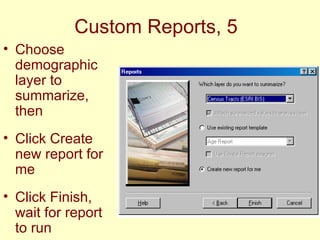
Custom Reports, 5 Choose demographic layer to summarize, then Click Create new report for me Click Finish, wait for report to run
Custom Reports, 6 Optionally, you can save the custom report as a template > After this, the Crystal Reports dialog opens > Check the layer containing the analysis zones Click Next.  You are prompted whether you want to overwrite the Geodatabase.  Click Yes.  It’s not as bad as it sounds.
Custom Reports, 7 Click to select fields for report  Note: Ctrl and Shift don’t work; highlight the first in the list and click right arrow.  It proceeds down the list.
Custom Reports, 8 You may optionally group the output fields. This is a good idea for interpretation if there’s a lot of fields Otherwise click Finish > saves Crystal Reports to disk.  Select your study folder for output, not the default Optionally export to other format as before Note:  Field names tend to get truncated.  Keep tract of them carefully during field selection for your report
Module 9:  Adding Outside Data to Business Analyst ArcGIS & Business Analyst  Training Modules for Site Selection Mike Reibel, PhD
Outside Data for Reports You can add any relevant outside data you want as background for maps or to use in data processing for analysis Raster data such as georeferenced air photos, etc. are examples of background-only data Raster data and feature class (vector) data can be added and used in a geoprocessing step
Analyzing and Reporting Outside Data in Business Analyst If you want to incorporate the outside data in a report, i.e. as one of the analysis variables, it must be feature class data and you must Join the data to one of the ESRI BIS geographic layers (e.g. zip code, tract)
Adding Tabular Data You can add other data sets to the data frame in .dbf and .csv file formats If these data sets have appropriate geocodes, they can be joined to the attribute table of a feature class (geographic data layer) In the next slide I add a data set containing census block level population and housing counts I can then check for a geocode that matches the block codes in the block layer attribute table
The unique geocode in the layer table, STFID, has no counterpart in the data table. Solution: compute from available codes
Module 10:  Computing Matching Fields & Joining ArcGIS & Business Analyst  Training Modules for Site Selection Mike Reibel, PhD
Computing Fields in Tables Open table, click options, select Add Field Start edit session: open editor toolbar (View menu), click Start Editing
Computing Fields 2 Right click field heading and click Calculate Values Enter expression (example includes field values, constants and math operators) Click OK
Joining Tables to Layers When both tables (layer attribute table and external data table) have a common geocode, they can be joined Joining permits display and analysis of external data in data frame Right-click layer in TOC, click Joins and Relates, then join Use dialog box to select target file and common geocode. External variables are added to layer attribute table
Module 11:  Data Source Path Names for Outside Data ArcGIS & Business Analyst  Training Modules for Site Selection Mike Reibel, PhD
Data Source Path Names Paths can be absolute or relative.  Example: the top layer displayed below, including the filename LA_streets_clipped and implied extension, is an absolute filename. If you move the map file (*.mxd) off this computer, the data won’t be found by the map file.  You can copy the map files to the new location also, but you will need to correct the broken data source link
Fixing a Broken Data Source Link Right click the layer in the TOC, point to data, and click Set Data Source Click the Look In dropdown arrow and navigate to the data source, click Click the Add button
Fixing a Broken Data Source Link, 2 Note: The broken link is indicated by a red  !  > In this case (and often), the link is broken because I dragged the layer out of the proper path area. Can also fix by dragging back to …census_boundaries area (first path name shown)
Relative Path Names Specify the location of the map file’s data relative to the current location on disk of the map file (*.mxd) itself. For files below the map file in the tree, e.g. \census_boundaries\tgr06037blk00 (the extension, .shp in this case, is implied) For files above the map file’s directory, paths display with \..\ for each level up, e.g. \..\..\
To Set Relative Path Names From File pulldown menu > click Map Properties Click Data Source Options Click Store Relative Path Names Click OK
Module 12:  Moving and Extracting Data in Business Analyst ArcGIS & Business Analyst  Training Modules for Site Selection Mike Reibel, PhD
Moving Map Files and Data ArcCatalog automatically moves auxilliary files when you move a feature data source (up to five additional files with a .shp file) Auxilliary files are not displayed in ArcCatalog, nor are non- ArcGIS compatible files (reduces clutter) From ArcCatalog, drag & drop into map TOC or copy & paste
Data Export 1 To export SF Valley tracts: Right click layer in TOC Point to Data, click Export Data  (Continued)
Data Export 2 IMPORTANT:  Choose All features in View Extent Click Use same coord. system as source data Name the new shapefile and give it a path OK
Using Appropriate Scale Source Data Avoid making full copies of source data Create and use extracts for study areas at the appropriate scale Establish path and file naming conventions for extracts to avoid making multiple copies of the same or similar extracts
Module 13:  Internal Format Issues in Business Analyst ArcGIS & Business Analyst  Training Modules for Site Selection Mike Reibel, PhD
File formats for import Geographic data (boundary files):  shapefiles (.shp) are dominant format  Data Tables:  Dbase IV (.dbf) is most common Text files can also be imported – comma delimited (.csv) seems too work best Make sure geocodes for matching are in same variable format (e.g. number vs. alphanumeric) Changing formats is often easier in other applications (Excel, SPSS, Access)
Variable Field Structures Delimited vs. Fixed Column Delimiters include tabs, commas, spaces Delimited data is easier to write AND more efficient to store (no leading or trailing zeros) Fixed column data may read more reliably in some applications
Variable Formats Ways of coding data within variable fields Include alphanumeric, number, date, etc. Possibly the single biggest source of frustration due to data incompatibility Wrong variable formats can cause data corruption or loss when exporting to a different file format
Module 14:  Projection Issues in Business Analyst ArcGIS & Business Analyst  Training Modules for Site Selection Mike Reibel, PhD
Do I need to (re)project my map and/or layer data? ArcGIS Not necessarily.  ArcGIS treats unprojected location layers as planar coordinates, i.e., displays them as if the world were flat Unless you are doing cadastral work, like surveying, the distortion introduced will be tolerable at local urban scales You must be aware of layer projections from outside sources
Do I need to (re)project my map and/or layer data? (Business Analyst) Not unless you import additional data from outside sources By default, the BA map file and the map file copies you make use the World Equidistant Conic Projection
To check and (re)project layers and  data:   Right click data set in TOC and click Properties > Source If necessary, click Set Data Source, go to Coordinate Systems > and pick Repeat for layer (topmost in TOC)
What about projection compatibility? Often you will be combining location data from different sources as you build the layers of your local GIS You must not mix location data with different projections, or distortion will occur  Coordinate coded data are superior because they can be combined and then projected, or not, as the project requires
Business Analyst Training Modules – CSU GIS Specialty Center These teaching modules are designed to train students to perform site location analysis using the Business Analyst extension of ArcGIS.  They were developed, written and copyrighted by Michael Reibel under a grant from the California State University Geographic Information System (GIS) Specialty Center.  These modules are property of the CSU GIS Specialty Center.  Permission to use them is hereby granted for academic purposes.  Use of these teaching modules for training in any setting other than a high school or university course is expressly forbidden without the written consent of the CSU GIS Specialty Center.  These modules deal exclusively with operational issues pertaining to performing site selection analysis using the Business Analyst extension in ArcGIS.  They do not teach the basic operation of the ArcGIS program suite, nor do they cover the general theory and practice of site selection for different operational purposes.  The modules can therefore be combined with other curriculum material depending on the scope of GIS and/or site selection courses.

Business Analyst Modules

  • 1.
    ArcGIS & BusinessAnalyst Training Modules for Site Selection Mike Reibel, Ph.D. Dept. of Geography and Anthropology Cal Poly Pomona These modules made possible by a grant from the California State University GIS Specialty Center
  • 2.
    Copyright 2006 byMike Reibel. Permission is granted for academic use only.
  • 3.
    Module 1: Business Analyst Startup ArcGIS & Business Analyst Training Modules for Site Selection Mike Reibel, PhD
  • 4.
    ArcMap, ArcCatalog, andArcToolbox   Represent the fundamental methods people use to interact with a GIS: Data, maps, and tools ArcCatalog - browse geographic data sources, create and update metadata ArcMap - display and query geographic data on maps, edit and output data ArcToolbox - geographic analysis and data conversion (in v.9, ArcToolbox is incorporated within ArcMap)                                                                                                                
  • 5.
    ArcMap and BusinessAnalyst ArcMap is the interface under which Business Analyst (BA) runs Business Analyst is an extension of ArcMap, essentially a special toolbox and special suite of data sets For BA to work, the extension must be installed and turned on. From the main pull down menu: Tools > Extensions > click Business Analyst
  • 6.
    Starting Business Analyst(BA) 1 Business Analyst is always on when ArcMap is running if the extension is installed and activated, in which case: ArcGIS prompts you on start-up to load a map file template that loads default Business Analyst data sets You can run BA without the template, but normally you will want to use it
  • 7.
    Starting Business Analyst(BA) 2 Alternatively, you can start BA directly as an application: Click Start > Programs > ArcGIS > Business Analyst and finally Business Analyst.mxd This launches ArcMap and the BA tools and loads the BA data
  • 8.
  • 9.
    Module 2: Business Analyst File Management ArcGIS & Business Analyst Training Modules for Site Selection Mike Reibel, PhD
  • 10.
    File Management 1Analyses and reports are automatically written to the default study area path If you work in a non-default path, e.g. J:\StudyAreas, analyses will be written to J:\StudyAreas\[AreaName]\Analyses\temp\*.* You may wish to store finished map files and reports in a separate location on disk from your preferred working path
  • 11.
    File Management 2Consider clipping data in study areas Writing your map files as well as your study areas and analyses to your preferred study area path Copying only exported and extracted report output to the appropriate project folder for inclusion in reports Deleting map file copies and (possibly) study area layers after project is complete
  • 12.
    Step One: SaveYour Map Copy! This is essential - failure to do this can lead to permanent loss of data in the BA basemap Click File > Save As > then rename the file and specify your path. For example: J:\[project_number, e.g. J:\:15878 Don’t change the .mxd extension – ArcGIS recognizes these as map files
  • 13.
    Module 3: Defining the Business Analyst Study Area ArcGIS & Business Analyst Training Modules for Site Selection Mike Reibel, PhD
  • 14.
    Choosing/ Creating theStudy Area Warning! This creates and stores files! Check for saved study area definitions first - BA will find them all >
  • 15.
    Clipping Data toFit You Study Area Right-click the data frame (top level of the TOC hierarchy) and click Properties Click Data Frame tab in dialog box Check Enable box and click Specify Shape
  • 16.
    Click Outline ofFeatures Click the dropdown arrow and specify clip layer Then click other dropdown to select features (default=all) OK, then Apply in Data Frame Properties box OK (Can take several minutes)
  • 17.
    Defining New StudyAreas After determining the appropriate study area is not yet available, Choose scale (e.g. state, zip) and click From a List Navigate to desired area, click next, name it in next dialog
  • 18.
    Module 4: Site Prospecting in Business Analyst ArcGIS & Business Analyst Training Modules for Site Selection Mike Reibel, PhD
  • 19.
    Site Prospecting FromBA menu choose Site Prospecting, then Select Point on Map > Click tool on map location You will be prompted for selection method
  • 20.
    Prospecting Rings ChooseSimple Ring type from box This creates market areas that are circles Drive time rings adjust for transport
  • 21.
    Dialog to determinenumber, radius and topology of rings
  • 22.
    (Optional) select ReportChoose scale (layer) – block groups are most detailed Choose report Click Next, name report in next window OK
  • 23.
    Module 5: Store Layer Setup in Business Analyst ArcGIS & Business Analyst Training Modules for Site Selection Mike Reibel, PhD
  • 24.
    Store Analysis Verysimilar to site prospecting, except: Permits simultaneous geocoding & analysis of multiple candidate sites Enables data-driven analysis tools Requires store setup:
  • 25.
    Setting up a“store” (study site) location From BA menu click Store Setup In Store Setup dialogs choose: Create new store layer, then Tabular data format Then In a file
  • 26.
    Setting study site2 Give file location (browse if necessary) Give field names in geocode window Note: you may need to open the address table to check field names >
  • 27.
    Setting study site3 If you have no field with store names/numbers, give address Name the setup. The layer is added to the working map file.
  • 28.
    Setting study site4 Setup added to working map file Setup allows multiple sites, if in address table (unlike prospecting).
  • 29.
    Give the StoreLayer a name and click Finish. The layer is added Layer symbolized by triangle looks identical to Monorail location [star], but is recognized as a store layer for analysis.
  • 30.
    Module 6: Optimization Analysis in Business Analyst ArcGIS & Business Analyst Training Modules for Site Selection Mike Reibel, PhD
  • 31.
    Analyzing a StoreLayer From the BA menu, click analysis In dialogs, select new analysis, then store market analysis Choose your analysis Analyze and report as before, or explore specialized tools
  • 32.
    Raw Report OutputTo Export, click Envelope Icon (For Data): Choose MS-Excel (Data Only) To keep groupings and edit in Excel, Choose MS-Excel
  • 33.
    Exporting Reports Youmay also export in .pdf for presentation quality reports Note: The simpler the report, the better it exports as data To export multiple analyses as data, do them separately: once you have created the point to analyze, you can do repeated single reports for the same point (continued)
  • 34.
    Multiple Reports fromthe Same Point Once the analysis point layer has been defined in the first prospecting pass, select the record of that point in the layer’s table Make sure that layer is selected (highlighted) in TOC
  • 35.
    Multiple Reports fromthe Same Point 2 BA > Site Prospecting > Use Selected Points Then follow the dialogs as usual
  • 36.
    Module 7: Custom Reports in Business Analyst, Part 1 ArcGIS & Business Analyst Training Modules for Site Selection Mike Reibel, PhD
  • 37.
    Selecting Fields forCustom Reports The Mapfile at right has an analysis area defined (rings in this case, created by prospecting. Store Setup not necessary to define analysis area)
  • 38.
    Custom Reports, 2You must select the fields to be reported from the demographic layer to be summarized (e.g. census tracts) – not the analysis zones (e.g. rings) Right click on the Census Tracts ESRI BIZ layer and go to Properties Note: to make external data available, join the table to the appropriate ESRI BIS layer prior to this step
  • 39.
    Custom Reports, 3Click the Fields Visibility Tab Click the double left arrow to make all fields invisible Click to select data fields (Hold down Ctrl for multiple, Shift for ranges Click single right arrow to make selected fields visible Optionally save list of fields for future use
  • 40.
    Custom Reports, 4From the BA menu click Reports, then specify the layer containing the analysis area, e.g. rings or drive time polygons
  • 41.
    Module 8: Custom Reports in Business Analyst, Part 2 ArcGIS & Business Analyst Training Modules for Site Selection Mike Reibel, PhD
  • 42.
    Custom Reports, 5Choose demographic layer to summarize, then Click Create new report for me Click Finish, wait for report to run
  • 43.
    Custom Reports, 6Optionally, you can save the custom report as a template > After this, the Crystal Reports dialog opens > Check the layer containing the analysis zones Click Next. You are prompted whether you want to overwrite the Geodatabase. Click Yes. It’s not as bad as it sounds.
  • 44.
    Custom Reports, 7Click to select fields for report Note: Ctrl and Shift don’t work; highlight the first in the list and click right arrow. It proceeds down the list.
  • 45.
    Custom Reports, 8You may optionally group the output fields. This is a good idea for interpretation if there’s a lot of fields Otherwise click Finish > saves Crystal Reports to disk. Select your study folder for output, not the default Optionally export to other format as before Note: Field names tend to get truncated. Keep tract of them carefully during field selection for your report
  • 46.
    Module 9: Adding Outside Data to Business Analyst ArcGIS & Business Analyst Training Modules for Site Selection Mike Reibel, PhD
  • 47.
    Outside Data forReports You can add any relevant outside data you want as background for maps or to use in data processing for analysis Raster data such as georeferenced air photos, etc. are examples of background-only data Raster data and feature class (vector) data can be added and used in a geoprocessing step
  • 48.
    Analyzing and ReportingOutside Data in Business Analyst If you want to incorporate the outside data in a report, i.e. as one of the analysis variables, it must be feature class data and you must Join the data to one of the ESRI BIS geographic layers (e.g. zip code, tract)
  • 49.
    Adding Tabular DataYou can add other data sets to the data frame in .dbf and .csv file formats If these data sets have appropriate geocodes, they can be joined to the attribute table of a feature class (geographic data layer) In the next slide I add a data set containing census block level population and housing counts I can then check for a geocode that matches the block codes in the block layer attribute table
  • 50.
    The unique geocodein the layer table, STFID, has no counterpart in the data table. Solution: compute from available codes
  • 51.
    Module 10: Computing Matching Fields & Joining ArcGIS & Business Analyst Training Modules for Site Selection Mike Reibel, PhD
  • 52.
    Computing Fields inTables Open table, click options, select Add Field Start edit session: open editor toolbar (View menu), click Start Editing
  • 53.
    Computing Fields 2Right click field heading and click Calculate Values Enter expression (example includes field values, constants and math operators) Click OK
  • 54.
    Joining Tables toLayers When both tables (layer attribute table and external data table) have a common geocode, they can be joined Joining permits display and analysis of external data in data frame Right-click layer in TOC, click Joins and Relates, then join Use dialog box to select target file and common geocode. External variables are added to layer attribute table
  • 55.
    Module 11: Data Source Path Names for Outside Data ArcGIS & Business Analyst Training Modules for Site Selection Mike Reibel, PhD
  • 56.
    Data Source PathNames Paths can be absolute or relative. Example: the top layer displayed below, including the filename LA_streets_clipped and implied extension, is an absolute filename. If you move the map file (*.mxd) off this computer, the data won’t be found by the map file. You can copy the map files to the new location also, but you will need to correct the broken data source link
  • 57.
    Fixing a BrokenData Source Link Right click the layer in the TOC, point to data, and click Set Data Source Click the Look In dropdown arrow and navigate to the data source, click Click the Add button
  • 58.
    Fixing a BrokenData Source Link, 2 Note: The broken link is indicated by a red ! > In this case (and often), the link is broken because I dragged the layer out of the proper path area. Can also fix by dragging back to …census_boundaries area (first path name shown)
  • 59.
    Relative Path NamesSpecify the location of the map file’s data relative to the current location on disk of the map file (*.mxd) itself. For files below the map file in the tree, e.g. \census_boundaries\tgr06037blk00 (the extension, .shp in this case, is implied) For files above the map file’s directory, paths display with \..\ for each level up, e.g. \..\..\
  • 60.
    To Set RelativePath Names From File pulldown menu > click Map Properties Click Data Source Options Click Store Relative Path Names Click OK
  • 61.
    Module 12: Moving and Extracting Data in Business Analyst ArcGIS & Business Analyst Training Modules for Site Selection Mike Reibel, PhD
  • 62.
    Moving Map Filesand Data ArcCatalog automatically moves auxilliary files when you move a feature data source (up to five additional files with a .shp file) Auxilliary files are not displayed in ArcCatalog, nor are non- ArcGIS compatible files (reduces clutter) From ArcCatalog, drag & drop into map TOC or copy & paste
  • 63.
    Data Export 1To export SF Valley tracts: Right click layer in TOC Point to Data, click Export Data (Continued)
  • 64.
    Data Export 2IMPORTANT: Choose All features in View Extent Click Use same coord. system as source data Name the new shapefile and give it a path OK
  • 65.
    Using Appropriate ScaleSource Data Avoid making full copies of source data Create and use extracts for study areas at the appropriate scale Establish path and file naming conventions for extracts to avoid making multiple copies of the same or similar extracts
  • 66.
    Module 13: Internal Format Issues in Business Analyst ArcGIS & Business Analyst Training Modules for Site Selection Mike Reibel, PhD
  • 67.
    File formats forimport Geographic data (boundary files): shapefiles (.shp) are dominant format Data Tables: Dbase IV (.dbf) is most common Text files can also be imported – comma delimited (.csv) seems too work best Make sure geocodes for matching are in same variable format (e.g. number vs. alphanumeric) Changing formats is often easier in other applications (Excel, SPSS, Access)
  • 68.
    Variable Field StructuresDelimited vs. Fixed Column Delimiters include tabs, commas, spaces Delimited data is easier to write AND more efficient to store (no leading or trailing zeros) Fixed column data may read more reliably in some applications
  • 69.
    Variable Formats Waysof coding data within variable fields Include alphanumeric, number, date, etc. Possibly the single biggest source of frustration due to data incompatibility Wrong variable formats can cause data corruption or loss when exporting to a different file format
  • 70.
    Module 14: Projection Issues in Business Analyst ArcGIS & Business Analyst Training Modules for Site Selection Mike Reibel, PhD
  • 71.
    Do I needto (re)project my map and/or layer data? ArcGIS Not necessarily. ArcGIS treats unprojected location layers as planar coordinates, i.e., displays them as if the world were flat Unless you are doing cadastral work, like surveying, the distortion introduced will be tolerable at local urban scales You must be aware of layer projections from outside sources
  • 72.
    Do I needto (re)project my map and/or layer data? (Business Analyst) Not unless you import additional data from outside sources By default, the BA map file and the map file copies you make use the World Equidistant Conic Projection
  • 73.
    To check and(re)project layers and data: Right click data set in TOC and click Properties > Source If necessary, click Set Data Source, go to Coordinate Systems > and pick Repeat for layer (topmost in TOC)
  • 74.
    What about projectioncompatibility? Often you will be combining location data from different sources as you build the layers of your local GIS You must not mix location data with different projections, or distortion will occur Coordinate coded data are superior because they can be combined and then projected, or not, as the project requires
  • 75.
    Business Analyst TrainingModules – CSU GIS Specialty Center These teaching modules are designed to train students to perform site location analysis using the Business Analyst extension of ArcGIS. They were developed, written and copyrighted by Michael Reibel under a grant from the California State University Geographic Information System (GIS) Specialty Center. These modules are property of the CSU GIS Specialty Center. Permission to use them is hereby granted for academic purposes. Use of these teaching modules for training in any setting other than a high school or university course is expressly forbidden without the written consent of the CSU GIS Specialty Center. These modules deal exclusively with operational issues pertaining to performing site selection analysis using the Business Analyst extension in ArcGIS. They do not teach the basic operation of the ArcGIS program suite, nor do they cover the general theory and practice of site selection for different operational purposes. The modules can therefore be combined with other curriculum material depending on the scope of GIS and/or site selection courses.