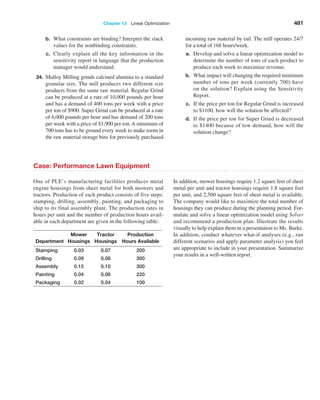
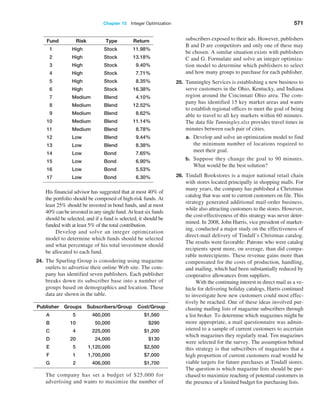
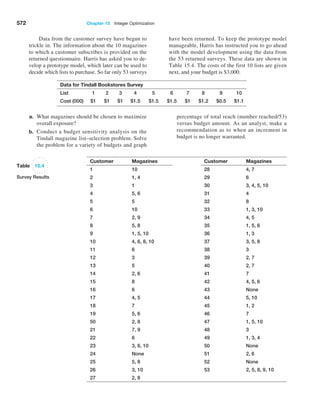
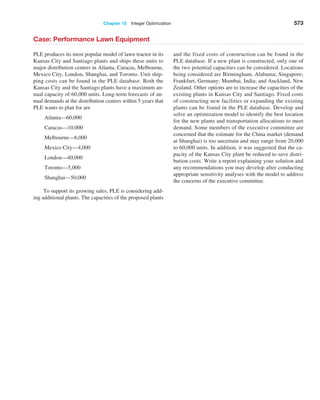
Business Analytics
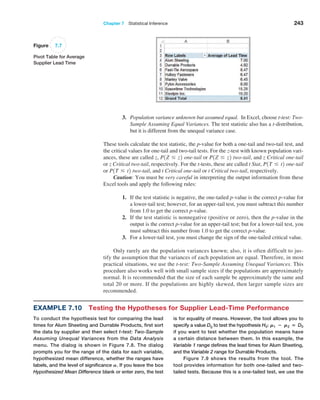
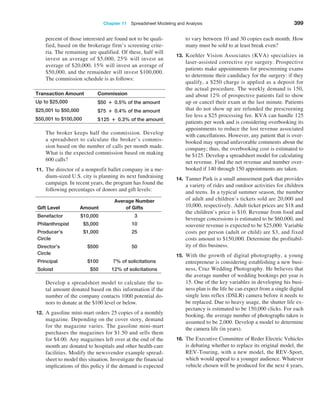
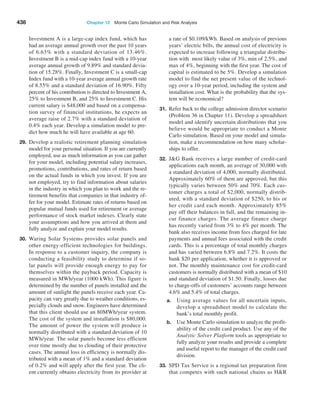
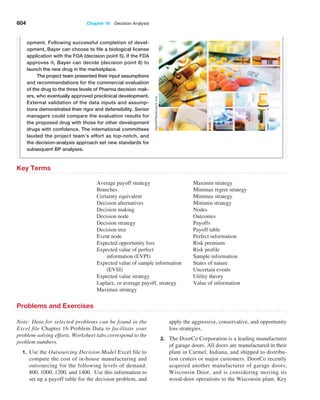
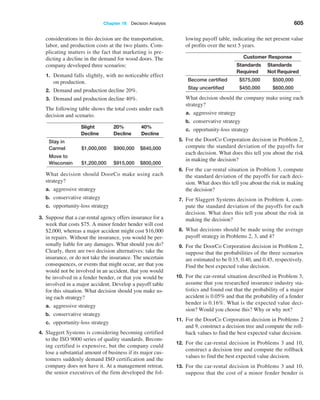
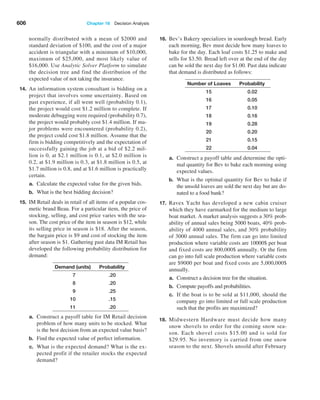
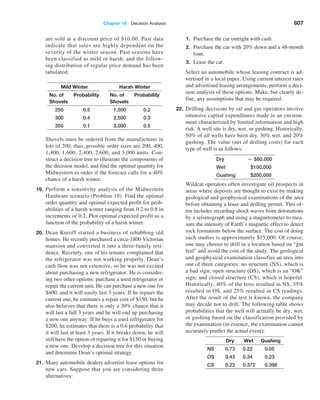
This page intentionally left blank
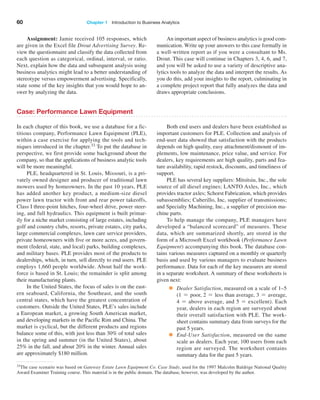
Business Analytics
Methods, Models, and Decisions
James R. Evans University of Cincinnati
Global EDITION
SECOND EDITION
Boston Columbus Indianapolis New York San Francisco
Amsterdam Cape Town Dubai London Madrid Milan Munich Paris MontrƩal Toronto
Delhi Mexico City SĆ£o Paulo Sydney Hong Kong Seoul Singapore Taipei Tokyo
Pearson Education Limited
Edinburgh Gate
Harlow
Essex CM20 2JE
England
and Associated Companies throughout the world
Visit us on the World Wide Web at:
www.pearsonglobaleditions.com
Ā© Pearson Education Limited 2017
The rights of James R. Evans to be identified as the author of this work have been asserted by them in accordance with the Copyright, Designs and
Patents Act 1988.
Authorized adaptation from the United States edition, entitled Understanding Financial Statements, 11th edition, ISBN 9780-321-99782-1, by
James R. Evans, published by Pearson Education Ā© 2017.
All rights reserved. No part of this publication may be reproduced, stored in a retrieval system, or transmitted in any form or by any means, electronic,
mechanical, photocopying, recording or otherwise, without either the prior written permission of the publisher or a license permitting restricted copy-
ing in the United Kingdom issued by the Copyright Licensing Agency Ltd, Saffron House, 6–10 Kirby Street, London EC 1N 8TS.
All trademarks used herein are the property of their respective owners. The use of any trademark in this text does not vest in the author or publisher
any trademark ownership rights in such trademarks, nor does the use of such trademarks imply any affiliation with or endorsement of this book by such
owners.
ISBN-10: 1-292-09544-X
ISBN-13: 978-1-292-09544-8
British Library Cataloguing-in-Publication Data
A catalogue record for this book is available from the British Library
10 9 8 7 6 5 4 3 2 1
Typeset by Lumina Datamatics, Inc.
Printed and bound by Vivar, Malaysia
Editorial Director: Chris Hoag
Editor in Chief: Deirdre Lynch
Acquisitions Editor: Patrick Barbera
Editorial Assistant: Justin Billing
Program Manager: Tatiana Anacki
Project Manager: Kerri Consalvo
Associate Project Editor, Global Edition: Amrita Kar
Assistant Acquisitions Editor, Global Edition: Debapriya Mukherjee
Project Manager, Global Edition: Vamanan Namboodiri
Manager, Media Production, Global Edition: Vikram Kumar
Senior Manufacturing Controller, Production, Global Edition:
Trudy Kimber
Project Management Team Lead: Christina Lepre
Program Manager Team Lead: Marianne Stepanian
Media Producer: Nicholas Sweeney
MathXL Content Developer: Kristina Evans
Marketing Manager: Erin Kelly
Marketing Assistant: Emma Sarconi
Senior Author Support/Technology Specialist: Joe Vetere
Rights and Permissions Project Manager: Diahanne
Lucas Dowridge
Procurement Specialist: Carole Melville
Associate Director of Design: Andrea Nix
Program Design Lead: Beth Paquin
Text Design: 10/12 TimesLTStd
Composition: Lumina Datamatics, Inc.
Cover Design: Lumina Datamatics, Inc.
Cover Image: ©bagiuiani/Shutterstock
5
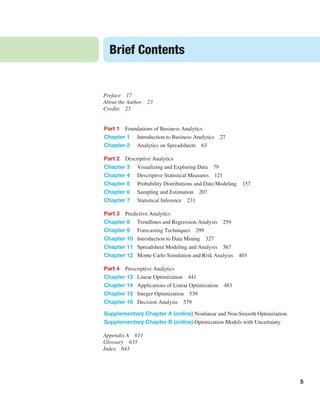
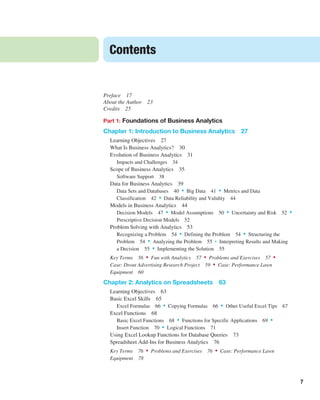
Preface 17
About the Author 23
Credits 25
Part 1 Foundations of Business Analytics
Chapter 1 Introduction to Business Analytics 27
Chapter 2 Analytics on Spreadsheets 63
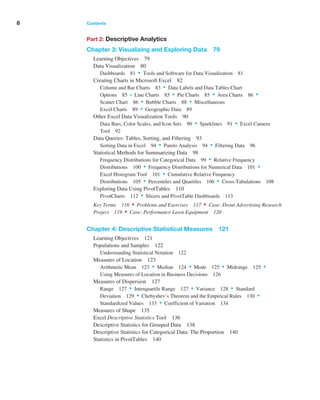
Part 2 Descriptive Analytics
Chapter 3 Visualizing and Exploring Data 79
Chapter 4 Descriptive Statistical Measures 121
Chapter 5 Probability Distributions and Data Modeling 157
Chapter 6 Sampling and Estimation 207
Chapter 7 Statistical Inference 231
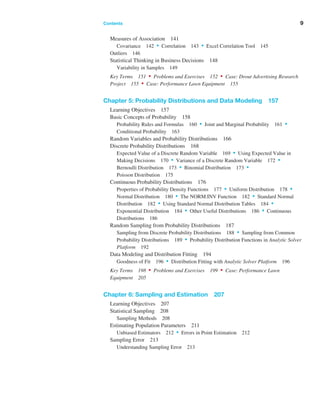
Part 3 Predictive Analytics
Chapter 8 Trendlines and Regression Analysis 259
Chapter 9 Forecasting Techniques 299
Chapter 10 Introduction to Data Mining 327
Chapter 11 Spreadsheet Modeling and Analysis 367
Chapter 12 Monte Carlo Simulation and Risk Analysis 403
Part 4 Prescriptive Analytics
Chapter 13 Linear Optimization 441
Chapter 14 Applications of Linear Optimization 483
Chapter 15 Integer Optimization 539
Chapter 16 Decision Analysis 579
Supplementary Chapter A (online) Nonlinear and Non-Smooth Optimization
Supplementary Chapter B (online) Optimization Models with Uncertainty
Appendix A 611
Glossary 635
Index 643
Brief Contents
5
This page intentionally left blank
7
Preface 17
About the Author 23
Credits 25
Part 1: Foundations of Business Analytics
Chapter 1: Introduction to Business Analytics 27
Learning Objectives 27
What Is Business Analytics? 30
Evolution of Business Analytics 31
Impacts and Challenges 34
Scope of Business Analytics 35
Software Support 38
Data for Business Analytics 39
Data Sets and Databases 40 • Big Data 41 • Metrics and Data
Ā­Classification 42 • Data Reliability and Validity 44
Models in Business Analytics 44
Decision Models 47 • Model Assumptions 50 • Uncertainty and Risk 52 •
Prescriptive Decision Models 52
Problem Solving with Analytics 53
Recognizing a Problem 54 • Defining the Problem 54 • Structuring the
Problem 54 • Analyzing the Problem 55 • Interpreting Results and Making
a Decision 55 • Implementing the Solution 55
Key Terms 56 • Fun with Analytics 57 • Problems and Exercises 57 •
Case: Drout Advertising Research Project 59 • Case: Performance Lawn
Equipment 60
Chapter 2: Analytics on Spreadsheets 63
Learning Objectives 63
Basic Excel Skills 65
Excel Formulas 66 • Copying Formulas 66 • Other Useful Excel Tips 67
Excel Functions 68
Basic Excel Functions 68 • Functions for Specific Applications 69 •
Insert Function 70 • Logical Functions 71
Using Excel Lookup Functions for Database Queries 73
Spreadsheet Add-Ins for Business Analytics 76
Key Terms 76 • Problems and Exercises 76 • Case: Performance Lawn
Equipment 78
Contents
8 Contents   
Part 2: Descriptive Analytics
Chapter 3: Visualizing and Exploring Data 79
Learning Objectives 79
Data Visualization 80
Dashboards 81 • Tools and Software for Data Visualization 81
Creating Charts in Microsoft Excel 82
Column and Bar Charts 83 • Data Labels and Data Tables Chart
Options 85 • Line Charts 85 • Pie Charts 85 • Area Charts 86 •
Scatter Chart 86 • Bubble Charts 88 • Miscellaneous
Excel Charts 89 • Geographic Data 89
Other Excel Data Visualization Tools 90
Data Bars, Color Scales, and Icon Sets 90 • Sparklines 91 • Excel Camera
Tool 92
Data Queries: Tables, Sorting, and Filtering 93
Sorting Data in Excel 94 • Pareto Analysis 94 • Filtering Data 96
Statistical Methods for Summarizing Data 98
Frequency Distributions for Categorical Data 99 • Relative Ā­Frequency
Distributions 100 • Frequency Distributions for Numerical Data 101 •
Excel Histogram Tool 101 • Cumulative Relative Frequency
Ā­Distributions 105 • Percentiles and Quartiles 106 • Cross-Tabulations 108
Exploring Data Using PivotTables 110
PivotCharts 112 • Slicers and PivotTable Dashboards 113
Key Terms 116 • Problems and Exercises 117 • Case: Drout Advertising Ā­
Research
Project 119 • Case: Performance Lawn Equipment 120
Chapter 4: Descriptive Statistical Measures 121
Learning Objectives 121
Populations and Samples 122
Understanding Statistical Notation 122
Measures of Location 123
Arithmetic Mean 123 • Median 124 • Mode 125 • Midrange 125 •
Using Measures of Location in Business Decisions 126
Measures of Dispersion 127
Range 127 • Interquartile Range 127 • Variance 128 • Standard
Ā­Deviation 129 • Chebyshev’s Theorem and the Empirical Rules 130 •
Standardized Values 133 • Coefficient of Variation 134
Measures of Shape 135
Excel Descriptive Statistics Tool 136
Descriptive Statistics for Grouped Data 138
Descriptive Statistics for Categorical Data: The Proportion 140
Statistics in PivotTables 140
Contents    9
Measures of Association 141
Covariance 142 • Correlation 143 • Excel Correlation Tool 145
Outliers 146
Statistical Thinking in Business Decisions 148
Variability in Samples 149
Key Terms 151 • Problems and Exercises 152 • Case: Drout Advertising Ā­
Research
Project 155 • Case: Performance Lawn Equipment 155
Chapter 5: Probability Distributions and Data Modeling 157
Learning Objectives 157
Basic Concepts of Probability 158
Probability Rules and Formulas 160 • Joint and Marginal Probability 161 •
Conditional Probability 163
Random Variables and Probability Distributions 166
Discrete Probability Distributions 168
Expected Value of a Discrete Random Variable 169 • Using Expected Value in
Making Decisions 170 • Variance of a Discrete Random Variable 172 •
Bernoulli Distribution 173 • Binomial Distribution 173 •
Poisson Distribution 175
Continuous Probability Distributions 176
Properties of Probability Density Functions 177 • Uniform Distribution 178 •
Normal Distribution 180 • The NORM.INV Function 182 • Standard Ā­Normal
Distribution 182 • Using Standard Normal Distribution Tables 184 •
Exponential Distribution 184 • Other Useful Distributions 186 • ­Continuous
Distributions 186
Random Sampling from Probability Distributions 187
Sampling from Discrete Probability Distributions 188 • Sampling from Common
Probability Distributions 189 • Probability Distribution Functions in Analytic Solver
Platform 192
Data Modeling and Distribution Fitting 194
Goodness of Fit 196 • Distribution Fitting with Analytic Solver Platform 196
Key Terms 198 • Problems and Exercises 199 • Case: Performance Lawn
Equipment 205
Chapter 6: Sampling and Estimation 207
Learning Objectives 207
Statistical Sampling 208
Sampling Methods 208
Estimating Population Parameters 211
Unbiased Estimators 212 • Errors in Point Estimation 212
Sampling Error 213
Understanding Sampling Error 213
10 Contents   
Sampling Distributions 215
Sampling Distribution of the Mean 215 • Applying the Sampling Distribution
of the Mean 216
Interval Estimates 216
Confidence Intervals 217
Confidence Interval for the Mean with Known Population Standard
Deviation 218 • The t-Distribution 219 • Confidence Interval for the
Mean with Unknown Population Standard Deviation 220 • Confidence Interval
for a Ā­
Proportion 220 • Additional Types of Confidence Intervals 222
Using Confidence Intervals for Decision Making 222
Prediction Intervals 223
Confidence Intervals and Sample Size 224
Key Terms 226 • Problems and Exercises 226 • Case: Drout Advertising
Research Project 228 • Case: Performance Lawn Equipment 229
Chapter 7: Statistical Inference 231
Learning Objectives 231
Hypothesis Testing 232
Hypothesis-Testing Procedure 233
One-Sample Hypothesis Tests 233
Understanding Potential Errors in Hypothesis Testing 234 • Selecting the Test
Ā­Statistic 235 • Drawing a Conclusion 236
Two-Tailed Test of Hypothesis for the Mean 238
p-Values 238 • One-Sample Tests for Proportions 239 • Confidence Ā­Intervals
and Hypothesis Tests 240
Two-Sample Hypothesis Tests 241
Two-Sample Tests for Differences in Means 241 • Two-Sample Test for Means with
Paired Samples 244 • Test for Equality of Variances 245
Analysis of Variance (ANOVA) 247
Assumptions of ANOVA 249
Chi-Square Test for Independence 250
Cautions in Using the Chi-Square Test 252
Key Terms 253 • Problems and Exercises 254 • Case: Drout Ā­
Advertising Ā­
Research
Project 257 • Case: Performance Lawn Equipment 257
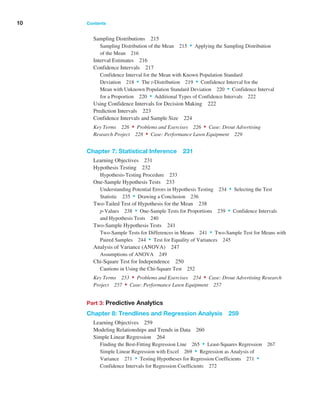
Part 3: Predictive Analytics
Chapter 8: Trendlines and Regression Analysis 259
Learning Objectives 259
Modeling Relationships and Trends in Data 260
Simple Linear Regression 264
Finding the Best-Fitting Regression Line 265 • Least-Squares Regression 267
Simple Linear Regression with Excel 269 • Regression as Analysis of
Ā­Variance 271 • Testing Hypotheses for Regression Coefficients 271 •
Confidence Intervals for Regression Coefficients 272
Contents    11
Residual Analysis and Regression Assumptions 272
Checking Assumptions 274
Multiple Linear Regression 275
Building Good Regression Models 280
Correlation and Multicollinearity 282 • Practical Issues in Trendline and Ā­
Regression
Modeling 283
Regression with Categorical Independent Variables 284
Categorical Variables with More Than Two Levels 287
Regression Models with Nonlinear Terms 289
Advanced Techniques for Regression Modeling using XLMiner 291
Key Terms 294 • Problems and Exercises 294 • Case: Performance Lawn
Equipment 298
Chapter 9: Forecasting Techniques 299
Learning Objectives 299
Qualitative and Judgmental Forecasting 300
Historical Analogy 300 • The Delphi Method 301 • Indicators and Indexes 301
Statistical Forecasting Models 302
Forecasting Models for Stationary Time Series 304
Moving Average Models 304 • Error Metrics and Forecast Accuracy 308 •
Exponential Smoothing Models 310
Forecasting Models for Time Series with a Linear Trend 312
Double Exponential Smoothing 313 • Regression-Based Forecasting for Time Series
with a Linear Trend 314
Forecasting Time Series with Seasonality 316
Regression-Based Seasonal Forecasting Models 316 • Holt-Winters Forecasting for
Seasonal Time Series 318 • Holt-Winters Models for Forecasting Time Series with
Seasonality and Trend 318
Selecting Appropriate Time-Series-Based Forecasting Models 320
Regression Forecasting with Causal Variables 321
The Practice of Forecasting 322
Key Terms 324 • Problems and Exercises 324 • Case: Performance Lawn
Equipment 326
Chapter 10: Introduction to Data Mining 327
Learning Objectives 327
The Scope of Data Mining 329
Data Exploration and Reduction 330
Sampling 330 • Data Visualization 332 • Dirty Data 334 • Cluster
Analysis 336
Classification 341
An Intuitive Explanation of Classification 342 • Measuring Classification
Ā­Performance 342 • Using Training and Validation Data 344 • Classifying
New Data 346
12 Contents   
Classification Techniques 346
k-Nearest Neighbors (k-NN) 347 • Discriminant Analysis 349 • Logistic
Regression 354 • Association Rule Mining 358
Cause-and-Effect Modeling 361
Key Terms 364 • Problems and Exercises 364 • Case: Performance Lawn
Equipment 366
Chapter 11: Spreadsheet Modeling and Analysis 367
Learning Objectives 367
Strategies for Predictive Decision Modeling 368
Building Models Using Simple Mathematics 368 • Building Models Using Ā­
Influence
Diagrams 369
Implementing Models on Spreadsheets 370
Spreadsheet Design 370 • Spreadsheet Quality 372
Spreadsheet Applications in Business Analytics 375
Models Involving Multiple Time Periods 377 • Single-Period Purchase
Ā­Decisions 379 • Overbooking Decisions 380
Model Assumptions, Complexity, and Realism 382
Data and Models 382
Developing User-Friendly Excel Applications 385
Data Validation 385 • Range Names 385 • Form Controls 386
Analyzing Uncertainty and Model Assumptions 388
What-If Analysis 388 • Data Tables 390 • Scenario Ā­Manager 392 •
Goal Seek 393
Model Analysis Using Analytic Solver Platform 394
Parametric Sensitivity Analysis 394 • Tornado Charts 396
Key Terms 397 • Problems and Exercises 397 • Case: Performance Lawn
Equipment 402
Chapter 12: Monte Carlo Simulation and Risk Analysis 403
Learning Objectives 403
Spreadsheet Models with Random Variables 405
Monte Carlo Simulation 405
Monte Carlo Simulation Using Analytic Solver Platform 407
Defining Uncertain Model Inputs 407 • Defining Output Cells 410 •
Running a Simulation 410 • Viewing and Analyzing Results 412
New-Product Development Model 414
Confidence Interval for the Mean 417 • Sensitivity Chart 418 • Overlay
Charts 418 • Trend Charts 420 • Box-Whisker Charts 420 • ­
Simulation Reports 421
Newsvendor Model 421
The Flaw of Averages 421 • Monte Carlo Simulation Using Historical
Data 422 • Monte Carlo Simulation Using a Fitted Distribution 423
Overbooking Model 424
The Custom Distribution in Analytic Solver Platform 425
Contents    13
Cash Budget Model 426
Correlating Uncertain Variables 429
Key Terms 433 • Problems and Exercises 433 • Case: Performance Lawn
Equipment 440
Part 4: Prescriptive Analytics
Chapter 13: Linear Optimization 441
Learning Objectives 441
Building Linear Optimization Models 442
Identifying Elements for an Optimization Model 442 • Translating Model
Information into Mathematical Expressions 443 • More about
Ā­Constraints 445 • Characteristics of Linear Optimization Models 446
Implementing Linear Optimization Models on Spreadsheets 446
Excel Functions to Avoid in Linear Optimization 448
Solving Linear Optimization Models 448
Using the Standard Solver 449 • Using Premium Solver 451 • Solver
Answer Report 452
Graphical Interpretation of Linear Optimization 454
How Solver Works 459
How Solver Creates Names in Reports 461
Solver Outcomes and Solution Messages 461
Unique Optimal Solution 462 • Alternative (Multiple) Optimal
Solutions 462 • Unbounded Solution 463 • Infeasibility 464
Using Optimization Models for Prediction and Insight 465
Solver Sensitivity Report 467 • Using the Sensitivity Report 470 •
Parameter Analysis in Analytic Solver Platform 472
Key Terms 476 • Problems and Exercises 476 • Case: Performance Lawn
Equipment 481
Chapter 14: Applications of Linear Optimization 483
Learning Objectives 483
Types of Constraints in Optimization Models 485
Process Selection Models 486
Spreadsheet Design and Solver Reports 487
Solver Output and Data Visualization 489
Blending Models 493
Dealing with Infeasibility 494
Portfolio Investment Models 497
Evaluating Risk versus Reward 499 • Scaling Issues in Using Solver 500
Transportation Models 502
Formatting the Sensitivity Report 504 • Degeneracy 506
Multiperiod Production Planning Models 506
Building Alternative Models 508
Multiperiod Financial Planning Models 511
Models with Bounded Variables 515
Auxiliary Variables for Bound Constraints 519
A Production/Marketing Allocation Model 521
Using Sensitivity Information Correctly 523
Key Terms 525 • Problems and Exercises 525 • Case: Performance Lawn
Equipment 537
Chapter 15: Integer Optimization 539
Learning Objectives 539
Solving Models with General Integer Variables 540
Workforce-Scheduling Models 544 • Alternative Optimal Solutions 545
Integer Optimization Models with Binary Variables 549
Project-Selection Models 550 • Using Binary Variables to Model Logical
Constraints 552 • Location Models 553 • Parameter Analysis 555 •
A Customer-Assignment Model for Supply Chain Optimization 556
Mixed-Integer Optimization Models 559
Plant Location and Distribution Models 559 • Binary Variables, IF Functions, and
Nonlinearities in Model Formulation 560 • Fixed-Cost Models 562
Key Terms 564 • Problems and Exercises 564 • Case: Performance Lawn
Equipment 573
Chapter 16: Decision Analysis 579
Learning Objectives 579
Formulating Decision Problems 581
Decision Strategies without Outcome Probabilities 582
Decision Strategies for a Minimize Objective 582 • Decision Strategies for a
Ā­Maximize Objective 583 • Decisions with Conflicting Objectives 584
Decision Strategies with Outcome Probabilities 586
Average Payoff Ā­
Strategy 586 • Expected Value Strategy 586 •
Evaluating Risk 587
Decision Trees 588
Decision Trees and Monte Carlo Simulation 592 • Decision Trees and
Risk 592 • Sensitivity Analysis in Decision Trees 594
The Value of Information 595
Decisions with Sample Information 596 • Bayes’s Rule 596
Utility and Decision Making 598
Constructing a Utility Function 599 • Exponential Utility Functions 602
Key Terms 604 • Problems and Exercises 604 • Case: Performance Lawn
Equipment 608
14 Contents   
Supplementary Chapter A (online) Nonlinear and Non-Smooth Optimization
Supplementary Chapter B (online) Optimization Models with Uncertainty
Ā­
Online chapters are available for download at www.pearsonglobaleditions.com/Evans.
Appendix A 611
Glossary 635
Index 643
Contents    15
This page intentionally left blank
17
In 2007, Thomas H. Davenport and Jeanne G. Harris wrote a groundbreaking book,
Ā­
Competing on Analytics: The New Science of Winning (Boston: Harvard Business School
Press). They described how many organizations are using analytics strategically to make
better decisions and improve customer and shareholder value. Over the past several years,
we have seen remarkable growth in analytics among all types of organizations. The In-
stitute for Operations Research and the Management Sciences (INFORMS) noted that
analytics software as a service is predicted to grow three times the rate of other business
segments in upcoming years.1 In addition, the MIT Sloan Management Review in collabo-
ration with the IBM Institute for Business Value surveyed a global sample of nearly 3,000
executives, managers, and analysts.2 This study concluded that top-performing organiza-
tions use analytics five times more than lower performers, that improvement of informa-
tion and analytics was a top priority in these organizations, and that many organizations
felt they were under significant pressure to adopt advanced information and analytics
Ā­
approaches. Since these reports were published, the interest in and the use of analytics has
grown dramatically.
In reality, business analytics has been around for more than a half-century. Business
schools have long taught many of the core topics in business analytics—statistics, data
analysis, information and decision support systems, and management science. However,
these topics have traditionally been presented in separate and independent courses and
supported by textbooks with little topical integration. This book is uniquely designed to
present the emerging discipline of business analytics in a unified fashion consistent with
the contemporary definition of the field.
About the Book
This book provides undergraduate business students and introductory graduate students
with the fundamental concepts and tools needed to understand the emerging role of
business analytics in organizations, to apply basic business analytics tools in a spread-
sheet environment, and to communicate with analytics professionals to effectively use
and interpret analytic models and results for making better business decisions. We take
a balanced, holistic approach in viewing business analytics from descriptive, predictive,
and prescriptive perspectives that today define the discipline.
Preface
1Anne Robinson, Jack Levis, and Gary Bennett, INFORMS News: INFORMS to Officially Join Analyt-
ics Movement. http://www.informs.org/ORMS-Today/Public-Articles/October-Volume-37-Number-5/
INFORMS-News-INFORMS-to-Officially-Join-Analytics-Movement.
2ā€œAnalytics: The New Path to Value,ā€ MIT Sloan Management Review Research Report, Fall 2010.
18 Preface   
This book is organized in five parts.
1. Foundations of Business Analytics
		 The first two chapters provide the basic foundations needed to understand busi-
ness analytics, and to manipulate data using Microsoft Excel.
2. Descriptive Analytics
		 Chapters 3 through 7 focus on the fundamental tools and methods of data
Ā­
analysis and statistics, focusing on data visualization, descriptive statistical mea-
sures, probability distributions and data modeling, sampling and estimation,
and statistical Ā­
inference. We subscribe to the American Statistical Association’s
Ā­
recommendations for teaching introductory statistics, which include emphasiz-
ing statistical literacy and developing statistical thinking, stressing conceptual
Ā­
understanding rather than mere knowledge of procedures, and using technology
for developing conceptual understanding and analyzing data. We believe these
goals can be accomplished without introducing every conceivable technique into
an 800–1,000 page book as many mainstream books currently do. In fact, we
cover all essential content that the state of Ohio has mandated for undergraduate
business statistics across all public colleges and universities.
3. Predictive Analytics
		 In this section, Chapters 8 through 12 develop approaches for applying regression,
forecasting, and data mining techniques, building and analyzing predictive mod-
els on spreadsheets, and simulation and risk analysis.
4. Prescriptive Analytics
		 Chapters 13 through 15, along with two online supplementary chapters, explore
linear, integer, and nonlinear optimization models and applications, including
Ā­
optimization with uncertainty.
5. Making Decisions
		 Chapter 16 focuses on philosophies, tools, and techniques of decision analysis.
		 The second edition has been carefully revised to improve both the content and
pedagogical organization of the material. Specifically, this edition has a much
stronger emphasis on data visualization, incorporates the use of additional Excel
tools, new features of Analytic Solver Platform for Education, and many new data
sets and problems. Chapters 8 through 12 have been re-ordered from the first edi-
tion to improve the logical flow of the topics and provide a better transition to
spreadsheet modeling and applications.
Features of the Book
•Numbered Examples—numerous, short examples throughout all chapters illus-
trate concepts and techniques and help students learn to apply the techniques and
understand the results.
ā€¢ā€œAnalytics in Practiceā€ā€”at least one per chapter, this feature describes real
applications in business.
•Learning Objectives—lists the goals the students should be able to achieve after
studying the chapter.
Preface    19
•Key Terms—bolded within the text and listed at the end of each chapter, these
words will assist students as they review the chapter and study for exams. Key
terms and their definitions are contained in the glossary at the end of the book.
•End-of-Chapter Problems and Exercises—help to reinforce the material cov-
ered through the chapter.
•Integrated Cases—allows students to think independently and apply the relevant
tools at a higher level of learning.
•Data Sets and Excel Models—used in examples and problems and are available
to students at www.pearsonglobaleditions.com/evans
Software Support
While many different types of software packages are used in business analytics applica-
tions in the industry, this book uses Microsoft Excel and Frontline Systems’ powerful
Excel add-in, Analytic Solver Platform for Education, which together provide exten-
sive capabilities for business analytics. Many statistical software packages are available
and provide very powerful capabilities; however, they often require special (and costly)
Ā­
licenses and additional learning requirements. These packages are certainly appropriate
for analytics professionals and students in master’s programs dedicated to preparing such
professionals. However, for the general business student, we believe that Microsoft Ex-
cel with proper add-ins is more appropriate. Although Microsoft Excel may have some
deficiencies in its statistical capabilities, the fact remains that every business student will
use Excel throughout their careers. Excel has good support for data visualization, basic
statistical analysis, what-if analysis, and many other key aspects of business analytics. In
fact, in using this book, students will gain a high level of proficiency with many features
of Excel that will serve them well in their future careers. Furthermore Frontline Systems’
Ā­
Analytic Solver Platform for Education Excel add-ins are integrated throughout the book.
This add-in, which is used among the top business organizations in the world, provides a
comprehensive coverage of many other business analytics topics in a common platform.
This add-in provides support for data modeling, forecasting, Monte Carlo simulation and
risk analysis, data mining, optimization, and decision analysis. Together with Excel, it
provides a comprehensive basis to learn business analytics effectively.
To the Students
To get the most out of this book, you need to do much more than simply read it! Many ex-
amples describe in detail how to use and apply various Excel tools or add-ins. We highly
recommend that you work through these examples on your computer to replicate the out-
puts and results shown in the text. You should also compare mathematical formulas with
spreadsheet formulas and work through basic numerical calculations by hand. Only in this
fashion will you learn how to use the tools and techniques effectively, gain a better under-
standing of the underlying concepts of business analytics, and increase your proficiency in
using Microsoft Excel, which will serve you well in your future career.
Visit the Companion Web site (www.pearsonglobaleditions.com/evans) for access to
the following:
•Online Files: Data Sets and Excel Models—files for use with the numbered
examples and the end-of-chapter problems (For easy reference, the relevant file
names are italicized and clearly stated when used in examples.)
20 Preface   
•Software Download Instructions: Access to Analytic Solver Platform for
Ā­
Education—a free, semester-long license of this special version of Frontline
Ā­
Systems’ Analytic Solver Platform software for Microsoft Excel.
Integrated throughout the book, Frontline Systems’ Analytic Solver Platform for Educa-
tion Excel add-in software provides a comprehensive basis to learn business analytics
Ā­
effectively that includes:
•Risk Solver Pro—This program is a tool for risk analysis, simulation, and optimi-
zation in Excel. There is a link where you will learn more about this software at
www.solver.com.
•XLMiner—This program is a data mining add-in for Excel. There is a link where
you will learn more about this software at www.solver.com/xlminer.
•Premium Solver Platform, a large superset of Premium Solver and by far the most
powerful spreadsheet optimizer, with its PSI interpreter for model analysis and
five built-in Solver Engines for linear, quadratic, SOCP, mixed-integer, nonlinear,
non-smooth and global optimization.
•Ability to solve optimization models with uncertainty and recourse decisions,
Ā­
using simulation optimization, stochastic programming, robust optimization, and
stochastic decomposition.
•New integrated sensitivity analysis and decision tree capabilities, developed in
Ā­
cooperation with Prof. Chris Albright (SolverTable), Profs. Stephen Powell and
Ken Baker (Sensitivity Toolkit), and Prof. Mike Middleton (TreePlan).
•A special version of the Gurobi Solver—the ultra-high-performance linear mixed-
integer optimizer created by the respected computational scientists at Gurobi
Optimization.
To register and download the software successfully, you will need a Texbook Code
and a Course Code. The Textbook Code is EBA2 and your instructor will provide
the Course Code. This download includes a 140-day license to use the software. Visit
www.Ā­
pearsonglobaleditions.com/Evans for complete download instructions.
To the Instructors
Instructor’s Resource Center—Reached through a link at
www.pearsonglobaleditions.com/Evans, the Instructor’s Resource Center contains the
electronic files for the complete Instructor’s Solutions Manual, PowerPoint lecture pre-
sentations, and the Test Item File.
•Register, redeem, log in at www.pearsonglobaleditions.com/Evans, instructors
can access a variety of print, media, and presentation resources that are available
with this book in downloadable digital format. Resources are also available for
course management platforms such as Blackboard, WebCT, and CourseCompass.
•Need help? Pearson Education’s dedicated technical support team is ready to as-
sist instructors with questions about the media supplements that accompany this
text. Visit http://247pearsoned.com for answers to frequently asked questions and
toll-free user support phone numbers. The supplements are available to adopting
instructors. Detailed descriptions are provided at the Instructor’s Resource Center.
•Instructor’s Solutions Manual—The Instructor’s Solutions Manual, updated and
revised for the second edition by the author, includes Excel-based solutions for all
Preface    21
end-of-chapter problems, exercises, and cases. The Instructor’s Ā­
Solutions Manual
is available for download by visiting www.pearsonglobaleditions.com/Evans
and clicking on the Instructor Resources link.
•PowerPoint presentations—The PowerPoint slides, revised and updated by the au-
thor, are available for download by visiting www.pearsonglobaleditions.com/Evans
and clicking on the Instructor Resources link. The PowerPoint slides provide
an instructor with individual lecture outlines to accompany the text. The slides
include nearly all of the figures, tables, and examples from the text. Instructors
can use these lecture notes as they are or can easily modify the notes to reflect
specific presentation needs.
•Test Bank—The TestBank, prepared by Paolo Catasti from Virginia
Commonwealth University, is available for download by visiting
www.Ā­
pearsonglobaleditions.com/Evans and clicking on the Instructor
Ā­Resources link.
•Analytic Solver Platform for Education (ASPE)—This is a special version of
Frontline Systems’ Analytic Solver Platform software for Microsoft Excel.
Acknowledgements
I would like to thank the staff at Pearson Education for their professionalism and dedication
to making this book a reality. In particular, I want to thank Kerri Consalvo, Ā­
Tatiana Anacki,
Erin Kelly, Nicholas Sweeney, and Patrick Barbera; Jen Carley at Lumina Ā­
Datamatics,
Inc.; accuracy checker Annie Puciloski; and solutions checker Regina Ā­
Krahenbuhl for their
outstanding contributions to producing this book. I also want to acknowledge Daniel Fyl-
stra and his staff at Frontline Systems for working closely with me to allow this book to
have been the first to include XLMiner with Analytic Solver Platform. If you have any sug-
gestions or corrections, please contact the author via email at james.evans@uc.edu.
James R. Evans
Department of Operations, Business Analytics, and Information Systems
University of Cincinnati
Cincinnati, Ohio
Pearson would also like to thank Sahil Raj (Punjabi University) and Loveleen Gaur
(Amity University, Noida) for their contribution to the Global Edition, and Ruben Garcia
Berasategui (Jakarta International College), Ahmed R. ElMelegy (The American Univer-
sity, Dubai) and Hyelim Oh (National University of Singapore) for reviewing the Global
Edition.
This page intentionally left blank
About the Author
23
James R. Evans
Professor, University of Cincinnati College of Business
James R. Evans is professor in the Department of Operations, Business Analytics, and
Information Systems in the College of Business at the University of Cincinnati. He holds
BSIE and MSIE degrees from Purdue and a PhD in Industrial and Systems Engineering
from Georgia Tech.
Dr. Evans has published numerous textbooks in a variety of business disciplines, in-
cluding statistics, decision models, and analytics, simulation and risk analysis, network
optimization, operations management, quality management, and creative thinking. He
has published over 90 papers in journals such as Management Science, IIE Transactions,
Ā­
Decision Sciences, Interfaces, the Journal of Operations Management, the Quality Man-
agement Journal, and many others, and wrote a series of columns in Interfaces on creativ-
ity in management science and operations research during the 1990s. He has also served
on numerous journal editorial boards and is a past-president and Fellow of the Decision
Sciences Institute. In 1996, he was an INFORMS Edelman Award Finalist as part of a
project in supply chain optimization with Procter & Gamble that was credited with help-
ing P&G save over $250,000,000 annually in their North American supply chain, and
consulted on risk analysis modeling for Cincinnati 2012’s Olympic Games bid proposal.
A recognized international expert on quality management, he served on the Board of
Examiners and the Panel of Judges for the Malcolm Baldrige National Quality Award.
Much of his current research focuses on organizational performance excellence and mea-
surement practices.
This page intentionally left blank
25
Credits
Text Credits
Chapter 1 Pages 28–29 ā€œThe Cincinnati Zoo & Botanical Gardenā€ from Cincinnati
Zoo Transforms Customer Experience and Boosts Profits, Copyright Ā© 2012. Used by
permission of IBM Corporation. Pages 30–31 ā€œCommon Types of Decisions that can be
Ā­
Enhanced by Using Ā­
Analyticsā€ by Thomas H. Davenport from How Organizations Make
Better Ā­
Decisions. Published by SAS Institute, Inc. Pages 36–37 Analytics in the Home
Lending and Mortgage Industry by Craig Zielazny. Used by permission of Craig Zielazny.
Page 52 Ā­
Excerpt by Thomas Olavson, Chris Fry from Spreadsheet Decision-Support
Tools: Ā­
Lessons Learned at Hewlett-Packard. Published by Interfaces. Pages 55–56 Analyt-
ics in Practice: Developing Effective Analytical Tools at Hewlett-Packard: Thomas Olva-
son; Chris Fry; Interfaces Page 59 Drout Advertising Research Project by Jamie Drout.
Used by permission of Jamie Drout.
Chapter 5 Page 177 Excerpt by Chris K. Anderson from Setting Prices on Priceline.
Published by Interfaces.
Chapter 7 Page 253 Help Desk Service Improvement Project by Francisco Endara M
from Help Desk Improves Service and Saves Money With Six Sigma. Used by permission
of The American Society for Quality.
Chapter 12 Pages 436–437 Implementing Large-Scale Monte Carlo Spreadsheet Ā­
Models
by Yusuf Jafry from Hypo International Strengthens Risk Management with a Large-Scale,
Secure Spreadsheet-Management Framework. Published by Interfaces, Ā© 2008.
Chapter 13 Pages 478–479 Excerpt by Srinivas Bollapragada from NBC’s Optimiza-
tion Systems Increase Revenues and Productivity. Copyright Ā© 2002. Used by permission
of Interfaces.
Chapter15 Pages562–563SupplyChainOptimizationatProcter&GamblebyĀ­JeffreyD.
Camm from Blending OR/MS, Judgment, and GIS: Restructuring P&G’s Supply Chain.
Published by Interfaces, Ā© 1997.
Chapter 16 Pages 606–607 Excerpt from How Bayer Makes Decisions to Develop
New Drugs by Jeffrey S Stonebraker. Published by Interfaces.
Photo Credits
Chapter 1 Page 27 Analytics Business Analysis: Mindscanner/Fotolia Page 56 Ā­Computer,
calculator, and spreadsheet: Hans12/Fotolia
Chapter 2 Page 63 Computer with Spreadsheet: Gunnar Pippel/Shutterstock
26 Credits
Chapter 3 Page 79 Spreadsheet with magnifying glass: Poles/Fotolia Page 98 Data
Analysis: 2jenn/Shutterstock
Chapter 4 Page 121 Pattern of colorful numbers: JonnyDrake/Shutterstock Page 151
Computer screen with financial data: NAN728/Shutterstock
Chapter 5 Page 157 Faded spreadsheet: Fantasista/Fotolia Page 177 Probability and
cost graph with pencil: Fantasista/Fotolia Page 198 Business concepts: Victor Correia/
Shutterstock
Chapter 6 Page 207 Series of bar graphs: Kalabukhava Iryna/Shutterstock Page 211
Brewery truck: Stephen Finn/Shutterstock
Chapter 7 Page 231 Business man solving problems with illustrated graph display:
Serg Nvns/Fotolia Page 253 People working at a helpdesk: StockLite/Shutterstock
Chapter 8 Page 259 Trendline 3D graph: Sheelamohanachandran/Fotolia Page 279
Computer and Risk: Gunnar Pippel/Shutterstock Page 280C 4 blank square shape naviga-
tion web 2.0 button slider: Claudio Divizia/Shutterstock Page 280L Graph chart illustra-
tions of growth and recession: Vector Illustration/Shutterstock Page 280R Audio gauge:
Shutterstock
Chapter 9 Page 299 Past and future road sign: Karen Roach/Fotolia Page 324 NBC
Studios: Sean Pavone/Dreamstine
Chapter 10 Page 327 Data Mining Technology Strategy Concept: Kentoh/Shutterstock
Page 363 Business man drawing a marketing diagram: Helder Almeida/Shutterstock
Chapter 11 Page 367 3D spreadsheet: Dmitry/Fotolia Page 375 Buildings: ZUMA
Press/Newscom Page 381 Health Clinic: Poprostskiy Alexey/Shutterstock
Chapter 12 Page 403 Analyzing Risk in Business: iQoncept/Shutterstock Page 432
Ā­
Office Building: Verdeskerde/Shutterstock
Chapter 13 Page 441 3D spreadsheet, graph, pen: Archerix/Shutterstock Page 475
Television acting sign: Bizoo_n/Fotolia
Chapter 14 Page 483 People working on spreadsheets: Pressmaster/Shutterstock Page
515 Colored Stock Market Chart: 2jenn/Shutterstock
Chapter 15 Page 539 Brainstorming Concept: Dusit/Shutterstock Page 549 Qantas Air-
bus A380: Gordon Tipene/Dreamstine Page 559 Supply chain concept: Kheng Guan Toh/
Shutterstock
Chapter 16 Page 579 Person at crossroads: Michael D Brown/Shutterstock Page 604
Collage of several images from a drug store: Sokolov/Shutterstock
Supplementary Ā­
Chapter A (online) Page 27 Various discount tags and labels: little
Whale/Shutterstock Page 35 Red Cross facility: Littleny/Dreamstine
Supplementary Chapter B (online) Page 27 Confused man thinking over right deci-
sion: StockThings/Shutterstock Page 33 Lockheed Constellation Cockpit: Brad Whitsitt/
Shutterstock
27
Learning Objectives
After studying this chapter, you will be able to:
• Define business analytics.
• Explain why analytics is important in today’s business
environment.
• State some typical examples of business applications
in which analytics would be beneficial.
• Summarize the evolution of business analytics
and explain the concepts of business intelligence,
operations research and management science, and
decision support systems.
• Explain and provide examples of descriptive,
predictive, and prescriptive analytics.
• State examples of how data are used in business.
• Explain the difference between a data set and a
database.
• Define a metric and explain the concepts of
measurement and measures.
• Explain the difference between a discrete metric and
continuous metric, and provide examples of each.
• Describe the four groups of data classification,
categorical, ordinal, interval, and ratio, and provide
examples of each.
• Explain the concept of a model and various ways a
model can be characterized.
• Define and list the elements of a decision model.
• Define and provide an example of an influence
diagram.
• Use influence diagrams to build simple mathematical
models.
• Use predictive models to compute model outputs.
• Explain the difference between uncertainty and risk.
• Define the terms optimization, objective function, and
optimal solution.
• Explain the difference between a deterministic and
stochastic decision model.
• List and explain the steps in the problem-solving
process.
Introduction to
Business Analytics
1
Chapter
28 Chapter 1   Introduction to Business Analytics
Most of you have likely been to a zoo, seen the animals, had something to
eat, and bought some souvenirs. You probably wouldn’t think that managing
a zoo is very difficult; after all, it’s just feeding and taking care of the ani-
mals, right? A zoo might be the last place that you would expect to find busi-
ness analytics being used, but not anymore. The Cincinnati Zoo & Botanical
Ā­
Garden has been an ā€œearly adopterā€ and one of the first organizations of its
kind to exploit business analytics.1
Despite generating more than two-thirds of its budget through its own
Ā­
fund-raising efforts, the zoo wanted to reduce its reliance on local tax subsidies
even further by increasing visitor attendance and revenues from secondary
sources such as membership, food and retail outlets. The zoo’s senior man-
agement surmised that the best way to realize more value from each visit was
to offer visitors a truly transformed customer experience. By using business
analytics to gain greater insight into visitors’ behavior and tailoring Ā­
operations
to their preferences, the zoo expected to increase attendance, boost member-
ship, and maximize sales.
The project team—which consisted of consultants from IBM and Ā­BrightStar
Partners, as well as senior executives from the zoo—began Ā­
translating the
Ā­
organization’s goals into technical solutions. The zoo worked to create a
Ā­
business analytics platform that was capable of delivering the desired goals
by combining data from ticketing and point-of-sale systems throughout the
zoo with membership information and geographical data gathered from the
ZIP codes of all visitors. This enabled the creation of reports and dashboards
that give everyone from senior managers to zoo staff access to real-time
Ā­
information that helps them optimize operational management and transform
the customer experience.
By integrating weather forecast data, the zoo is able to compare current
forecasts with historic attendance and sales data, supporting better decision-
making for labor scheduling and inventory planning. Another area where the
solution delivers new insight is food service. By opening food outlets at spe-
cific times of day when demand is highest (for example, keeping ice cream
kiosks open in the final hour before the zoo closes), the zoo has been able
to increase sales significantly. The zoo has been able to increase attendance
and revenues dramatically, resulting in annual ROI of 411%. The business
1Source: IBM Software Business Analtyics, ā€œCincinnati Zoo transforms customer experience and boosts
profits,ā€ Ā© IBM Corporation 2012.
Chapter 1   Introduction to Business Analytics 29
analytics initiative paid for itself within three months, and delivers, on aver-
age, benefits of $738,212 per year. Specifically,
• The zoo has seen a 4.2% rise in ticket sales by targeting potential
visitors who live in specific ZIP codes.
• Food revenues increased by 25% by optimizing the mix of products on
sale and adapting selling practices to match peak purchase times.
• Eliminating slow-selling products and targeting visitors with Ā­
specific
promotions enabled an 18% increase in merchandise sales.
• Cut marketing expenditure, saving $40,000 in the first year, and reduced
advertising expenditure by 43% by eliminating Ā­
ineffective campaigns and
segmenting customers for more targeted marketing.
Because of the zoo’s success, other organizations such as Point Defiance
Zoo & Aquarium, in Washington state, and History Colorado, a museum in
Denver, have embarked on similar initiatives.
In recent years, analytics has become increasingly important in the world
of business, particularly as organizations have access to more and more data.
Managers today no longer make decisions based on pure judgment and experi-
ence; they rely on factual data and the ability to manipulate and analyze data to
support their decisions. As a result, many companies have recently established
analytics departments; for instance, IBM reorganized its consulting business
and established a new 4,000-person organization focusing on analytics.2 Com-
panies are increasingly seeking business graduates with the ability to under-
stand and use analytics. In fact, in 2011, the U.S. Bureau of Labor Statistics
predicted a 24% increase in demand for professionals with analytics expertise.
No matter what your academic business concentration is, you will most
likely be a future user of analytics to some extent and work with analytics pro-
fessionals. The purpose of this book is to provide you with a basic introduc-
tion to the concepts, methods, and models used in business analytics so that
you will develop not only an appreciation for its capabilities to support and
enhance business decisions, but also the ability to use business analytics at
an elementary level in your work. In this chapter, we introduce you to the field
of business analytics, and set the foundation for many of the concepts and
techniques that you will learn.
2Matthew J. Liberatore and Wenhong Luo, ā€œThe Analytics Movement: Implications for Operations
Ā­Research,ā€ Interfaces, 40, 4 (July–August 2010): 313–324.
30 Chapter 1   Introduction to Business Analytics
What Is Business Analytics?
Everyone makes decisions. Individuals face personal decisions such as choosing a college
or graduate program, making product purchases, selecting a mortgage instrument, and
Ā­
investing for retirement. Managers in business organizations make numerous decisions
every day. Some of these decisions include what products to make and how to price them,
where to locate facilities, how many people to hire, where to allocate advertising budgets,
whether or not to outsource a business function or make a capital investment, and how to
schedule production. Many of these decisions have significant economic consequences;
moreover, they are difficult to make because of uncertain data and imperfect information
about the future. Thus, managers need good information and assistance to make such criti-
cal decisions that will impact not only their companies but also their careers. What makes
business decisions complicated today is the overwhelming amount of available data and
information. Data to support business decisions—including those specifically collected
by firms as well as through the Internet and social media such as Facebook—are growing
Ā­
exponentially and becoming increasingly difficult to understand and use. This is one of
the reasons why analytics is important in today’s business environment.
Business analytics, or simply analytics, is the use of data, information technology,
statistical analysis, quantitative methods, and mathematical or computer-based models to
help managers gain improved insight about their business operations and make better, fact-
based decisions. Business analytics is ā€œa process of transforming data into actions through
analysis and insights in the context of organizational decision making and problem solv-
ing.ā€3 Ā­
Business analytics is supported by various tools such as Microsoft Excel and various
Excel add-ins, commercial statistical software packages such as SAS or Minitab, and more-Ā­
complex business intelligence suites that integrate data with analytical software.
Tools and techniques of business analytics are used across many areas in a wide va-
riety of organizations to improve the management of customer relationships, financial and
marketing activities, human capital, supply chains, and many other areas. Leading banks
use analytics to predict and prevent credit fraud. Manufacturers use analytics for produc-
tion planning, purchasing, and inventory management. Retailers use analytics to recom-
mend products to customers and optimize marketing promotions. Pharmaceutical firms
use it to get life-saving drugs to market more quickly. The leisure and vacation indus-
tries use analytics to analyze historical sales data, understand customer behavior, improve
Web site design, and optimize schedules and bookings. Airlines and hotels use analytics to
dynamically set prices over time to maximize revenue. Even sports teams are using busi-
ness analytics to determine both game strategy and optimal ticket prices.4 Among the many
organizations that use analytics to make strategic decisions and manage day-to-day opera-
tions are Harrah’s Entertainment, the Oakland Athletics baseball and New England Patriots
football teams, Amazon.com, Procter & Gamble, United Parcel Service (UPS), and Capital
One bank. It was reported that nearly all firms with revenues of more than $100 million are
using some form of business analytics.
Some common types of decisions that can be enhanced by using analytics include
• pricing (for example, setting prices for consumer and industrial goods, govern-
ment contracts, and maintenance contracts),
• customer segmentation (for example, identifying and targeting key customer
groups in retail, insurance, and credit card industries),
3Liberatore and Luo, ā€œThe Analytics Movement.ā€
4Jim Davis, ā€œ8 Essentials of Business Analytics,ā€ in ā€œBrain Trust—Enabling the Confident Enterprise
with Business Analyticsā€ (Cary, NC: SAS Institute, Inc., 2010): 27–29. www.sas.com/bareport
Chapter 1   Introduction to Business Analytics 31
• merchandising (for example, determining brands to buy, quantities, and
allocations),
• location (for example, finding the best location for bank branches and ATMs, or
where to service industrial equipment),
and many others in operations and supply chains, finance, marketing, and human
resources—in fact, in every discipline of business.5
Various research studies have discovered strong relationships between a company’s
performance in terms of profitability, revenue, and shareholder return and its use of analyt-
ics. Top-performing organizations (those that outperform their competitors) are three times
more likely to be sophisticated in their use of analytics than lower performers and are more
likely to state that their use of analytics differentiates them from competitors.6 However, re-
search has also suggested that organizations are overwhelmed by data and struggle to under-
stand how to use data to achieve business results and that most organizations simply don’t
understand how to use analytics to improve their businesses. Thus, understanding the ca-
pabilities and techniques of analytics is vital to managing in today’s business environment.
One of the emerging applications of analytics is helping businesses learn from social
media and exploit social media data for strategic advantage.7 Using analytics, firms can
integrate social media data with traditional data sources such as customer surveys, focus
groups, and sales data; understand trends and customer perceptions of their products; and
create informative reports to assist marketing managers and product designers.
Evolution of Business Analytics
Analytical methods, in one form or another, have been used in business for more than a
century. However, the modern evolution of analytics began with the introduction of com-
puters in the late 1940s and their development through the 1960s and beyond. Early com-
puters provided the ability to store and analyze data in ways that were either very difficult
or impossible to do so manually. This facilitated the collection, management, analysis, and
reporting of data, which is often called business intelligence (BI), a term that was coined
in 1958 by an IBM researcher, Hans Peter Luhn.8 Business intelligence software can an-
swer basic questions such as ā€œHow many units did we sell last month?ā€ ā€œWhat products
did customers buy and how much did they spend?ā€ ā€œHow many credit card transactions
were completed yesterday?ā€ Using BI, we can create simple rules to flag exceptions au-
tomatically, for example, a bank can easily identify transactions greater than $10,000 to
report to the Internal Revenue Service.9 BI has evolved into the modern discipline we now
call information systems (IS).
5Thomas H. Davenport, ā€œHow Organizations Make Better Decisions,ā€ edited excerpt of an article dis-
tributed by the International Institute for Analytics published in ā€œBrain Trust—Enabling the Confident
Enterprise with Business Analyticsā€ (Cary, NC: SAS Institute, Inc., 2010): 8–11. www.sas.com/bareport
6Thomas H. Davenport and Jeanne G. Harris, Competing on Analytics (Boston: Harvard Business School
Press, 2007): 46; Michael S. Hopkins, Steve LaValle, Fred Balboni, Nina Kruschwitz, and Rebecca
Shockley, ā€œ10 Data Points: Information and Analytics at Work,ā€ MIT Sloan Management Review, 52, 1
(Fall 2010): 27–31.
7Jim Davis, ā€œConvergence—Taking Social Media from Talk to Action,ā€ SASCOM (First Quarter 2011): 17.
9Jim Davis, ā€œBusiness Analytics: Helping You Put an Informed Foot Forward,ā€ in ā€œBrain Trust—­
Enabling
the Confident Enterprise with Business Analytics,ā€ (Cary, NC: SAS Institute, Inc., 2010): 4–7. www.sas
.com/bareport
8H. P. Luhn, ā€œA Business Intelligence System.ā€ IBM Journal (October 1958).
32 Chapter 1   Introduction to Business Analytics
Statistics has a long and rich history, yet only rather recently has it been recognized
as an important element of business, driven to a large extent by the massive growth of
data in today’s world. Google’s chief economist stated that statisticians surely have the
ā€œreally sexy jobā€ for the next decade.10 Statistical methods allow us to gain a richer
understanding of data that goes beyond business intelligence reporting by not only sum-
marizing data succinctly but also finding unknown and interesting relationships among
the data. Statistical methods include the basic tools of description, exploration, estima-
tion, and inference, as well as more advanced techniques like regression, forecasting,
and data mining.
Much of modern business analytics stems from the analysis and solution of com-
plex Ā­
decision problems using mathematical or computer-based models—a discipline
known as operations research, or management science. Operations research (OR) was
born from Ā­
efforts to improve military operations prior to and during World War II. After
the war, scientists recognized that the mathematical tools and techniques developed for
military Ā­
applications could be applied successfully to problems in business and industry. A
Ā­
significant amount of research was carried on in public and private think tanks during the
late 1940s and through the 1950s. As the focus on business applications expanded, the term
Ā­
management science (MS) became more prevalent. Many people use the terms operations
research and management science interchangeably, and the field became known as Opera-
tions Research/Management Science (OR/MS). Many OR/MS applications use modeling
and optimization—techniques for translating real problems into mathematics, spreadsheets,
or other computer languages, and using them to find the best (ā€œoptimalā€) solutions and deci-
sions. INFORMS, the Institute for Operations Ā­
Research and the Management Sciences, is
the leading professional society devoted to OR/MS and analytics, and publishes a bimonthly
magazine called Analytics (http://analytics-magazine.com/). Digital subscriptions may be
obtained free of charge at the Web site.
Decision support systems (DSS) began to evolve in the 1960s by combining busi-
ness intelligence concepts with OR/MS models to create analytical-based computer sys-
tems to support decision making. DSSs include three components:
1. Data management. The data management component includes databases for
storing data and allows the user to input, retrieve, update, and manipulate data.
2. Model management. The model management component consists of various
statistical tools and management science models and allows the user to easily
build, manipulate, analyze, and solve models.
3. Communication system. The communication system component provides the
interface necessary for the user to interact with the data and model manage-
ment components.11
DSSs have been used for many applications, including pension fund management,
portfolio management, work-shift scheduling, global manufacturing and facility location,
advertising-budget allocation, media planning, distribution planning, airline operations
planning, inventory control, library management, classroom assignment, nurse schedul-
ing, blood distribution, water pollution control, ski-area design, police-beat design, and
energy planning.12
10James J. Swain, ā€œStatistical Software in the Age of the Geek,ā€ Analytics-magazine.org, March/April
2013, pp. 48–55. www.informs.org
11William E. Leigh and Michael E. Doherty, Decision Support and Expert Systems (Cincinnati, OH:
South-Western Publishing Co., 1986).
12H. B. Eom and S. M. Lee, ā€œA Survey of Decision Support System Applications (1971–April 1988),ā€
Interfaces, 20, 3 (May–June 1990): 65–79.
Chapter 1   Introduction to Business Analytics 33
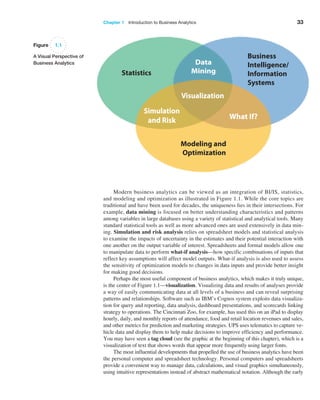
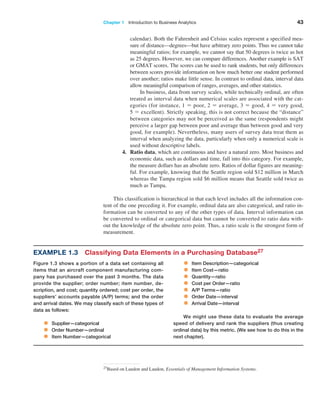
Modern business analytics can be viewed as an integration of BI/IS, statistics,
and modeling and optimization as illustrated in Figure 1.1. While the core topics are
Ā­
traditional and have been used for decades, the uniqueness lies in their intersections. For
example, data mining is focused on better understanding characteristics and patterns
among variables in large databases using a variety of statistical and analytical tools. Many
standard statistical tools as well as more advanced ones are used extensively in data min-
ing. Ā­
Simulation and risk analysis relies on spreadsheet models and statistical analysis
to Ā­
examine the impacts of uncertainty in the estimates and their potential interaction with
one another on the output variable of interest. Spreadsheets and formal models allow one
to manipulate data to perform what-if analysis—how specific combinations of inputs that
reflect key assumptions will affect model outputs. What-if analysis is also used to assess
the sensitivity of optimization models to changes in data inputs and provide better insight
for making good decisions.
Perhaps the most useful component of business analytics, which makes it truly unique,
is the center of Figure 1.1—visualization. Visualizing data and results of analyses provide
a way of easily communicating data at all levels of a business and can reveal surprising
patterns and relationships. Software such as IBM’s Cognos system exploits data visualiza-
tion for query and reporting, data analysis, dashboard presentations, and scorecards linking
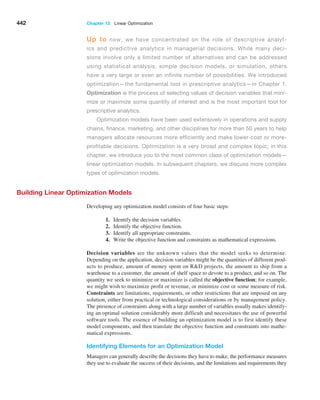
strategy to operations. The Cincinnati Zoo, for example, has used this on an iPad to display
hourly, daily, and monthly reports of attendance, food and retail location revenues and sales,
and other metrics for prediction and marketing strategies. UPS uses telematics to capture ve-
hicle data and display them to help make decisions to improve efficiency and performance.
You may have seen a tag cloud (see the graphic at the beginning of this chapter), which is a
visualization of text that shows words that appear more frequently using larger fonts.
The most influential developments that propelled the use of business analytics have been
the personal computer and spreadsheet technology. Personal computers and spreadsheets
provide a convenient way to manage data, calculations, and visual graphics simultaneously,
using intuitive representations instead of abstract mathematical notation. Although the early
Figure 1.1
A Visual Perspective of
Business Analytics
Business
Intelligence/
Information
Systems
Modeling and
Optimization
Statistics
34 Chapter 1   Introduction to Business Analytics
applications of spreadsheets were primarily in accounting and finance, spreadsheets have
developed into powerful general-purpose managerial tools for applying techniques of busi-
ness analytics. The power of analytics in a personal computing Ā­
environment was noted some
20 years ago by business consultants Michael Hammer and James Champy, who said, ā€œWhen
accessible data is combined with easy-to-use analysis and modeling tools, frontline workers
—when properly trained—suddenly have sophisticated decision-making capabilities.ā€14
Although many good analytics software packages are available to professionals, we use
Ā­
Microsoft Excel and a powerful add-in called Ā­
Analytic Solver Platform throughout this book.
Impacts and Challenges
The impact of applying business analytics can be significant. Companies report Ā­
reduced
costs, better risk management, faster decisions, better productivity, and enhanced
Ā­
bottom-line performance such as profitability and customer satisfaction. For example,
1-800-flowers.com uses analytic software to target print and online promotions with
greater accuracy; change prices and offerings on its Web site (sometimes hourly); and
optimize its marketing, shipping, distribution, and manufacturing operations, resulting in a
$50 million cost savings in one year.15
Business analytics is changing how managers make decisions.16 To thrive in today’s
business world, organizations must continually innovate to differentiate themselves from
competitors, seek ways to grow revenue and market share, reduce costs, retain exist-
ing customers and acquire new ones, and become faster and leaner. IBM Ā­
suggests that
One of the most cited examples of the use of
analytics in business is Harrah’s Entertainment.
Harrah’s owns numerous hotels and casinos and uses
analytics to support revenue management activities,
which involve selling the right resources to the right
customer at the right price to maximize revenue and
profit. The gaming industry views hotel rooms as
Ā­
incentives or rewards to support casino gaming activ-
ities and revenues, not as revenue-maximizing assets.
Therefore, Harrah’s objective is to set room rates
and accept reservations to maximize the expected
gaming profits from customers. They begin with col-
lecting and tracking of customers’ gaming activi-
ties (playing slot machines and casino games) using
Harrah’s ā€œTotal Rewardsā€ card program, a customer
loyalty program that provides rewards such as meals,
discounted rooms, and other perks to customers
based on the amount of money and time they spend
at Harrah’s. The data collected are used to segment
customers into more than 20 groups based on their
expected gaming activities. For each customer seg-
ment, analytics forecasts demand for hotel rooms by
arrival date and length of stay. Then Harrah’s uses a
prescriptive model to set prices and allocate rooms
to these customer segments. For example, the sys-
tem might offer complimentary rooms to customers
who are expected to generate a gaming profit of at
least $400 but charge $325 for a room if the profit
is expected to be only $100. Marketing can use the
information to send promotional offers to targeted
customer segments if it identifies low-occupancy
rates for specific dates.
Analytics in Practice: Harrah’s Entertainment13
14Michael Hammer and James Champy, Reengineering the Corporation (New York: HarperBusiness,
1993): 96.
15Jim Goodnight, ā€œThe Impact of Business Analytics on Performance and Profitability,ā€ in ā€œBrain Trust—
Enabling the Confident Enterprise with Business Analyticsā€ (Cary, NC: SAS Institute, Inc., 2010): 4–7.
www.sas.com/bareport
13Based on Liberatore and Luo, ā€œThe Analytics Movementā€; and Richard Metters et al., ā€œThe ā€˜Killer
Ā­
Application’ of Revenue Management: Harrah’s Cherokee Casino & Hotel,ā€ Interfaces, 38, 3 (May–June
2008): 161–175.
16Analytics: The New Path to Value, a joint MIT Sloan Management Review and IBM Institute for
Ā­
Business Value study.
Chapter 1   Introduction to Business Analytics 35
Ā­
traditional management approaches are evolving in today’s analytics-driven environment
to include more fact-based decisions as opposed to judgment and intuition, more pre-
diction rather than reactive decisions, and the use of analytics by everyone at the point
where decisions are made rather than relying on skilled experts in a consulting group.17
Nevertheless, organizations face many challenges in developing analytics capabilities,
including lack of understanding of how to use analytics, competing business priorities,
insufficient analytical skills, difficulty in getting good data and sharing information, and
not understanding the benefits versus perceived costs of analytics studies. Successful
Ā­
application of analytics requires more than just knowing the tools; it requires a high-
level understanding of how analytics supports an organization’s competitive strategy and
Ā­
effective execution that crosses multiple disciplines and managerial levels.
A 2011 survey by Bloomberg Businessweek Research Services and SAS concluded that
business analytics is still in the ā€œemerging stageā€ and is used only narrowly within business
units, not across entire organizations. The study also noted that many organizations lack
analytical talent, and those that do have analytical talent often don’t know how to apply the
results properly. While analytics is used as part of the decision-making process in many
organizations, most business decisions are still based on intuition.18 Therefore, while many
challenges are apparent, many more opportunities exist. These opportunities are Ā­
reflected
in the job market for analytics professionals, or ā€œdata scientists,ā€ as some call them. The
Ā­
Harvard Business Review called data scientist ā€œthe sexiest job of the 21st century,ā€ and
McKinsey & Company predicted a 50 to 60% shortfall in data scientists in the United States
by 2018.19
Scope of Business Analytics
Business analytics begins with the collection, organization, and manipulation of data and
is supported by three major components:20
1. Descriptive analytics. Most businesses start with descriptive analytics—the
use of data to understand past and current business performance and make in-
formed decisions. Descriptive analytics is the most commonly used and most
well-understood type of analytics. These techniques categorize, character-
ize, consolidate, and classify data to convert it into useful information for the
Ā­
purposes of understanding and analyzing business performance. Descriptive
analytics summarizes data into meaningful charts and reports, for example,
about budgets, sales, revenues, or cost. This process allows managers to obtain
standard and customized reports and then drill down into the data and make
queries to understand the impact of an advertising campaign, for example,
Ā­
review business performance to find problems or areas of opportunity, and
identify patterns and trends in data. Typical questions that descriptive analytics
helps answer are ā€œHow much did we sell in each region?ā€ ā€œWhat was our rev-
enue and profit last quarter?ā€ ā€œHow many and what types of complaints did we
18Bloomberg Businessweek Research Services and SAS, ā€œThe Current State of Business Analytics:
Where Do We Go From Here?ā€ (2011).
17ā€œBusiness Analytics and Optimization for the Intelligent Enterpriseā€ (April 2009). www.ibm.com
/qbs/intelligent-enterprise
19Andrew Jennings, ā€œWhat Makes a Good Data Scientist?ā€ Analytics Magazine (July–August 2013):
8–13. www.analytics-magazine.org
20Parts of this section are adapted from Irv Lustig, Brenda Dietric, Christer Johnson, and Christopher
Dziekan, ā€œThe Analytics Journey,ā€ Analytics (November/December 2010). www.analytics-magazine.org
36 Chapter 1   Introduction to Business Analytics
resolve?ā€ ā€œWhich factory has the lowest productivity?ā€ Descriptive analytics
also helps companies to classify customers into different segments, which en-
ables them to develop specific marketing campaigns and advertising strategies.
2. Predictive analytics. Predictive analytics seeks to predict the future by ex-
amining historical data, detecting patterns or relationships in these data, and
then extrapolating these relationships forward in time. For example, a mar-
keter might wish to predict the response of different customer segments to an
advertising campaign, a commodities trader might wish to predict short-term
movements in commodities prices, or a skiwear manufacturer might want to
predict next season’s demand for skiwear of a specific color and size. Predic-
tive analytics can predict risk and find relationships in data not readily appar-
ent with traditional analyses. Using advanced techniques, predictive analytics
can help to detect hidden patterns in large quantities of data to segment and
group data into coherent sets to predict behavior and detect trends. For in-
stance, a bank manager might want to identify the most profitable customers
or predict the chances that a loan applicant will default, or alert a credit-card
customer to a potential fraudulent charge. Predictive analytics helps to answer
questions such as ā€œWhat will happen if demand falls by 10% or if supplier
prices go up 5%?ā€ ā€œWhat do we expect to pay for fuel over the next several
months?ā€ ā€œWhat is the risk of losing money in a new business venture?ā€
3. Prescriptive analytics. Many problems, such as aircraft or employee sched-
uling and supply chain design, for example, simply involve too many choices
or alternatives for a human decision maker to effectively consider. Prescrip-
tive Ā­analytics uses optimization to identify the best alternatives to minimize or
Ā­
maximize some objective. Prescriptive analytics is used in many areas of busi-
ness, including Ā­
operations, marketing, and finance. For example, we may deter-
mine the best pricing and advertising strategy to maximize revenue, the optimal
amount of cash to store in ATMs, or the best mix of investments in a retirement
portfolio to manage risk. The mathematical and statistical techniques of predic-
tive analytics can also be combined with optimization to make decisions that take
into Ā­
account the uncertainty in the data. Prescriptive analytics addresses questions
such as ā€œHow much should we produce to maximize profit?ā€ ā€œWhat is the best
way of shipping goods from our factories to minimize costs?ā€ ā€œShould we change
our plans if a natural disaster closes a supplier’s factory: if so, by how much?ā€
21Contributed by Craig Zielazny, BlueNote Analytics, LLC.
(continued)
Sometime during their lives, most Americans will Ā­
receive
a mortgage loan for a house or condominium. The pro-
cess starts with an application. The application con-
tains all pertinent information about the borrower that
the lender will need. The bank or mortgage company
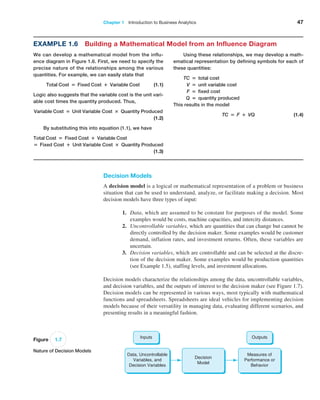
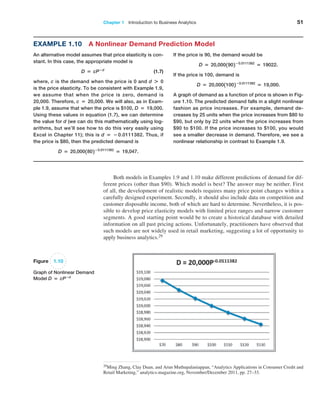
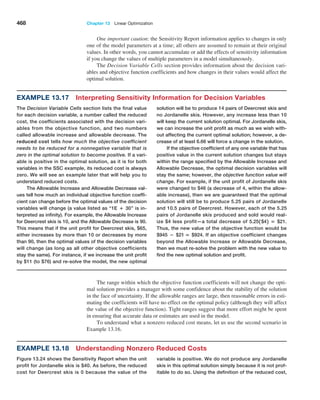
then initiates a process that leads to a loan decision. It
is here that key information about the borrower is pro-
vided by third-party providers. This information includes
a credit report, verification of income, Ā­
verification of
Ā­
assets, Ā­
verification of employment, and an appraisal of
the property among others. The result of the process-
ing function is a complete loan file that contains all the
information and documents needed to underwrite the
loan, which is the next step in the process. Underwrit-
ing is where the loan application is evaluated for its risk.
Underwriters evaluate whether the borrower can make
payments on time, can afford to pay back the loan, and
has sufficient collateral in the property to back up the
Analytics in Practice: 
Analytics in the Home Lending and Mortgage
Industry21
Chapter 1   Introduction to Business Analytics 37
A wide variety of tools are used to support business analytics. These include:
• Database queries and analysis
• ā€œDashboardsā€ to report key performance measures
• Data visualization
• Statistical methods
• Spreadsheets and predictive models
• Scenario and ā€œwhat-ifā€ analyses
• Simulation
loan. In the event the borrower defaults on their loan,
the lender can sell the property to recover the amount
of the loan. But, if the amount of the loan is greater than
the value of the property, then the lender cannot recoup
their money. If the underwriting process indicates that
the borrower is creditworthy, has the capacity to repay
the loan, and the value of the property in question is
greater than the loan amount, then the loan is approved
and will move to closing. Closing is the step where the
borrower signs all the appropriate papers agreeing to
the terms of the loan.
In reality, lenders have a lot of other work to
do. First, they must perform a quality control review
on a sample of the loan files that involves a manual
examination of all the documents and information
gathered. This process is designed to identify any
mistakes that may have been made or information
that is missing from the loan file. Because lenders
do not have Ā­
unlimited money to lend to borrowers,
they frequently sell the loan to a third party so that
they have fresh capital to lend to others. This occurs
in what is called the secondary market. Freddie Mac
and Fannie Mae are the two largest purchasers of
mortgages in the secondary market. The final step
in the process is servicing. Servicing includes all the
activities associated with providing the customer
service on the loan like processing payments, man-
aging property taxes held in escrow, and answering
questions about the loan.
In addition, the institution collects various oper-
ational data on the process to track its performance
and efficiency, including the number of applications,
loan types and amounts, cycle times (time to close
the loan), bottlenecks in the process, and so on. Many
Ā­
different types of analytics are used:
Descriptive Analytics—This focuses on historical
Ā­
reporting, addressing such questions as:
• How many loan apps were taken each of the past
12 months?
• What was the total cycle time from app to close?
• What was the distribution of loan profitability by
credit score and loan-to-value (LTV), which is the
mortgage amount divided by the appraised value
of the property.
Predictive Analytics—Predictive modeling use
Ā­
mathematical, spreadsheet, and statistical models,
and address questions such as:
• What impact on loan volume will a given market-
ing program have?
• How many processors or underwriters are needed
for a given loan volume?
• Will a given process change reduce cycle time?
Prescriptive Analytics—This involves the use of simu-
lation or optimization to drive decisions. Typical ques-
tions include:
• What is the optimal staffing to achieve a given
profitability constrained by a fixed cycle time?
• What is the optimal product mix to maximize profit
constrained by fixed staffing?
The mortgage market has become much more
dynamic in recent years due to rising home values,
falling interest rates, new loan products, and an in-
creased desire by home owners to utilize the equity in
their homes as a financial resource. This has increased
the complexity and variability of the mortgage process
and created an opportunity for lenders to proactively
use the data that are available to them as a tool for
managing their business. To ensure that the process
is efficient, effective and performed with quality, data
and analytics are used every day to track what is
done, who is doing it, and how long it takes.
38 Chapter 1   Introduction to Business Analytics
Software Support
Many companies, such as IBM, SAS, and Tableau have developed a variety of soft-
ware and hardware solutions to support business analytics. For example, IBM’s Cognos
Ā­
Express, an integrated business intelligence and planning solution designed to meet the
needs of midsize companies, provides reporting, analysis, dashboard, scorecard, plan-
ning, budgeting, and forecasting capabilities. It’s made up of several modules, including
Cognos Ā­
Express Reporter, for self-service reporting and ad hoc query; Cognos Express
Advisor, for analysis and visualization; and Cognos Express Xcelerator, for Excel-based
planning and business analysis. Information is presented to the business user in a business
context that makes it easy to understand, with an easy to use interface they can quickly
gain the insight they need from their data to make the right decisions and then take Ā­
action
for Ā­
effective and efficient business optimization and outcome. SAS provides a variety
of software that integrate data management, business intelligence, and analytics tools.
SAS Ā­
Analytics covers a wide range of capabilities, including predictive modeling and
data Ā­
mining, visualization, forecasting, optimization and model management, statistical
analysis, text analytics, and more. Tableau Software provides simple drag and drop tools
for Ā­
visualizing data from spreadsheets and other databases. We encourage you to explore
many of these products as you learn the basic principles of business analytics in this book.
22Inspired by a presentation by Radhika Kulkarni, SAS Institute, ā€œData-Driven Decisions: Role of
Ā­
Operations Research in Business Analytics,ā€ INFORMS Conference on Business Analytics and
Ā­
Operations Research, April 10–12, 2011.
Example 1.1 Retail Markdown Decisions22
As you probably know from your shopping experiences,
most department stores and fashion retailers clear their
seasonal inventory by reducing prices. The key ques-
tion they face is what prices should they set—and when
should they set them—to meet inventory goals and max-
imize revenue? For example, suppose that a store has
100 bathing suits of a certain style that go on sale from
April 1 and wants to sell all of them by the end of June.
Over each week of the 12-week selling season, they can
make a decision to discount the price. They face two
decisions: When to reduce the price and by how much?
This results in 24 decisions to make. For a major national
chain that may carry thousands of products, this can
easily result in millions of decisions that store manag-
ers have to make. Descriptive analytics can be used to
examine historical data for similar products, such as the
number of units sold, price at each point of sale, starting
and ending inventories, and special promotions, newspa-
per ads, direct marketing ads, and so on, to understand
what the results of past decisions achieved. Predictive
analytics can be used to predict sales based on pricing
decisions. Finally, prescriptive analytics can be applied
to find the best set of pricing decisions to maximize the
total revenue.
• Forecasting
• Data and text mining
• Optimization
• Social media, Web, and text analytics
Although the tools used in descriptive, predictive, and prescriptive analytics are dif-
ferent, many applications involve all three. Here is a typical example in retail operations.
Chapter 1   Introduction to Business Analytics 39
Data for Business Analytics
Since the dawn of the electronic age and the Internet, both individuals and organizations
have had access to an enormous wealth of data and information. Data are numerical facts
and figures that are collected through some type of measurement process. Information
comes from analyzing data—that is, extracting meaning from data to support evaluation
and decision making.
Data are used in virtually every major function in a business. Modern organizations—
which include not only for-profit businesses but also nonprofit organizations—need good
data to support a variety of company purposes, such as planning, reviewing company
Ā­
performance, improving operations, and comparing company performance with com-
petitors’ or best-practice benchmarks. Some examples of how data are used in business
Ā­
include the following:
• Annual reports summarize data about companies’ profitability and market
share both in numerical form and in charts and graphs to communicate with
shareholders.
• Accountants conduct audits to determine whether figures reported on a firm’s
balance sheet fairly represent the actual data by examining samples (that is,
Ā­
subsets) of accounting data, such as accounts receivable.
• Financial analysts collect and analyze a variety of data to understand the con-
tribution that a business provides to its shareholders. These typically include
profitability, revenue growth, return on investment, asset utilization, operating
margins, earnings per share, economic value added (EVA), shareholder value,
and other relevant measures.
• Economists use data to help companies understand and predict population trends,
interest rates, industry performance, consumer spending, and international trade.
Such data are often obtained from external sources such as Standard  Poor’s
Compustat data sets, industry trade associations, or government databases.
• Marketing researchers collect and analyze extensive customer data. These data
often consist of demographics, preferences and opinions, transaction and pay-
ment history, shopping behavior, and a lot more. Such data may be collected by
surveys, personal interviews, focus groups, or from shopper loyalty cards.
• Operations managers use data on production performance, manufacturing qual-
ity, delivery times, order accuracy, supplier performance, productivity, costs, and
environmental compliance to manage their operations.
• Human resource managers measure employee satisfaction, training costs, turn-
over, market innovation, training effectiveness, and skills development.
Such data may be gathered from primary sources such as internal company records and
business transactions, automated data-capturing equipment, or customer market Ā­
surveys
and from secondary sources such as government and commercial data sources, custom
research providers, and online research.
Perhaps the most important source of data today is data obtained from the Web. With
today’s technology, marketers collect extensive information about Web behaviors, such as
the number of page views, visitor’s country, time of view, length of time, origin and des-
tination paths, products they searched for and viewed, products purchased, what reviews
they read, and many others. Using analytics, marketers can learn what content is being
viewed most often, what ads were clicked on, who the most frequent visitors are, and what
types of visitors browse but don’t buy. Not only can marketers understand what customers
have done, but they can better predict what they intend to do in the future. For example,
40 Chapter 1   Introduction to Business Analytics
if a bank knows that a customer has browsed for mortgage rates and homeowner’s insur-
ance, they can target the customer with homeowner loans rather than credit cards or auto-
mobile loans. Traditional Web data are now being enhanced with social media data from
Facebook, cell phones, and even Internet-connected gaming devices.
As one example, a home furnishings retailer wanted to increase the rate of sales for
customers who browsed their Web site. They developed a large data set that covered more
than 7,000 demographic, Web, catalog, and retail behavioral attributes for each customer.
They used predictive analytics to determine how well a customer would respond to differ-
ent e-mail marketing offers and customized promotions to individual customers. This not
only helped them to determine where to most effectively spend marketing resources but
doubled the response rate compared to previous marketing campaigns, with a projected
multimillion dollar increase in sales.23
Data Sets and Databases
A data set is simply a collection of data. Marketing survey responses, a table of histori-
cal stock prices, and a collection of measurements of dimensions of a manufactured item
are examples of data sets. A database is a collection of related files containing records on
people, places, or things. The people, places, or things for which we store and maintain
information are called entities.24 A database for an online retailer that sells instructional
fitness books and DVDs, for instance, might consist of a file for three entities: Ā­
publishers
from which goods are purchased, customer sales transactions, and product inventory.
A Ā­
database file is usually organized in a two-dimensional table, where the columns
Ā­
correspond to each individual element of data (called fields, or attributes), and the rows
represent records of related data elements. A key feature of computerized databases is the
ability to quickly relate one set of files to another.
Databases are important in business analytics for accessing data, making queries, and
other data and information management activities. Software such as Microsoft Access
provides powerful analytical database capabilities. However, in this book, we won’t be
delving deeply into databases or database management systems but will work with indi-
vidual database files or simple data sets. Because spreadsheets are convenient tools for
storing and manipulating data sets and database files, we will use them for all examples
and problems.
23Based on a presentation by Bill Franks of Teradata, ā€œOptimizing Customer Analytics: How Customer
Level Web Data Can Help,ā€ INFORMS Conference on Business Analytics and Operations Research,
April 10–12, 2011.
24Kenneth C. Laudon and Jane P. Laudon, Essentials of Management Information Systems, 9th ed. (Upper
Saddle River, NJ: Prentice Hall, 2011): 159.
25Adapted and modified from Kenneth C. Laudon and Jane P. Laudon, Essentials of Management
Ā­Information Systems.
customer ID, region, payment type, transaction code,
source of the sale, amount, product purchased, and time
of day. Each record (starting in row 4) has a value for
each of these fields.
Example 1.2 A Sales Transaction Database File25
Figure 1.2 shows a portion of sales transactions on an
Excel worksheet for a particular day for an online seller
of instructional fitness books and DVDs. The fields are
shown in row 3 of the spreadsheet and consist of the
Chapter 1   Introduction to Business Analytics 41
Big Data
Today, nearly all data are captured digitally. As a result, data have been growing at an
overwhelming rate, being measured by terabytes (1012 bytes), petabytes (1015 bytes), exa-
bytes (1018 bytes), and even by higher-dimensional terms. Just think of the amount of data
stored on Facebook, Twitter, or Amazon servers, or the amount of data acquired daily
from scanning items at a national grocery chain such as Kroger and its affiliates. Ā­
Walmart,
for instance, has over one million transactions each hour, yielding more than 2.5 petabytes
of data. Analytics professionals have coined the term big data to refer to massive amounts
of business data from a wide variety of sources, much of which is available in real time,
and much of which is uncertain or unpredictable. IBM calls these characteristics volume,
variety, velocity, and veracity. Most often, big data revolves around customer behavior
and customer experiences. Big data provides an opportunity for organizations to gain a
competitive advantage—if the data can be understood and analyzed effectively to make
better business decisions.
The volume of data continue to increase; what is considered ā€œbigā€ today will be
even bigger tomorrow. In one study of information technology (IT) professionals in
2010, nearly half of survey respondents ranked data growth among their top three chal-
lenges. Big data come from many sources, and can be numerical, textual, and even
audio and video data. Big data are captured using sensors (for example, supermarket
scanners), click streams from the Web, customer transactions, e-mails, tweets and social
media, and other ways. Big data sets are unstructured and messy, requiring sophisticated
analytics to integrate and process the data, and understand the information contained in
them. Not only are big data being captured in real time, but they must be incorporated
into business decisions at a faster rate. Processes such as fraud detection must be ana-
lyzed quickly to have value. IBM has added a fourth dimension: veracity—the level of
reliability associated with data. Having high-quality data and understanding the uncer-
tainty in data are essential for good decision making. Data veracity is an important role
for statistical methods.
Big data can help organizations better understand and predict customer behavior and
improve customer service. A study by the McKinsey Global Institute noted that ā€œThe
Ā­
effective use of big data has the potential to transform economies, delivering a new wave
of productivity growth and consumer surplus. Using big data will become a key basis of
competition for existing companies, and will create new competitors who are able to Ā­
attract
employees that have the critical skills for a big data world.ā€26 However, Ā­
understanding big
Figure 1.2
A Portion of Excel File Sales
Transactions Database
26James Manyika, Michael Chui, Brad Brown, Jacques Bughin, Richard Dobbs, Charles Roxburgh, and Ā­Angela
Hung Byers, ā€œBig Data: The Next Frontier for Innovation, Competition, and Productivity,ā€ McKinsey 
Company May 2011.
42 Chapter 1   Introduction to Business Analytics
data requires advanced analytics tools such as data mining and text analytics, and new
technologies such as cloud computing, faster multi-core processors, large memory spaces,
and solid-state drives.
Metrics and Data Classification
A metric is a unit of measurement that provides a way to objectively quantify perfor-
mance. For example, senior managers might assess overall business performance using
such metrics as net profit, return on investment, market share, and customer satisfaction.
A plant manager might monitor such metrics as the proportion of defective parts produced
or the number of inventory turns each month. For a Web-based retailer, some useful met-
rics are the percentage of orders filled accurately and the time taken to fill a customer’s
order. Measurement is the act of obtaining data associated with a metric. Measures are
numerical values associated with a metric.
Metrics can be either discrete or continuous. A discrete metric is one that is de-
rived from counting something. For example, a delivery is either on time or not; an
order is complete or incomplete; or an invoice can have one, two, three, or any number
of errors. Some discrete metrics associated with these examples would be the propor-
tion of on-time deliveries; the number of incomplete orders each day, and the number
of errors per invoice. Continuous metrics are based on a continuous scale of measure-
ment. Any metrics involving dollars, length, time, volume, or weight, for example, are
continuous.
Another classification of data is by the type of measurement scale. Data may be clas-
sified into four groups:
1. Categorical (nominal) data, which are sorted into categories according to
specified characteristics. For example, a firm’s customers might be classi-
fied by their geographical region (North America, South America, Europe,
and Ā­
Pacific); employees might be classified as managers, supervisors, and
Ā­
associates. The categories bear no quantitative relationship to one another, but
we usually assign an arbitrary number to each category to ease the process
of managing the data and computing statistics. Categorical data are usually
counted or expressed as proportions or percentages.
2. Ordinal data, which can be ordered or ranked according to some relationship
to one another. College football or basketball rankings are ordinal; a higher
ranking signifies a stronger team but does not specify any numerical measure
of strength. Ordinal data are more meaningful than categorical data because
data can be compared to one another. A common example in business is data
from survey scales—for example, rating a service as poor, average, good,
very good, or excellent. Such data are categorical but also have a natural order
Ā­
(excellent is better than very good) and, consequently, are ordinal. However,
ordinal data have no fixed units of measurement, so we cannot make mean-
ingful numerical statements about differences between categories. Thus, we
cannot say that the difference between excellent and very good is the same
as between good and average, for example. Similarly, a team ranked number
1 may be far superior to the number 2 team, whereas there may be little differ-
ence between teams ranked 9th and 10th.
3. Interval data, which are ordinal but have constant differences between obser-
vations and have arbitrary zero points. Common examples are time and temper-
ature. Time is relative to global location, and calendars have arbitrary starting
dates (compare, for example, the standard Gregorian calendar with the Chinese
Chapter 1   Introduction to Business Analytics 43
calendar). Both the Fahrenheit and Celsius scales represent a specified mea-
sure of distance—degrees—but have arbitrary zero points. Thus we cannot take
meaningful ratios; for example, we cannot say that 50 degrees is twice as hot
as 25 degrees. However, we can compare differences. Another example is SAT
or GMAT scores. The scores can be used to rank students, but only differences
between scores provide information on how much better one student performed
over another; ratios make little sense. In contrast to ordinal data, interval data
allow meaningful comparison of ranges, averages, and other statistics.
In business, data from survey scales, while technically ordinal, are often
treated as interval data when numerical scales are associated with the cat-
egories (for instance, 1 = poor, 2 = average, 3 = good, 4 = very good,
5 = Ā­
excellent). Strictly speaking, this is not correct because the ā€œdistanceā€
between categories may not be perceived as the same (respondents might
perceive a larger gap between poor and average than between good and very
good, for example). Nevertheless, many users of survey data treat them as
interval when analyzing the data, particularly when only a numerical scale is
used without descriptive labels.
4. Ratio data, which are continuous and have a natural zero. Most business and
economic data, such as dollars and time, fall into this category. For example,
the measure dollars has an absolute zero. Ratios of dollar figures are meaning-
ful. For example, knowing that the Seattle region sold $12 million in March
whereas the Tampa region sold $6 million means that Seattle sold twice as
much as Tampa.
This classification is hierarchical in that each level includes all the information con-
tent of the one preceding it. For example, ordinal data are also categorical, and ratio in-
formation can be converted to any of the other types of data. Interval information can
be converted to ordinal or categorical data but cannot be converted to ratio data with-
out the knowledge of the absolute zero point. Thus, a ratio scale is the strongest form of
measurement.
27Based on Laudon and Laudon, Essentials of Management Information Systems.
Example 1.3 Classifying Data Elements in a Purchasing Database27
Figure 1.3 shows a portion of a data set containing all
items that an aircraft component manufacturing com-
pany has purchased over the past 3 months. The data
provide the supplier; order number; item number, de-
scription, and cost; quantity ordered; cost per order, the
suppliers’ accounts payable (A/P) terms; and the order
and arrival dates. We may classify each of these types of
data as follows:
• Supplier—categorical
• Order Number—ordinal
• Item Number—categorical
• Item Description—categorical
• Item Cost—ratio
• Quantity—ratio
• Cost per Order—ratio
• A/P Terms—ratio
• Order Date—interval
• Arrival Date—interval
We might use these data to evaluate the average
speed of delivery and rank the suppliers (thus creating
Ā­
ordinal data) by this metric. (We see how to do this in the
next chapter).
44 Chapter 1   Introduction to Business Analytics
Data Reliability and Validity
Poor data can result in poor decisions. In one situation, a distribution system design model
relied on data obtained from the corporate finance department. Transportation costs were
determined using a formula based on the latitude and longitude of the locations of plants
and customers. But when the solution was represented on a geographic information sys-
tem (GIS) mapping program, one of the customers was in the Atlantic Ocean.
Thus, data used in business decisions need to be reliable and valid. Reliability means
that data are accurate and consistent. Validity means that data correctly measure what
they are supposed to measure. For example, a tire pressure gauge that consistently reads
several pounds of pressure below the true value is not reliable, although it is valid because
it does measure tire pressure. The number of calls to a customer service desk might be
counted correctly each day (and thus is a reliable measure), but not valid if it is used to
assess customer dissatisfaction, as many calls may be simple queries. Finally, a survey
question that asks a customer to rate the quality of the food in a restaurant may be nei-
ther reliable (because different customers may have conflicting perceptions) nor valid (if
the intent is to measure customer satisfaction, as satisfaction generally includes other ele-
ments of service besides food).
Models in Business Analytics
To make a decision, we must be able to specify the decision alternatives that represent
the choices that can be made and criteria for evaluating the alternatives. Specifying deci-
sion alternatives might be very simple; for example, you might need to choose one of
three corporate health plan options. Other situations can be more complex; for example,
in locating a new distribution center, it might not be possible to list just a small number of
alternatives. The set of potential locations might be anywhere in the United States or even
within a large geographical region such as Asia. Decision criteria might be to maximize
discounted net profits, customer satisfaction, or social benefits or to minimize costs, envi-
ronmental impact, or some measure of loss.
Many decision problems can be formalized using a model. A model is an abstrac-
tion or representation of a real system, idea, or object. Models capture the most important
features of a problem and present them in a form that is easy to interpret. A model can
be as simple as a written or verbal description of some phenomenon, a visual representa-
tion such as a graph or a flowchart, or a mathematical or spreadsheet representation (see
Ā­Example 1.4).
Models can be descriptive, predictive, or prescriptive, and therefore are used in a
wide variety of business analytics applications. In Example 1.4, note that the first two
Figure 1.3
Portion of Excel File
Purchase Orders Data
Chapter 1   Introduction to Business Analytics 45
Example 1.4 Three Forms of a Model
The sales of a new product, such as a first-generation
iPad, Android phone, or 3-D television, often follow a
common pattern. We might represent this in one of three
following ways:
1. A simple verbal description of sales might be: The
rate of sales starts small as early adopters begin to
evaluate a new product and then begins to grow at
an increasing rate over time as positive customer
feedback spreads. Eventually, the market begins to
become saturated and the rate of sales begins to
decrease.
2. A sketch of sales as an S-shaped curve over time,
as shown in Figure 1.4, is a visual model that con-
veys this phenomenon.
3. Finally, analysts might identify a mathematical
model that characterizes this curve. Several differ-
ent mathematical functions do this; one is called a
Gompertz curve and has the formula: S = aebect
,
where S = sales, t = time, e is the base of natural
logarithms, and a, b, and c are constants. Of course,
you would not be expected to know this; that’s what
analytics professionals do. Such a mathematical
model provides the ability to predict sales quantita-
tively, and to analyze potential decisions by asking
ā€œwhat if?ā€ questions.
Figure 1.4
New Product Sales
Over Time
forms of the model are purely descriptive; they simply explain the phenomenon. While the
mathematical model also describes the phenomenon, it can be used to predict sales at a fu-
ture time. Models are usually developed from theory or observation and establish relation-
ships between actions that decision makers might take and results that they might expect,
thereby allowing the decision makers to predict what might happen based on the model.
Models complement decision makers’ intuition and often provide insights that intu-
ition cannot. For example, one early application of analytics in marketing involved a study
of sales operations. Sales representatives had to divide their time between large and small
customers and between acquiring new customers and keeping old ones. The problem was
to determine how the representatives should best allocate their time. Intuition suggested
that they should concentrate on large customers and that it was much harder to acquire
a new customer than to keep an old one. However, intuition could not tell whether they
should concentrate on the 100 largest or the 1,000 largest customers, or how much effort
to spend on acquiring new customers. Models of sales force effectiveness and customer
response patterns provided the insight to make these decisions. However, it is important
to understand that all models are only representations of the real world and, as such, can-
not capture every nuance that decision makers face in reality. Decision makers must often
46 Chapter 1   Introduction to Business Analytics
modify the policies that models suggest to account for intangible factors that they might
not have been able to incorporate into the model.
A simple descriptive model is a visual representation called an influence diagram
because it describes how various elements of the model influence, or relate to, others. An
influence diagram is a useful approach for conceptualizing the structure of a model and
can assist in building a mathematical or spreadsheet model. The elements of the model are
represented by circular symbols called nodes. Arrows called branches connect the nodes
and show which elements influence others. Influence diagrams are quite useful in the early
stages of model building when we need to understand and characterize key relationships.
Example 1.5 shows how to construct simple influence diagrams, and Example 1.6 shows
how to build a mathematical model, drawing upon the influence diagram.
Example 1.5 An Influence Diagram for Total Cost
From basic business principles, we know that the total
cost of producing a fixed volume of a product is com-
prised of fixed costs and variable costs. Thus, a simple
influence diagram that shows these relationships is given
in Figure 1.5.
We can develop a more detailed model by noting
that the variable cost depends on the unit variable cost
as well as the quantity produced. The expanded model is
shown in Figure 1.6. In this figure, all the nodes that have
no branches pointing into them are inputs to the model.
We can see that the unit variable cost and fixed costs are
data inputs in the model. The quantity produced, how-
ever, is a decision variable because it can be controlled by
the manager of the operation. The total cost is the output
(note that it has no branches pointing out of it) that we
would be interested in calculating. The variable cost node
links some of the inputs with the output and can be con-
sidered as a ā€œbuilding blockā€ of the model for total cost.
Figure 1.5
An Influence Diagram
Relating Total Cost to Its
Key Components
Total Cost
Fixed Cost Variable Cost
Total Cost
Fixed Cost Variable Cost
Unit Variable
Cost
Quantity
Produced
Figure 1.6
An Expanded Influence
Diagram for Total Cost
Chapter 1   Introduction to Business Analytics 47
Decision Models
A decision model is a logical or mathematical representation of a problem or business
situation that can be used to understand, analyze, or facilitate making a decision. Most
decision models have three types of input:
1. Data, which are assumed to be constant for purposes of the model. Some
Ā­
examples would be costs, machine capacities, and intercity distances.
2. Uncontrollable variables, which are quantities that can change but cannot be
directly controlled by the decision maker. Some examples would be customer
demand, inflation rates, and investment returns. Often, these variables are
uncertain.
3. Decision variables, which are controllable and can be selected at the discre-
tion of the decision maker. Some examples would be production quantities
(see Example 1.5), staffing levels, and investment allocations.
Decision models characterize the relationships among the data, uncontrollable variables,
and decision variables, and the outputs of interest to the decision maker (see Figure 1.7).
Decision models can be represented in various ways, most typically with mathematical
functions and spreadsheets. Spreadsheets are ideal vehicles for implementing decision
models because of their versatility in managing data, evaluating different scenarios, and
presenting results in a meaningful fashion.
Using these relationships, we may develop a math-
ematical representation by defining symbols for each of
these quantities:
TC = total cost
V = unit variable cost
F = fixed cost
Q = quantity produced
This results in the model
TC = F + VQ (1.4)
Example 1.6 Building a Mathematical Model from an Influence Diagram
We can develop a mathematical model from the influ-
ence diagram in Figure 1.6. First, we need to specify the
precise nature of the relationships among the various
quantities. For example, we can easily state that
Total Cost = Fixed Cost + Variable Cost (1.1)
Logic also suggests that the variable cost is the unit vari-
able cost times the quantity produced. Thus,
Variable Cost = Unit Variable Cost Ɨ Quantity Produced
 (1.2)
By substituting this into equation (1.1), we have
Total Cost = Fixed Cost + Variable Cost
= Fixed Cost + Unit Variable Cost Ɨ Quantity Produced
 (1.3)
Figure 1.7
Nature of Decision Models
Data, Uncontrollable
Variables, and
Decision Variables
Decision
Model
Measures of
Performance or
Behavior
Inputs Outputs
48 Chapter 1   Introduction to Business Analytics
Example 1.7 A Break-Even Decision Model
Suppose that a manufacturer can produce a part for
$125/unit with a fixed cost of $50,000. The alternative
is to outsource production to a supplier at a unit cost of
$175. The total manufacturing cost is expressed by using
equation (1.5):
TC (manufacturing) = $50,000 + $125 Ɨ Q
and the total outsourcing cost can be written as
TC (outsourcing) = $175 Ɨ Q
Mathematical models are easy to manipulate; for ex-
ample, it is easy to find the break-even volume by setting
TC (manufacturing) = TC (outsourcing) and solving for Q:
$50,000 + $125 Ɨ Q = $175 Ɨ Q
$50,000 = 50 Ɨ Q
Q = 1,000
Thus, if the anticipated production volume is greater
than 1,000, it is more economical to manufacture the
part; if it is less than 1,000, then it should be outsourced.
This is shown graphically in Figure 1.8.
We may also develop a general formula for the break-
even point by letting C be the unit cost of outsourcing the
part and setting TC (manufacturing) = TC (outsourcing)
using the formulas:
F + VQ = CQ
Q =
F
C - V
 (1.5)
Figure 1.8
Graphical Illustration of
Break-Even Analysis
Many models are developed by analyzing historical data. Example 1.8 shows how
historical data might be used to develop a decision model that can be used to predict the
impact of pricing and promotional strategies in the grocery industry.
How might we use the model in Example 1.6 to help make a decision? Suppose
that a manufacturer has the option of producing a part in-house or outsourcing it from a
Ā­
supplier (the decision variables). Should the firm produce the part or outsource it? The
decision Ā­
depends on the anticipated volume of demand (an uncontrollable variable); for
high Ā­
volumes, the cost to manufacture in-house will be lower than outsourcing, because
the fixed costs can be spread over a large number of units. For small volumes, it would be
more economical to outsource. Knowing the total cost of both alternatives (based on data
for fixed and variable manufacturing costs and purchasing costs) and the break-even point
would facilitate the decision. A numerical example is provided in Example 1.7.
Chapter 1   Introduction to Business Analytics 49
Example 1.8 A Sales-Promotion Decision Model
In the grocery industry, managers typically need to know
how best to use pricing, coupons, and advertising strate-
gies to influence sales. Grocers often study the relation-
ship of sales volume to these strategies by conducting
controlled experiments to identify the relationship be-
tween them and sales volumes.28 That is, they implement
different combinations of pricing, coupons, and adver-
tising, observe the sales that result, and use analytics
to develop a predictive model of sales as a function of
these decision strategies.
For example, suppose that a grocer who operates
three stores in a small city varied the price, coupons
(yes = 1, no = 0), and advertising expenditures in a lo-
cal newspaper over a 16-week period and observed the
following sales:
28Roger J. Calantone, Cornelia Droge, David S. Litvack, and C. Anthony di Benedetto. ā€œFlanking in a
Price War,ā€ Interfaces, 19, 2 (1989): 1–12.
Week Price ($) Coupon (0,1) Advertising ($)
Store 1
Sales (Units)
Store 2
Sales (Units)
Store 3
Sales (Units)
1 6.99 0 0 501 510 481
2 6.99 0 150 772 748 775
3 6.99 1 0 554 528 506
4 6.99 1 150 838 785 834
5 6.49 0 0 521 519 500
6 6.49 0 150 723 790 723
7 6.49 1 0 510 556 520
8 6.49 1 150 818 773 800
9 7.59 0 0 479 491 486
10 7.59 0 150 825 822 757
11 7.59 1 0 533 513 540
12 7.59 1 150 839 791 832
13 5.49 0 0 484 480 508
14 5.49 0 150 686 683 708
15 5.49 1 0 543 531 530
16 5.49 1 150 767 743 779
To better understand the relationships among price,
coupons, and advertising, the grocer might have devel-
oped the following model using business analytics tools:
sales = 500 āˆ’ 0.05 Ɨ price + 30 Ɨ coupons + 0.08
Ɨ advertising + 0.25 Ɨ price Ɨ advertising
In this model, the decision variables are price, coupons,
and advertising. The values 500, āˆ’ 0.05, 30, 0.08, and
0.25 are effects of the input data to the model that are
estimated from the data obtained from the experiment.
They reflect the impact on sales of changing the decision
variables. For example, an increase in price of $1 results
in a 0.05-unit decrease in weekly sales; using coupons
results in a 30-unit increase in weekly sales. In this ex-
ample, there are no uncontrollable input variables. The
output of the model is the sales units of the product. For
example, if the price is $6.99, no coupons are offered
and no advertising is done (the experiment correspond-
ing to week 1), the model estimates sales as
sales = 500 āˆ’ 0.05 Ɨ $6.99 + 30 Ɨ 0 + 0.08 Ɨ 0
+ 0.25 Ɨ $6.99 Ɨ 0 = 500 units
We see that the actual sales in week 1 varied be-
tween 481 and 510 in the three stores. Thus, this model
predicts a good estimate for sales; however, it does not
tell us anything about the potential variability or predic-
tion error. Nevertheless, the manager can use this model
to evaluate different pricing, promotion, and advertising
strategies, and help choose the best strategy to maxi-
mize sales or profitability.
50 Chapter 1   Introduction to Business Analytics
Model Assumptions
All models are based on assumptions that reflect the modeler’s view of the ā€œreal world.ā€
Some assumptions are made to simplify the model and make it more tractable; that is,
able to be easily analyzed or solved. Other assumptions might be made to better char-
acterize historical data or past observations. The task of the modeler is to select or build
an appropriate model that best represents the behavior of the real situation. For example,
economic theory tells us that demand for a product is negatively related to its price. Thus,
as prices increase, demand falls, and vice versa (a phenomenon that you may recognize as
price elasticity—the ratio of the percentage change in demand to the percentage change
in price). Different mathematical models can describe this phenomenon. In the following
examples, we illustrate two of them. (Both of these examples can be found in the Excel
file Demand Prediction Models. We introduce the use of spreadsheets in analytics in the
next chapter.)
Example 1.9 A Linear Demand Prediction Model
A simple model to predict demand as a function of price is
the linear model
D = a āˆ’ bP (1.6)
where D is the demand rate, P is the unit price, a is a con-
stant that estimates the demand when the price is zero,
and b is the slope of the demand function. This model
is most applicable when we want to predict the effect
of small changes around the current price. For example,
suppose we know that when the price is $100, demand is
19,000 units and that demand falls by 10 for each dollar
of price increase. Using simple algebra, we can determine
that a = 20,000 and b = 10. Thus, if the price is $80, the
predicted demand is
D = 20,000 āˆ’ 101802 = 19,200 units
If the price increases to $90, the model predicts demand as
D = 20,000 āˆ’ 101902 = 19,100 units
If the price is $100, demand would be
D = 20,000 āˆ’ 1011002 = 19,000 units
and so on. A chart of demand as a function of price is shown
in Figure 1.9 as price varies between $80 and $120. We see
that there is a constant decrease in demand for each $10
Ā­
increase in price, a characteristic of a linear model.
Figure 1.9
Graph of Linear Demand
Model D = a āˆ’ bP
Chapter 1   Introduction to Business Analytics 51
Example 1.10 A Nonlinear Demand Prediction Model
An alternative model assumes that price elasticity is con-
stant. In this case, the appropriate model is
D = cPāˆ’d
 (1.7)
where, c is the demand when the price is 0 and d + 0
is the price elasticity. To be consistent with Example 1.9,
we assume that when the price is zero, demand is
20,000. Therefore, c = 20,000. We will also, as in Exam-
ple 1.9, assume that when the price is $100, D = 19,000.
Using these values in equation (1.7), we can determine
the value for d (we can do this mathematically using log-
arithms, but we’ll see how to do this very easily using
Ā­
Excel in Chapter 11); this is d = āˆ’0.0111382. Thus, if
the price is $80, then the predicted demand is
D = 20,0001802āˆ’0.0111382
= 19,047.
If the price is 90, the demand would be
D = 20,0001902āˆ’0.0111382
= 19022.
If the price is 100, demand is
D = 20,00011002āˆ’0.0111382
= 19,000.
A graph of demand as a function of price is shown in Fig-
ure 1.10. The predicted demand falls in a slight nonlinear
fashion as price increases. For example, demand de-
creases by 25 units when the price increases from $80 to
$90, but only by 22 units when the price increases from
$90 to $100. If the price increases to $100, you would
see a smaller decrease in demand. Therefore, we see a
nonlinear relationship in contrast to Example 1.9.
Figure 1.10
Graph of Nonlinear Demand
Model D = cPāˆ’d
Both models in Examples 1.9 and 1.10 make different predictions of demand for dif-
ferent prices (other than $90). Which model is best? The answer may be neither. First
of all, the development of realistic models requires many price point changes within a
carefully designed experiment. Secondly, it should also include data on competition and
customer disposable income, both of which are hard to determine. Nevertheless, it is pos-
sible to develop price elasticity models with limited price ranges and narrow customer
segments. A good starting point would be to create a historical database with detailed
information on all past pricing actions. Unfortunately, practitioners have observed that
such models are not widely used in retail marketing, suggesting a lot of opportunity to
Ā­
apply business analytics.29
29Ming Zhang, Clay Duan, and Arun Muthupalaniappan, ā€œAnalytics Applications in Consumer Credit and
Retail Marketing,ā€ analytics-magazine.org, November/December 2011, pp. 27–33.
52 Chapter 1   Introduction to Business Analytics
Uncertainty and Risk
As we all know, the future is always uncertain. Thus, many predictive models incorporate uncer-
tainty and help decision makers analyze the risks associated with their decisions. Ā­
Uncertainty is
imperfect knowledge of what will happen; risk is associated with the consequences and likeli-
hood of what might happen. For example, the change in the stock price of Apple on the next day
of trading is uncertain. However, if you own Apple stock, then you face the risk of losing money
if the stock price falls. If you don’t own any stock, the price is still uncertain although you would
not have any risk. Risk is evaluated by the magnitude of the consequences and the likelihood
that they would occur. For example, a 10% drop in the stock price would incur a higher risk
if you own $1 million than if you only owned $1,000. Similarly, if the chances of a 10% drop
were 1 in 5, the risk would be higher than if the chances were only 1 in 100.
The importance of risk in business has long been recognized. The renowned manage-
ment writer, Peter Drucker, observed in 1974:
To try to eliminate risk in business enterprise is futile. Risk is inherent in the com-
mitment of present resources to future expectations. Indeed, economic progress can
be defined as the ability to take greater risks. The attempt to eliminate risks, even the
attempt to minimize them, can only make them irrational and unbearable. It can only
result in the greatest risk of all: rigidity.30
Consideration of risk is a vital element of decision making. For instance, you would
probably not choose an investment simply on the basis of the return you might expect
because, typically, higher returns are associated with higher risk. Therefore, you have to
make a trade-off between the benefits of greater rewards and the risks of potential losses.
Analytic models can help assess this. We will address this in later chapters.
Prescriptive Decision Models
A prescriptive decision model helps decision makers to identify the best solution to a deci-
sion problem. Optimization is the process of finding a set of values for decision variables
that minimize or maximize some quantity of interest—profit, revenue, cost, time, and so
on—called the objective function. Any set of decision variables that optimizes the objec-
tive function is called an optimal solution. In a highly competitive world where one per-
centage point can mean a difference of hundreds of thousands of dollars or more, knowing
the best solution can mean the difference between success and failure.
30P. F. Drucker, The Manager and the Management Sciences in Management: Tasks, Responsibilities,
Practices (London: Harper and Row, 1974).
Example 1.11 A Prescriptive Model for Pricing
To illustrate an example of a prescriptive model, suppose
that a firm wishes to determine the best pricing for one
of its products to maximize revenue over the next year.
A market research study has collected data that estimate
the expected annual sales for different levels of pricing.
Analysts determined that sales can be expressed by the
following model:
sales = āˆ’2.9485 Ɨ price + 3,240.9
Because revenue equals price Ɨ sales, a model for total
revenue is
total revenue = price Ɨ sales
= price Ɨ 1 āˆ’2.9485 Ɨ price + 3240.92
= 22.9485 Ɨ price2
+ 3240.9 Ɨ price
The firm would like to identify the price that maximizes
the total revenue. One way to do this would be to try dif-
ferent prices and search for the one that yields the high-
est total revenue. This would be quite tedious to do by
hand or even with a calculator. We will see how to do this
easily on a spreadsheet in Chapter 11.
Chapter 1   Introduction to Business Analytics 53
Although the pricing model did not, most optimization models have constraints—
limitations, requirements, or other restrictions that are imposed on any solution, such as
ā€œdo not exceed the allowable budgetā€ or ā€œensure that all demand is met.ā€ For instance,
a consumer products company manager would probably want to ensure that a specified
level of customer service is achieved with the redesign of the distribution system. The
presence of constraints makes modeling and solving optimization problems more chal-
lenging; we address constrained optimization problems later in this book, starting in
Chapter 13.
For some prescriptive models, analytical solutions—closed-form mathematical ex-
pressions or simple formulas—can be obtained using such techniques as calculus or other
types of mathematical analyses. In most cases, however, some type of computer-based
procedure is needed to find an optimal solution. An algorithm is a systematic procedure
that finds a solution to a problem. Researchers have developed effective algorithms to
solve many types of optimization problems. For example, Microsoft Excel has a built-in
add-in called Solver that allows you to find optimal solutions to optimization problems
formulated as spreadsheet models. We use Solver in later chapters. However, we will not
be concerned with the detailed mechanics of these algorithms; our focus will be on the use
of the algorithms to solve and analyze the models we develop.
If possible, we would like to ensure that an algorithm such as the one Solver uses
finds the best solution. However, some models are so complex that it is impossible to
solve them optimally in a reasonable amount of computer time because of the extremely
large number of computations that may be required or because they are so complex
that finding the best solution cannot be guaranteed. In these cases, analysts use search
algorithms—solution procedures that generally find good solutions without guarantees
of finding the best one. Powerful search algorithms exist to obtain good solutions to
extremely difficult optimization problems. These are discussed in the supplementary
online Chapter A.
Prescriptive decision models can be either deterministic or stochastic. A determin-
istic model is one in which all model input information is either known or assumed to be
known with certainty. A stochastic model is one in which some of the model input infor-
mation is uncertain. For instance, suppose that customer demand is an important element
of some model. We can make the assumption that the demand is known with certainty;
say, 5,000 units per month. In this case we would be dealing with a deterministic model.
On the other hand, suppose we have evidence to indicate that demand is uncertain, with
an average value of 5,000 units per month, but which typically varies between 3,200 and
6,800 units. If we make this assumption, we would be dealing with a stochastic model.
These situations are discussed in the supplementary online Chapter B.
Problem Solving with Analytics
The fundamental purpose of analytics is to help managers solve problems and make deci-
sions. The techniques of analytics represent only a portion of the overall problem-solving
and decision-making process. Problem solving is the activity associated with defining,
analyzing, and solving a problem and selecting an appropriate solution that solves a prob-
lem. Problem solving consists of several phases:
1. recognizing a problem
2. defining the problem
3. structuring the problem
4. analyzing the problem
5. interpreting results and making a decision
6. implementing the solution
54 Chapter 1   Introduction to Business Analytics
Recognizing a Problem
Managers at different organizational levels face different types of problems. In a manu-
facturing firm, for instance, top managers face decisions of allocating financial resources,
building or expanding facilities, determining product mix, and strategically sourcing pro-
duction. Middle managers in operations develop distribution plans, production and inven-
tory schedules, and staffing plans. Finance managers analyze risks, determine investment
strategies, and make pricing decisions. Marketing managers develop advertising plans
and make sales force allocation decisions. In manufacturing operations, problems involve
the size of daily production runs, individual machine schedules, and worker assignments.
Whatever the problem, the first step is to realize that it exists.
How are problems recognized? Problems exist when there is a gap between what is
happening and what we think should be happening. For example, a consumer products
manager might feel that distribution costs are too high. This recognition might result from
comparing performance with a competitor, observing an increasing trend compared to pre-
vious years.
Defining the Problem
The second step in the problem-solving process is to clearly define the problem. Finding
the real problem and distinguishing it from symptoms that are observed is a critical step.
For example, high distribution costs might stem from inefficiencies in routing trucks, poor
location of distribution centers, or external factors such as increasing fuel costs. The prob-
lem might be defined as improving the routing process, redesigning the entire distribution
system, or optimally hedging fuel purchases.
Defining problems is not a trivial task. The complexity of a problem increases when
the following occur:
• The number of potential courses of action is large.
• The problem belongs to a group rather than to an individual.
• The problem solver has several competing objectives.
• External groups or individuals are affected by the problem.
• The problem solver and the true owner of the problem—the person who experi-
ences the problem and is responsible for getting it solved—are not the same.
• Time limitations are important.
These factors make it difficult to develop meaningful objectives and characterize the
range of potential decisions. In defining problems, it is important to involve all people
who make the decisions or who may be affected by them.
Structuring the Problem
This usually involves stating goals and objectives, characterizing the possible decisions,
and identifying any constraints or restrictions. For example, if the problem is to Ā­
redesign
a distribution system, decisions might involve new locations for manufacturing plants
and warehouses (where?), new assignments of products to plants (which ones?), and the
amount of each product to ship from different warehouses to customers (how much?).
The goal of cost reduction might be measured by the total delivered cost of the product.
The manager would probably want to ensure that a specified level of customer service—
for instance, being able to deliver orders within 48 hours—is achieved with the redesign.
This is an example of a constraint. Structuring a problem often involves developing a
formal model.
Chapter 1   Introduction to Business Analytics 55
Analyzing the Problem
Here is where analytics plays a major role. Analysis involves some sort of experimentation
or solution process, such as evaluating different scenarios, analyzing risks associated with
various decision alternatives, finding a solution that meets certain goals, or determining
an optimal solution. Analytics professionals have spent decades developing and refining a
variety of approaches to address different types of problems. Much of this book is devoted
to helping you understand these techniques and gain a basic facility in using them.
Interpreting Results and Making a Decision
Interpreting the results from the analysis phase is crucial in making good decisions. Models
cannot capture every detail of the real problem, and managers must understand the limita-
tions of models and their underlying assumptions and often incorporate judgment into mak-
ing a decision. For example, in locating a facility, we might use an analytical procedure to
find a ā€œcentralā€ location; however, many other considerations must be included in the deci-
sion, such as highway access, labor supply, and facility cost. Thus, the location specified by
an analytical solution might not be the exact location the company actually chooses.
Implementing the Solution
This simply means making it work in the organization, or translating the results of a model
back to the real world. This generally requires providing adequate resources, motivat-
ing employees, eliminating resistance to change, modifying organizational policies, and
developing trust. Problems and their solutions affect people: customers, suppliers, and
employees. All must be an important part of the problem-solving process. Sensitivity to
political and organizational issues is an important skill that managers and analytical pro-
fessionals alike must possess when solving problems.
In each of these steps, good communication is vital. Analytics professionals need to
be able to communicate with managers and clients to understand the business context of
the problem and be able to explain results clearly and effectively. Such skills as construct-
ing good visual charts and spreadsheets that are easy to understand are vital to users of
analytics. We emphasize these skills throughout this book.
Hewlett-Packard (HP) uses analytics extensively.
Many applications are used by managers with little
knowledge of analytics. These require that analyti-
cal tools be easily understood. Based on years of
Ā­
experience, HP analysts compiled some key lessons.
Before creating an analytical decision tool, HP asks
three questions:
1. Will analytics solve the problem? Will the tool en-
able a better solution? Should other non analytical
solutions be used? Are there organizational or
other issues that must be resolved? Often, what
may appear to be an analytical problem may actu-
ally be rooted in problems of incentive misalign-
ment, unclear ownership and accountability, or
business strategy.
2. Can we leverage an existing solution? Before
ā€œreinventing the wheel,ā€ can existing solutions
address the problem? What are the costs and
benefits?
3. Is a decision model really needed? Can simple
decision guidelines be used instead of a formal
decision tool?
Analytics in Practice: 
Developing Effective Analytical Tools
at Hewlett-Packard31
31Based on Thomas Olavson and Chris Fry, ā€œSpreadsheet Decision-Support Tools: Lessons Learned at
Hewlett-Packard,ā€ Interfaces, 38, 4, July–August 2008: 300–310.
(continued)
56 Chapter 1   Introduction to Business Analytics
Once a decision is made to develop an analyti-
cal tool, they use several guidelines to increase the
chances of successful implementation:
• Use prototyping–a quick working version of the
tool designed to test its features and gather
feedback;
• Build insight, not black boxes. A ā€œblack boxā€ tool
is one that generates an answer, but may not
provide confidence to the user. Interactive tools
that creates insights to support a decision provide
Ā­better information.
• Remove unneeded complexity. Simpler is better.
A good tool can be used without expert support.
• Partner with end users in discovery and design.
Decision makers who will actually use the tool
should be involved in its development.
• Develop an analytic champion. Someone (ideally,
the actual decision maker) who is knowledgeable
about the solution and close to it must champion
the process.
Algorithm
Big data
Business analytics (analytics)
Business intelligence (BI)
Categorical (nominal) data
Constraint
Continuous metric
Data mining
Data set
Database
Decision model
Decision support systems (DSS)
Descriptive analytics
Deterministic model
Discrete metric
Influence diagram
Information systems (IS)
Interval data
Measure
Measurement
Metric
Model
Modeling and optimization
Objective function
Operations Research/Management
Science (OR/MS)
Optimal solution
Optimization
Ordinal data
Predictive analytics
Prescriptive analytics
Price elasticity
Problem solving
Ratio data
Reliability
Risk
Search algorithm
Simulation and risk analysis
Statistics
Stochastic model
Tag cloud
Uncertainty
Validity
Visualization
What-if analysis
Key Terms
Chapter 1   Introduction to Business Analytics 57
Fun with Analytics
Mr. John Toczek, an analytics manager at ARAMARK Corporation, maintains a
Web site called the PuzzlOR (OR being ā€œOperations Researchā€) at www.puzzlor.com.
Each month he posts a new puzzle. Many of these can be solved using techniques in this
book; however, even if you cannot develop a formal model, the puzzles can be fun and
competitive challenges for students. We encourage you to explore these, in addition to the
formal problems, exercises, and cases in this book. A good one to start with is Ā­
ā€œSurvivORā€
from June 2010. Have fun!
Problems and Exercises
1. Discuss how business analytics can be used in sports,
such as tennis, cricket, football, and so on. Identify
as many opportunities as you can for each.
2. A multinational hotel chain has been implementing
analytics digital marketing to its customers. How-
ever, the responses to the digital campaigns have not
been favorable, and the revenue generation has not
been as expected. Currently, they are trying to solve
this problem by focusing on similar campaigns that
use the same promotional content, and changing
these campaigns to suit the specific tastes of the con-
sumers in each nation. Discuss how business analyt-
ics can be utilized by the hotel management in this
scenario. What is the data required to facilitate good
decisions?
3. Suggest some metrics that a hotel might want to col-
lect about their guests. How might these metrics be
used with business analytics to support decisions at
the hotel?
4. Suggest some metrics that a railway or bus ticket-
ing agency might want to collect. Describe how a
manager might utilize this data to facilitate better
decisions.
5. Classify each of the data elements in the Sales
Ā­Transactions database (Figure 1.1) as categorical,
Ā­
ordinal, interval, or ratio data and explain why.
6. Identify each of the variables in the Excel file Credit
Approval Decisions as categorical, ordinal, interval,
or ratio and explain why.
7. Classify each of the variables in the Excel file
Ā­
Weddings as categorical, ordinal, interval, or ratio
and explain why.
8. A survey handed out to individuals at a major shop-
ping mall in a small Florida city in July asked the
following:
• gender
• age
• ethnicity
• length of residency
• overall satisfaction with city services (using a
scale of 1–5, going from poor to excellent)
• quality of schools (using a scale of 1–5, going
from poor to excellent)
What types of data (categorical, ordinal, interval, or
Ā­
ratio) would each of the survey items represent and
why?
9. A bank developed a model for predicting the aver-
age checking and savings account balance as bal-
ance = -17,732 + 367 * age + 1,300 * years
Ā­education + 0.116 * household wealth.
a. Explain how to interpret the numbers in this
model.
b. Suppose that a customer is 32 years old, is a col-
lege graduate (so that years education = 16), and
has a household wealth of $150,000. What is the
predicted bank balance?
10. Four key marketing decision variables are price (P),
advertising (A), transportation (T), and product qual-
ity (Q). Consumer demand (D) is influenced by these
variables. The simplest model for describing demand
in terms of these variables is
D = k - pP + aA + tT + qQ
58 Chapter 1   Introduction to Business Analytics
where k, p, a, t, and q are positive constants.
a. How does a change in each variable affect demand?
b. How do the variables influence each other?
c. What limitations might this model have? Can
you think of how this model might be made more
realistic?
11. A firm installs 1500 air conditioners which need to be
serviced every six months. The firm can hire a team
from its logistics department at a fixed cost of $6,000.
Each unit will be serviced by the team at $15.00. The
firm can also outsource this at a cost of $17.00 inclu-
sive of all charges.
a. For the given number of units, compute the total
cost of servicing for both options. Which is a bet-
ter decision?
b. Find the break-even volume and characterize the
range of volumes for which it is more economical
to outsource.
12. Return on investment (ROI) is computed in the fol-
lowing manner: ROI is equal to turnover multiplied
by earnings as a percent of sales. Turnover is sales
divided by total investment. Total investment is cur-
rent assets (inventories, accounts receivable, and
cash) plus fixed assets. Earnings equal sales minus
the cost of sales. The cost of sales consists of vari-
able production costs, selling expenses, freight and
delivery, and administrative costs.
a. Construct an influence diagram that relates these
variables.
b. Define symbols and develop a mathematical model.
13. Total marketing effort is a term used to describe the
critical decision factors that affect demand: price,
advertising, distribution, and product quality. Let the
variable x represent total marketing effort. A typical
model that is used to predict demand as a function of
total marketing effort is
D = axb
Suppose that a is a positive number. Different model
forms result from varying the constant b. Sketch the
graphs of this model for b = 0, b = 1, 0 6 b 6 1,
b 6 0, and b 7 1. What does each model tell you
about the relationship between demand and market-
ing effort? What assumptions are implied? Are they
reasonable? How would you go about selecting the
appropriate model?
14. Automobiles have different fuel economies (mpg), and
commuters drive different distances to work or school.
Suppose that a state Department of Ā­
Transportation
(DOT) is interested in measuring the average monthly
fuel consumption of commuters in a certain city.
The DOT might sample a group of commuters and
Ā­
collect information on the number of miles driven per
day, number of driving days per month, and the fuel
Ā­
economy of their cars. Develop a predictive model for
calculating the amount of gasoline consumed, using
the following symbols for the data.
G = gallons of fuel consumed per month
m = miles driven per day to and from work or school
d = number of driving days per month
f = fuel economy in miles per gallon
Suppose that a commuter drives 30 miles round trip
to work 20 days each month and achieves a fuel
economy of 34 mpg. How many gallons of gasoline
are used?
15. A manufacturer of mp3 players is preparing to set the
price on a new model. Demand is thought to depend
on the price and is represented by the model
D = 2,500 - 3P
The accounting department estimates that the total
costs can be represented by
C = 5,000 + 5D
Develop a model for the total profit in terms of the
price, P.
16. The demand for airline travel is quite sensitive to price.
Typically, there is an inverse relationship Ā­
between
demand and price; when price decreases, Ā­
demand in-
creases and vice versa. One major airline has found
that when the price (P) for a round trip between
Chicago and Los Angeles is $600, the demand (D)
is 500 passengers per day. When the price is reduced
to $400, demand is 1,200 passengers per day.
a. Plot these points on a coordinate system and de-
velop a linear model that relates demand to price.
b. Develop a prescriptive model that will determine
what price to charge to maximize the total revenue.
c. By trial and error, can you find the optimal solu-
tion that maximizes total revenue?
Chapter 1   Introduction to Business Analytics 59
Case: Drout Advertising Research Project32
Jamie Drout is interested in perceptions of gender stereo-
types within beauty product advertising, which includes
soap, deodorant, shampoo, conditioner, lotion, perfume,
cologne, makeup, chemical hair color, razors, skin care,
feminine care, and salon services; as well as the perceived
benefits of empowerment advertising. Gender stereotypes
specifically use cultural perceptions of what constitutes an
attractive, acceptable, and desirable man or woman, fre-
quently exploiting specific gender roles, and are commonly
employed in advertisements for beauty products. Women
are represented as delicately feminine, strikingly beautiful,
and physically flawless, occupying small amounts of physi-
cal space that generally exploit their sexuality; men as strong
and masculine with chiseled physical bodies, occupying
large amounts of physical space to maintain their masculin-
ity and power. In contrast, empowerment advertising strat-
egies negate gender stereotypes and visually communicate
the unique differences in each individual. In empowerment
advertising, men and women are to represent the diversity
in beauty, body type, and levels of perceived femininity and
masculinity. Her project is focused on understanding con-
sumer perceptions of these advertising strategies.
Jamie conducted a survey using the following
questionnaire:
1. What is your gender?
Male
Female
2. What is your age?
3. What is the highest level of education you have
completed?
Some High School Classes
High School Diploma
Some Undergraduate Courses
Associate Degree
Bachelor Degree
Master Degree
J.D.
M.D.
Doctorate Degree
4. What is your annual income?
$0 to 6$10,000
$10,000 to 6$20,000
$20,000 to 6$30,000
$30,000 to 6$40,000
$40,000 to 6$50,000
$50,000 to 6$60,000
$60,000 to 6$70,000
$70,000 to 6$80,000
$80,000 to 6$90,000
$90,000 to 6$110,000
$110,000 to 6$130,000
$130,000 to 6$150,000
$150,000 or More
5. On average, how much do you pay for beauty and
hygiene products or services per year? Include ref-
erences to the following products: soap, deodorant,
shampoo, conditioner, lotion, perfume, cologne,
makeup, chemical hair color, razors, skin care, femi-
nine care, and salon services.
6. On average, how many beauty and hygiene adver-
tisements, if at all, do you think you view or hear per
day? Include references to the following advertise-
ments: television, billboard, Internet, radio, newspa-
per, magazine, and direct mail.
7. On average, how many of those advertisements,
if at all, specifically subscribe to gender roles and
stereotypes?
8. On the following scale, what role, if any, do these
advertisements have in reinforcing specific gender
stereotypes?
Drastic
Influential
Limited
Trivial
None
9. To what extent do you agree that empowerment ad-
vertising, which explicitly communicates the unique
differences in each individual, would help transform
cultural gender stereotypes?
Strongly agree
Agree
Somewhat agree
Neutral
Somewhat disagree
Disagree
Strongly disagree
10. On average, what percentage of advertisements that
you view or hear per day currently utilize empower-
ment advertising?
32I express my appreciation to Jamie Drout for providing this original material from her class project as the basis for this case.
60 Chapter 1   Introduction to Business Analytics
Case: Performance Lawn Equipment
In each chapter of this book, we use a database for a fic-
titious company, Performance Lawn Equipment (PLE),
within a case exercise for applying the tools and tech-
niques introduced in the chapter.33 To put the database in
perspective, we first provide some background about the
company, so that the applications of business analytic tools
will be more meaningful.
PLE, headquartered in St. Louis, Missouri, is a pri-
vately owned designer and producer of traditional lawn
mowers used by homeowners. In the past 10 years, PLE
has added another key product, a medium-size diesel
power lawn tractor with front and rear power takeoffs,
Class I three-point hitches, four-wheel drive, power steer-
ing, and full hydraulics. This equipment is built primar-
ily for a niche market consisting of large estates, including
golf and country clubs, resorts, private estates, city parks,
large commercial complexes, lawn care service providers,
private homeowners with five or more acres, and govern-
ment (federal, state, and local) parks, building complexes,
and military bases. PLE provides most of the products to
dealerships, which, in turn, sell directly to end users. PLE
employs 1,660 people worldwide. About half the work-
force is based in St. Louis; the remainder is split among
their manufacturing plants.
In the United States, the focus of sales is on the east-
ern seaboard, California, the Southeast, and the south
central states, which have the greatest concentration of
customers. Outside the United States, PLE’s sales include
a European market, a growing South American market,
and developing markets in the Pacific Rim and China. The
market is cyclical, but the different products and regions
balance some of this, with just less than 30% of total sales
in the spring and summer (in the United States), about
25% in the fall, and about 20% in the winter. Annual sales
are approximately $180 million.
Both end users and dealers have been established as
important customers for PLE. Collection and analysis of
end-user data showed that satisfaction with the products
depends on high quality, easy attachment/dismount of im-
plements, low maintenance, price value, and service. For
dealers, key requirements are high quality, parts and fea-
ture availability, rapid restock, discounts, and timeliness of
support.
PLE has several key suppliers: Mitsitsiu, Inc., the sole
source of all diesel engines; LANTO Axles, Inc., which
provides tractor axles; Schorst Fabrication, which provides
subassemblies; Cuberillo, Inc, supplier of transmissions;
and Specialty Machining, Inc., a supplier of precision ma-
chine parts.
To help manage the company, PLE managers have
developed a ā€œbalanced scorecardā€ of measures. These
data, which are summarized shortly, are stored in the
form of a Microsoft Excel workbook (Performance Lawn
Ā­Equipment) accompanying this book. The database con-
tains various measures captured on a monthly or quarterly
basis and used by various managers to evaluate business
performance. Data for each of the key measures are stored
in a separate worksheet. A summary of these worksheets is
given next:
ā— Dealer Satisfaction, measured on a scale of 1–5
(1 = poor, 2 = less than average, 3 = average,
4 = above average, and 5 = excellent). Each
year, dealers in each region are surveyed about
their overall satisfaction with PLE. The work-
sheet contains summary data from surveys for the
past 5 years.
ā— End-User Satisfaction, measured on the same
scale as dealers. Each year, 100 users from each
region are surveyed. The worksheet contains
summary data for the past 5 years.
33The case scenario was based on Gateway Estate Lawn Equipment Co. Case Study, used for the 1997 Malcolm Baldrige National Quality
Award Examiner Training course. This material is in the public domain. The database, however, was developed by the author.
Assignment: Jamie received 105 responses, which
are given in the Excel file Drout Advertising Survey. Re-
view the questionnaire and classify the data collected from
each question as categorical, ordinal, interval, or ratio.
Next, explain how the data and subsequent analysis using
business analytics might lead to a better understanding of
stereotype versus empowerment advertising. Specifically,
state some of the key insights that you would hope to an-
swer by analyzing the data.
An important aspect of business analytics is good com-
munication. Write up your answers to this case Ā­
formally in
a well-written report as if you were a Ā­
consultant to Ms.
Drout. This case will continue in Chapters 3, 4, 6, and 7,
and you will be asked to use a variety of descriptive ana-
lytics tools to analyze the data and interpret the results. As
you do this, add your insights to the report, culminating in
a complete project report that fully analyzes the data and
draws appropriate conclusions.
Chapter 1   Introduction to Business Analytics 61
ā— 2014 Customer Survey, results from a survey for
customer ratings of specific attributes of PLE
tractors: quality, ease of use, price, and service
on the same 1–5 scale. This sheet contains 200
Ā­
observations of customer ratings.
ā— Complaints, which shows the number of com-
plaints registered by all customers each month in
each of PLE’s five regions (North America, South
America, Europe, the Pacific, and China).
ā— Mower Unit Sales and Tractor Unit Sales, which
provide sales by product by region on a monthly
basis. Unit sales for each region are aggregated to
obtain world sales figures.
ā— Industry Mower Total Sales and Industry Tractor
Total Sales, which list the number of units sold
by all producers by region.
ā— Unit Production Costs, which provides monthly
accounting estimates of the variable cost per unit
for manufacturing tractors and mowers over the
past 5 years.
ā— Operating and Interest Expenses, which provides
monthly administrative, depreciation, and interest
expenses at the corporate level.
ā— On-Time Delivery, which provides the number of
deliveries made each month from each of PLE’s
major suppliers, number on time, and the percent
on time.
ā— Defects After Delivery, which shows the number
of defects in supplier-provided material found in
all shipments received from suppliers.
ā— Time to Pay Suppliers, which provides measure-
ments in days from the time the invoice is re-
ceived until payment is sent.
ā— Response Time, which gives samples of the times
taken by PLE customer-service personnel to re-
spond to service calls by quarter over the past
2 years.
ā— Employee Satisfaction, which provides data for
the past 4 years of internal surveys of employees to
determine their overall satisfaction with their jobs,
using the same scale used for customers. Employ-
ees are surveyed quarterly, and results are strati-
fied by employee category: design and production,
managerial, and sales/administrative support.
In addition to these business measures, the PLE data-
base contains worksheets with data from special studies:
ā— Engines, which lists 50 samples of the time re-
quired to produce a lawn-mower blade using a
new technology.
ā— Transmission Costs, which provides the results of
30 samples each for the current process used to
produce tractor transmissions and two proposed
new processes.
ā— Blade Weight, which provides samples of mower-
blade weights to evaluate the consistency of the
production process.
ā— Mower Test, which lists test results of mower
functional performance after assembly for
30 samples of 100 units each.
ā— Employee Retention, data from a study of em-
ployee duration (length of hire) with PLE. The
40 subjects were identified by reviewing hires
from 10 years prior and identifying those who
were involved in managerial positions (either
hired into management or promoted into manage-
ment) at some time in this 10-year period.
ā— Shipping Cost, which gives the unit shipping cost
for mowers and tractors from existing and pro-
posed plants for a supply-chain-design study.
ā— Fixed Cost, which lists the fixed cost to expand
existing plants or build new facilities, also as part
of the supply-chain-design study.
ā— Purchasing Survey, which provides data obtained
from a third-party survey of purchasing managers
of customers of Performance Lawn Care.
Elizabeth Burke has recently joined the PLE manage-
ment team to oversee production operations. She has re-
viewed the types of data that the company collects and has
assigned you the responsibility to be her chief analyst in
the coming weeks. To prepare for this task, you have de-
cided to review each worksheet and determine whether the
data were gathered from internal sources, external sources,
or have been generated from special studies. Also, you
need to know whether the measures are categorical, or-
dinal, interval, or ratio. Prepare a report summarizing the
characteristics of the metrics used in each worksheet.
This page intentionally left blank
63
S. Dashkevych/Shutterstock.com
Learning Objectives
After studying this chapter, you will be able to:
• Find buttons and menus in the Excel 2013 ribbon.
• Write correct formulas in an Excel worksheet.
• Apply relative and absolute addressing in Excel
formulas.
• Copy formulas from one cell to another or to
a range of cells.
• Use Excel features such as split screen, paste special,
show formulas, and displaying grid lines and headers in
your applications.
• Use basic and advanced Excel functions.
• Use Excel functions for business intelligence queries
in databases.
Analytics on
Spreadsheets
2
Chapter
64 Chapter 2  Analytics on Spreadsheets
Many commercial software packages are available to facilitate the
Ā­
application of business analytics. Although they often have unique features
and capabilities, they can be expensive, generally require advanced training
to understand and apply, and may work only on specific computer platforms.
Spreadsheet software, on the other hand, is widely used across all areas of
business and is standard on nearly Ā­
every Ā­
employee’s computer. Spreadsheets
are an effective platform for manipulating data and developing and solving
models; they support powerful commercial add-ins and facilitate communica-
tion of results. Spreadsheets provide a flexible modeling environment and are
particularly useful when the end user is not the designer of the model. Teams
can easily use spreadsheets and understand the logic upon which they are
built. Information in spreadsheets can easily be copied from Excel into other
documents and presentations. A recent survey identified more than 180 com-
mercial spreadsheet products that support analytics efforts, including data
management and reporting, data- and model-driven analytical techniques, and
implementation.1 Many organizations have used spreadsheets extremely effec-
tively to support Ā­
decision making in marketing, finance, and operations. Some
illustrative applications include the following:2
• Analyzing supply chains (Hewlett-Packard)
• Determining optimal inventory levels to meet customer service Ā­
objectives
(Procter  Gamble)
• Selecting internal projects (Lockheed Martin Space Systems Company)
• Planning for emergency clinics in response to a sudden epidemic or
bioterrorism attack (Centers for Disease Control)
• Analyzing the default risk of a portfolio of real estate loans
(Hypo International)
• Assigning medical residents to on-call and emergency rotations
(University of Vermont College of Medicine)
• Performance measurement and evaluation (American Red Cross)
The purpose of this chapter is to provide a review of the basic features of
Ā­
Microsoft Excel that you need to know to use spreadsheets for analyzing and
1Thomas A. Grossman, ā€œResources for Spreadsheet Analysts,ā€ Analytics (May/June 2010): 8. analytics
magazine.com
2Larry J. LeBlanc and Thomas A. Grossman, ā€œIntroduction: The Use of Spreadsheet Software in the
Application of Management Science and Operations Research,ā€ Interfaces, 38, 4 (July–August 2008):
225–227.
Chapter 2  Analytics on Spreadsheets 65
solving problems with techniques of business analytics. In this text, we use
Ā­
Microsoft Excel 2013 for Windows to perform spreadsheet calculations and anal-
yses. Excel files for all text examples and data used in problems and exercises
are provided with this book (see the Preface). This review is not intended to be
a complete tutorial; many good Excel tutorials can be found online, and we also
encourage you to use the Excel help capability (by clicking the question mark
button at the top right of the screen). Also, for any reader who may be a Mac
user, we caution you that Mac versions of Excel do not have the full functional-
ity that Windows versions have, particularly statistical features, although most of
the basic capabilities are the same. In particular, the Excel add-in that we use in
later chapters, Analytic Solver Platform, only runs on Windows. Thus, if you use
a Mac, you should either run Bootcamp with Windows or use a third-party soft-
ware product such as Parallels or VMWare.
Basic Excel Skills
To be able to apply the procedures and techniques that you will learn in this book, it is
necessary for you to be relatively proficient in using Excel. We assume that you are famil-
iar with the most elementary spreadsheet concepts and procedures, such as
• opening, saving, and printing files;
• using workbooks and worksheets;
• moving around a spreadsheet;
• selecting cells and ranges;
• inserting/deleting rows and columns;
• entering and editing text, numerical data, and formulas in cells;
• formatting data (number, currency, decimal places, etc.);
• working with text strings;
• formatting data and text; and
• modifying the appearance of the spreadsheet using borders, shading, and so on.
Menus and commands in Excel 2013 reside in the ā€œribbonā€ shown in Figure 2.1.
Menus and commands are arranged in logical groups under different tabs (File, Home,
Ā­
Insert, and so on); small triangles pointing downward indicate menus of additional
choices. We often refer to certain commands or options and where they may be found in
the ribbon.
Figure 2.1
Excel 2013 Ribbon
66 Chapter 2  Analytics on Spreadsheets
Excel Formulas
Formulas in Excel use common mathematical operators:
• addition (+)
• subtraction (-)
• multiplication (*)
• division (/)
Exponentiation uses the ^ symbol; for example, 25
is written as 2^5 in an Excel formula.
Cell references in formulas can be written either with relative addresses or absolute
addresses. A relative address uses just the row and column label in the cell reference (for
example, A4 or C21); an absolute address uses a dollar sign ($ sign) before either the row
or column label or both (for example, $A2, C$21, or $B$15). Which one we choose makes
a critical difference if you copy the cell formulas. If only relative addressing is used, then
copying a formula to another cell changes the cell references by the number of rows or
columns in the direction that the formula is copied. So, for instance, if we would use a
formula in cell B8, =B4-B5*A8, and copy it to cell C9 (one column to the right and one
row down), all the cell references are increased by one and the formula would be changed
to =C5-C6*B9.
Using a $ sign before a row label (for example, B$4) keeps the reference fixed to
row 4 but allows the column reference to change if the formula is copied to another cell.
Similarly, using a $ sign before a column label (for example, $B4) keeps the reference to
column B fixed but allows the row reference to change. Finally, using a $ sign before both
the row and column labels (for example, $B$4) keeps the reference to cell B4 fixed no
matter where the formula is copied. You should be very careful to use relative and abso-
lute Ā­
addressing appropriately in your models, especially when copying formulas.
Example 2.1 Implementing Price-Demand Models in Excel
In Chapter 1, we described two models for predicting
Ā­
demand as a function of price:
D = a āˆ’ bP
and
D = cPāˆ’d
Figure 2.2 shows a spreadsheet (Excel file Demand
Prediction Models) for calculating demand for differ-
ent prices using each of these models. For example, to
Ā­
calculate the demand in cell B8 for the linear model, we
use the formula
= $B$4āˆ’$B$5*A8
To calculate the demand in cell E8 for the nonlinear
model, we use the formula
= $E$4*D8^āˆ’$E$5
Note how the absolute addresses are used so that as
these formulas are copied down, the demand is computed
correctly.
Copying Formulas
Excel provides several ways of copying formulas to different cells. This is extremely useful in
building decision models, because many models require replication of formulas for different
periods of time, similar products, and so on. One way is to select the cell with the formula to be
copied, click the Copy button from the Clipboard group under the Home tab (or simply press
Ctrl-C on your keyboard), click on the cell you wish to copy to, and then click the Paste button
(or press Ctrl-V). You may also enter a formula directly in a range of cells without copying and
pasting by selecting the range, typing in the formula, and pressing Ctrl-Enter.
Chapter 2  Analytics on Spreadsheets 67
Figure 2.2
Excel Models for Demand
Prediction
To copy a formula from a single cell or range of cells down a column or across a row,
first select the cell or range, click and hold the mouse on the small square in the lower
right-hand corner of the cell (the ā€œfill handleā€), and drag the formula to the ā€œtargetā€ cells
to which you wish to copy.
Other Useful Excel Tips
• Split Screen. You may split the worksheet horizontally and/or vertically
to view different parts of the worksheet at the same time. The vertical splitter
bar is just to the right of the bottom scroll bar, and the horizontal splitter
bar is just above the right-hand scroll bar. Position your cursor over one
of these until it changes shape, click, and drag the splitter bar to the left or
down.
• Paste Special. When you normally copy (one or more) cells and paste them
in a worksheet, Excel places an exact copy of the formulas or data in the cells
(except for relative addressing). Often you simply want the result of formulas,
so the data will remain constant even if other parameters used in the formulas
change. To do this, use the Paste Special option found within the Paste menu in
the Clipboard group under the Home tab instead of the Paste command. Choos-
ing Paste Values will paste the result of the formulas from which the data were
calculated.
• Column and Row Widths. Many times a cell contains a number that is too large
to display properly because the column width is too small. You may change the
column width to fit the largest value or text string anywhere in the column by
positioning the cursor to the right of the column label so that it changes to a cross
with horizontal arrows and then double-clicking. You may also move the arrow to
the left or right to manually change the column width. You may change the row
heights in a similar fashion by moving the cursor below the row number Ā­
label.
This can be especially useful if you have a very long formula to display. To break
a formula within a cell, position the cursor at the break point in the formula bar
and press Alt-Enter.
• Displaying Formulas in Worksheets. Choose Show Formulas in the Formula
Auditing group under the Formulas tab. You often need to change the column
width to display the formulas properly.
• Displaying Grid Lines and Row and Column Headers for Printing. Check the
Print boxes for gridlines and headings in the Sheet Options group under the Page
68 Chapter 2  Analytics on Spreadsheets
Layout tab. Note that the Print command can be found by clicking on the Office
button.
• Filling a Range with a Series of Numbers. Suppose you want to build a work-
sheet for entering 100 data values. It would be tedious to have to enter the num-
bers from 1 to 100 one at a time. Simply fill in the first few values in the series
and highlight them. Then click and drag the small square (fill handle) in the
lower right-hand corner down (Excel will show a small pop-up window that tells
you the last value in the range) until you have filled in the column to 100; then
release the mouse.
Excel Functions
Functions are used to perform special calculations in cells and are used extensively
in business analytics applications. All Excel functions require an equal sign and
a function name followed by parentheses, in which you specify arguments for the
function.
Basic Excel Functions
Some of the more common functions that we will use in applications include the following:
MIN(range)—finds the smallest value in a range of cells
MAX(range)—finds the largest value in a range of cells
SUM(range)—finds the sum of values in a range of cells
AVERAGE(range)—finds the average of the values in a range of cells
COUNT(range)—finds the number of cells in a range that contain numbers
COUNTIF(range, criteria)—finds the number of cells within a range that meet a
specified criterion.
The COUNTIF function counts the number of cells within a range that meet a cri-
terion that you specify. For example, you can count all the cells that start with a certain
letter, or you can count all the cells that contain a number that is larger or smaller than a
number you specify. Examples of criteria are 100, ā€œ100ā€, a cell reference such as A4, a
text string such as ā€œFacebook.ā€ Note that text and logical formulas must be enclosed in
quotes. See Excel Help for other examples.
Excel has other useful COUNT-type functions: COUNTA counts the number of
nonblank cells in a range, and COUNTBLANK counts the number of blank cells in
a range. In addition, COUNTIFS(range1, criterion1, range2, criterion2,… range_n,
criterion_n) finds the number of cells within multiple ranges that meet specific criteria
for each range.
We illustrate these functions using the Purchase Orders data set in Example 2.2.
Example 2.2 Using Basic Excel Functions
In the Purchase Orders data set, we will find the following:
• smallest and largest quantity of any item ordered
• total order costs
• average number of months per order for
accounts payable
• number of purchase orders placed
• number of orders placed for O-rings
• number of orders with A/P terms shorter than
30 months
• number of O-ring orders from Spacetime
Technologies
Chapter 2  Analytics on Spreadsheets 69
The results are shown in Figure 2.3. In this figure, we used
the split-screen feature in Excel to reduce the number of
rows shown in the spreadsheet. To find the smallest and
largest quantity of any item ordered, we use the MIN and
MAX functions for the data in column F. Thus, the formula
in cell B99 is =MIN(F4:F97) and the formula in cell B100
is =MAX(F4:F97). To find the total order costs, we sum the
data in column G using the SUM function: =SUM(G4:G97);
this is the formula in cell B101. To find the average number
of A/P months, we use the AVERAGE function for the data in
column H. The formula in cell B102 is =AVERAGE(H4:H97).
To find the number of purchase orders placed, use the
COUNT function. Note that the COUNT function counts
only the number of cells in a range that contain numbers,
so we could not use it in columns A, B, or D; however, any
other column would be acceptable. Using the item numbers
in column C, the formula in cell B103 is =COUNT(C4:C97).
To find the number of orders placed for O-rings, we use the
Ā­
COUNTIF function. For this example, the formula used in
cell B104 is =COUNTIF(D4:D97, ā€œO-Ringā€). We could have
also used the cell reference for any cell containing the text
O-Ring, such as = COUNTIF(D4:D97,D12). To find the
number of orders with A/P terms less than 30 months,
use the formula =COUNTIF(H4:H97,ā€œ30ā€) in cell B105.
Finally, to count the number of O-Ring orders for Space-
time Technologies, we use =COUNTIFS(D4:D97,ā€œO-Ringā€,
A4:A97,ā€œSpacetime Technologiesā€).
IF-type functions are also available for other calculations. For example, the func-
tions SUMIF, AVERAGEIF, SUMIFS, and AVERAGEIFS can be used to embed IF
logic within mathematical functions. For instance, the syntax of SUMIF is SUMIF(range,
Ā­
criterion, [sum range]). ā€œSum rangeā€ is an optional argument that allows you to add cells
in a different range. Thus, in the Purchase Orders database, to find the total cost of all
airframe fasteners, we would use
SUMIF(D4:D97, ā€œAirframe fastenersā€, G4:G97)
This function looks for Airframe fasteners in the range D4:D97, but then sums the associ-
ated values in column G (cost per order).
Functions for Specific Applications
Excel has a wide variety of other functions for statistical, financial, and other applications,
many of which we introduce and use throughout the text. For instance, some financial mod-
els that we develop require the calculation of net present value (NPV). Net present value
(also called discounted cash flow) measures the worth of a stream of cash flows, taking into
Figure 2.3
Application of Excel Functions
to Purchase Orders Data
70 Chapter 2  Analytics on Spreadsheets
Example 2.3 Using the NPV Function
A company is introducing a new product. The fixed cost
for marketing and distribution is $25,000 and is incurred
just prior to launch. The forecasted net sales revenues for
the first six months are shown in Figure 2.4. The Ā­
formula
in cell B8 computes the net present value of these cash
flows as =NPV(B6,C4:H4)āˆ’B5. Note that the fixed cost
is not a future cash flow and is not included in the NPV
function arguments.
Figure 2.4
Net Present Value Calculation
Insert Function
The easiest way to locate a particular function is to select a cell and click on the Insert
function button 3 fx4, which can be found under the ribbon next to the formula bar and also
in the Function Library group in the Formulas tab. You may either type in a description
in the search field, such as ā€œnet present value,ā€ or select a category, such as ā€œFinancial,ā€
from the drop-down box.
This feature is particularly useful if you know what function to use but are not sure of
what arguments to enter because it will guide you in entering the appropriate data for the func-
tion arguments. Figure 2.5 shows the dialog from which you may select the function you wish
account the time value of money. That is, a cash flow of F dollars t time periods in the future
is worth F11 + i2t
dollars today, where i is the discount rate. The Ā­
discount rate reflects the
opportunity costs of spending funds now versus achieving a return through another invest-
ment, as well as the risks associated with not receiving returns until a later time. The sum of
the present values of all cash flows over a stated time horizon is the net present value:
NPV = a
n
t=0
Ft
11 + i2t (2.1)
where Ft = cash flow in period t. A positive NPV means that the investment will provide
added value because the projected return exceeds the discount rate.
The Excel function NPV(rate, value1, value2,…) calculates the net present value of an
investment by using a discount rate and a series of future payments (negative values) and
Ā­
income (positive values). Rate is the value of the discount rate i over the length of one period,
and value1, value2,… are 1 to 29 arguments representing the payments and income for each
Ā­
period. The values must be equally spaced in time and are assumed to occur at the end of each
period. The NPV investment begins one period before the date of the value1 cash flow and
ends with the last cash flow in the list. The NPV calculation is based on future cash flows. If
the first cash flow (such as an initial investment or fixed cost) occurs at the beginning of the
first period, then it must be added to the NPV result and not included in the function arguments.
Chapter 2  Analytics on Spreadsheets 71
Figure 2.5
Insert Function Dialog
Figure 2.6
Function Arguments Dialog
for COUNTIF
to use. For example, if we would choose the COUNTIF function, the dialog in Figure 2.6
Ā­
appears. When you click in an input cell, a description of the argument is shown. Thus, if you
are not sure what to enter for the range, the explanation in Figure 2.6 will help you. For further
information, you could click on the Help button in the lower left-hand corner.
Logical Functions
Logical functions return only one of two values: TRUE or FALSE. Three useful logical
functions in business analytics applications are
IF(condition, value if true, value if false)—a logical function that returns one value if
the condition is true and another if the condition is false,
AND(condition 1, condition 2…)—a logical function that returns TRUE if all
Ā­
conditions are true and FALSE if not,
OR(condition 1, condition 2…)—a logical function that returns TRUE if any
Ā­
condition is true and FALSE if not.
The IF function, IF(condition, value if true, value if false), allows you to choose one of
two values to enter into a cell. If the specified condition is true, value if true will be put in
72 Chapter 2  Analytics on Spreadsheets
the cell. If the condition is false, value if false will be entered. Value if true and value if false
can be a number or a text string enclosed in quotes. Note that if a blank is used between
quotes, ā€œ ā€, then the result will simply be a blank cell. This is often useful to create a clean
spreadsheet. For example, if cell C2 contains the function =IF(A8=2,7,12), it states that
if the value in cell A8 is 2, the number 7 will be assigned to cell C2; if the value in cell A8
is not 2, the number 12 will be assigned to cell C2. Conditions may include the following:
= equal to
7 greater than
6 less than
7= greater than or equal to
6= less than or equal to
67 not equal to
You may ā€œnestā€ up to seven IF functions by replacing value-if-true or value-if-false in
an IF function with another IF function:
=IF(A8=2,(IF(B3=5,;YES,;)),15)
This says that if cell A8 equals 2, then check the contents of cell B3. If cell B3 is 5, then
the value of the function is the text string YES; if not, it is a blank space (represented by
quotation marks with nothing in between). However, if cell A8 is not 2, then the value of
the function is 15 no matter what cell B3 is.
AND and OR functions simply return the values of true or false if all or at least one
of multiple conditions are met, respectively. You may use AND and OR functions as the
Example 2.4 Using the IF Function
Suppose that the aircraft-component manufacturer
considers any order of 10,000 units or more to be large,
whereas any other order size is considered to be small.
We may use the IF function to classify the orders. First,
create a new column in the spreadsheet for the order
size, say, column K. In cell K4, use the formula
=IF(F4+=10000,;Large,;Small)
This function will return the value Large in cell K4 if
the order size in cell F4 is 10,000 or more; otherwise, it
returns the value Small. Further, suppose that large orders
with a total cost of at least $25,000 are considered critical.
We may flag these orders as critical by using the function
in cell L4:
=IF(AND(K4=ā€œLargeā€, G4+=25000),ā€œCriticalā€,ā€œ ā€)
After copying these formulas down the columns,
Figure 2.7 shows a portion of the results.
Figure 2.7
Classifying Order Sizes Using the IF Function
Chapter 2  Analytics on Spreadsheets 73
condition within an IF function; for example, =IF(AND(B1=3,C1=5),12,22). Here,
if cell B1=3 and cell C1=5, then the value of the function is 12; otherwise it is 22.
Using Excel Lookup Functions for Database Queries
In Chapter 1 we noted that business intelligence was instrumental in the evolution of busi-
ness analytics. Organizations often need to extract key information from a database to sup-
port customer service representatives, technical support, manufacturing, and other needs.
Excel provides some useful functions for finding specific data in a spreadsheet. These are:
VLOOKUP(lookup_value, table_array, col_index_num, [range lookup]) looks up a
value in the leftmost column of a table (specified by the table_array) and returns
a value in the same row from a column you specify (col_index_num).
HLOOKUP(lookup_value, table_array, row_index_num, [range lookup]) looks up a
value in the top row of a table and returns a value in the same column from a row
you specify.
INDEX(array, row_num, col_num) returns a value or reference of the cell at the in-
tersection of a particular row and column in a given range.
MATCH(lookup_value, lookup_array, match_type) returns the relative position of
an item in an array that matches a specified value in a specified order.
In the VLOOKUP and HLOOKUP functions, range lookup is optional. If this is omit-
ted or set as True, then the first column of the table must be sorted in ascending numerical
order. If an exact match for the lookup_value is found in the first column, then Excel will
return the value the col_index_num of that row. If an exact match is not found, Excel will
choose the row with the largest value in the first column that is less than the lookup_value.
If range lookup is false, then Excel seeks an exact match in the first column of the table
range. If no exact match is found, Excel will return #N/A (not available). We recommend
that you specify the range lookup to avoid errors.
Example 2.5 Using the VLOOKUP Function
In Chapter 1, we introduced a database of sales trans-
actions for a firm that sells instructional fitness books
and DVDs (Excel file Sales Transactions). The database
is sorted by customer ID, and a portion of it is shown
in Figure 2.8. Suppose that a customer calls a repre-
sentative about a payment issue. The representative
finds the customer ID—for example, 10007—and needs
to look up the type of payment and transaction code.
We may use the VLOOKUP function to do this. In the
function VLOOKUP(lookup_value, table_array, col_
index_num), lookup_value represents the customer ID.
The table_array is the range of the data in the spread-
sheet; in this case, it is the range A4:H475. The value
for col_index_num represents the column in the table
range we wish to retrieve. For the type of payment, this
is column 3; for the transaction code, this is column 4.
Note that the first column is already sorted in ascending
numerical order, so we can either omit the range lookup
argument or set it as true. Thus, if we enter the formula
below in any blank cell of the spreadsheet:
=VLOOKUP(10007,$A$4:$H$475,3)
returns the payment type, Credit. If we use the following
formula:
=VLOOKUP(10007,$A$4:$H$475,4)
the function returns the transaction code, 80103311.
Now suppose the database was sorted by transaction
code so that the customer ID column is no longer in ascend-
ing numerical order as shown in Figure 2.9. If we use the
function =VLOOKUP(10007,$A$4:$H$475,4, True), Excel
returns #N/A. However, if we change the range lookup argu-
ment to False, then the function Ā­
returns the correct value of
the transaction code.
74 Chapter 2  Analytics on Spreadsheets
The HLOOKUP function works in a similar fashion. For most spreadsheet databases,
we would normally need to use the VLOOKUP function. In some modeling situations,
however, the HLOOKUP function can be useful if the data are arranged column by col-
umn rather than row by row.
The INDEX function works as a lookup procedure by returning the value in a par-
ticular row and column of an array. For example, in the Sales Transactions database,
INDEX(+A+4:+H+475, 7, 4) would retrieve the transaction code, 80103311 that is in the
7th row and 4th column of the data array (see Figure 2.8), as the VLOOKUP function did
in Example 2.5. The difference is that it relies on the row number rather than the actual
value of the customer ID.
In the MATCH function, lookup_value is the value that you want to match in lookup_
array, which is the range of cells being searched. The match_type is either -1, 0, or 1. The
default is 1. If match_type = 1, then the function finds the largest value that is less than or
equal to lookup_value. The values in the lookup_array must be placed in ascending order.
If match_type = 0, MATCH finds the first value that is exactly equal to lookup_value.
The values in the lookup_array can be in any order. If match_type = -1, then the func-
tion finds the smallest value that is greater than or equal to lookup_value. The values
in the lookup_array must be placed in descending order. Example 2.6 shows how the
INDEX and MATCH functions can be used.
The VLOOKUP function will not work if you want to look up something to the left of
a specified range (because it uses the first column of the range to find the lookup value).
However, we can use the INDEX and MATCH function easily to do this, as Example 2.7
shows.
Figure 2.8
Portion of Sales Transactions
Data Sorted by Ƈustomer ID
Figure 2.9
Portion of Sales
Transactions Data Sorted
by Transaction Code
Chapter 2  Analytics on Spreadsheets 75
Figure 2.10
Monthly Product Sales
Queries Workbook
Figure 2.11
Query1 Worksheet in
Monthly Product Sales
Queries Workbook
Example 2.6 Using INDEX and MATCH Functions for Database Queries
Figure 2.10 shows the data in the Excel file Monthly
Product Sales Queries. Suppose we wish to design a
simple query application to input the month and product
name, and retrieve the corresponding sales. The three
additional worksheets in the workbook show how to do
this in three different ways. The Query1 worksheet (see
Figure 2.11) uses the VLOOKUP function with embedded
IF statements. The formulas in cell I8 is:
=VLOOKUP(I5,A4:F15,IF(I6=ā€œAā€,2,IF(I6=ā€œBā€,3,
IF(I6=ā€œCā€,4,IF(I6=ā€œDā€,5,IF(I6=ā€œEā€,6))))),FALSE)
The IF functions are used to determine the column in the
lookup table to use, and, as you can see, is somewhat
complex, especially if the table were much larger.
The Query2 worksheet (not shown here; see the Excel
workbook) uses the VLOOKUP and MATCH functions in
cell I8. The formula in cell I8 is:
=VLOOKUP(I5,A4:F15,MATCH(I6,B3:F3,0)+1,FALSE)
In this case, the MATCH function is used to identify the
column in the table corresponding to the product name
in cell I6. Note the use of the ā€œ+1ā€ to shift the relative
column number of the product to the correct column
number in the lookup table.
Finally, the Query3 worksheet (also not shown here)
uses only INDEX and MATCH functions in cell I8. The for-
mula in cell I8 is:
=INDEX(A4:F15,MATCH(I5,A4:A15,0), MATCH(I6,A3:F3,0))
The MATCH functions are used as arguments in the INDEX
function to identify the row and column numbers in the table
based on the month and product name. The INDEX func-
tion then retrieves the value in the corresponding row and
column. This is perhaps the cleanest formula of the three.
By studying these examples carefully, you will better under-
stand how to use these functions in other applications.
76 Chapter 2  Analytics on Spreadsheets
Spreadsheet Add-Ins for Business Analytics
Microsoft Excel will provide most of the computational support required for the mate-
rial in this book. Excel (Windows only) provides an add-in called the Analysis Toolpak,
which contains a variety of tools for statistical computation, and Solver, which is used for
optimization. These add-ins are not included in a standard Excel installation. To install
them, click the File tab and then Options in the left column. Choose Add-Ins from the left
column. At the bottom of the dialog, make sure Excel Add-ins is selected in the Manage:
box and click Go. In the Add-Ins dialog, if Analysis Toolpak, Analysis Toolpak VBA, and
Solver Add-in are not checked, simply check the boxes and click OK. You will not have to
repeat this procedure every time you run Excel in the future.
In addition, many third-party add-ins are available to support analytic procedures in
Excel. One add-in, Frontline Systems’ Analytic Solver Platform, offers many other capa-
bilities for both predictive and prescriptive analytics. See the Preface for instructions on
how to download and install this software. We will use both the included Excel add-ins
and Analytic Solver Platform throughout this book, so we encourage you to download and
set up these add-ins on your computer at this time.
Example 2.7 Using INDEX and MATCH for a Left Table Lookup
Suppose that, in the Sales Transactions database, we
wish to find the customer ID associated with a specific
transaction code. Refer back to Figure 2.8 or the Excel
workbook. Suppose that we enter the transaction code
in cell K2, and want to display the customer ID in cell K4.
Use the formula in cell K4:
=INDEX(A4:A475,MATCH(K2,D4:D475,0),1)
Here, the MATCH function is used to identify the row
Ā­
number in the table range that matches the transaction
code exactly, and the INDEX function uses this row num-
ber and column 1 to identify the associated customer ID.
Absolute address
Discount rate
Net present value (discounted cash flow)
Relative address
Key Terms
3Based on Kenneth C. Laudon and Jane P. Laudon, Essentials of Management Information Systems,
9th ed. (Upper Saddle River, NJ: Prentice Hall, 2011).
Problems and Exercises
1. The Excel file Firm Data shows the prices charged
and different product sizes. Prepare a worksheet
using VLOOKUP function that will compute the
invoice to be sent to a customer when any product
type, size, and order quantity are entered.
2. The Excel file Store and Regional Sales Database
provides sales data for computers and peripher-
als showing the store identification number, sales
region, item number, item description, unit price,
units sold, and month when the sales were made
during the fourth quarter of last year.3 Modify the
Chapter 2  Analytics on Spreadsheets 77
4Based on Kenneth C. Laudon and Jane P. Laudon, Essentials of Management Information Systems.
5Based on Efraim Turban, Ranesh Sharda, Dursun Delen, and David King, Business Intelligence:
A Managerial Approach, 2nd ed. (Upper Saddle River NJ: Prentice Hall, 2011).
Ā­
spreadsheet to calculate the total sales revenue for
each of the eight stores as well as each of the three
sales regions.
3. The Excel file President’s Inn Guest Database pro-
vides a list of customers, rooms they occupied, ar-
rival and departure dates, number of occupants, and
daily rate for a small bed-and-breakfast inn during
one month.4 Room rates are the same for one or two
guests; however, additional guests must pay an addi-
tional $20 per person per day for meals. Guests stay-
ing for seven days or more receive a 10% discount.
Modify the spreadsheet to calculate the number of
days that each party stayed at the inn and the total
revenue for the length of stay.
4. The worksheet Base Data in the Excel file Credit
Risk Data provides information about 425 bank cus-
tomers who had applied for loans. The data include
the purpose of the loan, checking and savings ac-
count balances, number of months as a customer of
the bank, months employed, gender, marital status,
age, housing status and number of years at current
residence, job type, and credit-risk classification by
the bank.5
a. Use the COUNTIF function to determine (1) how
many customers applied for new-car, used-car,
business, education, small-appliance, and furni-
ture loans and (2) the number of customers with
checking account balances less than $500.
b. Modify the spreadsheet using IF functions to in-
clude new columns, classifying the checking and
savings account balances as low if the balance is
less than $250, medium if between $250 but less
than $2000, and high otherwise.
5. A manager needs to identify some information from
the Purchase Orders Excel file but has only the order
number. Modify the Excel file to use the VLOOKUP
function to find the item description and cost per
order for the following order numbers: Aug11008,
Sep11023, and Oct11020.
6. A pharmaceutical manufacturer has projected net
profits for a new drug that is being released to the
market over the next five years:
Year Net Profit
1 $(300,000,000)
2 $(145,000,000)
3 $50,000,000
4 $125,000,000
5 $530,000,000
		
Use a spreadsheet to find the net present value of
these cash flows for a discount rate of 3%.
7. Example 1.4 in Chapter 1 described a scenario for
new product sales that can be characterized by a
formula called a Gompertz curve: S = aebect
. De-
velop a spreadsheet for calculating sales using this
formula for t = 0 to 160 in increments of 10 when
a = 15000, b = -8, and c = -0.05.
8. Example 1.8 in Chapter 1 provided data from an ex-
periment to identify the relationship between sales
and pricing, coupon, and advertising strategies. Enter
the data into a spreadsheet and implement the model
in the example within your spreadsheet to estimate
the sales for each of the weekly experiments. Com-
pute the average sales for the three stores, and find
the differences between the averages and the model
estimates for each week.
9. The following exercises use the Purchase Orders
database. Use MATCH and/or INDEX functions to
find the following:
a. The row numbers corresponding to the first and
last instance of item number 1369 in column C
(be sure column C is sorted by order number).
b. The order cost associated with the first instance
of item 1369 that you identified in part (a).
c. The total cost of all orders for item 1369. Use the
answers to parts (a) and (b) along with the SUM
function to do this. In other words, you should
use the appropriate INDEX and MATCH func-
tions within the SUM function to find the answer.
Validate your results by applying the SUM func-
tion directly to the data in column G.
78 Chapter 2  Analytics on Spreadsheets
10. Use INDEX and MATCH functions to fill in a Ā­
table
that extracts the amounts shipped between each
pair of cities in the Excel file General Appliance
Corporation. Your table should display as follows,
and the formula for the amount should reference the
names in the From and To columns:
From To Amount
Marietta Cleveland 0
Marietta Baltimore 350
Marietta Chicago 0
Marietta Phoenix 850
Minneapolis Cleveland 150
Minneapolis Baltimore 0
Minneapolis Chicago 500
Minneapolis Phoenix 150
11. A firm is considering the purchase of a new technol-
ogy that is expected to produce an annual net sav-
ing in labor costs of $8000 in each of the six years.
The initial cost is $30000, and annual maintenance
cost is $1000. The company can access the required
fund at the current market interest rate of 14% per
annum compounded annually. By calculating NPV
of the proposed expenditure, decide whether the
technology should be purchased.
Case: Performance Lawn Equipment
Elizabeth Burke has asked you to do some preliminary
analysis of the data in the Performance Lawn Equipment
database. First, she would like you to edit the worksheets
Dealer Satisfaction and End-User Satisfaction to display
the total number of responses to each level of the survey
scale across all regions for each year. Second, she wants
a count of the number of failures in the worksheet Mower
Test. Next, Elizabeth has provided you with prices for
PLE products for the past 5 years:
Year Mower Price ($) Tractor Price ($)
2010 150 3,250
2011 175 3,400
2012 180 3,600
2013 185 3,700
2014 190 3,800
Create a new worksheet in the database to compute
gross revenues by month and region, as well as world-
wide totals, for each product using the data in Mower Unit
Sales and Tractor Unit Sales. Finally, she wants to know
the market share for each product and region based on the
PLE and industry sales data in the database. Create and
save these calculations in a new worksheet. Summarize all
your findings in a report to Ms. Burke.
79
Learning Objectives
After studying this chapter, you will be able to:
• Create Microsoft Excel charts.
• Determine the appropriate chart to visualize different
types of data.
• Sort a data set in an Excel spreadsheet.
• Apply the Pareto Principle to analyze data.
• Use the Excel Autofilter to identify records in a
database meeting certain characteristics.
• Explain the science of statistics and define
the term statistic.
• Construct a frequency distribution for both discrete
and continuous data.
• Construct a relative frequency distribution
and histogram.
• Compute cumulative relative frequencies.
• Find percentiles and quartiles for a data set.
• Construct a cross-tabulation (contingency table).
• Use PivotTables to explore and summarize data.
• Use PivotTables to construct a cross-tabulation.
• Display the results of PivotTables using PivotCharts.
Visualizing and
Exploring Data
3
Chapter
Laborant/Shutterstock.com
80 Chapter 3   Visualizing and Exploring Data
Converting data into information to understand past and current
Ā­
performance is the core of descriptive analytics and is vital to making good
business decisions. Techniques for doing this range from plotting data on
charts, extracting data from databases, and manipulating and summarizing
data. In this chapter, we introduce a variety of useful techniques for descrip-
tive analytics.
Data Visualization
The old adage ā€œA picture is worth 1000 wordsā€ is probably truer in today’s information-
rich environment than ever before. In Chapter 1 we stated that data visualization is at the
core of modern business analytics. Data visualization is the process of displaying data
(often in large quantities) in a meaningful fashion to provide insights that will support bet-
ter decisions. Making sense of large quantities of disparate data is necessary not only for
gaining competitive advantage in today’s business environment but also for surviving in
it. Researchers have observed that data visualization improves decision-making, provides
managers with better analysis capabilities that reduce reliance on IT professionals, and
improves collaboration and information sharing.
Raw data are important, particularly when one needs to identify accurate values or
compare individual numbers. However, it is quite difficult to identify trends and pat-
terns, find exceptions, or compare groups of data in tabular form. The human brain does
a Ā­
surprisingly good job processing visual information—if presented in an effective way.
Visualizing data provides a way of communicating data at all levels of a business and can
reveal surprising patterns and relationships. For many unique and intriguing examples of
data visualization, visit the Data Visualization Gallery at the U.S. Census Bureau Web
site, www.census.gov/dataviz/.
Example 3.1 Tabular versus Visual Data Analysis
Figure 3.1 shows the data in the Excel file Monthly
Ā­Product Sales. We can use the data to determine Ā­
exactly
how many units of a certain product were sold in a
Ā­
particular month, or to compare one month to another.
For example, we see that sales of product A dropped
in February, specifically by 6.7% (computed by the
Ā­Excel formula = 1āˆ’B3/B2). Beyond such calculations,
however, it is difficult to draw big picture conclusions.
Figure 3.2 displays a chart of monthly sales for each
product. We can easily compare overall sales of differ-
ent products (Product C sells the least, for example),
and identify trends (sales of Product D are increasing),
other patterns (sales of Product C is relatively stable
while sales of Product B fluctuates more over time),
and exceptions (Product E’s sales fell considerably in
September).
Data visualization is also important both for building decision models and for in-
terpreting their results. For example, recall the demand-prediction models in Chapter 1
(Ā­
Examples 1.9 and 1.10). To identify the appropriate model to use, we would normally
have to collect and analyze data on sales demand and prices to determine the type of re-
lationship (linear or nonlinear, for example) and estimate the values of the parameters in
the model. Visualizing the data will help to identify the proper relationship and use the
appropriate data analysis tool. Furthermore, complex analytical models often yield com-
plex results. Visualizing the results often helps in understanding and gaining insight about
model output and solutions.
Chapter 3   Visualizing and Exploring Data 81
Dashboards
Making data visible and accessible to employees at all levels is a hallmark of effective
modern organizations. A dashboard is a visual representation of a set of key business
measures. It is derived from the analogy of an automobile’s control panel, which displays
speed, gasoline level, temperature, and so on. Dashboards provide important summaries of
key business information to help manage a business process or function. Dashboards might
include tabular as well as visual data to allow managers to quickly locate key data. Figure 3.3
shows a simple dashboard for the product sales data in Figure 3.1 showing monthly sales
for each product individually, sales of all products combined, total annual sales by product,
a comparison of the last two months, and monthly percent changes by product.
Tools and Software for Data Visualization
Data visualization ranges from simple Excel charts to more advanced interactive tools and
software that allow users to easily view and manipulate data with a few clicks, not only
on computers, but on iPads and other devices as well. In this chapter we discuss basic
tools available in Excel. In Chapter 10, we will see several other tools used in data mining
Ā­
applications that are available with the Excel add-in, XLMiner, that is used in this book.
Figure 3.1
Monthly Product Sales Data
Figure 3.2
Visualization of Monthly
Product Sales Data
82 Chapter 3   Visualizing and Exploring Data
While we will only focus on Excel-based tools in this book, you should be aware
of other options and commercial packages that are available. In particular, we suggest
that you look at the capabilities of Tableau (www.tableausoftware.com) and IBM’s
Cognos software (www.cognos10.com). Tableau is easy to use and offers a free trial.
Creating Charts in Microsoft Excel
Microsoft Excel provides a comprehensive charting capability with many features. With
a little experimentation, you can create very professional charts for business analyses and
presentations. These include vertical and horizontal bar charts, line charts, pie charts,
area charts, scatter plots, and many other special types of charts. We generally do not
guide you through every application but do provide some guidance for new procedures as
appropriate.
Certain charts work better for certain types of data, and using the wrong chart can
make it difficult for the user to interpret and understand. While Excel offers many ways to
make charts unique and fancy, naive users often focus more on the attention-grabbing as-
pects of charts rather than their effectiveness of displaying information. So we recommend
that you keep charts simple, and avoid such bells and whistles as 3-D bars, cylinders,
cones, and so on. We highly recommend books written by Stephen Few, such as Show Me
the Numbers (Oakland, CA: Analytics Press, 2004) for additional guidance in developing
effective data visualizations.
To create a chart in Excel, it is best to first highlight the range of the data you wish
to chart. The Excel Help files provide guidance on formatting your data for a particular
type of chart. Click the Insert tab in the Excel ribbon (Figure 3.4). From the Charts group,
click the chart type, and then click a chart subtype that you want to use. Once a basic chart
is created, you may use the options in the Design and Format tabs within the Chart Tools
tabs to customize your chart (Figure 3.5). In the Design tab, you can change the type of
chart, data included in the chart, chart layout, and styles. The Format tab provides various
formatting options. You may also customize charts easily by right-clicking on elements of
the chart or by using the Quick Layout options in the Chart Layout group within the Chart
Tools Design tab.
You should realize that up to 10% of the male population are affected by color blind-
ness, making it difficult to distinguish between different color variations. Although we
generally display charts using Excel’s default colors, which often, unfortunately, use red,
experts suggest using blue-orange palettes. We suggest that you be aware of this for pro-
fessional and commercial applications.
Figure 3.3
Dashboard for Product
Sales
Chapter 3   Visualizing and Exploring Data 83
Column and Bar Charts
Excel distinguishes between vertical and horizontal bar charts, calling the former column
charts and the latter bar charts. A clustered column chart compares values across cat-
egories using vertical rectangles; a stacked column chart displays the contribution of each
value to the total by stacking the rectangles; and a 100% stacked column chart compares
the percentage that each value contributes to a total. Column and bar charts are useful for
comparing categorical or ordinal data, for illustrating differences between sets of values,
and for showing proportions or percentages of a whole.
Figure 3.4
Excel Insert Tab
Figure 3.5
Excel Chart Tools
Example 3.2 Creating Column Charts
The Excel file EEO Employment Report provides data on
the number of employees in different categories broken
down by racial/ethnic group and gender (Figure 3.6). We
will construct a simple column chart for the various em-
ployment categories for all employees. First, highlight
the range C3:K6, which includes the headings and data
for each category. Click on the Column Chart button and
then on the first chart type in the list (a clustered column
chart). To add a title, click on the Add Chart Elements
button in the Design tab ribbon. Click on ā€œChart Titleā€ in
the chart and change it to ā€œEEO Employment Report—
Alabama.ā€ The names of the data series can be changed
by clicking on the Select Data button in the Data group
of the Design tab. In the Select Data Source dialog (see
Ā­
Figure 3.7), click on ā€œSeries1ā€ and then the Edit Ā­button.
Enter the name of the data series, in this case ā€œAll
Ā­
Employees.ā€ Change the names of the other data series
to ā€œMenā€ and ā€œWomenā€ in a similar fashion. You can also
change the order in which the data series are displayed
on the chart using the up and down buttons. The final
chart is shown in Figure 3.8.
Be cautious when changing the scale of the numerical axis. The heights or lengths of
the bars only accurately reflect the data values if the axis starts at zero. If not, the relative
sizes can paint a misleading picture of the relative values of the data.
84 Chapter 3   Visualizing and Exploring Data
Figure 3.6
Portion of EEO Employment Report Data
Figure 3.7
Select Data Source Dialog
Figure 3.8
Column Chart for Alabama
Employment Data
Chapter 3   Visualizing and Exploring Data 85
Data Labels and Data Tables Chart Options
Excel provides options for including the numerical data on which charts are based within
the charts. Data labels can be added to chart elements to show the actual value of bars, for
example. Data tables can also be added; these are usually better than data labels, which
can get quite messy. Both can be added from the Add Chart Element Button in the Chart
Tools Design tab, or also from the Quick Layout button, which provides standard design
options. Figure 3.9 shows a data table added to the Alabama Ā­
Employment chart. You can
see that the data table provides useful additional information to improve the visualization.
Line Charts
Line charts provide a useful means for displaying data over time, as Example 3.3
Ā­
illustrates. You may plot multiple data series in line charts; however, they can be difficult
to interpret if the magnitude of the data values differs greatly. In that case, it would be
advisable to create separate charts for each data series.
Figure 3.9
Alternate Column Chart Format
Pie Charts
For many types of data, we are interested in understanding the relative proportion of each
data source to the total. A pie chart displays this by partitioning a circle into pie-shaped
areas showing the relative proportion. Example 3.4 Ā­
provides one application.
Example 3.3 A Line Chart for China Export Data
Figure 3.10 shows a line chart giving the amount of U.S.
exports to China in billions of dollars from the Excel file
China Trade Data. The chart clearly shows a significant
rise in exports starting in the year 2000, which began to
level off around 2008.
86 Chapter 3   Visualizing and Exploring Data
Example 3.4 A Pie Chart for Census Data
Consider the marital status of individuals in the U.S. popu-
lation in the Excel file Census Education Data, a portion of
which is shown in Figure 3.11. To show the relative pro-
portion in each category, we can use a pie chart, as shown
in Figure 3.12. This chart uses a layout option that shows
the labels associated with the data as well as the actual
proportions as percentages. A different layout that shows
both the values and/or proportions can also be chosen.
Example 3.5 An Area Chart for Energy Consumption
Figure 3.14 displays total energy consumption (billion
Btu) and consumption of fossil fuels from the Excel file
Energy Production  Consumption. This chart shows
that although total energy consumption has grown since
1949, the relative proportion of fossil fuel consumption
has remained generally consistent at about half of the to-
tal, indicating that alternative energy sources have not
replaced a significant portion of fossil-fuel consumption.
Data visualization professionals don’t recommend using pie charts. For example, con-
trast the pie chart in Figure 3.12 with the column chart in Figure 3.13 for the same data. In
the pie chart, it is difficult to compare the relative sizes of areas; however, the bars in the
column chart can easily be compared to determine relative ratios of the data. If you do use
pie charts, restrict them to small numbers of categories, always ensure that the numbers add
to 100%, and use labels to display the group names and actual percentages. Avoid three-
dimensional (3-D) pie charts—especially those that are rotated—and keep them simple.
Area Charts
An area chart combines the features of a pie chart with those of line charts. Area charts
present more information than pie or line charts alone but may clutter the observer’s mind
with too many details if too many data series are used; thus, they should be used with care.
Scatter Chart
Scatter charts show the relationship between two variables. To construct a scatter chart,
we need observations that consist of pairs of variables. For example, students in a class
might have grades for both a midterm and a final exam. A scatter chart would show
whether high or low grades on the midterm correspond strongly to high or low grades on
the final exam or whether the relationship is weak or nonexistent.
Figure 3.10
Chart with Data Labels
and Data Table
Chapter 3   Visualizing and Exploring Data 87
Figure 3.11
Portion of Census
Education Data
Figure 3.12
Pie Chart for Marital Status
Figure 3.13
Alternative Column Chart
for Marital Status: Not a High
School Grad
88 Chapter 3   Visualizing and Exploring Data
Bubble Charts
A bubble chart is a type of scatter chart in which the size of the data marker corresponds
to the value of a third variable; consequently, it is a way to plot three variables in two
dimensions.
Example 3.6 A Scatter Chart for Real Estate Data
Figure 3.15 shows a scatter chart of house size (in square
feet) versus the home market value from the Excel file
Home Market Value. The data clearly suggest that higher
market values are associated with larger homes.
Example 3.7 A Bubble Chart for Comparing Stock Characteristics
Figure 3.16 shows a bubble chart for displaying price,
P/E (price/earnings) ratio, and market capitalization for
five different stocks on one particular day in the Excel
file Stock Comparisons. The position on the chart shows
the price and P/E; the size of the bubble represents the
market cap in billions of dollars.
Figure 3.14
Area Chart for Energy
Consumption
Figure 3.15
Scatter Chart of House Size
versus Market Value
Chapter 3   Visualizing and Exploring Data 89
Miscellaneous Excel Charts
Excel provides several additional charts for special applications. These additional types of
charts (including bubble charts) can be selected and created from the Other Charts button
in the Excel ribbon. These include the following:
• A stock chart allows you to plot stock prices, such as the daily high, low, and
close. It may also be used for scientific data such as temperature changes.
• A surface chart shows 3-D data.
• A doughnut chart is similar to a pie chart but can contain more than one data
series.
• A radar chart allows you to plot multiple dimensions of several data series.
Geographic Data
Many applications of business analytics involve geographic data. For example, problems
such as finding the best location for production and distribution facilities, analyzing re-
gional sales performance, transporting raw materials and finished goods, and routing ve-
hicles such as delivery trucks involve geographic data. In such problems, data mapping
can help in a variety of ways. Visualizing geographic data can highlight key data relation-
ships, identify trends, and uncover business opportunities. In addition, it can often help to
spot data errors and help end users understand solutions, thus increasing the likelihood of
acceptance of decision models. Companies like Nike use geographic data and informa-
tion systems for visualizing where products are being distributed and how that relates to
demographic and sales information. This information is vital to marketing strategies. The
use of prescriptive analytic models in combination with data mapping was instrumental in
the success of Procter  Gamble Company’s North American Supply Chain study, which
saved the company in excess of $200 million dollars per year.1 We discuss this application
in Chapter 15.
Figure 3.16
Bubble Chart for Stock
Comparisons
1J. Camm et al., ā€œBlending OR/MS, Judgment and GIS: Restructuring PG’s Supply Chain,ā€ Interfaces,
27, 1 (1997): 128–142.
90 Chapter 3   Visualizing and Exploring Data
Geographic mapping capabilities were introduced in Excel 2000 but were not avail-
able in Excel 2002 and later versions. These capabilities are now available through
Microsoft MapPoint 2010, which must be purchased separately. MapPoint is a geographic
data-mapping tool that allows you to visualize data imported from Excel and other data-
base sources and integrate them into other Microsoft Office applications. For further infor-
mation, see http://www.microsoft.com/mappoint/en-us/home.aspx.
Other Excel Data Visualization Tools
Microsoft Excel offers numerous other tools to help visualize data. These include data
bars, color scales, and icon sets; sparklines, and the camera tool. We will describe each of
these in the following sections.
Data Bars, Color Scales, and Icon Sets
These options are part of Excel’s Conditional Formatting rules, which allow you to visu-
alize different numerical values through the use of colors and symbols. Excel has a variety
of standard templates to use, but you may also customize the rules to meet your own con-
ditions and styles. We encourage you to experiment with these tools.
Example 3.8 Data Visualization through Conditional Formatting
Data bars display colored bars that are scaled to
the magnitude of the data values (similar to a bar chart)
but placed directly within the cells of a range. Figure 3.17
shows data bars applied to the data in the Monthly
Product Sales worksheet. Highlight the data in each
Ā­
column, click the Conditional Formatting button in the
Styles group within the Home tab, select Data Bars, and
choose the fill option and color.
Color scales shade cells based on their numerical
value using a color palette. This is another option in the
Conditional Formatting menu. For example, in Figure 3.18
we use a green-yellow-red color scale, which highlights
cells containing large values in green, small values in red,
and middle values in yellow. The darker the green, the
larger the value; the darker the red, the smaller the value.
For intermediate values, you can see that the colors blend
together. This provides a quick way of identifying the larg-
est and smallest product-month sales values. Color-Ā­
coding
of quantitative data is commonly called a heatmap. We will
see another application of a heatmap in Chapter 14.
Finally, Icon Sets provide similar information using
various symbols such as arrows or stoplight colors. Figure
3.19 shows an example.
Figure 3.17
Example of Data Bars
Chapter 3   Visualizing and Exploring Data 91
Sparklines
Sparklines are graphics that summarize a row or column of data in a single cell. Spar-
klines were introduced by Edward Tufte, a famous expert on visual presentation of data.
He described sparklines as ā€œdata-intense, design-simple, word-sized graphics.ā€ Excel has
three types of sparklines: line, column, and win/loss. Line sparklines are clearly useful
for time-series data, while column sparklines are more appropriate for categorical data.
Ā­
Win-loss sparklines are useful for data that move up or down over time. They are found in
the Sparklines group within the Insert menu on the ribbon.
Example 3.9 Examples of Sparklines
We will again use the Monthly Product Sales data. Figure
3.20 shows line sparklines in row 14 for each product. In col-
umn G, we display column sparklines, which are essentially
small column charts. Generally you need to expand the row
or column widths to display them effectively. Notice, how-
ever, that the lengths of the bars are not scaled properly to
the data; for example, in the first one, products D and E are
roughly one-third the value of Product E yet the bars are not
scaled correctly. So be careful when using them.
Figure 3.21 shows a modified worksheet in which we
computed the percentage change from 1 month to the
next for products A and B. The win-loss sparklines in row
14 show the patterns of sales increases and decreases,
suggesting that product A has a cyclical pattern while
product B changed in a more random fashion. If you click
on any cell containing a sparkline, the Sparkline Tools
Design tab appears, allowing you to customize colors and
other options.
Figure 3.18
Example of Color Scales
Figure 3.19
Example of Icon Sets
92 Chapter 3   Visualizing and Exploring Data
Excel Camera Tool
A little-known feature of Excel is the camera tool. This allows you to create live pictures
of various ranges from different worksheets that you can place on a single page, size them,
and arrange them easily. They are simply linked pictures of the original ranges, and the
advantage is that as any data are changed or updated, the camera shots are also. This is
particularly valuable for printing summaries when you need to extract data from multiple
worksheets, consolidating PivotTables (introduced later in this chapter) onto one page,
or for creating dashboards when the tables and charts are scattered across multiple work-
sheets. To use the camera too, first add it to the Quick Access Toolbar (the set of buttons
above the ribbon). From the File menu, choose Options and then Quick Access Toolbar.
Choose Commands, and then Commands Not in the Ribbon. Select Camera and add it.
It will then appear as shown in Figure 3.22. To use it, simply highlight a range of cells
Figure 3.20
Line and Column Sparklines
Figure 3.21
Win-Loss Sparklines
Chapter 3   Visualizing and Exploring Data 93
(if you want to capture a chart, highlight a range of cells surrounding it), click the camera
tool button and then click the location where you want to place the picture. You may size
the picture just like any other Microsoft Excel object. We will illustrate this tool later in
the chapter when we discuss PivotTables.
Data Queries: Tables, Sorting, and Filtering
Managers make numerous queries about data. For example, in the Purchase Orders data-
base (Figure 1.3), they might be interested in finding all orders from a certain supplier, all
orders for a particular item, or tracing orders by order data. To address these queries, we
need to sort the data in some way. In other cases, managers might be interested in extract-
ing a set of records having certain characteristics. This is termed filtering the data. For
example, in the Purchase Orders database, a manager might be interested in extracting all
records corresponding to a certain item.
Excel provides a convenient way of formatting databases to facilitate analysis, called Tables.
Example 3.10 Creating an Excel Table
We will use the Credit Risk Data file to illustrate an Ā­
Excel
table. First, select the range of the data, including headers
(a useful shortcut is to select the first cell in the upper
left corner, then click Ctrl+Shift+down arrow, and then
Ctrl+Shift+right arrow). Next, click Table from the Tables
group on the Insert tab and make sure that the box for
My Table Has Headers is checked. (You may also just
select a cell within the table and then click on Table
from the Insert menu. Excel will choose the table range
for you to verify.) The table range will now be format-
ted and will continue automatically when new data are
entered. Figure 3.23 shows a portion of the result. Note
that the rows are shaded and that each column header
has a drop-down arrow to filter the data (we’ll discuss
this shortly). If you click within a table, the Table Tools
Design tab will appear in the ribbon, allowing you to do
a variety of things, such as change the color scheme, re-
move duplicates, change the formatting, and so on.
Figure 3.22
Excel Camera Tool Button
Figure 3.23
Portion of Credit Risk Data Formatted as an Excel Table
94 Chapter 3   Visualizing and Exploring Data
An Excel table allows you to use table references to perform basic calculations, as the
next example illustrates.
Example 3.11 Table-Based Calculations
Suppose that in the Credit Risk Data table, we wish to
calculate the total amount of savings in column C. We
could, of course, simply use the function SUM(C4:C428).
However, with a table, we could use the formula
=SUM(Table1[Savings]). The table name, Table1, can
be found (and changed) in the Properties group of the
Table Tools Design tab. Note that Savings is the name
of the header in column C. One of the advantages of do-
ing this is that if we add new records to the table, the
calculation will be updated automatically, and we don’t
have to change the range in the formula or get a wrong
result if we forget to. As another example, we could
find the number of home owners using the function
=COUNTIF(Table1[Housing], ā€œOwnā€).
If you add additional records at the end of the table, they will automatically be in-
cluded and formatted, and if you create a chart based on the data, the chart will automati-
cally be updated if you add new records.
Sorting Data in Excel
Excel provides many ways to sort lists by rows or column or in ascending or descending
order and using custom sorting schemes. The sort buttons in Excel can be found under the
Data tab in the Sort  Filter group (see Figure 3.24). Select a single cell in the column
you want to sort on and click the ā€œAZ down arrowā€ button to sort from smallest to largest
or the ā€œAZ up arrowā€ button to sort from largest to smallest. You may also click the Sort
button to specify criteria for more advanced sorting capabilities.
Example 3.12 Sorting Data in the Purchase Orders Database
In Chapter 1 (Figure 1.3), we introduced a data set for
purchase orders for an aircraft-component manufac-
turer. Suppose we wish to sort the data by supplier.
Click on any cell in column A of the data (but not the
header cell A3) and then the ā€œAZ downā€ button in the
Data tab. Excel will select the entire range of the data
and sort by name of supplier in column A, a portion of
which is shown in Figure 3.25. This allows you to easily
identify the records that correspond to all orders from a
particular supplier.
Pareto Analysis
Pareto analysis is a term named after an Italian economist, Vilfredo Pareto, who, in 1906,
observed that a large proportion of the wealth in Italy was owned by a relatively small
proportion of the people. The Pareto principle is often seen in many business situations.
For example, a large percentage of sales usually comes from a small percentage of cus-
tomers, a large percentage of quality defects stems from just a couple of sources, or a large
percentage of inventory value corresponds to a small percentage of items. As a result,
the Pareto principle is also often called the ā€œ80–20 rule,ā€ referring to the generic situ-
Figure 3.24
Excel Ribbon Data Tab
Chapter 3   Visualizing and Exploring Data 95
ation in which 80% of some output comes from 20% of some input. A Pareto analysis
relies on sorting data and calculating the cumulative percentage of the characteristic of
interest.
Example 3.13 Applying the Pareto Principle
The Excel file Bicycle Inventory lists the inventory of bi-
cycle models in a sporting goods store (see columns A
through F in Figure 3.26).2 To conduct a Pareto analysis,
we first compute the inventory value of each product by
multiplying the quantity on hand by the purchase cost;
this is the amount invested in the items that are currently
in stock. Then we sort the data in decreasing order of in-
ventory value and compute the percentage of the total
inventory value for each product and the cumulative per-
centage. See columns G through I in Figure 3.26. We see
that about 75% of the inventory value is accounted for by
less than 40% (9 of 24) of the items. If these high-value
inventories aren’t selling well, the store manager may wish
to keep fewer in stock.
Figure 3.25
Portion of Purchase Orders
Database Sorted by Supplier
Name
2Based on Kenneth C. Laudon and Jane P. Laudon, Essentials of Management Information Systems,
9th ed. (Upper Saddle River, NJ: Prentice Hall, 2011).
Figure 3.26
Pareto Analysis of Bicycle
Inventory
96 Chapter 3   Visualizing and Exploring Data
Filtering Data
For large data files, finding a particular subset of records that meet certain characteristics
by sorting can be tedious. Excel provides two filtering tools: AutoFilter for simple criteria
and Advanced Filter for more complex criteria. These tools are best understood by work-
ing through some examples.
Example 3.14 Filtering Records by Item Description
In the Purchase Orders database, suppose we are inter-
ested in extracting all records corresponding to the item
Bolt-nut package. First, select any cell within the data-
base. Then, from the Excel Data tab, click on Filter in the
Sort  Filter group. A dropdown arrow will then be dis-
played on the right side of each header column. Click-
ing on one of these will display a drop-down box. These
are the options for filtering on that column of data. Click
the one next to the Item Description header. Uncheck the
box for Select All and then check the box correspond-
ing to the Bolt-nut package, as shown in Figure 3.27.
Click the OK button, and the Filter tool will display only
those orders for this item (Figure 3.28). Actually, the fil-
ter tool does not extract the records; it simply hides the
records that don’t match the criteria. However, you can
copy and paste the data to another Excel worksheet,
Microsoft Word document, or a PowerPoint presenta-
tion, for instance. To restore the original data file, click
on the drop-down arrow again and then click Clear filter
from ā€œItem Description.ā€
Figure 3.27
Selecting Records for
Bolt-Nut Package
Figure 3.28
Filter Results for Bolt-Nut Package
Chapter 3   Visualizing and Exploring Data 97
Example 3.15 Filtering Records by Item Cost
In this example, suppose we wish to identify all records
in the Purchase Orders database whose item cost is at
least $200. First, click on the drop-down arrow in the Item
Cost column and position the cursor over Ā­
Numbers Filter.
This displays a list of options, as shown in Figure 3.29.
Select Greater Than Or Equal To . . . from the list. This
brings up a Custom AutoFilter dialog (Figure 3.30) that
allows you to specify up to two specific criteria using
ā€œandā€ and ā€œorā€ logic. Enter 200 in the box as shown and
then click OK. The tool will display all records having an
item cost of $200 or more.
Figure 3.29
Selecting Records for
Item Cost Filtering
Figure 3.30
Custom AutoFilter Dialog
AutoFilter creates filtering criteria based on the type of data being filtered. For in-
stance, in Figure 3.29 we see that the Number Filters menu list includes numerical criteria
such as ā€œequals,ā€ ā€œdoes not equal,ā€ and so on. If you choose to filter on Order Date or
Arrival Date, the AutoFilter tools will display a different Date Filters menu list for filter-
ing that includes ā€œtomorrow,ā€ ā€œnext week,ā€ ā€œyear to date,ā€ and so on.
The AutoFilter can be used sequentially to ā€œdrill downā€ into the data. For example,
after filtering the results by Bolt-nut package in Figure 3.28, we could then filter by order
date and select all orders processed in September.
98 Chapter 3   Visualizing and Exploring Data
Allders International specializes in duty-free op-
erations with 82 tax-free retail outlets throughout
Europe, including shops in airports and seaports
andoncross-channelferries.Likemostretailoutlets,
Allders International must track masses of point-
of-sale data to assist in inventory and product-
mix decisions. Which items to stock at each of its
outlets can have a significant impact on the firm’s
profitability. To assist them, they implemented
a computer-based data warehouse to maintain
the data. Prior to doing this, they had to ana-
lyze large Ā­
quantities of paper-based data. Such a
manual process was so overwhelming and time-Ā­
consuming that the analyses were often too late
to provide useful Ā­
information for their decisions.
The data warehouse allowed the company to make
simple queries, such as finding the performance
of a particular item across all retail Ā­
outlets or the
Ā­
financial performance of a particular outlet, quickly
and easily. This allowed them to identify which in-
ventory items or outlets were underperforming.
For Ā­
instance, a Pareto analysis of its product lines
Analytics in Practice: 
Discovering the Value of Data Analysis
at Allders International3
3Based on Stephen Pass, ā€œDiscovering Value in a Mountain of Data,ā€ OR/MS Today, 24, 5, (December
1997): 24–28. (OR/MS Today was the predecessor of Analytics magazine.)
(groups of similar items) found that about 20% of
the product lines were generating 80% of the prof-
its. This allowed them to Ā­
selectively eliminate some
of the items from the other 80% of the product lines,
which freed up shelf space for more profitable items
and reduced inventory and supplier costs.
Statistical Methods for Summarizing Data
Statistics, as defined by David Hand, past president of the Royal Statistical Society in
the UK, is both the science of uncertainty and the technology of extracting information
from data.4 Statistics involves collecting, organizing, analyzing, interpreting, and present-
ing data. A statistic is a summary measure of data. You are undoubtedly familiar with
the concept of statistics in daily life as reported in newspapers and the media: baseball
batting averages, airline on-time arrival performance, and economic statistics such as the
Ā­
Consumer Price Index are just a few examples.
Statistical methods are essential to business analytics and are used throughout this
book. Microsoft Excel supports statistical analysis in two ways:
1. With statistical functions that are entered in worksheet cells directly or em-
bedded in formulas
2. With the Excel Analysis Toolpak add-in to perform more complex statisti-
cal computations. We wish to point out that Excel for the Mac does not sup-
port the Analysis Toolpak. Some of these procedures are available in the free
4David Hand, ā€œStatistics: An Overview,ā€ in Miodrag Lovric, Ed., International Encyclopedia of Ā­
Statistical
Science, Springer Major Reference; http://www.springer.com/statistics/book/978-3-642-04897-5,
p. 1504.
Ermek/Shutterstock.com
Chapter 3   Visualizing and Exploring Data 99
Ā­
edition of StatPlus:mac LE (www.analystsoft.com). A more complete version,
StatPlus:mac Pro, can also be purchased. Some significant differences, how-
ever, exist in the tools between the Excel and Mac versions.
We use both statistical functions and the Analysis Toolpak in many examples.
Descriptive statistics refers to methods of describing and summarizing data using
tabular, visual, and quantitative techniques. In the remainder of this chapter, we focus on
some tabular and visual methods for analyzing categorical and numerical data; in the next
chapter, we discuss quantitative measures.
Frequency Distributions for Categorical Data
A frequency distribution is a table that shows the number of observations in each of
several nonoverlapping groups. Categorical variables naturally define the groups in a fre-
quency distribution. For example, in the Purchase Orders database (see Figure 3.31), or-
ders were placed for the following items:
Figure 3.31
Portion of Purchase Orders
Database
Airframe fasteners
Bolt-nut package
Control Panel
Door Decal
Electrical Connector
Gasket
Hatch Decal
Machined Valve
O-Ring
Panel Decal
Pressure Gauge
Shielded Cable/ft.
Side Panel
To construct a frequency distribution, we need only count the number of observations that
appear in each category. This can be done using the Excel COUNTIF function.
Example 3.16 
Constructing a Frequency Distribution for Items
in the Purchase Orders Database
First, list the item names in a column on the spread-
sheet. We used column A, starting in cell A100, be-
low the existing data array. It is important to use the
Ā­
exact names as used in the data file. To count the
Ā­
number of orders placed for each item, use the Ā­
function
= COUNTIF($D$4:$D$97, cell_reference), where cell_Ā­
reference is the cell containing the item name, our
cell A101. This is shown in Figure 3.32. The resulting fre-
quency distribution for the items is shown in Figure 3.33.
Thus, the company placed 14 orders for Airframe fasten-
ers and 11 orders for the Bolt-nut package. We may also
construct a column chart to visualize these frequencies,
as shown in Figure 3.34. We might wish to sort these us-
ing Pareto analysis to gain more insight into the order
frequency.
100 Chapter 3   Visualizing and Exploring Data
Figure 3.32
Using the COUNTIF Function
to Construct a Frequency
Distribution
Figure 3.33
Frequency Distribution for
Items Purchased
Figure 3.34
Column Chart for Frequency
Distribution of Items
Purchased
Relative Frequency Distributions
We may express the frequencies as a fraction, or proportion, of the total; this is called the
relative frequency. If a data set has n observations, the relative frequency of category i is
computed as
relative frequency of category i =
frequency of category i
n
(3.1)
We often multiply the relative frequencies by 100 to express them as percentages. A relative
frequency distribution is a tabular summary of the relative frequencies of all categories.
Chapter 3   Visualizing and Exploring Data 101
Example 3.17 
Constructing a Relative Frequency Distribution
for Items in the Purchase Orders Database
The calculations for relative frequencies are simple. First,
sum the frequencies to find the total number (note that
the sum of the frequencies must be the same as the total
number of observations, n). Then divide the frequency of
each category by this value. Figure 3.35 shows the rela-
tive frequency distribution for the purchase order items.
The formula in cell C101, for example, is =B101/$B$114 .
You then copy this formula down the column to compute
the other relative frequencies. Note that the sum of the
relative frequencies must equal 1.0. A pie chart of the
frequencies is sometimes used to show these propor-
tions visually, although it is more appealing for a smaller
number of categories. For a large number of categories,
a column or bar chart would work better.
Frequency Distributions for Numerical Data
For numerical data that consist of a small number of discrete values, we may construct a
frequency distribution similar to the way we did for categorical data; that is, we simply
use COUNTIF to count the frequencies of each discrete value.
Example 3.18 Frequency and Relative Frequency Distribution for A/P Terms
In the Purchase Orders data, the A/P terms are all whole
numbers 15, 25, 30, and 45. A frequency and relative fre-
quency distribution for these data is shown in Figure 3.36.
A bar chart showing the proportions, or relative fre-
quencies, in Figure 3.37, clearly shows that the majority of
orders had accounts payable terms of 30 months.
Excel Histogram Tool
A graphical depiction of a frequency distribution for numerical data in the form of a col-
umn chart is called a histogram. Frequency distributions and histograms can be created
using the Analysis Toolpak in Excel. To do this, click the Data Analysis tools button in the
Figure 3.35
Relative Frequency
Distribution for Items
Purchased
Figure 3.36
Frequency and Relative
Frequency Distribution for
A/P Terms
102 Chapter 3   Visualizing and Exploring Data
Analysis group under the Data tab in the Excel menu bar and select Histogram from the
list. In the dialog box (see Figure 3.38), specify the Input Range corresponding to the data.
If you include the column header, then also check the Labels box so Excel knows that the
range contains a label. The Bin Range defines the groups (Excel calls these ā€œbinsā€) used
for the frequency distribution. If you do not specify a Bin Range, Excel will automatically
determine bin values for the frequency distribution and histogram, which often results in
a rather poor choice. If you have discrete values, set up a column of these values in your
spreadsheet for the bin range and specify this range in the Bin Range field. We describe
how to handle continuous data shortly. Check the Chart Output box to display a histogram
in addition to the frequency distribution. You may also sort the values as a Pareto chart
and display the cumulative frequencies by checking the additional boxes.
Example 3.19 Using the Histogram Tool
We will create a frequency distribution and histogram for
the A/P Terms variable in the Purchase Orders database.
Figure 3.39 shows the completed histogram dialog. The
input range includes the column header as well as the
data in column H. We defined the bin range below the
data in cells H99:H103 as follows:
Months
15
25
30
45
If you check the Labels box, it is important that both
the Input Range and the Bin Range have labels included in
the first row. Figure 3.40 shows the results from this tool.
For numerical data that have many different discrete values with little repetition or are
continuous, a frequency distribution requires that we define by specifying
1. the number of groups,
2. the width of each group, and
3. the upper and lower limits of each group.
Figure 3.37
Bar Chart of Relative
Frequencies of A/P Terms
Chapter 3   Visualizing and Exploring Data 103
It is important to remember that the groups may not overlap, so that each value is counted
in exactly one group.
You should define the groups after examining the range of the data. Generally, you
should choose between 5 to 15 groups, and the range of each should be equal. The more
data you have, the more groups you should generally use. Note that with fewer groups, the
group widths will be wider. Wider group widths provide a ā€œcoarseā€ histogram. Sometimes
you need to experiment to find the best number of groups to provide a useful visualiza-
tion of the data. Choose the lower limit of the first group (LL) as a whole number smaller
than the minimum data value and the upper limit of the last group (UL) as a whole Ā­
number
Figure 3.38
Histogram Tool Dialog
Figure 3.39
Histogram Dialog for A/P
Terms Data
Figure 3.40
Excel Frequency Distribution
and Histogram for A/P
Terms
104 Chapter 3   Visualizing and Exploring Data
larger than the maximum data value. Generally, it makes sense to choose nice, round
whole numbers. Then you may calculate the group width as
group width =
UL - LL
number of groups
(3.2)
Example 3.20 
Constructing a Frequency Distribution and Histogram
for Cost per Order
In this example, we apply the Excel Histogram tool to
the Cost per order data in column G of the Purchase
Orders database. The data range from a minimum of
$68.75 to a maximum of $127,500. You can find this
either by using the MIN and MAX functions or sim-
ply by sorting the data. To ensure that all the data
will be included in some group, it makes sense to set
the lower limit of the first group to $0 and the upper
limit of the last group to $130,000. Thus, if we select 5
groups, using equation (3.2) the width of each group is
1$130,000 āˆ’ 02 ,5 = $26,000; if we choose 10 groups,
the width is 1$130,000 āˆ’ 02 ,10 = $13,000. We select 5
groups. Doing so, the bin range is specified as
Upper Group Limit
$      0.00
$ 26,000.00
$ 52,000.00
$ 78,000.00
$104,000.00
$130,000.00
This means that the first group includes all values less
than or equal to $0; the second group includes all values
greater than $0 but less than or equal to $26,000, and so
on. Note that the groups do not overlap because the lower
limit of one group is strictly greater than the upper limit of
the previous group. We suggest using the header ā€œUpper
Group Limitā€ for the bin range to make this clear. In the
spreadsheet, this bin range is entered in cells G99:G105.
The Input Range in the Histogram dialog is G4:G97. Fig-
ure 3.41 shows the results. These results show that the
vast majority of orders were for $26,000 or less and fall
rapidly beyond this value. Selecting a larger number of
groups might help to better understand the nature of the
data. Figure 3.42 shows results using 10 groups. This
shows that a higher percentage of orders were for $13,000
or less than were between $13,000 and $26,000.
Figure 3.41
Frequency Distribution and
Histogram for Cost per
Order (5 Groups)
Chapter 3   Visualizing and Exploring Data 105
One limitation of the Excel Histogram tool is that the frequency distribution and his-
togram are not linked to the data; thus, if you change any of the data, you must repeat the
entire procedure to construct a new frequency distribution and histogram.
Cumulative Relative Frequency Distributions
For numerical data, we may also compute the relative frequency of observations in each
group. By summing all the relative frequencies at or below each upper limit, we obtain the
cumulative relative frequency. The cumulative relative frequency represents the propor-
tion of the total number of observations that fall at or below the upper limit of each group.
A tabular summary of cumulative relative frequencies is called a cumulative relative
Ā­frequency distribution.
Figure 3.42
Frequency Distribution and
Histogram for Cost per Order
(10 Groups)
Example 3.21 Computing Cumulative Relative Frequencies
Figure 3.43 shows the relative frequency and cumula-
tive relative frequency distributions for the Cost per
order data using 10 groups. The relative frequencies
are computed using the same approach as in Example
3.17—namely, by dividing the frequency by the total
number of observations (94). In column D, we set the cu-
mulative relative frequency of the first group equal to its
relative frequency. Then we add the relative frequency
of the next group to the cumulative relative frequency.
For, example, the cumulative relative frequency in cell D3
is computed as =D2+C3 = 0.000+0.447 = 0.447; the
cumulative relative frequency in cell D4 is computed as
=D3+C4 = 0.447+0.277 = 0.723, and so on. (Values
shown are rounded to three decimal places.) Because
relative frequencies must be between 0 and 1 and must
add up to 1, the cumulative frequency for the last group
must equal 1.
Figure 3.44 shows a chart for the cumulative relative frequency, which is called an
ogive. From this chart, you can easily estimate the proportion of observations that fall be-
low a certain value. For example, you can see that slightly more than 70% of the data fall
at or below $26,000, about 90% of the data fall at or below $78,000, and so on.
106 Chapter 3   Visualizing and Exploring Data
Percentiles and Quartiles
Data are often expressed as percentiles and quartiles. You are no doubt familiar with per-
centiles from standardized tests used for college or graduate school entrance examina-
tions (SAT, ACT, GMAT, GRE, etc.). Percentiles specify the percent of other test takers
who scored at or below the score of a particular individual. Generally speaking, the kth
Ā­percentile is a value at or below which at least k percent of the observations lie. However,
the way by which percentiles are calculated is not standardized. The most common way to
compute the kth percentile is to order the data values from smallest to largest and calculate
the rank of the kth percentile using the formula
nk
100
+ 0.5 (3.3)
where n is the number of observations. Round this to the nearest integer, and take the
value corresponding to this rank as the kth percentile.
Figure 3.43
Cumulative Relative
Frequency Distribution for
Cost per Order Data
Figure 3.44
Ogive for Cost per Order
Example 3.22 Computing Percentiles
In the Purchase Orders data, we have n = 94 observa-
tions. The rank of the 90th percentile (k = 90) for the Cost
per order data is computed as 94(90),100 + 0.5 = 85.1,
or, rounded, 85. The 85th ordered value is $74,375 and is
the 90th percentile. This means that 90% of the costs per
order are less than or equal to $74,375, and 10% are higher.
Chapter 3   Visualizing and Exploring Data 107
Statistical software use different methods that often involve interpolating Ā­
between
ranks instead of rounding, thus producing different results. The Excel function
Ā­PERCENTILE.INC(array, k) computes the kth percentile of data in the range specified in
the array field, where k is in the range 0 to 1, inclusive.
Example 3.23 Computing Percentiles in Excel
To find the 90th percentile for the Cost per order data
in the Purchase Orders data, use the Excel function
PERCENTILE. INC(G4:G97,0.9). This calculates the 90th
percentile as $73,737.50, which is different from using
Ā­formula (3.3).
Example 3.24 Excel Rank and Percentile Tool
A portion of the results from the Rank and Percentile tool
for the Cost per order data are shown in Figure 3.45. You
can see that the Excel value of the 90th percentile that
we computed in Example 3.22 as $74,375 is the 90.3rd
percentile value.
Excel also has a tool for sorting data from high to low and computing percentiles
Ā­
associated with each value. Select Rank and Percentile from the Data Analysis menu and
specify the range of the data in the dialog. Be sure to check the Labels in First Row box if
your range includes a header in the spreadsheet.
Figure 3.45
Portion of Rank and
Percentile Tool Results
Quartiles break the data into four parts. The 25th percentile is called the first
Ā­quartile, Q1; the 50th percentile is called the second quartile, Q2; the 75th percentile is
called the third quartile, Q3; and the 100th percentile is the fourth quartile, Q4. One-fourth
of the data fall below the first quartile, one-half are below the second quartile, and three-
fourths are below the third quartile. We may compute quartiles using the Excel function
Ā­QUARTILE.INC(array, quart), where array specifies the range of the data and quart is a
whole number between 1 and 4, designating the desired quartile.
108 Chapter 3   Visualizing and Exploring Data
Example 3.25 Computing Quartiles in Excel
For the Cost per order data in the Purchase Orders da-
tabase, we may use the Excel function =QUARTILE.INC
(G4:G97,k), where k ranges from 1 to 4, to compute the
quartiles. The results are as follows:
k = 1 First quartile $6,757.81
k = 2 Second quartile $15,656.25
k = 3 Third quartile $27,593.75
k = 4 Fourth quartile $127,500.00
We may conclude that 25% of the order costs fall at
or below $6,757.81; 50% fall at or below $15,656.25; 75%
fall at or below $27,593.75, and 100% fall at or below the
maximum value of $127,500.
We can extend these ideas to other divisions of the data. For example, deciles divide
the data into 10 sets: the 10th percentile, 20th percentile, and so on. All these types of
measures are called data profiles, or fractiles.
Cross-Tabulations
One of the most basic statistical tools used to summarize categorical data and examine the
relationship between two categorical variables is cross-tabulation. A cross-tabulation is a
tabular method that displays the number of observations in a data set for different subcat-
egories of two categorical variables. A cross-tabulation table is often called a contingency
table. The subcategories of the variables must be mutually exclusive and exhaustive,
meaning that each observation can be classified into only one subcategory, and, taken to-
gether over all subcategories, they must constitute the complete data set. Cross-tabulations
are commonly used in marketing research to provide insight into characteristics of differ-
ent market segments using categorical variables such as gender, educational level, marital
status, and so on.
Example 3.26 Constructing a Cross-Tabulation
Let us examine the Sales Transactions database, a por-
tion of which is shown in Figure 3.46. Suppose we wish
to identify the number of books and DVDs ordered by
region. A cross-tabulation will have rows correspond-
ing to the different regions and columns corresponding
to the products. Within the table we list the count of the
number in each pair of categories. A cross-tabulation
of these data is shown in Table 3.1. Visualizing the data
as a chart is a good way of communicating the results.
Figure 3.47 shows the differences between product and
regional sales. It is somewhat difficult to directly count
the numbers of observations easily in an Excel data file;
however, an Excel tool called a PivotTable makes this
easy. PivotTables are introduced in the next section.
Expressing the results as percentages of a row or
column makes it easier to interpret differences between
regions or products, particularly as the totals for each
category differ. Table 3.2 shows the percentage of book
and DVD sales within each region; this is computed by
dividing the counts by the row totals and multiplying by
100 (in Excel, simply divide the count by the total and for-
mat the result as a percentage by clicking the % button
in the Number group within the Home tab in the ribbon).
For example, we see that although more books and DVDs
are sold in the West region than in the North, the relative
percentages of each product are similar, particularly when
compared to the East and South regions.
Chapter 3   Visualizing and Exploring Data 109
Figure 3.46
Portion of Sales
Transactions Database
Figure 3.47
Chart of Regional Sales
by Product
Table 3.1
Cross-Tabulation of Sales
Transaction Data
Region Book DVD Total
East 56 42 98
North 43 42 85
South 62 37 99
West 100 90 190
Total 261 211 472
Table 3.2
Percentage Sales of
Products within Each Region
Region Book DVD Total
East 57.1% 42.9% 100.0%
North 50.6% 49.4% 100.0%
South 62.6% 37.4% 100.0%
West 52.6% 47.4% 100.0%
110 Chapter 3   Visualizing and Exploring Data
Exploring Data Using PivotTables
Excel provides a powerful tool for distilling a complex data set into meaningful informa-
tion: PivotTables (yes, it is one word!). PivotTables allows you to create custom summa-
ries and charts of key information in the data. PivotTables can be used to quickly create
cross-tabulations and to drill down into a large set of data in numerous ways.
To apply PivotTables, you need a data set with column labels in the first row, similar
to the data files we have been using. Select any cell in the data set and choose PivotTable
from the Tables group under the Insert tab and follow the steps of the wizard. Excel first
asks you to select a table or range of data; if you click on any cell within the data matrix
before inserting a PivotTable, Excel will default to the complete range of your data. You
may either put the PivotTable into a new worksheet or in a blank range of the existing
worksheet. Excel then creates a blank PivotTable, as shown in Figure 3.48.
In the PivotTable Field List on the right side of Figure 3.48 is a list of the fields that cor-
respond to the headers in the data file. You select which ones you want to include, either as row
labels, column labels, values, or what is called a Report Filter. You should first decide what types
of tables you wish to create—that is, what fields you want for the rows, columns, and data values.
Example 3.27 Creating a PivotTable
Let us create a cross-tabulation of regional sales by
product, as we did in the previous section. If you drag the
field Region from the PivotTable Field List in Figure 3.48
to the Row Labels area, the field Product into the Column
Labels area, and any of the other fields, such as Cust
ID, into the Values area, you will create the Ā­
PivotTable
shown in Figure 3.49. However, the sum of customer
ID values (the default) is meaningless; we simply want
a count of the number of records in each category.
Click the Ā­
Analyze tab, and then in the Active Field group
and choose Field Settings. You will be able to change
the summarization method in the PivotTable in the
Value Field Settings dialog shown in Figure 3.50. Select-
ing Count results in the PivotTable shown in Figure 3.51,
which is the cross-tabulation we showed in Table 3.1.
The Value Field Settings options in Figure 3.50 include
other options, such as Average, Max, Min, and other
statistical measures that we introduce in the next chap-
ter. It also allows you to format the data properly (for
example, currency or to display a fixed number of deci-
mals) by clicking on the Number Format button.
Figure 3.48
Blank PivotTable
Chapter 3   Visualizing and Exploring Data 111
Figure 3.49
Default PivotTable for
Regional Sales by Product
Figure 3.50
Value Field Settings Dialog
Figure 3.51
PivotTable for Count of
Regional Sales by Product
The beauty of PivotTables is that if you wish to change the analysis, you can simply
uncheck the boxes in the PivotTable Field List or drag the field names to different areas.
You may easily add multiple variables in the fields to create different views of the data.
For example, if you drag the Source field into the Row Labels area, you will create the
112 Chapter 3   Visualizing and Exploring Data
PivotTable shown in Figure 3.52. This shows a count of the number of sales by region and
product that is also broken down by how the orders were placed—either by e-mail or on
the Web.
Dragging a field into the Report Filter area in the PivotTable Field list allows you to
add a third dimension to your analysis. Example 3.28 illustrates this. You may create other
PivotTables without repeating all the steps in the Wizard. Simply copy and paste the first
table. The best way to learn about PivotTables is simply to experiment with them.
Example 3.28 Using the PivotTable Report Filter
Going back to the cross-tabulation PivotTable of re-
gional sales by product, drag the Payment field into the
Report Filter area. This places payment in row 1 of the
PivotTable and allows you to break down the cross-Ā­
tabulation by type of payment, as shown in Figure 3.53.
Click on the drop-down arrow in row 1, and you can
choose to Ā­
display a cross-tabulation for one of the differ-
ent Ā­
payment types, Credit or Paypal. Figure 3.54 shows
the results for credit-card payments, which accounted
for 299 of the total number of transactions.
Figure 3.52
PivotTable for Sales by
Region, Product, and Order
Source
PivotCharts
Microsoft Excel provides a simple one-click way of creating PivotCharts to visualize
data in PivotTables. To display a PivotChart for a PivotTable, first select the PivotTable.
From the Analyze tab, click on PivotChart. Excel will display an Insert Chart dialog that
allows you to choose the type of chart you wish to display.
Chapter 3   Visualizing and Exploring Data 113
Figure 3.53
PivotTable Filtered by
Payment Type
Figure 3.54
Cross-Tabulation PivotTable
for Credit-Card Transactions
Example 3.29 A PivotChart for Sales Data
For the PivotTable shown in Figure 3.52, we choose
to display a column chart from the Insert Chart dialog.
Ā­
Figure 3.55 shows the chart generated by Excel. By click-
ing on the drop-down buttons, you can easily change
the data that are displayed by filtering the data. Also, by
clicking on the chart and selecting the PivotChart Tools
Design tab, you can switch the rows and columns to dis-
play an alternate view of the chart or change the chart
type entirely.
Slicers and PivotTable Dashboards
Excel 2010 introduced slicers—a tool for drilling down to ā€œsliceā€ a PivotTable and dis-
play a subset of data. To create a slicer for any of the columns in the database, click on the
PivotTable and choose Insert Slicer from the Analyze tab in the PivotTable Tools ribbon.
114 Chapter 3   Visualizing and Exploring Data
Figure 3.55
PivotChart for Sales by
Region, Product, and Order
Source
Example 3.30 Using Slicers
For the PivotTable, we created in Figure 3.51 for the
count of regional sales by product, let us insert a slicer
for the source of the transaction as shown in Figure 3.56.
In this case, we choose Source as the slicer. This results
in the slicer window shown in Figure 3.57. If you click on
one of the source buttons, Email or Web, the PivotTable
reflects only those records corresponding to that source.
In Figure 3.57, we now have a cross-tabulation only for
e-mail orders.
Figure 3.56
Insert Slicers Window
Figure 3.57
Cross-Tabulation Sliced
by E-mail
Chapter 3   Visualizing and Exploring Data 115
Finally, we introduced the Excel camera tool earlier in this chapter. This is a useful
tool for creating PivotTable-based dashboards. If you create several different PivotTables
and charts, you can easily use the camera tool to take pictures of them and consolidate
them onto one worksheet. In this fashion, you can still make changes to the PivotTables
and they will automatically be reflected in the camera shots. Figure 3.58 shows a simple
dashboard created using the camera tool for the Sales Transactions database.
Founded in the 1930s and headquartered in Ballinger,
Texas, Mueller is a leading retailer and manufacturer
of pre-engineered metal buildings and metal roofing
products. Today, the company sells its products di-
rectly to consumers all over the southwestern United
States from 35 locations across Texas, New Mexico,
Louisiana, and Oklahoma.
Historically, Mueller saw itself first and foremost
as a manufacturer; the retail aspects of the business
were a secondary focus. However, in the early 2000s,
the company decided to shift the focus of its strat-
egy and become much more retail-centric—getting
closer to its end-use customers and driving new busi-
ness through a better understanding of their needs.
To achieve its transformation objective, the company
needed to communicate its retail strategy to employ-
ees across the organization.
As Mark Lack, Manager of Strategy Analytics and
Business Intelligence at Mueller, explains: ā€œThe trans-
formation from pure manufacturing to retail-led man-
ufacturing required a more end-customer-focused
approach to sales. We wanted a way to track how
successfully our sales teams across the country were
adapting to this new strategy, and identify where im-
provements could be made.ā€
To keep track of sales performance, Mueller
worked with IBM to deploy IBMĀ® CognosĀ® Business
Intelligence. The IBM team helped Mueller apply tech-
nology to its balanced scorecard process for strategy
management in Cognos Metric Studio.
Analytics in Practice: 
Driving Business Transformation with IBM Business
Analytics5
5ā€œMueller builds a customer-focused business,ā€ IBM Software, BusinessAnalytics, Ā© IBM Corporation, 2013.
Figure 3.58
Camera-Based Dashboard
(continued)
116 Chapter 3   Visualizing and Exploring Data
Area chart
Bar chart
Bubble chart
Column chart
Contingency table
Cross-tabulation
Cumulative relative frequency
ā€ƒĀ­distribution
Dashboard
Data profile (fractile)
Data visualization
Descriptive statistics
Doughnut chart
Frequency distribution
Histogram
kth percentile
Line chart
Ogive
Pareto analysis
Pie chart
PivotChart
PivotTables
Quartile
Radar chart
Relative frequency
Relative frequency distribution
Scatter chart
Slicers
Sparklines
Statistic
Statistics
Stock chart
Surface chart
Key Terms
By using a common set of KPIs, Mueller can easily
identify the strengths and weaknesses of all of its sales
teams through sales performance analytics. ā€œUsing
Metric Studio in Cognos Business Intelligence, we get
a clear picture of each team’s strategy performance,ā€
says Mark Lack. ā€œUsing sales performance insights
from Cognos scorecards, we can identify teams that
are hitting their targets, and determine the reasons for
their success. We can then share this knowledge with
underperforming teams, and demonstrate how they
can change their way of working to meet their targets.
ā€œInstead of just trying to impose or enforce new
ways of working, we are able to show sales teams ex-
actly how they are contributing to the business, and
explain what they need to do to improve their metrics.
It’s a much more effective way of driving the changes
in behavior that are vital for business transformation.ā€
Recently, IBM Business Analytics Software
Ā­
Services helped Mueller upgrade to IBM Cognos 10.
With the new version in place, Mueller has started
Ā­
using a new feature called Business Insight to em-
power regional sales managers to track and improve
the Ā­
performance of their sales teams by creating their
own personalized dashboards.
ā€œStatic reports are a good starting point, but
people don’t enjoy reading through pages of data to
find the information they need,ā€ comments Mark Lack.
ā€œThe new version of Cognos gives us the ability to cre-
ate customized interactive dashboards that give each
user immediate insight into their own specific area of
the business, and enable them to drill down into the
raw data if they need to. It’s a much more intuitive and
compelling way of using information.ā€
Mueller now uses Cognos to investigate the
reasons why some products sell better in certain
areas, which of its products have the highest adop-
tion rates, and which have the biggest margins. Using
these insights, the company can adapt its strategy to
ensure that it markets the right products to the right
Ā­customers—increasing sales.
By using IBM SPSSĀ® Modeler to mine enormous
volumes of transactional data, the company aims to
reveal patterns and trends that will help to predict
future risks and opportunities, as well as uncover
unseen problems and anomalies in its current opera-
tions. One initial project with IBM SPSS Modeler aims
to help Mueller find ways to reduce its fuel costs.
Using SPSS Modeler, the company is building a so-
phisticated statistical model that will automate the
process of analyzing fuel transactions for hundreds of
vehicles, drivers and routes.
ā€œWith SPSS Modeler, we will be able to deter-
mine the average fuel consumption for each vehicle
on each route over the course of a week,ā€ says Mark
Lack. ā€œSPSS will automatically flag up any deviations
from the average consumption, and we then drill down
to find the root cause. The IBM solution helps us to
determine if higher-than-usual fuel transactions are
legitimate—for example, a driver covering extra miles—
or the result of some other factor, such as fraud.ā€
Chapter 3   Visualizing and Exploring Data 117
Problems and Exercises
1. Create a line chart for the closing prices for all years,
and a stock chart for the high/low/close prices for
August 2013 in the Excel file SP 500.
2. The Excel file Traveler contains the months of a year
and the number of travelers that arrive by flight in the
morning (AM) and the evening (PM). Prepare a line
chart showing the number of AM and PM travelers
for each month.
3. The Excel file Facebook Survey provides data gath-
ered from a sample of college students. Create a scat-
ter diagram showing the relationship between Hours
online/week and Friends.
4. The Excel file Sales contain list of the products in
different regions. Sort the list of products in ascend-
ing order of the sales volume in Asia. Arrange the re-
gions (from left to right) in ascending order for the
sales volume of Product 5 and determine which re-
gion has the highest sales.
5. Create a bubble chart for the first five colleges in the
Excel file Colleges and Universities for which the
x-axis is the Top 10% HS, y-axis is Acceptance Rate,
and bubbles represent the Expenditures per Student.
6. The Excel file Expenditure shows the spending of a
country on various sports during a particular year.
Create a pie chart and determine the percentage of
total spending on tennis.
7. The Excel file Internet Usage provides data about us-
ers of the Internet. Construct stacked bar charts that
will allow you to compare any differences due to age
or educational attainment and draw any conclusions
that you can. Would another type of charts be more
appropriate?
8. The Excel file McDonald’s contains the monthly
sales data of their burgers in a year. Construct the
histogram and predict which type of burger has the
highest sale.
9. In the Excel file Banking Data, apply the following
data visualization tools:
a. Use data bars to visualize the relative values of
Median Home Value.
b. Use color scales to visualize the relative values of
Median Household Wealth.
c. Use an icon set to show high, medium, and low
bank balances, where high is above $30,000, low
is below $10,000, and medium is anywhere in
between.
10. Apply three different colors of data bars to lunch, din-
ner, and delivery sales in the Excel file Restaurant
Sales to visualize the relative amounts of sales. Then
sort the data (hint: use a custom sort) by the day of the
week beginning on Sunday. Compare the nonsorted
data with the sorted data as to the information content
of the visualizations.
11. For the Store and Regional Sales database, apply a
four-traffic light icon set to visualize the distribu-
tion of the number of units sold for each store, where
green corresponds to at least 30 units sold, yellow to
at least 20 but less than 30, red to at least 10 but less
than 20, and black to below 10.
12. For the Excel file Closing Stock Prices,
a. Apply both column and line sparklines to visual-
ize the trends in the prices for each of the four
stocks in the file.
b. Compute the daily change in the Dow Jones
Ā­
index and apply a win/loss sparkline to visualize
the daily up or down movement in the index.
13. Convert the Store and Regional Sales database to
an Excel table. Use the techniques described in
Example 3.11 to find:
a. the total number of units sold
b. the total number of units sold in the South region
c. the total number of units sold in December
14. Convert the Purchase Orders database to an Excel
table. Use the techniques described in Example 3.11
to find:
a. the total cost of all orders
b. the total quantity of airframe fasteners purchased
c. the total cost of all orders placed with Manley
Valve.
15. The Excel file Economic Poll provides some demo-
graphic and opinion data on whether the economy is
moving in the right direction. Convert this data into
an Excel table, and filter the respondents who are
homeowners and perceive that the economy is not
moving in the right direction. What is the distribution
of their political party affiliations?
118 Chapter 3   Visualizing and Exploring Data
16. The total runs scored by 30 players in a test cricket
match in the year 2011 were recorded to determine
which score was the highest and which the lowest.
The runs are:
		 423, 369, 387, 411, 393, 394, 371, 377, 389, 409, 392,
408, 431, 401, 363, 391, 405, 382, 400, 381, 399, 415,
428, 422, 396, 372, 410, 419, 386, 390
		 Construct the frequency distribution table and calcu-
late relative frequency.
17. Sort the data in the Excel file Automobile Quality
from highest to lowest number of problems per 100
vehicles using the sort capability in Excel.
18. In the Purchase Orders database, conduct a Pareto
analysis of the Cost per order data. What conclusions
can you reach?
19. Use Excel’s filtering capability to (1) extract all or-
ders for control panels, (2) all orders for quantities
of less than 500 units, and (3) all orders for control
panels with quantities of less than 500 units in the
Purchase Orders database.
20. In the Sales Transactions database, use Excel’s filter-
ing capability to extract all orders that used PayPal,
all orders under $100, and all orders that were over
$100 and used a credit card.
21. The Excel file Credit Risk Data provides information
about bank customers who had applied for loans.6
The data include the purpose of the loan, checking
and savings account balances, number of months as
a customer of the bank, months employed, gender,
marital status, age, housing status and number of
years at current residence, job type, and credit-risk
classification by the bank.
a. Compute the combined checking and savings
account balance for each record in the database.
Then sort the records by the number of months
as a customer of the bank. From examining the
data, does it appear that customers with a longer
association with the bank have more assets? Con-
struct a scatter chart to validate your conclusions.
b. Apply Pareto analysis to draw conclusions about
the combined amount of money in checking and
savings accounts.
c. Use Excel’s filtering capability to extract all records
for new-car loans. Construct a pie chart showing the
marital status associated with these loans.
d. Use Excel’s filtering capability to extract all records
for individuals employed less than 12 months. Can
you draw any conclusions about the credit risk as-
sociated with these individuals?
22. The Excel sheet Engagement contains the number of
rings sold each day of the week in a jewelry store
chain in different cities across India. Use sparklines
to summarize the data.
23. Use the Histogram tool to construct a frequency dis-
tribution of lunch sales amounts in the Restaurant
Sales database.
24. A community health-status survey obtained the
following demographic information from the
respondents:
Age Frequency
18 to 29 297
30 to 45 743
46 to 64 602
65 + 369
Compute the relative frequency and cumulative rela-
tive frequency of the age groups.
25. Construct frequency distributions and histograms
for the numerical data in the Excel file Cell Phone
Ā­Survey. Also, compute the relative frequencies and
cumulative relative frequencies.
26. Use the Histogram tool to develop a frequency dis-
tribution and histogram with six bins for the age of
individuals in the Excel file Credit Risk Data. Com-
pute the relative and cumulative relative frequencies
and use a line chart to construct an ogive.
27. Use the Histogram tool to develop a frequency dis-
tribution and histogram for the number of months as
a customer of the bank in the Excel file Credit Risk
Data. Use your judgment for determining the number
of bins to use. Compute the relative and cumulative
relative frequencies and use a line chart to construct
an ogive.
28. Construct frequency distributions and histograms us-
ing the Excel Histogram tool for the Gross Sales and
Gross Profit data in the Excel file Sales Data. First
let Excel automatically determine the number of bins
6Based on Efraim Turban, Ramesh Sharda, Dursun Delen, and David King, Business Intelligence: A Managerial Approach, 2nd ed.
(Upper Saddle River, NJ: Prentice Hall, 2011).
Chapter 3   Visualizing and Exploring Data 119
		 and bin ranges. Then determine a more appropriate
set of bins and rerun the Histogram tool.
29. The Excel sheet Sampling contains the responses on
a scale of 1 to 5 from consumers regarding a product.
Construct a cluttered pivot table, and show the sam-
pling data in the histogram.
30. Find the 20th and 80th percentiles of home prices in
the Excel file Home Market Value.
31. Find the 10th and 90th percentiles and 1st, 2nd, and 3rd
quartiles for the combined amounts of checking and
savings accounts in the Excel file Credit Risk Data.
32. Construct cross-tabulations of Gender versus Car-
rier and Type versus Usage in the Excel file Cell
Phone Survey. What might you conclude from this
analysis?
33. Using the data in the Excel sheet Hardware Store,
construct a pivot table and calculate the percentage
of sales , the total revenue generated in the month of
March and the percentage of sales for the month of
August.
34. Use PivotTables to construct a cross-tabulation
for marital status and housing type in the Ā­
Excel
file Credit Risk Data. Illustrate the results on a
PivotChart.
35. Create a PivotTable to find the average amount of
travel expenses for each sales representative in the
Excel file Travel Expenses. Illustrate your results
with a PivotChart.
36. Use PivotTables to find the number of loans by dif-
ferent purposes, marital status, and credit risk in the
Excel file Credit Risk Data. Illustrate the results on a
PivotChart.
37. Use PivotTables to find the number of sales transac-
tions by product and region, total amount of revenue
by region, and total revenue by region and product in
the Sales Transactions database.
38. Create a PivotTable for the data in the Excel file
Ā­
Weddings to analyze the wedding cost by type of payor
and value rating. What conclusions do you reach?
39. The Excel File Rin’s Gym provides sample data on
member body characteristics and gym activity. Cre-
ate PivotTables to find:
a. a cross-tabulation of gender and body type versus
BMI classification
b. average running times, run distance, weight lift-
ing days, lifting session times, and time spent in
the gym by gender.
Summarize your conclusions.
40. Create useful dashboards for each of the following
databases. Use appropriate charts and layouts (for
example, Explain why you chose the elements of the
dashboards and how a manager might use them.
a. President’s Inn
b. Restaurant Sales
c. Store and Regional Sales
d. Peoples Choice Bank
41. A marketing researcher surveyed 92 individuals, ask-
ing them if they liked a new product concept or not.
The results are shown below:
Yes No
Male 30 50
Female 6 6
Convert the data into percentages. Then construct a
chart of the counts and a chart of the percentages. Dis-
cuss what each conveys visually and how the different
charts may lead to different interpretations of the data.
Case: Drout Advertising Research Project
The background for this case was introduced in
Chapter 1. For this part of the case, use appropriate charts
to visualize the data. Summarize the data using frequency
distributions and histograms for numerical variables,
cross-tabulations, and other appropriate applications of
PivotTables to break down the data and develop useful in-
sights. Add your findings to the report you started for the
case in Chapter 1.
120 Chapter 3   Visualizing and Exploring Data
Case: Performance Lawn Equipment
Part 1: PLE originally produced lawn mowers, but a
sĀ­
ignificant portion of sales volume over recent years has
come from the growing small-tractor market. As we noted
in the case in Chapter 1, PLE sells their products worldwide,
with sales regions including North America, South America,
Europe, and the Pacific Rim. Three years ago a new region
was opened to serve China, where a booming market for
small tractors has been established. PLE has always empha-
sized quality and considers the quality it builds into its prod-
ucts as its primary selling point. In the past 2 years, PLE has
also emphasized the ease of use of their products.
Before digging into the details of operations, Ā­Elizabeth
Burke wants to gain an overview of PLE’s overall business
performance and market position by examining the infor-
mation provided in the database. Specifically, she is asking
you to construct appropriate charts for the data in the fol-
lowing worksheets and summarize your conclusions from
analysis of these charts.
a. Dealer Satisfaction
b. End-User Satisfaction
c. Complaints
d. Mower Unit Sales
e. Tractor Unit Sales
f. On-Time Delivery
g. Defects after Delivery
h. Response Time
Part 2: As noted in the case in Chapter 1, the supply
chain worksheets provide cost data associated with lo-
gistics between existing plants and customers as well as
proposed new plants. Ms. Burke wants you to extract the
records associated with the unit shipping costs of pro-
posed plant locations and compare the costs of existing
locations against those of the proposed locations using
quartiles.
Part 3: Ms. Burke would also like a quantitative sum-
mary of the average responses for each of the customer at-
tributes in the worksheet 2014 Customer Survey for each
market region as a cross-tabulation (use PivotTables as ap-
propriate), along with frequency distributions, histograms,
and quartiles of these data.
Part 4: Propose a monthly dashboard of the most
Ā­
important business information that Ms. Burke can use
on a routine basis as data are updated. Create one using
the most recent data. Your dashboard should not consist
of more than 6–8 charts, which should fit comfortably on
one screen.
Write a formal report summarizing your results for all four
parts of this case.
121
Jonny Drake/Shutterstock.com
Chapter
Learning Objectives
After studying this chapter, you will be able to:
• Explain the difference between a population
and a sample.
• Understand statistical notation.
• List different measures of location.
• Compute the mean, median, mode, and midrange
of a set of data.
• Use measures of location to make practical business
decisions.
• List different measures of dispersion.
• Compute the range, interquartile range, variance,
and standard deviation of a set of data.
• Explain Chebyshev’s theorem.
• State the Empirical Rules and apply them to
practical data.
• Compute a standardized value (z-score) for
observations in a data set.
• Define and compute the coefficient of variation.
• Explain the nature of skewness and kurtosis
in a distribution.
• Interpret the coefficients of skewness and kurtosis.
• Use the Excel Descriptive Statistics tool to
summarize data.
• Calculate the mean, variance, and standard deviation
for grouped data.
• Calculate a proportion.
• Use PivotTables to compute the mean, variance,
and standard deviation of summarized data.
• Explain the importance of understanding relationships
between two variables. Explain the difference between
covariance and correlation.
• Calculate measures of covariance and correlation.
• Use the Excel Correlation tool.
• Identify outliers in data.
• State the principles of statistical thinking.
• Interpret variation in data from a logical and practical
perspective.
• Explain the nature of variation in sample data.
Descriptive Statistical
Measures
4
122 Chapter 4  Descriptive Statistical Measures
As we noted in Chapter 3, frequency distributions, histograms, and cross-
tabulations are tabular and visual tools of descriptive statistics. In this chapter,
we introduce numerical measures that provide an effective and efficient way
of obtaining meaningful information from data. Before discussing these mea-
sures, however, we need to understand the differences between populations and
samples.
Populations and Samples
A population consists of all items of interest for a particular decision or investigation—for
example, all individuals in the United States who do not own cell phones, all Ā­subscribers
to Netflix, or all stockholders of Google. A company like Netflix keeps extensive records
on its customers, making it easy to retrieve data about the entire population of customers.
However, it would probably be impossible to identify all individuals who do not own cell
phones.
A sample is a subset of a population. For example, a list of individuals who rented
a comedy from Netflix in the past year would be a sample from the population of all
customers. Whether this sample is representative of the population of customers—which
depends on how the sample data are intended to be used—may be debatable; neverthe-
less, it is a sample. Most populations, even if they are finite, are generally too large to
deal with effectively or practically. For instance, it would be impractical as well as too
expensive to survey the entire population of TV viewers in the United States. Sampling
is also clearly necessary when data must be obtained from destructive testing or from a
continuous production process. Thus, the purpose of sampling is to obtain sufficient in-
formation to draw a valid inference about a population. Market researchers, for example,
use sampling to gauge consumer perceptions on new or existing goods and services; au-
ditors use sampling to verify the accuracy of financial statements; and quality control
analysts sample production output to verify quality levels and identify opportunities for
improvement.
Most data with which businesses deal are samples. For instance, the Purchase Orders
and Sales Transactions databases that we used in previous chapters represent samples be-
cause the purchase order data include only orders placed within a three-month time period,
and the sales transactions represent orders placed on only one day, July 14. Therefore, un-
less noted otherwise, we will assume that any data set is a sample.
Understanding Statistical Notation
We typically label the elements of a data set using subscripted variables, x1, x2, … ,
and so on. In general, xi represents the ith observation. It is a common practice in
Ā­
statistics to use Greek letters, such as m (mu), s (sigma), and p (pi), to represent
population measures and italic letters such as by x (x-bar), s, and p to represent sam-
ple statistics. We will use N to represent the number of items in a population and n to
represent the number of observations in a sample. Statistical formulas often contain
a summation operator, Σ (Greek capital sigma), which means that the terms that
follow it are added together. Thus, a
n
i=1
xi = x1 + x2 + g + xn. Understanding
these conventions and mathematical Ā­
notation will help you to interpret and apply
statistical formulas.
Chapter 4  Descriptive Statistical Measures 123
Measures of Location
Measures of location provide estimates of a single value that in some fashion represents
the ā€œcenteringā€ of a set of data. The most common is the average. We all use averages
routinely in our lives, for example, to measure student accomplishment in college (e.g.,
grade point average), to measure the performance of sports teams (e.g., batting average),
and to measure performance in business (e.g., average delivery time).
Arithmetic Mean
The average is formally called the arithmetic mean (or simply the mean), which is the sum
of the observations divided by the number of observations. Mathematically, the mean of a
population is denoted by the Greek letter m, and the mean of a sample is denoted by x. If a
population consists of N observations x1, x2, c, xN, the population mean, m, is calculated as
m =
a
N
i=1
xi
N
 (4.1)
The mean of a sample of n observations, x1, x2, c, xn, denoted by x, is calculated as
x =
a
n
i=1
xi
n
 (4.2)
Note that the calculations for the mean are the same whether we are dealing with a popula-
tion or a sample; only the notation differs. We may also calculate the mean in Excel using
the function AVERAGE(data range).
One property of the mean is that the sum of the deviations of each observation from
the mean is zero:
a
i
1xi - x2 = 0 (4.3)
This simply means that the sum of the deviations above the mean are the same as the sum
of the deviations below the mean; essentially, the mean ā€œbalancesā€ the values on either
side of it. However, it does not suggest that half the data lie above or below the mean—a
Ā­
common misconception among those who don’t understand statistics.
In addition, the mean is unique for every set of data and is meaningful for both inter-
val and ratio data. However, it can be affected by outliers—observations that are radically
different from the rest—which pull the value of the mean toward these values. We discuss
more about outliers later in this chapter.
Example 4.1 Computing the Mean Cost per Order
In the Purchase Orders database, suppose that we are inter-
ested in finding the mean cost per order. Figure 4.1 shows
a portion of the data file. We calculate the mean cost per
order by summing the values in column G and then divid-
ing by the number of observations. Using formula (4.2), note
that x1 = $2,700, x2 = $19,250, and so on, and n = 94.
The sum of these order costs is $2,471,760. Therefore, the
mean cost per order is $2,471,76094 = $26,295.32. We
show these calculations in a separate worksheet, Mean
in the Purchase Orders Excel workbook. A portion of this
worksheet in split-screen mode is shown in Figure 4.2.
Alternatively, we used the Excel function =AVERAGE
(B2:B95) in this worksheet to arrive at the same value. We
encourage you to study the calculations and formulas used.
124 Chapter 4  Descriptive Statistical Measures
Median
The measure of location that specifies the middle value when the data are arranged from
least to greatest is the median. Half the data are below the median, and half the data
are above it. For an odd number of observations, the median is the middle of the sorted
numbers. For an even number of observations, the median is the mean of the two middle
numbers. We could use the Sort option in Excel to rank-order the data and then determine
the median. The Excel function MEDIAN(data range) could also be used. The median is
meaningful for ratio, interval, and ordinal data. As opposed to the mean, the median is not
affected by outliers.
Figure 4.1
Portion of Purchase Orders Database
Figure 4.2
Excel Calculations of Mean
Cost per Order
Example 4.2 Finding the Median Cost per Order
In the Purchase Orders database, sort the data in Column G
from smallest to largest. Since we have 94 observations,
the median is the average of the 47th and 48th observa-
tions. You should verify that the 47th sorted observation
is $15,562.50 and the 48th observation is $15,750. Tak-
ing the average of these two values results in the median
value of ($15,562.5 + $15,750),2 = $15,656.25. Thus, we
may conclude that the total cost of half the orders were
less than $15,656.25 and half were above this amount.
In this case, the median is not very close in value to the
mean. These calculations are shown in the worksheet
Ā­
Median in the Purchase Orders Excel workbook, as
shown in Figure 4.3.
Chapter 4  Descriptive Statistical Measures 125
Mode
A third measure of location is the mode. The mode is the observation that occurs most
frequently. The mode is most useful for data sets that contain a relatively small number
of unique values. For data sets that have few repeating values, the mode does not Ā­
provide
much practical value. You can easily identify the mode from a frequency distribution
by identifying the value having the largest frequency or from a histogram by Ā­
identifying
the highest bar. You may also use the Excel function MODE.SNGL(data range). For
Ā­
frequency distributions and histograms of grouped data, the mode is the group with the
greatest frequency.
Figure 4.3
Excel Calculations for
Median Cost per Order
Some data sets have multiple modes; to identify these, you can use the Excel function
MODE.MULT(data range), which returns an array of modal values.
Midrange
A fourth measure of location that is used occasionally is the midrange. This is simply the
average of the greatest and least values in the data set.
Example 4.3 Finding the Mode
In the Purchase Orders database, the frequency distriĀ­
bution
and histogram for A/P Terms in Figure 3.40 in Chapter 3,
we see that the greatest frequency corresponds to a value
of 30 months; this is also the highest bar in the histogram.
Therefore, the mode is 30 months. For the grouped fre-
quency distribution and histogram of the Cost per order
variable in Figure 3.42, we see that the mode corresponds
to the group between $0 and $13,000.
Example 4.4 Computing the Midrange
We may identify the minimum and maximum values using
the Excel functions MIN and MAX or sort the data and find
them easily. For the Cost per order data, the minimum
value is $68.78 and the maximum value is $127,500. Thus,
the midrange is ($127,500 + $68.78),2 = $63,784.39.
126 Chapter 4  Descriptive Statistical Measures
Caution must be exercised when using the midrange because extreme values easily
distort the result, as this example illustrated. This is because the midrange uses only two
pieces of data, whereas the mean uses all the data; thus, it is usually a much rougher esti-
mate than the mean and is often used for only small sample sizes.
Using Measures of Location in Business Decisions
Because everyone is so familiar with the concept of the average in daily life, managers
often use the mean inappropriately in business when other statistical information should
be considered. The following hypothetical example, which was based on a real situation,
illustrates this.
Figure 4.4
Measures of Location for
Computer Repair Times
From this example, we see that using frequency distributions, histograms, and percen-
tiles can provide more useful information than simple measures of location. This leads us
to introduce ways of quantifying variability in data, which we call measures of dispersion.
Example 4.5 Quoting Computer Repair Times
The Excel file Computer Repair Times provides a sample
of the times it took to repair and return 250 computers to
customers who used the repair services of a national elec-
tronics retailer. Computers are shipped to a central facil-
ity, where they are repaired and then shipped back to the
stores for customer pickup. The mean, median, and mode
are all very close and show that the typical repair time is
about 2 weeks (see Figure 4.4). So you might think that if a
customer brought in a computer for repair, it would be rea-
sonable to quote a repair time of 2 weeks. What would hap-
pen if the stores quoted all customers a time of 2 weeks?
Clearly about half the customers would be upset because
their computers would not be completed by this time.
Figure 4.5 shows a portion of the frequency distri-
bution and histogram for these repair times (see the
Histogram tab in the Excel file). We see that the longest
repair time took almost 6 weeks. So, should the company
give customers a guaranteed repair time of 6 weeks?
They probably wouldn’t have many customers because
few would want to wait that long. Instead, the frequency
distribution and histogram provide insight into making a
more rational decision. You may verify that 90% of the
time, repairs are completed within 21 days; on the rare
occasions that it takes longer, it generally means that
technicians had to order and wait for a part. So it would
make sense to tell customers that they could probably
expect their computers back within 2 to 3 weeks and
inform them that it might take longer if a special part was
needed.
Chapter 4  Descriptive Statistical Measures 127
Figure 4.5
Frequency Distribution and Histogram for Computer Repair Times
Measures of Dispersion
Dispersion refers to the degree of variation in the data, that is, the numerical spread (or
compactness) of the data. Several statistical measures characterize dispersion: the range,
variance, and standard deviation.
Range
The range is the simplest and is the difference between the maximum value and the
minimum value in the data set. Although Excel does not provide a function for the range,
it can be computed easily by the formula = MAX(data range) - MIN(data range). Like
the midrange, the range is affected by outliers and, thus, is often only used for very small
data sets.
Interquartile Range
The difference between the first and third quartiles, Q3 - Q1, is often called the inter-
quartile range (IQR), or the midspread. This includes only the middle 50% of the data
and, therefore, is not influenced by extreme values. Thus, it is sometimes used as an
Ā­
alternative measure of dispersion.
Example 4.6 Computing the Range
For the Cost per order data in the Purchase Or-
ders database, the minimum value is $68.78 and
the maximum value is $127,500. Thus, the range is
$127,500 āˆ’ $68.78 = $127,431.22.
128 Chapter 4  Descriptive Statistical Measures
Variance
A more commonly used measure of dispersion is the variance, whose computation de-
pends on all the data. The larger the variance, the more the data are spread out from the
mean and the more variability one can expect in the observations. The formula used for
calculating the variance is different for populations and samples.
The formula for the variance of a population is
s2
=
a
N
i=1
1xi - m22
N
 (4.4)
where xi is the value of the ith item, N is the number of items in the population, and m is
the population mean. Essentially, the variance is the average of the squared deviations of
the observations from the mean.
A significant difference exists between the formulas for computing the variance of a
population and that of a sample. The variance of a sample is calculated using the formula
s2
=
a
n
i=1
1xi - x22
n - 1
 (4.5)
where n is the number of items in the sample and x is the sample mean. It may seem pe-
culiar to use a different denominator to ā€œaverageā€ the squared deviations from the mean
for populations and samples, but statisticians have shown that the formula for the sample
variance provides a more accurate representation of the true population variance. We dis-
cuss this more formally in Chapter 6. For now, simply understand that the proper calcu-
lations of the population and sample variance use different denominators based on the
number of observations in the data.
The Excel function VAR.S(data range) may be used to compute the sample variance,
s2
, whereas the Excel function VAR.P(data range) is used to compute the variance of a
population, s2
.
Example 4.8 Computing the Variance
Figure 4.6 shows a portion of the Excel worksheet Vari-
ance in the Purchase Orders workbook. To find the
variance of the cost per order using formula (4.5), we first
need to calculate the mean, as done in Example 4.1. Then
for each observation, calculate the difference between the
observation and the mean, as shown in column C. Next,
square these differences, as shown in column D. Finally,
add these square deviations (cell D96) and divide by
n āˆ’ 1 = 93. This results in the variance 890,594,573.82.
Alternatively, the Excel function =VAR.S(B2:B95) yields
the same result.
Example 4.7 Computing the Interquartile Range
For the Cost per order data, we identified the first and
third quartiles as Q1 = $6,757.81 and Q3 = $ 27,593.75
in Example 3.25. Thus, IQR = $27,593.75 āˆ’ $6,757.81 =
$20,835.94. Therefore, the middle 50% of the data are
concentrated over a relatively small range of $20,835.94.
Note that the upper 25% of the data span the range from
$27,593.75 to $127,500, indicating that high costs per
order are spread out over a large range of $99,906.25.
Chapter 4  Descriptive Statistical Measures 129
Note that the dimension of the variance is the square of the dimension of the observa-
tions. So for example, the variance of the cost per order is not expressed in dollars, but
rather in dollars squared. This makes it difficult to use the variance in practical applica-
tions. However, a measure closely related to the variance that can be used in practical
Ā­
applications is the standard deviation.
Standard Deviation
The standard deviation is the square root of the variance. For a population, the standard
deviation is computed as
s =
R
a
N
i=1
1xi - m22
N
 (4.6)
and for samples, it is
s =
H
a
n
i=1
1xi - x22
n - 1
 (4.7)
The Excel function STDEV.P(data range) calculates the standard deviation for a pop-
ulation 1s2; the function STDEV.S(data range) calculates it for a sample (s).
Figure 4.6
Excel Calculations for
Variance of Cost per
Order
Example 4.9 Computing the Standard Deviation
We may use the same worksheet calculations as in ExĀ­
ample 4.8. All we need to do is to take the square root
of the computed variance to find the standard devia-
tion. Thus, the standard deviation of the cost per order
is 2890,594,573.82 = $29,842.8312. Alternatively, we
could use the Excel function =STDEV.S(B2:B95) to find
the same value.
The standard deviation is generally easier to interpret than the variance because its
units of measure are the same as the units of the data. Thus, it can be more easily related to
the mean or other statistics measured in the same units.
The standard deviation is a popular measure of risk, particularly in financial analysis,
because many people associate risk with volatility in stock prices. The standard deviation
130 Chapter 4  Descriptive Statistical Measures
measures the tendency of a fund’s monthly returns to vary from their long-term average
(as Fortune stated in one of its issues, ā€œ. . . standard deviation tells you what to expect
in the way of dips and rolls. It tells you how scared you’ll be.ā€).1 For example, a mutual
fund’s return might have averaged 11% with a standard deviation of 10%. Thus, about
two-thirds of the time the annualized monthly return was between 1% and 21%. By con-
trast, another fund’s average return might be 14% but have a standard deviation of 20%.
Its returns would have fallen in a range of -6% to 34% and, therefore, is more risky.
Many financial Web sites, such as IFA.com and Morningstar.com, provide standard de-
viations for market indexes and mutual funds.
For example, the Excel file Closing Stock Prices (see Figure 4.7) lists daily clos-
ing prices for four stocks and the Dow Jones Industrial Average index over a 1-month
period. The average closing prices for Intel (INTC) and General Electric (GE) are quite
similar, $18.81 and $16.19, respectively. However, the standard deviation of Intel’s price
over this time frame was $0.50, whereas GE’s was $0.35. GE had less variability and,
therefore, less risk. A larger standard deviation implies that while a greater potential of a
higher return exists, there is also greater risk of realizing a lower return. Many investment
publications and Web sites provide standard deviations of stocks and mutual funds to help
investors assess risk in this fashion. We learn more about risk in other chapters.
Chebyshev’s Theorem and the Empirical Rules
One of the more important results in statistics is Chebyshev’s theorem, which states that for
any set of data, the proportion of values that lie within k standard deviations 1k 7 12 of the
mean is at least 1 - 1k2
. Thus, for k = 2, at least 3/4, or 75%, of the data lie within two
standard deviations of the mean; for k = 3, at least 8/9, or 89% of the data lie within three
standard deviations of the mean. We can use these values to provide a basic understanding of
the variation in a set of data using only the computed mean and standard deviation.
1Fortune magazine 1999 Investor’s Guide (December 21, 1998 issue).
Figure 4.7
Excel File Closing
Stock Prices
Chapter 4  Descriptive Statistical Measures 131
For many data sets encountered in practice, such as the Cost per order data, the
Ā­
percentages are generally much higher than what Chebyshev’s theorem specifies. These
are Ā­
reflected in what are called the empirical rules:
1. Approximately 68% of the observations will fall within one standard deviation
of the mean, or between x - s and x + s.
2. Approximately 95% of the observations will fall within two standard deviations
of the mean, or within x { 2s.
3. Approximately 99.7% of the observations will fall within three standard
deviations of the mean, or within x { 3s.
We see that the Cost per order data reflect these empirical rules rather closely. Depend-
ing on the data and the shape of the frequency distribution, the actual percentages may be
higher or lower.
Two or three standard deviations around the mean are commonly used to describe
the variability of most practical sets of data. As an example, suppose that a retailer
knows that on average, an order is delivered by standard ground transportation in 8 days
with a standard deviation of 1 day. Using the second empirical rule, the retailer can,
therefore, tell a customer with confidence that their package should arrive within 6 to
10 days.
As another example, it is important to ensure that the output from a manufacturing
process meets the specifications that engineers and designers require. The dimensions
for a typical manufactured part are usually specified by a target, or ideal, value as well
as a tolerance, or ā€œfudge factor,ā€ that recognizes that variation will exist in most manu-
facturing processes due to factors such as materials, machines, work methods, Ā­
human
performance, environmental conditions, and so on. For example, a part dimension
might be specified as 5.00 { 0.2 cm. This simply means that a part having a dimension
Ā­
between 4.80 and 5.20 cm will be acceptable; anything outside of this range would be
classified as defective. To measure how well a manufacturing process can achieve the
specifications, we usually take a sample of output, measure the dimension, compute
the total variation using the third Ā­
empirical rule (i.e., estimate the total variation by six
standard deviations), and then compare the result to the specifications by dividing the
specification range by the total variation. The result is called the process capability
index, denoted as Cp:
Cp =
upper specification - lower specification
total variation
 (4.8)
Manufacturers use this index to evaluate the quality of their products and determine when
they need to make improvements in their processes.
Example 4.10 Applying Chebyshev’s Theorem
For Cost per order data in the Purchase Orders data-
base, a two standard deviation interval around the mean
is [āˆ’$33,390.34, $85,980.98]. If we count the number of
observations within this interval, we find that 89 of 94, or
94.68%, fall within two standard deviations of the mean.
A three-standard deviation interval is [ āˆ’ $63,233.17,
$115,823.81], and we see that 92 of 94, or 97.9%, fall in
this interval. Both are above at least 75% and at least
89% of Chebyshev’s Theorem.
132 Chapter 4  Descriptive Statistical Measures
Figure 4.8
Calculation of Cp Index
Figure 4.9
Frequency Distribution and
Histogram of Manufacturing
Measurements
Example 4.11 
Using Empirical Rules to Measure the Capability
of a Manufacturing Process
Figure 4.8 shows a portion of the data collected from a
manufacturing process for a part whose dimensions are
specified as 5.00 ± 0.2 centimeters. These are provided
in the Excel workbook Manufacturing Measurements.
The mean and standard deviation are first computed in
cells J3 and J4 using the Excel AVERAGE and STDEV.S
Ā­
functions (these functions work correctly whether the
data are arranged in a single column or in a matrix form).
The total variation is then calculated as the mean plus or
minus three standard deviations. In cell J14, Cp is calcu-
lated using formula (4.8). A Cp value less than 1.0 is not
good; it means that the variation in the process is wider
than the specification limits, signifying that some of the
parts will not meet the specifications. In practice, many
manufacturers want to have Cp values of at least 1.5.
Figure 4.9 shows a frequency distribution and histo-
gram of these data (worksheet Histogram in the Manufac-
turing Measurements workbook). Note that the bin values
represent the upper limits of the groupings in the histo-
gram; thus, 3 observations fell at or below 4.8, the lower
specification limit. In addition, 5 observations exceeded
the upper specification limit of 5.2. Therefore, 8 of the 200
observations, or 4%, were actually defective, and 96%
were acceptable. Although this doesn’t meet the empirical
rule exactly, you must remember that we are dealing with
sample data. Other samples from the same process would
have different characteristics, but overall, the empirical
rule provides a good estimate of the total variation in the
data that we can expect from any sample.
Chapter 4  Descriptive Statistical Measures 133
Standardized Values
A standardized value, commonly called a z-score, provides a relative measure of
the distance an observation is from the mean, which is independent of the units
of measurement. The z-score for the ith observation in a data set is calculated as
follows:
zi =
xi - x
s
 (4.9)
We subtract the sample mean from the ith observation, xi, and divide the result by the
sample standard deviation. In formula (4.9), the numerator represents the distance that xi
is from the sample mean; a negative value indicates that xi lies to the left of the mean, and
a positive value indicates that it lies to the right of the mean. By dividing by the standard
deviation, s, we scale the distance from the mean to express it in units of standard devia-
tions. Thus, a z-score of 1.0 means that the observation is one standard deviation to the
right of the mean; a z-score of -1.5 means that the observation is 1.5 standard deviations
to the left of the mean. Thus, even though two data sets may have different means and
standard deviations, the same z-score means that the observations have the same relative
distance from their respective means.
Z-scores can be computed easily on a spreadsheet; however, Excel has a function that
calculates it directly, STANDARDIZE(x, mean, standard_dev).
Figure 4.10
Computing z-Scores for Cost
per Order Data
Example 4.12 Computing z-Scores
Figure 4.10 shows the calculations of z-scores for a por-
tion of the Cost per order data. This worksheet may be
found in the Purchase Orders workbook as z-scores. In
cells B97 and B98, we compute the mean and standard
deviation using the Excel AVERAGE and STDEV.S func-
tions. In column C, we could either use formula (4.9) or
the Excel STANDARDIZE function. For example, the for-
mula in cell C2 is =(B2āˆ’$B$97),$B$98, but it could also
be calculated as =STANDARDIZE(B2,$B$97,$B$98).
Thus, the first observation $2,700 is 0.79 standard devi-
ations below the mean, whereas observation 92 is 1.61
standard deviations above the mean. Only two observa-
tions (x19 and x8) are more than 3 standard deviations
above the mean. We saw this in Example 4.10 when we
applied Chebyshev’s theorem to the data.
134 Chapter 4  Descriptive Statistical Measures
Coefficient of Variation
The coefficient of variation (CV) provides a relative measure of the dispersion in data
relative to the mean and is defined as
CV =
standard deviation
mean
 (4.10)
Sometimes the coefficient of variation is multiplied by 100 to express it as a percent.
This statistic is useful when comparing the variability of two or more data sets when their
scales differ.
The coefficient of variation provides a relative measure of risk to return. The smaller
the coefficient of variation, the smaller the relative risk is for the return provided. The
reciprocal of the coefficient of variation, called return to risk, is often used because it is
easier to interpret. That is, if the objective is to maximize return, a higher return-to-risk
ratio is often considered better. A related measure in finance is the Sharpe ratio, which is
the ratio of a fund’s excess returns (annualized total returns minus Treasury bill returns) to
its standard deviation. If several investment opportunities have the same mean but differ-
ent variances, a rational (risk-averse) investor will select the one that has the smallest vari-
ance.2 This approach to formalizing risk is the basis for modern portfolio theory, which
seeks to construct minimum-variance portfolios. As Fortune magazine once observed,
ā€œIt’s not that risk is always bad. . . . It’s just that when you take chances with your money,
you want to be paid for it.ā€3 One practical application of the coefficient of variation is in
comparing stock prices.
2David G. Luenberger, Investment Science (New York: Oxford University Press, 1998).
3Fortune magazine 1999 Investor’s Guide (December 21, 1998 issue).
Example 4.13 Applying the Coefficient of Variation
For example, by examining only the standard deviations
in the Closing Stock Prices worksheet, we might con-
clude that IBM is more risky than the other stocks. How-
ever, the mean stock price of IBM is much greater than
the other stocks. Thus, comparing standard deviations
directly provides little information. The coefficient of vari-
ation provides a more comparable measure. Figure 4.11
shows the calculations of the coefficients of variation for
these variables. For IBM, the CV is 0.025; for Intel, 0.027;
for Cisco, 0.024; for GE, 0.022; and for the DJIA, 0.016.
We see that the coefficients of variation of the stocks are
not very different; in fact, Intel is just slightly more risky
than IBM relative to its average price. However, an index
fund based on the Dow Industrials would be less risky
than any of the individual stocks.
Figure 4.11
Calculating
Coefficients of
Variation for Closing
Stock Prices
Chapter 4  Descriptive Statistical Measures 135
Measures of Shape
Histograms of sample data can take on a variety of different shapes. Figure 4.12 shows the
histograms for Cost per order and A/P Terms that we created in Chapter 3 for the Purchase
Orders data. The histogram for A/P Terms is relatively symmetric, having its modal value
in the middle and falling away from the center in roughly the same fashion on either side.
However, the Cost per order histogram is asymmetrical, or skewed; that is, more of the mass
is concentrated on one side, and the distribution of values ā€œtails offā€ to the other. Those that
tail off to the right, like this example, are called positively skewed; those that tail off to the
left are said to be negatively skewed. Skewness describes the lack of symmetry of data.
The coefficient of skewness (CS) measures the degree of asymmetry of observations
around the mean. The coefficient of skewness is computed as
CS =
1
N a
N
i=1
1xi - m23
s3
 (4.11)
For sample data, replace the population mean and standard deviation with the correspond-
ing sample statistics. Although CS can be computed on a spreadsheet, it can easily be found
using the Excel function SKEW(data range). If CS is positive, the distribution of values is
positively skewed; if negative, it is negatively skewed. The closer CS is to zero, the less the
degree of skewness. A coefficient of skewness greater than 1 or less than -1 suggests a high
degree of skewness. A value between 0.5 and 1 or between -0.5 and -1 represents moder-
ate skewness. Coefficients between 0.5 and -0.5 indicate relative symmetry.
Figure 4.12
Histograms of Cost per Order and A/P Terms
Example 4.14 Measuring Skewness
Using the Excel function in the Purchase Orders database
SKEW, the coefficients of skewness for the Cost per order
and A/P Terms data are calculated as
CS (cost per order) = 1.66
CS (A,P terms) = 0.60
This tells us that the Cost per order data are highly
positively skewed, whereas the A/P Terms data have a
small positive skewness. These are evident from the histo-
grams in Figure 4.12.
136 Chapter 4  Descriptive Statistical Measures
Histograms that have only one ā€œpeakā€ are called unimodal. (If a histogram has ex-
actly two peaks, we call it bimodal. This often signifies a mixture of samples from dif-
ferent populations.) For unimodal histograms that are relatively symmetric, the mode is a
fairly good estimate of the mean. For example, the mode for the A/P Terms data is clearly
30 months; the mean is 30.638 months. On the other hand, for the Cost per order data,
the mode occurs in the group (0, 13,000). The midpoint of the group, $6,500, which can
be used as a numerical estimate of the mode, is not very close at all to the true mean of
$26,295.32. The high level of skewness pulls the mean away from the mode.
Comparing measures of location can sometimes reveal information about the shape of
the distribution of observations. For example, if the distribution was perfectly symmetrical
and unimodal, the mean, median, and mode would all be the same. If it was negatively
skewed, we would generally find that mean  median  mode, whereas a positive skew-
ness would suggest that mode  median  mean (see Figure 4.13).
Kurtosis refers to the peakedness (i.e., high, narrow) or flatness (i.e., short, flat-
topped) of a histogram. The coefficient of kurtosis (CK) measures the degree of kurtosis
of a population and can be computed using the Excel function KURT(data range). The
coefficient of kurtosis is computed as
CK =
1
N a
N
i=1
1xi - m24
s4
 (4.12)
(Again, for sample data, use the sample statistics instead of the population measures.)
Distributions with values of CK less than 3 are more flat with a wide degree of dispersion;
those with values of CK greater than 3 are more peaked with less dispersion.
Skewness and kurtosis can help provide more information to evaluate risk than just
using the standard deviation. For example, both a negatively and positively skewed distribu-
tion may have the same standard deviation, but clearly if the objective is to achieve high re-
turn, the negatively skewed distribution will have higher probabilities of larger returns. The
higher the kurtosis, the more area the histogram has in the tails rather than in the middle.
This can indicate a greater potential for extreme and possibly catastrophic outcomes.
Excel Descriptive Statistics Tool
Excel provides a useful tool for basic data analysis, Descriptive Statistics, which provides
a summary of numerical statistical measures that describe location, dispersion, and shape
for sample data (not a population). Click on Data Analysis in the Analysis group under
the Data tab in the Excel menu bar. Select Descriptive Statistics from the list of tools.
The Descriptive Statistics dialog shown in Figure 4.14 will appear. You need to Ā­
enter
only the range of the data, which must be in a single row or column. If the data are in
multiple columns, the tool treats each row or column as a separate data set, depending
on which you specify. This means that if you have a single data set arranged in a matrix
Figure 4.13
Characteristics of Skewed
Distributions
Median
Mean Mode
Median
Mean
Mode
Chapter 4  Descriptive Statistical Measures 137
Ā­
format, you would have to stack the data in a single column before applying the Descriptive
Statistics tool. Check the box Labels in First Row if labels are included in the input range.
You may choose to save the results in the current worksheet or in a new one. For basic
summary statistics, check the box Summary statistics; you need not check any others.
Figure 4.14
Descriptive Statistics Dialog
Example 4.15 Using the Descriptive Statistics Tool
We will apply the Descriptive Statistics tool to the Cost
per order and A/P Terms data in columns G and H of
the Purchase Orders database. The results are provided
in the Descriptive Statistics worksheet in the Purchase
Orders workbook and are shown in Figure 4.15. The tool
provides all the measures we have discussed as well as
the standard error, which we discuss in Chapter 6, along
with the minimum, maximum, sum, and count.
Figure 4.15
Purchase Orders Data
Descriptive Statistics
Summary
One important point to note about the use of the tools in the Analysis Toolpak ver-
sus Excel functions is that while Excel functions dynamically change as the data in the
spreadsheet are changed, the results of the Analysis Toolpak tools do not. For example,
if you compute the average value of a range of numbers directly using the function
AVERAGE(range), then changing the data in the range will automatically update the
result. However, you would have to rerun the Descriptive Statistics tool after changing
the data.
138 Chapter 4  Descriptive Statistical Measures
Descriptive Statistics for Grouped Data
In some situations, data may already be grouped in a frequency distribution, and we
may not have access to the raw data. This is often the case when extracting informa-
tion from government databases such as the Census Bureau or Bureau of Labor Statis-
tics. In these situations, we cannot compute the mean or variance using the standard
formulas.
When sample data are summarized in a frequency distribution, the mean of a popula-
tion may be computed using the formula
m =
a
N
i=1
fixi
N
 (4.13)
For samples, the formula is similar:
x =
a
n
i=1
fixi
n
 (4.14)
where fi is the frequency of observation i. Essentially, we multiply the frequency by the
value of observation i, add them up, and divide by the number of observations.
We may use similar formulas to compute the population variance for grouped
data,
s2
=
a
N
i=1
fi1xi - m22
N
 (4.15)
and sample variance,
s2
=
a
n
i=1
fi1xi - x22
n - 1
 (4.16)
To find the standard deviation, take the square root of the variance, as we did earlier.
Note the similarities between these formulas and formulas (4.13) and (4.14). In multi-
plying the values by the frequency, we are essentially adding the same values fi times. So
they really are the same formulas, just expressed differently.
Example 4.16 Computing Statistical Measures from Frequency Distributions
The worksheet Statistical Calculations in the Computer
Repair Times workbook shows the calculations of the
mean and variance using formulas (4.14) and (4.16) for the
frequency distribution of repair times. A portion of this is
shown in Figure 4.16. In column C, we multiply the fre-
quency by the value of the observations [the numerator
in formula (4.14)] and then divide by n, the sum of the
frequencies in column B, to find the mean in cell C49.
Columns D, E, and F provide the calculations needed to
find the variance. We divide the sum of the data in column
F by n āˆ’ 1 = 249 to find the variance in cell F49.
Chapter 4  Descriptive Statistical Measures 139
Figure 4.16
Calculations of Mean and Variance Using a Frequency Distribution
If the data are grouped into k cells in a frequency distribution, we can use modified
versions of these formulas to estimate the mean and variance by replacing xi with a repre-
sentative value (such as the midpoint) for all the observations in each cell.
Example 4.17 
Computing Descriptive Statistics for
a Grouped Frequency Distribution
Figure 4.17 shows data obtained from the U.S. Census
Bureau showing the number of households that spent
different percentages of their income on rent. Suppose
we wanted to calculate the average percentage and the
standard deviation. Because we don’t have the raw data,
we can only estimate these statistics by assuming some
representative value for each group. For the groups that
are defined by an upper and lower value, this is easy to
do; we can use the midpoints—for instance, 5% for the
first group and 12% for the second group. However, it’s
not clear what to do for the 50 percent or more group. For
this group, we have no information to determine what the
best value might be. It might be unreasonable to assume
the midpoint between 50% and 100%, or 75%; a more
rational value might be 58% or 60%. When dealing with
uncertain or ambiguous information in business analytics
applications, we often have to make the best assumption
we can. In this case, we choose 60%. The calculations,
shown in Figure 4.18 (worksheet Calculations in the Cen-
sus Rent Data workbook), find a mean of close to 30%
and a standard deviation of 17.61%.
Figure 4.17
Census Bureau Rent Data
140 Chapter 4  Descriptive Statistical Measures
It is important to understand that because we have not used all the original data in
computing these statistics, they are only estimates of the true values.
Descriptive Statistics for Categorical Data: The Proportion
Statistics such as means and variances are not appropriate for categorical data. Instead,
we are generally interested in the fraction of data that have a certain characteristic. The
formal statistical measure is called the proportion, usually denoted by p. Proportions are
key descriptive statistics for categorical data, such as defects or errors in quality control
applications or consumer preferences in market research.
It is important to realize that proportions are numbers between 0 and 1. Although
we often convert these to percentages—for example, 12.8% of orders were placed with
Ā­
Spacetime Technologies in the last example—we must be careful to use the decimal ex-
pression of a proportion when statistical formulas require it.
Statistics in PivotTables
We introduced PivotTables in Chapter 3 and applied them to finding simple counts and
creating cross-tabulations. PivotTables also have the functionality to calculate many basic
statistical measures from the data summaries. If you look at the Value Field Settings dialog
shown in Figure 4.19, you can see that you can calculate the average, standard deviation,
and variance of a value field.
Figure 4.18
Census Rent Data
Calculations
Example 4.18 Computing a Proportion
In the Purchase Orders database, column A lists the
name of the supplier for each order. We may use the
Excel function =COUNTIF(data range, criteria) to count
the number of observations meeting specified character-
istics. For instance, to find the number of orders placed
with Spacetime Technologies, we used the function
=COUNTIF(A4:A97, ā€œSpacetime Technologiesā€). This re-
turns a value of 12. Because 94 orders were placed, the
proportion of orders placed with Spacetime Technologies
is p = 12,94 = 0.128.
Chapter 4  Descriptive Statistical Measures 141
Example 4.19 Statistical Measures in PivotTables
In the Credit Risk Data Excel file, suppose that we want to
find the average amount of money in checking and sav-
ings accounts by job classification. Create a PivotTable,
and in the PivotTable Field List, move Job to the Row La-
bels field and Checking and Savings to the Values field.
Then change the field settings from ā€œSum of Checkingā€
and ā€œSum of Savingsā€ to the averages. The result is
shown in Figure 4.20; we have also formatted the val-
ues as Ā­
currency using the Number Format button in the
dialog. In a similar fashion, you could find the standard
deviation or variance of each group by selecting the
appropriate field settings.
Measures of Association
Two variables have a strong statistical relationship with one another if they Ā­
appear to move
together. We see many examples on a daily basis; for instance, attendance at baseball
games is often closely related to the win percentage of the team, and ice cream sales likely
have a strong relationship with daily temperature. We can Ā­
examine relationships between
two variables visually using scatter charts, which we introduced in Chapter 3.
When two variables appear to be related, you might suspect a cause-and-effect
Ā­
relationship. Sometimes, however, statistical relationships exist even though a change in one
variable is not caused by a change in the other. For example, the New York Times reported a
strong statistical relationship between the golf handicaps of corporate CEOs and their com-
panies’ stock market performance over 3 years. CEOs who were Ā­
better-than-average Ā­
golfers
Figure 4.19
Value Field Settings Dialog
Figure 4.20
PivotTable for Average
Checking and Savings
Account Balances by Job
142 Chapter 4  Descriptive Statistical Measures
4Adam Bryant, ā€œCEOs’ Golf Games Linked to Companies’ Performance,ā€ Cincinnati Enquirer, June 7,
1998, El.
were likely to deliver above-average returns to shareholders.4 Clearly, the ability to golf
would not cause better business performance. Therefore, you must be cautious in drawing
inferences about causal relationships based solely on statistical relationships. (On the other
hand, you might want to spend more time out on the practice range!)
Understanding the relationships between variables is extremely important in making good
business decisions, particularly when cause-and-effect relationships can be justified. When a
company understands how internal factors such as product quality, employee training, and pric-
ing factors affect such external measures as profitability and customer satisfaction, it can make
better decisions. Thus, it is helpful to have statistical tools for measuring these relationships.
The Excel file Colleges and Universities, a portion of which is shown in Figure 4.21, con-
tains data from 49 top liberal arts and research universities across the United States. Several
questions might be raised about statistical relationships among these variables. For instance,
does a higher percentage of students in the top 10% of their high school class suggest a higher
graduation rate? Is acceptance rate related to the amount spent per student? Do schools with
lower acceptance rates tend to accept students with higher SAT scores? Questions such as these
can be addressed by computing statistical measures of association between the variables.
Covariance
Covariance is a measure of the linear association between two variables, X and Y. Like
the variance, different formulas are used for populations and samples. Computationally,
covariance of a population is the average of the products of deviations of each observation
from its respective mean:
cov (X, Y) =
a
N
i=1
1xi - mx21yi - my2
N
 (4.17)
To better understand the covariance, let us examine formula (4.17). The covariance
between X and Y is the average of the product of the deviations of each pair of observations
from their respective means. Suppose that large (small) values of X are Ā­
generally associated
with large (small) values of Y. Then, in most cases, both xi and yi are either above or below
their respective means. If so, the product of the deviations from the means will be a positive
number and when added together and averaged will give a positive value for the covariance.
On the other hand, if small (large) values of X are associated with large (small) values of
Figure 4.21
Portion of Excel File Colleges and Universities
Chapter 4  Descriptive Statistical Measures 143
Y, then one of the deviations from the mean will generally be negative while the other is
positive. When multiplied together, a negative value results, and the value of the covari-
ance will be negative. Thus, the larger the absolute value of the covariance, the higher is
the degree of linear association between the two variables. The sign of the covariance tells
us whether there is a direct relationship (i.e., one variable increases as the other increases)
or an inverse relationship (i.e., one variable increases while the other decreases, or vice
versa). We can generally identify the strength of any linear association between two vari-
ables and the sign of the covariance by constructing a scatter diagram. The Excel function
COVARIANCE.P(array1, array2) computes the covariance of a population.
The sample covariance is computed as
cov (X, Y) =
a
n
i=1
1xi - x21yi - y2
n - 1
 (4.18)
Similar to the sample variance, note the use of n - 1 in the denominator. The Excel
Ā­function COVARIANCE.S(array1, array2) computes the covariance of a sample.
Example 4.20 Computing the Covariance
Figure 4.22 shows a scatter chart of graduation rate
(Y-variable) versus median SAT scores (X-variable) for
the Colleges and Universities data. It appears that as
the median SAT scores increase, the graduate rate
also increases; thus, we would expect to see a positive
Ā­
covariance. Figure 4.23 shows the calculations using for-
mula (4.18); these are provided in the worksheet Cova-
riance in the Colleges and Universities Excel workbook.
The Excel function =COVARIANCE.S(B2:B50,C2:C50) in
cell F55 verifies the calculations.
Figure 4.22
Scatter Chart of Graduation
Rate versus Median SAT
Correlation
The numerical value of the covariance is generally difficult to interpret because it depends
on the units of measurement of the variables. For example, if we expressed the graduation
rate as a true proportion rather than as a percentage in the previous example, the numeri-
cal value of the covariance would be smaller, although the linear association between the
variables would be the same.
Correlation is a measure of the linear relationship between two variables, X and
Y, which does not depend on the units of measurement. Correlation is measured by the
144 Chapter 4  Descriptive Statistical Measures
Figure 4.23
Covariance Calculations
for Graduation Rate and
Median SAT
Figure 4.24
Examples of Correlation
(a) Positive Correlation
5
0
210
215 25 10 15
(b) Negative Correlation
(c) No Correlation (d) A Nonlinear Relationship with No Linear Correlation
Y
Y
Y
X
X
X X
Y
correlation coefficient, also known as the Pearson product moment correlation
coefficient. The correlation coefficient for a population is computed as
rxy =
cov(X, Y)
sx sy
 (4.19)
By dividing the covariance by the product of the standard deviations, we are essentially
scaling the numerical value of the covariance to a number between -1 and 1.
In a similar fashion, the sample correlation coefficient is computed as
rxy =
cov(X,Y)
sxsy
 (4.20)
Excel’s CORREL function computes the correlation coefficient of two data arrays.
A correlation of 0 indicates that the two variables have no linear relationship to each
other. Thus, if one changes, we cannot reasonably predict what the other variable might
do. A positive correlation coefficient indicates a linear relationship for which one variable
increases as the other also increases. A negative correlation coefficient indicates a linear
relationship for one variable that increases while the other decreases. In economics, for in-
stance, a price-elastic product has a negative correlation between price and sales; as price
increases, sales decrease, and vice versa. These relationships are illustrated in Figure 4.24.
Note that although Figure 4.24(d) has a clear relationship between the variables, the rela-
tionship is not linear and the correlation is zero.
Chapter 4  Descriptive Statistical Measures 145
Figure 4.25
Correlation Calculations for Graduation Rate and Median SAT
Example 4.21 Computing the Correlation Coefficient
Figure 4.25 shows the calculations for computing the
sample correlation coefficient for the graduation rate and
median SAT variables in the Colleges and Universities
data file. We first compute the standard deviation of each
variable in cells B52 and C52 and then divide the covari-
ance by the product of these standard deviations in cell
F54. Cell F56 shows the same result using the Excel func-
tion =CORREL(B2:B50,C2:C50).
When using the CORREL function, it does not matter if the data represent samples or
populations. In other words,
CORREL(array1, array2) =
COVARIANCE.P1array1, array22
STDEV.P1array12 * STDEV.P1array22
and
CORREL(array1, array2) =
COVARIANCE.S1array1, array22
STDEV.S1array12 * STDEV.S1array22
For instance, in Example 4.21, if we assume that the data are populations, we find that the
population standard deviation for X is 7.372 and the population standard deviation for Y
is 62.034 (using the function STDEV.P). By dividing the population covariance, 257.995
(using the function COVARIANCE.P), by the product of these standard deviations, we find
that the correlation coefficient is still 0.564 as computed by the CORREL function.
Excel Correlation Tool
The Data Analysis Correlation tool computes correlation coefficients for more than two ar-
rays. Select Correlation from the Data Analysis tool list. The dialog is shown in Figure 4.26.
You need to input only the range of the data (which must be in contiguous columns; if not,
you must move them in your worksheet), specify whether the data are grouped by rows
or columns (most applications will be grouped by columns), and indicate whether the first
row contains data labels. The output of this tool is a matrix giving the correlation between
each pair of variables. This tool provides the same output as the CORREL function for
each pair of variables.
146 Chapter 4  Descriptive Statistical Measures
Figure 4.26
Excel Correlation Tool
Dialog
Figure 4.27
Correlation Results for
Colleges and Universities
Data
Example 4.22 Using the Correlation Tool
The correlation matrix among all the variables in the Col-
leges and Universities data file is shown in Figure 4.27.
None of the correlations are very strong. The moderate
positive correlation between the graduation rate and
SAT scores indicates that schools with higher median
SATs have higher graduation rates. We see a moder-
ate negative correlation between acceptance rate and
graduation rate, indicating that schools with lower
acceptance rates have higher graduation rates. We also
see that the acceptance rate is also negatively correlated
with the median SAT and Top 10% HS, suggesting that
schools with lower acceptance rates have higher student
profiles. The correlations with Expenditures/Student also
suggest that schools with higher student profiles spend
more money per student.
Outliers
Earlier we had noted that the mean and range are sensitive to outliers—unusually large
or small values in the data. Outliers can make a significant difference in the results
we obtain from statistical analyses. An important statistical question is how to iden-
tify them. The first thing to do from a practical perspective is to check the data for
possible errors, such as a misplaced decimal point or an incorrect transcription to a
computer file. Histograms can help to identify possible outliers visually. We might use
the empirical rule and z-scores to identify an outlier as one that is more than three stan-
dard deviations from the mean. We can also identify outliers based on the interquartile
range. ā€œMildā€ outliers are often defined as being between 1.5*IQR and 3*IQR to the
left of Q1 or to the right of Q3, and ā€œextremeā€ outliers, as more than 3*IQR away from
these quartiles. Basically, there is no standard definition of what constitutes an outlier
other than an unusual observation as compared with the rest. However, it is important
to try to identify outliers and determine their significance when conducting business
analytic studies.
Chapter 4  Descriptive Statistical Measures 147
Figure 4.28
Portion of Home Market
Value
Example 4.23 Investigating Outliers
The Excel data file Home Market Value provides a sample of
data for homes in a neighborhood (Figure 4.28). Figure 4.29
shows z-score calculations for the square feet and market
value variables. None of the z-scores for either of these
variables exceed 3 (these calculations can be found in
the worksheet Outliers in the Excel Home Market Value
workbook). However, while individual variables might not
exhibit outliers, combinations of them might. We see this
in the scatter diagram in Figure 4.30. The last observation
has a high market value ($120,700) but a relatively small
house size (1,581 square feet). The point on the scatter di-
agram does not seem to coincide with the rest of the data.
The question is what to do with possible outliers. They
should not be blindly eliminated unless there is a legiti-
mate reason for doing so—for instance, if the last home in
the Home Market Value example has an outdoor pool that
makes it significantly different from the rest of the neigh-
borhood. Statisticians often suggest that analyses should
be run with and without the outliers so that the results can
be compared and examined critically.
Figure 4.29
Computing z-Scores for
Examining Outliers
Figure 4.30
Scatter Diagram of House
Size versus Market Value
148 Chapter 4  Descriptive Statistical Measures
Statistical Thinking in Business Decisions
The importance of applying statistical concepts to make good business decisions and im-
prove performance cannot be overemphasized. Statistical thinking is a philosophy of
learning and action for improvement that is based on the principles that
• all work occurs in a system of interconnected processes,
• variation exists in all processes, and
• better performance results from understanding and reducing variation.5
Work gets done in any organization through processes—systematic ways of doing
things that achieve desired results. Understanding business processes provides the context
for determining the effects of variation and the proper type of action to be taken. Any pro-
cess contains many sources of variation. In manufacturing, for example, different batches
of material vary in strength, thickness, or moisture content. During manufacturing, tools
experience wear, vibrations cause changes in machine settings, and electrical fluctuations
cause variations in power. Workers may not position parts on fixtures consistently, and
physical and emotional stress may affect workers’ consistency. In addition, measurement
gauges and human inspection capabilities are not uniform, resulting in measurement error.
Similar phenomena occur in service processes because of variation in employee and cus-
tomer behavior, application of technology, and so on. Reducing variation results in more
consistency in manufacturing and service processes, fewer errors, happier customers, and
better accuracy of such things as delivery time quotes.
Although variation exists everywhere, many managers often do not recognize it or con-
sider it in their decisions. How often do managers make decisions based on one or two data
points without looking at the pattern of variation, see trends in data that aren’t justified, or try to
manipulate measures they cannot truly control? Unfortunately, the answer is quite often. For ex-
ample, if sales in some region fell from the previous quarter, a regional manager might quickly
blame her sales staff for not working hard enough, even though the drop in sales may simply be
the result of uncontrollable variation. Usually, it is simply a matter of ignorance of how to deal
with variation in data. This is where business analytics can play a significant role. Statistical
analysis can provide better insight into the facts and nature of relationships among the many
factors that may have contributed to an event and enable managers to make better decisions.
5Galen Britz, Don Emerling, Lynne Hare, Roger Hoerl, and Janice Shade, ā€œHow to Teach Others to Apply
Statistical Thinking,ā€ Quality Progress (June 1997): 67–79.
Example 4.24 Applying Statistical Thinking
Figure 4.31 shows a portion of data in the Excel file
Ā­
Surgery Infections that document the number of infec-
tions that occurred after surgeries over 36 months at
one hospital, along with a line chart of the number of in-
fections. (We will assume that the number of surger-
ies performed each month was the same.) The number
of infections tripled in months 2 and 3 as compared
to the first month. Is this indicative of trend caused by
failure of some health care protocol or simply random varia-
tion? Should action be taken to determine a cause? From
a statistical perspective, three points are insufficient to
Ā­
conclude that a trend exists. It is more appropriate to look
at a larger sample of data and study the pattern of variation.
Over the 36 months, the data clearly indicate that vari-
ation exists in the monthly infection rates. The number of
infections seems to fluctuate between 0 and 3 with the ex-
ception of month 12. However, a visual analysis of the chart
cannot necessarily lead to a valid conclusion. So let’s apply
some statistical thinking. The average number of Ā­
infections
is 1.583 and the standard deviation is 1.180. If we apply
the empirical rule that most observations should fall within
three standard deviations of the mean, we Ā­
arrive at the range
(continued)
Chapter 4  Descriptive Statistical Measures 149
Figure 4.31
Surgery Infections
Ā­
hospital Ā­
administrator should seek to investigate what
may have happened that month and try to prevent similar
occurrences.
Similar analyses are used routinely in quality control and
other business applications to monitor performance statisti-
cally. The proper analytical calculations depend on the type
of measure and other factors and are explained fully in books
dedicated to quality control and quality management.
of āˆ’1.957 (clearly the number of infections cannot be
negative, so let’s set this value to zero), and 5.12. This
means that, from a statistical Ā­
perspective, we can expect
almost all the observations to fall within these limits. Figure
4.32 shows the chart displaying these ranges. The num-
ber of infections for month 12 clearly exceeds the upper
range value and suggests that the Ā­
number of Ā­
infections
for this month is statistically different from the rest. The
Figure 4.32
Infections with Empirical
Rule Ranges
Variability in Samples
Because we usually deal with sample data in business analytics applications, it is extremely
important to understand that different samples from any population will vary; that is, they
will have different means, standard deviations, and other statistical measures and will have
differences in the shapes of histograms. In particular, samples are extremely sensitive to the
sample size—the number of observations included in the samples.
150 Chapter 4  Descriptive Statistical Measures
Example 4.25 Variation in Sample Data
In Example 4.5, we illustrated a frequency distribution
for 250 computer repair times. The average repair time is
14.9 days, and the variance of the repair times is 35.50.
Suppose we selected some smaller samples from these
data. Figure 4.33 shows two samples of size 50 randomly
Ā­
selected from the 250 repair times. Observe that the means
and variances differ from each other as well as from the
mean and variance of the entire sample shown in FigĀ­
ure 4.5.
In addition, the histograms show a slightly different profile.
In Figure 4.34 we show the results for two smaller samples
of size 25. Here we actually see more variability in both the
statistical measures and the histograms as compared with
the entire data set.
Figure 4.33
Two Samples of Size 50 of Computer Repair Times
Figure 4.34
Two Samples of Size 25 of Computer Repair Times
Chapter 4  Descriptive Statistical Measures 151
6Based on Deniz Senturk, Christina LaComb, Radu Neagu, and Murat Doganaksoy, ā€œDetect Financial
Problems With Six Sigma,ā€ Quality Progress (April 2006): 41–47.
Over the past decade, there have been numerous
discoveries of management fraud that have led to
the downfall of several prominent companies. These
companies had been effective in hiding their finan-
cial difficulties, and investors and creditors are now
seeking ways to identify financial problems before
scandals occur. Even with the passage of the Sar-
banes-Oxley Act in July 2002, which helped to im-
prove the quality of the data being disclosed to the
public, it is still possible to misjudge an organiza-
tion’s financial strength without analytical evaluation.
Several warning signs exist, but there is no system-
atic and objective way to determine whether a given
financial metric, such as a write-off or insider-trading
pattern, is high or unusual.
Researchers have proposed using statistical
thinking to detect anomalies. They propose an ā€œanom-
aly detection score,ā€ which is the difference between a
target financial measure and the company’s own past
performance or its competitors’ current performance
using standard deviations. This technique is a variation
of a standardized z-score. Specifically, their approach
involves comparing performance to past performance
(within analysis) and comparing performance to the
performance of the company’s peers over the same
period (between analyses). They created two types of
exceptional anomaly scores: z-between (Zb) to address
the variation between companies and z-within (Zw)
to address the variation within the company. These
measures quantify the number of standard deviations
a company’s financial measure deviates from the
average. Using these measures, the researchers
Ā­
applied the technique to 25 case studies. These in-

cluded several high-profile companies that had been
charged with financial statement fraud by the SEC or
had admitted accounting errors, causing a restate-
ment of their financials. The method was able to iden-
tify anomalies for critical metrics known by experts to
be warning signs for financial-statement fraud. These
warning signs were consistent when compared with
expert postmortem commentary on the high-profile
fraud cases. More importantly, they signaled anoma-
lous behavior at least six quarters before an SEC in-
vestigation announcement with fewer than 5% false
negatives and 40% false positives.
Analytics in Practice: 
Applying Statistical Thinking to Detecting
Financial Problems6
NAN728/Shutterstock.com
Key Terms
Arithmetic mean (mean)
Bimodal
Chebyshev’s theorem
Coefficient of kurtosis (CK)
Coefficient of skewness (CS)
Coefficient of variation (CV)
This example demonstrates that it is important to understand the variability in sample
data and that statistical information drawn from a sample may not accurately represent the
population from which it comes. This is one of the most important concepts in applying
business analytics. We explore this topic more in Chapter 6.
152 Chapter 4  Descriptive Statistical Measures
Problems and Exercises
1. Data obtained from a county auditor in the Excel
file Home Market Value provide information about
the age, square footage, and current market value of
houses along one street in a particular subdivision.
Considering these data as a population of homeown-
ers on this street, compute the mean, variance, and
standard deviation for each of these variables using
a spreadsheet and formulas (4.1), (4.4), and (4.6).
Verify your calculations using the appropriate Excel
function.
2. In the Excel file Facebook Survey, find the average
and median hours online/week and number of friends
in the sample using the appropriate Excel functions.
Compute the midrange and compare all measures of
location.
3. For the Excel file Tablet Computer Sales, find the
average number, standard deviation, and inter-
quartile range of units sold per week. Show that
Chebyshev’s theorem holds for the data and deter-
mine how accurate the empirical rules are.
4. The Excel file Atlanta Airline Data provides arrival
and taxi-in time statistics for one day at Atlanta
Hartsfield International airport. Find the average
and standard deviation of the difference between
the scheduled and actual arrival times and the taxi-
in time to the gate. Compute the z-scores for each of
these variables.
5. Data obtained from a county auditor in the Excel
file Home Market Value provides information about
the age, square footage, and current market value of
houses along one street in a particular subdivision.
a. Considering these data as a sample of homeown-
ers on this street, compute the mean, variance,
and standard deviation for each of these variables
using formulas (4.2), (4.5), and (4.7). Verify your
calculations using the appropriate Excel function.
b. Compute the coefficient of variation for each
variable. Which has the least and greatest relative
dispersion?
6. Find 30 days of stock prices for three companies in
different industries. The average stock prices should
have a wide range of values. Using the data, compute
and interpret the coefficient of variation.
7. Compute descriptive statistics for liberal arts col-
leges and research universities in the Excel file Col-
leges and Universities. Compare the two types of
colleges. What can you conclude?
8. Use the Descriptive Statistics tool to summarize the
mean, median, variance, and standard deviation of the
prices of shares in the Excel file Coffee Shares Data.
9. The worksheet Data in the Excel file Airport Service
Times lists a large sample of the times in seconds to
process customers at a ticket counter. The second
worksheet shows a frequency distribution and histo-
gram of the data.
a. Summarize the data using the Descriptive Statis-
tics tool. What can you say about the shape of the
distribution of times?
b. Find the 90th percentile.
c. How might the airline use these results to manage
its ticketing counter operations?
Correlation

Correlation coefficient (Pearson
ā€ƒ
product moment correlation
coefficient)
Covariance
Dispersion
Empirical rules
Interquartile range (IRQ, or midspread)
Kurtosis
Median
Midrange
Mode
Outlier
Population
Process capability index
Proportion
Range
Return to risk
Sample
Sample correlation coefficient
Skewness
Standard deviation
Standardized value (z-score)
Statistical thinking
Unimodal
Variance
Chapter 4  Descriptive Statistical Measures 153
10. The data in the Excel file Church Contributions were
reported on annual giving for a church. Estimate the
mean and standard deviation of the annual contribu-
tions of all parishioners by implementing formulas
(4.13) and (4.15) on a spreadsheet, assuming these
data represent the entire population of parishioners.
Second, estimate the mean contribution of families
with children in the parish school. How does this
compare with all parishioners?
11. The average monthly wages and standard deviations
for the two garments manufacturing factories X and
Yare given below:
• Factory X: the average monthly wage is $4600,
the standard deviation of the wage is $500, and
the number of wage-earners is100
• Factory Y: the average monthly wage is $4900,
standard deviation is $400, and the number of
wage-earners is 80
a. Which factory pays the larger amount as
monthly wages?
b. Which factory shows greater variability in the
distribution of wages?
12. Consider the Excel file Mobiles Usage, which shows
the number of people using different kinds of mobile
phones in the northern region. Find the proportion of
BlackBerry and Android usage in that region.
13. In the Excel file Bicycle Inventory, find the propor-
tion of bicycle models that sell for less than $200.
14. In the Sales Transactions database, find the proportion
of customers who used PayPal and the proportion of
customers who used credit cards. Also, find the propor-
tion that purchased a book and the proportion that pur-
chased a DVD.
15. In the Excel file Economic Poll, find the proportions
of each categorical variable.
16. In the Excel file Facebook Survey, use a PivotTable
to find the average and standard deviation of hours
online/week and number of friends for females and
males in the sample.
17. In the Excel file Cell Phone Survey, use PivotTables to
find the average for each of the numerical variables for
different cell phone carriers and gender of respondents.
18. Using PivotTables, find the average and standard
Ā­
deviation of sales in the Sales Transactions Ā­database.
Also, find the average sales by source (Web or
Ā­
e-mail). Do you think this information could be use-
ful in advertising? Explain how and why or why not.
19. For the Excel file Travel Expenses, use a PivotTable
to find the average and standard deviation of ex-
penses for each sales rep.
20. Using PivotTables, compute the mean and standard
deviation for each metric by year in the Excel file
Freshman College Data. Are any differences appar-
ent from year to year?
21. The Excel file Freshman College Data shows data for
4 years at a large urban university. Use PivotTables
to Ā­
examine differences in student high school perfor-
mance and first-year retention among different colleges
at this university. What conclusions do you reach?
22. The Excel file Cell Phone Survey reports opinions of
a sample of consumers regarding the signal strength,
value for the dollar, and customer service for their cell
phone carriers. Use PivotTables to find the following:
a. the average signal strength by type of carrier
b. average value for the dollar by type of carrier and
usage level
c. variance of perception of customer service by
carrier and gender
		 What conclusions might you reach from this
information?
23. Call centers have high turnover rates because of the
stressful environment. The national average is approxi-
mately 50%. The director of human resources for a large
bank has compiled data about 70 former employees at
one of the bank’s call centers (see the Excel file Call
Center Data). Use PivotTables to find these statistics:
a. the average length of service for males and fe-
males in the sample
b. the average length of service for individuals with
and without a college degree
c. the average length of service for males and
females with and without prior call center
experience
24. In the Excel file Weddings, determine the correlation
between the wedding costs and attendance.
25. For the data in the Excel file Rin’s Gym, find the co-
variances and correlations among height, weight, and
BMI calculation.
154 Chapter 4  Descriptive Statistical Measures
26. For the Excel file Test Scores and Sales made by
nine salesmen during the past year, compute the co-
efficient of correlation between the test scores and
sales using Excel’s CORREL function.
27. The Excel file Beverage Sales lists a sample of
weekday sales at a convenience store, along with the
daily high temperature. Compute the covariance and
correlation between temperature and sales.
28. For the Excel file Credit Risk Data, compute the cor-
relation between age and months employed, age and
combined checking and savings account balance,
and the number of months as a customer and amount
of money in the bank. Interpret your results.
29. In the Excel file Call Center Data, how strongly is
length of service correlated with starting age?
30. A national homebuilder builds single-family homes
and condominium-style townhouses. The Excel file
House Sales provides information on the selling
price, lot cost, type of home, and region of the coun-
try 1M = Midwest, S = South2 for closings during
1 month. Use PivotTables to find the average sell-
ing price and lot cost for each type of home in each
region of the market. What conclusions might you
reach from this information?
31. The Excel file Auto Survey contains a sample of
data about vehicles owned, whether they were pur-
chased new or used, and other types of data. Use the
Ā­
Descriptive Statistics tool to summarize the numeri-
cal data, find the correlations among each of the nu-
merical variables, and construct PivotTables to find
the Ā­
average miles/gallon for each type of vehicle, and
also the average miles/gallon and average age for
each type of new and used vehicle. Summarize the
observations that you can make from these results.
32. Compute the z-scores for the data in the Excel file Air-
port Service Times. How many observations fall farther
than three standard deviations from the mean? Would
you consider these as outliers? Why or why not?
33. Use the Manufacturing Measurements data to com-
pute sample averages, assuming that each row in the
data file represents a sample from the manufacturing
process. Plot the sample averages on a line chart, add
the control limits, and interpret your results.
34. Find the mean and variance of a deck of 52 cards,
where an ace is counted as 11 and a picture card as
10. Construct a frequency distribution and histogram
of the card values. Shuffle the deck and deal two
samples of 20 cards (starting with a full deck each
time); compute the mean and variance and construct
a histogram. How does the sample data differ from
the population data? Repeat this experiment for sam-
ples of 5 cards and summarize your conclusions.
35. Examine the z-scores you computed in Problem 4 for
the Atlanta Airline Data. Do they suggest any outli-
ers in the data?
36. In the Excel file Weddings, find the averages and
median wedding cost and the sample standard devia-
tion. What would you tell a newly engaged couple
about what cost to expect? Consider the effect of
possible outliers in the data.
37. A producer of computer-aided design software for
the aerospace industry receives numerous calls for
technical support. Tracking software is used to moni-
tor Ā­
response and resolution times. In addition, the
company surveys customers who request support us-
ing the following scale:
0—did not exceed expectations
1—marginally met expectations
2—met expectations
3—exceeded expectations
4—greatly exceeded expectations
		 The questions are as follows:
Q1: 
Did the support representative explain the
process for resolving your problem?
Q2: 
Did the support representative keep you in-
formed about the status of progress in resolv-
ing your problem?
Q3: 
Was the support representative courteous
and professional?
Q4: 
Was your problem resolved?
Q5: 
Was your problem resolved in an acceptable
amount of time?
Q6: 
Overall, how did you find the service pro-
vided by our technical support department?
		 A final question asks the customer to rate the overall
quality of the product using this scale:
0—very poor
1—poor
2—good
3—very good
4—excellent
		 A sample of survey responses and associated reso-
lution and response data are provided in the Excel
Chapter 4  Descriptive Statistical Measures 155
file Customer Support Survey. Use whatever Excel
charts and descriptive statistics you deem appropri-
ate to convey the information in these sample data
and write a report to the manager explaining your
findings and conclusions.
38. A Midwest pharmaceutical company manufactures
individual syringes with a self-contained, single
dose of an injectable drug.7 In the manufactur-
ing process, sterile liquid drug is poured into glass
syringes and sealed with a rubber stopper. The re-
maining stage involves insertion of the cartridge
into plastic syringes and the electrical ā€œtackingā€
of the containment cap at a precisely determined
length of the syringe. A cap that is tacked at a
shorter-than-desired length (less than 4.920 inches)
leads to pressure on the cartridge stopper and,
hence, partial or complete activation of the syringe.
Such syringes must then be scrapped. If the cap is
tacked at a longer-than-desired length (4.980 inches
or longer), the tacking is incomplete or inadequate,
which can lead to cap loss and a potential cartridge
loss in shipment and handling. Such syringes can
be reworked manually to attach the cap at a lower
position. However, this process requires a 100%
inspection of the tacked syringes and results in in-
creased cost for the items. This final production
step seemed to be producing more and more scrap
and reworked syringes over successive weeks.
The Excel file Syringe Samples provides sam-
ples taken every 15 minutes from the manufacturing
process. Develop control limits using the data and
use statistical thinking ideas to draw conclusions.
7Based on LeRoy A. Franklin and Samar N. Mukherjee, ā€œAn SPC Case Study on Stabilizing Syringe
Lengths,ā€ Quality Engineering 12, 1 (1999–2000): 65–71.
Case: Drout Advertising Research Project
The background for this case was introduced in
Ā­
Chapter 1. This is a continuation of the case in Chapter 3.
For this part of the case, summarize the numerical data
using Ā­
descriptive statistics measures, find proportions
for categorical Ā­
variables, examine correlations, and use
Ā­
PivotTables as Ā­
appropriate to compare average values.
Write up your findings in a formal document, or add your
findings to the report you completed for the case in Chapter 3
at the discretion of your instructor.
Case: Performance Lawn Equipment
Elizabeth Burke wants some detailed statistical
Ā­
information about much of the data in the PLE database.
In particular, she wants to know the following:
a. the mean satisfaction ratings and standard devia-
tions by year and region in the worksheets Dealer
Satisfaction and End-User Satisfaction
b. a descriptive statistical summary for the 2012
customer survey data
c. how the response times differ in each quarter of
the worksheet Response Time
d. how defects after delivery (worksheet Ā­
Defects Ā­after
Delivery) have changed over these 5 years
e. how sales of mowers and tractors compare with
industry totals and how strongly monthly product
sales are correlated with industry sales
Perform these analyses and summarize your results in a
written report to Ms. Burke.
This page intentionally left blank
157
R-O-M-A/Shutterstock.com
Learning Objectives
After studying this chapter, you will be able to:
• Explain the concept of probability and provide
examples of the three definitional perspectives of
probability.
• Use probability rules and formulas to perform
probability calculations.
• Explain conditional probability and how it can be
applied in a business context.
• Compute conditional probabilities from cross-
tabulation data.
• Determine if two events are independent using
probability arguments.
• Apply the multiplication law of probability.
• Explain the difference between a discrete and a
continuous random variable.
• Define a probability distribution.
• Verify the properties of a probability mass function.
• Use the cumulative distribution function to compute
probabilities over intervals.
• Compute the expected value and variance of a discrete
random variable.
• Use expected values to support simple business
decisions.
• Calculate probabilities for the Bernoulli, binomial,
and Poisson distributions, using the probability mass
function and Excel functions.
• Explain how a probability density function differs from
a probability mass function.
• List the key properties of probability density functions.
• Use the probability density and cumulative distribution
functions to calculate probabilities for a uniform
distribution.
• Describe the normal and standard normal distributions
and use Excel functions to calculate probabilities.
• Use the standard normal distribution table and z-values
to compute normal probabilities.
Probability
Distributions and
Data Modeling
5
Chapter
158 Chapter 5  Probability Distributions and Data Modeling
Most business decisions involve some elements of uncertainty and
Ā­
randomness. For example, the times to repair computers in the Computer Ā­Repair
Times Excel file that we discussed in Chapter 4 showed quite a bit of uncertainty
that we needed to understand to provide information to customers about their
computer repairs. We also saw that different samples of Ā­
repair times result in dif-
ferent means, variances, and frequency Ā­
distributions. Therefore, it would be ben-
eficial to be able to identify some general characteristics of repair times that would
apply to the entire population—even those repairs that have not yet taken place. In
other Ā­
situations, we may not have any data for analysis and simply need to make
some judgmental assumptions about future uncertainties. For example, to develop
a model to predict the profitability of a new and innovative product, we would
need to make reliable assumptions about sales and consumer behavior without
any prior data on which to base them. Characterizing the nature of distributions of
data and specifying uncertain assumptions in Ā­
decision models relies on fundamen-
tal knowledge of probability concepts and probability distributions—the subject of
this chapter.
• Describe properties of the exponential distribution and
compute probabilities.
• Give examples of other types of distributions used in
business applications.
• Sample from discrete distributions in a spreadsheet
using VLOOKUP.
• Use Excel’s Random Number Generation tool.
• Generate random variates using Analytic Solver
Platform functions.
• Fit distributions using Analytic Solver Platform.
Basic Concepts of Probability
The notion of probability is used everywhere, both in business and in our daily lives;
from market research and stock market predictions to the World Series of Poker and
weather forecasts. In business, managers need to know such things as the likelihood that
a new product will be profitable or the chances that a project will be completed on time.
Probability quantifies the uncertainty that we encounter all around us and is an important
building block for business analytics applications. Probability is the likelihood that an
outcome—such as whether a new product will be profitable or not or whether a project
will be completed within 15 weeks—occurs. Probabilities are expressed as values between
0 and 1, although many people convert them to percentages. The statement that there is
a 10% chance that oil prices will rise next quarter is another way of stating that the prob-
ability of a rise in oil prices is 0.1. The closer the probability is to 1, the more likely it is
that the outcome will occur.
To formally discuss probability, we need some new terminology. An experiment
is a process that results in an outcome. An experiment might be as simple as rolling
two dice, observing and recording weather conditions, conducting a market research
study, or watching the stock market. The outcome of an experiment is a result that
Chapter 5  Probability Distributions and Data Modeling 159
we observe; it might be the sum of two dice, a description of the weather, the propor-
tion of consumers who favor a new product, or the change in the Dow Jones Industrial
Average (DJIA) at the end of a week. The collection of all possible outcomes of an
experiment is called the sample space. For instance, if we roll two fair dice, the pos-
sible outcomes are the numbers 2 through 12; if we observe the weather, the outcome
might be clear, partly cloudy, or cloudy; the outcomes for customer reaction to a new
product in a market research study would be favorable or unfavorable, and the weekly
change in the DJIA can theoretically be any positive or negative real number. Note
that a sample space may consist of a small number of discrete outcomes or an infinite
number of outcomes.
Probability may be defined from one of three perspectives. First, if the process that
generates the outcomes is known, probabilities can be deduced from theoretical argu-
ments; this is the classical definition of probability.
Example 5.1 Classical Definition of Probability
Suppose we roll two dice. If we examine all possible
outcomes that may occur, we can easily determine that
there are 36: rolling one of six numbers on the first die
and rolling one of six numbers on the second die, for ex-
ample, (1,1), (1,2), (1,3),. . . , (6,4), (6,5), (6,6). Out of these
36 possible outcomes, 1 outcome will be the number
2, 2 outcomes will be the number 3 (you can roll a 1 on
the first die and 2 on the second, and vice versa), 6 out-
comes will be the number 7, and so on. Thus, the prob-
ability of rolling any number is the ratio of the number of
ways of rolling that number to the total number of pos-
sible outcomes. For instance, the probability of rolling a
2 is 1,36, the probability of rolling a 3 is 2,36 = 1,18,
and the probability of rolling a 7 is 6,36 = 1,6. Similarly,
if two consumers are asked whether or not they like a
new product, there could be 4 possible outcomes:
1. (like, like)
2. (like, dislike)
3. (dislike, like)
4. (dislike, dislike)
If these are assumed to be equally likely, the
probability that at least one consumer would respond
unfavorably is 3,4.
Example 5.2 Relative Frequency Definition of Probability
Using the sample of computer repair times in the Ā­
Excel
file Computer Repair Times, we developed the Ā­
relative
frequency distribution in Chapter 4, shown again in
Ā­
Figure 5.1. We could state that the probability that a
computer would be repaired in as little as 4 days is 0, the
probability that it would be repaired in exactly 10 days
is 0.076, and so on. In using the relative frequency defi-
nition, it is important to understand that as more data
become Ā­
available, the distribution of outcomes and,
hence, the probabilities may change.
The second approach to probability, called the relative frequency definition, is based
on empirical data. The probability that an outcome will occur is simply the relative
Ā­
frequency associated with that outcome.
Finally, the subjective definition of probability is based on judgment and experi-
ence, as financial analysts might use in predicting a 75% chance that the DJIA will
increase 10% over the next year, or as sports experts might predict, at the start of the
football season, a 1-in-5 chance (0.20 probability) of a certain team making it to the
Super Bowl.
Which definition to use depends on the specific application and the information we
have available. We will see various examples that draw upon each of these perspectives.
160 Chapter 5  Probability Distributions and Data Modeling
Probability Rules and Formulas
Suppose we label the n outcomes in a sample space as O1, O2, c, On, where Oi repre-
sents the ith outcome in the sample space. Let P1Oi2 be the probability associated with the
outcome Oi. Two basic facts govern probability:
• The probability associated with any outcome must be between 0 and 1, or
0 … P1Oi2 … 1 for each outcome Oi (5.1)
• The sum of the probabilities over all possible outcomes must be 1.0, or
P1O12 + P1O22 + g + P1On2 = 1 (5.2)
An event is a collection of one or more outcomes from a sample space. An example
of an event would be rolling a 7 or an 11 with two dice, completing a computer repair in
between 7 and 14 days, or obtaining a positive weekly change in the DJIA. This leads to the
following rule:
Rule 1. The probability of any event is the sum of the probabilities of the outcomes
that comprise that event.
Figure 5.1
Distribution of Computer
Repair Times
O1 = 0, O2 = 1, O3 = 2, O4 = 3, O5 = 4, O6 = 5, O7 = 6,
and O8 = 7 days, or P (O6) + P(O7) + P (O8 ) = 0.004 +
0.008 + 0.020 = 0.032 (note that the probabilities
P(O1) = P(O2) = P(O3) = P(O4) = P(O5) = 0; see Figure 5.1).
Example 5.3 Computing the Probability of an Event
Consider the event of rolling a 7 or 11 on two dice. The pro-
bability of rolling a 7 is 6
36 and the probability of rolling an 11
is 2
36; thus, the probability of rolling a 7 or 11 is 6
36 + 2
36 = 8
36.
Similarly, the probability of repairing a computer in 7 days
or less is the sum of the probabilities of the outcomes
If A is any event, the complement of A, denoted Ac
, consists of all outcomes in the
sample space not in A.
Rule 2. The probability of the complement of any event A is P1Ac
2 = 1 - P1A2.
Chapter 5  Probability Distributions and Data Modeling 161
Example 5.6 Computing the Probability of Non–Mutually Exclusive Events
In the dice example, let us define the events
A = 52, 3, 126 and B = 5even number6 . Then A and B
are not mutually exclusive because both events have
the numbers 2 and 12 in common. Thus, the intersection
1A and B2 = 52, 126. Therefore, P(A or B) = P{2, 3, 12} +
P(even number) āˆ’ P(A and B) = 4
36 + 18
36 āˆ’ 2
36 = 20
36.
Example 5.4 Computing the Probability of the Complement of an Event
If A = 57,116 in the dice example, then Ac
=
52, 3, 4, 5, 6, 8, 9, 10, 126. Thus, the probability of rolling
anything other than a 7 or 11 is P(Ac
) = 1 āˆ’ 8
36 = 28
36. If
A = 50, 1, 2, 3, 4, 5, 6, 76 in the computer repair Ā­
example,
Ac
= 58, 9, N , 426 and P( Ac
) = 1 āˆ’ 0.032 = 0.968.
This is the probability of completing the repair in more
than a week.
The union of two events contains all outcomes that belong to either of the two events. To
illustrate this with rolling two dice, let A be the event {7, 11} and B be the event {2, 3, 12}.
The union of A and B is the event {2, 3, 7, 11, 12}. If A and B are two events, the probability
that some outcome in either A or B (i.e., the union of A and B) occurs is denoted as P(A or B).
Finding this probability Ā­
depends on whether the events are mutually exclusive or not.
Two events are mutually exclusive if they have no outcomes in common. The events
A and B in the dice example are mutually exclusive. When events are mutually exclusive,
the following rule applies:
Rule 3. If events A and B are mutually exclusive, then P1A or B2 = P 1A2 + P1B2.
If two events are not mutually exclusive, then adding their probabilities would result
in double-counting some outcomes, so an adjustment is necessary. This leads to the fol-
lowing rule:
Rule 4. If two events A and B are not mutually exclusive, then P1 A or B2=
P1A2 + P1B2 - P1A and B2.
Here, (A and B) represents the intersection of events A and B—that is, all outcomes be-
longing to both A and B.
Joint and Marginal Probability
In many applications, more than one event occurs simultaneously, or in statistical termi-
nology, jointly. We will only discuss the simple case of two events. For instance, suppose
that a sample of 100 individuals were asked to evaluate their preference for three new
Example 5.5 Computing the Probability of Mutually Exclusive Events
For the dice example, the probability of event
A = 57, 116 is P1A2 = 8
36, and the probability of event
B = 52, 3, 126 is P1B2 = 4
36. Therefore, the probability
that either event A or B occurs, that is, the roll of the dice
is either 2, 3, 7, 11, or 12, is 8
36 + 4
36 = 12
36.
162 Chapter 5  Probability Distributions and Data Modeling
proposed energy drinks in a blind taste test. The sample space consists of two types of
outcomes corresponding to each individual: gender (F = female or M = male) and brand
preference (B1, B2, or B3). We may define a new sample space consisting of the outcomes
that reflect the different combinations of outcomes from these two sample spaces. Thus,
for any respondent in the blind taste test, we have six possible (mutually exclusive) com-
binations of outcomes:
1. O1 = the respondent is female and prefers brand 1
2. O2 = the respondent is female and prefers brand 2
3. O3 = the respondent is female and prefers brand 3
4. O4 = the respondent is male and prefers brand 1
5. O5 = the respondent is male and prefers brand 2
6. O6 = the respondent is male and prefers brand 3
Here, the probability of each of these events is the intersection of the gender and brand
preference event. For example, P1O12 = P1F and B12, P1O22 = P1F and B22, and so
on. The probability of the intersection of two events is called a joint probability. The
probability of an event, irrespective of the outcome of the other joint event, is called a
marginal probability. Thus, P1F2, P1M2, P1B12, P1B22, and P1B32 would be marginal
probabilities.
This discussion of joint probabilities leads to the following probability rule:
Rule 5. If event A is comprised of the outcomes {A1, A2, g, An} and event B is com-
prised of the outcomes {B1, B2, g, Bn}, then
P1Ai2 = P1Ai and B12 + P1Ai and B22 + g + P1Ai and Bn2
Example 5.7ā€ƒApplying Probability Rules to Joint Events
Figure 5.2 shows a portion of the data file Energy
Drink Survey, along with a cross-tabulation con-
structed from a PivotTable. The joint probabilities of
gender and brand preference are easily calculated
by dividing the number of respondents correspond-
ing to each of the six outcomes listed above by the to-
tal number of respondents, 100. Thus, P1F and B12 =
P1O12 = 9,100 = 0.09, P1F and B22 = P1O22 = 6,100 =
0.06, and so on. Note that the sum of the probabilities of
all these outcomes is 1.0.
We see that the event F, (respondent is female) is
comprised of the outcomes O1, O2, and O3, and therefore
P1F2 = P1O12 + P1O22 + P1O32 = 0.37 using Rule 1.
The complement of this event is M; that is, the respondent
is male. Note that P1M2 = 0.63 = 1 āˆ’ P1F2 , as reflected
by Rule 2. The event B1 is comprised of the outcomes O1
and O4, and thus, P1B12 = P1O12 + P1O42 = 0.34. Simi-
larly, we find that P1B22 = 0.23 and P1B32 = 0.43.
Events F and M are mutually exclusive, as are events
B1, B2, and B3 since a respondent may be only male
or female and prefer exactly one of the three brands.
We can use Rule 3 to find, for example, P1B1 or B22 =
0.34 + 0.23 = 0.57. Events F and B1, however, are not
mutually exclusive because a respondent can be both
female and prefer brand 1. Therefore, using Rule 4, we
have P1F or B12 = P1F2 + P1B12 āˆ’ P1F and B12 =
0.37 + 0.34 āˆ’ 0.09 = 0.62.
The joint probabilities can easily be computed, as we
have seen, by dividing the values in the cross-tabulation
by the total, 100. Below the PivotTable in Figure 5.2 is
a joint probability table, which summarizes these joint
probabilities.
The marginal probabilities are given in the margins of
the joint probability table by summing the rows and col-
umns. Note, for example, that P1F2 = P1F and B12 + P1F
and B22 + P1F and B32 = 0.09 + 0.06 + 0.22 = 0.37.
Similarly, P1B12 = P1F and B12 + P1 M and B12 = 0.09 +
0.25 = 0.34.
Chapter 5  Probability Distributions and Data Modeling 163
Conditional Probability
Conditional probability is the probability of occurrence of one event A, given that
another event B is known to be true or has already occurred.
Figure 5.2
Portion of Excel File Energy
Drink Survey
Example 5.8 Computing a Conditional Probability in a Cross-Tabulation
We will use the information shown in the energy drink
survey example in Figure 5.2 to illustrate how to compute
conditional probabilities from a cross-tabulation or joint
probability table.
Suppose that we know that a respondent is male.
What is the probability that he prefers brand 1? From the
PivotTable, note that there are only 63 males in the group
and of these, 25 prefer brand 1. Therefore, the probability
that a male respondent prefers brand 1 is 25
63. We could have
obtained the same result from the joint probability table by
dividing the joint probability 0.25 (the probability that the
respondent is male and prefers brand 1) by the marginal
probability 0.63 (the probability that the respondent is
male).
Conditional probabilities are useful in analyzing data in cross-tabulations, as well
as in other types of applications. Many companies save purchase histories of customers
to predict future sales. Conditional probabilities can help to predict future purchases based
on past purchases.
Example 5.9 Conditional Probability in Marketing
The Excel file Apple Purchase History presents a hy-
pothetical history of consumer purchases of Apple
products, showing the first and second purchase for a
sample of 200 customers that have made repeat pur-
chases (see Ā­
Figure 5.3). The PivotTable in Figure 5.4
shows the count of the type of second purchase given
that each product was purchased first. For example,
13 customers purchased iMacs as their first Apple
product. Then the conditional probability of purchasing
an iPad given that the customer first purchased an
iMac is 2
13 = 0.15. Similarly, 74 customers purchased
a Ā­
MacBook as their first purchase; the conditional
probability of purchasing an iPhone if a customer first
purchased a MacBook is 26
74 = 0.35. By understanding
which products are more likely to be purchased by cus-
tomers who already own other products, companies
can better target advertising strategies.
164 Chapter 5  Probability Distributions and Data Modeling
Using the data from the energy drink survey example,
substitute B1 for A and M for B in formula (5.3). This re-
sults in the conditional probability of B1 given M:
P1B1 ∣M2 =
P1B1 and M2
P1M2
=
0.25
0.63
= 0.397.
Similarly, the probability of preferring brand 1 if the
Ā­
respondent is female is
P1B1 ∣F2 =
P1B1 and F2
P1F2
=
0.09
0.37
= 0.243.
The following table summarizes the conditional prob-
abilities of brand preference given gender:
Figure 5.3
Portion of Excel File Apple
Purchase History
Figure 5.4
PivotTable of Purchase
Behavior
In general, the conditional probability of an event A given that event B is known to
have occurred is
P1Aāˆ™B2 =
P1A and B2
P1B2
 (5.3)
We read the notation P1Aāˆ™B2 as ā€œthe probability of A given B.ā€
Example 5.10 Using the Conditional Probability Formula
P(Brand|Gender) Brand 1 Brand 2 Brand 3
Male 0.397 0.270 0.333
Female 0.243 0.162 0.595
Such information can be important in marketing ef-
forts. Knowing that there is a difference in preference by
gender can help focus advertising. For example, we see
that about 40% of males prefer brand 1, whereas only
about 24% of females do, and a higher proportion of fe-
males prefer brand 3. This suggests that it would make
more sense to focus on advertising brand 1 more in male-
oriented media and brand 3 in female-oriented media.
The conditional probability formula may be used in other ways. For example, mul-
tiplying both sides of formula (5.3) by P1B2, we obtain P1A and B2 = P1Aāˆ™B2 P1B2.
Note that we may switch the roles of A and B and write P1B and A2 = P1Bāˆ™A2 P1A2. But
P(B and A) is the same as P(A and B); thus we can express P(A and B) in two ways:
P1A and B2 = P1Aāˆ™B2 P1B2 = P1Bāˆ™A2 P1A2 (5.4)
This is often called the multiplication law of probability.
Chapter 5  Probability Distributions and Data Modeling 165
We may use this concept to express the probability of an event in a joint probability
table in a different way. Using the energy drink survey again in Figure 5.2, note that
P1F2 = P1F and Brand 12 + P1F and Brand 22 + P1F and Brand 32
Using formula (5.4), we can express the joint probabilities P(A and B) by P(A āˆ™ B) P(B).
Therefore,
P1F2 = P1F āˆ™ Brand 12 P1Brand 12 + P1F āˆ™ Brand 22 P1Brand 22 + P1F āˆ™ Brand 32
Ā­
P1Brand 32 = 10.265210.342 + 10.261210.232 + 10.512210.432 = 0.37 1within
rounding precision2.
We can express this calculation using the following extension of the multiplication law of
probability. Suppose B1, B2, . . . , Bn are mutually exclusive events whose union comprises
the entire sample space. Then
P1A2 = P1A āˆ™ B12P1B12 + P1A āˆ™ B22P1B22 + g + P1A āˆ™ Bn2P1Bn2 (5.5)
In Example 5.10, we see that the probability of preferring a brand depends on gender.
We may say that brand preference and gender are not independent. We may formalize this
concept by defining the notion of independent events: Two events A and B are independ-
ent if P1Aāˆ™B2 = P1A2.
Example 5.11 Using the Multiplication Law of Probability
Texas Hold ’Em has become a popular game Ā­
because
of the publicity surrounding the World Series of
Poker. At the beginning of a game, players each re-
ceive two cards face down (we won’t worry about
how the rest of the game is played). Suppose that a
player receives an ace on her first card. The probabil-
ity that she will end up with ā€œpocket acesā€ (two aces in
thehand)isP1ace on first card and ace on second card2 =
P1ace on second card ∣ ace on first card2 Ɨ P1ace on first
card2. Since the probability of an ace on the first card
is 4/52 and the probability of an ace on the second
card if she has already drawn an ace is 3/51, we have
P1ace on first card and ace on second card2
= P1ace on second card ∣ace on first card2
Ɨ P1ace on first card2
= a
3
51
b Ɨ a
4
52
b = 0.004525
Example 5.12 Determining if Two Events Are Independent
We use this definition in the energy drink survey Ā­
example.
Recall that the conditional probabilities of brand prefer-
ence given gender are
P(Brand|Gender) Brand 1 Brand 2 Brand 3
Male 0.397 0.270 0.333
Female 0.243 0.162 0.595
We see that whereas P1B1 ∣M2 = 0.397, P1B12 was shown
to be 0.34 in Example 5.7; thus, these two events are not
independent.
Finally, we see that if two events are independent, then we can simplify the multipli-
cation law of probability in equation (5.4) by substituting P(A) for P1Aāˆ™B2:
P1A and B2 = P1B2 P1A2 = P1A2P1B2 (5.6)
166 Chapter 5  Probability Distributions and Data Modeling
Example 5.13 Using the Multiplication Law for Independent Events
Suppose A is the event that a 6 is first rolled on a pair of
dice and B is the event of rolling a 2, 3, or 12 on the next roll.
These events are independent because the roll of a pair of
dice does not depend on the previous roll. Then we may
compute P1A and B2 = P1A2P1B2 = 1 5
36 2 1 4
36 2 = 20
1296.
Random Variables and Probability Distributions
Some experiments naturally have numerical outcomes, such as a roll of the dice, the time
it takes to repair computers, or the weekly change in a stock market index. For other ex-
periments, such as obtaining consumer response to a new product, the sample space is cat-
egorical. To have a consistent mathematical basis for dealing with probability, we would
like the outcomes of all experiments to be numerical. A random variable is a numerical
description of the outcome of an experiment. Formally, a random variable is a function
that assigns a real number to each element of a sample space. If we have categorical out-
comes, we can associate an arbitrary numerical value to them. For example, if a consumer
likes a product in a market research study, we might assign this outcome a value of 1; if
the consumer dislikes the product, we might assign this outcome a value of 0. Random
variables are usually denoted by capital italic letters, such as X or Y.
Random variables may be discrete or continuous. A discrete random variable is one
for which the number of possible outcomes can be counted. A continuous random vari-
able has outcomes over one or more continuous intervals of real numbers.
Example 5.14 Discrete and Continuous Random Variables
The outcomes of rolling two dice (the numbers 2
through 12) and customer reactions to a product (like
or dislike) are discrete random variables. The number of
outcomes may be finite or theoretically infinite, such as
the number of hits on a Web site link during some period
of time—we cannot place a guaranteed upper limit on this
number; nevertheless, the number of hits can be counted.
Example of continuous random variables are the weekly
change in the DJIA, which may assume any positive or
negative value, the daily temperature, the time to com-
plete a task, the time between failures of a machine, and
the return on an investment.
A probability distribution is the characterization of the possible values that a random vari-
able may assume along with the probability of assuming these values. A probability distribution
can be either discrete or continuous, depending on the nature of the random variable it models.
Discrete distributions are easier to understand and work with, and we deal with them first.
We may develop a probability distribution using any one of the three perspectives of
probability. First, if we can quantify the probabilities associated with the values of a random
variable from theoretical arguments; then we can easily define the probability distribution.
Example 5.15 Probability Distribution of Dice Rolls
The probabilities of the outcomes for rolling two dice are
calculated by counting the number of ways to roll each
number divided by the total number of possible Ā­
outcomes.
These, along with an Excel column chart Ā­
depicting the
probability distribution, are shown from the Excel file Dice
Rolls in Figure 5.5.
Chapter 5  Probability Distributions and Data Modeling 167
Second, we can calculate the relative frequencies from a sample of empirical data to
develop a probability distribution. Thus, the relative frequency distribution of computer
repair times (Figure 5.1) is an example. Because this is based on sample data, we usually
call this an empirical probability distribution. An empirical probability distribution is an
approximation of the probability distribution of the associated random variable, whereas
the probability distribution of a random variable, such as the one derived from counting
arguments, is a theoretical model of the random variable.
Finally, we could simply specify a probability distribution using subjective values
and expert judgment. This is often done in creating decision models for the phenomena for
which we have no historical data.
Figure 5.5
Probability Distribution of
Rolls of Two Dice
Example 5.16 A Subjective Probability Distribution
Figure 5.6 shows a hypothetical example of the
Ā­
distribution of one expert’s assessment of how the
DJIA might change in the next year. This might have
been created purely by intuition and expert judgment,
but we hope it would be supported by some extensive
analysis of past and current data using business ana-
lytics tools.
Researchers have identified many common types of probability distributions that
are useful in a variety of applications of business analytics. A working knowledge of
common families of probability distributions is important for several reasons. First,
it can help you to understand the underlying process that generates sample data. We
investigate the relationship between distributions and samples later. Second, many
phenomena in business and nature follow some theoretical distribution and, there-
fore, are useful in building decision models. Finally, working with distributions is
essential in computing probabilities of occurrence of outcomes to assess risk and
make decisions.
168 Chapter 5  Probability Distributions and Data Modeling
Figure 5.6
Subjective Probability
Distribution of DJIA Change
Discrete Probability Distributions
For a discrete random variable X, the probability distribution of the discrete outcomes is
called a probability mass function and is denoted by a mathematical function, f1x2. The
symbol xi represents the ith value of the random variable X and f1xi2 is the probability.
A probability mass function has the properties that (1) the probability of each out-
come must be between 0 and 1 and (2) the sum of all probabilities must add to 1; that is,
0 … f1xi2 … 1 for all i (5.7)
a
i
f1xi2 = 1 (5.8)
You can easily verify that this holds in each of the examples we have described.
Example 5.17 Probability Mass Function for Rolling Two Dice
For instance, in Figure 5.5 for the dice example, the
values of the random variable X, which represents
the sum of the rolls of two dice, are x1 = 2, x2 = 3
x3 = 4, x4 = 5, x5 = 6, x6 = 7, x7 = 8, x8 = 9, x3 = 10
x10 = 11, x11 = 12. The probability mass function for
X is
f1x12 =
1
36
= 0.0278
f1x22 =
2
36
= 0.0556
f1x32 =
3
36
= 0.0833
f1x42 =
4
36
= 0.1111
f1x52 =
5
36
= 0.1389
f1x62 =
6
36
= 0.1667
f1x72 =
5
36
= 0.1389
f1x82 =
4
36
= 0.1111
f1x92 =
3
36
= 0.0833
f1x102 =
2
36
= 0.0556
f1x112 =
1
36
= 0.0278
Chapter 5  Probability Distributions and Data Modeling 169
A cumulative distribution function, F1x2, specifies the probability that the ran-
dom variable X assumes a value less than or equal to a specified value, x. This is also
denoted as P1X … x2 and read as ā€œthe probability that the random variable X is less
than or equal to x.ā€
Example 5.18 Using the Cumulative Distribution Function
The cumulative distribution function for rolling two dice
is shown in Figure 5.7, along with an Excel line chart
that describes it visually from the worksheet CumDist in
the Dice Rolls Excel file. To use this, suppose we want
to know the probability of rolling a 6 or less. We simply
look up the cumulative probability for 6, which is 0.5833.
Alternatively, we could locate the point for x = 6 in the
chart and estimate the probability from the graph. Also
note that since the probability of rolling a 6 or less is
0.5833, then the probability of the complementary event
(rolling a 7 or more) is 1āˆ’0.5833 = 0.4167. We can also
use the Ā­
cumulative distribution function to find probabili-
ties over intervals. For example, to find the probability
of rolling a number between 4 and 8, P14  X  82, we
can find P1X  82 and subtract P1X  32; that is,
P14  X  82 = P1X  82 āˆ’ P1X  32
= 0.7222 āˆ’ 0.0833 = 0.6389.
A word of caution. Be careful with the endpoints
when computing probabilities over intervals for discrete
distributions; because 4 is included in the interval we wish
to compute, we need to subtract P1X  32, not P1X  42.
Figure 5.7
Cumulative Distribution
Function for Rolling
Two Dice
Expected Value of a Discrete Random Variable
The expected value of a random variable corresponds to the notion of the mean, or
average, for a sample. For a discrete random variable X, the expected value, denoted
E[X], is the weighted average of all possible outcomes, where the weights are the
probabilities:
E3X4 = a
āˆž
i=1
xi f1xi2 (5.9)
170 Chapter 5  Probability Distributions and Data Modeling
Note the similarity to computing the population mean using formula (4.13) in Chapter 4:
m =
a
N
i=1
fixi
N
If we write this as the sum of xi multiplied by 1fiN2, then we can think of fiN as
the probability of xi. Then this expression for the mean has the same basic form as the
Ā­
expected value formula.
Example 5.19 Computing the Expected Value
We may apply formula (5.9) to the probability distribu-
tion of rolling two dice. We multiply the outcome 2 by its
probability 1/36, add this to the product of the outcome 3
and its probability, and so on. Continuing in this fashion,
the expected value is
E[X] = 210.02782 + 310.05562 + 410.08332 + 510.011112
+ 610.13892 + 710.16672 + 810.13892 + 910.11112
+ 1010.08332 + 1110.05562 + 1210.02782 = 7
Figure 5.8 shows these calculations in an Excel
spreadsheet (worksheet Expected Value in the Dice Rolls
Excel file). As expected (no pun intended), the average
value of the roll of two dice is 7.
Using Expected Value in Making Decisions
Expected value can be helpful in making a variety of decisions, even those we see in
daily life.
Example 5.20 Expected Value on Television
One of the author’s favorite examples stemmed from
a task in season 1 of Donald Trump’s TV show, The
Ā­Apprentice. Teams were required to select an artist and
sell his or her art for the highest total amount of money.
One team selected a mainstream artist who specialized in
abstract art that sold for between $1,000 and $2,000; the
second team chose an avant-garde artist whose surreal-
ist and rather controversial art was priced much higher.
Guess who won? The first team did, because the proba-
bility of selling a piece of mainstream art was much higher
than the avant-garde artist whose bizarre art (the team
members themselves didn’t even like it!) had a very low
probability of a sale. A back-of-the-envelope Ā­
expected
value calculation would have easily predicted the winner.
A popular game show that took TV audiences by
storm several years ago was called Deal or No Deal. The
game involved a set of numbered briefcases that contain
amounts of money from 1 cent to $1,000,000. Contes-
tants begin choosing cases to be opened and removed,
and their amounts are shown. After each set of cases is
opened, the banker offers the contestant an amount of
money to quit the game, which the contestant may either
choose or reject. Early in the game, the banker’s offer
is usually less than the expected value of the remaining
cases, providing an incentive to continue. However, as the
number of remaining cases becomes small, the banker’s
offers approach or may even exceed the average of the
remaining cases. Most people press on until the bitter end
and often walk away with a smaller amount than they could
have had they been able to estimate the expected value of
the remaining cases and make a more rational decision.
In one case, a contestant had five briefcases left with
$100, $400, $1,000, $50,000, and $300,000. Because the
choice of each case is equally likely, the expected value
was 0.21$100 + $400 + $1000 + $50,000 + $300,0002 =
$70,300 and the banker offered $80,000 to quit. Instead,
she said ā€œNo Dealā€ and proceeded to open the $300,000
suitcase, eliminating it from the game, and took the next
banker’s offer of $21,000, which was more than 60%
larger than the expected value of the remaining cases.1
1ā€œDeal or No Deal: A Statistical Deal.ā€ www.pearsonified.com/2006/03/deal_or_no_deal_the_real_deal.php
Chapter 5  Probability Distributions and Data Modeling 171
Figure 5.8
Expected Value Calculations
for Rolling Two Dice
It is important to understand that the expected value is a ā€œlong-run averageā€ and is
appropriate for decisions that occur on a repeated basis. For one-time decisions, however,
you need to consider the downside risk and the upside potential of the decision. The fol-
lowing example illustrates this.
Decisions based on expected values are common in real estate development, day
trading, and pharmaceutical research projects. Drug development is a good example.
The cost of research and development projects in the pharmaceutical industry is gener-
ally in the hundreds of millions of dollars and often approaches $1 billion. Many projects
never make it to clinical trials or might not get approved by the Food and Drug Admin-
istration. Statistics indicate that 7 of 10 products fail to return the cost of the company’s
capital. However, large firms can absorb such losses because the return from one or two
blockbuster drugs can easily offset these losses. On an average basis, drug companies
make a net profit from these decisions.
repeatedly over the long run, you would lose an aver-
age of $25.00 each time you play. Of course, for any one
game, you would either lose $50 or win $24,950. So the
question becomes, Is the risk of losing $50 worth the
Ā­
potential of winning $24,950? Although the expected
value is negative, you might take the chance because the
upside Ā­
potential is large relative to what you might lose,
and, after all, it is for charity. However, if your potential
loss is large, you might not take the chance, even if the
expected value were positive.
Example 5.21 Expected Value of a Charitable Raffle
Suppose that you are offered the chance to buy one
of 1,000 tickets sold in a charity raffle for $50, with the
prize being $25,000. Clearly, the probability of winning
is 1
1,000, or 0.001, whereas the probability of losing is
1 āˆ’ 0.001 āˆ’ 0.999. The random variable X is your net
winnings, and its probability distribution is
ā€ƒā€‚ xā€ƒā€‚ā€ƒ f(x)
āˆ’$50ā€ƒā€ƒ0.999
   $24,950ā€ƒā€ƒ 0.001
Theexpectedvalue,E[ X ], is āˆ’$50(0.999) + $24,950(0.001)
= āˆ’$25.00. This means that if you played this game
172 Chapter 5  Probability Distributions and Data Modeling
Variance of a Discrete Random Variable
We may compute the variance, Var[X], of a discrete random variable X as a weighted av-
erage of the squared deviations from the expected value:
Var[X] = a
āˆž
j=1
1xj - E[X]22
f1xj2 (5.10)
Figure 5.9
Variance Calculations for
Rolling Two Dice
Example 5.22 Airline Revenue Management
Let us consider a simplified version of the typical revenue
management process that airlines use. At any date prior to a
scheduled flight, airlines must make a decision as to whether
to reduce ticket prices to stimulate demand for unfilled seats.
If the airline does not discount the fare, empty seats might
not be sold and the airline will lose revenue. If the airline dis-
counts the remaining seats too early (and could have sold
them at the higher fare), they would lose profit. The decision
depends on the probability p of selling a full-fare ticket if they
choose not to discount the price. Because an airline makes
hundreds or thousands of such decisions each day, the ex-
pected value approach is appropriate.
Assume that only two fares are available: full and dis-
count. Suppose that a full-fare ticket is $560, the discount
fare is $400, and p = 0.75. For simplification, assume that
if the price is reduced, then any remaining seats would be
sold at that price. The expected value of not discounting
the price is 0.25 (0) + 0.75($560) = $420. Because this is
higher than the discounted price, the airline should not dis-
count at this time. In reality, airlines constantly update the
probability p based on the information they collect and an-
alyze in a database. When the value of p drops below the
break-even point: $400 = p($560), or p = 0.714, then it is
beneficial to discount. It can also work in reverse; if demand
is such that the probability that a higher-fare ticket would be
sold, then the price may be adjusted upward. This is why
published fares constantly change and why you may receive
last-minute discount offers or may pay higher prices if you
wait too long to book a reservation. Other industries such as
hotels and cruise lines use similar decision strategies.
Similar to our discussion in Chapter 4, the variance measures the uncertainty of the ran-
dom variable; the higher the variance, the higher the uncertainty of the outcome. Although
variances are easier to work with mathematically, we usually measure the variability of a
random variable by its standard deviation, which is simply the square root of the variance.
shows these calculations in an Excel spreadsheet (work-
sheet Variance in Random Variable Calculations Excel file).
Example 5.23 Computing the Variance of a Random Variable
We may apply formula (5.10) to calculate the variance of
the probability distribution of rolling two dice. Figure 5.9
Chapter 5  Probability Distributions and Data Modeling 173
Example 5.24 Using the Bernoulli Distribution
A Bernoulli distribution might be used to model whether an
individual responds positively ( x = 1) or negatively ( x = 0)
to a telemarketing promotion. For example, if you estimate
that 20% of customers contacted will make a purchase,
the probability distribution that describes whether or not
a particular individual makes a purchase is Bernoulli with
p = 0.2. Think of the following experiment. Suppose that
you have a box with 100 marbles, 20 red and 80 white. For
each customer, select one marble at random (and then re-
place it). The outcome will have a Bernoulli distribution. If
a red marble is chosen, then that customer makes a pur-
chase; if it is white, the customer does not make a purchase.
Bernoulli Distribution
The Bernoulli distribution characterizes a random variable having two possible out-
comes, each with a constant probability of occurrence. Typically, these outcomes repre-
sent ā€œsuccessā€ 1x = 12 having probability p and ā€œfailureā€ 1x = 02, having probability
1 - p. A success can be any outcome you define. For example, in attempting to boot a
new computer just off the assembly line, we might define a success as ā€œdoes not boot upā€
in defining a Bernoulli random variable to characterize the probability distribution of a
defective product. Thus, success need not be a favorable result in the traditional sense.
The probability mass function of the Bernoulli distribution is
f1x2 = e
p if x = 1
1 - p if x = 0
 (5.11)
where p represents the probability of success. The expected value is p, and the variance is
p11 - p2.
Binomial Distribution
The binomial distribution models n independent replications of a Bernoulli experiment,
each with a probability p of success. The random variable X represents the number of suc-
cesses in these n experiments. In the telemarketing example, suppose that we call n = 10
customers, each of which has a probability p = 0.2 of making a purchase. Then the prob-
ability distribution of the number of positive responses obtained from 10 customers is
binomial. Using the binomial distribution, we can calculate the probability that exactly
x customers out of the 10 will make a purchase for any value of x between 0 and 10. A
binomial distribution might also be used to model the results of sampling inspection in a
production operation or the effects of drug research on a sample of patients.
The probability mass function for the binomial distribution is
f1x2 = d
a
n
xbpx
11 - p2n-x
, for x = 0, 1, 2, c,n
0, otherwise
 (5.12)
The notation a
n
x
b represents the number of ways of choosing x distinct items from a group
of n items and is computed as
a
n
x
b =
n!
x! 1n - x2!
 (5.13)
where n! (n factorial) = n1n - 121n - 22 g122112, and 0! is defined to be 1.
174 Chapter 5  Probability Distributions and Data Modeling
The formula for the probability mass function for the binomial distribution is rather
complex, and binomial probabilities are tedious to compute by hand; however, they can
easily be computed in Excel using the function
BINOM.DIST1number_s, trials, probability_s, cumulative2
In this function, number_s plays the role of x, and probability_s is the same as p. If
cumulative is set to TRUE, then this function will provide cumulative probabilities;
otherwise the default is FALSE, and it provides values of the probability mass func-
tion, f1x2.
Figure 5.10
Computing Binomial
Probabilities in Excel
Example 5.26 Using Excel’s Binomial Distribution Function
Figure 5.10 shows the results of using this function to
compute the distribution for the previous example (Excel
file Binomial Probabilities). For instance, the probabil-
ity that exactly 3 individuals will make a purchase is
BINOM.DIST(A10,$B$3,$B$4,FALSE) = 0.20133 = f132.
The probability that 3 or fewer individuals will make
a purchase is BINOM.DIST(A10,$B$3,$B$4,TRUE) =
0.87913 = F132. Correspondingly, the probability that
more than 3 out of 10 individuals will make a purchase is
1 āˆ’ F132 = 1 āˆ’ 0.87913 = 0.12087.
Example 5.25 Computing Binomial Probabilities
We may use formula (5.12) to compute binomial proba-
bilities. For example, if the probability that any individual
will make a purchase from a telemarketing solicitation is
0.2, then the probability distribution that x individuals out
of 10 calls will make a purchase is
f 1x2 = c
a
10
x b 10.22x
10.8210āˆ’x
, for x = 0, 1, 2, c, n
0, otherwise
Thus, to find the probability that 3 people will make a
purchase among the 10 calls, we compute
f(3) = a
10
3
b(0.2)3
(0.8)10āˆ’3
= (10!/3!7!)(0.008)(0.2097152)
ā€ƒā€ƒ = 120(0.008)(0.2097152) = 0.20133
Chapter 5  Probability Distributions and Data Modeling 175
The expected value of the binomial distribution is np, and the variance is np11 - p2.
The binomial distribution can assume different shapes and amounts of skewness, de-
pending on the parameters. Figure 5.11 shows an example when p = 0.8. For larger
values of p, the binomial distribution is negatively skewed; for smaller values, it is posi-
tively skewed. When p = 0.5, the distribution is symmetric.
Poisson Distribution
The Poisson distribution is a discrete distribution used to model the number of occurrences
in some unit of measure—for example, the number of customers arriving at a Subway store
during a weekday lunch hour, the number of failures of a machine during a month, number
of visits to a Web page during 1 minute, or the number of errors per line of software code.
The Poisson distribution assumes no limit on the number of occurrences (meaning that
the random variable X may assume any nonnegative integer value), that occurrences are inde-
pendent, and that the average number of occurrences per unit is a constant, l (Greek lowercase
lambda). The expected value of the Poisson distribution is l, and the variance also is equal to l.
The probability mass function for the Poisson distribution is:
f1x2 = d
e-l
lx
x!
, for x = 0, 1, 2, c
0, otherwise
 (5.14)
Figure 5.11
Example of the Binomial
Distribution with p = 0.8
Example 5.27 Computing Poisson Probabilities
Suppose that, on average, the number of customers ar-
riving at Subway during lunch hour is 12 customers per
hour. The probability that exactly x customers will arrive
during the hour is given by a Poisson distribution with
a mean of 12. The probability that exactly x customers
will arrive during the hour would be calculated using
formula (5.14):
f ( x) = d
eāˆ’12
12x
x!
, for x = 0, 1, 2, N
0, otherwise
Substituting x = 5 in this formula, the probability that
Ā­
exactly 5 customers will arrive is f (5) = 0.1274.
Like the binomial, Poisson probabilities are cumbersome to compute by hand. Probabili-
ties can easily be computed in Excel using the function POISSON.DIST(x, mean, cumulative).
176 Chapter 5  Probability Distributions and Data Modeling
Example 5.28 Using Excel’s Poisson Distribution Function
Figure 5.12 shows the results of using this func-
tion to compute the distribution for Exam-
ple 5.26 with L = 12 (see the Excel file Poisson
Probabilities). Thus, the probability of exactly one arrival
during the lunch hour is calculated by the Excel function
=POISSON.DIST(A7, $B$3,FALSE) = 0.00007 = f (1);
the probability of 4 arrivals or fewer is calculated by
=POISSON.DIST(A10,$B$3,TRUE) = 0.00760 = F(4),
and so on. Because the possible values of a Poisson ran-
dom variable are infinite, we have not shown the complete
distribution. As x gets large, the probabilities become quite
small. Like the binomial, the specific shape of the dis-
tribution depends on the value of the parameter L; the
distribution is more skewed for smaller values.
Figure 5.12
Computing Poisson
Probabilities in Excel
Continuous Probability Distributions
As we noted earlier, a continuous random variable is defined over one or more intervals of
real numbers and, therefore, has an infinite number of possible outcomes. Suppose that the
expert who predicted the probabilities associated with next year’s change in the DJIA in
Figure 5.6 kept refining the estimates over larger and larger ranges of values. Figure 5.13
Figure 5.13
Refined Probability
Distribution of DJIA Change
Chapter 5  Probability Distributions and Data Modeling 177
shows what such a probability distribution might look like using 2.5% increments rather
than 5%. Notice that the distribution is similar in shape to the one in Figure 5.6 but sim-
ply has more outcomes. If this refinement process continues, then the distribution will
Ā­
approach the shape of a smooth curve, as shown in the figure. Such a curve that character-
izes outcomes of a continuous random variable is called a probability density function
and is described by a mathematical function f1x2.
Properties of Probability Density Functions
A probability density function has the following properties:
1. f1x2 Ú 0 for all values of x. This means that a graph of the density function
must lie at or above the x-axis.
2. The total area under the density function above the x-axis is 1.0. This is anal-
ogous to the property that the sum of all probabilities of a discrete random
variable must add to 1.0.
3. P1X = x2 = 0. For continuous random variables, it does not make mathe-
matical sense to attempt to define a probability for a specific value of x be-
cause there are an infinite number of values.
Priceline is well known for allowing customers to
name their own prices (but not the service providers)
in bidding for services such as airline flights or hotel
stays. Some hotels take advantage of Priceline’s ap-
proach to fill empty rooms for leisure travelers while
not diluting the business market by offering discount
rates through traditional channels. In one study us-
ing business analytics to develop a model to opti-
mize pricing strategies for Kimpton Hotels, which
develops, owns, or manages more than 40 indepen-
dent boutique lifestyle hotels in the United States and
Canada, the distribution of the number of bids for a
given number of days before arrival was modeled as
a Poisson distribution because it corresponded well
with data that were observed. For example, the av-
erage number of bids placed per day 3 days before
arrival on a weekend (the random variable X) was
6.3. Therefore, the distribution used in the model was
f(x) = eāˆ’6.3
6.3x
,x!, where x is the number of bids
placed. The analytic model helped to determine the
prices to post on Ā­
Priceline and the inventory alloca-
tion for each price. After using the model, rooms sold
via Priceline increased 11% in 1 year, and the average
rate for these rooms Ā­
increased 3.7%.
Analytics in Practice: 
Using the Poisson Distribution for Modeling
Bids on Priceline2
Lucas
Photo/Shutterstock.com
2Based on Chris K. Anderson, ā€œSetting Prices on Priceline,ā€ Interfaces, 39, 4 (July–August 2009): 307–315.
178 Chapter 5  Probability Distributions and Data Modeling
4. Probabilities of continuous random variables are only defined over inter-
vals. Thus, we may calculate probabilities between two numbers a and b,
P1a … X … b2, or to the left or right of a number c—for example, P1X 6 c2
and P1X 7 c2.
5. P1a … X … b2 is the area under the density function between a and b.
The cumulative distribution function for a continuous random variable is denoted the
same way as for discrete random variables, F1x2, and represents the probability that the ran-
dom variable X is less than or equal to x, P1X … x2. Intuitively, F1x2 represents the area under
the density function to the left of x. F1x2 can often be derived mathematically from f1x2.
Knowing F(x) makes it easy to compute probabilities over intervals for continuous
distributions. The probability that X is between a and b is equal to the difference of the
cumulative distribution function evaluated at these two points; that is,
P1a … X … b2 = P1X … b2 - P1X … a2 = F1b2 - F1a2 (5.15)
For continuous distributions we need not be concerned about the endpoints, as we were
with discrete distributions, because P1a … X … b2 is the same as P1a 6 X 6 b2.
The formal definitions of expected value and variance for a continuous random vari-
able are similar to those for a discrete random variable; however, to understand them, we
must rely on notions of calculus, so we do not discuss them in this book. We simply state
them when appropriate.
Uniform Distribution
The uniform distribution characterizes a continuous random variable for which all outcomes
between some minimum and maximum value are equally likely. The uniform distribution is
often assumed in business analytics applications when little is known about a random variable
other than reasonable estimates for minimum and maximum values. The parameters a and b are
chosen judgmentally to reflect a modeler’s best guess about the range of the random variable.
For a uniform distribution with a minimum value a and a maximum value b, the den-
sity function is
f1x2 = d
1
b - a
, for a … x … b
0, otherwise
 (5.16)
and the cumulative distribution function is
F1x2 = d
0, if x  a
x - a
b - a
, if a … x … b
1, if b  x
 (5.17)
Although Excel does not provide a function to compute uniform probabilities, the for-
mulas are simple enough to incorporate into a spreadsheet. Probabilities are also easy to
compute for the uniform distribution because of the simple geometric shape of the density
function, as Example 5.29 illustrates.
Chapter 5  Probability Distributions and Data Modeling 179
The expected value and variance of a uniform random variable X are computed as
follows:
E[X] =
a + b
2
 (5.18)
Var[X] =
1b - a22
12
 (5.19)
A variation of the uniform distribution is one for which the random variable is re-
stricted to integer values between a and b (also integers); this is called a discrete uniform
Example 5.29 Computing Uniform Probabilities
Suppose that sales revenue, X, for a product varies uni-
formly each week between a = $1000 and b = $2000.
The density function is f1x2 = 1 , 12000 āˆ’ 10002 = 1 ,1000
and is shown in Figure 5.14. Note that the area under the
density is function is 1.0, which you can easily verify by mul-
tiplying the height by the width of the rectangle.
Suppose we wish to find the probability that sales
revenue will be less than x = $1,300. We could do this in
two ways. First, compute the area under the density func-
tion using geometry, as shown in Figure 5.15. The area is
1 1 ,1,000 2 1 300 2 = 0.30. Alternatively, we could use for-
mula (5.17) to compute F1 1,3002 :
F11,3002 = 11,300 āˆ’ 1,0002 ,12,000 āˆ’ 1,0002 = 0.30
In either case, the probability is 0.30.
Now suppose we wish to find the probability that
revenue will be between $1,500 and $1,700. Again, using
geometrical arguments (see Figure 5.16), the area of the
rectangle between $1,500 and $1,700 is 11 ,1,0002 12002 =
0.2. We may also use formula (5.15) and compute it as
follows:
P(1,500  X  1,700) = P( X  1,700) āˆ’ P( X  1,500)
= F(1,700) āˆ’ F(1,500)
=
11,700 āˆ’ 1,0002
12,000 āˆ’ 1,0002
āˆ’
(1,500 āˆ’ 1,000)
(2,000 āˆ’ 1,000)
= 0.7 āˆ’ 0.5 = 0.2
1/1,000
$1,000 $2,000
Figure 5.14
Uniform Probability Density
Function
1/1,000
$
1
,
0
0
0
$
1
,
3
0
0
$
2
,
0
0
0
Figure 5.15
Probability that X * $1,300
$
1
,
0
0
0
$
1
,
5
0
0
$
2
,
0
0
0
$
1
,
7
0
0
1/1,000
Figure 5.16
P($1,500 * X * $1,700)
180 Chapter 5  Probability Distributions and Data Modeling
Ā­distribution. An example of a discrete uniform distribution is the roll of a single die. Each
of the numbers 1 through 6 has a 1
6 probability of occurrence.
Normal Distribution
The normal distribution is a continuous distribution that is described by the familiar bell-
shaped curve and is perhaps the most important distribution used in statistics. The normal
distribution is observed in many natural phenomena. Test scores such as the SAT, devia-
tions from specifications of machined items, human height and weight, and many other
measurements are often normally distributed.
The normal distribution is characterized by two parameters: the mean, m, and the
standard deviation, s. Thus, as m changes, the location of the distribution on the x-axis
also changes, and as s is decreased or increased, the distribution becomes narrower or
wider, respectively. Figure 5.17 shows some examples.
The normal distribution has the following properties:
1. The distribution is symmetric, so its measure of skewness is zero.
2. The mean, median, and mode are all equal. Thus, half the area falls above the
mean and half falls below it.
3. The range of X is unbounded, meaning that the tails of the distribution extend
to negative and positive infinity.
4. The empirical rules apply exactly for the normal distribution; the area under the
density function within {1 standard deviation is 68.3%, the area under the density
function within {2 standard deviation is 95.4%, and the area under the density
function within {3 standard deviation is 99.7%.
Figure 5.17
Examples of Normal
Distributions
Chapter 5  Probability Distributions and Data Modeling 181
Normal probabilities cannot be computed using a mathematical formula. Instead,
we may use the Excel function NORM.DIST(x, mean, standard_deviation, cumulative).
NORM.DIST(x, mean, standard_deviation, TRUE) calculates the cumulative probability
F1x2 = P1X … x2 for a specified mean and standard deviation. (If cumulative is set to
FALSE, the function simply calculates the value of the density function f 1x2, which has
little practical application other than tabulating values of the density function. This was
used to draw the distributions in Figure 5.17.)
Example 5.30 Using the NORM.DIST Function to Compute Normal Probabilities
Suppose that a company has determined that the distri-
bution of customer demand (X) is normal with a mean of
750 units/month and a standard deviation of 100 units/
month. Figure 5.18 shows some cumulative probabilities
calculated with the NORM.DIST function (see the Excel
file Normal Probabilities). The company would like to
know the following:
1. What is the probability that demand will be at most
900 units?
2. What is the probability that demand will exceed 700
units?
3. What is the probability that demand will be between
700 and 900 units?
To answer the questions, first draw a picture. This helps to
ensure that you know what area you are trying to calculate
and how to use the formulas for working with a cumulative
distribution correctly.
Question 1. Figure 5.19(a) shows the probability that
demand will be at most 900 units, or P(X * 900).
This is simply the cumulative probability for x = 900,
which can be calculated using the Excel function
=NORM.DIST(900,750,100,TRUE) = 0.9332.
Question 2. Figure 5.19(b) shows the probability that
Ā­
demand will exceed 700 units, P(X + 700). Using the
principles we have previously discussed, this can be
found by subtracting P(X * 700) from 1:
P(X + 700) = 1 āˆ’ P(X * 700) = 1 āˆ’ F(700)
= 1 āˆ’ 0.3085 = 0.6915
This can be computed in Excel using the formula
=1āˆ’NORM.DIST (700,750,100,TRUE).
Question 3. The probability that demand will be between
700 and 900, P (700 * X * 900), is illustrated in Fig-
ure 5.19(c). This is calculated by
P(700 * X * 900) = P (X * 900) āˆ’ P(X * 700)
= F(900) āˆ’ F (700) = 0.9332 āˆ’ 0.3085 = 0.6247
In Excel, we would use the formula =NORM.DIST
(900,750,100,TRUE) āˆ’ NORM.DIST(700,750,100,TRUE).
Figure 5.18
Normal Probability
Calculations in Excel
182 Chapter 5  Probability Distributions and Data Modeling
Standard Normal Distribution
Figure 5.20 provides a sketch of a special case of the normal distribution called the
standard normal distribution—the normal distribution with m = 0 and s = 1. This
distribution is important in performing many probability calculations. A standard nor-
mal random variable is usually denoted by Z, and its density function by f1z2. The
scale along the z-axis represents the number of standard deviations from the mean of
zero. The Excel function NORM.S.DIST(z) finds probabilities for the standard normal
distribution.
750
(a) (b)
(c) (d)
900
P(Demand  900)
  100
x
700 750
700 750
P(X  700)
  100
x
750 ?
Area  1  0.10
Area  0.10
x
900
P(700  X  900)
  100
  100
x
Figure 5.19
Computing Normal
Probabilities
The NORM.INV Function
With the NORM.DIST function, we are given a value of the random variable X and
can find the cumulative probability to the left of x. Now let’s reverse the problem. Sup-
pose that we know the cumulative probability but don’t know the value of x. How can
we find it? We are often faced with such a question in many applications. The Excel
function NORM.INV(probability, mean, standard_dev) can be used to do this. In this
function, probability is the cumulative probability value corresponding to the value of x
we seek ā€œINVā€ stands for inverse.
Example 5.31 Using the NORM.INV Function
In the previous example, what level of demand would
be exceeded at most 10% of the time? Here, we need
to find the value of x so that P (X + x) = 0.10. This is
Ā­
illustrated in Figure 5.19(d). Because the area in the Ā­
upper
tail of the normal distribution is 0.10, the Ā­
cumulative
probability must be 1 āˆ’ 0.10 = 0.90. From Ā­
Figure 5.18,
we can see that the correct value must be somewhere
between 850 and 900 because F(850) = 0.8413 and
F(900) = 0.9332. We can find the exact value using
the Excel function = NORM.INV (0.90,750,100) =878.155,
Therefore, a demand of approximately 878 will satisfy
the criterion.
Chapter 5  Probability Distributions and Data Modeling 183
Figure 5.20
Standard Normal Distribution
Example 5.32 Computing Probabilities with the Standard Normal Distribution
We have previously noted that the empirical rules apply
to any normal distribution. Let us find the areas under
the standard normal distribution within 1, 2, and 3 stan-
dard deviations of the mean. These can be found by us-
ing the function NORM.S.DIST(z). Figure 5.21 shows a
tabulation of the cumulative probabilities for z ranging
from āˆ’3 to +3 and calculations of the areas within 1,
2, and 3 standard deviations of the mean. We apply for-
mula (5.15) to find the difference between the cumulative
probabilities, F(b) āˆ’ F(a). For example, the area within
1 standard deviation of the mean is found by calculat-
ing P(āˆ’1 * Z * 1) = F(1) āˆ’ F(āˆ’1) = NORM.S.DIST( 1)
āˆ’ NORM.S.DIST(āˆ’1) = 0.84134 āˆ’ 0.15866 = 0.6827 (the
difference due to decimal rounding). As the empiri-
cal rules stated, about 68% of the area falls within
1 standard deviation; 95%, within 2 standard deviations;
and more than 99%, within 3 standard deviations of
the mean.
Figure 5.21
Computing Standard
Normal Probabilities
184 Chapter 5  Probability Distributions and Data Modeling
Using Standard Normal Distribution Tables
Although it is quite easy to use Excel to compute normal probabilities, tables of the stan-
dard normal distribution are commonly found in textbooks and professional references
when a computer is not available. Such a table is provided in Table A.1 of Appendix A at
the end of this book. The table allows you to look up the cumulative probability for any
value of z between -3.00 and +3.00.
One of the advantages of the standard normal distribution is that we may compute
probabilities for any normal random variable X having a mean m and standard deviation
s by converting it to a standard normal random variable Z. We introduced the concept of
standardized values (z-scores) for sample data in Chapter 4. Here, we use a similar for-
mula to convert a value x from an arbitrary normal distribution into an equivalent standard
normal value, z:
z =
1x - m2
s
 (5.20)
Example 5.33 Computing Probabilities with Standard Normal Tables
We will answer the first question posed in Example 5.30:
What is the probability that demand will be at most
x = 900 units if the distribution of customer demand (X)
is normal with a mean of 750 units/month and a standard
deviation of 100 units/month? Using formula (5.19), con-
vert x to a standard normal value:
z =
900 āˆ’ 750
100
= 1.5
Note that 900 is 150 units higher than the mean of 750;
since the standard deviation is 100, this simply means that
900 is 1.5 standard deviations above the mean, which is
the value of z. Using Table A.1 in Appendix A, we see that
the cumulative probability for z = 1.5 is 0.9332, which
is the same answer we found for Example 5.30.
Exponential Distribution
The exponential distribution is a continuous distribution that models the time between
randomly occurring events. Thus, it is often used in such applications as modeling the
time between customer arrivals to a service system or the time to or between failures of
machines, lightbulbs, hard drives, and other mechanical or electrical components.
Similar to the Poisson distribution, the exponential distribution has one parameter,
l. In fact, the exponential distribution is closely related to the Poisson; if the number of
events occurring during an interval of time has a Poisson distribution, then the time be-
tween events is exponentially distributed. For instance, if the number of arrivals at a bank
is Poisson-distributed, say with mean l = 12hour then the time between arrivals is ex-
ponential, with mean m = 112 hour, or 5 minutes.
The exponential distribution has the density function
f1x2 = le-lx
, for x Ú 0 (5.21)
and its cumulative distribution function is
F1x2 = 1 - e-lx
, for x Ú 0 (5.22)
Chapter 5  Probability Distributions and Data Modeling 185
Sometimes, the exponential distribution is expressed in terms of the mean m rather than
the rate l. To do this, simply substitute 1m for l in the preceding formulas.
The expected value of the exponential distribution is 1l and the variance is 11l22
.
Figure 5.22 provides a sketch of the exponential distribution. The exponential distribution
has the properties that it is bounded below by 0, it has its greatest density at 0, and the den-
sity declines as x increases. The Excel function EXPON.DIST (x, lambda, cumulative) can
be used to compute exponential probabilities. As with other Excel probability distribution
functions, cumulative is either TRUE or FALSE, with TRUE providing the cumulative
distribution function.
Figure 5.22
Example of an Exponential Distribution 1l = 12
Example 5.34 Using the Exponential Distribution
Suppose that the mean time to failure of a critical com-
ponent of an engine is m = 8,000 hours. Therefore,
l = 1,m = 1,8,000 failures/hour. The probability that
the component will fail before x hours is given by the cu-
mulative distribution function F 1 x 2 . Figure 5.23 shows
a portion of the cumulative distribution function, which
may be found in the Excel file Exponential Probabilities.
For example, the probability of failing before 5,000 hours
is F(5000) = 0.4647.
186 Chapter 5  Probability Distributions and Data Modeling
Other Useful Distributions
Many other probability distributions, especially those distributions that assume a wide va-
riety of shapes, find application in decision models for characterizing a wide variety of
phenomena. Such distributions provide a great amount of flexibility in representing both
empirical data or when judgment is needed to define an appropriate distribution. We pro-
vide a brief description of these distributions; however, you need not know the mathemati-
cal details about them to use them in applications.
Continuous Distributions
Triangular Distribution. The triangular distribution is defined by three parameters:
the minimum, a; maximum, b; and most likely, c. Outcomes near the most likely
value have a higher chance of occurring than those at the extremes. By varying
the most likely value, the triangular distribution can be symmetric or skewed in
either direction, as shown in Figure 5.24. The triangular distribution is often used
when no data are available to characterize an uncertain variable and the distribu-
tion must be estimated judgmentally.
Lognormal Distribution. If the natural logarithm of a random variable X is normal,
then X has a lognormal distribution. Because the lognormal distribution is posi-
tively skewed and bounded below by zero, it finds applications in modeling
phenomena that have low probabilities of large values and cannot have negative
values, such as the time to complete a task. Other common examples include
stock prices and real estate prices. The lognormal distribution is also often used
for ā€œspikedā€ service times, that is, when the probability of zero is very low, but
the most likely value is just greater than zero.
Beta Distribution. One of the most flexible distributions for modeling variation
over a fixed interval from 0 to a positive value is the beta. The beta distribu-
tion is a function of two parameters, a and b, both of which must be positive.
If a and b are equal, the distribution is symmetric. If either parameter is 1.0
and the other is greater than 1.0, the distribution is in the shape of a J. If a is
Figure 5.23
Computing Exponential Probabilities in Excel
Chapter 5  Probability Distributions and Data Modeling 187
less than b, the distribution is positively skewed; otherwise, it is negatively
skewed. These properties can help you to select appropriate values for the
shape parameters.
Random Sampling from Probability Distributions
Many applications in business analytics require random samples from specific probability
distributions. For example, in a financial model, we might be interested in the distribution
of the cumulative discounted cash flow over several years when sales, sales growth rate,
operating expenses, and inflation factors are all uncertain and are described by probability
distributions. The outcome variables of such decision models are complicated functions of
the random input variables. Understanding the probability distribution of such variables
can be accomplished only by sampling procedures called Monte Carlo simulation, which
we address in Chapter 12.
The basis for generating random samples from probability distributions is the concept
of a random number. A random number is one that is uniformly distributed between
0 and 1. Technically speaking, computers cannot generate truly random numbers since
they must use a predictable algorithm. However, the algorithms are designed to generate
a sequence of numbers that appear to be random. In Excel, we may generate a random
number within any cell using the function RAND( ). This function has no arguments;
therefore, nothing should be placed within the parentheses (but the parentheses are re-
quired). Figure 5.25 shows a table of 10 random numbers generated in Excel. You should
be aware that unless the automatic recalculation feature is suppressed, whenever any cell
in the spreadsheet is modified, the values in any cell containing the RAND( ) function
will change. Automatic recalculation can be changed to manual by choosing Calculation
Ā­Options in the Calculation group under the Formulas tab. Under manual recalculation
mode, the worksheet is recalculated only when the F9 key is pressed.
f(x)
a c b
x
(symmetric)
f(x)
a c b
x
(positively skewed)
f(x)
a c b
x
(negatively skewed)
Figure 5.24
Examples of Triangular
Distributions
188 Chapter 5  Probability Distributions and Data Modeling
Example 5.35 Sampling from the Distribution of Dice Outcomes
The probability mass function and cumulative distribu-
tion in decimal form are as follows:
x f 1x2 F1x2
2 0.0278 0.0278
3 0.0556 0.0833
4 0.0833 0.1667
5 0.1111 0.2778
6 0.1389 0.4167
7 0.1667 0.5833
8 0.1389 0.7222
9 0.1111 0.8333
10 0.0833 0.9167
11 0.0556 0.9722
12 0.0278 1.0000
Notice that the values of F(x) divide the interval from 0 to
1 into smaller intervals that correspond to the probabilities
of the outcomes. For example, the interval from (but not
Ā­
including) 0 and up to and including 0.0278 has a prob-
ability of 0.028 and corresponds to the outcome x = 2;
the interval from (but not including) 0.0278 and up to and
including 0.0833 has a probability of 0.0556 and corre-
sponds to the outcome x = 3; and so on. This is sum-
marized as follows:
Interval Outcome
0 to 0.0278 2
0.0278 to 0.0833 3
0.0833 to 0.1667 4
0.1667 to 0.2778 5
0.2778 to 0.4167 6
0.4167 to 0.5833 7
0.5833 to 0.7222 8
0.7222 to 0.8323 9
0.8323 to 0.9167 10
0.9167 to 0.9722 11
0.9722 to 1.0000 12
Any random number, then, must fall within one of
these intervals. Thus, to generate an outcome from this
distribution, all we need to do is to select a random num-
ber and determine the interval into which it falls. Sup-
pose we use the data in Figure 5.25. The first random
Sampling from Discrete Probability Distributions
Sampling from discrete probability distributions using random numbers is quite easy. We
will illustrate this process using the probability distribution for rolling two dice.
Figure 5.25
A Sample of Random
Numbers
Chapter 5  Probability Distributions and Data Modeling 189
We can easily use this approach to generate outcomes from any discrete distribution;
the VLOOKUP function in Excel can be used to implement this on a spreadsheet.
number is 0.326510048. This falls in the interval corre-
sponding to the sample outcome of 6. The second ran-
dom number is 0.743390121. This number falls in the
interval corresponding to an outcome of 9. Essentially,
we have developed a technique to roll dice on a com-
puter. If this is done repeatedly, the frequency of occur-
rence of each outcome should be proportional to the size
of the random number range (i.e., the probability asso-
ciated with the outcome) because random numbers are
uniformly distributed.
Example 5.36 Using the VLOOKUP Function for Random Sampling
Suppose that we want to sample from the prob-
ability Ā­
distribution of the predicted change in the
Dow Jones Industrial Average index shown in Fig-
ure 5.6. We first construct the cumulative distribution
F 1 x 2 . Then assign intervals to the outcomes based on
the values of the cumulative distribution, as shown in Fig-
ure 5.26. This specifies the table range for the VLOOKUP
function, namely, $E$2:$G$10. List the random numbers
in a column using the RAND( ) function. The formula in
cell J2 is =VLOOKUP(I2,$E$2:$G$10,3), which is copied
down that column. This function takes the value of the
random number in cell I2, finds the last number in the first
column of the table range that is less than the random num-
ber, and returns the value in the third column of the Ā­
table
range. In this case, 0.49 is the last number in column E
that is less than 0.530612386, so the function returns 5%
as the outcome.
Sampling from Common Probability Distributions
This approach of generating random numbers and transforming them into outcomes from
a probability distribution may be used to sample from most any distribution. A value ran-
domly generated from a specified probability distribution is called a random variate. For
example, it is quite easy to transform a random number into a random variate from a uni-
form distribution between a and b. Consider the formula:
U = a + 1b - a2*RAND( ) (5.23)
Note that when RAND( ) = 0, U = a, and when RAND( ) approaches 1, U approaches b.
For any other value of RAND( ) between 0 and 1, 1b - a2*RAND() represents the
same proportion of the interval 1a, b2 as RAND( ) does of the interval 10, 12. Thus, all
Figure 5.26
Using the VLOOKUP
Function to Sample from a
Discrete Distribution
190 Chapter 5  Probability Distributions and Data Modeling
real numbers between a and b can occur. Since RAND( ) is uniformly distributed, so
also is U.
Although this is quite easy, it is certainly not obvious how to generate random
variates from other distributions such as normal or exponential. We do not describe
the technical details of how this is done but rather just describe the capabilities avail-
able in Excel. Excel allows you to generate random variates from discrete distributions
and certain others using the Random Number Generation option in the Analysis Tool-
pak. From the Data tab in the ribbon, select Data Analysis in the Analysis group and
then Random Number Generation. The Random Number Generation dialog, shown in
Ā­
Figure 5.27, will appear. From the Random Number Generation dialog, you may select
from seven distributions: uniform, normal, Bernoulli, binomial, Poisson, and patterned,
as well as discrete. (The patterned distribution is characterized by a lower and upper
bound, a step, a repetition rate for values, and a repetition rate for the sequence.) If you
select the Output Range option, you are asked to specify the upper-left cell reference of
the output table that will store the outcomes, the number of variables (columns of val-
ues you want generated), number of random numbers (the number of data points you
want generated for each variable), and the type of distribution. The default distribution
is the discrete distribution.
Example 5.37 Using Excel’s Random Number Generation Tool
We will generate 100 outcomes from a Poisson distribu-
tion with a mean of 12. In the Random Number Gen-
eration dialog, set the Number of Variables to 1 and the
Number of Random Numbers to 100 and select Poisson
from the drop-down Distribution box. The dialog will
change and prompt you for the value of Lambda, the
mean of the Poisson distribution; enter 12 in the box
and click OK. The tool will display the random num-
bers in a column. Figure 5.28 shows a histogram of the
results.
Figure 5.27
Excel Random Number
Generation Dialog
The dialog in Figure 5.27 also allows you the option of specifying a random num-
ber seed. A random number seed is a value from which a stream of random numbers
Chapter 5  Probability Distributions and Data Modeling 191
Figure 5.28
Histogram of Samples from a
Poisson Distribution
is generated. By specifying the same seed, you can produce the same random numbers
at a later time. This is desirable when we wish to reproduce an identical sequence of
ā€œrandomā€ events in a simulation to test the effects of different policies or decision vari-
ables under the same circumstances. However, one disadvantage with using the Random
Number Generation tool is that you must repeat the process to generate a new set of
sample values; pressing the recalculation (F9) key will not change the values. This can
make it difficult to use this tool to analyze decision models.
Excel also has several inverse functions of probability distributions that may be used
to generate random variates. For the normal distribution, use
• NORM.INV(probability, mean, standard_deviation)—normal distribution with a
specified mean and standard deviation,
• NORM.S.INV(probability)—standard normal distribution.
For some advanced distributions, you might see
• LOGNORM.INV(probability, mean, standard_deviation)—lognormal distribu-
tion, where ln(X) has the specified mean and standard deviation,
• BETA.INV(probability, alpha, beta, A, B)—beta distribution.
To use these functions, simply enter RAND( ) in place of probability in the function. For
example, NORM.INV(RAND( ), 5, 2) will generate random variates from a normal dis-
tribution with mean 5 and standard deviation 2. Each time the worksheet is recalculated,
a new random number and, hence, a new random variate, are generated. These functions
may be embedded in cell formulas and will generate new values whenever the worksheet
is recalculated.
192 Chapter 5  Probability Distributions and Data Modeling
Figure 5.29
Sampling Experiment for
Profitability Index
The following example shows how sampling from probability distributions can pro-
vide insights about business decisions that would be difficult to analyze mathematically.
Example 5.38 A Sampling Experiment for Evaluating Capital Budgeting Projects
In finance, one way of evaluating capital budgeting proj-
ects is to compute a profitability index (PI), which is
defined as the ratio of the present value of future cash
flows (PV) to the initial investment (I):
PI = PV,I (5.24)
Because the cash flow and initial investment that may
be required for a particular project are often uncertain, the
profitability index is also uncertain. If we can characterize
PV and I by some probability distributions, then we would
like to know the probability distribution for PI. For exam-
ple, suppose that PV is estimated to be normally distrib-
uted with a mean of $12 million and a standard deviation
of $2.5 million, and the initial investment is also estimated
to be normal with a mean of $3.0 million and standard
deviation of $0.8 million. Intuitively, we might believe that
the profitability index is also normally distributed with a
mean of $12 million,$3 million = $4 million; however, as
we shall see, this is not the case. We can use a sampling
experiment to identify the probability distribution of PI for
these assumptions.
Figure 5.29 shows a simple model from the Excel
file Profitability Index Experiment. For each experiment,
the values of PV and I are sampled from their assumed
normal distributions using the NORM.INV function. PI is
calculated in column D, and the average value for 1,000
experiments is shown in cell E8. We clearly see that
this is not equal to 4 as previously suspected. The his-
togram in Figure 5.30 also demonstrates that the dis-
tribution of PI is not normal but is skewed to the right.
This experiment confirms that the ratio of two normal
distributions is not normally distributed. We encour-
age you to create this spreadsheet and replicate this
experiment (note that your results will not be exactly
the same as these because you are generating random
values!)
Probability Distribution Functions in Analytic Solver Platform
Analytic Solver Platform (see the section on Spreadsheet Add-ins in Chapter 2) provides
custom Excel functions that generate random samples from specified probability distribu-
tions. Table 5.1 shows a list of these for distributions we have discussed. These functions
return random values from the specified distributions in worksheet cells. These functions
will be very useful in business analytics applications in later chapters, especially Chapter 12
on simulation and risk analysis.
Chapter 5  Probability Distributions and Data Modeling 193
Figure 5.30
Frequency Distribution and
Histogram of Profitability Index
Distribution Analytic Solver Platform Function
Bernoulli PsiBernoulli(probability)
Binomial PsiBinomial(trials, probability)
Poisson PsiPoisson(mean)
Uniform PsiUniform(lower, upper)
Normal PsiNormal(mean, standard deviation)
Exponential PsiExponential(mean)
Discrete Uniform PsiDisUniform(values)
Geometric PsiGeometric(probability)
Negative Binomial PsiNegBinomial(successes, probability)
Hypergeometric PsiHyperGeo(trials, success, population size)
Triangular PsiTriangular(minimum, most likely, maximum)
Lognormal PsiLognormal(mean, standard deviation)
Beta PsiBeta(alpha, beta)
Table 5.1
Analytic Solver Platform
Probability Distribution
Functions
Example 5.39 Using Analytic Solver Platform Distribution Functions
An energy company was considering offering a new
product and needed to estimate the growth in PC owner-
ship. Using the best data and information available, they
determined that the minimum growth rate was 5.0%,
the most likely value was 7.7%, and the maximum value
was 10.0%. These parameters characterize a triangular
distribution. Figure 5.31 (Excel file PC Ownership Growth
Rates) shows a portion of 500 samples that were gen-
erated using the function PsiTriangular(5%, 7.7%, 10%).
Notice that the histogram exhibits a clear triangular
shape.
194 Chapter 5  Probability Distributions and Data Modeling
Data Modeling and Distribution Fitting
In many applications of business analytics, we need to collect sample data of important
variables such as customer demand, purchase behavior, machine failure times, and service
activity times, to name just a few, to gain an understanding of the distributions of these
variables. Using the tools we have studied, we may construct frequency distributions and
histograms and compute basic descriptive statistical measures to better understand the na-
ture of the data. However, sample data are just that—samples.
Using sample data may limit our ability to predict uncertain events that may occur
because potential values outside the range of the sample data are not included. A better
approach is to identify the underlying probability distribution from which sample data come
by ā€œfittingā€ a theoretical distribution to the data and verifying the goodness of fit statistically.
To select an appropriate theoretical distribution that fits sample data, we might be-
gin by examining a histogram of the data to look for the distinctive shapes of particular
distributions. For example, normal data are symmetric, with a peak in the middle. Expo-
nential data are very positively skewed, with no negative values. Lognormal data are also
very positively skewed, but the density drops to zero at 0. Various forms of the gamma,
Weibull, or beta distributions could be used for distributions that do not seem to fit one
of the other common forms. This approach is not, of course, always accurate or valid, and
sometimes it can be difficult to apply, especially if sample sizes are small. However, it
may narrow the search down to a few potential distributions.
Summary statistics can also provide clues about the nature of a distribution. The
mean, median, standard deviation, and coefficient of variation often provide information
about the nature of the distribution. For instance, normally distributed data tend to have
a fairly low coefficient of variation (however, this may not be true if the mean is small).
For normally distributed data, we would also expect the median and mean to be approxi-
mately the same. For exponentially distributed data, however, the median will be less
than the mean. Also, we would expect the mean to be about equal to the standard devia-
tion, or, equivalently, the coefficient of variation would be close to 1. We could also look
at the skewness index. Normal data are not skewed, whereas lognormal and exponential
data are positively skewed. The following examples illustrate some of these ideas.
Figure 5.31
Samples from a Triangular
Distribution
Chapter 5  Probability Distributions and Data Modeling 195
Example 5.40 Analyzing Airline Passenger Data
An airline operates a daily route between two medium-
sized cities using a 70-seat regional jet. The flight is
rarely booked to capacity but often accommodates
business travelers who book at the last minute at a high
price. Figure 5.32 shows the number of passengers for a
sample of 25 flights (Excel file Airline Passengers). The
histogram shows a relatively symmetric distribution.
The mean, median, and mode are all similar, although
there is some degree of positive skewness. From our
discussion in Chapter 4 about the variability of samples,
it is important to recognize that this is a relatively small
sample that can exhibit a lot of variability compared with
the population from which it is drawn. Thus, based on
these characteristics, it would not be unreasonable to
assume a normal distribution for the purpose of develop-
ing a predictive or prescriptive analytics model.
Example 5.41 Analyzing Airport Service Times
Figure 5.33 shows a portion of the data and statistical
analysis of 812 samples of service times at an airport’s
ticketing counter (Excel file Airport Service Times). It is
not clear what the distribution might be. It does not ap-
pear to be exponential, but it might be lognormal or even
another distribution with which you might not be familiar.
From the descriptive statistics, we can see that the mean
is not close to the standard deviation, suggesting that
the data are probably not exponential. The data are posi-
tively skewed, suggesting that a lognormal distribution
might be appropriate. However, it is difficult to make a
definitive conclusion.
Figure 5.32
Data and Statistics for Passenger Demand
The examination of histograms and summary statistics might provide some idea of
the appropriate distribution; however, a better approach is to analytically fit the data to the
best type of probability distribution.
196 Chapter 5  Probability Distributions and Data Modeling
Figure 5.33
Airport Service Times Statistics
Goodness of Fit
The basis for fitting data to a probability distribution is a statistical procedure called good-
ness of fit. Goodness of fit attempts to draw a conclusion about the nature of the distribu-
tion. For instance, in Example 5.40 we suggested that it might be reasonable to assume
that the distribution of passenger demand is normal. Goodness of fit would provide objec-
tive, analytical support for this assumption. Understanding the details of this procedure
requires concepts that we will learn in Chapter 7. However, software exists (which we
illustrate shortly) that run statistical procedures to determine how well a theoretical distri-
bution fits a set of data, and also find the best-fitting distribution.
Determining how well sample data fits a distribution is typically measured using
one of three types of statistics, called chi-square, Kolmogorov-Smirnov, and Anderson-Ā­
Darling statistics. Essentially, these statistics provide a measure of how well the histogram
of the sample data compares with a specified theoretical probability distribution. The chi-
square approach breaks down the theoretical distribution into areas of equal probability
and compares the data points within each area to the number that would be expected for
that distribution. The Kolmogorov-Smirnov procedure compares the cumulative distribu-
tion of the data with the theoretical distribution and bases its conclusion on the largest
vertical distance between them. The Anderson-Darling method is similar but puts more
weight on the differences between the tails of the distributions. This approach is useful
when you need a better fit at the extreme tails of the distribution. If you use chi-square,
you should have at least 50 data points; for small samples, the Kolmogorov-Smirnov test
generally works better.
Distribution Fitting with Analytic Solver Platform
Analytic Solver Platform has the capability of ā€œfittingā€ a probability distribution to data
using one of the three goodness-of-fit procedures. This is often done to analyze and define
inputs to simulation models that we discuss in Chapter 12. However, you need not under-
stand simulation at this time to use this capability. We illustrate this procedure using the
airport service time data.
Chapter 5  Probability Distributions and Data Modeling 197
Example 5.42 Fitting a Distribution to Airport Service Times
Step 1: Highlight the range of the data in the Airport Ā­Service
Times worksheet. Click on the Tools button in the
Ā­
Analytic Solver Platform ribbon and then click Fit. This
displays the Fit Options dialog shown in Figure 5.34.
Step 2: In the Fit Options dialog, choose whether to fit
the data to a continuous or discrete distribution. In
this example, we select Continuous. You may also
choose the statistical procedure used to evaluate
the results, either chi-square, Kolmogorov-Smirnov,
or Anderson-Darling. We choose the default option,
Kolmogorov-Smirnov. Click the Fit button.
Ā­
Analytic Solver Platform displays a window with the
results as shown in Figure 5.35. In this case, the best-fitting
distribution is called an Erlang distribution. If you want
to compare the results to a different distribution, simply
check the box on the left side. You don’t have to know the
mathematical details to use the distribution in a spread-
sheet application because the formula for the Psi function
corresponding to this distribution is shown in the panel on
the right side of the output. When you exit the dialog, you
have the option to accept the result; if so, it asks you to
select a cell to place the Psi function for the distribution,
in this case, the function:
=
PsiErlang(1.46504838280818,80.0576462180289,
PsiShift 8.99)
We could use this function to generate samples from this
distribution, similar to the way we used the NORM.INV
function in Example 5.38.
Figure 5.34
Fit Options Dialog
Figure 5.35
Analytic Solver Platform
Distribution Fitting Results
198 Chapter 5  Probability Distributions and Data Modeling
3Based on G. C. O’Connor, T. R. Willemain, and J. MacLachlan, ā€œThe Value of Competition Among Agencies
in Developing Ad Campaigns: Revisiting Gross’s Model,ā€ Journal of Advertising, 25, 1 (1996): 51–62.
To illustrate the importance of identifying the correct
distribution in decision modeling, we discuss an ex-
ample in advertising.3 The amount that companies
spend on the creative component of advertising (i.e.,
making better ads) is traditionally quite small relative
to the overall media budget. One expert noted that the
expenditure on creative development was about 5%
of that spent on the media delivery campaign.
Whatever money is spent on creative develop-
ment is usually directed through a single advertising
agency. However, one theory that has been proposed
is that more should be spent on creative ad develop-
ment, and the expenditures should be spread across
a number of competitive advertising agencies. In re-
search studies of this theory, the distribution of ad-
vertising effectiveness was assumed to be normal. In
reality, data collected on the response to consumer
product ads show that this distribution is actually
quite skewed and, therefore, not normally distributed.
Using the wrong assumption in any model or applica-
tion can produce erroneous results. In this situation,
the skewness actually provides an advantage for ad-
vertisers, making it more effective to obtain ideas from
a variety of advertising agencies.
A mathematical model (called Gross’s model) re-
lates the relative contributions of creative and media
dollars to total advertising effectiveness and is often
used to identify the best number of draft ads to pur-
chase. This model includes factors of ad development
cost, total media spending budget, the distribution
of effectiveness across ads (assumed to be normal),
and the unreliability of identifying the most effective
ad from a set of independently generated alterna-
tives. Gross’s model concluded that large gains were
Ā­
possible if multiple ads were obtained from indepen-
dent sources, and the best ad is selected.
Since the data observed on ad effectiveness was
clearly skewed, other researchers examined ad effec-
tiveness by studying standard industry data on ad recall
without requiring the assumption of normally distributed
effects. This analysis found that the best of a number of
ads was more effective than any single ad. Further anal-
ysis revealed that the optimal number of ads to commis-
sion can vary significantly, depending on the shape of
the distribution of effectiveness for a single ad.
The researchers developed an alternative to
Gross’s model. From their analyses, they found that
as the number of draft ads was increased, the effec-
tiveness of the best ad also increased. Both the opti-
mal number of draft ads and the payoff from creating
multiple independent drafts were higher when the cor-
rect distribution was used than the results reported in
Gross’s original study.
Analytics in Practice: The Value of Good Data Modeling in Advertising
Key Terms
Bernoulli distribution
Binomial distribution
Complement
Conditional probability
Continuous random variable
Cumulative distribution function
Discrete random variable
Discrete uniform distribution
Victor
Correira/Shutterstock.com
Chapter 5  Probability Distributions and Data Modeling 199
Problems and Exercises
Empirical probability distribution
Event
Expected value
Experiment
Exponential distribution
Goodness of fit
Independent events
Intersection
Joint probability
Joint probability table
Marginal probability
Multiplication law of probability
Mutually exclusive
Normal distribution
Outcome
Poisson distribution
Probability
Probability density function
Probability distribution
Probability mass function
Random number
Random number seed
Random variable
Random variate
Sample space
Standard normal distribution
Uniform distribution
Union
1. a.	
A die is rolled. Find the probability that the num-
ber obtained is greater than 4.
b. Two coins are tossed. Find the probability that
only one head is obtained.
c. Two dice are rolled. Find the probability that the
sum is equal to 5.
d. A card is drawn at random from a deck of cards.
Find the probability of getting the King of Hearts.
2. Consider the experiment of drawing two cards with-
out replacement from a deck consisting of only the
ace through 10 of a single suit (e.g., only hearts).
a. Describe the outcomes of this experiment. List the
elements of the sample space.
b. Define the event Ai to be the set of outcomes for
which the sum of the values of the cards is i (with
an ace = 1). List the outcomes associated with
Ai for i = 3 to 19.
c. What is the probability of obtaining a sum of the
two cards equaling from 3 to 19?
3. Find the probability of getting the each of the total
values when two dice is rolled: 1, 2, 5, 6, 7, 10, and 11.
4. The students of a class have elected five candi-
dates to represent them on the college management
council:
S.No. Gender Age
1 Male 18
2 Male 19
3 Female 22
4 Female 20
5 Male 23
This group decides to elect a spokesperson by ran-
domly drawing a name from a hat. Calculate the
probability of the spokesperson being either female
or over 21.
5. Refer to the card scenario described in Problem 2.
a. Let A be the event ā€œtotal card value is odd.ā€ Find
P(A) and P(Ac
).
b. What is the probability that the sum of the two
cards will be more than 14?
6. The latest nationwide political poll in a particular
country indicates that the probability for the can-
didate to be a republican is 0.55, a communist is
0.30, and a supporter of the patriots of that coun-
try is 0.15. Assuming that these probabilities are
accurate, within a randomly chosen group of 10
citizens:
a. What is the probability that four are communists?
b. What is the probability that none are republican?
7. Roulette is played at a table similar to the one in Fig-
ure 5.36. A wheel with the numbers 1 through 36
(evenly distributed with the colors red and black) and
two green numbers 0 and 00 rotates in a shallow bowl
with a curved wall. A small ball is spun on the inside
of the wall and drops into a pocket corresponding to
one of the numbers. Players may make 11 different
types of bets by placing chips on different areas of
the table. These include bets on a single number, two
adjacent numbers, a row of three numbers, a block
of four numbers, two adjacent rows of six numbers,
and the five number combinations of 0, 00, 1, 2,
and 3; bets on the numbers 1–18 or 19–36; the first,
Ā­
second, or third group of 12 numbers; a column of
200 Chapter 5  Probability Distributions and Data Modeling
Figure 5.36
Layout of a Typical
Roulette Table
12 Ā­
numbers; even or odd; and red or black. Payoffs
differ by bet. For instance, a single-number bet pays
35 to 1 if it wins; a three-number bet pays 11 to 1; a col-
umn bet pays 2 to 1; and a color bet pays even money.
Define the following events: C1 = column 1 number,
C2 = column 2 number, C3 = column 3 number, O =
odd number, E = even number, G = green number,
F12 = first 12 numbers, S12 = second 12 numbers,
and T12 = third 12 numbers.
a. Find the probability of each of these events.
b. Find P(G or O), P(O or F12), P(C1 or C3),
P(E and F12), P(E or F12), P(S12 and T12),
P(O or C2).
8. From a bag full of colored balls (red, blue, green and
orange), some are picked out and replaced. This is
done a thousand times and the number of times each
colored ball is picked out is—Blue: 300, Red: 200,
Green: 450, and Orange: 50.
a. What is the probability of picking a green ball?
b. What is the probability of picking a blue ball?
c. If there are 100 balls in the bag, how many of
them are likely to be green?
d. If there are 10000 balls in the bag, how many of
them are likely to be orange?
9. A box contains marbles of three different colors:
8 black, 6 white, and 4 red. Three marbles are se-
lected at random without replacement. Find the
probability that the selection contains each of the
outcomes listed.
a. Three black marbles
b. A red, a black and a white marble, in that order
c. A red marble and two white marbles, in any order
10. A survey of 200 college graduates who have been work-
ing for at least 3 years found that 90 owned only mutual
funds, 20 owned only stocks, and 70 owned both.
a. What is the probability that an individual owns a
stock? A mutual fund?
b. What is the probability that an individual owns
neither stocks nor mutual funds?
c. What is the probability that an individual owns
either a stock or a mutual fund?
11. Row 26 of the Excel file Census Education Data
gives the number of employed persons having a spe-
cific educational level.
a. Find the probability that an employed person has
attained each of the educational levels listed in
the data.
b. Suppose that A is the event ā€œhas at least an As-
sociate’s Degreeā€ and B is the event ā€œis at least
a high school graduate.ā€ Find the probabilities of
these events. Are they mutually exclusive? Why
or why not? Find the probability P(A or B).
12. A survey of shopping habits found the percentage
of respondents that use technology for shopping as
shown in Figure 5.37. For example, 17.39% only
use online coupons; 21.74% use online coupons and
check prices online before shopping, and so on.
a. What is the probability that a shopper will check
prices online before shopping?
b. What is the probability that a shopper will use a
smart phone to save money?
c. What is the probability that a shopper will use
online coupons?
d. What is the probability that a shopper will not use
any of these technologies?
Chapter 5  Probability Distributions and Data Modeling 201
e. What is the probability that a shopper will check
prices online and use online coupons but not use
a smart phone?
f. If a shopper checks prices online, what is the
probability that he or she will use a smart phone?
g. What is the probability that a shopper will check
prices online but not use online coupons or a smart
phone?
13. A Canadian business school summarized the gender
and residency of its incoming class as follows:
Residency
Gender Canada United States Europe Asia Other
Male 123 24 17 52 8
Female 86 8 10 73 4
a. Construct the joint probability table.
b. Calculate the marginal probabilities.
c. What is the probability that a female student is
from outside Canada or the United States?
14. In an example in Chapter 3, we developed the fol-
lowing cross-tabulation of sales transaction data:
Region Book DVD Total
East 56 42 98
North 43 42 85
South 62 37 99
West 100 90 190
Total 261 211 472
a. Find the marginal probabilities that a sale origi-
nated in each of the four regions and the marginal
probability of each type of sale (book or DVD).
b. Find the conditional probabilities of selling a book
given that the customer resides in each region.
15. Use the Civilian Labor Force data in the Excel file
Census Education Data to find the following:
a. P(unemployed and advanced degree)
b. P(unemployed āˆ™ advanced degree)
c. P(not a high school grad āˆ™ unemployed)
d. Are the events ā€œunemployedā€ and ā€œat least a high
school graduateā€ independent?
16. Using the data in the Excel file Consumer Transpor-
tation Survey, develop a contingency table for Gen-
der and Vehicle Driven; then convert this table into
probabilities.
a. What is the probability that respondent is female?
b. What is the probability that a respondent drives
an SUV?
c. What is the probability that a respondent is male
and drives a minivan?
d. What is the probability that a female respondent
drives either a truck or an SUV?
e. If it is known that an individual drives a car, what
is the probability that the individual is female?
f. If it is known that an individual is male, what is
the probability that he drives an SUV?
g. Determine whether the random variables ā€œgenderā€
and the event ā€œvehicle drivenā€ are statistically in-
dependent. What would this mean for advertisers?
Use Online
Coupons
Check Prices Online
Before Shopping
Use a Smart Phone
to Save Money
4.35%
4.35%
4.35%
4.35%
21.74%
17.39%
17.39%
Figure 5.37
202 Chapter 5  Probability Distributions and Data Modeling
17. A home pregnancy test is not always accurate. Sup-
pose the probability is 0.015 that the test indicates that
a woman is pregnant when she actually is not, and the
probability is 0.025 that the test indicates that a woman
is not pregnant when she really is. Assume that the
probability that a woman who takes the test is actually
pregnant is 0.7. What is the probability that a woman is
pregnant if the test yields a not-Ā­
pregnant result?
18. A political candidate running for local office is con-
sidering the votes she can get in an upcoming election.
Assume that the votes can take on only four possible
values. If the candidate assessment is per the given
Excel sheet Votes, construct the probability distribu-
tion graph.
Number of
Votes
Probability this
Will Happen
1000 0.2
2000 0.4
3000 0.3
4000 0.1
19. In the roulette example described in Problem 7, what
is the probability that the outcome will be green
twice in a row? What is the probability that the out-
come will be black twice in a row?
20. A consumer products company found that 48% of suc-
cessful products also received favorable results from
test market research, whereas 12% had unfavorable
results but nevertheless were successful. They also
found that 28% of unsuccessful products had unfavor-
able research results, whereas 12% of them had favor-
able research results. That is, P(successful product and
favorable test market) = 0.48, P(successful product
and unfavorable test market) = 0.12, P(unsuccessful
product and favorable test market) = 0.12, and
P(unsuccessful product and unfavorable test market) =
0.28. Find the probabilities of successful and unsuc-
cessful products given known test market results.
21. A particular training program has been designed to
upgrade the administrative skills of managers. The
program is self-administered; the manager requires
putting in different number of hours to complete the
program. The previous participant’s input indicates
that the mean length of time spent on the program is
500 hours, and that this normally distributed random
variables has standard deviation of 100 hours. Cal-
culate the probability of a randomly selected partici-
pant who will require more than 500 hours.
22. The weekly demand of a slow-moving product has
the following probability mass function:
Demand, x Probability, f(x)
0 0.2
1 0.4
2 0.3
3 0.1
4 or more 0
		 Find the expected value, variance, and standard de-
viation of weekly demand.
23. The Excel sheet Baseball contains information about
a team which is using an automatic pitching ma-
chine. If the machine is correctly setup and properly
adjusted, it will strike 85 percent of the time. If it is
incorrectly set up, it will strike only 35 percent of the
time. Past data indicates that 75 percent of the setup
of the machine is correctly done. After the machine
has been set up, at batting practice one day, it throws
three strikes on the first three pitches. What is the re-
vised probability that has setup done correctly?
Event P(event) P(1strike/event)
Correct 0.75 0.85
Incorrect x 0.35
24. Based on the data in the Excel file Consumer
Transportation Survey, develop a probability mass
function and cumulative distribution function (both
tabular and as charts) for the random variable Num-
ber of Children. What is the probability that an indi-
vidual in this survey has fewer than three children?
At least one child? Five or more children?
25. A major application of analytics in marketing is determin-
ing the attrition of customers. Suppose that the probability
of a long-distance carrier’s customer leaving for another
carrier from one month to the next is 0.12. What distri-
bution models the retention of an individual customer?
What is the expected value and standard deviation?
26. The Excel file Call Center Data shows that in a
sample of 70 individuals, 27 had prior call center ex-
perience. If we assume that the probability that any
potential hire will also have experience with a prob-
ability of 27/70, what is the probability that among
10 potential hires, more than half of them will have
experience? Define the parameter(s) for this distribu-
tion based on the data.
Chapter 5  Probability Distributions and Data Modeling 203
27. If a cell phone company conducted a telemarket-
ing campaign to generate new clients and the prob-
ability of successfully gaining a new customer was
0.07, what is the probability that contacting 50
potential customers would result in at least 5 new
customers?
28. During 1 year, a particular mutual fund has outper-
formed the SP 500 index 33 out of 52 weeks. Find
the probability that this performance or better would
happen again.
29. A popular resort hotel has 300 rooms and is usually fully
booked. About 6% of the time a reservation is canceled
before the 6:00 p.m. deadline with no penalty. What is
the probability that at least 280 rooms will be occupied?
Use the binomial distribution to find the exact value.
30. A telephone call center where people place market-
ing calls to customers has a probability of success of
0.08. The manager is very harsh on those who do not
get a sufficient number of successful calls. Find the
number of calls needed to ensure that there is a prob-
ability of 0.90 of obtaining 5 or more successful calls.
31. Ravi sells three life insurance policies on an average
per week. Use Poisson’s distribution to calculate the
probability that in a given week he will sell
a. some policies.
b. two or more policies but less than 5 policies.
c. one policy, assuming that there are 5 working
days per week.
32. The number and frequency of Atlantic hurricanes an-
nually from 1940 through 2012 is shown here.
Number Frequency
0 5
1 16
2 19
3 14
4 3
5 5
6 4
7 3
8 2
10 1
12 1
a. Find the probabilities of 0–12 hurricanes each
season using these data.
b. Assuming a Poisson distribution and using the
mean number of hurricanes per season from the
empirical data, compute the probabilities of ex-
periencing 0–12 hurricanes in a season. Compare
these to your answer to part (a). How good does
a Poisson distribution model this phenomenon?
Construct a chart to visualize these results.
33. Verify that the function corresponding to the fol-
lowing figure is a valid probability density function.
Then find the following probabilities:
a. P1x 6 82
b. P1x 7 72
c. P16 6 x 6 102
d. P18 6 x 6 112
34. The time required to play a game of Battleshipā„¢ is
uniformly distributed between 15 and 60 minutes.
a. Find the expected value and variance of the time
to complete the game.
b. What is the probability of finishing within
30 minutes?
c. What is the probability that the game would take
longer than 40 minutes?
35. A contractor has estimated that the minimum num-
ber of days to remodel a bathroom for a client is
10 days. He also estimates that 80% of similar jobs
are completed within 18 days. If the remodeling time
is uniformly distributed, what should be the param-
eters of the uniform distribution?
36. In determining automobile-mileage ratings, it was
found that the mpg (X) for a certain model is nor-
mally distributed, with a mean of 33 mpg and a stan-
dard deviation of 1.7 mpg. Find the following:
a. P1X 6 302
b. P128 6 X 6 322
204 Chapter 5  Probability Distributions and Data Modeling
c. P1X 7 352
d. P1X 7 312
e. The mileage rating that the upper 5% of cars achieve.
37. The distribution of the SAT scores in math for an in-
coming class of business students has a mean of 590
and standard deviation of 22. Assume that the scores
are normally distributed.
a. Find the probability that an individual’s SAT
score is less than 550.
b. Find the probability that an individual’s SAT
score is between 550 and 600.
c. Find the probability that an individual’s SAT
score is greater than 620.
d. What percentage of students will have scored bet-
ter than 700?
e. Find the standardized values for students scoring
550, 600, 650, and 700 on the test.
38. A popular soft drink is sold in 2-liter (2,000-Ā­milliliter)
bottles. Because of variation in the filling process,
bottles have a mean of 2,000 milliliters and a stan-
dard deviation of 20, normally distributed.
a. If the process fills the bottle by more than 50
milliliters, the overflow will cause a machine
malfunction. What is the probability of this
occurring?
b. What is the probability of underfilling the bottles
by at least 30 milliliters?
39. A supplier contract calls for a key dimension of a part
to be between 1.96 and 2.04 centimeters. The supplier
has determined that the standard deviation of its pro-
cess, which is normally distributed, is 0.04 centimeter.
a. If the actual mean of the process is 1.98, what
fraction of parts will meet specifications?
b. If the mean is adjusted to 2.00, what fraction of
parts will meet specifications?
c. How small must the standard deviation be to en-
sure that no more than 2% of parts are noncon-
forming, assuming the mean is 2.00?
40. Dev scored 940 on a national mathematics test. The
mean test score was 850 with a standard deviation of
100. What proportion of students had a higher score
than Dev? (Assume that the test scores are normally
distributed.)
41. A lightbulb is warranted to last for 5,000 hours. If the
time to failure is exponentially distributed with a true
mean of 4,750 hours, what is the probability that it
will last at least 5,000 hours?
42. The actual delivery time from Giodanni’s Pizza is
exponentially distributed with a mean of 20 minutes.
a. What is the probability that the delivery time will
exceed 30 minutes?
b. What proportion of deliveries will be completed
within 20 minutes?
43. Develop a procedure to sample from the probability dis-
tribution of soft-drink choices in Problem 1. Implement
your procedure on a spreadsheet and use the VLOOKUP
function to sample 10 outcomes from the distribution.
44. Develop a procedure to sample from the probability
distribution of two-card hands in Problem 2. Implement
your procedure on a spreadsheet and use the VLOOKUP
function to sample 20 outcomes from the distribution.
45. Use formula (5.23) to obtain a sample of 25 outcomes
for a game of Battleshipā„¢ as described in Problem 34.
Find the average and standard deviation for these
25 outcomes.
46. Use the Excel Random Number Generation tool to gen-
erate 100 samples of the number of customers that the
financial consultant in Problem 31 will have on a daily
basis. What percentage will meet his target of at least 5?
47. A formula in financial analysis is: Return on equity
= net profit margin * total asset turnover * equity
multiplier. Suppose that the equity multiplier is
fixed at 4.0, but that the net profit margin is nor-
mally distributed with a mean of 3.8% and a standard
deviation of 0.4%, and that the total asset turnover is
normally distributed with a mean of 1.5 and a stan-
dard deviation of 0.2. Set up and conduct a sampling
experiment to find the distribution of the return on
equity. Show your results as a histogram to help ex-
plain your analysis and conclusions. Use the empiri-
cal rules to predict the return on equity.
48. A government agency is putting a large project out
for low bid. Bids are expected from 10 different
contractors and will have a normal distribution with
a mean of $3.5 million and a standard deviation of
$0.25 million. Devise and implement a sampling
Chapter 5  Probability Distributions and Data Modeling 205
Case: Performance Lawn Equipment
PLE collects a variety of data from special studies, many
of which are related to the quality of its products. The com-
pany collects data about functional test performance of its
mowers after assembly; results from the past 30 days are
given in the worksheet Mower Test. In addition, many in-
process measurements are taken to ensure that manufactur-
ing processes remain in control and can produce according
to design specifications. The worksheet Blade Weight shows
350 measurements of blade weights taken from the manu-
facturing process that produces mower blades during the
most recent shift. Elizabeth Burke has asked you to study
these data from an analytics perspective. Drawing upon your
experience, you have developed a number of questions.
1. For the mower test data, what distribution might be ap-
propriate to model the failure of an individual mower?
2. What fraction of mowers fails the functional perfor-
mance test using all the mower test data?
3. What is the probability of having x failures in the
next 100 mowers tested, for x from 0 to 20?
4. What is the average blade weight and how much
variability is occurring in the measurements of blade
weights?
5. Assuming that the data are normal, what is the prob-
ability that blade weights from this process will ex-
ceed 5.20?
6. What is the probability that weights will be less
than 4.80?
7. What is the actual percent of weights that exceed 5.20
or are less than 4.80 from the data in the worksheet?
8. Is the process that makes the blades stable over time?
That is, are there any apparent changes in the pattern
of the blade weights?
9. Could any of the blade weights be considered outli-
ers, which might indicate a problem with the manu-
facturing process or materials?
10. Was the assumption that blade weights are normally
distributed justified? What is the best-fitting prob-
ability distribution for the data?
Summarize all your findings to these questions in a well-
written report.
Ā­
experiment for estimating the distribution of the mini-
mum bid and the expected value of the minimum bid.
49. Use Analytic Solver Platform to fit the hurricane data
in Problem 32 to a discrete distribution? Does the
Poisson distribution give the best fit?
50. Use Analytic Solver Platform to fit a distribution to
the data in the Excel file Computer Repair Times.
Try the three different statistical measures for evalu-
ating goodness of fit and see if they result in different
best-fitting distributions.
51. The Excel file Investment Returns provides sample
data for the annual return of the SP 500, and monthly
returns of a stock portfolio and bond portfolio. Con-
struct histograms for each data set and use Analytic
Solver Platform to find the best fitting distribution.
This page intentionally left blank
207
KALABUKHAVA IRYNA/Shutterstock.com
Chapter
Learning Objectives
After studying this chapter, you will be able to:
Sampling and
Estimation
6
• Describe the elements of a sampling plan.
• Explain the difference between subjective
and probabilistic sampling.
• State two types of subjective sampling.
• Explain how to conduct simple random sampling
and use Excel to find a simple random sample from
an Excel database.
• Explain systematic, stratified, and cluster sampling,
and sampling from a continuous process.
• Explain the importance of unbiased estimators.
• Describe the difference between sampling error
and nonsampling error.
• Explain how the average, standard deviation, and
distribution of means of samples changes as the
sample size increases.
• Define the sampling distribution of the mean.
• Calculate the standard error of the mean.
• Explain the practical importance of the central limit
theorem.
• Use the standard error in probability calculations.
• Explain how an interval estimate differs from a point
estimate.
• Define and give examples of confidence intervals.
• Calculate confidence intervals for population means
and proportions using the formulas in the chapter and
the appropriate Excel functions.
• Explain how confidence intervals change as the level
of confidence increases or decreases.
• Describe the difference between the t-distribution
and the normal distribution.
• Use confidence intervals to draw conclusions about
population parameters.
• Compute a prediction interval and explain how it differs
from a confidence interval.
• Compute sample sizes needed to ensure a confidence
interval for means and proportions with a specified
margin of error.
208 Chapter 6  Sampling and Estimation
We discussed the difference between population and samples in
Chapter 4. Sampling is the foundation of statistical analysis. We use sample
data in business analytics applications for many purposes. For example, we
might wish to estimate the mean, variance, or proportion of a very large or
Ā­
unknown population; provide values for inputs in decision models; understand
customer satisfaction; reach a conclusion as to which of several sales strat-
egies is more effective; or understand if a change in a process resulted in an
Ā­
improvement. In this chapter, we discuss sampling methods, how they are used
to estimate population parameters, and how we can assess the error inherent in
sampling.
Statistical Sampling
The first step in sampling is to design an effective sampling plan that will yield repreĀ­
sentative samples of the populations under study. A sampling plan is a description of
the approach that is used to obtain samples from a population prior to any data collection
activity. A sampling plan states
• the objectives of the sampling activity,
• the target population,
• the population frame (the list from which the sample is selected),
• the method of sampling,
• the operational procedures for collecting the data, and
• the statistical tools that will be used to analyze the data.
Sampling Methods
Many types of sampling methods exist. Sampling methods can be subjective or probabil-
istic. Subjective methods include judgment sampling, in which expert judgment is used
to select the sample (survey the ā€œbestā€ customers), and convenience sampling, in which
samples are selected based on the ease with which the data can be collected (survey all
customers who happen to visit this month). Probabilistic sampling involves selecting the
Example 6.1 A Sampling Plan for a Market Research Study
Suppose that a company wants to understand how golf-
ers might respond to a membership program that pro-
vides discounts at golf courses in the golfers’ locality as
well as across the country. The objective of a sampling
study might be to estimate the proportion of golfers who
would likely subscribe to this program. The target pop-
ulation might be all golfers over 25 years old. However,
identifying all golfers in America might be impossible.
A practical population frame might be a list of golfers who
have purchased equipment from national golf or sport-
ing goods companies through which the discount card
will be sold. The operational procedures for collecting the
data might be an e-mail link to a survey site or direct-mail
questionnaire. The data might be stored in an Excel da-
tabase; statistical tools such as PivotTables and simple
descriptive statistics would be used to segment the re-
spondents into different demographic groups and esti-
mate their likelihood of responding positively.
Chapter 6  Sampling and Estimation 209
items in the sample using some random procedure. Probabilistic sampling is necessary to
draw valid statistical conclusions.
The most common probabilistic sampling approach is simple random sampling. Simple
random sampling involves selecting items from a population so that every subset of a
given size has an equal chance of being selected. If the population data are stored in a dataĀ­
base, simple random samples can generally be easily obtained.
Figure 6.1
Excel Sampling Tool Dialog
Example 6.2 Simple Random Sampling with Excel
Suppose that we wish to sample from the Excel database
Sales Transactions. Excel provides a tool to generate a
random set of values from a given population size. Click
on Data Analysis in the Analysis group of the Data tab
and select Sampling. This brings up the dialog shown in
Figure 6.1. In the Input Range box, we specify the data
range from which the sample will be taken. This tool
requires that the data sampled be numeric, so in this ex-
ample we sample from the first column of the data set,
which corresponds to the customer ID number. There are
two options for sampling:
1. Sampling can be periodic, and we will be prompted
for the Period, which is the interval between sample
observations from the beginning of the data set.
For instance, if a period of 5 is used, observations 5,
10, 15, and so on, will be selected as samples.
2. Sampling can also be random, and we will be prompted
for the Number of Samples. Excel will then randomly
select this number of samples from the specified data
set. However, this tool generates random samples with
replacement, so we must be careful to check for dupli-
cate observations in the sample created.
Figure 6.2 shows 20 samples generated by the tool.
We sorted them in ascending order to make it easier to
identify duplicates. As you can see, two of the customers
were duplicated by the tool.
Other methods of sampling include the following:
• Systematic (Periodic) Sampling. Systematic, or periodic, sampling is a samĀ­
pling plan (one of the options in the Excel Sampling tool) that selects every
nth item from the population. For example, to sample 250 names from a list of
400,000, the first name could be selected at random from the first 1,600, and then
every 1,600th name could be selected. This approach can be used for telephone
sampling when supported by an automatic dialer that is programmed to dial
numbers in a systematic manner. However, systematic sampling is not the same
210 Chapter 6  Sampling and Estimation
as simple random sampling because for any sample, every possible sample of a
given size in the population does not have an equal chance of being selected. In
some Ā­
situations, this approach can induce significant bias if the population has
some underlying pattern. For instance, sampling orders received every 7 days
may not yield a representative sample if customers tend to send orders on certain
days Ā­
every week.
• Stratified Sampling. Stratified sampling applies to populations that are diĀ­
vided into natural subsets (called strata) and allocates the appropriate proporĀ­
tion of samples to each stratum. For example, a large city may be divided into
political districts called wards. Each ward has a different number of citizens.
A stratified sample would choose a sample of individuals in each ward proĀ­
portionate to its size. This approach ensures that each stratum is weighted by
its size relative to the population and can provide better results than simple
random sampling if the items in each stratum are not homogeneous. However,
issues of cost or significance of certain strata might make a disproportionate
sample more useful. For example, the ethnic or racial mix of each ward might
be significantly different, making it difficult for a stratified sample to obtain
the desired information.
• Cluster Sampling. Cluster sampling is based on dividing a population into subĀ­
groups (clusters), sampling a set of clusters, and (usually) conducting a complete
census within the clusters sampled. For instance, a company might segment its
customers into small geographical regions. A cluster sample would consist of a
random sample of the geographical regions, and all customers within these
regions would be surveyed (which might be easier because regional lists might
be easier to produce and mail).
• Sampling from a Continuous Process. Selecting a sample from a continuous manĀ­
ufacturing process can be accomplished in two main ways. First, select a time at
random; then select the next n items produced after that time. Second, select
n times at random; then select the next item produced after each of these times.
The first approach generally ensures that the observations will come from a homoĀ­
geneous population; however, the second approach might include items from
different populations if the characteristics of the process should change over
time, so caution should be used.
Figure 6.2
Samples Generated Using
the Excel Sampling Tool
Chapter 6  Sampling and Estimation 211
1Based on Tony Gojanovic and Ernie Jimenez, ā€œBrewed Awakening: Beer Maker Uses Statistical Ā­
Methods
to Improve How Its Products Are Distributed,ā€ Quality Progress (April 2010).
U.S. breweries rely on a three-tier distribution system
to deliver product to retail outlets, such as supermar-
kets and convenience stores, and on-premise ac-
counts, such as bars and restaurants. The three tiers
are the manufacturer, wholesaler (distributor), and re-
tailer. A distribution network must be as efficient and
cost effective as possible to deliver to the market a
fresh product that is damage free and is delivered at
the right place at the right time.
To understand distributor performance related to
overall effectiveness, MillerCoors brewery defined seven
attributes of proper distribution and collected data from
500 of its distributors. A field quality specialist (FQS)
audits distributors within an assigned region of the
country and collects data on these attributes. The FQS
uses a handheld device to scan the universal prod-
uct code on each package to identify the product type
and amount. When audits are complete, data are sum-
marized and uploaded from the handheld device into a
master database.
This distributor auditing uses stratified random
sampling with proportional allocation of samples
based on the distributor’s market share. In addition
to providing a more representative sample and bet-
ter logistical control of sampling, stratified random
sampling enhances statistical precision when data are
aggregated by market area served by the distributor.
This enhanced precision is a consequence of smaller
and typically homogeneous market regions, which are
able to provide realistic estimates of variability, espe-
cially when compared to another market region that is
markedly different.
Randomization of retail accounts is achieved
through a specially designed program based on the
GPS location of the distributor and serviced retail
accounts. The sampling strategy ultimately addresses
a specific distributor’s performance related to out-of-
code product, damaged product, and out-of-rotation
product at the retail level. All in all, more than 6,000 of
the brewery’s national retail accounts are audited dur-
ing a sampling year. Data collected by the FQSs during
the year are used to develop a performance ranking of
distributors and identify opportunities for improvement.
Analytics in Practice: 
Using Sampling Techniques
to Improve Distribution1
Stephen
Finn/Shutterstock.com
Estimating Population Parameters
Sample data provide the basis for many useful analyses to support decision making. Estima-
tion involves assessing the value of an unknown population parameter—such as a population
mean, population proportion, or population variance—using sample data. Estimators are the
measures used to estimate population parameters; for example, we use the sample mean x to
estimate a population mean m. The sample variance s2
estimates a population variance s2
,
and the sample proportion p estimates a population proportion p. A point estimate is a single
number derived from sample data that is used to estimate the value of a population parameter.
212 Chapter 6  Sampling and Estimation
Unbiased Estimators
It seems quite intuitive that the sample mean should provide a good point estimate for the
population mean. However, it may not be clear why the formula for the sample variance
that we introduced in Chapter 4 has a denominator of n - 1, particularly because it is difĀ­
ferent from the formula for the population variance (see formulas (4.4) and (4.5) in ChapĀ­
ter 4). In these formulas, the population variance is Ā­
computed by
s2
=
a
n
i=1
1xi - m22
N
whereas the sample variance is computed by the formula
s2
=
a
n
i=1
1xi - x22
n - 1
Why is this so? Statisticians develop many types of estimators, and from a theoĀ­
retical as well as a practical perspective, it is important that they ā€œtruly estimateā€ the
population parameters they are supposed to estimate. Suppose that we perform an experiĀ­
ment in which we repeatedly sampled from a population and computed a point estimate
for a population parameter. Each individual point estimate will vary from the population
parameter; however, we would hope that the long-term average (expected value) of all
possible point estimates would equal the population parameter. If the expected value of
an estimator equals the population parameter it is intended to estimate, the estimator is
said to be unbiased. If this is not true, the estimator is called biased and will not provide
correct results.
Fortunately, all the estimators we have introduced are unbiased and, therefore, are
meaningful for making decisions involving the population parameter. In particular, statistiĀ­
cians have shown that the denominator n - 1 used in computing s2
is necessary to provide
an unbiased estimator of s2
. If we simply divided by the number of observations, the estiĀ­
mator would tend to underestimate the true variance.
Errors in Point Estimation
One of the drawbacks of using point estimates is that they do not provide any indication
of the magnitude of the potential error in the estimate. A major metropolitan newspaper
reported that, based on a Bureau of Labor Statistics survey, college professors were the
highest-paid workers in the region, with an average salary of $150,004. Actual averĀ­
ages for two local universities were less than $70,000. What happened? As reported in a
follow-up story, the sample size was very small and included a large number of highly
paid medical school faculty; as a result, there was a significant error in the point estimate
that was used.
When we sample, the estimators we use—such as a sample mean, sample proportion,
or sample variance—are actually random variables that are characterized by some distriĀ­
bution. By knowing what this distribution is, we can use probability theory to quantify
the uncertainty associated with the estimator. To understand this, we first need to discuss
sampling error and sampling distributions.
Chapter 6  Sampling and Estimation 213
Sampling Error
In Chapter 4, we observed that different samples from the same population have difĀ­
ferent characteristics—for example, variations in the mean, standard deviation, freĀ­
quency distribution, and so on. Sampling (statistical) error occurs because samples
are only a subset of the total population. Sampling error is inherent in any sampling
process, and although it can be minimized, it cannot be totally avoided. Another type
of Ā­
error, called nonsampling error, occurs when the sample does not represent the
target population adequately. This is generally a result of poor sample design, such
as using a convenience sample when a simple random sample would have been more
appropriate or choosing the wrong population frame. It may also result from inadĀ­
equate data reliability, which we discussed in Chapter 1. To draw good conclusions
from samples, analysts need to eliminate nonsampling error and understand the nature
of sampling error.
Sampling error depends on the size of the sample relative to the population. Thus,
Ā­
determining the number of samples to take is essentially a statistical issue that is based
on the accuracy of the estimates needed to draw a useful conclusion. We discuss this
later in this chapter. However, from a practical standpoint, one must also consider the
cost of Ā­
sampling and sometimes make a trade-off between cost and the information that is
obtained.
Understanding Sampling Error
Suppose that we estimate the mean of a population using the sample mean. How can we
determine how accurate we are? In other words, can we make an informed statement about
how far the sample mean might be from the true population mean? We could gain some
insight into this question by performing a sampling experiment.
Example 6.3 A Sampling Experiment
Let us choose a population that is uniformly distributed
between a = 0 and b = 10. Formulas (5.17) and (5.18)
state that the expected value is 10 + 102 ,2 = 5, and
the variance is (10 āˆ’ 0)2
,12 = 8.333. We use the Excel
Random Number Generation tool described in Chapter 5
to generate 25 samples, each of size 10 from this popula-
tion. Figure 6.3 shows a portion of a spreadsheet for this
experiment, along with a histogram of the data (on the left
side) that shows that the 250 observations are approxi-
mately uniformly distributed. (This is available in the Excel
file Sampling Experiment.)
In row 12 we compute the mean of each sample. These
statistics vary a lot from the population values because of
sampling error. The histogram on the right shows the distri-
bution of the 25 sample means, which vary from less than
4 to more than 6. Now let’s compute the average and stan-
dard deviation of the sample means in row 12 (cells AB12
and AB13). Note that the average of all the sample means
is quite close to the true population mean of 5.0.
Now let us repeat this experiment for larger sample
sizes. Table 6.1 shows some results. Notice that as the
sample size gets larger, the averages of the 25 sample
means are all still close to the expected value of 5; how-
ever, the standard deviation of the 25 sample means be-
comes smaller for increasing sample sizes, meaning that
the means of samples are clustered closer together around
the true expected value. Figure 6.4 shows comparative
histograms of the sample means for each of these cases.
These illustrate the conclusions we just made and, also,
perhaps even more surprisingly, the distribution of the sam-
ple means appears to assume the shape of a normal distri-
bution for larger sample sizes. In our experiment, we used
only 25 sample means. If we had used a much-larger num-
ber, the distributions would have been more well defined.
214 Chapter 6  Sampling and Estimation
Figure 6.3
Portion of Spreadsheet for Sampling Experiment
Figure 6.4
Histograms of
Sample Means for
Increasing Sample
Sizes
Table 6.1
Results from Sampling
Experiment
Sample Size
Average of 25 Sample
Means
Standard Deviation of
25 Sample Means
10 5.0108 0.816673
25 5.0779 0.451351
100 4.9173 0.301941
500 4.9754 0.078993
Chapter 6  Sampling and Estimation 215
Sampling Distributions
We can quantify the sampling error in estimating the mean for any unknown population.
To do this, we need to characterize the sampling distribution of the mean.
Sampling Distribution of the Mean
The means of all possible samples of a fixed size n from some population will form a
distribution that we call the sampling distribution of the mean. The histograms in FigĀ­
ure 6.4 are approximations to the sampling distributions of the mean based on 25 samples.
Statisticians have shown two key results about the sampling distribution of the mean.
First, the standard deviation of the sampling distribution of the mean, called the standard
error of the mean, is computed as
Standard Error of the Mean = s 1n (6.1)
where s is the standard deviation of the population from which the individual observations
are drawn and n is the sample size. From this formula, we see that as n increases, the standard
error decreases, just as our experiment demonstrated. This suggests that the estimates of the
mean that we obtain from larger sample sizes provide greater accuracy in estimating the true
population mean. In other words, larger sample sizes have less sampling error.
Example 6.4 Estimating Sampling Error Using the Empirical Rules
Using the results in Table 6.1 and the empirical rule for
three standard deviations around the mean, we could
state, for example, that using a sample size of 10, the dis-
tribution of sample means should fall approximately from
5.0 āˆ’ 3(0.816673) = 2.55 t o 5.0 + 3(0.816673) = 7.45.
Thus, there is considerable error in estimating the mean
using a sample of only 10. For a sample of size 25,
we would expect the sample means to fall between
5.0 āˆ’ 3(0.451351) = 3.65 to 5.0 + 3(0.451351) = 6.35.
Note that as the sample size increased, the error
decreased. For sample sizes of 100 and 500, the intervals
are [4.09, 5.91] and [4.76, 5.24].
Example 6.5 Computing the Standard Error of the Mean
For our experiment, we know that the variance of the pop-
ulation is 8.33 (because the values were uniformly distrib-
uted). Therefore, the standard deviation of the population
is S = 2.89. We may compute the standard error of the
mean for each of the sample sizes in our Ā­
experiment using
formula (6.1). For example, with n = 10, we have
Standard Error of the Mean = S,!n = 2.89,!10 = 0.914
For the remaining data in Table 6.1 we have the following:
Sample Size, n Standard Error of the Mean
10 0.914
25 0.577
100 0.289
500 0.129
The standard deviations shown in Table 6.1 are simply estimates of the standard error of
the mean based on the limited number of 25 samples. If we compare these estimates with the
theoretical values in the previous example, we see that they are close but not exactly the same.
This is because the true standard error is based on all possible sample means in the sampling
If we apply the empirical rules to these results, we can estimate the sampling error
Ā­
associated with one of the sample sizes we have chosen.
216 Chapter 6  Sampling and Estimation
distribution, whereas we used only 25. If you repeat the experiment with a larger number of
samples, the observed values of the standard error would be closer to these theoretical values.
In practice, we will never know the true population standard deviation and generally
take only a limited sample of n observations. However, we may estimate the standard error
of the mean using the sample data by simply dividing the sample standard deviation by the
square root of n.
The second result that statisticians have shown is called the central limit theorem,
one of the most important practical results in statistics that makes systematic inference
possible. The central limit theorem states that if the sample size is large enough, the
sampling distribution of the mean is approximately normally distributed, regardless of
the distribution of the population and that the mean of the sampling distribution will be
the same as that of the population. This is exactly what we observed in our experiment.
The distribution of the population was uniform, yet the sampling distribution of the mean
converges to the shape of a normal distribution as the sample size increases. The central
limit theorem also states that if the population is normally distributed, then the sampling
distribution of the mean will also be normal for any sample size. The central limit theoĀ­
rem allows us to use the theory we learned about calculating probabilities for normal
distributions to draw conclusions about sample means.
Applying the Sampling Distribution of the Mean
The key to applying sampling distribution of the mean correctly is to understand whether
the probability that you wish to compute relates to an individual observation or to the
mean of a sample. If it relates to the mean of a sample, then you must use the sampling
distribution of the mean, whose standard deviation is the standard error, s 1n.
Interval Estimates
An interval estimate provides a range for a population characteristic based on a sample.
Intervals are quite useful in statistics because they provide more information than a point
estimate. Intervals specify a range of plausible values for the characteristic of interest
and a way of assessing ā€œhow plausibleā€ they are. In general, a 10011 - a2% probability
interval is any interval [A, B] such that the probability of falling between A and B is
1 - a. Probability intervals are often centered on the mean or median. For instance,
Example 6.6 Using the Standard Error in Probability Calculations
Suppose that the size of individual customer orders (in
dollars), X, from a major discount book publisher Web site
is normally distributed with a mean of $36 and standard
deviation of $8. The probability that the next individual
who places an order at the Web site will make a purchase
of more than $40 can be found by calculating
1 āˆ’ NORM.DIST(40,36,8,TRUE) = 1 āˆ’ 0.6915 = 0.3085
Now suppose that a sample of 16 customers is chosen.
What is the probability that the mean purchase for these 16
customers will exceed $40? To find this, we must realize that
we must use the sampling distribution of the mean to carry
out the appropriate calculations. The sampling distribution
of the mean will have a mean of $36 but a standard error of
$8, !16 = $2. Then the probability that the mean purchase
exceeds $40 for a sample size of n = 16 is
1 āˆ’ NORM.DIST(40,36,2,TRUE) = 1 āˆ’ 0.9772 = 0.0228
Although about 30% of individuals will make pur-
chases exceeding $40, the chance that 16 customers will
collectively average more than $40 is much smaller. It
would be very unlikely for all 16 customers to make high-
volume purchases, because some individual purchases
would as likely be less than $36 as more, making the vari-
ability of the mean purchase amount for the sample of 16
much smaller than for individuals.
Chapter 6  Sampling and Estimation 217
Example 6.7 Interval Estimates in the News
We see interval estimates in the news all the time when
trying to estimate the mean or proportion of a population.
Interval estimates are often constructed by taking a point
estimate and adding and subtracting a margin of error
that is based on the sample size. For example, a Ā­
Gallup
poll might report that 56% of voters support a certain
candidate with a margin of error of ±3%. We would
conclude that the true percentage of voters that support
the candidate is most likely between 53% and 59%.
Therefore, we would have a lot of confidence in predict-
ing that the candidate would win a forthcoming election.
If, however, the poll showed a 52% level of support with
a margin of error of±4%, we might not be as confident
in predicting a win because the true percentage of sup-
portive voters is likely to be somewhere between 48%
and 56%.
The question you might be asking at this point is how to calculate the error associĀ­
ated with a point estimate. In national surveys and political polls, such margins of error
are usually stated, but they are never properly explained. To understand them, we need to
introduce the concept of confidence intervals.
Confidence Intervals
Confidence interval estimates provide a way of assessing the accuracy of a point estimate.
A confidence interval is a range of values between which the value of the population paĀ­
rameter is believed to be, along with a probability that the interval correctly estimates the
true (unknown) population parameter. This probability is called the level of confidence, deĀ­
noted by 1 - a, where a is a number between 0 and 1. The level of confidence is usually
expressed as a percent; common values are 90%, 95%, or 99%. (Note that if the level of
confidence is 90%, then a = 0.1.) The margin of error depends on the level of confidence
and the sample size. For example, suppose that the margin of error for some sample size and
a level of confidence of 95% is calculated to be 2.0. One sample might yield a point estimate
of 10. Then, a 95% confidence interval would be [8, 12]. However, this interval may or may
not include the true population mean. If we take a different sample, we will most likely have
a different point estimate, say, 10.4, which, given the same margin of error, would yield the
interval estimate [8.4, 12.4]. Again, this may or may not include the true population mean.
If we chose 100 different samples, leading to 100 different interval estimates, we would exĀ­
pect that 95% of them—the level of confidence—would contain the true population mean.
We would say we are ā€œ95% confidentā€ that the interval we obtain from sample data contains
the true population mean. The higher the confidence level, the more assurance we have that
the interval contains the true population parameter. As the confidence level increases, the
confidence interval becomes wider to provide higher levels of assurance. You can view a as
the risk of incorrectly concluding that the confidence interval contains the true mean.
When national surveys or political polls report an interval estimate, they are actuĀ­
ally confidence intervals. However, the level of confidence is generally not stated because
the average person would probably not understand the concept or terminology. While not
stated, you can probably assume that the level of confidence is 95%, as this is the most
common value used in practice (however, the Bureau of Labor Statistics tends to use 90%
quite often).
in a normal distribution, the mean plus or minus 1 standard deviation describes an
Ā­
approximate 68% probability interval around the mean. As another example, the 5th and
95th percentiles in a data set constitute a 90% probability interval.
218 Chapter 6  Sampling and Estimation
Many different types of confidence intervals may be developed. The formulas used
depend on the population parameter we are trying to estimate and possibly other characterĀ­
istics or assumptions about the population. We illustrate a few types of confidence intervals.
Confidence Interval for the Mean with Known
Population Standard Deviation
The simplest type of confidence interval is for the mean of a population where the standard
deviation is assumed to be known. You should realize, however, that in nearly all practical
sampling applications, the population standard deviation will not be known. However, in
some applications, such as measurements of parts from an automated machine, a process
might have a very stable variance that has been established over a long history, and it can
reasonably be assumed that the standard deviation is known.
A 10011 - a2% confidence interval for the population mean m based on a sample
of size n with a sample mean x and a known population standard deviation s is given by
x { za/21s 1n2 (6.2)
Note that this formula is simply the sample mean (point estimate) plus or minus a margin
of error.
The margin of error is a number za2 multiplied by the standard error of the sampling
distribution of the mean, s 1n. The value za2 represents the value of a standard normal
random variable that has an upper tail probability of a2 or, equivalently, a cumulative
probability of 1 - a2. It may be found from the standard normal table (see Table A.1 in
Appendix A at the end of the book) or may be computed in Excel using the value of the
function NORM.S.INV11 - a22. For example, if a = 0.05 (for a 95% confidence
interval), then NORM.S.INV10.9752 = 1.96; if a = 0.10 (for a 90% confidence interval),
then NORM.S.INV10.952 = 1.645, and so on.
Although formula (6.2) can easily be implemented in a spreadsheet, the Excel funcĀ­
tion CONFIDENCE.NORM(alpha, standard_deviation, size) can be used to compute the
margin of error term, za2 s 1n; thus, the confidence interval is the sample mean {
CONFIDENCE.NORM(alpha, standard_deviation, size).
Example 6.8 
Computing a Confidence Interval
with a Known Standard Deviation
In a production process for filling bottles of liquid deter-
gent, historical data have shown that the variance in the
volume is constant; however, clogs in the filling machine
often affect the average volume. The historical standard
deviation is 15 milliliters. In filling 800-milliliter bottles, a
sample of 25 found an average volume of 796 milliliters.
Using formula (6.2), a 95% confidence interval for the
population mean is
x ± zA/2 (S,!n)
= 796 ± 1.96(15, !25) = 796 ± 5.88, or [790.12, 801.88]
The worksheet Population Mean Sigma Known in the
Excel workbook Confidence Intervals computes this inter-
val using the CONFIDENCE.NORM function to compute
the margin of error in cell B9, as shown in Figure 6.5.
As the level of confidence, 1 - a, decreases, za2 decreases, and the confidence inĀ­
terval becomes narrower. For example, a 90% confidence interval will be narrower than a
95% confidence interval. Similarly, a 99% confidence interval will be wider than a 95%
confidence interval. Essentially, you must trade off a higher level of accuracy with the risk
that the confidence interval does not contain the true mean. Smaller risk will result in a
Chapter 6  Sampling and Estimation 219
wider confidence interval. However, you can also see that as the sample size increases, the
standard error decreases, making the confidence interval narrower and providing a more
accurate interval estimate for the same level of risk. So if you wish to reduce the risk, you
should consider increasing the sample size.
The t-Distribution
In most practical applications, the standard deviation of the population is unknown, and we
need to calculate the confidence interval differently. Before we can discuss how to comĀ­
pute this type of confidence interval, we need to introduce a new probability distribution
called the t-distribution. The t-distribution is actually a family of probability distribuĀ­
tions with a shape similar to the standard normal distribution. Different t-distributions
are distinguished by an additional parameter, degrees of freedom (df). The t-distribution
has a larger variance than the standard normal, thus making confidence intervals wider
than those obtained from the standard normal distribution, in essence correcting for
the uncertainty about the true standard deviation, which is not known. As the number
of degrees of freedom increases, the t-distribution converges to the standard normal
distribution (Figure 6.6). When sample sizes get to be as large as 120, the distributions
are virtually identical; even for sample sizes as low as 30 to 35, it becomes difficult to
distinguish between the two. Thus, for large sample sizes, many people use z-values to
Ā­
establish confidence intervals even when the standard deviation is unknown. We must
point out, however, that for any sample size, the true sampling distribution of the mean is
the t-distribution, so when in doubt, use the t.
The concept of degrees of freedom can be puzzling. It can best be explained by examĀ­
ining the formula for the sample variance:
s2
=
a
n
i=1
1xi - x22
n - 1
Note that to compute s2
, we first need to compute the sample mean, x. If we know the
value of the mean, then we need know only n - 1 distinct observations; the nth is comĀ­
pletely determined. (For instance, if the mean of three values is 4 and you know that two
of the values are 2 and 4, you can easily determine that the third number must be 6.) The
number of sample values that are free to vary defines the number of degrees of freedom; in
general, df equals the number of sample values minus the number of estimated parameters.
Because the sample variance uses one estimated parameter, the mean, the Ā­
t-distribution
used in confidence interval calculations has n - 1 degrees of freedom. Because the
t-Ā­
distribution explicitly accounts for the effect of the sample size in estimating the populaĀ­
tion variance, it is the proper one to use for any sample size. However, for large samples,
the difference between t- and z-values is very small, as we noted earlier.
Figure 6.5
Confidence Interval for
Mean Liquid Detergent
Filling Volume
220 Chapter 6  Sampling and Estimation
Confidence Interval for the Mean with Unknown
Population Standard Deviation
The formula for a 10011 - a2% confidence interval for the mean m when the population
standard deviation is unknown is
x { ta2,n-11s 1n2 (6.3)
where ta2,n-1 is the value from the t-distribution with n - 1 degrees of freedom, giving
an upper-tail probability of a2. We may find t-values in Table A.2 in Appendix A at the
end of the book or by using the Excel function T.INV11 - a2, n - 12 or the function
T.INV.2T1a, n - 12. The Excel function CONFIDENCE.T(alpha, Ā­standard_deviation,
size) can be used to compute the margin of error term, ta2,n-1(s 1n); thus, the confiĀ­
dence interval is the sample mean {CONFIDENCE.T.
Figure 6.6
Comparison of the
t-Distribution to the
Standard Normal Distribution
Confidence Interval for a Proportion
For categorical variables such as gender (male or female), education (high school, colĀ­
lege, post-graduate), and so on, we are usually interested in the proportion of observaĀ­
tions in a sample that has a certain characteristic. An unbiased estimator of a population
proportion p (this is not the number pi = 3.14159 . . . ) is the statistic p̂ = xn (the sam-
ple Ā­proportion), where x is the number in the sample having the desired characteristic
and n is the sample size.
Example 6.9 
Computing a Confidence Interval
with Unknown Standard Deviation
In the Excel file Credit Approval Decisions, a large bank
has sample data used in making credit approval deci-
sions (see Figure 6.7). Suppose that we want to find a
95% confidence interval for the mean revolving balance
for the population of applicants that own a home. First,
sort the data by homeowner and compute the mean and
standard deviation of the revolving balance for the sam-
ple of homeowners. This results in x = $12,630.37 and
s = $5393.38. The sample size is n = 27, so the standard
error s,!n = $ 1037.96. The t-distribution has 26 degrees
of freedom; therefore, t.025,26 = 2.056. Using formula (6.3),
the confidence interval is $12,630.37 ±2.056($1037.96)
or [$10,496, $14,764]. The worksheet Population Mean
Sigma Unknown in the Excel workbook Confidence
Ā­Intervals computes this interval using the CONFIDENCE.T
function to compute the margin of error in cell B10, as
shown in Figure 6.8.
Chapter 6  Sampling and Estimation 221
Figure 6.7
Portion of Excel File Credit Approval Decisions
Figure 6.8
Confidence Interval for
Mean Revolving Balance
of Homeowners
A 10011 - a2% confidence interval for the proportion is
n
p { za/2
A
n
p11 - n
p2
n
 (6.4)
Notice that as with the mean, the confidence interval is the point estimate plus or
minus some margin of error. In this case, 2p
n11 - p
n2n is the standard error for the samĀ­
pling distribution of the proportion. Excel does not have a function for computing the
margin of error, but it can easily be implemented on a spreadsheet.
Example 6.10 Computing a Confidence Interval for a Proportion
The last column in the Excel file Insurance Survey (see
Figure 6.9) describes whether a sample of employees
would be willing to pay a lower premium for a higher de-
ductible for their health insurance. Suppose we are inter-
ested in the proportion of individuals who answered yes.
We may easily confirm that 6 out of the 24 employees, or
25%, answered yes. Thus, a point estimate for the pro-
portion answering yes is p
n = 0.25. Using formula (6.4),
we find that a 95% confidence interval for the proportion
of employees answering yes is
0.25 ± 1.96
A
0.25(0.75)
24
= 0.25 ± 0.173, or [0.077, 0.423]
The worksheet Population Mean Sigma Unknown in
the Excel workbook Confidence Intervals computes this
interval, as shown in Figure 6.10. Notice that this is a
fairly wide confidence interval, suggesting that we have
quite a bit of uncertainty as to the true value of the popu-
lation proportion. This is because of the relatively small
sample size.
222 Chapter 6  Sampling and Estimation
Figure 6.9
Portion of Excel File Insurance Survey
Figure 6.10
Confidence Interval for the
Proportion
Example 6.11ā€ƒ
Drawing a Conclusion about a Population
Mean Using a Confidence Interval
In packaging a commodity product such as laundry de-
tergent, the manufacturer must ensure that the packages
contain the stated amount to meet government regulations.
In Example 6.8, we saw an example where the required
volume is 800 milliliters, yet the sample average was only
796 Ā­
milliliters. Does this indicate a serious problem? Not
necessarily. The 95% confidence interval for the mean we
computed in Figure 6.5 was [790.12, 801.88]. Although the
sample mean is less than 800, the sample does not pro-
vide sufficient evidence to draw that conclusion that the
Additional Types of Confidence Intervals
Confidence intervals may be calculated for other population parameters such as a Ā­
variance
or standard deviation and also for differences in the means or proportions of two populaĀ­
tions. The concepts are similar to the types of confidence intervals we have discussed, but
many of the formulas are rather complex and more difficult to implement on a spreadsheet.
Some advanced software packages and spreadsheet add-ins provide additional Ā­
support.
Therefore, we do not discuss them in this book, but we do suggest that you consult other
books and statistical references should you need to use them, now that you understand the
basic concepts underlying them.
Using Confidence Intervals for Decision Making
Confidence intervals can be used in many ways to support business decisions.
Chapter 6  Sampling and Estimation 223
Ā­
population mean is less than 800 because 800 is contained
within the confidence interval. In fact, it is just as plausible
that the population mean is 801. We cannot tell definitively
because of the sampling error. However, suppose that the
sample average is 792. Using the Excel worksheet Population
Mean Sigma Known in the workbook Confidence Intervals,
we find that the confidence interval for the mean would be
[786.12, 797.88]. In this case, we would conclude that it is
highly unlikely that the population mean is 800 milliliters be-
cause the confidence interval falls completely below 800;
the manufacturer should check and adjust the equipment to
meet the standard.
Prediction Intervals
Another type of interval used in estimation is a prediction interval. A prediction interval
is one that provides a range for predicting the value of a new observation from the same
population. This is different from a confidence interval, which provides an interval estiĀ­
mate of a population parameter, such as the mean or proportion. A confidence interval is
associated with the sampling distribution of a statistic, but a prediction interval is associĀ­
ated with the distribution of the random variable itself.
When the population standard deviation is unknown, a 10011 - a2% prediction inĀ­
terval for a new observation is
x { ta2,n-1a
s
A
1 +
1
n
b (6.5)
Note that this interval is wider than the confidence interval in formula (6.3) by virtue of
the additional value of 1 under the square root. This is because, in addition to estimatĀ­
ing the population mean, we must also account for the variability of the new observation
around the mean.
One important thing to realize also is that in formula (6.3) for a confidence interval, as
n gets large, the error term tends to zero so the confidence interval converges on the mean.
However, in the prediction interval formula (6.5), as n gets large, the error term converges
to ta2, n-11s2, which is simply a 10011 - a2% probability interval. Because we are trying
to predict a new observation from the population, there will always be uncertainty.
The next example shows how to interpret a confidence interval for a proportion.
Example 6.12 Using a Confidence Interval to Predict Election Returns
Suppose that an exit poll of 1,300 voters found that 692
voted for a particular candidate in a two-person race. This
represents a proportion of 53.23% of the sample. Could we
conclude that the candidate will likely win the election? A
95% confidence interval for the proportion is [0.505, 0.559].
This suggests that the population proportion of voters
who favor this candidate is highly likely to exceed 50%,
so it is safe to predict the winner. On the other hand,
Ā­
suppose that only 670 of the 1,300 voters voted for the
candidate, a sample proportion of 0.515. The confidence
interval for the population proportion is [0.488, 0.543].
Even though the sample proportion is larger than 50%, the
sampling error is large, and the confidence interval sug-
gests that it is reasonably likely that the true population
proportion could be less than 50%, so it would not be wise
to predict the winner based on this information.
224 Chapter 6  Sampling and Estimation
Confidence Intervals and Sample Size
An important question in sampling is the size of the sample to take. Note that in all the
formulas for confidence intervals, the sample size plays a critical role in determining the
width of the confidence interval. As the sample size increases, the width of the confidence
interval decreases, providing a more accurate estimate of the true population parameter. In
many applications, we would like to control the margin of error in a confidence interval.
For example, in reporting voter preferences, we might wish to ensure that the margin of
error is{2%. Fortunately, it is relatively easy to determine the appropriate sample size
needed to estimate the population parameter within a specified level of precision.
The formulas for determining sample sizes to achieve a given margin of error are based
on the confidence interval half-widths. For example, consider the confidence interval for
the mean with a known population standard deviation we introduced in formula (6.2):
x { za2a
s
2n
b
Suppose we want the width of the confidence interval on either side of the mean (i.e.,
the margin of error) to be at most E. In other words,
E Ú za2a
s
2n
b
Solving for n, we find:
n Ú 1za222s2
E2
 (6.6)
In a similar fashion, we can compute the sample size required to achieve a desired
confidence interval half-width for a proportion by solving the following equation (based
on formula (6.4) using the population proportion p in the margin of error term) for n:
E Ú za22p11 - p2n
This yields
n Ú 1za222
p11 - p2
E2
 (6.7)
In practice, the value of p will not be known. You could use the sample proportion
from a preliminary sample as an estimate of p to plan the sample size, but this might
require several iterations and additional samples to find the sample size that yields the
required precision. When no information is available, the most conservative estimate is to
set p = 0.5. This maximizes the quantity p11 - p2 in the formula, resulting in the samĀ­
ple size that will guarantee the required precision no matter what the true proportion is.
Example 6.13 Computing a Prediction Interval
In estimating the revolving balance in the Excel file Credit
Approval Decisions in Example 6.9, we may use for-
mula (6.5) to compute a 95% prediction interval for the
revolving balance of a new homeowner as
$12,630.37 ± 2.056($5,393.38) A1 +
1
27
, or
[$338.10, $23,922.64]
Note that compared with Example 6.9, the size of the
prediction interval is considerably wider than that of the
confidence interval.
Chapter 6  Sampling and Estimation 225
Example 6.14 Sample Size Determination for the Mean
In the liquid detergent example (Example 6.8), the con-
fidence interval we computed in Figure 6.5 was [790.12,
801.88]. The width of the confidence interval is ±5.88
milliliters, which represents the sampling error. Suppose
the manufacturer would like the sampling error to be at
most 3 milliliters. Using formula (6.6), we may compute
the required sample size as follows:
n # 1 zA2 22
(S2
)
E2
= 11.9622
(152
)
32
= 96.04
Rounding up we find that that 97 samples would be
needed. To verify this, Figure 6.11 shows that if a sample
of 97 is used along with the same sample mean and stan-
dard deviation, the confidence interval does indeed have a
sampling error of error less than 3 milliliters.
Figure 6.11
Confidence Interval for
the Mean Using a
Sample Size = 97
Of course, we generally do not know the population standard deviation prior to finding
the sample size. A commonsense approach would be to take an initial sample to estimate
the population standard deviation using the sample standard deviation s and determine the
required sample size, collecting additional data if needed. If the half-width of the resulting
confidence interval is within the required margin of error, then we clearly have achieved
our goal. If not, we can use the new sample standard deviation s to determine a new
sample size and collect additional data as needed. Note that if s changes significantly, we
still might not have achieved the desired precision and might have to repeat the process.
Usually, however, this will be unnecessary.
Example 6.15 Sample Size Determination for a Proportion
For the voting example we discussed, suppose that we
wish to determine the number of voters to poll to ensure
a sampling error of at most ± 2%. As we stated, when no
information is available, the most conservative approach
is to use 0.5 for the estimate of the true proportion. Using
formula (6.7) with P = 0.5, the number of voters to poll
to obtain a 95% confidence interval on the proportion of
voters that choose a particular candidate with a precision
of ± 0.02 or less is
n # 1 zA/222
P(1 āˆ’ P)
E2
= 1 1.962 2
(0.5) (1 āˆ’ 0.5)
0.022
= 2,401
226 Chapter 6  Sampling and Estimation
Key Terms
Central limit theorem
Cluster sampling
Confidence interval
Convenience sampling
Degrees of freedom (df)
Estimation
Estimators
Interval estimate
Judgment sampling
Level of confidence
Nonsampling error
Point estimate
Population frame
Prediction interval
Probability interval
Sample proportion
Sampling (statistical) error
Sampling distribution of the mean
Sampling plan
Simple random sampling
Standard error of the mean
Stratified sampling
Systematic (or periodic) sampling
t-Distribution
Problems and Exercises
1. Your college or university wishes to obtain reliable
information about student perceptions of administraĀ­
tive communication. Describe how to design a samĀ­
pling plan for this situation based on your knowledge
of the structure and organization of your college or
university. How would you implement simple ranĀ­
dom sampling, stratified sampling, and cluster samĀ­
pling for this study? What would be the pros and
cons of using each of these methods?
2. Number the rows in the Excel file Credit Risk Data
to identify each record. The bank wants to sample
from this database to conduct a more-detailed audit.
Use the Excel Sampling tool to find a simple random
sample of 20 unique records.
3. Describe how to apply stratified sampling to sample
from the Credit Risk Data file based on the differĀ­
ent types of loans. Implement your process in Excel
to choose a random sample consisting of 10% of the
records for each type of loan.
4. Find the current 30 stocks that comprise the Dow
Jones Industrial Average. Set up an Excel spreadsheet
for their names, market capitalization, and one or two
other key financial statistics (search Yahoo! Finance
or a similar Web source). Using the Excel Sampling
tool, obtain a random sample of 5 stocks, compute
point estimates for the mean and standard deviation,
and compare them to the population parameters.
5. Repeat the sampling experiment in Example 6.3 for
sample sizes 50, 100, 250, and 500. Compare your
results to the example and use the empirical rules to
Ā­
analyze the sampling error. For each sample, also find
the standard error of the mean using formula (6.1).
6. Uncle’s Pizza is doing good business in Delhi due to
its prompt home delivery system. It guarantees that
the pizza will be delivered within 30 minutes from
the time order was placed or the order is free. The
time that it takes to deliver each order on time is
maintained in the Pizza Time System. Fourteen ranĀ­
dom entries from the Pizza Time System are listed.
10.1 19.6 12.2 32.6 18.2 29.5 13.2
30 10.8 14.8 22.1 15.6 45.6 15.6
a. Find the mean for the sample.
b. Explain if this sample can be used to estimate the
average time that it takes for Uncle’s Pizza to deĀ­
liver the pizza.
7. A soft drink bottle filling machine is known to have
a mean of 200 ml and a standard variation of 10 ml.
The quality control manager took a random sample
of the filled bottles and found the sample mean to be
215 ml. She assumed the sample must not be repreĀ­
sentative. Do you agree with the conclusion made by
the quality control manager? Justify your answer.
8. A sample of 33 airline passengers found that the
Ā­
average check-in time is 2.167. Based on long-term
data, the population standard deviation is known to
be 0.48. Find a 95% confidence interval for the mean
check-in time. Use the appropriate formula and verify
your result using the Confidence Intervals workbook.
Chapter 6  Sampling and Estimation 227
9. A sample of 20 international students attending an
urban U.S. university found that the average amount
budgeted for expenses per month was $1612.50 with
a standard deviation of $1179.64. Find a 95% confiĀ­
dence interval for the mean monthly expense budget
of the population of international students. Use the
appropriate formula and verify your result using the
Confidence Intervals workbook.
10. A sample of 25 individuals at a shopping mall found
that the mean number of visits to a restaurant per
week was 2.88 with a standard deviation of 1.59.
Find a 99% confidence interval for the mean numĀ­
ber of restaurant visits. Use the appropriate formula
and verify your result using the Confidence Intervals
workbook.
11. A bank sampled its customers to determine the
proportion of customers who use their debit card
at least once each month. A sample of 50 cusĀ­
tomers found that only 12 use their debit card
monthly. Find 95% and 99% confidence intervals
for the proportion of customers who use their debit
card monthly. Use the appropriate formula and
verify your result using the Confidence Intervals
workbook.
12. If, based on a sample size of 850, a political candidate
finds that 458 people would vote for him in a two-
person race, what is the 95% confidence interval for
his expected proportion of the vote? Would he be
confident of winning based on this poll? Use the apĀ­
propriate formula and verify your result using the
Confidence Intervals workbook.
13. If, based on a sample size of 200, a political candiĀ­
date found that 125 people would vote for her in a
two-person race, what is the 99% confidence interval
for her expected proportion of the vote? Would she
be confident of winning based on this poll?
14. Using the data in the Excel file Accounting Profes-
sionals, find and interpret 95% confidence intervals
for the following:
a. mean years of service
b. proportion of employees who have a graduate
degree
15. Find the standard deviation of the total assets held by
the bank in the Excel file Credit Risk Data.
a. Treating the records in the database as a populaĀ­
tion, use your sample in Problem 2 and compute
90%, 95%, and 99% confidence intervals for the
total assets held in the bank by loan applicants
using formula (6.2) and any appropriate Excel
functions. Explain the differences as the level of
confidence increases.
b. How do your confidence intervals differ if you
assume that the population standard deviation
is not known but estimated using your sample
data?
16. The Excel file Restaurant Sales provides sample
information on lunch, dinner, and delivery sales for
a local Italian restaurant. Develop 95% confidence
intervals for the mean of each of these variables, as
well as total sales for weekdays and weekends. What
conclusions can you reach?
17. Using the data in the worksheet Consumer Transpor-
tation Survey, develop 95% confidence intervals for
the following:
a. the proportion of individuals who are satisfied
with their vehicle
b. the proportion of individuals who have at least
one child
18. The monthly sales of a mobile phone shop have been
distributed with a standard deviation of $900. A
statistical study of sales in the last nine months has
found a confidence interval for the mean of monthly
sales with extremes of $5663 and $6839.
a. What were the average sales over the nine month
period?
b. What is the confidence level for this interval?
19. Using data in the Excel file Colleges and Universi-
ties, find 95% confidence intervals for the median
SAT for each of the two groups, liberal arts colleges
and research universities. Based on these confidence
intervals, does there appear to be a difference in the
median SAT scores between the two groups?
20. The Excel file Baseball Attendance shows the atĀ­
tendance in thousands at San Francisco Giants’
baseball games for the 10 years before the Oakland
A’s moved to the Bay Area in 1968, as well as the
combined attendance for both teams for the next
11 years. Develop 95% confidence intervals for the
mean attendance of each of the two groups. Based on
these confidence intervals, would you conclude that
attendance has changed after the move?
228 Chapter 6  Sampling and Estimation
21. A random sample of 100 teenagers was surveyed, and
the mean number of songs that they had downloaded
from the iTunes store in the past month was 9.4 with
the results considered accurate is within 1.4 (18 times
out of 20).
a. What percent of confidence level is the result?
b. What is the margin of error?
c. What is the confidence interval? Explain.
22. A study of nonfatal occupational injuries in the
United States found that about 31% of all injuries
in the service sector involved the back. The NaĀ­
tional Institute for Occupational Safety and Health
(NIOSH) recommended conducting a comprehensive
ergonomics assessment of jobs and workstations. In
response to this information, Mark Glassmeyer deĀ­
veloped a unique ergonomic handcart to help field
service engineers be more productive and also to reĀ­
duce back injuries from lifting parts and equipment
during service calls. Using a sample of 382 field serĀ­
vice engineers who were provided with these carts,
Mark collected the following data:
Year 1
(without Cart)
Year 2
(with Cart)
Average call time 8.27 hours 7.98 hours
Standard deviation
call time
1.36 hours 1.21 hours
Proportion of back
injuries
0.018 0.010
		
Find 95% confidence intervals for the average call
times and proportion of back injuries in each year.
What conclusions would you reach based on your
results?
23. Using the data in the worksheet Consumer Trans-
portation Survey, develop 95% and 99% prediction
intervals for the following:
a. the hours per week that an individual will spend
in his or her vehicle
b. the number of miles driven per week
24. The Excel file Restaurant Sales provides sample inĀ­
formation on lunch, dinner, and delivery sales for a
local Italian restaurant. Develop 95% prediction interĀ­
vals for the daily dollar sales of each of these variables
and also for the total sales dollars on a weekend day.
25. For the Excel file Credit Approval Decisions, find
95% confidence and prediction intervals for the
credit scores and revolving balance of homeowners
and nonhomeowners. How do they compare?
26. Trade associations, such as the United Dairy Farmers
Association, frequently conduct surveys to identify
characteristics of their membership. If this organizaĀ­
tion conducted a survey to estimate the annual per-
capita consumption of milk and wanted to be 95%
confident that the estimate was no more than {0.5
gallon away from the actual average, what sample size
is needed? Past data have indicated that the standard
deviation of consumption is approximately 6 gallons.
27. If a manufacturer conducted a survey among ranĀ­
domly selected target market households and wanted
to be 95% confident that the difference between the
sample estimate and the actual market share for its
new product was no more than {2%, what sample
size would be needed?
28. After regular complaints of tire blowouts on the YaĀ­
muna Expressway, in an automotive test conducted
by the authorities, the average tire pressure in a samĀ­
ple of 62 tires was found to be 24 pounds per square
inch and the standard deviation was 2.1 pound per
square inch.
a. What is the estimated population standard deviaĀ­
tion for this population?
b. Calculate the estimated standard deviation error
of the mean.
29. A music company wants to know how the illegal
downloading of music online affects CD sales. 600
families are randomly chosen from various parts of
a particular country and the number of songs that are
downloaded in an hour are noted. The sample mean
is 3947 with a sample standard deviation of 104.
Determine a 90% confidence interval for this data.
(Assume that the population variance is not known.)
Case: Drout Advertising Research Project
The background for this case was introduced in Chapter 1.
This is a continuation of the case in Chapter 4. For this
part of the case, compute confidence intervals for means
and proportions, and analyze the sampling errors, Ā­
possibly
suggesting larger sample sizes to obtain more precise esĀ­
timates. Write up your findings in a formal report or add
your findings to the report you completed for the case in
Chapter 4, depending on your instructor’s requirements.
Chapter 6  Sampling and Estimation 229
Case: Performance Lawn Equipment
In reviewing your previous reports, several questions
came to Elizabeth Burke’s mind. Use point and interval
estimates to help answer these questions.
1. What proportion of customers rate the company with
ā€œtop boxā€ survey responses (which is defined as scale
levels 4 and 5) on quality, ease of use, price, and serĀ­
vice in the 2012 Customer Survey worksheet? How
do these proportions differ by geographic region?
2. What estimates, with reasonable assurance, can PLE
give customers for response times to customer serĀ­
vice calls?
3. Engineering has collected data on alternative process
costs for building transmissions in the worksheet
Transmission Costs. Can you determine whether one
of the proposed processes is better than the current
process?
4. What would be a confidence interval for an addiĀ­
tional sample of mower test performance as in the
worksheet Mower Test?
5. For the data in the worksheet Blade Weight, what
is the sampling distribution of the mean, the overall
mean, and the standard error of the mean? Is a norĀ­
mal distribution an appropriate Ā­
assumption for the
sampling distribution of the mean?
6. How many blade weights must be measured to find
a 95% confidence interval for the mean blade weight
with a sampling error of at most 0.2? What if the
sampling error is specified as 0.1?
Answer these questions and summarize your results in a
formal report to Ms. Burke.
This page intentionally left blank
231
Benis Arapovic/Shutterstock.com
Learning Objectives
After studying this chapter, you will be able to:
• Explain the purpose of hypothesis testing.
• Explain the difference between the null and alternative
hypotheses.
• List the steps in the hypothesis-testing procedure.
• State the proper forms of hypotheses for one-sample
hypothesis tests.
• Correctly formulate hypotheses.
• List the four possible outcome results from a
hypothesis test.
• Explain the difference between Type I and Type II
errors.
• State how to increase the power of a test.
• Choose the proper test statistic for hypothesis tests
involving means and proportions.
• Explain how to draw a conclusion for one- and two-
tailed hypothesis tests.
• Use p-values to draw conclusions about hypothesis
tests.
• State the proper forms of hypotheses for two-sample
hypothesis tests.
• Select and use Excel Analysis Toolpak procedures for
two-sample hypothesis tests.
• Explain the purpose of analysis of variance.
• Use the Excel ANOVA tool to conduct an analysis of
variance test.
• List the assumptions of ANOVA.
• Conduct and interpret the results of a chi-square test
for independence.
Statistical Inference
7
Chapter
232 Chapter 7  Statistical Inference
Managers need to know if the decisions they have made or are plan-
ning to make are effective. For example, they might want to answer questions
like the following: Did an advertising campaign increase sales? Will product
placement in a grocery store make a difference? Did a new assembly method
improve productivity or quality in a factory? Many applications of business
Ā­
analytics involve seeking statistical evidence that decisions or process
changes have met their objectives. Statistical inference focuses on drawing
conclusions about populations from samples. Statistical inference includes
estimation of population parameters and hypothesis testing, which involves
drawing conclusions about the value of the parameters of one or more popu-
lations based on sample data. The fundamental statistical approach for doing
this is called hypothesis testing. Hypothesis testing is a technique that allows
you to draw valid statistical conclusions about the value of population param-
eters or differences among them.
Hypothesis Testing
Hypothesis testing involves drawing inferences about two contrasting propositions
(each called a hypothesis) relating to the value of one or more population param-
eters, such as the mean, proportion, standard deviation, or variance. One of these
propositions (called the null hypothesis) describes the existing theory or a belief that
is accepted as valid unless strong statistical evidence exists to the contrary. The sec-
ond proposition (called the alternative hypothesis) is the complement of the null hy-
pothesis; it must be true if the null hypothesis is false. The null hypothesis is denoted
by H0, and the alternative hypothesis is denoted by H1. Using sample data, we either
1. reject the null hypothesis and conclude that the sample data provide sufficient
statistical evidence to support the alternative hypothesis, or
2. fail to reject the null hypothesis and conclude that the sample data does not
support the alternative hypothesis.
If we fail to reject the null hypothesis, then we can only accept as valid the existing theory
or belief, but we can never prove it.
Example 7.1 A Legal Analogy for Hypothesis Testing
A good analogy for hypothesis testing is the U.S. legal
system. In our system of justice, a defendant is inno-
cent until proven guilty. The null hypothesis—our belief
in the absence of any contradictory evidence—is not
guilty, whereas the alternative hypothesis is guilty. If the
evidence (sample data) strongly indicates that the de-
fendant is guilty, then we reject the assumption of inno-
cence. If the evidence is not sufficient to indicate guilt,
then we cannot reject the not guilty hypothesis; however,
we haven’t proven that the defendant is innocent. In real-
ity, you can only conclude that a defendant is guilty from
the evidence; you still have not proven it!
Chapter 7  Statistical Inference 233
Hypothesis-Testing Procedure
Conducting a hypothesis test involves several steps:
1. Identifying the population parameter of interest and formulating the hypoth-
eses to test
2. Selecting a level of significance, which defines the risk of drawing an incor-
rect conclusion when the assumed hypothesis is actually true
3. Determining a decision rule on which to base a conclusion
4. Collecting data and calculating a test statistic
5. Applying the decision rule to the test statistic and drawing a conclusion
We apply this procedure to two different types of hypothesis tests; the first involving a
single population (called one-sample tests) and, later, tests involving more than one popu-
lation (multiple-sample tests).
One-Sample Hypothesis Tests
A one-sample hypothesis test is one that involves a single population parameter, such as the
mean, proportion, standard deviation, and so on. To conduct the test, we use a single sample of
data from the population. We may conduct three types of one-sample hypothesis tests:
H0: population parameter Ú constant vs. H1: population parameter 6 constant
H0: population parameter … constant vs. H1: population parameter 7 constant
H0: population parameter = constant vs. H1: population parameter ≠ constant
Notice that one-sample tests always compare a population parameter to some constant.
For one-sample tests, the statements of the null hypotheses are expressed as either Ú, …,
or =. It is not correct to formulate a null hypothesis using 7, 6, or ≠.
How do we determine the proper form of the null and alternative hypotheses?
Ā­
Hypothesis testing always assumes that H0 is true and uses sample data to determine
whether H1 is more likely to be true. Statistically, we cannot ā€œproveā€ that H0 is true; we
can only fail to reject it. Thus, if we cannot reject the null hypothesis, we have shown
only that there is insufficient evidence to conclude that the alternative hypothesis is true.
However, rejecting the null hypothesis provides strong evidence (in a statistical sense) that
the null hypothesis is not true and that the alternative hypothesis is true. Therefore, what
we wish to provide evidence for statistically should be identified as the alternative
hypothesis.
Example 7.2 Formulating a One-Sample Test of Hypothesis
CadSoft, a producer of computer-aided design software
for the aerospace industry receives numerous calls for
technical support. In the past, the average response
time has been at least 25 minutes. The company has
upgraded its information systems and believes that this
will help reduce response time. As a result, it believes
that the average response time can be reduced to less
than 25 minutes. The company collected a sample of
44 response times in the Excel file CadSoft Technical
Support Response Times (see Figure 7.1).
234 Chapter 7  Statistical Inference
Figure 7.1
Portion of Technical Support
Response-Time Data
If the new information system makes a difference, then
data should be able to confirm that the mean response
time is less than 25 minutes; this defines the alternative
hypothesis, H1.
Therefore, the proper statements of the null and alter-
native hypotheses are:
H0: population mean response time # 25 minutes
H1: population mean response time * 25 minutes
We would typically write this using the proper symbol
for the population parameter. In this case, letting M be the
mean response time, we would write:
H0: M # 25
H1: M * 25
Understanding Potential Errors in Hypothesis Testing
We already know that sample data can show considerable variation; therefore, conclusions
based on sample data may be wrong. Hypothesis testing can result in one of four different
outcomes:
1. The null hypothesis is actually true, and the test correctly fails to reject it.
2. The null hypothesis is actually false, and the hypothesis test correctly reaches
this conclusion.
3. The null hypothesis is actually true, but the hypothesis test incorrectly rejects
it (called Type I error).
4. The null hypothesis is actually false, but the hypothesis test incorrectly fails to
reject it (called Type II error).
The probability of making a Type I error, that is, P(rejecting H0 āˆ™H0 is true), is de-
noted by a and is called the level of significance. This defines the likelihood that you are
willing to take in making the incorrect conclusion that the alternative hypothesis is true
when, in fact, the null hypothesis is true. The value of a can be controlled by the decision
maker and is selected before the test is conducted. Commonly used levels for a are 0.10,
0.05, and 0.01.
The probability of correctly failing to reject the null hypothesis, or P(not rejecting
H0 āˆ™H0 is true), is called the confidence coefficient and is calculated as 1 - a. For a con-
fidence coefficient of 0.95, we mean that we expect 95 out of 100 samples to support the
null hypothesis rather than the alternate hypothesis when H0 is actually true.
Unfortunately, we cannot control the probability of a Type II error, P(not rejecting
H0 āˆ™H0 is false), which is denoted by b. Unlike a, b cannot be specified in advance but
depends on the true value of the (unknown) population parameter.
Chapter 7  Statistical Inference 235
Example 7.3 How B Depends on the True Population Mean
Consider the hypotheses in the CadSoft example:
H0: mean response time # 25 minutes
H1: mean response time * 25 minutes
If the true mean response from which the sample is drawn
is, say, 15 minutes, we would expect to have a much smaller
probability of incorrectly concluding that the null hypothesis
is true than when the true mean response is 24 minutes,
for example. If the true mean were 15 minutes, the sam-
ple mean would very likely be much less than 25, leading
us to reject H0. If the true mean were 24 minutes, even
though it is less than 25, we would have a much higher prob-
ability of failing to reject H0 because a higher likelihood ex-
ists that the sample mean would be greater than 25 due
to sampling error. Thus, the farther away the true mean
response time is from the hypothesized value, the smaller is B.
Generally, as A decreases, B increases, so the decision
maker must consider the trade-offs of these risks. So, if you
choose a level of significance of 0.01 instead of 0.05 and keep
the sample size constant, you would reduce the probability of
a Type I error but increase the probability of a Type II error.
The value 1 - b is called the power of the test and represents the probability of
correctly rejecting the null hypothesis when it is indeed false, or P(rejecting H0 āˆ™H0 is
false). We would like the power of the test to be high (equivalently, we would like the
probability of a Type II error to be low) to allow us to make a valid conclusion. The
power of the test is sensitive to the sample size; small sample sizes generally result in
a low value of 1 - b. The power of the test can be increased by taking larger samples,
which enable us to detect small differences between the sample statistics and population
parameters with more accuracy. However, a larger sample size incurs higher costs, giv-
ing new meaning to the adage, there is no such thing as a free lunch. This suggests that
if you choose a small level of significance, you should try to compensate by having a
large sample size when you conduct the test.
Selecting the Test Statistic
The next step is to collect sample data and use the data to draw a conclusion. The
decision to reject or fail to reject a null hypothesis is based on computing a test sta-
tistic from the sample data. The test statistic used depends on the type of hypothesis
test. Different types of hypothesis tests use different test statistics, and it is important
to use the correct one. The proper test statistic often depends on certain assumptions
about the population—for example, whether or not the standard deviation is known.
The following formulas show two types of one-sample hypothesis tests for means and
their associated test statistics. The value of m0 is the hypothesized value of the popula-
tion mean; that is, the ā€œconstantā€ in the hypothesis formulation.
Type of Test Test Statistic
One-sample test for mean, S known z =
x āˆ’ M0
S,1n
(7.1)
One-sample test for mean, S unknown t =
x āˆ’ M0
s,1n
(7.2)
236 Chapter 7  Statistical Inference
Example 7.4 Computing the Test Statistic
For the CadSoft example, the average response time for
the sample of 44 customers is x = 21.91 minutes and
the sample standard deviation is s = 19.49. The hypoth-
esized mean is M0 = 25. You might wonder why we even
have to test the hypothesis statistically when the sample
average of 21.91 is clearly less than 25. The reason is be-
cause of sampling error. It is quite possible that the popu-
lation mean truly is 25 or more and that we were just lucky
to draw a sample whose mean was smaller. Because of
potential sampling error, it would be dangerous to con-
clude that the company was meeting its goal just by look-
ing at the sample mean without better statistical evidence.
Because we don’t know the value of the population
standard deviation, the proper test statistic to use is for-
mula (7.2):
t =
x āˆ’ M0
s,1n
Therefore, the value of the test statistic is
t =
x āˆ’ M0
s,1n
=
21.91 āˆ’ 25
19.49 144
=
āˆ’ 3.09
2.938
= āˆ’1.05
Observe that the numerator is the distance between the
sample mean (21.91) and the hypothesized value (25). By
dividing by the standard error, the value of t represents
the number of standard errors the sample mean is from
the hypothesized value. In this case, the sample mean is
1.05 standard errors below the hypothesized value of 25.
This notion provides the fundamental basis for the hy-
pothesis test—if the sample mean is ā€œtoo farā€ away from
the hypothesized value, then the null hypothesis should
be rejected.
Drawing a Conclusion
The conclusion to reject or fail to reject H0 is based on comparing the value of the test sta-
tistic to a ā€œcritical valueā€ from the sampling distribution of the test statistic when the null
hypothesis is true and the chosen level of significance, a. The sampling distribution of the
test statistic is usually the normal distribution, t-distribution, or some other well-known
distribution. For example, the sampling distribution of the z-test statistic in formula (7.1)
is a standard normal distribution; the t-test statistic in formula (7.2) has a t-distribution
with n - 1 degrees of freedom. For a one-tailed test, the critical value is the number of
standard errors away from the hypothesized value for which the probability of exceeding
the critical value is a. If a = 0.05, for example, then we are saying that there is only a
5% chance that a sample mean will be that far away from the hypothesized value purely
because of sampling error and should this occur, it suggests that the true population mean
is different from what was hypothesized.
The critical value divides the sampling distribution into two parts, a rejection region
and a nonrejection region. If the null hypothesis is false, it is more likely that the test sta-
tistic will fall into the rejection region. If it does, we reject the null hypothesis; otherwise,
we fail to reject it. The rejection region is chosen so that the probability of the test statistic
falling into it if H0 is true is the probability of a Type I error, a.
The rejection region occurs in the tails of the sampling distribution of the test statistic
and depends on the structure of the hypothesis test, as shown in Figure 7.2. If the null
hypothesis is structured as = and the alternative hypothesis as ≠, then we would reject
H0 if the test statistic is either significantly high or low. In this case, the rejection region
will occur in both the upper and lower tail of the distribution [see Figure 7.2(a)]. This is
called a two-tailed test of hypothesis. Because the probability that the test statistic falls
into the rejection region, given that H0 is true, the combined area of both tails must be a;
each tail has an area of a2.
Chapter 7  Statistical Inference 237
The other types of hypothesis tests, which specify a direction of relationship (where
H0 is either Ú or …), are called one-tailed tests of hypothesis. In this case, the rejection
region occurs only in one tail of the distribution [see Figure 7.2(b)]. Determining the cor-
rect tail of the distribution to use as the rejection region for a one-tailed test is easy. If H1
is stated as 6 , the rejection region is in the lower tail; if H1 is stated as 7, the rejection
region is in the upper tail (just think of the inequality as an arrow pointing to the proper tail
direction).
Two-tailed tests have both upper and lower critical values, whereas one-tailed tests
have either a lower or upper critical value. For standard normal and t-distributions, which
have a mean of zero, lower-tail critical values are negative; upper-tail critical values are
positive.
Critical values make it easy to determine whether or not the test statistic falls in the
rejection region of the proper sampling distribution. For example, for an upper one-tailed
test, if the test statistic is greater than the critical value, the decision would be to reject the
null hypothesis. Similarly, for a lower one-tailed test, if the test statistic is less than the
critical value, we would reject the null hypothesis. For a two-tailed test, if the test statistic
is either greater than the upper critical value or less than the lower critical value, the deci-
sion would be to reject the null hypothesis.
Lower critical value
(a) Two-tailed test
/2

/2
Upper critical value

Critical value
Critical value
Lower one-tailed test Upper one-tailed test
(b) One-tailed tests
Rejection Region
Rejection
Region
Rejection
Region
Figure 7.2
Illustration of Rejection
Regions in Hypothesis
Testing
Example 7.5 Finding the Critical Value and Drawing a Conclusion
For the CadSoft example, if the level of significance is
0.05, then the critical value for a one-tail test is the
value of the t-distribution with n āˆ’ 1 degrees of free-
dom that provides a tail area of 0.05, that is, tA,nāˆ’1.
We may find t-values in Table A.2 in Appendix A at
the end of the book or by using the Excel function
T.INV(1 āˆ’ A, n - 1). Thus, the critical value is t0.05,43 =
T.INV10.95,432 = 1.68. Because the t-distribution is sym-
metric with a mean of 0 and this is a lower-tail test, we use
the negative of this number (āˆ’ 1.68) as the critical value.
238 Chapter 7  Statistical Inference
0
1.05
1.68
t
Rejection
Region
Figure 7.3
t-Test for Mean Response
Time
Example 7.6 Conducting a Two-Tailed Hypothesis Test for the Mean
Figure 7.4 shows a portion of data collected in a sur-
vey of 34 respondents by a travel agency (provided in
the Ā­
Excel file Vacation Survey). Suppose that the travel
agency wanted to target individuals who were approxi-
mately 35 years old. Thus, we wish to test whether the
average age of respondents is equal to 35. The hypoth-
esis to test is
H0: mean age = 35
H1: mean age 3 35
The sample mean is computed to be 38.677, and the sam-
ple standard deviation is 7.858.
We use the t-test statistic:
t =
x āˆ’ M0
s,1n
=
38.677 āˆ’ 35
7.858,234
= 2.73
In this case, the sample mean is 2.73 standard errors
above the hypothesized mean of 35. However, because
this is a two-tailed test, the rejection region and decision
rule are different. For a level of significance A, we reject
H0 if the t-test statistic falls either below the negative criti-
cal value, āˆ’ tA2,nāˆ’1, or above the positive critical value,
tA2,nāˆ’1. Using either Table A.2 in Appendix A at the back
of this book or the Excel function T.INV.2T(.05,33) to cal-
culate t0.025,33, we obtain 2.0345. Thus, the critical values
are ±2.0345. Because the t-test statistic does not fall be-
tween these values, we must reject the null Ā­
hypothesis
that the average age is 35 (see Figure 7.5).
By comparing the value of the t-test statistic with
this critical value, we see that the test statistic does not
fall below the critical value (i.e., āˆ’ 1.05 + āˆ’1.68) and is
not in the rejection region. Therefore, we cannot reject H0
and cannot conclude that the mean response time has
improved to less than 25 minutes. Figure 7.3 illustrates
the conclusion we reached. Even though the sample mean
is less than 25, we cannot conclude that the population
mean response time is less than 25 because of the large
amount of sampling error.
p-Values
An alternative approach to comparing a test statistic to a critical value in hypothesis test-
ing is to find the probability of obtaining a test statistic value equal to or more extreme
than that obtained from the sample data when the null hypothesis is true. This probability
Two-Tailed Test of Hypothesis for the Mean
Basically, all hypothesis tests are similar; you just have to ensure that you select the cor-
rect test statistic, critical value, and rejection region, depending on the type of hypothesis.
The following example illustrates a two-tailed test of hypothesis for the mean.
Chapter 7  Statistical Inference 239
One-Sample Tests for Proportions
Many important business measures, such as market share or the fraction of deliveries re-
ceived on time, are expressed as proportions. We may conduct a test of hypothesis about
a population proportion in a similar fashion as we did for means. The test statistic for a
one-sample test for proportions is
z =
p
n - p0
2p011 - p02n
 (7.3)
Example 7.7 Using p-Values
For the CadSoft example, the t-test statistic for the hy-
pothesis test in the response-time example is āˆ’ 1.05.
If the true mean is really 25, then the p-value is the
probability of obtaining a test statistic of āˆ’ 1.05 or
less (the area to the left of āˆ’ 1.05 in Figure 7.3). We
can calculate the p-value using the Excel function
T.DIST1āˆ’1.05,43,TRUE2 = 0.1498. Because p = 0.1498
is not less than A = 0.05, we do not reject H0. In other
words, there is about a 15% chance that the test statis-
tic would be āˆ’ 1.05 or smaller if the null hypothesis were
true. This is a fairly high probability, so it would be dif-
ficult to conclude that the true mean is less than 25 and
we could attribute the fact that the test statistic is less
than the hypothesized value to sampling error alone and
not reject the null hypothesis.
For the Vacation Survey two-tailed hypothesis
test in Example 7.6, the p-value for this test is 0.010,
which can also be computed by the Excel function
T.DIST.2T(2.73,33); therefore, since 0.010 * 0.05, we
reject H0.
Rejection Region
– 2.0345 0 2.0345 2.73
Figure 7.5
Illustration of a Two-Tailed
Test for Example 7.6
Figure 7.4
Portion of Vacation Survey
Data
is commonly called a p-value, or observed significance level. To draw a conclusion,
compare the p-value to the chosen level of significance a; whenever p 6 a, reject the null
hypothesis and otherwise fail to reject it. p-Values make it easy to draw conclusions about
hypothesis tests. For a lower one-tailed test, the p-value is the probability to the left of the
test statistic t in the t-distribution, and is found by T.DIST(t, n - 1, TRUE). For an upper
one-tailed test, the p-value is the probability to the right of the test statistic t, and is found
by 1 - T.DIST(t, n - 1, TRUE). For a two-tailed test, the p-value is found by T.DIST.2T
(t, n - 1), if t 7 0; if t 6 0, use T.DIST.2T(-t, n - 1).
240 Chapter 7  Statistical Inference
where p0 is the hypothesized value and n
p is the sample proportion. Similar to the test
statistic for means, the z-test statistic shows the number of standard errors that the sample
proportion is from the hypothesized value. The sampling distribution of this test statistic
has a standard normal distribution.
Example 7.8 A One-Sample Test for the Proportion
CadSoft also sampled 44 customers and asked them to
rate the overall quality of the company’s software prod-
uct using a scale of
0—very poor
1—poor
2—good
3—very good
4—excellent
These data can be found in the Excel File CadSoft Prod-
uct Satisfaction Survey. The firm tracks customer satisfac-
tion of quality by measuring the proportion of responses
in the top two categories. Over the past, this proportion
has averaged about 75%. For these data, 35 of the 44 re-
sponses, or 79.5%, are in the top two categories. Is there
sufficient evidence to conclude that this satisfaction mea-
sure has significantly exceeded 75% using a significance
level of 0.05? Answering this question involves testing the
hypotheses about the population proportion P:
H0: P  0.75
H1: P + 0.75
This is an upper-tailed, one-tailed test. The test statistic is
computed using formula (7.3):
z =
0.795 āˆ’ 0.75
20.75(1 āˆ’ 0.75),44
= 0.69
In this case, the sample proportion of 0.795 is 0.69
standard error above the hypothesized value of 0.75.
Because this is an upper-tailed test, we reject H0 if the
value of the test statistic is larger than the critical value.
Because the sampling distribution of z is a standard
normal, the critical value of z for a level of signifi-
cance of 0.05 is found by the Excel function NORM.S.
INV 10.952 = 1.645. Because the test statistic does
not exceed the critical value, we cannot reject the null
Ā­
hypothesis that the proportion is no greater than 0.75.
Thus, even though the sample proportion exceeds 0.75,
we cannot conclude statistically that the customer sat-
isfaction ratings have significantly improved. We could
attribute this to sampling error and the relatively small
sample size. The p-value can be found by computing the
area to the right of the test statistic in the standard nor-
mal distribution: 1 – NORM.S.DIST(0.69,TRUE) = 0.24.
Note that the p-value is greater than the significance level
of 0.05, leading to the same conclusion of not rejecting
the null hypothesis.
For a lower-tailed test, the p-value would be computed by the area to the left of the
test statistic; that is, NORM.S.DIST(z, TRUE). If we had a two-tailed test, the p-value
is 2*NORM.S.DIST(z, TRUE) if z 6 0; otherwise, the p-value is 2*(1-NORM.S.DIST
(-z, TRUE)) if z 7 0.
Confidence Intervals and Hypothesis Tests
A close relationship exists between confidence intervals and hypothesis tests. For exam-
ple, suppose we construct a 95% confidence interval for the mean. If we wish to test the
hypotheses
H0: m = m0
H1: m ≠ m0
at a 5% level of significance, we simply check whether the hypothesized value m0 falls
within the confidence interval. If it does not, then we reject H0; if it does, then we cannot
reject H0.
Chapter 7  Statistical Inference 241
For one-tailed tests, we need to examine on which side of the hypothesized value the
confidence interval falls. For a lower-tailed test, if the confidence interval falls entirely
below the hypothesized value, we reject the null hypothesis. For an upper-tailed test, if
the confidence interval falls entirely above the hypothesized value, we also reject the null
hypothesis.
Two-Sample Hypothesis Tests
Many practical applications of hypothesis testing involve comparing two populations for
differences in means, proportions, or other population parameters. Such tests can confirm
differences between suppliers, performance at two different factory locations, new and old
work methods or reward and recognition programs, and many other situations. Similar to
one-sample tests, two-sample hypothesis tests for differences in population parameters
have one of the following forms:
1. Lower-tailed test H0: population parameter (1) - population parameter (2)
Ú D0 vs. H1: population parameter (1) - population parameter (2) 6 D0. This
test seeks evidence that the difference between population parameter (1) and popu-
lation parameter (2) is less than some value, D0. When D0 = 0, the test simply
seeks to conclude whether population parameter (1) is smaller than population
parameter (2).
2. Upper-tailed test H0: population parameter (1) - population parameter (2)
… D0 vs. H1: population parameter (1) - population parameter (2) 7 D0.
This test seeks evidence that the difference between population parameter (1)
and population parameter (2) is greater than some value, D0. When D0 = 0,
the test simply seeks to conclude whether population parameter (1) is larger
than population parameter (2).
3. Two-tailed test H0: population parameter (1) - population parameter (2) = D0
vs. H1: population parameter (1) - population parameter (2) ≠ D0. This test
seeks evidence that the difference between the population parameters is equal
to D0. When D0 = 0, we are seeking evidence that population parameter (1)
differs from parameter (2).
In most applications D0 = 0, and we are simply seeking to compare the population
parameters. However, there are situations when we might want to determine if the paraĀ­
meters differ by some non-zero amount; for example, ā€œjob classification A makes at least
$5,000 more than job classification B.ā€
The hypothesis-testing procedures are similar to those previously discussed in the
sense of computing a test statistic and comparing it to a critical value. However, the test
statistics for two-sample tests are more complicated than for one-sample tests and we will
not delve into the mathematical details. Fortunately, Excel provides several tools for con-
ducting two-sample tests, and we will use these in our examples. Table 7.1 summarizes
the Excel Analysis Toolpak procedures that we will use.
Two-Sample Tests for Differences in Means
In a two-sample test for differences in means, we always test hypotheses of the form
H0: m1 - m2 {Ú, …, or =} 0
H1: m1 - m2 {6, 7, or ≠} 0 (7.4)
242 Chapter 7  Statistical Inference
Figure 7.6
Portion of Purchase Orders
Database with Lead Time
Calculations
Selection of the proper test statistic and Excel procedure for a two-sample test for
means depends on whether the population standard deviations are known, and if not,
whether they are assumed to be equal.
1. Population variance is known. In Excel, choose z-Test: Two-Sample for
Means from the Data Analysis menu. This test uses a test statistic that is based
on the standard normal distribution.
2. Population variance is unknown and assumed unequal. From the Data Analy-
sis menu, choose t-test: Two-Sample Assuming Unequal Variances. The test
statistic for this case has a t-distribution.
Table 7.1
Excel Analysis
Toolpak Procedures
for Two-Sample
Hypothesis Tests
Type of Test Excel Procedure
Two-sample test for means, S2
known Excel z-test: Two-sample for means
Two-sample test for means, S2
unknown,
assumed unequal
Excel t-test: Two-sample assuming
unequal variances
Two-sample test for means, S2
unknown,
assumed equal
Excel t-test: Two-sample assuming
equal variances
Paired two-sample test for means Excel t-test: Paired two-sample for
means
Two-sample test for equality of variances Excel F-test Two-sample for variances
Example 7.9 Comparing Supplier Performance
The last two columns in the Purchase Orders data file
provide the order date and arrival date of all orders
placed with each supplier. The time between placement
of an order and its arrival is commonly called the lead
time. We may compute the lead time by subtracting
the Excel date function values from each other (Arrival
Date āˆ’ Order Date), as shown in Figure 7.6.
Figure 7.7 shows a pivot table for the average lead
time for each supplier. Purchasing managers have
noted that they order many of the same types of items
from Alum Sheeting and Durrable Products and are
considering dropping Alum Sheeting from its supplier
base if its lead time is significantly longer than that of
Ā­
Durrable Products. Therefore, they would like to test the
hypothesis
H0: M1 āˆ’ M2  0
H1: M1 āˆ’ M2 + 0
where M1 = mean lead time for Alum Sheeting and
M2 = mean lead time for Durrable Products.
Rejecting the null hypothesis suggests that the aver-
age lead time for Alum Sheeting is statistically longer than
Durrable Products. However, if we cannot reject the null
hypothesis, then even though the mean lead time for Alum
Sheeting is longer, the difference would most likely be due
to sampling error, and we could not conclude that there is
a statistically significant difference.
Chapter 7  Statistical Inference 243
3. Population variance unknown but assumed equal. In Excel, choose t-test: Two-
Sample Assuming Equal Variances. The test statistic also has a t-distribution,
but it is different from the unequal variance case.
These tools calculate the test statistic, the p-value for both a one-tail and two-tail test, and
the critical values for one-tail and two-tail tests. For the z-test with known population vari-
ances, these are called z, P1Z … z2 one-tail or P1Z … z2 two-tail, and z Critical one-tail
or z Critical two-tail, respectively. For the t-tests, these are called t Stat, P1T … t2 one-tail
or P1T … t2 two-tail, and t Critical one-tail or t Critical two-tail, respectively.
Caution: You must be very careful in interpreting the output information from these
Excel tools and apply the following rules:
1.	
If the test statistic is negative, the one-tailed p-value is the correct p-value for
a lower-tail test; however, for an upper-tail test, you must subtract this number
from 1.0 to get the correct p-value.
2. 
If the test statistic is nonnegative (positive or zero), then the p-value in the
output is the correct p-value for an upper-tail test; but for a lower-tail test, you
must subtract this number from 1.0 to get the correct p-value.
3. For a lower-tail test, you must change the sign of the one-tailed critical value.
Only rarely are the population variances known; also, it is often difficult to jus-
tify the assumption that the variances of each population are equal. Therefore, in most
practical situations, we use the t-test: Two-Sample Assuming Unequal Variances. This
procedure also works well with small sample sizes if the populations are approximately
normal. It is recommended that the size of each sample be approximately the same and
total 20 or more. If the populations are highly skewed, then larger sample sizes are
recommended.
Figure 7.7
Pivot Table for Average
Supplier Lead Time
Example 7.10 Testing the Hypotheses for Supplier Lead-Time Performance
To conduct the hypothesis test for comparing the lead
times for Alum Sheeting and Durrable Products, first sort
the data by supplier and then select t-test: Two-Sample
Assuming Unequal Variances from the Data Ā­Analysis
menu. The dialog is shown in Figure 7.8. The dialog
prompts you for the range of the data for each variable,
hypothesized mean difference, whether the ranges have
labels, and the level of significance A. If you leave the box
Ā­
Hypothesized Mean Difference blank or enter zero, the test
is for equality of means. However, the tool allows you to
specify a value D0 to test the hypothesis H0: M1 āˆ’ M2 = D0
if you want to test whether the population means have
a Ā­
certain distance between them. In this example, the
Ā­
Variable 1 range defines the lead times for Alum Sheeting,
and the Variable 2 range for Durrable Products.
Figure 7.9 shows the results from the tool. The
tool provides information for both one-tailed and two-
tailed tests. Because this is a one-tailed test, we use the
244 Chapter 7  Statistical Inference
Two-Sample Test for Means with Paired Samples
In the previous example for testing differences in the mean supplier lead times, we used
independent samples; that is, the orders in each supplier’s sample were not related to each
other. In many situations, data from two samples are naturally paired or matched. For ex-
ample, suppose that a sample of assembly line workers perform a task using two different
types of work methods, and the plant manager wants to determine if any differences exist
between the two methods. In collecting the data, each worker will have performed the task
using each method. Had we used independent samples, we would have randomly selected
two different groups of employees and assigned one work method to one group and the alter-
native method to the second group. Each worker would have performed the task using only
one of the methods. As another example, suppose that we wish to compare retail prices of
grocery items between two competing grocery stores. It makes little sense to compare differ-
ent samples of items from each store. Instead, we would select a sample of grocery items and
Figure 7.9
Results for Two-Sample Test
for Lead-Time Performance
highlighted information in Figure 7.9 to draw our conclu-
sions. For this example, t Stat is positive and we have an
upper-tailed test; therefore using the rules stated earlier,
the p-value is 0.00166. Based on this alone, we reject the
null hypothesis and must conclude that Alum Sheeting
has a statistically longer average lead time than Durrable
Ā­
Products. We may draw the same conclusion by compar-
ing the value of t Stat with the critical value t Critical one-
tail. Being an upper-tail test, the value of t Critical one-tail
is 1.812. Comparing this with the value of t Stat, we would
Ā­reject H0 only if t Stat + t Critical one@tail. Since t Stat is
greater than t Critical one-tail, we reject the null hypothesis.
Figure 7.8
Dialog for Two-Sample
t-Test, Sigma Unknown
Chapter 7  Statistical Inference 245
Figure 7.10
Portion of Excel File Pile
Foundation
Example 7.11 Using the Paired Two-Sample Test for Means
The Excel file Pile Foundation contains the estimates
used in a bid and actual auger-cast pile lengths that
engineers Ā­
ultimately had to use for a foundation-
engineering project. The contractor’s past experience
suggested that the bid information was generally accu-
rate, so the average of the paired Ā­
differences Ā­
between
the actual pile lengths and estimated lengths should
be close to zero. After this project was completed, the
contractor found that the average difference between
the actual lengths and the estimated lengths was 6.38.
Could the contractor conclude that the bid information
was poor?
Figure 7.10 shows a portion of the data and the Excel
dialog for the paired two-sample test. Figure 7.11 shows the
output from the Excel tool using a significance level of 0.05,
where Variable 1 is the estimated lengths, and Variable 2 is
the actual lengths. This is a two-tailed test, so in Figure 7.11
we interpret the results using only the two-tail Ā­
information
that is highlighted. The critical values are ±1.968, and
Ā­because t Stat is much smaller than the lower critical value,
we must reject the null hypothesis and conclude that the
mean of the differences between the estimates and the
Ā­
actual pile lengths is statistically significant. Note that
the p-value is essentially zero, verifying this conclusion.
find the price charged for the same items by each store. In this case, the samples are paired
because each item would have a price from each of the two stores.
When paired samples are used, a paired t-test is more accurate than assuming that the
data come from independent populations. The null hypothesis we test revolves around the
mean difference (mD) between the paired samples; that is
H0: mD 5Ú , … , or =6 0
H1: mD 56 , 7 , or ≠} 0.
The test uses the average difference between the paired data and the standard deviation of
the differences similar to a one-sample test.
Excel has a Data Analysis tool, t-Test: Paired Two-Sample for Means for conducting
this type of test. In the dialog, you need to enter only the variable ranges and hypothesized
mean difference.
Test for Equality of Variances
Understanding variation in business processes is very important, as we have stated before.
For instance, does one location or group of employees show higher variability than oth-
ers? We can test for equality of variances between two samples using a new type of test,
246 Chapter 7  Statistical Inference
the F-test. To use this test, we must assume that both samples are drawn from normal
populations. The hypotheses we test are
H0: s1
2
- s2
2
= 0
H1: s1
2
- s2
2
≠ 0 (7.5)
To test these hypotheses, we collect samples of n1 observations from population 1 and
n2 observations from population 2. The test uses an F-test statistic, which is the ratio of the
variances of the two samples:
F =
s2
1
s2
2
 (7.6)
The sampling distribution of this statistic is called the F-distribution. Similar to the t-
distribution, it is characterized by degrees of freedom; however, the F-distribution has two
degrees of freedom, one associated with the numerator of the F-statistic, n1 - 1, and one
associated with the denominator of the F-statistic, n2 - 1. Table A.4 in Appendix A at the
end of the book provides only upper-tail critical values, and the distribution is not sym-
metric, as is the standard normal or the t-distribution. Therefore, although the hypothesis
test is really a two-tailed test, we will simplify it as a one-tailed test to make it easy to use
tables of the F-distribution and interpret the results of the Excel tool that we will use. We
do this by ensuring that when we compute F, we take the ratio of the larger sample vari-
ance to the smaller sample variance.
If the variances differ significantly from each other, we would expect F to be much
larger than 1; the closer F is to 1, the more likely it is that the variances are the same.
Therefore, we need only to compare F to the upper-tail critical value. Hence, for a level
of significance a, we find the critical value Fa2,df1,df2 of the F-distribution, and then we
reject the null hypothesis if the F-test statistic exceeds the critical value. Note that we are
using a2 to find the critical value, not a. This is because we are using only the upper tail
information on which to base our conclusion.
Example 7.12 Applying the F-Test for Equality of Variances
To illustrate the F-test, suppose that we wish to deter-
mine whether the variance of lead times is the same for
Alum Sheeting and Durrable Products in the Purchase
Ā­Orders data. The F-test can be applied using the Excel
Data Analysis tool F-test for Equality of Variances. The dia-
log prompts you to enter the range of the sample data for
each variable. As we noted, you should ensure that the first
variable has the larger variance; this might require you to
Figure 7.11
Excel Output for Paired
Two-Sample Test for Means
Chapter 7  Statistical Inference 247
The F-test for equality of variances is often used before testing for the difference in
means so that the proper test (population variance is unknown and assumed unequal or
population variance is unknown and assumed equal, which we discussed earlier in this
chapter) is selected.
Analysis of Variance (ANOVA)
To this point, we have discussed hypothesis tests that compare a population parameter to
a constant value or that compare the means of two different populations. Often, we would
like to compare the means of several different groups to determine if all are equal or if any
are significantly different from the rest.
Ā­
calculate the variances before you use the tool. In this case,
the variance of the lead times for Alum Sheeting is larger
than the variance for Durrable Products (see Figure 7.9), so
this is assigned to Variable 1. Note also that if we choose
A = 0.05, we must enter 0.025 for the level of significance
in the Excel dialog. The results are shown in Figure 7.12.
The value of the F-statistic, F, is 3.467. We compare
this with the upper-tail critical value, F Critical one-tail,
which is 3.607. Because F * F Critical one-tail, we cannot
reject the null hypothesis and conclude that the variances
are not significantly different from each other. Note that the
p-value is P1F*=f 2 one tail = 0.0286. Although the level
of significance is 0.05, remember that we must compare
this to A2 = 0.025 because we are using only upper-tail
information.
Example 7.13 Differences in Insurance Survey Data
In the Excel data file Insurance Survey, we might be in-
terested in whether any significant differences exist in
satisfaction among individuals with different levels of
education. We could sort the data by educational level
and then create a table similar to the following.
College Graduate Graduate Degree Some College
5 3 4
3 4 1
5 5 4
3 5 2
3 5 3
3 4 4
3 5 4
4 5
2
Average 3.444 4.500 3.143
Count 9 8 7
Figure 7.12
Results for Two-Sample
F-Test for Equality of
Variances
248 Chapter 7  Statistical Inference
In statistical terminology, the variable of interest is called a factor. In this example,
the factor is the educational level, and we have three categorical levels of this factor, col-
lege graduate, graduate degree, and some college. Thus, it would appear that we will have
to perform three different pairwise tests to establish whether any significant differences
exist among them. As the number of factor levels increases, you can easily see that the
number of pairwise tests grows large very quickly.
Fortunately, other statistical tools exist that eliminate the need for such a tedious ap-
proach. Analysis of variance (ANOVA) is one of them. The null hypothesis for ANOVA
is that the population means of all groups are equal; the alternative hypothesis is that at
least one mean differs from the rest:
H0: m1 = m2 = g = mm
H1: at least one mean is different from the others
ANOVA derives its name from the fact that we are analyzing variances in the data;
essentially, ANOVA computes a measure of the variance between the means of each
group and a measure of the variance within the groups and examines a test statistic that
is the ratio of these measures. This test statistic can be shown to have an F-distribution
(similar to the test for equality of variances). If the F-statistic is large enough based on
the level of significance chosen and exceeds a critical value, we would reject the null hy-
pothesis. Excel provides a Data Analysis tool, ANOVA: Single Factor to conduct analysis
of variance.
Example 7.14 Applying the Excel ANOVA Tool
To test the null hypothesis that the mean satisfaction
for all educational levels in the Excel file Insurance Sur-
vey are equal against the alternative hypothesis that at
least one mean is different, select ANOVA: Single Factor
from the Data Analysis options. First, you must set up
the worksheet so that the data you wish to use are dis-
played in contiguous columns as shown in Example 7.13.
In the dialog shown in Figure 7.13, specify the input range
of the data (which must be in contiguous columns) and
whether it is stored in rows or columns (i.e., whether each
factor level or group is a row or column in the range).
The sample size for each factor level need not be the
same, but the input range must be a rectangular region
that Ā­
contains all data. You must also specify the level of
Ā­significance (A).
The results for this example are given in Figure 7.14.
The output report begins with a summary report of basic
statistics for each group. The ANOVA section reports the de-
tails of the hypothesis test. You needn’t worry about all the
mathematical details. The important information to interpret
the test is given in the columns labeled F (the F-test statis-
tic), P-value (the p-value for the test), and F crit (the critical
value from the F-distribution). In this Ā­
example, F = 3.92,
and the critical value from the F-distribution is 3.4668. Here
F + F crit; therefore, we must reject the null hypothesis
and conclude that there are significant differences in the
means of the groups; that is, the mean satisfaction is not
the same among the three educational levels. Alternatively,
we see that the p-value is smaller than the chosen level of
significance, 0.05, leading to the same conclusion.
Although the average satisfaction for each group is some-
what different and it appears that the mean satisfaction
of individuals with a graduate degree is higher, we cannot
tell conclusively whether or not these differences are sig-
nificant because of sampling error.
Chapter 7  Statistical Inference 249
Figure 7.14
ANOVA Results for
Insurance Survey Data
Figure 7.13
ANOVA Single Factor Dialog
Although ANOVA can identify a difference among the means of multiple popula-
tions, it cannot determine which means are different from the rest. To do this, we may use
the Tukey-Kramer multiple comparison procedure. Unfortunately, Excel does not provide
this tool, but it may be found in other statistical software.
Assumptions of ANOVA
ANOVA requires assumptions that the m groups or factor levels being studied represent
populations whose outcome measures
1. are randomly and independently obtained,
2. are normally distributed, and
3. have equal variances.
If these assumptions are violated, then the level of significance and the power of the test
can be affected. Usually, the first assumption is easily validated when random samples
are chosen for the data. ANOVA is fairly robust to departures from normality, so in most
cases this isn’t a serious issue. If sample sizes are equal, violation of the third assumption
does not have serious effects on the statistical conclusions; however, with unequal sample
sizes, it can.
When the assumptions underlying ANOVA are violated, you may use a nonparamet-
ric test that does not require these assumptions; we refer you to more comprehensive texts
on statistics for further information and examples.
250 Chapter 7  Statistical Inference
Finally, we wish to point out that students often use ANOVA to compare the equality
of means of exactly two populations. It is important to realize that by doing this, you are
making the assumption that the populations have equal variances (assumption 3). Thus,
you will find that the p-values for both ANOVA and the t-Test: Two-Sample Assuming
Equal Variances will be the same and lead to the same conclusion. However, if the vari-
ances are unequal as is generally the case with sample data, ANOVA may lead to an erro-
neous conclusion. We recommend that you do not use ANOVA for comparing the means
of two populations, but instead use the appropriate t-test that assumes unequal variances.
Chi-Square Test for Independence
A common problem in business is to determine whether two categorical variables are
independent. We introduced the concept of independent events in Chapter 5. In the en-
ergy drink survey example (Example 5.9), we used conditional probabilities to determine
whether brand preference was independent of gender. However, with sample data, sam-
pling error can make it difficult to properly assess the independence of categorical vari-
ables. We would never expect the joint probabilities to be exactly the same as the product
of the marginal probabilities because of sampling error even if the two variables are sta-
tistically independent. Testing for independence is important in marketing applications.
Example 7.15 Independence and Marketing Strategy
Figure 7.15 shows a portion of the sample data used in
Chapter 5 for brand preferences of energy drinks (Excel
file Energy Drink Survey) and the cross-tabulation of the
results. A key marketing question is whether the propor-
tion of males who prefer a particular brand is no differ-
ent from the proportion of females. For instance, of the
63 male students, 25 (40%) prefer brand 1. If gender and
brand preference are indeed independent, we would ex-
pect that about the same proportion of the sample of
female students would also prefer brand 1. In actuality,
only 9 of 37 (24%) prefer brand 1. However, we do not
know whether this is simply due to sampling error or rep-
resents a significant difference. Knowing whether gender
and brand preference are independent can help mar-
keting personnel better target advertising campaigns. If
they are not independent, then advertising should be tar-
geted differently to males and females, whereas if they
are independent, it would not matter.
We can test for independence by using a hypothesis test called the chi-square test for
independence. The chi-square test for independence tests the following hypotheses:
H0: the two categorical variables are independent
H1: the two categorical variables are dependent
The chi-square test is an example of a nonparametric test; that is, one that does not
depend on restrictive statistical assumptions, as ANOVA does. This makes it a widely
applicable and popular tool for understanding relationships among categorical data. The
first step in the procedure is to compute the expected frequency in each cell of the cross-
tabulation if the two variables are independent. This is easily done using the following:
expected frequency in row i and column j =
(grand total row i)(grand total column j)
total number of observations
 (7.7)
Chapter 7  Statistical Inference 251
Next, we compute a test statistic, called a chi-square statistic, which is the sum of
the squares of the differences between observed frequency, fo, and expected frequency, fe, diĀ­
vided by the expected frequency in each cell:
x2
= a
1fo - fe22
fe
 (7.8)
The closer the observed frequencies are to the expected frequencies, the smaller will be
the value of the chi-square statistic. The sampling distribution of x2
is a special distribu-
tion called the chi-square 1x2
2 distribution. The chi-square distribution is characterized
by degrees of freedom, similar to the t-distribution. Table A.3 in Appendix A in the back
of this book provides critical values of the chi-square distribution for selected values of a.
We compare the chi-square statistic for a specified level of significance a to the criti-
cal value from a chi-square distribution with 1r - 121c - 12 degrees of freedom, where
r and c are the number of rows and columns in the cross-tabulation table, respectively.
The Excel function CHISQ.INV.RT(probability, deg_ freedom) returns the value of x2
that has a right-tail area equal to probability for a specified degree of freedom. By set-
ting probability equal to the level of significance, we can obtain the critical value for the
hypothesis test. If the test statistic exceeds the critical value for a specified level of sig-
nificance, we reject H0. The Excel function CHISQ.TEST(actual_range, expected_range)
computes the p-value for the chi-square test.
Figure 7.16
Expected Frequencies for
the Chi-Square Test
Example 7.16 Computing Expected Frequencies
For the Energy Drink Survey data, we may compute the ex-
pected frequencies using the data from the cross-tabulation
and formula (7.7). For example, the expected frequency of
females who prefer brand 1 is (37)(34),100 = 12.58. This
can easily be Ā­
implemented in Excel. Figure 7.16 shows the
results (see the Excel file Chi-Square Test). The formula in
cell F11, for example, is =$I5*F$7/$I$7, which can be cop-
ied to the other cells to complete the calculations.
Figure 7.15
Portion of Energy
Drink Survey and
Cross-Tabulation
252 Chapter 7  Statistical Inference
Figure 7.17
Excel Implementation of
Chi-Square Test
Example 7.17 Conducting the Chi-Square Test
For the Energy Drink Survey data, Figure 7.17 shows
the calculations of the chi-square statistic using
formula (7.8). For example, the formula in cell F17
is =(F5 āˆ’ F11)2
,F11, which can be copied to the other
cells. The grand total in the lower right cell is the value
of x2
. In this case, the chi-square test statistic is 6.4924.
Since the cross-tabulation has r = 2 rows and c = 3
columns, we have (2 āˆ’ 1) (3 āˆ’ 1) = 2 degrees of free-
dom for the chi-square distribution. Ā­
Using A = 0.05,
the Excel function CHISQ.INV.RT(0.05,2) returns the
critical value 5.99146. Because the test statistic ex-
ceeds the critical value, we reject the null hypothesis
that the two categorical variables are independent.
Alternatively, we could simply use the CHISQ.TEST
function to find the p-value for the test and base our con-
clusion on that without computing the chi-square statistic.
For this example, the function CHISQ.TEST(F6:H7,F12:H13)
returns the p-value of 0.0389, which is less than A = 0.05;
therefore, we reject the null hypothesis.
Cautions in Using the Chi-Square Test
First, when using PivotTables to construct a cross-tabulation and implement the chi-square
test in Excel similar to Figure 7.17, be extremely cautious of blank cells in the PivotTable.
Blank cells will not be counted in the chi-square calculations and will lead to errors. If
you have blank cells in the PivotTable, simply replace them by zeros, or right-click in
the Ā­
PivotTable, choose PivotTable Options, and enter 0 in the field for the checkbox For
empty cells show.
Second, the chi-square test assumes adequate expected cell frequencies. A rule of
thumb is that there be no more than 20% of cells with expected frequencies smaller
than 5, and no expected frequencies of zero. More advanced statistical procedures ex-
ist to handle this, but you might consider aggregating some of the rows or columns in
a logical fashion to enforce this assumption. This, of course, results in fewer rows or
columns.
Chapter 7  Statistical Inference 253
1Based on Francisco, Endara M. ā€œHelp Desk Improves Service and Saves Money with Six Sigma,ā€ American Society for Quality, http://asq.org
/economic-case/markets/pdf/help-desk-24490.pdf, accessed 8/19/11.
Key Terms
Alternative hypothesis
Analysis of variance (ANOVA)
Chi-square distribution
Chi-square statistic
Confidence coefficient
Factor
Hypothesis
Hypothesis testing
Level of significance
Null hypothesis
One-sample hypothesis test
One-tailed test of hypothesis
p-Value (observed significance level)
Power of the test
Statistical inference
Two-tailed test of hypothesis
Type I error
Type II error
Schlumberger is an international oilfield-services pro-
vider headquartered in Houston, Texas. Through an out-
sourcing contract, they supply help-desk services for a
global telecom company that offers wireline communi-
cations and integrated telecom services to more than
2 million cellular subscribers. The help desk, located
in Ecuador, faced increasing customer complaints and
losses in dollars and cycle times. The company drew
upon the analytics capability of one of the help-desk
managers to investigate and solve the problem. The
data showed that the average solution time for issues
reported to the help desk was 9.75 hours. The company
set a goal to reduce the average solution time by 50%.
In addition, the number of issues reported to the help
desk had reached an average of 30,000 per month. Re-
ducing the total number of issues reported to the help
desk would allow the company to address those issues
that hadn’t been resolved because of a lack of time,
and to reduce the number of abandoned calls. They set
a goal to identify preventable issues so that custom-
ers would not have to contact the help desk in the first
place, and set a target of 15,000 issues.
As part of their analysis, they observed that the av-
erage solution time for help-desk technicians working
at the call center seemed to be lower than the average
for technicians working on site with clients. They con-
ducted a hypothesis test structured around the ques-
tion: Is there a difference between having help desk
employees working at an off-site facility rather than on
site within the client’s main office? The null hypothesis
was that there was no significant difference; the alterna-
tive hypothesis was that there was a significant differ-
ence. Using a two-sample t-test to assess whether the
call center and the help desk are statistically different
from each other, they found no statistically significant
advantage in keeping help-desk employees working
at the call center. As a result, they moved help-desk
agents to the client’s main office area. Using a variety
of other analytical techniques, they were able to make
changes to their process, resulting in the following:
• a decrease in the number of help-desk issues
of 32%
• improved capability to meet the target of
15,000 total issues
• a reduction in the average desktop solution
time from 9.75 hours to 1 hour, an
improvement of 89.5%
• a reduction in the call-abandonment rate from
44% to 26%
• a reduction of 69% in help-desk operating costs
Analytics in Practice: 
Using Hypothesis Tests and Business Analytics
in a Help Desk Service Improvement Project1
StockLite/Shutterstock.com
254 Chapter 7  Statistical Inference
Problems and Exercises
For all hypothesis tests, assume that the level of signifi-
cance is 0.05 unless otherwise stated.
1. Create an Excel workbook with worksheet templates
(similar to the Excel workbook Confidence Intervals)
for one-sample hypothesis tests for means and propor-
tions. Apply your templates to the example problems in
this chapter. (For subsequent problems, you should use
the formulas in this chapter to perform the calculations,
and use this template only to verify your results!)
2. A company is considering two different campaigns,
A and B, for the promotion of their product. Two
tests are conducted in two market areas with identi-
cal consumer characteristics, and in a random sample
of 60 customers who saw campaign A, 18 tried the
product. In a random sample of 100 customers who
saw campaign B, 22 tried the product. What conclu-
sion can management reach? (Assume that the popu-
lation variance is not known.)
3. A management institute checked the past records of ap-
plicants and the mean score calculated was 350. The
administration is interested to know whether the quality
of new applicants has changed or not. From the recent
scores of 100 applicants, the mean is 365 with a standard
deviation of 38. Does this data provide statistical evi-
dence that the quality of recent applicants has improved?
4. A retailer believes that its new advertising strategy
will increase sales. Previously, the mean spending in
15 categories of consumer items in both the 18–34
and 35+ age groups was $70.00.
a. Formulate a hypothesis test to determine if the
mean spending in these categories has statistically
increased.
b. After the new advertising campaign was
launched, a marketing study found that the mean
spending for 300 respondents in the 18–34 age
group was $75.86, with a standard deviation of
$50.90. Is there sufficient evidence to conclude
that the advertising strategy significantly in-
creased sales in this age group?
c. For 700 respondents in the 35+ age group, the
mean and standard deviation were $68.53 and
$45.29, respectively. Is there sufficient evidence
to conclude that the advertising strategy signifi-
cantly increased sales in this age group?
5. A financial advisor believes that the proportion of in-
vestors who are risk–averse (i.e., try to avoid risk in
their investment decisions) is at least 0.7. A survey of
32 investors found that 20 of them were risk-averse.
Formulate and test the appropriate hypotheses to de-
termine whether his belief is valid.
6. Metropolitan Press hypothesizes that the average life of
its largest Web press is 14,500 hours. They know that the
standard deviation of press life is 2,100 hours. From a
sample of 25 presses, the company find sample mean
of 13,000 hours. At a 0.01 significance level, should the
company conclude that the average life of the presses is
less than the hypothesized 14,500 hours?
7. Ice Cream Manufacture is to produce a new ice
cream flavor. The companyā€˜s marketing research de-
partment surveyed 6,000 families and 335 of them
showed interest in purchasing the new flavor. A simi-
lar study made two year ago showed that 5% of the
families would purchase the flavor. What should the
company conclude regarding the new flavor?
8. Call centers typically have high turnover. The director
of human resources for a large bank has compiled data
on about 70 former employees at one of the bank’s call
centers in the Excel file Call Center Data. In writing an
article about call center working conditions, a reporter
has claimed that the average tenure is no more than 2
years. Formulate and test a hypothesis using these data
to determine if this claim can be disputed.
9. The manager of a store claims that 60% of the shoppers
entering the store leave without making a purchase. Out
of a sample of 50, it is found that 35 shoppers left with-
out buying. Is the result consistent with the claim?
10. A sample of 400 athletes is found to have mean height
of 171.38 cm. Can we call it a sample from a large popu-
lation of mean height 171.17 and standard deviation of
3.30 cm?
11. The State of Ohio Department of Education has a
mandated ninth-grade proficiency test that covers
writing, reading, mathematics, citizenship (social
studies), and science. The Excel file Ohio Education
Performance provides data on success rates (defined
as the percent of students passing) in school districts
in the greater Cincinnati metropolitan area along with
state averages. Test null hypotheses that the average
scores in the Cincinnati area are equal to the state av-
erages in each test and also for the composite score.
12. Formulate and test hypotheses to determine if statis-
tical evidence suggests that the graduation rate for
(1) top liberal arts colleges or (2) research universi-
ties in the sample Colleges and Universities exceeds
90%. Do the data support a conclusion that the grad-
uation rates exceed 85%? Would your conclusions
Chapter 7  Statistical Inference 255
change if the level of significance was 0.01 instead
of 0.05?
13. The Excel file Sales Data provides data on a sample
of customers. An industry trade publication stated
that the average profit per customer for this industry
was at least $4,500. Using a test of hypothesis, do the
data support this claim or not?
14. The Excel file Room Inspection provides data for
100 room inspections at each of 25 hotels in a ma-
jor chain. Management would like the proportion of
nonconforming rooms to be less than 2%. Test an ap-
propriate hypothesis to determine if management can
make this claim.
15. An employer is considering negotiating its pric-
ing structure for health insurance with its provider
if there is sufficient evidence that customers will be
willing to pay a lower premium for a higher deduct-
ible. Specifically, they want at least 30% of their
employees to be willing to do this. Using the sample
data in the Excel file Insurance Survey, determine
what decision they should make.
16. Using the data in the Excel file Consumer Transporta-
tion Survey, test the following null hypotheses:
a. Individuals spend at least 8 hours per week in
their vehicles.
b. Individuals drive an average of 600 miles per week.
c. The average age of SUV drivers is no greater
than 35.
d. At least 80% of individuals are satisfied with
their vehicles.
17. Using the Excel file Facebook Survey, determine if
the mean number of hours spent online per week is
the same for males as it is for females.
18. Determine if there is evidence to conclude that the
mean number of vacations taken by married individuals
is less than the number taken by single/divorced indi-
viduals using the data in the Excel file Vacation Survey.
Use a level of significance of 0.05. Would your conclu-
sion change if the level of significance is 0.01?
19. The Excel file Accounting Professionals provides the
results of a survey of 27 employees in a tax division
of a Fortune 100 company.
a. Test the null hypothesis that the average number of
years of service is the same for males and females.
b. Test the null hypothesis that the average years of
undergraduate study is the same for males and
females.
20. In the Excel file Cell Phone Survey, test the hypoth-
esis that the mean responses for Value for the Dollar
and Customer Service do not differ by gender.
21. A sample size of 22 with a mean of 8 and a standard
deviation of 12.5 test the hypothesis that the value of
the population mean is 70 against the assumption that
it is more than 70. Use the 0.025 significant levels.
22. Determine if there is evidence to conclude that the
mean GPA of males who plan to attend graduate
school is larger than that of females who plan to at-
tend graduate school using the data in the Excel file
Graduate School Survey.
23. The director of human resources for a large bank
has compiled data on about 70 former employees
at one of the bank’s call centers (see the Excel file
Call Center Data). For each of the following, assume
equal variances of the two populations.
a. Test the null hypothesis that the average length of
service for males is the same as for females.
b. Test the null hypothesis that the average length of
service for individuals without prior call center
experience is the same as those with experience.
c. Test the null hypothesis that the average length
of service for individuals with a college degree
is the same as for individuals without a college
degree.
d. Now conduct tests of hypotheses for equality of
variances. Were your assumptions of equal vari-
ances valid? If not, repeat the test(s) for means
using the unequal variance test.
24. A producer of computer-aided design software for
the aerospace industry receives numerous calls
for technical support. Tracking software is used
to monitor response and resolution times. In addi-
tion, the company surveys customers who request
support using the following scale: 0—did not ex-
ceed expectations; 1—marginally met expectations;
2—met expectations; 3—exceeded expectations; 4—
greatly exceeded expectations. The questions are as
follows:
Q1: 
Did the support representative explain the pro-
cess for resolving your problem?
Q2: 
Did the support representative keep you in-
formed about the status of progress in resolving
your problem?
Q3: 
Was the support representative courteous and
professional?
Q4: Was your problem resolved?
256 Chapter 7  Statistical Inference
Q5: 
Was your problem resolved in an acceptable
amount of time?
Q6: 
Overall, how did you find the service provided
by our technical support department?
		
A final question asks the customer to rate the overall
quality of the product using a scale of 0—very poor;
1—poor; 2—good; 3—very good; 4—excellent. A
sample of survey responses and associated resolution
and response data are provided in the Excel file Cus-
tomer Support Survey.
a. The company has set a service standard of 1 day
for the mean resolution time. Does evidence ex-
ist that the response time is more than 1 day?
How do the outliers in the data affect your result?
What should you do about them?
b. Test the hypothesis that the average service index
is equal to the average engineer index.
25. Using the data in the Excel file Ohio Education Per-
formance, test the hypotheses that the mean differ-
ence in writing and reading scores is zero and that
the mean difference in math and science scores is
zero. Use the paired-sample procedure.
26. The Excel file Unions and Labor Law Data reports
the percent of public- and private-sector employ-
ees in unions in 1982 for each state, along with
indicators whether the states had a bargaining law
that covered public employees or right-to-work
laws.
a. Test the hypothesis that the mean percent of
Ā­
employees in unions for both the public sector
and private sector is the same for states having
bargaining laws as for those who do not.
b. Test the hypothesis that the mean percent of
Ā­
employees in unions for both the public sector
and private sector is the same for states having
right-to-work laws as for those who do not.
27. Using the data in the Excel file Student Grades,
which represent exam scores in one section of a large
statistics course, test the hypothesis that the variance
in grades is the same for both tests.
28. In the Excel file Restaurant Sales, determine if the
variance of weekday sales is the same as that of
weekend sales for each of the three variables (lunch,
dinner, and delivery).
29. A college is trying to determine if there is a signifi-
cant difference in the mean GMAT score of students
from different undergraduate backgrounds who
Ā­
apply to the MBA program. The Excel file GMAT
Scores contain data from a sample of students. What
conclusion can be reached using ANOVA?
30. Using the data in the Excel file Cell Phone Survey, apply
ANOVA to determine if the mean response forValue for
the Dollar is the same for different types of cell phones.
31. Using the data in the Excel file Freshman College
Data, useANOVA to determine whether significant dif-
ferences exist in the mean retention rate for the different
colleges over the 4-year period. Second, use ANOVA
to determine if significant differences exist in the mean
ACT and SAT scores among the different colleges.
32. A car manufacturing firm is bringing out a new
model. To figure out its advertising campaign, they
want to determine whether the model appeal will be
dependent on a particular age group. A sample of a
customer survey revealed the following:
Under
20
20–40 40–50 50 and
over
Total
Liked 140 70 70 25 305
Disliked 60 40 30 65 195
Total 200 110 100 90 500
		 What can the manufacturer conclude?
33. A survey of college students determined the prefer-
ence for cell phone providers. The following data
were obtained:
Provider
Gender T-Mobile ATT Verizon Other
Male 12 39 27 16
Female 8 22 24 12
		 Can we conclude that gender and cell phone provider
are independent? If not, what implications does this
have for marketing?
34. For the data in the Excel file Accounting Profes-
sionals, perform a chi-square test of independence
to determine if age group is independent of having a
graduate degree.
35. For the data in the Excel file Graduate School Sur-
vey, perform a chi-square test for independence to
determine if plans to attend graduate school are inde-
pendent of gender.
36. For the data in the Excel file New Account Process-
ing, perform chi-square tests for independence to de-
termine if certification is independent of gender, and
if Ā­
certification is independent of having prior indus-
try background.
Chapter 7  Statistical Inference 257
Case: Performance Lawn Equipment
Elizabeth Burke has identified some additional questions
she would like you to answer.
1. Are there significant differences in ratings of spe-
cific product/service attributes in the 2014 Cus-
tomer Survey worksheet?
2. In the worksheet On-Time Delivery, has the
proportion of on-time deliveries in 2014 signifi-
cantly improved since 2010?
3. Have the data in the worksheet Defects After
Delivery changed significantly over the past
5 years?
4. Although engineering has collected data on al-
ternative process costs for building Ā­
transmissions
in the worksheet Transmission Costs, why didn’t
they reach a conclusion as to whether one of
the proposed processes is better than the current
process?
5. Are there differences in employee retention due to
gender, college graduation status, or whether the
employee is from the local area in the data in the
worksheet Employee Retention?
Conduct appropriate statistical analyses and hypothesis
tests to answer these questions and summarize your results
in a formal report to Ms. Burke.
Case: Drout Advertising Research Project
The background for this case was introduced in Chapter 1.
This is a continuation of the case in Chapter 6. For this
part of the case, propose and test some meaningful hy-
potheses that will help Ms. Drout understand and explain
the results. Include two-sample tests, ANOVA, and/or
Ā­
Chi-Square tests for independence as appropriate. Write up
your conclusions in a formal report, or add your Ā­
findings
to the report you completed for the case in Chapter 6 as
per your instructor’s requirements. If you have accumu-
lated all sections of this case into one report, polish it up
so that it is as professional as possible, drawing final con-
clusions about the perceptions of the role of advertising in
the reinforcement of gender stereotypes and the impact of
empowerment advertising.
This page intentionally left blank
259
gibsons/Shutterstock.com
Learning Objectives
After studying this chapter, you will be able to:
• Explain the purpose of regression analysis and provide
examples in business.
• Use a scatter chart to identify the type of relationship
between two variables.
• List the common types of mathematical functions used
in predictive modeling.
• Use the Excel Trendline tool to fit models to data.
• Explain how least-squares regression finds the best-
fitting regression model.
• Use Excel functions to find least-squares regression
coefficients.
• Use the Excel Regression tool for both single and
multiple linear regressions.
• Interpret the regression statistics of the Excel
Regression tool.
• Interpret significance of regression from the Excel
Regression tool output.
• Draw conclusions for tests of hypotheses about
regression coefficients.
• Interpret confidence intervals for regression
coefficients
• Calculate standard residuals.
• List the assumptions of regression analysis and
describe methods to verify them.
• Explain the differences in the Excel Regression tool
output for simple and multiple linear regression
models.
• Apply a systematic approach to build good regression
models.
• Explain the importance of understanding
multicollinearity in regression models.
• Build regression models for categorical data using
dummy variables.
• Test for interactions in regression models with
categorical variables.
• Identify when curvilinear regression models are more
appropriate than linear models.
Trendlines and
Regression Analysis
8
Chapter
260 Chapter 8  Trendlines and Regression Analysis
Many applications of business analytics involve modeling relationships
between one or more independent variables and some dependent variable.
For example, we might wish to predict the level of sales based on the price
we set, or extrapolate a trend into the future. As other examples, a company
may wish to predict sales based on the U.S. GDP (gross domestic product)
and the 10-year treasury bond rate to capture the influence of the business
cycle,1 or a marketing researcher might want to predict the intent of buying a
particular automobile model based on a survey that measured consumer at-
titudes toward the brand, negative word-of-mouth, and income level.2
Trendlines and regression analysis are tools for building such models and
predicting future results. Our principal focus is to gain a basic understand-
ing of how to use and interpret trendlines and regression models, statistical
issues associated with interpreting regression analysis results, and practical
issues in using trendlines and regression as tools for making and evaluating
decisions.
Modeling Relationships and Trends in Data
Understanding both the mathematics and the descriptive properties of different functional
relationships is important in building predictive analytical models. We often begin by
Ā­
creating a chart of the data to understand it and choose the appropriate type of functional
relationship to incorporate into an analytical model. For cross-sectional data, we use a
scatter chart; for time hyphenate as adjective for data series data we use a line chart.
Common types of mathematical functions used in predictive analytical models in-
clude the following:
• Linear function: y = a + bx. Linear functions show steady increases or
decreases over the range of x. This is the simplest type of function used in
Ā­
predictive models. It is easy to understand, and over small ranges of values,
can approximate behavior rather well.
• Logarithmic function: y = ln1x2. Logarithmic functions are used when the rate
of change in a variable increases or decreases quickly and then levels out, such as
with diminishing returns to scale. Logarithmic functions are often used in mar-
keting models where constant percentage increases in advertising, for instance,
result in constant, absolute increases in sales.
• Polynomial function: y = ax2
+ bx + c (second order—quadratic function),
y = ax3
+ bx2
+ dx + e (third order—cubic function), and so on. A second-
order polynomial is parabolic in nature and has only one hill or valley; a third-
order polynomial has one or two hills or valleys. Revenue models that
incorporate price elasticity are often polynomial functions.
1James R. Morris and John P. Daley, Introduction to Financial Models for Management and Planning
(Boca Raton, FL: Chapman  Hall/CRC, 2009): 257.
2Alvin C. Burns and Ronald F. Bush, Basic Marketing Research Using Microsoft Excel Data Analysis,
2nd ed. (Upper Saddle River, NJ: Prentice Hall, 2008): 450.
Chapter 8  Trendlines and Regression Analysis 261
• Power function: y = axb
. Power functions define phenomena that increase at a
specific rate. Learning curves that express improving times in performing a task
are often modeled with power functions having a 7 0 and b 6 0.
• Exponential function: y = abx
. Exponential functions have the property that y
rises or falls at constantly increasing rates. For example, the perceived brightness
of a lightbulb grows at a decreasing rate as the wattage increases. In this case,
a would be a positive number and b would be between 0 and 1. The exponential
function is often defined as y = aex
, where b = e, the base of natural logarithms
(approximately 2.71828).
The Excel Trendline tool provides a convenient method for determining the best-fitting
functional relationship among these alternatives for a set of data. First, click the chart to
which you wish to add a trendline; this will display the Chart Tools menu. Select the Chart
Tools Design tab, and then click Add Chart Element from the Chart Layouts group. From
the Trendline submenu, you can select one of the options (Linear is the most common) or
More Trendline Options. . . . If you select More Trendline Options, you will get the Format
Ā­Trendline pane in the worksheet (see Figure 8.1). A simpler way of doing all this is to right
click on the data series in the chart and choose Add trendline from the pop-up menu—try
it! Select the radio button for the type of functional relationship you wish to fit to the data.
Check the boxes for Display Equation on chart and Display R-squared value on chart. You
may then close the Format Trendline pane. Excel will display the results on the chart you
have selected; you may move the equation and R-squared value for better readability by
dragging them to a different location. To clear a trendline, right click on it and select Delete.
R2
(R-squared) is a measure of the ā€œfitā€ of the line to the data. The value of R2
will
be between 0 and 1. The larger the value of R2
the better the fit. We will discuss this fur-
ther in the context of regression analysis.
Trendlines can be used to model relationships between variables and understand
how the dependent variable behaves as the independent variable changes. For example,
the Ā­
demand-prediction models that we introduced in Chapter 1 (Examples 1.9 and 1.10)
would generally be developed by analyzing data.
Figure 8.1
Excel Format Trendline
Pane
262 Chapter 8  Trendlines and Regression Analysis
Example 8.1 Modeling a Price-Demand Function
A market research study has collected data on sales vol-
umes for different levels of pricing of a particular product.
The data and a scatter diagram are shown in Figure 8.2
(Excel file Price-Sales Data). The relationship between
price and sales clearly appears to be linear, so a linear
trendline was fit to the data. The resulting model is
sales = 20,512 āˆ’ 9.5116 Ɨ price
This model can be used as the demand function in other
marketing or financial analyses.
Figure 8.2
Price-Sales Data and Scatter
Diagram with Fitted Linear
Function
Trendlines are also used extensively in modeling trends over time—that is, when the
variable x in the functional relationships represents time. For example, an analyst for an
airline needs to predict where fuel prices are going, and an investment analyst would want
to predict the price of stocks or key economic indicators.
Example 8.2 Predicting Crude Oil Prices
Figure 8.3 shows a chart of historical data on crude oil
prices on the first Friday of each month from January
2006 through June 2008 (data are in the Excel file Crude
Oil Prices). Using the Trendline tool, we can try to fit the
various functions to these data (here x represents the
number of months starting with January 2006). The re-
sults are as follows:
exponential: y = 50.49e0.021x
R2
= 0.664
logarithmic: y = 13.02ln1x2 + 39.60 R2
= 0.382
polynomial (second order):
y = 0.130x2
āˆ’ 2.399x + 68.01 R2
= 0.905
polynomial (third order):
y = 0.005x3
āˆ’ 0.111x2
+ 0.648x + 59.497
R2
= 0.928
power: y = 45.96x.0169
 R2
= 0.397
The best-fitting model is the third-order polynomial,
shown in Figure 8.4.
Chapter 8  Trendlines and Regression Analysis 263
Be cautious when using polynomial functions. The R2
value will continue to increase
as the order of the polynomial increases; that is, a third-order polynomial will provide
a better fit than a second order polynomial, and so on. Higher-order polynomials will
generally not be very smooth and will be difficult to interpret visually. Thus, we don’t
recommend going beyond a third-order polynomial when fitting data. Use your eye to
make a good judgment!
Of course, the proper model to use depends on the scope of the data. As the chart
shows, crude oil prices were relatively stable until early 2007 and then began to increase
rapidly. By including the early data, the long-term functional relationship might not ad-
equately express the short-term trend. For example, fitting a model to only the data begin-
ning with January 2007 yields these models:
exponential: y = 50.56 e0.044x
R2
= 0.969
polynomial (second order): y = 0.121x2
+ 1.232x + 53.48 R2
= 0.968
linear: y = 3.548x + 45.76 R2
= 0.944
Figure 8.3
Chart of Crude Oil Prices
Figure 8.4
Polynomial Fit of Crude Oil
Prices
264 Chapter 8  Trendlines and Regression Analysis
The difference in prediction can be significant. For example, to predict the price
6 months after the last data point 1x = 362 yields $172.24 for the third-order polyno-
mial fit with all the data and $246.45 for the exponential model with only the recent
data. Thus, the analysis must be careful to select the proper amount of data for the
analysis. The question then becomes one of choosing the best assumptions for the
model. Is it reasonable to assume that prices would increase exponentially or perhaps
at a slower rate, such as with the linear model fit? Or, would they level off and start
falling? Clearly, factors other than historical trends would enter into this choice. As
we now know, oil prices plunged in the latter half of 2008; thus, all predictive models
are risky.
Simple Linear Regression
Regression analysis is a tool for building mathematical and statistical models that char-
acterize relationships between a dependent variable (which must be a ratio variable and
not categorical) and one or more independent, or explanatory, variables, all of which are
numerical (but may be either ratio or categorical).
Two broad categories of regression models are used often in business settings:
(1) regression models of cross-sectional data and (2) regression models of time-series
data, in which the independent variables are time or some function of time and the focus is
on predicting the future. Time-series regression is an important tool in forecasting, which
is the subject of Chapter 9.
A regression model that involves a single independent variable is called simple
Ā­regression. A regression model that involves two or more independent variables is called
multiple regression. In the remainder of this chapter, we describe how to develop and ana-
lyze both simple and multiple regression models.
Simple linear regression involves finding a linear relationship between one indepen-
dent variable, X, and one dependent variable, Y. The relationship between two variables
can assume many forms, as illustrated in Figure 8.5. The relationship may be linear or
nonlinear, or there may be no relationship at all. Because we are focusing our discussion
on linear regression models, the first thing to do is to verify that the relationship is linear,
as in Figure 8.5(a). We would not expect to see the data line up perfectly along a straight
line; we simply want to verify that the general relationship is linear. If the relationship is
clearly nonlinear, as in Figure 8.5(b), then alternative approaches must be used, and if no
relationship is evident, as in Figure 8.5(c), then it is pointless to even consider developing
a linear regression model.
To determine if a linear relationship exists between the variables, we recommend that
you create a scatter chart that can show the relationship between variables visually.
Figure 8.5
Examples of Variable
Relationships (a) Linear (b) Nonlinear (c) No relationship
Chapter 8  Trendlines and Regression Analysis 265
Example 8.3 Home Market Value Data
The market value of a house is typically related to its
size. In the Excel file Home Market Value (see Figure 8.6),
data obtained from a county auditor provides informa-
tion about the age, square footage, and current market
value of houses in a particular subdivision. We might
wish to investigate the relationship between the market
value and the size of the home. The independent vari-
able, X, is the number of square feet, and the dependent
variable, Y, is the market value.
Figure 8.7 shows a scatter chart of the market value
in relation to the size of the home. In general, we see that
higher market values are associated with larger house
sizes and the relationship is approximately linear. There-
fore, we could conclude that simple linear regression
would be an appropriate technique for predicting market
value based on house size.
Figure 8.6
Portion of Home Market Value
Figure 8.7
Scatter Chart of Market
Value versus Home Size
Finding the Best-Fitting Regression Line
The idea behind simple linear regression is to express the relationship between the depen-
dent and independent variables by a simple linear equation, such as
market value = a + b * square feet
where a is the y-intercept and b is the slope of the line. If we draw a straight line through
the data, some of the points will fall above the line, some will fall below it, and a few
266 Chapter 8  Trendlines and Regression Analysis
might fall on the line itself. Figure 8.8 shows two possible straight lines that pass through
the data. Clearly, you would choose A as the better-fitting line over B because all the
points are closer to the line and the line appears to be in the middle of the data. The only
difference between the lines is the value of the slope and intercept; thus, we seek to deter-
mine the values of the slope and intercept that provide the best-fitting line.
Figure 8.8
Two Possible Regression
Lines
Example 8.4 Using Excel to Find the Best Regression Line
When using the Trendline tool for simple linear regres-
sion in the Home Market Value example, be sure the lin-
ear function option is selected (it is the default option
when you use the tool). Figure 8.9 shows the best fitting
regression line. The equation is
market value = $32,673 + $35.036 Ɨ square feet
The value of the regression line can be explained as
follows. Suppose we wanted to estimate the home mar-
ket value for any home in the population from which the
sample data were gathered. If all we knew were the mar-
ket values, then the best estimate of the market value for
any home would simply be the sample mean, which is
$92,069. Thus, no matter if the house has 1,500 square
feet or 2,200 square feet, the best estimate of market
value would still be $92,069. Because the market values
vary from about $75,000 to more than $120,000, there is
quite a bit of uncertainty in using the mean as the esti-
mate. However, from the scatter chart, we see that larger
homes tend to have higher market values. Therefore, if we
know that a home has 2,200 square feet, we would expect
the market value estimate to be higher than for one that
has only 1,500 square feet. For example, the estimated
market value of a home with 2,200 square feet would be
market value = $32,673 + $35.036 Ɨ 2,200 = $109,752
whereas the estimated value for a home with 1,500 square
feet would be
market value = $32,673 + $35.036 Ɨ 1,500 = $85,227
The regression model explains the differences in market
value as a function of the house size and provides better es-
timates than simply using the average of the sample data.
One important caution: it is dangerous to extrapo-
late a regression model outside the ranges covered by
the observations. For instance, if you want to predict the
market value of a house that has 3,000 square feet, the re-
sults may or may not be accurate, because the regression
model estimates did not use any observations greater
than 2,400 square feet. We cannot be sure that a linear
extrapolation will hold and should not use the model to
make such predictions.
Chapter 8  Trendlines and Regression Analysis 267
We can find the best-fitting line using the Excel Trendline tool (with the linear option
chosen), as described earlier in this chapter.
Least-Squares Regression
The mathematical basis for the best-fitting regression line is called least-squares
Ā­regression. In regression analysis, we assume that the values of the dependent variable,
Y, in the sample data are drawn from some unknown population for each value of the
Ā­independent variable, X. For example, in the Home Market Value data, the first and fourth
observations come from a population of homes having 1,812 square feet; the second
Ā­
observation comes from a population of homes having 1,914 square feet; and so on.
Because we are assuming that a linear relationship exists, the expected value of Y is
b0 + b1X for each value of X. The coefficients b0 and b1 are population parameters that
represent the intercept and slope, respectively, of the population from which a sample of
observations is taken. The intercept is the mean value of Y when X = 0, and the slope is
the change in the mean value of Y as X changes by one unit.
Thus, for a specific value of X, we have many possible values of Y that vary around
the mean. To account for this, we add an error term, e (the Greek letter epsilon), to the
mean. This defines a simple linear regression model:
Y = b0 + b1X + e (8.1)
However, because we don’t know the entire population, we don’t know the true values of
b0 and b1. In practice, we must estimate these as best we can from the sample data. Define b0
and b1 to be estimates of b0 and b1. Thus, the estimated simple linear regression equation is
Y
n = b0 + b1X (8.2)
Let Xi be the value of the independent variable of the ith observation. When the value of
the independent variable is Xi, then Y
ni = b0 + b1Xi is the estimated value of Y for Xi.
One way to quantify the relationship between each point and the estimated regression
equation is to measure the vertical distance between them, as illustrated in Figure 8.10. We
Figure 8.9
Best-fitting Simple Linear
Regression Line
268 Chapter 8  Trendlines and Regression Analysis
can think of these differences, ei, as the observed errors (often called residuals) Ā­associated
with estimating the value of the dependent variable using the regression line. Thus, the er-
ror associated with the ith observation is:
ei = Yi - Y
ni (8.3)
The best-fitting line should minimize some measure of these errors. Because some
errors will be negative and others positive, we might take their absolute value or simply
square them. Mathematically, it is easier to work with the squares of the errors.
Adding the squares of the errors, we obtain the following function:
a
n
i=1
e2
i = a
n
i=1
1Yi - Y
ni 22
= a
n
i=1
1Yi- 3b0 + b1Xi422
(8.4)
If we can find the best values of the slope and intercept that minimize the sum of squares
(hence the name ā€œleast squaresā€) of the observed errors ei, we will have found the best-
fitting regression line. Note that Xi and Yi are the values of the sample data and that b0
and b1 are unknowns in equation (8.4). Using calculus, we can show that the solution that
minimizes the sum of squares of the observed errors is
b1 =
a
n
i=1
XiYi - nX Y
a
n
i=1
X2
i - nX2
(8.5)
b0 = Y - b1X (8.6)
Although the calculations for the least-squares coefficients appear to be somewhat
complicated, they can easily be performed on an Excel spreadsheet. Even better, Excel has
built-in capabilities for doing this. For example, you may use the functions INTERCEPT
(known_y’s, known_x’s) and SLOPE(known_y’s, known_x’s) to find the least-squares co-
efficients b0 and b1.
Figure 8.10
Measuring the Errors in a
Regression Model
Y
X1
e1
e2
Y1
Y1
^
Y2
Y2
^
X2
X
Errors associated with individual observations
Example 8.5 Using Excel Functions to Find Least-Squares Coefficients
For the Home Market Value Excel file, the range of the
dependent variable Y (market value) is C4:C45; the
range of the independent variable X (square feet) is
B4:B45. The function INTERCEPT(C4:C45, B4:B45)
yields b0 = 32,673 and SLOPE(C4:C45, B4:B45) yields
b1 = 35.036, as we saw in Example 8.4. The slope tells
us that for every additional square foot, the market value
increases by $35.036.
We may use the Excel function TREND(known_y’s,
known_x’s, new_x’s) to estimate Y for any value of X; for
example, for a house with 1,750 square feet, the estimated
market value is TREND(C4:C45, B4:B45, 1750) = $93,986.
Chapter 8  Trendlines and Regression Analysis 269
We could stop at this point, because we have found the best-fitting line for the ob-
served data. However, there is a lot more to regression analysis from a statistical perspec-
tive, because we are working with sample data—and usually rather small samples—which
we know have a lot of variation as compared with the full population. Therefore, it is im-
portant to understand some of the statistical properties associated with regression analysis.
Simple Linear Regression with Excel
Regression-analysis software tools available in Excel provide a variety of information
about the statistical properties of regression analysis. The Excel Regression tool can be
used for both simple and multiple linear regressions. For now, we focus on using the tool
just for simple linear regression.
From the Data Analysis menu in the Analysis group under the Data tab, select the
Regression tool. The dialog box shown in Figure 8.11 is displayed. In the box for
the Ā­
Input Y Range, specify the range of the dependent variable values. In the box for
the Ā­
Input X Range, specify the range for the independent variable values. Check Labels
if your data range contains a descriptive label (we highly recommend using this). You
have the option of forcing the intercept to zero by checking Constant is Zero; however,
you will usually not check this box because adding an intercept term allows a better fit
to the data. You also can set a Confidence Level (the default of 95% is commonly used)
to provide confidence intervals for the intercept and slope parameters. In the Ā­
Residuals
section, you have the option of including a residuals output table by checking the boxes
for Residuals, Standardized Residuals, Residual Plots, and Line Fit Plots. Residual Plots
generates a chart for each independent variable versus the residual, and Line Fit Plots
generates a scatter chart with the values predicted by the regression model included
(however, creating a scatter chart with an added trendline is visually superior to what this
tool provides). Ā­
Finally, you may also choose to have Excel construct a normal probability
plot for the dependent variable, which transforms the cumulative probability scale (verti-
cal axis) so that the graph of the cumulative normal distribution is a straight line. The
closer the points are to a straight line, the better the fit to a normal distribution.
Figure 8.12 shows the basic regression analysis output provided by the Excel
Ā­
Regression tool for the Home Market Value data. The output consists of three sections:
Regression Statistics (rows 3–8), ANOVA (rows 10–14), and an unlabeled section at the
bottom (rows 16–18) with other statistical information. The least-squares estimates of the
slope and intercept are found in the Coefficients column in the bottom section of the output.
Figure 8.11
Excel Regression Tool
Dialog
270 Chapter 8  Trendlines and Regression Analysis
In the Regression Statistics section, Multiple R is another name for the sample corre-
lation coefficient, r, which was introduced in Chapter 4. Values of r range from -1 to 1,
where the sign is determined by the sign of the slope of the regression line. A Multiple R
value greater than 0 indicates positive correlation; that is, as the independent vari-
able increases, the dependent variable does also; a value less than 0 indicates negative
Ā­correlation—as X increases, Y decreases. A value of 0 indicates no correlation.
R-squared 1R2
2 is called the coefficient of determination. Earlier we noted that R2
is a measure of the how well the regression line fits the data; this value is also provided
by the Trendline tool. Specifically, R2
gives the proportion of variation in the dependent
variable that is explained by the independent variable of the regression model. The value
of R2
is between 0 and 1. A value of 1.0 indicates a perfect fit, and all data points lie on
the regression line, whereas a value of 0 indicates that no relationship exists. Although we
would like high values of R2
, it is difficult to specify a ā€œgoodā€ value that signifies a strong
relationship because this depends on the application. For example, in scientific applica-
tions such as calibrating physical measurement equipment, R2
values close to 1 would
be expected; in marketing research studies, an R2
of 0.6 or more is considered very good;
however, in many social science applications, values in the neighborhood of 0.3 might be
considered acceptable.
Adjusted R Square is a statistic that modifies the value of R2
by incorporating the
sample size and the number of explanatory variables in the model. Although it does not
give the actual percent of variation explained by the model as R2
does, it is useful when
comparing this model with other models that include additional explanatory variables. We
discuss it more fully in the context of multiple linear regression later in this chapter.
Standard Error in the Excel output is the variability of the observed Y-values from
the predicted values 1Y
n2. This is formally called the standard error of the estimate, SYX.
If the data are clustered close to the regression line, then the standard error will be small;
the more scattered the data are, the larger the standard error.
Figure 8.12
Basic Regression Analysis
Output for Home Market Value
Example
Example 8.6 Interpreting Regression Statistics for Simple Linear Regression
After running the Excel Regression tool, the first things
to look for are the values of the slope and intercept,
namely, the estimates b1 and b0 in the regression
model. In the Home Market Value example, we see that
the Ā­
intercept is 32,673, and the slope (coefficient of the
Ā­
independent variable, Square Feet) is 35.036, just as we
had computed earlier. In the Regression Statistics sec-
tion, R2
= 0.5347. This means that approximately 53%
of the variation in Market Value is explained by Square
Feet. The remaining variation is due to other factors that
Chapter 8  Trendlines and Regression Analysis 271
Regression as Analysis of Variance
In Chapter 7, we introduced analysis of variance (ANOVA), which conducts an F-test
to determine whether variation due to a particular factor, such as the differences in sam-
ple means, is significantly greater than that due to error. ANOVA is commonly applied
to regression to test for significance of regression. For a simple linear regression model,
Ā­
significance of regression is simply a hypothesis test of whether the regression coeffi-
cient b1 (slope of the independent variable) is zero:
H0: b1 = 0
H1: b1 ≠ 0 (8.7)
If we reject the null hypothesis, then we may conclude that the slope of the independent vari-
able is not zero and, therefore, is statistically significant in the sense that it explains some of the
variation of the dependent variable around the mean. Similar to our discussion in Chapter 7,
you needn’t worry about the mathematical details of how F is computed, or even its value,
especially since the tool does not provide the critical value for the test. What is important is
the value of Significance F, which is the p-value for the F-test. If Significance F is less than
the level of significance (typically 0.05), we would reject the null hypothesis.
were not included in the model. The standard error of the
estimate is $7,287.72. If we compare this to the standard
deviation of the market value, which is $10,553, we see
that the variation around the regression line ($7,287.72)
is less than the variation around the sample mean
($10,553). This is because the independent variable in
the regression model explains some of the variation.
Example 8.7 Interpreting Significance of Regression
For the Home Market Value example, the ANOVA test is
shown in rows 10–14 in Figure 8.12. Significance F, that
is, the p-value associated with the hypothesis test
H0: B1 = 0
H1: B1 3 0
is essentially zero (3.798 : 10āˆ’8
). Therefore, assuming a
level of significance of 0.05, we must reject the null hypoth-
esis and conclude that the slope—the coefficient for Square
Feet—is not zero. This means that home size is a statistically
significant variable in explaining the variation in market value.
Testing Hypotheses for Regression Coefficients
Rows 17–18 of the Excel output, in addition to specifying the least-squares coefficients,
provide additional information for testing hypotheses associated with the intercept and
slope. Specifically, we may test the null hypothesis that b0 or b1 equals zero. Usually, it
makes little sense to test or interpret the hypothesis that b0 = 0 unless the intercept has
a significant physical meaning in the context of the application. For simple linear regres-
sion, testing the null hypothesis H0: b1 = 0 is the same as the significance of regression
test that we described earlier.
The t-test for the slope is similar to the one-sample test for the mean that we described
in Chapter 7. The test statistic is
t =
b1 - 0
standard error
(8.8)
and is given in the column labeled t Stat in the Excel output. Although the critical value of
the t-distribution is not provided, the output does provide the p-value for the test.
272 Chapter 8  Trendlines and Regression Analysis
Confidence Intervals for Regression Coefficients
Confidence intervals (Lower 95% and Upper 95% values in the output) provide informa-
tion about the unknown values of the true regression coefficients, accounting for sampling
error. They tell us what we can reasonably expect to be the ranges for the population inter-
cept and slope at a 95% confidence level.
We may also use confidence intervals to test hypotheses about the regression coeffi-
cients. For example, in Figure 8.12, we see that neither confidence interval includes zero;
therefore, we can conclude that b0 and b1 are statistically different from zero. Similarly,
we can use them to test the hypotheses that the regression coefficients equal some value
other than zero. For example, to test the hypotheses
H0: b1 = B1
H1: b1 ≠ B1
we need only check whether B1 falls within the confidence interval for the slope. If it does
not, then we reject the null hypothesis, otherwise we fail to reject it.
Example 8.8 Interpreting Hypothesis Tests for Regression Coefficients
For the Home Market Value example, note that the value
of t Stat is computed by dividing the coefficient by the
standard error using formula (8.8). For instance, t Stat for
the slope is 35.036372585.16738385 = 6.780292234.
Because Excel does not provide the critical value with
which to compare the t Stat value, we may use the
p-value to draw a conclusion. Because the p-values for
both coefficients are essentially zero, we would Ā­
conclude
that neither coefficient is statistically equal to zero. Note
that the p-value associated with the test for the slope
coefficient, Square Feet, is equal to the Significance F
value. This will always be true for a regression model
with one independent variable because it is the only ex-
planatory variable. However, as we shall see, this will not
be the case for multiple regression models.
Example 8.9 Interpreting Confidence Intervals for Regression Coefficients
For the Home Market Value data, a 95% confidence in-
terval for the intercept is [14,823, 50,523]. Similarly, a
95% confidence interval for the slope is [24.59, 45.48].
Ā­
Although the regression model is Y
n = 32,673 + 35.036X,
the confidence intervals suggest a bit of uncertainty
about predictions using the model. Thus, although we
estimated that a house with 1,750 square feet has a
market value of 32,673 + 35.036(1,750) = $93,986,
if the true population parameters are at the extremes
of the confidence intervals, the estimate might be as
low as 14,823 + 24.59(1,750) = $57,855 or as high as
50,523 + 45.48(1,750) = $130,113. Narrower confidence
intervals provide more accuracy in our predictions.
Residual Analysis and Regression Assumptions
Recall that residuals are the observed errors, which are the differences between the actual
values and the estimated values of the dependent variable using the regression equation.
Figure 8.13 shows a portion of the residual table generated by the Excel Regression tool.
The residual output includes, for each observation, the predicted value using the estimated
regression equation, the residual, and the standard residual. The residual is simply the dif-
ference between the actual value of the dependent variable and the predicted value, or
Yi - Y
ni. Figure 8.14 shows the residual plot generated by the Excel tool. This chart is actu-
ally a scatter chart of the residuals with the values of the independent variable on the x-axis.
Chapter 8  Trendlines and Regression Analysis 273
Standard residuals are residuals divided by their standard deviation. Standard re-
siduals describe how far each residual is from its mean in units of standard deviations
(similar to a z-value for a standard normal distribution). Standard residuals are useful in
checking assumptions underlying regression analysis, which we will address shortly, and
to detect outliers that may bias the results. Recall that an outlier is an extreme value that
is different from the rest of the data. A single outlier can make a significant difference in
the regression equation, changing the slope and intercept and, hence, how they would be
interpreted and used in practice. Some consider a standardized residual outside of {2
standard deviations as an outlier. A more conservative rule of thumb would be to consider
outliers outside of a {3 standard deviation range. (Commercial software packages have
more sophisticated techniques for identifying outliers.)
Figure 8.13
Portion of Residual Output
Figure 8.14
Residual Plot for Square
Feet
Example 8.10 Interpreting Residual Output
For the Home Market Value data, the first observa-
tion has a market value of $90,000 and the regres-
sion model predicts $96,159.13. Thus, the residual is
90,000 āˆ’ 96,159.13 = āˆ’$6,159.13. The standard de-
viation of the residuals can be computed as 7,198.299.
By dividing the residual by this value, we have the stan-
dardized residual for the first observation. The value of
āˆ’0.8556 tells us that the first observation is about 0.85
standard deviation below the regression line. If we check
the values of all the standardized residuals, you will find
that the value of the last data point is 4.53, meaning that
the market value of this home, having only 1,581 square
feet, is more than 4 standard deviations above the pre-
dicted value and would clearly be identified as an outlier.
(If you look back at Figure 8.7, you may have noticed that
this point appears to be quite different from the rest of
the data.) You might question whether this observation
belongs in the data, because the house has a large value
despite a relatively small size. The explanation might be
an outdoor pool or an unusually large plot of land. Be-
cause this value will influence the regression results
and may not be representative of the other homes in the
neighborhood, you might consider dropping this obser-
vation and recomputing the regression model.
274 Chapter 8  Trendlines and Regression Analysis
Checking Assumptions
The statistical hypothesis tests associated with regression analysis are predicated on some
key assumptions about the data.
1. Linearity. This is usually checked by examining a scatter diagram of the data
or examining the residual plot. If the model is appropriate, then the residuals
should appear to be randomly scattered about zero, with no apparent pattern.
If the residuals exhibit some well-defined pattern, such as a linear trend, a
parabolic shape, and so on, then there is good evidence that some other func-
tional form might better fit the data.
2. Normality of errors. Regression analysis assumes that the errors for each in-
dividual value of X are normally distributed, with a mean of zero. This can
be verified either by examining a histogram of the standard residuals and in-
specting for a bell-shaped distribution or by using more formal goodness-of-
fit tests. It is usually difficult to evaluate normality with small sample sizes.
However, regression analysis is fairly robust against departures from normal-
ity, so in most cases this is not a serious issue.
3. Homoscedasticity. The third assumption is homoscedasticity, which means
that the variation about the regression line is constant for all values of the
independent variable. This can also be evaluated by examining the residual
plot and looking for large differences in the variances at different values of the
independent variable. Caution should be exercised when looking at residual
plots. In many applications, the model is derived from limited data, and multi-
ple observations for different values of X are not available, making it difficult
to draw definitive conclusions about homoscedasticity. If this assumption is
seriously violated, then techniques other than least squares should be used for
estimating the regression model.
4. Independence of errors. Finally, residuals should be independent for each
value of the independent variable. For cross-sectional data, this assumption is
usually not a problem. However, when time is the independent variable, this is
an important assumption. If successive observations appear to be correlated—
for example, by becoming larger over time or exhibiting a cyclical type of
pattern—then this assumption is violated. Correlation among successive ob-
servations over time is called autocorrelation and can be identified by residual
plots having clusters of residuals with the same sign. Autocorrelation can be
evaluated more formally using a statistical test based on a measure called the
Durbin–Watson statistic. The Durbin–Watson statistic is
D =
a
n
i=2
1ei - ei-122
a
n
i=1
e2
i
(8.9)
		 This is a ratio of the squared differences in successive residuals to the sum
of the squares of all residuals. D will range from 0 to 4. When successive re-
siduals are positively autocorrelated, D will approach 0. Critical values of the
statistic have been tabulated based on the sample size and number of indepen-
dent variables that allow you to conclude that there is either evidence of au-
tocorrelation or no evidence of autocorrelation or the test is inconclusive. For
most practical purposes, values below 1 suggest autocorrelation; values above
1.5 and below 2.5 suggest no autocorrelation; and values above 2.5 suggest
Chapter 8  Trendlines and Regression Analysis 275
negative autocorrelation. This can become an issue when using regression in
forecasting, which we discuss in the next chapter. Some software packages
compute this statistic; however, Excel does not.
When assumptions of regression are violated, then statistical inferences drawn from
the hypothesis tests may not be valid. Thus, before drawing inferences about regression
models and performing hypothesis tests, these assumptions should be checked. However,
other than linearity, these assumptions are not needed solely for model fitting and estima-
tion purposes.
Example 8.11 
Checking Regression Assumptions
for the Home Market Value Data
Linearity: The scatter diagram of the market value data ap-
pears to be linear; looking at the residual plot in Figure 8.14
also confirms no pattern in the residuals.
Normality of errors: Figure 8.15 shows a histogram
of the standard residuals for the market value data. The
distribution appears to be somewhat positively skewed
(particularly with the outlier) but does not appear to be a
serious departure from normality, particularly as the sam-
ple size is small.
Homoscedasticity: In the residual plot in Figure 8.14,
we see no serious differences in the spread of the data for
different values of X, particularly if the outlier is eliminated.
Independence of errors: Because the data are cross-
sectional, we can assume that this assumption holds.
Figure 8.15
Histogram of Standard
Residuals
Multiple Linear Regression
Many colleges try to predict student performance as a function of several characteristics.
In the Excel file Colleges and Universities (see Figure 8.16), suppose that we wish to pre-
dict the graduation rate as a function of the other variables—median SAT, acceptance rate,
expenditures/student, and percent in the top 10% of their high school class. It is logical to
276 Chapter 8  Trendlines and Regression Analysis
propose that schools with students who have higher SAT scores, a lower acceptance rate,
a larger budget, and a higher percentage of students in the top 10% of their high school
classes will tend to retain and graduate more students.
A linear regression model with more than one independent variable is called a mul-
tiple linear regression model. Simple linear regression is just a special case of multiple
linear regression. A multiple linear regression model has the form:
Y = b0 + b1X1 + b2X2 + g + bkXk + e (8.10)
where
Y is the dependent variable,
X1, c, Xk are the independent (explanatory) variables,
b0 is the intercept term,
b1, c, bk are the regression coefficients for the independent variables,
e is the error term
Similar to simple linear regression, we estimate the regression coefficients—called
partial regression coefficients—b0, b1, b2, cbk, then use the model:
Y
n = b0 + b1X1 + b2X2 + g + bkXk (8.11)
to predict the value of the dependent variable. The partial regression coefficients repre-
sent the expected change in the dependent variable when the associated independent vari-
able is increased by one unit while the values of all other independent variables are held
constant.
For the college and university data, the proposed model would be
Graduation% = b0 + b1 SAT + b2 ACCEPTANCE + b3 EXPENDITURES
+ b4 TOP10%HS
Thus, b2 would represent an estimate of the change in the graduation rate for a unit in-
crease in the acceptance rate while holding all other variables constant.
As with simple linear regression, multiple linear regression uses least squares to es-
timate the intercept and slope coefficients that minimize the sum of squared error terms
over all observations. The principal assumptions discussed for simple linear regression
also hold here. The Excel Regression tool can easily perform multiple linear regression;
you need to specify only the full range for the independent variable data in the dialog. One
caution when using the tool: the independent variables in the spreadsheet must be in con-
tiguous columns. So, you may have to manually move the columns of data around before
applying the tool.
Figure 8.16
Portion of Excel File
Colleges and Universities
Chapter 8  Trendlines and Regression Analysis 277
The results from the Regression tool are in the same format as we saw for simple
linear regression. However, some key differences exist. Multiple R and R Square (or R2
)
are called the multiple correlation coefficient and the coefficient of multiple determi-
nation, respectively, in the context of multiple regression. They indicate the strength of
association between the dependent and independent variables. Similar to simple linear
regression, R2
explains the percentage of variation in the dependent variable that is ex-
plained by the set of independent variables in the model.
The interpretation of the ANOVA section is quite different from that in simple lin-
ear regression. For multiple linear regression, ANOVA tests for significance of the entire
model. That is, it computes an F-statistic for testing the hypotheses
H0: b1 = b2 = g = bk = 0
H1: at least one bj is not 0
The null hypothesis states that no linear relationship exists between the dependent and any
of the independent variables, whereas the alternative hypothesis states that the dependent
variable has a linear relationship with at least one independent variable. If the null hy-
pothesis is rejected, we cannot conclude that a relationship exists with every independent
variable individually.
The multiple linear regression output also provides information to test hypothe-
ses about each of the individual regression coefficients. Specifically, we may test the
null hypothesis that b0 (the intercept) or any bi equals zero. If we reject the null hy-
pothesis that the slope associated with independent variable i is zero, H0: bi = 0, then
we may state that independent variable i is significant in the regression model; that
is, it contributes to reducing the variation in the dependent variable and improves the
ability of the model to better predict the dependent variable. However, if we cannot
reject H0, then that independent variable is not significant and probably should not be
included in the model. We see how to use this information to identify the best model
in the next section.
Finally, for multiple regression models, a residual plot is generated for each indepen-
dent variable. This allows you to assess the linearity and homoscedasticity assumptions of
regression.
Example 8.12 
Interpreting Regression Results for the Colleges and
Universities Data
The multiple regression results for the college and uni-
versity data are shown in Figure 8.17.
From the Coefficients section, we see that the model is:
Graduation% =
17.92 + 0.072 SAT āˆ’ 24.859 ACCEPTANCE
āˆ’ 0.000136 EXPENDITURES āˆ’ 0.163 TOP10% HS
The signs of some coefficients make sense; higher
SAT scores and lower acceptance rates suggest higher
graduation rates. However, we might expect that larger
student expenditures and a higher percentage of top
high school students would also positively influence the
graduation rate. Perhaps the problem occurred because
some of the best students are more demanding and
change schools if their needs are not being met, some
entrepreneurial students might pursue other interests
before graduation, or there is sampling error. As with
simple linear regression, the model should be used only
for values of the independent variables within the range
of the data.
The value of R2
(0.53) indicates that 53% of the varia-
tion in the dependent variable is explained by these in-
dependent variables. This suggests that other factors not
included in the model, perhaps campus living conditions,
social opportunities, and so on, might also influence the
graduation rate.
(continued)
278 Chapter 8  Trendlines and Regression Analysis
Figure 8.17
Multiple Regression
Results for Colleges
and Universities Data
Figure 8.18
Residual Plot for Top 10%
HS Variable
From the ANOVA section, we may test for signifi-
cance of regression. At a 5% significance level, we reject
the null hypothesis because Significance F is essentially
zero. Therefore, we may conclude that at least one slope
is statistically different from zero.
Looking at the p-values for the independent vari-
ables in the last section, we see that all are less than 0.05;
Ā­
therefore, we reject the null hypothesis that each partial
regression coefficient is zero and conclude that each of
them is statistically significant.
Figure 8.18 shows one of the residual plots from
the Excel output. The assumptions appear to be met,
and the other residual plots (not shown) also validate
these assumptions. The normal probability plot (also not
shown) does not suggest any serious departures from
normality.
Chapter 8  Trendlines and Regression Analysis 279
3The author expresses his appreciation to John Toczek, Manager of Decision Support and Analytics at
ARAMARK Corporation.
ARAMARK is a leader in professional services, pro-
viding award-winning food services, facilities man-
agement, and uniform and career apparel to health
care institutions, universities and school districts,
stadiums and arenas, and businesses around the
world. Headquartered in Philadelphia, ARAMARK has
Ā­
approximately 255,000 employees serving clients in
22 countries.
ARAMARK’s Global Risk Management
Ā­
Department (GRM) needed a way to determine the
statistical relationships between key business metrics
(e.g., employee tenure, employee engagement, a
trained workforce, account tenure, service offerings)
and risk metrics (e.g., OSHA rate, workers’ compensa-
tion rate, customer injuries) to understand the impact
of these risks on the business. GRM also needed a
simple tool that field operators and the risk manage-
ment team could use to predict the impact of busi-
ness decisions on risk metrics before those decisions
were implemented. Typical questions they would want
to ask were, What would happen to our OSHA rate if
we increased the percentage of part time labor? and
How could we impact turnover if operations improved
safety performance?
ARAMARK maintains extensive historical data.
For example, the Global Risk Management group
keeps track of data such as OSHA rates, slip/trip/fall
rates, injury costs, and level of compliance with safety
standards; the Human Resources department moni-
tors turnover and percentage of part-time labor; the
Payroll department keeps data on average wages; and
the Training and Organizational Development depart-
ment collects data on employee engagement. Excel-
based linear regression was used to determine the
relationships between the dependent variables (such
as OSHA rate, slip/trip/fall rate, claim cost, and turn-
over) and the independent variables (such as the per-
centage of part-time labor, average wage, employee
engagement, and safety compliance).
Although the regression models provided the ba-
sic analytical support that ARAMARK needed, the GRM
team used a novel approach to implement the models
for use by their clients. They developed ā€œInteractive
Risk Simulators,ā€ which are simple online tools that
allowed users to manipulate the values of the inde-
pendent variables in the regression models using inter-
active sliders that correspond to the business metrics
and instantaneously view the values of the dependent
variables (the risk metrics) on gauges similar to those
found on the dashboard of a car.
Figure 8.19 illustrates the structure of the simu-
lators. The gauges are updated instantly as the user
adjusts the sliders, showing how changes in the busi-
ness environment affect the risk metrics. This visual
representation made the models easy to use and un-
derstand, particularly for nontechnical employees.
GRM sent out more than 200 surveys to multiple
levels of the organization to assess the usefulness of
Interactive Risk Simulators. One hundred percent of
respondents answered ā€œYesā€ to ā€œWere the simula-
tors easy to use?ā€ and 78% of respondents answered
ā€œYesā€ to ā€œWould these simulators be useful in running
your business and helping you make decisions?ā€ The
deployment of Interactive Risk Simulators to the field
has been met with overwhelming positive response
and recognition from leadership within all lines of
business, including frontline managers, food-service
directors, district managers, and general managers.
Analytics in Practice: 
Using Linear Regression and Interactive Risk
Simulators to Predict Performance at ARAMARK3
Gunnar
Pippel/Shutterstock.com
280 Chapter 8  Trendlines and Regression Analysis
Building Good Regression Models
In the colleges and universities regression example, all the independent variables were
found to be significant by evaluating the p-values of the regression analysis. This will not
always be the case and leads to the question of how to build good regression models that
include the ā€œbestā€ set of variables.
Figure 8.20 shows a portion of the Excel file Banking Data, which provides data
acquired from banking and census records for different zip codes in the bank’s current
market. Such information can be useful in targeting advertising for new customers or
for choosing locations for branch offices. The data show the median age of the popula-
tion, median years of education, median income, median home value, median household
wealth, and average bank balance.
Figure 8.21 shows the results of regression analysis used to predict the average bank
balance as a function of the other variables. Although the independent variables explain
more than 94% of the variation in the average bank balance, you can see that at a 0.05
significance level, the p-values indicate that both Education and Home Value do not ap-
pear to be significant. A good regression model should include only significant indepen-
dent variables. However, it is not always clear exactly what will happen when we add or
remove variables from a model; variables that are (or are not) significant in one model
may (or may not) be significant in another. Therefore, you should not consider dropping
all insignificant variables at one time, but rather take a more structured approach.
Adding an independent variable to a regression model will always result in R2
equal
to or greater than the R2
of the original model. This is true even when the new independent
Figure 8.19
Structure of an Interactive Risk Simulator
Inputs: Independent Variables Regression Models Outputs: Dependent Variables
vector-illustration/Shutterstock.com
Nataliia
Natykach/Shutterstock.com
c./Shutterstock.com
Figure 8.20
Portion of Banking Data
Chapter 8  Trendlines and Regression Analysis 281
variable has little true relationship with the dependent variable. Thus, trying to maximize
R2
is not a useful criterion. A better way of evaluating the relative fit of different models is
to use adjusted R2
. Adjusted R2
reflects both the number of independent variables and the
sample size and may either increase or decrease when an independent variable is added
or dropped, thus providing an indication of the value of adding or removing independent
variables in the model. An increase in adjusted R2
indicates that the model has improved.
This suggests a systematic approach to building good regression models:
1. Construct a model with all available independent variables. Check for signifi-
cance of the independent variables by examining the p-values.
2. Identify the independent variable having the largest p-value that exceeds the
chosen level of significance.
3. Remove the variable identified in step 2 from the model and evaluate adjusted
R2
. (Don’t remove all variables with p-values that exceed a at the same time,
but remove only one at a time.)
4. Continue until all variables are significant.
In essence, this approach seeks to find a significant model that has the highest Ā­
adjusted R2
.
Figure 8.21
Regression Analysis Results
for Banking Data
Example 8.13 Identifying the Best Regression Model
We will apply the preceding approach to the Banking
Data example. The first step is to identify the variable
with the largest p-value exceeding 0.05; in this case, it
is Home Value, and we remove it from the model and
rerun the Regression tool. Figure 8.22 shows the results
after removing Home Value. Note that the adjusted R2
has increased slightly, whereas the R2
-value decreased
slightly because we removed a variable from the model.
All the p-values are now less than 0.05, so this now
appears to be the best model. Notice that the p-value
for Education, which was larger than 0.05 in the first
regression analysis, dropped below 0.05 after Home
Value was removed. This phenomenon often occurs
when multicollinearity (discussed in the next section) is
present and emphasizes the importance of not remov-
ing all variables with large p-values from the original
model at the same time.
282 Chapter 8  Trendlines and Regression Analysis
Another criterion used to determine if a variable should be removed is the t-statistic.
If 0 t0 6 1, then the standard error will decrease and adjusted R2
will increase if the vari-
able is removed. If 0 t0 7 1, then the opposite will occur. In the banking regression results,
we see that the t-statistic for Home Value is less than 1; therefore, we expect the adjusted
R2
to increase if we remove this variable. You can follow the same iterative approach out-
lined before, except using t-values instead of p-values.
These approaches using the p-values or t-statistics may involve considerable experi-
mentation to identify the best set of variables that result in the largest adjusted R2
. For large
numbers of independent variables, the number of potential models can be overwhelming.
For example, there are 210
= 1,024 possible models that can be developed from a set of
10 independent variables. This can make it difficult to effectively screen out insignificant
variables. Fortunately, automated methods—stepwise regression and best subsets—exist
that facilitate this process.
Correlation and Multicollinearity
As we have learned previously, correlation, a numerical value between -1 and +1, mea-
sures the linear relationship between pairs of variables. The higher the absolute value
of the correlation, the greater the strength of the relationship. The sign simply indicates
whether variables tend to increase together (positive) or not (negative). Therefore, ex-
amining correlations between the dependent and independent variables, which can be
done using the Excel Correlation tool, can be useful in selecting variables to include in a
multiple regression model because a strong correlation indicates a strong linear relation-
ship. However, strong correlations among the independent variables can be problematic.
This can potentially signify a phenomenon called multicollinearity, a condition occurring
when two or more independent variables in the same regression model contain high levels
of the same information and, consequently, are strongly correlated with one another and
can predict each other better than the dependent variable. When significant multicollinear-
ity is present, it becomes difficult to isolate the effect of one independent variable on the
dependent variable, and the signs of coefficients may be the opposite of what they should
be, making it difficult to interpret regression coefficients. Also, p-values can be inflated,
resulting in the conclusion not to reject the null hypothesis for significance of regression
when it should be rejected.
Figure 8.22
Regression Results without
Home Value
Chapter 8  Trendlines and Regression Analysis 283
Some experts suggest that correlations between independent variables exceeding an
absolute value of 0.7 may indicate multicollinearity. However, multicollinearity is best
measured using a statistic called the variance inflation factor (VIF) for each independent
variable. More-sophisticated software packages usually compute these; unfortunately,
Ā­
Excel does not.
Example 8.14 Identifying Potential Multicollinearity
Figure 8.23 shows the correlation matrix for the variables
in the Colleges and Universities data. You can see that SAT
and Acceptance Rate have moderate correlations with
the dependent variable, Graduation%, but the correla-
tion between Expenditures/Student and Top 10% HS with
Graduation% are relatively low. The strongest correlation,
however, is between two independent variables: Top 10%
HS and Acceptance Rate. However, the value of āˆ’0.6097
does not exceed the recommended threshold of 0.7, so
we can likely assume that multicollinearity is not a prob-
lem here (a more advanced analysis using VIF calculations
does indeed confirm that multicollinearity does not exist).
In contrast, Figure 8.24 shows the correlation matrix
for all the data in the banking example. Note that large
correlations exist between Education and Home Value and
also between Wealth and Income (in fact, the variance in-
flation factors do indicate significant multicollinearity). If
we remove Wealth from the model, the adjusted R2
drops
to 0.9201, but we discover that Education is no longer
significant. Dropping Education and leaving only Age and
Income in the model results in an adjusted R2
of 0.9202.
However, if we remove Income from the model instead
of Wealth, the Adjusted R2
drops to only 0.9345, and all
remaining variables (Age, Education, and Wealth) are sig-
nificant (see Figure 8.25). The R2
-value for the model with
these three variables is 0.936.
Figure 8.23
Correlation Matrix for
Colleges and Universities
Data
Figure 8.24
Correlation Matrix for
Banking Data
Practical Issues in Trendline and Regression Modeling
Example 8.14 clearly shows that it is not easy to identify the best regression model Ā­
simply
by examining p-values. It often requires some experimentation and trial and error. From
a practical perspective, the independent variables selected should make some sense in
Ā­
attempting to explain the dependent variable (i.e., you should have some reason to Ā­
believe
that changes in the independent variable will cause changes in the dependent variable
even though causation cannot be proven statistically). Logic should guide your model
284 Chapter 8  Trendlines and Regression Analysis
Ā­
development. In many applications, behavioral, economic, or physical theory might sug-
gest that certain variables should belong in a model. Remember that additional variables
do contribute to a higher R2
and, therefore, help to explain a larger proportion of the varia-
tion. Even though a variable with a large p-value is not statistically significant, it could
simply be the result of sampling error and a modeler might wish to keep it.
Good modelers also try to have as simple a model as possible—an age-old principle
known as parsimony—with the fewest number of explanatory variables that will provide
an adequate interpretation of the dependent variable. In the physical and management sci-
ences, some of the most powerful theories are the simplest. Thus, a model for the banking
data that includes only age, education, and wealth is simpler than one with four variables;
because of the multicollinearity issue, there would be little to gain by including income
in the model. Whether the model explains 93% or 94% of the variation in bank deposits
would probably make little difference. Therefore, building good regression models relies
as much on experience and judgment as it does on technical analysis.
One issue that one often faces in using trendlines and regression is overfitting the
model. It is important to realize that sample data may have unusual variability that is dif-
ferent from the population; if we fit a model too closely to the sample data we risk not
fitting it well to the population in which we are interested. For instance, in fitting the crude
oil prices in Example 8.2, we noted that the R2-value will increase if we fit higher-order
polynomial functions to the data. While this might provide a better mathematical fit to the
sample data, doing so can make it difficult to explain the phenomena rationally. The same
thing can happen with multiple regression. If we add too many terms to the model, then
the model may not adequately predict other values from the population. Overfitting can be
mitigated by using good logic, intuition, physical or behavioral theory, and parsimony as
we have discussed.
Regression with Categorical Independent Variables
Some data of interest in a regression study may be ordinal or nominal. This is common when
including demographic data in marketing studies, for example. Because regression analysis
requires numerical data, we could include categorical variables by coding the variables. For
example, if one variable represents whether an individual is a college graduate or not, we
might code No as 0 and Yes as 1. Such variables are often called dummy variables.
Figure 8.25
Regression Results for Age,
Education, and Wealth as
Independent Variables
Chapter 8  Trendlines and Regression Analysis 285
Example 8.15 A Model with Categorical Variables
The Excel file Employee Salaries, shown in Figure 8.26,
provides salary and age data for 35 employees, along
with an indicator of whether or not the employees have
an MBA (Yes or No). The MBA indicator variable is cat-
egorical; thus, we code it by replacing No by 0 and Yes
by 1.
If we are interested in predicting salary as a function
of the other variables, we would propose the model
Y = B0 + B1X1 + B2X2 + E
where
Y = salary
X1 = age
X2 = MBA indicator (0 or 1)
After coding the MBA indicator column in the data
file, we begin by running a regression on the entire data
set, yielding the output shown in Figure 8.27. Note that the
model explains about 95% of the variation, and the p-values
of both variables are significant. The model is
salary = 893.59 + 1044.15 Ɨ age + 14767.23 Ɨ MBA
Thus, a 30-year-old with an MBA would have an esti-
mated salary of
salary = 893.59 + 1044.15 Ɨ 30 + 14767.23 Ɨ 1
= $46,985.32
This model suggests that having an MBA increases the
salary of this group of employees by almost $15,000.
Note that by substituting either 0 or 1 for MBA, we obtain
two models:
No MBA: salary = 893.59 + 1044.15 Ɨ age
MBA: salary = 15,660.82 + 1044.15 Ɨ age
The only difference between them is the intercept. The
models suggest that the rate of salary increase for age
is the same for both groups. Of course, this may not be
true. Individuals with MBAs might earn relatively higher
salaries as they get older. In other words, the slope of
Age may depend on the value of MBA.
Figure 8.26
Portion of Excel File
Employee Salaries
Figure 8.27
Initial Regression Model for
Employee Salaries
286 Chapter 8  Trendlines and Regression Analysis
An interaction occurs when the effect of one variable (i.e., the slope) is dependent on
another variable. We can test for interactions by defining a new variable as the product of
the two variables, X3 = X1 * X2, and testing whether this variable is significant, leading
to an alternative model.
Example 8.16 Incorporating Interaction Terms in a Regression Model
For the Employee Salaries example, we define an interac-
tion term as the product of age 1X12 and MBA 1X22 by
defining X3 = X1 Ɨ X2. The new model is
Y = B0 + B1X1 + B2X2 + B3X3 + E
In the worksheet, we need to create a new column (called
Interaction) by multiplying MBA by Age for each observa-
tion (see Figure 8.28). The regression results are shown
in Figure 8.29.
From Figure 8.29, we see that the adjusted R2
in-
creases; however, the p-value for the MBA indicator vari-
able is 0.33, indicating that this variable is not significant.
Therefore, we drop this variable and run a regression
using only age and the interaction term. The results are
shown in Figure 8.30. Adjusted R2
increased slightly, and
both age and the interaction term are significant. The final
model is
salary = 3,323.11 + 984.25 Ɨ age + 425.58
Ɨ MBA Ɨ age
The models for employees with and without an MBA are:
No MBA: salary = 3,323.11 + 984.25 Ɨ age + 425.58 (0)
Ɨ age
= 3323.11 + 984.25 Ɨ age
MBA: salary = 3323.11 + 984.25 Ɨ age + 425.58 (1)
Ɨ age
= 3,323.11 + 1,409.83 Ɨ age
Here, we see that salary depends not only on whether
an employee holds an MBA, but also on age and is more
realistic than the original model.
Figure 8.28
Portion of Employee
Salaries Modified for
Interaction Term
Figure 8.29
Regression Results with
Interaction Term
Chapter 8  Trendlines and Regression Analysis 287
Categorical Variables with More Than Two Levels
When a categorical variable has only two levels, as in the previous example, we coded
the levels as 0 and 1 and added a new variable to the model. However, when a categorical
variable has k 7 2 levels, we need to add k - 1 additional variables to the model.
Figure 8.30
Final Regression Model for
Salary Data
Example 8.17 A Regression Model with Multiple Levels of Categorical Variables
The Excel file Surface Finish provides measurements of
the surface finish of 35 parts produced on a lathe, along
with the revolutions per minute (RPM) of the spindle and
one of four types of cutting tools used (see Figure 8.31).
The engineer who collected the data is interested in pre-
dicting the surface finish as a function of RPM and type
of tool.
Intuition might suggest defining a dummy variable
for each tool type; however, doing so will cause numer-
ical instability in the data and cause the regression tool
to crash. Instead, we will need k āˆ’ 1 = 3 dummy vari-
ables corresponding to three of the levels of the cat-
egorical variable. The level left out will correspond to
a reference, or baseline, value. Therefore, because we
have k = 4 levels of tool type, we will define a regres-
sion model of the form
Y = B0 + B1X1 + B2X2 + B3X3 + B4X4 + E
where
Y = surface finish
X1 = RPM
X2 = 1 if tool type is B and 0 if not
X3 = 1 if tool type is C and 0 if not
X4 = 1 if tool type is D and 0 if not
Note that when X2 = X3 = X4 = 0, then, by default, the
tool type is A. Substituting these values for each tool
type into the model, we obtain:
Tool type A: Y = B0 + B1X1 + E
Tool type B: Y = B0 + B1X1 + B2 + E
Tool type C: Y = B0 + B1X1 + B3 + E
Tool type D: Y = B0 + B1X1 + B4 + E
For a fixed value of RPM (X1), the slopes corresponding
to the dummy variables represent the difference between
the surface finish using that tool type and the baseline
using tool type A.
To incorporate these dummy variables into the Ā­
regression
model, we add three columns to the data, as shown in
Ā­
Figure 8.32. Using these data, we obtain the regression results
shown in Figure 8.33. The resulting model is
surface finish = 24.49 + 0.098 RPM āˆ’ 13.31 type B
ā€ƒā€ƒā€ƒā€ƒā€ƒā€ƒā€‰ā€ƒāˆ’ 20.49 type C āˆ’ 26.04 type D
Almost 99% of the variation in surface finish is Ā­
explained
by the model, and all variables are significant. The mod-
els for each individual tool are
Tool A: surface finish = 24.49 + 0.098 RPM āˆ’ 13.31(0)
āˆ’ 20.49(0) āˆ’ 26.04(0)
= 24.49 + 0.098 RPM
(continued)
288 Chapter 8  Trendlines and Regression Analysis
Tool B: surface finish = 24.49 + 0.098 RPM āˆ’ 13.31(1)
āˆ’ 20.49(0) āˆ’ 26.04(0)
= 11.18 + 0.098 RPM
Tool C: surface finish = 24.49 + 0.098 RPM āˆ’ 13.31(0)
āˆ’ 20.49(1) āˆ’ 26.04(0)
= 4.00 + 0.098 RPM
Tool D: surface finish = 24.49 + 0.098 RPM āˆ’ 13.31(0)
āˆ’ 20.49(0) āˆ’ 26.04(1)
= āˆ’1.55 + 0.098 RPM
Note that the only differences among these models are
the intercepts; the slopes associated with RPM are the
same. This suggests that we might wish to test for inter-
actions between the type of cutting tool and RPM; we
leave this to you as an exercise.
Figure 8.31
Portion of Excel File Surface
Finish
Figure 8.32
Data Matrix for Surface
Finish with Dummy Variables
Chapter 8  Trendlines and Regression Analysis 289
Regression Models with Nonlinear Terms
Linear regression models are not appropriate for every situation. A scatter chart of the
data might show a nonlinear relationship, or the residuals for a linear fit might result in a
Ā­
nonlinear pattern. In such cases, we might propose a nonlinear model to explain the rela-
tionship. For instance, a second-order polynomial model would be
Y = b0 + b1X + b2X2
+ e
Sometimes, this is called a curvilinear regression model. In this model, b1 represents the
linear effect of X on Y, and b2 represents the curvilinear effect. However, although this
model appears to be quite different from ordinary linear regression models, it is still linear
in the parameters (the betas, which are the unknowns that we are trying to estimate). In
other words, all terms are a product of a beta coefficient and some function of the data,
which are simply numerical values. In such cases, we can still apply least squares to esti-
mate the regression coefficients.
Curvilinear regression models are also often used in forecasting when the indepen-
dent variable is time. This and other applications of regression in forecasting are discussed
in the next chapter.
Figure 8.33
Surface Finish Regression
Model Results
Example 8.18 Modeling Beverage Sales Using Curvilinear Regression
The Excel file Beverage Sales provides data on the sales
of cold beverages at a small restaurant with a large out-
door patio during the summer months (see Figure 8.34).
The owner has observed that sales tend to increase
on hotter days. Figure 8.35 shows linear regression re-
sults for these data. The U-shape of the residual plot (a
Ā­
second-order polynomial trendline was fit to the residual
data) suggests that a linear relationship is not appropri-
ate. To apply a curvilinear regression model, add a col-
umn to the data matrix by squaring the temperatures.
Now, both temperature and temperature squared are the
independent variables. Figure 8.36 shows the results for
the curvilinear regression model. The model is:
sales = 142,850 āˆ’ 3,643.17 Ɨ temperature + 23.3
Ɨ temperature2
Note that the adjusted R2
has increased significantly
from the linear model and that the residual plots now
show more random patterns.
290 Chapter 8  Trendlines and Regression Analysis
Figure 8.34
Portion of Excel File
Beverage Sales
Figure 8.35
Linear Regression Results
for Beverage Sales
Figure 8.36
Curvilinear Regression
Results for Beverage Sales
Chapter 8  Trendlines and Regression Analysis 291
Advanced Techniques for Regression Modeling using XLMiner
XLMiner is an Excel add-in for data mining that accompanies Analytic Solver Platform.
Data mining is the subject of Chapter 10 and includes a wide variety of statistical proce-
dures for exploring data, including regression analysis. The regression analysis tool in
XLMiner has some advanced options not available in Excel’s Descriptive Statistics tool,
which we discuss in this section.
Best-subsets regression evaluates either all possible regression models for a set of
independent variables or the best subsets of models for a fixed number of independent
variables. It helps you to find the best model based on the Adjusted R2
. Best-subsets
Ā­
regression evaluates models using a statistic called Cp, which is called the Bonferroni
criterion. Cp estimates the bias introduced in the estimates of the responses by having an
underspecified model (a model with important predictors missing). If Cp is much greater
than k + 1 (the number of independent variables plus 1), there is substantial bias. The
full model always has Cp = k + 1. If all models except the full model have large Cps, it
suggests that important predictor variables are missing. Models with a minimum value or
having Cp less than or at least close to k + 1 are good models to consider.
XLMiner offers five different procedures for selecting the best subsets of variables.
Backward Elimination begins with all independent variables in the model and deletes one
at a time until the best model is identified. Forward Selection begins with a model having
no independent variables and successively adds one at a time until no additional variable
makes a significant contribution. Stepwise Selection is similar to Forward Selection ex-
cept that at each step, the procedure considers dropping variables that are not statistically
significant. Sequential Replacement replaces variables sequentially, retaining those that
improve performance. These options might terminate with a different model. Exhaustive
Search looks at all combinations of variables to find the one with the best fit, but it can be
time consuming for large numbers of variables.
Example 8.19 Using XLMiner for Regression
We will use the Banking Data example. After installation,
XLMiner will appear as a new tab in the Excel ribbon. The
XLMiner ribbon is shown in Figure 8.37. To use the basic
regression tool, click the Predict button in the Data Ā­Mining
group and choose Multiple Linear Regression. The first of
two dialogs will then be displayed, as shown in Figure 8.38.
First, enter the data range (including headers) in the
box near the top and check the box First row contains
Ā­headers. All the variables will be listed in the left pane
(Variables in input data). Select the independent variables
and move them using the arrow button to the Input vari-
ables pane; then select the dependent variable and move
it to the Output variable pane as shown in the figure. Click
Next. The second dialog shown in Figure 8.39 will appear.
Select the output options and check the Summary report
box. However, before clicking Finish, click on the Best
subsets button. In the dialog shown in Figure 8.40, check
the box at the top and choose the selection procedure.
Click OK and then click Finish in the Step 2 dialog.
XLMiner creates a new worksheet with an ā€œOutput
Navigatorā€ that allows you to click on hyperlinks to see var-
ious portions of the output (see Figure 8.41). The regression
model and ANOVA output are shown in Figure 8.42. Note
that this is the same as the output shown in Figure 8.21.
The Best subsets results appear below the ANOVA output,
shown in Figure 8.43. RSS is the residual sum of squares, or
the sum of squared deviations between the predicted prob-
ability of success and the actual value (1 or 0). Probability is
a quasi-hypothesis test that a given subset is acceptable;
if this is less than 0.05, you can rule out that subset. Note
that the model with 5 coefficients (including the intercept) is
the only one that has a Cp value less than k + 1 = 5, and
its adjusted R2
is the largest. If you click ā€œChoose Subset,ā€
XLMiner will create a new worksheet with the results for
this model, which is the same as we found in Figure 8.22;
that is, the model without the Home Value variable.
292 Chapter 8  Trendlines and Regression Analysis
Figure 8.37
XLMiner Ribbon
Figure 8.38
XLMiner Linear Regression
Dialog, Step 1 of 2
Figure 8.39
XLMiner Linear Regression
Dialog, Step 2 of 2
Chapter 8  Trendlines and Regression Analysis 293
Figure 8.40
XLMiner Best Subset Dialog
Figure 8.41
XLMiner Output
Navigator
Figure 8.42
XLMiner
Regression
Output
Figure 8.43
XLMiner Best Subsets Results
294 Chapter 8  Trendlines and Regression Analysis
XLMiner also provides cross-validation—a process of using two sets of sample data;
one to build the model (called the training set), and the second to assess the model’s per-
formance (called the validation set). This will be explained in Chapter 10 when we study
data mining in more depth, but is not necessary for standard regression analysis.
Autocorrelation
Best-subsets regression
Coefficient of determination 1R2
2
Cross-validation
Coefficient of multiple determination
Curvilinear regression model
Dummy variables
Exponential function
Homoscedasticity
Interaction
Least-squares regression
Linear function
Logarithmic function
Multicollinearity
Multiple correlation coefficient
Multiple linear regression
Overfitting
Parsimony
Partial regression coefficient
Polynomial function
Power function
R2
(R-squared)
Regression analysis
Residuals
Significance of regression
Simple linear regression
Standard error of the estimate, SYX
Standard residuals
Key Terms
Problems and Exercises
1. Each worksheet in the Excel file LineFit Data con-
tains a set of data that describes a functional rela-
tionship between the dependent variable y and the
independent variable x. Construct a line chart of
each data set, and use the Excel Trendline tool to
determine the best-fitting functions to model these
data sets.
2. A consumer products company has collected some
data relating to the advertising expenditure and sales
of one of its products:
Advertising cost Sales
$300 $7000
$350 $9000
$400 $10000
$450 $10600
What type of model would best represent the data?
Use the Excel Trendline tool to find the best among
the options provided.
3. Using the data in the Excel file Demographics, de-
termine if a linear relationship exists between un-
employment rates and cost of living indexes by
constructing a scatter chart. Visually, do there appear
to be any outliers? If so, delete them and then find
the best-fitting linear regression line using the Excel
Trendline tool. What would you conclude about the
strength of any relationship? Would you use regres-
sion to make predictions of the unemployment rate
based on the cost of living?
4. Using the data in the Excel file Weddings construct
scatter charts to determine whether any linear rela-
tionship appears to exist between (1) the wedding
cost and attendance, (2) the wedding cost and the
value rating, and (3) the couple’s income and wed-
ding cost only for the weddings paid for by the bride
and groom. Then find the best-fitting linear regres-
sion lines using the Excel Trendline tool for each of
these charts.
5. Using the data in Excel file Loans, construct a scat-
ter chart for monthly income versus loan amount and
add a linear trendline. What is the regression model?
If an individual has 7336 as monthly income, what
would you predict the loan amount to be?
6. Using the results of fitting the Home Market Value
regression line in Example 8.4, compute the errors
associated with each observation using formula (8.3)
and construct a histogram.
Chapter 8  Trendlines and Regression Analysis 295
7. Set up an Excel worksheet to apply formulas (8.5)
and (8.6) to compute the values of b0 and b1 for the
data in the Excel file Home Market Value and verify
that you obtain the same values as in Examples 8.4
and 8.5.
8. The managing director of a consulting group has the
following monthly data on total overhead costs and
professional labor hours to bill to clients:4
Overhead Costs Billable Hours
$365,000 3,000
$400,000 4,000
$430,000 5,000
$477,000 6,000
$560,000 7,000
$587,000 8,000
a. Develop a trendline to identify the relationship
between billable hours and overhead costs.
b. Interpret the coefficients of your regression
model. Specifically, what does the fixed compo-
nent of the model mean to the consulting firm?
c. If a special job requiring 1,000 billable hours
that would contribute a margin of $38,000 be-
fore overhead was available, would the job be
attractive?
9. Using the Excel file Weddings, apply the Ā­
Excel Re-
gression tool using the wedding cost as the depen-
dent variable and attendance as the independent
variable.
a. Interpret all key regression results, hypothesis
tests, and confidence intervals in the output.
b. Analyze the residuals to determine if the assump-
tions underlying the regression analysis are valid.
c. Use the standard residuals to determine if any
possible outliers exist.
d. If a couple is planning a wedding for 175 guests,
how much should they budget?
10. Using the Excel file Weddings, apply the Ā­
Excel Re-
gression tool using the wedding cost as the Ā­
dependent
variable and the couple’s income as the independent
variable, only for those weddings paid for by the
bride and groom.
a. Interpret all key regression results, hypothesis
tests, and confidence intervals in the output.
b. Analyze the residuals to determine if the assump-
tions underlying the regression analysis are valid.
c. Use the standard residuals to determine if any
possible outliers exist.
d. If a couple makes $70,000 together, how much
would they probably budget for the wedding?
11. Using the data in Excel file Crime, apply the Excel
regression tool using crime rate (CRIM) as the de-
pendent variable and pupil-teacher ratio (PTRATIO)
in the region as the independent variable.
a. Interpret all key regression results, hypothesis
tests, and confidence intervals in the output.
b. Use the standard residuals to determine if any
outliers exist.
12. Using the data in the Excel file Student Grades, ap-
ply the Excel Regression tool using the midterm
grade as the independent variable and the final exam
grade as the dependent variable.
a. Interpret all key regression results, hypothesis
tests, and confidence intervals in the output.
b. Analyze the residuals to determine if the assump-
tions underlying the regression analysis are valid.
c. Use the standard residuals to determine if any
possible outliers exist.
13. The Excel file National Football League provides
various data on professional football for one season.
a. Construct a scatter diagram for Points/Game and
Yards/Game in the Excel file. Does there appear
to be a linear relationship?
b. Develop a regression model for predicting
Points/Game as a function of Yards/Game.
Ā­
Explain the statistical significance of the model.
c. Draw conclusions about the validity of the re-
gression analysis assumptions from the residual
plot and standard residuals.
14. A deep-foundation engineering contractor has bid
on a foundation system for a new building housing
the world headquarters for a Fortune 500 company.
4Modified from Charles T. Horngren, George Foster, and Srikant M. Datar, Cost Accounting: A Managerial Emphasis, 9th ed. (Englewood
Cliffs, NJ: Prentice Hall, 1997): 371.
296 Chapter 8  Trendlines and Regression Analysis
A part of the project consists of installing 311 auger cast
piles. The contractor was given bid information for
cost-estimating purposes, which consisted of the
estimated depth of each pile; however, actual drill
footage of each pile could not be determined exactly
until construction was performed. The Excel file Pile
Foundation contains the estimates and actual pile
lengths after the project was completed. Develop a
linear regression model to estimate the actual pile
length as a function of the estimated pile lengths.
What do you conclude?
15. The Excel file Concert Sales provides data on sales
dollars and the number of radio, TV, and newspaper
ads promoting the concerts for a group of cities. De-
velop simple linear regression models for predicting
sales as a function of the number of each type of ad.
Compare these results to a multiple linear regression
model using both independent variables. Examine
the residuals of the best model for regression as-
sumptions and possible outliers.
16. Using the data in the Excel file Credit Card Spend-
ing, develop a multiple linear regression model for
estimating the average credit card expenditure as a
function of both the income and family size. Predict
the average expense of a family that has two mem-
bers and an income of $188,000 per annum, and
another that has three members and an income of
$39,000 income per annum.
17. The Excel file Cereal Data provides a variety of nu-
tritional information about 67 cereals and their shelf
location in a supermarket. Use regression analysis to
find the best model that explains the relationship be-
tween calories and the other variables. Investigate the
model assumptions and clearly explain your conclu-
sions. Keep in mind the principle of parsimony!
18. The Excel file Salary Data provides information on
current salary, beginning salary, previous experience
(in months) when hired, and total years of education
for a sample of 100 employees in a firm.
a. Develop a multiple regression model for pre-
dicting current salary as a function of the other
variables.
b. Find the best model for predicting current salary
using the t-value criterion.
19. The Excel file Credit Approval Decisions provides
information on credit history for a sample of banking
customers. Use regression analysis to identify the best
model for predicting the credit score as a function of
the other numerical variables. For the model you se-
lect, conduct further analysis to check for significance
of the independent variables and for multicollinearity.
20. Using the data in the Excel file Freshman College
Data, identify the best regression model for pre-
dicting the first year retention rate. For the model
you select, conduct further analysis to check for
significance of the independent variables and for
multicollinearity.
21. The Excel file Major League Baseball provides data
on the 2010 season.
a. Construct and examine the correlation matrix. Is
multicollinearity a potential problem?
b. Suggest an appropriate set of independent vari-
ables that predict the number of wins by examin-
ing the correlation matrix.
c. Find the best multiple regression model for pre-
dicting the number of wins. How good is your
model? Does it use the same variables you
thought were appropriate in part (b)?
22. The Excel file Golfing Statistics provides data for a
portion of the 2010 professional season for the top
25 golfers.
a. Find the best multiple regression model for pre-
dicting earnings/event as a function of the re-
maining variables.
b. Find the best multiple regression model for pre-
dicting average score as a function of the other
variables except earnings and events.
23. Use the p-value criterion to find a good model for
predicting the number of points scored per game
by football teams using the data in the Excel file
Ā­
National Football League.
24. The State of Ohio Department of Education has a man-
dated ninth-grade proficiency test that covers writing,
reading, mathematics, citizenship (social studies), and
science. The Excel file Ohio Education Performance
provides data on success rates (defined as the percent of
students passing) in school districts in the greater Cin-
cinnati metropolitan area along with state averages.
a. Suggest the best regression model to predict math
success as a function of success in the other sub-
jects by examining the correlation matrix; then
run the regression tool for this set of variables.
Chapter 8  Trendlines and Regression Analysis 297
b. Develop a multiple regression model to predict
math success as a function of success in all other
subjects using the systematic approach described
in this chapter. Is multicollinearity a problem?
c. Compare the models in parts (a) and (b). Are they
the same? Why or why not?
25. A leading car manufacturer tracks the data of its used
cars for resale. The Excel file Car Sales contains in-
formation on the selling price of the car, fuel type
(diesel or petrol), horsepower (HP), and manufacture
year.
a. Develop a multiple linear regression model for
the selling price as a function of fuel type and HP
without any interaction term.
b. Determine if any interaction exists between fuel
type and HP and find the best model. What is the
predicted price for either a petrol or diesel car
with a horsepower of 69?
26. For the Car Sales data described in Problem 25, de-
velop a regression model for selling price as a function
of horsepower and manufacture year, incorporating an
interaction term. What would be the predicted price
for a car manufactured in either 2002 or 2003 with a
horsepower of 69? How do these predictions compare
to the overall average price in each year?
27. For the Excel file Auto Survey,
a. Find the best regression model to predict miles/
gallon as a function of vehicle age and mileage.
b. Using your result from part (a), add the categori-
cal variable Purchased to the model. Does this
change your result?
c. Determine whether any significant interac-
tion exists between Vehicle Age and Purchased
variables.
28. Cost functions are often nonlinear with volume be-
cause production facilities are often able to produce
larger quantities at lower rates than smaller quanti-
ties.5 Using the following data, apply simple linear
regression, and examine the residual plot. What do
you conclude? Construct a scatter chart and use the
Excel Trendline feature to identify the best type of
curvilinear trendline that maximizes R2
.
Units Produced Costs
500 $12,500
1,000 $25,000
1,500 $32,500
2,000 $40,000
2,500 $45,000
3,000 $50,000
29. A product manufacturer wishes to determine the
relationship between the shelf space of the prod-
uct and its sales. Past data indicates the following
sales and shelf space in its stores.
Sales Shelf Space
$25,000    5 square feet
$15,000 3.2 square feet
$28,000 5.4 square feet
$30,000 6.1 square feet
$17,000 4.3 square feet
$16,000 3.1 square feet
$12,000 2.6 square feet
$21,000 6.4 square feet
$19,000 4.9 square feet
$27,000 5.7 square feet
Using these data points, apply simple linear regres-
sion, and examine the residual plot. What do you
conclude? Construct a scatter chart and use the Excel
Trendline feature to identify the best type of curvilin-
ear trendline that maximizes R2.
30. For the Excel file Cereal Data, use XLMiner and
best subsets with backward selection to find the best
model.
31. Use XLMiner and best subsets with stepwise selec-
tion to find the best model points per game for the
National Football League data (see Problem 23).
5Horngren, Foster, and Datar, Cost Accounting: A Managerial Emphasis, 9th ed.: 349.
6Horngren, Foster, and Datar, Cost Accounting: A Managerial Emphasis, 9th ed.: 349.
298 Chapter 8  Trendlines and Regression Analysis
Case: Performance Lawn Equipment
In reviewing the PLE data, Elizabeth Burke noticed that
defects received from suppliers have decreased Ā­
(worksheet
Ā­Defects After Delivery). Upon investigation, she learned
that in 2010, PLE experienced some quality problems
due to an increasing number of defects in materials
received from suppliers. The company instituted an ini-
tiative in Ā­
August 2011 to work with suppliers to reduce
these defects, to more closely coordinate deliveries, and to
Ā­
improve materials quality through reengineering supplier
production policies. Elizabeth noted that the program ap-
peared to reverse an increasing trend in defects; she would
like to predict what might have happened had the supplier
initiative not been implemented and how the number of
defects might further be reduced in the near future.
In meeting with PLE’s human resources director,
Elizabeth also discovered a concern about the high rate
of turnover in its field service staff. Senior managers have
suggested that the department look closer at its recruiting
policies, particularly to try to identify the characteristics
of individuals that lead to greater retention. However, in
a recent staff meeting, HR managers could not agree on
these characteristics. Some argued that years of education
and grade point averages were good predictors. Others
argued that hiring more mature applicants would lead to
greater retention. To study these factors, the staff agreed
to conduct a statistical study to determine the effect that
years of education, college grade point average, and age
when hired have on retention. A sample of 40 field service
engineers hired 10 years ago was selected to determine
the influence of these variables on how long each indi-
vidual stayed with the company. Data are compiled in the
Employee Retention worksheet.
Finally, as part of its efforts to remain competitive,
PLE tries to keep up with the latest in production technol-
ogy. This is especially important in the highly competi-
tive lawn-mower line, where competitors can gain a real
advantage if they develop more cost-effective means of
production. The lawn-mower division therefore spends a
great deal of effort in testing new technology. When new
production technology is introduced, firms often experi-
ence learning, resulting in a gradual decrease in the time
required to produce successive units. Generally, the rate of
improvement declines until the production time levels off.
One example is the production of a new design for lawn-
mower engines. To determine the time required to produce
these engines, PLE produced 50 units on its production
line; test results are given on the worksheet Engines in
the database. Because PLE is continually developing new
technology, understanding the rate of learning can be use-
ful in estimating future production costs without having to
run extensive prototype trials, and Elizabeth would like a
better handle on this.
Use techniques of regression analysis to assist her in
evaluating the data in these three worksheets and reach-
ing useful conclusions. Summarize your work in a formal
rĀ­
eport with all appropriate results and analyses.
299
iQoncept/Shutterstock.com
Learning Objectives
After studying this chapter, you will be able to:
• Explain how judgmental approaches are used for
forecasting.
• List different types of statistical forecasting models.
• Apply moving average and exponential smoothing
models to stationary time series.
• State three error metrics used for measuring forecast
accuracy and explain the differences among them.
• Apply double exponential smoothing models to time
series with a linear trend.
• Use Holt-Winters and regression models to forecast
time series with seasonality.
• Apply Holt-Winters forecasting models to time series
with both trend and seasonality.
• Identify the appropriate choice of forecasting model
based on the characteristics of a time series.
• Explain how regression techniques can be used to
forecast with explanatory or causal variables.
• Apply XLMiner to different types of forecasting models.
Forecasting Techniques
9
Chapter
300 Chapter 9  Forecasting Techniques
Managers require good forecasts of future events to make good decisions.
For example, forecasts of interest rates, energy prices, and other economic in-
dicators are needed for financial planning; sales forecasts are needed to plan
production and workforce capacity; and forecasts of trends in demographics,
consumer behavior, and technological innovation are needed for long-term stra-
tegic planning. The government also invests significant resources on predicting
short-run U.S. business performance using the Index of Leading Indicators. This
index focuses on the performance of individual businesses, which often is highly
correlated with the performance of the overall economy and is used to forecast
economic trends for the nation as a whole. In this chapter, we introduce some
common methods and approaches to forecasting, including both qualitative and
quantitative techniques.
Business analysts may choose from a wide range of forecasting techniques to
support decision making. Selecting the appropriate method depends on the char-
acteristics of the forecasting problem, such as the time horizon of the variable be-
ing forecast, as well as available information on which the forecast will be based.
Three major categories of forecasting approaches are qualitative and judgmental
techniques, statistical time-series models, and explanatory/causal methods. In this
chapter, we introduce forecasting techniques in each of these categories and use
basic Excel tools, XLMiner, and linear regression to implement them in a spread-
sheet environment.
Qualitative and Judgmental Forecasting
Qualitative and judgmental techniques rely on experience and intuition; they are necessary
when historical data are not available or when the decision maker needs to forecast far into
the future. For example, a forecast of when the next generation of a microprocessor will be
available and what capabilities it might have will depend greatly on the opinions and ex-
pertise of individuals who understand the technology. Another use of judgmental methods
is to incorporate nonquantitative information, such as the impact of government regula-
tions or competitor behavior, in a quantitative forecast. Judgmental techniques range from
such simple methods as a manager’s opinion or a group-based jury of executive opinion to
more structured approaches such as historical analogy and the Delphi method.
Historical Analogy
One judgmental approach is historical analogy, in which a forecast is obtained through
a comparative analysis with a previous situation. For example, if a new product is be-
ing introduced, the response of consumers to marketing campaigns to similar, previous
products can be used as a basis to predict how the new marketing campaign might fare.
Of course, temporal changes or other unique factors might not be fully considered in such
Chapter 9  Forecasting Techniques 301
Example 9.1 Predicting the Price of Oil
In early 1998, the price of oil was about $22 a barrel. How-
ever, in mid-1998, the price of a barrel of oil dropped to
around $11. The reasons for this price drop included an
oversupply of oil from new production in the Caspian Sea
region, high production in non-OPEC regions, and lower-
than-normal demand. In similar circumstances in the
past, OPEC would meet and take action to raise the price
of oil. Thus, from historical analogy, we might forecast a
rise in the price of oil. OPEC members did, in fact, meet in
mid-1998 and agreed to cut their production, but nobody
believed that they would actually cooperate effectively,
and the price continued to drop for a time. Subsequently,
in 2000, the price of oil rose dramatically, falling again in
late 2001.
Example 9.2 Economic Indicators
One variable that is important to the nation’s economy
is the Gross Domestic Product (GDP), which is a mea-
sure of the value of all goods and services produced in
the United States. Despite its shortcomings (for instance,
unpaid work such as housekeeping and child care is not
measured; production of poor-quality output inflates the
measure, as does work expended on corrective action),
it is a practical and useful measure of economic perfor-
mance. Like most time series, the GDP rises and falls in
a cyclical fashion. Predicting future trends in the GDP is
Analogies often provide good forecasts, but you need to be careful to recognize new
or different circumstances. Another analogy is international conflict relative to the price
of oil. Should war break out, the price would be expected to rise, analogous to what it has
done in the past.
The Delphi Method
A popular judgmental forecasting approach, called the Delphi method, uses a panel of
experts, whose identities are typically kept confidential from one another, to respond to a
sequence of questionnaires. After each round of responses, individual opinions, edited to
ensure anonymity, are shared, allowing each to see what the other experts think. Seeing
other experts’ opinions helps to reinforce those in agreement and to influence those who
did not agree to possibly consider other factors. In the next round, the experts revise their
estimates, and the process is repeated, usually for no more than two or three rounds. The
Delphi method promotes unbiased exchanges of ideas and discussion and usually results
in some convergence of opinion. It is one of the better approaches to forecasting long-
range trends and impacts.
Indicators and Indexes
Indicators and indexes generally play an important role in developing judgmental fore-
casts. Indicators are measures that are believed to influence the behavior of a variable we
wish to forecast. By monitoring changes in indicators, we expect to gain insight about the
future behavior of the variable to help forecast the future.
(continued)
an approach. However, a great deal of insight can often be gained through an analysis of
past experiences.
302 Chapter 9  Forecasting Techniques
Indicators are often combined quantitatively into an index, a single measure that
weights multiple indicators, thus providing a measure of overall expectation. For example,
financial analysts use the Dow Jones Industrial Average as an index of general stock mar-
ket performance. Indexes do not provide a complete forecast but rather a better picture of
direction of change and thus play an important role in judgmental forecasting.
often done by analyzing leading indicators—series that
tend to rise and fall for some predictable length of time
prior to the peaks and valleys of the GDP. One example
of a leading indicator is the formation of business enter-
prises; as the rate of new businesses grows, we would
expect the GDP to increase in the future. Other exam-
ples of leading indicators are the percent change in the
money supply (M1) and net change in business loans.
Other indicators, called lagging indicators, tend to have
peaks and valleys that follow those of the GDP. Some
lagging indicators are the Consumer Price Index, prime
rate, business investment expenditures, or inventories
on hand. The GDP can be used to predict future trends in
these indicators.
Statistical Forecasting Models
Statistical time-series models find greater applicability for short-range forecasting prob-
lems. A time series is a stream of historical data, such as weekly sales. We characterize the
values of a time series over T periods as At, t = 1, 2, c, T. Time-series models assume
that whatever forces have influenced sales in the recent past will continue into the near fu-
ture; thus, forecasts are developed by extrapolating these data into the future. Time series
generally have one or more of the following components: random behavior, trends, sea-
sonal effects, or cyclical effects. Time series that do not have trend, seasonal, or cyclical
effects but are relatively constant and exhibit only random behavior are called stationary
time series.
Many forecasts are based on analysis of historical time-series data and are predicated
on the assumption that the future is an extrapolation of the past. A trend is a gradual
Ā­
upward or downward movement of a time series over time.
Example 9.3 Leading Economic Indicators
The Department of Commerce initiated an Index of Leading
Indicators to help predict future economic performance.
Components of the index include the following:
• average weekly hours, manufacturing
• average weekly initial claims, unemployment
insurance
• new orders, consumer goods, and materials
• vendor performance—slower deliveries
• new orders, nondefense capital goods
• building permits, private housing
• stock prices, 500 common stocks (Standard  Poor)
• money supply
• interest rate spread
• index of consumer expectations (University of
Michigan)
Business Conditions Digest included more than 100
time series in seven economic areas. This publication
was discontinued in March 1990, but information re-
lated to the Index of Leading Indicators was continued
in Survey of Current Business. In December 1995, the
U.S. Department of Commerce sold this data source to
The Conference Board, which now markets the informa-
tion under the title Business Cycle Indicators; information
can be obtained at its Web site (www.conference-board
.org). The site includes excellent current information
about the calculation of the index as well as its current
components.
Chapter 9  Forecasting Techniques 303
leveled off for a while and began increasing at a slower
rate through the 1980s and 1990s. In the past decade, we
Ā­
actually see a slight downward trend. This time series,
then, is composed of several different short trends.
Example 9.4 Identifying Trends in a Time Series
Figure 9.1 shows a chart of total energy Ā­
consumption
from the data in the Excel file Energy Production 
Ā­Consumption. This time series shows an upward trend.
However, we see that energy consumption was rising
quite rapidly in a linear fashion during the 1960s, then
Figure 9.1
Total Energy Consumption
Time Series
Figure 9.2
Seasonal Effects in
Natural Gas Usage
Time series may also exhibit short-term seasonal effects (over a year, month, week,
or even a day) as well as longer-term cyclical effects, or nonlinear trends. A seasonal
effect is one that repeats at fixed intervals of time, typically a year, month, week, or day.
At a neighborhood grocery store, for instance, short-term seasonal patterns may occur
over a week, with the heaviest volume of customers on weekends; seasonal patterns may
also be evident during the course of a day, with higher volumes in the mornings and late
afternoons. Figure 9.2 shows seasonal changes in natural gas usage for a homeowner over
the course of a year (Excel file Gas  Electric). Cyclical effects describe ups and downs
over a much longer time frame, such as several years. Figure 9.3 shows a chart of the data
304 Chapter 9  Forecasting Techniques
in the Excel file Federal Funds Rates. We see some evidence of long-term cycles in the
time series driven by economic factors, such as periods of inflation and recession.
Although visual inspection of a time series to identify trends, seasonal, or cyclical
effects may work in a naĆÆve fashion, such unscientific approaches may be a bit unset-
tling to a manager making important decisions. Subtle effects and interactions of sea-
sonal and cyclical factors may not be evident from simple visual extrapolation of data.
Statistical methods, which involve more formal analyses of time series, are invaluable in
Ā­
developing good forecasts. A variety of statistically-based forecasting methods for time
series are Ā­
commonly used. Among the most popular are moving average methods, expo-
nential smoothing, and regression analysis. These can be implemented very easily on a
spreadsheet using basic functions and Data Analysis tools available in Microsoft Excel, as
well as with more powerful software such as XLMiner. Moving average and exponential
smoothing models work best for time series that do not exhibit trends or seasonal factors.
For time series that involve trends and/or seasonal factors, other techniques have been
developed. These include double moving average and exponential smoothing models,
Ā­
seasonal additive and multiplicative models, and Holt-Winters additive and multiplicative
models.
Forecasting Models for Stationary Time Series
Two simple approaches that are useful over short time periods when trend, seasonal, or
cyclical effects are not significant are moving average and exponential smoothing models.
Moving Average Models
The simple moving average method is a smoothing method based on the idea of averag-
ing random fluctuations in the time series to identify the underlying direction in which
the time series is changing. Because the moving average method assumes that future ob-
servations will be similar to the recent past, it is most useful as a short-range forecasting
method. Although this method is very simple, it has proven to be quite useful in stable en-
vironments, such as inventory management, in which it is necessary to develop forecasts
for a large number of items.
Specifically, the simple moving average forecast for the next period is computed
as the average of the most recent k observations. The value of k is somewhat arbitrary,
Figure 9.3
Cyclical Effects in Federal
Funds Rates
Chapter 9  Forecasting Techniques 305
although its choice affects the accuracy of the forecast. The larger the value of k, the more
the current forecast is dependent on older data, and the forecast will not react as quickly to
fluctuations in the time series. The smaller the value of k, the quicker the forecast responds
to changes in the time series. Also, when k is larger, extreme values have less effect on the
forecasts. (In the next section, we discuss how to select k by examining errors associated
with different values.)
Example 9.5 Moving Average Forecasting
The Excel file Tablet Computer Sales contains data for
the number of units sold for the past 17 weeks. Figure 9.4
shows a chart of these data. The time series appears to
be relatively stable, without trend, seasonal, or cyclical
effects; thus, a moving average model would be appro-
priate. Setting k = 3, the three-period moving average
forecast for week 18 is
week 18 forecast =
82 + 71 + 50
3
= 67.67
Moving average forecasts can be generated easily
on a spreadsheet. Figure 9.5 shows the computations for
a three-period moving average forecast of tablet com-
puter sales. Figure 9.6 shows a chart that contrasts the
data with the forecasted values.
Figure 9.4
Chart of Weekly Tablet
Computer Sales
Example 9.6 Using Excel’s Moving Average Tool
For the Tablet Computer Sales Excel file, select Data
Analysis and then Moving Average from the Analysis
group. Excel displays the dialog box shown in Figure 9.7.
You need to enter the Input Range of the data, the Ā­
Interval
(the value of k), and the first cell of the Output Range.
To align the Ā­
actual data with the forecasted values in the
worksheet, select the first cell of the Output Range to
be one row below the first value. You may also obtain a
chart of the data and the moving Ā­
averages, as well as a
column of standard Ā­
errors, by checking the appropriate
boxes. However, we do not Ā­
recommend Ā­
using the chart
or error options because the forecasts Ā­
generated by this
tool are not properly aligned with the data (the forecast
value aligned with a particular data point Ā­
represents the
forecast for the next month) and, thus, can be mislead-
ing. Rather, we recommend that you generate your own
chart as we did in Figure 9.6. Figure 9.8 shows the Ā­
results
produced by the Moving Average tool (with some cus-
tomization of the formatting). Note that the forecast for
week 18 is aligned with the actual value for week 17 on
the chart. Compare this to Figure 9.6 and you can see the
difference.
Moving average forecasts can also be obtained from Excel’s Data Analysis options.
306 Chapter 9  Forecasting Techniques
XLMiner also provides a tool for forecasting with moving averages. XLMiner is an
Excel add-on that is available from Frontline Systems, developers of Analytic Solver
Ā­Platform. See the Preface for installation instructions. XLMiner will be discussed more
thoroughly in Chapter 10.
Figure 9.5
Excel Implementation of
Moving Average Forecast
Figure 9.6
Chart of Units Sold and
Moving Average Forecast
Figure 9.7
Excel Moving Average Tool
Dialog
Chapter 9  Forecasting Techniques 307
Example 9.7 Moving Average Forecasting with XLMiner
To use XLMiner for the Tablet Computer Sales data, first
click on any value in the data. Then select Ā­
Smoothing
from the Time Series group and select Moving Ā­Average.
The dialog in Figure 9.9 appears. Next, move the vari-
ables from the Variables in input data field to the Time
Variable and Selected variable fields using the arrow but-
tons (this was already done in Figure 9.9). In the Weights
panel, adjust the value of Interval—the number of peri-
ods to use for the moving average. In the Output options
panel, you may click Give Forecast and enter the num-
ber of forecasts to generate from the procedure. When
you click OK, XLMiner generates the output on a new
worksheet, as shown in Figure 9.10. The forecasts are
shown in rows 24 through 40 along with a chart of the
data and forecasts (without the initial periods that do not
have corresponding forecasts). The forecast for week 18
is shown at the bottom of the figure. We discuss other
parts of the output next.
Figure 9.8
Results of Excel
Moving Average Tool
(Note misalignment of
forecasts with actual
sales in the chart.)
Figure 9.9
XLMiner Moving Average
Dialog
308 Chapter 9  Forecasting Techniques
Figure 9.10
XLMiner Moving
Average Results
Error Metrics and Forecast Accuracy
The quality of a forecast depends on how accurate it is in predicting future values of a
time series. In the simple moving average model, different values for k will produce dif-
ferent forecasts. How do we know which is the best value for k? The error, or residual, in a
forecast is the difference between the forecast and the actual value of the time series (once
it is known). In Figure 9.6, the forecast error is simply the vertical distance between the
forecast and the data for the same time period.
To analyze the effectiveness of different forecasting models, we can define error
metrics, which compare quantitatively the forecast with the actual observations. Three
metrics that are commonly used are the mean absolute deviation, mean square error, and
mean absolute percentage error. The mean absolute deviation (MAD) is the absolute
difference between the actual value and the forecast, averaged over a range of forecasted
values:
MAD =
a
n
t=1
 At - Ft 
n
 (9.1)
where At is the actual value of the time series at time t, Ft is the forecast value for time t,
and n is the number of forecast values (not the number of data points since we do not have
a forecast value associated with the first k data points). MAD provides a robust measure of
error and is less affected by extreme observations.
Chapter 9  Forecasting Techniques 309
Mean square error (MSE) is probably the most commonly used error metric. It
Ā­
penalizes larger errors because squaring larger numbers has a greater impact than squaring
smaller numbers. The formula for MSE is
MSE =
a
n
t=1
1At - Ft22
n
 (9.2)
Again, n represents the number of forecast values used in computing the average. Some-
times the square root of MSE, called the root mean square error (RMSE), is used:
RMSE =
H
a
n
t=1
1At - Ft22
n
 (9.3)
Note that unlike MSE, RMSE is expressed in the same units as the data (similar to the
difference between a standard deviation and a variance), allowing for more practical
comparisons.
A fourth commonly used metric is mean absolute percentage error (MAPE).
MAPE is the average of absolute errors divided by actual observation values.
MAPE =
a
n
t=1
2
At - Ft
At
2
n
* 100 (9.4)
The values of MAD and MSE depend on the measurement scale of the time-series
data. For example, forecasting profit in the range of millions of dollars would result
in very large MAD and MSE values, even for very accurate forecasting models. On
the other hand, market share is measured in proportions; therefore, even bad forecasting
models will have small values of MAD and MSE. Thus, these measures have no meaning
except in comparison with other models used to forecast the same data. Generally, MAD
is less affected by extreme observations and is preferable to MSE if such extreme obser-
vations are considered rare events with no special meaning. MAPE is different in that the
measurement scale is eliminated by dividing the absolute error by the time-series data
value. This allows a better relative comparison. Although these comments provide some
guidelines, there is no universal agreement on which measure is best.
Note that the output from XLMiner in Figure 9.10 calculates residuals for the fore-
casts and provides the values of MAPE, MAD, and MSE.
Example 9.8 Using Error Metrics to Compare Moving Average Forecasts
The metrics we have described can be used to com-
pare different moving average forecasts for the Ā­
Tablet
Ā­Computer Sales data. A spreadsheet that shows the fore-
casts as well as the calculations of the error metrics for
two-, three-, and four-period moving average Ā­
models is
given in Figure 9.11. The error is the difference Ā­
between
the actual value of the units sold and the forecast. To
compute MAD, we first compute the Ā­
absolute values of
the errors and then average them. For MSE, we compute
the squared errors and then find the average. For MAPE,
we find the absolute values of the Ā­
errors divided by the
actual observation multiplied by 100 and then average
them. The results suggest that a two-Ā­
period moving
Ā­
average model provides the best forecast among these
alternatives because the error metrics are all smaller
than for the other models.
310 Chapter 9  Forecasting Techniques
Figure 9.11
Error Metrics Alternative
Moving Average Forecasts
Exponential Smoothing Models
A versatile, yet highly effective, approach for short-range forecasting is simple exponen-
tial smoothing. The basic simple exponential smoothing model is
Ft+1 = 11 - a2Ft + aAt
= Ft + a1At - Ft2 (9.5)
where Ft+1is the forecast for time period t + 1, Ft is the forecast for period t, At is the
observed value in period t, and a is a constant between 0 and 1 called the smoothing
constant. To begin, set F1 and F2 equal to the actual observation in period 1, A1.
Using the two forms of the forecast equation just given, we can interpret the simple
exponential smoothing model in two ways. In the first model, the forecast for the next
period, Ft+1, is a weighted average of the forecast made for period t, Ft, and the actual
observation in period t, At. The second form of the model, obtained by simply rearrang-
ing terms, states that the forecast for the next period, Ft+1, equals the forecast for the last
period, Ft, plus a fraction a of the forecast error made in period t, At - Ft. Thus, to make a
forecast once we have selected the smoothing constant, we need to know only the previous
forecast and the actual value. By repeated substitution for Ft in the equation, it is easy to
demonstrate that Ft+1 is a decreasingly weighted average of all past time-series data. Thus,
the forecast actually reflects all the data, provided that a is strictly between 0 and 1.
Example 9.9 Using Exponential Smoothing to Forecast Tablet Computer Sales
For the tablet computer sales data, the forecast for week
2 is 88, the actual observation for week 1. Suppose we
choose A = 0.7; then the forecast for week 3 would be
week 3 forecast = (1āˆ’0.7)(88) + (0.7)(44) = 57.2
The actual observation for week 3 is 60; thus, the forecast
for week 4 would be
week 4 forecast = (1āˆ’0.7)(57.2) + (0.7)(60) = 59.16
Because the simple exponential smoothing model requires only the previous fore-
cast and the current time-series value, it is very easy to calculate; thus, it is highly suit-
able for environments such as inventory systems, where many forecasts must be made.
Chapter 9  Forecasting Techniques 311
is not included because we do not have a forecast for the
first period, Week 1. A smoothing constant of A = 0.6
provides the lowest Ā­
error for all three metrics.
Example 9.10 
Finding the Best Exponential Smoothing Model
for Tablet Computer Sales
An Excel spreadsheet for evaluating exponential smooth-
ing models for the Tablet Computer Sales data using
Ā­values of A between 0.1 and 0.9 is shown in Figure 9.12.
Note that in computing the error measures, the first row
The smoothing constant a is usually chosen by experimentation in the same manner as
choosing the number of periods to use in the moving average model. Different values of
a affect how quickly the model responds to changes in the time series. For instance, a
value of a = 0 would simply repeat last period’s forecast, whereas a = 1 would fore-
cast last period’s actual demand. The closer a is to 1, the quicker the model responds to
changes in the time series, because it puts more weight on the actual current observation
than on the forecast. Likewise, the closer a is to 0, the more weight is put on the prior
forecast, so the model would respond to changes more slowly.
Excel has a Data Analysis tool for exponential smoothing.
Figure 9.12
Exponential Smoothing
Forecasts for Tablet
Computer Sales
Example 9.11 Using Excel’s Exponential Smoothing Tool
In the Table Computer Sales example, from the Ā­
Analysis
group, select Data Analysis and then Exponential
Ā­Smoothing. In the dialog (Figure 9.13), as in the Moving
Average dialog, you must enter the Input Range of the
time-series data, the Damping Factor is (1 āˆ’ A)—not the
smoothing constant as we have defined it—and the first
cell of the Output Range, which should be adjacent to the
first data point. You also have options for labels, to chart
output, and to obtain standard errors. As opposed to the
Moving Average tool, the chart generated by this tool does
correctly align the forecasts with the actual data, as shown
in Figure 9.14. You can see that the exponential smoothing
model follows the pattern of the data quite closely, although
it tends to lag with an increasing trend in the data.
312 Chapter 9  Forecasting Techniques
XLMiner also has an exponential smoothing capability. The dialog (which appears
when Exponential . . . is selected from the Time Series/Smoothing menu) is similar to the
one for moving averages in Figure 9.9. However, within the Weights pane, it provides op-
tions to either enter the smoothing constant, Level (Alpha) or to check an Optimize box,
which will find the best value of the smoothing constant.
Example 9.12 Optimizing Exponential Smoothing Forecasts Using XLMiner
Select Exponential Smoothing from the Smoothing menu
in XLMiner. For the Tablet Computer Sales data, enter the
data (similar to the dialog in Figure 9.9), and check
the Optimize box in the Weights pane. Figure 9.15
shows the results. In row 16, we see that the optimized
Ā­
smoothing constant is 0.63. You can see that this is close
to the value of 0.6 that we estimated in Figure 9.12; the
error measures shown in rows 48–50 are slightly lower
than those in Figure 9.12.
Figure 9.13
Exponential Smoothing Tool
Dialog
Figure 9.14
Excel Exponential
Smoothing Forecasts
for A = 0.6
Forecasting Models for Time Series with a Linear Trend
For time series with a linear trend but no significant seasonal components, double mov-
ing average and double exponential smoothing models are more appropriate than using
simple moving average or exponential smoothing models. Both methods are based on the
linear trend equation:
Ft+k = at + btk (9.6)
Chapter 9  Forecasting Techniques 313
Figure 9.15
XLMiner Exponential
Smoothing Results for
Tablet Computer Sales
That is, the forecast for k periods into the future from period t is a function of a base value
at, also known as the level, and a trend, or slope, bt. Double moving average and double
exponential smoothing differ in how the data are used to arrive at appropriate values for
at and bt. Because the calculations are more complex than for simple moving average and
exponential smoothing models, it is easier to use forecasting software than to try to imple-
ment the models directly on a spreadsheet. Therefore, we do not discuss the theory or for-
mulas underlying the methods. XLMiner does not support a procedure for double moving
average; however, it does provide one for double exponential smoothing.
Double Exponential Smoothing
In double exponential smoothing, the estimates of at and bt are obtained from the follow-
ing equations:
at = aFt + 11 - a21at-1 + bt-12
bt = b1at - at-12 + 11 - b2bt-1
(9.7)
In essence, we are smoothing both parameters of the linear trend model. From the first
equation, the estimate of the level in period t is a weighted average of the observed value
at time t and the predicted value at time t, at-1 + bt-1, based on simple exponential
smoothing. For large values of a, more weight is placed on the observed value. Lower
values of a put more weight on the smoothed predicted value. Similarly, from the second
equation, the estimate of the trend in period t is a weighted average of the differences in
the Ā­
estimated levels in periods t and t - 1 and the estimate of the level in period t - 1.
314 Chapter 9  Forecasting Techniques
Example 9.13 Double Exponential Smoothing with XLMiner
Figure 9.16 shows a portion of the Excel file Coal
Ā­Production, which provides data on total tons produced
from 1960 through 2011. The data appear to follow a linear
trend. The XLMiner dialog is similar to the one used for
single exponential smoothing. Using the optimization fea-
ture to find the best values of A and B, XLMiner produces
the output, a portion of which is shown in Figure 9.17. We
see that the best values of A and B are 0.684 and 0.00,
respectively. Forecasts generated by XLMiner for the next
3 years (not shown in Figure 9.17) are
2012: 1,115,563,804
2013: 1,130,977,341
2014: 1,146,390,878
Regression-Based Forecasting for Time Series
with a Linear Trend
Equation 9.6 may look familiar from simple linear regression. We introduced regression
in the previous chapter as a means of developing relationships between a dependent and
independent variables. Simple linear regression can be applied to forecasting using time as
the independent variable.
Figure 9.16
Portion of Excel File
Coal Production
Larger values of b place more weight on the differences in the levels, but lower values of
b put more emphasis on the previous estimate of the trend. Initial values are chosen for a1
as A1 and b1 as A2 - A1. Equations (9.7) must then be used to compute at and bt for the
entire time series to be able to generate forecasts into the future.
As with simple exponential smoothing, we are free to choose the values of a and b.
However, it is easier to let XLMiner optimize these values using historical data.
Example 9.14 Forecasting Using Trendlines
For the data in the Excel file Coal Production, a linear
trendline, shown in Figure 9.18, gives an R2
value of 0.95
(the fitted model assumes that the years are numbered 1
through 52, not as actual dates). The model is
tons = 438,819,885.29 + 15,413,536.97 Ɨ year
Thus, a forecast for 2012 would be
tons = 438,819,885.29 + 15,413,536.97 Ɨ (53)
= 1,255,737,345
Note however, that the linear model does not adequately
predict the recent drop in production after 2008.
Chapter 9  Forecasting Techniques 315
Figure 9.17
Portion of XLMiner
Output for Double
Exponential Smoothing
of Coal-Production Data
Figure 9.18
Trendline-Based Forecast
for Coal Production
In Chapter 8, we noted that an important assumption for using regression analysis
is the lack of autocorrelation among the data. When autocorrelation is present, succes-
sive observations are correlated with one another; for example, large observations tend to
follow other large observations, and small observations also tend to follow one another.
This can often be seen by examining the residual plot when the data are ordered by time.
Figure 9.19 shows the time-ordered residual plot from the Excel Regression tool for the
coal-production example. The residuals do not appear to be random; rather, successive
316 Chapter 9  Forecasting Techniques
Example 9.15 Regression-Based Forecasting for Natural Gas Usage
With monthly data, as we have for natural gas usage in the
Gas  Electric Excel file, we have a seasonal categorical
variable with k = 12 levels. As discussed in Chapter 8, we
construct the regression model using k āˆ’ 1 dummy vari-
ables. We will use January as the reference month; therefore,
this variable does not appear in the model:
gas usage = B0 + B1 time + B2 February + B3 March
+ B4 April + B5 May + B6 June + B7 July
+ B8 August + B9 September + B10 October
+ B11 November + B12 December
This coding scheme results in the data matrix shown in
Figure 9.20. This model picks up trends from the regression
coefficient for time and seasonality from the dummy vari-
ables for each month. The forecast for the next January will
be B0 + B1(25). The variable coefficients (betas) for each
of the other 11 months will show the adjustment relative to
January. For example, the forecast for next February will be
B0 + B1(26) + B2(1), and so on.
Figure 9.21 shows the results of using the Regression
tool in Excel after eliminating insignificant variables (time
and Feb). Because the data show no clear linear trend, the
Figure 9.19
Residual Plot for Linear
Regression Forecasting
Model
Ā­
observations seem to be related to one another. This suggests autocorrelation, indicating
that other approaches, called autoregressive models, are more appropriate. However, these
are more advanced than the level of this book and are not discussed here.
Forecasting Time Series with Seasonality
Quite often, time-series data exhibit seasonality, especially on an annual basis. We saw an
example of this in Figure 9.2. When time series exhibit seasonality, different techniques
provide better forecasts than the ones we have described.
Regression-Based Seasonal Forecasting Models
One approach is to use linear regression. Multiple linear regression models with categori-
cal variables can be used for time series with seasonality. To do this, we use dummy cat-
egorical variables for the seasonal components.
Chapter 9  Forecasting Techniques 317
variable time could not explain any significant variation in
the data. The dummy variable for February was probably
insignificant because the historical gas usage for both
January and February were very close to each other. The
R2
for this model is 0.971, which is very good. The final
regression model is
gas usage = 236.75 āˆ’ 36.75 March āˆ’ 99.25 April
āˆ’ 192.25 May āˆ’ 203.25 June āˆ’ 208.25 July
āˆ’ 209.75 August āˆ’ 208.25 September
āˆ’ 196.75 October āˆ’ 149.75 November
āˆ’ 43.25 December
Figure 9.20
Data Matrix for Seasonal
Regression Model
Figure 9.21
Final Regression Model for Forecasting Gas Usage
318 Chapter 9  Forecasting Techniques
Example 9.16 
Forecasting Natural Gas Usage Using Holt-Winters
No-Trend Model
Figure 9.22 shows the dialog for the Holt-Winters
smoothing model with no trend for the natural gas
data in the Gas  Electric Excel file in Figure 9.2. In the
Ā­
Parameters pane, the value of Period is the length of
the season, in this case, 12 months. Note that we have
two complete seasons of data. Because the procedure
does not optimize the parameters, you will generally
have to experiment with the smoothing constants A and
G (gamma) that apply to the level and seasonal factors
in the model. Figure 9.23 shows a portion of the output.
We see that this choice of parameters results in a fairly
close forecast with low error metrics. The forecasts at
the bottom of the output provide point estimates along
with confidence intervals.
Holt-Winters Models for Forecasting Time Series
with Seasonality and Trend
Many time series exhibit both trend and seasonality. Such might be the case for growing
sales of a seasonal product. These models combine elements of both the trend and sea-
sonal models. Two types of Holt-Winters smoothing models are often used.
Figure 9.22
XLMiner Holt-Winters
Smoothing No-Trend Model
Dialog
Holt-Winters Forecasting for Seasonal Time Series
The methods we describe here and in the next section are based on the work of two
Ā­
researchers, C.C. Holt, who developed the basic approach, and P.R. Winters, who Ā­extended
Holt’s work. Hence, these approaches are commonly referred to as Holt-Winters models.
Holt-Winters models are similar to exponential smoothing models in that smoothing con-
stants are used to smooth out variations in the level and seasonal patterns over time. For
time series with seasonality but no trend, XLMiner supports a Holt-Winters method but
does not have the ability to optimize the parameters.
Chapter 9  Forecasting Techniques 319
The Holt-Winters additive model is based on the equation
Ft+1 = at + bt + St-s+1 (9.8)
and the Holt-Winters multiplicative model is
Ft+1 = 1at + bt2St-s+1 (9.9)
The additive model applies to time series with relatively stable seasonality, whereas the
multiplicative model applies to time series whose amplitude increases or decreases over
time. Therefore, a chart of the time series should be viewed first to identify the appropriate
type of model to use. Three parameters, a, b, and g, are used to smooth the level, trend,
and seasonal factors in the time series. XLMiner supports both models.
Figure 9.23
Portion of XLMiner Output
for Forecasting Natural Gas
Usage
Example 9.17 Forecasting New Car Sales Using Holt-Winters Models
Figure 9.24 shows a portion of the Excel file New Car
Sales, which contain 3 years of monthly retail sales’
data. There is clearly a stable seasonal factor in the
time series, along with an increasing trend; therefore,
the Holt-Winters additive model would appear to be
the most appropriate. In XLMiner, choose Smoothing/
Ā­Ā­Holt-Winters/Additive from the Time-Series group.
As with other procedures, some experimentation is nec-
essary to identify the best parameters for the model. The
Ā­
dialog in Figure 9.25 shows the default values. In the
Ā­
results shown in Figure 9.26, you can see that the fore-
casts do not track the data very well. This may be due to
the low value of G used to smooth out the seasonal factor.
We leave it to you to experiment to find a better model.
320 Chapter 9  Forecasting Techniques
Figure 9.24
Portion of Excel File New
Car Sales
Figure 9.25
Holt-Winters Smoothing
Additive Model Dialog
Selecting Appropriate Time-Series-Based Forecasting Models
Table 9.1 summarizes the choice of forecasting approaches that can be implemented by
XLMiner based on characteristics of the time series.
Table 9.1
Forecasting Model Choice
No Seasonality Seasonality
No trend Simple moving average or
simple exponential smoothing
Holt-Winters no-trend smoothing
model or multiple regression
Trend Double exponential
smoothing
Holt-Winters additive or Holt-Winters
multiplicative model
Chapter 9  Forecasting Techniques 321
Figure 9.26
Results form Holt-Winters
Additive Model for
Forecasting New-Car Sales
Regression Forecasting with Causal Variables
In many forecasting applications, other independent variables besides time, such as eco-
nomic indexes or demographic factors, may influence the time series. For example, a man-
ufacturer of hospital equipment might include such variables as hospital capital spending
and changes in the proportion of people over the age of 65 in building models to forecast
future sales. Explanatory/causal models, often called econometric models, seek to iden-
tify factors that explain statistically the patterns observed in the variable being forecast,
usually with regression analysis. We will use a simple example of forecasting gasoline
sales to illustrate econometric modeling.
Example 9.18ā€ƒ
Forecasting Gasoline Sales Using
Simple Linear Regression
Figure 9.27 shows gasoline sales over 10 weeks during
June through August along with the average price per gal-
lon and a chart of the gasoline sales time series with a
fitted trendline (Excel file Gasoline Sales). During the sum-
mer months, it is not unusual to see an increase in sales
as more people go on vacations. The chart shows a linear
trend, although R2
is not very high. The trendline is:
sales = 4,790.1 + 812.99 week
Using this model, we would predict sales for week 11 as
sales = 4,790.1 + 812.99(11) = 13,733 gallons
322 Chapter 9  Forecasting Techniques
In the gasoline sales data, we also see that the average price per gallon changes each
week, and this may influence consumer sales. Therefore, the sales trend might not simply
be a factor of steadily increasing demand, but it might also be influenced by the average
price per gallon. The average price per gallon can be considered as a causal variable.
Multiple linear regression provides a technique for building forecasting models that incor-
porate not only time, but other potential causal variables also.
Example 9.19 
Incorporating Causal Variables in a Regression-Based
Forecasting Model
For the gasoline sales data, we can incorporate the
price/gallon by using two independent variables. This
results in the multiple regression model
sales = B0 + B1 week + B2 pricegallon
The results are shown in Figure 9.28, and the regres-
sion model is
sales = 72333.08 + 508.67 week āˆ’ 16463.2 pricegallon
Notice that the R2
value is higher when both variables are
included, explaining more than 86% of the variation in
the data. If the company estimates that the average price
for the next week will drop to $3.80, the model would
forecast the sales for week 11 as
sales = 72333.08 + 508.67(11) āˆ’ 16463.2(3.80)
= 15,368 gallons
Figure 9.27
Gasoline Sales Data and
Trendline
The Practice of Forecasting
Surveys of forecasting practices have shown that both judgmental and quantitative meth-
ods are used for forecasting sales of product lines or product families as well as for
broad company and industry forecasts. Simple time-series models are used for short- and
medium-range forecasts, whereas regression analysis is the most popular method for long-
range forecasting. However, many companies rely on judgmental methods far more than
quantitative methods, and almost half judgmentally adjust quantitative forecasts. In this
chapter, we focus on these three approaches to forecasting.
In practice, managers use a variety of judgmental and quantitative forecasting tech-
niques. Statistical methods alone cannot account for such factors as sales promotions, un-
usual environmental disturbances, new product introductions, large one-time orders, and
Chapter 9  Forecasting Techniques 323
Figure 9.28
Regression Results for
Gasoline Sales
so on. Many managers begin with a statistical forecast and adjust it to account for intangi-
ble factors. Others may develop independent judgmental and statistical forecasts and then
combine them, either objectively by averaging or in a subjective manner. It is important to
compare quantitatively generated forecasts to judgmental forecasts to see if the forecast-
ing method is adding value in terms of an improved forecast. It is impossible to provide
universal guidance as to which approaches are best, because they depend on a variety of
factors, including the presence or absence of trends and seasonality, the number of data
points available, length of the forecast time horizon, and the experience and knowledge
of the forecaster. Often, quantitative approaches will miss significant changes in the data,
such as reversal of trends, whereas qualitative forecasts may catch them, particularly when
using indicators as discussed earlier in this chapter.
NBC Universal (NBCU), a subsidiary of the General
Electric Company (GE), is one of the world’s leading
media and entertainment companies in the distribu-
tion, production, and marketing of entertainment,
news, and information. The television broadcast
year in the United States starts in the third week
of September. The major broadcast networks an-
nounce their programming schedules for the new
broadcast year in the middle of May. Shortly there-
after, the sale of advertising time, which generates
the majority of revenues, begins. The broadcast
networks sell 60% to 80% of their airtime inventory
during a brief period starting in late May and lasting
2 to 3 weeks. This sales period is known as the up-
front market. Immediately after announcing their
program schedules, the networks finalize their rat-
ings forecasts and estimate the market demand. The
ratings forecasts are projections of the numbers of
people in each of several demographic groups who
are expected to watch each airing of the shows in
the program schedule for the entire broadcast year.
After they finalize their ratings projections and market-
demand estimates, the networks set the rate cards
that contain the prices for commercials on all their
shows and develop pricing strategies.
Analytics in Practice: Forecasting at NBC Universal1
(continued)
1Based on Srinivas Bollapragada, Salil Gupta, Brett Hurwitz, Paul Miles, and Rajesh Tyagi,
ā€œNBC-Universal Uses a Novel Qualitative Forecasting Technique to Predict Advertising Demand,ā€
Interfaces, 38, 2 (March–April 2008): 103–111.
324 Chapter 9  Forecasting Techniques
Forecasting upfront market demand has Ā­
always
been a challenge. NBCU initially relied on historical pat-
terns, expert knowledge, and intuition for Ā­
estimating
demand. Later, it tried time-series forecasting models
based on historical demand and leading economic indi-
cator data and implemented the models in a MĀ­
icrosoft
Excel–based system. However, these models proved
to be unsatisfactory because of the unique nature of
NBCU’s demand population. The time-series models
had fit and prediction errors in the range of 5% to 12%
based on the historical data. These errors were consid-
ered reasonable, but the sales executives were reluctant
to use the models because the models did not consider
several qualitative factors that they believe influence
the demand. As a result, they did not trust the forecasts
that these models generated; therefore, they had never
used them. Analytics staff at NBCU then decided to
dĀ­
evelop a qualitative demand forecasting model that
captures the knowledge of the sales experts.
Their approach incorporates the Delphi method
and ā€œgrass-roots forecasting,ā€ which is based on the
concept of asking those who are close to the end
consumer, such as salespeople, about the custom-
ers’ purchasing plans, along with historical data to
develop forecasts. Since 2004, more than 200 sales
and finance personnel at NBCU have been using the
system to support sales decisions during the upfront
market when NBCU signs advertising deals worth
more than $4.5 billion. The system enables NBCU to
sell and analyze pricing scenarios across all NBCU’s
television properties with ease and sophistication
while predicting demand with a high accuracy.
NBCU’s sales leaders credit the system with having
given them a unique competitive advantage.
Key Terms
Cyclical effect
Delphi method
Double exponential smoothing
Double moving average
Econometric model
Historical analogy
Holt-Winters additive model
Holt-Winters models
Holt-Winters multiplicative model
Index
Indicator
Mean absolute deviation (MAD)
Mean absolute percentage error (MAPE)
Mean square error (MSE)
Root mean square error (RMSE)
Seasonal effect
Simple exponential smoothing
Simple moving average
Smoothing constant
Stationary time series
Time series
Trend
Problems and Exercises
Ā©
Sean
Pavone
|
Dreamstime.com
1. Identify some business applications in which judg-
mental forecasting techniques such as historical anal-
ogy and the Delphi method would be useful.
2. Search the Conference Board’s Web site to find
business cycle indicators, and the components and
methods adopted to compute the same. Write a short
report about your findings.
3. The Excel file Energy Production  Consumption
provides data on production, imports, exports, and
consumption. Develop line charts for each variable
Chapter 9  Forecasting Techniques 325
and identify key characteristics of the time series
(e.g., trends or cycles). Are any of these time series
stationary? In forecasting the future, discuss whether
all or only a portion of the data should be used.
4. The Excel file New Registered Users provides data
on monthly new registrations on a Web site for four
years. Compare the three-month and twelve-month
moving average forecasts using the MAD criterion.
Explain which model yields better results and why.
5. The Excel file Closing Stock Prices provides data for
four stocks and the Dow Jones Industrials Index over
a 1-month period.
a. Develop spreadsheet models for forecasting each
of the stock prices using simple 2-period moving
average and simple exponential smoothing with a
smoothing constant of 0.3.
b. Compare your results to the outputs from Excel’s
Data Analysis tools.
c. Using MAD, MSE, and MAPE as guidance, find
the best number of moving average periods and best
smoothing constant for exponential smoothing.
d. Use XLMiner to find the best number of periods
for the moving average forecast and optimal ex-
ponential smoothing constant.
6. For the data in the Excel file Gasoline Prices do the
following:
a. Develop spreadsheet models for forecasting
prices using simple moving average and simple
exponential smoothing.
b. Compare your results to the outputs from Excel’s
Data Analysis tools.
c. Using MAD, MSE, and MAPE as guidance,
find the best number of moving average peri-
ods and best smoothing constant for exponential
smoothing.
d. Use XLMiner to find the best number of periods
for the moving average forecast and optimal ex-
ponential smoothing constant.
7. Consider the prices for the DJ Industrials in the
Excel file Closing Stock Prices. The data appear to
have a linear trend over the time period provided.
a. Use simple linear regression to forecast the data.
What would be the forecasts for the next 3 days?
b. Use the double exponential smoothing procedure
in XLMiner to find forecasts for the next 3 days.
8. Consider the data in the Excel file Consumer Price
Index.
a. Use simple linear regression to forecast the data.
What would be the forecasts for the next 2 years?
b. Use the double exponential smoothing procedure
in XLMiner to find forecasts for the next 2 years.
9. Consider the data in the Excel file Internet Users.
Use simple linear regression to forecast the data.
What would be the forecast for the next three years?
10. Develop a multiple linear regression model with cat-
egorical variables that incorporate seasonality for
forecasting the deaths caused by accidents in the U.S.
Use the data for years 1976 and 1977 in the Excel file
Ā­
Accidental Deaths. Use the model to generate forecasts
for the next nine months, and compare the forecasts to
actual observations noted in the data for the year 1978.
11. Develop a multiple regression model with categori-
cal variables that incorporate seasonality for fore-
casting sales using the last three years of data in the
Excel file New Car Sales.
12. Develop a multiple regression model with categori-
cal variables that incorporate seasonality for fore-
casting housing starts beginning in June 2006 using
the data in the Excel file Housing Starts.
13. The Excel file Census Data provides annual average
expenditures and income levels of the people in the
U.S. Develop forecasting models for each of the data
type. What do your models predict for the next two
years?.
14. Use the Holt-Winters no-trend model to find the best
model to find forecasts for the next 12 months in the
Excel file Housing Starts.
15. The Excel file CD Interest Rates provides annual
average interest rates on 6-month certificate of de-
posits. Compare the Holt-Winters additive and mul-
tiplicative models using XLMiner with the default
parameters and a season of 6 years. Why does the
multiplicative model provide better results?
16. The Excel file Olympic Track and Field Data provides
the gold medal-winning distances for the high jump,
discus, and long jump for the modern Ā­
Olympic Games.
Develop forecasting models for each of the events.
What do your models predict for the next Olympics?
17. Choose an appropriate forecasting technique for the
data in the Excel file Coal Consumption and find the
326 Chapter 9  Forecasting Techniques
best forecasting model. Explain how you would use
the model to forecast and how far into the future it
would be appropriate to forecast.
18. Choose an appropriate forecasting technique for the
data in the Excel file DJIA December Close and find
the best forecasting model. Explain how you would
use the model to forecast and how far into the future it
would be appropriate to forecast.
19. Choose an appropriate forecasting technique for the
data in the Excel file Inflation Rates US and find the
best forecasting model. Explain how you would use
the model to forecast, and how far into the future it
would be appropriate to forecast.
20. Choose an appropriate forecasting technique for the
data in the Excel file Mortgage Rates and find the
best forecasting model. Explain how you would use
the model to forecast and how far into the future it
would be appropriate to forecast.
21. Choose an appropriate forecasting technique for the
data in the Excel file Gaussian Response and find the
best forecasting model. Explain how you would use
the model to forecast and how far into the future it
would be appropriate to forecast.
22. Choose an appropriate forecasting technique for the
data in the Excel file Treasury Yield Rates and find
the best forecasting model. Explain how you would
use the model to forecast and how far into the future
it would be appropriate to forecast.
23. Data in the Excel File Microprocessor Data shows
the demand for one type of chip used in industrial
equipment from a small manufacturer.
a. Construct a chart of the data. What appears to
happen when a new chip is introduced?
b. Develop a causal regression model to forecast de-
mand that includes both time and the introduction
of a new chip as explanatory variables.
c. What would the forecast be for the next month if
a new chip is introduced? What would it be if a
new chip is not introduced?
Case: Performance Lawn Equipment
An important part of planning manufacturing capacity is
having a good forecast of sales. Elizabeth Burke is inter-
ested in forecasting sales of mowers and tractors in each
marketing region as well as industry sales to assess future
changes in market share. She also wants to forecast future
increases in production costs. Develop forecasting models
for these data and prepare a report of your results with ap-
propriate charts and output from Excel.
327
Learning Objectives
After studying this chapter, you will be able to:
• Define data mining and some common approaches
used in data mining.
• Explain how cluster analysis is used to explore and
reduce data.
• Apply cluster analysis techniques using XLMiner.
• Explain the purpose of classification methods,
how to measure classification performance, and
the use of training and validation data.
• Apply k-Nearest Neighbors, discriminant analysis,
and logistic regression for classification using
XLMiner.
• Describe association rule mining and its use in
market basket analysis.
• Use XLMiner to develop association rules.
• Use correlation analysis for cause-and-effect
modeling
Chapter
Introduction to Data
Mining
10
kensoh/Shutterstock.com
328 Chapter 10  Introduction to Data Mining
In an article in Analytics magazine, Talha Omer observed that using a cell
phone to make a voice call leaves behind a significant amount of data. ā€œThe cell
phone provider knows every person you called, how long you talked, what time
you called and whether your call was successful or if was dropped. It also knows
where you are, where you make most of your calls from, which promotion you
are responding to, how many times you have bought before, and so on.ā€1 Con-
sidering the fact that the vast majority of people today use cell phones, a huge
amount of data about consumer behavior is available. Similarly, many stores now
use loyalty cards. At supermarket, drugstores, retail stores, and other outlets,
loyalty cards enable consumers to take advantage of sale prices available only
to those who use the card. However, when they do, the cards leave behind a
digital trail of data about purchasing patterns. How can a business exploit these
data? If they can better understand patterns and hidden relationships in the data,
they can not only understand buying habits but also customize advertisements,
promotions, coupons, and so on, for each individual customer and send targeted
text messages and e-mail offers (we’re not talking spam here, but registered us-
ers who opt into such messages).
Data mining is a rapidly growing field of business analytics that is focused
on better understanding characteristics and patterns among variables in large
databases using a variety of statistical and analytical tools. Many of the tools that
we have studied in previous chapters, such as data visualization, data summa-
rization, PivotTables, correlation and regression analysis, and other techniques,
are used extensively in data mining. However, as the amount of data has grown
exponentially, many other statistical and analytical methods have been devel-
oped to identify relationships among variables in large data sets and understand
hidden patterns that they may contain.
In this chapter, we introduce some of the more popular methods and use
XLMiner software to implement them in a spreadsheet environment. Many data-
mining procedures require advanced statistical knowledge to understand the un-
derlying theory. Therefore, our focus is on simple applications and understanding
the purpose and application of the techniques rather than their theoretical un-
derpinnings.2 In addition, we note that this chapter is not intended to cover all
aspects of data mining. Many other techniques are available in XLMiner that are
not described in this chapter.
1Talha Omer, ā€œFrom Business Intelligence to Analytics,ā€ Analytics (January/February 2011): 20.
www.analyticsmagazine.com.
2Many of the descriptions of techniques supported by XLMiner have been adapted from the XLMiner help
files. Please note that the example output screen shots in this chapter may differ from the newest release
of XLMiner.
Chapter 10  Introduction to Data Mining 329
The Scope of Data Mining
Data mining can be considered part descriptive and part prescriptive analytics. In de-
scriptive analytics, data-mining tools help analysts to identify patterns in data. Excel
charts and PivotTables, for example, are useful tools for describing patterns and analyz-
ing data sets; however, they require manual intervention. Regression analysis and fore-
casting models help us to predict relationships or future values of variables of interest.
As some researchers observe, ā€œthe boundaries between prediction and description are not
sharp (some of the predictive models can be descriptive, to the degree that they are un-
derstandable, and vice versa).ā€3 In most business applications, the purpose of descriptive
analytics is to help managers predict the future or make better decisions that will impact
future performance, so we can generally state that data mining is primarily a predictive
analytic approach.
Some common approaches in data mining include the following:
• Data Exploration and Reduction. This often involves identifying groups in which
the elements of the groups are in some way similar. This approach is often used
to understand differences among customers and segment them into homogenous
groups. For example, Macy’s department stores identified four lifestyles of its
customers: ā€œKatherine,ā€ a traditional, classic dresser who doesn’t take a lot of
risks and likes quality; ā€œJulie,ā€ neotraditional and slightly more edgy but still
classic; ā€œErin,ā€ a contemporary customer who loves newness and shops by brand;
and ā€œAlex,ā€ the fashion customer who wants only the latest and greatest (they
have male versions also).4 Such segmentation is useful in design and marketing
activities to better target product offerings. These techniques have also been used
to identify characteristics of successful employees and improve recruiting and
hiring practices.
• Classification. Classification is the process of analyzing data to predict how to
classify a new data element. An example of classification is spam filtering in an
e-mail client. By examining textual characteristics of a message (subject header,
key words, and so on), the message is classified as junk or not. Classification
methods can help predict whether a credit-card transaction may be fraudulent,
whether a loan applicant is high risk, or whether a consumer will respond to an
advertisement.
• Association. Association is the process of analyzing databases to identify natural
associations among variables and create rules for target marketing or buying rec-
ommendations. For example, Netflix uses association to understand what types
of movies a customer likes and provides recommendations based on the data.
Amazon.com also makes recommendations based on past purchases. Supermar-
ket loyalty cards collect data on customers’ purchasing habits and print coupons
at the point of purchase based on what was currently bought.
• Cause-and-effect modeling. Cause-and-effect modeling is the process of de-
veloping analytic models to describe the relationship between metrics that
drive business performance—for instance, profitability, customer satisfac-
tion, or employee satisfaction. Understanding the drivers of performance can
3Usama Fayyad, Gregory Piatetsky-Shapiro, and Padhraic Smyth, ā€œFrom Data Mining to Knowledge
Ā­
Discovery in Databases,ā€ AI Magazine, American Association for Artificial Intelligence (Fall 1996): 37–54.
4ā€œHere’s Mr. Macy,ā€ Fortune (November 28, 2005): 139–142.
330 Chapter 10  Introduction to Data Mining
lead to better decisions to improve performance. For example, the controls
group of Johnson Controls, Inc., examined the relationship between satisfac-
tion and contract-renewal rates. They found that 91% of contract renewals
came from customers who were either satisfied or very satisfied, and custom-
ers who were not satisfied had a much higher defection rate. Their model
predicted that a one-percentage-point increase in the overall satisfaction score
was worth $13 million in service contract renewals annually. As a result,
they identified decisions that would improve customer satisfaction.5
Regression and correlation analysis are key tools for cause-and-effect
modeling.
Data Exploration and Reduction
Some basic techniques in data mining involve exploring data and ā€œdata reductionā€ā€”
that is, breaking down large sets of data into more-manageable groups or segments that
provide better insight. We have seen numerous techniques earlier in this book for exploring
data and data reduction. For example, charts, frequency distributions and histograms,
and summary statistics provide basic information about the characteristics of data. PivotĀ­
Tables, in particular, are very useful in exploring data from different perspectives and for
data reduction.
XLMiner provides a variety of tools and techniques for data exploration that comple-
ment or extend the concepts and tools we have studied in previous chapters. These are
found in the Data Analysis group of the XLMiner ribbon, shown in Figure 10.1.
Sampling
When dealing with large data sets and ā€œbig data,ā€ it might be costly or time-consuming to
process all the data. Instead, we might have to use a sample. We introduced sampling pro-
cedures in Chapter 6. XLMiner can sample from an Excel worksheet or from a Microsoft
Access database.
5Steve Hoisington and Earl Naumann, ā€œThe Loyalty Elephant,ā€ Quality Progress (February 2003): 33–41.
Example 10.1 Using XLMiner to Sample from a Worksheet
Figure 10.2 shows a portion of the Base Data work-
sheet Excel File Credit Risk Data. While certainly not
ā€œbig data,ā€ it consists of 425 records. From the Data
Analysis group in the XLMiner ribbon, click the Sample
button and choose Sample from Worksheet. Make sure
the Data range is correct and includes headers. Select
all variables in the left window pane and move them
to the right using the # button (which changes to a
 if all variables are moved to the right). Choose the
Ā­
options in the Sampling Options section; in this case,
we selected 20 samples (without replacement unless the
Sample with replacement box is checked—this avoids
duplicates) using simple random sampling. By entering
a value in the Set seed box, you can obtain the same
results at another time for control purposes; otherwise
a different random sample will be selected. Figure 10.3
shows the completed dialog and Figure 10.4 shows the
results.
Chapter 10  Introduction to Data Mining 331
Figure 10.3
XLMiner Sampling Dialog
Figure 10.2
Portion of Excel File Credit Risk Data
Figure 10.1
XLMiner Ribbon
332 Chapter 10  Introduction to Data Mining
Example 10.2 A Boxplot for Credit Risk Data
We will construct a boxplot for the number of months
employed for each marital status value from the Credit
Risk Data. First, select the Chart Wizard from the Explore
button in the Data Analysis group in the XLMiner tab.
Select Boxplot; in the second dialog, choose Months
Ā­
Employed as the variable to plot on the vertical axis. In
the next dialog, choose Marital Status as the variable
to plot on the horizontal axis. Click Finish. The result is
shown in Figure 10.5. The box range shows the 25th and
75th percentiles (the interquartile range, IQR), the solid
line within the box is the median, and the dotted line
within the box is the mean. The ā€œwhiskersā€ extend on
either side of the box to represent the minimum and
maximum values in a data set. If you hover the cursor
over any box, the chart will display these values. Very
long whiskers suggest possible outliers in the data.
You can easily see the differences in the data between
those who are single as compared with those married
or divorced. You can also filter the data by checking or
unchecking the boxes in the filter pane to display the
boxplots for only a portion of the data, for example, to
compare those with a high credit risk with those with a
low credit risk classification.
Figure 10.4
XLMiner Sampling Results
Data Visualization
XLMiner offers numerous charts to visualize data. We have already seen many of
these, such as bar, line, and scatter charts, and histograms. However, XLMiner also has
the capability to produce boxplots, parallel coordinate charts, scatterplot matrix charts,
and variable charts. These are found from the Explore button in the Data Analysis
group.
Chapter 10  Introduction to Data Mining 333
Figure 10.5
Boxplot for Months
Employed by Marital Status
Boxplots (sometimes called box-and-whisker plots) graphically display five
key statistics of a data set—the minimum, first quartile, median, third quartile, and
Ā­
maximum—and are very useful in identifying the shape of a distribution and outliers
in the data.
A parallel coordinates chart consists of a set of vertical axes, one for each variable
selected. For each observation, a line is drawn connecting the vertical axes. The point at
which the line crosses an axis represents the value for that variable. A parallel coordinates
chart creates a ā€œmultivariate profile,ā€ and helps an analyst to explore the data and draw
basic conclusions.
Example 10.3 A Parallel Coordinates Chart for Credit Risk Data
First, select the Chart Wizard from the Explore button
in the Data Analysis group in the XLMiner tab. Ā­
Select
Ā­
Parallel Coordinates. In the second dialog, choose
Checking, Savings, Months Employed, and Age as the
variables to include. Figure 10.6 shows the results. In
the small drop-down box at the top, you can choose
to color the lines by one of the variables; in this case,
we chose to color by credit risk. Yellow represents
low credit risk, and blue represents high. We see that
individuals with a low number of months employed and
lower ages tend to have high credit risk as shown by the
density of the blue lines. As with boxplots, you can eas-
ily filter the data to explore other combinations of vari-
ables or subsets of the data.
A scatterplot matrix combines several scatter charts into one panel, allowing the
user to visualize pairwise relationships between variables.
334 Chapter 10  Introduction to Data Mining
Finally, a variable plot simply plots a matrix of histograms for the variables selected.
Example 10.5 A Variable Plot of Credit Risk Data
Select the Chart Wizard from the Explore button in the
Data Analysis group in the XLMiner tab. Select Variable.
In the next dialog, check the boxes for the variables
you wish to include (we kept them all) and click Finish.
Figure 10.8 shows the results. This tool is much easier
to use than Excel's Histogram tool, especially for many
variables in a data set and you can easily filter the data
to create different perspectives.
Figure 10.6
Example of a Parallel
Coordinates Plot
Example 10.4 A Scatterplot Matrix for Credit Risk Data
Select the Chart Wizard from the Explore button in
the Data Analysis group in the XLMiner tab. Select
Ā­
Scatterplot Matrix. In the next dialog, check the boxes
for Months Customer, Months Employed, and Age and
click Finish. Figure 10.7 shows the result. Along the
Ā­
diagonal are histograms of the individual variables. Off
the diagonal are scatterplots of pairs of variables. For
example, the chart in the third row and second column of
the figure shows the scatter chart of Months Employed
versus Age. Note that months employed is on the x-axis
and age on the y-axis. The data appear to have a slight
upward linear trend, signifying that older individuals have
been employed for a longer time. Note that there are two
charts for each pair of variables with the axes flipped.
For example, the chart in the second row and third col-
umn is the same as the one we discussed, but with age
on the x-axis. As before, you can easily filter the data to
create different views.
Dirty Data
It is not unusual to find real data sets that have missing values or errors. Such data sets
are called ā€œdirtyā€ and need to be ā€œcleanedā€ prior to analyzing them. Several approaches
Chapter 10  Introduction to Data Mining 335
Figure 10.7
Example of a Scatterplot
Matrix
are used for handling missing data. For example, we could simply eliminate the records
that contain missing data; estimate reasonable values for missing observations, such as the
mean or median value; or use a data mining procedure to deal with them. XLMiner has the
capability to deal with missing data in the Transform menu in the Data Analysis group.
We suggest that you consult the XLMiner User Guide from the Help menu for further
Ā­
information. In any event, you should try to understand whether missing data are simply
random events or if there is a logical reason why they are missing. Eliminating sample data
indiscriminately could result in misleading information and conclusions about the data.
Figure 10.8
Example of a Variable Plot
336 Chapter 10  Introduction to Data Mining
Data errors can often be identified from outliers (see the discussion in Chapter 3). A
typical approach is to evaluate the data with and without outliers and determine whether
their impact will significantly change the conclusions, and whether more effort should be
spent on trying to understand and explain them.
Cluster Analysis
Cluster analysis, also called data segmentation, is a collection of techniques that seek
to group or segment a collection of objects (i.e., observations or records) into subsets or
clusters, such that those within each cluster are more closely related to one another than
objects assigned to different clusters. The objects within clusters should exhibit a high
amount of similarity, whereas those in different clusters will be dissimilar.
Cluster analysis is a data-reduction technique in the sense that it can take a large
number of observations, such as customer surveys or questionnaires, and reduce the infor-
mation into smaller, homogenous groups that can be interpreted more easily. The segmen-
tation of customers into smaller groups, for example, can be used to customize advertising
or promotions. As opposed to many other data-mining techniques, cluster analysis is pri-
marily descriptive, and we cannot draw statistical inferences about a sample using it. In
addition, the clusters identified are not unique and depend on the specific procedure used;
therefore, it does not result in a definitive answer but only provides new ways of looking
at data. Nevertheless, it is a widely used technique.
There are two major methods of clustering—hierarchical clustering and k-means cluster-
ing. In hierarchical clustering, the data are not partitioned into a particular cluster in a single
step. Instead, a series of partitions takes place, which may run from a single cluster containing
all objects to n clusters, each containing a single object. Hierarchical clustering is subdivided
into agglomerative clustering methods, which proceed by series of fusions of the n objects
into groups, and divisive clustering methods, which separate n objects successively into
finer groupings. Figure 10.9 illustrates the differences between these two types of methods.
Agglomerative techniques are more commonly used, and this is the method imple-
mented in XLMiner. Hierarchical clustering may be represented by a two-dimensional
Figure 10.9
Agglomerative versus
Divisive Clustering
Chapter 10  Introduction to Data Mining 337
diagram known as a dendrogram, which illustrates the fusions or divisions made at each
successive stage of analysis.
An agglomerative hierarchical clustering procedure produces a series of partitions of
the data, Pn, Pn-1, c, P1. Pn consists of n single-object clusters, and P1 consists of a single
group containing all n observations. At each particular stage, the method joins together
the two clusters that are closest together (most similar). At the first stage, this consists of
simply joining together the two objects that are closest together. Different methods use
different ways of defining distance (or similarity) between clusters.
The most commonly used measure of distance between objects is Euclidean dis-
tance. This is an extension of the way in which the distance between two points on a
plane is computed as the hypotenuse of a right triangle (see Figure 10.10). The Euclidean
distance measure between two points (x1, x2,..., xn) and (y1, y2,..., yn) is
21x1 - y122
+ 1x2 - y222
+ g + 1xn - yn22
 (10.1)
Some clustering methods use the squared Euclidean distance (i.e., without the square root)
because it speeds up the calculations.
One of the simplest agglomerative hierarchical clustering methods is single linkage
clustering, also known as the nearest-neighbor technique. The defining feature of the
method is that distance between groups is defined as the distance between the closest pair
of objects, where only pairs consisting of one object from each group are considered. In
the single linkage method, the distance between two clusters, r and s, D(r,s), is defined as
the minimum distance between any object in cluster r and any object in cluster s. In other
words, the distance between two clusters is given by the value of the shortest link between
the clusters. At each stage of hierarchical clustering, we find the two clusters with the
minimum distance between them and merge them together.
Another method that is basically the opposite of single linkage clustering is called
complete linkage clustering. In this method, the distance between groups is defined as
the distance between the most distant pair of objects, one from each group. A third method
Figure 10.10
Computing the Euclidean
Distance Between Two
Points
338 Chapter 10  Introduction to Data Mining
Example 10.6 Clustering Colleges and Universities Data
Figure 10.11 shows a portion of the Excel file Colleges and
Universities. The characteristics of these institutions differ
quite widely. Suppose that we wish to cluster them into more
homogeneous groups based on the median SAT, accep-
tance rate, expenditures/student, percentage of students in
the top 10% of their high school, and graduation rate.
In XLMiner, choose Hierarchical Clustering from the
Cluster menu in the Data Analysis group. In the dialog shown
in Figure 10.12, specify the data range and move the vari-
ables that are of interest into the Selected Variables list. Note
that we are clustering the numerical variables, so School
and Type are not included. After clicking Next, the Step 2
dialog appears (see Figure 10.13). Check the box Normalize
input data; this is important to ensure that the distance mea-
sure accords equal weight to each variable; without normal-
ization, the variable with the largest scale will dominate the
measure. Hierarchical clustering uses the Euclidean dis-
tance as the similarity measure for numeric data. The other
two options apply only for binary (0 or 1) data. Select the
clustering method you wish to use. In this case, we choose
Group Average Linkage. In the final dialog (Figure 10.14), se-
lect the number of clusters. The agglomerative method of
hierarchical clustering keeps forming clusters until only one
cluster is left. This option lets you stop the process at a
given number of clusters. We selected four clusters.
The output is saved on multiple worksheets. Figure 10.15
shows the summary of the inputs. You may use the Ā­
Output
Navigator bar at the top of the worksheet to display
various parts of the output rather than trying to navigate
through the worksheets yourself.
Clustering Stages output details the history of the
cluster formation, showing how the clusters are formed
at each stage of the algorithm. At various stages of the
clustering process, there are different numbers of clus-
ters. A dendrogram lets you visualize this. This is shown
in Figure 10.16. The y-axis measures intercluster distance.
Because of the size of the problem, each individual obser-
vation is not shown, and some of them are already clus-
tered in the Ā­
ā€œsubclusters.ā€ The Sub Cluster IDs are listed
along the x-axis, with a legend below it. For example,
during the clustering procedure, records 20 and 25, and
records 14 and 16 were merged; these subclusters were
then merged Ā­
together. At the top of the diagram, we see
that all clusters are merged into a single cluster. If you
draw a horizontal line through the dendogram at any value
of the y-axis, you can identify the number of clusters and
the observations in each of them. For example, drawing
the line at the distance value of 3, you can see that we
have four clusters; just follow the subclusters at the ends
of the branches to identify the individual observations in
each of them.
The Predicted Clusters shows the assignment of ob-
servations to the number of clusters we specified in the in-
put dialog, in this case four. This is shown in Figure 10.17.
For instance, cluster 3 consists of only three schools,
records 4, 28, and 29; and cluster 4 consists of only one
observation, record 6. (You may sort the data in Excel to
see this more easily.) These schools and their data are ex-
tracted in the following database:
is average linkage clustering. Here the distance between two clusters is defined as the
average of distances between all pairs of objects, where each pair is made up of one object
from each group. Other methods are average group linkage clustering, which uses the
mean values for each variable to compute distances between clusters, and Ward’s hierar-
chical clustering method, which uses a sum-of-squares criterion. Different methods gen-
erally yield different results, so it is best to experiment and compare the results.
We can see that the schools in cluster 3 have quite similar profiles, whereas Cal Tech stands out considerably
from the others.
Chapter 10  Introduction to Data Mining 339
Figure 10.12
Hierarchical Clustering
Dialog, Step 1
Figure 10.11
Portion of the Excel File Colleges and Universities
Figure 10.13
Hierarchical Clustering
Dialog, Step 2
340 Chapter 10  Introduction to Data Mining
Figure 10.14
Hierarchical Clustering
Dialog, Step 3
Figure 10.15
Hierarchical Clustering
Results: Inputs
Figure 10.16
Hierarchical Clustering
Results: Dendogram and
Partial Cluster Legend
Chapter 10  Introduction to Data Mining 341
Figure 10.17
Portion of Hierarchical
Clustering Results:
Predicted Clusters
Classification
Classification methods seek to classify a categorical outcome into one of two or more
categories based on various data attributes. For each record in a database, we have
a categorical variable of interest (e.g., purchase or not purchase, high risk or no risk),
and a number of additional predictor variables (age, income, gender, education, assets,
etc.). For a given set of predictor variables, we would like to assign the best value of
the categorical variable. We will be illustrating various classification techniques using the
Excel database Credit Approval Decisions.
A portion of this database is shown in Figure 10.18. In this database, the categorical
variable of interest is the decision to approve or reject a credit application. The remain-
ing variables are the predictor variables. Because we are working with numerical data,
however, we need to code the Homeowner and Decision fields numerically. We code the
Homeowner attribute ā€œYā€ as 1 and ā€œNā€ as 0; similarly, we code the Decision attribute
Figure 10.18
Portion of the Excel File
Credit Approval Decisions
342 Chapter 10  Introduction to Data Mining
Example 10.7 Classifying Credit-Approval Decisions Intuitively
Figure 10.20 shows a chart of the credit scores and years
of credit history in the Credit Approval Decisions data.
The chart plots the credit scores of loan applicants on the
x-axis and the years of credit history on the y-axis. The large
bubbles represent the applicants whose credit applications
were rejected; the small bubbles represent those that were
approved. With a few exceptions (the points at the bottom
right corresponding to high credit scores with just a few
years of credit history that were rejected), there appears to
be a clear separation of the points. When the credit score is
greater than 640, the applications were approved, but most
applications with credit scores of 640 or less were rejected.
Thus, we might propose a simple classification rule: ap-
prove an application with a credit score greater than 640.
Another way of classifying the groups is to use both
the credit score and years of credit history by visually
drawing a straight line to separate the groups, as shown in
Figure 10.21. This line passes through the points (763, 2)
and (595, 18). Using a little algebra, we can calculate the
equation of the line as
years = āˆ’0.095 Ɨ credit score + 74.66
Therefore, we can propose a different classification rule:
whenever years + 0.095 Ɨ credit score  74.66, the
application is rejected; otherwise, it is approved. Here
again, however, we see some misclassification.
ā€œApproveā€ as 1 and ā€œRejectā€ as 0. Figure 10.19 shows a portion of the modified database
(Excel file Credit Approval Decisions Coded).
An Intuitive Explanation of Classification
To develop an intuitive understanding of classification, we consider only the credit score
and years of credit history as predictor variables.
Figure 10.19
Modified Excel File with
Numerically Coded Variables
Although this is easy to do intuitively for only two predictor variables, it is more
difficult to do when we have more predictor variables. Therefore, more-sophisticated
procedures are needed as we will discuss.
Measuring Classification Performance
As we saw in the previous example, errors may occur with any classification rule, result-
ing in misclassification. One way to judge the effectiveness of a classification rule is to
find the probability of making a misclassification error and summarizing the results in a
classification matrix, which shows the number of cases that were classified either cor-
rectly or incorrectly.
Chapter 10  Introduction to Data Mining 343
Figure 10.20
Chart of Credit-Approval
Decisions
Figure 10.21
Alternate Credit-Approval
Classification Scheme
Example 10.8 Classification Matrix for Credit-Approval Classification Rules
In the credit-approval decision example, using just the
credit score to classify the applications, we see that in two
cases, applicants with credit scores exceeding 640 were re-
jected, out of a total of 50 data points. Table 10.1 shows a
classification matrix for the credit score rule in Figure 10.20.
The off-diagonal elements are the frequencies of misclas-
sification, whereas the diagonal elements are the numbers
that were correctly classified. Therefore, the probability of
misclassification was 2
50, or 0.04. We leave it as an exercise
for you to develop a classification matrix for the second rule.
344 Chapter 10  Introduction to Data Mining
Using Training and Validation Data
Most data-mining projects use large volumes of data. Before building a model, we typi-
cally partition the data into a training data set and a validation data set. Training data
sets have known outcomes and are used to ā€œteachā€ a data-mining algorithm. To get a more
realistic estimate of how the model would perform with unseen data, you need to set aside
a part of the original data into a validation data set and not use it in the training process. If
you were to use the training data set to compute the accuracy of the model fit, you would
get an overly optimistic estimate of the accuracy of the model. This is because the training
or model-fitting process ensures that the accuracy of the model for the training data is as
high as possible—the model is specifically suited to the training data.
The validation data set is often used to fine-tune models. When a model is finally chosen,
its accuracy with the validation data set is still an optimistic estimate of how it would perform
with unseen data. This is because the final model has come out as the winner among the
competing models based on the fact that its accuracy with the validation data set is highest.
Thus, data miners often set aside another portion of data, which is used neither in training nor
in validation. This set is known as the test data set. The accuracy of the model on the test data
gives a realistic estimate of the performance of the model on completely unseen data.
Predicted Classification
Actual Classification Decision = 1 Decision = 0
Decision = 1 23 2
Decision = 0 0 25
Table 10.1
Classification Matrix for
Credit Score Rule
Example 10.8 Partitioning Data Sets in XLMiner
To partition the data into training and validation sets
in XLMiner, select Partition from the Data Mining group
and then choose Standard Partition. The Standard
Data Partition dialog prompts you for basic information;
Figure 10.22 shows the completed dialog. The dialog
first allows you to specify the data range and whether it
contains headers in the Excel file as well as the variables
to include in the partition. To select a variable for the
partition, click on it and then click the # button (which
changes to a  button if all variables have been moved to
the right pane). You may use the Ctrl key to select multiple
variables. The random number seed defaults to 12345, but
this can be changed. XLMiner provides three options:
1. Automatic percentages: If you select this, 60% of the
total number of records in the data set are assigned
randomly to the training set and the rest to the valida-
tion set. If the data set is large, then 60% will perhaps
exceed the limit on number of records in the training
partition. In that case, XLMiner will allocate a maxi-
mum percentage to the training set that will be just
within the limits. It will then assign the remaining per-
centage to the validation set.
2. Specify percentages: You can specify the required
partition percentages. In case of large data sets,
XLMiner will suggest the maximum possible per-
centage to the training set, so that the training parti-
tion is within the specified limits. It will then allocate
the remaining records to the validation and test sets
in the proportion 60:40. You may change these and
specify percentages. XLMiner will execute your
specifications as long as the limits are met.
3. Equal percentages: XLMiner will divide the records
equally in training, validation, and test sets. If the
data set is large, it will assign maximum possible
records to training so that the number is within
the specified limit for training partition and assigns
the same percentage to the validation and test
sets. This means all the records may not be accom-
modated. So, in case of large data sets, specify
Ā­
percentages if required.
Figure 10.23 shows a portion of the output for the Credit
Approval Decisions example. You may display the training
data and validation data using the Output Navigator links at
the top of the worksheet.
Chapter 10  Introduction to Data Mining 345
Figure 10.22
Standard Data Partition
Dialog
Figure 10.23
Portion of Data Partition Output
XLMiner provides two ways of standard partitioning: random partitioning and user-
defined partitioning. Random partitioning uses simple random sampling, in which every
observation in the main data set has equal probability of being selected for the parti-
tion data set. For example, if you specify 60% for the training data set, then 60% of the
346 Chapter 10  Introduction to Data Mining
Example 10.9 
Classifying New Data for Credit Decisions Using Credit
Scores and Years of Credit History
The Excel files Credit Approval Decisions and Credit Approval
Decisions Coded include a small set of new data that we
wish to classify in the worksheet Additional Data. These data
are shown in Figure 10.24. If we use the simple credit-score
rule from Example 10.7 that a score of more than 640 is needed
to approve an application, then we would classify the decision
for the first, third, and sixth records to be 1 and the rest to be 0.
If we use the rule developed in Example 10.7, which includes
both the credit score and years of credit history—that is, reject
the application if years + 0.095 Ɨ credit score  74.66—
then the decisions would be as follows:
Homeowner Credit Score
Years of
Credit History
Revolving
Balance
Revolving
Utilization
Years + 0.095*Credit
Score Decision
1 700 8 $21,000.00 15% 74.50 0
0 520 1 $4,000.00 90% 50.40 0
1 650 10 $8,500.00 25% 71.75 0
0 602 7 $16,300.00 70% 64.19 0
0 549 2 $2,500.00 90% 54.16 0
1 742 15 $16,700.00 18% 85.49 1
Only the last record would be approved.
Ā­
total observations would be randomly selected and would comprise the training data set.
Random partitioning uses random numbers to generate the sample. You can specify any
nonnegative random number seed to generate the random sample. Using the same seed al-
lows you to replicate the partitions exactly for different runs.
Classifying New Data
The purpose of developing a classification model is to be able to classify new data. After a
classification scheme is chosen and the best model is developed based on existing data, we
use the predictor variables as inputs to the model to predict the output.
Figure 10.24
Additional Data in the
Excel File Credit Approval
Decisions Coded
Classification Techniques
We will describe three different data-mining approaches used for classification: k-Nearest
Neighbors, discriminant analysis, and logistic regression.
Chapter 10  Introduction to Data Mining 347
k-Nearest Neighbors (k-NN)
The k-Nearest Neighbors (k-NN) algorithm is a classification scheme that attempts to
find records in a database that are similar to one we wish to classify. Similarity is based
on the ā€œclosenessā€ of a record to numerical predictors in the other records. In the Credit
Approval Decisions database, we have the predictors Homeowner, Credit Score, Years
of Credit History, Revolving Balance, and Revolving Utilization. We seek to classify the
decision to approve or reject the credit application.
Suppose that the values of the predictors of two records X and Y are labeled
1x1, x2, c, xn2 and 1y1, y2, c, xn2. We measure the distance between two records by
the Euclidean distance in formula (10.1). Because predictors often have different scales,
they are often standardized before computing the distance.
Suppose we have a record X that we want to classify. The nearest neighbor to that re-
cord in the training data set is the one that that has the smallest distance from it. The 1-NN
rule then classifies record X in the same category as its nearest neighbor. We can extend
this idea to a k-NN rule by finding the k-nearest neighbors in the training data set to each
record we want to classify and then assigning the classification as the classification of ma-
jority of the k-nearest neighbors. The choice of k is somewhat arbitrary. If k is too small,
the classification of a record is very sensitive to the classification of the single record to
which it is closest. A larger k reduces this variability, but making k too large introduces
bias into the classification decisions. For example, if k is the count of the entire training
dataset, all records will be classified the same way. Like the smoothing constants for mov-
ing average or exponential smoothing forecasting, some experimentation is needed to find
the best value of k to minimize the misclassification rate in the validation data. XLMiner
provides the ability to select a maximum value for k and evaluate the performance of the
algorithm on all values of k up to the maximum specified value. Typically, values of k
between 1 and 20 are used, depending on the size of the data sets, and odd numbers are
often used to avoid ties in computing the majority classification of the nearest neighbors.
Example 10.10 Classifying Credit Decisions Using the k-NN Algorithm
First, partition the data in the Credit Approval Decisions
Coded Excel file into training and validation data sets,
as described in Example 10.8. Next, select Classify from
the XLMiner Data Mining group and choose k-Nearest
Neighbors. In the dialog as shown in Figure 10.25,
ensure that the Data source worksheet matches the name
of the worksheet with the data partion, not the original
data. Move the input variables (the predictor variables) and
output variable (the one being classified) into the proper
panes using the arrow buttons. Click on Next to proceed.
In the second dialog (see Figure 10.26), we recom-
mend checking the box Normalize input data. Normalizing
the data is important to ensure that the distance measure
gives equal weight to each variable; without normalization,
the variable with the largest scale will dominate the mea-
sure. In the field below, enter the value of k. In the Scoring
Option section, if you select Score on specified value of k
as above, the output is displayed by scoring on the speci-
fied value of k. If you select Score on best k between 1
and specified value, XLMiner evaluates models for all val-
ues of k up to the maximum specified value and scoring
is done on the best of these models. In this example, we
set k = 5 and evaluate all models from k = 1 to 5. We
leave Prior Class Probabilities at its default selection.
Leave the Step 3 dialog as is and click Finish.
The output of the k-NN algorithm is displayed in a
separate sheet (see Figure 10.27) and various sections of
the output can be navigated using the Output Navigator
bar at the top of the worksheet by clicking on the high-
lighted Ā­
titles. The Validation error log for different k lists
the percentage errors for all values of k for the training
and validation data sets and selects that value as best k
for which the percentage error validation is minimum (in
this case, k = 2). The scoring is performed later using this
value.
Of particular interest is the Training Data Scoring and
Validation Data Scoring summary reports, which tally the
actual and computed clasĀ­
sifications. Correct classification
counts are along the diagonal from upper left to lower right
in the Classification Confusion Matrix. In this case, there
were no misclassifications in the training data, and two
misclassifications in the validation data.
348 Chapter 10  Introduction to Data Mining
Figure 10.25
k-NN Dialog, Step 1 of 2
Figure 10.26
k-NN Dialog, Steps 2 and 3
Chapter 10  Introduction to Data Mining 349
Figure 10.27
Portion of k-NN Output
in the Score new data pane of the dialog. In the Match
Variables in the New Range dialog, Ā­
select the Addi-
tional Data worksheet in the Worksheet field and high-
light the range of the new data in the Data range field,
including headers. Because we use the same headers,
click on Match By Name; this Ā­
results in the dia-
log shown in Figure 10.28. Click Finish in the Step 3
dialog. In the Output Navigator, choose New Data Ā­
Detail
Rpt. Figure 10.29 shows the results. The first, third, and
fourth records are classified as ā€œApproved.ā€
Example 10.11 Classifying New Data Using k-NN
We use the Credit Approval Decisions Coded data-
base that we used in Example 10.9 to classify the new
data in the Additional Data worksheet. First, parti-
tion the data or use the data partition worksheet that
was analyzed in the previous example. In Step 2 of the
k-NN procedure (see Figure 10.26), normalize the in-
put data and set the number of nearest neighbors (k) to
2, since this was the best value identified in the previ-
ous Ā­
example, and choose Score on specified value of
k as above. In the Step 3 dialog click on In worksheet
Discriminant Analysis
Discriminant analysis is a technique for classifying a set of observations into predefined
classes. The purpose is to determine the class of an observation based on a set of predictor
variables. Based on the training data set, the technique constructs a set of linear functions
of the predictors, known as discriminant functions, which have the form:
L = b1X1 + b2X2 + c + bnXn + c (10.2)
where the bs are weights, or discriminant coefficients, the Xs are the input variables, or
predictors, and c is a constant or the intercept. The weights are determined by maximizing
the between-group variance relative to the within-group variance. These discriminant functions
are used to predict the category of a new observation. For k categories, k discriminant functions
are constructed. For a new observation, each of the k discriminant functions is evaluated, and
the observation is assigned to class i if the ith discriminant function has the highest value.
350 Chapter 10  Introduction to Data Mining
Example 10.12 Classifying Credit Decisions Using Discriminant Analysis
In the Credit Approval Decisions Coded database, first,
partition the data into training and validation sets, as de-
scribed earlier. From the XLMiner options, select Dis-
criminant Analysis from the Classify menu in the Data
Mining group. The first dialog that appears is shown in Fig-
ure 10.30. Make sure the worksheet specified is the one
with the data partition. Specify the input variables and the
output variable. The ā€œsuccessā€ class corresponds to the
outcome value that you consider a success—in this case,
the approval of the loan to which we assigned the value 1.
The cutoff probability defaults to 0.5, and this is typically
used.
The second dialog is shown in Figure 10.31. The dis-
criminant analysis procedure incorporates prior assump-
tions about how frequently the different classes occur.
Three options are available:
1. According to relative occurrences in training data.
This option assumes that the probability of en-
countering a particular category is the same as the
frequency with which it occurs in the training data.
2. Use equal prior probabilities. This option assumes
that all categories occur with equal probability.
3. Userspecifiedpriorprobabilities.Thisoptionisavail-
able only if the output variable has two categories.
If you have information about the probabilities that
an observation will belong to a particular category
(regardless of the training sample) then you may
specify probability values for the two categories.
Figure 10.29
The k-NN Procedure
Classification of New
Data
Figure 10.28
Match Variables in the New
Range Dialog for Scoring
New Data
Chapter 10  Introduction to Data Mining 351
This dialog also allows you to specify the cost of misclas-
sification when there are two categories. If the costs are
equal for the two groups, then the method will attempt to
misclassify the fewest number of observations across all
groups. If the misclassification costs are unequal, XLMiner
takes into consideration the relative costs and attempts to
fit a model that minimizes the total cost of misclassification.
The third dialog (Figure 10.32) allows you to specify the
output options. These include some advanced statistical
information and more detailed reports; check the box for
the Classification Function.
Figure 10.33 shows the classification (discriminant)
functions for the two categories from the worksheet
DA_Stored. For category 1 (approve the loan application),
the discriminant function is
L(1) = āˆ’149.871 + 10.66073 Ɨ homeowner + 0.355209
Ɨ credit score + 0.858509 Ɨ years of credit history
āˆ’ 0.00015 Ɨ revolving balance + 115.9978
Ɨ revolving utilization
For category 0 (reject the loan application), the discrimi-
nant function is
L(0) = āˆ’174.22 + 7.589715 Ɨ homeowner + 0.364829
Ɨ credit score + 0.54185 Ɨ years of credit history
āˆ’ 0.00023 Ɨ revolving balance + 170.6218
Ɨ revolving utilization
For example, for the first record in the database,
L(1) = āˆ’149.871 + 10.66073 Ɨ 1 + 0.355209 Ɨ 725
+ 0.858509 Ɨ 20 āˆ’ 0.00015 Ɨ $11,320
+ 115.9978 Ɨ 0.25 = 162.7879
L(0) = āˆ’174.22 + 7.589715 Ɨ 1 + 0.364829 Ɨ 725
+ 0.54185 Ɨ 20 āˆ’ 0.00023 Ɨ 11,320 + 170.6218
Ɨ 0.25 = 148.7596
Therefore, this record would be assigned to category 1.
Figure 10.34 shows the scoring reports for the train-
ing and validation data sets. We see that there is an over-
all misclassification rate of 15%.
Figure 10.30
Discriminant Analysis Dialog,
Step 1
352 Chapter 10  Introduction to Data Mining
Figure 10.32
Discriminant Analysis Dialog,
Step 3
Figure 10.33
Discriminant Analysis
Results—Classification
Function Data
Figure 10.31
Discriminant Analysis Dialog,
Step 2
Chapter 10  Introduction to Data Mining 353
Example 10.13 Using Discriminant Analysis to Classify New Data
We will use the Credit Approval Decisions Coded da-
tabase that we introduced earlier to classify the new
data. Follow the same process as in Example 10.12.
Ā­
However, in the dialog for Step 3 (see Figure 10.32), click
on Ā­
Detailed report in the Score new data in Worksheet
pane of the dialog. The same dialog, Match variables in
the new range, which we saw in Example 10.11, appears
(see Figure 10.28). Select the Additional Data worksheet
in the Worksheet field and highlight the range of the new
data in the Data range field including headers. Because
we use the same headers, click on Match By Name. Click
OK and then click Finish in the Step 3 dialog. XLMiner
creates a new worksheet labeled DA_NewĀ­Score, shown
in Figure 10.35, that provides the predicted classifica-
tion for each new record. Records 1, 3, and 6 are as-
signed to category 1 (approve the application) and the
remaining records are assigned to category 0 (reject
the application).
Figure 10.34
Discriminant Analysis
Results—Training and
Validation Data
Figure 10.35
Discriminant Analysis Classification of New Data
354 Chapter 10  Introduction to Data Mining
Like many statistical procedures, discriminant analysis requires certain assump-
tions, such as normality of the independent variables as well as other assumptions, to
apply properly. The normality assumption is often violated in practice, but the method
is generally robust to violations of the assumptions. The next technique, called logistic
regression, does not rely on these assumptions, making it preferred by many analytics
practitioners.
Logistic Regression
In Chapter 8, we studied linear regression, in which the dependent variable is continu-
ous and numerical. Logistic regression is a variation of ordinary regression in which
the dependent variable is categorical. The independent variables may be continuous
or categorical, as in the case of ordinary linear regression. However, whereas mul-
tiple linear regression seeks to predict the numerical value of the dependent variable Y
based on the values of the dependent variables, logistic regression seeks to predict the
probability that the output variable will fall into a category based on the values of the
independent (predictor) variables. This probability is used to classify an observation
into a category.
Logistic regression is generally used when the dependent variable is binary—that is,
takes on two values, 0 or 1, as in the credit-approval decision example that we have been
using, in which Y = 1 if the loan is approved and Y = 0 if it is rejected. This situation is
very common in many other business situations, such as when we wish to classify custom-
ers as buyers or nonbuyers or credit-card transactions as fraudulent or not.
To classify an observation using logistic regression, we first estimate the probability
p that it belongs to category 1, P1Y = 12, and, consequently, the probability 1 - p that it
belongs to category 0, P1Y = 02. Then we use a cutoff value, typically 0.5, with which
to compare p and classify the observation into one of the two categories. For instance, if
p 7 0.5, the observation would be classified into category 1; otherwise it would be clas-
sified into category 0.
You may recall from Chapter 8 that a multiple linear regression model has the form
Y = b0 + b1X1 + b2X2 + g+ bkXk. In logistic regression, we use a different dependent
variable, called the logit, which is the natural logarithm of p11 - p2. Thus, the form of
a logistic regression model is
ln
p
1 - p
= b0 + b1X1 + b2X2 + g + bkXk (10.3)
where p is the probability that the dependent variable Y = 1, and X1, X2, c, Xk are the
independent variables (predictors). The parameters b0, b1, b2, c, bk are the unknown re-
gression coefficients, which have to be estimated from the data.
The ratio p11 - p2 is called the odds of belonging to category 1 1Y = 12. This
is a common notion in gambling. For example, if the probability of winning a game is
p = 0.2, then 1 - p = 0.8, so the odds of winning are 0.20.8 = 1
4, or one in four. That is,
you would win once for every four times you would lose, on average. The logit is continu-
ous over the range from - āˆž to + āˆž and from equation (10.3) is a linear function of the
predictor variables. The values of this predictor variable are then transformed into prob-
abilities by a logistic function:
p =
1
1 + e-1b0 +b1X1 +b2X2 +c+bkXk2
 (10.4)
Chapter 10  Introduction to Data Mining 355
Example 10.14 
Classifying Credit Approval Decisions Using
Logistic Regression
In the Credit Approval Decisions Coded database, first,
partition the data into training and validation sets. In
XLMiner, select Logistic Regression from the Ā­
Classify
menu in the Data Mining group. The dialog shown in
Ā­
Figure 10.36 appears, where you need to specify the
data range, the input variables, and the output variable.
The ā€œsuccessā€ class corresponds to the outcome value
that you consider a success—in this case, the approval
of the loan to which we assigned the value 1.
The second logistic regression dialog is shown in
Figure 10.37. You can choose to force the constant term to
zero and omit it from the regression. You can also change
the confidence level for the confidence intervals displayed
in the results for the odds ratio. Typically this is set to 95%.
The Advanced button allows you to change or select some
additional options; for our purposes we leave these alone.
The Variable Selection button allows XLMiner
to Ā­
evaluate all possible models with subsets of the
Ā­
independent variables. This is useful in choosing models
that eliminate insignificant independent variables. Figure
10.38 shows the dialog. Several options are available for
the selection procedure that the algorithm uses to choose
the variables in the models:
• Backward elimination: Variables are eliminated
one at a time, starting with the least significant.
• Forward selection: Variables are added one at
a time, starting with the most significant.
• Exhaustive search: All combinations of vari-
ables are searched for the best fit (can be quite
time consuming, depending on the number of
variables).
• Sequential replacement: For a given number of
variables, variables are sequentially replaced
and replacements that improve performance
are retained.
• Stepwise selection: Like forward selection, but
at each stage, variables can be dropped or
added.
Each option may yield different results, so it is usually wise
to experiment with the different options. For our Ā­
purposes,
we will use the default values in this dialog.
Figure 10.39 shows the third dialog. Check the appro-
priate options. For simple problems, the summary reports
for scoring the training and validation data will suffice.
The logistic regression output is displayed on a new
worksheet, and you can use the Output Navigator links to
display different sections of the worksheet. Figure 10.40
shows the regression model and best subsets output. The
output contains the beta coefficients, their standard errors,
Figure 10.36
Logistic Regression
Dialog, Step 1
356 Chapter 10  Introduction to Data Mining
Figure 10.37
Logistic Regression Dialog,
Step 2
Figure 10.38
Logistic Regression Best
Subset Variable Selection
Dialog
Figure 10.39
Logistic Regression Dialog,
Step 3
the p-value, the odds ratio for each variable (which is sim-
ply ex, where x is the value of the coefficient), and confi-
dence interval for the odds. Summary statistics to the right
show the residual degrees of freedom (number of observa-
tions āˆ’ number of predictors), a standard deviation–type
measure (Residual Dev.) for the model (which typically has
a chi-square distribution), the percentage of successes
(1s) in the training data, the number of iterations required
to fit the model, and the multiple R-squared value.
If we select the best subsets option, then XLMiner
shows the best regression model. Figure 10.40 shows the
regression model. The coefficients are the betas in Equa-
tion 10.3.
The choice of the best model depends on the calcu-
lated values of various error values and the probability.
RSS is the residual sum of squares, or the sum of squared
deviations between the predicted probability of success
and the actual value (1 or 0). Cp is a measure of the error
in the best subset model, relative to the error incorporat-
ing all variables. Adequate models are those for which Cp
is roughly equal to the number of parameters in the model
(including the constant), and/or Cp is at a minimum. Prob-
ability is a quasi-hypothesis test of the proposition that a
given subset is acceptable; if Probability * 0.05 we can
rule out that subset.
The training and validation summary reports are
shown in Figure 10.41. We see that all cases were classi-
fied correctly for the training data, and there was an over-
all error rate of 15% for the validation data.
Chapter 10  Introduction to Data Mining 357
Example 10.15 Using Logistic Regression to Classifying New Data
We use the Credit Approval Decisions Coded database
that contains the new data. First, partition the data or
use the existing data partition worksheet that was ana-
lyzed in the previous example. In Step 3 of the Ā­
logistic
regression procedure (see Figure 10.39), click on In
worksheet in the Score new data pane of the dialog.
The information in the Match Variables in the New Range
dialog should be the same as in previous Ā­
examples
(see Figure 10.28). After you return to the Step 3
dialog, click Finish. XLMiner creates a new worksheet la-
beled LR_NewScore shown in Figure 10.42 that provides
the predicted classification for each new record.
Figure 10.40
Logistic Regression Model and Best Subsets Output
Figure 10.41
Logistic Regression
Training and Validation Data
Summaries
358 Chapter 10  Introduction to Data Mining
Example 10.16 Custom Computer Configuration
Figure 10.43 shows a portion of the Excel file PC
Ā­Purchase Data. The data represent the configurations for
a small number of orders of laptops placed over the Web.
The main options from which customers can choose are
the type of processor, screen size, memory, and hard
drive. A ā€œ1ā€ signifies that a customer selected a particular
option. If the manufacturer can better understand what
types of components are often ordered together, it can
speed up final assembly by having partially completed
laptops with the most popular combinations of compo-
nents configured prior to order, thereby reducing delivery
time and improving customer satisfaction.
Figure 10.42
Logistic Regression Classification of New Data
Association Rule Mining
Association rule mining, often called affinity analysis, seeks to uncover interesting as-
sociations and/or correlation relationships among large sets of data. Association rules
identify attributes that occur frequently together in a given data set. A typical and widely
used example of association rule mining is market basket analysis. For example, super-
markets routinely collect data using bar-code scanners. Each record lists all items bought
by a customer for a single-purchase transaction. Such databases consist of a large number
of transaction records. Managers would be interested to know if certain groups of items
are consistently purchased together. They could use these data for adjusting store layouts
(placing items optimally with respect to each other), for cross-selling, for promotions, for
catalog design, and to identify customer segments based on buying patterns. Association
rule mining is how companies such as Netflix and Amazon.com make recommendations
based on past movie rentals or item purchases, for example.
Association rules provide information in the form of if-then statements. These rules
are computed from the data but, unlike the if-then rules of logic, association rules are
probabilistic in nature. In association analysis, the antecedent (the ā€œifā€ part) and conse-
Chapter 10  Introduction to Data Mining 359
Figure 10.43
Portion of the Excel File PC Purchase Data
quent (the ā€œthenā€ part) are sets of items (called item sets) that are disjoint (do not have any
items in common).
To measure the strength of association, an association rule has two numbers that
express the degree of uncertainty about the rule. The first number is called the support
for the (association) rule. The support is simply the number of transactions that include
all items in the antecedent and consequent parts of the rule. (The support is sometimes
expressed as a percentage of the total number of records in the database.) One way to
think of support is that it is the probability that a randomly selected transaction from the
database will contain all items in the antecedent and the consequent. The second number
is the confidence of the (association) rule. Confidence is the ratio of the number of
transactions that include all items in the consequent as well as the antecedent (namely,
the support) to the number of transactions that include all items in the antecedent. The
confidence is the conditional probability that a randomly selected transaction will include
all the items in the consequent given that the transaction includes all the items in the
antecedent:
confidence = P (consequentantecedent) =
P1antecedent and consequent2
P1antecedent2
 (10.5)
The higher the confidence, the more confident we are that the association rule provides
useful information.
Another measure of the strength of an association rule is lift, which is defined as the
ratio of confidence to expected confidence. Expected confidence is the number of transac-
tions that include the consequent divided by the total number of transactions. Expected
confidence assumes independence between the consequent and the antecedent. Lift pro-
vides information about the increase in probability of the then (consequent) given the if
(antecedent) part. The higher the lift ratio, the stronger the association rule; a value greater
than 1.0 is usually a good minimum.
360 Chapter 10  Introduction to Data Mining
Example 10.18 Identifying Association Rules for PC Purchase Data
In XLMiner, select Association Rules from the Associate
menu in the Data Mining group. In the dialog shown in
Figure 10.44, specify the data range to be processed, the
input data format desired, and your requirements for how
much support and confidence rules must be Ā­
reported.
Two input options are available:
1. Data in binary matrix format: Choose this option
if each column in the data represents a distinct
item and the data are expressed as 0s and 1s. All
Ā­
nonzeros are treated as 1s. A 0 under a variable
name means that item is absent in that transaction,
and a 1 means it is present.
2. Data in item list format: Choose this option if each
row of data consists of item codes or names that
are present in that transaction.
In the Parameters pane, specify the minimum num-
ber of transactions in which a particular item set must
appear for it to qualify for inclusion in an association rule
in the Minimum support (# transactions) field. For a small
data set, as in this example, we set this number to be 5.
In the Minimum confidence (%) field, specify the minimum
confidence threshold for rule generation. If this is set too
high, the algorithm might not find any association rules; low
Ā­
values will result in many rules which may be difficult to in-
terpret. We selected 80%.
Figure 10.45 shows the results. Rule 1 states that if a
customer purchased an Intel Core i7 processor and a 4 GB
memory, then a 12 inch screen was also purchased.
This particular rule has confidence of 83.33%, mean-
ing that of the people who bought a core i7 processor and
a 4 GB memory, 83.33% of them bought 12 inch screens as
well. The value in the column Support for A indicates that
it has support of 6 transactions, meaning that 6 customers
bought a core i7 processor with 4 GB memory. The value
in the column Support for C indicates the number of trans-
actions involving the purchase of options, total. The value
in the column Support (a  c) is the number of transactions
in which a 12-inch screen, Intel Core i7, and 4 GB mem-
ory were ordered. The value in the Lift Ratio column indi-
cates how much more likely we are to encounter a 12 inch
screen transaction if we consider just those transactions
where an Intel Core i7 and 4 GB memory are purchased, as
compared to the entire population of transactions.
Figure 10.44
Association Rule Dialog
Example 10.17 Measuring Strength of Association
Suppose that a supermarket database has 100,000
point-of-sale transactions, out of which 2,000
include both items A and B and 800 of these in-
clude item C. The association rule ā€œIf A and B are pur-
chased, then C is also purchasedā€ has a support of
800 transactions (alternatively 0.8% = 800,100,000)
and a confidence of 40% (= 800,2,000). Suppose
the number of total transactions for C is 5,000. Then,
expected confidence is 5,000,100,000 = 5%, and
lift = confidence,expected confidence = 40%,5% = 8.
We next illustrate how XLMiner is used for the PC purchase data.
Chapter 10  Introduction to Data Mining 361
Figure 10.45 Association Results for PC Purchase Data
Cause-and-Effect Modeling
Managers are always interested in results, such as profit, customer satisfaction and reten-
tion, production yield, and so on. Lagging measures, or outcomes, tell what has Ā­
happened
and are often external business results, such as profit, market share, or customer satis-
faction. Leading measures (performance drivers) predict what will happen and usually
are internal metrics, such as employee satisfaction, productivity, turnover, and so on.
For example, customer satisfaction results in regard to sales or service transactions would
be a lagging measure; employee satisfaction, sales representative behavior, billing accu-
racy, and so on, would be examples of leading measures that might influence customer
satisfaction. If employees are not satisfied, their behavior toward customers could be neg-
atively affected, and customer satisfaction could be low. If this can be explained using
business analytics, managers can take steps to improve employee satisfaction, leading to
improved customer satisfaction. Therefore, it is important to understand what controllable
factors significantly influence key business performance measures that managers cannot
directly control. Correlation analysis can help to identify these influences and lead to the
development of cause-and-effect models that can help managers make better decisions
today that will influence results tomorrow.
Recall from Chapter 4 that correlation is a measure of the linear relationship between
two variables. High values of the correlation coefficient indicate strong relationships be-
tween the variables. The following example shows how correlation can be useful in cause-
and-effect modeling.
362 Chapter 10  Introduction to Data Mining
Example 10.19 Using Correlation for Cause-and-Effect Modeling
The Excel file Ten Year Survey shows the results of 40
quarterly surveys conducted by a major electronics de-
vice manufacturer, a portion of which is shown in Fig-
ure 10.46.6 The data provide average scores on a 1–5
scale for customer satisfaction, overall employee satis-
faction, employee job satisfaction, employee satisfaction
with their supervisor, and employee perception of train-
ing and skill improvement. Figure 10.47 shows the corre-
lation matrix. All the correlations except the one between
job satisfaction and customer satisfaction are relatively
strong, with the highest correlations between overall
employee satisfaction and employee job satisfaction,
employee satisfaction with their supervisor, and em-
ployee perception of training and skill improvement.
Although correlation analysis does not prove any
cause and effect, we can logically infer that a cause-and-
effect relationship exists. The data indicate that customer
satisfaction, the key external business result, is strongly
influenced by internal factors that drive employee satis-
faction. Logically, we could propose the model shown
in Figure 10.48. This suggests that if managers want to
improve customer satisfaction, they need to start by en-
suring good relations between supervisors and their em-
ployees and focus on improving training and skills.
6Based on a description of a real application by Steven H. Hoisington and Tse-His Huang, ā€œCustomer
Satisfaction and Market Share: An Empirical Case Study of IBM’s AS/400 Division,ā€ in Earl Naumann
and Steven H. Hoisington (eds.) Customer-Centered Six Sigma (Milwaukee, WI: ASQ Quality Press,
2001). The data used in this example are fictitious, however.
Figure 10.46
Portion of Ten Year Survey Data
Figure 10.47
Correlation Matrix of Ten Year Survey Data
Chapter 10  Introduction to Data Mining 363
Satisfaction with
Supervisor
Job
Satisfaction
Training and Skill
Improvement
Employee
Satisfaction
Customer
Satisfaction
Figure 10.48
Cause-and-Effect Model
A wide range of companies have deployed data min-
ing successfully. Although early adopters of this tech-
nology have tended to be in information-Ā­
intensive
industries such as financial services and direct-mail
marketing, data mining has found application in
any company looking to leverage a large data ware-
house to better manage their customer relationships.
Two critical factors for success with data mining are
a large, well-integrated data warehouse and a well-
defined understanding of the business process within
which data mining is to be applied (such as customer
prospecting, retention, campaign management, and
so on).
Some successful application areas of data mining
include the following:
• A pharmaceutical company analyzes its recent
sales force activity and uses their results to im-
prove targeting of high-value physicians and
determine which marketing activities will have
the greatest impact in the near future. The re-
sults are distributed to the sales force via a
wide-area network that enables the representa-
tives to review the recommendations from the
perspective of the key attributes in the decision
process. The ongoing, dynamic analysis of the
data warehouse allows best practices from
throughout the organization to be applied in
specific sales situations.
• A credit-card company leverages its vast ware-
house of customer transaction data to identify
customers most likely to be interested in a new
credit product. Using a small test mailing, the
attributes of customers with an affinity for the
product are identified. Recent projects have indi-
cated more than a 20-fold decrease in costs for
targeted mailing campaigns over conventional
approaches.
Analytics in Practice: 
Successful Business Applications
of Data Mining7
Hector
Almeida/Shutterstock.com
7Based on Kurt Thearling, ā€œAn Introduction to Data Mining,ā€ White Paper from Thearling.com. http://
www.thearling.com/text/dmwhite/dmwhite.htm.
(continued)
364 Chapter 10  Introduction to Data Mining
Key Terms
Agglomerative clustering methods
Association rule mining
Average group linkage clustering
Average linkage clustering
Boxplot
Classification matrix
Cluster analysis
Complete linkage clustering
Confidence of the (association) rule
Data mining
Dendogram
Discriminant analysis
Discriminant function
Divisive clustering methods
Euclidean distance
Hierarchical clustering
k-nearest neighbors (k-NN) algorithm
Lagging measures
Leading measures
Lift
Logistic regression
Logit
Market basket analysis
Odds
Parallel coordinates chart
Scatterplot matrix
Single linkage clustering
Support for the (association) rule
Training data set
Validation data set
Variable plot
Ward’s hierarchical clustering
Problems and Exercises
1. Use XLMiner to generate a simple random sample of
10 records from the Excel file Banking Data.
2. Use the Excel file Banking Data.
a.	
Construct a boxplot for the Median Income,
Ā­
Median Home Value, Median Household Wealth,
and Average Bank Balance.
b.	
What observations can you make about these
data?
3. Construct a parallel coordinates chart for Median
Income, Median Home Value, Median Household
Wealth, and Average Bank Balance in the Excel file
Banking Data. What conclusions can you reach?
4. Construct a scatterplot matrix for Median Income,
Median Home Value, Median Household Wealth,
and Average Bank Balance in the Excel file Banking
Data. What conclusions can you reach?
• A diversified transportation company with a large
direct sales force uses data mining to identify the
best prospects for its services. Using data mining
to analyze its own customer experience, this com-
pany builds a unique segmentation identifying the
attributes of high-value prospects.
Applying this segmentation to a general business
database such as those provided by Dun 
Bradstreet can yield a prioritized list of prospects
by region.
• A large consumer package goods company
Ā­
applies data mining to improve its sales pro-
cess to retailers. Data from consumer panels,
Ā­
shipments, and competitor activity are used
to understand the reasons for brand and store
switching. Through this analysis, the manufac-
turer can select promotional strategies that best
reach their target customer segments.
In each of these examples, companies have leveraged
their knowledge about customers to reduce costs and
improve the value of customer relationships. These
organizations can now focus their efforts on the most
important (profitable) customers and prospects and
design targeted marketing strategies to best reach
them.
Chapter 10  Introduction to Data Mining 365
5. Construct a variable plot for all the variables in the
Excel file Banking Data.
6. Compute the Euclidean distance between the follow-
ing set of points:
a. (1.06, 9.2) and (0.89, 10.3)
b. (1.6, 0.628, 9.077) and (2.2, 1.555, 5.088)
7. For the Excel file Pharmaceuticals, normalize
each column of the numerical data (i.e., compute a
Z-score for each of the values) and then compute the
Euclidean distances between the following pharma-
ceutical companies: ABT, CHTT and MRX.
8. For the four clusters identified in Example 10.6, find
the average and standard deviations of each numeri-
cal variable for the schools in each cluster and com-
pare them with the averages and standard deviations
for the entire data set. Does the clustering show dis-
tinct differences among the clusters?
9. For the Colleges and Universities data, use XLMiner
to find four clusters using each of the other clustering
methods (see Figure 10.13); compare the results with
Example 10.6.
10. Apply cluster analysis to the numerical data in the
Excel file Credit Approval Decisions. Analyze the
clusters and determine if cluster analysis would be a
useful classification method for approving or reject-
ing loan applications.
11. Apply cluster analysis to the Excel file Sales Data,
using the input variables Percent Gross Profit,
Ā­
Industry Code, and Competitive Rating. Create four
clusters and draw conclusions about the groupings.
12. Cluster the records in the Excel file Ten Year Survey.
Create up to five clusters and analyze the results to
draw conclusions about the survey.
13. Use the k-NN algorithm to classify the new data in the
Excel file Mortgage Defaulters Additional using only
credit score and value of loan as input variables.
14. Use discriminant analysis to classify the new data
in the Excel file Credit Ā­
Approval Decisions Coded
using only credit score and years of credit history as
input variables.
15. Use logistic regression to classify the new data in the
Excel file Credit Approval Decisions Coded using
only credit score and years of credit history as input
variables.
16. The Excel file Credit Risk Data provides a database
of information about loan applications along with a
classification of credit risk in column L. Convert the
categorical data into numerical codes as appropriate.
Sample 200 records from the data set. Then apply the
k-NN algorithm to classify training and validation
data sets and the additional data in the file. Summa-
rize your findings.
17. The Excel file Credit Risk Data provides a database
of information about loan applications along with a
classification of credit risk in column L. Convert the
categorical data into numerical codes as appropriate.
Sample 200 records from the data set. Then apply
discriminant analysis to classify training and valida-
tion data sets and the new data in the file. Summarize
your findings.
18. The Excel file Credit Risk Data provides a database
of information about loan applications, along with a
classification of credit risk in column L. Convert the
categorical data into numerical codes as appropriate.
Then apply logistic regression to classify training
and validation data sets and the new data in the file.
Summarize your findings.
19. For the PC Purchase Data, identify association rules
with the following input parameters for the XLMiner
association rules procedure:
a. support = 3; confidence = 90,
b. support = 7; confidence = 90,
c. support = 3; confidence = 70,
d. support = 7; confidence = 70,
		
Compare your results with those in Example
10.18.
20. The Excel file Cosmetics Data provides data on pur-
chases of different cosmetic items at a large chain
store. Develop a market basket analysis using the
XLMiner association rules procedure with the input
parameters support = 35 and confidence = 80.
21. The Excel file Myatt Steak House provides 5 years of
data on key business results for a restaurant. Identify
the leading and lagging measures, find the correla-
tion matrix, and propose a cause-and-effect model
using the strongest correlations.
366 Chapter 10  Introduction to Data Mining
8The data and description of this case are based on the HATCO example on pages 28–29 in Joseph F. Hair, Jr., Rolph E. Anderson, Ronald L.
Tatham, and William C. Black, Multivariate Analysis, 5th ed. (Upper Saddle River, NJ: Prentice Hall, 1998).
Case: Performance Lawn Equipment
The worksheet Purchasing Survey in the Performance
Lawn Care database provides data related to predict-
ing the level of business (Usage Level) obtained from a
third-party survey of purchasing managers of customers
Ā­
Performance Lawn Care.8 The seven PLE attributes rated
by each respondent are
Delivery speed—the amount of time it takes to deliver
the product once an order is confirmed
Price level—the perceived level of price charged by
PLE
Price flexibility—the perceived willingness of PLE
representatives to negotiate price on all types of purchases
Manufacturing image—the overall image of the
manufacturer
Overall service—the overall level of service neces-
sary for maintaining a satisfactory relationship between
PLE and the purchaser
Sales force image—the overall image of the PLE’s
sales force
Product quality—perceived level of quality
Responses to these seven variables were obtained us-
ing a graphic rating scale, where a 10-centimeter line was
drawn between endpoints labeled ā€œpoorā€ and ā€œexcellent.ā€
Respondents indicated their perceptions using a mark on
the line, which was measured from the left endpoint. The
result was a scale from 0 to 10 rounded to one decimal
place.
Two measures were obtained that reflected the out-
comes of the respondent’s purchase relationships with
PLE:
Usage level—how much of the firm’s total product is
purchased from PLE, measured on a 100-point scale, rang-
ing from 0% to 100%
Satisfaction level—how satisfied the purchaser is with
past purchases from PLE, measured on the same graphic
rating scale as perceptions 1 through 7
The data also include four characteristics of the respond-
ing firms:
Size of firm—size relative to others in this market
(0 = small; 1 = large)
Purchasing structure—the purchasing method used in
a particular company (1 = centralized procurement, 0 =
decentralized procurement)
Industry—the industry classification of the purchaser
[1 = retail (resale such as Home Depot), 0 = private
(nonresale, such as a landscaper)]
Buying type—a variable that has three categories
(1 = new purchase, 2 = modified rebuy, 3 = straight
rebuy)
Elizabeth Burke would like to understand what she
learned from these data. Apply appropriate data-mining
techniques to analyze the data. For example, can PLE
segment customers into groups with similar perceptions
about the company? Can cause-and-effect models provide
insight about the drivers of satisfaction and usage level?
Summarize your results in a report to Ms. Burke.
367
• Explain how to use simple mathematics and influence
diagrams to help develop predictive analytic models.
• Apply principles of spreadsheet engineering to
designing and implementing spreadsheet models.
• Use Excel features and spreadsheet engineering to
ensure the quality of spreadsheet models.
• Develop and implement analytic models for multiple-
time-period problems.
• Describe the newsvendor problem and implement
it on a spreadsheet.
• Describe how overbooking decisions can be modeled
on spreadsheets.
• Explain how model validity can be assessed.
• Perform what-if analysis on spreadsheet models.
• Construct one- and two-way data tables.
• Use data tables to analyze uncertainty in decision
models.
• Use the Excel Scenario Manager to evaluate different
model scenarios.
• Apply the Excel Goal Seek tool for break-even analysis
and other types of models.
• Create data tables and tornado charts using Analytic
Solver Platform.
• Use Excel tools to create user-friendly Excel models
and applications.
Learning Objectives
After studying this chapter, you will be able to:
Spreadsheet Modeling
and Analysis
11
Chapter
Rufous/Shutterstock.com
368 Chapter 11  Spreadsheet Modeling and Analysis
The late management and quality guru Dr. W. Edwards Deming once stated
that all management is prediction. What he was implying is that when manag-
ers make decisions, they do so with an eye to the future and essentially are
predicting that their decisions will achieve certain results. Predictive modeling
is the heart and soul of business analytics.
We introduced the concept of a decision model in Figure 1.7 in Ā­
Chapter
1. Decision models transform inputs—data, uncontrollable variables, and deci-
sion variables—into outputs, or measures of performance or behavior. When
we build a decision model, we are essentially predicting what outputs will occur
based on the model inputs. The model itself is simply a set of assumptions that
characterize the relationships between the inputs and the outputs. For instance,
in Examples 1.9 and 1.10, we presented two different models for predicting
demand as a function of price, each based on different assumptions. The first
model assumes that demand is a linear function of price, whereas the second
assumes a nonlinear price-elasticity relationship. Which model more accurately
predicts demand can be verified only by observing data in the future. Since the
future is unknown, the choice of the model must be driven either by sound logic
and experience or the analysis of historical data that may be available. These
are the two basic approaches that we Ā­
develop in this chapter. We also describe
approaches for analyzing models to evaluate future scenarios and ask what-if
types of questions to facilitate Ā­
better business decisions.
Strategies for Predictive Decision Modeling
Building decision models is more of an art than a science. Creating good decision models
requires a solid understanding of basic business principles in all functional areas, such
as accounting, finance, marketing, and operations, knowledge of business practice and
research, and logical skills. Models often evolve from simple to complex and from de-
terministic to stochastic (see the definitions in Chapter 1), so it is generally best to start
simple and enrich models as necessary.
Building Models Using Simple Mathematics
Sometimes a simple ā€œback-of-the-envelopeā€ calculation can help managers make better
decisions and lead to the development of useful models.
Example 11.1 The Economic Value of a Customer
Few companies take the time to estimate the value of
a good customer (and often spend little effort to keep
one). Suppose that a customer at a restaurant spends,
on average, $50 per visit and comes six times each year.
Assuming that the restaurant realizes a 40% margin on
the average bill for food and drinks, then their gross
profit would be ($50)(6)(.40) = $120. If 30% of custom-
ers do not return each year, then the average lifetime of
a customer is 1,0.3 = 3.33 years. Therefore, the average
nondiscounted gross profit during a customer’s lifetime
is $120(3.33) = $400.
Chapter 11  Spreadsheet Modeling and Analysis 369
Although this example calculated the economic value of a customer for one particular
scenario, what we’ve really done is to set the stage for constructing a general decision
model. Suppose we define the following variables:
R = revenue per purchase
F = 
purchase frequency in number per year (e.g., if a customer purchases once
every 2 years, then F = 1
2 = 0.5)
M = gross profit margin (expressed as a fraction)
D = defection rate (fraction of customers defecting each year)
Then, the value of a loyal customer, V, would be
V =
R * F * M
D
 (11.1)
In the previous example, R = +50, F = 6, M = 0.4, and D = 0.3. We can use this
model to evaluate different scenarios systematically.
Building Models Using Influence Diagrams
Although it can be easy to develop a model from simple numerical calculations, as we
illustrated in the previous example, most model development requires a more formal
Ā­
approach. Influence diagrams were introduced in Chapter 1, and are a logical and visual
representation of key model relationships, which can be used as a basis for developing a
mathematical decision model.
Example 11.2 Developing a Decision Model Using an Influence Diagram
We will develop a decision model for predicting profit
in the face of uncertain future demand. To help develop
the model, we use the influence-diagram approach. We
all know that profit = revenue āˆ’ cost. Using a little
ā€œBusiness 101ā€ logic, revenue depends on the unit price
and the quantity sold, and cost depends on the unit cost,
quantity produced, and fixed costs of production. How-
ever, if demand is uncertain, then the amount Ā­
produced
may be less than or greater than the actual demand. Thus,
the quantity sold depends on both the demand and the
quantity produced. Putting these facts together, we can
build the influence diagram shown in Figure 11.1.
The next step is to translate the influence diagram
into a more formal model. Define
P = profit
R = revenue
C = cost
p = unit price
c = unit cost
F = fixed cost
S = quantity sold
Q = quantity produced
D = demand
First, note that cost consists of the fixed cost (F) plus the
variable cost of producing Q units (cQ):
C = F + cQ
Next, revenue equals the unit price ( p) multiplied by the
quantity sold (S):
R = pS
The quantity sold, however, must be the smaller of the
demand (D) and the quantity produced (Q), or
S = min5D, Q6
Therefore, R = pS = p*min5D, Q6. Substituting these
results into the basic formula for profit P = R āˆ’ C, we
have
P = p*min5D, Q6 āˆ’ (F + cQ) (11.2)
370 Chapter 11  Spreadsheet Modeling and Analysis
Figure 11.1
An Influence
Diagram for Profit
Implementing Models on Spreadsheets
We may creatively apply various Excel tools and capabilities to improve the structure and use of
spreadsheet models. In this section, we discuss approaches for developing good, useful, and cor-
rect spreadsheet models. Good spreadsheet analytic applications should also be user-friendly;
that is, it should be easy to input or change data and see key results, particularly for users who
may not be as proficient in using spreadsheets. Good design reduces the potential for errors and
misinterpretation of information, leading to more insightful decisions and better results.
Spreadsheet Design
In Chapter 1, Example 1.7, we developed a simple decision model for a break-even analy-
sis situation. Recall that the scenario involves a manufacturer who can produce a part for
$125/unit with a fixed cost of $50,000. The alternative is to outsource production to a
Ā­
supplier at a unit cost of $175. We developed mathematical models for the total manu-
facturing cost and the total cost of outsourcing as a function of the production volume, Q:
TC 1manufacturing2 = +50,000 + +125 * Q
TC 1outsourcing2 = +175 * Q
Profit
Unit Price Quantity Sold
Demand
Cost
Quantity
Produced
Fixed Cost
Unit Cost
Revenue
Example 11.3 A Spreadsheet Model for the Outsourcing Decision
Figure 11.2 shows a spreadsheet for implementing
the Ā­
outsourcing decision model (Excel file Ā­
Outsourcing
Ā­Decision Model). The input data consist of the costs
associated with manufacturing the product Ā­
in-house
or purchasing it from an outside supplier and the
Ā­
production volume. The model calculates the total cost
for manufacturing and Ā­
outsourcing. The key outputs in the
model are the difference in these costs and the decision
that results in the lowest cost. The data are clearly sepa-
rated from the model component of the spreadsheet.
Observe how the IF function is used in cell B20 to
identify the best decision. If the cost difference is Ā­
negative
or zero, then the function returns ā€œManufactureā€ as the
best decision; otherwise it returns ā€œOutsource.ā€ Also ob-
serve the correspondence between the spreadsheet for-
mulas and the mathematical model:
TC (manufacturing) = $50,000 + $125 Ɨ Q = B6 + B7*B12
TC (outsourcing) = $175 Ɨ Q = B12*B10
Thus, if you can write a spreadsheet formula, you can de-
velop a mathematical model by substituting symbols or
numbers into the Excel formulas.
Chapter 11  Spreadsheet Modeling and Analysis 371
Because decision models characterize the relationships between inputs and outputs, it
is useful to separate the data, model calculations, and model outputs clearly in designing
a spreadsheet. It is particularly important not to use input data in model formulas, but to
reference the spreadsheet cells that contain the data. In this way, if the data change or you
want to experiment with the model, you need not change any of the formulas, which can
easily result in errors.
Figure 11.2
Outsourcing Decision Model
Spreadsheet
Example 11.4 Pricing Decision Spreadsheet Model
Another model we developed in Chapter 1 is one in
which a firm wishes to determine the best pricing for
one of its products to maximize revenue. The model was
Ā­
developed by incorporating an equation for sales into a
total revenue calculation:
sales = āˆ’2.9485 Ɨ price + 3,240.9
total revenue = price Ɨ sales
= price Ɨ (āˆ’2.9485 Ɨ price + 3,240.9)
= āˆ’2.9485 Ɨ price2
+ 3,240.9 Ɨ price
Figure 11.3 shows a spreadsheet for calculating both
sales and revenue as a function of price.
Figure 11.3
Pricing Decision Spreadsheet
Model
Mathematical models are easy to manipulate; for example, we showed in Chapter 1 that
it was easy to find the break-even point by setting TC (manufacturing) = TC (outsourcing)
and solving for Q. In contrast, it is more difficult to find the break-even volume using trial and
error on the spreadsheet without knowing some advanced tools and approaches. However,
372 Chapter 11  Spreadsheet Modeling and Analysis
Example 11.5 Spreadsheet Implementation of the Profit Model
The analytical model we developed in Example 11.2 can
easily be implemented in an Excel spreadsheet to evalu-
ate profit (Excel file Profit Model). Let us assume that unit
price = $40, unit cost = $24, fixed cost = $400,000, and
demand = 50,000. The decision variable is the quantity
produced; for the purposes of building a spreadsheet
model, we assume a value of 40,000 units. Figure 11.4
shows a spreadsheet implementation of this model. To
better understand the model, study the relationships be-
tween the spreadsheet formulas, the influence diagram,
and the mathematical model. A manager might use the
spreadsheet to evaluate how profit would be expected
to change for different values of the uncertain future de-
mand and/or the quantity produced, which is a decision
variable that the manager can control. We do this later in
this chapter.
spreadsheets have the advantage of allowing you to easily modify the model inputs and calcu-
late the numerical results. We will use both spreadsheets and analytical modeling approaches
in our model-building applications—it is important to be able to ā€œspeak both languages.ā€
1S. Powell, K. Baker, and B. Lawson, ā€œErrors in Operational Spreadsheets,ā€ Journal of End User
Ā­Computing, 21 (July–September 2009): 24–36.
Figure 11.4
Spreadsheet Implementation
of Profit Model
Spreadsheet Quality
Building spreadsheet models, often called spreadsheet engineering, is part art and part
science. The quality of a spreadsheet can be assessed both by its logical accuracy and its
design. Spreadsheets need to be accurate, understandable, and user-friendly.
First and foremost, spreadsheets should be accurate. Verification is the process of en-
suring that a model is accurate and free from logical errors. Spreadsheet errors can be disas-
trous. A large investment company once made a $2.6 billion error. They notified holders of
one mutual fund to expect a large dividend; fortunately, they caught the error before sending
the checks. One research study of 50 spreadsheets found that fewer than 10% were error
free.1 Significant errors in business have resulted from mistakes in copying and pasting, sort-
ing, numerical input, and spreadsheet-formula references. Industry research has found that
more than 90% of spreadsheets with more than 150 rows were incorrect by at least 5%.
There are three basic approaches to spreadsheet engineering that can improve spread-
sheet quality:
Chapter 11  Spreadsheet Modeling and Analysis 373
1. Improve the design and format of the spreadsheet itself. After the inputs, out-
puts, and key model relationships are well understood, you should sketch a log-
ical design of the spreadsheet. For example, you might want the spreadsheet to
resemble a financial statement to make it easier for managers to read. It is good
practice to separate the model inputs from the model itself and to reference the
input cells in the model formulas; that way, any changes in the inputs will be
automatically reflected in the model. We have done this in the examples.
Another useful approach is to break complex formulas into smaller pieces.
This reduces typographical errors, makes it easier to check your Ā­
results, and also
makes the spreadsheet easier to read for the user. Finally, it is also important to set
up the spreadsheet in a form that the end user—who may be a financial manager,
for example—can easily interpret and use. Example 11.6 illustrates these ideas.
2. Improve the process used to develop a spreadsheet. If you sketched out a
Ā­
conceptual design of the spreadsheet, work on each part individually before mov-
ing on to the others to ensure that each part is correct. As you enter formulas,
check the results with simple numbers (such as 1) to determine if they make
sense, or use inputs with known results. Be careful in using the Copy and Paste
commands in Excel, particularly with respect to relative and absolute addresses.
Use the Excel function wizard (the fx button on the formula bar) to ensure that
you are entering the correct values in the correct fields of the function.
3. Inspect your results carefully and use appropriate tools available in Excel.
For example, the Excel Formula Auditing tools (in the Formulas tab) help you
validate the logic of formulas and check for errors. Using Trace Precedents
and Trace Dependents, you can visually show what cells affect or are affected
by the value of a selected cell, similar to an influence diagram. The Formula
Auditing tools also include Error Checking, which checks for common errors
that occur when using formulas, and Evaluate Formula, which helps to debug
a complex formula by evaluating each part of the formula individually. We
encourage you to learn how to use these tools.
Example 11.6 Modeling Net Income on a Spreadsheet
The calculation of net income is based on the following
formulas:
• gross profit = sales āˆ’ cost of goods sold
• operating expenses = administrative expenses
		 + selling expenses
		 + depreciation expenses
• net operating income = gross profit āˆ’
		 āˆ’ operating expenses
• earnings before taxes = net operating income
		 āˆ’ interest expense
• net income = earnings before taxes āˆ’ taxes
We could develop a simple model to compute net
income using these formulas by substitution:
net income = sales āˆ’ cost of goods sold āˆ’ administrative
expenses āˆ’ selling expenses āˆ’ depreciation
expenses āˆ’ interest expense āˆ’ taxes
We can implement this model on a spreadsheet, as
shown in Figure 11.5. This spreadsheet provides only the
end result and, from a financial perspective, provides little
information to the end user.
An alternative is to break down the model by writ-
ing the preceding formulas in separate cells in the
Ā­
spreadsheet using a data-model format, as shown in
Figure 11.6. This clearly shows the individual calculations
and provides better information. However, although both
of these models are technically correct, neither is in the
form to which most accounting and financial employees
are accustomed.
A third alternative is to express the calculations as
a pro forma income statement using the structure
and formatting that accountants are used to, as shown in
Figure 11.7. Although this has the same calculations as in
Figure 11.6, note that the use of negative dollar amounts
requires a change in the formulas (i.e., addition of negative
amounts rather than subtraction of positive amounts). The
Excel workbook Net Income Models contains each of these
examples in separate worksheets.
374 Chapter 11  Spreadsheet Modeling and Analysis
Figure 11.5
Simple Spreadsheet Model
for Net Income
Figure 11.7
Pro Forma Income Statement
Format
Figure 11.6
Data-Model Format for
Net Income
Chapter 11  Spreadsheet Modeling and Analysis 375
2Based on Ingrid Farasyn, Koray Perkoz, Wim Van de Velde, ā€œSpreadsheet Models for Inventory Target
Setting at Procter  Gamble,ā€ Interfaces, 38, 4 (July–August 2008): 241–250.
In the mid-1980s, Procter  Gamble (PG) needed
an easy and consistent way to manage safety stock
Ā­
inventory. PG’s Western European Business Ā­
Analysis
group created a spreadsheet model that eventu-
ally grew into a suite of global inventory models. The
model was designed to help supply chain planners
better understand inventories in supply chains and to
provide a quick method for setting safety stock levels.
PG also developed several spin-off models based on
this application that are used around the world.
In designing the model, analysts used many of the
principles of spreadsheet engineering. For example,
they separated the input sections from the calculation
and results sections by grouping the appropriate cells
and using different formatting. This speeded up the
data entry process. In addition, the spreadsheet was
designed to display all relevant data on one screen so
the user does not need to switch between different
sections of the model.
Analysts also used a combination of data valida-
tion and conditional formatting to highlight errors in
the data input. They also provided a list of warnings
and errors that a user should resolve before using the
results of the model. The list flags obvious mistakes
such as negative transit times and input data that may
require checking and forecast errors that fall outside
the boundaries of the model’s statistical validity
At the basic level, all input fields had comments
attached; this served as a quick online help function
for the planners. For each model, they also provided a
user manual that describes every input and result and
explains the formulas in detail. The model templates
and all documentation were posted on an intranet site
that was accessible to all PG employees. This en-
sured that all employees had access to the most cur-
rent versions of the models, supporting material, and
training schedules.
Analytics in Practice: Spreadsheet Engineering at Procter  Gamble2
ZUMA
Archive/ZUMA
Press/Newscom
Spreadsheet Applications in Business Analytics
A wide variety of practical problems in business analytics can be modeled using spread-
sheets. In this section, we present several examples and families of models that illustrate
different applications. One thing to note is that a useful spreadsheet model need not be com-
plex; often, simple models can provide managers with the information they need to make
good decisions. Example 11.7 is adapted from a real application in the banking industry.
Example 11.7 A Predictive Model for Staffing3
Staffing is an area of any business where making
changes can be expensive and time-consuming. Thus,
it is quite important to understand staffing requirements
well in advance. In many cases, the time to hire and train
new employees can be 90 to 180 days, so it is not al-
ways possible to react quickly to staffing needs. Hence,
Ā­
advance planning is vital so that managers can make
good decisions about overtime or reductions in work
3The author is indebted to Mr. Craig Zielanzy of BlueNote Analytics, LLC, for providing this example.
376 Chapter 11  Spreadsheet Modeling and Analysis
Figure 11.8
Staffing Model Spreadsheet
Implementation
hours, or adding or reducing temporary or permanent
staff. Planning for staffing requirements is an area where
analytics can be of tremendous benefit.
Suppose that the manager of a loan-processing de-
partment wants to know how many employees will be
needed over the next several months to process a certain
number of loan files per month so she can better plan ca-
pacity. Let’s also suppose that there are different types
of products that require processing. A product could be
a 30-year fixed rate mortgage, 7/1 ARM, FHA loan, or a
construction loan. Each of these loan types vary in their
complexity and require different levels of documenta-
tion and, consequently, have different times to complete.
Ā­
Assume that the manager forecasts 700 loan applications
in May, 750 in June, 800 in July, and 825 in August. Each
employee works productively for 6.5 hours each day, and
there are 22 working days in May, 20 in June, 22 in July,
and 22 in August. The manager also knows, based on
Ā­
historical loan data, the percentage of each product type
and how long it takes to process one loan of each type.
These data are presented next:
Products Product Mix (%) Hours Per File
Product 1 22 3.50
Product 2 17 2.00
Product 3 13 1.50
Product 4 12 5.50
Product 5   9 4.00
Product 6   9 3.00
Product 7   6 2.00
Product 8   5 2.00
Product 9   3 1.50
Product 10   1 3.50
Misc   3 3.00
Total 100
The manager would like to predict the number of full time
equivalent (FTE) staff needed each month to ensure that
all loans can be processed.
Figure 11.8 shows a simple predictive model on a
spreadsheet to calculate the FTEs required (Excel file
Ā­
Staffing Model). For each month, we take the desired
throughput and convert thus to the number of files for
each product based on the product mix percentages. By
multiplying by the hours per file, we then calculate the
number of hours required for each product. Finally, we di-
vide the total number of hours required each month by the
number of working hours each month (hours worked per
day * days in the month). This yields the number of FTEs
required.
Chapter 11  Spreadsheet Modeling and Analysis 377
Models Involving Multiple Time Periods
Most practical models used in business analytics are more complex and involve basic
financial analysis similar to the profit model. One example is the decision to launch a
new product. In the pharmaceutical industry, for example, the process of research and
development is a long and arduous process (see Example 11.8); total development ex-
penses can approach $1 billion.
Models for these types of applications typically incorporate multiple time periods
that are logically linked together, and predictive analytical capabilities are vital to mak-
ing good business decisions. However, taking a systematic approach to putting the pieces
Ā­
together logically can often make a seemingly difficult problem much easier.
Example 11.8 New-Product Development
Suppose that Moore Pharmaceuticals has discovered a
potential drug breakthrough in the laboratory and needs
to decide whether to go forward to conduct clinical tri-
als and seek FDA approval to market the drug. Total
RD costs are expected to reach $700 million, and the
cost of clinical trials will be about $150 million. The cur-
rent market size is estimated to be 2 million people and
is expected to grow at a rate of 3% each year. In the
first year, Moore estimates gaining an 8% market share,
which is anticipated to grow by 20% each year. It is dif-
ficult to estimate beyond 5 years because new competi-
tors are expected to be entering the market. A monthly
prescription is anticipated to generate revenue of $130
while incurring variable costs of $40. A discount rate of
9% is assumed for computing the net present value of
the project. The company needs to know how long it will
take to recover its fixed expenses and the net present
value over the first 5 years.
Figure 11.9 shows a spreadsheet model for this situa-
tion (Excel file Moore Pharmaceuticals). The model is based
on a variety of known data, estimates, and assumptions. If
you examine the model closely, you will see that some of
the inputs in the model are easily obtained from corporate
accounting (e.g., discount rate, unit revenue, and unit cost)
using historical data (e.g., project costs), forecasts, or judg-
mental estimates based on preliminary market research or
previous experience (e.g., market size, market share, and
yearly growth rates). The model itself is a straightforward
application of accounting and financial logic; you should
examine the Excel formulas to see how the model is built.
The assumptions used represent the ā€œmost likelyā€
estimates, and the spreadsheet shows that the product
will begin to be profitable by the fourth year. However,
the model is based on some rather tenuous assumptions
about the market size and market-share growth rates. In
reality, much of the data used in the model are uncertain,
and the corporation would be remiss if it simply used the
results of this one scenario. The real value of the model
would be in analyzing a variety of scenarios that use differ-
ent values for these assumptions.
Figure 11.8
Staffing Model Spreadsheet
Implementation (continued)
378 Chapter 11  Spreadsheet Modeling and Analysis
Figure 11.9
Spreadsheet Implementation
of Moore Pharmaceuticals
Model
Chapter 11  Spreadsheet Modeling and Analysis 379
Single-Period Purchase Decisions
Banana Republic, a division of Gap, Inc., was trying to build a name for itself in fash-
ion circles as parent Gap shifted its product line to basics such as cropped pants, jeans,
and khakis. In one recent holiday season, the company had bet that blue would be the
Ā­
top-selling color in stretch merino wool sweaters. They were wrong; as the company pres-
ident noted, ā€œThe number 1 seller was moss green. We didn’t have enough.ā€4
This situation describes one of many practical situations in which a one-time pur-
chase decision must be made in the face of uncertain demand. Department store buyers
must purchase seasonal clothing well in advance of the buying season, and candy shops
must decide on how many special holiday gift boxes to assemble. The general scenario is
commonly known as the newsvendor problem: A street newsvendor sells daily
Ā­
newspapers and must make a decision about how many to purchase. Purchasing too few
results in lost opportunity to increase profits, but purchasing too many results in a loss
since the excess must be discarded at the end of the day.
We first develop a general model for this problem and then illustrate it with an ex-
ample. Let us assume that each item costs $C to purchase and is sold for $R. At the end of
the period, any unsold items can be disposed of at $S each (the salvage value). Clearly, it
makes sense to assume that R 7 C 7 S. Let D be the number of units demanded during
the period and Q be the quantity purchased. Note that D is an uncontrollable input, whereas
Q is a decision variable. If demand is known, then the optimal decision is obvious: Choose
Q = D. However, if D is not known in advance, we run the risk of overpurchasing or un-
derpurchasing. If Q 6 D, then we lose the opportunity of realizing additional profit (since
we assume that R 7 C), and if Q 7 D, we incur a loss (because C 7 S).
Notice that we cannot sell more than the minimum of the actual demand and the
amount produced. Thus, the quantity sold at the regular price is the smaller of D and Q.
Also, the surplus quantity is the larger of 0 and Q - D. The net profit is calculated as:
net profit = R * quantity sold + S * surplus quantity - C * Q (11.3)
In reality, the demand D is uncertain and can be modeled using a probability distribu-
tion based on approaches that we described in Chapter 5. For now, we do not deal with mod-
els that involve probability distributions (building the models is enough of a challenge at this
point); however, we learn how to deal with them in the next chapter. Another example of an
application of predictive analytics that involve probability distributions is overbooking.
Example 11.9 A Single-Period Purchase Decision Model
Suppose that a small candy store makes Valentine’s
Day gift boxes that cost $12.00 and sell for $18.00. In
the past, at least 40 boxes have been sold by Valentine’s
Day, but the actual amount is uncertain, and in the past,
the owner has often run short or made too many. After
the holiday, any unsold boxes are discounted 50% and
are eventually sold.
The net profit can be calculated using formula (11.3)
for any values of Q and D:
net profit = $18.00 Ɨ min5D, Q6 +$9.00 Ɨ max50, Q āˆ’ D6
āˆ’ $12.00 Ɨ Q
Figure 11.10 shows a spreadsheet that implements
this model assuming a demand of 41 and a purchase
quantity of 44 (Excel file Newsvendor Model).
4Louise Lee, ā€œYes, We Have a New Banana,ā€ BusinessWeek (May 31, 2004): 70–72.
380 Chapter 11  Spreadsheet Modeling and Analysis
Overbooking Decisions
An important operations decision for service businesses such as hotels, airlines, and
car-rental companies is the number of reservations to accept to effectively fill capacity
knowing that some customers may not use their reservations or tell the business. If a
hotel, for example, holds rooms for customers who do not show up, they lose revenue
opportunities. (Even if they charge a night’s lodging as a guarantee, rooms held for ad-
ditional days may go unused.) A common practice in these industries is to overbook
reservations. When more customers arrive than can be handled, the business usually in-
curs some cost to satisfy them (by putting them up at another hotel or, for most airlines,
providing extra compensation such as ticket vouchers). Therefore, the decision becomes
how much to overbook to balance the costs of overbooking against the lost revenue for
underuse.
of customers who decide to cancel their reservation. In
this example, we assume that only 6 of the 310 reser-
vations are cancelled. Therefore, the actual number of
customers who arrive (cell B15) is the difference between
the number of reservations made and the number of
cancellations. If the actual number of customer arrivals
exceeds the room capacity, overbooking occurs. This is
modeled by the MAX function in cell B17. Net revenue is
computed in cell B18. A manager would probably want
to use this model to analyze how the number of over-
booked customers and net revenue would be influenced
by changes in the reservation limit, customer demand,
and cancellations.
As with the newsvendor model, the customer de-
mand and the number of cancellations are in reality, ran-
dom variables that we cannot specify with certainty. We
also show how to incorporate randomness into the model
in the next chapter.
Example 11.10 A Hotel Overbooking Model
Figure 11.11 shows a spreadsheet model (Excel file Hotel
Overbooking Model) for a popular resort hotel that has
300 rooms and is usually fully booked. The hotel charges
$120 per room. Reservations may be canceled by the
6:00 p.m. deadline with no penalty. The hotel has esti-
mated that the average overbooking cost is $100.
The logic of the model is straightforward. In the
model section of the spreadsheet, cell B12 represents
the decision variable of how many reservations to ac-
cept. In this example, we assume that the hotel is will-
ing to accept 310 reservations; that is, to overbook by 10
rooms. Cell B13 represents the actual customer demand
(the number of customers who want a reservation). Here
we assume that 312 customers tried to make a reserva-
tion. The hotel cannot accept more reservations than its
predetermined limit, so, therefore, the number of reser-
vations made in cell B13 is the smaller of the customer
demand and the reservation limit. Cell B14 is the number
Figure 11.10
Spreadsheet Implementation
of Newsvendor Model
Chapter 11  Spreadsheet Modeling and Analysis 381
Figure 11.11
Hotel Overbooking Model
Spreadsheet
The East Carolina University (ECU) Student Health
Ā­
Service (SHS) provides health-care services and well-
ness education to enrolled students.5 Patient volume
consists almost entirely of scheduled appointments
for non urgent health-care needs. In a recent aca-
demic year, 35,050 appointments were scheduled.
Patients failed to arrive for over 10% of these appoint-
ments. The no-show problem is not unique. Various
studies report that no-show rates for health service
providers often range as high as 30% to 50%.
To address this problem, a quality-improvement
(QI) team was formed to analyze an overbooking
Ā­
option. Their efforts resulted in developing a novel
overbooking model that included the effects of
eĀ­mployee burnout resulting from the need to see more
patients than the normal capacity allowed. The
model provided strong evidence that a 10% to
15% overbooking level produces the highest value.
The Ā­
overbooking model was also instrumental in
alleviating staff concerns about disruption and
pressures that result from large numbers of over-
scheduled Ā­
patients. At a 5% overbooking rate,
the staff was Ā­
reassured by model results that pre-
dicted 95% of the operating days with no patients
being overscheduled; in the worst case, 8 patients
would be overscheduled a few days each month.
In Ā­
addition, at a 10% overbooking rate the model
Ā­
predicted that during 85% of the operating days
per month, no patients would be overscheduled; a
Ā­
maximum of 16 overscheduled patients would rarely
ever occur.
Based on the model predictions, the SHS imple-
mented an overbooking policy and overbooked by
7.3% with plans to increase to 10% in future semes-
ters. The SHS director estimated the actual savings
from overbooking during the first semester of imple-
mentation would be approximately $95,000.
Analytics in Practice: 
Using an Overbooking Model at a Student
Health Clinic
Kurhan/Shutterstock.com
5Based on John Kros, Scott Dellana, and David West, ā€œOverbooking Increases Patient Access at East Carolina
University’s Student Health Services Clinic,ā€ Interfaces, Vol. 39, No. 3 May–June 2009, pp. 271–287.
382 Chapter 11  Spreadsheet Modeling and Analysis
Data and Models
Data used in models can come from subjective judgment based on past experience, exist-
ing databases and other data sources, analysis of historical data, or surveys, experiments,
and other methods of data collection. For example, in the profit model we might query
accounting records for values of the unit cost and fixed costs. Statistical methods that we
have studied are often used to estimate data required in predictive models. For example,
we might use historical data to compute the mean demand; we might also use quartiles
or percentiles in the model to evaluate different scenarios. However, even if data are not
available, using a good subjective estimate is better than sacrificing the completeness of a
model that may be useful to managers.6
Example 11.11 A Retirement-Planning Model
Ā­
variables will clearly vary each year. A second validity
issue is how the model calculates the return on invest-
ment. The model in Figure 11.12 assumes that the return
on investment is applied to the previous year’s balance
and not to the current year’s contributions (examine the
formula used in cell E15). An alternative would be to cal-
culate the investment return based on the end-of-year
balance, including current-year contributions, using the
formula =(E14 + C15 +D15)*(1+ $B$8) in cell E15 and
copying it down the spreadsheet. This will produce a dif-
ferent result.
Neither of these assumptions is quite correct, since
the contributions would normally be made on a monthly
basis. To reflect this would require a much larger and
more-complex spreadsheet model. Thus, building realis-
tic models requires careful thought and creativity, and a
good working knowledge of the capabilities of Excel.
Consider modeling a typical retirement plan. Suppose
that an employee starts working after college at age 22
at a starting salary of $50,000. She expects an average
salary increase of 3% each year. Her retirement plan re-
quires that she contribute 8% of her salary, and her em-
ployer adds an additional 35% of her contribution. She
anticipates an annual return of 8% on her retirement
portfolio.
Figure 11.12 shows a spreadsheet model of her
retirement investments through age 50 (Excel file
Ā­
Retirement Plan). There are two validity issues with this
model. One, of course, is whether the assumptions of
the annual salary increase and return on investment are
reasonable and whether they should be assumed to be
the same each year. Assuming the same rate of salary
increases and investment returns each year simplifies
the model but detracts from the realism because these
6Glen L. Urban, ā€œBuilding Models for Decision Makers,ā€ Interfaces, 4, 3 (May 1974): 1–11.
Model Assumptions, Complexity, and Realism
Models cannot capture every detail of the real problem, and managers must understand
the limitations of models and their underlying assumptions. Validity refers to how well
a model represents reality. One approach for judging the validity of a model is to iden-
tify and examine the assumptions made in a model to see how they agree with our
perception of the real world; the closer the agreement, the higher the validity. Another
approach is to compare model results to observed results; the closer the agreement,
the more valid the model. A ā€œperfectā€ model corresponds to the real world in every re-
spect; unfortunately, no such model has ever existed and never will exist in the future,
because it is impossible to include every detail of real life in one model. To add more
realism to a model generally requires more complexity and analysts have to know how
to balance these.
Chapter 11  Spreadsheet Modeling and Analysis 383
Figure 11.12
Portion of Retirement Plan
Spreadsheet
Let’s develop a simple example based on retail markdown pricing decisions that we
described in Example 1.1 in Chapter 1.
Example 11.12 Modeling Retail Markdown Pricing Decisions
A chain of department stores is introducing a new brand
of bathing suit for $70. The prime selling season is 50
days during the late spring and early summer; after that,
the store has a clearance sale around July 4 and marks
down the price by 70% (to $21.00), typically selling any
remaining inventory at the clearance price. Merchandise
buyers have purchased 1,000 units and allocated them to
the stores prior to the selling season. After a few weeks,
the stores reported an average sales of 7 units/day, and
past experience suggests that this constant level of sales
will continue over the remainder of the selling season.
Thus, over the 50-day selling season, the stores would be
expected to sell 50 Ɨ 7 = 350 units at the full retail price
and earn a revenue of $70.00 Ɨ 350 = $24,500. The re-
maining 650 units would be sold at $21.00, for a clear-
ance revenue of $13,650. Therefore, the total revenue
would be predicted as $24,500 + $13,650 = $38,150.
As an experiment, the store reduced the price to $49
for one weekend and found that the average daily sales
were 32.2 units. Assuming a linear trend model for sales
as a function of price, as in Example 1.9,
daily sales = a āˆ’ b Ɨ price
(continued)
384 Chapter 11  Spreadsheet Modeling and Analysis
Figure 11.13
Markdown
Pricing Model
Spreadsheet
we can find values for a and b by solving these two equa-
tions simultaneously based on the data the store obtained.
7 = a āˆ’ b Ɨ $70.00
32.2 = a āˆ’ b Ɨ $49.00
This leads to the linear demand model:
daily sales = 91 āˆ’ 1.2 Ɨ price
We may also use Excel’s SLOPE and INTERCEPT
functions to find the slope and intercept of the straight
line between the two points ($70, 7) and ($49, 32.2); this is
incorporated into the Excel model that follows.
Because this model suggests that higher sales can
be driven by price discounts, the marketing department
has the basis for making improved discounting decisions.
For instance, suppose they decide to sell at full retail
price for x days and then discount the price by y% for the
Ā­
remainder of the selling season, followed by the clearance
sale. What total revenue could they predict?
We can compute this easily. Selling at the full retail
price for x days yields revenue of
full retail price revenue = 7 unitsday Ɨ x days
Ɨ $70.00 = $490.00x
The markdown price applies for the remaining 50 āˆ’ x days:
markdown price = $70(100% āˆ’ y%)
daily sales = a āˆ’ b Ɨ markdown price
= 91 āˆ’ 1.2 Ɨ $70 x (100% āˆ’ y%)
units sold at markdown = daily sales Ɨ (50 āˆ’ x) as
long as this is less than or equal to the number of units
Ā­
remaining in inventory from full retail sales. If not, this
number needs to be adjusted.
Then we can compute the markdown revenue as
markdown revenue = units sold x markdown price
Finally, the remaining inventory after 50 days is
clearance inventory = 1000 āˆ’ units sold at full retail
āˆ’ units sold at markdown
= 1,000 āˆ’ 7x āˆ’ [91āˆ’1.2
Ɨ $70.00 Ɨ (100% āˆ’ y%)]
Ɨ (50 āˆ’ x)
This amount is sold at a price of $21.00, resulting in
revenue of
clearance price revenue = 31,000 āˆ’ 7x āˆ’ [91āˆ’ 1.2
Ɨ $70.00 Ɨ 1100% āˆ’ y%2]
Ɨ 150 āˆ’ x2 4 Ɨ $21.00
The total revenue would be found by adding the models
developed for full retail price revenue, discounted price
revenue, and clearance price revenue.
Figure 11.13 shows a spreadsheet implementation of
this model (Excel file Markdown Pricing Model). By chang-
ing the values in cells B7 and B8, the marketing manager
could predict the revenue that could be achieved for dif-
ferent markdown decisions.
Chapter 11  Spreadsheet Modeling and Analysis 385
Developing User-Friendly Excel Applications
Using business analytics requires good communication between analysts and the clients
or managers who use the tools. In many cases, users may not be as familiar with Excel.
Thus, developing user-friendly spreadsheets is vital to gaining acceptance of the tools and
making them useful.
Data Validation
One useful Excel tool is the data validation feature. This feature allows you to define
acceptable input values in a spreadsheet, and provide an error alert if an invalid entry
is made. This can help to avoid inadvertent user errors. This can be found in the Data
Tools Group within the Data tab on the Excel ribbon. Select the cell range, click on
Data Ā­Validation, and then specify the criteria that Excel will use to flag invalid data.
Range Names
Use cell and range names to simplify formulas and make them more user-friendly. For
example, suppose that the unit price is stored in cell B13 and quantity sold is in cell
B14. Suppose you wish to calculate revenue in cell C15. Instead of writing the formula
=B13*B14, you could define the name of cell B13 in Excel as ā€œUnitPriceā€ and the name
of cell B14 as ā€œQuantitySold.ā€ Then in cell C15, you could simply write the formula
=UnitPrice*QuantitySold. (In this book, however, we use cell references so that you can
more easily trace formulas in the examples.)
Figure 11.14
Data Validation Dialog
Example 11.13 Using Data Validation
Let us use the Outsourcing Decision Model spreadsheet
as an example. Suppose that an employee is asked to use
the spreadsheet to evaluate the manufacturing and pur-
chase cost options and best decisions for a large number
of parts used in an automobile system assembly. She is
given lists of data that cost accountants and purchas-
ing managers have compiled and printed and must look
up the data and enter them into the spreadsheet. Such
a manual process leaves plenty of opportunity for error.
However, suppose that we know that the unit cost of any
item is at least $10 but no more than $100. If a cost is
$47.50, for instance, a misplaced decimal would result
in either $4.75 or $475, which would clearly be out of
range. In the Data Validation dialog, you can specify that
the value must be a decimal number between 10 and 100
as shown in Figure 11.14. On the Error Alert tab, you can
also create an alert box that pops up when an invalid en-
try is made (see Figure 11.15). On the Input Message tab,
you can create a prompt to display a comment in the cell
about the correct input format. Data validation has other
customizable options that you might want to explore.
386 Chapter 11  Spreadsheet Modeling and Analysis
Figure 11.16
Excel Developer Tab
Figure 11.15
Example of an Error Alert
Form Controls
Form controls are buttons, boxes, and other mechanisms for inputting or changing data
on spreadsheets easily that can be used to design user-friendly spreadsheets. To use form
controls, you must first activate the Developer tab on the ribbon. Click the File tab, then
Options, and then Customize Ribbon. Under Customize the Ribbon, make sure that Main
Tabs is displayed in the drop-down box, and then click the check box next to Developer
(which is typically unchecked in a standard Excel installation). You will see the new tab in
the Excel ribbon as shown in Figure 11.16.
If you click the Insert button in the Controls group, you will see the form controls
available (do not confuse these with the Active X Controls in the same menu). Form con-
trols include
• Button
• Combo box
• Check box
• Spin button
• List box
• Option button
• Group box
• Label
• Scroll bar
These allow the user to more easily interface with models to enter or change data with-
out the potential of inadvertently introducing errors in formulas. With form controls, you
can keep the spreadsheets hidden and make them easier to use, especially for individuals
without much spreadsheet knowledge. To insert a form control, click the Insert button in
the Controls tab under the Developer menu, click on the control you want to use and then
click within your worksheet. The following example shows how to use both a spin button
and scroll bar in the Outsourcing Decision Model Excel file.
Chapter 11  Spreadsheet Modeling and Analysis 387
Example 11.14 Using Form Controls for the Outsourcing Decision Model
We will design a simple spreadsheet interface to allow a
user to evaluate different values of the supplier cost and
production volume in the Outsourcing Decision Model
spreadsheet. We will use a spin button for the supplier
unit cost (which we will assume might vary between
$150 and $200 in increments of $5) and a scroll bar for
the production volume (in unit increments between 500
and 3000 units). The completed spreadsheet is shown in
Ā­Figure 11.17.
First, click the Insert button in the Controls group
of the Developer tab, select the spin button, click it,
and then click somewhere in the worksheet. The spin
button (and any form control) can be re-sized by drag-
ging the handles along the edge and moved within the
worksheet. Move it to a convenient location, and Ā­
enter
the name you wish to use (such as Supplier Unit Cost)
Ā­
adjacent to it. Next, right click the spin button and
select Format Ā­Control. You will see the dialog box shown
in Figure 11.18. Enter the values shown and click OK. Now
if you click the up or down buttons, the value in cell D3
will change within the specified range. Next, repeat this
process by inserting the scroll bar next to the production
volume in Ā­
column D. The next step is to link the values
in column D to the model by replacing the value in cell
B10 with =D3, and the value in cell B12 with =D8. (We
could have assigned the cell link references in the Format
Control dialogs to cells B10 and B12, but it is easier to
see the values next to the form controls.) Now, using
the Ā­
controls, you can easily see how the model outputs
change without having to type in new values.
Form controls only allow integer increments, so we
have to make some modifications to a spreadsheet if we
want to change a number by a fractional value. For exam-
ple, suppose that we want to use a spin button to change
an interest rate in cell B8 from 0% to 10% in increments
of 0.1% (i.e., 0.001). Choose some empty cell, say C8 and
Ā­enter a value between 0 and 100 in it. Then enter the formula
=C8/1000 in cell B8. Note that if the value in C8 = 40,
for example, then the value in cell B8 will be
40/1000= 0.04, or 4%. Then as the value in cell C8 changes
by 1, the value in cell B8 changes by 1/1000, or 0.1%.
In the Ā­
Format Control dialog, specify the minimum value
at 0 and the maximum value at 100 and link the button
to cell C8. Now as you click the up or down arrows on
the spin button, the value in cell C8 changes by 1 and the
value in cell B8 changes by 0.1%.
Other form controls can also be used; we encourage
you to experiment and identify creative ways to use them.
Excel also has many other features that can be used to
improve the design and implementation of spreadsheet
models. The serious analyst should consider learning
about macro recording and Visual Basic for Applications
(VBA), but these topics are well-beyond the scope of this
book.
Figure 11.17
Outsourcing Decision Model
Spreadsheet with Form
Controls
388 Chapter 11  Spreadsheet Modeling and Analysis
Analyzing Uncertainty and Model Assumptions
Because predictive analytical models are based on assumptions about the future and incor-
porate variables that most likely will not be known with certainty, it is usually important to
investigate how these assumptions and uncertainty affect the model outputs. This is one of
the most important and valuable activities for using predictive models to gain insights and
make good decisions. In this section, we describe several different approaches for doing this.
What-If Analysis
Spreadsheet models allow you to easily evaluate what-if questions—how specific combi-
nations of inputs that reflect key assumptions will affect model outputs. What-if analysis
is as easy as changing values in a spreadsheet and recalculating the outputs. However,
systematic approaches make this process easier and more useful.
In Example 11.2, we developed a model for profit and suggested how a manager
might use the model to change inputs and evaluate different scenarios. A more informa-
tive way of evaluating a wider range of scenarios is to build a table in the spreadsheet to
vary the input or inputs in which we are interested over some range, and calculate the out-
put for this range of values. The following example illustrates this.
Example 11.15 Using Excel for What-If Analysis
In the profit model used in Example 11.2, we stated that
demand is uncertain. A manager might be interested
in the following question: For any fixed quantity pro-
duced, how will profit change as demand changes? In
Figure 11.19, we created a table for varying levels of de-
mand, and computed the profit. This shows that a loss is
incurred for low levels of demand, whereas profit is limited
to $240,000 whenever the demand exceeds the quantity
produced, no matter how high it is. Notice that the formula
refers to cells in the model; thus, the user could change
the quantity produced or any of the other model inputs
and still have a correct evaluation of the profit for these
values of demand. One of the advantages of evaluating
what-if questions for a range of values rather than one at
a time is the ability to visualize the results in a chart, as
shown in Figure 11.20. This clearly shows that profit in-
creases as demand increases until it hits the value of the
quantity produced.
Figure 11.18
Format Control Dialog
Chapter 11  Spreadsheet Modeling and Analysis 389
Figure 11.19
What-If Table for
Uncertain Demand
Figure 11.20
Chart of What-If Analysis
390 Chapter 11  Spreadsheet Modeling and Analysis
Figure 11.21
Data Table Dialog
Example 11.16 A One-Way Data Table for Uncertain Demand
In this example, we create a one-way data table for profit
for varying levels of demand. First, create a column of
demand values in column E exactly as we did in Exam-
ple 11.15. Then in cell F3, enter the formula =C22. This
simply references the output of the profit model. High-
light the range E3:F11 (note that this range includes both
the column of demand as well as the cell reference to
profit), and select Data Table from the What-If Analysis
menu. In the Column input cell field, enter B8; this tells
the tool that the values in column E are different values
of demand in the model. When you click OK, the tool
produces the results (which we formatted as currency)
shown in Figure 11.22.
Conducting what-if analysis in this fashion can be quite tedious. Fortunately, Excel
provides several tools—data tables, Scenario Manager, and Goal Seek—that facilitate
what-if and other types of decision model analyses. These can be found within the What-If
Analysis menu in the Data tab.
Data Tables
Data tables summarize the impact of one or two inputs on a specified output. Excel al-
lows you to construct two types of data tables. A one-way data table evaluates an output
variable over a range of values for a single input variable. Two-way data tables evaluate
an output variable over a range of values for two different input variables.
To create a one-way data table, first create a range of values for some input cell in your
model that you wish to vary. The input values must be listed either down a column (column
oriented) or across a row (row oriented). If the input values are column oriented, enter the
cell reference for the output variable in your model that you wish to evaluate in the row
above the first value and one cell to the right of the column of input values. Reference any
other output variable cells to the right of the first formula. If the input values are listed across
a row, enter the cell reference of the output variable in the column to the left of the first
value and one cell below the row of values. Type any additional output cell references below
the first one. Next, select the range of cells that contains both the formulas and values you
want to substitute. From the Data tab in Excel, select Data Table under the What-If Analysis
menu. In the dialog box (see Figure 11.21), if the input range is column oriented, type the
cell reference for the input cell in your model in the Column input cell box. If the input range
is row oriented, type the cell reference for the input cell in the Row input cell box.
and ā€œRevenueā€ in G2 to identify the results. Then, highlight
the range E3:G11 and proceed as described in the previ-
ous example. This process results in the data table shown
in Figure 11.23.
Example 11.17 One-Way Data Tables with Multiple Outputs
Suppose that we want to examine the impact of the uncer-
tain demand on revenue in addition to profit. We simply add
another column to the data table. For this case, insert the
formula =C15 into cell G3. Also, add the labels ā€œProfitā€ in F2
We may evaluate multiple outputs using one-way data tables.
Chapter 11  Spreadsheet Modeling and Analysis 391
Figure 11.22
One-Way Data Table for
Uncertain Demand
To create a two-way data table, type a list of values for one input variable in a column
and a list of input values for the second input variable in a row, starting one row above
and one column to the right of the column list. In the cell in the upper left-hand corner
immediately above the column list and to the left of the row list, enter the cell reference
of the output variable you wish to evaluate. Select the range of cells that contain this cell
reference and both the row and column of values. On the What-If Analysis menu, click
Data Table. In the Row input cell of the dialog box, enter the reference for the input cell
in the model that corresponds to the input values in the row. In the Column input cell box,
Figure 11.23
One-Way Data Table
with Two Outputs
Example 11.18 A Two-Way Data Table for the Profit Model
In most models, the assumptions used for the input data
are often uncertain. For example, in the profit model, the
unit cost might be affected by supplier price changes and
inflationary factors. Marketing might be considering price
adjustments to meet profit goals. We use a two-way data
table to evaluate the impact of changing these assump-
tions. First, create a column for the unit prices you wish
to evaluate and a row for the unit costs in the form of a
matrix. In the upper left corner enter the formula =C22,
which references the profit in the model. Select the range
of all the data (not including the descriptive titles) and
then select the data table tool in the What-If Analysis
menu. In the Data Table dialog, enter B6 for the Row in-
put cell since the unit cost corresponds to cell B6 in the
model, and enter B5 for the Column input cell since the
unit price corresponds to cell B5. Figure 11.24 shows the
completed result.
392 Chapter 11  Spreadsheet Modeling and Analysis
enter the reference for the input cell in the model that corresponds to the input values in
the column. Then click OK.
Two-way data tables can evaluate only one output variable. To evaluate multiple out-
put variables, you must construct multiple two-way tables.
Scenario Manager
The Excel Scenario Manager tool allows you to create scenarios—sets of values that are
saved and can be substituted automatically on your worksheet. Scenarios are useful for
conducting what-if analyses when you have more than two output variables (which data
tables cannot handle). The Excel Scenario Manager is found under the What-If Analysis
menu in the Data Tools group on the Data tab. When the tool is started, click the Add button
to open the Add Scenario dialog and define a scenario (see Figure 11.25). Enter the name
of the scenario in the Scenario name box. In the Changing cells box, enter the references,
separated by commas, for the cells in your model that you want to include in the Ā­
scenario
(or hold down the Ctrl key and click on the cells). In the Scenario Values dialog that
appears next, enter values for each of the changing cells. If you have put these into your
spreadsheet, you can simply reference them. After all scenarios are added, they can be
selected by clicking on the name of the scenario and then the Show button. Excel will
change all values of the cells in your spreadsheet to correspond to those defined by the
scenario for you to see the results within the model. When you click the Summary but-
ton on the Scenario Manager dialog, you will be prompted to enter the result cells and
choose either a summary or a PivotTable report. The Scenario Manager can handle up to
32 variables.
Figure 11.24
Two-Way Data Table
Figure 11.25
Add Scenario Dialog
Chapter 11  Spreadsheet Modeling and Analysis 393
Example 11.19 Using the Scenario Manager for the Markdown Pricing Model
In the Markdown Pricing Model spreadsheet, suppose
that we wish to evaluate four different strategies, which
are shown in Figure 11.26. In the Add Scenario dialog,
enter Ten/ten as the scenario name, and specify the
changing cells as B7 and B8 (that is, the number of days
at full retail price and the intermediate markdown). In the
Ā­
Scenario Values dialog, enter the values for these vari-
ables in the appropriate fields, or enter the formulas for the
cell references; for instance, enter =E2 for the changing
cell B7 or =E3 for the changing cell B8. Repeat this pro-
cess for each scenario. Click the Summary button. In
the Scenario Summary dialog that appears next, enter
C33 (the total revenue) as the result cell. The Scenario
Manager evaluates the model for each combination of
values and creates the summary report shown in Figure
11.27. The results indicate that the largest profit can be
obtained using the twenty/twenty markdown strategy.
Figure 11.26
Markdown Pricing Model with Scenarios
Figure 11.27
Scenario Summary for the
Markdown Pricing Model
Goal Seek
If you know the result that you want from a formula but are not sure what input value the
formula needs to get that result, use the Goal Seek feature in Excel. Goal Seek works only
with one variable input value. If you want to consider more than one input value or wish to
maximize or minimize some objective, you must use the Solver add-in, which is discussed
in other chapters. On the Data tab, in the Data Tools group, click What-If Analysis, and
then click Goal Seek. The dialog shown in Figure 11.28 will appear. In the Set cell box,
enter the reference for the cell that contains the formula that you want to resolve. In the
To value box, type the formula result that you want. In the By changing cell box, enter the
reference for the cell that contains the value that you want to adjust.
Figure 11.28
Goal Seek Dialog
394 Chapter 11  Spreadsheet Modeling and Analysis
Example 11.20 Finding the Break-Even Point in the Outsourcing Model
In the outsourcing decision model we introduced in Chap-
ter 1 and developed a spreadsheet for in Example 11.3
p. 352, we might wish to find the break-even point. The
break-even point is the value of demand volume for
which total manufacturing cost equals total purchased
cost, or, equivalently, for which the difference is zero.
Therefore, you seek to find the value of production vol-
ume in cell B12 that yields a value of zero in cell B19. In
the Goal Seek dialog, enter B19 for the Set cell, enter 0 in
the To value box, and enter B12 in the By changing cell
box. The Goal Seek tool determines that the break-even
volume is 1,000 and enters this value in cell B12 in the
model, as shown in Figure 11.29.
Model Analysis Using Analytic Solver Platform
Analytic Solver Platform (see the section in Chapter 2 regarding spreadsheet add-ins)
Ā­
provides sensitivity analysis capabilities to explore a spreadsheet model and identify and
visualize the key input parameters that have the greatest impact on model results.
Parametric Sensitivity Analysis
Parametric sensitivity analysis is the term used by Analytic Solver Platform for system-
atic methods of what-if analysis. A parameter is simply a piece of input data in a model.
With Analytic Solver Platform you can easily create one- and two-way data tables and a
special type of chart, called a tornado chart, that provides useful what-if information.
Example 11.21 Creating Data Tables with Analytic Solver Platform
Suppose that we wish to create a one-way data table to
evaluate the profit as the unit price in cell B5 is varied be-
tween $35 and $45 in the profit model (see Figure 11.4).
First, define this cell as a parameter in Analytic Solver
Ā­Platform. Select cell B5 and then click the Parameters
button in the ribbon (Figure 11.30), and select Sensitivity.
This opens a Function Arguments dialog (Figure 11.31),
in which you specify a set of values or a range. To cre-
ate the data table, Ā­
select the result cell that corresponds
to the model output—in this case, cell C22. Then click the
Reports button and click on Parameter Analysis from the
Ā­
Sensitivity menu. This displays a Sensitivity Report dialog
Figure 11.29
Break-Even Analysis Using
Goal Seek
Chapter 11  Spreadsheet Modeling and Analysis 395
as the unit cost. With two parameters, be sure to check
the box Vary Parameters Independently near the bottom.
You can also create charts to visualize the data tables
by selecting the results cell, clicking the Charts button,
and then clicking Parameter Analysis from the Sensitivity
menu. Figure 11.34 shows a two-way data table and a
three-dimensional chart when both the unit price and unit
cost are varied. We encourage you to replace the cell ref-
erences ($B$5, $B$6, and $C$22) by descriptive names to
facilitate understanding the results.
Figure 11.30
Analytic Solver Platform
Ribbon
(Figure 11.32). You may use the Ā­
arrows to move cells into
the panes on the right; this is useful if you have Ā­
defined
multiple input Ā­
parameters and want to conduct differ-
ent sensitivity Ā­
analyses. Analytic Solver Platform will cre-
ate a new worksheet with the data table, as shown in
Figure 11.33.
To create a two-way data table, define two Ā­
inputs as
parameters and in the Sensitivity Report dialog. For exam-
ple, we might want to change both the unit price as well
Figure 11.31
Analytic Solver
Platform Function
Arguments Dialog
Figure 11.32
Sensitivity Report Dialog
396 Chapter 11  Spreadsheet Modeling and Analysis
Figure 11.33
Sensitivity Analysis Report—
One-Way Data Table
Figure 11.34
Two-Way Data Table and Chart
Tornado Charts
As we have seen, charts, graphs, and other visual aids play an important part in analyzing
data and models. One useful tool is a tornado chart. A tornado chart graphically shows
the impact that variation in a model input has on some output while holding all other in-
puts constant. Typically, we choose a base case and then vary the inputs by some percent-
age, say plus or minus 10% or 20%. As each input is varied, we record the values of the
output and chart the ranges of the output in a bar chart in descending order. This usually
results in a funnel shape, hence the name.
A tornado chart shows which inputs are the most influential on the output and which
are the least influential. If these inputs are uncertain, then you would probably want to
study the more influential ones to reduce uncertainty and its effect on the output. If the
effects are small, you might ignore any uncertainty or eliminate those effects from the
model. They are also useful in helping you select the inputs that you would want to ana-
lyze further with data tables or scenarios.
Example 11.22 Creating a Tornado Chart in Analytic Solver Platform
Creating a tornado chart in Analytic Solver Platform is
extremely easy to do. Analytic Solver Platform automati-
cally identifies all the data input cells on which the output
cell depends and creates the chart. In the Profit Model
spreadsheet, select cell C22; then click the Ā­
Parameters
button and choose Identify. Figure 11.35 shows the
results. We see that a 10% change in cell B5, the unit
price, affects profit the most, followed by the unit cost,
quantity produced, fixed cost, and demand. If you don’t
want to vary all parameters by the same percentage, you
may define ranges in the same fashion as we did for the
data table examples.
Chapter 11  Spreadsheet Modeling and Analysis 397
Figure 11.35
Tornado Sensitivity
Chart for the Profit
Model
Key Terms
Data table
Data validation
Form controls
Newsvendor problem
One-way data table
Overbook
Parametric sensitivity analysis
Pro forma income statement
Scenarios
Spreadsheet engineering
Tornado chart
Two-way data table
Validity
Verification
What-if analysis
Problems and Exercises
1. Develop a spreadsheet model for gasoline usage
scenario, Problem 4 in Chapter 1, using the data
provided. Apply the principles of spreadsheet engi-
neering in developing your model.
2. Develop a spreadsheet model for Problem 5 in Chap-
ter 1. Apply the principles of spreadsheet engineer-
ing in developing your model. Use the spreadsheet to
create a table for a range of prices to help you iden-
tify the price that results in the maximum revenue.
3. Develop a spreadsheet model to determine how
much a person or a couple can afford to spend on a
house.7 Lender guidelines suggest that the allow-
able monthly housing expenditure should be no more
than 28% of monthly gross income. From this, you
must subtract total nonmortgage housing expenses,
which would include insurance and property taxes
and any other additional expenses. This defines the
affordable monthly mortgage payment. In addition,
guidelines also suggest that total affordable monthly
debt payments, including housing expenses, should
not exceed 36% of gross monthly income. This is
calculated by subtracting total nonmortgage housing
expenses and any other installment debt, such as car
loans, student loans, credit-card debt, and so on, from
36% of total monthly gross income. The smaller of
the affordable monthly mortgage payment and the
total affordable monthly debt payments is the afford-
able monthly mortgage. To calculate the maximum
that can be Ā­
borrowed, find the monthly payment
per $1,000 mortgage based on the current interest
rate and duration of the loan. Divide the affordable
monthly mortgage amount by this monthly payment
to find the affordable mortgage. Ā­
Assuming a 20%
down payment, the maximum price of a house would
be the affordable mortgage divided by 0.8. Use the
7Based on Ralph R. Frasca, Personal Finance, 8th ed. (Boston: Prentice Hall, 2009).
398 Chapter 11  Spreadsheet Modeling and Analysis
8Based on an example of the Parfitt-Collins model in Gary L. Lilien, Philip Kotler, and K. Sridhar Moorthy, Marketing Models (Englewood
Cliffs, NJ: Prentice Hall, 1992): 483.
following data to test your model: total monthly gross
income = $6,500; nonmortgage housing expenses
= $350; monthly installment debt = $500; monthly
payment per $1,000 mortgage = $7.25.
4. A company records the following components of
fixed and variable costs for a product.
Fixed Cost
(in dollars): Plaint Maintenance - 15,000
Salaries - 40,000
Depreciation - 100,000
Rent - 8,000
	Manufacturing expenses - 12,000
Advertising - 5,000
	Administrative expenses - 20,000
Variable
Cost per unit:	
Labor - 3.00, Materials - 5.00,
Sales Commission - 2.00
Assuming Sales Price per unit = $15, develop a
spreadsheet model to calculate the break-even point
using the above. Design your spreadsheet using ef-
fective spreadsheet-engineering principles.
5. For inventory problems, the cost is a function of the
order size. A company has collected the following
data for one of its product.
Annual requirement, R = 12,000
Ordering cost per order, S = 150
Cost per unit, C = 4
Carrying cost per unit, I = 0.20
Quantity ordered per order, Q = 100
Develop a general model for computing ordering
cost, carrying cost, and total cost functions. Use the
following formulas:
Ordering cost = (R/Q)*S
Carrying Cost = (Q/2)*I*C
Total Cost = Ordering cost + Carrying Cost
6. A (greatly) simplified model of the national econ-
omy can be described as follows. The national in-
come is the sum of three components: consumption,
investment, and government spending. Consumption
is related to the total income of all individuals and to
the taxes they pay on income. Taxes depend on total
income and the tax rate. Investment is also related to
the size of the total income.
a. Use this information to draw an influence dia-
gram by recognizing that the phrase ā€œA is related
to Bā€ implies that A influences B in the model.
b. If we assume that the phrase ā€œA is related to Bā€
can be translated into mathematical terms as
A = kB, where k is some constant, develop a
mathematical model for the information provided.
7. Thomas wants to predict the sales figures of his
company for the upcoming year. On the basis of
historical data, he concludes that a linear function
passes through the observed data points for the first
and sixth years. The sales figure for the first year is
$24,000, and for the sixth year is $2,000. Develop a
spreadsheet model to find intercept and slope of the
linear function and predict sales for the seventh year.
8. The Radio Shop sells two popular models of portable
sport radios, model A and model B. The sales of these
products are not independent of each other (in econom-
ics, we call these substitutable products, because if the
price of one increases, sales of the other will Ā­
increase).
The store wishes to establish a pricing policy to maxi-
mize revenue from these products. A study of price and
sales data shows the following relationships between
the quantity sold (N) and prices (P) of each model:
NA = 20 - 0.62PA + 0.30PB
NB = 29 + 0.10PA - 0.60PB
a. Construct a model for the total revenue and im-
plement it on a spreadsheet.
b. What is the predicted revenue if PA = +18 and
PB = +30? What if the prices are PA = +25
and PB = +50?
9. For a new product, sales volume in the first year is
estimated to be 80,000 units and is projected to grow
at a rate of 4% per year. The selling price is $12 and
will increase by $0.50 each year. Per-unit variable
costs are $3, and annual fixed costs are $400,000.
Per-unit costs are expected to increase 5% per year.
Fixed costs are expected to increase 8% per year.
Develop a spreadsheet model to calculate the net
present value of profit over a 3-year period, assum-
ing a 4% discount rate.
10. A stockbroker calls on potential clients from refer-
rals. For each call, there is a 10% chance that the
client will decide to invest with the firm. Fifty-five
Chapter 11  Spreadsheet Modeling and Analysis 399
percent of those interested are found not to be quali-
fied, based on the brokerage firm’s screening crite-
ria. The remaining are qualified. Of these, half will
invest an average of $5,000, 25% will invest an
average of $20,000, 15% will invest an average of
$50,000, and the remainder will invest $100,000.
The commission schedule is as follows:
Transaction Amount Commission
Up to $25,000 $50 + 0.5% of the amount
$25,001 to $50,000 $75 + 0.4% of the amount
$50,001 to $100,000 $125 + 0.3% of the amount
		
The broker keeps half the commission. Develop
a spreadsheet to calculate the broker’s commis-
sion based on the number of calls per month made.
What is the expected commission based on making
600 calls?
11. The director of a nonprofit ballet company in a me-
dium-sized U.S. city is planning its next fundraising
campaign. In recent years, the program has found the
following percentages of donors and gift levels:
Gift Level Amount
Average Number
of Gifts
Benefactor $10,000 3
Philanthropist $5,000 10
Producer’s
Circle
$1,000 25
Director’s
Circle
$500 50
Principal $100 7% of solicitations
Soloist $50 12% of solicitations
		
Develop a spreadsheet model to calculate the to-
tal amount donated based on this information if the
number of the company contacts 1000 potential do-
nors to donate at the $100 level or below.
12. A gasoline mini-mart orders 25 copies of a monthly
magazine. Depending on the cover story, demand
for the magazine varies. The gasoline mini-mart
purchases the magazines for $1.50 and sells them
for $4.00. Any magazines left over at the end of the
month are donated to hospitals and other health-care
facilities. Ā­
Modify the newsvendor example spread-
sheet to model this situation. Investigate the Ā­
financial
implications of this policy if the demand is expected
to vary between 10 and 30 copies each month. How
many must be sold to at least break even?
13. Koehler Vision Associates (KVA) specializes in
laser-assisted corrective eye surgery. Prospective
patients make appointments for prescreening exams
to determine their candidacy for the surgery: if they
qualify, a $250 charge is applied as a deposit for
the actual procedure. The weekly demand is 150,
and about 12% of prospective patients fail to show
up or cancel their exam at the last minute. Patients
that do not show up are refunded the prescreening
fee less a $25 processing fee. KVA can handle 125
patients per week and is considering overbooking its
appointments to reduce the lost revenue associated
with cancellations. However, any patient that is over-
booked may spread unfavorable comments about the
company; thus, the overbooking cost is estimated to
be $125. Develop a spreadsheet model for calculating
net revenue. Find the net revenue and number over-
booked if 140 through 150 appointments are taken.
14. Tanner Park is a small amusement park that provides
a variety of rides and outdoor activities for children
and teens. In a typical summer season, the number
of adult and children’s tickets sold are 20,000 and
10,000, respectively. Adult ticket prices are $18 and
the children’s price is $10. Revenue from food and
beverage concessions is estimated to be $60,000, and
souvenir revenue is expected to be $25,000. Variable
costs per person (adult or child) are $3, and fixed
costs amount to $150,000. Determine the profitabil-
ity of this business.
15. With the growth of digital photography, a young
entrepreneur is considering establishing a new busi-
ness, Cruz Wedding Photography. He believes that
the average number of wedding bookings per year is
15. One of the key variables in developing his busi-
ness plan is the life he can expect from a single digital
single lens reflex (DSLR) camera before it needs to
be replaced. Due to heavy usage, the shutter life ex-
pectancy is estimated to be 150,000 clicks. For each
booking, the average number of photographs taken is
assumed to be 2,000. Develop a model to determine
the camera life (in years).
16. The Executive Committee of Reder Electric Vehicles
is debating whether to replace its original model, the
REV-Touring, with a new model, the REV-Sport,
which would appeal to a younger audience. Whatever
vehicle chosen will be produced for the next 4 years,
400 Chapter 11  Spreadsheet Modeling and Analysis
after which time a reevaluation will be necessary.
The REV-Sport has passed through the concept and
initial design phases and is ready for final design and
manufacturing. Final development costs are estimated
to be $75 million, and the new fixed costs for tooling
and manufacturing are estimated to be $600 million.
The REV-Sport is expected to sell for $30,000. The
first year sales for the REV-Sport is estimated to be
60,000, with a sales growth for the subsequent years
of 6% per year. The variable cost per vehicle is un-
certain until the design and supply-chain decisions are
finalized, but is estimated to be $22,000. Next-year
sales for the REV-Touring are estimated to be 50,000,
but the sales are expected to decrease at a rate of
10% for each of the next 3 years. The selling price is
$28,000. Variable costs per vehicle are $21,000. Since
the model has been in production, the fixed costs for
development have already been recovered. Develop a
4-year model to recommend the best decision using a
net present value discount rate of 5%. How sensitive
is the result to the estimated variable cost of the REV-
Sport? How might this affect the decision?
17. The Schoch Museum is embarking on a 5-year fun-
draising campaign. As a nonprofit institution, the
museum finds it challenging to acquire new donors
as many donors do not contribute every year. Sup-
pose that the museum has identified a pool of 8,000
potential donors. The actual number of donors in the
first year of the campaign is estimated to be 65%
of this pool. For each subsequent year, the museum
expects that 35% of current donors will discontinue
their contributions. In addition, the museum expects
to attract some percentage of new donors. This is as-
sumed to be 10% of the pool. The average contribu-
tion in the first year is assumed to be $50, and will
increase at a rate of 2.5%. Develop a model to pre-
dict the total funds that will be raised over the 5-year
period, and investigate the impacts of the percentage
assumptions used in the model.
18. Apply the data-validation tool to the Bank Data Ex-
cel file with an error alert message box to ensure that
a two-digit number is correctly entered under Age,
the data entered under ZipCode should not exceed 5
digits, and the Education field takes the values 1, 2
and 3 for ā€˜undergraduate’, ā€˜graduate’ and ā€˜post grad-
uate’ respectively. Enter some fictitious additional
data to verify that your results are correct.
19. Insert a spin button and scroll bar in the Outsourcing
Decision Model to allow the user to easily change the
production volume in cell B12 from 500 to 3000. Which
one is easier to use? Discuss the pros and cons of each.
20. Insert a spin button in the car lease purchase model
to change the discount rate in cell F8 from 1% to
10% in increments of one-tenth.
21. For the Pro Forma Income Statement model in the
Excel file Net Income Models (Figure 11.7), add
a scroll bar form control to allow the user to eas-
ily change the level of sales from 3,000,000 to
10,000,000 in increments of 1,000 and recalculate
the spreadsheet. (Hint: the scroll values must be be-
tween 0 and 30,000 so you will need to modify the
spreadsheet to make it work correctly.)
22. Create a new worksheet in the Retirement Portfolio
workbook. In this worksheet, add a list box form con-
trol to allow the user to select one of the mutual funds
on the original worksheet, and display a summary of the
net asset value, number of shares, and total value using
the VLOOKUP function. (Hint: your list box should
show the fund names, but you will need to modify the
original spreadsheet to use VLOOKUP correctly!)
23. The Excel sheet Ā­
Travelling Salesman contains data on
cost incurred by salesman on travelling from one city to
another. Using this data matrix, add list box controls so
that manager can choose two cities and find the cost of
travelling between them. (Hint: Set the cell links to be
any blank cells as the list boxes return the number of po-
sition in the list; then use VLOOKUP to find the cost).
24. Problem 15 in Chapter 1 posed the following situa-
tion: A manufacturer of mp3 players is preparing to
set the price on a new model. Demand is thought to
depend on the price and is represented by the model
D = 2,500 - 3P
The accounting department estimates that the total
costs can be represented by
C = 5,000 + 5D
Implement your model on a spreadsheet and con-
struct a one-way data table to estimate the price for
which profit is maximized.
25. Problem 16 in Chapter 1 posed the following situa-
tion: The demand for airline travel is quite sensitive
to price. Typically, there is an inverse relationship
between demand and price; when price decreases,
demand increases, and vice versa. One major air-
line has found that when the price (p) for a round
trip between Chicago and Los Angeles is $600, the
Chapter 11  Spreadsheet Modeling and Analysis 401
		 demand (D) is 500 passengers per day. When the price
is reduced to $400, demand is 1,200 passengers per
day. You were asked to develop an appropriate model.
Implement your model on a spreadsheet and use a data
table to estimate the price that maximizes total revenue.
26. Develop a spreadsheet model for determining value,
usingthesimplevaluationfunctionValue = D/(r - g),
where r is the discount rate = 10% and g is the
growth rate = 4% and D is dividend = 1.25. Use
a two-way data table to determine value if g varies
from 1% to 5% in increments of 1, and r varies from
8% to 16% in increments of 2%.
27. The booking price for motivational seminar (held every
week) is charged at $650 per booking, with maximum
seats = 100. The total cost for arranging such a seminar
comes to $35,000 per week. The manager offers 10%
discount on group bookings, allowing 5 seats per group.
On an average, he receives 2 to 10 (maximum allowed
in a seminar) group booking orders. Construct a spread-
sheet model to determine the profit all seats are booked,
and none of which is group booking.
a. Use data tables to evaluate the profit for the
specified range of booked group seats.
b. Suppose the manager is considering lowering or
increasing the group booking discount by 5%.
How will profit be affected?
28. For the Koehler Vision Associates model you devel-
oped in Problem 13, use data tables to study how
revenue is affected by changes in the number of ap-
pointments accepted and patient demand.
29. For the stockbroker model you developed in Problem
10, use data tables to show how the commission is a
function of the number of calls made.
30. For the nonprofit ballet company fundraising model
you developed in Problem 11, use a data table to
show how the amount varies based on the number of
solicitations.
31. For the garage-band model you developed in Prob-
lem 7, define and run some reasonable scenarios us-
ing the Scenario Manager to evaluate profitability
for the following scenarios:
Scenarios for Problem 31 Likely Optimistic Pessimistic
Expected Crowd 3000 4500 2500
Concession Expenditure $15 $20 $12.50
Fixed cost $10,000 $8,500 $12,500
32. Think of any retailer that operates many stores
throughout the country, such as Old Navy, Hallmark
Cards, or Radio Shack, to name just a few. The re-
tailer is often seeking to open new stores and needs
to evaluate the profitability of a proposed location
that would be leased for 5 years. An Excel model is
provided in the New Store Financial Model spread-
sheet. Use Scenario Manager to evaluate the cumu-
lative discounted cash flow for the fifth year under
the following scenarios:
Scenarios for Problem 32 Scenario 1 Scenario 2 Scenario 3
Inflation rate 1% 5% 3%
Cost of merchandise (% of sales) 25% 30% 26%
Labor cost $150,000 $225,000 $200,000
Other expenses $300,000 $350,000 $325,000
First-year sales revenue $600,000 $600,000 $800,000
Sales growth year 2 15% 22% 25%
Sales growth year 3 10% 15% 18%
Sales growth year 4 6% 11% 14%
Sales growth year 5 3% 5% 8%
402 Chapter 11  Spreadsheet Modeling and Analysis
33. The Hyde Park Surgery Center specializes in high-
risk cardiovascular surgery. The center needs to
forecast its profitability over the next 3 years to plan
for capital growth projects. For the first year, the
hospital anticipates serving 1,200 patients, which
is expected to grow by 8% per year. Based on cur-
rent reimbursement formulas, each patient provides
an average billing of $125,000, which will grow by
3% each year. However, because of managed care,
the center collects only 25% of billings. Variable
costs for supplies and drugs are calculated to be 10%
of billings. Fixed costs for salaries, utilities, and so
on, will amount to $20,000,000 in the first year and
are assumed to increase by 5% per year. Develop a
spreadsheet model to calculate the net present value
of profit over the next 3 years. Use a discount rate of
4%. Define three reasonable scenarios that the center
director might wish to evaluate and use the Scenario
Manager to compare them.
34. For the garage-band model in Problem 7, construct
a tornado chart and explain the sensitivity of each of
the model’s parameters on total profit.
35. For the new-product model in Problem 9, construct
a tornado chart and explain the sensitivity of each of
the model’s parameters on the NPV of profit.
36. The admissions director of an engineering college
has $500,000 in scholarships each year from an en-
dowment to offer to high-achieving applicants. The
value of each scholarship offered is $25,000 (thus,
20 scholarships are offered). The benefactor who
provided the money would like to see all of it used
each year for new students. However, not all students
accept the money; some take offers from compet-
ing schools. If they wait until the end of the admis-
sions’s deadline to decline the scholarship, it cannot
be offered to someone else because any other good
students would already have committed to other pro-
grams. Consequently, the admissions director offers
more money than available in anticipation that a per-
centage of offers will be declined. If more than 20
students accept the offers, the college is committed
to honoring them, and the additional amount has to
come out of the dean’s budget. Based on prior his-
tory, the percentage of applicants that accept the of-
fer is about 70%. Develop a spreadsheet model for
this situation, and apply whatever analysis tools you
deem appropriate to help the admissions director
make a decision on how many scholarships to offer.
Explain your results in a business memo to the direc-
tor, Mr. P. Woolston.
Case: Performance Lawn Equipment
Part 1: The Performance Lawn Equipment database contains data needed to develop a pro
forma income statement. Dealers selling PLE products all receive 18% of sales revenue
for their part of doing business, and this is accounted for as the selling expense. The tax
rate is 50%. Develop an Excel worksheet to extract and summarize the data needed to de-
velop the income statement for 2014 and implement an Excel model in the form of a pro
forma income statement for the company.
Part 2: The CFO of Performance Lawn Equipment, J. Kenneth Valentine, would like
to have a model to predict the net income for the next 3 years. To do this, you need to
determine how the variables in the pro forma income statement will likely change in the
future. Using the calculations and worksheet that you developed along with other histori-
cal data in the database, estimate the annual rate of change in sales revenue, cost of goods
sold, operating expense, and interest expense. Use these rates to modify the pro Forma
income statement to predict the net income over the next 3 years.
Because the estimates you derived from the historical data may not hold in the future,
conduct appropriate what-if, scenario, and/or parametric sensitivity analyses to investigate
how the projections might change if these assumptions don’t hold. Construct a tornado
chart to show how the assumptions impact the net income in your model. Summarize your
results and conclusions in a report to Mr. Valentine.
iQoncept/Shutterstock.com
Learning Objectives
After studying this chapter, you will be able to:
• Explain the concept and importance of analyzing risk
in business decisions.
• Use data tables to conduct simple Monte Carlo
simulations.
• Use Analytic Solver Platform to develop, implement,
and analyze Monte Carlo simulation models.
• Compute confidence intervals for the mean value of
an output in a simulation model.
• Construct and interpret sensitivity, overlay, trend,
and box-whisker charts for a simulation model.
• Explain the significance of the ā€œflaw of averages.ā€
• Conduct Monte Carlo simulation using historical data
and resampling techniques.
• Use fitted distributions to define uncertain variables in
a simulation.
• Define and use custom distributions in Monte Carlo
simulations.
• Correlate uncertain variables in a simulation model
using Analytic Solver Platform.
403
Monte Carlo Simulation
and Risk Analysis
12
Chapter
404 Chapter 12  Monte Carlo Simulation and Risk Analysis
For many of the predictive decision models we developed in
Chapter 11, all the data—particularly the uncontrollable inputs—were assumed
to be known and constant. Other models, such as the newsvendor, overbook-
ing, and retirement-planning models, incorporated Ā­
uncontrollable inputs, such as
customer demand, hotel cancellations, and annual returns on investments, which
exhibit random behavior. We often assume such variables to be constant to sim-
plify the model and the analysis. However, many situations dictate that random-
ness be explicitly incorporated into our models. This is usually done by specifying
probability distributions for the appropriate uncontrollable inputs. As we noted
earlier in this book, models that include randomness are called Ā­
stochastic, or
probabilistic, models. These types of models help to evaluate risks associated
with undesirable consequences and to find optimal decisions under uncertainty.
Risk is the likelihood of an undesirable outcome. It can be assessed by
evaluating the probability that the outcome will occur along with the severity of
the outcome. For example, an investment that has a high probability of losing
money is riskier than one with a lower probability. Similarly, an investment that
may result in a $10 million loss is certainly riskier than one that might result in
only a $10,000 loss. In assessing risk, we could answer questions such as, What
is the probability that we will incur a financial loss? How do the probabilities of
different potential losses compare? What is the probability that we will run out
of inventory? What are the chances that a project will be completed on time?
Risk analysis is an approach for developing ā€œa comprehensive understanding
and awareness of the risk associated with a particular variable of interest (be it a
payoff measure, a cash flow profile, or a macroeconomic forecast).ā€1 Hertz and
Thomas present a simple Ā­
scenario to illustrate the concept of risk analysis:
The executives of a food company must decide whether to launch a new pack-
aged cereal. They have come to the conclusion that five factors are the deter-
mining variables: advertising and promotion Ā­expense, total cereal market, share
of market for this product, operating costs, and new capital investment. On the
basis of the ā€œmost likelyā€ estimate for each of these variables, the picture looks
very bright—a healthy 30% return, indicating a significantly positive Ā­
expected
net present value. This future, however, depends on each of the ā€œmost likelyā€
estimates coming true in the actual case. If each of these Ā­
ā€œeducated guessesā€
has, for example, a 60% chance of Ā­
being correct, there is only an 8% chance
that all five will be correct (0.60 * 0.60 * 0.60 * 0.60 * 0.60) if the factors
are assumed to be independent. So the ā€œexpectedā€ return, or present value
1David B. Hertz and Howard Thomas, Risk Analysis and Its Applications (Chichester, UK: John Wiley 
Sons, Ltd., 1983): 1.
Chapter 12  Monte Carlo Simulation and Risk Analysis 405
measure, is actually dependent on a rather unlikely coincidence. The decision
maker needs to know a great deal more about the other values used to make
each of the five estimates and about what he stands to gain or lose from vari-
ous combinations of these values.2
Thus, risk analysis seeks to examine the impacts of uncertainty in the estimates and
their potential interaction with one another on the output variable of interest. Hertz
and Thomas also note that the challenge to risk analysts is to frame the output of
risk analysis procedures in a manner that makes sense to the manager and provides
clear insight into the problem, suggesting that simulation has many advantages.
In this chapter, we discuss how to build and analyze models involving
Ā­
uncertainty and risk using Excel. We then introduce Ā­
Analytic Solver Platform to
implement Monte Carlo simulation. We wish to point out that the topic of simula-
tion can fill an entire book. An entirely different area of simulation, which we do not
address in this book, is the simulation of dynamic systems, such as waiting lines,
inventory systems, manufacturing systems, and so on. This requires different mod-
eling and implementation tools, and is best approached using commercial software.
Systems simulation is an important tool for analyzing operations, whereas Monte
Carlo simulation, as we describe it, is focused more on financial risk analysis.
Spreadsheet Models with Random Variables
In Chapter 5, we described how to sample randomly from probability distributions and
to generate certain random variates using Excel tools and functions. We will use these
Ā­
techniques to show how to incorporate uncertainty into decision models.
2Ibid., 24.
Example 12.1ā€ƒ
Incorporating Uncertainty in the Outsourcing Decision Model
Refer back to the outsourcing decision model we intro-
duced in Chapter 1 and for which we Ā­
developed an Excel
model in Chapter 11. The model is shown again in Fig-
ure 12.1. Assume that the production volume is uncertain.
We can model the demand as a random variable having
some probability distribution. Suppose the manufacturer
has enough data and information to assume that demand
(production volume) will be normally distributed with a
mean of 1,000 and a standard deviation of 100. We could
use the Excel function NORM.INV Ā­
(probability, mean,
standard_deviation), as described in Chapter 5, to gen-
erate random values of the demand (Production Volume)
by replacing the input in cell B12 of the spreadsheet with
the formula =ROUND(NORM.INV (RAND( ), 1000, 100),0).
The ROUND function is used to ensure that the values will
be whole numbers. Whenever the F9 key is pressed (on a
Windows PC) or the Calculate Now button is clicked from
the Calculation group in the Formula tab, the worksheet
will be recalculated, and the value of Ā­
demand will change
randomly.
Monte Carlo Simulation
Monte Carlo simulation is the process of generating random values for uncertain inputs
in a model, computing the output variables of interest, and repeating this process for many
406 Chapter 12  Monte Carlo Simulation and Risk Analysis
trials to understand the distribution of the output results. For example, in the Ā­
outsourcing
decision model, we can randomly generate the production volume and compute the cost dif-
ference and associated decision and then repeat this for some number of trials. Monte Carlo
simulation can easily be accomplished on a spreadsheet using a data table.
Figure 12.1
Outsourcing Decision Model
Spreadsheet
Example 12.2ā€ƒ
Using Data Tables for Monte Carlo Spreadsheet Simulation
Figure 12.2 shows a Monte Carlo simulation for the outsourc-
ing decision model (Excel file Outsourcing Decision Monte
Carlo Simulation Model). First, construct a data table (see
Chapter 11) by listing the number of trials down a column
(here we used 20 trials) and referencing the cells associated
with demand, the difference, and the decision in cells E3,
F3, and G3, respectively (i.e., the formula in cell E3 is =B12;
in cell F3, =B19; and in cell G3, =B20). Select the range
of the table (D3:G23)—and here’s the trick—in the Column
Input Cell field in the Data Table dialog, enter any blank cell
in the spreadsheet. This is done because the trial number
does not relate to any parameter in the model; we simply
want to repeat the spreadsheet recalculation independently
for each row of the data table, knowing that the demand will
change each time because of the use of the RAND function
in the demand formula.
As you can see from the results, each trial has a
randomly generated demand. The data table process
substitutes these demands into cell B12 and finds the as-
sociated difference and decision in columns F and G. The
average difference is $535, and 55% of the trials resulted
in outsourcing as the best decision; the histogram shows
the distribution of the results. These results might suggest
that, although the future demand is not known, the manu-
facturer’s best choice might be to outsource. However,
there is a risk that this may not be the best decision.
The small number of trials that we used in this exam-
ple makes sampling error an important issue. We could
easily obtain significantly different results if we repeat the
simulation (by pressing the F9 key on a Windows PC). For
example, repeated simulations yielded the following per-
centages for outsourcing as the best decision: 40%, 60%,
65%, 45%, 75%, 45%, and 35%. There is considerable
variability in the results, but this can be reduced by using
a larger number of trials.
To understand this variability better, let us construct
a confidence interval for the proportion of decisions
that result in a manufacturing recommendation with the
sample size (number of trials) n = 20 using the data in
Figure 12.2. Using formula (6.4) from Chapter 6, a 95%
confidence interval for the proportion is 0.55 ± 1.96
B
0.5510.452
20
= 0.55 ± 0.22, or [0.33, 0.77]. Because the
CI includes values below and above 0.5, this suggests that
we have little certainty as to the best decision. However,
if we obtained the same proportion using 1,000 trials, the
confidence interval would be 0.55 ± 1.96
B
0.5510.452
1000
=
0.55 ± 0.03, or [0.52, 0.58]. This would indicate that we
would have confidence that outsourcing would be the
better decision more than half the time.
Chapter 12  Monte Carlo Simulation and Risk Analysis 407
Figure 12.2
Monte Carlo Simulation of the
Outsourcing Decision Model
Although the use of a data table illustrates how we can apply Monte Carlo sim-
ulation to a decision model, it is impractical to apply to more complex problems.
For example, in the Moore Pharmaceuticals model in Chapter 11, many of the
model parameters, such as the initial market size, project costs, market-size growth
factors, and market-share growth rates, may all be uncertain. In addition, we need
to be able to capture and save the results of thousands of trials to obtain good
statistical results, and it would be useful to construct a histogram of the results and
calculate a variety of statistics to conduct further analyses. Fortunately, sophisti-
cated software approaches that easily perform these functions are available. The
remainder of this chapter is focused on learning to use Analytic Solver Platform
software to perform large-scale Monte Carlo simulation. We will start with the simple
outsourcing decision model.
Monte Carlo Simulation Using Analytic Solver Platform
To use Analytic Solver Platform, you must perform the following steps:
1. Develop the spreadsheet model.
2. Determine the probability distributions that describe the uncertain inputs in
your model.
3. Identify the output variables that you wish to predict.
4. Set the number of trials or repetitions for the simulation.
5. Run the simulation.
6. Interpret the results.
Defining Uncertain Model Inputs
When model inputs are uncertain, we need to characterize them by some probability
distribution. For many decision models, empirical data may be available, either in his-
torical records or collected through special efforts. For example, maintenance Ā­
records
408 Chapter 12  Monte Carlo Simulation and Risk Analysis
might provide data on machine failure rates and repair times, or observers might col-
lect data on service times in a bank or post office. This provides a factual basis for
choosing the appropriate probability distribution to model the input variable. We can
identify an appropriate distribution by fitting historical data to a theoretical model, as
we illustrated in Chapter 5.
In other situations, historical data are not available, and we can draw upon the prop-
erties of common probability distributions and typical applications that we discussed in
Chapter 5 to help choose a representative distribution that has the shape that would most
reasonably represent the analyst’s understanding about the uncertain variable. For exam-
ple, a normal distribution is symmetric, with a peak in the middle. Exponential data are
very positively skewed, with no negative values. A triangular distribution has a limited
range and can be skewed in either direction.
Very often, uniform or triangular distributions are used in the absence of data.
These distributions depend on simple parameters that one can easily identify based
on managerial knowledge and judgment. For example, to define the uniform distribu-
tion, we need to know only the smallest and largest possible values that the variable
might assume. For the triangular distribution, we also include the most likely value.
In the construction industry, for instance, experienced supervisors can easily tell you
the fastest, most likely, and slowest times for performing a task such as framing a
house, taking into account possible weather and material delays, labor absences, and
so on.
There are two ways to define uncertain variables in Analytic Solver Platform. One is
to use the custom Excel functions for generating random samples from probability distri-
butions that we described in Table 5.1 in Chapter 5. This is similar to the method that we
used for the outsourcing example when we used the NORM.INV function in the Monte
Carlo spreadsheet simulation. For example, the Analytic Solver Platform function that
is equivalent to NORM.INV(RAND( ), mean, standard deviation) is PsiNormal(mean,
standard deviation).
Example 12.3ā€ƒ
Using Analytic Solver Platform Probability Distribution Functions
For the Outsourcing Decision Model, we assume that the
production volume is normally distributed with a mean
of 1,000 and a standard deviation of 100, as in the previ-
ous example. However, we make the problem a bit more
complicated by Ā­
assuming that the unit cost of purchas-
ing from the supplier is also uncertain and has a triangu-
lar distribution with a Ā­
minimum value of $160, most likely
value of $175, and maximum value of $200. To model the
distribution of the production volume in the outsourcing
decision model, we could use the PsiNormal(mean, stan-
dard deviation) function. Thus, we could Ā­
enter the formula
=PsiNormal(1000, 100) into cell B12. To ensure that the re-
sult is a whole number, we could modify the formula to be
=ROUND(PsiNormal(1000,100),0). To model the unit cost,
we could enter the formula =PsiTriangular(160, 175, 200)
in cell B10.
The second way to define an uncertain variable is to use the Distributions button in
the Analytic Solver Platform ribbon. First, select the cell in the spreadsheet for which you
want to define a distribution. Click on the Distributions button as shown in Figure 12.3.
Choose a distribution from one of the categories in the list that pops up. This will display a
dialog in which you may define the parameters of the distribution.
Chapter 12  Monte Carlo Simulation and Risk Analysis 409
Figure 12.3
Analytic Solver Platform
Distributions Options
Example 12.4ā€ƒ
Using the Distributions Button in Analytic Solver Platform
In the Outsourcing Decision Model spreadsheet, select
cell B12, the production volume. Click the Distributions
button in the Analytic Solver Platform ribbon and select
the normal distribution from the Common category. This
displays the dialog shown in Figure 12.4. In the pane on
the right, change the values of the mean and stdev under
Ā­
Parameters to reflect the distribution you wish to model;
in this case, set mean to 1,000 and stdev to 100. Click
the Save button at the top of the dialog. Analytic Solver
Ā­Platform will enter the correct Psi function into the cell in
the spreadsheet and you may close the dialog. For the unit
cost, select cell B10 and select the triangular Ā­
distribution
from the list. Figure 12.5 shows the completed dialog after
the min, likely, and max parameters have been entered. If
you double-click an uncertain cell, you can bring up this
dialog to perform additional editing if necessary.
Figure 12.4
Analytic Solver Platform
Normal Distribution Dialog
410 Chapter 12  Monte Carlo Simulation and Risk Analysis
Running a Simulation
To run a simulation, first click on the Options button in the Options group in the Ā­
Analytic
Solver Platform ribbon. This displays a dialog (see Figure 12.7) in which you can specify
the number of trials and other options to run the simulation (make sure the Ā­
Simulation
tab is selected). Trials per Simulation allows you to choose the number of times that
Ā­
Analytic Solver Platform will generate random values for the uncertain cells in the model
and recalculate the entire spreadsheet. Because Monte Carlo simulation is essentially sta-
tistical sampling, the larger the number of trials you use, the more precise will be the
Ā­
result. Ā­
Unless the model is extremely complex, a large number of trials will not unduly
tax Ā­
today’s computers, so we recommend that you use at least 5,000 trials (the educational
version restricts this to a maximum of 10,000 trials). You should use a larger number of
trials as the number of uncertain cells in your model increases so that the simulation can
generate representative samples from all distributions for assumptions. You may run more
than one simulation if you wish to examine the variability in the results.
The procedure that Analytic Solver Platform uses generates a stream of random num-
bers from which the values of the uncertain inputs are selected from their probability
Figure 12.5
Analytic Solver Platform
Triangular Distribution Dialog
Defining Output Cells
To define a cell you wish to predict and create a distribution of output values from your
model (which Analytic Solver Platform calls an uncertain function cell), first select it,
and then click on the Results button in the Simulation Model group in the Analytic Solver
Platform ribbon. Choose the Output option and then In Cell.
Example 12.5ā€ƒ
Using the Results Button in Analytic Solver Platform
For the Outsourcing Decision Model, select cell B19 (the
cost difference value) and then choose the In Cell op-
tion, as we described. Figure 12.6 shows the process.
Analytic Solver Platform modifies the formula in the cell
to be = B16 āˆ’ B17 + PsiOutput( ). You may also add
+PsiOutput( ) manually to the cell formula to designate it
as an output cell. However, you may choose only output
cells that are numerical; thus, you could not choose cell
B20, which displays a text result.
Chapter 12  Monte Carlo Simulation and Risk Analysis 411
Figure 12.6
Analytic Solver Platform
Results Options
Figure 12.7
Analytic Solver Platform
Options Dialog
Ā­
distributions. Every time you run the model, you will get slightly different results because
of sampling error. However, you may control this by setting a value for Sim. Random
Seed in the dialog. If you choose a nonzero number, then the same sequence of random
numbers will be used for generating the random values for the uncertain inputs; this will
guarantee that the same values will be used each time you run the model. This is useful
when you wish to change a controllable variable in your model and compare results for the
412 Chapter 12  Monte Carlo Simulation and Risk Analysis
same assumption values. As long as you use the same number, the assumptions generated
will be the same for all simulations.
Analytic Solver Platform has alternative sampling methods; the two most common
are Monte Carlo and Latin Hypercube sampling. Monte Carlo sampling selects random
variates independently over the entire range of possible values of the distribution. With
Latin Hypercube sampling, the uncertain variable’s probability distribution is divided
into Ā­
intervals of equal probability and generates a value randomly within each interval.
Latin Hypercube sampling results in a more even distribution of output values because
it samples the entire range of the distribution in a more consistent manner, thus achiev-
ing more Ā­
accurate forecast statistics (particularly the mean) for a fixed number of Monte
Carlo Ā­
trials. However, Monte Carlo sampling is more representative of reality and should
be used if you are interested in evaluating the model performance under various what-if
scenarios. Unless you are an advanced user, we recommend leaving the other options at
their default values.
The last step is to run the simulation by clicking the Simulate button in the Solve
Ā­Action group. When the simulation finishes, you will see a message ā€œSimulation finished
successfullyā€ in the lower-left corner of the Excel window.
Viewing and Analyzing Results
You may specify whether you want output charts to automatically appear after a simula-
tion is run by clicking the Options button in the Analytic Solver Platform ribbon, and
either checking or unchecking the box Show charts after simulation in the Charts tab. You
may also view the results of the simulation at any time by double-clicking on an output
cell that contains the PsiOutput() function or by choosing Simulation from the Reports
button in the Analysis group in the Analytic Solver Platform ribbon. This displays a win-
dow with various tabs showing different charts to analyze results.
Example 12.6ā€ƒ
Analyzing Simulation Results for the Outsourcing
Decision Model
Figure 12.8 shows the Frequency tab in the simula-
tion results window. This is a frequency distribution of
the cost difference for the 5,000 trials using the Monte
Carlo sampling method. You can see that the distribu-
tion is somewhat negatively skewed. In the Statistics
pane on the right, we see that the mean cost difference
is āˆ’$3,068, which suggests that, on average, it would
be better to manufacture in-house than to outsource. We
also see that the minimum cost difference was āˆ’$43,222
and the maximum difference was $24,367. These are es-
timates of the best- and worst-case results that can be
expected, lending further evidence that it might be better
to manufacture in-house.
In the Chart Statistics section of the Statistics
pane, you may specify a Lower Cutoff, Likelihood, or
Ā­
Upper Ā­Cutoff value. These options help you analyze the
Ā­
frequency chart. For example, if we set the Upper Ā­Cutoff to
0, we obtain the chart shown in Figure 12.9. This illustrates
the probability of a negative (as well as a positive) cost
Ā­
difference. From the chart, we see that there is about a
59% chance of a negative value for outsourcing, whereby
in-house manufacturing would be best. The red line that
divides the Ā­
regions in the chart is called a marker line. You
can move it with your mouse to calculate different areas
of probability. As you do, the values in the Chart Statis-
tics section will change. You may right-click on a marker
line to remove it; you may also add new marker lines by
Ā­
right-clicking to show probabilities between marker lines
in the chart. If you specify both a Lower Cutoff and Up-
per Cutoff value, marker lines will be added at both values,
and the Ā­
Likelihood statistic will be the probability between
them. The other tabs in the results window display a cu-
mulative Ā­
frequency distribution and a reverse cumulative
frequency distribution, as well as a sensitivity chart and
scatter plots, which we discuss in other examples. The
best way to learn to analyze the charts is by experimenting.
In addition, you can change the display in the right
pane by selecting other Ā­
options in the drop-down menu
Chapter 12  Monte Carlo Simulation and Risk Analysis 413
In the remainder of this chapter, we present several additional examples of Monte
Carlo simulation using Analytic Solver Platform. These serve to illustrate the wide range
of applications in which the approach may be used and also various features of Analytic
Solver Platform and tools for analyzing simulation models.
by clicking on the down arrow to the right of the Statis-
tics header. The options are Percentiles, Chart Type,
Chart Options, Axis Ā­
Options, and Markers. The Per-
centiles Ā­
option displays percentiles of the simula-
tion results and is Ā­
essentially a numerical tabulation
of the cumulative distribution of the output; for exam-
ple, the 10th percentile in these simulation results was
āˆ’$16,550 (not shown). This means that 10% of the simu-
lated cost differences were less than or equal to āˆ’$16,550.
The other Ā­
options are simply for customizing the charts.
Figure 12.8
Simulation Results—
Cost Difference
Frequency
Distribution
Figure 12.9
Probability of a
Negative Cost
Difference
414 Chapter 12  Monte Carlo Simulation and Risk Analysis
New-Product Development Model
The Moore Pharmaceuticals spreadsheet model to support a new-product development deci-
sion was introduced in Chapter 11; Figure 12.10 shows the model again. Although the values
used in the spreadsheet suggest that the new drug would become profitable by the fourth year,
much of the data in this model are uncertain. Thus, we might be interested in evaluating the
risk associated with the project. Three questions we might be interested in are as follows:
1. What is the risk that the net present value over the 5 years will not be positive?
2. What are the chances that the product will show a cumulative net profit in the
third year?
3. What cumulative profit in the fifth year are we likely to realize with a prob-
ability of at least 0.90?
Suppose that the project manager of Moore Pharmaceuticals has identified the fol-
lowing uncertain variables in the model and the distributions and parameters that describe
them, as follows:
• Market size: normal with mean of 2,000,000 units and standard deviation of
400,000 units
• RD costs: uniform between $600,000,000 and $800,000,000
• Clinical trial costs: lognormal with mean of $150,000,000 and standard deviation
$30,000,000
• Annual market growth factor: triangular with minimum = 2%, maximum = 6%,
and most likely = 3%
• Annual market share growth rate: triangular with minimum = 15%,
maximum = 25%, and most likely = 20%
Figure 12.10
Moore Pharmaceuticals
Spreadsheet Model
Chapter 12  Monte Carlo Simulation and Risk Analysis 415
Now we are prepared to run the simulation and analyze the results. If your simulation
model contains more than one output function, then a Variables Chart containing fre-
quency graphs of up to 9 output functions and uncertain variables will appear as shown in
Figure 12.11. In this case, the Variables Chart shows the frequency charts for all 6 uncer-
tain functions (cells B28:F28 and B30) and 3 of the uncertain inputs (B5, B11, and B12) in
the Moore Pharmaceutical model. You may customize this by checking or unchecking the
boxes in the Filters pane; for example, you can remove the uncertain input distributions
and only show the six outputs. As noted earlier in this chapter, you may also suppress the
automatic display of the chart in the Charts tab after clicking the Options button.
In this example, we used 10,000 trials. We may use the frequency charts in the simu-
lation results to answer the risk analysis questions we posed earlier.
Example 12.7ā€ƒ
Setting Up the Simulation Model for Moore Pharmaceuticals
As we learned earlier, we may use either the Psi func-
tions or the Distribution buttons in the Analytic Solver
Platform Ā­
ribbon to specify the uncertain variables. Al-
though the result is the same, the Psi functions are often
easier to use. To model the market size, we could use the
PsiNormal(mean, standard deviation) function. Thus, we
could enter the formula =PsiNormal(2000000, 400000)
into cell B5. Similarly, we could use the following func-
tions for the remaining uncertain variables:
• RD Costs (cell B11): =PsiUniform(600000000,
800000000)
• Clinical trial costs (cell B12):
=PsiLognormal(150000000, 30000000)
• Annual market growth factor (cells C18 to F18):
=PsiTriangular(2%, 3%, 6%)
• Annual market share growth rate (cells C20 to
F20): =PsiTriangular(15%, 20%, 25%)
Because the annual market-growth factors and
Ā­
market-share-growth rates use the same distributions,
we need enter them only once and then copy them to the
other cells.
We define the cumulative net profit for each year
(cells B28 through F28) and the net present value (cell
B30) as the output cells.
Figure 12.11
Variables Chart for Simulation
Results
416 Chapter 12  Monte Carlo Simulation and Risk Analysis
Example 12.8 Risk Analysis for Moore Pharmaceuticals
1.	
What is the probability that the net present value
over the 5 years will not be positive? Double-click
on cell B30 to display the simulation results for the
net present value output. Enter the number 0 for the
Upper Cutoff value in the Statistics pane. The re-
sults are shown in Figure 12.12; this shows about an
18% chance that the NPV will not be positive.
2. What are the chances that the product will show a cu-
mulative net profit in the third year? Double-click cell
D28, the cumulative net profit in year 3. Enter the value
0 for the Lower Cutoff value, as illustrated in Figure
12.13. This shows that the probability of a positive cu-
mulative net profit in the third year is only about 9%.
3. What cumulative profit in the fifth year are we
likely to realize with a probability of at least 0.90?
An easy way to answer this question is to view the
Ā­
Percentiles results (see Figure 12.14). Therefore, we
can expect a cumulative net profit of about $180,000
or more with 90% certainty. Another way is to set
the lower cutoff in the Chart Statistics field to some
number smaller than the minimum value and then
set the likelihood to 10%. Analytic Solver Platform
will calculate and draw a marker line for the value of
the upper cutoff that provides a certainty less than
the upper cutoff of 10% and, consequently, a cer-
tainty of 90% greater than the upper cutoff.
Figure 12.12
Probability of a Nonpositive
Net Present Value
Figure 12.13
Probability of a Non-Positive
Cumulative Third-Year Net
Profit
Chapter 12  Monte Carlo Simulation and Risk Analysis 417
Figure 12.14
Percentiles for Fifth-Year
Cumulative Net Profit
Confidence Interval for the Mean
Monte Carlo simulation is essentially a sampling experiment. Each time you run a simu-
lation, you will obtain slightly different results as we observed in Example 12.2 for the
outsourcing decision model. Therefore, statistics such as the mean are a single observation
from a sample of n trials from some unknown population. In Chapter 6, we discussed how
to construct a confidence interval for the population mean to measure the error in estimat-
ing the true population mean. We may use the statistical information to construct a confi-
dence interval for the mean using a variant of formula (6.3) in Chapter 6:
x { za21s 1n2 (12.1)
Because a Monte Carlo simulation will generally have a very large number of trials (we
used 10,000), we may use the standard normal z-value instead of the t-distribution in the
confidence interval formula.
Example 12.9ā€ƒ
A Confidence Interval for the Mean Net Present Value
We will construct a 95% confidence interval for the mean NPV
using the simulation results from the Moore Pharmaceuticals
example. From statistics shown in Figure 12.12, we have
mean = $200,608,120
standard deviation = $220,980,564
n = 10,000
For a 95% confidence interval, zA2 = 1.96. Therefore,
Ā­
using formula (12.1), a 95% confidence interval for the
mean would be
$200,608,120 ± 1.961220,980,564,!10,0002,
or [$196,276,901, $204,939,339]
This means that if we ran the simulation again with dif-
ferent random inputs, we could expect the mean NPV to
generally fall within this interval. To reduce the size of the
confidence interval, we would need to run the simulation
for a larger number of trials. For most risk analysis appli-
cations, however, the mean is less important than the ac-
tual distribution of outcomes.
418 Chapter 12  Monte Carlo Simulation and Risk Analysis
Sensitivity Chart
The sensitivity chart feature allows you to determine the influence that each uncertain
model input has individually on an output variable based on its correlation with the output
variable. The sensitivity chart displays the rankings of each uncertain variable according to
its impact on an output cell as a tornado chart. A sensitivity chart provides three benefits:
1. It tells which uncertain variables influence output variables the most and
which would benefit from better estimates.
2. It tells which uncertain variables influence output variables the least and can
be ignored or discarded altogether.
3. By providing understanding of how the uncertain variables affect your model,
it allows you to develop more realistic spreadsheet models and improve the
accuracy of your results.
The sensitivity chart can be viewed by clicking the Sensitivity tab in the results window
(see Figure 12.15).
Example 12.10 Interpreting the Sensitivity Chart for NPV
Figure 12.15 shows the sensitivity chart and the net pres-
ent value output cell (B30). The uncertain variable cells are
ranked from top to bottom, beginning with the one having
the highest absolute value of correlation with NPV. In this
example, we see that cell B5, the market size, has a cor-
relation of about 0.95 with NPV; the RD cost (cell B11) has
a negative 0.255 correlation, and the clinical trial cost (cell
B12) has a negative 0.130 correlation with NPV. The other
uncertain variable cells have a negligible effect. This means
that if you want to reduce the variability in the distribution
of NPV the most, you would need to obtain better informa-
tion about the estimated market size and use a probability
distribution that has a smaller variance. The small correla-
tions between NPV and the market-growth factors suggest
that using constant values instead of uncertain probability
distributions would have little effect on the results.
Overlay Charts
If a simulation has multiple related forecasts, the overlay chart feature allows you to
superimpose the frequency distributions from selected forecasts on one chart to compare
differences and similarities that might not be apparent.
Figure 12.15
Sensitivity Chart for Net
Present Value
Chapter 12  Monte Carlo Simulation and Risk Analysis 419
Example 12.11 Creating an Overlay Chart
To create an overlay chart, click the Charts button in the
Analysis group in the Analytic Solver Platform Ā­ribbon.
Click Multiple Simulation Results (do not choose Ā­
Multiple
Simulations!) and then choose Overlay. In the Reports
dialog that appears, select the output variable cells you
wish to include in the chart and move them to the right
side of the dialog using the arrow buttons (see Figure
12.16). In this example, we selected cells B28 and F28,
which correspond to the cumulative net profit for years
1 and 5. Figure 12.17 shows the overlay chart for the
distributions of cumulative net profit for years 1 and 5.
This chart makes it clear that the mean value for year 1
is smaller than for year 5, and the variance in year 5 is
much larger than that in year 1. This is to be expected
because there is more uncertainty in predicting farther in
the future, and the model captures this.
Figure 12.16
Reports Dialog for Selecting
Output Cells for an Overlay
Chart
Figure 12.17
Overlay Chart for Year 1 and
Year 5 Cumulative Net Profit
420 Chapter 12  Monte Carlo Simulation and Risk Analysis
Trend Charts
If a simulation has multiple output variables that are related to one another (such as over
time), you can view the distributions of all output variables on a single chart, called a
trend chart. In Analytic Solver Platform, the trend chart shows the mean values as well
as 75% and 90% bands (probability intervals) around the mean. For example, the band
representing the 90% band range shows the range of values into which the output variable
has a 90% chance of falling.
Figure 12.18
Trend Chart for Cumulative
Net Profit Over 5 Years
Example 12.12 Creating a Trend Chart
To create a trend chart for the Moore Pharmaceuticals
example, click the Charts button in the Analysis group
in the Analytic Solver Platform ribbon. Click Multiple
Ā­
Simulation Results and then choose Trend. (Be care-
ful not to confuse ā€œMultiple Simulation Resultsā€ with
ā€œĀ­
Multiple Simulationsā€ in the drop-down menu; these
are different options.) In the Reports dialog that appears,
Ā­
select the output variable cells you wish to include in the
chart and move them to the right side of the dialog using
the arrow buttons. In this example, we selected cells B28
through F28, which correspond to the cumulative net
profit for all years. Figure 12.18 shows a trend chart for
these variables. We see that although the mean net cumu-
lative profit increases over time, so does the variation, in-
dicating that the uncertainty in forecasting the future also
increases with time.
Box-Whisker Charts
Finally, Analytic Solver Platform can create box-whisker charts to illustrate the statistical prop-
erties of the output variable distributions in an alternate fashion. A box-whisker chart shows
the minimum, first quartile, median, third quartile, and maximum values in a data set graphi-
cally. The first and third quartiles form a box around the median, showing the middle 50% of
the data, and the whiskers extend to the minimum and maximum values. They can be created
by clicking on the Charts button similar to the overlay and trend charts. Figure 12.19 shows an
example for the cumulative net profits in the Moore Pharmaceuticals simulation.
Chapter 12  Monte Carlo Simulation and Risk Analysis 421
Simulation Reports
Analytic Solver Platform allows you to create reports in the form of Excel worksheets that
summarize a simulation. To do this, click the Reports button in the Analysis group in the
Analytic Solver Platform ribbon, and choose Simulation from the options that appear. The
report summarizes basic statistical information about the model, simulation options, un-
certain variables, and output variables, most of which we have already seen in the charts.
It is useful to provide a record of the simulation for quick reference.
Newsvendor Model
In Chapter 11, we developed the newsvendor model to analyze a single-period purchase
decision. Here we apply Monte Carlo simulation to forecast the profitability of different
purchase quantities when the future demand is uncertain.
Let us suppose that the store owner kept records for the past 20 years on the number
of boxes sold at full price, as shown in the spreadsheet in Figure 12.20 (Excel file News-
vendor Model with Historical Data). The distribution of sales seems to be some type of
positively skewed unimodal distribution.
The Flaw of Averages
You might wonder why we cannot simply use average values for the uncertain inputs in
a decision model and eliminate the need for Monte Carlo simulation. Let’s see what hap-
pens if we do this for the newsvendor model.
Figure 12.19
Example of Analytic Solver
Platform Box-Whisker Chart
Example 12.13ā€ƒ
Using Average Values in the Newsvendor Model
If we find the average of the historical candy sales, we
obtain 44.05, or, rounded to a whole number, 44. Using
this value for demand and purchase quantity, the model
predicts a profit of $264 (see Ā­
Figure 12.21). However, if we
construct a data table to evaluate the profit for each of the
historical values (also shown in Ā­
Figure 12.21), we see that
the average profit is only $255.00.
422 Chapter 12  Monte Carlo Simulation and Risk Analysis
Dr. Sam Savage, a strong proponent of spreadsheet modeling, coined the term the
flaw of averages to describe this phenomenon. Basically what this says is that the evalu-
ation of a model output using the average value of the input is not necessarily equal to the
average value of the outputs when evaluated with each of the input values. The reason this
occurs in the newsvendor example is because the quantity sold is limited to the smaller of
the demand and purchase quantity, so even when demand exceeds the purchase quantity,
the profit is limited. Using averages in models can conceal risk, and this is a common Ā­
error
among users of analytic models. This is why Monte Carlo simulation is valuable.
Monte Carlo Simulation Using Historical Data
We can perform a Monte Carlo simulation by resampling from the historical sales
Ā­
distribution—that is, by selecting a value randomly from the historical data as the demand
in the model.
Figure 12.20
Newsvendor Model with
Historical Data
Figure 12.21
Example of the Flaw of
Averages
Chapter 12  Monte Carlo Simulation and Risk Analysis 423
Example 12.14ā€ƒ
Simulating the Newsvendor Model Using Resampling
In the Newsvendor Model with Historical Data spread-
sheet, we have the historical data listed in the range
D2:D21. All we need to do is to define the distribution of
demand in cell B11 using the PsiDisUniform function in
Analytic Solver Platform. This function will sample a value
from the historical data for each trial of the simulation.
Enter the formula =PsiDisUniform(D2:D21) into cell B11.
Now, you may set up the simulation model by defining the
profit cell B17 as an uncertain function cell, set the simula-
tion options (we chose 5,000 trials), and run the simulation.
Figure 12.22 shows the results; for the purchase quantity
of 44, the mean profit is $255.00. The frequency chart,
also shown in Figure 12.22, looks somewhat odd. How-
ever, recall that if demand exceeds the purchase quantity,
then sales are limited to the number purchased, which
Ā­
explains the large spike at the right of the distribution.
Figure 12.22
Newsvendor Model
Simulation Results Using
Resampling for Purchase
Quantity = 44
Monte Carlo Simulation Using a Fitted Distribution
While sampling from empirical data is easy to do, it does have some drawbacks. First, the
empirical data may not adequately represent the true underlying population because of
sampling error. Second, using an empirical distribution precludes sampling values outside
the range of the actual data. Therefore, it is usually advisable to fit a distribution and use
it for the uncertain variable. We can do this by fitting a distribution to the data using the
techniques we described in Chapter 5.
if you wish to accept the fitted distribution. Click Yes, and a
pop-up will allow you to drag and place the function into a
cell in the spreadsheet. Place the Psi function for the nega-
tive binomial distribution in the first cell of the data (cell D2).
To use this for the simulation, simply reference cell D2 in cell
B11, corresponding to the demand in the model. Figure 12.24
shows the results, which are quite similar to the results found
by resampling in Example 12.14.
Example 12.15ā€ƒ
Using a Fitted Distribution for Monte Carlo Simulation
Following the steps in Example 5.42, first highlight the
range of the data in the Newsvendor Model with Historical
Data spreadsheet, and click Fit from the Tools group in the
Ā­
Analytic Solver Platform ribbon. Because the number of
sales is discrete, select the Discrete radio button in the Fit
Options dialog and click Fit. Figure 12.23 shows the best-Ā­
fitting distribution, a negative Ā­
binomial distribution. When you
attempt to close the dialog, Analytic Solver Platform will ask
424 Chapter 12  Monte Carlo Simulation and Risk Analysis
Analytic Solver Platform has a feature called Interactive Simulation. Whenever the
Simulate button is clicked, you will notice that the lightbulb in the icon turns bright. If
you change any number in the model, Analytic Solver Platform will automatically run the
simulation for that quantity; this makes it easy to conduct what-if analyses. For example,
changing the purchase quantity to 50 yields the results shown in Figure 12.25. The mean
profit drops to $246.05.You could use this approach to identify the best purchase quantity;
however, a more systematic method is described in the online Supplementary Chapter B.
Overbooking Model
In Chapter 11, we developed a model for overbooking decisions (Hotel Overbooking
Model). In any realistic overbooking situation, the actual customer demand as well as the
number of cancellations would be random variables. We illustrate how a simulation model
can help in making the best overbooking decision and introduce a new type of distribution
in Analytic Solver Platform, a custom distribution.
Figure 12.23
Best-Fitting Distribution for
Historical Candy Sales
Figure 12.24
Newsvendor Simulation
Results Using the Negative
Binomial Distribution for
Purchase Quantity = 44
Chapter 12  Monte Carlo Simulation and Risk Analysis 425
The Custom Distribution in Analytic Solver Platform
Let us assume that historical data for the demand have been collected and summarized in
a relative frequency distribution, but that the actual data are no longer available. These are
shown in columns D and E in Figure 12.26 (Excel file Hotel Overbooking Monte Carlo
Simulation Model with Custom Demand). We also assume that each reservation has a
Ā­constant probability p = 0.04 of being canceled; therefore, the number of cancellations
(cell B14) can be modeled using a binomial distribution with n = number of reservations
made and p = probability of cancellation.
Figure 12.25
Newsvendor Simulation
Results for Purchase
Quantity = 50
Figure 12.26
Hotel Overbooking
Simulation Model and
Demand Distribution
Example 12.16ā€ƒ
Defining a Custom Distribution in Analytic Solver Platform
To use the relative frequency distribution to define the uncer-
tain demand in the Hotel Overbooking Model with Custom
Demand (note that this spreadsheet is already completed;
to follow along, copy columns D and E to the original Ā­
Hotel
Overbooking Model worksheet) first select cell B12 that
corresponds to the demand, then click on the Distributions
button in the Analytic Solver Platform ribbon and choose
Discrete from the Custom category. In the dialog, edit the
range for ā€œvaluesā€ and ā€œweightsā€ in the Parameters section
in the fields on the right. Values correspond to the range
(continued)
426 Chapter 12  Monte Carlo Simulation and Risk Analysis
Figures 12.29 and 12.30 show frequency charts of the two output variables—number
of overbooked customers and net revenue—for accepting 310 reservations. There is about
a 14% chance of overbooking at least one customer. Observe that there seem to be two
different distributions superimposed over one another in the net revenue frequency distri-
bution. Can you explain why this is so? As with the newsvendor problem, we can easily
change the number of reservations made, and the Interactive Simulation capability will
quickly run a new simulation and change the results in the frequency charts.
Cash Budget Model
Cash budgeting is the process of projecting and summarizing a company’s cash inflows
and outflows expected during a planning horizon, usually 6 to 12 months.3 The cash bud-
get also shows the monthly cash balances and any short-term borrowing used to cover
3Douglas R. Emery, John D. Finnerty, and John D. Stowe, Principles of Financial Management (Upper
Saddle River, NJ: Prentice Hall, 1998): 652–654.
Figure 12.27
Custom Discrete Distribution
Dialog
Figure 12.28
Binomial Distribution Dialog
of demand in cells D2:D13, and weights are the relative
frequencies or probabilities in cells E2:E13. The dialog will
then display the actual form of the distribution, as shown in
Figure 12.27. Alternatively, you could use the function =Psi
Discrete($D$2:$D$13,$E$2:$E$13) in cell B12.
To model the number of cancellations in cell B14,
choose the binomial distribution from the Discrete cat-
egory in the Distributions list. Note that the number of
trials must be the value in cell B13. This is critical in this
example, because the number of reservations made will
change, depending on the customer demand in cell B12.
Therefore, in the Parameters section of the dialog, we
must reference cell B13 and not use a constant value,
as shown in Ā­
Figure 12.28. Alternatively, we could use the
function =PsiBinomial(B13, 0.04) in cell B14. Define cells
B17 and B18 as output cells and run the model.
Chapter 12  Monte Carlo Simulation and Risk Analysis 427
cash Ā­
shortfalls. Positive cash flows can increase cash, reduce outstanding loans, or be used
elsewhere in the business; negative cash flows can reduce cash available or be offset with
additional borrowing. Most cash budgets are based on sales forecasts. With the inherent
uncertainty in such forecasts, Monte Carlo simulation is an appropriate tool to analyze
cash budgets.
Figure 12.31 shows an example of a cash budget spreadsheet (Excel file Cash
Budget Model). The highlighted cells represent the uncertain variables and outputs
we want to predict from the simulation model. The budget begins in April (thus, sales
for April and subsequent months are uncertain). These are assumed to be normally
Ā­
distributed with a standard deviation of 10% of the mean. In addition, we assume that
sales in adjacent months are correlated with one another, with a correlation coefficient
of 0.6. On average, 20% of sales are collected in the month of sale, 50%, in the month
following the sale, and 30%, in the second month following the sale. However, these
figures are uncertain, so a uniform distribution is used to model the first two values
(15% to 20% and 40% to 50%, respectively), with the assumption that all remaining
revenues are collected in the second month following the sale. Purchases are 60% of
Figure 12.29
Frequency Chart of Number
of Overbooked Customers
Figure 12.30
Frequency Chart of Net
Revenue
428 Chapter 12  Monte Carlo Simulation and Risk Analysis
sales and are paid for 1 month prior to the sale. Wages and salaries are 12% of sales
and are paid in the same month as the sale. Rent of $10,000 is paid each month. Addi-
tional cash operating expenses of $30,000 per month will be incurred for April through
July, decreasing to $25,000 for August and September. Tax payments of $20,000 and
$30,000 are expected in April and July, respectively. A capital expenditure of $150,000
will occur in June, and the company has a mortgage payment of $60,000 in May. The
cash balance at the end of March is $150,000, and managers want to maintain a mini-
mum balance of $100,000 at all times. The company will borrow the amounts necessary
to ensure that the minimum balance is achieved. Any cash above the minimum will be
used to pay off any loan balance until it is eliminated. The available cash balances in
row 25 of the spreadsheet are the output variables we wish to predict.
Figure 12.31
Cash Budget Model
the uniform distribution =PsiUniform(15%, 20%), and
for the previous month collections rate in cell B8, use
=PsiUniform(40%, 50%). Define the available balances in
row 25 as output variables in the simulation model. The
Excel file Cash Budget Monte Carlo Simulation Model
provides the completed simulation model.
Example 12.17 Simulating the Cash Budget Model without Correlations
Build the basic simulation model by defining distributions
for each of the uncertain variables. First, specify the sales
for April through October (cells E5:K5) to be normally
Ā­
distributed with means equal to the values in the spread-
sheet and standard deviations equal to 10% of the means.
For example, use the function =PsiNormal(600000,60000)
in cell E5. For the current collections rate in cell B7, use
Figure 12.32 shows the results of Example 12.17 in the form of a trend chart. We see
that there is a high likelihood that the cash balances for the first 3 months will be negative
before increasing. Viewing the frequency charts and statistics for the individual months
will provide the details of the distributions of likely cash balances and the probabilities
Chapter 12  Monte Carlo Simulation and Risk Analysis 429
Figure 12.32
Cash Balance Simulation
Trend Chart
of requiring loans. For example, in April, the probability that the balance will not exceed
the minimum of $100,000 and require an additional loan is about 0.70 (see Figure 12.33).
This actually worsens in May and June and becomes zero by July.
Correlating Uncertain Variables
Unless you specify otherwise, Monte Carlo simulation assumes that each of the uncertain
variables is independent of all the others. This may not be the case. In the cash budget
model, if the sales in April are high, then it would make sense that the sales in May
would be high also. Thus, we might expect a positive correlation between these variables.
In this scenario, we assume a correlation coefficient of 0.6 between sales in successive
months. The following example shows how to incorporate this assumption into the simu-
lation model.
Figure 12.33
Likelihood of Not Meeting
Minimum Balance in April
430 Chapter 12  Monte Carlo Simulation and Risk Analysis
Example 12.18ā€ƒ
Incorporating Correlations in Analytic Solver Platform
To correlate the uncertain variables in the Cash Budget
Monte Carlo Simulation Model, first click the Ā­
Correlations
button in the Simulation Model group in the Analytic Solver
Platform ribbon. This brings up the Create new correlation
matrix dialog shown in Figure 12.34 that lists the uncertain
variables in the model. In this example, we are only correlat-
ing the variables in the range E5:K5. In the left pane, hold the
Ctrl key and click on each of the distributions in the range
E5:K5, or click on $E5$, hold the Shift key and then click
on $K$5 to select them. Then click on the right arrow. (The
double right arrow selects all of them, which we do not want
in this example.) This creates an initial correlation matrix
as shown in Figure 12.35. The numerical values show the
correlations (initially set to zero); the green distributions are
those used in the uncertain cells, and the blue scatterplots
show visual representations of the correlations between the
variables. Replace the zeros by the correlations you want
in the model. In this example, we will assume a 0.6 correla-
tion between each successive month. In boxes 2 and 3, you
can name the correlation matrix and specify the location to
place it in the spreadsheet. This is shown in Figure 12.36.
Now, it is very important to ensure that the correlations
are mathematically consistent with each other (a mathemat-
ical property called positive semidefinite). You can select
the Validate button in the Manage Correlations dialog, or
Analytic Solver Platform will perform an Ā­
automatic check for
this when you try to close the dialog. If the correlation Ā­
matrix
does not satisfy this property, it will ask you if you want to
adjust the correlations so that it does. Always choose Yes.
Click the Update Matrix button (you can make changes
manually, but we recommend this only for advanced users)
and then Accept Update. The adjusted matrix is shown in
Figure 12.37. Note that the correlations between successive
months are close to 0.6, but that the matrix now includes
some small correlations between other months. This en-
sures the mathematical consistency needed to run the sim-
ulation. You may now close the dialog.
The cell range of the correlation matrix is used
in the function PsiCorrMatrix(cell range, position, in-
stance), where position corresponds to the number
of the uncertain variables in the correlation matrix
and instance refers to the name given to the correla-
tion matrix. Analytic Solver Platform adds these func-
tions to the distributions for the uncertain variables
that are correlated. For example, the Ā­
formula in
cell E5 for April sales is changed to: =PsiNormal
(600000,60000,PsiCorrMatrix($B$33:$H$39,1, ā€œMonthly
Correlationsā€)). The Ā­
formula in cell F5 for May sales is
changed to: =PsiNormal(700000,70000,PsiCorrMatrix
($B$33:$H$39,2, ā€œMonthly Correlationsā€)), and so on.
Now set the simulation options and run the model. The
Excel file Cash Budget Monte Carlo Simulation Model
with Correlations provides the completed model for this
example.
Figure 12.34
Create New Correlation
Matrix Dialog
Chapter 12  Monte Carlo Simulation and Risk Analysis 431
Figure 12.35
Initial Correlation Matrix
Figure 12.36
Completed Correlation
Matrix
Figure 12.37
Adjusted Correlations
432 Chapter 12  Monte Carlo Simulation and Risk Analysis
4Based on Yusuf Jafry, Christopher Marrison, and Ulrike Umkehrer-Neudeck, ā€œHypo International
Strengthens Risk Management with a Large-Scale, Secure Spreadsheet-Management Framework,ā€ Interfaces,
38, 4 (July–August 2008): 281–288.
Implementing large-scale Monte Carlo models in
spreadsheets in practice can be challenging. This ex-
ample shows how one company used Monte Carlo
simulation for commercial real estate credit-risk
analysis but had to develop new approaches to effec-
tively implementing spreadsheet analytics across the
company.
Based in Stuttgart, Germany, Hypo Real Estate
Bank International (Hypo), with a large portfolio in
commercial real estate lending, undertakes some of
the world’s largest real estate transactions. Hypo was
faced with the challenge of complying with Basel II
banking regulations in Europe. Basel II was a new reg-
ulation for setting the minimum capital to be held in
reserve by internationally active banks. If a bank is
able to comply with the more demanding require-
ments of the regulation, it can potentially save
E20–E60 million per year in capital costs. To qualify
however, Hypo needed new risk models and report-
ing systems. The company also wished to upgrade
its internal reporting and management framework to
provide better analytical tools to its lending officers,
who were responsible for structuring new loans, and
to provide its managers with better insights into the
risks of the overall portfolio.
Monte Carlo simulation is the only practical ap-
proach for analyzing risk models the bank needed. For
example, in one commercial real estate application,
200 different macroeconomic and market variables are
typically simulated over 20 years. The cash-flow mod-
eling process can be even more complex, particularly if
the effects of all the intricate details of the transaction
must be quantified. However, the computational pro-
cess of Monte Carlo simulation is numerically intensive
because the entire spreadsheet must be recalculated
both for each iteration of the simulation and each in-
dividual asset (or transaction) within the portfolio. This
pushes the limits of stand-alone Excel models, even
for a single asset. Moreover, because the bank is usu-
ally interested in analyzing its entire portfolio of thou-
sands of assets, in practice, it becomes impossible to
do so using stand-alone Excel.
Therefore, Hypo needed a way to implement the
complex analytics of simulation in a way that its global
offices could use on all their thousands of loans. In
addition to the computational intensity of simulation
analytics, the option to build the entire simulation
framework in Excel can lead to human error, which
Analytics in Practice: 
Implementing Large-Scale Monte Carlo
Spreadsheet Models4
You will observe some slight differences in the results when uncertain variables
are correlated. For example, the standard deviation for the September balance is lower
when correlations are included in the model than when they are not. Generally, induc-
ing correlations into a simulation model tends to reduce the variance of the predicted
outputs.
Vladitto/Shutterstock.com
Chapter 12  Monte Carlo Simulation and Risk Analysis 433
they called spreadsheet risk. Spreadsheet risks that
Hypo wished to minimize included the following:
• Proliferation of spreadsheet models that are
stored on individual users’ desktop computers
throughout the organization are untested and lack
version data, and the unsanctioned manipulation
of the results of spreadsheet calculations.
• Potential for serious mistakes resulting from typo-
graphical and ā€œcut and copy-and-pasteā€ errors when
entering data from other applications or spreadsheets.
• Accidental acceptance of results from incomplete
calculations.
• Errors associated with running an insufficient
number of Monte Carlo iterations because of data
or time constraints.
Given these potential problems, Hypo deemed
a pure Excel solution as Ā­
impractical. Instead, they
used a consulting firm’s proprietary software, called
the Specialized Finance System (SFS), that embeds
spreadsheets within a Ā­
high-performance, server-based
system for enterprise applications. This eliminated the
spreadsheet risks but allowed users to exploit the flex-
ible programming power that spreadsheets provide,
while giving confidence and trust in the results. The new
system has improved management reporting and the
efficiency of internal processes and has also provided
insights into structuring new loans to make them less
risky and more profitable.
Box-whisker chart
Flaw of averages
Marker line
Monte Carlo simulation
Overlay chart
Risk
Risk analysis
Sensitivity chart
Trend chart
Uncertain function
Key Terms
Problems and Exercises
1. ForthemarketsharemodelinProblem5ofChapter11,
suppose that the estimate of the percentage of new
purchasers who will ultimately try the brand is un-
certain and assumed to be normally distributed with
a mean of 35% and a standard deviation of 4%. Use
the NORM.INV function and a one-way data table to
conduct a Monte Carlo simulation with 25 trials to
find the distribution of the long-run market share.
2. For the garage-band model in Problem 7 of Chapter 11,
suppose that the expected crowd is normally distrib-
uted with a mean of 3,000 and standard deviation of
200. Use the NORM.INV function and a one-way
data table to conduct a Monte Carlo simulation with
25 trials to find the distribution of the expected profit.
3. A professional football team is preparing its budget
for the next year. One component of the budget is
the revenue that they can expect from ticket sales.
The home venue, Dylan Stadium, has five different
seating zones with different prices. Key information
is given below. The demands are all assumed to be
normally distributed.
Seating
Zone
Seats
Ā­Available
Ticket
Price
Mean
Ā­Demand
Standard
Ā­Deviation
First
Level
Sideline
15,000 $100.00 14,500 750
Second
Level
5,000 $90.00 4,750 500
First
Level
End Zone
10,000 $80.00 9,000 1,250
(continued)
434 Chapter 12  Monte Carlo Simulation and Risk Analysis
Seating
Zone
Seats
Ā­Available
Ticket
Price
Mean
Ā­Demand
Standard
Ā­Deviation
Third
Level
Sideline
21,000 $70.00 17,000 2,500
Third
Level
End Zone
14,000 $60.00 8,000 3,000
Determine the distribution of total revenue under these
assumptions using an Excel data table with 50 simu-
lated trials. Summarize your results with a Ā­
histogram.
4. Forthenew-productmodelinProblem9ofĀ­Chapter11,
suppose that the first-year sales volume is normally
distributed with a mean of 100,000 units and a stan-
dard deviation of 10,000. Use the NORM.INV func-
tion and a one-way data table to conduct a Monte
Carlo simulation to find the distribution of the net
present value profit over the 3-year period.
5. Financial analysts often use the following model to
characterize changes in stock prices:
Pt = P0e(m-0.5s2
)t+sZ2t
where
P0 = current stock price
Pt = price at time t
m = 
mean (logarithmic) change of the stock
price per unit time
s = 
(logarithmic) standard deviation of price
change
Z = standard normal random variable
This model assumes that the logarithm of a stock’s price
is a normally distributed random variable (see the dis-
cussion of the lognormal distribution and note that the
first term of the exponent is the mean of the lognormal
distribution). Using historical data, we can estimate val-
ues for m and s. Suppose that the Ā­
average daily change
for a stock is $0.003227, and the standard deviation is
0.026154. Develop a spreadsheet to simulate the price
of the stock over the next 30 days if the current price is
$53. Use the Excel function NORM.S.INV(RAND( ))
to generate values for Z. Construct a chart showing the
movement in the stock price.
6. Use Analytic Solver Platform to simulate the
Ā­
Outsourcing Decision Model under the assumptions
that the production volume will be triangular with
a minimum of 800, maximum of 1,700, and most
likely value of 1,400, and that the unit supplier cost
is Ā­
normally distributed with a mean of $175 and a
standard deviation of $12. Find the probability that
outsourcing will result in the best decision.
7. For the Outsourcing Decision Model, suppose that the
demand volume is lognormally distributed with a mean
of 1,500 and standard deviation of 500. What is the
distribution of the cost differences between manufac-
turing in-house and purchasing? What decision would
you recommend? Define both the cost difference
and decision as output cells. Because output cells in
Ā­
Analytic Solver Platform must be numeric, replace the
formula in cell B20 with =IF(B19=0,1,0); that is, 1
represents manufacturing and 0 represents outsourcing.
8. Suppose that several variables in the model for the
economic value of a customer in Example 11.1 in
Chapter 11 are uncertain. Specifically, assume that
the revenue per purchase is normal with a mean of
$50 and standard deviation of $5 and the defection
rate is uniform between 20% and 40%. Find the dis-
tribution of V using Analytic Solver Platform.
9. For the profit model developed in Example 11.2 in
Chapter 11 and the Excel model in Figure 11.4, sup-
pose that the demand is triangular with a minimum
of 35,000, maximum of 60,000 and most likely value
of 50,000; fixed costs are normal with a mean of
$400,000 and a standard deviation of $25,000; and unit
costs are triangular with a minimum of $22.00, most
likely value of $24.00, and maximum value of $30.00.
a. Use Analytic Solver Platform to find the distribu-
tion of profit.
b. What is the mean profit that can be expected?
c. How much profit can be expected with probabil-
ity of at least 0.7?
d. Find a 95% confidence interval for a 5,000-trial
simulation.
e. Interpret the sensitivity chart.
10. For the Moore Pharmaceuticals model, suppose that
analysts have made the following assumptions:
• RD costs: Triangular($500, $700, $800) in
Ā­
millions of dollars
• Clinical trials costs: Triangular($135, $150,
$160) in millions of dollars
• Market size: Normal(2000000, 250000)
• Market share in year 1: Uniform(6%, 10%)
All other data are considered constant. Develop and
run a Monte Carlo simulation model to predict the
net Ā­
present value and cumulative net profit for each
Chapter 12  Monte Carlo Simulation and Risk Analysis 435
year. Summarize your results in a short memo to the
RD director.
11. Cruz Wedding Photography (see Problem 15 in
Ā­
Chapter 11) believes that the average number of wed-
ding bookings per year can be estimated by triangular
distribution with a minimum of 10, Ā­
maximum of 22,
and most likely value of 15. One of the key variables
in developing his business plan is the life he can expect
from a single digital single lens reflex (DSLR) camera
before it needs to be replaced. Due to heavy usage, the
shutter life expectancy is estimated by a normal distri-
bution with a mean of 150,000 clicks with a standard
deviation of 10,000. For each booking, the average
number of photographs taken is assumed to be nor-
mally distributed with a mean of 2,000 with a standard
deviation of 300. Develop a simulation model to deter-
mine the distribution of the camera life (in years).
12. Use the Newsvendor Model spreadsheet to set up and
run a Monte Carlo simulation assuming that demand
is Poisson with a mean of 45 but a minimum value of
40 (use the lower cutoff parameter in the distribution
dialog to truncate the distribution and ensure that no
values less that 40 are generated during the simula-
tion). Find the distribution of profit for order quanti-
ties of 40, 45, and 50.
13. Simulate the newsvendor model for the mini-mart sit-
uation described in Problem 12 of Chapter 11. Use the
IntUniform distribution in Analytic Solver Ā­
Platform
to model the demand and find the distribution of profit
for order quantities of 10, 15, 20, 25, and 30.
14. Using the profit model developed in Chapter 11,
implement a financial simulation model for a new
product proposal and determine a distribution of prof-
its using the discrete distributions below for the unit
cost, demand, and fixed costs. Price is fixed at $1,000.
Unit costs are unknown and follow the distribution:
Unit Cost Probability
$400 0.20
$600 0.40
$700 0.25
$800 0.15
Demand is also variable and follows the following
distribution:
Demand Probability
120 0.25
140 0.50
160 0.25
Fixed costs are estimated to follow the following
Ā­distribution:
Fixed Costs Probability
$45,000 0.20
$50,000 0.50
$55,000 0.30
Experiment with the model to determine the best
production quantity to maximize the average profit.
Would you conclude that this product is a good
Ā­investment?
15. The manager of the extended-stay hotel in Problem
27 of Chapter 11 believes that the number of rooms
rented during any given week has a triangular dis-
tribution with minimum 32, most likely 38, and
maximum 50. The weekly price is $950 and weekly
operating costs follow a normal distribution with
mean $20,000 and a standard deviation of $2500 but
with a minimum value of $15,000 (lower cutoff pa-
rameter in the dialog; this prevents values less than
$15,000 from being generated). Run a simulation to
answer the following questions.
a. What is the probability that weekly profit will be
positive?
b. What is the probability that weekly profit will
Ā­exceed $20,000?
c. What is the probability that weekly profit will be
less than $10,000?
16. Develop a Monte Carlo simulation model for the
garage-band in Problem 7 in Chapter 11 with the
Ā­
following assumptions. The expected crowd is nor-
mally distributed with mean of 3,000 and standard
deviation 400 (truncate the distribution to have a mini-
mum of 0). The average expenditure on concessions is
also normally distributed with mean $15, standard de-
viation $3, and minimum 0. Identify the mean profit,
the minimum observed profit, maximum observed
profit, and probability of achieving a profit of at least
$60,000. Develop and interpret a confidence interval
for the mean profit for a 5,000-trial simulation.
17. Tanner Park (see Problem 14 in Chapter 11) is a small
amusement park that provides a variety of rides and
outdoor activities for children and teens. In a typical
summer season, the number of adult tickets sold has a
normal distribution with a mean of 20,000 and a stan-
dard deviation of 2,000. The number of children’s
tickets sold has a normal distribution with a mean
of 10,000 and a standard deviation of 1,000. Adult
ticket prices are $18 and the children’s price is $10.
436 Chapter 12  Monte Carlo Simulation and Risk Analysis
Revenue from food and beverage concessions is es-
timated to be between $50,000 and $100,000, with
a most likely value of $60,000. Likewise, souvenir
revenue has a minimum of $20,000, most likely
value of $25,000, and a maximum value of $30,000.
Variable costs per person are $3, and fixed costs
amount to $150,000. Determine the profitability of
this business. What is the probability that the park
will incur a loss in any given season?
18. Lily’s Gourmet Ice Cream Shop offers a variety of
gourmet ice cream and shakes. Although Lily’s com-
petes with other ice cream shops and frozen yogurt
stores, none of them offer gourmet ice creams with
a wide variety of different flavors. The shop is also
Ā­
located in an upscale area and therefore can com-
mand higher prices. The owner is a culinary school
graduate without much business experience and
has engaged the services of one of her friends who
Ā­
recently obtained an MBA to assist her with finan-
cial analysis of the business and evaluation of the
profitability of introducing a new product. The shop
is open during the spring and summer, with higher
sales in the summer season.
Based on past observation, Lily has defined three
sales scenarios for the new product.
Summer:
• High—3,000 Units
• Most Likely—2,500 Units
• Low—2,100 Units
Spring:
• High—2,500 Units
• Most Likely—1,500 Units
• Low—1,000 Units
The expected price is $3.00. However, the unit cost is
uncertain, and driven by the costs of the ingredients
she has to buy for the product. This is estimated to be
between $1.40 and $2.00, with a most likely value of
$1.50 in the summer, but in the spring, to most likely
cost is $2.00 because the ingredients are more Ā­
difficult
to obtain. Fixed costs are estimated to be $2,600.
a. Find the distribution of profit for each season and
the overall distribution.
b. How does a price increase of $.50 in the sum-
mer and decrease of $.50 in the spring impact the
results?
19. A plant manager is considering investing in a new
$30,000 machine. Use of the new machine is
Ā­
expected to generate a cash flow of about $8,000 per
year for each of the next 5 years. However, the cash
flow is uncertain, and the manager estimates that the
actual cash flow will be normally distributed with a
mean of $8,000 and a standard deviation of $500.
The discount rate is set at 8% and assumed to remain
constant over the next 5 years. The company evalu-
ates capital investments using net present value.
How risky is this investment? Develop an appropri-
ate simulation model and conduct experiments and
statistical output analysis to answer this question.
20. The Kelly Theater produces plays and musicals for a
regional audience. For a typical performance, the the-
ater sells at least 250 tickets and occasionally reaches
its capacity of 600 seats. Most often, about 450 tickets
are sold. The fixed cost for each performance is nor-
mal with a mean of $2,500 and a standard deviation of
$250. Ticket prices range from $30 to $70 depending
on the location of the seat. Of the 600 seats, 150 are
priced at $70, 200 at $55, and the remaining at $30.
Of all the tickets sold, the $55 seats sell out first. If
the total demand is at least 500, then all the $70 seats
sell out. If not, then between 50% and 75% of the $70
seats sell, with the remainder being the $30 seats. If,
however, the total demand is less than or equal to 350,
then the number of $70 and $30 seats sold are usually
split evenly. The theater runs 160 performances per
year and incurs an annual fixed cost of $2 million. De-
velop a simulation model to evaluate the profitability
of the theater. What is the distribution of net profit and
the risk of losing money over a year?
21. Develop a simulation model for a 3-year financial
analysis of total profit based on the following data and
information. Sales volume in the first year is estimated
to be 100,000 units and is projected to grow at a rate
that is normally distributed with a mean of 7% per year
and a standard deviation of 4%. The selling price is
$10, and the price increase is Ā­
normally distributed with
a mean of $0.50 and standard deviation of $0.05 each
year. Per-unit variable costs are $3, and annual fixed
costs are $200,000. Per-unit costs are expected to in-
crease by an amount normally distributed with a mean
of 5% per year and standard deviation of 2%. Fixed
costs are expected to increase following a normal dis-
tribution with a mean of 10% per year and standard de-
viation of 3%. Based on 10,000 simulation trials, find
the average 3-year cumulative profit. Generate and ex-
plain a trend chart showing net profit by year.
22. The Executive Committee of Reder Electric Vehicles
(see Problem 16 in Chapter 11) is debating whether
Chapter 12  Monte Carlo Simulation and Risk Analysis 437
to replace its original model, the REV-Touring, with
a new model, the REV-Sport, which would appeal to
a younger audience. Whatever vehicle chosen will
be produced for the next 4 years, after which time
a reevaluation will be necessary. The REV-Sport
has passed through the concept and initial design
phases and is ready for final design and manufac-
turing. Final development costs are estimated to be
$75 million, and the new fixed costs for tooling and
manufacturing are estimated to be $600 million. The
REV-Sport is expected to sell for $30,000. The first
year sales for the REV-Sport is estimated to be nor-
mally distributed with an average of 60,000/year and
standard deviation of 12,000/year. The sales growth
for the subsequent years is estimated to be normally
distributed with an average of 6% and standard de-
viation of 2%. The variable cost per vehicle is uncer-
tain until the design and supply-chain decisions are
finalized but is estimated to be between $20,000 and
$28,000 with the most likely value being $22,000.
Next-year sales for the REV-Touring are estimated
to be 50,000 with a standard deviation of 9,000/year,
but the sales are expected to decrease at a rate that is
normally distributed with a mean of 10% and stan-
dard deviation of 3.5% for each of the next 3 years.
The selling price is $28,000. Variable costs are con-
stant at $21,000. Since the model has been in produc-
tion, the fixed costs for development have already
been recovered. Develop a 4-year Monte Carlo simu-
lation model to recommend the best decision using a
net present value discount rate of 5%.
23. Develop and analyze a simulation model for Koehler
Vision Associates (KVA) in Problem 13 of Chapter 11
with the following assumptions. Assume that the de-
mand is uniform between 110 and 160 per week and
that anywhere between 10% and 20% of prospective
patients fail to show up or cancel their exam at the
last minute. Determine the distribution of net profit
(revenue less overbooking costs) and number over-
booked for scheduling 133, 140, or 150 patients.
24. For the Hyde Park Surgery Center scenario described
in Problem 33 in Chapter 11, suppose that the fol-
lowing assumptions are made. The number of pa-
tients served the first year is uniform between 1,300
and 1,700; the growth rate for subsequent years is
triangular with parameters (5%, 8%, 9%), and the
growth rate for year 2 is independent of the growth
rate for year 3; average billing is normal with mean
of $150,000 and standard deviation $10,000; and the
annual increase in fixed costs is uniform between 5%
and 7% and independent of other years. Find the dis-
tribution of the NPV of profit over the 3-year horizon
and analyze the sensitivity and trend charts. Summa-
rize your conclusions.
25. The Schoch Museum (see Problem 17 in Chapter
11) is embarking on a 5-year fundraising campaign.
As a nonprofit institution, the museum finds it chal-
lenging to acquire new donors as many donors do
not contribute every year. Suppose that the museum
has identified a pool of 8,000 potential donors. The
actual number of donors in the first year of the cam-
paign is estimated to be somewhere between 60%
and 75% of this pool. For each subsequent year, the
museum expects that a certain percentage of current
donors will discontinue their contributions. This is
expected to be between 10% and 60%, with a most
likely value of 35%. In addition, the museum expects
to attract some percentage of new donors. This is
assumed to be between 5% and 40% of the current
years’ donors, with a most likely value of 10%. The
average contribution in the first year is assumed to be
$50 and will increase at a rate between 0% and 8%
each subsequent year, with the most likely increase
of 2.5%. Develop and analyze a model to predict the
total funds that will be raised over the 5-year period.
26. Review the retirement-planning situation described
in Chapter 11 (Example 11.11). Modify the spread-
sheet to include the assumptions that the annual sal-
ary increase is triangular with a minimum of 1%,
most likely value of 3%, and maximum value of 5%,
and that the annual investment return is triangular
with minimum of 5%, most likely value of 8%, and
maximum value of 9%. Use Analytic Solver Ā­
Platform
to find the distribution of the ending retirement fund
balance under these assumptions. How do the results
compare with the base case?
27. The retirement planning model described in
Chapter 11 (Example 11.11) assumes that the data in
rows 5–8 of the spreadsheet are the same for each
year of the model. Modify the spreadsheet to allow
the annual salary increases and return on investment
to change independently each year and use the in-
formation in Problem 26 to run a simulation model.
Compare your results to Problem 26.
28. Adam is 24 years old and has a 401(k) plan through
his employer, a large financial institution. His com-
pany matches 50% of his contributions up to 6% of
his salary. He currently contributes the maximum
amount he can. In his 401(k), he has three funds.
438 Chapter 12  Monte Carlo Simulation and Risk Analysis
Ā­
Investment A is a large-cap index fund, which has
had an average annual growth over the past 10 years
of 6.63% with a standard deviation of 13.46%.
Ā­
Investment B is a mid-cap index fund with a 10-year
average annual growth of 9.89% and standard devia-
tion of 15.28%. Finally, Investment C is a small-cap
Index fund with a 10-year average annual growth rate
of 8.55% and a standard deviation of 16.90%. Fifty
percent of his contribution is directed to Ā­
Investment A,
25% to Investment B, and 25% to Investment C. His
current salary is $48,000 and based on a compensa-
tion survey of financial institutions, he expects an
average raise of 2.7% with a standard deviation of
0.4% each year. Develop a simulation model to pre-
dict how much he will have available at age 60.
29. Develop a realistic retirement planning simulation
model for your personal situation. If you are currently
employed, use as much information as you can gather
for your model, including potential salary increases,
promotions, contributions, and rates of return based
on the actual funds in which you invest. If you are
not employed, try to find information about salaries
in the industry in which you plan to work and the re-
tirement benefits that companies in that industry of-
fer for your model. Estimate rates of returns based on
popular mutual funds used for retirement or average
performance of stock market indexes. Clearly state
your assumptions and how you arrived at them and
fully analyze and explain your model results.
30. Waring Solar Systems provides solar panels and
other energy-efficient technologies for buildings.
In response to a customer inquiry, the company is
Ā­
conducting a feasibility study to determine if so-
lar panels will provide enough energy to pay for
themselves within the payback period. Capacity is
measured in MWh/year (1000 kWh). This figure is
determined by the number of panels installed and the
amount of sunlight the panels receive each year. Ca-
pacity can vary greatly due to weather conditions, es-
pecially clouds and snow. Engineers have determined
that this client should use an 80MWh/year system.
The cost of the system and installation is $80,000.
The amount of power the system will produce is
normally distributed with a standard deviation of 10
MWh/year. The solar panels become less efficient
over time mostly due to clouding of their protective
cases. The annual loss in efficiency is normally dis-
tributed with a mean of 1% and a standard deviation
of 0.2% and will apply after the first year. The cli-
ent currently obtains electricity from its provider at
a rate of $0.109/kWh. Based on analysis of previous
years’ electric bills, the annual cost of electricity is
expected to increase following a triangular distribu-
tion with most likely value of 3%, min of 2.5%, and
max of 4%, beginning with the first year. The cost of
capital is estimated to be 5%. Develop a simulation
model to find the net present value of the technol-
ogy over a 10-year period, including the system and
installation cost. What is the probability that the sys-
tem will be economical?
31. Refer back to the college admission director scenario
(Problem 36 in Chapter 11). Develop a spreadsheet
model and identify uncertain distributions that you
believe would be appropriate to conduct a Monte
Carlo simulation. Based on your model and simula-
tion, make a recommendation on how many scholar-
ships to offer.
32. JG Bank receives a large number of credit-card
applications each month, an average of 30,000 with
a standard deviation of 4,000, normally distributed.
Approximately 60% of them are approved, but this
typically varies between 50% and 70%. Each cus-
tomer charges a total of $2,000, normally distrib-
uted, with a standard deviation of $250, to his or
her credit card each month. Approximately 85%
pay off their balances in full, and the remaining in-
cur finance charges. The average finance charge
has recently varied from 3% to 4% per month. The
bank also receives income from fees charged for late
payments and annual fees associated with the credit
cards. This is a percentage of total monthly charges
and has Ā­
varied between 6.8% and 7.2%. It costs the
bank $20 per application, whether it is approved or
not. The monthly maintenance cost for credit-card
customers is normally distributed with a mean of $10
and standard deviation of $1.50. Finally, losses due
to charge-offs of customers’ accounts range between
4.6% and 5.4% of total charges.
a. Using average values for all uncertain inputs,
Ā­
develop a spreadsheet model to calculate the
bank’s total monthly profit.
b. Use Monte Carlo simulation to analyze the profit-
ability of the credit card product. Use any of the
Analytic Solver Platform tools as appropriate to
fully analyze your results and provide a complete
and useful report to the manager of the credit card
division.
33. SPD Tax Service is a regional tax preparation firm
that competes with such national chains as HR
Chapter 12  Monte Carlo Simulation and Risk Analysis 439
Block. The company is considering expanding and
needs a financial model to analyze the decision to
open a new store. Key factors affecting this decision
include the demographics of the proposed location,
price points that can be achieved in the target mar-
ket, and the availability of funds for marketing and
advertising. Capital expenditures will be ignored
because unused equipment from other locations can
often be shifted to a new store for the first year until
they can be replaced periodically through the fixed
cost budget. SPD’s target markets being considered
are communities with populations between 30,000
and 50,000, assumed to be uniformly distributed.
Market demand for tax preparation service is directly
related to the number of households in the territory;
approximately 15% of households are anticipated to
use a tax preparation service. Assuming an average
of 2.5 people per household, this can be expressed as
0.15*population/2.5. SPD estimates that its first year
demand will have a mean of 5% of the total market
demand, and for every dollar of advertising, the mean
increases by 2%. The first year demand is assumed
to be normal with a standard deviation of 20% of the
mean demand. An advertising budget of $5,000 has
been approved but is limited to 10% of annual reve-
nues. Demand grows fairly aggressively in the second
and third year and is assumed to have a triangular dis-
tribution with a minimum value of 20%, most likely
value of 35%, and maximum value of 40%. Ā­
After
year 3, demand growth is Ā­
between 5% and 15%, with
a most likely value of 7%. The Ā­
average charge for
each tax return is $175, and increases at a rate that
is normally distributed with a mean of 4% with a
standard deviation of 1.0% each year. Variable costs
average $15 per customer, and increase annually at a
rate that is normally Ā­
distributed with a mean of 3%
with a standard deviation of 1.5%. Fixed costs are
estimated to be approximately $35,000 for the first
year, and grow annually at a rate between 1.5% and
3%. Develop a Monte Carlo simulation model to find
the distribution of the net present value of the prof-
itability of a new store over a 5-year period using a
discount rate of 5%.
34. Sturgill Manufacturing, Inc. needs to predict the
numbers of machines and employees required to
Ā­
produce its planned production for the coming year.
The plant runs three shifts continuously during the
workweek, for a total of 120 hours of capacity per
week. The shop efficiency (the percent of total time
available for production), which accounts for Ā­
setups,
changeovers, and maintenance, averages 70% with
a standard deviation of 5%, which rĀ­
educes the
weekly capacity. Six key parts are produced, and
the plant has three different types of machines to
Ā­
produce each part. The machines are not interchange-
able as they each have a specific function. The time
to produce each part on each machine varies. The
mean time and standard deviation (in hours) to
Ā­
produce each part on each machine are shown below:
Mean Time
Part Type Machine A Machine B Machine C
1 3.5 2.6 8.9
2 3.4 2.5 8
3 1.8 3.5 12.6
4 2.4 5.8 12.5
5 4.2 4.3 28
6 4 4.3 28
Standard Deviation
Part Type Machine A Machine B Machine C
1 0.15 0.12 0.15
2 0.15 0.12 0.15
3 0.1 0.15 0.25
4 0.15 0.15 0.25
5 0.15 0.15 0.5
6 0.15 0.15 0.5
The forecasted demand is shown below
Part Type Demand (Parts/Week)
1 42
2 18
3 6
4 6
5 6
6 6
Machines A and B only require one person to run two
machines. Machine C requires only one person per
machine. Develop a simulation model to Ā­
determine
how many machines of each type and number of
Ā­
employees will be required to meet the forecasted
demand.
35. O’Brien Chemicals makes three types of products:
industrial cleaning, chemical treatment, and some
440 Chapter 12  Monte Carlo Simulation and Risk Analysis
miscellaneous products. Each is sold in 55-gallon
drums. The selling price and unit manufacturing cost
are shown below:
Manufacturing
Product Type Selling Price/drum Cost/drum
Industrial Cleaning
Alkaline Cleaner $700.00 $275.00
Acid Cleaner $600.00 $225.00
Neutral Cleaner $450.00 $150.00
Chemical Treatment
Iron Phosphate $920.00 $400.00
Zirconium $1,350.00 $525.00
Zinc Phosphate $1,400.00 $625.00
Other
Sealant $850.00 $350.00
Rust Prevention $600.00 $260.00
Fixed costs are assumed normal with a mean of
$5 million and a standard deviation of $20,000.
Ā­
Demands are all assumed to be normally dis-
tributed with the following means and standard
Ā­deviations:
Product Type
Mean
Demand
Standard
Ā­Deviation
Industrial Cleaning
Alkaline Cleaner 5,000 100
Acid Cleaner 2,000 500
Neutral Cleaner 5,000 350
Chemical Treatment
Iron Phosphate 5,500 250
Zirconium 2,800 130
Zinc Phosphate 4,350 300
Other
Sealant 8,000 350
Rust Prevention 4,250 250
The operations manager has to determine the quan-
tity to produce in the face of uncertain demand.
One option is to simply produce the mean demand;
Ā­
depending on the actual demand, this could result in
a shortage (lost sales) or excess inventory. Two other
options are to produce at a level equal to either 75%
or 90% of the demand (i.e., find the value so that 75%
or 90% of the area under the normal distribution is to
the left). Using Monte Carlo simulation, evaluate and
compare these three policies and write a report to the
operations manager summarizing your findings.
Case: Performance Lawn Equipment
One of PLE’s manufacturing plants supplies various
Ā­
engine components to manufacturers of motorcycles on
a just-in-time basis. Planned production capacity for one
component is 100 units per shift, and the plant operates
one shift per day. Because of fluctuations in customers’
assembly operations, however, demand fluctuates and is
historically between 80 and 130 units per day. To maintain
sufficient inventory to meet its just-in-time commitments,
PLE’s management is considering a policy to run a second
shift the next day if inventory falls to 50 or below at the
end of a day (after the daily demand is known). For the
annual budget planning process, managers need to know
how many additional shifts will be needed. The fundamen-
tal equation that governs this process each day is
ending inventory = beginning inventory
+ production - demand
Develop a spreadsheet model to simulate 260 working
days (1 year), and count the number of additional shifts
that are required. Assume that the initial inventory is 100
units. Use Psi functions for all uncertain cells in building
your model. Using the number of additional shifts required
as the output cell for a Monte Carlo simulation, find the
distribution of the number of shifts that the company can
expect to need over the next year. Explain and summarize
your findings in a report to the plant manager and make
a recommendation as to how many shifts to plan in next
year’s budget.
13
Linear Optimization
Learning Objectives
After studying this chapter, you will be able to:
• Apply the four-step process to develop a mathematical
model for an optimization problem.
• Recognize different types of constraints in problem
statements.
• State the properties that characterize linear
optimization models.
• Implement linear optimization models on spreadsheets.
• Use the standard and premium Solver add-ins to solve
linear optimization models in Excel.
• Interpret the Solver Answer Report.
• Illustrate and solve two-variable linear optimization
problems graphically.
• Explain how Solver works.
• List the four possible outcomes when solving a linear
optimization model and recognize them from Solver
messages.
• Use Solver for conducting what-if analysis of
optimization models.
• Interpret the Solver Sensitivity Report.
• Use the Sensitivity Report to evaluate scenarios.
Chapter
marema/Shutterstock.com
441
442 Chapter 13  Linear Optimization
Up to now, we have concentrated on the role of descriptive analyt-
ics and predictive analytics in managerial decisions. While many deci-
sions involve only a limited number of alternatives and can be addressed
using statistical analysis, simple decision models, or simulation, others
have a very large or even an infinite number of possibilities. We introduced
optimization—the fundamental tool in prescriptive analytics—in Chapter 1.
Optimization is the process of selecting values of decision variables that mini-
mize or maximize some quantity of interest and is the most important tool for
prescriptive analytics.
Optimization models have been used extensively in operations and supply
chains, finance, marketing, and other disciplines for more than 50 years to help
managers allocate resources more efficiently and make lower-cost or more-Ā­
profitable decisions. Optimization is a very broad and complex topic; in this
chapter, we introduce you to the most common class of optimization models—
linear optimization models. In subsequent chapters, we discuss more complex
types of optimization models.
Building Linear Optimization Models
Developing any optimization model consists of four basic steps:
1. Identify the decision variables.
2. Identify the objective function.
3. Identify all appropriate constraints.
4. Write the objective function and constraints as mathematical expressions.
Decision variables are the unknown values that the model seeks to determine.
Depending on the application, decision variables might be the quantities of different prodĀ­
ucts to produce, amount of money spent on RD projects, the amount to ship from a
warehouse to a customer, the amount of shelf space to devote to a product, and so on. The
quantity we seek to minimize or maximize is called the objective function; for example,
we might wish to maximize profit or revenue, or minimize cost or some measure of risk.
Constraints are limitations, requirements, or other restrictions that are imposed on any
solution, either from practical or technological considerations or by management policy.
The presence of constraints along with a large number of variables usually makes identifyĀ­
ing an optimal solution considerably more difficult and necessitates the use of powerful
software tools. The essence of building an optimization model is to first identify these
model components, and then translate the objective function and constraints into matheĀ­
matical expressions.
Identifying Elements for an Optimization Model
Managers can generally describe the decisions they have to make, the performance measures
they use to evaluate the success of their decisions, and the limitations and requirements they
Chapter 13  Linear Optimization 443
face or must ensure rather easily in plain language. The task of the analyst is to take this
information and extract the key elements that form the basis for developing a model. Here is
a simple scenario.
Example 13.1 Sklenka Ski Company: Identifying Model Components
Sklenka Ski Company (SSC) is a small manufacturer of
two types of popular all-terrain snow skis, the Jordanelle
and the Deercrest models. The manufacturing process
consists of two principal departments: fabrication and
finishing. The fabrication department has 12 skilled work-
ers, each of whom works 7 hours per day. The finishing
department has 3 workers, who also work a 7-hour shift.
Each pair of Jordanelle skis requires 3.5 labor-hours in
the fabricating department and 1 labor-hour in finishing.
The Deercrest model requires 4 labor-hours in fabricat-
ing and 1.5 labor-hours in finishing. The company oper-
ates 5 days per week. SSC makes a net profit of $50 on
the Jordanelle model and $65 on the Deercrest model. In
anticipation of the next ski-sale season, SSC must plan
its production of these two models. Because of the pop-
ularity of its products and limited production capacity, its
products are in high demand, and SSC can sell all it can
produce each season. The company anticipates selling
at least twice as many Deercrest models as Jordanelle
models. The company wants to determine how many of
each model should be produced on a daily basis to max-
imize net profit.
We illustrate the first three steps of the model-
building process: identifying the decision variables,
objective function, and constraints.
Step 1.	Identify the decision variables. SSC makes two
different models of skis. The decisions are stated
clearly in the last sentence: how many of each
model ski should be produced each day? Thus,
we may define
		
Jordanelle = 
number of pairs of Jordanelle
skis produced/day
		Deercrest = 
number of pairs of Deercrest
skis produced/day
It is very important to clearly specify the dimensions of
the variables, for example, ā€œpairs of skis produced/dayā€
rather than simply ā€œJordanelle skis.ā€
Step 2.	Identify the objective function. The problem states
that SSC wishes to maximize net profit, and we
are given the net profit figures for each type of
ski. In some problems, the objective is not explic-
itly stated, and we must use logic and business
experience to identify the appropriate objective.
Step 3.	Identify the constraints. To identify constraints, look
for clues in the problem statement that describe
limited resources that are available, requirements
that must be met, or other restrictions. In this exam-
ple, we see that both the fabrication and finishing
departments have limited numbers of workers, who
work only 7 hours each day; this limits the amount
of production time available in each department.
Therefore, we have the following constraints:
		
Fabrication: Total labor hours used in fabrication
cannot exceed the amount of labor hours available.
		
Finishing: Total labor hours used in finishing cannot
exceed the amount of labor hours available.
In addition, the problem notes that the company antici-
pates selling at least twice as many Deercrest models as
Jordanelle models. Thus, we need a constraint that states
Number of pairs of Deercrest skis must be at least
twice the number of parts of Jordanelle skis.
Finally, we must ensure that negative values of the deci-
sion variables cannot occur. Nonnegativity constraints are
assumed in nearly all optimization models.
Translating Model Information into Mathematical Expressions
The challenging part of developing optimization models is translating the descriptions of
the objective function and constraints into mathematical expressions. We usually represent
decision variables by descriptive names (such as Jordanelle and Deercrest), Ā­
abbreviations,
444 Chapter 13  Linear Optimization
or subscripted letters such as X1 and X2. For mathematical formulations involving many
variables, subscripted letters are often more convenient; however, in spreadsheet models
we recommend using descriptive names to make the models and solutions easier to underĀ­
stand. In Example 13.1 we noted the importance of specifying the dimension of the deciĀ­
sion variables. This is extremely helpful to ensure the accuracy of the model.
Example 13.2 Sklenka Ski Company: Modeling the Objective Function
The decision variables are the number of pairs of skis to
produce each day. Because SSC makes a net profit of $50
on the Jordanelle model and $65 on the Deercrest model,
then for example, if we produce 10 pairs of Jordanelle skis
and 20 pairs of Deercrest skis during one day, we would
make a profit of 1$50/pair of Jordanelle skis2 110 pairs of
Jordanelle skis2 + 1$65/pair of Jordanelle skis2 120 pairs
of Deercrest skis2 = $500 + $1,300 = $1,800. Because
we don’t know how many pairs of skis to produce, we
write each term of the objective function by multiplying
the unit profit by the decision variables we have defined:
maximize total profit = $50 Jordanelle + $65 Deercrest
Note how the dimensions verify that the expression is
correct: 1$,pair of skis2 1number of pairs of skis2 =$.
Example 13.3 Sklenka Ski Company: Modeling the Constraints
The amount of labor available in fabrication is (12 work-
ers)(7 hours/day) = 84 hours/day, whereas in finishing we
have (3 workers)(7 hours/day) = 21 hours/day. Because
each pair of Jordanelle skis requires 3.5 labor-hours and
each pair of Deercrest skis requires 4 labor-hours in the
fabricating department, the total labor used in fabrication
Constraints are generally expressed mathematically as algebraic inequalities or
Ā­
equations with all variables on the left side and constant terms on the right (this facilitates
solving the model on a spreadsheet as we will discuss later). To model the constraints,
we use a similar approach. First, consider the fabrication and finishing constraints. We
expressed these constraints as
Fabrication: Total labor-hours used in fabrication cannot exceed the amount of labor
hours available.
Finishing: Total labor-hours used in finishing cannot exceed the amount of labor
hours available.
First, note that the phrase ā€œcannot exceedā€ translates mathematically as ā€œā€¦.ā€ In other
constraints we might find the phrase ā€œat least,ā€ which would translate as ā€œĆšā€ or ā€œmust
contain exactly,ā€ which would specify an ā€œ=ā€ relationship. All constraints in optimization
models must be one of these three forms.
Second, note that ā€œcannot exceedā€ divides each constraint into two parts—the
Ā­
left-hand side (ā€œtotal labor-hours usedā€) and the right-hand side (ā€œamount of labor-
hours availableā€). The left-hand side of each of these expressions is called a constraint
Ā­function. A constraint function is a function of the decision variables in the problem. The
right-hand sides are numerical values (although occasionally they may be constraint funcĀ­
tions as well). All that remains is to translate both the constraint functions and the right-
hand sides into mathematical expressions.
Chapter 13  Linear Optimization 445
The complete optimization model for the SSC problem is
Maximize Total Profit = 50 Jordanelle + 65 Deercrest
3.5 Jordanelle + 4 Deercrest … 84
1 Jordanelle + 1.5 Deercrest … 21
Deercrest - 2 Jordanelle Ú 0
Deercrest Ú 0
Jordanelle Ú 0
More about Constraints
Constraints may take on many different forms. Here are some additional examples of conĀ­
straints that we may find in a linear optimization model, expressed in plain English:
1. The amount of money spent on research and development projects cannot
Ā­
exceed the assigned budget of $300,000.
2. Contractual requirements specify that at least 500 units of product must be
produced.
3. A mixture of fertilizer must contain exactly 30% nitrogen.
To model any constraint, first identify the phrase that corresponds to either …, Ú, or =
and substitute these into the constraint. Thus, for these examples, we would write the
following:
1. amount spent on research and development … $300,000
2. number of units of product produced Ú 500
3. amount of nitrogen in mixture/total amount in mixture = 0.30
Then it simply becomes an exercise to translate the constraint function into mathematical
expressions using the decision variables in the problem.
is 3.5 Jordanelle + 4 Deercrest. Note that the dimensions
of these terms are (hours/pair of skis)(number of skis pro-
duced) = hours. Similarly, for the finishing department, the
total labor used is 1 Jordanelle + 1.5 Deercrest. Therefore,
the appropriate constraints are:
Fabrication: 3.5 Jordanelle + 4 Deercrest  84
Finishing: 1 Jordanelle + 1.5 Deercrest  21
For the market mixture constraint ā€œNumber of pairs of
Deercrest skis must be at least twice the number of pairs
of Jordanelle skis,ā€ we have
Deercrest # 2 Jordanelle
It is customary to write all the variables on the left-hand
side of the constraint. Thus, an alternative expression for
this constraint is
Deercrest āˆ’ 2 Jordanelle # 0
The difference between the number of Deercrest skis and
twice the number of Jordanelle skis can be thought of as
the excess number of Deercrest skis produced over the
minimum market mixture requirement. Finally, nonnega-
tivity constraints are written as
Deercrest # 0
Jordanelle # 0
446 Chapter 13  Linear Optimization
Characteristics of Linear Optimization Models
In Example 13.4, you might be wondering why we simplified the constraint expression.
We did this to make the constraint linear. A linear optimization model (often called
a linear program, or LP) has two basic properties. First, the objective function and all
constraints are linear functions of the decision variables. This means that each function is
simply a sum of terms, each of which is some constant multiplied by a decision variable.
The SSC model has this property. In Example 13.4, the constraint function
0.20x + 0.33y
x + y
= 0.3
as originally written is not linear. However, we were able to convert it to a linear form
using simple algebra. This is advantageous because special, highly efficient solution algoĀ­
rithms are used for linear optimization problems.
The second property of a linear optimization model is that all variables are continu-
ous, meaning that they may assume any real value (typically, nonnegative). Of course,
this assumption may not be realistic for a practical business problem (you cannot produce
half a refrigerator). However, because this assumption simplifies the solution method and
analysis, we often apply it in many situations where the solution would not be seriously
affected. In the next chapter, we discuss situations where it is necessary to force variables
to be whole numbers (integers). For all examples and problems in this chapter, we assume
continuity of the variables.
Implementing Linear Optimization Models on Spreadsheets
We will learn how to solve optimization models using an Excel tool called Solver. To faĀ­
cilitate the use of Solver, we suggest the following spreadsheet eng
Book.pdf
Book.pdf
Book.pdf
Book.pdf
Book.pdf
Book.pdf
Book.pdf
Book.pdf
Book.pdf
Book.pdf
Book.pdf
Book.pdf
Book.pdf
Book.pdf
Book.pdf
Book.pdf
Book.pdf
Book.pdf
Book.pdf
Book.pdf
Book.pdf
Book.pdf
Book.pdf
Book.pdf
Book.pdf
Book.pdf
Book.pdf
Book.pdf
Book.pdf
Book.pdf
Book.pdf
Book.pdf
Book.pdf
Book.pdf
Book.pdf
Book.pdf
Book.pdf
Book.pdf
Book.pdf
Book.pdf
Book.pdf
Book.pdf
Book.pdf
Book.pdf
Book.pdf
Book.pdf
Book.pdf
Book.pdf
Book.pdf
Book.pdf
Book.pdf
Book.pdf
Book.pdf
Book.pdf
Book.pdf
Book.pdf
Book.pdf
Book.pdf
Book.pdf
Book.pdf
Book.pdf
Book.pdf
Book.pdf
Book.pdf
Book.pdf
Book.pdf
Book.pdf
Book.pdf
Book.pdf
Book.pdf
Book.pdf
Book.pdf
Book.pdf
Book.pdf
Book.pdf
Book.pdf
Book.pdf
Book.pdf
Book.pdf
Book.pdf
Book.pdf
Book.pdf
Book.pdf
Book.pdf
Book.pdf
Book.pdf
Book.pdf
Book.pdf
Book.pdf
Book.pdf
Book.pdf
Book.pdf
Book.pdf
Book.pdf
Book.pdf
Book.pdf
Book.pdf
Book.pdf
Book.pdf
Book.pdf
Book.pdf
Book.pdf
Book.pdf
Book.pdf
Book.pdf
Book.pdf
Book.pdf
Book.pdf
Book.pdf
Book.pdf
Book.pdf
Book.pdf
Book.pdf
Book.pdf
Book.pdf
Book.pdf
Book.pdf
Book.pdf
Book.pdf
Book.pdf
Book.pdf
Book.pdf
Book.pdf
Book.pdf
Book.pdf
Book.pdf
Book.pdf
Book.pdf
Book.pdf
Book.pdf
Book.pdf
Book.pdf
Book.pdf
Book.pdf
Book.pdf
Book.pdf
Book.pdf
Book.pdf
Book.pdf
Book.pdf
Book.pdf
Book.pdf
Book.pdf
Book.pdf
Book.pdf
Book.pdf
Book.pdf
Book.pdf
Book.pdf
Book.pdf
Book.pdf
Book.pdf
Book.pdf
Book.pdf
Book.pdf
Book.pdf
Book.pdf
Book.pdf
Book.pdf
Book.pdf
Book.pdf
Book.pdf
Book.pdf
Book.pdf
Book.pdf
Book.pdf
Book.pdf
Book.pdf
Book.pdf
Book.pdf
Book.pdf
Book.pdf
Book.pdf
Book.pdf
Book.pdf
Book.pdf
Book.pdf
Book.pdf
Book.pdf
Book.pdf
Book.pdf
Book.pdf
Book.pdf
Book.pdf
Book.pdf
Book.pdf
Book.pdf
Book.pdf
Book.pdf
Book.pdf
Book.pdf
Book.pdf
Book.pdf
Book.pdf
Book.pdf
Book.pdf
Book.pdf
Book.pdf
Book.pdf
Book.pdf
Book.pdf
Book.pdf
Book.pdf
Book.pdf
Book.pdf
Book.pdf

Book.pdf

  • 2.
  • 3.
  • 4.
    Business Analytics Methods, Models,and Decisions James R. Evans University of Cincinnati Global EDITION SECOND EDITION Boston Columbus Indianapolis New York San Francisco Amsterdam Cape Town Dubai London Madrid Milan Munich Paris Montréal Toronto Delhi Mexico City São Paulo Sydney Hong Kong Seoul Singapore Taipei Tokyo
  • 5.
    Pearson Education Limited EdinburghGate Harlow Essex CM20 2JE England and Associated Companies throughout the world Visit us on the World Wide Web at: www.pearsonglobaleditions.com Ā© Pearson Education Limited 2017 The rights of James R. Evans to be identified as the author of this work have been asserted by them in accordance with the Copyright, Designs and Patents Act 1988. Authorized adaptation from the United States edition, entitled Understanding Financial Statements, 11th edition, ISBN 9780-321-99782-1, by James R. Evans, published by Pearson Education Ā© 2017. All rights reserved. No part of this publication may be reproduced, stored in a retrieval system, or transmitted in any form or by any means, electronic, mechanical, photocopying, recording or otherwise, without either the prior written permission of the publisher or a license permitting restricted copy- ing in the United Kingdom issued by the Copyright Licensing Agency Ltd, Saffron House, 6–10 Kirby Street, London EC 1N 8TS. All trademarks used herein are the property of their respective owners. The use of any trademark in this text does not vest in the author or publisher any trademark ownership rights in such trademarks, nor does the use of such trademarks imply any affiliation with or endorsement of this book by such owners. ISBN-10: 1-292-09544-X ISBN-13: 978-1-292-09544-8 British Library Cataloguing-in-Publication Data A catalogue record for this book is available from the British Library 10 9 8 7 6 5 4 3 2 1 Typeset by Lumina Datamatics, Inc. Printed and bound by Vivar, Malaysia Editorial Director: Chris Hoag Editor in Chief: Deirdre Lynch Acquisitions Editor: Patrick Barbera Editorial Assistant: Justin Billing Program Manager: Tatiana Anacki Project Manager: Kerri Consalvo Associate Project Editor, Global Edition: Amrita Kar Assistant Acquisitions Editor, Global Edition: Debapriya Mukherjee Project Manager, Global Edition: Vamanan Namboodiri Manager, Media Production, Global Edition: Vikram Kumar Senior Manufacturing Controller, Production, Global Edition: Trudy Kimber Project Management Team Lead: Christina Lepre Program Manager Team Lead: Marianne Stepanian Media Producer: Nicholas Sweeney MathXL Content Developer: Kristina Evans Marketing Manager: Erin Kelly Marketing Assistant: Emma Sarconi Senior Author Support/Technology Specialist: Joe Vetere Rights and Permissions Project Manager: Diahanne Lucas Dowridge Procurement Specialist: Carole Melville Associate Director of Design: Andrea Nix Program Design Lead: Beth Paquin Text Design: 10/12 TimesLTStd Composition: Lumina Datamatics, Inc. Cover Design: Lumina Datamatics, Inc. Cover Image: Ā©bagiuiani/Shutterstock
  • 6.
    5 Preface 17 About theAuthor 23 Credits 25 Part 1 Foundations of Business Analytics Chapter 1 Introduction to Business Analytics 27 Chapter 2 Analytics on Spreadsheets 63 Part 2 Descriptive Analytics Chapter 3 Visualizing and Exploring Data 79 Chapter 4 Descriptive Statistical Measures 121 Chapter 5 Probability Distributions and Data Modeling 157 Chapter 6 Sampling and Estimation 207 Chapter 7 Statistical Inference 231 Part 3 Predictive Analytics Chapter 8 Trendlines and Regression Analysis 259 Chapter 9 Forecasting Techniques 299 Chapter 10 Introduction to Data Mining 327 Chapter 11 Spreadsheet Modeling and Analysis 367 Chapter 12 Monte Carlo Simulation and Risk Analysis 403 Part 4 Prescriptive Analytics Chapter 13 Linear Optimization 441 Chapter 14 Applications of Linear Optimization 483 Chapter 15 Integer Optimization 539 Chapter 16 Decision Analysis 579 Supplementary Chapter A (online) Nonlinear and Non-Smooth Optimization Supplementary Chapter B (online) Optimization Models with Uncertainty Appendix A 611 Glossary 635 Index 643 Brief Contents 5
  • 7.
  • 8.
    7 Preface 17 About theAuthor 23 Credits 25 Part 1: Foundations of Business Analytics Chapter 1: Introduction to Business Analytics 27 Learning Objectives 27 What Is Business Analytics? 30 Evolution of Business Analytics 31 Impacts and Challenges 34 Scope of Business Analytics 35 Software Support 38 Data for Business Analytics 39 Data Sets and Databases 40 • Big Data 41 • Metrics and Data Ā­Classification 42 • Data Reliability and Validity 44 Models in Business Analytics 44 Decision Models 47 • Model Assumptions 50 • Uncertainty and Risk 52 • Prescriptive Decision Models 52 Problem Solving with Analytics 53 Recognizing a Problem 54 • Defining the Problem 54 • Structuring the Problem 54 • Analyzing the Problem 55 • Interpreting Results and Making a Decision 55 • Implementing the Solution 55 Key Terms 56 • Fun with Analytics 57 • Problems and Exercises 57 • Case: Drout Advertising Research Project 59 • Case: Performance Lawn Equipment 60 Chapter 2: Analytics on Spreadsheets 63 Learning Objectives 63 Basic Excel Skills 65 Excel Formulas 66 • Copying Formulas 66 • Other Useful Excel Tips 67 Excel Functions 68 Basic Excel Functions 68 • Functions for Specific Applications 69 • Insert Function 70 • Logical Functions 71 Using Excel Lookup Functions for Database Queries 73 Spreadsheet Add-Ins for Business Analytics 76 Key Terms 76 • Problems and Exercises 76 • Case: Performance Lawn Equipment 78 Contents
  • 9.
    8 Contents    Part2: Descriptive Analytics Chapter 3: Visualizing and Exploring Data 79 Learning Objectives 79 Data Visualization 80 Dashboards 81 • Tools and Software for Data Visualization 81 Creating Charts in Microsoft Excel 82 Column and Bar Charts 83 • Data Labels and Data Tables Chart Options 85 • Line Charts 85 • Pie Charts 85 • Area Charts 86 • Scatter Chart 86 • Bubble Charts 88 • Miscellaneous Excel Charts 89 • Geographic Data 89 Other Excel Data Visualization Tools 90 Data Bars, Color Scales, and Icon Sets 90 • Sparklines 91 • Excel Camera Tool 92 Data Queries: Tables, Sorting, and Filtering 93 Sorting Data in Excel 94 • Pareto Analysis 94 • Filtering Data 96 Statistical Methods for Summarizing Data 98 Frequency Distributions for Categorical Data 99 • Relative Ā­Frequency Distributions 100 • Frequency Distributions for Numerical Data 101 • Excel Histogram Tool 101 • Cumulative Relative Frequency Ā­Distributions 105 • Percentiles and Quartiles 106 • Cross-Tabulations 108 Exploring Data Using PivotTables 110 PivotCharts 112 • Slicers and PivotTable Dashboards 113 Key Terms 116 • Problems and Exercises 117 • Case: Drout Advertising Ā­ Research Project 119 • Case: Performance Lawn Equipment 120 Chapter 4: Descriptive Statistical Measures 121 Learning Objectives 121 Populations and Samples 122 Understanding Statistical Notation 122 Measures of Location 123 Arithmetic Mean 123 • Median 124 • Mode 125 • Midrange 125 • Using Measures of Location in Business Decisions 126 Measures of Dispersion 127 Range 127 • Interquartile Range 127 • Variance 128 • Standard Ā­Deviation 129 • Chebyshev’s Theorem and the Empirical Rules 130 • Standardized Values 133 • Coefficient of Variation 134 Measures of Shape 135 Excel Descriptive Statistics Tool 136 Descriptive Statistics for Grouped Data 138 Descriptive Statistics for Categorical Data: The Proportion 140 Statistics in PivotTables 140
  • 10.
    Contents    9 Measuresof Association 141 Covariance 142 • Correlation 143 • Excel Correlation Tool 145 Outliers 146 Statistical Thinking in Business Decisions 148 Variability in Samples 149 Key Terms 151 • Problems and Exercises 152 • Case: Drout Advertising Ā­ Research Project 155 • Case: Performance Lawn Equipment 155 Chapter 5: Probability Distributions and Data Modeling 157 Learning Objectives 157 Basic Concepts of Probability 158 Probability Rules and Formulas 160 • Joint and Marginal Probability 161 • Conditional Probability 163 Random Variables and Probability Distributions 166 Discrete Probability Distributions 168 Expected Value of a Discrete Random Variable 169 • Using Expected Value in Making Decisions 170 • Variance of a Discrete Random Variable 172 • Bernoulli Distribution 173 • Binomial Distribution 173 • Poisson Distribution 175 Continuous Probability Distributions 176 Properties of Probability Density Functions 177 • Uniform Distribution 178 • Normal Distribution 180 • The NORM.INV Function 182 • Standard Ā­Normal Distribution 182 • Using Standard Normal Distribution Tables 184 • Exponential Distribution 184 • Other Useful Distributions 186 • ­Continuous Distributions 186 Random Sampling from Probability Distributions 187 Sampling from Discrete Probability Distributions 188 • Sampling from Common Probability Distributions 189 • Probability Distribution Functions in Analytic Solver Platform 192 Data Modeling and Distribution Fitting 194 Goodness of Fit 196 • Distribution Fitting with Analytic Solver Platform 196 Key Terms 198 • Problems and Exercises 199 • Case: Performance Lawn Equipment 205 Chapter 6: Sampling and Estimation 207 Learning Objectives 207 Statistical Sampling 208 Sampling Methods 208 Estimating Population Parameters 211 Unbiased Estimators 212 • Errors in Point Estimation 212 Sampling Error 213 Understanding Sampling Error 213
  • 11.
    10 Contents    SamplingDistributions 215 Sampling Distribution of the Mean 215 • Applying the Sampling Distribution of the Mean 216 Interval Estimates 216 Confidence Intervals 217 Confidence Interval for the Mean with Known Population Standard Deviation 218 • The t-Distribution 219 • Confidence Interval for the Mean with Unknown Population Standard Deviation 220 • Confidence Interval for a Ā­ Proportion 220 • Additional Types of Confidence Intervals 222 Using Confidence Intervals for Decision Making 222 Prediction Intervals 223 Confidence Intervals and Sample Size 224 Key Terms 226 • Problems and Exercises 226 • Case: Drout Advertising Research Project 228 • Case: Performance Lawn Equipment 229 Chapter 7: Statistical Inference 231 Learning Objectives 231 Hypothesis Testing 232 Hypothesis-Testing Procedure 233 One-Sample Hypothesis Tests 233 Understanding Potential Errors in Hypothesis Testing 234 • Selecting the Test Ā­Statistic 235 • Drawing a Conclusion 236 Two-Tailed Test of Hypothesis for the Mean 238 p-Values 238 • One-Sample Tests for Proportions 239 • Confidence Ā­Intervals and Hypothesis Tests 240 Two-Sample Hypothesis Tests 241 Two-Sample Tests for Differences in Means 241 • Two-Sample Test for Means with Paired Samples 244 • Test for Equality of Variances 245 Analysis of Variance (ANOVA) 247 Assumptions of ANOVA 249 Chi-Square Test for Independence 250 Cautions in Using the Chi-Square Test 252 Key Terms 253 • Problems and Exercises 254 • Case: Drout Ā­ Advertising Ā­ Research Project 257 • Case: Performance Lawn Equipment 257 Part 3: Predictive Analytics Chapter 8: Trendlines and Regression Analysis 259 Learning Objectives 259 Modeling Relationships and Trends in Data 260 Simple Linear Regression 264 Finding the Best-Fitting Regression Line 265 • Least-Squares Regression 267 Simple Linear Regression with Excel 269 • Regression as Analysis of Ā­Variance 271 • Testing Hypotheses for Regression Coefficients 271 • Confidence Intervals for Regression Coefficients 272
  • 12.
    Contents    11 ResidualAnalysis and Regression Assumptions 272 Checking Assumptions 274 Multiple Linear Regression 275 Building Good Regression Models 280 Correlation and Multicollinearity 282 • Practical Issues in Trendline and Ā­ Regression Modeling 283 Regression with Categorical Independent Variables 284 Categorical Variables with More Than Two Levels 287 Regression Models with Nonlinear Terms 289 Advanced Techniques for Regression Modeling using XLMiner 291 Key Terms 294 • Problems and Exercises 294 • Case: Performance Lawn Equipment 298 Chapter 9: Forecasting Techniques 299 Learning Objectives 299 Qualitative and Judgmental Forecasting 300 Historical Analogy 300 • The Delphi Method 301 • Indicators and Indexes 301 Statistical Forecasting Models 302 Forecasting Models for Stationary Time Series 304 Moving Average Models 304 • Error Metrics and Forecast Accuracy 308 • Exponential Smoothing Models 310 Forecasting Models for Time Series with a Linear Trend 312 Double Exponential Smoothing 313 • Regression-Based Forecasting for Time Series with a Linear Trend 314 Forecasting Time Series with Seasonality 316 Regression-Based Seasonal Forecasting Models 316 • Holt-Winters Forecasting for Seasonal Time Series 318 • Holt-Winters Models for Forecasting Time Series with Seasonality and Trend 318 Selecting Appropriate Time-Series-Based Forecasting Models 320 Regression Forecasting with Causal Variables 321 The Practice of Forecasting 322 Key Terms 324 • Problems and Exercises 324 • Case: Performance Lawn Equipment 326 Chapter 10: Introduction to Data Mining 327 Learning Objectives 327 The Scope of Data Mining 329 Data Exploration and Reduction 330 Sampling 330 • Data Visualization 332 • Dirty Data 334 • Cluster Analysis 336 Classification 341 An Intuitive Explanation of Classification 342 • Measuring Classification Ā­Performance 342 • Using Training and Validation Data 344 • Classifying New Data 346
  • 13.
    12 Contents    ClassificationTechniques 346 k-Nearest Neighbors (k-NN) 347 • Discriminant Analysis 349 • Logistic Regression 354 • Association Rule Mining 358 Cause-and-Effect Modeling 361 Key Terms 364 • Problems and Exercises 364 • Case: Performance Lawn Equipment 366 Chapter 11: Spreadsheet Modeling and Analysis 367 Learning Objectives 367 Strategies for Predictive Decision Modeling 368 Building Models Using Simple Mathematics 368 • Building Models Using Ā­ Influence Diagrams 369 Implementing Models on Spreadsheets 370 Spreadsheet Design 370 • Spreadsheet Quality 372 Spreadsheet Applications in Business Analytics 375 Models Involving Multiple Time Periods 377 • Single-Period Purchase Ā­Decisions 379 • Overbooking Decisions 380 Model Assumptions, Complexity, and Realism 382 Data and Models 382 Developing User-Friendly Excel Applications 385 Data Validation 385 • Range Names 385 • Form Controls 386 Analyzing Uncertainty and Model Assumptions 388 What-If Analysis 388 • Data Tables 390 • Scenario Ā­Manager 392 • Goal Seek 393 Model Analysis Using Analytic Solver Platform 394 Parametric Sensitivity Analysis 394 • Tornado Charts 396 Key Terms 397 • Problems and Exercises 397 • Case: Performance Lawn Equipment 402 Chapter 12: Monte Carlo Simulation and Risk Analysis 403 Learning Objectives 403 Spreadsheet Models with Random Variables 405 Monte Carlo Simulation 405 Monte Carlo Simulation Using Analytic Solver Platform 407 Defining Uncertain Model Inputs 407 • Defining Output Cells 410 • Running a Simulation 410 • Viewing and Analyzing Results 412 New-Product Development Model 414 Confidence Interval for the Mean 417 • Sensitivity Chart 418 • Overlay Charts 418 • Trend Charts 420 • Box-Whisker Charts 420 • ­ Simulation Reports 421 Newsvendor Model 421 The Flaw of Averages 421 • Monte Carlo Simulation Using Historical Data 422 • Monte Carlo Simulation Using a Fitted Distribution 423 Overbooking Model 424 The Custom Distribution in Analytic Solver Platform 425
  • 14.
    Contents    13 CashBudget Model 426 Correlating Uncertain Variables 429 Key Terms 433 • Problems and Exercises 433 • Case: Performance Lawn Equipment 440 Part 4: Prescriptive Analytics Chapter 13: Linear Optimization 441 Learning Objectives 441 Building Linear Optimization Models 442 Identifying Elements for an Optimization Model 442 • Translating Model Information into Mathematical Expressions 443 • More about Ā­Constraints 445 • Characteristics of Linear Optimization Models 446 Implementing Linear Optimization Models on Spreadsheets 446 Excel Functions to Avoid in Linear Optimization 448 Solving Linear Optimization Models 448 Using the Standard Solver 449 • Using Premium Solver 451 • Solver Answer Report 452 Graphical Interpretation of Linear Optimization 454 How Solver Works 459 How Solver Creates Names in Reports 461 Solver Outcomes and Solution Messages 461 Unique Optimal Solution 462 • Alternative (Multiple) Optimal Solutions 462 • Unbounded Solution 463 • Infeasibility 464 Using Optimization Models for Prediction and Insight 465 Solver Sensitivity Report 467 • Using the Sensitivity Report 470 • Parameter Analysis in Analytic Solver Platform 472 Key Terms 476 • Problems and Exercises 476 • Case: Performance Lawn Equipment 481 Chapter 14: Applications of Linear Optimization 483 Learning Objectives 483 Types of Constraints in Optimization Models 485 Process Selection Models 486 Spreadsheet Design and Solver Reports 487 Solver Output and Data Visualization 489 Blending Models 493 Dealing with Infeasibility 494 Portfolio Investment Models 497 Evaluating Risk versus Reward 499 • Scaling Issues in Using Solver 500 Transportation Models 502 Formatting the Sensitivity Report 504 • Degeneracy 506 Multiperiod Production Planning Models 506 Building Alternative Models 508 Multiperiod Financial Planning Models 511
  • 15.
    Models with BoundedVariables 515 Auxiliary Variables for Bound Constraints 519 A Production/Marketing Allocation Model 521 Using Sensitivity Information Correctly 523 Key Terms 525 • Problems and Exercises 525 • Case: Performance Lawn Equipment 537 Chapter 15: Integer Optimization 539 Learning Objectives 539 Solving Models with General Integer Variables 540 Workforce-Scheduling Models 544 • Alternative Optimal Solutions 545 Integer Optimization Models with Binary Variables 549 Project-Selection Models 550 • Using Binary Variables to Model Logical Constraints 552 • Location Models 553 • Parameter Analysis 555 • A Customer-Assignment Model for Supply Chain Optimization 556 Mixed-Integer Optimization Models 559 Plant Location and Distribution Models 559 • Binary Variables, IF Functions, and Nonlinearities in Model Formulation 560 • Fixed-Cost Models 562 Key Terms 564 • Problems and Exercises 564 • Case: Performance Lawn Equipment 573 Chapter 16: Decision Analysis 579 Learning Objectives 579 Formulating Decision Problems 581 Decision Strategies without Outcome Probabilities 582 Decision Strategies for a Minimize Objective 582 • Decision Strategies for a Ā­Maximize Objective 583 • Decisions with Conflicting Objectives 584 Decision Strategies with Outcome Probabilities 586 Average Payoff Ā­ Strategy 586 • Expected Value Strategy 586 • Evaluating Risk 587 Decision Trees 588 Decision Trees and Monte Carlo Simulation 592 • Decision Trees and Risk 592 • Sensitivity Analysis in Decision Trees 594 The Value of Information 595 Decisions with Sample Information 596 • Bayes’s Rule 596 Utility and Decision Making 598 Constructing a Utility Function 599 • Exponential Utility Functions 602 Key Terms 604 • Problems and Exercises 604 • Case: Performance Lawn Equipment 608 14 Contents   
  • 16.
    Supplementary Chapter A(online) Nonlinear and Non-Smooth Optimization Supplementary Chapter B (online) Optimization Models with Uncertainty Ā­ Online chapters are available for download at www.pearsonglobaleditions.com/Evans. Appendix A 611 Glossary 635 Index 643 Contents    15
  • 17.
  • 18.
    17 In 2007, ThomasH. Davenport and Jeanne G. Harris wrote a groundbreaking book, Ā­ Competing on Analytics: The New Science of Winning (Boston: Harvard Business School Press). They described how many organizations are using analytics strategically to make better decisions and improve customer and shareholder value. Over the past several years, we have seen remarkable growth in analytics among all types of organizations. The In- stitute for Operations Research and the Management Sciences (INFORMS) noted that analytics software as a service is predicted to grow three times the rate of other business segments in upcoming years.1 In addition, the MIT Sloan Management Review in collabo- ration with the IBM Institute for Business Value surveyed a global sample of nearly 3,000 executives, managers, and analysts.2 This study concluded that top-performing organiza- tions use analytics five times more than lower performers, that improvement of informa- tion and analytics was a top priority in these organizations, and that many organizations felt they were under significant pressure to adopt advanced information and analytics Ā­ approaches. Since these reports were published, the interest in and the use of analytics has grown dramatically. In reality, business analytics has been around for more than a half-century. Business schools have long taught many of the core topics in business analytics—statistics, data analysis, information and decision support systems, and management science. However, these topics have traditionally been presented in separate and independent courses and supported by textbooks with little topical integration. This book is uniquely designed to present the emerging discipline of business analytics in a unified fashion consistent with the contemporary definition of the field. About the Book This book provides undergraduate business students and introductory graduate students with the fundamental concepts and tools needed to understand the emerging role of business analytics in organizations, to apply basic business analytics tools in a spread- sheet environment, and to communicate with analytics professionals to effectively use and interpret analytic models and results for making better business decisions. We take a balanced, holistic approach in viewing business analytics from descriptive, predictive, and prescriptive perspectives that today define the discipline. Preface 1Anne Robinson, Jack Levis, and Gary Bennett, INFORMS News: INFORMS to Officially Join Analyt- ics Movement. http://www.informs.org/ORMS-Today/Public-Articles/October-Volume-37-Number-5/ INFORMS-News-INFORMS-to-Officially-Join-Analytics-Movement. 2ā€œAnalytics: The New Path to Value,ā€ MIT Sloan Management Review Research Report, Fall 2010.
  • 19.
    18 Preface    Thisbook is organized in five parts. 1. Foundations of Business Analytics The first two chapters provide the basic foundations needed to understand busi- ness analytics, and to manipulate data using Microsoft Excel. 2. Descriptive Analytics Chapters 3 through 7 focus on the fundamental tools and methods of data Ā­ analysis and statistics, focusing on data visualization, descriptive statistical mea- sures, probability distributions and data modeling, sampling and estimation, and statistical Ā­ inference. We subscribe to the American Statistical Association’s Ā­ recommendations for teaching introductory statistics, which include emphasiz- ing statistical literacy and developing statistical thinking, stressing conceptual Ā­ understanding rather than mere knowledge of procedures, and using technology for developing conceptual understanding and analyzing data. We believe these goals can be accomplished without introducing every conceivable technique into an 800–1,000 page book as many mainstream books currently do. In fact, we cover all essential content that the state of Ohio has mandated for undergraduate business statistics across all public colleges and universities. 3. Predictive Analytics In this section, Chapters 8 through 12 develop approaches for applying regression, forecasting, and data mining techniques, building and analyzing predictive mod- els on spreadsheets, and simulation and risk analysis. 4. Prescriptive Analytics Chapters 13 through 15, along with two online supplementary chapters, explore linear, integer, and nonlinear optimization models and applications, including Ā­ optimization with uncertainty. 5. Making Decisions Chapter 16 focuses on philosophies, tools, and techniques of decision analysis. The second edition has been carefully revised to improve both the content and pedagogical organization of the material. Specifically, this edition has a much stronger emphasis on data visualization, incorporates the use of additional Excel tools, new features of Analytic Solver Platform for Education, and many new data sets and problems. Chapters 8 through 12 have been re-ordered from the first edi- tion to improve the logical flow of the topics and provide a better transition to spreadsheet modeling and applications. Features of the Book •Numbered Examples—numerous, short examples throughout all chapters illus- trate concepts and techniques and help students learn to apply the techniques and understand the results. ā€¢ā€œAnalytics in Practiceā€ā€”at least one per chapter, this feature describes real applications in business. •Learning Objectives—lists the goals the students should be able to achieve after studying the chapter.
  • 20.
    Preface    19 •KeyTerms—bolded within the text and listed at the end of each chapter, these words will assist students as they review the chapter and study for exams. Key terms and their definitions are contained in the glossary at the end of the book. •End-of-Chapter Problems and Exercises—help to reinforce the material cov- ered through the chapter. •Integrated Cases—allows students to think independently and apply the relevant tools at a higher level of learning. •Data Sets and Excel Models—used in examples and problems and are available to students at www.pearsonglobaleditions.com/evans Software Support While many different types of software packages are used in business analytics applica- tions in the industry, this book uses Microsoft Excel and Frontline Systems’ powerful Excel add-in, Analytic Solver Platform for Education, which together provide exten- sive capabilities for business analytics. Many statistical software packages are available and provide very powerful capabilities; however, they often require special (and costly) Ā­ licenses and additional learning requirements. These packages are certainly appropriate for analytics professionals and students in master’s programs dedicated to preparing such professionals. However, for the general business student, we believe that Microsoft Ex- cel with proper add-ins is more appropriate. Although Microsoft Excel may have some deficiencies in its statistical capabilities, the fact remains that every business student will use Excel throughout their careers. Excel has good support for data visualization, basic statistical analysis, what-if analysis, and many other key aspects of business analytics. In fact, in using this book, students will gain a high level of proficiency with many features of Excel that will serve them well in their future careers. Furthermore Frontline Systems’ Ā­ Analytic Solver Platform for Education Excel add-ins are integrated throughout the book. This add-in, which is used among the top business organizations in the world, provides a comprehensive coverage of many other business analytics topics in a common platform. This add-in provides support for data modeling, forecasting, Monte Carlo simulation and risk analysis, data mining, optimization, and decision analysis. Together with Excel, it provides a comprehensive basis to learn business analytics effectively. To the Students To get the most out of this book, you need to do much more than simply read it! Many ex- amples describe in detail how to use and apply various Excel tools or add-ins. We highly recommend that you work through these examples on your computer to replicate the out- puts and results shown in the text. You should also compare mathematical formulas with spreadsheet formulas and work through basic numerical calculations by hand. Only in this fashion will you learn how to use the tools and techniques effectively, gain a better under- standing of the underlying concepts of business analytics, and increase your proficiency in using Microsoft Excel, which will serve you well in your future career. Visit the Companion Web site (www.pearsonglobaleditions.com/evans) for access to the following: •Online Files: Data Sets and Excel Models—files for use with the numbered examples and the end-of-chapter problems (For easy reference, the relevant file names are italicized and clearly stated when used in examples.)
  • 21.
    20 Preface    •SoftwareDownload Instructions: Access to Analytic Solver Platform for Ā­ Education—a free, semester-long license of this special version of Frontline Ā­ Systems’ Analytic Solver Platform software for Microsoft Excel. Integrated throughout the book, Frontline Systems’ Analytic Solver Platform for Educa- tion Excel add-in software provides a comprehensive basis to learn business analytics Ā­ effectively that includes: •Risk Solver Pro—This program is a tool for risk analysis, simulation, and optimi- zation in Excel. There is a link where you will learn more about this software at www.solver.com. •XLMiner—This program is a data mining add-in for Excel. There is a link where you will learn more about this software at www.solver.com/xlminer. •Premium Solver Platform, a large superset of Premium Solver and by far the most powerful spreadsheet optimizer, with its PSI interpreter for model analysis and five built-in Solver Engines for linear, quadratic, SOCP, mixed-integer, nonlinear, non-smooth and global optimization. •Ability to solve optimization models with uncertainty and recourse decisions, Ā­ using simulation optimization, stochastic programming, robust optimization, and stochastic decomposition. •New integrated sensitivity analysis and decision tree capabilities, developed in Ā­ cooperation with Prof. Chris Albright (SolverTable), Profs. Stephen Powell and Ken Baker (Sensitivity Toolkit), and Prof. Mike Middleton (TreePlan). •A special version of the Gurobi Solver—the ultra-high-performance linear mixed- integer optimizer created by the respected computational scientists at Gurobi Optimization. To register and download the software successfully, you will need a Texbook Code and a Course Code. The Textbook Code is EBA2 and your instructor will provide the Course Code. This download includes a 140-day license to use the software. Visit www.Ā­ pearsonglobaleditions.com/Evans for complete download instructions. To the Instructors Instructor’s Resource Center—Reached through a link at www.pearsonglobaleditions.com/Evans, the Instructor’s Resource Center contains the electronic files for the complete Instructor’s Solutions Manual, PowerPoint lecture pre- sentations, and the Test Item File. •Register, redeem, log in at www.pearsonglobaleditions.com/Evans, instructors can access a variety of print, media, and presentation resources that are available with this book in downloadable digital format. Resources are also available for course management platforms such as Blackboard, WebCT, and CourseCompass. •Need help? Pearson Education’s dedicated technical support team is ready to as- sist instructors with questions about the media supplements that accompany this text. Visit http://247pearsoned.com for answers to frequently asked questions and toll-free user support phone numbers. The supplements are available to adopting instructors. Detailed descriptions are provided at the Instructor’s Resource Center. •Instructor’s Solutions Manual—The Instructor’s Solutions Manual, updated and revised for the second edition by the author, includes Excel-based solutions for all
  • 22.
    Preface    21 end-of-chapterproblems, exercises, and cases. The Instructor’s Ā­ Solutions Manual is available for download by visiting www.pearsonglobaleditions.com/Evans and clicking on the Instructor Resources link. •PowerPoint presentations—The PowerPoint slides, revised and updated by the au- thor, are available for download by visiting www.pearsonglobaleditions.com/Evans and clicking on the Instructor Resources link. The PowerPoint slides provide an instructor with individual lecture outlines to accompany the text. The slides include nearly all of the figures, tables, and examples from the text. Instructors can use these lecture notes as they are or can easily modify the notes to reflect specific presentation needs. •Test Bank—The TestBank, prepared by Paolo Catasti from Virginia Commonwealth University, is available for download by visiting www.Ā­ pearsonglobaleditions.com/Evans and clicking on the Instructor Ā­Resources link. •Analytic Solver Platform for Education (ASPE)—This is a special version of Frontline Systems’ Analytic Solver Platform software for Microsoft Excel. Acknowledgements I would like to thank the staff at Pearson Education for their professionalism and dedication to making this book a reality. In particular, I want to thank Kerri Consalvo, Ā­ Tatiana Anacki, Erin Kelly, Nicholas Sweeney, and Patrick Barbera; Jen Carley at Lumina Ā­ Datamatics, Inc.; accuracy checker Annie Puciloski; and solutions checker Regina Ā­ Krahenbuhl for their outstanding contributions to producing this book. I also want to acknowledge Daniel Fyl- stra and his staff at Frontline Systems for working closely with me to allow this book to have been the first to include XLMiner with Analytic Solver Platform. If you have any sug- gestions or corrections, please contact the author via email at james.evans@uc.edu. James R. Evans Department of Operations, Business Analytics, and Information Systems University of Cincinnati Cincinnati, Ohio Pearson would also like to thank Sahil Raj (Punjabi University) and Loveleen Gaur (Amity University, Noida) for their contribution to the Global Edition, and Ruben Garcia Berasategui (Jakarta International College), Ahmed R. ElMelegy (The American Univer- sity, Dubai) and Hyelim Oh (National University of Singapore) for reviewing the Global Edition.
  • 23.
  • 24.
    About the Author 23 JamesR. Evans Professor, University of Cincinnati College of Business James R. Evans is professor in the Department of Operations, Business Analytics, and Information Systems in the College of Business at the University of Cincinnati. He holds BSIE and MSIE degrees from Purdue and a PhD in Industrial and Systems Engineering from Georgia Tech. Dr. Evans has published numerous textbooks in a variety of business disciplines, in- cluding statistics, decision models, and analytics, simulation and risk analysis, network optimization, operations management, quality management, and creative thinking. He has published over 90 papers in journals such as Management Science, IIE Transactions, Ā­ Decision Sciences, Interfaces, the Journal of Operations Management, the Quality Man- agement Journal, and many others, and wrote a series of columns in Interfaces on creativ- ity in management science and operations research during the 1990s. He has also served on numerous journal editorial boards and is a past-president and Fellow of the Decision Sciences Institute. In 1996, he was an INFORMS Edelman Award Finalist as part of a project in supply chain optimization with Procter & Gamble that was credited with help- ing P&G save over $250,000,000 annually in their North American supply chain, and consulted on risk analysis modeling for Cincinnati 2012’s Olympic Games bid proposal. A recognized international expert on quality management, he served on the Board of Examiners and the Panel of Judges for the Malcolm Baldrige National Quality Award. Much of his current research focuses on organizational performance excellence and mea- surement practices.
  • 25.
  • 26.
    25 Credits Text Credits Chapter 1Pages 28–29 ā€œThe Cincinnati Zoo & Botanical Gardenā€ from Cincinnati Zoo Transforms Customer Experience and Boosts Profits, Copyright Ā© 2012. Used by permission of IBM Corporation. Pages 30–31 ā€œCommon Types of Decisions that can be Ā­ Enhanced by Using Ā­ Analyticsā€ by Thomas H. Davenport from How Organizations Make Better Ā­ Decisions. Published by SAS Institute, Inc. Pages 36–37 Analytics in the Home Lending and Mortgage Industry by Craig Zielazny. Used by permission of Craig Zielazny. Page 52 Ā­ Excerpt by Thomas Olavson, Chris Fry from Spreadsheet Decision-Support Tools: Ā­ Lessons Learned at Hewlett-Packard. Published by Interfaces. Pages 55–56 Analyt- ics in Practice: Developing Effective Analytical Tools at Hewlett-Packard: Thomas Olva- son; Chris Fry; Interfaces Page 59 Drout Advertising Research Project by Jamie Drout. Used by permission of Jamie Drout. Chapter 5 Page 177 Excerpt by Chris K. Anderson from Setting Prices on Priceline. Published by Interfaces. Chapter 7 Page 253 Help Desk Service Improvement Project by Francisco Endara M from Help Desk Improves Service and Saves Money With Six Sigma. Used by permission of The American Society for Quality. Chapter 12 Pages 436–437 Implementing Large-Scale Monte Carlo Spreadsheet Ā­ Models by Yusuf Jafry from Hypo International Strengthens Risk Management with a Large-Scale, Secure Spreadsheet-Management Framework. Published by Interfaces, Ā© 2008. Chapter 13 Pages 478–479 Excerpt by Srinivas Bollapragada from NBC’s Optimiza- tion Systems Increase Revenues and Productivity. Copyright Ā© 2002. Used by permission of Interfaces. Chapter15 Pages562–563SupplyChainOptimizationatProcter&GamblebyĀ­JeffreyD. Camm from Blending OR/MS, Judgment, and GIS: Restructuring P&G’s Supply Chain. Published by Interfaces, Ā© 1997. Chapter 16 Pages 606–607 Excerpt from How Bayer Makes Decisions to Develop New Drugs by Jeffrey S Stonebraker. Published by Interfaces. Photo Credits Chapter 1 Page 27 Analytics Business Analysis: Mindscanner/Fotolia Page 56 Ā­Computer, calculator, and spreadsheet: Hans12/Fotolia Chapter 2 Page 63 Computer with Spreadsheet: Gunnar Pippel/Shutterstock
  • 27.
    26 Credits Chapter 3Page 79 Spreadsheet with magnifying glass: Poles/Fotolia Page 98 Data Analysis: 2jenn/Shutterstock Chapter 4 Page 121 Pattern of colorful numbers: JonnyDrake/Shutterstock Page 151 Computer screen with financial data: NAN728/Shutterstock Chapter 5 Page 157 Faded spreadsheet: Fantasista/Fotolia Page 177 Probability and cost graph with pencil: Fantasista/Fotolia Page 198 Business concepts: Victor Correia/ Shutterstock Chapter 6 Page 207 Series of bar graphs: Kalabukhava Iryna/Shutterstock Page 211 Brewery truck: Stephen Finn/Shutterstock Chapter 7 Page 231 Business man solving problems with illustrated graph display: Serg Nvns/Fotolia Page 253 People working at a helpdesk: StockLite/Shutterstock Chapter 8 Page 259 Trendline 3D graph: Sheelamohanachandran/Fotolia Page 279 Computer and Risk: Gunnar Pippel/Shutterstock Page 280C 4 blank square shape naviga- tion web 2.0 button slider: Claudio Divizia/Shutterstock Page 280L Graph chart illustra- tions of growth and recession: Vector Illustration/Shutterstock Page 280R Audio gauge: Shutterstock Chapter 9 Page 299 Past and future road sign: Karen Roach/Fotolia Page 324 NBC Studios: Sean Pavone/Dreamstine Chapter 10 Page 327 Data Mining Technology Strategy Concept: Kentoh/Shutterstock Page 363 Business man drawing a marketing diagram: Helder Almeida/Shutterstock Chapter 11 Page 367 3D spreadsheet: Dmitry/Fotolia Page 375 Buildings: ZUMA Press/Newscom Page 381 Health Clinic: Poprostskiy Alexey/Shutterstock Chapter 12 Page 403 Analyzing Risk in Business: iQoncept/Shutterstock Page 432 Ā­ Office Building: Verdeskerde/Shutterstock Chapter 13 Page 441 3D spreadsheet, graph, pen: Archerix/Shutterstock Page 475 Television acting sign: Bizoo_n/Fotolia Chapter 14 Page 483 People working on spreadsheets: Pressmaster/Shutterstock Page 515 Colored Stock Market Chart: 2jenn/Shutterstock Chapter 15 Page 539 Brainstorming Concept: Dusit/Shutterstock Page 549 Qantas Air- bus A380: Gordon Tipene/Dreamstine Page 559 Supply chain concept: Kheng Guan Toh/ Shutterstock Chapter 16 Page 579 Person at crossroads: Michael D Brown/Shutterstock Page 604 Collage of several images from a drug store: Sokolov/Shutterstock Supplementary Ā­ Chapter A (online) Page 27 Various discount tags and labels: little Whale/Shutterstock Page 35 Red Cross facility: Littleny/Dreamstine Supplementary Chapter B (online) Page 27 Confused man thinking over right deci- sion: StockThings/Shutterstock Page 33 Lockheed Constellation Cockpit: Brad Whitsitt/ Shutterstock
  • 28.
    27 Learning Objectives After studyingthis chapter, you will be able to: • Define business analytics. • Explain why analytics is important in today’s business environment. • State some typical examples of business applications in which analytics would be beneficial. • Summarize the evolution of business analytics and explain the concepts of business intelligence, operations research and management science, and decision support systems. • Explain and provide examples of descriptive, predictive, and prescriptive analytics. • State examples of how data are used in business. • Explain the difference between a data set and a database. • Define a metric and explain the concepts of measurement and measures. • Explain the difference between a discrete metric and continuous metric, and provide examples of each. • Describe the four groups of data classification, categorical, ordinal, interval, and ratio, and provide examples of each. • Explain the concept of a model and various ways a model can be characterized. • Define and list the elements of a decision model. • Define and provide an example of an influence diagram. • Use influence diagrams to build simple mathematical models. • Use predictive models to compute model outputs. • Explain the difference between uncertainty and risk. • Define the terms optimization, objective function, and optimal solution. • Explain the difference between a deterministic and stochastic decision model. • List and explain the steps in the problem-solving process. Introduction to Business Analytics 1 Chapter
  • 29.
    28 Chapter 1  Introduction to Business Analytics Most of you have likely been to a zoo, seen the animals, had something to eat, and bought some souvenirs. You probably wouldn’t think that managing a zoo is very difficult; after all, it’s just feeding and taking care of the ani- mals, right? A zoo might be the last place that you would expect to find busi- ness analytics being used, but not anymore. The Cincinnati Zoo & Botanical Ā­ Garden has been an ā€œearly adopterā€ and one of the first organizations of its kind to exploit business analytics.1 Despite generating more than two-thirds of its budget through its own Ā­ fund-raising efforts, the zoo wanted to reduce its reliance on local tax subsidies even further by increasing visitor attendance and revenues from secondary sources such as membership, food and retail outlets. The zoo’s senior man- agement surmised that the best way to realize more value from each visit was to offer visitors a truly transformed customer experience. By using business analytics to gain greater insight into visitors’ behavior and tailoring Ā­ operations to their preferences, the zoo expected to increase attendance, boost member- ship, and maximize sales. The project team—which consisted of consultants from IBM and Ā­BrightStar Partners, as well as senior executives from the zoo—began Ā­ translating the Ā­ organization’s goals into technical solutions. The zoo worked to create a Ā­ business analytics platform that was capable of delivering the desired goals by combining data from ticketing and point-of-sale systems throughout the zoo with membership information and geographical data gathered from the ZIP codes of all visitors. This enabled the creation of reports and dashboards that give everyone from senior managers to zoo staff access to real-time Ā­ information that helps them optimize operational management and transform the customer experience. By integrating weather forecast data, the zoo is able to compare current forecasts with historic attendance and sales data, supporting better decision- making for labor scheduling and inventory planning. Another area where the solution delivers new insight is food service. By opening food outlets at spe- cific times of day when demand is highest (for example, keeping ice cream kiosks open in the final hour before the zoo closes), the zoo has been able to increase sales significantly. The zoo has been able to increase attendance and revenues dramatically, resulting in annual ROI of 411%. The business 1Source: IBM Software Business Analtyics, ā€œCincinnati Zoo transforms customer experience and boosts profits,ā€ Ā© IBM Corporation 2012.
  • 30.
    Chapter 1   Introductionto Business Analytics 29 analytics initiative paid for itself within three months, and delivers, on aver- age, benefits of $738,212 per year. Specifically, • The zoo has seen a 4.2% rise in ticket sales by targeting potential visitors who live in specific ZIP codes. • Food revenues increased by 25% by optimizing the mix of products on sale and adapting selling practices to match peak purchase times. • Eliminating slow-selling products and targeting visitors with Ā­ specific promotions enabled an 18% increase in merchandise sales. • Cut marketing expenditure, saving $40,000 in the first year, and reduced advertising expenditure by 43% by eliminating Ā­ ineffective campaigns and segmenting customers for more targeted marketing. Because of the zoo’s success, other organizations such as Point Defiance Zoo & Aquarium, in Washington state, and History Colorado, a museum in Denver, have embarked on similar initiatives. In recent years, analytics has become increasingly important in the world of business, particularly as organizations have access to more and more data. Managers today no longer make decisions based on pure judgment and experi- ence; they rely on factual data and the ability to manipulate and analyze data to support their decisions. As a result, many companies have recently established analytics departments; for instance, IBM reorganized its consulting business and established a new 4,000-person organization focusing on analytics.2 Com- panies are increasingly seeking business graduates with the ability to under- stand and use analytics. In fact, in 2011, the U.S. Bureau of Labor Statistics predicted a 24% increase in demand for professionals with analytics expertise. No matter what your academic business concentration is, you will most likely be a future user of analytics to some extent and work with analytics pro- fessionals. The purpose of this book is to provide you with a basic introduc- tion to the concepts, methods, and models used in business analytics so that you will develop not only an appreciation for its capabilities to support and enhance business decisions, but also the ability to use business analytics at an elementary level in your work. In this chapter, we introduce you to the field of business analytics, and set the foundation for many of the concepts and techniques that you will learn. 2Matthew J. Liberatore and Wenhong Luo, ā€œThe Analytics Movement: Implications for Operations Ā­Research,ā€ Interfaces, 40, 4 (July–August 2010): 313–324.
  • 31.
    30 Chapter 1  Introduction to Business Analytics What Is Business Analytics? Everyone makes decisions. Individuals face personal decisions such as choosing a college or graduate program, making product purchases, selecting a mortgage instrument, and Ā­ investing for retirement. Managers in business organizations make numerous decisions every day. Some of these decisions include what products to make and how to price them, where to locate facilities, how many people to hire, where to allocate advertising budgets, whether or not to outsource a business function or make a capital investment, and how to schedule production. Many of these decisions have significant economic consequences; moreover, they are difficult to make because of uncertain data and imperfect information about the future. Thus, managers need good information and assistance to make such criti- cal decisions that will impact not only their companies but also their careers. What makes business decisions complicated today is the overwhelming amount of available data and information. Data to support business decisions—including those specifically collected by firms as well as through the Internet and social media such as Facebook—are growing Ā­ exponentially and becoming increasingly difficult to understand and use. This is one of the reasons why analytics is important in today’s business environment. Business analytics, or simply analytics, is the use of data, information technology, statistical analysis, quantitative methods, and mathematical or computer-based models to help managers gain improved insight about their business operations and make better, fact- based decisions. Business analytics is ā€œa process of transforming data into actions through analysis and insights in the context of organizational decision making and problem solv- ing.ā€3 Ā­ Business analytics is supported by various tools such as Microsoft Excel and various Excel add-ins, commercial statistical software packages such as SAS or Minitab, and more-Ā­ complex business intelligence suites that integrate data with analytical software. Tools and techniques of business analytics are used across many areas in a wide va- riety of organizations to improve the management of customer relationships, financial and marketing activities, human capital, supply chains, and many other areas. Leading banks use analytics to predict and prevent credit fraud. Manufacturers use analytics for produc- tion planning, purchasing, and inventory management. Retailers use analytics to recom- mend products to customers and optimize marketing promotions. Pharmaceutical firms use it to get life-saving drugs to market more quickly. The leisure and vacation indus- tries use analytics to analyze historical sales data, understand customer behavior, improve Web site design, and optimize schedules and bookings. Airlines and hotels use analytics to dynamically set prices over time to maximize revenue. Even sports teams are using busi- ness analytics to determine both game strategy and optimal ticket prices.4 Among the many organizations that use analytics to make strategic decisions and manage day-to-day opera- tions are Harrah’s Entertainment, the Oakland Athletics baseball and New England Patriots football teams, Amazon.com, Procter & Gamble, United Parcel Service (UPS), and Capital One bank. It was reported that nearly all firms with revenues of more than $100 million are using some form of business analytics. Some common types of decisions that can be enhanced by using analytics include • pricing (for example, setting prices for consumer and industrial goods, govern- ment contracts, and maintenance contracts), • customer segmentation (for example, identifying and targeting key customer groups in retail, insurance, and credit card industries), 3Liberatore and Luo, ā€œThe Analytics Movement.ā€ 4Jim Davis, ā€œ8 Essentials of Business Analytics,ā€ in ā€œBrain Trust—Enabling the Confident Enterprise with Business Analyticsā€ (Cary, NC: SAS Institute, Inc., 2010): 27–29. www.sas.com/bareport
  • 32.
    Chapter 1   Introductionto Business Analytics 31 • merchandising (for example, determining brands to buy, quantities, and allocations), • location (for example, finding the best location for bank branches and ATMs, or where to service industrial equipment), and many others in operations and supply chains, finance, marketing, and human resources—in fact, in every discipline of business.5 Various research studies have discovered strong relationships between a company’s performance in terms of profitability, revenue, and shareholder return and its use of analyt- ics. Top-performing organizations (those that outperform their competitors) are three times more likely to be sophisticated in their use of analytics than lower performers and are more likely to state that their use of analytics differentiates them from competitors.6 However, re- search has also suggested that organizations are overwhelmed by data and struggle to under- stand how to use data to achieve business results and that most organizations simply don’t understand how to use analytics to improve their businesses. Thus, understanding the ca- pabilities and techniques of analytics is vital to managing in today’s business environment. One of the emerging applications of analytics is helping businesses learn from social media and exploit social media data for strategic advantage.7 Using analytics, firms can integrate social media data with traditional data sources such as customer surveys, focus groups, and sales data; understand trends and customer perceptions of their products; and create informative reports to assist marketing managers and product designers. Evolution of Business Analytics Analytical methods, in one form or another, have been used in business for more than a century. However, the modern evolution of analytics began with the introduction of com- puters in the late 1940s and their development through the 1960s and beyond. Early com- puters provided the ability to store and analyze data in ways that were either very difficult or impossible to do so manually. This facilitated the collection, management, analysis, and reporting of data, which is often called business intelligence (BI), a term that was coined in 1958 by an IBM researcher, Hans Peter Luhn.8 Business intelligence software can an- swer basic questions such as ā€œHow many units did we sell last month?ā€ ā€œWhat products did customers buy and how much did they spend?ā€ ā€œHow many credit card transactions were completed yesterday?ā€ Using BI, we can create simple rules to flag exceptions au- tomatically, for example, a bank can easily identify transactions greater than $10,000 to report to the Internal Revenue Service.9 BI has evolved into the modern discipline we now call information systems (IS). 5Thomas H. Davenport, ā€œHow Organizations Make Better Decisions,ā€ edited excerpt of an article dis- tributed by the International Institute for Analytics published in ā€œBrain Trust—Enabling the Confident Enterprise with Business Analyticsā€ (Cary, NC: SAS Institute, Inc., 2010): 8–11. www.sas.com/bareport 6Thomas H. Davenport and Jeanne G. Harris, Competing on Analytics (Boston: Harvard Business School Press, 2007): 46; Michael S. Hopkins, Steve LaValle, Fred Balboni, Nina Kruschwitz, and Rebecca Shockley, ā€œ10 Data Points: Information and Analytics at Work,ā€ MIT Sloan Management Review, 52, 1 (Fall 2010): 27–31. 7Jim Davis, ā€œConvergence—Taking Social Media from Talk to Action,ā€ SASCOM (First Quarter 2011): 17. 9Jim Davis, ā€œBusiness Analytics: Helping You Put an Informed Foot Forward,ā€ in ā€œBrain Trust—­ Enabling the Confident Enterprise with Business Analytics,ā€ (Cary, NC: SAS Institute, Inc., 2010): 4–7. www.sas .com/bareport 8H. P. Luhn, ā€œA Business Intelligence System.ā€ IBM Journal (October 1958).
  • 33.
    32 Chapter 1  Introduction to Business Analytics Statistics has a long and rich history, yet only rather recently has it been recognized as an important element of business, driven to a large extent by the massive growth of data in today’s world. Google’s chief economist stated that statisticians surely have the ā€œreally sexy jobā€ for the next decade.10 Statistical methods allow us to gain a richer understanding of data that goes beyond business intelligence reporting by not only sum- marizing data succinctly but also finding unknown and interesting relationships among the data. Statistical methods include the basic tools of description, exploration, estima- tion, and inference, as well as more advanced techniques like regression, forecasting, and data mining. Much of modern business analytics stems from the analysis and solution of com- plex Ā­ decision problems using mathematical or computer-based models—a discipline known as operations research, or management science. Operations research (OR) was born from Ā­ efforts to improve military operations prior to and during World War II. After the war, scientists recognized that the mathematical tools and techniques developed for military Ā­ applications could be applied successfully to problems in business and industry. A Ā­ significant amount of research was carried on in public and private think tanks during the late 1940s and through the 1950s. As the focus on business applications expanded, the term Ā­ management science (MS) became more prevalent. Many people use the terms operations research and management science interchangeably, and the field became known as Opera- tions Research/Management Science (OR/MS). Many OR/MS applications use modeling and optimization—techniques for translating real problems into mathematics, spreadsheets, or other computer languages, and using them to find the best (ā€œoptimalā€) solutions and deci- sions. INFORMS, the Institute for Operations Ā­ Research and the Management Sciences, is the leading professional society devoted to OR/MS and analytics, and publishes a bimonthly magazine called Analytics (http://analytics-magazine.com/). Digital subscriptions may be obtained free of charge at the Web site. Decision support systems (DSS) began to evolve in the 1960s by combining busi- ness intelligence concepts with OR/MS models to create analytical-based computer sys- tems to support decision making. DSSs include three components: 1. Data management. The data management component includes databases for storing data and allows the user to input, retrieve, update, and manipulate data. 2. Model management. The model management component consists of various statistical tools and management science models and allows the user to easily build, manipulate, analyze, and solve models. 3. Communication system. The communication system component provides the interface necessary for the user to interact with the data and model manage- ment components.11 DSSs have been used for many applications, including pension fund management, portfolio management, work-shift scheduling, global manufacturing and facility location, advertising-budget allocation, media planning, distribution planning, airline operations planning, inventory control, library management, classroom assignment, nurse schedul- ing, blood distribution, water pollution control, ski-area design, police-beat design, and energy planning.12 10James J. Swain, ā€œStatistical Software in the Age of the Geek,ā€ Analytics-magazine.org, March/April 2013, pp. 48–55. www.informs.org 11William E. Leigh and Michael E. Doherty, Decision Support and Expert Systems (Cincinnati, OH: South-Western Publishing Co., 1986). 12H. B. Eom and S. M. Lee, ā€œA Survey of Decision Support System Applications (1971–April 1988),ā€ Interfaces, 20, 3 (May–June 1990): 65–79.
  • 34.
    Chapter 1   Introductionto Business Analytics 33 Modern business analytics can be viewed as an integration of BI/IS, statistics, and modeling and optimization as illustrated in Figure 1.1. While the core topics are Ā­ traditional and have been used for decades, the uniqueness lies in their intersections. For example, data mining is focused on better understanding characteristics and patterns among variables in large databases using a variety of statistical and analytical tools. Many standard statistical tools as well as more advanced ones are used extensively in data min- ing. Ā­ Simulation and risk analysis relies on spreadsheet models and statistical analysis to Ā­ examine the impacts of uncertainty in the estimates and their potential interaction with one another on the output variable of interest. Spreadsheets and formal models allow one to manipulate data to perform what-if analysis—how specific combinations of inputs that reflect key assumptions will affect model outputs. What-if analysis is also used to assess the sensitivity of optimization models to changes in data inputs and provide better insight for making good decisions. Perhaps the most useful component of business analytics, which makes it truly unique, is the center of Figure 1.1—visualization. Visualizing data and results of analyses provide a way of easily communicating data at all levels of a business and can reveal surprising patterns and relationships. Software such as IBM’s Cognos system exploits data visualiza- tion for query and reporting, data analysis, dashboard presentations, and scorecards linking strategy to operations. The Cincinnati Zoo, for example, has used this on an iPad to display hourly, daily, and monthly reports of attendance, food and retail location revenues and sales, and other metrics for prediction and marketing strategies. UPS uses telematics to capture ve- hicle data and display them to help make decisions to improve efficiency and performance. You may have seen a tag cloud (see the graphic at the beginning of this chapter), which is a visualization of text that shows words that appear more frequently using larger fonts. The most influential developments that propelled the use of business analytics have been the personal computer and spreadsheet technology. Personal computers and spreadsheets provide a convenient way to manage data, calculations, and visual graphics simultaneously, using intuitive representations instead of abstract mathematical notation. Although the early Figure 1.1 A Visual Perspective of Business Analytics Business Intelligence/ Information Systems Modeling and Optimization Statistics
  • 35.
    34 Chapter 1  Introduction to Business Analytics applications of spreadsheets were primarily in accounting and finance, spreadsheets have developed into powerful general-purpose managerial tools for applying techniques of busi- ness analytics. The power of analytics in a personal computing Ā­ environment was noted some 20 years ago by business consultants Michael Hammer and James Champy, who said, ā€œWhen accessible data is combined with easy-to-use analysis and modeling tools, frontline workers —when properly trained—suddenly have sophisticated decision-making capabilities.ā€14 Although many good analytics software packages are available to professionals, we use Ā­ Microsoft Excel and a powerful add-in called Ā­ Analytic Solver Platform throughout this book. Impacts and Challenges The impact of applying business analytics can be significant. Companies report Ā­ reduced costs, better risk management, faster decisions, better productivity, and enhanced Ā­ bottom-line performance such as profitability and customer satisfaction. For example, 1-800-flowers.com uses analytic software to target print and online promotions with greater accuracy; change prices and offerings on its Web site (sometimes hourly); and optimize its marketing, shipping, distribution, and manufacturing operations, resulting in a $50 million cost savings in one year.15 Business analytics is changing how managers make decisions.16 To thrive in today’s business world, organizations must continually innovate to differentiate themselves from competitors, seek ways to grow revenue and market share, reduce costs, retain exist- ing customers and acquire new ones, and become faster and leaner. IBM Ā­ suggests that One of the most cited examples of the use of analytics in business is Harrah’s Entertainment. Harrah’s owns numerous hotels and casinos and uses analytics to support revenue management activities, which involve selling the right resources to the right customer at the right price to maximize revenue and profit. The gaming industry views hotel rooms as Ā­ incentives or rewards to support casino gaming activ- ities and revenues, not as revenue-maximizing assets. Therefore, Harrah’s objective is to set room rates and accept reservations to maximize the expected gaming profits from customers. They begin with col- lecting and tracking of customers’ gaming activi- ties (playing slot machines and casino games) using Harrah’s ā€œTotal Rewardsā€ card program, a customer loyalty program that provides rewards such as meals, discounted rooms, and other perks to customers based on the amount of money and time they spend at Harrah’s. The data collected are used to segment customers into more than 20 groups based on their expected gaming activities. For each customer seg- ment, analytics forecasts demand for hotel rooms by arrival date and length of stay. Then Harrah’s uses a prescriptive model to set prices and allocate rooms to these customer segments. For example, the sys- tem might offer complimentary rooms to customers who are expected to generate a gaming profit of at least $400 but charge $325 for a room if the profit is expected to be only $100. Marketing can use the information to send promotional offers to targeted customer segments if it identifies low-occupancy rates for specific dates. Analytics in Practice: Harrah’s Entertainment13 14Michael Hammer and James Champy, Reengineering the Corporation (New York: HarperBusiness, 1993): 96. 15Jim Goodnight, ā€œThe Impact of Business Analytics on Performance and Profitability,ā€ in ā€œBrain Trust— Enabling the Confident Enterprise with Business Analyticsā€ (Cary, NC: SAS Institute, Inc., 2010): 4–7. www.sas.com/bareport 13Based on Liberatore and Luo, ā€œThe Analytics Movementā€; and Richard Metters et al., ā€œThe ā€˜Killer Ā­ Application’ of Revenue Management: Harrah’s Cherokee Casino & Hotel,ā€ Interfaces, 38, 3 (May–June 2008): 161–175. 16Analytics: The New Path to Value, a joint MIT Sloan Management Review and IBM Institute for Ā­ Business Value study.
  • 36.
    Chapter 1   Introductionto Business Analytics 35 Ā­ traditional management approaches are evolving in today’s analytics-driven environment to include more fact-based decisions as opposed to judgment and intuition, more pre- diction rather than reactive decisions, and the use of analytics by everyone at the point where decisions are made rather than relying on skilled experts in a consulting group.17 Nevertheless, organizations face many challenges in developing analytics capabilities, including lack of understanding of how to use analytics, competing business priorities, insufficient analytical skills, difficulty in getting good data and sharing information, and not understanding the benefits versus perceived costs of analytics studies. Successful Ā­ application of analytics requires more than just knowing the tools; it requires a high- level understanding of how analytics supports an organization’s competitive strategy and Ā­ effective execution that crosses multiple disciplines and managerial levels. A 2011 survey by Bloomberg Businessweek Research Services and SAS concluded that business analytics is still in the ā€œemerging stageā€ and is used only narrowly within business units, not across entire organizations. The study also noted that many organizations lack analytical talent, and those that do have analytical talent often don’t know how to apply the results properly. While analytics is used as part of the decision-making process in many organizations, most business decisions are still based on intuition.18 Therefore, while many challenges are apparent, many more opportunities exist. These opportunities are Ā­ reflected in the job market for analytics professionals, or ā€œdata scientists,ā€ as some call them. The Ā­ Harvard Business Review called data scientist ā€œthe sexiest job of the 21st century,ā€ and McKinsey & Company predicted a 50 to 60% shortfall in data scientists in the United States by 2018.19 Scope of Business Analytics Business analytics begins with the collection, organization, and manipulation of data and is supported by three major components:20 1. Descriptive analytics. Most businesses start with descriptive analytics—the use of data to understand past and current business performance and make in- formed decisions. Descriptive analytics is the most commonly used and most well-understood type of analytics. These techniques categorize, character- ize, consolidate, and classify data to convert it into useful information for the Ā­ purposes of understanding and analyzing business performance. Descriptive analytics summarizes data into meaningful charts and reports, for example, about budgets, sales, revenues, or cost. This process allows managers to obtain standard and customized reports and then drill down into the data and make queries to understand the impact of an advertising campaign, for example, Ā­ review business performance to find problems or areas of opportunity, and identify patterns and trends in data. Typical questions that descriptive analytics helps answer are ā€œHow much did we sell in each region?ā€ ā€œWhat was our rev- enue and profit last quarter?ā€ ā€œHow many and what types of complaints did we 18Bloomberg Businessweek Research Services and SAS, ā€œThe Current State of Business Analytics: Where Do We Go From Here?ā€ (2011). 17ā€œBusiness Analytics and Optimization for the Intelligent Enterpriseā€ (April 2009). www.ibm.com /qbs/intelligent-enterprise 19Andrew Jennings, ā€œWhat Makes a Good Data Scientist?ā€ Analytics Magazine (July–August 2013): 8–13. www.analytics-magazine.org 20Parts of this section are adapted from Irv Lustig, Brenda Dietric, Christer Johnson, and Christopher Dziekan, ā€œThe Analytics Journey,ā€ Analytics (November/December 2010). www.analytics-magazine.org
  • 37.
    36 Chapter 1  Introduction to Business Analytics resolve?ā€ ā€œWhich factory has the lowest productivity?ā€ Descriptive analytics also helps companies to classify customers into different segments, which en- ables them to develop specific marketing campaigns and advertising strategies. 2. Predictive analytics. Predictive analytics seeks to predict the future by ex- amining historical data, detecting patterns or relationships in these data, and then extrapolating these relationships forward in time. For example, a mar- keter might wish to predict the response of different customer segments to an advertising campaign, a commodities trader might wish to predict short-term movements in commodities prices, or a skiwear manufacturer might want to predict next season’s demand for skiwear of a specific color and size. Predic- tive analytics can predict risk and find relationships in data not readily appar- ent with traditional analyses. Using advanced techniques, predictive analytics can help to detect hidden patterns in large quantities of data to segment and group data into coherent sets to predict behavior and detect trends. For in- stance, a bank manager might want to identify the most profitable customers or predict the chances that a loan applicant will default, or alert a credit-card customer to a potential fraudulent charge. Predictive analytics helps to answer questions such as ā€œWhat will happen if demand falls by 10% or if supplier prices go up 5%?ā€ ā€œWhat do we expect to pay for fuel over the next several months?ā€ ā€œWhat is the risk of losing money in a new business venture?ā€ 3. Prescriptive analytics. Many problems, such as aircraft or employee sched- uling and supply chain design, for example, simply involve too many choices or alternatives for a human decision maker to effectively consider. Prescrip- tive Ā­analytics uses optimization to identify the best alternatives to minimize or Ā­ maximize some objective. Prescriptive analytics is used in many areas of busi- ness, including Ā­ operations, marketing, and finance. For example, we may deter- mine the best pricing and advertising strategy to maximize revenue, the optimal amount of cash to store in ATMs, or the best mix of investments in a retirement portfolio to manage risk. The mathematical and statistical techniques of predic- tive analytics can also be combined with optimization to make decisions that take into Ā­ account the uncertainty in the data. Prescriptive analytics addresses questions such as ā€œHow much should we produce to maximize profit?ā€ ā€œWhat is the best way of shipping goods from our factories to minimize costs?ā€ ā€œShould we change our plans if a natural disaster closes a supplier’s factory: if so, by how much?ā€ 21Contributed by Craig Zielazny, BlueNote Analytics, LLC. (continued) Sometime during their lives, most Americans will Ā­ receive a mortgage loan for a house or condominium. The pro- cess starts with an application. The application con- tains all pertinent information about the borrower that the lender will need. The bank or mortgage company then initiates a process that leads to a loan decision. It is here that key information about the borrower is pro- vided by third-party providers. This information includes a credit report, verification of income, Ā­ verification of Ā­ assets, Ā­ verification of employment, and an appraisal of the property among others. The result of the process- ing function is a complete loan file that contains all the information and documents needed to underwrite the loan, which is the next step in the process. Underwrit- ing is where the loan application is evaluated for its risk. Underwriters evaluate whether the borrower can make payments on time, can afford to pay back the loan, and has sufficient collateral in the property to back up the Analytics in Practice: Analytics in the Home Lending and Mortgage Industry21
  • 38.
    Chapter 1   Introductionto Business Analytics 37 A wide variety of tools are used to support business analytics. These include: • Database queries and analysis • ā€œDashboardsā€ to report key performance measures • Data visualization • Statistical methods • Spreadsheets and predictive models • Scenario and ā€œwhat-ifā€ analyses • Simulation loan. In the event the borrower defaults on their loan, the lender can sell the property to recover the amount of the loan. But, if the amount of the loan is greater than the value of the property, then the lender cannot recoup their money. If the underwriting process indicates that the borrower is creditworthy, has the capacity to repay the loan, and the value of the property in question is greater than the loan amount, then the loan is approved and will move to closing. Closing is the step where the borrower signs all the appropriate papers agreeing to the terms of the loan. In reality, lenders have a lot of other work to do. First, they must perform a quality control review on a sample of the loan files that involves a manual examination of all the documents and information gathered. This process is designed to identify any mistakes that may have been made or information that is missing from the loan file. Because lenders do not have Ā­ unlimited money to lend to borrowers, they frequently sell the loan to a third party so that they have fresh capital to lend to others. This occurs in what is called the secondary market. Freddie Mac and Fannie Mae are the two largest purchasers of mortgages in the secondary market. The final step in the process is servicing. Servicing includes all the activities associated with providing the customer service on the loan like processing payments, man- aging property taxes held in escrow, and answering questions about the loan. In addition, the institution collects various oper- ational data on the process to track its performance and efficiency, including the number of applications, loan types and amounts, cycle times (time to close the loan), bottlenecks in the process, and so on. Many Ā­ different types of analytics are used: Descriptive Analytics—This focuses on historical Ā­ reporting, addressing such questions as: • How many loan apps were taken each of the past 12 months? • What was the total cycle time from app to close? • What was the distribution of loan profitability by credit score and loan-to-value (LTV), which is the mortgage amount divided by the appraised value of the property. Predictive Analytics—Predictive modeling use Ā­ mathematical, spreadsheet, and statistical models, and address questions such as: • What impact on loan volume will a given market- ing program have? • How many processors or underwriters are needed for a given loan volume? • Will a given process change reduce cycle time? Prescriptive Analytics—This involves the use of simu- lation or optimization to drive decisions. Typical ques- tions include: • What is the optimal staffing to achieve a given profitability constrained by a fixed cycle time? • What is the optimal product mix to maximize profit constrained by fixed staffing? The mortgage market has become much more dynamic in recent years due to rising home values, falling interest rates, new loan products, and an in- creased desire by home owners to utilize the equity in their homes as a financial resource. This has increased the complexity and variability of the mortgage process and created an opportunity for lenders to proactively use the data that are available to them as a tool for managing their business. To ensure that the process is efficient, effective and performed with quality, data and analytics are used every day to track what is done, who is doing it, and how long it takes.
  • 39.
    38 Chapter 1  Introduction to Business Analytics Software Support Many companies, such as IBM, SAS, and Tableau have developed a variety of soft- ware and hardware solutions to support business analytics. For example, IBM’s Cognos Ā­ Express, an integrated business intelligence and planning solution designed to meet the needs of midsize companies, provides reporting, analysis, dashboard, scorecard, plan- ning, budgeting, and forecasting capabilities. It’s made up of several modules, including Cognos Ā­ Express Reporter, for self-service reporting and ad hoc query; Cognos Express Advisor, for analysis and visualization; and Cognos Express Xcelerator, for Excel-based planning and business analysis. Information is presented to the business user in a business context that makes it easy to understand, with an easy to use interface they can quickly gain the insight they need from their data to make the right decisions and then take Ā­ action for Ā­ effective and efficient business optimization and outcome. SAS provides a variety of software that integrate data management, business intelligence, and analytics tools. SAS Ā­ Analytics covers a wide range of capabilities, including predictive modeling and data Ā­ mining, visualization, forecasting, optimization and model management, statistical analysis, text analytics, and more. Tableau Software provides simple drag and drop tools for Ā­ visualizing data from spreadsheets and other databases. We encourage you to explore many of these products as you learn the basic principles of business analytics in this book. 22Inspired by a presentation by Radhika Kulkarni, SAS Institute, ā€œData-Driven Decisions: Role of Ā­ Operations Research in Business Analytics,ā€ INFORMS Conference on Business Analytics and Ā­ Operations Research, April 10–12, 2011. Example 1.1 Retail Markdown Decisions22 As you probably know from your shopping experiences, most department stores and fashion retailers clear their seasonal inventory by reducing prices. The key ques- tion they face is what prices should they set—and when should they set them—to meet inventory goals and max- imize revenue? For example, suppose that a store has 100 bathing suits of a certain style that go on sale from April 1 and wants to sell all of them by the end of June. Over each week of the 12-week selling season, they can make a decision to discount the price. They face two decisions: When to reduce the price and by how much? This results in 24 decisions to make. For a major national chain that may carry thousands of products, this can easily result in millions of decisions that store manag- ers have to make. Descriptive analytics can be used to examine historical data for similar products, such as the number of units sold, price at each point of sale, starting and ending inventories, and special promotions, newspa- per ads, direct marketing ads, and so on, to understand what the results of past decisions achieved. Predictive analytics can be used to predict sales based on pricing decisions. Finally, prescriptive analytics can be applied to find the best set of pricing decisions to maximize the total revenue. • Forecasting • Data and text mining • Optimization • Social media, Web, and text analytics Although the tools used in descriptive, predictive, and prescriptive analytics are dif- ferent, many applications involve all three. Here is a typical example in retail operations.
  • 40.
    Chapter 1   Introductionto Business Analytics 39 Data for Business Analytics Since the dawn of the electronic age and the Internet, both individuals and organizations have had access to an enormous wealth of data and information. Data are numerical facts and figures that are collected through some type of measurement process. Information comes from analyzing data—that is, extracting meaning from data to support evaluation and decision making. Data are used in virtually every major function in a business. Modern organizations— which include not only for-profit businesses but also nonprofit organizations—need good data to support a variety of company purposes, such as planning, reviewing company Ā­ performance, improving operations, and comparing company performance with com- petitors’ or best-practice benchmarks. Some examples of how data are used in business Ā­ include the following: • Annual reports summarize data about companies’ profitability and market share both in numerical form and in charts and graphs to communicate with shareholders. • Accountants conduct audits to determine whether figures reported on a firm’s balance sheet fairly represent the actual data by examining samples (that is, Ā­ subsets) of accounting data, such as accounts receivable. • Financial analysts collect and analyze a variety of data to understand the con- tribution that a business provides to its shareholders. These typically include profitability, revenue growth, return on investment, asset utilization, operating margins, earnings per share, economic value added (EVA), shareholder value, and other relevant measures. • Economists use data to help companies understand and predict population trends, interest rates, industry performance, consumer spending, and international trade. Such data are often obtained from external sources such as Standard Poor’s Compustat data sets, industry trade associations, or government databases. • Marketing researchers collect and analyze extensive customer data. These data often consist of demographics, preferences and opinions, transaction and pay- ment history, shopping behavior, and a lot more. Such data may be collected by surveys, personal interviews, focus groups, or from shopper loyalty cards. • Operations managers use data on production performance, manufacturing qual- ity, delivery times, order accuracy, supplier performance, productivity, costs, and environmental compliance to manage their operations. • Human resource managers measure employee satisfaction, training costs, turn- over, market innovation, training effectiveness, and skills development. Such data may be gathered from primary sources such as internal company records and business transactions, automated data-capturing equipment, or customer market Ā­ surveys and from secondary sources such as government and commercial data sources, custom research providers, and online research. Perhaps the most important source of data today is data obtained from the Web. With today’s technology, marketers collect extensive information about Web behaviors, such as the number of page views, visitor’s country, time of view, length of time, origin and des- tination paths, products they searched for and viewed, products purchased, what reviews they read, and many others. Using analytics, marketers can learn what content is being viewed most often, what ads were clicked on, who the most frequent visitors are, and what types of visitors browse but don’t buy. Not only can marketers understand what customers have done, but they can better predict what they intend to do in the future. For example,
  • 41.
    40 Chapter 1  Introduction to Business Analytics if a bank knows that a customer has browsed for mortgage rates and homeowner’s insur- ance, they can target the customer with homeowner loans rather than credit cards or auto- mobile loans. Traditional Web data are now being enhanced with social media data from Facebook, cell phones, and even Internet-connected gaming devices. As one example, a home furnishings retailer wanted to increase the rate of sales for customers who browsed their Web site. They developed a large data set that covered more than 7,000 demographic, Web, catalog, and retail behavioral attributes for each customer. They used predictive analytics to determine how well a customer would respond to differ- ent e-mail marketing offers and customized promotions to individual customers. This not only helped them to determine where to most effectively spend marketing resources but doubled the response rate compared to previous marketing campaigns, with a projected multimillion dollar increase in sales.23 Data Sets and Databases A data set is simply a collection of data. Marketing survey responses, a table of histori- cal stock prices, and a collection of measurements of dimensions of a manufactured item are examples of data sets. A database is a collection of related files containing records on people, places, or things. The people, places, or things for which we store and maintain information are called entities.24 A database for an online retailer that sells instructional fitness books and DVDs, for instance, might consist of a file for three entities: Ā­ publishers from which goods are purchased, customer sales transactions, and product inventory. A Ā­ database file is usually organized in a two-dimensional table, where the columns Ā­ correspond to each individual element of data (called fields, or attributes), and the rows represent records of related data elements. A key feature of computerized databases is the ability to quickly relate one set of files to another. Databases are important in business analytics for accessing data, making queries, and other data and information management activities. Software such as Microsoft Access provides powerful analytical database capabilities. However, in this book, we won’t be delving deeply into databases or database management systems but will work with indi- vidual database files or simple data sets. Because spreadsheets are convenient tools for storing and manipulating data sets and database files, we will use them for all examples and problems. 23Based on a presentation by Bill Franks of Teradata, ā€œOptimizing Customer Analytics: How Customer Level Web Data Can Help,ā€ INFORMS Conference on Business Analytics and Operations Research, April 10–12, 2011. 24Kenneth C. Laudon and Jane P. Laudon, Essentials of Management Information Systems, 9th ed. (Upper Saddle River, NJ: Prentice Hall, 2011): 159. 25Adapted and modified from Kenneth C. Laudon and Jane P. Laudon, Essentials of Management Ā­Information Systems. customer ID, region, payment type, transaction code, source of the sale, amount, product purchased, and time of day. Each record (starting in row 4) has a value for each of these fields. Example 1.2 A Sales Transaction Database File25 Figure 1.2 shows a portion of sales transactions on an Excel worksheet for a particular day for an online seller of instructional fitness books and DVDs. The fields are shown in row 3 of the spreadsheet and consist of the
  • 42.
    Chapter 1   Introductionto Business Analytics 41 Big Data Today, nearly all data are captured digitally. As a result, data have been growing at an overwhelming rate, being measured by terabytes (1012 bytes), petabytes (1015 bytes), exa- bytes (1018 bytes), and even by higher-dimensional terms. Just think of the amount of data stored on Facebook, Twitter, or Amazon servers, or the amount of data acquired daily from scanning items at a national grocery chain such as Kroger and its affiliates. Ā­ Walmart, for instance, has over one million transactions each hour, yielding more than 2.5 petabytes of data. Analytics professionals have coined the term big data to refer to massive amounts of business data from a wide variety of sources, much of which is available in real time, and much of which is uncertain or unpredictable. IBM calls these characteristics volume, variety, velocity, and veracity. Most often, big data revolves around customer behavior and customer experiences. Big data provides an opportunity for organizations to gain a competitive advantage—if the data can be understood and analyzed effectively to make better business decisions. The volume of data continue to increase; what is considered ā€œbigā€ today will be even bigger tomorrow. In one study of information technology (IT) professionals in 2010, nearly half of survey respondents ranked data growth among their top three chal- lenges. Big data come from many sources, and can be numerical, textual, and even audio and video data. Big data are captured using sensors (for example, supermarket scanners), click streams from the Web, customer transactions, e-mails, tweets and social media, and other ways. Big data sets are unstructured and messy, requiring sophisticated analytics to integrate and process the data, and understand the information contained in them. Not only are big data being captured in real time, but they must be incorporated into business decisions at a faster rate. Processes such as fraud detection must be ana- lyzed quickly to have value. IBM has added a fourth dimension: veracity—the level of reliability associated with data. Having high-quality data and understanding the uncer- tainty in data are essential for good decision making. Data veracity is an important role for statistical methods. Big data can help organizations better understand and predict customer behavior and improve customer service. A study by the McKinsey Global Institute noted that ā€œThe Ā­ effective use of big data has the potential to transform economies, delivering a new wave of productivity growth and consumer surplus. Using big data will become a key basis of competition for existing companies, and will create new competitors who are able to Ā­ attract employees that have the critical skills for a big data world.ā€26 However, Ā­ understanding big Figure 1.2 A Portion of Excel File Sales Transactions Database 26James Manyika, Michael Chui, Brad Brown, Jacques Bughin, Richard Dobbs, Charles Roxburgh, and Ā­Angela Hung Byers, ā€œBig Data: The Next Frontier for Innovation, Competition, and Productivity,ā€ McKinsey Company May 2011.
  • 43.
    42 Chapter 1  Introduction to Business Analytics data requires advanced analytics tools such as data mining and text analytics, and new technologies such as cloud computing, faster multi-core processors, large memory spaces, and solid-state drives. Metrics and Data Classification A metric is a unit of measurement that provides a way to objectively quantify perfor- mance. For example, senior managers might assess overall business performance using such metrics as net profit, return on investment, market share, and customer satisfaction. A plant manager might monitor such metrics as the proportion of defective parts produced or the number of inventory turns each month. For a Web-based retailer, some useful met- rics are the percentage of orders filled accurately and the time taken to fill a customer’s order. Measurement is the act of obtaining data associated with a metric. Measures are numerical values associated with a metric. Metrics can be either discrete or continuous. A discrete metric is one that is de- rived from counting something. For example, a delivery is either on time or not; an order is complete or incomplete; or an invoice can have one, two, three, or any number of errors. Some discrete metrics associated with these examples would be the propor- tion of on-time deliveries; the number of incomplete orders each day, and the number of errors per invoice. Continuous metrics are based on a continuous scale of measure- ment. Any metrics involving dollars, length, time, volume, or weight, for example, are continuous. Another classification of data is by the type of measurement scale. Data may be clas- sified into four groups: 1. Categorical (nominal) data, which are sorted into categories according to specified characteristics. For example, a firm’s customers might be classi- fied by their geographical region (North America, South America, Europe, and Ā­ Pacific); employees might be classified as managers, supervisors, and Ā­ associates. The categories bear no quantitative relationship to one another, but we usually assign an arbitrary number to each category to ease the process of managing the data and computing statistics. Categorical data are usually counted or expressed as proportions or percentages. 2. Ordinal data, which can be ordered or ranked according to some relationship to one another. College football or basketball rankings are ordinal; a higher ranking signifies a stronger team but does not specify any numerical measure of strength. Ordinal data are more meaningful than categorical data because data can be compared to one another. A common example in business is data from survey scales—for example, rating a service as poor, average, good, very good, or excellent. Such data are categorical but also have a natural order Ā­ (excellent is better than very good) and, consequently, are ordinal. However, ordinal data have no fixed units of measurement, so we cannot make mean- ingful numerical statements about differences between categories. Thus, we cannot say that the difference between excellent and very good is the same as between good and average, for example. Similarly, a team ranked number 1 may be far superior to the number 2 team, whereas there may be little differ- ence between teams ranked 9th and 10th. 3. Interval data, which are ordinal but have constant differences between obser- vations and have arbitrary zero points. Common examples are time and temper- ature. Time is relative to global location, and calendars have arbitrary starting dates (compare, for example, the standard Gregorian calendar with the Chinese
  • 44.
    Chapter 1   Introductionto Business Analytics 43 calendar). Both the Fahrenheit and Celsius scales represent a specified mea- sure of distance—degrees—but have arbitrary zero points. Thus we cannot take meaningful ratios; for example, we cannot say that 50 degrees is twice as hot as 25 degrees. However, we can compare differences. Another example is SAT or GMAT scores. The scores can be used to rank students, but only differences between scores provide information on how much better one student performed over another; ratios make little sense. In contrast to ordinal data, interval data allow meaningful comparison of ranges, averages, and other statistics. In business, data from survey scales, while technically ordinal, are often treated as interval data when numerical scales are associated with the cat- egories (for instance, 1 = poor, 2 = average, 3 = good, 4 = very good, 5 = Ā­ excellent). Strictly speaking, this is not correct because the ā€œdistanceā€ between categories may not be perceived as the same (respondents might perceive a larger gap between poor and average than between good and very good, for example). Nevertheless, many users of survey data treat them as interval when analyzing the data, particularly when only a numerical scale is used without descriptive labels. 4. Ratio data, which are continuous and have a natural zero. Most business and economic data, such as dollars and time, fall into this category. For example, the measure dollars has an absolute zero. Ratios of dollar figures are meaning- ful. For example, knowing that the Seattle region sold $12 million in March whereas the Tampa region sold $6 million means that Seattle sold twice as much as Tampa. This classification is hierarchical in that each level includes all the information con- tent of the one preceding it. For example, ordinal data are also categorical, and ratio in- formation can be converted to any of the other types of data. Interval information can be converted to ordinal or categorical data but cannot be converted to ratio data with- out the knowledge of the absolute zero point. Thus, a ratio scale is the strongest form of measurement. 27Based on Laudon and Laudon, Essentials of Management Information Systems. Example 1.3 Classifying Data Elements in a Purchasing Database27 Figure 1.3 shows a portion of a data set containing all items that an aircraft component manufacturing com- pany has purchased over the past 3 months. The data provide the supplier; order number; item number, de- scription, and cost; quantity ordered; cost per order, the suppliers’ accounts payable (A/P) terms; and the order and arrival dates. We may classify each of these types of data as follows: • Supplier—categorical • Order Number—ordinal • Item Number—categorical • Item Description—categorical • Item Cost—ratio • Quantity—ratio • Cost per Order—ratio • A/P Terms—ratio • Order Date—interval • Arrival Date—interval We might use these data to evaluate the average speed of delivery and rank the suppliers (thus creating Ā­ ordinal data) by this metric. (We see how to do this in the next chapter).
  • 45.
    44 Chapter 1  Introduction to Business Analytics Data Reliability and Validity Poor data can result in poor decisions. In one situation, a distribution system design model relied on data obtained from the corporate finance department. Transportation costs were determined using a formula based on the latitude and longitude of the locations of plants and customers. But when the solution was represented on a geographic information sys- tem (GIS) mapping program, one of the customers was in the Atlantic Ocean. Thus, data used in business decisions need to be reliable and valid. Reliability means that data are accurate and consistent. Validity means that data correctly measure what they are supposed to measure. For example, a tire pressure gauge that consistently reads several pounds of pressure below the true value is not reliable, although it is valid because it does measure tire pressure. The number of calls to a customer service desk might be counted correctly each day (and thus is a reliable measure), but not valid if it is used to assess customer dissatisfaction, as many calls may be simple queries. Finally, a survey question that asks a customer to rate the quality of the food in a restaurant may be nei- ther reliable (because different customers may have conflicting perceptions) nor valid (if the intent is to measure customer satisfaction, as satisfaction generally includes other ele- ments of service besides food). Models in Business Analytics To make a decision, we must be able to specify the decision alternatives that represent the choices that can be made and criteria for evaluating the alternatives. Specifying deci- sion alternatives might be very simple; for example, you might need to choose one of three corporate health plan options. Other situations can be more complex; for example, in locating a new distribution center, it might not be possible to list just a small number of alternatives. The set of potential locations might be anywhere in the United States or even within a large geographical region such as Asia. Decision criteria might be to maximize discounted net profits, customer satisfaction, or social benefits or to minimize costs, envi- ronmental impact, or some measure of loss. Many decision problems can be formalized using a model. A model is an abstrac- tion or representation of a real system, idea, or object. Models capture the most important features of a problem and present them in a form that is easy to interpret. A model can be as simple as a written or verbal description of some phenomenon, a visual representa- tion such as a graph or a flowchart, or a mathematical or spreadsheet representation (see Ā­Example 1.4). Models can be descriptive, predictive, or prescriptive, and therefore are used in a wide variety of business analytics applications. In Example 1.4, note that the first two Figure 1.3 Portion of Excel File Purchase Orders Data
  • 46.
    Chapter 1   Introductionto Business Analytics 45 Example 1.4 Three Forms of a Model The sales of a new product, such as a first-generation iPad, Android phone, or 3-D television, often follow a common pattern. We might represent this in one of three following ways: 1. A simple verbal description of sales might be: The rate of sales starts small as early adopters begin to evaluate a new product and then begins to grow at an increasing rate over time as positive customer feedback spreads. Eventually, the market begins to become saturated and the rate of sales begins to decrease. 2. A sketch of sales as an S-shaped curve over time, as shown in Figure 1.4, is a visual model that con- veys this phenomenon. 3. Finally, analysts might identify a mathematical model that characterizes this curve. Several differ- ent mathematical functions do this; one is called a Gompertz curve and has the formula: S = aebect , where S = sales, t = time, e is the base of natural logarithms, and a, b, and c are constants. Of course, you would not be expected to know this; that’s what analytics professionals do. Such a mathematical model provides the ability to predict sales quantita- tively, and to analyze potential decisions by asking ā€œwhat if?ā€ questions. Figure 1.4 New Product Sales Over Time forms of the model are purely descriptive; they simply explain the phenomenon. While the mathematical model also describes the phenomenon, it can be used to predict sales at a fu- ture time. Models are usually developed from theory or observation and establish relation- ships between actions that decision makers might take and results that they might expect, thereby allowing the decision makers to predict what might happen based on the model. Models complement decision makers’ intuition and often provide insights that intu- ition cannot. For example, one early application of analytics in marketing involved a study of sales operations. Sales representatives had to divide their time between large and small customers and between acquiring new customers and keeping old ones. The problem was to determine how the representatives should best allocate their time. Intuition suggested that they should concentrate on large customers and that it was much harder to acquire a new customer than to keep an old one. However, intuition could not tell whether they should concentrate on the 100 largest or the 1,000 largest customers, or how much effort to spend on acquiring new customers. Models of sales force effectiveness and customer response patterns provided the insight to make these decisions. However, it is important to understand that all models are only representations of the real world and, as such, can- not capture every nuance that decision makers face in reality. Decision makers must often
  • 47.
    46 Chapter 1  Introduction to Business Analytics modify the policies that models suggest to account for intangible factors that they might not have been able to incorporate into the model. A simple descriptive model is a visual representation called an influence diagram because it describes how various elements of the model influence, or relate to, others. An influence diagram is a useful approach for conceptualizing the structure of a model and can assist in building a mathematical or spreadsheet model. The elements of the model are represented by circular symbols called nodes. Arrows called branches connect the nodes and show which elements influence others. Influence diagrams are quite useful in the early stages of model building when we need to understand and characterize key relationships. Example 1.5 shows how to construct simple influence diagrams, and Example 1.6 shows how to build a mathematical model, drawing upon the influence diagram. Example 1.5 An Influence Diagram for Total Cost From basic business principles, we know that the total cost of producing a fixed volume of a product is com- prised of fixed costs and variable costs. Thus, a simple influence diagram that shows these relationships is given in Figure 1.5. We can develop a more detailed model by noting that the variable cost depends on the unit variable cost as well as the quantity produced. The expanded model is shown in Figure 1.6. In this figure, all the nodes that have no branches pointing into them are inputs to the model. We can see that the unit variable cost and fixed costs are data inputs in the model. The quantity produced, how- ever, is a decision variable because it can be controlled by the manager of the operation. The total cost is the output (note that it has no branches pointing out of it) that we would be interested in calculating. The variable cost node links some of the inputs with the output and can be con- sidered as a ā€œbuilding blockā€ of the model for total cost. Figure 1.5 An Influence Diagram Relating Total Cost to Its Key Components Total Cost Fixed Cost Variable Cost Total Cost Fixed Cost Variable Cost Unit Variable Cost Quantity Produced Figure 1.6 An Expanded Influence Diagram for Total Cost
  • 48.
    Chapter 1   Introductionto Business Analytics 47 Decision Models A decision model is a logical or mathematical representation of a problem or business situation that can be used to understand, analyze, or facilitate making a decision. Most decision models have three types of input: 1. Data, which are assumed to be constant for purposes of the model. Some Ā­ examples would be costs, machine capacities, and intercity distances. 2. Uncontrollable variables, which are quantities that can change but cannot be directly controlled by the decision maker. Some examples would be customer demand, inflation rates, and investment returns. Often, these variables are uncertain. 3. Decision variables, which are controllable and can be selected at the discre- tion of the decision maker. Some examples would be production quantities (see Example 1.5), staffing levels, and investment allocations. Decision models characterize the relationships among the data, uncontrollable variables, and decision variables, and the outputs of interest to the decision maker (see Figure 1.7). Decision models can be represented in various ways, most typically with mathematical functions and spreadsheets. Spreadsheets are ideal vehicles for implementing decision models because of their versatility in managing data, evaluating different scenarios, and presenting results in a meaningful fashion. Using these relationships, we may develop a math- ematical representation by defining symbols for each of these quantities: TC = total cost V = unit variable cost F = fixed cost Q = quantity produced This results in the model TC = F + VQ (1.4) Example 1.6 Building a Mathematical Model from an Influence Diagram We can develop a mathematical model from the influ- ence diagram in Figure 1.6. First, we need to specify the precise nature of the relationships among the various quantities. For example, we can easily state that Total Cost = Fixed Cost + Variable Cost (1.1) Logic also suggests that the variable cost is the unit vari- able cost times the quantity produced. Thus, Variable Cost = Unit Variable Cost Ɨ Quantity Produced (1.2) By substituting this into equation (1.1), we have Total Cost = Fixed Cost + Variable Cost = Fixed Cost + Unit Variable Cost Ɨ Quantity Produced (1.3) Figure 1.7 Nature of Decision Models Data, Uncontrollable Variables, and Decision Variables Decision Model Measures of Performance or Behavior Inputs Outputs
  • 49.
    48 Chapter 1  Introduction to Business Analytics Example 1.7 A Break-Even Decision Model Suppose that a manufacturer can produce a part for $125/unit with a fixed cost of $50,000. The alternative is to outsource production to a supplier at a unit cost of $175. The total manufacturing cost is expressed by using equation (1.5): TC (manufacturing) = $50,000 + $125 Ɨ Q and the total outsourcing cost can be written as TC (outsourcing) = $175 Ɨ Q Mathematical models are easy to manipulate; for ex- ample, it is easy to find the break-even volume by setting TC (manufacturing) = TC (outsourcing) and solving for Q: $50,000 + $125 Ɨ Q = $175 Ɨ Q $50,000 = 50 Ɨ Q Q = 1,000 Thus, if the anticipated production volume is greater than 1,000, it is more economical to manufacture the part; if it is less than 1,000, then it should be outsourced. This is shown graphically in Figure 1.8. We may also develop a general formula for the break- even point by letting C be the unit cost of outsourcing the part and setting TC (manufacturing) = TC (outsourcing) using the formulas: F + VQ = CQ Q = F C - V (1.5) Figure 1.8 Graphical Illustration of Break-Even Analysis Many models are developed by analyzing historical data. Example 1.8 shows how historical data might be used to develop a decision model that can be used to predict the impact of pricing and promotional strategies in the grocery industry. How might we use the model in Example 1.6 to help make a decision? Suppose that a manufacturer has the option of producing a part in-house or outsourcing it from a Ā­ supplier (the decision variables). Should the firm produce the part or outsource it? The decision Ā­ depends on the anticipated volume of demand (an uncontrollable variable); for high Ā­ volumes, the cost to manufacture in-house will be lower than outsourcing, because the fixed costs can be spread over a large number of units. For small volumes, it would be more economical to outsource. Knowing the total cost of both alternatives (based on data for fixed and variable manufacturing costs and purchasing costs) and the break-even point would facilitate the decision. A numerical example is provided in Example 1.7.
  • 50.
    Chapter 1   Introductionto Business Analytics 49 Example 1.8 A Sales-Promotion Decision Model In the grocery industry, managers typically need to know how best to use pricing, coupons, and advertising strate- gies to influence sales. Grocers often study the relation- ship of sales volume to these strategies by conducting controlled experiments to identify the relationship be- tween them and sales volumes.28 That is, they implement different combinations of pricing, coupons, and adver- tising, observe the sales that result, and use analytics to develop a predictive model of sales as a function of these decision strategies. For example, suppose that a grocer who operates three stores in a small city varied the price, coupons (yes = 1, no = 0), and advertising expenditures in a lo- cal newspaper over a 16-week period and observed the following sales: 28Roger J. Calantone, Cornelia Droge, David S. Litvack, and C. Anthony di Benedetto. ā€œFlanking in a Price War,ā€ Interfaces, 19, 2 (1989): 1–12. Week Price ($) Coupon (0,1) Advertising ($) Store 1 Sales (Units) Store 2 Sales (Units) Store 3 Sales (Units) 1 6.99 0 0 501 510 481 2 6.99 0 150 772 748 775 3 6.99 1 0 554 528 506 4 6.99 1 150 838 785 834 5 6.49 0 0 521 519 500 6 6.49 0 150 723 790 723 7 6.49 1 0 510 556 520 8 6.49 1 150 818 773 800 9 7.59 0 0 479 491 486 10 7.59 0 150 825 822 757 11 7.59 1 0 533 513 540 12 7.59 1 150 839 791 832 13 5.49 0 0 484 480 508 14 5.49 0 150 686 683 708 15 5.49 1 0 543 531 530 16 5.49 1 150 767 743 779 To better understand the relationships among price, coupons, and advertising, the grocer might have devel- oped the following model using business analytics tools: sales = 500 āˆ’ 0.05 Ɨ price + 30 Ɨ coupons + 0.08 Ɨ advertising + 0.25 Ɨ price Ɨ advertising In this model, the decision variables are price, coupons, and advertising. The values 500, āˆ’ 0.05, 30, 0.08, and 0.25 are effects of the input data to the model that are estimated from the data obtained from the experiment. They reflect the impact on sales of changing the decision variables. For example, an increase in price of $1 results in a 0.05-unit decrease in weekly sales; using coupons results in a 30-unit increase in weekly sales. In this ex- ample, there are no uncontrollable input variables. The output of the model is the sales units of the product. For example, if the price is $6.99, no coupons are offered and no advertising is done (the experiment correspond- ing to week 1), the model estimates sales as sales = 500 āˆ’ 0.05 Ɨ $6.99 + 30 Ɨ 0 + 0.08 Ɨ 0 + 0.25 Ɨ $6.99 Ɨ 0 = 500 units We see that the actual sales in week 1 varied be- tween 481 and 510 in the three stores. Thus, this model predicts a good estimate for sales; however, it does not tell us anything about the potential variability or predic- tion error. Nevertheless, the manager can use this model to evaluate different pricing, promotion, and advertising strategies, and help choose the best strategy to maxi- mize sales or profitability.
  • 51.
    50 Chapter 1  Introduction to Business Analytics Model Assumptions All models are based on assumptions that reflect the modeler’s view of the ā€œreal world.ā€ Some assumptions are made to simplify the model and make it more tractable; that is, able to be easily analyzed or solved. Other assumptions might be made to better char- acterize historical data or past observations. The task of the modeler is to select or build an appropriate model that best represents the behavior of the real situation. For example, economic theory tells us that demand for a product is negatively related to its price. Thus, as prices increase, demand falls, and vice versa (a phenomenon that you may recognize as price elasticity—the ratio of the percentage change in demand to the percentage change in price). Different mathematical models can describe this phenomenon. In the following examples, we illustrate two of them. (Both of these examples can be found in the Excel file Demand Prediction Models. We introduce the use of spreadsheets in analytics in the next chapter.) Example 1.9 A Linear Demand Prediction Model A simple model to predict demand as a function of price is the linear model D = a āˆ’ bP (1.6) where D is the demand rate, P is the unit price, a is a con- stant that estimates the demand when the price is zero, and b is the slope of the demand function. This model is most applicable when we want to predict the effect of small changes around the current price. For example, suppose we know that when the price is $100, demand is 19,000 units and that demand falls by 10 for each dollar of price increase. Using simple algebra, we can determine that a = 20,000 and b = 10. Thus, if the price is $80, the predicted demand is D = 20,000 āˆ’ 101802 = 19,200 units If the price increases to $90, the model predicts demand as D = 20,000 āˆ’ 101902 = 19,100 units If the price is $100, demand would be D = 20,000 āˆ’ 1011002 = 19,000 units and so on. A chart of demand as a function of price is shown in Figure 1.9 as price varies between $80 and $120. We see that there is a constant decrease in demand for each $10 Ā­ increase in price, a characteristic of a linear model. Figure 1.9 Graph of Linear Demand Model D = a āˆ’ bP
  • 52.
    Chapter 1   Introductionto Business Analytics 51 Example 1.10 A Nonlinear Demand Prediction Model An alternative model assumes that price elasticity is con- stant. In this case, the appropriate model is D = cPāˆ’d (1.7) where, c is the demand when the price is 0 and d + 0 is the price elasticity. To be consistent with Example 1.9, we assume that when the price is zero, demand is 20,000. Therefore, c = 20,000. We will also, as in Exam- ple 1.9, assume that when the price is $100, D = 19,000. Using these values in equation (1.7), we can determine the value for d (we can do this mathematically using log- arithms, but we’ll see how to do this very easily using Ā­ Excel in Chapter 11); this is d = āˆ’0.0111382. Thus, if the price is $80, then the predicted demand is D = 20,0001802āˆ’0.0111382 = 19,047. If the price is 90, the demand would be D = 20,0001902āˆ’0.0111382 = 19022. If the price is 100, demand is D = 20,00011002āˆ’0.0111382 = 19,000. A graph of demand as a function of price is shown in Fig- ure 1.10. The predicted demand falls in a slight nonlinear fashion as price increases. For example, demand de- creases by 25 units when the price increases from $80 to $90, but only by 22 units when the price increases from $90 to $100. If the price increases to $100, you would see a smaller decrease in demand. Therefore, we see a nonlinear relationship in contrast to Example 1.9. Figure 1.10 Graph of Nonlinear Demand Model D = cPāˆ’d Both models in Examples 1.9 and 1.10 make different predictions of demand for dif- ferent prices (other than $90). Which model is best? The answer may be neither. First of all, the development of realistic models requires many price point changes within a carefully designed experiment. Secondly, it should also include data on competition and customer disposable income, both of which are hard to determine. Nevertheless, it is pos- sible to develop price elasticity models with limited price ranges and narrow customer segments. A good starting point would be to create a historical database with detailed information on all past pricing actions. Unfortunately, practitioners have observed that such models are not widely used in retail marketing, suggesting a lot of opportunity to Ā­ apply business analytics.29 29Ming Zhang, Clay Duan, and Arun Muthupalaniappan, ā€œAnalytics Applications in Consumer Credit and Retail Marketing,ā€ analytics-magazine.org, November/December 2011, pp. 27–33.
  • 53.
    52 Chapter 1  Introduction to Business Analytics Uncertainty and Risk As we all know, the future is always uncertain. Thus, many predictive models incorporate uncer- tainty and help decision makers analyze the risks associated with their decisions. Ā­ Uncertainty is imperfect knowledge of what will happen; risk is associated with the consequences and likeli- hood of what might happen. For example, the change in the stock price of Apple on the next day of trading is uncertain. However, if you own Apple stock, then you face the risk of losing money if the stock price falls. If you don’t own any stock, the price is still uncertain although you would not have any risk. Risk is evaluated by the magnitude of the consequences and the likelihood that they would occur. For example, a 10% drop in the stock price would incur a higher risk if you own $1 million than if you only owned $1,000. Similarly, if the chances of a 10% drop were 1 in 5, the risk would be higher than if the chances were only 1 in 100. The importance of risk in business has long been recognized. The renowned manage- ment writer, Peter Drucker, observed in 1974: To try to eliminate risk in business enterprise is futile. Risk is inherent in the com- mitment of present resources to future expectations. Indeed, economic progress can be defined as the ability to take greater risks. The attempt to eliminate risks, even the attempt to minimize them, can only make them irrational and unbearable. It can only result in the greatest risk of all: rigidity.30 Consideration of risk is a vital element of decision making. For instance, you would probably not choose an investment simply on the basis of the return you might expect because, typically, higher returns are associated with higher risk. Therefore, you have to make a trade-off between the benefits of greater rewards and the risks of potential losses. Analytic models can help assess this. We will address this in later chapters. Prescriptive Decision Models A prescriptive decision model helps decision makers to identify the best solution to a deci- sion problem. Optimization is the process of finding a set of values for decision variables that minimize or maximize some quantity of interest—profit, revenue, cost, time, and so on—called the objective function. Any set of decision variables that optimizes the objec- tive function is called an optimal solution. In a highly competitive world where one per- centage point can mean a difference of hundreds of thousands of dollars or more, knowing the best solution can mean the difference between success and failure. 30P. F. Drucker, The Manager and the Management Sciences in Management: Tasks, Responsibilities, Practices (London: Harper and Row, 1974). Example 1.11 A Prescriptive Model for Pricing To illustrate an example of a prescriptive model, suppose that a firm wishes to determine the best pricing for one of its products to maximize revenue over the next year. A market research study has collected data that estimate the expected annual sales for different levels of pricing. Analysts determined that sales can be expressed by the following model: sales = āˆ’2.9485 Ɨ price + 3,240.9 Because revenue equals price Ɨ sales, a model for total revenue is total revenue = price Ɨ sales = price Ɨ 1 āˆ’2.9485 Ɨ price + 3240.92 = 22.9485 Ɨ price2 + 3240.9 Ɨ price The firm would like to identify the price that maximizes the total revenue. One way to do this would be to try dif- ferent prices and search for the one that yields the high- est total revenue. This would be quite tedious to do by hand or even with a calculator. We will see how to do this easily on a spreadsheet in Chapter 11.
  • 54.
    Chapter 1   Introductionto Business Analytics 53 Although the pricing model did not, most optimization models have constraints— limitations, requirements, or other restrictions that are imposed on any solution, such as ā€œdo not exceed the allowable budgetā€ or ā€œensure that all demand is met.ā€ For instance, a consumer products company manager would probably want to ensure that a specified level of customer service is achieved with the redesign of the distribution system. The presence of constraints makes modeling and solving optimization problems more chal- lenging; we address constrained optimization problems later in this book, starting in Chapter 13. For some prescriptive models, analytical solutions—closed-form mathematical ex- pressions or simple formulas—can be obtained using such techniques as calculus or other types of mathematical analyses. In most cases, however, some type of computer-based procedure is needed to find an optimal solution. An algorithm is a systematic procedure that finds a solution to a problem. Researchers have developed effective algorithms to solve many types of optimization problems. For example, Microsoft Excel has a built-in add-in called Solver that allows you to find optimal solutions to optimization problems formulated as spreadsheet models. We use Solver in later chapters. However, we will not be concerned with the detailed mechanics of these algorithms; our focus will be on the use of the algorithms to solve and analyze the models we develop. If possible, we would like to ensure that an algorithm such as the one Solver uses finds the best solution. However, some models are so complex that it is impossible to solve them optimally in a reasonable amount of computer time because of the extremely large number of computations that may be required or because they are so complex that finding the best solution cannot be guaranteed. In these cases, analysts use search algorithms—solution procedures that generally find good solutions without guarantees of finding the best one. Powerful search algorithms exist to obtain good solutions to extremely difficult optimization problems. These are discussed in the supplementary online Chapter A. Prescriptive decision models can be either deterministic or stochastic. A determin- istic model is one in which all model input information is either known or assumed to be known with certainty. A stochastic model is one in which some of the model input infor- mation is uncertain. For instance, suppose that customer demand is an important element of some model. We can make the assumption that the demand is known with certainty; say, 5,000 units per month. In this case we would be dealing with a deterministic model. On the other hand, suppose we have evidence to indicate that demand is uncertain, with an average value of 5,000 units per month, but which typically varies between 3,200 and 6,800 units. If we make this assumption, we would be dealing with a stochastic model. These situations are discussed in the supplementary online Chapter B. Problem Solving with Analytics The fundamental purpose of analytics is to help managers solve problems and make deci- sions. The techniques of analytics represent only a portion of the overall problem-solving and decision-making process. Problem solving is the activity associated with defining, analyzing, and solving a problem and selecting an appropriate solution that solves a prob- lem. Problem solving consists of several phases: 1. recognizing a problem 2. defining the problem 3. structuring the problem 4. analyzing the problem 5. interpreting results and making a decision 6. implementing the solution
  • 55.
    54 Chapter 1  Introduction to Business Analytics Recognizing a Problem Managers at different organizational levels face different types of problems. In a manu- facturing firm, for instance, top managers face decisions of allocating financial resources, building or expanding facilities, determining product mix, and strategically sourcing pro- duction. Middle managers in operations develop distribution plans, production and inven- tory schedules, and staffing plans. Finance managers analyze risks, determine investment strategies, and make pricing decisions. Marketing managers develop advertising plans and make sales force allocation decisions. In manufacturing operations, problems involve the size of daily production runs, individual machine schedules, and worker assignments. Whatever the problem, the first step is to realize that it exists. How are problems recognized? Problems exist when there is a gap between what is happening and what we think should be happening. For example, a consumer products manager might feel that distribution costs are too high. This recognition might result from comparing performance with a competitor, observing an increasing trend compared to pre- vious years. Defining the Problem The second step in the problem-solving process is to clearly define the problem. Finding the real problem and distinguishing it from symptoms that are observed is a critical step. For example, high distribution costs might stem from inefficiencies in routing trucks, poor location of distribution centers, or external factors such as increasing fuel costs. The prob- lem might be defined as improving the routing process, redesigning the entire distribution system, or optimally hedging fuel purchases. Defining problems is not a trivial task. The complexity of a problem increases when the following occur: • The number of potential courses of action is large. • The problem belongs to a group rather than to an individual. • The problem solver has several competing objectives. • External groups or individuals are affected by the problem. • The problem solver and the true owner of the problem—the person who experi- ences the problem and is responsible for getting it solved—are not the same. • Time limitations are important. These factors make it difficult to develop meaningful objectives and characterize the range of potential decisions. In defining problems, it is important to involve all people who make the decisions or who may be affected by them. Structuring the Problem This usually involves stating goals and objectives, characterizing the possible decisions, and identifying any constraints or restrictions. For example, if the problem is to Ā­ redesign a distribution system, decisions might involve new locations for manufacturing plants and warehouses (where?), new assignments of products to plants (which ones?), and the amount of each product to ship from different warehouses to customers (how much?). The goal of cost reduction might be measured by the total delivered cost of the product. The manager would probably want to ensure that a specified level of customer service— for instance, being able to deliver orders within 48 hours—is achieved with the redesign. This is an example of a constraint. Structuring a problem often involves developing a formal model.
  • 56.
    Chapter 1   Introductionto Business Analytics 55 Analyzing the Problem Here is where analytics plays a major role. Analysis involves some sort of experimentation or solution process, such as evaluating different scenarios, analyzing risks associated with various decision alternatives, finding a solution that meets certain goals, or determining an optimal solution. Analytics professionals have spent decades developing and refining a variety of approaches to address different types of problems. Much of this book is devoted to helping you understand these techniques and gain a basic facility in using them. Interpreting Results and Making a Decision Interpreting the results from the analysis phase is crucial in making good decisions. Models cannot capture every detail of the real problem, and managers must understand the limita- tions of models and their underlying assumptions and often incorporate judgment into mak- ing a decision. For example, in locating a facility, we might use an analytical procedure to find a ā€œcentralā€ location; however, many other considerations must be included in the deci- sion, such as highway access, labor supply, and facility cost. Thus, the location specified by an analytical solution might not be the exact location the company actually chooses. Implementing the Solution This simply means making it work in the organization, or translating the results of a model back to the real world. This generally requires providing adequate resources, motivat- ing employees, eliminating resistance to change, modifying organizational policies, and developing trust. Problems and their solutions affect people: customers, suppliers, and employees. All must be an important part of the problem-solving process. Sensitivity to political and organizational issues is an important skill that managers and analytical pro- fessionals alike must possess when solving problems. In each of these steps, good communication is vital. Analytics professionals need to be able to communicate with managers and clients to understand the business context of the problem and be able to explain results clearly and effectively. Such skills as construct- ing good visual charts and spreadsheets that are easy to understand are vital to users of analytics. We emphasize these skills throughout this book. Hewlett-Packard (HP) uses analytics extensively. Many applications are used by managers with little knowledge of analytics. These require that analyti- cal tools be easily understood. Based on years of Ā­ experience, HP analysts compiled some key lessons. Before creating an analytical decision tool, HP asks three questions: 1. Will analytics solve the problem? Will the tool en- able a better solution? Should other non analytical solutions be used? Are there organizational or other issues that must be resolved? Often, what may appear to be an analytical problem may actu- ally be rooted in problems of incentive misalign- ment, unclear ownership and accountability, or business strategy. 2. Can we leverage an existing solution? Before ā€œreinventing the wheel,ā€ can existing solutions address the problem? What are the costs and benefits? 3. Is a decision model really needed? Can simple decision guidelines be used instead of a formal decision tool? Analytics in Practice: Developing Effective Analytical Tools at Hewlett-Packard31 31Based on Thomas Olavson and Chris Fry, ā€œSpreadsheet Decision-Support Tools: Lessons Learned at Hewlett-Packard,ā€ Interfaces, 38, 4, July–August 2008: 300–310. (continued)
  • 57.
    56 Chapter 1  Introduction to Business Analytics Once a decision is made to develop an analyti- cal tool, they use several guidelines to increase the chances of successful implementation: • Use prototyping–a quick working version of the tool designed to test its features and gather feedback; • Build insight, not black boxes. A ā€œblack boxā€ tool is one that generates an answer, but may not provide confidence to the user. Interactive tools that creates insights to support a decision provide Ā­better information. • Remove unneeded complexity. Simpler is better. A good tool can be used without expert support. • Partner with end users in discovery and design. Decision makers who will actually use the tool should be involved in its development. • Develop an analytic champion. Someone (ideally, the actual decision maker) who is knowledgeable about the solution and close to it must champion the process. Algorithm Big data Business analytics (analytics) Business intelligence (BI) Categorical (nominal) data Constraint Continuous metric Data mining Data set Database Decision model Decision support systems (DSS) Descriptive analytics Deterministic model Discrete metric Influence diagram Information systems (IS) Interval data Measure Measurement Metric Model Modeling and optimization Objective function Operations Research/Management Science (OR/MS) Optimal solution Optimization Ordinal data Predictive analytics Prescriptive analytics Price elasticity Problem solving Ratio data Reliability Risk Search algorithm Simulation and risk analysis Statistics Stochastic model Tag cloud Uncertainty Validity Visualization What-if analysis Key Terms
  • 58.
    Chapter 1   Introductionto Business Analytics 57 Fun with Analytics Mr. John Toczek, an analytics manager at ARAMARK Corporation, maintains a Web site called the PuzzlOR (OR being ā€œOperations Researchā€) at www.puzzlor.com. Each month he posts a new puzzle. Many of these can be solved using techniques in this book; however, even if you cannot develop a formal model, the puzzles can be fun and competitive challenges for students. We encourage you to explore these, in addition to the formal problems, exercises, and cases in this book. A good one to start with is Ā­ ā€œSurvivORā€ from June 2010. Have fun! Problems and Exercises 1. Discuss how business analytics can be used in sports, such as tennis, cricket, football, and so on. Identify as many opportunities as you can for each. 2. A multinational hotel chain has been implementing analytics digital marketing to its customers. How- ever, the responses to the digital campaigns have not been favorable, and the revenue generation has not been as expected. Currently, they are trying to solve this problem by focusing on similar campaigns that use the same promotional content, and changing these campaigns to suit the specific tastes of the con- sumers in each nation. Discuss how business analyt- ics can be utilized by the hotel management in this scenario. What is the data required to facilitate good decisions? 3. Suggest some metrics that a hotel might want to col- lect about their guests. How might these metrics be used with business analytics to support decisions at the hotel? 4. Suggest some metrics that a railway or bus ticket- ing agency might want to collect. Describe how a manager might utilize this data to facilitate better decisions. 5. Classify each of the data elements in the Sales Ā­Transactions database (Figure 1.1) as categorical, Ā­ ordinal, interval, or ratio data and explain why. 6. Identify each of the variables in the Excel file Credit Approval Decisions as categorical, ordinal, interval, or ratio and explain why. 7. Classify each of the variables in the Excel file Ā­ Weddings as categorical, ordinal, interval, or ratio and explain why. 8. A survey handed out to individuals at a major shop- ping mall in a small Florida city in July asked the following: • gender • age • ethnicity • length of residency • overall satisfaction with city services (using a scale of 1–5, going from poor to excellent) • quality of schools (using a scale of 1–5, going from poor to excellent) What types of data (categorical, ordinal, interval, or Ā­ ratio) would each of the survey items represent and why? 9. A bank developed a model for predicting the aver- age checking and savings account balance as bal- ance = -17,732 + 367 * age + 1,300 * years Ā­education + 0.116 * household wealth. a. Explain how to interpret the numbers in this model. b. Suppose that a customer is 32 years old, is a col- lege graduate (so that years education = 16), and has a household wealth of $150,000. What is the predicted bank balance? 10. Four key marketing decision variables are price (P), advertising (A), transportation (T), and product qual- ity (Q). Consumer demand (D) is influenced by these variables. The simplest model for describing demand in terms of these variables is D = k - pP + aA + tT + qQ
  • 59.
    58 Chapter 1  Introduction to Business Analytics where k, p, a, t, and q are positive constants. a. How does a change in each variable affect demand? b. How do the variables influence each other? c. What limitations might this model have? Can you think of how this model might be made more realistic? 11. A firm installs 1500 air conditioners which need to be serviced every six months. The firm can hire a team from its logistics department at a fixed cost of $6,000. Each unit will be serviced by the team at $15.00. The firm can also outsource this at a cost of $17.00 inclu- sive of all charges. a. For the given number of units, compute the total cost of servicing for both options. Which is a bet- ter decision? b. Find the break-even volume and characterize the range of volumes for which it is more economical to outsource. 12. Return on investment (ROI) is computed in the fol- lowing manner: ROI is equal to turnover multiplied by earnings as a percent of sales. Turnover is sales divided by total investment. Total investment is cur- rent assets (inventories, accounts receivable, and cash) plus fixed assets. Earnings equal sales minus the cost of sales. The cost of sales consists of vari- able production costs, selling expenses, freight and delivery, and administrative costs. a. Construct an influence diagram that relates these variables. b. Define symbols and develop a mathematical model. 13. Total marketing effort is a term used to describe the critical decision factors that affect demand: price, advertising, distribution, and product quality. Let the variable x represent total marketing effort. A typical model that is used to predict demand as a function of total marketing effort is D = axb Suppose that a is a positive number. Different model forms result from varying the constant b. Sketch the graphs of this model for b = 0, b = 1, 0 6 b 6 1, b 6 0, and b 7 1. What does each model tell you about the relationship between demand and market- ing effort? What assumptions are implied? Are they reasonable? How would you go about selecting the appropriate model? 14. Automobiles have different fuel economies (mpg), and commuters drive different distances to work or school. Suppose that a state Department of Ā­ Transportation (DOT) is interested in measuring the average monthly fuel consumption of commuters in a certain city. The DOT might sample a group of commuters and Ā­ collect information on the number of miles driven per day, number of driving days per month, and the fuel Ā­ economy of their cars. Develop a predictive model for calculating the amount of gasoline consumed, using the following symbols for the data. G = gallons of fuel consumed per month m = miles driven per day to and from work or school d = number of driving days per month f = fuel economy in miles per gallon Suppose that a commuter drives 30 miles round trip to work 20 days each month and achieves a fuel economy of 34 mpg. How many gallons of gasoline are used? 15. A manufacturer of mp3 players is preparing to set the price on a new model. Demand is thought to depend on the price and is represented by the model D = 2,500 - 3P The accounting department estimates that the total costs can be represented by C = 5,000 + 5D Develop a model for the total profit in terms of the price, P. 16. The demand for airline travel is quite sensitive to price. Typically, there is an inverse relationship Ā­ between demand and price; when price decreases, Ā­ demand in- creases and vice versa. One major airline has found that when the price (P) for a round trip between Chicago and Los Angeles is $600, the demand (D) is 500 passengers per day. When the price is reduced to $400, demand is 1,200 passengers per day. a. Plot these points on a coordinate system and de- velop a linear model that relates demand to price. b. Develop a prescriptive model that will determine what price to charge to maximize the total revenue. c. By trial and error, can you find the optimal solu- tion that maximizes total revenue?
  • 60.
    Chapter 1   Introductionto Business Analytics 59 Case: Drout Advertising Research Project32 Jamie Drout is interested in perceptions of gender stereo- types within beauty product advertising, which includes soap, deodorant, shampoo, conditioner, lotion, perfume, cologne, makeup, chemical hair color, razors, skin care, feminine care, and salon services; as well as the perceived benefits of empowerment advertising. Gender stereotypes specifically use cultural perceptions of what constitutes an attractive, acceptable, and desirable man or woman, fre- quently exploiting specific gender roles, and are commonly employed in advertisements for beauty products. Women are represented as delicately feminine, strikingly beautiful, and physically flawless, occupying small amounts of physi- cal space that generally exploit their sexuality; men as strong and masculine with chiseled physical bodies, occupying large amounts of physical space to maintain their masculin- ity and power. In contrast, empowerment advertising strat- egies negate gender stereotypes and visually communicate the unique differences in each individual. In empowerment advertising, men and women are to represent the diversity in beauty, body type, and levels of perceived femininity and masculinity. Her project is focused on understanding con- sumer perceptions of these advertising strategies. Jamie conducted a survey using the following questionnaire: 1. What is your gender? Male Female 2. What is your age? 3. What is the highest level of education you have completed? Some High School Classes High School Diploma Some Undergraduate Courses Associate Degree Bachelor Degree Master Degree J.D. M.D. Doctorate Degree 4. What is your annual income? $0 to 6$10,000 $10,000 to 6$20,000 $20,000 to 6$30,000 $30,000 to 6$40,000 $40,000 to 6$50,000 $50,000 to 6$60,000 $60,000 to 6$70,000 $70,000 to 6$80,000 $80,000 to 6$90,000 $90,000 to 6$110,000 $110,000 to 6$130,000 $130,000 to 6$150,000 $150,000 or More 5. On average, how much do you pay for beauty and hygiene products or services per year? Include ref- erences to the following products: soap, deodorant, shampoo, conditioner, lotion, perfume, cologne, makeup, chemical hair color, razors, skin care, femi- nine care, and salon services. 6. On average, how many beauty and hygiene adver- tisements, if at all, do you think you view or hear per day? Include references to the following advertise- ments: television, billboard, Internet, radio, newspa- per, magazine, and direct mail. 7. On average, how many of those advertisements, if at all, specifically subscribe to gender roles and stereotypes? 8. On the following scale, what role, if any, do these advertisements have in reinforcing specific gender stereotypes? Drastic Influential Limited Trivial None 9. To what extent do you agree that empowerment ad- vertising, which explicitly communicates the unique differences in each individual, would help transform cultural gender stereotypes? Strongly agree Agree Somewhat agree Neutral Somewhat disagree Disagree Strongly disagree 10. On average, what percentage of advertisements that you view or hear per day currently utilize empower- ment advertising? 32I express my appreciation to Jamie Drout for providing this original material from her class project as the basis for this case.
  • 61.
    60 Chapter 1  Introduction to Business Analytics Case: Performance Lawn Equipment In each chapter of this book, we use a database for a fic- titious company, Performance Lawn Equipment (PLE), within a case exercise for applying the tools and tech- niques introduced in the chapter.33 To put the database in perspective, we first provide some background about the company, so that the applications of business analytic tools will be more meaningful. PLE, headquartered in St. Louis, Missouri, is a pri- vately owned designer and producer of traditional lawn mowers used by homeowners. In the past 10 years, PLE has added another key product, a medium-size diesel power lawn tractor with front and rear power takeoffs, Class I three-point hitches, four-wheel drive, power steer- ing, and full hydraulics. This equipment is built primar- ily for a niche market consisting of large estates, including golf and country clubs, resorts, private estates, city parks, large commercial complexes, lawn care service providers, private homeowners with five or more acres, and govern- ment (federal, state, and local) parks, building complexes, and military bases. PLE provides most of the products to dealerships, which, in turn, sell directly to end users. PLE employs 1,660 people worldwide. About half the work- force is based in St. Louis; the remainder is split among their manufacturing plants. In the United States, the focus of sales is on the east- ern seaboard, California, the Southeast, and the south central states, which have the greatest concentration of customers. Outside the United States, PLE’s sales include a European market, a growing South American market, and developing markets in the Pacific Rim and China. The market is cyclical, but the different products and regions balance some of this, with just less than 30% of total sales in the spring and summer (in the United States), about 25% in the fall, and about 20% in the winter. Annual sales are approximately $180 million. Both end users and dealers have been established as important customers for PLE. Collection and analysis of end-user data showed that satisfaction with the products depends on high quality, easy attachment/dismount of im- plements, low maintenance, price value, and service. For dealers, key requirements are high quality, parts and fea- ture availability, rapid restock, discounts, and timeliness of support. PLE has several key suppliers: Mitsitsiu, Inc., the sole source of all diesel engines; LANTO Axles, Inc., which provides tractor axles; Schorst Fabrication, which provides subassemblies; Cuberillo, Inc, supplier of transmissions; and Specialty Machining, Inc., a supplier of precision ma- chine parts. To help manage the company, PLE managers have developed a ā€œbalanced scorecardā€ of measures. These data, which are summarized shortly, are stored in the form of a Microsoft Excel workbook (Performance Lawn Ā­Equipment) accompanying this book. The database con- tains various measures captured on a monthly or quarterly basis and used by various managers to evaluate business performance. Data for each of the key measures are stored in a separate worksheet. A summary of these worksheets is given next: ā— Dealer Satisfaction, measured on a scale of 1–5 (1 = poor, 2 = less than average, 3 = average, 4 = above average, and 5 = excellent). Each year, dealers in each region are surveyed about their overall satisfaction with PLE. The work- sheet contains summary data from surveys for the past 5 years. ā— End-User Satisfaction, measured on the same scale as dealers. Each year, 100 users from each region are surveyed. The worksheet contains summary data for the past 5 years. 33The case scenario was based on Gateway Estate Lawn Equipment Co. Case Study, used for the 1997 Malcolm Baldrige National Quality Award Examiner Training course. This material is in the public domain. The database, however, was developed by the author. Assignment: Jamie received 105 responses, which are given in the Excel file Drout Advertising Survey. Re- view the questionnaire and classify the data collected from each question as categorical, ordinal, interval, or ratio. Next, explain how the data and subsequent analysis using business analytics might lead to a better understanding of stereotype versus empowerment advertising. Specifically, state some of the key insights that you would hope to an- swer by analyzing the data. An important aspect of business analytics is good com- munication. Write up your answers to this case Ā­ formally in a well-written report as if you were a Ā­ consultant to Ms. Drout. This case will continue in Chapters 3, 4, 6, and 7, and you will be asked to use a variety of descriptive ana- lytics tools to analyze the data and interpret the results. As you do this, add your insights to the report, culminating in a complete project report that fully analyzes the data and draws appropriate conclusions.
  • 62.
    Chapter 1   Introductionto Business Analytics 61 ā— 2014 Customer Survey, results from a survey for customer ratings of specific attributes of PLE tractors: quality, ease of use, price, and service on the same 1–5 scale. This sheet contains 200 Ā­ observations of customer ratings. ā— Complaints, which shows the number of com- plaints registered by all customers each month in each of PLE’s five regions (North America, South America, Europe, the Pacific, and China). ā— Mower Unit Sales and Tractor Unit Sales, which provide sales by product by region on a monthly basis. Unit sales for each region are aggregated to obtain world sales figures. ā— Industry Mower Total Sales and Industry Tractor Total Sales, which list the number of units sold by all producers by region. ā— Unit Production Costs, which provides monthly accounting estimates of the variable cost per unit for manufacturing tractors and mowers over the past 5 years. ā— Operating and Interest Expenses, which provides monthly administrative, depreciation, and interest expenses at the corporate level. ā— On-Time Delivery, which provides the number of deliveries made each month from each of PLE’s major suppliers, number on time, and the percent on time. ā— Defects After Delivery, which shows the number of defects in supplier-provided material found in all shipments received from suppliers. ā— Time to Pay Suppliers, which provides measure- ments in days from the time the invoice is re- ceived until payment is sent. ā— Response Time, which gives samples of the times taken by PLE customer-service personnel to re- spond to service calls by quarter over the past 2 years. ā— Employee Satisfaction, which provides data for the past 4 years of internal surveys of employees to determine their overall satisfaction with their jobs, using the same scale used for customers. Employ- ees are surveyed quarterly, and results are strati- fied by employee category: design and production, managerial, and sales/administrative support. In addition to these business measures, the PLE data- base contains worksheets with data from special studies: ā— Engines, which lists 50 samples of the time re- quired to produce a lawn-mower blade using a new technology. ā— Transmission Costs, which provides the results of 30 samples each for the current process used to produce tractor transmissions and two proposed new processes. ā— Blade Weight, which provides samples of mower- blade weights to evaluate the consistency of the production process. ā— Mower Test, which lists test results of mower functional performance after assembly for 30 samples of 100 units each. ā— Employee Retention, data from a study of em- ployee duration (length of hire) with PLE. The 40 subjects were identified by reviewing hires from 10 years prior and identifying those who were involved in managerial positions (either hired into management or promoted into manage- ment) at some time in this 10-year period. ā— Shipping Cost, which gives the unit shipping cost for mowers and tractors from existing and pro- posed plants for a supply-chain-design study. ā— Fixed Cost, which lists the fixed cost to expand existing plants or build new facilities, also as part of the supply-chain-design study. ā— Purchasing Survey, which provides data obtained from a third-party survey of purchasing managers of customers of Performance Lawn Care. Elizabeth Burke has recently joined the PLE manage- ment team to oversee production operations. She has re- viewed the types of data that the company collects and has assigned you the responsibility to be her chief analyst in the coming weeks. To prepare for this task, you have de- cided to review each worksheet and determine whether the data were gathered from internal sources, external sources, or have been generated from special studies. Also, you need to know whether the measures are categorical, or- dinal, interval, or ratio. Prepare a report summarizing the characteristics of the metrics used in each worksheet.
  • 63.
  • 64.
    63 S. Dashkevych/Shutterstock.com Learning Objectives Afterstudying this chapter, you will be able to: • Find buttons and menus in the Excel 2013 ribbon. • Write correct formulas in an Excel worksheet. • Apply relative and absolute addressing in Excel formulas. • Copy formulas from one cell to another or to a range of cells. • Use Excel features such as split screen, paste special, show formulas, and displaying grid lines and headers in your applications. • Use basic and advanced Excel functions. • Use Excel functions for business intelligence queries in databases. Analytics on Spreadsheets 2 Chapter
  • 65.
    64 Chapter 2  Analyticson Spreadsheets Many commercial software packages are available to facilitate the Ā­ application of business analytics. Although they often have unique features and capabilities, they can be expensive, generally require advanced training to understand and apply, and may work only on specific computer platforms. Spreadsheet software, on the other hand, is widely used across all areas of business and is standard on nearly Ā­ every Ā­ employee’s computer. Spreadsheets are an effective platform for manipulating data and developing and solving models; they support powerful commercial add-ins and facilitate communica- tion of results. Spreadsheets provide a flexible modeling environment and are particularly useful when the end user is not the designer of the model. Teams can easily use spreadsheets and understand the logic upon which they are built. Information in spreadsheets can easily be copied from Excel into other documents and presentations. A recent survey identified more than 180 com- mercial spreadsheet products that support analytics efforts, including data management and reporting, data- and model-driven analytical techniques, and implementation.1 Many organizations have used spreadsheets extremely effec- tively to support Ā­ decision making in marketing, finance, and operations. Some illustrative applications include the following:2 • Analyzing supply chains (Hewlett-Packard) • Determining optimal inventory levels to meet customer service Ā­ objectives (Procter Gamble) • Selecting internal projects (Lockheed Martin Space Systems Company) • Planning for emergency clinics in response to a sudden epidemic or bioterrorism attack (Centers for Disease Control) • Analyzing the default risk of a portfolio of real estate loans (Hypo International) • Assigning medical residents to on-call and emergency rotations (University of Vermont College of Medicine) • Performance measurement and evaluation (American Red Cross) The purpose of this chapter is to provide a review of the basic features of Ā­ Microsoft Excel that you need to know to use spreadsheets for analyzing and 1Thomas A. Grossman, ā€œResources for Spreadsheet Analysts,ā€ Analytics (May/June 2010): 8. analytics magazine.com 2Larry J. LeBlanc and Thomas A. Grossman, ā€œIntroduction: The Use of Spreadsheet Software in the Application of Management Science and Operations Research,ā€ Interfaces, 38, 4 (July–August 2008): 225–227.
  • 66.
    Chapter 2  Analytics onSpreadsheets 65 solving problems with techniques of business analytics. In this text, we use Ā­ Microsoft Excel 2013 for Windows to perform spreadsheet calculations and anal- yses. Excel files for all text examples and data used in problems and exercises are provided with this book (see the Preface). This review is not intended to be a complete tutorial; many good Excel tutorials can be found online, and we also encourage you to use the Excel help capability (by clicking the question mark button at the top right of the screen). Also, for any reader who may be a Mac user, we caution you that Mac versions of Excel do not have the full functional- ity that Windows versions have, particularly statistical features, although most of the basic capabilities are the same. In particular, the Excel add-in that we use in later chapters, Analytic Solver Platform, only runs on Windows. Thus, if you use a Mac, you should either run Bootcamp with Windows or use a third-party soft- ware product such as Parallels or VMWare. Basic Excel Skills To be able to apply the procedures and techniques that you will learn in this book, it is necessary for you to be relatively proficient in using Excel. We assume that you are famil- iar with the most elementary spreadsheet concepts and procedures, such as • opening, saving, and printing files; • using workbooks and worksheets; • moving around a spreadsheet; • selecting cells and ranges; • inserting/deleting rows and columns; • entering and editing text, numerical data, and formulas in cells; • formatting data (number, currency, decimal places, etc.); • working with text strings; • formatting data and text; and • modifying the appearance of the spreadsheet using borders, shading, and so on. Menus and commands in Excel 2013 reside in the ā€œribbonā€ shown in Figure 2.1. Menus and commands are arranged in logical groups under different tabs (File, Home, Ā­ Insert, and so on); small triangles pointing downward indicate menus of additional choices. We often refer to certain commands or options and where they may be found in the ribbon. Figure 2.1 Excel 2013 Ribbon
  • 67.
    66 Chapter 2  Analyticson Spreadsheets Excel Formulas Formulas in Excel use common mathematical operators: • addition (+) • subtraction (-) • multiplication (*) • division (/) Exponentiation uses the ^ symbol; for example, 25 is written as 2^5 in an Excel formula. Cell references in formulas can be written either with relative addresses or absolute addresses. A relative address uses just the row and column label in the cell reference (for example, A4 or C21); an absolute address uses a dollar sign ($ sign) before either the row or column label or both (for example, $A2, C$21, or $B$15). Which one we choose makes a critical difference if you copy the cell formulas. If only relative addressing is used, then copying a formula to another cell changes the cell references by the number of rows or columns in the direction that the formula is copied. So, for instance, if we would use a formula in cell B8, =B4-B5*A8, and copy it to cell C9 (one column to the right and one row down), all the cell references are increased by one and the formula would be changed to =C5-C6*B9. Using a $ sign before a row label (for example, B$4) keeps the reference fixed to row 4 but allows the column reference to change if the formula is copied to another cell. Similarly, using a $ sign before a column label (for example, $B4) keeps the reference to column B fixed but allows the row reference to change. Finally, using a $ sign before both the row and column labels (for example, $B$4) keeps the reference to cell B4 fixed no matter where the formula is copied. You should be very careful to use relative and abso- lute Ā­ addressing appropriately in your models, especially when copying formulas. Example 2.1 Implementing Price-Demand Models in Excel In Chapter 1, we described two models for predicting Ā­ demand as a function of price: D = a āˆ’ bP and D = cPāˆ’d Figure 2.2 shows a spreadsheet (Excel file Demand Prediction Models) for calculating demand for differ- ent prices using each of these models. For example, to Ā­ calculate the demand in cell B8 for the linear model, we use the formula = $B$4āˆ’$B$5*A8 To calculate the demand in cell E8 for the nonlinear model, we use the formula = $E$4*D8^āˆ’$E$5 Note how the absolute addresses are used so that as these formulas are copied down, the demand is computed correctly. Copying Formulas Excel provides several ways of copying formulas to different cells. This is extremely useful in building decision models, because many models require replication of formulas for different periods of time, similar products, and so on. One way is to select the cell with the formula to be copied, click the Copy button from the Clipboard group under the Home tab (or simply press Ctrl-C on your keyboard), click on the cell you wish to copy to, and then click the Paste button (or press Ctrl-V). You may also enter a formula directly in a range of cells without copying and pasting by selecting the range, typing in the formula, and pressing Ctrl-Enter.
  • 68.
    Chapter 2  Analytics onSpreadsheets 67 Figure 2.2 Excel Models for Demand Prediction To copy a formula from a single cell or range of cells down a column or across a row, first select the cell or range, click and hold the mouse on the small square in the lower right-hand corner of the cell (the ā€œfill handleā€), and drag the formula to the ā€œtargetā€ cells to which you wish to copy. Other Useful Excel Tips • Split Screen. You may split the worksheet horizontally and/or vertically to view different parts of the worksheet at the same time. The vertical splitter bar is just to the right of the bottom scroll bar, and the horizontal splitter bar is just above the right-hand scroll bar. Position your cursor over one of these until it changes shape, click, and drag the splitter bar to the left or down. • Paste Special. When you normally copy (one or more) cells and paste them in a worksheet, Excel places an exact copy of the formulas or data in the cells (except for relative addressing). Often you simply want the result of formulas, so the data will remain constant even if other parameters used in the formulas change. To do this, use the Paste Special option found within the Paste menu in the Clipboard group under the Home tab instead of the Paste command. Choos- ing Paste Values will paste the result of the formulas from which the data were calculated. • Column and Row Widths. Many times a cell contains a number that is too large to display properly because the column width is too small. You may change the column width to fit the largest value or text string anywhere in the column by positioning the cursor to the right of the column label so that it changes to a cross with horizontal arrows and then double-clicking. You may also move the arrow to the left or right to manually change the column width. You may change the row heights in a similar fashion by moving the cursor below the row number Ā­ label. This can be especially useful if you have a very long formula to display. To break a formula within a cell, position the cursor at the break point in the formula bar and press Alt-Enter. • Displaying Formulas in Worksheets. Choose Show Formulas in the Formula Auditing group under the Formulas tab. You often need to change the column width to display the formulas properly. • Displaying Grid Lines and Row and Column Headers for Printing. Check the Print boxes for gridlines and headings in the Sheet Options group under the Page
  • 69.
    68 Chapter 2  Analyticson Spreadsheets Layout tab. Note that the Print command can be found by clicking on the Office button. • Filling a Range with a Series of Numbers. Suppose you want to build a work- sheet for entering 100 data values. It would be tedious to have to enter the num- bers from 1 to 100 one at a time. Simply fill in the first few values in the series and highlight them. Then click and drag the small square (fill handle) in the lower right-hand corner down (Excel will show a small pop-up window that tells you the last value in the range) until you have filled in the column to 100; then release the mouse. Excel Functions Functions are used to perform special calculations in cells and are used extensively in business analytics applications. All Excel functions require an equal sign and a function name followed by parentheses, in which you specify arguments for the function. Basic Excel Functions Some of the more common functions that we will use in applications include the following: MIN(range)—finds the smallest value in a range of cells MAX(range)—finds the largest value in a range of cells SUM(range)—finds the sum of values in a range of cells AVERAGE(range)—finds the average of the values in a range of cells COUNT(range)—finds the number of cells in a range that contain numbers COUNTIF(range, criteria)—finds the number of cells within a range that meet a specified criterion. The COUNTIF function counts the number of cells within a range that meet a cri- terion that you specify. For example, you can count all the cells that start with a certain letter, or you can count all the cells that contain a number that is larger or smaller than a number you specify. Examples of criteria are 100, ā€œ100ā€, a cell reference such as A4, a text string such as ā€œFacebook.ā€ Note that text and logical formulas must be enclosed in quotes. See Excel Help for other examples. Excel has other useful COUNT-type functions: COUNTA counts the number of nonblank cells in a range, and COUNTBLANK counts the number of blank cells in a range. In addition, COUNTIFS(range1, criterion1, range2, criterion2,… range_n, criterion_n) finds the number of cells within multiple ranges that meet specific criteria for each range. We illustrate these functions using the Purchase Orders data set in Example 2.2. Example 2.2 Using Basic Excel Functions In the Purchase Orders data set, we will find the following: • smallest and largest quantity of any item ordered • total order costs • average number of months per order for accounts payable • number of purchase orders placed • number of orders placed for O-rings • number of orders with A/P terms shorter than 30 months • number of O-ring orders from Spacetime Technologies
  • 70.
    Chapter 2  Analytics onSpreadsheets 69 The results are shown in Figure 2.3. In this figure, we used the split-screen feature in Excel to reduce the number of rows shown in the spreadsheet. To find the smallest and largest quantity of any item ordered, we use the MIN and MAX functions for the data in column F. Thus, the formula in cell B99 is =MIN(F4:F97) and the formula in cell B100 is =MAX(F4:F97). To find the total order costs, we sum the data in column G using the SUM function: =SUM(G4:G97); this is the formula in cell B101. To find the average number of A/P months, we use the AVERAGE function for the data in column H. The formula in cell B102 is =AVERAGE(H4:H97). To find the number of purchase orders placed, use the COUNT function. Note that the COUNT function counts only the number of cells in a range that contain numbers, so we could not use it in columns A, B, or D; however, any other column would be acceptable. Using the item numbers in column C, the formula in cell B103 is =COUNT(C4:C97). To find the number of orders placed for O-rings, we use the Ā­ COUNTIF function. For this example, the formula used in cell B104 is =COUNTIF(D4:D97, ā€œO-Ringā€). We could have also used the cell reference for any cell containing the text O-Ring, such as = COUNTIF(D4:D97,D12). To find the number of orders with A/P terms less than 30 months, use the formula =COUNTIF(H4:H97,ā€œ30ā€) in cell B105. Finally, to count the number of O-Ring orders for Space- time Technologies, we use =COUNTIFS(D4:D97,ā€œO-Ringā€, A4:A97,ā€œSpacetime Technologiesā€). IF-type functions are also available for other calculations. For example, the func- tions SUMIF, AVERAGEIF, SUMIFS, and AVERAGEIFS can be used to embed IF logic within mathematical functions. For instance, the syntax of SUMIF is SUMIF(range, Ā­ criterion, [sum range]). ā€œSum rangeā€ is an optional argument that allows you to add cells in a different range. Thus, in the Purchase Orders database, to find the total cost of all airframe fasteners, we would use SUMIF(D4:D97, ā€œAirframe fastenersā€, G4:G97) This function looks for Airframe fasteners in the range D4:D97, but then sums the associ- ated values in column G (cost per order). Functions for Specific Applications Excel has a wide variety of other functions for statistical, financial, and other applications, many of which we introduce and use throughout the text. For instance, some financial mod- els that we develop require the calculation of net present value (NPV). Net present value (also called discounted cash flow) measures the worth of a stream of cash flows, taking into Figure 2.3 Application of Excel Functions to Purchase Orders Data
  • 71.
    70 Chapter 2  Analyticson Spreadsheets Example 2.3 Using the NPV Function A company is introducing a new product. The fixed cost for marketing and distribution is $25,000 and is incurred just prior to launch. The forecasted net sales revenues for the first six months are shown in Figure 2.4. The Ā­ formula in cell B8 computes the net present value of these cash flows as =NPV(B6,C4:H4)āˆ’B5. Note that the fixed cost is not a future cash flow and is not included in the NPV function arguments. Figure 2.4 Net Present Value Calculation Insert Function The easiest way to locate a particular function is to select a cell and click on the Insert function button 3 fx4, which can be found under the ribbon next to the formula bar and also in the Function Library group in the Formulas tab. You may either type in a description in the search field, such as ā€œnet present value,ā€ or select a category, such as ā€œFinancial,ā€ from the drop-down box. This feature is particularly useful if you know what function to use but are not sure of what arguments to enter because it will guide you in entering the appropriate data for the func- tion arguments. Figure 2.5 shows the dialog from which you may select the function you wish account the time value of money. That is, a cash flow of F dollars t time periods in the future is worth F11 + i2t dollars today, where i is the discount rate. The Ā­ discount rate reflects the opportunity costs of spending funds now versus achieving a return through another invest- ment, as well as the risks associated with not receiving returns until a later time. The sum of the present values of all cash flows over a stated time horizon is the net present value: NPV = a n t=0 Ft 11 + i2t (2.1) where Ft = cash flow in period t. A positive NPV means that the investment will provide added value because the projected return exceeds the discount rate. The Excel function NPV(rate, value1, value2,…) calculates the net present value of an investment by using a discount rate and a series of future payments (negative values) and Ā­ income (positive values). Rate is the value of the discount rate i over the length of one period, and value1, value2,… are 1 to 29 arguments representing the payments and income for each Ā­ period. The values must be equally spaced in time and are assumed to occur at the end of each period. The NPV investment begins one period before the date of the value1 cash flow and ends with the last cash flow in the list. The NPV calculation is based on future cash flows. If the first cash flow (such as an initial investment or fixed cost) occurs at the beginning of the first period, then it must be added to the NPV result and not included in the function arguments.
  • 72.
    Chapter 2  Analytics onSpreadsheets 71 Figure 2.5 Insert Function Dialog Figure 2.6 Function Arguments Dialog for COUNTIF to use. For example, if we would choose the COUNTIF function, the dialog in Figure 2.6 Ā­ appears. When you click in an input cell, a description of the argument is shown. Thus, if you are not sure what to enter for the range, the explanation in Figure 2.6 will help you. For further information, you could click on the Help button in the lower left-hand corner. Logical Functions Logical functions return only one of two values: TRUE or FALSE. Three useful logical functions in business analytics applications are IF(condition, value if true, value if false)—a logical function that returns one value if the condition is true and another if the condition is false, AND(condition 1, condition 2…)—a logical function that returns TRUE if all Ā­ conditions are true and FALSE if not, OR(condition 1, condition 2…)—a logical function that returns TRUE if any Ā­ condition is true and FALSE if not. The IF function, IF(condition, value if true, value if false), allows you to choose one of two values to enter into a cell. If the specified condition is true, value if true will be put in
  • 73.
    72 Chapter 2  Analyticson Spreadsheets the cell. If the condition is false, value if false will be entered. Value if true and value if false can be a number or a text string enclosed in quotes. Note that if a blank is used between quotes, ā€œ ā€, then the result will simply be a blank cell. This is often useful to create a clean spreadsheet. For example, if cell C2 contains the function =IF(A8=2,7,12), it states that if the value in cell A8 is 2, the number 7 will be assigned to cell C2; if the value in cell A8 is not 2, the number 12 will be assigned to cell C2. Conditions may include the following: = equal to 7 greater than 6 less than 7= greater than or equal to 6= less than or equal to 67 not equal to You may ā€œnestā€ up to seven IF functions by replacing value-if-true or value-if-false in an IF function with another IF function: =IF(A8=2,(IF(B3=5,;YES,;)),15) This says that if cell A8 equals 2, then check the contents of cell B3. If cell B3 is 5, then the value of the function is the text string YES; if not, it is a blank space (represented by quotation marks with nothing in between). However, if cell A8 is not 2, then the value of the function is 15 no matter what cell B3 is. AND and OR functions simply return the values of true or false if all or at least one of multiple conditions are met, respectively. You may use AND and OR functions as the Example 2.4 Using the IF Function Suppose that the aircraft-component manufacturer considers any order of 10,000 units or more to be large, whereas any other order size is considered to be small. We may use the IF function to classify the orders. First, create a new column in the spreadsheet for the order size, say, column K. In cell K4, use the formula =IF(F4+=10000,;Large,;Small) This function will return the value Large in cell K4 if the order size in cell F4 is 10,000 or more; otherwise, it returns the value Small. Further, suppose that large orders with a total cost of at least $25,000 are considered critical. We may flag these orders as critical by using the function in cell L4: =IF(AND(K4=ā€œLargeā€, G4+=25000),ā€œCriticalā€,ā€œ ā€) After copying these formulas down the columns, Figure 2.7 shows a portion of the results. Figure 2.7 Classifying Order Sizes Using the IF Function
  • 74.
    Chapter 2  Analytics onSpreadsheets 73 condition within an IF function; for example, =IF(AND(B1=3,C1=5),12,22). Here, if cell B1=3 and cell C1=5, then the value of the function is 12; otherwise it is 22. Using Excel Lookup Functions for Database Queries In Chapter 1 we noted that business intelligence was instrumental in the evolution of busi- ness analytics. Organizations often need to extract key information from a database to sup- port customer service representatives, technical support, manufacturing, and other needs. Excel provides some useful functions for finding specific data in a spreadsheet. These are: VLOOKUP(lookup_value, table_array, col_index_num, [range lookup]) looks up a value in the leftmost column of a table (specified by the table_array) and returns a value in the same row from a column you specify (col_index_num). HLOOKUP(lookup_value, table_array, row_index_num, [range lookup]) looks up a value in the top row of a table and returns a value in the same column from a row you specify. INDEX(array, row_num, col_num) returns a value or reference of the cell at the in- tersection of a particular row and column in a given range. MATCH(lookup_value, lookup_array, match_type) returns the relative position of an item in an array that matches a specified value in a specified order. In the VLOOKUP and HLOOKUP functions, range lookup is optional. If this is omit- ted or set as True, then the first column of the table must be sorted in ascending numerical order. If an exact match for the lookup_value is found in the first column, then Excel will return the value the col_index_num of that row. If an exact match is not found, Excel will choose the row with the largest value in the first column that is less than the lookup_value. If range lookup is false, then Excel seeks an exact match in the first column of the table range. If no exact match is found, Excel will return #N/A (not available). We recommend that you specify the range lookup to avoid errors. Example 2.5 Using the VLOOKUP Function In Chapter 1, we introduced a database of sales trans- actions for a firm that sells instructional fitness books and DVDs (Excel file Sales Transactions). The database is sorted by customer ID, and a portion of it is shown in Figure 2.8. Suppose that a customer calls a repre- sentative about a payment issue. The representative finds the customer ID—for example, 10007—and needs to look up the type of payment and transaction code. We may use the VLOOKUP function to do this. In the function VLOOKUP(lookup_value, table_array, col_ index_num), lookup_value represents the customer ID. The table_array is the range of the data in the spread- sheet; in this case, it is the range A4:H475. The value for col_index_num represents the column in the table range we wish to retrieve. For the type of payment, this is column 3; for the transaction code, this is column 4. Note that the first column is already sorted in ascending numerical order, so we can either omit the range lookup argument or set it as true. Thus, if we enter the formula below in any blank cell of the spreadsheet: =VLOOKUP(10007,$A$4:$H$475,3) returns the payment type, Credit. If we use the following formula: =VLOOKUP(10007,$A$4:$H$475,4) the function returns the transaction code, 80103311. Now suppose the database was sorted by transaction code so that the customer ID column is no longer in ascend- ing numerical order as shown in Figure 2.9. If we use the function =VLOOKUP(10007,$A$4:$H$475,4, True), Excel returns #N/A. However, if we change the range lookup argu- ment to False, then the function Ā­ returns the correct value of the transaction code.
  • 75.
    74 Chapter 2  Analyticson Spreadsheets The HLOOKUP function works in a similar fashion. For most spreadsheet databases, we would normally need to use the VLOOKUP function. In some modeling situations, however, the HLOOKUP function can be useful if the data are arranged column by col- umn rather than row by row. The INDEX function works as a lookup procedure by returning the value in a par- ticular row and column of an array. For example, in the Sales Transactions database, INDEX(+A+4:+H+475, 7, 4) would retrieve the transaction code, 80103311 that is in the 7th row and 4th column of the data array (see Figure 2.8), as the VLOOKUP function did in Example 2.5. The difference is that it relies on the row number rather than the actual value of the customer ID. In the MATCH function, lookup_value is the value that you want to match in lookup_ array, which is the range of cells being searched. The match_type is either -1, 0, or 1. The default is 1. If match_type = 1, then the function finds the largest value that is less than or equal to lookup_value. The values in the lookup_array must be placed in ascending order. If match_type = 0, MATCH finds the first value that is exactly equal to lookup_value. The values in the lookup_array can be in any order. If match_type = -1, then the func- tion finds the smallest value that is greater than or equal to lookup_value. The values in the lookup_array must be placed in descending order. Example 2.6 shows how the INDEX and MATCH functions can be used. The VLOOKUP function will not work if you want to look up something to the left of a specified range (because it uses the first column of the range to find the lookup value). However, we can use the INDEX and MATCH function easily to do this, as Example 2.7 shows. Figure 2.8 Portion of Sales Transactions Data Sorted by Ƈustomer ID Figure 2.9 Portion of Sales Transactions Data Sorted by Transaction Code
  • 76.
    Chapter 2  Analytics onSpreadsheets 75 Figure 2.10 Monthly Product Sales Queries Workbook Figure 2.11 Query1 Worksheet in Monthly Product Sales Queries Workbook Example 2.6 Using INDEX and MATCH Functions for Database Queries Figure 2.10 shows the data in the Excel file Monthly Product Sales Queries. Suppose we wish to design a simple query application to input the month and product name, and retrieve the corresponding sales. The three additional worksheets in the workbook show how to do this in three different ways. The Query1 worksheet (see Figure 2.11) uses the VLOOKUP function with embedded IF statements. The formulas in cell I8 is: =VLOOKUP(I5,A4:F15,IF(I6=ā€œAā€,2,IF(I6=ā€œBā€,3, IF(I6=ā€œCā€,4,IF(I6=ā€œDā€,5,IF(I6=ā€œEā€,6))))),FALSE) The IF functions are used to determine the column in the lookup table to use, and, as you can see, is somewhat complex, especially if the table were much larger. The Query2 worksheet (not shown here; see the Excel workbook) uses the VLOOKUP and MATCH functions in cell I8. The formula in cell I8 is: =VLOOKUP(I5,A4:F15,MATCH(I6,B3:F3,0)+1,FALSE) In this case, the MATCH function is used to identify the column in the table corresponding to the product name in cell I6. Note the use of the ā€œ+1ā€ to shift the relative column number of the product to the correct column number in the lookup table. Finally, the Query3 worksheet (also not shown here) uses only INDEX and MATCH functions in cell I8. The for- mula in cell I8 is: =INDEX(A4:F15,MATCH(I5,A4:A15,0), MATCH(I6,A3:F3,0)) The MATCH functions are used as arguments in the INDEX function to identify the row and column numbers in the table based on the month and product name. The INDEX func- tion then retrieves the value in the corresponding row and column. This is perhaps the cleanest formula of the three. By studying these examples carefully, you will better under- stand how to use these functions in other applications.
  • 77.
    76 Chapter 2  Analyticson Spreadsheets Spreadsheet Add-Ins for Business Analytics Microsoft Excel will provide most of the computational support required for the mate- rial in this book. Excel (Windows only) provides an add-in called the Analysis Toolpak, which contains a variety of tools for statistical computation, and Solver, which is used for optimization. These add-ins are not included in a standard Excel installation. To install them, click the File tab and then Options in the left column. Choose Add-Ins from the left column. At the bottom of the dialog, make sure Excel Add-ins is selected in the Manage: box and click Go. In the Add-Ins dialog, if Analysis Toolpak, Analysis Toolpak VBA, and Solver Add-in are not checked, simply check the boxes and click OK. You will not have to repeat this procedure every time you run Excel in the future. In addition, many third-party add-ins are available to support analytic procedures in Excel. One add-in, Frontline Systems’ Analytic Solver Platform, offers many other capa- bilities for both predictive and prescriptive analytics. See the Preface for instructions on how to download and install this software. We will use both the included Excel add-ins and Analytic Solver Platform throughout this book, so we encourage you to download and set up these add-ins on your computer at this time. Example 2.7 Using INDEX and MATCH for a Left Table Lookup Suppose that, in the Sales Transactions database, we wish to find the customer ID associated with a specific transaction code. Refer back to Figure 2.8 or the Excel workbook. Suppose that we enter the transaction code in cell K2, and want to display the customer ID in cell K4. Use the formula in cell K4: =INDEX(A4:A475,MATCH(K2,D4:D475,0),1) Here, the MATCH function is used to identify the row Ā­ number in the table range that matches the transaction code exactly, and the INDEX function uses this row num- ber and column 1 to identify the associated customer ID. Absolute address Discount rate Net present value (discounted cash flow) Relative address Key Terms 3Based on Kenneth C. Laudon and Jane P. Laudon, Essentials of Management Information Systems, 9th ed. (Upper Saddle River, NJ: Prentice Hall, 2011). Problems and Exercises 1. The Excel file Firm Data shows the prices charged and different product sizes. Prepare a worksheet using VLOOKUP function that will compute the invoice to be sent to a customer when any product type, size, and order quantity are entered. 2. The Excel file Store and Regional Sales Database provides sales data for computers and peripher- als showing the store identification number, sales region, item number, item description, unit price, units sold, and month when the sales were made during the fourth quarter of last year.3 Modify the
  • 78.
    Chapter 2  Analytics onSpreadsheets 77 4Based on Kenneth C. Laudon and Jane P. Laudon, Essentials of Management Information Systems. 5Based on Efraim Turban, Ranesh Sharda, Dursun Delen, and David King, Business Intelligence: A Managerial Approach, 2nd ed. (Upper Saddle River NJ: Prentice Hall, 2011). Ā­ spreadsheet to calculate the total sales revenue for each of the eight stores as well as each of the three sales regions. 3. The Excel file President’s Inn Guest Database pro- vides a list of customers, rooms they occupied, ar- rival and departure dates, number of occupants, and daily rate for a small bed-and-breakfast inn during one month.4 Room rates are the same for one or two guests; however, additional guests must pay an addi- tional $20 per person per day for meals. Guests stay- ing for seven days or more receive a 10% discount. Modify the spreadsheet to calculate the number of days that each party stayed at the inn and the total revenue for the length of stay. 4. The worksheet Base Data in the Excel file Credit Risk Data provides information about 425 bank cus- tomers who had applied for loans. The data include the purpose of the loan, checking and savings ac- count balances, number of months as a customer of the bank, months employed, gender, marital status, age, housing status and number of years at current residence, job type, and credit-risk classification by the bank.5 a. Use the COUNTIF function to determine (1) how many customers applied for new-car, used-car, business, education, small-appliance, and furni- ture loans and (2) the number of customers with checking account balances less than $500. b. Modify the spreadsheet using IF functions to in- clude new columns, classifying the checking and savings account balances as low if the balance is less than $250, medium if between $250 but less than $2000, and high otherwise. 5. A manager needs to identify some information from the Purchase Orders Excel file but has only the order number. Modify the Excel file to use the VLOOKUP function to find the item description and cost per order for the following order numbers: Aug11008, Sep11023, and Oct11020. 6. A pharmaceutical manufacturer has projected net profits for a new drug that is being released to the market over the next five years: Year Net Profit 1 $(300,000,000) 2 $(145,000,000) 3 $50,000,000 4 $125,000,000 5 $530,000,000 Use a spreadsheet to find the net present value of these cash flows for a discount rate of 3%. 7. Example 1.4 in Chapter 1 described a scenario for new product sales that can be characterized by a formula called a Gompertz curve: S = aebect . De- velop a spreadsheet for calculating sales using this formula for t = 0 to 160 in increments of 10 when a = 15000, b = -8, and c = -0.05. 8. Example 1.8 in Chapter 1 provided data from an ex- periment to identify the relationship between sales and pricing, coupon, and advertising strategies. Enter the data into a spreadsheet and implement the model in the example within your spreadsheet to estimate the sales for each of the weekly experiments. Com- pute the average sales for the three stores, and find the differences between the averages and the model estimates for each week. 9. The following exercises use the Purchase Orders database. Use MATCH and/or INDEX functions to find the following: a. The row numbers corresponding to the first and last instance of item number 1369 in column C (be sure column C is sorted by order number). b. The order cost associated with the first instance of item 1369 that you identified in part (a). c. The total cost of all orders for item 1369. Use the answers to parts (a) and (b) along with the SUM function to do this. In other words, you should use the appropriate INDEX and MATCH func- tions within the SUM function to find the answer. Validate your results by applying the SUM func- tion directly to the data in column G.
  • 79.
    78 Chapter 2  Analyticson Spreadsheets 10. Use INDEX and MATCH functions to fill in a Ā­ table that extracts the amounts shipped between each pair of cities in the Excel file General Appliance Corporation. Your table should display as follows, and the formula for the amount should reference the names in the From and To columns: From To Amount Marietta Cleveland 0 Marietta Baltimore 350 Marietta Chicago 0 Marietta Phoenix 850 Minneapolis Cleveland 150 Minneapolis Baltimore 0 Minneapolis Chicago 500 Minneapolis Phoenix 150 11. A firm is considering the purchase of a new technol- ogy that is expected to produce an annual net sav- ing in labor costs of $8000 in each of the six years. The initial cost is $30000, and annual maintenance cost is $1000. The company can access the required fund at the current market interest rate of 14% per annum compounded annually. By calculating NPV of the proposed expenditure, decide whether the technology should be purchased. Case: Performance Lawn Equipment Elizabeth Burke has asked you to do some preliminary analysis of the data in the Performance Lawn Equipment database. First, she would like you to edit the worksheets Dealer Satisfaction and End-User Satisfaction to display the total number of responses to each level of the survey scale across all regions for each year. Second, she wants a count of the number of failures in the worksheet Mower Test. Next, Elizabeth has provided you with prices for PLE products for the past 5 years: Year Mower Price ($) Tractor Price ($) 2010 150 3,250 2011 175 3,400 2012 180 3,600 2013 185 3,700 2014 190 3,800 Create a new worksheet in the database to compute gross revenues by month and region, as well as world- wide totals, for each product using the data in Mower Unit Sales and Tractor Unit Sales. Finally, she wants to know the market share for each product and region based on the PLE and industry sales data in the database. Create and save these calculations in a new worksheet. Summarize all your findings in a report to Ms. Burke.
  • 80.
    79 Learning Objectives After studyingthis chapter, you will be able to: • Create Microsoft Excel charts. • Determine the appropriate chart to visualize different types of data. • Sort a data set in an Excel spreadsheet. • Apply the Pareto Principle to analyze data. • Use the Excel Autofilter to identify records in a database meeting certain characteristics. • Explain the science of statistics and define the term statistic. • Construct a frequency distribution for both discrete and continuous data. • Construct a relative frequency distribution and histogram. • Compute cumulative relative frequencies. • Find percentiles and quartiles for a data set. • Construct a cross-tabulation (contingency table). • Use PivotTables to explore and summarize data. • Use PivotTables to construct a cross-tabulation. • Display the results of PivotTables using PivotCharts. Visualizing and Exploring Data 3 Chapter Laborant/Shutterstock.com
  • 81.
    80 Chapter 3  Visualizing and Exploring Data Converting data into information to understand past and current Ā­ performance is the core of descriptive analytics and is vital to making good business decisions. Techniques for doing this range from plotting data on charts, extracting data from databases, and manipulating and summarizing data. In this chapter, we introduce a variety of useful techniques for descrip- tive analytics. Data Visualization The old adage ā€œA picture is worth 1000 wordsā€ is probably truer in today’s information- rich environment than ever before. In Chapter 1 we stated that data visualization is at the core of modern business analytics. Data visualization is the process of displaying data (often in large quantities) in a meaningful fashion to provide insights that will support bet- ter decisions. Making sense of large quantities of disparate data is necessary not only for gaining competitive advantage in today’s business environment but also for surviving in it. Researchers have observed that data visualization improves decision-making, provides managers with better analysis capabilities that reduce reliance on IT professionals, and improves collaboration and information sharing. Raw data are important, particularly when one needs to identify accurate values or compare individual numbers. However, it is quite difficult to identify trends and pat- terns, find exceptions, or compare groups of data in tabular form. The human brain does a Ā­ surprisingly good job processing visual information—if presented in an effective way. Visualizing data provides a way of communicating data at all levels of a business and can reveal surprising patterns and relationships. For many unique and intriguing examples of data visualization, visit the Data Visualization Gallery at the U.S. Census Bureau Web site, www.census.gov/dataviz/. Example 3.1 Tabular versus Visual Data Analysis Figure 3.1 shows the data in the Excel file Monthly Ā­Product Sales. We can use the data to determine Ā­ exactly how many units of a certain product were sold in a Ā­ particular month, or to compare one month to another. For example, we see that sales of product A dropped in February, specifically by 6.7% (computed by the Ā­Excel formula = 1āˆ’B3/B2). Beyond such calculations, however, it is difficult to draw big picture conclusions. Figure 3.2 displays a chart of monthly sales for each product. We can easily compare overall sales of differ- ent products (Product C sells the least, for example), and identify trends (sales of Product D are increasing), other patterns (sales of Product C is relatively stable while sales of Product B fluctuates more over time), and exceptions (Product E’s sales fell considerably in September). Data visualization is also important both for building decision models and for in- terpreting their results. For example, recall the demand-prediction models in Chapter 1 (Ā­ Examples 1.9 and 1.10). To identify the appropriate model to use, we would normally have to collect and analyze data on sales demand and prices to determine the type of re- lationship (linear or nonlinear, for example) and estimate the values of the parameters in the model. Visualizing the data will help to identify the proper relationship and use the appropriate data analysis tool. Furthermore, complex analytical models often yield com- plex results. Visualizing the results often helps in understanding and gaining insight about model output and solutions.
  • 82.
    Chapter 3   Visualizingand Exploring Data 81 Dashboards Making data visible and accessible to employees at all levels is a hallmark of effective modern organizations. A dashboard is a visual representation of a set of key business measures. It is derived from the analogy of an automobile’s control panel, which displays speed, gasoline level, temperature, and so on. Dashboards provide important summaries of key business information to help manage a business process or function. Dashboards might include tabular as well as visual data to allow managers to quickly locate key data. Figure 3.3 shows a simple dashboard for the product sales data in Figure 3.1 showing monthly sales for each product individually, sales of all products combined, total annual sales by product, a comparison of the last two months, and monthly percent changes by product. Tools and Software for Data Visualization Data visualization ranges from simple Excel charts to more advanced interactive tools and software that allow users to easily view and manipulate data with a few clicks, not only on computers, but on iPads and other devices as well. In this chapter we discuss basic tools available in Excel. In Chapter 10, we will see several other tools used in data mining Ā­ applications that are available with the Excel add-in, XLMiner, that is used in this book. Figure 3.1 Monthly Product Sales Data Figure 3.2 Visualization of Monthly Product Sales Data
  • 83.
    82 Chapter 3  Visualizing and Exploring Data While we will only focus on Excel-based tools in this book, you should be aware of other options and commercial packages that are available. In particular, we suggest that you look at the capabilities of Tableau (www.tableausoftware.com) and IBM’s Cognos software (www.cognos10.com). Tableau is easy to use and offers a free trial. Creating Charts in Microsoft Excel Microsoft Excel provides a comprehensive charting capability with many features. With a little experimentation, you can create very professional charts for business analyses and presentations. These include vertical and horizontal bar charts, line charts, pie charts, area charts, scatter plots, and many other special types of charts. We generally do not guide you through every application but do provide some guidance for new procedures as appropriate. Certain charts work better for certain types of data, and using the wrong chart can make it difficult for the user to interpret and understand. While Excel offers many ways to make charts unique and fancy, naive users often focus more on the attention-grabbing as- pects of charts rather than their effectiveness of displaying information. So we recommend that you keep charts simple, and avoid such bells and whistles as 3-D bars, cylinders, cones, and so on. We highly recommend books written by Stephen Few, such as Show Me the Numbers (Oakland, CA: Analytics Press, 2004) for additional guidance in developing effective data visualizations. To create a chart in Excel, it is best to first highlight the range of the data you wish to chart. The Excel Help files provide guidance on formatting your data for a particular type of chart. Click the Insert tab in the Excel ribbon (Figure 3.4). From the Charts group, click the chart type, and then click a chart subtype that you want to use. Once a basic chart is created, you may use the options in the Design and Format tabs within the Chart Tools tabs to customize your chart (Figure 3.5). In the Design tab, you can change the type of chart, data included in the chart, chart layout, and styles. The Format tab provides various formatting options. You may also customize charts easily by right-clicking on elements of the chart or by using the Quick Layout options in the Chart Layout group within the Chart Tools Design tab. You should realize that up to 10% of the male population are affected by color blind- ness, making it difficult to distinguish between different color variations. Although we generally display charts using Excel’s default colors, which often, unfortunately, use red, experts suggest using blue-orange palettes. We suggest that you be aware of this for pro- fessional and commercial applications. Figure 3.3 Dashboard for Product Sales
  • 84.
    Chapter 3   Visualizingand Exploring Data 83 Column and Bar Charts Excel distinguishes between vertical and horizontal bar charts, calling the former column charts and the latter bar charts. A clustered column chart compares values across cat- egories using vertical rectangles; a stacked column chart displays the contribution of each value to the total by stacking the rectangles; and a 100% stacked column chart compares the percentage that each value contributes to a total. Column and bar charts are useful for comparing categorical or ordinal data, for illustrating differences between sets of values, and for showing proportions or percentages of a whole. Figure 3.4 Excel Insert Tab Figure 3.5 Excel Chart Tools Example 3.2 Creating Column Charts The Excel file EEO Employment Report provides data on the number of employees in different categories broken down by racial/ethnic group and gender (Figure 3.6). We will construct a simple column chart for the various em- ployment categories for all employees. First, highlight the range C3:K6, which includes the headings and data for each category. Click on the Column Chart button and then on the first chart type in the list (a clustered column chart). To add a title, click on the Add Chart Elements button in the Design tab ribbon. Click on ā€œChart Titleā€ in the chart and change it to ā€œEEO Employment Report— Alabama.ā€ The names of the data series can be changed by clicking on the Select Data button in the Data group of the Design tab. In the Select Data Source dialog (see Ā­ Figure 3.7), click on ā€œSeries1ā€ and then the Edit Ā­button. Enter the name of the data series, in this case ā€œAll Ā­ Employees.ā€ Change the names of the other data series to ā€œMenā€ and ā€œWomenā€ in a similar fashion. You can also change the order in which the data series are displayed on the chart using the up and down buttons. The final chart is shown in Figure 3.8. Be cautious when changing the scale of the numerical axis. The heights or lengths of the bars only accurately reflect the data values if the axis starts at zero. If not, the relative sizes can paint a misleading picture of the relative values of the data.
  • 85.
    84 Chapter 3  Visualizing and Exploring Data Figure 3.6 Portion of EEO Employment Report Data Figure 3.7 Select Data Source Dialog Figure 3.8 Column Chart for Alabama Employment Data
  • 86.
    Chapter 3   Visualizingand Exploring Data 85 Data Labels and Data Tables Chart Options Excel provides options for including the numerical data on which charts are based within the charts. Data labels can be added to chart elements to show the actual value of bars, for example. Data tables can also be added; these are usually better than data labels, which can get quite messy. Both can be added from the Add Chart Element Button in the Chart Tools Design tab, or also from the Quick Layout button, which provides standard design options. Figure 3.9 shows a data table added to the Alabama Ā­ Employment chart. You can see that the data table provides useful additional information to improve the visualization. Line Charts Line charts provide a useful means for displaying data over time, as Example 3.3 Ā­ illustrates. You may plot multiple data series in line charts; however, they can be difficult to interpret if the magnitude of the data values differs greatly. In that case, it would be advisable to create separate charts for each data series. Figure 3.9 Alternate Column Chart Format Pie Charts For many types of data, we are interested in understanding the relative proportion of each data source to the total. A pie chart displays this by partitioning a circle into pie-shaped areas showing the relative proportion. Example 3.4 Ā­ provides one application. Example 3.3 A Line Chart for China Export Data Figure 3.10 shows a line chart giving the amount of U.S. exports to China in billions of dollars from the Excel file China Trade Data. The chart clearly shows a significant rise in exports starting in the year 2000, which began to level off around 2008.
  • 87.
    86 Chapter 3  Visualizing and Exploring Data Example 3.4 A Pie Chart for Census Data Consider the marital status of individuals in the U.S. popu- lation in the Excel file Census Education Data, a portion of which is shown in Figure 3.11. To show the relative pro- portion in each category, we can use a pie chart, as shown in Figure 3.12. This chart uses a layout option that shows the labels associated with the data as well as the actual proportions as percentages. A different layout that shows both the values and/or proportions can also be chosen. Example 3.5 An Area Chart for Energy Consumption Figure 3.14 displays total energy consumption (billion Btu) and consumption of fossil fuels from the Excel file Energy Production Consumption. This chart shows that although total energy consumption has grown since 1949, the relative proportion of fossil fuel consumption has remained generally consistent at about half of the to- tal, indicating that alternative energy sources have not replaced a significant portion of fossil-fuel consumption. Data visualization professionals don’t recommend using pie charts. For example, con- trast the pie chart in Figure 3.12 with the column chart in Figure 3.13 for the same data. In the pie chart, it is difficult to compare the relative sizes of areas; however, the bars in the column chart can easily be compared to determine relative ratios of the data. If you do use pie charts, restrict them to small numbers of categories, always ensure that the numbers add to 100%, and use labels to display the group names and actual percentages. Avoid three- dimensional (3-D) pie charts—especially those that are rotated—and keep them simple. Area Charts An area chart combines the features of a pie chart with those of line charts. Area charts present more information than pie or line charts alone but may clutter the observer’s mind with too many details if too many data series are used; thus, they should be used with care. Scatter Chart Scatter charts show the relationship between two variables. To construct a scatter chart, we need observations that consist of pairs of variables. For example, students in a class might have grades for both a midterm and a final exam. A scatter chart would show whether high or low grades on the midterm correspond strongly to high or low grades on the final exam or whether the relationship is weak or nonexistent. Figure 3.10 Chart with Data Labels and Data Table
  • 88.
    Chapter 3   Visualizingand Exploring Data 87 Figure 3.11 Portion of Census Education Data Figure 3.12 Pie Chart for Marital Status Figure 3.13 Alternative Column Chart for Marital Status: Not a High School Grad
  • 89.
    88 Chapter 3  Visualizing and Exploring Data Bubble Charts A bubble chart is a type of scatter chart in which the size of the data marker corresponds to the value of a third variable; consequently, it is a way to plot three variables in two dimensions. Example 3.6 A Scatter Chart for Real Estate Data Figure 3.15 shows a scatter chart of house size (in square feet) versus the home market value from the Excel file Home Market Value. The data clearly suggest that higher market values are associated with larger homes. Example 3.7 A Bubble Chart for Comparing Stock Characteristics Figure 3.16 shows a bubble chart for displaying price, P/E (price/earnings) ratio, and market capitalization for five different stocks on one particular day in the Excel file Stock Comparisons. The position on the chart shows the price and P/E; the size of the bubble represents the market cap in billions of dollars. Figure 3.14 Area Chart for Energy Consumption Figure 3.15 Scatter Chart of House Size versus Market Value
  • 90.
    Chapter 3   Visualizingand Exploring Data 89 Miscellaneous Excel Charts Excel provides several additional charts for special applications. These additional types of charts (including bubble charts) can be selected and created from the Other Charts button in the Excel ribbon. These include the following: • A stock chart allows you to plot stock prices, such as the daily high, low, and close. It may also be used for scientific data such as temperature changes. • A surface chart shows 3-D data. • A doughnut chart is similar to a pie chart but can contain more than one data series. • A radar chart allows you to plot multiple dimensions of several data series. Geographic Data Many applications of business analytics involve geographic data. For example, problems such as finding the best location for production and distribution facilities, analyzing re- gional sales performance, transporting raw materials and finished goods, and routing ve- hicles such as delivery trucks involve geographic data. In such problems, data mapping can help in a variety of ways. Visualizing geographic data can highlight key data relation- ships, identify trends, and uncover business opportunities. In addition, it can often help to spot data errors and help end users understand solutions, thus increasing the likelihood of acceptance of decision models. Companies like Nike use geographic data and informa- tion systems for visualizing where products are being distributed and how that relates to demographic and sales information. This information is vital to marketing strategies. The use of prescriptive analytic models in combination with data mapping was instrumental in the success of Procter Gamble Company’s North American Supply Chain study, which saved the company in excess of $200 million dollars per year.1 We discuss this application in Chapter 15. Figure 3.16 Bubble Chart for Stock Comparisons 1J. Camm et al., ā€œBlending OR/MS, Judgment and GIS: Restructuring PG’s Supply Chain,ā€ Interfaces, 27, 1 (1997): 128–142.
  • 91.
    90 Chapter 3  Visualizing and Exploring Data Geographic mapping capabilities were introduced in Excel 2000 but were not avail- able in Excel 2002 and later versions. These capabilities are now available through Microsoft MapPoint 2010, which must be purchased separately. MapPoint is a geographic data-mapping tool that allows you to visualize data imported from Excel and other data- base sources and integrate them into other Microsoft Office applications. For further infor- mation, see http://www.microsoft.com/mappoint/en-us/home.aspx. Other Excel Data Visualization Tools Microsoft Excel offers numerous other tools to help visualize data. These include data bars, color scales, and icon sets; sparklines, and the camera tool. We will describe each of these in the following sections. Data Bars, Color Scales, and Icon Sets These options are part of Excel’s Conditional Formatting rules, which allow you to visu- alize different numerical values through the use of colors and symbols. Excel has a variety of standard templates to use, but you may also customize the rules to meet your own con- ditions and styles. We encourage you to experiment with these tools. Example 3.8 Data Visualization through Conditional Formatting Data bars display colored bars that are scaled to the magnitude of the data values (similar to a bar chart) but placed directly within the cells of a range. Figure 3.17 shows data bars applied to the data in the Monthly Product Sales worksheet. Highlight the data in each Ā­ column, click the Conditional Formatting button in the Styles group within the Home tab, select Data Bars, and choose the fill option and color. Color scales shade cells based on their numerical value using a color palette. This is another option in the Conditional Formatting menu. For example, in Figure 3.18 we use a green-yellow-red color scale, which highlights cells containing large values in green, small values in red, and middle values in yellow. The darker the green, the larger the value; the darker the red, the smaller the value. For intermediate values, you can see that the colors blend together. This provides a quick way of identifying the larg- est and smallest product-month sales values. Color-Ā­ coding of quantitative data is commonly called a heatmap. We will see another application of a heatmap in Chapter 14. Finally, Icon Sets provide similar information using various symbols such as arrows or stoplight colors. Figure 3.19 shows an example. Figure 3.17 Example of Data Bars
  • 92.
    Chapter 3   Visualizingand Exploring Data 91 Sparklines Sparklines are graphics that summarize a row or column of data in a single cell. Spar- klines were introduced by Edward Tufte, a famous expert on visual presentation of data. He described sparklines as ā€œdata-intense, design-simple, word-sized graphics.ā€ Excel has three types of sparklines: line, column, and win/loss. Line sparklines are clearly useful for time-series data, while column sparklines are more appropriate for categorical data. Ā­ Win-loss sparklines are useful for data that move up or down over time. They are found in the Sparklines group within the Insert menu on the ribbon. Example 3.9 Examples of Sparklines We will again use the Monthly Product Sales data. Figure 3.20 shows line sparklines in row 14 for each product. In col- umn G, we display column sparklines, which are essentially small column charts. Generally you need to expand the row or column widths to display them effectively. Notice, how- ever, that the lengths of the bars are not scaled properly to the data; for example, in the first one, products D and E are roughly one-third the value of Product E yet the bars are not scaled correctly. So be careful when using them. Figure 3.21 shows a modified worksheet in which we computed the percentage change from 1 month to the next for products A and B. The win-loss sparklines in row 14 show the patterns of sales increases and decreases, suggesting that product A has a cyclical pattern while product B changed in a more random fashion. If you click on any cell containing a sparkline, the Sparkline Tools Design tab appears, allowing you to customize colors and other options. Figure 3.18 Example of Color Scales Figure 3.19 Example of Icon Sets
  • 93.
    92 Chapter 3  Visualizing and Exploring Data Excel Camera Tool A little-known feature of Excel is the camera tool. This allows you to create live pictures of various ranges from different worksheets that you can place on a single page, size them, and arrange them easily. They are simply linked pictures of the original ranges, and the advantage is that as any data are changed or updated, the camera shots are also. This is particularly valuable for printing summaries when you need to extract data from multiple worksheets, consolidating PivotTables (introduced later in this chapter) onto one page, or for creating dashboards when the tables and charts are scattered across multiple work- sheets. To use the camera too, first add it to the Quick Access Toolbar (the set of buttons above the ribbon). From the File menu, choose Options and then Quick Access Toolbar. Choose Commands, and then Commands Not in the Ribbon. Select Camera and add it. It will then appear as shown in Figure 3.22. To use it, simply highlight a range of cells Figure 3.20 Line and Column Sparklines Figure 3.21 Win-Loss Sparklines
  • 94.
    Chapter 3   Visualizingand Exploring Data 93 (if you want to capture a chart, highlight a range of cells surrounding it), click the camera tool button and then click the location where you want to place the picture. You may size the picture just like any other Microsoft Excel object. We will illustrate this tool later in the chapter when we discuss PivotTables. Data Queries: Tables, Sorting, and Filtering Managers make numerous queries about data. For example, in the Purchase Orders data- base (Figure 1.3), they might be interested in finding all orders from a certain supplier, all orders for a particular item, or tracing orders by order data. To address these queries, we need to sort the data in some way. In other cases, managers might be interested in extract- ing a set of records having certain characteristics. This is termed filtering the data. For example, in the Purchase Orders database, a manager might be interested in extracting all records corresponding to a certain item. Excel provides a convenient way of formatting databases to facilitate analysis, called Tables. Example 3.10 Creating an Excel Table We will use the Credit Risk Data file to illustrate an Ā­ Excel table. First, select the range of the data, including headers (a useful shortcut is to select the first cell in the upper left corner, then click Ctrl+Shift+down arrow, and then Ctrl+Shift+right arrow). Next, click Table from the Tables group on the Insert tab and make sure that the box for My Table Has Headers is checked. (You may also just select a cell within the table and then click on Table from the Insert menu. Excel will choose the table range for you to verify.) The table range will now be format- ted and will continue automatically when new data are entered. Figure 3.23 shows a portion of the result. Note that the rows are shaded and that each column header has a drop-down arrow to filter the data (we’ll discuss this shortly). If you click within a table, the Table Tools Design tab will appear in the ribbon, allowing you to do a variety of things, such as change the color scheme, re- move duplicates, change the formatting, and so on. Figure 3.22 Excel Camera Tool Button Figure 3.23 Portion of Credit Risk Data Formatted as an Excel Table
  • 95.
    94 Chapter 3  Visualizing and Exploring Data An Excel table allows you to use table references to perform basic calculations, as the next example illustrates. Example 3.11 Table-Based Calculations Suppose that in the Credit Risk Data table, we wish to calculate the total amount of savings in column C. We could, of course, simply use the function SUM(C4:C428). However, with a table, we could use the formula =SUM(Table1[Savings]). The table name, Table1, can be found (and changed) in the Properties group of the Table Tools Design tab. Note that Savings is the name of the header in column C. One of the advantages of do- ing this is that if we add new records to the table, the calculation will be updated automatically, and we don’t have to change the range in the formula or get a wrong result if we forget to. As another example, we could find the number of home owners using the function =COUNTIF(Table1[Housing], ā€œOwnā€). If you add additional records at the end of the table, they will automatically be in- cluded and formatted, and if you create a chart based on the data, the chart will automati- cally be updated if you add new records. Sorting Data in Excel Excel provides many ways to sort lists by rows or column or in ascending or descending order and using custom sorting schemes. The sort buttons in Excel can be found under the Data tab in the Sort Filter group (see Figure 3.24). Select a single cell in the column you want to sort on and click the ā€œAZ down arrowā€ button to sort from smallest to largest or the ā€œAZ up arrowā€ button to sort from largest to smallest. You may also click the Sort button to specify criteria for more advanced sorting capabilities. Example 3.12 Sorting Data in the Purchase Orders Database In Chapter 1 (Figure 1.3), we introduced a data set for purchase orders for an aircraft-component manufac- turer. Suppose we wish to sort the data by supplier. Click on any cell in column A of the data (but not the header cell A3) and then the ā€œAZ downā€ button in the Data tab. Excel will select the entire range of the data and sort by name of supplier in column A, a portion of which is shown in Figure 3.25. This allows you to easily identify the records that correspond to all orders from a particular supplier. Pareto Analysis Pareto analysis is a term named after an Italian economist, Vilfredo Pareto, who, in 1906, observed that a large proportion of the wealth in Italy was owned by a relatively small proportion of the people. The Pareto principle is often seen in many business situations. For example, a large percentage of sales usually comes from a small percentage of cus- tomers, a large percentage of quality defects stems from just a couple of sources, or a large percentage of inventory value corresponds to a small percentage of items. As a result, the Pareto principle is also often called the ā€œ80–20 rule,ā€ referring to the generic situ- Figure 3.24 Excel Ribbon Data Tab
  • 96.
    Chapter 3   Visualizingand Exploring Data 95 ation in which 80% of some output comes from 20% of some input. A Pareto analysis relies on sorting data and calculating the cumulative percentage of the characteristic of interest. Example 3.13 Applying the Pareto Principle The Excel file Bicycle Inventory lists the inventory of bi- cycle models in a sporting goods store (see columns A through F in Figure 3.26).2 To conduct a Pareto analysis, we first compute the inventory value of each product by multiplying the quantity on hand by the purchase cost; this is the amount invested in the items that are currently in stock. Then we sort the data in decreasing order of in- ventory value and compute the percentage of the total inventory value for each product and the cumulative per- centage. See columns G through I in Figure 3.26. We see that about 75% of the inventory value is accounted for by less than 40% (9 of 24) of the items. If these high-value inventories aren’t selling well, the store manager may wish to keep fewer in stock. Figure 3.25 Portion of Purchase Orders Database Sorted by Supplier Name 2Based on Kenneth C. Laudon and Jane P. Laudon, Essentials of Management Information Systems, 9th ed. (Upper Saddle River, NJ: Prentice Hall, 2011). Figure 3.26 Pareto Analysis of Bicycle Inventory
  • 97.
    96 Chapter 3  Visualizing and Exploring Data Filtering Data For large data files, finding a particular subset of records that meet certain characteristics by sorting can be tedious. Excel provides two filtering tools: AutoFilter for simple criteria and Advanced Filter for more complex criteria. These tools are best understood by work- ing through some examples. Example 3.14 Filtering Records by Item Description In the Purchase Orders database, suppose we are inter- ested in extracting all records corresponding to the item Bolt-nut package. First, select any cell within the data- base. Then, from the Excel Data tab, click on Filter in the Sort Filter group. A dropdown arrow will then be dis- played on the right side of each header column. Click- ing on one of these will display a drop-down box. These are the options for filtering on that column of data. Click the one next to the Item Description header. Uncheck the box for Select All and then check the box correspond- ing to the Bolt-nut package, as shown in Figure 3.27. Click the OK button, and the Filter tool will display only those orders for this item (Figure 3.28). Actually, the fil- ter tool does not extract the records; it simply hides the records that don’t match the criteria. However, you can copy and paste the data to another Excel worksheet, Microsoft Word document, or a PowerPoint presenta- tion, for instance. To restore the original data file, click on the drop-down arrow again and then click Clear filter from ā€œItem Description.ā€ Figure 3.27 Selecting Records for Bolt-Nut Package Figure 3.28 Filter Results for Bolt-Nut Package
  • 98.
    Chapter 3   Visualizingand Exploring Data 97 Example 3.15 Filtering Records by Item Cost In this example, suppose we wish to identify all records in the Purchase Orders database whose item cost is at least $200. First, click on the drop-down arrow in the Item Cost column and position the cursor over Ā­ Numbers Filter. This displays a list of options, as shown in Figure 3.29. Select Greater Than Or Equal To . . . from the list. This brings up a Custom AutoFilter dialog (Figure 3.30) that allows you to specify up to two specific criteria using ā€œandā€ and ā€œorā€ logic. Enter 200 in the box as shown and then click OK. The tool will display all records having an item cost of $200 or more. Figure 3.29 Selecting Records for Item Cost Filtering Figure 3.30 Custom AutoFilter Dialog AutoFilter creates filtering criteria based on the type of data being filtered. For in- stance, in Figure 3.29 we see that the Number Filters menu list includes numerical criteria such as ā€œequals,ā€ ā€œdoes not equal,ā€ and so on. If you choose to filter on Order Date or Arrival Date, the AutoFilter tools will display a different Date Filters menu list for filter- ing that includes ā€œtomorrow,ā€ ā€œnext week,ā€ ā€œyear to date,ā€ and so on. The AutoFilter can be used sequentially to ā€œdrill downā€ into the data. For example, after filtering the results by Bolt-nut package in Figure 3.28, we could then filter by order date and select all orders processed in September.
  • 99.
    98 Chapter 3  Visualizing and Exploring Data Allders International specializes in duty-free op- erations with 82 tax-free retail outlets throughout Europe, including shops in airports and seaports andoncross-channelferries.Likemostretailoutlets, Allders International must track masses of point- of-sale data to assist in inventory and product- mix decisions. Which items to stock at each of its outlets can have a significant impact on the firm’s profitability. To assist them, they implemented a computer-based data warehouse to maintain the data. Prior to doing this, they had to ana- lyze large Ā­ quantities of paper-based data. Such a manual process was so overwhelming and time-Ā­ consuming that the analyses were often too late to provide useful Ā­ information for their decisions. The data warehouse allowed the company to make simple queries, such as finding the performance of a particular item across all retail Ā­ outlets or the Ā­ financial performance of a particular outlet, quickly and easily. This allowed them to identify which in- ventory items or outlets were underperforming. For Ā­ instance, a Pareto analysis of its product lines Analytics in Practice: Discovering the Value of Data Analysis at Allders International3 3Based on Stephen Pass, ā€œDiscovering Value in a Mountain of Data,ā€ OR/MS Today, 24, 5, (December 1997): 24–28. (OR/MS Today was the predecessor of Analytics magazine.) (groups of similar items) found that about 20% of the product lines were generating 80% of the prof- its. This allowed them to Ā­ selectively eliminate some of the items from the other 80% of the product lines, which freed up shelf space for more profitable items and reduced inventory and supplier costs. Statistical Methods for Summarizing Data Statistics, as defined by David Hand, past president of the Royal Statistical Society in the UK, is both the science of uncertainty and the technology of extracting information from data.4 Statistics involves collecting, organizing, analyzing, interpreting, and present- ing data. A statistic is a summary measure of data. You are undoubtedly familiar with the concept of statistics in daily life as reported in newspapers and the media: baseball batting averages, airline on-time arrival performance, and economic statistics such as the Ā­ Consumer Price Index are just a few examples. Statistical methods are essential to business analytics and are used throughout this book. Microsoft Excel supports statistical analysis in two ways: 1. With statistical functions that are entered in worksheet cells directly or em- bedded in formulas 2. With the Excel Analysis Toolpak add-in to perform more complex statisti- cal computations. We wish to point out that Excel for the Mac does not sup- port the Analysis Toolpak. Some of these procedures are available in the free 4David Hand, ā€œStatistics: An Overview,ā€ in Miodrag Lovric, Ed., International Encyclopedia of Ā­ Statistical Science, Springer Major Reference; http://www.springer.com/statistics/book/978-3-642-04897-5, p. 1504. Ermek/Shutterstock.com
  • 100.
    Chapter 3   Visualizingand Exploring Data 99 Ā­ edition of StatPlus:mac LE (www.analystsoft.com). A more complete version, StatPlus:mac Pro, can also be purchased. Some significant differences, how- ever, exist in the tools between the Excel and Mac versions. We use both statistical functions and the Analysis Toolpak in many examples. Descriptive statistics refers to methods of describing and summarizing data using tabular, visual, and quantitative techniques. In the remainder of this chapter, we focus on some tabular and visual methods for analyzing categorical and numerical data; in the next chapter, we discuss quantitative measures. Frequency Distributions for Categorical Data A frequency distribution is a table that shows the number of observations in each of several nonoverlapping groups. Categorical variables naturally define the groups in a fre- quency distribution. For example, in the Purchase Orders database (see Figure 3.31), or- ders were placed for the following items: Figure 3.31 Portion of Purchase Orders Database Airframe fasteners Bolt-nut package Control Panel Door Decal Electrical Connector Gasket Hatch Decal Machined Valve O-Ring Panel Decal Pressure Gauge Shielded Cable/ft. Side Panel To construct a frequency distribution, we need only count the number of observations that appear in each category. This can be done using the Excel COUNTIF function. Example 3.16 Constructing a Frequency Distribution for Items in the Purchase Orders Database First, list the item names in a column on the spread- sheet. We used column A, starting in cell A100, be- low the existing data array. It is important to use the Ā­ exact names as used in the data file. To count the Ā­ number of orders placed for each item, use the Ā­ function = COUNTIF($D$4:$D$97, cell_reference), where cell_Ā­ reference is the cell containing the item name, our cell A101. This is shown in Figure 3.32. The resulting fre- quency distribution for the items is shown in Figure 3.33. Thus, the company placed 14 orders for Airframe fasten- ers and 11 orders for the Bolt-nut package. We may also construct a column chart to visualize these frequencies, as shown in Figure 3.34. We might wish to sort these us- ing Pareto analysis to gain more insight into the order frequency.
  • 101.
    100 Chapter 3  Visualizing and Exploring Data Figure 3.32 Using the COUNTIF Function to Construct a Frequency Distribution Figure 3.33 Frequency Distribution for Items Purchased Figure 3.34 Column Chart for Frequency Distribution of Items Purchased Relative Frequency Distributions We may express the frequencies as a fraction, or proportion, of the total; this is called the relative frequency. If a data set has n observations, the relative frequency of category i is computed as relative frequency of category i = frequency of category i n (3.1) We often multiply the relative frequencies by 100 to express them as percentages. A relative frequency distribution is a tabular summary of the relative frequencies of all categories.
  • 102.
    Chapter 3   Visualizingand Exploring Data 101 Example 3.17 Constructing a Relative Frequency Distribution for Items in the Purchase Orders Database The calculations for relative frequencies are simple. First, sum the frequencies to find the total number (note that the sum of the frequencies must be the same as the total number of observations, n). Then divide the frequency of each category by this value. Figure 3.35 shows the rela- tive frequency distribution for the purchase order items. The formula in cell C101, for example, is =B101/$B$114 . You then copy this formula down the column to compute the other relative frequencies. Note that the sum of the relative frequencies must equal 1.0. A pie chart of the frequencies is sometimes used to show these propor- tions visually, although it is more appealing for a smaller number of categories. For a large number of categories, a column or bar chart would work better. Frequency Distributions for Numerical Data For numerical data that consist of a small number of discrete values, we may construct a frequency distribution similar to the way we did for categorical data; that is, we simply use COUNTIF to count the frequencies of each discrete value. Example 3.18 Frequency and Relative Frequency Distribution for A/P Terms In the Purchase Orders data, the A/P terms are all whole numbers 15, 25, 30, and 45. A frequency and relative fre- quency distribution for these data is shown in Figure 3.36. A bar chart showing the proportions, or relative fre- quencies, in Figure 3.37, clearly shows that the majority of orders had accounts payable terms of 30 months. Excel Histogram Tool A graphical depiction of a frequency distribution for numerical data in the form of a col- umn chart is called a histogram. Frequency distributions and histograms can be created using the Analysis Toolpak in Excel. To do this, click the Data Analysis tools button in the Figure 3.35 Relative Frequency Distribution for Items Purchased Figure 3.36 Frequency and Relative Frequency Distribution for A/P Terms
  • 103.
    102 Chapter 3  Visualizing and Exploring Data Analysis group under the Data tab in the Excel menu bar and select Histogram from the list. In the dialog box (see Figure 3.38), specify the Input Range corresponding to the data. If you include the column header, then also check the Labels box so Excel knows that the range contains a label. The Bin Range defines the groups (Excel calls these ā€œbinsā€) used for the frequency distribution. If you do not specify a Bin Range, Excel will automatically determine bin values for the frequency distribution and histogram, which often results in a rather poor choice. If you have discrete values, set up a column of these values in your spreadsheet for the bin range and specify this range in the Bin Range field. We describe how to handle continuous data shortly. Check the Chart Output box to display a histogram in addition to the frequency distribution. You may also sort the values as a Pareto chart and display the cumulative frequencies by checking the additional boxes. Example 3.19 Using the Histogram Tool We will create a frequency distribution and histogram for the A/P Terms variable in the Purchase Orders database. Figure 3.39 shows the completed histogram dialog. The input range includes the column header as well as the data in column H. We defined the bin range below the data in cells H99:H103 as follows: Months 15 25 30 45 If you check the Labels box, it is important that both the Input Range and the Bin Range have labels included in the first row. Figure 3.40 shows the results from this tool. For numerical data that have many different discrete values with little repetition or are continuous, a frequency distribution requires that we define by specifying 1. the number of groups, 2. the width of each group, and 3. the upper and lower limits of each group. Figure 3.37 Bar Chart of Relative Frequencies of A/P Terms
  • 104.
    Chapter 3   Visualizingand Exploring Data 103 It is important to remember that the groups may not overlap, so that each value is counted in exactly one group. You should define the groups after examining the range of the data. Generally, you should choose between 5 to 15 groups, and the range of each should be equal. The more data you have, the more groups you should generally use. Note that with fewer groups, the group widths will be wider. Wider group widths provide a ā€œcoarseā€ histogram. Sometimes you need to experiment to find the best number of groups to provide a useful visualiza- tion of the data. Choose the lower limit of the first group (LL) as a whole number smaller than the minimum data value and the upper limit of the last group (UL) as a whole Ā­ number Figure 3.38 Histogram Tool Dialog Figure 3.39 Histogram Dialog for A/P Terms Data Figure 3.40 Excel Frequency Distribution and Histogram for A/P Terms
  • 105.
    104 Chapter 3  Visualizing and Exploring Data larger than the maximum data value. Generally, it makes sense to choose nice, round whole numbers. Then you may calculate the group width as group width = UL - LL number of groups (3.2) Example 3.20 Constructing a Frequency Distribution and Histogram for Cost per Order In this example, we apply the Excel Histogram tool to the Cost per order data in column G of the Purchase Orders database. The data range from a minimum of $68.75 to a maximum of $127,500. You can find this either by using the MIN and MAX functions or sim- ply by sorting the data. To ensure that all the data will be included in some group, it makes sense to set the lower limit of the first group to $0 and the upper limit of the last group to $130,000. Thus, if we select 5 groups, using equation (3.2) the width of each group is 1$130,000 āˆ’ 02 ,5 = $26,000; if we choose 10 groups, the width is 1$130,000 āˆ’ 02 ,10 = $13,000. We select 5 groups. Doing so, the bin range is specified as Upper Group Limit $      0.00 $ 26,000.00 $ 52,000.00 $ 78,000.00 $104,000.00 $130,000.00 This means that the first group includes all values less than or equal to $0; the second group includes all values greater than $0 but less than or equal to $26,000, and so on. Note that the groups do not overlap because the lower limit of one group is strictly greater than the upper limit of the previous group. We suggest using the header ā€œUpper Group Limitā€ for the bin range to make this clear. In the spreadsheet, this bin range is entered in cells G99:G105. The Input Range in the Histogram dialog is G4:G97. Fig- ure 3.41 shows the results. These results show that the vast majority of orders were for $26,000 or less and fall rapidly beyond this value. Selecting a larger number of groups might help to better understand the nature of the data. Figure 3.42 shows results using 10 groups. This shows that a higher percentage of orders were for $13,000 or less than were between $13,000 and $26,000. Figure 3.41 Frequency Distribution and Histogram for Cost per Order (5 Groups)
  • 106.
    Chapter 3   Visualizingand Exploring Data 105 One limitation of the Excel Histogram tool is that the frequency distribution and his- togram are not linked to the data; thus, if you change any of the data, you must repeat the entire procedure to construct a new frequency distribution and histogram. Cumulative Relative Frequency Distributions For numerical data, we may also compute the relative frequency of observations in each group. By summing all the relative frequencies at or below each upper limit, we obtain the cumulative relative frequency. The cumulative relative frequency represents the propor- tion of the total number of observations that fall at or below the upper limit of each group. A tabular summary of cumulative relative frequencies is called a cumulative relative Ā­frequency distribution. Figure 3.42 Frequency Distribution and Histogram for Cost per Order (10 Groups) Example 3.21 Computing Cumulative Relative Frequencies Figure 3.43 shows the relative frequency and cumula- tive relative frequency distributions for the Cost per order data using 10 groups. The relative frequencies are computed using the same approach as in Example 3.17—namely, by dividing the frequency by the total number of observations (94). In column D, we set the cu- mulative relative frequency of the first group equal to its relative frequency. Then we add the relative frequency of the next group to the cumulative relative frequency. For, example, the cumulative relative frequency in cell D3 is computed as =D2+C3 = 0.000+0.447 = 0.447; the cumulative relative frequency in cell D4 is computed as =D3+C4 = 0.447+0.277 = 0.723, and so on. (Values shown are rounded to three decimal places.) Because relative frequencies must be between 0 and 1 and must add up to 1, the cumulative frequency for the last group must equal 1. Figure 3.44 shows a chart for the cumulative relative frequency, which is called an ogive. From this chart, you can easily estimate the proportion of observations that fall be- low a certain value. For example, you can see that slightly more than 70% of the data fall at or below $26,000, about 90% of the data fall at or below $78,000, and so on.
  • 107.
    106 Chapter 3  Visualizing and Exploring Data Percentiles and Quartiles Data are often expressed as percentiles and quartiles. You are no doubt familiar with per- centiles from standardized tests used for college or graduate school entrance examina- tions (SAT, ACT, GMAT, GRE, etc.). Percentiles specify the percent of other test takers who scored at or below the score of a particular individual. Generally speaking, the kth Ā­percentile is a value at or below which at least k percent of the observations lie. However, the way by which percentiles are calculated is not standardized. The most common way to compute the kth percentile is to order the data values from smallest to largest and calculate the rank of the kth percentile using the formula nk 100 + 0.5 (3.3) where n is the number of observations. Round this to the nearest integer, and take the value corresponding to this rank as the kth percentile. Figure 3.43 Cumulative Relative Frequency Distribution for Cost per Order Data Figure 3.44 Ogive for Cost per Order Example 3.22 Computing Percentiles In the Purchase Orders data, we have n = 94 observa- tions. The rank of the 90th percentile (k = 90) for the Cost per order data is computed as 94(90),100 + 0.5 = 85.1, or, rounded, 85. The 85th ordered value is $74,375 and is the 90th percentile. This means that 90% of the costs per order are less than or equal to $74,375, and 10% are higher.
  • 108.
    Chapter 3   Visualizingand Exploring Data 107 Statistical software use different methods that often involve interpolating Ā­ between ranks instead of rounding, thus producing different results. The Excel function Ā­PERCENTILE.INC(array, k) computes the kth percentile of data in the range specified in the array field, where k is in the range 0 to 1, inclusive. Example 3.23 Computing Percentiles in Excel To find the 90th percentile for the Cost per order data in the Purchase Orders data, use the Excel function PERCENTILE. INC(G4:G97,0.9). This calculates the 90th percentile as $73,737.50, which is different from using Ā­formula (3.3). Example 3.24 Excel Rank and Percentile Tool A portion of the results from the Rank and Percentile tool for the Cost per order data are shown in Figure 3.45. You can see that the Excel value of the 90th percentile that we computed in Example 3.22 as $74,375 is the 90.3rd percentile value. Excel also has a tool for sorting data from high to low and computing percentiles Ā­ associated with each value. Select Rank and Percentile from the Data Analysis menu and specify the range of the data in the dialog. Be sure to check the Labels in First Row box if your range includes a header in the spreadsheet. Figure 3.45 Portion of Rank and Percentile Tool Results Quartiles break the data into four parts. The 25th percentile is called the first Ā­quartile, Q1; the 50th percentile is called the second quartile, Q2; the 75th percentile is called the third quartile, Q3; and the 100th percentile is the fourth quartile, Q4. One-fourth of the data fall below the first quartile, one-half are below the second quartile, and three- fourths are below the third quartile. We may compute quartiles using the Excel function Ā­QUARTILE.INC(array, quart), where array specifies the range of the data and quart is a whole number between 1 and 4, designating the desired quartile.
  • 109.
    108 Chapter 3  Visualizing and Exploring Data Example 3.25 Computing Quartiles in Excel For the Cost per order data in the Purchase Orders da- tabase, we may use the Excel function =QUARTILE.INC (G4:G97,k), where k ranges from 1 to 4, to compute the quartiles. The results are as follows: k = 1 First quartile $6,757.81 k = 2 Second quartile $15,656.25 k = 3 Third quartile $27,593.75 k = 4 Fourth quartile $127,500.00 We may conclude that 25% of the order costs fall at or below $6,757.81; 50% fall at or below $15,656.25; 75% fall at or below $27,593.75, and 100% fall at or below the maximum value of $127,500. We can extend these ideas to other divisions of the data. For example, deciles divide the data into 10 sets: the 10th percentile, 20th percentile, and so on. All these types of measures are called data profiles, or fractiles. Cross-Tabulations One of the most basic statistical tools used to summarize categorical data and examine the relationship between two categorical variables is cross-tabulation. A cross-tabulation is a tabular method that displays the number of observations in a data set for different subcat- egories of two categorical variables. A cross-tabulation table is often called a contingency table. The subcategories of the variables must be mutually exclusive and exhaustive, meaning that each observation can be classified into only one subcategory, and, taken to- gether over all subcategories, they must constitute the complete data set. Cross-tabulations are commonly used in marketing research to provide insight into characteristics of differ- ent market segments using categorical variables such as gender, educational level, marital status, and so on. Example 3.26 Constructing a Cross-Tabulation Let us examine the Sales Transactions database, a por- tion of which is shown in Figure 3.46. Suppose we wish to identify the number of books and DVDs ordered by region. A cross-tabulation will have rows correspond- ing to the different regions and columns corresponding to the products. Within the table we list the count of the number in each pair of categories. A cross-tabulation of these data is shown in Table 3.1. Visualizing the data as a chart is a good way of communicating the results. Figure 3.47 shows the differences between product and regional sales. It is somewhat difficult to directly count the numbers of observations easily in an Excel data file; however, an Excel tool called a PivotTable makes this easy. PivotTables are introduced in the next section. Expressing the results as percentages of a row or column makes it easier to interpret differences between regions or products, particularly as the totals for each category differ. Table 3.2 shows the percentage of book and DVD sales within each region; this is computed by dividing the counts by the row totals and multiplying by 100 (in Excel, simply divide the count by the total and for- mat the result as a percentage by clicking the % button in the Number group within the Home tab in the ribbon). For example, we see that although more books and DVDs are sold in the West region than in the North, the relative percentages of each product are similar, particularly when compared to the East and South regions.
  • 110.
    Chapter 3   Visualizingand Exploring Data 109 Figure 3.46 Portion of Sales Transactions Database Figure 3.47 Chart of Regional Sales by Product Table 3.1 Cross-Tabulation of Sales Transaction Data Region Book DVD Total East 56 42 98 North 43 42 85 South 62 37 99 West 100 90 190 Total 261 211 472 Table 3.2 Percentage Sales of Products within Each Region Region Book DVD Total East 57.1% 42.9% 100.0% North 50.6% 49.4% 100.0% South 62.6% 37.4% 100.0% West 52.6% 47.4% 100.0%
  • 111.
    110 Chapter 3  Visualizing and Exploring Data Exploring Data Using PivotTables Excel provides a powerful tool for distilling a complex data set into meaningful informa- tion: PivotTables (yes, it is one word!). PivotTables allows you to create custom summa- ries and charts of key information in the data. PivotTables can be used to quickly create cross-tabulations and to drill down into a large set of data in numerous ways. To apply PivotTables, you need a data set with column labels in the first row, similar to the data files we have been using. Select any cell in the data set and choose PivotTable from the Tables group under the Insert tab and follow the steps of the wizard. Excel first asks you to select a table or range of data; if you click on any cell within the data matrix before inserting a PivotTable, Excel will default to the complete range of your data. You may either put the PivotTable into a new worksheet or in a blank range of the existing worksheet. Excel then creates a blank PivotTable, as shown in Figure 3.48. In the PivotTable Field List on the right side of Figure 3.48 is a list of the fields that cor- respond to the headers in the data file. You select which ones you want to include, either as row labels, column labels, values, or what is called a Report Filter. You should first decide what types of tables you wish to create—that is, what fields you want for the rows, columns, and data values. Example 3.27 Creating a PivotTable Let us create a cross-tabulation of regional sales by product, as we did in the previous section. If you drag the field Region from the PivotTable Field List in Figure 3.48 to the Row Labels area, the field Product into the Column Labels area, and any of the other fields, such as Cust ID, into the Values area, you will create the Ā­ PivotTable shown in Figure 3.49. However, the sum of customer ID values (the default) is meaningless; we simply want a count of the number of records in each category. Click the Ā­ Analyze tab, and then in the Active Field group and choose Field Settings. You will be able to change the summarization method in the PivotTable in the Value Field Settings dialog shown in Figure 3.50. Select- ing Count results in the PivotTable shown in Figure 3.51, which is the cross-tabulation we showed in Table 3.1. The Value Field Settings options in Figure 3.50 include other options, such as Average, Max, Min, and other statistical measures that we introduce in the next chap- ter. It also allows you to format the data properly (for example, currency or to display a fixed number of deci- mals) by clicking on the Number Format button. Figure 3.48 Blank PivotTable
  • 112.
    Chapter 3   Visualizingand Exploring Data 111 Figure 3.49 Default PivotTable for Regional Sales by Product Figure 3.50 Value Field Settings Dialog Figure 3.51 PivotTable for Count of Regional Sales by Product The beauty of PivotTables is that if you wish to change the analysis, you can simply uncheck the boxes in the PivotTable Field List or drag the field names to different areas. You may easily add multiple variables in the fields to create different views of the data. For example, if you drag the Source field into the Row Labels area, you will create the
  • 113.
    112 Chapter 3  Visualizing and Exploring Data PivotTable shown in Figure 3.52. This shows a count of the number of sales by region and product that is also broken down by how the orders were placed—either by e-mail or on the Web. Dragging a field into the Report Filter area in the PivotTable Field list allows you to add a third dimension to your analysis. Example 3.28 illustrates this. You may create other PivotTables without repeating all the steps in the Wizard. Simply copy and paste the first table. The best way to learn about PivotTables is simply to experiment with them. Example 3.28 Using the PivotTable Report Filter Going back to the cross-tabulation PivotTable of re- gional sales by product, drag the Payment field into the Report Filter area. This places payment in row 1 of the PivotTable and allows you to break down the cross-Ā­ tabulation by type of payment, as shown in Figure 3.53. Click on the drop-down arrow in row 1, and you can choose to Ā­ display a cross-tabulation for one of the differ- ent Ā­ payment types, Credit or Paypal. Figure 3.54 shows the results for credit-card payments, which accounted for 299 of the total number of transactions. Figure 3.52 PivotTable for Sales by Region, Product, and Order Source PivotCharts Microsoft Excel provides a simple one-click way of creating PivotCharts to visualize data in PivotTables. To display a PivotChart for a PivotTable, first select the PivotTable. From the Analyze tab, click on PivotChart. Excel will display an Insert Chart dialog that allows you to choose the type of chart you wish to display.
  • 114.
    Chapter 3   Visualizingand Exploring Data 113 Figure 3.53 PivotTable Filtered by Payment Type Figure 3.54 Cross-Tabulation PivotTable for Credit-Card Transactions Example 3.29 A PivotChart for Sales Data For the PivotTable shown in Figure 3.52, we choose to display a column chart from the Insert Chart dialog. Ā­ Figure 3.55 shows the chart generated by Excel. By click- ing on the drop-down buttons, you can easily change the data that are displayed by filtering the data. Also, by clicking on the chart and selecting the PivotChart Tools Design tab, you can switch the rows and columns to dis- play an alternate view of the chart or change the chart type entirely. Slicers and PivotTable Dashboards Excel 2010 introduced slicers—a tool for drilling down to ā€œsliceā€ a PivotTable and dis- play a subset of data. To create a slicer for any of the columns in the database, click on the PivotTable and choose Insert Slicer from the Analyze tab in the PivotTable Tools ribbon.
  • 115.
    114 Chapter 3  Visualizing and Exploring Data Figure 3.55 PivotChart for Sales by Region, Product, and Order Source Example 3.30 Using Slicers For the PivotTable, we created in Figure 3.51 for the count of regional sales by product, let us insert a slicer for the source of the transaction as shown in Figure 3.56. In this case, we choose Source as the slicer. This results in the slicer window shown in Figure 3.57. If you click on one of the source buttons, Email or Web, the PivotTable reflects only those records corresponding to that source. In Figure 3.57, we now have a cross-tabulation only for e-mail orders. Figure 3.56 Insert Slicers Window Figure 3.57 Cross-Tabulation Sliced by E-mail
  • 116.
    Chapter 3   Visualizingand Exploring Data 115 Finally, we introduced the Excel camera tool earlier in this chapter. This is a useful tool for creating PivotTable-based dashboards. If you create several different PivotTables and charts, you can easily use the camera tool to take pictures of them and consolidate them onto one worksheet. In this fashion, you can still make changes to the PivotTables and they will automatically be reflected in the camera shots. Figure 3.58 shows a simple dashboard created using the camera tool for the Sales Transactions database. Founded in the 1930s and headquartered in Ballinger, Texas, Mueller is a leading retailer and manufacturer of pre-engineered metal buildings and metal roofing products. Today, the company sells its products di- rectly to consumers all over the southwestern United States from 35 locations across Texas, New Mexico, Louisiana, and Oklahoma. Historically, Mueller saw itself first and foremost as a manufacturer; the retail aspects of the business were a secondary focus. However, in the early 2000s, the company decided to shift the focus of its strat- egy and become much more retail-centric—getting closer to its end-use customers and driving new busi- ness through a better understanding of their needs. To achieve its transformation objective, the company needed to communicate its retail strategy to employ- ees across the organization. As Mark Lack, Manager of Strategy Analytics and Business Intelligence at Mueller, explains: ā€œThe trans- formation from pure manufacturing to retail-led man- ufacturing required a more end-customer-focused approach to sales. We wanted a way to track how successfully our sales teams across the country were adapting to this new strategy, and identify where im- provements could be made.ā€ To keep track of sales performance, Mueller worked with IBM to deploy IBMĀ® CognosĀ® Business Intelligence. The IBM team helped Mueller apply tech- nology to its balanced scorecard process for strategy management in Cognos Metric Studio. Analytics in Practice: Driving Business Transformation with IBM Business Analytics5 5ā€œMueller builds a customer-focused business,ā€ IBM Software, BusinessAnalytics, Ā© IBM Corporation, 2013. Figure 3.58 Camera-Based Dashboard (continued)
  • 117.
    116 Chapter 3  Visualizing and Exploring Data Area chart Bar chart Bubble chart Column chart Contingency table Cross-tabulation Cumulative relative frequency Cumulative relative frequency ā€ƒĀ­distribution Dashboard Data profile (fractile) Data visualization Descriptive statistics Doughnut chart Frequency distribution Histogram kth percentile Line chart Ogive Pareto analysis Pie chart PivotChart PivotTables Quartile Radar chart Relative frequency Relative frequency distribution Scatter chart Slicers Sparklines Statistic Statistics Stock chart Surface chart Key Terms By using a common set of KPIs, Mueller can easily identify the strengths and weaknesses of all of its sales teams through sales performance analytics. ā€œUsing Metric Studio in Cognos Business Intelligence, we get a clear picture of each team’s strategy performance,ā€ says Mark Lack. ā€œUsing sales performance insights from Cognos scorecards, we can identify teams that are hitting their targets, and determine the reasons for their success. We can then share this knowledge with underperforming teams, and demonstrate how they can change their way of working to meet their targets. ā€œInstead of just trying to impose or enforce new ways of working, we are able to show sales teams ex- actly how they are contributing to the business, and explain what they need to do to improve their metrics. It’s a much more effective way of driving the changes in behavior that are vital for business transformation.ā€ Recently, IBM Business Analytics Software Ā­ Services helped Mueller upgrade to IBM Cognos 10. With the new version in place, Mueller has started Ā­ using a new feature called Business Insight to em- power regional sales managers to track and improve the Ā­ performance of their sales teams by creating their own personalized dashboards. ā€œStatic reports are a good starting point, but people don’t enjoy reading through pages of data to find the information they need,ā€ comments Mark Lack. ā€œThe new version of Cognos gives us the ability to cre- ate customized interactive dashboards that give each user immediate insight into their own specific area of the business, and enable them to drill down into the raw data if they need to. It’s a much more intuitive and compelling way of using information.ā€ Mueller now uses Cognos to investigate the reasons why some products sell better in certain areas, which of its products have the highest adop- tion rates, and which have the biggest margins. Using these insights, the company can adapt its strategy to ensure that it markets the right products to the right Ā­customers—increasing sales. By using IBM SPSSĀ® Modeler to mine enormous volumes of transactional data, the company aims to reveal patterns and trends that will help to predict future risks and opportunities, as well as uncover unseen problems and anomalies in its current opera- tions. One initial project with IBM SPSS Modeler aims to help Mueller find ways to reduce its fuel costs. Using SPSS Modeler, the company is building a so- phisticated statistical model that will automate the process of analyzing fuel transactions for hundreds of vehicles, drivers and routes. ā€œWith SPSS Modeler, we will be able to deter- mine the average fuel consumption for each vehicle on each route over the course of a week,ā€ says Mark Lack. ā€œSPSS will automatically flag up any deviations from the average consumption, and we then drill down to find the root cause. The IBM solution helps us to determine if higher-than-usual fuel transactions are legitimate—for example, a driver covering extra miles— or the result of some other factor, such as fraud.ā€
  • 118.
    Chapter 3   Visualizingand Exploring Data 117 Problems and Exercises 1. Create a line chart for the closing prices for all years, and a stock chart for the high/low/close prices for August 2013 in the Excel file SP 500. 2. The Excel file Traveler contains the months of a year and the number of travelers that arrive by flight in the morning (AM) and the evening (PM). Prepare a line chart showing the number of AM and PM travelers for each month. 3. The Excel file Facebook Survey provides data gath- ered from a sample of college students. Create a scat- ter diagram showing the relationship between Hours online/week and Friends. 4. The Excel file Sales contain list of the products in different regions. Sort the list of products in ascend- ing order of the sales volume in Asia. Arrange the re- gions (from left to right) in ascending order for the sales volume of Product 5 and determine which re- gion has the highest sales. 5. Create a bubble chart for the first five colleges in the Excel file Colleges and Universities for which the x-axis is the Top 10% HS, y-axis is Acceptance Rate, and bubbles represent the Expenditures per Student. 6. The Excel file Expenditure shows the spending of a country on various sports during a particular year. Create a pie chart and determine the percentage of total spending on tennis. 7. The Excel file Internet Usage provides data about us- ers of the Internet. Construct stacked bar charts that will allow you to compare any differences due to age or educational attainment and draw any conclusions that you can. Would another type of charts be more appropriate? 8. The Excel file McDonald’s contains the monthly sales data of their burgers in a year. Construct the histogram and predict which type of burger has the highest sale. 9. In the Excel file Banking Data, apply the following data visualization tools: a. Use data bars to visualize the relative values of Median Home Value. b. Use color scales to visualize the relative values of Median Household Wealth. c. Use an icon set to show high, medium, and low bank balances, where high is above $30,000, low is below $10,000, and medium is anywhere in between. 10. Apply three different colors of data bars to lunch, din- ner, and delivery sales in the Excel file Restaurant Sales to visualize the relative amounts of sales. Then sort the data (hint: use a custom sort) by the day of the week beginning on Sunday. Compare the nonsorted data with the sorted data as to the information content of the visualizations. 11. For the Store and Regional Sales database, apply a four-traffic light icon set to visualize the distribu- tion of the number of units sold for each store, where green corresponds to at least 30 units sold, yellow to at least 20 but less than 30, red to at least 10 but less than 20, and black to below 10. 12. For the Excel file Closing Stock Prices, a. Apply both column and line sparklines to visual- ize the trends in the prices for each of the four stocks in the file. b. Compute the daily change in the Dow Jones Ā­ index and apply a win/loss sparkline to visualize the daily up or down movement in the index. 13. Convert the Store and Regional Sales database to an Excel table. Use the techniques described in Example 3.11 to find: a. the total number of units sold b. the total number of units sold in the South region c. the total number of units sold in December 14. Convert the Purchase Orders database to an Excel table. Use the techniques described in Example 3.11 to find: a. the total cost of all orders b. the total quantity of airframe fasteners purchased c. the total cost of all orders placed with Manley Valve. 15. The Excel file Economic Poll provides some demo- graphic and opinion data on whether the economy is moving in the right direction. Convert this data into an Excel table, and filter the respondents who are homeowners and perceive that the economy is not moving in the right direction. What is the distribution of their political party affiliations?
  • 119.
    118 Chapter 3  Visualizing and Exploring Data 16. The total runs scored by 30 players in a test cricket match in the year 2011 were recorded to determine which score was the highest and which the lowest. The runs are: 423, 369, 387, 411, 393, 394, 371, 377, 389, 409, 392, 408, 431, 401, 363, 391, 405, 382, 400, 381, 399, 415, 428, 422, 396, 372, 410, 419, 386, 390 Construct the frequency distribution table and calcu- late relative frequency. 17. Sort the data in the Excel file Automobile Quality from highest to lowest number of problems per 100 vehicles using the sort capability in Excel. 18. In the Purchase Orders database, conduct a Pareto analysis of the Cost per order data. What conclusions can you reach? 19. Use Excel’s filtering capability to (1) extract all or- ders for control panels, (2) all orders for quantities of less than 500 units, and (3) all orders for control panels with quantities of less than 500 units in the Purchase Orders database. 20. In the Sales Transactions database, use Excel’s filter- ing capability to extract all orders that used PayPal, all orders under $100, and all orders that were over $100 and used a credit card. 21. The Excel file Credit Risk Data provides information about bank customers who had applied for loans.6 The data include the purpose of the loan, checking and savings account balances, number of months as a customer of the bank, months employed, gender, marital status, age, housing status and number of years at current residence, job type, and credit-risk classification by the bank. a. Compute the combined checking and savings account balance for each record in the database. Then sort the records by the number of months as a customer of the bank. From examining the data, does it appear that customers with a longer association with the bank have more assets? Con- struct a scatter chart to validate your conclusions. b. Apply Pareto analysis to draw conclusions about the combined amount of money in checking and savings accounts. c. Use Excel’s filtering capability to extract all records for new-car loans. Construct a pie chart showing the marital status associated with these loans. d. Use Excel’s filtering capability to extract all records for individuals employed less than 12 months. Can you draw any conclusions about the credit risk as- sociated with these individuals? 22. The Excel sheet Engagement contains the number of rings sold each day of the week in a jewelry store chain in different cities across India. Use sparklines to summarize the data. 23. Use the Histogram tool to construct a frequency dis- tribution of lunch sales amounts in the Restaurant Sales database. 24. A community health-status survey obtained the following demographic information from the respondents: Age Frequency 18 to 29 297 30 to 45 743 46 to 64 602 65 + 369 Compute the relative frequency and cumulative rela- tive frequency of the age groups. 25. Construct frequency distributions and histograms for the numerical data in the Excel file Cell Phone Ā­Survey. Also, compute the relative frequencies and cumulative relative frequencies. 26. Use the Histogram tool to develop a frequency dis- tribution and histogram with six bins for the age of individuals in the Excel file Credit Risk Data. Com- pute the relative and cumulative relative frequencies and use a line chart to construct an ogive. 27. Use the Histogram tool to develop a frequency dis- tribution and histogram for the number of months as a customer of the bank in the Excel file Credit Risk Data. Use your judgment for determining the number of bins to use. Compute the relative and cumulative relative frequencies and use a line chart to construct an ogive. 28. Construct frequency distributions and histograms us- ing the Excel Histogram tool for the Gross Sales and Gross Profit data in the Excel file Sales Data. First let Excel automatically determine the number of bins 6Based on Efraim Turban, Ramesh Sharda, Dursun Delen, and David King, Business Intelligence: A Managerial Approach, 2nd ed. (Upper Saddle River, NJ: Prentice Hall, 2011).
  • 120.
    Chapter 3   Visualizingand Exploring Data 119 and bin ranges. Then determine a more appropriate set of bins and rerun the Histogram tool. 29. The Excel sheet Sampling contains the responses on a scale of 1 to 5 from consumers regarding a product. Construct a cluttered pivot table, and show the sam- pling data in the histogram. 30. Find the 20th and 80th percentiles of home prices in the Excel file Home Market Value. 31. Find the 10th and 90th percentiles and 1st, 2nd, and 3rd quartiles for the combined amounts of checking and savings accounts in the Excel file Credit Risk Data. 32. Construct cross-tabulations of Gender versus Car- rier and Type versus Usage in the Excel file Cell Phone Survey. What might you conclude from this analysis? 33. Using the data in the Excel sheet Hardware Store, construct a pivot table and calculate the percentage of sales , the total revenue generated in the month of March and the percentage of sales for the month of August. 34. Use PivotTables to construct a cross-tabulation for marital status and housing type in the Ā­ Excel file Credit Risk Data. Illustrate the results on a PivotChart. 35. Create a PivotTable to find the average amount of travel expenses for each sales representative in the Excel file Travel Expenses. Illustrate your results with a PivotChart. 36. Use PivotTables to find the number of loans by dif- ferent purposes, marital status, and credit risk in the Excel file Credit Risk Data. Illustrate the results on a PivotChart. 37. Use PivotTables to find the number of sales transac- tions by product and region, total amount of revenue by region, and total revenue by region and product in the Sales Transactions database. 38. Create a PivotTable for the data in the Excel file Ā­ Weddings to analyze the wedding cost by type of payor and value rating. What conclusions do you reach? 39. The Excel File Rin’s Gym provides sample data on member body characteristics and gym activity. Cre- ate PivotTables to find: a. a cross-tabulation of gender and body type versus BMI classification b. average running times, run distance, weight lift- ing days, lifting session times, and time spent in the gym by gender. Summarize your conclusions. 40. Create useful dashboards for each of the following databases. Use appropriate charts and layouts (for example, Explain why you chose the elements of the dashboards and how a manager might use them. a. President’s Inn b. Restaurant Sales c. Store and Regional Sales d. Peoples Choice Bank 41. A marketing researcher surveyed 92 individuals, ask- ing them if they liked a new product concept or not. The results are shown below: Yes No Male 30 50 Female 6 6 Convert the data into percentages. Then construct a chart of the counts and a chart of the percentages. Dis- cuss what each conveys visually and how the different charts may lead to different interpretations of the data. Case: Drout Advertising Research Project The background for this case was introduced in Chapter 1. For this part of the case, use appropriate charts to visualize the data. Summarize the data using frequency distributions and histograms for numerical variables, cross-tabulations, and other appropriate applications of PivotTables to break down the data and develop useful in- sights. Add your findings to the report you started for the case in Chapter 1.
  • 121.
    120 Chapter 3  Visualizing and Exploring Data Case: Performance Lawn Equipment Part 1: PLE originally produced lawn mowers, but a sĀ­ ignificant portion of sales volume over recent years has come from the growing small-tractor market. As we noted in the case in Chapter 1, PLE sells their products worldwide, with sales regions including North America, South America, Europe, and the Pacific Rim. Three years ago a new region was opened to serve China, where a booming market for small tractors has been established. PLE has always empha- sized quality and considers the quality it builds into its prod- ucts as its primary selling point. In the past 2 years, PLE has also emphasized the ease of use of their products. Before digging into the details of operations, Ā­Elizabeth Burke wants to gain an overview of PLE’s overall business performance and market position by examining the infor- mation provided in the database. Specifically, she is asking you to construct appropriate charts for the data in the fol- lowing worksheets and summarize your conclusions from analysis of these charts. a. Dealer Satisfaction b. End-User Satisfaction c. Complaints d. Mower Unit Sales e. Tractor Unit Sales f. On-Time Delivery g. Defects after Delivery h. Response Time Part 2: As noted in the case in Chapter 1, the supply chain worksheets provide cost data associated with lo- gistics between existing plants and customers as well as proposed new plants. Ms. Burke wants you to extract the records associated with the unit shipping costs of pro- posed plant locations and compare the costs of existing locations against those of the proposed locations using quartiles. Part 3: Ms. Burke would also like a quantitative sum- mary of the average responses for each of the customer at- tributes in the worksheet 2014 Customer Survey for each market region as a cross-tabulation (use PivotTables as ap- propriate), along with frequency distributions, histograms, and quartiles of these data. Part 4: Propose a monthly dashboard of the most Ā­ important business information that Ms. Burke can use on a routine basis as data are updated. Create one using the most recent data. Your dashboard should not consist of more than 6–8 charts, which should fit comfortably on one screen. Write a formal report summarizing your results for all four parts of this case.
  • 122.
    121 Jonny Drake/Shutterstock.com Chapter Learning Objectives Afterstudying this chapter, you will be able to: • Explain the difference between a population and a sample. • Understand statistical notation. • List different measures of location. • Compute the mean, median, mode, and midrange of a set of data. • Use measures of location to make practical business decisions. • List different measures of dispersion. • Compute the range, interquartile range, variance, and standard deviation of a set of data. • Explain Chebyshev’s theorem. • State the Empirical Rules and apply them to practical data. • Compute a standardized value (z-score) for observations in a data set. • Define and compute the coefficient of variation. • Explain the nature of skewness and kurtosis in a distribution. • Interpret the coefficients of skewness and kurtosis. • Use the Excel Descriptive Statistics tool to summarize data. • Calculate the mean, variance, and standard deviation for grouped data. • Calculate a proportion. • Use PivotTables to compute the mean, variance, and standard deviation of summarized data. • Explain the importance of understanding relationships between two variables. Explain the difference between covariance and correlation. • Calculate measures of covariance and correlation. • Use the Excel Correlation tool. • Identify outliers in data. • State the principles of statistical thinking. • Interpret variation in data from a logical and practical perspective. • Explain the nature of variation in sample data. Descriptive Statistical Measures 4
  • 123.
    122 Chapter 4  DescriptiveStatistical Measures As we noted in Chapter 3, frequency distributions, histograms, and cross- tabulations are tabular and visual tools of descriptive statistics. In this chapter, we introduce numerical measures that provide an effective and efficient way of obtaining meaningful information from data. Before discussing these mea- sures, however, we need to understand the differences between populations and samples. Populations and Samples A population consists of all items of interest for a particular decision or investigation—for example, all individuals in the United States who do not own cell phones, all Ā­subscribers to Netflix, or all stockholders of Google. A company like Netflix keeps extensive records on its customers, making it easy to retrieve data about the entire population of customers. However, it would probably be impossible to identify all individuals who do not own cell phones. A sample is a subset of a population. For example, a list of individuals who rented a comedy from Netflix in the past year would be a sample from the population of all customers. Whether this sample is representative of the population of customers—which depends on how the sample data are intended to be used—may be debatable; neverthe- less, it is a sample. Most populations, even if they are finite, are generally too large to deal with effectively or practically. For instance, it would be impractical as well as too expensive to survey the entire population of TV viewers in the United States. Sampling is also clearly necessary when data must be obtained from destructive testing or from a continuous production process. Thus, the purpose of sampling is to obtain sufficient in- formation to draw a valid inference about a population. Market researchers, for example, use sampling to gauge consumer perceptions on new or existing goods and services; au- ditors use sampling to verify the accuracy of financial statements; and quality control analysts sample production output to verify quality levels and identify opportunities for improvement. Most data with which businesses deal are samples. For instance, the Purchase Orders and Sales Transactions databases that we used in previous chapters represent samples be- cause the purchase order data include only orders placed within a three-month time period, and the sales transactions represent orders placed on only one day, July 14. Therefore, un- less noted otherwise, we will assume that any data set is a sample. Understanding Statistical Notation We typically label the elements of a data set using subscripted variables, x1, x2, … , and so on. In general, xi represents the ith observation. It is a common practice in Ā­ statistics to use Greek letters, such as m (mu), s (sigma), and p (pi), to represent population measures and italic letters such as by x (x-bar), s, and p to represent sam- ple statistics. We will use N to represent the number of items in a population and n to represent the number of observations in a sample. Statistical formulas often contain a summation operator, Ī£ (Greek capital sigma), which means that the terms that follow it are added together. Thus, a n i=1 xi = x1 + x2 + g + xn. Understanding these conventions and mathematical Ā­ notation will help you to interpret and apply statistical formulas.
  • 124.
    Chapter 4  Descriptive StatisticalMeasures 123 Measures of Location Measures of location provide estimates of a single value that in some fashion represents the ā€œcenteringā€ of a set of data. The most common is the average. We all use averages routinely in our lives, for example, to measure student accomplishment in college (e.g., grade point average), to measure the performance of sports teams (e.g., batting average), and to measure performance in business (e.g., average delivery time). Arithmetic Mean The average is formally called the arithmetic mean (or simply the mean), which is the sum of the observations divided by the number of observations. Mathematically, the mean of a population is denoted by the Greek letter m, and the mean of a sample is denoted by x. If a population consists of N observations x1, x2, c, xN, the population mean, m, is calculated as m = a N i=1 xi N (4.1) The mean of a sample of n observations, x1, x2, c, xn, denoted by x, is calculated as x = a n i=1 xi n (4.2) Note that the calculations for the mean are the same whether we are dealing with a popula- tion or a sample; only the notation differs. We may also calculate the mean in Excel using the function AVERAGE(data range). One property of the mean is that the sum of the deviations of each observation from the mean is zero: a i 1xi - x2 = 0 (4.3) This simply means that the sum of the deviations above the mean are the same as the sum of the deviations below the mean; essentially, the mean ā€œbalancesā€ the values on either side of it. However, it does not suggest that half the data lie above or below the mean—a Ā­ common misconception among those who don’t understand statistics. In addition, the mean is unique for every set of data and is meaningful for both inter- val and ratio data. However, it can be affected by outliers—observations that are radically different from the rest—which pull the value of the mean toward these values. We discuss more about outliers later in this chapter. Example 4.1 Computing the Mean Cost per Order In the Purchase Orders database, suppose that we are inter- ested in finding the mean cost per order. Figure 4.1 shows a portion of the data file. We calculate the mean cost per order by summing the values in column G and then divid- ing by the number of observations. Using formula (4.2), note that x1 = $2,700, x2 = $19,250, and so on, and n = 94. The sum of these order costs is $2,471,760. Therefore, the mean cost per order is $2,471,76094 = $26,295.32. We show these calculations in a separate worksheet, Mean in the Purchase Orders Excel workbook. A portion of this worksheet in split-screen mode is shown in Figure 4.2. Alternatively, we used the Excel function =AVERAGE (B2:B95) in this worksheet to arrive at the same value. We encourage you to study the calculations and formulas used.
  • 125.
    124 Chapter 4  DescriptiveStatistical Measures Median The measure of location that specifies the middle value when the data are arranged from least to greatest is the median. Half the data are below the median, and half the data are above it. For an odd number of observations, the median is the middle of the sorted numbers. For an even number of observations, the median is the mean of the two middle numbers. We could use the Sort option in Excel to rank-order the data and then determine the median. The Excel function MEDIAN(data range) could also be used. The median is meaningful for ratio, interval, and ordinal data. As opposed to the mean, the median is not affected by outliers. Figure 4.1 Portion of Purchase Orders Database Figure 4.2 Excel Calculations of Mean Cost per Order Example 4.2 Finding the Median Cost per Order In the Purchase Orders database, sort the data in Column G from smallest to largest. Since we have 94 observations, the median is the average of the 47th and 48th observa- tions. You should verify that the 47th sorted observation is $15,562.50 and the 48th observation is $15,750. Tak- ing the average of these two values results in the median value of ($15,562.5 + $15,750),2 = $15,656.25. Thus, we may conclude that the total cost of half the orders were less than $15,656.25 and half were above this amount. In this case, the median is not very close in value to the mean. These calculations are shown in the worksheet Ā­ Median in the Purchase Orders Excel workbook, as shown in Figure 4.3.
  • 126.
    Chapter 4  Descriptive StatisticalMeasures 125 Mode A third measure of location is the mode. The mode is the observation that occurs most frequently. The mode is most useful for data sets that contain a relatively small number of unique values. For data sets that have few repeating values, the mode does not Ā­ provide much practical value. You can easily identify the mode from a frequency distribution by identifying the value having the largest frequency or from a histogram by Ā­ identifying the highest bar. You may also use the Excel function MODE.SNGL(data range). For Ā­ frequency distributions and histograms of grouped data, the mode is the group with the greatest frequency. Figure 4.3 Excel Calculations for Median Cost per Order Some data sets have multiple modes; to identify these, you can use the Excel function MODE.MULT(data range), which returns an array of modal values. Midrange A fourth measure of location that is used occasionally is the midrange. This is simply the average of the greatest and least values in the data set. Example 4.3 Finding the Mode In the Purchase Orders database, the frequency distriĀ­ bution and histogram for A/P Terms in Figure 3.40 in Chapter 3, we see that the greatest frequency corresponds to a value of 30 months; this is also the highest bar in the histogram. Therefore, the mode is 30 months. For the grouped fre- quency distribution and histogram of the Cost per order variable in Figure 3.42, we see that the mode corresponds to the group between $0 and $13,000. Example 4.4 Computing the Midrange We may identify the minimum and maximum values using the Excel functions MIN and MAX or sort the data and find them easily. For the Cost per order data, the minimum value is $68.78 and the maximum value is $127,500. Thus, the midrange is ($127,500 + $68.78),2 = $63,784.39.
  • 127.
    126 Chapter 4  DescriptiveStatistical Measures Caution must be exercised when using the midrange because extreme values easily distort the result, as this example illustrated. This is because the midrange uses only two pieces of data, whereas the mean uses all the data; thus, it is usually a much rougher esti- mate than the mean and is often used for only small sample sizes. Using Measures of Location in Business Decisions Because everyone is so familiar with the concept of the average in daily life, managers often use the mean inappropriately in business when other statistical information should be considered. The following hypothetical example, which was based on a real situation, illustrates this. Figure 4.4 Measures of Location for Computer Repair Times From this example, we see that using frequency distributions, histograms, and percen- tiles can provide more useful information than simple measures of location. This leads us to introduce ways of quantifying variability in data, which we call measures of dispersion. Example 4.5 Quoting Computer Repair Times The Excel file Computer Repair Times provides a sample of the times it took to repair and return 250 computers to customers who used the repair services of a national elec- tronics retailer. Computers are shipped to a central facil- ity, where they are repaired and then shipped back to the stores for customer pickup. The mean, median, and mode are all very close and show that the typical repair time is about 2 weeks (see Figure 4.4). So you might think that if a customer brought in a computer for repair, it would be rea- sonable to quote a repair time of 2 weeks. What would hap- pen if the stores quoted all customers a time of 2 weeks? Clearly about half the customers would be upset because their computers would not be completed by this time. Figure 4.5 shows a portion of the frequency distri- bution and histogram for these repair times (see the Histogram tab in the Excel file). We see that the longest repair time took almost 6 weeks. So, should the company give customers a guaranteed repair time of 6 weeks? They probably wouldn’t have many customers because few would want to wait that long. Instead, the frequency distribution and histogram provide insight into making a more rational decision. You may verify that 90% of the time, repairs are completed within 21 days; on the rare occasions that it takes longer, it generally means that technicians had to order and wait for a part. So it would make sense to tell customers that they could probably expect their computers back within 2 to 3 weeks and inform them that it might take longer if a special part was needed.
  • 128.
    Chapter 4  Descriptive StatisticalMeasures 127 Figure 4.5 Frequency Distribution and Histogram for Computer Repair Times Measures of Dispersion Dispersion refers to the degree of variation in the data, that is, the numerical spread (or compactness) of the data. Several statistical measures characterize dispersion: the range, variance, and standard deviation. Range The range is the simplest and is the difference between the maximum value and the minimum value in the data set. Although Excel does not provide a function for the range, it can be computed easily by the formula = MAX(data range) - MIN(data range). Like the midrange, the range is affected by outliers and, thus, is often only used for very small data sets. Interquartile Range The difference between the first and third quartiles, Q3 - Q1, is often called the inter- quartile range (IQR), or the midspread. This includes only the middle 50% of the data and, therefore, is not influenced by extreme values. Thus, it is sometimes used as an Ā­ alternative measure of dispersion. Example 4.6 Computing the Range For the Cost per order data in the Purchase Or- ders database, the minimum value is $68.78 and the maximum value is $127,500. Thus, the range is $127,500 āˆ’ $68.78 = $127,431.22.
  • 129.
    128 Chapter 4  DescriptiveStatistical Measures Variance A more commonly used measure of dispersion is the variance, whose computation de- pends on all the data. The larger the variance, the more the data are spread out from the mean and the more variability one can expect in the observations. The formula used for calculating the variance is different for populations and samples. The formula for the variance of a population is s2 = a N i=1 1xi - m22 N (4.4) where xi is the value of the ith item, N is the number of items in the population, and m is the population mean. Essentially, the variance is the average of the squared deviations of the observations from the mean. A significant difference exists between the formulas for computing the variance of a population and that of a sample. The variance of a sample is calculated using the formula s2 = a n i=1 1xi - x22 n - 1 (4.5) where n is the number of items in the sample and x is the sample mean. It may seem pe- culiar to use a different denominator to ā€œaverageā€ the squared deviations from the mean for populations and samples, but statisticians have shown that the formula for the sample variance provides a more accurate representation of the true population variance. We dis- cuss this more formally in Chapter 6. For now, simply understand that the proper calcu- lations of the population and sample variance use different denominators based on the number of observations in the data. The Excel function VAR.S(data range) may be used to compute the sample variance, s2 , whereas the Excel function VAR.P(data range) is used to compute the variance of a population, s2 . Example 4.8 Computing the Variance Figure 4.6 shows a portion of the Excel worksheet Vari- ance in the Purchase Orders workbook. To find the variance of the cost per order using formula (4.5), we first need to calculate the mean, as done in Example 4.1. Then for each observation, calculate the difference between the observation and the mean, as shown in column C. Next, square these differences, as shown in column D. Finally, add these square deviations (cell D96) and divide by n āˆ’ 1 = 93. This results in the variance 890,594,573.82. Alternatively, the Excel function =VAR.S(B2:B95) yields the same result. Example 4.7 Computing the Interquartile Range For the Cost per order data, we identified the first and third quartiles as Q1 = $6,757.81 and Q3 = $ 27,593.75 in Example 3.25. Thus, IQR = $27,593.75 āˆ’ $6,757.81 = $20,835.94. Therefore, the middle 50% of the data are concentrated over a relatively small range of $20,835.94. Note that the upper 25% of the data span the range from $27,593.75 to $127,500, indicating that high costs per order are spread out over a large range of $99,906.25.
  • 130.
    Chapter 4  Descriptive StatisticalMeasures 129 Note that the dimension of the variance is the square of the dimension of the observa- tions. So for example, the variance of the cost per order is not expressed in dollars, but rather in dollars squared. This makes it difficult to use the variance in practical applica- tions. However, a measure closely related to the variance that can be used in practical Ā­ applications is the standard deviation. Standard Deviation The standard deviation is the square root of the variance. For a population, the standard deviation is computed as s = R a N i=1 1xi - m22 N (4.6) and for samples, it is s = H a n i=1 1xi - x22 n - 1 (4.7) The Excel function STDEV.P(data range) calculates the standard deviation for a pop- ulation 1s2; the function STDEV.S(data range) calculates it for a sample (s). Figure 4.6 Excel Calculations for Variance of Cost per Order Example 4.9 Computing the Standard Deviation We may use the same worksheet calculations as in ExĀ­ ample 4.8. All we need to do is to take the square root of the computed variance to find the standard devia- tion. Thus, the standard deviation of the cost per order is 2890,594,573.82 = $29,842.8312. Alternatively, we could use the Excel function =STDEV.S(B2:B95) to find the same value. The standard deviation is generally easier to interpret than the variance because its units of measure are the same as the units of the data. Thus, it can be more easily related to the mean or other statistics measured in the same units. The standard deviation is a popular measure of risk, particularly in financial analysis, because many people associate risk with volatility in stock prices. The standard deviation
  • 131.
    130 Chapter 4  DescriptiveStatistical Measures measures the tendency of a fund’s monthly returns to vary from their long-term average (as Fortune stated in one of its issues, ā€œ. . . standard deviation tells you what to expect in the way of dips and rolls. It tells you how scared you’ll be.ā€).1 For example, a mutual fund’s return might have averaged 11% with a standard deviation of 10%. Thus, about two-thirds of the time the annualized monthly return was between 1% and 21%. By con- trast, another fund’s average return might be 14% but have a standard deviation of 20%. Its returns would have fallen in a range of -6% to 34% and, therefore, is more risky. Many financial Web sites, such as IFA.com and Morningstar.com, provide standard de- viations for market indexes and mutual funds. For example, the Excel file Closing Stock Prices (see Figure 4.7) lists daily clos- ing prices for four stocks and the Dow Jones Industrial Average index over a 1-month period. The average closing prices for Intel (INTC) and General Electric (GE) are quite similar, $18.81 and $16.19, respectively. However, the standard deviation of Intel’s price over this time frame was $0.50, whereas GE’s was $0.35. GE had less variability and, therefore, less risk. A larger standard deviation implies that while a greater potential of a higher return exists, there is also greater risk of realizing a lower return. Many investment publications and Web sites provide standard deviations of stocks and mutual funds to help investors assess risk in this fashion. We learn more about risk in other chapters. Chebyshev’s Theorem and the Empirical Rules One of the more important results in statistics is Chebyshev’s theorem, which states that for any set of data, the proportion of values that lie within k standard deviations 1k 7 12 of the mean is at least 1 - 1k2 . Thus, for k = 2, at least 3/4, or 75%, of the data lie within two standard deviations of the mean; for k = 3, at least 8/9, or 89% of the data lie within three standard deviations of the mean. We can use these values to provide a basic understanding of the variation in a set of data using only the computed mean and standard deviation. 1Fortune magazine 1999 Investor’s Guide (December 21, 1998 issue). Figure 4.7 Excel File Closing Stock Prices
  • 132.
    Chapter 4  Descriptive StatisticalMeasures 131 For many data sets encountered in practice, such as the Cost per order data, the Ā­ percentages are generally much higher than what Chebyshev’s theorem specifies. These are Ā­ reflected in what are called the empirical rules: 1. Approximately 68% of the observations will fall within one standard deviation of the mean, or between x - s and x + s. 2. Approximately 95% of the observations will fall within two standard deviations of the mean, or within x { 2s. 3. Approximately 99.7% of the observations will fall within three standard deviations of the mean, or within x { 3s. We see that the Cost per order data reflect these empirical rules rather closely. Depend- ing on the data and the shape of the frequency distribution, the actual percentages may be higher or lower. Two or three standard deviations around the mean are commonly used to describe the variability of most practical sets of data. As an example, suppose that a retailer knows that on average, an order is delivered by standard ground transportation in 8 days with a standard deviation of 1 day. Using the second empirical rule, the retailer can, therefore, tell a customer with confidence that their package should arrive within 6 to 10 days. As another example, it is important to ensure that the output from a manufacturing process meets the specifications that engineers and designers require. The dimensions for a typical manufactured part are usually specified by a target, or ideal, value as well as a tolerance, or ā€œfudge factor,ā€ that recognizes that variation will exist in most manu- facturing processes due to factors such as materials, machines, work methods, Ā­ human performance, environmental conditions, and so on. For example, a part dimension might be specified as 5.00 { 0.2 cm. This simply means that a part having a dimension Ā­ between 4.80 and 5.20 cm will be acceptable; anything outside of this range would be classified as defective. To measure how well a manufacturing process can achieve the specifications, we usually take a sample of output, measure the dimension, compute the total variation using the third Ā­ empirical rule (i.e., estimate the total variation by six standard deviations), and then compare the result to the specifications by dividing the specification range by the total variation. The result is called the process capability index, denoted as Cp: Cp = upper specification - lower specification total variation (4.8) Manufacturers use this index to evaluate the quality of their products and determine when they need to make improvements in their processes. Example 4.10 Applying Chebyshev’s Theorem For Cost per order data in the Purchase Orders data- base, a two standard deviation interval around the mean is [āˆ’$33,390.34, $85,980.98]. If we count the number of observations within this interval, we find that 89 of 94, or 94.68%, fall within two standard deviations of the mean. A three-standard deviation interval is [ āˆ’ $63,233.17, $115,823.81], and we see that 92 of 94, or 97.9%, fall in this interval. Both are above at least 75% and at least 89% of Chebyshev’s Theorem.
  • 133.
    132 Chapter 4  DescriptiveStatistical Measures Figure 4.8 Calculation of Cp Index Figure 4.9 Frequency Distribution and Histogram of Manufacturing Measurements Example 4.11 Using Empirical Rules to Measure the Capability of a Manufacturing Process Figure 4.8 shows a portion of the data collected from a manufacturing process for a part whose dimensions are specified as 5.00 ± 0.2 centimeters. These are provided in the Excel workbook Manufacturing Measurements. The mean and standard deviation are first computed in cells J3 and J4 using the Excel AVERAGE and STDEV.S Ā­ functions (these functions work correctly whether the data are arranged in a single column or in a matrix form). The total variation is then calculated as the mean plus or minus three standard deviations. In cell J14, Cp is calcu- lated using formula (4.8). A Cp value less than 1.0 is not good; it means that the variation in the process is wider than the specification limits, signifying that some of the parts will not meet the specifications. In practice, many manufacturers want to have Cp values of at least 1.5. Figure 4.9 shows a frequency distribution and histo- gram of these data (worksheet Histogram in the Manufac- turing Measurements workbook). Note that the bin values represent the upper limits of the groupings in the histo- gram; thus, 3 observations fell at or below 4.8, the lower specification limit. In addition, 5 observations exceeded the upper specification limit of 5.2. Therefore, 8 of the 200 observations, or 4%, were actually defective, and 96% were acceptable. Although this doesn’t meet the empirical rule exactly, you must remember that we are dealing with sample data. Other samples from the same process would have different characteristics, but overall, the empirical rule provides a good estimate of the total variation in the data that we can expect from any sample.
  • 134.
    Chapter 4  Descriptive StatisticalMeasures 133 Standardized Values A standardized value, commonly called a z-score, provides a relative measure of the distance an observation is from the mean, which is independent of the units of measurement. The z-score for the ith observation in a data set is calculated as follows: zi = xi - x s (4.9) We subtract the sample mean from the ith observation, xi, and divide the result by the sample standard deviation. In formula (4.9), the numerator represents the distance that xi is from the sample mean; a negative value indicates that xi lies to the left of the mean, and a positive value indicates that it lies to the right of the mean. By dividing by the standard deviation, s, we scale the distance from the mean to express it in units of standard devia- tions. Thus, a z-score of 1.0 means that the observation is one standard deviation to the right of the mean; a z-score of -1.5 means that the observation is 1.5 standard deviations to the left of the mean. Thus, even though two data sets may have different means and standard deviations, the same z-score means that the observations have the same relative distance from their respective means. Z-scores can be computed easily on a spreadsheet; however, Excel has a function that calculates it directly, STANDARDIZE(x, mean, standard_dev). Figure 4.10 Computing z-Scores for Cost per Order Data Example 4.12 Computing z-Scores Figure 4.10 shows the calculations of z-scores for a por- tion of the Cost per order data. This worksheet may be found in the Purchase Orders workbook as z-scores. In cells B97 and B98, we compute the mean and standard deviation using the Excel AVERAGE and STDEV.S func- tions. In column C, we could either use formula (4.9) or the Excel STANDARDIZE function. For example, the for- mula in cell C2 is =(B2āˆ’$B$97),$B$98, but it could also be calculated as =STANDARDIZE(B2,$B$97,$B$98). Thus, the first observation $2,700 is 0.79 standard devi- ations below the mean, whereas observation 92 is 1.61 standard deviations above the mean. Only two observa- tions (x19 and x8) are more than 3 standard deviations above the mean. We saw this in Example 4.10 when we applied Chebyshev’s theorem to the data.
  • 135.
    134 Chapter 4  DescriptiveStatistical Measures Coefficient of Variation The coefficient of variation (CV) provides a relative measure of the dispersion in data relative to the mean and is defined as CV = standard deviation mean (4.10) Sometimes the coefficient of variation is multiplied by 100 to express it as a percent. This statistic is useful when comparing the variability of two or more data sets when their scales differ. The coefficient of variation provides a relative measure of risk to return. The smaller the coefficient of variation, the smaller the relative risk is for the return provided. The reciprocal of the coefficient of variation, called return to risk, is often used because it is easier to interpret. That is, if the objective is to maximize return, a higher return-to-risk ratio is often considered better. A related measure in finance is the Sharpe ratio, which is the ratio of a fund’s excess returns (annualized total returns minus Treasury bill returns) to its standard deviation. If several investment opportunities have the same mean but differ- ent variances, a rational (risk-averse) investor will select the one that has the smallest vari- ance.2 This approach to formalizing risk is the basis for modern portfolio theory, which seeks to construct minimum-variance portfolios. As Fortune magazine once observed, ā€œIt’s not that risk is always bad. . . . It’s just that when you take chances with your money, you want to be paid for it.ā€3 One practical application of the coefficient of variation is in comparing stock prices. 2David G. Luenberger, Investment Science (New York: Oxford University Press, 1998). 3Fortune magazine 1999 Investor’s Guide (December 21, 1998 issue). Example 4.13 Applying the Coefficient of Variation For example, by examining only the standard deviations in the Closing Stock Prices worksheet, we might con- clude that IBM is more risky than the other stocks. How- ever, the mean stock price of IBM is much greater than the other stocks. Thus, comparing standard deviations directly provides little information. The coefficient of vari- ation provides a more comparable measure. Figure 4.11 shows the calculations of the coefficients of variation for these variables. For IBM, the CV is 0.025; for Intel, 0.027; for Cisco, 0.024; for GE, 0.022; and for the DJIA, 0.016. We see that the coefficients of variation of the stocks are not very different; in fact, Intel is just slightly more risky than IBM relative to its average price. However, an index fund based on the Dow Industrials would be less risky than any of the individual stocks. Figure 4.11 Calculating Coefficients of Variation for Closing Stock Prices
  • 136.
    Chapter 4  Descriptive StatisticalMeasures 135 Measures of Shape Histograms of sample data can take on a variety of different shapes. Figure 4.12 shows the histograms for Cost per order and A/P Terms that we created in Chapter 3 for the Purchase Orders data. The histogram for A/P Terms is relatively symmetric, having its modal value in the middle and falling away from the center in roughly the same fashion on either side. However, the Cost per order histogram is asymmetrical, or skewed; that is, more of the mass is concentrated on one side, and the distribution of values ā€œtails offā€ to the other. Those that tail off to the right, like this example, are called positively skewed; those that tail off to the left are said to be negatively skewed. Skewness describes the lack of symmetry of data. The coefficient of skewness (CS) measures the degree of asymmetry of observations around the mean. The coefficient of skewness is computed as CS = 1 N a N i=1 1xi - m23 s3 (4.11) For sample data, replace the population mean and standard deviation with the correspond- ing sample statistics. Although CS can be computed on a spreadsheet, it can easily be found using the Excel function SKEW(data range). If CS is positive, the distribution of values is positively skewed; if negative, it is negatively skewed. The closer CS is to zero, the less the degree of skewness. A coefficient of skewness greater than 1 or less than -1 suggests a high degree of skewness. A value between 0.5 and 1 or between -0.5 and -1 represents moder- ate skewness. Coefficients between 0.5 and -0.5 indicate relative symmetry. Figure 4.12 Histograms of Cost per Order and A/P Terms Example 4.14 Measuring Skewness Using the Excel function in the Purchase Orders database SKEW, the coefficients of skewness for the Cost per order and A/P Terms data are calculated as CS (cost per order) = 1.66 CS (A,P terms) = 0.60 This tells us that the Cost per order data are highly positively skewed, whereas the A/P Terms data have a small positive skewness. These are evident from the histo- grams in Figure 4.12.
  • 137.
    136 Chapter 4  DescriptiveStatistical Measures Histograms that have only one ā€œpeakā€ are called unimodal. (If a histogram has ex- actly two peaks, we call it bimodal. This often signifies a mixture of samples from dif- ferent populations.) For unimodal histograms that are relatively symmetric, the mode is a fairly good estimate of the mean. For example, the mode for the A/P Terms data is clearly 30 months; the mean is 30.638 months. On the other hand, for the Cost per order data, the mode occurs in the group (0, 13,000). The midpoint of the group, $6,500, which can be used as a numerical estimate of the mode, is not very close at all to the true mean of $26,295.32. The high level of skewness pulls the mean away from the mode. Comparing measures of location can sometimes reveal information about the shape of the distribution of observations. For example, if the distribution was perfectly symmetrical and unimodal, the mean, median, and mode would all be the same. If it was negatively skewed, we would generally find that mean median mode, whereas a positive skew- ness would suggest that mode median mean (see Figure 4.13). Kurtosis refers to the peakedness (i.e., high, narrow) or flatness (i.e., short, flat- topped) of a histogram. The coefficient of kurtosis (CK) measures the degree of kurtosis of a population and can be computed using the Excel function KURT(data range). The coefficient of kurtosis is computed as CK = 1 N a N i=1 1xi - m24 s4 (4.12) (Again, for sample data, use the sample statistics instead of the population measures.) Distributions with values of CK less than 3 are more flat with a wide degree of dispersion; those with values of CK greater than 3 are more peaked with less dispersion. Skewness and kurtosis can help provide more information to evaluate risk than just using the standard deviation. For example, both a negatively and positively skewed distribu- tion may have the same standard deviation, but clearly if the objective is to achieve high re- turn, the negatively skewed distribution will have higher probabilities of larger returns. The higher the kurtosis, the more area the histogram has in the tails rather than in the middle. This can indicate a greater potential for extreme and possibly catastrophic outcomes. Excel Descriptive Statistics Tool Excel provides a useful tool for basic data analysis, Descriptive Statistics, which provides a summary of numerical statistical measures that describe location, dispersion, and shape for sample data (not a population). Click on Data Analysis in the Analysis group under the Data tab in the Excel menu bar. Select Descriptive Statistics from the list of tools. The Descriptive Statistics dialog shown in Figure 4.14 will appear. You need to Ā­ enter only the range of the data, which must be in a single row or column. If the data are in multiple columns, the tool treats each row or column as a separate data set, depending on which you specify. This means that if you have a single data set arranged in a matrix Figure 4.13 Characteristics of Skewed Distributions Median Mean Mode Median Mean Mode
  • 138.
    Chapter 4  Descriptive StatisticalMeasures 137 Ā­ format, you would have to stack the data in a single column before applying the Descriptive Statistics tool. Check the box Labels in First Row if labels are included in the input range. You may choose to save the results in the current worksheet or in a new one. For basic summary statistics, check the box Summary statistics; you need not check any others. Figure 4.14 Descriptive Statistics Dialog Example 4.15 Using the Descriptive Statistics Tool We will apply the Descriptive Statistics tool to the Cost per order and A/P Terms data in columns G and H of the Purchase Orders database. The results are provided in the Descriptive Statistics worksheet in the Purchase Orders workbook and are shown in Figure 4.15. The tool provides all the measures we have discussed as well as the standard error, which we discuss in Chapter 6, along with the minimum, maximum, sum, and count. Figure 4.15 Purchase Orders Data Descriptive Statistics Summary One important point to note about the use of the tools in the Analysis Toolpak ver- sus Excel functions is that while Excel functions dynamically change as the data in the spreadsheet are changed, the results of the Analysis Toolpak tools do not. For example, if you compute the average value of a range of numbers directly using the function AVERAGE(range), then changing the data in the range will automatically update the result. However, you would have to rerun the Descriptive Statistics tool after changing the data.
  • 139.
    138 Chapter 4  DescriptiveStatistical Measures Descriptive Statistics for Grouped Data In some situations, data may already be grouped in a frequency distribution, and we may not have access to the raw data. This is often the case when extracting informa- tion from government databases such as the Census Bureau or Bureau of Labor Statis- tics. In these situations, we cannot compute the mean or variance using the standard formulas. When sample data are summarized in a frequency distribution, the mean of a popula- tion may be computed using the formula m = a N i=1 fixi N (4.13) For samples, the formula is similar: x = a n i=1 fixi n (4.14) where fi is the frequency of observation i. Essentially, we multiply the frequency by the value of observation i, add them up, and divide by the number of observations. We may use similar formulas to compute the population variance for grouped data, s2 = a N i=1 fi1xi - m22 N (4.15) and sample variance, s2 = a n i=1 fi1xi - x22 n - 1 (4.16) To find the standard deviation, take the square root of the variance, as we did earlier. Note the similarities between these formulas and formulas (4.13) and (4.14). In multi- plying the values by the frequency, we are essentially adding the same values fi times. So they really are the same formulas, just expressed differently. Example 4.16 Computing Statistical Measures from Frequency Distributions The worksheet Statistical Calculations in the Computer Repair Times workbook shows the calculations of the mean and variance using formulas (4.14) and (4.16) for the frequency distribution of repair times. A portion of this is shown in Figure 4.16. In column C, we multiply the fre- quency by the value of the observations [the numerator in formula (4.14)] and then divide by n, the sum of the frequencies in column B, to find the mean in cell C49. Columns D, E, and F provide the calculations needed to find the variance. We divide the sum of the data in column F by n āˆ’ 1 = 249 to find the variance in cell F49.
  • 140.
    Chapter 4  Descriptive StatisticalMeasures 139 Figure 4.16 Calculations of Mean and Variance Using a Frequency Distribution If the data are grouped into k cells in a frequency distribution, we can use modified versions of these formulas to estimate the mean and variance by replacing xi with a repre- sentative value (such as the midpoint) for all the observations in each cell. Example 4.17 Computing Descriptive Statistics for a Grouped Frequency Distribution Figure 4.17 shows data obtained from the U.S. Census Bureau showing the number of households that spent different percentages of their income on rent. Suppose we wanted to calculate the average percentage and the standard deviation. Because we don’t have the raw data, we can only estimate these statistics by assuming some representative value for each group. For the groups that are defined by an upper and lower value, this is easy to do; we can use the midpoints—for instance, 5% for the first group and 12% for the second group. However, it’s not clear what to do for the 50 percent or more group. For this group, we have no information to determine what the best value might be. It might be unreasonable to assume the midpoint between 50% and 100%, or 75%; a more rational value might be 58% or 60%. When dealing with uncertain or ambiguous information in business analytics applications, we often have to make the best assumption we can. In this case, we choose 60%. The calculations, shown in Figure 4.18 (worksheet Calculations in the Cen- sus Rent Data workbook), find a mean of close to 30% and a standard deviation of 17.61%. Figure 4.17 Census Bureau Rent Data
  • 141.
    140 Chapter 4  DescriptiveStatistical Measures It is important to understand that because we have not used all the original data in computing these statistics, they are only estimates of the true values. Descriptive Statistics for Categorical Data: The Proportion Statistics such as means and variances are not appropriate for categorical data. Instead, we are generally interested in the fraction of data that have a certain characteristic. The formal statistical measure is called the proportion, usually denoted by p. Proportions are key descriptive statistics for categorical data, such as defects or errors in quality control applications or consumer preferences in market research. It is important to realize that proportions are numbers between 0 and 1. Although we often convert these to percentages—for example, 12.8% of orders were placed with Ā­ Spacetime Technologies in the last example—we must be careful to use the decimal ex- pression of a proportion when statistical formulas require it. Statistics in PivotTables We introduced PivotTables in Chapter 3 and applied them to finding simple counts and creating cross-tabulations. PivotTables also have the functionality to calculate many basic statistical measures from the data summaries. If you look at the Value Field Settings dialog shown in Figure 4.19, you can see that you can calculate the average, standard deviation, and variance of a value field. Figure 4.18 Census Rent Data Calculations Example 4.18 Computing a Proportion In the Purchase Orders database, column A lists the name of the supplier for each order. We may use the Excel function =COUNTIF(data range, criteria) to count the number of observations meeting specified character- istics. For instance, to find the number of orders placed with Spacetime Technologies, we used the function =COUNTIF(A4:A97, ā€œSpacetime Technologiesā€). This re- turns a value of 12. Because 94 orders were placed, the proportion of orders placed with Spacetime Technologies is p = 12,94 = 0.128.
  • 142.
    Chapter 4  Descriptive StatisticalMeasures 141 Example 4.19 Statistical Measures in PivotTables In the Credit Risk Data Excel file, suppose that we want to find the average amount of money in checking and sav- ings accounts by job classification. Create a PivotTable, and in the PivotTable Field List, move Job to the Row La- bels field and Checking and Savings to the Values field. Then change the field settings from ā€œSum of Checkingā€ and ā€œSum of Savingsā€ to the averages. The result is shown in Figure 4.20; we have also formatted the val- ues as Ā­ currency using the Number Format button in the dialog. In a similar fashion, you could find the standard deviation or variance of each group by selecting the appropriate field settings. Measures of Association Two variables have a strong statistical relationship with one another if they Ā­ appear to move together. We see many examples on a daily basis; for instance, attendance at baseball games is often closely related to the win percentage of the team, and ice cream sales likely have a strong relationship with daily temperature. We can Ā­ examine relationships between two variables visually using scatter charts, which we introduced in Chapter 3. When two variables appear to be related, you might suspect a cause-and-effect Ā­ relationship. Sometimes, however, statistical relationships exist even though a change in one variable is not caused by a change in the other. For example, the New York Times reported a strong statistical relationship between the golf handicaps of corporate CEOs and their com- panies’ stock market performance over 3 years. CEOs who were Ā­ better-than-average Ā­ golfers Figure 4.19 Value Field Settings Dialog Figure 4.20 PivotTable for Average Checking and Savings Account Balances by Job
  • 143.
    142 Chapter 4  DescriptiveStatistical Measures 4Adam Bryant, ā€œCEOs’ Golf Games Linked to Companies’ Performance,ā€ Cincinnati Enquirer, June 7, 1998, El. were likely to deliver above-average returns to shareholders.4 Clearly, the ability to golf would not cause better business performance. Therefore, you must be cautious in drawing inferences about causal relationships based solely on statistical relationships. (On the other hand, you might want to spend more time out on the practice range!) Understanding the relationships between variables is extremely important in making good business decisions, particularly when cause-and-effect relationships can be justified. When a company understands how internal factors such as product quality, employee training, and pric- ing factors affect such external measures as profitability and customer satisfaction, it can make better decisions. Thus, it is helpful to have statistical tools for measuring these relationships. The Excel file Colleges and Universities, a portion of which is shown in Figure 4.21, con- tains data from 49 top liberal arts and research universities across the United States. Several questions might be raised about statistical relationships among these variables. For instance, does a higher percentage of students in the top 10% of their high school class suggest a higher graduation rate? Is acceptance rate related to the amount spent per student? Do schools with lower acceptance rates tend to accept students with higher SAT scores? Questions such as these can be addressed by computing statistical measures of association between the variables. Covariance Covariance is a measure of the linear association between two variables, X and Y. Like the variance, different formulas are used for populations and samples. Computationally, covariance of a population is the average of the products of deviations of each observation from its respective mean: cov (X, Y) = a N i=1 1xi - mx21yi - my2 N (4.17) To better understand the covariance, let us examine formula (4.17). The covariance between X and Y is the average of the product of the deviations of each pair of observations from their respective means. Suppose that large (small) values of X are Ā­ generally associated with large (small) values of Y. Then, in most cases, both xi and yi are either above or below their respective means. If so, the product of the deviations from the means will be a positive number and when added together and averaged will give a positive value for the covariance. On the other hand, if small (large) values of X are associated with large (small) values of Figure 4.21 Portion of Excel File Colleges and Universities
  • 144.
    Chapter 4  Descriptive StatisticalMeasures 143 Y, then one of the deviations from the mean will generally be negative while the other is positive. When multiplied together, a negative value results, and the value of the covari- ance will be negative. Thus, the larger the absolute value of the covariance, the higher is the degree of linear association between the two variables. The sign of the covariance tells us whether there is a direct relationship (i.e., one variable increases as the other increases) or an inverse relationship (i.e., one variable increases while the other decreases, or vice versa). We can generally identify the strength of any linear association between two vari- ables and the sign of the covariance by constructing a scatter diagram. The Excel function COVARIANCE.P(array1, array2) computes the covariance of a population. The sample covariance is computed as cov (X, Y) = a n i=1 1xi - x21yi - y2 n - 1 (4.18) Similar to the sample variance, note the use of n - 1 in the denominator. The Excel Ā­function COVARIANCE.S(array1, array2) computes the covariance of a sample. Example 4.20 Computing the Covariance Figure 4.22 shows a scatter chart of graduation rate (Y-variable) versus median SAT scores (X-variable) for the Colleges and Universities data. It appears that as the median SAT scores increase, the graduate rate also increases; thus, we would expect to see a positive Ā­ covariance. Figure 4.23 shows the calculations using for- mula (4.18); these are provided in the worksheet Cova- riance in the Colleges and Universities Excel workbook. The Excel function =COVARIANCE.S(B2:B50,C2:C50) in cell F55 verifies the calculations. Figure 4.22 Scatter Chart of Graduation Rate versus Median SAT Correlation The numerical value of the covariance is generally difficult to interpret because it depends on the units of measurement of the variables. For example, if we expressed the graduation rate as a true proportion rather than as a percentage in the previous example, the numeri- cal value of the covariance would be smaller, although the linear association between the variables would be the same. Correlation is a measure of the linear relationship between two variables, X and Y, which does not depend on the units of measurement. Correlation is measured by the
  • 145.
    144 Chapter 4  DescriptiveStatistical Measures Figure 4.23 Covariance Calculations for Graduation Rate and Median SAT Figure 4.24 Examples of Correlation (a) Positive Correlation 5 0 210 215 25 10 15 (b) Negative Correlation (c) No Correlation (d) A Nonlinear Relationship with No Linear Correlation Y Y Y X X X X Y correlation coefficient, also known as the Pearson product moment correlation coefficient. The correlation coefficient for a population is computed as rxy = cov(X, Y) sx sy (4.19) By dividing the covariance by the product of the standard deviations, we are essentially scaling the numerical value of the covariance to a number between -1 and 1. In a similar fashion, the sample correlation coefficient is computed as rxy = cov(X,Y) sxsy (4.20) Excel’s CORREL function computes the correlation coefficient of two data arrays. A correlation of 0 indicates that the two variables have no linear relationship to each other. Thus, if one changes, we cannot reasonably predict what the other variable might do. A positive correlation coefficient indicates a linear relationship for which one variable increases as the other also increases. A negative correlation coefficient indicates a linear relationship for one variable that increases while the other decreases. In economics, for in- stance, a price-elastic product has a negative correlation between price and sales; as price increases, sales decrease, and vice versa. These relationships are illustrated in Figure 4.24. Note that although Figure 4.24(d) has a clear relationship between the variables, the rela- tionship is not linear and the correlation is zero.
  • 146.
    Chapter 4  Descriptive StatisticalMeasures 145 Figure 4.25 Correlation Calculations for Graduation Rate and Median SAT Example 4.21 Computing the Correlation Coefficient Figure 4.25 shows the calculations for computing the sample correlation coefficient for the graduation rate and median SAT variables in the Colleges and Universities data file. We first compute the standard deviation of each variable in cells B52 and C52 and then divide the covari- ance by the product of these standard deviations in cell F54. Cell F56 shows the same result using the Excel func- tion =CORREL(B2:B50,C2:C50). When using the CORREL function, it does not matter if the data represent samples or populations. In other words, CORREL(array1, array2) = COVARIANCE.P1array1, array22 STDEV.P1array12 * STDEV.P1array22 and CORREL(array1, array2) = COVARIANCE.S1array1, array22 STDEV.S1array12 * STDEV.S1array22 For instance, in Example 4.21, if we assume that the data are populations, we find that the population standard deviation for X is 7.372 and the population standard deviation for Y is 62.034 (using the function STDEV.P). By dividing the population covariance, 257.995 (using the function COVARIANCE.P), by the product of these standard deviations, we find that the correlation coefficient is still 0.564 as computed by the CORREL function. Excel Correlation Tool The Data Analysis Correlation tool computes correlation coefficients for more than two ar- rays. Select Correlation from the Data Analysis tool list. The dialog is shown in Figure 4.26. You need to input only the range of the data (which must be in contiguous columns; if not, you must move them in your worksheet), specify whether the data are grouped by rows or columns (most applications will be grouped by columns), and indicate whether the first row contains data labels. The output of this tool is a matrix giving the correlation between each pair of variables. This tool provides the same output as the CORREL function for each pair of variables.
  • 147.
    146 Chapter 4  DescriptiveStatistical Measures Figure 4.26 Excel Correlation Tool Dialog Figure 4.27 Correlation Results for Colleges and Universities Data Example 4.22 Using the Correlation Tool The correlation matrix among all the variables in the Col- leges and Universities data file is shown in Figure 4.27. None of the correlations are very strong. The moderate positive correlation between the graduation rate and SAT scores indicates that schools with higher median SATs have higher graduation rates. We see a moder- ate negative correlation between acceptance rate and graduation rate, indicating that schools with lower acceptance rates have higher graduation rates. We also see that the acceptance rate is also negatively correlated with the median SAT and Top 10% HS, suggesting that schools with lower acceptance rates have higher student profiles. The correlations with Expenditures/Student also suggest that schools with higher student profiles spend more money per student. Outliers Earlier we had noted that the mean and range are sensitive to outliers—unusually large or small values in the data. Outliers can make a significant difference in the results we obtain from statistical analyses. An important statistical question is how to iden- tify them. The first thing to do from a practical perspective is to check the data for possible errors, such as a misplaced decimal point or an incorrect transcription to a computer file. Histograms can help to identify possible outliers visually. We might use the empirical rule and z-scores to identify an outlier as one that is more than three stan- dard deviations from the mean. We can also identify outliers based on the interquartile range. ā€œMildā€ outliers are often defined as being between 1.5*IQR and 3*IQR to the left of Q1 or to the right of Q3, and ā€œextremeā€ outliers, as more than 3*IQR away from these quartiles. Basically, there is no standard definition of what constitutes an outlier other than an unusual observation as compared with the rest. However, it is important to try to identify outliers and determine their significance when conducting business analytic studies.
  • 148.
    Chapter 4  Descriptive StatisticalMeasures 147 Figure 4.28 Portion of Home Market Value Example 4.23 Investigating Outliers The Excel data file Home Market Value provides a sample of data for homes in a neighborhood (Figure 4.28). Figure 4.29 shows z-score calculations for the square feet and market value variables. None of the z-scores for either of these variables exceed 3 (these calculations can be found in the worksheet Outliers in the Excel Home Market Value workbook). However, while individual variables might not exhibit outliers, combinations of them might. We see this in the scatter diagram in Figure 4.30. The last observation has a high market value ($120,700) but a relatively small house size (1,581 square feet). The point on the scatter di- agram does not seem to coincide with the rest of the data. The question is what to do with possible outliers. They should not be blindly eliminated unless there is a legiti- mate reason for doing so—for instance, if the last home in the Home Market Value example has an outdoor pool that makes it significantly different from the rest of the neigh- borhood. Statisticians often suggest that analyses should be run with and without the outliers so that the results can be compared and examined critically. Figure 4.29 Computing z-Scores for Examining Outliers Figure 4.30 Scatter Diagram of House Size versus Market Value
  • 149.
    148 Chapter 4  DescriptiveStatistical Measures Statistical Thinking in Business Decisions The importance of applying statistical concepts to make good business decisions and im- prove performance cannot be overemphasized. Statistical thinking is a philosophy of learning and action for improvement that is based on the principles that • all work occurs in a system of interconnected processes, • variation exists in all processes, and • better performance results from understanding and reducing variation.5 Work gets done in any organization through processes—systematic ways of doing things that achieve desired results. Understanding business processes provides the context for determining the effects of variation and the proper type of action to be taken. Any pro- cess contains many sources of variation. In manufacturing, for example, different batches of material vary in strength, thickness, or moisture content. During manufacturing, tools experience wear, vibrations cause changes in machine settings, and electrical fluctuations cause variations in power. Workers may not position parts on fixtures consistently, and physical and emotional stress may affect workers’ consistency. In addition, measurement gauges and human inspection capabilities are not uniform, resulting in measurement error. Similar phenomena occur in service processes because of variation in employee and cus- tomer behavior, application of technology, and so on. Reducing variation results in more consistency in manufacturing and service processes, fewer errors, happier customers, and better accuracy of such things as delivery time quotes. Although variation exists everywhere, many managers often do not recognize it or con- sider it in their decisions. How often do managers make decisions based on one or two data points without looking at the pattern of variation, see trends in data that aren’t justified, or try to manipulate measures they cannot truly control? Unfortunately, the answer is quite often. For ex- ample, if sales in some region fell from the previous quarter, a regional manager might quickly blame her sales staff for not working hard enough, even though the drop in sales may simply be the result of uncontrollable variation. Usually, it is simply a matter of ignorance of how to deal with variation in data. This is where business analytics can play a significant role. Statistical analysis can provide better insight into the facts and nature of relationships among the many factors that may have contributed to an event and enable managers to make better decisions. 5Galen Britz, Don Emerling, Lynne Hare, Roger Hoerl, and Janice Shade, ā€œHow to Teach Others to Apply Statistical Thinking,ā€ Quality Progress (June 1997): 67–79. Example 4.24 Applying Statistical Thinking Figure 4.31 shows a portion of data in the Excel file Ā­ Surgery Infections that document the number of infec- tions that occurred after surgeries over 36 months at one hospital, along with a line chart of the number of in- fections. (We will assume that the number of surger- ies performed each month was the same.) The number of infections tripled in months 2 and 3 as compared to the first month. Is this indicative of trend caused by failure of some health care protocol or simply random varia- tion? Should action be taken to determine a cause? From a statistical perspective, three points are insufficient to Ā­ conclude that a trend exists. It is more appropriate to look at a larger sample of data and study the pattern of variation. Over the 36 months, the data clearly indicate that vari- ation exists in the monthly infection rates. The number of infections seems to fluctuate between 0 and 3 with the ex- ception of month 12. However, a visual analysis of the chart cannot necessarily lead to a valid conclusion. So let’s apply some statistical thinking. The average number of Ā­ infections is 1.583 and the standard deviation is 1.180. If we apply the empirical rule that most observations should fall within three standard deviations of the mean, we Ā­ arrive at the range (continued)
  • 150.
    Chapter 4  Descriptive StatisticalMeasures 149 Figure 4.31 Surgery Infections Ā­ hospital Ā­ administrator should seek to investigate what may have happened that month and try to prevent similar occurrences. Similar analyses are used routinely in quality control and other business applications to monitor performance statisti- cally. The proper analytical calculations depend on the type of measure and other factors and are explained fully in books dedicated to quality control and quality management. of āˆ’1.957 (clearly the number of infections cannot be negative, so let’s set this value to zero), and 5.12. This means that, from a statistical Ā­ perspective, we can expect almost all the observations to fall within these limits. Figure 4.32 shows the chart displaying these ranges. The num- ber of infections for month 12 clearly exceeds the upper range value and suggests that the Ā­ number of Ā­ infections for this month is statistically different from the rest. The Figure 4.32 Infections with Empirical Rule Ranges Variability in Samples Because we usually deal with sample data in business analytics applications, it is extremely important to understand that different samples from any population will vary; that is, they will have different means, standard deviations, and other statistical measures and will have differences in the shapes of histograms. In particular, samples are extremely sensitive to the sample size—the number of observations included in the samples.
  • 151.
    150 Chapter 4  DescriptiveStatistical Measures Example 4.25 Variation in Sample Data In Example 4.5, we illustrated a frequency distribution for 250 computer repair times. The average repair time is 14.9 days, and the variance of the repair times is 35.50. Suppose we selected some smaller samples from these data. Figure 4.33 shows two samples of size 50 randomly Ā­ selected from the 250 repair times. Observe that the means and variances differ from each other as well as from the mean and variance of the entire sample shown in FigĀ­ ure 4.5. In addition, the histograms show a slightly different profile. In Figure 4.34 we show the results for two smaller samples of size 25. Here we actually see more variability in both the statistical measures and the histograms as compared with the entire data set. Figure 4.33 Two Samples of Size 50 of Computer Repair Times Figure 4.34 Two Samples of Size 25 of Computer Repair Times
  • 152.
    Chapter 4  Descriptive StatisticalMeasures 151 6Based on Deniz Senturk, Christina LaComb, Radu Neagu, and Murat Doganaksoy, ā€œDetect Financial Problems With Six Sigma,ā€ Quality Progress (April 2006): 41–47. Over the past decade, there have been numerous discoveries of management fraud that have led to the downfall of several prominent companies. These companies had been effective in hiding their finan- cial difficulties, and investors and creditors are now seeking ways to identify financial problems before scandals occur. Even with the passage of the Sar- banes-Oxley Act in July 2002, which helped to im- prove the quality of the data being disclosed to the public, it is still possible to misjudge an organiza- tion’s financial strength without analytical evaluation. Several warning signs exist, but there is no system- atic and objective way to determine whether a given financial metric, such as a write-off or insider-trading pattern, is high or unusual. Researchers have proposed using statistical thinking to detect anomalies. They propose an ā€œanom- aly detection score,ā€ which is the difference between a target financial measure and the company’s own past performance or its competitors’ current performance using standard deviations. This technique is a variation of a standardized z-score. Specifically, their approach involves comparing performance to past performance (within analysis) and comparing performance to the performance of the company’s peers over the same period (between analyses). They created two types of exceptional anomaly scores: z-between (Zb) to address the variation between companies and z-within (Zw) to address the variation within the company. These measures quantify the number of standard deviations a company’s financial measure deviates from the average. Using these measures, the researchers Ā­ applied the technique to 25 case studies. These in- cluded several high-profile companies that had been charged with financial statement fraud by the SEC or had admitted accounting errors, causing a restate- ment of their financials. The method was able to iden- tify anomalies for critical metrics known by experts to be warning signs for financial-statement fraud. These warning signs were consistent when compared with expert postmortem commentary on the high-profile fraud cases. More importantly, they signaled anoma- lous behavior at least six quarters before an SEC in- vestigation announcement with fewer than 5% false negatives and 40% false positives. Analytics in Practice: Applying Statistical Thinking to Detecting Financial Problems6 NAN728/Shutterstock.com Key Terms Arithmetic mean (mean) Bimodal Chebyshev’s theorem Coefficient of kurtosis (CK) Coefficient of skewness (CS) Coefficient of variation (CV) This example demonstrates that it is important to understand the variability in sample data and that statistical information drawn from a sample may not accurately represent the population from which it comes. This is one of the most important concepts in applying business analytics. We explore this topic more in Chapter 6.
  • 153.
    152 Chapter 4  DescriptiveStatistical Measures Problems and Exercises 1. Data obtained from a county auditor in the Excel file Home Market Value provide information about the age, square footage, and current market value of houses along one street in a particular subdivision. Considering these data as a population of homeown- ers on this street, compute the mean, variance, and standard deviation for each of these variables using a spreadsheet and formulas (4.1), (4.4), and (4.6). Verify your calculations using the appropriate Excel function. 2. In the Excel file Facebook Survey, find the average and median hours online/week and number of friends in the sample using the appropriate Excel functions. Compute the midrange and compare all measures of location. 3. For the Excel file Tablet Computer Sales, find the average number, standard deviation, and inter- quartile range of units sold per week. Show that Chebyshev’s theorem holds for the data and deter- mine how accurate the empirical rules are. 4. The Excel file Atlanta Airline Data provides arrival and taxi-in time statistics for one day at Atlanta Hartsfield International airport. Find the average and standard deviation of the difference between the scheduled and actual arrival times and the taxi- in time to the gate. Compute the z-scores for each of these variables. 5. Data obtained from a county auditor in the Excel file Home Market Value provides information about the age, square footage, and current market value of houses along one street in a particular subdivision. a. Considering these data as a sample of homeown- ers on this street, compute the mean, variance, and standard deviation for each of these variables using formulas (4.2), (4.5), and (4.7). Verify your calculations using the appropriate Excel function. b. Compute the coefficient of variation for each variable. Which has the least and greatest relative dispersion? 6. Find 30 days of stock prices for three companies in different industries. The average stock prices should have a wide range of values. Using the data, compute and interpret the coefficient of variation. 7. Compute descriptive statistics for liberal arts col- leges and research universities in the Excel file Col- leges and Universities. Compare the two types of colleges. What can you conclude? 8. Use the Descriptive Statistics tool to summarize the mean, median, variance, and standard deviation of the prices of shares in the Excel file Coffee Shares Data. 9. The worksheet Data in the Excel file Airport Service Times lists a large sample of the times in seconds to process customers at a ticket counter. The second worksheet shows a frequency distribution and histo- gram of the data. a. Summarize the data using the Descriptive Statis- tics tool. What can you say about the shape of the distribution of times? b. Find the 90th percentile. c. How might the airline use these results to manage its ticketing counter operations? Correlation Correlation coefficient (Pearson ā€ƒ product moment correlation coefficient) Covariance Dispersion Empirical rules Interquartile range (IRQ, or midspread) Kurtosis Median Midrange Mode Outlier Population Process capability index Proportion Range Return to risk Sample Sample correlation coefficient Skewness Standard deviation Standardized value (z-score) Statistical thinking Unimodal Variance
  • 154.
    Chapter 4  Descriptive StatisticalMeasures 153 10. The data in the Excel file Church Contributions were reported on annual giving for a church. Estimate the mean and standard deviation of the annual contribu- tions of all parishioners by implementing formulas (4.13) and (4.15) on a spreadsheet, assuming these data represent the entire population of parishioners. Second, estimate the mean contribution of families with children in the parish school. How does this compare with all parishioners? 11. The average monthly wages and standard deviations for the two garments manufacturing factories X and Yare given below: • Factory X: the average monthly wage is $4600, the standard deviation of the wage is $500, and the number of wage-earners is100 • Factory Y: the average monthly wage is $4900, standard deviation is $400, and the number of wage-earners is 80 a. Which factory pays the larger amount as monthly wages? b. Which factory shows greater variability in the distribution of wages? 12. Consider the Excel file Mobiles Usage, which shows the number of people using different kinds of mobile phones in the northern region. Find the proportion of BlackBerry and Android usage in that region. 13. In the Excel file Bicycle Inventory, find the propor- tion of bicycle models that sell for less than $200. 14. In the Sales Transactions database, find the proportion of customers who used PayPal and the proportion of customers who used credit cards. Also, find the propor- tion that purchased a book and the proportion that pur- chased a DVD. 15. In the Excel file Economic Poll, find the proportions of each categorical variable. 16. In the Excel file Facebook Survey, use a PivotTable to find the average and standard deviation of hours online/week and number of friends for females and males in the sample. 17. In the Excel file Cell Phone Survey, use PivotTables to find the average for each of the numerical variables for different cell phone carriers and gender of respondents. 18. Using PivotTables, find the average and standard Ā­ deviation of sales in the Sales Transactions Ā­database. Also, find the average sales by source (Web or Ā­ e-mail). Do you think this information could be use- ful in advertising? Explain how and why or why not. 19. For the Excel file Travel Expenses, use a PivotTable to find the average and standard deviation of ex- penses for each sales rep. 20. Using PivotTables, compute the mean and standard deviation for each metric by year in the Excel file Freshman College Data. Are any differences appar- ent from year to year? 21. The Excel file Freshman College Data shows data for 4 years at a large urban university. Use PivotTables to Ā­ examine differences in student high school perfor- mance and first-year retention among different colleges at this university. What conclusions do you reach? 22. The Excel file Cell Phone Survey reports opinions of a sample of consumers regarding the signal strength, value for the dollar, and customer service for their cell phone carriers. Use PivotTables to find the following: a. the average signal strength by type of carrier b. average value for the dollar by type of carrier and usage level c. variance of perception of customer service by carrier and gender What conclusions might you reach from this information? 23. Call centers have high turnover rates because of the stressful environment. The national average is approxi- mately 50%. The director of human resources for a large bank has compiled data about 70 former employees at one of the bank’s call centers (see the Excel file Call Center Data). Use PivotTables to find these statistics: a. the average length of service for males and fe- males in the sample b. the average length of service for individuals with and without a college degree c. the average length of service for males and females with and without prior call center experience 24. In the Excel file Weddings, determine the correlation between the wedding costs and attendance. 25. For the data in the Excel file Rin’s Gym, find the co- variances and correlations among height, weight, and BMI calculation.
  • 155.
    154 Chapter 4  DescriptiveStatistical Measures 26. For the Excel file Test Scores and Sales made by nine salesmen during the past year, compute the co- efficient of correlation between the test scores and sales using Excel’s CORREL function. 27. The Excel file Beverage Sales lists a sample of weekday sales at a convenience store, along with the daily high temperature. Compute the covariance and correlation between temperature and sales. 28. For the Excel file Credit Risk Data, compute the cor- relation between age and months employed, age and combined checking and savings account balance, and the number of months as a customer and amount of money in the bank. Interpret your results. 29. In the Excel file Call Center Data, how strongly is length of service correlated with starting age? 30. A national homebuilder builds single-family homes and condominium-style townhouses. The Excel file House Sales provides information on the selling price, lot cost, type of home, and region of the coun- try 1M = Midwest, S = South2 for closings during 1 month. Use PivotTables to find the average sell- ing price and lot cost for each type of home in each region of the market. What conclusions might you reach from this information? 31. The Excel file Auto Survey contains a sample of data about vehicles owned, whether they were pur- chased new or used, and other types of data. Use the Ā­ Descriptive Statistics tool to summarize the numeri- cal data, find the correlations among each of the nu- merical variables, and construct PivotTables to find the Ā­ average miles/gallon for each type of vehicle, and also the average miles/gallon and average age for each type of new and used vehicle. Summarize the observations that you can make from these results. 32. Compute the z-scores for the data in the Excel file Air- port Service Times. How many observations fall farther than three standard deviations from the mean? Would you consider these as outliers? Why or why not? 33. Use the Manufacturing Measurements data to com- pute sample averages, assuming that each row in the data file represents a sample from the manufacturing process. Plot the sample averages on a line chart, add the control limits, and interpret your results. 34. Find the mean and variance of a deck of 52 cards, where an ace is counted as 11 and a picture card as 10. Construct a frequency distribution and histogram of the card values. Shuffle the deck and deal two samples of 20 cards (starting with a full deck each time); compute the mean and variance and construct a histogram. How does the sample data differ from the population data? Repeat this experiment for sam- ples of 5 cards and summarize your conclusions. 35. Examine the z-scores you computed in Problem 4 for the Atlanta Airline Data. Do they suggest any outli- ers in the data? 36. In the Excel file Weddings, find the averages and median wedding cost and the sample standard devia- tion. What would you tell a newly engaged couple about what cost to expect? Consider the effect of possible outliers in the data. 37. A producer of computer-aided design software for the aerospace industry receives numerous calls for technical support. Tracking software is used to moni- tor Ā­ response and resolution times. In addition, the company surveys customers who request support us- ing the following scale: 0—did not exceed expectations 1—marginally met expectations 2—met expectations 3—exceeded expectations 4—greatly exceeded expectations The questions are as follows: Q1:  Did the support representative explain the process for resolving your problem? Q2:  Did the support representative keep you in- formed about the status of progress in resolv- ing your problem? Q3:  Was the support representative courteous and professional? Q4:  Was your problem resolved? Q5:  Was your problem resolved in an acceptable amount of time? Q6:  Overall, how did you find the service pro- vided by our technical support department? A final question asks the customer to rate the overall quality of the product using this scale: 0—very poor 1—poor 2—good 3—very good 4—excellent A sample of survey responses and associated reso- lution and response data are provided in the Excel
  • 156.
    Chapter 4  Descriptive StatisticalMeasures 155 file Customer Support Survey. Use whatever Excel charts and descriptive statistics you deem appropri- ate to convey the information in these sample data and write a report to the manager explaining your findings and conclusions. 38. A Midwest pharmaceutical company manufactures individual syringes with a self-contained, single dose of an injectable drug.7 In the manufactur- ing process, sterile liquid drug is poured into glass syringes and sealed with a rubber stopper. The re- maining stage involves insertion of the cartridge into plastic syringes and the electrical ā€œtackingā€ of the containment cap at a precisely determined length of the syringe. A cap that is tacked at a shorter-than-desired length (less than 4.920 inches) leads to pressure on the cartridge stopper and, hence, partial or complete activation of the syringe. Such syringes must then be scrapped. If the cap is tacked at a longer-than-desired length (4.980 inches or longer), the tacking is incomplete or inadequate, which can lead to cap loss and a potential cartridge loss in shipment and handling. Such syringes can be reworked manually to attach the cap at a lower position. However, this process requires a 100% inspection of the tacked syringes and results in in- creased cost for the items. This final production step seemed to be producing more and more scrap and reworked syringes over successive weeks. The Excel file Syringe Samples provides sam- ples taken every 15 minutes from the manufacturing process. Develop control limits using the data and use statistical thinking ideas to draw conclusions. 7Based on LeRoy A. Franklin and Samar N. Mukherjee, ā€œAn SPC Case Study on Stabilizing Syringe Lengths,ā€ Quality Engineering 12, 1 (1999–2000): 65–71. Case: Drout Advertising Research Project The background for this case was introduced in Ā­ Chapter 1. This is a continuation of the case in Chapter 3. For this part of the case, summarize the numerical data using Ā­ descriptive statistics measures, find proportions for categorical Ā­ variables, examine correlations, and use Ā­ PivotTables as Ā­ appropriate to compare average values. Write up your findings in a formal document, or add your findings to the report you completed for the case in Chapter 3 at the discretion of your instructor. Case: Performance Lawn Equipment Elizabeth Burke wants some detailed statistical Ā­ information about much of the data in the PLE database. In particular, she wants to know the following: a. the mean satisfaction ratings and standard devia- tions by year and region in the worksheets Dealer Satisfaction and End-User Satisfaction b. a descriptive statistical summary for the 2012 customer survey data c. how the response times differ in each quarter of the worksheet Response Time d. how defects after delivery (worksheet Ā­ Defects Ā­after Delivery) have changed over these 5 years e. how sales of mowers and tractors compare with industry totals and how strongly monthly product sales are correlated with industry sales Perform these analyses and summarize your results in a written report to Ms. Burke.
  • 157.
  • 158.
    157 R-O-M-A/Shutterstock.com Learning Objectives After studyingthis chapter, you will be able to: • Explain the concept of probability and provide examples of the three definitional perspectives of probability. • Use probability rules and formulas to perform probability calculations. • Explain conditional probability and how it can be applied in a business context. • Compute conditional probabilities from cross- tabulation data. • Determine if two events are independent using probability arguments. • Apply the multiplication law of probability. • Explain the difference between a discrete and a continuous random variable. • Define a probability distribution. • Verify the properties of a probability mass function. • Use the cumulative distribution function to compute probabilities over intervals. • Compute the expected value and variance of a discrete random variable. • Use expected values to support simple business decisions. • Calculate probabilities for the Bernoulli, binomial, and Poisson distributions, using the probability mass function and Excel functions. • Explain how a probability density function differs from a probability mass function. • List the key properties of probability density functions. • Use the probability density and cumulative distribution functions to calculate probabilities for a uniform distribution. • Describe the normal and standard normal distributions and use Excel functions to calculate probabilities. • Use the standard normal distribution table and z-values to compute normal probabilities. Probability Distributions and Data Modeling 5 Chapter
  • 159.
    158 Chapter 5  ProbabilityDistributions and Data Modeling Most business decisions involve some elements of uncertainty and Ā­ randomness. For example, the times to repair computers in the Computer Ā­Repair Times Excel file that we discussed in Chapter 4 showed quite a bit of uncertainty that we needed to understand to provide information to customers about their computer repairs. We also saw that different samples of Ā­ repair times result in dif- ferent means, variances, and frequency Ā­ distributions. Therefore, it would be ben- eficial to be able to identify some general characteristics of repair times that would apply to the entire population—even those repairs that have not yet taken place. In other Ā­ situations, we may not have any data for analysis and simply need to make some judgmental assumptions about future uncertainties. For example, to develop a model to predict the profitability of a new and innovative product, we would need to make reliable assumptions about sales and consumer behavior without any prior data on which to base them. Characterizing the nature of distributions of data and specifying uncertain assumptions in Ā­ decision models relies on fundamen- tal knowledge of probability concepts and probability distributions—the subject of this chapter. • Describe properties of the exponential distribution and compute probabilities. • Give examples of other types of distributions used in business applications. • Sample from discrete distributions in a spreadsheet using VLOOKUP. • Use Excel’s Random Number Generation tool. • Generate random variates using Analytic Solver Platform functions. • Fit distributions using Analytic Solver Platform. Basic Concepts of Probability The notion of probability is used everywhere, both in business and in our daily lives; from market research and stock market predictions to the World Series of Poker and weather forecasts. In business, managers need to know such things as the likelihood that a new product will be profitable or the chances that a project will be completed on time. Probability quantifies the uncertainty that we encounter all around us and is an important building block for business analytics applications. Probability is the likelihood that an outcome—such as whether a new product will be profitable or not or whether a project will be completed within 15 weeks—occurs. Probabilities are expressed as values between 0 and 1, although many people convert them to percentages. The statement that there is a 10% chance that oil prices will rise next quarter is another way of stating that the prob- ability of a rise in oil prices is 0.1. The closer the probability is to 1, the more likely it is that the outcome will occur. To formally discuss probability, we need some new terminology. An experiment is a process that results in an outcome. An experiment might be as simple as rolling two dice, observing and recording weather conditions, conducting a market research study, or watching the stock market. The outcome of an experiment is a result that
  • 160.
    Chapter 5  Probability Distributionsand Data Modeling 159 we observe; it might be the sum of two dice, a description of the weather, the propor- tion of consumers who favor a new product, or the change in the Dow Jones Industrial Average (DJIA) at the end of a week. The collection of all possible outcomes of an experiment is called the sample space. For instance, if we roll two fair dice, the pos- sible outcomes are the numbers 2 through 12; if we observe the weather, the outcome might be clear, partly cloudy, or cloudy; the outcomes for customer reaction to a new product in a market research study would be favorable or unfavorable, and the weekly change in the DJIA can theoretically be any positive or negative real number. Note that a sample space may consist of a small number of discrete outcomes or an infinite number of outcomes. Probability may be defined from one of three perspectives. First, if the process that generates the outcomes is known, probabilities can be deduced from theoretical argu- ments; this is the classical definition of probability. Example 5.1 Classical Definition of Probability Suppose we roll two dice. If we examine all possible outcomes that may occur, we can easily determine that there are 36: rolling one of six numbers on the first die and rolling one of six numbers on the second die, for ex- ample, (1,1), (1,2), (1,3),. . . , (6,4), (6,5), (6,6). Out of these 36 possible outcomes, 1 outcome will be the number 2, 2 outcomes will be the number 3 (you can roll a 1 on the first die and 2 on the second, and vice versa), 6 out- comes will be the number 7, and so on. Thus, the prob- ability of rolling any number is the ratio of the number of ways of rolling that number to the total number of pos- sible outcomes. For instance, the probability of rolling a 2 is 1,36, the probability of rolling a 3 is 2,36 = 1,18, and the probability of rolling a 7 is 6,36 = 1,6. Similarly, if two consumers are asked whether or not they like a new product, there could be 4 possible outcomes: 1. (like, like) 2. (like, dislike) 3. (dislike, like) 4. (dislike, dislike) If these are assumed to be equally likely, the probability that at least one consumer would respond unfavorably is 3,4. Example 5.2 Relative Frequency Definition of Probability Using the sample of computer repair times in the Ā­ Excel file Computer Repair Times, we developed the Ā­ relative frequency distribution in Chapter 4, shown again in Ā­ Figure 5.1. We could state that the probability that a computer would be repaired in as little as 4 days is 0, the probability that it would be repaired in exactly 10 days is 0.076, and so on. In using the relative frequency defi- nition, it is important to understand that as more data become Ā­ available, the distribution of outcomes and, hence, the probabilities may change. The second approach to probability, called the relative frequency definition, is based on empirical data. The probability that an outcome will occur is simply the relative Ā­ frequency associated with that outcome. Finally, the subjective definition of probability is based on judgment and experi- ence, as financial analysts might use in predicting a 75% chance that the DJIA will increase 10% over the next year, or as sports experts might predict, at the start of the football season, a 1-in-5 chance (0.20 probability) of a certain team making it to the Super Bowl. Which definition to use depends on the specific application and the information we have available. We will see various examples that draw upon each of these perspectives.
  • 161.
    160 Chapter 5  ProbabilityDistributions and Data Modeling Probability Rules and Formulas Suppose we label the n outcomes in a sample space as O1, O2, c, On, where Oi repre- sents the ith outcome in the sample space. Let P1Oi2 be the probability associated with the outcome Oi. Two basic facts govern probability: • The probability associated with any outcome must be between 0 and 1, or 0 … P1Oi2 … 1 for each outcome Oi (5.1) • The sum of the probabilities over all possible outcomes must be 1.0, or P1O12 + P1O22 + g + P1On2 = 1 (5.2) An event is a collection of one or more outcomes from a sample space. An example of an event would be rolling a 7 or an 11 with two dice, completing a computer repair in between 7 and 14 days, or obtaining a positive weekly change in the DJIA. This leads to the following rule: Rule 1. The probability of any event is the sum of the probabilities of the outcomes that comprise that event. Figure 5.1 Distribution of Computer Repair Times O1 = 0, O2 = 1, O3 = 2, O4 = 3, O5 = 4, O6 = 5, O7 = 6, and O8 = 7 days, or P (O6) + P(O7) + P (O8 ) = 0.004 + 0.008 + 0.020 = 0.032 (note that the probabilities P(O1) = P(O2) = P(O3) = P(O4) = P(O5) = 0; see Figure 5.1). Example 5.3 Computing the Probability of an Event Consider the event of rolling a 7 or 11 on two dice. The pro- bability of rolling a 7 is 6 36 and the probability of rolling an 11 is 2 36; thus, the probability of rolling a 7 or 11 is 6 36 + 2 36 = 8 36. Similarly, the probability of repairing a computer in 7 days or less is the sum of the probabilities of the outcomes If A is any event, the complement of A, denoted Ac , consists of all outcomes in the sample space not in A. Rule 2. The probability of the complement of any event A is P1Ac 2 = 1 - P1A2.
  • 162.
    Chapter 5  Probability Distributionsand Data Modeling 161 Example 5.6 Computing the Probability of Non–Mutually Exclusive Events In the dice example, let us define the events A = 52, 3, 126 and B = 5even number6 . Then A and B are not mutually exclusive because both events have the numbers 2 and 12 in common. Thus, the intersection 1A and B2 = 52, 126. Therefore, P(A or B) = P{2, 3, 12} + P(even number) āˆ’ P(A and B) = 4 36 + 18 36 āˆ’ 2 36 = 20 36. Example 5.4 Computing the Probability of the Complement of an Event If A = 57,116 in the dice example, then Ac = 52, 3, 4, 5, 6, 8, 9, 10, 126. Thus, the probability of rolling anything other than a 7 or 11 is P(Ac ) = 1 āˆ’ 8 36 = 28 36. If A = 50, 1, 2, 3, 4, 5, 6, 76 in the computer repair Ā­ example, Ac = 58, 9, N , 426 and P( Ac ) = 1 āˆ’ 0.032 = 0.968. This is the probability of completing the repair in more than a week. The union of two events contains all outcomes that belong to either of the two events. To illustrate this with rolling two dice, let A be the event {7, 11} and B be the event {2, 3, 12}. The union of A and B is the event {2, 3, 7, 11, 12}. If A and B are two events, the probability that some outcome in either A or B (i.e., the union of A and B) occurs is denoted as P(A or B). Finding this probability Ā­ depends on whether the events are mutually exclusive or not. Two events are mutually exclusive if they have no outcomes in common. The events A and B in the dice example are mutually exclusive. When events are mutually exclusive, the following rule applies: Rule 3. If events A and B are mutually exclusive, then P1A or B2 = P 1A2 + P1B2. If two events are not mutually exclusive, then adding their probabilities would result in double-counting some outcomes, so an adjustment is necessary. This leads to the fol- lowing rule: Rule 4. If two events A and B are not mutually exclusive, then P1 A or B2= P1A2 + P1B2 - P1A and B2. Here, (A and B) represents the intersection of events A and B—that is, all outcomes be- longing to both A and B. Joint and Marginal Probability In many applications, more than one event occurs simultaneously, or in statistical termi- nology, jointly. We will only discuss the simple case of two events. For instance, suppose that a sample of 100 individuals were asked to evaluate their preference for three new Example 5.5 Computing the Probability of Mutually Exclusive Events For the dice example, the probability of event A = 57, 116 is P1A2 = 8 36, and the probability of event B = 52, 3, 126 is P1B2 = 4 36. Therefore, the probability that either event A or B occurs, that is, the roll of the dice is either 2, 3, 7, 11, or 12, is 8 36 + 4 36 = 12 36.
  • 163.
    162 Chapter 5  ProbabilityDistributions and Data Modeling proposed energy drinks in a blind taste test. The sample space consists of two types of outcomes corresponding to each individual: gender (F = female or M = male) and brand preference (B1, B2, or B3). We may define a new sample space consisting of the outcomes that reflect the different combinations of outcomes from these two sample spaces. Thus, for any respondent in the blind taste test, we have six possible (mutually exclusive) com- binations of outcomes: 1. O1 = the respondent is female and prefers brand 1 2. O2 = the respondent is female and prefers brand 2 3. O3 = the respondent is female and prefers brand 3 4. O4 = the respondent is male and prefers brand 1 5. O5 = the respondent is male and prefers brand 2 6. O6 = the respondent is male and prefers brand 3 Here, the probability of each of these events is the intersection of the gender and brand preference event. For example, P1O12 = P1F and B12, P1O22 = P1F and B22, and so on. The probability of the intersection of two events is called a joint probability. The probability of an event, irrespective of the outcome of the other joint event, is called a marginal probability. Thus, P1F2, P1M2, P1B12, P1B22, and P1B32 would be marginal probabilities. This discussion of joint probabilities leads to the following probability rule: Rule 5. If event A is comprised of the outcomes {A1, A2, g, An} and event B is com- prised of the outcomes {B1, B2, g, Bn}, then P1Ai2 = P1Ai and B12 + P1Ai and B22 + g + P1Ai and Bn2 Example 5.7ā€ƒApplying Probability Rules to Joint Events Figure 5.2 shows a portion of the data file Energy Drink Survey, along with a cross-tabulation con- structed from a PivotTable. The joint probabilities of gender and brand preference are easily calculated by dividing the number of respondents correspond- ing to each of the six outcomes listed above by the to- tal number of respondents, 100. Thus, P1F and B12 = P1O12 = 9,100 = 0.09, P1F and B22 = P1O22 = 6,100 = 0.06, and so on. Note that the sum of the probabilities of all these outcomes is 1.0. We see that the event F, (respondent is female) is comprised of the outcomes O1, O2, and O3, and therefore P1F2 = P1O12 + P1O22 + P1O32 = 0.37 using Rule 1. The complement of this event is M; that is, the respondent is male. Note that P1M2 = 0.63 = 1 āˆ’ P1F2 , as reflected by Rule 2. The event B1 is comprised of the outcomes O1 and O4, and thus, P1B12 = P1O12 + P1O42 = 0.34. Simi- larly, we find that P1B22 = 0.23 and P1B32 = 0.43. Events F and M are mutually exclusive, as are events B1, B2, and B3 since a respondent may be only male or female and prefer exactly one of the three brands. We can use Rule 3 to find, for example, P1B1 or B22 = 0.34 + 0.23 = 0.57. Events F and B1, however, are not mutually exclusive because a respondent can be both female and prefer brand 1. Therefore, using Rule 4, we have P1F or B12 = P1F2 + P1B12 āˆ’ P1F and B12 = 0.37 + 0.34 āˆ’ 0.09 = 0.62. The joint probabilities can easily be computed, as we have seen, by dividing the values in the cross-tabulation by the total, 100. Below the PivotTable in Figure 5.2 is a joint probability table, which summarizes these joint probabilities. The marginal probabilities are given in the margins of the joint probability table by summing the rows and col- umns. Note, for example, that P1F2 = P1F and B12 + P1F and B22 + P1F and B32 = 0.09 + 0.06 + 0.22 = 0.37. Similarly, P1B12 = P1F and B12 + P1 M and B12 = 0.09 + 0.25 = 0.34.
  • 164.
    Chapter 5  Probability Distributionsand Data Modeling 163 Conditional Probability Conditional probability is the probability of occurrence of one event A, given that another event B is known to be true or has already occurred. Figure 5.2 Portion of Excel File Energy Drink Survey Example 5.8 Computing a Conditional Probability in a Cross-Tabulation We will use the information shown in the energy drink survey example in Figure 5.2 to illustrate how to compute conditional probabilities from a cross-tabulation or joint probability table. Suppose that we know that a respondent is male. What is the probability that he prefers brand 1? From the PivotTable, note that there are only 63 males in the group and of these, 25 prefer brand 1. Therefore, the probability that a male respondent prefers brand 1 is 25 63. We could have obtained the same result from the joint probability table by dividing the joint probability 0.25 (the probability that the respondent is male and prefers brand 1) by the marginal probability 0.63 (the probability that the respondent is male). Conditional probabilities are useful in analyzing data in cross-tabulations, as well as in other types of applications. Many companies save purchase histories of customers to predict future sales. Conditional probabilities can help to predict future purchases based on past purchases. Example 5.9 Conditional Probability in Marketing The Excel file Apple Purchase History presents a hy- pothetical history of consumer purchases of Apple products, showing the first and second purchase for a sample of 200 customers that have made repeat pur- chases (see Ā­ Figure 5.3). The PivotTable in Figure 5.4 shows the count of the type of second purchase given that each product was purchased first. For example, 13 customers purchased iMacs as their first Apple product. Then the conditional probability of purchasing an iPad given that the customer first purchased an iMac is 2 13 = 0.15. Similarly, 74 customers purchased a Ā­ MacBook as their first purchase; the conditional probability of purchasing an iPhone if a customer first purchased a MacBook is 26 74 = 0.35. By understanding which products are more likely to be purchased by cus- tomers who already own other products, companies can better target advertising strategies.
  • 165.
    164 Chapter 5  ProbabilityDistributions and Data Modeling Using the data from the energy drink survey example, substitute B1 for A and M for B in formula (5.3). This re- sults in the conditional probability of B1 given M: P1B1 ∣M2 = P1B1 and M2 P1M2 = 0.25 0.63 = 0.397. Similarly, the probability of preferring brand 1 if the Ā­ respondent is female is P1B1 ∣F2 = P1B1 and F2 P1F2 = 0.09 0.37 = 0.243. The following table summarizes the conditional prob- abilities of brand preference given gender: Figure 5.3 Portion of Excel File Apple Purchase History Figure 5.4 PivotTable of Purchase Behavior In general, the conditional probability of an event A given that event B is known to have occurred is P1Aāˆ™B2 = P1A and B2 P1B2 (5.3) We read the notation P1Aāˆ™B2 as ā€œthe probability of A given B.ā€ Example 5.10 Using the Conditional Probability Formula P(Brand|Gender) Brand 1 Brand 2 Brand 3 Male 0.397 0.270 0.333 Female 0.243 0.162 0.595 Such information can be important in marketing ef- forts. Knowing that there is a difference in preference by gender can help focus advertising. For example, we see that about 40% of males prefer brand 1, whereas only about 24% of females do, and a higher proportion of fe- males prefer brand 3. This suggests that it would make more sense to focus on advertising brand 1 more in male- oriented media and brand 3 in female-oriented media. The conditional probability formula may be used in other ways. For example, mul- tiplying both sides of formula (5.3) by P1B2, we obtain P1A and B2 = P1Aāˆ™B2 P1B2. Note that we may switch the roles of A and B and write P1B and A2 = P1Bāˆ™A2 P1A2. But P(B and A) is the same as P(A and B); thus we can express P(A and B) in two ways: P1A and B2 = P1Aāˆ™B2 P1B2 = P1Bāˆ™A2 P1A2 (5.4) This is often called the multiplication law of probability.
  • 166.
    Chapter 5  Probability Distributionsand Data Modeling 165 We may use this concept to express the probability of an event in a joint probability table in a different way. Using the energy drink survey again in Figure 5.2, note that P1F2 = P1F and Brand 12 + P1F and Brand 22 + P1F and Brand 32 Using formula (5.4), we can express the joint probabilities P(A and B) by P(A āˆ™ B) P(B). Therefore, P1F2 = P1F āˆ™ Brand 12 P1Brand 12 + P1F āˆ™ Brand 22 P1Brand 22 + P1F āˆ™ Brand 32 Ā­ P1Brand 32 = 10.265210.342 + 10.261210.232 + 10.512210.432 = 0.37 1within rounding precision2. We can express this calculation using the following extension of the multiplication law of probability. Suppose B1, B2, . . . , Bn are mutually exclusive events whose union comprises the entire sample space. Then P1A2 = P1A āˆ™ B12P1B12 + P1A āˆ™ B22P1B22 + g + P1A āˆ™ Bn2P1Bn2 (5.5) In Example 5.10, we see that the probability of preferring a brand depends on gender. We may say that brand preference and gender are not independent. We may formalize this concept by defining the notion of independent events: Two events A and B are independ- ent if P1Aāˆ™B2 = P1A2. Example 5.11 Using the Multiplication Law of Probability Texas Hold ’Em has become a popular game Ā­ because of the publicity surrounding the World Series of Poker. At the beginning of a game, players each re- ceive two cards face down (we won’t worry about how the rest of the game is played). Suppose that a player receives an ace on her first card. The probabil- ity that she will end up with ā€œpocket acesā€ (two aces in thehand)isP1ace on first card and ace on second card2 = P1ace on second card ∣ ace on first card2 Ɨ P1ace on first card2. Since the probability of an ace on the first card is 4/52 and the probability of an ace on the second card if she has already drawn an ace is 3/51, we have P1ace on first card and ace on second card2 = P1ace on second card ∣ace on first card2 Ɨ P1ace on first card2 = a 3 51 b Ɨ a 4 52 b = 0.004525 Example 5.12 Determining if Two Events Are Independent We use this definition in the energy drink survey Ā­ example. Recall that the conditional probabilities of brand prefer- ence given gender are P(Brand|Gender) Brand 1 Brand 2 Brand 3 Male 0.397 0.270 0.333 Female 0.243 0.162 0.595 We see that whereas P1B1 ∣M2 = 0.397, P1B12 was shown to be 0.34 in Example 5.7; thus, these two events are not independent. Finally, we see that if two events are independent, then we can simplify the multipli- cation law of probability in equation (5.4) by substituting P(A) for P1Aāˆ™B2: P1A and B2 = P1B2 P1A2 = P1A2P1B2 (5.6)
  • 167.
    166 Chapter 5  ProbabilityDistributions and Data Modeling Example 5.13 Using the Multiplication Law for Independent Events Suppose A is the event that a 6 is first rolled on a pair of dice and B is the event of rolling a 2, 3, or 12 on the next roll. These events are independent because the roll of a pair of dice does not depend on the previous roll. Then we may compute P1A and B2 = P1A2P1B2 = 1 5 36 2 1 4 36 2 = 20 1296. Random Variables and Probability Distributions Some experiments naturally have numerical outcomes, such as a roll of the dice, the time it takes to repair computers, or the weekly change in a stock market index. For other ex- periments, such as obtaining consumer response to a new product, the sample space is cat- egorical. To have a consistent mathematical basis for dealing with probability, we would like the outcomes of all experiments to be numerical. A random variable is a numerical description of the outcome of an experiment. Formally, a random variable is a function that assigns a real number to each element of a sample space. If we have categorical out- comes, we can associate an arbitrary numerical value to them. For example, if a consumer likes a product in a market research study, we might assign this outcome a value of 1; if the consumer dislikes the product, we might assign this outcome a value of 0. Random variables are usually denoted by capital italic letters, such as X or Y. Random variables may be discrete or continuous. A discrete random variable is one for which the number of possible outcomes can be counted. A continuous random vari- able has outcomes over one or more continuous intervals of real numbers. Example 5.14 Discrete and Continuous Random Variables The outcomes of rolling two dice (the numbers 2 through 12) and customer reactions to a product (like or dislike) are discrete random variables. The number of outcomes may be finite or theoretically infinite, such as the number of hits on a Web site link during some period of time—we cannot place a guaranteed upper limit on this number; nevertheless, the number of hits can be counted. Example of continuous random variables are the weekly change in the DJIA, which may assume any positive or negative value, the daily temperature, the time to com- plete a task, the time between failures of a machine, and the return on an investment. A probability distribution is the characterization of the possible values that a random vari- able may assume along with the probability of assuming these values. A probability distribution can be either discrete or continuous, depending on the nature of the random variable it models. Discrete distributions are easier to understand and work with, and we deal with them first. We may develop a probability distribution using any one of the three perspectives of probability. First, if we can quantify the probabilities associated with the values of a random variable from theoretical arguments; then we can easily define the probability distribution. Example 5.15 Probability Distribution of Dice Rolls The probabilities of the outcomes for rolling two dice are calculated by counting the number of ways to roll each number divided by the total number of possible Ā­ outcomes. These, along with an Excel column chart Ā­ depicting the probability distribution, are shown from the Excel file Dice Rolls in Figure 5.5.
  • 168.
    Chapter 5  Probability Distributionsand Data Modeling 167 Second, we can calculate the relative frequencies from a sample of empirical data to develop a probability distribution. Thus, the relative frequency distribution of computer repair times (Figure 5.1) is an example. Because this is based on sample data, we usually call this an empirical probability distribution. An empirical probability distribution is an approximation of the probability distribution of the associated random variable, whereas the probability distribution of a random variable, such as the one derived from counting arguments, is a theoretical model of the random variable. Finally, we could simply specify a probability distribution using subjective values and expert judgment. This is often done in creating decision models for the phenomena for which we have no historical data. Figure 5.5 Probability Distribution of Rolls of Two Dice Example 5.16 A Subjective Probability Distribution Figure 5.6 shows a hypothetical example of the Ā­ distribution of one expert’s assessment of how the DJIA might change in the next year. This might have been created purely by intuition and expert judgment, but we hope it would be supported by some extensive analysis of past and current data using business ana- lytics tools. Researchers have identified many common types of probability distributions that are useful in a variety of applications of business analytics. A working knowledge of common families of probability distributions is important for several reasons. First, it can help you to understand the underlying process that generates sample data. We investigate the relationship between distributions and samples later. Second, many phenomena in business and nature follow some theoretical distribution and, there- fore, are useful in building decision models. Finally, working with distributions is essential in computing probabilities of occurrence of outcomes to assess risk and make decisions.
  • 169.
    168 Chapter 5  ProbabilityDistributions and Data Modeling Figure 5.6 Subjective Probability Distribution of DJIA Change Discrete Probability Distributions For a discrete random variable X, the probability distribution of the discrete outcomes is called a probability mass function and is denoted by a mathematical function, f1x2. The symbol xi represents the ith value of the random variable X and f1xi2 is the probability. A probability mass function has the properties that (1) the probability of each out- come must be between 0 and 1 and (2) the sum of all probabilities must add to 1; that is, 0 … f1xi2 … 1 for all i (5.7) a i f1xi2 = 1 (5.8) You can easily verify that this holds in each of the examples we have described. Example 5.17 Probability Mass Function for Rolling Two Dice For instance, in Figure 5.5 for the dice example, the values of the random variable X, which represents the sum of the rolls of two dice, are x1 = 2, x2 = 3 x3 = 4, x4 = 5, x5 = 6, x6 = 7, x7 = 8, x8 = 9, x3 = 10 x10 = 11, x11 = 12. The probability mass function for X is f1x12 = 1 36 = 0.0278 f1x22 = 2 36 = 0.0556 f1x32 = 3 36 = 0.0833 f1x42 = 4 36 = 0.1111 f1x52 = 5 36 = 0.1389 f1x62 = 6 36 = 0.1667 f1x72 = 5 36 = 0.1389 f1x82 = 4 36 = 0.1111 f1x92 = 3 36 = 0.0833 f1x102 = 2 36 = 0.0556 f1x112 = 1 36 = 0.0278
  • 170.
    Chapter 5  Probability Distributionsand Data Modeling 169 A cumulative distribution function, F1x2, specifies the probability that the ran- dom variable X assumes a value less than or equal to a specified value, x. This is also denoted as P1X … x2 and read as ā€œthe probability that the random variable X is less than or equal to x.ā€ Example 5.18 Using the Cumulative Distribution Function The cumulative distribution function for rolling two dice is shown in Figure 5.7, along with an Excel line chart that describes it visually from the worksheet CumDist in the Dice Rolls Excel file. To use this, suppose we want to know the probability of rolling a 6 or less. We simply look up the cumulative probability for 6, which is 0.5833. Alternatively, we could locate the point for x = 6 in the chart and estimate the probability from the graph. Also note that since the probability of rolling a 6 or less is 0.5833, then the probability of the complementary event (rolling a 7 or more) is 1āˆ’0.5833 = 0.4167. We can also use the Ā­ cumulative distribution function to find probabili- ties over intervals. For example, to find the probability of rolling a number between 4 and 8, P14 X 82, we can find P1X 82 and subtract P1X 32; that is, P14 X 82 = P1X 82 āˆ’ P1X 32 = 0.7222 āˆ’ 0.0833 = 0.6389. A word of caution. Be careful with the endpoints when computing probabilities over intervals for discrete distributions; because 4 is included in the interval we wish to compute, we need to subtract P1X 32, not P1X 42. Figure 5.7 Cumulative Distribution Function for Rolling Two Dice Expected Value of a Discrete Random Variable The expected value of a random variable corresponds to the notion of the mean, or average, for a sample. For a discrete random variable X, the expected value, denoted E[X], is the weighted average of all possible outcomes, where the weights are the probabilities: E3X4 = a āˆž i=1 xi f1xi2 (5.9)
  • 171.
    170 Chapter 5  ProbabilityDistributions and Data Modeling Note the similarity to computing the population mean using formula (4.13) in Chapter 4: m = a N i=1 fixi N If we write this as the sum of xi multiplied by 1fiN2, then we can think of fiN as the probability of xi. Then this expression for the mean has the same basic form as the Ā­ expected value formula. Example 5.19 Computing the Expected Value We may apply formula (5.9) to the probability distribu- tion of rolling two dice. We multiply the outcome 2 by its probability 1/36, add this to the product of the outcome 3 and its probability, and so on. Continuing in this fashion, the expected value is E[X] = 210.02782 + 310.05562 + 410.08332 + 510.011112 + 610.13892 + 710.16672 + 810.13892 + 910.11112 + 1010.08332 + 1110.05562 + 1210.02782 = 7 Figure 5.8 shows these calculations in an Excel spreadsheet (worksheet Expected Value in the Dice Rolls Excel file). As expected (no pun intended), the average value of the roll of two dice is 7. Using Expected Value in Making Decisions Expected value can be helpful in making a variety of decisions, even those we see in daily life. Example 5.20 Expected Value on Television One of the author’s favorite examples stemmed from a task in season 1 of Donald Trump’s TV show, The Ā­Apprentice. Teams were required to select an artist and sell his or her art for the highest total amount of money. One team selected a mainstream artist who specialized in abstract art that sold for between $1,000 and $2,000; the second team chose an avant-garde artist whose surreal- ist and rather controversial art was priced much higher. Guess who won? The first team did, because the proba- bility of selling a piece of mainstream art was much higher than the avant-garde artist whose bizarre art (the team members themselves didn’t even like it!) had a very low probability of a sale. A back-of-the-envelope Ā­ expected value calculation would have easily predicted the winner. A popular game show that took TV audiences by storm several years ago was called Deal or No Deal. The game involved a set of numbered briefcases that contain amounts of money from 1 cent to $1,000,000. Contes- tants begin choosing cases to be opened and removed, and their amounts are shown. After each set of cases is opened, the banker offers the contestant an amount of money to quit the game, which the contestant may either choose or reject. Early in the game, the banker’s offer is usually less than the expected value of the remaining cases, providing an incentive to continue. However, as the number of remaining cases becomes small, the banker’s offers approach or may even exceed the average of the remaining cases. Most people press on until the bitter end and often walk away with a smaller amount than they could have had they been able to estimate the expected value of the remaining cases and make a more rational decision. In one case, a contestant had five briefcases left with $100, $400, $1,000, $50,000, and $300,000. Because the choice of each case is equally likely, the expected value was 0.21$100 + $400 + $1000 + $50,000 + $300,0002 = $70,300 and the banker offered $80,000 to quit. Instead, she said ā€œNo Dealā€ and proceeded to open the $300,000 suitcase, eliminating it from the game, and took the next banker’s offer of $21,000, which was more than 60% larger than the expected value of the remaining cases.1 1ā€œDeal or No Deal: A Statistical Deal.ā€ www.pearsonified.com/2006/03/deal_or_no_deal_the_real_deal.php
  • 172.
    Chapter 5  Probability Distributionsand Data Modeling 171 Figure 5.8 Expected Value Calculations for Rolling Two Dice It is important to understand that the expected value is a ā€œlong-run averageā€ and is appropriate for decisions that occur on a repeated basis. For one-time decisions, however, you need to consider the downside risk and the upside potential of the decision. The fol- lowing example illustrates this. Decisions based on expected values are common in real estate development, day trading, and pharmaceutical research projects. Drug development is a good example. The cost of research and development projects in the pharmaceutical industry is gener- ally in the hundreds of millions of dollars and often approaches $1 billion. Many projects never make it to clinical trials or might not get approved by the Food and Drug Admin- istration. Statistics indicate that 7 of 10 products fail to return the cost of the company’s capital. However, large firms can absorb such losses because the return from one or two blockbuster drugs can easily offset these losses. On an average basis, drug companies make a net profit from these decisions. repeatedly over the long run, you would lose an aver- age of $25.00 each time you play. Of course, for any one game, you would either lose $50 or win $24,950. So the question becomes, Is the risk of losing $50 worth the Ā­ potential of winning $24,950? Although the expected value is negative, you might take the chance because the upside Ā­ potential is large relative to what you might lose, and, after all, it is for charity. However, if your potential loss is large, you might not take the chance, even if the expected value were positive. Example 5.21 Expected Value of a Charitable Raffle Suppose that you are offered the chance to buy one of 1,000 tickets sold in a charity raffle for $50, with the prize being $25,000. Clearly, the probability of winning is 1 1,000, or 0.001, whereas the probability of losing is 1 āˆ’ 0.001 āˆ’ 0.999. The random variable X is your net winnings, and its probability distribution is ā€ƒā€‚ xā€ƒā€‚ā€ƒ f(x) āˆ’$50ā€ƒā€ƒ0.999    $24,950ā€ƒā€ƒ 0.001 Theexpectedvalue,E[ X ], is āˆ’$50(0.999) + $24,950(0.001) = āˆ’$25.00. This means that if you played this game
  • 173.
    172 Chapter 5  ProbabilityDistributions and Data Modeling Variance of a Discrete Random Variable We may compute the variance, Var[X], of a discrete random variable X as a weighted av- erage of the squared deviations from the expected value: Var[X] = a āˆž j=1 1xj - E[X]22 f1xj2 (5.10) Figure 5.9 Variance Calculations for Rolling Two Dice Example 5.22 Airline Revenue Management Let us consider a simplified version of the typical revenue management process that airlines use. At any date prior to a scheduled flight, airlines must make a decision as to whether to reduce ticket prices to stimulate demand for unfilled seats. If the airline does not discount the fare, empty seats might not be sold and the airline will lose revenue. If the airline dis- counts the remaining seats too early (and could have sold them at the higher fare), they would lose profit. The decision depends on the probability p of selling a full-fare ticket if they choose not to discount the price. Because an airline makes hundreds or thousands of such decisions each day, the ex- pected value approach is appropriate. Assume that only two fares are available: full and dis- count. Suppose that a full-fare ticket is $560, the discount fare is $400, and p = 0.75. For simplification, assume that if the price is reduced, then any remaining seats would be sold at that price. The expected value of not discounting the price is 0.25 (0) + 0.75($560) = $420. Because this is higher than the discounted price, the airline should not dis- count at this time. In reality, airlines constantly update the probability p based on the information they collect and an- alyze in a database. When the value of p drops below the break-even point: $400 = p($560), or p = 0.714, then it is beneficial to discount. It can also work in reverse; if demand is such that the probability that a higher-fare ticket would be sold, then the price may be adjusted upward. This is why published fares constantly change and why you may receive last-minute discount offers or may pay higher prices if you wait too long to book a reservation. Other industries such as hotels and cruise lines use similar decision strategies. Similar to our discussion in Chapter 4, the variance measures the uncertainty of the ran- dom variable; the higher the variance, the higher the uncertainty of the outcome. Although variances are easier to work with mathematically, we usually measure the variability of a random variable by its standard deviation, which is simply the square root of the variance. shows these calculations in an Excel spreadsheet (work- sheet Variance in Random Variable Calculations Excel file). Example 5.23 Computing the Variance of a Random Variable We may apply formula (5.10) to calculate the variance of the probability distribution of rolling two dice. Figure 5.9
  • 174.
    Chapter 5  Probability Distributionsand Data Modeling 173 Example 5.24 Using the Bernoulli Distribution A Bernoulli distribution might be used to model whether an individual responds positively ( x = 1) or negatively ( x = 0) to a telemarketing promotion. For example, if you estimate that 20% of customers contacted will make a purchase, the probability distribution that describes whether or not a particular individual makes a purchase is Bernoulli with p = 0.2. Think of the following experiment. Suppose that you have a box with 100 marbles, 20 red and 80 white. For each customer, select one marble at random (and then re- place it). The outcome will have a Bernoulli distribution. If a red marble is chosen, then that customer makes a pur- chase; if it is white, the customer does not make a purchase. Bernoulli Distribution The Bernoulli distribution characterizes a random variable having two possible out- comes, each with a constant probability of occurrence. Typically, these outcomes repre- sent ā€œsuccessā€ 1x = 12 having probability p and ā€œfailureā€ 1x = 02, having probability 1 - p. A success can be any outcome you define. For example, in attempting to boot a new computer just off the assembly line, we might define a success as ā€œdoes not boot upā€ in defining a Bernoulli random variable to characterize the probability distribution of a defective product. Thus, success need not be a favorable result in the traditional sense. The probability mass function of the Bernoulli distribution is f1x2 = e p if x = 1 1 - p if x = 0 (5.11) where p represents the probability of success. The expected value is p, and the variance is p11 - p2. Binomial Distribution The binomial distribution models n independent replications of a Bernoulli experiment, each with a probability p of success. The random variable X represents the number of suc- cesses in these n experiments. In the telemarketing example, suppose that we call n = 10 customers, each of which has a probability p = 0.2 of making a purchase. Then the prob- ability distribution of the number of positive responses obtained from 10 customers is binomial. Using the binomial distribution, we can calculate the probability that exactly x customers out of the 10 will make a purchase for any value of x between 0 and 10. A binomial distribution might also be used to model the results of sampling inspection in a production operation or the effects of drug research on a sample of patients. The probability mass function for the binomial distribution is f1x2 = d a n xbpx 11 - p2n-x , for x = 0, 1, 2, c,n 0, otherwise (5.12) The notation a n x b represents the number of ways of choosing x distinct items from a group of n items and is computed as a n x b = n! x! 1n - x2! (5.13) where n! (n factorial) = n1n - 121n - 22 g122112, and 0! is defined to be 1.
  • 175.
    174 Chapter 5  ProbabilityDistributions and Data Modeling The formula for the probability mass function for the binomial distribution is rather complex, and binomial probabilities are tedious to compute by hand; however, they can easily be computed in Excel using the function BINOM.DIST1number_s, trials, probability_s, cumulative2 In this function, number_s plays the role of x, and probability_s is the same as p. If cumulative is set to TRUE, then this function will provide cumulative probabilities; otherwise the default is FALSE, and it provides values of the probability mass func- tion, f1x2. Figure 5.10 Computing Binomial Probabilities in Excel Example 5.26 Using Excel’s Binomial Distribution Function Figure 5.10 shows the results of using this function to compute the distribution for the previous example (Excel file Binomial Probabilities). For instance, the probabil- ity that exactly 3 individuals will make a purchase is BINOM.DIST(A10,$B$3,$B$4,FALSE) = 0.20133 = f132. The probability that 3 or fewer individuals will make a purchase is BINOM.DIST(A10,$B$3,$B$4,TRUE) = 0.87913 = F132. Correspondingly, the probability that more than 3 out of 10 individuals will make a purchase is 1 āˆ’ F132 = 1 āˆ’ 0.87913 = 0.12087. Example 5.25 Computing Binomial Probabilities We may use formula (5.12) to compute binomial proba- bilities. For example, if the probability that any individual will make a purchase from a telemarketing solicitation is 0.2, then the probability distribution that x individuals out of 10 calls will make a purchase is f 1x2 = c a 10 x b 10.22x 10.8210āˆ’x , for x = 0, 1, 2, c, n 0, otherwise Thus, to find the probability that 3 people will make a purchase among the 10 calls, we compute f(3) = a 10 3 b(0.2)3 (0.8)10āˆ’3 = (10!/3!7!)(0.008)(0.2097152) ā€ƒā€ƒ = 120(0.008)(0.2097152) = 0.20133
  • 176.
    Chapter 5  Probability Distributionsand Data Modeling 175 The expected value of the binomial distribution is np, and the variance is np11 - p2. The binomial distribution can assume different shapes and amounts of skewness, de- pending on the parameters. Figure 5.11 shows an example when p = 0.8. For larger values of p, the binomial distribution is negatively skewed; for smaller values, it is posi- tively skewed. When p = 0.5, the distribution is symmetric. Poisson Distribution The Poisson distribution is a discrete distribution used to model the number of occurrences in some unit of measure—for example, the number of customers arriving at a Subway store during a weekday lunch hour, the number of failures of a machine during a month, number of visits to a Web page during 1 minute, or the number of errors per line of software code. The Poisson distribution assumes no limit on the number of occurrences (meaning that the random variable X may assume any nonnegative integer value), that occurrences are inde- pendent, and that the average number of occurrences per unit is a constant, l (Greek lowercase lambda). The expected value of the Poisson distribution is l, and the variance also is equal to l. The probability mass function for the Poisson distribution is: f1x2 = d e-l lx x! , for x = 0, 1, 2, c 0, otherwise (5.14) Figure 5.11 Example of the Binomial Distribution with p = 0.8 Example 5.27 Computing Poisson Probabilities Suppose that, on average, the number of customers ar- riving at Subway during lunch hour is 12 customers per hour. The probability that exactly x customers will arrive during the hour is given by a Poisson distribution with a mean of 12. The probability that exactly x customers will arrive during the hour would be calculated using formula (5.14): f ( x) = d eāˆ’12 12x x! , for x = 0, 1, 2, N 0, otherwise Substituting x = 5 in this formula, the probability that Ā­ exactly 5 customers will arrive is f (5) = 0.1274. Like the binomial, Poisson probabilities are cumbersome to compute by hand. Probabili- ties can easily be computed in Excel using the function POISSON.DIST(x, mean, cumulative).
  • 177.
    176 Chapter 5  ProbabilityDistributions and Data Modeling Example 5.28 Using Excel’s Poisson Distribution Function Figure 5.12 shows the results of using this func- tion to compute the distribution for Exam- ple 5.26 with L = 12 (see the Excel file Poisson Probabilities). Thus, the probability of exactly one arrival during the lunch hour is calculated by the Excel function =POISSON.DIST(A7, $B$3,FALSE) = 0.00007 = f (1); the probability of 4 arrivals or fewer is calculated by =POISSON.DIST(A10,$B$3,TRUE) = 0.00760 = F(4), and so on. Because the possible values of a Poisson ran- dom variable are infinite, we have not shown the complete distribution. As x gets large, the probabilities become quite small. Like the binomial, the specific shape of the dis- tribution depends on the value of the parameter L; the distribution is more skewed for smaller values. Figure 5.12 Computing Poisson Probabilities in Excel Continuous Probability Distributions As we noted earlier, a continuous random variable is defined over one or more intervals of real numbers and, therefore, has an infinite number of possible outcomes. Suppose that the expert who predicted the probabilities associated with next year’s change in the DJIA in Figure 5.6 kept refining the estimates over larger and larger ranges of values. Figure 5.13 Figure 5.13 Refined Probability Distribution of DJIA Change
  • 178.
    Chapter 5  Probability Distributionsand Data Modeling 177 shows what such a probability distribution might look like using 2.5% increments rather than 5%. Notice that the distribution is similar in shape to the one in Figure 5.6 but sim- ply has more outcomes. If this refinement process continues, then the distribution will Ā­ approach the shape of a smooth curve, as shown in the figure. Such a curve that character- izes outcomes of a continuous random variable is called a probability density function and is described by a mathematical function f1x2. Properties of Probability Density Functions A probability density function has the following properties: 1. f1x2 Ú 0 for all values of x. This means that a graph of the density function must lie at or above the x-axis. 2. The total area under the density function above the x-axis is 1.0. This is anal- ogous to the property that the sum of all probabilities of a discrete random variable must add to 1.0. 3. P1X = x2 = 0. For continuous random variables, it does not make mathe- matical sense to attempt to define a probability for a specific value of x be- cause there are an infinite number of values. Priceline is well known for allowing customers to name their own prices (but not the service providers) in bidding for services such as airline flights or hotel stays. Some hotels take advantage of Priceline’s ap- proach to fill empty rooms for leisure travelers while not diluting the business market by offering discount rates through traditional channels. In one study us- ing business analytics to develop a model to opti- mize pricing strategies for Kimpton Hotels, which develops, owns, or manages more than 40 indepen- dent boutique lifestyle hotels in the United States and Canada, the distribution of the number of bids for a given number of days before arrival was modeled as a Poisson distribution because it corresponded well with data that were observed. For example, the av- erage number of bids placed per day 3 days before arrival on a weekend (the random variable X) was 6.3. Therefore, the distribution used in the model was f(x) = eāˆ’6.3 6.3x ,x!, where x is the number of bids placed. The analytic model helped to determine the prices to post on Ā­ Priceline and the inventory alloca- tion for each price. After using the model, rooms sold via Priceline increased 11% in 1 year, and the average rate for these rooms Ā­ increased 3.7%. Analytics in Practice: Using the Poisson Distribution for Modeling Bids on Priceline2 Lucas Photo/Shutterstock.com 2Based on Chris K. Anderson, ā€œSetting Prices on Priceline,ā€ Interfaces, 39, 4 (July–August 2009): 307–315.
  • 179.
    178 Chapter 5  ProbabilityDistributions and Data Modeling 4. Probabilities of continuous random variables are only defined over inter- vals. Thus, we may calculate probabilities between two numbers a and b, P1a … X … b2, or to the left or right of a number c—for example, P1X 6 c2 and P1X 7 c2. 5. P1a … X … b2 is the area under the density function between a and b. The cumulative distribution function for a continuous random variable is denoted the same way as for discrete random variables, F1x2, and represents the probability that the ran- dom variable X is less than or equal to x, P1X … x2. Intuitively, F1x2 represents the area under the density function to the left of x. F1x2 can often be derived mathematically from f1x2. Knowing F(x) makes it easy to compute probabilities over intervals for continuous distributions. The probability that X is between a and b is equal to the difference of the cumulative distribution function evaluated at these two points; that is, P1a … X … b2 = P1X … b2 - P1X … a2 = F1b2 - F1a2 (5.15) For continuous distributions we need not be concerned about the endpoints, as we were with discrete distributions, because P1a … X … b2 is the same as P1a 6 X 6 b2. The formal definitions of expected value and variance for a continuous random vari- able are similar to those for a discrete random variable; however, to understand them, we must rely on notions of calculus, so we do not discuss them in this book. We simply state them when appropriate. Uniform Distribution The uniform distribution characterizes a continuous random variable for which all outcomes between some minimum and maximum value are equally likely. The uniform distribution is often assumed in business analytics applications when little is known about a random variable other than reasonable estimates for minimum and maximum values. The parameters a and b are chosen judgmentally to reflect a modeler’s best guess about the range of the random variable. For a uniform distribution with a minimum value a and a maximum value b, the den- sity function is f1x2 = d 1 b - a , for a … x … b 0, otherwise (5.16) and the cumulative distribution function is F1x2 = d 0, if x a x - a b - a , if a … x … b 1, if b x (5.17) Although Excel does not provide a function to compute uniform probabilities, the for- mulas are simple enough to incorporate into a spreadsheet. Probabilities are also easy to compute for the uniform distribution because of the simple geometric shape of the density function, as Example 5.29 illustrates.
  • 180.
    Chapter 5  Probability Distributionsand Data Modeling 179 The expected value and variance of a uniform random variable X are computed as follows: E[X] = a + b 2 (5.18) Var[X] = 1b - a22 12 (5.19) A variation of the uniform distribution is one for which the random variable is re- stricted to integer values between a and b (also integers); this is called a discrete uniform Example 5.29 Computing Uniform Probabilities Suppose that sales revenue, X, for a product varies uni- formly each week between a = $1000 and b = $2000. The density function is f1x2 = 1 , 12000 āˆ’ 10002 = 1 ,1000 and is shown in Figure 5.14. Note that the area under the density is function is 1.0, which you can easily verify by mul- tiplying the height by the width of the rectangle. Suppose we wish to find the probability that sales revenue will be less than x = $1,300. We could do this in two ways. First, compute the area under the density func- tion using geometry, as shown in Figure 5.15. The area is 1 1 ,1,000 2 1 300 2 = 0.30. Alternatively, we could use for- mula (5.17) to compute F1 1,3002 : F11,3002 = 11,300 āˆ’ 1,0002 ,12,000 āˆ’ 1,0002 = 0.30 In either case, the probability is 0.30. Now suppose we wish to find the probability that revenue will be between $1,500 and $1,700. Again, using geometrical arguments (see Figure 5.16), the area of the rectangle between $1,500 and $1,700 is 11 ,1,0002 12002 = 0.2. We may also use formula (5.15) and compute it as follows: P(1,500 X 1,700) = P( X 1,700) āˆ’ P( X 1,500) = F(1,700) āˆ’ F(1,500) = 11,700 āˆ’ 1,0002 12,000 āˆ’ 1,0002 āˆ’ (1,500 āˆ’ 1,000) (2,000 āˆ’ 1,000) = 0.7 āˆ’ 0.5 = 0.2 1/1,000 $1,000 $2,000 Figure 5.14 Uniform Probability Density Function 1/1,000 $ 1 , 0 0 0 $ 1 , 3 0 0 $ 2 , 0 0 0 Figure 5.15 Probability that X * $1,300 $ 1 , 0 0 0 $ 1 , 5 0 0 $ 2 , 0 0 0 $ 1 , 7 0 0 1/1,000 Figure 5.16 P($1,500 * X * $1,700)
  • 181.
    180 Chapter 5  ProbabilityDistributions and Data Modeling Ā­distribution. An example of a discrete uniform distribution is the roll of a single die. Each of the numbers 1 through 6 has a 1 6 probability of occurrence. Normal Distribution The normal distribution is a continuous distribution that is described by the familiar bell- shaped curve and is perhaps the most important distribution used in statistics. The normal distribution is observed in many natural phenomena. Test scores such as the SAT, devia- tions from specifications of machined items, human height and weight, and many other measurements are often normally distributed. The normal distribution is characterized by two parameters: the mean, m, and the standard deviation, s. Thus, as m changes, the location of the distribution on the x-axis also changes, and as s is decreased or increased, the distribution becomes narrower or wider, respectively. Figure 5.17 shows some examples. The normal distribution has the following properties: 1. The distribution is symmetric, so its measure of skewness is zero. 2. The mean, median, and mode are all equal. Thus, half the area falls above the mean and half falls below it. 3. The range of X is unbounded, meaning that the tails of the distribution extend to negative and positive infinity. 4. The empirical rules apply exactly for the normal distribution; the area under the density function within {1 standard deviation is 68.3%, the area under the density function within {2 standard deviation is 95.4%, and the area under the density function within {3 standard deviation is 99.7%. Figure 5.17 Examples of Normal Distributions
  • 182.
    Chapter 5  Probability Distributionsand Data Modeling 181 Normal probabilities cannot be computed using a mathematical formula. Instead, we may use the Excel function NORM.DIST(x, mean, standard_deviation, cumulative). NORM.DIST(x, mean, standard_deviation, TRUE) calculates the cumulative probability F1x2 = P1X … x2 for a specified mean and standard deviation. (If cumulative is set to FALSE, the function simply calculates the value of the density function f 1x2, which has little practical application other than tabulating values of the density function. This was used to draw the distributions in Figure 5.17.) Example 5.30 Using the NORM.DIST Function to Compute Normal Probabilities Suppose that a company has determined that the distri- bution of customer demand (X) is normal with a mean of 750 units/month and a standard deviation of 100 units/ month. Figure 5.18 shows some cumulative probabilities calculated with the NORM.DIST function (see the Excel file Normal Probabilities). The company would like to know the following: 1. What is the probability that demand will be at most 900 units? 2. What is the probability that demand will exceed 700 units? 3. What is the probability that demand will be between 700 and 900 units? To answer the questions, first draw a picture. This helps to ensure that you know what area you are trying to calculate and how to use the formulas for working with a cumulative distribution correctly. Question 1. Figure 5.19(a) shows the probability that demand will be at most 900 units, or P(X * 900). This is simply the cumulative probability for x = 900, which can be calculated using the Excel function =NORM.DIST(900,750,100,TRUE) = 0.9332. Question 2. Figure 5.19(b) shows the probability that Ā­ demand will exceed 700 units, P(X + 700). Using the principles we have previously discussed, this can be found by subtracting P(X * 700) from 1: P(X + 700) = 1 āˆ’ P(X * 700) = 1 āˆ’ F(700) = 1 āˆ’ 0.3085 = 0.6915 This can be computed in Excel using the formula =1āˆ’NORM.DIST (700,750,100,TRUE). Question 3. The probability that demand will be between 700 and 900, P (700 * X * 900), is illustrated in Fig- ure 5.19(c). This is calculated by P(700 * X * 900) = P (X * 900) āˆ’ P(X * 700) = F(900) āˆ’ F (700) = 0.9332 āˆ’ 0.3085 = 0.6247 In Excel, we would use the formula =NORM.DIST (900,750,100,TRUE) āˆ’ NORM.DIST(700,750,100,TRUE). Figure 5.18 Normal Probability Calculations in Excel
  • 183.
    182 Chapter 5  ProbabilityDistributions and Data Modeling Standard Normal Distribution Figure 5.20 provides a sketch of a special case of the normal distribution called the standard normal distribution—the normal distribution with m = 0 and s = 1. This distribution is important in performing many probability calculations. A standard nor- mal random variable is usually denoted by Z, and its density function by f1z2. The scale along the z-axis represents the number of standard deviations from the mean of zero. The Excel function NORM.S.DIST(z) finds probabilities for the standard normal distribution. 750 (a) (b) (c) (d) 900 P(Demand 900) 100 x 700 750 700 750 P(X 700) 100 x 750 ? Area 1 0.10 Area 0.10 x 900 P(700 X 900) 100 100 x Figure 5.19 Computing Normal Probabilities The NORM.INV Function With the NORM.DIST function, we are given a value of the random variable X and can find the cumulative probability to the left of x. Now let’s reverse the problem. Sup- pose that we know the cumulative probability but don’t know the value of x. How can we find it? We are often faced with such a question in many applications. The Excel function NORM.INV(probability, mean, standard_dev) can be used to do this. In this function, probability is the cumulative probability value corresponding to the value of x we seek ā€œINVā€ stands for inverse. Example 5.31 Using the NORM.INV Function In the previous example, what level of demand would be exceeded at most 10% of the time? Here, we need to find the value of x so that P (X + x) = 0.10. This is Ā­ illustrated in Figure 5.19(d). Because the area in the Ā­ upper tail of the normal distribution is 0.10, the Ā­ cumulative probability must be 1 āˆ’ 0.10 = 0.90. From Ā­ Figure 5.18, we can see that the correct value must be somewhere between 850 and 900 because F(850) = 0.8413 and F(900) = 0.9332. We can find the exact value using the Excel function = NORM.INV (0.90,750,100) =878.155, Therefore, a demand of approximately 878 will satisfy the criterion.
  • 184.
    Chapter 5  Probability Distributionsand Data Modeling 183 Figure 5.20 Standard Normal Distribution Example 5.32 Computing Probabilities with the Standard Normal Distribution We have previously noted that the empirical rules apply to any normal distribution. Let us find the areas under the standard normal distribution within 1, 2, and 3 stan- dard deviations of the mean. These can be found by us- ing the function NORM.S.DIST(z). Figure 5.21 shows a tabulation of the cumulative probabilities for z ranging from āˆ’3 to +3 and calculations of the areas within 1, 2, and 3 standard deviations of the mean. We apply for- mula (5.15) to find the difference between the cumulative probabilities, F(b) āˆ’ F(a). For example, the area within 1 standard deviation of the mean is found by calculat- ing P(āˆ’1 * Z * 1) = F(1) āˆ’ F(āˆ’1) = NORM.S.DIST( 1) āˆ’ NORM.S.DIST(āˆ’1) = 0.84134 āˆ’ 0.15866 = 0.6827 (the difference due to decimal rounding). As the empiri- cal rules stated, about 68% of the area falls within 1 standard deviation; 95%, within 2 standard deviations; and more than 99%, within 3 standard deviations of the mean. Figure 5.21 Computing Standard Normal Probabilities
  • 185.
    184 Chapter 5  ProbabilityDistributions and Data Modeling Using Standard Normal Distribution Tables Although it is quite easy to use Excel to compute normal probabilities, tables of the stan- dard normal distribution are commonly found in textbooks and professional references when a computer is not available. Such a table is provided in Table A.1 of Appendix A at the end of this book. The table allows you to look up the cumulative probability for any value of z between -3.00 and +3.00. One of the advantages of the standard normal distribution is that we may compute probabilities for any normal random variable X having a mean m and standard deviation s by converting it to a standard normal random variable Z. We introduced the concept of standardized values (z-scores) for sample data in Chapter 4. Here, we use a similar for- mula to convert a value x from an arbitrary normal distribution into an equivalent standard normal value, z: z = 1x - m2 s (5.20) Example 5.33 Computing Probabilities with Standard Normal Tables We will answer the first question posed in Example 5.30: What is the probability that demand will be at most x = 900 units if the distribution of customer demand (X) is normal with a mean of 750 units/month and a standard deviation of 100 units/month? Using formula (5.19), con- vert x to a standard normal value: z = 900 āˆ’ 750 100 = 1.5 Note that 900 is 150 units higher than the mean of 750; since the standard deviation is 100, this simply means that 900 is 1.5 standard deviations above the mean, which is the value of z. Using Table A.1 in Appendix A, we see that the cumulative probability for z = 1.5 is 0.9332, which is the same answer we found for Example 5.30. Exponential Distribution The exponential distribution is a continuous distribution that models the time between randomly occurring events. Thus, it is often used in such applications as modeling the time between customer arrivals to a service system or the time to or between failures of machines, lightbulbs, hard drives, and other mechanical or electrical components. Similar to the Poisson distribution, the exponential distribution has one parameter, l. In fact, the exponential distribution is closely related to the Poisson; if the number of events occurring during an interval of time has a Poisson distribution, then the time be- tween events is exponentially distributed. For instance, if the number of arrivals at a bank is Poisson-distributed, say with mean l = 12hour then the time between arrivals is ex- ponential, with mean m = 112 hour, or 5 minutes. The exponential distribution has the density function f1x2 = le-lx , for x Ú 0 (5.21) and its cumulative distribution function is F1x2 = 1 - e-lx , for x Ú 0 (5.22)
  • 186.
    Chapter 5  Probability Distributionsand Data Modeling 185 Sometimes, the exponential distribution is expressed in terms of the mean m rather than the rate l. To do this, simply substitute 1m for l in the preceding formulas. The expected value of the exponential distribution is 1l and the variance is 11l22 . Figure 5.22 provides a sketch of the exponential distribution. The exponential distribution has the properties that it is bounded below by 0, it has its greatest density at 0, and the den- sity declines as x increases. The Excel function EXPON.DIST (x, lambda, cumulative) can be used to compute exponential probabilities. As with other Excel probability distribution functions, cumulative is either TRUE or FALSE, with TRUE providing the cumulative distribution function. Figure 5.22 Example of an Exponential Distribution 1l = 12 Example 5.34 Using the Exponential Distribution Suppose that the mean time to failure of a critical com- ponent of an engine is m = 8,000 hours. Therefore, l = 1,m = 1,8,000 failures/hour. The probability that the component will fail before x hours is given by the cu- mulative distribution function F 1 x 2 . Figure 5.23 shows a portion of the cumulative distribution function, which may be found in the Excel file Exponential Probabilities. For example, the probability of failing before 5,000 hours is F(5000) = 0.4647.
  • 187.
    186 Chapter 5  ProbabilityDistributions and Data Modeling Other Useful Distributions Many other probability distributions, especially those distributions that assume a wide va- riety of shapes, find application in decision models for characterizing a wide variety of phenomena. Such distributions provide a great amount of flexibility in representing both empirical data or when judgment is needed to define an appropriate distribution. We pro- vide a brief description of these distributions; however, you need not know the mathemati- cal details about them to use them in applications. Continuous Distributions Triangular Distribution. The triangular distribution is defined by three parameters: the minimum, a; maximum, b; and most likely, c. Outcomes near the most likely value have a higher chance of occurring than those at the extremes. By varying the most likely value, the triangular distribution can be symmetric or skewed in either direction, as shown in Figure 5.24. The triangular distribution is often used when no data are available to characterize an uncertain variable and the distribu- tion must be estimated judgmentally. Lognormal Distribution. If the natural logarithm of a random variable X is normal, then X has a lognormal distribution. Because the lognormal distribution is posi- tively skewed and bounded below by zero, it finds applications in modeling phenomena that have low probabilities of large values and cannot have negative values, such as the time to complete a task. Other common examples include stock prices and real estate prices. The lognormal distribution is also often used for ā€œspikedā€ service times, that is, when the probability of zero is very low, but the most likely value is just greater than zero. Beta Distribution. One of the most flexible distributions for modeling variation over a fixed interval from 0 to a positive value is the beta. The beta distribu- tion is a function of two parameters, a and b, both of which must be positive. If a and b are equal, the distribution is symmetric. If either parameter is 1.0 and the other is greater than 1.0, the distribution is in the shape of a J. If a is Figure 5.23 Computing Exponential Probabilities in Excel
  • 188.
    Chapter 5  Probability Distributionsand Data Modeling 187 less than b, the distribution is positively skewed; otherwise, it is negatively skewed. These properties can help you to select appropriate values for the shape parameters. Random Sampling from Probability Distributions Many applications in business analytics require random samples from specific probability distributions. For example, in a financial model, we might be interested in the distribution of the cumulative discounted cash flow over several years when sales, sales growth rate, operating expenses, and inflation factors are all uncertain and are described by probability distributions. The outcome variables of such decision models are complicated functions of the random input variables. Understanding the probability distribution of such variables can be accomplished only by sampling procedures called Monte Carlo simulation, which we address in Chapter 12. The basis for generating random samples from probability distributions is the concept of a random number. A random number is one that is uniformly distributed between 0 and 1. Technically speaking, computers cannot generate truly random numbers since they must use a predictable algorithm. However, the algorithms are designed to generate a sequence of numbers that appear to be random. In Excel, we may generate a random number within any cell using the function RAND( ). This function has no arguments; therefore, nothing should be placed within the parentheses (but the parentheses are re- quired). Figure 5.25 shows a table of 10 random numbers generated in Excel. You should be aware that unless the automatic recalculation feature is suppressed, whenever any cell in the spreadsheet is modified, the values in any cell containing the RAND( ) function will change. Automatic recalculation can be changed to manual by choosing Calculation Ā­Options in the Calculation group under the Formulas tab. Under manual recalculation mode, the worksheet is recalculated only when the F9 key is pressed. f(x) a c b x (symmetric) f(x) a c b x (positively skewed) f(x) a c b x (negatively skewed) Figure 5.24 Examples of Triangular Distributions
  • 189.
    188 Chapter 5  ProbabilityDistributions and Data Modeling Example 5.35 Sampling from the Distribution of Dice Outcomes The probability mass function and cumulative distribu- tion in decimal form are as follows: x f 1x2 F1x2 2 0.0278 0.0278 3 0.0556 0.0833 4 0.0833 0.1667 5 0.1111 0.2778 6 0.1389 0.4167 7 0.1667 0.5833 8 0.1389 0.7222 9 0.1111 0.8333 10 0.0833 0.9167 11 0.0556 0.9722 12 0.0278 1.0000 Notice that the values of F(x) divide the interval from 0 to 1 into smaller intervals that correspond to the probabilities of the outcomes. For example, the interval from (but not Ā­ including) 0 and up to and including 0.0278 has a prob- ability of 0.028 and corresponds to the outcome x = 2; the interval from (but not including) 0.0278 and up to and including 0.0833 has a probability of 0.0556 and corre- sponds to the outcome x = 3; and so on. This is sum- marized as follows: Interval Outcome 0 to 0.0278 2 0.0278 to 0.0833 3 0.0833 to 0.1667 4 0.1667 to 0.2778 5 0.2778 to 0.4167 6 0.4167 to 0.5833 7 0.5833 to 0.7222 8 0.7222 to 0.8323 9 0.8323 to 0.9167 10 0.9167 to 0.9722 11 0.9722 to 1.0000 12 Any random number, then, must fall within one of these intervals. Thus, to generate an outcome from this distribution, all we need to do is to select a random num- ber and determine the interval into which it falls. Sup- pose we use the data in Figure 5.25. The first random Sampling from Discrete Probability Distributions Sampling from discrete probability distributions using random numbers is quite easy. We will illustrate this process using the probability distribution for rolling two dice. Figure 5.25 A Sample of Random Numbers
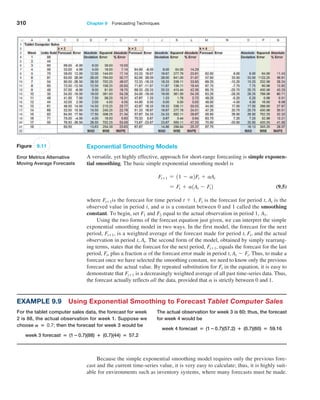
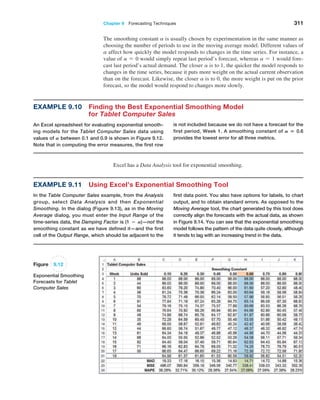
  • 190.
    Chapter 5  Probability Distributionsand Data Modeling 189 We can easily use this approach to generate outcomes from any discrete distribution; the VLOOKUP function in Excel can be used to implement this on a spreadsheet. number is 0.326510048. This falls in the interval corre- sponding to the sample outcome of 6. The second ran- dom number is 0.743390121. This number falls in the interval corresponding to an outcome of 9. Essentially, we have developed a technique to roll dice on a com- puter. If this is done repeatedly, the frequency of occur- rence of each outcome should be proportional to the size of the random number range (i.e., the probability asso- ciated with the outcome) because random numbers are uniformly distributed. Example 5.36 Using the VLOOKUP Function for Random Sampling Suppose that we want to sample from the prob- ability Ā­ distribution of the predicted change in the Dow Jones Industrial Average index shown in Fig- ure 5.6. We first construct the cumulative distribution F 1 x 2 . Then assign intervals to the outcomes based on the values of the cumulative distribution, as shown in Fig- ure 5.26. This specifies the table range for the VLOOKUP function, namely, $E$2:$G$10. List the random numbers in a column using the RAND( ) function. The formula in cell J2 is =VLOOKUP(I2,$E$2:$G$10,3), which is copied down that column. This function takes the value of the random number in cell I2, finds the last number in the first column of the table range that is less than the random num- ber, and returns the value in the third column of the Ā­ table range. In this case, 0.49 is the last number in column E that is less than 0.530612386, so the function returns 5% as the outcome. Sampling from Common Probability Distributions This approach of generating random numbers and transforming them into outcomes from a probability distribution may be used to sample from most any distribution. A value ran- domly generated from a specified probability distribution is called a random variate. For example, it is quite easy to transform a random number into a random variate from a uni- form distribution between a and b. Consider the formula: U = a + 1b - a2*RAND( ) (5.23) Note that when RAND( ) = 0, U = a, and when RAND( ) approaches 1, U approaches b. For any other value of RAND( ) between 0 and 1, 1b - a2*RAND() represents the same proportion of the interval 1a, b2 as RAND( ) does of the interval 10, 12. Thus, all Figure 5.26 Using the VLOOKUP Function to Sample from a Discrete Distribution
  • 191.
    190 Chapter 5  ProbabilityDistributions and Data Modeling real numbers between a and b can occur. Since RAND( ) is uniformly distributed, so also is U. Although this is quite easy, it is certainly not obvious how to generate random variates from other distributions such as normal or exponential. We do not describe the technical details of how this is done but rather just describe the capabilities avail- able in Excel. Excel allows you to generate random variates from discrete distributions and certain others using the Random Number Generation option in the Analysis Tool- pak. From the Data tab in the ribbon, select Data Analysis in the Analysis group and then Random Number Generation. The Random Number Generation dialog, shown in Ā­ Figure 5.27, will appear. From the Random Number Generation dialog, you may select from seven distributions: uniform, normal, Bernoulli, binomial, Poisson, and patterned, as well as discrete. (The patterned distribution is characterized by a lower and upper bound, a step, a repetition rate for values, and a repetition rate for the sequence.) If you select the Output Range option, you are asked to specify the upper-left cell reference of the output table that will store the outcomes, the number of variables (columns of val- ues you want generated), number of random numbers (the number of data points you want generated for each variable), and the type of distribution. The default distribution is the discrete distribution. Example 5.37 Using Excel’s Random Number Generation Tool We will generate 100 outcomes from a Poisson distribu- tion with a mean of 12. In the Random Number Gen- eration dialog, set the Number of Variables to 1 and the Number of Random Numbers to 100 and select Poisson from the drop-down Distribution box. The dialog will change and prompt you for the value of Lambda, the mean of the Poisson distribution; enter 12 in the box and click OK. The tool will display the random num- bers in a column. Figure 5.28 shows a histogram of the results. Figure 5.27 Excel Random Number Generation Dialog The dialog in Figure 5.27 also allows you the option of specifying a random num- ber seed. A random number seed is a value from which a stream of random numbers
  • 192.
    Chapter 5  Probability Distributionsand Data Modeling 191 Figure 5.28 Histogram of Samples from a Poisson Distribution is generated. By specifying the same seed, you can produce the same random numbers at a later time. This is desirable when we wish to reproduce an identical sequence of ā€œrandomā€ events in a simulation to test the effects of different policies or decision vari- ables under the same circumstances. However, one disadvantage with using the Random Number Generation tool is that you must repeat the process to generate a new set of sample values; pressing the recalculation (F9) key will not change the values. This can make it difficult to use this tool to analyze decision models. Excel also has several inverse functions of probability distributions that may be used to generate random variates. For the normal distribution, use • NORM.INV(probability, mean, standard_deviation)—normal distribution with a specified mean and standard deviation, • NORM.S.INV(probability)—standard normal distribution. For some advanced distributions, you might see • LOGNORM.INV(probability, mean, standard_deviation)—lognormal distribu- tion, where ln(X) has the specified mean and standard deviation, • BETA.INV(probability, alpha, beta, A, B)—beta distribution. To use these functions, simply enter RAND( ) in place of probability in the function. For example, NORM.INV(RAND( ), 5, 2) will generate random variates from a normal dis- tribution with mean 5 and standard deviation 2. Each time the worksheet is recalculated, a new random number and, hence, a new random variate, are generated. These functions may be embedded in cell formulas and will generate new values whenever the worksheet is recalculated.
  • 193.
    192 Chapter 5  ProbabilityDistributions and Data Modeling Figure 5.29 Sampling Experiment for Profitability Index The following example shows how sampling from probability distributions can pro- vide insights about business decisions that would be difficult to analyze mathematically. Example 5.38 A Sampling Experiment for Evaluating Capital Budgeting Projects In finance, one way of evaluating capital budgeting proj- ects is to compute a profitability index (PI), which is defined as the ratio of the present value of future cash flows (PV) to the initial investment (I): PI = PV,I (5.24) Because the cash flow and initial investment that may be required for a particular project are often uncertain, the profitability index is also uncertain. If we can characterize PV and I by some probability distributions, then we would like to know the probability distribution for PI. For exam- ple, suppose that PV is estimated to be normally distrib- uted with a mean of $12 million and a standard deviation of $2.5 million, and the initial investment is also estimated to be normal with a mean of $3.0 million and standard deviation of $0.8 million. Intuitively, we might believe that the profitability index is also normally distributed with a mean of $12 million,$3 million = $4 million; however, as we shall see, this is not the case. We can use a sampling experiment to identify the probability distribution of PI for these assumptions. Figure 5.29 shows a simple model from the Excel file Profitability Index Experiment. For each experiment, the values of PV and I are sampled from their assumed normal distributions using the NORM.INV function. PI is calculated in column D, and the average value for 1,000 experiments is shown in cell E8. We clearly see that this is not equal to 4 as previously suspected. The his- togram in Figure 5.30 also demonstrates that the dis- tribution of PI is not normal but is skewed to the right. This experiment confirms that the ratio of two normal distributions is not normally distributed. We encour- age you to create this spreadsheet and replicate this experiment (note that your results will not be exactly the same as these because you are generating random values!) Probability Distribution Functions in Analytic Solver Platform Analytic Solver Platform (see the section on Spreadsheet Add-ins in Chapter 2) provides custom Excel functions that generate random samples from specified probability distribu- tions. Table 5.1 shows a list of these for distributions we have discussed. These functions return random values from the specified distributions in worksheet cells. These functions will be very useful in business analytics applications in later chapters, especially Chapter 12 on simulation and risk analysis.
  • 194.
    Chapter 5  Probability Distributionsand Data Modeling 193 Figure 5.30 Frequency Distribution and Histogram of Profitability Index Distribution Analytic Solver Platform Function Bernoulli PsiBernoulli(probability) Binomial PsiBinomial(trials, probability) Poisson PsiPoisson(mean) Uniform PsiUniform(lower, upper) Normal PsiNormal(mean, standard deviation) Exponential PsiExponential(mean) Discrete Uniform PsiDisUniform(values) Geometric PsiGeometric(probability) Negative Binomial PsiNegBinomial(successes, probability) Hypergeometric PsiHyperGeo(trials, success, population size) Triangular PsiTriangular(minimum, most likely, maximum) Lognormal PsiLognormal(mean, standard deviation) Beta PsiBeta(alpha, beta) Table 5.1 Analytic Solver Platform Probability Distribution Functions Example 5.39 Using Analytic Solver Platform Distribution Functions An energy company was considering offering a new product and needed to estimate the growth in PC owner- ship. Using the best data and information available, they determined that the minimum growth rate was 5.0%, the most likely value was 7.7%, and the maximum value was 10.0%. These parameters characterize a triangular distribution. Figure 5.31 (Excel file PC Ownership Growth Rates) shows a portion of 500 samples that were gen- erated using the function PsiTriangular(5%, 7.7%, 10%). Notice that the histogram exhibits a clear triangular shape.
  • 195.
    194 Chapter 5  ProbabilityDistributions and Data Modeling Data Modeling and Distribution Fitting In many applications of business analytics, we need to collect sample data of important variables such as customer demand, purchase behavior, machine failure times, and service activity times, to name just a few, to gain an understanding of the distributions of these variables. Using the tools we have studied, we may construct frequency distributions and histograms and compute basic descriptive statistical measures to better understand the na- ture of the data. However, sample data are just that—samples. Using sample data may limit our ability to predict uncertain events that may occur because potential values outside the range of the sample data are not included. A better approach is to identify the underlying probability distribution from which sample data come by ā€œfittingā€ a theoretical distribution to the data and verifying the goodness of fit statistically. To select an appropriate theoretical distribution that fits sample data, we might be- gin by examining a histogram of the data to look for the distinctive shapes of particular distributions. For example, normal data are symmetric, with a peak in the middle. Expo- nential data are very positively skewed, with no negative values. Lognormal data are also very positively skewed, but the density drops to zero at 0. Various forms of the gamma, Weibull, or beta distributions could be used for distributions that do not seem to fit one of the other common forms. This approach is not, of course, always accurate or valid, and sometimes it can be difficult to apply, especially if sample sizes are small. However, it may narrow the search down to a few potential distributions. Summary statistics can also provide clues about the nature of a distribution. The mean, median, standard deviation, and coefficient of variation often provide information about the nature of the distribution. For instance, normally distributed data tend to have a fairly low coefficient of variation (however, this may not be true if the mean is small). For normally distributed data, we would also expect the median and mean to be approxi- mately the same. For exponentially distributed data, however, the median will be less than the mean. Also, we would expect the mean to be about equal to the standard devia- tion, or, equivalently, the coefficient of variation would be close to 1. We could also look at the skewness index. Normal data are not skewed, whereas lognormal and exponential data are positively skewed. The following examples illustrate some of these ideas. Figure 5.31 Samples from a Triangular Distribution
  • 196.
    Chapter 5  Probability Distributionsand Data Modeling 195 Example 5.40 Analyzing Airline Passenger Data An airline operates a daily route between two medium- sized cities using a 70-seat regional jet. The flight is rarely booked to capacity but often accommodates business travelers who book at the last minute at a high price. Figure 5.32 shows the number of passengers for a sample of 25 flights (Excel file Airline Passengers). The histogram shows a relatively symmetric distribution. The mean, median, and mode are all similar, although there is some degree of positive skewness. From our discussion in Chapter 4 about the variability of samples, it is important to recognize that this is a relatively small sample that can exhibit a lot of variability compared with the population from which it is drawn. Thus, based on these characteristics, it would not be unreasonable to assume a normal distribution for the purpose of develop- ing a predictive or prescriptive analytics model. Example 5.41 Analyzing Airport Service Times Figure 5.33 shows a portion of the data and statistical analysis of 812 samples of service times at an airport’s ticketing counter (Excel file Airport Service Times). It is not clear what the distribution might be. It does not ap- pear to be exponential, but it might be lognormal or even another distribution with which you might not be familiar. From the descriptive statistics, we can see that the mean is not close to the standard deviation, suggesting that the data are probably not exponential. The data are posi- tively skewed, suggesting that a lognormal distribution might be appropriate. However, it is difficult to make a definitive conclusion. Figure 5.32 Data and Statistics for Passenger Demand The examination of histograms and summary statistics might provide some idea of the appropriate distribution; however, a better approach is to analytically fit the data to the best type of probability distribution.
  • 197.
    196 Chapter 5  ProbabilityDistributions and Data Modeling Figure 5.33 Airport Service Times Statistics Goodness of Fit The basis for fitting data to a probability distribution is a statistical procedure called good- ness of fit. Goodness of fit attempts to draw a conclusion about the nature of the distribu- tion. For instance, in Example 5.40 we suggested that it might be reasonable to assume that the distribution of passenger demand is normal. Goodness of fit would provide objec- tive, analytical support for this assumption. Understanding the details of this procedure requires concepts that we will learn in Chapter 7. However, software exists (which we illustrate shortly) that run statistical procedures to determine how well a theoretical distri- bution fits a set of data, and also find the best-fitting distribution. Determining how well sample data fits a distribution is typically measured using one of three types of statistics, called chi-square, Kolmogorov-Smirnov, and Anderson-Ā­ Darling statistics. Essentially, these statistics provide a measure of how well the histogram of the sample data compares with a specified theoretical probability distribution. The chi- square approach breaks down the theoretical distribution into areas of equal probability and compares the data points within each area to the number that would be expected for that distribution. The Kolmogorov-Smirnov procedure compares the cumulative distribu- tion of the data with the theoretical distribution and bases its conclusion on the largest vertical distance between them. The Anderson-Darling method is similar but puts more weight on the differences between the tails of the distributions. This approach is useful when you need a better fit at the extreme tails of the distribution. If you use chi-square, you should have at least 50 data points; for small samples, the Kolmogorov-Smirnov test generally works better. Distribution Fitting with Analytic Solver Platform Analytic Solver Platform has the capability of ā€œfittingā€ a probability distribution to data using one of the three goodness-of-fit procedures. This is often done to analyze and define inputs to simulation models that we discuss in Chapter 12. However, you need not under- stand simulation at this time to use this capability. We illustrate this procedure using the airport service time data.
  • 198.
    Chapter 5  Probability Distributionsand Data Modeling 197 Example 5.42 Fitting a Distribution to Airport Service Times Step 1: Highlight the range of the data in the Airport Ā­Service Times worksheet. Click on the Tools button in the Ā­ Analytic Solver Platform ribbon and then click Fit. This displays the Fit Options dialog shown in Figure 5.34. Step 2: In the Fit Options dialog, choose whether to fit the data to a continuous or discrete distribution. In this example, we select Continuous. You may also choose the statistical procedure used to evaluate the results, either chi-square, Kolmogorov-Smirnov, or Anderson-Darling. We choose the default option, Kolmogorov-Smirnov. Click the Fit button. Ā­ Analytic Solver Platform displays a window with the results as shown in Figure 5.35. In this case, the best-fitting distribution is called an Erlang distribution. If you want to compare the results to a different distribution, simply check the box on the left side. You don’t have to know the mathematical details to use the distribution in a spread- sheet application because the formula for the Psi function corresponding to this distribution is shown in the panel on the right side of the output. When you exit the dialog, you have the option to accept the result; if so, it asks you to select a cell to place the Psi function for the distribution, in this case, the function: = PsiErlang(1.46504838280818,80.0576462180289, PsiShift 8.99) We could use this function to generate samples from this distribution, similar to the way we used the NORM.INV function in Example 5.38. Figure 5.34 Fit Options Dialog Figure 5.35 Analytic Solver Platform Distribution Fitting Results
  • 199.
    198 Chapter 5  ProbabilityDistributions and Data Modeling 3Based on G. C. O’Connor, T. R. Willemain, and J. MacLachlan, ā€œThe Value of Competition Among Agencies in Developing Ad Campaigns: Revisiting Gross’s Model,ā€ Journal of Advertising, 25, 1 (1996): 51–62. To illustrate the importance of identifying the correct distribution in decision modeling, we discuss an ex- ample in advertising.3 The amount that companies spend on the creative component of advertising (i.e., making better ads) is traditionally quite small relative to the overall media budget. One expert noted that the expenditure on creative development was about 5% of that spent on the media delivery campaign. Whatever money is spent on creative develop- ment is usually directed through a single advertising agency. However, one theory that has been proposed is that more should be spent on creative ad develop- ment, and the expenditures should be spread across a number of competitive advertising agencies. In re- search studies of this theory, the distribution of ad- vertising effectiveness was assumed to be normal. In reality, data collected on the response to consumer product ads show that this distribution is actually quite skewed and, therefore, not normally distributed. Using the wrong assumption in any model or applica- tion can produce erroneous results. In this situation, the skewness actually provides an advantage for ad- vertisers, making it more effective to obtain ideas from a variety of advertising agencies. A mathematical model (called Gross’s model) re- lates the relative contributions of creative and media dollars to total advertising effectiveness and is often used to identify the best number of draft ads to pur- chase. This model includes factors of ad development cost, total media spending budget, the distribution of effectiveness across ads (assumed to be normal), and the unreliability of identifying the most effective ad from a set of independently generated alterna- tives. Gross’s model concluded that large gains were Ā­ possible if multiple ads were obtained from indepen- dent sources, and the best ad is selected. Since the data observed on ad effectiveness was clearly skewed, other researchers examined ad effec- tiveness by studying standard industry data on ad recall without requiring the assumption of normally distributed effects. This analysis found that the best of a number of ads was more effective than any single ad. Further anal- ysis revealed that the optimal number of ads to commis- sion can vary significantly, depending on the shape of the distribution of effectiveness for a single ad. The researchers developed an alternative to Gross’s model. From their analyses, they found that as the number of draft ads was increased, the effec- tiveness of the best ad also increased. Both the opti- mal number of draft ads and the payoff from creating multiple independent drafts were higher when the cor- rect distribution was used than the results reported in Gross’s original study. Analytics in Practice: The Value of Good Data Modeling in Advertising Key Terms Bernoulli distribution Binomial distribution Complement Conditional probability Continuous random variable Cumulative distribution function Discrete random variable Discrete uniform distribution Victor Correira/Shutterstock.com
  • 200.
    Chapter 5  Probability Distributionsand Data Modeling 199 Problems and Exercises Empirical probability distribution Event Expected value Experiment Exponential distribution Goodness of fit Independent events Intersection Joint probability Joint probability table Marginal probability Multiplication law of probability Mutually exclusive Normal distribution Outcome Poisson distribution Probability Probability density function Probability distribution Probability mass function Random number Random number seed Random variable Random variate Sample space Standard normal distribution Uniform distribution Union 1. a. A die is rolled. Find the probability that the num- ber obtained is greater than 4. b. Two coins are tossed. Find the probability that only one head is obtained. c. Two dice are rolled. Find the probability that the sum is equal to 5. d. A card is drawn at random from a deck of cards. Find the probability of getting the King of Hearts. 2. Consider the experiment of drawing two cards with- out replacement from a deck consisting of only the ace through 10 of a single suit (e.g., only hearts). a. Describe the outcomes of this experiment. List the elements of the sample space. b. Define the event Ai to be the set of outcomes for which the sum of the values of the cards is i (with an ace = 1). List the outcomes associated with Ai for i = 3 to 19. c. What is the probability of obtaining a sum of the two cards equaling from 3 to 19? 3. Find the probability of getting the each of the total values when two dice is rolled: 1, 2, 5, 6, 7, 10, and 11. 4. The students of a class have elected five candi- dates to represent them on the college management council: S.No. Gender Age 1 Male 18 2 Male 19 3 Female 22 4 Female 20 5 Male 23 This group decides to elect a spokesperson by ran- domly drawing a name from a hat. Calculate the probability of the spokesperson being either female or over 21. 5. Refer to the card scenario described in Problem 2. a. Let A be the event ā€œtotal card value is odd.ā€ Find P(A) and P(Ac ). b. What is the probability that the sum of the two cards will be more than 14? 6. The latest nationwide political poll in a particular country indicates that the probability for the can- didate to be a republican is 0.55, a communist is 0.30, and a supporter of the patriots of that coun- try is 0.15. Assuming that these probabilities are accurate, within a randomly chosen group of 10 citizens: a. What is the probability that four are communists? b. What is the probability that none are republican? 7. Roulette is played at a table similar to the one in Fig- ure 5.36. A wheel with the numbers 1 through 36 (evenly distributed with the colors red and black) and two green numbers 0 and 00 rotates in a shallow bowl with a curved wall. A small ball is spun on the inside of the wall and drops into a pocket corresponding to one of the numbers. Players may make 11 different types of bets by placing chips on different areas of the table. These include bets on a single number, two adjacent numbers, a row of three numbers, a block of four numbers, two adjacent rows of six numbers, and the five number combinations of 0, 00, 1, 2, and 3; bets on the numbers 1–18 or 19–36; the first, Ā­ second, or third group of 12 numbers; a column of
  • 201.
    200 Chapter 5  ProbabilityDistributions and Data Modeling Figure 5.36 Layout of a Typical Roulette Table 12 Ā­ numbers; even or odd; and red or black. Payoffs differ by bet. For instance, a single-number bet pays 35 to 1 if it wins; a three-number bet pays 11 to 1; a col- umn bet pays 2 to 1; and a color bet pays even money. Define the following events: C1 = column 1 number, C2 = column 2 number, C3 = column 3 number, O = odd number, E = even number, G = green number, F12 = first 12 numbers, S12 = second 12 numbers, and T12 = third 12 numbers. a. Find the probability of each of these events. b. Find P(G or O), P(O or F12), P(C1 or C3), P(E and F12), P(E or F12), P(S12 and T12), P(O or C2). 8. From a bag full of colored balls (red, blue, green and orange), some are picked out and replaced. This is done a thousand times and the number of times each colored ball is picked out is—Blue: 300, Red: 200, Green: 450, and Orange: 50. a. What is the probability of picking a green ball? b. What is the probability of picking a blue ball? c. If there are 100 balls in the bag, how many of them are likely to be green? d. If there are 10000 balls in the bag, how many of them are likely to be orange? 9. A box contains marbles of three different colors: 8 black, 6 white, and 4 red. Three marbles are se- lected at random without replacement. Find the probability that the selection contains each of the outcomes listed. a. Three black marbles b. A red, a black and a white marble, in that order c. A red marble and two white marbles, in any order 10. A survey of 200 college graduates who have been work- ing for at least 3 years found that 90 owned only mutual funds, 20 owned only stocks, and 70 owned both. a. What is the probability that an individual owns a stock? A mutual fund? b. What is the probability that an individual owns neither stocks nor mutual funds? c. What is the probability that an individual owns either a stock or a mutual fund? 11. Row 26 of the Excel file Census Education Data gives the number of employed persons having a spe- cific educational level. a. Find the probability that an employed person has attained each of the educational levels listed in the data. b. Suppose that A is the event ā€œhas at least an As- sociate’s Degreeā€ and B is the event ā€œis at least a high school graduate.ā€ Find the probabilities of these events. Are they mutually exclusive? Why or why not? Find the probability P(A or B). 12. A survey of shopping habits found the percentage of respondents that use technology for shopping as shown in Figure 5.37. For example, 17.39% only use online coupons; 21.74% use online coupons and check prices online before shopping, and so on. a. What is the probability that a shopper will check prices online before shopping? b. What is the probability that a shopper will use a smart phone to save money? c. What is the probability that a shopper will use online coupons? d. What is the probability that a shopper will not use any of these technologies?
  • 202.
    Chapter 5  Probability Distributionsand Data Modeling 201 e. What is the probability that a shopper will check prices online and use online coupons but not use a smart phone? f. If a shopper checks prices online, what is the probability that he or she will use a smart phone? g. What is the probability that a shopper will check prices online but not use online coupons or a smart phone? 13. A Canadian business school summarized the gender and residency of its incoming class as follows: Residency Gender Canada United States Europe Asia Other Male 123 24 17 52 8 Female 86 8 10 73 4 a. Construct the joint probability table. b. Calculate the marginal probabilities. c. What is the probability that a female student is from outside Canada or the United States? 14. In an example in Chapter 3, we developed the fol- lowing cross-tabulation of sales transaction data: Region Book DVD Total East 56 42 98 North 43 42 85 South 62 37 99 West 100 90 190 Total 261 211 472 a. Find the marginal probabilities that a sale origi- nated in each of the four regions and the marginal probability of each type of sale (book or DVD). b. Find the conditional probabilities of selling a book given that the customer resides in each region. 15. Use the Civilian Labor Force data in the Excel file Census Education Data to find the following: a. P(unemployed and advanced degree) b. P(unemployed āˆ™ advanced degree) c. P(not a high school grad āˆ™ unemployed) d. Are the events ā€œunemployedā€ and ā€œat least a high school graduateā€ independent? 16. Using the data in the Excel file Consumer Transpor- tation Survey, develop a contingency table for Gen- der and Vehicle Driven; then convert this table into probabilities. a. What is the probability that respondent is female? b. What is the probability that a respondent drives an SUV? c. What is the probability that a respondent is male and drives a minivan? d. What is the probability that a female respondent drives either a truck or an SUV? e. If it is known that an individual drives a car, what is the probability that the individual is female? f. If it is known that an individual is male, what is the probability that he drives an SUV? g. Determine whether the random variables ā€œgenderā€ and the event ā€œvehicle drivenā€ are statistically in- dependent. What would this mean for advertisers? Use Online Coupons Check Prices Online Before Shopping Use a Smart Phone to Save Money 4.35% 4.35% 4.35% 4.35% 21.74% 17.39% 17.39% Figure 5.37
  • 203.
    202 Chapter 5  ProbabilityDistributions and Data Modeling 17. A home pregnancy test is not always accurate. Sup- pose the probability is 0.015 that the test indicates that a woman is pregnant when she actually is not, and the probability is 0.025 that the test indicates that a woman is not pregnant when she really is. Assume that the probability that a woman who takes the test is actually pregnant is 0.7. What is the probability that a woman is pregnant if the test yields a not-Ā­ pregnant result? 18. A political candidate running for local office is con- sidering the votes she can get in an upcoming election. Assume that the votes can take on only four possible values. If the candidate assessment is per the given Excel sheet Votes, construct the probability distribu- tion graph. Number of Votes Probability this Will Happen 1000 0.2 2000 0.4 3000 0.3 4000 0.1 19. In the roulette example described in Problem 7, what is the probability that the outcome will be green twice in a row? What is the probability that the out- come will be black twice in a row? 20. A consumer products company found that 48% of suc- cessful products also received favorable results from test market research, whereas 12% had unfavorable results but nevertheless were successful. They also found that 28% of unsuccessful products had unfavor- able research results, whereas 12% of them had favor- able research results. That is, P(successful product and favorable test market) = 0.48, P(successful product and unfavorable test market) = 0.12, P(unsuccessful product and favorable test market) = 0.12, and P(unsuccessful product and unfavorable test market) = 0.28. Find the probabilities of successful and unsuc- cessful products given known test market results. 21. A particular training program has been designed to upgrade the administrative skills of managers. The program is self-administered; the manager requires putting in different number of hours to complete the program. The previous participant’s input indicates that the mean length of time spent on the program is 500 hours, and that this normally distributed random variables has standard deviation of 100 hours. Cal- culate the probability of a randomly selected partici- pant who will require more than 500 hours. 22. The weekly demand of a slow-moving product has the following probability mass function: Demand, x Probability, f(x) 0 0.2 1 0.4 2 0.3 3 0.1 4 or more 0 Find the expected value, variance, and standard de- viation of weekly demand. 23. The Excel sheet Baseball contains information about a team which is using an automatic pitching ma- chine. If the machine is correctly setup and properly adjusted, it will strike 85 percent of the time. If it is incorrectly set up, it will strike only 35 percent of the time. Past data indicates that 75 percent of the setup of the machine is correctly done. After the machine has been set up, at batting practice one day, it throws three strikes on the first three pitches. What is the re- vised probability that has setup done correctly? Event P(event) P(1strike/event) Correct 0.75 0.85 Incorrect x 0.35 24. Based on the data in the Excel file Consumer Transportation Survey, develop a probability mass function and cumulative distribution function (both tabular and as charts) for the random variable Num- ber of Children. What is the probability that an indi- vidual in this survey has fewer than three children? At least one child? Five or more children? 25. A major application of analytics in marketing is determin- ing the attrition of customers. Suppose that the probability of a long-distance carrier’s customer leaving for another carrier from one month to the next is 0.12. What distri- bution models the retention of an individual customer? What is the expected value and standard deviation? 26. The Excel file Call Center Data shows that in a sample of 70 individuals, 27 had prior call center ex- perience. If we assume that the probability that any potential hire will also have experience with a prob- ability of 27/70, what is the probability that among 10 potential hires, more than half of them will have experience? Define the parameter(s) for this distribu- tion based on the data.
  • 204.
    Chapter 5  Probability Distributionsand Data Modeling 203 27. If a cell phone company conducted a telemarket- ing campaign to generate new clients and the prob- ability of successfully gaining a new customer was 0.07, what is the probability that contacting 50 potential customers would result in at least 5 new customers? 28. During 1 year, a particular mutual fund has outper- formed the SP 500 index 33 out of 52 weeks. Find the probability that this performance or better would happen again. 29. A popular resort hotel has 300 rooms and is usually fully booked. About 6% of the time a reservation is canceled before the 6:00 p.m. deadline with no penalty. What is the probability that at least 280 rooms will be occupied? Use the binomial distribution to find the exact value. 30. A telephone call center where people place market- ing calls to customers has a probability of success of 0.08. The manager is very harsh on those who do not get a sufficient number of successful calls. Find the number of calls needed to ensure that there is a prob- ability of 0.90 of obtaining 5 or more successful calls. 31. Ravi sells three life insurance policies on an average per week. Use Poisson’s distribution to calculate the probability that in a given week he will sell a. some policies. b. two or more policies but less than 5 policies. c. one policy, assuming that there are 5 working days per week. 32. The number and frequency of Atlantic hurricanes an- nually from 1940 through 2012 is shown here. Number Frequency 0 5 1 16 2 19 3 14 4 3 5 5 6 4 7 3 8 2 10 1 12 1 a. Find the probabilities of 0–12 hurricanes each season using these data. b. Assuming a Poisson distribution and using the mean number of hurricanes per season from the empirical data, compute the probabilities of ex- periencing 0–12 hurricanes in a season. Compare these to your answer to part (a). How good does a Poisson distribution model this phenomenon? Construct a chart to visualize these results. 33. Verify that the function corresponding to the fol- lowing figure is a valid probability density function. Then find the following probabilities: a. P1x 6 82 b. P1x 7 72 c. P16 6 x 6 102 d. P18 6 x 6 112 34. The time required to play a game of Battleshipā„¢ is uniformly distributed between 15 and 60 minutes. a. Find the expected value and variance of the time to complete the game. b. What is the probability of finishing within 30 minutes? c. What is the probability that the game would take longer than 40 minutes? 35. A contractor has estimated that the minimum num- ber of days to remodel a bathroom for a client is 10 days. He also estimates that 80% of similar jobs are completed within 18 days. If the remodeling time is uniformly distributed, what should be the param- eters of the uniform distribution? 36. In determining automobile-mileage ratings, it was found that the mpg (X) for a certain model is nor- mally distributed, with a mean of 33 mpg and a stan- dard deviation of 1.7 mpg. Find the following: a. P1X 6 302 b. P128 6 X 6 322
  • 205.
    204 Chapter 5  ProbabilityDistributions and Data Modeling c. P1X 7 352 d. P1X 7 312 e. The mileage rating that the upper 5% of cars achieve. 37. The distribution of the SAT scores in math for an in- coming class of business students has a mean of 590 and standard deviation of 22. Assume that the scores are normally distributed. a. Find the probability that an individual’s SAT score is less than 550. b. Find the probability that an individual’s SAT score is between 550 and 600. c. Find the probability that an individual’s SAT score is greater than 620. d. What percentage of students will have scored bet- ter than 700? e. Find the standardized values for students scoring 550, 600, 650, and 700 on the test. 38. A popular soft drink is sold in 2-liter (2,000-Ā­milliliter) bottles. Because of variation in the filling process, bottles have a mean of 2,000 milliliters and a stan- dard deviation of 20, normally distributed. a. If the process fills the bottle by more than 50 milliliters, the overflow will cause a machine malfunction. What is the probability of this occurring? b. What is the probability of underfilling the bottles by at least 30 milliliters? 39. A supplier contract calls for a key dimension of a part to be between 1.96 and 2.04 centimeters. The supplier has determined that the standard deviation of its pro- cess, which is normally distributed, is 0.04 centimeter. a. If the actual mean of the process is 1.98, what fraction of parts will meet specifications? b. If the mean is adjusted to 2.00, what fraction of parts will meet specifications? c. How small must the standard deviation be to en- sure that no more than 2% of parts are noncon- forming, assuming the mean is 2.00? 40. Dev scored 940 on a national mathematics test. The mean test score was 850 with a standard deviation of 100. What proportion of students had a higher score than Dev? (Assume that the test scores are normally distributed.) 41. A lightbulb is warranted to last for 5,000 hours. If the time to failure is exponentially distributed with a true mean of 4,750 hours, what is the probability that it will last at least 5,000 hours? 42. The actual delivery time from Giodanni’s Pizza is exponentially distributed with a mean of 20 minutes. a. What is the probability that the delivery time will exceed 30 minutes? b. What proportion of deliveries will be completed within 20 minutes? 43. Develop a procedure to sample from the probability dis- tribution of soft-drink choices in Problem 1. Implement your procedure on a spreadsheet and use the VLOOKUP function to sample 10 outcomes from the distribution. 44. Develop a procedure to sample from the probability distribution of two-card hands in Problem 2. Implement your procedure on a spreadsheet and use the VLOOKUP function to sample 20 outcomes from the distribution. 45. Use formula (5.23) to obtain a sample of 25 outcomes for a game of Battleshipā„¢ as described in Problem 34. Find the average and standard deviation for these 25 outcomes. 46. Use the Excel Random Number Generation tool to gen- erate 100 samples of the number of customers that the financial consultant in Problem 31 will have on a daily basis. What percentage will meet his target of at least 5? 47. A formula in financial analysis is: Return on equity = net profit margin * total asset turnover * equity multiplier. Suppose that the equity multiplier is fixed at 4.0, but that the net profit margin is nor- mally distributed with a mean of 3.8% and a standard deviation of 0.4%, and that the total asset turnover is normally distributed with a mean of 1.5 and a stan- dard deviation of 0.2. Set up and conduct a sampling experiment to find the distribution of the return on equity. Show your results as a histogram to help ex- plain your analysis and conclusions. Use the empiri- cal rules to predict the return on equity. 48. A government agency is putting a large project out for low bid. Bids are expected from 10 different contractors and will have a normal distribution with a mean of $3.5 million and a standard deviation of $0.25 million. Devise and implement a sampling
  • 206.
    Chapter 5  Probability Distributionsand Data Modeling 205 Case: Performance Lawn Equipment PLE collects a variety of data from special studies, many of which are related to the quality of its products. The com- pany collects data about functional test performance of its mowers after assembly; results from the past 30 days are given in the worksheet Mower Test. In addition, many in- process measurements are taken to ensure that manufactur- ing processes remain in control and can produce according to design specifications. The worksheet Blade Weight shows 350 measurements of blade weights taken from the manu- facturing process that produces mower blades during the most recent shift. Elizabeth Burke has asked you to study these data from an analytics perspective. Drawing upon your experience, you have developed a number of questions. 1. For the mower test data, what distribution might be ap- propriate to model the failure of an individual mower? 2. What fraction of mowers fails the functional perfor- mance test using all the mower test data? 3. What is the probability of having x failures in the next 100 mowers tested, for x from 0 to 20? 4. What is the average blade weight and how much variability is occurring in the measurements of blade weights? 5. Assuming that the data are normal, what is the prob- ability that blade weights from this process will ex- ceed 5.20? 6. What is the probability that weights will be less than 4.80? 7. What is the actual percent of weights that exceed 5.20 or are less than 4.80 from the data in the worksheet? 8. Is the process that makes the blades stable over time? That is, are there any apparent changes in the pattern of the blade weights? 9. Could any of the blade weights be considered outli- ers, which might indicate a problem with the manu- facturing process or materials? 10. Was the assumption that blade weights are normally distributed justified? What is the best-fitting prob- ability distribution for the data? Summarize all your findings to these questions in a well- written report. Ā­ experiment for estimating the distribution of the mini- mum bid and the expected value of the minimum bid. 49. Use Analytic Solver Platform to fit the hurricane data in Problem 32 to a discrete distribution? Does the Poisson distribution give the best fit? 50. Use Analytic Solver Platform to fit a distribution to the data in the Excel file Computer Repair Times. Try the three different statistical measures for evalu- ating goodness of fit and see if they result in different best-fitting distributions. 51. The Excel file Investment Returns provides sample data for the annual return of the SP 500, and monthly returns of a stock portfolio and bond portfolio. Con- struct histograms for each data set and use Analytic Solver Platform to find the best fitting distribution.
  • 207.
  • 208.
    207 KALABUKHAVA IRYNA/Shutterstock.com Chapter Learning Objectives Afterstudying this chapter, you will be able to: Sampling and Estimation 6 • Describe the elements of a sampling plan. • Explain the difference between subjective and probabilistic sampling. • State two types of subjective sampling. • Explain how to conduct simple random sampling and use Excel to find a simple random sample from an Excel database. • Explain systematic, stratified, and cluster sampling, and sampling from a continuous process. • Explain the importance of unbiased estimators. • Describe the difference between sampling error and nonsampling error. • Explain how the average, standard deviation, and distribution of means of samples changes as the sample size increases. • Define the sampling distribution of the mean. • Calculate the standard error of the mean. • Explain the practical importance of the central limit theorem. • Use the standard error in probability calculations. • Explain how an interval estimate differs from a point estimate. • Define and give examples of confidence intervals. • Calculate confidence intervals for population means and proportions using the formulas in the chapter and the appropriate Excel functions. • Explain how confidence intervals change as the level of confidence increases or decreases. • Describe the difference between the t-distribution and the normal distribution. • Use confidence intervals to draw conclusions about population parameters. • Compute a prediction interval and explain how it differs from a confidence interval. • Compute sample sizes needed to ensure a confidence interval for means and proportions with a specified margin of error.
  • 209.
    208 Chapter 6  Samplingand Estimation We discussed the difference between population and samples in Chapter 4. Sampling is the foundation of statistical analysis. We use sample data in business analytics applications for many purposes. For example, we might wish to estimate the mean, variance, or proportion of a very large or Ā­ unknown population; provide values for inputs in decision models; understand customer satisfaction; reach a conclusion as to which of several sales strat- egies is more effective; or understand if a change in a process resulted in an Ā­ improvement. In this chapter, we discuss sampling methods, how they are used to estimate population parameters, and how we can assess the error inherent in sampling. Statistical Sampling The first step in sampling is to design an effective sampling plan that will yield repreĀ­ sentative samples of the populations under study. A sampling plan is a description of the approach that is used to obtain samples from a population prior to any data collection activity. A sampling plan states • the objectives of the sampling activity, • the target population, • the population frame (the list from which the sample is selected), • the method of sampling, • the operational procedures for collecting the data, and • the statistical tools that will be used to analyze the data. Sampling Methods Many types of sampling methods exist. Sampling methods can be subjective or probabil- istic. Subjective methods include judgment sampling, in which expert judgment is used to select the sample (survey the ā€œbestā€ customers), and convenience sampling, in which samples are selected based on the ease with which the data can be collected (survey all customers who happen to visit this month). Probabilistic sampling involves selecting the Example 6.1 A Sampling Plan for a Market Research Study Suppose that a company wants to understand how golf- ers might respond to a membership program that pro- vides discounts at golf courses in the golfers’ locality as well as across the country. The objective of a sampling study might be to estimate the proportion of golfers who would likely subscribe to this program. The target pop- ulation might be all golfers over 25 years old. However, identifying all golfers in America might be impossible. A practical population frame might be a list of golfers who have purchased equipment from national golf or sport- ing goods companies through which the discount card will be sold. The operational procedures for collecting the data might be an e-mail link to a survey site or direct-mail questionnaire. The data might be stored in an Excel da- tabase; statistical tools such as PivotTables and simple descriptive statistics would be used to segment the re- spondents into different demographic groups and esti- mate their likelihood of responding positively.
  • 210.
    Chapter 6  Sampling andEstimation 209 items in the sample using some random procedure. Probabilistic sampling is necessary to draw valid statistical conclusions. The most common probabilistic sampling approach is simple random sampling. Simple random sampling involves selecting items from a population so that every subset of a given size has an equal chance of being selected. If the population data are stored in a dataĀ­ base, simple random samples can generally be easily obtained. Figure 6.1 Excel Sampling Tool Dialog Example 6.2 Simple Random Sampling with Excel Suppose that we wish to sample from the Excel database Sales Transactions. Excel provides a tool to generate a random set of values from a given population size. Click on Data Analysis in the Analysis group of the Data tab and select Sampling. This brings up the dialog shown in Figure 6.1. In the Input Range box, we specify the data range from which the sample will be taken. This tool requires that the data sampled be numeric, so in this ex- ample we sample from the first column of the data set, which corresponds to the customer ID number. There are two options for sampling: 1. Sampling can be periodic, and we will be prompted for the Period, which is the interval between sample observations from the beginning of the data set. For instance, if a period of 5 is used, observations 5, 10, 15, and so on, will be selected as samples. 2. Sampling can also be random, and we will be prompted for the Number of Samples. Excel will then randomly select this number of samples from the specified data set. However, this tool generates random samples with replacement, so we must be careful to check for dupli- cate observations in the sample created. Figure 6.2 shows 20 samples generated by the tool. We sorted them in ascending order to make it easier to identify duplicates. As you can see, two of the customers were duplicated by the tool. Other methods of sampling include the following: • Systematic (Periodic) Sampling. Systematic, or periodic, sampling is a samĀ­ pling plan (one of the options in the Excel Sampling tool) that selects every nth item from the population. For example, to sample 250 names from a list of 400,000, the first name could be selected at random from the first 1,600, and then every 1,600th name could be selected. This approach can be used for telephone sampling when supported by an automatic dialer that is programmed to dial numbers in a systematic manner. However, systematic sampling is not the same
  • 211.
    210 Chapter 6  Samplingand Estimation as simple random sampling because for any sample, every possible sample of a given size in the population does not have an equal chance of being selected. In some Ā­ situations, this approach can induce significant bias if the population has some underlying pattern. For instance, sampling orders received every 7 days may not yield a representative sample if customers tend to send orders on certain days Ā­ every week. • Stratified Sampling. Stratified sampling applies to populations that are diĀ­ vided into natural subsets (called strata) and allocates the appropriate proporĀ­ tion of samples to each stratum. For example, a large city may be divided into political districts called wards. Each ward has a different number of citizens. A stratified sample would choose a sample of individuals in each ward proĀ­ portionate to its size. This approach ensures that each stratum is weighted by its size relative to the population and can provide better results than simple random sampling if the items in each stratum are not homogeneous. However, issues of cost or significance of certain strata might make a disproportionate sample more useful. For example, the ethnic or racial mix of each ward might be significantly different, making it difficult for a stratified sample to obtain the desired information. • Cluster Sampling. Cluster sampling is based on dividing a population into subĀ­ groups (clusters), sampling a set of clusters, and (usually) conducting a complete census within the clusters sampled. For instance, a company might segment its customers into small geographical regions. A cluster sample would consist of a random sample of the geographical regions, and all customers within these regions would be surveyed (which might be easier because regional lists might be easier to produce and mail). • Sampling from a Continuous Process. Selecting a sample from a continuous manĀ­ ufacturing process can be accomplished in two main ways. First, select a time at random; then select the next n items produced after that time. Second, select n times at random; then select the next item produced after each of these times. The first approach generally ensures that the observations will come from a homoĀ­ geneous population; however, the second approach might include items from different populations if the characteristics of the process should change over time, so caution should be used. Figure 6.2 Samples Generated Using the Excel Sampling Tool
  • 212.
    Chapter 6  Sampling andEstimation 211 1Based on Tony Gojanovic and Ernie Jimenez, ā€œBrewed Awakening: Beer Maker Uses Statistical Ā­ Methods to Improve How Its Products Are Distributed,ā€ Quality Progress (April 2010). U.S. breweries rely on a three-tier distribution system to deliver product to retail outlets, such as supermar- kets and convenience stores, and on-premise ac- counts, such as bars and restaurants. The three tiers are the manufacturer, wholesaler (distributor), and re- tailer. A distribution network must be as efficient and cost effective as possible to deliver to the market a fresh product that is damage free and is delivered at the right place at the right time. To understand distributor performance related to overall effectiveness, MillerCoors brewery defined seven attributes of proper distribution and collected data from 500 of its distributors. A field quality specialist (FQS) audits distributors within an assigned region of the country and collects data on these attributes. The FQS uses a handheld device to scan the universal prod- uct code on each package to identify the product type and amount. When audits are complete, data are sum- marized and uploaded from the handheld device into a master database. This distributor auditing uses stratified random sampling with proportional allocation of samples based on the distributor’s market share. In addition to providing a more representative sample and bet- ter logistical control of sampling, stratified random sampling enhances statistical precision when data are aggregated by market area served by the distributor. This enhanced precision is a consequence of smaller and typically homogeneous market regions, which are able to provide realistic estimates of variability, espe- cially when compared to another market region that is markedly different. Randomization of retail accounts is achieved through a specially designed program based on the GPS location of the distributor and serviced retail accounts. The sampling strategy ultimately addresses a specific distributor’s performance related to out-of- code product, damaged product, and out-of-rotation product at the retail level. All in all, more than 6,000 of the brewery’s national retail accounts are audited dur- ing a sampling year. Data collected by the FQSs during the year are used to develop a performance ranking of distributors and identify opportunities for improvement. Analytics in Practice: Using Sampling Techniques to Improve Distribution1 Stephen Finn/Shutterstock.com Estimating Population Parameters Sample data provide the basis for many useful analyses to support decision making. Estima- tion involves assessing the value of an unknown population parameter—such as a population mean, population proportion, or population variance—using sample data. Estimators are the measures used to estimate population parameters; for example, we use the sample mean x to estimate a population mean m. The sample variance s2 estimates a population variance s2 , and the sample proportion p estimates a population proportion p. A point estimate is a single number derived from sample data that is used to estimate the value of a population parameter.
  • 213.
    212 Chapter 6  Samplingand Estimation Unbiased Estimators It seems quite intuitive that the sample mean should provide a good point estimate for the population mean. However, it may not be clear why the formula for the sample variance that we introduced in Chapter 4 has a denominator of n - 1, particularly because it is difĀ­ ferent from the formula for the population variance (see formulas (4.4) and (4.5) in ChapĀ­ ter 4). In these formulas, the population variance is Ā­ computed by s2 = a n i=1 1xi - m22 N whereas the sample variance is computed by the formula s2 = a n i=1 1xi - x22 n - 1 Why is this so? Statisticians develop many types of estimators, and from a theoĀ­ retical as well as a practical perspective, it is important that they ā€œtruly estimateā€ the population parameters they are supposed to estimate. Suppose that we perform an experiĀ­ ment in which we repeatedly sampled from a population and computed a point estimate for a population parameter. Each individual point estimate will vary from the population parameter; however, we would hope that the long-term average (expected value) of all possible point estimates would equal the population parameter. If the expected value of an estimator equals the population parameter it is intended to estimate, the estimator is said to be unbiased. If this is not true, the estimator is called biased and will not provide correct results. Fortunately, all the estimators we have introduced are unbiased and, therefore, are meaningful for making decisions involving the population parameter. In particular, statistiĀ­ cians have shown that the denominator n - 1 used in computing s2 is necessary to provide an unbiased estimator of s2 . If we simply divided by the number of observations, the estiĀ­ mator would tend to underestimate the true variance. Errors in Point Estimation One of the drawbacks of using point estimates is that they do not provide any indication of the magnitude of the potential error in the estimate. A major metropolitan newspaper reported that, based on a Bureau of Labor Statistics survey, college professors were the highest-paid workers in the region, with an average salary of $150,004. Actual averĀ­ ages for two local universities were less than $70,000. What happened? As reported in a follow-up story, the sample size was very small and included a large number of highly paid medical school faculty; as a result, there was a significant error in the point estimate that was used. When we sample, the estimators we use—such as a sample mean, sample proportion, or sample variance—are actually random variables that are characterized by some distriĀ­ bution. By knowing what this distribution is, we can use probability theory to quantify the uncertainty associated with the estimator. To understand this, we first need to discuss sampling error and sampling distributions.
  • 214.
    Chapter 6  Sampling andEstimation 213 Sampling Error In Chapter 4, we observed that different samples from the same population have difĀ­ ferent characteristics—for example, variations in the mean, standard deviation, freĀ­ quency distribution, and so on. Sampling (statistical) error occurs because samples are only a subset of the total population. Sampling error is inherent in any sampling process, and although it can be minimized, it cannot be totally avoided. Another type of Ā­ error, called nonsampling error, occurs when the sample does not represent the target population adequately. This is generally a result of poor sample design, such as using a convenience sample when a simple random sample would have been more appropriate or choosing the wrong population frame. It may also result from inadĀ­ equate data reliability, which we discussed in Chapter 1. To draw good conclusions from samples, analysts need to eliminate nonsampling error and understand the nature of sampling error. Sampling error depends on the size of the sample relative to the population. Thus, Ā­ determining the number of samples to take is essentially a statistical issue that is based on the accuracy of the estimates needed to draw a useful conclusion. We discuss this later in this chapter. However, from a practical standpoint, one must also consider the cost of Ā­ sampling and sometimes make a trade-off between cost and the information that is obtained. Understanding Sampling Error Suppose that we estimate the mean of a population using the sample mean. How can we determine how accurate we are? In other words, can we make an informed statement about how far the sample mean might be from the true population mean? We could gain some insight into this question by performing a sampling experiment. Example 6.3 A Sampling Experiment Let us choose a population that is uniformly distributed between a = 0 and b = 10. Formulas (5.17) and (5.18) state that the expected value is 10 + 102 ,2 = 5, and the variance is (10 āˆ’ 0)2 ,12 = 8.333. We use the Excel Random Number Generation tool described in Chapter 5 to generate 25 samples, each of size 10 from this popula- tion. Figure 6.3 shows a portion of a spreadsheet for this experiment, along with a histogram of the data (on the left side) that shows that the 250 observations are approxi- mately uniformly distributed. (This is available in the Excel file Sampling Experiment.) In row 12 we compute the mean of each sample. These statistics vary a lot from the population values because of sampling error. The histogram on the right shows the distri- bution of the 25 sample means, which vary from less than 4 to more than 6. Now let’s compute the average and stan- dard deviation of the sample means in row 12 (cells AB12 and AB13). Note that the average of all the sample means is quite close to the true population mean of 5.0. Now let us repeat this experiment for larger sample sizes. Table 6.1 shows some results. Notice that as the sample size gets larger, the averages of the 25 sample means are all still close to the expected value of 5; how- ever, the standard deviation of the 25 sample means be- comes smaller for increasing sample sizes, meaning that the means of samples are clustered closer together around the true expected value. Figure 6.4 shows comparative histograms of the sample means for each of these cases. These illustrate the conclusions we just made and, also, perhaps even more surprisingly, the distribution of the sam- ple means appears to assume the shape of a normal distri- bution for larger sample sizes. In our experiment, we used only 25 sample means. If we had used a much-larger num- ber, the distributions would have been more well defined.
  • 215.
    214 Chapter 6  Samplingand Estimation Figure 6.3 Portion of Spreadsheet for Sampling Experiment Figure 6.4 Histograms of Sample Means for Increasing Sample Sizes Table 6.1 Results from Sampling Experiment Sample Size Average of 25 Sample Means Standard Deviation of 25 Sample Means 10 5.0108 0.816673 25 5.0779 0.451351 100 4.9173 0.301941 500 4.9754 0.078993
  • 216.
    Chapter 6  Sampling andEstimation 215 Sampling Distributions We can quantify the sampling error in estimating the mean for any unknown population. To do this, we need to characterize the sampling distribution of the mean. Sampling Distribution of the Mean The means of all possible samples of a fixed size n from some population will form a distribution that we call the sampling distribution of the mean. The histograms in FigĀ­ ure 6.4 are approximations to the sampling distributions of the mean based on 25 samples. Statisticians have shown two key results about the sampling distribution of the mean. First, the standard deviation of the sampling distribution of the mean, called the standard error of the mean, is computed as Standard Error of the Mean = s 1n (6.1) where s is the standard deviation of the population from which the individual observations are drawn and n is the sample size. From this formula, we see that as n increases, the standard error decreases, just as our experiment demonstrated. This suggests that the estimates of the mean that we obtain from larger sample sizes provide greater accuracy in estimating the true population mean. In other words, larger sample sizes have less sampling error. Example 6.4 Estimating Sampling Error Using the Empirical Rules Using the results in Table 6.1 and the empirical rule for three standard deviations around the mean, we could state, for example, that using a sample size of 10, the dis- tribution of sample means should fall approximately from 5.0 āˆ’ 3(0.816673) = 2.55 t o 5.0 + 3(0.816673) = 7.45. Thus, there is considerable error in estimating the mean using a sample of only 10. For a sample of size 25, we would expect the sample means to fall between 5.0 āˆ’ 3(0.451351) = 3.65 to 5.0 + 3(0.451351) = 6.35. Note that as the sample size increased, the error decreased. For sample sizes of 100 and 500, the intervals are [4.09, 5.91] and [4.76, 5.24]. Example 6.5 Computing the Standard Error of the Mean For our experiment, we know that the variance of the pop- ulation is 8.33 (because the values were uniformly distrib- uted). Therefore, the standard deviation of the population is S = 2.89. We may compute the standard error of the mean for each of the sample sizes in our Ā­ experiment using formula (6.1). For example, with n = 10, we have Standard Error of the Mean = S,!n = 2.89,!10 = 0.914 For the remaining data in Table 6.1 we have the following: Sample Size, n Standard Error of the Mean 10 0.914 25 0.577 100 0.289 500 0.129 The standard deviations shown in Table 6.1 are simply estimates of the standard error of the mean based on the limited number of 25 samples. If we compare these estimates with the theoretical values in the previous example, we see that they are close but not exactly the same. This is because the true standard error is based on all possible sample means in the sampling If we apply the empirical rules to these results, we can estimate the sampling error Ā­ associated with one of the sample sizes we have chosen.
  • 217.
    216 Chapter 6  Samplingand Estimation distribution, whereas we used only 25. If you repeat the experiment with a larger number of samples, the observed values of the standard error would be closer to these theoretical values. In practice, we will never know the true population standard deviation and generally take only a limited sample of n observations. However, we may estimate the standard error of the mean using the sample data by simply dividing the sample standard deviation by the square root of n. The second result that statisticians have shown is called the central limit theorem, one of the most important practical results in statistics that makes systematic inference possible. The central limit theorem states that if the sample size is large enough, the sampling distribution of the mean is approximately normally distributed, regardless of the distribution of the population and that the mean of the sampling distribution will be the same as that of the population. This is exactly what we observed in our experiment. The distribution of the population was uniform, yet the sampling distribution of the mean converges to the shape of a normal distribution as the sample size increases. The central limit theorem also states that if the population is normally distributed, then the sampling distribution of the mean will also be normal for any sample size. The central limit theoĀ­ rem allows us to use the theory we learned about calculating probabilities for normal distributions to draw conclusions about sample means. Applying the Sampling Distribution of the Mean The key to applying sampling distribution of the mean correctly is to understand whether the probability that you wish to compute relates to an individual observation or to the mean of a sample. If it relates to the mean of a sample, then you must use the sampling distribution of the mean, whose standard deviation is the standard error, s 1n. Interval Estimates An interval estimate provides a range for a population characteristic based on a sample. Intervals are quite useful in statistics because they provide more information than a point estimate. Intervals specify a range of plausible values for the characteristic of interest and a way of assessing ā€œhow plausibleā€ they are. In general, a 10011 - a2% probability interval is any interval [A, B] such that the probability of falling between A and B is 1 - a. Probability intervals are often centered on the mean or median. For instance, Example 6.6 Using the Standard Error in Probability Calculations Suppose that the size of individual customer orders (in dollars), X, from a major discount book publisher Web site is normally distributed with a mean of $36 and standard deviation of $8. The probability that the next individual who places an order at the Web site will make a purchase of more than $40 can be found by calculating 1 āˆ’ NORM.DIST(40,36,8,TRUE) = 1 āˆ’ 0.6915 = 0.3085 Now suppose that a sample of 16 customers is chosen. What is the probability that the mean purchase for these 16 customers will exceed $40? To find this, we must realize that we must use the sampling distribution of the mean to carry out the appropriate calculations. The sampling distribution of the mean will have a mean of $36 but a standard error of $8, !16 = $2. Then the probability that the mean purchase exceeds $40 for a sample size of n = 16 is 1 āˆ’ NORM.DIST(40,36,2,TRUE) = 1 āˆ’ 0.9772 = 0.0228 Although about 30% of individuals will make pur- chases exceeding $40, the chance that 16 customers will collectively average more than $40 is much smaller. It would be very unlikely for all 16 customers to make high- volume purchases, because some individual purchases would as likely be less than $36 as more, making the vari- ability of the mean purchase amount for the sample of 16 much smaller than for individuals.
  • 218.
    Chapter 6  Sampling andEstimation 217 Example 6.7 Interval Estimates in the News We see interval estimates in the news all the time when trying to estimate the mean or proportion of a population. Interval estimates are often constructed by taking a point estimate and adding and subtracting a margin of error that is based on the sample size. For example, a Ā­ Gallup poll might report that 56% of voters support a certain candidate with a margin of error of ±3%. We would conclude that the true percentage of voters that support the candidate is most likely between 53% and 59%. Therefore, we would have a lot of confidence in predict- ing that the candidate would win a forthcoming election. If, however, the poll showed a 52% level of support with a margin of error of±4%, we might not be as confident in predicting a win because the true percentage of sup- portive voters is likely to be somewhere between 48% and 56%. The question you might be asking at this point is how to calculate the error associĀ­ ated with a point estimate. In national surveys and political polls, such margins of error are usually stated, but they are never properly explained. To understand them, we need to introduce the concept of confidence intervals. Confidence Intervals Confidence interval estimates provide a way of assessing the accuracy of a point estimate. A confidence interval is a range of values between which the value of the population paĀ­ rameter is believed to be, along with a probability that the interval correctly estimates the true (unknown) population parameter. This probability is called the level of confidence, deĀ­ noted by 1 - a, where a is a number between 0 and 1. The level of confidence is usually expressed as a percent; common values are 90%, 95%, or 99%. (Note that if the level of confidence is 90%, then a = 0.1.) The margin of error depends on the level of confidence and the sample size. For example, suppose that the margin of error for some sample size and a level of confidence of 95% is calculated to be 2.0. One sample might yield a point estimate of 10. Then, a 95% confidence interval would be [8, 12]. However, this interval may or may not include the true population mean. If we take a different sample, we will most likely have a different point estimate, say, 10.4, which, given the same margin of error, would yield the interval estimate [8.4, 12.4]. Again, this may or may not include the true population mean. If we chose 100 different samples, leading to 100 different interval estimates, we would exĀ­ pect that 95% of them—the level of confidence—would contain the true population mean. We would say we are ā€œ95% confidentā€ that the interval we obtain from sample data contains the true population mean. The higher the confidence level, the more assurance we have that the interval contains the true population parameter. As the confidence level increases, the confidence interval becomes wider to provide higher levels of assurance. You can view a as the risk of incorrectly concluding that the confidence interval contains the true mean. When national surveys or political polls report an interval estimate, they are actuĀ­ ally confidence intervals. However, the level of confidence is generally not stated because the average person would probably not understand the concept or terminology. While not stated, you can probably assume that the level of confidence is 95%, as this is the most common value used in practice (however, the Bureau of Labor Statistics tends to use 90% quite often). in a normal distribution, the mean plus or minus 1 standard deviation describes an Ā­ approximate 68% probability interval around the mean. As another example, the 5th and 95th percentiles in a data set constitute a 90% probability interval.
  • 219.
    218 Chapter 6  Samplingand Estimation Many different types of confidence intervals may be developed. The formulas used depend on the population parameter we are trying to estimate and possibly other characterĀ­ istics or assumptions about the population. We illustrate a few types of confidence intervals. Confidence Interval for the Mean with Known Population Standard Deviation The simplest type of confidence interval is for the mean of a population where the standard deviation is assumed to be known. You should realize, however, that in nearly all practical sampling applications, the population standard deviation will not be known. However, in some applications, such as measurements of parts from an automated machine, a process might have a very stable variance that has been established over a long history, and it can reasonably be assumed that the standard deviation is known. A 10011 - a2% confidence interval for the population mean m based on a sample of size n with a sample mean x and a known population standard deviation s is given by x { za/21s 1n2 (6.2) Note that this formula is simply the sample mean (point estimate) plus or minus a margin of error. The margin of error is a number za2 multiplied by the standard error of the sampling distribution of the mean, s 1n. The value za2 represents the value of a standard normal random variable that has an upper tail probability of a2 or, equivalently, a cumulative probability of 1 - a2. It may be found from the standard normal table (see Table A.1 in Appendix A at the end of the book) or may be computed in Excel using the value of the function NORM.S.INV11 - a22. For example, if a = 0.05 (for a 95% confidence interval), then NORM.S.INV10.9752 = 1.96; if a = 0.10 (for a 90% confidence interval), then NORM.S.INV10.952 = 1.645, and so on. Although formula (6.2) can easily be implemented in a spreadsheet, the Excel funcĀ­ tion CONFIDENCE.NORM(alpha, standard_deviation, size) can be used to compute the margin of error term, za2 s 1n; thus, the confidence interval is the sample mean { CONFIDENCE.NORM(alpha, standard_deviation, size). Example 6.8 Computing a Confidence Interval with a Known Standard Deviation In a production process for filling bottles of liquid deter- gent, historical data have shown that the variance in the volume is constant; however, clogs in the filling machine often affect the average volume. The historical standard deviation is 15 milliliters. In filling 800-milliliter bottles, a sample of 25 found an average volume of 796 milliliters. Using formula (6.2), a 95% confidence interval for the population mean is x ± zA/2 (S,!n) = 796 ± 1.96(15, !25) = 796 ± 5.88, or [790.12, 801.88] The worksheet Population Mean Sigma Known in the Excel workbook Confidence Intervals computes this inter- val using the CONFIDENCE.NORM function to compute the margin of error in cell B9, as shown in Figure 6.5. As the level of confidence, 1 - a, decreases, za2 decreases, and the confidence inĀ­ terval becomes narrower. For example, a 90% confidence interval will be narrower than a 95% confidence interval. Similarly, a 99% confidence interval will be wider than a 95% confidence interval. Essentially, you must trade off a higher level of accuracy with the risk that the confidence interval does not contain the true mean. Smaller risk will result in a
  • 220.
    Chapter 6  Sampling andEstimation 219 wider confidence interval. However, you can also see that as the sample size increases, the standard error decreases, making the confidence interval narrower and providing a more accurate interval estimate for the same level of risk. So if you wish to reduce the risk, you should consider increasing the sample size. The t-Distribution In most practical applications, the standard deviation of the population is unknown, and we need to calculate the confidence interval differently. Before we can discuss how to comĀ­ pute this type of confidence interval, we need to introduce a new probability distribution called the t-distribution. The t-distribution is actually a family of probability distribuĀ­ tions with a shape similar to the standard normal distribution. Different t-distributions are distinguished by an additional parameter, degrees of freedom (df). The t-distribution has a larger variance than the standard normal, thus making confidence intervals wider than those obtained from the standard normal distribution, in essence correcting for the uncertainty about the true standard deviation, which is not known. As the number of degrees of freedom increases, the t-distribution converges to the standard normal distribution (Figure 6.6). When sample sizes get to be as large as 120, the distributions are virtually identical; even for sample sizes as low as 30 to 35, it becomes difficult to distinguish between the two. Thus, for large sample sizes, many people use z-values to Ā­ establish confidence intervals even when the standard deviation is unknown. We must point out, however, that for any sample size, the true sampling distribution of the mean is the t-distribution, so when in doubt, use the t. The concept of degrees of freedom can be puzzling. It can best be explained by examĀ­ ining the formula for the sample variance: s2 = a n i=1 1xi - x22 n - 1 Note that to compute s2 , we first need to compute the sample mean, x. If we know the value of the mean, then we need know only n - 1 distinct observations; the nth is comĀ­ pletely determined. (For instance, if the mean of three values is 4 and you know that two of the values are 2 and 4, you can easily determine that the third number must be 6.) The number of sample values that are free to vary defines the number of degrees of freedom; in general, df equals the number of sample values minus the number of estimated parameters. Because the sample variance uses one estimated parameter, the mean, the Ā­ t-distribution used in confidence interval calculations has n - 1 degrees of freedom. Because the t-Ā­ distribution explicitly accounts for the effect of the sample size in estimating the populaĀ­ tion variance, it is the proper one to use for any sample size. However, for large samples, the difference between t- and z-values is very small, as we noted earlier. Figure 6.5 Confidence Interval for Mean Liquid Detergent Filling Volume
  • 221.
    220 Chapter 6  Samplingand Estimation Confidence Interval for the Mean with Unknown Population Standard Deviation The formula for a 10011 - a2% confidence interval for the mean m when the population standard deviation is unknown is x { ta2,n-11s 1n2 (6.3) where ta2,n-1 is the value from the t-distribution with n - 1 degrees of freedom, giving an upper-tail probability of a2. We may find t-values in Table A.2 in Appendix A at the end of the book or by using the Excel function T.INV11 - a2, n - 12 or the function T.INV.2T1a, n - 12. The Excel function CONFIDENCE.T(alpha, Ā­standard_deviation, size) can be used to compute the margin of error term, ta2,n-1(s 1n); thus, the confiĀ­ dence interval is the sample mean {CONFIDENCE.T. Figure 6.6 Comparison of the t-Distribution to the Standard Normal Distribution Confidence Interval for a Proportion For categorical variables such as gender (male or female), education (high school, colĀ­ lege, post-graduate), and so on, we are usually interested in the proportion of observaĀ­ tions in a sample that has a certain characteristic. An unbiased estimator of a population proportion p (this is not the number pi = 3.14159 . . . ) is the statistic pĢ‚ = xn (the sam- ple Ā­proportion), where x is the number in the sample having the desired characteristic and n is the sample size. Example 6.9 Computing a Confidence Interval with Unknown Standard Deviation In the Excel file Credit Approval Decisions, a large bank has sample data used in making credit approval deci- sions (see Figure 6.7). Suppose that we want to find a 95% confidence interval for the mean revolving balance for the population of applicants that own a home. First, sort the data by homeowner and compute the mean and standard deviation of the revolving balance for the sam- ple of homeowners. This results in x = $12,630.37 and s = $5393.38. The sample size is n = 27, so the standard error s,!n = $ 1037.96. The t-distribution has 26 degrees of freedom; therefore, t.025,26 = 2.056. Using formula (6.3), the confidence interval is $12,630.37 ±2.056($1037.96) or [$10,496, $14,764]. The worksheet Population Mean Sigma Unknown in the Excel workbook Confidence Ā­Intervals computes this interval using the CONFIDENCE.T function to compute the margin of error in cell B10, as shown in Figure 6.8.
  • 222.
    Chapter 6  Sampling andEstimation 221 Figure 6.7 Portion of Excel File Credit Approval Decisions Figure 6.8 Confidence Interval for Mean Revolving Balance of Homeowners A 10011 - a2% confidence interval for the proportion is n p { za/2 A n p11 - n p2 n (6.4) Notice that as with the mean, the confidence interval is the point estimate plus or minus some margin of error. In this case, 2p n11 - p n2n is the standard error for the samĀ­ pling distribution of the proportion. Excel does not have a function for computing the margin of error, but it can easily be implemented on a spreadsheet. Example 6.10 Computing a Confidence Interval for a Proportion The last column in the Excel file Insurance Survey (see Figure 6.9) describes whether a sample of employees would be willing to pay a lower premium for a higher de- ductible for their health insurance. Suppose we are inter- ested in the proportion of individuals who answered yes. We may easily confirm that 6 out of the 24 employees, or 25%, answered yes. Thus, a point estimate for the pro- portion answering yes is p n = 0.25. Using formula (6.4), we find that a 95% confidence interval for the proportion of employees answering yes is 0.25 ± 1.96 A 0.25(0.75) 24 = 0.25 ± 0.173, or [0.077, 0.423] The worksheet Population Mean Sigma Unknown in the Excel workbook Confidence Intervals computes this interval, as shown in Figure 6.10. Notice that this is a fairly wide confidence interval, suggesting that we have quite a bit of uncertainty as to the true value of the popu- lation proportion. This is because of the relatively small sample size.
  • 223.
    222 Chapter 6  Samplingand Estimation Figure 6.9 Portion of Excel File Insurance Survey Figure 6.10 Confidence Interval for the Proportion Example 6.11ā€ƒ Drawing a Conclusion about a Population Mean Using a Confidence Interval In packaging a commodity product such as laundry de- tergent, the manufacturer must ensure that the packages contain the stated amount to meet government regulations. In Example 6.8, we saw an example where the required volume is 800 milliliters, yet the sample average was only 796 Ā­ milliliters. Does this indicate a serious problem? Not necessarily. The 95% confidence interval for the mean we computed in Figure 6.5 was [790.12, 801.88]. Although the sample mean is less than 800, the sample does not pro- vide sufficient evidence to draw that conclusion that the Additional Types of Confidence Intervals Confidence intervals may be calculated for other population parameters such as a Ā­ variance or standard deviation and also for differences in the means or proportions of two populaĀ­ tions. The concepts are similar to the types of confidence intervals we have discussed, but many of the formulas are rather complex and more difficult to implement on a spreadsheet. Some advanced software packages and spreadsheet add-ins provide additional Ā­ support. Therefore, we do not discuss them in this book, but we do suggest that you consult other books and statistical references should you need to use them, now that you understand the basic concepts underlying them. Using Confidence Intervals for Decision Making Confidence intervals can be used in many ways to support business decisions.
  • 224.
    Chapter 6  Sampling andEstimation 223 Ā­ population mean is less than 800 because 800 is contained within the confidence interval. In fact, it is just as plausible that the population mean is 801. We cannot tell definitively because of the sampling error. However, suppose that the sample average is 792. Using the Excel worksheet Population Mean Sigma Known in the workbook Confidence Intervals, we find that the confidence interval for the mean would be [786.12, 797.88]. In this case, we would conclude that it is highly unlikely that the population mean is 800 milliliters be- cause the confidence interval falls completely below 800; the manufacturer should check and adjust the equipment to meet the standard. Prediction Intervals Another type of interval used in estimation is a prediction interval. A prediction interval is one that provides a range for predicting the value of a new observation from the same population. This is different from a confidence interval, which provides an interval estiĀ­ mate of a population parameter, such as the mean or proportion. A confidence interval is associated with the sampling distribution of a statistic, but a prediction interval is associĀ­ ated with the distribution of the random variable itself. When the population standard deviation is unknown, a 10011 - a2% prediction inĀ­ terval for a new observation is x { ta2,n-1a s A 1 + 1 n b (6.5) Note that this interval is wider than the confidence interval in formula (6.3) by virtue of the additional value of 1 under the square root. This is because, in addition to estimatĀ­ ing the population mean, we must also account for the variability of the new observation around the mean. One important thing to realize also is that in formula (6.3) for a confidence interval, as n gets large, the error term tends to zero so the confidence interval converges on the mean. However, in the prediction interval formula (6.5), as n gets large, the error term converges to ta2, n-11s2, which is simply a 10011 - a2% probability interval. Because we are trying to predict a new observation from the population, there will always be uncertainty. The next example shows how to interpret a confidence interval for a proportion. Example 6.12 Using a Confidence Interval to Predict Election Returns Suppose that an exit poll of 1,300 voters found that 692 voted for a particular candidate in a two-person race. This represents a proportion of 53.23% of the sample. Could we conclude that the candidate will likely win the election? A 95% confidence interval for the proportion is [0.505, 0.559]. This suggests that the population proportion of voters who favor this candidate is highly likely to exceed 50%, so it is safe to predict the winner. On the other hand, Ā­ suppose that only 670 of the 1,300 voters voted for the candidate, a sample proportion of 0.515. The confidence interval for the population proportion is [0.488, 0.543]. Even though the sample proportion is larger than 50%, the sampling error is large, and the confidence interval sug- gests that it is reasonably likely that the true population proportion could be less than 50%, so it would not be wise to predict the winner based on this information.
  • 225.
    224 Chapter 6  Samplingand Estimation Confidence Intervals and Sample Size An important question in sampling is the size of the sample to take. Note that in all the formulas for confidence intervals, the sample size plays a critical role in determining the width of the confidence interval. As the sample size increases, the width of the confidence interval decreases, providing a more accurate estimate of the true population parameter. In many applications, we would like to control the margin of error in a confidence interval. For example, in reporting voter preferences, we might wish to ensure that the margin of error is{2%. Fortunately, it is relatively easy to determine the appropriate sample size needed to estimate the population parameter within a specified level of precision. The formulas for determining sample sizes to achieve a given margin of error are based on the confidence interval half-widths. For example, consider the confidence interval for the mean with a known population standard deviation we introduced in formula (6.2): x { za2a s 2n b Suppose we want the width of the confidence interval on either side of the mean (i.e., the margin of error) to be at most E. In other words, E Ú za2a s 2n b Solving for n, we find: n Ú 1za222s2 E2 (6.6) In a similar fashion, we can compute the sample size required to achieve a desired confidence interval half-width for a proportion by solving the following equation (based on formula (6.4) using the population proportion p in the margin of error term) for n: E Ú za22p11 - p2n This yields n Ú 1za222 p11 - p2 E2 (6.7) In practice, the value of p will not be known. You could use the sample proportion from a preliminary sample as an estimate of p to plan the sample size, but this might require several iterations and additional samples to find the sample size that yields the required precision. When no information is available, the most conservative estimate is to set p = 0.5. This maximizes the quantity p11 - p2 in the formula, resulting in the samĀ­ ple size that will guarantee the required precision no matter what the true proportion is. Example 6.13 Computing a Prediction Interval In estimating the revolving balance in the Excel file Credit Approval Decisions in Example 6.9, we may use for- mula (6.5) to compute a 95% prediction interval for the revolving balance of a new homeowner as $12,630.37 ± 2.056($5,393.38) A1 + 1 27 , or [$338.10, $23,922.64] Note that compared with Example 6.9, the size of the prediction interval is considerably wider than that of the confidence interval.
  • 226.
    Chapter 6  Sampling andEstimation 225 Example 6.14 Sample Size Determination for the Mean In the liquid detergent example (Example 6.8), the con- fidence interval we computed in Figure 6.5 was [790.12, 801.88]. The width of the confidence interval is ±5.88 milliliters, which represents the sampling error. Suppose the manufacturer would like the sampling error to be at most 3 milliliters. Using formula (6.6), we may compute the required sample size as follows: n # 1 zA2 22 (S2 ) E2 = 11.9622 (152 ) 32 = 96.04 Rounding up we find that that 97 samples would be needed. To verify this, Figure 6.11 shows that if a sample of 97 is used along with the same sample mean and stan- dard deviation, the confidence interval does indeed have a sampling error of error less than 3 milliliters. Figure 6.11 Confidence Interval for the Mean Using a Sample Size = 97 Of course, we generally do not know the population standard deviation prior to finding the sample size. A commonsense approach would be to take an initial sample to estimate the population standard deviation using the sample standard deviation s and determine the required sample size, collecting additional data if needed. If the half-width of the resulting confidence interval is within the required margin of error, then we clearly have achieved our goal. If not, we can use the new sample standard deviation s to determine a new sample size and collect additional data as needed. Note that if s changes significantly, we still might not have achieved the desired precision and might have to repeat the process. Usually, however, this will be unnecessary. Example 6.15 Sample Size Determination for a Proportion For the voting example we discussed, suppose that we wish to determine the number of voters to poll to ensure a sampling error of at most ± 2%. As we stated, when no information is available, the most conservative approach is to use 0.5 for the estimate of the true proportion. Using formula (6.7) with P = 0.5, the number of voters to poll to obtain a 95% confidence interval on the proportion of voters that choose a particular candidate with a precision of ± 0.02 or less is n # 1 zA/222 P(1 āˆ’ P) E2 = 1 1.962 2 (0.5) (1 āˆ’ 0.5) 0.022 = 2,401
  • 227.
    226 Chapter 6  Samplingand Estimation Key Terms Central limit theorem Cluster sampling Confidence interval Convenience sampling Degrees of freedom (df) Estimation Estimators Interval estimate Judgment sampling Level of confidence Nonsampling error Point estimate Population frame Prediction interval Probability interval Sample proportion Sampling (statistical) error Sampling distribution of the mean Sampling plan Simple random sampling Standard error of the mean Stratified sampling Systematic (or periodic) sampling t-Distribution Problems and Exercises 1. Your college or university wishes to obtain reliable information about student perceptions of administraĀ­ tive communication. Describe how to design a samĀ­ pling plan for this situation based on your knowledge of the structure and organization of your college or university. How would you implement simple ranĀ­ dom sampling, stratified sampling, and cluster samĀ­ pling for this study? What would be the pros and cons of using each of these methods? 2. Number the rows in the Excel file Credit Risk Data to identify each record. The bank wants to sample from this database to conduct a more-detailed audit. Use the Excel Sampling tool to find a simple random sample of 20 unique records. 3. Describe how to apply stratified sampling to sample from the Credit Risk Data file based on the differĀ­ ent types of loans. Implement your process in Excel to choose a random sample consisting of 10% of the records for each type of loan. 4. Find the current 30 stocks that comprise the Dow Jones Industrial Average. Set up an Excel spreadsheet for their names, market capitalization, and one or two other key financial statistics (search Yahoo! Finance or a similar Web source). Using the Excel Sampling tool, obtain a random sample of 5 stocks, compute point estimates for the mean and standard deviation, and compare them to the population parameters. 5. Repeat the sampling experiment in Example 6.3 for sample sizes 50, 100, 250, and 500. Compare your results to the example and use the empirical rules to Ā­ analyze the sampling error. For each sample, also find the standard error of the mean using formula (6.1). 6. Uncle’s Pizza is doing good business in Delhi due to its prompt home delivery system. It guarantees that the pizza will be delivered within 30 minutes from the time order was placed or the order is free. The time that it takes to deliver each order on time is maintained in the Pizza Time System. Fourteen ranĀ­ dom entries from the Pizza Time System are listed. 10.1 19.6 12.2 32.6 18.2 29.5 13.2 30 10.8 14.8 22.1 15.6 45.6 15.6 a. Find the mean for the sample. b. Explain if this sample can be used to estimate the average time that it takes for Uncle’s Pizza to deĀ­ liver the pizza. 7. A soft drink bottle filling machine is known to have a mean of 200 ml and a standard variation of 10 ml. The quality control manager took a random sample of the filled bottles and found the sample mean to be 215 ml. She assumed the sample must not be repreĀ­ sentative. Do you agree with the conclusion made by the quality control manager? Justify your answer. 8. A sample of 33 airline passengers found that the Ā­ average check-in time is 2.167. Based on long-term data, the population standard deviation is known to be 0.48. Find a 95% confidence interval for the mean check-in time. Use the appropriate formula and verify your result using the Confidence Intervals workbook.
  • 228.
    Chapter 6  Sampling andEstimation 227 9. A sample of 20 international students attending an urban U.S. university found that the average amount budgeted for expenses per month was $1612.50 with a standard deviation of $1179.64. Find a 95% confiĀ­ dence interval for the mean monthly expense budget of the population of international students. Use the appropriate formula and verify your result using the Confidence Intervals workbook. 10. A sample of 25 individuals at a shopping mall found that the mean number of visits to a restaurant per week was 2.88 with a standard deviation of 1.59. Find a 99% confidence interval for the mean numĀ­ ber of restaurant visits. Use the appropriate formula and verify your result using the Confidence Intervals workbook. 11. A bank sampled its customers to determine the proportion of customers who use their debit card at least once each month. A sample of 50 cusĀ­ tomers found that only 12 use their debit card monthly. Find 95% and 99% confidence intervals for the proportion of customers who use their debit card monthly. Use the appropriate formula and verify your result using the Confidence Intervals workbook. 12. If, based on a sample size of 850, a political candidate finds that 458 people would vote for him in a two- person race, what is the 95% confidence interval for his expected proportion of the vote? Would he be confident of winning based on this poll? Use the apĀ­ propriate formula and verify your result using the Confidence Intervals workbook. 13. If, based on a sample size of 200, a political candiĀ­ date found that 125 people would vote for her in a two-person race, what is the 99% confidence interval for her expected proportion of the vote? Would she be confident of winning based on this poll? 14. Using the data in the Excel file Accounting Profes- sionals, find and interpret 95% confidence intervals for the following: a. mean years of service b. proportion of employees who have a graduate degree 15. Find the standard deviation of the total assets held by the bank in the Excel file Credit Risk Data. a. Treating the records in the database as a populaĀ­ tion, use your sample in Problem 2 and compute 90%, 95%, and 99% confidence intervals for the total assets held in the bank by loan applicants using formula (6.2) and any appropriate Excel functions. Explain the differences as the level of confidence increases. b. How do your confidence intervals differ if you assume that the population standard deviation is not known but estimated using your sample data? 16. The Excel file Restaurant Sales provides sample information on lunch, dinner, and delivery sales for a local Italian restaurant. Develop 95% confidence intervals for the mean of each of these variables, as well as total sales for weekdays and weekends. What conclusions can you reach? 17. Using the data in the worksheet Consumer Transpor- tation Survey, develop 95% confidence intervals for the following: a. the proportion of individuals who are satisfied with their vehicle b. the proportion of individuals who have at least one child 18. The monthly sales of a mobile phone shop have been distributed with a standard deviation of $900. A statistical study of sales in the last nine months has found a confidence interval for the mean of monthly sales with extremes of $5663 and $6839. a. What were the average sales over the nine month period? b. What is the confidence level for this interval? 19. Using data in the Excel file Colleges and Universi- ties, find 95% confidence intervals for the median SAT for each of the two groups, liberal arts colleges and research universities. Based on these confidence intervals, does there appear to be a difference in the median SAT scores between the two groups? 20. The Excel file Baseball Attendance shows the atĀ­ tendance in thousands at San Francisco Giants’ baseball games for the 10 years before the Oakland A’s moved to the Bay Area in 1968, as well as the combined attendance for both teams for the next 11 years. Develop 95% confidence intervals for the mean attendance of each of the two groups. Based on these confidence intervals, would you conclude that attendance has changed after the move?
  • 229.
    228 Chapter 6  Samplingand Estimation 21. A random sample of 100 teenagers was surveyed, and the mean number of songs that they had downloaded from the iTunes store in the past month was 9.4 with the results considered accurate is within 1.4 (18 times out of 20). a. What percent of confidence level is the result? b. What is the margin of error? c. What is the confidence interval? Explain. 22. A study of nonfatal occupational injuries in the United States found that about 31% of all injuries in the service sector involved the back. The NaĀ­ tional Institute for Occupational Safety and Health (NIOSH) recommended conducting a comprehensive ergonomics assessment of jobs and workstations. In response to this information, Mark Glassmeyer deĀ­ veloped a unique ergonomic handcart to help field service engineers be more productive and also to reĀ­ duce back injuries from lifting parts and equipment during service calls. Using a sample of 382 field serĀ­ vice engineers who were provided with these carts, Mark collected the following data: Year 1 (without Cart) Year 2 (with Cart) Average call time 8.27 hours 7.98 hours Standard deviation call time 1.36 hours 1.21 hours Proportion of back injuries 0.018 0.010 Find 95% confidence intervals for the average call times and proportion of back injuries in each year. What conclusions would you reach based on your results? 23. Using the data in the worksheet Consumer Trans- portation Survey, develop 95% and 99% prediction intervals for the following: a. the hours per week that an individual will spend in his or her vehicle b. the number of miles driven per week 24. The Excel file Restaurant Sales provides sample inĀ­ formation on lunch, dinner, and delivery sales for a local Italian restaurant. Develop 95% prediction interĀ­ vals for the daily dollar sales of each of these variables and also for the total sales dollars on a weekend day. 25. For the Excel file Credit Approval Decisions, find 95% confidence and prediction intervals for the credit scores and revolving balance of homeowners and nonhomeowners. How do they compare? 26. Trade associations, such as the United Dairy Farmers Association, frequently conduct surveys to identify characteristics of their membership. If this organizaĀ­ tion conducted a survey to estimate the annual per- capita consumption of milk and wanted to be 95% confident that the estimate was no more than {0.5 gallon away from the actual average, what sample size is needed? Past data have indicated that the standard deviation of consumption is approximately 6 gallons. 27. If a manufacturer conducted a survey among ranĀ­ domly selected target market households and wanted to be 95% confident that the difference between the sample estimate and the actual market share for its new product was no more than {2%, what sample size would be needed? 28. After regular complaints of tire blowouts on the YaĀ­ muna Expressway, in an automotive test conducted by the authorities, the average tire pressure in a samĀ­ ple of 62 tires was found to be 24 pounds per square inch and the standard deviation was 2.1 pound per square inch. a. What is the estimated population standard deviaĀ­ tion for this population? b. Calculate the estimated standard deviation error of the mean. 29. A music company wants to know how the illegal downloading of music online affects CD sales. 600 families are randomly chosen from various parts of a particular country and the number of songs that are downloaded in an hour are noted. The sample mean is 3947 with a sample standard deviation of 104. Determine a 90% confidence interval for this data. (Assume that the population variance is not known.) Case: Drout Advertising Research Project The background for this case was introduced in Chapter 1. This is a continuation of the case in Chapter 4. For this part of the case, compute confidence intervals for means and proportions, and analyze the sampling errors, Ā­ possibly suggesting larger sample sizes to obtain more precise esĀ­ timates. Write up your findings in a formal report or add your findings to the report you completed for the case in Chapter 4, depending on your instructor’s requirements.
  • 230.
    Chapter 6  Sampling andEstimation 229 Case: Performance Lawn Equipment In reviewing your previous reports, several questions came to Elizabeth Burke’s mind. Use point and interval estimates to help answer these questions. 1. What proportion of customers rate the company with ā€œtop boxā€ survey responses (which is defined as scale levels 4 and 5) on quality, ease of use, price, and serĀ­ vice in the 2012 Customer Survey worksheet? How do these proportions differ by geographic region? 2. What estimates, with reasonable assurance, can PLE give customers for response times to customer serĀ­ vice calls? 3. Engineering has collected data on alternative process costs for building transmissions in the worksheet Transmission Costs. Can you determine whether one of the proposed processes is better than the current process? 4. What would be a confidence interval for an addiĀ­ tional sample of mower test performance as in the worksheet Mower Test? 5. For the data in the worksheet Blade Weight, what is the sampling distribution of the mean, the overall mean, and the standard error of the mean? Is a norĀ­ mal distribution an appropriate Ā­ assumption for the sampling distribution of the mean? 6. How many blade weights must be measured to find a 95% confidence interval for the mean blade weight with a sampling error of at most 0.2? What if the sampling error is specified as 0.1? Answer these questions and summarize your results in a formal report to Ms. Burke.
  • 231.
  • 232.
    231 Benis Arapovic/Shutterstock.com Learning Objectives Afterstudying this chapter, you will be able to: • Explain the purpose of hypothesis testing. • Explain the difference between the null and alternative hypotheses. • List the steps in the hypothesis-testing procedure. • State the proper forms of hypotheses for one-sample hypothesis tests. • Correctly formulate hypotheses. • List the four possible outcome results from a hypothesis test. • Explain the difference between Type I and Type II errors. • State how to increase the power of a test. • Choose the proper test statistic for hypothesis tests involving means and proportions. • Explain how to draw a conclusion for one- and two- tailed hypothesis tests. • Use p-values to draw conclusions about hypothesis tests. • State the proper forms of hypotheses for two-sample hypothesis tests. • Select and use Excel Analysis Toolpak procedures for two-sample hypothesis tests. • Explain the purpose of analysis of variance. • Use the Excel ANOVA tool to conduct an analysis of variance test. • List the assumptions of ANOVA. • Conduct and interpret the results of a chi-square test for independence. Statistical Inference 7 Chapter
  • 233.
    232 Chapter 7  StatisticalInference Managers need to know if the decisions they have made or are plan- ning to make are effective. For example, they might want to answer questions like the following: Did an advertising campaign increase sales? Will product placement in a grocery store make a difference? Did a new assembly method improve productivity or quality in a factory? Many applications of business Ā­ analytics involve seeking statistical evidence that decisions or process changes have met their objectives. Statistical inference focuses on drawing conclusions about populations from samples. Statistical inference includes estimation of population parameters and hypothesis testing, which involves drawing conclusions about the value of the parameters of one or more popu- lations based on sample data. The fundamental statistical approach for doing this is called hypothesis testing. Hypothesis testing is a technique that allows you to draw valid statistical conclusions about the value of population param- eters or differences among them. Hypothesis Testing Hypothesis testing involves drawing inferences about two contrasting propositions (each called a hypothesis) relating to the value of one or more population param- eters, such as the mean, proportion, standard deviation, or variance. One of these propositions (called the null hypothesis) describes the existing theory or a belief that is accepted as valid unless strong statistical evidence exists to the contrary. The sec- ond proposition (called the alternative hypothesis) is the complement of the null hy- pothesis; it must be true if the null hypothesis is false. The null hypothesis is denoted by H0, and the alternative hypothesis is denoted by H1. Using sample data, we either 1. reject the null hypothesis and conclude that the sample data provide sufficient statistical evidence to support the alternative hypothesis, or 2. fail to reject the null hypothesis and conclude that the sample data does not support the alternative hypothesis. If we fail to reject the null hypothesis, then we can only accept as valid the existing theory or belief, but we can never prove it. Example 7.1 A Legal Analogy for Hypothesis Testing A good analogy for hypothesis testing is the U.S. legal system. In our system of justice, a defendant is inno- cent until proven guilty. The null hypothesis—our belief in the absence of any contradictory evidence—is not guilty, whereas the alternative hypothesis is guilty. If the evidence (sample data) strongly indicates that the de- fendant is guilty, then we reject the assumption of inno- cence. If the evidence is not sufficient to indicate guilt, then we cannot reject the not guilty hypothesis; however, we haven’t proven that the defendant is innocent. In real- ity, you can only conclude that a defendant is guilty from the evidence; you still have not proven it!
  • 234.
    Chapter 7  Statistical Inference233 Hypothesis-Testing Procedure Conducting a hypothesis test involves several steps: 1. Identifying the population parameter of interest and formulating the hypoth- eses to test 2. Selecting a level of significance, which defines the risk of drawing an incor- rect conclusion when the assumed hypothesis is actually true 3. Determining a decision rule on which to base a conclusion 4. Collecting data and calculating a test statistic 5. Applying the decision rule to the test statistic and drawing a conclusion We apply this procedure to two different types of hypothesis tests; the first involving a single population (called one-sample tests) and, later, tests involving more than one popu- lation (multiple-sample tests). One-Sample Hypothesis Tests A one-sample hypothesis test is one that involves a single population parameter, such as the mean, proportion, standard deviation, and so on. To conduct the test, we use a single sample of data from the population. We may conduct three types of one-sample hypothesis tests: H0: population parameter Ú constant vs. H1: population parameter 6 constant H0: population parameter … constant vs. H1: population parameter 7 constant H0: population parameter = constant vs. H1: population parameter ≠ constant Notice that one-sample tests always compare a population parameter to some constant. For one-sample tests, the statements of the null hypotheses are expressed as either Ú, …, or =. It is not correct to formulate a null hypothesis using 7, 6, or ≠. How do we determine the proper form of the null and alternative hypotheses? Ā­ Hypothesis testing always assumes that H0 is true and uses sample data to determine whether H1 is more likely to be true. Statistically, we cannot ā€œproveā€ that H0 is true; we can only fail to reject it. Thus, if we cannot reject the null hypothesis, we have shown only that there is insufficient evidence to conclude that the alternative hypothesis is true. However, rejecting the null hypothesis provides strong evidence (in a statistical sense) that the null hypothesis is not true and that the alternative hypothesis is true. Therefore, what we wish to provide evidence for statistically should be identified as the alternative hypothesis. Example 7.2 Formulating a One-Sample Test of Hypothesis CadSoft, a producer of computer-aided design software for the aerospace industry receives numerous calls for technical support. In the past, the average response time has been at least 25 minutes. The company has upgraded its information systems and believes that this will help reduce response time. As a result, it believes that the average response time can be reduced to less than 25 minutes. The company collected a sample of 44 response times in the Excel file CadSoft Technical Support Response Times (see Figure 7.1).
  • 235.
    234 Chapter 7  StatisticalInference Figure 7.1 Portion of Technical Support Response-Time Data If the new information system makes a difference, then data should be able to confirm that the mean response time is less than 25 minutes; this defines the alternative hypothesis, H1. Therefore, the proper statements of the null and alter- native hypotheses are: H0: population mean response time # 25 minutes H1: population mean response time * 25 minutes We would typically write this using the proper symbol for the population parameter. In this case, letting M be the mean response time, we would write: H0: M # 25 H1: M * 25 Understanding Potential Errors in Hypothesis Testing We already know that sample data can show considerable variation; therefore, conclusions based on sample data may be wrong. Hypothesis testing can result in one of four different outcomes: 1. The null hypothesis is actually true, and the test correctly fails to reject it. 2. The null hypothesis is actually false, and the hypothesis test correctly reaches this conclusion. 3. The null hypothesis is actually true, but the hypothesis test incorrectly rejects it (called Type I error). 4. The null hypothesis is actually false, but the hypothesis test incorrectly fails to reject it (called Type II error). The probability of making a Type I error, that is, P(rejecting H0 āˆ™H0 is true), is de- noted by a and is called the level of significance. This defines the likelihood that you are willing to take in making the incorrect conclusion that the alternative hypothesis is true when, in fact, the null hypothesis is true. The value of a can be controlled by the decision maker and is selected before the test is conducted. Commonly used levels for a are 0.10, 0.05, and 0.01. The probability of correctly failing to reject the null hypothesis, or P(not rejecting H0 āˆ™H0 is true), is called the confidence coefficient and is calculated as 1 - a. For a con- fidence coefficient of 0.95, we mean that we expect 95 out of 100 samples to support the null hypothesis rather than the alternate hypothesis when H0 is actually true. Unfortunately, we cannot control the probability of a Type II error, P(not rejecting H0 āˆ™H0 is false), which is denoted by b. Unlike a, b cannot be specified in advance but depends on the true value of the (unknown) population parameter.
  • 236.
    Chapter 7  Statistical Inference235 Example 7.3 How B Depends on the True Population Mean Consider the hypotheses in the CadSoft example: H0: mean response time # 25 minutes H1: mean response time * 25 minutes If the true mean response from which the sample is drawn is, say, 15 minutes, we would expect to have a much smaller probability of incorrectly concluding that the null hypothesis is true than when the true mean response is 24 minutes, for example. If the true mean were 15 minutes, the sam- ple mean would very likely be much less than 25, leading us to reject H0. If the true mean were 24 minutes, even though it is less than 25, we would have a much higher prob- ability of failing to reject H0 because a higher likelihood ex- ists that the sample mean would be greater than 25 due to sampling error. Thus, the farther away the true mean response time is from the hypothesized value, the smaller is B. Generally, as A decreases, B increases, so the decision maker must consider the trade-offs of these risks. So, if you choose a level of significance of 0.01 instead of 0.05 and keep the sample size constant, you would reduce the probability of a Type I error but increase the probability of a Type II error. The value 1 - b is called the power of the test and represents the probability of correctly rejecting the null hypothesis when it is indeed false, or P(rejecting H0 āˆ™H0 is false). We would like the power of the test to be high (equivalently, we would like the probability of a Type II error to be low) to allow us to make a valid conclusion. The power of the test is sensitive to the sample size; small sample sizes generally result in a low value of 1 - b. The power of the test can be increased by taking larger samples, which enable us to detect small differences between the sample statistics and population parameters with more accuracy. However, a larger sample size incurs higher costs, giv- ing new meaning to the adage, there is no such thing as a free lunch. This suggests that if you choose a small level of significance, you should try to compensate by having a large sample size when you conduct the test. Selecting the Test Statistic The next step is to collect sample data and use the data to draw a conclusion. The decision to reject or fail to reject a null hypothesis is based on computing a test sta- tistic from the sample data. The test statistic used depends on the type of hypothesis test. Different types of hypothesis tests use different test statistics, and it is important to use the correct one. The proper test statistic often depends on certain assumptions about the population—for example, whether or not the standard deviation is known. The following formulas show two types of one-sample hypothesis tests for means and their associated test statistics. The value of m0 is the hypothesized value of the popula- tion mean; that is, the ā€œconstantā€ in the hypothesis formulation. Type of Test Test Statistic One-sample test for mean, S known z = x āˆ’ M0 S,1n (7.1) One-sample test for mean, S unknown t = x āˆ’ M0 s,1n (7.2)
  • 237.
    236 Chapter 7  StatisticalInference Example 7.4 Computing the Test Statistic For the CadSoft example, the average response time for the sample of 44 customers is x = 21.91 minutes and the sample standard deviation is s = 19.49. The hypoth- esized mean is M0 = 25. You might wonder why we even have to test the hypothesis statistically when the sample average of 21.91 is clearly less than 25. The reason is be- cause of sampling error. It is quite possible that the popu- lation mean truly is 25 or more and that we were just lucky to draw a sample whose mean was smaller. Because of potential sampling error, it would be dangerous to con- clude that the company was meeting its goal just by look- ing at the sample mean without better statistical evidence. Because we don’t know the value of the population standard deviation, the proper test statistic to use is for- mula (7.2): t = x āˆ’ M0 s,1n Therefore, the value of the test statistic is t = x āˆ’ M0 s,1n = 21.91 āˆ’ 25 19.49 144 = āˆ’ 3.09 2.938 = āˆ’1.05 Observe that the numerator is the distance between the sample mean (21.91) and the hypothesized value (25). By dividing by the standard error, the value of t represents the number of standard errors the sample mean is from the hypothesized value. In this case, the sample mean is 1.05 standard errors below the hypothesized value of 25. This notion provides the fundamental basis for the hy- pothesis test—if the sample mean is ā€œtoo farā€ away from the hypothesized value, then the null hypothesis should be rejected. Drawing a Conclusion The conclusion to reject or fail to reject H0 is based on comparing the value of the test sta- tistic to a ā€œcritical valueā€ from the sampling distribution of the test statistic when the null hypothesis is true and the chosen level of significance, a. The sampling distribution of the test statistic is usually the normal distribution, t-distribution, or some other well-known distribution. For example, the sampling distribution of the z-test statistic in formula (7.1) is a standard normal distribution; the t-test statistic in formula (7.2) has a t-distribution with n - 1 degrees of freedom. For a one-tailed test, the critical value is the number of standard errors away from the hypothesized value for which the probability of exceeding the critical value is a. If a = 0.05, for example, then we are saying that there is only a 5% chance that a sample mean will be that far away from the hypothesized value purely because of sampling error and should this occur, it suggests that the true population mean is different from what was hypothesized. The critical value divides the sampling distribution into two parts, a rejection region and a nonrejection region. If the null hypothesis is false, it is more likely that the test sta- tistic will fall into the rejection region. If it does, we reject the null hypothesis; otherwise, we fail to reject it. The rejection region is chosen so that the probability of the test statistic falling into it if H0 is true is the probability of a Type I error, a. The rejection region occurs in the tails of the sampling distribution of the test statistic and depends on the structure of the hypothesis test, as shown in Figure 7.2. If the null hypothesis is structured as = and the alternative hypothesis as ≠, then we would reject H0 if the test statistic is either significantly high or low. In this case, the rejection region will occur in both the upper and lower tail of the distribution [see Figure 7.2(a)]. This is called a two-tailed test of hypothesis. Because the probability that the test statistic falls into the rejection region, given that H0 is true, the combined area of both tails must be a; each tail has an area of a2.
  • 238.
    Chapter 7  Statistical Inference237 The other types of hypothesis tests, which specify a direction of relationship (where H0 is either Ú or …), are called one-tailed tests of hypothesis. In this case, the rejection region occurs only in one tail of the distribution [see Figure 7.2(b)]. Determining the cor- rect tail of the distribution to use as the rejection region for a one-tailed test is easy. If H1 is stated as 6 , the rejection region is in the lower tail; if H1 is stated as 7, the rejection region is in the upper tail (just think of the inequality as an arrow pointing to the proper tail direction). Two-tailed tests have both upper and lower critical values, whereas one-tailed tests have either a lower or upper critical value. For standard normal and t-distributions, which have a mean of zero, lower-tail critical values are negative; upper-tail critical values are positive. Critical values make it easy to determine whether or not the test statistic falls in the rejection region of the proper sampling distribution. For example, for an upper one-tailed test, if the test statistic is greater than the critical value, the decision would be to reject the null hypothesis. Similarly, for a lower one-tailed test, if the test statistic is less than the critical value, we would reject the null hypothesis. For a two-tailed test, if the test statistic is either greater than the upper critical value or less than the lower critical value, the deci- sion would be to reject the null hypothesis. Lower critical value (a) Two-tailed test /2 /2 Upper critical value Critical value Critical value Lower one-tailed test Upper one-tailed test (b) One-tailed tests Rejection Region Rejection Region Rejection Region Figure 7.2 Illustration of Rejection Regions in Hypothesis Testing Example 7.5 Finding the Critical Value and Drawing a Conclusion For the CadSoft example, if the level of significance is 0.05, then the critical value for a one-tail test is the value of the t-distribution with n āˆ’ 1 degrees of free- dom that provides a tail area of 0.05, that is, tA,nāˆ’1. We may find t-values in Table A.2 in Appendix A at the end of the book or by using the Excel function T.INV(1 āˆ’ A, n - 1). Thus, the critical value is t0.05,43 = T.INV10.95,432 = 1.68. Because the t-distribution is sym- metric with a mean of 0 and this is a lower-tail test, we use the negative of this number (āˆ’ 1.68) as the critical value.
  • 239.
    238 Chapter 7  StatisticalInference 0 1.05 1.68 t Rejection Region Figure 7.3 t-Test for Mean Response Time Example 7.6 Conducting a Two-Tailed Hypothesis Test for the Mean Figure 7.4 shows a portion of data collected in a sur- vey of 34 respondents by a travel agency (provided in the Ā­ Excel file Vacation Survey). Suppose that the travel agency wanted to target individuals who were approxi- mately 35 years old. Thus, we wish to test whether the average age of respondents is equal to 35. The hypoth- esis to test is H0: mean age = 35 H1: mean age 3 35 The sample mean is computed to be 38.677, and the sam- ple standard deviation is 7.858. We use the t-test statistic: t = x āˆ’ M0 s,1n = 38.677 āˆ’ 35 7.858,234 = 2.73 In this case, the sample mean is 2.73 standard errors above the hypothesized mean of 35. However, because this is a two-tailed test, the rejection region and decision rule are different. For a level of significance A, we reject H0 if the t-test statistic falls either below the negative criti- cal value, āˆ’ tA2,nāˆ’1, or above the positive critical value, tA2,nāˆ’1. Using either Table A.2 in Appendix A at the back of this book or the Excel function T.INV.2T(.05,33) to cal- culate t0.025,33, we obtain 2.0345. Thus, the critical values are ±2.0345. Because the t-test statistic does not fall be- tween these values, we must reject the null Ā­ hypothesis that the average age is 35 (see Figure 7.5). By comparing the value of the t-test statistic with this critical value, we see that the test statistic does not fall below the critical value (i.e., āˆ’ 1.05 + āˆ’1.68) and is not in the rejection region. Therefore, we cannot reject H0 and cannot conclude that the mean response time has improved to less than 25 minutes. Figure 7.3 illustrates the conclusion we reached. Even though the sample mean is less than 25, we cannot conclude that the population mean response time is less than 25 because of the large amount of sampling error. p-Values An alternative approach to comparing a test statistic to a critical value in hypothesis test- ing is to find the probability of obtaining a test statistic value equal to or more extreme than that obtained from the sample data when the null hypothesis is true. This probability Two-Tailed Test of Hypothesis for the Mean Basically, all hypothesis tests are similar; you just have to ensure that you select the cor- rect test statistic, critical value, and rejection region, depending on the type of hypothesis. The following example illustrates a two-tailed test of hypothesis for the mean.
  • 240.
    Chapter 7  Statistical Inference239 One-Sample Tests for Proportions Many important business measures, such as market share or the fraction of deliveries re- ceived on time, are expressed as proportions. We may conduct a test of hypothesis about a population proportion in a similar fashion as we did for means. The test statistic for a one-sample test for proportions is z = p n - p0 2p011 - p02n (7.3) Example 7.7 Using p-Values For the CadSoft example, the t-test statistic for the hy- pothesis test in the response-time example is āˆ’ 1.05. If the true mean is really 25, then the p-value is the probability of obtaining a test statistic of āˆ’ 1.05 or less (the area to the left of āˆ’ 1.05 in Figure 7.3). We can calculate the p-value using the Excel function T.DIST1āˆ’1.05,43,TRUE2 = 0.1498. Because p = 0.1498 is not less than A = 0.05, we do not reject H0. In other words, there is about a 15% chance that the test statis- tic would be āˆ’ 1.05 or smaller if the null hypothesis were true. This is a fairly high probability, so it would be dif- ficult to conclude that the true mean is less than 25 and we could attribute the fact that the test statistic is less than the hypothesized value to sampling error alone and not reject the null hypothesis. For the Vacation Survey two-tailed hypothesis test in Example 7.6, the p-value for this test is 0.010, which can also be computed by the Excel function T.DIST.2T(2.73,33); therefore, since 0.010 * 0.05, we reject H0. Rejection Region – 2.0345 0 2.0345 2.73 Figure 7.5 Illustration of a Two-Tailed Test for Example 7.6 Figure 7.4 Portion of Vacation Survey Data is commonly called a p-value, or observed significance level. To draw a conclusion, compare the p-value to the chosen level of significance a; whenever p 6 a, reject the null hypothesis and otherwise fail to reject it. p-Values make it easy to draw conclusions about hypothesis tests. For a lower one-tailed test, the p-value is the probability to the left of the test statistic t in the t-distribution, and is found by T.DIST(t, n - 1, TRUE). For an upper one-tailed test, the p-value is the probability to the right of the test statistic t, and is found by 1 - T.DIST(t, n - 1, TRUE). For a two-tailed test, the p-value is found by T.DIST.2T (t, n - 1), if t 7 0; if t 6 0, use T.DIST.2T(-t, n - 1).
  • 241.
    240 Chapter 7  StatisticalInference where p0 is the hypothesized value and n p is the sample proportion. Similar to the test statistic for means, the z-test statistic shows the number of standard errors that the sample proportion is from the hypothesized value. The sampling distribution of this test statistic has a standard normal distribution. Example 7.8 A One-Sample Test for the Proportion CadSoft also sampled 44 customers and asked them to rate the overall quality of the company’s software prod- uct using a scale of 0—very poor 1—poor 2—good 3—very good 4—excellent These data can be found in the Excel File CadSoft Prod- uct Satisfaction Survey. The firm tracks customer satisfac- tion of quality by measuring the proportion of responses in the top two categories. Over the past, this proportion has averaged about 75%. For these data, 35 of the 44 re- sponses, or 79.5%, are in the top two categories. Is there sufficient evidence to conclude that this satisfaction mea- sure has significantly exceeded 75% using a significance level of 0.05? Answering this question involves testing the hypotheses about the population proportion P: H0: P 0.75 H1: P + 0.75 This is an upper-tailed, one-tailed test. The test statistic is computed using formula (7.3): z = 0.795 āˆ’ 0.75 20.75(1 āˆ’ 0.75),44 = 0.69 In this case, the sample proportion of 0.795 is 0.69 standard error above the hypothesized value of 0.75. Because this is an upper-tailed test, we reject H0 if the value of the test statistic is larger than the critical value. Because the sampling distribution of z is a standard normal, the critical value of z for a level of signifi- cance of 0.05 is found by the Excel function NORM.S. INV 10.952 = 1.645. Because the test statistic does not exceed the critical value, we cannot reject the null Ā­ hypothesis that the proportion is no greater than 0.75. Thus, even though the sample proportion exceeds 0.75, we cannot conclude statistically that the customer sat- isfaction ratings have significantly improved. We could attribute this to sampling error and the relatively small sample size. The p-value can be found by computing the area to the right of the test statistic in the standard nor- mal distribution: 1 – NORM.S.DIST(0.69,TRUE) = 0.24. Note that the p-value is greater than the significance level of 0.05, leading to the same conclusion of not rejecting the null hypothesis. For a lower-tailed test, the p-value would be computed by the area to the left of the test statistic; that is, NORM.S.DIST(z, TRUE). If we had a two-tailed test, the p-value is 2*NORM.S.DIST(z, TRUE) if z 6 0; otherwise, the p-value is 2*(1-NORM.S.DIST (-z, TRUE)) if z 7 0. Confidence Intervals and Hypothesis Tests A close relationship exists between confidence intervals and hypothesis tests. For exam- ple, suppose we construct a 95% confidence interval for the mean. If we wish to test the hypotheses H0: m = m0 H1: m ≠ m0 at a 5% level of significance, we simply check whether the hypothesized value m0 falls within the confidence interval. If it does not, then we reject H0; if it does, then we cannot reject H0.
  • 242.
    Chapter 7  Statistical Inference241 For one-tailed tests, we need to examine on which side of the hypothesized value the confidence interval falls. For a lower-tailed test, if the confidence interval falls entirely below the hypothesized value, we reject the null hypothesis. For an upper-tailed test, if the confidence interval falls entirely above the hypothesized value, we also reject the null hypothesis. Two-Sample Hypothesis Tests Many practical applications of hypothesis testing involve comparing two populations for differences in means, proportions, or other population parameters. Such tests can confirm differences between suppliers, performance at two different factory locations, new and old work methods or reward and recognition programs, and many other situations. Similar to one-sample tests, two-sample hypothesis tests for differences in population parameters have one of the following forms: 1. Lower-tailed test H0: population parameter (1) - population parameter (2) Ú D0 vs. H1: population parameter (1) - population parameter (2) 6 D0. This test seeks evidence that the difference between population parameter (1) and popu- lation parameter (2) is less than some value, D0. When D0 = 0, the test simply seeks to conclude whether population parameter (1) is smaller than population parameter (2). 2. Upper-tailed test H0: population parameter (1) - population parameter (2) … D0 vs. H1: population parameter (1) - population parameter (2) 7 D0. This test seeks evidence that the difference between population parameter (1) and population parameter (2) is greater than some value, D0. When D0 = 0, the test simply seeks to conclude whether population parameter (1) is larger than population parameter (2). 3. Two-tailed test H0: population parameter (1) - population parameter (2) = D0 vs. H1: population parameter (1) - population parameter (2) ≠ D0. This test seeks evidence that the difference between the population parameters is equal to D0. When D0 = 0, we are seeking evidence that population parameter (1) differs from parameter (2). In most applications D0 = 0, and we are simply seeking to compare the population parameters. However, there are situations when we might want to determine if the paraĀ­ meters differ by some non-zero amount; for example, ā€œjob classification A makes at least $5,000 more than job classification B.ā€ The hypothesis-testing procedures are similar to those previously discussed in the sense of computing a test statistic and comparing it to a critical value. However, the test statistics for two-sample tests are more complicated than for one-sample tests and we will not delve into the mathematical details. Fortunately, Excel provides several tools for con- ducting two-sample tests, and we will use these in our examples. Table 7.1 summarizes the Excel Analysis Toolpak procedures that we will use. Two-Sample Tests for Differences in Means In a two-sample test for differences in means, we always test hypotheses of the form H0: m1 - m2 {Ú, …, or =} 0 H1: m1 - m2 {6, 7, or ≠} 0 (7.4)
  • 243.
    242 Chapter 7  StatisticalInference Figure 7.6 Portion of Purchase Orders Database with Lead Time Calculations Selection of the proper test statistic and Excel procedure for a two-sample test for means depends on whether the population standard deviations are known, and if not, whether they are assumed to be equal. 1. Population variance is known. In Excel, choose z-Test: Two-Sample for Means from the Data Analysis menu. This test uses a test statistic that is based on the standard normal distribution. 2. Population variance is unknown and assumed unequal. From the Data Analy- sis menu, choose t-test: Two-Sample Assuming Unequal Variances. The test statistic for this case has a t-distribution. Table 7.1 Excel Analysis Toolpak Procedures for Two-Sample Hypothesis Tests Type of Test Excel Procedure Two-sample test for means, S2 known Excel z-test: Two-sample for means Two-sample test for means, S2 unknown, assumed unequal Excel t-test: Two-sample assuming unequal variances Two-sample test for means, S2 unknown, assumed equal Excel t-test: Two-sample assuming equal variances Paired two-sample test for means Excel t-test: Paired two-sample for means Two-sample test for equality of variances Excel F-test Two-sample for variances Example 7.9 Comparing Supplier Performance The last two columns in the Purchase Orders data file provide the order date and arrival date of all orders placed with each supplier. The time between placement of an order and its arrival is commonly called the lead time. We may compute the lead time by subtracting the Excel date function values from each other (Arrival Date āˆ’ Order Date), as shown in Figure 7.6. Figure 7.7 shows a pivot table for the average lead time for each supplier. Purchasing managers have noted that they order many of the same types of items from Alum Sheeting and Durrable Products and are considering dropping Alum Sheeting from its supplier base if its lead time is significantly longer than that of Ā­ Durrable Products. Therefore, they would like to test the hypothesis H0: M1 āˆ’ M2 0 H1: M1 āˆ’ M2 + 0 where M1 = mean lead time for Alum Sheeting and M2 = mean lead time for Durrable Products. Rejecting the null hypothesis suggests that the aver- age lead time for Alum Sheeting is statistically longer than Durrable Products. However, if we cannot reject the null hypothesis, then even though the mean lead time for Alum Sheeting is longer, the difference would most likely be due to sampling error, and we could not conclude that there is a statistically significant difference.
  • 244.
    Chapter 7  Statistical Inference243 3. Population variance unknown but assumed equal. In Excel, choose t-test: Two- Sample Assuming Equal Variances. The test statistic also has a t-distribution, but it is different from the unequal variance case. These tools calculate the test statistic, the p-value for both a one-tail and two-tail test, and the critical values for one-tail and two-tail tests. For the z-test with known population vari- ances, these are called z, P1Z … z2 one-tail or P1Z … z2 two-tail, and z Critical one-tail or z Critical two-tail, respectively. For the t-tests, these are called t Stat, P1T … t2 one-tail or P1T … t2 two-tail, and t Critical one-tail or t Critical two-tail, respectively. Caution: You must be very careful in interpreting the output information from these Excel tools and apply the following rules: 1. If the test statistic is negative, the one-tailed p-value is the correct p-value for a lower-tail test; however, for an upper-tail test, you must subtract this number from 1.0 to get the correct p-value. 2. If the test statistic is nonnegative (positive or zero), then the p-value in the output is the correct p-value for an upper-tail test; but for a lower-tail test, you must subtract this number from 1.0 to get the correct p-value. 3. For a lower-tail test, you must change the sign of the one-tailed critical value. Only rarely are the population variances known; also, it is often difficult to jus- tify the assumption that the variances of each population are equal. Therefore, in most practical situations, we use the t-test: Two-Sample Assuming Unequal Variances. This procedure also works well with small sample sizes if the populations are approximately normal. It is recommended that the size of each sample be approximately the same and total 20 or more. If the populations are highly skewed, then larger sample sizes are recommended. Figure 7.7 Pivot Table for Average Supplier Lead Time Example 7.10 Testing the Hypotheses for Supplier Lead-Time Performance To conduct the hypothesis test for comparing the lead times for Alum Sheeting and Durrable Products, first sort the data by supplier and then select t-test: Two-Sample Assuming Unequal Variances from the Data Ā­Analysis menu. The dialog is shown in Figure 7.8. The dialog prompts you for the range of the data for each variable, hypothesized mean difference, whether the ranges have labels, and the level of significance A. If you leave the box Ā­ Hypothesized Mean Difference blank or enter zero, the test is for equality of means. However, the tool allows you to specify a value D0 to test the hypothesis H0: M1 āˆ’ M2 = D0 if you want to test whether the population means have a Ā­ certain distance between them. In this example, the Ā­ Variable 1 range defines the lead times for Alum Sheeting, and the Variable 2 range for Durrable Products. Figure 7.9 shows the results from the tool. The tool provides information for both one-tailed and two- tailed tests. Because this is a one-tailed test, we use the
  • 245.
    244 Chapter 7  StatisticalInference Two-Sample Test for Means with Paired Samples In the previous example for testing differences in the mean supplier lead times, we used independent samples; that is, the orders in each supplier’s sample were not related to each other. In many situations, data from two samples are naturally paired or matched. For ex- ample, suppose that a sample of assembly line workers perform a task using two different types of work methods, and the plant manager wants to determine if any differences exist between the two methods. In collecting the data, each worker will have performed the task using each method. Had we used independent samples, we would have randomly selected two different groups of employees and assigned one work method to one group and the alter- native method to the second group. Each worker would have performed the task using only one of the methods. As another example, suppose that we wish to compare retail prices of grocery items between two competing grocery stores. It makes little sense to compare differ- ent samples of items from each store. Instead, we would select a sample of grocery items and Figure 7.9 Results for Two-Sample Test for Lead-Time Performance highlighted information in Figure 7.9 to draw our conclu- sions. For this example, t Stat is positive and we have an upper-tailed test; therefore using the rules stated earlier, the p-value is 0.00166. Based on this alone, we reject the null hypothesis and must conclude that Alum Sheeting has a statistically longer average lead time than Durrable Ā­ Products. We may draw the same conclusion by compar- ing the value of t Stat with the critical value t Critical one- tail. Being an upper-tail test, the value of t Critical one-tail is 1.812. Comparing this with the value of t Stat, we would Ā­reject H0 only if t Stat + t Critical one@tail. Since t Stat is greater than t Critical one-tail, we reject the null hypothesis. Figure 7.8 Dialog for Two-Sample t-Test, Sigma Unknown
  • 246.
    Chapter 7  Statistical Inference245 Figure 7.10 Portion of Excel File Pile Foundation Example 7.11 Using the Paired Two-Sample Test for Means The Excel file Pile Foundation contains the estimates used in a bid and actual auger-cast pile lengths that engineers Ā­ ultimately had to use for a foundation- engineering project. The contractor’s past experience suggested that the bid information was generally accu- rate, so the average of the paired Ā­ differences Ā­ between the actual pile lengths and estimated lengths should be close to zero. After this project was completed, the contractor found that the average difference between the actual lengths and the estimated lengths was 6.38. Could the contractor conclude that the bid information was poor? Figure 7.10 shows a portion of the data and the Excel dialog for the paired two-sample test. Figure 7.11 shows the output from the Excel tool using a significance level of 0.05, where Variable 1 is the estimated lengths, and Variable 2 is the actual lengths. This is a two-tailed test, so in Figure 7.11 we interpret the results using only the two-tail Ā­ information that is highlighted. The critical values are ±1.968, and Ā­because t Stat is much smaller than the lower critical value, we must reject the null hypothesis and conclude that the mean of the differences between the estimates and the Ā­ actual pile lengths is statistically significant. Note that the p-value is essentially zero, verifying this conclusion. find the price charged for the same items by each store. In this case, the samples are paired because each item would have a price from each of the two stores. When paired samples are used, a paired t-test is more accurate than assuming that the data come from independent populations. The null hypothesis we test revolves around the mean difference (mD) between the paired samples; that is H0: mD 5Ú , … , or =6 0 H1: mD 56 , 7 , or ≠} 0. The test uses the average difference between the paired data and the standard deviation of the differences similar to a one-sample test. Excel has a Data Analysis tool, t-Test: Paired Two-Sample for Means for conducting this type of test. In the dialog, you need to enter only the variable ranges and hypothesized mean difference. Test for Equality of Variances Understanding variation in business processes is very important, as we have stated before. For instance, does one location or group of employees show higher variability than oth- ers? We can test for equality of variances between two samples using a new type of test,
  • 247.
    246 Chapter 7  StatisticalInference the F-test. To use this test, we must assume that both samples are drawn from normal populations. The hypotheses we test are H0: s1 2 - s2 2 = 0 H1: s1 2 - s2 2 ≠ 0 (7.5) To test these hypotheses, we collect samples of n1 observations from population 1 and n2 observations from population 2. The test uses an F-test statistic, which is the ratio of the variances of the two samples: F = s2 1 s2 2 (7.6) The sampling distribution of this statistic is called the F-distribution. Similar to the t- distribution, it is characterized by degrees of freedom; however, the F-distribution has two degrees of freedom, one associated with the numerator of the F-statistic, n1 - 1, and one associated with the denominator of the F-statistic, n2 - 1. Table A.4 in Appendix A at the end of the book provides only upper-tail critical values, and the distribution is not sym- metric, as is the standard normal or the t-distribution. Therefore, although the hypothesis test is really a two-tailed test, we will simplify it as a one-tailed test to make it easy to use tables of the F-distribution and interpret the results of the Excel tool that we will use. We do this by ensuring that when we compute F, we take the ratio of the larger sample vari- ance to the smaller sample variance. If the variances differ significantly from each other, we would expect F to be much larger than 1; the closer F is to 1, the more likely it is that the variances are the same. Therefore, we need only to compare F to the upper-tail critical value. Hence, for a level of significance a, we find the critical value Fa2,df1,df2 of the F-distribution, and then we reject the null hypothesis if the F-test statistic exceeds the critical value. Note that we are using a2 to find the critical value, not a. This is because we are using only the upper tail information on which to base our conclusion. Example 7.12 Applying the F-Test for Equality of Variances To illustrate the F-test, suppose that we wish to deter- mine whether the variance of lead times is the same for Alum Sheeting and Durrable Products in the Purchase Ā­Orders data. The F-test can be applied using the Excel Data Analysis tool F-test for Equality of Variances. The dia- log prompts you to enter the range of the sample data for each variable. As we noted, you should ensure that the first variable has the larger variance; this might require you to Figure 7.11 Excel Output for Paired Two-Sample Test for Means
  • 248.
    Chapter 7  Statistical Inference247 The F-test for equality of variances is often used before testing for the difference in means so that the proper test (population variance is unknown and assumed unequal or population variance is unknown and assumed equal, which we discussed earlier in this chapter) is selected. Analysis of Variance (ANOVA) To this point, we have discussed hypothesis tests that compare a population parameter to a constant value or that compare the means of two different populations. Often, we would like to compare the means of several different groups to determine if all are equal or if any are significantly different from the rest. Ā­ calculate the variances before you use the tool. In this case, the variance of the lead times for Alum Sheeting is larger than the variance for Durrable Products (see Figure 7.9), so this is assigned to Variable 1. Note also that if we choose A = 0.05, we must enter 0.025 for the level of significance in the Excel dialog. The results are shown in Figure 7.12. The value of the F-statistic, F, is 3.467. We compare this with the upper-tail critical value, F Critical one-tail, which is 3.607. Because F * F Critical one-tail, we cannot reject the null hypothesis and conclude that the variances are not significantly different from each other. Note that the p-value is P1F*=f 2 one tail = 0.0286. Although the level of significance is 0.05, remember that we must compare this to A2 = 0.025 because we are using only upper-tail information. Example 7.13 Differences in Insurance Survey Data In the Excel data file Insurance Survey, we might be in- terested in whether any significant differences exist in satisfaction among individuals with different levels of education. We could sort the data by educational level and then create a table similar to the following. College Graduate Graduate Degree Some College 5 3 4 3 4 1 5 5 4 3 5 2 3 5 3 3 4 4 3 5 4 4 5 2 Average 3.444 4.500 3.143 Count 9 8 7 Figure 7.12 Results for Two-Sample F-Test for Equality of Variances
  • 249.
    248 Chapter 7  StatisticalInference In statistical terminology, the variable of interest is called a factor. In this example, the factor is the educational level, and we have three categorical levels of this factor, col- lege graduate, graduate degree, and some college. Thus, it would appear that we will have to perform three different pairwise tests to establish whether any significant differences exist among them. As the number of factor levels increases, you can easily see that the number of pairwise tests grows large very quickly. Fortunately, other statistical tools exist that eliminate the need for such a tedious ap- proach. Analysis of variance (ANOVA) is one of them. The null hypothesis for ANOVA is that the population means of all groups are equal; the alternative hypothesis is that at least one mean differs from the rest: H0: m1 = m2 = g = mm H1: at least one mean is different from the others ANOVA derives its name from the fact that we are analyzing variances in the data; essentially, ANOVA computes a measure of the variance between the means of each group and a measure of the variance within the groups and examines a test statistic that is the ratio of these measures. This test statistic can be shown to have an F-distribution (similar to the test for equality of variances). If the F-statistic is large enough based on the level of significance chosen and exceeds a critical value, we would reject the null hy- pothesis. Excel provides a Data Analysis tool, ANOVA: Single Factor to conduct analysis of variance. Example 7.14 Applying the Excel ANOVA Tool To test the null hypothesis that the mean satisfaction for all educational levels in the Excel file Insurance Sur- vey are equal against the alternative hypothesis that at least one mean is different, select ANOVA: Single Factor from the Data Analysis options. First, you must set up the worksheet so that the data you wish to use are dis- played in contiguous columns as shown in Example 7.13. In the dialog shown in Figure 7.13, specify the input range of the data (which must be in contiguous columns) and whether it is stored in rows or columns (i.e., whether each factor level or group is a row or column in the range). The sample size for each factor level need not be the same, but the input range must be a rectangular region that Ā­ contains all data. You must also specify the level of Ā­significance (A). The results for this example are given in Figure 7.14. The output report begins with a summary report of basic statistics for each group. The ANOVA section reports the de- tails of the hypothesis test. You needn’t worry about all the mathematical details. The important information to interpret the test is given in the columns labeled F (the F-test statis- tic), P-value (the p-value for the test), and F crit (the critical value from the F-distribution). In this Ā­ example, F = 3.92, and the critical value from the F-distribution is 3.4668. Here F + F crit; therefore, we must reject the null hypothesis and conclude that there are significant differences in the means of the groups; that is, the mean satisfaction is not the same among the three educational levels. Alternatively, we see that the p-value is smaller than the chosen level of significance, 0.05, leading to the same conclusion. Although the average satisfaction for each group is some- what different and it appears that the mean satisfaction of individuals with a graduate degree is higher, we cannot tell conclusively whether or not these differences are sig- nificant because of sampling error.
  • 250.
    Chapter 7  Statistical Inference249 Figure 7.14 ANOVA Results for Insurance Survey Data Figure 7.13 ANOVA Single Factor Dialog Although ANOVA can identify a difference among the means of multiple popula- tions, it cannot determine which means are different from the rest. To do this, we may use the Tukey-Kramer multiple comparison procedure. Unfortunately, Excel does not provide this tool, but it may be found in other statistical software. Assumptions of ANOVA ANOVA requires assumptions that the m groups or factor levels being studied represent populations whose outcome measures 1. are randomly and independently obtained, 2. are normally distributed, and 3. have equal variances. If these assumptions are violated, then the level of significance and the power of the test can be affected. Usually, the first assumption is easily validated when random samples are chosen for the data. ANOVA is fairly robust to departures from normality, so in most cases this isn’t a serious issue. If sample sizes are equal, violation of the third assumption does not have serious effects on the statistical conclusions; however, with unequal sample sizes, it can. When the assumptions underlying ANOVA are violated, you may use a nonparamet- ric test that does not require these assumptions; we refer you to more comprehensive texts on statistics for further information and examples.
  • 251.
    250 Chapter 7  StatisticalInference Finally, we wish to point out that students often use ANOVA to compare the equality of means of exactly two populations. It is important to realize that by doing this, you are making the assumption that the populations have equal variances (assumption 3). Thus, you will find that the p-values for both ANOVA and the t-Test: Two-Sample Assuming Equal Variances will be the same and lead to the same conclusion. However, if the vari- ances are unequal as is generally the case with sample data, ANOVA may lead to an erro- neous conclusion. We recommend that you do not use ANOVA for comparing the means of two populations, but instead use the appropriate t-test that assumes unequal variances. Chi-Square Test for Independence A common problem in business is to determine whether two categorical variables are independent. We introduced the concept of independent events in Chapter 5. In the en- ergy drink survey example (Example 5.9), we used conditional probabilities to determine whether brand preference was independent of gender. However, with sample data, sam- pling error can make it difficult to properly assess the independence of categorical vari- ables. We would never expect the joint probabilities to be exactly the same as the product of the marginal probabilities because of sampling error even if the two variables are sta- tistically independent. Testing for independence is important in marketing applications. Example 7.15 Independence and Marketing Strategy Figure 7.15 shows a portion of the sample data used in Chapter 5 for brand preferences of energy drinks (Excel file Energy Drink Survey) and the cross-tabulation of the results. A key marketing question is whether the propor- tion of males who prefer a particular brand is no differ- ent from the proportion of females. For instance, of the 63 male students, 25 (40%) prefer brand 1. If gender and brand preference are indeed independent, we would ex- pect that about the same proportion of the sample of female students would also prefer brand 1. In actuality, only 9 of 37 (24%) prefer brand 1. However, we do not know whether this is simply due to sampling error or rep- resents a significant difference. Knowing whether gender and brand preference are independent can help mar- keting personnel better target advertising campaigns. If they are not independent, then advertising should be tar- geted differently to males and females, whereas if they are independent, it would not matter. We can test for independence by using a hypothesis test called the chi-square test for independence. The chi-square test for independence tests the following hypotheses: H0: the two categorical variables are independent H1: the two categorical variables are dependent The chi-square test is an example of a nonparametric test; that is, one that does not depend on restrictive statistical assumptions, as ANOVA does. This makes it a widely applicable and popular tool for understanding relationships among categorical data. The first step in the procedure is to compute the expected frequency in each cell of the cross- tabulation if the two variables are independent. This is easily done using the following: expected frequency in row i and column j = (grand total row i)(grand total column j) total number of observations (7.7)
  • 252.
    Chapter 7  Statistical Inference251 Next, we compute a test statistic, called a chi-square statistic, which is the sum of the squares of the differences between observed frequency, fo, and expected frequency, fe, diĀ­ vided by the expected frequency in each cell: x2 = a 1fo - fe22 fe (7.8) The closer the observed frequencies are to the expected frequencies, the smaller will be the value of the chi-square statistic. The sampling distribution of x2 is a special distribu- tion called the chi-square 1x2 2 distribution. The chi-square distribution is characterized by degrees of freedom, similar to the t-distribution. Table A.3 in Appendix A in the back of this book provides critical values of the chi-square distribution for selected values of a. We compare the chi-square statistic for a specified level of significance a to the criti- cal value from a chi-square distribution with 1r - 121c - 12 degrees of freedom, where r and c are the number of rows and columns in the cross-tabulation table, respectively. The Excel function CHISQ.INV.RT(probability, deg_ freedom) returns the value of x2 that has a right-tail area equal to probability for a specified degree of freedom. By set- ting probability equal to the level of significance, we can obtain the critical value for the hypothesis test. If the test statistic exceeds the critical value for a specified level of sig- nificance, we reject H0. The Excel function CHISQ.TEST(actual_range, expected_range) computes the p-value for the chi-square test. Figure 7.16 Expected Frequencies for the Chi-Square Test Example 7.16 Computing Expected Frequencies For the Energy Drink Survey data, we may compute the ex- pected frequencies using the data from the cross-tabulation and formula (7.7). For example, the expected frequency of females who prefer brand 1 is (37)(34),100 = 12.58. This can easily be Ā­ implemented in Excel. Figure 7.16 shows the results (see the Excel file Chi-Square Test). The formula in cell F11, for example, is =$I5*F$7/$I$7, which can be cop- ied to the other cells to complete the calculations. Figure 7.15 Portion of Energy Drink Survey and Cross-Tabulation
  • 253.
    252 Chapter 7  StatisticalInference Figure 7.17 Excel Implementation of Chi-Square Test Example 7.17 Conducting the Chi-Square Test For the Energy Drink Survey data, Figure 7.17 shows the calculations of the chi-square statistic using formula (7.8). For example, the formula in cell F17 is =(F5 āˆ’ F11)2 ,F11, which can be copied to the other cells. The grand total in the lower right cell is the value of x2 . In this case, the chi-square test statistic is 6.4924. Since the cross-tabulation has r = 2 rows and c = 3 columns, we have (2 āˆ’ 1) (3 āˆ’ 1) = 2 degrees of free- dom for the chi-square distribution. Ā­ Using A = 0.05, the Excel function CHISQ.INV.RT(0.05,2) returns the critical value 5.99146. Because the test statistic ex- ceeds the critical value, we reject the null hypothesis that the two categorical variables are independent. Alternatively, we could simply use the CHISQ.TEST function to find the p-value for the test and base our con- clusion on that without computing the chi-square statistic. For this example, the function CHISQ.TEST(F6:H7,F12:H13) returns the p-value of 0.0389, which is less than A = 0.05; therefore, we reject the null hypothesis. Cautions in Using the Chi-Square Test First, when using PivotTables to construct a cross-tabulation and implement the chi-square test in Excel similar to Figure 7.17, be extremely cautious of blank cells in the PivotTable. Blank cells will not be counted in the chi-square calculations and will lead to errors. If you have blank cells in the PivotTable, simply replace them by zeros, or right-click in the Ā­ PivotTable, choose PivotTable Options, and enter 0 in the field for the checkbox For empty cells show. Second, the chi-square test assumes adequate expected cell frequencies. A rule of thumb is that there be no more than 20% of cells with expected frequencies smaller than 5, and no expected frequencies of zero. More advanced statistical procedures ex- ist to handle this, but you might consider aggregating some of the rows or columns in a logical fashion to enforce this assumption. This, of course, results in fewer rows or columns.
  • 254.
    Chapter 7  Statistical Inference253 1Based on Francisco, Endara M. ā€œHelp Desk Improves Service and Saves Money with Six Sigma,ā€ American Society for Quality, http://asq.org /economic-case/markets/pdf/help-desk-24490.pdf, accessed 8/19/11. Key Terms Alternative hypothesis Analysis of variance (ANOVA) Chi-square distribution Chi-square statistic Confidence coefficient Factor Hypothesis Hypothesis testing Level of significance Null hypothesis One-sample hypothesis test One-tailed test of hypothesis p-Value (observed significance level) Power of the test Statistical inference Two-tailed test of hypothesis Type I error Type II error Schlumberger is an international oilfield-services pro- vider headquartered in Houston, Texas. Through an out- sourcing contract, they supply help-desk services for a global telecom company that offers wireline communi- cations and integrated telecom services to more than 2 million cellular subscribers. The help desk, located in Ecuador, faced increasing customer complaints and losses in dollars and cycle times. The company drew upon the analytics capability of one of the help-desk managers to investigate and solve the problem. The data showed that the average solution time for issues reported to the help desk was 9.75 hours. The company set a goal to reduce the average solution time by 50%. In addition, the number of issues reported to the help desk had reached an average of 30,000 per month. Re- ducing the total number of issues reported to the help desk would allow the company to address those issues that hadn’t been resolved because of a lack of time, and to reduce the number of abandoned calls. They set a goal to identify preventable issues so that custom- ers would not have to contact the help desk in the first place, and set a target of 15,000 issues. As part of their analysis, they observed that the av- erage solution time for help-desk technicians working at the call center seemed to be lower than the average for technicians working on site with clients. They con- ducted a hypothesis test structured around the ques- tion: Is there a difference between having help desk employees working at an off-site facility rather than on site within the client’s main office? The null hypothesis was that there was no significant difference; the alterna- tive hypothesis was that there was a significant differ- ence. Using a two-sample t-test to assess whether the call center and the help desk are statistically different from each other, they found no statistically significant advantage in keeping help-desk employees working at the call center. As a result, they moved help-desk agents to the client’s main office area. Using a variety of other analytical techniques, they were able to make changes to their process, resulting in the following: • a decrease in the number of help-desk issues of 32% • improved capability to meet the target of 15,000 total issues • a reduction in the average desktop solution time from 9.75 hours to 1 hour, an improvement of 89.5% • a reduction in the call-abandonment rate from 44% to 26% • a reduction of 69% in help-desk operating costs Analytics in Practice: Using Hypothesis Tests and Business Analytics in a Help Desk Service Improvement Project1 StockLite/Shutterstock.com
  • 255.
    254 Chapter 7  StatisticalInference Problems and Exercises For all hypothesis tests, assume that the level of signifi- cance is 0.05 unless otherwise stated. 1. Create an Excel workbook with worksheet templates (similar to the Excel workbook Confidence Intervals) for one-sample hypothesis tests for means and propor- tions. Apply your templates to the example problems in this chapter. (For subsequent problems, you should use the formulas in this chapter to perform the calculations, and use this template only to verify your results!) 2. A company is considering two different campaigns, A and B, for the promotion of their product. Two tests are conducted in two market areas with identi- cal consumer characteristics, and in a random sample of 60 customers who saw campaign A, 18 tried the product. In a random sample of 100 customers who saw campaign B, 22 tried the product. What conclu- sion can management reach? (Assume that the popu- lation variance is not known.) 3. A management institute checked the past records of ap- plicants and the mean score calculated was 350. The administration is interested to know whether the quality of new applicants has changed or not. From the recent scores of 100 applicants, the mean is 365 with a standard deviation of 38. Does this data provide statistical evi- dence that the quality of recent applicants has improved? 4. A retailer believes that its new advertising strategy will increase sales. Previously, the mean spending in 15 categories of consumer items in both the 18–34 and 35+ age groups was $70.00. a. Formulate a hypothesis test to determine if the mean spending in these categories has statistically increased. b. After the new advertising campaign was launched, a marketing study found that the mean spending for 300 respondents in the 18–34 age group was $75.86, with a standard deviation of $50.90. Is there sufficient evidence to conclude that the advertising strategy significantly in- creased sales in this age group? c. For 700 respondents in the 35+ age group, the mean and standard deviation were $68.53 and $45.29, respectively. Is there sufficient evidence to conclude that the advertising strategy signifi- cantly increased sales in this age group? 5. A financial advisor believes that the proportion of in- vestors who are risk–averse (i.e., try to avoid risk in their investment decisions) is at least 0.7. A survey of 32 investors found that 20 of them were risk-averse. Formulate and test the appropriate hypotheses to de- termine whether his belief is valid. 6. Metropolitan Press hypothesizes that the average life of its largest Web press is 14,500 hours. They know that the standard deviation of press life is 2,100 hours. From a sample of 25 presses, the company find sample mean of 13,000 hours. At a 0.01 significance level, should the company conclude that the average life of the presses is less than the hypothesized 14,500 hours? 7. Ice Cream Manufacture is to produce a new ice cream flavor. The companyā€˜s marketing research de- partment surveyed 6,000 families and 335 of them showed interest in purchasing the new flavor. A simi- lar study made two year ago showed that 5% of the families would purchase the flavor. What should the company conclude regarding the new flavor? 8. Call centers typically have high turnover. The director of human resources for a large bank has compiled data on about 70 former employees at one of the bank’s call centers in the Excel file Call Center Data. In writing an article about call center working conditions, a reporter has claimed that the average tenure is no more than 2 years. Formulate and test a hypothesis using these data to determine if this claim can be disputed. 9. The manager of a store claims that 60% of the shoppers entering the store leave without making a purchase. Out of a sample of 50, it is found that 35 shoppers left with- out buying. Is the result consistent with the claim? 10. A sample of 400 athletes is found to have mean height of 171.38 cm. Can we call it a sample from a large popu- lation of mean height 171.17 and standard deviation of 3.30 cm? 11. The State of Ohio Department of Education has a mandated ninth-grade proficiency test that covers writing, reading, mathematics, citizenship (social studies), and science. The Excel file Ohio Education Performance provides data on success rates (defined as the percent of students passing) in school districts in the greater Cincinnati metropolitan area along with state averages. Test null hypotheses that the average scores in the Cincinnati area are equal to the state av- erages in each test and also for the composite score. 12. Formulate and test hypotheses to determine if statis- tical evidence suggests that the graduation rate for (1) top liberal arts colleges or (2) research universi- ties in the sample Colleges and Universities exceeds 90%. Do the data support a conclusion that the grad- uation rates exceed 85%? Would your conclusions
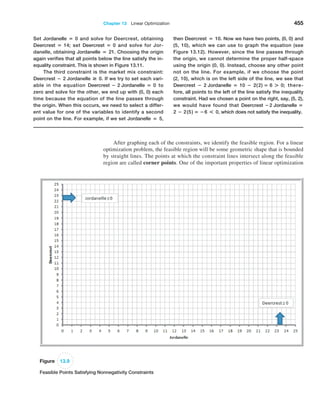
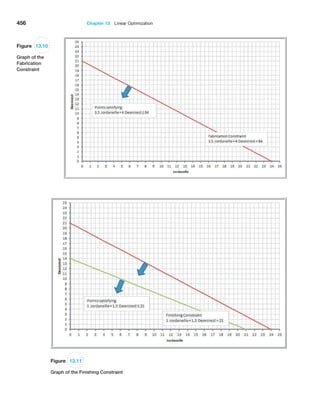
  • 256.
    Chapter 7  Statistical Inference255 change if the level of significance was 0.01 instead of 0.05? 13. The Excel file Sales Data provides data on a sample of customers. An industry trade publication stated that the average profit per customer for this industry was at least $4,500. Using a test of hypothesis, do the data support this claim or not? 14. The Excel file Room Inspection provides data for 100 room inspections at each of 25 hotels in a ma- jor chain. Management would like the proportion of nonconforming rooms to be less than 2%. Test an ap- propriate hypothesis to determine if management can make this claim. 15. An employer is considering negotiating its pric- ing structure for health insurance with its provider if there is sufficient evidence that customers will be willing to pay a lower premium for a higher deduct- ible. Specifically, they want at least 30% of their employees to be willing to do this. Using the sample data in the Excel file Insurance Survey, determine what decision they should make. 16. Using the data in the Excel file Consumer Transporta- tion Survey, test the following null hypotheses: a. Individuals spend at least 8 hours per week in their vehicles. b. Individuals drive an average of 600 miles per week. c. The average age of SUV drivers is no greater than 35. d. At least 80% of individuals are satisfied with their vehicles. 17. Using the Excel file Facebook Survey, determine if the mean number of hours spent online per week is the same for males as it is for females. 18. Determine if there is evidence to conclude that the mean number of vacations taken by married individuals is less than the number taken by single/divorced indi- viduals using the data in the Excel file Vacation Survey. Use a level of significance of 0.05. Would your conclu- sion change if the level of significance is 0.01? 19. The Excel file Accounting Professionals provides the results of a survey of 27 employees in a tax division of a Fortune 100 company. a. Test the null hypothesis that the average number of years of service is the same for males and females. b. Test the null hypothesis that the average years of undergraduate study is the same for males and females. 20. In the Excel file Cell Phone Survey, test the hypoth- esis that the mean responses for Value for the Dollar and Customer Service do not differ by gender. 21. A sample size of 22 with a mean of 8 and a standard deviation of 12.5 test the hypothesis that the value of the population mean is 70 against the assumption that it is more than 70. Use the 0.025 significant levels. 22. Determine if there is evidence to conclude that the mean GPA of males who plan to attend graduate school is larger than that of females who plan to at- tend graduate school using the data in the Excel file Graduate School Survey. 23. The director of human resources for a large bank has compiled data on about 70 former employees at one of the bank’s call centers (see the Excel file Call Center Data). For each of the following, assume equal variances of the two populations. a. Test the null hypothesis that the average length of service for males is the same as for females. b. Test the null hypothesis that the average length of service for individuals without prior call center experience is the same as those with experience. c. Test the null hypothesis that the average length of service for individuals with a college degree is the same as for individuals without a college degree. d. Now conduct tests of hypotheses for equality of variances. Were your assumptions of equal vari- ances valid? If not, repeat the test(s) for means using the unequal variance test. 24. A producer of computer-aided design software for the aerospace industry receives numerous calls for technical support. Tracking software is used to monitor response and resolution times. In addi- tion, the company surveys customers who request support using the following scale: 0—did not ex- ceed expectations; 1—marginally met expectations; 2—met expectations; 3—exceeded expectations; 4— greatly exceeded expectations. The questions are as follows: Q1: Did the support representative explain the pro- cess for resolving your problem? Q2: Did the support representative keep you in- formed about the status of progress in resolving your problem? Q3: Was the support representative courteous and professional? Q4: Was your problem resolved?
  • 257.
    256 Chapter 7  StatisticalInference Q5: Was your problem resolved in an acceptable amount of time? Q6: Overall, how did you find the service provided by our technical support department? A final question asks the customer to rate the overall quality of the product using a scale of 0—very poor; 1—poor; 2—good; 3—very good; 4—excellent. A sample of survey responses and associated resolution and response data are provided in the Excel file Cus- tomer Support Survey. a. The company has set a service standard of 1 day for the mean resolution time. Does evidence ex- ist that the response time is more than 1 day? How do the outliers in the data affect your result? What should you do about them? b. Test the hypothesis that the average service index is equal to the average engineer index. 25. Using the data in the Excel file Ohio Education Per- formance, test the hypotheses that the mean differ- ence in writing and reading scores is zero and that the mean difference in math and science scores is zero. Use the paired-sample procedure. 26. The Excel file Unions and Labor Law Data reports the percent of public- and private-sector employ- ees in unions in 1982 for each state, along with indicators whether the states had a bargaining law that covered public employees or right-to-work laws. a. Test the hypothesis that the mean percent of Ā­ employees in unions for both the public sector and private sector is the same for states having bargaining laws as for those who do not. b. Test the hypothesis that the mean percent of Ā­ employees in unions for both the public sector and private sector is the same for states having right-to-work laws as for those who do not. 27. Using the data in the Excel file Student Grades, which represent exam scores in one section of a large statistics course, test the hypothesis that the variance in grades is the same for both tests. 28. In the Excel file Restaurant Sales, determine if the variance of weekday sales is the same as that of weekend sales for each of the three variables (lunch, dinner, and delivery). 29. A college is trying to determine if there is a signifi- cant difference in the mean GMAT score of students from different undergraduate backgrounds who Ā­ apply to the MBA program. The Excel file GMAT Scores contain data from a sample of students. What conclusion can be reached using ANOVA? 30. Using the data in the Excel file Cell Phone Survey, apply ANOVA to determine if the mean response forValue for the Dollar is the same for different types of cell phones. 31. Using the data in the Excel file Freshman College Data, useANOVA to determine whether significant dif- ferences exist in the mean retention rate for the different colleges over the 4-year period. Second, use ANOVA to determine if significant differences exist in the mean ACT and SAT scores among the different colleges. 32. A car manufacturing firm is bringing out a new model. To figure out its advertising campaign, they want to determine whether the model appeal will be dependent on a particular age group. A sample of a customer survey revealed the following: Under 20 20–40 40–50 50 and over Total Liked 140 70 70 25 305 Disliked 60 40 30 65 195 Total 200 110 100 90 500 What can the manufacturer conclude? 33. A survey of college students determined the prefer- ence for cell phone providers. The following data were obtained: Provider Gender T-Mobile ATT Verizon Other Male 12 39 27 16 Female 8 22 24 12 Can we conclude that gender and cell phone provider are independent? If not, what implications does this have for marketing? 34. For the data in the Excel file Accounting Profes- sionals, perform a chi-square test of independence to determine if age group is independent of having a graduate degree. 35. For the data in the Excel file Graduate School Sur- vey, perform a chi-square test for independence to determine if plans to attend graduate school are inde- pendent of gender. 36. For the data in the Excel file New Account Process- ing, perform chi-square tests for independence to de- termine if certification is independent of gender, and if Ā­ certification is independent of having prior indus- try background.
  • 258.
    Chapter 7  Statistical Inference257 Case: Performance Lawn Equipment Elizabeth Burke has identified some additional questions she would like you to answer. 1. Are there significant differences in ratings of spe- cific product/service attributes in the 2014 Cus- tomer Survey worksheet? 2. In the worksheet On-Time Delivery, has the proportion of on-time deliveries in 2014 signifi- cantly improved since 2010? 3. Have the data in the worksheet Defects After Delivery changed significantly over the past 5 years? 4. Although engineering has collected data on al- ternative process costs for building Ā­ transmissions in the worksheet Transmission Costs, why didn’t they reach a conclusion as to whether one of the proposed processes is better than the current process? 5. Are there differences in employee retention due to gender, college graduation status, or whether the employee is from the local area in the data in the worksheet Employee Retention? Conduct appropriate statistical analyses and hypothesis tests to answer these questions and summarize your results in a formal report to Ms. Burke. Case: Drout Advertising Research Project The background for this case was introduced in Chapter 1. This is a continuation of the case in Chapter 6. For this part of the case, propose and test some meaningful hy- potheses that will help Ms. Drout understand and explain the results. Include two-sample tests, ANOVA, and/or Ā­ Chi-Square tests for independence as appropriate. Write up your conclusions in a formal report, or add your Ā­ findings to the report you completed for the case in Chapter 6 as per your instructor’s requirements. If you have accumu- lated all sections of this case into one report, polish it up so that it is as professional as possible, drawing final con- clusions about the perceptions of the role of advertising in the reinforcement of gender stereotypes and the impact of empowerment advertising.
  • 259.
  • 260.
    259 gibsons/Shutterstock.com Learning Objectives After studyingthis chapter, you will be able to: • Explain the purpose of regression analysis and provide examples in business. • Use a scatter chart to identify the type of relationship between two variables. • List the common types of mathematical functions used in predictive modeling. • Use the Excel Trendline tool to fit models to data. • Explain how least-squares regression finds the best- fitting regression model. • Use Excel functions to find least-squares regression coefficients. • Use the Excel Regression tool for both single and multiple linear regressions. • Interpret the regression statistics of the Excel Regression tool. • Interpret significance of regression from the Excel Regression tool output. • Draw conclusions for tests of hypotheses about regression coefficients. • Interpret confidence intervals for regression coefficients • Calculate standard residuals. • List the assumptions of regression analysis and describe methods to verify them. • Explain the differences in the Excel Regression tool output for simple and multiple linear regression models. • Apply a systematic approach to build good regression models. • Explain the importance of understanding multicollinearity in regression models. • Build regression models for categorical data using dummy variables. • Test for interactions in regression models with categorical variables. • Identify when curvilinear regression models are more appropriate than linear models. Trendlines and Regression Analysis 8 Chapter
  • 261.
    260 Chapter 8  Trendlinesand Regression Analysis Many applications of business analytics involve modeling relationships between one or more independent variables and some dependent variable. For example, we might wish to predict the level of sales based on the price we set, or extrapolate a trend into the future. As other examples, a company may wish to predict sales based on the U.S. GDP (gross domestic product) and the 10-year treasury bond rate to capture the influence of the business cycle,1 or a marketing researcher might want to predict the intent of buying a particular automobile model based on a survey that measured consumer at- titudes toward the brand, negative word-of-mouth, and income level.2 Trendlines and regression analysis are tools for building such models and predicting future results. Our principal focus is to gain a basic understand- ing of how to use and interpret trendlines and regression models, statistical issues associated with interpreting regression analysis results, and practical issues in using trendlines and regression as tools for making and evaluating decisions. Modeling Relationships and Trends in Data Understanding both the mathematics and the descriptive properties of different functional relationships is important in building predictive analytical models. We often begin by Ā­ creating a chart of the data to understand it and choose the appropriate type of functional relationship to incorporate into an analytical model. For cross-sectional data, we use a scatter chart; for time hyphenate as adjective for data series data we use a line chart. Common types of mathematical functions used in predictive analytical models in- clude the following: • Linear function: y = a + bx. Linear functions show steady increases or decreases over the range of x. This is the simplest type of function used in Ā­ predictive models. It is easy to understand, and over small ranges of values, can approximate behavior rather well. • Logarithmic function: y = ln1x2. Logarithmic functions are used when the rate of change in a variable increases or decreases quickly and then levels out, such as with diminishing returns to scale. Logarithmic functions are often used in mar- keting models where constant percentage increases in advertising, for instance, result in constant, absolute increases in sales. • Polynomial function: y = ax2 + bx + c (second order—quadratic function), y = ax3 + bx2 + dx + e (third order—cubic function), and so on. A second- order polynomial is parabolic in nature and has only one hill or valley; a third- order polynomial has one or two hills or valleys. Revenue models that incorporate price elasticity are often polynomial functions. 1James R. Morris and John P. Daley, Introduction to Financial Models for Management and Planning (Boca Raton, FL: Chapman Hall/CRC, 2009): 257. 2Alvin C. Burns and Ronald F. Bush, Basic Marketing Research Using Microsoft Excel Data Analysis, 2nd ed. (Upper Saddle River, NJ: Prentice Hall, 2008): 450.
  • 262.
    Chapter 8  Trendlines andRegression Analysis 261 • Power function: y = axb . Power functions define phenomena that increase at a specific rate. Learning curves that express improving times in performing a task are often modeled with power functions having a 7 0 and b 6 0. • Exponential function: y = abx . Exponential functions have the property that y rises or falls at constantly increasing rates. For example, the perceived brightness of a lightbulb grows at a decreasing rate as the wattage increases. In this case, a would be a positive number and b would be between 0 and 1. The exponential function is often defined as y = aex , where b = e, the base of natural logarithms (approximately 2.71828). The Excel Trendline tool provides a convenient method for determining the best-fitting functional relationship among these alternatives for a set of data. First, click the chart to which you wish to add a trendline; this will display the Chart Tools menu. Select the Chart Tools Design tab, and then click Add Chart Element from the Chart Layouts group. From the Trendline submenu, you can select one of the options (Linear is the most common) or More Trendline Options. . . . If you select More Trendline Options, you will get the Format Ā­Trendline pane in the worksheet (see Figure 8.1). A simpler way of doing all this is to right click on the data series in the chart and choose Add trendline from the pop-up menu—try it! Select the radio button for the type of functional relationship you wish to fit to the data. Check the boxes for Display Equation on chart and Display R-squared value on chart. You may then close the Format Trendline pane. Excel will display the results on the chart you have selected; you may move the equation and R-squared value for better readability by dragging them to a different location. To clear a trendline, right click on it and select Delete. R2 (R-squared) is a measure of the ā€œfitā€ of the line to the data. The value of R2 will be between 0 and 1. The larger the value of R2 the better the fit. We will discuss this fur- ther in the context of regression analysis. Trendlines can be used to model relationships between variables and understand how the dependent variable behaves as the independent variable changes. For example, the Ā­ demand-prediction models that we introduced in Chapter 1 (Examples 1.9 and 1.10) would generally be developed by analyzing data. Figure 8.1 Excel Format Trendline Pane
  • 263.
    262 Chapter 8  Trendlinesand Regression Analysis Example 8.1 Modeling a Price-Demand Function A market research study has collected data on sales vol- umes for different levels of pricing of a particular product. The data and a scatter diagram are shown in Figure 8.2 (Excel file Price-Sales Data). The relationship between price and sales clearly appears to be linear, so a linear trendline was fit to the data. The resulting model is sales = 20,512 āˆ’ 9.5116 Ɨ price This model can be used as the demand function in other marketing or financial analyses. Figure 8.2 Price-Sales Data and Scatter Diagram with Fitted Linear Function Trendlines are also used extensively in modeling trends over time—that is, when the variable x in the functional relationships represents time. For example, an analyst for an airline needs to predict where fuel prices are going, and an investment analyst would want to predict the price of stocks or key economic indicators. Example 8.2 Predicting Crude Oil Prices Figure 8.3 shows a chart of historical data on crude oil prices on the first Friday of each month from January 2006 through June 2008 (data are in the Excel file Crude Oil Prices). Using the Trendline tool, we can try to fit the various functions to these data (here x represents the number of months starting with January 2006). The re- sults are as follows: exponential: y = 50.49e0.021x R2 = 0.664 logarithmic: y = 13.02ln1x2 + 39.60 R2 = 0.382 polynomial (second order): y = 0.130x2 āˆ’ 2.399x + 68.01 R2 = 0.905 polynomial (third order): y = 0.005x3 āˆ’ 0.111x2 + 0.648x + 59.497 R2 = 0.928 power: y = 45.96x.0169 R2 = 0.397 The best-fitting model is the third-order polynomial, shown in Figure 8.4.
  • 264.
    Chapter 8  Trendlines andRegression Analysis 263 Be cautious when using polynomial functions. The R2 value will continue to increase as the order of the polynomial increases; that is, a third-order polynomial will provide a better fit than a second order polynomial, and so on. Higher-order polynomials will generally not be very smooth and will be difficult to interpret visually. Thus, we don’t recommend going beyond a third-order polynomial when fitting data. Use your eye to make a good judgment! Of course, the proper model to use depends on the scope of the data. As the chart shows, crude oil prices were relatively stable until early 2007 and then began to increase rapidly. By including the early data, the long-term functional relationship might not ad- equately express the short-term trend. For example, fitting a model to only the data begin- ning with January 2007 yields these models: exponential: y = 50.56 e0.044x R2 = 0.969 polynomial (second order): y = 0.121x2 + 1.232x + 53.48 R2 = 0.968 linear: y = 3.548x + 45.76 R2 = 0.944 Figure 8.3 Chart of Crude Oil Prices Figure 8.4 Polynomial Fit of Crude Oil Prices
  • 265.
    264 Chapter 8  Trendlinesand Regression Analysis The difference in prediction can be significant. For example, to predict the price 6 months after the last data point 1x = 362 yields $172.24 for the third-order polyno- mial fit with all the data and $246.45 for the exponential model with only the recent data. Thus, the analysis must be careful to select the proper amount of data for the analysis. The question then becomes one of choosing the best assumptions for the model. Is it reasonable to assume that prices would increase exponentially or perhaps at a slower rate, such as with the linear model fit? Or, would they level off and start falling? Clearly, factors other than historical trends would enter into this choice. As we now know, oil prices plunged in the latter half of 2008; thus, all predictive models are risky. Simple Linear Regression Regression analysis is a tool for building mathematical and statistical models that char- acterize relationships between a dependent variable (which must be a ratio variable and not categorical) and one or more independent, or explanatory, variables, all of which are numerical (but may be either ratio or categorical). Two broad categories of regression models are used often in business settings: (1) regression models of cross-sectional data and (2) regression models of time-series data, in which the independent variables are time or some function of time and the focus is on predicting the future. Time-series regression is an important tool in forecasting, which is the subject of Chapter 9. A regression model that involves a single independent variable is called simple Ā­regression. A regression model that involves two or more independent variables is called multiple regression. In the remainder of this chapter, we describe how to develop and ana- lyze both simple and multiple regression models. Simple linear regression involves finding a linear relationship between one indepen- dent variable, X, and one dependent variable, Y. The relationship between two variables can assume many forms, as illustrated in Figure 8.5. The relationship may be linear or nonlinear, or there may be no relationship at all. Because we are focusing our discussion on linear regression models, the first thing to do is to verify that the relationship is linear, as in Figure 8.5(a). We would not expect to see the data line up perfectly along a straight line; we simply want to verify that the general relationship is linear. If the relationship is clearly nonlinear, as in Figure 8.5(b), then alternative approaches must be used, and if no relationship is evident, as in Figure 8.5(c), then it is pointless to even consider developing a linear regression model. To determine if a linear relationship exists between the variables, we recommend that you create a scatter chart that can show the relationship between variables visually. Figure 8.5 Examples of Variable Relationships (a) Linear (b) Nonlinear (c) No relationship
  • 266.
    Chapter 8  Trendlines andRegression Analysis 265 Example 8.3 Home Market Value Data The market value of a house is typically related to its size. In the Excel file Home Market Value (see Figure 8.6), data obtained from a county auditor provides informa- tion about the age, square footage, and current market value of houses in a particular subdivision. We might wish to investigate the relationship between the market value and the size of the home. The independent vari- able, X, is the number of square feet, and the dependent variable, Y, is the market value. Figure 8.7 shows a scatter chart of the market value in relation to the size of the home. In general, we see that higher market values are associated with larger house sizes and the relationship is approximately linear. There- fore, we could conclude that simple linear regression would be an appropriate technique for predicting market value based on house size. Figure 8.6 Portion of Home Market Value Figure 8.7 Scatter Chart of Market Value versus Home Size Finding the Best-Fitting Regression Line The idea behind simple linear regression is to express the relationship between the depen- dent and independent variables by a simple linear equation, such as market value = a + b * square feet where a is the y-intercept and b is the slope of the line. If we draw a straight line through the data, some of the points will fall above the line, some will fall below it, and a few
  • 267.
    266 Chapter 8  Trendlinesand Regression Analysis might fall on the line itself. Figure 8.8 shows two possible straight lines that pass through the data. Clearly, you would choose A as the better-fitting line over B because all the points are closer to the line and the line appears to be in the middle of the data. The only difference between the lines is the value of the slope and intercept; thus, we seek to deter- mine the values of the slope and intercept that provide the best-fitting line. Figure 8.8 Two Possible Regression Lines Example 8.4 Using Excel to Find the Best Regression Line When using the Trendline tool for simple linear regres- sion in the Home Market Value example, be sure the lin- ear function option is selected (it is the default option when you use the tool). Figure 8.9 shows the best fitting regression line. The equation is market value = $32,673 + $35.036 Ɨ square feet The value of the regression line can be explained as follows. Suppose we wanted to estimate the home mar- ket value for any home in the population from which the sample data were gathered. If all we knew were the mar- ket values, then the best estimate of the market value for any home would simply be the sample mean, which is $92,069. Thus, no matter if the house has 1,500 square feet or 2,200 square feet, the best estimate of market value would still be $92,069. Because the market values vary from about $75,000 to more than $120,000, there is quite a bit of uncertainty in using the mean as the esti- mate. However, from the scatter chart, we see that larger homes tend to have higher market values. Therefore, if we know that a home has 2,200 square feet, we would expect the market value estimate to be higher than for one that has only 1,500 square feet. For example, the estimated market value of a home with 2,200 square feet would be market value = $32,673 + $35.036 Ɨ 2,200 = $109,752 whereas the estimated value for a home with 1,500 square feet would be market value = $32,673 + $35.036 Ɨ 1,500 = $85,227 The regression model explains the differences in market value as a function of the house size and provides better es- timates than simply using the average of the sample data. One important caution: it is dangerous to extrapo- late a regression model outside the ranges covered by the observations. For instance, if you want to predict the market value of a house that has 3,000 square feet, the re- sults may or may not be accurate, because the regression model estimates did not use any observations greater than 2,400 square feet. We cannot be sure that a linear extrapolation will hold and should not use the model to make such predictions.
  • 268.
    Chapter 8  Trendlines andRegression Analysis 267 We can find the best-fitting line using the Excel Trendline tool (with the linear option chosen), as described earlier in this chapter. Least-Squares Regression The mathematical basis for the best-fitting regression line is called least-squares Ā­regression. In regression analysis, we assume that the values of the dependent variable, Y, in the sample data are drawn from some unknown population for each value of the Ā­independent variable, X. For example, in the Home Market Value data, the first and fourth observations come from a population of homes having 1,812 square feet; the second Ā­ observation comes from a population of homes having 1,914 square feet; and so on. Because we are assuming that a linear relationship exists, the expected value of Y is b0 + b1X for each value of X. The coefficients b0 and b1 are population parameters that represent the intercept and slope, respectively, of the population from which a sample of observations is taken. The intercept is the mean value of Y when X = 0, and the slope is the change in the mean value of Y as X changes by one unit. Thus, for a specific value of X, we have many possible values of Y that vary around the mean. To account for this, we add an error term, e (the Greek letter epsilon), to the mean. This defines a simple linear regression model: Y = b0 + b1X + e (8.1) However, because we don’t know the entire population, we don’t know the true values of b0 and b1. In practice, we must estimate these as best we can from the sample data. Define b0 and b1 to be estimates of b0 and b1. Thus, the estimated simple linear regression equation is Y n = b0 + b1X (8.2) Let Xi be the value of the independent variable of the ith observation. When the value of the independent variable is Xi, then Y ni = b0 + b1Xi is the estimated value of Y for Xi. One way to quantify the relationship between each point and the estimated regression equation is to measure the vertical distance between them, as illustrated in Figure 8.10. We Figure 8.9 Best-fitting Simple Linear Regression Line
  • 269.
    268 Chapter 8  Trendlinesand Regression Analysis can think of these differences, ei, as the observed errors (often called residuals) Ā­associated with estimating the value of the dependent variable using the regression line. Thus, the er- ror associated with the ith observation is: ei = Yi - Y ni (8.3) The best-fitting line should minimize some measure of these errors. Because some errors will be negative and others positive, we might take their absolute value or simply square them. Mathematically, it is easier to work with the squares of the errors. Adding the squares of the errors, we obtain the following function: a n i=1 e2 i = a n i=1 1Yi - Y ni 22 = a n i=1 1Yi- 3b0 + b1Xi422 (8.4) If we can find the best values of the slope and intercept that minimize the sum of squares (hence the name ā€œleast squaresā€) of the observed errors ei, we will have found the best- fitting regression line. Note that Xi and Yi are the values of the sample data and that b0 and b1 are unknowns in equation (8.4). Using calculus, we can show that the solution that minimizes the sum of squares of the observed errors is b1 = a n i=1 XiYi - nX Y a n i=1 X2 i - nX2 (8.5) b0 = Y - b1X (8.6) Although the calculations for the least-squares coefficients appear to be somewhat complicated, they can easily be performed on an Excel spreadsheet. Even better, Excel has built-in capabilities for doing this. For example, you may use the functions INTERCEPT (known_y’s, known_x’s) and SLOPE(known_y’s, known_x’s) to find the least-squares co- efficients b0 and b1. Figure 8.10 Measuring the Errors in a Regression Model Y X1 e1 e2 Y1 Y1 ^ Y2 Y2 ^ X2 X Errors associated with individual observations Example 8.5 Using Excel Functions to Find Least-Squares Coefficients For the Home Market Value Excel file, the range of the dependent variable Y (market value) is C4:C45; the range of the independent variable X (square feet) is B4:B45. The function INTERCEPT(C4:C45, B4:B45) yields b0 = 32,673 and SLOPE(C4:C45, B4:B45) yields b1 = 35.036, as we saw in Example 8.4. The slope tells us that for every additional square foot, the market value increases by $35.036. We may use the Excel function TREND(known_y’s, known_x’s, new_x’s) to estimate Y for any value of X; for example, for a house with 1,750 square feet, the estimated market value is TREND(C4:C45, B4:B45, 1750) = $93,986.
  • 270.
    Chapter 8  Trendlines andRegression Analysis 269 We could stop at this point, because we have found the best-fitting line for the ob- served data. However, there is a lot more to regression analysis from a statistical perspec- tive, because we are working with sample data—and usually rather small samples—which we know have a lot of variation as compared with the full population. Therefore, it is im- portant to understand some of the statistical properties associated with regression analysis. Simple Linear Regression with Excel Regression-analysis software tools available in Excel provide a variety of information about the statistical properties of regression analysis. The Excel Regression tool can be used for both simple and multiple linear regressions. For now, we focus on using the tool just for simple linear regression. From the Data Analysis menu in the Analysis group under the Data tab, select the Regression tool. The dialog box shown in Figure 8.11 is displayed. In the box for the Ā­ Input Y Range, specify the range of the dependent variable values. In the box for the Ā­ Input X Range, specify the range for the independent variable values. Check Labels if your data range contains a descriptive label (we highly recommend using this). You have the option of forcing the intercept to zero by checking Constant is Zero; however, you will usually not check this box because adding an intercept term allows a better fit to the data. You also can set a Confidence Level (the default of 95% is commonly used) to provide confidence intervals for the intercept and slope parameters. In the Ā­ Residuals section, you have the option of including a residuals output table by checking the boxes for Residuals, Standardized Residuals, Residual Plots, and Line Fit Plots. Residual Plots generates a chart for each independent variable versus the residual, and Line Fit Plots generates a scatter chart with the values predicted by the regression model included (however, creating a scatter chart with an added trendline is visually superior to what this tool provides). Ā­ Finally, you may also choose to have Excel construct a normal probability plot for the dependent variable, which transforms the cumulative probability scale (verti- cal axis) so that the graph of the cumulative normal distribution is a straight line. The closer the points are to a straight line, the better the fit to a normal distribution. Figure 8.12 shows the basic regression analysis output provided by the Excel Ā­ Regression tool for the Home Market Value data. The output consists of three sections: Regression Statistics (rows 3–8), ANOVA (rows 10–14), and an unlabeled section at the bottom (rows 16–18) with other statistical information. The least-squares estimates of the slope and intercept are found in the Coefficients column in the bottom section of the output. Figure 8.11 Excel Regression Tool Dialog
  • 271.
    270 Chapter 8  Trendlinesand Regression Analysis In the Regression Statistics section, Multiple R is another name for the sample corre- lation coefficient, r, which was introduced in Chapter 4. Values of r range from -1 to 1, where the sign is determined by the sign of the slope of the regression line. A Multiple R value greater than 0 indicates positive correlation; that is, as the independent vari- able increases, the dependent variable does also; a value less than 0 indicates negative Ā­correlation—as X increases, Y decreases. A value of 0 indicates no correlation. R-squared 1R2 2 is called the coefficient of determination. Earlier we noted that R2 is a measure of the how well the regression line fits the data; this value is also provided by the Trendline tool. Specifically, R2 gives the proportion of variation in the dependent variable that is explained by the independent variable of the regression model. The value of R2 is between 0 and 1. A value of 1.0 indicates a perfect fit, and all data points lie on the regression line, whereas a value of 0 indicates that no relationship exists. Although we would like high values of R2 , it is difficult to specify a ā€œgoodā€ value that signifies a strong relationship because this depends on the application. For example, in scientific applica- tions such as calibrating physical measurement equipment, R2 values close to 1 would be expected; in marketing research studies, an R2 of 0.6 or more is considered very good; however, in many social science applications, values in the neighborhood of 0.3 might be considered acceptable. Adjusted R Square is a statistic that modifies the value of R2 by incorporating the sample size and the number of explanatory variables in the model. Although it does not give the actual percent of variation explained by the model as R2 does, it is useful when comparing this model with other models that include additional explanatory variables. We discuss it more fully in the context of multiple linear regression later in this chapter. Standard Error in the Excel output is the variability of the observed Y-values from the predicted values 1Y n2. This is formally called the standard error of the estimate, SYX. If the data are clustered close to the regression line, then the standard error will be small; the more scattered the data are, the larger the standard error. Figure 8.12 Basic Regression Analysis Output for Home Market Value Example Example 8.6 Interpreting Regression Statistics for Simple Linear Regression After running the Excel Regression tool, the first things to look for are the values of the slope and intercept, namely, the estimates b1 and b0 in the regression model. In the Home Market Value example, we see that the Ā­ intercept is 32,673, and the slope (coefficient of the Ā­ independent variable, Square Feet) is 35.036, just as we had computed earlier. In the Regression Statistics sec- tion, R2 = 0.5347. This means that approximately 53% of the variation in Market Value is explained by Square Feet. The remaining variation is due to other factors that
  • 272.
    Chapter 8  Trendlines andRegression Analysis 271 Regression as Analysis of Variance In Chapter 7, we introduced analysis of variance (ANOVA), which conducts an F-test to determine whether variation due to a particular factor, such as the differences in sam- ple means, is significantly greater than that due to error. ANOVA is commonly applied to regression to test for significance of regression. For a simple linear regression model, Ā­ significance of regression is simply a hypothesis test of whether the regression coeffi- cient b1 (slope of the independent variable) is zero: H0: b1 = 0 H1: b1 ≠ 0 (8.7) If we reject the null hypothesis, then we may conclude that the slope of the independent vari- able is not zero and, therefore, is statistically significant in the sense that it explains some of the variation of the dependent variable around the mean. Similar to our discussion in Chapter 7, you needn’t worry about the mathematical details of how F is computed, or even its value, especially since the tool does not provide the critical value for the test. What is important is the value of Significance F, which is the p-value for the F-test. If Significance F is less than the level of significance (typically 0.05), we would reject the null hypothesis. were not included in the model. The standard error of the estimate is $7,287.72. If we compare this to the standard deviation of the market value, which is $10,553, we see that the variation around the regression line ($7,287.72) is less than the variation around the sample mean ($10,553). This is because the independent variable in the regression model explains some of the variation. Example 8.7 Interpreting Significance of Regression For the Home Market Value example, the ANOVA test is shown in rows 10–14 in Figure 8.12. Significance F, that is, the p-value associated with the hypothesis test H0: B1 = 0 H1: B1 3 0 is essentially zero (3.798 : 10āˆ’8 ). Therefore, assuming a level of significance of 0.05, we must reject the null hypoth- esis and conclude that the slope—the coefficient for Square Feet—is not zero. This means that home size is a statistically significant variable in explaining the variation in market value. Testing Hypotheses for Regression Coefficients Rows 17–18 of the Excel output, in addition to specifying the least-squares coefficients, provide additional information for testing hypotheses associated with the intercept and slope. Specifically, we may test the null hypothesis that b0 or b1 equals zero. Usually, it makes little sense to test or interpret the hypothesis that b0 = 0 unless the intercept has a significant physical meaning in the context of the application. For simple linear regres- sion, testing the null hypothesis H0: b1 = 0 is the same as the significance of regression test that we described earlier. The t-test for the slope is similar to the one-sample test for the mean that we described in Chapter 7. The test statistic is t = b1 - 0 standard error (8.8) and is given in the column labeled t Stat in the Excel output. Although the critical value of the t-distribution is not provided, the output does provide the p-value for the test.
  • 273.
    272 Chapter 8  Trendlinesand Regression Analysis Confidence Intervals for Regression Coefficients Confidence intervals (Lower 95% and Upper 95% values in the output) provide informa- tion about the unknown values of the true regression coefficients, accounting for sampling error. They tell us what we can reasonably expect to be the ranges for the population inter- cept and slope at a 95% confidence level. We may also use confidence intervals to test hypotheses about the regression coeffi- cients. For example, in Figure 8.12, we see that neither confidence interval includes zero; therefore, we can conclude that b0 and b1 are statistically different from zero. Similarly, we can use them to test the hypotheses that the regression coefficients equal some value other than zero. For example, to test the hypotheses H0: b1 = B1 H1: b1 ≠ B1 we need only check whether B1 falls within the confidence interval for the slope. If it does not, then we reject the null hypothesis, otherwise we fail to reject it. Example 8.8 Interpreting Hypothesis Tests for Regression Coefficients For the Home Market Value example, note that the value of t Stat is computed by dividing the coefficient by the standard error using formula (8.8). For instance, t Stat for the slope is 35.036372585.16738385 = 6.780292234. Because Excel does not provide the critical value with which to compare the t Stat value, we may use the p-value to draw a conclusion. Because the p-values for both coefficients are essentially zero, we would Ā­ conclude that neither coefficient is statistically equal to zero. Note that the p-value associated with the test for the slope coefficient, Square Feet, is equal to the Significance F value. This will always be true for a regression model with one independent variable because it is the only ex- planatory variable. However, as we shall see, this will not be the case for multiple regression models. Example 8.9 Interpreting Confidence Intervals for Regression Coefficients For the Home Market Value data, a 95% confidence in- terval for the intercept is [14,823, 50,523]. Similarly, a 95% confidence interval for the slope is [24.59, 45.48]. Ā­ Although the regression model is Y n = 32,673 + 35.036X, the confidence intervals suggest a bit of uncertainty about predictions using the model. Thus, although we estimated that a house with 1,750 square feet has a market value of 32,673 + 35.036(1,750) = $93,986, if the true population parameters are at the extremes of the confidence intervals, the estimate might be as low as 14,823 + 24.59(1,750) = $57,855 or as high as 50,523 + 45.48(1,750) = $130,113. Narrower confidence intervals provide more accuracy in our predictions. Residual Analysis and Regression Assumptions Recall that residuals are the observed errors, which are the differences between the actual values and the estimated values of the dependent variable using the regression equation. Figure 8.13 shows a portion of the residual table generated by the Excel Regression tool. The residual output includes, for each observation, the predicted value using the estimated regression equation, the residual, and the standard residual. The residual is simply the dif- ference between the actual value of the dependent variable and the predicted value, or Yi - Y ni. Figure 8.14 shows the residual plot generated by the Excel tool. This chart is actu- ally a scatter chart of the residuals with the values of the independent variable on the x-axis.
  • 274.
    Chapter 8  Trendlines andRegression Analysis 273 Standard residuals are residuals divided by their standard deviation. Standard re- siduals describe how far each residual is from its mean in units of standard deviations (similar to a z-value for a standard normal distribution). Standard residuals are useful in checking assumptions underlying regression analysis, which we will address shortly, and to detect outliers that may bias the results. Recall that an outlier is an extreme value that is different from the rest of the data. A single outlier can make a significant difference in the regression equation, changing the slope and intercept and, hence, how they would be interpreted and used in practice. Some consider a standardized residual outside of {2 standard deviations as an outlier. A more conservative rule of thumb would be to consider outliers outside of a {3 standard deviation range. (Commercial software packages have more sophisticated techniques for identifying outliers.) Figure 8.13 Portion of Residual Output Figure 8.14 Residual Plot for Square Feet Example 8.10 Interpreting Residual Output For the Home Market Value data, the first observa- tion has a market value of $90,000 and the regres- sion model predicts $96,159.13. Thus, the residual is 90,000 āˆ’ 96,159.13 = āˆ’$6,159.13. The standard de- viation of the residuals can be computed as 7,198.299. By dividing the residual by this value, we have the stan- dardized residual for the first observation. The value of āˆ’0.8556 tells us that the first observation is about 0.85 standard deviation below the regression line. If we check the values of all the standardized residuals, you will find that the value of the last data point is 4.53, meaning that the market value of this home, having only 1,581 square feet, is more than 4 standard deviations above the pre- dicted value and would clearly be identified as an outlier. (If you look back at Figure 8.7, you may have noticed that this point appears to be quite different from the rest of the data.) You might question whether this observation belongs in the data, because the house has a large value despite a relatively small size. The explanation might be an outdoor pool or an unusually large plot of land. Be- cause this value will influence the regression results and may not be representative of the other homes in the neighborhood, you might consider dropping this obser- vation and recomputing the regression model.
  • 275.
    274 Chapter 8  Trendlinesand Regression Analysis Checking Assumptions The statistical hypothesis tests associated with regression analysis are predicated on some key assumptions about the data. 1. Linearity. This is usually checked by examining a scatter diagram of the data or examining the residual plot. If the model is appropriate, then the residuals should appear to be randomly scattered about zero, with no apparent pattern. If the residuals exhibit some well-defined pattern, such as a linear trend, a parabolic shape, and so on, then there is good evidence that some other func- tional form might better fit the data. 2. Normality of errors. Regression analysis assumes that the errors for each in- dividual value of X are normally distributed, with a mean of zero. This can be verified either by examining a histogram of the standard residuals and in- specting for a bell-shaped distribution or by using more formal goodness-of- fit tests. It is usually difficult to evaluate normality with small sample sizes. However, regression analysis is fairly robust against departures from normal- ity, so in most cases this is not a serious issue. 3. Homoscedasticity. The third assumption is homoscedasticity, which means that the variation about the regression line is constant for all values of the independent variable. This can also be evaluated by examining the residual plot and looking for large differences in the variances at different values of the independent variable. Caution should be exercised when looking at residual plots. In many applications, the model is derived from limited data, and multi- ple observations for different values of X are not available, making it difficult to draw definitive conclusions about homoscedasticity. If this assumption is seriously violated, then techniques other than least squares should be used for estimating the regression model. 4. Independence of errors. Finally, residuals should be independent for each value of the independent variable. For cross-sectional data, this assumption is usually not a problem. However, when time is the independent variable, this is an important assumption. If successive observations appear to be correlated— for example, by becoming larger over time or exhibiting a cyclical type of pattern—then this assumption is violated. Correlation among successive ob- servations over time is called autocorrelation and can be identified by residual plots having clusters of residuals with the same sign. Autocorrelation can be evaluated more formally using a statistical test based on a measure called the Durbin–Watson statistic. The Durbin–Watson statistic is D = a n i=2 1ei - ei-122 a n i=1 e2 i (8.9) This is a ratio of the squared differences in successive residuals to the sum of the squares of all residuals. D will range from 0 to 4. When successive re- siduals are positively autocorrelated, D will approach 0. Critical values of the statistic have been tabulated based on the sample size and number of indepen- dent variables that allow you to conclude that there is either evidence of au- tocorrelation or no evidence of autocorrelation or the test is inconclusive. For most practical purposes, values below 1 suggest autocorrelation; values above 1.5 and below 2.5 suggest no autocorrelation; and values above 2.5 suggest
  • 276.
    Chapter 8  Trendlines andRegression Analysis 275 negative autocorrelation. This can become an issue when using regression in forecasting, which we discuss in the next chapter. Some software packages compute this statistic; however, Excel does not. When assumptions of regression are violated, then statistical inferences drawn from the hypothesis tests may not be valid. Thus, before drawing inferences about regression models and performing hypothesis tests, these assumptions should be checked. However, other than linearity, these assumptions are not needed solely for model fitting and estima- tion purposes. Example 8.11 Checking Regression Assumptions for the Home Market Value Data Linearity: The scatter diagram of the market value data ap- pears to be linear; looking at the residual plot in Figure 8.14 also confirms no pattern in the residuals. Normality of errors: Figure 8.15 shows a histogram of the standard residuals for the market value data. The distribution appears to be somewhat positively skewed (particularly with the outlier) but does not appear to be a serious departure from normality, particularly as the sam- ple size is small. Homoscedasticity: In the residual plot in Figure 8.14, we see no serious differences in the spread of the data for different values of X, particularly if the outlier is eliminated. Independence of errors: Because the data are cross- sectional, we can assume that this assumption holds. Figure 8.15 Histogram of Standard Residuals Multiple Linear Regression Many colleges try to predict student performance as a function of several characteristics. In the Excel file Colleges and Universities (see Figure 8.16), suppose that we wish to pre- dict the graduation rate as a function of the other variables—median SAT, acceptance rate, expenditures/student, and percent in the top 10% of their high school class. It is logical to
  • 277.
    276 Chapter 8  Trendlinesand Regression Analysis propose that schools with students who have higher SAT scores, a lower acceptance rate, a larger budget, and a higher percentage of students in the top 10% of their high school classes will tend to retain and graduate more students. A linear regression model with more than one independent variable is called a mul- tiple linear regression model. Simple linear regression is just a special case of multiple linear regression. A multiple linear regression model has the form: Y = b0 + b1X1 + b2X2 + g + bkXk + e (8.10) where Y is the dependent variable, X1, c, Xk are the independent (explanatory) variables, b0 is the intercept term, b1, c, bk are the regression coefficients for the independent variables, e is the error term Similar to simple linear regression, we estimate the regression coefficients—called partial regression coefficients—b0, b1, b2, cbk, then use the model: Y n = b0 + b1X1 + b2X2 + g + bkXk (8.11) to predict the value of the dependent variable. The partial regression coefficients repre- sent the expected change in the dependent variable when the associated independent vari- able is increased by one unit while the values of all other independent variables are held constant. For the college and university data, the proposed model would be Graduation% = b0 + b1 SAT + b2 ACCEPTANCE + b3 EXPENDITURES + b4 TOP10%HS Thus, b2 would represent an estimate of the change in the graduation rate for a unit in- crease in the acceptance rate while holding all other variables constant. As with simple linear regression, multiple linear regression uses least squares to es- timate the intercept and slope coefficients that minimize the sum of squared error terms over all observations. The principal assumptions discussed for simple linear regression also hold here. The Excel Regression tool can easily perform multiple linear regression; you need to specify only the full range for the independent variable data in the dialog. One caution when using the tool: the independent variables in the spreadsheet must be in con- tiguous columns. So, you may have to manually move the columns of data around before applying the tool. Figure 8.16 Portion of Excel File Colleges and Universities
  • 278.
    Chapter 8  Trendlines andRegression Analysis 277 The results from the Regression tool are in the same format as we saw for simple linear regression. However, some key differences exist. Multiple R and R Square (or R2 ) are called the multiple correlation coefficient and the coefficient of multiple determi- nation, respectively, in the context of multiple regression. They indicate the strength of association between the dependent and independent variables. Similar to simple linear regression, R2 explains the percentage of variation in the dependent variable that is ex- plained by the set of independent variables in the model. The interpretation of the ANOVA section is quite different from that in simple lin- ear regression. For multiple linear regression, ANOVA tests for significance of the entire model. That is, it computes an F-statistic for testing the hypotheses H0: b1 = b2 = g = bk = 0 H1: at least one bj is not 0 The null hypothesis states that no linear relationship exists between the dependent and any of the independent variables, whereas the alternative hypothesis states that the dependent variable has a linear relationship with at least one independent variable. If the null hy- pothesis is rejected, we cannot conclude that a relationship exists with every independent variable individually. The multiple linear regression output also provides information to test hypothe- ses about each of the individual regression coefficients. Specifically, we may test the null hypothesis that b0 (the intercept) or any bi equals zero. If we reject the null hy- pothesis that the slope associated with independent variable i is zero, H0: bi = 0, then we may state that independent variable i is significant in the regression model; that is, it contributes to reducing the variation in the dependent variable and improves the ability of the model to better predict the dependent variable. However, if we cannot reject H0, then that independent variable is not significant and probably should not be included in the model. We see how to use this information to identify the best model in the next section. Finally, for multiple regression models, a residual plot is generated for each indepen- dent variable. This allows you to assess the linearity and homoscedasticity assumptions of regression. Example 8.12 Interpreting Regression Results for the Colleges and Universities Data The multiple regression results for the college and uni- versity data are shown in Figure 8.17. From the Coefficients section, we see that the model is: Graduation% = 17.92 + 0.072 SAT āˆ’ 24.859 ACCEPTANCE āˆ’ 0.000136 EXPENDITURES āˆ’ 0.163 TOP10% HS The signs of some coefficients make sense; higher SAT scores and lower acceptance rates suggest higher graduation rates. However, we might expect that larger student expenditures and a higher percentage of top high school students would also positively influence the graduation rate. Perhaps the problem occurred because some of the best students are more demanding and change schools if their needs are not being met, some entrepreneurial students might pursue other interests before graduation, or there is sampling error. As with simple linear regression, the model should be used only for values of the independent variables within the range of the data. The value of R2 (0.53) indicates that 53% of the varia- tion in the dependent variable is explained by these in- dependent variables. This suggests that other factors not included in the model, perhaps campus living conditions, social opportunities, and so on, might also influence the graduation rate. (continued)
  • 279.
    278 Chapter 8  Trendlinesand Regression Analysis Figure 8.17 Multiple Regression Results for Colleges and Universities Data Figure 8.18 Residual Plot for Top 10% HS Variable From the ANOVA section, we may test for signifi- cance of regression. At a 5% significance level, we reject the null hypothesis because Significance F is essentially zero. Therefore, we may conclude that at least one slope is statistically different from zero. Looking at the p-values for the independent vari- ables in the last section, we see that all are less than 0.05; Ā­ therefore, we reject the null hypothesis that each partial regression coefficient is zero and conclude that each of them is statistically significant. Figure 8.18 shows one of the residual plots from the Excel output. The assumptions appear to be met, and the other residual plots (not shown) also validate these assumptions. The normal probability plot (also not shown) does not suggest any serious departures from normality.
  • 280.
    Chapter 8  Trendlines andRegression Analysis 279 3The author expresses his appreciation to John Toczek, Manager of Decision Support and Analytics at ARAMARK Corporation. ARAMARK is a leader in professional services, pro- viding award-winning food services, facilities man- agement, and uniform and career apparel to health care institutions, universities and school districts, stadiums and arenas, and businesses around the world. Headquartered in Philadelphia, ARAMARK has Ā­ approximately 255,000 employees serving clients in 22 countries. ARAMARK’s Global Risk Management Ā­ Department (GRM) needed a way to determine the statistical relationships between key business metrics (e.g., employee tenure, employee engagement, a trained workforce, account tenure, service offerings) and risk metrics (e.g., OSHA rate, workers’ compensa- tion rate, customer injuries) to understand the impact of these risks on the business. GRM also needed a simple tool that field operators and the risk manage- ment team could use to predict the impact of busi- ness decisions on risk metrics before those decisions were implemented. Typical questions they would want to ask were, What would happen to our OSHA rate if we increased the percentage of part time labor? and How could we impact turnover if operations improved safety performance? ARAMARK maintains extensive historical data. For example, the Global Risk Management group keeps track of data such as OSHA rates, slip/trip/fall rates, injury costs, and level of compliance with safety standards; the Human Resources department moni- tors turnover and percentage of part-time labor; the Payroll department keeps data on average wages; and the Training and Organizational Development depart- ment collects data on employee engagement. Excel- based linear regression was used to determine the relationships between the dependent variables (such as OSHA rate, slip/trip/fall rate, claim cost, and turn- over) and the independent variables (such as the per- centage of part-time labor, average wage, employee engagement, and safety compliance). Although the regression models provided the ba- sic analytical support that ARAMARK needed, the GRM team used a novel approach to implement the models for use by their clients. They developed ā€œInteractive Risk Simulators,ā€ which are simple online tools that allowed users to manipulate the values of the inde- pendent variables in the regression models using inter- active sliders that correspond to the business metrics and instantaneously view the values of the dependent variables (the risk metrics) on gauges similar to those found on the dashboard of a car. Figure 8.19 illustrates the structure of the simu- lators. The gauges are updated instantly as the user adjusts the sliders, showing how changes in the busi- ness environment affect the risk metrics. This visual representation made the models easy to use and un- derstand, particularly for nontechnical employees. GRM sent out more than 200 surveys to multiple levels of the organization to assess the usefulness of Interactive Risk Simulators. One hundred percent of respondents answered ā€œYesā€ to ā€œWere the simula- tors easy to use?ā€ and 78% of respondents answered ā€œYesā€ to ā€œWould these simulators be useful in running your business and helping you make decisions?ā€ The deployment of Interactive Risk Simulators to the field has been met with overwhelming positive response and recognition from leadership within all lines of business, including frontline managers, food-service directors, district managers, and general managers. Analytics in Practice: Using Linear Regression and Interactive Risk Simulators to Predict Performance at ARAMARK3 Gunnar Pippel/Shutterstock.com
  • 281.
    280 Chapter 8  Trendlinesand Regression Analysis Building Good Regression Models In the colleges and universities regression example, all the independent variables were found to be significant by evaluating the p-values of the regression analysis. This will not always be the case and leads to the question of how to build good regression models that include the ā€œbestā€ set of variables. Figure 8.20 shows a portion of the Excel file Banking Data, which provides data acquired from banking and census records for different zip codes in the bank’s current market. Such information can be useful in targeting advertising for new customers or for choosing locations for branch offices. The data show the median age of the popula- tion, median years of education, median income, median home value, median household wealth, and average bank balance. Figure 8.21 shows the results of regression analysis used to predict the average bank balance as a function of the other variables. Although the independent variables explain more than 94% of the variation in the average bank balance, you can see that at a 0.05 significance level, the p-values indicate that both Education and Home Value do not ap- pear to be significant. A good regression model should include only significant indepen- dent variables. However, it is not always clear exactly what will happen when we add or remove variables from a model; variables that are (or are not) significant in one model may (or may not) be significant in another. Therefore, you should not consider dropping all insignificant variables at one time, but rather take a more structured approach. Adding an independent variable to a regression model will always result in R2 equal to or greater than the R2 of the original model. This is true even when the new independent Figure 8.19 Structure of an Interactive Risk Simulator Inputs: Independent Variables Regression Models Outputs: Dependent Variables vector-illustration/Shutterstock.com Nataliia Natykach/Shutterstock.com c./Shutterstock.com Figure 8.20 Portion of Banking Data
  • 282.
    Chapter 8  Trendlines andRegression Analysis 281 variable has little true relationship with the dependent variable. Thus, trying to maximize R2 is not a useful criterion. A better way of evaluating the relative fit of different models is to use adjusted R2 . Adjusted R2 reflects both the number of independent variables and the sample size and may either increase or decrease when an independent variable is added or dropped, thus providing an indication of the value of adding or removing independent variables in the model. An increase in adjusted R2 indicates that the model has improved. This suggests a systematic approach to building good regression models: 1. Construct a model with all available independent variables. Check for signifi- cance of the independent variables by examining the p-values. 2. Identify the independent variable having the largest p-value that exceeds the chosen level of significance. 3. Remove the variable identified in step 2 from the model and evaluate adjusted R2 . (Don’t remove all variables with p-values that exceed a at the same time, but remove only one at a time.) 4. Continue until all variables are significant. In essence, this approach seeks to find a significant model that has the highest Ā­ adjusted R2 . Figure 8.21 Regression Analysis Results for Banking Data Example 8.13 Identifying the Best Regression Model We will apply the preceding approach to the Banking Data example. The first step is to identify the variable with the largest p-value exceeding 0.05; in this case, it is Home Value, and we remove it from the model and rerun the Regression tool. Figure 8.22 shows the results after removing Home Value. Note that the adjusted R2 has increased slightly, whereas the R2 -value decreased slightly because we removed a variable from the model. All the p-values are now less than 0.05, so this now appears to be the best model. Notice that the p-value for Education, which was larger than 0.05 in the first regression analysis, dropped below 0.05 after Home Value was removed. This phenomenon often occurs when multicollinearity (discussed in the next section) is present and emphasizes the importance of not remov- ing all variables with large p-values from the original model at the same time.
  • 283.
    282 Chapter 8  Trendlinesand Regression Analysis Another criterion used to determine if a variable should be removed is the t-statistic. If 0 t0 6 1, then the standard error will decrease and adjusted R2 will increase if the vari- able is removed. If 0 t0 7 1, then the opposite will occur. In the banking regression results, we see that the t-statistic for Home Value is less than 1; therefore, we expect the adjusted R2 to increase if we remove this variable. You can follow the same iterative approach out- lined before, except using t-values instead of p-values. These approaches using the p-values or t-statistics may involve considerable experi- mentation to identify the best set of variables that result in the largest adjusted R2 . For large numbers of independent variables, the number of potential models can be overwhelming. For example, there are 210 = 1,024 possible models that can be developed from a set of 10 independent variables. This can make it difficult to effectively screen out insignificant variables. Fortunately, automated methods—stepwise regression and best subsets—exist that facilitate this process. Correlation and Multicollinearity As we have learned previously, correlation, a numerical value between -1 and +1, mea- sures the linear relationship between pairs of variables. The higher the absolute value of the correlation, the greater the strength of the relationship. The sign simply indicates whether variables tend to increase together (positive) or not (negative). Therefore, ex- amining correlations between the dependent and independent variables, which can be done using the Excel Correlation tool, can be useful in selecting variables to include in a multiple regression model because a strong correlation indicates a strong linear relation- ship. However, strong correlations among the independent variables can be problematic. This can potentially signify a phenomenon called multicollinearity, a condition occurring when two or more independent variables in the same regression model contain high levels of the same information and, consequently, are strongly correlated with one another and can predict each other better than the dependent variable. When significant multicollinear- ity is present, it becomes difficult to isolate the effect of one independent variable on the dependent variable, and the signs of coefficients may be the opposite of what they should be, making it difficult to interpret regression coefficients. Also, p-values can be inflated, resulting in the conclusion not to reject the null hypothesis for significance of regression when it should be rejected. Figure 8.22 Regression Results without Home Value
  • 284.
    Chapter 8  Trendlines andRegression Analysis 283 Some experts suggest that correlations between independent variables exceeding an absolute value of 0.7 may indicate multicollinearity. However, multicollinearity is best measured using a statistic called the variance inflation factor (VIF) for each independent variable. More-sophisticated software packages usually compute these; unfortunately, Ā­ Excel does not. Example 8.14 Identifying Potential Multicollinearity Figure 8.23 shows the correlation matrix for the variables in the Colleges and Universities data. You can see that SAT and Acceptance Rate have moderate correlations with the dependent variable, Graduation%, but the correla- tion between Expenditures/Student and Top 10% HS with Graduation% are relatively low. The strongest correlation, however, is between two independent variables: Top 10% HS and Acceptance Rate. However, the value of āˆ’0.6097 does not exceed the recommended threshold of 0.7, so we can likely assume that multicollinearity is not a prob- lem here (a more advanced analysis using VIF calculations does indeed confirm that multicollinearity does not exist). In contrast, Figure 8.24 shows the correlation matrix for all the data in the banking example. Note that large correlations exist between Education and Home Value and also between Wealth and Income (in fact, the variance in- flation factors do indicate significant multicollinearity). If we remove Wealth from the model, the adjusted R2 drops to 0.9201, but we discover that Education is no longer significant. Dropping Education and leaving only Age and Income in the model results in an adjusted R2 of 0.9202. However, if we remove Income from the model instead of Wealth, the Adjusted R2 drops to only 0.9345, and all remaining variables (Age, Education, and Wealth) are sig- nificant (see Figure 8.25). The R2 -value for the model with these three variables is 0.936. Figure 8.23 Correlation Matrix for Colleges and Universities Data Figure 8.24 Correlation Matrix for Banking Data Practical Issues in Trendline and Regression Modeling Example 8.14 clearly shows that it is not easy to identify the best regression model Ā­ simply by examining p-values. It often requires some experimentation and trial and error. From a practical perspective, the independent variables selected should make some sense in Ā­ attempting to explain the dependent variable (i.e., you should have some reason to Ā­ believe that changes in the independent variable will cause changes in the dependent variable even though causation cannot be proven statistically). Logic should guide your model
  • 285.
    284 Chapter 8  Trendlinesand Regression Analysis Ā­ development. In many applications, behavioral, economic, or physical theory might sug- gest that certain variables should belong in a model. Remember that additional variables do contribute to a higher R2 and, therefore, help to explain a larger proportion of the varia- tion. Even though a variable with a large p-value is not statistically significant, it could simply be the result of sampling error and a modeler might wish to keep it. Good modelers also try to have as simple a model as possible—an age-old principle known as parsimony—with the fewest number of explanatory variables that will provide an adequate interpretation of the dependent variable. In the physical and management sci- ences, some of the most powerful theories are the simplest. Thus, a model for the banking data that includes only age, education, and wealth is simpler than one with four variables; because of the multicollinearity issue, there would be little to gain by including income in the model. Whether the model explains 93% or 94% of the variation in bank deposits would probably make little difference. Therefore, building good regression models relies as much on experience and judgment as it does on technical analysis. One issue that one often faces in using trendlines and regression is overfitting the model. It is important to realize that sample data may have unusual variability that is dif- ferent from the population; if we fit a model too closely to the sample data we risk not fitting it well to the population in which we are interested. For instance, in fitting the crude oil prices in Example 8.2, we noted that the R2-value will increase if we fit higher-order polynomial functions to the data. While this might provide a better mathematical fit to the sample data, doing so can make it difficult to explain the phenomena rationally. The same thing can happen with multiple regression. If we add too many terms to the model, then the model may not adequately predict other values from the population. Overfitting can be mitigated by using good logic, intuition, physical or behavioral theory, and parsimony as we have discussed. Regression with Categorical Independent Variables Some data of interest in a regression study may be ordinal or nominal. This is common when including demographic data in marketing studies, for example. Because regression analysis requires numerical data, we could include categorical variables by coding the variables. For example, if one variable represents whether an individual is a college graduate or not, we might code No as 0 and Yes as 1. Such variables are often called dummy variables. Figure 8.25 Regression Results for Age, Education, and Wealth as Independent Variables
  • 286.
    Chapter 8  Trendlines andRegression Analysis 285 Example 8.15 A Model with Categorical Variables The Excel file Employee Salaries, shown in Figure 8.26, provides salary and age data for 35 employees, along with an indicator of whether or not the employees have an MBA (Yes or No). The MBA indicator variable is cat- egorical; thus, we code it by replacing No by 0 and Yes by 1. If we are interested in predicting salary as a function of the other variables, we would propose the model Y = B0 + B1X1 + B2X2 + E where Y = salary X1 = age X2 = MBA indicator (0 or 1) After coding the MBA indicator column in the data file, we begin by running a regression on the entire data set, yielding the output shown in Figure 8.27. Note that the model explains about 95% of the variation, and the p-values of both variables are significant. The model is salary = 893.59 + 1044.15 Ɨ age + 14767.23 Ɨ MBA Thus, a 30-year-old with an MBA would have an esti- mated salary of salary = 893.59 + 1044.15 Ɨ 30 + 14767.23 Ɨ 1 = $46,985.32 This model suggests that having an MBA increases the salary of this group of employees by almost $15,000. Note that by substituting either 0 or 1 for MBA, we obtain two models: No MBA: salary = 893.59 + 1044.15 Ɨ age MBA: salary = 15,660.82 + 1044.15 Ɨ age The only difference between them is the intercept. The models suggest that the rate of salary increase for age is the same for both groups. Of course, this may not be true. Individuals with MBAs might earn relatively higher salaries as they get older. In other words, the slope of Age may depend on the value of MBA. Figure 8.26 Portion of Excel File Employee Salaries Figure 8.27 Initial Regression Model for Employee Salaries
  • 287.
    286 Chapter 8  Trendlinesand Regression Analysis An interaction occurs when the effect of one variable (i.e., the slope) is dependent on another variable. We can test for interactions by defining a new variable as the product of the two variables, X3 = X1 * X2, and testing whether this variable is significant, leading to an alternative model. Example 8.16 Incorporating Interaction Terms in a Regression Model For the Employee Salaries example, we define an interac- tion term as the product of age 1X12 and MBA 1X22 by defining X3 = X1 Ɨ X2. The new model is Y = B0 + B1X1 + B2X2 + B3X3 + E In the worksheet, we need to create a new column (called Interaction) by multiplying MBA by Age for each observa- tion (see Figure 8.28). The regression results are shown in Figure 8.29. From Figure 8.29, we see that the adjusted R2 in- creases; however, the p-value for the MBA indicator vari- able is 0.33, indicating that this variable is not significant. Therefore, we drop this variable and run a regression using only age and the interaction term. The results are shown in Figure 8.30. Adjusted R2 increased slightly, and both age and the interaction term are significant. The final model is salary = 3,323.11 + 984.25 Ɨ age + 425.58 Ɨ MBA Ɨ age The models for employees with and without an MBA are: No MBA: salary = 3,323.11 + 984.25 Ɨ age + 425.58 (0) Ɨ age = 3323.11 + 984.25 Ɨ age MBA: salary = 3323.11 + 984.25 Ɨ age + 425.58 (1) Ɨ age = 3,323.11 + 1,409.83 Ɨ age Here, we see that salary depends not only on whether an employee holds an MBA, but also on age and is more realistic than the original model. Figure 8.28 Portion of Employee Salaries Modified for Interaction Term Figure 8.29 Regression Results with Interaction Term
  • 288.
    Chapter 8  Trendlines andRegression Analysis 287 Categorical Variables with More Than Two Levels When a categorical variable has only two levels, as in the previous example, we coded the levels as 0 and 1 and added a new variable to the model. However, when a categorical variable has k 7 2 levels, we need to add k - 1 additional variables to the model. Figure 8.30 Final Regression Model for Salary Data Example 8.17 A Regression Model with Multiple Levels of Categorical Variables The Excel file Surface Finish provides measurements of the surface finish of 35 parts produced on a lathe, along with the revolutions per minute (RPM) of the spindle and one of four types of cutting tools used (see Figure 8.31). The engineer who collected the data is interested in pre- dicting the surface finish as a function of RPM and type of tool. Intuition might suggest defining a dummy variable for each tool type; however, doing so will cause numer- ical instability in the data and cause the regression tool to crash. Instead, we will need k āˆ’ 1 = 3 dummy vari- ables corresponding to three of the levels of the cat- egorical variable. The level left out will correspond to a reference, or baseline, value. Therefore, because we have k = 4 levels of tool type, we will define a regres- sion model of the form Y = B0 + B1X1 + B2X2 + B3X3 + B4X4 + E where Y = surface finish X1 = RPM X2 = 1 if tool type is B and 0 if not X3 = 1 if tool type is C and 0 if not X4 = 1 if tool type is D and 0 if not Note that when X2 = X3 = X4 = 0, then, by default, the tool type is A. Substituting these values for each tool type into the model, we obtain: Tool type A: Y = B0 + B1X1 + E Tool type B: Y = B0 + B1X1 + B2 + E Tool type C: Y = B0 + B1X1 + B3 + E Tool type D: Y = B0 + B1X1 + B4 + E For a fixed value of RPM (X1), the slopes corresponding to the dummy variables represent the difference between the surface finish using that tool type and the baseline using tool type A. To incorporate these dummy variables into the Ā­ regression model, we add three columns to the data, as shown in Ā­ Figure 8.32. Using these data, we obtain the regression results shown in Figure 8.33. The resulting model is surface finish = 24.49 + 0.098 RPM āˆ’ 13.31 type B ā€ƒā€ƒā€ƒā€ƒā€ƒā€ƒā€‰ā€ƒāˆ’ 20.49 type C āˆ’ 26.04 type D Almost 99% of the variation in surface finish is Ā­ explained by the model, and all variables are significant. The mod- els for each individual tool are Tool A: surface finish = 24.49 + 0.098 RPM āˆ’ 13.31(0) āˆ’ 20.49(0) āˆ’ 26.04(0) = 24.49 + 0.098 RPM (continued)
  • 289.
    288 Chapter 8  Trendlinesand Regression Analysis Tool B: surface finish = 24.49 + 0.098 RPM āˆ’ 13.31(1) āˆ’ 20.49(0) āˆ’ 26.04(0) = 11.18 + 0.098 RPM Tool C: surface finish = 24.49 + 0.098 RPM āˆ’ 13.31(0) āˆ’ 20.49(1) āˆ’ 26.04(0) = 4.00 + 0.098 RPM Tool D: surface finish = 24.49 + 0.098 RPM āˆ’ 13.31(0) āˆ’ 20.49(0) āˆ’ 26.04(1) = āˆ’1.55 + 0.098 RPM Note that the only differences among these models are the intercepts; the slopes associated with RPM are the same. This suggests that we might wish to test for inter- actions between the type of cutting tool and RPM; we leave this to you as an exercise. Figure 8.31 Portion of Excel File Surface Finish Figure 8.32 Data Matrix for Surface Finish with Dummy Variables
  • 290.
    Chapter 8  Trendlines andRegression Analysis 289 Regression Models with Nonlinear Terms Linear regression models are not appropriate for every situation. A scatter chart of the data might show a nonlinear relationship, or the residuals for a linear fit might result in a Ā­ nonlinear pattern. In such cases, we might propose a nonlinear model to explain the rela- tionship. For instance, a second-order polynomial model would be Y = b0 + b1X + b2X2 + e Sometimes, this is called a curvilinear regression model. In this model, b1 represents the linear effect of X on Y, and b2 represents the curvilinear effect. However, although this model appears to be quite different from ordinary linear regression models, it is still linear in the parameters (the betas, which are the unknowns that we are trying to estimate). In other words, all terms are a product of a beta coefficient and some function of the data, which are simply numerical values. In such cases, we can still apply least squares to esti- mate the regression coefficients. Curvilinear regression models are also often used in forecasting when the indepen- dent variable is time. This and other applications of regression in forecasting are discussed in the next chapter. Figure 8.33 Surface Finish Regression Model Results Example 8.18 Modeling Beverage Sales Using Curvilinear Regression The Excel file Beverage Sales provides data on the sales of cold beverages at a small restaurant with a large out- door patio during the summer months (see Figure 8.34). The owner has observed that sales tend to increase on hotter days. Figure 8.35 shows linear regression re- sults for these data. The U-shape of the residual plot (a Ā­ second-order polynomial trendline was fit to the residual data) suggests that a linear relationship is not appropri- ate. To apply a curvilinear regression model, add a col- umn to the data matrix by squaring the temperatures. Now, both temperature and temperature squared are the independent variables. Figure 8.36 shows the results for the curvilinear regression model. The model is: sales = 142,850 āˆ’ 3,643.17 Ɨ temperature + 23.3 Ɨ temperature2 Note that the adjusted R2 has increased significantly from the linear model and that the residual plots now show more random patterns.
  • 291.
    290 Chapter 8  Trendlinesand Regression Analysis Figure 8.34 Portion of Excel File Beverage Sales Figure 8.35 Linear Regression Results for Beverage Sales Figure 8.36 Curvilinear Regression Results for Beverage Sales
  • 292.
    Chapter 8  Trendlines andRegression Analysis 291 Advanced Techniques for Regression Modeling using XLMiner XLMiner is an Excel add-in for data mining that accompanies Analytic Solver Platform. Data mining is the subject of Chapter 10 and includes a wide variety of statistical proce- dures for exploring data, including regression analysis. The regression analysis tool in XLMiner has some advanced options not available in Excel’s Descriptive Statistics tool, which we discuss in this section. Best-subsets regression evaluates either all possible regression models for a set of independent variables or the best subsets of models for a fixed number of independent variables. It helps you to find the best model based on the Adjusted R2 . Best-subsets Ā­ regression evaluates models using a statistic called Cp, which is called the Bonferroni criterion. Cp estimates the bias introduced in the estimates of the responses by having an underspecified model (a model with important predictors missing). If Cp is much greater than k + 1 (the number of independent variables plus 1), there is substantial bias. The full model always has Cp = k + 1. If all models except the full model have large Cps, it suggests that important predictor variables are missing. Models with a minimum value or having Cp less than or at least close to k + 1 are good models to consider. XLMiner offers five different procedures for selecting the best subsets of variables. Backward Elimination begins with all independent variables in the model and deletes one at a time until the best model is identified. Forward Selection begins with a model having no independent variables and successively adds one at a time until no additional variable makes a significant contribution. Stepwise Selection is similar to Forward Selection ex- cept that at each step, the procedure considers dropping variables that are not statistically significant. Sequential Replacement replaces variables sequentially, retaining those that improve performance. These options might terminate with a different model. Exhaustive Search looks at all combinations of variables to find the one with the best fit, but it can be time consuming for large numbers of variables. Example 8.19 Using XLMiner for Regression We will use the Banking Data example. After installation, XLMiner will appear as a new tab in the Excel ribbon. The XLMiner ribbon is shown in Figure 8.37. To use the basic regression tool, click the Predict button in the Data Ā­Mining group and choose Multiple Linear Regression. The first of two dialogs will then be displayed, as shown in Figure 8.38. First, enter the data range (including headers) in the box near the top and check the box First row contains Ā­headers. All the variables will be listed in the left pane (Variables in input data). Select the independent variables and move them using the arrow button to the Input vari- ables pane; then select the dependent variable and move it to the Output variable pane as shown in the figure. Click Next. The second dialog shown in Figure 8.39 will appear. Select the output options and check the Summary report box. However, before clicking Finish, click on the Best subsets button. In the dialog shown in Figure 8.40, check the box at the top and choose the selection procedure. Click OK and then click Finish in the Step 2 dialog. XLMiner creates a new worksheet with an ā€œOutput Navigatorā€ that allows you to click on hyperlinks to see var- ious portions of the output (see Figure 8.41). The regression model and ANOVA output are shown in Figure 8.42. Note that this is the same as the output shown in Figure 8.21. The Best subsets results appear below the ANOVA output, shown in Figure 8.43. RSS is the residual sum of squares, or the sum of squared deviations between the predicted prob- ability of success and the actual value (1 or 0). Probability is a quasi-hypothesis test that a given subset is acceptable; if this is less than 0.05, you can rule out that subset. Note that the model with 5 coefficients (including the intercept) is the only one that has a Cp value less than k + 1 = 5, and its adjusted R2 is the largest. If you click ā€œChoose Subset,ā€ XLMiner will create a new worksheet with the results for this model, which is the same as we found in Figure 8.22; that is, the model without the Home Value variable.
  • 293.
    292 Chapter 8  Trendlinesand Regression Analysis Figure 8.37 XLMiner Ribbon Figure 8.38 XLMiner Linear Regression Dialog, Step 1 of 2 Figure 8.39 XLMiner Linear Regression Dialog, Step 2 of 2
  • 294.
    Chapter 8  Trendlines andRegression Analysis 293 Figure 8.40 XLMiner Best Subset Dialog Figure 8.41 XLMiner Output Navigator Figure 8.42 XLMiner Regression Output Figure 8.43 XLMiner Best Subsets Results
  • 295.
    294 Chapter 8  Trendlinesand Regression Analysis XLMiner also provides cross-validation—a process of using two sets of sample data; one to build the model (called the training set), and the second to assess the model’s per- formance (called the validation set). This will be explained in Chapter 10 when we study data mining in more depth, but is not necessary for standard regression analysis. Autocorrelation Best-subsets regression Coefficient of determination 1R2 2 Cross-validation Coefficient of multiple determination Curvilinear regression model Dummy variables Exponential function Homoscedasticity Interaction Least-squares regression Linear function Logarithmic function Multicollinearity Multiple correlation coefficient Multiple linear regression Overfitting Parsimony Partial regression coefficient Polynomial function Power function R2 (R-squared) Regression analysis Residuals Significance of regression Simple linear regression Standard error of the estimate, SYX Standard residuals Key Terms Problems and Exercises 1. Each worksheet in the Excel file LineFit Data con- tains a set of data that describes a functional rela- tionship between the dependent variable y and the independent variable x. Construct a line chart of each data set, and use the Excel Trendline tool to determine the best-fitting functions to model these data sets. 2. A consumer products company has collected some data relating to the advertising expenditure and sales of one of its products: Advertising cost Sales $300 $7000 $350 $9000 $400 $10000 $450 $10600 What type of model would best represent the data? Use the Excel Trendline tool to find the best among the options provided. 3. Using the data in the Excel file Demographics, de- termine if a linear relationship exists between un- employment rates and cost of living indexes by constructing a scatter chart. Visually, do there appear to be any outliers? If so, delete them and then find the best-fitting linear regression line using the Excel Trendline tool. What would you conclude about the strength of any relationship? Would you use regres- sion to make predictions of the unemployment rate based on the cost of living? 4. Using the data in the Excel file Weddings construct scatter charts to determine whether any linear rela- tionship appears to exist between (1) the wedding cost and attendance, (2) the wedding cost and the value rating, and (3) the couple’s income and wed- ding cost only for the weddings paid for by the bride and groom. Then find the best-fitting linear regres- sion lines using the Excel Trendline tool for each of these charts. 5. Using the data in Excel file Loans, construct a scat- ter chart for monthly income versus loan amount and add a linear trendline. What is the regression model? If an individual has 7336 as monthly income, what would you predict the loan amount to be? 6. Using the results of fitting the Home Market Value regression line in Example 8.4, compute the errors associated with each observation using formula (8.3) and construct a histogram.
  • 296.
    Chapter 8  Trendlines andRegression Analysis 295 7. Set up an Excel worksheet to apply formulas (8.5) and (8.6) to compute the values of b0 and b1 for the data in the Excel file Home Market Value and verify that you obtain the same values as in Examples 8.4 and 8.5. 8. The managing director of a consulting group has the following monthly data on total overhead costs and professional labor hours to bill to clients:4 Overhead Costs Billable Hours $365,000 3,000 $400,000 4,000 $430,000 5,000 $477,000 6,000 $560,000 7,000 $587,000 8,000 a. Develop a trendline to identify the relationship between billable hours and overhead costs. b. Interpret the coefficients of your regression model. Specifically, what does the fixed compo- nent of the model mean to the consulting firm? c. If a special job requiring 1,000 billable hours that would contribute a margin of $38,000 be- fore overhead was available, would the job be attractive? 9. Using the Excel file Weddings, apply the Ā­ Excel Re- gression tool using the wedding cost as the depen- dent variable and attendance as the independent variable. a. Interpret all key regression results, hypothesis tests, and confidence intervals in the output. b. Analyze the residuals to determine if the assump- tions underlying the regression analysis are valid. c. Use the standard residuals to determine if any possible outliers exist. d. If a couple is planning a wedding for 175 guests, how much should they budget? 10. Using the Excel file Weddings, apply the Ā­ Excel Re- gression tool using the wedding cost as the Ā­ dependent variable and the couple’s income as the independent variable, only for those weddings paid for by the bride and groom. a. Interpret all key regression results, hypothesis tests, and confidence intervals in the output. b. Analyze the residuals to determine if the assump- tions underlying the regression analysis are valid. c. Use the standard residuals to determine if any possible outliers exist. d. If a couple makes $70,000 together, how much would they probably budget for the wedding? 11. Using the data in Excel file Crime, apply the Excel regression tool using crime rate (CRIM) as the de- pendent variable and pupil-teacher ratio (PTRATIO) in the region as the independent variable. a. Interpret all key regression results, hypothesis tests, and confidence intervals in the output. b. Use the standard residuals to determine if any outliers exist. 12. Using the data in the Excel file Student Grades, ap- ply the Excel Regression tool using the midterm grade as the independent variable and the final exam grade as the dependent variable. a. Interpret all key regression results, hypothesis tests, and confidence intervals in the output. b. Analyze the residuals to determine if the assump- tions underlying the regression analysis are valid. c. Use the standard residuals to determine if any possible outliers exist. 13. The Excel file National Football League provides various data on professional football for one season. a. Construct a scatter diagram for Points/Game and Yards/Game in the Excel file. Does there appear to be a linear relationship? b. Develop a regression model for predicting Points/Game as a function of Yards/Game. Ā­ Explain the statistical significance of the model. c. Draw conclusions about the validity of the re- gression analysis assumptions from the residual plot and standard residuals. 14. A deep-foundation engineering contractor has bid on a foundation system for a new building housing the world headquarters for a Fortune 500 company. 4Modified from Charles T. Horngren, George Foster, and Srikant M. Datar, Cost Accounting: A Managerial Emphasis, 9th ed. (Englewood Cliffs, NJ: Prentice Hall, 1997): 371.
  • 297.
    296 Chapter 8  Trendlinesand Regression Analysis A part of the project consists of installing 311 auger cast piles. The contractor was given bid information for cost-estimating purposes, which consisted of the estimated depth of each pile; however, actual drill footage of each pile could not be determined exactly until construction was performed. The Excel file Pile Foundation contains the estimates and actual pile lengths after the project was completed. Develop a linear regression model to estimate the actual pile length as a function of the estimated pile lengths. What do you conclude? 15. The Excel file Concert Sales provides data on sales dollars and the number of radio, TV, and newspaper ads promoting the concerts for a group of cities. De- velop simple linear regression models for predicting sales as a function of the number of each type of ad. Compare these results to a multiple linear regression model using both independent variables. Examine the residuals of the best model for regression as- sumptions and possible outliers. 16. Using the data in the Excel file Credit Card Spend- ing, develop a multiple linear regression model for estimating the average credit card expenditure as a function of both the income and family size. Predict the average expense of a family that has two mem- bers and an income of $188,000 per annum, and another that has three members and an income of $39,000 income per annum. 17. The Excel file Cereal Data provides a variety of nu- tritional information about 67 cereals and their shelf location in a supermarket. Use regression analysis to find the best model that explains the relationship be- tween calories and the other variables. Investigate the model assumptions and clearly explain your conclu- sions. Keep in mind the principle of parsimony! 18. The Excel file Salary Data provides information on current salary, beginning salary, previous experience (in months) when hired, and total years of education for a sample of 100 employees in a firm. a. Develop a multiple regression model for pre- dicting current salary as a function of the other variables. b. Find the best model for predicting current salary using the t-value criterion. 19. The Excel file Credit Approval Decisions provides information on credit history for a sample of banking customers. Use regression analysis to identify the best model for predicting the credit score as a function of the other numerical variables. For the model you se- lect, conduct further analysis to check for significance of the independent variables and for multicollinearity. 20. Using the data in the Excel file Freshman College Data, identify the best regression model for pre- dicting the first year retention rate. For the model you select, conduct further analysis to check for significance of the independent variables and for multicollinearity. 21. The Excel file Major League Baseball provides data on the 2010 season. a. Construct and examine the correlation matrix. Is multicollinearity a potential problem? b. Suggest an appropriate set of independent vari- ables that predict the number of wins by examin- ing the correlation matrix. c. Find the best multiple regression model for pre- dicting the number of wins. How good is your model? Does it use the same variables you thought were appropriate in part (b)? 22. The Excel file Golfing Statistics provides data for a portion of the 2010 professional season for the top 25 golfers. a. Find the best multiple regression model for pre- dicting earnings/event as a function of the re- maining variables. b. Find the best multiple regression model for pre- dicting average score as a function of the other variables except earnings and events. 23. Use the p-value criterion to find a good model for predicting the number of points scored per game by football teams using the data in the Excel file Ā­ National Football League. 24. The State of Ohio Department of Education has a man- dated ninth-grade proficiency test that covers writing, reading, mathematics, citizenship (social studies), and science. The Excel file Ohio Education Performance provides data on success rates (defined as the percent of students passing) in school districts in the greater Cin- cinnati metropolitan area along with state averages. a. Suggest the best regression model to predict math success as a function of success in the other sub- jects by examining the correlation matrix; then run the regression tool for this set of variables.
  • 298.
    Chapter 8  Trendlines andRegression Analysis 297 b. Develop a multiple regression model to predict math success as a function of success in all other subjects using the systematic approach described in this chapter. Is multicollinearity a problem? c. Compare the models in parts (a) and (b). Are they the same? Why or why not? 25. A leading car manufacturer tracks the data of its used cars for resale. The Excel file Car Sales contains in- formation on the selling price of the car, fuel type (diesel or petrol), horsepower (HP), and manufacture year. a. Develop a multiple linear regression model for the selling price as a function of fuel type and HP without any interaction term. b. Determine if any interaction exists between fuel type and HP and find the best model. What is the predicted price for either a petrol or diesel car with a horsepower of 69? 26. For the Car Sales data described in Problem 25, de- velop a regression model for selling price as a function of horsepower and manufacture year, incorporating an interaction term. What would be the predicted price for a car manufactured in either 2002 or 2003 with a horsepower of 69? How do these predictions compare to the overall average price in each year? 27. For the Excel file Auto Survey, a. Find the best regression model to predict miles/ gallon as a function of vehicle age and mileage. b. Using your result from part (a), add the categori- cal variable Purchased to the model. Does this change your result? c. Determine whether any significant interac- tion exists between Vehicle Age and Purchased variables. 28. Cost functions are often nonlinear with volume be- cause production facilities are often able to produce larger quantities at lower rates than smaller quanti- ties.5 Using the following data, apply simple linear regression, and examine the residual plot. What do you conclude? Construct a scatter chart and use the Excel Trendline feature to identify the best type of curvilinear trendline that maximizes R2 . Units Produced Costs 500 $12,500 1,000 $25,000 1,500 $32,500 2,000 $40,000 2,500 $45,000 3,000 $50,000 29. A product manufacturer wishes to determine the relationship between the shelf space of the prod- uct and its sales. Past data indicates the following sales and shelf space in its stores. Sales Shelf Space $25,000    5 square feet $15,000 3.2 square feet $28,000 5.4 square feet $30,000 6.1 square feet $17,000 4.3 square feet $16,000 3.1 square feet $12,000 2.6 square feet $21,000 6.4 square feet $19,000 4.9 square feet $27,000 5.7 square feet Using these data points, apply simple linear regres- sion, and examine the residual plot. What do you conclude? Construct a scatter chart and use the Excel Trendline feature to identify the best type of curvilin- ear trendline that maximizes R2. 30. For the Excel file Cereal Data, use XLMiner and best subsets with backward selection to find the best model. 31. Use XLMiner and best subsets with stepwise selec- tion to find the best model points per game for the National Football League data (see Problem 23). 5Horngren, Foster, and Datar, Cost Accounting: A Managerial Emphasis, 9th ed.: 349. 6Horngren, Foster, and Datar, Cost Accounting: A Managerial Emphasis, 9th ed.: 349.
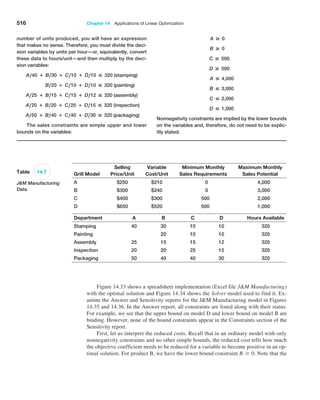
  • 299.
    298 Chapter 8  Trendlinesand Regression Analysis Case: Performance Lawn Equipment In reviewing the PLE data, Elizabeth Burke noticed that defects received from suppliers have decreased Ā­ (worksheet Ā­Defects After Delivery). Upon investigation, she learned that in 2010, PLE experienced some quality problems due to an increasing number of defects in materials received from suppliers. The company instituted an ini- tiative in Ā­ August 2011 to work with suppliers to reduce these defects, to more closely coordinate deliveries, and to Ā­ improve materials quality through reengineering supplier production policies. Elizabeth noted that the program ap- peared to reverse an increasing trend in defects; she would like to predict what might have happened had the supplier initiative not been implemented and how the number of defects might further be reduced in the near future. In meeting with PLE’s human resources director, Elizabeth also discovered a concern about the high rate of turnover in its field service staff. Senior managers have suggested that the department look closer at its recruiting policies, particularly to try to identify the characteristics of individuals that lead to greater retention. However, in a recent staff meeting, HR managers could not agree on these characteristics. Some argued that years of education and grade point averages were good predictors. Others argued that hiring more mature applicants would lead to greater retention. To study these factors, the staff agreed to conduct a statistical study to determine the effect that years of education, college grade point average, and age when hired have on retention. A sample of 40 field service engineers hired 10 years ago was selected to determine the influence of these variables on how long each indi- vidual stayed with the company. Data are compiled in the Employee Retention worksheet. Finally, as part of its efforts to remain competitive, PLE tries to keep up with the latest in production technol- ogy. This is especially important in the highly competi- tive lawn-mower line, where competitors can gain a real advantage if they develop more cost-effective means of production. The lawn-mower division therefore spends a great deal of effort in testing new technology. When new production technology is introduced, firms often experi- ence learning, resulting in a gradual decrease in the time required to produce successive units. Generally, the rate of improvement declines until the production time levels off. One example is the production of a new design for lawn- mower engines. To determine the time required to produce these engines, PLE produced 50 units on its production line; test results are given on the worksheet Engines in the database. Because PLE is continually developing new technology, understanding the rate of learning can be use- ful in estimating future production costs without having to run extensive prototype trials, and Elizabeth would like a better handle on this. Use techniques of regression analysis to assist her in evaluating the data in these three worksheets and reach- ing useful conclusions. Summarize your work in a formal rĀ­ eport with all appropriate results and analyses.
  • 300.
    299 iQoncept/Shutterstock.com Learning Objectives After studyingthis chapter, you will be able to: • Explain how judgmental approaches are used for forecasting. • List different types of statistical forecasting models. • Apply moving average and exponential smoothing models to stationary time series. • State three error metrics used for measuring forecast accuracy and explain the differences among them. • Apply double exponential smoothing models to time series with a linear trend. • Use Holt-Winters and regression models to forecast time series with seasonality. • Apply Holt-Winters forecasting models to time series with both trend and seasonality. • Identify the appropriate choice of forecasting model based on the characteristics of a time series. • Explain how regression techniques can be used to forecast with explanatory or causal variables. • Apply XLMiner to different types of forecasting models. Forecasting Techniques 9 Chapter
  • 301.
    300 Chapter 9  ForecastingTechniques Managers require good forecasts of future events to make good decisions. For example, forecasts of interest rates, energy prices, and other economic in- dicators are needed for financial planning; sales forecasts are needed to plan production and workforce capacity; and forecasts of trends in demographics, consumer behavior, and technological innovation are needed for long-term stra- tegic planning. The government also invests significant resources on predicting short-run U.S. business performance using the Index of Leading Indicators. This index focuses on the performance of individual businesses, which often is highly correlated with the performance of the overall economy and is used to forecast economic trends for the nation as a whole. In this chapter, we introduce some common methods and approaches to forecasting, including both qualitative and quantitative techniques. Business analysts may choose from a wide range of forecasting techniques to support decision making. Selecting the appropriate method depends on the char- acteristics of the forecasting problem, such as the time horizon of the variable be- ing forecast, as well as available information on which the forecast will be based. Three major categories of forecasting approaches are qualitative and judgmental techniques, statistical time-series models, and explanatory/causal methods. In this chapter, we introduce forecasting techniques in each of these categories and use basic Excel tools, XLMiner, and linear regression to implement them in a spread- sheet environment. Qualitative and Judgmental Forecasting Qualitative and judgmental techniques rely on experience and intuition; they are necessary when historical data are not available or when the decision maker needs to forecast far into the future. For example, a forecast of when the next generation of a microprocessor will be available and what capabilities it might have will depend greatly on the opinions and ex- pertise of individuals who understand the technology. Another use of judgmental methods is to incorporate nonquantitative information, such as the impact of government regula- tions or competitor behavior, in a quantitative forecast. Judgmental techniques range from such simple methods as a manager’s opinion or a group-based jury of executive opinion to more structured approaches such as historical analogy and the Delphi method. Historical Analogy One judgmental approach is historical analogy, in which a forecast is obtained through a comparative analysis with a previous situation. For example, if a new product is be- ing introduced, the response of consumers to marketing campaigns to similar, previous products can be used as a basis to predict how the new marketing campaign might fare. Of course, temporal changes or other unique factors might not be fully considered in such
  • 302.
    Chapter 9  Forecasting Techniques301 Example 9.1 Predicting the Price of Oil In early 1998, the price of oil was about $22 a barrel. How- ever, in mid-1998, the price of a barrel of oil dropped to around $11. The reasons for this price drop included an oversupply of oil from new production in the Caspian Sea region, high production in non-OPEC regions, and lower- than-normal demand. In similar circumstances in the past, OPEC would meet and take action to raise the price of oil. Thus, from historical analogy, we might forecast a rise in the price of oil. OPEC members did, in fact, meet in mid-1998 and agreed to cut their production, but nobody believed that they would actually cooperate effectively, and the price continued to drop for a time. Subsequently, in 2000, the price of oil rose dramatically, falling again in late 2001. Example 9.2 Economic Indicators One variable that is important to the nation’s economy is the Gross Domestic Product (GDP), which is a mea- sure of the value of all goods and services produced in the United States. Despite its shortcomings (for instance, unpaid work such as housekeeping and child care is not measured; production of poor-quality output inflates the measure, as does work expended on corrective action), it is a practical and useful measure of economic perfor- mance. Like most time series, the GDP rises and falls in a cyclical fashion. Predicting future trends in the GDP is Analogies often provide good forecasts, but you need to be careful to recognize new or different circumstances. Another analogy is international conflict relative to the price of oil. Should war break out, the price would be expected to rise, analogous to what it has done in the past. The Delphi Method A popular judgmental forecasting approach, called the Delphi method, uses a panel of experts, whose identities are typically kept confidential from one another, to respond to a sequence of questionnaires. After each round of responses, individual opinions, edited to ensure anonymity, are shared, allowing each to see what the other experts think. Seeing other experts’ opinions helps to reinforce those in agreement and to influence those who did not agree to possibly consider other factors. In the next round, the experts revise their estimates, and the process is repeated, usually for no more than two or three rounds. The Delphi method promotes unbiased exchanges of ideas and discussion and usually results in some convergence of opinion. It is one of the better approaches to forecasting long- range trends and impacts. Indicators and Indexes Indicators and indexes generally play an important role in developing judgmental fore- casts. Indicators are measures that are believed to influence the behavior of a variable we wish to forecast. By monitoring changes in indicators, we expect to gain insight about the future behavior of the variable to help forecast the future. (continued) an approach. However, a great deal of insight can often be gained through an analysis of past experiences.
  • 303.
    302 Chapter 9  ForecastingTechniques Indicators are often combined quantitatively into an index, a single measure that weights multiple indicators, thus providing a measure of overall expectation. For example, financial analysts use the Dow Jones Industrial Average as an index of general stock mar- ket performance. Indexes do not provide a complete forecast but rather a better picture of direction of change and thus play an important role in judgmental forecasting. often done by analyzing leading indicators—series that tend to rise and fall for some predictable length of time prior to the peaks and valleys of the GDP. One example of a leading indicator is the formation of business enter- prises; as the rate of new businesses grows, we would expect the GDP to increase in the future. Other exam- ples of leading indicators are the percent change in the money supply (M1) and net change in business loans. Other indicators, called lagging indicators, tend to have peaks and valleys that follow those of the GDP. Some lagging indicators are the Consumer Price Index, prime rate, business investment expenditures, or inventories on hand. The GDP can be used to predict future trends in these indicators. Statistical Forecasting Models Statistical time-series models find greater applicability for short-range forecasting prob- lems. A time series is a stream of historical data, such as weekly sales. We characterize the values of a time series over T periods as At, t = 1, 2, c, T. Time-series models assume that whatever forces have influenced sales in the recent past will continue into the near fu- ture; thus, forecasts are developed by extrapolating these data into the future. Time series generally have one or more of the following components: random behavior, trends, sea- sonal effects, or cyclical effects. Time series that do not have trend, seasonal, or cyclical effects but are relatively constant and exhibit only random behavior are called stationary time series. Many forecasts are based on analysis of historical time-series data and are predicated on the assumption that the future is an extrapolation of the past. A trend is a gradual Ā­ upward or downward movement of a time series over time. Example 9.3 Leading Economic Indicators The Department of Commerce initiated an Index of Leading Indicators to help predict future economic performance. Components of the index include the following: • average weekly hours, manufacturing • average weekly initial claims, unemployment insurance • new orders, consumer goods, and materials • vendor performance—slower deliveries • new orders, nondefense capital goods • building permits, private housing • stock prices, 500 common stocks (Standard Poor) • money supply • interest rate spread • index of consumer expectations (University of Michigan) Business Conditions Digest included more than 100 time series in seven economic areas. This publication was discontinued in March 1990, but information re- lated to the Index of Leading Indicators was continued in Survey of Current Business. In December 1995, the U.S. Department of Commerce sold this data source to The Conference Board, which now markets the informa- tion under the title Business Cycle Indicators; information can be obtained at its Web site (www.conference-board .org). The site includes excellent current information about the calculation of the index as well as its current components.
  • 304.
    Chapter 9  Forecasting Techniques303 leveled off for a while and began increasing at a slower rate through the 1980s and 1990s. In the past decade, we Ā­ actually see a slight downward trend. This time series, then, is composed of several different short trends. Example 9.4 Identifying Trends in a Time Series Figure 9.1 shows a chart of total energy Ā­ consumption from the data in the Excel file Energy Production Ā­Consumption. This time series shows an upward trend. However, we see that energy consumption was rising quite rapidly in a linear fashion during the 1960s, then Figure 9.1 Total Energy Consumption Time Series Figure 9.2 Seasonal Effects in Natural Gas Usage Time series may also exhibit short-term seasonal effects (over a year, month, week, or even a day) as well as longer-term cyclical effects, or nonlinear trends. A seasonal effect is one that repeats at fixed intervals of time, typically a year, month, week, or day. At a neighborhood grocery store, for instance, short-term seasonal patterns may occur over a week, with the heaviest volume of customers on weekends; seasonal patterns may also be evident during the course of a day, with higher volumes in the mornings and late afternoons. Figure 9.2 shows seasonal changes in natural gas usage for a homeowner over the course of a year (Excel file Gas Electric). Cyclical effects describe ups and downs over a much longer time frame, such as several years. Figure 9.3 shows a chart of the data
  • 305.
    304 Chapter 9  ForecastingTechniques in the Excel file Federal Funds Rates. We see some evidence of long-term cycles in the time series driven by economic factors, such as periods of inflation and recession. Although visual inspection of a time series to identify trends, seasonal, or cyclical effects may work in a naĆÆve fashion, such unscientific approaches may be a bit unset- tling to a manager making important decisions. Subtle effects and interactions of sea- sonal and cyclical factors may not be evident from simple visual extrapolation of data. Statistical methods, which involve more formal analyses of time series, are invaluable in Ā­ developing good forecasts. A variety of statistically-based forecasting methods for time series are Ā­ commonly used. Among the most popular are moving average methods, expo- nential smoothing, and regression analysis. These can be implemented very easily on a spreadsheet using basic functions and Data Analysis tools available in Microsoft Excel, as well as with more powerful software such as XLMiner. Moving average and exponential smoothing models work best for time series that do not exhibit trends or seasonal factors. For time series that involve trends and/or seasonal factors, other techniques have been developed. These include double moving average and exponential smoothing models, Ā­ seasonal additive and multiplicative models, and Holt-Winters additive and multiplicative models. Forecasting Models for Stationary Time Series Two simple approaches that are useful over short time periods when trend, seasonal, or cyclical effects are not significant are moving average and exponential smoothing models. Moving Average Models The simple moving average method is a smoothing method based on the idea of averag- ing random fluctuations in the time series to identify the underlying direction in which the time series is changing. Because the moving average method assumes that future ob- servations will be similar to the recent past, it is most useful as a short-range forecasting method. Although this method is very simple, it has proven to be quite useful in stable en- vironments, such as inventory management, in which it is necessary to develop forecasts for a large number of items. Specifically, the simple moving average forecast for the next period is computed as the average of the most recent k observations. The value of k is somewhat arbitrary, Figure 9.3 Cyclical Effects in Federal Funds Rates
  • 306.
    Chapter 9  Forecasting Techniques305 although its choice affects the accuracy of the forecast. The larger the value of k, the more the current forecast is dependent on older data, and the forecast will not react as quickly to fluctuations in the time series. The smaller the value of k, the quicker the forecast responds to changes in the time series. Also, when k is larger, extreme values have less effect on the forecasts. (In the next section, we discuss how to select k by examining errors associated with different values.) Example 9.5 Moving Average Forecasting The Excel file Tablet Computer Sales contains data for the number of units sold for the past 17 weeks. Figure 9.4 shows a chart of these data. The time series appears to be relatively stable, without trend, seasonal, or cyclical effects; thus, a moving average model would be appro- priate. Setting k = 3, the three-period moving average forecast for week 18 is week 18 forecast = 82 + 71 + 50 3 = 67.67 Moving average forecasts can be generated easily on a spreadsheet. Figure 9.5 shows the computations for a three-period moving average forecast of tablet com- puter sales. Figure 9.6 shows a chart that contrasts the data with the forecasted values. Figure 9.4 Chart of Weekly Tablet Computer Sales Example 9.6 Using Excel’s Moving Average Tool For the Tablet Computer Sales Excel file, select Data Analysis and then Moving Average from the Analysis group. Excel displays the dialog box shown in Figure 9.7. You need to enter the Input Range of the data, the Ā­ Interval (the value of k), and the first cell of the Output Range. To align the Ā­ actual data with the forecasted values in the worksheet, select the first cell of the Output Range to be one row below the first value. You may also obtain a chart of the data and the moving Ā­ averages, as well as a column of standard Ā­ errors, by checking the appropriate boxes. However, we do not Ā­ recommend Ā­ using the chart or error options because the forecasts Ā­ generated by this tool are not properly aligned with the data (the forecast value aligned with a particular data point Ā­ represents the forecast for the next month) and, thus, can be mislead- ing. Rather, we recommend that you generate your own chart as we did in Figure 9.6. Figure 9.8 shows the Ā­ results produced by the Moving Average tool (with some cus- tomization of the formatting). Note that the forecast for week 18 is aligned with the actual value for week 17 on the chart. Compare this to Figure 9.6 and you can see the difference. Moving average forecasts can also be obtained from Excel’s Data Analysis options.
  • 307.
    306 Chapter 9  ForecastingTechniques XLMiner also provides a tool for forecasting with moving averages. XLMiner is an Excel add-on that is available from Frontline Systems, developers of Analytic Solver Ā­Platform. See the Preface for installation instructions. XLMiner will be discussed more thoroughly in Chapter 10. Figure 9.5 Excel Implementation of Moving Average Forecast Figure 9.6 Chart of Units Sold and Moving Average Forecast Figure 9.7 Excel Moving Average Tool Dialog
  • 308.
    Chapter 9  Forecasting Techniques307 Example 9.7 Moving Average Forecasting with XLMiner To use XLMiner for the Tablet Computer Sales data, first click on any value in the data. Then select Ā­ Smoothing from the Time Series group and select Moving Ā­Average. The dialog in Figure 9.9 appears. Next, move the vari- ables from the Variables in input data field to the Time Variable and Selected variable fields using the arrow but- tons (this was already done in Figure 9.9). In the Weights panel, adjust the value of Interval—the number of peri- ods to use for the moving average. In the Output options panel, you may click Give Forecast and enter the num- ber of forecasts to generate from the procedure. When you click OK, XLMiner generates the output on a new worksheet, as shown in Figure 9.10. The forecasts are shown in rows 24 through 40 along with a chart of the data and forecasts (without the initial periods that do not have corresponding forecasts). The forecast for week 18 is shown at the bottom of the figure. We discuss other parts of the output next. Figure 9.8 Results of Excel Moving Average Tool (Note misalignment of forecasts with actual sales in the chart.) Figure 9.9 XLMiner Moving Average Dialog
  • 309.
    308 Chapter 9  ForecastingTechniques Figure 9.10 XLMiner Moving Average Results Error Metrics and Forecast Accuracy The quality of a forecast depends on how accurate it is in predicting future values of a time series. In the simple moving average model, different values for k will produce dif- ferent forecasts. How do we know which is the best value for k? The error, or residual, in a forecast is the difference between the forecast and the actual value of the time series (once it is known). In Figure 9.6, the forecast error is simply the vertical distance between the forecast and the data for the same time period. To analyze the effectiveness of different forecasting models, we can define error metrics, which compare quantitatively the forecast with the actual observations. Three metrics that are commonly used are the mean absolute deviation, mean square error, and mean absolute percentage error. The mean absolute deviation (MAD) is the absolute difference between the actual value and the forecast, averaged over a range of forecasted values: MAD = a n t=1 At - Ft n (9.1) where At is the actual value of the time series at time t, Ft is the forecast value for time t, and n is the number of forecast values (not the number of data points since we do not have a forecast value associated with the first k data points). MAD provides a robust measure of error and is less affected by extreme observations.
  • 310.
    Chapter 9  Forecasting Techniques309 Mean square error (MSE) is probably the most commonly used error metric. It Ā­ penalizes larger errors because squaring larger numbers has a greater impact than squaring smaller numbers. The formula for MSE is MSE = a n t=1 1At - Ft22 n (9.2) Again, n represents the number of forecast values used in computing the average. Some- times the square root of MSE, called the root mean square error (RMSE), is used: RMSE = H a n t=1 1At - Ft22 n (9.3) Note that unlike MSE, RMSE is expressed in the same units as the data (similar to the difference between a standard deviation and a variance), allowing for more practical comparisons. A fourth commonly used metric is mean absolute percentage error (MAPE). MAPE is the average of absolute errors divided by actual observation values. MAPE = a n t=1 2 At - Ft At 2 n * 100 (9.4) The values of MAD and MSE depend on the measurement scale of the time-series data. For example, forecasting profit in the range of millions of dollars would result in very large MAD and MSE values, even for very accurate forecasting models. On the other hand, market share is measured in proportions; therefore, even bad forecasting models will have small values of MAD and MSE. Thus, these measures have no meaning except in comparison with other models used to forecast the same data. Generally, MAD is less affected by extreme observations and is preferable to MSE if such extreme obser- vations are considered rare events with no special meaning. MAPE is different in that the measurement scale is eliminated by dividing the absolute error by the time-series data value. This allows a better relative comparison. Although these comments provide some guidelines, there is no universal agreement on which measure is best. Note that the output from XLMiner in Figure 9.10 calculates residuals for the fore- casts and provides the values of MAPE, MAD, and MSE. Example 9.8 Using Error Metrics to Compare Moving Average Forecasts The metrics we have described can be used to com- pare different moving average forecasts for the Ā­ Tablet Ā­Computer Sales data. A spreadsheet that shows the fore- casts as well as the calculations of the error metrics for two-, three-, and four-period moving average Ā­ models is given in Figure 9.11. The error is the difference Ā­ between the actual value of the units sold and the forecast. To compute MAD, we first compute the Ā­ absolute values of the errors and then average them. For MSE, we compute the squared errors and then find the average. For MAPE, we find the absolute values of the Ā­ errors divided by the actual observation multiplied by 100 and then average them. The results suggest that a two-Ā­ period moving Ā­ average model provides the best forecast among these alternatives because the error metrics are all smaller than for the other models.
  • 311.
    310 Chapter 9  ForecastingTechniques Figure 9.11 Error Metrics Alternative Moving Average Forecasts Exponential Smoothing Models A versatile, yet highly effective, approach for short-range forecasting is simple exponen- tial smoothing. The basic simple exponential smoothing model is Ft+1 = 11 - a2Ft + aAt = Ft + a1At - Ft2 (9.5) where Ft+1is the forecast for time period t + 1, Ft is the forecast for period t, At is the observed value in period t, and a is a constant between 0 and 1 called the smoothing constant. To begin, set F1 and F2 equal to the actual observation in period 1, A1. Using the two forms of the forecast equation just given, we can interpret the simple exponential smoothing model in two ways. In the first model, the forecast for the next period, Ft+1, is a weighted average of the forecast made for period t, Ft, and the actual observation in period t, At. The second form of the model, obtained by simply rearrang- ing terms, states that the forecast for the next period, Ft+1, equals the forecast for the last period, Ft, plus a fraction a of the forecast error made in period t, At - Ft. Thus, to make a forecast once we have selected the smoothing constant, we need to know only the previous forecast and the actual value. By repeated substitution for Ft in the equation, it is easy to demonstrate that Ft+1 is a decreasingly weighted average of all past time-series data. Thus, the forecast actually reflects all the data, provided that a is strictly between 0 and 1. Example 9.9 Using Exponential Smoothing to Forecast Tablet Computer Sales For the tablet computer sales data, the forecast for week 2 is 88, the actual observation for week 1. Suppose we choose A = 0.7; then the forecast for week 3 would be week 3 forecast = (1āˆ’0.7)(88) + (0.7)(44) = 57.2 The actual observation for week 3 is 60; thus, the forecast for week 4 would be week 4 forecast = (1āˆ’0.7)(57.2) + (0.7)(60) = 59.16 Because the simple exponential smoothing model requires only the previous fore- cast and the current time-series value, it is very easy to calculate; thus, it is highly suit- able for environments such as inventory systems, where many forecasts must be made.
  • 312.
    Chapter 9  Forecasting Techniques311 is not included because we do not have a forecast for the first period, Week 1. A smoothing constant of A = 0.6 provides the lowest Ā­ error for all three metrics. Example 9.10 Finding the Best Exponential Smoothing Model for Tablet Computer Sales An Excel spreadsheet for evaluating exponential smooth- ing models for the Tablet Computer Sales data using Ā­values of A between 0.1 and 0.9 is shown in Figure 9.12. Note that in computing the error measures, the first row The smoothing constant a is usually chosen by experimentation in the same manner as choosing the number of periods to use in the moving average model. Different values of a affect how quickly the model responds to changes in the time series. For instance, a value of a = 0 would simply repeat last period’s forecast, whereas a = 1 would fore- cast last period’s actual demand. The closer a is to 1, the quicker the model responds to changes in the time series, because it puts more weight on the actual current observation than on the forecast. Likewise, the closer a is to 0, the more weight is put on the prior forecast, so the model would respond to changes more slowly. Excel has a Data Analysis tool for exponential smoothing. Figure 9.12 Exponential Smoothing Forecasts for Tablet Computer Sales Example 9.11 Using Excel’s Exponential Smoothing Tool In the Table Computer Sales example, from the Ā­ Analysis group, select Data Analysis and then Exponential Ā­Smoothing. In the dialog (Figure 9.13), as in the Moving Average dialog, you must enter the Input Range of the time-series data, the Damping Factor is (1 āˆ’ A)—not the smoothing constant as we have defined it—and the first cell of the Output Range, which should be adjacent to the first data point. You also have options for labels, to chart output, and to obtain standard errors. As opposed to the Moving Average tool, the chart generated by this tool does correctly align the forecasts with the actual data, as shown in Figure 9.14. You can see that the exponential smoothing model follows the pattern of the data quite closely, although it tends to lag with an increasing trend in the data.
  • 313.
    312 Chapter 9  ForecastingTechniques XLMiner also has an exponential smoothing capability. The dialog (which appears when Exponential . . . is selected from the Time Series/Smoothing menu) is similar to the one for moving averages in Figure 9.9. However, within the Weights pane, it provides op- tions to either enter the smoothing constant, Level (Alpha) or to check an Optimize box, which will find the best value of the smoothing constant. Example 9.12 Optimizing Exponential Smoothing Forecasts Using XLMiner Select Exponential Smoothing from the Smoothing menu in XLMiner. For the Tablet Computer Sales data, enter the data (similar to the dialog in Figure 9.9), and check the Optimize box in the Weights pane. Figure 9.15 shows the results. In row 16, we see that the optimized Ā­ smoothing constant is 0.63. You can see that this is close to the value of 0.6 that we estimated in Figure 9.12; the error measures shown in rows 48–50 are slightly lower than those in Figure 9.12. Figure 9.13 Exponential Smoothing Tool Dialog Figure 9.14 Excel Exponential Smoothing Forecasts for A = 0.6 Forecasting Models for Time Series with a Linear Trend For time series with a linear trend but no significant seasonal components, double mov- ing average and double exponential smoothing models are more appropriate than using simple moving average or exponential smoothing models. Both methods are based on the linear trend equation: Ft+k = at + btk (9.6)
  • 314.
    Chapter 9  Forecasting Techniques313 Figure 9.15 XLMiner Exponential Smoothing Results for Tablet Computer Sales That is, the forecast for k periods into the future from period t is a function of a base value at, also known as the level, and a trend, or slope, bt. Double moving average and double exponential smoothing differ in how the data are used to arrive at appropriate values for at and bt. Because the calculations are more complex than for simple moving average and exponential smoothing models, it is easier to use forecasting software than to try to imple- ment the models directly on a spreadsheet. Therefore, we do not discuss the theory or for- mulas underlying the methods. XLMiner does not support a procedure for double moving average; however, it does provide one for double exponential smoothing. Double Exponential Smoothing In double exponential smoothing, the estimates of at and bt are obtained from the follow- ing equations: at = aFt + 11 - a21at-1 + bt-12 bt = b1at - at-12 + 11 - b2bt-1 (9.7) In essence, we are smoothing both parameters of the linear trend model. From the first equation, the estimate of the level in period t is a weighted average of the observed value at time t and the predicted value at time t, at-1 + bt-1, based on simple exponential smoothing. For large values of a, more weight is placed on the observed value. Lower values of a put more weight on the smoothed predicted value. Similarly, from the second equation, the estimate of the trend in period t is a weighted average of the differences in the Ā­ estimated levels in periods t and t - 1 and the estimate of the level in period t - 1.
  • 315.
    314 Chapter 9  ForecastingTechniques Example 9.13 Double Exponential Smoothing with XLMiner Figure 9.16 shows a portion of the Excel file Coal Ā­Production, which provides data on total tons produced from 1960 through 2011. The data appear to follow a linear trend. The XLMiner dialog is similar to the one used for single exponential smoothing. Using the optimization fea- ture to find the best values of A and B, XLMiner produces the output, a portion of which is shown in Figure 9.17. We see that the best values of A and B are 0.684 and 0.00, respectively. Forecasts generated by XLMiner for the next 3 years (not shown in Figure 9.17) are 2012: 1,115,563,804 2013: 1,130,977,341 2014: 1,146,390,878 Regression-Based Forecasting for Time Series with a Linear Trend Equation 9.6 may look familiar from simple linear regression. We introduced regression in the previous chapter as a means of developing relationships between a dependent and independent variables. Simple linear regression can be applied to forecasting using time as the independent variable. Figure 9.16 Portion of Excel File Coal Production Larger values of b place more weight on the differences in the levels, but lower values of b put more emphasis on the previous estimate of the trend. Initial values are chosen for a1 as A1 and b1 as A2 - A1. Equations (9.7) must then be used to compute at and bt for the entire time series to be able to generate forecasts into the future. As with simple exponential smoothing, we are free to choose the values of a and b. However, it is easier to let XLMiner optimize these values using historical data. Example 9.14 Forecasting Using Trendlines For the data in the Excel file Coal Production, a linear trendline, shown in Figure 9.18, gives an R2 value of 0.95 (the fitted model assumes that the years are numbered 1 through 52, not as actual dates). The model is tons = 438,819,885.29 + 15,413,536.97 Ɨ year Thus, a forecast for 2012 would be tons = 438,819,885.29 + 15,413,536.97 Ɨ (53) = 1,255,737,345 Note however, that the linear model does not adequately predict the recent drop in production after 2008.
  • 316.
    Chapter 9  Forecasting Techniques315 Figure 9.17 Portion of XLMiner Output for Double Exponential Smoothing of Coal-Production Data Figure 9.18 Trendline-Based Forecast for Coal Production In Chapter 8, we noted that an important assumption for using regression analysis is the lack of autocorrelation among the data. When autocorrelation is present, succes- sive observations are correlated with one another; for example, large observations tend to follow other large observations, and small observations also tend to follow one another. This can often be seen by examining the residual plot when the data are ordered by time. Figure 9.19 shows the time-ordered residual plot from the Excel Regression tool for the coal-production example. The residuals do not appear to be random; rather, successive
  • 317.
    316 Chapter 9  ForecastingTechniques Example 9.15 Regression-Based Forecasting for Natural Gas Usage With monthly data, as we have for natural gas usage in the Gas Electric Excel file, we have a seasonal categorical variable with k = 12 levels. As discussed in Chapter 8, we construct the regression model using k āˆ’ 1 dummy vari- ables. We will use January as the reference month; therefore, this variable does not appear in the model: gas usage = B0 + B1 time + B2 February + B3 March + B4 April + B5 May + B6 June + B7 July + B8 August + B9 September + B10 October + B11 November + B12 December This coding scheme results in the data matrix shown in Figure 9.20. This model picks up trends from the regression coefficient for time and seasonality from the dummy vari- ables for each month. The forecast for the next January will be B0 + B1(25). The variable coefficients (betas) for each of the other 11 months will show the adjustment relative to January. For example, the forecast for next February will be B0 + B1(26) + B2(1), and so on. Figure 9.21 shows the results of using the Regression tool in Excel after eliminating insignificant variables (time and Feb). Because the data show no clear linear trend, the Figure 9.19 Residual Plot for Linear Regression Forecasting Model Ā­ observations seem to be related to one another. This suggests autocorrelation, indicating that other approaches, called autoregressive models, are more appropriate. However, these are more advanced than the level of this book and are not discussed here. Forecasting Time Series with Seasonality Quite often, time-series data exhibit seasonality, especially on an annual basis. We saw an example of this in Figure 9.2. When time series exhibit seasonality, different techniques provide better forecasts than the ones we have described. Regression-Based Seasonal Forecasting Models One approach is to use linear regression. Multiple linear regression models with categori- cal variables can be used for time series with seasonality. To do this, we use dummy cat- egorical variables for the seasonal components.
  • 318.
    Chapter 9  Forecasting Techniques317 variable time could not explain any significant variation in the data. The dummy variable for February was probably insignificant because the historical gas usage for both January and February were very close to each other. The R2 for this model is 0.971, which is very good. The final regression model is gas usage = 236.75 āˆ’ 36.75 March āˆ’ 99.25 April āˆ’ 192.25 May āˆ’ 203.25 June āˆ’ 208.25 July āˆ’ 209.75 August āˆ’ 208.25 September āˆ’ 196.75 October āˆ’ 149.75 November āˆ’ 43.25 December Figure 9.20 Data Matrix for Seasonal Regression Model Figure 9.21 Final Regression Model for Forecasting Gas Usage
  • 319.
    318 Chapter 9  ForecastingTechniques Example 9.16 Forecasting Natural Gas Usage Using Holt-Winters No-Trend Model Figure 9.22 shows the dialog for the Holt-Winters smoothing model with no trend for the natural gas data in the Gas Electric Excel file in Figure 9.2. In the Ā­ Parameters pane, the value of Period is the length of the season, in this case, 12 months. Note that we have two complete seasons of data. Because the procedure does not optimize the parameters, you will generally have to experiment with the smoothing constants A and G (gamma) that apply to the level and seasonal factors in the model. Figure 9.23 shows a portion of the output. We see that this choice of parameters results in a fairly close forecast with low error metrics. The forecasts at the bottom of the output provide point estimates along with confidence intervals. Holt-Winters Models for Forecasting Time Series with Seasonality and Trend Many time series exhibit both trend and seasonality. Such might be the case for growing sales of a seasonal product. These models combine elements of both the trend and sea- sonal models. Two types of Holt-Winters smoothing models are often used. Figure 9.22 XLMiner Holt-Winters Smoothing No-Trend Model Dialog Holt-Winters Forecasting for Seasonal Time Series The methods we describe here and in the next section are based on the work of two Ā­ researchers, C.C. Holt, who developed the basic approach, and P.R. Winters, who Ā­extended Holt’s work. Hence, these approaches are commonly referred to as Holt-Winters models. Holt-Winters models are similar to exponential smoothing models in that smoothing con- stants are used to smooth out variations in the level and seasonal patterns over time. For time series with seasonality but no trend, XLMiner supports a Holt-Winters method but does not have the ability to optimize the parameters.
  • 320.
    Chapter 9  Forecasting Techniques319 The Holt-Winters additive model is based on the equation Ft+1 = at + bt + St-s+1 (9.8) and the Holt-Winters multiplicative model is Ft+1 = 1at + bt2St-s+1 (9.9) The additive model applies to time series with relatively stable seasonality, whereas the multiplicative model applies to time series whose amplitude increases or decreases over time. Therefore, a chart of the time series should be viewed first to identify the appropriate type of model to use. Three parameters, a, b, and g, are used to smooth the level, trend, and seasonal factors in the time series. XLMiner supports both models. Figure 9.23 Portion of XLMiner Output for Forecasting Natural Gas Usage Example 9.17 Forecasting New Car Sales Using Holt-Winters Models Figure 9.24 shows a portion of the Excel file New Car Sales, which contain 3 years of monthly retail sales’ data. There is clearly a stable seasonal factor in the time series, along with an increasing trend; therefore, the Holt-Winters additive model would appear to be the most appropriate. In XLMiner, choose Smoothing/ Ā­Ā­Holt-Winters/Additive from the Time-Series group. As with other procedures, some experimentation is nec- essary to identify the best parameters for the model. The Ā­ dialog in Figure 9.25 shows the default values. In the Ā­ results shown in Figure 9.26, you can see that the fore- casts do not track the data very well. This may be due to the low value of G used to smooth out the seasonal factor. We leave it to you to experiment to find a better model.
  • 321.
    320 Chapter 9  ForecastingTechniques Figure 9.24 Portion of Excel File New Car Sales Figure 9.25 Holt-Winters Smoothing Additive Model Dialog Selecting Appropriate Time-Series-Based Forecasting Models Table 9.1 summarizes the choice of forecasting approaches that can be implemented by XLMiner based on characteristics of the time series. Table 9.1 Forecasting Model Choice No Seasonality Seasonality No trend Simple moving average or simple exponential smoothing Holt-Winters no-trend smoothing model or multiple regression Trend Double exponential smoothing Holt-Winters additive or Holt-Winters multiplicative model
  • 322.
    Chapter 9  Forecasting Techniques321 Figure 9.26 Results form Holt-Winters Additive Model for Forecasting New-Car Sales Regression Forecasting with Causal Variables In many forecasting applications, other independent variables besides time, such as eco- nomic indexes or demographic factors, may influence the time series. For example, a man- ufacturer of hospital equipment might include such variables as hospital capital spending and changes in the proportion of people over the age of 65 in building models to forecast future sales. Explanatory/causal models, often called econometric models, seek to iden- tify factors that explain statistically the patterns observed in the variable being forecast, usually with regression analysis. We will use a simple example of forecasting gasoline sales to illustrate econometric modeling. Example 9.18ā€ƒ Forecasting Gasoline Sales Using Simple Linear Regression Figure 9.27 shows gasoline sales over 10 weeks during June through August along with the average price per gal- lon and a chart of the gasoline sales time series with a fitted trendline (Excel file Gasoline Sales). During the sum- mer months, it is not unusual to see an increase in sales as more people go on vacations. The chart shows a linear trend, although R2 is not very high. The trendline is: sales = 4,790.1 + 812.99 week Using this model, we would predict sales for week 11 as sales = 4,790.1 + 812.99(11) = 13,733 gallons
  • 323.
    322 Chapter 9  ForecastingTechniques In the gasoline sales data, we also see that the average price per gallon changes each week, and this may influence consumer sales. Therefore, the sales trend might not simply be a factor of steadily increasing demand, but it might also be influenced by the average price per gallon. The average price per gallon can be considered as a causal variable. Multiple linear regression provides a technique for building forecasting models that incor- porate not only time, but other potential causal variables also. Example 9.19 Incorporating Causal Variables in a Regression-Based Forecasting Model For the gasoline sales data, we can incorporate the price/gallon by using two independent variables. This results in the multiple regression model sales = B0 + B1 week + B2 pricegallon The results are shown in Figure 9.28, and the regres- sion model is sales = 72333.08 + 508.67 week āˆ’ 16463.2 pricegallon Notice that the R2 value is higher when both variables are included, explaining more than 86% of the variation in the data. If the company estimates that the average price for the next week will drop to $3.80, the model would forecast the sales for week 11 as sales = 72333.08 + 508.67(11) āˆ’ 16463.2(3.80) = 15,368 gallons Figure 9.27 Gasoline Sales Data and Trendline The Practice of Forecasting Surveys of forecasting practices have shown that both judgmental and quantitative meth- ods are used for forecasting sales of product lines or product families as well as for broad company and industry forecasts. Simple time-series models are used for short- and medium-range forecasts, whereas regression analysis is the most popular method for long- range forecasting. However, many companies rely on judgmental methods far more than quantitative methods, and almost half judgmentally adjust quantitative forecasts. In this chapter, we focus on these three approaches to forecasting. In practice, managers use a variety of judgmental and quantitative forecasting tech- niques. Statistical methods alone cannot account for such factors as sales promotions, un- usual environmental disturbances, new product introductions, large one-time orders, and
  • 324.
    Chapter 9  Forecasting Techniques323 Figure 9.28 Regression Results for Gasoline Sales so on. Many managers begin with a statistical forecast and adjust it to account for intangi- ble factors. Others may develop independent judgmental and statistical forecasts and then combine them, either objectively by averaging or in a subjective manner. It is important to compare quantitatively generated forecasts to judgmental forecasts to see if the forecast- ing method is adding value in terms of an improved forecast. It is impossible to provide universal guidance as to which approaches are best, because they depend on a variety of factors, including the presence or absence of trends and seasonality, the number of data points available, length of the forecast time horizon, and the experience and knowledge of the forecaster. Often, quantitative approaches will miss significant changes in the data, such as reversal of trends, whereas qualitative forecasts may catch them, particularly when using indicators as discussed earlier in this chapter. NBC Universal (NBCU), a subsidiary of the General Electric Company (GE), is one of the world’s leading media and entertainment companies in the distribu- tion, production, and marketing of entertainment, news, and information. The television broadcast year in the United States starts in the third week of September. The major broadcast networks an- nounce their programming schedules for the new broadcast year in the middle of May. Shortly there- after, the sale of advertising time, which generates the majority of revenues, begins. The broadcast networks sell 60% to 80% of their airtime inventory during a brief period starting in late May and lasting 2 to 3 weeks. This sales period is known as the up- front market. Immediately after announcing their program schedules, the networks finalize their rat- ings forecasts and estimate the market demand. The ratings forecasts are projections of the numbers of people in each of several demographic groups who are expected to watch each airing of the shows in the program schedule for the entire broadcast year. After they finalize their ratings projections and market- demand estimates, the networks set the rate cards that contain the prices for commercials on all their shows and develop pricing strategies. Analytics in Practice: Forecasting at NBC Universal1 (continued) 1Based on Srinivas Bollapragada, Salil Gupta, Brett Hurwitz, Paul Miles, and Rajesh Tyagi, ā€œNBC-Universal Uses a Novel Qualitative Forecasting Technique to Predict Advertising Demand,ā€ Interfaces, 38, 2 (March–April 2008): 103–111.
  • 325.
    324 Chapter 9  ForecastingTechniques Forecasting upfront market demand has Ā­ always been a challenge. NBCU initially relied on historical pat- terns, expert knowledge, and intuition for Ā­ estimating demand. Later, it tried time-series forecasting models based on historical demand and leading economic indi- cator data and implemented the models in a MĀ­ icrosoft Excel–based system. However, these models proved to be unsatisfactory because of the unique nature of NBCU’s demand population. The time-series models had fit and prediction errors in the range of 5% to 12% based on the historical data. These errors were consid- ered reasonable, but the sales executives were reluctant to use the models because the models did not consider several qualitative factors that they believe influence the demand. As a result, they did not trust the forecasts that these models generated; therefore, they had never used them. Analytics staff at NBCU then decided to dĀ­ evelop a qualitative demand forecasting model that captures the knowledge of the sales experts. Their approach incorporates the Delphi method and ā€œgrass-roots forecasting,ā€ which is based on the concept of asking those who are close to the end consumer, such as salespeople, about the custom- ers’ purchasing plans, along with historical data to develop forecasts. Since 2004, more than 200 sales and finance personnel at NBCU have been using the system to support sales decisions during the upfront market when NBCU signs advertising deals worth more than $4.5 billion. The system enables NBCU to sell and analyze pricing scenarios across all NBCU’s television properties with ease and sophistication while predicting demand with a high accuracy. NBCU’s sales leaders credit the system with having given them a unique competitive advantage. Key Terms Cyclical effect Delphi method Double exponential smoothing Double moving average Econometric model Historical analogy Holt-Winters additive model Holt-Winters models Holt-Winters multiplicative model Index Indicator Mean absolute deviation (MAD) Mean absolute percentage error (MAPE) Mean square error (MSE) Root mean square error (RMSE) Seasonal effect Simple exponential smoothing Simple moving average Smoothing constant Stationary time series Time series Trend Problems and Exercises Ā© Sean Pavone | Dreamstime.com 1. Identify some business applications in which judg- mental forecasting techniques such as historical anal- ogy and the Delphi method would be useful. 2. Search the Conference Board’s Web site to find business cycle indicators, and the components and methods adopted to compute the same. Write a short report about your findings. 3. The Excel file Energy Production Consumption provides data on production, imports, exports, and consumption. Develop line charts for each variable
  • 326.
    Chapter 9  Forecasting Techniques325 and identify key characteristics of the time series (e.g., trends or cycles). Are any of these time series stationary? In forecasting the future, discuss whether all or only a portion of the data should be used. 4. The Excel file New Registered Users provides data on monthly new registrations on a Web site for four years. Compare the three-month and twelve-month moving average forecasts using the MAD criterion. Explain which model yields better results and why. 5. The Excel file Closing Stock Prices provides data for four stocks and the Dow Jones Industrials Index over a 1-month period. a. Develop spreadsheet models for forecasting each of the stock prices using simple 2-period moving average and simple exponential smoothing with a smoothing constant of 0.3. b. Compare your results to the outputs from Excel’s Data Analysis tools. c. Using MAD, MSE, and MAPE as guidance, find the best number of moving average periods and best smoothing constant for exponential smoothing. d. Use XLMiner to find the best number of periods for the moving average forecast and optimal ex- ponential smoothing constant. 6. For the data in the Excel file Gasoline Prices do the following: a. Develop spreadsheet models for forecasting prices using simple moving average and simple exponential smoothing. b. Compare your results to the outputs from Excel’s Data Analysis tools. c. Using MAD, MSE, and MAPE as guidance, find the best number of moving average peri- ods and best smoothing constant for exponential smoothing. d. Use XLMiner to find the best number of periods for the moving average forecast and optimal ex- ponential smoothing constant. 7. Consider the prices for the DJ Industrials in the Excel file Closing Stock Prices. The data appear to have a linear trend over the time period provided. a. Use simple linear regression to forecast the data. What would be the forecasts for the next 3 days? b. Use the double exponential smoothing procedure in XLMiner to find forecasts for the next 3 days. 8. Consider the data in the Excel file Consumer Price Index. a. Use simple linear regression to forecast the data. What would be the forecasts for the next 2 years? b. Use the double exponential smoothing procedure in XLMiner to find forecasts for the next 2 years. 9. Consider the data in the Excel file Internet Users. Use simple linear regression to forecast the data. What would be the forecast for the next three years? 10. Develop a multiple linear regression model with cat- egorical variables that incorporate seasonality for forecasting the deaths caused by accidents in the U.S. Use the data for years 1976 and 1977 in the Excel file Ā­ Accidental Deaths. Use the model to generate forecasts for the next nine months, and compare the forecasts to actual observations noted in the data for the year 1978. 11. Develop a multiple regression model with categori- cal variables that incorporate seasonality for fore- casting sales using the last three years of data in the Excel file New Car Sales. 12. Develop a multiple regression model with categori- cal variables that incorporate seasonality for fore- casting housing starts beginning in June 2006 using the data in the Excel file Housing Starts. 13. The Excel file Census Data provides annual average expenditures and income levels of the people in the U.S. Develop forecasting models for each of the data type. What do your models predict for the next two years?. 14. Use the Holt-Winters no-trend model to find the best model to find forecasts for the next 12 months in the Excel file Housing Starts. 15. The Excel file CD Interest Rates provides annual average interest rates on 6-month certificate of de- posits. Compare the Holt-Winters additive and mul- tiplicative models using XLMiner with the default parameters and a season of 6 years. Why does the multiplicative model provide better results? 16. The Excel file Olympic Track and Field Data provides the gold medal-winning distances for the high jump, discus, and long jump for the modern Ā­ Olympic Games. Develop forecasting models for each of the events. What do your models predict for the next Olympics? 17. Choose an appropriate forecasting technique for the data in the Excel file Coal Consumption and find the
  • 327.
    326 Chapter 9  ForecastingTechniques best forecasting model. Explain how you would use the model to forecast and how far into the future it would be appropriate to forecast. 18. Choose an appropriate forecasting technique for the data in the Excel file DJIA December Close and find the best forecasting model. Explain how you would use the model to forecast and how far into the future it would be appropriate to forecast. 19. Choose an appropriate forecasting technique for the data in the Excel file Inflation Rates US and find the best forecasting model. Explain how you would use the model to forecast, and how far into the future it would be appropriate to forecast. 20. Choose an appropriate forecasting technique for the data in the Excel file Mortgage Rates and find the best forecasting model. Explain how you would use the model to forecast and how far into the future it would be appropriate to forecast. 21. Choose an appropriate forecasting technique for the data in the Excel file Gaussian Response and find the best forecasting model. Explain how you would use the model to forecast and how far into the future it would be appropriate to forecast. 22. Choose an appropriate forecasting technique for the data in the Excel file Treasury Yield Rates and find the best forecasting model. Explain how you would use the model to forecast and how far into the future it would be appropriate to forecast. 23. Data in the Excel File Microprocessor Data shows the demand for one type of chip used in industrial equipment from a small manufacturer. a. Construct a chart of the data. What appears to happen when a new chip is introduced? b. Develop a causal regression model to forecast de- mand that includes both time and the introduction of a new chip as explanatory variables. c. What would the forecast be for the next month if a new chip is introduced? What would it be if a new chip is not introduced? Case: Performance Lawn Equipment An important part of planning manufacturing capacity is having a good forecast of sales. Elizabeth Burke is inter- ested in forecasting sales of mowers and tractors in each marketing region as well as industry sales to assess future changes in market share. She also wants to forecast future increases in production costs. Develop forecasting models for these data and prepare a report of your results with ap- propriate charts and output from Excel.
  • 328.
    327 Learning Objectives After studyingthis chapter, you will be able to: • Define data mining and some common approaches used in data mining. • Explain how cluster analysis is used to explore and reduce data. • Apply cluster analysis techniques using XLMiner. • Explain the purpose of classification methods, how to measure classification performance, and the use of training and validation data. • Apply k-Nearest Neighbors, discriminant analysis, and logistic regression for classification using XLMiner. • Describe association rule mining and its use in market basket analysis. • Use XLMiner to develop association rules. • Use correlation analysis for cause-and-effect modeling Chapter Introduction to Data Mining 10 kensoh/Shutterstock.com
  • 329.
    328 Chapter 10  Introductionto Data Mining In an article in Analytics magazine, Talha Omer observed that using a cell phone to make a voice call leaves behind a significant amount of data. ā€œThe cell phone provider knows every person you called, how long you talked, what time you called and whether your call was successful or if was dropped. It also knows where you are, where you make most of your calls from, which promotion you are responding to, how many times you have bought before, and so on.ā€1 Con- sidering the fact that the vast majority of people today use cell phones, a huge amount of data about consumer behavior is available. Similarly, many stores now use loyalty cards. At supermarket, drugstores, retail stores, and other outlets, loyalty cards enable consumers to take advantage of sale prices available only to those who use the card. However, when they do, the cards leave behind a digital trail of data about purchasing patterns. How can a business exploit these data? If they can better understand patterns and hidden relationships in the data, they can not only understand buying habits but also customize advertisements, promotions, coupons, and so on, for each individual customer and send targeted text messages and e-mail offers (we’re not talking spam here, but registered us- ers who opt into such messages). Data mining is a rapidly growing field of business analytics that is focused on better understanding characteristics and patterns among variables in large databases using a variety of statistical and analytical tools. Many of the tools that we have studied in previous chapters, such as data visualization, data summa- rization, PivotTables, correlation and regression analysis, and other techniques, are used extensively in data mining. However, as the amount of data has grown exponentially, many other statistical and analytical methods have been devel- oped to identify relationships among variables in large data sets and understand hidden patterns that they may contain. In this chapter, we introduce some of the more popular methods and use XLMiner software to implement them in a spreadsheet environment. Many data- mining procedures require advanced statistical knowledge to understand the un- derlying theory. Therefore, our focus is on simple applications and understanding the purpose and application of the techniques rather than their theoretical un- derpinnings.2 In addition, we note that this chapter is not intended to cover all aspects of data mining. Many other techniques are available in XLMiner that are not described in this chapter. 1Talha Omer, ā€œFrom Business Intelligence to Analytics,ā€ Analytics (January/February 2011): 20. www.analyticsmagazine.com. 2Many of the descriptions of techniques supported by XLMiner have been adapted from the XLMiner help files. Please note that the example output screen shots in this chapter may differ from the newest release of XLMiner.
  • 330.
    Chapter 10  Introduction toData Mining 329 The Scope of Data Mining Data mining can be considered part descriptive and part prescriptive analytics. In de- scriptive analytics, data-mining tools help analysts to identify patterns in data. Excel charts and PivotTables, for example, are useful tools for describing patterns and analyz- ing data sets; however, they require manual intervention. Regression analysis and fore- casting models help us to predict relationships or future values of variables of interest. As some researchers observe, ā€œthe boundaries between prediction and description are not sharp (some of the predictive models can be descriptive, to the degree that they are un- derstandable, and vice versa).ā€3 In most business applications, the purpose of descriptive analytics is to help managers predict the future or make better decisions that will impact future performance, so we can generally state that data mining is primarily a predictive analytic approach. Some common approaches in data mining include the following: • Data Exploration and Reduction. This often involves identifying groups in which the elements of the groups are in some way similar. This approach is often used to understand differences among customers and segment them into homogenous groups. For example, Macy’s department stores identified four lifestyles of its customers: ā€œKatherine,ā€ a traditional, classic dresser who doesn’t take a lot of risks and likes quality; ā€œJulie,ā€ neotraditional and slightly more edgy but still classic; ā€œErin,ā€ a contemporary customer who loves newness and shops by brand; and ā€œAlex,ā€ the fashion customer who wants only the latest and greatest (they have male versions also).4 Such segmentation is useful in design and marketing activities to better target product offerings. These techniques have also been used to identify characteristics of successful employees and improve recruiting and hiring practices. • Classification. Classification is the process of analyzing data to predict how to classify a new data element. An example of classification is spam filtering in an e-mail client. By examining textual characteristics of a message (subject header, key words, and so on), the message is classified as junk or not. Classification methods can help predict whether a credit-card transaction may be fraudulent, whether a loan applicant is high risk, or whether a consumer will respond to an advertisement. • Association. Association is the process of analyzing databases to identify natural associations among variables and create rules for target marketing or buying rec- ommendations. For example, Netflix uses association to understand what types of movies a customer likes and provides recommendations based on the data. Amazon.com also makes recommendations based on past purchases. Supermar- ket loyalty cards collect data on customers’ purchasing habits and print coupons at the point of purchase based on what was currently bought. • Cause-and-effect modeling. Cause-and-effect modeling is the process of de- veloping analytic models to describe the relationship between metrics that drive business performance—for instance, profitability, customer satisfac- tion, or employee satisfaction. Understanding the drivers of performance can 3Usama Fayyad, Gregory Piatetsky-Shapiro, and Padhraic Smyth, ā€œFrom Data Mining to Knowledge Ā­ Discovery in Databases,ā€ AI Magazine, American Association for Artificial Intelligence (Fall 1996): 37–54. 4ā€œHere’s Mr. Macy,ā€ Fortune (November 28, 2005): 139–142.
  • 331.
    330 Chapter 10  Introductionto Data Mining lead to better decisions to improve performance. For example, the controls group of Johnson Controls, Inc., examined the relationship between satisfac- tion and contract-renewal rates. They found that 91% of contract renewals came from customers who were either satisfied or very satisfied, and custom- ers who were not satisfied had a much higher defection rate. Their model predicted that a one-percentage-point increase in the overall satisfaction score was worth $13 million in service contract renewals annually. As a result, they identified decisions that would improve customer satisfaction.5 Regression and correlation analysis are key tools for cause-and-effect modeling. Data Exploration and Reduction Some basic techniques in data mining involve exploring data and ā€œdata reductionā€ā€” that is, breaking down large sets of data into more-manageable groups or segments that provide better insight. We have seen numerous techniques earlier in this book for exploring data and data reduction. For example, charts, frequency distributions and histograms, and summary statistics provide basic information about the characteristics of data. PivotĀ­ Tables, in particular, are very useful in exploring data from different perspectives and for data reduction. XLMiner provides a variety of tools and techniques for data exploration that comple- ment or extend the concepts and tools we have studied in previous chapters. These are found in the Data Analysis group of the XLMiner ribbon, shown in Figure 10.1. Sampling When dealing with large data sets and ā€œbig data,ā€ it might be costly or time-consuming to process all the data. Instead, we might have to use a sample. We introduced sampling pro- cedures in Chapter 6. XLMiner can sample from an Excel worksheet or from a Microsoft Access database. 5Steve Hoisington and Earl Naumann, ā€œThe Loyalty Elephant,ā€ Quality Progress (February 2003): 33–41. Example 10.1 Using XLMiner to Sample from a Worksheet Figure 10.2 shows a portion of the Base Data work- sheet Excel File Credit Risk Data. While certainly not ā€œbig data,ā€ it consists of 425 records. From the Data Analysis group in the XLMiner ribbon, click the Sample button and choose Sample from Worksheet. Make sure the Data range is correct and includes headers. Select all variables in the left window pane and move them to the right using the # button (which changes to a if all variables are moved to the right). Choose the Ā­ options in the Sampling Options section; in this case, we selected 20 samples (without replacement unless the Sample with replacement box is checked—this avoids duplicates) using simple random sampling. By entering a value in the Set seed box, you can obtain the same results at another time for control purposes; otherwise a different random sample will be selected. Figure 10.3 shows the completed dialog and Figure 10.4 shows the results.
  • 332.
    Chapter 10  Introduction toData Mining 331 Figure 10.3 XLMiner Sampling Dialog Figure 10.2 Portion of Excel File Credit Risk Data Figure 10.1 XLMiner Ribbon
  • 333.
    332 Chapter 10  Introductionto Data Mining Example 10.2 A Boxplot for Credit Risk Data We will construct a boxplot for the number of months employed for each marital status value from the Credit Risk Data. First, select the Chart Wizard from the Explore button in the Data Analysis group in the XLMiner tab. Select Boxplot; in the second dialog, choose Months Ā­ Employed as the variable to plot on the vertical axis. In the next dialog, choose Marital Status as the variable to plot on the horizontal axis. Click Finish. The result is shown in Figure 10.5. The box range shows the 25th and 75th percentiles (the interquartile range, IQR), the solid line within the box is the median, and the dotted line within the box is the mean. The ā€œwhiskersā€ extend on either side of the box to represent the minimum and maximum values in a data set. If you hover the cursor over any box, the chart will display these values. Very long whiskers suggest possible outliers in the data. You can easily see the differences in the data between those who are single as compared with those married or divorced. You can also filter the data by checking or unchecking the boxes in the filter pane to display the boxplots for only a portion of the data, for example, to compare those with a high credit risk with those with a low credit risk classification. Figure 10.4 XLMiner Sampling Results Data Visualization XLMiner offers numerous charts to visualize data. We have already seen many of these, such as bar, line, and scatter charts, and histograms. However, XLMiner also has the capability to produce boxplots, parallel coordinate charts, scatterplot matrix charts, and variable charts. These are found from the Explore button in the Data Analysis group.
  • 334.
    Chapter 10  Introduction toData Mining 333 Figure 10.5 Boxplot for Months Employed by Marital Status Boxplots (sometimes called box-and-whisker plots) graphically display five key statistics of a data set—the minimum, first quartile, median, third quartile, and Ā­ maximum—and are very useful in identifying the shape of a distribution and outliers in the data. A parallel coordinates chart consists of a set of vertical axes, one for each variable selected. For each observation, a line is drawn connecting the vertical axes. The point at which the line crosses an axis represents the value for that variable. A parallel coordinates chart creates a ā€œmultivariate profile,ā€ and helps an analyst to explore the data and draw basic conclusions. Example 10.3 A Parallel Coordinates Chart for Credit Risk Data First, select the Chart Wizard from the Explore button in the Data Analysis group in the XLMiner tab. Ā­ Select Ā­ Parallel Coordinates. In the second dialog, choose Checking, Savings, Months Employed, and Age as the variables to include. Figure 10.6 shows the results. In the small drop-down box at the top, you can choose to color the lines by one of the variables; in this case, we chose to color by credit risk. Yellow represents low credit risk, and blue represents high. We see that individuals with a low number of months employed and lower ages tend to have high credit risk as shown by the density of the blue lines. As with boxplots, you can eas- ily filter the data to explore other combinations of vari- ables or subsets of the data. A scatterplot matrix combines several scatter charts into one panel, allowing the user to visualize pairwise relationships between variables.
  • 335.
    334 Chapter 10  Introductionto Data Mining Finally, a variable plot simply plots a matrix of histograms for the variables selected. Example 10.5 A Variable Plot of Credit Risk Data Select the Chart Wizard from the Explore button in the Data Analysis group in the XLMiner tab. Select Variable. In the next dialog, check the boxes for the variables you wish to include (we kept them all) and click Finish. Figure 10.8 shows the results. This tool is much easier to use than Excel's Histogram tool, especially for many variables in a data set and you can easily filter the data to create different perspectives. Figure 10.6 Example of a Parallel Coordinates Plot Example 10.4 A Scatterplot Matrix for Credit Risk Data Select the Chart Wizard from the Explore button in the Data Analysis group in the XLMiner tab. Select Ā­ Scatterplot Matrix. In the next dialog, check the boxes for Months Customer, Months Employed, and Age and click Finish. Figure 10.7 shows the result. Along the Ā­ diagonal are histograms of the individual variables. Off the diagonal are scatterplots of pairs of variables. For example, the chart in the third row and second column of the figure shows the scatter chart of Months Employed versus Age. Note that months employed is on the x-axis and age on the y-axis. The data appear to have a slight upward linear trend, signifying that older individuals have been employed for a longer time. Note that there are two charts for each pair of variables with the axes flipped. For example, the chart in the second row and third col- umn is the same as the one we discussed, but with age on the x-axis. As before, you can easily filter the data to create different views. Dirty Data It is not unusual to find real data sets that have missing values or errors. Such data sets are called ā€œdirtyā€ and need to be ā€œcleanedā€ prior to analyzing them. Several approaches
  • 336.
    Chapter 10  Introduction toData Mining 335 Figure 10.7 Example of a Scatterplot Matrix are used for handling missing data. For example, we could simply eliminate the records that contain missing data; estimate reasonable values for missing observations, such as the mean or median value; or use a data mining procedure to deal with them. XLMiner has the capability to deal with missing data in the Transform menu in the Data Analysis group. We suggest that you consult the XLMiner User Guide from the Help menu for further Ā­ information. In any event, you should try to understand whether missing data are simply random events or if there is a logical reason why they are missing. Eliminating sample data indiscriminately could result in misleading information and conclusions about the data. Figure 10.8 Example of a Variable Plot
  • 337.
    336 Chapter 10  Introductionto Data Mining Data errors can often be identified from outliers (see the discussion in Chapter 3). A typical approach is to evaluate the data with and without outliers and determine whether their impact will significantly change the conclusions, and whether more effort should be spent on trying to understand and explain them. Cluster Analysis Cluster analysis, also called data segmentation, is a collection of techniques that seek to group or segment a collection of objects (i.e., observations or records) into subsets or clusters, such that those within each cluster are more closely related to one another than objects assigned to different clusters. The objects within clusters should exhibit a high amount of similarity, whereas those in different clusters will be dissimilar. Cluster analysis is a data-reduction technique in the sense that it can take a large number of observations, such as customer surveys or questionnaires, and reduce the infor- mation into smaller, homogenous groups that can be interpreted more easily. The segmen- tation of customers into smaller groups, for example, can be used to customize advertising or promotions. As opposed to many other data-mining techniques, cluster analysis is pri- marily descriptive, and we cannot draw statistical inferences about a sample using it. In addition, the clusters identified are not unique and depend on the specific procedure used; therefore, it does not result in a definitive answer but only provides new ways of looking at data. Nevertheless, it is a widely used technique. There are two major methods of clustering—hierarchical clustering and k-means cluster- ing. In hierarchical clustering, the data are not partitioned into a particular cluster in a single step. Instead, a series of partitions takes place, which may run from a single cluster containing all objects to n clusters, each containing a single object. Hierarchical clustering is subdivided into agglomerative clustering methods, which proceed by series of fusions of the n objects into groups, and divisive clustering methods, which separate n objects successively into finer groupings. Figure 10.9 illustrates the differences between these two types of methods. Agglomerative techniques are more commonly used, and this is the method imple- mented in XLMiner. Hierarchical clustering may be represented by a two-dimensional Figure 10.9 Agglomerative versus Divisive Clustering
  • 338.
    Chapter 10  Introduction toData Mining 337 diagram known as a dendrogram, which illustrates the fusions or divisions made at each successive stage of analysis. An agglomerative hierarchical clustering procedure produces a series of partitions of the data, Pn, Pn-1, c, P1. Pn consists of n single-object clusters, and P1 consists of a single group containing all n observations. At each particular stage, the method joins together the two clusters that are closest together (most similar). At the first stage, this consists of simply joining together the two objects that are closest together. Different methods use different ways of defining distance (or similarity) between clusters. The most commonly used measure of distance between objects is Euclidean dis- tance. This is an extension of the way in which the distance between two points on a plane is computed as the hypotenuse of a right triangle (see Figure 10.10). The Euclidean distance measure between two points (x1, x2,..., xn) and (y1, y2,..., yn) is 21x1 - y122 + 1x2 - y222 + g + 1xn - yn22 (10.1) Some clustering methods use the squared Euclidean distance (i.e., without the square root) because it speeds up the calculations. One of the simplest agglomerative hierarchical clustering methods is single linkage clustering, also known as the nearest-neighbor technique. The defining feature of the method is that distance between groups is defined as the distance between the closest pair of objects, where only pairs consisting of one object from each group are considered. In the single linkage method, the distance between two clusters, r and s, D(r,s), is defined as the minimum distance between any object in cluster r and any object in cluster s. In other words, the distance between two clusters is given by the value of the shortest link between the clusters. At each stage of hierarchical clustering, we find the two clusters with the minimum distance between them and merge them together. Another method that is basically the opposite of single linkage clustering is called complete linkage clustering. In this method, the distance between groups is defined as the distance between the most distant pair of objects, one from each group. A third method Figure 10.10 Computing the Euclidean Distance Between Two Points
  • 339.
    338 Chapter 10  Introductionto Data Mining Example 10.6 Clustering Colleges and Universities Data Figure 10.11 shows a portion of the Excel file Colleges and Universities. The characteristics of these institutions differ quite widely. Suppose that we wish to cluster them into more homogeneous groups based on the median SAT, accep- tance rate, expenditures/student, percentage of students in the top 10% of their high school, and graduation rate. In XLMiner, choose Hierarchical Clustering from the Cluster menu in the Data Analysis group. In the dialog shown in Figure 10.12, specify the data range and move the vari- ables that are of interest into the Selected Variables list. Note that we are clustering the numerical variables, so School and Type are not included. After clicking Next, the Step 2 dialog appears (see Figure 10.13). Check the box Normalize input data; this is important to ensure that the distance mea- sure accords equal weight to each variable; without normal- ization, the variable with the largest scale will dominate the measure. Hierarchical clustering uses the Euclidean dis- tance as the similarity measure for numeric data. The other two options apply only for binary (0 or 1) data. Select the clustering method you wish to use. In this case, we choose Group Average Linkage. In the final dialog (Figure 10.14), se- lect the number of clusters. The agglomerative method of hierarchical clustering keeps forming clusters until only one cluster is left. This option lets you stop the process at a given number of clusters. We selected four clusters. The output is saved on multiple worksheets. Figure 10.15 shows the summary of the inputs. You may use the Ā­ Output Navigator bar at the top of the worksheet to display various parts of the output rather than trying to navigate through the worksheets yourself. Clustering Stages output details the history of the cluster formation, showing how the clusters are formed at each stage of the algorithm. At various stages of the clustering process, there are different numbers of clus- ters. A dendrogram lets you visualize this. This is shown in Figure 10.16. The y-axis measures intercluster distance. Because of the size of the problem, each individual obser- vation is not shown, and some of them are already clus- tered in the Ā­ ā€œsubclusters.ā€ The Sub Cluster IDs are listed along the x-axis, with a legend below it. For example, during the clustering procedure, records 20 and 25, and records 14 and 16 were merged; these subclusters were then merged Ā­ together. At the top of the diagram, we see that all clusters are merged into a single cluster. If you draw a horizontal line through the dendogram at any value of the y-axis, you can identify the number of clusters and the observations in each of them. For example, drawing the line at the distance value of 3, you can see that we have four clusters; just follow the subclusters at the ends of the branches to identify the individual observations in each of them. The Predicted Clusters shows the assignment of ob- servations to the number of clusters we specified in the in- put dialog, in this case four. This is shown in Figure 10.17. For instance, cluster 3 consists of only three schools, records 4, 28, and 29; and cluster 4 consists of only one observation, record 6. (You may sort the data in Excel to see this more easily.) These schools and their data are ex- tracted in the following database: is average linkage clustering. Here the distance between two clusters is defined as the average of distances between all pairs of objects, where each pair is made up of one object from each group. Other methods are average group linkage clustering, which uses the mean values for each variable to compute distances between clusters, and Ward’s hierar- chical clustering method, which uses a sum-of-squares criterion. Different methods gen- erally yield different results, so it is best to experiment and compare the results. We can see that the schools in cluster 3 have quite similar profiles, whereas Cal Tech stands out considerably from the others.
  • 340.
    Chapter 10  Introduction toData Mining 339 Figure 10.12 Hierarchical Clustering Dialog, Step 1 Figure 10.11 Portion of the Excel File Colleges and Universities Figure 10.13 Hierarchical Clustering Dialog, Step 2
  • 341.
    340 Chapter 10  Introductionto Data Mining Figure 10.14 Hierarchical Clustering Dialog, Step 3 Figure 10.15 Hierarchical Clustering Results: Inputs Figure 10.16 Hierarchical Clustering Results: Dendogram and Partial Cluster Legend
  • 342.
    Chapter 10  Introduction toData Mining 341 Figure 10.17 Portion of Hierarchical Clustering Results: Predicted Clusters Classification Classification methods seek to classify a categorical outcome into one of two or more categories based on various data attributes. For each record in a database, we have a categorical variable of interest (e.g., purchase or not purchase, high risk or no risk), and a number of additional predictor variables (age, income, gender, education, assets, etc.). For a given set of predictor variables, we would like to assign the best value of the categorical variable. We will be illustrating various classification techniques using the Excel database Credit Approval Decisions. A portion of this database is shown in Figure 10.18. In this database, the categorical variable of interest is the decision to approve or reject a credit application. The remain- ing variables are the predictor variables. Because we are working with numerical data, however, we need to code the Homeowner and Decision fields numerically. We code the Homeowner attribute ā€œYā€ as 1 and ā€œNā€ as 0; similarly, we code the Decision attribute Figure 10.18 Portion of the Excel File Credit Approval Decisions
  • 343.
    342 Chapter 10  Introductionto Data Mining Example 10.7 Classifying Credit-Approval Decisions Intuitively Figure 10.20 shows a chart of the credit scores and years of credit history in the Credit Approval Decisions data. The chart plots the credit scores of loan applicants on the x-axis and the years of credit history on the y-axis. The large bubbles represent the applicants whose credit applications were rejected; the small bubbles represent those that were approved. With a few exceptions (the points at the bottom right corresponding to high credit scores with just a few years of credit history that were rejected), there appears to be a clear separation of the points. When the credit score is greater than 640, the applications were approved, but most applications with credit scores of 640 or less were rejected. Thus, we might propose a simple classification rule: ap- prove an application with a credit score greater than 640. Another way of classifying the groups is to use both the credit score and years of credit history by visually drawing a straight line to separate the groups, as shown in Figure 10.21. This line passes through the points (763, 2) and (595, 18). Using a little algebra, we can calculate the equation of the line as years = āˆ’0.095 Ɨ credit score + 74.66 Therefore, we can propose a different classification rule: whenever years + 0.095 Ɨ credit score 74.66, the application is rejected; otherwise, it is approved. Here again, however, we see some misclassification. ā€œApproveā€ as 1 and ā€œRejectā€ as 0. Figure 10.19 shows a portion of the modified database (Excel file Credit Approval Decisions Coded). An Intuitive Explanation of Classification To develop an intuitive understanding of classification, we consider only the credit score and years of credit history as predictor variables. Figure 10.19 Modified Excel File with Numerically Coded Variables Although this is easy to do intuitively for only two predictor variables, it is more difficult to do when we have more predictor variables. Therefore, more-sophisticated procedures are needed as we will discuss. Measuring Classification Performance As we saw in the previous example, errors may occur with any classification rule, result- ing in misclassification. One way to judge the effectiveness of a classification rule is to find the probability of making a misclassification error and summarizing the results in a classification matrix, which shows the number of cases that were classified either cor- rectly or incorrectly.
  • 344.
    Chapter 10  Introduction toData Mining 343 Figure 10.20 Chart of Credit-Approval Decisions Figure 10.21 Alternate Credit-Approval Classification Scheme Example 10.8 Classification Matrix for Credit-Approval Classification Rules In the credit-approval decision example, using just the credit score to classify the applications, we see that in two cases, applicants with credit scores exceeding 640 were re- jected, out of a total of 50 data points. Table 10.1 shows a classification matrix for the credit score rule in Figure 10.20. The off-diagonal elements are the frequencies of misclas- sification, whereas the diagonal elements are the numbers that were correctly classified. Therefore, the probability of misclassification was 2 50, or 0.04. We leave it as an exercise for you to develop a classification matrix for the second rule.
  • 345.
    344 Chapter 10  Introductionto Data Mining Using Training and Validation Data Most data-mining projects use large volumes of data. Before building a model, we typi- cally partition the data into a training data set and a validation data set. Training data sets have known outcomes and are used to ā€œteachā€ a data-mining algorithm. To get a more realistic estimate of how the model would perform with unseen data, you need to set aside a part of the original data into a validation data set and not use it in the training process. If you were to use the training data set to compute the accuracy of the model fit, you would get an overly optimistic estimate of the accuracy of the model. This is because the training or model-fitting process ensures that the accuracy of the model for the training data is as high as possible—the model is specifically suited to the training data. The validation data set is often used to fine-tune models. When a model is finally chosen, its accuracy with the validation data set is still an optimistic estimate of how it would perform with unseen data. This is because the final model has come out as the winner among the competing models based on the fact that its accuracy with the validation data set is highest. Thus, data miners often set aside another portion of data, which is used neither in training nor in validation. This set is known as the test data set. The accuracy of the model on the test data gives a realistic estimate of the performance of the model on completely unseen data. Predicted Classification Actual Classification Decision = 1 Decision = 0 Decision = 1 23 2 Decision = 0 0 25 Table 10.1 Classification Matrix for Credit Score Rule Example 10.8 Partitioning Data Sets in XLMiner To partition the data into training and validation sets in XLMiner, select Partition from the Data Mining group and then choose Standard Partition. The Standard Data Partition dialog prompts you for basic information; Figure 10.22 shows the completed dialog. The dialog first allows you to specify the data range and whether it contains headers in the Excel file as well as the variables to include in the partition. To select a variable for the partition, click on it and then click the # button (which changes to a button if all variables have been moved to the right pane). You may use the Ctrl key to select multiple variables. The random number seed defaults to 12345, but this can be changed. XLMiner provides three options: 1. Automatic percentages: If you select this, 60% of the total number of records in the data set are assigned randomly to the training set and the rest to the valida- tion set. If the data set is large, then 60% will perhaps exceed the limit on number of records in the training partition. In that case, XLMiner will allocate a maxi- mum percentage to the training set that will be just within the limits. It will then assign the remaining per- centage to the validation set. 2. Specify percentages: You can specify the required partition percentages. In case of large data sets, XLMiner will suggest the maximum possible per- centage to the training set, so that the training parti- tion is within the specified limits. It will then allocate the remaining records to the validation and test sets in the proportion 60:40. You may change these and specify percentages. XLMiner will execute your specifications as long as the limits are met. 3. Equal percentages: XLMiner will divide the records equally in training, validation, and test sets. If the data set is large, it will assign maximum possible records to training so that the number is within the specified limit for training partition and assigns the same percentage to the validation and test sets. This means all the records may not be accom- modated. So, in case of large data sets, specify Ā­ percentages if required. Figure 10.23 shows a portion of the output for the Credit Approval Decisions example. You may display the training data and validation data using the Output Navigator links at the top of the worksheet.
  • 346.
    Chapter 10  Introduction toData Mining 345 Figure 10.22 Standard Data Partition Dialog Figure 10.23 Portion of Data Partition Output XLMiner provides two ways of standard partitioning: random partitioning and user- defined partitioning. Random partitioning uses simple random sampling, in which every observation in the main data set has equal probability of being selected for the parti- tion data set. For example, if you specify 60% for the training data set, then 60% of the
  • 347.
    346 Chapter 10  Introductionto Data Mining Example 10.9 Classifying New Data for Credit Decisions Using Credit Scores and Years of Credit History The Excel files Credit Approval Decisions and Credit Approval Decisions Coded include a small set of new data that we wish to classify in the worksheet Additional Data. These data are shown in Figure 10.24. If we use the simple credit-score rule from Example 10.7 that a score of more than 640 is needed to approve an application, then we would classify the decision for the first, third, and sixth records to be 1 and the rest to be 0. If we use the rule developed in Example 10.7, which includes both the credit score and years of credit history—that is, reject the application if years + 0.095 Ɨ credit score 74.66— then the decisions would be as follows: Homeowner Credit Score Years of Credit History Revolving Balance Revolving Utilization Years + 0.095*Credit Score Decision 1 700 8 $21,000.00 15% 74.50 0 0 520 1 $4,000.00 90% 50.40 0 1 650 10 $8,500.00 25% 71.75 0 0 602 7 $16,300.00 70% 64.19 0 0 549 2 $2,500.00 90% 54.16 0 1 742 15 $16,700.00 18% 85.49 1 Only the last record would be approved. Ā­ total observations would be randomly selected and would comprise the training data set. Random partitioning uses random numbers to generate the sample. You can specify any nonnegative random number seed to generate the random sample. Using the same seed al- lows you to replicate the partitions exactly for different runs. Classifying New Data The purpose of developing a classification model is to be able to classify new data. After a classification scheme is chosen and the best model is developed based on existing data, we use the predictor variables as inputs to the model to predict the output. Figure 10.24 Additional Data in the Excel File Credit Approval Decisions Coded Classification Techniques We will describe three different data-mining approaches used for classification: k-Nearest Neighbors, discriminant analysis, and logistic regression.
  • 348.
    Chapter 10  Introduction toData Mining 347 k-Nearest Neighbors (k-NN) The k-Nearest Neighbors (k-NN) algorithm is a classification scheme that attempts to find records in a database that are similar to one we wish to classify. Similarity is based on the ā€œclosenessā€ of a record to numerical predictors in the other records. In the Credit Approval Decisions database, we have the predictors Homeowner, Credit Score, Years of Credit History, Revolving Balance, and Revolving Utilization. We seek to classify the decision to approve or reject the credit application. Suppose that the values of the predictors of two records X and Y are labeled 1x1, x2, c, xn2 and 1y1, y2, c, xn2. We measure the distance between two records by the Euclidean distance in formula (10.1). Because predictors often have different scales, they are often standardized before computing the distance. Suppose we have a record X that we want to classify. The nearest neighbor to that re- cord in the training data set is the one that that has the smallest distance from it. The 1-NN rule then classifies record X in the same category as its nearest neighbor. We can extend this idea to a k-NN rule by finding the k-nearest neighbors in the training data set to each record we want to classify and then assigning the classification as the classification of ma- jority of the k-nearest neighbors. The choice of k is somewhat arbitrary. If k is too small, the classification of a record is very sensitive to the classification of the single record to which it is closest. A larger k reduces this variability, but making k too large introduces bias into the classification decisions. For example, if k is the count of the entire training dataset, all records will be classified the same way. Like the smoothing constants for mov- ing average or exponential smoothing forecasting, some experimentation is needed to find the best value of k to minimize the misclassification rate in the validation data. XLMiner provides the ability to select a maximum value for k and evaluate the performance of the algorithm on all values of k up to the maximum specified value. Typically, values of k between 1 and 20 are used, depending on the size of the data sets, and odd numbers are often used to avoid ties in computing the majority classification of the nearest neighbors. Example 10.10 Classifying Credit Decisions Using the k-NN Algorithm First, partition the data in the Credit Approval Decisions Coded Excel file into training and validation data sets, as described in Example 10.8. Next, select Classify from the XLMiner Data Mining group and choose k-Nearest Neighbors. In the dialog as shown in Figure 10.25, ensure that the Data source worksheet matches the name of the worksheet with the data partion, not the original data. Move the input variables (the predictor variables) and output variable (the one being classified) into the proper panes using the arrow buttons. Click on Next to proceed. In the second dialog (see Figure 10.26), we recom- mend checking the box Normalize input data. Normalizing the data is important to ensure that the distance measure gives equal weight to each variable; without normalization, the variable with the largest scale will dominate the mea- sure. In the field below, enter the value of k. In the Scoring Option section, if you select Score on specified value of k as above, the output is displayed by scoring on the speci- fied value of k. If you select Score on best k between 1 and specified value, XLMiner evaluates models for all val- ues of k up to the maximum specified value and scoring is done on the best of these models. In this example, we set k = 5 and evaluate all models from k = 1 to 5. We leave Prior Class Probabilities at its default selection. Leave the Step 3 dialog as is and click Finish. The output of the k-NN algorithm is displayed in a separate sheet (see Figure 10.27) and various sections of the output can be navigated using the Output Navigator bar at the top of the worksheet by clicking on the high- lighted Ā­ titles. The Validation error log for different k lists the percentage errors for all values of k for the training and validation data sets and selects that value as best k for which the percentage error validation is minimum (in this case, k = 2). The scoring is performed later using this value. Of particular interest is the Training Data Scoring and Validation Data Scoring summary reports, which tally the actual and computed clasĀ­ sifications. Correct classification counts are along the diagonal from upper left to lower right in the Classification Confusion Matrix. In this case, there were no misclassifications in the training data, and two misclassifications in the validation data.
  • 349.
    348 Chapter 10  Introductionto Data Mining Figure 10.25 k-NN Dialog, Step 1 of 2 Figure 10.26 k-NN Dialog, Steps 2 and 3
  • 350.
    Chapter 10  Introduction toData Mining 349 Figure 10.27 Portion of k-NN Output in the Score new data pane of the dialog. In the Match Variables in the New Range dialog, Ā­ select the Addi- tional Data worksheet in the Worksheet field and high- light the range of the new data in the Data range field, including headers. Because we use the same headers, click on Match By Name; this Ā­ results in the dia- log shown in Figure 10.28. Click Finish in the Step 3 dialog. In the Output Navigator, choose New Data Ā­ Detail Rpt. Figure 10.29 shows the results. The first, third, and fourth records are classified as ā€œApproved.ā€ Example 10.11 Classifying New Data Using k-NN We use the Credit Approval Decisions Coded data- base that we used in Example 10.9 to classify the new data in the Additional Data worksheet. First, parti- tion the data or use the data partition worksheet that was analyzed in the previous example. In Step 2 of the k-NN procedure (see Figure 10.26), normalize the in- put data and set the number of nearest neighbors (k) to 2, since this was the best value identified in the previ- ous Ā­ example, and choose Score on specified value of k as above. In the Step 3 dialog click on In worksheet Discriminant Analysis Discriminant analysis is a technique for classifying a set of observations into predefined classes. The purpose is to determine the class of an observation based on a set of predictor variables. Based on the training data set, the technique constructs a set of linear functions of the predictors, known as discriminant functions, which have the form: L = b1X1 + b2X2 + c + bnXn + c (10.2) where the bs are weights, or discriminant coefficients, the Xs are the input variables, or predictors, and c is a constant or the intercept. The weights are determined by maximizing the between-group variance relative to the within-group variance. These discriminant functions are used to predict the category of a new observation. For k categories, k discriminant functions are constructed. For a new observation, each of the k discriminant functions is evaluated, and the observation is assigned to class i if the ith discriminant function has the highest value.
  • 351.
    350 Chapter 10  Introductionto Data Mining Example 10.12 Classifying Credit Decisions Using Discriminant Analysis In the Credit Approval Decisions Coded database, first, partition the data into training and validation sets, as de- scribed earlier. From the XLMiner options, select Dis- criminant Analysis from the Classify menu in the Data Mining group. The first dialog that appears is shown in Fig- ure 10.30. Make sure the worksheet specified is the one with the data partition. Specify the input variables and the output variable. The ā€œsuccessā€ class corresponds to the outcome value that you consider a success—in this case, the approval of the loan to which we assigned the value 1. The cutoff probability defaults to 0.5, and this is typically used. The second dialog is shown in Figure 10.31. The dis- criminant analysis procedure incorporates prior assump- tions about how frequently the different classes occur. Three options are available: 1. According to relative occurrences in training data. This option assumes that the probability of en- countering a particular category is the same as the frequency with which it occurs in the training data. 2. Use equal prior probabilities. This option assumes that all categories occur with equal probability. 3. Userspecifiedpriorprobabilities.Thisoptionisavail- able only if the output variable has two categories. If you have information about the probabilities that an observation will belong to a particular category (regardless of the training sample) then you may specify probability values for the two categories. Figure 10.29 The k-NN Procedure Classification of New Data Figure 10.28 Match Variables in the New Range Dialog for Scoring New Data
  • 352.
    Chapter 10  Introduction toData Mining 351 This dialog also allows you to specify the cost of misclas- sification when there are two categories. If the costs are equal for the two groups, then the method will attempt to misclassify the fewest number of observations across all groups. If the misclassification costs are unequal, XLMiner takes into consideration the relative costs and attempts to fit a model that minimizes the total cost of misclassification. The third dialog (Figure 10.32) allows you to specify the output options. These include some advanced statistical information and more detailed reports; check the box for the Classification Function. Figure 10.33 shows the classification (discriminant) functions for the two categories from the worksheet DA_Stored. For category 1 (approve the loan application), the discriminant function is L(1) = āˆ’149.871 + 10.66073 Ɨ homeowner + 0.355209 Ɨ credit score + 0.858509 Ɨ years of credit history āˆ’ 0.00015 Ɨ revolving balance + 115.9978 Ɨ revolving utilization For category 0 (reject the loan application), the discrimi- nant function is L(0) = āˆ’174.22 + 7.589715 Ɨ homeowner + 0.364829 Ɨ credit score + 0.54185 Ɨ years of credit history āˆ’ 0.00023 Ɨ revolving balance + 170.6218 Ɨ revolving utilization For example, for the first record in the database, L(1) = āˆ’149.871 + 10.66073 Ɨ 1 + 0.355209 Ɨ 725 + 0.858509 Ɨ 20 āˆ’ 0.00015 Ɨ $11,320 + 115.9978 Ɨ 0.25 = 162.7879 L(0) = āˆ’174.22 + 7.589715 Ɨ 1 + 0.364829 Ɨ 725 + 0.54185 Ɨ 20 āˆ’ 0.00023 Ɨ 11,320 + 170.6218 Ɨ 0.25 = 148.7596 Therefore, this record would be assigned to category 1. Figure 10.34 shows the scoring reports for the train- ing and validation data sets. We see that there is an over- all misclassification rate of 15%. Figure 10.30 Discriminant Analysis Dialog, Step 1
  • 353.
    352 Chapter 10  Introductionto Data Mining Figure 10.32 Discriminant Analysis Dialog, Step 3 Figure 10.33 Discriminant Analysis Results—Classification Function Data Figure 10.31 Discriminant Analysis Dialog, Step 2
  • 354.
    Chapter 10  Introduction toData Mining 353 Example 10.13 Using Discriminant Analysis to Classify New Data We will use the Credit Approval Decisions Coded da- tabase that we introduced earlier to classify the new data. Follow the same process as in Example 10.12. Ā­ However, in the dialog for Step 3 (see Figure 10.32), click on Ā­ Detailed report in the Score new data in Worksheet pane of the dialog. The same dialog, Match variables in the new range, which we saw in Example 10.11, appears (see Figure 10.28). Select the Additional Data worksheet in the Worksheet field and highlight the range of the new data in the Data range field including headers. Because we use the same headers, click on Match By Name. Click OK and then click Finish in the Step 3 dialog. XLMiner creates a new worksheet labeled DA_NewĀ­Score, shown in Figure 10.35, that provides the predicted classifica- tion for each new record. Records 1, 3, and 6 are as- signed to category 1 (approve the application) and the remaining records are assigned to category 0 (reject the application). Figure 10.34 Discriminant Analysis Results—Training and Validation Data Figure 10.35 Discriminant Analysis Classification of New Data
  • 355.
    354 Chapter 10  Introductionto Data Mining Like many statistical procedures, discriminant analysis requires certain assump- tions, such as normality of the independent variables as well as other assumptions, to apply properly. The normality assumption is often violated in practice, but the method is generally robust to violations of the assumptions. The next technique, called logistic regression, does not rely on these assumptions, making it preferred by many analytics practitioners. Logistic Regression In Chapter 8, we studied linear regression, in which the dependent variable is continu- ous and numerical. Logistic regression is a variation of ordinary regression in which the dependent variable is categorical. The independent variables may be continuous or categorical, as in the case of ordinary linear regression. However, whereas mul- tiple linear regression seeks to predict the numerical value of the dependent variable Y based on the values of the dependent variables, logistic regression seeks to predict the probability that the output variable will fall into a category based on the values of the independent (predictor) variables. This probability is used to classify an observation into a category. Logistic regression is generally used when the dependent variable is binary—that is, takes on two values, 0 or 1, as in the credit-approval decision example that we have been using, in which Y = 1 if the loan is approved and Y = 0 if it is rejected. This situation is very common in many other business situations, such as when we wish to classify custom- ers as buyers or nonbuyers or credit-card transactions as fraudulent or not. To classify an observation using logistic regression, we first estimate the probability p that it belongs to category 1, P1Y = 12, and, consequently, the probability 1 - p that it belongs to category 0, P1Y = 02. Then we use a cutoff value, typically 0.5, with which to compare p and classify the observation into one of the two categories. For instance, if p 7 0.5, the observation would be classified into category 1; otherwise it would be clas- sified into category 0. You may recall from Chapter 8 that a multiple linear regression model has the form Y = b0 + b1X1 + b2X2 + g+ bkXk. In logistic regression, we use a different dependent variable, called the logit, which is the natural logarithm of p11 - p2. Thus, the form of a logistic regression model is ln p 1 - p = b0 + b1X1 + b2X2 + g + bkXk (10.3) where p is the probability that the dependent variable Y = 1, and X1, X2, c, Xk are the independent variables (predictors). The parameters b0, b1, b2, c, bk are the unknown re- gression coefficients, which have to be estimated from the data. The ratio p11 - p2 is called the odds of belonging to category 1 1Y = 12. This is a common notion in gambling. For example, if the probability of winning a game is p = 0.2, then 1 - p = 0.8, so the odds of winning are 0.20.8 = 1 4, or one in four. That is, you would win once for every four times you would lose, on average. The logit is continu- ous over the range from - āˆž to + āˆž and from equation (10.3) is a linear function of the predictor variables. The values of this predictor variable are then transformed into prob- abilities by a logistic function: p = 1 1 + e-1b0 +b1X1 +b2X2 +c+bkXk2 (10.4)
  • 356.
    Chapter 10  Introduction toData Mining 355 Example 10.14 Classifying Credit Approval Decisions Using Logistic Regression In the Credit Approval Decisions Coded database, first, partition the data into training and validation sets. In XLMiner, select Logistic Regression from the Ā­ Classify menu in the Data Mining group. The dialog shown in Ā­ Figure 10.36 appears, where you need to specify the data range, the input variables, and the output variable. The ā€œsuccessā€ class corresponds to the outcome value that you consider a success—in this case, the approval of the loan to which we assigned the value 1. The second logistic regression dialog is shown in Figure 10.37. You can choose to force the constant term to zero and omit it from the regression. You can also change the confidence level for the confidence intervals displayed in the results for the odds ratio. Typically this is set to 95%. The Advanced button allows you to change or select some additional options; for our purposes we leave these alone. The Variable Selection button allows XLMiner to Ā­ evaluate all possible models with subsets of the Ā­ independent variables. This is useful in choosing models that eliminate insignificant independent variables. Figure 10.38 shows the dialog. Several options are available for the selection procedure that the algorithm uses to choose the variables in the models: • Backward elimination: Variables are eliminated one at a time, starting with the least significant. • Forward selection: Variables are added one at a time, starting with the most significant. • Exhaustive search: All combinations of vari- ables are searched for the best fit (can be quite time consuming, depending on the number of variables). • Sequential replacement: For a given number of variables, variables are sequentially replaced and replacements that improve performance are retained. • Stepwise selection: Like forward selection, but at each stage, variables can be dropped or added. Each option may yield different results, so it is usually wise to experiment with the different options. For our Ā­ purposes, we will use the default values in this dialog. Figure 10.39 shows the third dialog. Check the appro- priate options. For simple problems, the summary reports for scoring the training and validation data will suffice. The logistic regression output is displayed on a new worksheet, and you can use the Output Navigator links to display different sections of the worksheet. Figure 10.40 shows the regression model and best subsets output. The output contains the beta coefficients, their standard errors, Figure 10.36 Logistic Regression Dialog, Step 1
  • 357.
    356 Chapter 10  Introductionto Data Mining Figure 10.37 Logistic Regression Dialog, Step 2 Figure 10.38 Logistic Regression Best Subset Variable Selection Dialog Figure 10.39 Logistic Regression Dialog, Step 3 the p-value, the odds ratio for each variable (which is sim- ply ex, where x is the value of the coefficient), and confi- dence interval for the odds. Summary statistics to the right show the residual degrees of freedom (number of observa- tions āˆ’ number of predictors), a standard deviation–type measure (Residual Dev.) for the model (which typically has a chi-square distribution), the percentage of successes (1s) in the training data, the number of iterations required to fit the model, and the multiple R-squared value. If we select the best subsets option, then XLMiner shows the best regression model. Figure 10.40 shows the regression model. The coefficients are the betas in Equa- tion 10.3. The choice of the best model depends on the calcu- lated values of various error values and the probability. RSS is the residual sum of squares, or the sum of squared deviations between the predicted probability of success and the actual value (1 or 0). Cp is a measure of the error in the best subset model, relative to the error incorporat- ing all variables. Adequate models are those for which Cp is roughly equal to the number of parameters in the model (including the constant), and/or Cp is at a minimum. Prob- ability is a quasi-hypothesis test of the proposition that a given subset is acceptable; if Probability * 0.05 we can rule out that subset. The training and validation summary reports are shown in Figure 10.41. We see that all cases were classi- fied correctly for the training data, and there was an over- all error rate of 15% for the validation data.
  • 358.
    Chapter 10  Introduction toData Mining 357 Example 10.15 Using Logistic Regression to Classifying New Data We use the Credit Approval Decisions Coded database that contains the new data. First, partition the data or use the existing data partition worksheet that was ana- lyzed in the previous example. In Step 3 of the Ā­ logistic regression procedure (see Figure 10.39), click on In worksheet in the Score new data pane of the dialog. The information in the Match Variables in the New Range dialog should be the same as in previous Ā­ examples (see Figure 10.28). After you return to the Step 3 dialog, click Finish. XLMiner creates a new worksheet la- beled LR_NewScore shown in Figure 10.42 that provides the predicted classification for each new record. Figure 10.40 Logistic Regression Model and Best Subsets Output Figure 10.41 Logistic Regression Training and Validation Data Summaries
  • 359.
    358 Chapter 10  Introductionto Data Mining Example 10.16 Custom Computer Configuration Figure 10.43 shows a portion of the Excel file PC Ā­Purchase Data. The data represent the configurations for a small number of orders of laptops placed over the Web. The main options from which customers can choose are the type of processor, screen size, memory, and hard drive. A ā€œ1ā€ signifies that a customer selected a particular option. If the manufacturer can better understand what types of components are often ordered together, it can speed up final assembly by having partially completed laptops with the most popular combinations of compo- nents configured prior to order, thereby reducing delivery time and improving customer satisfaction. Figure 10.42 Logistic Regression Classification of New Data Association Rule Mining Association rule mining, often called affinity analysis, seeks to uncover interesting as- sociations and/or correlation relationships among large sets of data. Association rules identify attributes that occur frequently together in a given data set. A typical and widely used example of association rule mining is market basket analysis. For example, super- markets routinely collect data using bar-code scanners. Each record lists all items bought by a customer for a single-purchase transaction. Such databases consist of a large number of transaction records. Managers would be interested to know if certain groups of items are consistently purchased together. They could use these data for adjusting store layouts (placing items optimally with respect to each other), for cross-selling, for promotions, for catalog design, and to identify customer segments based on buying patterns. Association rule mining is how companies such as Netflix and Amazon.com make recommendations based on past movie rentals or item purchases, for example. Association rules provide information in the form of if-then statements. These rules are computed from the data but, unlike the if-then rules of logic, association rules are probabilistic in nature. In association analysis, the antecedent (the ā€œifā€ part) and conse-
  • 360.
    Chapter 10  Introduction toData Mining 359 Figure 10.43 Portion of the Excel File PC Purchase Data quent (the ā€œthenā€ part) are sets of items (called item sets) that are disjoint (do not have any items in common). To measure the strength of association, an association rule has two numbers that express the degree of uncertainty about the rule. The first number is called the support for the (association) rule. The support is simply the number of transactions that include all items in the antecedent and consequent parts of the rule. (The support is sometimes expressed as a percentage of the total number of records in the database.) One way to think of support is that it is the probability that a randomly selected transaction from the database will contain all items in the antecedent and the consequent. The second number is the confidence of the (association) rule. Confidence is the ratio of the number of transactions that include all items in the consequent as well as the antecedent (namely, the support) to the number of transactions that include all items in the antecedent. The confidence is the conditional probability that a randomly selected transaction will include all the items in the consequent given that the transaction includes all the items in the antecedent: confidence = P (consequentantecedent) = P1antecedent and consequent2 P1antecedent2 (10.5) The higher the confidence, the more confident we are that the association rule provides useful information. Another measure of the strength of an association rule is lift, which is defined as the ratio of confidence to expected confidence. Expected confidence is the number of transac- tions that include the consequent divided by the total number of transactions. Expected confidence assumes independence between the consequent and the antecedent. Lift pro- vides information about the increase in probability of the then (consequent) given the if (antecedent) part. The higher the lift ratio, the stronger the association rule; a value greater than 1.0 is usually a good minimum.
  • 361.
    360 Chapter 10  Introductionto Data Mining Example 10.18 Identifying Association Rules for PC Purchase Data In XLMiner, select Association Rules from the Associate menu in the Data Mining group. In the dialog shown in Figure 10.44, specify the data range to be processed, the input data format desired, and your requirements for how much support and confidence rules must be Ā­ reported. Two input options are available: 1. Data in binary matrix format: Choose this option if each column in the data represents a distinct item and the data are expressed as 0s and 1s. All Ā­ nonzeros are treated as 1s. A 0 under a variable name means that item is absent in that transaction, and a 1 means it is present. 2. Data in item list format: Choose this option if each row of data consists of item codes or names that are present in that transaction. In the Parameters pane, specify the minimum num- ber of transactions in which a particular item set must appear for it to qualify for inclusion in an association rule in the Minimum support (# transactions) field. For a small data set, as in this example, we set this number to be 5. In the Minimum confidence (%) field, specify the minimum confidence threshold for rule generation. If this is set too high, the algorithm might not find any association rules; low Ā­ values will result in many rules which may be difficult to in- terpret. We selected 80%. Figure 10.45 shows the results. Rule 1 states that if a customer purchased an Intel Core i7 processor and a 4 GB memory, then a 12 inch screen was also purchased. This particular rule has confidence of 83.33%, mean- ing that of the people who bought a core i7 processor and a 4 GB memory, 83.33% of them bought 12 inch screens as well. The value in the column Support for A indicates that it has support of 6 transactions, meaning that 6 customers bought a core i7 processor with 4 GB memory. The value in the column Support for C indicates the number of trans- actions involving the purchase of options, total. The value in the column Support (a c) is the number of transactions in which a 12-inch screen, Intel Core i7, and 4 GB mem- ory were ordered. The value in the Lift Ratio column indi- cates how much more likely we are to encounter a 12 inch screen transaction if we consider just those transactions where an Intel Core i7 and 4 GB memory are purchased, as compared to the entire population of transactions. Figure 10.44 Association Rule Dialog Example 10.17 Measuring Strength of Association Suppose that a supermarket database has 100,000 point-of-sale transactions, out of which 2,000 include both items A and B and 800 of these in- clude item C. The association rule ā€œIf A and B are pur- chased, then C is also purchasedā€ has a support of 800 transactions (alternatively 0.8% = 800,100,000) and a confidence of 40% (= 800,2,000). Suppose the number of total transactions for C is 5,000. Then, expected confidence is 5,000,100,000 = 5%, and lift = confidence,expected confidence = 40%,5% = 8. We next illustrate how XLMiner is used for the PC purchase data.
  • 362.
    Chapter 10  Introduction toData Mining 361 Figure 10.45 Association Results for PC Purchase Data Cause-and-Effect Modeling Managers are always interested in results, such as profit, customer satisfaction and reten- tion, production yield, and so on. Lagging measures, or outcomes, tell what has Ā­ happened and are often external business results, such as profit, market share, or customer satis- faction. Leading measures (performance drivers) predict what will happen and usually are internal metrics, such as employee satisfaction, productivity, turnover, and so on. For example, customer satisfaction results in regard to sales or service transactions would be a lagging measure; employee satisfaction, sales representative behavior, billing accu- racy, and so on, would be examples of leading measures that might influence customer satisfaction. If employees are not satisfied, their behavior toward customers could be neg- atively affected, and customer satisfaction could be low. If this can be explained using business analytics, managers can take steps to improve employee satisfaction, leading to improved customer satisfaction. Therefore, it is important to understand what controllable factors significantly influence key business performance measures that managers cannot directly control. Correlation analysis can help to identify these influences and lead to the development of cause-and-effect models that can help managers make better decisions today that will influence results tomorrow. Recall from Chapter 4 that correlation is a measure of the linear relationship between two variables. High values of the correlation coefficient indicate strong relationships be- tween the variables. The following example shows how correlation can be useful in cause- and-effect modeling.
  • 363.
    362 Chapter 10  Introductionto Data Mining Example 10.19 Using Correlation for Cause-and-Effect Modeling The Excel file Ten Year Survey shows the results of 40 quarterly surveys conducted by a major electronics de- vice manufacturer, a portion of which is shown in Fig- ure 10.46.6 The data provide average scores on a 1–5 scale for customer satisfaction, overall employee satis- faction, employee job satisfaction, employee satisfaction with their supervisor, and employee perception of train- ing and skill improvement. Figure 10.47 shows the corre- lation matrix. All the correlations except the one between job satisfaction and customer satisfaction are relatively strong, with the highest correlations between overall employee satisfaction and employee job satisfaction, employee satisfaction with their supervisor, and em- ployee perception of training and skill improvement. Although correlation analysis does not prove any cause and effect, we can logically infer that a cause-and- effect relationship exists. The data indicate that customer satisfaction, the key external business result, is strongly influenced by internal factors that drive employee satis- faction. Logically, we could propose the model shown in Figure 10.48. This suggests that if managers want to improve customer satisfaction, they need to start by en- suring good relations between supervisors and their em- ployees and focus on improving training and skills. 6Based on a description of a real application by Steven H. Hoisington and Tse-His Huang, ā€œCustomer Satisfaction and Market Share: An Empirical Case Study of IBM’s AS/400 Division,ā€ in Earl Naumann and Steven H. Hoisington (eds.) Customer-Centered Six Sigma (Milwaukee, WI: ASQ Quality Press, 2001). The data used in this example are fictitious, however. Figure 10.46 Portion of Ten Year Survey Data Figure 10.47 Correlation Matrix of Ten Year Survey Data
  • 364.
    Chapter 10  Introduction toData Mining 363 Satisfaction with Supervisor Job Satisfaction Training and Skill Improvement Employee Satisfaction Customer Satisfaction Figure 10.48 Cause-and-Effect Model A wide range of companies have deployed data min- ing successfully. Although early adopters of this tech- nology have tended to be in information-Ā­ intensive industries such as financial services and direct-mail marketing, data mining has found application in any company looking to leverage a large data ware- house to better manage their customer relationships. Two critical factors for success with data mining are a large, well-integrated data warehouse and a well- defined understanding of the business process within which data mining is to be applied (such as customer prospecting, retention, campaign management, and so on). Some successful application areas of data mining include the following: • A pharmaceutical company analyzes its recent sales force activity and uses their results to im- prove targeting of high-value physicians and determine which marketing activities will have the greatest impact in the near future. The re- sults are distributed to the sales force via a wide-area network that enables the representa- tives to review the recommendations from the perspective of the key attributes in the decision process. The ongoing, dynamic analysis of the data warehouse allows best practices from throughout the organization to be applied in specific sales situations. • A credit-card company leverages its vast ware- house of customer transaction data to identify customers most likely to be interested in a new credit product. Using a small test mailing, the attributes of customers with an affinity for the product are identified. Recent projects have indi- cated more than a 20-fold decrease in costs for targeted mailing campaigns over conventional approaches. Analytics in Practice: Successful Business Applications of Data Mining7 Hector Almeida/Shutterstock.com 7Based on Kurt Thearling, ā€œAn Introduction to Data Mining,ā€ White Paper from Thearling.com. http:// www.thearling.com/text/dmwhite/dmwhite.htm. (continued)
  • 365.
    364 Chapter 10  Introductionto Data Mining Key Terms Agglomerative clustering methods Association rule mining Average group linkage clustering Average linkage clustering Boxplot Classification matrix Cluster analysis Complete linkage clustering Confidence of the (association) rule Data mining Dendogram Discriminant analysis Discriminant function Divisive clustering methods Euclidean distance Hierarchical clustering k-nearest neighbors (k-NN) algorithm Lagging measures Leading measures Lift Logistic regression Logit Market basket analysis Odds Parallel coordinates chart Scatterplot matrix Single linkage clustering Support for the (association) rule Training data set Validation data set Variable plot Ward’s hierarchical clustering Problems and Exercises 1. Use XLMiner to generate a simple random sample of 10 records from the Excel file Banking Data. 2. Use the Excel file Banking Data. a. Construct a boxplot for the Median Income, Ā­ Median Home Value, Median Household Wealth, and Average Bank Balance. b. What observations can you make about these data? 3. Construct a parallel coordinates chart for Median Income, Median Home Value, Median Household Wealth, and Average Bank Balance in the Excel file Banking Data. What conclusions can you reach? 4. Construct a scatterplot matrix for Median Income, Median Home Value, Median Household Wealth, and Average Bank Balance in the Excel file Banking Data. What conclusions can you reach? • A diversified transportation company with a large direct sales force uses data mining to identify the best prospects for its services. Using data mining to analyze its own customer experience, this com- pany builds a unique segmentation identifying the attributes of high-value prospects. Applying this segmentation to a general business database such as those provided by Dun Bradstreet can yield a prioritized list of prospects by region. • A large consumer package goods company Ā­ applies data mining to improve its sales pro- cess to retailers. Data from consumer panels, Ā­ shipments, and competitor activity are used to understand the reasons for brand and store switching. Through this analysis, the manufac- turer can select promotional strategies that best reach their target customer segments. In each of these examples, companies have leveraged their knowledge about customers to reduce costs and improve the value of customer relationships. These organizations can now focus their efforts on the most important (profitable) customers and prospects and design targeted marketing strategies to best reach them.
  • 366.
    Chapter 10  Introduction toData Mining 365 5. Construct a variable plot for all the variables in the Excel file Banking Data. 6. Compute the Euclidean distance between the follow- ing set of points: a. (1.06, 9.2) and (0.89, 10.3) b. (1.6, 0.628, 9.077) and (2.2, 1.555, 5.088) 7. For the Excel file Pharmaceuticals, normalize each column of the numerical data (i.e., compute a Z-score for each of the values) and then compute the Euclidean distances between the following pharma- ceutical companies: ABT, CHTT and MRX. 8. For the four clusters identified in Example 10.6, find the average and standard deviations of each numeri- cal variable for the schools in each cluster and com- pare them with the averages and standard deviations for the entire data set. Does the clustering show dis- tinct differences among the clusters? 9. For the Colleges and Universities data, use XLMiner to find four clusters using each of the other clustering methods (see Figure 10.13); compare the results with Example 10.6. 10. Apply cluster analysis to the numerical data in the Excel file Credit Approval Decisions. Analyze the clusters and determine if cluster analysis would be a useful classification method for approving or reject- ing loan applications. 11. Apply cluster analysis to the Excel file Sales Data, using the input variables Percent Gross Profit, Ā­ Industry Code, and Competitive Rating. Create four clusters and draw conclusions about the groupings. 12. Cluster the records in the Excel file Ten Year Survey. Create up to five clusters and analyze the results to draw conclusions about the survey. 13. Use the k-NN algorithm to classify the new data in the Excel file Mortgage Defaulters Additional using only credit score and value of loan as input variables. 14. Use discriminant analysis to classify the new data in the Excel file Credit Ā­ Approval Decisions Coded using only credit score and years of credit history as input variables. 15. Use logistic regression to classify the new data in the Excel file Credit Approval Decisions Coded using only credit score and years of credit history as input variables. 16. The Excel file Credit Risk Data provides a database of information about loan applications along with a classification of credit risk in column L. Convert the categorical data into numerical codes as appropriate. Sample 200 records from the data set. Then apply the k-NN algorithm to classify training and validation data sets and the additional data in the file. Summa- rize your findings. 17. The Excel file Credit Risk Data provides a database of information about loan applications along with a classification of credit risk in column L. Convert the categorical data into numerical codes as appropriate. Sample 200 records from the data set. Then apply discriminant analysis to classify training and valida- tion data sets and the new data in the file. Summarize your findings. 18. The Excel file Credit Risk Data provides a database of information about loan applications, along with a classification of credit risk in column L. Convert the categorical data into numerical codes as appropriate. Then apply logistic regression to classify training and validation data sets and the new data in the file. Summarize your findings. 19. For the PC Purchase Data, identify association rules with the following input parameters for the XLMiner association rules procedure: a. support = 3; confidence = 90, b. support = 7; confidence = 90, c. support = 3; confidence = 70, d. support = 7; confidence = 70, Compare your results with those in Example 10.18. 20. The Excel file Cosmetics Data provides data on pur- chases of different cosmetic items at a large chain store. Develop a market basket analysis using the XLMiner association rules procedure with the input parameters support = 35 and confidence = 80. 21. The Excel file Myatt Steak House provides 5 years of data on key business results for a restaurant. Identify the leading and lagging measures, find the correla- tion matrix, and propose a cause-and-effect model using the strongest correlations.
  • 367.
    366 Chapter 10  Introductionto Data Mining 8The data and description of this case are based on the HATCO example on pages 28–29 in Joseph F. Hair, Jr., Rolph E. Anderson, Ronald L. Tatham, and William C. Black, Multivariate Analysis, 5th ed. (Upper Saddle River, NJ: Prentice Hall, 1998). Case: Performance Lawn Equipment The worksheet Purchasing Survey in the Performance Lawn Care database provides data related to predict- ing the level of business (Usage Level) obtained from a third-party survey of purchasing managers of customers Ā­ Performance Lawn Care.8 The seven PLE attributes rated by each respondent are Delivery speed—the amount of time it takes to deliver the product once an order is confirmed Price level—the perceived level of price charged by PLE Price flexibility—the perceived willingness of PLE representatives to negotiate price on all types of purchases Manufacturing image—the overall image of the manufacturer Overall service—the overall level of service neces- sary for maintaining a satisfactory relationship between PLE and the purchaser Sales force image—the overall image of the PLE’s sales force Product quality—perceived level of quality Responses to these seven variables were obtained us- ing a graphic rating scale, where a 10-centimeter line was drawn between endpoints labeled ā€œpoorā€ and ā€œexcellent.ā€ Respondents indicated their perceptions using a mark on the line, which was measured from the left endpoint. The result was a scale from 0 to 10 rounded to one decimal place. Two measures were obtained that reflected the out- comes of the respondent’s purchase relationships with PLE: Usage level—how much of the firm’s total product is purchased from PLE, measured on a 100-point scale, rang- ing from 0% to 100% Satisfaction level—how satisfied the purchaser is with past purchases from PLE, measured on the same graphic rating scale as perceptions 1 through 7 The data also include four characteristics of the respond- ing firms: Size of firm—size relative to others in this market (0 = small; 1 = large) Purchasing structure—the purchasing method used in a particular company (1 = centralized procurement, 0 = decentralized procurement) Industry—the industry classification of the purchaser [1 = retail (resale such as Home Depot), 0 = private (nonresale, such as a landscaper)] Buying type—a variable that has three categories (1 = new purchase, 2 = modified rebuy, 3 = straight rebuy) Elizabeth Burke would like to understand what she learned from these data. Apply appropriate data-mining techniques to analyze the data. For example, can PLE segment customers into groups with similar perceptions about the company? Can cause-and-effect models provide insight about the drivers of satisfaction and usage level? Summarize your results in a report to Ms. Burke.
  • 368.
    367 • Explain howto use simple mathematics and influence diagrams to help develop predictive analytic models. • Apply principles of spreadsheet engineering to designing and implementing spreadsheet models. • Use Excel features and spreadsheet engineering to ensure the quality of spreadsheet models. • Develop and implement analytic models for multiple- time-period problems. • Describe the newsvendor problem and implement it on a spreadsheet. • Describe how overbooking decisions can be modeled on spreadsheets. • Explain how model validity can be assessed. • Perform what-if analysis on spreadsheet models. • Construct one- and two-way data tables. • Use data tables to analyze uncertainty in decision models. • Use the Excel Scenario Manager to evaluate different model scenarios. • Apply the Excel Goal Seek tool for break-even analysis and other types of models. • Create data tables and tornado charts using Analytic Solver Platform. • Use Excel tools to create user-friendly Excel models and applications. Learning Objectives After studying this chapter, you will be able to: Spreadsheet Modeling and Analysis 11 Chapter Rufous/Shutterstock.com
  • 369.
    368 Chapter 11  SpreadsheetModeling and Analysis The late management and quality guru Dr. W. Edwards Deming once stated that all management is prediction. What he was implying is that when manag- ers make decisions, they do so with an eye to the future and essentially are predicting that their decisions will achieve certain results. Predictive modeling is the heart and soul of business analytics. We introduced the concept of a decision model in Figure 1.7 in Ā­ Chapter 1. Decision models transform inputs—data, uncontrollable variables, and deci- sion variables—into outputs, or measures of performance or behavior. When we build a decision model, we are essentially predicting what outputs will occur based on the model inputs. The model itself is simply a set of assumptions that characterize the relationships between the inputs and the outputs. For instance, in Examples 1.9 and 1.10, we presented two different models for predicting demand as a function of price, each based on different assumptions. The first model assumes that demand is a linear function of price, whereas the second assumes a nonlinear price-elasticity relationship. Which model more accurately predicts demand can be verified only by observing data in the future. Since the future is unknown, the choice of the model must be driven either by sound logic and experience or the analysis of historical data that may be available. These are the two basic approaches that we Ā­ develop in this chapter. We also describe approaches for analyzing models to evaluate future scenarios and ask what-if types of questions to facilitate Ā­ better business decisions. Strategies for Predictive Decision Modeling Building decision models is more of an art than a science. Creating good decision models requires a solid understanding of basic business principles in all functional areas, such as accounting, finance, marketing, and operations, knowledge of business practice and research, and logical skills. Models often evolve from simple to complex and from de- terministic to stochastic (see the definitions in Chapter 1), so it is generally best to start simple and enrich models as necessary. Building Models Using Simple Mathematics Sometimes a simple ā€œback-of-the-envelopeā€ calculation can help managers make better decisions and lead to the development of useful models. Example 11.1 The Economic Value of a Customer Few companies take the time to estimate the value of a good customer (and often spend little effort to keep one). Suppose that a customer at a restaurant spends, on average, $50 per visit and comes six times each year. Assuming that the restaurant realizes a 40% margin on the average bill for food and drinks, then their gross profit would be ($50)(6)(.40) = $120. If 30% of custom- ers do not return each year, then the average lifetime of a customer is 1,0.3 = 3.33 years. Therefore, the average nondiscounted gross profit during a customer’s lifetime is $120(3.33) = $400.
  • 370.
    Chapter 11  Spreadsheet Modelingand Analysis 369 Although this example calculated the economic value of a customer for one particular scenario, what we’ve really done is to set the stage for constructing a general decision model. Suppose we define the following variables: R = revenue per purchase F = purchase frequency in number per year (e.g., if a customer purchases once every 2 years, then F = 1 2 = 0.5) M = gross profit margin (expressed as a fraction) D = defection rate (fraction of customers defecting each year) Then, the value of a loyal customer, V, would be V = R * F * M D (11.1) In the previous example, R = +50, F = 6, M = 0.4, and D = 0.3. We can use this model to evaluate different scenarios systematically. Building Models Using Influence Diagrams Although it can be easy to develop a model from simple numerical calculations, as we illustrated in the previous example, most model development requires a more formal Ā­ approach. Influence diagrams were introduced in Chapter 1, and are a logical and visual representation of key model relationships, which can be used as a basis for developing a mathematical decision model. Example 11.2 Developing a Decision Model Using an Influence Diagram We will develop a decision model for predicting profit in the face of uncertain future demand. To help develop the model, we use the influence-diagram approach. We all know that profit = revenue āˆ’ cost. Using a little ā€œBusiness 101ā€ logic, revenue depends on the unit price and the quantity sold, and cost depends on the unit cost, quantity produced, and fixed costs of production. How- ever, if demand is uncertain, then the amount Ā­ produced may be less than or greater than the actual demand. Thus, the quantity sold depends on both the demand and the quantity produced. Putting these facts together, we can build the influence diagram shown in Figure 11.1. The next step is to translate the influence diagram into a more formal model. Define P = profit R = revenue C = cost p = unit price c = unit cost F = fixed cost S = quantity sold Q = quantity produced D = demand First, note that cost consists of the fixed cost (F) plus the variable cost of producing Q units (cQ): C = F + cQ Next, revenue equals the unit price ( p) multiplied by the quantity sold (S): R = pS The quantity sold, however, must be the smaller of the demand (D) and the quantity produced (Q), or S = min5D, Q6 Therefore, R = pS = p*min5D, Q6. Substituting these results into the basic formula for profit P = R āˆ’ C, we have P = p*min5D, Q6 āˆ’ (F + cQ) (11.2)
  • 371.
    370 Chapter 11  SpreadsheetModeling and Analysis Figure 11.1 An Influence Diagram for Profit Implementing Models on Spreadsheets We may creatively apply various Excel tools and capabilities to improve the structure and use of spreadsheet models. In this section, we discuss approaches for developing good, useful, and cor- rect spreadsheet models. Good spreadsheet analytic applications should also be user-friendly; that is, it should be easy to input or change data and see key results, particularly for users who may not be as proficient in using spreadsheets. Good design reduces the potential for errors and misinterpretation of information, leading to more insightful decisions and better results. Spreadsheet Design In Chapter 1, Example 1.7, we developed a simple decision model for a break-even analy- sis situation. Recall that the scenario involves a manufacturer who can produce a part for $125/unit with a fixed cost of $50,000. The alternative is to outsource production to a Ā­ supplier at a unit cost of $175. We developed mathematical models for the total manu- facturing cost and the total cost of outsourcing as a function of the production volume, Q: TC 1manufacturing2 = +50,000 + +125 * Q TC 1outsourcing2 = +175 * Q Profit Unit Price Quantity Sold Demand Cost Quantity Produced Fixed Cost Unit Cost Revenue Example 11.3 A Spreadsheet Model for the Outsourcing Decision Figure 11.2 shows a spreadsheet for implementing the Ā­ outsourcing decision model (Excel file Ā­ Outsourcing Ā­Decision Model). The input data consist of the costs associated with manufacturing the product Ā­ in-house or purchasing it from an outside supplier and the Ā­ production volume. The model calculates the total cost for manufacturing and Ā­ outsourcing. The key outputs in the model are the difference in these costs and the decision that results in the lowest cost. The data are clearly sepa- rated from the model component of the spreadsheet. Observe how the IF function is used in cell B20 to identify the best decision. If the cost difference is Ā­ negative or zero, then the function returns ā€œManufactureā€ as the best decision; otherwise it returns ā€œOutsource.ā€ Also ob- serve the correspondence between the spreadsheet for- mulas and the mathematical model: TC (manufacturing) = $50,000 + $125 Ɨ Q = B6 + B7*B12 TC (outsourcing) = $175 Ɨ Q = B12*B10 Thus, if you can write a spreadsheet formula, you can de- velop a mathematical model by substituting symbols or numbers into the Excel formulas.
  • 372.
    Chapter 11  Spreadsheet Modelingand Analysis 371 Because decision models characterize the relationships between inputs and outputs, it is useful to separate the data, model calculations, and model outputs clearly in designing a spreadsheet. It is particularly important not to use input data in model formulas, but to reference the spreadsheet cells that contain the data. In this way, if the data change or you want to experiment with the model, you need not change any of the formulas, which can easily result in errors. Figure 11.2 Outsourcing Decision Model Spreadsheet Example 11.4 Pricing Decision Spreadsheet Model Another model we developed in Chapter 1 is one in which a firm wishes to determine the best pricing for one of its products to maximize revenue. The model was Ā­ developed by incorporating an equation for sales into a total revenue calculation: sales = āˆ’2.9485 Ɨ price + 3,240.9 total revenue = price Ɨ sales = price Ɨ (āˆ’2.9485 Ɨ price + 3,240.9) = āˆ’2.9485 Ɨ price2 + 3,240.9 Ɨ price Figure 11.3 shows a spreadsheet for calculating both sales and revenue as a function of price. Figure 11.3 Pricing Decision Spreadsheet Model Mathematical models are easy to manipulate; for example, we showed in Chapter 1 that it was easy to find the break-even point by setting TC (manufacturing) = TC (outsourcing) and solving for Q. In contrast, it is more difficult to find the break-even volume using trial and error on the spreadsheet without knowing some advanced tools and approaches. However,
  • 373.
    372 Chapter 11  SpreadsheetModeling and Analysis Example 11.5 Spreadsheet Implementation of the Profit Model The analytical model we developed in Example 11.2 can easily be implemented in an Excel spreadsheet to evalu- ate profit (Excel file Profit Model). Let us assume that unit price = $40, unit cost = $24, fixed cost = $400,000, and demand = 50,000. The decision variable is the quantity produced; for the purposes of building a spreadsheet model, we assume a value of 40,000 units. Figure 11.4 shows a spreadsheet implementation of this model. To better understand the model, study the relationships be- tween the spreadsheet formulas, the influence diagram, and the mathematical model. A manager might use the spreadsheet to evaluate how profit would be expected to change for different values of the uncertain future de- mand and/or the quantity produced, which is a decision variable that the manager can control. We do this later in this chapter. spreadsheets have the advantage of allowing you to easily modify the model inputs and calcu- late the numerical results. We will use both spreadsheets and analytical modeling approaches in our model-building applications—it is important to be able to ā€œspeak both languages.ā€ 1S. Powell, K. Baker, and B. Lawson, ā€œErrors in Operational Spreadsheets,ā€ Journal of End User Ā­Computing, 21 (July–September 2009): 24–36. Figure 11.4 Spreadsheet Implementation of Profit Model Spreadsheet Quality Building spreadsheet models, often called spreadsheet engineering, is part art and part science. The quality of a spreadsheet can be assessed both by its logical accuracy and its design. Spreadsheets need to be accurate, understandable, and user-friendly. First and foremost, spreadsheets should be accurate. Verification is the process of en- suring that a model is accurate and free from logical errors. Spreadsheet errors can be disas- trous. A large investment company once made a $2.6 billion error. They notified holders of one mutual fund to expect a large dividend; fortunately, they caught the error before sending the checks. One research study of 50 spreadsheets found that fewer than 10% were error free.1 Significant errors in business have resulted from mistakes in copying and pasting, sort- ing, numerical input, and spreadsheet-formula references. Industry research has found that more than 90% of spreadsheets with more than 150 rows were incorrect by at least 5%. There are three basic approaches to spreadsheet engineering that can improve spread- sheet quality:
  • 374.
    Chapter 11  Spreadsheet Modelingand Analysis 373 1. Improve the design and format of the spreadsheet itself. After the inputs, out- puts, and key model relationships are well understood, you should sketch a log- ical design of the spreadsheet. For example, you might want the spreadsheet to resemble a financial statement to make it easier for managers to read. It is good practice to separate the model inputs from the model itself and to reference the input cells in the model formulas; that way, any changes in the inputs will be automatically reflected in the model. We have done this in the examples. Another useful approach is to break complex formulas into smaller pieces. This reduces typographical errors, makes it easier to check your Ā­ results, and also makes the spreadsheet easier to read for the user. Finally, it is also important to set up the spreadsheet in a form that the end user—who may be a financial manager, for example—can easily interpret and use. Example 11.6 illustrates these ideas. 2. Improve the process used to develop a spreadsheet. If you sketched out a Ā­ conceptual design of the spreadsheet, work on each part individually before mov- ing on to the others to ensure that each part is correct. As you enter formulas, check the results with simple numbers (such as 1) to determine if they make sense, or use inputs with known results. Be careful in using the Copy and Paste commands in Excel, particularly with respect to relative and absolute addresses. Use the Excel function wizard (the fx button on the formula bar) to ensure that you are entering the correct values in the correct fields of the function. 3. Inspect your results carefully and use appropriate tools available in Excel. For example, the Excel Formula Auditing tools (in the Formulas tab) help you validate the logic of formulas and check for errors. Using Trace Precedents and Trace Dependents, you can visually show what cells affect or are affected by the value of a selected cell, similar to an influence diagram. The Formula Auditing tools also include Error Checking, which checks for common errors that occur when using formulas, and Evaluate Formula, which helps to debug a complex formula by evaluating each part of the formula individually. We encourage you to learn how to use these tools. Example 11.6 Modeling Net Income on a Spreadsheet The calculation of net income is based on the following formulas: • gross profit = sales āˆ’ cost of goods sold • operating expenses = administrative expenses + selling expenses + depreciation expenses • net operating income = gross profit āˆ’ āˆ’ operating expenses • earnings before taxes = net operating income āˆ’ interest expense • net income = earnings before taxes āˆ’ taxes We could develop a simple model to compute net income using these formulas by substitution: net income = sales āˆ’ cost of goods sold āˆ’ administrative expenses āˆ’ selling expenses āˆ’ depreciation expenses āˆ’ interest expense āˆ’ taxes We can implement this model on a spreadsheet, as shown in Figure 11.5. This spreadsheet provides only the end result and, from a financial perspective, provides little information to the end user. An alternative is to break down the model by writ- ing the preceding formulas in separate cells in the Ā­ spreadsheet using a data-model format, as shown in Figure 11.6. This clearly shows the individual calculations and provides better information. However, although both of these models are technically correct, neither is in the form to which most accounting and financial employees are accustomed. A third alternative is to express the calculations as a pro forma income statement using the structure and formatting that accountants are used to, as shown in Figure 11.7. Although this has the same calculations as in Figure 11.6, note that the use of negative dollar amounts requires a change in the formulas (i.e., addition of negative amounts rather than subtraction of positive amounts). The Excel workbook Net Income Models contains each of these examples in separate worksheets.
  • 375.
    374 Chapter 11  SpreadsheetModeling and Analysis Figure 11.5 Simple Spreadsheet Model for Net Income Figure 11.7 Pro Forma Income Statement Format Figure 11.6 Data-Model Format for Net Income
  • 376.
    Chapter 11  Spreadsheet Modelingand Analysis 375 2Based on Ingrid Farasyn, Koray Perkoz, Wim Van de Velde, ā€œSpreadsheet Models for Inventory Target Setting at Procter Gamble,ā€ Interfaces, 38, 4 (July–August 2008): 241–250. In the mid-1980s, Procter Gamble (PG) needed an easy and consistent way to manage safety stock Ā­ inventory. PG’s Western European Business Ā­ Analysis group created a spreadsheet model that eventu- ally grew into a suite of global inventory models. The model was designed to help supply chain planners better understand inventories in supply chains and to provide a quick method for setting safety stock levels. PG also developed several spin-off models based on this application that are used around the world. In designing the model, analysts used many of the principles of spreadsheet engineering. For example, they separated the input sections from the calculation and results sections by grouping the appropriate cells and using different formatting. This speeded up the data entry process. In addition, the spreadsheet was designed to display all relevant data on one screen so the user does not need to switch between different sections of the model. Analysts also used a combination of data valida- tion and conditional formatting to highlight errors in the data input. They also provided a list of warnings and errors that a user should resolve before using the results of the model. The list flags obvious mistakes such as negative transit times and input data that may require checking and forecast errors that fall outside the boundaries of the model’s statistical validity At the basic level, all input fields had comments attached; this served as a quick online help function for the planners. For each model, they also provided a user manual that describes every input and result and explains the formulas in detail. The model templates and all documentation were posted on an intranet site that was accessible to all PG employees. This en- sured that all employees had access to the most cur- rent versions of the models, supporting material, and training schedules. Analytics in Practice: Spreadsheet Engineering at Procter Gamble2 ZUMA Archive/ZUMA Press/Newscom Spreadsheet Applications in Business Analytics A wide variety of practical problems in business analytics can be modeled using spread- sheets. In this section, we present several examples and families of models that illustrate different applications. One thing to note is that a useful spreadsheet model need not be com- plex; often, simple models can provide managers with the information they need to make good decisions. Example 11.7 is adapted from a real application in the banking industry. Example 11.7 A Predictive Model for Staffing3 Staffing is an area of any business where making changes can be expensive and time-consuming. Thus, it is quite important to understand staffing requirements well in advance. In many cases, the time to hire and train new employees can be 90 to 180 days, so it is not al- ways possible to react quickly to staffing needs. Hence, Ā­ advance planning is vital so that managers can make good decisions about overtime or reductions in work 3The author is indebted to Mr. Craig Zielanzy of BlueNote Analytics, LLC, for providing this example.
  • 377.
    376 Chapter 11  SpreadsheetModeling and Analysis Figure 11.8 Staffing Model Spreadsheet Implementation hours, or adding or reducing temporary or permanent staff. Planning for staffing requirements is an area where analytics can be of tremendous benefit. Suppose that the manager of a loan-processing de- partment wants to know how many employees will be needed over the next several months to process a certain number of loan files per month so she can better plan ca- pacity. Let’s also suppose that there are different types of products that require processing. A product could be a 30-year fixed rate mortgage, 7/1 ARM, FHA loan, or a construction loan. Each of these loan types vary in their complexity and require different levels of documenta- tion and, consequently, have different times to complete. Ā­ Assume that the manager forecasts 700 loan applications in May, 750 in June, 800 in July, and 825 in August. Each employee works productively for 6.5 hours each day, and there are 22 working days in May, 20 in June, 22 in July, and 22 in August. The manager also knows, based on Ā­ historical loan data, the percentage of each product type and how long it takes to process one loan of each type. These data are presented next: Products Product Mix (%) Hours Per File Product 1 22 3.50 Product 2 17 2.00 Product 3 13 1.50 Product 4 12 5.50 Product 5   9 4.00 Product 6   9 3.00 Product 7   6 2.00 Product 8   5 2.00 Product 9   3 1.50 Product 10   1 3.50 Misc   3 3.00 Total 100 The manager would like to predict the number of full time equivalent (FTE) staff needed each month to ensure that all loans can be processed. Figure 11.8 shows a simple predictive model on a spreadsheet to calculate the FTEs required (Excel file Ā­ Staffing Model). For each month, we take the desired throughput and convert thus to the number of files for each product based on the product mix percentages. By multiplying by the hours per file, we then calculate the number of hours required for each product. Finally, we di- vide the total number of hours required each month by the number of working hours each month (hours worked per day * days in the month). This yields the number of FTEs required.
  • 378.
    Chapter 11  Spreadsheet Modelingand Analysis 377 Models Involving Multiple Time Periods Most practical models used in business analytics are more complex and involve basic financial analysis similar to the profit model. One example is the decision to launch a new product. In the pharmaceutical industry, for example, the process of research and development is a long and arduous process (see Example 11.8); total development ex- penses can approach $1 billion. Models for these types of applications typically incorporate multiple time periods that are logically linked together, and predictive analytical capabilities are vital to mak- ing good business decisions. However, taking a systematic approach to putting the pieces Ā­ together logically can often make a seemingly difficult problem much easier. Example 11.8 New-Product Development Suppose that Moore Pharmaceuticals has discovered a potential drug breakthrough in the laboratory and needs to decide whether to go forward to conduct clinical tri- als and seek FDA approval to market the drug. Total RD costs are expected to reach $700 million, and the cost of clinical trials will be about $150 million. The cur- rent market size is estimated to be 2 million people and is expected to grow at a rate of 3% each year. In the first year, Moore estimates gaining an 8% market share, which is anticipated to grow by 20% each year. It is dif- ficult to estimate beyond 5 years because new competi- tors are expected to be entering the market. A monthly prescription is anticipated to generate revenue of $130 while incurring variable costs of $40. A discount rate of 9% is assumed for computing the net present value of the project. The company needs to know how long it will take to recover its fixed expenses and the net present value over the first 5 years. Figure 11.9 shows a spreadsheet model for this situa- tion (Excel file Moore Pharmaceuticals). The model is based on a variety of known data, estimates, and assumptions. If you examine the model closely, you will see that some of the inputs in the model are easily obtained from corporate accounting (e.g., discount rate, unit revenue, and unit cost) using historical data (e.g., project costs), forecasts, or judg- mental estimates based on preliminary market research or previous experience (e.g., market size, market share, and yearly growth rates). The model itself is a straightforward application of accounting and financial logic; you should examine the Excel formulas to see how the model is built. The assumptions used represent the ā€œmost likelyā€ estimates, and the spreadsheet shows that the product will begin to be profitable by the fourth year. However, the model is based on some rather tenuous assumptions about the market size and market-share growth rates. In reality, much of the data used in the model are uncertain, and the corporation would be remiss if it simply used the results of this one scenario. The real value of the model would be in analyzing a variety of scenarios that use differ- ent values for these assumptions. Figure 11.8 Staffing Model Spreadsheet Implementation (continued)
  • 379.
    378 Chapter 11  SpreadsheetModeling and Analysis Figure 11.9 Spreadsheet Implementation of Moore Pharmaceuticals Model
  • 380.
    Chapter 11  Spreadsheet Modelingand Analysis 379 Single-Period Purchase Decisions Banana Republic, a division of Gap, Inc., was trying to build a name for itself in fash- ion circles as parent Gap shifted its product line to basics such as cropped pants, jeans, and khakis. In one recent holiday season, the company had bet that blue would be the Ā­ top-selling color in stretch merino wool sweaters. They were wrong; as the company pres- ident noted, ā€œThe number 1 seller was moss green. We didn’t have enough.ā€4 This situation describes one of many practical situations in which a one-time pur- chase decision must be made in the face of uncertain demand. Department store buyers must purchase seasonal clothing well in advance of the buying season, and candy shops must decide on how many special holiday gift boxes to assemble. The general scenario is commonly known as the newsvendor problem: A street newsvendor sells daily Ā­ newspapers and must make a decision about how many to purchase. Purchasing too few results in lost opportunity to increase profits, but purchasing too many results in a loss since the excess must be discarded at the end of the day. We first develop a general model for this problem and then illustrate it with an ex- ample. Let us assume that each item costs $C to purchase and is sold for $R. At the end of the period, any unsold items can be disposed of at $S each (the salvage value). Clearly, it makes sense to assume that R 7 C 7 S. Let D be the number of units demanded during the period and Q be the quantity purchased. Note that D is an uncontrollable input, whereas Q is a decision variable. If demand is known, then the optimal decision is obvious: Choose Q = D. However, if D is not known in advance, we run the risk of overpurchasing or un- derpurchasing. If Q 6 D, then we lose the opportunity of realizing additional profit (since we assume that R 7 C), and if Q 7 D, we incur a loss (because C 7 S). Notice that we cannot sell more than the minimum of the actual demand and the amount produced. Thus, the quantity sold at the regular price is the smaller of D and Q. Also, the surplus quantity is the larger of 0 and Q - D. The net profit is calculated as: net profit = R * quantity sold + S * surplus quantity - C * Q (11.3) In reality, the demand D is uncertain and can be modeled using a probability distribu- tion based on approaches that we described in Chapter 5. For now, we do not deal with mod- els that involve probability distributions (building the models is enough of a challenge at this point); however, we learn how to deal with them in the next chapter. Another example of an application of predictive analytics that involve probability distributions is overbooking. Example 11.9 A Single-Period Purchase Decision Model Suppose that a small candy store makes Valentine’s Day gift boxes that cost $12.00 and sell for $18.00. In the past, at least 40 boxes have been sold by Valentine’s Day, but the actual amount is uncertain, and in the past, the owner has often run short or made too many. After the holiday, any unsold boxes are discounted 50% and are eventually sold. The net profit can be calculated using formula (11.3) for any values of Q and D: net profit = $18.00 Ɨ min5D, Q6 +$9.00 Ɨ max50, Q āˆ’ D6 āˆ’ $12.00 Ɨ Q Figure 11.10 shows a spreadsheet that implements this model assuming a demand of 41 and a purchase quantity of 44 (Excel file Newsvendor Model). 4Louise Lee, ā€œYes, We Have a New Banana,ā€ BusinessWeek (May 31, 2004): 70–72.
  • 381.
    380 Chapter 11  SpreadsheetModeling and Analysis Overbooking Decisions An important operations decision for service businesses such as hotels, airlines, and car-rental companies is the number of reservations to accept to effectively fill capacity knowing that some customers may not use their reservations or tell the business. If a hotel, for example, holds rooms for customers who do not show up, they lose revenue opportunities. (Even if they charge a night’s lodging as a guarantee, rooms held for ad- ditional days may go unused.) A common practice in these industries is to overbook reservations. When more customers arrive than can be handled, the business usually in- curs some cost to satisfy them (by putting them up at another hotel or, for most airlines, providing extra compensation such as ticket vouchers). Therefore, the decision becomes how much to overbook to balance the costs of overbooking against the lost revenue for underuse. of customers who decide to cancel their reservation. In this example, we assume that only 6 of the 310 reser- vations are cancelled. Therefore, the actual number of customers who arrive (cell B15) is the difference between the number of reservations made and the number of cancellations. If the actual number of customer arrivals exceeds the room capacity, overbooking occurs. This is modeled by the MAX function in cell B17. Net revenue is computed in cell B18. A manager would probably want to use this model to analyze how the number of over- booked customers and net revenue would be influenced by changes in the reservation limit, customer demand, and cancellations. As with the newsvendor model, the customer de- mand and the number of cancellations are in reality, ran- dom variables that we cannot specify with certainty. We also show how to incorporate randomness into the model in the next chapter. Example 11.10 A Hotel Overbooking Model Figure 11.11 shows a spreadsheet model (Excel file Hotel Overbooking Model) for a popular resort hotel that has 300 rooms and is usually fully booked. The hotel charges $120 per room. Reservations may be canceled by the 6:00 p.m. deadline with no penalty. The hotel has esti- mated that the average overbooking cost is $100. The logic of the model is straightforward. In the model section of the spreadsheet, cell B12 represents the decision variable of how many reservations to ac- cept. In this example, we assume that the hotel is will- ing to accept 310 reservations; that is, to overbook by 10 rooms. Cell B13 represents the actual customer demand (the number of customers who want a reservation). Here we assume that 312 customers tried to make a reserva- tion. The hotel cannot accept more reservations than its predetermined limit, so, therefore, the number of reser- vations made in cell B13 is the smaller of the customer demand and the reservation limit. Cell B14 is the number Figure 11.10 Spreadsheet Implementation of Newsvendor Model
  • 382.
    Chapter 11  Spreadsheet Modelingand Analysis 381 Figure 11.11 Hotel Overbooking Model Spreadsheet The East Carolina University (ECU) Student Health Ā­ Service (SHS) provides health-care services and well- ness education to enrolled students.5 Patient volume consists almost entirely of scheduled appointments for non urgent health-care needs. In a recent aca- demic year, 35,050 appointments were scheduled. Patients failed to arrive for over 10% of these appoint- ments. The no-show problem is not unique. Various studies report that no-show rates for health service providers often range as high as 30% to 50%. To address this problem, a quality-improvement (QI) team was formed to analyze an overbooking Ā­ option. Their efforts resulted in developing a novel overbooking model that included the effects of eĀ­mployee burnout resulting from the need to see more patients than the normal capacity allowed. The model provided strong evidence that a 10% to 15% overbooking level produces the highest value. The Ā­ overbooking model was also instrumental in alleviating staff concerns about disruption and pressures that result from large numbers of over- scheduled Ā­ patients. At a 5% overbooking rate, the staff was Ā­ reassured by model results that pre- dicted 95% of the operating days with no patients being overscheduled; in the worst case, 8 patients would be overscheduled a few days each month. In Ā­ addition, at a 10% overbooking rate the model Ā­ predicted that during 85% of the operating days per month, no patients would be overscheduled; a Ā­ maximum of 16 overscheduled patients would rarely ever occur. Based on the model predictions, the SHS imple- mented an overbooking policy and overbooked by 7.3% with plans to increase to 10% in future semes- ters. The SHS director estimated the actual savings from overbooking during the first semester of imple- mentation would be approximately $95,000. Analytics in Practice: Using an Overbooking Model at a Student Health Clinic Kurhan/Shutterstock.com 5Based on John Kros, Scott Dellana, and David West, ā€œOverbooking Increases Patient Access at East Carolina University’s Student Health Services Clinic,ā€ Interfaces, Vol. 39, No. 3 May–June 2009, pp. 271–287.
  • 383.
    382 Chapter 11  SpreadsheetModeling and Analysis Data and Models Data used in models can come from subjective judgment based on past experience, exist- ing databases and other data sources, analysis of historical data, or surveys, experiments, and other methods of data collection. For example, in the profit model we might query accounting records for values of the unit cost and fixed costs. Statistical methods that we have studied are often used to estimate data required in predictive models. For example, we might use historical data to compute the mean demand; we might also use quartiles or percentiles in the model to evaluate different scenarios. However, even if data are not available, using a good subjective estimate is better than sacrificing the completeness of a model that may be useful to managers.6 Example 11.11 A Retirement-Planning Model Ā­ variables will clearly vary each year. A second validity issue is how the model calculates the return on invest- ment. The model in Figure 11.12 assumes that the return on investment is applied to the previous year’s balance and not to the current year’s contributions (examine the formula used in cell E15). An alternative would be to cal- culate the investment return based on the end-of-year balance, including current-year contributions, using the formula =(E14 + C15 +D15)*(1+ $B$8) in cell E15 and copying it down the spreadsheet. This will produce a dif- ferent result. Neither of these assumptions is quite correct, since the contributions would normally be made on a monthly basis. To reflect this would require a much larger and more-complex spreadsheet model. Thus, building realis- tic models requires careful thought and creativity, and a good working knowledge of the capabilities of Excel. Consider modeling a typical retirement plan. Suppose that an employee starts working after college at age 22 at a starting salary of $50,000. She expects an average salary increase of 3% each year. Her retirement plan re- quires that she contribute 8% of her salary, and her em- ployer adds an additional 35% of her contribution. She anticipates an annual return of 8% on her retirement portfolio. Figure 11.12 shows a spreadsheet model of her retirement investments through age 50 (Excel file Ā­ Retirement Plan). There are two validity issues with this model. One, of course, is whether the assumptions of the annual salary increase and return on investment are reasonable and whether they should be assumed to be the same each year. Assuming the same rate of salary increases and investment returns each year simplifies the model but detracts from the realism because these 6Glen L. Urban, ā€œBuilding Models for Decision Makers,ā€ Interfaces, 4, 3 (May 1974): 1–11. Model Assumptions, Complexity, and Realism Models cannot capture every detail of the real problem, and managers must understand the limitations of models and their underlying assumptions. Validity refers to how well a model represents reality. One approach for judging the validity of a model is to iden- tify and examine the assumptions made in a model to see how they agree with our perception of the real world; the closer the agreement, the higher the validity. Another approach is to compare model results to observed results; the closer the agreement, the more valid the model. A ā€œperfectā€ model corresponds to the real world in every re- spect; unfortunately, no such model has ever existed and never will exist in the future, because it is impossible to include every detail of real life in one model. To add more realism to a model generally requires more complexity and analysts have to know how to balance these.
  • 384.
    Chapter 11  Spreadsheet Modelingand Analysis 383 Figure 11.12 Portion of Retirement Plan Spreadsheet Let’s develop a simple example based on retail markdown pricing decisions that we described in Example 1.1 in Chapter 1. Example 11.12 Modeling Retail Markdown Pricing Decisions A chain of department stores is introducing a new brand of bathing suit for $70. The prime selling season is 50 days during the late spring and early summer; after that, the store has a clearance sale around July 4 and marks down the price by 70% (to $21.00), typically selling any remaining inventory at the clearance price. Merchandise buyers have purchased 1,000 units and allocated them to the stores prior to the selling season. After a few weeks, the stores reported an average sales of 7 units/day, and past experience suggests that this constant level of sales will continue over the remainder of the selling season. Thus, over the 50-day selling season, the stores would be expected to sell 50 Ɨ 7 = 350 units at the full retail price and earn a revenue of $70.00 Ɨ 350 = $24,500. The re- maining 650 units would be sold at $21.00, for a clear- ance revenue of $13,650. Therefore, the total revenue would be predicted as $24,500 + $13,650 = $38,150. As an experiment, the store reduced the price to $49 for one weekend and found that the average daily sales were 32.2 units. Assuming a linear trend model for sales as a function of price, as in Example 1.9, daily sales = a āˆ’ b Ɨ price (continued)
  • 385.
    384 Chapter 11  SpreadsheetModeling and Analysis Figure 11.13 Markdown Pricing Model Spreadsheet we can find values for a and b by solving these two equa- tions simultaneously based on the data the store obtained. 7 = a āˆ’ b Ɨ $70.00 32.2 = a āˆ’ b Ɨ $49.00 This leads to the linear demand model: daily sales = 91 āˆ’ 1.2 Ɨ price We may also use Excel’s SLOPE and INTERCEPT functions to find the slope and intercept of the straight line between the two points ($70, 7) and ($49, 32.2); this is incorporated into the Excel model that follows. Because this model suggests that higher sales can be driven by price discounts, the marketing department has the basis for making improved discounting decisions. For instance, suppose they decide to sell at full retail price for x days and then discount the price by y% for the Ā­ remainder of the selling season, followed by the clearance sale. What total revenue could they predict? We can compute this easily. Selling at the full retail price for x days yields revenue of full retail price revenue = 7 unitsday Ɨ x days Ɨ $70.00 = $490.00x The markdown price applies for the remaining 50 āˆ’ x days: markdown price = $70(100% āˆ’ y%) daily sales = a āˆ’ b Ɨ markdown price = 91 āˆ’ 1.2 Ɨ $70 x (100% āˆ’ y%) units sold at markdown = daily sales Ɨ (50 āˆ’ x) as long as this is less than or equal to the number of units Ā­ remaining in inventory from full retail sales. If not, this number needs to be adjusted. Then we can compute the markdown revenue as markdown revenue = units sold x markdown price Finally, the remaining inventory after 50 days is clearance inventory = 1000 āˆ’ units sold at full retail āˆ’ units sold at markdown = 1,000 āˆ’ 7x āˆ’ [91āˆ’1.2 Ɨ $70.00 Ɨ (100% āˆ’ y%)] Ɨ (50 āˆ’ x) This amount is sold at a price of $21.00, resulting in revenue of clearance price revenue = 31,000 āˆ’ 7x āˆ’ [91āˆ’ 1.2 Ɨ $70.00 Ɨ 1100% āˆ’ y%2] Ɨ 150 āˆ’ x2 4 Ɨ $21.00 The total revenue would be found by adding the models developed for full retail price revenue, discounted price revenue, and clearance price revenue. Figure 11.13 shows a spreadsheet implementation of this model (Excel file Markdown Pricing Model). By chang- ing the values in cells B7 and B8, the marketing manager could predict the revenue that could be achieved for dif- ferent markdown decisions.
  • 386.
    Chapter 11  Spreadsheet Modelingand Analysis 385 Developing User-Friendly Excel Applications Using business analytics requires good communication between analysts and the clients or managers who use the tools. In many cases, users may not be as familiar with Excel. Thus, developing user-friendly spreadsheets is vital to gaining acceptance of the tools and making them useful. Data Validation One useful Excel tool is the data validation feature. This feature allows you to define acceptable input values in a spreadsheet, and provide an error alert if an invalid entry is made. This can help to avoid inadvertent user errors. This can be found in the Data Tools Group within the Data tab on the Excel ribbon. Select the cell range, click on Data Ā­Validation, and then specify the criteria that Excel will use to flag invalid data. Range Names Use cell and range names to simplify formulas and make them more user-friendly. For example, suppose that the unit price is stored in cell B13 and quantity sold is in cell B14. Suppose you wish to calculate revenue in cell C15. Instead of writing the formula =B13*B14, you could define the name of cell B13 in Excel as ā€œUnitPriceā€ and the name of cell B14 as ā€œQuantitySold.ā€ Then in cell C15, you could simply write the formula =UnitPrice*QuantitySold. (In this book, however, we use cell references so that you can more easily trace formulas in the examples.) Figure 11.14 Data Validation Dialog Example 11.13 Using Data Validation Let us use the Outsourcing Decision Model spreadsheet as an example. Suppose that an employee is asked to use the spreadsheet to evaluate the manufacturing and pur- chase cost options and best decisions for a large number of parts used in an automobile system assembly. She is given lists of data that cost accountants and purchas- ing managers have compiled and printed and must look up the data and enter them into the spreadsheet. Such a manual process leaves plenty of opportunity for error. However, suppose that we know that the unit cost of any item is at least $10 but no more than $100. If a cost is $47.50, for instance, a misplaced decimal would result in either $4.75 or $475, which would clearly be out of range. In the Data Validation dialog, you can specify that the value must be a decimal number between 10 and 100 as shown in Figure 11.14. On the Error Alert tab, you can also create an alert box that pops up when an invalid en- try is made (see Figure 11.15). On the Input Message tab, you can create a prompt to display a comment in the cell about the correct input format. Data validation has other customizable options that you might want to explore.
  • 387.
    386 Chapter 11  SpreadsheetModeling and Analysis Figure 11.16 Excel Developer Tab Figure 11.15 Example of an Error Alert Form Controls Form controls are buttons, boxes, and other mechanisms for inputting or changing data on spreadsheets easily that can be used to design user-friendly spreadsheets. To use form controls, you must first activate the Developer tab on the ribbon. Click the File tab, then Options, and then Customize Ribbon. Under Customize the Ribbon, make sure that Main Tabs is displayed in the drop-down box, and then click the check box next to Developer (which is typically unchecked in a standard Excel installation). You will see the new tab in the Excel ribbon as shown in Figure 11.16. If you click the Insert button in the Controls group, you will see the form controls available (do not confuse these with the Active X Controls in the same menu). Form con- trols include • Button • Combo box • Check box • Spin button • List box • Option button • Group box • Label • Scroll bar These allow the user to more easily interface with models to enter or change data with- out the potential of inadvertently introducing errors in formulas. With form controls, you can keep the spreadsheets hidden and make them easier to use, especially for individuals without much spreadsheet knowledge. To insert a form control, click the Insert button in the Controls tab under the Developer menu, click on the control you want to use and then click within your worksheet. The following example shows how to use both a spin button and scroll bar in the Outsourcing Decision Model Excel file.
  • 388.
    Chapter 11  Spreadsheet Modelingand Analysis 387 Example 11.14 Using Form Controls for the Outsourcing Decision Model We will design a simple spreadsheet interface to allow a user to evaluate different values of the supplier cost and production volume in the Outsourcing Decision Model spreadsheet. We will use a spin button for the supplier unit cost (which we will assume might vary between $150 and $200 in increments of $5) and a scroll bar for the production volume (in unit increments between 500 and 3000 units). The completed spreadsheet is shown in Ā­Figure 11.17. First, click the Insert button in the Controls group of the Developer tab, select the spin button, click it, and then click somewhere in the worksheet. The spin button (and any form control) can be re-sized by drag- ging the handles along the edge and moved within the worksheet. Move it to a convenient location, and Ā­ enter the name you wish to use (such as Supplier Unit Cost) Ā­ adjacent to it. Next, right click the spin button and select Format Ā­Control. You will see the dialog box shown in Figure 11.18. Enter the values shown and click OK. Now if you click the up or down buttons, the value in cell D3 will change within the specified range. Next, repeat this process by inserting the scroll bar next to the production volume in Ā­ column D. The next step is to link the values in column D to the model by replacing the value in cell B10 with =D3, and the value in cell B12 with =D8. (We could have assigned the cell link references in the Format Control dialogs to cells B10 and B12, but it is easier to see the values next to the form controls.) Now, using the Ā­ controls, you can easily see how the model outputs change without having to type in new values. Form controls only allow integer increments, so we have to make some modifications to a spreadsheet if we want to change a number by a fractional value. For exam- ple, suppose that we want to use a spin button to change an interest rate in cell B8 from 0% to 10% in increments of 0.1% (i.e., 0.001). Choose some empty cell, say C8 and Ā­enter a value between 0 and 100 in it. Then enter the formula =C8/1000 in cell B8. Note that if the value in C8 = 40, for example, then the value in cell B8 will be 40/1000= 0.04, or 4%. Then as the value in cell C8 changes by 1, the value in cell B8 changes by 1/1000, or 0.1%. In the Ā­ Format Control dialog, specify the minimum value at 0 and the maximum value at 100 and link the button to cell C8. Now as you click the up or down arrows on the spin button, the value in cell C8 changes by 1 and the value in cell B8 changes by 0.1%. Other form controls can also be used; we encourage you to experiment and identify creative ways to use them. Excel also has many other features that can be used to improve the design and implementation of spreadsheet models. The serious analyst should consider learning about macro recording and Visual Basic for Applications (VBA), but these topics are well-beyond the scope of this book. Figure 11.17 Outsourcing Decision Model Spreadsheet with Form Controls
  • 389.
    388 Chapter 11  SpreadsheetModeling and Analysis Analyzing Uncertainty and Model Assumptions Because predictive analytical models are based on assumptions about the future and incor- porate variables that most likely will not be known with certainty, it is usually important to investigate how these assumptions and uncertainty affect the model outputs. This is one of the most important and valuable activities for using predictive models to gain insights and make good decisions. In this section, we describe several different approaches for doing this. What-If Analysis Spreadsheet models allow you to easily evaluate what-if questions—how specific combi- nations of inputs that reflect key assumptions will affect model outputs. What-if analysis is as easy as changing values in a spreadsheet and recalculating the outputs. However, systematic approaches make this process easier and more useful. In Example 11.2, we developed a model for profit and suggested how a manager might use the model to change inputs and evaluate different scenarios. A more informa- tive way of evaluating a wider range of scenarios is to build a table in the spreadsheet to vary the input or inputs in which we are interested over some range, and calculate the out- put for this range of values. The following example illustrates this. Example 11.15 Using Excel for What-If Analysis In the profit model used in Example 11.2, we stated that demand is uncertain. A manager might be interested in the following question: For any fixed quantity pro- duced, how will profit change as demand changes? In Figure 11.19, we created a table for varying levels of de- mand, and computed the profit. This shows that a loss is incurred for low levels of demand, whereas profit is limited to $240,000 whenever the demand exceeds the quantity produced, no matter how high it is. Notice that the formula refers to cells in the model; thus, the user could change the quantity produced or any of the other model inputs and still have a correct evaluation of the profit for these values of demand. One of the advantages of evaluating what-if questions for a range of values rather than one at a time is the ability to visualize the results in a chart, as shown in Figure 11.20. This clearly shows that profit in- creases as demand increases until it hits the value of the quantity produced. Figure 11.18 Format Control Dialog
  • 390.
    Chapter 11  Spreadsheet Modelingand Analysis 389 Figure 11.19 What-If Table for Uncertain Demand Figure 11.20 Chart of What-If Analysis
  • 391.
    390 Chapter 11  SpreadsheetModeling and Analysis Figure 11.21 Data Table Dialog Example 11.16 A One-Way Data Table for Uncertain Demand In this example, we create a one-way data table for profit for varying levels of demand. First, create a column of demand values in column E exactly as we did in Exam- ple 11.15. Then in cell F3, enter the formula =C22. This simply references the output of the profit model. High- light the range E3:F11 (note that this range includes both the column of demand as well as the cell reference to profit), and select Data Table from the What-If Analysis menu. In the Column input cell field, enter B8; this tells the tool that the values in column E are different values of demand in the model. When you click OK, the tool produces the results (which we formatted as currency) shown in Figure 11.22. Conducting what-if analysis in this fashion can be quite tedious. Fortunately, Excel provides several tools—data tables, Scenario Manager, and Goal Seek—that facilitate what-if and other types of decision model analyses. These can be found within the What-If Analysis menu in the Data tab. Data Tables Data tables summarize the impact of one or two inputs on a specified output. Excel al- lows you to construct two types of data tables. A one-way data table evaluates an output variable over a range of values for a single input variable. Two-way data tables evaluate an output variable over a range of values for two different input variables. To create a one-way data table, first create a range of values for some input cell in your model that you wish to vary. The input values must be listed either down a column (column oriented) or across a row (row oriented). If the input values are column oriented, enter the cell reference for the output variable in your model that you wish to evaluate in the row above the first value and one cell to the right of the column of input values. Reference any other output variable cells to the right of the first formula. If the input values are listed across a row, enter the cell reference of the output variable in the column to the left of the first value and one cell below the row of values. Type any additional output cell references below the first one. Next, select the range of cells that contains both the formulas and values you want to substitute. From the Data tab in Excel, select Data Table under the What-If Analysis menu. In the dialog box (see Figure 11.21), if the input range is column oriented, type the cell reference for the input cell in your model in the Column input cell box. If the input range is row oriented, type the cell reference for the input cell in the Row input cell box. and ā€œRevenueā€ in G2 to identify the results. Then, highlight the range E3:G11 and proceed as described in the previ- ous example. This process results in the data table shown in Figure 11.23. Example 11.17 One-Way Data Tables with Multiple Outputs Suppose that we want to examine the impact of the uncer- tain demand on revenue in addition to profit. We simply add another column to the data table. For this case, insert the formula =C15 into cell G3. Also, add the labels ā€œProfitā€ in F2 We may evaluate multiple outputs using one-way data tables.
  • 392.
    Chapter 11  Spreadsheet Modelingand Analysis 391 Figure 11.22 One-Way Data Table for Uncertain Demand To create a two-way data table, type a list of values for one input variable in a column and a list of input values for the second input variable in a row, starting one row above and one column to the right of the column list. In the cell in the upper left-hand corner immediately above the column list and to the left of the row list, enter the cell reference of the output variable you wish to evaluate. Select the range of cells that contain this cell reference and both the row and column of values. On the What-If Analysis menu, click Data Table. In the Row input cell of the dialog box, enter the reference for the input cell in the model that corresponds to the input values in the row. In the Column input cell box, Figure 11.23 One-Way Data Table with Two Outputs Example 11.18 A Two-Way Data Table for the Profit Model In most models, the assumptions used for the input data are often uncertain. For example, in the profit model, the unit cost might be affected by supplier price changes and inflationary factors. Marketing might be considering price adjustments to meet profit goals. We use a two-way data table to evaluate the impact of changing these assump- tions. First, create a column for the unit prices you wish to evaluate and a row for the unit costs in the form of a matrix. In the upper left corner enter the formula =C22, which references the profit in the model. Select the range of all the data (not including the descriptive titles) and then select the data table tool in the What-If Analysis menu. In the Data Table dialog, enter B6 for the Row in- put cell since the unit cost corresponds to cell B6 in the model, and enter B5 for the Column input cell since the unit price corresponds to cell B5. Figure 11.24 shows the completed result.
  • 393.
    392 Chapter 11  SpreadsheetModeling and Analysis enter the reference for the input cell in the model that corresponds to the input values in the column. Then click OK. Two-way data tables can evaluate only one output variable. To evaluate multiple out- put variables, you must construct multiple two-way tables. Scenario Manager The Excel Scenario Manager tool allows you to create scenarios—sets of values that are saved and can be substituted automatically on your worksheet. Scenarios are useful for conducting what-if analyses when you have more than two output variables (which data tables cannot handle). The Excel Scenario Manager is found under the What-If Analysis menu in the Data Tools group on the Data tab. When the tool is started, click the Add button to open the Add Scenario dialog and define a scenario (see Figure 11.25). Enter the name of the scenario in the Scenario name box. In the Changing cells box, enter the references, separated by commas, for the cells in your model that you want to include in the Ā­ scenario (or hold down the Ctrl key and click on the cells). In the Scenario Values dialog that appears next, enter values for each of the changing cells. If you have put these into your spreadsheet, you can simply reference them. After all scenarios are added, they can be selected by clicking on the name of the scenario and then the Show button. Excel will change all values of the cells in your spreadsheet to correspond to those defined by the scenario for you to see the results within the model. When you click the Summary but- ton on the Scenario Manager dialog, you will be prompted to enter the result cells and choose either a summary or a PivotTable report. The Scenario Manager can handle up to 32 variables. Figure 11.24 Two-Way Data Table Figure 11.25 Add Scenario Dialog
  • 394.
    Chapter 11  Spreadsheet Modelingand Analysis 393 Example 11.19 Using the Scenario Manager for the Markdown Pricing Model In the Markdown Pricing Model spreadsheet, suppose that we wish to evaluate four different strategies, which are shown in Figure 11.26. In the Add Scenario dialog, enter Ten/ten as the scenario name, and specify the changing cells as B7 and B8 (that is, the number of days at full retail price and the intermediate markdown). In the Ā­ Scenario Values dialog, enter the values for these vari- ables in the appropriate fields, or enter the formulas for the cell references; for instance, enter =E2 for the changing cell B7 or =E3 for the changing cell B8. Repeat this pro- cess for each scenario. Click the Summary button. In the Scenario Summary dialog that appears next, enter C33 (the total revenue) as the result cell. The Scenario Manager evaluates the model for each combination of values and creates the summary report shown in Figure 11.27. The results indicate that the largest profit can be obtained using the twenty/twenty markdown strategy. Figure 11.26 Markdown Pricing Model with Scenarios Figure 11.27 Scenario Summary for the Markdown Pricing Model Goal Seek If you know the result that you want from a formula but are not sure what input value the formula needs to get that result, use the Goal Seek feature in Excel. Goal Seek works only with one variable input value. If you want to consider more than one input value or wish to maximize or minimize some objective, you must use the Solver add-in, which is discussed in other chapters. On the Data tab, in the Data Tools group, click What-If Analysis, and then click Goal Seek. The dialog shown in Figure 11.28 will appear. In the Set cell box, enter the reference for the cell that contains the formula that you want to resolve. In the To value box, type the formula result that you want. In the By changing cell box, enter the reference for the cell that contains the value that you want to adjust. Figure 11.28 Goal Seek Dialog
  • 395.
    394 Chapter 11  SpreadsheetModeling and Analysis Example 11.20 Finding the Break-Even Point in the Outsourcing Model In the outsourcing decision model we introduced in Chap- ter 1 and developed a spreadsheet for in Example 11.3 p. 352, we might wish to find the break-even point. The break-even point is the value of demand volume for which total manufacturing cost equals total purchased cost, or, equivalently, for which the difference is zero. Therefore, you seek to find the value of production vol- ume in cell B12 that yields a value of zero in cell B19. In the Goal Seek dialog, enter B19 for the Set cell, enter 0 in the To value box, and enter B12 in the By changing cell box. The Goal Seek tool determines that the break-even volume is 1,000 and enters this value in cell B12 in the model, as shown in Figure 11.29. Model Analysis Using Analytic Solver Platform Analytic Solver Platform (see the section in Chapter 2 regarding spreadsheet add-ins) Ā­ provides sensitivity analysis capabilities to explore a spreadsheet model and identify and visualize the key input parameters that have the greatest impact on model results. Parametric Sensitivity Analysis Parametric sensitivity analysis is the term used by Analytic Solver Platform for system- atic methods of what-if analysis. A parameter is simply a piece of input data in a model. With Analytic Solver Platform you can easily create one- and two-way data tables and a special type of chart, called a tornado chart, that provides useful what-if information. Example 11.21 Creating Data Tables with Analytic Solver Platform Suppose that we wish to create a one-way data table to evaluate the profit as the unit price in cell B5 is varied be- tween $35 and $45 in the profit model (see Figure 11.4). First, define this cell as a parameter in Analytic Solver Ā­Platform. Select cell B5 and then click the Parameters button in the ribbon (Figure 11.30), and select Sensitivity. This opens a Function Arguments dialog (Figure 11.31), in which you specify a set of values or a range. To cre- ate the data table, Ā­ select the result cell that corresponds to the model output—in this case, cell C22. Then click the Reports button and click on Parameter Analysis from the Ā­ Sensitivity menu. This displays a Sensitivity Report dialog Figure 11.29 Break-Even Analysis Using Goal Seek
  • 396.
    Chapter 11  Spreadsheet Modelingand Analysis 395 as the unit cost. With two parameters, be sure to check the box Vary Parameters Independently near the bottom. You can also create charts to visualize the data tables by selecting the results cell, clicking the Charts button, and then clicking Parameter Analysis from the Sensitivity menu. Figure 11.34 shows a two-way data table and a three-dimensional chart when both the unit price and unit cost are varied. We encourage you to replace the cell ref- erences ($B$5, $B$6, and $C$22) by descriptive names to facilitate understanding the results. Figure 11.30 Analytic Solver Platform Ribbon (Figure 11.32). You may use the Ā­ arrows to move cells into the panes on the right; this is useful if you have Ā­ defined multiple input Ā­ parameters and want to conduct differ- ent sensitivity Ā­ analyses. Analytic Solver Platform will cre- ate a new worksheet with the data table, as shown in Figure 11.33. To create a two-way data table, define two Ā­ inputs as parameters and in the Sensitivity Report dialog. For exam- ple, we might want to change both the unit price as well Figure 11.31 Analytic Solver Platform Function Arguments Dialog Figure 11.32 Sensitivity Report Dialog
  • 397.
    396 Chapter 11  SpreadsheetModeling and Analysis Figure 11.33 Sensitivity Analysis Report— One-Way Data Table Figure 11.34 Two-Way Data Table and Chart Tornado Charts As we have seen, charts, graphs, and other visual aids play an important part in analyzing data and models. One useful tool is a tornado chart. A tornado chart graphically shows the impact that variation in a model input has on some output while holding all other in- puts constant. Typically, we choose a base case and then vary the inputs by some percent- age, say plus or minus 10% or 20%. As each input is varied, we record the values of the output and chart the ranges of the output in a bar chart in descending order. This usually results in a funnel shape, hence the name. A tornado chart shows which inputs are the most influential on the output and which are the least influential. If these inputs are uncertain, then you would probably want to study the more influential ones to reduce uncertainty and its effect on the output. If the effects are small, you might ignore any uncertainty or eliminate those effects from the model. They are also useful in helping you select the inputs that you would want to ana- lyze further with data tables or scenarios. Example 11.22 Creating a Tornado Chart in Analytic Solver Platform Creating a tornado chart in Analytic Solver Platform is extremely easy to do. Analytic Solver Platform automati- cally identifies all the data input cells on which the output cell depends and creates the chart. In the Profit Model spreadsheet, select cell C22; then click the Ā­ Parameters button and choose Identify. Figure 11.35 shows the results. We see that a 10% change in cell B5, the unit price, affects profit the most, followed by the unit cost, quantity produced, fixed cost, and demand. If you don’t want to vary all parameters by the same percentage, you may define ranges in the same fashion as we did for the data table examples.
  • 398.
    Chapter 11  Spreadsheet Modelingand Analysis 397 Figure 11.35 Tornado Sensitivity Chart for the Profit Model Key Terms Data table Data validation Form controls Newsvendor problem One-way data table Overbook Parametric sensitivity analysis Pro forma income statement Scenarios Spreadsheet engineering Tornado chart Two-way data table Validity Verification What-if analysis Problems and Exercises 1. Develop a spreadsheet model for gasoline usage scenario, Problem 4 in Chapter 1, using the data provided. Apply the principles of spreadsheet engi- neering in developing your model. 2. Develop a spreadsheet model for Problem 5 in Chap- ter 1. Apply the principles of spreadsheet engineer- ing in developing your model. Use the spreadsheet to create a table for a range of prices to help you iden- tify the price that results in the maximum revenue. 3. Develop a spreadsheet model to determine how much a person or a couple can afford to spend on a house.7 Lender guidelines suggest that the allow- able monthly housing expenditure should be no more than 28% of monthly gross income. From this, you must subtract total nonmortgage housing expenses, which would include insurance and property taxes and any other additional expenses. This defines the affordable monthly mortgage payment. In addition, guidelines also suggest that total affordable monthly debt payments, including housing expenses, should not exceed 36% of gross monthly income. This is calculated by subtracting total nonmortgage housing expenses and any other installment debt, such as car loans, student loans, credit-card debt, and so on, from 36% of total monthly gross income. The smaller of the affordable monthly mortgage payment and the total affordable monthly debt payments is the afford- able monthly mortgage. To calculate the maximum that can be Ā­ borrowed, find the monthly payment per $1,000 mortgage based on the current interest rate and duration of the loan. Divide the affordable monthly mortgage amount by this monthly payment to find the affordable mortgage. Ā­ Assuming a 20% down payment, the maximum price of a house would be the affordable mortgage divided by 0.8. Use the 7Based on Ralph R. Frasca, Personal Finance, 8th ed. (Boston: Prentice Hall, 2009).
  • 399.
    398 Chapter 11  SpreadsheetModeling and Analysis 8Based on an example of the Parfitt-Collins model in Gary L. Lilien, Philip Kotler, and K. Sridhar Moorthy, Marketing Models (Englewood Cliffs, NJ: Prentice Hall, 1992): 483. following data to test your model: total monthly gross income = $6,500; nonmortgage housing expenses = $350; monthly installment debt = $500; monthly payment per $1,000 mortgage = $7.25. 4. A company records the following components of fixed and variable costs for a product. Fixed Cost (in dollars): Plaint Maintenance - 15,000 Salaries - 40,000 Depreciation - 100,000 Rent - 8,000 Manufacturing expenses - 12,000 Advertising - 5,000 Administrative expenses - 20,000 Variable Cost per unit: Labor - 3.00, Materials - 5.00, Sales Commission - 2.00 Assuming Sales Price per unit = $15, develop a spreadsheet model to calculate the break-even point using the above. Design your spreadsheet using ef- fective spreadsheet-engineering principles. 5. For inventory problems, the cost is a function of the order size. A company has collected the following data for one of its product. Annual requirement, R = 12,000 Ordering cost per order, S = 150 Cost per unit, C = 4 Carrying cost per unit, I = 0.20 Quantity ordered per order, Q = 100 Develop a general model for computing ordering cost, carrying cost, and total cost functions. Use the following formulas: Ordering cost = (R/Q)*S Carrying Cost = (Q/2)*I*C Total Cost = Ordering cost + Carrying Cost 6. A (greatly) simplified model of the national econ- omy can be described as follows. The national in- come is the sum of three components: consumption, investment, and government spending. Consumption is related to the total income of all individuals and to the taxes they pay on income. Taxes depend on total income and the tax rate. Investment is also related to the size of the total income. a. Use this information to draw an influence dia- gram by recognizing that the phrase ā€œA is related to Bā€ implies that A influences B in the model. b. If we assume that the phrase ā€œA is related to Bā€ can be translated into mathematical terms as A = kB, where k is some constant, develop a mathematical model for the information provided. 7. Thomas wants to predict the sales figures of his company for the upcoming year. On the basis of historical data, he concludes that a linear function passes through the observed data points for the first and sixth years. The sales figure for the first year is $24,000, and for the sixth year is $2,000. Develop a spreadsheet model to find intercept and slope of the linear function and predict sales for the seventh year. 8. The Radio Shop sells two popular models of portable sport radios, model A and model B. The sales of these products are not independent of each other (in econom- ics, we call these substitutable products, because if the price of one increases, sales of the other will Ā­ increase). The store wishes to establish a pricing policy to maxi- mize revenue from these products. A study of price and sales data shows the following relationships between the quantity sold (N) and prices (P) of each model: NA = 20 - 0.62PA + 0.30PB NB = 29 + 0.10PA - 0.60PB a. Construct a model for the total revenue and im- plement it on a spreadsheet. b. What is the predicted revenue if PA = +18 and PB = +30? What if the prices are PA = +25 and PB = +50? 9. For a new product, sales volume in the first year is estimated to be 80,000 units and is projected to grow at a rate of 4% per year. The selling price is $12 and will increase by $0.50 each year. Per-unit variable costs are $3, and annual fixed costs are $400,000. Per-unit costs are expected to increase 5% per year. Fixed costs are expected to increase 8% per year. Develop a spreadsheet model to calculate the net present value of profit over a 3-year period, assum- ing a 4% discount rate. 10. A stockbroker calls on potential clients from refer- rals. For each call, there is a 10% chance that the client will decide to invest with the firm. Fifty-five
  • 400.
    Chapter 11  Spreadsheet Modelingand Analysis 399 percent of those interested are found not to be quali- fied, based on the brokerage firm’s screening crite- ria. The remaining are qualified. Of these, half will invest an average of $5,000, 25% will invest an average of $20,000, 15% will invest an average of $50,000, and the remainder will invest $100,000. The commission schedule is as follows: Transaction Amount Commission Up to $25,000 $50 + 0.5% of the amount $25,001 to $50,000 $75 + 0.4% of the amount $50,001 to $100,000 $125 + 0.3% of the amount The broker keeps half the commission. Develop a spreadsheet to calculate the broker’s commis- sion based on the number of calls per month made. What is the expected commission based on making 600 calls? 11. The director of a nonprofit ballet company in a me- dium-sized U.S. city is planning its next fundraising campaign. In recent years, the program has found the following percentages of donors and gift levels: Gift Level Amount Average Number of Gifts Benefactor $10,000 3 Philanthropist $5,000 10 Producer’s Circle $1,000 25 Director’s Circle $500 50 Principal $100 7% of solicitations Soloist $50 12% of solicitations Develop a spreadsheet model to calculate the to- tal amount donated based on this information if the number of the company contacts 1000 potential do- nors to donate at the $100 level or below. 12. A gasoline mini-mart orders 25 copies of a monthly magazine. Depending on the cover story, demand for the magazine varies. The gasoline mini-mart purchases the magazines for $1.50 and sells them for $4.00. Any magazines left over at the end of the month are donated to hospitals and other health-care facilities. Ā­ Modify the newsvendor example spread- sheet to model this situation. Investigate the Ā­ financial implications of this policy if the demand is expected to vary between 10 and 30 copies each month. How many must be sold to at least break even? 13. Koehler Vision Associates (KVA) specializes in laser-assisted corrective eye surgery. Prospective patients make appointments for prescreening exams to determine their candidacy for the surgery: if they qualify, a $250 charge is applied as a deposit for the actual procedure. The weekly demand is 150, and about 12% of prospective patients fail to show up or cancel their exam at the last minute. Patients that do not show up are refunded the prescreening fee less a $25 processing fee. KVA can handle 125 patients per week and is considering overbooking its appointments to reduce the lost revenue associated with cancellations. However, any patient that is over- booked may spread unfavorable comments about the company; thus, the overbooking cost is estimated to be $125. Develop a spreadsheet model for calculating net revenue. Find the net revenue and number over- booked if 140 through 150 appointments are taken. 14. Tanner Park is a small amusement park that provides a variety of rides and outdoor activities for children and teens. In a typical summer season, the number of adult and children’s tickets sold are 20,000 and 10,000, respectively. Adult ticket prices are $18 and the children’s price is $10. Revenue from food and beverage concessions is estimated to be $60,000, and souvenir revenue is expected to be $25,000. Variable costs per person (adult or child) are $3, and fixed costs amount to $150,000. Determine the profitabil- ity of this business. 15. With the growth of digital photography, a young entrepreneur is considering establishing a new busi- ness, Cruz Wedding Photography. He believes that the average number of wedding bookings per year is 15. One of the key variables in developing his busi- ness plan is the life he can expect from a single digital single lens reflex (DSLR) camera before it needs to be replaced. Due to heavy usage, the shutter life ex- pectancy is estimated to be 150,000 clicks. For each booking, the average number of photographs taken is assumed to be 2,000. Develop a model to determine the camera life (in years). 16. The Executive Committee of Reder Electric Vehicles is debating whether to replace its original model, the REV-Touring, with a new model, the REV-Sport, which would appeal to a younger audience. Whatever vehicle chosen will be produced for the next 4 years,
  • 401.
    400 Chapter 11  SpreadsheetModeling and Analysis after which time a reevaluation will be necessary. The REV-Sport has passed through the concept and initial design phases and is ready for final design and manufacturing. Final development costs are estimated to be $75 million, and the new fixed costs for tooling and manufacturing are estimated to be $600 million. The REV-Sport is expected to sell for $30,000. The first year sales for the REV-Sport is estimated to be 60,000, with a sales growth for the subsequent years of 6% per year. The variable cost per vehicle is un- certain until the design and supply-chain decisions are finalized, but is estimated to be $22,000. Next-year sales for the REV-Touring are estimated to be 50,000, but the sales are expected to decrease at a rate of 10% for each of the next 3 years. The selling price is $28,000. Variable costs per vehicle are $21,000. Since the model has been in production, the fixed costs for development have already been recovered. Develop a 4-year model to recommend the best decision using a net present value discount rate of 5%. How sensitive is the result to the estimated variable cost of the REV- Sport? How might this affect the decision? 17. The Schoch Museum is embarking on a 5-year fun- draising campaign. As a nonprofit institution, the museum finds it challenging to acquire new donors as many donors do not contribute every year. Sup- pose that the museum has identified a pool of 8,000 potential donors. The actual number of donors in the first year of the campaign is estimated to be 65% of this pool. For each subsequent year, the museum expects that 35% of current donors will discontinue their contributions. In addition, the museum expects to attract some percentage of new donors. This is as- sumed to be 10% of the pool. The average contribu- tion in the first year is assumed to be $50, and will increase at a rate of 2.5%. Develop a model to pre- dict the total funds that will be raised over the 5-year period, and investigate the impacts of the percentage assumptions used in the model. 18. Apply the data-validation tool to the Bank Data Ex- cel file with an error alert message box to ensure that a two-digit number is correctly entered under Age, the data entered under ZipCode should not exceed 5 digits, and the Education field takes the values 1, 2 and 3 for ā€˜undergraduate’, ā€˜graduate’ and ā€˜post grad- uate’ respectively. Enter some fictitious additional data to verify that your results are correct. 19. Insert a spin button and scroll bar in the Outsourcing Decision Model to allow the user to easily change the production volume in cell B12 from 500 to 3000. Which one is easier to use? Discuss the pros and cons of each. 20. Insert a spin button in the car lease purchase model to change the discount rate in cell F8 from 1% to 10% in increments of one-tenth. 21. For the Pro Forma Income Statement model in the Excel file Net Income Models (Figure 11.7), add a scroll bar form control to allow the user to eas- ily change the level of sales from 3,000,000 to 10,000,000 in increments of 1,000 and recalculate the spreadsheet. (Hint: the scroll values must be be- tween 0 and 30,000 so you will need to modify the spreadsheet to make it work correctly.) 22. Create a new worksheet in the Retirement Portfolio workbook. In this worksheet, add a list box form con- trol to allow the user to select one of the mutual funds on the original worksheet, and display a summary of the net asset value, number of shares, and total value using the VLOOKUP function. (Hint: your list box should show the fund names, but you will need to modify the original spreadsheet to use VLOOKUP correctly!) 23. The Excel sheet Ā­ Travelling Salesman contains data on cost incurred by salesman on travelling from one city to another. Using this data matrix, add list box controls so that manager can choose two cities and find the cost of travelling between them. (Hint: Set the cell links to be any blank cells as the list boxes return the number of po- sition in the list; then use VLOOKUP to find the cost). 24. Problem 15 in Chapter 1 posed the following situa- tion: A manufacturer of mp3 players is preparing to set the price on a new model. Demand is thought to depend on the price and is represented by the model D = 2,500 - 3P The accounting department estimates that the total costs can be represented by C = 5,000 + 5D Implement your model on a spreadsheet and con- struct a one-way data table to estimate the price for which profit is maximized. 25. Problem 16 in Chapter 1 posed the following situa- tion: The demand for airline travel is quite sensitive to price. Typically, there is an inverse relationship between demand and price; when price decreases, demand increases, and vice versa. One major air- line has found that when the price (p) for a round trip between Chicago and Los Angeles is $600, the
  • 402.
    Chapter 11  Spreadsheet Modelingand Analysis 401 demand (D) is 500 passengers per day. When the price is reduced to $400, demand is 1,200 passengers per day. You were asked to develop an appropriate model. Implement your model on a spreadsheet and use a data table to estimate the price that maximizes total revenue. 26. Develop a spreadsheet model for determining value, usingthesimplevaluationfunctionValue = D/(r - g), where r is the discount rate = 10% and g is the growth rate = 4% and D is dividend = 1.25. Use a two-way data table to determine value if g varies from 1% to 5% in increments of 1, and r varies from 8% to 16% in increments of 2%. 27. The booking price for motivational seminar (held every week) is charged at $650 per booking, with maximum seats = 100. The total cost for arranging such a seminar comes to $35,000 per week. The manager offers 10% discount on group bookings, allowing 5 seats per group. On an average, he receives 2 to 10 (maximum allowed in a seminar) group booking orders. Construct a spread- sheet model to determine the profit all seats are booked, and none of which is group booking. a. Use data tables to evaluate the profit for the specified range of booked group seats. b. Suppose the manager is considering lowering or increasing the group booking discount by 5%. How will profit be affected? 28. For the Koehler Vision Associates model you devel- oped in Problem 13, use data tables to study how revenue is affected by changes in the number of ap- pointments accepted and patient demand. 29. For the stockbroker model you developed in Problem 10, use data tables to show how the commission is a function of the number of calls made. 30. For the nonprofit ballet company fundraising model you developed in Problem 11, use a data table to show how the amount varies based on the number of solicitations. 31. For the garage-band model you developed in Prob- lem 7, define and run some reasonable scenarios us- ing the Scenario Manager to evaluate profitability for the following scenarios: Scenarios for Problem 31 Likely Optimistic Pessimistic Expected Crowd 3000 4500 2500 Concession Expenditure $15 $20 $12.50 Fixed cost $10,000 $8,500 $12,500 32. Think of any retailer that operates many stores throughout the country, such as Old Navy, Hallmark Cards, or Radio Shack, to name just a few. The re- tailer is often seeking to open new stores and needs to evaluate the profitability of a proposed location that would be leased for 5 years. An Excel model is provided in the New Store Financial Model spread- sheet. Use Scenario Manager to evaluate the cumu- lative discounted cash flow for the fifth year under the following scenarios: Scenarios for Problem 32 Scenario 1 Scenario 2 Scenario 3 Inflation rate 1% 5% 3% Cost of merchandise (% of sales) 25% 30% 26% Labor cost $150,000 $225,000 $200,000 Other expenses $300,000 $350,000 $325,000 First-year sales revenue $600,000 $600,000 $800,000 Sales growth year 2 15% 22% 25% Sales growth year 3 10% 15% 18% Sales growth year 4 6% 11% 14% Sales growth year 5 3% 5% 8%
  • 403.
    402 Chapter 11  SpreadsheetModeling and Analysis 33. The Hyde Park Surgery Center specializes in high- risk cardiovascular surgery. The center needs to forecast its profitability over the next 3 years to plan for capital growth projects. For the first year, the hospital anticipates serving 1,200 patients, which is expected to grow by 8% per year. Based on cur- rent reimbursement formulas, each patient provides an average billing of $125,000, which will grow by 3% each year. However, because of managed care, the center collects only 25% of billings. Variable costs for supplies and drugs are calculated to be 10% of billings. Fixed costs for salaries, utilities, and so on, will amount to $20,000,000 in the first year and are assumed to increase by 5% per year. Develop a spreadsheet model to calculate the net present value of profit over the next 3 years. Use a discount rate of 4%. Define three reasonable scenarios that the center director might wish to evaluate and use the Scenario Manager to compare them. 34. For the garage-band model in Problem 7, construct a tornado chart and explain the sensitivity of each of the model’s parameters on total profit. 35. For the new-product model in Problem 9, construct a tornado chart and explain the sensitivity of each of the model’s parameters on the NPV of profit. 36. The admissions director of an engineering college has $500,000 in scholarships each year from an en- dowment to offer to high-achieving applicants. The value of each scholarship offered is $25,000 (thus, 20 scholarships are offered). The benefactor who provided the money would like to see all of it used each year for new students. However, not all students accept the money; some take offers from compet- ing schools. If they wait until the end of the admis- sions’s deadline to decline the scholarship, it cannot be offered to someone else because any other good students would already have committed to other pro- grams. Consequently, the admissions director offers more money than available in anticipation that a per- centage of offers will be declined. If more than 20 students accept the offers, the college is committed to honoring them, and the additional amount has to come out of the dean’s budget. Based on prior his- tory, the percentage of applicants that accept the of- fer is about 70%. Develop a spreadsheet model for this situation, and apply whatever analysis tools you deem appropriate to help the admissions director make a decision on how many scholarships to offer. Explain your results in a business memo to the direc- tor, Mr. P. Woolston. Case: Performance Lawn Equipment Part 1: The Performance Lawn Equipment database contains data needed to develop a pro forma income statement. Dealers selling PLE products all receive 18% of sales revenue for their part of doing business, and this is accounted for as the selling expense. The tax rate is 50%. Develop an Excel worksheet to extract and summarize the data needed to de- velop the income statement for 2014 and implement an Excel model in the form of a pro forma income statement for the company. Part 2: The CFO of Performance Lawn Equipment, J. Kenneth Valentine, would like to have a model to predict the net income for the next 3 years. To do this, you need to determine how the variables in the pro forma income statement will likely change in the future. Using the calculations and worksheet that you developed along with other histori- cal data in the database, estimate the annual rate of change in sales revenue, cost of goods sold, operating expense, and interest expense. Use these rates to modify the pro Forma income statement to predict the net income over the next 3 years. Because the estimates you derived from the historical data may not hold in the future, conduct appropriate what-if, scenario, and/or parametric sensitivity analyses to investigate how the projections might change if these assumptions don’t hold. Construct a tornado chart to show how the assumptions impact the net income in your model. Summarize your results and conclusions in a report to Mr. Valentine.
  • 404.
    iQoncept/Shutterstock.com Learning Objectives After studyingthis chapter, you will be able to: • Explain the concept and importance of analyzing risk in business decisions. • Use data tables to conduct simple Monte Carlo simulations. • Use Analytic Solver Platform to develop, implement, and analyze Monte Carlo simulation models. • Compute confidence intervals for the mean value of an output in a simulation model. • Construct and interpret sensitivity, overlay, trend, and box-whisker charts for a simulation model. • Explain the significance of the ā€œflaw of averages.ā€ • Conduct Monte Carlo simulation using historical data and resampling techniques. • Use fitted distributions to define uncertain variables in a simulation. • Define and use custom distributions in Monte Carlo simulations. • Correlate uncertain variables in a simulation model using Analytic Solver Platform. 403 Monte Carlo Simulation and Risk Analysis 12 Chapter
  • 405.
    404 Chapter 12  MonteCarlo Simulation and Risk Analysis For many of the predictive decision models we developed in Chapter 11, all the data—particularly the uncontrollable inputs—were assumed to be known and constant. Other models, such as the newsvendor, overbook- ing, and retirement-planning models, incorporated Ā­ uncontrollable inputs, such as customer demand, hotel cancellations, and annual returns on investments, which exhibit random behavior. We often assume such variables to be constant to sim- plify the model and the analysis. However, many situations dictate that random- ness be explicitly incorporated into our models. This is usually done by specifying probability distributions for the appropriate uncontrollable inputs. As we noted earlier in this book, models that include randomness are called Ā­ stochastic, or probabilistic, models. These types of models help to evaluate risks associated with undesirable consequences and to find optimal decisions under uncertainty. Risk is the likelihood of an undesirable outcome. It can be assessed by evaluating the probability that the outcome will occur along with the severity of the outcome. For example, an investment that has a high probability of losing money is riskier than one with a lower probability. Similarly, an investment that may result in a $10 million loss is certainly riskier than one that might result in only a $10,000 loss. In assessing risk, we could answer questions such as, What is the probability that we will incur a financial loss? How do the probabilities of different potential losses compare? What is the probability that we will run out of inventory? What are the chances that a project will be completed on time? Risk analysis is an approach for developing ā€œa comprehensive understanding and awareness of the risk associated with a particular variable of interest (be it a payoff measure, a cash flow profile, or a macroeconomic forecast).ā€1 Hertz and Thomas present a simple Ā­ scenario to illustrate the concept of risk analysis: The executives of a food company must decide whether to launch a new pack- aged cereal. They have come to the conclusion that five factors are the deter- mining variables: advertising and promotion Ā­expense, total cereal market, share of market for this product, operating costs, and new capital investment. On the basis of the ā€œmost likelyā€ estimate for each of these variables, the picture looks very bright—a healthy 30% return, indicating a significantly positive Ā­ expected net present value. This future, however, depends on each of the ā€œmost likelyā€ estimates coming true in the actual case. If each of these Ā­ ā€œeducated guessesā€ has, for example, a 60% chance of Ā­ being correct, there is only an 8% chance that all five will be correct (0.60 * 0.60 * 0.60 * 0.60 * 0.60) if the factors are assumed to be independent. So the ā€œexpectedā€ return, or present value 1David B. Hertz and Howard Thomas, Risk Analysis and Its Applications (Chichester, UK: John Wiley Sons, Ltd., 1983): 1.
  • 406.
    Chapter 12  Monte CarloSimulation and Risk Analysis 405 measure, is actually dependent on a rather unlikely coincidence. The decision maker needs to know a great deal more about the other values used to make each of the five estimates and about what he stands to gain or lose from vari- ous combinations of these values.2 Thus, risk analysis seeks to examine the impacts of uncertainty in the estimates and their potential interaction with one another on the output variable of interest. Hertz and Thomas also note that the challenge to risk analysts is to frame the output of risk analysis procedures in a manner that makes sense to the manager and provides clear insight into the problem, suggesting that simulation has many advantages. In this chapter, we discuss how to build and analyze models involving Ā­ uncertainty and risk using Excel. We then introduce Ā­ Analytic Solver Platform to implement Monte Carlo simulation. We wish to point out that the topic of simula- tion can fill an entire book. An entirely different area of simulation, which we do not address in this book, is the simulation of dynamic systems, such as waiting lines, inventory systems, manufacturing systems, and so on. This requires different mod- eling and implementation tools, and is best approached using commercial software. Systems simulation is an important tool for analyzing operations, whereas Monte Carlo simulation, as we describe it, is focused more on financial risk analysis. Spreadsheet Models with Random Variables In Chapter 5, we described how to sample randomly from probability distributions and to generate certain random variates using Excel tools and functions. We will use these Ā­ techniques to show how to incorporate uncertainty into decision models. 2Ibid., 24. Example 12.1ā€ƒ Incorporating Uncertainty in the Outsourcing Decision Model Refer back to the outsourcing decision model we intro- duced in Chapter 1 and for which we Ā­ developed an Excel model in Chapter 11. The model is shown again in Fig- ure 12.1. Assume that the production volume is uncertain. We can model the demand as a random variable having some probability distribution. Suppose the manufacturer has enough data and information to assume that demand (production volume) will be normally distributed with a mean of 1,000 and a standard deviation of 100. We could use the Excel function NORM.INV Ā­ (probability, mean, standard_deviation), as described in Chapter 5, to gen- erate random values of the demand (Production Volume) by replacing the input in cell B12 of the spreadsheet with the formula =ROUND(NORM.INV (RAND( ), 1000, 100),0). The ROUND function is used to ensure that the values will be whole numbers. Whenever the F9 key is pressed (on a Windows PC) or the Calculate Now button is clicked from the Calculation group in the Formula tab, the worksheet will be recalculated, and the value of Ā­ demand will change randomly. Monte Carlo Simulation Monte Carlo simulation is the process of generating random values for uncertain inputs in a model, computing the output variables of interest, and repeating this process for many
  • 407.
    406 Chapter 12  MonteCarlo Simulation and Risk Analysis trials to understand the distribution of the output results. For example, in the Ā­ outsourcing decision model, we can randomly generate the production volume and compute the cost dif- ference and associated decision and then repeat this for some number of trials. Monte Carlo simulation can easily be accomplished on a spreadsheet using a data table. Figure 12.1 Outsourcing Decision Model Spreadsheet Example 12.2ā€ƒ Using Data Tables for Monte Carlo Spreadsheet Simulation Figure 12.2 shows a Monte Carlo simulation for the outsourc- ing decision model (Excel file Outsourcing Decision Monte Carlo Simulation Model). First, construct a data table (see Chapter 11) by listing the number of trials down a column (here we used 20 trials) and referencing the cells associated with demand, the difference, and the decision in cells E3, F3, and G3, respectively (i.e., the formula in cell E3 is =B12; in cell F3, =B19; and in cell G3, =B20). Select the range of the table (D3:G23)—and here’s the trick—in the Column Input Cell field in the Data Table dialog, enter any blank cell in the spreadsheet. This is done because the trial number does not relate to any parameter in the model; we simply want to repeat the spreadsheet recalculation independently for each row of the data table, knowing that the demand will change each time because of the use of the RAND function in the demand formula. As you can see from the results, each trial has a randomly generated demand. The data table process substitutes these demands into cell B12 and finds the as- sociated difference and decision in columns F and G. The average difference is $535, and 55% of the trials resulted in outsourcing as the best decision; the histogram shows the distribution of the results. These results might suggest that, although the future demand is not known, the manu- facturer’s best choice might be to outsource. However, there is a risk that this may not be the best decision. The small number of trials that we used in this exam- ple makes sampling error an important issue. We could easily obtain significantly different results if we repeat the simulation (by pressing the F9 key on a Windows PC). For example, repeated simulations yielded the following per- centages for outsourcing as the best decision: 40%, 60%, 65%, 45%, 75%, 45%, and 35%. There is considerable variability in the results, but this can be reduced by using a larger number of trials. To understand this variability better, let us construct a confidence interval for the proportion of decisions that result in a manufacturing recommendation with the sample size (number of trials) n = 20 using the data in Figure 12.2. Using formula (6.4) from Chapter 6, a 95% confidence interval for the proportion is 0.55 ± 1.96 B 0.5510.452 20 = 0.55 ± 0.22, or [0.33, 0.77]. Because the CI includes values below and above 0.5, this suggests that we have little certainty as to the best decision. However, if we obtained the same proportion using 1,000 trials, the confidence interval would be 0.55 ± 1.96 B 0.5510.452 1000 = 0.55 ± 0.03, or [0.52, 0.58]. This would indicate that we would have confidence that outsourcing would be the better decision more than half the time.
  • 408.
    Chapter 12  Monte CarloSimulation and Risk Analysis 407 Figure 12.2 Monte Carlo Simulation of the Outsourcing Decision Model Although the use of a data table illustrates how we can apply Monte Carlo sim- ulation to a decision model, it is impractical to apply to more complex problems. For example, in the Moore Pharmaceuticals model in Chapter 11, many of the model parameters, such as the initial market size, project costs, market-size growth factors, and market-share growth rates, may all be uncertain. In addition, we need to be able to capture and save the results of thousands of trials to obtain good statistical results, and it would be useful to construct a histogram of the results and calculate a variety of statistics to conduct further analyses. Fortunately, sophisti- cated software approaches that easily perform these functions are available. The remainder of this chapter is focused on learning to use Analytic Solver Platform software to perform large-scale Monte Carlo simulation. We will start with the simple outsourcing decision model. Monte Carlo Simulation Using Analytic Solver Platform To use Analytic Solver Platform, you must perform the following steps: 1. Develop the spreadsheet model. 2. Determine the probability distributions that describe the uncertain inputs in your model. 3. Identify the output variables that you wish to predict. 4. Set the number of trials or repetitions for the simulation. 5. Run the simulation. 6. Interpret the results. Defining Uncertain Model Inputs When model inputs are uncertain, we need to characterize them by some probability distribution. For many decision models, empirical data may be available, either in his- torical records or collected through special efforts. For example, maintenance Ā­ records
  • 409.
    408 Chapter 12  MonteCarlo Simulation and Risk Analysis might provide data on machine failure rates and repair times, or observers might col- lect data on service times in a bank or post office. This provides a factual basis for choosing the appropriate probability distribution to model the input variable. We can identify an appropriate distribution by fitting historical data to a theoretical model, as we illustrated in Chapter 5. In other situations, historical data are not available, and we can draw upon the prop- erties of common probability distributions and typical applications that we discussed in Chapter 5 to help choose a representative distribution that has the shape that would most reasonably represent the analyst’s understanding about the uncertain variable. For exam- ple, a normal distribution is symmetric, with a peak in the middle. Exponential data are very positively skewed, with no negative values. A triangular distribution has a limited range and can be skewed in either direction. Very often, uniform or triangular distributions are used in the absence of data. These distributions depend on simple parameters that one can easily identify based on managerial knowledge and judgment. For example, to define the uniform distribu- tion, we need to know only the smallest and largest possible values that the variable might assume. For the triangular distribution, we also include the most likely value. In the construction industry, for instance, experienced supervisors can easily tell you the fastest, most likely, and slowest times for performing a task such as framing a house, taking into account possible weather and material delays, labor absences, and so on. There are two ways to define uncertain variables in Analytic Solver Platform. One is to use the custom Excel functions for generating random samples from probability distri- butions that we described in Table 5.1 in Chapter 5. This is similar to the method that we used for the outsourcing example when we used the NORM.INV function in the Monte Carlo spreadsheet simulation. For example, the Analytic Solver Platform function that is equivalent to NORM.INV(RAND( ), mean, standard deviation) is PsiNormal(mean, standard deviation). Example 12.3ā€ƒ Using Analytic Solver Platform Probability Distribution Functions For the Outsourcing Decision Model, we assume that the production volume is normally distributed with a mean of 1,000 and a standard deviation of 100, as in the previ- ous example. However, we make the problem a bit more complicated by Ā­ assuming that the unit cost of purchas- ing from the supplier is also uncertain and has a triangu- lar distribution with a Ā­ minimum value of $160, most likely value of $175, and maximum value of $200. To model the distribution of the production volume in the outsourcing decision model, we could use the PsiNormal(mean, stan- dard deviation) function. Thus, we could Ā­ enter the formula =PsiNormal(1000, 100) into cell B12. To ensure that the re- sult is a whole number, we could modify the formula to be =ROUND(PsiNormal(1000,100),0). To model the unit cost, we could enter the formula =PsiTriangular(160, 175, 200) in cell B10. The second way to define an uncertain variable is to use the Distributions button in the Analytic Solver Platform ribbon. First, select the cell in the spreadsheet for which you want to define a distribution. Click on the Distributions button as shown in Figure 12.3. Choose a distribution from one of the categories in the list that pops up. This will display a dialog in which you may define the parameters of the distribution.
  • 410.
    Chapter 12  Monte CarloSimulation and Risk Analysis 409 Figure 12.3 Analytic Solver Platform Distributions Options Example 12.4ā€ƒ Using the Distributions Button in Analytic Solver Platform In the Outsourcing Decision Model spreadsheet, select cell B12, the production volume. Click the Distributions button in the Analytic Solver Platform ribbon and select the normal distribution from the Common category. This displays the dialog shown in Figure 12.4. In the pane on the right, change the values of the mean and stdev under Ā­ Parameters to reflect the distribution you wish to model; in this case, set mean to 1,000 and stdev to 100. Click the Save button at the top of the dialog. Analytic Solver Ā­Platform will enter the correct Psi function into the cell in the spreadsheet and you may close the dialog. For the unit cost, select cell B10 and select the triangular Ā­ distribution from the list. Figure 12.5 shows the completed dialog after the min, likely, and max parameters have been entered. If you double-click an uncertain cell, you can bring up this dialog to perform additional editing if necessary. Figure 12.4 Analytic Solver Platform Normal Distribution Dialog
  • 411.
    410 Chapter 12  MonteCarlo Simulation and Risk Analysis Running a Simulation To run a simulation, first click on the Options button in the Options group in the Ā­ Analytic Solver Platform ribbon. This displays a dialog (see Figure 12.7) in which you can specify the number of trials and other options to run the simulation (make sure the Ā­ Simulation tab is selected). Trials per Simulation allows you to choose the number of times that Ā­ Analytic Solver Platform will generate random values for the uncertain cells in the model and recalculate the entire spreadsheet. Because Monte Carlo simulation is essentially sta- tistical sampling, the larger the number of trials you use, the more precise will be the Ā­ result. Ā­ Unless the model is extremely complex, a large number of trials will not unduly tax Ā­ today’s computers, so we recommend that you use at least 5,000 trials (the educational version restricts this to a maximum of 10,000 trials). You should use a larger number of trials as the number of uncertain cells in your model increases so that the simulation can generate representative samples from all distributions for assumptions. You may run more than one simulation if you wish to examine the variability in the results. The procedure that Analytic Solver Platform uses generates a stream of random num- bers from which the values of the uncertain inputs are selected from their probability Figure 12.5 Analytic Solver Platform Triangular Distribution Dialog Defining Output Cells To define a cell you wish to predict and create a distribution of output values from your model (which Analytic Solver Platform calls an uncertain function cell), first select it, and then click on the Results button in the Simulation Model group in the Analytic Solver Platform ribbon. Choose the Output option and then In Cell. Example 12.5ā€ƒ Using the Results Button in Analytic Solver Platform For the Outsourcing Decision Model, select cell B19 (the cost difference value) and then choose the In Cell op- tion, as we described. Figure 12.6 shows the process. Analytic Solver Platform modifies the formula in the cell to be = B16 āˆ’ B17 + PsiOutput( ). You may also add +PsiOutput( ) manually to the cell formula to designate it as an output cell. However, you may choose only output cells that are numerical; thus, you could not choose cell B20, which displays a text result.
  • 412.
    Chapter 12  Monte CarloSimulation and Risk Analysis 411 Figure 12.6 Analytic Solver Platform Results Options Figure 12.7 Analytic Solver Platform Options Dialog Ā­ distributions. Every time you run the model, you will get slightly different results because of sampling error. However, you may control this by setting a value for Sim. Random Seed in the dialog. If you choose a nonzero number, then the same sequence of random numbers will be used for generating the random values for the uncertain inputs; this will guarantee that the same values will be used each time you run the model. This is useful when you wish to change a controllable variable in your model and compare results for the
  • 413.
    412 Chapter 12  MonteCarlo Simulation and Risk Analysis same assumption values. As long as you use the same number, the assumptions generated will be the same for all simulations. Analytic Solver Platform has alternative sampling methods; the two most common are Monte Carlo and Latin Hypercube sampling. Monte Carlo sampling selects random variates independently over the entire range of possible values of the distribution. With Latin Hypercube sampling, the uncertain variable’s probability distribution is divided into Ā­ intervals of equal probability and generates a value randomly within each interval. Latin Hypercube sampling results in a more even distribution of output values because it samples the entire range of the distribution in a more consistent manner, thus achiev- ing more Ā­ accurate forecast statistics (particularly the mean) for a fixed number of Monte Carlo Ā­ trials. However, Monte Carlo sampling is more representative of reality and should be used if you are interested in evaluating the model performance under various what-if scenarios. Unless you are an advanced user, we recommend leaving the other options at their default values. The last step is to run the simulation by clicking the Simulate button in the Solve Ā­Action group. When the simulation finishes, you will see a message ā€œSimulation finished successfullyā€ in the lower-left corner of the Excel window. Viewing and Analyzing Results You may specify whether you want output charts to automatically appear after a simula- tion is run by clicking the Options button in the Analytic Solver Platform ribbon, and either checking or unchecking the box Show charts after simulation in the Charts tab. You may also view the results of the simulation at any time by double-clicking on an output cell that contains the PsiOutput() function or by choosing Simulation from the Reports button in the Analysis group in the Analytic Solver Platform ribbon. This displays a win- dow with various tabs showing different charts to analyze results. Example 12.6ā€ƒ Analyzing Simulation Results for the Outsourcing Decision Model Figure 12.8 shows the Frequency tab in the simula- tion results window. This is a frequency distribution of the cost difference for the 5,000 trials using the Monte Carlo sampling method. You can see that the distribu- tion is somewhat negatively skewed. In the Statistics pane on the right, we see that the mean cost difference is āˆ’$3,068, which suggests that, on average, it would be better to manufacture in-house than to outsource. We also see that the minimum cost difference was āˆ’$43,222 and the maximum difference was $24,367. These are es- timates of the best- and worst-case results that can be expected, lending further evidence that it might be better to manufacture in-house. In the Chart Statistics section of the Statistics pane, you may specify a Lower Cutoff, Likelihood, or Ā­ Upper Ā­Cutoff value. These options help you analyze the Ā­ frequency chart. For example, if we set the Upper Ā­Cutoff to 0, we obtain the chart shown in Figure 12.9. This illustrates the probability of a negative (as well as a positive) cost Ā­ difference. From the chart, we see that there is about a 59% chance of a negative value for outsourcing, whereby in-house manufacturing would be best. The red line that divides the Ā­ regions in the chart is called a marker line. You can move it with your mouse to calculate different areas of probability. As you do, the values in the Chart Statis- tics section will change. You may right-click on a marker line to remove it; you may also add new marker lines by Ā­ right-clicking to show probabilities between marker lines in the chart. If you specify both a Lower Cutoff and Up- per Cutoff value, marker lines will be added at both values, and the Ā­ Likelihood statistic will be the probability between them. The other tabs in the results window display a cu- mulative Ā­ frequency distribution and a reverse cumulative frequency distribution, as well as a sensitivity chart and scatter plots, which we discuss in other examples. The best way to learn to analyze the charts is by experimenting. In addition, you can change the display in the right pane by selecting other Ā­ options in the drop-down menu
  • 414.
    Chapter 12  Monte CarloSimulation and Risk Analysis 413 In the remainder of this chapter, we present several additional examples of Monte Carlo simulation using Analytic Solver Platform. These serve to illustrate the wide range of applications in which the approach may be used and also various features of Analytic Solver Platform and tools for analyzing simulation models. by clicking on the down arrow to the right of the Statis- tics header. The options are Percentiles, Chart Type, Chart Options, Axis Ā­ Options, and Markers. The Per- centiles Ā­ option displays percentiles of the simula- tion results and is Ā­ essentially a numerical tabulation of the cumulative distribution of the output; for exam- ple, the 10th percentile in these simulation results was āˆ’$16,550 (not shown). This means that 10% of the simu- lated cost differences were less than or equal to āˆ’$16,550. The other Ā­ options are simply for customizing the charts. Figure 12.8 Simulation Results— Cost Difference Frequency Distribution Figure 12.9 Probability of a Negative Cost Difference
  • 415.
    414 Chapter 12  MonteCarlo Simulation and Risk Analysis New-Product Development Model The Moore Pharmaceuticals spreadsheet model to support a new-product development deci- sion was introduced in Chapter 11; Figure 12.10 shows the model again. Although the values used in the spreadsheet suggest that the new drug would become profitable by the fourth year, much of the data in this model are uncertain. Thus, we might be interested in evaluating the risk associated with the project. Three questions we might be interested in are as follows: 1. What is the risk that the net present value over the 5 years will not be positive? 2. What are the chances that the product will show a cumulative net profit in the third year? 3. What cumulative profit in the fifth year are we likely to realize with a prob- ability of at least 0.90? Suppose that the project manager of Moore Pharmaceuticals has identified the fol- lowing uncertain variables in the model and the distributions and parameters that describe them, as follows: • Market size: normal with mean of 2,000,000 units and standard deviation of 400,000 units • RD costs: uniform between $600,000,000 and $800,000,000 • Clinical trial costs: lognormal with mean of $150,000,000 and standard deviation $30,000,000 • Annual market growth factor: triangular with minimum = 2%, maximum = 6%, and most likely = 3% • Annual market share growth rate: triangular with minimum = 15%, maximum = 25%, and most likely = 20% Figure 12.10 Moore Pharmaceuticals Spreadsheet Model
  • 416.
    Chapter 12  Monte CarloSimulation and Risk Analysis 415 Now we are prepared to run the simulation and analyze the results. If your simulation model contains more than one output function, then a Variables Chart containing fre- quency graphs of up to 9 output functions and uncertain variables will appear as shown in Figure 12.11. In this case, the Variables Chart shows the frequency charts for all 6 uncer- tain functions (cells B28:F28 and B30) and 3 of the uncertain inputs (B5, B11, and B12) in the Moore Pharmaceutical model. You may customize this by checking or unchecking the boxes in the Filters pane; for example, you can remove the uncertain input distributions and only show the six outputs. As noted earlier in this chapter, you may also suppress the automatic display of the chart in the Charts tab after clicking the Options button. In this example, we used 10,000 trials. We may use the frequency charts in the simu- lation results to answer the risk analysis questions we posed earlier. Example 12.7ā€ƒ Setting Up the Simulation Model for Moore Pharmaceuticals As we learned earlier, we may use either the Psi func- tions or the Distribution buttons in the Analytic Solver Platform Ā­ ribbon to specify the uncertain variables. Al- though the result is the same, the Psi functions are often easier to use. To model the market size, we could use the PsiNormal(mean, standard deviation) function. Thus, we could enter the formula =PsiNormal(2000000, 400000) into cell B5. Similarly, we could use the following func- tions for the remaining uncertain variables: • RD Costs (cell B11): =PsiUniform(600000000, 800000000) • Clinical trial costs (cell B12): =PsiLognormal(150000000, 30000000) • Annual market growth factor (cells C18 to F18): =PsiTriangular(2%, 3%, 6%) • Annual market share growth rate (cells C20 to F20): =PsiTriangular(15%, 20%, 25%) Because the annual market-growth factors and Ā­ market-share-growth rates use the same distributions, we need enter them only once and then copy them to the other cells. We define the cumulative net profit for each year (cells B28 through F28) and the net present value (cell B30) as the output cells. Figure 12.11 Variables Chart for Simulation Results
  • 417.
    416 Chapter 12  MonteCarlo Simulation and Risk Analysis Example 12.8 Risk Analysis for Moore Pharmaceuticals 1. What is the probability that the net present value over the 5 years will not be positive? Double-click on cell B30 to display the simulation results for the net present value output. Enter the number 0 for the Upper Cutoff value in the Statistics pane. The re- sults are shown in Figure 12.12; this shows about an 18% chance that the NPV will not be positive. 2. What are the chances that the product will show a cu- mulative net profit in the third year? Double-click cell D28, the cumulative net profit in year 3. Enter the value 0 for the Lower Cutoff value, as illustrated in Figure 12.13. This shows that the probability of a positive cu- mulative net profit in the third year is only about 9%. 3. What cumulative profit in the fifth year are we likely to realize with a probability of at least 0.90? An easy way to answer this question is to view the Ā­ Percentiles results (see Figure 12.14). Therefore, we can expect a cumulative net profit of about $180,000 or more with 90% certainty. Another way is to set the lower cutoff in the Chart Statistics field to some number smaller than the minimum value and then set the likelihood to 10%. Analytic Solver Platform will calculate and draw a marker line for the value of the upper cutoff that provides a certainty less than the upper cutoff of 10% and, consequently, a cer- tainty of 90% greater than the upper cutoff. Figure 12.12 Probability of a Nonpositive Net Present Value Figure 12.13 Probability of a Non-Positive Cumulative Third-Year Net Profit
  • 418.
    Chapter 12  Monte CarloSimulation and Risk Analysis 417 Figure 12.14 Percentiles for Fifth-Year Cumulative Net Profit Confidence Interval for the Mean Monte Carlo simulation is essentially a sampling experiment. Each time you run a simu- lation, you will obtain slightly different results as we observed in Example 12.2 for the outsourcing decision model. Therefore, statistics such as the mean are a single observation from a sample of n trials from some unknown population. In Chapter 6, we discussed how to construct a confidence interval for the population mean to measure the error in estimat- ing the true population mean. We may use the statistical information to construct a confi- dence interval for the mean using a variant of formula (6.3) in Chapter 6: x { za21s 1n2 (12.1) Because a Monte Carlo simulation will generally have a very large number of trials (we used 10,000), we may use the standard normal z-value instead of the t-distribution in the confidence interval formula. Example 12.9ā€ƒ A Confidence Interval for the Mean Net Present Value We will construct a 95% confidence interval for the mean NPV using the simulation results from the Moore Pharmaceuticals example. From statistics shown in Figure 12.12, we have mean = $200,608,120 standard deviation = $220,980,564 n = 10,000 For a 95% confidence interval, zA2 = 1.96. Therefore, Ā­ using formula (12.1), a 95% confidence interval for the mean would be $200,608,120 ± 1.961220,980,564,!10,0002, or [$196,276,901, $204,939,339] This means that if we ran the simulation again with dif- ferent random inputs, we could expect the mean NPV to generally fall within this interval. To reduce the size of the confidence interval, we would need to run the simulation for a larger number of trials. For most risk analysis appli- cations, however, the mean is less important than the ac- tual distribution of outcomes.
  • 419.
    418 Chapter 12  MonteCarlo Simulation and Risk Analysis Sensitivity Chart The sensitivity chart feature allows you to determine the influence that each uncertain model input has individually on an output variable based on its correlation with the output variable. The sensitivity chart displays the rankings of each uncertain variable according to its impact on an output cell as a tornado chart. A sensitivity chart provides three benefits: 1. It tells which uncertain variables influence output variables the most and which would benefit from better estimates. 2. It tells which uncertain variables influence output variables the least and can be ignored or discarded altogether. 3. By providing understanding of how the uncertain variables affect your model, it allows you to develop more realistic spreadsheet models and improve the accuracy of your results. The sensitivity chart can be viewed by clicking the Sensitivity tab in the results window (see Figure 12.15). Example 12.10 Interpreting the Sensitivity Chart for NPV Figure 12.15 shows the sensitivity chart and the net pres- ent value output cell (B30). The uncertain variable cells are ranked from top to bottom, beginning with the one having the highest absolute value of correlation with NPV. In this example, we see that cell B5, the market size, has a cor- relation of about 0.95 with NPV; the RD cost (cell B11) has a negative 0.255 correlation, and the clinical trial cost (cell B12) has a negative 0.130 correlation with NPV. The other uncertain variable cells have a negligible effect. This means that if you want to reduce the variability in the distribution of NPV the most, you would need to obtain better informa- tion about the estimated market size and use a probability distribution that has a smaller variance. The small correla- tions between NPV and the market-growth factors suggest that using constant values instead of uncertain probability distributions would have little effect on the results. Overlay Charts If a simulation has multiple related forecasts, the overlay chart feature allows you to superimpose the frequency distributions from selected forecasts on one chart to compare differences and similarities that might not be apparent. Figure 12.15 Sensitivity Chart for Net Present Value
  • 420.
    Chapter 12  Monte CarloSimulation and Risk Analysis 419 Example 12.11 Creating an Overlay Chart To create an overlay chart, click the Charts button in the Analysis group in the Analytic Solver Platform Ā­ribbon. Click Multiple Simulation Results (do not choose Ā­ Multiple Simulations!) and then choose Overlay. In the Reports dialog that appears, select the output variable cells you wish to include in the chart and move them to the right side of the dialog using the arrow buttons (see Figure 12.16). In this example, we selected cells B28 and F28, which correspond to the cumulative net profit for years 1 and 5. Figure 12.17 shows the overlay chart for the distributions of cumulative net profit for years 1 and 5. This chart makes it clear that the mean value for year 1 is smaller than for year 5, and the variance in year 5 is much larger than that in year 1. This is to be expected because there is more uncertainty in predicting farther in the future, and the model captures this. Figure 12.16 Reports Dialog for Selecting Output Cells for an Overlay Chart Figure 12.17 Overlay Chart for Year 1 and Year 5 Cumulative Net Profit
  • 421.
    420 Chapter 12  MonteCarlo Simulation and Risk Analysis Trend Charts If a simulation has multiple output variables that are related to one another (such as over time), you can view the distributions of all output variables on a single chart, called a trend chart. In Analytic Solver Platform, the trend chart shows the mean values as well as 75% and 90% bands (probability intervals) around the mean. For example, the band representing the 90% band range shows the range of values into which the output variable has a 90% chance of falling. Figure 12.18 Trend Chart for Cumulative Net Profit Over 5 Years Example 12.12 Creating a Trend Chart To create a trend chart for the Moore Pharmaceuticals example, click the Charts button in the Analysis group in the Analytic Solver Platform ribbon. Click Multiple Ā­ Simulation Results and then choose Trend. (Be care- ful not to confuse ā€œMultiple Simulation Resultsā€ with ā€œĀ­ Multiple Simulationsā€ in the drop-down menu; these are different options.) In the Reports dialog that appears, Ā­ select the output variable cells you wish to include in the chart and move them to the right side of the dialog using the arrow buttons. In this example, we selected cells B28 through F28, which correspond to the cumulative net profit for all years. Figure 12.18 shows a trend chart for these variables. We see that although the mean net cumu- lative profit increases over time, so does the variation, in- dicating that the uncertainty in forecasting the future also increases with time. Box-Whisker Charts Finally, Analytic Solver Platform can create box-whisker charts to illustrate the statistical prop- erties of the output variable distributions in an alternate fashion. A box-whisker chart shows the minimum, first quartile, median, third quartile, and maximum values in a data set graphi- cally. The first and third quartiles form a box around the median, showing the middle 50% of the data, and the whiskers extend to the minimum and maximum values. They can be created by clicking on the Charts button similar to the overlay and trend charts. Figure 12.19 shows an example for the cumulative net profits in the Moore Pharmaceuticals simulation.
  • 422.
    Chapter 12  Monte CarloSimulation and Risk Analysis 421 Simulation Reports Analytic Solver Platform allows you to create reports in the form of Excel worksheets that summarize a simulation. To do this, click the Reports button in the Analysis group in the Analytic Solver Platform ribbon, and choose Simulation from the options that appear. The report summarizes basic statistical information about the model, simulation options, un- certain variables, and output variables, most of which we have already seen in the charts. It is useful to provide a record of the simulation for quick reference. Newsvendor Model In Chapter 11, we developed the newsvendor model to analyze a single-period purchase decision. Here we apply Monte Carlo simulation to forecast the profitability of different purchase quantities when the future demand is uncertain. Let us suppose that the store owner kept records for the past 20 years on the number of boxes sold at full price, as shown in the spreadsheet in Figure 12.20 (Excel file News- vendor Model with Historical Data). The distribution of sales seems to be some type of positively skewed unimodal distribution. The Flaw of Averages You might wonder why we cannot simply use average values for the uncertain inputs in a decision model and eliminate the need for Monte Carlo simulation. Let’s see what hap- pens if we do this for the newsvendor model. Figure 12.19 Example of Analytic Solver Platform Box-Whisker Chart Example 12.13ā€ƒ Using Average Values in the Newsvendor Model If we find the average of the historical candy sales, we obtain 44.05, or, rounded to a whole number, 44. Using this value for demand and purchase quantity, the model predicts a profit of $264 (see Ā­ Figure 12.21). However, if we construct a data table to evaluate the profit for each of the historical values (also shown in Ā­ Figure 12.21), we see that the average profit is only $255.00.
  • 423.
    422 Chapter 12  MonteCarlo Simulation and Risk Analysis Dr. Sam Savage, a strong proponent of spreadsheet modeling, coined the term the flaw of averages to describe this phenomenon. Basically what this says is that the evalu- ation of a model output using the average value of the input is not necessarily equal to the average value of the outputs when evaluated with each of the input values. The reason this occurs in the newsvendor example is because the quantity sold is limited to the smaller of the demand and purchase quantity, so even when demand exceeds the purchase quantity, the profit is limited. Using averages in models can conceal risk, and this is a common Ā­ error among users of analytic models. This is why Monte Carlo simulation is valuable. Monte Carlo Simulation Using Historical Data We can perform a Monte Carlo simulation by resampling from the historical sales Ā­ distribution—that is, by selecting a value randomly from the historical data as the demand in the model. Figure 12.20 Newsvendor Model with Historical Data Figure 12.21 Example of the Flaw of Averages
  • 424.
    Chapter 12  Monte CarloSimulation and Risk Analysis 423 Example 12.14ā€ƒ Simulating the Newsvendor Model Using Resampling In the Newsvendor Model with Historical Data spread- sheet, we have the historical data listed in the range D2:D21. All we need to do is to define the distribution of demand in cell B11 using the PsiDisUniform function in Analytic Solver Platform. This function will sample a value from the historical data for each trial of the simulation. Enter the formula =PsiDisUniform(D2:D21) into cell B11. Now, you may set up the simulation model by defining the profit cell B17 as an uncertain function cell, set the simula- tion options (we chose 5,000 trials), and run the simulation. Figure 12.22 shows the results; for the purchase quantity of 44, the mean profit is $255.00. The frequency chart, also shown in Figure 12.22, looks somewhat odd. How- ever, recall that if demand exceeds the purchase quantity, then sales are limited to the number purchased, which Ā­ explains the large spike at the right of the distribution. Figure 12.22 Newsvendor Model Simulation Results Using Resampling for Purchase Quantity = 44 Monte Carlo Simulation Using a Fitted Distribution While sampling from empirical data is easy to do, it does have some drawbacks. First, the empirical data may not adequately represent the true underlying population because of sampling error. Second, using an empirical distribution precludes sampling values outside the range of the actual data. Therefore, it is usually advisable to fit a distribution and use it for the uncertain variable. We can do this by fitting a distribution to the data using the techniques we described in Chapter 5. if you wish to accept the fitted distribution. Click Yes, and a pop-up will allow you to drag and place the function into a cell in the spreadsheet. Place the Psi function for the nega- tive binomial distribution in the first cell of the data (cell D2). To use this for the simulation, simply reference cell D2 in cell B11, corresponding to the demand in the model. Figure 12.24 shows the results, which are quite similar to the results found by resampling in Example 12.14. Example 12.15ā€ƒ Using a Fitted Distribution for Monte Carlo Simulation Following the steps in Example 5.42, first highlight the range of the data in the Newsvendor Model with Historical Data spreadsheet, and click Fit from the Tools group in the Ā­ Analytic Solver Platform ribbon. Because the number of sales is discrete, select the Discrete radio button in the Fit Options dialog and click Fit. Figure 12.23 shows the best-Ā­ fitting distribution, a negative Ā­ binomial distribution. When you attempt to close the dialog, Analytic Solver Platform will ask
  • 425.
    424 Chapter 12  MonteCarlo Simulation and Risk Analysis Analytic Solver Platform has a feature called Interactive Simulation. Whenever the Simulate button is clicked, you will notice that the lightbulb in the icon turns bright. If you change any number in the model, Analytic Solver Platform will automatically run the simulation for that quantity; this makes it easy to conduct what-if analyses. For example, changing the purchase quantity to 50 yields the results shown in Figure 12.25. The mean profit drops to $246.05.You could use this approach to identify the best purchase quantity; however, a more systematic method is described in the online Supplementary Chapter B. Overbooking Model In Chapter 11, we developed a model for overbooking decisions (Hotel Overbooking Model). In any realistic overbooking situation, the actual customer demand as well as the number of cancellations would be random variables. We illustrate how a simulation model can help in making the best overbooking decision and introduce a new type of distribution in Analytic Solver Platform, a custom distribution. Figure 12.23 Best-Fitting Distribution for Historical Candy Sales Figure 12.24 Newsvendor Simulation Results Using the Negative Binomial Distribution for Purchase Quantity = 44
  • 426.
    Chapter 12  Monte CarloSimulation and Risk Analysis 425 The Custom Distribution in Analytic Solver Platform Let us assume that historical data for the demand have been collected and summarized in a relative frequency distribution, but that the actual data are no longer available. These are shown in columns D and E in Figure 12.26 (Excel file Hotel Overbooking Monte Carlo Simulation Model with Custom Demand). We also assume that each reservation has a Ā­constant probability p = 0.04 of being canceled; therefore, the number of cancellations (cell B14) can be modeled using a binomial distribution with n = number of reservations made and p = probability of cancellation. Figure 12.25 Newsvendor Simulation Results for Purchase Quantity = 50 Figure 12.26 Hotel Overbooking Simulation Model and Demand Distribution Example 12.16ā€ƒ Defining a Custom Distribution in Analytic Solver Platform To use the relative frequency distribution to define the uncer- tain demand in the Hotel Overbooking Model with Custom Demand (note that this spreadsheet is already completed; to follow along, copy columns D and E to the original Ā­ Hotel Overbooking Model worksheet) first select cell B12 that corresponds to the demand, then click on the Distributions button in the Analytic Solver Platform ribbon and choose Discrete from the Custom category. In the dialog, edit the range for ā€œvaluesā€ and ā€œweightsā€ in the Parameters section in the fields on the right. Values correspond to the range (continued)
  • 427.
    426 Chapter 12  MonteCarlo Simulation and Risk Analysis Figures 12.29 and 12.30 show frequency charts of the two output variables—number of overbooked customers and net revenue—for accepting 310 reservations. There is about a 14% chance of overbooking at least one customer. Observe that there seem to be two different distributions superimposed over one another in the net revenue frequency distri- bution. Can you explain why this is so? As with the newsvendor problem, we can easily change the number of reservations made, and the Interactive Simulation capability will quickly run a new simulation and change the results in the frequency charts. Cash Budget Model Cash budgeting is the process of projecting and summarizing a company’s cash inflows and outflows expected during a planning horizon, usually 6 to 12 months.3 The cash bud- get also shows the monthly cash balances and any short-term borrowing used to cover 3Douglas R. Emery, John D. Finnerty, and John D. Stowe, Principles of Financial Management (Upper Saddle River, NJ: Prentice Hall, 1998): 652–654. Figure 12.27 Custom Discrete Distribution Dialog Figure 12.28 Binomial Distribution Dialog of demand in cells D2:D13, and weights are the relative frequencies or probabilities in cells E2:E13. The dialog will then display the actual form of the distribution, as shown in Figure 12.27. Alternatively, you could use the function =Psi Discrete($D$2:$D$13,$E$2:$E$13) in cell B12. To model the number of cancellations in cell B14, choose the binomial distribution from the Discrete cat- egory in the Distributions list. Note that the number of trials must be the value in cell B13. This is critical in this example, because the number of reservations made will change, depending on the customer demand in cell B12. Therefore, in the Parameters section of the dialog, we must reference cell B13 and not use a constant value, as shown in Ā­ Figure 12.28. Alternatively, we could use the function =PsiBinomial(B13, 0.04) in cell B14. Define cells B17 and B18 as output cells and run the model.
  • 428.
    Chapter 12  Monte CarloSimulation and Risk Analysis 427 cash Ā­ shortfalls. Positive cash flows can increase cash, reduce outstanding loans, or be used elsewhere in the business; negative cash flows can reduce cash available or be offset with additional borrowing. Most cash budgets are based on sales forecasts. With the inherent uncertainty in such forecasts, Monte Carlo simulation is an appropriate tool to analyze cash budgets. Figure 12.31 shows an example of a cash budget spreadsheet (Excel file Cash Budget Model). The highlighted cells represent the uncertain variables and outputs we want to predict from the simulation model. The budget begins in April (thus, sales for April and subsequent months are uncertain). These are assumed to be normally Ā­ distributed with a standard deviation of 10% of the mean. In addition, we assume that sales in adjacent months are correlated with one another, with a correlation coefficient of 0.6. On average, 20% of sales are collected in the month of sale, 50%, in the month following the sale, and 30%, in the second month following the sale. However, these figures are uncertain, so a uniform distribution is used to model the first two values (15% to 20% and 40% to 50%, respectively), with the assumption that all remaining revenues are collected in the second month following the sale. Purchases are 60% of Figure 12.29 Frequency Chart of Number of Overbooked Customers Figure 12.30 Frequency Chart of Net Revenue
  • 429.
    428 Chapter 12  MonteCarlo Simulation and Risk Analysis sales and are paid for 1 month prior to the sale. Wages and salaries are 12% of sales and are paid in the same month as the sale. Rent of $10,000 is paid each month. Addi- tional cash operating expenses of $30,000 per month will be incurred for April through July, decreasing to $25,000 for August and September. Tax payments of $20,000 and $30,000 are expected in April and July, respectively. A capital expenditure of $150,000 will occur in June, and the company has a mortgage payment of $60,000 in May. The cash balance at the end of March is $150,000, and managers want to maintain a mini- mum balance of $100,000 at all times. The company will borrow the amounts necessary to ensure that the minimum balance is achieved. Any cash above the minimum will be used to pay off any loan balance until it is eliminated. The available cash balances in row 25 of the spreadsheet are the output variables we wish to predict. Figure 12.31 Cash Budget Model the uniform distribution =PsiUniform(15%, 20%), and for the previous month collections rate in cell B8, use =PsiUniform(40%, 50%). Define the available balances in row 25 as output variables in the simulation model. The Excel file Cash Budget Monte Carlo Simulation Model provides the completed simulation model. Example 12.17 Simulating the Cash Budget Model without Correlations Build the basic simulation model by defining distributions for each of the uncertain variables. First, specify the sales for April through October (cells E5:K5) to be normally Ā­ distributed with means equal to the values in the spread- sheet and standard deviations equal to 10% of the means. For example, use the function =PsiNormal(600000,60000) in cell E5. For the current collections rate in cell B7, use Figure 12.32 shows the results of Example 12.17 in the form of a trend chart. We see that there is a high likelihood that the cash balances for the first 3 months will be negative before increasing. Viewing the frequency charts and statistics for the individual months will provide the details of the distributions of likely cash balances and the probabilities
  • 430.
    Chapter 12  Monte CarloSimulation and Risk Analysis 429 Figure 12.32 Cash Balance Simulation Trend Chart of requiring loans. For example, in April, the probability that the balance will not exceed the minimum of $100,000 and require an additional loan is about 0.70 (see Figure 12.33). This actually worsens in May and June and becomes zero by July. Correlating Uncertain Variables Unless you specify otherwise, Monte Carlo simulation assumes that each of the uncertain variables is independent of all the others. This may not be the case. In the cash budget model, if the sales in April are high, then it would make sense that the sales in May would be high also. Thus, we might expect a positive correlation between these variables. In this scenario, we assume a correlation coefficient of 0.6 between sales in successive months. The following example shows how to incorporate this assumption into the simu- lation model. Figure 12.33 Likelihood of Not Meeting Minimum Balance in April
  • 431.
    430 Chapter 12  MonteCarlo Simulation and Risk Analysis Example 12.18ā€ƒ Incorporating Correlations in Analytic Solver Platform To correlate the uncertain variables in the Cash Budget Monte Carlo Simulation Model, first click the Ā­ Correlations button in the Simulation Model group in the Analytic Solver Platform ribbon. This brings up the Create new correlation matrix dialog shown in Figure 12.34 that lists the uncertain variables in the model. In this example, we are only correlat- ing the variables in the range E5:K5. In the left pane, hold the Ctrl key and click on each of the distributions in the range E5:K5, or click on $E5$, hold the Shift key and then click on $K$5 to select them. Then click on the right arrow. (The double right arrow selects all of them, which we do not want in this example.) This creates an initial correlation matrix as shown in Figure 12.35. The numerical values show the correlations (initially set to zero); the green distributions are those used in the uncertain cells, and the blue scatterplots show visual representations of the correlations between the variables. Replace the zeros by the correlations you want in the model. In this example, we will assume a 0.6 correla- tion between each successive month. In boxes 2 and 3, you can name the correlation matrix and specify the location to place it in the spreadsheet. This is shown in Figure 12.36. Now, it is very important to ensure that the correlations are mathematically consistent with each other (a mathemat- ical property called positive semidefinite). You can select the Validate button in the Manage Correlations dialog, or Analytic Solver Platform will perform an Ā­ automatic check for this when you try to close the dialog. If the correlation Ā­ matrix does not satisfy this property, it will ask you if you want to adjust the correlations so that it does. Always choose Yes. Click the Update Matrix button (you can make changes manually, but we recommend this only for advanced users) and then Accept Update. The adjusted matrix is shown in Figure 12.37. Note that the correlations between successive months are close to 0.6, but that the matrix now includes some small correlations between other months. This en- sures the mathematical consistency needed to run the sim- ulation. You may now close the dialog. The cell range of the correlation matrix is used in the function PsiCorrMatrix(cell range, position, in- stance), where position corresponds to the number of the uncertain variables in the correlation matrix and instance refers to the name given to the correla- tion matrix. Analytic Solver Platform adds these func- tions to the distributions for the uncertain variables that are correlated. For example, the Ā­ formula in cell E5 for April sales is changed to: =PsiNormal (600000,60000,PsiCorrMatrix($B$33:$H$39,1, ā€œMonthly Correlationsā€)). The Ā­ formula in cell F5 for May sales is changed to: =PsiNormal(700000,70000,PsiCorrMatrix ($B$33:$H$39,2, ā€œMonthly Correlationsā€)), and so on. Now set the simulation options and run the model. The Excel file Cash Budget Monte Carlo Simulation Model with Correlations provides the completed model for this example. Figure 12.34 Create New Correlation Matrix Dialog
  • 432.
    Chapter 12  Monte CarloSimulation and Risk Analysis 431 Figure 12.35 Initial Correlation Matrix Figure 12.36 Completed Correlation Matrix Figure 12.37 Adjusted Correlations
  • 433.
    432 Chapter 12  MonteCarlo Simulation and Risk Analysis 4Based on Yusuf Jafry, Christopher Marrison, and Ulrike Umkehrer-Neudeck, ā€œHypo International Strengthens Risk Management with a Large-Scale, Secure Spreadsheet-Management Framework,ā€ Interfaces, 38, 4 (July–August 2008): 281–288. Implementing large-scale Monte Carlo models in spreadsheets in practice can be challenging. This ex- ample shows how one company used Monte Carlo simulation for commercial real estate credit-risk analysis but had to develop new approaches to effec- tively implementing spreadsheet analytics across the company. Based in Stuttgart, Germany, Hypo Real Estate Bank International (Hypo), with a large portfolio in commercial real estate lending, undertakes some of the world’s largest real estate transactions. Hypo was faced with the challenge of complying with Basel II banking regulations in Europe. Basel II was a new reg- ulation for setting the minimum capital to be held in reserve by internationally active banks. If a bank is able to comply with the more demanding require- ments of the regulation, it can potentially save E20–E60 million per year in capital costs. To qualify however, Hypo needed new risk models and report- ing systems. The company also wished to upgrade its internal reporting and management framework to provide better analytical tools to its lending officers, who were responsible for structuring new loans, and to provide its managers with better insights into the risks of the overall portfolio. Monte Carlo simulation is the only practical ap- proach for analyzing risk models the bank needed. For example, in one commercial real estate application, 200 different macroeconomic and market variables are typically simulated over 20 years. The cash-flow mod- eling process can be even more complex, particularly if the effects of all the intricate details of the transaction must be quantified. However, the computational pro- cess of Monte Carlo simulation is numerically intensive because the entire spreadsheet must be recalculated both for each iteration of the simulation and each in- dividual asset (or transaction) within the portfolio. This pushes the limits of stand-alone Excel models, even for a single asset. Moreover, because the bank is usu- ally interested in analyzing its entire portfolio of thou- sands of assets, in practice, it becomes impossible to do so using stand-alone Excel. Therefore, Hypo needed a way to implement the complex analytics of simulation in a way that its global offices could use on all their thousands of loans. In addition to the computational intensity of simulation analytics, the option to build the entire simulation framework in Excel can lead to human error, which Analytics in Practice: Implementing Large-Scale Monte Carlo Spreadsheet Models4 You will observe some slight differences in the results when uncertain variables are correlated. For example, the standard deviation for the September balance is lower when correlations are included in the model than when they are not. Generally, induc- ing correlations into a simulation model tends to reduce the variance of the predicted outputs. Vladitto/Shutterstock.com
  • 434.
    Chapter 12  Monte CarloSimulation and Risk Analysis 433 they called spreadsheet risk. Spreadsheet risks that Hypo wished to minimize included the following: • Proliferation of spreadsheet models that are stored on individual users’ desktop computers throughout the organization are untested and lack version data, and the unsanctioned manipulation of the results of spreadsheet calculations. • Potential for serious mistakes resulting from typo- graphical and ā€œcut and copy-and-pasteā€ errors when entering data from other applications or spreadsheets. • Accidental acceptance of results from incomplete calculations. • Errors associated with running an insufficient number of Monte Carlo iterations because of data or time constraints. Given these potential problems, Hypo deemed a pure Excel solution as Ā­ impractical. Instead, they used a consulting firm’s proprietary software, called the Specialized Finance System (SFS), that embeds spreadsheets within a Ā­ high-performance, server-based system for enterprise applications. This eliminated the spreadsheet risks but allowed users to exploit the flex- ible programming power that spreadsheets provide, while giving confidence and trust in the results. The new system has improved management reporting and the efficiency of internal processes and has also provided insights into structuring new loans to make them less risky and more profitable. Box-whisker chart Flaw of averages Marker line Monte Carlo simulation Overlay chart Risk Risk analysis Sensitivity chart Trend chart Uncertain function Key Terms Problems and Exercises 1. ForthemarketsharemodelinProblem5ofChapter11, suppose that the estimate of the percentage of new purchasers who will ultimately try the brand is un- certain and assumed to be normally distributed with a mean of 35% and a standard deviation of 4%. Use the NORM.INV function and a one-way data table to conduct a Monte Carlo simulation with 25 trials to find the distribution of the long-run market share. 2. For the garage-band model in Problem 7 of Chapter 11, suppose that the expected crowd is normally distrib- uted with a mean of 3,000 and standard deviation of 200. Use the NORM.INV function and a one-way data table to conduct a Monte Carlo simulation with 25 trials to find the distribution of the expected profit. 3. A professional football team is preparing its budget for the next year. One component of the budget is the revenue that they can expect from ticket sales. The home venue, Dylan Stadium, has five different seating zones with different prices. Key information is given below. The demands are all assumed to be normally distributed. Seating Zone Seats Ā­Available Ticket Price Mean Ā­Demand Standard Ā­Deviation First Level Sideline 15,000 $100.00 14,500 750 Second Level 5,000 $90.00 4,750 500 First Level End Zone 10,000 $80.00 9,000 1,250 (continued)
  • 435.
    434 Chapter 12  MonteCarlo Simulation and Risk Analysis Seating Zone Seats Ā­Available Ticket Price Mean Ā­Demand Standard Ā­Deviation Third Level Sideline 21,000 $70.00 17,000 2,500 Third Level End Zone 14,000 $60.00 8,000 3,000 Determine the distribution of total revenue under these assumptions using an Excel data table with 50 simu- lated trials. Summarize your results with a Ā­ histogram. 4. Forthenew-productmodelinProblem9ofĀ­Chapter11, suppose that the first-year sales volume is normally distributed with a mean of 100,000 units and a stan- dard deviation of 10,000. Use the NORM.INV func- tion and a one-way data table to conduct a Monte Carlo simulation to find the distribution of the net present value profit over the 3-year period. 5. Financial analysts often use the following model to characterize changes in stock prices: Pt = P0e(m-0.5s2 )t+sZ2t where P0 = current stock price Pt = price at time t m = mean (logarithmic) change of the stock price per unit time s = (logarithmic) standard deviation of price change Z = standard normal random variable This model assumes that the logarithm of a stock’s price is a normally distributed random variable (see the dis- cussion of the lognormal distribution and note that the first term of the exponent is the mean of the lognormal distribution). Using historical data, we can estimate val- ues for m and s. Suppose that the Ā­ average daily change for a stock is $0.003227, and the standard deviation is 0.026154. Develop a spreadsheet to simulate the price of the stock over the next 30 days if the current price is $53. Use the Excel function NORM.S.INV(RAND( )) to generate values for Z. Construct a chart showing the movement in the stock price. 6. Use Analytic Solver Platform to simulate the Ā­ Outsourcing Decision Model under the assumptions that the production volume will be triangular with a minimum of 800, maximum of 1,700, and most likely value of 1,400, and that the unit supplier cost is Ā­ normally distributed with a mean of $175 and a standard deviation of $12. Find the probability that outsourcing will result in the best decision. 7. For the Outsourcing Decision Model, suppose that the demand volume is lognormally distributed with a mean of 1,500 and standard deviation of 500. What is the distribution of the cost differences between manufac- turing in-house and purchasing? What decision would you recommend? Define both the cost difference and decision as output cells. Because output cells in Ā­ Analytic Solver Platform must be numeric, replace the formula in cell B20 with =IF(B19=0,1,0); that is, 1 represents manufacturing and 0 represents outsourcing. 8. Suppose that several variables in the model for the economic value of a customer in Example 11.1 in Chapter 11 are uncertain. Specifically, assume that the revenue per purchase is normal with a mean of $50 and standard deviation of $5 and the defection rate is uniform between 20% and 40%. Find the dis- tribution of V using Analytic Solver Platform. 9. For the profit model developed in Example 11.2 in Chapter 11 and the Excel model in Figure 11.4, sup- pose that the demand is triangular with a minimum of 35,000, maximum of 60,000 and most likely value of 50,000; fixed costs are normal with a mean of $400,000 and a standard deviation of $25,000; and unit costs are triangular with a minimum of $22.00, most likely value of $24.00, and maximum value of $30.00. a. Use Analytic Solver Platform to find the distribu- tion of profit. b. What is the mean profit that can be expected? c. How much profit can be expected with probabil- ity of at least 0.7? d. Find a 95% confidence interval for a 5,000-trial simulation. e. Interpret the sensitivity chart. 10. For the Moore Pharmaceuticals model, suppose that analysts have made the following assumptions: • RD costs: Triangular($500, $700, $800) in Ā­ millions of dollars • Clinical trials costs: Triangular($135, $150, $160) in millions of dollars • Market size: Normal(2000000, 250000) • Market share in year 1: Uniform(6%, 10%) All other data are considered constant. Develop and run a Monte Carlo simulation model to predict the net Ā­ present value and cumulative net profit for each
  • 436.
    Chapter 12  Monte CarloSimulation and Risk Analysis 435 year. Summarize your results in a short memo to the RD director. 11. Cruz Wedding Photography (see Problem 15 in Ā­ Chapter 11) believes that the average number of wed- ding bookings per year can be estimated by triangular distribution with a minimum of 10, Ā­ maximum of 22, and most likely value of 15. One of the key variables in developing his business plan is the life he can expect from a single digital single lens reflex (DSLR) camera before it needs to be replaced. Due to heavy usage, the shutter life expectancy is estimated by a normal distri- bution with a mean of 150,000 clicks with a standard deviation of 10,000. For each booking, the average number of photographs taken is assumed to be nor- mally distributed with a mean of 2,000 with a standard deviation of 300. Develop a simulation model to deter- mine the distribution of the camera life (in years). 12. Use the Newsvendor Model spreadsheet to set up and run a Monte Carlo simulation assuming that demand is Poisson with a mean of 45 but a minimum value of 40 (use the lower cutoff parameter in the distribution dialog to truncate the distribution and ensure that no values less that 40 are generated during the simula- tion). Find the distribution of profit for order quanti- ties of 40, 45, and 50. 13. Simulate the newsvendor model for the mini-mart sit- uation described in Problem 12 of Chapter 11. Use the IntUniform distribution in Analytic Solver Ā­ Platform to model the demand and find the distribution of profit for order quantities of 10, 15, 20, 25, and 30. 14. Using the profit model developed in Chapter 11, implement a financial simulation model for a new product proposal and determine a distribution of prof- its using the discrete distributions below for the unit cost, demand, and fixed costs. Price is fixed at $1,000. Unit costs are unknown and follow the distribution: Unit Cost Probability $400 0.20 $600 0.40 $700 0.25 $800 0.15 Demand is also variable and follows the following distribution: Demand Probability 120 0.25 140 0.50 160 0.25 Fixed costs are estimated to follow the following Ā­distribution: Fixed Costs Probability $45,000 0.20 $50,000 0.50 $55,000 0.30 Experiment with the model to determine the best production quantity to maximize the average profit. Would you conclude that this product is a good Ā­investment? 15. The manager of the extended-stay hotel in Problem 27 of Chapter 11 believes that the number of rooms rented during any given week has a triangular dis- tribution with minimum 32, most likely 38, and maximum 50. The weekly price is $950 and weekly operating costs follow a normal distribution with mean $20,000 and a standard deviation of $2500 but with a minimum value of $15,000 (lower cutoff pa- rameter in the dialog; this prevents values less than $15,000 from being generated). Run a simulation to answer the following questions. a. What is the probability that weekly profit will be positive? b. What is the probability that weekly profit will Ā­exceed $20,000? c. What is the probability that weekly profit will be less than $10,000? 16. Develop a Monte Carlo simulation model for the garage-band in Problem 7 in Chapter 11 with the Ā­ following assumptions. The expected crowd is nor- mally distributed with mean of 3,000 and standard deviation 400 (truncate the distribution to have a mini- mum of 0). The average expenditure on concessions is also normally distributed with mean $15, standard de- viation $3, and minimum 0. Identify the mean profit, the minimum observed profit, maximum observed profit, and probability of achieving a profit of at least $60,000. Develop and interpret a confidence interval for the mean profit for a 5,000-trial simulation. 17. Tanner Park (see Problem 14 in Chapter 11) is a small amusement park that provides a variety of rides and outdoor activities for children and teens. In a typical summer season, the number of adult tickets sold has a normal distribution with a mean of 20,000 and a stan- dard deviation of 2,000. The number of children’s tickets sold has a normal distribution with a mean of 10,000 and a standard deviation of 1,000. Adult ticket prices are $18 and the children’s price is $10.
  • 437.
    436 Chapter 12  MonteCarlo Simulation and Risk Analysis Revenue from food and beverage concessions is es- timated to be between $50,000 and $100,000, with a most likely value of $60,000. Likewise, souvenir revenue has a minimum of $20,000, most likely value of $25,000, and a maximum value of $30,000. Variable costs per person are $3, and fixed costs amount to $150,000. Determine the profitability of this business. What is the probability that the park will incur a loss in any given season? 18. Lily’s Gourmet Ice Cream Shop offers a variety of gourmet ice cream and shakes. Although Lily’s com- petes with other ice cream shops and frozen yogurt stores, none of them offer gourmet ice creams with a wide variety of different flavors. The shop is also Ā­ located in an upscale area and therefore can com- mand higher prices. The owner is a culinary school graduate without much business experience and has engaged the services of one of her friends who Ā­ recently obtained an MBA to assist her with finan- cial analysis of the business and evaluation of the profitability of introducing a new product. The shop is open during the spring and summer, with higher sales in the summer season. Based on past observation, Lily has defined three sales scenarios for the new product. Summer: • High—3,000 Units • Most Likely—2,500 Units • Low—2,100 Units Spring: • High—2,500 Units • Most Likely—1,500 Units • Low—1,000 Units The expected price is $3.00. However, the unit cost is uncertain, and driven by the costs of the ingredients she has to buy for the product. This is estimated to be between $1.40 and $2.00, with a most likely value of $1.50 in the summer, but in the spring, to most likely cost is $2.00 because the ingredients are more Ā­ difficult to obtain. Fixed costs are estimated to be $2,600. a. Find the distribution of profit for each season and the overall distribution. b. How does a price increase of $.50 in the sum- mer and decrease of $.50 in the spring impact the results? 19. A plant manager is considering investing in a new $30,000 machine. Use of the new machine is Ā­ expected to generate a cash flow of about $8,000 per year for each of the next 5 years. However, the cash flow is uncertain, and the manager estimates that the actual cash flow will be normally distributed with a mean of $8,000 and a standard deviation of $500. The discount rate is set at 8% and assumed to remain constant over the next 5 years. The company evalu- ates capital investments using net present value. How risky is this investment? Develop an appropri- ate simulation model and conduct experiments and statistical output analysis to answer this question. 20. The Kelly Theater produces plays and musicals for a regional audience. For a typical performance, the the- ater sells at least 250 tickets and occasionally reaches its capacity of 600 seats. Most often, about 450 tickets are sold. The fixed cost for each performance is nor- mal with a mean of $2,500 and a standard deviation of $250. Ticket prices range from $30 to $70 depending on the location of the seat. Of the 600 seats, 150 are priced at $70, 200 at $55, and the remaining at $30. Of all the tickets sold, the $55 seats sell out first. If the total demand is at least 500, then all the $70 seats sell out. If not, then between 50% and 75% of the $70 seats sell, with the remainder being the $30 seats. If, however, the total demand is less than or equal to 350, then the number of $70 and $30 seats sold are usually split evenly. The theater runs 160 performances per year and incurs an annual fixed cost of $2 million. De- velop a simulation model to evaluate the profitability of the theater. What is the distribution of net profit and the risk of losing money over a year? 21. Develop a simulation model for a 3-year financial analysis of total profit based on the following data and information. Sales volume in the first year is estimated to be 100,000 units and is projected to grow at a rate that is normally distributed with a mean of 7% per year and a standard deviation of 4%. The selling price is $10, and the price increase is Ā­ normally distributed with a mean of $0.50 and standard deviation of $0.05 each year. Per-unit variable costs are $3, and annual fixed costs are $200,000. Per-unit costs are expected to in- crease by an amount normally distributed with a mean of 5% per year and standard deviation of 2%. Fixed costs are expected to increase following a normal dis- tribution with a mean of 10% per year and standard de- viation of 3%. Based on 10,000 simulation trials, find the average 3-year cumulative profit. Generate and ex- plain a trend chart showing net profit by year. 22. The Executive Committee of Reder Electric Vehicles (see Problem 16 in Chapter 11) is debating whether
  • 438.
    Chapter 12  Monte CarloSimulation and Risk Analysis 437 to replace its original model, the REV-Touring, with a new model, the REV-Sport, which would appeal to a younger audience. Whatever vehicle chosen will be produced for the next 4 years, after which time a reevaluation will be necessary. The REV-Sport has passed through the concept and initial design phases and is ready for final design and manufac- turing. Final development costs are estimated to be $75 million, and the new fixed costs for tooling and manufacturing are estimated to be $600 million. The REV-Sport is expected to sell for $30,000. The first year sales for the REV-Sport is estimated to be nor- mally distributed with an average of 60,000/year and standard deviation of 12,000/year. The sales growth for the subsequent years is estimated to be normally distributed with an average of 6% and standard de- viation of 2%. The variable cost per vehicle is uncer- tain until the design and supply-chain decisions are finalized but is estimated to be between $20,000 and $28,000 with the most likely value being $22,000. Next-year sales for the REV-Touring are estimated to be 50,000 with a standard deviation of 9,000/year, but the sales are expected to decrease at a rate that is normally distributed with a mean of 10% and stan- dard deviation of 3.5% for each of the next 3 years. The selling price is $28,000. Variable costs are con- stant at $21,000. Since the model has been in produc- tion, the fixed costs for development have already been recovered. Develop a 4-year Monte Carlo simu- lation model to recommend the best decision using a net present value discount rate of 5%. 23. Develop and analyze a simulation model for Koehler Vision Associates (KVA) in Problem 13 of Chapter 11 with the following assumptions. Assume that the de- mand is uniform between 110 and 160 per week and that anywhere between 10% and 20% of prospective patients fail to show up or cancel their exam at the last minute. Determine the distribution of net profit (revenue less overbooking costs) and number over- booked for scheduling 133, 140, or 150 patients. 24. For the Hyde Park Surgery Center scenario described in Problem 33 in Chapter 11, suppose that the fol- lowing assumptions are made. The number of pa- tients served the first year is uniform between 1,300 and 1,700; the growth rate for subsequent years is triangular with parameters (5%, 8%, 9%), and the growth rate for year 2 is independent of the growth rate for year 3; average billing is normal with mean of $150,000 and standard deviation $10,000; and the annual increase in fixed costs is uniform between 5% and 7% and independent of other years. Find the dis- tribution of the NPV of profit over the 3-year horizon and analyze the sensitivity and trend charts. Summa- rize your conclusions. 25. The Schoch Museum (see Problem 17 in Chapter 11) is embarking on a 5-year fundraising campaign. As a nonprofit institution, the museum finds it chal- lenging to acquire new donors as many donors do not contribute every year. Suppose that the museum has identified a pool of 8,000 potential donors. The actual number of donors in the first year of the cam- paign is estimated to be somewhere between 60% and 75% of this pool. For each subsequent year, the museum expects that a certain percentage of current donors will discontinue their contributions. This is expected to be between 10% and 60%, with a most likely value of 35%. In addition, the museum expects to attract some percentage of new donors. This is assumed to be between 5% and 40% of the current years’ donors, with a most likely value of 10%. The average contribution in the first year is assumed to be $50 and will increase at a rate between 0% and 8% each subsequent year, with the most likely increase of 2.5%. Develop and analyze a model to predict the total funds that will be raised over the 5-year period. 26. Review the retirement-planning situation described in Chapter 11 (Example 11.11). Modify the spread- sheet to include the assumptions that the annual sal- ary increase is triangular with a minimum of 1%, most likely value of 3%, and maximum value of 5%, and that the annual investment return is triangular with minimum of 5%, most likely value of 8%, and maximum value of 9%. Use Analytic Solver Ā­ Platform to find the distribution of the ending retirement fund balance under these assumptions. How do the results compare with the base case? 27. The retirement planning model described in Chapter 11 (Example 11.11) assumes that the data in rows 5–8 of the spreadsheet are the same for each year of the model. Modify the spreadsheet to allow the annual salary increases and return on investment to change independently each year and use the in- formation in Problem 26 to run a simulation model. Compare your results to Problem 26. 28. Adam is 24 years old and has a 401(k) plan through his employer, a large financial institution. His com- pany matches 50% of his contributions up to 6% of his salary. He currently contributes the maximum amount he can. In his 401(k), he has three funds.
  • 439.
    438 Chapter 12  MonteCarlo Simulation and Risk Analysis Ā­ Investment A is a large-cap index fund, which has had an average annual growth over the past 10 years of 6.63% with a standard deviation of 13.46%. Ā­ Investment B is a mid-cap index fund with a 10-year average annual growth of 9.89% and standard devia- tion of 15.28%. Finally, Investment C is a small-cap Index fund with a 10-year average annual growth rate of 8.55% and a standard deviation of 16.90%. Fifty percent of his contribution is directed to Ā­ Investment A, 25% to Investment B, and 25% to Investment C. His current salary is $48,000 and based on a compensa- tion survey of financial institutions, he expects an average raise of 2.7% with a standard deviation of 0.4% each year. Develop a simulation model to pre- dict how much he will have available at age 60. 29. Develop a realistic retirement planning simulation model for your personal situation. If you are currently employed, use as much information as you can gather for your model, including potential salary increases, promotions, contributions, and rates of return based on the actual funds in which you invest. If you are not employed, try to find information about salaries in the industry in which you plan to work and the re- tirement benefits that companies in that industry of- fer for your model. Estimate rates of returns based on popular mutual funds used for retirement or average performance of stock market indexes. Clearly state your assumptions and how you arrived at them and fully analyze and explain your model results. 30. Waring Solar Systems provides solar panels and other energy-efficient technologies for buildings. In response to a customer inquiry, the company is Ā­ conducting a feasibility study to determine if so- lar panels will provide enough energy to pay for themselves within the payback period. Capacity is measured in MWh/year (1000 kWh). This figure is determined by the number of panels installed and the amount of sunlight the panels receive each year. Ca- pacity can vary greatly due to weather conditions, es- pecially clouds and snow. Engineers have determined that this client should use an 80MWh/year system. The cost of the system and installation is $80,000. The amount of power the system will produce is normally distributed with a standard deviation of 10 MWh/year. The solar panels become less efficient over time mostly due to clouding of their protective cases. The annual loss in efficiency is normally dis- tributed with a mean of 1% and a standard deviation of 0.2% and will apply after the first year. The cli- ent currently obtains electricity from its provider at a rate of $0.109/kWh. Based on analysis of previous years’ electric bills, the annual cost of electricity is expected to increase following a triangular distribu- tion with most likely value of 3%, min of 2.5%, and max of 4%, beginning with the first year. The cost of capital is estimated to be 5%. Develop a simulation model to find the net present value of the technol- ogy over a 10-year period, including the system and installation cost. What is the probability that the sys- tem will be economical? 31. Refer back to the college admission director scenario (Problem 36 in Chapter 11). Develop a spreadsheet model and identify uncertain distributions that you believe would be appropriate to conduct a Monte Carlo simulation. Based on your model and simula- tion, make a recommendation on how many scholar- ships to offer. 32. JG Bank receives a large number of credit-card applications each month, an average of 30,000 with a standard deviation of 4,000, normally distributed. Approximately 60% of them are approved, but this typically varies between 50% and 70%. Each cus- tomer charges a total of $2,000, normally distrib- uted, with a standard deviation of $250, to his or her credit card each month. Approximately 85% pay off their balances in full, and the remaining in- cur finance charges. The average finance charge has recently varied from 3% to 4% per month. The bank also receives income from fees charged for late payments and annual fees associated with the credit cards. This is a percentage of total monthly charges and has Ā­ varied between 6.8% and 7.2%. It costs the bank $20 per application, whether it is approved or not. The monthly maintenance cost for credit-card customers is normally distributed with a mean of $10 and standard deviation of $1.50. Finally, losses due to charge-offs of customers’ accounts range between 4.6% and 5.4% of total charges. a. Using average values for all uncertain inputs, Ā­ develop a spreadsheet model to calculate the bank’s total monthly profit. b. Use Monte Carlo simulation to analyze the profit- ability of the credit card product. Use any of the Analytic Solver Platform tools as appropriate to fully analyze your results and provide a complete and useful report to the manager of the credit card division. 33. SPD Tax Service is a regional tax preparation firm that competes with such national chains as HR
  • 440.
    Chapter 12  Monte CarloSimulation and Risk Analysis 439 Block. The company is considering expanding and needs a financial model to analyze the decision to open a new store. Key factors affecting this decision include the demographics of the proposed location, price points that can be achieved in the target mar- ket, and the availability of funds for marketing and advertising. Capital expenditures will be ignored because unused equipment from other locations can often be shifted to a new store for the first year until they can be replaced periodically through the fixed cost budget. SPD’s target markets being considered are communities with populations between 30,000 and 50,000, assumed to be uniformly distributed. Market demand for tax preparation service is directly related to the number of households in the territory; approximately 15% of households are anticipated to use a tax preparation service. Assuming an average of 2.5 people per household, this can be expressed as 0.15*population/2.5. SPD estimates that its first year demand will have a mean of 5% of the total market demand, and for every dollar of advertising, the mean increases by 2%. The first year demand is assumed to be normal with a standard deviation of 20% of the mean demand. An advertising budget of $5,000 has been approved but is limited to 10% of annual reve- nues. Demand grows fairly aggressively in the second and third year and is assumed to have a triangular dis- tribution with a minimum value of 20%, most likely value of 35%, and maximum value of 40%. Ā­ After year 3, demand growth is Ā­ between 5% and 15%, with a most likely value of 7%. The Ā­ average charge for each tax return is $175, and increases at a rate that is normally distributed with a mean of 4% with a standard deviation of 1.0% each year. Variable costs average $15 per customer, and increase annually at a rate that is normally Ā­ distributed with a mean of 3% with a standard deviation of 1.5%. Fixed costs are estimated to be approximately $35,000 for the first year, and grow annually at a rate between 1.5% and 3%. Develop a Monte Carlo simulation model to find the distribution of the net present value of the prof- itability of a new store over a 5-year period using a discount rate of 5%. 34. Sturgill Manufacturing, Inc. needs to predict the numbers of machines and employees required to Ā­ produce its planned production for the coming year. The plant runs three shifts continuously during the workweek, for a total of 120 hours of capacity per week. The shop efficiency (the percent of total time available for production), which accounts for Ā­ setups, changeovers, and maintenance, averages 70% with a standard deviation of 5%, which rĀ­ educes the weekly capacity. Six key parts are produced, and the plant has three different types of machines to Ā­ produce each part. The machines are not interchange- able as they each have a specific function. The time to produce each part on each machine varies. The mean time and standard deviation (in hours) to Ā­ produce each part on each machine are shown below: Mean Time Part Type Machine A Machine B Machine C 1 3.5 2.6 8.9 2 3.4 2.5 8 3 1.8 3.5 12.6 4 2.4 5.8 12.5 5 4.2 4.3 28 6 4 4.3 28 Standard Deviation Part Type Machine A Machine B Machine C 1 0.15 0.12 0.15 2 0.15 0.12 0.15 3 0.1 0.15 0.25 4 0.15 0.15 0.25 5 0.15 0.15 0.5 6 0.15 0.15 0.5 The forecasted demand is shown below Part Type Demand (Parts/Week) 1 42 2 18 3 6 4 6 5 6 6 6 Machines A and B only require one person to run two machines. Machine C requires only one person per machine. Develop a simulation model to Ā­ determine how many machines of each type and number of Ā­ employees will be required to meet the forecasted demand. 35. O’Brien Chemicals makes three types of products: industrial cleaning, chemical treatment, and some
  • 441.
    440 Chapter 12  MonteCarlo Simulation and Risk Analysis miscellaneous products. Each is sold in 55-gallon drums. The selling price and unit manufacturing cost are shown below: Manufacturing Product Type Selling Price/drum Cost/drum Industrial Cleaning Alkaline Cleaner $700.00 $275.00 Acid Cleaner $600.00 $225.00 Neutral Cleaner $450.00 $150.00 Chemical Treatment Iron Phosphate $920.00 $400.00 Zirconium $1,350.00 $525.00 Zinc Phosphate $1,400.00 $625.00 Other Sealant $850.00 $350.00 Rust Prevention $600.00 $260.00 Fixed costs are assumed normal with a mean of $5 million and a standard deviation of $20,000. Ā­ Demands are all assumed to be normally dis- tributed with the following means and standard Ā­deviations: Product Type Mean Demand Standard Ā­Deviation Industrial Cleaning Alkaline Cleaner 5,000 100 Acid Cleaner 2,000 500 Neutral Cleaner 5,000 350 Chemical Treatment Iron Phosphate 5,500 250 Zirconium 2,800 130 Zinc Phosphate 4,350 300 Other Sealant 8,000 350 Rust Prevention 4,250 250 The operations manager has to determine the quan- tity to produce in the face of uncertain demand. One option is to simply produce the mean demand; Ā­ depending on the actual demand, this could result in a shortage (lost sales) or excess inventory. Two other options are to produce at a level equal to either 75% or 90% of the demand (i.e., find the value so that 75% or 90% of the area under the normal distribution is to the left). Using Monte Carlo simulation, evaluate and compare these three policies and write a report to the operations manager summarizing your findings. Case: Performance Lawn Equipment One of PLE’s manufacturing plants supplies various Ā­ engine components to manufacturers of motorcycles on a just-in-time basis. Planned production capacity for one component is 100 units per shift, and the plant operates one shift per day. Because of fluctuations in customers’ assembly operations, however, demand fluctuates and is historically between 80 and 130 units per day. To maintain sufficient inventory to meet its just-in-time commitments, PLE’s management is considering a policy to run a second shift the next day if inventory falls to 50 or below at the end of a day (after the daily demand is known). For the annual budget planning process, managers need to know how many additional shifts will be needed. The fundamen- tal equation that governs this process each day is ending inventory = beginning inventory + production - demand Develop a spreadsheet model to simulate 260 working days (1 year), and count the number of additional shifts that are required. Assume that the initial inventory is 100 units. Use Psi functions for all uncertain cells in building your model. Using the number of additional shifts required as the output cell for a Monte Carlo simulation, find the distribution of the number of shifts that the company can expect to need over the next year. Explain and summarize your findings in a report to the plant manager and make a recommendation as to how many shifts to plan in next year’s budget.
  • 442.
    13 Linear Optimization Learning Objectives Afterstudying this chapter, you will be able to: • Apply the four-step process to develop a mathematical model for an optimization problem. • Recognize different types of constraints in problem statements. • State the properties that characterize linear optimization models. • Implement linear optimization models on spreadsheets. • Use the standard and premium Solver add-ins to solve linear optimization models in Excel. • Interpret the Solver Answer Report. • Illustrate and solve two-variable linear optimization problems graphically. • Explain how Solver works. • List the four possible outcomes when solving a linear optimization model and recognize them from Solver messages. • Use Solver for conducting what-if analysis of optimization models. • Interpret the Solver Sensitivity Report. • Use the Sensitivity Report to evaluate scenarios. Chapter marema/Shutterstock.com 441
  • 443.
    442 Chapter 13  LinearOptimization Up to now, we have concentrated on the role of descriptive analyt- ics and predictive analytics in managerial decisions. While many deci- sions involve only a limited number of alternatives and can be addressed using statistical analysis, simple decision models, or simulation, others have a very large or even an infinite number of possibilities. We introduced optimization—the fundamental tool in prescriptive analytics—in Chapter 1. Optimization is the process of selecting values of decision variables that mini- mize or maximize some quantity of interest and is the most important tool for prescriptive analytics. Optimization models have been used extensively in operations and supply chains, finance, marketing, and other disciplines for more than 50 years to help managers allocate resources more efficiently and make lower-cost or more-Ā­ profitable decisions. Optimization is a very broad and complex topic; in this chapter, we introduce you to the most common class of optimization models— linear optimization models. In subsequent chapters, we discuss more complex types of optimization models. Building Linear Optimization Models Developing any optimization model consists of four basic steps: 1. Identify the decision variables. 2. Identify the objective function. 3. Identify all appropriate constraints. 4. Write the objective function and constraints as mathematical expressions. Decision variables are the unknown values that the model seeks to determine. Depending on the application, decision variables might be the quantities of different prodĀ­ ucts to produce, amount of money spent on RD projects, the amount to ship from a warehouse to a customer, the amount of shelf space to devote to a product, and so on. The quantity we seek to minimize or maximize is called the objective function; for example, we might wish to maximize profit or revenue, or minimize cost or some measure of risk. Constraints are limitations, requirements, or other restrictions that are imposed on any solution, either from practical or technological considerations or by management policy. The presence of constraints along with a large number of variables usually makes identifyĀ­ ing an optimal solution considerably more difficult and necessitates the use of powerful software tools. The essence of building an optimization model is to first identify these model components, and then translate the objective function and constraints into matheĀ­ matical expressions. Identifying Elements for an Optimization Model Managers can generally describe the decisions they have to make, the performance measures they use to evaluate the success of their decisions, and the limitations and requirements they
  • 444.
    Chapter 13  Linear Optimization443 face or must ensure rather easily in plain language. The task of the analyst is to take this information and extract the key elements that form the basis for developing a model. Here is a simple scenario. Example 13.1 Sklenka Ski Company: Identifying Model Components Sklenka Ski Company (SSC) is a small manufacturer of two types of popular all-terrain snow skis, the Jordanelle and the Deercrest models. The manufacturing process consists of two principal departments: fabrication and finishing. The fabrication department has 12 skilled work- ers, each of whom works 7 hours per day. The finishing department has 3 workers, who also work a 7-hour shift. Each pair of Jordanelle skis requires 3.5 labor-hours in the fabricating department and 1 labor-hour in finishing. The Deercrest model requires 4 labor-hours in fabricat- ing and 1.5 labor-hours in finishing. The company oper- ates 5 days per week. SSC makes a net profit of $50 on the Jordanelle model and $65 on the Deercrest model. In anticipation of the next ski-sale season, SSC must plan its production of these two models. Because of the pop- ularity of its products and limited production capacity, its products are in high demand, and SSC can sell all it can produce each season. The company anticipates selling at least twice as many Deercrest models as Jordanelle models. The company wants to determine how many of each model should be produced on a daily basis to max- imize net profit. We illustrate the first three steps of the model- building process: identifying the decision variables, objective function, and constraints. Step 1. Identify the decision variables. SSC makes two different models of skis. The decisions are stated clearly in the last sentence: how many of each model ski should be produced each day? Thus, we may define Jordanelle = number of pairs of Jordanelle skis produced/day Deercrest = number of pairs of Deercrest skis produced/day It is very important to clearly specify the dimensions of the variables, for example, ā€œpairs of skis produced/dayā€ rather than simply ā€œJordanelle skis.ā€ Step 2. Identify the objective function. The problem states that SSC wishes to maximize net profit, and we are given the net profit figures for each type of ski. In some problems, the objective is not explic- itly stated, and we must use logic and business experience to identify the appropriate objective. Step 3. Identify the constraints. To identify constraints, look for clues in the problem statement that describe limited resources that are available, requirements that must be met, or other restrictions. In this exam- ple, we see that both the fabrication and finishing departments have limited numbers of workers, who work only 7 hours each day; this limits the amount of production time available in each department. Therefore, we have the following constraints: Fabrication: Total labor hours used in fabrication cannot exceed the amount of labor hours available. Finishing: Total labor hours used in finishing cannot exceed the amount of labor hours available. In addition, the problem notes that the company antici- pates selling at least twice as many Deercrest models as Jordanelle models. Thus, we need a constraint that states Number of pairs of Deercrest skis must be at least twice the number of parts of Jordanelle skis. Finally, we must ensure that negative values of the deci- sion variables cannot occur. Nonnegativity constraints are assumed in nearly all optimization models. Translating Model Information into Mathematical Expressions The challenging part of developing optimization models is translating the descriptions of the objective function and constraints into mathematical expressions. We usually represent decision variables by descriptive names (such as Jordanelle and Deercrest), Ā­ abbreviations,
  • 445.
    444 Chapter 13  LinearOptimization or subscripted letters such as X1 and X2. For mathematical formulations involving many variables, subscripted letters are often more convenient; however, in spreadsheet models we recommend using descriptive names to make the models and solutions easier to underĀ­ stand. In Example 13.1 we noted the importance of specifying the dimension of the deciĀ­ sion variables. This is extremely helpful to ensure the accuracy of the model. Example 13.2 Sklenka Ski Company: Modeling the Objective Function The decision variables are the number of pairs of skis to produce each day. Because SSC makes a net profit of $50 on the Jordanelle model and $65 on the Deercrest model, then for example, if we produce 10 pairs of Jordanelle skis and 20 pairs of Deercrest skis during one day, we would make a profit of 1$50/pair of Jordanelle skis2 110 pairs of Jordanelle skis2 + 1$65/pair of Jordanelle skis2 120 pairs of Deercrest skis2 = $500 + $1,300 = $1,800. Because we don’t know how many pairs of skis to produce, we write each term of the objective function by multiplying the unit profit by the decision variables we have defined: maximize total profit = $50 Jordanelle + $65 Deercrest Note how the dimensions verify that the expression is correct: 1$,pair of skis2 1number of pairs of skis2 =$. Example 13.3 Sklenka Ski Company: Modeling the Constraints The amount of labor available in fabrication is (12 work- ers)(7 hours/day) = 84 hours/day, whereas in finishing we have (3 workers)(7 hours/day) = 21 hours/day. Because each pair of Jordanelle skis requires 3.5 labor-hours and each pair of Deercrest skis requires 4 labor-hours in the fabricating department, the total labor used in fabrication Constraints are generally expressed mathematically as algebraic inequalities or Ā­ equations with all variables on the left side and constant terms on the right (this facilitates solving the model on a spreadsheet as we will discuss later). To model the constraints, we use a similar approach. First, consider the fabrication and finishing constraints. We expressed these constraints as Fabrication: Total labor-hours used in fabrication cannot exceed the amount of labor hours available. Finishing: Total labor-hours used in finishing cannot exceed the amount of labor hours available. First, note that the phrase ā€œcannot exceedā€ translates mathematically as ā€œā€¦.ā€ In other constraints we might find the phrase ā€œat least,ā€ which would translate as ā€œĆšā€ or ā€œmust contain exactly,ā€ which would specify an ā€œ=ā€ relationship. All constraints in optimization models must be one of these three forms. Second, note that ā€œcannot exceedā€ divides each constraint into two parts—the Ā­ left-hand side (ā€œtotal labor-hours usedā€) and the right-hand side (ā€œamount of labor- hours availableā€). The left-hand side of each of these expressions is called a constraint Ā­function. A constraint function is a function of the decision variables in the problem. The right-hand sides are numerical values (although occasionally they may be constraint funcĀ­ tions as well). All that remains is to translate both the constraint functions and the right- hand sides into mathematical expressions.
  • 446.
    Chapter 13  Linear Optimization445 The complete optimization model for the SSC problem is Maximize Total Profit = 50 Jordanelle + 65 Deercrest 3.5 Jordanelle + 4 Deercrest … 84 1 Jordanelle + 1.5 Deercrest … 21 Deercrest - 2 Jordanelle Ú 0 Deercrest Ú 0 Jordanelle Ú 0 More about Constraints Constraints may take on many different forms. Here are some additional examples of conĀ­ straints that we may find in a linear optimization model, expressed in plain English: 1. The amount of money spent on research and development projects cannot Ā­ exceed the assigned budget of $300,000. 2. Contractual requirements specify that at least 500 units of product must be produced. 3. A mixture of fertilizer must contain exactly 30% nitrogen. To model any constraint, first identify the phrase that corresponds to either …, Ú, or = and substitute these into the constraint. Thus, for these examples, we would write the following: 1. amount spent on research and development … $300,000 2. number of units of product produced Ú 500 3. amount of nitrogen in mixture/total amount in mixture = 0.30 Then it simply becomes an exercise to translate the constraint function into mathematical expressions using the decision variables in the problem. is 3.5 Jordanelle + 4 Deercrest. Note that the dimensions of these terms are (hours/pair of skis)(number of skis pro- duced) = hours. Similarly, for the finishing department, the total labor used is 1 Jordanelle + 1.5 Deercrest. Therefore, the appropriate constraints are: Fabrication: 3.5 Jordanelle + 4 Deercrest 84 Finishing: 1 Jordanelle + 1.5 Deercrest 21 For the market mixture constraint ā€œNumber of pairs of Deercrest skis must be at least twice the number of pairs of Jordanelle skis,ā€ we have Deercrest # 2 Jordanelle It is customary to write all the variables on the left-hand side of the constraint. Thus, an alternative expression for this constraint is Deercrest āˆ’ 2 Jordanelle # 0 The difference between the number of Deercrest skis and twice the number of Jordanelle skis can be thought of as the excess number of Deercrest skis produced over the minimum market mixture requirement. Finally, nonnega- tivity constraints are written as Deercrest # 0 Jordanelle # 0
  • 447.
    446 Chapter 13  LinearOptimization Characteristics of Linear Optimization Models In Example 13.4, you might be wondering why we simplified the constraint expression. We did this to make the constraint linear. A linear optimization model (often called a linear program, or LP) has two basic properties. First, the objective function and all constraints are linear functions of the decision variables. This means that each function is simply a sum of terms, each of which is some constant multiplied by a decision variable. The SSC model has this property. In Example 13.4, the constraint function 0.20x + 0.33y x + y = 0.3 as originally written is not linear. However, we were able to convert it to a linear form using simple algebra. This is advantageous because special, highly efficient solution algoĀ­ rithms are used for linear optimization problems. The second property of a linear optimization model is that all variables are continu- ous, meaning that they may assume any real value (typically, nonnegative). Of course, this assumption may not be realistic for a practical business problem (you cannot produce half a refrigerator). However, because this assumption simplifies the solution method and analysis, we often apply it in many situations where the solution would not be seriously affected. In the next chapter, we discuss situations where it is necessary to force variables to be whole numbers (integers). For all examples and problems in this chapter, we assume continuity of the variables. Implementing Linear Optimization Models on Spreadsheets We will learn how to solve optimization models using an Excel tool called Solver. To faĀ­ cilitate the use of Solver, we suggest the following spreadsheet eng