Basic Raster to Vector
Conversion
Commands
(The second in a series on GTXRaster CAD®
functions)
GTXRaster CAD PLUS®
…“AutoCAD for
Raster”
…the most valuable raster clean up and
editing software available for AutoCAD
users.
Modify and enhance your legacy paper
drawings in your AutoCAD environment
for use in your current design process.
GTXRaster CAD Plus provides many
commands that will convert data
between CAD and raster formats. These
commands are found under the
GTXConvert menu…
1. gCONVRT converts selected raster
data to vector
8. gTRACE traces vector lines, arcs, and
circles over selected raster
geometry (raster remains)
2.gHYBRIDMODE enable vector overlay of
drawn raster lines, arcs,
circles, rectangles, and text
9. gVECTOR traces raster to vector lines,
arcs and circles.
3. gRASTER converts selected vector
entities to raster
10. gDRO_BK sets all image entities’ draw
order behind other entities
4. gECONVRT creates a vector edge
around selected raster
11. gREDUCE reduces a multi-color image
to a more manageable
number of colors
5. gEDGE Creates a raster edge
around selected raster
12. gSEPARATE separates colors to discrete
bitonal images
6. gHTEXT edit vector text and create
a raster text underlay
gHYBRIDMODE
13. gBITONAL automatically reduces a
color image to a binary (1-
bit) image
7. gBURN converts all vectors to
raster, “burning” them into
the current raster image
1 2 3 4 5 6 7 8 9 10 11 12 13
Basic raster to vector commands
are the focus of this presentation,
the second in a series of tutorials.
View Part 1:
GTXRaster CAD Plus gives you the ability to
convert your entire drawing into a DWG
format in a matter of few mouse-clicks!
Please note, text and geometry
vectorization are two separate algorithms
and have to be performed separately.
In this lesson you will learn how to vectorize
all geometrical entities in the drawing.
Prepare Image
for Raster to
Vector Selection
1.
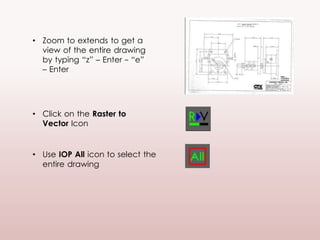
• Zoom to extends to get a
view of the entire drawing
by typing “z” – Enter - “e”
– Enter
• Click on the Raster to
Vector Icon
• Use IOP All icon to select the
entire drawing
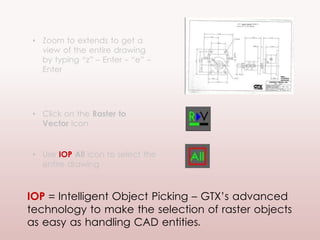
• Zoom to extends to get a
view of the entire drawing
by typing “z” – Enter - “e” –
Enter
• Click on the Raster to
Vector Icon
• Use IOP All icon to select the
entire drawing
IOP = Intelligent Object Picking – GTX’s advanced
technology to make the selection of raster objects
as easy as handling CAD entities.
• Zoom to extends to get a
view of the entire drawing
by typing “z” – Enter - “e” –
Enter
• Click on the Raster to
Vector (gCONVRT) Icon
• Use IOP All icon to select the
entire drawing
Now the entire drawing is ready to convert to vector,
but, remember geometry and text must be
vectorized separately.
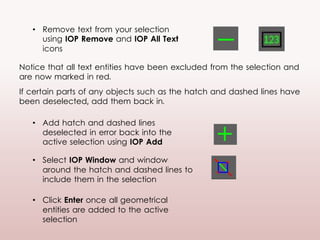
Notice that all text entities have been excluded from the selection and
are now marked in red.
If certain parts of any objects such as the hatch and dashed lines have
been deselected, add them back in.
• Remove text from your selection
using IOP Remove and IOP All Text
icons
• Click Enter once all geometrical
entities are added to the active
selection
• Add hatch and dashed lines
deselected in error back into the
active selection using IOP Add
• Select IOP Window and window
around the hatch and dashed lines to
include them in the selection
Set Vector
Conversion
Options
2.
Then…
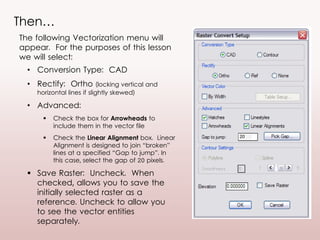
The following Vectorization menu will
appear. For the purposes of this lesson
we will select:
• Conversion Type: CAD
• Rectify: Ortho (locking vertical and
horizontal lines if slightly skewed)
• Advanced:
 Check the box for Arrowheads to
include them in the vector file
 Check the Linear Alignment box. Linear
Alignment is designed to join “broken”
lines at a specified “Gap to jump”. In
this case, select the gap of 20 pixels.
 Save Raster: Uncheck. When
checked, allows you to save the
initially selected raster as a
reference. Uncheck to allow you
to see the vector entities
separately.
20
Now…
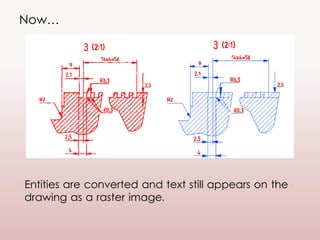
Entities are converted and text still appears on the
drawing as a raster image.
Now…
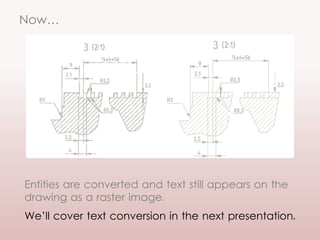
Entities are converted and text still appears on the
drawing as a raster image.
We’ll cover text conversion in the next presentation.
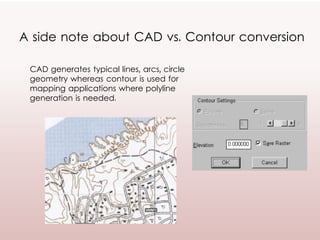
A side note about CAD vs. Contour conversion
CAD generates typical lines, arcs, circle
geometry whereas contour is used for
mapping applications where polyline
generation is needed.
3.
Vector Cleanup
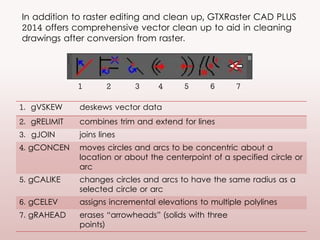
In addition to raster editing and clean up, GTXRaster CAD PLUS
2014 offers comprehensive vector clean up to aid in cleaning
drawings after conversion from raster.
1. gVSKEW deskews vector data
2. gRELIMIT combines trim and extend for lines
3. gJOIN joins lines
4. gCONCEN moves circles and arcs to be concentric about a
location or about the centerpoint of a specified circle or
arc
5. gCALIKE changes circles and arcs to have the same radius as a
selected circle or arc
6. gCELEV assigns incremental elevations to multiple polylines
7. gRAHEAD erases “arrowheads” (solids with three
points)
1 2 3 4 5 6 7
• In this drawing area, focus
on the area to the left of
the cam.
• Bring up GTX VClean
toolbar from the toolbar’s
panel
• Click on the Join Lines
(gJOIN ) icon
• Select two lines that you
wish to join, by clicking on
them.
• Press ENTER to execute the
command.
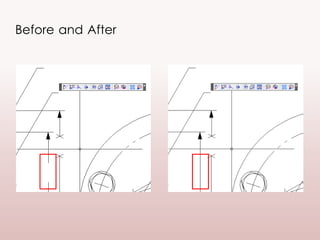
In this section, learn how to join “broken” vector
lines.
Before and After
4.
Save Changes
Click on the Save Raster (gSAVE) icon
to save the raster image. Use the
AutoCAD save command to save the
vector entities.
(The raster file is saved as a reference image linked to the
AutoCAD DWG file by a directory path. Therefore, if you
move or rename the original raster file, AutoCAD will no
longer be able to locate and attach it to your DWG.)
For more GTXRaster
CAD lessons:
Coming Soon:
Part 3: Intermediate Raster Clean-up and
Editing
Contact us to find out more
about:
• Raster Editing
• Raster to Vector Conversion
• How to edit raster drawings
• Modifying drawings
• Converting raster to vector
• Working with paper drawings
• Modifying raster files
• Raster drawing tools
• R2V
• Should I convert my raster
drawing?
• How to convert my raster
drawing
• Modifying scanned drawings
• Scanning Drawings
Find out more about GTXRaster CAD
…the AutoCAD for raster.
(and other raster editing, hybrid editing and conversion to vector products)
Windham Document Systems

Raster to Vector Conversion: Basic Commands Overview, A Lesson from GTX (Part 2)

  • 1.
    Basic Raster toVector Conversion Commands (The second in a series on GTXRaster CAD® functions)
  • 2.
    GTXRaster CAD PLUS® …“AutoCADfor Raster” …the most valuable raster clean up and editing software available for AutoCAD users. Modify and enhance your legacy paper drawings in your AutoCAD environment for use in your current design process.
  • 3.
    GTXRaster CAD Plusprovides many commands that will convert data between CAD and raster formats. These commands are found under the GTXConvert menu…
  • 4.
    1. gCONVRT convertsselected raster data to vector 8. gTRACE traces vector lines, arcs, and circles over selected raster geometry (raster remains) 2.gHYBRIDMODE enable vector overlay of drawn raster lines, arcs, circles, rectangles, and text 9. gVECTOR traces raster to vector lines, arcs and circles. 3. gRASTER converts selected vector entities to raster 10. gDRO_BK sets all image entities’ draw order behind other entities 4. gECONVRT creates a vector edge around selected raster 11. gREDUCE reduces a multi-color image to a more manageable number of colors 5. gEDGE Creates a raster edge around selected raster 12. gSEPARATE separates colors to discrete bitonal images 6. gHTEXT edit vector text and create a raster text underlay gHYBRIDMODE 13. gBITONAL automatically reduces a color image to a binary (1- bit) image 7. gBURN converts all vectors to raster, “burning” them into the current raster image 1 2 3 4 5 6 7 8 9 10 11 12 13
  • 5.
    Basic raster tovector commands are the focus of this presentation, the second in a series of tutorials. View Part 1:
  • 6.
    GTXRaster CAD Plusgives you the ability to convert your entire drawing into a DWG format in a matter of few mouse-clicks! Please note, text and geometry vectorization are two separate algorithms and have to be performed separately. In this lesson you will learn how to vectorize all geometrical entities in the drawing.
  • 7.
    Prepare Image for Rasterto Vector Selection 1.
  • 8.
    • Zoom toextends to get a view of the entire drawing by typing “z” – Enter - “e” – Enter • Click on the Raster to Vector Icon • Use IOP All icon to select the entire drawing
  • 9.
    • Zoom toextends to get a view of the entire drawing by typing “z” – Enter - “e” – Enter • Click on the Raster to Vector Icon • Use IOP All icon to select the entire drawing IOP = Intelligent Object Picking – GTX’s advanced technology to make the selection of raster objects as easy as handling CAD entities.
  • 10.
    • Zoom toextends to get a view of the entire drawing by typing “z” – Enter - “e” – Enter • Click on the Raster to Vector (gCONVRT) Icon • Use IOP All icon to select the entire drawing Now the entire drawing is ready to convert to vector, but, remember geometry and text must be vectorized separately.
  • 11.
    Notice that alltext entities have been excluded from the selection and are now marked in red. If certain parts of any objects such as the hatch and dashed lines have been deselected, add them back in. • Remove text from your selection using IOP Remove and IOP All Text icons • Click Enter once all geometrical entities are added to the active selection • Add hatch and dashed lines deselected in error back into the active selection using IOP Add • Select IOP Window and window around the hatch and dashed lines to include them in the selection
  • 12.
  • 13.
    Then… The following Vectorizationmenu will appear. For the purposes of this lesson we will select: • Conversion Type: CAD • Rectify: Ortho (locking vertical and horizontal lines if slightly skewed) • Advanced:  Check the box for Arrowheads to include them in the vector file  Check the Linear Alignment box. Linear Alignment is designed to join “broken” lines at a specified “Gap to jump”. In this case, select the gap of 20 pixels.  Save Raster: Uncheck. When checked, allows you to save the initially selected raster as a reference. Uncheck to allow you to see the vector entities separately. 20
  • 14.
    Now… Entities are convertedand text still appears on the drawing as a raster image.
  • 15.
    Now… Entities are convertedand text still appears on the drawing as a raster image. We’ll cover text conversion in the next presentation.
  • 16.
    A side noteabout CAD vs. Contour conversion CAD generates typical lines, arcs, circle geometry whereas contour is used for mapping applications where polyline generation is needed.
  • 17.
  • 18.
    In addition toraster editing and clean up, GTXRaster CAD PLUS 2014 offers comprehensive vector clean up to aid in cleaning drawings after conversion from raster. 1. gVSKEW deskews vector data 2. gRELIMIT combines trim and extend for lines 3. gJOIN joins lines 4. gCONCEN moves circles and arcs to be concentric about a location or about the centerpoint of a specified circle or arc 5. gCALIKE changes circles and arcs to have the same radius as a selected circle or arc 6. gCELEV assigns incremental elevations to multiple polylines 7. gRAHEAD erases “arrowheads” (solids with three points) 1 2 3 4 5 6 7
  • 19.
    • In thisdrawing area, focus on the area to the left of the cam. • Bring up GTX VClean toolbar from the toolbar’s panel • Click on the Join Lines (gJOIN ) icon • Select two lines that you wish to join, by clicking on them. • Press ENTER to execute the command. In this section, learn how to join “broken” vector lines.
  • 20.
  • 21.
  • 22.
    Click on theSave Raster (gSAVE) icon to save the raster image. Use the AutoCAD save command to save the vector entities. (The raster file is saved as a reference image linked to the AutoCAD DWG file by a directory path. Therefore, if you move or rename the original raster file, AutoCAD will no longer be able to locate and attach it to your DWG.)
  • 23.
    For more GTXRaster CADlessons: Coming Soon: Part 3: Intermediate Raster Clean-up and Editing
  • 24.
    Contact us tofind out more about: • Raster Editing • Raster to Vector Conversion • How to edit raster drawings • Modifying drawings • Converting raster to vector • Working with paper drawings • Modifying raster files • Raster drawing tools • R2V • Should I convert my raster drawing? • How to convert my raster drawing • Modifying scanned drawings • Scanning Drawings Find out more about GTXRaster CAD …the AutoCAD for raster. (and other raster editing, hybrid editing and conversion to vector products) Windham Document Systems