100 Hrs. Information Technology Training © IT Directorate, ICAI
Chapter 1
INTRODUCTION TO MS-EXCEL
Section B: MS-Excel
100 Hrs. Information Technology Training © IT Directorate, ICAI
Learning Objectives:
• Learn about Spreadsheets,
• Commercial usage of spreadsheets, types of spreadsheets,
• Features of worksheet and
• Applications of spreadsheet.
Section B: Fundamentals of Excel
100 Hrs. Information Technology Training © IT Directorate, ICAI
7
Examples of
popular
spreadsheet
software’s are MS
Excel, Gnumeric,
KSpread, ZCubes-
Calci , Lotus
Symphony (2007)
and Resolver One
etc.
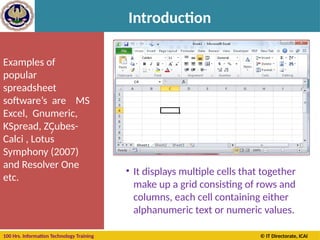
• It displays multiple cells that together
make up a grid consisting of rows and
columns, each cell containing either
alphanumeric text or numeric values.
Introduction
100 Hrs. Information Technology Training © IT Directorate, ICAI
What is a Spreadsheet?
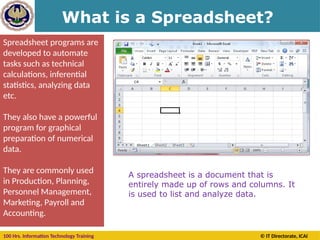
A spreadsheet is a document that is
entirely made up of rows and columns. It
is used to list and analyze data.
Spreadsheet programs are
developed to automate
tasks such as technical
calculations, inferential
statistics, analyzing data
etc.
They also have a powerful
program for graphical
preparation of numerical
data.
They are commonly used
in Production, Planning,
Personnel Management,
Marketing, Payroll and
Accounting.
100 Hrs. Information Technology Training © IT Directorate, ICAI
Spreadsheet Features
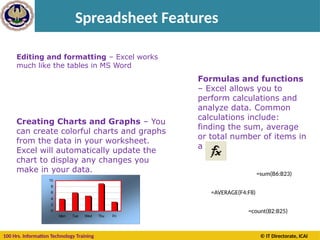
Editing and formatting – Excel works
much like the tables in MS Word
Creating Charts and Graphs – You
can create colorful charts and graphs
from the data in your worksheet.
Excel will automatically update the
chart to display any changes you
make in your data.
0
2
4
6
8
10
Mon Tue Wed Thu Fri
Formulas and functions
– Excel allows you to
perform calculations and
analyze data. Common
calculations include:
finding the sum, average
or total number of items in
a list
=sum(B6:B23)
=AVERAGE(F4:F8)
=count(B2:B25)
100 Hrs. Information Technology Training © IT Directorate, ICAI
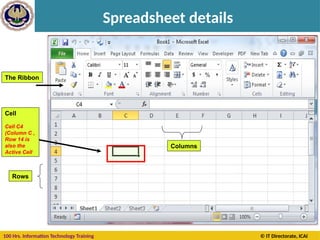
Spreadsheet details
worksheets
Rows
Cell
Cell C4
(Column C ,
Row 14 is
also the
Active Cell
The Ribbon
Columns
100 Hrs. Information Technology Training © IT Directorate, ICAI
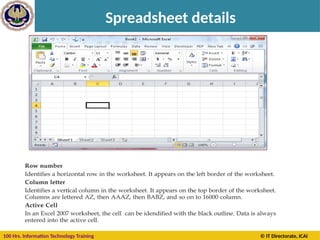
Spreadsheet details
100 Hrs. Information Technology Training © IT Directorate, ICAI
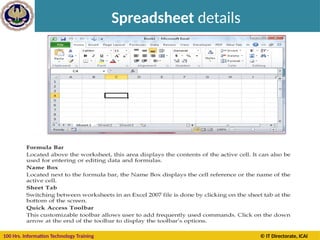
Spreadsheet details
100 Hrs. Information Technology Training © IT Directorate, ICAI
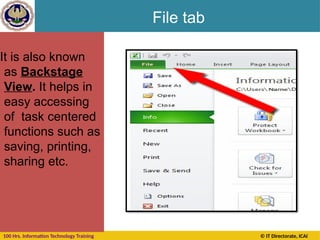
File tab
It is also known
as Backstage
View. It helps in
easy accessing
of task centered
functions such as
saving, printing,
sharing etc.
100 Hrs. Information Technology Training © IT Directorate, ICAI
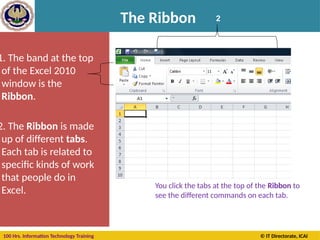
The Ribbon
1. The band at the top
of the Excel 2010
window is the
Ribbon.
2. The Ribbon is made
up of different tabs.
Each tab is related to
specific kinds of work
that people do in
Excel. You click the tabs at the top of the Ribbon to
see the different commands on each tab.
2
100 Hrs. Information Technology Training © IT Directorate, ICAI
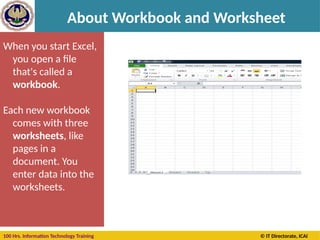
About Workbook and Worksheet
When you start Excel,
you open a file
that's called a
workbook.
Each new workbook
comes with three
worksheets, like
pages in a
document. You
enter data into the
worksheets.
100 Hrs. Information Technology Training © IT Directorate, ICAI
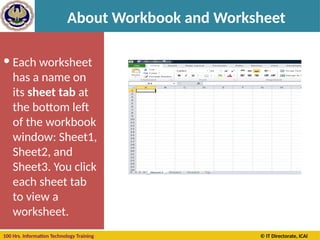
About Workbook and Worksheet
 Each worksheet
has a name on
its sheet tab at
the bottom left
of the workbook
window: Sheet1,
Sheet2, and
Sheet3. You click
each sheet tab
to view a
worksheet.
100 Hrs. Information Technology Training © IT Directorate, ICAI
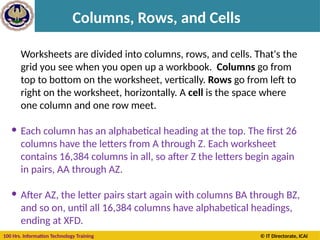
Columns, Rows, and Cells
Worksheets are divided into columns, rows, and cells. That's the
grid you see when you open up a workbook. Columns go from
top to bottom on the worksheet, vertically. Rows go from left to
right on the worksheet, horizontally. A cell is the space where
one column and one row meet.
 Each column has an alphabetical heading at the top. The first 26
columns have the letters from A through Z. Each worksheet
contains 16,384 columns in all, so after Z the letters begin again
in pairs, AA through AZ.
 After AZ, the letter pairs start again with columns BA through BZ,
and so on, until all 16,384 columns have alphabetical headings,
ending at XFD.
100 Hrs. Information Technology Training © IT Directorate, ICAI
Columns, Rows, and Cells
Each row also has a heading. Row headings are
numbers, from 1 through 1,048,576.
The alphabetical headings on the columns and
the numerical headings on the rows tell you
where you are in a worksheet when you click a
cell. The headings combine to form the cell
address, also called the cell reference.
100 Hrs. Information Technology Training © IT Directorate, ICAI
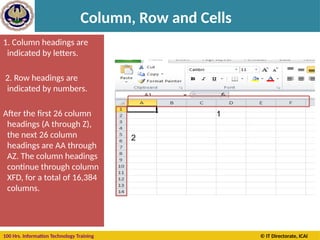
Column, Row and Cells
1. Column headings are
indicated by letters.
2. Row headings are
indicated by numbers.
After the first 26 column
headings (A through Z),
the next 26 column
headings are AA through
AZ. The column headings
continue through column
XFD, for a total of 16,384
columns.
1
2
100 Hrs. Information Technology Training © IT Directorate, ICAI
Cells
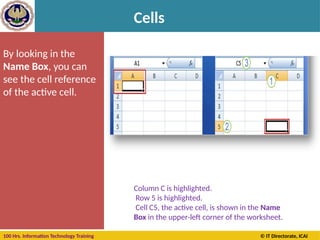
By looking in the
Name Box, you can
see the cell reference
of the active cell.
Column C is highlighted.
Row 5 is highlighted.
Cell C5, the active cell, is shown in the Name
Box in the upper-left corner of the worksheet.
100 Hrs. Information Technology Training © IT Directorate, ICAI
Cells
100 Hrs. Information Technology Training © IT Directorate, ICAI
Cells
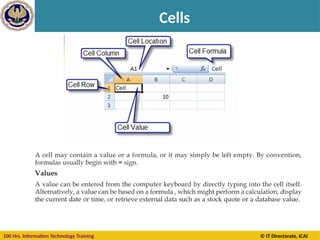
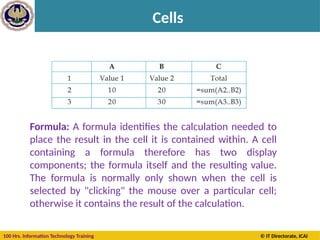
Formula: A formula identifies the calculation needed to
place the result in the cell it is contained within. A cell
containing a formula therefore has two display
components; the formula itself and the resulting value.
The formula is normally only shown when the cell is
selected by "clicking" the mouse over a particular cell;
otherwise it contains the result of the calculation.
100 Hrs. Information Technology Training © IT Directorate, ICAI
Formula
A formula assigns values to a cell or range of cells, and typically
has the format:
= Expression
Example: =sum(A2..B2)
Where the expression consists of:
• values, such as 2, 9.14 or 6.67E-11;
• references to other cells, such as, e.g., A1 for a single cell or
B1:B3 for a range;
• arithmetic operators, such as +, -, *, /, and others;
• relational operators, such as >=, <, and others; and,
• Functions, such as SUM(), AVG(), and many others.
100 Hrs. Information Technology Training © IT Directorate, ICAI
Cell Reference
A cell on the same sheet is addressed as =A1
A cell on the different sheet of the same spreadsheet is
usually addressed as =Sheet2!A1
A cell on the another spreadsheet on the same
computer or a local network could be referred as
='C:Documents and SettingsUsernameMy spreadsheets[main
sheet]Sheet1!A1
100 Hrs. Information Technology Training © IT Directorate, ICAI
Spreadsheet Applications
Budgets: Electronic spreadsheets are commonly used to
develop and monitor budgets.
Inventory Management : Many small businesses use
electronic spreadsheets to keep track of inventory.
Portfolio Management : Electronic spreadsheets are used
to keep track of investment portfolios.
Management Decision Support : Electronic spreadsheets
are commonly used to wake projections of business
conditions.
100 Hrs. Information Technology Training © IT Directorate, ICAI
Spreadsheet Applications
Proposal Costing : To arrive at a final bid for a contract, an
executive must consider hundreds of costs that affect the job,
including wage rates, the costs of raw materials, taxes and the
desired level of profits. The data related to the bid may be arranged
in the form of a spreadsheet, A complex job is generally broken
down into a series of smaller tasks, and the costs for each task are
computed separately. The cost of the entire task is obtained by
adding the costs of the smaller tasks. The electronic spreadsheet
can be used to determine the effect on the bid if various costs
change.
100 Hrs. Information Technology Training © IT Directorate, ICAI
Features of MS-Excel 2010
(i) Worksheet and Graphics
(ii) Data lists and Databases
(iii) Data exchange with other applications: Excel
takes advantage of the Windows environment. The
Windows environment especially applies to the
DDE (Dynamic Data Exchange) and OLE (Object
Linking and Embedding) concepts within Excel and
between Excel and other Windows application.
100 Hrs. Information Technology Training © IT Directorate, ICAI
Features of MS-Excel 2010
iv) New File formats: Excel 2010 uses Office Open XML as its
primary file format (.xlsx), an XML-based format that followed
after a previous XML-based format called "XML Spreadsheet"
("XMLSS"), first introduced in Excel 2002.
Although supporting and encouraging the use of new XML-
based formats as replacements, Excel 2010 remained
backwards-compatible with the traditional, binary formats. In
addition, most versions of Microsoft Excel can read CSV, DBF,
SYLK, DIF, and other legacy formats
100 Hrs. Information Technology Training © IT Directorate, ICAI
Features of MS-Excel 2010
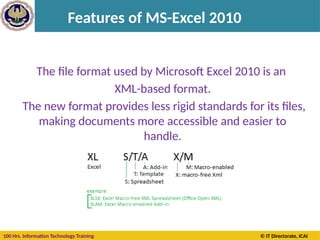
The file format used by Microsoft Excel 2010 is an
XML-based format.
The new format provides less rigid standards for its files,
making documents more accessible and easier to
handle.
100 Hrs. Information Technology Training © IT Directorate, ICAI
Features of MS-Excel 2010
v) More rows and columns and other new limits
MS Excel 2010 supports up to 1 million rows and 16
thousand columns per worksheet. Specifically, the Office
Excel 2010 grid is 1,048,576 rows by 16,384 columns,
which provides user with 1,500% more rows and 6,300%
more columns than user had available in Microsoft Office
Excel 2003.
To improve the performance of Excel, memory
management has been increased from 1 GB of memory in
Microsoft Office Excel 2003 to 2 GB in Office Excel 2010.
Office Excel 2010 also supports up to 16 million colours.
100 Hrs. Information Technology Training © IT Directorate, ICAI
Features of MS-Excel 2010
vi) Quick connections to external data
MS-Excel 2010 provides Quick launch to select from a list
of data sources. A connection manager in Excel allows
user to view all connections in a workbook and makes it
easier to reuse a connection or to substitute a
connection with another one.
100 Hrs. Information Technology Training © IT Directorate, ICAI
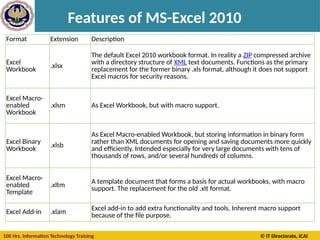
Features of MS-Excel 2010
Format Extension Description
Excel
Workbook .xlsx
The default Excel 2010 workbook format. In reality a ZIP compressed archive
with a directory structure of XML text documents. Functions as the primary
replacement for the former binary .xls format, although it does not support
Excel macros for security reasons.
Excel Macro-
enabled
Workbook
.xlsm As Excel Workbook, but with macro support.
Excel Binary
Workbook
.xlsb
As Excel Macro-enabled Workbook, but storing information in binary form
rather than XML documents for opening and saving documents more quickly
and efficiently. Intended especially for very large documents with tens of
thousands of rows, and/or several hundreds of columns.
Excel Macro-
enabled
Template
.xltm A template document that forms a basis for actual workbooks, with macro
support. The replacement for the old .xlt format.
Excel Add-in .xlam
Excel add-in to add extra functionality and tools. Inherent macro support
because of the file purpose.
100 Hrs. Information Technology Training © IT Directorate, ICAI
Learning Objectives:
• Creating worksheet file,
• Entering data into worksheet and
• Opening and saving Worksheet file
Section 2: Working in MS-Excel
100 Hrs. Information Technology Training © IT Directorate, ICAI
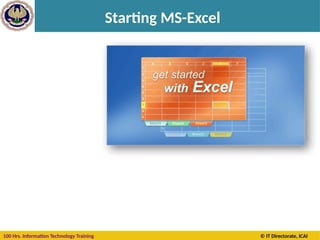
Starting MS-Excel
When you start Excel
you're faced with a big
empty grid or table.
There are letters across
the top and numbers
down the left side. And
there are tabs at the
bottom named Sheet1,
Sheet2, and so on.
These are the Columns,
Rows, Cells, and
Worksheets you will use
in Excel.
100 Hrs. Information Technology Training © IT Directorate, ICAI
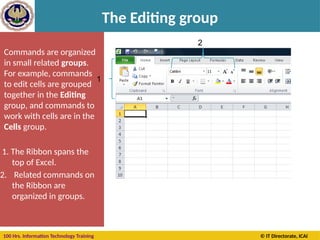
The Editing group
Commands are organized
in small related groups.
For example, commands
to edit cells are grouped
together in the Editing
group, and commands to
work with cells are in the
Cells group.
1. The Ribbon spans the
top of Excel.
2. Related commands on
the Ribbon are
organized in groups.
2
1
100 Hrs. Information Technology Training © IT Directorate, ICAI
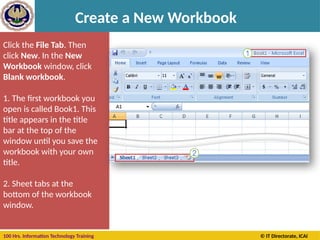
Create a New Workbook
Click the File Tab. Then
click New. In the New
Workbook window, click
Blank workbook.
1. The first workbook you
open is called Book1. This
title appears in the title
bar at the top of the
window until you save the
workbook with your own
title.
2. Sheet tabs at the
bottom of the workbook
window.
100 Hrs. Information Technology Training © IT Directorate, ICAI
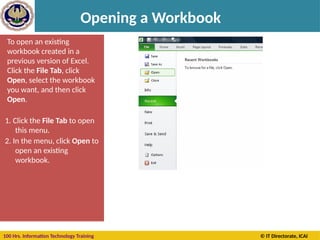
Opening a Workbook
To open an existing
workbook created in a
previous version of Excel.
Click the File Tab, click
Open, select the workbook
you want, and then click
Open.
1. Click the File Tab to open
this menu.
2. In the menu, click Open to
open an existing
workbook.
100 Hrs. Information Technology Training © IT Directorate, ICAI
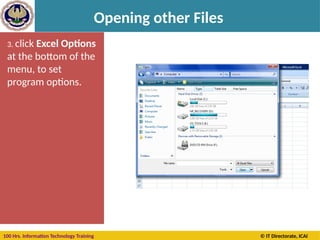
Opening other Files
3. click Excel Options
at the bottom of the
menu, to set
program options.
100 Hrs. Information Technology Training © IT Directorate, ICAI
Executing Commands
Excel commands can be given in one of the following
ways:
1. Choosing an option form File Tab
2. Choosing an option from the Shortcut Menu
3. Selecting a tools from the Ribbon
4. Using Shortcut key combinations
100 Hrs. Information Technology Training © IT Directorate, ICAI
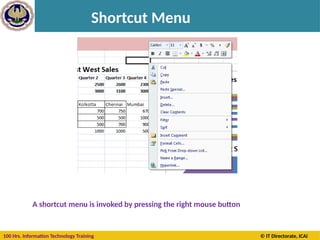
Shortcut Menu
A shortcut menu is invoked by pressing the right mouse button
100 Hrs. Information Technology Training © IT Directorate, ICAI
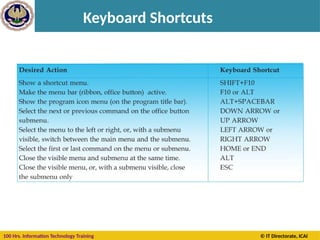
Keyboard Shortcuts
100 Hrs. Information Technology Training © IT Directorate, ICAI
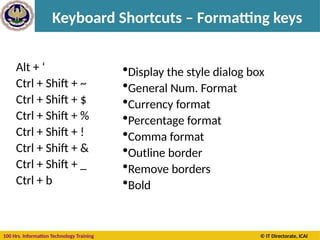
Keyboard Shortcuts – Formatting keys
Alt + ‘
Ctrl + Shift + ~
Ctrl + Shift + $
Ctrl + Shift + %
Ctrl + Shift + !
Ctrl + Shift + &
Ctrl + Shift + _
Ctrl + b
•Display the style dialog box
•General Num. Format
•Currency format
•Percentage format
•Comma format
•Outline border
•Remove borders
•Bold
100 Hrs. Information Technology Training © IT Directorate, ICAI
Keyboard Shortcuts – Formatting keys
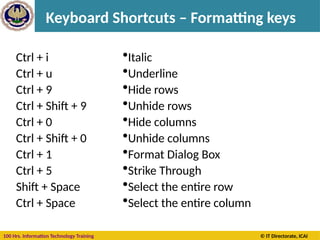
Ctrl + i
Ctrl + u
Ctrl + 9
Ctrl + Shift + 9
Ctrl + 0
Ctrl + Shift + 0
Ctrl + 1
Ctrl + 5
Shift + Space
Ctrl + Space
•Italic
•Underline
•Hide rows
•Unhide rows
•Hide columns
•Unhide columns
•Format Dialog Box
•Strike Through
•Select the entire row
•Select the entire column
100 Hrs. Information Technology Training © IT Directorate, ICAI
Keyboard Shortcuts – Formatting keys
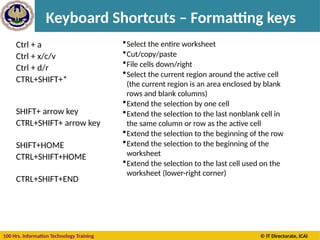
Ctrl + a
Ctrl + x/c/v
Ctrl + d/r
CTRL+SHIFT+*
SHIFT+ arrow key
CTRL+SHIFT+ arrow key
SHIFT+HOME
CTRL+SHIFT+HOME
CTRL+SHIFT+END
•Select the entire worksheet
•Cut/copy/paste
•File cells down/right
•Select the current region around the active cell
(the current region is an area enclosed by blank
rows and blank columns)
•Extend the selection by one cell
•Extend the selection to the last nonblank cell in
the same column or row as the active cell
•Extend the selection to the beginning of the row
•Extend the selection to the beginning of the
worksheet
•Extend the selection to the last cell used on the
worksheet (lower-right corner)
100 Hrs. Information Technology Training © IT Directorate, ICAI
Keyboard Shortcuts – Auditing keys
Ctrl + ‘ ( ~ )
Ctrl + [
Ctrl + Shift + {
Ctrl + ]
Ctrl + Shift + }
F9
Shift + F9
F2
•Toggle formula display
•Selects cells directly referred to by formulas
(Precedent Cells)
•Selects directly and indirectly referred to cells
•Selects only cells with formulas that refer directly
to the active cell (Dependent Cells)
•Selects all cells within formulas that directly or
indirectly refer to the active cells
•Calculate all worksheets
•Calculate worksheet
•Toggle cell edit mode
100 Hrs. Information Technology Training © IT Directorate, ICAI
Keyboard Shortcuts – Window keys
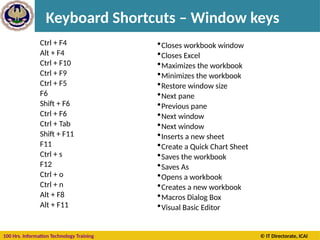
Ctrl + F4
Alt + F4
Ctrl + F10
Ctrl + F9
Ctrl + F5
F6
Shift + F6
Ctrl + F6
Ctrl + Tab
Shift + F11
F11
Ctrl + s
F12
Ctrl + o
Ctrl + n
Alt + F8
Alt + F11
•Closes workbook window
•Closes Excel
•Maximizes the workbook
•Minimizes the workbook
•Restore window size
•Next pane
•Previous pane
•Next window
•Next window
•Inserts a new sheet
•Create a Quick Chart Sheet
•Saves the workbook
•Saves As
•Opens a workbook
•Creates a new workbook
•Macros Dialog Box
•Visual Basic Editor
100 Hrs. Information Technology Training © IT Directorate, ICAI
Using Templates
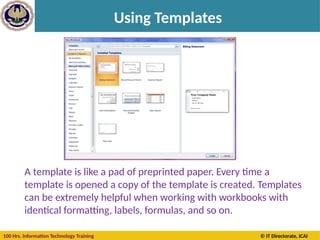
A template is like a pad of preprinted paper. Every time a
template is opened a copy of the template is created. Templates
can be extremely helpful when working with workbooks with
identical formatting, labels, formulas, and so on.
100 Hrs. Information Technology Training © IT Directorate, ICAI
Using Sheets in Workbook
A] Rename a Worksheet
• On the Sheet tab bar, right-click the sheet tab to
rename, and then click Rename.
• Select the current name, and then type the new
name.
100 Hrs. Information Technology Training © IT Directorate, ICAI
Copying or Moving Worksheet
B] Copying or Moving the Worksheet
100 Hrs. Information Technology Training © IT Directorate, ICAI
Using Sheets in Workbook
C] Inserting additional Worksheet
1. To quickly insert a new worksheet at the
end of the existing worksheets, click the
Insert Worksheet tab at the bottom of
the screen.
2. To insert a new worksheet before an
existing worksheet, select that
worksheet, and then on the Home tab,
in the Cells group, click Insert, and then
click Insert Sheet.
100 Hrs. Information Technology Training © IT Directorate, ICAI
Using Sheets in Workbook
D] Deleting Worksheet
On the Home tab, in the Cells group, click the arrow next to Delete, and
then click Delete Sheet.
100 Hrs. Information Technology Training © IT Directorate, ICAI
Entering data
The outlined cell and the
highlighted column and
row headings make it
easier for you to see that
cell C5 is the active cell.
Also, the cell reference of
the active cell appears in
the Name Box in the
upper-left corner of the
worksheet. By looking in
the Name Box, you can see
the cell reference of the
active cell.
You can enter two basic kinds of
data into worksheet cells:
•numbers
•text.
100 Hrs. Information Technology Training © IT Directorate, ICAI
Entering data
The outlined cell and the
highlighted column and
row headings make it
easier for you to see that
cell C5 is the active cell.
Also, the cell reference of
the active cell appears in
the Name Box in the
upper-left corner of the
worksheet. By looking in
the Name Box, you can see
the cell reference of the
active cell.
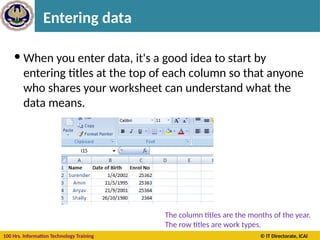
 When you enter data, it's a good idea to start by
entering titles at the top of each column so that anyone
who shares your worksheet can understand what the
data means.
The column titles are the months of the year.
The row titles are work types.
100 Hrs. Information Technology Training © IT Directorate, ICAI
Entering Date
To enter a date in column B, the Date column, you should
use a slash or a hyphen to separate the parts: 16/07/2009
or 16-July-2009. Excel will recognize this as a date. If you
need to enter a time, type the numbers, a space, and then
"a" or "p" — for example, 9:00 p. If you put in just the
number, Excel recognizes a time and enters it as AM.
Tip To enter today's date, press CTRL and the semicolon
(;) together. To enter the current time, press CTRL and
SHIFT and the semicolon all at once.
Excel aligns text on the left side of cells, but it
aligns dates on the right side of cells.
100 Hrs. Information Technology Training © IT Directorate, ICAI
Entering Number
To enter number in column for example in the Amount
column, you would type the currency sign (Rs), followed by
the amount.
Other numbers and how to enter them
1. To enter fractions, leave a space between the whole number
and the fraction. For example, 1 1/8.
2. To enter a fraction only, enter a zero first. For example, 0
1/4. If you enter 1/4 without the zero, Excel will interpret the
number as a date, January 4.
3. If you type (100) to indicate a negative number by
parentheses, Excel will display the number as -100.
Excel aligns numbers on the right side of cells.
100 Hrs. Information Technology Training © IT Directorate, ICAI
Entering Text
Here are two time-savers you can use to enter data in Excel:
 AutoFill Enter the months of the year, the days of the week,
multiples of 2 or 3, or other data in a series. You type one or
more entries, and then extend the series.
 AutoComplete If the first few letters you type in a cell match
an entry you've already made in that column, Excel will fill in
the remaining characters for you. Just press ENTER when you
see them added. This works for text or for text with numbers.
It does not work for numbers only, for dates, or for times.
100 Hrs. Information Technology Training © IT Directorate, ICAI
Auto Fill
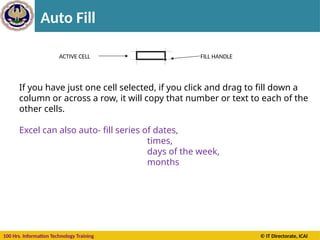
FILL HANDLE
ACTIVE CELL
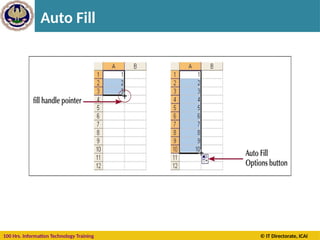
If you have just one cell selected, if you click and drag to fill down a
column or across a row, it will copy that number or text to each of the
other cells.
Excel can also auto- fill series of dates,
times,
days of the week,
months
100 Hrs. Information Technology Training © IT Directorate, ICAI
Auto Fill
100 Hrs. Information Technology Training © IT Directorate, ICAI
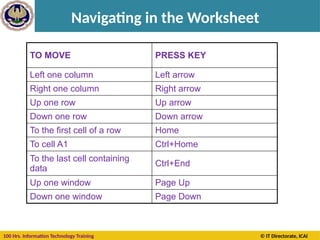
Navigating in the Worksheet
TO MOVE PRESS KEY
Left one column Left arrow
Right one column Right arrow
Up one row Up arrow
Down one row Down arrow
To the first cell of a row Home
To cell A1 Ctrl+Home
To the last cell containing
data
Ctrl+End
Up one window Page Up
Down one window Page Down
100 Hrs. Information Technology Training © IT Directorate, ICAI
Editing data
The outlined cell and the
highlighted column and
row headings make it
easier for you to see that
cell C5 is the active cell.
Also, the cell reference of
the active cell appears in
the Name Box in the
upper-left corner of the
worksheet. By looking in
the Name Box, you can see
the cell reference of the
active cell.
The cell contents can also be
rearranged apart from being
changed or edited.
Rearranging involves copying,
moving, clearing cells or inserting
and deleting rows.
100 Hrs. Information Technology Training © IT Directorate, ICAI
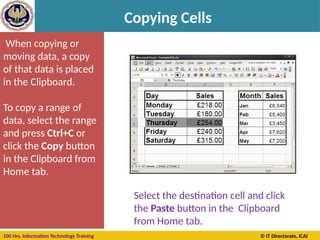
Copying Cells
When copying or
moving data, a copy
of that data is placed
in the Clipboard.
To copy a range of
data, select the range
and press Ctrl+C or
click the Copy button
in the Clipboard from
Home tab.
Select the destination cell and click
the Paste button in the Clipboard
from Home tab.
100 Hrs. Information Technology Training © IT Directorate, ICAI
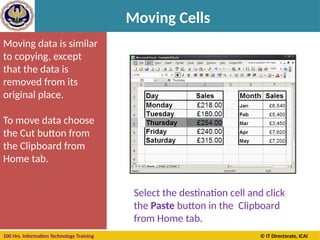
Moving Cells
Moving data is similar
to copying, except
that the data is
removed from its
original place.
To move data choose
the Cut button from
the Clipboard from
Home tab.
Select the destination cell and click
the Paste button in the Clipboard
from Home tab.
100 Hrs. Information Technology Training © IT Directorate, ICAI
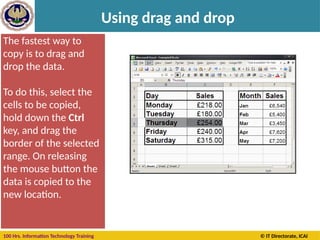
Using drag and drop
The fastest way to
copy is to drag and
drop the data.
To do this, select the
cells to be copied,
hold down the Ctrl
key, and drag the
border of the selected
range. On releasing
the mouse button the
data is copied to the
new location.
100 Hrs. Information Technology Training © IT Directorate, ICAI
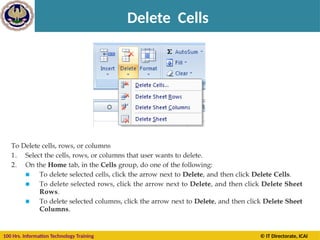
Delete Cells
Now you will see this
dialogue box.
Choose the correct
option. This will depend
on where you want to
put the new cells.
100 Hrs. Information Technology Training © IT Directorate, ICAI
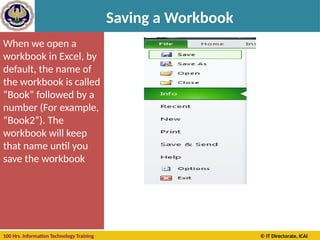
Saving a Workbook
When we open a
workbook in Excel, by
default, the name of
the workbook is called
“Book” followed by a
number (For example,
“Book2”). The
workbook will keep
that name until you
save the workbook
100 Hrs. Information Technology Training © IT Directorate, ICAI
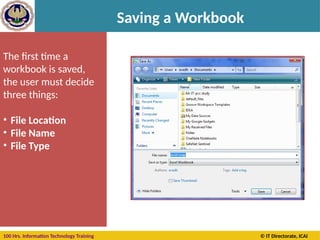
Saving a Workbook
The first time a
workbook is saved,
the user must decide
three things:
• File Location
• File Name
• File Type
100 Hrs. Information Technology Training © IT Directorate, ICAI
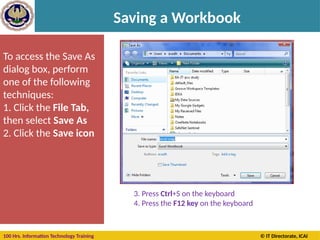
Saving a Workbook
To access the Save As
dialog box, perform
one of the following
techniques:
1. Click the File Tab,
then select Save As
2. Click the Save icon
3. Press Ctrl+S on the keyboard
4. Press the F12 key on the keyboard
100 Hrs. Information Technology Training © IT Directorate, ICAI
Save a file in PDF
Files created in MS-Excel can also be saved in Portable
Document Format (PDF), which is a common format for
sharing documents.
PDF is a fixed-Layout electronic file format that preserves
document formatting and enables file sharing. The PDF
format ensures that when the file is viewed online or
printed, it retains exactly the format that is intended, and
that data in the file cannot easily be changed. The PDF
format is also useful for documents that will be
reproduced by using commercial printing methods.
100 Hrs. Information Technology Training © IT Directorate, ICAI
Close a Workbook
Closing a workbook can be achieved in two different
ways :
Click the File Tab, then select Close. Do not click Exit
unless, of course, you want to close, not just the
workbook but Excel too. You can also close the workbook
by clicking the bottom “X” in the upper right corner of
the screen. Please be aware that if you click the “X” on
top, it will close Excel.
100 Hrs. Information Technology Training © IT Directorate, ICAI
Questions
1. Rows are represented by ___
2. Columns are represented by ____
3. The ___ are where column and rows interact.
4. ___ is a spreadsheet software.
5. The entire document created using Excel is
known as ____
6. PDF stands for ____
100 Hrs. Information Technology Training © IT Directorate, ICAI
Answer
1. Rows are represented by Numbers
2. Columns are represented by Alphabets
3. The cells are where column and rows
interact.
4. Excel is a spreadsheet software.
5. The entire document created using Excel is
known as Workbook
6. PDF stands for Portable Document Format.
100 Hrs. Information Technology Training © IT Directorate, ICAI
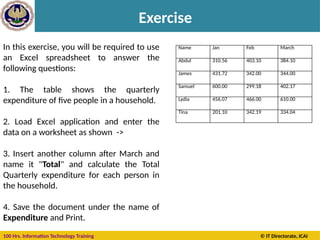
Exercise
Name Jan Feb March
Abdul 310.56 403.10 384.10
James 431.72 342.00 344.00
Samuel 600.00 299.18 402.17
Lydia 456.07 466.00 610.00
Tina 201.10 342.19 334.04
In this exercise, you will be required to use
an Excel spreadsheet to answer the
following questions:
1. The table shows the quarterly
expenditure of five people in a household.
2. Load Excel application and enter the
data on a worksheet as shown ->
3. Insert another column after March and
name it "Total" and calculate the Total
Quarterly expenditure for each person in
the household.
4. Save the document under the name of
Expenditure and Print.

Basic course of MS Excel 2010 basics Chapter -01

  • 1.
    100 Hrs. InformationTechnology Training © IT Directorate, ICAI Chapter 1 INTRODUCTION TO MS-EXCEL Section B: MS-Excel
  • 2.
    100 Hrs. InformationTechnology Training © IT Directorate, ICAI Learning Objectives: • Learn about Spreadsheets, • Commercial usage of spreadsheets, types of spreadsheets, • Features of worksheet and • Applications of spreadsheet. Section B: Fundamentals of Excel
  • 3.
    100 Hrs. InformationTechnology Training © IT Directorate, ICAI 7 Examples of popular spreadsheet software’s are MS Excel, Gnumeric, KSpread, ZCubes- Calci , Lotus Symphony (2007) and Resolver One etc. • It displays multiple cells that together make up a grid consisting of rows and columns, each cell containing either alphanumeric text or numeric values. Introduction
  • 4.
    100 Hrs. InformationTechnology Training © IT Directorate, ICAI What is a Spreadsheet? A spreadsheet is a document that is entirely made up of rows and columns. It is used to list and analyze data. Spreadsheet programs are developed to automate tasks such as technical calculations, inferential statistics, analyzing data etc. They also have a powerful program for graphical preparation of numerical data. They are commonly used in Production, Planning, Personnel Management, Marketing, Payroll and Accounting.
  • 5.
    100 Hrs. InformationTechnology Training © IT Directorate, ICAI Spreadsheet Features Editing and formatting – Excel works much like the tables in MS Word Creating Charts and Graphs – You can create colorful charts and graphs from the data in your worksheet. Excel will automatically update the chart to display any changes you make in your data. 0 2 4 6 8 10 Mon Tue Wed Thu Fri Formulas and functions – Excel allows you to perform calculations and analyze data. Common calculations include: finding the sum, average or total number of items in a list =sum(B6:B23) =AVERAGE(F4:F8) =count(B2:B25)
  • 6.
    100 Hrs. InformationTechnology Training © IT Directorate, ICAI Spreadsheet details worksheets Rows Cell Cell C4 (Column C , Row 14 is also the Active Cell The Ribbon Columns
  • 7.
    100 Hrs. InformationTechnology Training © IT Directorate, ICAI Spreadsheet details
  • 8.
    100 Hrs. InformationTechnology Training © IT Directorate, ICAI Spreadsheet details
  • 9.
    100 Hrs. InformationTechnology Training © IT Directorate, ICAI File tab It is also known as Backstage View. It helps in easy accessing of task centered functions such as saving, printing, sharing etc.
  • 10.
    100 Hrs. InformationTechnology Training © IT Directorate, ICAI The Ribbon 1. The band at the top of the Excel 2010 window is the Ribbon. 2. The Ribbon is made up of different tabs. Each tab is related to specific kinds of work that people do in Excel. You click the tabs at the top of the Ribbon to see the different commands on each tab. 2
  • 11.
    100 Hrs. InformationTechnology Training © IT Directorate, ICAI About Workbook and Worksheet When you start Excel, you open a file that's called a workbook. Each new workbook comes with three worksheets, like pages in a document. You enter data into the worksheets.
  • 12.
    100 Hrs. InformationTechnology Training © IT Directorate, ICAI About Workbook and Worksheet  Each worksheet has a name on its sheet tab at the bottom left of the workbook window: Sheet1, Sheet2, and Sheet3. You click each sheet tab to view a worksheet.
  • 13.
    100 Hrs. InformationTechnology Training © IT Directorate, ICAI Columns, Rows, and Cells Worksheets are divided into columns, rows, and cells. That's the grid you see when you open up a workbook. Columns go from top to bottom on the worksheet, vertically. Rows go from left to right on the worksheet, horizontally. A cell is the space where one column and one row meet.  Each column has an alphabetical heading at the top. The first 26 columns have the letters from A through Z. Each worksheet contains 16,384 columns in all, so after Z the letters begin again in pairs, AA through AZ.  After AZ, the letter pairs start again with columns BA through BZ, and so on, until all 16,384 columns have alphabetical headings, ending at XFD.
  • 14.
    100 Hrs. InformationTechnology Training © IT Directorate, ICAI Columns, Rows, and Cells Each row also has a heading. Row headings are numbers, from 1 through 1,048,576. The alphabetical headings on the columns and the numerical headings on the rows tell you where you are in a worksheet when you click a cell. The headings combine to form the cell address, also called the cell reference.
  • 15.
    100 Hrs. InformationTechnology Training © IT Directorate, ICAI Column, Row and Cells 1. Column headings are indicated by letters. 2. Row headings are indicated by numbers. After the first 26 column headings (A through Z), the next 26 column headings are AA through AZ. The column headings continue through column XFD, for a total of 16,384 columns. 1 2
  • 16.
    100 Hrs. InformationTechnology Training © IT Directorate, ICAI Cells By looking in the Name Box, you can see the cell reference of the active cell. Column C is highlighted. Row 5 is highlighted. Cell C5, the active cell, is shown in the Name Box in the upper-left corner of the worksheet.
  • 17.
    100 Hrs. InformationTechnology Training © IT Directorate, ICAI Cells
  • 18.
    100 Hrs. InformationTechnology Training © IT Directorate, ICAI Cells Formula: A formula identifies the calculation needed to place the result in the cell it is contained within. A cell containing a formula therefore has two display components; the formula itself and the resulting value. The formula is normally only shown when the cell is selected by "clicking" the mouse over a particular cell; otherwise it contains the result of the calculation.
  • 19.
    100 Hrs. InformationTechnology Training © IT Directorate, ICAI Formula A formula assigns values to a cell or range of cells, and typically has the format: = Expression Example: =sum(A2..B2) Where the expression consists of: • values, such as 2, 9.14 or 6.67E-11; • references to other cells, such as, e.g., A1 for a single cell or B1:B3 for a range; • arithmetic operators, such as +, -, *, /, and others; • relational operators, such as >=, <, and others; and, • Functions, such as SUM(), AVG(), and many others.
  • 20.
    100 Hrs. InformationTechnology Training © IT Directorate, ICAI Cell Reference A cell on the same sheet is addressed as =A1 A cell on the different sheet of the same spreadsheet is usually addressed as =Sheet2!A1 A cell on the another spreadsheet on the same computer or a local network could be referred as ='C:Documents and SettingsUsernameMy spreadsheets[main sheet]Sheet1!A1
  • 21.
    100 Hrs. InformationTechnology Training © IT Directorate, ICAI Spreadsheet Applications Budgets: Electronic spreadsheets are commonly used to develop and monitor budgets. Inventory Management : Many small businesses use electronic spreadsheets to keep track of inventory. Portfolio Management : Electronic spreadsheets are used to keep track of investment portfolios. Management Decision Support : Electronic spreadsheets are commonly used to wake projections of business conditions.
  • 22.
    100 Hrs. InformationTechnology Training © IT Directorate, ICAI Spreadsheet Applications Proposal Costing : To arrive at a final bid for a contract, an executive must consider hundreds of costs that affect the job, including wage rates, the costs of raw materials, taxes and the desired level of profits. The data related to the bid may be arranged in the form of a spreadsheet, A complex job is generally broken down into a series of smaller tasks, and the costs for each task are computed separately. The cost of the entire task is obtained by adding the costs of the smaller tasks. The electronic spreadsheet can be used to determine the effect on the bid if various costs change.
  • 23.
    100 Hrs. InformationTechnology Training © IT Directorate, ICAI Features of MS-Excel 2010 (i) Worksheet and Graphics (ii) Data lists and Databases (iii) Data exchange with other applications: Excel takes advantage of the Windows environment. The Windows environment especially applies to the DDE (Dynamic Data Exchange) and OLE (Object Linking and Embedding) concepts within Excel and between Excel and other Windows application.
  • 24.
    100 Hrs. InformationTechnology Training © IT Directorate, ICAI Features of MS-Excel 2010 iv) New File formats: Excel 2010 uses Office Open XML as its primary file format (.xlsx), an XML-based format that followed after a previous XML-based format called "XML Spreadsheet" ("XMLSS"), first introduced in Excel 2002. Although supporting and encouraging the use of new XML- based formats as replacements, Excel 2010 remained backwards-compatible with the traditional, binary formats. In addition, most versions of Microsoft Excel can read CSV, DBF, SYLK, DIF, and other legacy formats
  • 25.
    100 Hrs. InformationTechnology Training © IT Directorate, ICAI Features of MS-Excel 2010 The file format used by Microsoft Excel 2010 is an XML-based format. The new format provides less rigid standards for its files, making documents more accessible and easier to handle.
  • 26.
    100 Hrs. InformationTechnology Training © IT Directorate, ICAI Features of MS-Excel 2010 v) More rows and columns and other new limits MS Excel 2010 supports up to 1 million rows and 16 thousand columns per worksheet. Specifically, the Office Excel 2010 grid is 1,048,576 rows by 16,384 columns, which provides user with 1,500% more rows and 6,300% more columns than user had available in Microsoft Office Excel 2003. To improve the performance of Excel, memory management has been increased from 1 GB of memory in Microsoft Office Excel 2003 to 2 GB in Office Excel 2010. Office Excel 2010 also supports up to 16 million colours.
  • 27.
    100 Hrs. InformationTechnology Training © IT Directorate, ICAI Features of MS-Excel 2010 vi) Quick connections to external data MS-Excel 2010 provides Quick launch to select from a list of data sources. A connection manager in Excel allows user to view all connections in a workbook and makes it easier to reuse a connection or to substitute a connection with another one.
  • 28.
    100 Hrs. InformationTechnology Training © IT Directorate, ICAI Features of MS-Excel 2010 Format Extension Description Excel Workbook .xlsx The default Excel 2010 workbook format. In reality a ZIP compressed archive with a directory structure of XML text documents. Functions as the primary replacement for the former binary .xls format, although it does not support Excel macros for security reasons. Excel Macro- enabled Workbook .xlsm As Excel Workbook, but with macro support. Excel Binary Workbook .xlsb As Excel Macro-enabled Workbook, but storing information in binary form rather than XML documents for opening and saving documents more quickly and efficiently. Intended especially for very large documents with tens of thousands of rows, and/or several hundreds of columns. Excel Macro- enabled Template .xltm A template document that forms a basis for actual workbooks, with macro support. The replacement for the old .xlt format. Excel Add-in .xlam Excel add-in to add extra functionality and tools. Inherent macro support because of the file purpose.
  • 29.
    100 Hrs. InformationTechnology Training © IT Directorate, ICAI Learning Objectives: • Creating worksheet file, • Entering data into worksheet and • Opening and saving Worksheet file Section 2: Working in MS-Excel
  • 30.
    100 Hrs. InformationTechnology Training © IT Directorate, ICAI Starting MS-Excel When you start Excel you're faced with a big empty grid or table. There are letters across the top and numbers down the left side. And there are tabs at the bottom named Sheet1, Sheet2, and so on. These are the Columns, Rows, Cells, and Worksheets you will use in Excel.
  • 31.
    100 Hrs. InformationTechnology Training © IT Directorate, ICAI The Editing group Commands are organized in small related groups. For example, commands to edit cells are grouped together in the Editing group, and commands to work with cells are in the Cells group. 1. The Ribbon spans the top of Excel. 2. Related commands on the Ribbon are organized in groups. 2 1
  • 32.
    100 Hrs. InformationTechnology Training © IT Directorate, ICAI Create a New Workbook Click the File Tab. Then click New. In the New Workbook window, click Blank workbook. 1. The first workbook you open is called Book1. This title appears in the title bar at the top of the window until you save the workbook with your own title. 2. Sheet tabs at the bottom of the workbook window.
  • 33.
    100 Hrs. InformationTechnology Training © IT Directorate, ICAI Opening a Workbook To open an existing workbook created in a previous version of Excel. Click the File Tab, click Open, select the workbook you want, and then click Open. 1. Click the File Tab to open this menu. 2. In the menu, click Open to open an existing workbook.
  • 34.
    100 Hrs. InformationTechnology Training © IT Directorate, ICAI Opening other Files 3. click Excel Options at the bottom of the menu, to set program options.
  • 35.
    100 Hrs. InformationTechnology Training © IT Directorate, ICAI Executing Commands Excel commands can be given in one of the following ways: 1. Choosing an option form File Tab 2. Choosing an option from the Shortcut Menu 3. Selecting a tools from the Ribbon 4. Using Shortcut key combinations
  • 36.
    100 Hrs. InformationTechnology Training © IT Directorate, ICAI Shortcut Menu A shortcut menu is invoked by pressing the right mouse button
  • 37.
    100 Hrs. InformationTechnology Training © IT Directorate, ICAI Keyboard Shortcuts
  • 38.
    100 Hrs. InformationTechnology Training © IT Directorate, ICAI Keyboard Shortcuts – Formatting keys Alt + ‘ Ctrl + Shift + ~ Ctrl + Shift + $ Ctrl + Shift + % Ctrl + Shift + ! Ctrl + Shift + & Ctrl + Shift + _ Ctrl + b •Display the style dialog box •General Num. Format •Currency format •Percentage format •Comma format •Outline border •Remove borders •Bold
  • 39.
    100 Hrs. InformationTechnology Training © IT Directorate, ICAI Keyboard Shortcuts – Formatting keys Ctrl + i Ctrl + u Ctrl + 9 Ctrl + Shift + 9 Ctrl + 0 Ctrl + Shift + 0 Ctrl + 1 Ctrl + 5 Shift + Space Ctrl + Space •Italic •Underline •Hide rows •Unhide rows •Hide columns •Unhide columns •Format Dialog Box •Strike Through •Select the entire row •Select the entire column
  • 40.
    100 Hrs. InformationTechnology Training © IT Directorate, ICAI Keyboard Shortcuts – Formatting keys Ctrl + a Ctrl + x/c/v Ctrl + d/r CTRL+SHIFT+* SHIFT+ arrow key CTRL+SHIFT+ arrow key SHIFT+HOME CTRL+SHIFT+HOME CTRL+SHIFT+END •Select the entire worksheet •Cut/copy/paste •File cells down/right •Select the current region around the active cell (the current region is an area enclosed by blank rows and blank columns) •Extend the selection by one cell •Extend the selection to the last nonblank cell in the same column or row as the active cell •Extend the selection to the beginning of the row •Extend the selection to the beginning of the worksheet •Extend the selection to the last cell used on the worksheet (lower-right corner)
  • 41.
    100 Hrs. InformationTechnology Training © IT Directorate, ICAI Keyboard Shortcuts – Auditing keys Ctrl + ‘ ( ~ ) Ctrl + [ Ctrl + Shift + { Ctrl + ] Ctrl + Shift + } F9 Shift + F9 F2 •Toggle formula display •Selects cells directly referred to by formulas (Precedent Cells) •Selects directly and indirectly referred to cells •Selects only cells with formulas that refer directly to the active cell (Dependent Cells) •Selects all cells within formulas that directly or indirectly refer to the active cells •Calculate all worksheets •Calculate worksheet •Toggle cell edit mode
  • 42.
    100 Hrs. InformationTechnology Training © IT Directorate, ICAI Keyboard Shortcuts – Window keys Ctrl + F4 Alt + F4 Ctrl + F10 Ctrl + F9 Ctrl + F5 F6 Shift + F6 Ctrl + F6 Ctrl + Tab Shift + F11 F11 Ctrl + s F12 Ctrl + o Ctrl + n Alt + F8 Alt + F11 •Closes workbook window •Closes Excel •Maximizes the workbook •Minimizes the workbook •Restore window size •Next pane •Previous pane •Next window •Next window •Inserts a new sheet •Create a Quick Chart Sheet •Saves the workbook •Saves As •Opens a workbook •Creates a new workbook •Macros Dialog Box •Visual Basic Editor
  • 43.
    100 Hrs. InformationTechnology Training © IT Directorate, ICAI Using Templates A template is like a pad of preprinted paper. Every time a template is opened a copy of the template is created. Templates can be extremely helpful when working with workbooks with identical formatting, labels, formulas, and so on.
  • 44.
    100 Hrs. InformationTechnology Training © IT Directorate, ICAI Using Sheets in Workbook A] Rename a Worksheet • On the Sheet tab bar, right-click the sheet tab to rename, and then click Rename. • Select the current name, and then type the new name.
  • 45.
    100 Hrs. InformationTechnology Training © IT Directorate, ICAI Copying or Moving Worksheet B] Copying or Moving the Worksheet
  • 46.
    100 Hrs. InformationTechnology Training © IT Directorate, ICAI Using Sheets in Workbook C] Inserting additional Worksheet 1. To quickly insert a new worksheet at the end of the existing worksheets, click the Insert Worksheet tab at the bottom of the screen. 2. To insert a new worksheet before an existing worksheet, select that worksheet, and then on the Home tab, in the Cells group, click Insert, and then click Insert Sheet.
  • 47.
    100 Hrs. InformationTechnology Training © IT Directorate, ICAI Using Sheets in Workbook D] Deleting Worksheet On the Home tab, in the Cells group, click the arrow next to Delete, and then click Delete Sheet.
  • 48.
    100 Hrs. InformationTechnology Training © IT Directorate, ICAI Entering data The outlined cell and the highlighted column and row headings make it easier for you to see that cell C5 is the active cell. Also, the cell reference of the active cell appears in the Name Box in the upper-left corner of the worksheet. By looking in the Name Box, you can see the cell reference of the active cell. You can enter two basic kinds of data into worksheet cells: •numbers •text.
  • 49.
    100 Hrs. InformationTechnology Training © IT Directorate, ICAI Entering data The outlined cell and the highlighted column and row headings make it easier for you to see that cell C5 is the active cell. Also, the cell reference of the active cell appears in the Name Box in the upper-left corner of the worksheet. By looking in the Name Box, you can see the cell reference of the active cell.  When you enter data, it's a good idea to start by entering titles at the top of each column so that anyone who shares your worksheet can understand what the data means. The column titles are the months of the year. The row titles are work types.
  • 50.
    100 Hrs. InformationTechnology Training © IT Directorate, ICAI Entering Date To enter a date in column B, the Date column, you should use a slash or a hyphen to separate the parts: 16/07/2009 or 16-July-2009. Excel will recognize this as a date. If you need to enter a time, type the numbers, a space, and then "a" or "p" — for example, 9:00 p. If you put in just the number, Excel recognizes a time and enters it as AM. Tip To enter today's date, press CTRL and the semicolon (;) together. To enter the current time, press CTRL and SHIFT and the semicolon all at once. Excel aligns text on the left side of cells, but it aligns dates on the right side of cells.
  • 51.
    100 Hrs. InformationTechnology Training © IT Directorate, ICAI Entering Number To enter number in column for example in the Amount column, you would type the currency sign (Rs), followed by the amount. Other numbers and how to enter them 1. To enter fractions, leave a space between the whole number and the fraction. For example, 1 1/8. 2. To enter a fraction only, enter a zero first. For example, 0 1/4. If you enter 1/4 without the zero, Excel will interpret the number as a date, January 4. 3. If you type (100) to indicate a negative number by parentheses, Excel will display the number as -100. Excel aligns numbers on the right side of cells.
  • 52.
    100 Hrs. InformationTechnology Training © IT Directorate, ICAI Entering Text Here are two time-savers you can use to enter data in Excel:  AutoFill Enter the months of the year, the days of the week, multiples of 2 or 3, or other data in a series. You type one or more entries, and then extend the series.  AutoComplete If the first few letters you type in a cell match an entry you've already made in that column, Excel will fill in the remaining characters for you. Just press ENTER when you see them added. This works for text or for text with numbers. It does not work for numbers only, for dates, or for times.
  • 53.
    100 Hrs. InformationTechnology Training © IT Directorate, ICAI Auto Fill FILL HANDLE ACTIVE CELL If you have just one cell selected, if you click and drag to fill down a column or across a row, it will copy that number or text to each of the other cells. Excel can also auto- fill series of dates, times, days of the week, months
  • 54.
    100 Hrs. InformationTechnology Training © IT Directorate, ICAI Auto Fill
  • 55.
    100 Hrs. InformationTechnology Training © IT Directorate, ICAI Navigating in the Worksheet TO MOVE PRESS KEY Left one column Left arrow Right one column Right arrow Up one row Up arrow Down one row Down arrow To the first cell of a row Home To cell A1 Ctrl+Home To the last cell containing data Ctrl+End Up one window Page Up Down one window Page Down
  • 56.
    100 Hrs. InformationTechnology Training © IT Directorate, ICAI Editing data The outlined cell and the highlighted column and row headings make it easier for you to see that cell C5 is the active cell. Also, the cell reference of the active cell appears in the Name Box in the upper-left corner of the worksheet. By looking in the Name Box, you can see the cell reference of the active cell. The cell contents can also be rearranged apart from being changed or edited. Rearranging involves copying, moving, clearing cells or inserting and deleting rows.
  • 57.
    100 Hrs. InformationTechnology Training © IT Directorate, ICAI Copying Cells When copying or moving data, a copy of that data is placed in the Clipboard. To copy a range of data, select the range and press Ctrl+C or click the Copy button in the Clipboard from Home tab. Select the destination cell and click the Paste button in the Clipboard from Home tab.
  • 58.
    100 Hrs. InformationTechnology Training © IT Directorate, ICAI Moving Cells Moving data is similar to copying, except that the data is removed from its original place. To move data choose the Cut button from the Clipboard from Home tab. Select the destination cell and click the Paste button in the Clipboard from Home tab.
  • 59.
    100 Hrs. InformationTechnology Training © IT Directorate, ICAI Using drag and drop The fastest way to copy is to drag and drop the data. To do this, select the cells to be copied, hold down the Ctrl key, and drag the border of the selected range. On releasing the mouse button the data is copied to the new location.
  • 60.
    100 Hrs. InformationTechnology Training © IT Directorate, ICAI Delete Cells Now you will see this dialogue box. Choose the correct option. This will depend on where you want to put the new cells.
  • 61.
    100 Hrs. InformationTechnology Training © IT Directorate, ICAI Saving a Workbook When we open a workbook in Excel, by default, the name of the workbook is called “Book” followed by a number (For example, “Book2”). The workbook will keep that name until you save the workbook
  • 62.
    100 Hrs. InformationTechnology Training © IT Directorate, ICAI Saving a Workbook The first time a workbook is saved, the user must decide three things: • File Location • File Name • File Type
  • 63.
    100 Hrs. InformationTechnology Training © IT Directorate, ICAI Saving a Workbook To access the Save As dialog box, perform one of the following techniques: 1. Click the File Tab, then select Save As 2. Click the Save icon 3. Press Ctrl+S on the keyboard 4. Press the F12 key on the keyboard
  • 64.
    100 Hrs. InformationTechnology Training © IT Directorate, ICAI Save a file in PDF Files created in MS-Excel can also be saved in Portable Document Format (PDF), which is a common format for sharing documents. PDF is a fixed-Layout electronic file format that preserves document formatting and enables file sharing. The PDF format ensures that when the file is viewed online or printed, it retains exactly the format that is intended, and that data in the file cannot easily be changed. The PDF format is also useful for documents that will be reproduced by using commercial printing methods.
  • 65.
    100 Hrs. InformationTechnology Training © IT Directorate, ICAI Close a Workbook Closing a workbook can be achieved in two different ways : Click the File Tab, then select Close. Do not click Exit unless, of course, you want to close, not just the workbook but Excel too. You can also close the workbook by clicking the bottom “X” in the upper right corner of the screen. Please be aware that if you click the “X” on top, it will close Excel.
  • 66.
    100 Hrs. InformationTechnology Training © IT Directorate, ICAI Questions 1. Rows are represented by ___ 2. Columns are represented by ____ 3. The ___ are where column and rows interact. 4. ___ is a spreadsheet software. 5. The entire document created using Excel is known as ____ 6. PDF stands for ____
  • 67.
    100 Hrs. InformationTechnology Training © IT Directorate, ICAI Answer 1. Rows are represented by Numbers 2. Columns are represented by Alphabets 3. The cells are where column and rows interact. 4. Excel is a spreadsheet software. 5. The entire document created using Excel is known as Workbook 6. PDF stands for Portable Document Format.
  • 68.
    100 Hrs. InformationTechnology Training © IT Directorate, ICAI Exercise Name Jan Feb March Abdul 310.56 403.10 384.10 James 431.72 342.00 344.00 Samuel 600.00 299.18 402.17 Lydia 456.07 466.00 610.00 Tina 201.10 342.19 334.04 In this exercise, you will be required to use an Excel spreadsheet to answer the following questions: 1. The table shows the quarterly expenditure of five people in a household. 2. Load Excel application and enter the data on a worksheet as shown -> 3. Insert another column after March and name it "Total" and calculate the Total Quarterly expenditure for each person in the household. 4. Save the document under the name of Expenditure and Print.