Dubi Lebel
D.B.A. = Don’t bother Asking
Dubi.lebel@gmail.com
Michelle Gutzait

                  gutzait@pythian.com
               Michelle.gutzait@gmail.com

Blog: http://michelle-gutzait.spaces.live.com/default.aspx
out of scope…
       T-SQL enhancements –
   The FILESTREAM datatypes

   The new DATE and TIME datatypes

   The new Merge command

   Table Valued Parameters

   Large UDTs

   User-Defined Aggregates

   Hierarchical data

   New Dependency Management

   Filtered Indexes
More topics – out of scope…
    Integration with Microsoft Office 2007

    Transparent Data Encryption

    Auditing data access

    Data Compression

    Security related improvements

    Database mirroring, replication, Service Broker

    Resource Governor

    Dynamic Development with New ADO , Visual Studio options and
     Dot Net 3

    Entity Data Services (LOB and eSQL)
    Development of frequently disconnected applications
   Introduction

   Enhancements in Management Studio 2008

   The query editor and debugger

   Performance Studio (?)

   PowerShell integration (?)
   Introduction

   Enhancements in Management Studio 2008

   The query editor and debugger

   Performance Studio (?)

   PowerShell integration (?)
Nice to meet you…..
   Introduction

   Enhancements in Management Studio 2008

   The query editor and debugger

   Performance Studio (?)

   PowerShell integration (?)
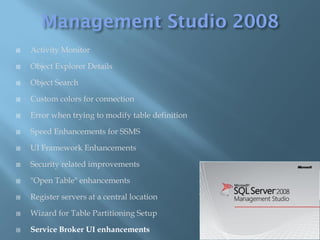
   Activity Monitor

   Object Explorer Details

   Object Search

   Custom colors for connection

   Error when trying to modify table definition

   Speed Enhancements for SSMS

   UI Framework Enhancements

   "Open Table" enhancements

   Register servers at a central location

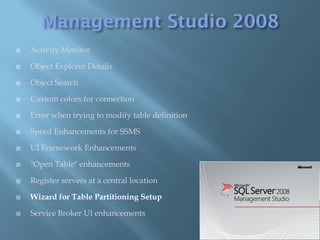
   Wizard for Table Partitioning Setup

   Service Broker UI enhancements
   Activity Monitor

   Object Explorer Details

   Object Search

   Custom colors for connection

   Error when trying to modify table definition

   Speed Enhancements for SSMS

   UI Framework Enhancements

   "Open Table" enhancements

   Register servers at a central location

   Wizard for Table Partitioning Setup

   Service Broker UI enhancements
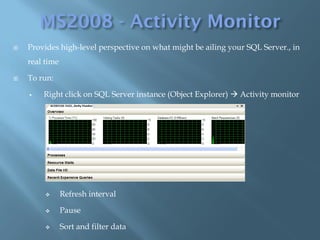
   Provides high-level perspective on what might be ailing your SQL Server., in
    real time

   To run:

       Right click on SQL Server instance (Object Explorer)  Activity monitor


               Refresh interval

               Pause

               Sort and filter data
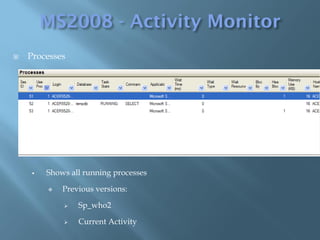
   Processes


        Shows all running processes

            Previous versions:

                Sp_who2

                Current Activity
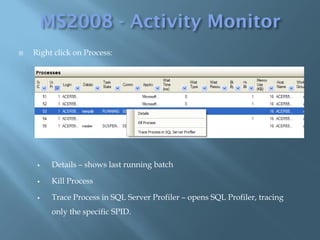
   Right click on Process:


        Details – shows last running batch

        Kill Process

        Trace Process in SQL Server Profiler – opens SQL Profiler, tracing
         only the specific SPID.
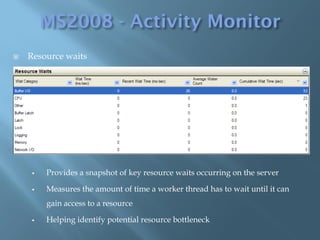
   Resource waits


        Provides a snapshot of key resource waits occurring on the server

        Measures the amount of time a worker thread has to wait until it can
         gain access to a resource

        Helping identify potential resource bottleneck
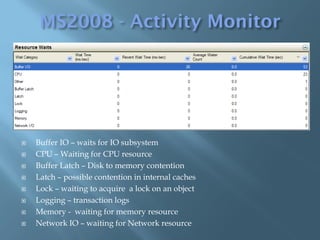
   Buffer IO – waits for IO subsystem
   CPU – Waiting for CPU resource
   Buffer Latch – Disk to memory contention
   Latch – possible contention in internal caches
   Lock – waiting to acquire a lock on an object
   Logging – transaction logs
   Memory - waiting for memory resource
   Network IO – waiting for Network resource
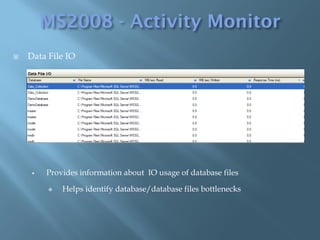
   Data File IO


        Provides information about IO usage of database files

            Helps identify database/database files bottlenecks
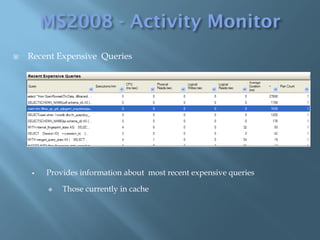
   Recent Expensive Queries


       Provides information about most recent expensive queries

           Those currently in cache
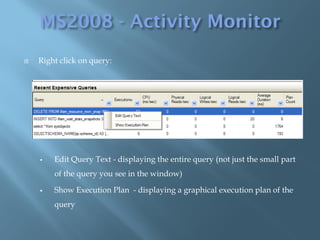
   Right click on query:


       Edit Query Text - displaying the entire query (not just the small part
        of the query you see in the window)

       Show Execution Plan - displaying a graphical execution plan of the
        query
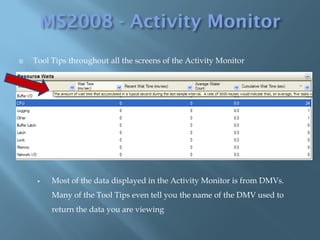
   Tool Tips throughout all the screens of the Activity Monitor


        Most of the data displayed in the Activity Monitor is from DMVs.
         Many of the Tool Tips even tell you the name of the DMV used to
         return the data you are viewing
   Querying DMVs


                    Process information   SELECT fn.text,p.* from sysprocesses as p
                                          CROSS APPLY fn_get_sql(sql_handle) as fn
                                          ORDER BY spid

                    Top wait statistics   SELECT TOP 10
                                          [Wait type] = wait_type, [Wait time (s)] = wait_time_ms / 1000,
                                          [% waiting] = CONVERT(DECIMAL(12,2),
                                          wait_time_ms * 100.0 / SUM(wait_time_ms) OVER())
                                          FROM sys.dm_os_wait_stats
                                          WHERE wait_type NOT LIKE '%SLEEP%'
                                          ORDER BY wait_time_ms DESC

                  Top files under load    SELECT db_name(mf.database_id),physical_name,num_of_reads
                Top files under load      FROM sys.master_files mf
                                          Inner join sys.dm_io_virtual_file_stats(NULL,NULL) as vf
                                          on mf.database_id = vf.database_id and mf.file_id=vf.file_id
                                          order by num_of_reads desc

                    Top query by Avg:     SELECT TOP 10
                                          [Average CPU used] = total_worker_time / qs.execution_count,
                                          [Total CPU used] = total_worker_time ,
                     Top by CPU         [Execution count] = qs.execution_count ,
                    Top by IO            [Individual Query] = SUBSTRING (qt.text,qs.statement_start_offset/2,
                                          (CASE WHEN qs.statement_end_offset = -1 THEN
                    Top by Duration      LEN(CONVERT(NVARCHAR(MAX), qt.text)) * 2
                                          ELSE qs.statement_end_offset END - qs.statement_start_offset)/2) ,[Parent
                                          Query] = qt.text ,DatabaseName = DB_NAME(qt.dbid)
                                          FROM sys.dm_exec_query_stats qs CROSS APPLY
                                          sys.dm_exec_sql_text(qs.sql_handle) as qt
                                          ORDER BY [Average CPU used] DESC
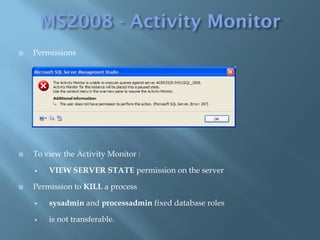
   Permissions


   To view the Activity Monitor :

       VIEW SERVER STATE permission on the server

   Permission to KILL a process

       sysadmin and processadmin fixed database roles

       is not transferable.
Demo…
   Activity Monitor

   Object Explorer Details

   Object Search

   Custom colors for connection

   Error when trying to modify table definition

   Speed Enhancements for SSMS

   UI Framework Enhancements

   "Open Table" enhancements

   Register servers at a central location

   Wizard for Table Partitioning Setup

   Service Broker UI enhancements
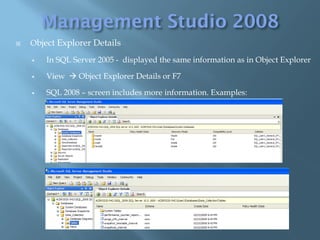
   Object Explorer Details

       In SQL Server 2005 - displayed the same information as in Object Explorer

       View  Object Explorer Details or F7

       SQL 2008 – screen includes more information. Examples:
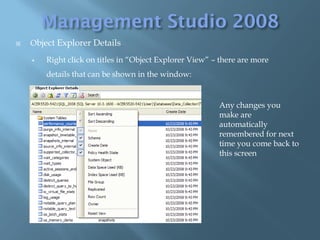
   Object Explorer Details

       Right click on titles in “Object Explorer View” – there are more
        details that can be shown in the window:


                                                         Any changes you
                                                         make are
                                                         automatically
                                                         remembered for next
                                                         time you come back to
                                                         this screen
Demo…
   Activity Monitor

   Object Explorer Details

   Object Search

   Custom colors for connection

   Error when trying to modify table definition

   Speed Enhancements for SSMS

   UI Framework Enhancements

   "Open Table" enhancements

   Register servers at a central location

   Wizard for Table Partitioning Setup

   Service Broker UI enhancements
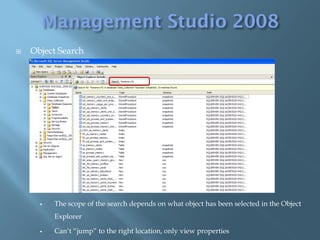
   Object Search


         The scope of the search depends on what object has been selected in the Object
          Explorer

         Can’t “jump” to the right location, only view properties
Demo…
   Activity Monitor

   Object Explorer Details

   Object Search

   Custom colors for connection

   Error when trying to modify table definition

   Speed Enhancements for SSMS

   UI Framework Enhancements

   Security related improvements

   "Open Table" enhancements

   Register servers at a central location

   Wizard for Table Partitioning Setup

   Service Broker UI enhancements
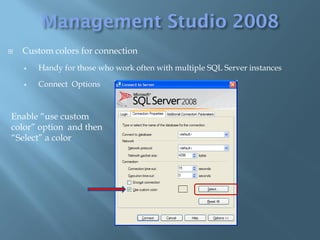
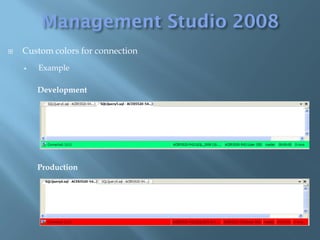
   Custom colors for connection
       Handy for those who work often with multiple SQL Server instances

       Connect Options


Enable “use custom
color” option and then
“Select” a color
   Custom colors for connection
       Example

        Development


        Production
Demo…
   Activity Monitor

   Object Explorer Details

   Object Search

   Custom colors for connection

   Error when trying to modify table definition

   Speed Enhancements for SSMS

   UI Framework Enhancements

   "Open Table" enhancements

   Register servers at a central location

   Wizard for Table Partitioning Setup

   Service Broker UI enhancements
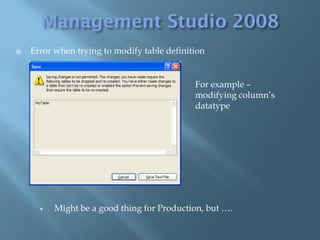
   Error when trying to modify table definition


                                             For example –
                                             modifying column’s
                                             datatype


         Might be a good thing for Production, but ….
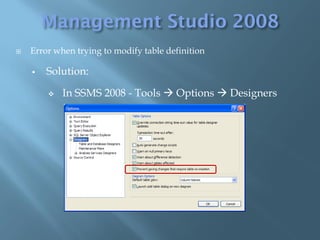
   Error when trying to modify table definition

       Solution:

           In SSMS 2008 - Tools  Options  Designers
Demo…
   Activity Monitor

   Object Explorer Details

   Object Search

   Custom colors for connection

   Error when trying to modify table definition

   Speed Enhancements for SSMS

   UI Framework Enhancements

   "Open Table" enhancements

   Register servers at a central location

   Wizard for Table Partitioning Setup

   Service Broker UI enhancements
   Speed Enhancements for SSMS
       Faster communications between SSMS and the SQL Server engine
   Activity Monitor

   Object Explorer Details

   Object Search

   Custom colors for connection

   Error when trying to modify table definition

   Speed Enhancements for SSMS

   UI Framework Enhancements

   "Open Table" enhancements

   Register servers at a central location

   Wizard for Table Partitioning Setup

   Service Broker UI enhancements
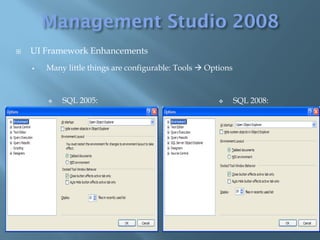
   UI Framework Enhancements
       Many little things are configurable: Tools  Options


           SQL 2005:                                         SQL 2008:
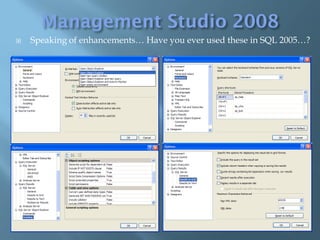
   Speaking of enhancements… Have you ever used these in SQL 2005…?
Demo…
   Activity Monitor

   Object Explorer Details

   Object Search

   Custom colors for connection

   Error when trying to modify table definition

   Speed Enhancements for SSMS

   UI Framework Enhancements

   "Open Table" enhancements

   Register servers at a central location

   Wizard for Table Partitioning Setup

   Service Broker UI enhancements
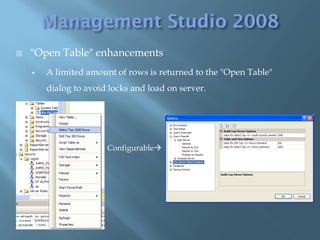
   "Open Table" enhancements
       A limited amount of rows is returned to the "Open Table"
        dialog to avoid locks and load on server.


                       Configurable
Demo…
   Activity Monitor

   Object Explorer Details

   Object Search

   Custom colors for connection

   Error when trying to modify table definition

   Speed Enhancements for SSMS

   UI Framework Enhancements

   Security related improvements

   "Open Table" enhancements

   Register servers at a central location

   Wizard for Table Partitioning Setup

   Service Broker UI enhancements
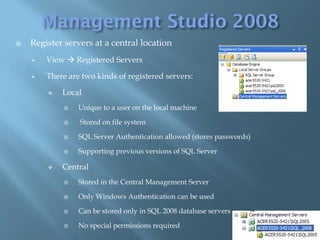
   Register servers at a central location
       View  Registered Servers

       There are two kinds of registered servers:

           Local
                Unique to a user on the local machine

                Stored on file system

                SQL Server Authentication allowed (stores passwords)

                Supporting previous versions of SQL Server

           Central
                Stored in the Central Management Server

                Only Windows Authentication can be used

                Can be stored only in SQL 2008 database servers

                No special permissions required
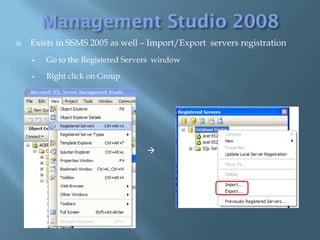
   Exists in SSMS 2005 as well – Import/Export servers registration
       Go to the Registered Servers window

       Right click on Group


                                  
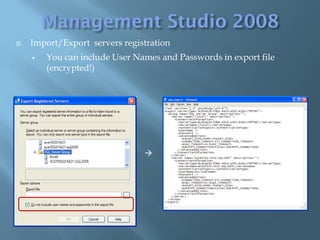
   Import/Export servers registration
       You can include User Names and Passwords in export file
        (encrypted!)


                               
Demo…
   Activity Monitor

   Object Explorer Details

   Object Search

   Custom colors for connection

   Error when trying to modify table definition

   Speed Enhancements for SSMS

   UI Framework Enhancements

   "Open Table" enhancements

   Register servers at a central location

   Wizard for Table Partitioning Setup

   Service Broker UI enhancements
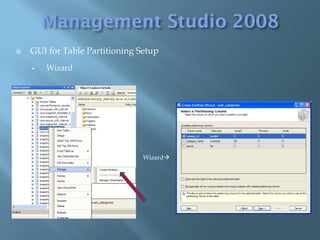
   GUI for Table Partitioning Setup
       Wizard


                                Wizard
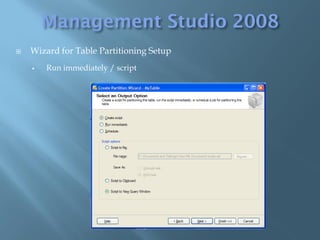
   Wizard for Table Partitioning Setup
       Run immediately / script
Demo…
   Activity Monitor

   Object Explorer Details

   Object Search

   Custom colors for connection

   Error when trying to modify table definition

   Speed Enhancements for SSMS

   UI Framework Enhancements

   Security related improvements

   "Open Table" enhancements

   Register servers at a central location

   Wizard for Table Partitioning Setup

   Service Broker UI enhancements

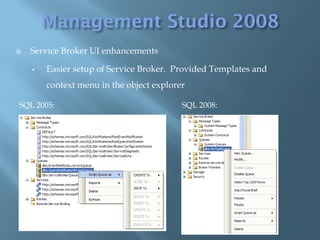
       Easier setup of Service Broker. Provided Templates and
        context menu in the object explorer

SQL 2005:                                 SQL 2008:


           SQL 2008:
   Introduction

   T-SQL enhancments

   Enhancements in Management Studio 2008

   The query editor and debugger

   Performance Studio (?)

   PowerShell integration
   Multi-Server Queries

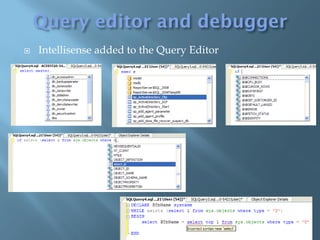
   Intellisense added to the Query Editor

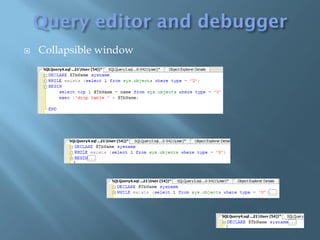
       Collapsible window

   Customizable tabs

   Error list

   New Right-Click options on Results Grid

   Showplan - new options

   The debugger
   Multi-Server Queries

   Intellisense added to the Query Editor

       Collapsible window

   Customizable tabs

   Error list

   New Right-Click options on Results Grid

   Showplan - new options

   The debugger
   Multi-Server Queries
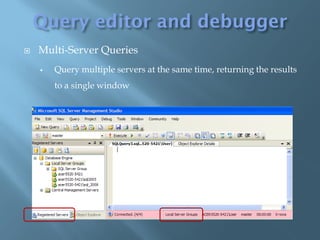
       Query multiple servers at the same time, returning the results
        to a single window
   Multi-Server Queries
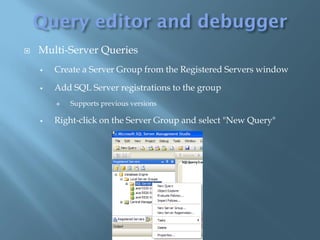
       Create a Server Group from the Registered Servers window

       Add SQL Server registrations to the group
           Supports previous versions

       Right-click on the Server Group and select "New Query"
   Multi-Server Queries


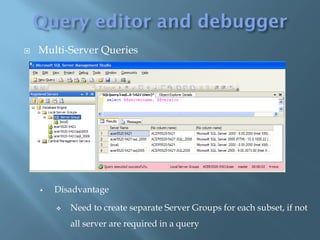
       Disadvantage

           Need to create separate Server Groups for each subset, if not
            all server are required in a query
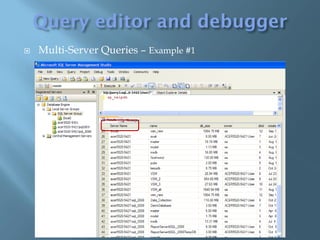
   Multi-Server Queries – Example #1
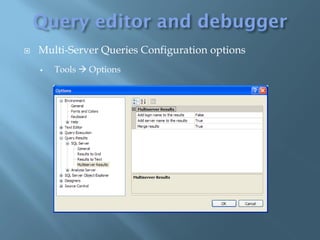
   Multi-Server Queries Configuration options
       Tools  Options
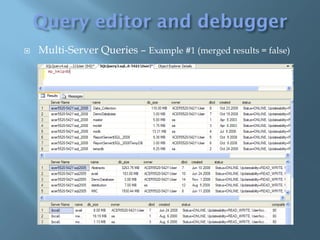
   Multi-Server Queries – Example #1 (merged results = false)
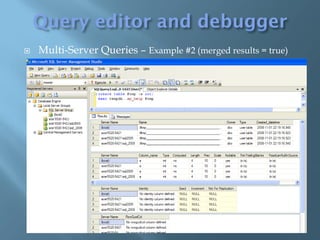
   Multi-Server Queries – Example #2 (merged results = true)
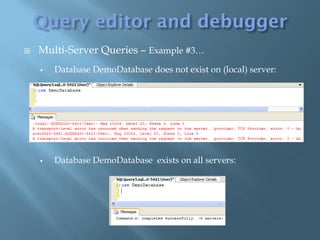
   Multi-Server Queries – Example #3…
       Database DemoDatabase does not exist on (local) server:


       Database DemoDatabase exists on all servers:
Demo…
   Multi-Server Queries

   Intellisense added to the Query Editor

       Collapsible window

   Customizable tabs

   Error list

   New Right-Click options on Results Grid

   Showplan - new options

   The debugger
   Intellisense added to the Query Editor
   Collapsible window
   Multi-Server Queries

   Intellisense added to the Query Editor

       Collapsible window

   Customizable tabs

   Error list

   New Right-Click options on Results Grid

   Showplan - new options

   The debugger
   Customizable tabs

       The query editor’s results can now have their tabs
        set with customized names


   Switch to full screen view of SSMS

       Shift+Alt+Enter key combination
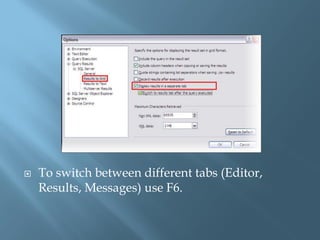
   To switch between different tabs (Editor,
    Results, Messages) use F6.
   Multi-Server Queries

   Intellisense added to the Query Editor

       Collapsible window

   Customizable tabs

   Error list

   New Right-Click options on Results Grid

   Showplan - new options

   The debugger
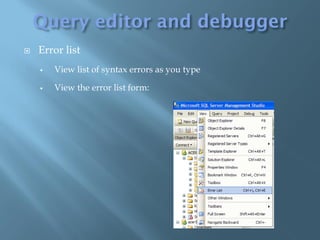
   Error list
       View list of syntax errors as you type

       View the error list form:
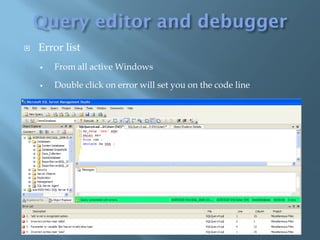
   Error list
       From all active Windows

       Double click on error will set you on the code line
Demo…
   Multi-Server Queries

   Intellisense added to the Query Editor

       Collapsible window

   Customizable tabs

   Error list

   New Right-Click options on Results Grid

   Showplan - new options

   The debugger
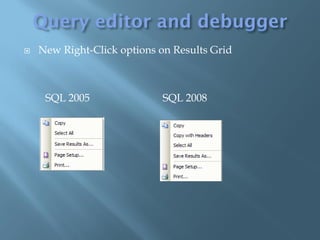
   New Right-Click options on Results Grid


     SQL 2005                SQL 2008
Demo…
   Multi-Server Queries

   Intellisense added to the Query Editor

       Collapsible window

   Customizable tabs

   Error list

   New Right-Click options on Results Grid

   Showplan - new options

   The debugger
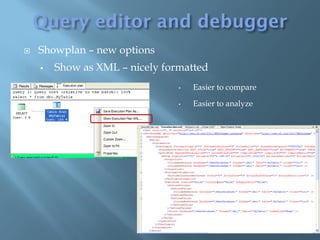
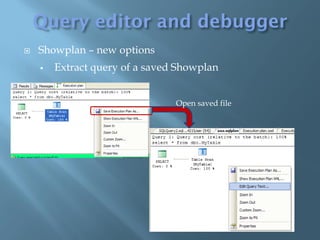
   Showplan – new options


       You can right-click a showplan graphic and see the
        XML version of the plan

       The XML created by the showplan is now formatted
        instead of showing as a large string

       You can right-click a graphical showplan and
        extract the SQL query that generated it
   Showplan – new options
       Show as XML – nicely formatted
                                •   Easier to compare

                                •   Easier to analyze
   Showplan – new options
       Extract query of a saved Showplan


                                Open saved file
Demo…
   Multi-Server Queries

   Intellisense added to the Query Editor

       Collapsible window

   Customizable tabs

   Error list

   New Right-Click options on Results Grid

   Showplan - new options

   The debugger
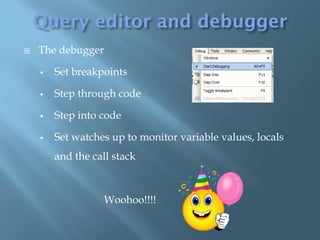
   The debugger

       Set breakpoints

       Step through code

       Step into code

       Set watches up to monitor variable values, locals
        and the call stack


                   Woohoo!!!!
Demo…
   SQL Server 2005 includes a Performance
    Dashboard (reports – standard and custom)
       Displays real-time performance data

   SQL 2008 Performance Studio
       Collect performance data from multiple databases
        and store them in a central repository
           Compare current and past performance

           Troubleshoot performance problems

           Track your custom performance metrics

           Provides a set of prebuilt reports

           Add your Custom reports
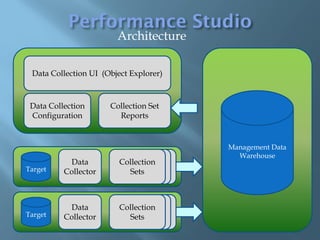
Architecture

 Data Collection UI (Object Explorer)


 Data Collection      Collection Set
 Configuration          Reports


                                        Management Data
                                          Warehouse
           Data          Collection
Target    Collector        Sets


           Data          Collection
Target    Collector        Sets
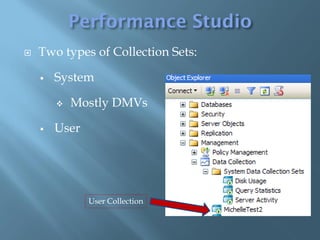
   Two types of Collection Sets:

       System

           Mostly DMVs

       User


               User Collection
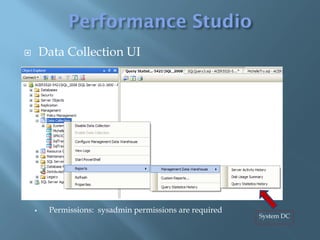
       Data Collection UI


        Permissions: sysadmin permissions are required
                                                          System DC
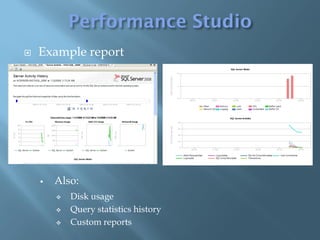
   Example report


       Also:
           Disk usage
           Query statistics history
           Custom reports
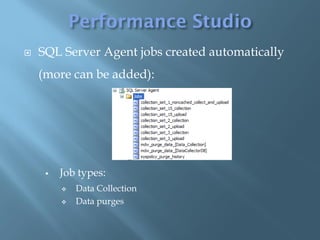
   SQL Server Agent jobs created automatically
    (more can be added):


        Job types:
            Data Collection
            Data purges
   Data Collector Set

       Create custom data collections

       Use Performance Studio as repository

   Permissions:

       Permissions to run Profiler

       Sysadmin on server to add the set
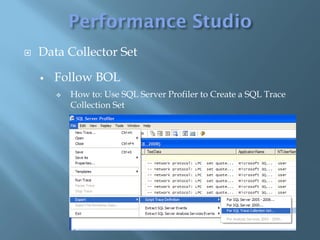
   Data Collector Set

       Follow BOL
           How to: Use SQL Server Profiler to Create a SQL Trace
            Collection Set
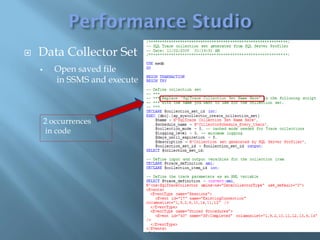
   Data Collector Set
          Open saved file
           in SSMS and execute


        2 occurrences
        in code
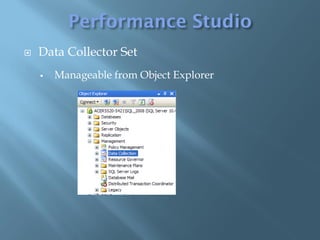
   Data Collector Set
       Manageable from Object Explorer
Demo…
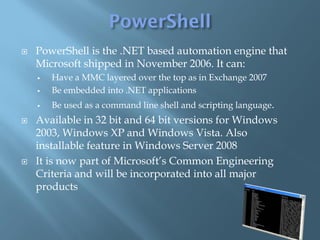
   PowerShell is the .NET based automation engine that
    Microsoft shipped in November 2006. It can:
       Have a MMC layered over the top as in Exchange 2007
       Be embedded into .NET applications
       Be used as a command line shell and scripting language.
   Available in 32 bit and 64 bit versions for Windows
    2003, Windows XP and Windows Vista. Also
    installable feature in Windows Server 2008
   It is now part of Microsoft’s Common Engineering
    Criteria and will be incorporated into all major
    products
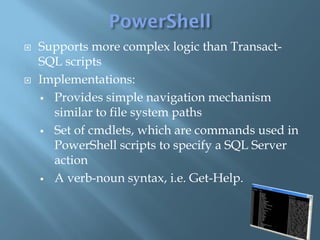
   Supports more complex logic than Transact-
    SQL scripts
   Implementations:
     Provides simple navigation mechanism
      similar to file system paths
     Set of cmdlets, which are commands used in
      PowerShell scripts to specify a SQL Server
      action
     A verb-noun syntax, i.e. Get-Help.
   Usage:

       In command prompt

           powershell.exe

       In SQL Server Management Studio

           Right click an Object  Start Powershell

       In a SQL Server Agent job

           Step type can be Powershell
Questions?
  Feel free to contact me:
   gutzait@pythian.com
Michelle.gutzait@gmail.com

Back 2 basics - SSMS Tips (IDf)

  • 1.
    Dubi Lebel D.B.A. =Don’t bother Asking Dubi.lebel@gmail.com
  • 2.
    Michelle Gutzait gutzait@pythian.com Michelle.gutzait@gmail.com Blog: http://michelle-gutzait.spaces.live.com/default.aspx
  • 3.
    out of scope… T-SQL enhancements –  The FILESTREAM datatypes  The new DATE and TIME datatypes  The new Merge command  Table Valued Parameters  Large UDTs  User-Defined Aggregates  Hierarchical data  New Dependency Management  Filtered Indexes
  • 4.
    More topics –out of scope…  Integration with Microsoft Office 2007  Transparent Data Encryption  Auditing data access  Data Compression  Security related improvements  Database mirroring, replication, Service Broker  Resource Governor  Dynamic Development with New ADO , Visual Studio options and Dot Net 3  Entity Data Services (LOB and eSQL)  Development of frequently disconnected applications
  • 5.
    Introduction  Enhancements in Management Studio 2008  The query editor and debugger  Performance Studio (?)  PowerShell integration (?)
  • 6.
    Introduction  Enhancements in Management Studio 2008  The query editor and debugger  Performance Studio (?)  PowerShell integration (?)
  • 7.
    Nice to meetyou…..
  • 8.
    Introduction  Enhancements in Management Studio 2008  The query editor and debugger  Performance Studio (?)  PowerShell integration (?)
  • 9.
    Activity Monitor  Object Explorer Details  Object Search  Custom colors for connection  Error when trying to modify table definition  Speed Enhancements for SSMS  UI Framework Enhancements  "Open Table" enhancements  Register servers at a central location  Wizard for Table Partitioning Setup  Service Broker UI enhancements
  • 10.
    Activity Monitor  Object Explorer Details  Object Search  Custom colors for connection  Error when trying to modify table definition  Speed Enhancements for SSMS  UI Framework Enhancements  "Open Table" enhancements  Register servers at a central location  Wizard for Table Partitioning Setup  Service Broker UI enhancements
  • 11.
    Provides high-level perspective on what might be ailing your SQL Server., in real time  To run:  Right click on SQL Server instance (Object Explorer)  Activity monitor  Refresh interval  Pause  Sort and filter data
  • 12.
    Processes  Shows all running processes  Previous versions:  Sp_who2  Current Activity
  • 13.
    Right click on Process:  Details – shows last running batch  Kill Process  Trace Process in SQL Server Profiler – opens SQL Profiler, tracing only the specific SPID.
  • 14.
    Resource waits  Provides a snapshot of key resource waits occurring on the server  Measures the amount of time a worker thread has to wait until it can gain access to a resource  Helping identify potential resource bottleneck
  • 15.
    Buffer IO – waits for IO subsystem  CPU – Waiting for CPU resource  Buffer Latch – Disk to memory contention  Latch – possible contention in internal caches  Lock – waiting to acquire a lock on an object  Logging – transaction logs  Memory - waiting for memory resource  Network IO – waiting for Network resource
  • 16.
    Data File IO  Provides information about IO usage of database files  Helps identify database/database files bottlenecks
  • 17.
    Recent Expensive Queries  Provides information about most recent expensive queries  Those currently in cache
  • 18.
    Right click on query:  Edit Query Text - displaying the entire query (not just the small part of the query you see in the window)  Show Execution Plan - displaying a graphical execution plan of the query
  • 19.
    Tool Tips throughout all the screens of the Activity Monitor  Most of the data displayed in the Activity Monitor is from DMVs. Many of the Tool Tips even tell you the name of the DMV used to return the data you are viewing
  • 20.
    Querying DMVs Process information SELECT fn.text,p.* from sysprocesses as p CROSS APPLY fn_get_sql(sql_handle) as fn ORDER BY spid Top wait statistics SELECT TOP 10 [Wait type] = wait_type, [Wait time (s)] = wait_time_ms / 1000, [% waiting] = CONVERT(DECIMAL(12,2), wait_time_ms * 100.0 / SUM(wait_time_ms) OVER()) FROM sys.dm_os_wait_stats WHERE wait_type NOT LIKE '%SLEEP%' ORDER BY wait_time_ms DESC Top files under load SELECT db_name(mf.database_id),physical_name,num_of_reads Top files under load FROM sys.master_files mf Inner join sys.dm_io_virtual_file_stats(NULL,NULL) as vf on mf.database_id = vf.database_id and mf.file_id=vf.file_id order by num_of_reads desc Top query by Avg: SELECT TOP 10 [Average CPU used] = total_worker_time / qs.execution_count, [Total CPU used] = total_worker_time ,  Top by CPU  [Execution count] = qs.execution_count , Top by IO [Individual Query] = SUBSTRING (qt.text,qs.statement_start_offset/2, (CASE WHEN qs.statement_end_offset = -1 THEN Top by Duration LEN(CONVERT(NVARCHAR(MAX), qt.text)) * 2 ELSE qs.statement_end_offset END - qs.statement_start_offset)/2) ,[Parent Query] = qt.text ,DatabaseName = DB_NAME(qt.dbid) FROM sys.dm_exec_query_stats qs CROSS APPLY sys.dm_exec_sql_text(qs.sql_handle) as qt ORDER BY [Average CPU used] DESC
  • 21.
    Permissions  To view the Activity Monitor :  VIEW SERVER STATE permission on the server  Permission to KILL a process  sysadmin and processadmin fixed database roles  is not transferable.
  • 22.
  • 23.
    Activity Monitor  Object Explorer Details  Object Search  Custom colors for connection  Error when trying to modify table definition  Speed Enhancements for SSMS  UI Framework Enhancements  "Open Table" enhancements  Register servers at a central location  Wizard for Table Partitioning Setup  Service Broker UI enhancements
  • 24.
    Object Explorer Details  In SQL Server 2005 - displayed the same information as in Object Explorer  View  Object Explorer Details or F7  SQL 2008 – screen includes more information. Examples:
  • 25.
    Object Explorer Details  Right click on titles in “Object Explorer View” – there are more details that can be shown in the window: Any changes you make are automatically remembered for next time you come back to this screen
  • 26.
  • 27.
    Activity Monitor  Object Explorer Details  Object Search  Custom colors for connection  Error when trying to modify table definition  Speed Enhancements for SSMS  UI Framework Enhancements  "Open Table" enhancements  Register servers at a central location  Wizard for Table Partitioning Setup  Service Broker UI enhancements
  • 28.
    Object Search  The scope of the search depends on what object has been selected in the Object Explorer  Can’t “jump” to the right location, only view properties
  • 29.
  • 30.
    Activity Monitor  Object Explorer Details  Object Search  Custom colors for connection  Error when trying to modify table definition  Speed Enhancements for SSMS  UI Framework Enhancements  Security related improvements  "Open Table" enhancements  Register servers at a central location  Wizard for Table Partitioning Setup  Service Broker UI enhancements
  • 31.
    Custom colors for connection  Handy for those who work often with multiple SQL Server instances  Connect Options Enable “use custom color” option and then “Select” a color
  • 32.
    Custom colors for connection  Example Development Production
  • 33.
  • 34.
    Activity Monitor  Object Explorer Details  Object Search  Custom colors for connection  Error when trying to modify table definition  Speed Enhancements for SSMS  UI Framework Enhancements  "Open Table" enhancements  Register servers at a central location  Wizard for Table Partitioning Setup  Service Broker UI enhancements
  • 35.
    Error when trying to modify table definition For example – modifying column’s datatype  Might be a good thing for Production, but ….
  • 36.
    Error when trying to modify table definition  Solution:  In SSMS 2008 - Tools  Options  Designers
  • 37.
  • 38.
    Activity Monitor  Object Explorer Details  Object Search  Custom colors for connection  Error when trying to modify table definition  Speed Enhancements for SSMS  UI Framework Enhancements  "Open Table" enhancements  Register servers at a central location  Wizard for Table Partitioning Setup  Service Broker UI enhancements
  • 39.
    Speed Enhancements for SSMS  Faster communications between SSMS and the SQL Server engine
  • 40.
    Activity Monitor  Object Explorer Details  Object Search  Custom colors for connection  Error when trying to modify table definition  Speed Enhancements for SSMS  UI Framework Enhancements  "Open Table" enhancements  Register servers at a central location  Wizard for Table Partitioning Setup  Service Broker UI enhancements
  • 41.
    UI Framework Enhancements  Many little things are configurable: Tools  Options  SQL 2005:  SQL 2008:
  • 42.
    Speaking of enhancements… Have you ever used these in SQL 2005…?
  • 43.
  • 44.
    Activity Monitor  Object Explorer Details  Object Search  Custom colors for connection  Error when trying to modify table definition  Speed Enhancements for SSMS  UI Framework Enhancements  "Open Table" enhancements  Register servers at a central location  Wizard for Table Partitioning Setup  Service Broker UI enhancements
  • 45.
    "Open Table" enhancements  A limited amount of rows is returned to the "Open Table" dialog to avoid locks and load on server. Configurable
  • 46.
  • 47.
    Activity Monitor  Object Explorer Details  Object Search  Custom colors for connection  Error when trying to modify table definition  Speed Enhancements for SSMS  UI Framework Enhancements  Security related improvements  "Open Table" enhancements  Register servers at a central location  Wizard for Table Partitioning Setup  Service Broker UI enhancements
  • 48.
    Register servers at a central location  View  Registered Servers  There are two kinds of registered servers:  Local  Unique to a user on the local machine  Stored on file system  SQL Server Authentication allowed (stores passwords)  Supporting previous versions of SQL Server  Central  Stored in the Central Management Server  Only Windows Authentication can be used  Can be stored only in SQL 2008 database servers  No special permissions required
  • 49.
    Exists in SSMS 2005 as well – Import/Export servers registration  Go to the Registered Servers window  Right click on Group 
  • 50.
    Import/Export servers registration  You can include User Names and Passwords in export file (encrypted!) 
  • 51.
  • 52.
    Activity Monitor  Object Explorer Details  Object Search  Custom colors for connection  Error when trying to modify table definition  Speed Enhancements for SSMS  UI Framework Enhancements  "Open Table" enhancements  Register servers at a central location  Wizard for Table Partitioning Setup  Service Broker UI enhancements
  • 53.
    GUI for Table Partitioning Setup  Wizard Wizard
  • 54.
    Wizard for Table Partitioning Setup  Run immediately / script
  • 55.
  • 56.
    Activity Monitor  Object Explorer Details  Object Search  Custom colors for connection  Error when trying to modify table definition  Speed Enhancements for SSMS  UI Framework Enhancements  Security related improvements  "Open Table" enhancements  Register servers at a central location  Wizard for Table Partitioning Setup  Service Broker UI enhancements
  • 57.
    Service Broker UI enhancements  Easier setup of Service Broker. Provided Templates and context menu in the object explorer SQL 2005: SQL 2008:  SQL 2008:
  • 58.
    Introduction  T-SQL enhancments  Enhancements in Management Studio 2008  The query editor and debugger  Performance Studio (?)  PowerShell integration
  • 59.
    Multi-Server Queries  Intellisense added to the Query Editor  Collapsible window  Customizable tabs  Error list  New Right-Click options on Results Grid  Showplan - new options  The debugger
  • 60.
    Multi-Server Queries  Intellisense added to the Query Editor  Collapsible window  Customizable tabs  Error list  New Right-Click options on Results Grid  Showplan - new options  The debugger
  • 61.
    Multi-Server Queries  Query multiple servers at the same time, returning the results to a single window
  • 62.
    Multi-Server Queries  Create a Server Group from the Registered Servers window  Add SQL Server registrations to the group  Supports previous versions  Right-click on the Server Group and select "New Query"
  • 63.
    Multi-Server Queries  Disadvantage  Need to create separate Server Groups for each subset, if not all server are required in a query
  • 64.
    Multi-Server Queries – Example #1
  • 65.
    Multi-Server Queries Configuration options  Tools  Options
  • 66.
    Multi-Server Queries – Example #1 (merged results = false)
  • 67.
    Multi-Server Queries – Example #2 (merged results = true)
  • 68.
    Multi-Server Queries – Example #3…  Database DemoDatabase does not exist on (local) server:  Database DemoDatabase exists on all servers:
  • 69.
  • 70.
    Multi-Server Queries  Intellisense added to the Query Editor  Collapsible window  Customizable tabs  Error list  New Right-Click options on Results Grid  Showplan - new options  The debugger
  • 71.
    Intellisense added to the Query Editor
  • 72.
    Collapsible window
  • 73.
    Multi-Server Queries  Intellisense added to the Query Editor  Collapsible window  Customizable tabs  Error list  New Right-Click options on Results Grid  Showplan - new options  The debugger
  • 74.
    Customizable tabs  The query editor’s results can now have their tabs set with customized names  Switch to full screen view of SSMS  Shift+Alt+Enter key combination
  • 75.
    To switch between different tabs (Editor, Results, Messages) use F6.
  • 77.
    Multi-Server Queries  Intellisense added to the Query Editor  Collapsible window  Customizable tabs  Error list  New Right-Click options on Results Grid  Showplan - new options  The debugger
  • 78.
    Error list  View list of syntax errors as you type  View the error list form:
  • 79.
    Error list  From all active Windows  Double click on error will set you on the code line
  • 80.
  • 81.
    Multi-Server Queries  Intellisense added to the Query Editor  Collapsible window  Customizable tabs  Error list  New Right-Click options on Results Grid  Showplan - new options  The debugger
  • 82.
    New Right-Click options on Results Grid SQL 2005 SQL 2008
  • 83.
  • 84.
    Multi-Server Queries  Intellisense added to the Query Editor  Collapsible window  Customizable tabs  Error list  New Right-Click options on Results Grid  Showplan - new options  The debugger
  • 85.
    Showplan – new options  You can right-click a showplan graphic and see the XML version of the plan  The XML created by the showplan is now formatted instead of showing as a large string  You can right-click a graphical showplan and extract the SQL query that generated it
  • 86.
    Showplan – new options  Show as XML – nicely formatted • Easier to compare • Easier to analyze
  • 87.
    Showplan – new options  Extract query of a saved Showplan Open saved file
  • 88.
  • 89.
    Multi-Server Queries  Intellisense added to the Query Editor  Collapsible window  Customizable tabs  Error list  New Right-Click options on Results Grid  Showplan - new options  The debugger
  • 90.
    The debugger  Set breakpoints  Step through code  Step into code  Set watches up to monitor variable values, locals and the call stack Woohoo!!!!
  • 91.
  • 92.
    SQL Server 2005 includes a Performance Dashboard (reports – standard and custom)  Displays real-time performance data  SQL 2008 Performance Studio  Collect performance data from multiple databases and store them in a central repository  Compare current and past performance  Troubleshoot performance problems  Track your custom performance metrics  Provides a set of prebuilt reports  Add your Custom reports
  • 93.
    Architecture Data CollectionUI (Object Explorer) Data Collection Collection Set Configuration Reports Management Data Warehouse Data Collection Target Collector Sets Data Collection Target Collector Sets
  • 94.
    Two types of Collection Sets:  System  Mostly DMVs  User User Collection
  • 95.
    Data Collection UI  Permissions: sysadmin permissions are required System DC
  • 96.
    Example report  Also:  Disk usage  Query statistics history  Custom reports
  • 97.
    SQL Server Agent jobs created automatically (more can be added):  Job types:  Data Collection  Data purges
  • 98.
    Data Collector Set  Create custom data collections  Use Performance Studio as repository  Permissions:  Permissions to run Profiler  Sysadmin on server to add the set
  • 99.
    Data Collector Set  Follow BOL  How to: Use SQL Server Profiler to Create a SQL Trace Collection Set
  • 100.
    Data Collector Set  Open saved file in SSMS and execute 2 occurrences in code
  • 101.
    Data Collector Set  Manageable from Object Explorer
  • 102.
  • 103.
    PowerShell is the .NET based automation engine that Microsoft shipped in November 2006. It can:  Have a MMC layered over the top as in Exchange 2007  Be embedded into .NET applications  Be used as a command line shell and scripting language.  Available in 32 bit and 64 bit versions for Windows 2003, Windows XP and Windows Vista. Also installable feature in Windows Server 2008  It is now part of Microsoft’s Common Engineering Criteria and will be incorporated into all major products
  • 104.
    Supports more complex logic than Transact- SQL scripts  Implementations:  Provides simple navigation mechanism similar to file system paths  Set of cmdlets, which are commands used in PowerShell scripts to specify a SQL Server action  A verb-noun syntax, i.e. Get-Help.
  • 105.
    Usage:  In command prompt  powershell.exe  In SQL Server Management Studio  Right click an Object  Start Powershell  In a SQL Server Agent job  Step type can be Powershell
  • 106.
    Questions? Feelfree to contact me: gutzait@pythian.com Michelle.gutzait@gmail.com