Facebook Marketing
Mastery Guide
HOW TO BROADCAST ON FACEBOOK LIVE
Facebook Marketing Mastery Guide
Here is what we will cover today:
1. What is Facebook Live
2. Why is live video a big deal for marketers
3. What you should know about social video
4. What you should know about Facebook video content
5. What you should know about Facebook Live
6. 11 Steps To Success
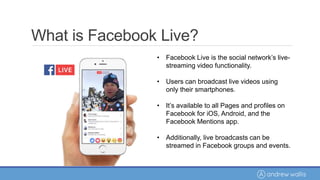
• Facebook Live is the social network’s live-
streaming video functionality.
• Users can broadcast live videos using
only their smartphones.
• It’s available to all Pages and profiles on
Facebook for iOS, Android, and the
Facebook Mentions app.
• Additionally, live broadcasts can be
streamed in Facebook groups and events.
What is Facebook Live?
Why is live video a big deal for
marketers?
“While video has always been popular online, the dominance
of social media and the rise of mobile usage has all but
ensured social video’s position as the reigning monarch of
content. Users continue to produce—and watch—more video
at greater rates than ever before”
- Hootsuite
What you should know about social
video:
•One-third of all online activity is spent watching video
•Online video streaming will grow to more than 80% of consumer
traffic by 2020 according to predictions from tech company Cisco
•92 percent of mobile video consumers share videos with others,
according to strategic consulting and digital business firm Insivia
What you should know about social
video:
•59 percent of executives would rather watch video than read
text, according to Forbes
•In 2015, adults in the U.S. were watching an average of one hour and
16 minutes of video on digital devices every day according to
eMarketer—up significantly from only 21 minutes watching video on
digital devices in 2011
•26 percent of people are interested in watching live
streams broadcast by brands or companies.
What you should know about
Facebook Video Content:
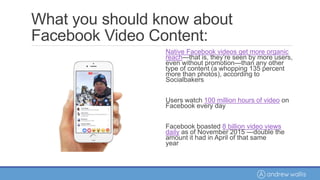
Native Facebook videos get more organic
reach—that is, they’re seen by more users,
even without promotion—than any other
type of content (a whopping 135 percent
more than photos), according to
Socialbakers
Users watch 100 million hours of video on
Facebook every day
Facebook boasted 8 billion video views
daily as of November 2015 —double the
amount it had in April of that same
year
What you should know about
Facebook Live:
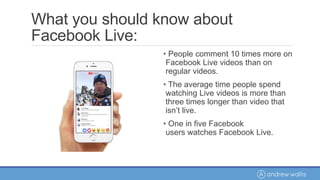
• People comment 10 times more on
Facebook Live videos than on
regular videos.
• The average time people spend
watching Live videos is more than
three times longer than video that
isn’t live.
• One in five Facebook
users watches Facebook Live.
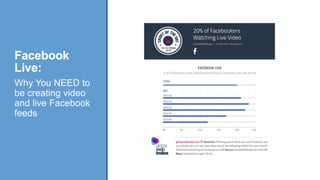
Facebook
Live:
Why You NEED to
be creating video
and live Facebook
feeds
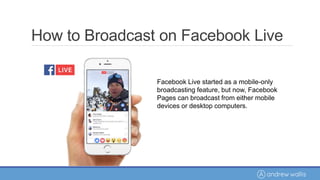
Facebook Live started as a mobile-only
broadcasting feature, but now, Facebook
Pages can broadcast from either mobile
devices or desktop computers.
How to Broadcast on Facebook Live
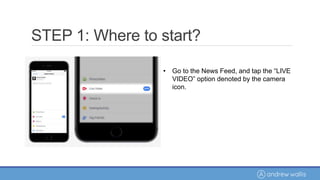
• Go to the News Feed, and tap the “LIVE
VIDEO” option denoted by the camera
icon.
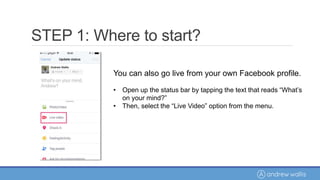
STEP 1: Where to start?
You can also go live from your own Facebook profile.
• Open up the status bar by tapping the text that reads “What’s
on your mind?”
• Then, select the “Live Video” option from the menu.
STEP 1: Where to start?
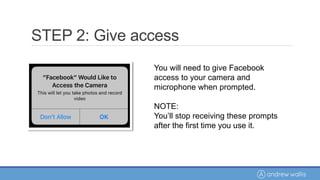
You will need to give Facebook
access to your camera and
microphone when prompted.
NOTE:
You’ll stop receiving these prompts
after the first time you use it.
STEP 2: Give access
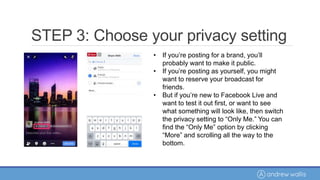
• If you’re posting for a brand, you’ll
probably want to make it public.
• If you’re posting as yourself, you might
want to reserve your broadcast for
friends.
• But if you’re new to Facebook Live and
want to test it out first, or want to see
what something will look like, then switch
the privacy setting to “Only Me.” You can
find the “Only Me” option by clicking
“More” and scrolling all the way to the
bottom.
STEP 3: Choose your privacy setting
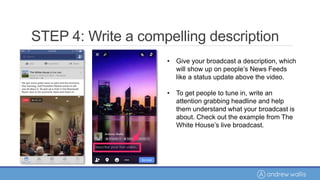
• Give your broadcast a description, which
will show up on people’s News Feeds
like a status update above the video.
• To get people to tune in, write an
attention grabbing headline and help
them understand what your broadcast is
about. Check out the example from The
White House’s live broadcast.
STEP 4: Write a compelling description
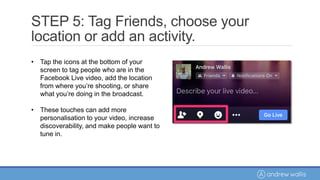
• Tap the icons at the bottom of your
screen to tag people who are in the
Facebook Live video, add the location
from where you’re shooting, or share
what you’re doing in the broadcast.
• These touches can add more
personalisation to your video, increase
discoverability, and make people want to
tune in.
STEP 5: Tag Friends, choose your
location or add an activity.
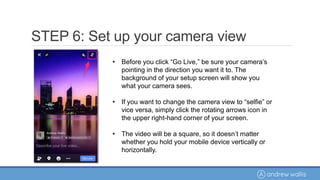
• Before you click “Go Live,” be sure your camera’s
pointing in the direction you want it to. The
background of your setup screen will show you
what your camera sees.
• If you want to change the camera view to “selfie” or
vice versa, simply click the rotating arrows icon in
the upper right-hand corner of your screen.
• The video will be a square, so it doesn’t matter
whether you hold your mobile device vertically or
horizontally.
STEP 6: Set up your camera view
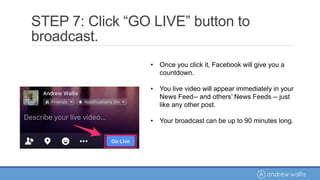
• Once you click it, Facebook will give you a
countdown.
• You live video will appear immediately in your
News Feed-- and others’ News Feeds -- just
like any other post.
• Your broadcast can be up to 90 minutes long.
STEP 7: Click “GO LIVE” button to
broadcast.
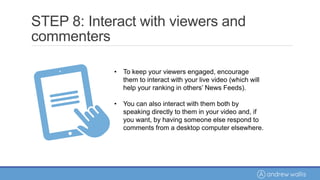
• To keep your viewers engaged, encourage
them to interact with your live video (which will
help your ranking in others’ News Feeds).
• You can also interact with them both by
speaking directly to them in your video and, if
you want, by having someone else respond to
comments from a desktop computer elsewhere.
STEP 8: Interact with viewers and
commenters
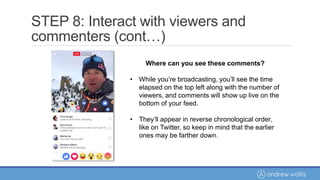
Where can you see these comments?
• While you’re broadcasting, you’ll see the time
elapsed on the top left along with the number of
viewers, and comments will show up live on the
bottom of your feed.
• They’ll appear in reverse chronological order,
like on Twitter, so keep in mind that the earlier
ones may be farther down.
STEP 8: Interact with viewers and
commenters (cont…)
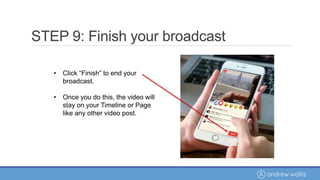
• Click “Finish” to end your
broadcast.
• Once you do this, the video will
stay on your Timeline or Page
like any other video post.
STEP 9: Finish your broadcast
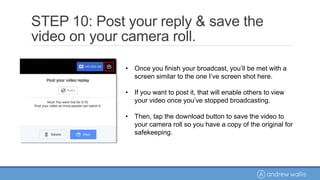
• Once you finish your broadcast, you’ll be met with a
screen similar to the one I’ve screen shot here.
• If you want to post it, that will enable others to view
your video once you’ve stopped broadcasting.
• Then, tap the download button to save the video to
your camera roll so you have a copy of the original for
safekeeping.
STEP 10: Post your reply & save the
video on your camera roll.
You can always go back to the post on
your Timeline or Page and edit the
description, change the privacy settings,
or delete the video, just like you would
any other post.
STEP 11: You’re done!
Questions?
Social Handles
@andrewwallisHQ
@andrewwallisHQ
andrewwallis
@andrewwallis70

Awc facebook-live

  • 1.
    Facebook Marketing Mastery Guide HOWTO BROADCAST ON FACEBOOK LIVE
  • 2.
    Facebook Marketing MasteryGuide Here is what we will cover today: 1. What is Facebook Live 2. Why is live video a big deal for marketers 3. What you should know about social video 4. What you should know about Facebook video content 5. What you should know about Facebook Live 6. 11 Steps To Success
  • 3.
    • Facebook Liveis the social network’s live- streaming video functionality. • Users can broadcast live videos using only their smartphones. • It’s available to all Pages and profiles on Facebook for iOS, Android, and the Facebook Mentions app. • Additionally, live broadcasts can be streamed in Facebook groups and events. What is Facebook Live?
  • 4.
    Why is livevideo a big deal for marketers? “While video has always been popular online, the dominance of social media and the rise of mobile usage has all but ensured social video’s position as the reigning monarch of content. Users continue to produce—and watch—more video at greater rates than ever before” - Hootsuite
  • 5.
    What you shouldknow about social video: •One-third of all online activity is spent watching video •Online video streaming will grow to more than 80% of consumer traffic by 2020 according to predictions from tech company Cisco •92 percent of mobile video consumers share videos with others, according to strategic consulting and digital business firm Insivia
  • 6.
    What you shouldknow about social video: •59 percent of executives would rather watch video than read text, according to Forbes •In 2015, adults in the U.S. were watching an average of one hour and 16 minutes of video on digital devices every day according to eMarketer—up significantly from only 21 minutes watching video on digital devices in 2011 •26 percent of people are interested in watching live streams broadcast by brands or companies.
  • 7.
    What you shouldknow about Facebook Video Content: Native Facebook videos get more organic reach—that is, they’re seen by more users, even without promotion—than any other type of content (a whopping 135 percent more than photos), according to Socialbakers Users watch 100 million hours of video on Facebook every day Facebook boasted 8 billion video views daily as of November 2015 —double the amount it had in April of that same year
  • 8.
    What you shouldknow about Facebook Live: • People comment 10 times more on Facebook Live videos than on regular videos. • The average time people spend watching Live videos is more than three times longer than video that isn’t live. • One in five Facebook users watches Facebook Live.
  • 9.
    Facebook Live: Why You NEEDto be creating video and live Facebook feeds
  • 10.
    Facebook Live startedas a mobile-only broadcasting feature, but now, Facebook Pages can broadcast from either mobile devices or desktop computers. How to Broadcast on Facebook Live
  • 11.
    • Go tothe News Feed, and tap the “LIVE VIDEO” option denoted by the camera icon. STEP 1: Where to start?
  • 12.
    You can alsogo live from your own Facebook profile. • Open up the status bar by tapping the text that reads “What’s on your mind?” • Then, select the “Live Video” option from the menu. STEP 1: Where to start?
  • 13.
    You will needto give Facebook access to your camera and microphone when prompted. NOTE: You’ll stop receiving these prompts after the first time you use it. STEP 2: Give access
  • 14.
    • If you’reposting for a brand, you’ll probably want to make it public. • If you’re posting as yourself, you might want to reserve your broadcast for friends. • But if you’re new to Facebook Live and want to test it out first, or want to see what something will look like, then switch the privacy setting to “Only Me.” You can find the “Only Me” option by clicking “More” and scrolling all the way to the bottom. STEP 3: Choose your privacy setting
  • 15.
    • Give yourbroadcast a description, which will show up on people’s News Feeds like a status update above the video. • To get people to tune in, write an attention grabbing headline and help them understand what your broadcast is about. Check out the example from The White House’s live broadcast. STEP 4: Write a compelling description
  • 16.
    • Tap theicons at the bottom of your screen to tag people who are in the Facebook Live video, add the location from where you’re shooting, or share what you’re doing in the broadcast. • These touches can add more personalisation to your video, increase discoverability, and make people want to tune in. STEP 5: Tag Friends, choose your location or add an activity.
  • 17.
    • Before youclick “Go Live,” be sure your camera’s pointing in the direction you want it to. The background of your setup screen will show you what your camera sees. • If you want to change the camera view to “selfie” or vice versa, simply click the rotating arrows icon in the upper right-hand corner of your screen. • The video will be a square, so it doesn’t matter whether you hold your mobile device vertically or horizontally. STEP 6: Set up your camera view
  • 18.
    • Once youclick it, Facebook will give you a countdown. • You live video will appear immediately in your News Feed-- and others’ News Feeds -- just like any other post. • Your broadcast can be up to 90 minutes long. STEP 7: Click “GO LIVE” button to broadcast.
  • 19.
    • To keepyour viewers engaged, encourage them to interact with your live video (which will help your ranking in others’ News Feeds). • You can also interact with them both by speaking directly to them in your video and, if you want, by having someone else respond to comments from a desktop computer elsewhere. STEP 8: Interact with viewers and commenters
  • 20.
    Where can yousee these comments? • While you’re broadcasting, you’ll see the time elapsed on the top left along with the number of viewers, and comments will show up live on the bottom of your feed. • They’ll appear in reverse chronological order, like on Twitter, so keep in mind that the earlier ones may be farther down. STEP 8: Interact with viewers and commenters (cont…)
  • 21.
    • Click “Finish”to end your broadcast. • Once you do this, the video will stay on your Timeline or Page like any other video post. STEP 9: Finish your broadcast
  • 22.
    • Once youfinish your broadcast, you’ll be met with a screen similar to the one I’ve screen shot here. • If you want to post it, that will enable others to view your video once you’ve stopped broadcasting. • Then, tap the download button to save the video to your camera roll so you have a copy of the original for safekeeping. STEP 10: Post your reply & save the video on your camera roll.
  • 23.
    You can alwaysgo back to the post on your Timeline or Page and edit the description, change the privacy settings, or delete the video, just like you would any other post. STEP 11: You’re done!
  • 24.
  • 25.