•AutoSys is an automated job control system for 
scheduling, monitoring, and reporting. 
•Each AutoSys job definition contains a variety of 
qualifying attributes, including the conditions 
specifying when and where a job should be run.
• Job definitions can be created by the following 
methods: 
• Using the graphical user interface ( GUI). 
• Using the Job Information Language ( JIL) through a 
command -line interface.
• GUI and Command Line Interfaces 
• Graphical Calendar Facility 
• Automated Restart and Recovery 
• High Availability 
• Fault-tolerance
• Load Balancing and Queue Management 
• Framework Management Integration 
• ERP Adapters Integration 
• Multiple Time Zone Support 
• Reporting Capabilities
• Box 
• Containers that hold other jobs (including other 
boxes) 
• Command 
• Execute commands 
• file watcher 
• Watch for the arrival of a specified file.
•A box job can be used to organize and control 
process flow. 
•The box itself performs no actions, although it 
can trigger other jobs to run. 
•An important feature of this type of job is that 
boxes can be put inside of other boxes.
•Jobs run only once per box execution. 
•As long as any job in a box is running, the box 
remains in running state; the box cannot complete 
until all jobs have run. 
•Unless otherwise specified, a box will run 
indefinitely until it reaches a status of SUCCESS 
or FAILURE.
•Jobs in a box will start only if the box itself is 
running. 
•By default, a box will return a status of SUCCESS 
only when all the jobs in the box have run and the 
status of all the jobs is "success". 
•Changing the state of a box to INACTIVE changes 
the state of all the jobs in the box to INACTIVE.
•AutoSys keeps track of the current status, of every 
job. 
•The value of a job’s status is used to determine when 
to start other jobs that are dependent on the job 
•job report generated by the autorep command, and in 
the job report you can view in the Job Activity 
Console
INACTIVE : The job has not yet been processed. Either the 
job has never been run, or its status was intentionally 
altered to “turn off” its previous completion status 
ACTIVATED :The top-level box that this job is in is now in 
the RUNNING state, but the job itself has not started yet. 
STARTING : The event processor has initiated the start job 
procedure with the Remote Agent.
•SUCCESS : The job exited with an exit code equal to or less than the 
“maximum exit code for success.” By default, only the exit code “0” is 
interpreted as “success.” If the job is a box job, this value means that 
all the jobs within the box have finished with the status SUCCESS (the 
default), or the “Exit Condition for Box Success” evaluated to true 
•RUNNING : The job is running. If the job is a box job, this value 
simply means that the jobs within the box may be started (other 
conditions permitting). If it is a command or file watcher job, the value 
means that the process is actually running on the remote machine. 
•
•FAILURE : The job exited with an exit code greater than the 
“maximum exit code for success.” By default, any number 
greater than zero is interpreted as “failure.” AutoSys issues an 
alarm if a job fails 
•TERMINATED : The job terminated while in the RUNNING 
state. A job can be terminated if a user sends a KILLJOB event or 
if it was defined to terminate if the box it is in failed. If the job 
itself fails, it has a FAILURE status, not a TERMINATED status. 
A job may also be terminated if it has exceeded the maximum 
run time (term_run_time attribute, if one was specified for the 
job), or if it was killed from the command line through a UNIX 
kill command. AutoSys issues an alarm if a job is terminated.
• RESTART : The job was unable to start due to 
hardware or application problems, and has 
been scheduled to restart. 
• QUE_WAIT : The job can logically run (that is, 
all the starting conditions have been met), but 
there are not enough machine resources 
available.
•ON_HOLD : This job is on hold and will not be 
run until it receives the JOB_OFF_HOLD event. 
•ON_ICE : This job is removed from all conditions 
and logic, but is still defined to AutoSys. 
Operationally, this condition is like deactivating 
the job. It will remain on ice until it receives the 
JOB_OFF_ICE event.
• The difference between "on hold" and "on ice“: 
• ON – HOLD: 
• When an "on hold" job is taken off hold, if its starting 
conditions are already satisfied, it will be scheduled to 
run, and it will run. 
• From the job that is "on ice" will run as though the job 
succeeded. Whereas, all dependent jobs do not run 
• ON – ICE: 
• If an "on ice" job is taken "off ice," it will not start, even 
if its starting conditions are already satisfied. This job 
will not run until its starting conditions reoccur. 
• When a job is on "on hold"—nothing downstream from 
this job will run.
• AutoSys determines whether to start or not to start a job based on 
the evaluation of the starting conditions (or starting parameters) 
defined for the job. 
• These conditions can be one or more of the following: 
• Date and time scheduling parameters are met (it is or has passed the 
specified date and time). 
• Starting Conditions specified in the job definition evaluate to true. 
• For jobs in a box, the box must be in the RUNNING state. 
• The current status of the job is not ON_HOLD or ON_ICE. 
• Every time an event changes any of the above conditions, AutoSys 
finds all the jobs that may be affected by this change, and 
determines whether or not to start them.
• Sendevent is used in AutoSys for a variety of 
purposes, including starting or stopping AutoSys 
jobs, stopping the Event processor, and putting a 
job on hold. 
• This command is also used to set AutoSys global 
variables or cancel a scheduled event.
• sendevent is normally used with "-E" & -J 
option 
• -J job_name : Specifies the name of the job to which the 
specified event should be sent. This option is required 
for all events except STOP_DEMON, COMMENT, 
ALARM, or SET_GLOBAL 
• -E event :Specifies the event to be sent. This option is 
required.
• STARTJOB 
• KILLJOB 
• DELETEJOB 
• FORCE_STARTJOB 
• JOB_ON_ICE 
• JOB_OFF_ICE 
• SEND_SIGNAL
• JOB_ON_HOLD 
• JOB_OFF_HOLD 
• CHANGE_STATUS 
• STOP_DEMON 
• CHANGE_PRIORITY 
• COMMENT 
• ALARM 
• SET_GLOBAL
• Syntax: 
• sendevent –E <Event Name> -J <Job Name> 
• Example: 
• sendevent -E STARTJOB -J 
rfd_c_sample_job_priyanka
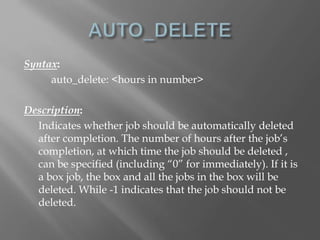
Syntax: 
auto_delete: <hours in number> 
Description: 
Indicates whether job should be automatically deleted 
after completion. The number of hours after the job’s 
completion, at which time the job should be deleted , 
can be specified (including “0” for immediately). If it is 
a box job, the box and all the jobs in the box will be 
deleted. While -1 indicates that the job should not be 
deleted.
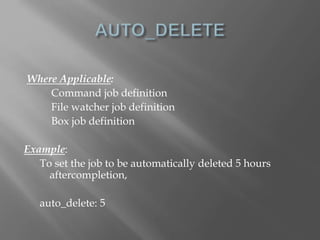
Where Applicable: 
Command job definition 
File watcher job definition 
Box job definition 
Example: 
To set the job to be automatically deleted 5 hours 
aftercompletion, 
auto_delete: 5
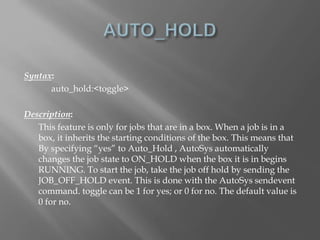
Syntax: 
auto_hold:<toggle> 
Description: 
This feature is only for jobs that are in a box. When a job is in a 
box, it inherits the starting conditions of the box. This means that 
By specifying “yes” to Auto_Hold , AutoSys automatically 
changes the job state to ON_HOLD when the box it is in begins 
RUNNING. To start the job, take the job off hold by sending the 
JOB_OFF_HOLD event. This is done with the AutoSys sendevent 
command. toggle can be 1 for yes; or 0 for no. The default value is 
0 for no.
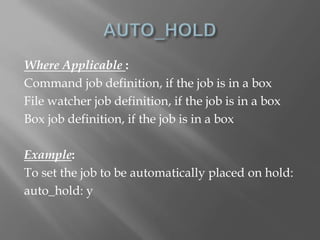
Where Applicable : 
Command job definition, if the job is in a box 
File watcher job definition, if the job is in a box 
Box job definition, if the job is in a box 
Example: 
To set the job to be automatically placed on hold: 
auto_hold: y
Syntax: 
box_failure: <conditions> 
Description: 
The default condition for a box to be considered as 
having failed is that any job in the box completed with a 
failure condition. A box can contain complex branching 
logic, which can take a number of different paths, one of 
which can include recovery from a failed job. In this case, 
you might not want the box to be considered a failure, even 
though a job inside of it failed.
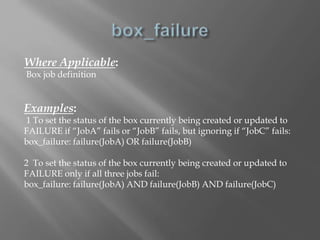
Where Applicable: 
Box job definition 
Examples: 
1 To set the status of the box currently being created or updated to 
FAILURE if “JobA” fails or “JobB” fails, but ignoring if “JobC” fails: 
box_failure: failure(JobA) OR failure(JobB) 
2 To set the status of the box currently being created or updated to 
FAILURE only if all three jobs fail: 
box_failure: failure(JobA) AND failure(JobB) AND failure(JobC)
Syntax 
box_name: name 
Description 
Indicates the name of the box in which this job is to be placed. 
Boxes allow for a set of jobs to be manipulated as a group. The 
specified box must already exist. 
Where Applicable 
Command job definition 
File watcher job definition 
Box job definition
Values 
It can be any string of up to 30 alphanumeric characters, plus the 
underscore character ( _ ). There is no default box name. 
Example 
To specify that the job currently being created or updated should be 
put in the box named “Box1”: 
box_name: Box1
Syntax 
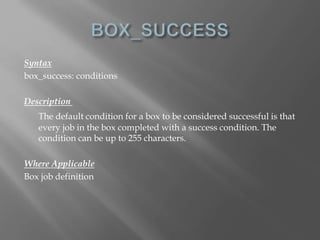
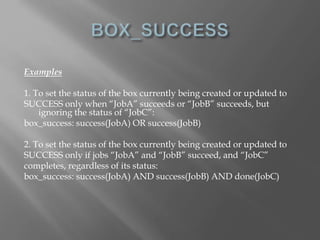
box_success: conditions 
Description 
The default condition for a box to be considered successful is that 
every job in the box completed with a success condition. The 
condition can be up to 255 characters. 
Where Applicable 
Box job definition
Examples 
1. To set the status of the box currently being created or updated to 
SUCCESS only when “JobA” succeeds or “JobB” succeeds, but 
ignoring the status of “JobC”: 
box_success: success(JobA) OR success(JobB) 
2. To set the status of the box currently being created or updated to 
SUCCESS only if jobs “JobA” and “JobB” succeed, and “JobC” 
completes, regardless of its status: 
box_success: success(JobA) AND success(JobB) AND done(JobC)
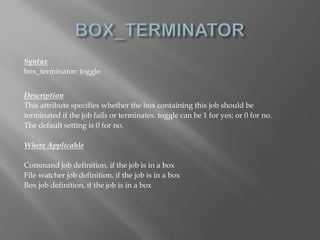
Syntax 
box_terminator: toggle 
Description 
This attribute specifies whether the box containing this job should be 
terminated if the job fails or terminates. toggle can be 1 for yes; or 0 for no. 
The default setting is 0 for no. 
Where Applicable 
Command job definition, if the job is in a box 
File watcher job definition, if the job is in a box 
Box job definition, if the job is in a box
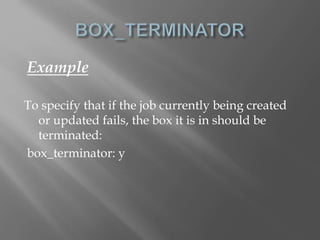
Example 
To specify that if the job currently being created 
or updated fails, the box it is in should be 
terminated: 
box_terminator: y
Syntax 
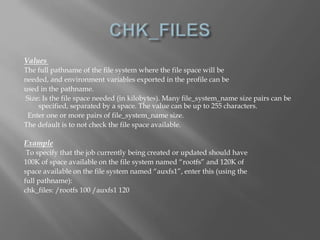
chk_files: file_system_name size [file_system_name size]... 
Description 
This resource check specifies the minimum amount of file space that 
must be available on designated file system(s) for the job to be started. 
In the case of a file watcher definition, the file_system_name should 
identify the location where the file is expected to arrive, as specified in the 
“File to Watch” attribute, and the minimum file size should be the same 
as the “Minimum File Size” attribute. 
Where Applicable 
Command job definition 
File watcher job definition
Values 
The full pathname of the file system where the file space will be 
needed, and environment variables exported in the profile can be 
used in the pathname. 
Size: Is the file space needed (in kilobytes). Many file_system_name size pairs can be 
specified, separated by a space. The value can be up to 255 characters. 
Enter one or more pairs of file_system_name size. 
The default is to not check the file space available. 
Example 
To specify that the job currently being created or updated should have 
100K of space available on the file system named “rootfs” and 120K of 
space available on the file system named “auxfs1”, enter this (using the 
full pathname): 
chk_files: /rootfs 100 /auxfs1 120
Syntax 
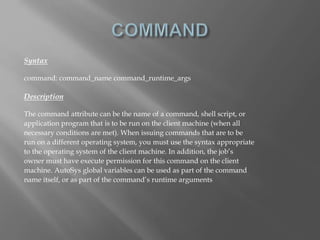
command: command_name command_runtime_args 
Description 
The command attribute can be the name of a command, shell script, or 
application program that is to be run on the client machine (when all 
necessary conditions are met). When issuing commands that are to be 
run on a different operating system, you must use the syntax appropriate 
to the operating system of the client machine. In addition, the job’s 
owner must have execute permission for this command on the client 
machine. AutoSys global variables can be used as part of the command 
name itself, or as part of the command’s runtime arguments
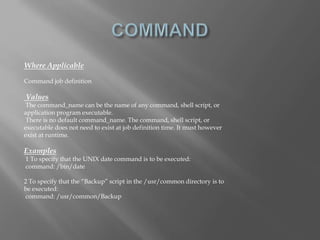
Where Applicable 
Command job definition 
Values 
The command_name can be the name of any command, shell script, or 
application program executable. 
There is no default command_name. The command, shell script, or 
executable does not need to exist at job definition time. It must however 
exist at runtime. 
Examples 
1 To specify that the UNIX date command is to be executed: 
command: /bin/date 
2 To specify that the “Backup” script in the /usr/common directory is to 
be executed: 
command: /usr/common/Backup
Syntax 
condition: [(]condition[)][{AND | OR }[(] condition [)]]... 
Description 
When using the condition attribute, any number of job dependencies can 
be specified. All dependencies must evaluate to “true” before the 
dependent job will be run. Starting conditions can be one or more. 
The condition can be up to 255 characters. There is no default. 
Where Applicable 
Command job definition 
File watcher job definition 
Box job definition
Examples 
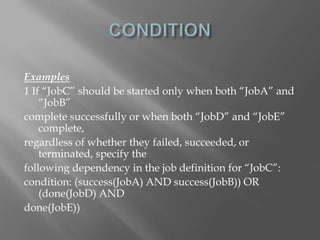
1 If “JobC” should be started only when both “JobA” and 
“JobB” 
complete successfully or when both “JobD” and “JobE” 
complete, 
regardless of whether they failed, succeeded, or 
terminated, specify the 
following dependency in the job definition for “JobC”: 
condition: (success(JobA) AND success(JobB)) OR 
(done(JobD) AND 
done(JobE))
Syntax 
date_conditions: toggle 
Description 
This attribute specifies whether or not there are date 
and/or time conditions for starting this job. If it is 
set to “no”, the remainder of the date/time related 
attributes will be ignored. If set to “yes”, the date 
can be specified using the days_of_week attribute. 
The default value is 0 for no. If the default is used, all 
other date/time dependencies are set to off.
Where Applicable 
Command job definition 
File watcher job definition 
Box job definition 
Values 
toggle can be 1 for yes; or 0 for no. 
Example 
To specify that starting date and time conditions are to be 
in effect: 
date_conditions: y
Syntax 
days_of_week: {day [,day]... | all} 
Description 
Indicates the days of the week when the job will be 
run. One or more days can be selected, or all days 
can be selected. AutoSys will schedule the job to 
run on every day of the week specified by this 
attribute, at the times specified in the start_timesor 
start_mins attribute, one of which must be 
specified if this attribute is used.
Where Applicable 
Command job definition 
File watcher job definition 
Box job definition 
Examples 
1 To specify that the job should be run only on weekdays: 
days_of_week: mo, tu, we, th, fr 
2 To specify that the job should be run every day of the week: 
days_of_week: all
Syntax 
delete_box: box_name 
Description 
The delete_box sub-command deletes the specified box and 
all the jobs in that box. Jobs in the box, and the box itself that 
are already scheduled to run, will still be deleted and will 
not be run. 
Example 
To delete a box named “Box1” and all jobs inside it, you would 
specify the following sub-command in the JIL script: 
delete_box: Box1
Syntax 
delete_job: job_name 
Description 
The delete_job sub-command deletes the specified job from the AutoSys 
database. Even if the job is already scheduled to run, it will not be run. 
Delete_job checks the job_cond table and notifies you if dependent 
conditions for the deleted job exist. This functionality only works when 
JIL is in job verification mode, which is the default setting. 
If the specified job is a box, the box will be deleted. The jobs in the box 
will have their box reference removed and will become stand-alone jobs. 
Example 
To delete a job called “Job1”, you would specify the following sub-command 
in the JIL script: 
delete_job: Job1
Syntax 
description: text 
Description 
Specifies a description for the job; for documentation 
purposes only. 
Where Applicable 
Command job definition 
File watcher job definition 
Box job definition
Values 
text can be any string of alphanumeric characters, 
up to 255 characters. Spaces can be included. You 
should enclose the string in double quotes to 
ensure JIL properly interprets it. There is no 
default. 
Example 
To specify that the job is an incremental daily backup 
of the database: 
description: “incremental daily backup of the 
database”
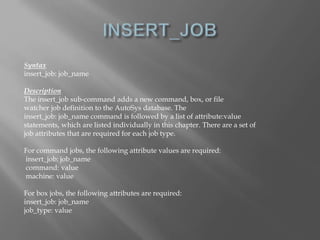
Syntax 
insert_job: job_name 
Description 
The insert_job sub-command adds a new command, box, or file 
watcher job definition to the AutoSys database. The 
insert_job: job_name command is followed by a list of attribute:value 
statements, which are listed individually in this chapter. There are a set of 
job attributes that are required for each job type. 
For command jobs, the following attribute values are required: 
insert_job: job_name 
command: value 
machine: value 
For box jobs, the following attributes are required: 
insert_job: job_name 
job_type: value
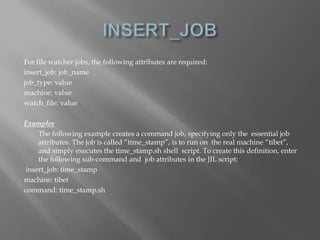
For file watcher jobs, the following attributes are required: 
insert_job: job_name 
job_type: value 
machine: value 
watch_file: value 
Examples 
The following example creates a command job, specifying only the essential job 
attributes. The job is called “time_stamp”, is to run on the real machine “tibet”, 
and simply executes the time_stamp.sh shell script. To create this definition, enter 
the following sub-command and job attributes in the JIL script: 
insert_job: time_stamp 
machine: tibet 
command: time_stamp.sh
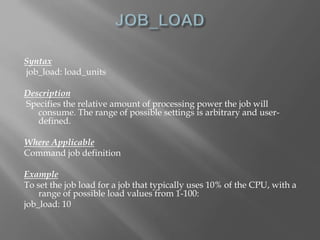
Syntax 
job_load: load_units 
Description 
Specifies the relative amount of processing power the job will 
consume. The range of possible settings is arbitrary and user-defined. 
Where Applicable 
Command job definition 
Example 
To set the job load for a job that typically uses 10% of the CPU, with a 
range of possible load values from 1-100: 
job_load: 10
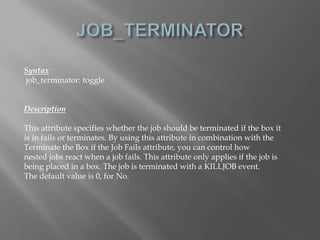
Syntax 
job_terminator: toggle 
Description 
This attribute specifies whether the job should be terminated if the box it 
is in fails or terminates. By using this attribute in combination with the 
Terminate the Box if the Job Fails attribute, you can control how 
nested jobs react when a job fails. This attribute only applies if the job is 
being placed in a box. The job is terminated with a KILLJOB event. 
The default value is 0, for No.
Where Applicable 
Command job definition, if the job is in a box 
File watcher job definition, if the job is in a box 
Box job definition, if the job is in a box 
Example 
To specify that if the box containing the job 
currently being created or updated fails, the job 
should be terminated: 
job_terminator: y
Syntax 
job_type: type 
Description 
Specifies whether the job is a command job, file 
watcher job, or box job. 
Where Applicable 
Command job definition 
File watcher job definition 
Box job definition
Values 
Type can be any one of the following: 
c (command) 
f (file watcher) 
b (box) 
The default value is c, specifying a command job. 
Example 
To set the job currently being created or updated to 
be a box job: 
job_type: b
Syntax 
machine: {machine_name [, machine_name]...| 
‘machine_chooser_script‘} 
Description 
Specifies the client machine where the job will be run, 
under the control of the Remote Agent. The owner of 
the job must have permission to access this machine as 
well as permission to execute the specified command 
on this machine.
Where Applicable 
Command job definition 
File watcher job definition 
Note • For a file watcher, you must specify one real machine. 
Values 
machine_name can be any real machine, virtual machine, or set of real 
machines. The name can be up to 80 characters. 
Examples 
1 To specify that the job be executed on either of the machines named 
“tibet” or “socrates”: 
machine: tibet, socrates 
2 To run the script /usr/local/bin/my-machine-chooser at job runtime 
to determine which machine to use: 
machine: ‘/usr/local/bin/my-machine-chooser’
Syntax 
max_exit_success: exit_code 
Description 
Specifies the maximum UNIX exit code with which the job 
can exit and still be considered a success by AutoSys. 
An exit code equal to or less than this value will be 
considered a success. This attribute is used when a 
command can exit with more than one exit code, 
indicating either “degrees of success” or other 
conditions that cannot indicate a failure. It’s useful 
when defining complex branching logic based on real-time 
Processing.
Where Applicable 
Command job definition 
Values 
exit_code can be any integer representing a UNIX exit code. 
The default is “0”, which is the normal exit code for UNIX 
executables. 
Example 
To set the job to be considered successful when exiting with 
any exit code of “2” or less: 
max_exit_success: 2
Syntax 
max_run_alarm: mins 
Description 
Specifies the maximum run time (in minutes) that a job 
should require to finish normally. This “reasonability” 
test can catch an error, such as the application stuck in 
a loop or waiting on a system event that never occurs. 
If the job runs longer than this time, an alarm is 
generated. Alarms are informational only. You must 
have a monitor or the Alarm Manager running to track 
alarms in real time.
Where Applicable 
Command job definition 
File watcher job definition 
Box job definition 
Values 
mins can be any integer; it represents the maximum number of 
minutes the job should ever require to finish normally. 
Example 
To set the job to be considered as running too long if it runs for more 
than an hour and a half: 
max_run_alarm: 90
Syntax 
min_run_alarm: mins 
Description 
Specifies the minimum run time (in minutes) that a job 
should require to finish normally. This “reasonability” 
test can catch an error, such as the input file being 
truncated due to an error. If the job runs in less than 
this time, an alarm is generated. Alarms are 
informational only. You must have a monitor or the 
Alarm Manager running to track alarms in real time.
Where Applicable 
Command job definition 
File watcher job definition 
Box job definition 
Values 
mins can be any integer; it represents the minimum number of 
minutes the job should ever require to finish normally. 
Example 
To set the job to be considered as completing too quickly if it 
runs for less than an hour and a half: 
min_run_alarm: 90
Syntax 
n_retrys: attempts 
Description 
Specifies how many times, if any, the job should be restarted 
after exiting with a FAILURE status. If a job is 
TERMINATED, it will not restart. 
Where Applicable 
Command job definition 
File watcher job definition 
Box job definition
Values 
attempts can be any integer between 1 and 20. 
The default is 0, indicating the job will not be restarted. 
Example 
To set the job to be automatically restarted up to 5 times 
after an application failure (not system or network 
related): 
n_retrys: 5 
This means that the job would start as scheduled, and, if 
it fails, it would restart up to five additional times for a 
total of six attempts.
Syntax 
owner: {user@machine | user} 
Description 
Specifies the owner of the job. The owner is the user who invoked jil. This user will 
own all jobs defined during the session, and will have edit permission on the jobs. 
The UNIX command specified in that job will be run under the user ID 
of the owner. When a command is started on the Remote Agent, the uid 
of the process is changed to the owner of the job. 
The default owner is defined as user@machine. Therefore, only the specific 
user on the specific machine can edit the job. In order for the job to run, 
this user@machine combination must have execute permission on the 
UNIX command specified in the job, on the client machine for the job. 
The owner cannot change this ownership designation. Only the Edit 
Superuser can change the owner of a job. However, the owner can grant 
other users edit permission, as well as execute permission, on the job.
Where Applicable 
Command job definition 
File watcher job definition 
Box job definition 
Example 
For the Edit Superuser to change the owner such that 
“chris” on any machine in the network can edit the 
job, and the job’s command will run with the 
permissions of “chris”: 
owner: chris
Syntax 
permission: permission [, permission] 
Description 
The AutoSys permission scheme is based on the same permissions used 
in native UNIX. It uses the user ID (uid), and group ID (gid) from the 
UNIX environment to control who can edit job definitions and who can 
execute the actual command specified in the job. (If you are defining jobs 
that are to run on different operating systems, use the permissions 
applicable to the operating system of the client machine.) 
AutoSys uses the concept of three levels of users for any job. These levels 
are: 
Owner—The user who created the job. 
Group—Any user who is in the same group as the owner. 
World—Every user. 
Also, as in UNIX, there are multiple levels of permissions associated with 
a job. Every job has the following levels of permissions:
Where Applicable 
Command job definition 
File watcher job definition 
Box job definition 
Values 
When a job is first created, the user ID is retrieved from the environment 
and attached to the job. Then the current value of the owner’s umask is 
used to supply default permissions to the job. The umask “write” 
permission is used as the default “edit” permission of the job, and the 
umask“execute” permission is used as the default “execute” permission of 
the job. 
These are the possible values for the permission attribute: 
gx - Group Execute 
ge - Group Edit
mx - Execute by any authorized users, regardless of the machine they are on 
(otherwise they must be logged onto the machine specified in the 
owner field, i.e., user@machine) 
me - Edit by any authorized users, regardless of the machine they are on 
(otherwise they must be logged onto the machine specified in the 
owner field, i.e., user@machine) 
wx -World Execute 
we - World Edit 
The order of occurrence is not important. 
The default group and world permissions are based on the user’s umask 
setting. Machine permissions are turned off. 
The owner of the job always has full edit and execute permissions. 
Example 
To set the job to allow anyone to execute it, but to allow only members 
of your group to edit it: 
permission: ge, wx
Syntax 
priority: priority_level 
Description 
Specifies the queue priority of the job. Each job is 
assigned a load as well. If a job is ready to run and designated to run on 
that machine, but the current load on that machine is too large to accept 
the new job’s load, the job will be “queued” for that machine. 
Although boxes cannot be queued, they can be assigned priorities. This 
permits boxes within other boxes to be run according to their priority, 
rather than the order in which they were defined, which is the default. 
Where Applicable 
Command job definition 
Box job definition
Values 
priority_level can be any integer 0 or larger. priority_level 0 indicates 
that the job should always be run immediately, regardless of the current 
machine load. The lower the priority_level number, the higher the 
priority; therefore, 1 is the highest possible queued priority. 
The default is 0, indicating the job will not be queued at all; instead it will 
run immediately, regardless of the current machine load. 
Examples 
1 To set the job to always run, regardless of the current load on the client 
machine, accept the default which is 0. 
2 To set the job to run with the highest priority, while not overriding the 
machine load control mechanism: 
priority: 1 
3 To set the job to run in the background when the machine load is low, 
enter this: 
priority: 100
Syntax 
profile: pathname 
Description 
Specifies the profile that is to be sourced by the Bourne shell before the 
specified command is executed. If a profile attribute is specified, that 
profile is searched for on the machine on which the command is to run. 
The full pathname cannot exceed 80 characters. 
Where Applicable 
Command job definition 
File watcher job definition 
Example 
To set the user’s profile called my_profilein their home directory called 
/usr/home: 
profile: /usr/home/my_profile
Syntax 
run_calendar: calendar_name 
Description 
Indicates the name of the custom calendar to be used 
when determining the days of the week on which a job 
will run. This attribute is useful for complex date 
specification, such as running a job on the last business 
day of the month. The custom calendar will list the 
dates and the times when the job is to be run. The 
calendar must have been previously created using the 
Graphical Calendar Facility or the autocal_asc 
command. This attribute and the days_of_week 
attribute are mutually exclusive.
Where Applicable 
Command job definition 
File watcher job definition 
Box job definition 
Values 
calendar_name must be the name of a custom calendar that has 
already been created. 
The default is that no run calendar will be used. 
Example 
To specify that the job should be run on the last business day of the 
month, as specified in the previously created custom calendar named 
“last_business”: 
run_calendar: last_business
Syntax 
run_window: “time-time” 
Description 
Indicates the time span during which the job will be allowed to start. If 
this attribute is specified, then when the job is eligible to run (based on 
its starting conditions) AutoSys will check if the current time falls within 
the specified run window. If it does, the job will start. If it does not, the 
following calculations are used to determine whether or not to run the 
job. The end of the last run window and the beginning of the next run 
window are determined. If the current time is closer to the beginning of 
the next run window, the job will be scheduled to start when the next run 
window starts. If the current time is closer to the end of the last run 
window, the job does not start and its status is changed to INACTIVE.
Where Applicable 
Command job definition 
File watcher job definition 
Box job definition 
Values 
time-time must be entered in quotes, using the format “hh:mm-hh: 
mm” where the hh specifies hours, in 24-hour format, and the 
mm specifies minutes. 
Example 
To specify that the job should be allowed to start only between 
11:00 p.m. and 2:00 a.m., regardless of other conditions: 
run_window: “23:00-02:00”
Syntax 
start_mins: mins [, mins]... 
Description 
Indicates the number of minutes past the hour, every hour, on the specified 
days or dates, when the job will be started. The days or dates must be 
specified using one of the following attributes: days_of_week or 
run_calendar. This attribute overrides any times set in a run calendar. 
The start_mins attribute and the start_timesattribute are mutually exclusive. 
Where Applicable 
Command job definition 
File watcher job definition 
Box job definition
Values 
mins must be a number 0–59, representing the 
number of minutespast each hour when the job 
will be run. The total number of characters must 
not exceed 255. Multiple lines can be used without 
specifying a continuation character. The default is 
that no start time in minutes will be set. 
Example 
To specify that the job be run at a quarter past and a 
quarter before each hour: 
start_mins: 15, 45
Syntax 
start_times: “time [, time]...” 
Description 
Indicates the times of day, in 24-hour format, on the specified days or 
dates, when the job will be started. The days or dates must be 
specified using one of the following attributes: days_of_weekor 
run_calendar. This attribute overrides any times set in a run 
calendar. The start_times attribute and the start_mins attribute are 
mutually exclusive. 
Where Applicable 
Command job definition 
File watcher job definition 
Box job definition
Values 
time must be specified using the format “hh:mm” where the hh 
specifies hours, in 24-hour format, and the mm specifies minutes. 
The total number of characters must not exceed 255. The keyword 
start_times is omitted. 
The default is that no start time will be set. This is an error if days or 
dates 
are specified for this job, and no time has been specified in the other 
field. 
Example 
To specify that the job be run at 10:00 a.m. and 2:00 p.m. on every 
specified day or date: 
start_times: “10:00, 14:00”
Syntax 
term_run_time: mins 
Description 
Specifies the maximum run time (in minutes) that a job 
should require to finish normally. If the job runs longer 
than this time, it will be automatically terminated by 
AutoSys. 
Where Applicable 
Command job definition 
File watcher job definition 
Box job definition
Values 
mins can be any integer; it represents the maximum 
number of minutes the job should ever require to 
finish normally. The default is “0”, indicating the 
job should allowed to run forever. 
Example 
To set the job to be automatically terminated if it 
runs longer than 90 minutes: 
term_run_time: 90
Syntax 
timezone: zone 
Description 
Allows you to schedule a job based on a chosen time zone. 
When the timezone attribute is specified in a job 
definition, the time settings in that job are based on the 
zone time zone. 
Where Applicable 
Command job definition 
File watcher job definition 
Box job definition
Example 
1 To set the time zone for a job definition to Chicago time: 
timezone: Chicago 
2 To set the time zone for a job definition to Pacific time: 
timezone: US/Pacific 
3 If you specify a time zone that includes a colon, you must quote the time 
zone name if you are using JIL, like this: 
timezone: “IST-5:30”
Syntax 
update_job: job_name 
Description 
The update_jobsub-command updates an existing command, box, or 
file watcher job definition in the AutoSys database. The 
update_job statement is followed by a list of attribute:value 
statements, which are listed individually in this chapter. 
Where Applicable 
Command job definition 
File watcher job definition 
Box job definition
Example 
To change a pre-existing command job called 
“time_stamp” to run on the real machine 
“paris”, rather than on the originally specified 
machine, enter the following sub-command 
and job attribute in the JIL script: 
update_job: time_stamp 
machine: paris
Syntax 
watch_file: pathname 
Description 
Specifies the file for which this file watcher job should 
watch. The name of the file to watch for must be a legal 
UNIX filename, and it must identify the full pathname 
of the file. Variables exported from the profile script or 
AutoSys global variables can be used in the pathname 
specification. 
Where Applicable 
File watcher job definition
Examples 
1 To set the file watcher to watch for a file named 
/tmp/batch.input: 
watch_file: /tmp/batch.input 
2 To set the file watcher to watch for a file whose 
name has been assigned to a global variable 
named “file_1”: 
watch_file: $${file_1}
Syntax 
watch_file_min_size: bytes 
Description 
Specifies the watch file minimum size (in bytes) which determines when 
enough data has been written to the file to consider it complete. AutoSys 
doesn’t consider a file complete until both the minimum file size is 
reached, and the watch interval has detected a “steady state” (i.e., the file 
size has not changed between checked intervals). A reasonable file size 
should be specified in order to ensure that a nearly empty file doesn’t 
appear to be complete, while a size that is smaller than usual doesn’t 
prevent the file from being considered complete.
Where Applicable 
File watcher job definition 
Values 
bytes can be any integer; it represents the minimum number of bytes 
in the file before it is considered complete. 
The default is “0”, meaning the mere presence of the file is enough to 
consider the file complete. 
Example 
To set the file to be considered complete when it reaches 10K bytes 
(assuming the file has reached “steady state” as well): 
watch_file_min_size: 10000
Syntax 
watch_interval: seconds 
Description 
Specifies the interval (in seconds) at which the file watcher job will check 
for the existence and size of the watched-for file. A “steady state” is said 
to have been reached when the file hasn’t grown during the specified 
time interval. When the “steady state” has been reached and the file is at 
least as large as the minimum file size specified in watch_file_min_size, 
the file is considered complete. A reasonable interval should be specified 
to ensure that the file doesn’t appear to be at “steady state” when it really 
isn’t.
Where Applicable 
File watcher job definition 
Values 
seconds can be any integer; it represents the time interval 
between 
checks of the file existence and file size. 
The default is interval is 60. 
Example 
To set the file to be checked for a steady state every two 
minutes: 
watch_interval: 120
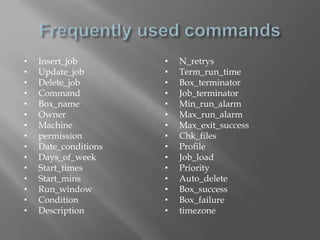
• Insert_job 
• Update_job 
• Delete_job 
• Command 
• Box_name 
• Owner 
• Machine 
• permission 
• Date_conditions 
• Days_of_week 
• Start_times 
• Start_mins 
• Run_window 
• Condition 
• Description 
• N_retrys 
• Term_run_time 
• Box_terminator 
• Job_terminator 
• Min_run_alarm 
• Max_run_alarm 
• Max_exit_success 
• Chk_files 
• Profile 
• Job_load 
• Priority 
• Auto_delete 
• Box_success 
• Box_failure 
• timezone
Autosys Complete Guide

Autosys Complete Guide

  • 2.
    •AutoSys is anautomated job control system for scheduling, monitoring, and reporting. •Each AutoSys job definition contains a variety of qualifying attributes, including the conditions specifying when and where a job should be run.
  • 3.
    • Job definitionscan be created by the following methods: • Using the graphical user interface ( GUI). • Using the Job Information Language ( JIL) through a command -line interface.
  • 4.
    • GUI andCommand Line Interfaces • Graphical Calendar Facility • Automated Restart and Recovery • High Availability • Fault-tolerance
  • 5.
    • Load Balancingand Queue Management • Framework Management Integration • ERP Adapters Integration • Multiple Time Zone Support • Reporting Capabilities
  • 7.
    • Box •Containers that hold other jobs (including other boxes) • Command • Execute commands • file watcher • Watch for the arrival of a specified file.
  • 8.
    •A box jobcan be used to organize and control process flow. •The box itself performs no actions, although it can trigger other jobs to run. •An important feature of this type of job is that boxes can be put inside of other boxes.
  • 9.
    •Jobs run onlyonce per box execution. •As long as any job in a box is running, the box remains in running state; the box cannot complete until all jobs have run. •Unless otherwise specified, a box will run indefinitely until it reaches a status of SUCCESS or FAILURE.
  • 10.
    •Jobs in abox will start only if the box itself is running. •By default, a box will return a status of SUCCESS only when all the jobs in the box have run and the status of all the jobs is "success". •Changing the state of a box to INACTIVE changes the state of all the jobs in the box to INACTIVE.
  • 11.
    •AutoSys keeps trackof the current status, of every job. •The value of a job’s status is used to determine when to start other jobs that are dependent on the job •job report generated by the autorep command, and in the job report you can view in the Job Activity Console
  • 12.
    INACTIVE : Thejob has not yet been processed. Either the job has never been run, or its status was intentionally altered to “turn off” its previous completion status ACTIVATED :The top-level box that this job is in is now in the RUNNING state, but the job itself has not started yet. STARTING : The event processor has initiated the start job procedure with the Remote Agent.
  • 13.
    •SUCCESS : Thejob exited with an exit code equal to or less than the “maximum exit code for success.” By default, only the exit code “0” is interpreted as “success.” If the job is a box job, this value means that all the jobs within the box have finished with the status SUCCESS (the default), or the “Exit Condition for Box Success” evaluated to true •RUNNING : The job is running. If the job is a box job, this value simply means that the jobs within the box may be started (other conditions permitting). If it is a command or file watcher job, the value means that the process is actually running on the remote machine. •
  • 14.
    •FAILURE : Thejob exited with an exit code greater than the “maximum exit code for success.” By default, any number greater than zero is interpreted as “failure.” AutoSys issues an alarm if a job fails •TERMINATED : The job terminated while in the RUNNING state. A job can be terminated if a user sends a KILLJOB event or if it was defined to terminate if the box it is in failed. If the job itself fails, it has a FAILURE status, not a TERMINATED status. A job may also be terminated if it has exceeded the maximum run time (term_run_time attribute, if one was specified for the job), or if it was killed from the command line through a UNIX kill command. AutoSys issues an alarm if a job is terminated.
  • 15.
    • RESTART :The job was unable to start due to hardware or application problems, and has been scheduled to restart. • QUE_WAIT : The job can logically run (that is, all the starting conditions have been met), but there are not enough machine resources available.
  • 16.
    •ON_HOLD : Thisjob is on hold and will not be run until it receives the JOB_OFF_HOLD event. •ON_ICE : This job is removed from all conditions and logic, but is still defined to AutoSys. Operationally, this condition is like deactivating the job. It will remain on ice until it receives the JOB_OFF_ICE event.
  • 17.
    • The differencebetween "on hold" and "on ice“: • ON – HOLD: • When an "on hold" job is taken off hold, if its starting conditions are already satisfied, it will be scheduled to run, and it will run. • From the job that is "on ice" will run as though the job succeeded. Whereas, all dependent jobs do not run • ON – ICE: • If an "on ice" job is taken "off ice," it will not start, even if its starting conditions are already satisfied. This job will not run until its starting conditions reoccur. • When a job is on "on hold"—nothing downstream from this job will run.
  • 18.
    • AutoSys determineswhether to start or not to start a job based on the evaluation of the starting conditions (or starting parameters) defined for the job. • These conditions can be one or more of the following: • Date and time scheduling parameters are met (it is or has passed the specified date and time). • Starting Conditions specified in the job definition evaluate to true. • For jobs in a box, the box must be in the RUNNING state. • The current status of the job is not ON_HOLD or ON_ICE. • Every time an event changes any of the above conditions, AutoSys finds all the jobs that may be affected by this change, and determines whether or not to start them.
  • 19.
    • Sendevent isused in AutoSys for a variety of purposes, including starting or stopping AutoSys jobs, stopping the Event processor, and putting a job on hold. • This command is also used to set AutoSys global variables or cancel a scheduled event.
  • 20.
    • sendevent isnormally used with "-E" & -J option • -J job_name : Specifies the name of the job to which the specified event should be sent. This option is required for all events except STOP_DEMON, COMMENT, ALARM, or SET_GLOBAL • -E event :Specifies the event to be sent. This option is required.
  • 21.
    • STARTJOB •KILLJOB • DELETEJOB • FORCE_STARTJOB • JOB_ON_ICE • JOB_OFF_ICE • SEND_SIGNAL
  • 22.
    • JOB_ON_HOLD •JOB_OFF_HOLD • CHANGE_STATUS • STOP_DEMON • CHANGE_PRIORITY • COMMENT • ALARM • SET_GLOBAL
  • 23.
    • Syntax: •sendevent –E <Event Name> -J <Job Name> • Example: • sendevent -E STARTJOB -J rfd_c_sample_job_priyanka
  • 25.
    Syntax: auto_delete: <hoursin number> Description: Indicates whether job should be automatically deleted after completion. The number of hours after the job’s completion, at which time the job should be deleted , can be specified (including “0” for immediately). If it is a box job, the box and all the jobs in the box will be deleted. While -1 indicates that the job should not be deleted.
  • 26.
    Where Applicable: Commandjob definition File watcher job definition Box job definition Example: To set the job to be automatically deleted 5 hours aftercompletion, auto_delete: 5
  • 27.
    Syntax: auto_hold:<toggle> Description: This feature is only for jobs that are in a box. When a job is in a box, it inherits the starting conditions of the box. This means that By specifying “yes” to Auto_Hold , AutoSys automatically changes the job state to ON_HOLD when the box it is in begins RUNNING. To start the job, take the job off hold by sending the JOB_OFF_HOLD event. This is done with the AutoSys sendevent command. toggle can be 1 for yes; or 0 for no. The default value is 0 for no.
  • 28.
    Where Applicable : Command job definition, if the job is in a box File watcher job definition, if the job is in a box Box job definition, if the job is in a box Example: To set the job to be automatically placed on hold: auto_hold: y
  • 29.
    Syntax: box_failure: <conditions> Description: The default condition for a box to be considered as having failed is that any job in the box completed with a failure condition. A box can contain complex branching logic, which can take a number of different paths, one of which can include recovery from a failed job. In this case, you might not want the box to be considered a failure, even though a job inside of it failed.
  • 30.
    Where Applicable: Boxjob definition Examples: 1 To set the status of the box currently being created or updated to FAILURE if “JobA” fails or “JobB” fails, but ignoring if “JobC” fails: box_failure: failure(JobA) OR failure(JobB) 2 To set the status of the box currently being created or updated to FAILURE only if all three jobs fail: box_failure: failure(JobA) AND failure(JobB) AND failure(JobC)
  • 31.
    Syntax box_name: name Description Indicates the name of the box in which this job is to be placed. Boxes allow for a set of jobs to be manipulated as a group. The specified box must already exist. Where Applicable Command job definition File watcher job definition Box job definition
  • 32.
    Values It canbe any string of up to 30 alphanumeric characters, plus the underscore character ( _ ). There is no default box name. Example To specify that the job currently being created or updated should be put in the box named “Box1”: box_name: Box1
  • 33.
    Syntax box_success: conditions Description The default condition for a box to be considered successful is that every job in the box completed with a success condition. The condition can be up to 255 characters. Where Applicable Box job definition
  • 34.
    Examples 1. Toset the status of the box currently being created or updated to SUCCESS only when “JobA” succeeds or “JobB” succeeds, but ignoring the status of “JobC”: box_success: success(JobA) OR success(JobB) 2. To set the status of the box currently being created or updated to SUCCESS only if jobs “JobA” and “JobB” succeed, and “JobC” completes, regardless of its status: box_success: success(JobA) AND success(JobB) AND done(JobC)
  • 35.
    Syntax box_terminator: toggle Description This attribute specifies whether the box containing this job should be terminated if the job fails or terminates. toggle can be 1 for yes; or 0 for no. The default setting is 0 for no. Where Applicable Command job definition, if the job is in a box File watcher job definition, if the job is in a box Box job definition, if the job is in a box
  • 36.
    Example To specifythat if the job currently being created or updated fails, the box it is in should be terminated: box_terminator: y
  • 37.
    Syntax chk_files: file_system_namesize [file_system_name size]... Description This resource check specifies the minimum amount of file space that must be available on designated file system(s) for the job to be started. In the case of a file watcher definition, the file_system_name should identify the location where the file is expected to arrive, as specified in the “File to Watch” attribute, and the minimum file size should be the same as the “Minimum File Size” attribute. Where Applicable Command job definition File watcher job definition
  • 38.
    Values The fullpathname of the file system where the file space will be needed, and environment variables exported in the profile can be used in the pathname. Size: Is the file space needed (in kilobytes). Many file_system_name size pairs can be specified, separated by a space. The value can be up to 255 characters. Enter one or more pairs of file_system_name size. The default is to not check the file space available. Example To specify that the job currently being created or updated should have 100K of space available on the file system named “rootfs” and 120K of space available on the file system named “auxfs1”, enter this (using the full pathname): chk_files: /rootfs 100 /auxfs1 120
  • 39.
    Syntax command: command_namecommand_runtime_args Description The command attribute can be the name of a command, shell script, or application program that is to be run on the client machine (when all necessary conditions are met). When issuing commands that are to be run on a different operating system, you must use the syntax appropriate to the operating system of the client machine. In addition, the job’s owner must have execute permission for this command on the client machine. AutoSys global variables can be used as part of the command name itself, or as part of the command’s runtime arguments
  • 40.
    Where Applicable Commandjob definition Values The command_name can be the name of any command, shell script, or application program executable. There is no default command_name. The command, shell script, or executable does not need to exist at job definition time. It must however exist at runtime. Examples 1 To specify that the UNIX date command is to be executed: command: /bin/date 2 To specify that the “Backup” script in the /usr/common directory is to be executed: command: /usr/common/Backup
  • 41.
    Syntax condition: [(]condition[)][{AND| OR }[(] condition [)]]... Description When using the condition attribute, any number of job dependencies can be specified. All dependencies must evaluate to “true” before the dependent job will be run. Starting conditions can be one or more. The condition can be up to 255 characters. There is no default. Where Applicable Command job definition File watcher job definition Box job definition
  • 42.
    Examples 1 If“JobC” should be started only when both “JobA” and “JobB” complete successfully or when both “JobD” and “JobE” complete, regardless of whether they failed, succeeded, or terminated, specify the following dependency in the job definition for “JobC”: condition: (success(JobA) AND success(JobB)) OR (done(JobD) AND done(JobE))
  • 43.
    Syntax date_conditions: toggle Description This attribute specifies whether or not there are date and/or time conditions for starting this job. If it is set to “no”, the remainder of the date/time related attributes will be ignored. If set to “yes”, the date can be specified using the days_of_week attribute. The default value is 0 for no. If the default is used, all other date/time dependencies are set to off.
  • 44.
    Where Applicable Commandjob definition File watcher job definition Box job definition Values toggle can be 1 for yes; or 0 for no. Example To specify that starting date and time conditions are to be in effect: date_conditions: y
  • 45.
    Syntax days_of_week: {day[,day]... | all} Description Indicates the days of the week when the job will be run. One or more days can be selected, or all days can be selected. AutoSys will schedule the job to run on every day of the week specified by this attribute, at the times specified in the start_timesor start_mins attribute, one of which must be specified if this attribute is used.
  • 46.
    Where Applicable Commandjob definition File watcher job definition Box job definition Examples 1 To specify that the job should be run only on weekdays: days_of_week: mo, tu, we, th, fr 2 To specify that the job should be run every day of the week: days_of_week: all
  • 47.
    Syntax delete_box: box_name Description The delete_box sub-command deletes the specified box and all the jobs in that box. Jobs in the box, and the box itself that are already scheduled to run, will still be deleted and will not be run. Example To delete a box named “Box1” and all jobs inside it, you would specify the following sub-command in the JIL script: delete_box: Box1
  • 48.
    Syntax delete_job: job_name Description The delete_job sub-command deletes the specified job from the AutoSys database. Even if the job is already scheduled to run, it will not be run. Delete_job checks the job_cond table and notifies you if dependent conditions for the deleted job exist. This functionality only works when JIL is in job verification mode, which is the default setting. If the specified job is a box, the box will be deleted. The jobs in the box will have their box reference removed and will become stand-alone jobs. Example To delete a job called “Job1”, you would specify the following sub-command in the JIL script: delete_job: Job1
  • 49.
    Syntax description: text Description Specifies a description for the job; for documentation purposes only. Where Applicable Command job definition File watcher job definition Box job definition
  • 50.
    Values text canbe any string of alphanumeric characters, up to 255 characters. Spaces can be included. You should enclose the string in double quotes to ensure JIL properly interprets it. There is no default. Example To specify that the job is an incremental daily backup of the database: description: “incremental daily backup of the database”
  • 51.
    Syntax insert_job: job_name Description The insert_job sub-command adds a new command, box, or file watcher job definition to the AutoSys database. The insert_job: job_name command is followed by a list of attribute:value statements, which are listed individually in this chapter. There are a set of job attributes that are required for each job type. For command jobs, the following attribute values are required: insert_job: job_name command: value machine: value For box jobs, the following attributes are required: insert_job: job_name job_type: value
  • 52.
    For file watcherjobs, the following attributes are required: insert_job: job_name job_type: value machine: value watch_file: value Examples The following example creates a command job, specifying only the essential job attributes. The job is called “time_stamp”, is to run on the real machine “tibet”, and simply executes the time_stamp.sh shell script. To create this definition, enter the following sub-command and job attributes in the JIL script: insert_job: time_stamp machine: tibet command: time_stamp.sh
  • 53.
    Syntax job_load: load_units Description Specifies the relative amount of processing power the job will consume. The range of possible settings is arbitrary and user-defined. Where Applicable Command job definition Example To set the job load for a job that typically uses 10% of the CPU, with a range of possible load values from 1-100: job_load: 10
  • 54.
    Syntax job_terminator: toggle Description This attribute specifies whether the job should be terminated if the box it is in fails or terminates. By using this attribute in combination with the Terminate the Box if the Job Fails attribute, you can control how nested jobs react when a job fails. This attribute only applies if the job is being placed in a box. The job is terminated with a KILLJOB event. The default value is 0, for No.
  • 55.
    Where Applicable Commandjob definition, if the job is in a box File watcher job definition, if the job is in a box Box job definition, if the job is in a box Example To specify that if the box containing the job currently being created or updated fails, the job should be terminated: job_terminator: y
  • 56.
    Syntax job_type: type Description Specifies whether the job is a command job, file watcher job, or box job. Where Applicable Command job definition File watcher job definition Box job definition
  • 57.
    Values Type canbe any one of the following: c (command) f (file watcher) b (box) The default value is c, specifying a command job. Example To set the job currently being created or updated to be a box job: job_type: b
  • 58.
    Syntax machine: {machine_name[, machine_name]...| ‘machine_chooser_script‘} Description Specifies the client machine where the job will be run, under the control of the Remote Agent. The owner of the job must have permission to access this machine as well as permission to execute the specified command on this machine.
  • 59.
    Where Applicable Commandjob definition File watcher job definition Note • For a file watcher, you must specify one real machine. Values machine_name can be any real machine, virtual machine, or set of real machines. The name can be up to 80 characters. Examples 1 To specify that the job be executed on either of the machines named “tibet” or “socrates”: machine: tibet, socrates 2 To run the script /usr/local/bin/my-machine-chooser at job runtime to determine which machine to use: machine: ‘/usr/local/bin/my-machine-chooser’
  • 60.
    Syntax max_exit_success: exit_code Description Specifies the maximum UNIX exit code with which the job can exit and still be considered a success by AutoSys. An exit code equal to or less than this value will be considered a success. This attribute is used when a command can exit with more than one exit code, indicating either “degrees of success” or other conditions that cannot indicate a failure. It’s useful when defining complex branching logic based on real-time Processing.
  • 61.
    Where Applicable Commandjob definition Values exit_code can be any integer representing a UNIX exit code. The default is “0”, which is the normal exit code for UNIX executables. Example To set the job to be considered successful when exiting with any exit code of “2” or less: max_exit_success: 2
  • 62.
    Syntax max_run_alarm: mins Description Specifies the maximum run time (in minutes) that a job should require to finish normally. This “reasonability” test can catch an error, such as the application stuck in a loop or waiting on a system event that never occurs. If the job runs longer than this time, an alarm is generated. Alarms are informational only. You must have a monitor or the Alarm Manager running to track alarms in real time.
  • 63.
    Where Applicable Commandjob definition File watcher job definition Box job definition Values mins can be any integer; it represents the maximum number of minutes the job should ever require to finish normally. Example To set the job to be considered as running too long if it runs for more than an hour and a half: max_run_alarm: 90
  • 64.
    Syntax min_run_alarm: mins Description Specifies the minimum run time (in minutes) that a job should require to finish normally. This “reasonability” test can catch an error, such as the input file being truncated due to an error. If the job runs in less than this time, an alarm is generated. Alarms are informational only. You must have a monitor or the Alarm Manager running to track alarms in real time.
  • 65.
    Where Applicable Commandjob definition File watcher job definition Box job definition Values mins can be any integer; it represents the minimum number of minutes the job should ever require to finish normally. Example To set the job to be considered as completing too quickly if it runs for less than an hour and a half: min_run_alarm: 90
  • 66.
    Syntax n_retrys: attempts Description Specifies how many times, if any, the job should be restarted after exiting with a FAILURE status. If a job is TERMINATED, it will not restart. Where Applicable Command job definition File watcher job definition Box job definition
  • 67.
    Values attempts canbe any integer between 1 and 20. The default is 0, indicating the job will not be restarted. Example To set the job to be automatically restarted up to 5 times after an application failure (not system or network related): n_retrys: 5 This means that the job would start as scheduled, and, if it fails, it would restart up to five additional times for a total of six attempts.
  • 68.
    Syntax owner: {user@machine| user} Description Specifies the owner of the job. The owner is the user who invoked jil. This user will own all jobs defined during the session, and will have edit permission on the jobs. The UNIX command specified in that job will be run under the user ID of the owner. When a command is started on the Remote Agent, the uid of the process is changed to the owner of the job. The default owner is defined as user@machine. Therefore, only the specific user on the specific machine can edit the job. In order for the job to run, this user@machine combination must have execute permission on the UNIX command specified in the job, on the client machine for the job. The owner cannot change this ownership designation. Only the Edit Superuser can change the owner of a job. However, the owner can grant other users edit permission, as well as execute permission, on the job.
  • 69.
    Where Applicable Commandjob definition File watcher job definition Box job definition Example For the Edit Superuser to change the owner such that “chris” on any machine in the network can edit the job, and the job’s command will run with the permissions of “chris”: owner: chris
  • 70.
    Syntax permission: permission[, permission] Description The AutoSys permission scheme is based on the same permissions used in native UNIX. It uses the user ID (uid), and group ID (gid) from the UNIX environment to control who can edit job definitions and who can execute the actual command specified in the job. (If you are defining jobs that are to run on different operating systems, use the permissions applicable to the operating system of the client machine.) AutoSys uses the concept of three levels of users for any job. These levels are: Owner—The user who created the job. Group—Any user who is in the same group as the owner. World—Every user. Also, as in UNIX, there are multiple levels of permissions associated with a job. Every job has the following levels of permissions:
  • 71.
    Where Applicable Commandjob definition File watcher job definition Box job definition Values When a job is first created, the user ID is retrieved from the environment and attached to the job. Then the current value of the owner’s umask is used to supply default permissions to the job. The umask “write” permission is used as the default “edit” permission of the job, and the umask“execute” permission is used as the default “execute” permission of the job. These are the possible values for the permission attribute: gx - Group Execute ge - Group Edit
  • 72.
    mx - Executeby any authorized users, regardless of the machine they are on (otherwise they must be logged onto the machine specified in the owner field, i.e., user@machine) me - Edit by any authorized users, regardless of the machine they are on (otherwise they must be logged onto the machine specified in the owner field, i.e., user@machine) wx -World Execute we - World Edit The order of occurrence is not important. The default group and world permissions are based on the user’s umask setting. Machine permissions are turned off. The owner of the job always has full edit and execute permissions. Example To set the job to allow anyone to execute it, but to allow only members of your group to edit it: permission: ge, wx
  • 73.
    Syntax priority: priority_level Description Specifies the queue priority of the job. Each job is assigned a load as well. If a job is ready to run and designated to run on that machine, but the current load on that machine is too large to accept the new job’s load, the job will be “queued” for that machine. Although boxes cannot be queued, they can be assigned priorities. This permits boxes within other boxes to be run according to their priority, rather than the order in which they were defined, which is the default. Where Applicable Command job definition Box job definition
  • 74.
    Values priority_level canbe any integer 0 or larger. priority_level 0 indicates that the job should always be run immediately, regardless of the current machine load. The lower the priority_level number, the higher the priority; therefore, 1 is the highest possible queued priority. The default is 0, indicating the job will not be queued at all; instead it will run immediately, regardless of the current machine load. Examples 1 To set the job to always run, regardless of the current load on the client machine, accept the default which is 0. 2 To set the job to run with the highest priority, while not overriding the machine load control mechanism: priority: 1 3 To set the job to run in the background when the machine load is low, enter this: priority: 100
  • 75.
    Syntax profile: pathname Description Specifies the profile that is to be sourced by the Bourne shell before the specified command is executed. If a profile attribute is specified, that profile is searched for on the machine on which the command is to run. The full pathname cannot exceed 80 characters. Where Applicable Command job definition File watcher job definition Example To set the user’s profile called my_profilein their home directory called /usr/home: profile: /usr/home/my_profile
  • 76.
    Syntax run_calendar: calendar_name Description Indicates the name of the custom calendar to be used when determining the days of the week on which a job will run. This attribute is useful for complex date specification, such as running a job on the last business day of the month. The custom calendar will list the dates and the times when the job is to be run. The calendar must have been previously created using the Graphical Calendar Facility or the autocal_asc command. This attribute and the days_of_week attribute are mutually exclusive.
  • 77.
    Where Applicable Commandjob definition File watcher job definition Box job definition Values calendar_name must be the name of a custom calendar that has already been created. The default is that no run calendar will be used. Example To specify that the job should be run on the last business day of the month, as specified in the previously created custom calendar named “last_business”: run_calendar: last_business
  • 78.
    Syntax run_window: “time-time” Description Indicates the time span during which the job will be allowed to start. If this attribute is specified, then when the job is eligible to run (based on its starting conditions) AutoSys will check if the current time falls within the specified run window. If it does, the job will start. If it does not, the following calculations are used to determine whether or not to run the job. The end of the last run window and the beginning of the next run window are determined. If the current time is closer to the beginning of the next run window, the job will be scheduled to start when the next run window starts. If the current time is closer to the end of the last run window, the job does not start and its status is changed to INACTIVE.
  • 79.
    Where Applicable Commandjob definition File watcher job definition Box job definition Values time-time must be entered in quotes, using the format “hh:mm-hh: mm” where the hh specifies hours, in 24-hour format, and the mm specifies minutes. Example To specify that the job should be allowed to start only between 11:00 p.m. and 2:00 a.m., regardless of other conditions: run_window: “23:00-02:00”
  • 80.
    Syntax start_mins: mins[, mins]... Description Indicates the number of minutes past the hour, every hour, on the specified days or dates, when the job will be started. The days or dates must be specified using one of the following attributes: days_of_week or run_calendar. This attribute overrides any times set in a run calendar. The start_mins attribute and the start_timesattribute are mutually exclusive. Where Applicable Command job definition File watcher job definition Box job definition
  • 81.
    Values mins mustbe a number 0–59, representing the number of minutespast each hour when the job will be run. The total number of characters must not exceed 255. Multiple lines can be used without specifying a continuation character. The default is that no start time in minutes will be set. Example To specify that the job be run at a quarter past and a quarter before each hour: start_mins: 15, 45
  • 82.
    Syntax start_times: “time[, time]...” Description Indicates the times of day, in 24-hour format, on the specified days or dates, when the job will be started. The days or dates must be specified using one of the following attributes: days_of_weekor run_calendar. This attribute overrides any times set in a run calendar. The start_times attribute and the start_mins attribute are mutually exclusive. Where Applicable Command job definition File watcher job definition Box job definition
  • 83.
    Values time mustbe specified using the format “hh:mm” where the hh specifies hours, in 24-hour format, and the mm specifies minutes. The total number of characters must not exceed 255. The keyword start_times is omitted. The default is that no start time will be set. This is an error if days or dates are specified for this job, and no time has been specified in the other field. Example To specify that the job be run at 10:00 a.m. and 2:00 p.m. on every specified day or date: start_times: “10:00, 14:00”
  • 84.
    Syntax term_run_time: mins Description Specifies the maximum run time (in minutes) that a job should require to finish normally. If the job runs longer than this time, it will be automatically terminated by AutoSys. Where Applicable Command job definition File watcher job definition Box job definition
  • 85.
    Values mins canbe any integer; it represents the maximum number of minutes the job should ever require to finish normally. The default is “0”, indicating the job should allowed to run forever. Example To set the job to be automatically terminated if it runs longer than 90 minutes: term_run_time: 90
  • 86.
    Syntax timezone: zone Description Allows you to schedule a job based on a chosen time zone. When the timezone attribute is specified in a job definition, the time settings in that job are based on the zone time zone. Where Applicable Command job definition File watcher job definition Box job definition
  • 87.
    Example 1 Toset the time zone for a job definition to Chicago time: timezone: Chicago 2 To set the time zone for a job definition to Pacific time: timezone: US/Pacific 3 If you specify a time zone that includes a colon, you must quote the time zone name if you are using JIL, like this: timezone: “IST-5:30”
  • 88.
    Syntax update_job: job_name Description The update_jobsub-command updates an existing command, box, or file watcher job definition in the AutoSys database. The update_job statement is followed by a list of attribute:value statements, which are listed individually in this chapter. Where Applicable Command job definition File watcher job definition Box job definition
  • 89.
    Example To changea pre-existing command job called “time_stamp” to run on the real machine “paris”, rather than on the originally specified machine, enter the following sub-command and job attribute in the JIL script: update_job: time_stamp machine: paris
  • 90.
    Syntax watch_file: pathname Description Specifies the file for which this file watcher job should watch. The name of the file to watch for must be a legal UNIX filename, and it must identify the full pathname of the file. Variables exported from the profile script or AutoSys global variables can be used in the pathname specification. Where Applicable File watcher job definition
  • 91.
    Examples 1 Toset the file watcher to watch for a file named /tmp/batch.input: watch_file: /tmp/batch.input 2 To set the file watcher to watch for a file whose name has been assigned to a global variable named “file_1”: watch_file: $${file_1}
  • 92.
    Syntax watch_file_min_size: bytes Description Specifies the watch file minimum size (in bytes) which determines when enough data has been written to the file to consider it complete. AutoSys doesn’t consider a file complete until both the minimum file size is reached, and the watch interval has detected a “steady state” (i.e., the file size has not changed between checked intervals). A reasonable file size should be specified in order to ensure that a nearly empty file doesn’t appear to be complete, while a size that is smaller than usual doesn’t prevent the file from being considered complete.
  • 93.
    Where Applicable Filewatcher job definition Values bytes can be any integer; it represents the minimum number of bytes in the file before it is considered complete. The default is “0”, meaning the mere presence of the file is enough to consider the file complete. Example To set the file to be considered complete when it reaches 10K bytes (assuming the file has reached “steady state” as well): watch_file_min_size: 10000
  • 94.
    Syntax watch_interval: seconds Description Specifies the interval (in seconds) at which the file watcher job will check for the existence and size of the watched-for file. A “steady state” is said to have been reached when the file hasn’t grown during the specified time interval. When the “steady state” has been reached and the file is at least as large as the minimum file size specified in watch_file_min_size, the file is considered complete. A reasonable interval should be specified to ensure that the file doesn’t appear to be at “steady state” when it really isn’t.
  • 95.
    Where Applicable Filewatcher job definition Values seconds can be any integer; it represents the time interval between checks of the file existence and file size. The default is interval is 60. Example To set the file to be checked for a steady state every two minutes: watch_interval: 120
  • 96.
    • Insert_job •Update_job • Delete_job • Command • Box_name • Owner • Machine • permission • Date_conditions • Days_of_week • Start_times • Start_mins • Run_window • Condition • Description • N_retrys • Term_run_time • Box_terminator • Job_terminator • Min_run_alarm • Max_run_alarm • Max_exit_success • Chk_files • Profile • Job_load • Priority • Auto_delete • Box_success • Box_failure • timezone