i
Table of Contents
1. SAFETY INFORMATION.............................................................................. 1
2. GENERAL INFORMATION.......................................................................... 2
2.1 TPMS SYSTEM REVIEW ................................................................................ 2
2.2 TPMS LEGISLATION .................................................................................... 2
2.3 TPMS TELL-TALE LIGHT............................................................................. 3
2.4 BENEFITS OF TPMS...................................................................................... 3
3. TOOL INFORMATION.................................................................................. 4
3.1 TOOL DESCRIPTION ...................................................................................... 4
3.2 SPECIFICATIONS............................................................................................ 6
3.3 ACCESSORIES INCLUDED............................................................................... 6
3.4 ICONS ............................................................................................................ 7
3.5 KEYBOARD.................................................................................................... 7
3.6 BATTERY CHARGING .................................................................................... 8
3.7 POWER UP BY DLC....................................................................................... 8
3.8 SYSTEM SETTING .......................................................................................... 9
3.9 PRODUCT TROUBLESHOOTING.................................................................... 17
4. TPMS CHECK & DIAGNOSTICS .............................................................. 1
4.1 TPMS SENSOR CHECK ............................................................................... 19
4.2 TPMS RELEARN......................................................................................... 29
4.3 REVIEW DATA............................................................................................. 35
4.4 AUDIT REPORT............................................................................................ 36
5. TPMS SENSOR PROGRAMMING............................................................. 3
5.1 AUTO CREATE............................................................................................. 38
5.2 MANUAL CREATE ....................................................................................... 44
5.3 COPY BY OBD............................................................................................. 46
5.4 COPY BY ACTIVATION................................................................................. 46
6. RKE & RF MONITOR.................................................................................. 4
7. PRINT AND UPDATE................................................................................... 5
7.1 PRINT DATA ................................................................................................ 51
7.2 SOFTWARE UPDATE..................................................................................... 52
8. COMPLIANCE INFORMATION................................................................ 5
ii
9. WARRANTY AND SERVICE...................................................................... 5
9.1 LIMITED ONE YEAR WARRANTY................................................................ 59
9.2 SERVICE PROCEDURES................................................................................ 59
1
1. Safety Information
To prevent personal injury or damage to vehicles and/or the scan
tool, read this instruction manual first and observe the following
safety precautions at a minimum whenever working on a vehicle:
 Always perform diagnosis or service in a safe environment.
 Wear safety eye protection that meets ANSI standards.
 Keep clothing, hair, hands, tools, test equipment, etc. away from
all moving or hot engine parts.
 Operate the vehicle in a well ventilated work area: Exhaust gases
are poisonous.
 Put blocks in front of the drive wheels and never leave the vehicle
unattended while running tests.
 Use extreme caution when working around the ignition coil,
distributor cap, ignition wires and spark plugs. These
components create hazardous voltages when the engine is
running.
 Keep a fire extinguisher suitable for gasoline/chemical/electrical
fires nearby.
 Put the transmission in PARK (for automatic transmission) or
NEUTRAL (for manual transmission) and make sure the parking
brake is engaged.
 Always turn the ignition off before connecting/disconnecting the
OBDII Cable to/from the TPMS tool; otherwise it may cause the
Malfunction Indicator Light (MIL) to turn on.
 Refer to the user’s manual for the vehicle being serviced and
adhere to all diagnostic procedures and precautions. Otherwise
personal injury or unneeded repairs may result.
 Keep the TPMS tool dry, clean, free from oil, water and grease.
Use a mild detergent on a clean cloth to clean the outside of the
TPMS tool when necessary.
2
2. General Information
2.1 TPMS System Review
A tire pressure monitoring system (TPMS) is an electronic system
designed to monitor the air pressure inside the pneumatic tires on
various types of vehicles. TPMS report real-time tire-pressure
information to the driver of the vehicle, either via a gauge, a
pictogram display, or a simple low-pressure warning light. TPMS
can be divided into two different types — direct (dTPMS) and
indirect (iTPMS). TPMS are provided both at an OEM (factory)
level as well as an aftermarket solution.
2.2 TPMS Legislation
In the United States, the United States Department of Transportation
(NHTSA) released the FMVSS No. 138, w hich requires an
installation of a Tire Pressure Monitoring System to all new
passenger cars, multipurpose passenger vehicles, trucks, and buses
that have a gross vehicle weight rating (GVWR) of 4,536 kg
(10,000 lbs.) or less, except those vehicles with dual wheels on an
axle, as of 2007. In the European Union, starting November 1, 2012,
all new models of passenger cars must be equipped with a TPMS,
with even tighter specifications that will be defined by the UNECE
Vehicle Regulations (Regulation No. 64). From November 1, 2014,
all new passenger cars sold in the European Union must be equipped
with TPMS. On July 13, 2010, the South Korean Ministry of Land,
Transport and Maritime Affairs announced a pending partial-revision
to the Korea Motor Vehicle Safety Standards (KMVSS), specifying
that "TPMS shall be installed to passenger vehicles and vehicles of
GVW 3.5 tons or less, ... [effective] on J anuary 1, 2013 f or new
models and on June 30, 2014 for existing models". Japan is expected
to adopt European Union legislation approximately one year after
European Union implementation. Further countries to make TPMS
mandatory include Russia, Indonesia, the Philippines, Israel,
Malaysia and Turkey.
3
2.3 TPMS Tell-tale Light
When diagnosing TPMS systems, you should understand what the
TPMS tell-tale light means.
When turning the ignition OFF to ON, the TPMS tell-tale should
come on, and then go off, which indicates the system is working fine.
If the light stays on, there would be a pressure problem. If the light
flashes, there would be a system problem, which can range from
faulty sensors to sensors on the vehicle that haven’t been learned to
that vehicle.
2.4 Benefits of TPMS
The significant advantages of TPMS are summarized as follows:
 Fuel saving.
 Extended tire life.
 Decreased downtime and maintenance.
 Improved safety.
 Environmental efficiency.
4
3. Tool Information
3.1 Tool Description
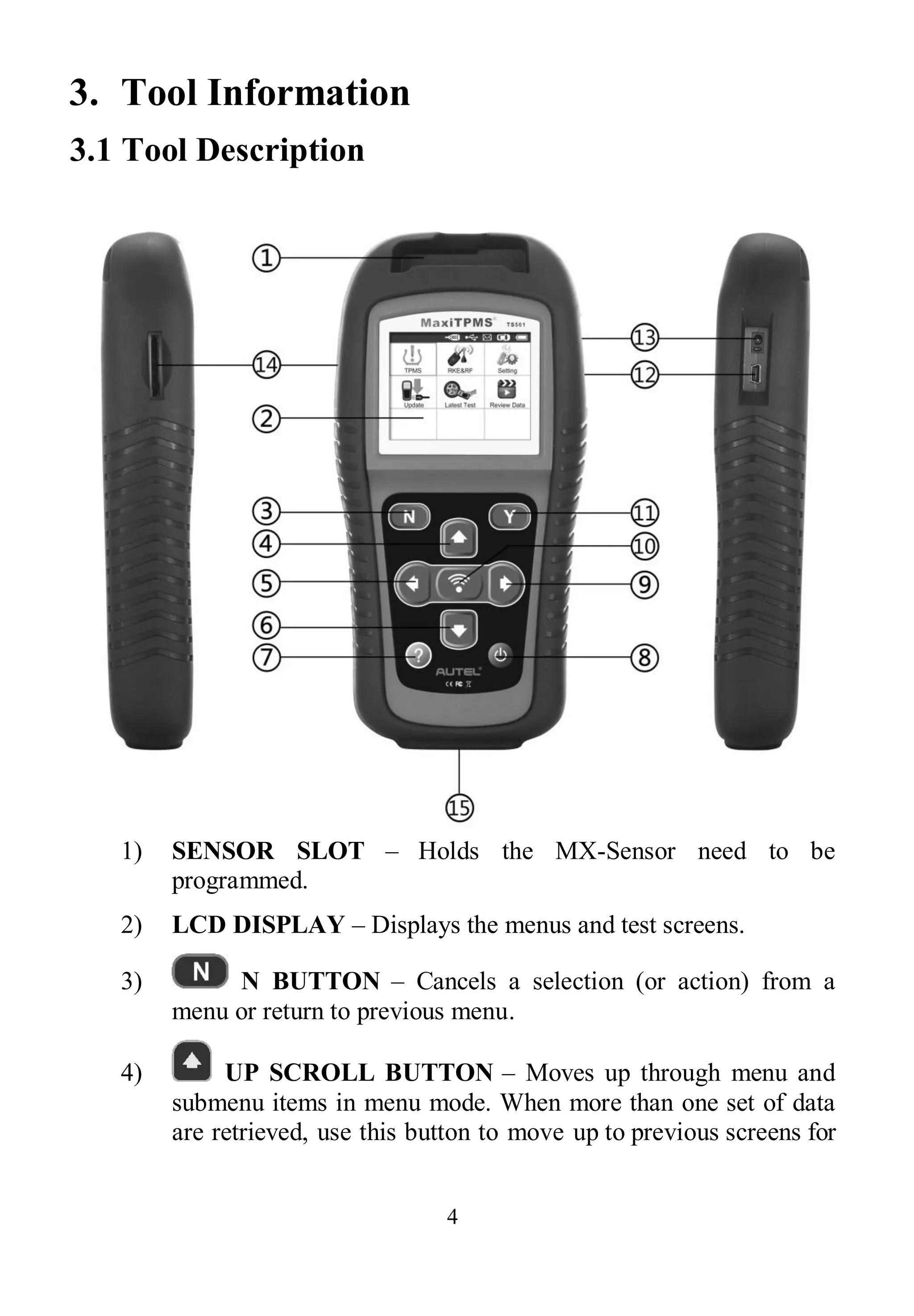
1) SENSOR SLOT – Holds the MX-Sensor need to be
programmed.
2) LCD DISPLAY – Displays the menus and test screens.
3) N BUTTON – Cancels a selection (or action) from a
menu or return to previous menu.
4) UP SCROLL BUTTON – Moves up through menu and
submenu items in menu mode. When more than one set of data
are retrieved, use this button to move up to previous screens for
5
additional data. It is also used to view previous trouble code
when viewing DTCs.
5) LEFT SCROLL BUTTON –When scrolling through a
screen of data or text, moves to previous character and views
additional information on previous screens, if recorded data
content covers more than one screen.
6) DOWN SCROLL BUTTON – Moves down through
menu and submenu items in menu mode. When more than one
set of data are retrieved, use this button to move down to next
screens for additional data. It is also used to view next trouble
code when viewing DTCs.
7) HELP BUTTON – Provides help information.
8) POWER BUTTON – Long press the button to turn on/off
the tool; or, short press the button to return to Home screen.
9) RIGHT SCROLL BUTTON – When scrolling through a
screen of data or text, moves to next character and view
additional information on next screens, if recorded data content
covers more than one screen.
10) TEST BUTTON – Commences a TPMS Test or
confirms selections on screen.
11) Y BUTTON – Confirms a selection (or action) from a
menu.
12) USB PORT – Connects the TPMS tool to PC for software
update, data printing or battery charging.
13) POWER PORT – Connects the TPMS tool to the mains with
the charger supplied for battery charging.
14) SD CARD SLOT – Holds SD card.
6
15) OBD II CONNECTOR – Connects the TPMS tool to the
vehicle’s Data Link Connector (DLC).
Note: Figures and illustrations, product’s characteristics and
functions, and included accessories in this User Manual are
provided for reference only and may differ from actual
product. Product design and specifications may be changed
without notice.
3.2 Specifications
1) Display: TFT color display (320 x 240 dpi)
2) Power: 3.7V Li-polymer battery
3) Operating Temperature: 0°C to 50°C (32°F to 122°F)
4) Storage Temperature: -20°C to 70°C (-4°F to 158°F)
5) Dimensions:
Length Width Height
202.2 mm (7.96") 106.7mm (4.20") 37.7 mm (1.48")
6) Weight: 0.4kg (0.88lb)
3.3 Accessories Included
1) User’s Manual -- Instructions on tool operations
2) OBDII Cable -- Provides power to tool and communicates
between tool and vehicle
3) USB Cable -- Allows easy online update, data printing, and
power charging via PC connection
4) Carry Case -- A case to store the tool when not in use
5) Magnet -- Used to trigger magnetically activated sensors (early
model TPMS sensors)
6) Power Adapter -- Charges the built-in battery
7) CD -- Includes user’s manual, PC Suit, etc.
7
8) SD Card -- Used to store data
9) Sensors – Supplied with two additional versions:
a) Plus: 1 clamp-in and 1 snap-in sensors in 315MHz freq.
b) Premium: 4 clamp-in and 1 snap-in in 315MHz freq., 2
clamp-in and 1 snap-in in 433MHz freq.
3.4 Icons
1) “ ” – Indicates battery charging.
2) “ ” -- Indicates there is data stored in the tool.
3) “ ” -- Indicates battery volume.
4) “ ” -- Indicates USB communication with the computer is
established.
5) “ ” -- Indicates magnet is required to activate TPMS sensor.
6) “ ”-- Indicates deflation is required to activate TPMS sensor.
7) “ ” -- Indicates test mode One Wheel of Wheels to Test in
the system setting is selected.
8) “ ” -- Indicates test mode ALL Wheels of Wheels to Test in
the system setting is selected.
9) “ ” – Indicates the TPMS tool is sending signals to the tire
sensor for activation and test.
10) “ ” – Indicates tool communication with the vehicle’s OBDII
DLC.
3.5 Keyboard
No solvents such as alcohol are allowed to clean the keypad or
display. Use a mild nonabrasive detergent and a soft cotton cloth. Do
not soak the keypad as the keypad is not waterproof.
8
3.6 Battery Charging
The TPMS tool has a 3.7V built-in lithium-ion polymer rechargeable
battery. There are two means of battery charging:
 To charge battery by power adapter.
1) Locate the power port of the device.
2) Connect the device and the power source with the adapter.
 To charge battery by USB cable
1) Locate the USB port of the device.
2) Connect the device and the computer with the USB cable.
For optimum performance, always keep your tool sufficiently
charged. It is recommended that you charge the tool for over 2 hours
before the first use.
NOTE: Only use the power adaptor or USB cable that is
included in our pack to charge this tool. The use of
un-approved power supplies may damage your tool and void
the tool warranty.
3.7 Power Up by DLC
The tool can also be powered via the vehicle Data Link Connector
(DLC). Just follow the steps below to turn on the TPMS tool:
1) Connect the OBDII Cable to the TPMS tool.
2) Find DLC on vehicle.
 A plastic DLC cover may be found for some vehicles and you
need to remove it before plugging the OBDII cable.
3) Plug OBDII cable to the vehicle’s DLC.
4) Power up the TPMS tool by pressing the Power button, and
wait for the Main Menu to appear. (Figure 3.1)
9
Figure 3.1
NOTE: OBDII connection does not support battery charging.
3.8 System Setting
The tool allows you to make the following adjustments and settings.
1) Language: Selects the desired language.
2) Beep Set: Turns on/off key-press beep.
3) ID Format: Sets the ID displaying in Hexadecimal or Decimal.
4) Pressure Unit: Sets the pressure unit in kPa, Psi or Bar.
5) Temperature Unit: Sets the temperature unit in degree Celsius
or Fahrenheit.
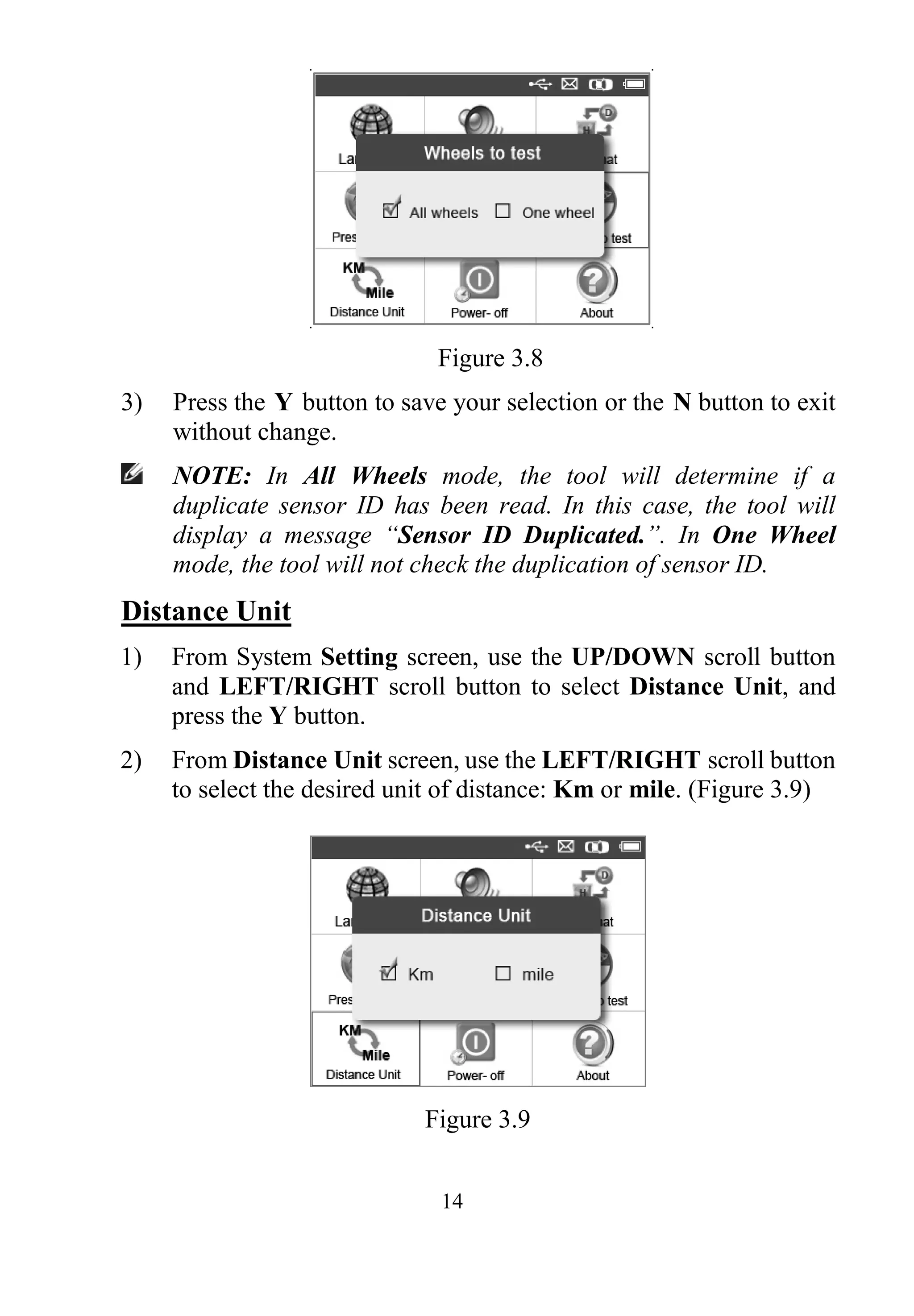
6) Wheels to Test: Sets test modes in One Wheel or All Wheels.
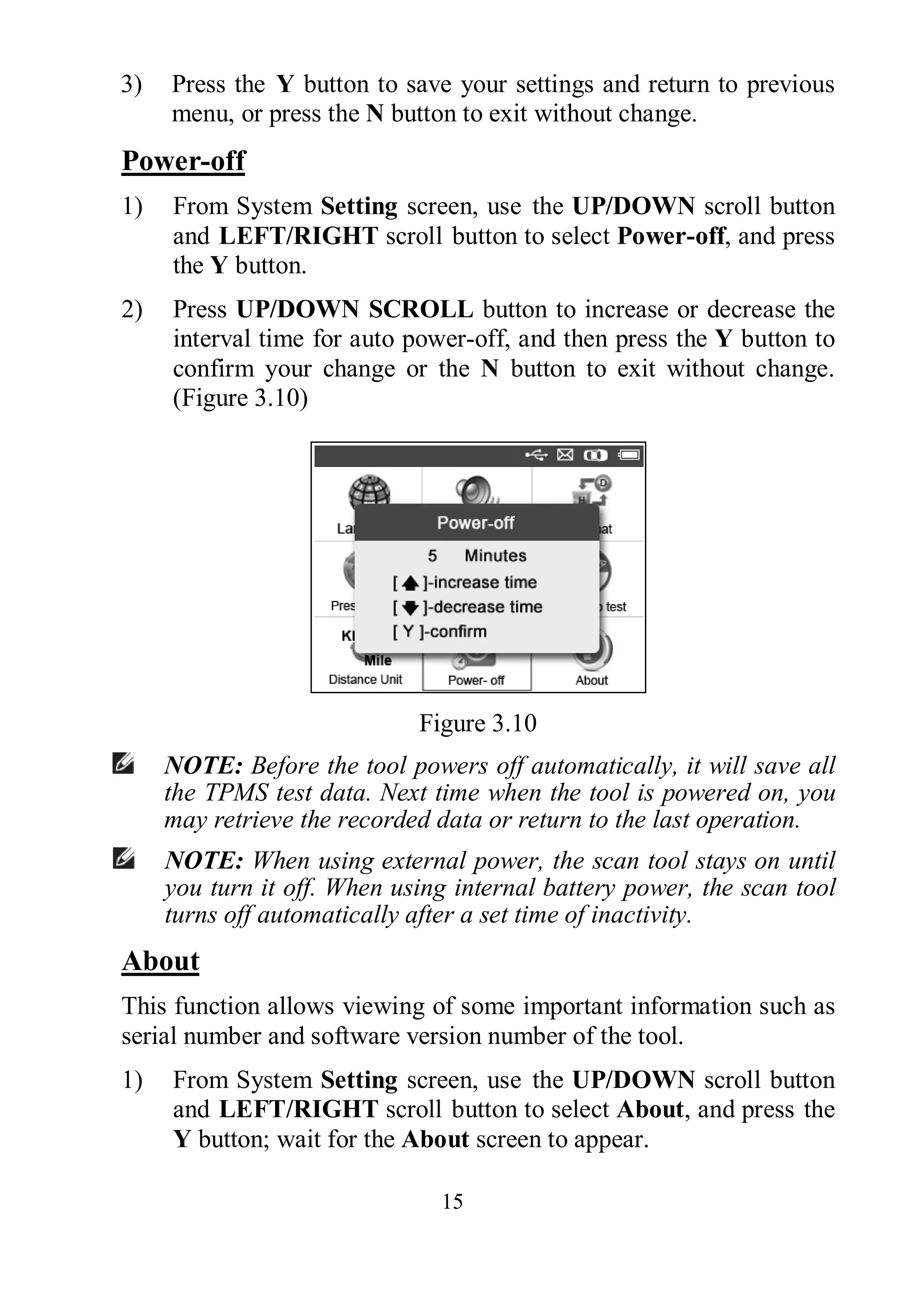
7) Distance Unit: Sets the distance unit in Km or mile.
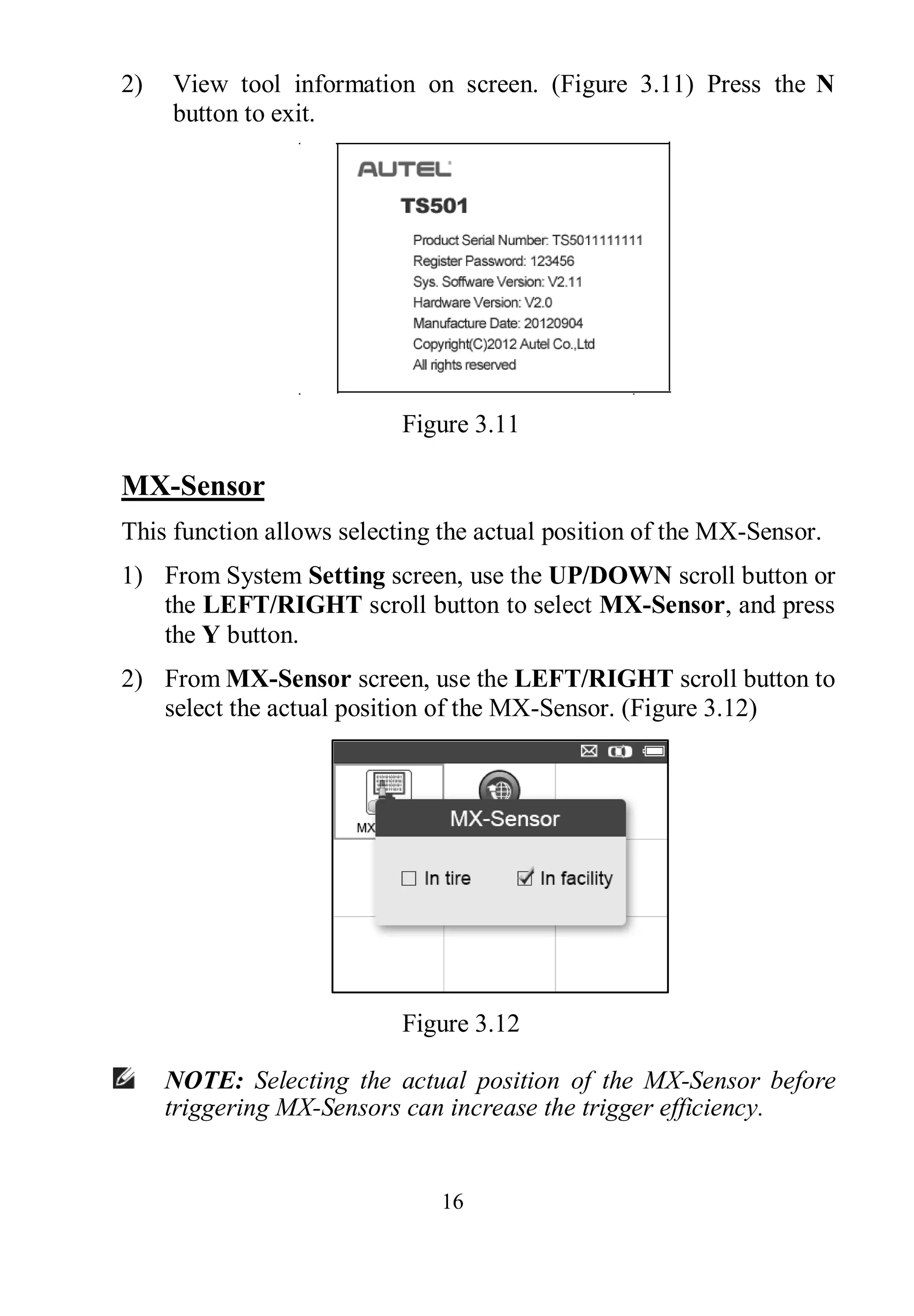
8) Power-off: Sets the time to power off automatically.
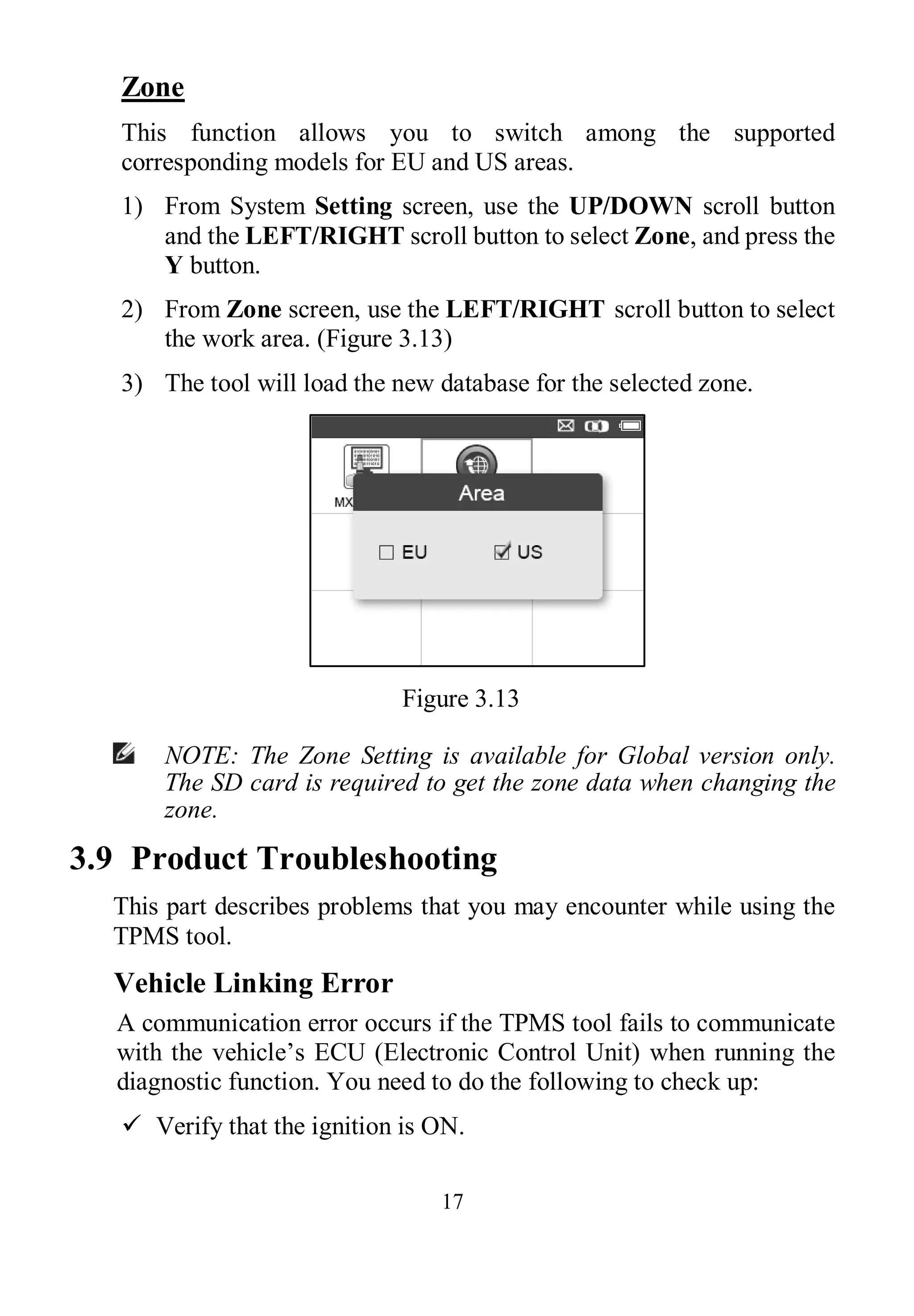
9) About: Allows viewing important information of the tool.
10) MX-Sensor: Select the position of the MX-Sensor.
11) Zone: Select the area of work, EU or US.
 Setting will remain until change to the existing settings is made.
10
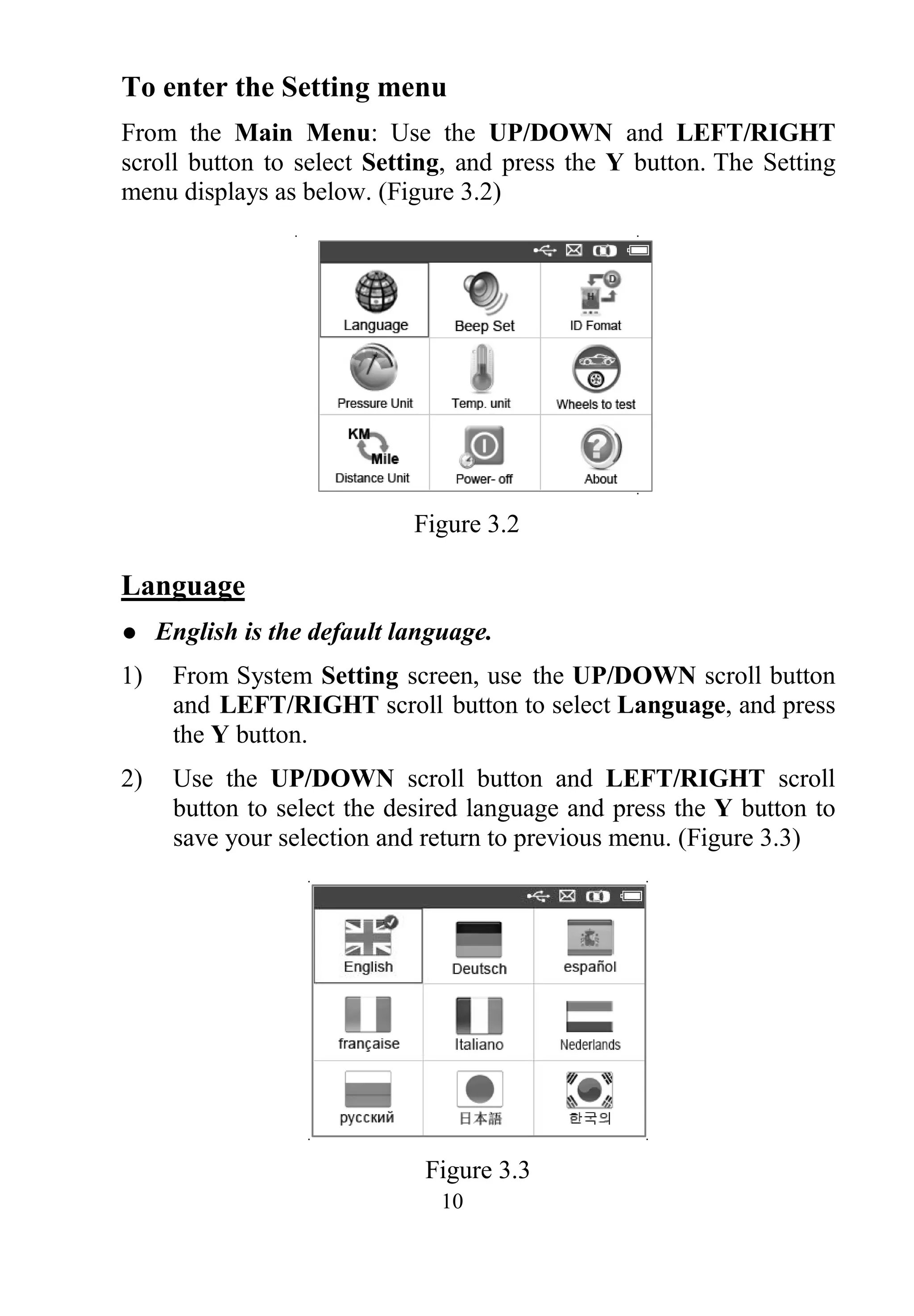
To enter the Setting menu
From the Main Menu: Use the UP/DOWN and LEFT/RIGHT
scroll button to select Setting, and press the Y button. The Setting
menu displays as below. (Figure 3.2)
Figure 3.2
Language
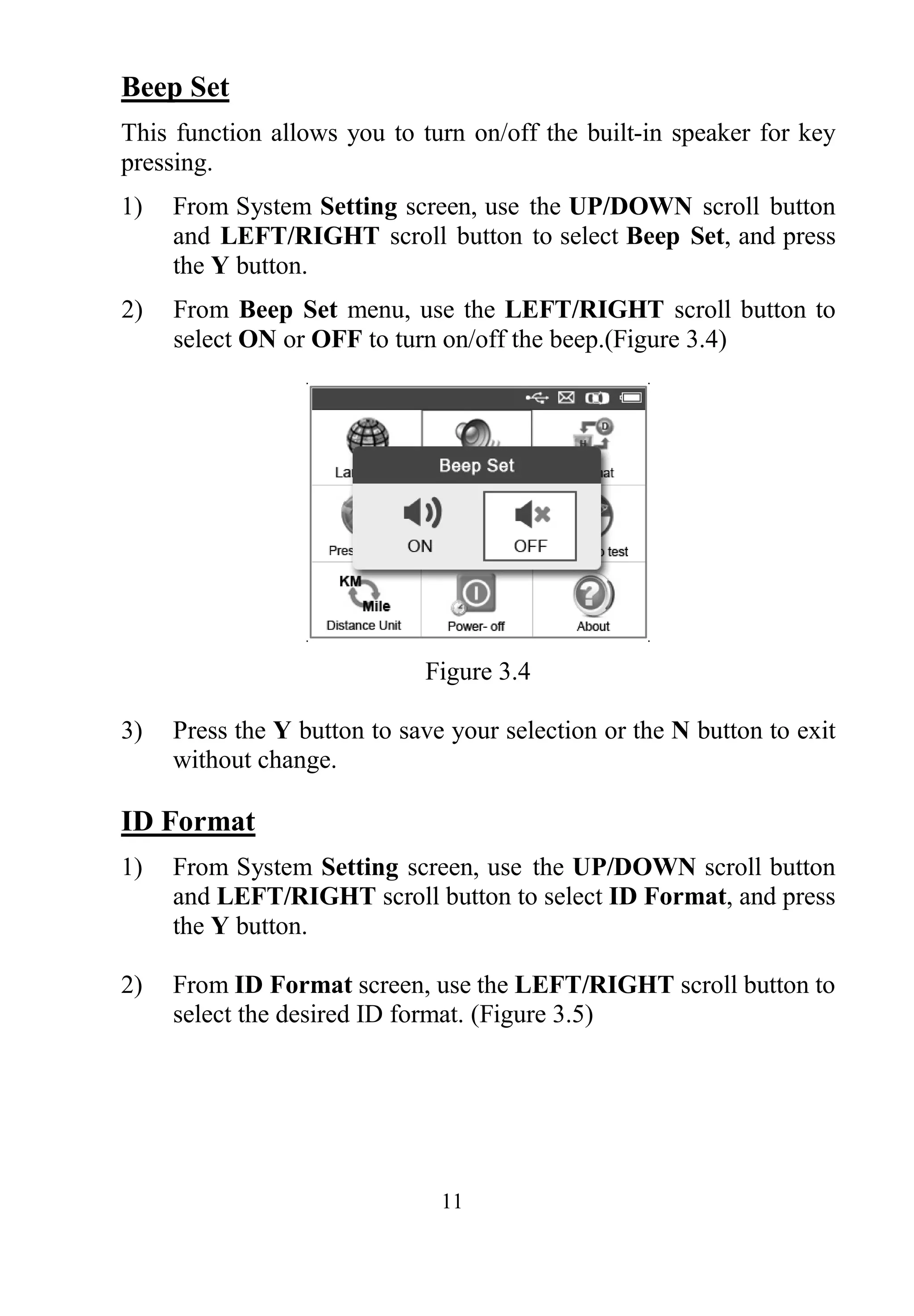
 English is the default language.
1) From System Setting screen, use the UP/DOWN scroll button
and LEFT/RIGHT scroll button to select Language, and press
the Y button.
2) Use the UP/DOWN scroll button and LEFT/RIGHT scroll
button to select the desired language and press the Y button to
save your selection and return to previous menu. (Figure 3.3)
Figure 3.3
11
Beep Set
This function allows you to turn on/off the built-in speaker for key
pressing.
1) From System Setting screen, use the UP/DOWN scroll button
and LEFT/RIGHT scroll button to select Beep Set, and press
the Y button.
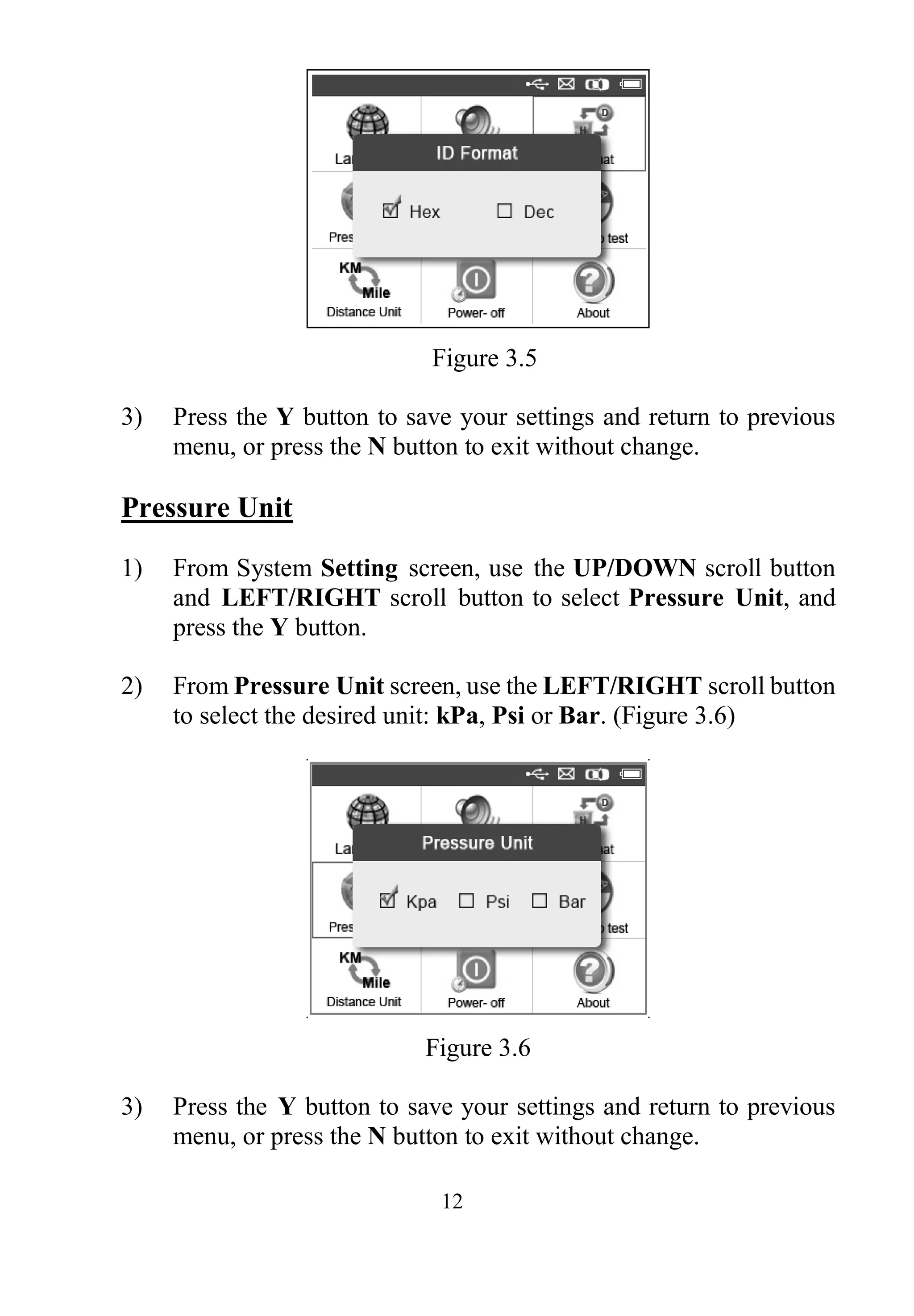
2) From Beep Set menu, use the LEFT/RIGHT scroll button to
select ON or OFF to turn on/off the beep.(Figure 3.4)
Figure 3.4
3) Press the Y button to save your selection or the N button to exit
without change.
ID Format
1) From System Setting screen, use the UP/DOWN scroll button
and LEFT/RIGHT scroll button to select ID Format, and press
the Y button.
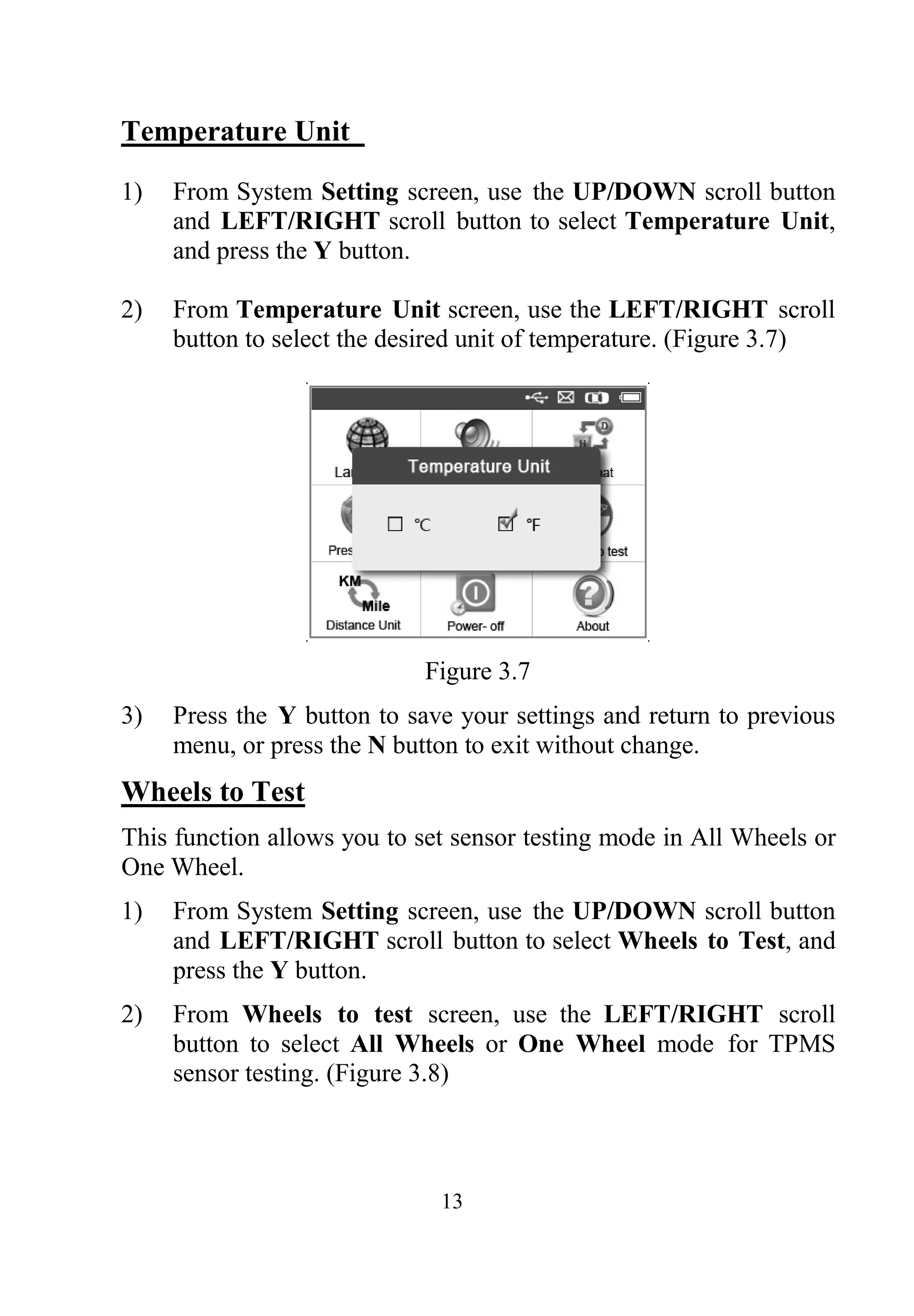
2) From ID Format screen, use the LEFT/RIGHT scroll button to
select the desired ID format. (Figure 3.5)
12
Figure 3.5
3) Press the Y button to save your settings and return to previous
menu, or press the N button to exit without change.
Pressure Unit
1) From System Setting screen, use the UP/DOWN scroll button
and LEFT/RIGHT scroll button to select Pressure Unit, and
press the Y button.
2) From Pressure Unit screen, use the LEFT/RIGHT scroll button
to select the desired unit: kPa, Psi or Bar. (Figure 3.6)
Figure 3.6
3) Press the Y button to save your settings and return to previous
menu, or press the N button to exit without change.
13
Temperature Unit
1) From System Setting screen, use the UP/DOWN scroll button
and LEFT/RIGHT scroll button to select Temperature Unit,
and press the Y button.
2) From Temperature Unit screen, use the LEFT/RIGHT scroll
button to select the desired unit of temperature. (Figure 3.7)
Figure 3.7
3) Press the Y button to save your settings and return to previous
menu, or press the N button to exit without change.
Wheels to Test
This function allows you to set sensor testing mode in All Wheels or
One Wheel.
1) From System Setting screen, use the UP/DOWN scroll button
and LEFT/RIGHT scroll button to select Wheels to Test, and
press the Y button.
2) From Wheels to test screen, use the LEFT/RIGHT scroll
button to select All Wheels or One Wheel mode for TPMS
sensor testing. (Figure 3.8)
14
Figure 3.8
3) Press the Y button to save your selection or the N button to exit
without change.
NOTE: In All Wheels mode, the tool will determine if a
duplicate sensor ID has been read. In this case, the tool will
display a message “Sensor ID Duplicated.”. In One Wheel
mode, the tool will not check the duplication of sensor ID.
Distance Unit
1) From System Setting screen, use the UP/DOWN scroll button
and LEFT/RIGHT scroll button to select Distance Unit, and
press the Y button.
2) From Distance Unit screen, use the LEFT/RIGHT scroll button
to select the desired unit of distance: Km or mile. (Figure 3.9)
Figure 3.9
15
3) Press the Y button to save your settings and return to previous
menu, or press the N button to exit without change.
Power-off
1) From System Setting screen, use the UP/DOWN scroll button
and LEFT/RIGHT scroll button to select Power-off, and press
the Y button.
2) Press UP/DOWN SCROLL button to increase or decrease the
interval time for auto power-off, and then press the Y button to
confirm your change or the N button to exit without change.
(Figure 3.10)
Figure 3.10
NOTE: Before the tool powers off automatically, it will save all
the TPMS test data. Next time when the tool is powered on, you
may retrieve the recorded data or return to the last operation.
NOTE: When using external power, the scan tool stays on until
you turn it off. When using internal battery power, the scan tool
turns off automatically after a set time of inactivity.
About
This function allows viewing of some important information such as
serial number and software version number of the tool.
1) From System Setting screen, use the UP/DOWN scroll button
and LEFT/RIGHT scroll button to select About, and press the
Y button; wait for the About screen to appear.
16
2) View tool information on screen. (Figure 3.11) Press the N
button to exit.
Figure 3.11
MX-Sensor
This function allows selecting the actual position of the MX-Sensor.
1) From System Setting screen, use the UP/DOWN scroll button or
the LEFT/RIGHT scroll button to select MX-Sensor, and press
the Y button.
2) From MX-Sensor screen, use the LEFT/RIGHT scroll button to
select the actual position of the MX-Sensor. (Figure 3.12)
Figure 3.12
NOTE: Selecting the actual position of the MX-Sensor before
triggering MX-Sensors can increase the trigger efficiency.
17
Zone
This function allows you to switch among the supported
corresponding models for EU and US areas.
1) From System Setting screen, use the UP/DOWN scroll button
and the LEFT/RIGHT scroll button to select Zone, and press the
Y button.
2) From Zone screen, use the LEFT/RIGHT scroll button to select
the work area. (Figure 3.13)
3) The tool will load the new database for the selected zone.
Figure 3.13
NOTE: The Zone Setting is available for Global version only.
The SD card is required to get the zone data when changing the
zone.
3.9 Product Troubleshooting
This part describes problems that you may encounter while using the
TPMS tool.
Vehicle Linking Error
A communication error occurs if the TPMS tool fails to communicate
with the vehicle’s ECU (Electronic Control Unit) when running the
diagnostic function. You need to do the following to check up:
 Verify that the ignition is ON.
18
 Check if the TPMS tool’s OBD II connector is securely
connected to the vehicle’s DLC.
 Verify that the vehicle is OBD II compliant.
 Verify that the vehicle is equipped with TPMS.
 Verify that the tool battery is sufficiently charged.
 Turn the ignition off and wait for about 10 seconds. Turn the
ignition back to on and continue the testing.
 Verify the control module is not defective.
Operating Error
If the scan tool freezes, then an exception occurs or the vehicle’s
ECU (Engine Control Unit) is too slow to respond to requests, do the
following to reset the tool:
 Reset the scan tool.
 Turn the ignition off and wait for about 10 seconds. Turn the
ignition back to on and continue the testing.
19
4. TPMS Check & Diagnostics
The MaxiTPMS®
TS501 is a new generation TPMS diagnostic &
service tool specially designed to activate all known OEM/Universal
TPMS sensors, and provide users with direct access to the vehicle’s
ECU through OBDII connection, thus allowing users to reprogram
sensor IDs and retrieve/clear TPMS DTCs, helping technicians to
quickly find out faulty TPMS and turn off MILs.
NOTE: All software screens shown in this manual are
examples, actual test screens may vary for each vehicle being
tested. Observe the menu titles and onscreen instructions to
make correct option selections.
4.1 TPMS Sensor Check
The sensor check function allows activating of TPMS sensor to view
sensor data such as sensor ID, tire pressure, tire temperature, sensor
battery, sensor position, frequency. It also sends the sensor data to
vehicle’s ECU to let the ECU learn the positions of sensors whenever
wheels are rotated or sensors are replaced.
There are two means to check TPMS sensors:
A. Select by Vehicle
Users can start activating sensors directly by selecting the specific
vehicle make, model and year. The graphed vehicle with 4 or 5
wheels makes the sensor activation process more simple and
convenient.
1) Use the UP/DOWN scroll button and LEFT/RIGHT scroll
button to select TPMS from Main Menu (Figure 3.1), and press
the Y button to confirm.
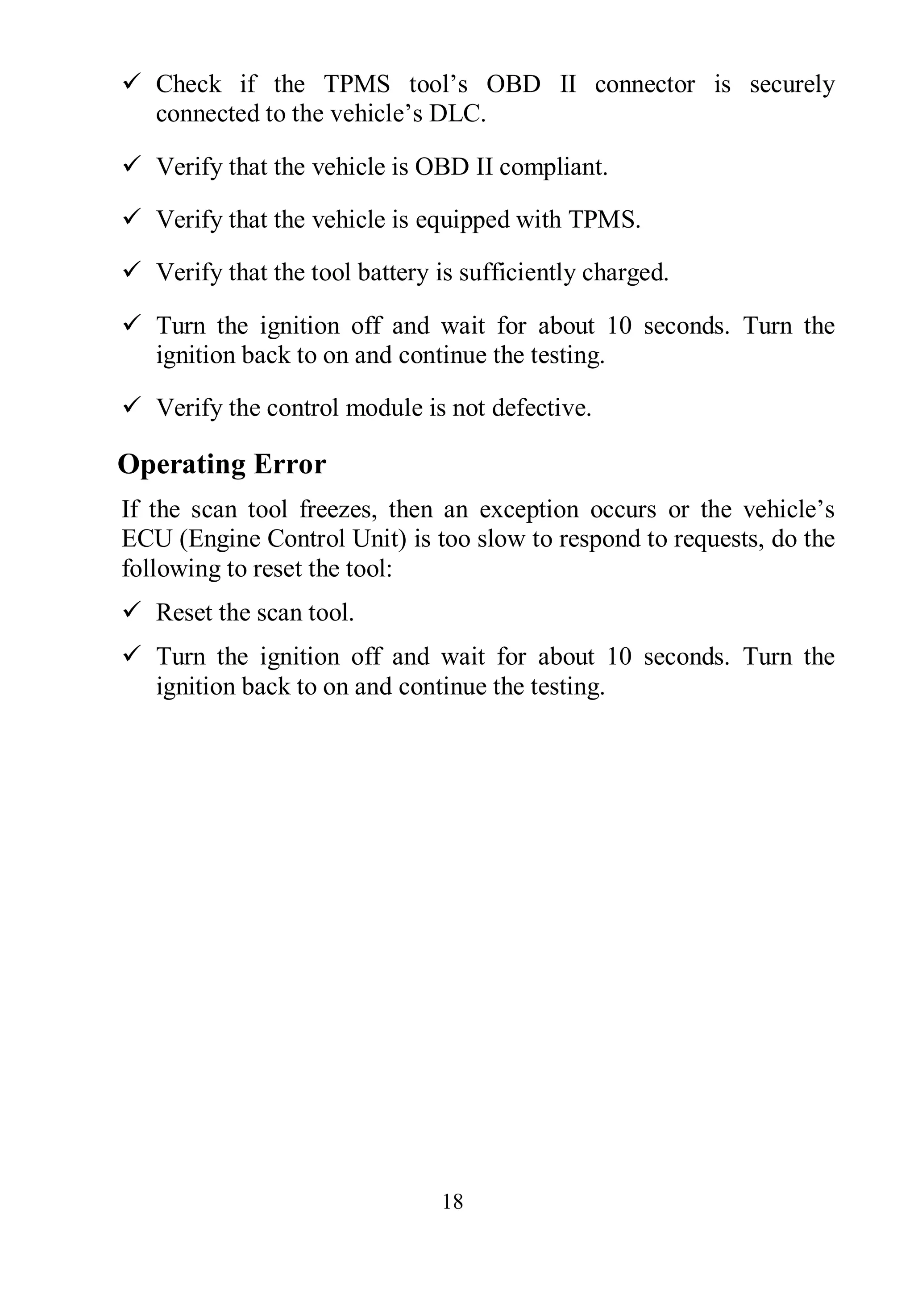
2) Select a specific vehicle manufacture region. (Taking Chrysler as
an example)
20
Figure 4.1
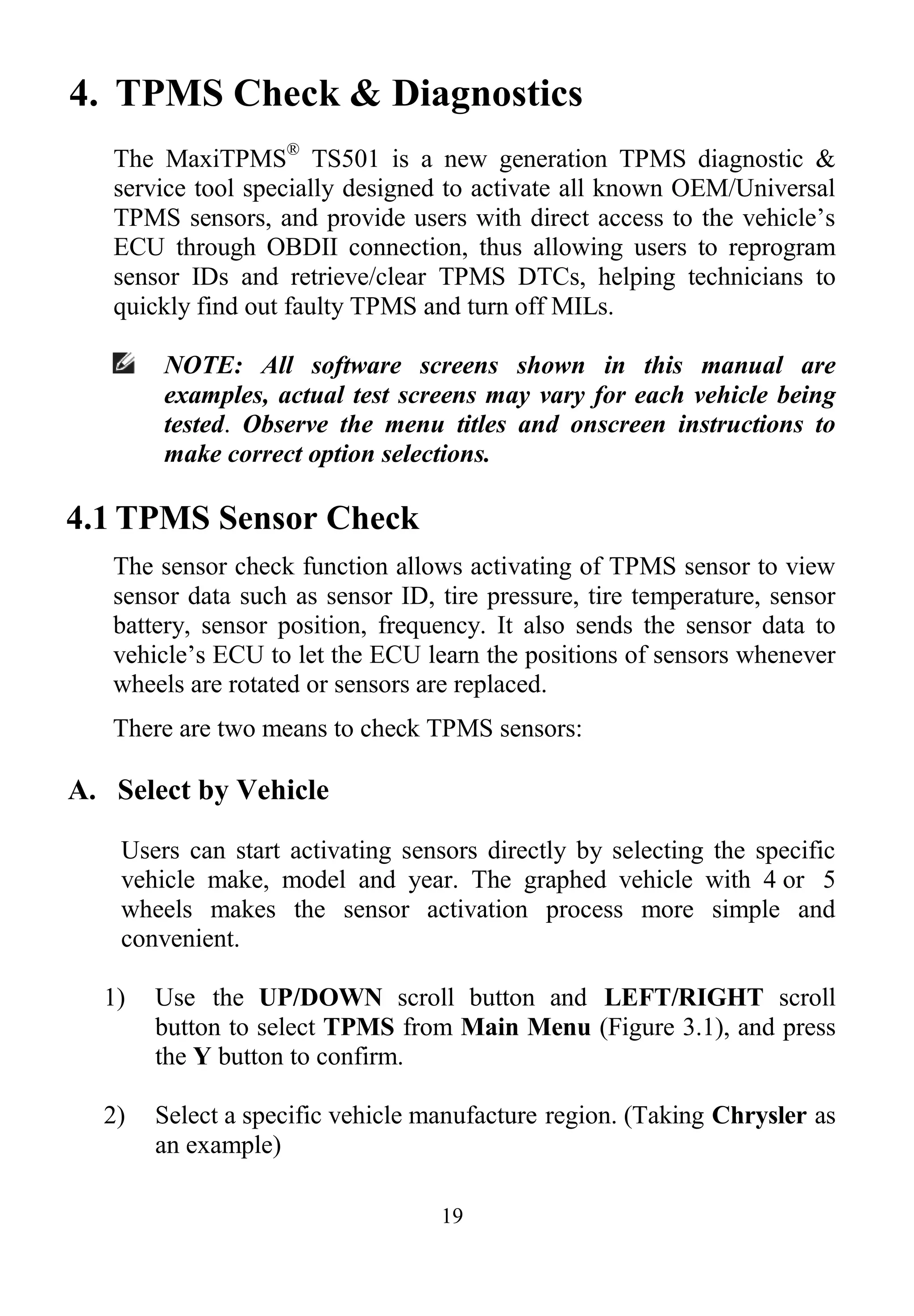
3) From the vehicle make screen, select a specific vehicle brand and
press the Y button. (Figure 4.2)
Figure 4.2
4) Observe the menu title and use UP/DOWN scroll button to select
by model and year to identify the vehicle being tested.
 The selected vehicle is remembered by the tool when a test is
commenced.
21
Select by Model:
Figure 4.3
Select by Year:
Figure 4.4
5) For some vehicle types an option screen will show up to let users
choose between 4 Wheels test and 5 Wheels test mode.
Figure 4.5
22
 Depending on the test mode (All Wheels or One Wheel), results
are displayed in different manners.
All Wheels Mode
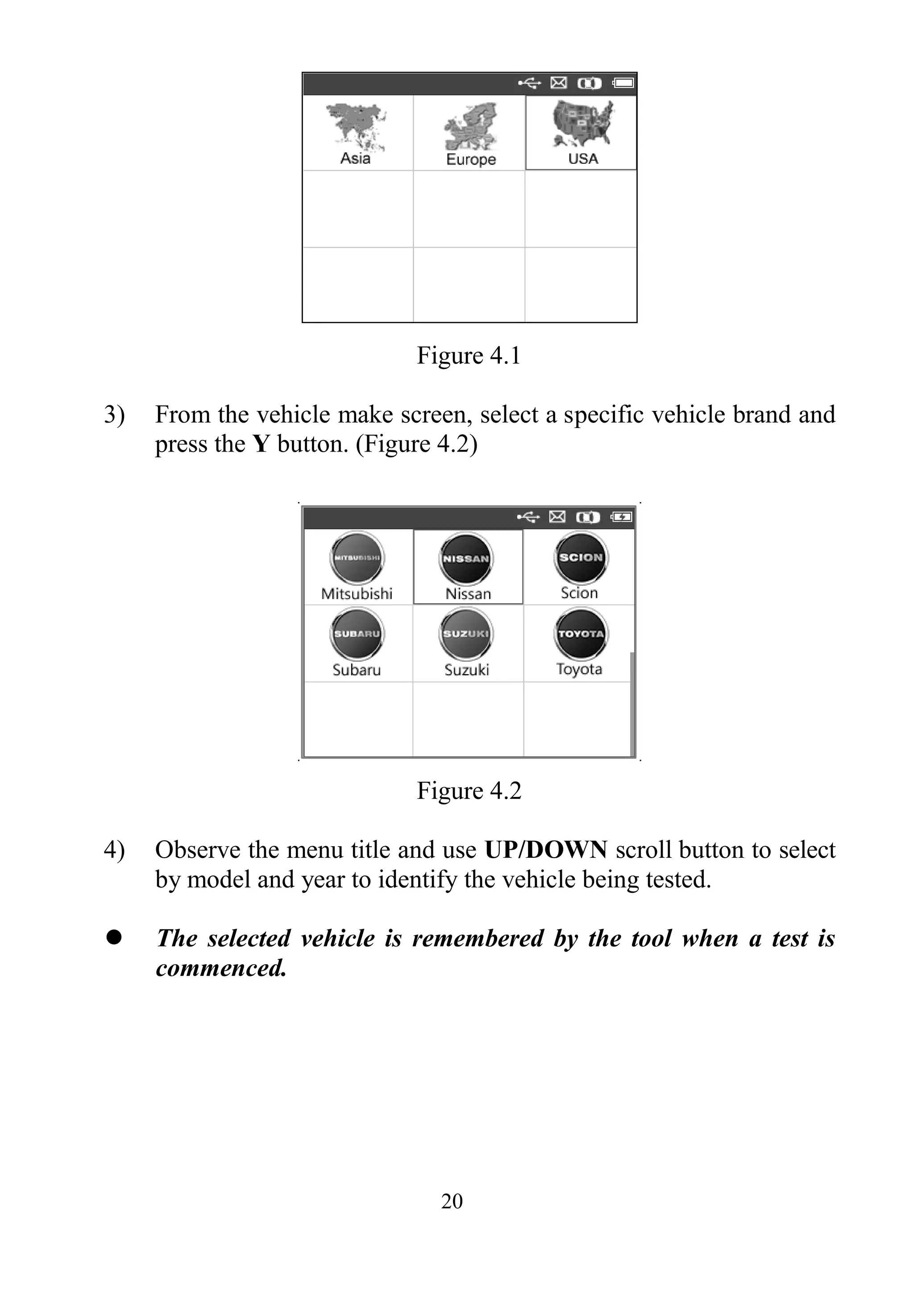
In this mode, a function menu screen will show up (Figure 4.6). Use
the UP/DOWN and LEFT/RIGHT scroll button to select a desired
wheel and press the TEST button to start sensor activation (Figure
4.7).
Figure 4.6 Figure 4.7
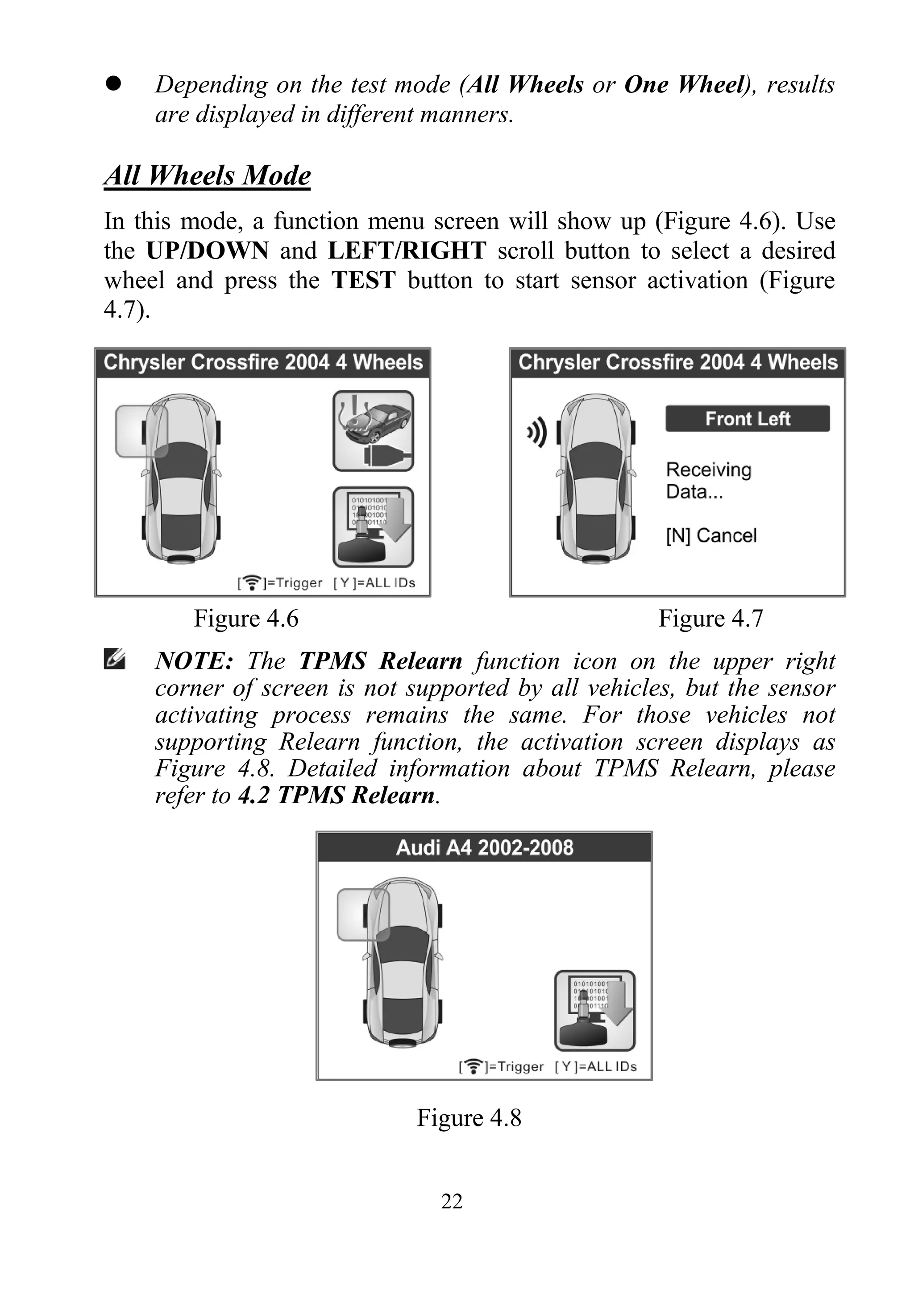
NOTE: The TPMS Relearn function icon on the upper right
corner of screen is not supported by all vehicles, but the sensor
activating process remains the same. For those vehicles not
supporting Relearn function, the activation screen displays as
Figure 4.8. Detailed information about TPMS Relearn, please
refer to 4.2 TPMS Relearn.
Figure 4.8
23
The tool will do TPMS test in a sequence of FL (Front Left), FR
(Front Right), RR (Rear Right), LR (Rear Left) and SPARE, if the
vehicle has the option for the spare. Or, you can use the UP/DOWN or
LEFT/RIGHT scroll button to move to the desired wheel for testing.
Place the tool alongside the valve stem, point toward the sensor
location, and press the TEST button.
The tool will send LF signal to trigger the sensor. Once the sensor is
successfully activated and decoded, the tool will display as below with
a beep. (Figure 4.9)
Figure 4.9
 Wheel with a feedback icon, “√” ,“x”, “D”, indicates wheel test
has been finished. Refer to Table 1 for detailed description on
page 23 to learn what testing result each icon stands for.
 Press the Y button to read all sensor data, including sensor ID,
tire pressure, temperature, battery condition and modulation.
One Wheel Mode
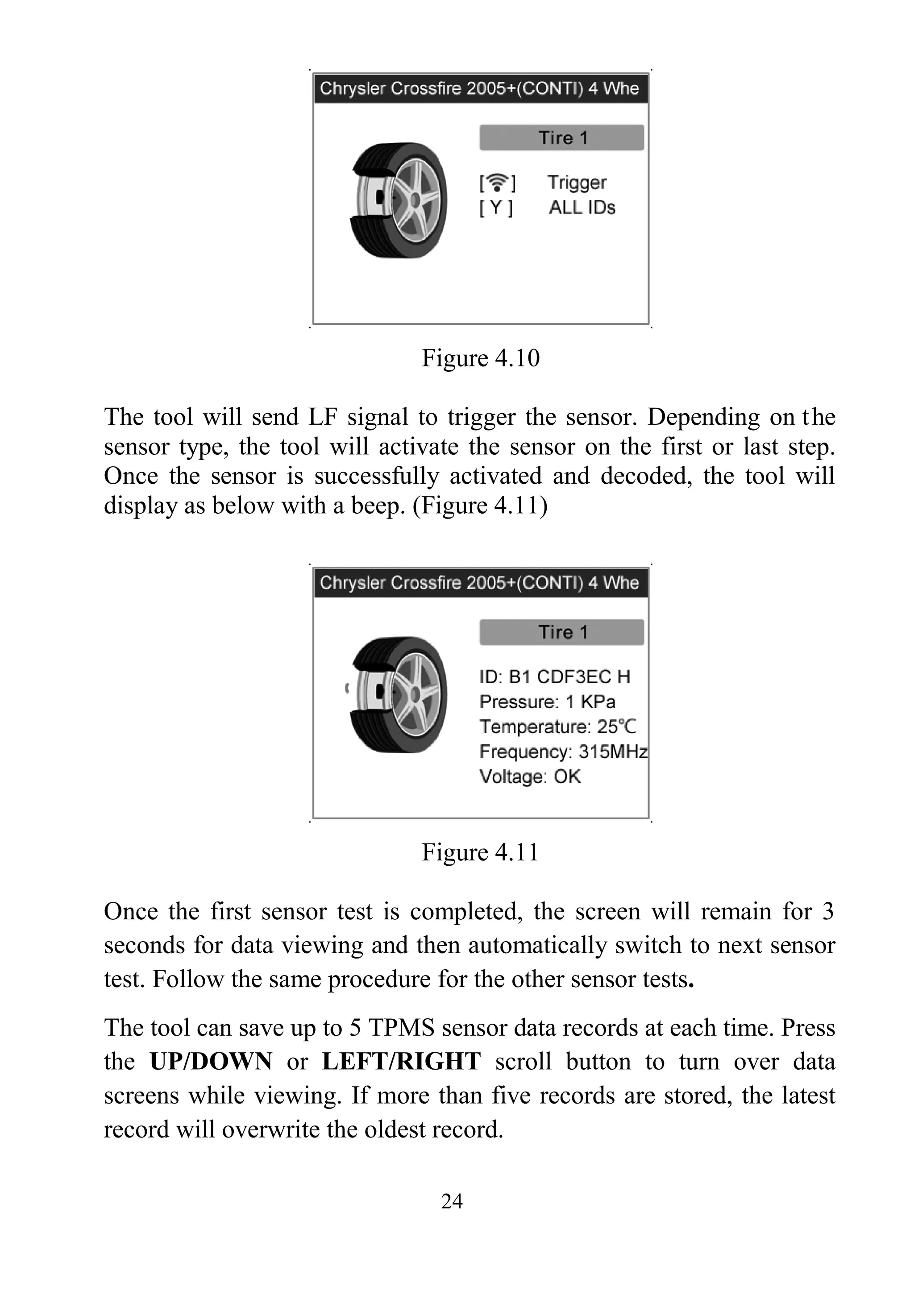
In this mode the screen will show as below (Figure 4.10). The tool will
check TPMS sensor on the single wheel. Place the tool alongside the
valve stem, point toward the sensor location, and press the TEST
button. Wait for test result before moving the tool.
24
Figure 4.10
The tool will send LF signal to trigger the sensor. Depending on the
sensor type, the tool will activate the sensor on the first or last step.
Once the sensor is successfully activated and decoded, the tool will
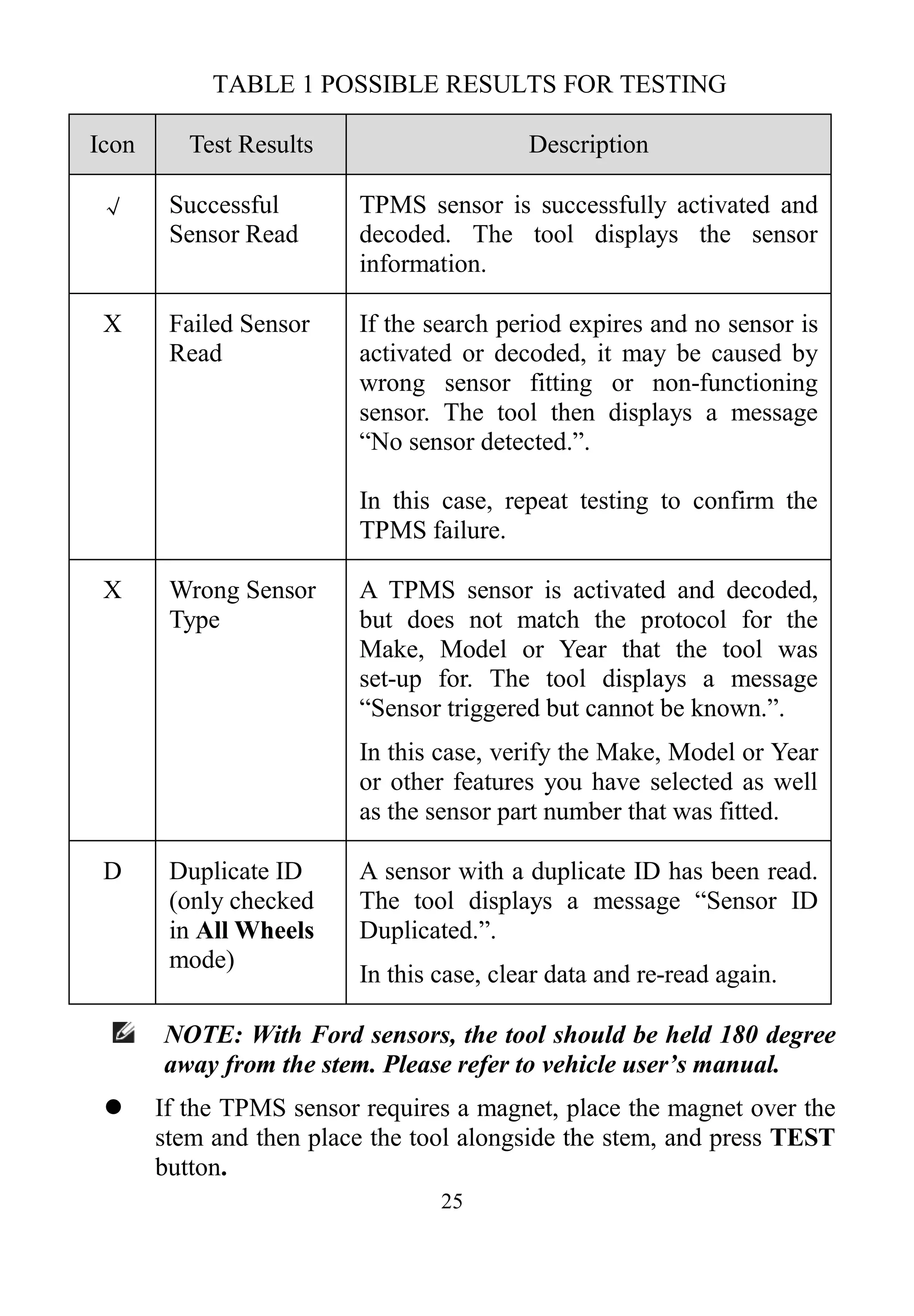
display as below with a beep. (Figure 4.11)
Figure 4.11
Once the first sensor test is completed, the screen will remain for 3
seconds for data viewing and then automatically switch to next sensor
test. Follow the same procedure for the other sensor tests.
The tool can save up to 5 TPMS sensor data records at each time. Press
the UP/DOWN or LEFT/RIGHT scroll button to turn over data
screens while viewing. If more than five records are stored, the latest
record will overwrite the oldest record.
25
TABLE 1 POSSIBLE RESULTS FOR TESTING
Icon Test Results Description
√ Successful
Sensor Read
TPMS sensor is successfully activated and
decoded. The tool displays the sensor
information.
X Failed Sensor
Read
If the search period expires and no sensor is
activated or decoded, it may be caused by
wrong sensor fitting or non-functioning
sensor. The tool then displays a message
“No sensor detected.”.
In this case, repeat testing to confirm the
TPMS failure.
X Wrong Sensor
Type
A TPMS sensor is activated and decoded,
but does not match the protocol for the
Make, Model or Year that the tool was
set-up for. The tool displays a message
“Sensor triggered but cannot be known.”.
In this case, verify the Make, Model or Year
or other features you have selected as well
as the sensor part number that was fitted.
D Duplicate ID
(only checked
in All Wheels
mode)
A sensor with a duplicate ID has been read.
The tool displays a message “Sensor ID
Duplicated.”.
In this case, clear data and re-read again.
NOTE: With Ford sensors, the tool should be held 180 degree
away from the stem. Please refer to vehicle user’s manual.
 If the TPMS sensor requires a magnet, place the magnet over the
stem and then place the tool alongside the stem, and press TEST
button.
26
Figure 4.12
 If the TPMS sensor requires tire deflation (of the order of 10PSI),
then deflate the tire and place the tool alongside the stem while
pressing the TEST button.
Figure 4.13
 Anytime while doing the TPMS test, pressing BUTTON
allows reading the sensor make, OEM part no., and relearn
information for the vehicle being tested for reference. Use the
UP/DOWN scroll button to view all details if the data
information covers more than one page.
27
Figure 4.14
 Sensor activation can be aborted at any time by pressing the N
button. When the activation is aborted, the screen will return to
the previous menu.
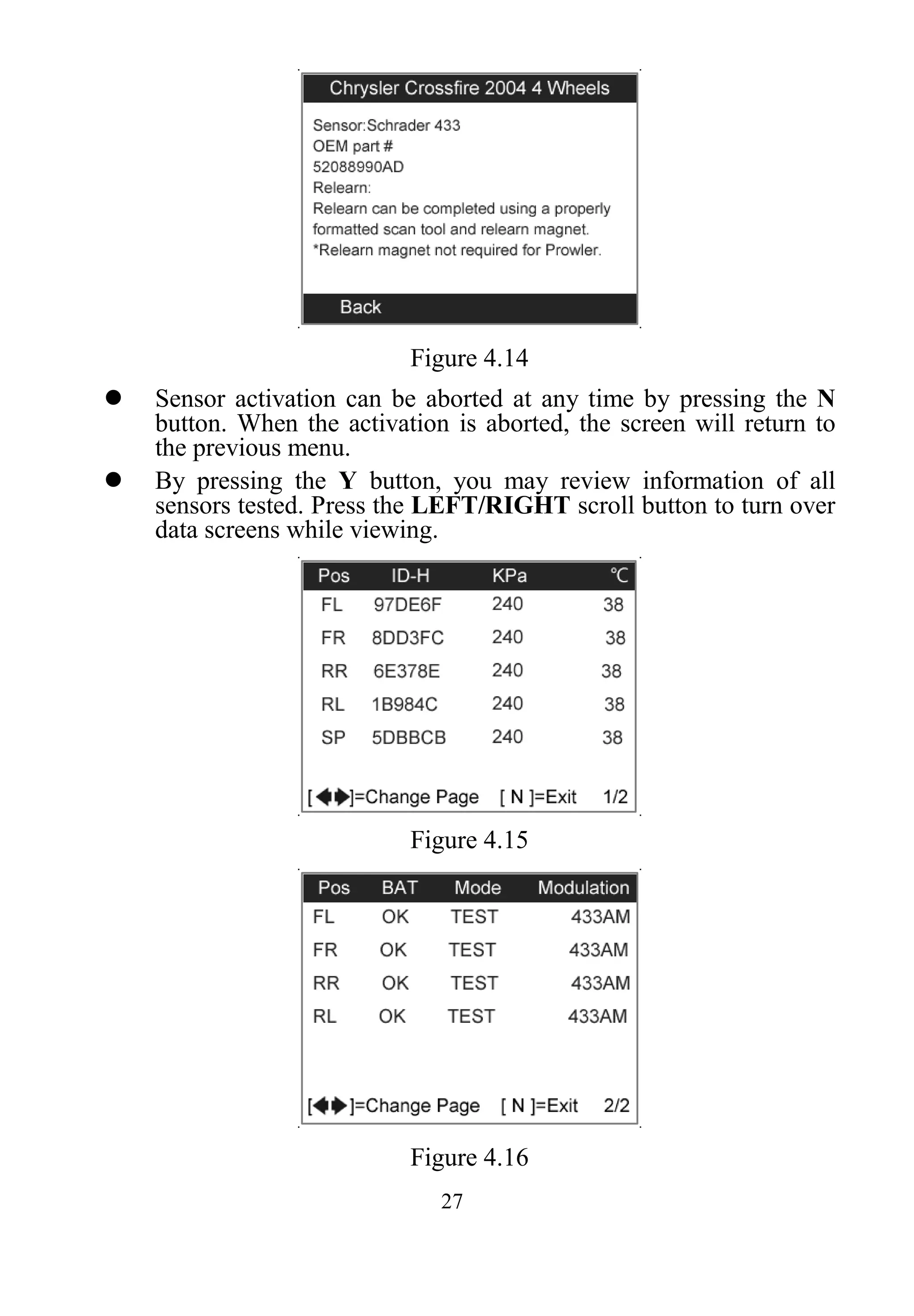
 By pressing the Y button, you may review information of all
sensors tested. Press the LEFT/RIGHT scroll button to turn over
data screens while viewing.
Figure 4.15
Figure 4.16
28
[Pos] – Indicates the wheel sensor position.
[ID-H/D] – Shows sensor ID data.
[KPa/Psi/Bar] – Indicates tire pressure.
[°C/°F] – Indicates tire temperature.
[BAT] – Indicates battery condition.
[Mode] – Defines tire sensor working mode or status.
[Modulation] – Indicates sensor signal amplitude.
 Different ID format, pressure and temperature units will display
at the title bar according to the device’s system setting, please
refer to 3.8 System Setting for detailed instruction.
B. Select by latest test
This function allows you to review the last tested sensor data and
activate the sensor by using the wave signal of the latest trigger event,
which is very convenient and useful for technicians to wake up
sensors of the same vehicle.
1) Use the UP/DOWN scroll button and LEFT/RIGHT scroll
button to select Latest Test from Main Menu (Figure 3.1).
2) An activation screen with the previously activated sensor
information will show up (Figure 4.17). Use the UP/DOWN or
LEFT/RIGHT scroll button to select the desired wheel, and
press the TEST button to reactivate the sensor, or press the Y
button to view all detailed sensor data (Figure 4.18).
Figure 4.17
29
Figure 4.18
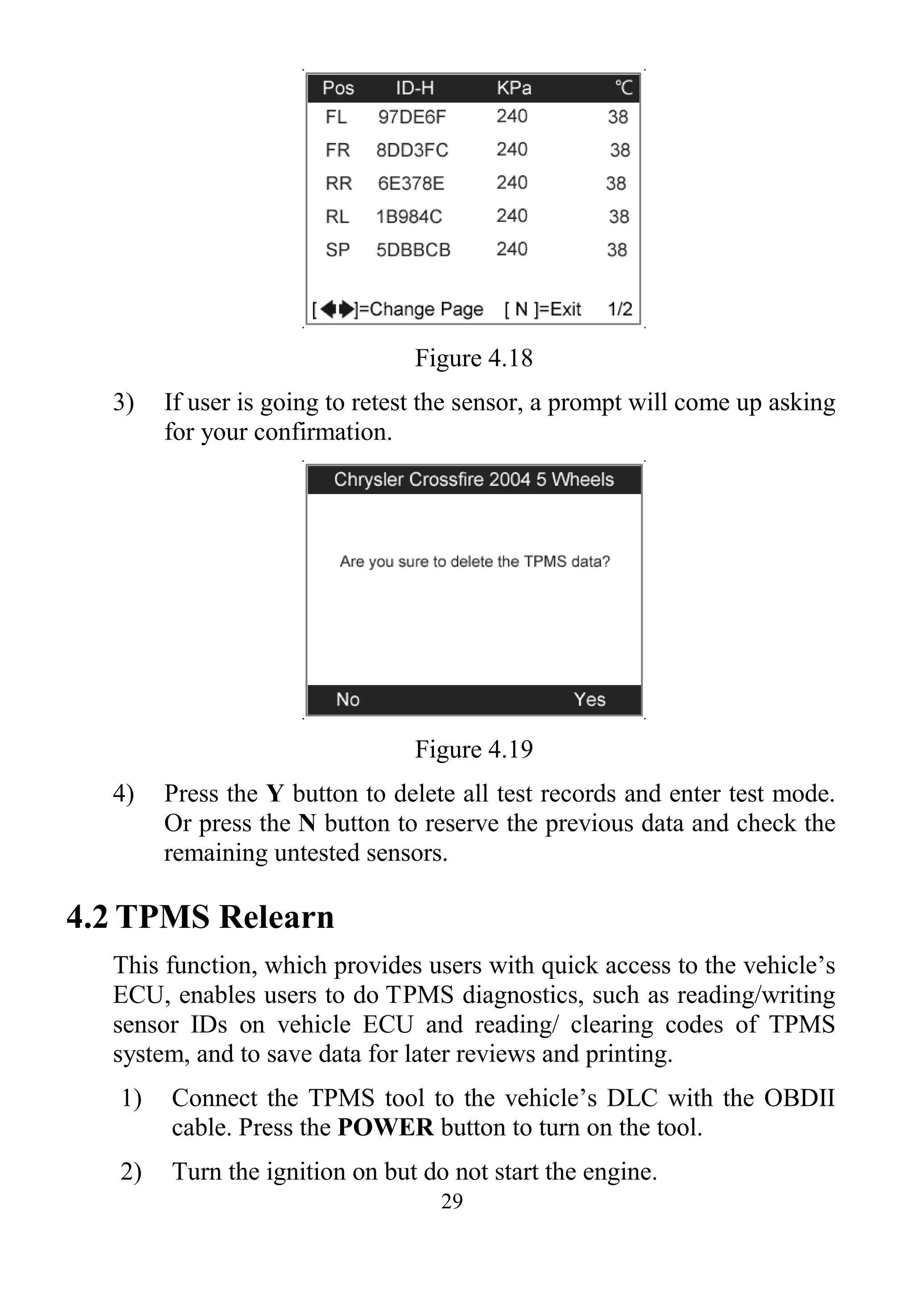
3) If user is going to retest the sensor, a prompt will come up asking
for your confirmation.
Figure 4.19
4) Press the Y button to delete all test records and enter test mode.
Or press the N button to reserve the previous data and check the
remaining untested sensors.
4.2 TPMS Relearn
This function, which provides users with quick access to the vehicle’s
ECU, enables users to do TPMS diagnostics, such as reading/writing
sensor IDs on vehicle ECU and reading/ clearing codes of TPMS
system, and to save data for later reviews and printing.
1) Connect the TPMS tool to the vehicle’s DLC with the OBDII
cable. Press the POWER button to turn on the tool.
2) Turn the ignition on but do not start the engine.
30
3) Make sure the testing mode is set to All Wheels mode in
System Setting.
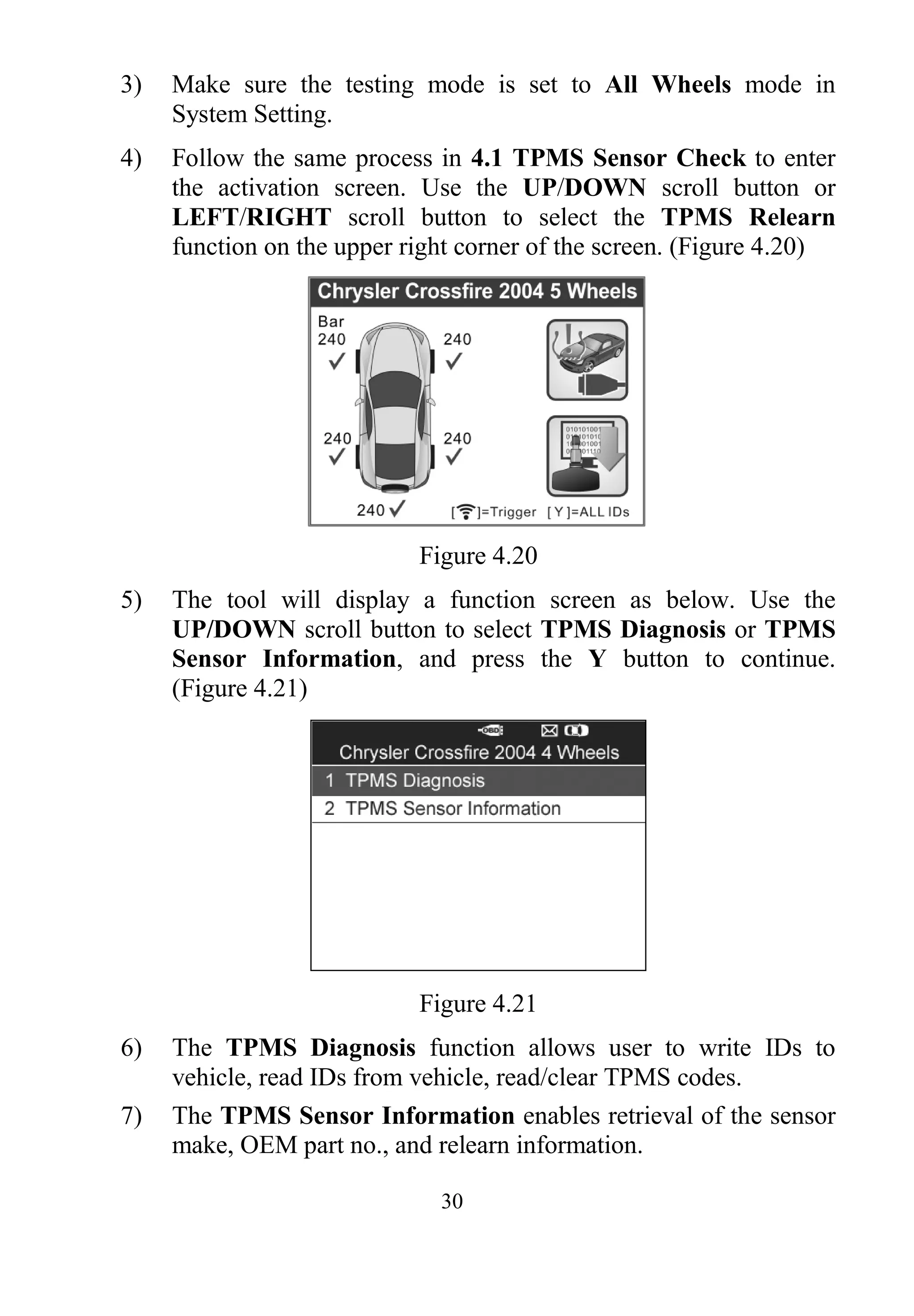
4) Follow the same process in 4.1 TPMS Sensor Check to enter
the activation screen. Use the UP/DOWN scroll button or
LEFT/RIGHT scroll button to select the TPMS Relearn
function on the upper right corner of the screen. (Figure 4.20)
Figure 4.20
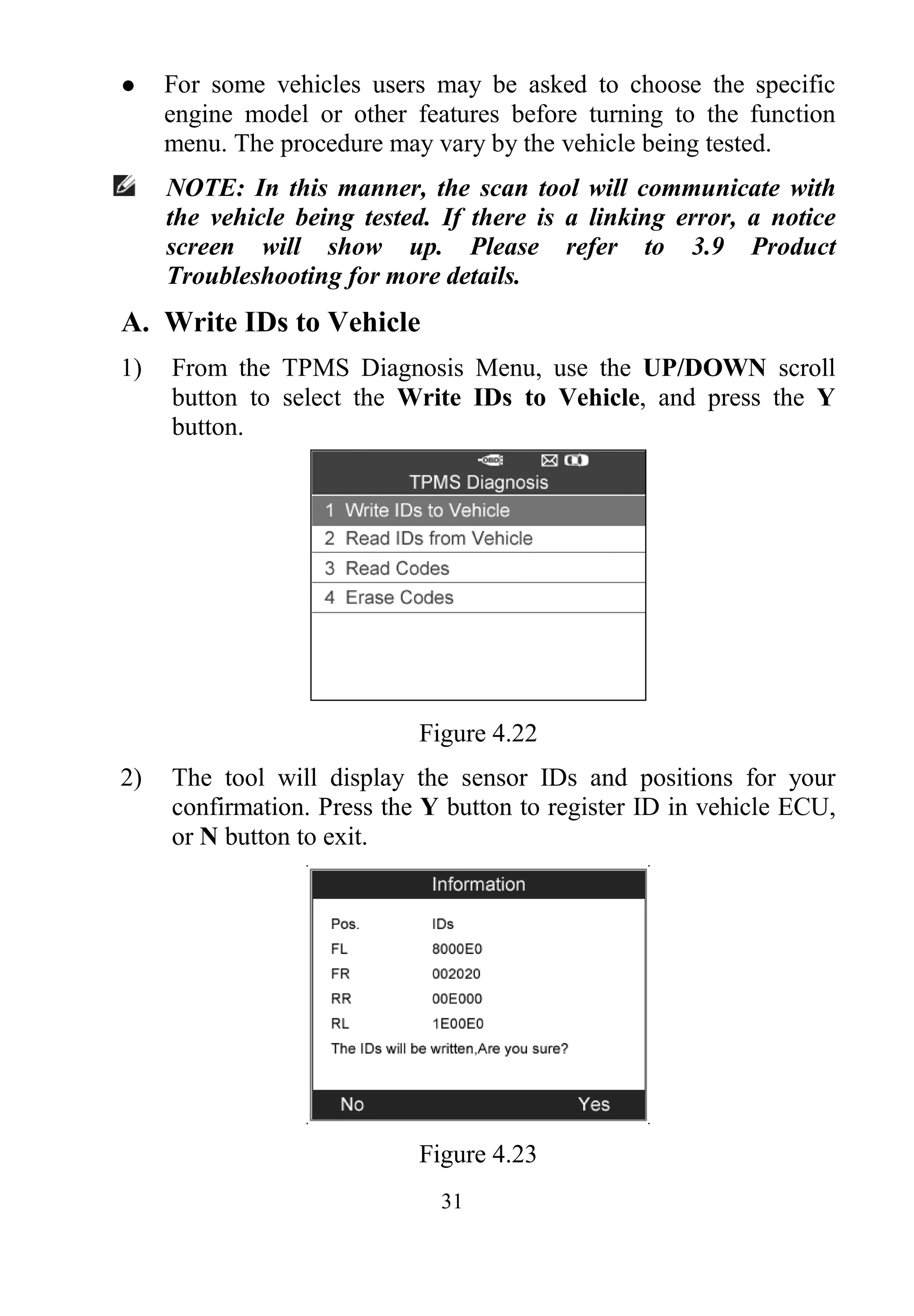
5) The tool will display a function screen as below. Use the
UP/DOWN scroll button to select TPMS Diagnosis or TPMS
Sensor Information, and press the Y button to continue.
(Figure 4.21)
Figure 4.21
6) The TPMS Diagnosis function allows user to write IDs to
vehicle, read IDs from vehicle, read/clear TPMS codes.
7) The TPMS Sensor Information enables retrieval of the sensor
make, OEM part no., and relearn information.
31
 For some vehicles users may be asked to choose the specific
engine model or other features before turning to the function
menu. The procedure may vary by the vehicle being tested.
NOTE: In this manner, the scan tool will communicate with
the vehicle being tested. If there is a linking error, a notice
screen will show up. Please refer to 3.9 Product
Troubleshooting for more details.
A. Write IDs to Vehicle
1) From the TPMS Diagnosis Menu, use the UP/DOWN scroll
button to select the Write IDs to Vehicle, and press the Y
button.
Figure 4.22
2) The tool will display the sensor IDs and positions for your
confirmation. Press the Y button to register ID in vehicle ECU,
or N button to exit.
Figure 4.23
32
3) Once the sensor IDs are successfully written, a confirm screen
will show up. Press any key to continue the TPMS diagnostic
procedure. (Figure 4.24)
Figure 4.24
NOTE: The sensor writing procedure may vary for different
vehicles being serviced. Please follow the onscreen instruction
and take appropriate measures and selections to complete the
process.
NOTE: If there are untested sensors in the vehicle, the writing
ID process cannot proceed. The tool will display a warning
message as below. (Figure 4.25) In this case, follow the sensor
check procedure to activate all sensors in vehicle and register
sensor IDs again.
Figure 4.25
IMPORTANT: Make sure to turn the ignition off before connecting
/disconnecting the OBDII Cable to/from the TPMS tool; otherwise
it may cause the Malfunction Indicator Light (MIL) to turn on.
33
B. Read IDs from Vehicle
1) From the TPMS Diagnosis Menu, use the UP/DOWN scroll
button to select the Read IDs from Vehicle, and press the Y
button. (Figure 4.22)
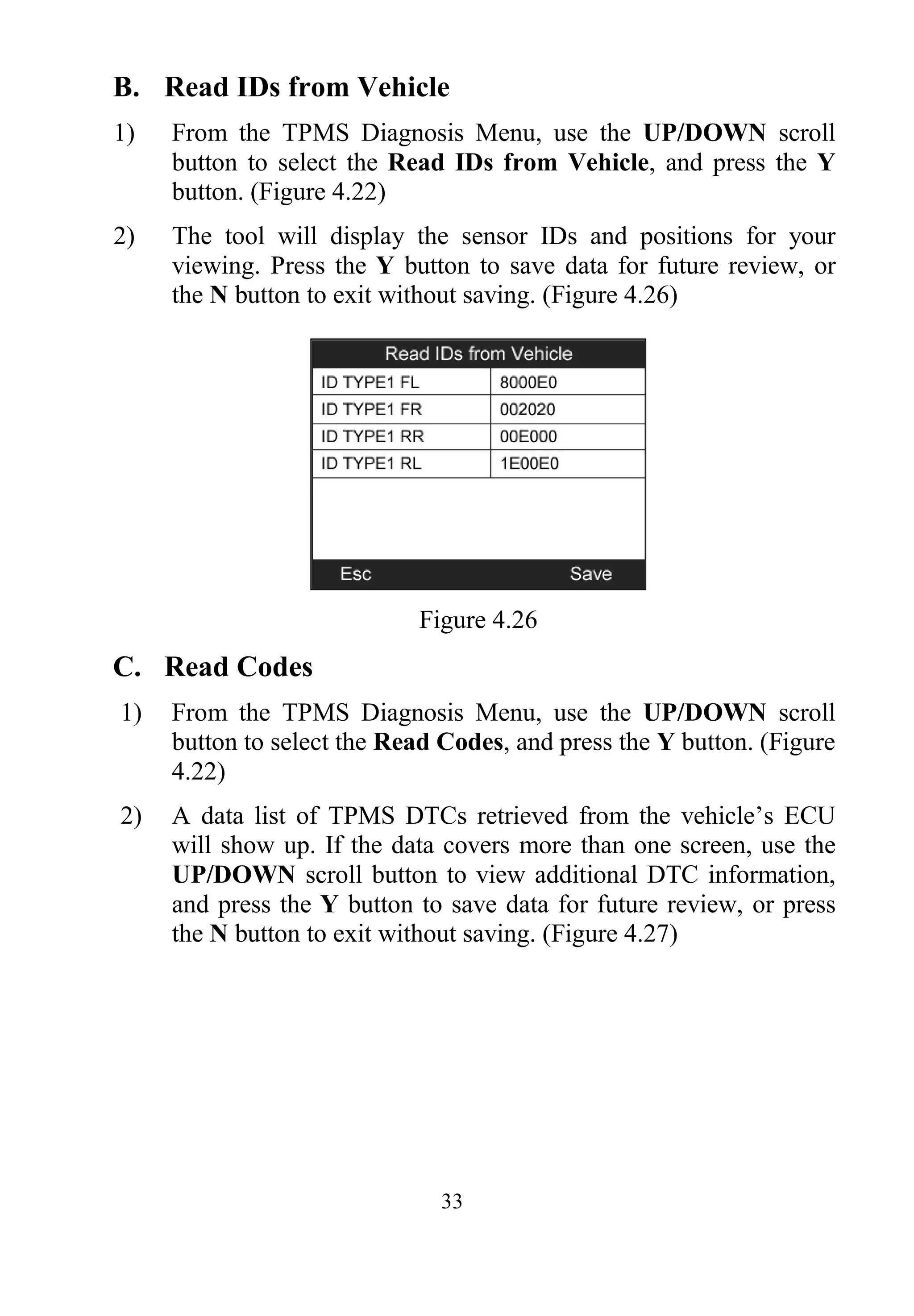
2) The tool will display the sensor IDs and positions for your
viewing. Press the Y button to save data for future review, or
the N button to exit without saving. (Figure 4.26)
Figure 4.26
C. Read Codes
1) From the TPMS Diagnosis Menu, use the UP/DOWN scroll
button to select the Read Codes, and press the Y button. (Figure
4.22)
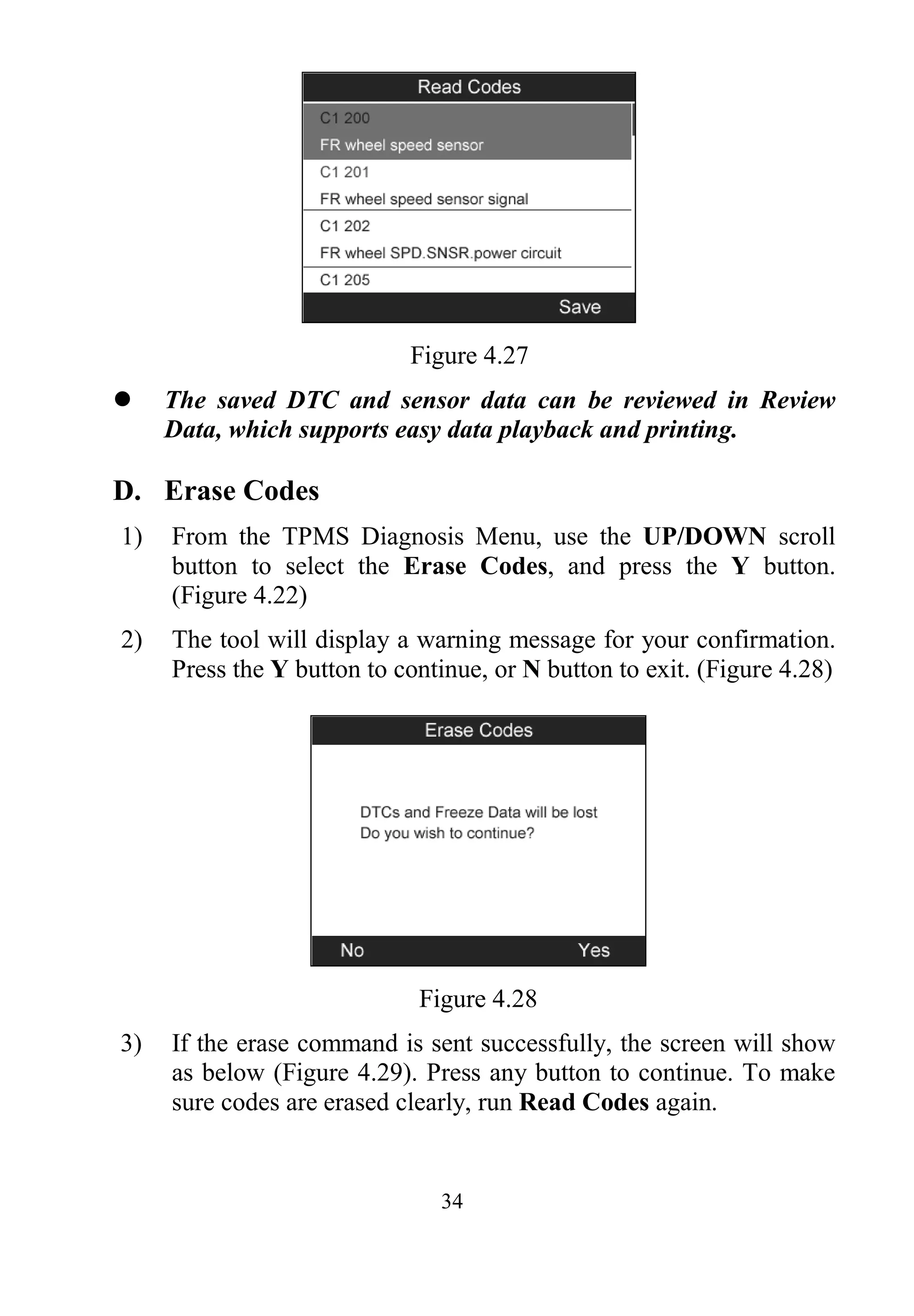
2) A data list of TPMS DTCs retrieved from the vehicle’s ECU
will show up. If the data covers more than one screen, use the
UP/DOWN scroll button to view additional DTC information,
and press the Y button to save data for future review, or press
the N button to exit without saving. (Figure 4.27)
34
Figure 4.27
 The saved DTC and sensor data can be reviewed in Review
Data, which supports easy data playback and printing.
D. Erase Codes
1) From the TPMS Diagnosis Menu, use the UP/DOWN scroll
button to select the Erase Codes, and press the Y button.
(Figure 4.22)
2) The tool will display a warning message for your confirmation.
Press the Y button to continue, or N button to exit. (Figure 4.28)
Figure 4.28
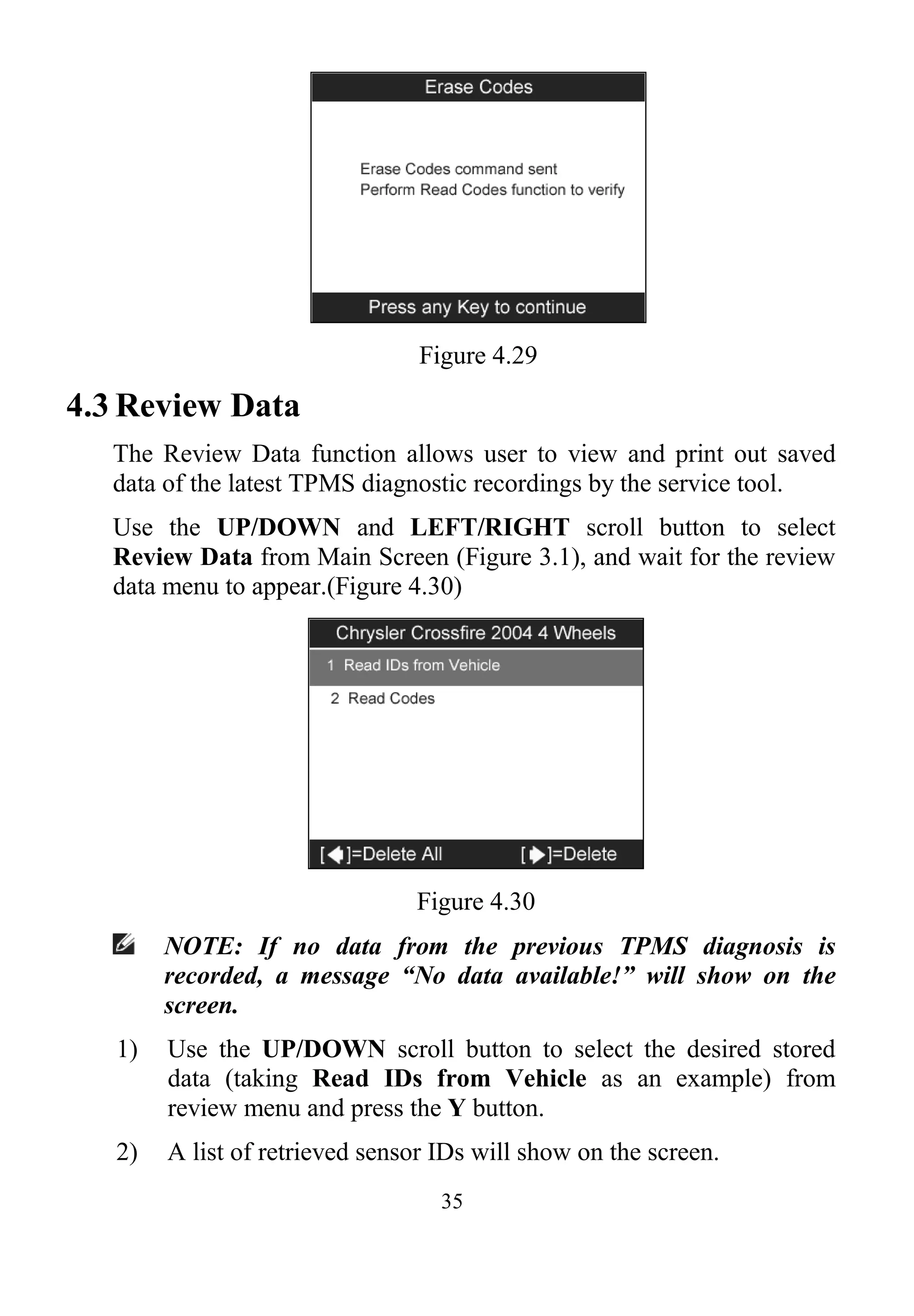
3) If the erase command is sent successfully, the screen will show
as below (Figure 4.29). Press any button to continue. To make
sure codes are erased clearly, run Read Codes again.
35
Figure 4.29
4.3 Review Data
The Review Data function allows user to view and print out saved
data of the latest TPMS diagnostic recordings by the service tool.
Use the UP/DOWN and LEFT/RIGHT scroll button to select
Review Data from Main Screen (Figure 3.1), and wait for the review
data menu to appear.(Figure 4.30)
Figure 4.30
NOTE: If no data from the previous TPMS diagnosis is
recorded, a message “No data available!” will show on the
screen.
1) Use the UP/DOWN scroll button to select the desired stored
data (taking Read IDs from Vehicle as an example) from
review menu and press the Y button.
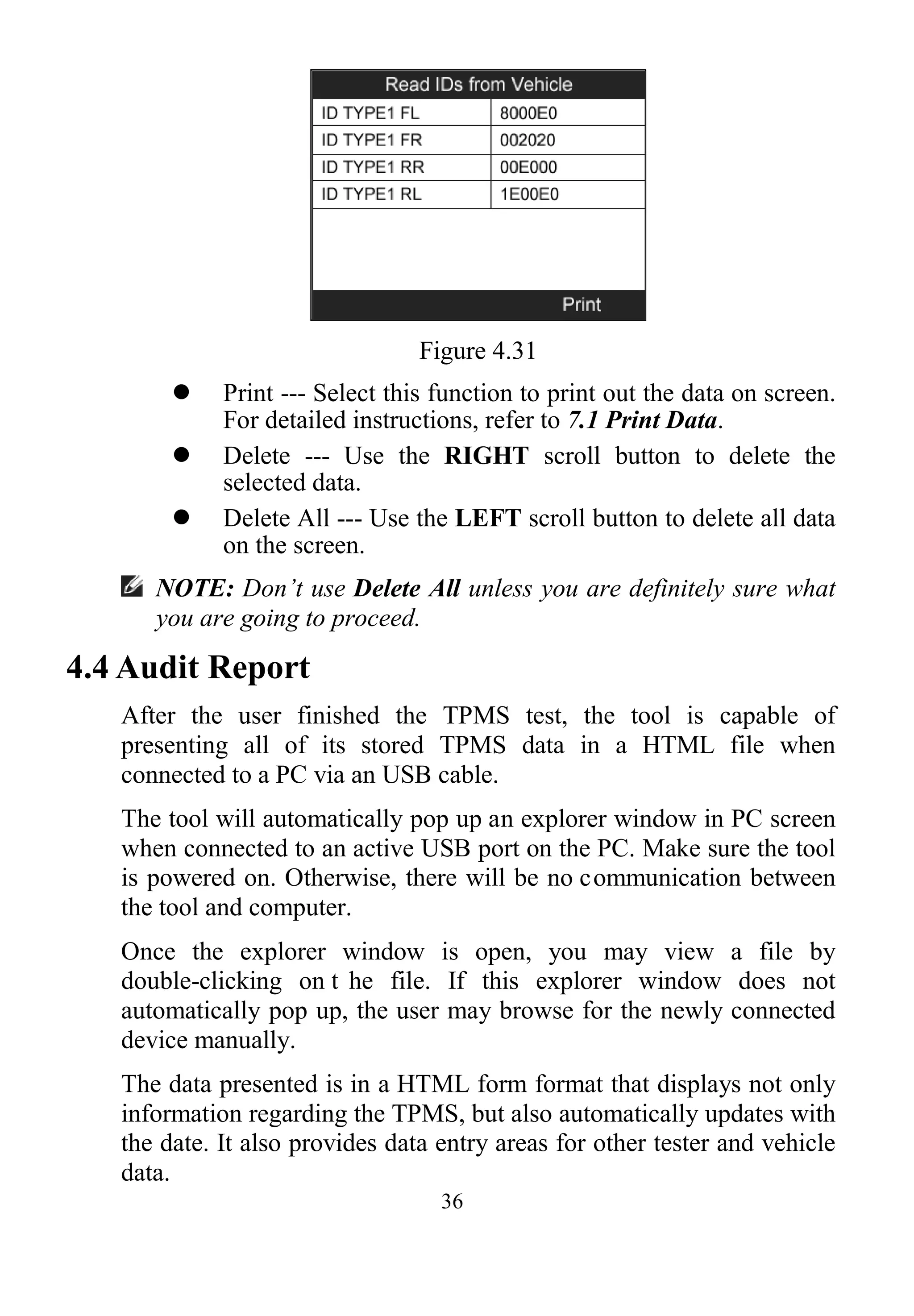
2) A list of retrieved sensor IDs will show on the screen.
36
Figure 4.31
 Print --- Select this function to print out the data on screen.
For detailed instructions, refer to 7.1 Print Data.
 Delete --- Use the RIGHT scroll button to delete the
selected data.
 Delete All --- Use the LEFT scroll button to delete all data
on the screen.
NOTE: Don’t use Delete All unless you are definitely sure what
you are going to proceed.
4.4 Audit Report
After the user finished the TPMS test, the tool is capable of
presenting all of its stored TPMS data in a HTML file when
connected to a PC via an USB cable.
The tool will automatically pop up an explorer window in PC screen
when connected to an active USB port on the PC. Make sure the tool
is powered on. Otherwise, there will be no communication between
the tool and computer.
Once the explorer window is open, you may view a file by
double-clicking on t he file. If this explorer window does not
automatically pop up, the user may browse for the newly connected
device manually.
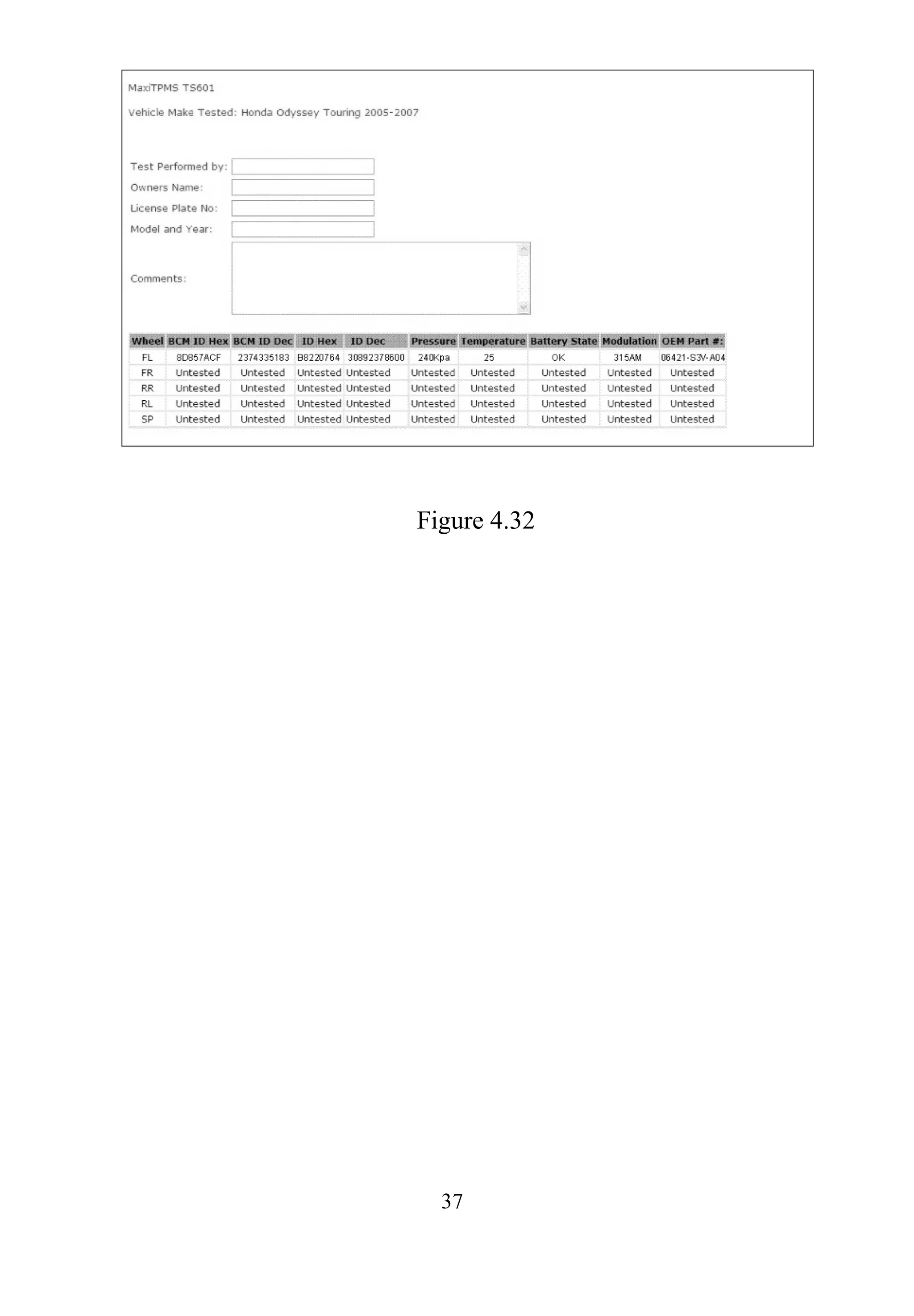
The data presented is in a HTML form format that displays not only
information regarding the TPMS, but also automatically updates with
the date. It also provides data entry areas for other tester and vehicle
data.
37
Figure 4.32
38
5. TPMS Sensor Programming
The Programming function allows users to program the sensor data to
the MX-Sensor and replace faulty sensor with low battery life or one
that is not functioning. The scan tool is easy-to-use with a proven
efficiency and guaranteed accurate results.
NOTE: Programming function will only work with Autel’s
MX-Sensor. Currently, there are two models available:
Clamp-in Sensor and Snap-in Sensor, both with two types, one
in orange color with 433MHz frequency, and one in dark gray
color with 315MHz frequency. The Clamp-in Sensor is taken
as an example in this manual. Please choose the right
MX-Sensor when programming.
There are four options available when programming MX-Sensor
using this scan tool: Auto Create, Manual Create, Copy by OBD,
and Copy by Activation.
5.1 Auto Create
This function is designed to program the MX-Sensor by applying
random IDs created according to the test vehicle, when it is unable to
obtain the original sensor ID.
1) Use the UP/DOWN scroll button and the LEFT/RIGHT scroll
button to select TPMS from Main Menu (Figure 3.1), and
press the Y button to confirm.
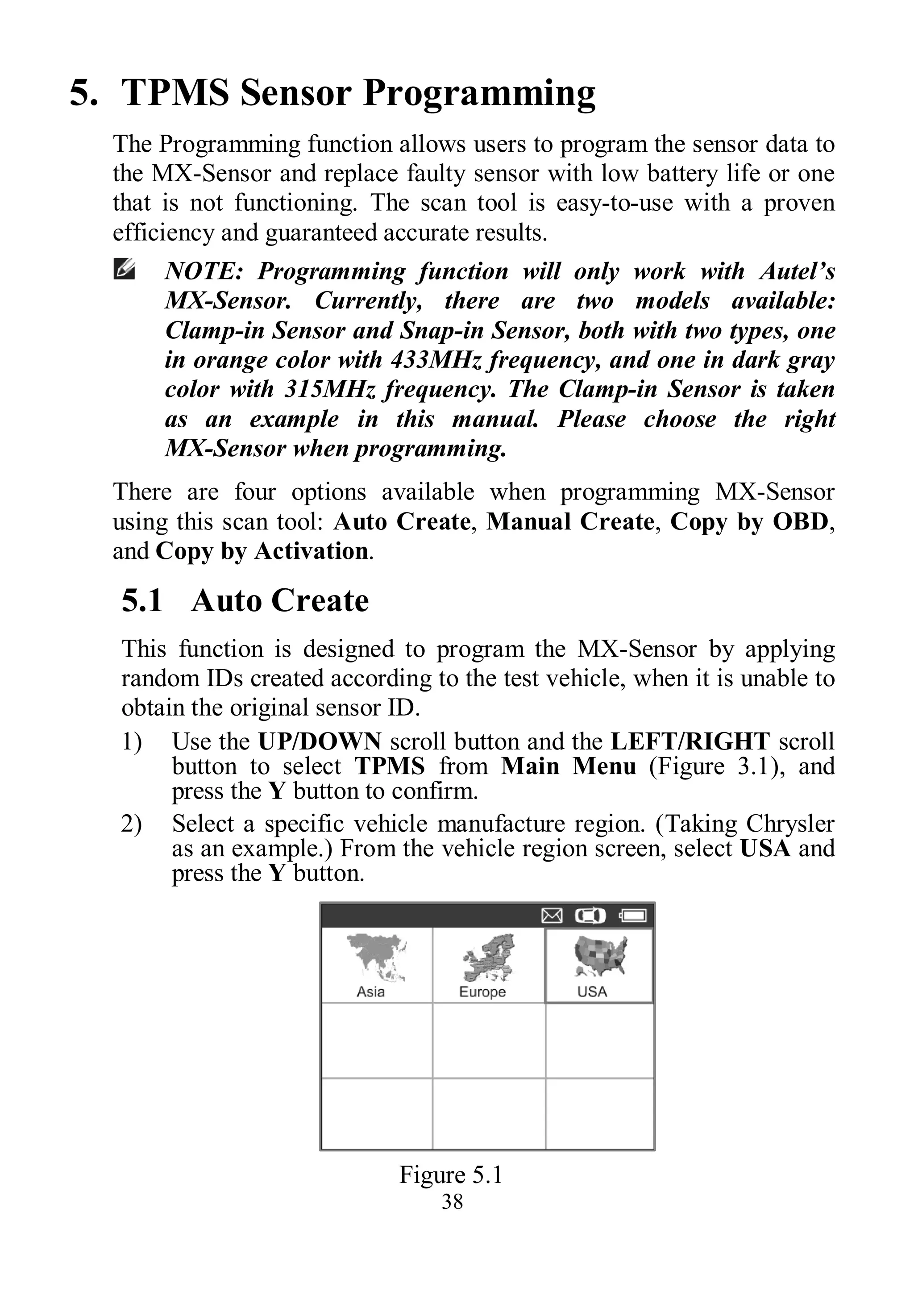
2) Select a specific vehicle manufacture region. (Taking Chrysler
as an example.) From the vehicle region screen, select USA and
press the Y button.
Figure 5.1
39
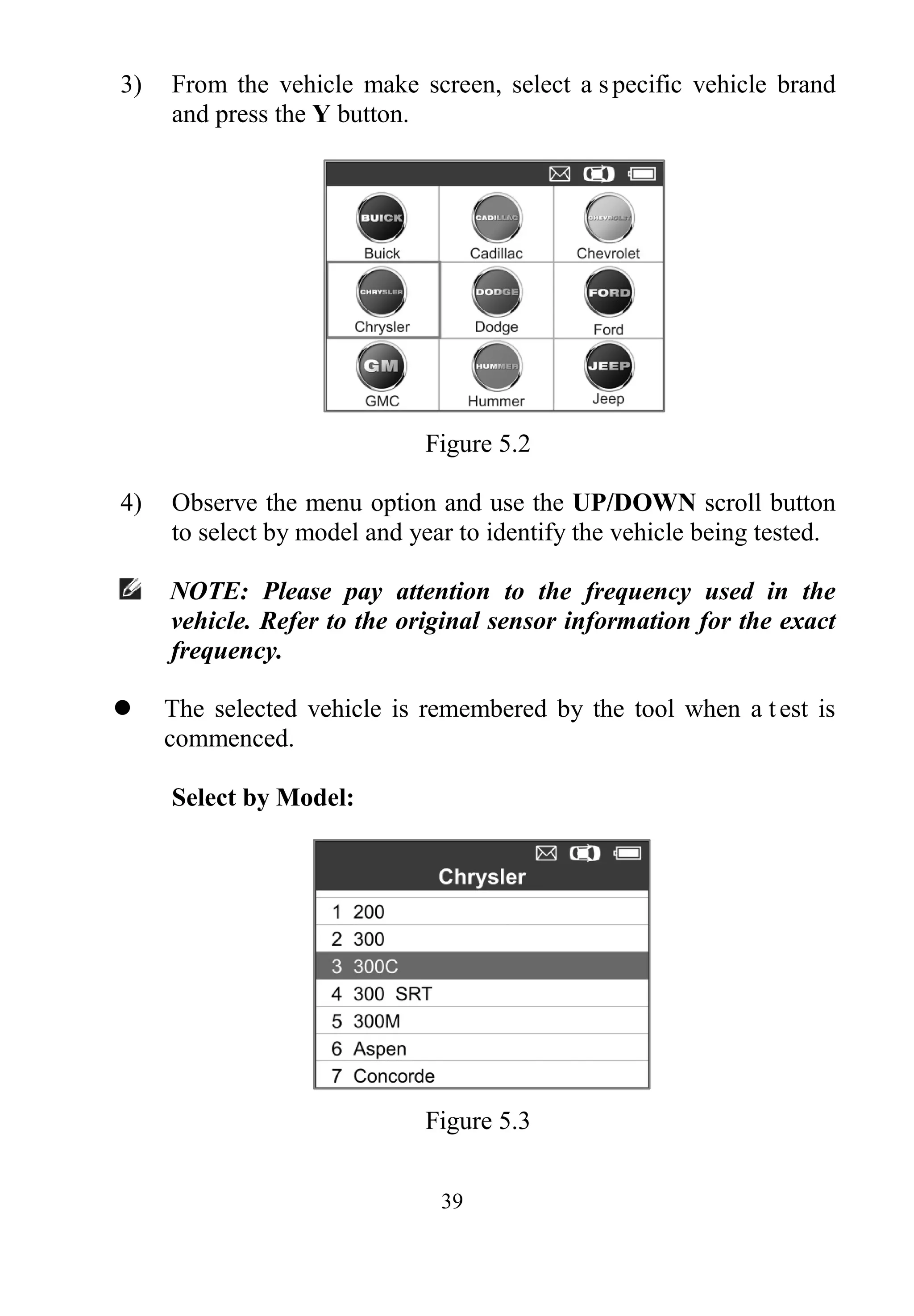
3) From the vehicle make screen, select a specific vehicle brand
and press the Y button.
Figure 5.2
4) Observe the menu option and use the UP/DOWN scroll button
to select by model and year to identify the vehicle being tested.
NOTE: Please pay attention to the frequency used in the
vehicle. Refer to the original sensor information for the exact
frequency.
 The selected vehicle is remembered by the tool when a test is
commenced.
Select by Model:
Figure 5.3
40
Select by Year:
Figure 5.4
5) For some vehicles (like Chrysler), an option screen will show up
allowing users to choose between 4 Wheels test and 5 Wheels
test mode before accessing the activation screen.
Figure 5.5
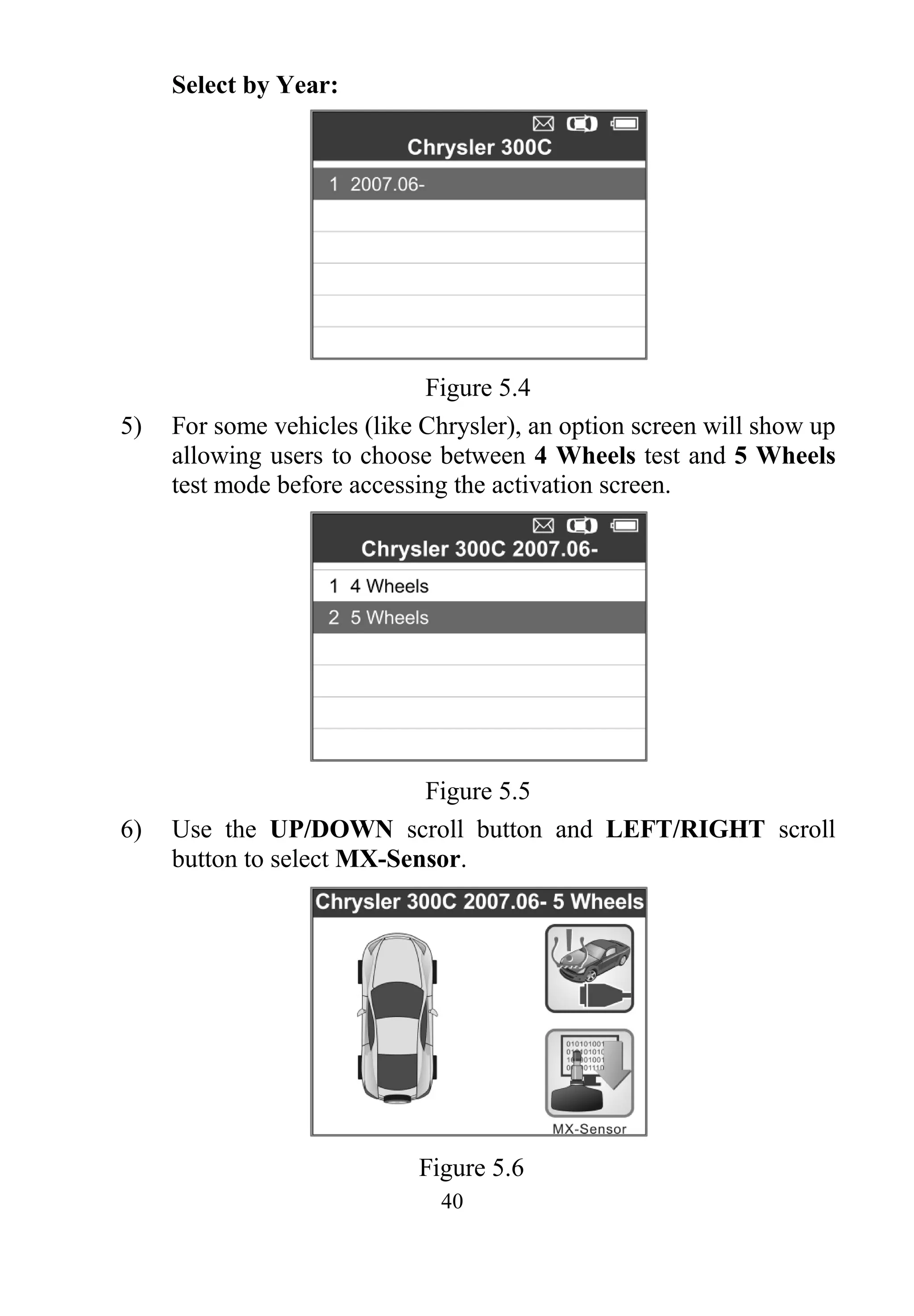
6) Use the UP/DOWN scroll button and LEFT/RIGHT scroll
button to select MX-Sensor.
Figure 5.6
41
7) Use the UP/DOWN scroll button to select the wheel which
needs to be programmed.
Figure 5.7
8) Use the UP/DOWN scroll button to select Auto Create to
create a new random sensor ID.
Figure 5.8
9) Insert the correct MX-Sensor into the sensor slot as displayed
below:
Figure 5.9
42
NOTE: Please pay attention to the MX-Sensor type displayed
in the screen and insert the correct MX-Sensor. Inserting
incorrect MX-Sensor will cause programming failure.
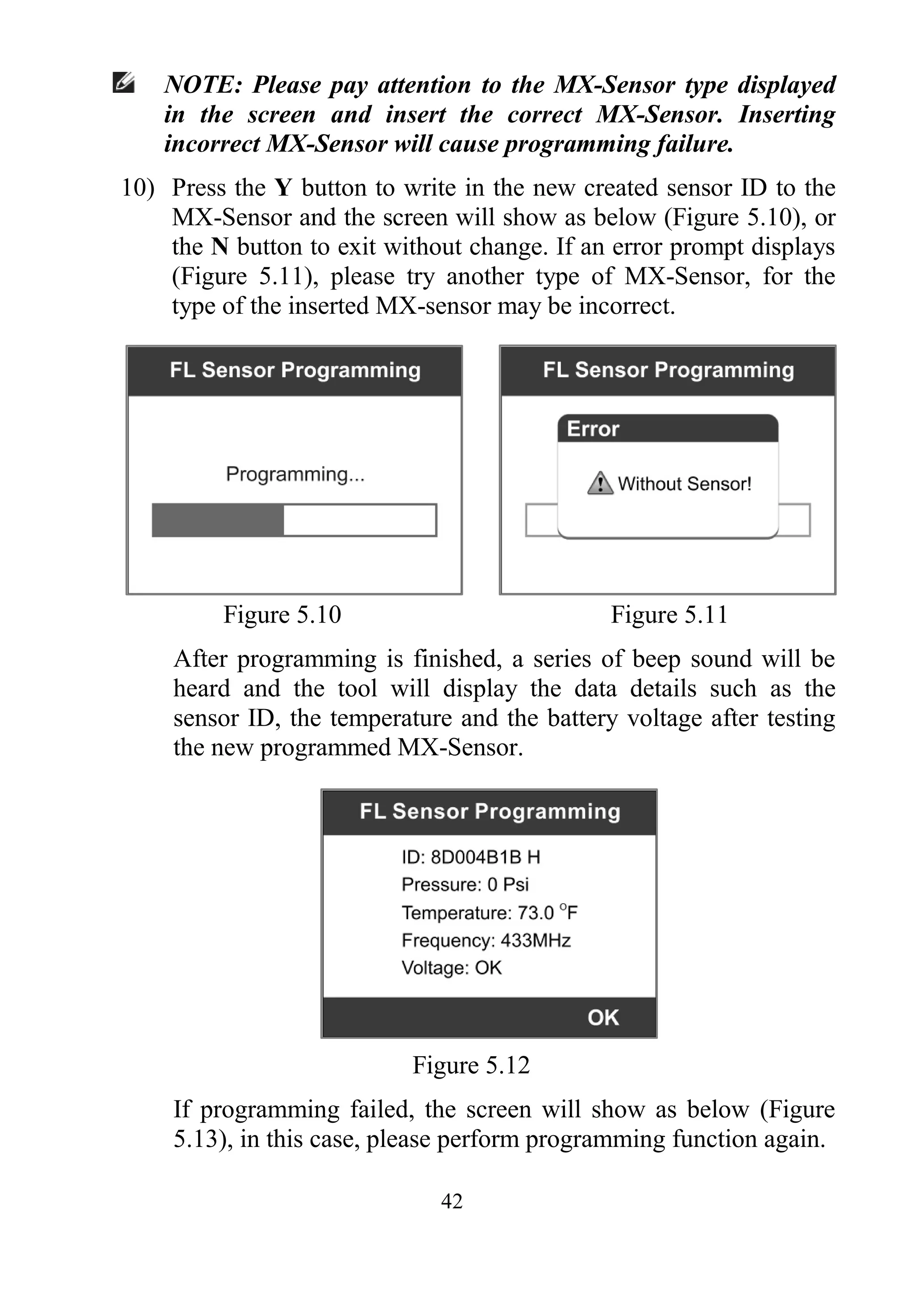
10) Press the Y button to write in the new created sensor ID to the
MX-Sensor and the screen will show as below (Figure 5.10), or
the N button to exit without change. If an error prompt displays
(Figure 5.11), please try another type of MX-Sensor, for the
type of the inserted MX-sensor may be incorrect.
Figure 5.10 Figure 5.11
After programming is finished, a series of beep sound will be
heard and the tool will display the data details such as the
sensor ID, the temperature and the battery voltage after testing
the new programmed MX-Sensor.
Figure 5.12
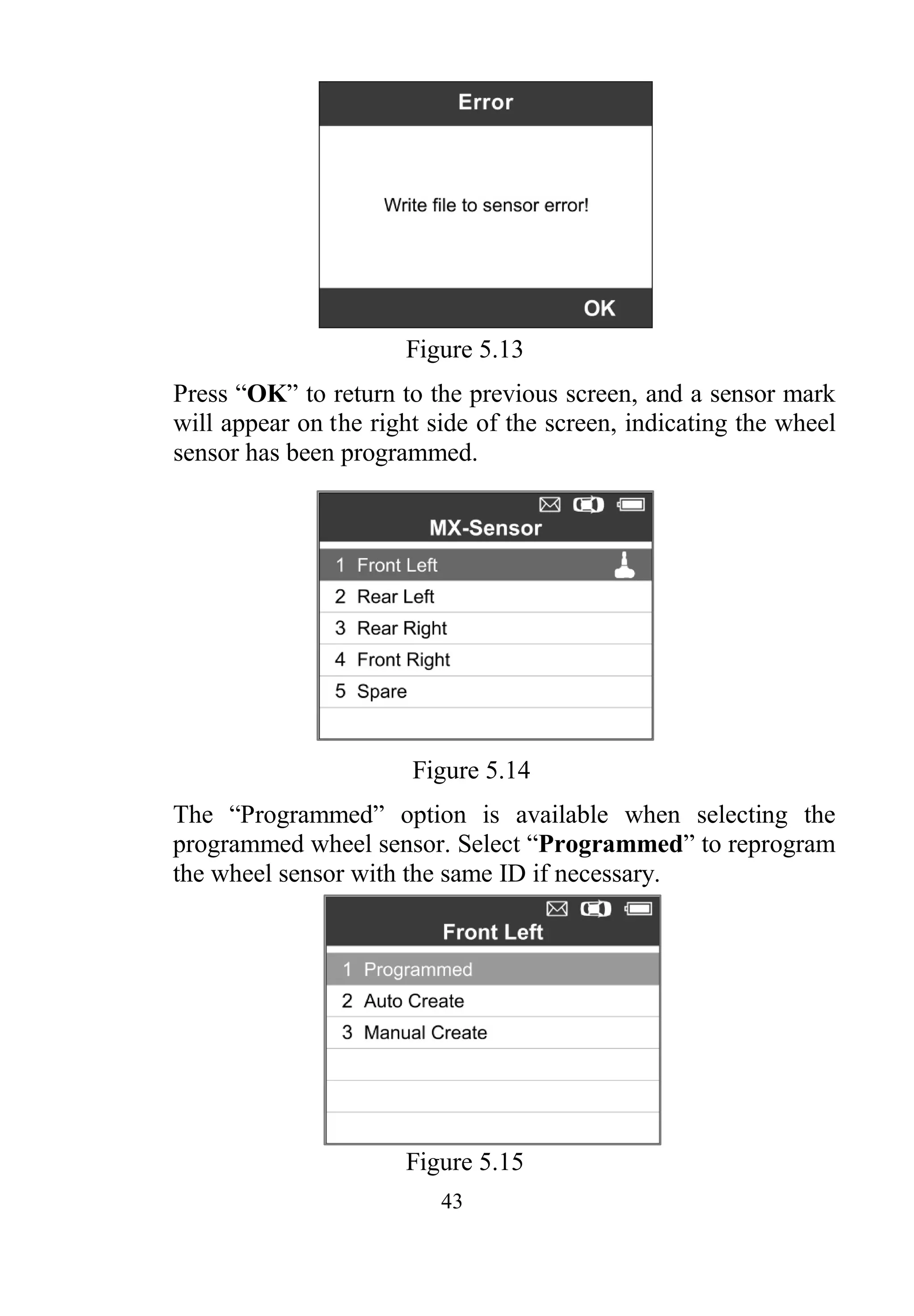
If programming failed, the screen will show as below (Figure
5.13), in this case, please perform programming function again.
43
Figure 5.13
Press “OK” to return to the previous screen, and a sensor mark
will appear on the right side of the screen, indicating the wheel
sensor has been programmed.
Figure 5.14
The “Programmed” option is available when selecting the
programmed wheel sensor. Select “Programmed” to reprogram
the wheel sensor with the same ID if necessary.
Figure 5.15
44
After all required MX-Sensor is programmed, please select
Write IDs to Vehicle in Relearn function, refer to 4.2 TPMS
Relearn for details.
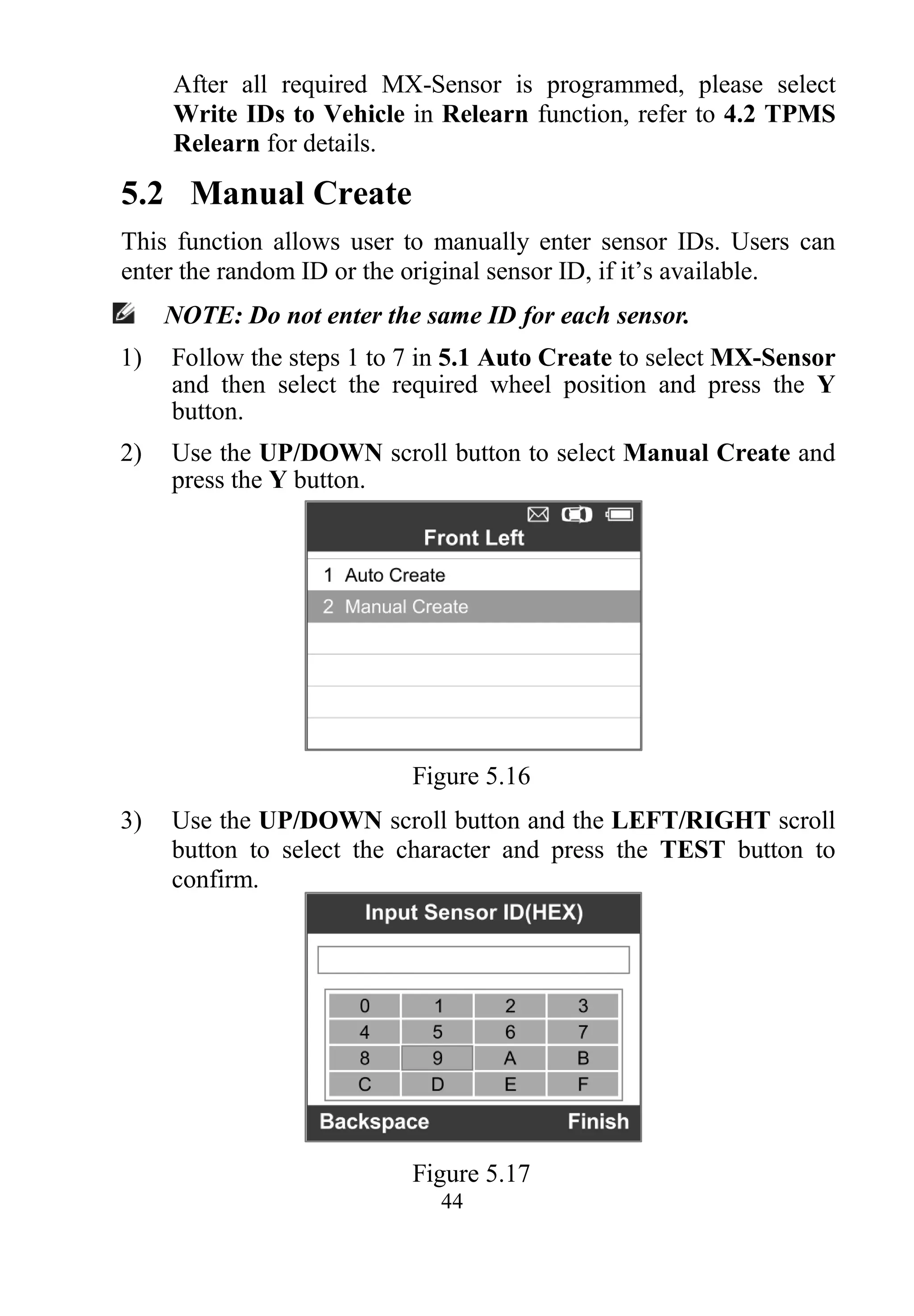
5.2 Manual Create
This function allows user to manually enter sensor IDs. Users can
enter the random ID or the original sensor ID, if it’s available.
NOTE: Do not enter the same ID for each sensor.
1) Follow the steps 1 to 7 in 5.1 Auto Create to select MX-Sensor
and then select the required wheel position and press the Y
button.
2) Use the UP/DOWN scroll button to select Manual Create and
press the Y button.
Figure 5.16
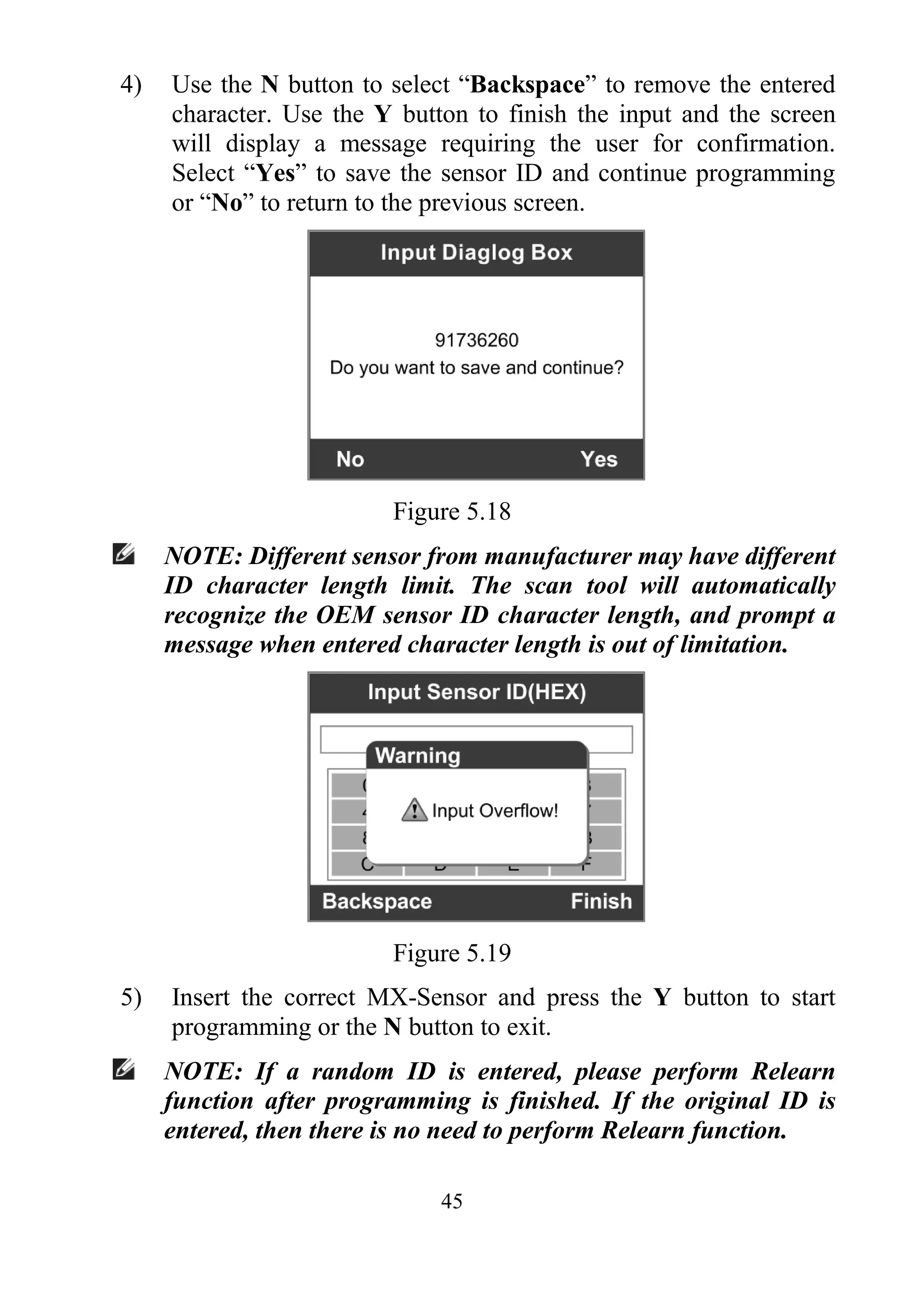
3) Use the UP/DOWN scroll button and the LEFT/RIGHT scroll
button to select the character and press the TEST button to
confirm.
Figure 5.17
45
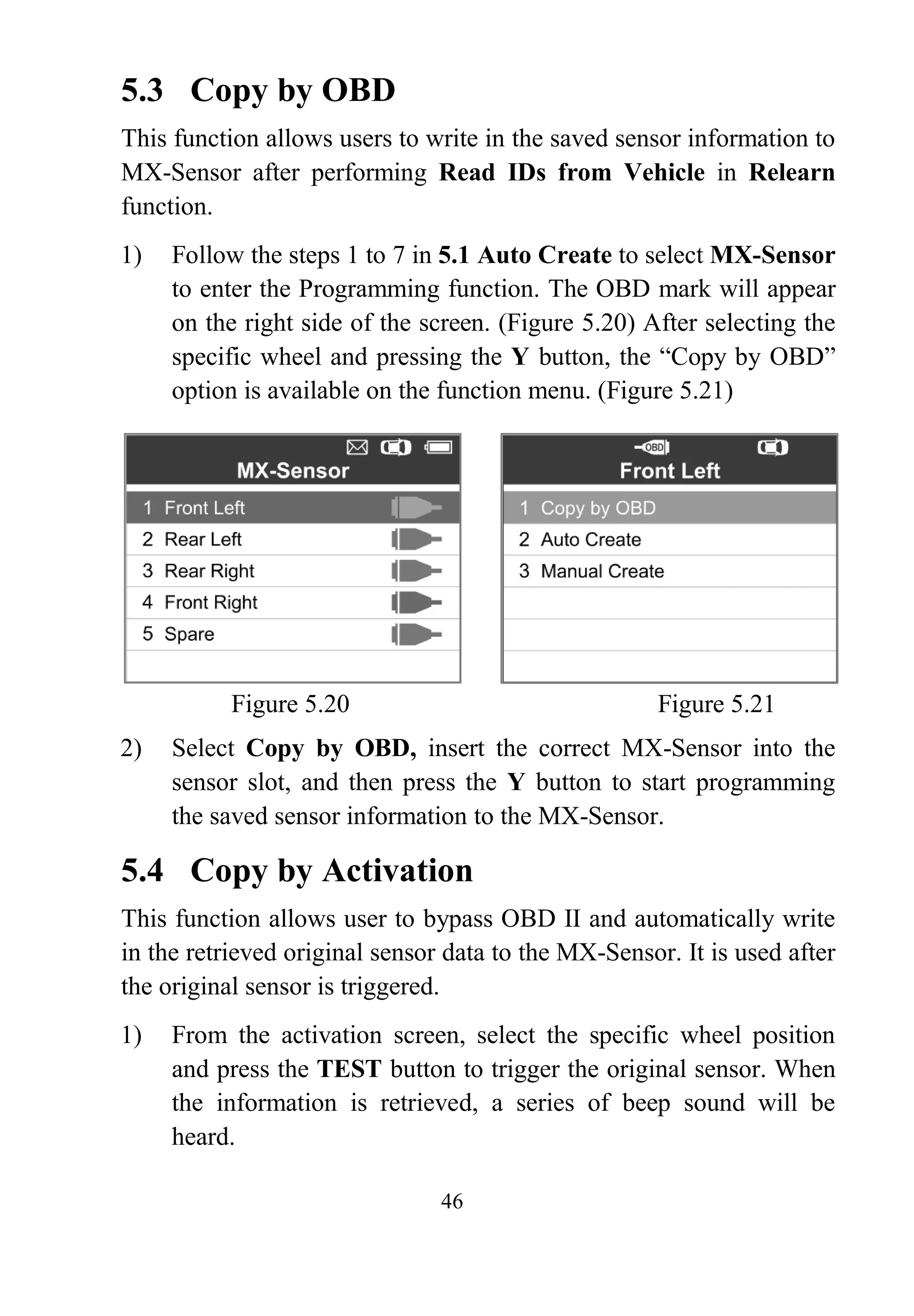
4) Use the N button to select “Backspace” to remove the entered
character. Use the Y button to finish the input and the screen
will display a message requiring the user for confirmation.
Select “Yes” to save the sensor ID and continue programming
or “No” to return to the previous screen.
Figure 5.18
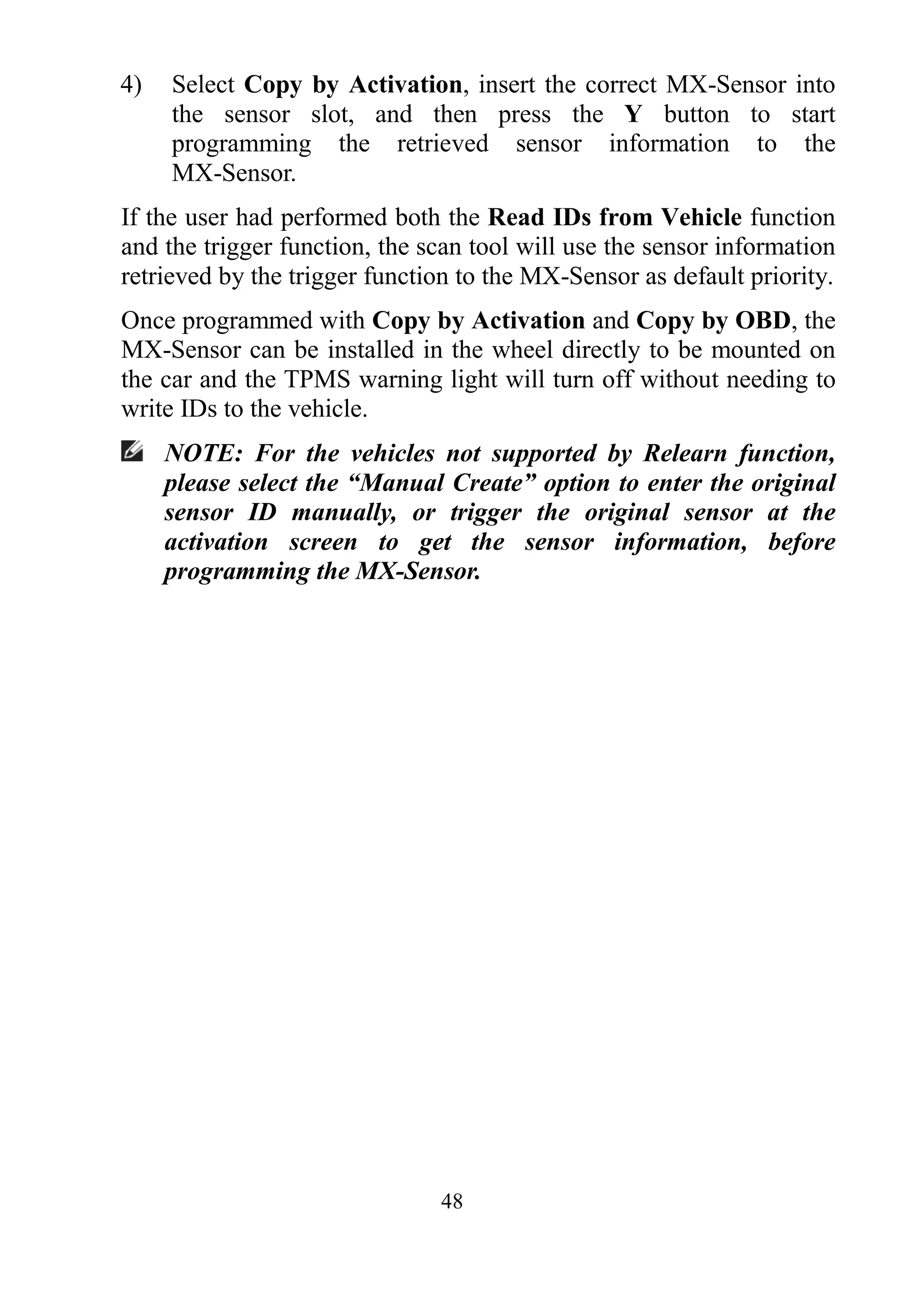
NOTE: Different sensor from manufacturer may have different
ID character length limit. The scan tool will automatically
recognize the OEM sensor ID character length, and prompt a
message when entered character length is out of limitation.
Figure 5.19
5) Insert the correct MX-Sensor and press the Y button to start
programming or the N button to exit.
NOTE: If a random ID is entered, please perform Relearn
function after programming is finished. If the original ID is
entered, then there is no need to perform Relearn function.
46
5.3 Copy by OBD
This function allows users to write in the saved sensor information to
MX-Sensor after performing Read IDs from Vehicle in Relearn
function.
1) Follow the steps 1 to 7 in 5.1 Auto Create to select MX-Sensor
to enter the Programming function. The OBD mark will appear
on the right side of the screen. (Figure 5.20) After selecting the
specific wheel and pressing the Y button, the “Copy by OBD”
option is available on the function menu. (Figure 5.21)
Figure 5.20 Figure 5.21
2) Select Copy by OBD, insert the correct MX-Sensor into the
sensor slot, and then press the Y button to start programming
the saved sensor information to the MX-Sensor.
5.4 Copy by Activation
This function allows user to bypass OBD II and automatically write
in the retrieved original sensor data to the MX-Sensor. It is used after
the original sensor is triggered.
1) From the activation screen, select the specific wheel position
and press the TEST button to trigger the original sensor. When
the information is retrieved, a series of beep sound will be
heard.
47
Figure 5.22
2) Select MX-Sensor and a t rigger mark will appear on t he
right side of the screen.
Figure 5.23
3) Use the UP/DOWN scroll button to select the corresponding
wheel, press the Y button and then the “Copy by Activation”
option will appear on the screen.
Figure 5.24
48
4) Select Copy by Activation, insert the correct MX-Sensor into
the sensor slot, and then press the Y button to start
programming the retrieved sensor information to the
MX-Sensor.
If the user had performed both the Read IDs from Vehicle function
and the trigger function, the scan tool will use the sensor information
retrieved by the trigger function to the MX-Sensor as default priority.
Once programmed with Copy by Activation and Copy by OBD, the
MX-Sensor can be installed in the wheel directly to be mounted on
the car and the TPMS warning light will turn off without needing to
write IDs to the vehicle.
NOTE: For the vehicles not supported by Relearn function,
please select the “Manual Create” option to enter the original
sensor ID manually, or trigger the original sensor at the
activation screen to get the sensor information, before
programming the MX-Sensor.
49
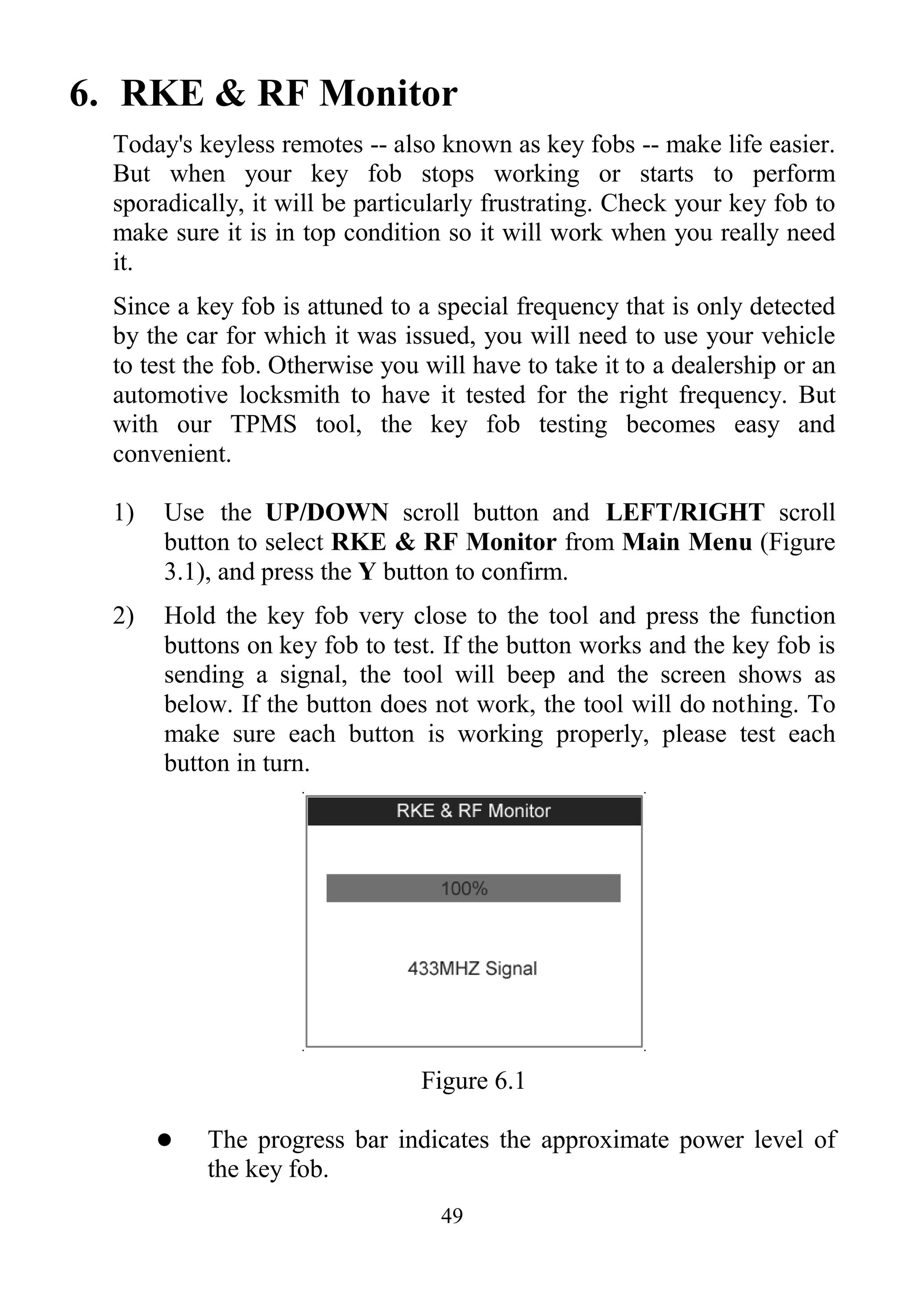
6. RKE & RF Monitor
Today's keyless remotes -- also known as key fobs -- make life easier.
But when your key fob stops working or starts to perform
sporadically, it will be particularly frustrating. Check your key fob to
make sure it is in top condition so it will work when you really need
it.
Since a key fob is attuned to a special frequency that is only detected
by the car for which it was issued, you will need to use your vehicle
to test the fob. Otherwise you will have to take it to a dealership or an
automotive locksmith to have it tested for the right frequency. But
with our TPMS tool, the key fob testing becomes easy and
convenient.
1) Use the UP/DOWN scroll button and LEFT/RIGHT scroll
button to select RKE & RF Monitor from Main Menu (Figure
3.1), and press the Y button to confirm.
2) Hold the key fob very close to the tool and press the function
buttons on key fob to test. If the button works and the key fob is
sending a signal, the tool will beep and the screen shows as
below. If the button does not work, the tool will do nothing. To
make sure each button is working properly, please test each
button in turn.
Figure 6.1
 The progress bar indicates the approximate power level of
the key fob.
50
 The stronger the signal, the higher the beep tone.
 The tool only tests 315MHz and 433MHz key fobs.
3) Press the N button to return to previous menu.
51
7. Print and Update
To print out retrieved data or update software, you will need the
followings:
 TS501 tool with SD card inserted
 PC or laptop with USB ports
 USB cable
7.1 Print Data
The Print Data function allows printing out TPMS DTC data
recorded by the service tool by connecting the scan tool to a PC
or laptop with the USB cable supplied.
1) Install the PC Suit program to the PC from the supplied CD.
2) Connect the scanner to computer with the USB cable supplied.
3) Run Printer software on computer.
4) Select Review Data function in Main Screen of the TPMS tool.
In data menu screen, use the UP/DOWN scroll button to select
the data you want to print. Wait for the reviewing window to
display (Figure 4.31), and then select Print function by pressing
the Y button. The selected file will be uploaded to your
computer. For more detailed instructions, please refer to 4.3
Review Data.
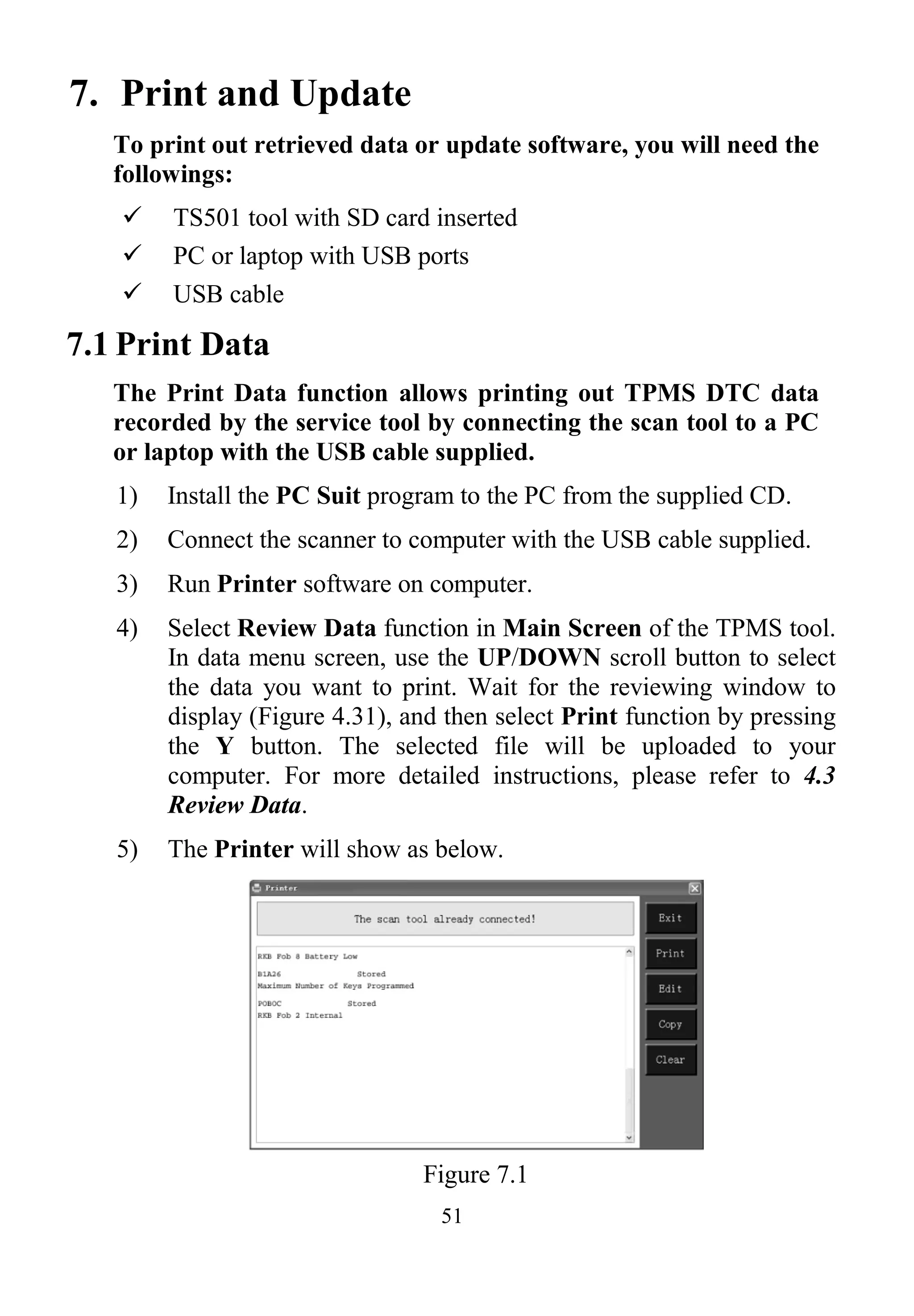
5) The Printer will show as below.
Figure 7.1
52
6) The selected data will display on the textbox of Printer. By
selecting the function keys on the right, you could execute the
following operations:
 Print – Print all data in the textbox to a printer connected to
your computer.
 Edit – Once clicked, the software will automatically open a
NOTEPAD window with all recorded data showing on.
 Copy – Copy all data in the textbox to the clipboard.
 Clear – Delete all data in the textbox.
 Exit – Quit the operation.
7) You are also allowed to edit, copy, and delete the data in the
Printer window.
7.2 Software Update
This function allows you to update the scan tool software
through a computer.
 Register the Tool
User could update the scan tool ONLY after you had registered the
tool on our website: www.autel.com. Then you could download
software, update online, retrieve information and get warranty
service.
NOTE: Prior to registration, please confirm your network is
working properly.
1. Visit the website http://pro.autel.com.
2. On the Sign In page, input your account ID and other
information to log in, if you already have an account.
3. If you are a new member to Autel and do not have an account
yet, click the Create Autel ID button on the left side.
4. Enter the required information in the input fields, read through
Autel’s Terms and Conditions and tick on Agree, and then click
Create Autel ID at the bottom to continue.
53
5. The online system will automatically send a confirmation email
to the registered email address. Validate your account by
clicking the link provided through the mail. A product
registration screen opens.
6. Select the product model of your device, enter the product serial
number and password on the Product Registration screen, and
click Submit to complete the registration procedure.
NOTE: Please use the About function to find out the Product
Serial No. and Register Password. For details, please refer to
the Section 3.8 System Setting.
 Update Procedure
Autel frequently releases software updates that you can download.
The Update feature makes it very easy to determine and get exactly
what you need.
Users could either choose to update the TPMS tool via USB
connection or SD card.
 Update via USB
Connect the tool with computer with USB cable. Then switch
on the tool.
 Update via SD card
Remove the SD card from the tool and connect it with
computer.
Follow the update procedure to finish updating.
1) Run Autel Update in the PC Suit program. Wait for the Log In
window to pop up. (Figure 7.2)
54
Figure 7.2
2) Enter your Autel ID and password and wait for the Update
window to display. If you forget your password unintentionally,
you may always click the [Forget Password?] to link to our
website and get your password back.
3) In the Update window, select the items you want to install.
Usually, you should install all available updates.
Figure 7.3
Generally there are two ways to update the programs:
Batch Updating
1) Select the programs that you would update by clicking on the
check boxes next to those items. Then click the Update
Selected Items button on the right side of screen. Or
55
2) Click on the Select All checkbox on the right side of screen and
all updatable items will be selected automatically. Then click
the Update Selected Items button on the right side of screen.
3) Check the updating process by observing the upper left progress
bar [Downloads] and upper right progress bar [Installs]. You
may also find progress information in the Status column of
updated items.
4) Anytime you could click the Pause button on the right side of
screen to suspend all progresses, and the state of those
suspended items would change to STOPPED.
5) To resume updating process, you may need to select those
suspended items again, and then click the Update Selected
Items button. The progress will resume from the break point.
6) When the downloading is completed, the downloaded programs
will be installed automatically. The new version will replace the
old version.
Single Updating
1) Find out the desired updating item and click the Install button
in the same line and the Install button changes to Pause at the
same time.
2) Check the updating process by observing the upper left progress
bar [Downloads] and upper right progress bar [Installs]. You
may also find progress information in the Status column of
updated items.
3) Anytime you could click the Pause button in the line to suspend
this progress, and the state of this item would change to
STOPPED.
4) To resume updating process, click the Install button in the line
again. The progress will resume from the break point.
5) When the downloading is completed, the downloaded program
will be installed automatically. The new version will replace the
old one.
56
6) Once the update is complete, disconnect the tool from the
computer. It is now updated and ready to go.
7) For users who choose to update by SD card, please insert the
SD card into the scan tool, and switch on the TPMS tool. It’s
now updated and ready to go.
 View or Delete Programs
To view the list of installed programs or to delete an installed
program, please follow these steps:
1) Click on the Installed Programs tag entry and the page will
show the list of programs installed.
2) Select the program(s) that you would delete.
 Batch delete: Select the programs that you would delete by
clicking on the check boxes to the left of those items. Then
click the Delete button on the right side of screen.
 Single delete: Click the Uninstall button in the line of your
would-be-deleted program.
3) A window asking “Are you sure to delete the software?” will
pop up for your confirmation.
Figure 7.4
• Click on Yes to delete the program(s) selected, or on No to
cancel the action.
• The deleted program will automatically add to the end of
program list in the UPDATE page in case you would like to
install again.
57
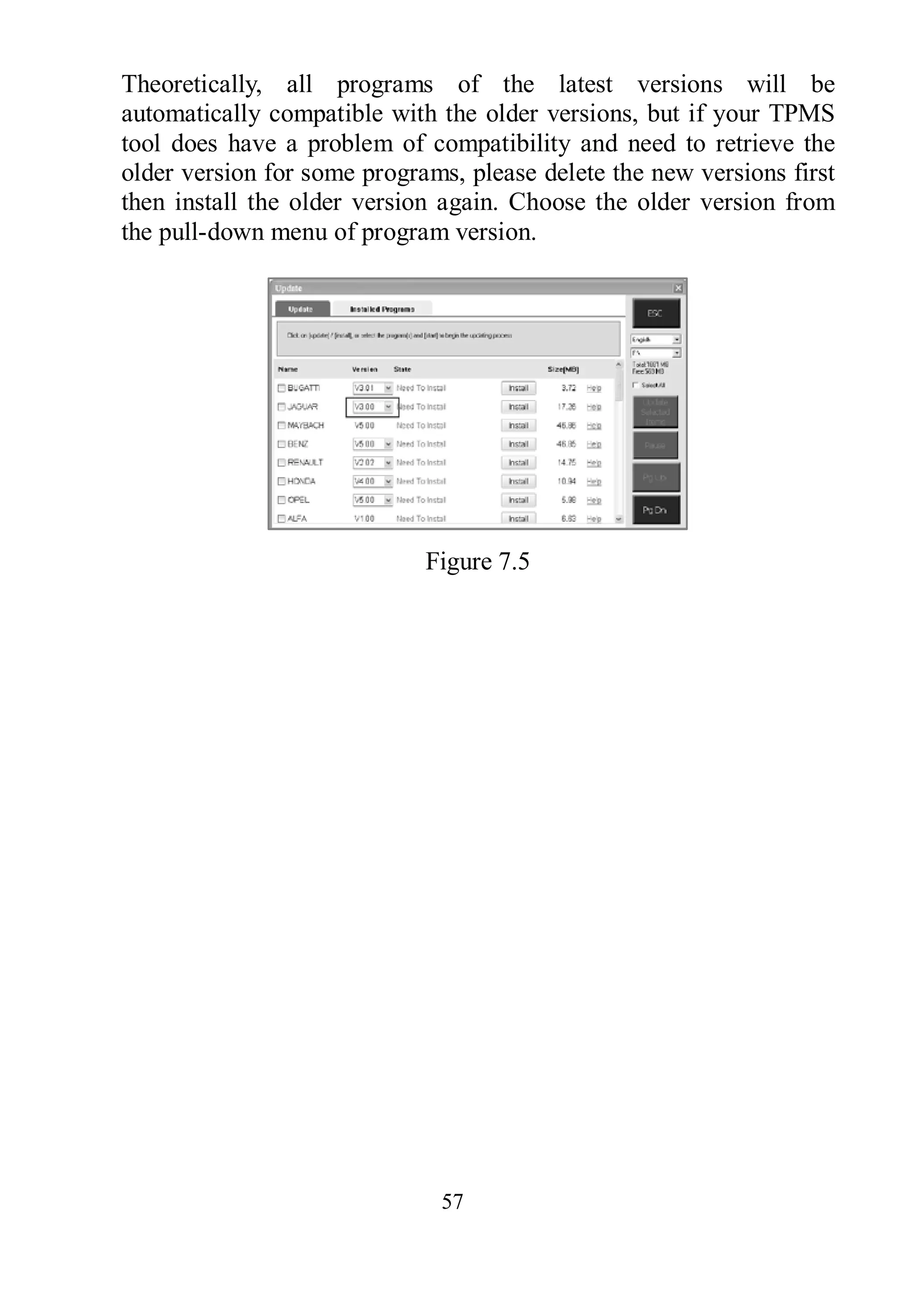
Theoretically, all programs of the latest versions will be
automatically compatible with the older versions, but if your TPMS
tool does have a problem of compatibility and need to retrieve the
older version for some programs, please delete the new versions first
then install the older version again. Choose the older version from
the pull-down menu of program version.
Figure 7.5
58
8. Compliance Information
FCC COMPLIANCE FCC ID:WQ83017501601
This device complies with Part 15 of the FCC Rules and with RSS-210 of Industry
Canada. Operation is subject to the following two conditions:
1. This device may not cause harmful interference.
2. This device must accept any interference received, including interference that
may cause undesired operation.
Warning: Changes or modifications not expressly approved by the party responsible
for compliance could void the user's authority to operate the equipment.
NOTE: This equipment has been tested and found to comply with the limits for a
Class B digital device, pursuant to Part 15 of the FCC Rules. These limits are designed
to provide reasonable protection against harmful interference in a residential
installation.
This equipment generates uses and can radiate radio frequency energy and, if not
installed and used in accordance with the instructions, may cause harmful interference
to radio communications. However, there is no guarantee that interference will not
occur in a particular installation. If this equipment does cause harmful interference to
radio or television reception, which can be determined by turning the equipment off
and on, the user is encouraged to try to correct the interference by one or more of the
following measures: ⅰ. Reorient or relocate the receiving antenna. ⅱ. Increase the
separation between the equipment and receiver. ⅲ. Connect the equipment into an
outlet on a circuit different from that to which the receiver is connected. ⅳ. Consult
the dealer or an experienced radio/TV technician for help.
RF warning statement:
The device has been evaluated to meet general RF exposure requirement. The device
can be used in portable exposure condition without restriction。
The term “IC” before the radio certification number only signifies that IC technical
specifications were met.
RoHS COMPLIANCE
This device is declared to be in compliance with the European RoHS Directive
2011/65/EU.
CE COMPLIANCE
This product is declared to conform to the essential requirements of the following
Directives and carries the CE mark accordingly: EMC Directive 2004/108/EC
R&TTE Directive 1999/5/EC Low Voltage Directive 2006/95/EC
59
9. Warranty and Service
9.1 Limited One Year Warranty
Autel warrants to its customers that this product will be free from all
defects in materials and workmanship for a period of one (1) year from
the date of the original purchase, subject to the following terms and
conditions:
1) The sole responsibility of Autel under the Warranty is limited to
either the repair or, at the option of Autel, replacement of the
TPMS tool at no charge with Proof of Purchase. The sales receipt
may be used for this purpose.
2) This warranty does not apply to damage due directly or indirectly,
to misuse, abuse, negligence or accidents, repairs or alterations
outside our Service Center or facilities, criminal activity, improper
installation, normal wear and tear, or to lack of maintenance.
3) Autel shall not be liable for any incidental or consequential
damages arising from the use, misuse, or mounting of the TPMS
tool. Some states do not allow limitations on how long an implied
warranty lasts, so the above limitations may not apply to you.
4) All information in this manual is based on the latest information
available at the time of publication and no warranty can be made
for its accuracy or completeness. Autel reserves the right to make
changes at any time without notice.
9.2 Service Procedures
If you have any questions, please contact your local store, distributor
or visit our website at www.autel.com.
If it becomes necessary to return the tool for repair, contact your
local distributor for more information.

Autel TS501 User Manual

  • 1.
    i Table of Contents 1.SAFETY INFORMATION.............................................................................. 1 2. GENERAL INFORMATION.......................................................................... 2 2.1 TPMS SYSTEM REVIEW ................................................................................ 2 2.2 TPMS LEGISLATION .................................................................................... 2 2.3 TPMS TELL-TALE LIGHT............................................................................. 3 2.4 BENEFITS OF TPMS...................................................................................... 3 3. TOOL INFORMATION.................................................................................. 4 3.1 TOOL DESCRIPTION ...................................................................................... 4 3.2 SPECIFICATIONS............................................................................................ 6 3.3 ACCESSORIES INCLUDED............................................................................... 6 3.4 ICONS ............................................................................................................ 7 3.5 KEYBOARD.................................................................................................... 7 3.6 BATTERY CHARGING .................................................................................... 8 3.7 POWER UP BY DLC....................................................................................... 8 3.8 SYSTEM SETTING .......................................................................................... 9 3.9 PRODUCT TROUBLESHOOTING.................................................................... 17 4. TPMS CHECK & DIAGNOSTICS .............................................................. 1 4.1 TPMS SENSOR CHECK ............................................................................... 19 4.2 TPMS RELEARN......................................................................................... 29 4.3 REVIEW DATA............................................................................................. 35 4.4 AUDIT REPORT............................................................................................ 36 5. TPMS SENSOR PROGRAMMING............................................................. 3 5.1 AUTO CREATE............................................................................................. 38 5.2 MANUAL CREATE ....................................................................................... 44 5.3 COPY BY OBD............................................................................................. 46 5.4 COPY BY ACTIVATION................................................................................. 46 6. RKE & RF MONITOR.................................................................................. 4 7. PRINT AND UPDATE................................................................................... 5 7.1 PRINT DATA ................................................................................................ 51 7.2 SOFTWARE UPDATE..................................................................................... 52 8. COMPLIANCE INFORMATION................................................................ 5
  • 2.
    ii 9. WARRANTY ANDSERVICE...................................................................... 5 9.1 LIMITED ONE YEAR WARRANTY................................................................ 59 9.2 SERVICE PROCEDURES................................................................................ 59
  • 3.
    1 1. Safety Information Toprevent personal injury or damage to vehicles and/or the scan tool, read this instruction manual first and observe the following safety precautions at a minimum whenever working on a vehicle:  Always perform diagnosis or service in a safe environment.  Wear safety eye protection that meets ANSI standards.  Keep clothing, hair, hands, tools, test equipment, etc. away from all moving or hot engine parts.  Operate the vehicle in a well ventilated work area: Exhaust gases are poisonous.  Put blocks in front of the drive wheels and never leave the vehicle unattended while running tests.  Use extreme caution when working around the ignition coil, distributor cap, ignition wires and spark plugs. These components create hazardous voltages when the engine is running.  Keep a fire extinguisher suitable for gasoline/chemical/electrical fires nearby.  Put the transmission in PARK (for automatic transmission) or NEUTRAL (for manual transmission) and make sure the parking brake is engaged.  Always turn the ignition off before connecting/disconnecting the OBDII Cable to/from the TPMS tool; otherwise it may cause the Malfunction Indicator Light (MIL) to turn on.  Refer to the user’s manual for the vehicle being serviced and adhere to all diagnostic procedures and precautions. Otherwise personal injury or unneeded repairs may result.  Keep the TPMS tool dry, clean, free from oil, water and grease. Use a mild detergent on a clean cloth to clean the outside of the TPMS tool when necessary.
  • 4.
    2 2. General Information 2.1TPMS System Review A tire pressure monitoring system (TPMS) is an electronic system designed to monitor the air pressure inside the pneumatic tires on various types of vehicles. TPMS report real-time tire-pressure information to the driver of the vehicle, either via a gauge, a pictogram display, or a simple low-pressure warning light. TPMS can be divided into two different types — direct (dTPMS) and indirect (iTPMS). TPMS are provided both at an OEM (factory) level as well as an aftermarket solution. 2.2 TPMS Legislation In the United States, the United States Department of Transportation (NHTSA) released the FMVSS No. 138, w hich requires an installation of a Tire Pressure Monitoring System to all new passenger cars, multipurpose passenger vehicles, trucks, and buses that have a gross vehicle weight rating (GVWR) of 4,536 kg (10,000 lbs.) or less, except those vehicles with dual wheels on an axle, as of 2007. In the European Union, starting November 1, 2012, all new models of passenger cars must be equipped with a TPMS, with even tighter specifications that will be defined by the UNECE Vehicle Regulations (Regulation No. 64). From November 1, 2014, all new passenger cars sold in the European Union must be equipped with TPMS. On July 13, 2010, the South Korean Ministry of Land, Transport and Maritime Affairs announced a pending partial-revision to the Korea Motor Vehicle Safety Standards (KMVSS), specifying that "TPMS shall be installed to passenger vehicles and vehicles of GVW 3.5 tons or less, ... [effective] on J anuary 1, 2013 f or new models and on June 30, 2014 for existing models". Japan is expected to adopt European Union legislation approximately one year after European Union implementation. Further countries to make TPMS mandatory include Russia, Indonesia, the Philippines, Israel, Malaysia and Turkey.
  • 5.
    3 2.3 TPMS Tell-taleLight When diagnosing TPMS systems, you should understand what the TPMS tell-tale light means. When turning the ignition OFF to ON, the TPMS tell-tale should come on, and then go off, which indicates the system is working fine. If the light stays on, there would be a pressure problem. If the light flashes, there would be a system problem, which can range from faulty sensors to sensors on the vehicle that haven’t been learned to that vehicle. 2.4 Benefits of TPMS The significant advantages of TPMS are summarized as follows:  Fuel saving.  Extended tire life.  Decreased downtime and maintenance.  Improved safety.  Environmental efficiency.
  • 6.
    4 3. Tool Information 3.1Tool Description 1) SENSOR SLOT – Holds the MX-Sensor need to be programmed. 2) LCD DISPLAY – Displays the menus and test screens. 3) N BUTTON – Cancels a selection (or action) from a menu or return to previous menu. 4) UP SCROLL BUTTON – Moves up through menu and submenu items in menu mode. When more than one set of data are retrieved, use this button to move up to previous screens for
  • 7.
    5 additional data. Itis also used to view previous trouble code when viewing DTCs. 5) LEFT SCROLL BUTTON –When scrolling through a screen of data or text, moves to previous character and views additional information on previous screens, if recorded data content covers more than one screen. 6) DOWN SCROLL BUTTON – Moves down through menu and submenu items in menu mode. When more than one set of data are retrieved, use this button to move down to next screens for additional data. It is also used to view next trouble code when viewing DTCs. 7) HELP BUTTON – Provides help information. 8) POWER BUTTON – Long press the button to turn on/off the tool; or, short press the button to return to Home screen. 9) RIGHT SCROLL BUTTON – When scrolling through a screen of data or text, moves to next character and view additional information on next screens, if recorded data content covers more than one screen. 10) TEST BUTTON – Commences a TPMS Test or confirms selections on screen. 11) Y BUTTON – Confirms a selection (or action) from a menu. 12) USB PORT – Connects the TPMS tool to PC for software update, data printing or battery charging. 13) POWER PORT – Connects the TPMS tool to the mains with the charger supplied for battery charging. 14) SD CARD SLOT – Holds SD card.
  • 8.
    6 15) OBD IICONNECTOR – Connects the TPMS tool to the vehicle’s Data Link Connector (DLC). Note: Figures and illustrations, product’s characteristics and functions, and included accessories in this User Manual are provided for reference only and may differ from actual product. Product design and specifications may be changed without notice. 3.2 Specifications 1) Display: TFT color display (320 x 240 dpi) 2) Power: 3.7V Li-polymer battery 3) Operating Temperature: 0°C to 50°C (32°F to 122°F) 4) Storage Temperature: -20°C to 70°C (-4°F to 158°F) 5) Dimensions: Length Width Height 202.2 mm (7.96") 106.7mm (4.20") 37.7 mm (1.48") 6) Weight: 0.4kg (0.88lb) 3.3 Accessories Included 1) User’s Manual -- Instructions on tool operations 2) OBDII Cable -- Provides power to tool and communicates between tool and vehicle 3) USB Cable -- Allows easy online update, data printing, and power charging via PC connection 4) Carry Case -- A case to store the tool when not in use 5) Magnet -- Used to trigger magnetically activated sensors (early model TPMS sensors) 6) Power Adapter -- Charges the built-in battery 7) CD -- Includes user’s manual, PC Suit, etc.
  • 9.
    7 8) SD Card-- Used to store data 9) Sensors – Supplied with two additional versions: a) Plus: 1 clamp-in and 1 snap-in sensors in 315MHz freq. b) Premium: 4 clamp-in and 1 snap-in in 315MHz freq., 2 clamp-in and 1 snap-in in 433MHz freq. 3.4 Icons 1) “ ” – Indicates battery charging. 2) “ ” -- Indicates there is data stored in the tool. 3) “ ” -- Indicates battery volume. 4) “ ” -- Indicates USB communication with the computer is established. 5) “ ” -- Indicates magnet is required to activate TPMS sensor. 6) “ ”-- Indicates deflation is required to activate TPMS sensor. 7) “ ” -- Indicates test mode One Wheel of Wheels to Test in the system setting is selected. 8) “ ” -- Indicates test mode ALL Wheels of Wheels to Test in the system setting is selected. 9) “ ” – Indicates the TPMS tool is sending signals to the tire sensor for activation and test. 10) “ ” – Indicates tool communication with the vehicle’s OBDII DLC. 3.5 Keyboard No solvents such as alcohol are allowed to clean the keypad or display. Use a mild nonabrasive detergent and a soft cotton cloth. Do not soak the keypad as the keypad is not waterproof.
  • 10.
    8 3.6 Battery Charging TheTPMS tool has a 3.7V built-in lithium-ion polymer rechargeable battery. There are two means of battery charging:  To charge battery by power adapter. 1) Locate the power port of the device. 2) Connect the device and the power source with the adapter.  To charge battery by USB cable 1) Locate the USB port of the device. 2) Connect the device and the computer with the USB cable. For optimum performance, always keep your tool sufficiently charged. It is recommended that you charge the tool for over 2 hours before the first use. NOTE: Only use the power adaptor or USB cable that is included in our pack to charge this tool. The use of un-approved power supplies may damage your tool and void the tool warranty. 3.7 Power Up by DLC The tool can also be powered via the vehicle Data Link Connector (DLC). Just follow the steps below to turn on the TPMS tool: 1) Connect the OBDII Cable to the TPMS tool. 2) Find DLC on vehicle.  A plastic DLC cover may be found for some vehicles and you need to remove it before plugging the OBDII cable. 3) Plug OBDII cable to the vehicle’s DLC. 4) Power up the TPMS tool by pressing the Power button, and wait for the Main Menu to appear. (Figure 3.1)
  • 11.
    9 Figure 3.1 NOTE: OBDIIconnection does not support battery charging. 3.8 System Setting The tool allows you to make the following adjustments and settings. 1) Language: Selects the desired language. 2) Beep Set: Turns on/off key-press beep. 3) ID Format: Sets the ID displaying in Hexadecimal or Decimal. 4) Pressure Unit: Sets the pressure unit in kPa, Psi or Bar. 5) Temperature Unit: Sets the temperature unit in degree Celsius or Fahrenheit. 6) Wheels to Test: Sets test modes in One Wheel or All Wheels. 7) Distance Unit: Sets the distance unit in Km or mile. 8) Power-off: Sets the time to power off automatically. 9) About: Allows viewing important information of the tool. 10) MX-Sensor: Select the position of the MX-Sensor. 11) Zone: Select the area of work, EU or US.  Setting will remain until change to the existing settings is made.
  • 12.
    10 To enter theSetting menu From the Main Menu: Use the UP/DOWN and LEFT/RIGHT scroll button to select Setting, and press the Y button. The Setting menu displays as below. (Figure 3.2) Figure 3.2 Language  English is the default language. 1) From System Setting screen, use the UP/DOWN scroll button and LEFT/RIGHT scroll button to select Language, and press the Y button. 2) Use the UP/DOWN scroll button and LEFT/RIGHT scroll button to select the desired language and press the Y button to save your selection and return to previous menu. (Figure 3.3) Figure 3.3
  • 13.
    11 Beep Set This functionallows you to turn on/off the built-in speaker for key pressing. 1) From System Setting screen, use the UP/DOWN scroll button and LEFT/RIGHT scroll button to select Beep Set, and press the Y button. 2) From Beep Set menu, use the LEFT/RIGHT scroll button to select ON or OFF to turn on/off the beep.(Figure 3.4) Figure 3.4 3) Press the Y button to save your selection or the N button to exit without change. ID Format 1) From System Setting screen, use the UP/DOWN scroll button and LEFT/RIGHT scroll button to select ID Format, and press the Y button. 2) From ID Format screen, use the LEFT/RIGHT scroll button to select the desired ID format. (Figure 3.5)
  • 14.
    12 Figure 3.5 3) Pressthe Y button to save your settings and return to previous menu, or press the N button to exit without change. Pressure Unit 1) From System Setting screen, use the UP/DOWN scroll button and LEFT/RIGHT scroll button to select Pressure Unit, and press the Y button. 2) From Pressure Unit screen, use the LEFT/RIGHT scroll button to select the desired unit: kPa, Psi or Bar. (Figure 3.6) Figure 3.6 3) Press the Y button to save your settings and return to previous menu, or press the N button to exit without change.
  • 15.
    13 Temperature Unit 1) FromSystem Setting screen, use the UP/DOWN scroll button and LEFT/RIGHT scroll button to select Temperature Unit, and press the Y button. 2) From Temperature Unit screen, use the LEFT/RIGHT scroll button to select the desired unit of temperature. (Figure 3.7) Figure 3.7 3) Press the Y button to save your settings and return to previous menu, or press the N button to exit without change. Wheels to Test This function allows you to set sensor testing mode in All Wheels or One Wheel. 1) From System Setting screen, use the UP/DOWN scroll button and LEFT/RIGHT scroll button to select Wheels to Test, and press the Y button. 2) From Wheels to test screen, use the LEFT/RIGHT scroll button to select All Wheels or One Wheel mode for TPMS sensor testing. (Figure 3.8)
  • 16.
    14 Figure 3.8 3) Pressthe Y button to save your selection or the N button to exit without change. NOTE: In All Wheels mode, the tool will determine if a duplicate sensor ID has been read. In this case, the tool will display a message “Sensor ID Duplicated.”. In One Wheel mode, the tool will not check the duplication of sensor ID. Distance Unit 1) From System Setting screen, use the UP/DOWN scroll button and LEFT/RIGHT scroll button to select Distance Unit, and press the Y button. 2) From Distance Unit screen, use the LEFT/RIGHT scroll button to select the desired unit of distance: Km or mile. (Figure 3.9) Figure 3.9
  • 17.
    15 3) Press theY button to save your settings and return to previous menu, or press the N button to exit without change. Power-off 1) From System Setting screen, use the UP/DOWN scroll button and LEFT/RIGHT scroll button to select Power-off, and press the Y button. 2) Press UP/DOWN SCROLL button to increase or decrease the interval time for auto power-off, and then press the Y button to confirm your change or the N button to exit without change. (Figure 3.10) Figure 3.10 NOTE: Before the tool powers off automatically, it will save all the TPMS test data. Next time when the tool is powered on, you may retrieve the recorded data or return to the last operation. NOTE: When using external power, the scan tool stays on until you turn it off. When using internal battery power, the scan tool turns off automatically after a set time of inactivity. About This function allows viewing of some important information such as serial number and software version number of the tool. 1) From System Setting screen, use the UP/DOWN scroll button and LEFT/RIGHT scroll button to select About, and press the Y button; wait for the About screen to appear.
  • 18.
    16 2) View toolinformation on screen. (Figure 3.11) Press the N button to exit. Figure 3.11 MX-Sensor This function allows selecting the actual position of the MX-Sensor. 1) From System Setting screen, use the UP/DOWN scroll button or the LEFT/RIGHT scroll button to select MX-Sensor, and press the Y button. 2) From MX-Sensor screen, use the LEFT/RIGHT scroll button to select the actual position of the MX-Sensor. (Figure 3.12) Figure 3.12 NOTE: Selecting the actual position of the MX-Sensor before triggering MX-Sensors can increase the trigger efficiency.
  • 19.
    17 Zone This function allowsyou to switch among the supported corresponding models for EU and US areas. 1) From System Setting screen, use the UP/DOWN scroll button and the LEFT/RIGHT scroll button to select Zone, and press the Y button. 2) From Zone screen, use the LEFT/RIGHT scroll button to select the work area. (Figure 3.13) 3) The tool will load the new database for the selected zone. Figure 3.13 NOTE: The Zone Setting is available for Global version only. The SD card is required to get the zone data when changing the zone. 3.9 Product Troubleshooting This part describes problems that you may encounter while using the TPMS tool. Vehicle Linking Error A communication error occurs if the TPMS tool fails to communicate with the vehicle’s ECU (Electronic Control Unit) when running the diagnostic function. You need to do the following to check up:  Verify that the ignition is ON.
  • 20.
    18  Check ifthe TPMS tool’s OBD II connector is securely connected to the vehicle’s DLC.  Verify that the vehicle is OBD II compliant.  Verify that the vehicle is equipped with TPMS.  Verify that the tool battery is sufficiently charged.  Turn the ignition off and wait for about 10 seconds. Turn the ignition back to on and continue the testing.  Verify the control module is not defective. Operating Error If the scan tool freezes, then an exception occurs or the vehicle’s ECU (Engine Control Unit) is too slow to respond to requests, do the following to reset the tool:  Reset the scan tool.  Turn the ignition off and wait for about 10 seconds. Turn the ignition back to on and continue the testing.
  • 21.
    19 4. TPMS Check& Diagnostics The MaxiTPMS® TS501 is a new generation TPMS diagnostic & service tool specially designed to activate all known OEM/Universal TPMS sensors, and provide users with direct access to the vehicle’s ECU through OBDII connection, thus allowing users to reprogram sensor IDs and retrieve/clear TPMS DTCs, helping technicians to quickly find out faulty TPMS and turn off MILs. NOTE: All software screens shown in this manual are examples, actual test screens may vary for each vehicle being tested. Observe the menu titles and onscreen instructions to make correct option selections. 4.1 TPMS Sensor Check The sensor check function allows activating of TPMS sensor to view sensor data such as sensor ID, tire pressure, tire temperature, sensor battery, sensor position, frequency. It also sends the sensor data to vehicle’s ECU to let the ECU learn the positions of sensors whenever wheels are rotated or sensors are replaced. There are two means to check TPMS sensors: A. Select by Vehicle Users can start activating sensors directly by selecting the specific vehicle make, model and year. The graphed vehicle with 4 or 5 wheels makes the sensor activation process more simple and convenient. 1) Use the UP/DOWN scroll button and LEFT/RIGHT scroll button to select TPMS from Main Menu (Figure 3.1), and press the Y button to confirm. 2) Select a specific vehicle manufacture region. (Taking Chrysler as an example)
  • 22.
    20 Figure 4.1 3) Fromthe vehicle make screen, select a specific vehicle brand and press the Y button. (Figure 4.2) Figure 4.2 4) Observe the menu title and use UP/DOWN scroll button to select by model and year to identify the vehicle being tested.  The selected vehicle is remembered by the tool when a test is commenced.
  • 23.
    21 Select by Model: Figure4.3 Select by Year: Figure 4.4 5) For some vehicle types an option screen will show up to let users choose between 4 Wheels test and 5 Wheels test mode. Figure 4.5
  • 24.
    22  Depending onthe test mode (All Wheels or One Wheel), results are displayed in different manners. All Wheels Mode In this mode, a function menu screen will show up (Figure 4.6). Use the UP/DOWN and LEFT/RIGHT scroll button to select a desired wheel and press the TEST button to start sensor activation (Figure 4.7). Figure 4.6 Figure 4.7 NOTE: The TPMS Relearn function icon on the upper right corner of screen is not supported by all vehicles, but the sensor activating process remains the same. For those vehicles not supporting Relearn function, the activation screen displays as Figure 4.8. Detailed information about TPMS Relearn, please refer to 4.2 TPMS Relearn. Figure 4.8
  • 25.
    23 The tool willdo TPMS test in a sequence of FL (Front Left), FR (Front Right), RR (Rear Right), LR (Rear Left) and SPARE, if the vehicle has the option for the spare. Or, you can use the UP/DOWN or LEFT/RIGHT scroll button to move to the desired wheel for testing. Place the tool alongside the valve stem, point toward the sensor location, and press the TEST button. The tool will send LF signal to trigger the sensor. Once the sensor is successfully activated and decoded, the tool will display as below with a beep. (Figure 4.9) Figure 4.9  Wheel with a feedback icon, “√” ,“x”, “D”, indicates wheel test has been finished. Refer to Table 1 for detailed description on page 23 to learn what testing result each icon stands for.  Press the Y button to read all sensor data, including sensor ID, tire pressure, temperature, battery condition and modulation. One Wheel Mode In this mode the screen will show as below (Figure 4.10). The tool will check TPMS sensor on the single wheel. Place the tool alongside the valve stem, point toward the sensor location, and press the TEST button. Wait for test result before moving the tool.
  • 26.
    24 Figure 4.10 The toolwill send LF signal to trigger the sensor. Depending on the sensor type, the tool will activate the sensor on the first or last step. Once the sensor is successfully activated and decoded, the tool will display as below with a beep. (Figure 4.11) Figure 4.11 Once the first sensor test is completed, the screen will remain for 3 seconds for data viewing and then automatically switch to next sensor test. Follow the same procedure for the other sensor tests. The tool can save up to 5 TPMS sensor data records at each time. Press the UP/DOWN or LEFT/RIGHT scroll button to turn over data screens while viewing. If more than five records are stored, the latest record will overwrite the oldest record.
  • 27.
    25 TABLE 1 POSSIBLERESULTS FOR TESTING Icon Test Results Description √ Successful Sensor Read TPMS sensor is successfully activated and decoded. The tool displays the sensor information. X Failed Sensor Read If the search period expires and no sensor is activated or decoded, it may be caused by wrong sensor fitting or non-functioning sensor. The tool then displays a message “No sensor detected.”. In this case, repeat testing to confirm the TPMS failure. X Wrong Sensor Type A TPMS sensor is activated and decoded, but does not match the protocol for the Make, Model or Year that the tool was set-up for. The tool displays a message “Sensor triggered but cannot be known.”. In this case, verify the Make, Model or Year or other features you have selected as well as the sensor part number that was fitted. D Duplicate ID (only checked in All Wheels mode) A sensor with a duplicate ID has been read. The tool displays a message “Sensor ID Duplicated.”. In this case, clear data and re-read again. NOTE: With Ford sensors, the tool should be held 180 degree away from the stem. Please refer to vehicle user’s manual.  If the TPMS sensor requires a magnet, place the magnet over the stem and then place the tool alongside the stem, and press TEST button.
  • 28.
    26 Figure 4.12  Ifthe TPMS sensor requires tire deflation (of the order of 10PSI), then deflate the tire and place the tool alongside the stem while pressing the TEST button. Figure 4.13  Anytime while doing the TPMS test, pressing BUTTON allows reading the sensor make, OEM part no., and relearn information for the vehicle being tested for reference. Use the UP/DOWN scroll button to view all details if the data information covers more than one page.
  • 29.
    27 Figure 4.14  Sensoractivation can be aborted at any time by pressing the N button. When the activation is aborted, the screen will return to the previous menu.  By pressing the Y button, you may review information of all sensors tested. Press the LEFT/RIGHT scroll button to turn over data screens while viewing. Figure 4.15 Figure 4.16
  • 30.
    28 [Pos] – Indicatesthe wheel sensor position. [ID-H/D] – Shows sensor ID data. [KPa/Psi/Bar] – Indicates tire pressure. [°C/°F] – Indicates tire temperature. [BAT] – Indicates battery condition. [Mode] – Defines tire sensor working mode or status. [Modulation] – Indicates sensor signal amplitude.  Different ID format, pressure and temperature units will display at the title bar according to the device’s system setting, please refer to 3.8 System Setting for detailed instruction. B. Select by latest test This function allows you to review the last tested sensor data and activate the sensor by using the wave signal of the latest trigger event, which is very convenient and useful for technicians to wake up sensors of the same vehicle. 1) Use the UP/DOWN scroll button and LEFT/RIGHT scroll button to select Latest Test from Main Menu (Figure 3.1). 2) An activation screen with the previously activated sensor information will show up (Figure 4.17). Use the UP/DOWN or LEFT/RIGHT scroll button to select the desired wheel, and press the TEST button to reactivate the sensor, or press the Y button to view all detailed sensor data (Figure 4.18). Figure 4.17
  • 31.
    29 Figure 4.18 3) Ifuser is going to retest the sensor, a prompt will come up asking for your confirmation. Figure 4.19 4) Press the Y button to delete all test records and enter test mode. Or press the N button to reserve the previous data and check the remaining untested sensors. 4.2 TPMS Relearn This function, which provides users with quick access to the vehicle’s ECU, enables users to do TPMS diagnostics, such as reading/writing sensor IDs on vehicle ECU and reading/ clearing codes of TPMS system, and to save data for later reviews and printing. 1) Connect the TPMS tool to the vehicle’s DLC with the OBDII cable. Press the POWER button to turn on the tool. 2) Turn the ignition on but do not start the engine.
  • 32.
    30 3) Make surethe testing mode is set to All Wheels mode in System Setting. 4) Follow the same process in 4.1 TPMS Sensor Check to enter the activation screen. Use the UP/DOWN scroll button or LEFT/RIGHT scroll button to select the TPMS Relearn function on the upper right corner of the screen. (Figure 4.20) Figure 4.20 5) The tool will display a function screen as below. Use the UP/DOWN scroll button to select TPMS Diagnosis or TPMS Sensor Information, and press the Y button to continue. (Figure 4.21) Figure 4.21 6) The TPMS Diagnosis function allows user to write IDs to vehicle, read IDs from vehicle, read/clear TPMS codes. 7) The TPMS Sensor Information enables retrieval of the sensor make, OEM part no., and relearn information.
  • 33.
    31  For somevehicles users may be asked to choose the specific engine model or other features before turning to the function menu. The procedure may vary by the vehicle being tested. NOTE: In this manner, the scan tool will communicate with the vehicle being tested. If there is a linking error, a notice screen will show up. Please refer to 3.9 Product Troubleshooting for more details. A. Write IDs to Vehicle 1) From the TPMS Diagnosis Menu, use the UP/DOWN scroll button to select the Write IDs to Vehicle, and press the Y button. Figure 4.22 2) The tool will display the sensor IDs and positions for your confirmation. Press the Y button to register ID in vehicle ECU, or N button to exit. Figure 4.23
  • 34.
    32 3) Once thesensor IDs are successfully written, a confirm screen will show up. Press any key to continue the TPMS diagnostic procedure. (Figure 4.24) Figure 4.24 NOTE: The sensor writing procedure may vary for different vehicles being serviced. Please follow the onscreen instruction and take appropriate measures and selections to complete the process. NOTE: If there are untested sensors in the vehicle, the writing ID process cannot proceed. The tool will display a warning message as below. (Figure 4.25) In this case, follow the sensor check procedure to activate all sensors in vehicle and register sensor IDs again. Figure 4.25 IMPORTANT: Make sure to turn the ignition off before connecting /disconnecting the OBDII Cable to/from the TPMS tool; otherwise it may cause the Malfunction Indicator Light (MIL) to turn on.
  • 35.
    33 B. Read IDsfrom Vehicle 1) From the TPMS Diagnosis Menu, use the UP/DOWN scroll button to select the Read IDs from Vehicle, and press the Y button. (Figure 4.22) 2) The tool will display the sensor IDs and positions for your viewing. Press the Y button to save data for future review, or the N button to exit without saving. (Figure 4.26) Figure 4.26 C. Read Codes 1) From the TPMS Diagnosis Menu, use the UP/DOWN scroll button to select the Read Codes, and press the Y button. (Figure 4.22) 2) A data list of TPMS DTCs retrieved from the vehicle’s ECU will show up. If the data covers more than one screen, use the UP/DOWN scroll button to view additional DTC information, and press the Y button to save data for future review, or press the N button to exit without saving. (Figure 4.27)
  • 36.
    34 Figure 4.27  Thesaved DTC and sensor data can be reviewed in Review Data, which supports easy data playback and printing. D. Erase Codes 1) From the TPMS Diagnosis Menu, use the UP/DOWN scroll button to select the Erase Codes, and press the Y button. (Figure 4.22) 2) The tool will display a warning message for your confirmation. Press the Y button to continue, or N button to exit. (Figure 4.28) Figure 4.28 3) If the erase command is sent successfully, the screen will show as below (Figure 4.29). Press any button to continue. To make sure codes are erased clearly, run Read Codes again.
  • 37.
    35 Figure 4.29 4.3 ReviewData The Review Data function allows user to view and print out saved data of the latest TPMS diagnostic recordings by the service tool. Use the UP/DOWN and LEFT/RIGHT scroll button to select Review Data from Main Screen (Figure 3.1), and wait for the review data menu to appear.(Figure 4.30) Figure 4.30 NOTE: If no data from the previous TPMS diagnosis is recorded, a message “No data available!” will show on the screen. 1) Use the UP/DOWN scroll button to select the desired stored data (taking Read IDs from Vehicle as an example) from review menu and press the Y button. 2) A list of retrieved sensor IDs will show on the screen.
  • 38.
    36 Figure 4.31  Print--- Select this function to print out the data on screen. For detailed instructions, refer to 7.1 Print Data.  Delete --- Use the RIGHT scroll button to delete the selected data.  Delete All --- Use the LEFT scroll button to delete all data on the screen. NOTE: Don’t use Delete All unless you are definitely sure what you are going to proceed. 4.4 Audit Report After the user finished the TPMS test, the tool is capable of presenting all of its stored TPMS data in a HTML file when connected to a PC via an USB cable. The tool will automatically pop up an explorer window in PC screen when connected to an active USB port on the PC. Make sure the tool is powered on. Otherwise, there will be no communication between the tool and computer. Once the explorer window is open, you may view a file by double-clicking on t he file. If this explorer window does not automatically pop up, the user may browse for the newly connected device manually. The data presented is in a HTML form format that displays not only information regarding the TPMS, but also automatically updates with the date. It also provides data entry areas for other tester and vehicle data.
  • 39.
  • 40.
    38 5. TPMS SensorProgramming The Programming function allows users to program the sensor data to the MX-Sensor and replace faulty sensor with low battery life or one that is not functioning. The scan tool is easy-to-use with a proven efficiency and guaranteed accurate results. NOTE: Programming function will only work with Autel’s MX-Sensor. Currently, there are two models available: Clamp-in Sensor and Snap-in Sensor, both with two types, one in orange color with 433MHz frequency, and one in dark gray color with 315MHz frequency. The Clamp-in Sensor is taken as an example in this manual. Please choose the right MX-Sensor when programming. There are four options available when programming MX-Sensor using this scan tool: Auto Create, Manual Create, Copy by OBD, and Copy by Activation. 5.1 Auto Create This function is designed to program the MX-Sensor by applying random IDs created according to the test vehicle, when it is unable to obtain the original sensor ID. 1) Use the UP/DOWN scroll button and the LEFT/RIGHT scroll button to select TPMS from Main Menu (Figure 3.1), and press the Y button to confirm. 2) Select a specific vehicle manufacture region. (Taking Chrysler as an example.) From the vehicle region screen, select USA and press the Y button. Figure 5.1
  • 41.
    39 3) From thevehicle make screen, select a specific vehicle brand and press the Y button. Figure 5.2 4) Observe the menu option and use the UP/DOWN scroll button to select by model and year to identify the vehicle being tested. NOTE: Please pay attention to the frequency used in the vehicle. Refer to the original sensor information for the exact frequency.  The selected vehicle is remembered by the tool when a test is commenced. Select by Model: Figure 5.3
  • 42.
    40 Select by Year: Figure5.4 5) For some vehicles (like Chrysler), an option screen will show up allowing users to choose between 4 Wheels test and 5 Wheels test mode before accessing the activation screen. Figure 5.5 6) Use the UP/DOWN scroll button and LEFT/RIGHT scroll button to select MX-Sensor. Figure 5.6
  • 43.
    41 7) Use theUP/DOWN scroll button to select the wheel which needs to be programmed. Figure 5.7 8) Use the UP/DOWN scroll button to select Auto Create to create a new random sensor ID. Figure 5.8 9) Insert the correct MX-Sensor into the sensor slot as displayed below: Figure 5.9
  • 44.
    42 NOTE: Please payattention to the MX-Sensor type displayed in the screen and insert the correct MX-Sensor. Inserting incorrect MX-Sensor will cause programming failure. 10) Press the Y button to write in the new created sensor ID to the MX-Sensor and the screen will show as below (Figure 5.10), or the N button to exit without change. If an error prompt displays (Figure 5.11), please try another type of MX-Sensor, for the type of the inserted MX-sensor may be incorrect. Figure 5.10 Figure 5.11 After programming is finished, a series of beep sound will be heard and the tool will display the data details such as the sensor ID, the temperature and the battery voltage after testing the new programmed MX-Sensor. Figure 5.12 If programming failed, the screen will show as below (Figure 5.13), in this case, please perform programming function again.
  • 45.
    43 Figure 5.13 Press “OK”to return to the previous screen, and a sensor mark will appear on the right side of the screen, indicating the wheel sensor has been programmed. Figure 5.14 The “Programmed” option is available when selecting the programmed wheel sensor. Select “Programmed” to reprogram the wheel sensor with the same ID if necessary. Figure 5.15
  • 46.
    44 After all requiredMX-Sensor is programmed, please select Write IDs to Vehicle in Relearn function, refer to 4.2 TPMS Relearn for details. 5.2 Manual Create This function allows user to manually enter sensor IDs. Users can enter the random ID or the original sensor ID, if it’s available. NOTE: Do not enter the same ID for each sensor. 1) Follow the steps 1 to 7 in 5.1 Auto Create to select MX-Sensor and then select the required wheel position and press the Y button. 2) Use the UP/DOWN scroll button to select Manual Create and press the Y button. Figure 5.16 3) Use the UP/DOWN scroll button and the LEFT/RIGHT scroll button to select the character and press the TEST button to confirm. Figure 5.17
  • 47.
    45 4) Use theN button to select “Backspace” to remove the entered character. Use the Y button to finish the input and the screen will display a message requiring the user for confirmation. Select “Yes” to save the sensor ID and continue programming or “No” to return to the previous screen. Figure 5.18 NOTE: Different sensor from manufacturer may have different ID character length limit. The scan tool will automatically recognize the OEM sensor ID character length, and prompt a message when entered character length is out of limitation. Figure 5.19 5) Insert the correct MX-Sensor and press the Y button to start programming or the N button to exit. NOTE: If a random ID is entered, please perform Relearn function after programming is finished. If the original ID is entered, then there is no need to perform Relearn function.
  • 48.
    46 5.3 Copy byOBD This function allows users to write in the saved sensor information to MX-Sensor after performing Read IDs from Vehicle in Relearn function. 1) Follow the steps 1 to 7 in 5.1 Auto Create to select MX-Sensor to enter the Programming function. The OBD mark will appear on the right side of the screen. (Figure 5.20) After selecting the specific wheel and pressing the Y button, the “Copy by OBD” option is available on the function menu. (Figure 5.21) Figure 5.20 Figure 5.21 2) Select Copy by OBD, insert the correct MX-Sensor into the sensor slot, and then press the Y button to start programming the saved sensor information to the MX-Sensor. 5.4 Copy by Activation This function allows user to bypass OBD II and automatically write in the retrieved original sensor data to the MX-Sensor. It is used after the original sensor is triggered. 1) From the activation screen, select the specific wheel position and press the TEST button to trigger the original sensor. When the information is retrieved, a series of beep sound will be heard.
  • 49.
    47 Figure 5.22 2) SelectMX-Sensor and a t rigger mark will appear on t he right side of the screen. Figure 5.23 3) Use the UP/DOWN scroll button to select the corresponding wheel, press the Y button and then the “Copy by Activation” option will appear on the screen. Figure 5.24
  • 50.
    48 4) Select Copyby Activation, insert the correct MX-Sensor into the sensor slot, and then press the Y button to start programming the retrieved sensor information to the MX-Sensor. If the user had performed both the Read IDs from Vehicle function and the trigger function, the scan tool will use the sensor information retrieved by the trigger function to the MX-Sensor as default priority. Once programmed with Copy by Activation and Copy by OBD, the MX-Sensor can be installed in the wheel directly to be mounted on the car and the TPMS warning light will turn off without needing to write IDs to the vehicle. NOTE: For the vehicles not supported by Relearn function, please select the “Manual Create” option to enter the original sensor ID manually, or trigger the original sensor at the activation screen to get the sensor information, before programming the MX-Sensor.
  • 51.
    49 6. RKE &RF Monitor Today's keyless remotes -- also known as key fobs -- make life easier. But when your key fob stops working or starts to perform sporadically, it will be particularly frustrating. Check your key fob to make sure it is in top condition so it will work when you really need it. Since a key fob is attuned to a special frequency that is only detected by the car for which it was issued, you will need to use your vehicle to test the fob. Otherwise you will have to take it to a dealership or an automotive locksmith to have it tested for the right frequency. But with our TPMS tool, the key fob testing becomes easy and convenient. 1) Use the UP/DOWN scroll button and LEFT/RIGHT scroll button to select RKE & RF Monitor from Main Menu (Figure 3.1), and press the Y button to confirm. 2) Hold the key fob very close to the tool and press the function buttons on key fob to test. If the button works and the key fob is sending a signal, the tool will beep and the screen shows as below. If the button does not work, the tool will do nothing. To make sure each button is working properly, please test each button in turn. Figure 6.1  The progress bar indicates the approximate power level of the key fob.
  • 52.
    50  The strongerthe signal, the higher the beep tone.  The tool only tests 315MHz and 433MHz key fobs. 3) Press the N button to return to previous menu.
  • 53.
    51 7. Print andUpdate To print out retrieved data or update software, you will need the followings:  TS501 tool with SD card inserted  PC or laptop with USB ports  USB cable 7.1 Print Data The Print Data function allows printing out TPMS DTC data recorded by the service tool by connecting the scan tool to a PC or laptop with the USB cable supplied. 1) Install the PC Suit program to the PC from the supplied CD. 2) Connect the scanner to computer with the USB cable supplied. 3) Run Printer software on computer. 4) Select Review Data function in Main Screen of the TPMS tool. In data menu screen, use the UP/DOWN scroll button to select the data you want to print. Wait for the reviewing window to display (Figure 4.31), and then select Print function by pressing the Y button. The selected file will be uploaded to your computer. For more detailed instructions, please refer to 4.3 Review Data. 5) The Printer will show as below. Figure 7.1
  • 54.
    52 6) The selecteddata will display on the textbox of Printer. By selecting the function keys on the right, you could execute the following operations:  Print – Print all data in the textbox to a printer connected to your computer.  Edit – Once clicked, the software will automatically open a NOTEPAD window with all recorded data showing on.  Copy – Copy all data in the textbox to the clipboard.  Clear – Delete all data in the textbox.  Exit – Quit the operation. 7) You are also allowed to edit, copy, and delete the data in the Printer window. 7.2 Software Update This function allows you to update the scan tool software through a computer.  Register the Tool User could update the scan tool ONLY after you had registered the tool on our website: www.autel.com. Then you could download software, update online, retrieve information and get warranty service. NOTE: Prior to registration, please confirm your network is working properly. 1. Visit the website http://pro.autel.com. 2. On the Sign In page, input your account ID and other information to log in, if you already have an account. 3. If you are a new member to Autel and do not have an account yet, click the Create Autel ID button on the left side. 4. Enter the required information in the input fields, read through Autel’s Terms and Conditions and tick on Agree, and then click Create Autel ID at the bottom to continue.
  • 55.
    53 5. The onlinesystem will automatically send a confirmation email to the registered email address. Validate your account by clicking the link provided through the mail. A product registration screen opens. 6. Select the product model of your device, enter the product serial number and password on the Product Registration screen, and click Submit to complete the registration procedure. NOTE: Please use the About function to find out the Product Serial No. and Register Password. For details, please refer to the Section 3.8 System Setting.  Update Procedure Autel frequently releases software updates that you can download. The Update feature makes it very easy to determine and get exactly what you need. Users could either choose to update the TPMS tool via USB connection or SD card.  Update via USB Connect the tool with computer with USB cable. Then switch on the tool.  Update via SD card Remove the SD card from the tool and connect it with computer. Follow the update procedure to finish updating. 1) Run Autel Update in the PC Suit program. Wait for the Log In window to pop up. (Figure 7.2)
  • 56.
    54 Figure 7.2 2) Enteryour Autel ID and password and wait for the Update window to display. If you forget your password unintentionally, you may always click the [Forget Password?] to link to our website and get your password back. 3) In the Update window, select the items you want to install. Usually, you should install all available updates. Figure 7.3 Generally there are two ways to update the programs: Batch Updating 1) Select the programs that you would update by clicking on the check boxes next to those items. Then click the Update Selected Items button on the right side of screen. Or
  • 57.
    55 2) Click onthe Select All checkbox on the right side of screen and all updatable items will be selected automatically. Then click the Update Selected Items button on the right side of screen. 3) Check the updating process by observing the upper left progress bar [Downloads] and upper right progress bar [Installs]. You may also find progress information in the Status column of updated items. 4) Anytime you could click the Pause button on the right side of screen to suspend all progresses, and the state of those suspended items would change to STOPPED. 5) To resume updating process, you may need to select those suspended items again, and then click the Update Selected Items button. The progress will resume from the break point. 6) When the downloading is completed, the downloaded programs will be installed automatically. The new version will replace the old version. Single Updating 1) Find out the desired updating item and click the Install button in the same line and the Install button changes to Pause at the same time. 2) Check the updating process by observing the upper left progress bar [Downloads] and upper right progress bar [Installs]. You may also find progress information in the Status column of updated items. 3) Anytime you could click the Pause button in the line to suspend this progress, and the state of this item would change to STOPPED. 4) To resume updating process, click the Install button in the line again. The progress will resume from the break point. 5) When the downloading is completed, the downloaded program will be installed automatically. The new version will replace the old one.
  • 58.
    56 6) Once theupdate is complete, disconnect the tool from the computer. It is now updated and ready to go. 7) For users who choose to update by SD card, please insert the SD card into the scan tool, and switch on the TPMS tool. It’s now updated and ready to go.  View or Delete Programs To view the list of installed programs or to delete an installed program, please follow these steps: 1) Click on the Installed Programs tag entry and the page will show the list of programs installed. 2) Select the program(s) that you would delete.  Batch delete: Select the programs that you would delete by clicking on the check boxes to the left of those items. Then click the Delete button on the right side of screen.  Single delete: Click the Uninstall button in the line of your would-be-deleted program. 3) A window asking “Are you sure to delete the software?” will pop up for your confirmation. Figure 7.4 • Click on Yes to delete the program(s) selected, or on No to cancel the action. • The deleted program will automatically add to the end of program list in the UPDATE page in case you would like to install again.
  • 59.
    57 Theoretically, all programsof the latest versions will be automatically compatible with the older versions, but if your TPMS tool does have a problem of compatibility and need to retrieve the older version for some programs, please delete the new versions first then install the older version again. Choose the older version from the pull-down menu of program version. Figure 7.5
  • 60.
    58 8. Compliance Information FCCCOMPLIANCE FCC ID:WQ83017501601 This device complies with Part 15 of the FCC Rules and with RSS-210 of Industry Canada. Operation is subject to the following two conditions: 1. This device may not cause harmful interference. 2. This device must accept any interference received, including interference that may cause undesired operation. Warning: Changes or modifications not expressly approved by the party responsible for compliance could void the user's authority to operate the equipment. NOTE: This equipment has been tested and found to comply with the limits for a Class B digital device, pursuant to Part 15 of the FCC Rules. These limits are designed to provide reasonable protection against harmful interference in a residential installation. This equipment generates uses and can radiate radio frequency energy and, if not installed and used in accordance with the instructions, may cause harmful interference to radio communications. However, there is no guarantee that interference will not occur in a particular installation. If this equipment does cause harmful interference to radio or television reception, which can be determined by turning the equipment off and on, the user is encouraged to try to correct the interference by one or more of the following measures: ⅰ. Reorient or relocate the receiving antenna. ⅱ. Increase the separation between the equipment and receiver. ⅲ. Connect the equipment into an outlet on a circuit different from that to which the receiver is connected. ⅳ. Consult the dealer or an experienced radio/TV technician for help. RF warning statement: The device has been evaluated to meet general RF exposure requirement. The device can be used in portable exposure condition without restriction。 The term “IC” before the radio certification number only signifies that IC technical specifications were met. RoHS COMPLIANCE This device is declared to be in compliance with the European RoHS Directive 2011/65/EU. CE COMPLIANCE This product is declared to conform to the essential requirements of the following Directives and carries the CE mark accordingly: EMC Directive 2004/108/EC R&TTE Directive 1999/5/EC Low Voltage Directive 2006/95/EC
  • 61.
    59 9. Warranty andService 9.1 Limited One Year Warranty Autel warrants to its customers that this product will be free from all defects in materials and workmanship for a period of one (1) year from the date of the original purchase, subject to the following terms and conditions: 1) The sole responsibility of Autel under the Warranty is limited to either the repair or, at the option of Autel, replacement of the TPMS tool at no charge with Proof of Purchase. The sales receipt may be used for this purpose. 2) This warranty does not apply to damage due directly or indirectly, to misuse, abuse, negligence or accidents, repairs or alterations outside our Service Center or facilities, criminal activity, improper installation, normal wear and tear, or to lack of maintenance. 3) Autel shall not be liable for any incidental or consequential damages arising from the use, misuse, or mounting of the TPMS tool. Some states do not allow limitations on how long an implied warranty lasts, so the above limitations may not apply to you. 4) All information in this manual is based on the latest information available at the time of publication and no warranty can be made for its accuracy or completeness. Autel reserves the right to make changes at any time without notice. 9.2 Service Procedures If you have any questions, please contact your local store, distributor or visit our website at www.autel.com. If it becomes necessary to return the tool for repair, contact your local distributor for more information.