O & M Manual
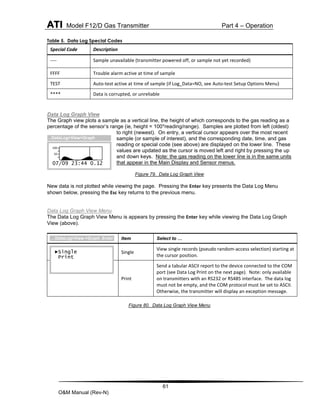
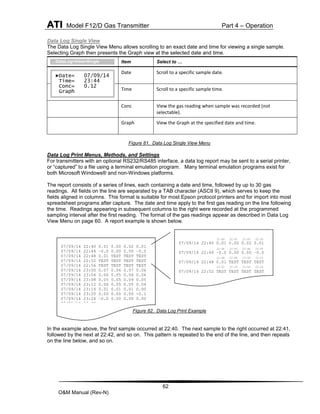
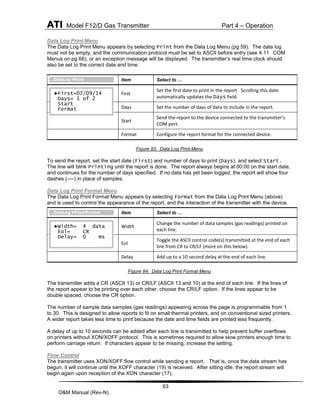
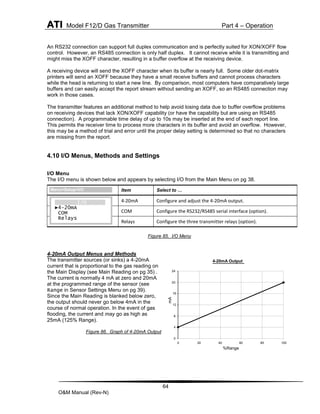
F12/D Toxic Gas Transmitter
With H10 Smart Sensor
Home Office European Office
Analytical Technology, Inc. ATI (UK) Limited
6 Iron Bridge Drive Unit 1 & 2 Gatehead Business Park
Collegeville, PA 19426 Delph New Road, Delph
Phone: 800-959-0299 Saddleworth OL3 5DE
610-917-0991 Phone: +44 (0)1457-873-318
Fax: 610-917-0992 Fax: + 44 (0)1457-874-468
Email: sales@analyticaltechnology.com Email: sales@atiuk.com
www.AnalyticalTechnology.com
1
O&M Manual (Rev-N)
Table of Contents
SAFETY................................................................ IV
WARNINGS ............................................................ IV
HAZARDOUS LOCATION INSTALLATION......................... IV
PART1 - INTRODUCTION .......................................5
1.1 GENERAL ....................................................5
1.2 H10 SMART SENSORS ...................................6
1.3 SPECIFICATIONS............................................8
PART 2 – MECHANICAL INSTALLATION..................9
2.1 TRANSMITTER MOUNTING .............................9
2.2 ENCLOSURE DIMENSIONS...............................9
2.3 WALL AND PIPE MOUNTING.........................10
2.4 PANEL MOUNTING (REMOTE SENSORS ONLY)..12
2.5 DUCT SENSOR MOUNTING ...........................12
2.6 DUCT MOUNT (INTEGRAL) ...........................14
2.7 GENERATOR INSTALLATION/REMOVAL............14
PART 3 – ELECTRICAL CONNECTIONS...................15
3.1 TRANSMITTER CONNECTIONS........................15
3.2 TERMINAL BOARD - SENSOR CONNECTIONS.....16
3.3 TERMINAL BOARD – LOOP POWER CONNECTIONS
17
3.4 HEATED SENSOR HOUSING WIRING ...............18
3.5 REMOTE SENSOR WIRING ............................19
3.6 HEATED SENSOR WIRING (AC OR VDC POWERED)
20
3.7 HEATED REMOTE SENSOR WIRING (2-WIRE)...21
3.8 DUCT MOUNT SENSOR WIRING ....................22
3.9 SENSOR CONNECTIONS WITH 6 FT CABLE ........22
3.10 AC OR 12-30 VDC POWERED......................23
3.11 RELAY CONFIGURATION ...............................24
3.12 REMOTE RESET INPUT .................................24
3.14 WIRING EXAMPLES .....................................25
3.15 AC OR 12-30 VDC POWERED......................27
3.16 HART POINT-TO-POINT (2-WIRE) ................29
3.17 COMMUNICATIONS JUMPER SETTING .............30
PART 4 - OPERATION...........................................31
4.1 OPERATOR INTERFACE PANEL..............................31
Menus and Settings .........................................31
Moving the Cursor and Selecting .....................31
Editing Settings................................................31
4.2 STARTUP.........................................................32
Transmitter Review..........................................32
Sensor Review..................................................33
Generator Review ............................................34
4.3 MAIN DISPLAY .................................................35
Main Reading...................................................35
Trouble Indication ........................................... 36
Timed Return to Main Display......................... 36
Inhibiting Alarms from the Main Display ........ 36
4.4 POP-UP DISPLAYS............................................. 36
Sensor Removed Display.................................. 36
Sensor Installed ............................................... 36
Generator Removed ........................................ 37
Generator Installed.......................................... 37
4.5 MAIN MENU................................................... 38
Main Menu...................................................... 38
Alarm Active Menu.......................................... 38
4.6 SETUP MENU .................................................. 38
4.7 SENSOR MENUS, METHODS, AND SETTINGS.......... 39
Sensor Menu.................................................... 39
Sensor Settings Menu...................................... 39
Sensor Model Menu ........................................ 39
Sensor Range Menu......................................... 40
Sensor Calibration ........................................... 41
Sensor Calibration Menu................................. 42
Sensor Auto-test.............................................. 45
4.8 ALARM MENUS, METHODS, AND SETTINGS........... 49
Alarms Menu................................................... 49
Gas Level Alarms ............................................. 49
Trouble Alarm.................................................. 53
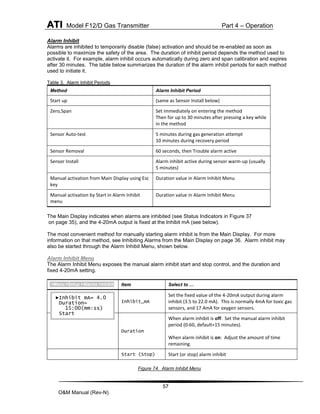
Alarm Inhibit.................................................... 57
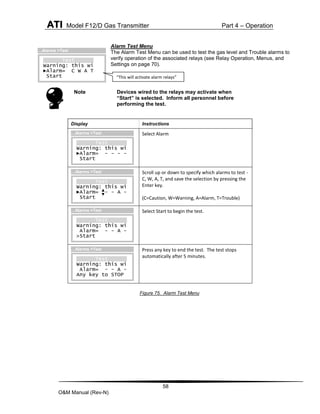
Alarm Test Menu............................................. 58
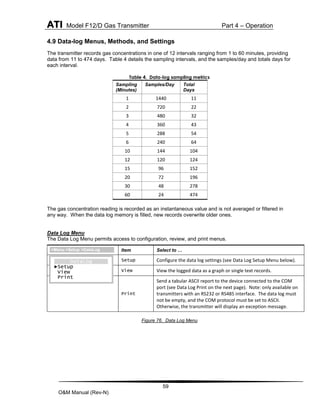
4.9 DATA-LOG MENUS, METHODS, AND SETTINGS ...... 59
Data Log Menu................................................ 59
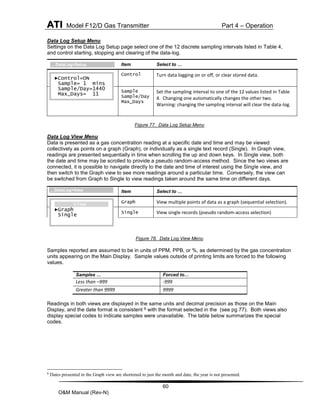
Data Log Setup Menu...................................... 60
Data Log View Menu....................................... 60
Data Log Print Menus, Methods, and Settings 62
4.10 I/O MENUS, METHODS AND SETTINGS .............. 64
I/O Menu ......................................................... 64
4-20mA Output................................................ 64
4.11 COM MENUS AND SETTINGS ....................... 66
Relay Operation, Menus, and Settings ............ 70
4.11 PANEL MENUS, METHODS, AND SETTINGS.......... 72
Panel Menu ..................................................... 72
Display Menu................................................... 72
Security Menu.................................................. 73
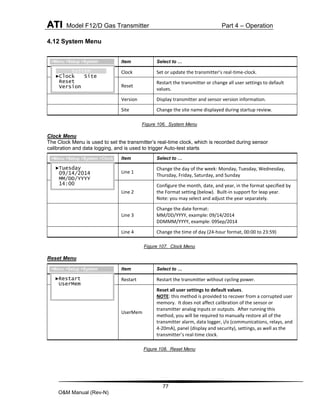
4.12 SYSTEM MENU .............................................. 77
Clock Menu...................................................... 77
Reset Menu ..................................................... 77
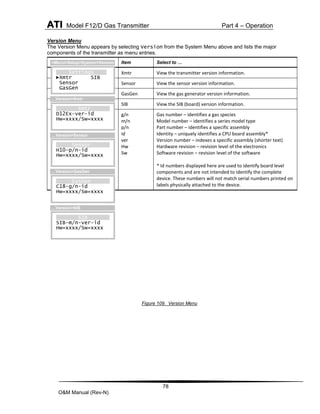
Version Menu .................................................. 78
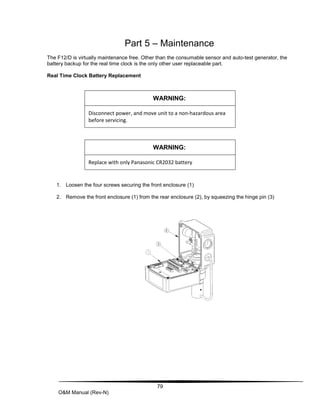
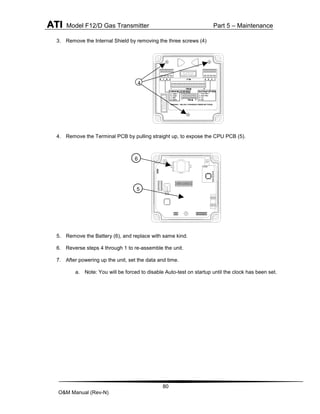
PART 5 – MAINTENANCE .................................... 79
PART 6 – SPARE PARTS ....................................... 81
2
O&M Manual (Rev-N)
Table of Figures
FIGURE 1- TRANSMITTER W/SENSOR & GENERATOR .... 5
FIGURE 2. ENCLOSURE DIMENSIONS, (RS485 NO
RELAYS).......................................................... 9
FIGURE 3 DEEP ENCLOSURE DIMENSIONS ................. 10
FIGURE 4 WALL/PIPE MOUNTING BRACKET................. 10
FIGURE 5. WALL MOUNTING DIAGRAM ....................... 11
FIGURE 6. PIPE MOUNTING DIAGRAM......................... 11
FIGURE 7. PANEL MOUNTING DETAILS [DEEP CASE]..... 12
FIGURE 8 DUCT MOUNT SENSOR EXPLODED VIEW..... 13
FIGURE 9. DUCT-MOUNT ASSEMBLY .......................... 13
FIGURE 10 - DUCT MOUNT (INTEGRAL) TRANSMITTER
DIMENSIONS.................................................. 14
FIGURE 11 - GENERATOR EXPLODED VIEW ............... 14
FIGURE 12. F12/D TRANSMITTER CONFIGURATIONS .. 15
FIGURE 13. SENSOR/GENERATOR TERMINAL WIRING. 16
FIGURE 14. POWER AND COMMUNICATION TERMINALS.17
FIGURE 15 - HEATED SENSOR WIRING DIAGRAM ....... 18
FIGURE 16 –REMOTE SENSOR WIRING...................... 19
FIGURE 17 –REMOTE SENSOR WIRING...................... 20
FIGURE 18 – HEATED REMOTE SENSOR WIRING ........ 21
FIGURE 19 – DUCT MOUNT SENSOR WIRING............. 22
FIGURE 20 – WIRING CONNECTIONS – 6 FT SENSOR
CABLE........................................................... 22
FIGURE 21 - POWERED ALARM RELAY CONTACTS...... 23
FIGURE 22 - RELAY CONFIGURATION JUMPER LOCATION
.................................................................... 24
FIGURE 23 – REMOTE RESET INPUT ......................... 24
FIGURE 24 - ATI A17/B14 RECEIVER MODULES........ 25
FIGURE 25 - RA485 MULTIDROP W/4-20MA SIGNALING
.................................................................... 26
FIGURE 26 - RS485 MULTIDROP W/O 4-20MA
SIGNALING..................................................... 26
FIGURE 27 – AC OR 12-30 VDC POWERED RELAY
BOARD WIRING.............................................. 27
FIGURE 28 – COMMUNICATION W/4-20 LOOP OUTPUT 28
FIGURE 29 - HART POINT-TO-POINT (2-WIRE) ......... 29
FIGURE 30. COMM. INTERFACE JUMPER................... 30
FIGURE 31. OPERATOR INTERFACE PANEL ................ 31
FIGURE 32. EXAMPLE EDIT ..................................... 32
FIGURE 33. TRANSMITTER REVIEW DISPLAYS ........... 32
FIGURE 34. SENSOR REVIEW DISPLAY..................... 33
FIGURE 35 - GENERATOR NORMAL REVIEW............... 34
FIGURE 36 - GENERATOR TROUBLE REVIEW ............. 34
FIGURE 37. MAIN DISPLAY...................................... 35
FIGURE 38. MAIN DISPLAY TROUBLE INDICATION ...... 36
FIGURE 39. SENSOR REMOVED DISPLAY.................. 36
FIGURE 40. GENERATOR REMOVED DISPLAY............ 37
FIGURE 41. MAIN MENU .......................................... 38
FIGURE 42. ALARM ACTIVE MENU............................ 38
FIGURE 43. SETUP MENU. ...................................... 38
FIGURE 44. SENSOR MENU. ....................................39
FIGURE 45. SENSOR SETTINGS MENU ......................39
FIGURE 46. SENSOR MODEL MENU ..........................39
FIGURE 47. SENSOR RANGE MENU ..........................40
FIGURE 48. DATA-LOG WARNING MESSAGE ..............40
FIGURE 49. SENSOR CALIBRATION MENU..................42
FIGURE 50. SENSOR ZERO CAL. SETUP....................42
FIGURE 51. SENSOR ZERO CAL.MENUS....................42
FIGURE 52 SENSOR SPAN CAL. SETUP.....................43
FIGURE 53. SENSOR SPAN CAL. MENUS ...................43
FIGURE 54. SENSOR CALIBRATION HISTORY MENUS ..44
FIGURE 55. AUTO-TEST MENU .................................45
FIGURE 56. AUTO-TEST SETUP MENU.......................46
FIGURE 57. AUTO-TEST SETUP OPTIONS MENU.........46
FIGURE 58. AUTO-TEST NEXT AT MENU ...................46
FIGURE 59. AUTO-TEST HISTORY MENU ...................47
FIGURE 60. GAS GENERATOR DISPLAY.....................47
FIGURE 61. AUTO-TEST STATUS DISPLAY .................47
FIGURE 62. AUTO-TEST STATUS DISPLAY SEQUENCE.48
FIGURE 63. ALARMS MENU......................................49
FIGURE 64. TOXIC GAS ALARMS. .............................49
FIGURE 65. OXYGEN DEFICIENCY ALARMS................49
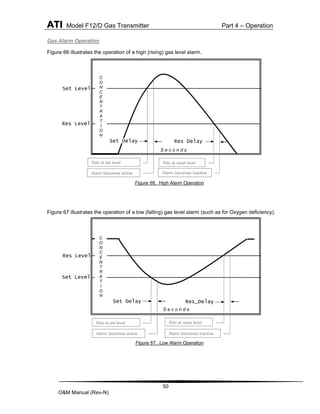
FIGURE 66. HIGH ALARM OPERATION .......................50
FIGURE 67. LOW ALARM OPERATION........................50
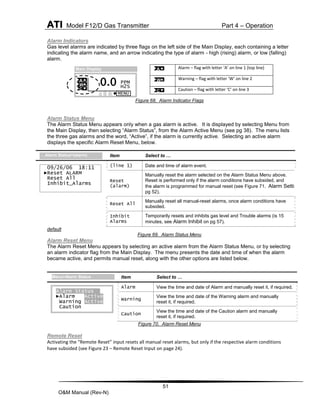
FIGURE 68. ALARM INDICATOR FLAGS.......................51
FIGURE 69. ALARM STATUS MENU ...........................51
FIGURE 70. ALARM RESET MENU .............................51
FIGURE 71. ALARM SETTING MENUS ........................52
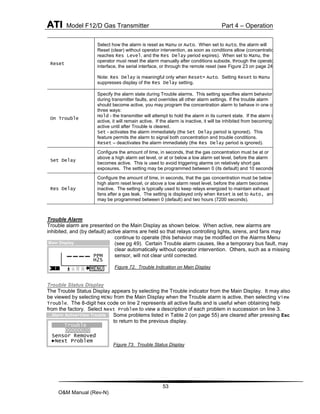
FIGURE 72. TROUBLE INDICATION ON MAIN DISPLAY ..53
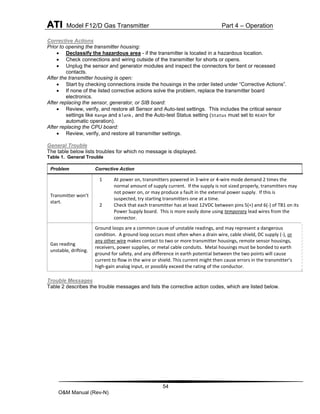
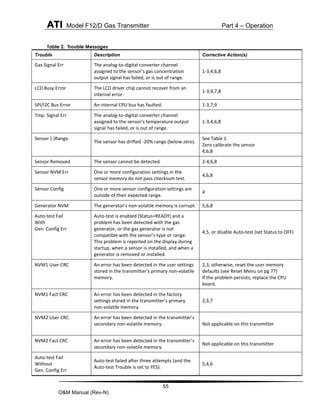
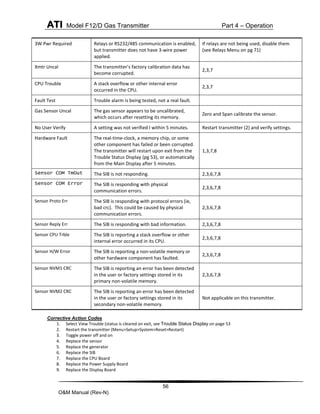
FIGURE 73. TROUBLE STATUS DISPLAY ....................53
FIGURE 74. ALARM INHIBIT MENU.............................57
FIGURE 75. ALARM TEST MENU ...............................58
FIGURE 76. DATA LOG MENU...................................59
FIGURE 77. DATA LOG SETUP MENU ........................60
FIGURE 78. DATA LOG VIEW MENU ..........................60
FIGURE 79. DATA LOG GRAPH VIEW.........................61
FIGURE 80. DATA LOG GRAPH VIEW MENU ...............61
FIGURE 81. DATA LOG SINGLE VIEW MENU...............62
FIGURE 82. DATA LOG PRINT EXAMPLE ....................62
FIGURE 83. DATA LOG PRINT MENU .........................63
FIGURE 84. DATA LOG PRINT FORMAT MENU ............63
FIGURE 85. I/O MENU .............................................64
FIGURE 86. GRAPH OF 4-20MA OUTPUT...................64
FIGURE 87. 4-20MA MENU......................................65
FIGURE 88. 4-20MA CONTROL PAGE.........................65
FIGURE 89. ADJUST 4MA MENU...............................65
FIGURE 90. ADJUST 20MA MENU.............................66
FIGURE 91. COM MENU .........................................66
FIGURE 92. COM SETUP MENU...............................67
FIGURE 93. HART MENU.........................................68
3
O&M Manual (Rev-N)
FIGURE 94. HART IDENTIFICATION MENU.................. 68
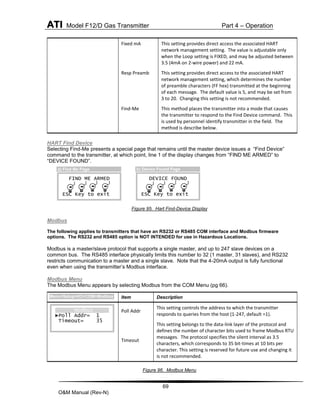
FIGURE 95. HART FIND-DEVICE DISPLAY.................. 69
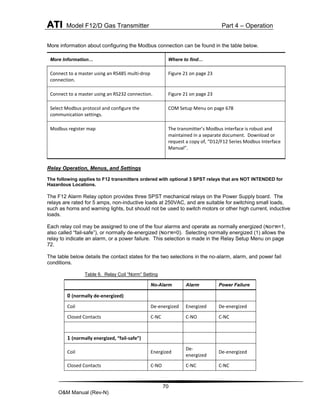
FIGURE 96. MODBUS MENU .................................... 69
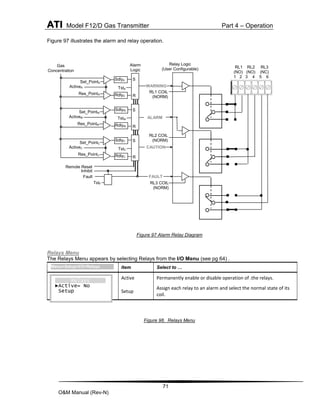
FIGURE 97 ALARM RELAY DIAGRAM ......................... 71
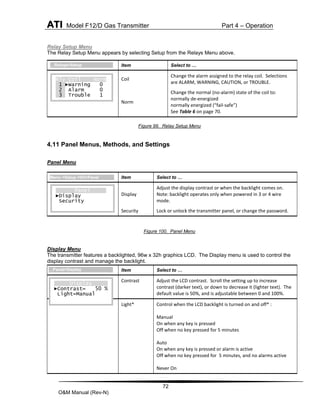
FIGURE 98. RELAYS MENU ..................................... 71
FIGURE 99. RELAY SETUP MENU............................. 72
FIGURE 100. PANEL MENU ..................................... 72
FIGURE 101. DISPLAY MENU................................... 73
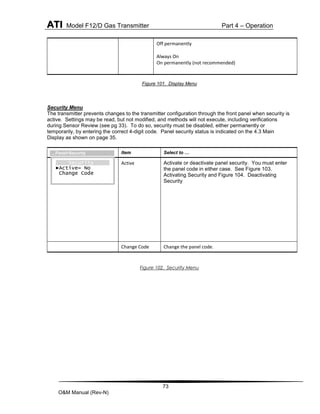
FIGURE 102. SECURITY MENU ................................ 73
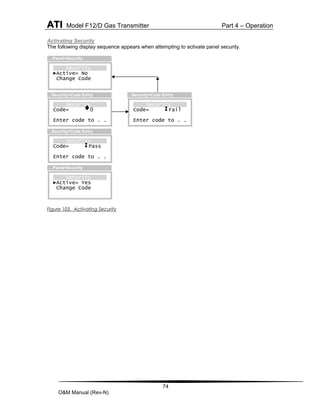
FIGURE 103. ACTIVATING SECURITY ........................ 74
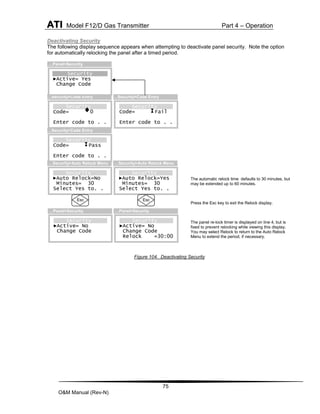
FIGURE 104. DEACTIVATING SECURITY .................... 75
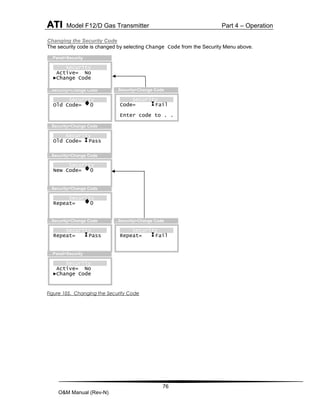
FIGURE 105. CHANGING THE SECURITY CODE .......... 76
FIGURE 106. SYSTEM MENU ................................... 77
FIGURE 107. CLOCK MENU..................................... 77
FIGURE 108. RESET MENU ..................................... 77
FIGURE 109. VERSION MENU .................................. 78
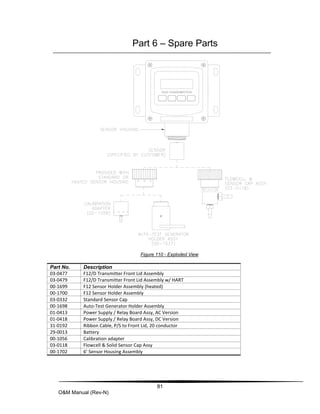
FIGURE 110 - EXPLODED VIEW ................................ 81
4
O&M Manual (Rev-N)
SAFETY
Read and understand this manual before installing, operating, or maintaining the F12/D Transmitter. Pay
particular attention to the warnings and cautions below. All of the warnings and cautions shown here are
repeated in the appropriate sections of the manual.
Protection from hazards may be impaired if used in manners not specified in this manual.
Warnings
 Installation must be in accordance with the recognized standards of the appropriate authority in
the country concerned.
 Servicing of this unit must be performed by trained personnel.
 Before servicing, ensure local regulations and site procedures are followed.
 To prevent ignition of flammable or combustible atmospheres, disconnect power before servicing.
 The transmitter must be earthed/grounded for electrical safety and to limit the effects of radio
frequency interference. An Earth ground point is provided inside the unit. To maintain EMI ratings,
use shielded cable, connecting the shield/drain to the EARTH terminal in the unit, and the
shield/drain to an Earth Ground at the power supply.
 Operate only in the specified temperature range.
 Verify transmitter after installation, after service events, and periodically to ensure the safety and
integrity of the system.
 Electrostatic discharge hazard.
o Take the necessary antistatic precautions if you: handle, install or use the device in
potentially explosive atmospheres.
o Do not install in a location (i.e.: near to ventilation systems) where the electrostatic
charge can increase.
o Do not clean plastic parts in a hazardous area.
 Use only Panasonic CR2032 batteries
Hazardous Location Installation
 The F12/D is not rated for hazardous locations
5
O&M Manual (Rev-N)
Part1 - Introduction
1.1 General
F12/D Gas Transmitter
The F12/D Gas Transmitter is used to monitor for gas leaks near storage cylinders, process piping, or gas
feed equipment in nearly any type of industrial plant environment. It is housed in NEMA 4X, polycarbonate
enclosure and features an H10 Smart Sensor, a non-intrusive four button user interface with a backlit
transflective graphics display, three level alarms with three (optional) alarm relays, a high-resolution 4-
20mA current loop output, real-time clock, data-logger, and optional HART™ or Modbus™ communication
interface. In addition, the transmitter offers several optional E18 gas generators for automatic, timed testing
of H10 sensors.
H10 Smart Sensor and E18 Gas Generator
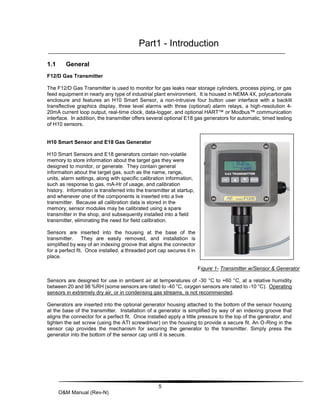
H10 Smart Sensors and E18 generators contain non-volatile
memory to store information about the target gas they were
designed to monitor, or generate. They contain general
information about the target gas, such as the name, range,
units, alarm settings, along with specific calibration information,
such as response to gas, mA-Hr of usage, and calibration
history. Information is transferred into the transmitter at startup,
and whenever one of the components is inserted into a live
transmitter. Because all calibration data is stored in the
memory, sensor modules may be calibrated using a spare
transmitter in the shop, and subsequently installed into a field
transmitter, eliminating the need for field calibration.
Sensors are inserted into the housing at the base of the
transmitter. They are easily removed, and installation is
simplified by way of an indexing groove that aligns the connector
for a perfect fit. Once installed, a threaded port cap secures it in
place.
Figure 1- Transmitter w/Sensor & Generator
Sensors are designed for use in ambient air at temperatures of -30 °C to +60 °C, at a relative humidity
between 20 and 98 %RH (some sensors are rated to -40 °C, oxygen sensors are rated to -10 °C). Operating
sensors in extremely dry air, or in condensing gas streams, is not recommended.
Generators are inserted into the optional generator housing attached to the bottom of the sensor housing
at the base of the transmitter. Installation of a generator is simplified by way of an indexing groove that
aligns the connector for a perfect fit. Once installed apply a little pressure to the top of the generator, and
tighten the set screw (using the ATI screwdriver) on the housing to provide a secure fit. An O-Ring in the
sensor cap provides the mechanism for securing the generator to the transmitter. Simply press the
generator into the bottom of the sensor cap until it is secure.
ATI Model F12/D Gas Transmitter Part 1 - Introduction
6
O&M Manual (Rev-N)
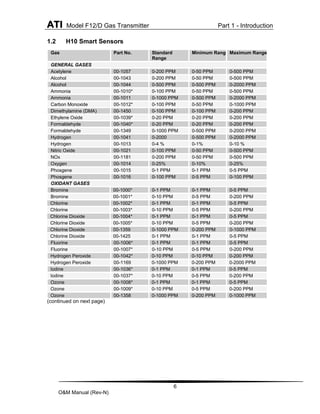
1.2 H10 Smart Sensors
Gas Part No. Standard
Range
Minimum Range Maximum Range
GENERAL GASES
Acetylene 00-1057 0-200 PPM 0-50 PPM 0-500 PPM
Alcohol 00-1043 0-200 PPM 0-50 PPM 0-500 PPM
Alcohol 00-1044 0-500 PPM 0-500 PPM 0-2000 PPM
Ammonia 00-1010* 0-100 PPM 0-50 PPM 0-500 PPM
Ammonia 00-1011 0-1000 PPM 0-500 PPM 0-2000 PPM
Carbon Monoxide 00-1012* 0-100 PPM 0-50 PPM 0-1000 PPM
Dimethylamine (DMA) 00-1450 0-100 PPM 0-100 PPM 0-200 PPM
Ethylene Oxide 00-1039* 0-20 PPM 0-20 PPM 0-200 PPM
Formaldehyde 00-1040* 0-20 PPM 0-20 PPM 0-200 PPM
Formaldehyde 00-1349 0-1000 PPM 0-500 PPM 0-2000 PPM
Hydrogen 00-1041 0-2000 0-500 PPM 0-2000 PPM
Hydrogen 00-1013 0-4 % 0-1% 0-10 %
Nitric Oxide 00-1021 0-100 PPM 0-50 PPM 0-500 PPM
NOx 00-1181 0-200 PPM 0-50 PPM 0-500 PPM
Oxygen 00-1014 0-25% 0-10% 0-25%
Phosgene 00-1015 0-1 PPM 0-1 PPM 0-5 PPM
Phosgene 00-1016 0-100 PPM 0-5 PPM 0-100 PPM
OXIDANT GASES
Bromine 00-1000* 0-1 PPM 0-1 PPM 0-5 PPM
Bromine 00-1001* 0-10 PPM 0-5 PPM 0-200 PPM
Chlorine 00-1002* 0-1 PPM 0-1 PPM 0-5 PPM
Chlorine 00-1003* 0-10 PPM 0-5 PPM 0-200 PPM
Chlorine Dioxide 00-1004* 0-1 PPM 0-1 PPM 0-5 PPM
Chlorine Dioxide 00-1005* 0-10 PPM 0-5 PPM 0-200 PPM
Chlorine Dioxide 00-1359 0-1000 PPM 0-200 PPM 0-1000 PPM
Chlorine Dioxide 00-1425 0-1 PPM 0-1 PPM 0-5 PPM
Fluorine 00-1006* 0-1 PPM 0-1 PPM 0-5 PPM
Fluorine 00-1007* 0-10 PPM 0-5 PPM 0-200 PPM
Hydrogen Peroxide 00-1042* 0-10 PPM 0-10 PPM 0-200 PPM
Hydrogen Peroxide 00-1169 0-1000 PPM 0-200 PPM 0-2000 PPM
Iodine 00-1036* 0-1 PPM 0-1 PPM 0-5 PPM
Iodine 00-1037* 0-10 PPM 0-5 PPM 0-200 PPM
Ozone 00-1008* 0-1 PPM 0-1 PPM 0-5 PPM
Ozone 00-1009* 0-10 PPM 0-5 PPM 0-200 PPM
Ozone 00-1358 0-1000 PPM 0-200 PPM 0-1000 PPM
(continued on next page)
ATI Model F12/D Gas Transmitter Part 1 - Introduction
7
O&M Manual (Rev-N)
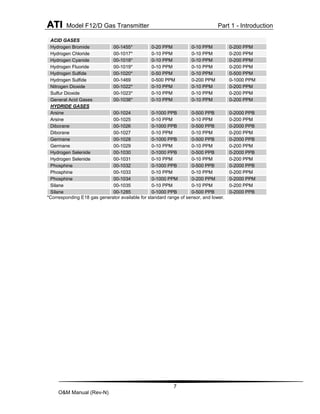
ACID GASES
Hydrogen Bromide 00-1455* 0-20 PPM 0-10 PPM 0-200 PPM
Hydrogen Chloride 00-1017* 0-10 PPM 0-10 PPM 0-200 PPM
Hydrogen Cyanide 00-1018* 0-10 PPM 0-10 PPM 0-200 PPM
Hydrogen Fluoride 00-1019* 0-10 PPM 0-10 PPM 0-200 PPM
Hydrogen Sulfide 00-1020* 0-50 PPM 0-10 PPM 0-500 PPM
Hydrogen Sulfide 00-1469 0-500 PPM 0-200 PPM 0-1000 PPM
Nitrogen Dioxide 00-1022* 0-10 PPM 0-10 PPM 0-200 PPM
Sulfur Dioxide 00-1023* 0-10 PPM 0-10 PPM 0-200 PPM
General Acid Gases 00-1038* 0-10 PPM 0-10 PPM 0-200 PPM
HYDRIDE GASES
Arsine 00-1024 0-1000 PPB 0-500 PPB 0-2000 PPB
Arsine 00-1025 0-10 PPM 0-10 PPM 0-200 PPM
Diborane 00-1026 0-1000 PPB 0-500 PPB 0-2000 PPB
Diborane 00-1027 0-10 PPM 0-10 PPM 0-200 PPM
Germane 00-1028 0-1000 PPB 0-500 PPB 0-2000 PPB
Germane 00-1029 0-10 PPM 0-10 PPM 0-200 PPM
Hydrogen Selenide 00-1030 0-1000 PPB 0-500 PPB 0-2000 PPB
Hydrogen Selenide 00-1031 0-10 PPM 0-10 PPM 0-200 PPM
Phosphine 00-1032 0-1000 PPB 0-500 PPB 0-2000 PPB
Phosphine 00-1033 0-10 PPM 0-10 PPM 0-200 PPM
Phosphine 00-1034 0-1000 PPM 0-200 PPM 0-2000 PPM
Silane 00-1035 0-10 PPM 0-10 PPM 0-200 PPM
Silane 00-1285 0-1000 PPB 0-500 PPB 0-2000 PPB
*Corresponding E18 gas generator available for standard range of sensor, and lower.
ATI Model F12/D Gas Transmitter Part 1 - Introduction
8
O&M Manual (Rev-N)
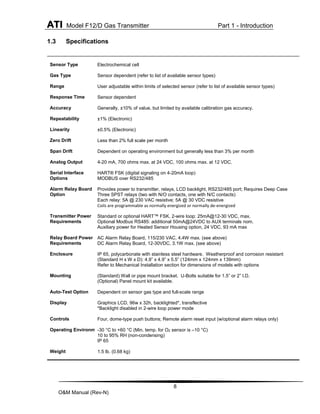
1.3 Specifications
Sensor Type Electrochemical cell
Gas Type Sensor dependent (refer to list of available sensor types)
Range User adjustable within limits of selected sensor (refer to list of available sensor types)
Response Time Sensor dependent
Accuracy Generally, ±10% of value, but limited by available calibration gas accuracy.
Repeatability ±1% (Electronic)
Linearity ±0.5% (Electronic)
Zero Drift Less than 2% full scale per month
Span Drift Dependent on operating environment but generally less than 3% per month
Analog Output 4-20 mA, 700 ohms max. at 24 VDC, 100 ohms max. at 12 VDC.
Serial Interface
Options
HART® FSK (digital signaling on 4-20mA loop)
MODBUS over RS232/485
Alarm Relay Board
Option
Provides power to transmitter, relays, LCD backlight, RS232/485 port; Requires Deep Case
Three SPST relays (two with N/O contacts, one with N/C contacts)
Each relay: 5A @ 230 VAC resistive; 5A @ 30 VDC resistive
Coils are programmable as normally energized or normally de-energized
Transmitter Power
Requirements
Standard or optional HART™ FSK, 2-wire loop: 25mA@12-30 VDC, max.
Optional Modbus RS485: additional 50mA@24VDC to AUX terminals nom.
Auxiliary power for Heated Sensor Housing option, 24 VDC, 93 mA max
Relay Board Power
Requirements
AC Alarm Relay Board, 115/230 VAC, 4.4W max. (see above)
DC Alarm Relay Board, 12-30VDC, 3.1W max. (see above)
Enclosure IP 65, polycarbonate with stainless steel hardware. Weatherproof and corrosion resistant
(Standard H x W x D): 4.9” x 4.9” x 5.5” (124mm x 124mm x 139mm)
Refer to Mechanical Installation section for dimensions of models with options
Mounting (Standard) Wall or pipe mount bracket. U-Bolts suitable for 1.5” or 2” I.D.
(Optional) Panel mount kit available.
Auto-Test Option Dependent on sensor gas type and full-scale range
Display Graphics LCD, 96w x 32h, backlighted*, transflective
*Backlight disabled in 2-wire loop power mode
Controls Four, dome-type push buttons; Remote alarm reset input (w/optional alarm relays only)
Operating Environment
-30 °C to +60 °C (Min. temp. for O2 sensor is –10 °C)
10 to 95% RH (non-condensing)
IP 65
Weight 1.5 lb. (0.68 kg)
9
O&M Manual (Rev-N)
Part 2 – Mechanical Installation
2.1 Transmitter Mounting
Threaded inserts in the rear of the enclosure permit the attachment of brackets for securing the transmitter
to a wall or pipe. An optional bracket is also available for “flush mounting” the transmitter into a panel, so
that only the front cover protrudes. (This option is available for Remote AC powered units ONLY.
Choose a location so the transmitter display is readily visible, and the panel buttons and sensor are
accessible for calibrations. Consider the remote sensor option to locate the sensor closer to the source of
a potential gas leak, or closer to the floor for gasses heavier than air.
2.2 Enclosure Dimensions
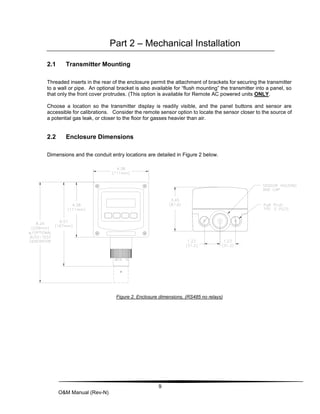
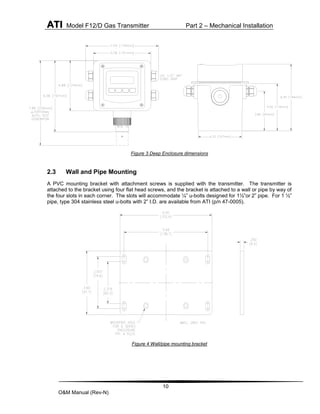
Dimensions and the conduit entry locations are detailed in Figure 2 below.
Figure 2. Enclosure dimensions, (RS485 no relays)
ATI Model F12/D Gas Transmitter Part 2 – Mechanical Installation
10
O&M Manual (Rev-N)
Figure 3 Deep Enclosure dimensions
2.3 Wall and Pipe Mounting
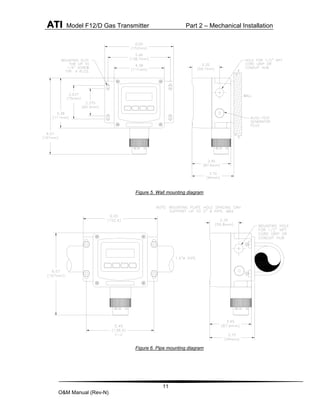
A PVC mounting bracket with attachment screws is supplied with the transmitter. The transmitter is
attached to the bracket using four flat head screws, and the bracket is attached to a wall or pipe by way of
the four slots in each corner. The slots will accommodate ¼” u-bolts designed for 1½”or 2” pipe. For 1 ½”
pipe, type 304 stainless steel u-bolts with 2” I.D. are available from ATI (p/n 47-0005).
Figure 4 Wall/pipe mounting bracket
ATI Model F12/D Gas Transmitter Part 2 – Mechanical Installation
11
O&M Manual (Rev-N)
Figure 5. Wall mounting diagram
Figure 6. Pipe mounting diagram
ATI Model F12/D Gas Transmitter Part 2 – Mechanical Installation
12
O&M Manual (Rev-N)
2.4 Panel Mounting (Remote Sensors Only)
Figure 7 depicts the details for panel mounting the deep case. For this, a bracket attaches to the rear
housing, and when adjusted, pulls the transmitter’s flange down against the adhesive side of the gasket
supplied with the bracket (make certain to remove the protective paper first).
Figure 7. Panel mounting details [deep case]
2.5 Duct Sensor Mounting
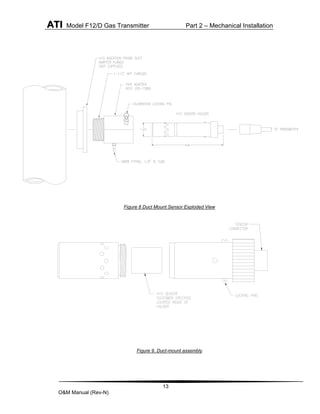
The H10 sensor duct mount option allows sensors to be installed in a duct or pipe, and provides easy
access for service.
The assembly is comprised of a special H10 sensor holder that slides into the hollow duct mount
adapter (See Figure 9). The adapter has 1-1/2” MNPT threads on the insertion end, for securing it
to the duct or pipe, and a barb fitting for supplying calibration gas to the sensor. An interface cable
is provided to connect the sensor holder to the transmitter. Note that a mating flange for securing
the adapter is not provided.
Screw the adapter into the duct or pipe so the barb fitting is accessible to connect gas tubing. Once
the adapter is in place, slide in the sensor holder, lock it in place, and connect the interface cable. It
is recommended that the sensor not be installed in the holder until you are ready to start the
transmitter. This is especially true during construction, when excessive dust and dirt may be blowing
through the duct system and be deposited on the sensor.
ATI Model F12/D Gas Transmitter Part 2 – Mechanical Installation
13
O&M Manual (Rev-N)
Figure 8 Duct Mount Sensor Exploded View
Figure 9. Duct-mount assembly
ATI Model F12/D Gas Transmitter Part 2 – Mechanical Installation
14
O&M Manual (Rev-N)
2.6 Duct Mount (Integral)
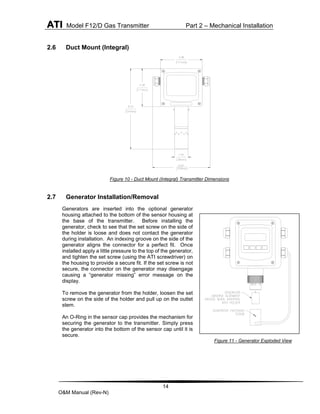
Figure 10 - Duct Mount (Integral) Transmitter Dimensions
2.7 Generator Installation/Removal
Generators are inserted into the optional generator
housing attached to the bottom of the sensor housing at
the base of the transmitter. Before installing the
generator, check to see that the set screw on the side of
the holder is loose and does not contact the generator
during installation. An indexing groove on the side of the
generator aligns the connector for a perfect fit. Once
installed apply a little pressure to the top of the generator,
and tighten the set screw (using the ATI screwdriver) on
the housing to provide a secure fit. If the set screw is not
secure, the connector on the generator may disengage
causing a “generator missing” error message on the
display.
To remove the generator from the holder, loosen the set
screw on the side of the holder and pull up on the outlet
stem.
An O-Ring in the sensor cap provides the mechanism for
securing the generator to the transmitter. Simply press
the generator into the bottom of the sensor cap until it is
secure.
Figure 11 - Generator Exploded View
15
O&M Manual (Rev-N)
Part 3 – Electrical Connections
3.1 Transmitter Connections
To access the wiring terminals inside the transmitter, loosen the four screws in each corner of the housing’s
front cover. The front cover is hinged to the rear cover along its lower edge so it will swing down and stop
at approximately 90°. The transmitter has limited space for wire; therefore, use the smallest gauge wire
available that is compatible with electrical code and current requirements.
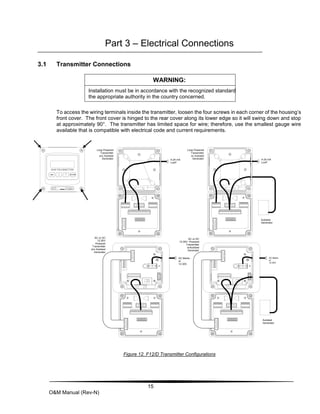
AC or DC
12-30V
Powered
Transmitter
w/o Autotest
Generator
AC Mains
or
12-30V
Autotest
Generator
AC Mains
or
12-30V
Autotest
Generator
Loop Powered
Transmitter
w/o Autotest
Generator
Loop Powered
Transmitter
w/ Autotest
Generator 4-24 mA
LooP
4-24 mA
LooP
AC or DC
12-30V Powered
Transmitter
w/Autotest
Generator
Figure 12. F12/D Transmitter Configurations
WARNING:
Installation must be in accordance with the recognized standards of
the appropriate authority in the country concerned.
ATI Model F12/D Gas Transmitter Part 3 – Electrical Connections
16
O&M Manual (Rev-N)
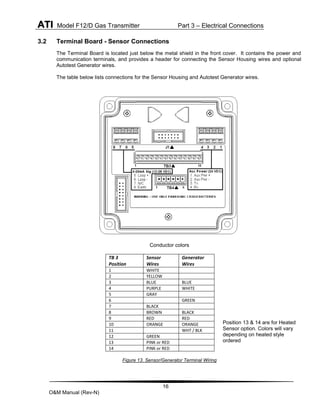
3.2 Terminal Board - Sensor Connections
The Terminal Board is located just below the metal shield in the front cover. It contains the power and
communication terminals, and provides a header for connecting the Sensor Housing wires and optional
Autotest Generator wires.
The table below lists connections for the Sensor Housing and Autotest Generator wires.
Conductor colors
TB 3
Position
Sensor
Wires
Generator
Wires
1 WHITE
2 YELLOW
3 BLUE BLUE
4 PURPLE WHITE
5 GRAY
6 GREEN
7 BLACK
8 BROWN BLACK
9 RED RED
10 ORANGE ORANGE
11 WHT / BLK
12 GREEN
13 PINK or RED
14 PINK or RED
Figure 13. Sensor/Generator Terminal Wiring
Position 13 & 14 are for Heated
Sensor option. Colors will vary
depending on heated style
ordered
ATI Model F12/D Gas Transmitter Part 3 – Electrical Connections
17
O&M Manual (Rev-N)
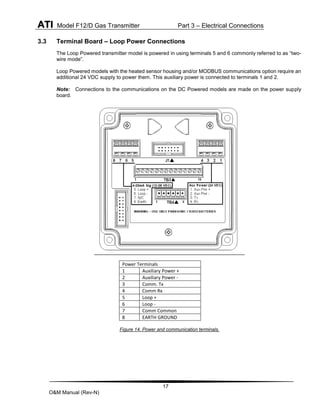
3.3 Terminal Board – Loop Power Connections
The Loop Powered transmitter model is powered in using terminals 5 and 6 commonly referred to as “two-
wire mode”.
Loop Powered models with the heated sensor housing and/or MODBUS communications option require an
additional 24 VDC supply to power them. This auxiliary power is connected to terminals 1 and 2.
Note: Connections to the communications on the DC Powered models are made on the power supply
board.
Power Terminals
1 Auxiliary Power +
2 Auxiliary Power -
3 Comm. Tx
4 Comm Rx
5 Loop +
6 Loop -
7 Comm Common
8 EARTH GROUND
Figure 14. Power and communication terminals.
ATI Model F12/D Gas Transmitter Part 3 – Electrical Connections
18
O&M Manual (Rev-N)
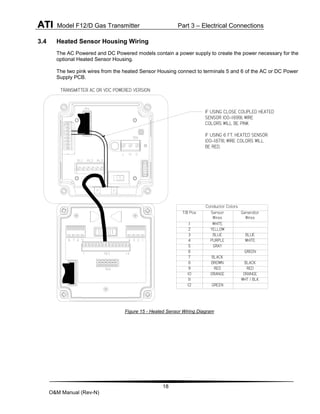
3.4 Heated Sensor Housing Wiring
The AC Powered and DC Powered models contain a power supply to create the power necessary for the
optional Heated Sensor Housing.
The two pink wires from the heated Sensor Housing connect to terminals 5 and 6 of the AC or DC Power
Supply PCB.
Figure 15 - Heated Sensor Wiring Diagram
Conductor Colors
T/B Pos Sensor
Wires
Generator
Wires
1 WHITE
2 YELLOW
3 BLUE BLUE
4 PURPLE WHITE
5 GRAY
6 GREEN
7 BLACK
8 BROWN BLACK
9 RED RED
10 ORANGE ORANGE
11 WHT / BLK
12 GREEN
IF USING CLOSE COUPLED HEATED
SENSOR (00-1699), WIRE
COLORS WILL BE PINK
IF USING 6 FT. HEATED SENSOR
(00-1878), WIRE COLORS WILL
BE RED.
TRANSMITTER AC OR VDC POWERED VERSION
ATI Model F12/D Gas Transmitter Part 3 – Electrical Connections
19
O&M Manual (Rev-N)
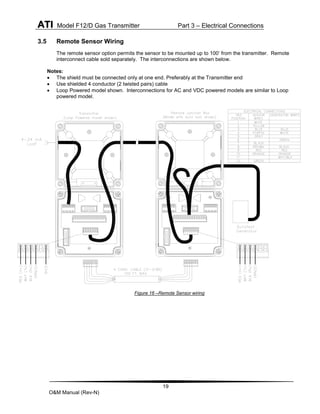
3.5 Remote Sensor Wiring
The remote sensor option permits the sensor to be mounted up to 100’ from the transmitter. Remote
interconnect cable sold separately. The interconnections are shown below.
Notes:
 The shield must be connected only at one end. Preferably at the Transmitter end
 Use shielded 4 conductor (2 twisted pairs) cable
 Loop Powered model shown. Interconnections for AC and VDC powered models are similar to Loop
powered model.
Figure 16 –Remote Sensor wiring
ATI Model F12/D Gas Transmitter Part 3 – Electrical Connections
20
O&M Manual (Rev-N)
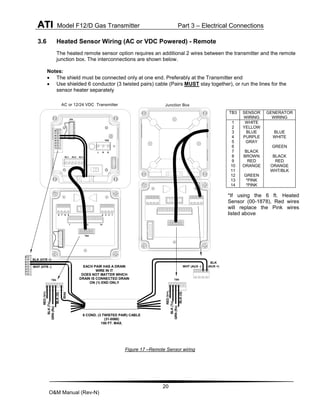
3.6 Heated Sensor Wiring (AC or VDC Powered) - Remote
The heated remote sensor option requires an additional 2 wires between the transmitter and the remote
junction box. The interconnections are shown below.
Notes:
 The shield must be connected only at one end. Preferably at the Transmitter end
 Use shielded 6 conductor (3 twisted pairs) cable (Pairs MUST stay together), or run the lines for the
sensor heater separately
TB4
TB3 14
1
1
2
3
4
5
6
7
8
J4a
TB6
G
N
L
RL3
RL2
RL1
2
3
4
5
6
7
1
8
Junction Box
WHT (AUX -)
BLK
(AUX +)
WHT (HTR -)
BLK (HTR +)
TB4
TB4
BLK
(G)
GRN
(Rx)
BLK
(Tx)
RED
(V+)
Shld
2
3
4
5
6
7
1
8
2
3
4
5
6
7
1
8
2
3
4
5
6
7
1
8
AC or 12/24 VDC Transmitter
EACH PAIR HAS A DRAIN
WIRE IN IT
DOES NOT MATTER WHICH
DRAIN IS CONNECTED DRAIN
ON (1) END ONLY
6 COND. (3 TWISTED PAIR) CABLE
(31-0068)
100 FT. MAX.
BLK
(G)
GRN
(Rx)
BLK
(Tx)
RED
(V+)
Figure 17 –Remote Sensor wiring
TB3 SENSOR
WIRING
GENERATOR
WIRING
1
2
3
4
5
6
7
8
9
10
11
12
13
14
WHITE
YELLOW
BLUE
PURPLE
GRAY
BLACK
BROWN
RED
ORANGE
GREEN
*PINK
*PINK
BLUE
WHITE
GREEN
BLACK
RED
ORANGE
WHT/BLK
*If using the 6 ft. Heated
Sensor (00-1878), Red wires
will replace the Pink wires
listed above
ATI Model F12/D Gas Transmitter Part 3 – Electrical Connections
21
O&M Manual (Rev-N)
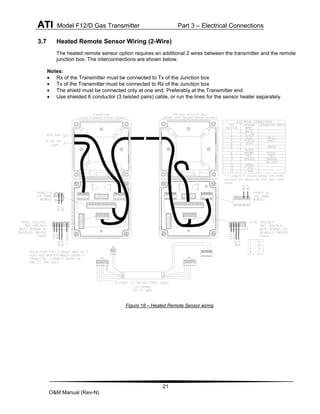
3.7 Heated Remote Sensor Wiring (2-Wire)
The heated remote sensor option requires an additional 2 wires between the transmitter and the remote
junction box. The interconnections are shown below.
Notes:
 Rx of the Transmitter must be connected to Tx of the Junction box
 Tx of the Transmitter must be connected to Rx of the Junction box
 The shield must be connected only at one end. Preferably at the Transmitter end
 Use shielded 6 conductor (3 twisted pairs) cable, or run the lines for the sensor heater separately
Figure 18 – Heated Remote Sensor wiring
ATI Model F12/D Gas Transmitter Part 3 – Electrical Connections
22
O&M Manual (Rev-N)
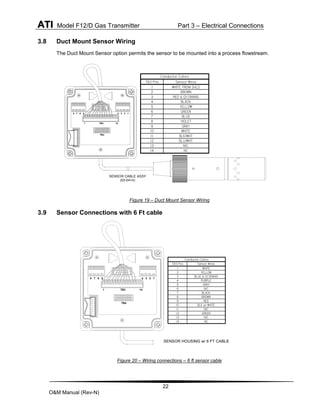
3.8 Duct Mount Sensor Wiring
The Duct Mount Sensor option permits the sensor to be mounted into a process flowstream.
Figure 19 – Duct Mount Sensor Wiring
3.9 Sensor Connections with 6 Ft cable
Figure 20 – Wiring connections – 6 ft sensor cable
SENSOR CABLE ASSY
(03-0414)
Conductor Colors
TB3 Pos Sensor Wires
1 WHITE FROM SHLD
2 BROWN
3 RED & (2) DRAINS
4 BLACK
5 YELLOW
6 GREEN
7 BLUE
8 VIOLET
9 GRAY
10 WHITE
11 BLK/WHT
12 BLU/WHT
13 N/C
14 NC
1
2
3
4
5
6
7
8
1 14
TB3
TB4
SENSOR HOUSING w/ 6 FT CABLE
Conductor Colors
TB3 Pos Sensor Wires
1 WHITE
2 YELLOW
3 BLUE & (2) DRAINS
4 PURPLE
5 GRAY
6 N/C
7 BLACK
8 BROWN
9 RED
10 BLK w/ WHITE
11 N/C
12 GREEN
13 N/C
14 NC
TB4
TB3 14
1
1
2
3
4
5
6
7
8
ATI Model F12/D Gas Transmitter Part 3 – Electrical Connections
23
O&M Manual (Rev-N)
Alarm Relay Boards (Option)
The Alarm Relay board is available in both an AC powered and DC powered version. Each version features three
SPST relays, an external remote alarm reset, and provides power to the transmitter and communication interface.
A 20-conductor ribbon cable connects control signals and power between the transmitter and the relay board. Relay
operation must be enabled through the operator interface.
Signaling on the 20mA current loop, including HART FSK, is still possible by connecting a separate power supply
and current loop receiver to terminals 5 and 6 on the P/S Board.
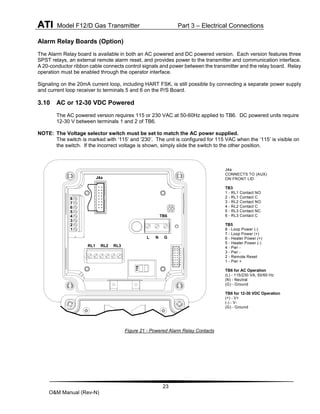
3.10 AC or 12-30 VDC Powered
The AC powered version requires 115 or 230 VAC at 50-60Hz applied to TB6. DC powered units require
12-30 V between terminals 1 and 2 of TB6.
NOTE: The Voltage selector switch must be set to match the AC power supplied.
The switch is marked with ‘115’ and ‘230’. The unit is configured for 115 VAC when the ‘115’ is visible on
the switch. If the incorrect voltage is shown, simply slide the switch to the other position.
J4a
CONNECTS TO (AUX)
ON FRONT LID
TB3
1 - RL1 Contact NO
2 - RL1 Contact C
3 - RL2 Contact NO
4 - RL2 Contact C
5 - RL3 Contact NC
6 - RL3 Contact C
TB5
8 - Loop Power (-)
7 - Loop Power (+)
6 - Heater Power (+)
5 - Heater Power (-)
4 - Pwr -
3 - Pwr -
2 - Remote Reset
1 - Pwr +
TB6 for AC Operation
(L) - 115/230 VA, 50/60 Hz
(N) - Neutral
(G) - Ground
TB6 for 12-30 VDC Operation
(+) - V+
(-) - V-
(G) - Ground
115
J4a
TB6
G
N
L
RL3
RL2
RL1
2
3
4
5
6
7
1
8
Figure 21 - Powered Alarm Relay Contacts
ATI Model F12/D Gas Transmitter Part 3 – Electrical Connections
24
O&M Manual (Rev-N)
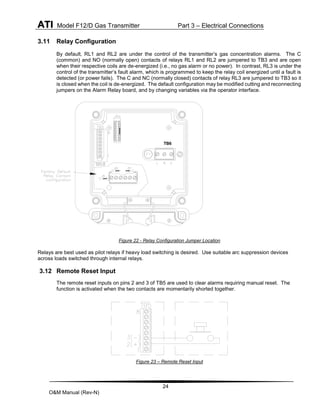
3.11 Relay Configuration
By default, RL1 and RL2 are under the control of the transmitter’s gas concentration alarms. The C
(common) and NO (normally open) contacts of relays RL1 and RL2 are jumpered to TB3 and are open
when their respective coils are de-energized (i.e., no gas alarm or no power). In contrast, RL3 is under the
control of the transmitter’s fault alarm, which is programmed to keep the relay coil energized until a fault is
detected (or power fails). The C and NC (normally closed) contacts of relay RL3 are jumpered to TB3 so it
is closed when the coil is de-energized. The default configuration may be modified cutting and reconnecting
jumpers on the Alarm Relay board, and by changing variables via the operator interface.
Figure 22 - Relay Configuration Jumper Location
Relays are best used as pilot relays if heavy load switching is desired. Use suitable arc suppression devices
across loads switched through internal relays.
3.12 Remote Reset Input
The remote reset inputs on pins 2 and 3 of TB5 are used to clear alarms requiring manual reset. The
function is activated when the two contacts are momentarily shorted together.
Figure 23 – Remote Reset Input
TB6
ATI Model F12/D Gas Transmitter Part 3 – Electrical Connections
25
O&M Manual (Rev-N)
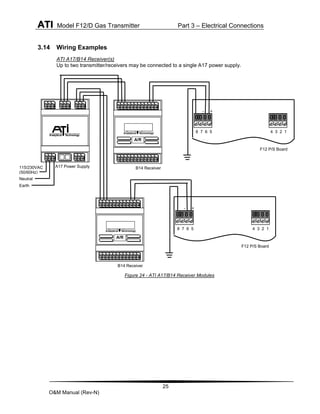
3.14 Wiring Examples
ATI A17/B14 Receiver(s)
Up to two transmitter/receivers may be connected to a single A17 power supply.
Figure 24 - ATI A17/B14 Receiver Modules
A17 Power Supply
A/R
B14 Receiver
A/R
B14 Receiver
115/230VAC
(50/60Hz)
Neutral
Earth
8 7 6 5 4 3 2 1
F12 P/S Board
+
-
8 7 6 5 4 3 2 1
F12 P/S Board
+
-
ATI Model F12/D Gas Transmitter Part 3 – Electrical Connections
26
O&M Manual (Rev-N)
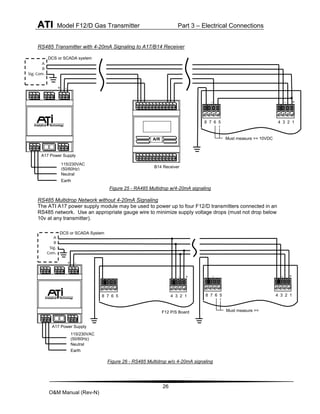
RS485 Transmitter with 4-20mA Signaling to A17/B14 Receiver
Figure 25 - RA485 Multidrop w/4-20mA signaling
RS485 Multidrop Network without 4-20mA Signaling
The ATI A17 power supply module may be used to power up to four F12/D transmitters connected in an
RS485 network. Use an appropriate gauge wire to minimize supply voltage drops (must not drop below
10v at any transmitter).
Figure 26 - RS485 Multidrop w/o 4-20mA signaling
A
B
Sig. Com.
+ -
Must measure >= 10VDC
DCS or SCADA system
+
A/R
B14 Receiver
-
-
8 7 6 5 4 3 2 1
A17 Power Supply
115/230VAC
(50/60Hz)
Neutral
Earth
DCS or SCADA System
+ -
Must measure >=
10VDC
A
B
Sig.
Com.
+
-
-
+
-
8 7 6 5 4 3 2 1
8 7 6 5 4 3 2 1
F12 P/S Board
A17 Power Supply
115/230VAC
(50/60Hz)
Neutral
Earth
ATI Model F12/D Gas Transmitter Part 3 – Electrical Connections
27
O&M Manual (Rev-N)
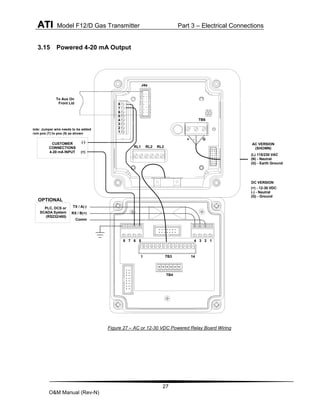
3.15 Powered 4-20 mA Output
CUSTOMER
CONNECTIONS
4-20 mA INPUT
+ -
TB3
(L) 115/230 VAC
(N) - Neutral
(G) - Earth Ground
TB4
PLC, DCS or
SCADA System
(RS232/485)
To Aux On
Front Lid
Comm
TX / A(-)
G
RX / B(+)
TB6
1
1
2
3
4
5
6
7
8
2
3
4
5
6
7
1
8
J4a
14
RL3
RL2
RL1
OPTIONAL
(+)
(-)
AC VERSION
(SHOWN)
(+) - 12-30 VDC
(-) - Neutral
(G) - Ground
DC VERSION
Note: Jumper wire needs to be added
from pos (7) to pos (5) as shown
Figure 27 – AC or 12-30 VDC Powered Relay Board Wiring
ATI Model F12/D Gas Transmitter Part 3 – Electrical Connections
28
O&M Manual (Rev-N)
TB3
TB4
(+)
(-)
PLC, DCS or
SCADA System
(RS232/485)
Comm
TX / A(-)
RX / B(+)
1
1
2
3
4
5
6
7
8
14
OPTIONAL
OPTIONAL
Com Jumper
(03-0370)
RS485*
Terminated
RS485
Unterminated
RS232
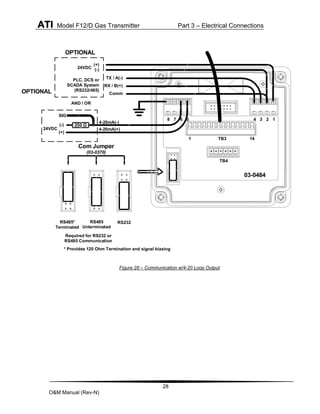
Required for RS232 or
RS485 Communication
* Provides 120 Ohm Termination and signal biasing
AND / OR
24VDC
24VDC
250 Ω
4-20mA(-)
4-20mA(+)
03-0484
(-)
(+)
SIG
Figure 28 – Communication w/4-20 Loop Output
ATI Model F12/D Gas Transmitter Part 3 – Electrical Connections
29
O&M Manual (Rev-N)
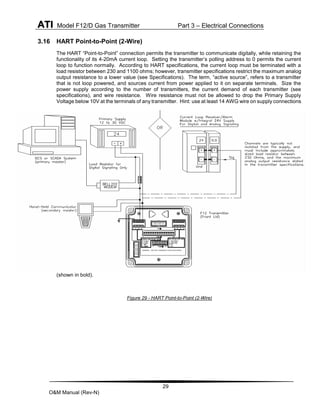
3.16 HART Point-to-Point (2-Wire)
The HART “Point-to-Point” connection permits the transmitter to communicate digitally, while retaining the
functionality of its 4-20mA current loop. Setting the transmitter’s polling address to 0 permits the current
loop to function normally. According to HART specifications, the current loop must be terminated with a
load resistor between 230 and 1100 ohms; however, transmitter specifications restrict the maximum analog
output resistance to a lower value (see Specifications). The term, “active source”, refers to a transmitter
that is not loop powered, and sources current from power applied to it on separate terminals. Size the
power supply according to the number of transmitters, the current demand of each transmitter (see
specifications), and wire resistance. Wire resistance must not be allowed to drop the Primary Supply
Voltage below 10V at the terminals of any transmitter. Hint: use at least 14 AWG wire on supply connections
(shown in bold).
Figure 29 - HART Point-to-Point (2-Wire)
ATI Model F12/D Gas Transmitter Part 3 – Electrical Connections
30
O&M Manual (Rev-N)
3.17 Communications Jumper Setting
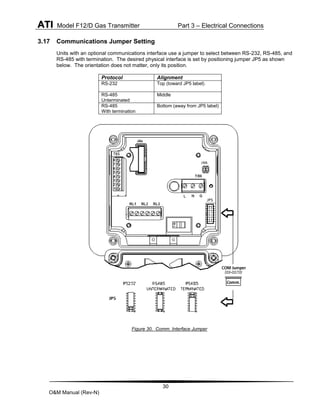
Units with an optional communications interface use a jumper to select between RS-232, RS-485, and
RS-485 with termination. The desired physical interface is set by positioning jumper JP5 as shown
below. The orientation does not matter, only its position.
Protocol Alignment
RS-232 Top (toward JP5 label)
RS-485
Unterminated
Middle
RS-485
With termination
Bottom (away from JP5 label)
Figure 30. Comm. Interface Jumper
31
O&M Manual (Rev-N)
Part 4 - Operation
4.1 Operator Interface Panel
The F12/D operator interface is non-intrusive, so you do not have to remove the housing cover to view
the display, configure the transmitter, or calibrate the sensor. It features a backlighted, transflective
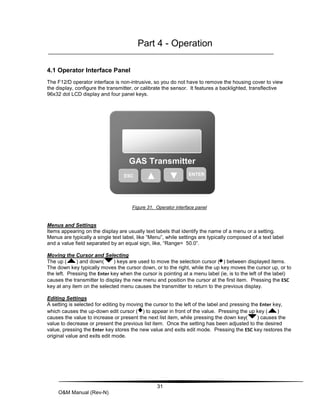
96x32 dot LCD display and four panel keys.
Figure 31. Operator interface panel
Menus and Settings
Items appearing on the display are usually text labels that identify the name of a menu or a setting.
Menus are typically a single text label, like “Menu”, while settings are typically composed of a text label
and a value field separated by an equal sign, like, “Range= 50.0”.
Moving the Cursor and Selecting
The up ( ) and down( ) keys are used to move the selection cursor ( ) between displayed items.
The down key typically moves the cursor down, or to the right, while the up key moves the cursor up, or to
the left. Pressing the Enter key when the cursor is pointing at a menu label (ie, is to the left of the label)
causes the transmitter to display the new menu and position the cursor at the first item. Pressing the ESC
key at any item on the selected menu causes the transmitter to return to the previous display.
Editing Settings
A setting is selected for editing by moving the cursor to the left of the label and pressing the Enter key,
which causes the up-down edit cursor ( ) to appear in front of the value. Pressing the up key ( )
causes the value to increase or present the next list item, while pressing the down key( ) causes the
value to decrease or present the previous list item. Once the setting has been adjusted to the desired
value, pressing the Enter key stores the new value and exits edit mode. Pressing the ESC key restores the
original value and exits edit mode.
ESC
ESC ▼
GAS Transmitter
TRANSMITTERENTER
▲
ATI Model F12/D Gas Transmitter Part 4 – Operation
32
O&M Manual (Rev-N)
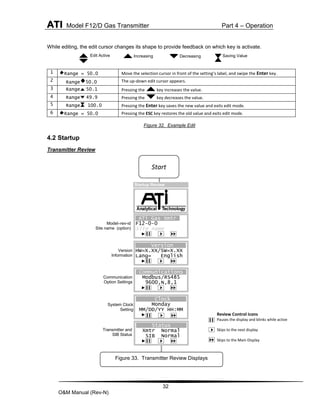
While editing, the edit cursor changes its shape to provide feedback on which key is activate.
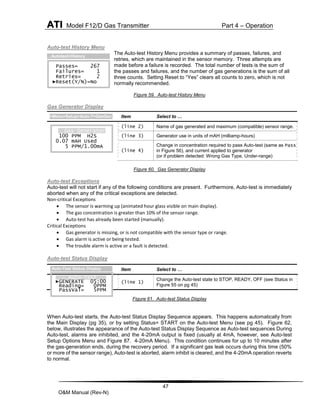
1 Range = 50.0 Move the selection cursor in front of the setting’s label, and swipe the Enter key.
2 Range 50.0 The up-down edit cursor appears.
3 Range 50.1 Pressing the key increases the value.
4 Range 49.9 Pressing the key decreases the value.
5 Range 100.0 Pressing the Enter key saves the new value and exits edit mode.
6 Range = 50.0 Pressing the ESC key restores the old value and exits edit mode.
Figure 32. Example Edit
4.2 Startup
Transmitter Review
Edit Active Increasing Decreasing Saving Value
Communication
Option Settings
Review Control Icons
Pauses the display and blinks while active
Skips to the next display
Skips to the Main Display
ATi Gas Xmtr
F12-0-0
Site name
►
►Hold Next Skip
Version
HW=X.XX/SW=X.XX
Lang= English
►
Clock
Monday
MM/DD/YY HH:MM
►
Model–rev-id
Site name (option)
Version
Information
Transmitter and
SIB Status
System Clock
Setting
Communications
Modbus/RS485
9600,N,8,1
►
Status
Xmtr Normal
SIB Normal
►
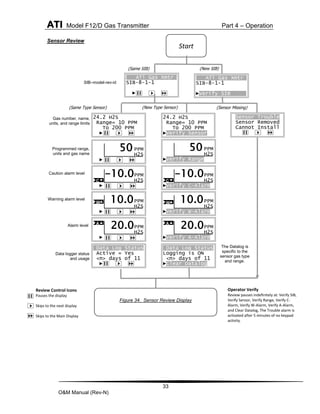
Figure 33. Transmitter Review Displays
Start
Startup Review
ATI Model F12/D Gas Transmitter Part 4 – Operation
33
O&M Manual (Rev-N)
Sensor Review
Review Control Icons
Pauses the display
Skips to the next display
Skips to the Main Display
Operator Verify
Review pauses indefinitely at: Verify SIB,
Verify Sensor, Verify Range, Verify C-
Alarm, Verify W-Alarm, Verify A-Alarm,
and Clear Datalog, The Trouble alarm is
activated after 5 minutes of no keypad
activity.
ATi Gas Xmtr
SIB-8-1-1
►Verify SIB
Start
(Same Type Sensor) (New Type Sensor)
24.2 H2S
Range= 10 PPM
To 200 PPM
►
PPM
H2S
►
50 PPM
H2S
►Verify Range
50
24.2 H2S
Range= 10 PPM
To 200 PPM
►Verify Sensor
PPM
H2S
►
-10.0
C
A
PPM
H2S
►
20.0 PPM
H2S
►Verify A-Alarm
20.0
A
PPM
H2S
►Verify C-Alarm
C
-10.0
W PPM
H2S
►
10.0 PPM
H2S
►Verify W-Alarm
W 10.0
Sensor Trouble
Sensor Removed
Cannot Install
►
Programmed range,
units and gas name
Caution alarm level
Warning alarm level
Alarm level
ATi Gas Xmtr
SIB-8-1-1
►
SIB–model-rev-id
Gas number, name,
units, and range limits
Data logger status
and usage
Data Log Status
Logging is ON
<n> days of 11
►Clear Datalog
The Datalog is
specific to the
sensor gas type
and range.
Data Log Status
Active = Yes
<n> days of 11
►
(Sensor Missing)
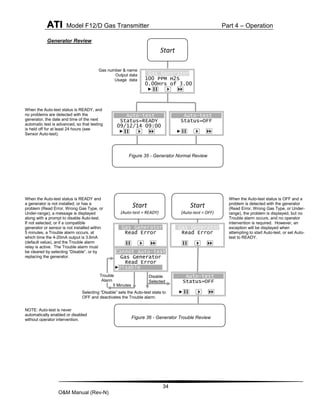
Figure 34. Sensor Review Display
(Same SIB) (New SIB)
ATI Model F12/D Gas Transmitter Part 4 – Operation
34
O&M Manual (Rev-N)
Generator Review
Gas number & name
Output data
Usage data
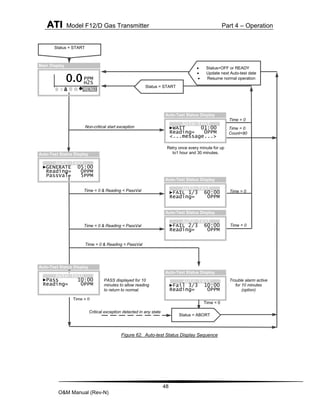
When the Auto-test status is READY, and
no problems are detected with the
generator, the date and time of the next
automatic test is advanced, so that testing
is held off for at least 24 hours (see
Sensor Auto-test).
NOTE: Auto-test is never
automatically enabled or disabled
without operator intervention.
When the Auto-test status is READY and
a generator is not installed, or has a
problem (Read Error, Wrong Gas Type, or
Under-range), a message is displayed
along with a prompt to disable Auto-test.
If not selected, or if a compatible
generator or sensor is not installed within
5 minutes, a Trouble alarm occurs, at
which time the 4-20mA output is 3.6mA
(default value), and the Trouble alarm
relay is active. The Trouble alarm must
be cleared by selecting “Disable”, or by
replacing the generator.
Selecting “Disable” sets the Auto-test state to
OFF and deactivates the Trouble alarm.
When the Auto-test status is OFF and a
problem is detected with the generator
(Read Error, Wrong Gas Type, or Under-
range), the problem is displayed, but no
Trouble alarm occurs, and no operator
intervention is required. However, an
exception will be displayed when
attempting to start Auto-test, or set Auto-
test to READY.
5 Minutes
Disable
Selected
Gas Generator
Read Error
Cannot Auto-test
Gas Generator
Read Error
►Disable
Start
(Auto-test = READY)
Auto-test
Status=OFF
►
Start
(Auto-test = OFF)
Trouble
Alarm
Gas Generator
Read Error
Start
Gas Generator
100 PPM H2S
0.00Hrs of 3.00
►
Auto-test
Status=READY
09/12/14 09:00
►
Auto-test
Status=OFF
►
Figure 35 - Generator Normal Review
Figure 36 - Generator Trouble Review
ATI Model F12/D Gas Transmitter Part 4 – Operation
35
O&M Manual (Rev-N)
4.3 Main Display
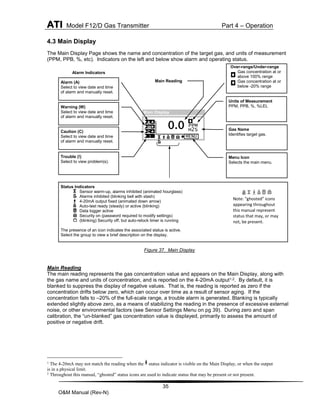
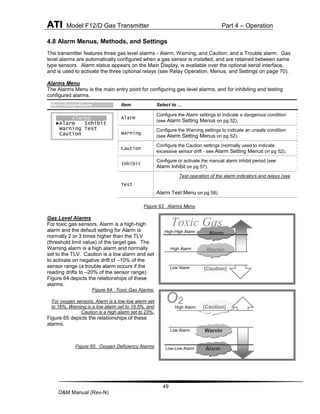
The Main Display Page shows the name and concentration of the target gas, and units of measurement
(PPM, PPB, %, etc). Indicators on the left and below show alarm and operating status.
Figure 37. Main Display
Main Reading
The main reading represents the gas concentration value and appears on the Main Display, along with
the gas name and units of concentration, and is reported on the 4-20mA output1,2. By default, it is
blanked to suppress the display of negative values. That is, the reading is reported as zero if the
concentration drifts below zero, which can occur over time as a result of sensor aging. If the
concentration falls to –20% of the full-scale range, a trouble alarm is generated. Blanking is typically
extended slightly above zero, as a means of stabilizing the reading in the presence of excessive external
noise, or other environmental factors (see Sensor Settings Menu on pg 39). During zero and span
calibration, the “un-blanked” gas concentration value is displayed, primarily to assess the amount of
positive or negative drift.
1
The 4-20mA may not match the reading when the status indicator is visible on the Main Display, or when the output
is in a physical limit.
2
Throughout this manual, “ghosted” status icons are used to indicate status that may be present or not present.
Over-range/Under-range
Gas concentration at or
above 100% range
Gas concentration at or
below -20% range
Alarm Indicators
Main Display
PPM
H2S
A
MENU
W
C
!
0.0
Menu Icon
Selects the main menu.
Gas Name
Identifies target gas.
Units of Measurement
PPM, PPB, %, %LEL
Main Reading
Trouble (!)
Select to view problem(s).
Alarm (A)
Select to view date and time
of alarm and manually reset.
Caution (C)
Select to view date and time
of alarm and manually reset.
Warning (W)
Select to view date and time
of alarm and manually reset.
Status Indicators
Sensor warm-up, alarms inhibited (animated hourglass)
Alarms inhibited (blinking bell with slash)
4-20mA output fixed (animated down arrow)
Auto-test ready (steady) or active (blinking)
Data logger active
Security on (password required to modify settings)
(blinking) Security off, but auto-relock timer is running
The presence of an icon indicates the associated status is active.
Select the group to view a brief description on the display.
Note: “ghosted” icons
appearing throughout
this manual represent
status that may, or may
not, be present.
ATI Model F12/D Gas Transmitter Part 4 – Operation
36
O&M Manual (Rev-N)
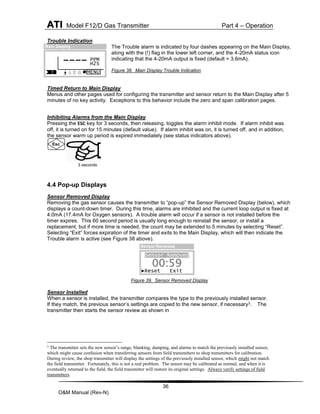
Trouble Indication
The Trouble alarm is indicated by four dashes appearing on the Main Display,
along with the (!) flag in the lower left corner, and the 4-20mA status icon
indicating that the 4-20mA output is fixed (default = 3.6mA).
Figure 38. Main Display Trouble Indication
Timed Return to Main Display
Menus and other pages used for configuring the transmitter and sensor return to the Main Display after 5
minutes of no key activity. Exceptions to this behavior include the zero and span calibration pages.
Inhibiting Alarms from the Main Display
Pressing the ESC key for 3 seconds, then releasing, toggles the alarm inhibit mode. If alarm inhibit was
off, it is turned on for 15 minutes (default value). If alarm inhibit was on, it is turned off, and in addition,
the sensor warm up period is expired immediately (see status indicators above).
4.4 Pop-up Displays
Sensor Removed Display
Removing the gas sensor causes the transmitter to “pop-up” the Sensor Removed Display (below), which
displays a count-down timer. During this time, alarms are inhibited and the current loop output is fixed at
4.0mA (17.4mA for Oxygen sensors). A trouble alarm will occur if a sensor is not installed before the
timer expires. This 60 second period is usually long enough to reinstall the sensor, or install a
replacement, but if more time is needed, the count may be extended to 5 minutes by selecting “Reset”.
Selecting “Exit” forces expiration of the timer and exits to the Main Display, which will then indicate the
Trouble alarm is active (see Figure 38 above).
Figure 39. Sensor Removed Display
Sensor Installed
When a sensor is installed, the transmitter compares the type to the previously installed sensor.
If they match, the previous sensor’s settings are copied to the new sensor, if necessary3. The
transmitter then starts the sensor review as shown in
3
The transmitter sets the new sensor’s range, blanking, damping, and alarms to match the previously installed sensor,
which might cause confusion when transferring sensors from field transmitters to shop transmitters for calibration.
During review, the shop transmitter will display the settings of the previously installed sensor, which might not match
the field transmitter. Fortunately, this is not a real problem. The sensor may be calibrated as normal, and when it is
eventually returned to the field, the field transmitter will restore its original settings. Always verify settings of field
transmitters.
Esc
Sensor Removed
►Reset Exit
00:59
Sensor Removed
PPM
H2S
MENU
----
Main Display
!
3 seconds
ATI Model F12/D Gas Transmitter Part 4 – Operation
37
O&M Manual (Rev-N)
. If the types did not match, the review halts and waits for the operator to verify the new sensor’s full-
scale range, and alarm settings. After verifying the sensor, the transmitter copies the sensor settings to
its local memory.
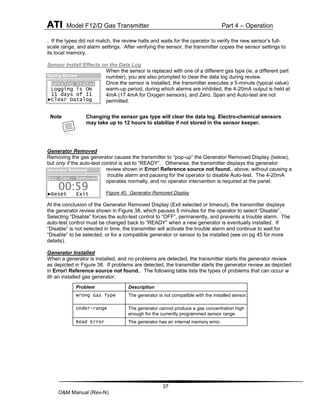
Sensor Install Effects on the Data Log
When the sensor is replaced with one of a different gas type (ie, a different part
number), you are also prompted to clear the data log during review.
Once the sensor is installed, the transmitter executes a 5-minute (typical value)
warm-up period, during which alarms are inhibited, the 4-20mA output is held at
4mA (17.4mA for Oxygen sensors), and Zero, Span and Auto-test are not
permitted.
Generator Removed
Removing the gas generator causes the transmitter to “pop-up” the Generator Removed Display (below),
but only if the auto-test control is set to “READY”. Otherwise, the transmitter displays the generator
review shown in Error! Reference source not found., above, without causing a
trouble alarm and pausing for the operator to disable Auto-test. The 4-20mA
operates normally, and no operator intervention is required at the panel.
Figure 40. Generator Removed Display
At the conclusion of the Generator Removed Display (Exit selected or timeout), the transmitter displays
the generator review shown in Figure 38, which pauses 5 minutes for the operator to select “Disable”.
Selecting “Disable” forces the auto-test control to “OFF”, permanently, and prevents a trouble alarm. The
auto-test control must be changed back to “READY” when a new generator is eventually installed. If
“Disable” is not selected in time, the transmitter will activate the trouble alarm and continue to wait for
“Disable” to be selected, or for a compatible generator or sensor to be installed (see on pg 45 for more
details).
Generator Installed
When a generator is installed, and no problems are detected, the transmitter starts the generator review
as depicted in Figure 38. If problems are detected, the transmitter starts the generator review as depicted
in Error! Reference source not found.. The following table lists the types of problems that can occur w
ith an installed gas generator.
Note Changing the sensor gas type will clear the data log. Electro-chemical sensors
may take up to 12 hours to stabilize if not stored in the sensor keeper.
Problem Description
Wrong Gas Type The generator is not compatible with the installed sensor.
Under-range The generator cannot produce a gas concentration high
enough for the currently programmed sensor range.
Read Error The generator has an internal memory error.
Startup Review
Datalog Status
Logging is ON
11 days of 11
►Clear Datalog
Gas Gen. Removed
►Reset Exit
00:59
Generator Removed
ATI Model F12/D Gas Transmitter Part 4 – Operation
38
O&M Manual (Rev-N)
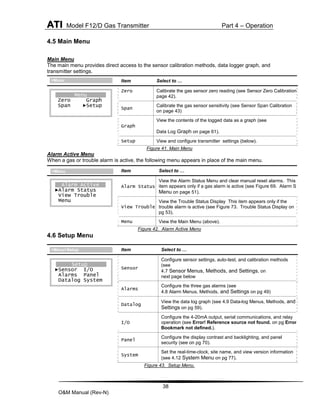
4.5 Main Menu
Main Menu
The main menu provides direct access to the sensor calibration methods, data logger graph, and
transmitter settings.
Figure 41. Main Menu
Alarm Active Menu
When a gas or trouble alarm is active, the following menu appears in place of the main menu.
Figure 42. Alarm Active Menu
4.6 Setup Menu
Figure 43. Setup Menu.
Item Select to …
Zero Calibrate the gas sensor zero reading (see Sensor Zero Calibration on
page 42).
Span
Calibrate the gas sensor sensitivity (see Sensor Span Calibration
on page 43)
Graph
View the contents of the logged data as a graph (see
Data Log Graph on page 61).
Setup View and configure transmitter settings (below).
Item Select to …
Alarm Status
View the Alarm Status Menu and clear manual reset alarms. This
item appears only if a gas alarm is active (see Figure 69. Alarm Status
Menu on page 51).
View Trouble
View the Trouble Status Display This item appears only if the
trouble alarm is active (see Figure 73. Trouble Status Display on
pg 53).
Menu View the Main Menu (above).
Item Select to …
Sensor
Configure sensor settings, auto-test, and calibration methods
(see
4.7 Sensor Menus, Methods, and Settings, on
next page below
Alarms
Configure the three gas alarms (see
4.8 Alarm Menus, Methods, and Settings on pg 49)
Datalog
View the data log graph (see 4.9 Data-log Menus, Methods, and
Settings on pg 59).
I/O
Configure the 4-20mA output, serial communications, and relay
operation (see Error! Reference source not found. on pg Error!
Bookmark not defined.).
Panel
Configure the display contrast and backlighting, and panel
security (see on pg 70).
System
Set the real-time-clock, site name, and view version information
(see 4.12 System Menu on pg 77).
Menu
Zero Graph
Span ►Setup
>Menu
Alarm Active
►Alarm Status
View Trouble
Menu
>Menu
Setup
►Sensor I/O
Alarms Panel
Datalog System
>Menu>Setup
ATI Model F12/D Gas Transmitter Part 4 – Operation
39
O&M Manual (Rev-N)
4.7 Sensor Menus, Methods, and Settings
Sensor Menu
Figure 44. Sensor Menu.
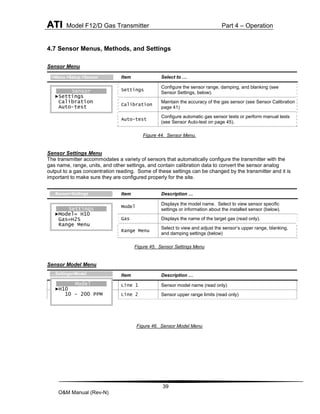
Sensor Settings Menu
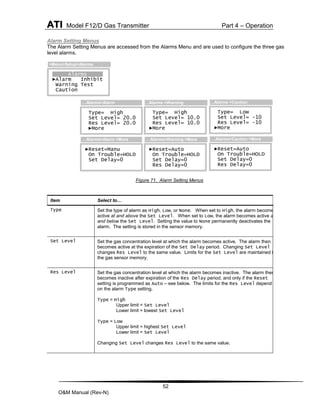
The transmitter accommodates a variety of sensors that automatically configure the transmitter with the
gas name, range, units, and other settings, and contain calibration data to convert the sensor analog
output to a gas concentration reading. Some of these settings can be changed by the transmitter and it is
important to make sure they are configured properly for the site.
Figure 45. Sensor Settings Menu
Sensor Model Menu
Figure 46. Sensor Model Menu
Item Select to …
Settings
Configure the sensor range, damping, and blanking (see
Sensor Settings, below).
Calibration
Maintain the accuracy of the gas sensor (see Sensor Calibration on
page 41)
Auto-test
Configure automatic gas sensor tests or perform manual tests
(see Sensor Auto-test on page 45).
Item Description …
Model
Displays the model name. Select to view sensor specific
settings or information about the installed sensor (below).
Gas Displays the name of the target gas (read only).
Range Menu
Select to view and adjust the sensor’s upper range, blanking,
and damping settings (below)
Item Description …
Line 1 Sensor model name (read only)
Line 2 Sensor upper range limits (read only)
Sensor
►Settings
Calibration
Auto-test
>Menu >Setup >Sensor
Settings
►Model= H10
Gas=H2S
Range Menu
…Sensor>Settings
Model
►H10
10 - 200 PPM
…Settings>Model
ATI Model F12/D Gas Transmitter Part 4 – Operation
40
O&M Manual (Rev-N)
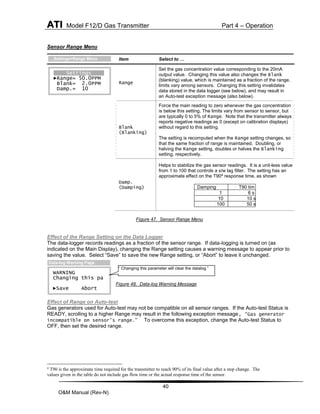
Sensor Range Menu
Figure 47. Sensor Range Menu
Effect of the Range Setting on the Data Logger
The data-logger records readings as a fraction of the sensor range. If data-logging is turned on (as
indicated on the Main Display), changing the Range setting causes a warning message to appear prior to
saving the value. Select “Save” to save the new Range setting, or “Abort” to leave it unchanged.
Figure 48. Data-log Warning Message
Effect of Range on Auto-test
Gas generators used for Auto-test may not be compatible on all sensor ranges. If the Auto-test Status is
READY, scrolling to a higher Range may result in the following exception message, “Gas generator
incompatible on sensor's range.” To overcome this exception, change the Auto-test Status to
OFF, then set the desired range.
4
T90 is the approximate time required for the transmitter to reach 90% of its final value after a step change. The
values given in the table do not include gas flow time or the actual response time of the sensor.
Item Select to …
Range
Set the gas concentration value corresponding to the 20mA
output value. Changing this value also changes the Blank
(blanking) value, which is maintained as a fraction of the range. Setting
limits vary among sensors. Changing this setting invalidates
data stored in the data logger (see below), and may result in
an Auto-test exception message (also below).
Blank
(Blanking)
Force the main reading to zero whenever the gas concentration
is below this setting. The limits vary from sensor to sensor, but
are typically 0 to 5% of Range. Note that the transmitter always
reports negative readings as 0 (except on calibration displays)
without regard to this setting.
The setting is recomputed when the Range setting changes, so
that the same fraction of range is maintained. Doubling, or
halving the Range setting, doubles or halves the Blanking
setting, respectively.
Damp.
(Damping)
Helps to stabilize the gas sensor readings. It is a unit-less value
from 1 to 100 that controls a s/w lag filter. The setting has an
approximate effect on the T904
response time, as shown
Damping T90 tim 
1 6 s
10 10 s
100 50 s
WARNING
Changing this pa
►Save Abort
Data-log Warning Page
” Changing this parameter will clear the datalog.”
Settings
►Range= 50.0PPM
Blank= 2.0PPM
Damp.= 10
…Settings>Range Menu
ATI Model F12/D Gas Transmitter Part 4 – Operation
41
O&M Manual (Rev-N)
Sensor Calibration
Calibration Frequency
While the transmitter itself requires no periodic calibration, H10 sensors should be “zero” and “span”
calibrated every 3-6 months, based upon environmental factors. Sensors frequently exposed to dirt, oil
mist, vapors, or very dry air, may require more frequent calibration.
Zero Calibration
As the name implies, zero calibration corrects the transmitter offset reading in the absence of any reactive
gas. During zero calibration, the offset error is stored in the sensor, and subsequently subtracted from
future readings. ATI recommends bottled zero gas as a source, which should be selected based on the
type of sensor. For example, bottled “Zero” Air may be used to zero Chlorine sensors, but Oxygen sensors
require bottled Nitrogen gas.
Span Calibration
Span calibration corrects the transmitter sensitivity to a known concentration of target gas (the gas for which
the sensor was designed to monitor). Sensors for most gases, such as Ammonia, require a bottled “span
gas” source. This applies even to Oxygen sensors, where the span gas source is bottled zero air.
Calibration Terminology
The zero calibration is referred to as, “zero”, “zeroing”, and “zeroed”. Likewise for the span calibration,
which appears as, “span”, “spanning”, and “spanned”. As with most instruments, zero calibration should
be performed before span.
Calibration Kits
Calibration kits, containing zero and span bottle gas sources, are available from ATI for many toxic gases.
Contact ATI, or your local ATI representative, if you have questions about calibration gas kits or gas
sources.
Indications During Calibration
The “un-blanked” gas concentration value is displayed during zero and span calibration, primarily to observe
any slight amount of positive or negative drift. Alarms are cleared and inhibited, and the 4-20mA output is
locked at 4.0mA (transmitters equipped with Oxygen sensors are locked at 17.4mA, representing normal,
20.9% atmospheric Oxygen). The 4-20mA output will not change when gas is applied and removed, and
for 15 minutes thereafter (the default value). While viewing the calibration pages, the LCD display will
indicate the changing gas concentration.
Calibration Exceptions
Zero and span calibration are not allowed during the following conditions:
 Sensor removed, or in 5-minute 5 warm-up period
 Trouble alarm active
 Auto-test active (status indicator appears on Main Display page)
To help prevent errors, zero and span are not allowed if the sensor output, or span value entered, is too
high or too low. If detected, memory errors are reported while updating the sensor or transmitter memory.
5
Typical value, may vary by sensor gas type.
ATI Model F12/D Gas Transmitter Part 4 – Operation
42
O&M Manual (Rev-N)
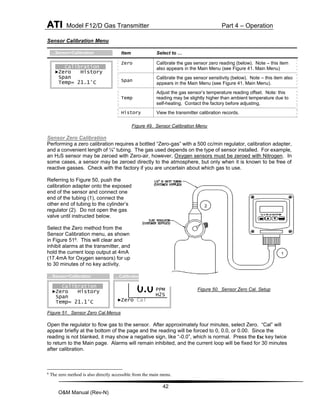
Sensor Calibration Menu
Figure 49. Sensor Calibration Menu
Sensor Zero Calibration
Performing a zero calibration requires a bottled “Zero-gas” with a 500 cc/min regulator, calibration adapter,
and a convenient length of ¼” tubing. The gas used depends on the type of sensor installed. For example,
an H2S sensor may be zeroed with Zero-air, however, Oxygen sensors must be zeroed with Nitrogen. In
some cases, a sensor may be zeroed directly to the atmosphere, but only when it is known to be free of
reactive gasses. Check with the factory if you are uncertain about which gas to use.
Referring to Figure 50, push the
calibration adapter onto the exposed
end of the sensor and connect one
end of the tubing (1), connect the
other end of tubing to the cylinder’s
regulator (2). Do not open the gas
valve until instructed below.
Select the Zero method from the
Sensor Calibration menu, as shown
in Figure 516. This will clear and
inhibit alarms at the transmitter, and
hold the current loop output at 4mA
(17.4mA for Oxygen sensors) for up
to 30 minutes of no key activity.
Figure 50. Sensor Zero Cal. Setup
Figure 51. Sensor Zero Cal.Menus
Open the regulator to flow gas to the sensor. After approximately four minutes, select Zero. “Cal” will
appear briefly at the bottom of the page and the reading will be forced to 0, 0.0, or 0.00. Since the
reading is not blanked, it may show a negative sign, like “-0.0”, which is normal. Press the Esc key twice
to return to the Main page. Alarms will remain inhibited, and the current loop will be fixed for 30 minutes
after calibration.
6
The zero method is also directly accessible from the main menu.
Item Select to …
Zero Calibrate the gas sensor zero reading (below). Note – this item
also appears in the Main Menu (see Figure 41. Main Menu)
Span
Calibrate the gas sensor sensitivity (below). Note – this item also
appears in the Main Menu (see Figure 41. Main Menu).
Temp
Adjust the gas sensor’s temperature reading offset. Note: this
reading may be slightly higher than ambient temperature due to
self-heating. Contact the factory before adjusting.
History View the transmitter calibration records.
PPM
H2S
►Zero Cal
…Calibration>Zero
0.0
Calibration
►Zero History
Span
Temp= 21.1°C
…Sensor>Calibration
Calibration
►Zero History
Span
Temp= 21.1°C
…Sensor>Calibration
1
2
ATI Model F12/D Gas Transmitter Part 4 – Operation
43
O&M Manual (Rev-N)
Sensor Span Calibration
Span calibration* requires a bottled “span-gas” with a 500 cc/min regulator, calibration adapter, and a
convenient length of ¼” tubing. The gas type and concentration used depends on the type of sensor
installed. Check with the factory if you are uncertain about which gas to use.
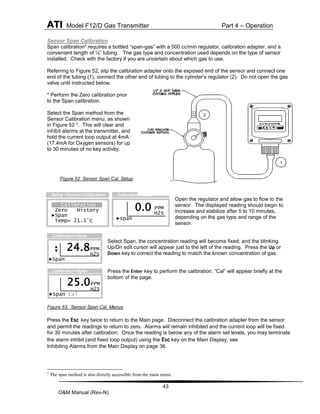
Referring to Figure 52, slip the calibration adapter onto the exposed end of the sensor and connect one
end of the tubing (1), connect the other end of tubing to the cylinder’s regulator (2). Do not open the gas
valve until instructed below.
* Perform the Zero calibration prior
to the Span calibration.
Select the Span method from the
Sensor Calibration menu, as shown
in Figure 52 7. This will clear and
inhibit alarms at the transmitter, and
hold the current loop output at 4mA
(17.4mA for Oxygen sensors) for up
to 30 minutes of no key activity.
Figure 52 Sensor Span Cal. Setup
Open the regulator and allow gas to flow to the
sensor. The displayed reading should begin to
increase and stabilize after 5 to 10 minutes,
depending on the gas type and range of the
sensor.
Select Span, the concentration reading will become fixed, and the blinking
Up/Dn edit cursor will appear just to the left of the reading. Press the Up or
Down key to correct the reading to match the known concentration of gas.
Press the Enter key to perform the calibration. “Cal” will appear briefly at the
bottom of the page.
Figure 53. Sensor Span Cal. Menus
Press the Esc key twice to return to the Main page. Disconnect the calibration adapter from the sensor
and permit the readings to return to zero. Alarms will remain inhibited and the current loop will be fixed
for 30 minutes after calibration. Once the reading is below any of the alarm set levels, you may terminate
the alarm inhibit (and fixed loop output) using the Esc key on the Main Display, see
Inhibiting Alarms from the Main Display on page 36.
7
The span method is also directly accessible from the main menu.
Calibration
Zero History
►Span
Temp= 21.1°C
…Setup >Sensor>Calibration
PPM
H2S
►span
…Calibration>Span
0.0
PPM
H2S
►Span
24.8
…Calibration>Span
PPM
H2S
►Span Cal
25.0
…Calibration>Span
1
2
ATI Model F12/D Gas Transmitter Part 4 – Operation
44
O&M Manual (Rev-N)
Sensor Calibration History
A calibration record is written into the sensor memory each time a zero or span calibration is performed.
Enough memory is reserved for 63 zero calibrations and 63 span calibrations. Zero and span calibration
records are accessed on the Sensor Calibration History page.
Figure 54. Sensor Calibration History Menus
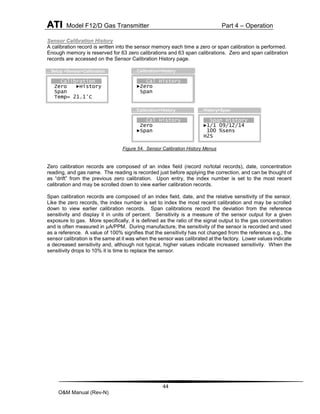
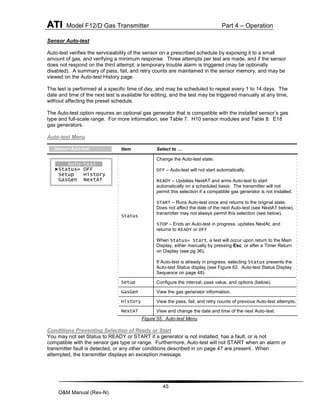
Zero calibration records are composed of an index field (record no/total records), date, concentration
reading, and gas name. The reading is recorded just before applying the correction, and can be thought of
as “drift” from the previous zero calibration. Upon entry, the index number is set to the most recent
calibration and may be scrolled down to view earlier calibration records.
Span calibration records are composed of an index field, date, and the relative sensitivity of the sensor.
Like the zero records, the index number is set to index the most recent calibration and may be scrolled
down to view earlier calibration records. Span calibrations record the deviation from the reference
sensitivity and display it in units of percent. Sensitivity is a measure of the sensor output for a given
exposure to gas. More specifically, it is defined as the ratio of the signal output to the gas concentration
and is often measured in µA/PPM. During manufacture, the sensitivity of the sensor is recorded and used
as a reference. A value of 100% signifies that the sensitivity has not changed from the reference e.g., the
sensor calibration is the same at it was when the sensor was calibrated at the factory. Lower values indicate
a decreased sensitivity and, although not typical, higher values indicate increased sensitivity. When the
sensitivity drops to 10% it is time to replace the sensor.
Zero History
►1/1 09/12/14
0.0 PPM
H2S
…History>Zero
Calibration
Zero ►History
Span
Temp= 21.1°C
…Setup >Sensor>Calibration
Cal History
►Zero
Span
…Calibration>History
Span History
►1/1 09/12/14
100 %sens
H2S
…History>Span
Cal History
Zero
►Span
…Calibration>History
ATI Model F12/D Gas Transmitter Part 4 – Operation
45
O&M Manual (Rev-N)
Sensor Auto-test
Auto-test verifies the serviceability of the sensor on a prescribed schedule by exposing it to a small
amount of gas, and verifying a minimum response. Three attempts per test are made, and if the sensor
does not respond on the third attempt, a temporary trouble alarm is triggered (may be optionally
disabled). A summary of pass, fail, and retry counts are maintained in the sensor memory, and may be
viewed on the Auto-test History page.
The test is performed at a specific time of day, and may be scheduled to repeat every 1 to 14 days. The
date and time of the next test is available for editing, and the test may be triggered manually at any time,
without affecting the preset schedule.
The Auto-test option requires an optional gas generator that is compatible with the installed sensor’s gas
type and full-scale range. For more information, see Table 7. H10 sensor modules and Table 8. E18
gas generators.
Auto-test Menu
Figure 55. Auto-test Menu
Conditions Preventing Selection of Ready or Start
You may not set Status to READY or START if a generator is not installed, has a fault, or is not
compatible with the sensor gas type or range. Furthermore, Auto-test will not START when an alarm or
transmitter fault is detected, or any other conditions described in on page 47 are present. When
attempted, the transmitter displays an exception message.
Item Select to …
Status
Change the Auto-test state:
OFF – Auto-test will not start automatically.
READY – Updates NextAT and arms Auto-test to start
automatically on a scheduled basis. The transmitter will not
permit this selection if a compatible gas generator is not installed.
START – Runs Auto-test once and returns to the original state.
Does not affect the date of the next Auto-test (see NextAT below). The
transmitter may not always permit this selection (see below).
STOP – Ends an Auto-test in progress, updates NextAt, and
returns to READY or OFF
When Status= Start, a test will occur upon return to the Main
Display, either manually by pressing Esc, or after a Timer Return
on Display (see pg 36).
If Auto-test is already in progress, selecting Status presents the
Auto-test Status display (see Figure 62. Auto-test Status Display
Sequence on page 48).
Setup Configure the interval, pass value, and options (below).
GasGen View the gas generator information.
History View the pass, fail, and retry counts of previous Auto-test attempts.
NextAT View and change the date and time of the next Auto-test.
Auto-test
►Status= OFF
Setup History
GasGen NextAT
…Sensor>Auto-test
ATI Model F12/D Gas Transmitter Part 4 – Operation
46
O&M Manual (Rev-N)
Auto-test Setup Menu
Figure 56. Auto-test Setup Menu
Auto-test Setup Options Menu
Figure 57. Auto-test Setup Options Menu
Auto-test NextAT Menu
The date and time of the next auto-test appears on the Next AT menu. After
each test, the date is incremented by the Day Interval setting on the Auto-
test Setup page (above). The time establishes the time of day that tests are
performed. Setting Auto-test to occur in the past when the Status is READY
will change the Status to START.
Figure 58. Auto-test Next AT Menu
NextAT Date After Startup
During startup, the transmitter examines the date of the next auto-test and advances it by the Day Interval
to provide a minimum of 24 hours before the next test is performed. Therefore, it is important to keep the
transmitter powered to maintain the desired test Auto-test schedule.
Item Select to …
Day Interval
Configure the number of days between automatic tests. The
default is 1, and the limit is 1 to 14 (the exact time of day for
testing may be set on the Next AT menu, see below).
Pass
Configure the amount by which the gas concentration must
increase, in order to pass. Prior to starting the test, this amount is
added to the “un-blanked” gas concentration reading to compute
the pass value. This value is limited between 5%(default value),
and 10% of the sensor range (see Range in Sensor Setting Menu
on pg 39).
Options View the Auto-test Options page (below).
Item Select to …
Logging
Control values logged during Auto-test. When set to Yes (default), the gas
concentration (main reading) is logged as usual, including any
increase caused by the gas generator. When set to No, a code is
logged that will display as, TEST, on graphic and tabular report
pages, and printouts.
Trouble
Determine if Auto-test failures cause trouble alarms. When set to
YES (default), a failure to pass Auto-test after the third attempt will
cause a trouble alarm, and force the 4-20mA output to the
Trouble mA value. When set to No, Auto-test failures do not
cause Trouble alarms (not recommended).
Fixed mA
Control the 4-20mA output during Auto-test. When set to Yes
(default), the 4-20mA output will be fixed at the Autotst mA
value to prevent receiver alarms (see Figure 87. 4-20mA Menu). When
set to No, the output will increase as the gas concentration rises,
and may cause receiver alarms (not recommended).
Next Auto Test
►09/14/2014
09:00
…Auto-test>NextAT
Setup
►Day Interval= 1
Pass= 5PPM
Options
…Auto-test>Setup
Options
►Logging= YES
Trouble= YES
Fixed mA= YES
…Auto-test>Setup>Options
ATI Model F12/D Gas Transmitter Part 4 – Operation
47
O&M Manual (Rev-N)
Auto-test History Menu
The Auto-test History Menu provides a summary of passes, failures, and
retries, which are maintained in the sensor memory. Three attempts are
made before a failure is recorded. The total number of tests is the sum of
the passes and failures, and the number of gas generations is the sum of all
three counts. Setting Reset to “Yes” clears all counts to zero, which is not
normally recommended.
Figure 59. Auto-test History Menu
Gas Generator Display
Figure 60. Gas Generator Display
Auto-test Exceptions
Auto-test will not start if any of the following conditions are present. Furthermore, Auto-test is immediately
aborted when any of the critical exceptions are detected.
Non-critical Exceptions
 The sensor is warming up (animated hour glass visible on main display).
 The gas concentration is greater than 10% of the sensor range.
 Auto-test has already been started (manually).
Critical Exceptions
 Gas generator is missing, or is not compatible with the sensor type or range.
 Gas alarm is active or being tested.
 The trouble alarm is active or a fault is detected.
Auto-test Status Display
Figure 61. Auto-test Status Display
When Auto-test starts, the Auto-test Status Display Sequence appears. This happens automatically from
the Main Display (pg 35), or by setting Status= START on the Auto-test Menu (see pg 45). Figure 62,
below, illustrates the appearance of the Auto-test Status Display Sequence as Auto-test sequences During
Auto-test, alarms are inhibited, and the 4-20mA output is fixed (usually at 4mA, however, see Auto-test
Setup Options Menu and Figure 87. 4-20mA Menu). This condition continues for up to 10 minutes after
the gas-generation ends, during the recovery period. If a significant gas leak occurs during this time (50%
or more of the sensor range), Auto-test is aborted, alarm inhibit is cleared, and the 4-20mA operation reverts
to normal.
Item Select to …
(line 2) Name of gas generated and maximum (compatible) sensor range.
(line 3) Generator use in units of mAH (milliamp-hours)
(line 4)
Change in concentration required to pass Auto-test (same as Pass value
in Figure 56), and current applied to generator
(or if problem detected: Wrong Gas Type, Under-range)
Item Select to …
(line 1)
Change the Auto-test state to STOP, READY, OFF (see Status in
Figure 55 on pg 45)
Passes= 267
Failures= 1
Retries= 2
►Reset(Y/N)=No
…Autotest>History
Auto-test
►GENERATE 05:00
Reading= 0PPM
PassVal= 5PPM
Auto-Test Status Display
Gas Generator
100 PPM H2S
0.07 mAH Used
5 PPM/1.00mA
>Menu>Setup>Auto-T>GasGen
ATI Model F12/D Gas Transmitter Part 4 – Operation
48
O&M Manual (Rev-N)
Figure 62. Auto-test Status Display Sequence
Time = 0
Time = 0 & Reading < PassVal
PASS displayed for 10
minutes to allow reading
to return to normal.
Retry once every minute for up
to1 hour and 30 minutes.
 Status=OFF or READY
 Update next Auto-test date
 Resume normal operation
Auto-test
►GENERATE 05:00
Reading= 0PPM
PassVal= 5PPM
Auto-Test Status Display
Auto-test
►FAIL 1/3 60:00
Reading= 0PPM
Auto-Test Status Display
Auto-test
►FAIL 2/3 60:00
Reading= 0PPM
Auto-Test Status Display
Auto-test
►Pass 10:00
Reading= 0PPM
Auto-Test Status Display
Auto-test
►Fail 3/3 10:00
Reading= 0PPM
Auto-Test Status Display
Auto-test
►WAIT 01:00
Reading= 0PPM
<...message...>
Auto-Test Status Display
Trouble alarm active
for 10 minutes
(option)
Time = 0
Time = 0 & Reading < PassVal
Time = 0
Time = 0
Non-critical start exception
Time = 0
Time = 0
Count=90
Status = START
Status = START
MENU
0.0PPM
H2S
Main Display
Critical exception detected in any state
Status = ABORT
ATI Model F12/D Gas Transmitter Part 4 – Operation
49
O&M Manual (Rev-N)
4.8 Alarm Menus, Methods, and Settings
The transmitter features three gas level alarms - Alarm, Warning, and Caution, and a Trouble alarm. Gas
level alarms are automatically configured when a gas sensor is installed, and are retained between same
type sensors. Alarm status appears on the Main Display, is available over the optional serial interface,
and is used to activate the three optional relays (see Relay Operation, Menus, and Settings on page 70).
Alarms Menu
The Alarms Menu is the main entry point for configuring gas level alarms, and for inhibiting and testing
configured alarms.
Figure 63. Alarms Menu
Gas Level Alarms
For toxic gas sensors, Alarm is a high-high
alarm and the default setting for Alarm is
normally 2 or 3 times higher than the TLV
(threshold limit value) of the target gas. The
Warning alarm is a high alarm and normally
set to the TLV. Caution is a low alarm and set
to activate on negative drift of –10% of the
sensor range (a trouble alarm occurs if the
reading drifts to –20% of the sensor range).
Figure 64 depicts the relationships of these
alarms.
Figure 64. Toxic Gas Alarms.
For oxygen sensors, Alarm is a low-low alarm set
to 16%, Warning is a low alarm set to 19.5%, and
Caution is a high alarm set to 23%.
Figure 65 depicts the relationships of these
alarms.
Figure 65. Oxygen Deficiency Alarms
Item Select to …
Alarm
Configure the Alarm settings to indicate a dangerous condition
(see Alarm Setting Menus on pg 52).
Warning
Configure the Warning settings to indicate an unsafe condition
(see Alarm Setting Menus on pg 52).
Caution
Configure the Caution settings (normally used to indicate
excessive sensor drift - see Alarm Setting Menus on pg 52).
Inhibit
Configure or activate the manual alarm inhibit period (see
Alarm Inhibit on pg 57)
Test
Test operation of the alarm indicators and relays (see
Alarm Test Menu on pg 58)
Low-Low Alarm
Low Alarm
O2
High Alarm
High-High Alarm
High Alarm
Toxic Gas
Low Alarm
Alarms
►Alarm Inhibit
Warning Test
Caution
Menu>Setup>Alarms
ATI Model F12/D Gas Transmitter Part 4 – Operation
50
O&M Manual (Rev-N)
Gas Alarm Operation
Figure 66 illustrates the operation of a high (rising) gas level alarm.
Figure 66. High Alarm Operation
Figure 67 illustrates the operation of a low (falling) gas level alarm (such as for Oxygen deficiency).
Figure 67. Low Alarm Operation
Rdg at set level
Alarm becomes active
Set Level
Res Level
Set Delay Res_Delay
Rdg at reset level
Alarm becomes inactive
S e c o n d s
C
O
N
C
E
N
T
R
A
T
I
O
N
Rdg at set level
Alarm becomes active
Set Level
Res Level
Set Delay Res Delay
Rdg at reset level
Alarm becomes inactive
S e c o n d s
C
O
N
C
E
N
T
R
A
T
I
O
N
ATI Model F12/D Gas Transmitter Part 4 – Operation
51
O&M Manual (Rev-N)
Alarm Indicators
Gas level alarms are indicated by three flags on the left side of the Main Display, each containing a letter
indicating the alarm name, and an arrow indicating the type of alarm - high (rising) alarm, or low (falling)
alarm.
Figure 68. Alarm Indicator Flags
Alarm Status Menu
The Alarm Status Menu appears only when a gas alarm is active. It is displayed by selecting Menu from
the Main Display, then selecting “Alarm Status”, from the Alarm Active Menu (see pg 38). The menu lists
the three gas alarms and the word, “Active”, if the alarm is currently active. Selecting an active alarm
displays the specific Alarm Reset Menu, below.
default
Figure 69. Alarm Status Menu
Alarm Reset Menu
The Alarm Reset Menu appears by selecting an active alarm from the Alarm Status Menu, or by selecting
an alarm indicator flag from the Main Display. The menu presents the date and time of when the alarm
became active, and permits manual reset, along with the other options are listed below.
Figure 70. Alarm Reset Menu
Remote Reset
Activating the “Remote Reset” input resets all manual reset alarms, but only if the respective alarm conditions
have subsided (see Figure 23 – Remote Reset Input on page 24).
Alarm – flag with letter ‘A’ on line 1 (top line)
Warning – flag with letter ‘W’ on line 2
Caution – flag with letter ‘C’ on line 3
Item Select to …
(line 1) Date and time of alarm event.
Reset
(alarm)
Manually reset the alarm selected on the Alarm Status Menu above.
Reset is performed only if the alarm conditions have subsided, and
the alarm is programmed for manual reset (see Figure 71. Alarm Setting on
pg 52),
Reset All
Manually reset all manual-reset alarms, once alarm conditions have
subsided.
Inhibit
Alarms
Temporarily resets and inhibits gas level and Trouble alarms (is 15
minutes, see Alarm Inhibit on pg 57).
Item Select to …
Alarm View the time and date of Alarm and manually reset it, if required.
Warning
View the time and date of the Warning alarm and manually
reset it, if required.
Caution
View the time and date of the Caution alarm and manually
reset it, if required.
A
W
C
Main Display
PPM
H2S
A
MENU
W 0.0
C
09/26/06 18:11
►Reset ALARM
Reset All
Inhibit_Alarms
…Alarm Status>(alarm)
Alarm Status
►Alarm Active
Warning Active
Caution
Menu>Alarm Status
ATI Model F12/D Gas Transmitter Part 4 – Operation
52
O&M Manual (Rev-N)
Alarm Setting Menus
The Alarm Setting Menus are accessed from the Alarms Menu and are used to configure the three gas
level alarms.
Figure 71. Alarm Setting Menus
Item Select to…
Type Set the type of alarm as High, Low, or None. When set to High, the alarm becomes
active at and above the Set Level. When set to Low, the alarm becomes active at
and below the Set Level. Setting the value to None permanently deactivates the
alarm. The setting is stored in the sensor memory.
Set Level Set the gas concentration level at which the alarm becomes active. The alarm then
becomes active at the expiration of the Set Delay period. Changing Set Level
changes Res Level to the same value. Limits for the Set Level are maintained in
the gas sensor memory.
Res Level Set the gas concentration level at which the alarm becomes inactive. The alarm then
becomes inactive after expiration of the Res Delay period, and only if the Reset
setting is programmed as Auto – see below. The limits for the Res Level depend
on the alarm Type setting.
Type = High
Upper limit = Set Level
Lower limit = lowest Set Level
Type = Low
Upper limit = highest Set Level
Lower limit = Set Level
Changing Set Level changes Res Level to the same value.
Type= High
Set Level= 20.0
Res Level= 20.0
►More
Type= High
Set Level= 10.0
Res Level= 10.0
►More
Type= Low
Set Level= -10
Res Level= -10
►More
►Reset=Manu
On Trouble=HOLD
Set Delay=0
…Alarms>Alarm
►Reset=Auto
On Trouble=HOLD
Set Delay=0
Res Delay=0
►Reset=Auto
On Trouble=HOLD
Set Delay=0
Res Delay=0
…Alarms >Warning …Alarms >Caution
…Alarms>Alarm >More …Alarms>Warning >More …Alarms>Caution >More
>Menu>Setup>Alarms
Alarms
►Alarm Inhibit
Warning Test
Caution
ATI Model F12/D Gas Transmitter Part 4 – Operation
53
O&M Manual (Rev-N)
Reset
Select how the alarm is reset as Manu or Auto. When set to Auto, the alarm will
Reset (clear) without operator intervention, as soon as conditions allow (concentration
reaches Res Level, and the Res Delay period expires). When set to Manu, the
operator must reset the alarm manually after conditions subside, through the operator
interface, the serial interface, or through the remote reset (see Figure 23 on page 24 ).
Note: Res Delay is meaningful only when Reset= Auto. Setting Reset to Manu
suppresses display of the Res Delay setting.
On Trouble
Specify the alarm state during Trouble alarms. This setting specifies alarm behavior
during transmitter faults, and overrides all other alarm settings. If the trouble alarm
should become active, you may program the concentration alarm to behave in one of
three ways:
Hold - the transmitter will attempt to hold the alarm in its current state. If the alarm is
active, it will remain active. If the alarm is inactive, it will be inhibited from becoming
active until after Trouble is cleared.
Set - activates the alarm immediately (the Set Delay period is ignored). This
feature permits the alarm to signal both concentration and trouble conditions.
Reset – deactivates the alarm immediately (the Res Delay period is ignored).
Set Delay
Configure the amount of time, in seconds, that the gas concentration must be at or
above a high alarm set level, or at or below a low alarm set level, before the alarm
becomes active. This is used to avoid triggering alarms on relatively short gas
exposures. The setting may be programmed between 0 (its default) and 10 seconds.
Res Delay
Configure the amount of time, in seconds, that the gas concentration must be below a
high alarm reset level, or above a low alarm reset level, before the alarm becomes
inactive. The setting is typically used to keep relays energized to maintain exhaust
fans after a gas leak. The setting is displayed only when Reset is set to Auto, and
may be programmed between 0 (default) and two hours (7200 seconds).
Trouble Alarm
Trouble alarm are presented on the Main Display as shown below. When active, new alarms are
inhibited, and (by default) active alarms are held so that relays controlling lights, sirens, and fans may
continue to operate (this behavior may be modified on the Alarms Menu
(see pg 49). Certain Trouble alarm causes, like a temporary bus fault, may
clear automatically without operator intervention. Others, such as a missing
sensor, will not clear until corrected.
Figure 72. Trouble Indication on Main Display
Trouble Status Display
The Trouble Status Display appears by selecting the Trouble indicator from the Main Display. It may also
be viewed by selecting MENU from the Main Display when the Trouble alarm is active, then selecting View
Trouble. The 8-digit hex code on line 2 represents all active faults and is useful when obtaining help
from the factory. Select Next Problem to view a description of each problem in succession on line 3.
Some problems listed in Table 2 (on page 55) are cleared after pressing Esc
to return to the previous display.
Figure 73. Trouble Status Display
PPM
H2S
MENU
----
Main Display
!
Trouble
00000020
Sensor Removed
►Next Problem
…Alarm Active>View Trouble
ATI Model F12/D Gas Transmitter Part 4 – Operation
54
O&M Manual (Rev-N)
Corrective Actions
Prior to opening the transmitter housing:
 Declassify the hazardous area - if the transmitter is located in a hazardous location.
 Check connections and wiring outside of the transmitter for shorts or opens.
 Unplug the sensor and generator modules and inspect the connectors for bent or recessed
contacts.
After the transmitter housing is open:
 Start by checking connections inside the housings in the order listed under “Corrective Actions”.
 If none of the listed corrective actions solve the problem, replace the transmitter board
electronics.
After replacing the sensor, generator, or SIB board:
 Review, verify, and restore all Sensor and Auto-test settings. This includes the critical sensor
settings like Range and Blank, and the Auto-test Status setting (Status must set to READY for
automatic operation).
After replacing the CPU board:
 Review, verify, and restore all transmitter settings.
General Trouble
The table below lists troubles for which no message is displayed.
Table 1. General Trouble
Trouble Messages
Table 2 describes the trouble messages and lists the corrective action codes, which are listed below.
Problem Corrective Action
Transmitter won’t
start.
1 At power on, transmitters powered in 3-wire or 4-wire mode demand 2 times the
normal amount of supply current. If the supply is not sized properly, transmitters may
not power on, or may produce a fault in the external power supply. If this is
suspected, try starting transmitters one at a time.
2 Check that each transmitter has at least 12VDC between pins 5(+) and 6(-) of TB1 on its
Power Supply board. This is more easily done using temporary lead wires from the
connector.
Gas reading
unstable, drifting.
Ground loops are a common cause of unstable readings, and may represent a dangerous
condition. A ground loop occurs most often when a drain wire, cable shield, DC supply (-), or
any other wire makes contact to two or more transmitter housings, remote sensor housings,
receivers, power supplies, or metal cable conduits. Metal housings must be bonded to earth
ground for safety, and any difference in earth potential between the two points will cause
current to flow in the wire or shield. This current might then cause errors in the transmitter’s
high-gain analog input, or possibly exceed the rating of the conductor.
ATI Model F12/D Gas Transmitter Part 4 – Operation
55
O&M Manual (Rev-N)
Table 2. Trouble Messages
Trouble Description Corrective Action(s)
Gas Signal Err The analog-to-digital converter channel
assigned to the sensor’s gas concentration
output signal has failed, or is out of range.
1-3,4,6,8
LCD Busy Error The LCD driver chip cannot recover from an
internal error.
1-3,9,7,8
SPI/I2C Bus Error An internal CPU bus has faulted. 1-3,7,9
Tmp. Signal Err The analog-to-digital converter channel
assigned to the sensor’s temperature output
signal has failed, or is out of range.
1-3,4,6,8
Sensor (-)Range
The sensor has drifted -20% range (below zero).
See Table 1
Zero calibrate the sensor
4,6,8
Sensor Removed The sensor cannot be detected. 2-4,6,8
Sensor NVM Err One or more configuration settings in the
sensor memory do not pass checksum test.
4,6,8
Sensor Config One or more sensor configuration settings are
outside of their expected range.
4
Generator NVM The generator’s non-volatile memory is corrupt. 5,6,8
Auto-test Fail
With
Gen. Config Err
Auto-test is enabled (Status=READY) and a
problem has been detected with the gas
generator, or the gas generator is not
compatible with the sensor’s type or range.
This problem is reported on the display during
startup, when a sensor is installed, and when a
generator is removed or installed.
4,5, or disable Auto-test (set Status to OFF)
NVM1 User CRC An error has been detected in the user settings
stored in the transmitter’s primary non-volatile
memory.
2,3, otherwise, reset the user memory
defaults (see Reset Menu on pg 77)
If the problem persists, replace the CPU
board.
NVM1 Fact CRC An error has been detected in the factory
settings stored in the transmitter’s primary
non-volatile memory.
2,3,7
NVM2 User CRC An error has been detected in the transmitter’s
secondary non-volatile memory. Not applicable on this transmitter
NVM2 Fact CRC An error has been detected in the transmitter’s
secondary non-volatile memory.
Not applicable on this transmitter
Auto-test Fail
Without
Gen. Config Err
Auto-test failed after three attempts (and the
Auto-test Trouble is set to YES).
5,4,6
ATI Model F12/D Gas Transmitter Part 4 – Operation
56
O&M Manual (Rev-N)
Corrective Action Codes
1. Select View Trouble (status is cleared on exit, see Trouble Status Display on page 53
2. Restart the transmitter (Menu>Setup>System>Reset>Restart)
3. Toggle power off and on
4. Replace the sensor
5. Replace the generator
6. Replace the SIB
7. Replace the CPU Board
8. Replace the Power Supply Board
9. Replace the Display Board
3W Pwr Required Relays or RS232/485 communication is enabled,
but transmitter does not have 3-wire power
applied.
If relays are not being used, disable them
(see Relays Menu on pg 71)
Xmtr Uncal The transmitter’s factory calibration data has
become corrupted.
2,3,7
CPU Trouble A stack overflow or other internal error
occurred in the CPU.
2,3,7
Fault Test Trouble alarm is being tested, not a real fault.
Gas Sensor Uncal The gas sensor appears to be uncalibrated,
which occurs after resetting its memory.
Zero and Span calibrate the sensor.
No User Verify A setting was not verified l within 5 minutes. Restart transmitter (2) and verify settings.
Hardware Fault The real-time-clock, a memory chip, or some
other component has failed or been corrupted.
The transmitter will restart upon exit from the
Trouble Status Display (pg 53), or automatically
from the Main Display after 5 minutes.
1,3,7,8
Sensor COM TmOut The SIB is not responding. 2,3,6,7,8
Sensor COM Error The SIB is responding with physical
communication errors.
2,3,6,7,8
Sensor Proto Err The SIB is responding with protocol errors (ie,
bad crc). This could be caused by physical
communication errors.
2,3,6,7,8
Sensor Reply Err The SIB is responding with bad information. 2,3,6,7,8
Sensor CPU Trble The SIB is reporting a stack overflow or other
internal error occurred in its CPU.
2,3,6,7,8
Sensor H/W Error The SIB is reporting a non-volatile memory or
other hardware component has faulted.
2,3,6,7,8
Sensor NVM1 CRC The SIB is reporting an error has been detected
in the user or factory settings stored in its
primary non-volatile memory.
2,3,6,7,8
Sensor NVM2 CRC The SIB is reporting an error has been detected
in the user or factory settings stored in its
secondary non-volatile memory.
Not applicable on this transmitter.
ATI Model F12/D Gas Transmitter Part 4 – Operation
57
O&M Manual (Rev-N)
Alarm Inhibit
Alarms are inhibited to temporarily disable (false) activation and should be re-enabled as soon as
possible to maximize the safety of the area. The duration of inhibit period depends the method used to
activate it. For example, alarm inhibit occurs automatically during zero and span calibration and expires
after 30 minutes. The table below summarizes the duration of the alarm inhibit periods for each method
used to initiate it.
Table 3. Alarm Inhibit Periods
Method Alarm Inhibit Period
Start up (same as Sensor Install below)
Zero,Span Set immediately on entering the method
Then for up to 30 minutes after pressing a key while
in the method
Sensor Auto-test 5 minutes during gas generation attempt
10 minutes during recovery period
Sensor Removal 60 seconds, then Trouble alarm active
Sensor Install Alarm inhibit active during sensor warm-up (usually
5 minutes)
Manual activation from Main Display using Esc
key
Duration value in Alarm Inhibit Menu
Manual activation by Start in Alarm Inhibit
menu
Duration value in Alarm Inhibit Menu
The Main Display indicates when alarms are inhibited (see Status Indicators in Figure 37
on page 35), and the 4-20mA output is fixed at the Inhibit mA (see below).
The most convenient method for manually starting alarm inhibit is from the Main Display. For more
information on that method, see Inhibiting Alarms from the Main Display on page 36. Alarm inhibit may
also be started through the Alarm Inhibit Menu, shown below.
Alarm Inhibit Menu
The Alarm Inhibit Menu exposes the manual alarm inhibit start and stop control, and the duration and
fixed 4-20mA setting.
Item Select to …
Inhibit_mA
Set the fixed value of the 4-20mA output during alarm
inhibit (3.5 to 22.0 mA). This is normally 4mA for toxic gas
sensors, and 17.4mA for oxygen sensors.
Duration
When alarm inhibit is off: Set the manual alarm inhibit
period (0-60, default=15 minutes).
When alarm inhibit is on: Adjust the amount of time
remaining.
Start (Stop) Start (or stop) alarm inhibit
Figure 74. Alarm Inhibit Menu
►Inhibit mA= 4.0
Duration=
15:00(mm:ss)
Start
>Menu >Setup >Alarms >Inhibit
ATI Model F12/D Gas Transmitter Part 4 – Operation
58
O&M Manual (Rev-N)
Alarm Test Menu
The Alarm Test Menu can be used to test the gas level and Trouble alarms to
verify operation of the associated relays (see Relay Operation, Menus, and
Settings on page 70).
Note Devices wired to the relays may activate when
“Start” is selected. Inform all personnel before
performing the test.
Figure 75. Alarm Test Menu
Display Instructions
Select Alarm
Scroll up or down to specify which alarms to test -
C, W, A, T, and save the selection by pressing the
Enter key.
(C=Caution, W=Warning, A=Alarm, T=Trouble)
Select Start to begin the test.
Press any key to end the test. The test stops
automatically after 5 minutes.
Test
Warning: this wi
►Alarm= - - - -
Start
…Alarms >Test
Test
Warning: this wi
►Alarm= - - A -
Start
…Alarms >Test
Test
Warning: this wi
Alarm= - - A -
>Start
…Alarms >Test
Test
Warning: this wi
Alarm= - - A -
Any key to STOP
…Alarms >Test
Test
Warning: this wi
►Alarm= C W A T
Start
…Alarms >Test
“This will activate alarm relays”
ATI Model F12/D Gas Transmitter Part 4 – Operation
59
O&M Manual (Rev-N)
4.9 Data-log Menus, Methods, and Settings
The transmitter records gas concentrations in one of 12 intervals ranging from 1 to 60 minutes, providing
data from 11 to 474 days. Table 4 details the sampling intervals, and the samples/day and totals days for
each interval.
Table 4. Data-log sampling metrics
Sampling
(Minutes)
Samples/Day Total
Days
1 1440 11
2 720 22
3 480 32
4 360 43
5 288 54
6 240 64
10 144 104
12 120 124
15 96 152
20 72 196
30 48 278
60 24 474
The gas concentration reading is recorded as an instantaneous value and is not averaged or filtered in
any way. When the data log memory is filled, new records overwrite older ones.
Data Log Menu
The Data Log Menu permits access to configuration, review, and print menus.
Figure 76. Data Log Menu
Item Select to …
Setup Configure the data log settings (see Data Log Setup Menu below).
View View the logged data as a graph or single text records.
Print
Send a tabular ASCII report to the device connected to the COM
port (see Data Log Print on the next page). Note: only available on
transmitters with an RS232 or RS485 interface. The data log must
not be empty, and the COM protocol must be set to ASCII.
Otherwise, the transmitter will display an exception message.
DataLog
►Setup
View
Print
>Menu >Setup >DataLog
ATI Model F12/D Gas Transmitter Part 4 – Operation
60
O&M Manual (Rev-N)
Data Log Setup Menu
Settings on the Data Log Setup page select one of the 12 discrete sampling intervals listed in Table 4,
and control starting, stopping and clearing of the data-log.
Figure 77. Data Log Setup Menu
Data Log View Menu
Data is presented as a gas concentration reading at a specific date and time and may be viewed
collectively as points on a graph (Graph), or individually as a single text record (Single). In Graph view,
readings are presented sequentially in time when scrolling the up and down keys. In Single view, both
the date and time may be scrolled to provide a pseudo random-access method. Since the two views are
connected, it is possible to navigate directly to the date and time of interest using the Single view, and
then switch to the Graph view to see more readings around a particular time. Conversely, the view can
be switched from Graph to Single to view readings taken around the same time on different days.
Figure 78. Data Log View Menu
Samples reported are assumed to be in units of PPM, PPB, or %, as determined by the gas concentration
units appearing on the Main Display. Sample values outside of printing limits are forced to the following
values.
Samples … Forced to…
Less than –999 -999
Greater than 9999 9999
Readings in both views are displayed in the same units and decimal precision as those on the Main
Display, and the date format is consistent 8 with the format selected in the (see pg 77). Both views also
display special codes to indicate samples were unavailable. The table below summarizes the special
codes.
8
Dates presented in the Graph view are shortened to just the month and date, the year is not presented.
Item Select to …
Control Turn data logging on or off, or clear stored data.
Sample
Sample/Day
Max_Days
Set the sampling interval to one of the 12 values listed in Table
4. Changing one automatically changes the other two.
Warning: changing the sampling interval will clear the data-log.
Item Select to …
Graph View multiple points of data as a graph (sequential selection).
Single View single records (pseudo random-access selection)
►Control=ON
Sample= 1 mins
Sample/Day=1440
Max_Days= 11
…DataLog>Setup
View
►Graph
Single
…DataLog>View
ATI Model F12/D Gas Transmitter Part 4 – Operation
61
O&M Manual (Rev-N)
Table 5. Data Log Special Codes
Special Code Description
---- Sample unavailable (transmitter powered off, or sample not yet recorded)
FFFF Trouble alarm active at time of sample
TEST Auto-test active at time of sample (if Log_Data=NO, see Auto-test Setup Options Menu)
**** Data is corrupted, or unreliable
Data Log Graph View
The Graph view plots a sample as a vertical line, the height of which corresponds to the gas reading as a
percentage of the sensor’s range (ie, height = 100*reading/range). Samples are plotted from left (oldest)
to right (newest). On entry, a vertical cursor appears over the most recent
sample (or sample of interest), and the corresponding date, time, and gas
reading or special code (see above) are displayed on the lower line. These
values are updated as the cursor is moved left and right by pressing the up
and down keys. Note: the gas reading on the lower line is in the same units
that appear in the Main Display and Sensor menus.
Figure 79. Data Log Graph View
New data is not plotted while viewing the page. Pressing the Enter key presents the Data Log Menu
shown below, pressing the Esc key returns to the previous menu.
Data Log Graph View Menu
The Data Log Graph View Menu is appears by pressing the Enter key while viewing the Data Log Graph
View (above).
Figure 80. Data Log Graph View Menu
Item Select to …
Single
View single records (pseudo random-access selection) starting at
the cursor position.
Print
Send a tabular ASCII report to the device connected to the COM
port (see Data Log Print on the next page). Note: only available
on transmitters with an RS232 or RS485 interface. The data log
must not be empty, and the COM protocol must be set to ASCII.
Otherwise, the transmitter will display an exception message.
…DataLog>View>Graph
07/09 23:44 0.12
100
50
►Single
Print
…DataLog>View >Graph ,Enter
ATI Model F12/D Gas Transmitter Part 4 – Operation
62
O&M Manual (Rev-N)
Data Log Single View
The Data Log Single View Menu allows scrolling to an exact date and time for viewing a single sample.
Selecting Graph then presents the Graph view at the selected date and time.
Figure 81. Data Log Single View Menu
Data Log Print Menus, Methods, and Settings
For transmitters with an optional RS232/RS485 interface, a data log report may be sent to a serial printer,
or “captured” to a file using a terminal emulation program. Many terminal emulation programs exist for
both Microsoft Windows® and non-Windows platforms.
The report consists of a series of lines, each containing a date and time, followed by up to 30 gas
readings. All fields on the line are separated by a TAB character (ASCII 9), which serves to keep the
fields aligned in columns. This format is suitable for most Epson protocol printers and for import into most
spreadsheet programs after capture. The date and time apply to the first gas reading on the line following
the time. Readings appearing in subsequent columns to the right were recorded at the programmed
sampling interval after the first reading. The format of the gas readings appear as described in Data Log
View Menu on page 60. A report example is shown below.
Figure 82. Data Log Print Example
In the example above, the first sample occurred at 22:40. The next sample to the right occurred at 22:41,
followed by the next at 22:42, and so on. This pattern is repeated to the end of the line, and then repeats
on the line below, and so on.
Item Select to …
Date Scroll to a specific sample date.
Time Scroll to a specific sample time.
Conc View the gas reading when sample was recorded (not
selectable).
Graph View the Graph at the specified date and time.
07/09/14 22:40 0.01 0.00 0.02 0.01
07/09/14 22:44 –0.0 0.00 0.00 –0.0
07/09/14 22:48 0.01 TEST TEST TEST
07/09/14 22:52 TEST TEST TEST TEST
07/09/14 22:56 TEST TEST TEST TEST
07/09/14 23:00 0.07 0.06 0.07 0.06
07/09/14 23:04 0.06 0.05 0.06 0.06
07/09/14 23:08 0.05 0.05 0.04 0.05
07/09/14 23:12 0.06 0.05 0.05 0.04
07/09/14 23:16 0.01 0.01 0.01 0.00
07/09/14 23:20 0.00 0.00 0.00 -0.1
07/09/14 23:24 –0.0 0.00 0.00 0.00
07/09/14 23:28 ---- ---- ---- ----
07/09/14 22:40 0.01 0.00 0.02 0.01
07/09/14 22:44 –0.0 0.00 0.00 –0.0
07/09/14 22:48 0.01 TEST TEST TEST
07/09/14 22:52 TEST TEST TEST TEST
22:40 22:41 22:42 22:43
22:44 22:45 22:46 22:47
22:48 22:49 22:50 22:51
22:52 22:53 22:54 22:55
►Date= 07/09/14
Time= 23:44
Conc= 0.12
Graph
…DataLog>View>Single
ATI Model F12/D Gas Transmitter Part 4 – Operation
63
O&M Manual (Rev-N)
Data Log Print Menu
The Data Log Print Menu appears by selecting Print from the Data Log Menu (pg 59). The data log
must not be empty, and the communication protocol must be set to ASCII before entry (see 4.11 COM
Menus on pg 66), or an exception message will be displayed. The transmitter’s real time clock should
also be set to the correct date and time.
Figure 83. Data Log Print Menu
To send the report, set the start date (First) and number of days to print (Days), and select Start.
The line will blink Printing until the report is done. The report always begins at 00:00 on the start date,
and continues for the number of days specified. If no data has yet been logged, the report will show four
dashes (----) in place of samples.
Data Log Print Format Menu
The Data Log Print Format Menu appears by selecting Format from the Data Log Print Menu (above)
and is used to control the appearance of the report, and the interaction of the transmitter with the device.
Figure 84. Data Log Print Format Menu
The transmitter adds a CR (ASCII 13) or CR/LF (ASCII 13 and 10) at the end of each line. If the lines of
the report appear to be printing over each other, choose the CR/LF option. If the lines appear to be
double spaced, choose the CR option.
The number of sample data samples (gas readings) appearing across the page is programmable from 1
to 30. This is designed to allow reports to fit on small thermal printers, and on conventional sized printers.
A wider report takes less time to print because the date and time fields are printed less frequently.
A delay of up to 10 seconds can be added after each line is transmitted to help prevent buffer overflows
on printers without XON/XOFF protocol. This is sometimes required to allow slow printers enough time to
perform carriage return. If characters appear to be missing, increase the setting.
Flow Control
The transmitter uses XON/XOFF flow control while sending a report. That is, once the data stream has
begun, it will continue until the XOFF character (19) is received. After sitting idle, the report stream will
begin again upon reception of the XON character (17).
Item Select to …
First
Set the first date to print in the report. Scrolling this date
automatically updates the Days field.
Days Set the number of days of data to include in the report.
Start
Send the report to the device connected to the transmitter’s
COM port.
Format Configure the report format for the connected device.
Item Select to …
Width
Change the number of data samples (gas readings) printed on
each line.
Eol
Toggle the ASCII control code(s) transmitted at the end of each
line from CR to CR/LF (more on this below).
Delay Add up to a 10 second delay at the end of each line.
►First=07/09/14
Days= 1 of 2
Start
Format
…DataLog >Print
►Width= 4 data
Eol= CR
Delay= 0 ms
…DataLog >Print>Format
ATI Model F12/D Gas Transmitter Part 4 – Operation
64
O&M Manual (Rev-N)
An RS232 connection can support full duplex communication and is perfectly suited for XON/XOFF flow
control. However, an RS485 connection is only half duplex. It cannot receive while it is transmitting and
might miss the XOFF character, resulting in a buffer overflow at the receiving device.
A receiving device will send the XOFF character when its buffer is nearly full. Some older dot-matrix
printers will send an XOFF because they have a small receive buffers and cannot process characters
while the head is returning to start a new line. By comparison, most computers have comparatively large
buffers and can easily accept the report stream without sending an XOFF, so an RS485 connection may
work in those cases.
The transmitter features an additional method to help avoid losing data due to buffer overflow problems
on receiving devices that lack XON/XOFF capability (or have the capability but are using an RS485
connection). A programmable time delay of up to 10s may be inserted at the end of each report line.
This permits the receiver time to process more characters in its buffer and avoid an overflow. However,
this may be a method of trial and error until the proper delay setting is determined so that no characters
are missing from the report.
4.10 I/O Menus, Methods and Settings
I/O Menu
The I/O menu is shown below and appears by selecting I/O from the Main Menu on pg 38.
Figure 85. I/O Menu
4-20mA Output Menus and Methods
The transmitter sources (or sinks) a 4-20mA
current that is proportional to the gas reading on
the Main Display (see Main Reading on pg 35) .
The current is normally 4 mA at zero and 20mA
at the programmed range of the sensor (see
Range in Sensor Settings Menu on pg 39).
Since the Main Reading is blanked below zero,
the output should never go below 4mA in the
course of normal operation. In the event of gas
flooding, the current and may go as high as
25mA (125% Range).
Figure 86. Graph of 4-20mA Output
Item Select to …
4-20mA Configure and adjust the 4-20mA output.
COM Configure the RS232/RS485 serial interface (option).
Relays Configure the three transmitter relays (option).
4-20mA Output
0
4
8
12
16
20
24
0 20 40 60 80 100
%Range
mA
I/O
►4-20mA
COM
Relays
Menu>Setup>I/O
ATI Model F12/D Gas Transmitter Part 4 – Operation
65
O&M Manual (Rev-N)
4-20mA Menu
During alarm inhibit and Auto-test, the 4-20mA output is fixed at 4.0mA (17.4mA for oxygen sensors) to
prevent false alarms at the receiver. The output is forced to 3.6mA to signal a Trouble alarm to the
receiver. These are the default values, which may be changed in the 4-20mA Menu, below.
Figure 87. 4-20mA Menu
4-20mA Adjust Menu
These methods permit adjustment of the 4-20mA output and provide a way to force it to a fixed value to
test receiver alarms. They do not affect the computed gas concentration reading.
Figure 88. 4-20mA control page
4-20mA Adjustment
Loop adjustment consists of adjusting the 4 and 20 mA levels (order does not matter) by scrolling the
corresponding DAC value. This may be accomplished by reading a calibrated current meter connected in
series with the transmitter’s 4-20mA output, reading a calibrated volt meter across a precision load
resistor in series with the transmitter’s 4-20mA output, or reading the display of a calibrated, current loop
receiver9.
Adjust 4mA Menu
Figure 89. Adjust 4mA Menu
9
When using a current loop receiver, make certain the reading is not limited to 20mA by hardware or programming. If
so, adjust the reading first to 19.5mA, then slowly increase it to 20.0mA.
Item Select to …
Autotst mA
Set the fixed output level during Auto-test (4.0 to 22.0 mA).
This is normally 4.0mA to prevent alarms at the receiver.
Inhibit mA
Set the output level to indicate alarms are not enabled (4 to 22
mA). This is normally 4.0mA to prevent alarms at the receiver.
Trouble mA
Set the output level to indicate the Trouble alarm (3.5 to 3.8
mA). Note: 3.5mA not allowed on 2-wire 4-20mA connection.
Adjust Adjust the 4mA and 20mA levels, or force the output for testing.
Item Select to …
Adjust 4mA Adjust the 4mA analog output level.
Adjust 20mA Adjust the 20mA analog output level.
Force
Force the 4-20mA output to a fixed level between 3.5 and
22.0 mA. Displays the real time value when not selected.
Item Select to …
DAC Count
Scroll the DAC (digital-to-analog converter) count up to increase
or down to decrease the analog output to 4.00mA.
Note
The displayed value is “as left” by the previous adjustment.
Warning:
Disable current loop receiver alarms before proceeding.
►Autotst mA= 4.0
Inhibit mA= 4.0
Trouble mA= 3.6
Adjust
…I/O>4-20mA
►Adjust 4mA
Adjust 20mA
Force= 4.0mA
…4-20mA >Adjust
Adjust 4mA
Monitor the …
►DAC Count=412
…4-20mA>Adjust>Adjust 4mA
ATI Model F12/D Gas Transmitter Part 4 – Operation
66
O&M Manual (Rev-N)
Figure 90. Adjust 20mA Menu
4.11 COM Menus and Settings
The transmitter supports ASCII, HART, and Modbus communications, which are configured through the
COM Menu below.
COM Menu
The is COM Menu used to configure the protocol and connection settings of the serial COM interface, and
varies slightly, depending on the factory configured protocol.
Figure 91. COM Menu
Item Select to …
DAC Count
Scroll the DAC (digital-to-analog converter) count up to increase
or down to decrease the analog output to 20.0mA.
Note
The displayed value is “as left” by the previous adjustment.
When selected, however, the DAC count changes to the factory
calibrated value of 20.0mA. This is to help prevent adjustment
errors caused by 4-20mA receivers that limit readings to 20mA.
Item Select to …
Setup
Configure the connection settings (only selection when Protocol
is None).
Print
Print the data log (appears only when the Protocol is ASCII, see
Data Log Print Menu on pg 63). Note that the transmitter must
have an RS232 or RS485 interface.
HART
Configure the HART protocol settings (appears only when
Protocol is HART). Note that the transmitter must have a HART
FSK modem interface, and be ordered with the HART FSK stack
option.
Modbus
Configure the Modbus protocol settings (appears only when
Protocol is Modbus). Note that the transmitter must have an
RS232 or RS485 interface, and be ordered with the optional
Modbus protocol stack option.
Adjust 20mA
Monitor the …
►DAC Count=13512
…4-20mA>Adjust>Adjust 4mA
COM
►Setup
Print
Menu>Setup>I/O>COM
COM
►Setup
HART
Menu>Setup>I/O>COM
COM
►Setup
Modbus
Menu>Setup>I/O>COM
COM
►Setup
Menu>Setup>I/O>COM
ATI Model F12/D Gas Transmitter Part 4 – Operation
67
O&M Manual (Rev-N)
COM Setup Menu
The COM Setup Menu is used to select the protocol and configure the transmitter’s connection settings.
Figure 92. COM Setup Menu
HART
The following applies to transmitters that have the HART FSK modem interface and HART FSK firmware
option.
A HART “point-to-point” connection permits simultaneous digital and analog communication
between one or two masters and one slave device. A HART multi-drop connection permits one
or two masters and up to 15 devices to communicate digitally but prohibits analog communication
by requiring each slave device to fix its output at its lowest level (4mA). For more information,
see the HART Transmitter connection examples in Figure 29 on page 29, or consult the HART
Foundation (www.hartcomm.org) for details on how to connect a HART transmitter.
HART FSK devices communicate digitally by imposing a 1mA pk-pk waveform on the 4-20mA output
using a technique called Frequency-Shift-Keying. FSK interprets binary 0 as one cycle at 2200 Hz, and
binary 1 as one cycle at 1200 Hz. Since each cycle increases the output by ½ mA and then decreases it
by ½ mA, it FSK does not affect the average analog level. This allows a HART FSK device to use both
analog and digital communication on a single connection.
Item Select to …
Protocol
Change the slave protocol.
 ASCII (default)
 Modbus (option)
 HART (option)
 None
Protocol selection is performed at the factory and may not be
changed. Settings for the ASCII and Modbus protocols may be
changed, but are restricted for the HART protocol.
Interface
Change the physical communication interface that the
transmitter will control during transmit and receive functions:
 RS232 (available for ASCII or Modbus, not for HART)
 RS485 (available for ASCII or Modbus, not for HART)
 FSK (HART only)
Baud Rate
Change the baud rate of the transmitter’s UART.
May be set to: 300, 600,1200, 2400, 4800, 9600, 14.4k, 19.2k,
28.8k, 38.4k, 57.6k, 115.2k, 230.4k, and 460.8k.
The value is fixed at 1200 for HART FSK, and defaults to 9600 for
Modbus and ASCII.
Settings
Change the parity, number of data bits, and number of stop bits
of the transmitter’s UART:
N,8,1 …no parity, 8 data bits, 1 stop bits
N,8,2 …no parity, 8 data bits, 2 stop bits
E,8,1 …even parity, 8 data bits, 1 stop bit
O,8,1 …odd parity, 8 data bits, 1 stop bit
The value is fixed at O,8,1 for HART protocol, and defaults to
N,8,1 for Modbus and ASCII.
►Protocol=None
…COM>Setup
►Protocol=ASCII
Interface=RS232
Baud Rate=9600
Settings= N,8,1
…COM>Setup
►Protocol=HART
Interface=FSK
Baud Rate=1200
Settings= O,8,1
…COM>Setup
►Protocol=Modbus
Interface=RS485
Baud Rate=9600
Settings= N,8,1
…COM>Setup
ATI Model F12/D Gas Transmitter Part 4 – Operation
68
O&M Manual (Rev-N)
HART Menu
The HART Menu appears by selecting HART from the COM Menu (pg 66).
Figure 93. HART Menu
Figure 94. Hart Identification Menu
Item Select to …
Tag
This setting is read-only and can be used as a unique
identifier for communicating to the transmitter. The
setting is read only at the operator interface, but may be
modified using HART network management commands.
This field is assigned by the HART master.
Identification View the HART Identification Menu
Operation View the HART Operation Menu
Item Description
Device
This setting is read-only and displays device information used in
long-frame address commands, and by devices capable of
utilizing the transmitter’s DDL (device description language) file.
The format of the information is, MFG_ID/DEV/REV. The
MFG_ID is 9f, and identifies Analytical Technology, Inc as the
manufacturer. DEV is 7f, and identifies the device as a D12
transmitter. REV is the revision level of the transmitter,
currently set at 2 (may increment in the future).
Poll Addr
Use this to change the polling address of the transmitter. The
default value is 0, which allows the transmitter to communicate
digitally, while preserving the function of the 4-20mA output.
The value may be set from 1 to 15, which fixes the output at
4mA, and disables analog signaling.
Dev Id
This setting is used to form a unique identifier in the HART long
frame address. This value is set at the factory, and appears on a
label attached to the transmitter. Changing this setting is not
recommended.
Item Description
Loop This setting specifies the analog operating mode of the 4-
20mA output. When the HART polling address is 0, the value
is Not-Fixed and analog signaling functions normally.
When the address is set to 1 or higher, the value is Fixed
and the analog output is fixed at 4mA. The ability to alter this
behavior is reserved for future use, and changing this setting
is not recommended.
HART
Tag=GAS XMTR
►Identification
Operation
…COM>HART
Device=9f/7f/02
►Poll Addr=0
Dev Id=8275
…COM>HART>Identification
►Mode= Not-Fixed
Fixed mA= 0.0
Resp Preamb= 5
Find-Me
…COM >HART>Operation
ATI Model F12/D Gas Transmitter Part 4 – Operation
69
O&M Manual (Rev-N)
HART Find Device
Selecting Find-Me presents a special page that remains until the master device issues a “Find Device”
command to the transmitter, at which point, line 1 of the display changes from “FIND ME ARMED” to
“DEVICE FOUND”.
Figure 95. Hart Find-Device Display
Modbus
The following applies to transmitters that have an RS232 or RS485 COM interface and Modbus firmware
options. The RS232 and RS485 option is NOT INTENDED for use in Hazardous Locations.
Modbus is a master/slave protocol that supports a single master, and up to 247 slave devices on a
common bus. The RS485 interface physically limits this number to 32 (1 master, 31 slaves), and RS232
restricts communication to a master and a single slave. Note that the 4-20mA output is fully functional
even when using the transmitter’s Modbus interface.
Modbus Menu
The Modbus Menu appears by selecting Modbus from the COM Menu (pg 66).
Figure 96. Modbus Menu
Fixed mA This setting provides direct access the associated HART
network management setting. The value is adjustable only
when the Loop setting is FIXED, and may be adjusted between
3.5 (4mA on 2-wire power) and 22 mA.
Resp Preamb This setting provides direct access to the associated HART
network management setting, which determines the number
of preamble characters (FF hex) transmitted at the beginning
of each message. The default value is 5, and may be set from
3 to 20. Changing this setting is not recommended.
Find-Me This method places the transmitter into a mode that causes
the transmitter to respond to the Find Device command. This
is used by personnel identify transmitter in the field. The
method is describe below.
Item Description
Poll Addr
This setting controls the address to which the transmitter
responds to queries from the host (1-247, default =1).
Timeout
This setting belongs to the data-link layer of the protocol and
defines the number of character bits used to frame Modbus RTU
messages. The protocol specifies the silent interval as 3.5
characters, which corresponds to 35 bit-times at 10 bits per
character. This setting is reserved for future use and changing it
is not recommended.
FIND ME ARMED
ESC Key to exit
a) Find Me Page
DEVICE FOUND
ESC Key to exit
b) Device Found Page
Modbus
►Poll Addr= 1
Timeout= 35
Menu>Setup>I/O>COM>Modbus
ATI Model F12/D Gas Transmitter Part 4 – Operation
70
O&M Manual (Rev-N)
More information about configuring the Modbus connection can be found in the table below.
Relay Operation, Menus, and Settings
The following applies to F12 transmitters ordered with optional 3 SPST relays that are NOT INTENDED for
Hazardous Locations.
The F12 Alarm Relay option provides three SPST mechanical relays on the Power Supply board. The
relays are rated for 5 amps, non-inductive loads at 250VAC, and are suitable for switching small loads,
such as horns and warning lights, but should not be used to switch motors or other high current, inductive
loads.
Each relay coil may be assigned to one of the four alarms and operate as normally energized (Norm=1,
also called “fail-safe”), or normally de-energized (Norm=0). Selecting normally energized (1) allows the
relay to indicate an alarm, or a power failure. This selection is made in the Relay Setup Menu on page
72.
The table below details the contact states for the two selections in the no-alarm, alarm, and power fail
conditions.
Table 6. Relay Coil “Norm” Setting
More Information… Where to find…
Connect to a master using an RS485 multi-drop
connection.
Figure 21 on page 23
Connect to a master using an RS232 connection. Figure 21 on page 23
Select Modbus protocol and configure the
communication settings.
COM Setup Menu on page 678
Modbus register map The transmitter’s Modbus interface is robust and
maintained in a separate document. Download or
request a copy of, “D12/F12 Series Modbus Interface
Manual”.
No-Alarm Alarm Power Failure
0 (normally de-energized)
Coil De-energized Energized De-energized
Closed Contacts C-NC C-NO C-NC
1 (normally energized, “fail-safe”)
Coil Energized
De-
energized
De-energized
Closed Contacts C-NO C-NC C-NC
ATI Model F12/D Gas Transmitter Part 4 – Operation
71
O&M Manual (Rev-N)
Figure 97 illustrates the alarm and relay operation.
Figure 97 Alarm Relay Diagram
Relays Menu
The Relays Menu appears by selecting Relays from the I/O Menu (see pg 64) .
Figure 98. Relays Menu
Item Select to …
Active Permanently enable or disable operation of .the relays.
Setup
Assign each relay to an alarm and select the normal state of its
coil.
Res_PointA
WARNING
ALARM
CAUTION
Fault
Remote Reset
FAULT
Gas
Concentration
Relay Logic
(User Configurable)
Alarm
Logic
RL3 COIL
(NORM)
RL2 COIL
(NORM)
RL1 COIL
(NORM)
TstW
TstF
S
R
S
R
S
R
RdlyW
SdlyW
TstA
RdlyA
SdlyA
TstC
RdlyC
SdlyC
Inhibit
ActiveA
Set_PointA
Res_PointW
ActiveW
Set_PointW
Res_PointC
ActiveC
Set_PointC
RL1 RL2 RL3
(NO) (NO) (NC)
1 2 3 4 5 6
Relays
►Active= No
Setup
Menu>Setup>I/O>Relays
ATI Model F12/D Gas Transmitter Part 4 – Operation
72
O&M Manual (Rev-N)
Relay Setup Menu
The Relay Setup Menu appears by selecting Setup from the Relays Menu above.
Figure 99. Relay Setup Menu
4.11 Panel Menus, Methods, and Settings
Panel Menu
Figure 100. Panel Menu
Display Menu
The transmitter features a backlighted, 96w x 32h graphics LCD. The Display menu is used to control the
display contrast and manage the backlight.
Item Select to …
Coil
Change the alarm assigned to the relay coil. Selections
are ALARM, WARNING, CAUTION, or TROUBLE.
Norm
Change the normal (no-alarm) state of the coil to:
normally de-energized
normally energized (“fail-safe”)
See Table 6 on page 70.
Item Select to …
Display
Adjust the display contrast or when the backlight comes on.
Note: backlight operates only when powered in 3 or 4 wire
mode.
Security Lock or unlock the transmitter panel, or change the password.
Item Select to …
Contrast Adjust the LCD contrast. Scroll the setting up to increase
contrast (darker text), or down to decrease it (lighter text). The
default value is 50%, and is adjustable between 0 and 100%.
Light* Control when the LCD backlight is turned on and off* :
Manual
On when any key is pressed
Off when no key pressed for 5 minutes
Auto
On when any key is pressed or alarm is active
Off when no key pressed for 5 minutes, and no alarms active
Never On
Rly Coil Norm
1 ►Warning 0
2 Alarm 0
3 Trouble 1
…Relays>Setup
Panel
►Display
Security
Menu >Setup >I/O>Panel
Display
►Contrast= 50 %
Light=Manual
…Panel>Display
ATI Model F12/D Gas Transmitter Part 4 – Operation
73
O&M Manual (Rev-N)
Figure 101. Display Menu
Security Menu
The transmitter prevents changes to the transmitter configuration through the front panel when security is
active. Settings may be read, but not modified, and methods will not execute, including verifications
during Sensor Review (see pg 33). To do so, security must be disabled, either permanently or
temporarily, by entering the correct 4-digit code. Panel security status is indicated on the 4.3 Main
Display as shown on page 35.
Figure 102. Security Menu
Off permanently
Always On
On permanently (not recommended)
Item Select to …
Active Activate or deactivate panel security. You must enter
the panel code in either case. See Figure 103.
Activating Security and Figure 104. Deactivating
Security
Change Code Change the panel code.
Security
►Active= No
Change Code
…Panel>Security
ATI Model F12/D Gas Transmitter Part 4 – Operation
74
O&M Manual (Rev-N)
Activating Security
The following display sequence appears when attempting to activate panel security.
Figure 103. Activating Security
Security
Code= Fail
Enter code to . .
…Security>Code Entry
Security
Code= 0
Enter code to . .
…Security>Code Entry
Security
Code= Pass
Enter code to . .
…Security>Code Entry
Security
►Active= No
Change Code
…Panel>Security
Security
►Active= Yes
Change Code
…Panel>Security
ATI Model F12/D Gas Transmitter Part 4 – Operation
75
O&M Manual (Rev-N)
Deactivating Security
The following display sequence appears when attempting to deactivate panel security. Note the option
for automatically relocking the panel after a timed period.
Figure 104. Deactivating Security
The automatic relock time defaults to 30 minutes, but
may be extended up to 60 minutes.
Press the Esc key to exit the Relock display.
The panel re-lock timer is displayed on line 4, but is
fixed to prevent relocking while viewing this display.
You may select Relock to return to the Auto Relock
Menu to extend the period, if necessary.
Security
Code= Fail
Enter code to . .
…Security>Code Entry
Security
Code= 0
Enter code to . .
…Security>Code Entry
Security
Code= Pass
Enter code to . .
…Security>Code Entry
Security
►Active= Yes
Change Code
…Panel>Security
Security
►Active= No
Change Code
…Panel>Security
Security
►Auto Relock=No
Minutes= 30
Select Yes to. .
…Security>Auto Relock Menu
Esc
Security
►Active= No
Change Code
Relock =30:00
…Panel>Security
Security
►Auto Relock=Yes
Minutes= 30
Select Yes to. .
…Security>Auto Relock Menu
Esc
ATI Model F12/D Gas Transmitter Part 4 – Operation
76
O&M Manual (Rev-N)
Changing the Security Code
The security code is changed by selecting Change Code from the Security Menu above.
Figure 105. Changing the Security Code
Security
Code= Fail
Enter code to . .
…Security>Change Code
Security
Old Code= 0
…Security>Change Code
Security
Old Code= Pass
…Security>Change Code
Security
Active= No
►Change Code
…Panel>Security
Security
New Code= 0
…Security>Change Code
Security
Repeat= 0
…Security>Change Code
Security
Repeat= Pass
…Security>Change Code
Security
Active= No
►Change Code
…Panel>Security
Security
Repeat= Fail
…Security>Change Code
ATI Model F12/D Gas Transmitter Part 4 – Operation
77
O&M Manual (Rev-N)
4.12 System Menu
Figure 106. System Menu
Clock Menu
The Clock Menu is used to set the transmitter’s real-time clock, which is recorded during sensor
calibration and data logging, and is used to trigger Auto-test starts
Figure 107. Clock Menu
Reset Menu
Figure 108. Reset Menu
Item Select to …
Clock Set or update the transmitter’s real-time-clock.
Reset
Restart the transmitter or change all user settings to default
values.
Version Display transmitter and sensor version information.
Site Change the site name displayed during startup review.
Item Select to …
Line 1
Change the day of the week: Monday, Tuesday, Wednesday,
Thursday, Friday, Saturday, and Sunday
Line 2
Configure the month, date, and year, in the format specified by
the Format setting (below). Built-in support for leap year.
Note: you may select and adjust the year separately.
Line 3
Change the date format:
MM/DD/YYYY, example: 09/14/2014
DDMMM/YYYY, example: 09Sep/2014
Line 4 Change the time of day (24-hour format, 00:00 to 23:59)
Item Select to …
Restart Restart the transmitter without cycling power.
UserMem
Reset all user settings to default values.
NOTE: this method is provided to recover from a corrupted user
memory. It does not affect calibration of the sensor or
transmitter analog inputs or outputs. After running this
method, you will be required to manually restore all of the
transmitter alarm, data logger, i/o (communications, relays, and
4-20mA), panel (display and security), settings, as well as the
transmitter’s real-time clock.
System
►Clock Site
Reset
Version
>Menu >Setup >System
►Tuesday
09/14/2014
MM/DD/YYYY
14:00
>Menu >Setup >System >Clock
►Restart
UserMem
>Menu >Setup >System
ATI Model F12/D Gas Transmitter Part 4 – Operation
78
O&M Manual (Rev-N)
Version Menu
The Version Menu appears by selecting Version from the System Menu above and lists the major
components of the transmitter as menu entries.
Figure 109. Version Menu
Item Select to …
Xmtr View the transmitter version information.
Sensor View the sensor version information.
GasGen View the gas generator version information.
SIB View the SIB (board) version information.
g/n
m/n
p/n
id
ver
Hw
Sw
Gas number – identifies a gas species
Model number – identifies a series model type
Part number – identifies a specific assembly
Identity – uniquely identifies a CPU board assembly*
Version number – indexes a specific assembly (shorter text)
Hardware revision – revision level of the electronics
Software revision – revision level of the software
* Id numbers displayed here are used to identify board level
components and are not intended to identify the complete
device. These numbers will not match serial numbers printed on
labels physically attached to the device.
Xmtr
D12Ex-ver-id
Hw=xxxx/Sw=xxxx
…Version>Xmtr
Sensor
H10-p/n-id
Hw=xxxx/Sw=xxxx
…Version>Sensor
Settings
►Xmtr SIB
Sensor
GasGen
>Menu>Setup>System>Version
GasGen
C18-g/n-id
Hw=xxxx/Sw=xxxx
…Version>GasGen
SIB
SIB-m/n-ver-id
Hw=xxxx/Sw=xxxx
…Version>SIB
79
O&M Manual (Rev-N)
Part 5 – Maintenance
The F12/D is virtually maintenance free. Other than the consumable sensor and auto-test generator, the
battery backup for the real time clock is the only other user replaceable part.
Real Time Clock Battery Replacement
WARNING:
Disconnect power, and move unit to a non-hazardous area
before servicing.
WARNING:
Replace with only Panasonic CR2032 battery
1. Loosen the four screws securing the front enclosure (1)
2. Remove the front enclosure (1) from the rear enclosure (2), by squeezing the hinge pin (3)
ATI Model F12/D Gas Transmitter Part 5 – Maintenance
80
O&M Manual (Rev-N)
3. Remove the Internal Shield by removing the three screws (4)
4. Remove the Terminal PCB by pulling straight up, to expose the CPU PCB (5).
5. Remove the Battery (6), and replace with same kind.
6. Reverse steps 4 through 1 to re-assemble the unit.
7. After powering up the unit, set the data and time.
a. Note: You will be forced to disable Auto-test on startup until the clock has been set.
4
6
5
81
O&M Manual (Rev-N)
Part 6 – Spare Parts
GAS TRANSMITTER
Figure 110 - Exploded View
Part No. Description
03-0477 F12/D Transmitter Front Lid Assembly
03-0479 F12/D Transmitter Front Lid Assembly w/ HART
00-1699 F12 Sensor Holder Assembly (heated)
00-1700 F12 Sensor Holder Assembly
03-0332 Standard Sensor Cap
00-1698 Auto-Test Generator Holder Assembly
01-0413 Power Supply / Relay Board Assy, AC Version
01-0418 Power Supply / Relay Board Assy, DC Version
31-0192 Ribbon Cable, P/S to Front Lid, 20 conductor
29-0013 Battery
00-1056 Calibration adapter
03-0118 Flowcell & Solid Sensor Cap Assy
00-1702 6’ Sensor Housing Assembly
ATI Model F12/D Gas Transmitter Part 6 – Spare Parts
82
O&M Manual (Rev-N)
Table 7. H10 sensor modules
Part No. Description
00-1000 Bromine, 0-1/5 PPM (2 PPM Standard)
00-1001 Bromine, 0-5/200 (20 PPM Standard)
00-1002 Chlorine, 0-1/5 PPM (2 PPM Standard)
00-1003 Chlorine, 0-5/200 (20 PPM Standard)
00-1004 Chlorine dioxide, 0-1/5 PPM (2 PPM Standard)
00-1005 Chlorine dioxide, 0-5/200 (20 PPM Standard)
00-1006 Fluorine, 0-1/5 PPM (2 PPM Standard)
00-1007 Fluorine, 0-5/200 (20 PPM Standard)
00-1008 Ozone, 0-1/5 PPM (2 PPM Standard)
00-1009 Ozone, 0-5/200 PPM (20 PPM Standard)
00-1010 Ammonia, 0-50/500 PPM (200 PPM Standard)
00-1011 Ammonia, 0-500/2000 PPM (1000 PPM Standard)
00-1012 Carbon monoxide, 0-50/1000 PPM (200 PPM Standard)
00-1013 Hydrogen, 0-1/10% (4% Standard)
00-1014 Oxygen, 0-5/25% (25% Standard)
00-1015 Phosgene, 0-1/5 PPM (2 PPM Standard)
00-1016 Phosgene, 0-5/100 PPM (100 PPM Standard)
00-1017 Hydrogen chloride, 0-10/200 PPM (20 PPM Standard)
00-1018 Hydrogen cyanide, 0-10/200 PPM (20 PPM Standard)
00-1019 Hydrogen fluoride, 0-10/200 PPM (20 PPM Standard)
00-1020 Hydrogen sulfide, 0-10/200 PPM (50 PPM Standard)
00-1021 Nitric oxide, 0-50/500 PPM (200 PPM Standard)
00-1022 Nitrogen dioxide, 0-10/200 PPM (20 PPM Standard)
00-1023 Sulfur dioxide, 0-10/500 PPM (20 PPM Standard)
00-1024 Arsine, 0-500/2000 PPB (1000 PPB Standard)
00-1025 Arsine, 0-10/200 PPM (10 PPM Standard)
00-1026 Diborane, 0-500/2000 PPB (1000 PPB Standard)
00-1027 Diborane, 0-10/200 PPM (10 PPM Standard)
00-1028 Germane, 0-500/2000 PPB (1000 PPB Standard)
00-1029 Germane, 0-10/200 PPM (10 PPM Standard)
00-1030 Hydrogen selenide, 0-500/2000 PPB (1000 PPB Standard)
00-1031 Hydrogen selenide, 0-10/200 PPM (10 PPM Standard)
00-1032 Phosphine, 0-500/2000 PPB (1000 PPB Standard)
00-1033 Phosphine, 0-10/200 PPM (10 PPM Standard)
00-1034 Phosphine, 0-200/2000 PPM (1000 PPM Standard)
00-1035 Silane, 0-10/200 PPM (10 PPM Standard)
00-1036 Iodine, 0-1/5 PPM (2 PPM Standard)
00-1037 Iodine, 0-5/200 PPM (20 PPM Standard)
00-1038 Acid gases, 0-10/200 PPM (20 PPM Standard)
00-1039 Ethylene oxide, 0-20/200 PPM (20 PPM Standard)
00-1040 Formaldehyde, 0-20/200 PPM (20 PPM Standard)
00-1041 Hydrogen, 0-500/2000 PPM (2000 PPM Standard)
00-1042 Hydrogen peroxide, 0-10/100 PPM (20 PPM Standard)
00-1043 Alcohol, 0-50/500 PPM (200 PPM Standard)
00-1044 Alcohol, 0-500/2000 PPM (2000 PPM Standard)
ATI Model F12/D Gas Transmitter Part 6 – Spare Parts
83
O&M Manual (Rev-N)
00-1057 Acetylene, 0-50/500 PPM (0-200 PPM Standard)
00-1169 Hydrogen peroxide, 200/2000 PPM (500 PPM Standard)
00-1181 NOx, 50/500 PPM (200 PPM Standard)
00-1285 Silane, 500/2000 PPB (1000 PPB Standard)
00-1349 Formaldehyde, 500/2000 PPM (1000 PPM Standard)
00-1358 Ozone, 200/1000 PPM (1000 PPM Standard)
00-1359 Chlorine dioxide, 200/1000 PPM (1000 PPM Standard)
00-1425 Chlorine dioxide, 1/5 PPM (low Cl2 response)
00-1450 Dimethylamine (DMA), 100/200 PPM (100 PPM Standard)
00-1455 Hydrogen bromide, 10/200 PPM (20 PPM Standard)
00-1469 Hydrogen sulfide, 200/1000 PPM (500 PPM Standard)
Table 8. E18 gas generators
Part No. Description
00-1538 Chlorine
00-1539 Ammonia
00-1540 Carbon Monoxide
00-1541 Hydrogen Sulfide
00-1542 Sulfur Dioxide
Table 9. Miscellaneous accessories
Part No. Description
00-1388 H10 Duct Mount Adapter
00-1389 H10 Duct Mount Sensor Holder
46-0003 Sensor Gasket for (00-1389)
03-0414 Duct Mount Cable Assembly
03-0370 Communications Jumper Plug (for RS232/RS485 Options)
ATI Model F12/D Gas Transmitter Part 6 – Spare Parts
84
O&M Manual (Rev-N)
PRODUCT WARRANTY
Analytical Technology, Inc. (Manufacturer) warrants to the Customer that if any part(s)
of the Manufacturer's products proves to be defective in materials or workmanship within
the earlier of 18 months of the date of shipment or 12 months of the date of start-up, such
defective parts will be repaired or replaced free of charge. Inspection and repairs to
products thought to be defective within the warranty period will be completed at the
Manufacturer's facilities in Collegeville, PA. Products on which warranty repairs are
required shall be shipped freight prepaid to the Manufacturer. The product(s) will be
returned freight prepaid and allowed if it is determined by the manufacturer that the part(s)
failed due to defective materials or workmanship.
This warranty does not cover consumable items, batteries, or wear items subject to
periodic replacement including lamps and fuses.
Gas sensors, except oxygen sensors, are covered by this warranty, but are subject to
inspection for evidence of extended exposure to excessive gas concentrations. Should
inspection indicate that sensors have been expended rather than failed prematurely, the
warranty shall not apply.
The Manufacturer assumes no liability for consequential damages of any kind, and the
buyer by acceptance of this equipment will assume all liability for the consequences of its
use or misuse by the Customer, his employees, or others. A defect within the meaning
of this warranty is any part of any piece of a Manufacturer's product which shall, when
such part is capable of being renewed, repaired, or replaced, operate to condemn such
piece of equipment.
This warranty is in lieu of all other warranties (including without limiting the generality of
the foregoing warranties of merchantability and fitness for a particular purpose),
guarantees, obligations or liabilities expressed or implied by the Manufacturer or its
representatives and by statute or rule of law.
This warranty is void if the Manufacturer's product(s) has been subject to misuse or
abuse, or has not been operated or stored in accordance with instructions, or if the serial
number has been removed.
Analytical Technology, Inc. makes no other warranty expressed or implied except as
stated above.
WATER QUALITY MONITORS
Dissolved Oxygen
Free Chlorine
Combined Chlorine
Total Chlorine
Residual Chlorine Dioxide
Potassium Permanganate
Dissolved Ozone
pH/ORP
Conductivity
Hydrogen Peroxide
Peracetic Acid
Dissolved Sulfide
Residual Sulfite
Fluoride
Dissolved Ammonia
Turbidity
Suspended Solids
Sludge Blanket Level
MetriNet Distribution Monitor
GAS DETECTION PRODUCTS
NH3 Ammonia
CO Carbon Monoxide
H2 Hydrogen
NO Nitric Oxide
O2 Oxygen
CO Cl2 Phosgene
Br2 Bromine
Cl2 Chlorine
ClO2 Chlorine Dioxide
F2 Fluorine
I2 Iodine
HX Acid Gases
C2H4O Ethylene Oxide
C2H6O Alcohol
O3 Ozone
CH4 Methane (Combustible
Gas)
H2O2 Hydrogen Peroxide
HCl Hydrogen Chloride
HCN Hydrogen Cyanide
HF Hydrogen Fluoride
H2S Hydrogen Sulfide
NO2 Nitrogen Dioxide
NOx Oxides of Nitrogen
SO2 Sulfur Dioxide
H2Se Hydrogen Selenide
B2H6 Diborane
GeH4 Germane
AsH3 Arsine
PH3 Phosphine
SiH4 Silane
HCHO Formaldehyde
C2H4O3 Peracetic Acid
DMA Dimethylamine

ATI_F12D-Rev-N.pdf

  • 1.
    O & MManual F12/D Toxic Gas Transmitter With H10 Smart Sensor Home Office European Office Analytical Technology, Inc. ATI (UK) Limited 6 Iron Bridge Drive Unit 1 & 2 Gatehead Business Park Collegeville, PA 19426 Delph New Road, Delph Phone: 800-959-0299 Saddleworth OL3 5DE 610-917-0991 Phone: +44 (0)1457-873-318 Fax: 610-917-0992 Fax: + 44 (0)1457-874-468 Email: sales@analyticaltechnology.com Email: sales@atiuk.com www.AnalyticalTechnology.com
  • 2.
    1 O&M Manual (Rev-N) Tableof Contents SAFETY................................................................ IV WARNINGS ............................................................ IV HAZARDOUS LOCATION INSTALLATION......................... IV PART1 - INTRODUCTION .......................................5 1.1 GENERAL ....................................................5 1.2 H10 SMART SENSORS ...................................6 1.3 SPECIFICATIONS............................................8 PART 2 – MECHANICAL INSTALLATION..................9 2.1 TRANSMITTER MOUNTING .............................9 2.2 ENCLOSURE DIMENSIONS...............................9 2.3 WALL AND PIPE MOUNTING.........................10 2.4 PANEL MOUNTING (REMOTE SENSORS ONLY)..12 2.5 DUCT SENSOR MOUNTING ...........................12 2.6 DUCT MOUNT (INTEGRAL) ...........................14 2.7 GENERATOR INSTALLATION/REMOVAL............14 PART 3 – ELECTRICAL CONNECTIONS...................15 3.1 TRANSMITTER CONNECTIONS........................15 3.2 TERMINAL BOARD - SENSOR CONNECTIONS.....16 3.3 TERMINAL BOARD – LOOP POWER CONNECTIONS 17 3.4 HEATED SENSOR HOUSING WIRING ...............18 3.5 REMOTE SENSOR WIRING ............................19 3.6 HEATED SENSOR WIRING (AC OR VDC POWERED) 20 3.7 HEATED REMOTE SENSOR WIRING (2-WIRE)...21 3.8 DUCT MOUNT SENSOR WIRING ....................22 3.9 SENSOR CONNECTIONS WITH 6 FT CABLE ........22 3.10 AC OR 12-30 VDC POWERED......................23 3.11 RELAY CONFIGURATION ...............................24 3.12 REMOTE RESET INPUT .................................24 3.14 WIRING EXAMPLES .....................................25 3.15 AC OR 12-30 VDC POWERED......................27 3.16 HART POINT-TO-POINT (2-WIRE) ................29 3.17 COMMUNICATIONS JUMPER SETTING .............30 PART 4 - OPERATION...........................................31 4.1 OPERATOR INTERFACE PANEL..............................31 Menus and Settings .........................................31 Moving the Cursor and Selecting .....................31 Editing Settings................................................31 4.2 STARTUP.........................................................32 Transmitter Review..........................................32 Sensor Review..................................................33 Generator Review ............................................34 4.3 MAIN DISPLAY .................................................35 Main Reading...................................................35 Trouble Indication ........................................... 36 Timed Return to Main Display......................... 36 Inhibiting Alarms from the Main Display ........ 36 4.4 POP-UP DISPLAYS............................................. 36 Sensor Removed Display.................................. 36 Sensor Installed ............................................... 36 Generator Removed ........................................ 37 Generator Installed.......................................... 37 4.5 MAIN MENU................................................... 38 Main Menu...................................................... 38 Alarm Active Menu.......................................... 38 4.6 SETUP MENU .................................................. 38 4.7 SENSOR MENUS, METHODS, AND SETTINGS.......... 39 Sensor Menu.................................................... 39 Sensor Settings Menu...................................... 39 Sensor Model Menu ........................................ 39 Sensor Range Menu......................................... 40 Sensor Calibration ........................................... 41 Sensor Calibration Menu................................. 42 Sensor Auto-test.............................................. 45 4.8 ALARM MENUS, METHODS, AND SETTINGS........... 49 Alarms Menu................................................... 49 Gas Level Alarms ............................................. 49 Trouble Alarm.................................................. 53 Alarm Inhibit.................................................... 57 Alarm Test Menu............................................. 58 4.9 DATA-LOG MENUS, METHODS, AND SETTINGS ...... 59 Data Log Menu................................................ 59 Data Log Setup Menu...................................... 60 Data Log View Menu....................................... 60 Data Log Print Menus, Methods, and Settings 62 4.10 I/O MENUS, METHODS AND SETTINGS .............. 64 I/O Menu ......................................................... 64 4-20mA Output................................................ 64 4.11 COM MENUS AND SETTINGS ....................... 66 Relay Operation, Menus, and Settings ............ 70 4.11 PANEL MENUS, METHODS, AND SETTINGS.......... 72 Panel Menu ..................................................... 72 Display Menu................................................... 72 Security Menu.................................................. 73 4.12 SYSTEM MENU .............................................. 77 Clock Menu...................................................... 77 Reset Menu ..................................................... 77 Version Menu .................................................. 78 PART 5 – MAINTENANCE .................................... 79 PART 6 – SPARE PARTS ....................................... 81
  • 3.
    2 O&M Manual (Rev-N) Tableof Figures FIGURE 1- TRANSMITTER W/SENSOR & GENERATOR .... 5 FIGURE 2. ENCLOSURE DIMENSIONS, (RS485 NO RELAYS).......................................................... 9 FIGURE 3 DEEP ENCLOSURE DIMENSIONS ................. 10 FIGURE 4 WALL/PIPE MOUNTING BRACKET................. 10 FIGURE 5. WALL MOUNTING DIAGRAM ....................... 11 FIGURE 6. PIPE MOUNTING DIAGRAM......................... 11 FIGURE 7. PANEL MOUNTING DETAILS [DEEP CASE]..... 12 FIGURE 8 DUCT MOUNT SENSOR EXPLODED VIEW..... 13 FIGURE 9. DUCT-MOUNT ASSEMBLY .......................... 13 FIGURE 10 - DUCT MOUNT (INTEGRAL) TRANSMITTER DIMENSIONS.................................................. 14 FIGURE 11 - GENERATOR EXPLODED VIEW ............... 14 FIGURE 12. F12/D TRANSMITTER CONFIGURATIONS .. 15 FIGURE 13. SENSOR/GENERATOR TERMINAL WIRING. 16 FIGURE 14. POWER AND COMMUNICATION TERMINALS.17 FIGURE 15 - HEATED SENSOR WIRING DIAGRAM ....... 18 FIGURE 16 –REMOTE SENSOR WIRING...................... 19 FIGURE 17 –REMOTE SENSOR WIRING...................... 20 FIGURE 18 – HEATED REMOTE SENSOR WIRING ........ 21 FIGURE 19 – DUCT MOUNT SENSOR WIRING............. 22 FIGURE 20 – WIRING CONNECTIONS – 6 FT SENSOR CABLE........................................................... 22 FIGURE 21 - POWERED ALARM RELAY CONTACTS...... 23 FIGURE 22 - RELAY CONFIGURATION JUMPER LOCATION .................................................................... 24 FIGURE 23 – REMOTE RESET INPUT ......................... 24 FIGURE 24 - ATI A17/B14 RECEIVER MODULES........ 25 FIGURE 25 - RA485 MULTIDROP W/4-20MA SIGNALING .................................................................... 26 FIGURE 26 - RS485 MULTIDROP W/O 4-20MA SIGNALING..................................................... 26 FIGURE 27 – AC OR 12-30 VDC POWERED RELAY BOARD WIRING.............................................. 27 FIGURE 28 – COMMUNICATION W/4-20 LOOP OUTPUT 28 FIGURE 29 - HART POINT-TO-POINT (2-WIRE) ......... 29 FIGURE 30. COMM. INTERFACE JUMPER................... 30 FIGURE 31. OPERATOR INTERFACE PANEL ................ 31 FIGURE 32. EXAMPLE EDIT ..................................... 32 FIGURE 33. TRANSMITTER REVIEW DISPLAYS ........... 32 FIGURE 34. SENSOR REVIEW DISPLAY..................... 33 FIGURE 35 - GENERATOR NORMAL REVIEW............... 34 FIGURE 36 - GENERATOR TROUBLE REVIEW ............. 34 FIGURE 37. MAIN DISPLAY...................................... 35 FIGURE 38. MAIN DISPLAY TROUBLE INDICATION ...... 36 FIGURE 39. SENSOR REMOVED DISPLAY.................. 36 FIGURE 40. GENERATOR REMOVED DISPLAY............ 37 FIGURE 41. MAIN MENU .......................................... 38 FIGURE 42. ALARM ACTIVE MENU............................ 38 FIGURE 43. SETUP MENU. ...................................... 38 FIGURE 44. SENSOR MENU. ....................................39 FIGURE 45. SENSOR SETTINGS MENU ......................39 FIGURE 46. SENSOR MODEL MENU ..........................39 FIGURE 47. SENSOR RANGE MENU ..........................40 FIGURE 48. DATA-LOG WARNING MESSAGE ..............40 FIGURE 49. SENSOR CALIBRATION MENU..................42 FIGURE 50. SENSOR ZERO CAL. SETUP....................42 FIGURE 51. SENSOR ZERO CAL.MENUS....................42 FIGURE 52 SENSOR SPAN CAL. SETUP.....................43 FIGURE 53. SENSOR SPAN CAL. MENUS ...................43 FIGURE 54. SENSOR CALIBRATION HISTORY MENUS ..44 FIGURE 55. AUTO-TEST MENU .................................45 FIGURE 56. AUTO-TEST SETUP MENU.......................46 FIGURE 57. AUTO-TEST SETUP OPTIONS MENU.........46 FIGURE 58. AUTO-TEST NEXT AT MENU ...................46 FIGURE 59. AUTO-TEST HISTORY MENU ...................47 FIGURE 60. GAS GENERATOR DISPLAY.....................47 FIGURE 61. AUTO-TEST STATUS DISPLAY .................47 FIGURE 62. AUTO-TEST STATUS DISPLAY SEQUENCE.48 FIGURE 63. ALARMS MENU......................................49 FIGURE 64. TOXIC GAS ALARMS. .............................49 FIGURE 65. OXYGEN DEFICIENCY ALARMS................49 FIGURE 66. HIGH ALARM OPERATION .......................50 FIGURE 67. LOW ALARM OPERATION........................50 FIGURE 68. ALARM INDICATOR FLAGS.......................51 FIGURE 69. ALARM STATUS MENU ...........................51 FIGURE 70. ALARM RESET MENU .............................51 FIGURE 71. ALARM SETTING MENUS ........................52 FIGURE 72. TROUBLE INDICATION ON MAIN DISPLAY ..53 FIGURE 73. TROUBLE STATUS DISPLAY ....................53 FIGURE 74. ALARM INHIBIT MENU.............................57 FIGURE 75. ALARM TEST MENU ...............................58 FIGURE 76. DATA LOG MENU...................................59 FIGURE 77. DATA LOG SETUP MENU ........................60 FIGURE 78. DATA LOG VIEW MENU ..........................60 FIGURE 79. DATA LOG GRAPH VIEW.........................61 FIGURE 80. DATA LOG GRAPH VIEW MENU ...............61 FIGURE 81. DATA LOG SINGLE VIEW MENU...............62 FIGURE 82. DATA LOG PRINT EXAMPLE ....................62 FIGURE 83. DATA LOG PRINT MENU .........................63 FIGURE 84. DATA LOG PRINT FORMAT MENU ............63 FIGURE 85. I/O MENU .............................................64 FIGURE 86. GRAPH OF 4-20MA OUTPUT...................64 FIGURE 87. 4-20MA MENU......................................65 FIGURE 88. 4-20MA CONTROL PAGE.........................65 FIGURE 89. ADJUST 4MA MENU...............................65 FIGURE 90. ADJUST 20MA MENU.............................66 FIGURE 91. COM MENU .........................................66 FIGURE 92. COM SETUP MENU...............................67 FIGURE 93. HART MENU.........................................68
  • 4.
    3 O&M Manual (Rev-N) FIGURE94. HART IDENTIFICATION MENU.................. 68 FIGURE 95. HART FIND-DEVICE DISPLAY.................. 69 FIGURE 96. MODBUS MENU .................................... 69 FIGURE 97 ALARM RELAY DIAGRAM ......................... 71 FIGURE 98. RELAYS MENU ..................................... 71 FIGURE 99. RELAY SETUP MENU............................. 72 FIGURE 100. PANEL MENU ..................................... 72 FIGURE 101. DISPLAY MENU................................... 73 FIGURE 102. SECURITY MENU ................................ 73 FIGURE 103. ACTIVATING SECURITY ........................ 74 FIGURE 104. DEACTIVATING SECURITY .................... 75 FIGURE 105. CHANGING THE SECURITY CODE .......... 76 FIGURE 106. SYSTEM MENU ................................... 77 FIGURE 107. CLOCK MENU..................................... 77 FIGURE 108. RESET MENU ..................................... 77 FIGURE 109. VERSION MENU .................................. 78 FIGURE 110 - EXPLODED VIEW ................................ 81
  • 5.
    4 O&M Manual (Rev-N) SAFETY Readand understand this manual before installing, operating, or maintaining the F12/D Transmitter. Pay particular attention to the warnings and cautions below. All of the warnings and cautions shown here are repeated in the appropriate sections of the manual. Protection from hazards may be impaired if used in manners not specified in this manual. Warnings  Installation must be in accordance with the recognized standards of the appropriate authority in the country concerned.  Servicing of this unit must be performed by trained personnel.  Before servicing, ensure local regulations and site procedures are followed.  To prevent ignition of flammable or combustible atmospheres, disconnect power before servicing.  The transmitter must be earthed/grounded for electrical safety and to limit the effects of radio frequency interference. An Earth ground point is provided inside the unit. To maintain EMI ratings, use shielded cable, connecting the shield/drain to the EARTH terminal in the unit, and the shield/drain to an Earth Ground at the power supply.  Operate only in the specified temperature range.  Verify transmitter after installation, after service events, and periodically to ensure the safety and integrity of the system.  Electrostatic discharge hazard. o Take the necessary antistatic precautions if you: handle, install or use the device in potentially explosive atmospheres. o Do not install in a location (i.e.: near to ventilation systems) where the electrostatic charge can increase. o Do not clean plastic parts in a hazardous area.  Use only Panasonic CR2032 batteries Hazardous Location Installation  The F12/D is not rated for hazardous locations
  • 6.
    5 O&M Manual (Rev-N) Part1- Introduction 1.1 General F12/D Gas Transmitter The F12/D Gas Transmitter is used to monitor for gas leaks near storage cylinders, process piping, or gas feed equipment in nearly any type of industrial plant environment. It is housed in NEMA 4X, polycarbonate enclosure and features an H10 Smart Sensor, a non-intrusive four button user interface with a backlit transflective graphics display, three level alarms with three (optional) alarm relays, a high-resolution 4- 20mA current loop output, real-time clock, data-logger, and optional HART™ or Modbus™ communication interface. In addition, the transmitter offers several optional E18 gas generators for automatic, timed testing of H10 sensors. H10 Smart Sensor and E18 Gas Generator H10 Smart Sensors and E18 generators contain non-volatile memory to store information about the target gas they were designed to monitor, or generate. They contain general information about the target gas, such as the name, range, units, alarm settings, along with specific calibration information, such as response to gas, mA-Hr of usage, and calibration history. Information is transferred into the transmitter at startup, and whenever one of the components is inserted into a live transmitter. Because all calibration data is stored in the memory, sensor modules may be calibrated using a spare transmitter in the shop, and subsequently installed into a field transmitter, eliminating the need for field calibration. Sensors are inserted into the housing at the base of the transmitter. They are easily removed, and installation is simplified by way of an indexing groove that aligns the connector for a perfect fit. Once installed, a threaded port cap secures it in place. Figure 1- Transmitter w/Sensor & Generator Sensors are designed for use in ambient air at temperatures of -30 °C to +60 °C, at a relative humidity between 20 and 98 %RH (some sensors are rated to -40 °C, oxygen sensors are rated to -10 °C). Operating sensors in extremely dry air, or in condensing gas streams, is not recommended. Generators are inserted into the optional generator housing attached to the bottom of the sensor housing at the base of the transmitter. Installation of a generator is simplified by way of an indexing groove that aligns the connector for a perfect fit. Once installed apply a little pressure to the top of the generator, and tighten the set screw (using the ATI screwdriver) on the housing to provide a secure fit. An O-Ring in the sensor cap provides the mechanism for securing the generator to the transmitter. Simply press the generator into the bottom of the sensor cap until it is secure.
  • 7.
    ATI Model F12/DGas Transmitter Part 1 - Introduction 6 O&M Manual (Rev-N) 1.2 H10 Smart Sensors Gas Part No. Standard Range Minimum Range Maximum Range GENERAL GASES Acetylene 00-1057 0-200 PPM 0-50 PPM 0-500 PPM Alcohol 00-1043 0-200 PPM 0-50 PPM 0-500 PPM Alcohol 00-1044 0-500 PPM 0-500 PPM 0-2000 PPM Ammonia 00-1010* 0-100 PPM 0-50 PPM 0-500 PPM Ammonia 00-1011 0-1000 PPM 0-500 PPM 0-2000 PPM Carbon Monoxide 00-1012* 0-100 PPM 0-50 PPM 0-1000 PPM Dimethylamine (DMA) 00-1450 0-100 PPM 0-100 PPM 0-200 PPM Ethylene Oxide 00-1039* 0-20 PPM 0-20 PPM 0-200 PPM Formaldehyde 00-1040* 0-20 PPM 0-20 PPM 0-200 PPM Formaldehyde 00-1349 0-1000 PPM 0-500 PPM 0-2000 PPM Hydrogen 00-1041 0-2000 0-500 PPM 0-2000 PPM Hydrogen 00-1013 0-4 % 0-1% 0-10 % Nitric Oxide 00-1021 0-100 PPM 0-50 PPM 0-500 PPM NOx 00-1181 0-200 PPM 0-50 PPM 0-500 PPM Oxygen 00-1014 0-25% 0-10% 0-25% Phosgene 00-1015 0-1 PPM 0-1 PPM 0-5 PPM Phosgene 00-1016 0-100 PPM 0-5 PPM 0-100 PPM OXIDANT GASES Bromine 00-1000* 0-1 PPM 0-1 PPM 0-5 PPM Bromine 00-1001* 0-10 PPM 0-5 PPM 0-200 PPM Chlorine 00-1002* 0-1 PPM 0-1 PPM 0-5 PPM Chlorine 00-1003* 0-10 PPM 0-5 PPM 0-200 PPM Chlorine Dioxide 00-1004* 0-1 PPM 0-1 PPM 0-5 PPM Chlorine Dioxide 00-1005* 0-10 PPM 0-5 PPM 0-200 PPM Chlorine Dioxide 00-1359 0-1000 PPM 0-200 PPM 0-1000 PPM Chlorine Dioxide 00-1425 0-1 PPM 0-1 PPM 0-5 PPM Fluorine 00-1006* 0-1 PPM 0-1 PPM 0-5 PPM Fluorine 00-1007* 0-10 PPM 0-5 PPM 0-200 PPM Hydrogen Peroxide 00-1042* 0-10 PPM 0-10 PPM 0-200 PPM Hydrogen Peroxide 00-1169 0-1000 PPM 0-200 PPM 0-2000 PPM Iodine 00-1036* 0-1 PPM 0-1 PPM 0-5 PPM Iodine 00-1037* 0-10 PPM 0-5 PPM 0-200 PPM Ozone 00-1008* 0-1 PPM 0-1 PPM 0-5 PPM Ozone 00-1009* 0-10 PPM 0-5 PPM 0-200 PPM Ozone 00-1358 0-1000 PPM 0-200 PPM 0-1000 PPM (continued on next page)
  • 8.
    ATI Model F12/DGas Transmitter Part 1 - Introduction 7 O&M Manual (Rev-N) ACID GASES Hydrogen Bromide 00-1455* 0-20 PPM 0-10 PPM 0-200 PPM Hydrogen Chloride 00-1017* 0-10 PPM 0-10 PPM 0-200 PPM Hydrogen Cyanide 00-1018* 0-10 PPM 0-10 PPM 0-200 PPM Hydrogen Fluoride 00-1019* 0-10 PPM 0-10 PPM 0-200 PPM Hydrogen Sulfide 00-1020* 0-50 PPM 0-10 PPM 0-500 PPM Hydrogen Sulfide 00-1469 0-500 PPM 0-200 PPM 0-1000 PPM Nitrogen Dioxide 00-1022* 0-10 PPM 0-10 PPM 0-200 PPM Sulfur Dioxide 00-1023* 0-10 PPM 0-10 PPM 0-200 PPM General Acid Gases 00-1038* 0-10 PPM 0-10 PPM 0-200 PPM HYDRIDE GASES Arsine 00-1024 0-1000 PPB 0-500 PPB 0-2000 PPB Arsine 00-1025 0-10 PPM 0-10 PPM 0-200 PPM Diborane 00-1026 0-1000 PPB 0-500 PPB 0-2000 PPB Diborane 00-1027 0-10 PPM 0-10 PPM 0-200 PPM Germane 00-1028 0-1000 PPB 0-500 PPB 0-2000 PPB Germane 00-1029 0-10 PPM 0-10 PPM 0-200 PPM Hydrogen Selenide 00-1030 0-1000 PPB 0-500 PPB 0-2000 PPB Hydrogen Selenide 00-1031 0-10 PPM 0-10 PPM 0-200 PPM Phosphine 00-1032 0-1000 PPB 0-500 PPB 0-2000 PPB Phosphine 00-1033 0-10 PPM 0-10 PPM 0-200 PPM Phosphine 00-1034 0-1000 PPM 0-200 PPM 0-2000 PPM Silane 00-1035 0-10 PPM 0-10 PPM 0-200 PPM Silane 00-1285 0-1000 PPB 0-500 PPB 0-2000 PPB *Corresponding E18 gas generator available for standard range of sensor, and lower.
  • 9.
    ATI Model F12/DGas Transmitter Part 1 - Introduction 8 O&M Manual (Rev-N) 1.3 Specifications Sensor Type Electrochemical cell Gas Type Sensor dependent (refer to list of available sensor types) Range User adjustable within limits of selected sensor (refer to list of available sensor types) Response Time Sensor dependent Accuracy Generally, ±10% of value, but limited by available calibration gas accuracy. Repeatability ±1% (Electronic) Linearity ±0.5% (Electronic) Zero Drift Less than 2% full scale per month Span Drift Dependent on operating environment but generally less than 3% per month Analog Output 4-20 mA, 700 ohms max. at 24 VDC, 100 ohms max. at 12 VDC. Serial Interface Options HART® FSK (digital signaling on 4-20mA loop) MODBUS over RS232/485 Alarm Relay Board Option Provides power to transmitter, relays, LCD backlight, RS232/485 port; Requires Deep Case Three SPST relays (two with N/O contacts, one with N/C contacts) Each relay: 5A @ 230 VAC resistive; 5A @ 30 VDC resistive Coils are programmable as normally energized or normally de-energized Transmitter Power Requirements Standard or optional HART™ FSK, 2-wire loop: 25mA@12-30 VDC, max. Optional Modbus RS485: additional 50mA@24VDC to AUX terminals nom. Auxiliary power for Heated Sensor Housing option, 24 VDC, 93 mA max Relay Board Power Requirements AC Alarm Relay Board, 115/230 VAC, 4.4W max. (see above) DC Alarm Relay Board, 12-30VDC, 3.1W max. (see above) Enclosure IP 65, polycarbonate with stainless steel hardware. Weatherproof and corrosion resistant (Standard H x W x D): 4.9” x 4.9” x 5.5” (124mm x 124mm x 139mm) Refer to Mechanical Installation section for dimensions of models with options Mounting (Standard) Wall or pipe mount bracket. U-Bolts suitable for 1.5” or 2” I.D. (Optional) Panel mount kit available. Auto-Test Option Dependent on sensor gas type and full-scale range Display Graphics LCD, 96w x 32h, backlighted*, transflective *Backlight disabled in 2-wire loop power mode Controls Four, dome-type push buttons; Remote alarm reset input (w/optional alarm relays only) Operating Environment -30 °C to +60 °C (Min. temp. for O2 sensor is –10 °C) 10 to 95% RH (non-condensing) IP 65 Weight 1.5 lb. (0.68 kg)
  • 10.
    9 O&M Manual (Rev-N) Part2 – Mechanical Installation 2.1 Transmitter Mounting Threaded inserts in the rear of the enclosure permit the attachment of brackets for securing the transmitter to a wall or pipe. An optional bracket is also available for “flush mounting” the transmitter into a panel, so that only the front cover protrudes. (This option is available for Remote AC powered units ONLY. Choose a location so the transmitter display is readily visible, and the panel buttons and sensor are accessible for calibrations. Consider the remote sensor option to locate the sensor closer to the source of a potential gas leak, or closer to the floor for gasses heavier than air. 2.2 Enclosure Dimensions Dimensions and the conduit entry locations are detailed in Figure 2 below. Figure 2. Enclosure dimensions, (RS485 no relays)
  • 11.
    ATI Model F12/DGas Transmitter Part 2 – Mechanical Installation 10 O&M Manual (Rev-N) Figure 3 Deep Enclosure dimensions 2.3 Wall and Pipe Mounting A PVC mounting bracket with attachment screws is supplied with the transmitter. The transmitter is attached to the bracket using four flat head screws, and the bracket is attached to a wall or pipe by way of the four slots in each corner. The slots will accommodate ¼” u-bolts designed for 1½”or 2” pipe. For 1 ½” pipe, type 304 stainless steel u-bolts with 2” I.D. are available from ATI (p/n 47-0005). Figure 4 Wall/pipe mounting bracket
  • 12.
    ATI Model F12/DGas Transmitter Part 2 – Mechanical Installation 11 O&M Manual (Rev-N) Figure 5. Wall mounting diagram Figure 6. Pipe mounting diagram
  • 13.
    ATI Model F12/DGas Transmitter Part 2 – Mechanical Installation 12 O&M Manual (Rev-N) 2.4 Panel Mounting (Remote Sensors Only) Figure 7 depicts the details for panel mounting the deep case. For this, a bracket attaches to the rear housing, and when adjusted, pulls the transmitter’s flange down against the adhesive side of the gasket supplied with the bracket (make certain to remove the protective paper first). Figure 7. Panel mounting details [deep case] 2.5 Duct Sensor Mounting The H10 sensor duct mount option allows sensors to be installed in a duct or pipe, and provides easy access for service. The assembly is comprised of a special H10 sensor holder that slides into the hollow duct mount adapter (See Figure 9). The adapter has 1-1/2” MNPT threads on the insertion end, for securing it to the duct or pipe, and a barb fitting for supplying calibration gas to the sensor. An interface cable is provided to connect the sensor holder to the transmitter. Note that a mating flange for securing the adapter is not provided. Screw the adapter into the duct or pipe so the barb fitting is accessible to connect gas tubing. Once the adapter is in place, slide in the sensor holder, lock it in place, and connect the interface cable. It is recommended that the sensor not be installed in the holder until you are ready to start the transmitter. This is especially true during construction, when excessive dust and dirt may be blowing through the duct system and be deposited on the sensor.
  • 14.
    ATI Model F12/DGas Transmitter Part 2 – Mechanical Installation 13 O&M Manual (Rev-N) Figure 8 Duct Mount Sensor Exploded View Figure 9. Duct-mount assembly
  • 15.
    ATI Model F12/DGas Transmitter Part 2 – Mechanical Installation 14 O&M Manual (Rev-N) 2.6 Duct Mount (Integral) Figure 10 - Duct Mount (Integral) Transmitter Dimensions 2.7 Generator Installation/Removal Generators are inserted into the optional generator housing attached to the bottom of the sensor housing at the base of the transmitter. Before installing the generator, check to see that the set screw on the side of the holder is loose and does not contact the generator during installation. An indexing groove on the side of the generator aligns the connector for a perfect fit. Once installed apply a little pressure to the top of the generator, and tighten the set screw (using the ATI screwdriver) on the housing to provide a secure fit. If the set screw is not secure, the connector on the generator may disengage causing a “generator missing” error message on the display. To remove the generator from the holder, loosen the set screw on the side of the holder and pull up on the outlet stem. An O-Ring in the sensor cap provides the mechanism for securing the generator to the transmitter. Simply press the generator into the bottom of the sensor cap until it is secure. Figure 11 - Generator Exploded View
  • 16.
    15 O&M Manual (Rev-N) Part3 – Electrical Connections 3.1 Transmitter Connections To access the wiring terminals inside the transmitter, loosen the four screws in each corner of the housing’s front cover. The front cover is hinged to the rear cover along its lower edge so it will swing down and stop at approximately 90°. The transmitter has limited space for wire; therefore, use the smallest gauge wire available that is compatible with electrical code and current requirements. AC or DC 12-30V Powered Transmitter w/o Autotest Generator AC Mains or 12-30V Autotest Generator AC Mains or 12-30V Autotest Generator Loop Powered Transmitter w/o Autotest Generator Loop Powered Transmitter w/ Autotest Generator 4-24 mA LooP 4-24 mA LooP AC or DC 12-30V Powered Transmitter w/Autotest Generator Figure 12. F12/D Transmitter Configurations WARNING: Installation must be in accordance with the recognized standards of the appropriate authority in the country concerned.
  • 17.
    ATI Model F12/DGas Transmitter Part 3 – Electrical Connections 16 O&M Manual (Rev-N) 3.2 Terminal Board - Sensor Connections The Terminal Board is located just below the metal shield in the front cover. It contains the power and communication terminals, and provides a header for connecting the Sensor Housing wires and optional Autotest Generator wires. The table below lists connections for the Sensor Housing and Autotest Generator wires. Conductor colors TB 3 Position Sensor Wires Generator Wires 1 WHITE 2 YELLOW 3 BLUE BLUE 4 PURPLE WHITE 5 GRAY 6 GREEN 7 BLACK 8 BROWN BLACK 9 RED RED 10 ORANGE ORANGE 11 WHT / BLK 12 GREEN 13 PINK or RED 14 PINK or RED Figure 13. Sensor/Generator Terminal Wiring Position 13 & 14 are for Heated Sensor option. Colors will vary depending on heated style ordered
  • 18.
    ATI Model F12/DGas Transmitter Part 3 – Electrical Connections 17 O&M Manual (Rev-N) 3.3 Terminal Board – Loop Power Connections The Loop Powered transmitter model is powered in using terminals 5 and 6 commonly referred to as “two- wire mode”. Loop Powered models with the heated sensor housing and/or MODBUS communications option require an additional 24 VDC supply to power them. This auxiliary power is connected to terminals 1 and 2. Note: Connections to the communications on the DC Powered models are made on the power supply board. Power Terminals 1 Auxiliary Power + 2 Auxiliary Power - 3 Comm. Tx 4 Comm Rx 5 Loop + 6 Loop - 7 Comm Common 8 EARTH GROUND Figure 14. Power and communication terminals.
  • 19.
    ATI Model F12/DGas Transmitter Part 3 – Electrical Connections 18 O&M Manual (Rev-N) 3.4 Heated Sensor Housing Wiring The AC Powered and DC Powered models contain a power supply to create the power necessary for the optional Heated Sensor Housing. The two pink wires from the heated Sensor Housing connect to terminals 5 and 6 of the AC or DC Power Supply PCB. Figure 15 - Heated Sensor Wiring Diagram Conductor Colors T/B Pos Sensor Wires Generator Wires 1 WHITE 2 YELLOW 3 BLUE BLUE 4 PURPLE WHITE 5 GRAY 6 GREEN 7 BLACK 8 BROWN BLACK 9 RED RED 10 ORANGE ORANGE 11 WHT / BLK 12 GREEN IF USING CLOSE COUPLED HEATED SENSOR (00-1699), WIRE COLORS WILL BE PINK IF USING 6 FT. HEATED SENSOR (00-1878), WIRE COLORS WILL BE RED. TRANSMITTER AC OR VDC POWERED VERSION
  • 20.
    ATI Model F12/DGas Transmitter Part 3 – Electrical Connections 19 O&M Manual (Rev-N) 3.5 Remote Sensor Wiring The remote sensor option permits the sensor to be mounted up to 100’ from the transmitter. Remote interconnect cable sold separately. The interconnections are shown below. Notes:  The shield must be connected only at one end. Preferably at the Transmitter end  Use shielded 4 conductor (2 twisted pairs) cable  Loop Powered model shown. Interconnections for AC and VDC powered models are similar to Loop powered model. Figure 16 –Remote Sensor wiring
  • 21.
    ATI Model F12/DGas Transmitter Part 3 – Electrical Connections 20 O&M Manual (Rev-N) 3.6 Heated Sensor Wiring (AC or VDC Powered) - Remote The heated remote sensor option requires an additional 2 wires between the transmitter and the remote junction box. The interconnections are shown below. Notes:  The shield must be connected only at one end. Preferably at the Transmitter end  Use shielded 6 conductor (3 twisted pairs) cable (Pairs MUST stay together), or run the lines for the sensor heater separately TB4 TB3 14 1 1 2 3 4 5 6 7 8 J4a TB6 G N L RL3 RL2 RL1 2 3 4 5 6 7 1 8 Junction Box WHT (AUX -) BLK (AUX +) WHT (HTR -) BLK (HTR +) TB4 TB4 BLK (G) GRN (Rx) BLK (Tx) RED (V+) Shld 2 3 4 5 6 7 1 8 2 3 4 5 6 7 1 8 2 3 4 5 6 7 1 8 AC or 12/24 VDC Transmitter EACH PAIR HAS A DRAIN WIRE IN IT DOES NOT MATTER WHICH DRAIN IS CONNECTED DRAIN ON (1) END ONLY 6 COND. (3 TWISTED PAIR) CABLE (31-0068) 100 FT. MAX. BLK (G) GRN (Rx) BLK (Tx) RED (V+) Figure 17 –Remote Sensor wiring TB3 SENSOR WIRING GENERATOR WIRING 1 2 3 4 5 6 7 8 9 10 11 12 13 14 WHITE YELLOW BLUE PURPLE GRAY BLACK BROWN RED ORANGE GREEN *PINK *PINK BLUE WHITE GREEN BLACK RED ORANGE WHT/BLK *If using the 6 ft. Heated Sensor (00-1878), Red wires will replace the Pink wires listed above
  • 22.
    ATI Model F12/DGas Transmitter Part 3 – Electrical Connections 21 O&M Manual (Rev-N) 3.7 Heated Remote Sensor Wiring (2-Wire) The heated remote sensor option requires an additional 2 wires between the transmitter and the remote junction box. The interconnections are shown below. Notes:  Rx of the Transmitter must be connected to Tx of the Junction box  Tx of the Transmitter must be connected to Rx of the Junction box  The shield must be connected only at one end. Preferably at the Transmitter end  Use shielded 6 conductor (3 twisted pairs) cable, or run the lines for the sensor heater separately Figure 18 – Heated Remote Sensor wiring
  • 23.
    ATI Model F12/DGas Transmitter Part 3 – Electrical Connections 22 O&M Manual (Rev-N) 3.8 Duct Mount Sensor Wiring The Duct Mount Sensor option permits the sensor to be mounted into a process flowstream. Figure 19 – Duct Mount Sensor Wiring 3.9 Sensor Connections with 6 Ft cable Figure 20 – Wiring connections – 6 ft sensor cable SENSOR CABLE ASSY (03-0414) Conductor Colors TB3 Pos Sensor Wires 1 WHITE FROM SHLD 2 BROWN 3 RED & (2) DRAINS 4 BLACK 5 YELLOW 6 GREEN 7 BLUE 8 VIOLET 9 GRAY 10 WHITE 11 BLK/WHT 12 BLU/WHT 13 N/C 14 NC 1 2 3 4 5 6 7 8 1 14 TB3 TB4 SENSOR HOUSING w/ 6 FT CABLE Conductor Colors TB3 Pos Sensor Wires 1 WHITE 2 YELLOW 3 BLUE & (2) DRAINS 4 PURPLE 5 GRAY 6 N/C 7 BLACK 8 BROWN 9 RED 10 BLK w/ WHITE 11 N/C 12 GREEN 13 N/C 14 NC TB4 TB3 14 1 1 2 3 4 5 6 7 8
  • 24.
    ATI Model F12/DGas Transmitter Part 3 – Electrical Connections 23 O&M Manual (Rev-N) Alarm Relay Boards (Option) The Alarm Relay board is available in both an AC powered and DC powered version. Each version features three SPST relays, an external remote alarm reset, and provides power to the transmitter and communication interface. A 20-conductor ribbon cable connects control signals and power between the transmitter and the relay board. Relay operation must be enabled through the operator interface. Signaling on the 20mA current loop, including HART FSK, is still possible by connecting a separate power supply and current loop receiver to terminals 5 and 6 on the P/S Board. 3.10 AC or 12-30 VDC Powered The AC powered version requires 115 or 230 VAC at 50-60Hz applied to TB6. DC powered units require 12-30 V between terminals 1 and 2 of TB6. NOTE: The Voltage selector switch must be set to match the AC power supplied. The switch is marked with ‘115’ and ‘230’. The unit is configured for 115 VAC when the ‘115’ is visible on the switch. If the incorrect voltage is shown, simply slide the switch to the other position. J4a CONNECTS TO (AUX) ON FRONT LID TB3 1 - RL1 Contact NO 2 - RL1 Contact C 3 - RL2 Contact NO 4 - RL2 Contact C 5 - RL3 Contact NC 6 - RL3 Contact C TB5 8 - Loop Power (-) 7 - Loop Power (+) 6 - Heater Power (+) 5 - Heater Power (-) 4 - Pwr - 3 - Pwr - 2 - Remote Reset 1 - Pwr + TB6 for AC Operation (L) - 115/230 VA, 50/60 Hz (N) - Neutral (G) - Ground TB6 for 12-30 VDC Operation (+) - V+ (-) - V- (G) - Ground 115 J4a TB6 G N L RL3 RL2 RL1 2 3 4 5 6 7 1 8 Figure 21 - Powered Alarm Relay Contacts
  • 25.
    ATI Model F12/DGas Transmitter Part 3 – Electrical Connections 24 O&M Manual (Rev-N) 3.11 Relay Configuration By default, RL1 and RL2 are under the control of the transmitter’s gas concentration alarms. The C (common) and NO (normally open) contacts of relays RL1 and RL2 are jumpered to TB3 and are open when their respective coils are de-energized (i.e., no gas alarm or no power). In contrast, RL3 is under the control of the transmitter’s fault alarm, which is programmed to keep the relay coil energized until a fault is detected (or power fails). The C and NC (normally closed) contacts of relay RL3 are jumpered to TB3 so it is closed when the coil is de-energized. The default configuration may be modified cutting and reconnecting jumpers on the Alarm Relay board, and by changing variables via the operator interface. Figure 22 - Relay Configuration Jumper Location Relays are best used as pilot relays if heavy load switching is desired. Use suitable arc suppression devices across loads switched through internal relays. 3.12 Remote Reset Input The remote reset inputs on pins 2 and 3 of TB5 are used to clear alarms requiring manual reset. The function is activated when the two contacts are momentarily shorted together. Figure 23 – Remote Reset Input TB6
  • 26.
    ATI Model F12/DGas Transmitter Part 3 – Electrical Connections 25 O&M Manual (Rev-N) 3.14 Wiring Examples ATI A17/B14 Receiver(s) Up to two transmitter/receivers may be connected to a single A17 power supply. Figure 24 - ATI A17/B14 Receiver Modules A17 Power Supply A/R B14 Receiver A/R B14 Receiver 115/230VAC (50/60Hz) Neutral Earth 8 7 6 5 4 3 2 1 F12 P/S Board + - 8 7 6 5 4 3 2 1 F12 P/S Board + -
  • 27.
    ATI Model F12/DGas Transmitter Part 3 – Electrical Connections 26 O&M Manual (Rev-N) RS485 Transmitter with 4-20mA Signaling to A17/B14 Receiver Figure 25 - RA485 Multidrop w/4-20mA signaling RS485 Multidrop Network without 4-20mA Signaling The ATI A17 power supply module may be used to power up to four F12/D transmitters connected in an RS485 network. Use an appropriate gauge wire to minimize supply voltage drops (must not drop below 10v at any transmitter). Figure 26 - RS485 Multidrop w/o 4-20mA signaling A B Sig. Com. + - Must measure >= 10VDC DCS or SCADA system + A/R B14 Receiver - - 8 7 6 5 4 3 2 1 A17 Power Supply 115/230VAC (50/60Hz) Neutral Earth DCS or SCADA System + - Must measure >= 10VDC A B Sig. Com. + - - + - 8 7 6 5 4 3 2 1 8 7 6 5 4 3 2 1 F12 P/S Board A17 Power Supply 115/230VAC (50/60Hz) Neutral Earth
  • 28.
    ATI Model F12/DGas Transmitter Part 3 – Electrical Connections 27 O&M Manual (Rev-N) 3.15 Powered 4-20 mA Output CUSTOMER CONNECTIONS 4-20 mA INPUT + - TB3 (L) 115/230 VAC (N) - Neutral (G) - Earth Ground TB4 PLC, DCS or SCADA System (RS232/485) To Aux On Front Lid Comm TX / A(-) G RX / B(+) TB6 1 1 2 3 4 5 6 7 8 2 3 4 5 6 7 1 8 J4a 14 RL3 RL2 RL1 OPTIONAL (+) (-) AC VERSION (SHOWN) (+) - 12-30 VDC (-) - Neutral (G) - Ground DC VERSION Note: Jumper wire needs to be added from pos (7) to pos (5) as shown Figure 27 – AC or 12-30 VDC Powered Relay Board Wiring
  • 29.
    ATI Model F12/DGas Transmitter Part 3 – Electrical Connections 28 O&M Manual (Rev-N) TB3 TB4 (+) (-) PLC, DCS or SCADA System (RS232/485) Comm TX / A(-) RX / B(+) 1 1 2 3 4 5 6 7 8 14 OPTIONAL OPTIONAL Com Jumper (03-0370) RS485* Terminated RS485 Unterminated RS232 Required for RS232 or RS485 Communication * Provides 120 Ohm Termination and signal biasing AND / OR 24VDC 24VDC 250 Ω 4-20mA(-) 4-20mA(+) 03-0484 (-) (+) SIG Figure 28 – Communication w/4-20 Loop Output
  • 30.
    ATI Model F12/DGas Transmitter Part 3 – Electrical Connections 29 O&M Manual (Rev-N) 3.16 HART Point-to-Point (2-Wire) The HART “Point-to-Point” connection permits the transmitter to communicate digitally, while retaining the functionality of its 4-20mA current loop. Setting the transmitter’s polling address to 0 permits the current loop to function normally. According to HART specifications, the current loop must be terminated with a load resistor between 230 and 1100 ohms; however, transmitter specifications restrict the maximum analog output resistance to a lower value (see Specifications). The term, “active source”, refers to a transmitter that is not loop powered, and sources current from power applied to it on separate terminals. Size the power supply according to the number of transmitters, the current demand of each transmitter (see specifications), and wire resistance. Wire resistance must not be allowed to drop the Primary Supply Voltage below 10V at the terminals of any transmitter. Hint: use at least 14 AWG wire on supply connections (shown in bold). Figure 29 - HART Point-to-Point (2-Wire)
  • 31.
    ATI Model F12/DGas Transmitter Part 3 – Electrical Connections 30 O&M Manual (Rev-N) 3.17 Communications Jumper Setting Units with an optional communications interface use a jumper to select between RS-232, RS-485, and RS-485 with termination. The desired physical interface is set by positioning jumper JP5 as shown below. The orientation does not matter, only its position. Protocol Alignment RS-232 Top (toward JP5 label) RS-485 Unterminated Middle RS-485 With termination Bottom (away from JP5 label) Figure 30. Comm. Interface Jumper
  • 32.
    31 O&M Manual (Rev-N) Part4 - Operation 4.1 Operator Interface Panel The F12/D operator interface is non-intrusive, so you do not have to remove the housing cover to view the display, configure the transmitter, or calibrate the sensor. It features a backlighted, transflective 96x32 dot LCD display and four panel keys. Figure 31. Operator interface panel Menus and Settings Items appearing on the display are usually text labels that identify the name of a menu or a setting. Menus are typically a single text label, like “Menu”, while settings are typically composed of a text label and a value field separated by an equal sign, like, “Range= 50.0”. Moving the Cursor and Selecting The up ( ) and down( ) keys are used to move the selection cursor ( ) between displayed items. The down key typically moves the cursor down, or to the right, while the up key moves the cursor up, or to the left. Pressing the Enter key when the cursor is pointing at a menu label (ie, is to the left of the label) causes the transmitter to display the new menu and position the cursor at the first item. Pressing the ESC key at any item on the selected menu causes the transmitter to return to the previous display. Editing Settings A setting is selected for editing by moving the cursor to the left of the label and pressing the Enter key, which causes the up-down edit cursor ( ) to appear in front of the value. Pressing the up key ( ) causes the value to increase or present the next list item, while pressing the down key( ) causes the value to decrease or present the previous list item. Once the setting has been adjusted to the desired value, pressing the Enter key stores the new value and exits edit mode. Pressing the ESC key restores the original value and exits edit mode. ESC ESC ▼ GAS Transmitter TRANSMITTERENTER ▲
  • 33.
    ATI Model F12/DGas Transmitter Part 4 – Operation 32 O&M Manual (Rev-N) While editing, the edit cursor changes its shape to provide feedback on which key is activate. 1 Range = 50.0 Move the selection cursor in front of the setting’s label, and swipe the Enter key. 2 Range 50.0 The up-down edit cursor appears. 3 Range 50.1 Pressing the key increases the value. 4 Range 49.9 Pressing the key decreases the value. 5 Range 100.0 Pressing the Enter key saves the new value and exits edit mode. 6 Range = 50.0 Pressing the ESC key restores the old value and exits edit mode. Figure 32. Example Edit 4.2 Startup Transmitter Review Edit Active Increasing Decreasing Saving Value Communication Option Settings Review Control Icons Pauses the display and blinks while active Skips to the next display Skips to the Main Display ATi Gas Xmtr F12-0-0 Site name ► ►Hold Next Skip Version HW=X.XX/SW=X.XX Lang= English ► Clock Monday MM/DD/YY HH:MM ► Model–rev-id Site name (option) Version Information Transmitter and SIB Status System Clock Setting Communications Modbus/RS485 9600,N,8,1 ► Status Xmtr Normal SIB Normal ► Figure 33. Transmitter Review Displays Start Startup Review
  • 34.
    ATI Model F12/DGas Transmitter Part 4 – Operation 33 O&M Manual (Rev-N) Sensor Review Review Control Icons Pauses the display Skips to the next display Skips to the Main Display Operator Verify Review pauses indefinitely at: Verify SIB, Verify Sensor, Verify Range, Verify C- Alarm, Verify W-Alarm, Verify A-Alarm, and Clear Datalog, The Trouble alarm is activated after 5 minutes of no keypad activity. ATi Gas Xmtr SIB-8-1-1 ►Verify SIB Start (Same Type Sensor) (New Type Sensor) 24.2 H2S Range= 10 PPM To 200 PPM ► PPM H2S ► 50 PPM H2S ►Verify Range 50 24.2 H2S Range= 10 PPM To 200 PPM ►Verify Sensor PPM H2S ► -10.0 C A PPM H2S ► 20.0 PPM H2S ►Verify A-Alarm 20.0 A PPM H2S ►Verify C-Alarm C -10.0 W PPM H2S ► 10.0 PPM H2S ►Verify W-Alarm W 10.0 Sensor Trouble Sensor Removed Cannot Install ► Programmed range, units and gas name Caution alarm level Warning alarm level Alarm level ATi Gas Xmtr SIB-8-1-1 ► SIB–model-rev-id Gas number, name, units, and range limits Data logger status and usage Data Log Status Logging is ON <n> days of 11 ►Clear Datalog The Datalog is specific to the sensor gas type and range. Data Log Status Active = Yes <n> days of 11 ► (Sensor Missing) Figure 34. Sensor Review Display (Same SIB) (New SIB)
  • 35.
    ATI Model F12/DGas Transmitter Part 4 – Operation 34 O&M Manual (Rev-N) Generator Review Gas number & name Output data Usage data When the Auto-test status is READY, and no problems are detected with the generator, the date and time of the next automatic test is advanced, so that testing is held off for at least 24 hours (see Sensor Auto-test). NOTE: Auto-test is never automatically enabled or disabled without operator intervention. When the Auto-test status is READY and a generator is not installed, or has a problem (Read Error, Wrong Gas Type, or Under-range), a message is displayed along with a prompt to disable Auto-test. If not selected, or if a compatible generator or sensor is not installed within 5 minutes, a Trouble alarm occurs, at which time the 4-20mA output is 3.6mA (default value), and the Trouble alarm relay is active. The Trouble alarm must be cleared by selecting “Disable”, or by replacing the generator. Selecting “Disable” sets the Auto-test state to OFF and deactivates the Trouble alarm. When the Auto-test status is OFF and a problem is detected with the generator (Read Error, Wrong Gas Type, or Under- range), the problem is displayed, but no Trouble alarm occurs, and no operator intervention is required. However, an exception will be displayed when attempting to start Auto-test, or set Auto- test to READY. 5 Minutes Disable Selected Gas Generator Read Error Cannot Auto-test Gas Generator Read Error ►Disable Start (Auto-test = READY) Auto-test Status=OFF ► Start (Auto-test = OFF) Trouble Alarm Gas Generator Read Error Start Gas Generator 100 PPM H2S 0.00Hrs of 3.00 ► Auto-test Status=READY 09/12/14 09:00 ► Auto-test Status=OFF ► Figure 35 - Generator Normal Review Figure 36 - Generator Trouble Review
  • 36.
    ATI Model F12/DGas Transmitter Part 4 – Operation 35 O&M Manual (Rev-N) 4.3 Main Display The Main Display Page shows the name and concentration of the target gas, and units of measurement (PPM, PPB, %, etc). Indicators on the left and below show alarm and operating status. Figure 37. Main Display Main Reading The main reading represents the gas concentration value and appears on the Main Display, along with the gas name and units of concentration, and is reported on the 4-20mA output1,2. By default, it is blanked to suppress the display of negative values. That is, the reading is reported as zero if the concentration drifts below zero, which can occur over time as a result of sensor aging. If the concentration falls to –20% of the full-scale range, a trouble alarm is generated. Blanking is typically extended slightly above zero, as a means of stabilizing the reading in the presence of excessive external noise, or other environmental factors (see Sensor Settings Menu on pg 39). During zero and span calibration, the “un-blanked” gas concentration value is displayed, primarily to assess the amount of positive or negative drift. 1 The 4-20mA may not match the reading when the status indicator is visible on the Main Display, or when the output is in a physical limit. 2 Throughout this manual, “ghosted” status icons are used to indicate status that may be present or not present. Over-range/Under-range Gas concentration at or above 100% range Gas concentration at or below -20% range Alarm Indicators Main Display PPM H2S A MENU W C ! 0.0 Menu Icon Selects the main menu. Gas Name Identifies target gas. Units of Measurement PPM, PPB, %, %LEL Main Reading Trouble (!) Select to view problem(s). Alarm (A) Select to view date and time of alarm and manually reset. Caution (C) Select to view date and time of alarm and manually reset. Warning (W) Select to view date and time of alarm and manually reset. Status Indicators Sensor warm-up, alarms inhibited (animated hourglass) Alarms inhibited (blinking bell with slash) 4-20mA output fixed (animated down arrow) Auto-test ready (steady) or active (blinking) Data logger active Security on (password required to modify settings) (blinking) Security off, but auto-relock timer is running The presence of an icon indicates the associated status is active. Select the group to view a brief description on the display. Note: “ghosted” icons appearing throughout this manual represent status that may, or may not, be present.
  • 37.
    ATI Model F12/DGas Transmitter Part 4 – Operation 36 O&M Manual (Rev-N) Trouble Indication The Trouble alarm is indicated by four dashes appearing on the Main Display, along with the (!) flag in the lower left corner, and the 4-20mA status icon indicating that the 4-20mA output is fixed (default = 3.6mA). Figure 38. Main Display Trouble Indication Timed Return to Main Display Menus and other pages used for configuring the transmitter and sensor return to the Main Display after 5 minutes of no key activity. Exceptions to this behavior include the zero and span calibration pages. Inhibiting Alarms from the Main Display Pressing the ESC key for 3 seconds, then releasing, toggles the alarm inhibit mode. If alarm inhibit was off, it is turned on for 15 minutes (default value). If alarm inhibit was on, it is turned off, and in addition, the sensor warm up period is expired immediately (see status indicators above). 4.4 Pop-up Displays Sensor Removed Display Removing the gas sensor causes the transmitter to “pop-up” the Sensor Removed Display (below), which displays a count-down timer. During this time, alarms are inhibited and the current loop output is fixed at 4.0mA (17.4mA for Oxygen sensors). A trouble alarm will occur if a sensor is not installed before the timer expires. This 60 second period is usually long enough to reinstall the sensor, or install a replacement, but if more time is needed, the count may be extended to 5 minutes by selecting “Reset”. Selecting “Exit” forces expiration of the timer and exits to the Main Display, which will then indicate the Trouble alarm is active (see Figure 38 above). Figure 39. Sensor Removed Display Sensor Installed When a sensor is installed, the transmitter compares the type to the previously installed sensor. If they match, the previous sensor’s settings are copied to the new sensor, if necessary3. The transmitter then starts the sensor review as shown in 3 The transmitter sets the new sensor’s range, blanking, damping, and alarms to match the previously installed sensor, which might cause confusion when transferring sensors from field transmitters to shop transmitters for calibration. During review, the shop transmitter will display the settings of the previously installed sensor, which might not match the field transmitter. Fortunately, this is not a real problem. The sensor may be calibrated as normal, and when it is eventually returned to the field, the field transmitter will restore its original settings. Always verify settings of field transmitters. Esc Sensor Removed ►Reset Exit 00:59 Sensor Removed PPM H2S MENU ---- Main Display ! 3 seconds
  • 38.
    ATI Model F12/DGas Transmitter Part 4 – Operation 37 O&M Manual (Rev-N) . If the types did not match, the review halts and waits for the operator to verify the new sensor’s full- scale range, and alarm settings. After verifying the sensor, the transmitter copies the sensor settings to its local memory. Sensor Install Effects on the Data Log When the sensor is replaced with one of a different gas type (ie, a different part number), you are also prompted to clear the data log during review. Once the sensor is installed, the transmitter executes a 5-minute (typical value) warm-up period, during which alarms are inhibited, the 4-20mA output is held at 4mA (17.4mA for Oxygen sensors), and Zero, Span and Auto-test are not permitted. Generator Removed Removing the gas generator causes the transmitter to “pop-up” the Generator Removed Display (below), but only if the auto-test control is set to “READY”. Otherwise, the transmitter displays the generator review shown in Error! Reference source not found., above, without causing a trouble alarm and pausing for the operator to disable Auto-test. The 4-20mA operates normally, and no operator intervention is required at the panel. Figure 40. Generator Removed Display At the conclusion of the Generator Removed Display (Exit selected or timeout), the transmitter displays the generator review shown in Figure 38, which pauses 5 minutes for the operator to select “Disable”. Selecting “Disable” forces the auto-test control to “OFF”, permanently, and prevents a trouble alarm. The auto-test control must be changed back to “READY” when a new generator is eventually installed. If “Disable” is not selected in time, the transmitter will activate the trouble alarm and continue to wait for “Disable” to be selected, or for a compatible generator or sensor to be installed (see on pg 45 for more details). Generator Installed When a generator is installed, and no problems are detected, the transmitter starts the generator review as depicted in Figure 38. If problems are detected, the transmitter starts the generator review as depicted in Error! Reference source not found.. The following table lists the types of problems that can occur w ith an installed gas generator. Note Changing the sensor gas type will clear the data log. Electro-chemical sensors may take up to 12 hours to stabilize if not stored in the sensor keeper. Problem Description Wrong Gas Type The generator is not compatible with the installed sensor. Under-range The generator cannot produce a gas concentration high enough for the currently programmed sensor range. Read Error The generator has an internal memory error. Startup Review Datalog Status Logging is ON 11 days of 11 ►Clear Datalog Gas Gen. Removed ►Reset Exit 00:59 Generator Removed
  • 39.
    ATI Model F12/DGas Transmitter Part 4 – Operation 38 O&M Manual (Rev-N) 4.5 Main Menu Main Menu The main menu provides direct access to the sensor calibration methods, data logger graph, and transmitter settings. Figure 41. Main Menu Alarm Active Menu When a gas or trouble alarm is active, the following menu appears in place of the main menu. Figure 42. Alarm Active Menu 4.6 Setup Menu Figure 43. Setup Menu. Item Select to … Zero Calibrate the gas sensor zero reading (see Sensor Zero Calibration on page 42). Span Calibrate the gas sensor sensitivity (see Sensor Span Calibration on page 43) Graph View the contents of the logged data as a graph (see Data Log Graph on page 61). Setup View and configure transmitter settings (below). Item Select to … Alarm Status View the Alarm Status Menu and clear manual reset alarms. This item appears only if a gas alarm is active (see Figure 69. Alarm Status Menu on page 51). View Trouble View the Trouble Status Display This item appears only if the trouble alarm is active (see Figure 73. Trouble Status Display on pg 53). Menu View the Main Menu (above). Item Select to … Sensor Configure sensor settings, auto-test, and calibration methods (see 4.7 Sensor Menus, Methods, and Settings, on next page below Alarms Configure the three gas alarms (see 4.8 Alarm Menus, Methods, and Settings on pg 49) Datalog View the data log graph (see 4.9 Data-log Menus, Methods, and Settings on pg 59). I/O Configure the 4-20mA output, serial communications, and relay operation (see Error! Reference source not found. on pg Error! Bookmark not defined.). Panel Configure the display contrast and backlighting, and panel security (see on pg 70). System Set the real-time-clock, site name, and view version information (see 4.12 System Menu on pg 77). Menu Zero Graph Span ►Setup >Menu Alarm Active ►Alarm Status View Trouble Menu >Menu Setup ►Sensor I/O Alarms Panel Datalog System >Menu>Setup
  • 40.
    ATI Model F12/DGas Transmitter Part 4 – Operation 39 O&M Manual (Rev-N) 4.7 Sensor Menus, Methods, and Settings Sensor Menu Figure 44. Sensor Menu. Sensor Settings Menu The transmitter accommodates a variety of sensors that automatically configure the transmitter with the gas name, range, units, and other settings, and contain calibration data to convert the sensor analog output to a gas concentration reading. Some of these settings can be changed by the transmitter and it is important to make sure they are configured properly for the site. Figure 45. Sensor Settings Menu Sensor Model Menu Figure 46. Sensor Model Menu Item Select to … Settings Configure the sensor range, damping, and blanking (see Sensor Settings, below). Calibration Maintain the accuracy of the gas sensor (see Sensor Calibration on page 41) Auto-test Configure automatic gas sensor tests or perform manual tests (see Sensor Auto-test on page 45). Item Description … Model Displays the model name. Select to view sensor specific settings or information about the installed sensor (below). Gas Displays the name of the target gas (read only). Range Menu Select to view and adjust the sensor’s upper range, blanking, and damping settings (below) Item Description … Line 1 Sensor model name (read only) Line 2 Sensor upper range limits (read only) Sensor ►Settings Calibration Auto-test >Menu >Setup >Sensor Settings ►Model= H10 Gas=H2S Range Menu …Sensor>Settings Model ►H10 10 - 200 PPM …Settings>Model
  • 41.
    ATI Model F12/DGas Transmitter Part 4 – Operation 40 O&M Manual (Rev-N) Sensor Range Menu Figure 47. Sensor Range Menu Effect of the Range Setting on the Data Logger The data-logger records readings as a fraction of the sensor range. If data-logging is turned on (as indicated on the Main Display), changing the Range setting causes a warning message to appear prior to saving the value. Select “Save” to save the new Range setting, or “Abort” to leave it unchanged. Figure 48. Data-log Warning Message Effect of Range on Auto-test Gas generators used for Auto-test may not be compatible on all sensor ranges. If the Auto-test Status is READY, scrolling to a higher Range may result in the following exception message, “Gas generator incompatible on sensor's range.” To overcome this exception, change the Auto-test Status to OFF, then set the desired range. 4 T90 is the approximate time required for the transmitter to reach 90% of its final value after a step change. The values given in the table do not include gas flow time or the actual response time of the sensor. Item Select to … Range Set the gas concentration value corresponding to the 20mA output value. Changing this value also changes the Blank (blanking) value, which is maintained as a fraction of the range. Setting limits vary among sensors. Changing this setting invalidates data stored in the data logger (see below), and may result in an Auto-test exception message (also below). Blank (Blanking) Force the main reading to zero whenever the gas concentration is below this setting. The limits vary from sensor to sensor, but are typically 0 to 5% of Range. Note that the transmitter always reports negative readings as 0 (except on calibration displays) without regard to this setting. The setting is recomputed when the Range setting changes, so that the same fraction of range is maintained. Doubling, or halving the Range setting, doubles or halves the Blanking setting, respectively. Damp. (Damping) Helps to stabilize the gas sensor readings. It is a unit-less value from 1 to 100 that controls a s/w lag filter. The setting has an approximate effect on the T904 response time, as shown Damping T90 tim 1 6 s 10 10 s 100 50 s WARNING Changing this pa ►Save Abort Data-log Warning Page ” Changing this parameter will clear the datalog.” Settings ►Range= 50.0PPM Blank= 2.0PPM Damp.= 10 …Settings>Range Menu
  • 42.
    ATI Model F12/DGas Transmitter Part 4 – Operation 41 O&M Manual (Rev-N) Sensor Calibration Calibration Frequency While the transmitter itself requires no periodic calibration, H10 sensors should be “zero” and “span” calibrated every 3-6 months, based upon environmental factors. Sensors frequently exposed to dirt, oil mist, vapors, or very dry air, may require more frequent calibration. Zero Calibration As the name implies, zero calibration corrects the transmitter offset reading in the absence of any reactive gas. During zero calibration, the offset error is stored in the sensor, and subsequently subtracted from future readings. ATI recommends bottled zero gas as a source, which should be selected based on the type of sensor. For example, bottled “Zero” Air may be used to zero Chlorine sensors, but Oxygen sensors require bottled Nitrogen gas. Span Calibration Span calibration corrects the transmitter sensitivity to a known concentration of target gas (the gas for which the sensor was designed to monitor). Sensors for most gases, such as Ammonia, require a bottled “span gas” source. This applies even to Oxygen sensors, where the span gas source is bottled zero air. Calibration Terminology The zero calibration is referred to as, “zero”, “zeroing”, and “zeroed”. Likewise for the span calibration, which appears as, “span”, “spanning”, and “spanned”. As with most instruments, zero calibration should be performed before span. Calibration Kits Calibration kits, containing zero and span bottle gas sources, are available from ATI for many toxic gases. Contact ATI, or your local ATI representative, if you have questions about calibration gas kits or gas sources. Indications During Calibration The “un-blanked” gas concentration value is displayed during zero and span calibration, primarily to observe any slight amount of positive or negative drift. Alarms are cleared and inhibited, and the 4-20mA output is locked at 4.0mA (transmitters equipped with Oxygen sensors are locked at 17.4mA, representing normal, 20.9% atmospheric Oxygen). The 4-20mA output will not change when gas is applied and removed, and for 15 minutes thereafter (the default value). While viewing the calibration pages, the LCD display will indicate the changing gas concentration. Calibration Exceptions Zero and span calibration are not allowed during the following conditions:  Sensor removed, or in 5-minute 5 warm-up period  Trouble alarm active  Auto-test active (status indicator appears on Main Display page) To help prevent errors, zero and span are not allowed if the sensor output, or span value entered, is too high or too low. If detected, memory errors are reported while updating the sensor or transmitter memory. 5 Typical value, may vary by sensor gas type.
  • 43.
    ATI Model F12/DGas Transmitter Part 4 – Operation 42 O&M Manual (Rev-N) Sensor Calibration Menu Figure 49. Sensor Calibration Menu Sensor Zero Calibration Performing a zero calibration requires a bottled “Zero-gas” with a 500 cc/min regulator, calibration adapter, and a convenient length of ¼” tubing. The gas used depends on the type of sensor installed. For example, an H2S sensor may be zeroed with Zero-air, however, Oxygen sensors must be zeroed with Nitrogen. In some cases, a sensor may be zeroed directly to the atmosphere, but only when it is known to be free of reactive gasses. Check with the factory if you are uncertain about which gas to use. Referring to Figure 50, push the calibration adapter onto the exposed end of the sensor and connect one end of the tubing (1), connect the other end of tubing to the cylinder’s regulator (2). Do not open the gas valve until instructed below. Select the Zero method from the Sensor Calibration menu, as shown in Figure 516. This will clear and inhibit alarms at the transmitter, and hold the current loop output at 4mA (17.4mA for Oxygen sensors) for up to 30 minutes of no key activity. Figure 50. Sensor Zero Cal. Setup Figure 51. Sensor Zero Cal.Menus Open the regulator to flow gas to the sensor. After approximately four minutes, select Zero. “Cal” will appear briefly at the bottom of the page and the reading will be forced to 0, 0.0, or 0.00. Since the reading is not blanked, it may show a negative sign, like “-0.0”, which is normal. Press the Esc key twice to return to the Main page. Alarms will remain inhibited, and the current loop will be fixed for 30 minutes after calibration. 6 The zero method is also directly accessible from the main menu. Item Select to … Zero Calibrate the gas sensor zero reading (below). Note – this item also appears in the Main Menu (see Figure 41. Main Menu) Span Calibrate the gas sensor sensitivity (below). Note – this item also appears in the Main Menu (see Figure 41. Main Menu). Temp Adjust the gas sensor’s temperature reading offset. Note: this reading may be slightly higher than ambient temperature due to self-heating. Contact the factory before adjusting. History View the transmitter calibration records. PPM H2S ►Zero Cal …Calibration>Zero 0.0 Calibration ►Zero History Span Temp= 21.1°C …Sensor>Calibration Calibration ►Zero History Span Temp= 21.1°C …Sensor>Calibration 1 2
  • 44.
    ATI Model F12/DGas Transmitter Part 4 – Operation 43 O&M Manual (Rev-N) Sensor Span Calibration Span calibration* requires a bottled “span-gas” with a 500 cc/min regulator, calibration adapter, and a convenient length of ¼” tubing. The gas type and concentration used depends on the type of sensor installed. Check with the factory if you are uncertain about which gas to use. Referring to Figure 52, slip the calibration adapter onto the exposed end of the sensor and connect one end of the tubing (1), connect the other end of tubing to the cylinder’s regulator (2). Do not open the gas valve until instructed below. * Perform the Zero calibration prior to the Span calibration. Select the Span method from the Sensor Calibration menu, as shown in Figure 52 7. This will clear and inhibit alarms at the transmitter, and hold the current loop output at 4mA (17.4mA for Oxygen sensors) for up to 30 minutes of no key activity. Figure 52 Sensor Span Cal. Setup Open the regulator and allow gas to flow to the sensor. The displayed reading should begin to increase and stabilize after 5 to 10 minutes, depending on the gas type and range of the sensor. Select Span, the concentration reading will become fixed, and the blinking Up/Dn edit cursor will appear just to the left of the reading. Press the Up or Down key to correct the reading to match the known concentration of gas. Press the Enter key to perform the calibration. “Cal” will appear briefly at the bottom of the page. Figure 53. Sensor Span Cal. Menus Press the Esc key twice to return to the Main page. Disconnect the calibration adapter from the sensor and permit the readings to return to zero. Alarms will remain inhibited and the current loop will be fixed for 30 minutes after calibration. Once the reading is below any of the alarm set levels, you may terminate the alarm inhibit (and fixed loop output) using the Esc key on the Main Display, see Inhibiting Alarms from the Main Display on page 36. 7 The span method is also directly accessible from the main menu. Calibration Zero History ►Span Temp= 21.1°C …Setup >Sensor>Calibration PPM H2S ►span …Calibration>Span 0.0 PPM H2S ►Span 24.8 …Calibration>Span PPM H2S ►Span Cal 25.0 …Calibration>Span 1 2
  • 45.
    ATI Model F12/DGas Transmitter Part 4 – Operation 44 O&M Manual (Rev-N) Sensor Calibration History A calibration record is written into the sensor memory each time a zero or span calibration is performed. Enough memory is reserved for 63 zero calibrations and 63 span calibrations. Zero and span calibration records are accessed on the Sensor Calibration History page. Figure 54. Sensor Calibration History Menus Zero calibration records are composed of an index field (record no/total records), date, concentration reading, and gas name. The reading is recorded just before applying the correction, and can be thought of as “drift” from the previous zero calibration. Upon entry, the index number is set to the most recent calibration and may be scrolled down to view earlier calibration records. Span calibration records are composed of an index field, date, and the relative sensitivity of the sensor. Like the zero records, the index number is set to index the most recent calibration and may be scrolled down to view earlier calibration records. Span calibrations record the deviation from the reference sensitivity and display it in units of percent. Sensitivity is a measure of the sensor output for a given exposure to gas. More specifically, it is defined as the ratio of the signal output to the gas concentration and is often measured in µA/PPM. During manufacture, the sensitivity of the sensor is recorded and used as a reference. A value of 100% signifies that the sensitivity has not changed from the reference e.g., the sensor calibration is the same at it was when the sensor was calibrated at the factory. Lower values indicate a decreased sensitivity and, although not typical, higher values indicate increased sensitivity. When the sensitivity drops to 10% it is time to replace the sensor. Zero History ►1/1 09/12/14 0.0 PPM H2S …History>Zero Calibration Zero ►History Span Temp= 21.1°C …Setup >Sensor>Calibration Cal History ►Zero Span …Calibration>History Span History ►1/1 09/12/14 100 %sens H2S …History>Span Cal History Zero ►Span …Calibration>History
  • 46.
    ATI Model F12/DGas Transmitter Part 4 – Operation 45 O&M Manual (Rev-N) Sensor Auto-test Auto-test verifies the serviceability of the sensor on a prescribed schedule by exposing it to a small amount of gas, and verifying a minimum response. Three attempts per test are made, and if the sensor does not respond on the third attempt, a temporary trouble alarm is triggered (may be optionally disabled). A summary of pass, fail, and retry counts are maintained in the sensor memory, and may be viewed on the Auto-test History page. The test is performed at a specific time of day, and may be scheduled to repeat every 1 to 14 days. The date and time of the next test is available for editing, and the test may be triggered manually at any time, without affecting the preset schedule. The Auto-test option requires an optional gas generator that is compatible with the installed sensor’s gas type and full-scale range. For more information, see Table 7. H10 sensor modules and Table 8. E18 gas generators. Auto-test Menu Figure 55. Auto-test Menu Conditions Preventing Selection of Ready or Start You may not set Status to READY or START if a generator is not installed, has a fault, or is not compatible with the sensor gas type or range. Furthermore, Auto-test will not START when an alarm or transmitter fault is detected, or any other conditions described in on page 47 are present. When attempted, the transmitter displays an exception message. Item Select to … Status Change the Auto-test state: OFF – Auto-test will not start automatically. READY – Updates NextAT and arms Auto-test to start automatically on a scheduled basis. The transmitter will not permit this selection if a compatible gas generator is not installed. START – Runs Auto-test once and returns to the original state. Does not affect the date of the next Auto-test (see NextAT below). The transmitter may not always permit this selection (see below). STOP – Ends an Auto-test in progress, updates NextAt, and returns to READY or OFF When Status= Start, a test will occur upon return to the Main Display, either manually by pressing Esc, or after a Timer Return on Display (see pg 36). If Auto-test is already in progress, selecting Status presents the Auto-test Status display (see Figure 62. Auto-test Status Display Sequence on page 48). Setup Configure the interval, pass value, and options (below). GasGen View the gas generator information. History View the pass, fail, and retry counts of previous Auto-test attempts. NextAT View and change the date and time of the next Auto-test. Auto-test ►Status= OFF Setup History GasGen NextAT …Sensor>Auto-test
  • 47.
    ATI Model F12/DGas Transmitter Part 4 – Operation 46 O&M Manual (Rev-N) Auto-test Setup Menu Figure 56. Auto-test Setup Menu Auto-test Setup Options Menu Figure 57. Auto-test Setup Options Menu Auto-test NextAT Menu The date and time of the next auto-test appears on the Next AT menu. After each test, the date is incremented by the Day Interval setting on the Auto- test Setup page (above). The time establishes the time of day that tests are performed. Setting Auto-test to occur in the past when the Status is READY will change the Status to START. Figure 58. Auto-test Next AT Menu NextAT Date After Startup During startup, the transmitter examines the date of the next auto-test and advances it by the Day Interval to provide a minimum of 24 hours before the next test is performed. Therefore, it is important to keep the transmitter powered to maintain the desired test Auto-test schedule. Item Select to … Day Interval Configure the number of days between automatic tests. The default is 1, and the limit is 1 to 14 (the exact time of day for testing may be set on the Next AT menu, see below). Pass Configure the amount by which the gas concentration must increase, in order to pass. Prior to starting the test, this amount is added to the “un-blanked” gas concentration reading to compute the pass value. This value is limited between 5%(default value), and 10% of the sensor range (see Range in Sensor Setting Menu on pg 39). Options View the Auto-test Options page (below). Item Select to … Logging Control values logged during Auto-test. When set to Yes (default), the gas concentration (main reading) is logged as usual, including any increase caused by the gas generator. When set to No, a code is logged that will display as, TEST, on graphic and tabular report pages, and printouts. Trouble Determine if Auto-test failures cause trouble alarms. When set to YES (default), a failure to pass Auto-test after the third attempt will cause a trouble alarm, and force the 4-20mA output to the Trouble mA value. When set to No, Auto-test failures do not cause Trouble alarms (not recommended). Fixed mA Control the 4-20mA output during Auto-test. When set to Yes (default), the 4-20mA output will be fixed at the Autotst mA value to prevent receiver alarms (see Figure 87. 4-20mA Menu). When set to No, the output will increase as the gas concentration rises, and may cause receiver alarms (not recommended). Next Auto Test ►09/14/2014 09:00 …Auto-test>NextAT Setup ►Day Interval= 1 Pass= 5PPM Options …Auto-test>Setup Options ►Logging= YES Trouble= YES Fixed mA= YES …Auto-test>Setup>Options
  • 48.
    ATI Model F12/DGas Transmitter Part 4 – Operation 47 O&M Manual (Rev-N) Auto-test History Menu The Auto-test History Menu provides a summary of passes, failures, and retries, which are maintained in the sensor memory. Three attempts are made before a failure is recorded. The total number of tests is the sum of the passes and failures, and the number of gas generations is the sum of all three counts. Setting Reset to “Yes” clears all counts to zero, which is not normally recommended. Figure 59. Auto-test History Menu Gas Generator Display Figure 60. Gas Generator Display Auto-test Exceptions Auto-test will not start if any of the following conditions are present. Furthermore, Auto-test is immediately aborted when any of the critical exceptions are detected. Non-critical Exceptions  The sensor is warming up (animated hour glass visible on main display).  The gas concentration is greater than 10% of the sensor range.  Auto-test has already been started (manually). Critical Exceptions  Gas generator is missing, or is not compatible with the sensor type or range.  Gas alarm is active or being tested.  The trouble alarm is active or a fault is detected. Auto-test Status Display Figure 61. Auto-test Status Display When Auto-test starts, the Auto-test Status Display Sequence appears. This happens automatically from the Main Display (pg 35), or by setting Status= START on the Auto-test Menu (see pg 45). Figure 62, below, illustrates the appearance of the Auto-test Status Display Sequence as Auto-test sequences During Auto-test, alarms are inhibited, and the 4-20mA output is fixed (usually at 4mA, however, see Auto-test Setup Options Menu and Figure 87. 4-20mA Menu). This condition continues for up to 10 minutes after the gas-generation ends, during the recovery period. If a significant gas leak occurs during this time (50% or more of the sensor range), Auto-test is aborted, alarm inhibit is cleared, and the 4-20mA operation reverts to normal. Item Select to … (line 2) Name of gas generated and maximum (compatible) sensor range. (line 3) Generator use in units of mAH (milliamp-hours) (line 4) Change in concentration required to pass Auto-test (same as Pass value in Figure 56), and current applied to generator (or if problem detected: Wrong Gas Type, Under-range) Item Select to … (line 1) Change the Auto-test state to STOP, READY, OFF (see Status in Figure 55 on pg 45) Passes= 267 Failures= 1 Retries= 2 ►Reset(Y/N)=No …Autotest>History Auto-test ►GENERATE 05:00 Reading= 0PPM PassVal= 5PPM Auto-Test Status Display Gas Generator 100 PPM H2S 0.07 mAH Used 5 PPM/1.00mA >Menu>Setup>Auto-T>GasGen
  • 49.
    ATI Model F12/DGas Transmitter Part 4 – Operation 48 O&M Manual (Rev-N) Figure 62. Auto-test Status Display Sequence Time = 0 Time = 0 & Reading < PassVal PASS displayed for 10 minutes to allow reading to return to normal. Retry once every minute for up to1 hour and 30 minutes.  Status=OFF or READY  Update next Auto-test date  Resume normal operation Auto-test ►GENERATE 05:00 Reading= 0PPM PassVal= 5PPM Auto-Test Status Display Auto-test ►FAIL 1/3 60:00 Reading= 0PPM Auto-Test Status Display Auto-test ►FAIL 2/3 60:00 Reading= 0PPM Auto-Test Status Display Auto-test ►Pass 10:00 Reading= 0PPM Auto-Test Status Display Auto-test ►Fail 3/3 10:00 Reading= 0PPM Auto-Test Status Display Auto-test ►WAIT 01:00 Reading= 0PPM <...message...> Auto-Test Status Display Trouble alarm active for 10 minutes (option) Time = 0 Time = 0 & Reading < PassVal Time = 0 & Reading < PassVal Time = 0 Time = 0 Non-critical start exception Time = 0 Time = 0 Count=90 Status = START Status = START MENU 0.0PPM H2S Main Display Critical exception detected in any state Status = ABORT
  • 50.
    ATI Model F12/DGas Transmitter Part 4 – Operation 49 O&M Manual (Rev-N) 4.8 Alarm Menus, Methods, and Settings The transmitter features three gas level alarms - Alarm, Warning, and Caution, and a Trouble alarm. Gas level alarms are automatically configured when a gas sensor is installed, and are retained between same type sensors. Alarm status appears on the Main Display, is available over the optional serial interface, and is used to activate the three optional relays (see Relay Operation, Menus, and Settings on page 70). Alarms Menu The Alarms Menu is the main entry point for configuring gas level alarms, and for inhibiting and testing configured alarms. Figure 63. Alarms Menu Gas Level Alarms For toxic gas sensors, Alarm is a high-high alarm and the default setting for Alarm is normally 2 or 3 times higher than the TLV (threshold limit value) of the target gas. The Warning alarm is a high alarm and normally set to the TLV. Caution is a low alarm and set to activate on negative drift of –10% of the sensor range (a trouble alarm occurs if the reading drifts to –20% of the sensor range). Figure 64 depicts the relationships of these alarms. Figure 64. Toxic Gas Alarms. For oxygen sensors, Alarm is a low-low alarm set to 16%, Warning is a low alarm set to 19.5%, and Caution is a high alarm set to 23%. Figure 65 depicts the relationships of these alarms. Figure 65. Oxygen Deficiency Alarms Item Select to … Alarm Configure the Alarm settings to indicate a dangerous condition (see Alarm Setting Menus on pg 52). Warning Configure the Warning settings to indicate an unsafe condition (see Alarm Setting Menus on pg 52). Caution Configure the Caution settings (normally used to indicate excessive sensor drift - see Alarm Setting Menus on pg 52). Inhibit Configure or activate the manual alarm inhibit period (see Alarm Inhibit on pg 57) Test Test operation of the alarm indicators and relays (see Alarm Test Menu on pg 58) Low-Low Alarm Low Alarm O2 High Alarm High-High Alarm High Alarm Toxic Gas Low Alarm Alarms ►Alarm Inhibit Warning Test Caution Menu>Setup>Alarms
  • 51.
    ATI Model F12/DGas Transmitter Part 4 – Operation 50 O&M Manual (Rev-N) Gas Alarm Operation Figure 66 illustrates the operation of a high (rising) gas level alarm. Figure 66. High Alarm Operation Figure 67 illustrates the operation of a low (falling) gas level alarm (such as for Oxygen deficiency). Figure 67. Low Alarm Operation Rdg at set level Alarm becomes active Set Level Res Level Set Delay Res_Delay Rdg at reset level Alarm becomes inactive S e c o n d s C O N C E N T R A T I O N Rdg at set level Alarm becomes active Set Level Res Level Set Delay Res Delay Rdg at reset level Alarm becomes inactive S e c o n d s C O N C E N T R A T I O N
  • 52.
    ATI Model F12/DGas Transmitter Part 4 – Operation 51 O&M Manual (Rev-N) Alarm Indicators Gas level alarms are indicated by three flags on the left side of the Main Display, each containing a letter indicating the alarm name, and an arrow indicating the type of alarm - high (rising) alarm, or low (falling) alarm. Figure 68. Alarm Indicator Flags Alarm Status Menu The Alarm Status Menu appears only when a gas alarm is active. It is displayed by selecting Menu from the Main Display, then selecting “Alarm Status”, from the Alarm Active Menu (see pg 38). The menu lists the three gas alarms and the word, “Active”, if the alarm is currently active. Selecting an active alarm displays the specific Alarm Reset Menu, below. default Figure 69. Alarm Status Menu Alarm Reset Menu The Alarm Reset Menu appears by selecting an active alarm from the Alarm Status Menu, or by selecting an alarm indicator flag from the Main Display. The menu presents the date and time of when the alarm became active, and permits manual reset, along with the other options are listed below. Figure 70. Alarm Reset Menu Remote Reset Activating the “Remote Reset” input resets all manual reset alarms, but only if the respective alarm conditions have subsided (see Figure 23 – Remote Reset Input on page 24). Alarm – flag with letter ‘A’ on line 1 (top line) Warning – flag with letter ‘W’ on line 2 Caution – flag with letter ‘C’ on line 3 Item Select to … (line 1) Date and time of alarm event. Reset (alarm) Manually reset the alarm selected on the Alarm Status Menu above. Reset is performed only if the alarm conditions have subsided, and the alarm is programmed for manual reset (see Figure 71. Alarm Setting on pg 52), Reset All Manually reset all manual-reset alarms, once alarm conditions have subsided. Inhibit Alarms Temporarily resets and inhibits gas level and Trouble alarms (is 15 minutes, see Alarm Inhibit on pg 57). Item Select to … Alarm View the time and date of Alarm and manually reset it, if required. Warning View the time and date of the Warning alarm and manually reset it, if required. Caution View the time and date of the Caution alarm and manually reset it, if required. A W C Main Display PPM H2S A MENU W 0.0 C 09/26/06 18:11 ►Reset ALARM Reset All Inhibit_Alarms …Alarm Status>(alarm) Alarm Status ►Alarm Active Warning Active Caution Menu>Alarm Status
  • 53.
    ATI Model F12/DGas Transmitter Part 4 – Operation 52 O&M Manual (Rev-N) Alarm Setting Menus The Alarm Setting Menus are accessed from the Alarms Menu and are used to configure the three gas level alarms. Figure 71. Alarm Setting Menus Item Select to… Type Set the type of alarm as High, Low, or None. When set to High, the alarm becomes active at and above the Set Level. When set to Low, the alarm becomes active at and below the Set Level. Setting the value to None permanently deactivates the alarm. The setting is stored in the sensor memory. Set Level Set the gas concentration level at which the alarm becomes active. The alarm then becomes active at the expiration of the Set Delay period. Changing Set Level changes Res Level to the same value. Limits for the Set Level are maintained in the gas sensor memory. Res Level Set the gas concentration level at which the alarm becomes inactive. The alarm then becomes inactive after expiration of the Res Delay period, and only if the Reset setting is programmed as Auto – see below. The limits for the Res Level depend on the alarm Type setting. Type = High Upper limit = Set Level Lower limit = lowest Set Level Type = Low Upper limit = highest Set Level Lower limit = Set Level Changing Set Level changes Res Level to the same value. Type= High Set Level= 20.0 Res Level= 20.0 ►More Type= High Set Level= 10.0 Res Level= 10.0 ►More Type= Low Set Level= -10 Res Level= -10 ►More ►Reset=Manu On Trouble=HOLD Set Delay=0 …Alarms>Alarm ►Reset=Auto On Trouble=HOLD Set Delay=0 Res Delay=0 ►Reset=Auto On Trouble=HOLD Set Delay=0 Res Delay=0 …Alarms >Warning …Alarms >Caution …Alarms>Alarm >More …Alarms>Warning >More …Alarms>Caution >More >Menu>Setup>Alarms Alarms ►Alarm Inhibit Warning Test Caution
  • 54.
    ATI Model F12/DGas Transmitter Part 4 – Operation 53 O&M Manual (Rev-N) Reset Select how the alarm is reset as Manu or Auto. When set to Auto, the alarm will Reset (clear) without operator intervention, as soon as conditions allow (concentration reaches Res Level, and the Res Delay period expires). When set to Manu, the operator must reset the alarm manually after conditions subside, through the operator interface, the serial interface, or through the remote reset (see Figure 23 on page 24 ). Note: Res Delay is meaningful only when Reset= Auto. Setting Reset to Manu suppresses display of the Res Delay setting. On Trouble Specify the alarm state during Trouble alarms. This setting specifies alarm behavior during transmitter faults, and overrides all other alarm settings. If the trouble alarm should become active, you may program the concentration alarm to behave in one of three ways: Hold - the transmitter will attempt to hold the alarm in its current state. If the alarm is active, it will remain active. If the alarm is inactive, it will be inhibited from becoming active until after Trouble is cleared. Set - activates the alarm immediately (the Set Delay period is ignored). This feature permits the alarm to signal both concentration and trouble conditions. Reset – deactivates the alarm immediately (the Res Delay period is ignored). Set Delay Configure the amount of time, in seconds, that the gas concentration must be at or above a high alarm set level, or at or below a low alarm set level, before the alarm becomes active. This is used to avoid triggering alarms on relatively short gas exposures. The setting may be programmed between 0 (its default) and 10 seconds. Res Delay Configure the amount of time, in seconds, that the gas concentration must be below a high alarm reset level, or above a low alarm reset level, before the alarm becomes inactive. The setting is typically used to keep relays energized to maintain exhaust fans after a gas leak. The setting is displayed only when Reset is set to Auto, and may be programmed between 0 (default) and two hours (7200 seconds). Trouble Alarm Trouble alarm are presented on the Main Display as shown below. When active, new alarms are inhibited, and (by default) active alarms are held so that relays controlling lights, sirens, and fans may continue to operate (this behavior may be modified on the Alarms Menu (see pg 49). Certain Trouble alarm causes, like a temporary bus fault, may clear automatically without operator intervention. Others, such as a missing sensor, will not clear until corrected. Figure 72. Trouble Indication on Main Display Trouble Status Display The Trouble Status Display appears by selecting the Trouble indicator from the Main Display. It may also be viewed by selecting MENU from the Main Display when the Trouble alarm is active, then selecting View Trouble. The 8-digit hex code on line 2 represents all active faults and is useful when obtaining help from the factory. Select Next Problem to view a description of each problem in succession on line 3. Some problems listed in Table 2 (on page 55) are cleared after pressing Esc to return to the previous display. Figure 73. Trouble Status Display PPM H2S MENU ---- Main Display ! Trouble 00000020 Sensor Removed ►Next Problem …Alarm Active>View Trouble
  • 55.
    ATI Model F12/DGas Transmitter Part 4 – Operation 54 O&M Manual (Rev-N) Corrective Actions Prior to opening the transmitter housing:  Declassify the hazardous area - if the transmitter is located in a hazardous location.  Check connections and wiring outside of the transmitter for shorts or opens.  Unplug the sensor and generator modules and inspect the connectors for bent or recessed contacts. After the transmitter housing is open:  Start by checking connections inside the housings in the order listed under “Corrective Actions”.  If none of the listed corrective actions solve the problem, replace the transmitter board electronics. After replacing the sensor, generator, or SIB board:  Review, verify, and restore all Sensor and Auto-test settings. This includes the critical sensor settings like Range and Blank, and the Auto-test Status setting (Status must set to READY for automatic operation). After replacing the CPU board:  Review, verify, and restore all transmitter settings. General Trouble The table below lists troubles for which no message is displayed. Table 1. General Trouble Trouble Messages Table 2 describes the trouble messages and lists the corrective action codes, which are listed below. Problem Corrective Action Transmitter won’t start. 1 At power on, transmitters powered in 3-wire or 4-wire mode demand 2 times the normal amount of supply current. If the supply is not sized properly, transmitters may not power on, or may produce a fault in the external power supply. If this is suspected, try starting transmitters one at a time. 2 Check that each transmitter has at least 12VDC between pins 5(+) and 6(-) of TB1 on its Power Supply board. This is more easily done using temporary lead wires from the connector. Gas reading unstable, drifting. Ground loops are a common cause of unstable readings, and may represent a dangerous condition. A ground loop occurs most often when a drain wire, cable shield, DC supply (-), or any other wire makes contact to two or more transmitter housings, remote sensor housings, receivers, power supplies, or metal cable conduits. Metal housings must be bonded to earth ground for safety, and any difference in earth potential between the two points will cause current to flow in the wire or shield. This current might then cause errors in the transmitter’s high-gain analog input, or possibly exceed the rating of the conductor.
  • 56.
    ATI Model F12/DGas Transmitter Part 4 – Operation 55 O&M Manual (Rev-N) Table 2. Trouble Messages Trouble Description Corrective Action(s) Gas Signal Err The analog-to-digital converter channel assigned to the sensor’s gas concentration output signal has failed, or is out of range. 1-3,4,6,8 LCD Busy Error The LCD driver chip cannot recover from an internal error. 1-3,9,7,8 SPI/I2C Bus Error An internal CPU bus has faulted. 1-3,7,9 Tmp. Signal Err The analog-to-digital converter channel assigned to the sensor’s temperature output signal has failed, or is out of range. 1-3,4,6,8 Sensor (-)Range The sensor has drifted -20% range (below zero). See Table 1 Zero calibrate the sensor 4,6,8 Sensor Removed The sensor cannot be detected. 2-4,6,8 Sensor NVM Err One or more configuration settings in the sensor memory do not pass checksum test. 4,6,8 Sensor Config One or more sensor configuration settings are outside of their expected range. 4 Generator NVM The generator’s non-volatile memory is corrupt. 5,6,8 Auto-test Fail With Gen. Config Err Auto-test is enabled (Status=READY) and a problem has been detected with the gas generator, or the gas generator is not compatible with the sensor’s type or range. This problem is reported on the display during startup, when a sensor is installed, and when a generator is removed or installed. 4,5, or disable Auto-test (set Status to OFF) NVM1 User CRC An error has been detected in the user settings stored in the transmitter’s primary non-volatile memory. 2,3, otherwise, reset the user memory defaults (see Reset Menu on pg 77) If the problem persists, replace the CPU board. NVM1 Fact CRC An error has been detected in the factory settings stored in the transmitter’s primary non-volatile memory. 2,3,7 NVM2 User CRC An error has been detected in the transmitter’s secondary non-volatile memory. Not applicable on this transmitter NVM2 Fact CRC An error has been detected in the transmitter’s secondary non-volatile memory. Not applicable on this transmitter Auto-test Fail Without Gen. Config Err Auto-test failed after three attempts (and the Auto-test Trouble is set to YES). 5,4,6
  • 57.
    ATI Model F12/DGas Transmitter Part 4 – Operation 56 O&M Manual (Rev-N) Corrective Action Codes 1. Select View Trouble (status is cleared on exit, see Trouble Status Display on page 53 2. Restart the transmitter (Menu>Setup>System>Reset>Restart) 3. Toggle power off and on 4. Replace the sensor 5. Replace the generator 6. Replace the SIB 7. Replace the CPU Board 8. Replace the Power Supply Board 9. Replace the Display Board 3W Pwr Required Relays or RS232/485 communication is enabled, but transmitter does not have 3-wire power applied. If relays are not being used, disable them (see Relays Menu on pg 71) Xmtr Uncal The transmitter’s factory calibration data has become corrupted. 2,3,7 CPU Trouble A stack overflow or other internal error occurred in the CPU. 2,3,7 Fault Test Trouble alarm is being tested, not a real fault. Gas Sensor Uncal The gas sensor appears to be uncalibrated, which occurs after resetting its memory. Zero and Span calibrate the sensor. No User Verify A setting was not verified l within 5 minutes. Restart transmitter (2) and verify settings. Hardware Fault The real-time-clock, a memory chip, or some other component has failed or been corrupted. The transmitter will restart upon exit from the Trouble Status Display (pg 53), or automatically from the Main Display after 5 minutes. 1,3,7,8 Sensor COM TmOut The SIB is not responding. 2,3,6,7,8 Sensor COM Error The SIB is responding with physical communication errors. 2,3,6,7,8 Sensor Proto Err The SIB is responding with protocol errors (ie, bad crc). This could be caused by physical communication errors. 2,3,6,7,8 Sensor Reply Err The SIB is responding with bad information. 2,3,6,7,8 Sensor CPU Trble The SIB is reporting a stack overflow or other internal error occurred in its CPU. 2,3,6,7,8 Sensor H/W Error The SIB is reporting a non-volatile memory or other hardware component has faulted. 2,3,6,7,8 Sensor NVM1 CRC The SIB is reporting an error has been detected in the user or factory settings stored in its primary non-volatile memory. 2,3,6,7,8 Sensor NVM2 CRC The SIB is reporting an error has been detected in the user or factory settings stored in its secondary non-volatile memory. Not applicable on this transmitter.
  • 58.
    ATI Model F12/DGas Transmitter Part 4 – Operation 57 O&M Manual (Rev-N) Alarm Inhibit Alarms are inhibited to temporarily disable (false) activation and should be re-enabled as soon as possible to maximize the safety of the area. The duration of inhibit period depends the method used to activate it. For example, alarm inhibit occurs automatically during zero and span calibration and expires after 30 minutes. The table below summarizes the duration of the alarm inhibit periods for each method used to initiate it. Table 3. Alarm Inhibit Periods Method Alarm Inhibit Period Start up (same as Sensor Install below) Zero,Span Set immediately on entering the method Then for up to 30 minutes after pressing a key while in the method Sensor Auto-test 5 minutes during gas generation attempt 10 minutes during recovery period Sensor Removal 60 seconds, then Trouble alarm active Sensor Install Alarm inhibit active during sensor warm-up (usually 5 minutes) Manual activation from Main Display using Esc key Duration value in Alarm Inhibit Menu Manual activation by Start in Alarm Inhibit menu Duration value in Alarm Inhibit Menu The Main Display indicates when alarms are inhibited (see Status Indicators in Figure 37 on page 35), and the 4-20mA output is fixed at the Inhibit mA (see below). The most convenient method for manually starting alarm inhibit is from the Main Display. For more information on that method, see Inhibiting Alarms from the Main Display on page 36. Alarm inhibit may also be started through the Alarm Inhibit Menu, shown below. Alarm Inhibit Menu The Alarm Inhibit Menu exposes the manual alarm inhibit start and stop control, and the duration and fixed 4-20mA setting. Item Select to … Inhibit_mA Set the fixed value of the 4-20mA output during alarm inhibit (3.5 to 22.0 mA). This is normally 4mA for toxic gas sensors, and 17.4mA for oxygen sensors. Duration When alarm inhibit is off: Set the manual alarm inhibit period (0-60, default=15 minutes). When alarm inhibit is on: Adjust the amount of time remaining. Start (Stop) Start (or stop) alarm inhibit Figure 74. Alarm Inhibit Menu ►Inhibit mA= 4.0 Duration= 15:00(mm:ss) Start >Menu >Setup >Alarms >Inhibit
  • 59.
    ATI Model F12/DGas Transmitter Part 4 – Operation 58 O&M Manual (Rev-N) Alarm Test Menu The Alarm Test Menu can be used to test the gas level and Trouble alarms to verify operation of the associated relays (see Relay Operation, Menus, and Settings on page 70). Note Devices wired to the relays may activate when “Start” is selected. Inform all personnel before performing the test. Figure 75. Alarm Test Menu Display Instructions Select Alarm Scroll up or down to specify which alarms to test - C, W, A, T, and save the selection by pressing the Enter key. (C=Caution, W=Warning, A=Alarm, T=Trouble) Select Start to begin the test. Press any key to end the test. The test stops automatically after 5 minutes. Test Warning: this wi ►Alarm= - - - - Start …Alarms >Test Test Warning: this wi ►Alarm= - - A - Start …Alarms >Test Test Warning: this wi Alarm= - - A - >Start …Alarms >Test Test Warning: this wi Alarm= - - A - Any key to STOP …Alarms >Test Test Warning: this wi ►Alarm= C W A T Start …Alarms >Test “This will activate alarm relays”
  • 60.
    ATI Model F12/DGas Transmitter Part 4 – Operation 59 O&M Manual (Rev-N) 4.9 Data-log Menus, Methods, and Settings The transmitter records gas concentrations in one of 12 intervals ranging from 1 to 60 minutes, providing data from 11 to 474 days. Table 4 details the sampling intervals, and the samples/day and totals days for each interval. Table 4. Data-log sampling metrics Sampling (Minutes) Samples/Day Total Days 1 1440 11 2 720 22 3 480 32 4 360 43 5 288 54 6 240 64 10 144 104 12 120 124 15 96 152 20 72 196 30 48 278 60 24 474 The gas concentration reading is recorded as an instantaneous value and is not averaged or filtered in any way. When the data log memory is filled, new records overwrite older ones. Data Log Menu The Data Log Menu permits access to configuration, review, and print menus. Figure 76. Data Log Menu Item Select to … Setup Configure the data log settings (see Data Log Setup Menu below). View View the logged data as a graph or single text records. Print Send a tabular ASCII report to the device connected to the COM port (see Data Log Print on the next page). Note: only available on transmitters with an RS232 or RS485 interface. The data log must not be empty, and the COM protocol must be set to ASCII. Otherwise, the transmitter will display an exception message. DataLog ►Setup View Print >Menu >Setup >DataLog
  • 61.
    ATI Model F12/DGas Transmitter Part 4 – Operation 60 O&M Manual (Rev-N) Data Log Setup Menu Settings on the Data Log Setup page select one of the 12 discrete sampling intervals listed in Table 4, and control starting, stopping and clearing of the data-log. Figure 77. Data Log Setup Menu Data Log View Menu Data is presented as a gas concentration reading at a specific date and time and may be viewed collectively as points on a graph (Graph), or individually as a single text record (Single). In Graph view, readings are presented sequentially in time when scrolling the up and down keys. In Single view, both the date and time may be scrolled to provide a pseudo random-access method. Since the two views are connected, it is possible to navigate directly to the date and time of interest using the Single view, and then switch to the Graph view to see more readings around a particular time. Conversely, the view can be switched from Graph to Single to view readings taken around the same time on different days. Figure 78. Data Log View Menu Samples reported are assumed to be in units of PPM, PPB, or %, as determined by the gas concentration units appearing on the Main Display. Sample values outside of printing limits are forced to the following values. Samples … Forced to… Less than –999 -999 Greater than 9999 9999 Readings in both views are displayed in the same units and decimal precision as those on the Main Display, and the date format is consistent 8 with the format selected in the (see pg 77). Both views also display special codes to indicate samples were unavailable. The table below summarizes the special codes. 8 Dates presented in the Graph view are shortened to just the month and date, the year is not presented. Item Select to … Control Turn data logging on or off, or clear stored data. Sample Sample/Day Max_Days Set the sampling interval to one of the 12 values listed in Table 4. Changing one automatically changes the other two. Warning: changing the sampling interval will clear the data-log. Item Select to … Graph View multiple points of data as a graph (sequential selection). Single View single records (pseudo random-access selection) ►Control=ON Sample= 1 mins Sample/Day=1440 Max_Days= 11 …DataLog>Setup View ►Graph Single …DataLog>View
  • 62.
    ATI Model F12/DGas Transmitter Part 4 – Operation 61 O&M Manual (Rev-N) Table 5. Data Log Special Codes Special Code Description ---- Sample unavailable (transmitter powered off, or sample not yet recorded) FFFF Trouble alarm active at time of sample TEST Auto-test active at time of sample (if Log_Data=NO, see Auto-test Setup Options Menu) **** Data is corrupted, or unreliable Data Log Graph View The Graph view plots a sample as a vertical line, the height of which corresponds to the gas reading as a percentage of the sensor’s range (ie, height = 100*reading/range). Samples are plotted from left (oldest) to right (newest). On entry, a vertical cursor appears over the most recent sample (or sample of interest), and the corresponding date, time, and gas reading or special code (see above) are displayed on the lower line. These values are updated as the cursor is moved left and right by pressing the up and down keys. Note: the gas reading on the lower line is in the same units that appear in the Main Display and Sensor menus. Figure 79. Data Log Graph View New data is not plotted while viewing the page. Pressing the Enter key presents the Data Log Menu shown below, pressing the Esc key returns to the previous menu. Data Log Graph View Menu The Data Log Graph View Menu is appears by pressing the Enter key while viewing the Data Log Graph View (above). Figure 80. Data Log Graph View Menu Item Select to … Single View single records (pseudo random-access selection) starting at the cursor position. Print Send a tabular ASCII report to the device connected to the COM port (see Data Log Print on the next page). Note: only available on transmitters with an RS232 or RS485 interface. The data log must not be empty, and the COM protocol must be set to ASCII. Otherwise, the transmitter will display an exception message. …DataLog>View>Graph 07/09 23:44 0.12 100 50 ►Single Print …DataLog>View >Graph ,Enter
  • 63.
    ATI Model F12/DGas Transmitter Part 4 – Operation 62 O&M Manual (Rev-N) Data Log Single View The Data Log Single View Menu allows scrolling to an exact date and time for viewing a single sample. Selecting Graph then presents the Graph view at the selected date and time. Figure 81. Data Log Single View Menu Data Log Print Menus, Methods, and Settings For transmitters with an optional RS232/RS485 interface, a data log report may be sent to a serial printer, or “captured” to a file using a terminal emulation program. Many terminal emulation programs exist for both Microsoft Windows® and non-Windows platforms. The report consists of a series of lines, each containing a date and time, followed by up to 30 gas readings. All fields on the line are separated by a TAB character (ASCII 9), which serves to keep the fields aligned in columns. This format is suitable for most Epson protocol printers and for import into most spreadsheet programs after capture. The date and time apply to the first gas reading on the line following the time. Readings appearing in subsequent columns to the right were recorded at the programmed sampling interval after the first reading. The format of the gas readings appear as described in Data Log View Menu on page 60. A report example is shown below. Figure 82. Data Log Print Example In the example above, the first sample occurred at 22:40. The next sample to the right occurred at 22:41, followed by the next at 22:42, and so on. This pattern is repeated to the end of the line, and then repeats on the line below, and so on. Item Select to … Date Scroll to a specific sample date. Time Scroll to a specific sample time. Conc View the gas reading when sample was recorded (not selectable). Graph View the Graph at the specified date and time. 07/09/14 22:40 0.01 0.00 0.02 0.01 07/09/14 22:44 –0.0 0.00 0.00 –0.0 07/09/14 22:48 0.01 TEST TEST TEST 07/09/14 22:52 TEST TEST TEST TEST 07/09/14 22:56 TEST TEST TEST TEST 07/09/14 23:00 0.07 0.06 0.07 0.06 07/09/14 23:04 0.06 0.05 0.06 0.06 07/09/14 23:08 0.05 0.05 0.04 0.05 07/09/14 23:12 0.06 0.05 0.05 0.04 07/09/14 23:16 0.01 0.01 0.01 0.00 07/09/14 23:20 0.00 0.00 0.00 -0.1 07/09/14 23:24 –0.0 0.00 0.00 0.00 07/09/14 23:28 ---- ---- ---- ---- 07/09/14 22:40 0.01 0.00 0.02 0.01 07/09/14 22:44 –0.0 0.00 0.00 –0.0 07/09/14 22:48 0.01 TEST TEST TEST 07/09/14 22:52 TEST TEST TEST TEST 22:40 22:41 22:42 22:43 22:44 22:45 22:46 22:47 22:48 22:49 22:50 22:51 22:52 22:53 22:54 22:55 ►Date= 07/09/14 Time= 23:44 Conc= 0.12 Graph …DataLog>View>Single
  • 64.
    ATI Model F12/DGas Transmitter Part 4 – Operation 63 O&M Manual (Rev-N) Data Log Print Menu The Data Log Print Menu appears by selecting Print from the Data Log Menu (pg 59). The data log must not be empty, and the communication protocol must be set to ASCII before entry (see 4.11 COM Menus on pg 66), or an exception message will be displayed. The transmitter’s real time clock should also be set to the correct date and time. Figure 83. Data Log Print Menu To send the report, set the start date (First) and number of days to print (Days), and select Start. The line will blink Printing until the report is done. The report always begins at 00:00 on the start date, and continues for the number of days specified. If no data has yet been logged, the report will show four dashes (----) in place of samples. Data Log Print Format Menu The Data Log Print Format Menu appears by selecting Format from the Data Log Print Menu (above) and is used to control the appearance of the report, and the interaction of the transmitter with the device. Figure 84. Data Log Print Format Menu The transmitter adds a CR (ASCII 13) or CR/LF (ASCII 13 and 10) at the end of each line. If the lines of the report appear to be printing over each other, choose the CR/LF option. If the lines appear to be double spaced, choose the CR option. The number of sample data samples (gas readings) appearing across the page is programmable from 1 to 30. This is designed to allow reports to fit on small thermal printers, and on conventional sized printers. A wider report takes less time to print because the date and time fields are printed less frequently. A delay of up to 10 seconds can be added after each line is transmitted to help prevent buffer overflows on printers without XON/XOFF protocol. This is sometimes required to allow slow printers enough time to perform carriage return. If characters appear to be missing, increase the setting. Flow Control The transmitter uses XON/XOFF flow control while sending a report. That is, once the data stream has begun, it will continue until the XOFF character (19) is received. After sitting idle, the report stream will begin again upon reception of the XON character (17). Item Select to … First Set the first date to print in the report. Scrolling this date automatically updates the Days field. Days Set the number of days of data to include in the report. Start Send the report to the device connected to the transmitter’s COM port. Format Configure the report format for the connected device. Item Select to … Width Change the number of data samples (gas readings) printed on each line. Eol Toggle the ASCII control code(s) transmitted at the end of each line from CR to CR/LF (more on this below). Delay Add up to a 10 second delay at the end of each line. ►First=07/09/14 Days= 1 of 2 Start Format …DataLog >Print ►Width= 4 data Eol= CR Delay= 0 ms …DataLog >Print>Format
  • 65.
    ATI Model F12/DGas Transmitter Part 4 – Operation 64 O&M Manual (Rev-N) An RS232 connection can support full duplex communication and is perfectly suited for XON/XOFF flow control. However, an RS485 connection is only half duplex. It cannot receive while it is transmitting and might miss the XOFF character, resulting in a buffer overflow at the receiving device. A receiving device will send the XOFF character when its buffer is nearly full. Some older dot-matrix printers will send an XOFF because they have a small receive buffers and cannot process characters while the head is returning to start a new line. By comparison, most computers have comparatively large buffers and can easily accept the report stream without sending an XOFF, so an RS485 connection may work in those cases. The transmitter features an additional method to help avoid losing data due to buffer overflow problems on receiving devices that lack XON/XOFF capability (or have the capability but are using an RS485 connection). A programmable time delay of up to 10s may be inserted at the end of each report line. This permits the receiver time to process more characters in its buffer and avoid an overflow. However, this may be a method of trial and error until the proper delay setting is determined so that no characters are missing from the report. 4.10 I/O Menus, Methods and Settings I/O Menu The I/O menu is shown below and appears by selecting I/O from the Main Menu on pg 38. Figure 85. I/O Menu 4-20mA Output Menus and Methods The transmitter sources (or sinks) a 4-20mA current that is proportional to the gas reading on the Main Display (see Main Reading on pg 35) . The current is normally 4 mA at zero and 20mA at the programmed range of the sensor (see Range in Sensor Settings Menu on pg 39). Since the Main Reading is blanked below zero, the output should never go below 4mA in the course of normal operation. In the event of gas flooding, the current and may go as high as 25mA (125% Range). Figure 86. Graph of 4-20mA Output Item Select to … 4-20mA Configure and adjust the 4-20mA output. COM Configure the RS232/RS485 serial interface (option). Relays Configure the three transmitter relays (option). 4-20mA Output 0 4 8 12 16 20 24 0 20 40 60 80 100 %Range mA I/O ►4-20mA COM Relays Menu>Setup>I/O
  • 66.
    ATI Model F12/DGas Transmitter Part 4 – Operation 65 O&M Manual (Rev-N) 4-20mA Menu During alarm inhibit and Auto-test, the 4-20mA output is fixed at 4.0mA (17.4mA for oxygen sensors) to prevent false alarms at the receiver. The output is forced to 3.6mA to signal a Trouble alarm to the receiver. These are the default values, which may be changed in the 4-20mA Menu, below. Figure 87. 4-20mA Menu 4-20mA Adjust Menu These methods permit adjustment of the 4-20mA output and provide a way to force it to a fixed value to test receiver alarms. They do not affect the computed gas concentration reading. Figure 88. 4-20mA control page 4-20mA Adjustment Loop adjustment consists of adjusting the 4 and 20 mA levels (order does not matter) by scrolling the corresponding DAC value. This may be accomplished by reading a calibrated current meter connected in series with the transmitter’s 4-20mA output, reading a calibrated volt meter across a precision load resistor in series with the transmitter’s 4-20mA output, or reading the display of a calibrated, current loop receiver9. Adjust 4mA Menu Figure 89. Adjust 4mA Menu 9 When using a current loop receiver, make certain the reading is not limited to 20mA by hardware or programming. If so, adjust the reading first to 19.5mA, then slowly increase it to 20.0mA. Item Select to … Autotst mA Set the fixed output level during Auto-test (4.0 to 22.0 mA). This is normally 4.0mA to prevent alarms at the receiver. Inhibit mA Set the output level to indicate alarms are not enabled (4 to 22 mA). This is normally 4.0mA to prevent alarms at the receiver. Trouble mA Set the output level to indicate the Trouble alarm (3.5 to 3.8 mA). Note: 3.5mA not allowed on 2-wire 4-20mA connection. Adjust Adjust the 4mA and 20mA levels, or force the output for testing. Item Select to … Adjust 4mA Adjust the 4mA analog output level. Adjust 20mA Adjust the 20mA analog output level. Force Force the 4-20mA output to a fixed level between 3.5 and 22.0 mA. Displays the real time value when not selected. Item Select to … DAC Count Scroll the DAC (digital-to-analog converter) count up to increase or down to decrease the analog output to 4.00mA. Note The displayed value is “as left” by the previous adjustment. Warning: Disable current loop receiver alarms before proceeding. ►Autotst mA= 4.0 Inhibit mA= 4.0 Trouble mA= 3.6 Adjust …I/O>4-20mA ►Adjust 4mA Adjust 20mA Force= 4.0mA …4-20mA >Adjust Adjust 4mA Monitor the … ►DAC Count=412 …4-20mA>Adjust>Adjust 4mA
  • 67.
    ATI Model F12/DGas Transmitter Part 4 – Operation 66 O&M Manual (Rev-N) Figure 90. Adjust 20mA Menu 4.11 COM Menus and Settings The transmitter supports ASCII, HART, and Modbus communications, which are configured through the COM Menu below. COM Menu The is COM Menu used to configure the protocol and connection settings of the serial COM interface, and varies slightly, depending on the factory configured protocol. Figure 91. COM Menu Item Select to … DAC Count Scroll the DAC (digital-to-analog converter) count up to increase or down to decrease the analog output to 20.0mA. Note The displayed value is “as left” by the previous adjustment. When selected, however, the DAC count changes to the factory calibrated value of 20.0mA. This is to help prevent adjustment errors caused by 4-20mA receivers that limit readings to 20mA. Item Select to … Setup Configure the connection settings (only selection when Protocol is None). Print Print the data log (appears only when the Protocol is ASCII, see Data Log Print Menu on pg 63). Note that the transmitter must have an RS232 or RS485 interface. HART Configure the HART protocol settings (appears only when Protocol is HART). Note that the transmitter must have a HART FSK modem interface, and be ordered with the HART FSK stack option. Modbus Configure the Modbus protocol settings (appears only when Protocol is Modbus). Note that the transmitter must have an RS232 or RS485 interface, and be ordered with the optional Modbus protocol stack option. Adjust 20mA Monitor the … ►DAC Count=13512 …4-20mA>Adjust>Adjust 4mA COM ►Setup Print Menu>Setup>I/O>COM COM ►Setup HART Menu>Setup>I/O>COM COM ►Setup Modbus Menu>Setup>I/O>COM COM ►Setup Menu>Setup>I/O>COM
  • 68.
    ATI Model F12/DGas Transmitter Part 4 – Operation 67 O&M Manual (Rev-N) COM Setup Menu The COM Setup Menu is used to select the protocol and configure the transmitter’s connection settings. Figure 92. COM Setup Menu HART The following applies to transmitters that have the HART FSK modem interface and HART FSK firmware option. A HART “point-to-point” connection permits simultaneous digital and analog communication between one or two masters and one slave device. A HART multi-drop connection permits one or two masters and up to 15 devices to communicate digitally but prohibits analog communication by requiring each slave device to fix its output at its lowest level (4mA). For more information, see the HART Transmitter connection examples in Figure 29 on page 29, or consult the HART Foundation (www.hartcomm.org) for details on how to connect a HART transmitter. HART FSK devices communicate digitally by imposing a 1mA pk-pk waveform on the 4-20mA output using a technique called Frequency-Shift-Keying. FSK interprets binary 0 as one cycle at 2200 Hz, and binary 1 as one cycle at 1200 Hz. Since each cycle increases the output by ½ mA and then decreases it by ½ mA, it FSK does not affect the average analog level. This allows a HART FSK device to use both analog and digital communication on a single connection. Item Select to … Protocol Change the slave protocol.  ASCII (default)  Modbus (option)  HART (option)  None Protocol selection is performed at the factory and may not be changed. Settings for the ASCII and Modbus protocols may be changed, but are restricted for the HART protocol. Interface Change the physical communication interface that the transmitter will control during transmit and receive functions:  RS232 (available for ASCII or Modbus, not for HART)  RS485 (available for ASCII or Modbus, not for HART)  FSK (HART only) Baud Rate Change the baud rate of the transmitter’s UART. May be set to: 300, 600,1200, 2400, 4800, 9600, 14.4k, 19.2k, 28.8k, 38.4k, 57.6k, 115.2k, 230.4k, and 460.8k. The value is fixed at 1200 for HART FSK, and defaults to 9600 for Modbus and ASCII. Settings Change the parity, number of data bits, and number of stop bits of the transmitter’s UART: N,8,1 …no parity, 8 data bits, 1 stop bits N,8,2 …no parity, 8 data bits, 2 stop bits E,8,1 …even parity, 8 data bits, 1 stop bit O,8,1 …odd parity, 8 data bits, 1 stop bit The value is fixed at O,8,1 for HART protocol, and defaults to N,8,1 for Modbus and ASCII. ►Protocol=None …COM>Setup ►Protocol=ASCII Interface=RS232 Baud Rate=9600 Settings= N,8,1 …COM>Setup ►Protocol=HART Interface=FSK Baud Rate=1200 Settings= O,8,1 …COM>Setup ►Protocol=Modbus Interface=RS485 Baud Rate=9600 Settings= N,8,1 …COM>Setup
  • 69.
    ATI Model F12/DGas Transmitter Part 4 – Operation 68 O&M Manual (Rev-N) HART Menu The HART Menu appears by selecting HART from the COM Menu (pg 66). Figure 93. HART Menu Figure 94. Hart Identification Menu Item Select to … Tag This setting is read-only and can be used as a unique identifier for communicating to the transmitter. The setting is read only at the operator interface, but may be modified using HART network management commands. This field is assigned by the HART master. Identification View the HART Identification Menu Operation View the HART Operation Menu Item Description Device This setting is read-only and displays device information used in long-frame address commands, and by devices capable of utilizing the transmitter’s DDL (device description language) file. The format of the information is, MFG_ID/DEV/REV. The MFG_ID is 9f, and identifies Analytical Technology, Inc as the manufacturer. DEV is 7f, and identifies the device as a D12 transmitter. REV is the revision level of the transmitter, currently set at 2 (may increment in the future). Poll Addr Use this to change the polling address of the transmitter. The default value is 0, which allows the transmitter to communicate digitally, while preserving the function of the 4-20mA output. The value may be set from 1 to 15, which fixes the output at 4mA, and disables analog signaling. Dev Id This setting is used to form a unique identifier in the HART long frame address. This value is set at the factory, and appears on a label attached to the transmitter. Changing this setting is not recommended. Item Description Loop This setting specifies the analog operating mode of the 4- 20mA output. When the HART polling address is 0, the value is Not-Fixed and analog signaling functions normally. When the address is set to 1 or higher, the value is Fixed and the analog output is fixed at 4mA. The ability to alter this behavior is reserved for future use, and changing this setting is not recommended. HART Tag=GAS XMTR ►Identification Operation …COM>HART Device=9f/7f/02 ►Poll Addr=0 Dev Id=8275 …COM>HART>Identification ►Mode= Not-Fixed Fixed mA= 0.0 Resp Preamb= 5 Find-Me …COM >HART>Operation
  • 70.
    ATI Model F12/DGas Transmitter Part 4 – Operation 69 O&M Manual (Rev-N) HART Find Device Selecting Find-Me presents a special page that remains until the master device issues a “Find Device” command to the transmitter, at which point, line 1 of the display changes from “FIND ME ARMED” to “DEVICE FOUND”. Figure 95. Hart Find-Device Display Modbus The following applies to transmitters that have an RS232 or RS485 COM interface and Modbus firmware options. The RS232 and RS485 option is NOT INTENDED for use in Hazardous Locations. Modbus is a master/slave protocol that supports a single master, and up to 247 slave devices on a common bus. The RS485 interface physically limits this number to 32 (1 master, 31 slaves), and RS232 restricts communication to a master and a single slave. Note that the 4-20mA output is fully functional even when using the transmitter’s Modbus interface. Modbus Menu The Modbus Menu appears by selecting Modbus from the COM Menu (pg 66). Figure 96. Modbus Menu Fixed mA This setting provides direct access the associated HART network management setting. The value is adjustable only when the Loop setting is FIXED, and may be adjusted between 3.5 (4mA on 2-wire power) and 22 mA. Resp Preamb This setting provides direct access to the associated HART network management setting, which determines the number of preamble characters (FF hex) transmitted at the beginning of each message. The default value is 5, and may be set from 3 to 20. Changing this setting is not recommended. Find-Me This method places the transmitter into a mode that causes the transmitter to respond to the Find Device command. This is used by personnel identify transmitter in the field. The method is describe below. Item Description Poll Addr This setting controls the address to which the transmitter responds to queries from the host (1-247, default =1). Timeout This setting belongs to the data-link layer of the protocol and defines the number of character bits used to frame Modbus RTU messages. The protocol specifies the silent interval as 3.5 characters, which corresponds to 35 bit-times at 10 bits per character. This setting is reserved for future use and changing it is not recommended. FIND ME ARMED ESC Key to exit a) Find Me Page DEVICE FOUND ESC Key to exit b) Device Found Page Modbus ►Poll Addr= 1 Timeout= 35 Menu>Setup>I/O>COM>Modbus
  • 71.
    ATI Model F12/DGas Transmitter Part 4 – Operation 70 O&M Manual (Rev-N) More information about configuring the Modbus connection can be found in the table below. Relay Operation, Menus, and Settings The following applies to F12 transmitters ordered with optional 3 SPST relays that are NOT INTENDED for Hazardous Locations. The F12 Alarm Relay option provides three SPST mechanical relays on the Power Supply board. The relays are rated for 5 amps, non-inductive loads at 250VAC, and are suitable for switching small loads, such as horns and warning lights, but should not be used to switch motors or other high current, inductive loads. Each relay coil may be assigned to one of the four alarms and operate as normally energized (Norm=1, also called “fail-safe”), or normally de-energized (Norm=0). Selecting normally energized (1) allows the relay to indicate an alarm, or a power failure. This selection is made in the Relay Setup Menu on page 72. The table below details the contact states for the two selections in the no-alarm, alarm, and power fail conditions. Table 6. Relay Coil “Norm” Setting More Information… Where to find… Connect to a master using an RS485 multi-drop connection. Figure 21 on page 23 Connect to a master using an RS232 connection. Figure 21 on page 23 Select Modbus protocol and configure the communication settings. COM Setup Menu on page 678 Modbus register map The transmitter’s Modbus interface is robust and maintained in a separate document. Download or request a copy of, “D12/F12 Series Modbus Interface Manual”. No-Alarm Alarm Power Failure 0 (normally de-energized) Coil De-energized Energized De-energized Closed Contacts C-NC C-NO C-NC 1 (normally energized, “fail-safe”) Coil Energized De- energized De-energized Closed Contacts C-NO C-NC C-NC
  • 72.
    ATI Model F12/DGas Transmitter Part 4 – Operation 71 O&M Manual (Rev-N) Figure 97 illustrates the alarm and relay operation. Figure 97 Alarm Relay Diagram Relays Menu The Relays Menu appears by selecting Relays from the I/O Menu (see pg 64) . Figure 98. Relays Menu Item Select to … Active Permanently enable or disable operation of .the relays. Setup Assign each relay to an alarm and select the normal state of its coil. Res_PointA WARNING ALARM CAUTION Fault Remote Reset FAULT Gas Concentration Relay Logic (User Configurable) Alarm Logic RL3 COIL (NORM) RL2 COIL (NORM) RL1 COIL (NORM) TstW TstF S R S R S R RdlyW SdlyW TstA RdlyA SdlyA TstC RdlyC SdlyC Inhibit ActiveA Set_PointA Res_PointW ActiveW Set_PointW Res_PointC ActiveC Set_PointC RL1 RL2 RL3 (NO) (NO) (NC) 1 2 3 4 5 6 Relays ►Active= No Setup Menu>Setup>I/O>Relays
  • 73.
    ATI Model F12/DGas Transmitter Part 4 – Operation 72 O&M Manual (Rev-N) Relay Setup Menu The Relay Setup Menu appears by selecting Setup from the Relays Menu above. Figure 99. Relay Setup Menu 4.11 Panel Menus, Methods, and Settings Panel Menu Figure 100. Panel Menu Display Menu The transmitter features a backlighted, 96w x 32h graphics LCD. The Display menu is used to control the display contrast and manage the backlight. Item Select to … Coil Change the alarm assigned to the relay coil. Selections are ALARM, WARNING, CAUTION, or TROUBLE. Norm Change the normal (no-alarm) state of the coil to: normally de-energized normally energized (“fail-safe”) See Table 6 on page 70. Item Select to … Display Adjust the display contrast or when the backlight comes on. Note: backlight operates only when powered in 3 or 4 wire mode. Security Lock or unlock the transmitter panel, or change the password. Item Select to … Contrast Adjust the LCD contrast. Scroll the setting up to increase contrast (darker text), or down to decrease it (lighter text). The default value is 50%, and is adjustable between 0 and 100%. Light* Control when the LCD backlight is turned on and off* : Manual On when any key is pressed Off when no key pressed for 5 minutes Auto On when any key is pressed or alarm is active Off when no key pressed for 5 minutes, and no alarms active Never On Rly Coil Norm 1 ►Warning 0 2 Alarm 0 3 Trouble 1 …Relays>Setup Panel ►Display Security Menu >Setup >I/O>Panel Display ►Contrast= 50 % Light=Manual …Panel>Display
  • 74.
    ATI Model F12/DGas Transmitter Part 4 – Operation 73 O&M Manual (Rev-N) Figure 101. Display Menu Security Menu The transmitter prevents changes to the transmitter configuration through the front panel when security is active. Settings may be read, but not modified, and methods will not execute, including verifications during Sensor Review (see pg 33). To do so, security must be disabled, either permanently or temporarily, by entering the correct 4-digit code. Panel security status is indicated on the 4.3 Main Display as shown on page 35. Figure 102. Security Menu Off permanently Always On On permanently (not recommended) Item Select to … Active Activate or deactivate panel security. You must enter the panel code in either case. See Figure 103. Activating Security and Figure 104. Deactivating Security Change Code Change the panel code. Security ►Active= No Change Code …Panel>Security
  • 75.
    ATI Model F12/DGas Transmitter Part 4 – Operation 74 O&M Manual (Rev-N) Activating Security The following display sequence appears when attempting to activate panel security. Figure 103. Activating Security Security Code= Fail Enter code to . . …Security>Code Entry Security Code= 0 Enter code to . . …Security>Code Entry Security Code= Pass Enter code to . . …Security>Code Entry Security ►Active= No Change Code …Panel>Security Security ►Active= Yes Change Code …Panel>Security
  • 76.
    ATI Model F12/DGas Transmitter Part 4 – Operation 75 O&M Manual (Rev-N) Deactivating Security The following display sequence appears when attempting to deactivate panel security. Note the option for automatically relocking the panel after a timed period. Figure 104. Deactivating Security The automatic relock time defaults to 30 minutes, but may be extended up to 60 minutes. Press the Esc key to exit the Relock display. The panel re-lock timer is displayed on line 4, but is fixed to prevent relocking while viewing this display. You may select Relock to return to the Auto Relock Menu to extend the period, if necessary. Security Code= Fail Enter code to . . …Security>Code Entry Security Code= 0 Enter code to . . …Security>Code Entry Security Code= Pass Enter code to . . …Security>Code Entry Security ►Active= Yes Change Code …Panel>Security Security ►Active= No Change Code …Panel>Security Security ►Auto Relock=No Minutes= 30 Select Yes to. . …Security>Auto Relock Menu Esc Security ►Active= No Change Code Relock =30:00 …Panel>Security Security ►Auto Relock=Yes Minutes= 30 Select Yes to. . …Security>Auto Relock Menu Esc
  • 77.
    ATI Model F12/DGas Transmitter Part 4 – Operation 76 O&M Manual (Rev-N) Changing the Security Code The security code is changed by selecting Change Code from the Security Menu above. Figure 105. Changing the Security Code Security Code= Fail Enter code to . . …Security>Change Code Security Old Code= 0 …Security>Change Code Security Old Code= Pass …Security>Change Code Security Active= No ►Change Code …Panel>Security Security New Code= 0 …Security>Change Code Security Repeat= 0 …Security>Change Code Security Repeat= Pass …Security>Change Code Security Active= No ►Change Code …Panel>Security Security Repeat= Fail …Security>Change Code
  • 78.
    ATI Model F12/DGas Transmitter Part 4 – Operation 77 O&M Manual (Rev-N) 4.12 System Menu Figure 106. System Menu Clock Menu The Clock Menu is used to set the transmitter’s real-time clock, which is recorded during sensor calibration and data logging, and is used to trigger Auto-test starts Figure 107. Clock Menu Reset Menu Figure 108. Reset Menu Item Select to … Clock Set or update the transmitter’s real-time-clock. Reset Restart the transmitter or change all user settings to default values. Version Display transmitter and sensor version information. Site Change the site name displayed during startup review. Item Select to … Line 1 Change the day of the week: Monday, Tuesday, Wednesday, Thursday, Friday, Saturday, and Sunday Line 2 Configure the month, date, and year, in the format specified by the Format setting (below). Built-in support for leap year. Note: you may select and adjust the year separately. Line 3 Change the date format: MM/DD/YYYY, example: 09/14/2014 DDMMM/YYYY, example: 09Sep/2014 Line 4 Change the time of day (24-hour format, 00:00 to 23:59) Item Select to … Restart Restart the transmitter without cycling power. UserMem Reset all user settings to default values. NOTE: this method is provided to recover from a corrupted user memory. It does not affect calibration of the sensor or transmitter analog inputs or outputs. After running this method, you will be required to manually restore all of the transmitter alarm, data logger, i/o (communications, relays, and 4-20mA), panel (display and security), settings, as well as the transmitter’s real-time clock. System ►Clock Site Reset Version >Menu >Setup >System ►Tuesday 09/14/2014 MM/DD/YYYY 14:00 >Menu >Setup >System >Clock ►Restart UserMem >Menu >Setup >System
  • 79.
    ATI Model F12/DGas Transmitter Part 4 – Operation 78 O&M Manual (Rev-N) Version Menu The Version Menu appears by selecting Version from the System Menu above and lists the major components of the transmitter as menu entries. Figure 109. Version Menu Item Select to … Xmtr View the transmitter version information. Sensor View the sensor version information. GasGen View the gas generator version information. SIB View the SIB (board) version information. g/n m/n p/n id ver Hw Sw Gas number – identifies a gas species Model number – identifies a series model type Part number – identifies a specific assembly Identity – uniquely identifies a CPU board assembly* Version number – indexes a specific assembly (shorter text) Hardware revision – revision level of the electronics Software revision – revision level of the software * Id numbers displayed here are used to identify board level components and are not intended to identify the complete device. These numbers will not match serial numbers printed on labels physically attached to the device. Xmtr D12Ex-ver-id Hw=xxxx/Sw=xxxx …Version>Xmtr Sensor H10-p/n-id Hw=xxxx/Sw=xxxx …Version>Sensor Settings ►Xmtr SIB Sensor GasGen >Menu>Setup>System>Version GasGen C18-g/n-id Hw=xxxx/Sw=xxxx …Version>GasGen SIB SIB-m/n-ver-id Hw=xxxx/Sw=xxxx …Version>SIB
  • 80.
    79 O&M Manual (Rev-N) Part5 – Maintenance The F12/D is virtually maintenance free. Other than the consumable sensor and auto-test generator, the battery backup for the real time clock is the only other user replaceable part. Real Time Clock Battery Replacement WARNING: Disconnect power, and move unit to a non-hazardous area before servicing. WARNING: Replace with only Panasonic CR2032 battery 1. Loosen the four screws securing the front enclosure (1) 2. Remove the front enclosure (1) from the rear enclosure (2), by squeezing the hinge pin (3)
  • 81.
    ATI Model F12/DGas Transmitter Part 5 – Maintenance 80 O&M Manual (Rev-N) 3. Remove the Internal Shield by removing the three screws (4) 4. Remove the Terminal PCB by pulling straight up, to expose the CPU PCB (5). 5. Remove the Battery (6), and replace with same kind. 6. Reverse steps 4 through 1 to re-assemble the unit. 7. After powering up the unit, set the data and time. a. Note: You will be forced to disable Auto-test on startup until the clock has been set. 4 6 5
  • 82.
    81 O&M Manual (Rev-N) Part6 – Spare Parts GAS TRANSMITTER Figure 110 - Exploded View Part No. Description 03-0477 F12/D Transmitter Front Lid Assembly 03-0479 F12/D Transmitter Front Lid Assembly w/ HART 00-1699 F12 Sensor Holder Assembly (heated) 00-1700 F12 Sensor Holder Assembly 03-0332 Standard Sensor Cap 00-1698 Auto-Test Generator Holder Assembly 01-0413 Power Supply / Relay Board Assy, AC Version 01-0418 Power Supply / Relay Board Assy, DC Version 31-0192 Ribbon Cable, P/S to Front Lid, 20 conductor 29-0013 Battery 00-1056 Calibration adapter 03-0118 Flowcell & Solid Sensor Cap Assy 00-1702 6’ Sensor Housing Assembly
  • 83.
    ATI Model F12/DGas Transmitter Part 6 – Spare Parts 82 O&M Manual (Rev-N) Table 7. H10 sensor modules Part No. Description 00-1000 Bromine, 0-1/5 PPM (2 PPM Standard) 00-1001 Bromine, 0-5/200 (20 PPM Standard) 00-1002 Chlorine, 0-1/5 PPM (2 PPM Standard) 00-1003 Chlorine, 0-5/200 (20 PPM Standard) 00-1004 Chlorine dioxide, 0-1/5 PPM (2 PPM Standard) 00-1005 Chlorine dioxide, 0-5/200 (20 PPM Standard) 00-1006 Fluorine, 0-1/5 PPM (2 PPM Standard) 00-1007 Fluorine, 0-5/200 (20 PPM Standard) 00-1008 Ozone, 0-1/5 PPM (2 PPM Standard) 00-1009 Ozone, 0-5/200 PPM (20 PPM Standard) 00-1010 Ammonia, 0-50/500 PPM (200 PPM Standard) 00-1011 Ammonia, 0-500/2000 PPM (1000 PPM Standard) 00-1012 Carbon monoxide, 0-50/1000 PPM (200 PPM Standard) 00-1013 Hydrogen, 0-1/10% (4% Standard) 00-1014 Oxygen, 0-5/25% (25% Standard) 00-1015 Phosgene, 0-1/5 PPM (2 PPM Standard) 00-1016 Phosgene, 0-5/100 PPM (100 PPM Standard) 00-1017 Hydrogen chloride, 0-10/200 PPM (20 PPM Standard) 00-1018 Hydrogen cyanide, 0-10/200 PPM (20 PPM Standard) 00-1019 Hydrogen fluoride, 0-10/200 PPM (20 PPM Standard) 00-1020 Hydrogen sulfide, 0-10/200 PPM (50 PPM Standard) 00-1021 Nitric oxide, 0-50/500 PPM (200 PPM Standard) 00-1022 Nitrogen dioxide, 0-10/200 PPM (20 PPM Standard) 00-1023 Sulfur dioxide, 0-10/500 PPM (20 PPM Standard) 00-1024 Arsine, 0-500/2000 PPB (1000 PPB Standard) 00-1025 Arsine, 0-10/200 PPM (10 PPM Standard) 00-1026 Diborane, 0-500/2000 PPB (1000 PPB Standard) 00-1027 Diborane, 0-10/200 PPM (10 PPM Standard) 00-1028 Germane, 0-500/2000 PPB (1000 PPB Standard) 00-1029 Germane, 0-10/200 PPM (10 PPM Standard) 00-1030 Hydrogen selenide, 0-500/2000 PPB (1000 PPB Standard) 00-1031 Hydrogen selenide, 0-10/200 PPM (10 PPM Standard) 00-1032 Phosphine, 0-500/2000 PPB (1000 PPB Standard) 00-1033 Phosphine, 0-10/200 PPM (10 PPM Standard) 00-1034 Phosphine, 0-200/2000 PPM (1000 PPM Standard) 00-1035 Silane, 0-10/200 PPM (10 PPM Standard) 00-1036 Iodine, 0-1/5 PPM (2 PPM Standard) 00-1037 Iodine, 0-5/200 PPM (20 PPM Standard) 00-1038 Acid gases, 0-10/200 PPM (20 PPM Standard) 00-1039 Ethylene oxide, 0-20/200 PPM (20 PPM Standard) 00-1040 Formaldehyde, 0-20/200 PPM (20 PPM Standard) 00-1041 Hydrogen, 0-500/2000 PPM (2000 PPM Standard) 00-1042 Hydrogen peroxide, 0-10/100 PPM (20 PPM Standard) 00-1043 Alcohol, 0-50/500 PPM (200 PPM Standard) 00-1044 Alcohol, 0-500/2000 PPM (2000 PPM Standard)
  • 84.
    ATI Model F12/DGas Transmitter Part 6 – Spare Parts 83 O&M Manual (Rev-N) 00-1057 Acetylene, 0-50/500 PPM (0-200 PPM Standard) 00-1169 Hydrogen peroxide, 200/2000 PPM (500 PPM Standard) 00-1181 NOx, 50/500 PPM (200 PPM Standard) 00-1285 Silane, 500/2000 PPB (1000 PPB Standard) 00-1349 Formaldehyde, 500/2000 PPM (1000 PPM Standard) 00-1358 Ozone, 200/1000 PPM (1000 PPM Standard) 00-1359 Chlorine dioxide, 200/1000 PPM (1000 PPM Standard) 00-1425 Chlorine dioxide, 1/5 PPM (low Cl2 response) 00-1450 Dimethylamine (DMA), 100/200 PPM (100 PPM Standard) 00-1455 Hydrogen bromide, 10/200 PPM (20 PPM Standard) 00-1469 Hydrogen sulfide, 200/1000 PPM (500 PPM Standard) Table 8. E18 gas generators Part No. Description 00-1538 Chlorine 00-1539 Ammonia 00-1540 Carbon Monoxide 00-1541 Hydrogen Sulfide 00-1542 Sulfur Dioxide Table 9. Miscellaneous accessories Part No. Description 00-1388 H10 Duct Mount Adapter 00-1389 H10 Duct Mount Sensor Holder 46-0003 Sensor Gasket for (00-1389) 03-0414 Duct Mount Cable Assembly 03-0370 Communications Jumper Plug (for RS232/RS485 Options)
  • 85.
    ATI Model F12/DGas Transmitter Part 6 – Spare Parts 84 O&M Manual (Rev-N) PRODUCT WARRANTY Analytical Technology, Inc. (Manufacturer) warrants to the Customer that if any part(s) of the Manufacturer's products proves to be defective in materials or workmanship within the earlier of 18 months of the date of shipment or 12 months of the date of start-up, such defective parts will be repaired or replaced free of charge. Inspection and repairs to products thought to be defective within the warranty period will be completed at the Manufacturer's facilities in Collegeville, PA. Products on which warranty repairs are required shall be shipped freight prepaid to the Manufacturer. The product(s) will be returned freight prepaid and allowed if it is determined by the manufacturer that the part(s) failed due to defective materials or workmanship. This warranty does not cover consumable items, batteries, or wear items subject to periodic replacement including lamps and fuses. Gas sensors, except oxygen sensors, are covered by this warranty, but are subject to inspection for evidence of extended exposure to excessive gas concentrations. Should inspection indicate that sensors have been expended rather than failed prematurely, the warranty shall not apply. The Manufacturer assumes no liability for consequential damages of any kind, and the buyer by acceptance of this equipment will assume all liability for the consequences of its use or misuse by the Customer, his employees, or others. A defect within the meaning of this warranty is any part of any piece of a Manufacturer's product which shall, when such part is capable of being renewed, repaired, or replaced, operate to condemn such piece of equipment. This warranty is in lieu of all other warranties (including without limiting the generality of the foregoing warranties of merchantability and fitness for a particular purpose), guarantees, obligations or liabilities expressed or implied by the Manufacturer or its representatives and by statute or rule of law. This warranty is void if the Manufacturer's product(s) has been subject to misuse or abuse, or has not been operated or stored in accordance with instructions, or if the serial number has been removed. Analytical Technology, Inc. makes no other warranty expressed or implied except as stated above.
  • 86.
    WATER QUALITY MONITORS DissolvedOxygen Free Chlorine Combined Chlorine Total Chlorine Residual Chlorine Dioxide Potassium Permanganate Dissolved Ozone pH/ORP Conductivity Hydrogen Peroxide Peracetic Acid Dissolved Sulfide Residual Sulfite Fluoride Dissolved Ammonia Turbidity Suspended Solids Sludge Blanket Level MetriNet Distribution Monitor GAS DETECTION PRODUCTS NH3 Ammonia CO Carbon Monoxide H2 Hydrogen NO Nitric Oxide O2 Oxygen CO Cl2 Phosgene Br2 Bromine Cl2 Chlorine ClO2 Chlorine Dioxide F2 Fluorine I2 Iodine HX Acid Gases C2H4O Ethylene Oxide C2H6O Alcohol O3 Ozone CH4 Methane (Combustible Gas) H2O2 Hydrogen Peroxide HCl Hydrogen Chloride HCN Hydrogen Cyanide HF Hydrogen Fluoride H2S Hydrogen Sulfide NO2 Nitrogen Dioxide NOx Oxides of Nitrogen SO2 Sulfur Dioxide H2Se Hydrogen Selenide B2H6 Diborane GeH4 Germane AsH3 Arsine PH3 Phosphine SiH4 Silane HCHO Formaldehyde C2H4O3 Peracetic Acid DMA Dimethylamine