Configuration Document
FI – Asset Accounting Configuration
2022
Configuration Settings of Assets A/C
1. Copy Reference chart of Depreciation (EC08)
Chart of Depreciation is organization unit of Asset A/c and consists of Depreciation Area. We
must assign chart of Depreciation to company code. The company code belongs to same country
can use same chart of depreciation.
Note:
The cod contains all the rules used to valuate fixed Assets as for country requirements.
SAP delivered cod templates at the country level which can be copied as for county for company
code requirements.
The templates consists of all necessary depreciation areas for that country to meet legal and
business requirements
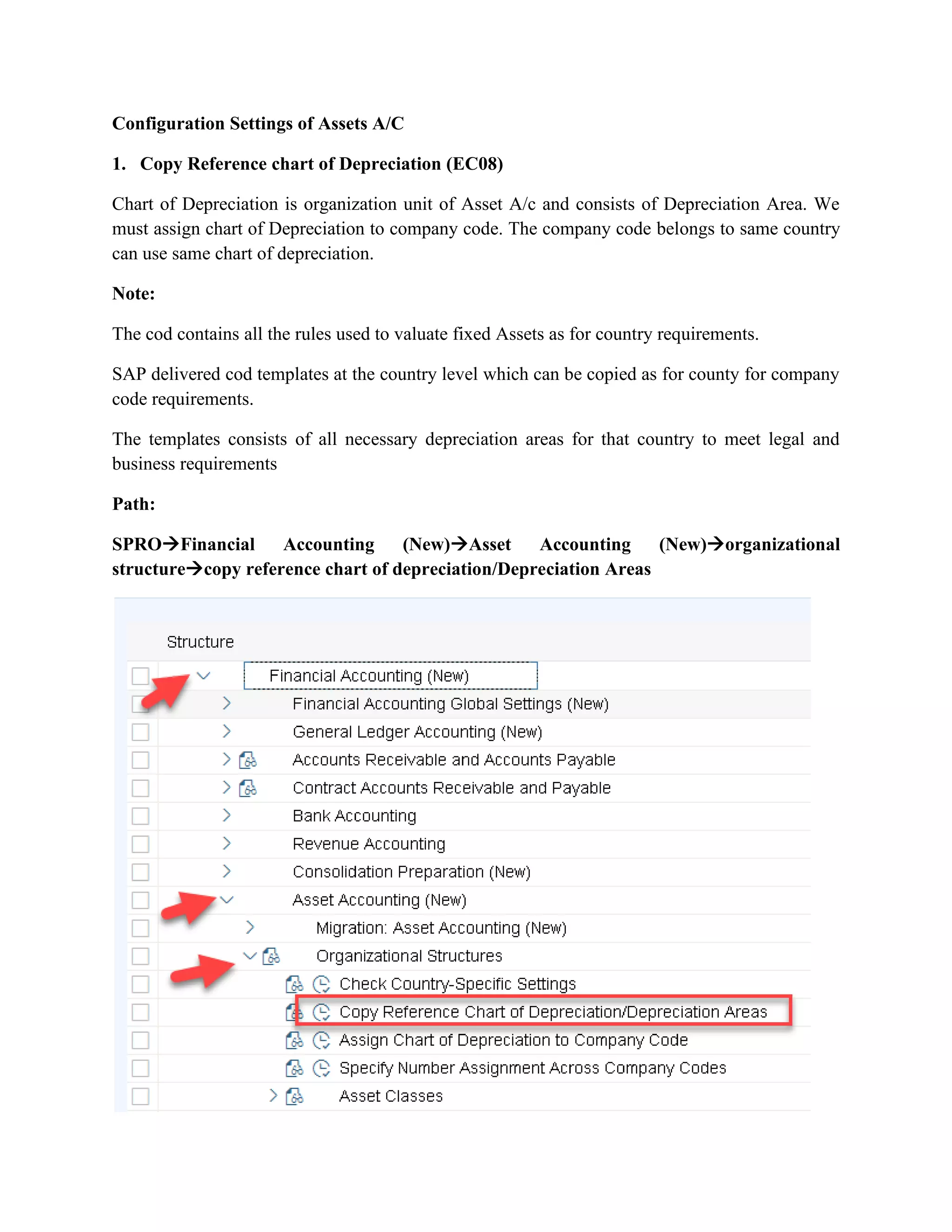
Path:
SPRO→Financial Accounting (New)→Asset Accounting (New)→organizational
structure→copy reference chart of depreciation/Depreciation Areas
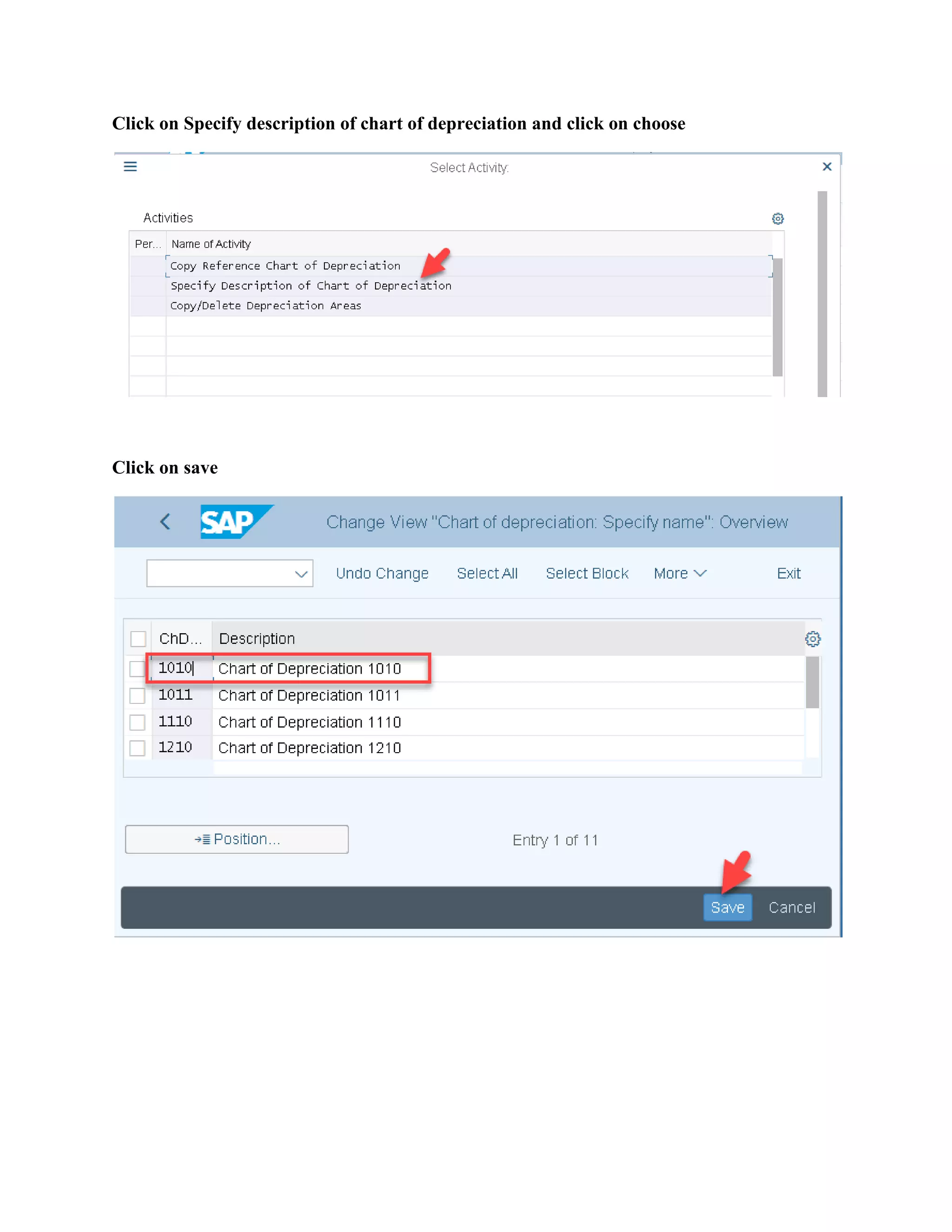
Click on Specify description of chart of depreciation and click on choose
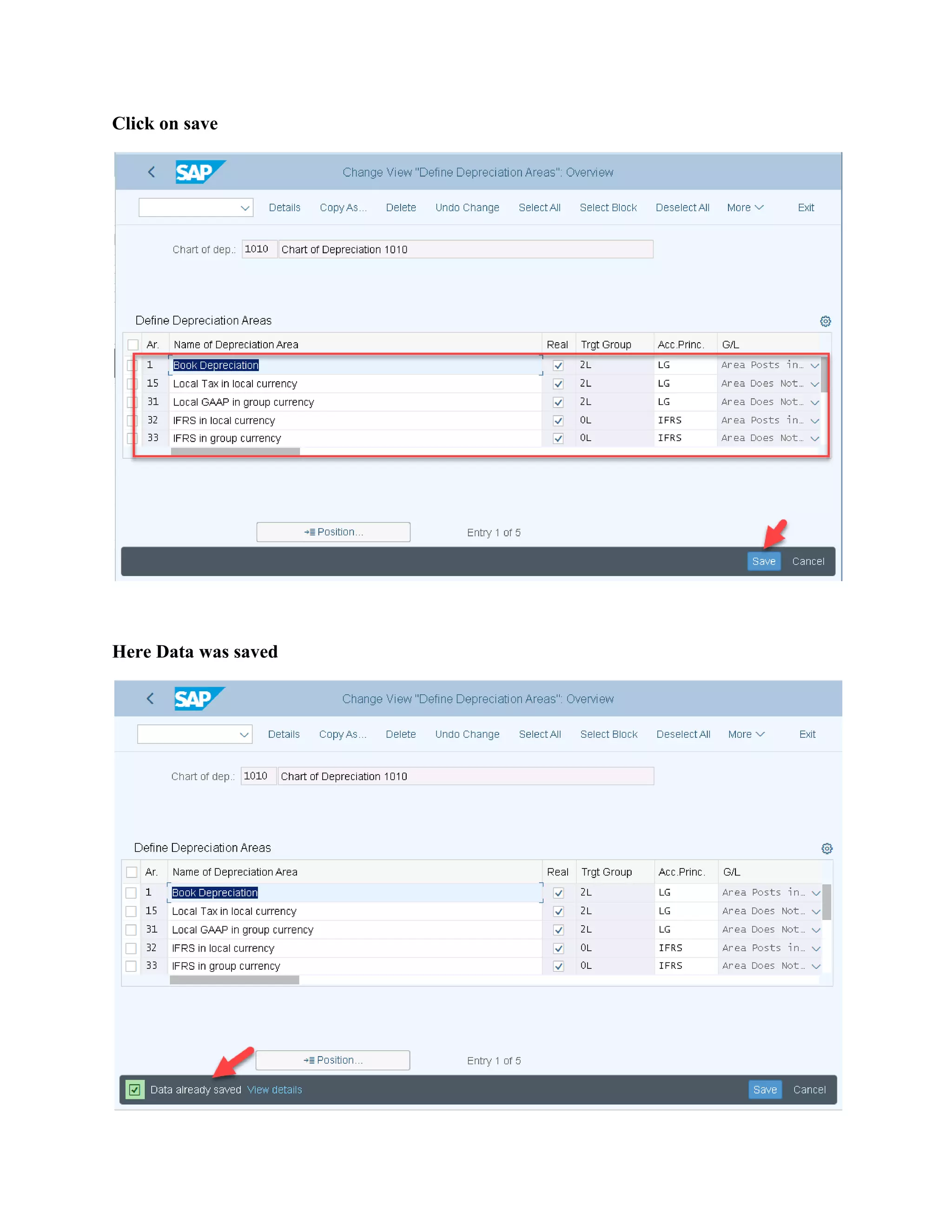
Click on save
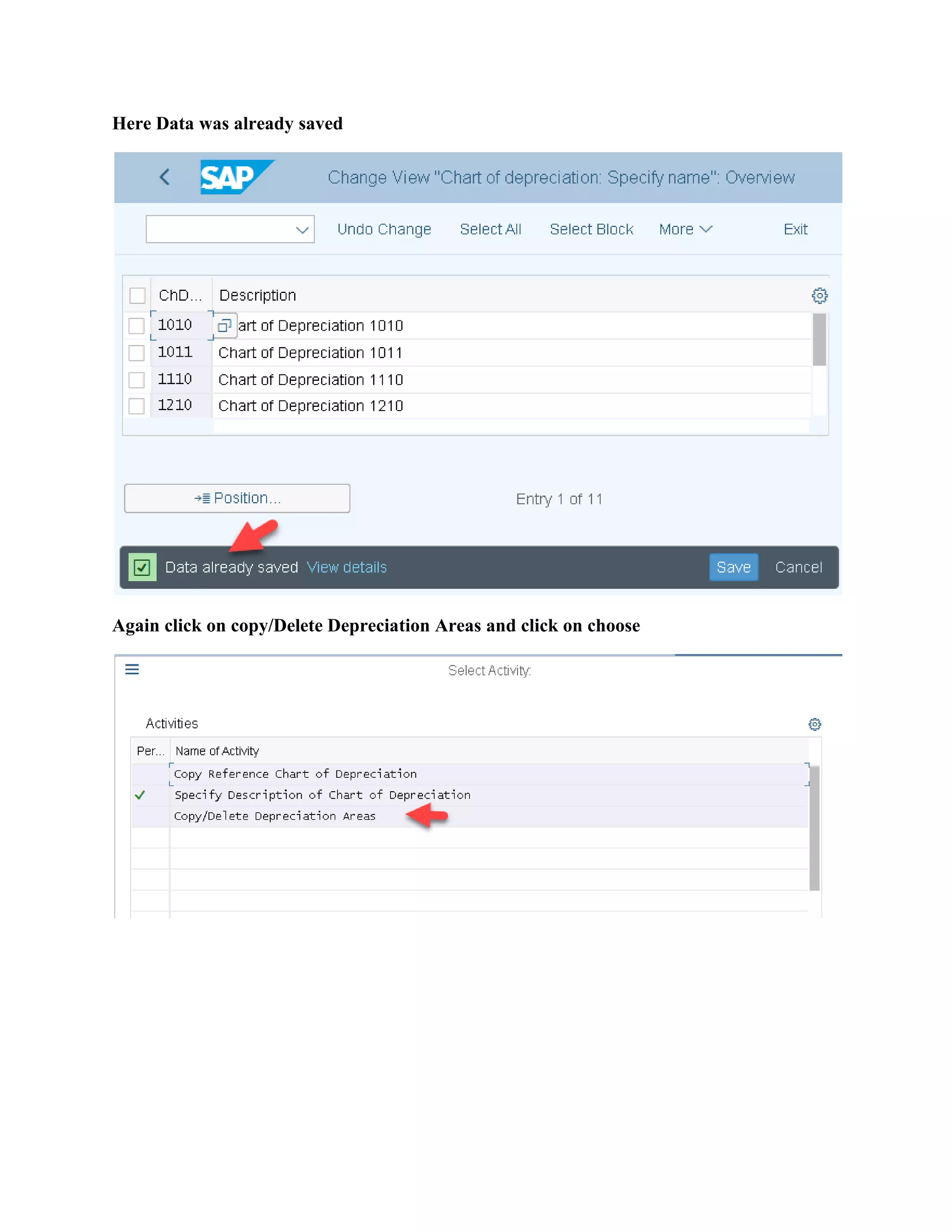
Here Data was already saved
Again click on copy/Delete Depreciation Areas and click on choose
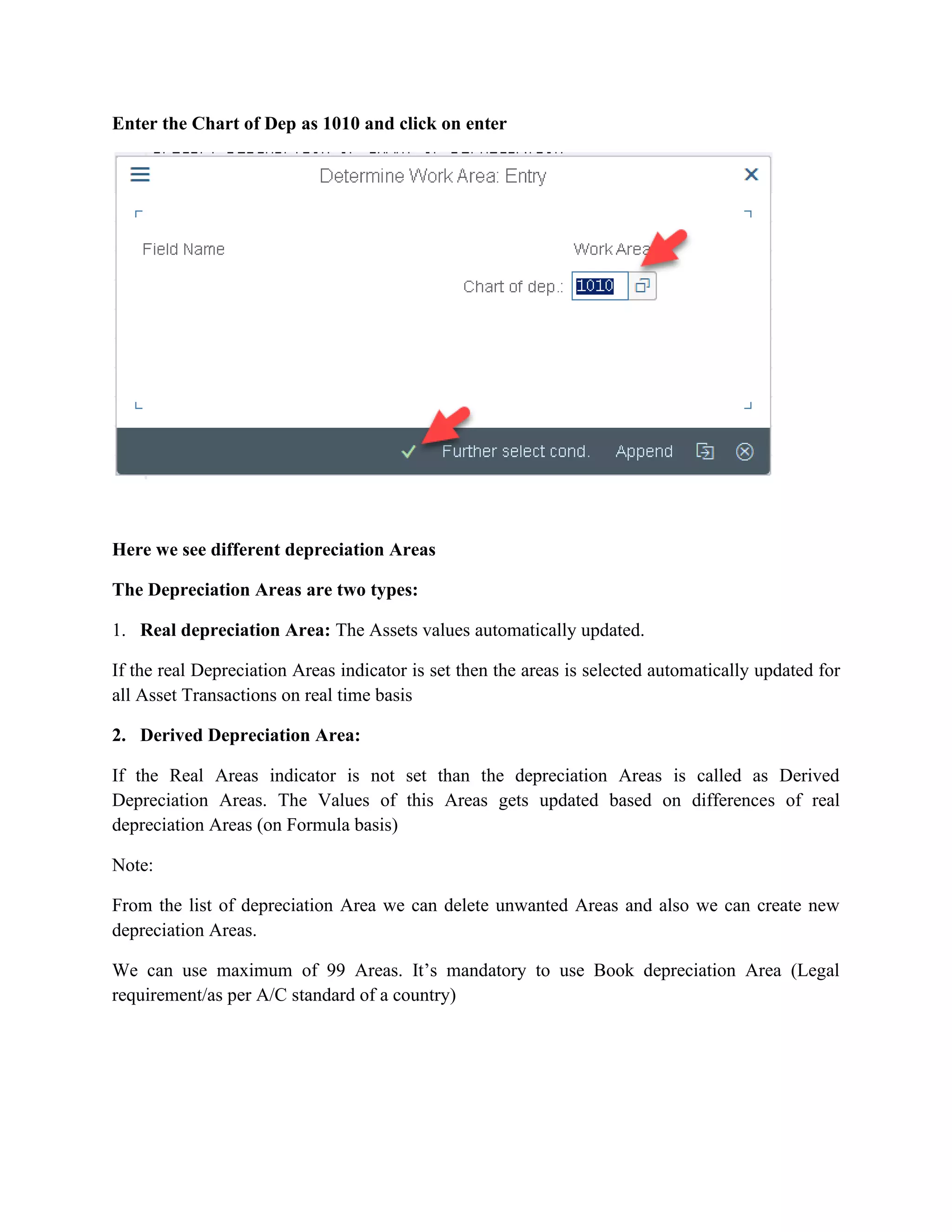
Enter the Chart of Dep as 1010 and click on enter
Here we see different depreciation Areas
The Depreciation Areas are two types:
1. Real depreciation Area: The Assets values automatically updated.
If the real Depreciation Areas indicator is set then the areas is selected automatically updated for
all Asset Transactions on real time basis
2. Derived Depreciation Area:
If the Real Areas indicator is not set than the depreciation Areas is called as Derived
Depreciation Areas. The Values of this Areas gets updated based on differences of real
depreciation Areas (on Formula basis)
Note:
From the list of depreciation Area we can delete unwanted Areas and also we can create new
depreciation Areas.
We can use maximum of 99 Areas. It’s mandatory to use Book depreciation Area (Legal
requirement/as per A/C standard of a country)
Click on save
Here Data was saved
2. G/L Indicators:
Each Depreciation Areas one must assign G/L Indicator. The Indicator control the Asset value of
depreciation areas should be updated to G/L Account or not
➢ Create G/L Account for Fixed Assets
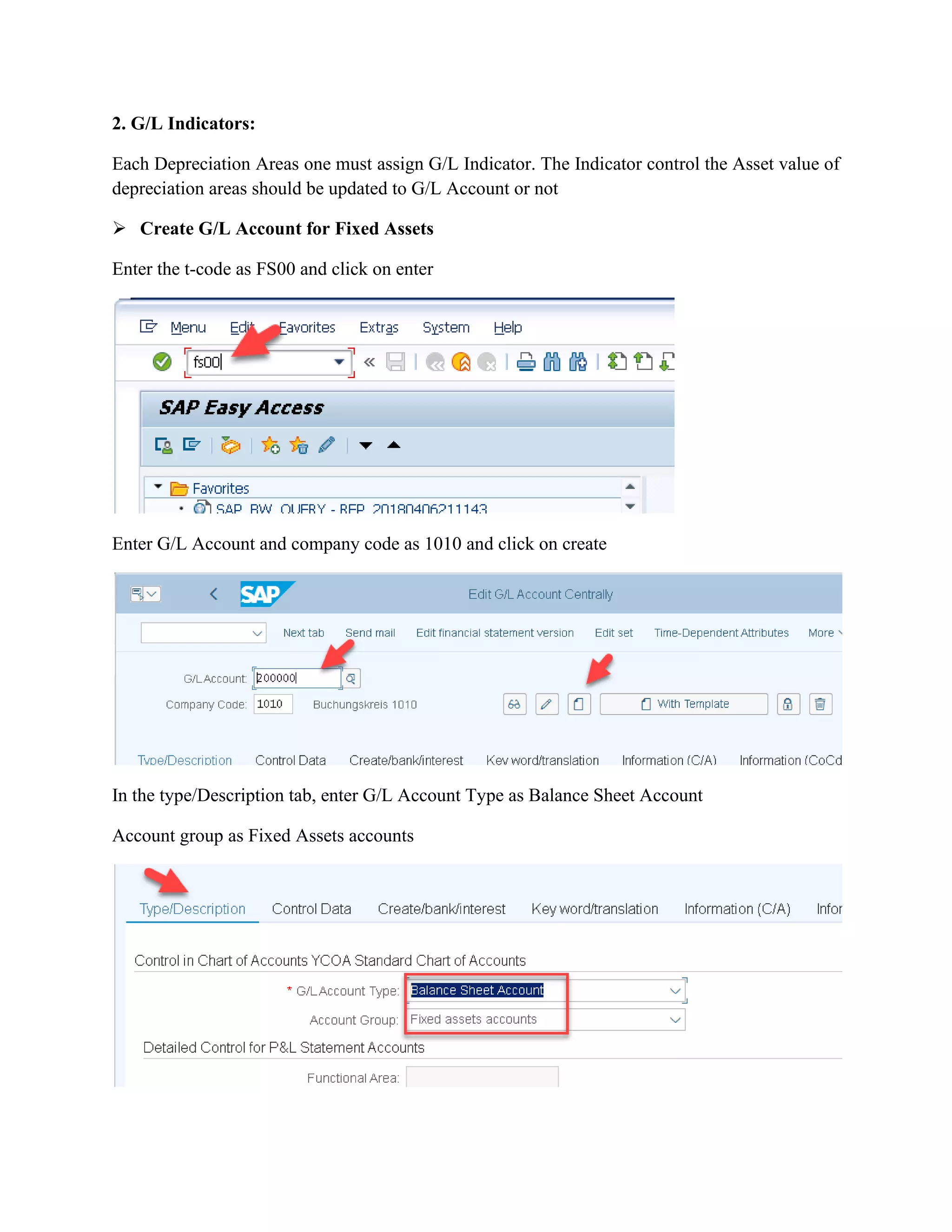
Enter the t-code as FS00 and click on enter
Enter G/L Account and company code as 1010 and click on create
In the type/Description tab, enter G/L Account Type as Balance Sheet Account
Account group as Fixed Assets accounts
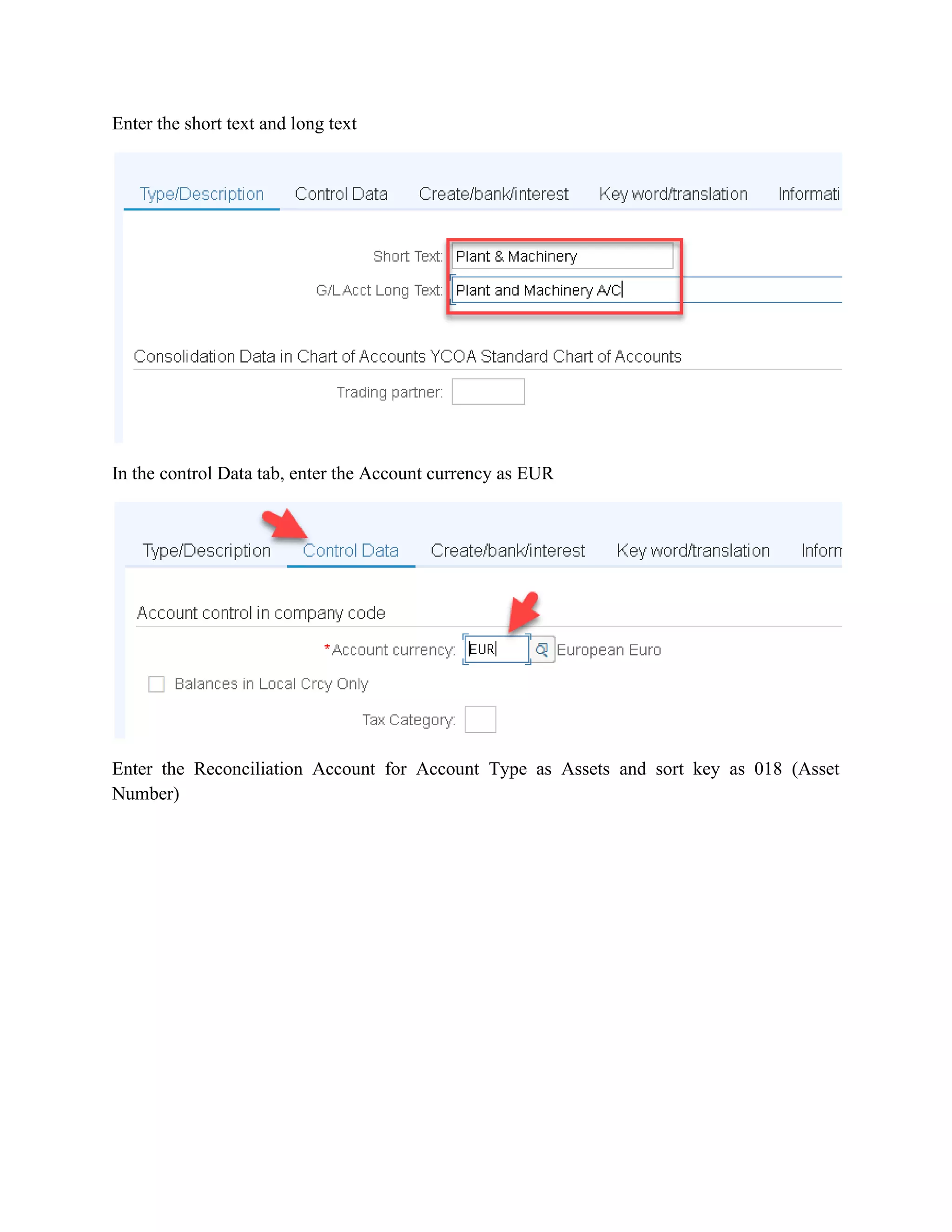
Enter the short text and long text
In the control Data tab, enter the Account currency as EUR
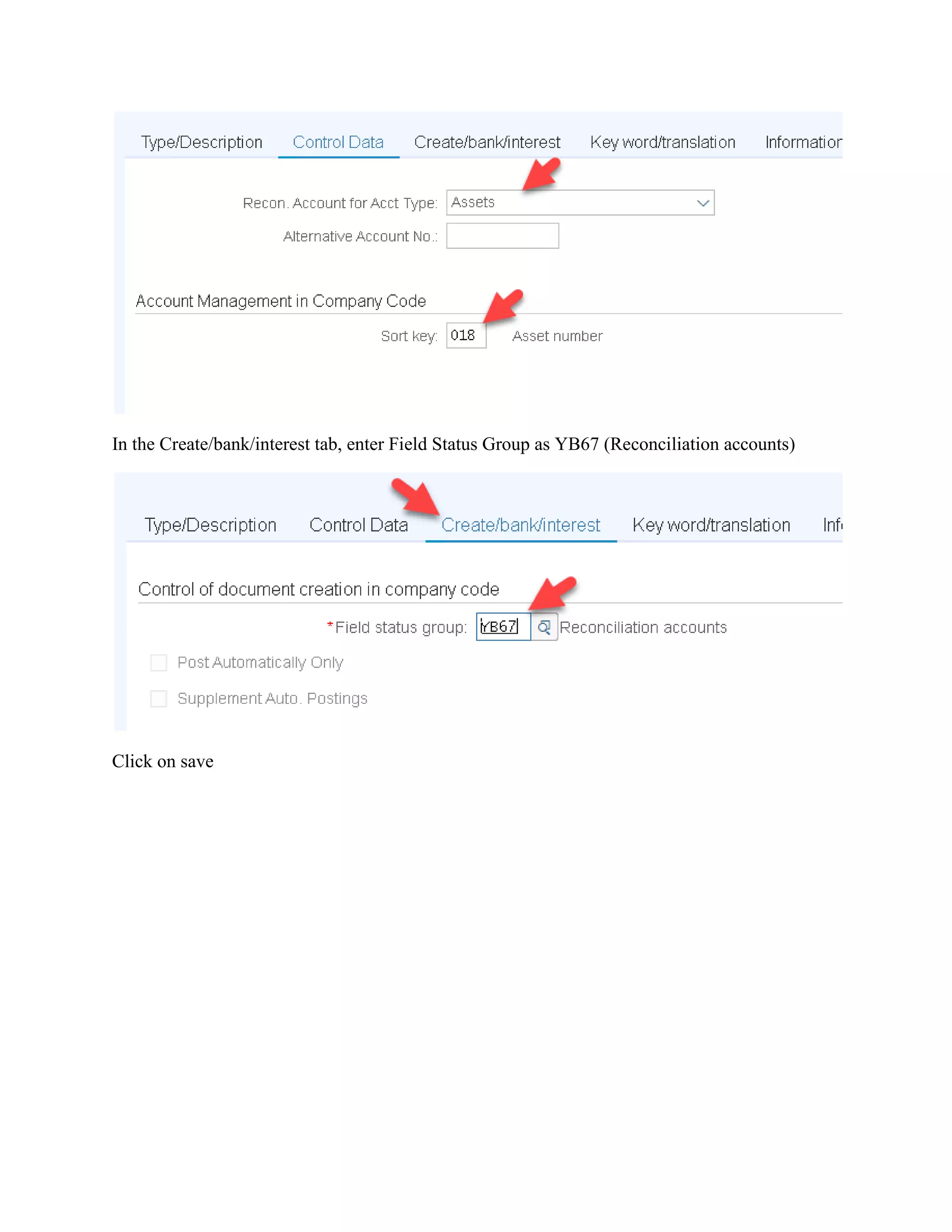
Enter the Reconciliation Account for Account Type as Assets and sort key as 018 (Asset
Number)
In the Create/bank/interest tab, enter Field Status Group as YB67 (Reconciliation accounts)
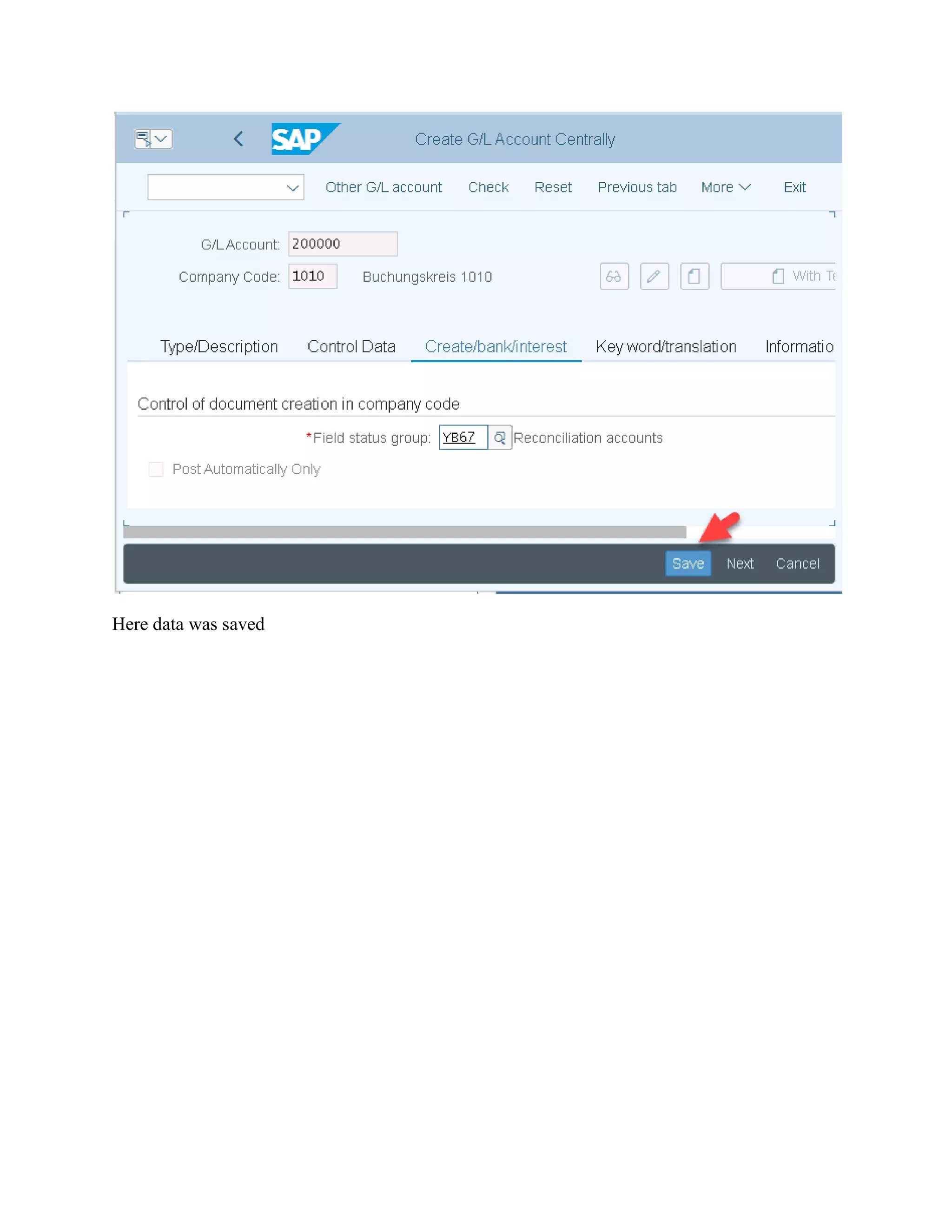
Click on save
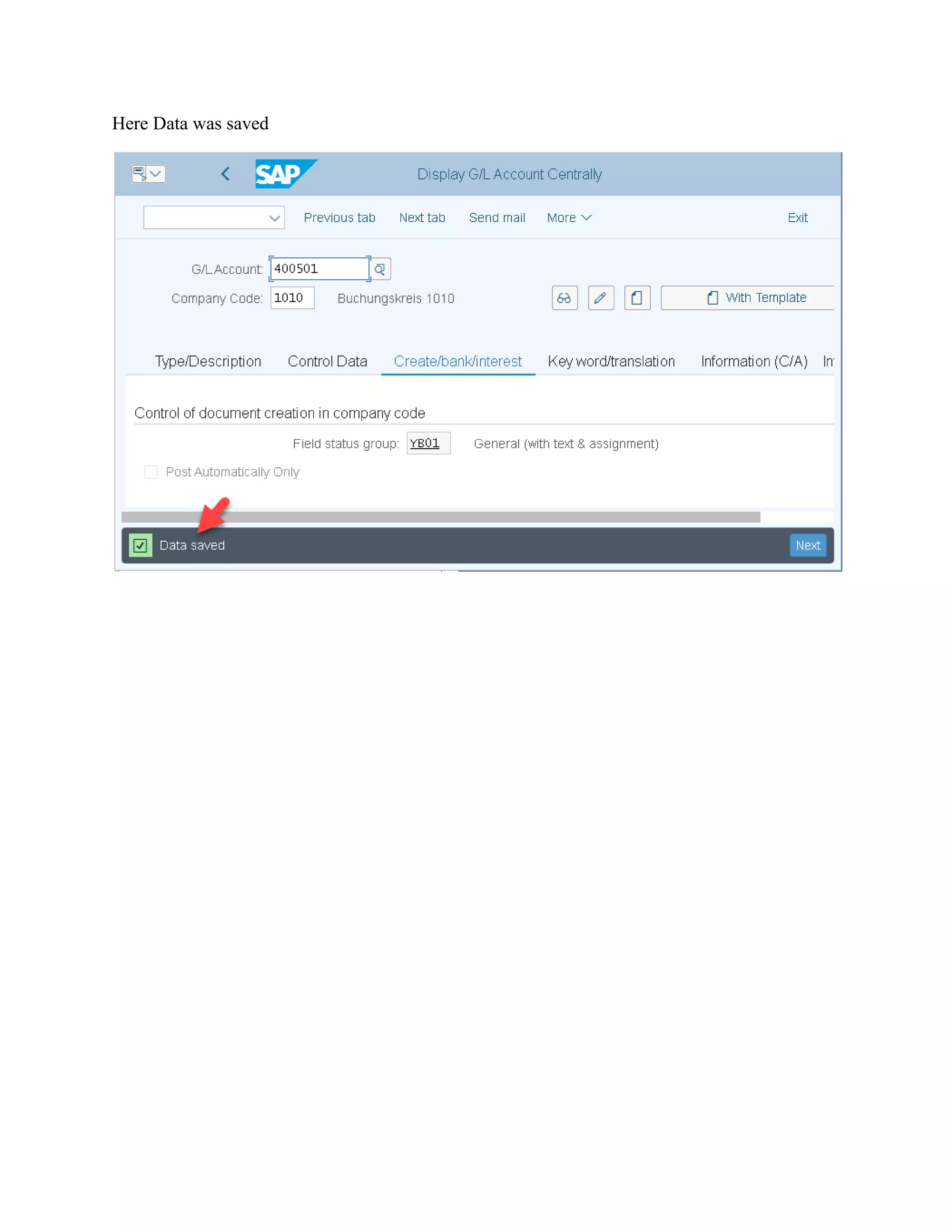
Here data was saved
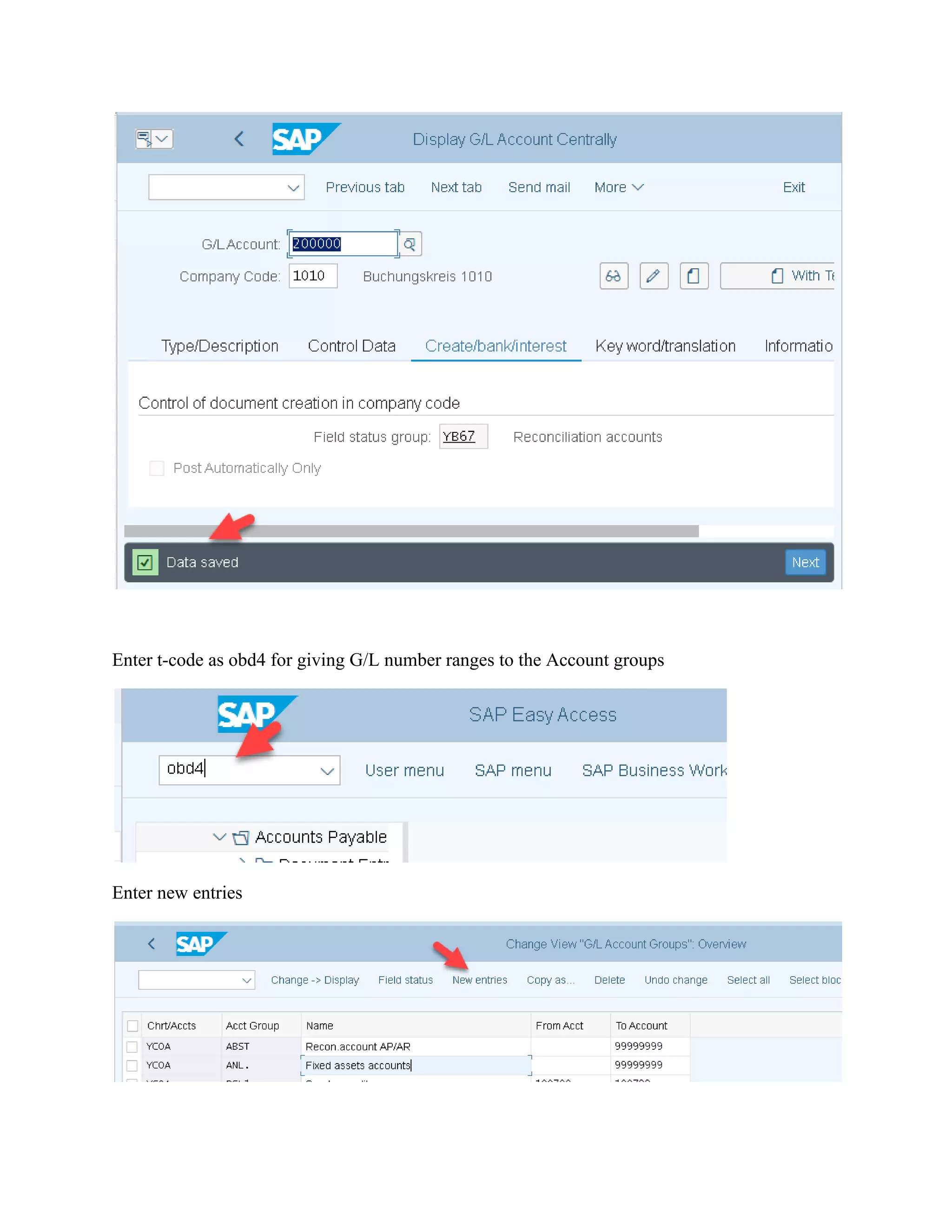
Enter t-code as obd4 for giving G/L number ranges to the Account groups
Enter new entries
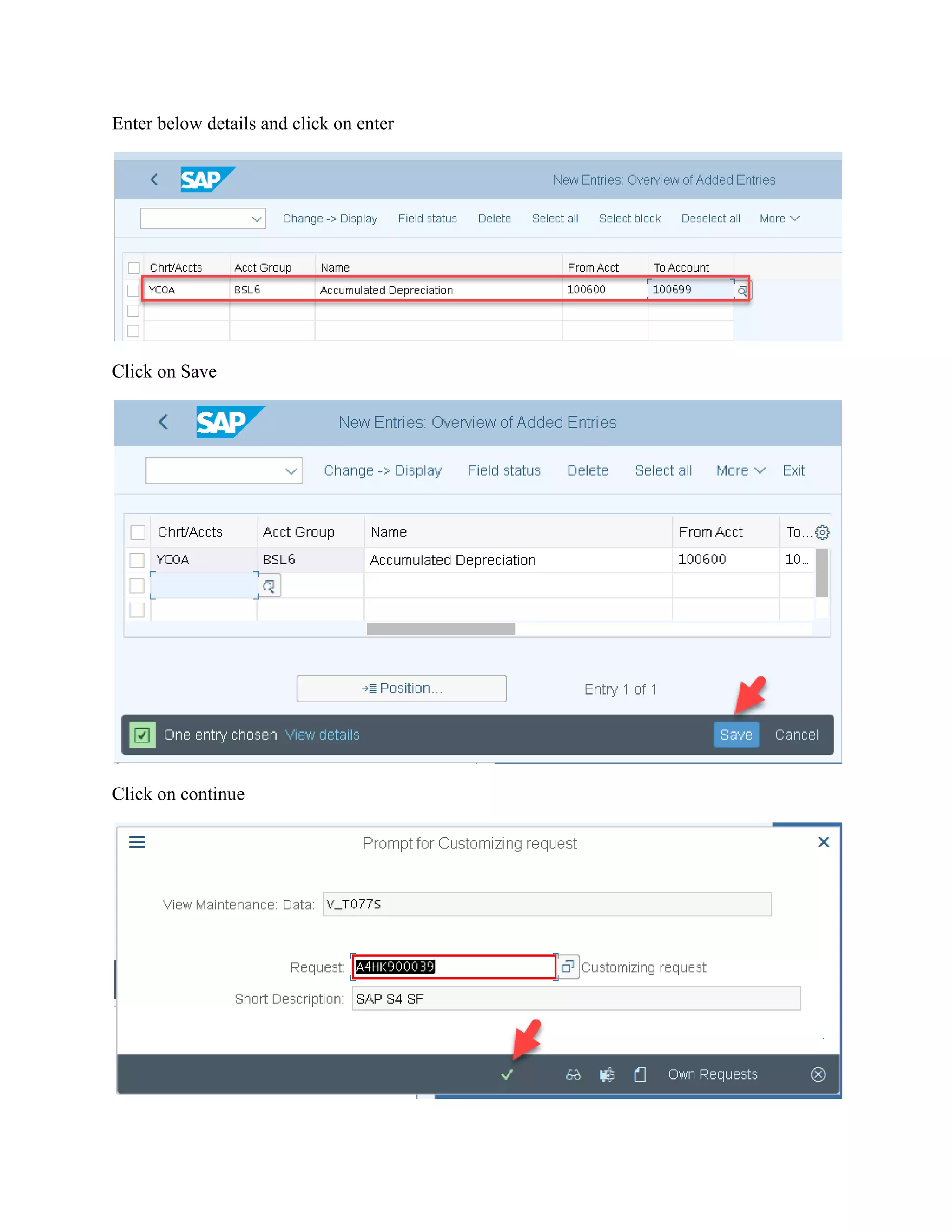
Enter below details and click on enter
Click on Save
Click on continue
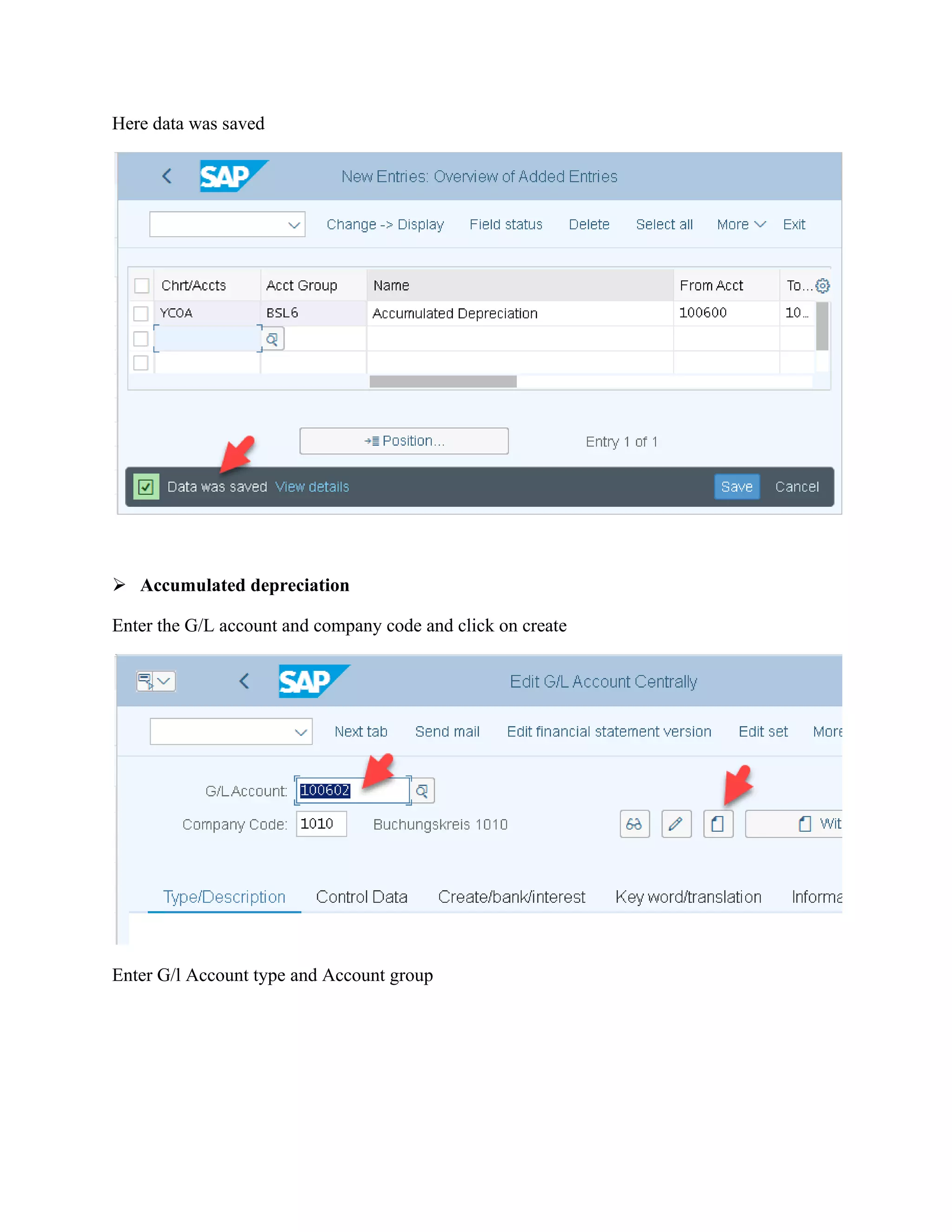
Here data was saved
➢ Accumulated depreciation
Enter the G/L account and company code and click on create
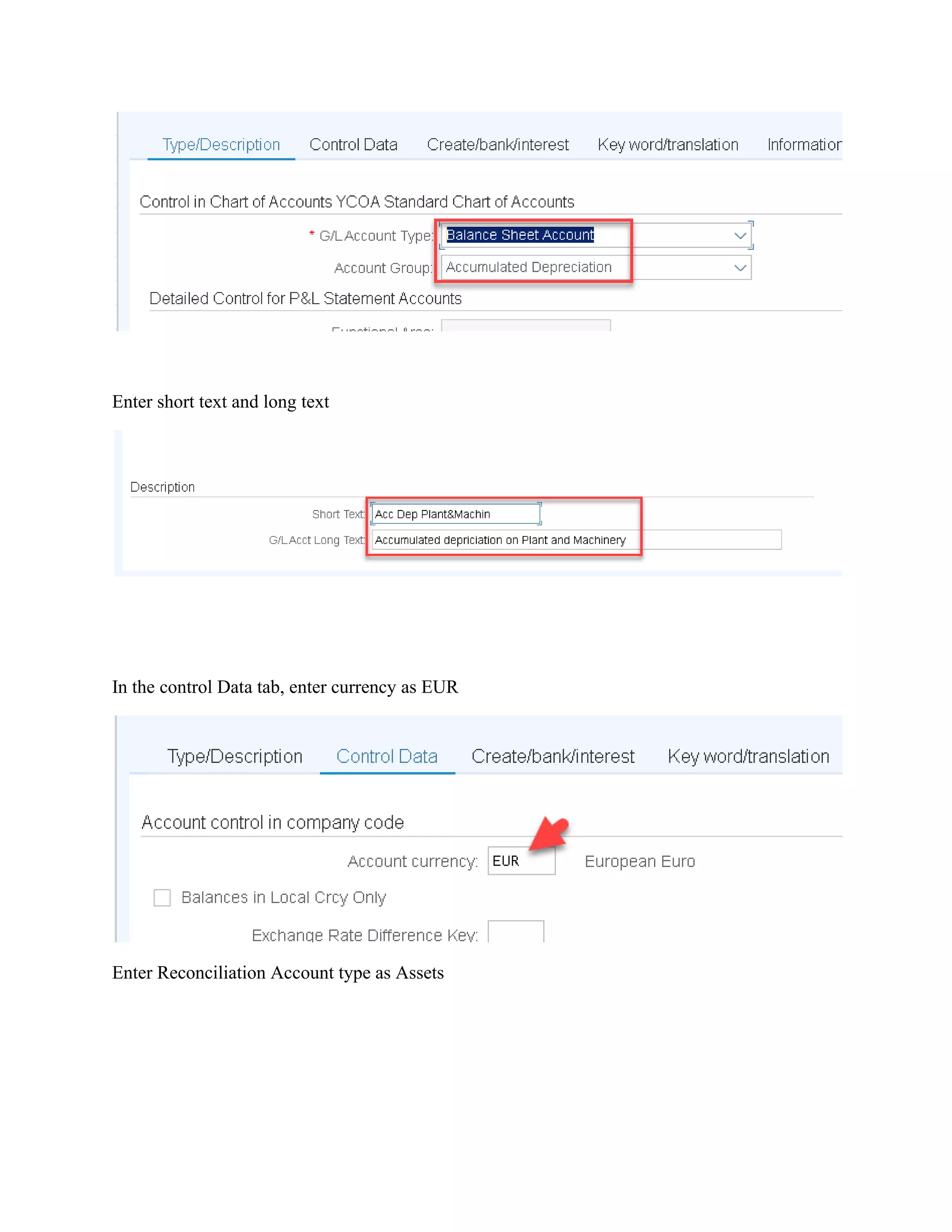
Enter G/l Account type and Account group
Enter short text and long text
In the control Data tab, enter currency as EUR
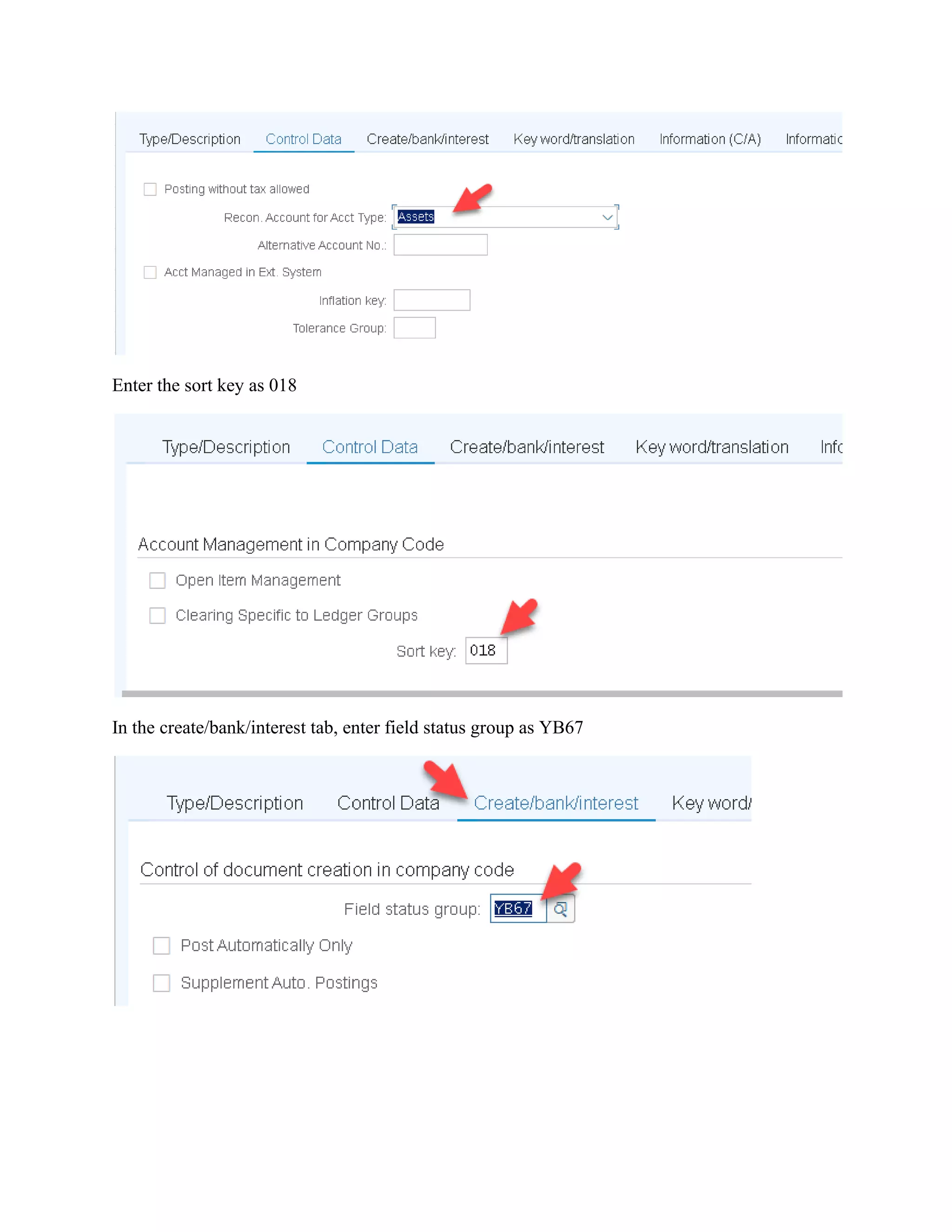
Enter Reconciliation Account type as Assets
Enter the sort key as 018
In the create/bank/interest tab, enter field status group as YB67
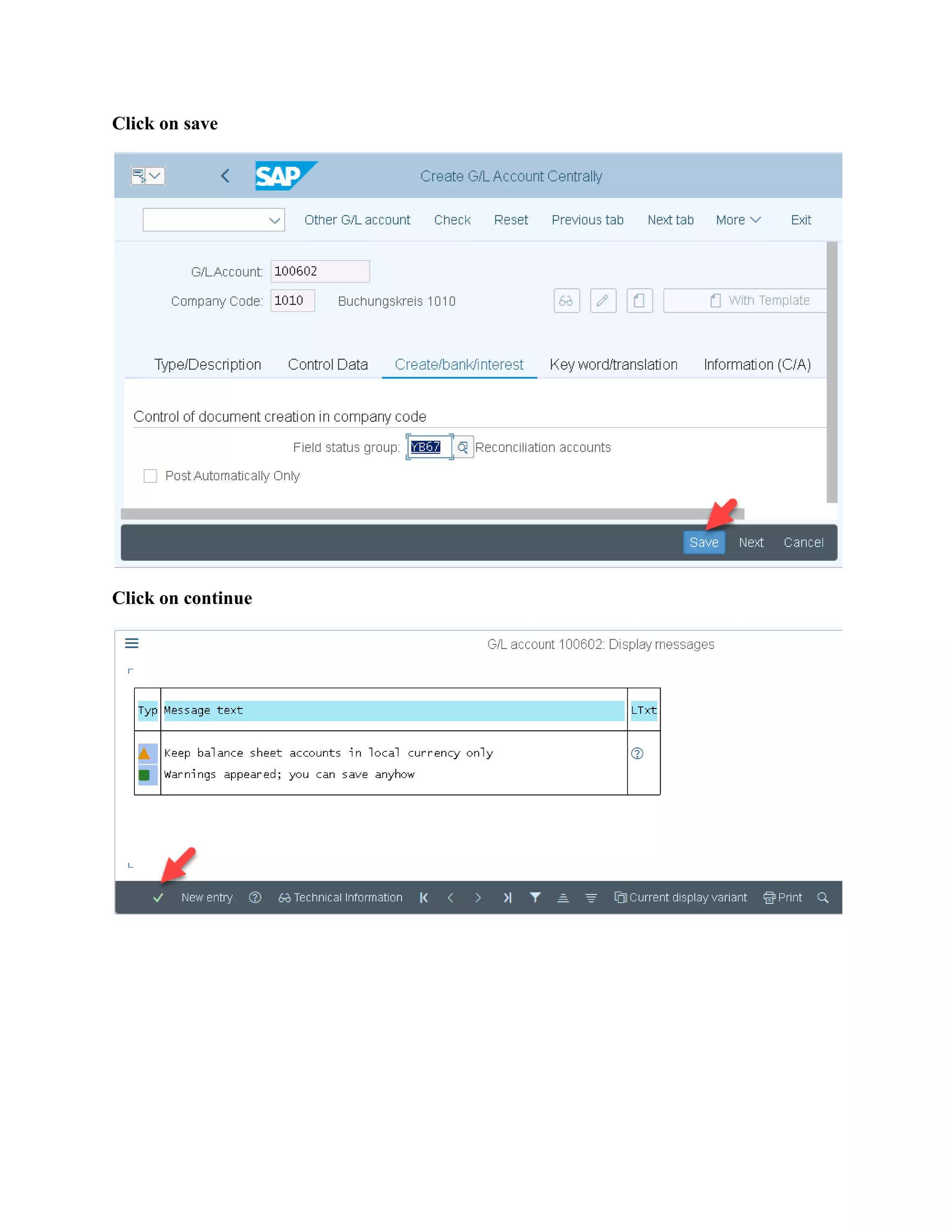
Click on save
Click on continue
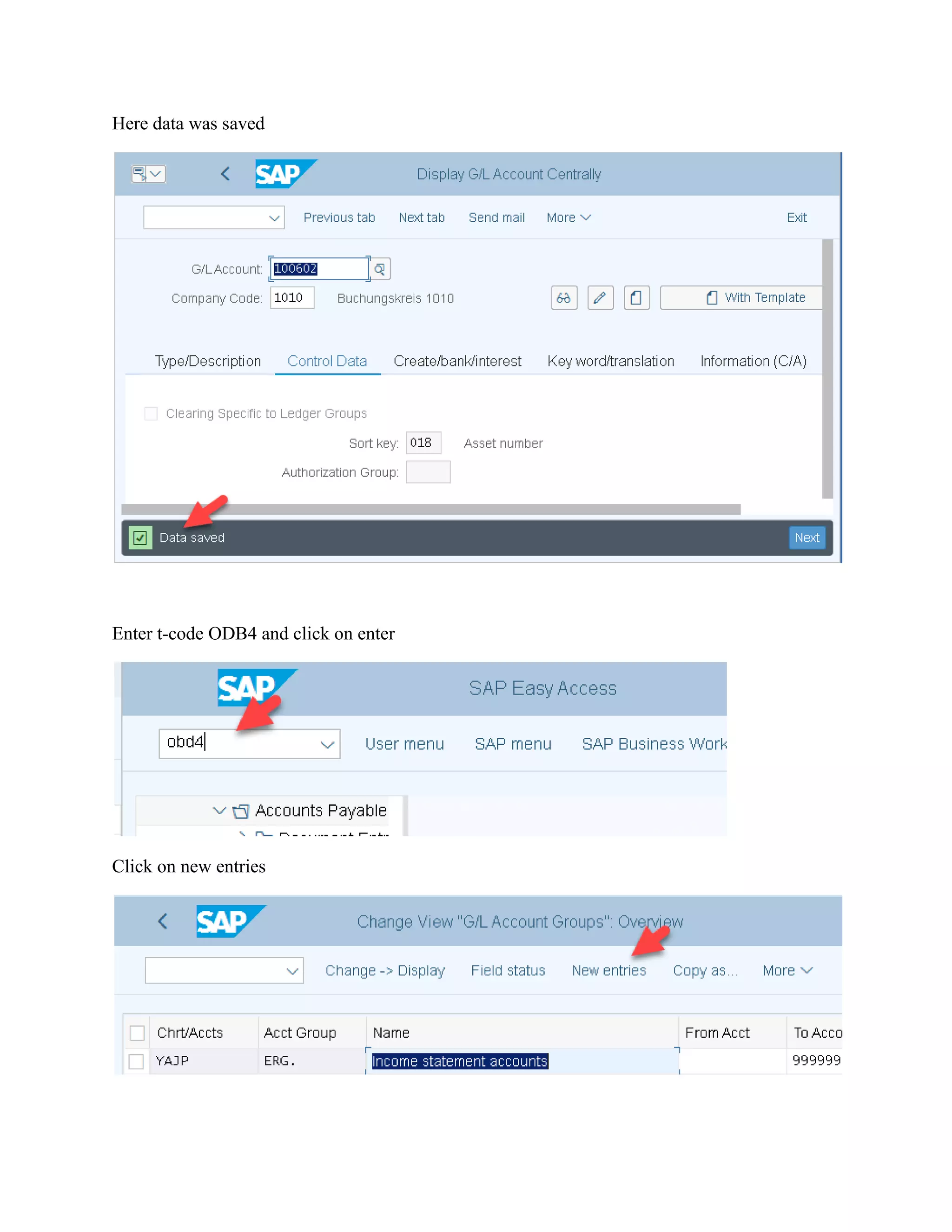
Here data was saved
Enter t-code ODB4 and click on enter
Click on new entries
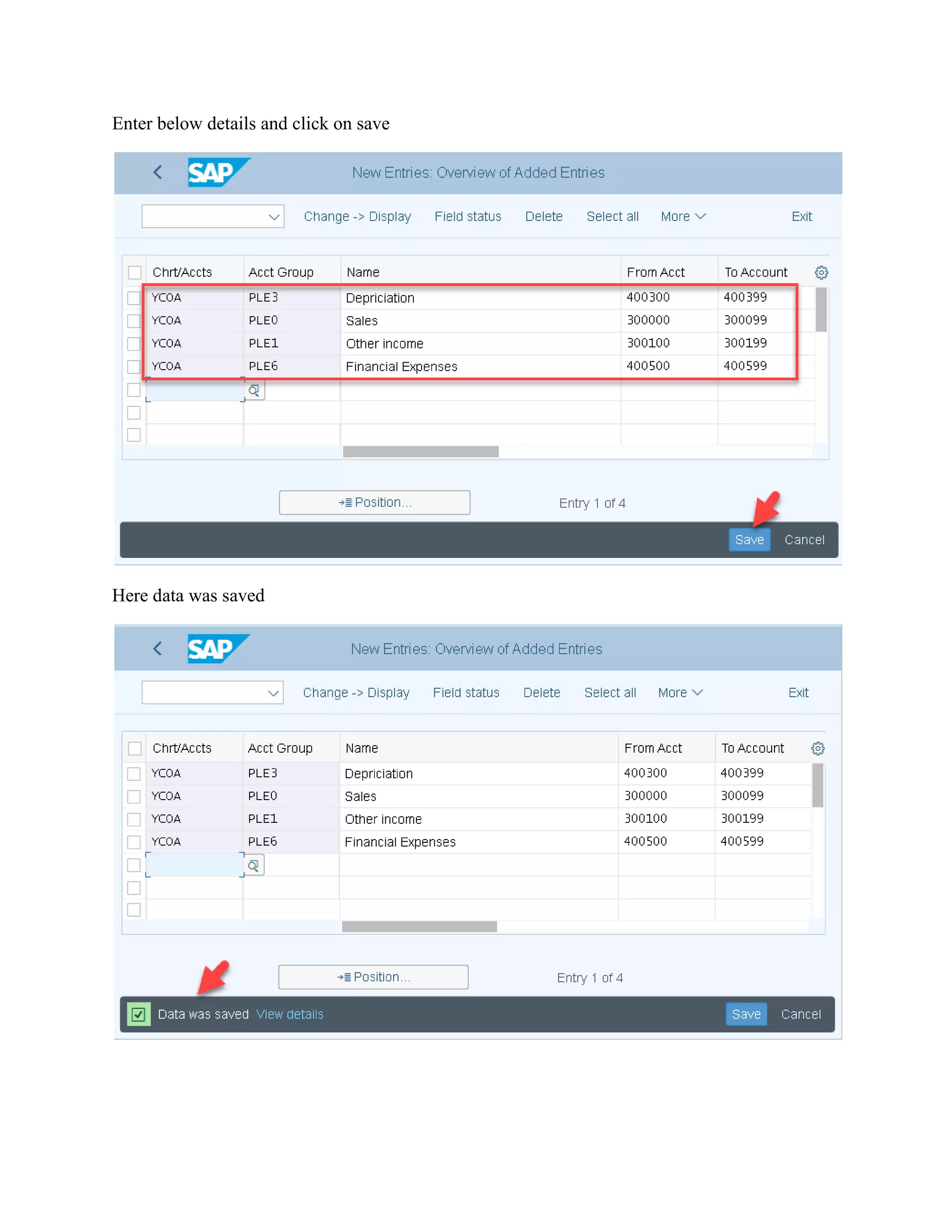
Enter below details and click on save
Here data was saved
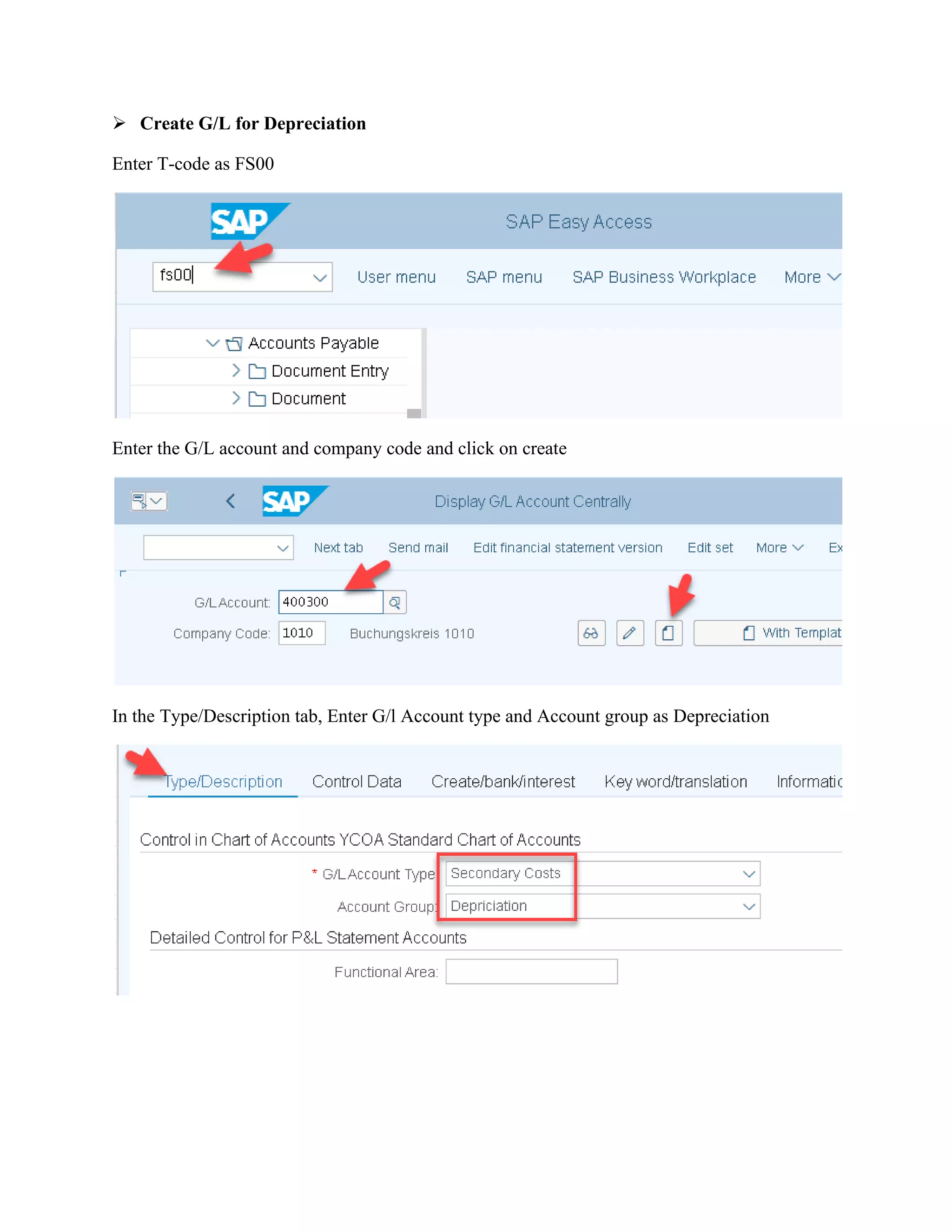
➢ Create G/L for Depreciation
Enter T-code as FS00
Enter the G/L account and company code and click on create
In the Type/Description tab, Enter G/l Account type and Account group as Depreciation
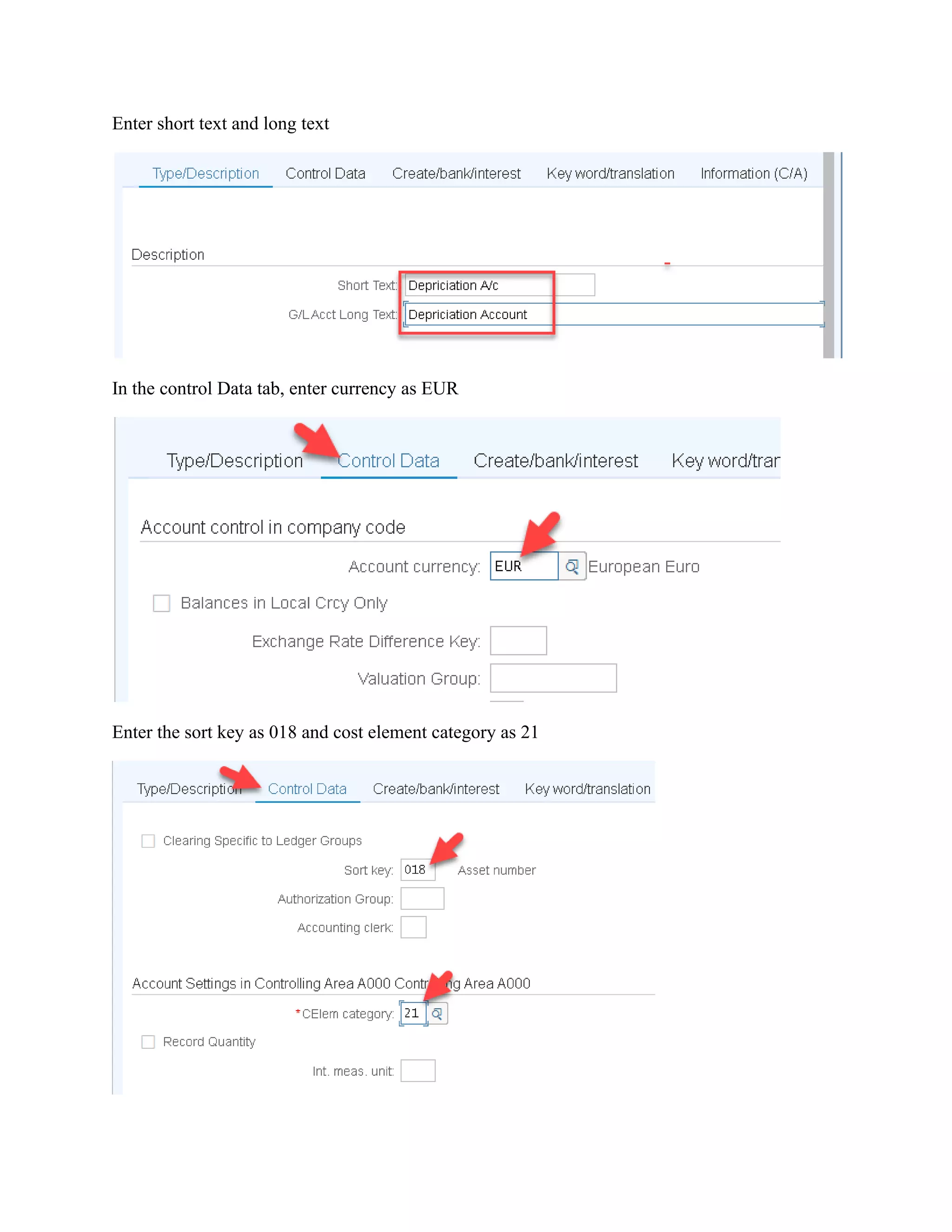
Enter short text and long text
In the control Data tab, enter currency as EUR
Enter the sort key as 018 and cost element category as 21
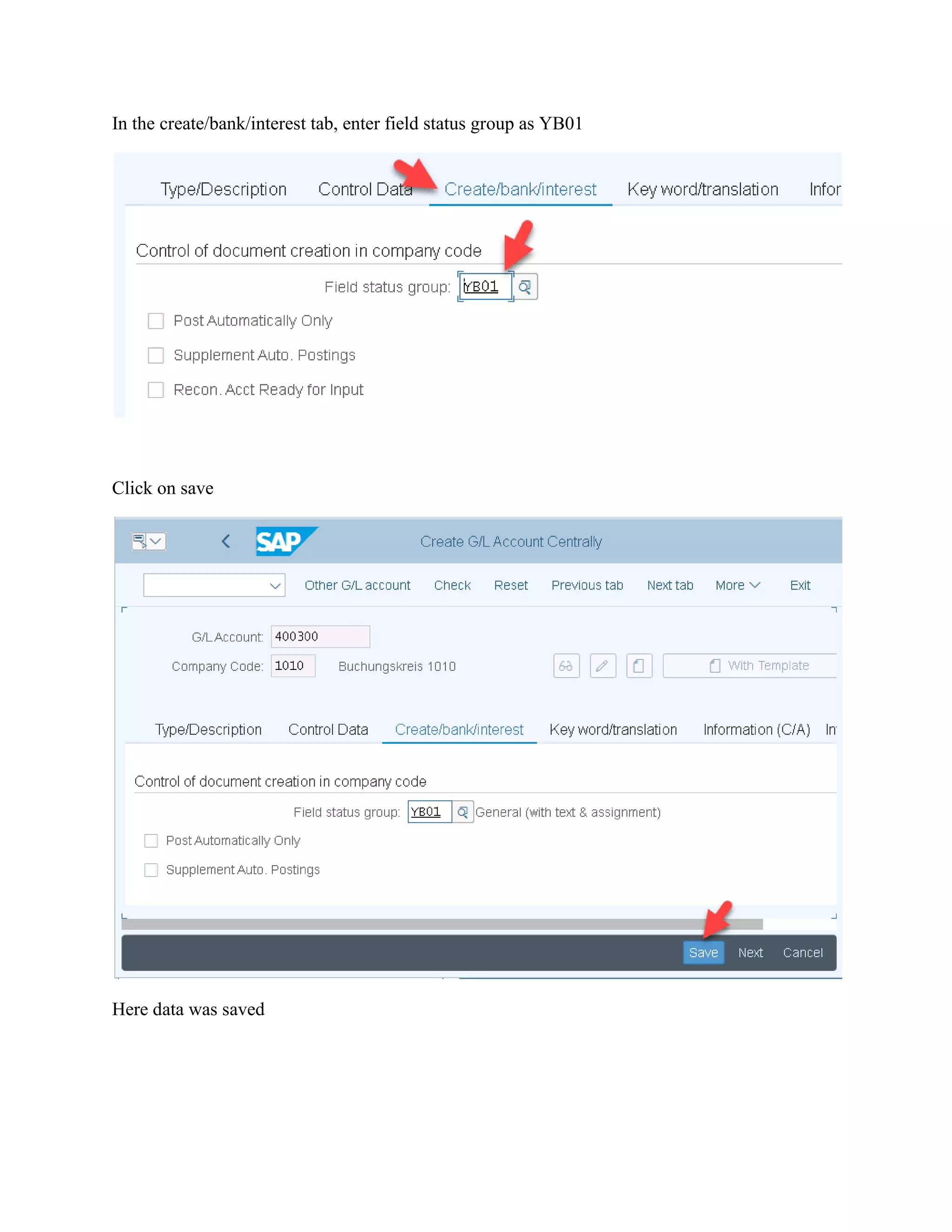
In the create/bank/interest tab, enter field status group as YB01
Click on save
Here data was saved
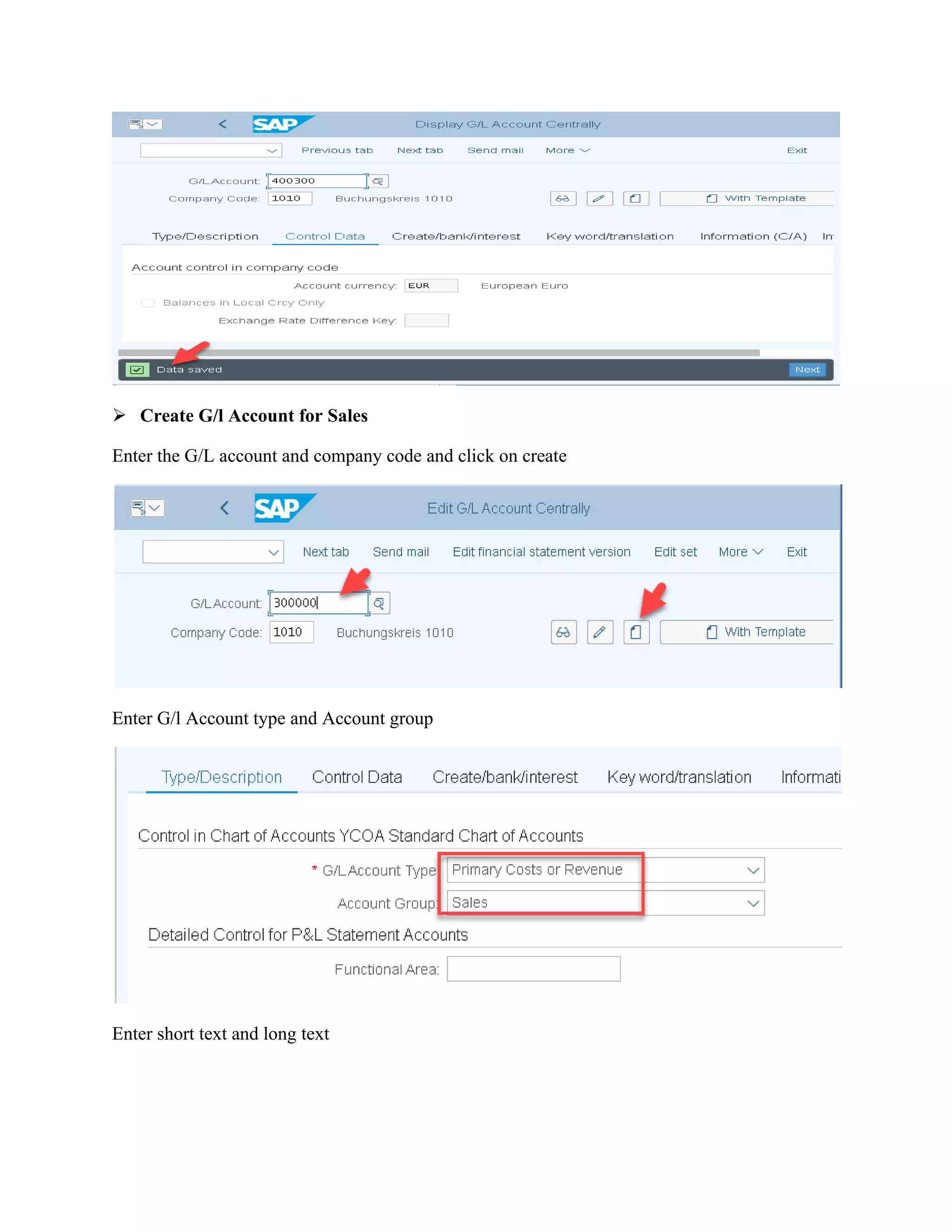
➢ Create G/l Account for Sales
Enter the G/L account and company code and click on create
Enter G/l Account type and Account group
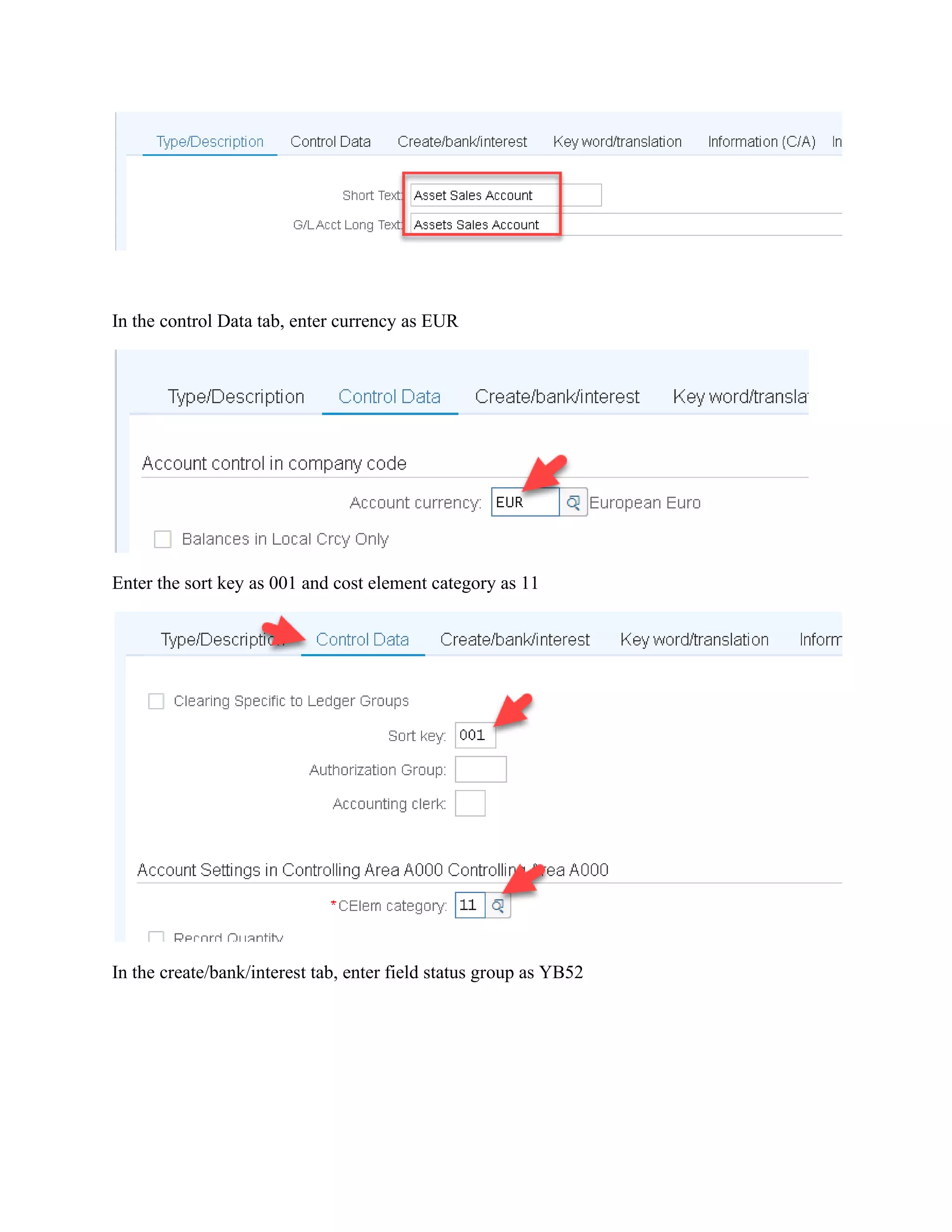
Enter short text and long text
In the control Data tab, enter currency as EUR
Enter the sort key as 001 and cost element category as 11
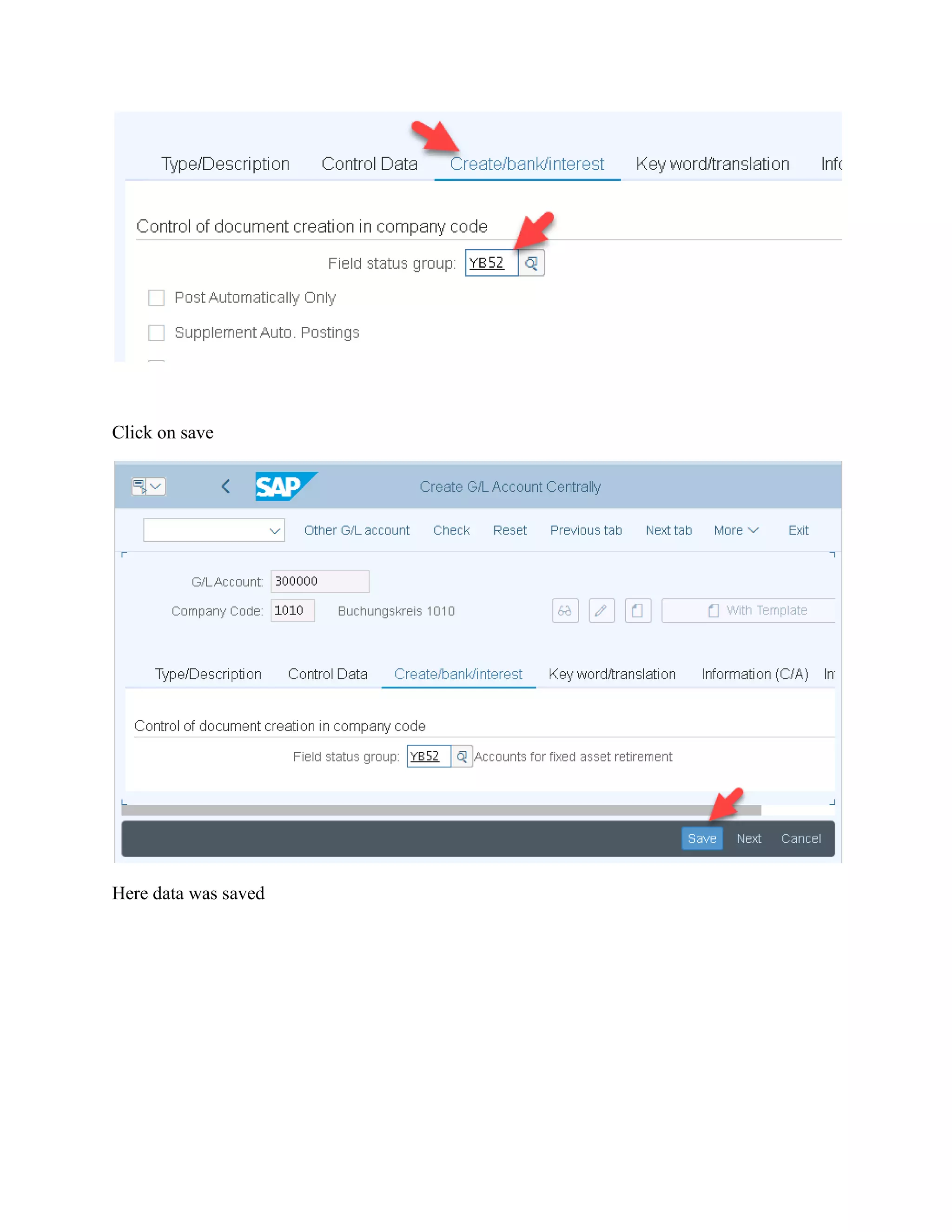
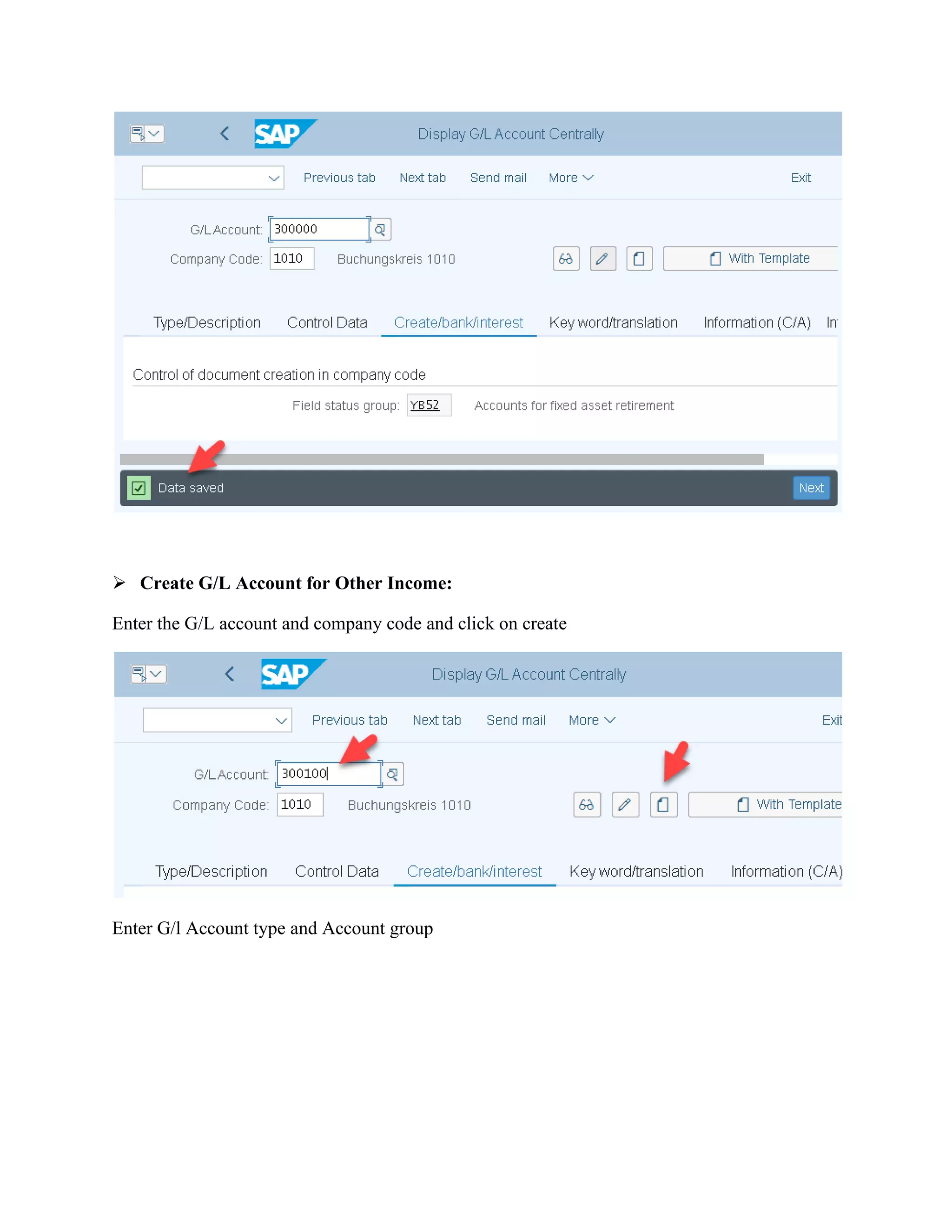
In the create/bank/interest tab, enter field status group as YB52
Click on save
Here data was saved
➢ Create G/L Account for Other Income:
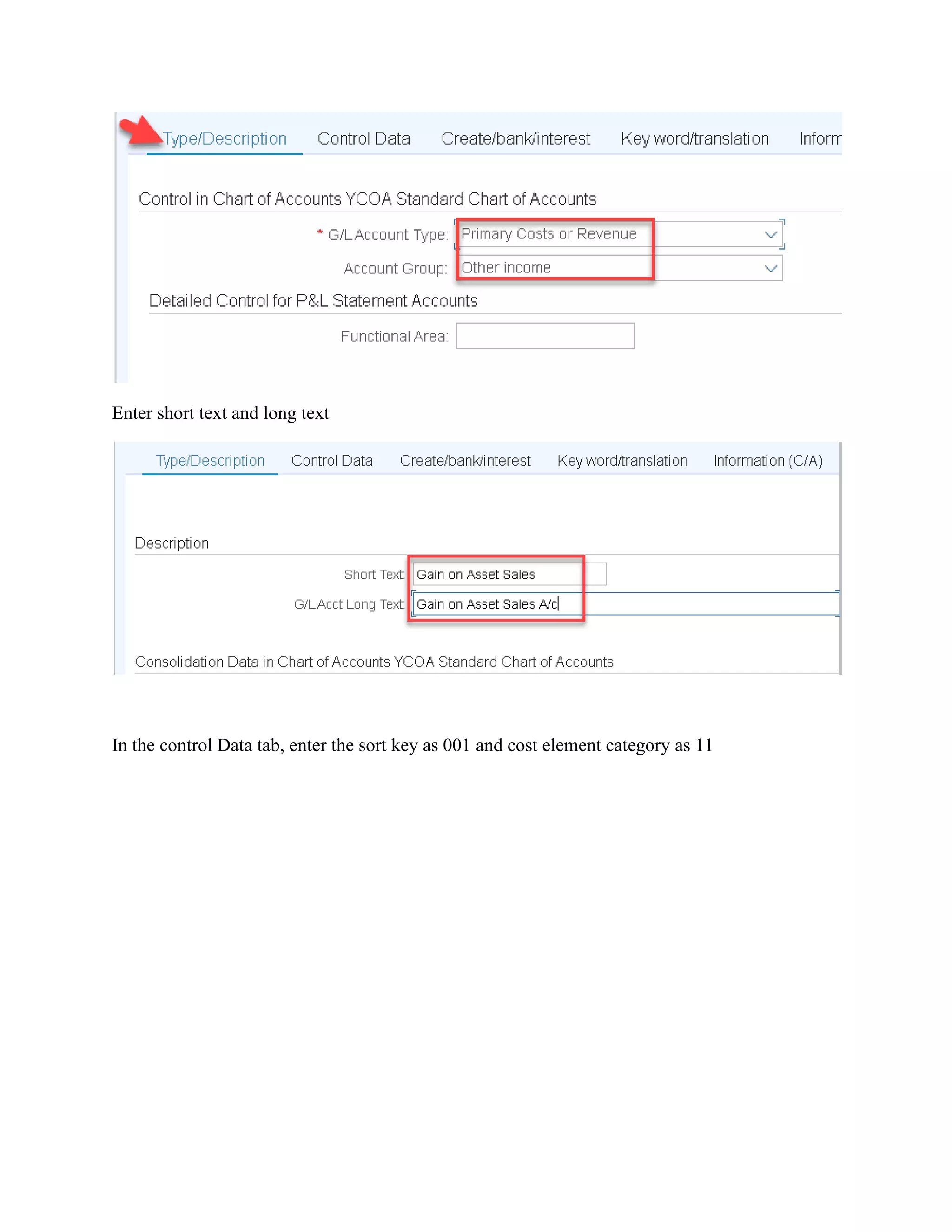
Enter the G/L account and company code and click on create
Enter G/l Account type and Account group
Enter short text and long text
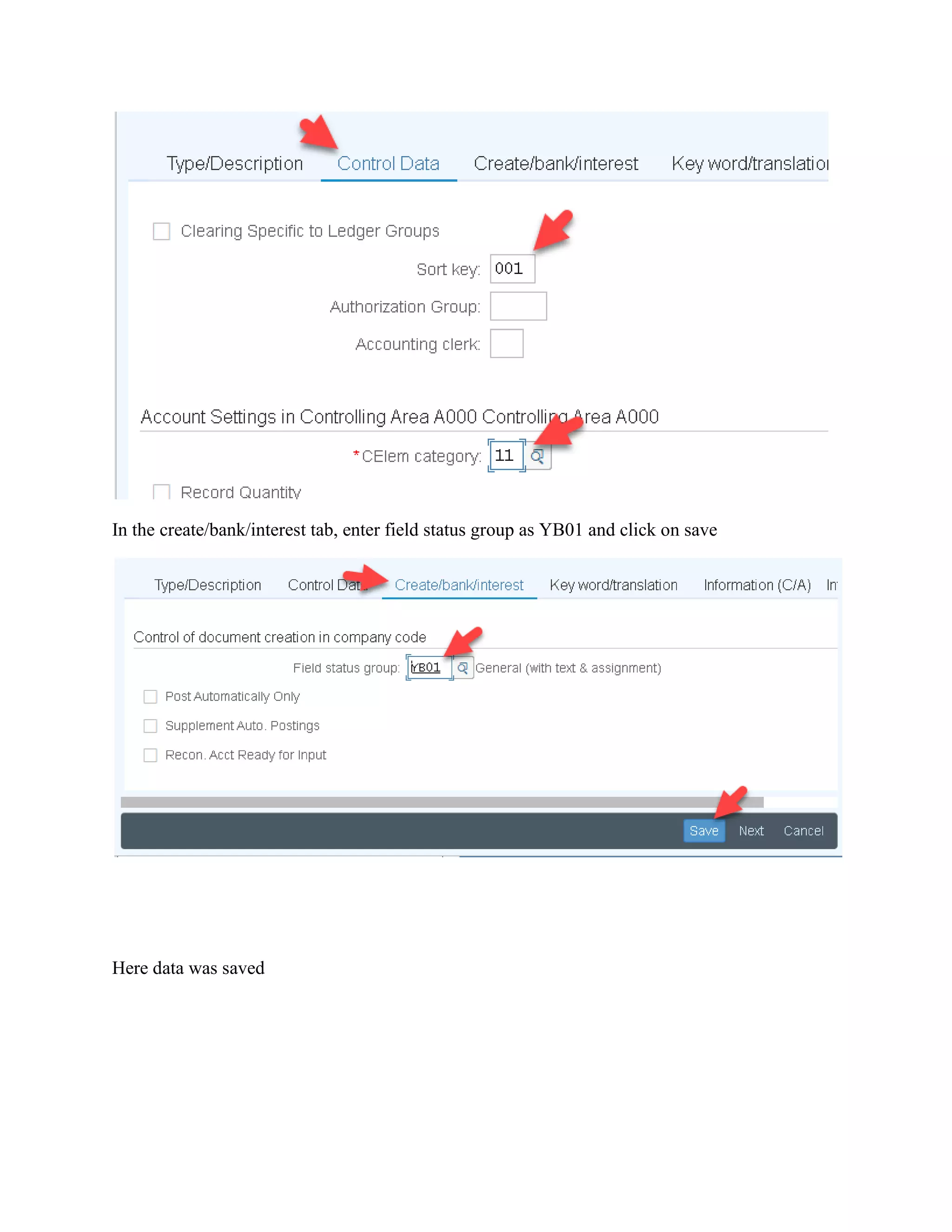
In the control Data tab, enter the sort key as 001 and cost element category as 11
In the create/bank/interest tab, enter field status group as YB01 and click on save
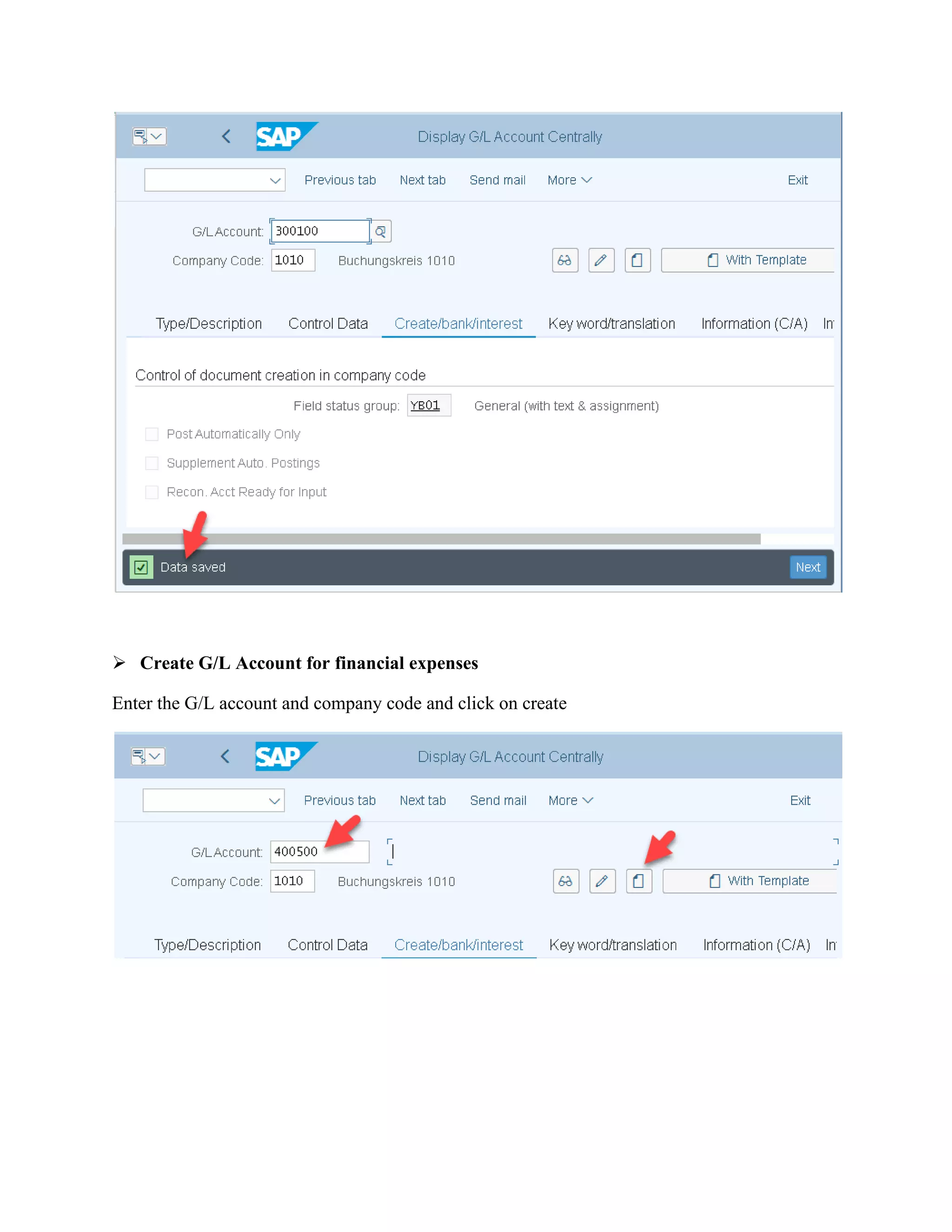
Here data was saved
➢ Create G/L Account for financial expenses
Enter the G/L account and company code and click on create
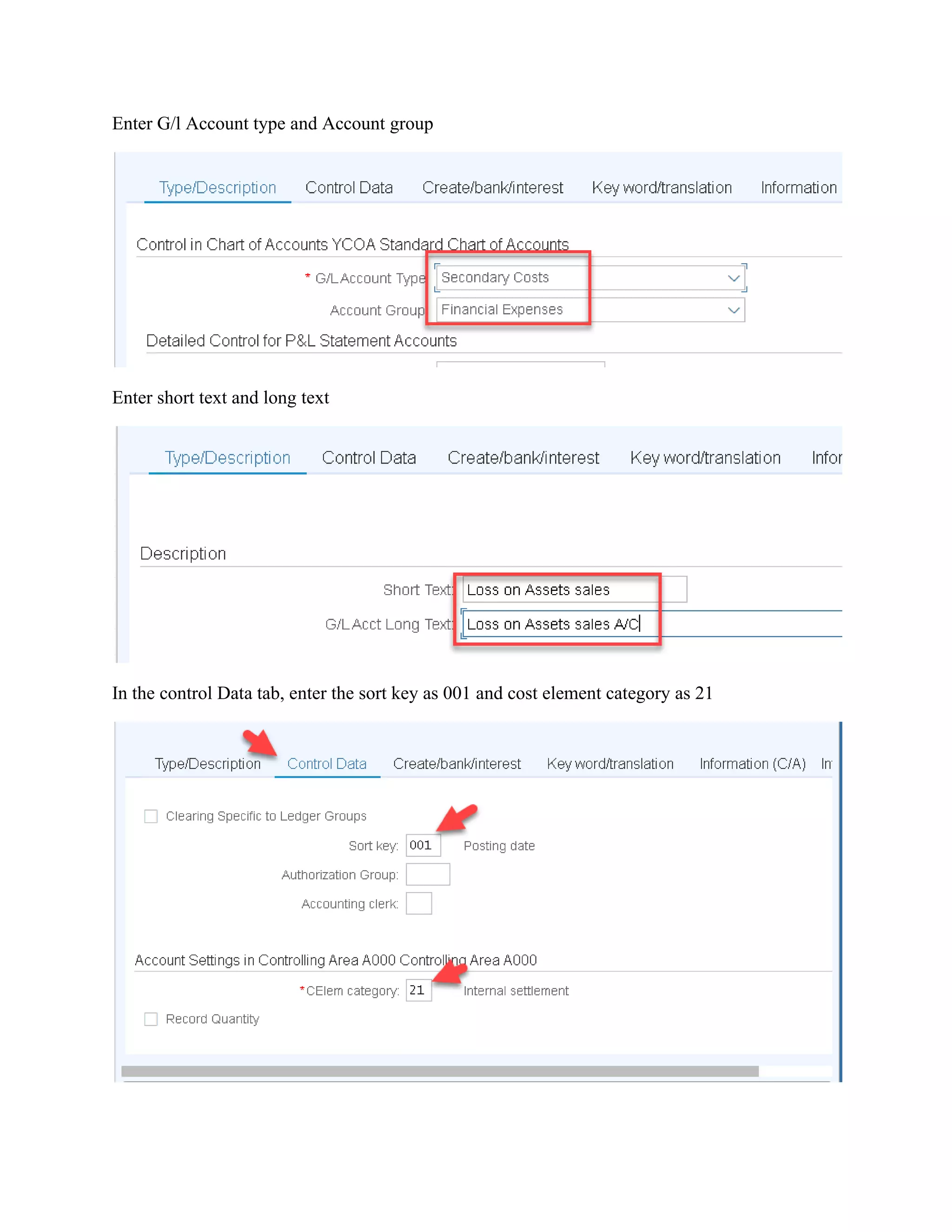
Enter G/l Account type and Account group
Enter short text and long text
In the control Data tab, enter the sort key as 001 and cost element category as 21
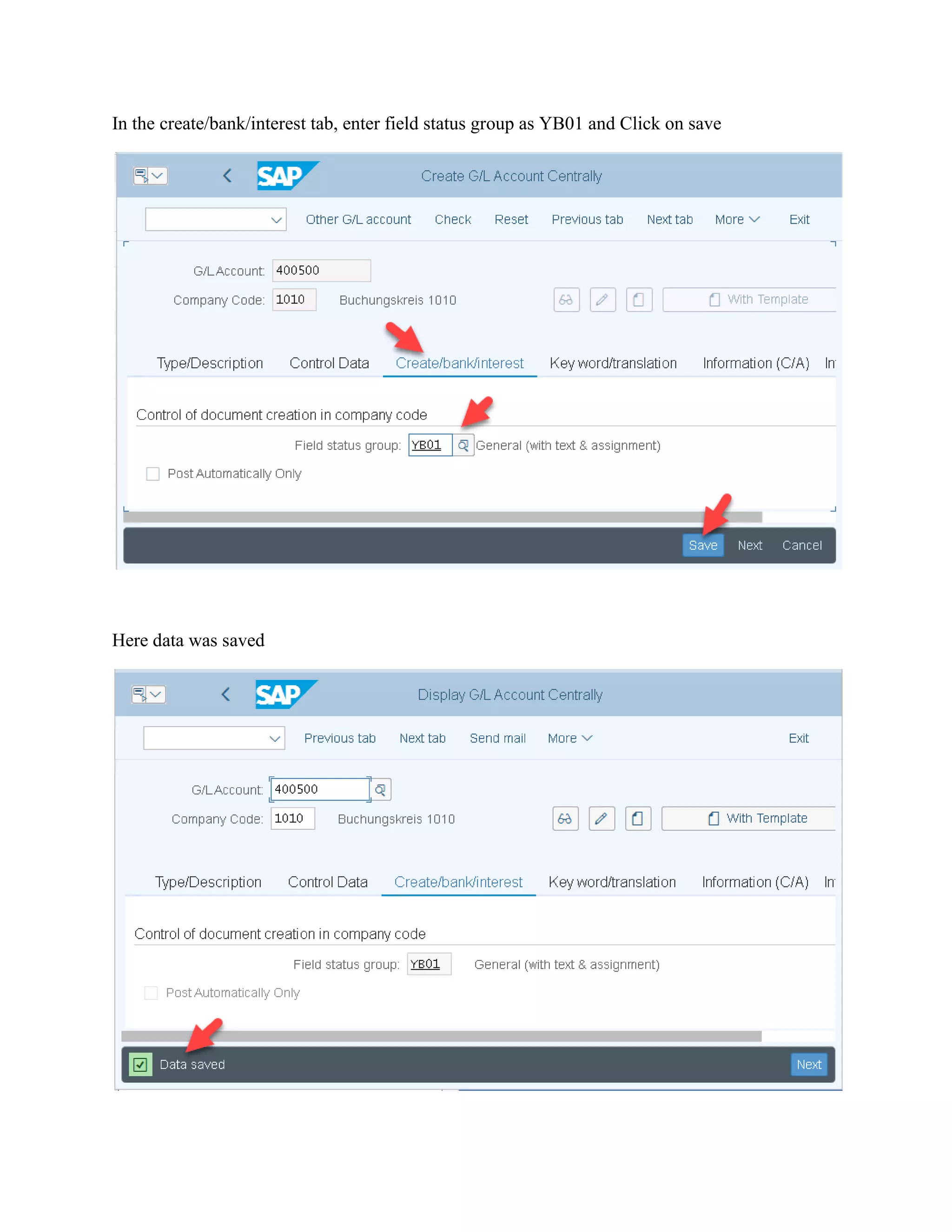
In the create/bank/interest tab, enter field status group as YB01 and Click on save
Here data was saved
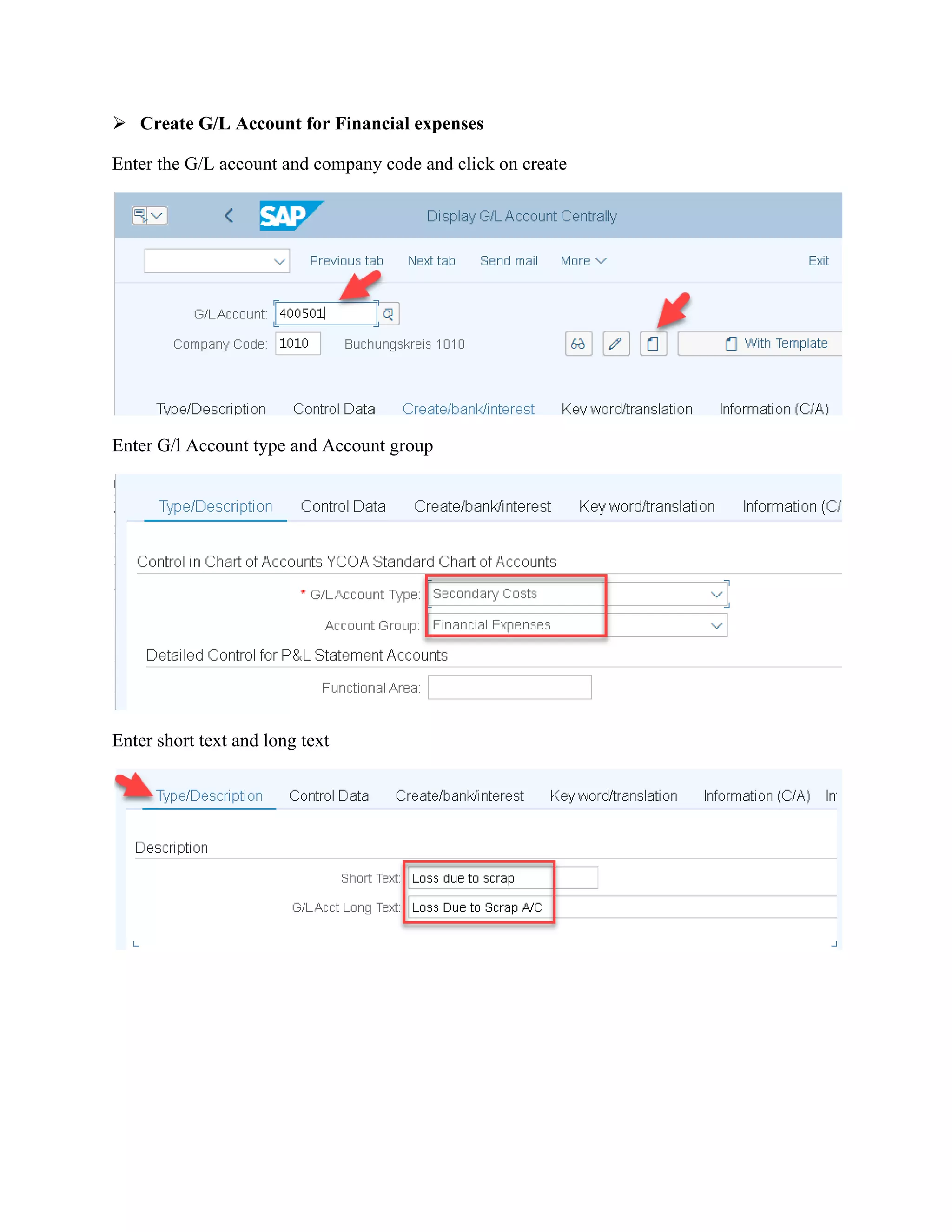
➢ Create G/L Account for Financial expenses
Enter the G/L account and company code and click on create
Enter G/l Account type and Account group
Enter short text and long text
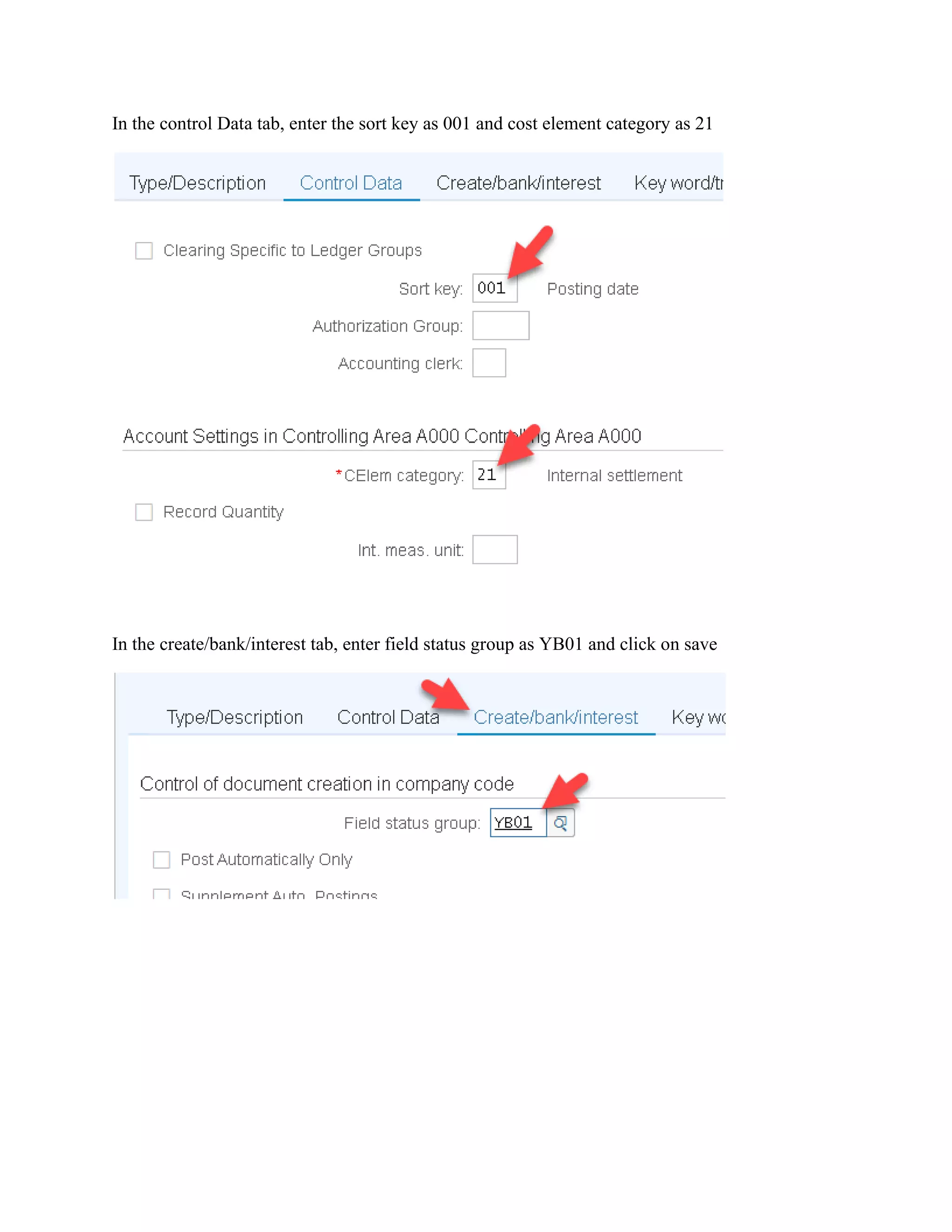
In the control Data tab, enter the sort key as 001 and cost element category as 21
In the create/bank/interest tab, enter field status group as YB01 and click on save
Here Data was saved
3. Parallel Currency for company code
Against company Code we can activate maximum of 3 Level Local Currency’s in Asset
Accounting. Each parallel currency’s Activated for company code must be assign to separate
Depreciation Area
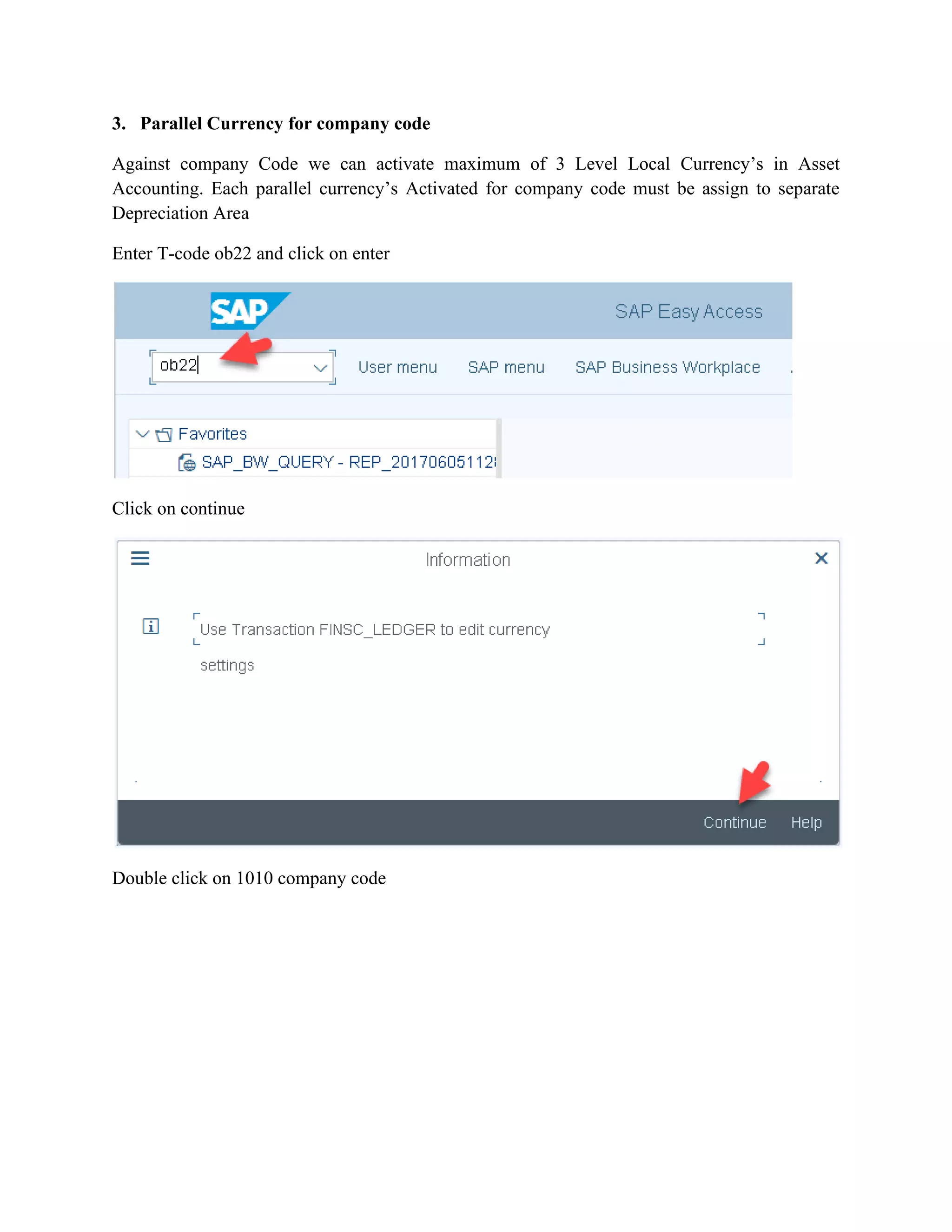
Enter T-code ob22 and click on enter
Click on continue
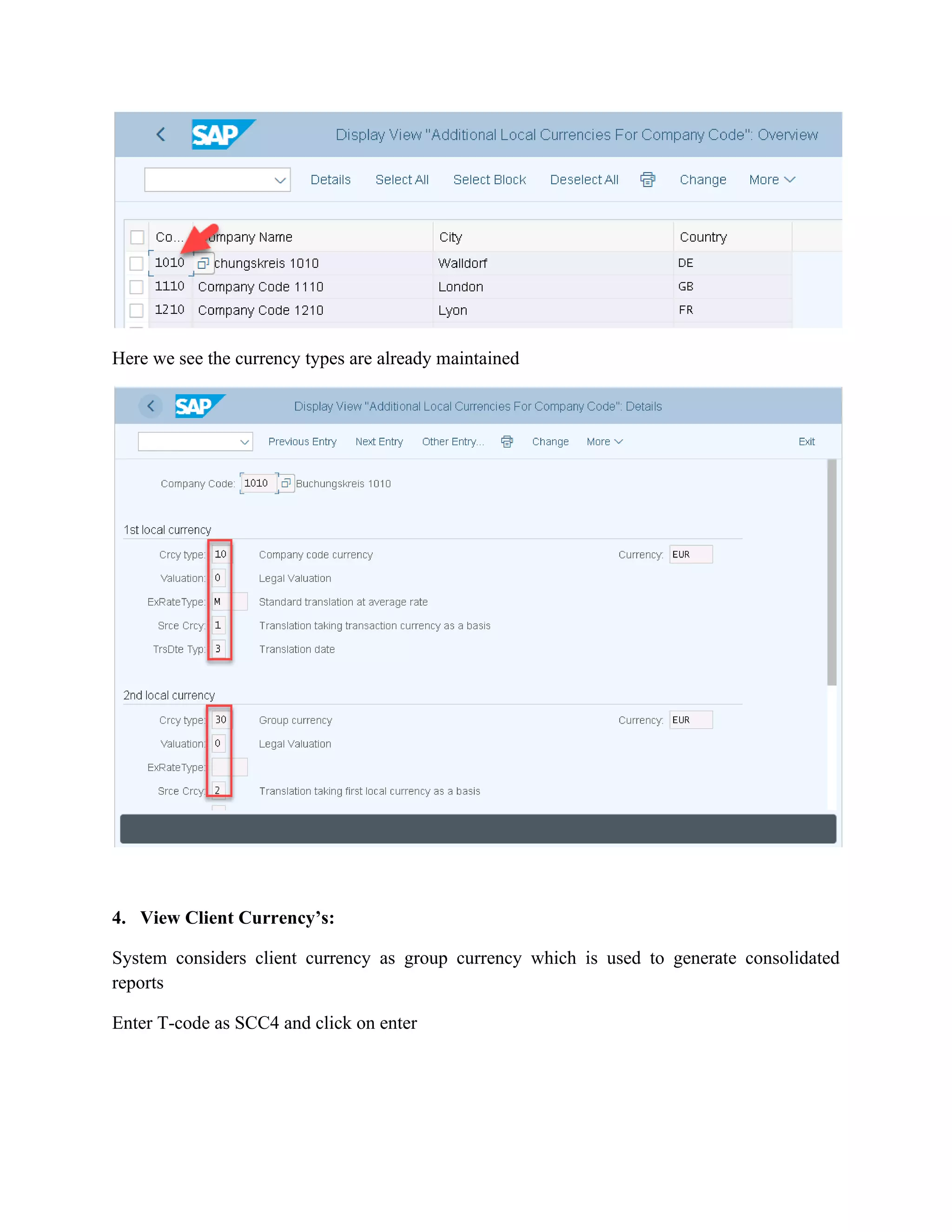
Double click on 1010 company code
Here we see the currency types are already maintained
4. View Client Currency’s:
System considers client currency as group currency which is used to generate consolidated
reports
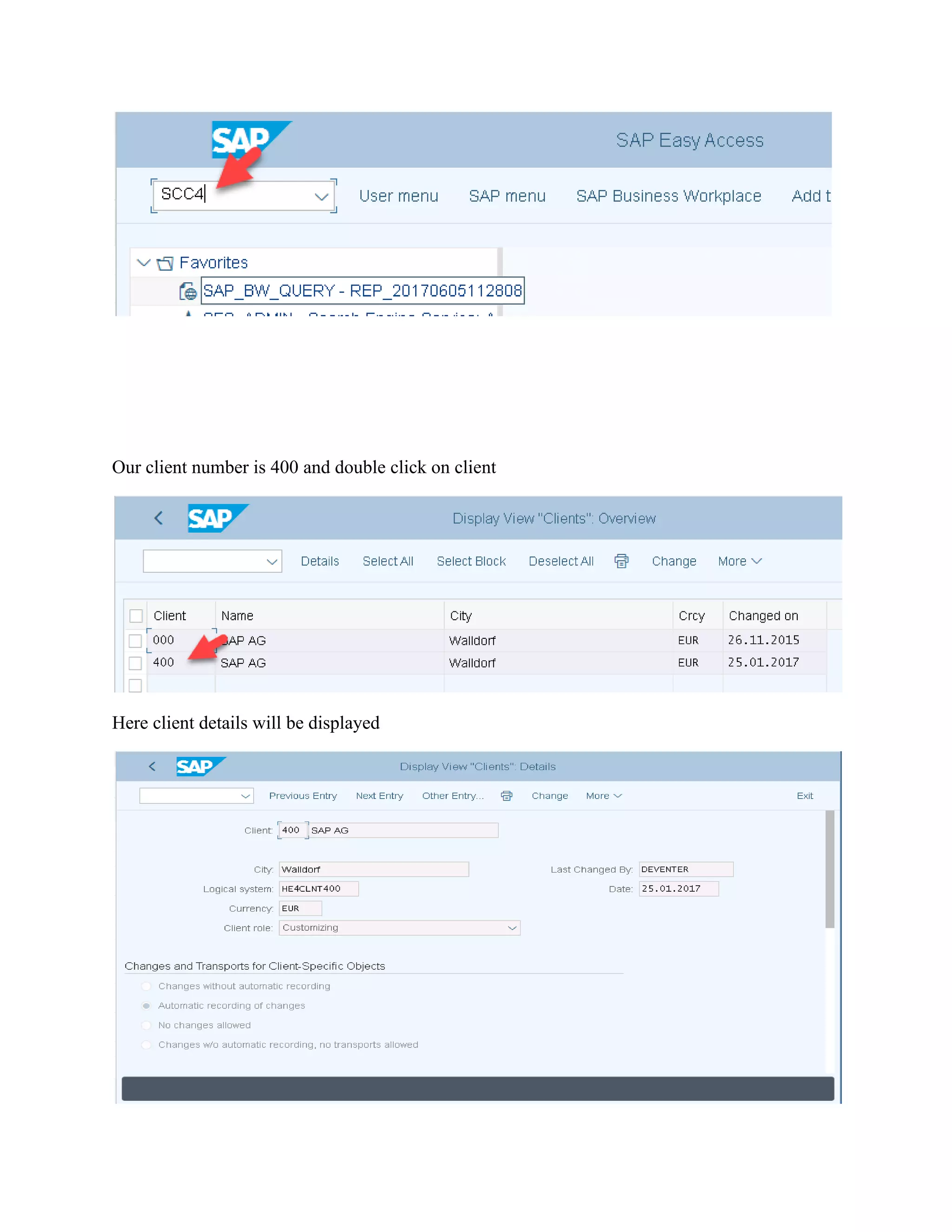
Enter T-code as SCC4 and click on enter
Our client number is 400 and double click on client
Here client details will be displayed
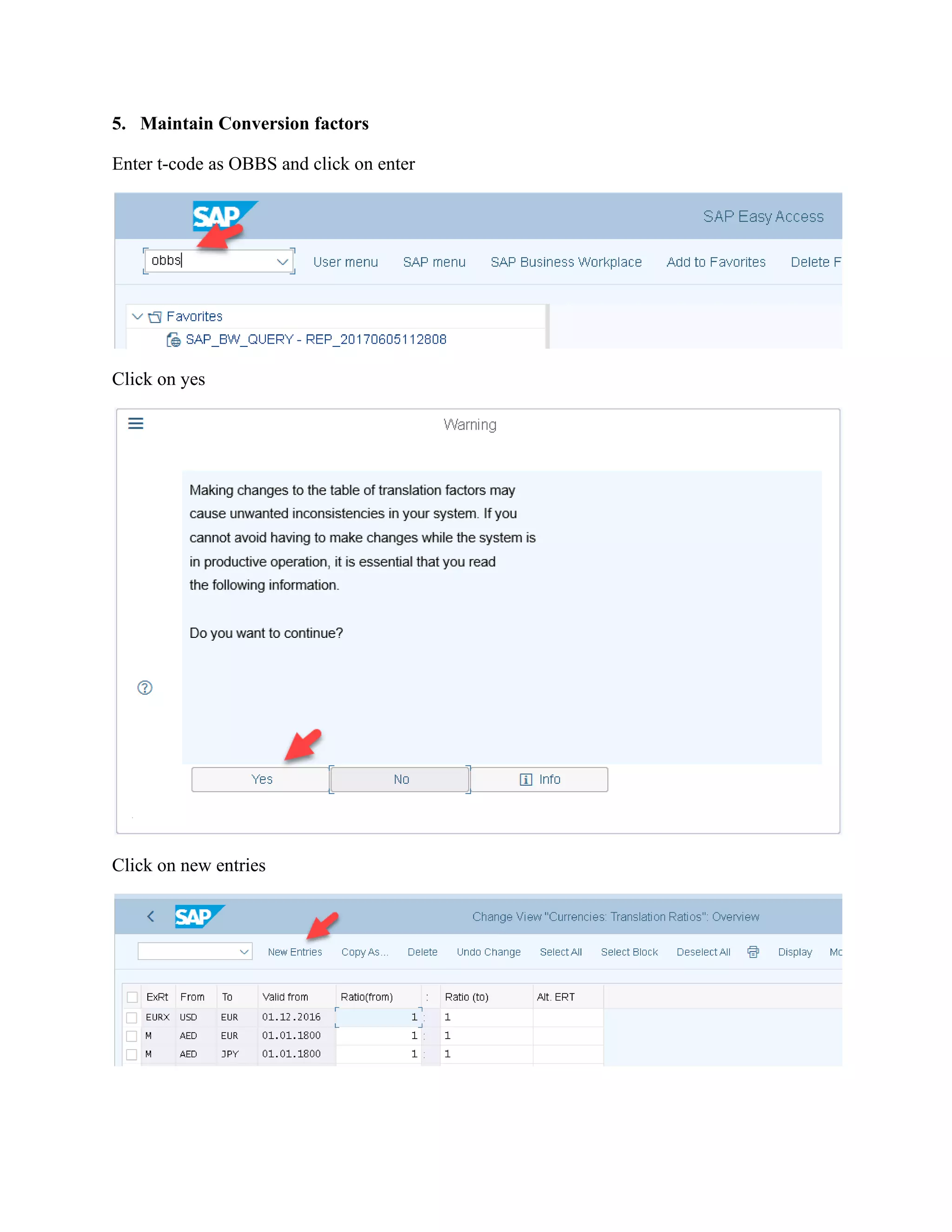
5. Maintain Conversion factors
Enter t-code as OBBS and click on enter
Click on yes
Click on new entries
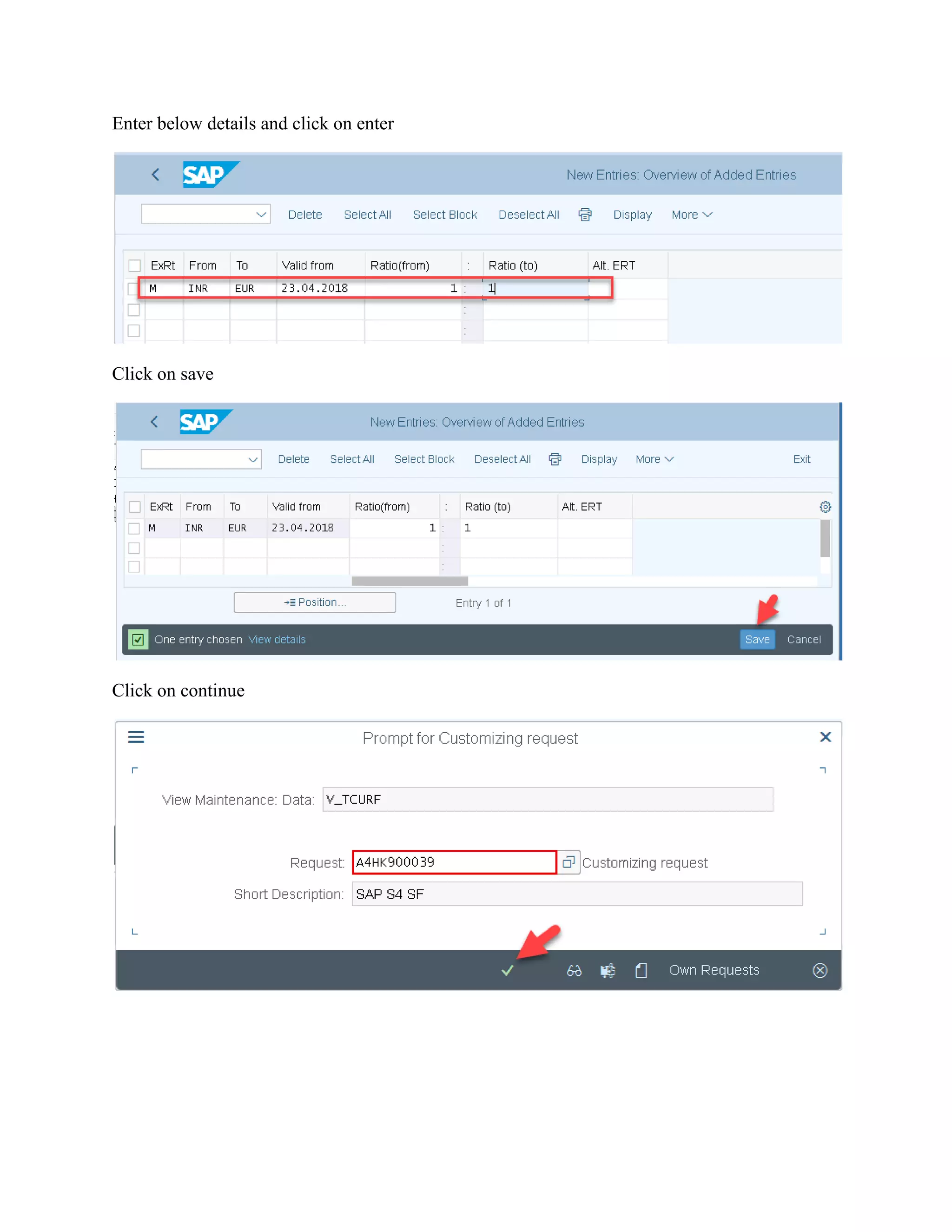
Enter below details and click on enter
Click on save
Click on continue
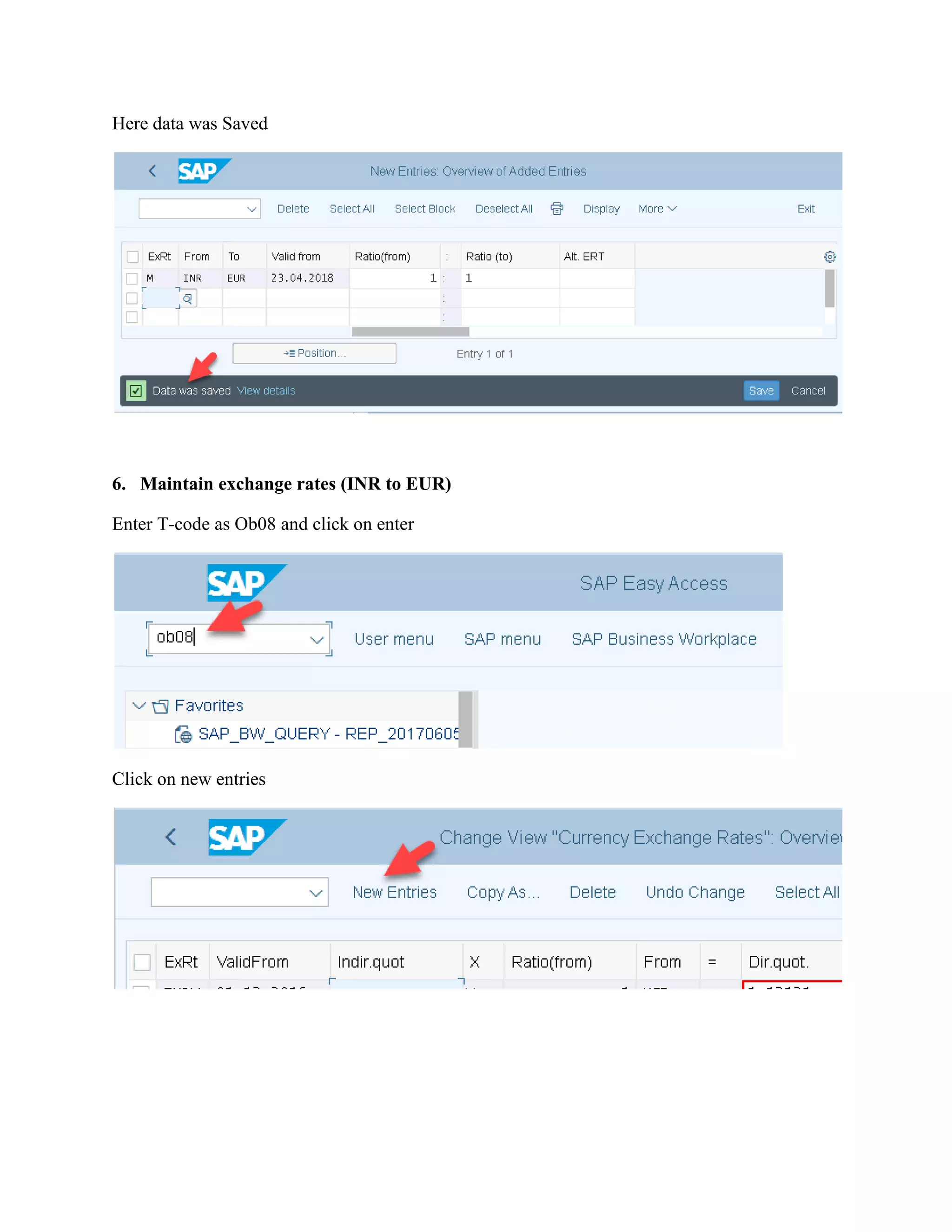
Here data was Saved
6. Maintain exchange rates (INR to EUR)
Enter T-code as Ob08 and click on enter
Click on new entries
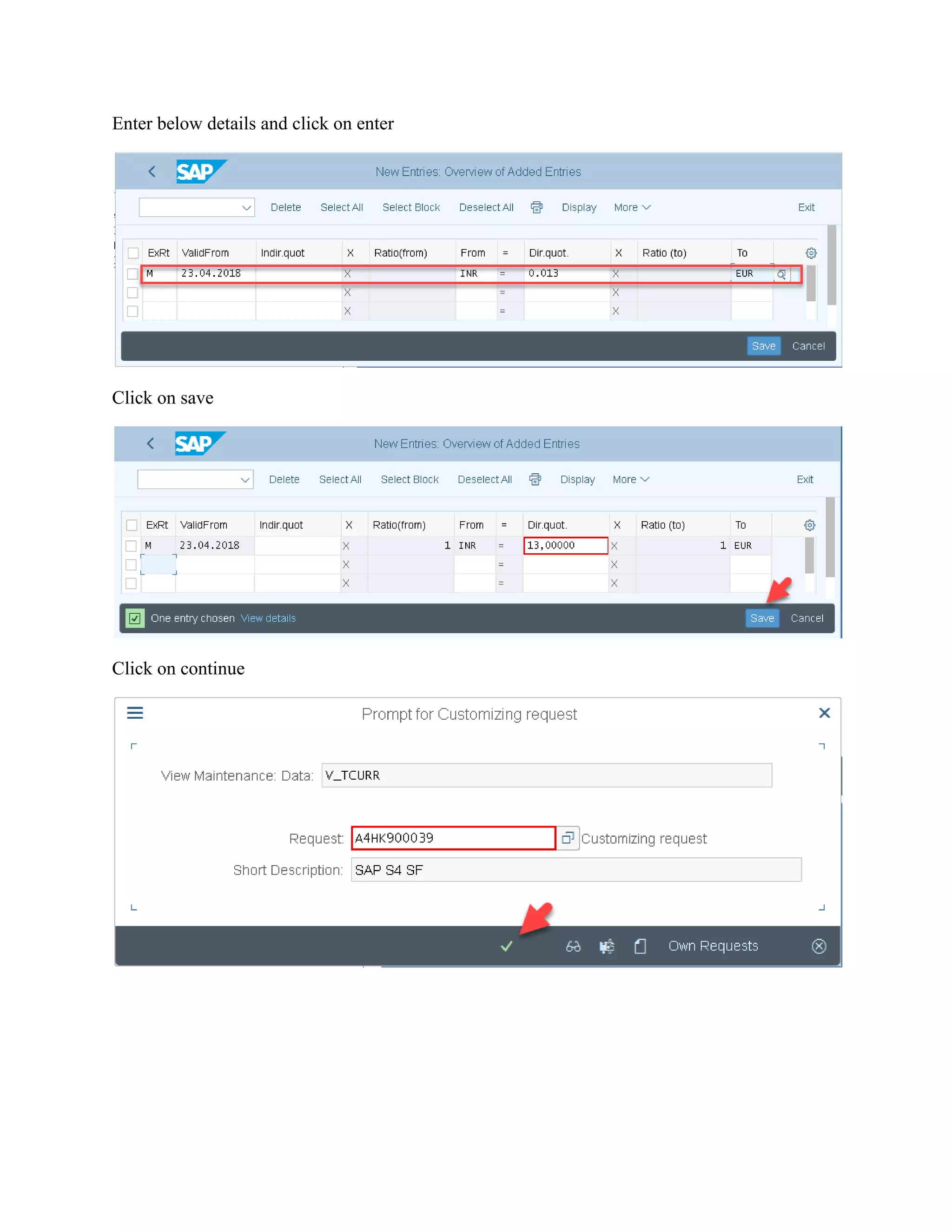
Enter below details and click on enter
Click on save
Click on continue
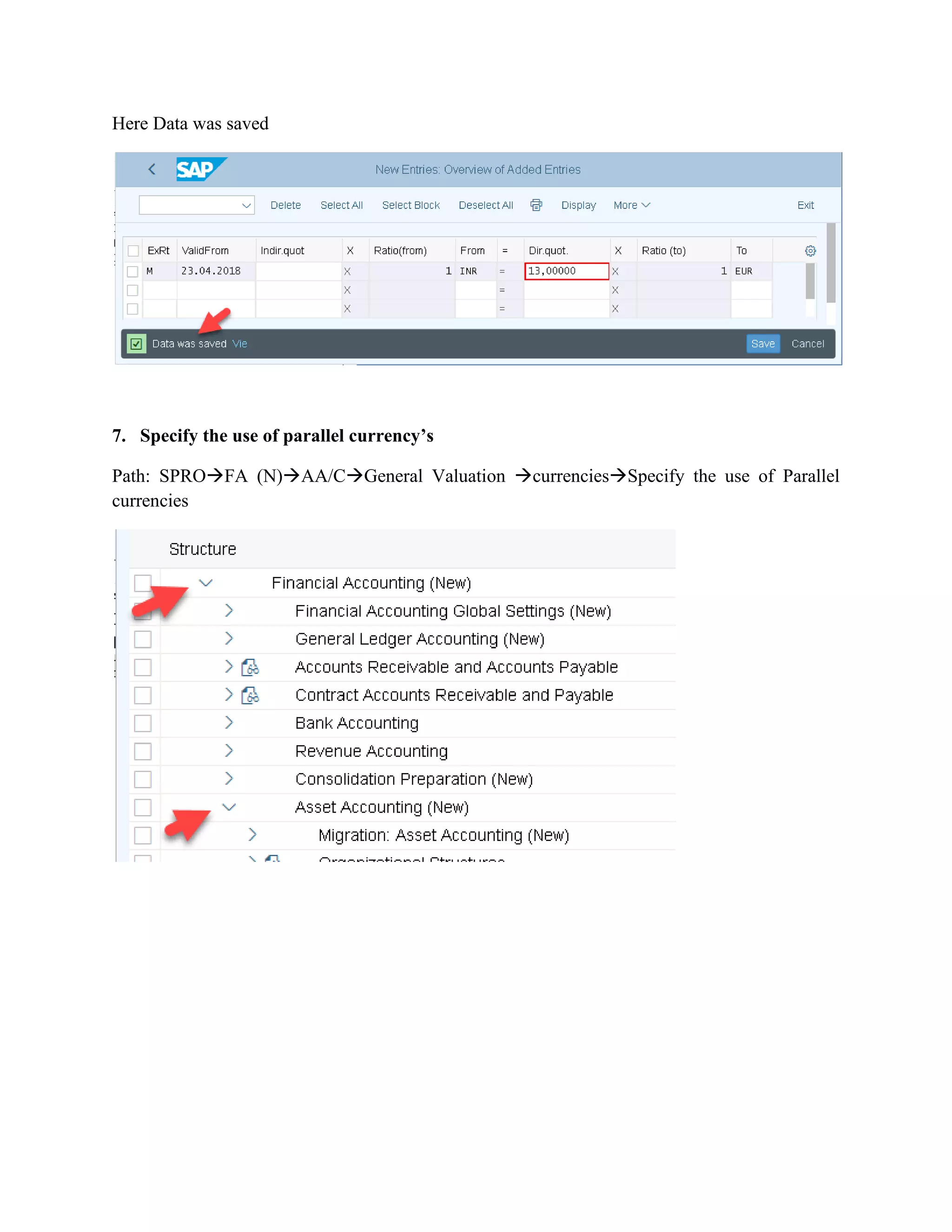
Here Data was saved
7. Specify the use of parallel currency’s
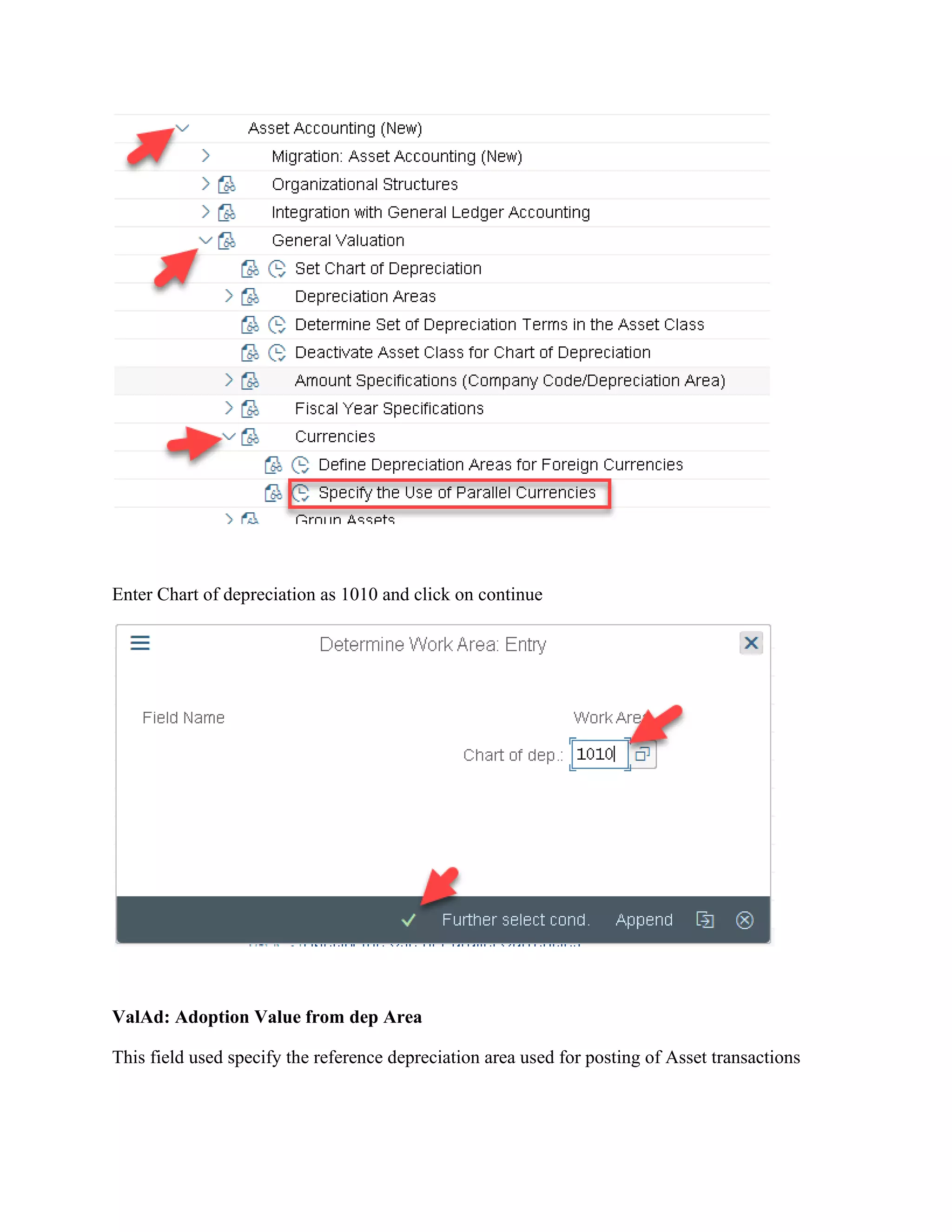
Path: SPRO→FA (N)→AA/C→General Valuation →currencies→Specify the use of Parallel
currencies
Enter Chart of depreciation as 1010 and click on continue
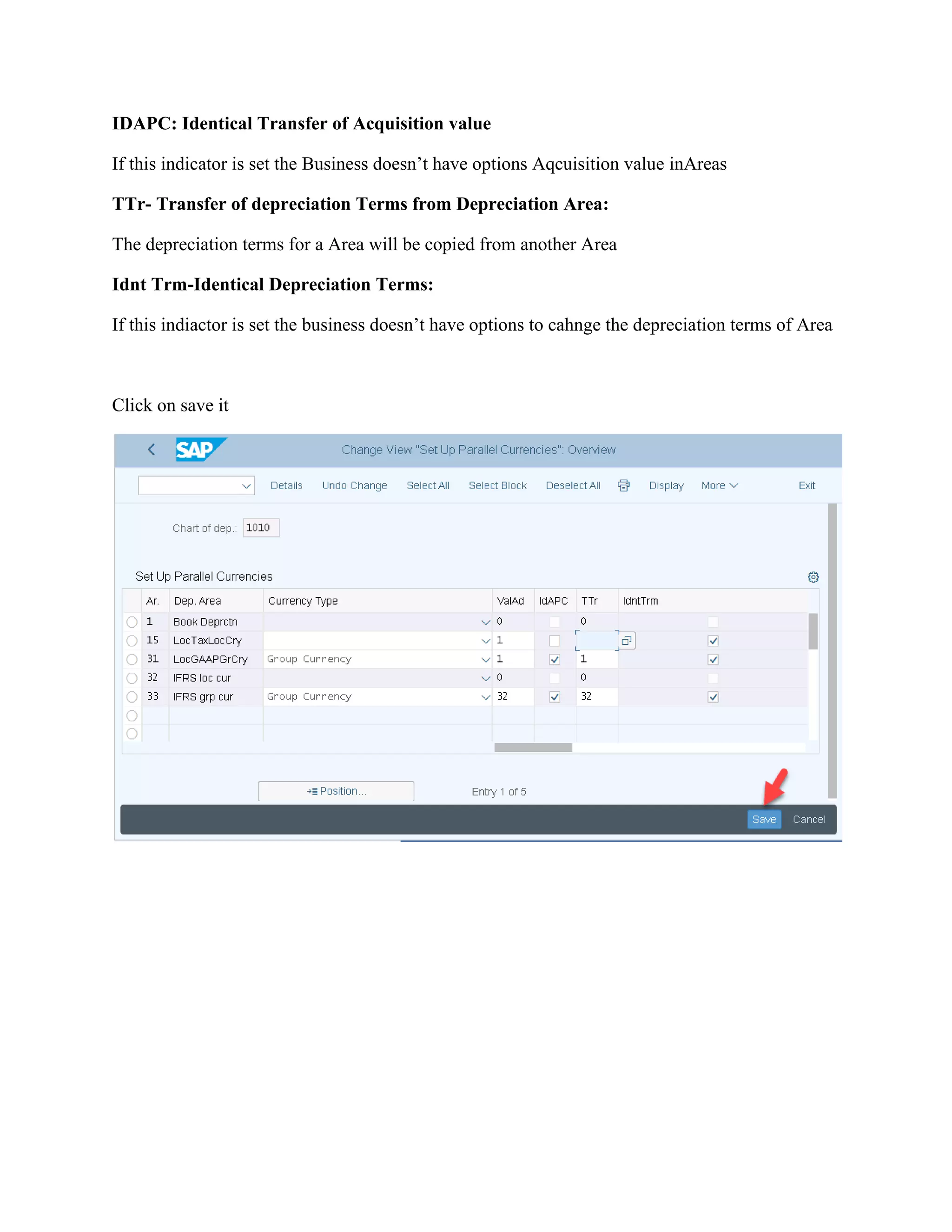
ValAd: Adoption Value from dep Area
This field used specify the reference depreciation area used for posting of Asset transactions
IDAPC: Identical Transfer of Acquisition value
If this indicator is set the Business doesn’t have options Aqcuisition value inAreas
TTr- Transfer of depreciation Terms from Depreciation Area:
The depreciation terms for a Area will be copied from another Area
Idnt Trm-Identical Depreciation Terms:
If this indiactor is set the business doesn’t have options to cahnge the depreciation terms of Area
Click on save it
8. Assign non-Taxable/ Exempted Tax Code to the company code:
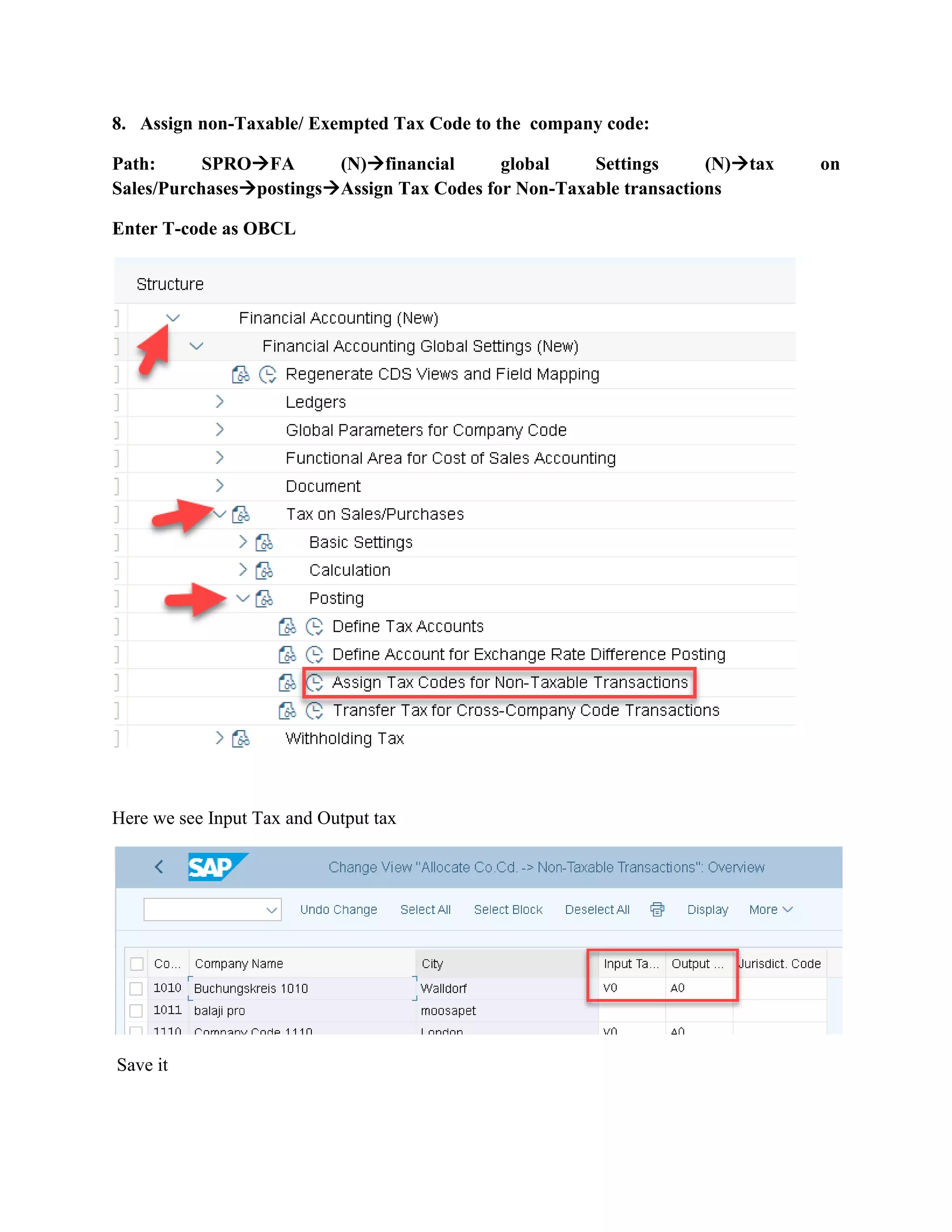
Path: SPRO→FA (N)→financial global Settings (N)→tax on
Sales/Purchases→postings→Assign Tax Codes for Non-Taxable transactions
Enter T-code as OBCL
Here we see Input Tax and Output tax
Save it
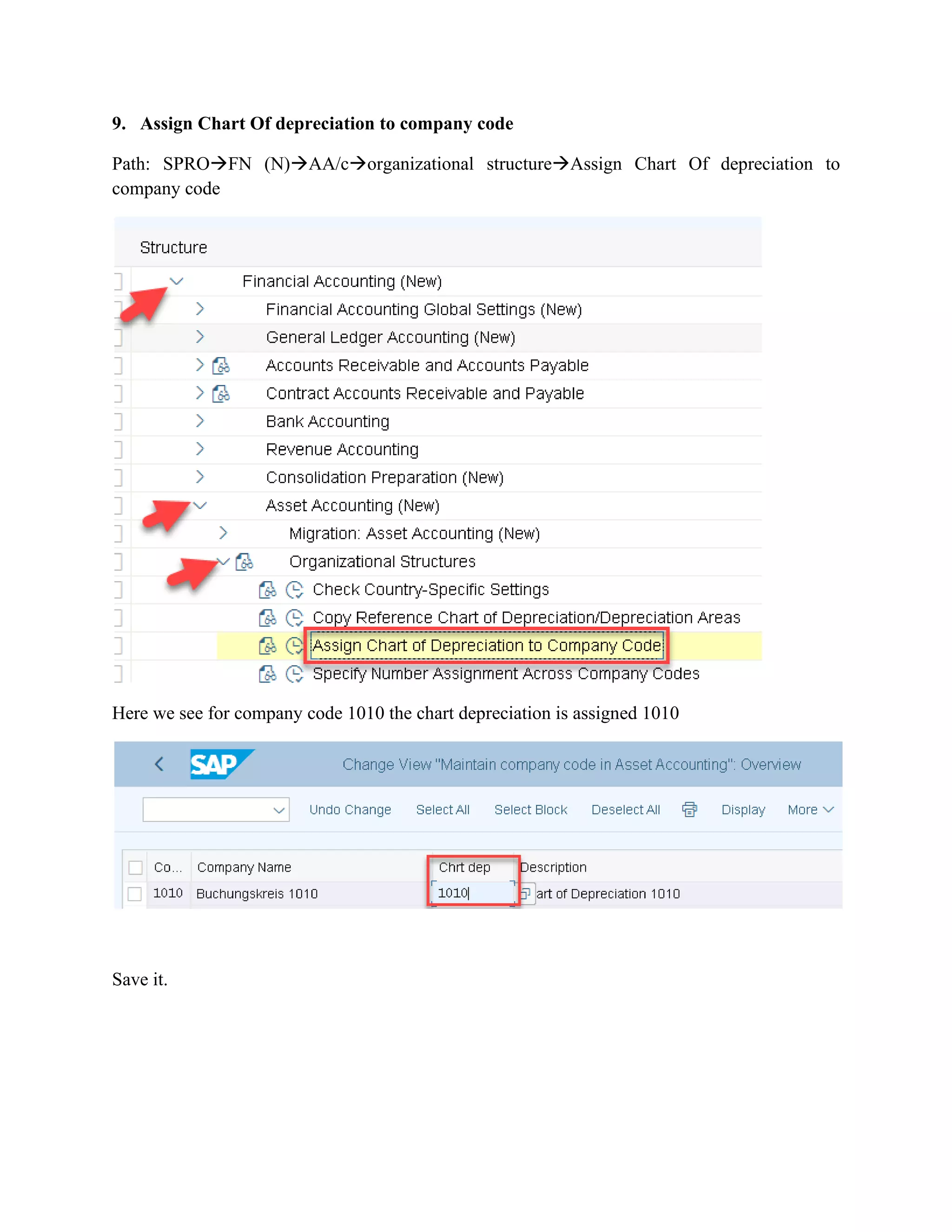
9. Assign Chart Of depreciation to company code
Path: SPRO→FN (N)→AA/c→organizational structure→Assign Chart Of depreciation to
company code
Here we see for company code 1010 the chart depreciation is assigned 1010
Save it.
10. Settings related to Asset Class:
The Asset Master are created with reference to asset class
The Asset class is assign to
1. Account determination
2. Screen Layout rules
3. Number Ranges
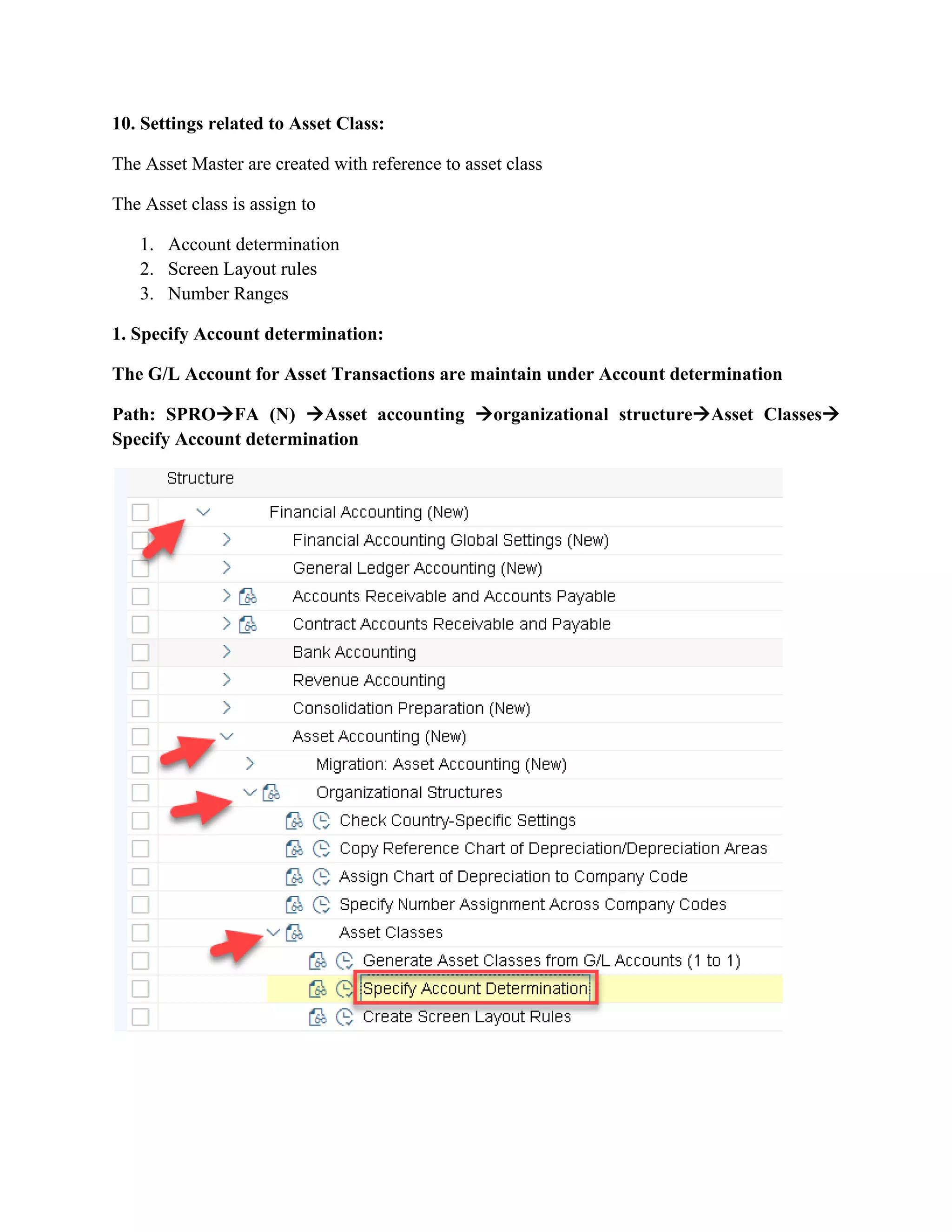
1. Specify Account determination:
The G/L Account for Asset Transactions are maintain under Account determination
Path: SPRO→FA (N) →Asset accounting →organizational structure→Asset Classes→
Specify Account determination
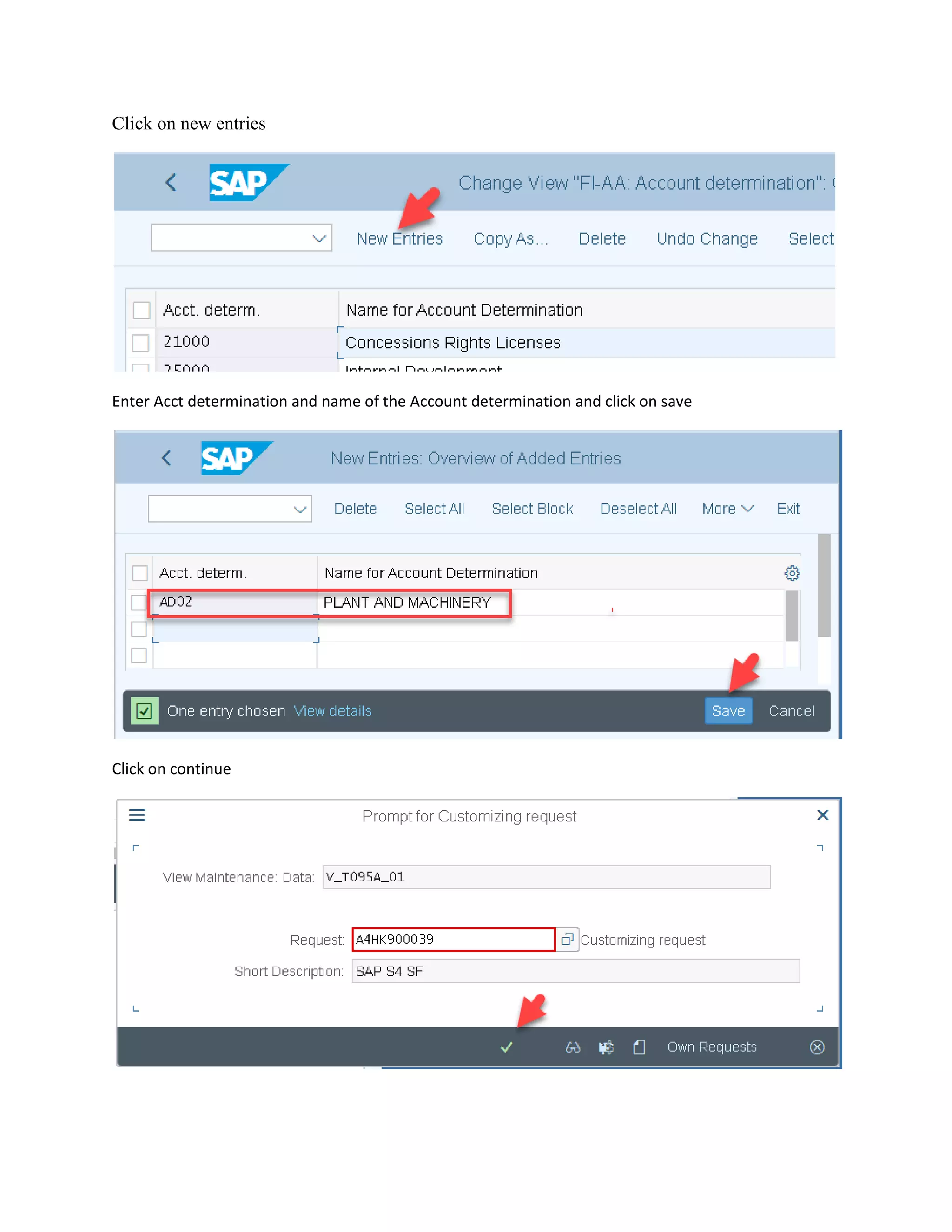
Click on new entries
Enter Acct determination and name of the Account determination and click on save
Click on continue
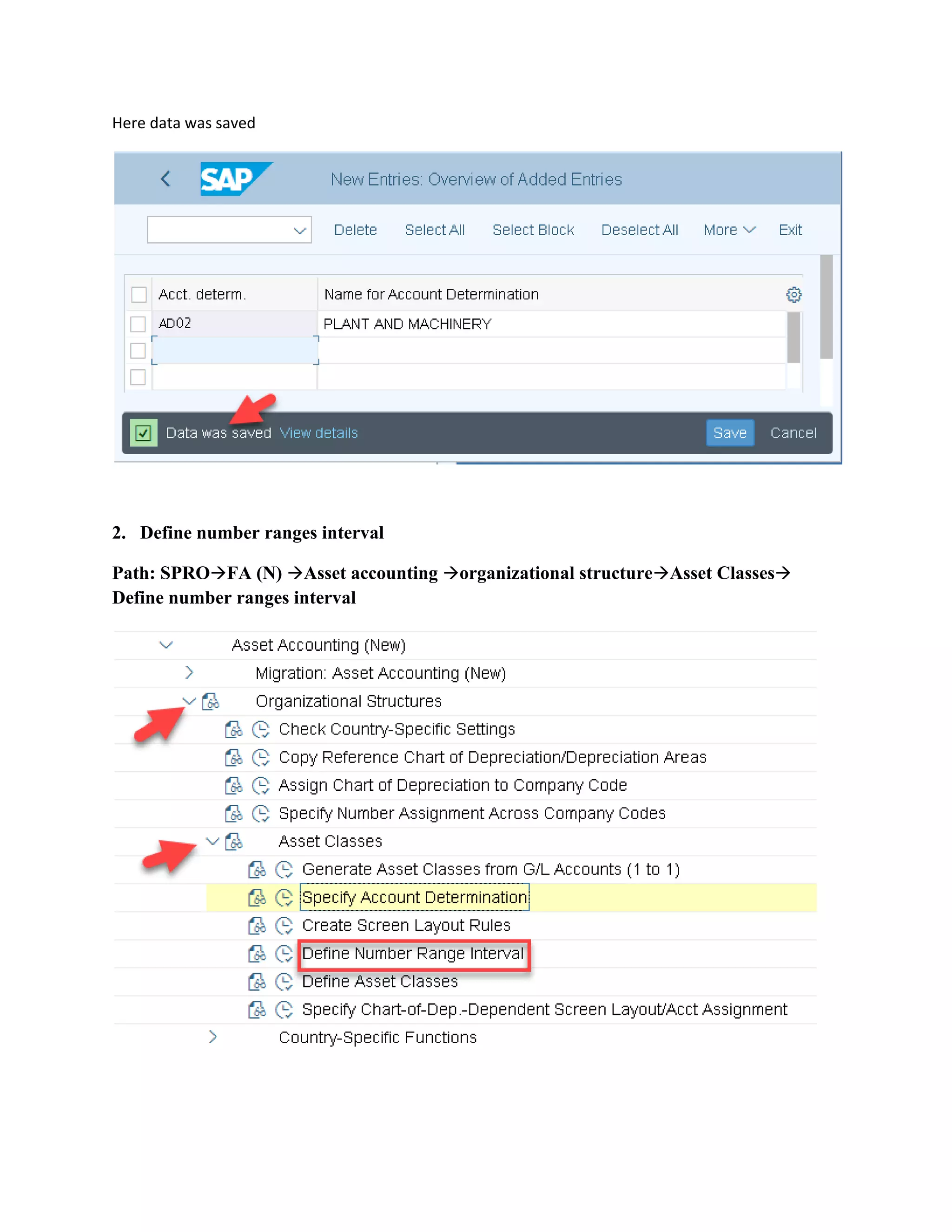
Here data was saved
2. Define number ranges interval
Path: SPRO→FA (N) →Asset accounting →organizational structure→Asset Classes→
Define number ranges interval
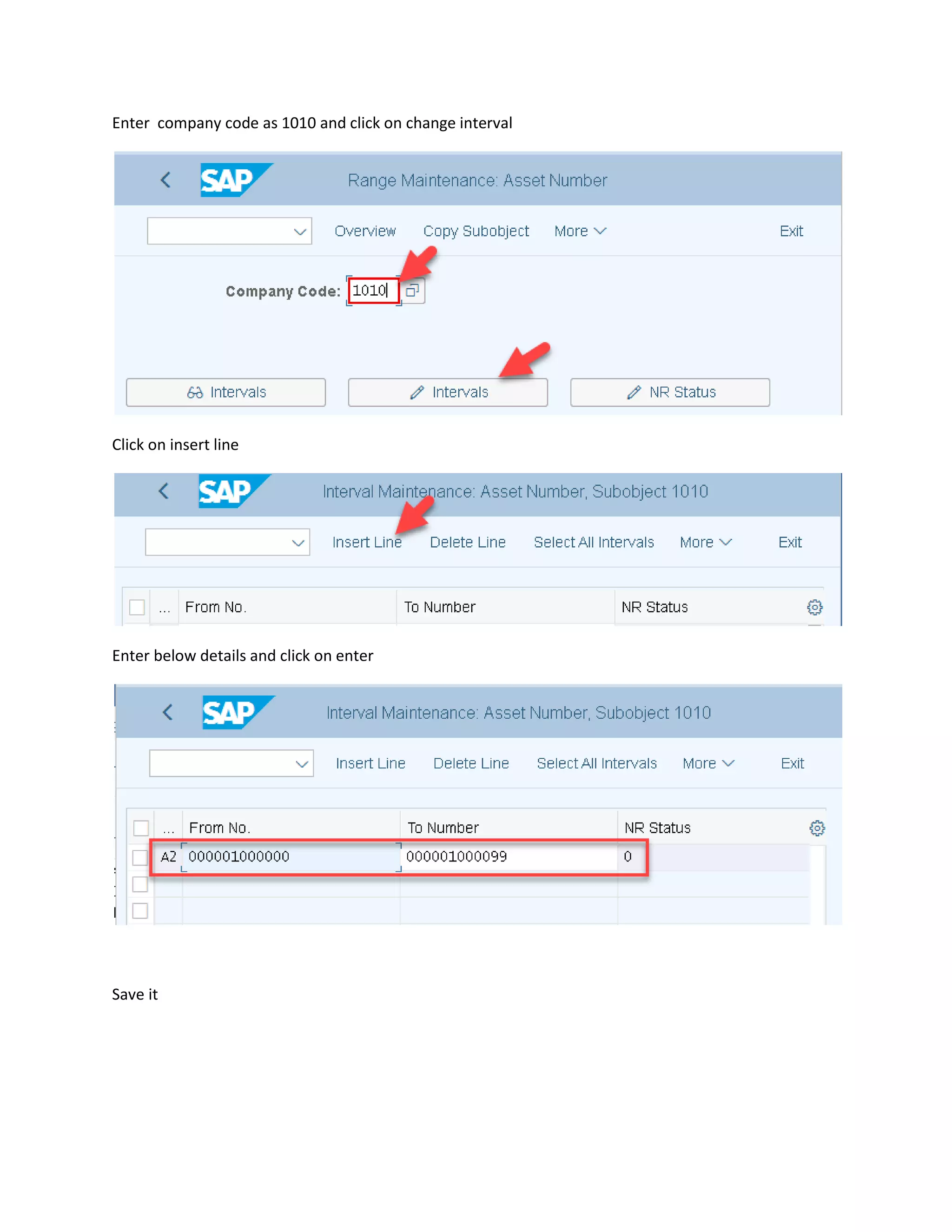
Enter company code as 1010 and click on change interval
Click on insert line
Enter below details and click on enter
Save it
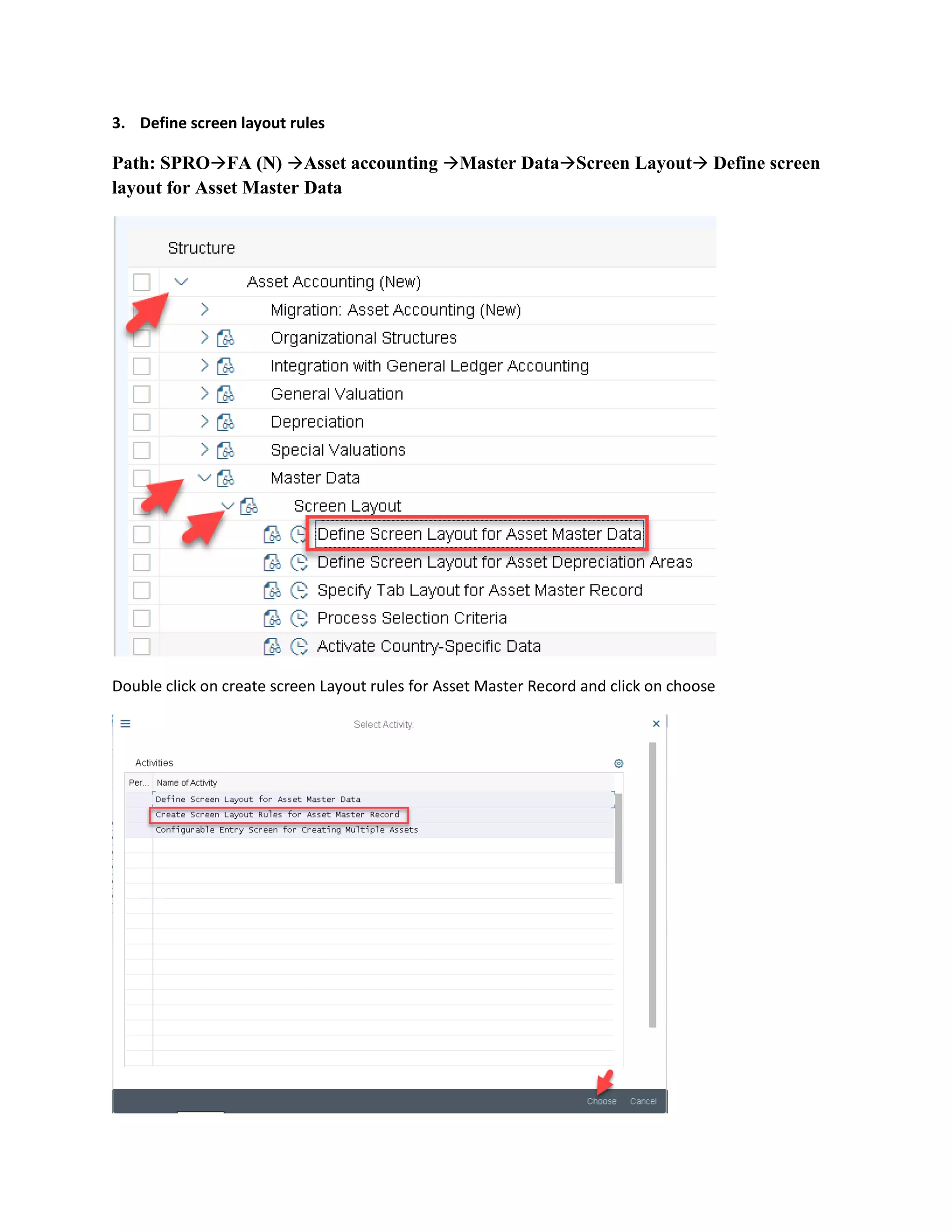
3. Define screen layout rules
Path: SPRO→FA (N) →Asset accounting →Master Data→Screen Layout→ Define screen
layout for Asset Master Data
Double click on create screen Layout rules for Asset Master Record and click on choose
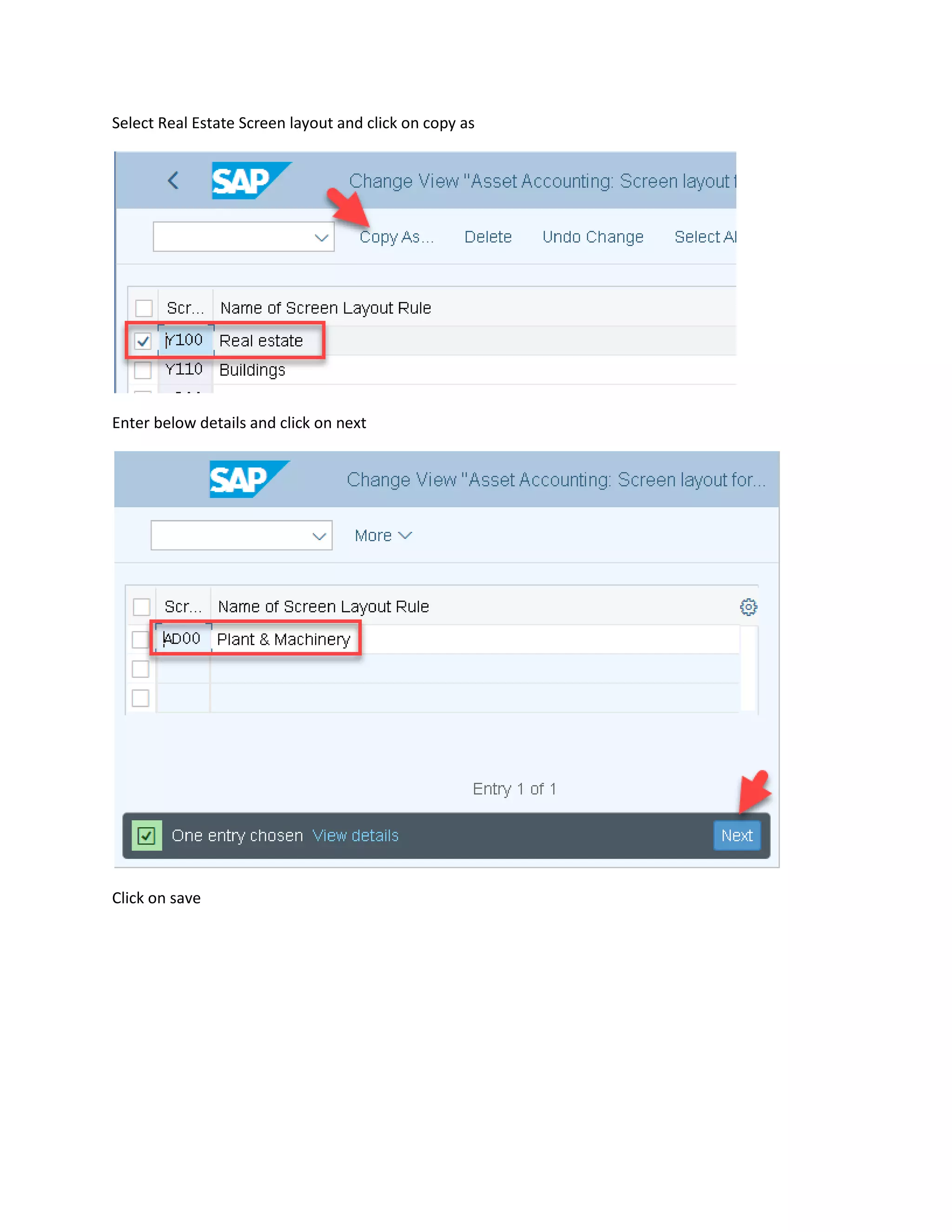
Select Real Estate Screen layout and click on copy as
Enter below details and click on next
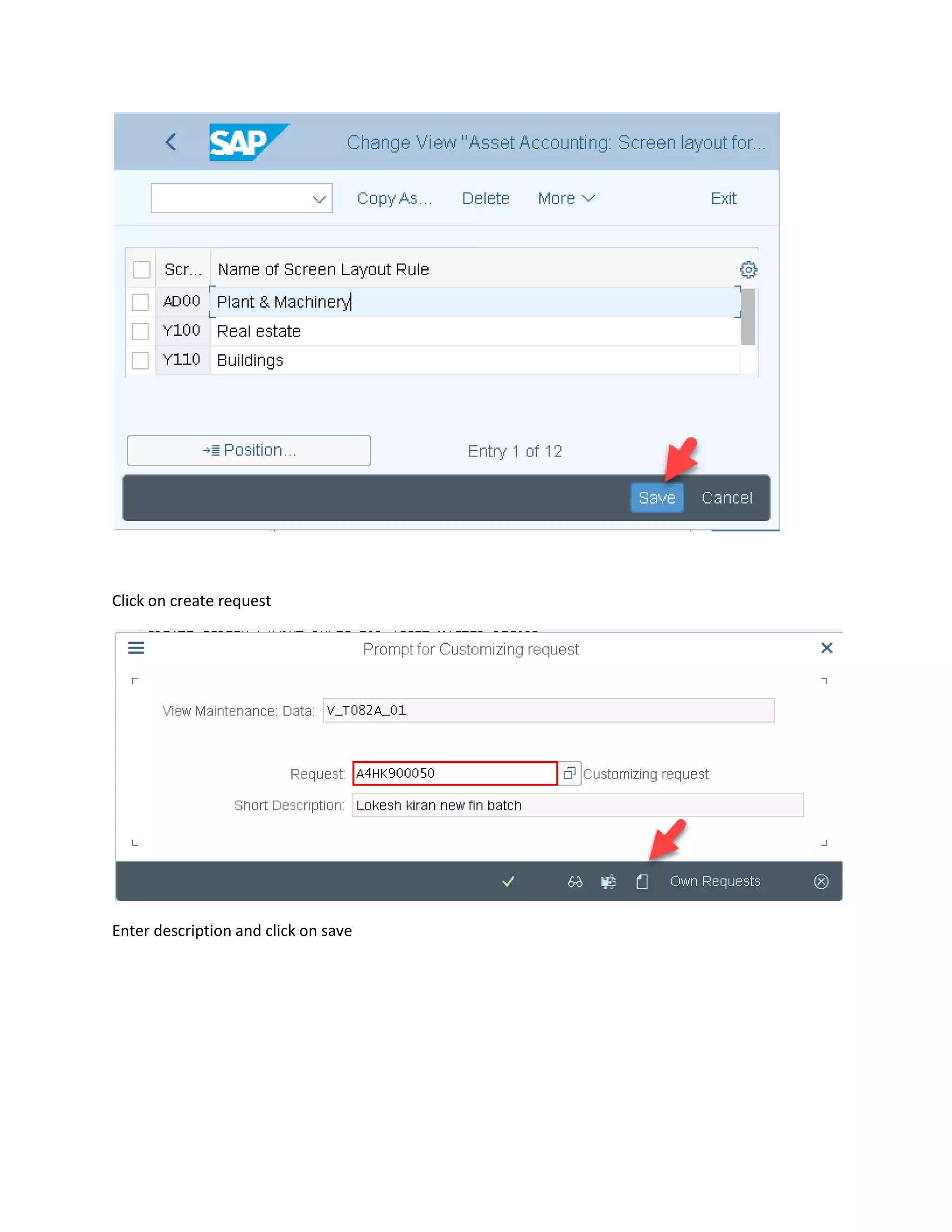
Click on save
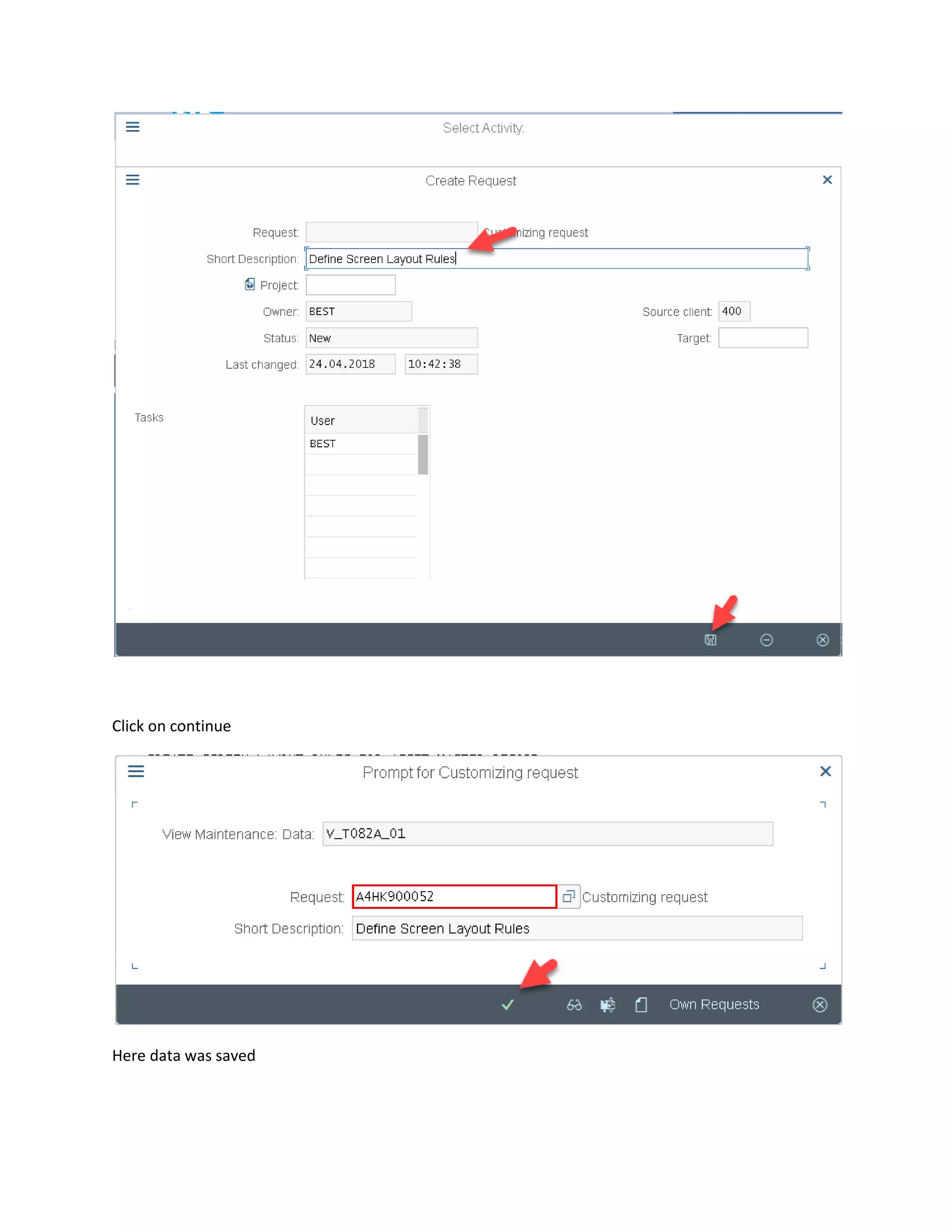
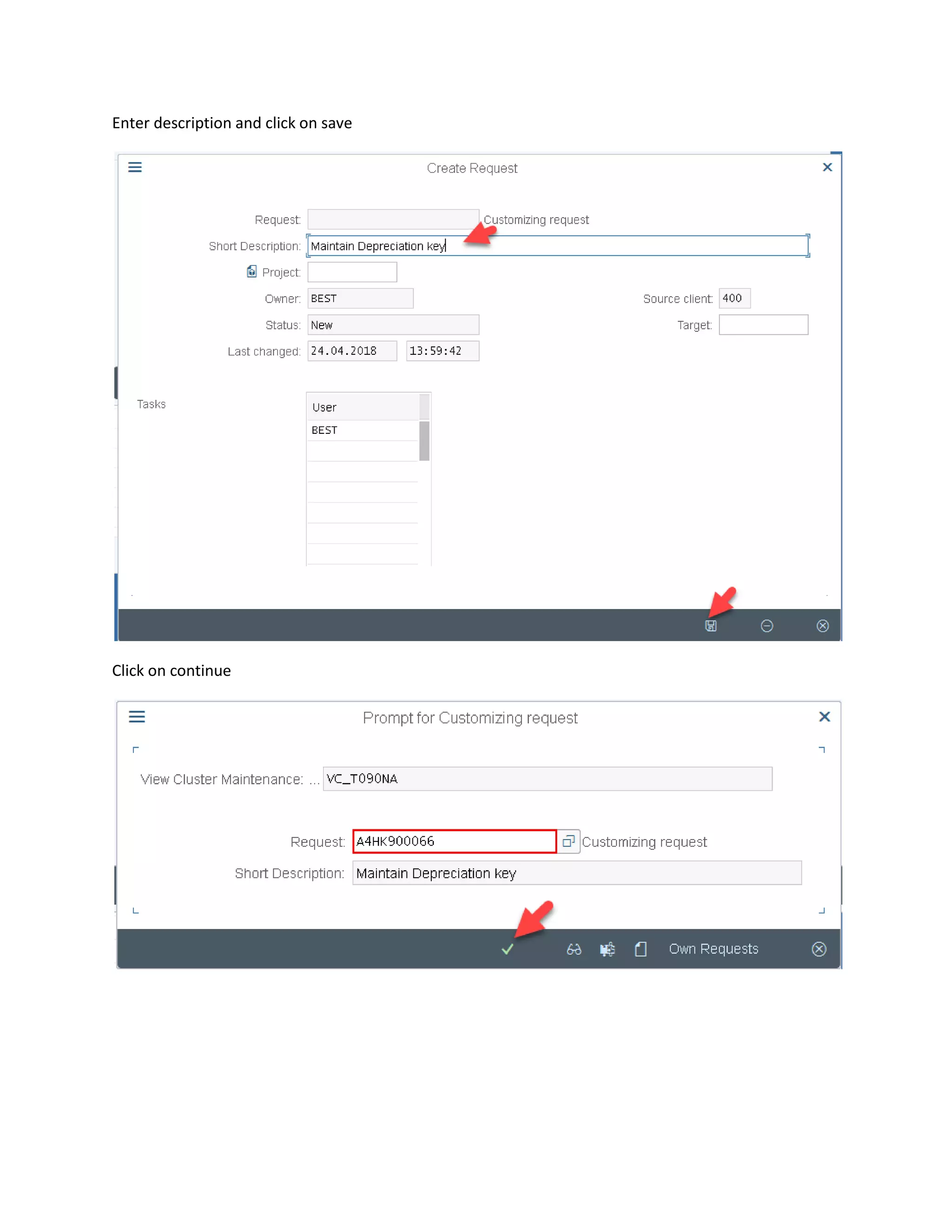
Click on create request
Enter description and click on save
Click on continue
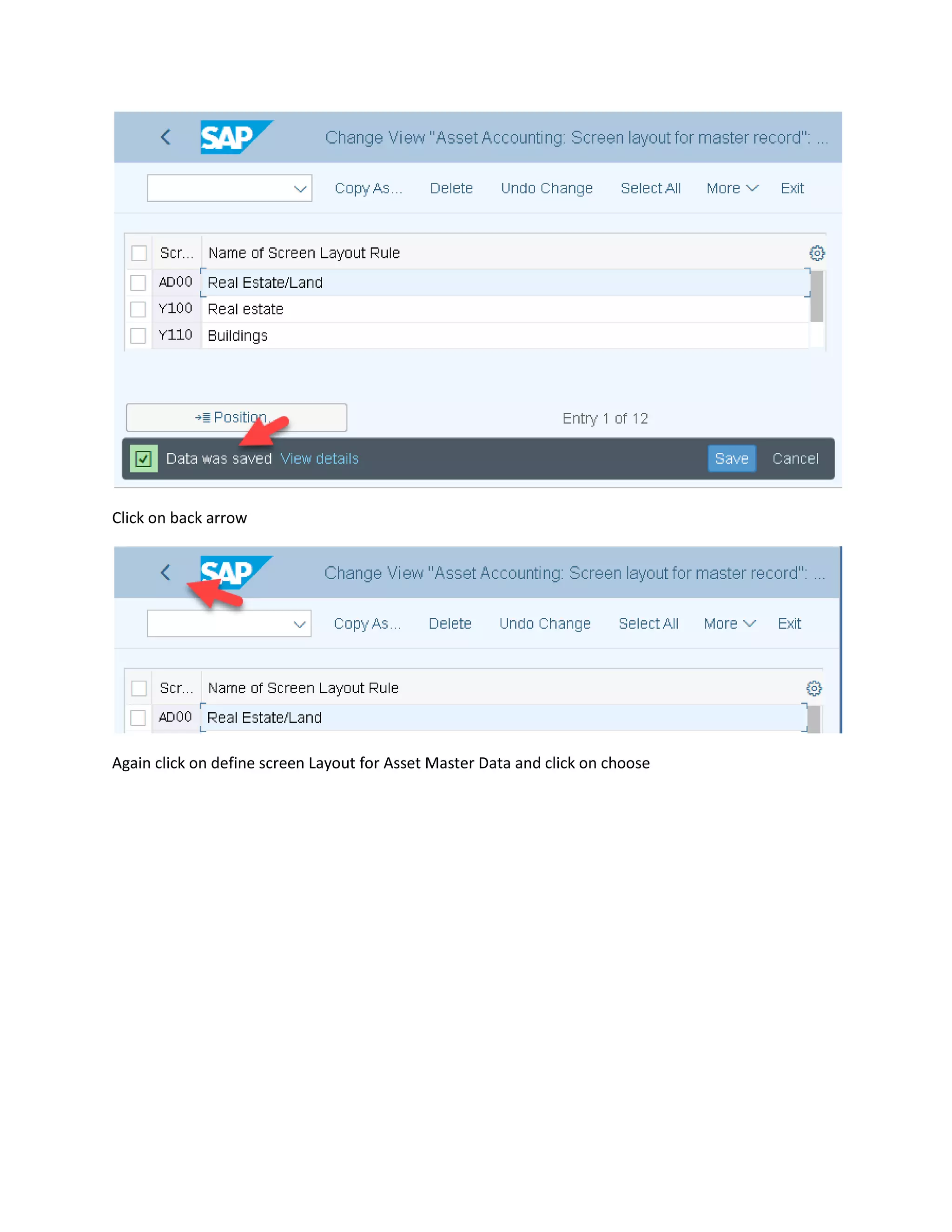
Here data was saved
Click on back arrow
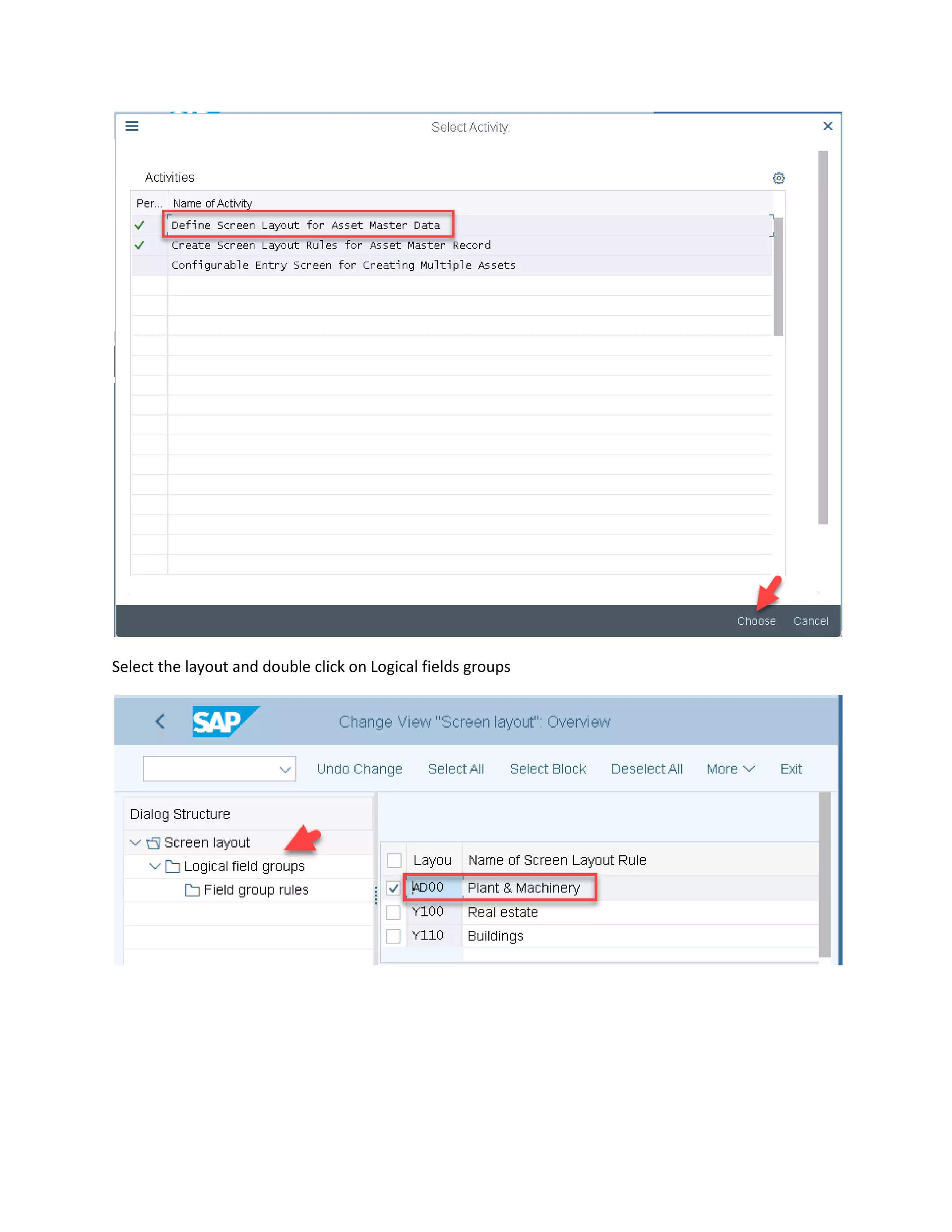
Again click on define screen Layout for Asset Master Data and click on choose
Select the layout and double click on Logical fields groups
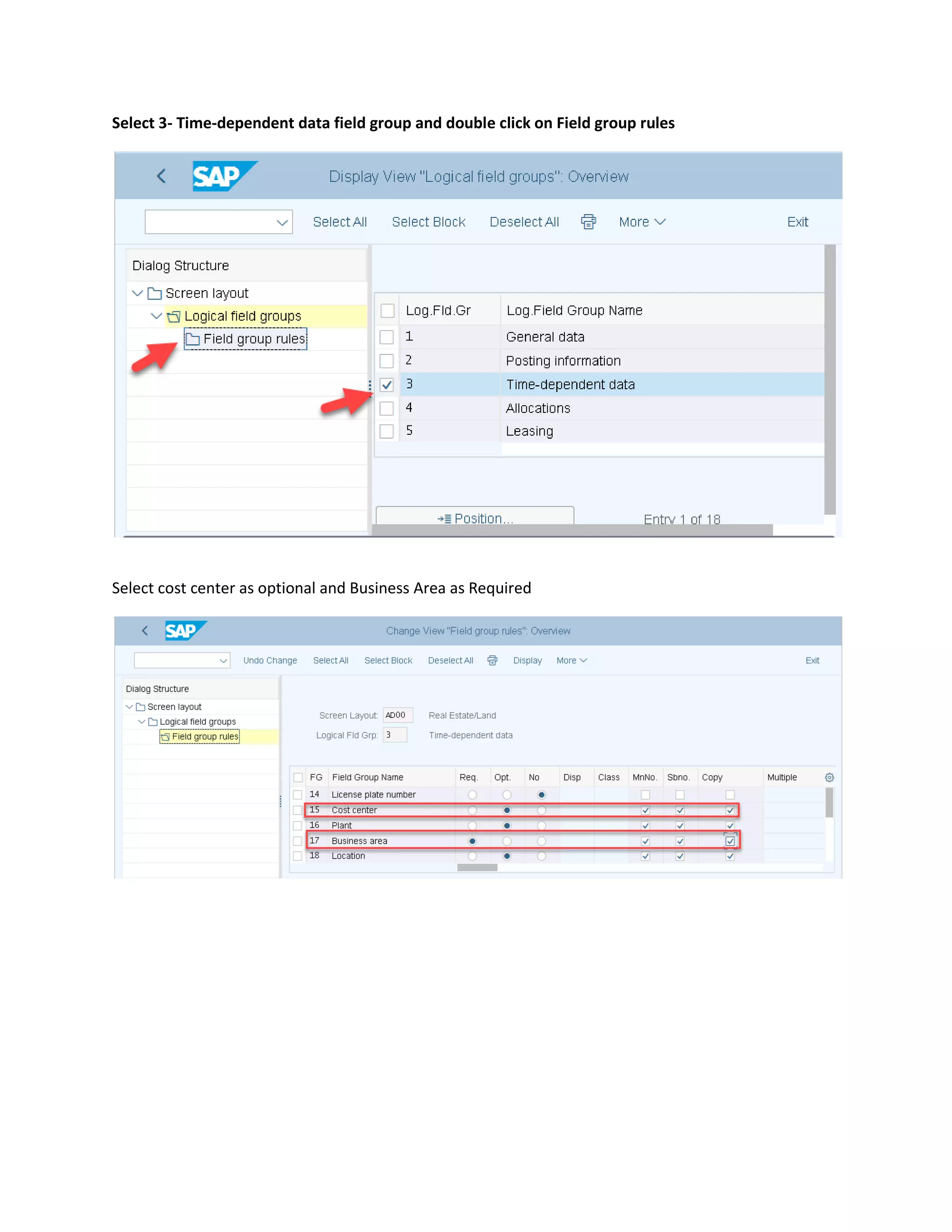
Select 3- Time-dependent data field group and double click on Field group rules
Select cost center as optional and Business Area as Required
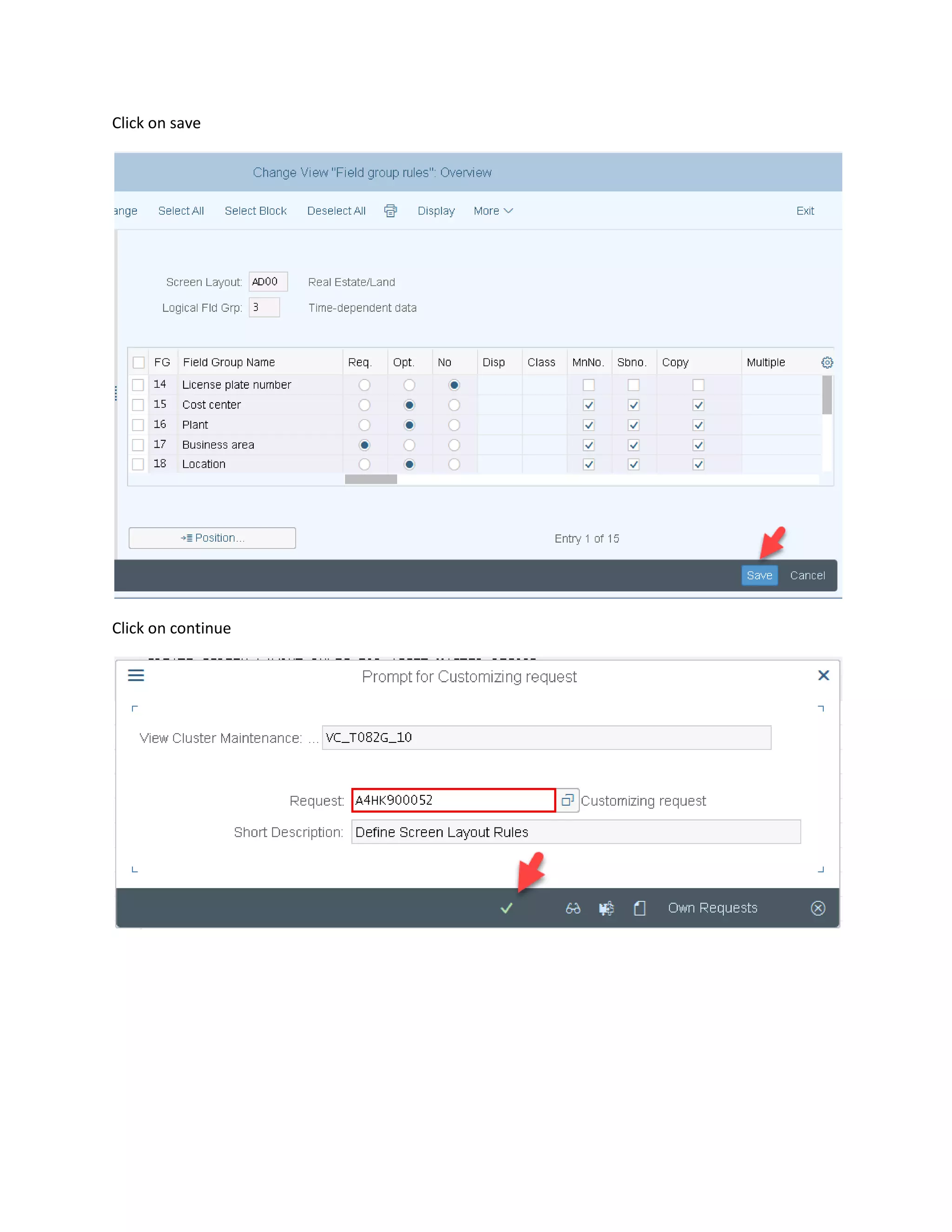
Click on save
Click on continue
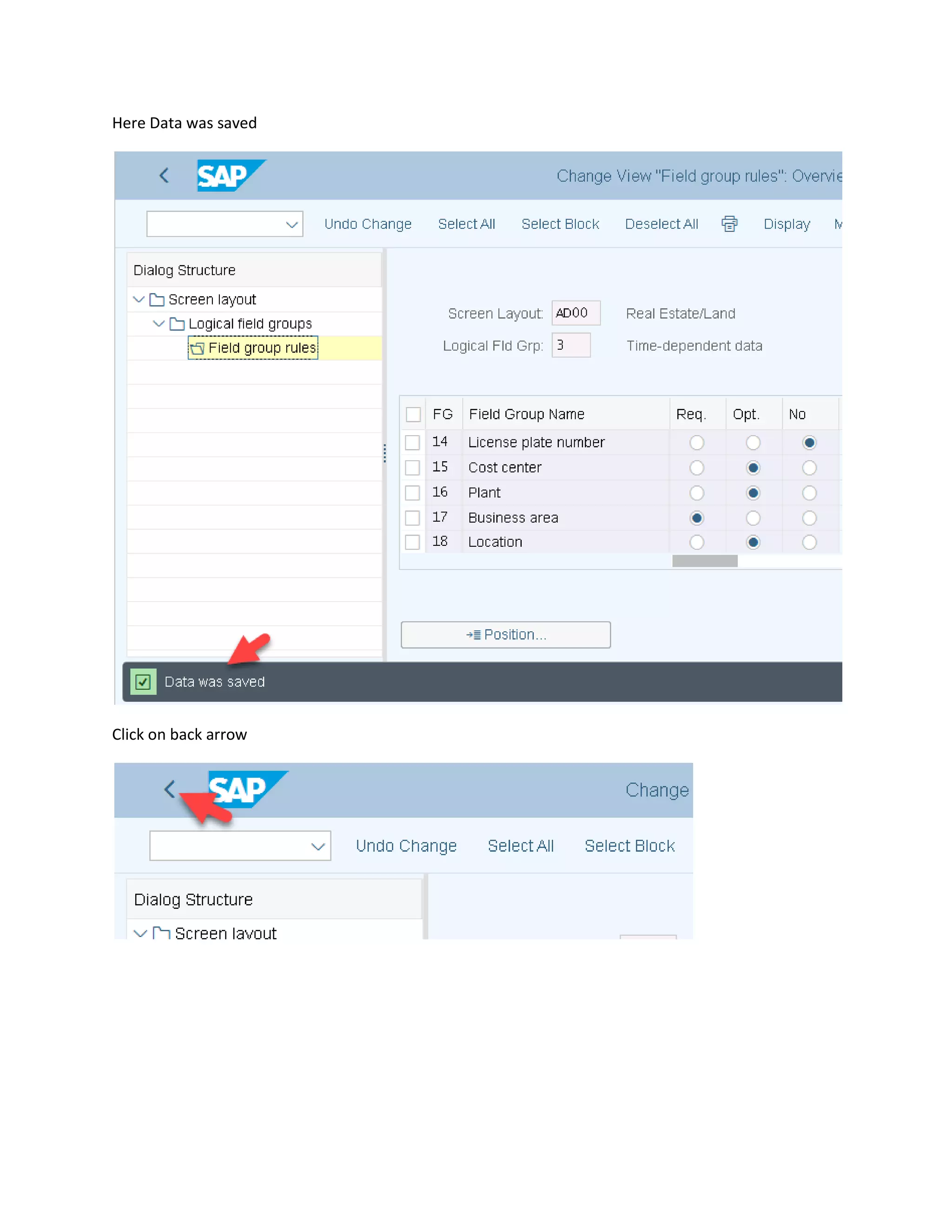
Here Data was saved
Click on back arrow
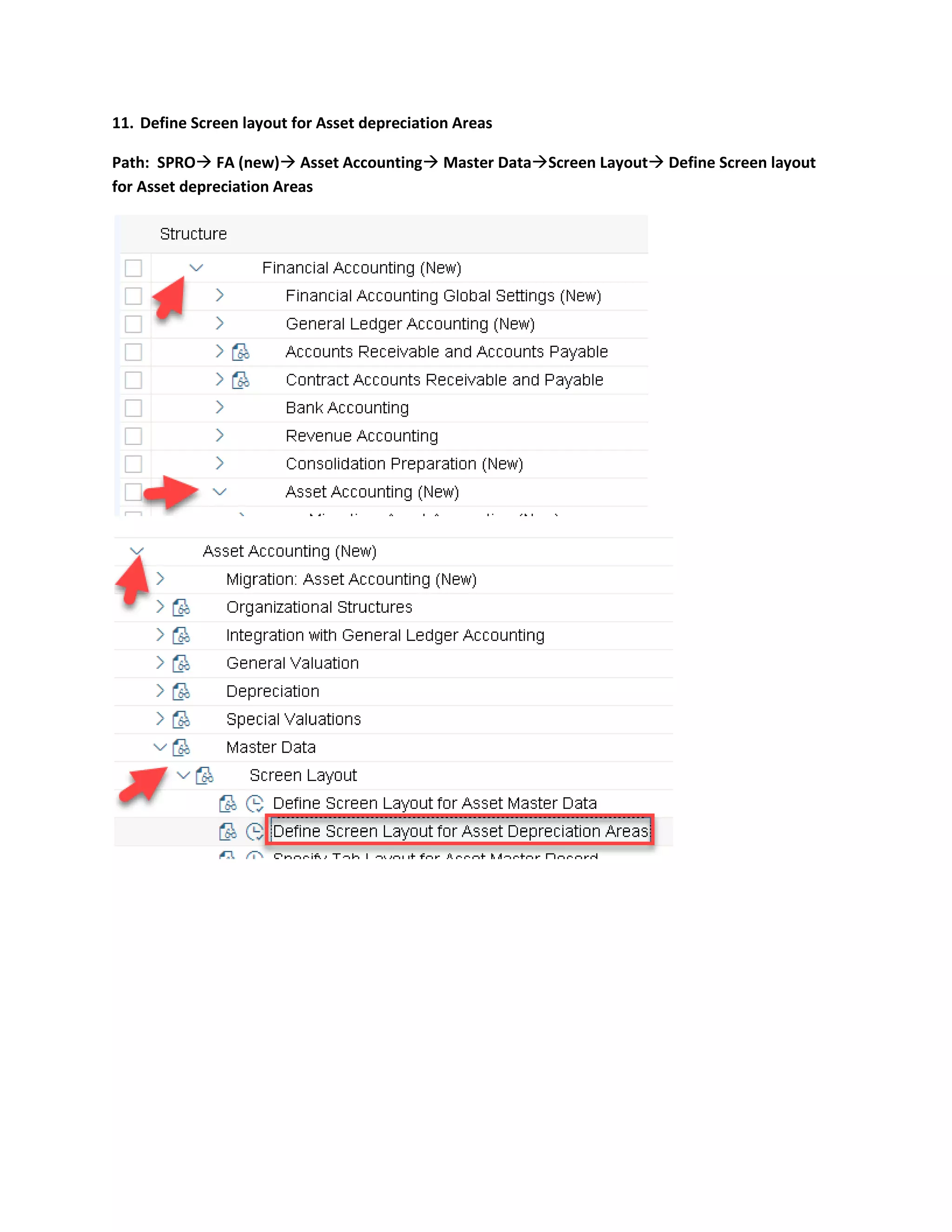
11. Define Screen layout for Asset depreciation Areas
Path: SPRO→ FA (new)→ Asset Accounting→ Master Data→Screen Layout→ Define Screen layout
for Asset depreciation Areas
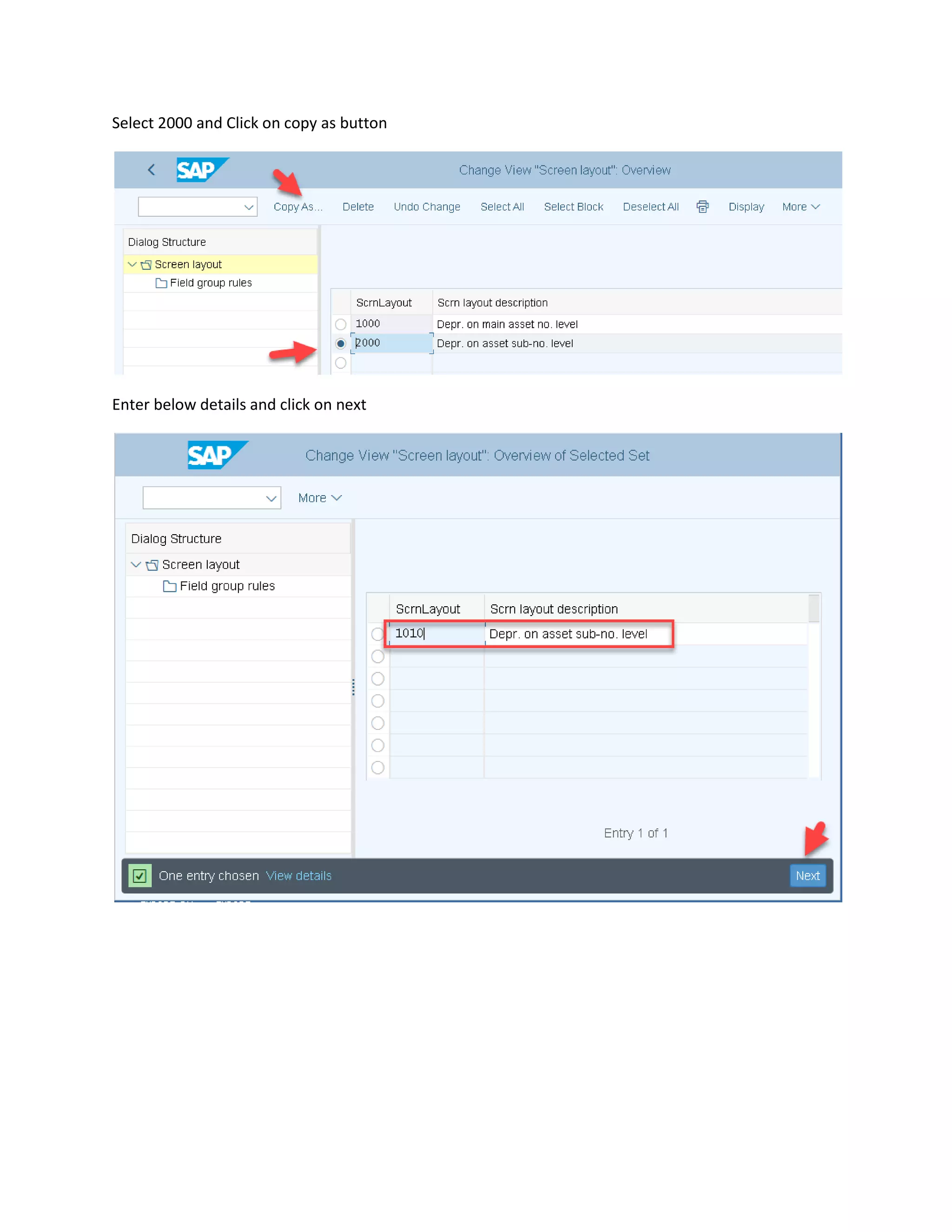
Select 2000 and Click on copy as button
Enter below details and click on next
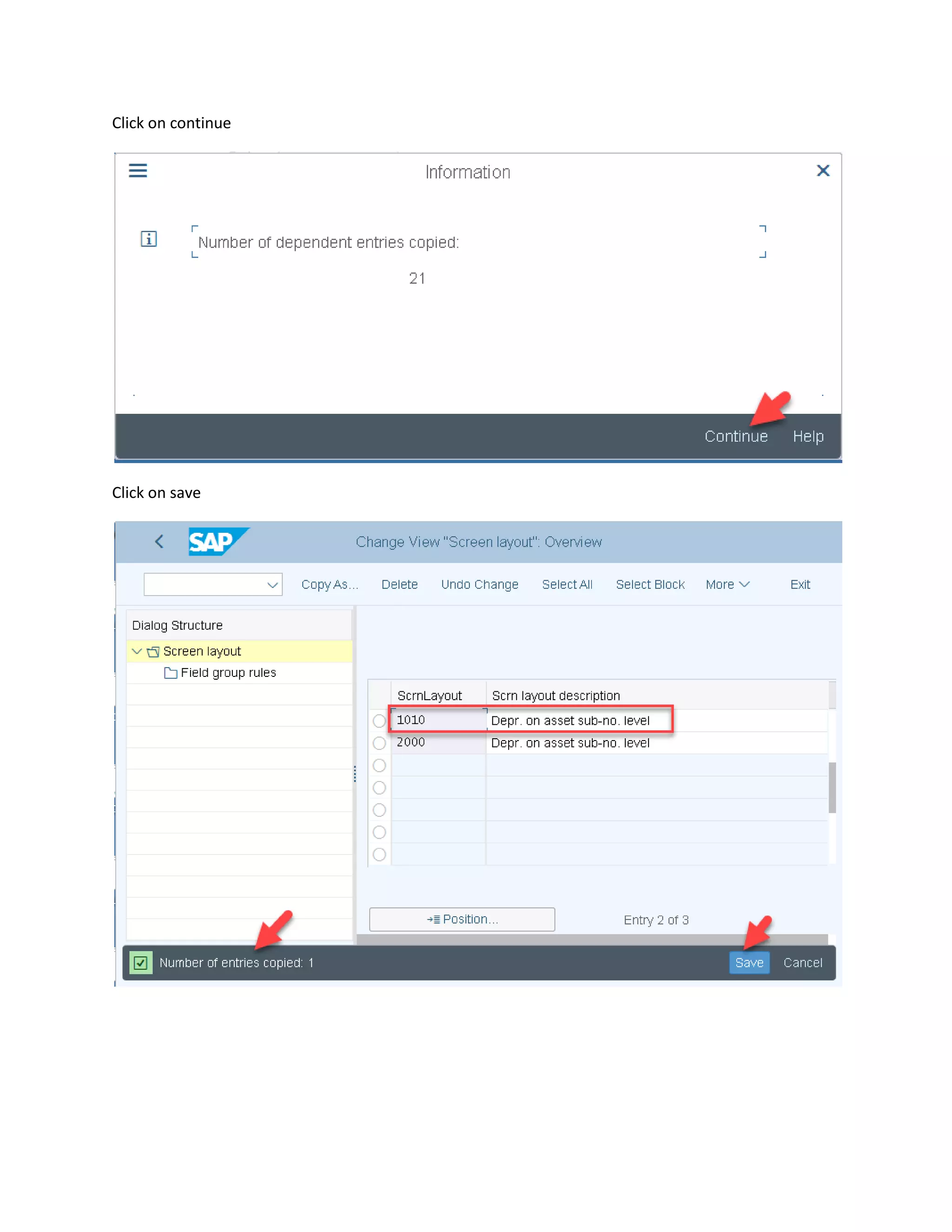
Click on continue
Click on save
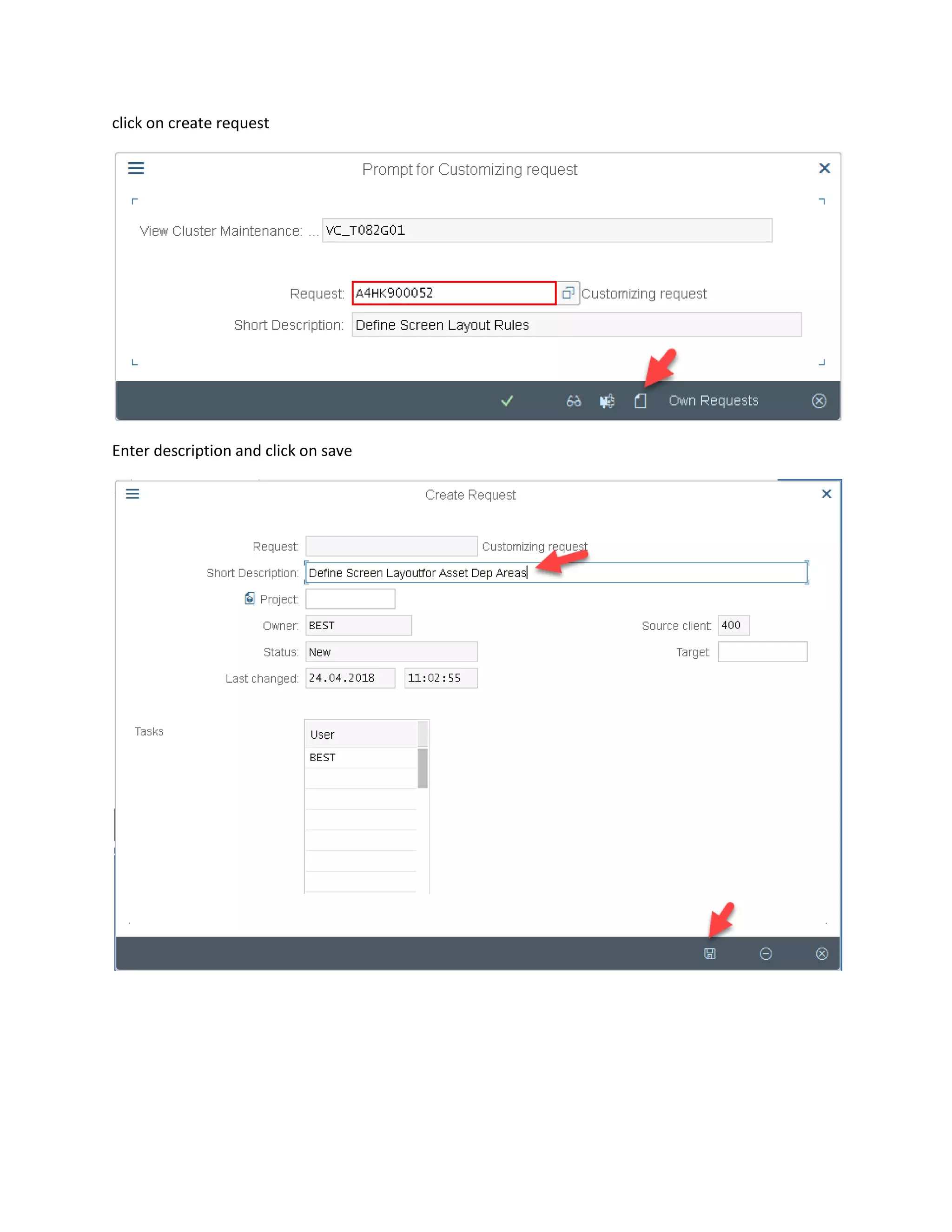
click on create request
Enter description and click on save
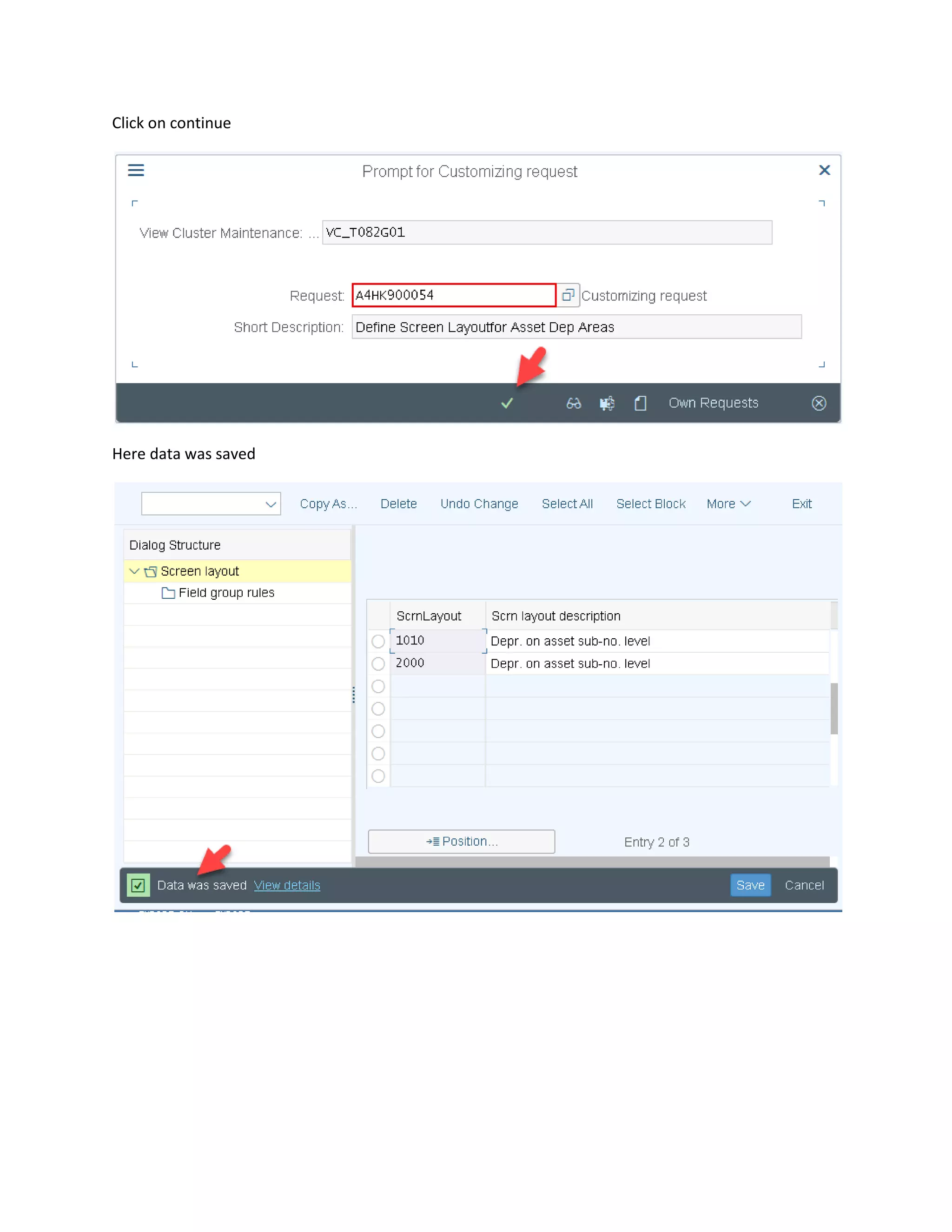
Click on continue
Here data was saved
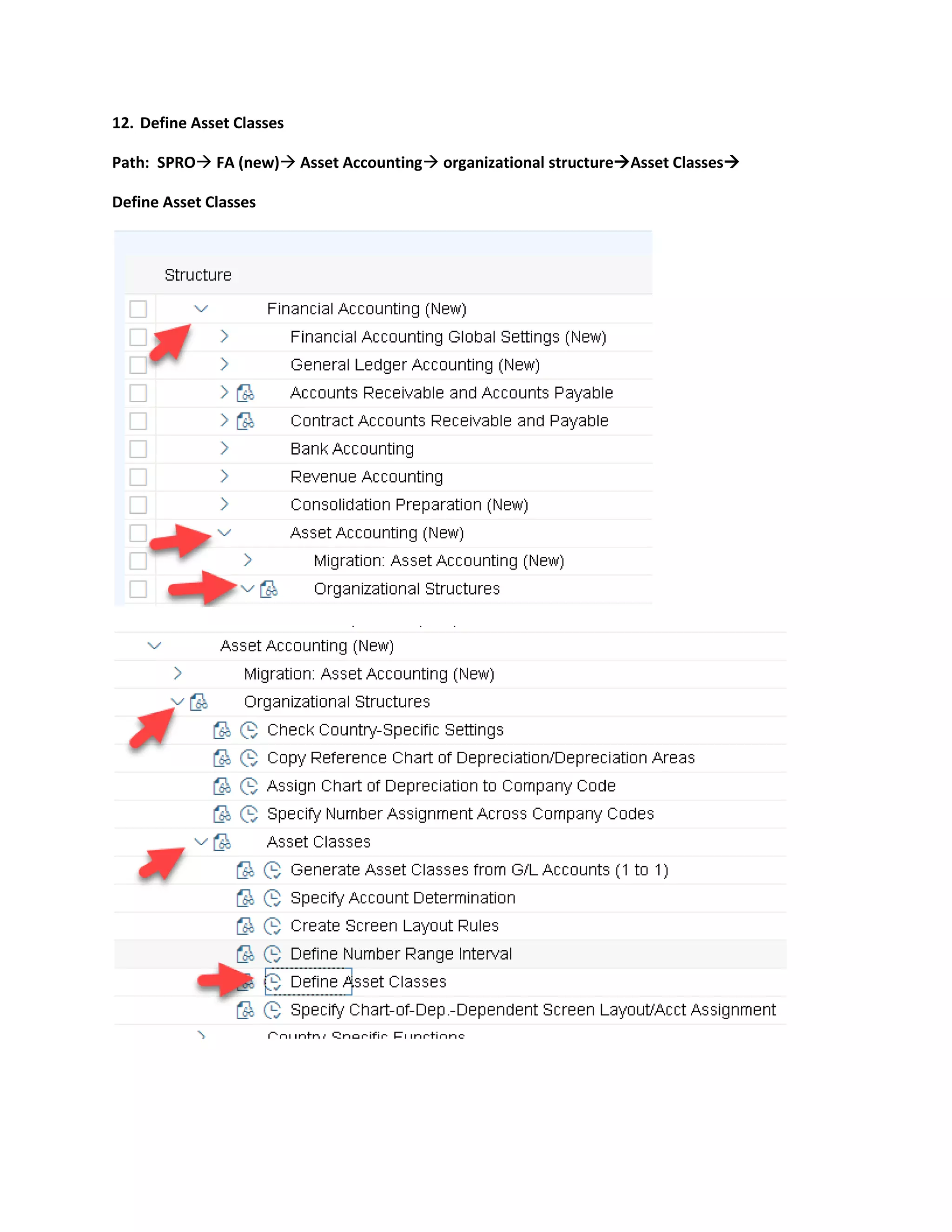
12. Define Asset Classes
Path: SPRO→ FA (new)→ Asset Accounting→ organizational structure→Asset Classes→
Define Asset Classes
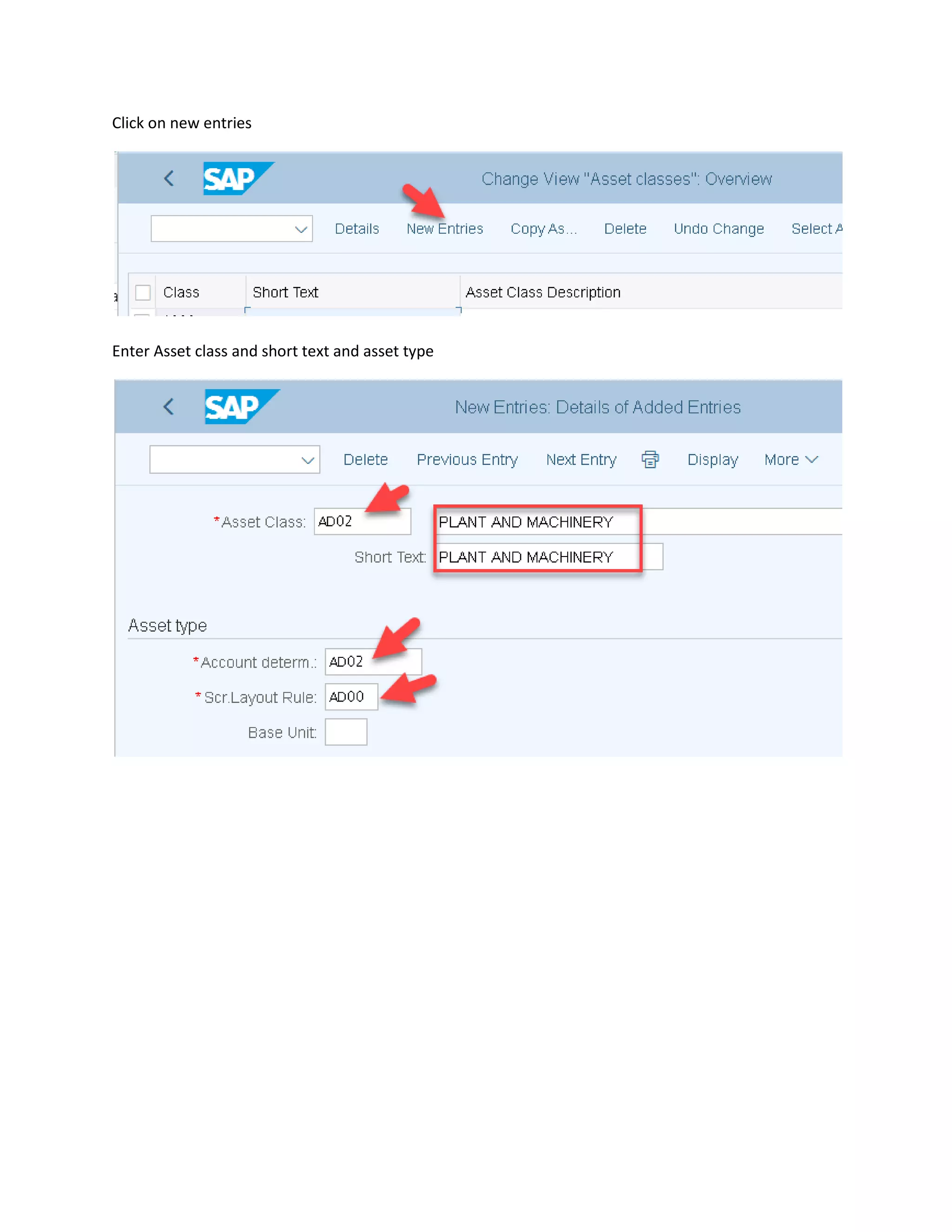
Click on new entries
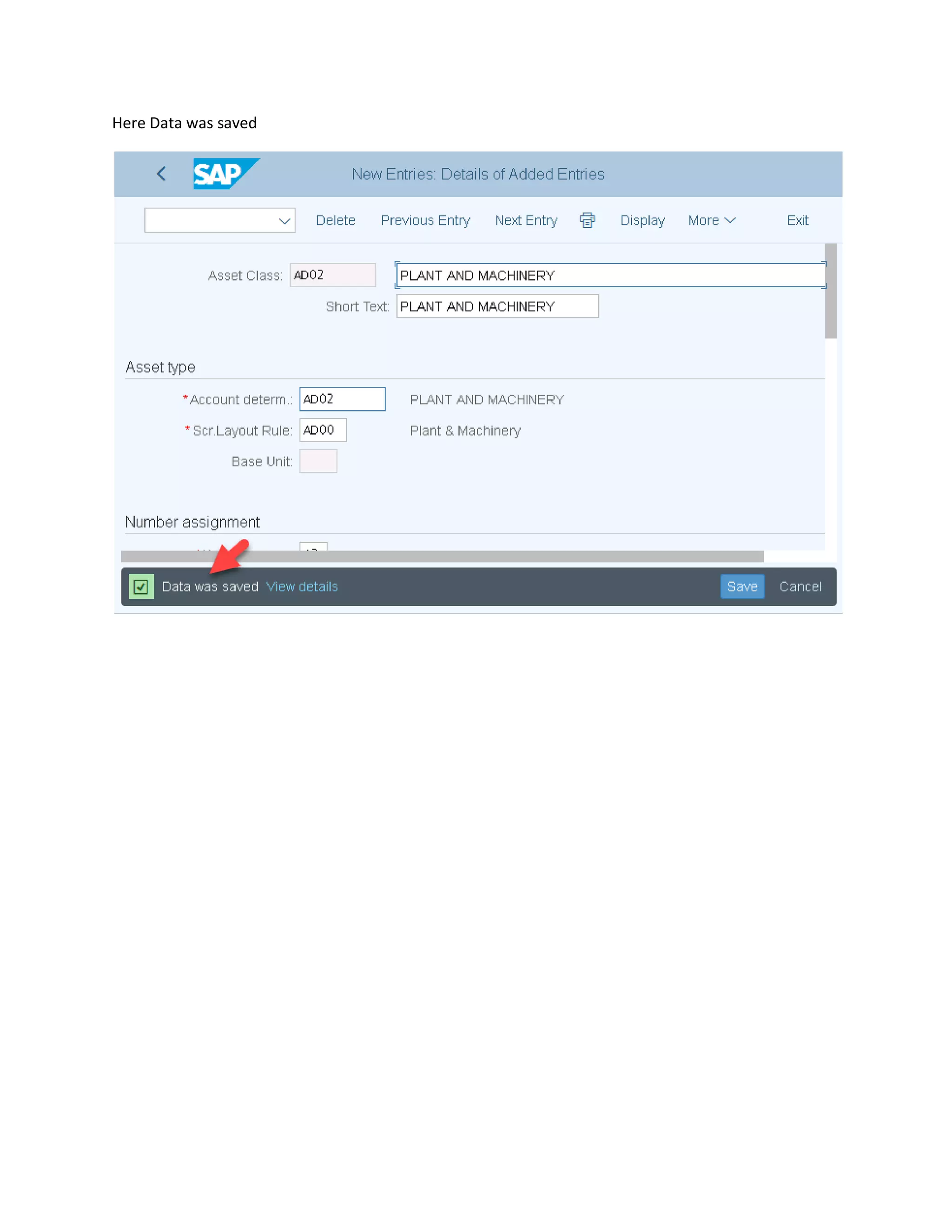
Enter Asset class and short text and asset type
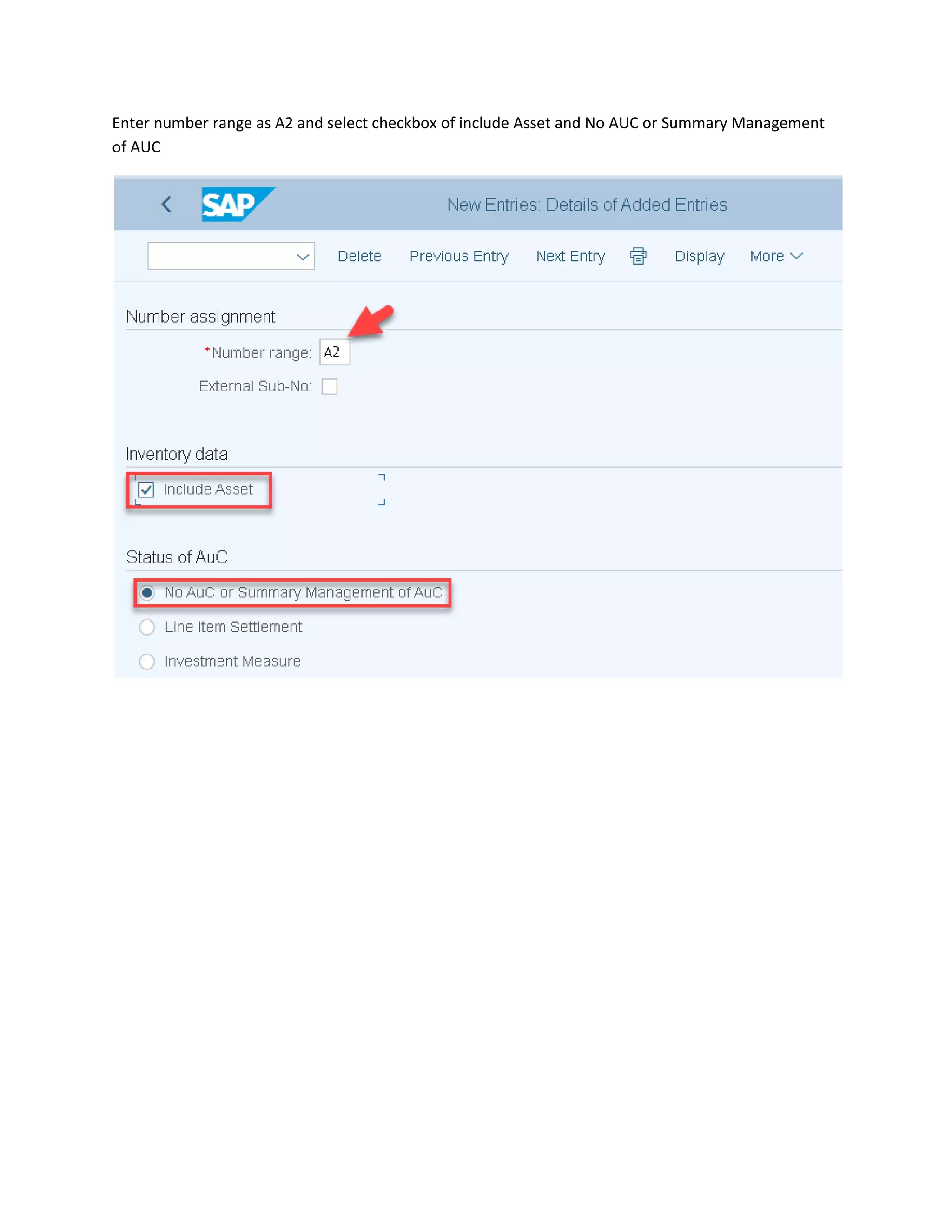
Enter number range as A2 and select checkbox of include Asset and No AUC or Summary Management
of AUC
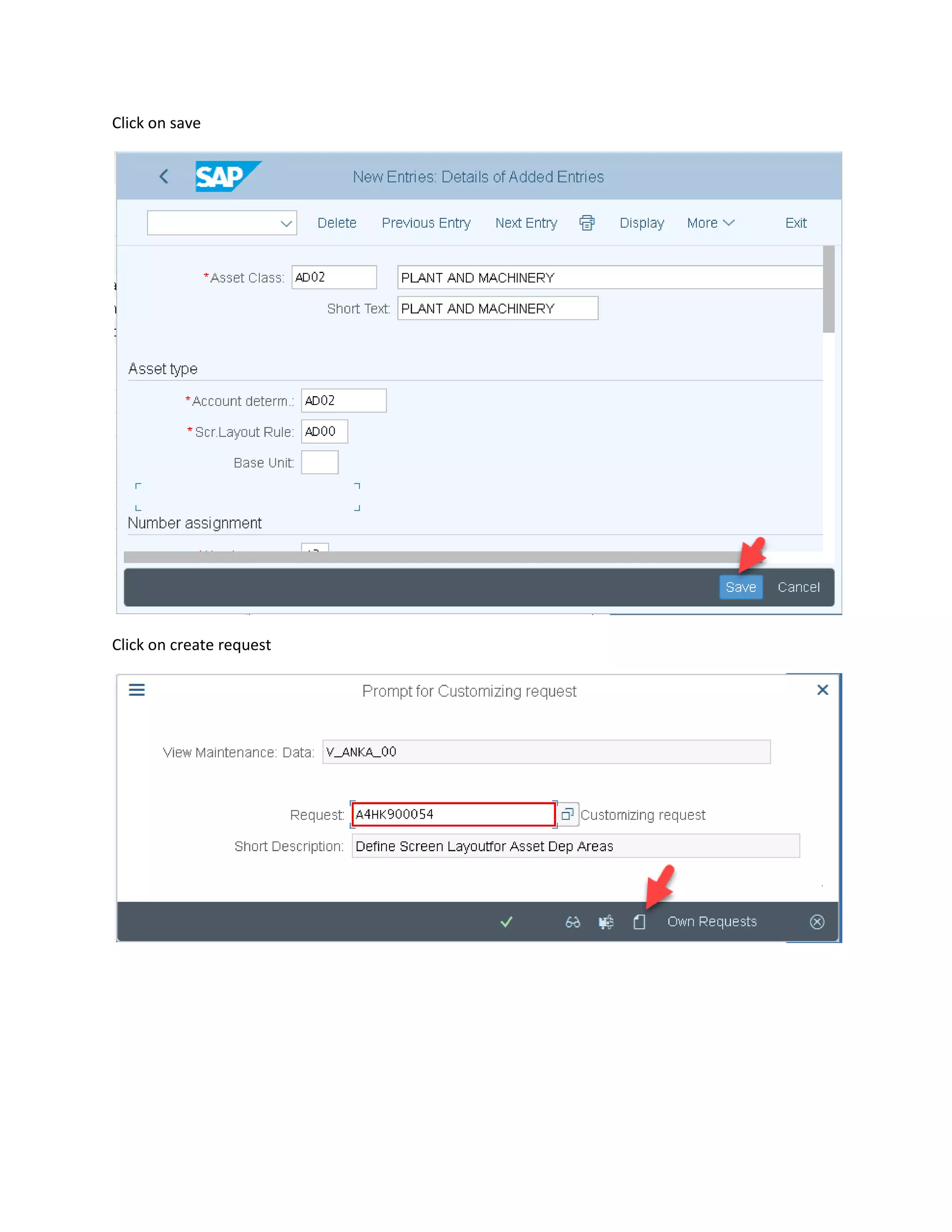
Click on save
Click on create request
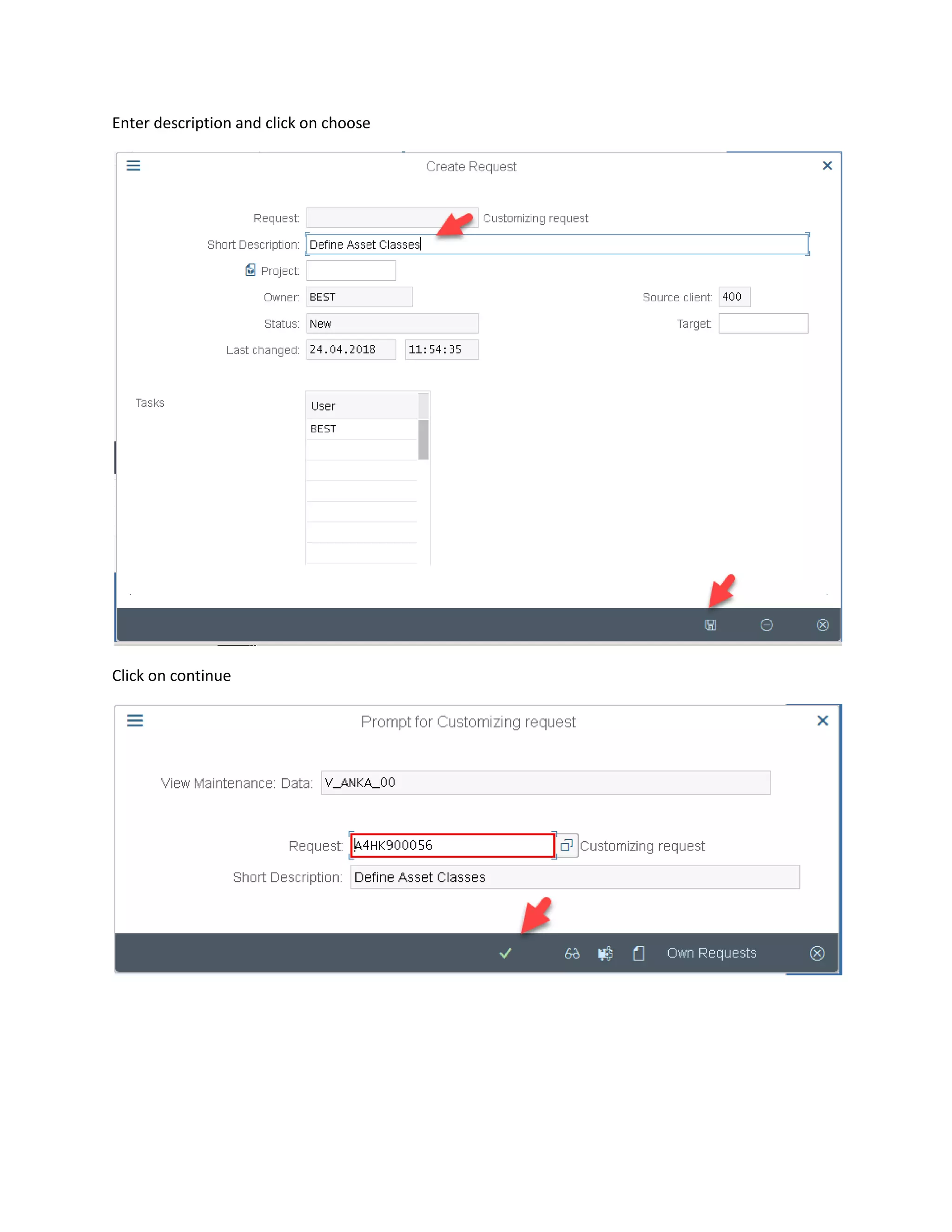
Enter description and click on choose
Click on continue
Here Data was saved
12. Depreciation Terms
In the Asset Accounting the dep calculation is based on calculation methods Assign Against dep key
Depreciation key:
The dep Settings of FA are control at dep key
Dep key= dep calculation method+dep%dep class
The Calculation methods are
1. Base Method
2. Declining –Balance method
3. Multi level method
4. Period Control Method
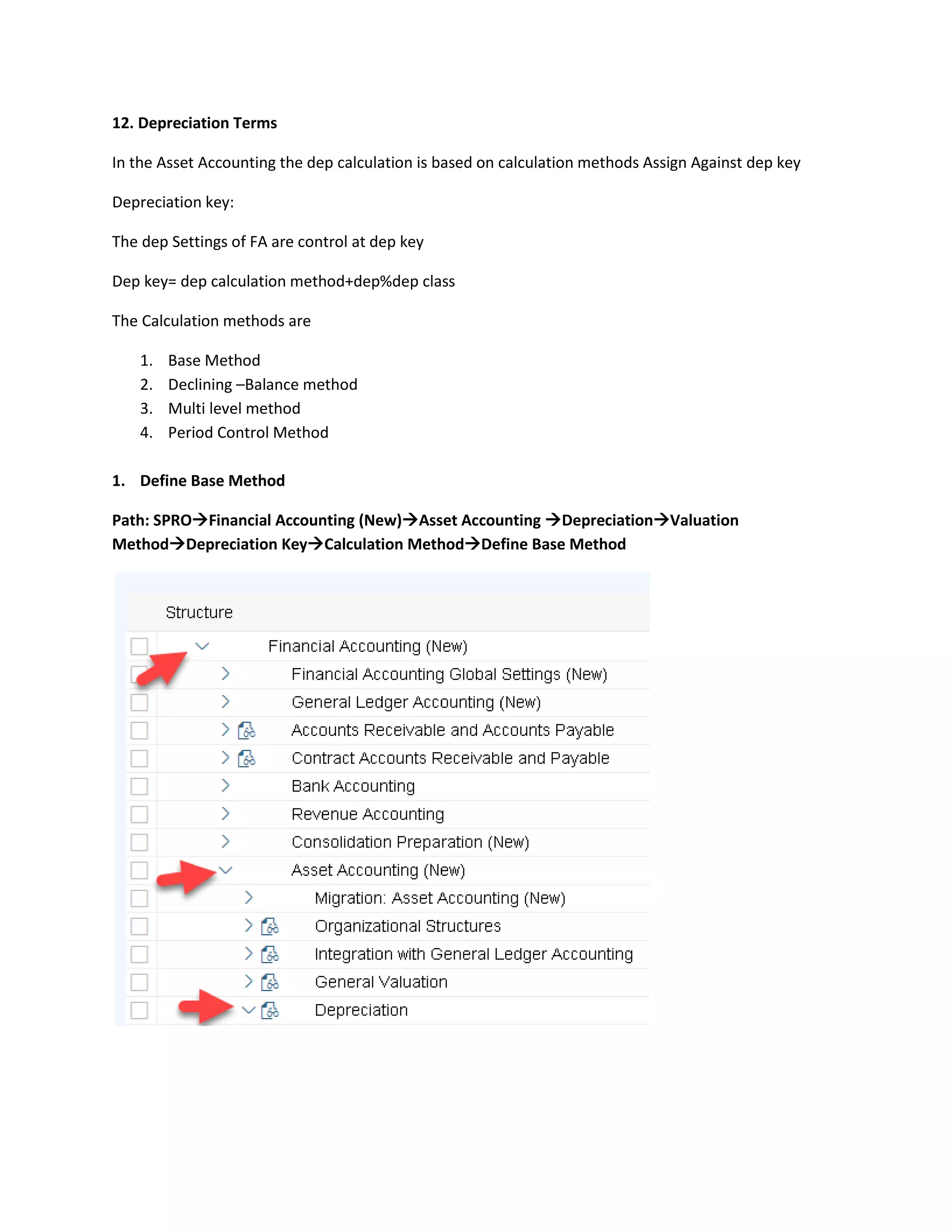
1. Define Base Method
Path: SPRO→Financial Accounting (New)→Asset Accounting →Depreciation→Valuation
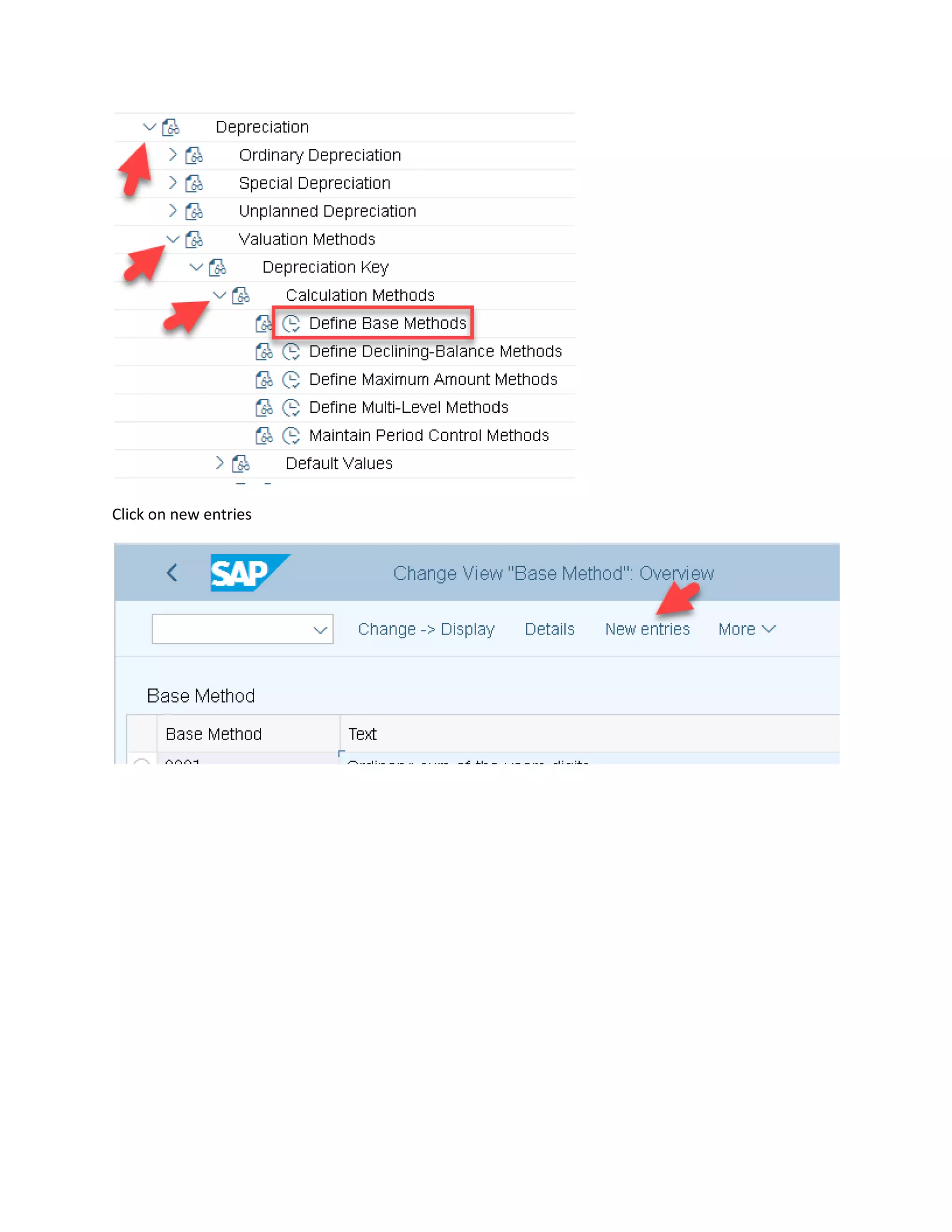
Method→Depreciation Key→Calculation Method→Define Base Method
Click on new entries
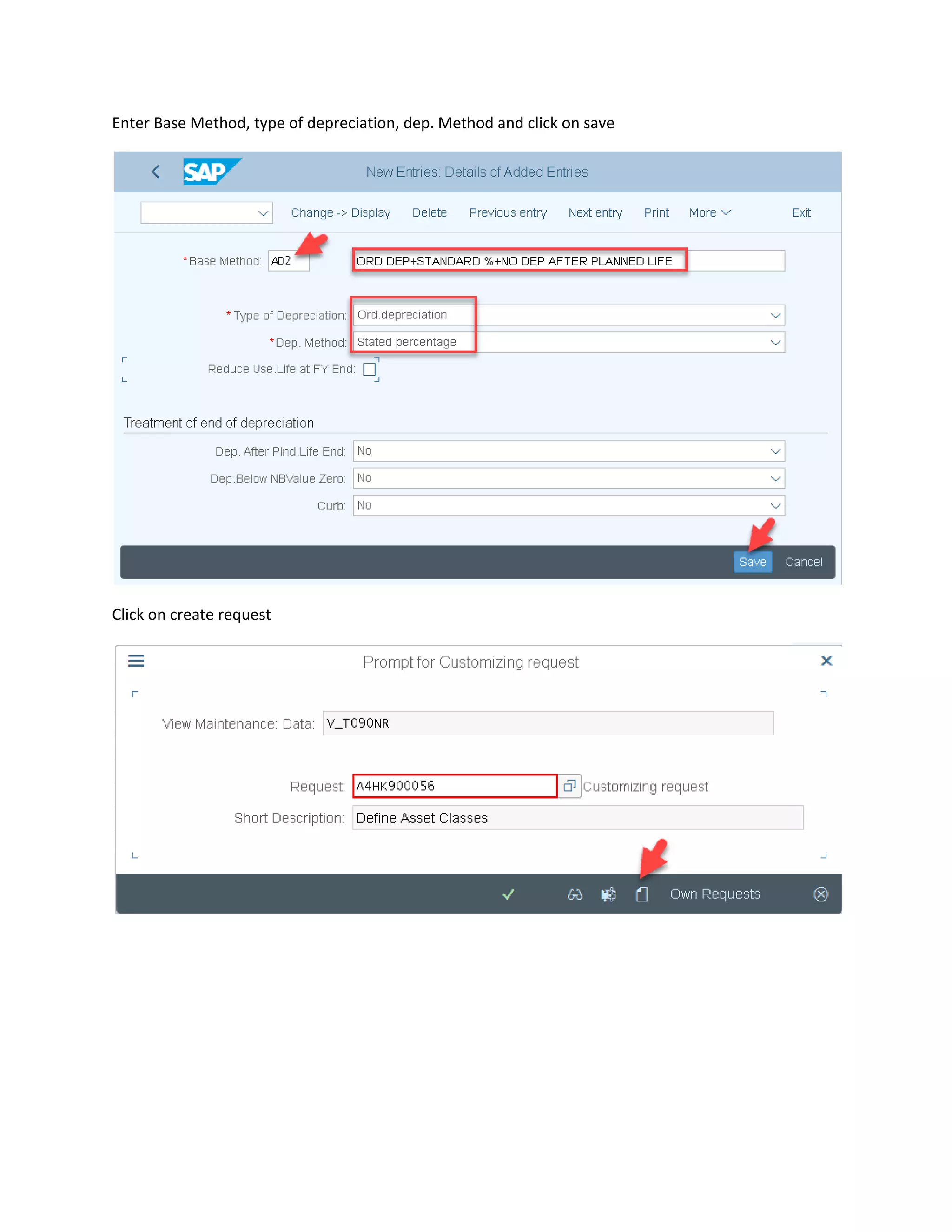
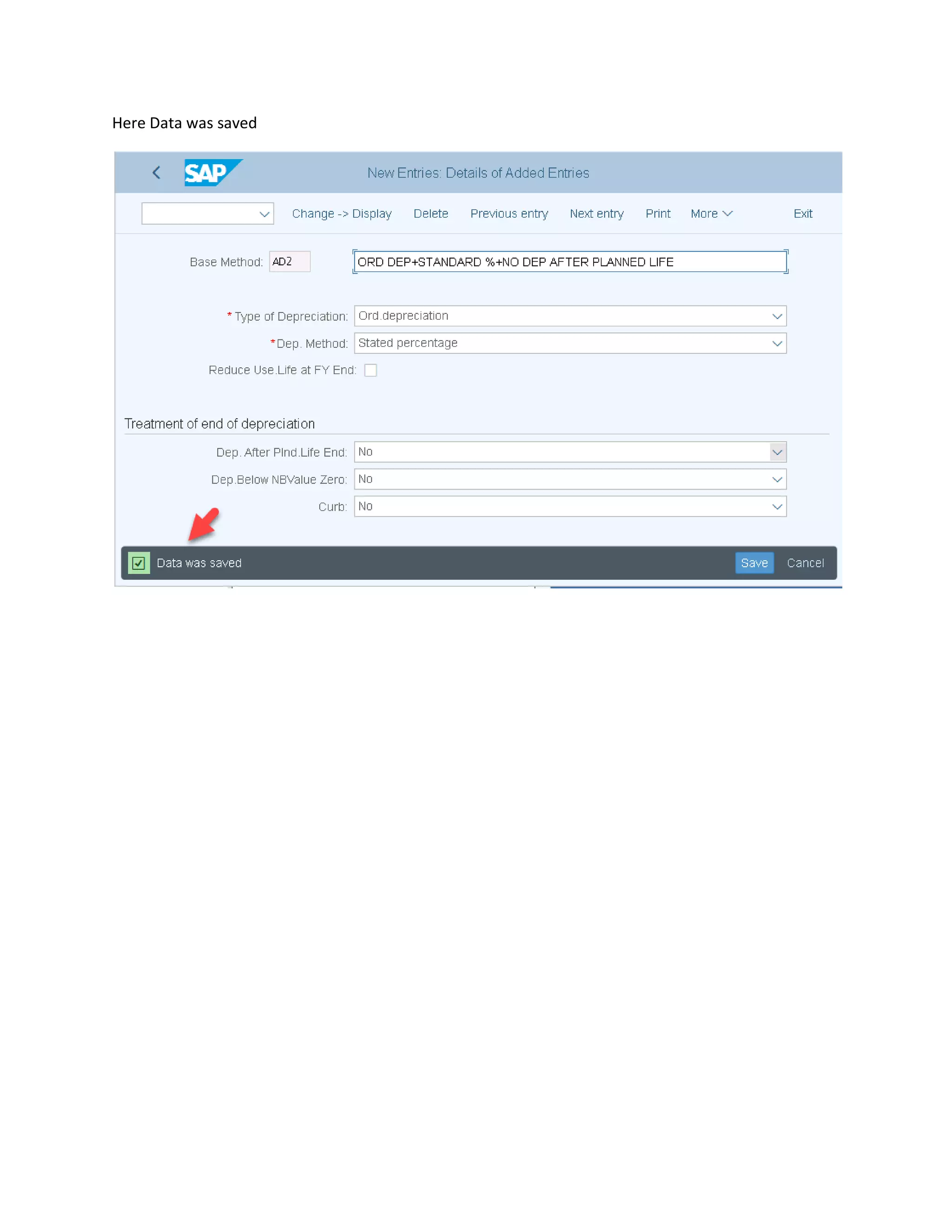
Enter Base Method, type of depreciation, dep. Method and click on save
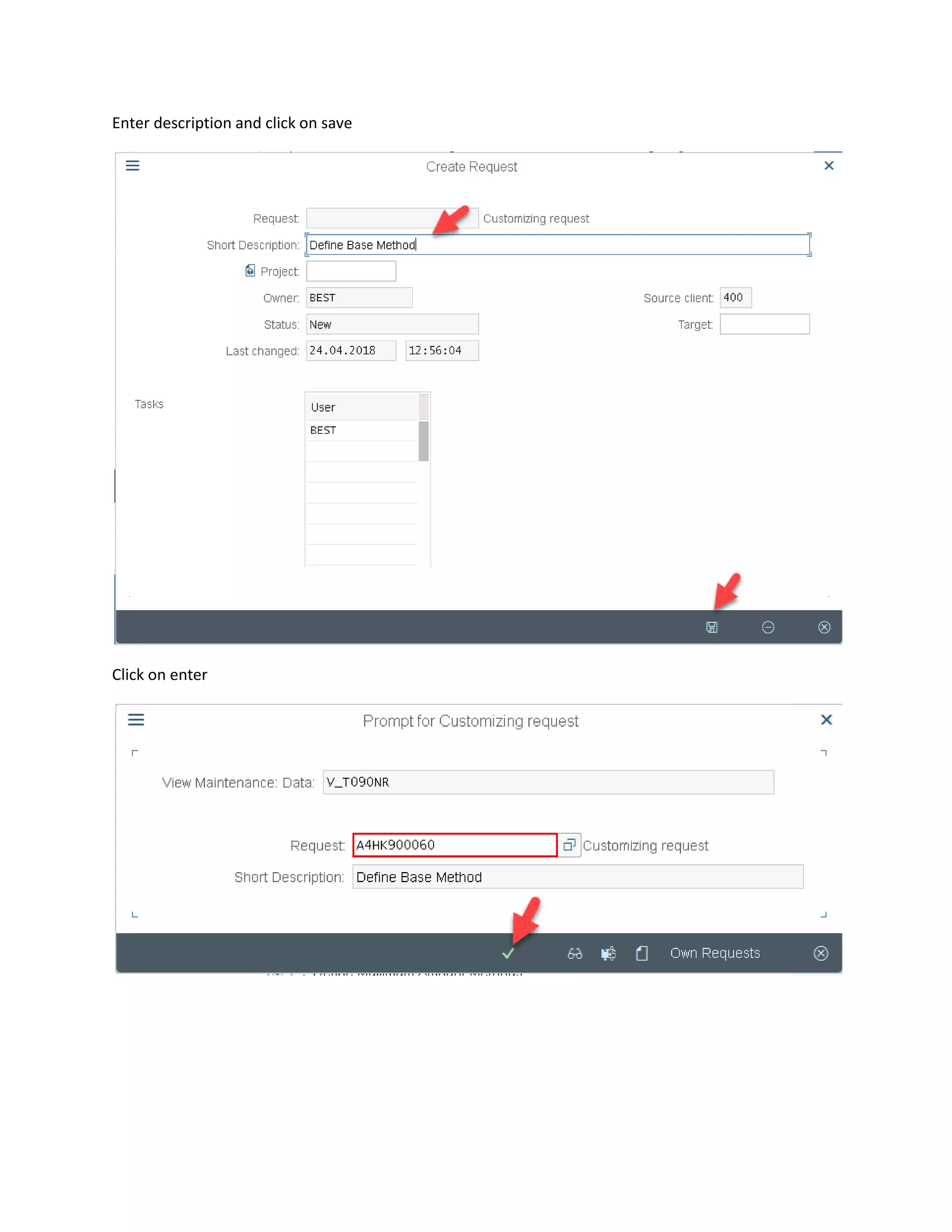
Click on create request
Enter description and click on save
Click on enter
Here Data was saved
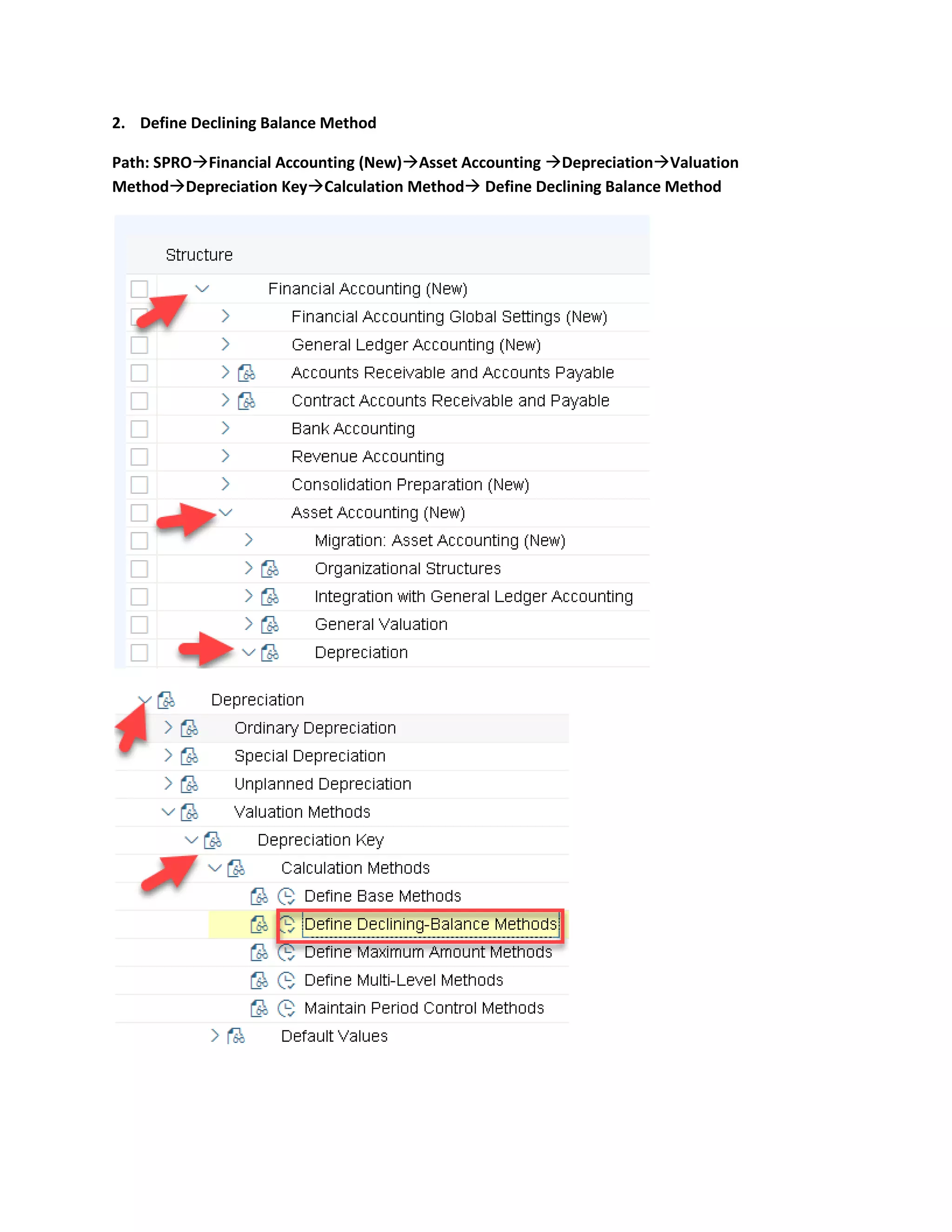
2. Define Declining Balance Method
Path: SPRO→Financial Accounting (New)→Asset Accounting →Depreciation→Valuation
Method→Depreciation Key→Calculation Method→ Define Declining Balance Method
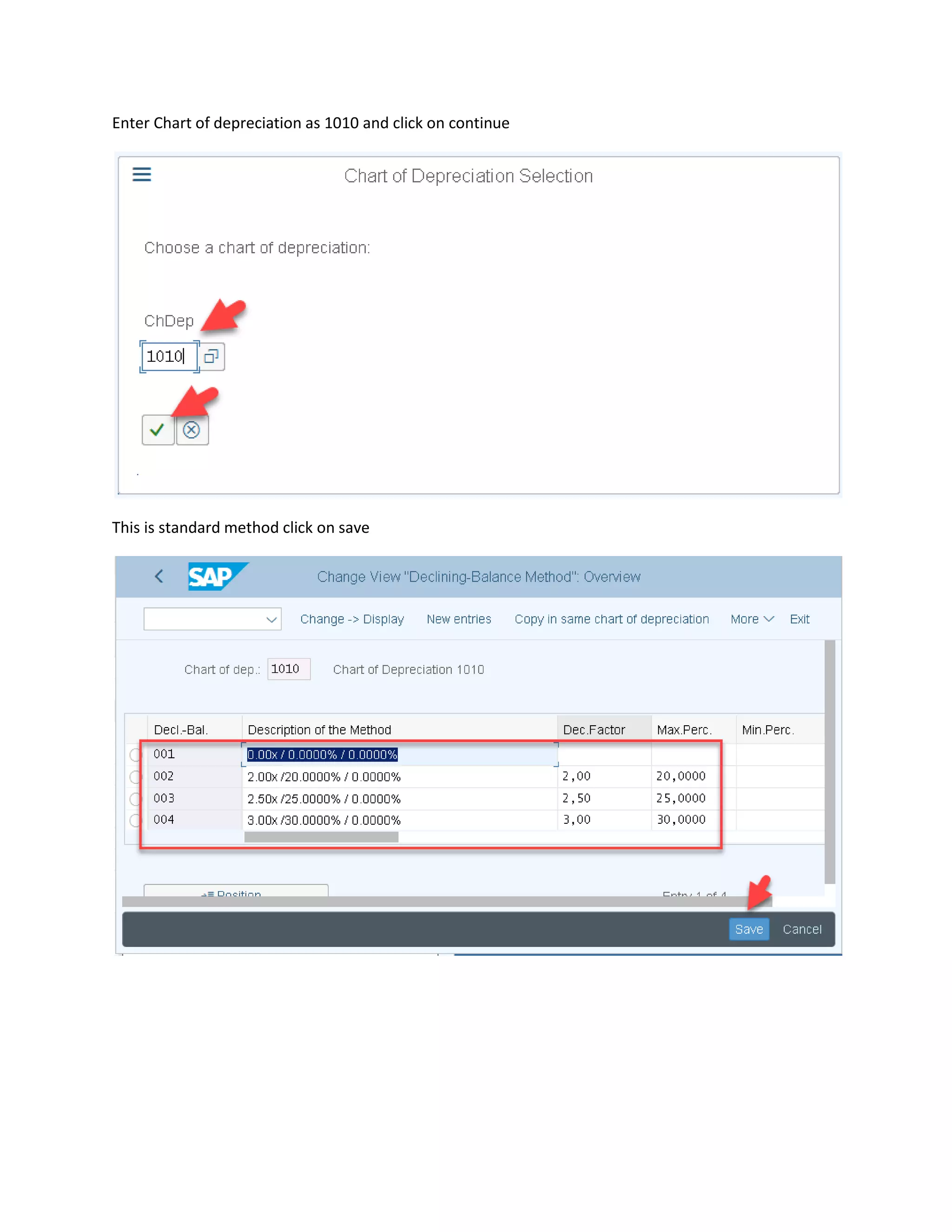
Enter Chart of depreciation as 1010 and click on continue
This is standard method click on save
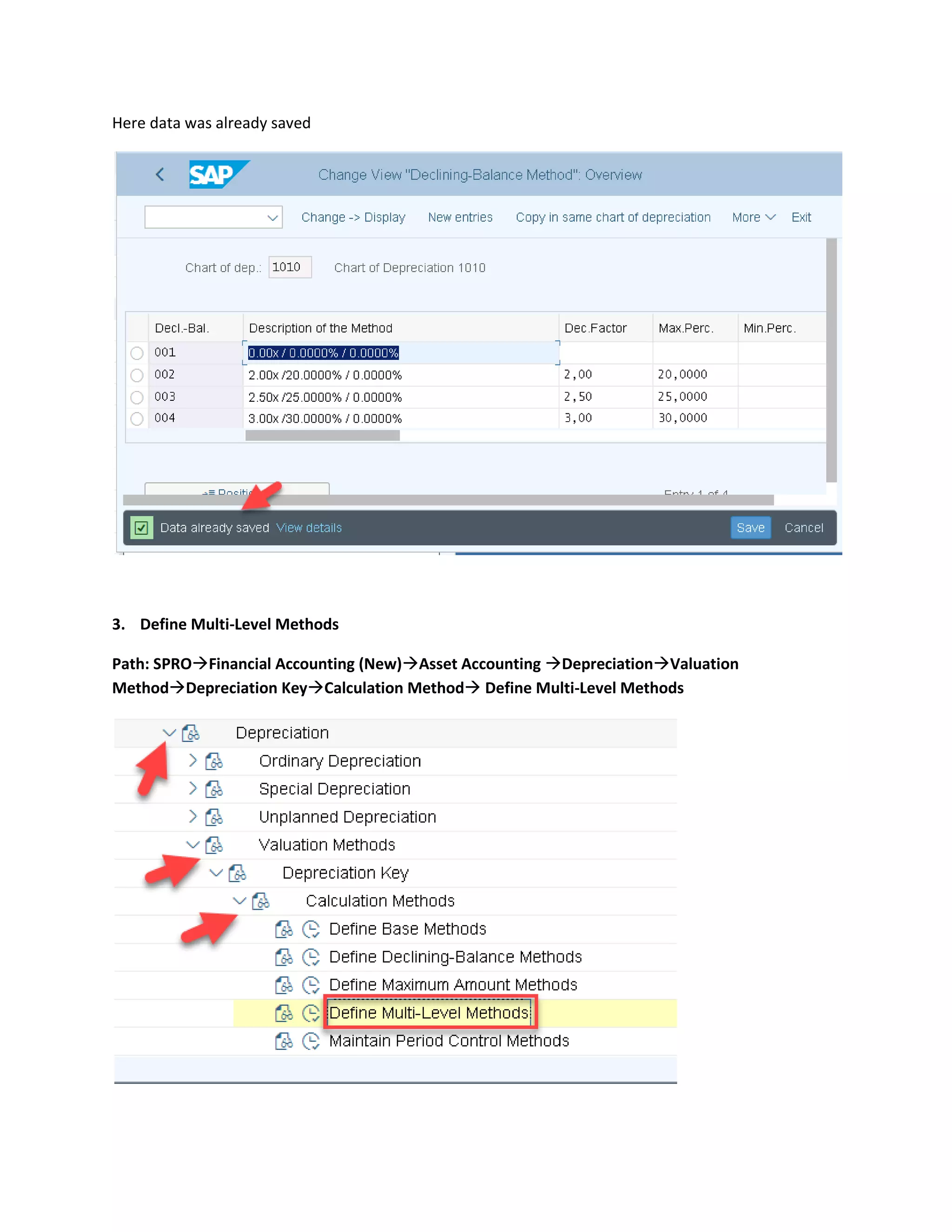
Here data was already saved
3. Define Multi-Level Methods
Path: SPRO→Financial Accounting (New)→Asset Accounting →Depreciation→Valuation
Method→Depreciation Key→Calculation Method→ Define Multi-Level Methods
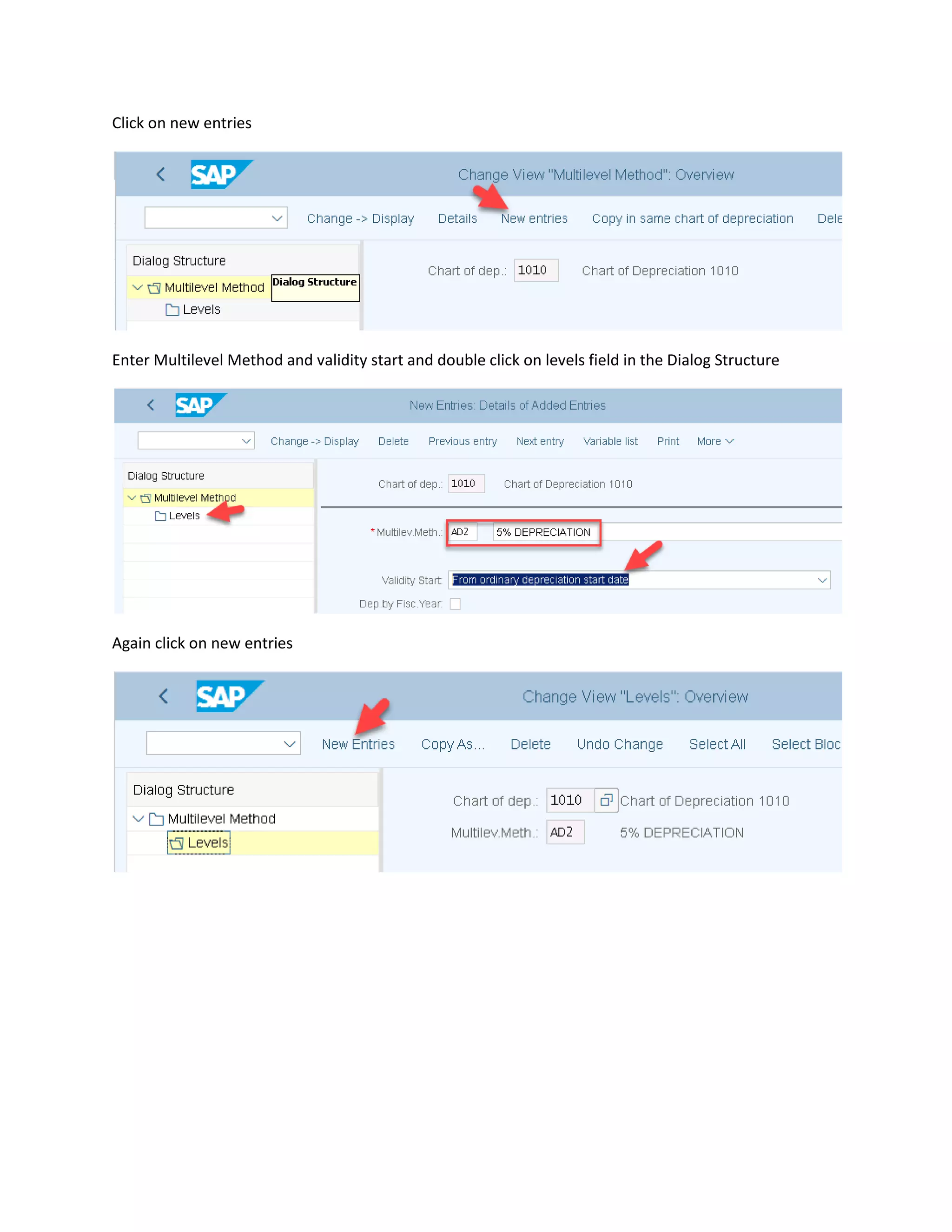
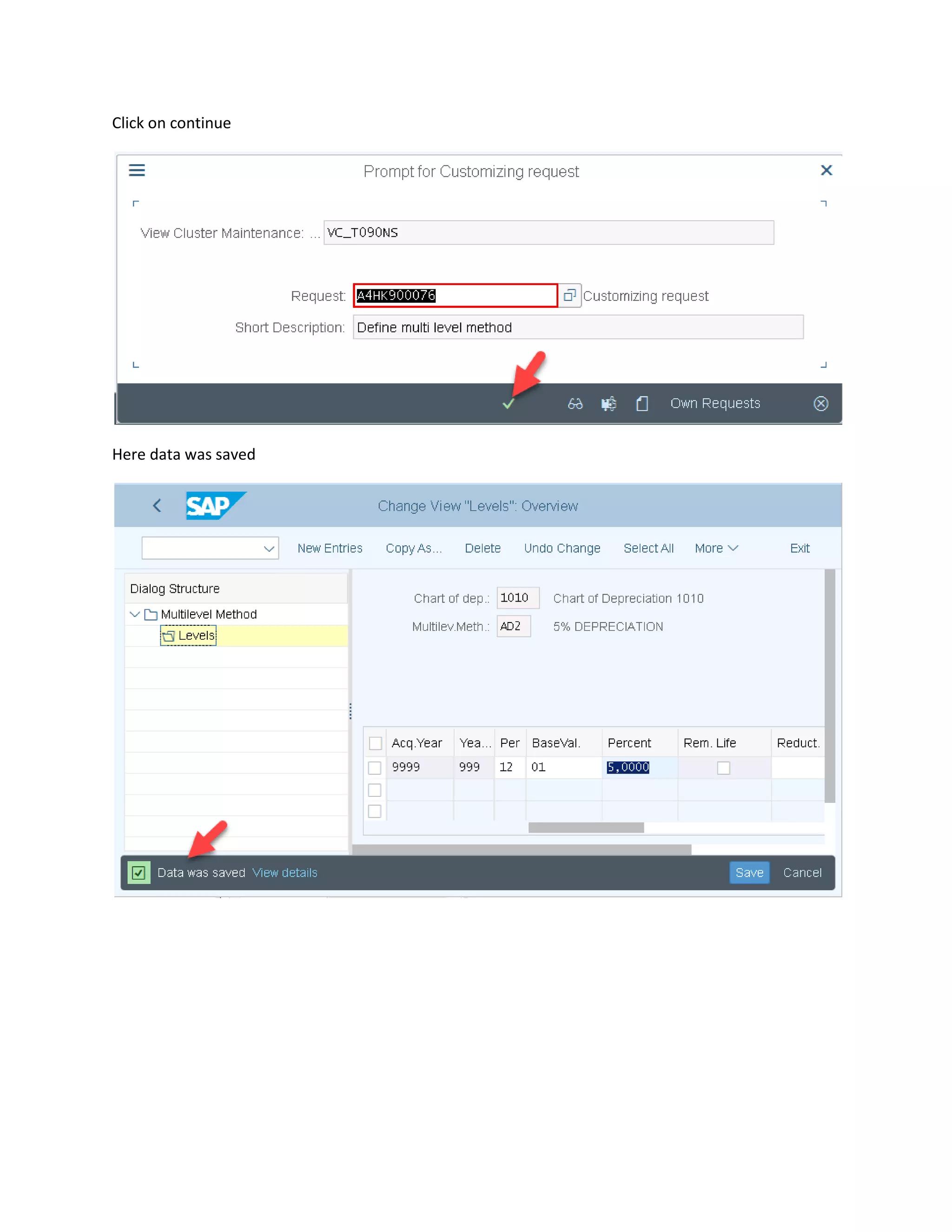
Click on new entries
Enter Multilevel Method and validity start and double click on levels field in the Dialog Structure
Again click on new entries
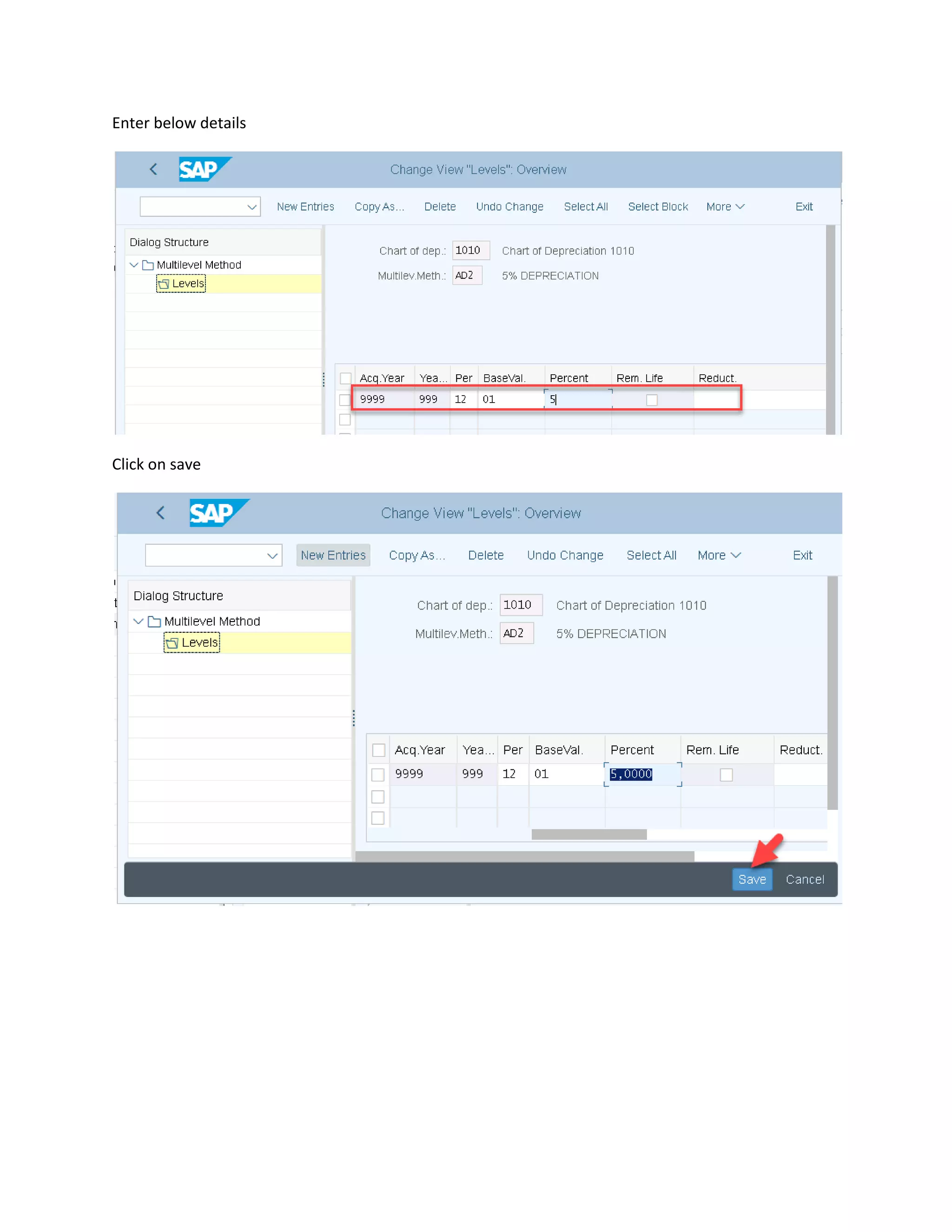
Enter below details
Click on save
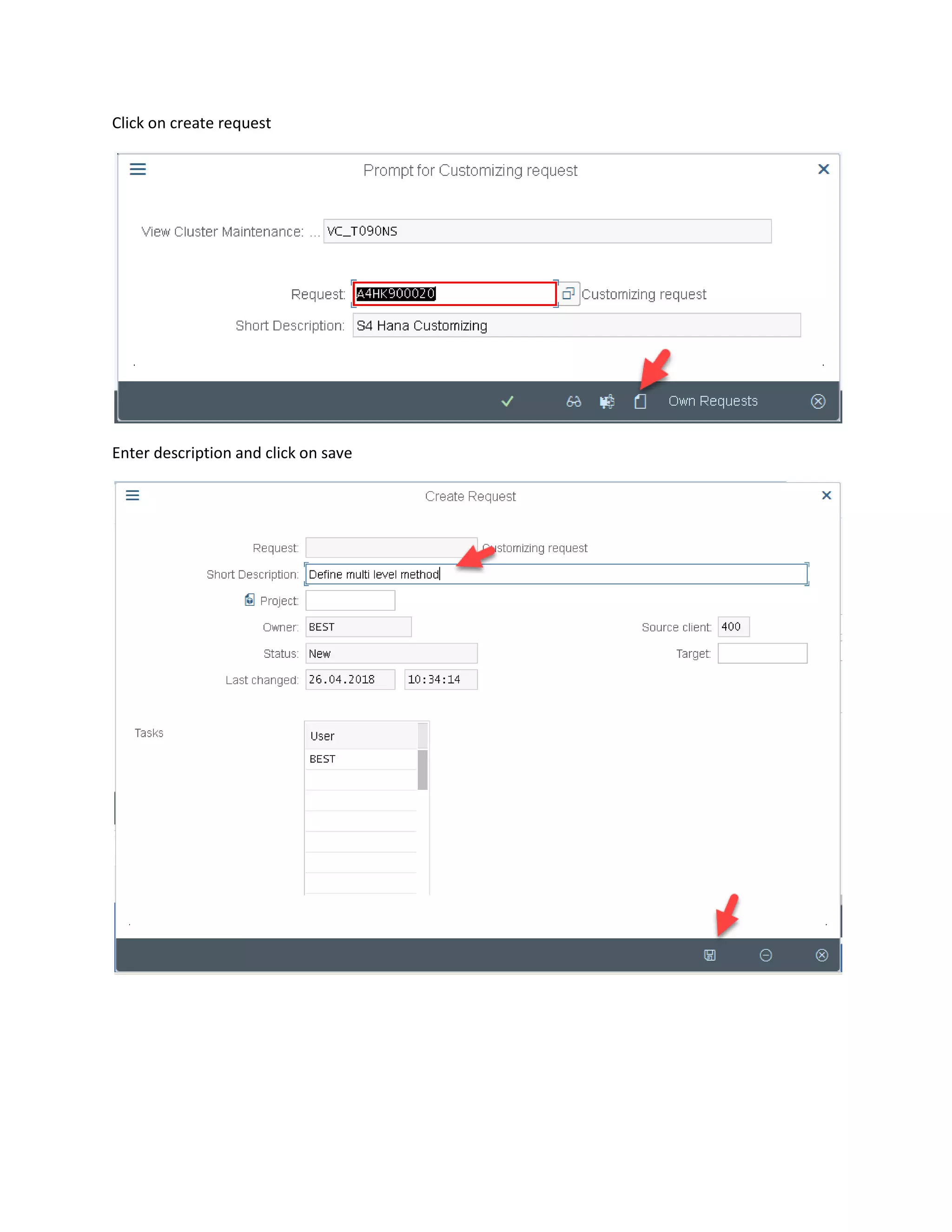
Click on create request
Enter description and click on save
Click on continue
Here data was saved
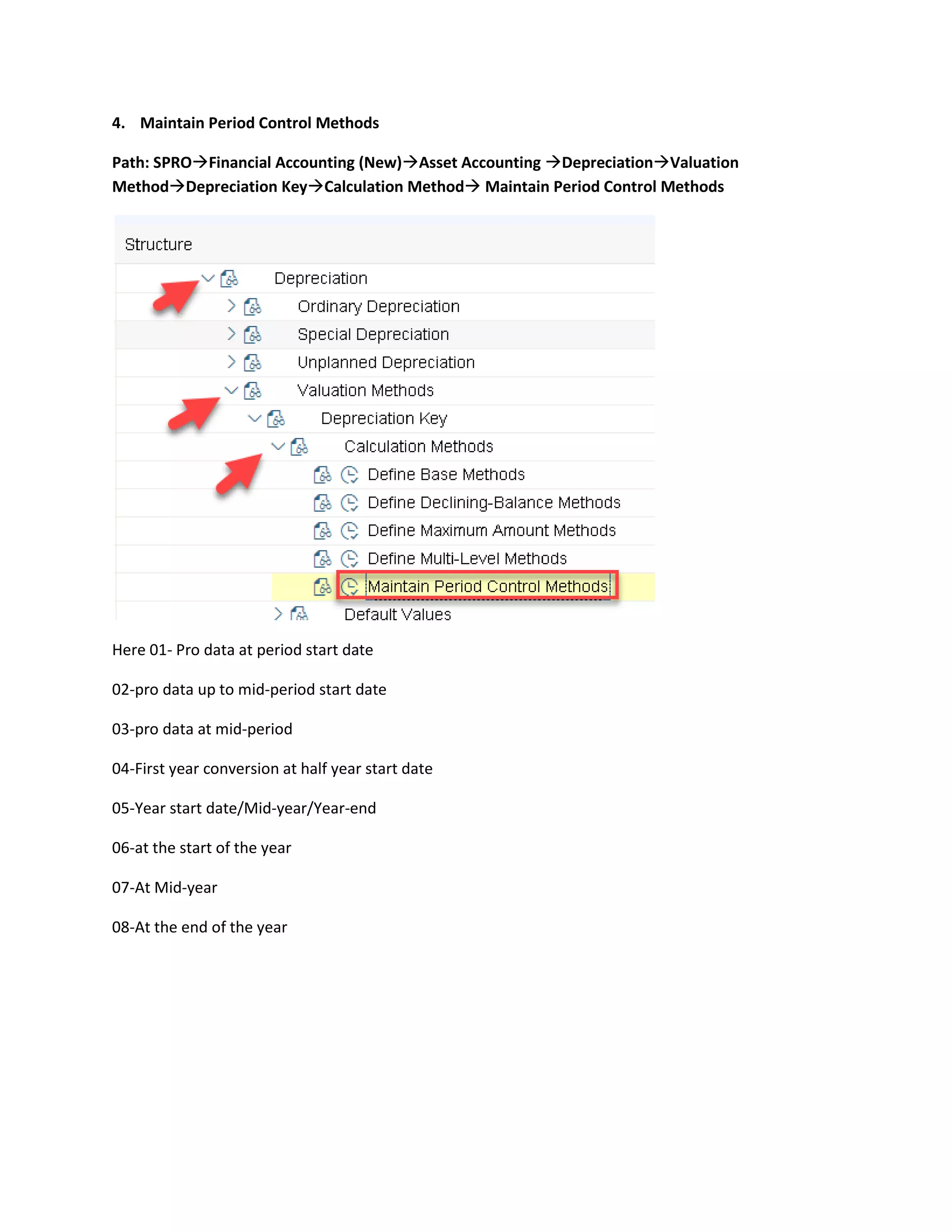
4. Maintain Period Control Methods
Path: SPRO→Financial Accounting (New)→Asset Accounting →Depreciation→Valuation
Method→Depreciation Key→Calculation Method→ Maintain Period Control Methods
Here 01- Pro data at period start date
02-pro data up to mid-period start date
03-pro data at mid-period
04-First year conversion at half year start date
05-Year start date/Mid-year/Year-end
06-at the start of the year
07-At Mid-year
08-At the end of the year
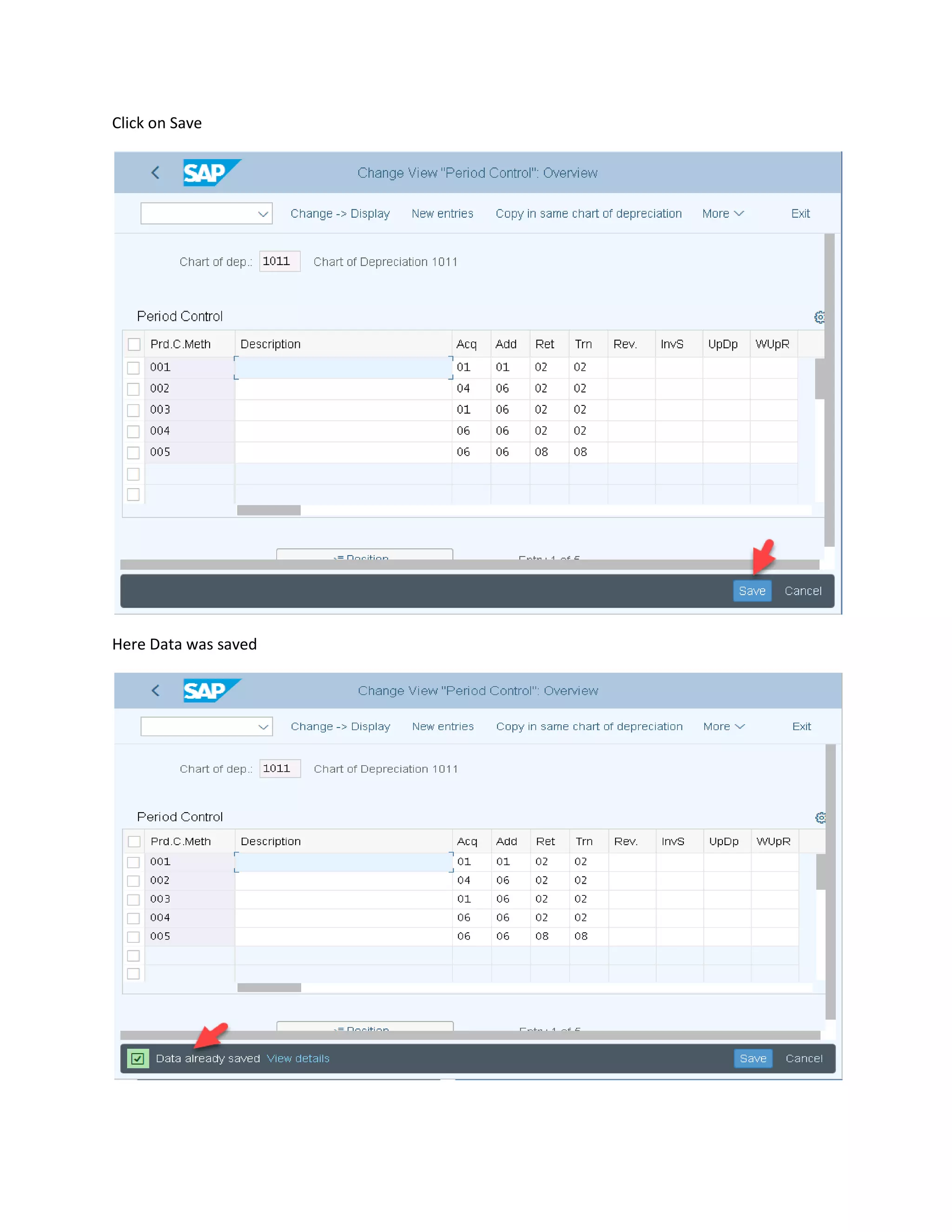
Click on Save
Here Data was saved
13. Cut-off key (Salvage Value/ Scrap Value)
Same country’s have legal requirements of retaining same % of FA as salvage of Cut-Off Amount
Depreciation should be calculated till the cut-off % and reset off the balance will remain against FA until
Asset is retire
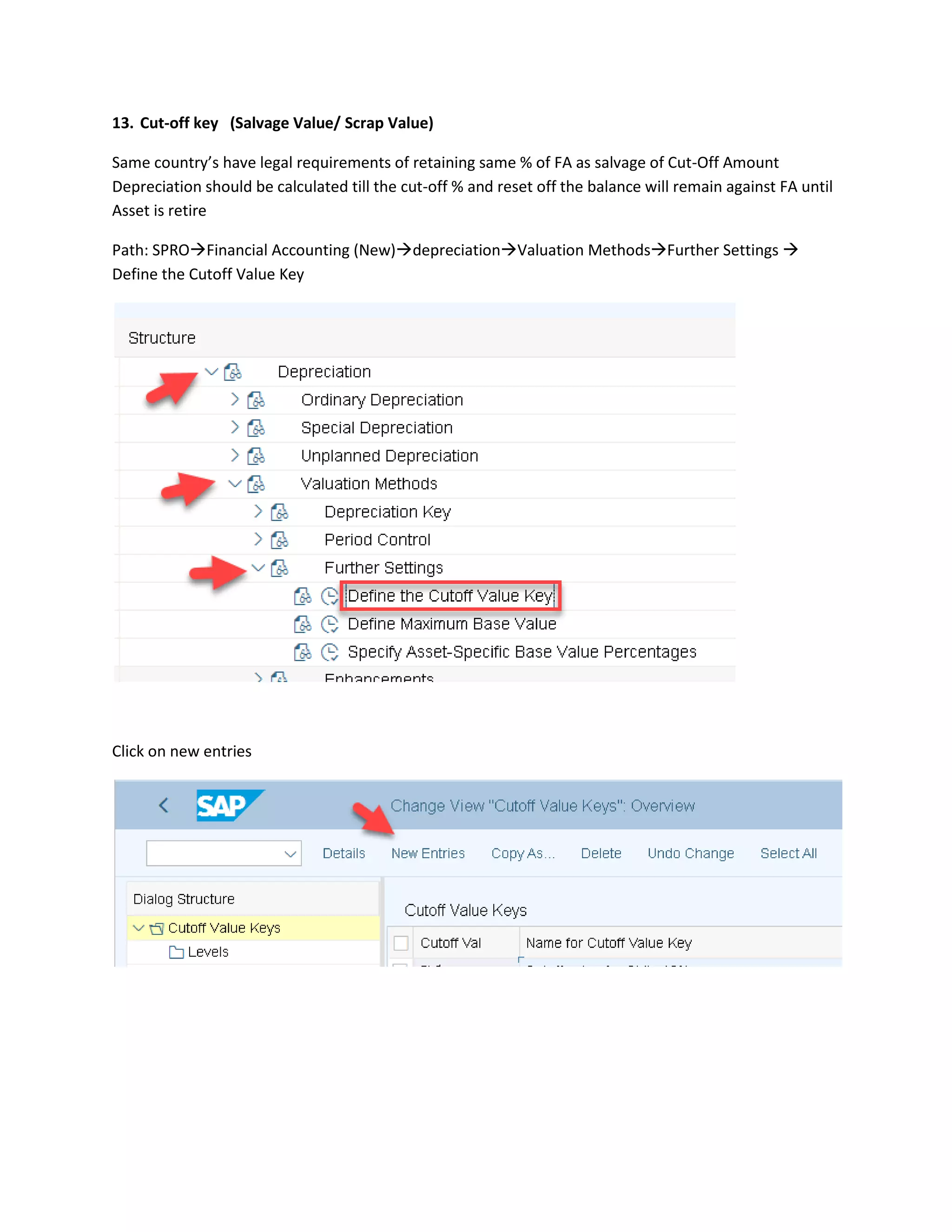
Path: SPRO→Financial Accounting (New)→depreciation→Valuation Methods→Further Settings →
Define the Cutoff Value Key
Click on new entries
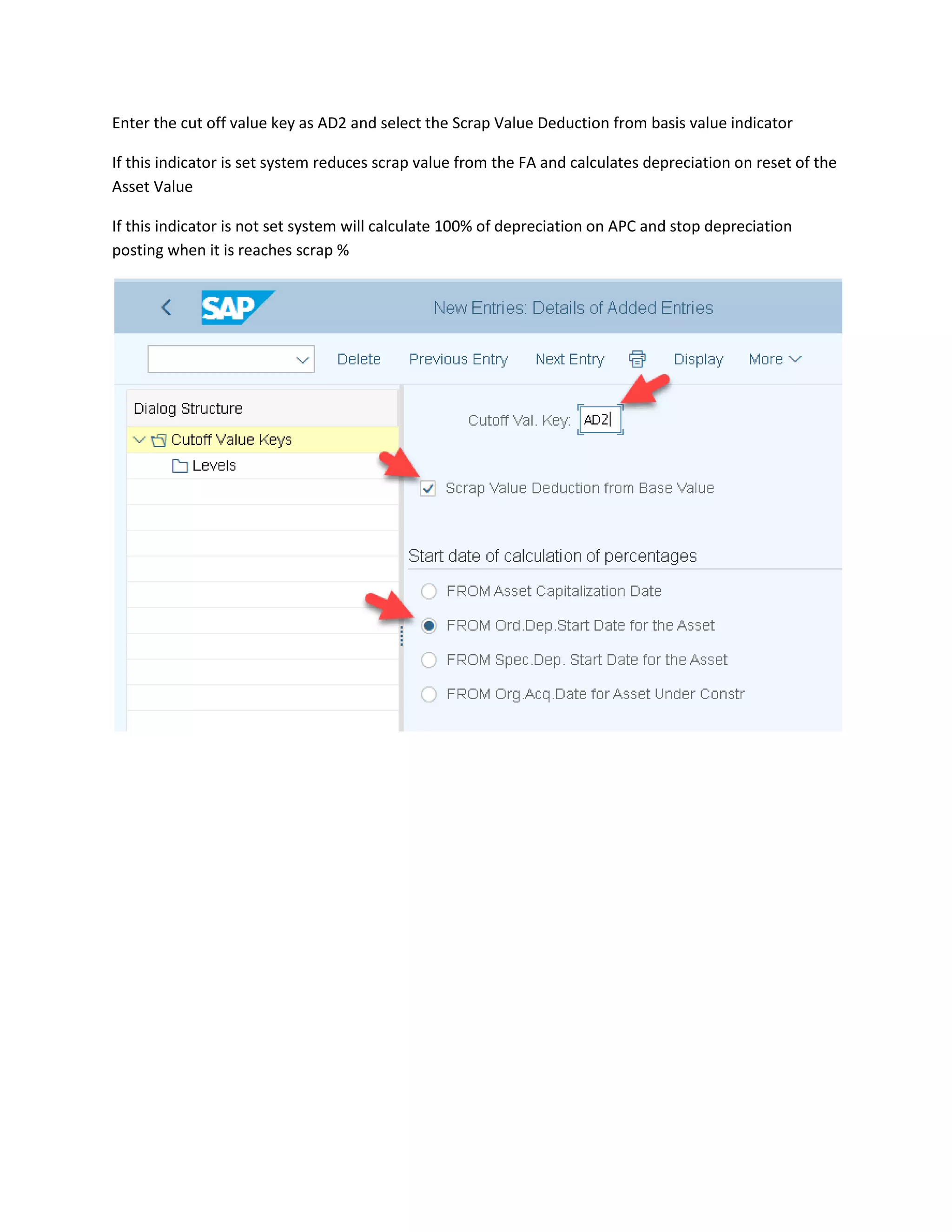
Enter the cut off value key as AD2 and select the Scrap Value Deduction from basis value indicator
If this indicator is set system reduces scrap value from the FA and calculates depreciation on reset of the
Asset Value
If this indicator is not set system will calculate 100% of depreciation on APC and stop depreciation
posting when it is reaches scrap %
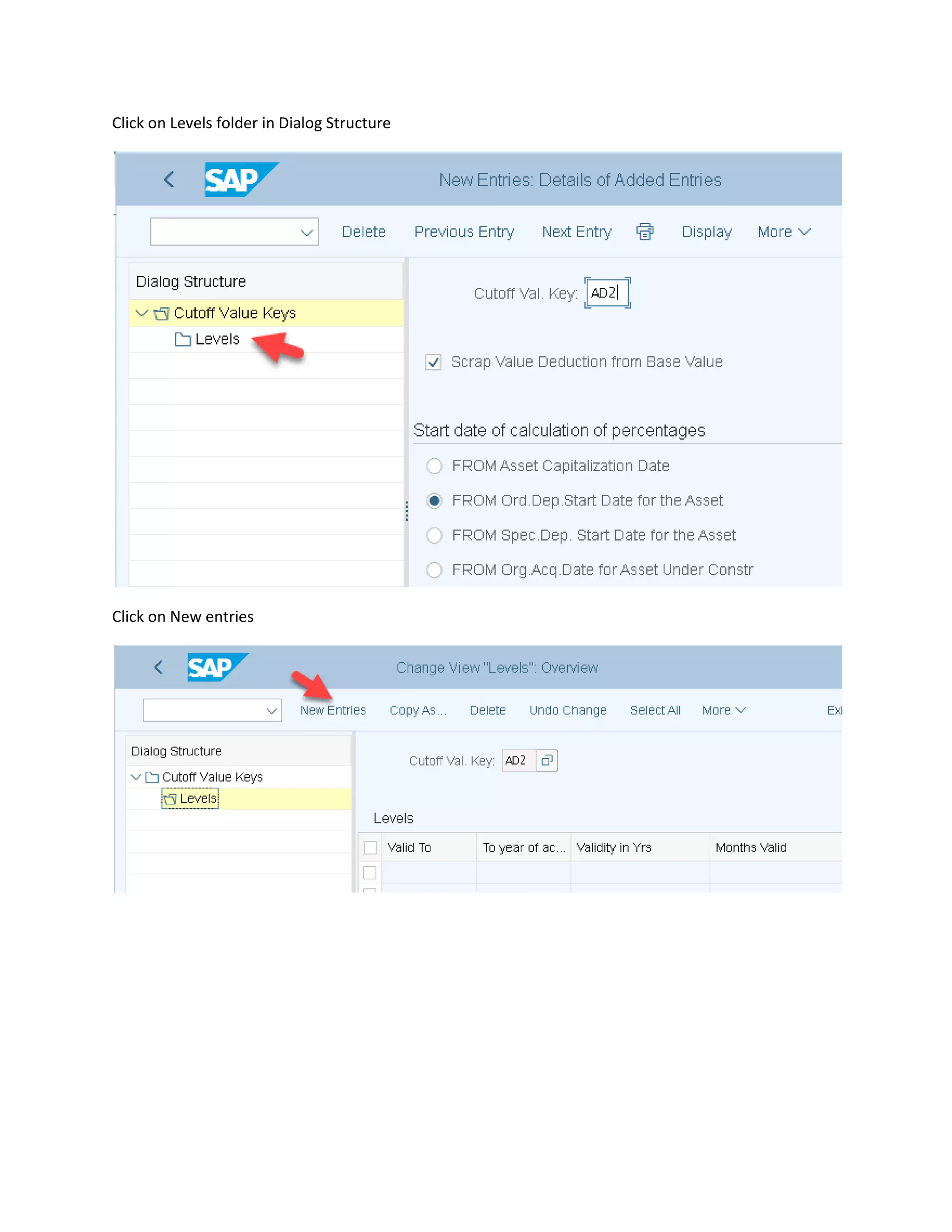
Click on Levels folder in Dialog Structure
Click on New entries
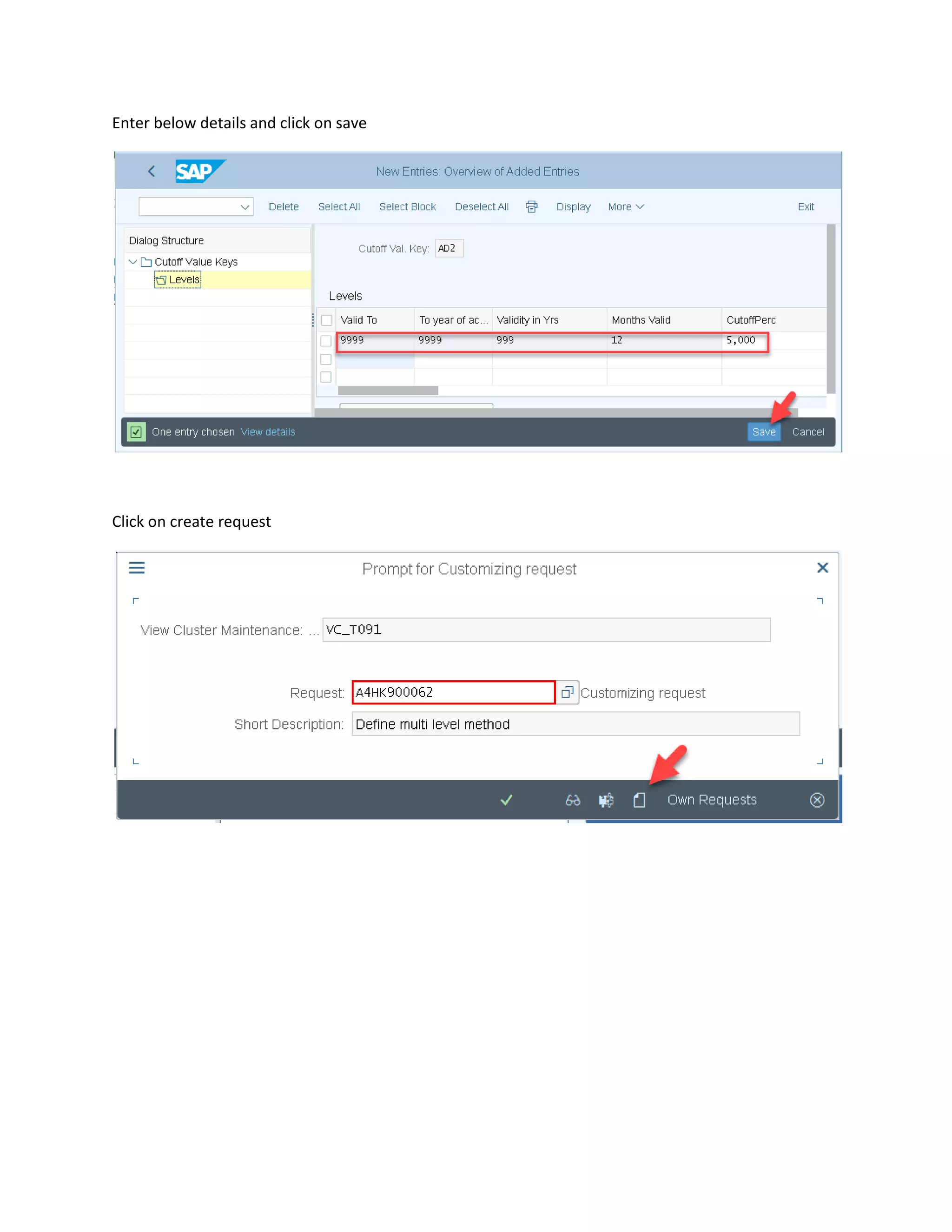
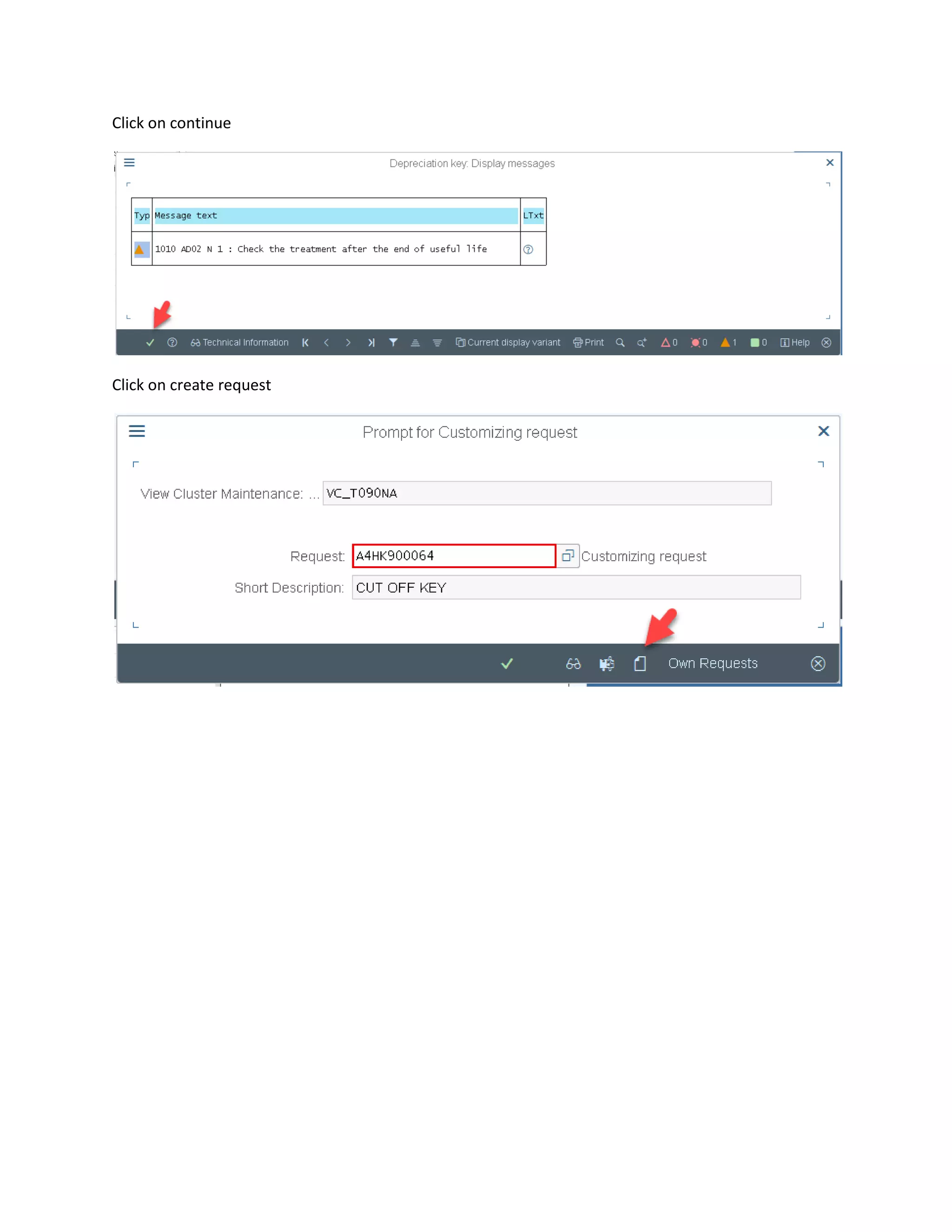
Enter below details and click on save
Click on create request
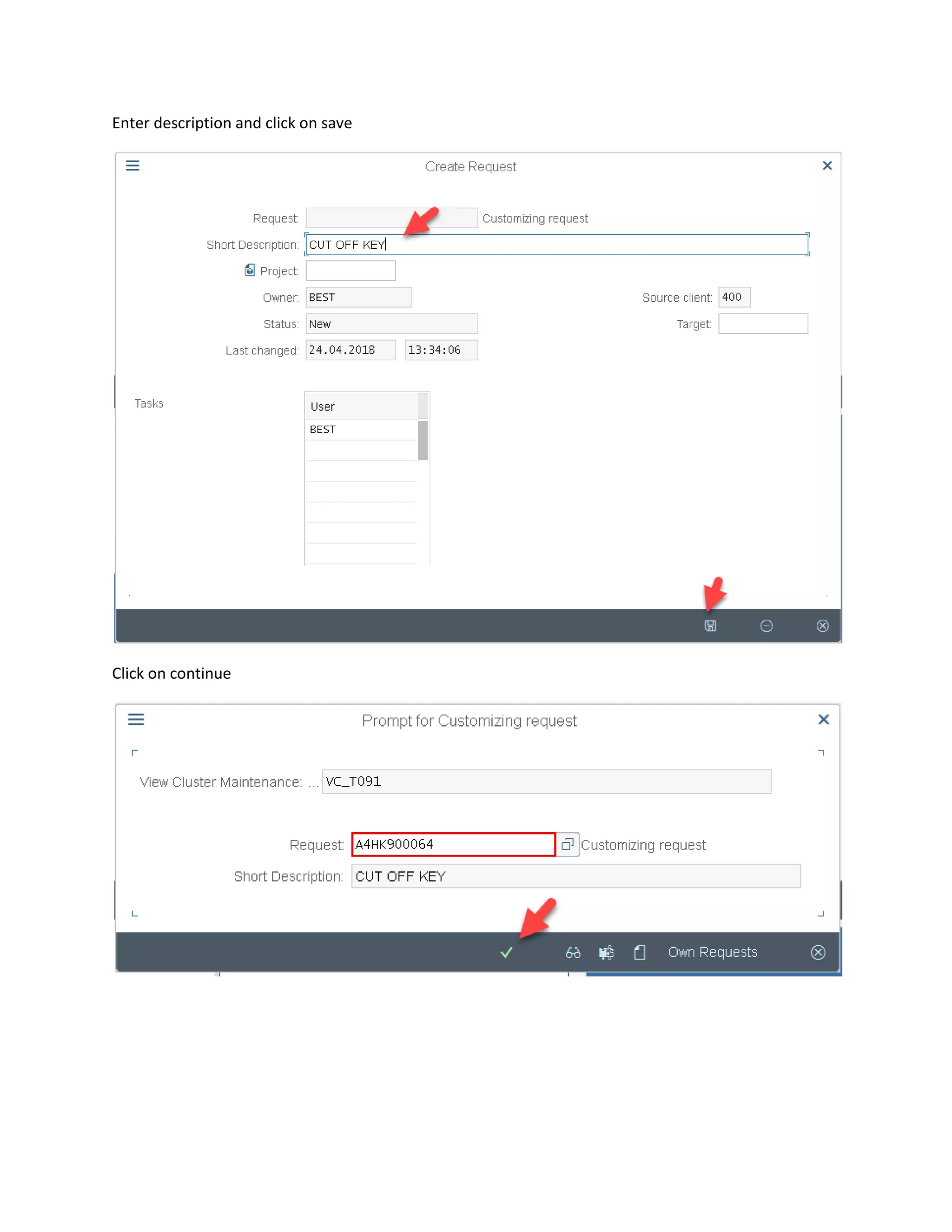
Enter description and click on save
Click on continue
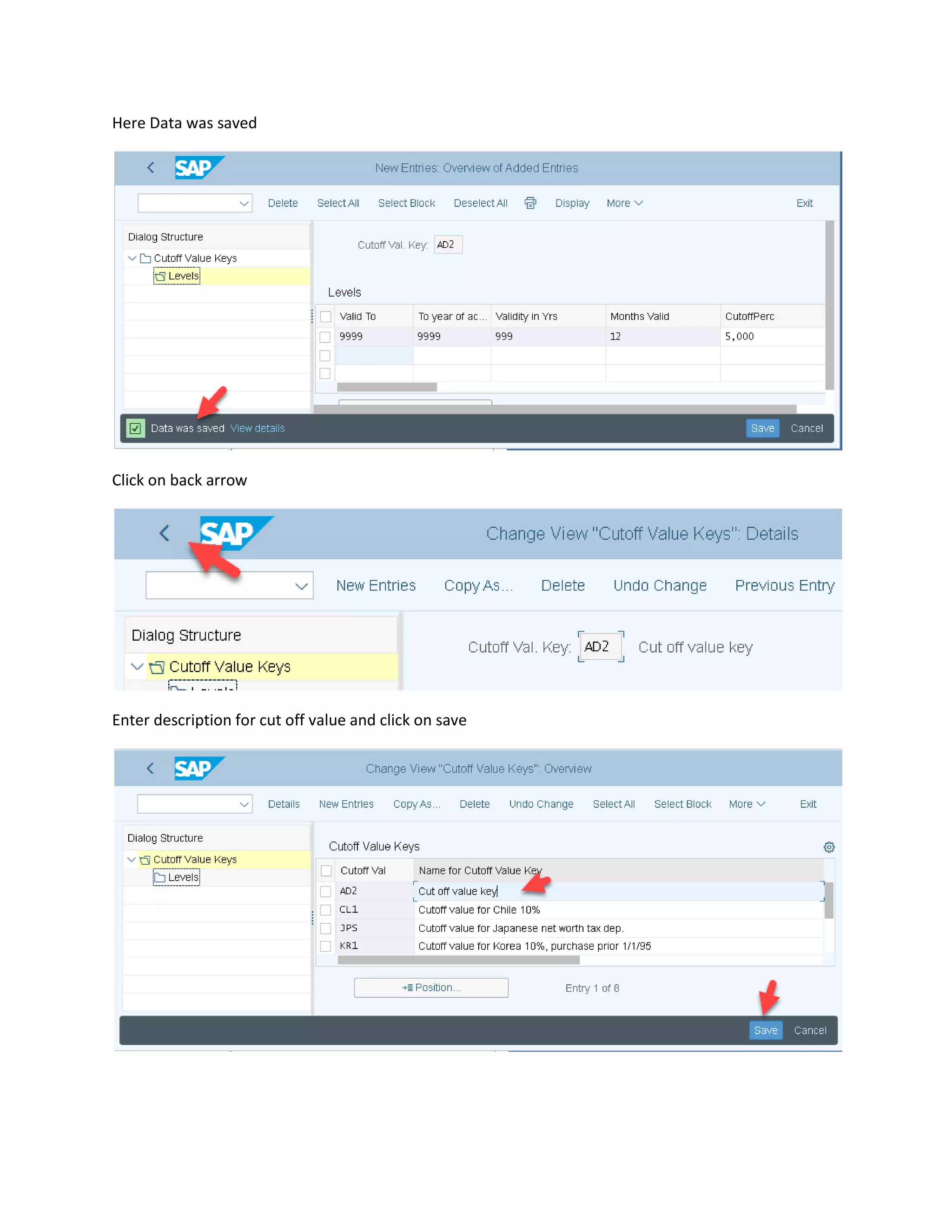
Here Data was saved
Click on back arrow
Enter description for cut off value and click on save
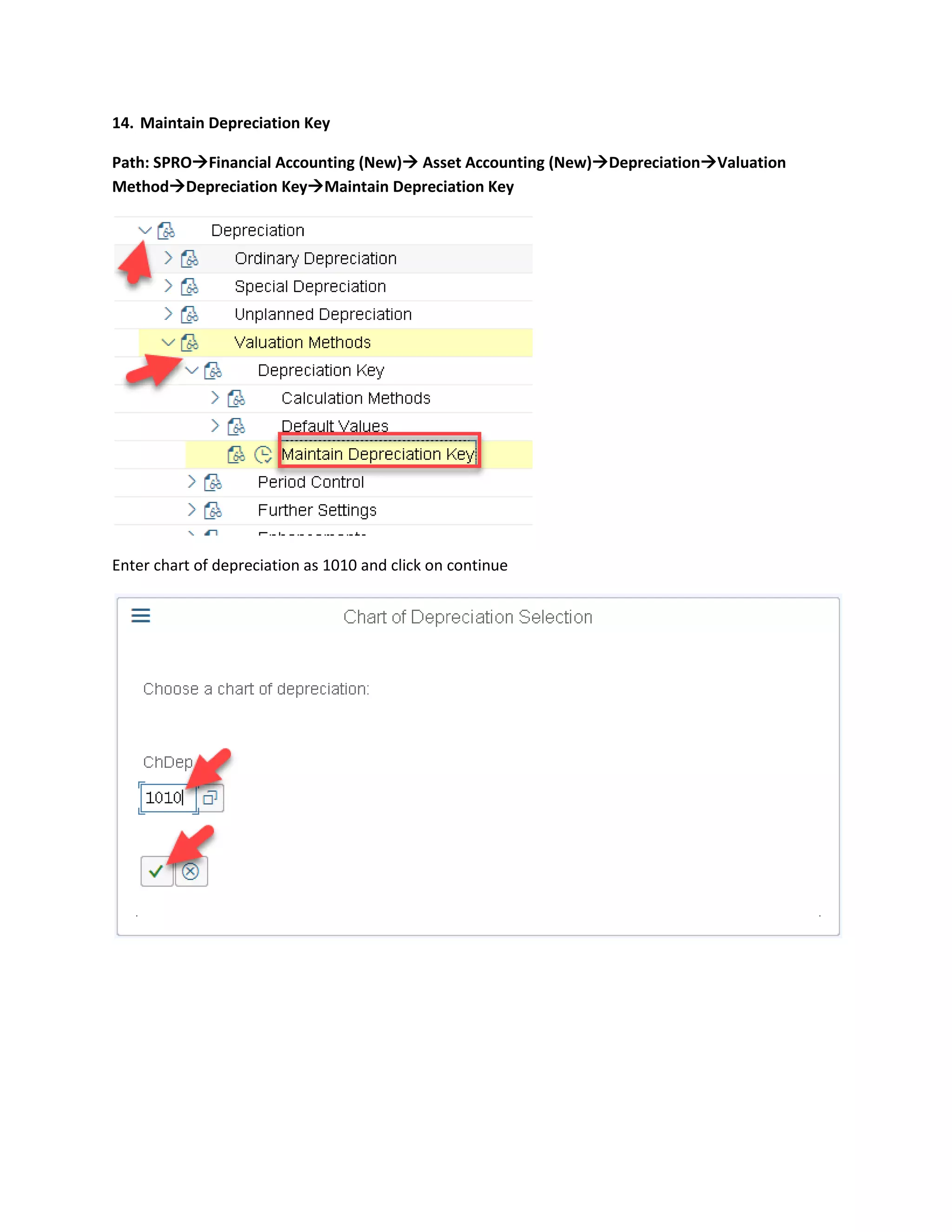
14. Maintain Depreciation Key
Path: SPRO→Financial Accounting (New)→ Asset Accounting (New)→Depreciation→Valuation
Method→Depreciation Key→Maintain Depreciation Key
Enter chart of depreciation as 1010 and click on continue
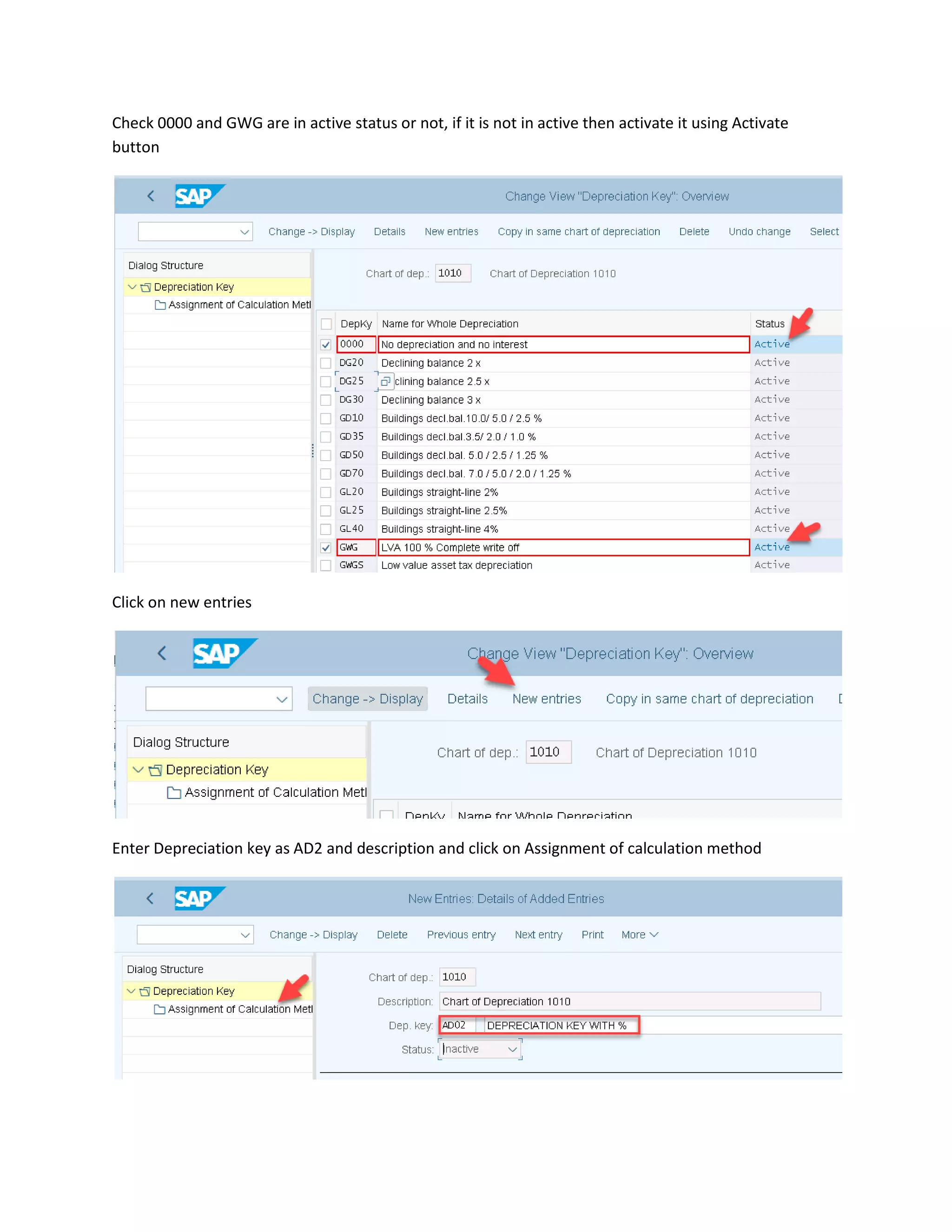
Check 0000 and GWG are in active status or not, if it is not in active then activate it using Activate
button
Click on new entries
Enter Depreciation key as AD2 and description and click on Assignment of calculation method
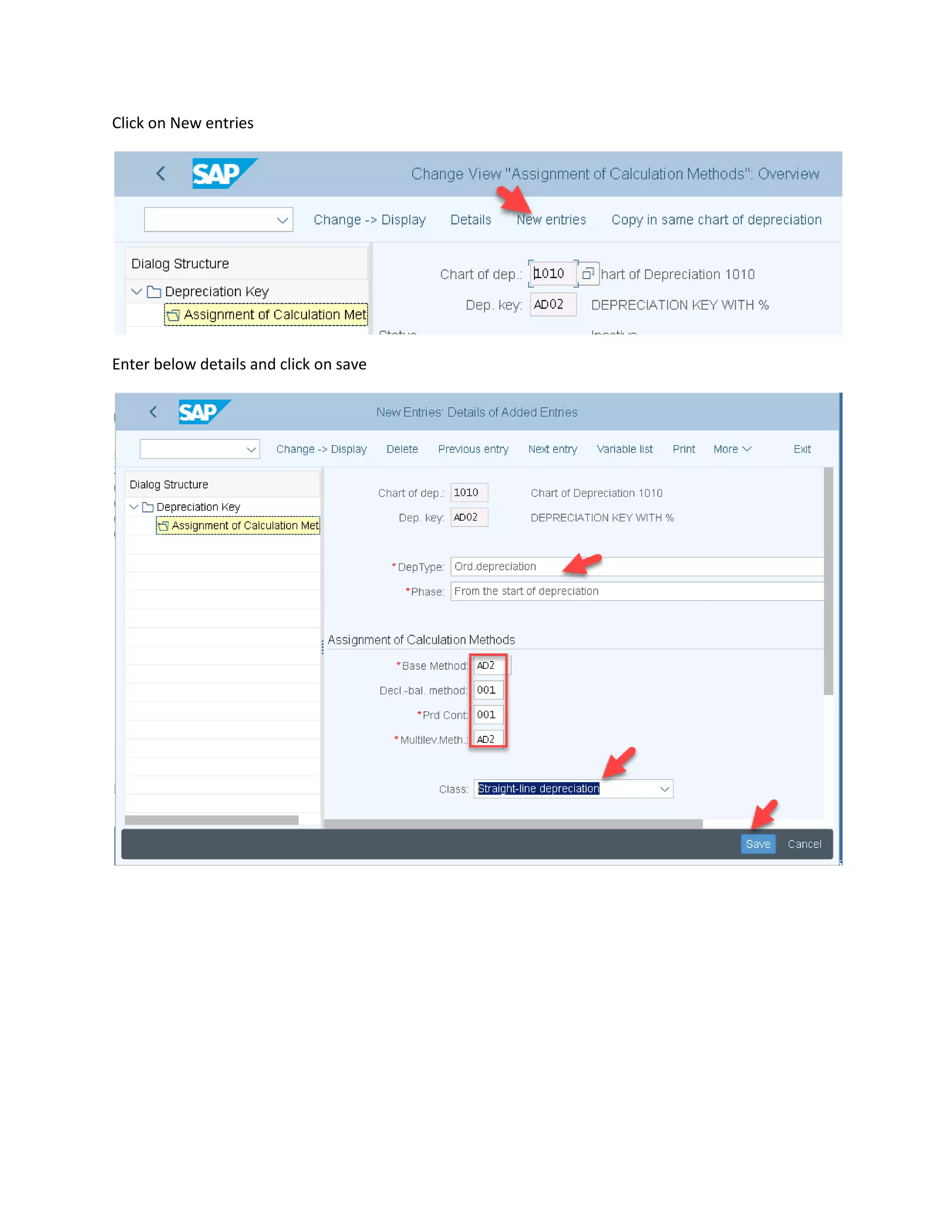
Click on New entries
Enter below details and click on save
Click on continue
Click on create request
Enter description and click on save
Click on continue
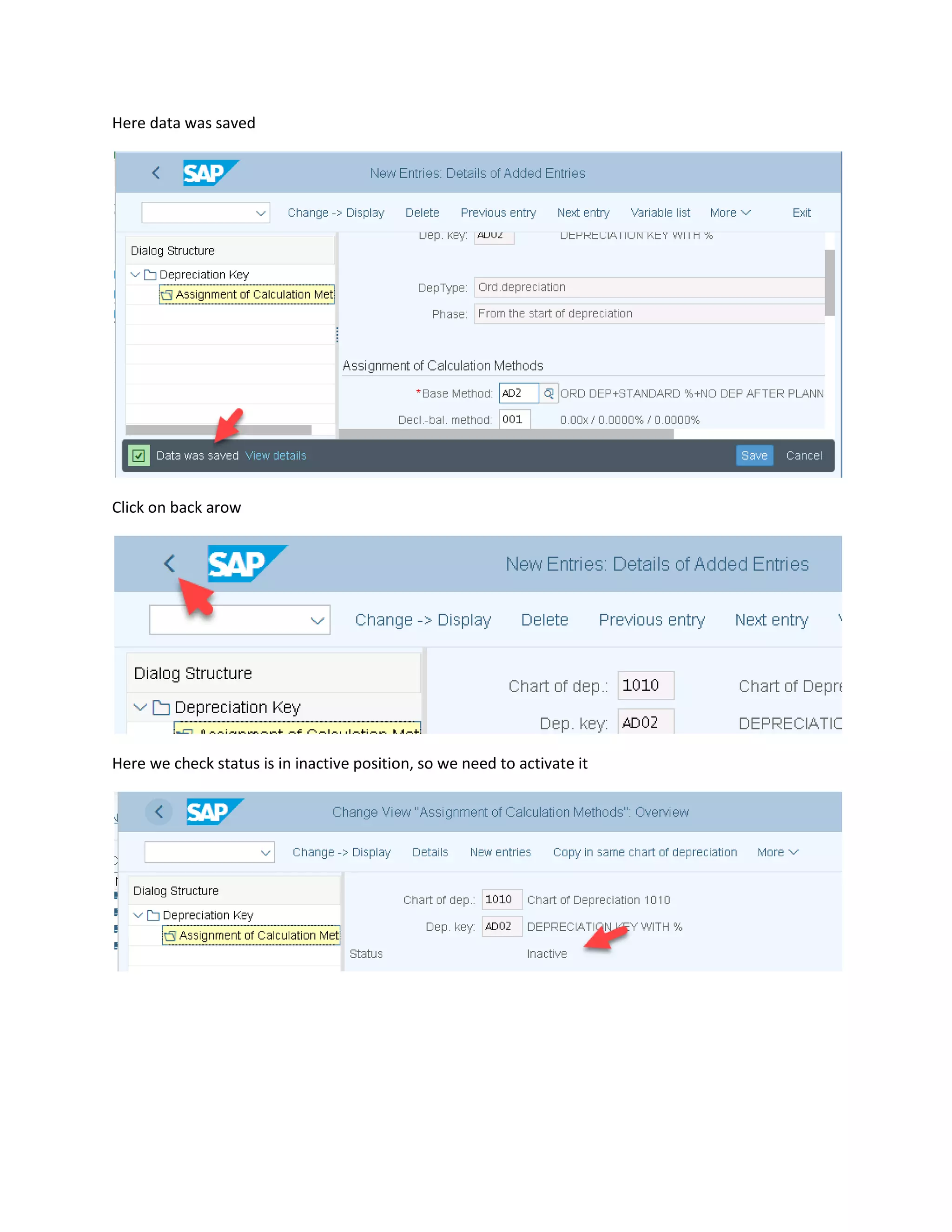
Here data was saved
Click on back arow
Here we check status is in inactive position, so we need to activate it
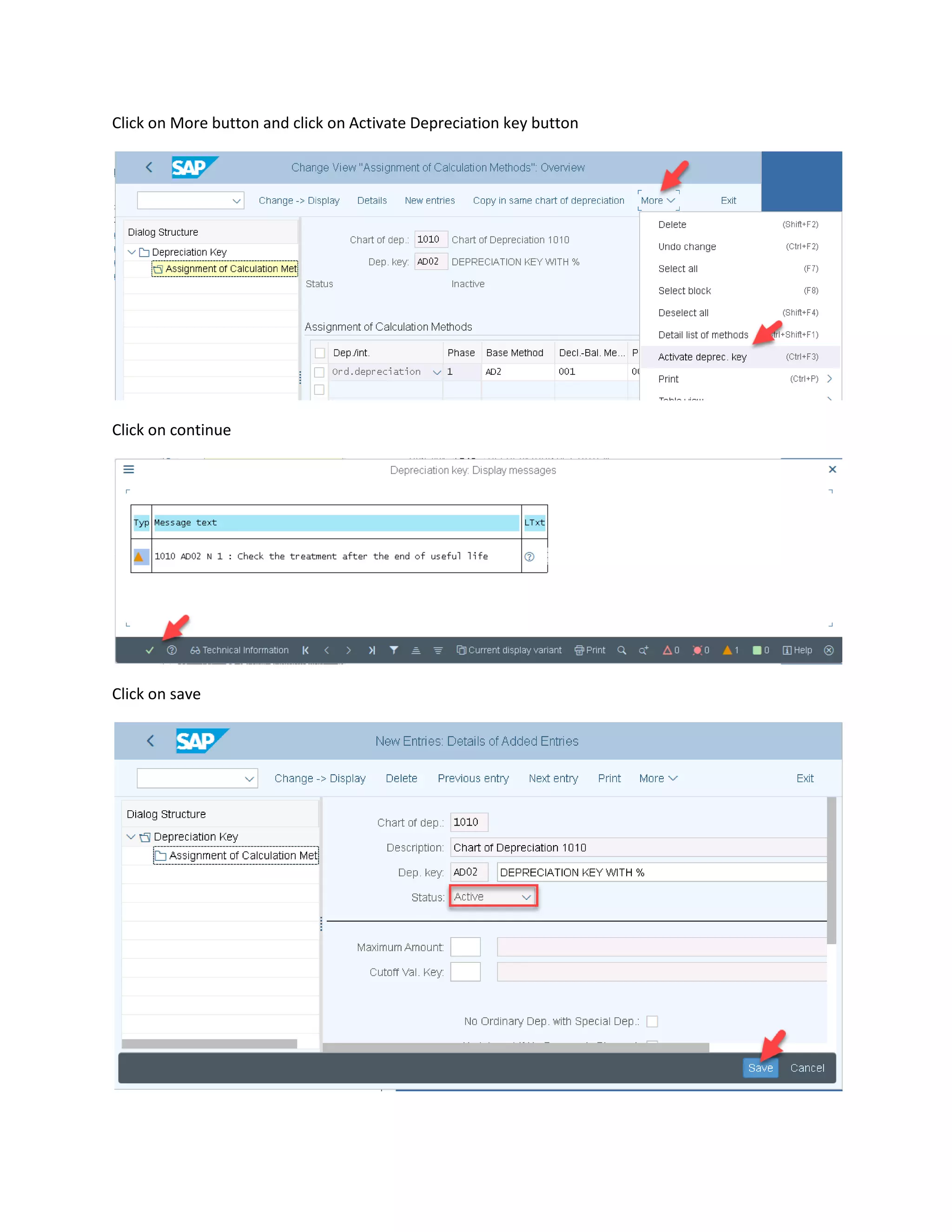
Click on More button and click on Activate Depreciation key button
Click on continue
Click on save
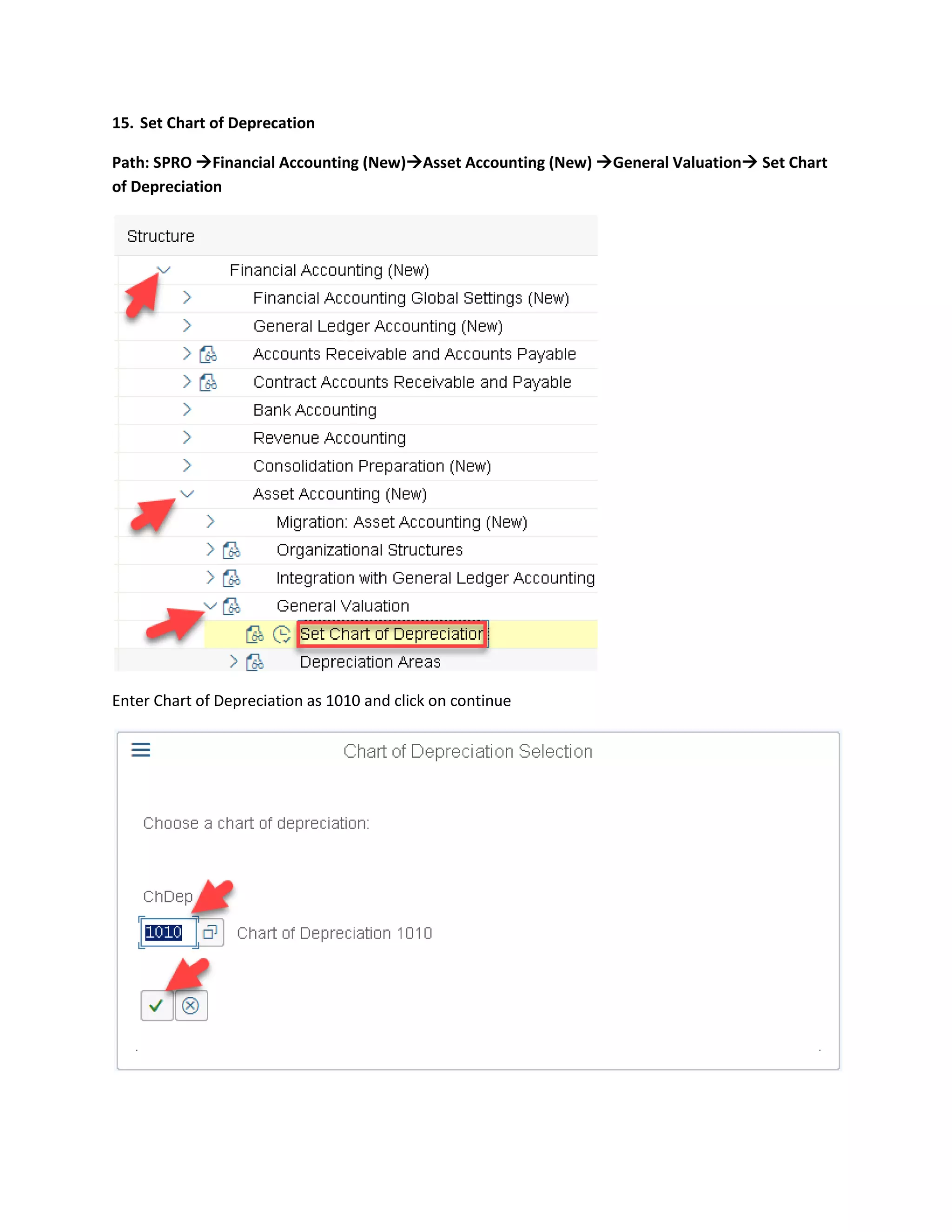
15. Set Chart of Deprecation
Path: SPRO →Financial Accounting (New)→Asset Accounting (New) →General Valuation→ Set Chart
of Depreciation
Enter Chart of Depreciation as 1010 and click on continue
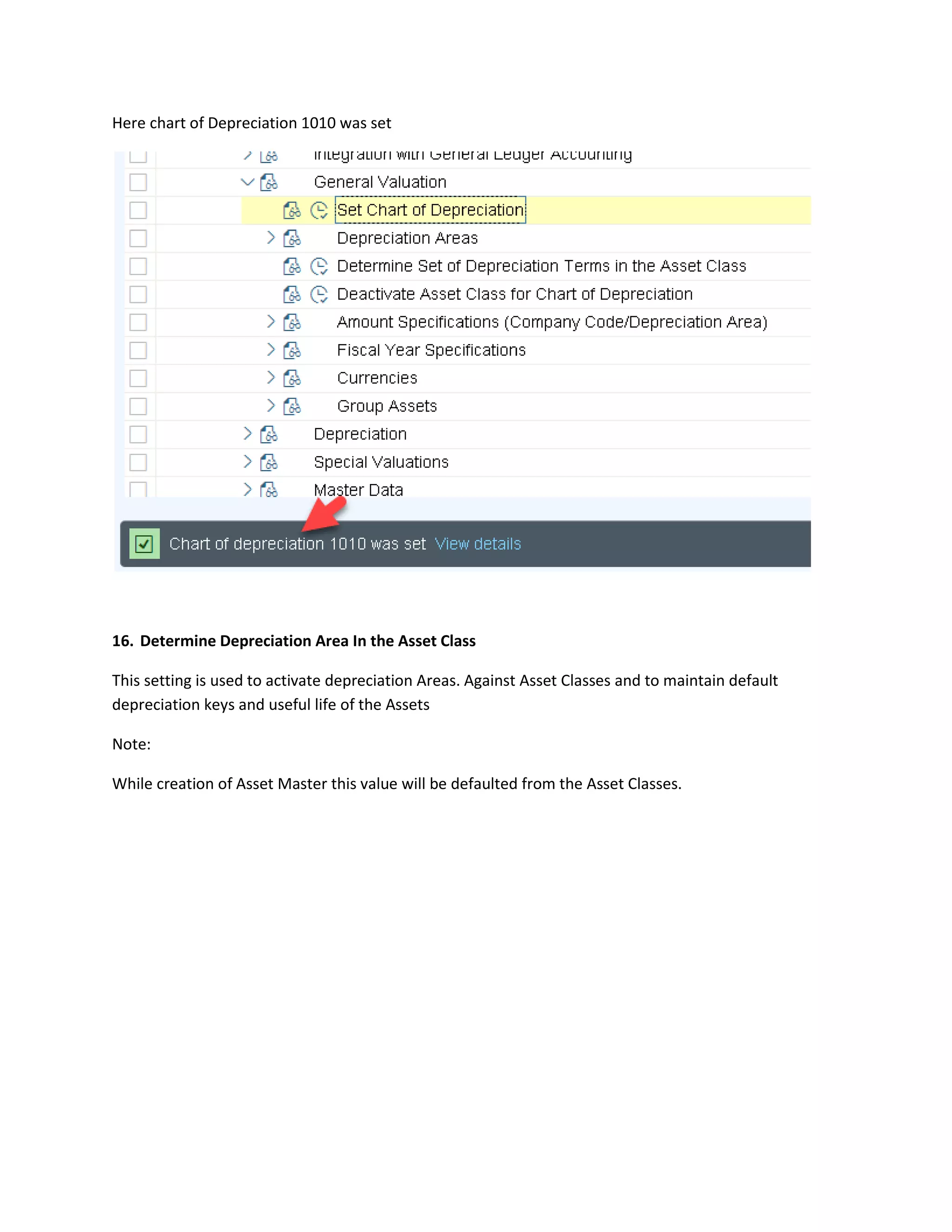
Here chart of Depreciation 1010 was set
16. Determine Depreciation Area In the Asset Class
This setting is used to activate depreciation Areas. Against Asset Classes and to maintain default
depreciation keys and useful life of the Assets
Note:
While creation of Asset Master this value will be defaulted from the Asset Classes.
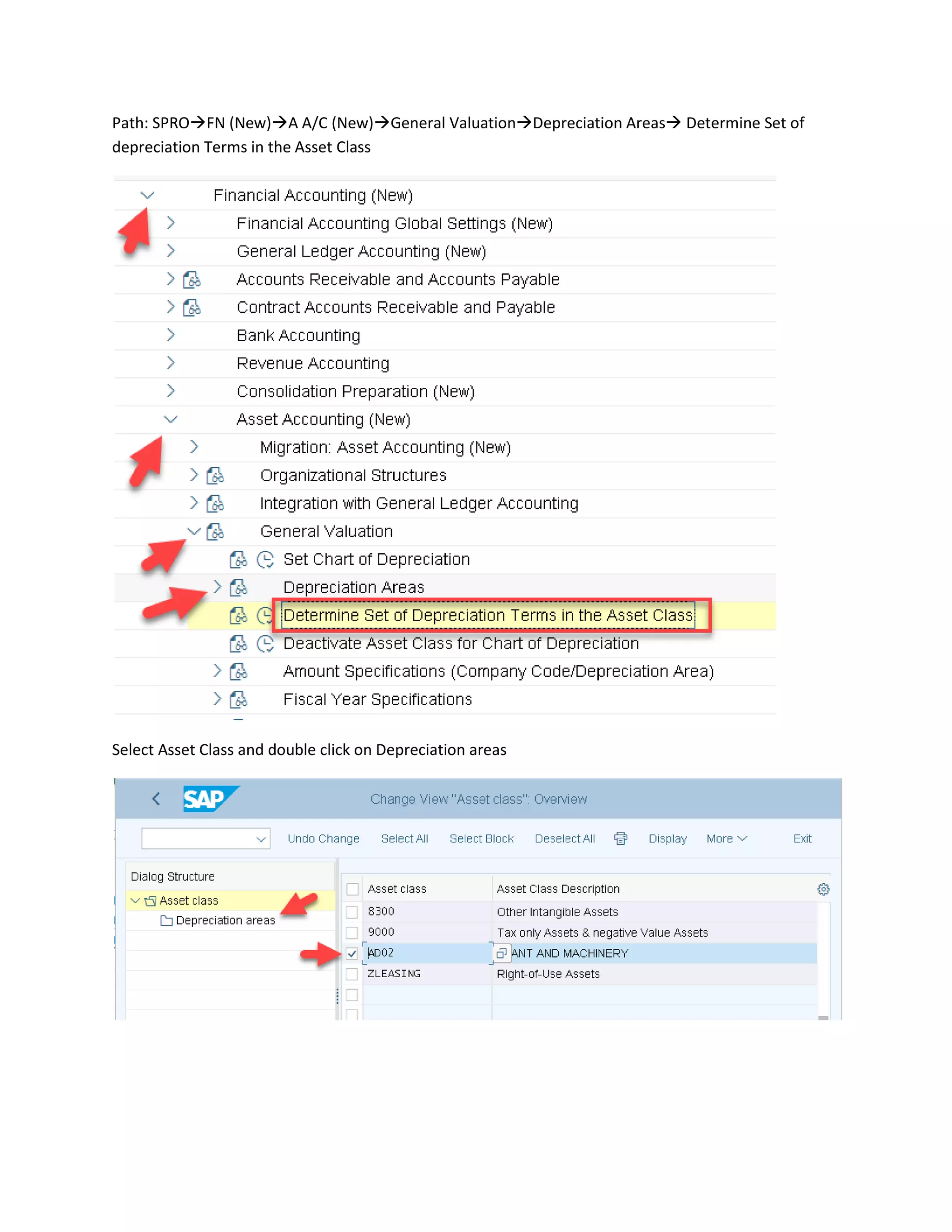
Path: SPRO→FN (New)→A A/C (New)→General Valuation→Depreciation Areas→ Determine Set of
depreciation Terms in the Asset Class
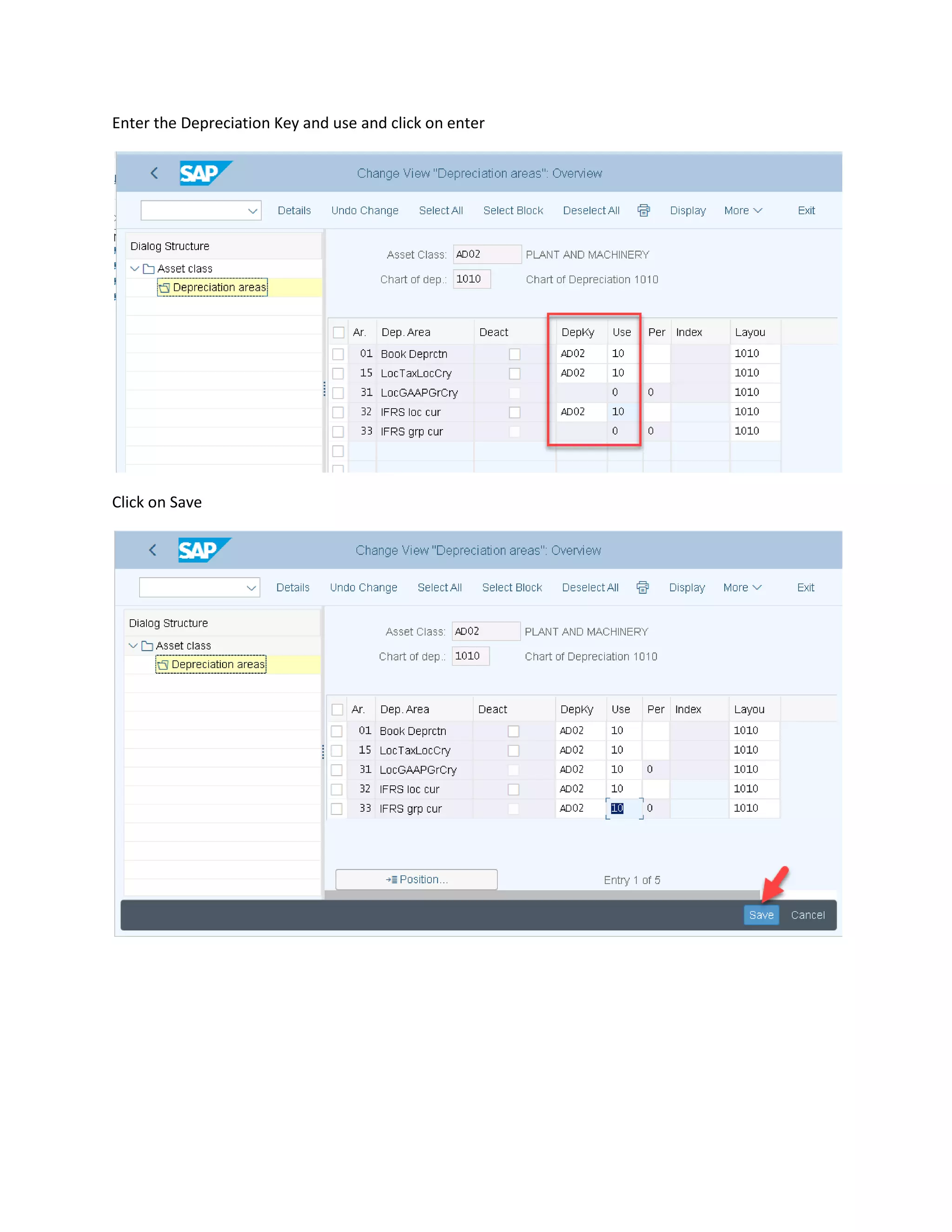
Select Asset Class and double click on Depreciation areas
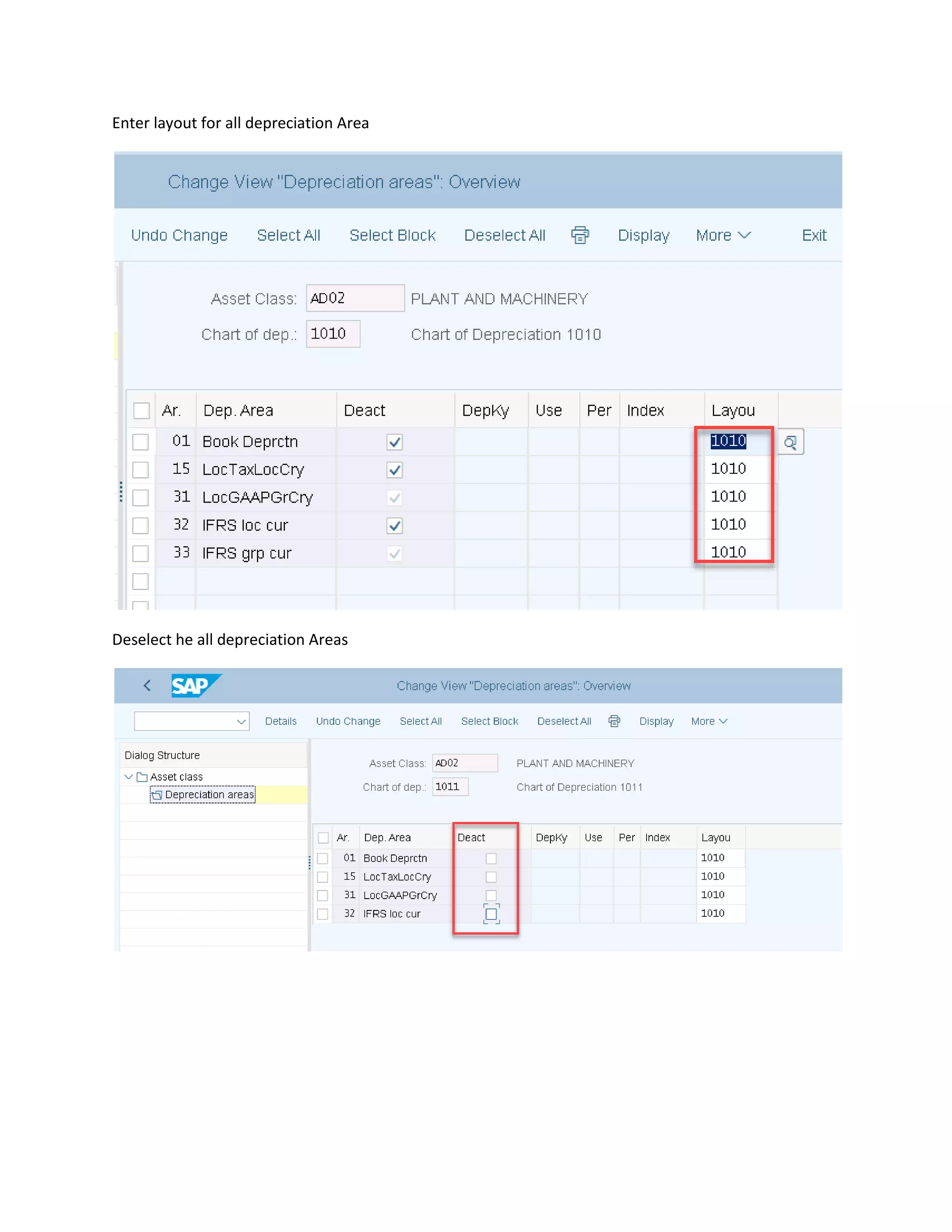
Enter layout for all depreciation Area
Deselect he all depreciation Areas
Enter the Depreciation Key and use and click on enter
Click on Save
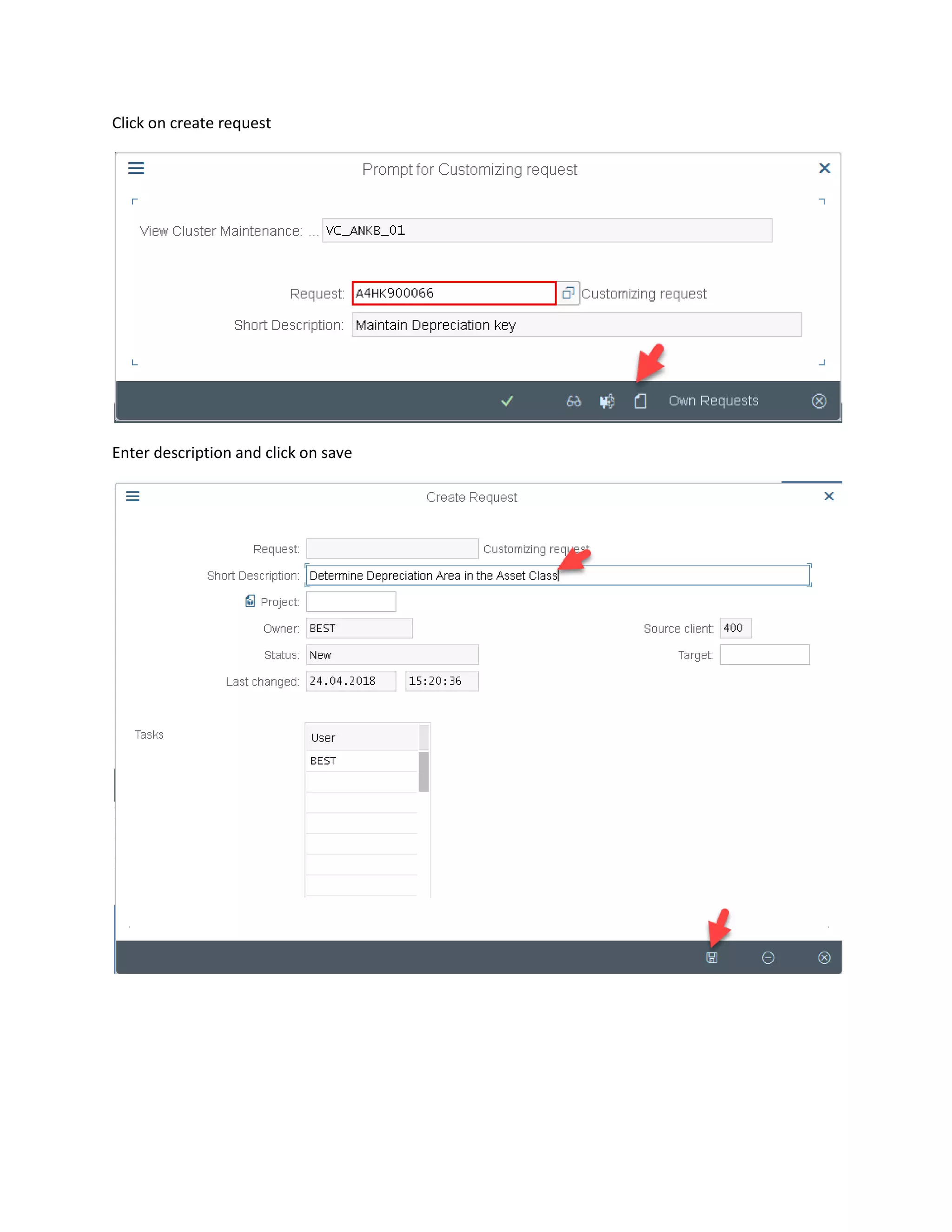
Click on create request
Enter description and click on save
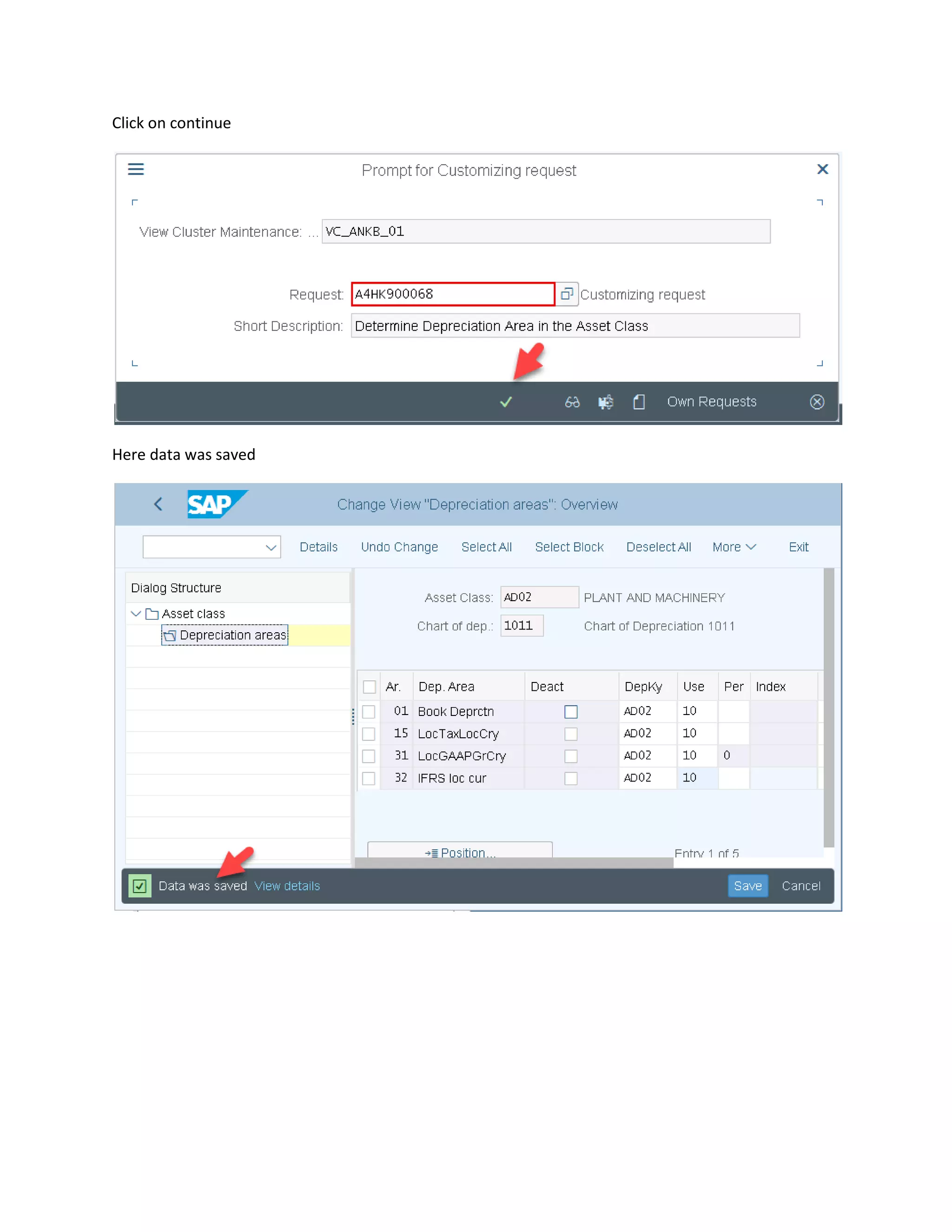
Click on continue
Here data was saved
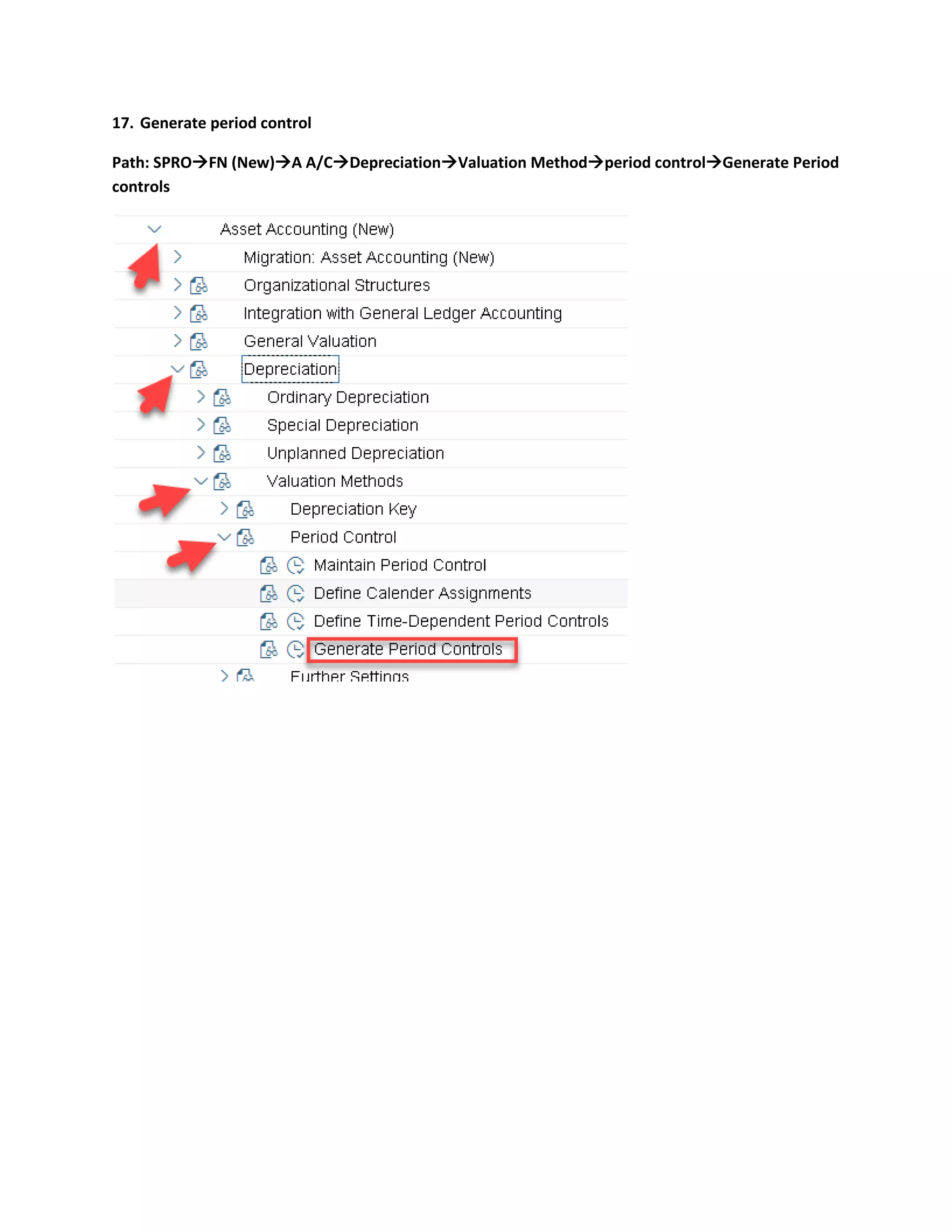
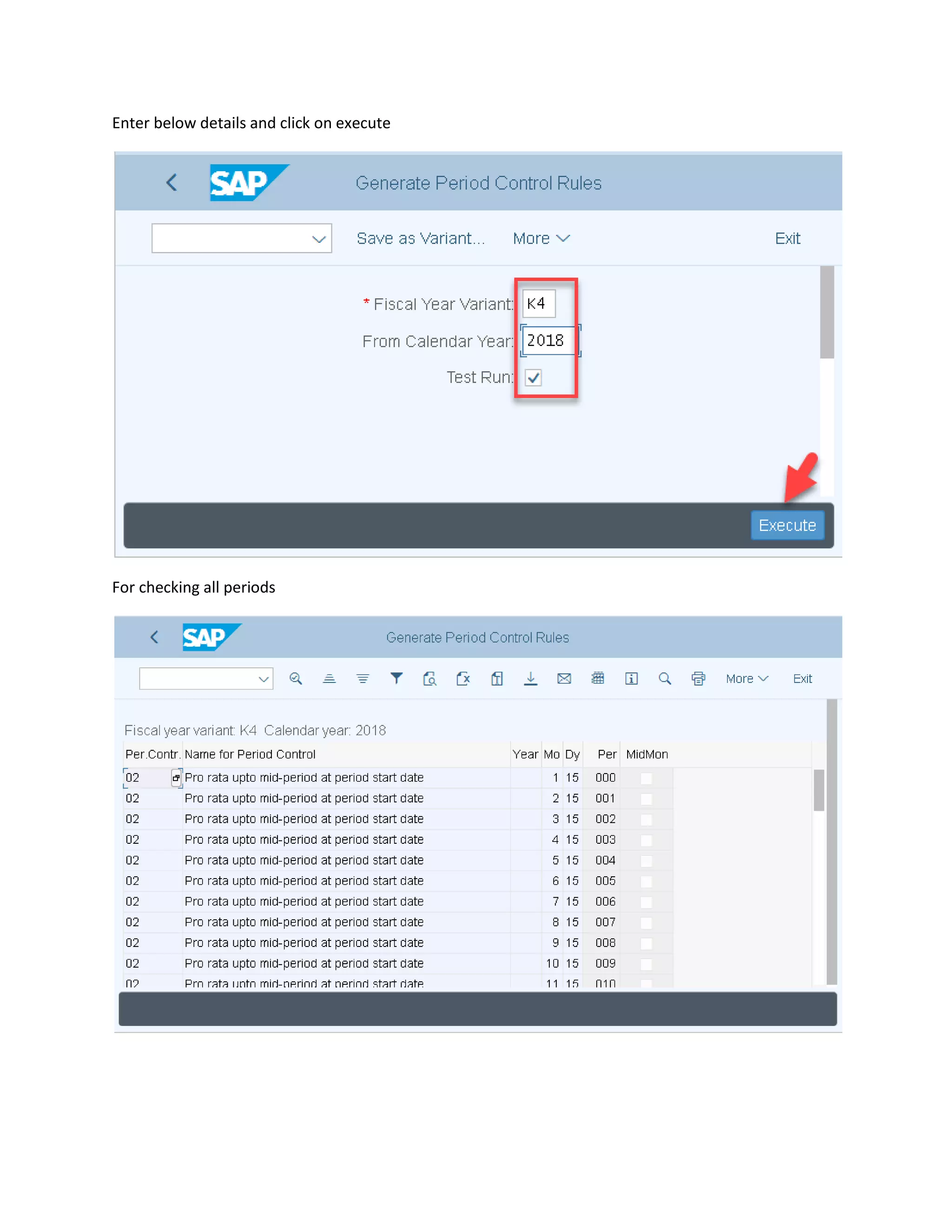
17. Generate period control
Path: SPRO→FN (New)→A A/C→Depreciation→Valuation Method→period control→Generate Period
controls
Enter below details and click on execute
For checking all periods
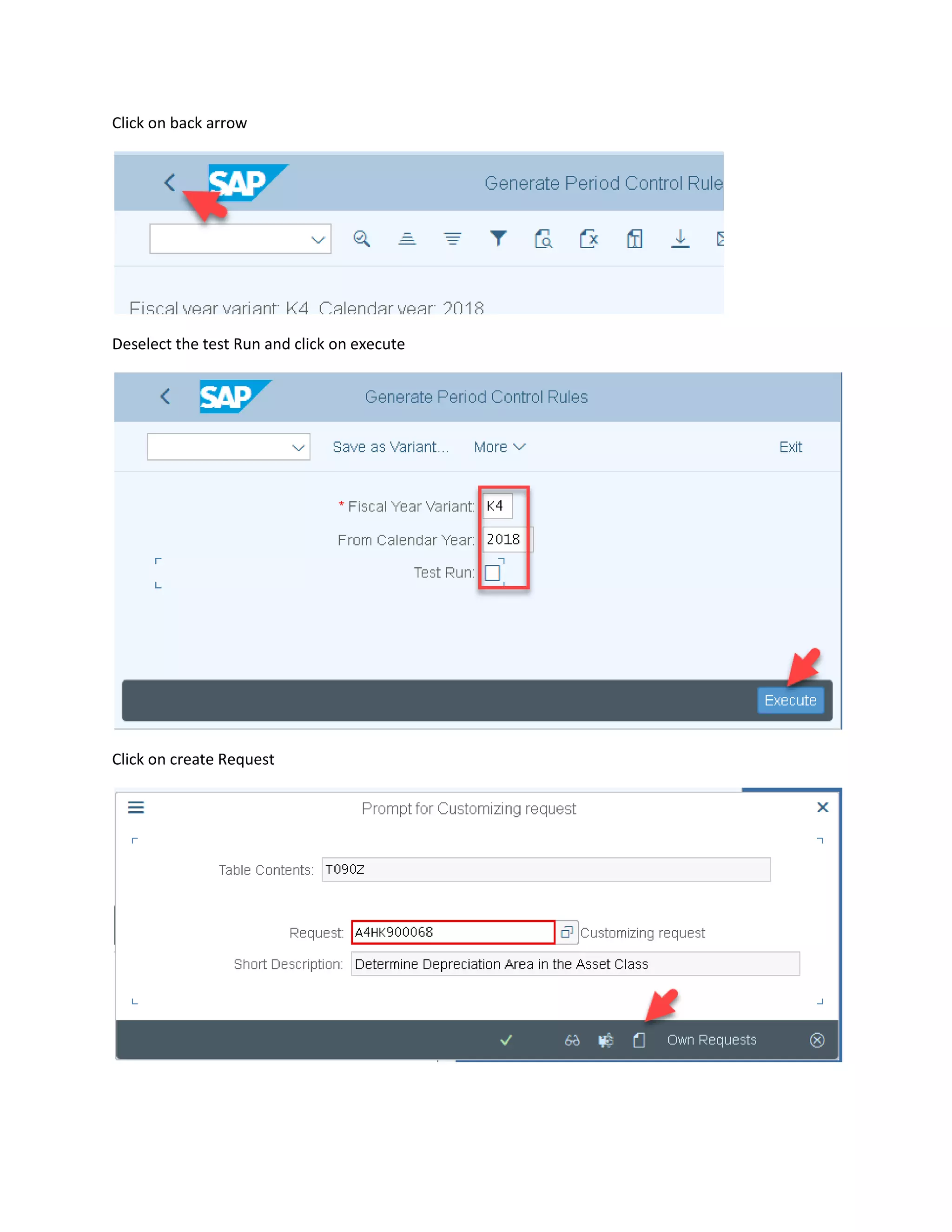
Click on back arrow
Deselect the test Run and click on execute
Click on create Request
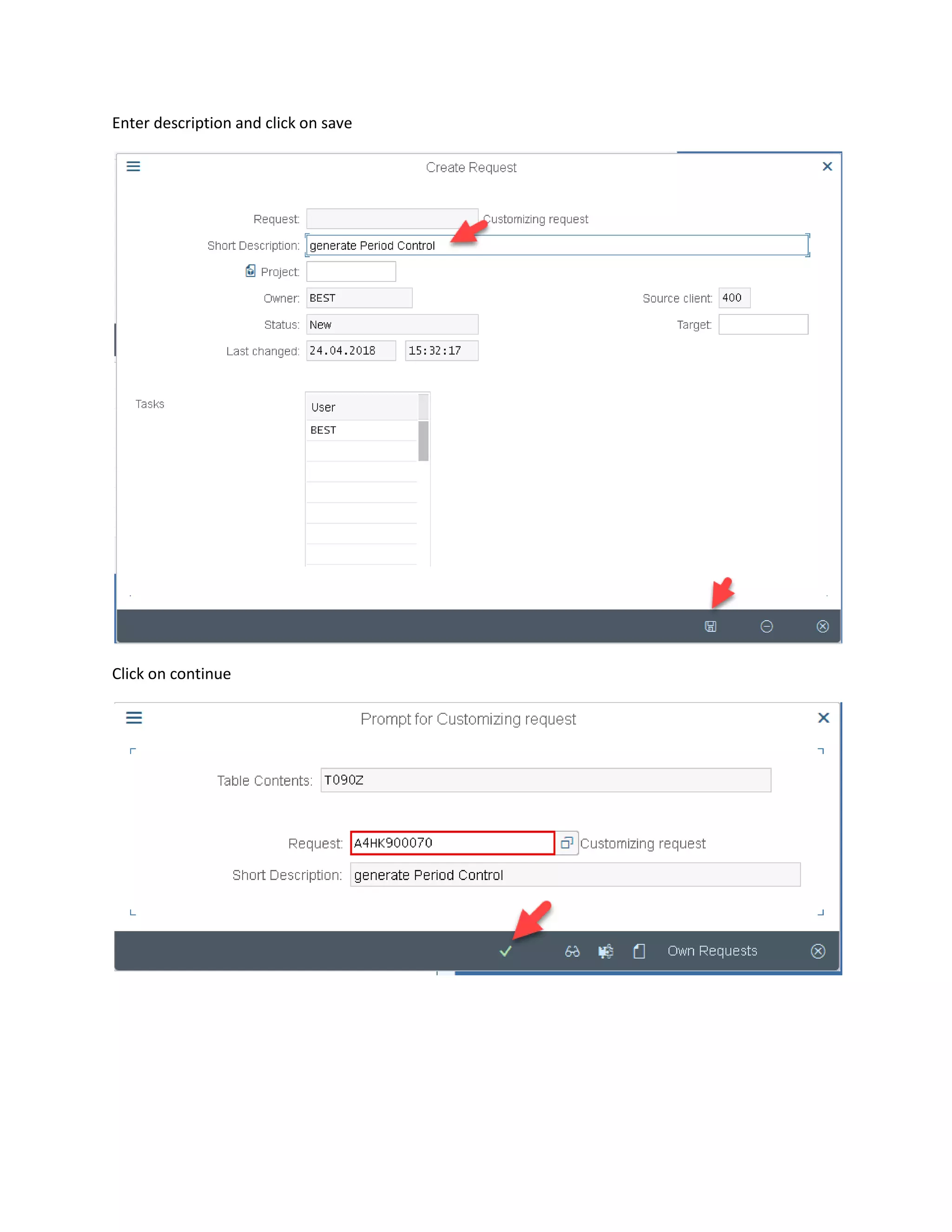
Enter description and click on save
Click on continue
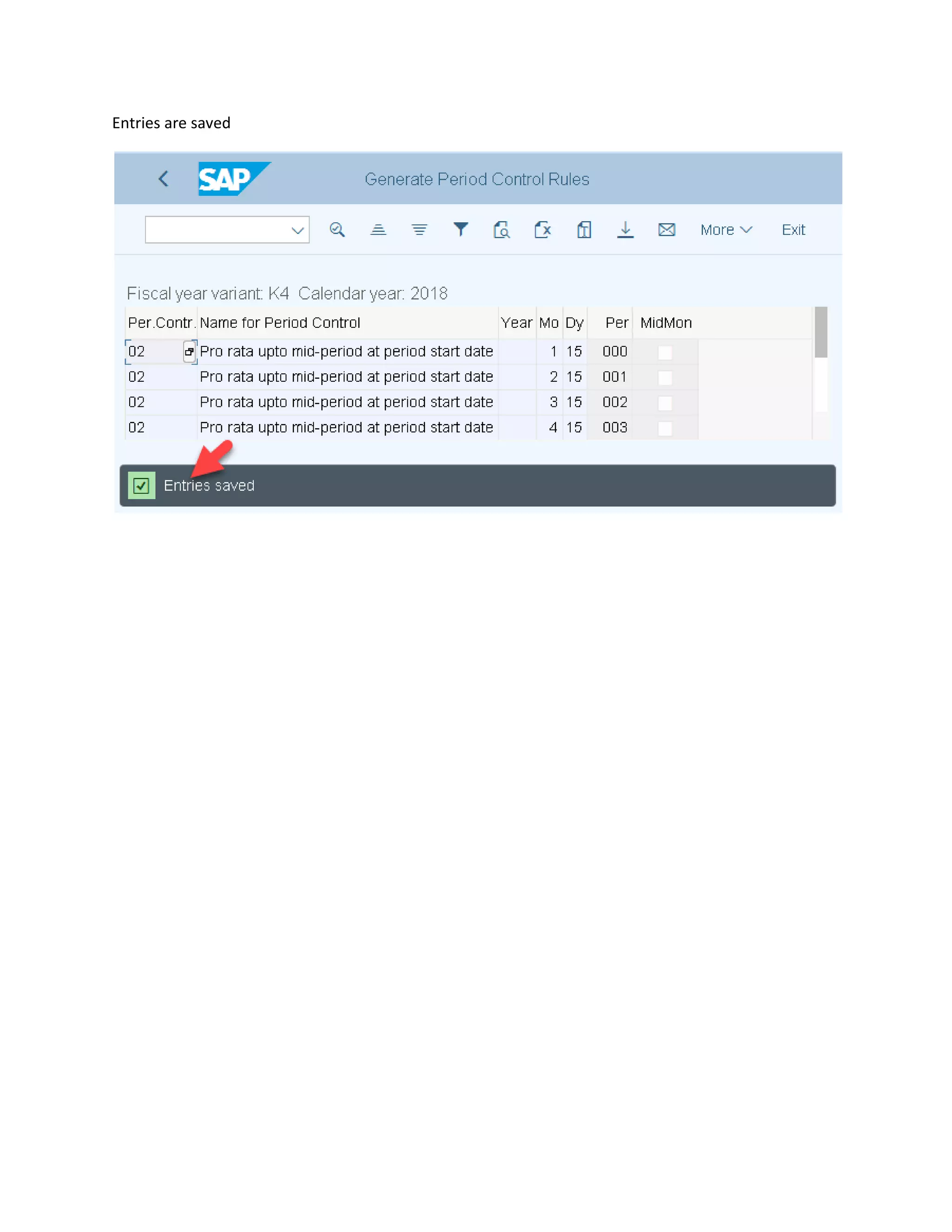
Entries are saved
18. Define Integration with the G/L Settings
Step: 1 create G/L A/C
Step: 2 Assign G/L Account
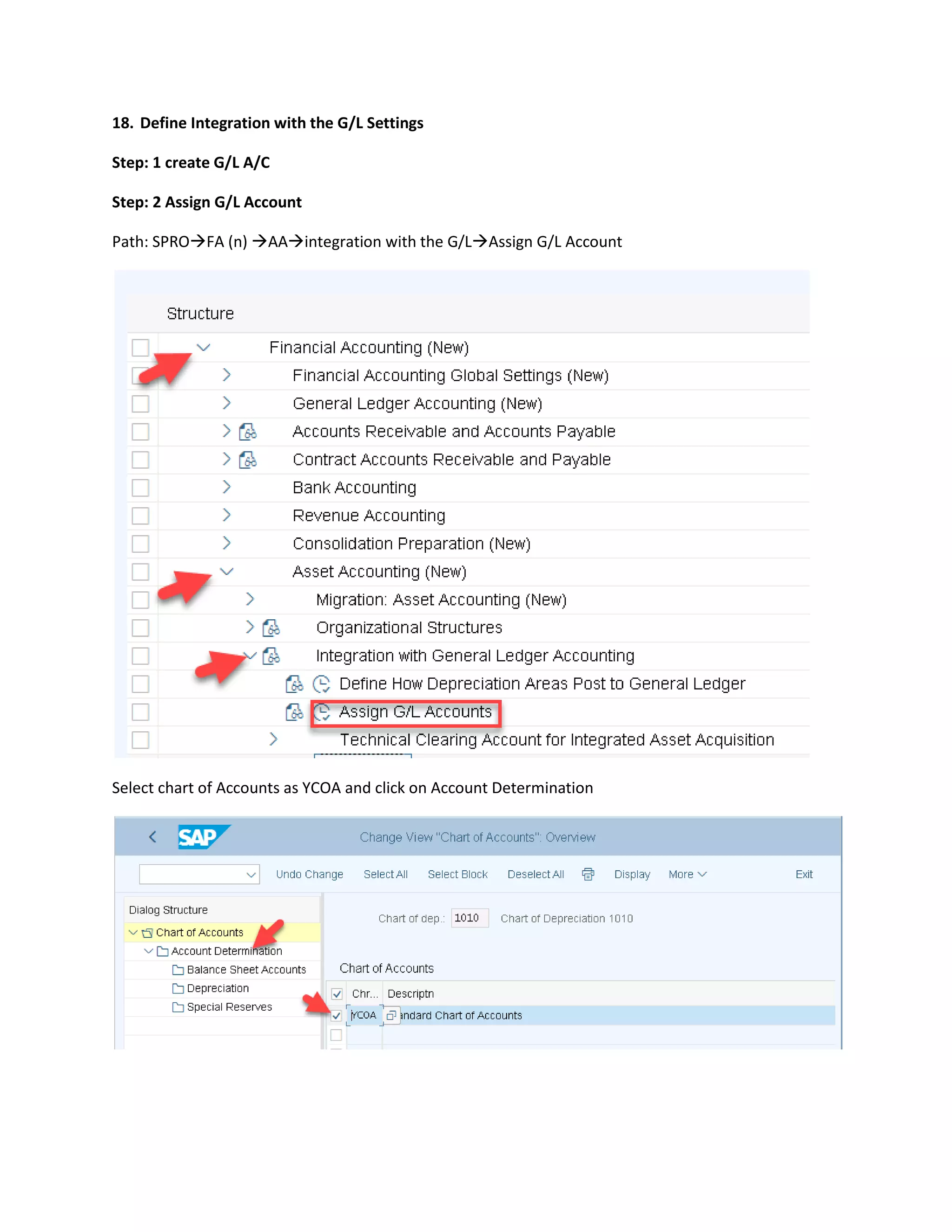
Path: SPRO→FA (n) →AA→integration with the G/L→Assign G/L Account
Select chart of Accounts as YCOA and click on Account Determination
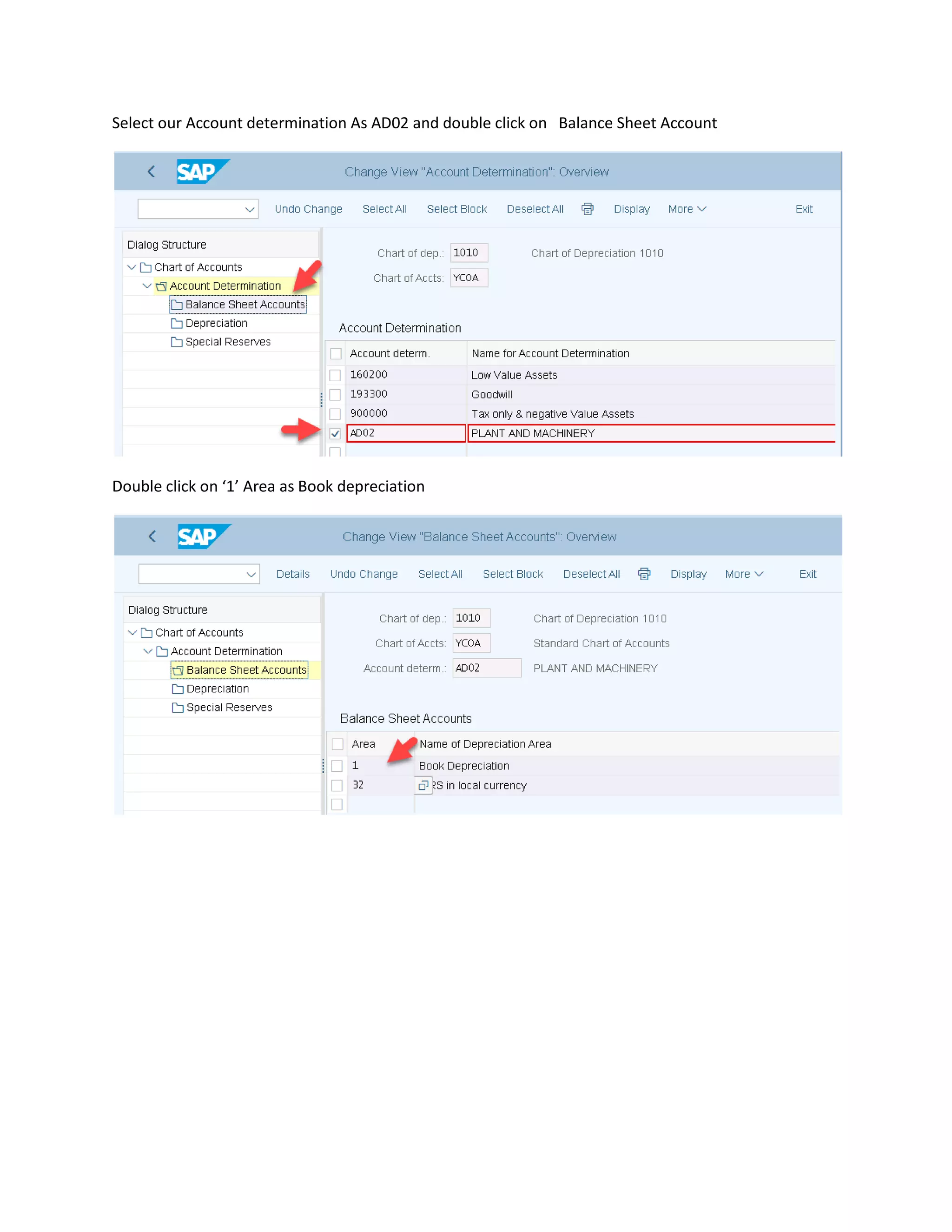
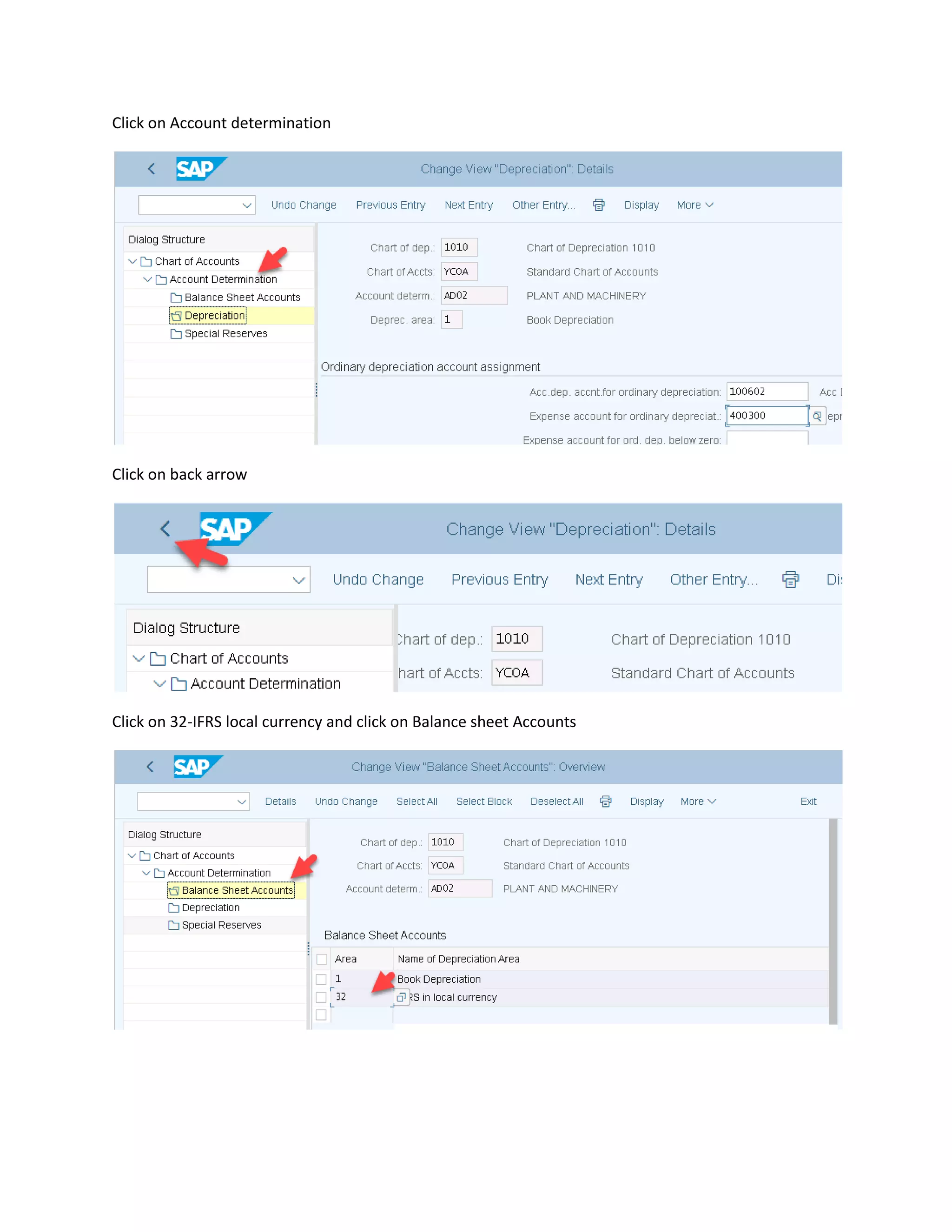
Select our Account determination As AD02 and double click on Balance Sheet Account
Double click on ‘1’ Area as Book depreciation
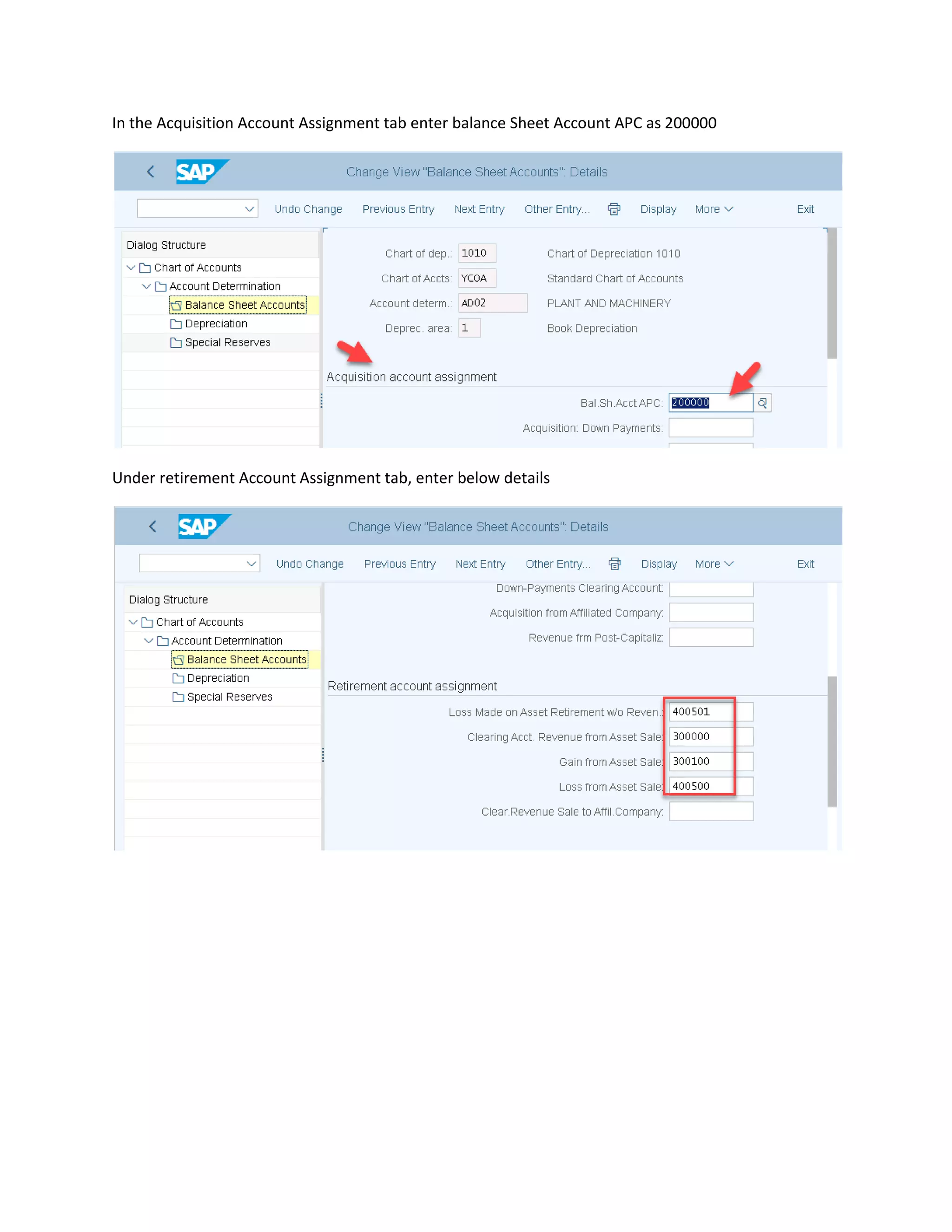
In the Acquisition Account Assignment tab enter balance Sheet Account APC as 200000
Under retirement Account Assignment tab, enter below details
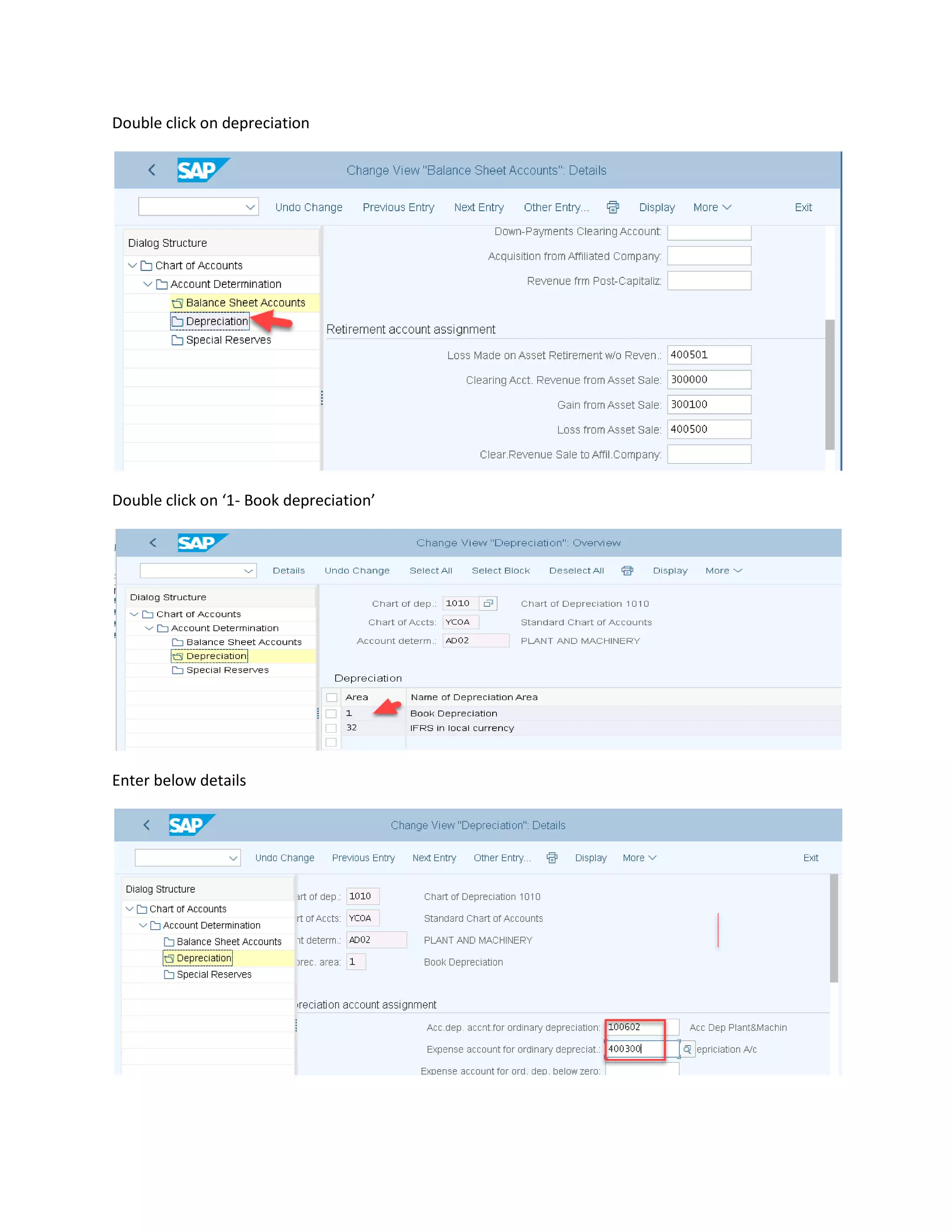
Double click on depreciation
Double click on ‘1- Book depreciation’
Enter below details
Click on Account determination
Click on back arrow
Click on 32-IFRS local currency and click on Balance sheet Accounts
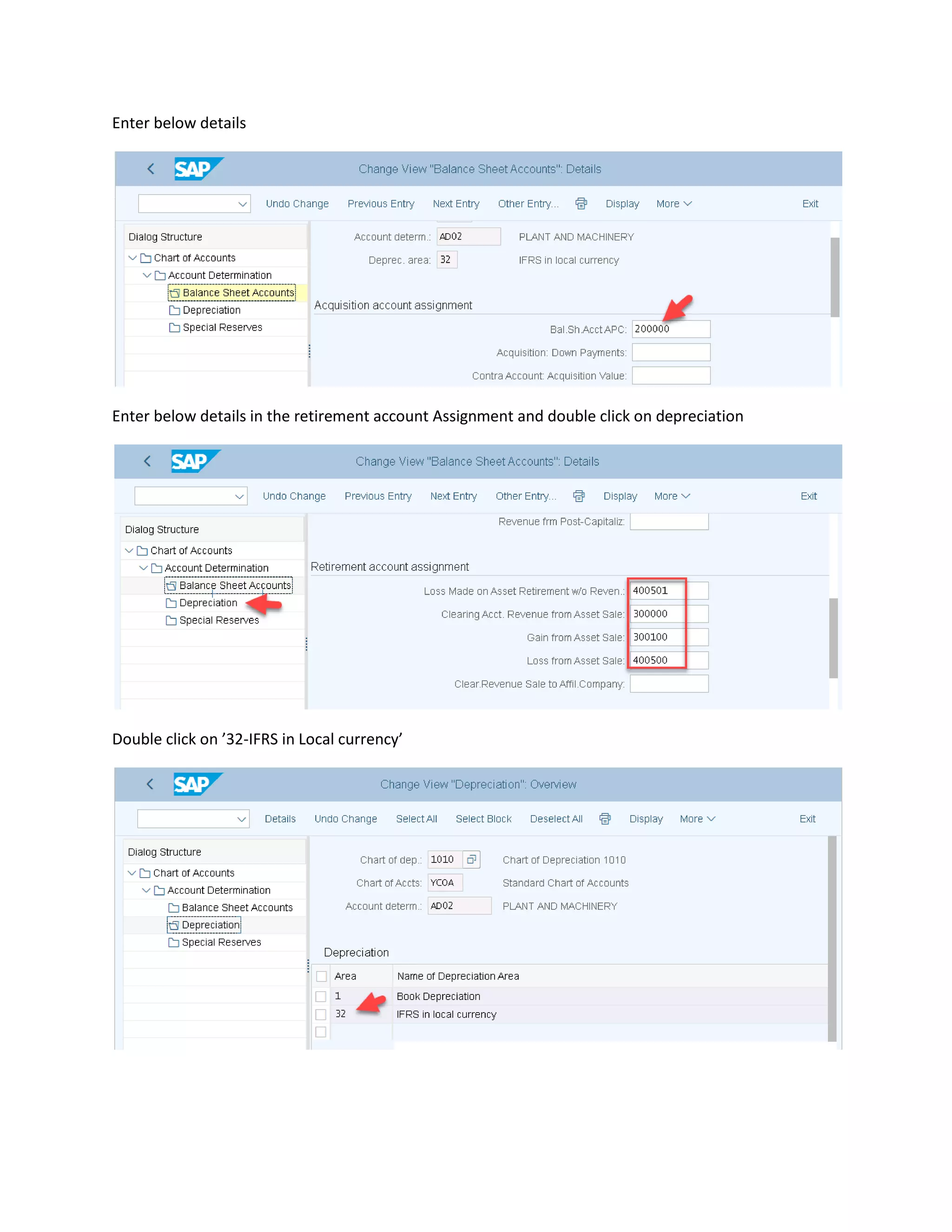
Enter below details
Enter below details in the retirement account Assignment and double click on depreciation
Double click on ’32-IFRS in Local currency’
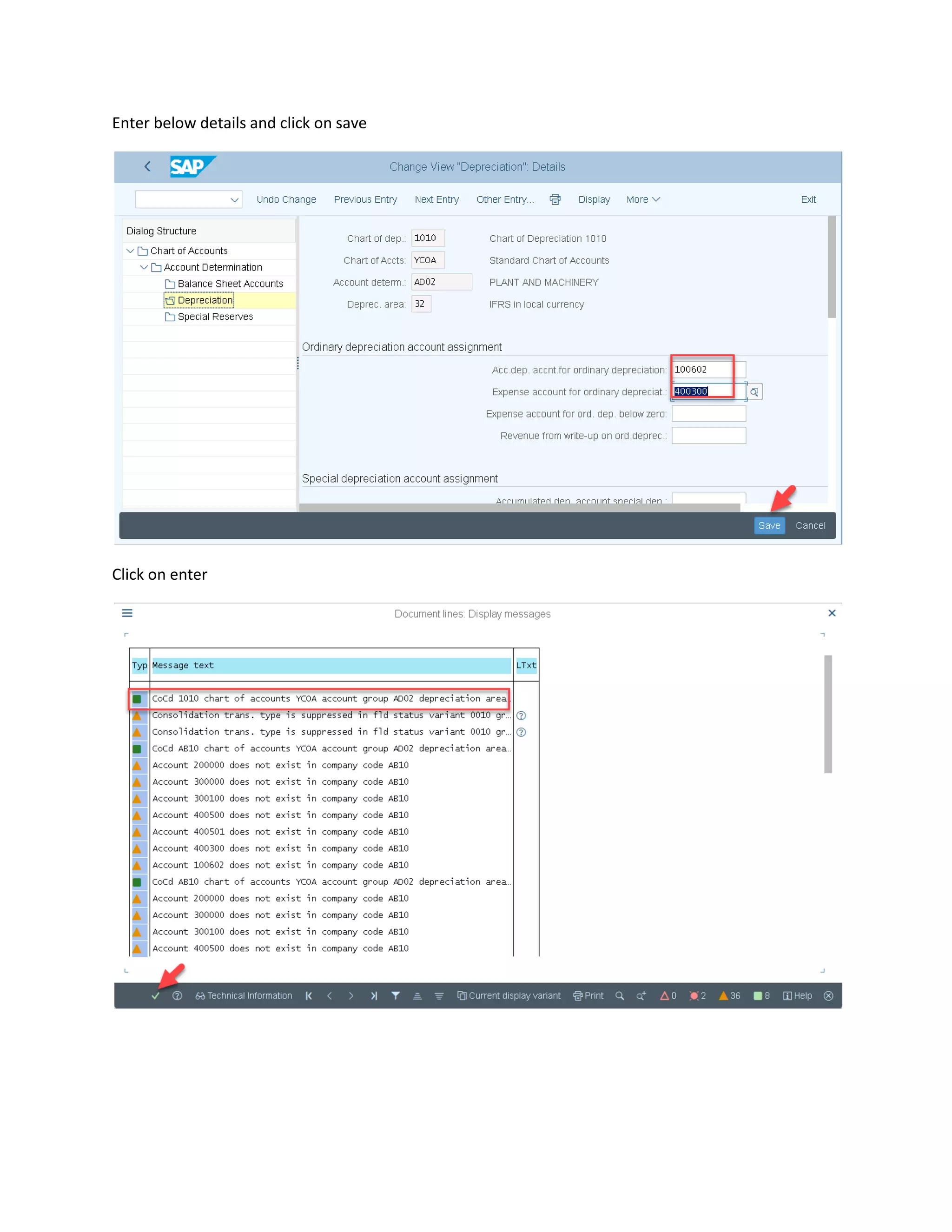
Enter below details and click on save
Click on enter
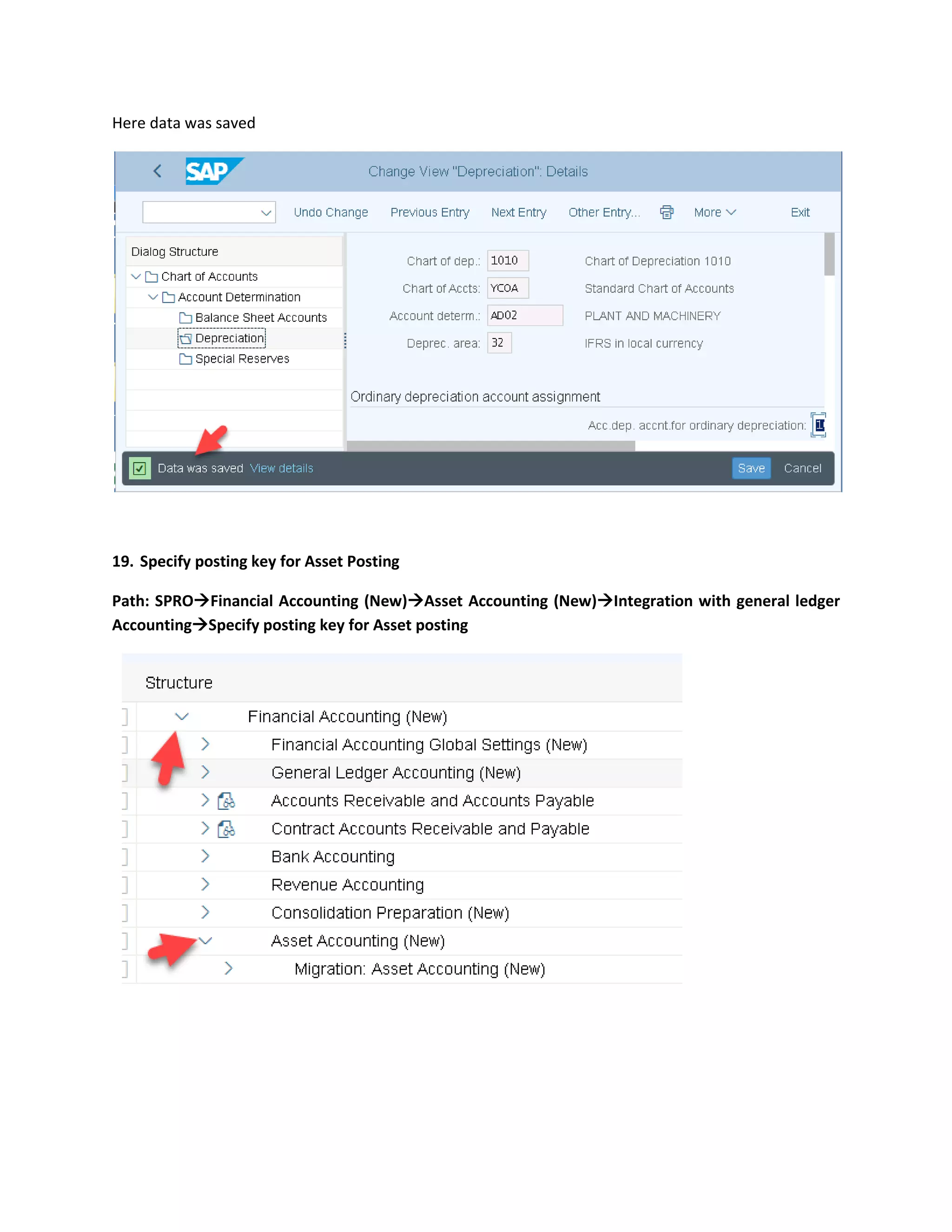
Here data was saved
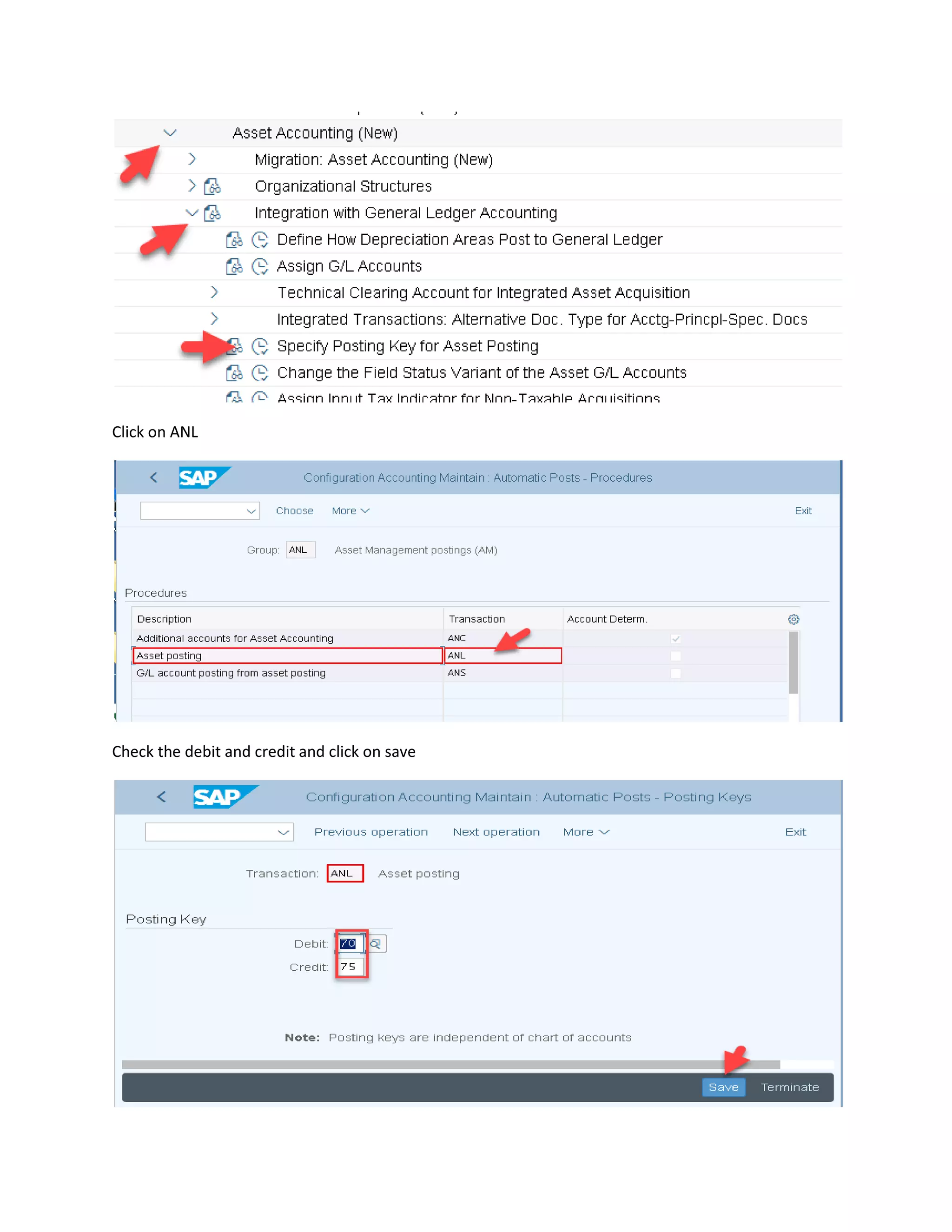
19. Specify posting key for Asset Posting
Path: SPRO→Financial Accounting (New)→Asset Accounting (New)→Integration with general ledger
Accounting→Specify posting key for Asset posting
Click on ANL
Check the debit and credit and click on save
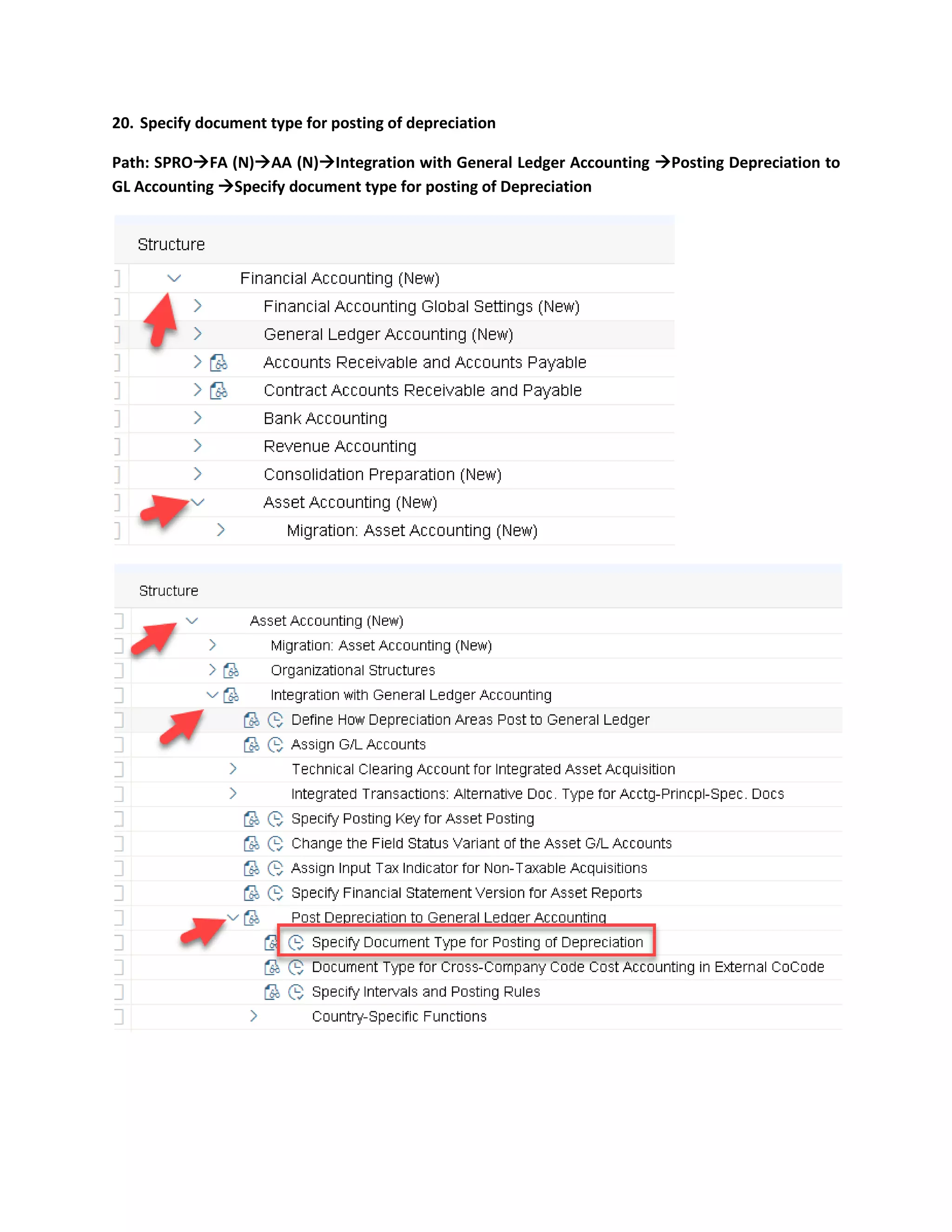
20. Specify document type for posting of depreciation
Path: SPRO→FA (N)→AA (N)→Integration with General Ledger Accounting →Posting Depreciation to
GL Accounting →Specify document type for posting of Depreciation
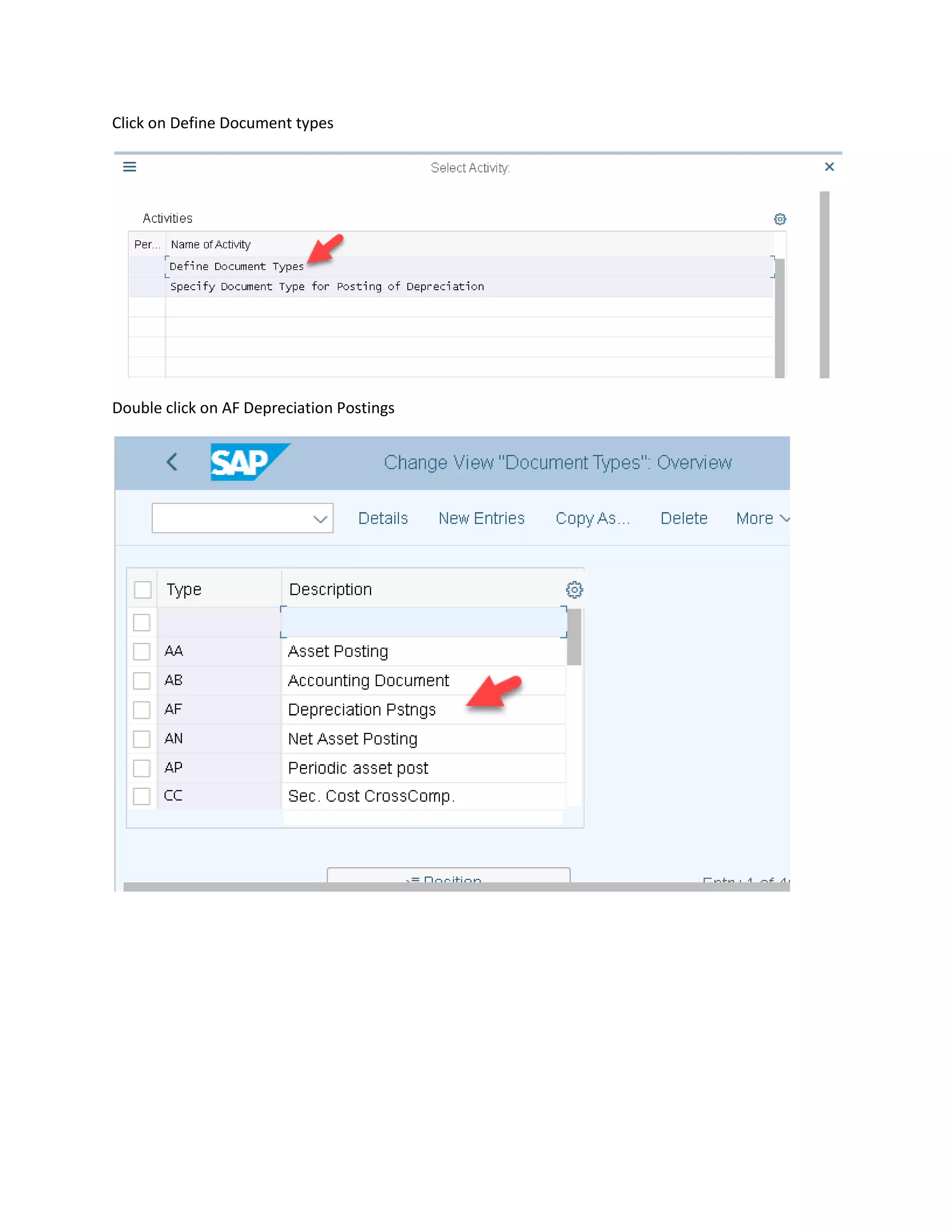
Click on Define Document types
Double click on AF Depreciation Postings
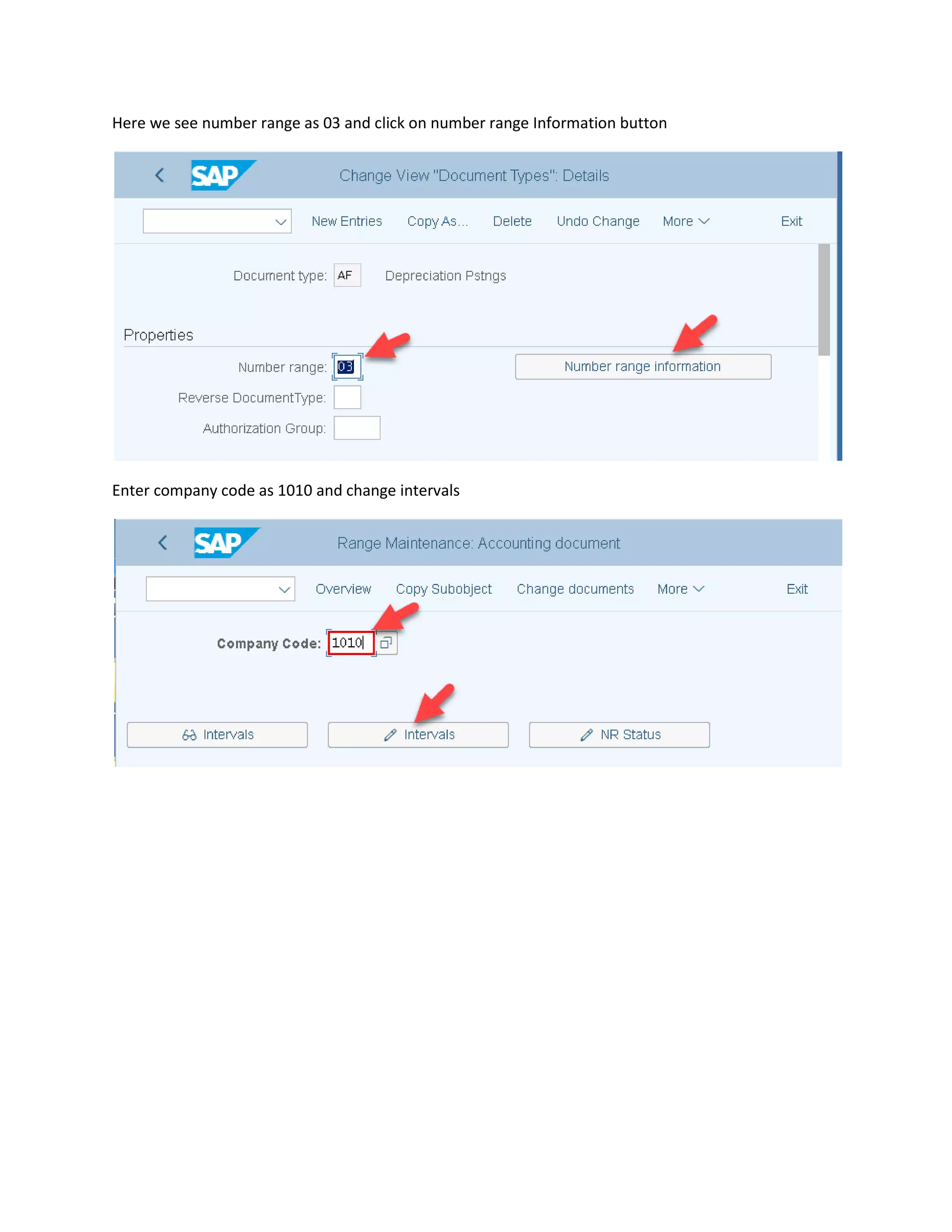
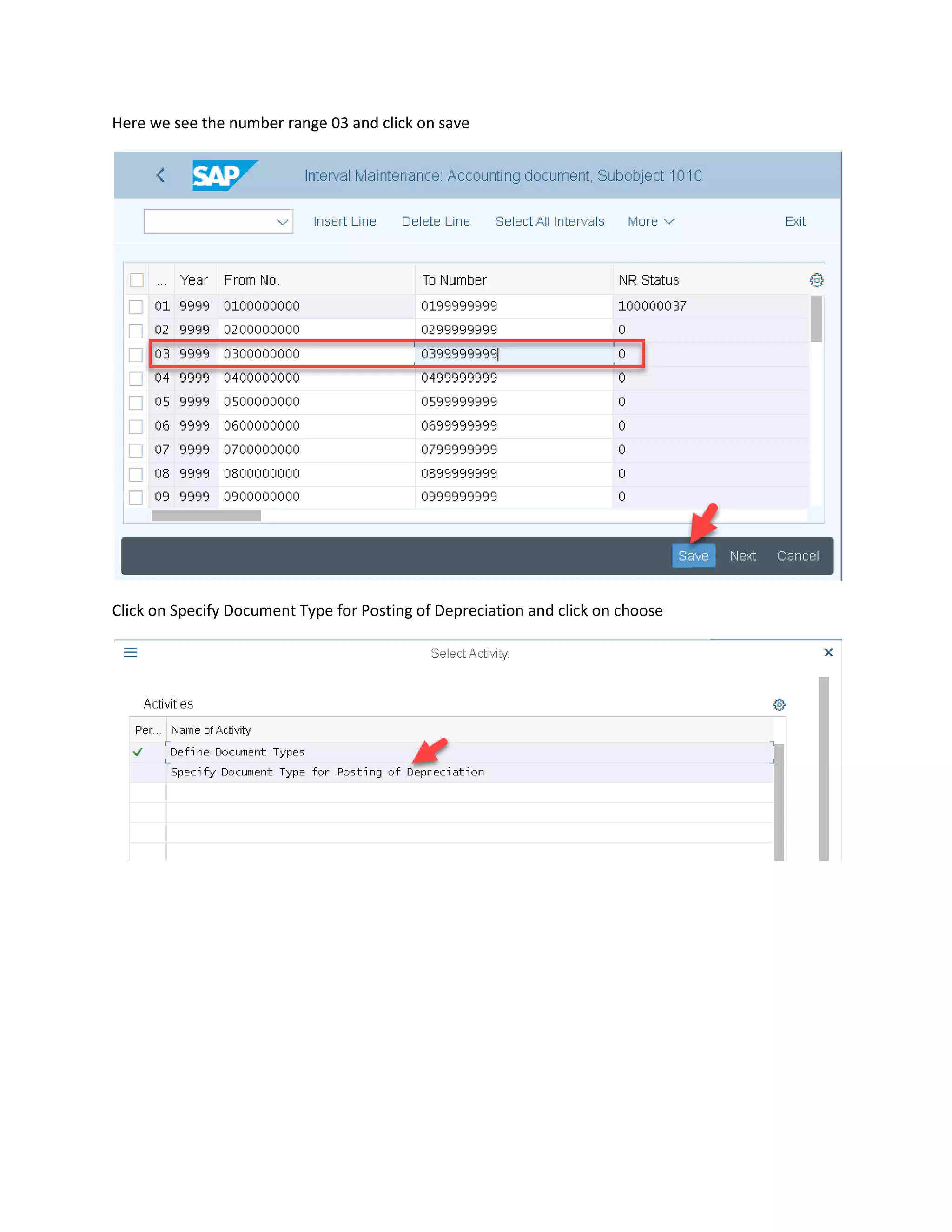
Here we see number range as 03 and click on number range Information button
Enter company code as 1010 and change intervals
Here we see the number range 03 and click on save
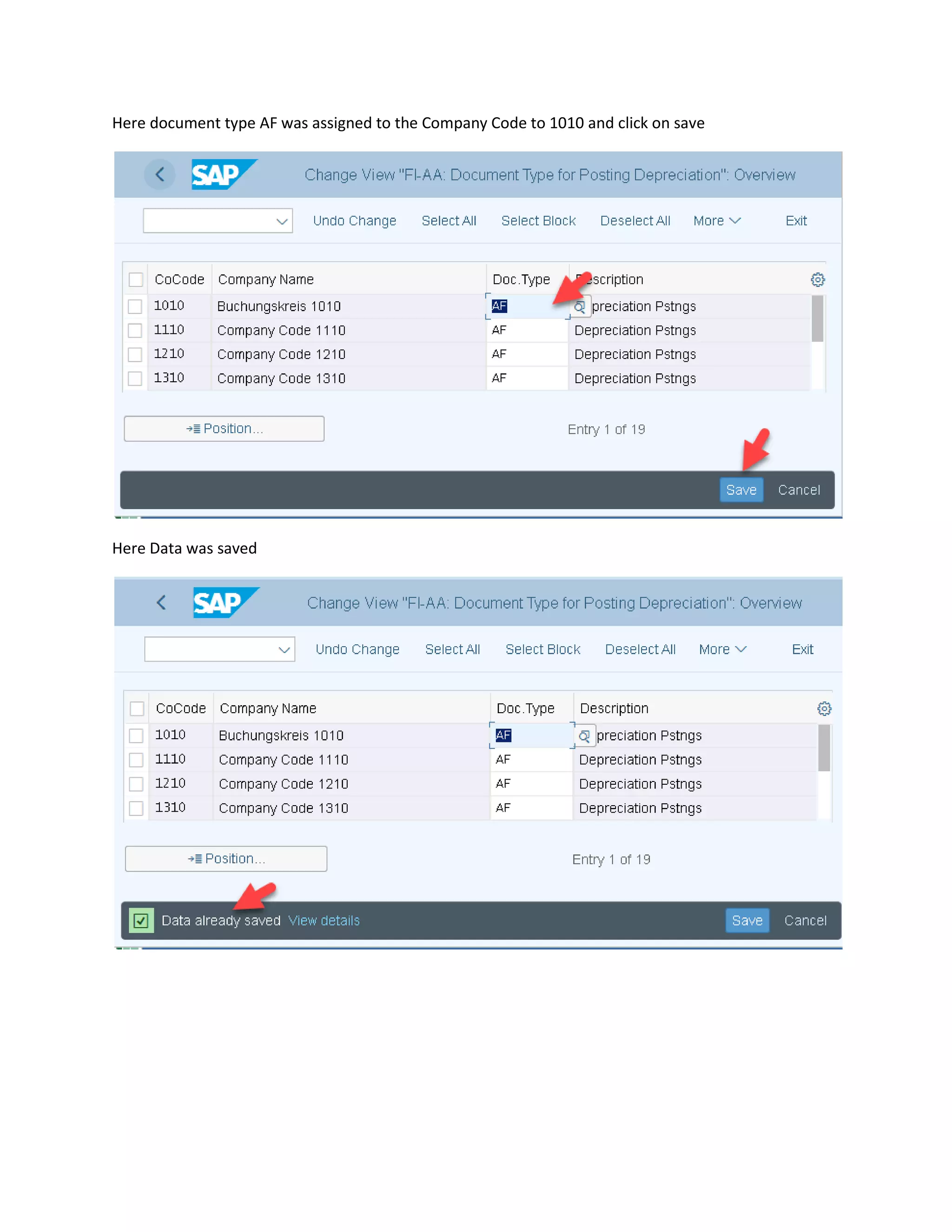
Click on Specify Document Type for Posting of Depreciation and click on choose
Here document type AF was assigned to the Company Code to 1010 and click on save
Here Data was saved
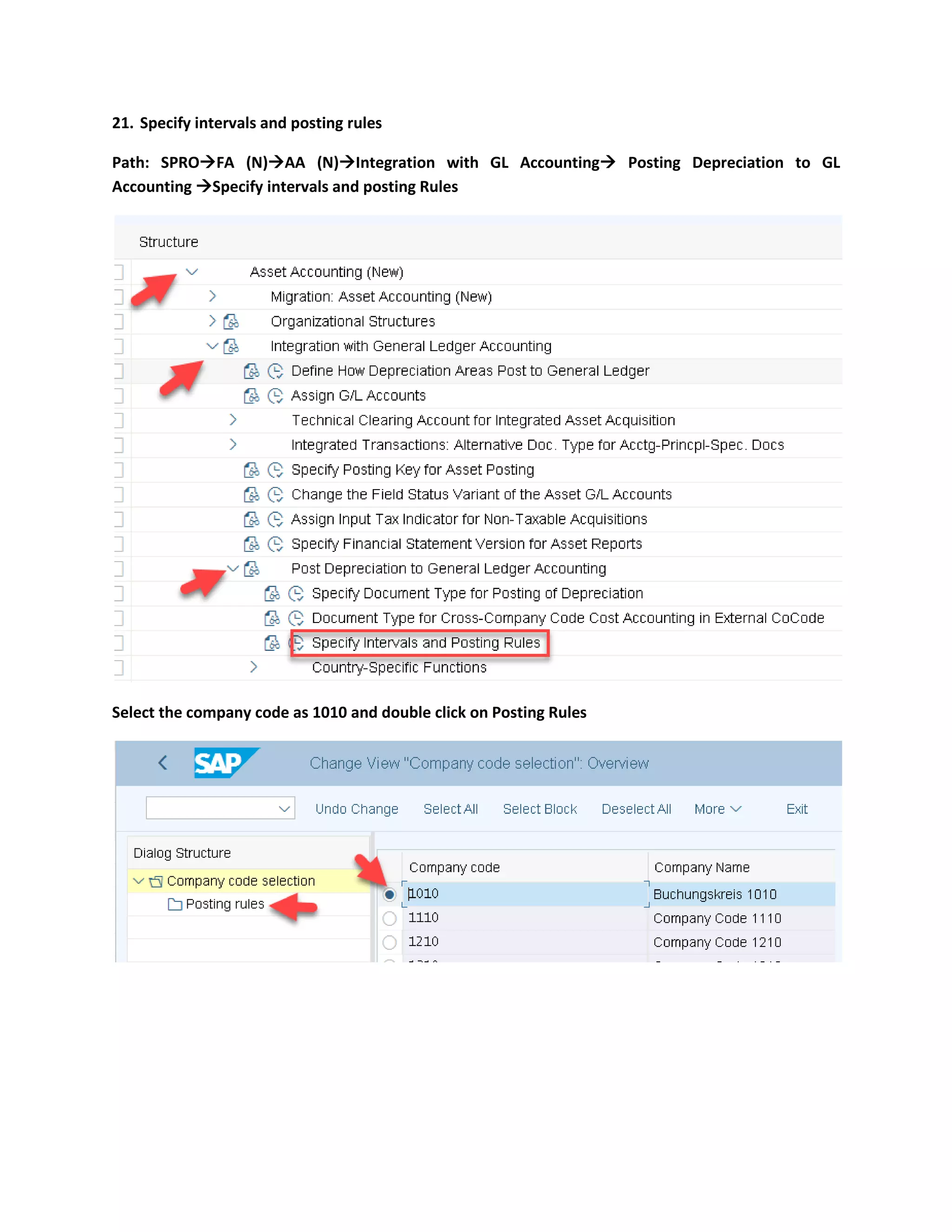
21. Specify intervals and posting rules
Path: SPRO→FA (N)→AA (N)→Integration with GL Accounting→ Posting Depreciation to GL
Accounting →Specify intervals and posting Rules
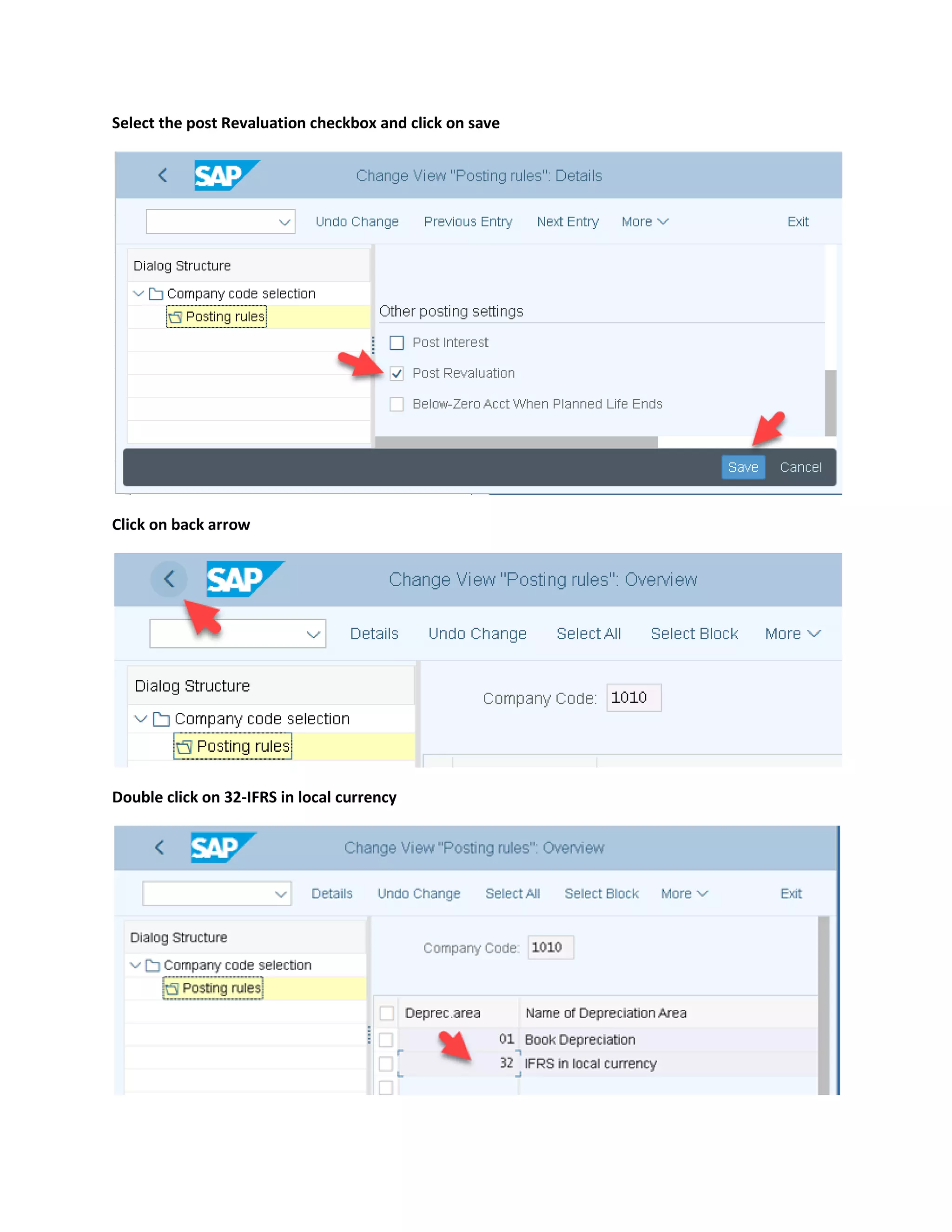
Select the company code as 1010 and double click on Posting Rules
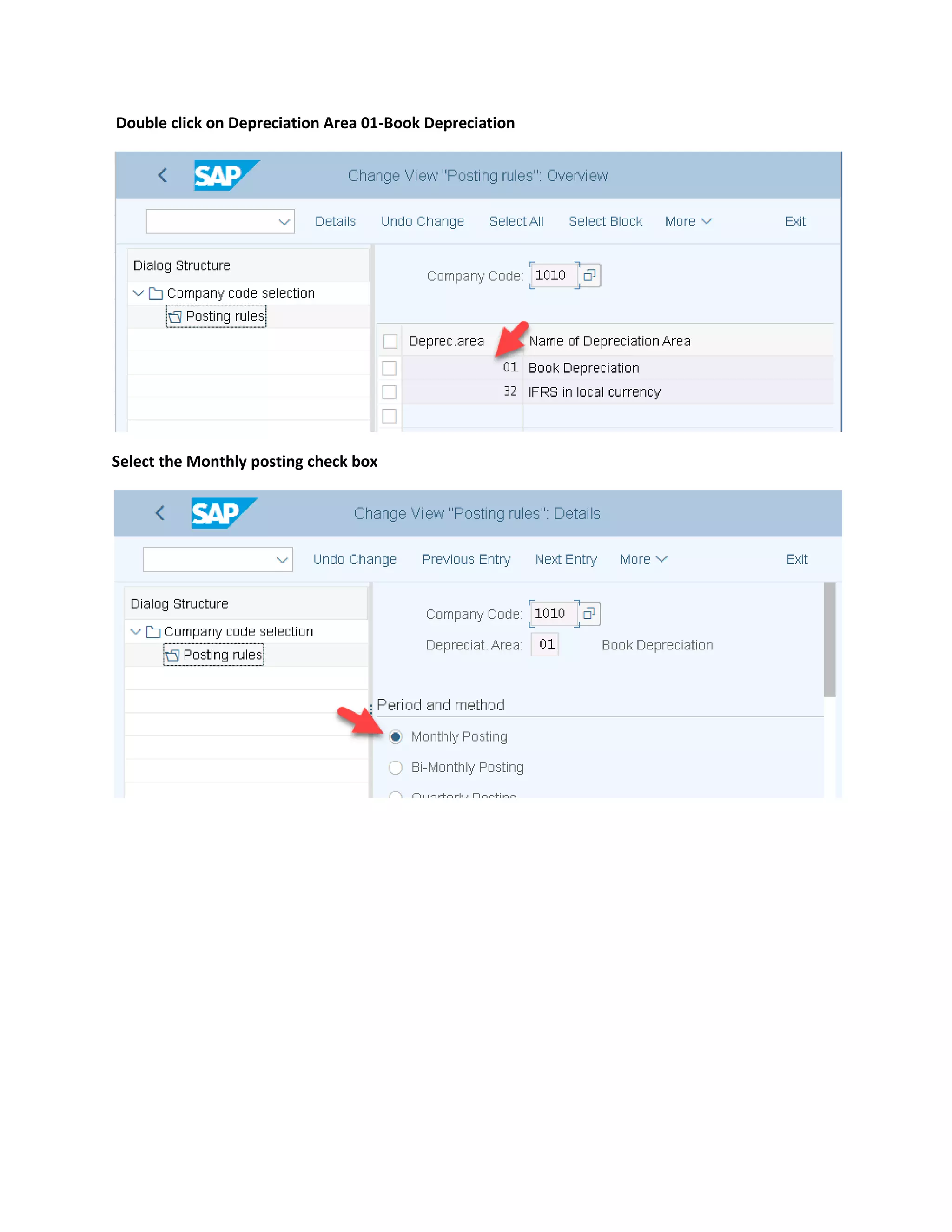
Double click on Depreciation Area 01-Book Depreciation
Select the Monthly posting check box
Select the post Revaluation checkbox and click on save
Click on back arrow
Double click on 32-IFRS in local currency
Select the monthly period checkbox
Select the post Revaluation checkbox and click on save
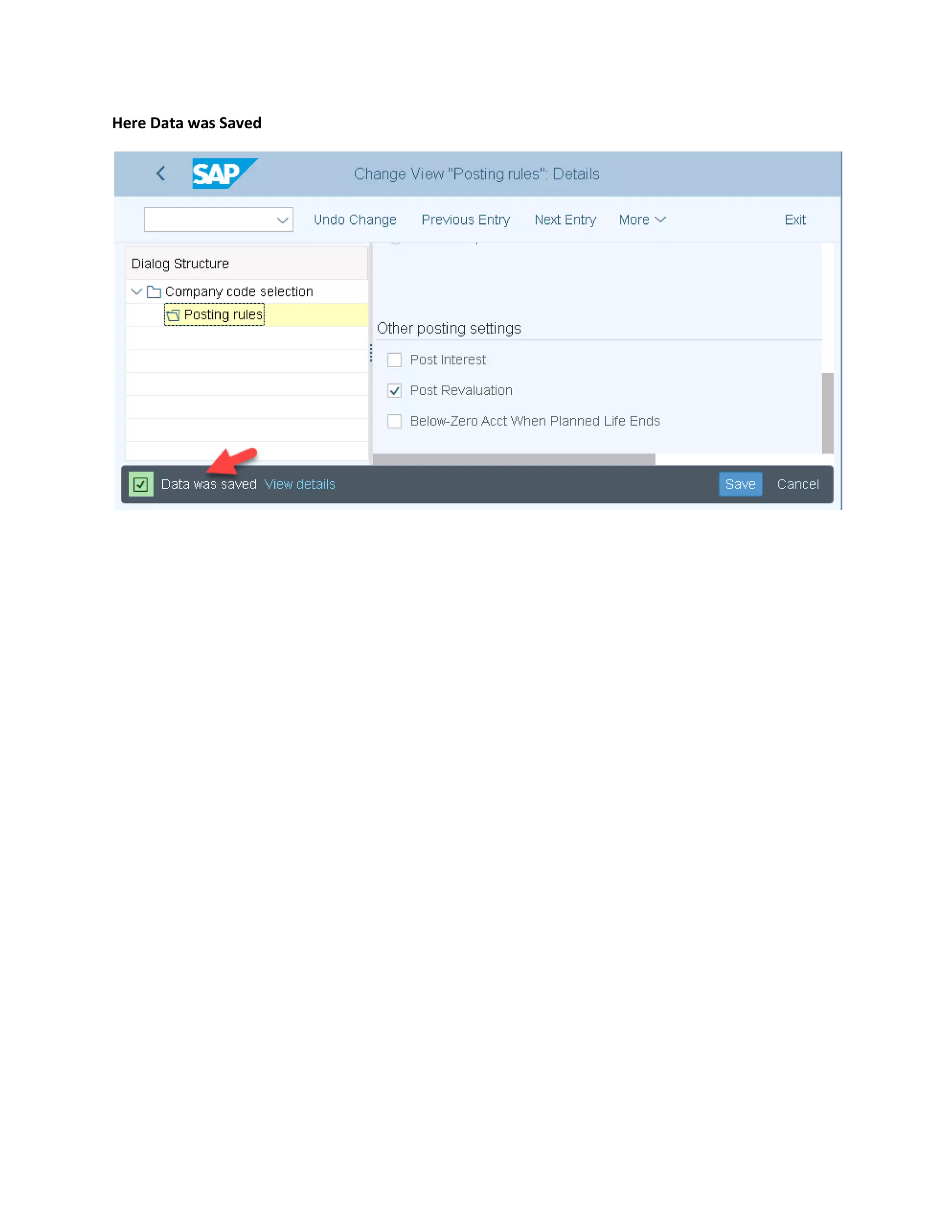
Here Data was Saved
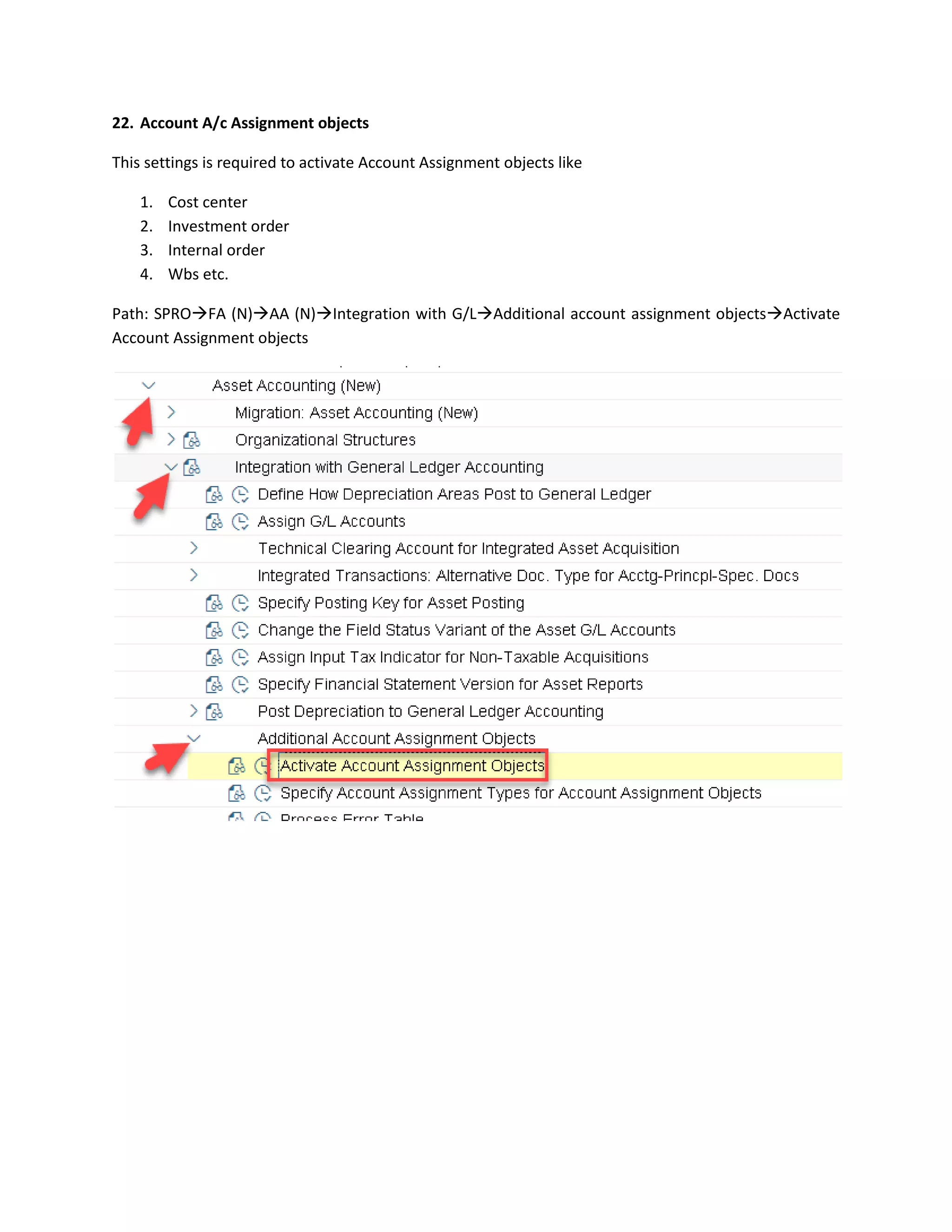
22. Account A/c Assignment objects
This settings is required to activate Account Assignment objects like
1. Cost center
2. Investment order
3. Internal order
4. Wbs etc.
Path: SPRO→FA (N)→AA (N)→Integration with G/L→Additional account assignment objects→Activate
Account Assignment objects
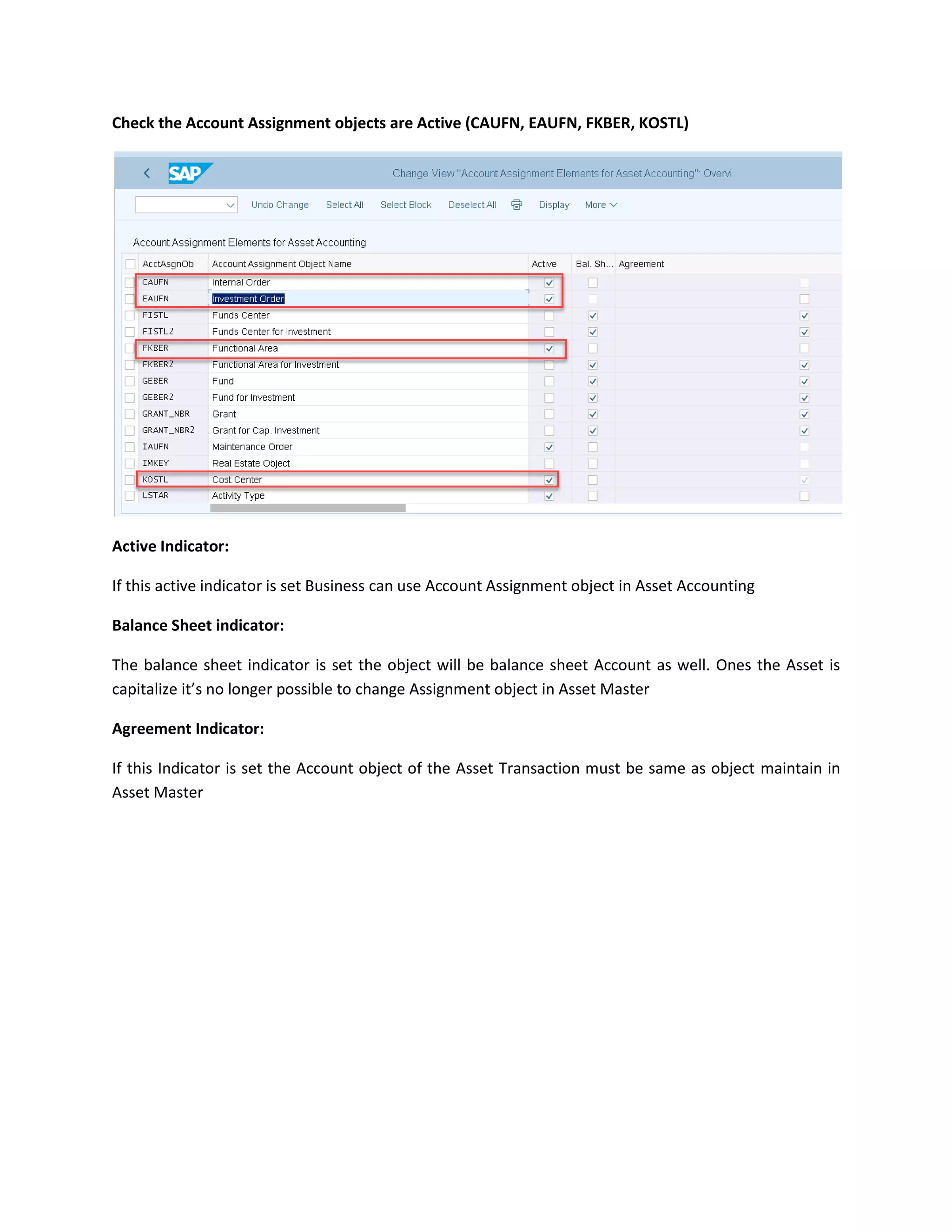
Check the Account Assignment objects are Active (CAUFN, EAUFN, FKBER, KOSTL)
Active Indicator:
If this active indicator is set Business can use Account Assignment object in Asset Accounting
Balance Sheet indicator:
The balance sheet indicator is set the object will be balance sheet Account as well. Ones the Asset is
capitalize it’s no longer possible to change Assignment object in Asset Master
Agreement Indicator:
If this Indicator is set the Account object of the Asset Transaction must be same as object maintain in
Asset Master
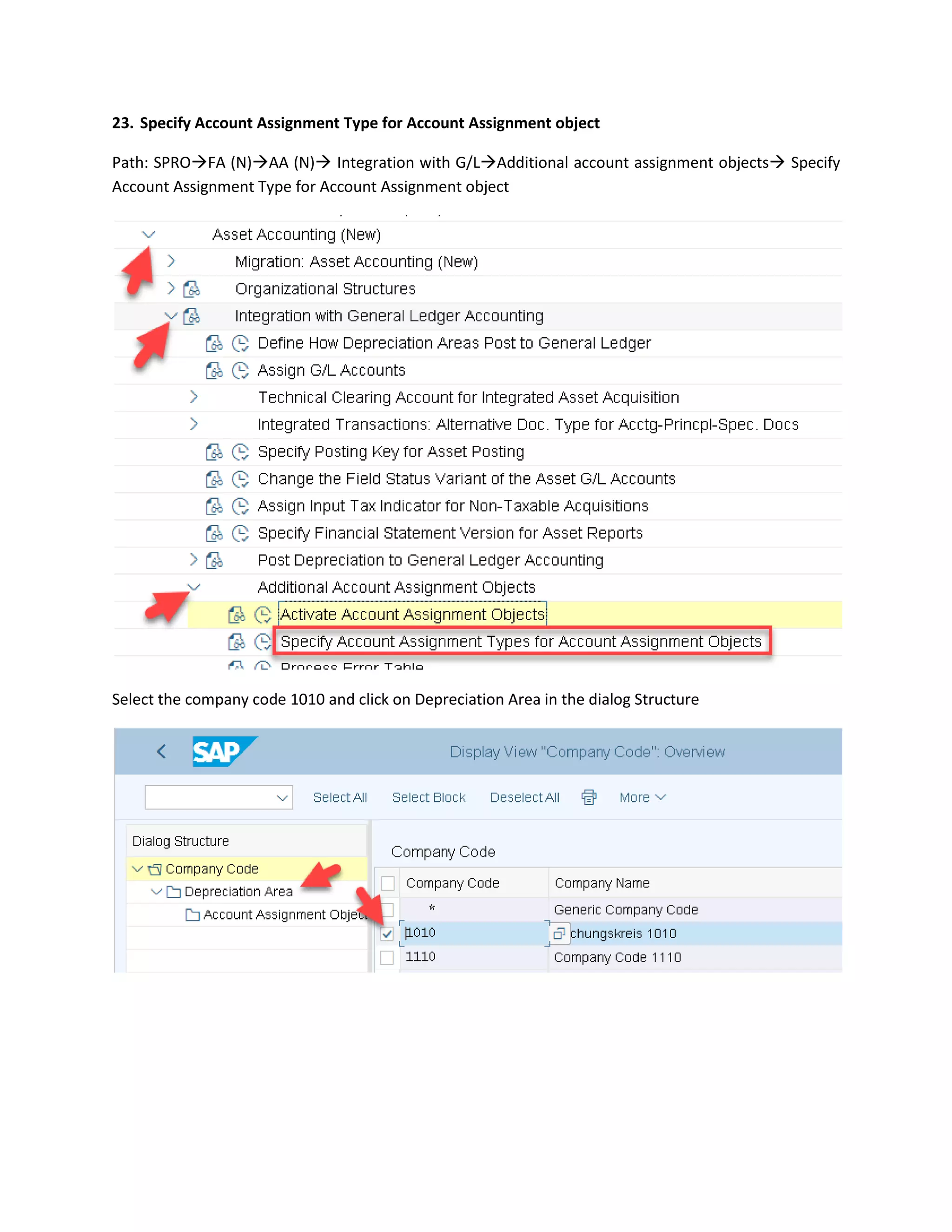
23. Specify Account Assignment Type for Account Assignment object
Path: SPRO→FA (N)→AA (N)→ Integration with G/L→Additional account assignment objects→ Specify
Account Assignment Type for Account Assignment object
Select the company code 1010 and click on Depreciation Area in the dialog Structure
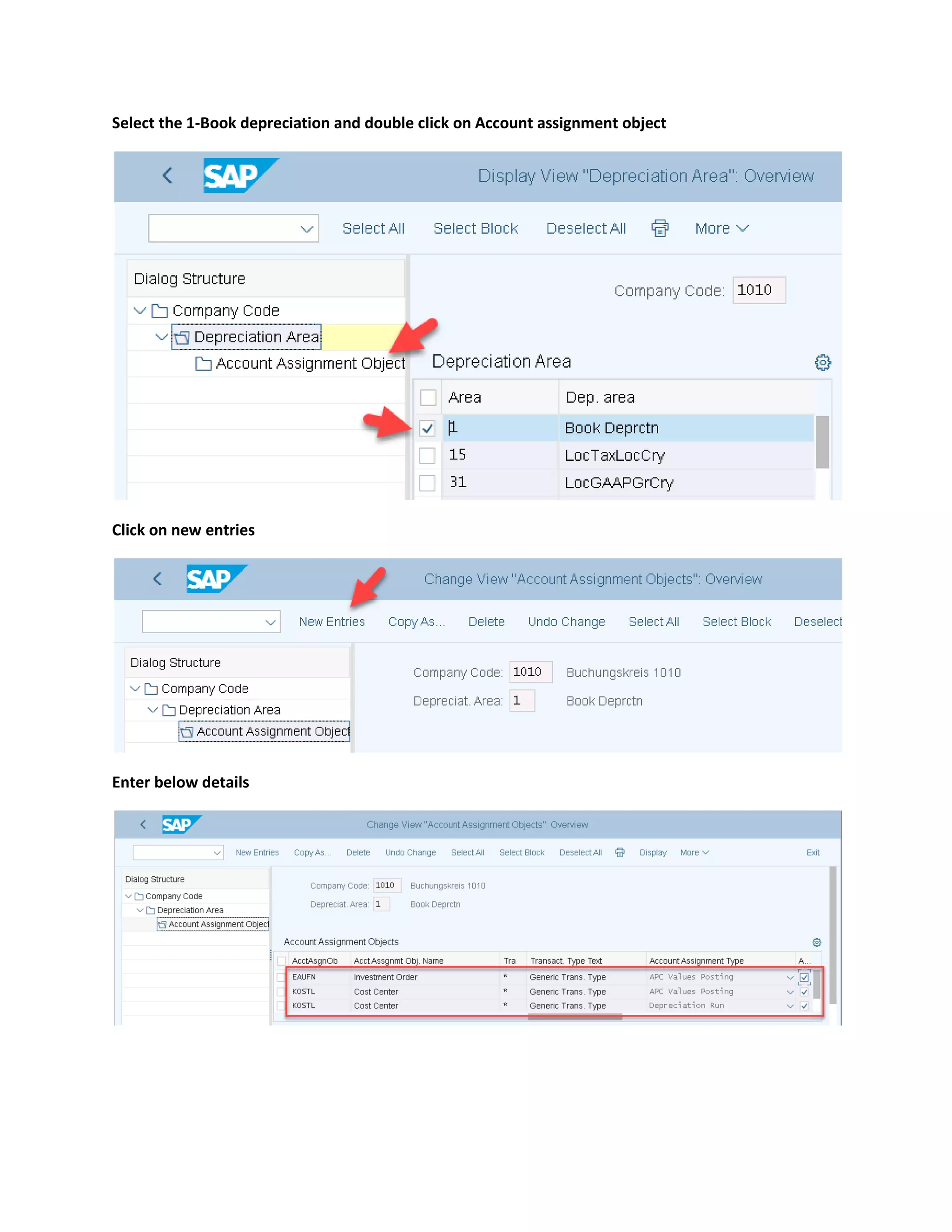
Select the 1-Book depreciation and double click on Account assignment object
Click on new entries
Enter below details
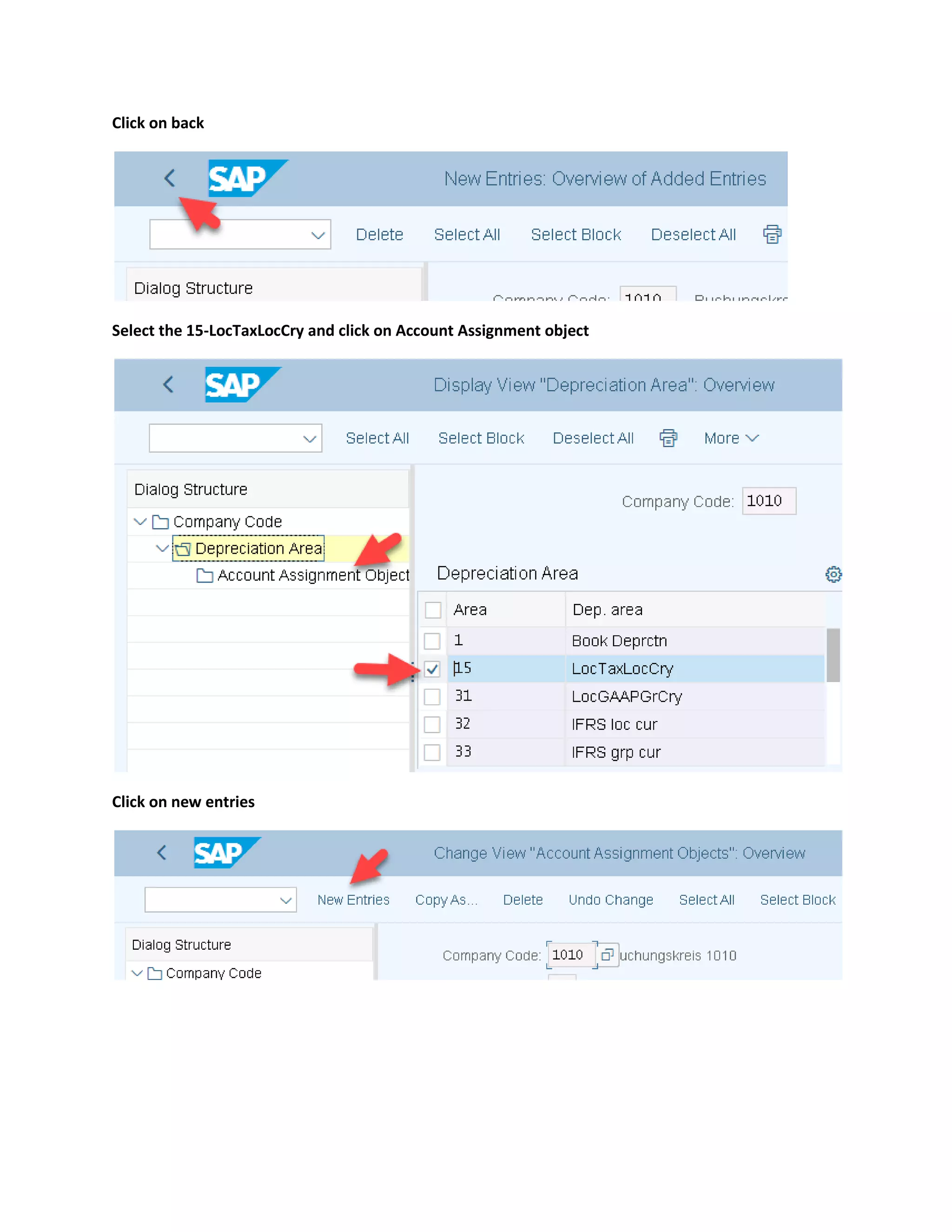
Click on back
Select the 15-LocTaxLocCry and click on Account Assignment object
Click on new entries
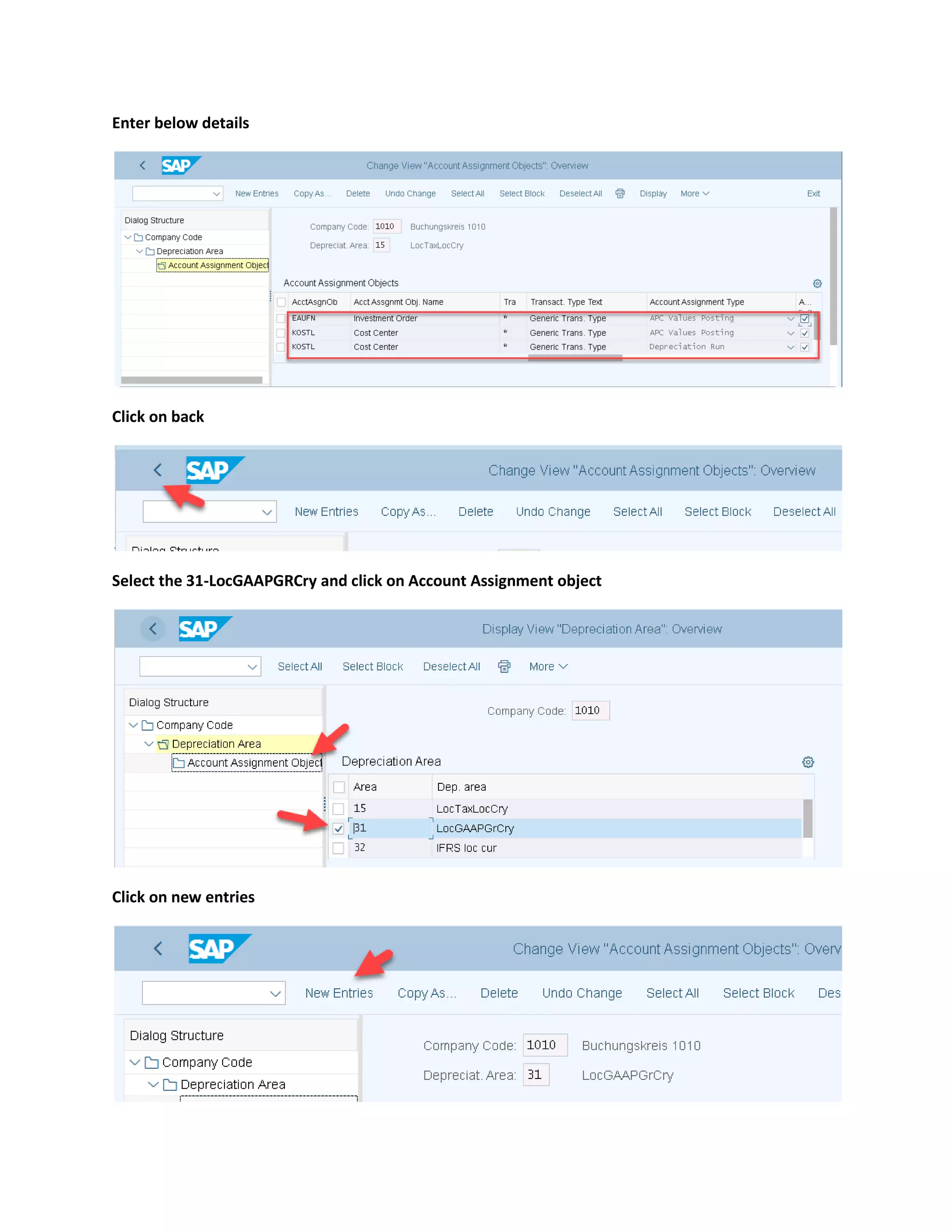
Enter below details
Click on back
Select the 31-LocGAAPGRCry and click on Account Assignment object
Click on new entries
Enter below details
Click on back
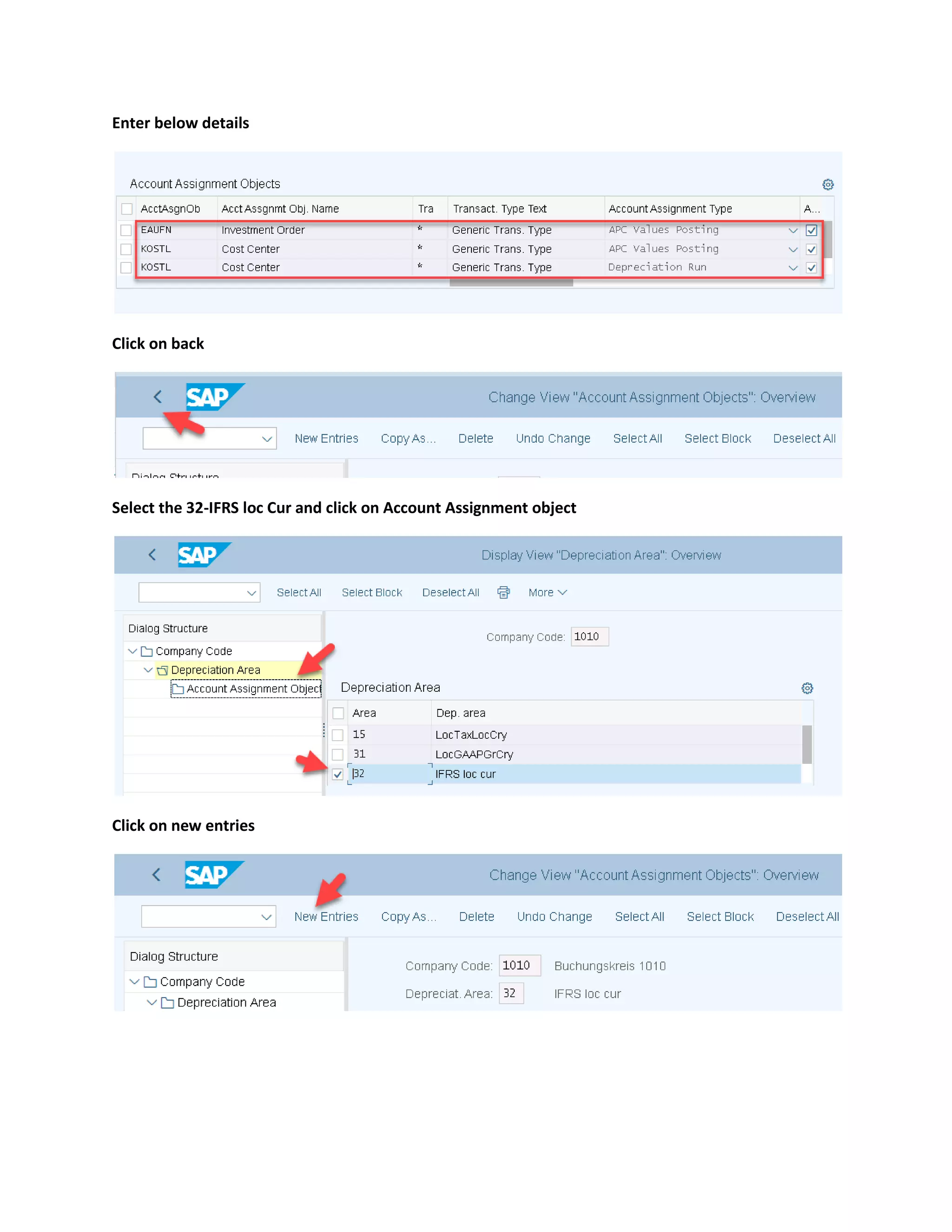
Select the 32-IFRS loc Cur and click on Account Assignment object
Click on new entries
Enter below details
Click on back
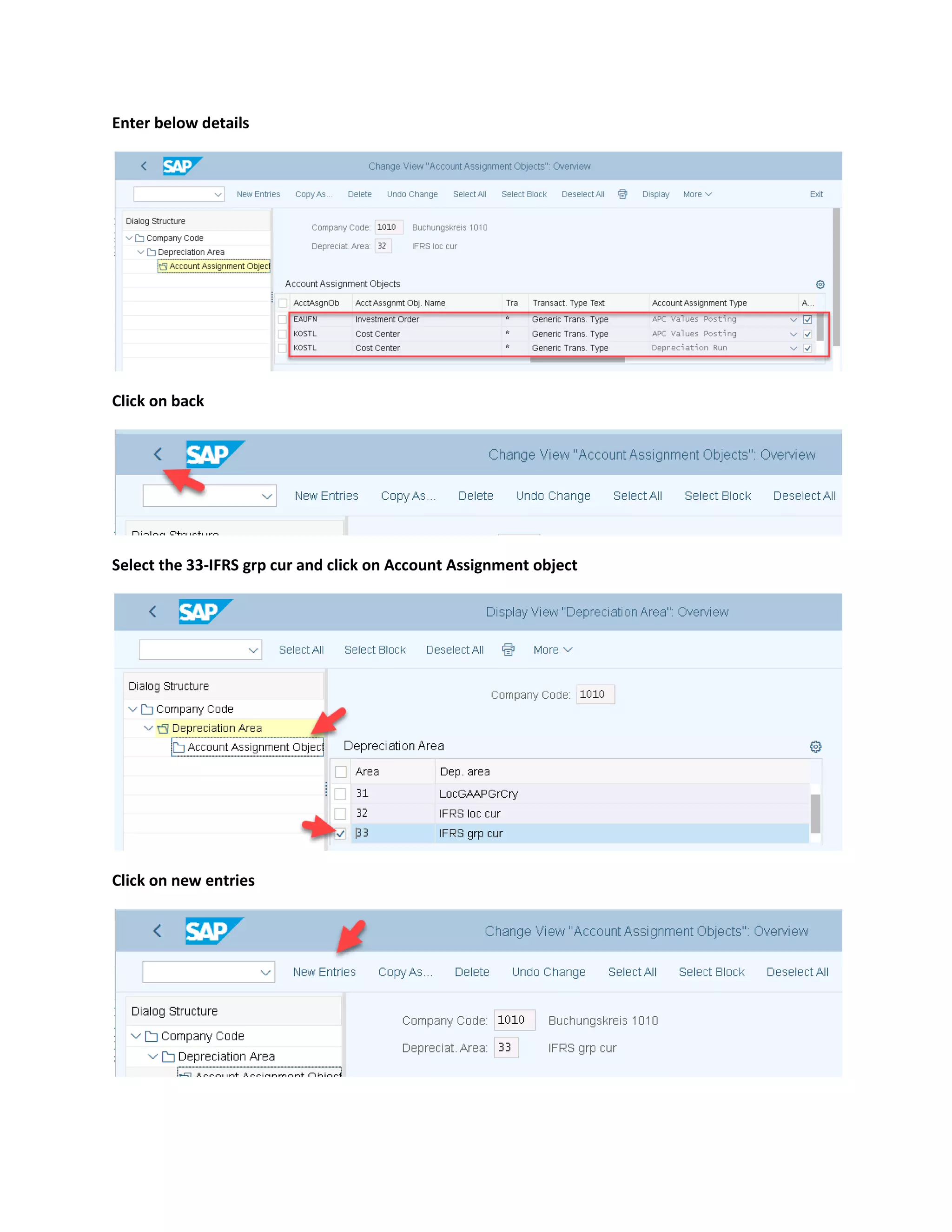
Select the 33-IFRS grp cur and click on Account Assignment object
Click on new entries
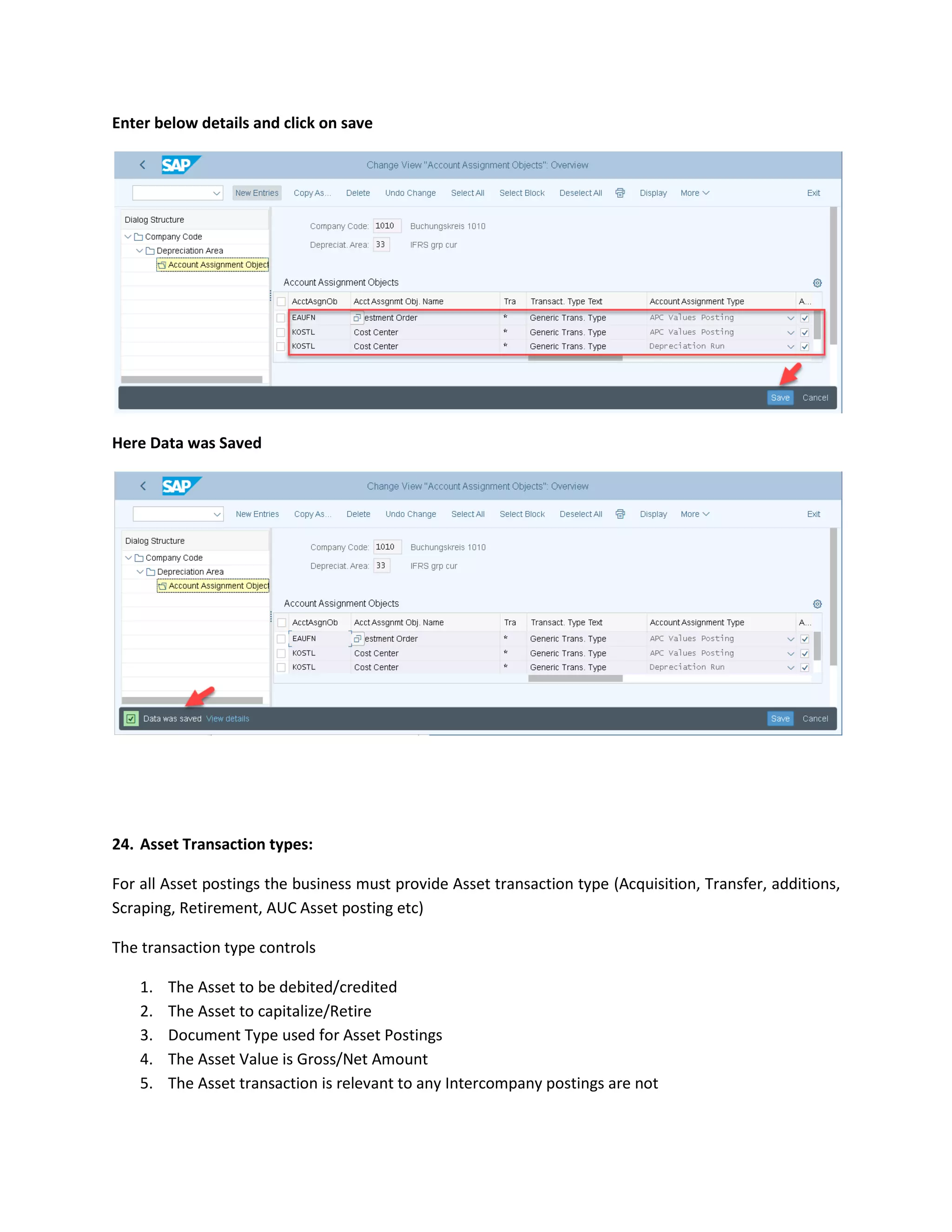
Enter below details and click on save
Here Data was Saved
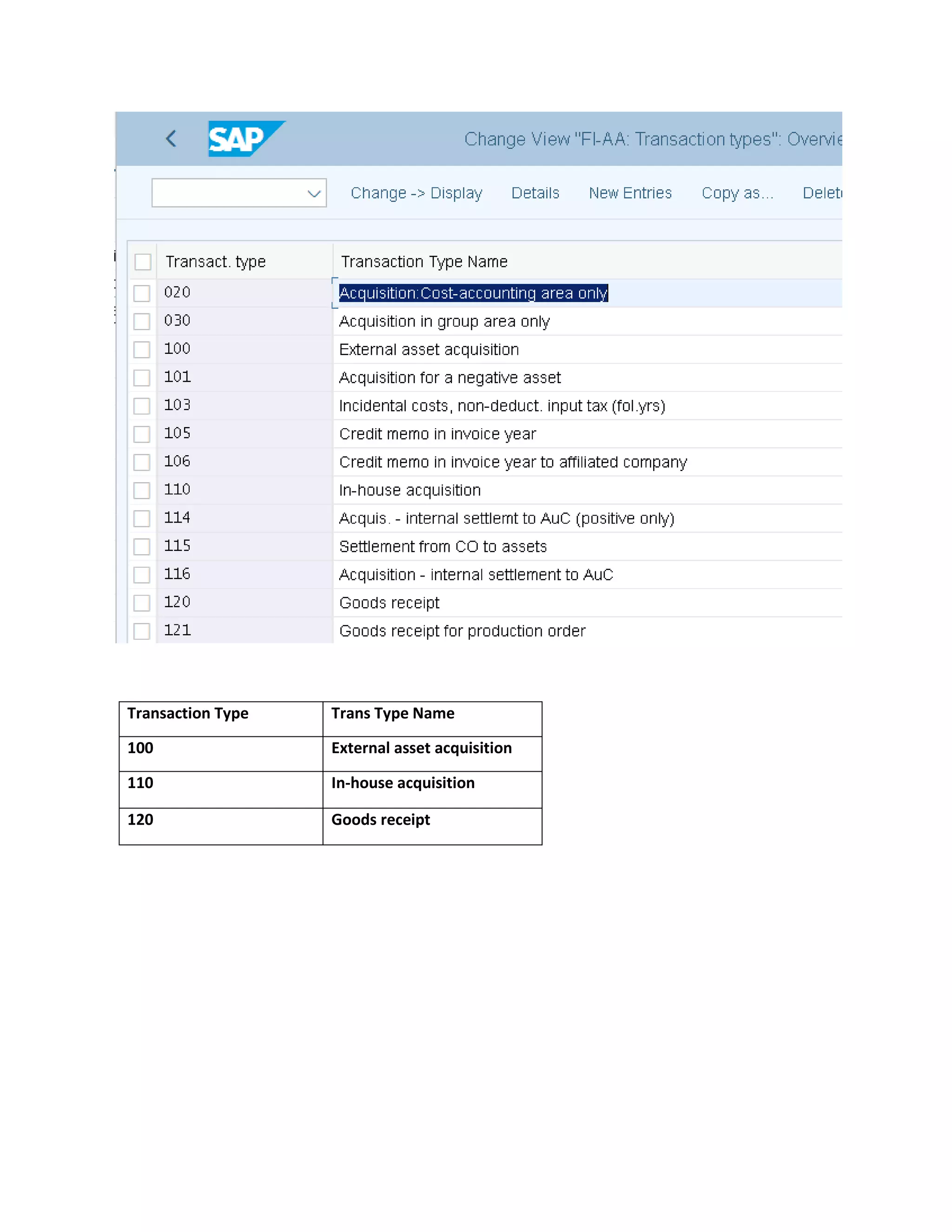
24. Asset Transaction types:
For all Asset postings the business must provide Asset transaction type (Acquisition, Transfer, additions,
Scraping, Retirement, AUC Asset posting etc)
The transaction type controls
1. The Asset to be debited/credited
2. The Asset to capitalize/Retire
3. Document Type used for Asset Postings
4. The Asset Value is Gross/Net Amount
5. The Asset transaction is relevant to any Intercompany postings are not
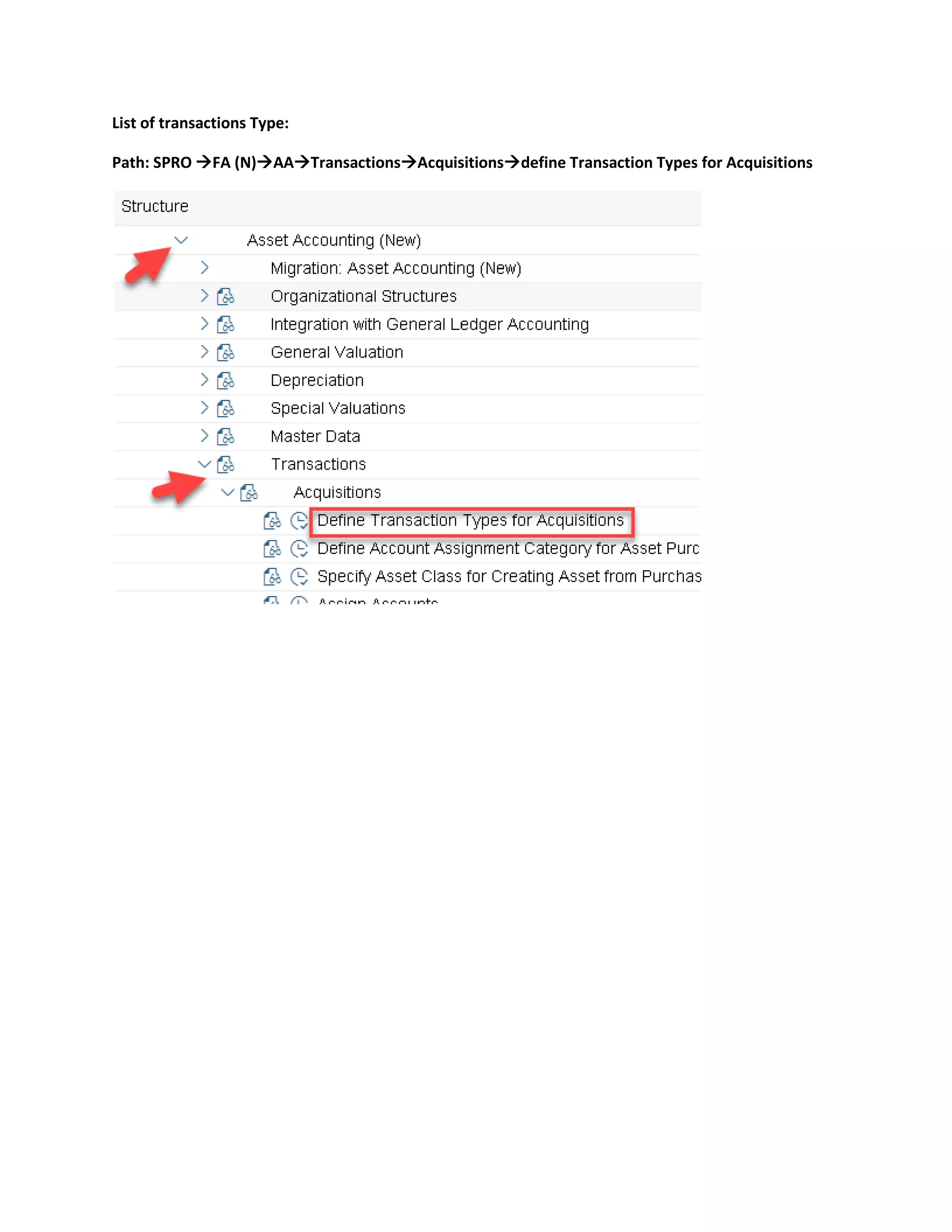
List of transactions Type:
Path: SPRO →FA (N)→AA→Transactions→Acquisitions→define Transaction Types for Acquisitions
Transaction Type Trans Type Name
100 External asset acquisition
110 In-house acquisition
120 Goods receipt
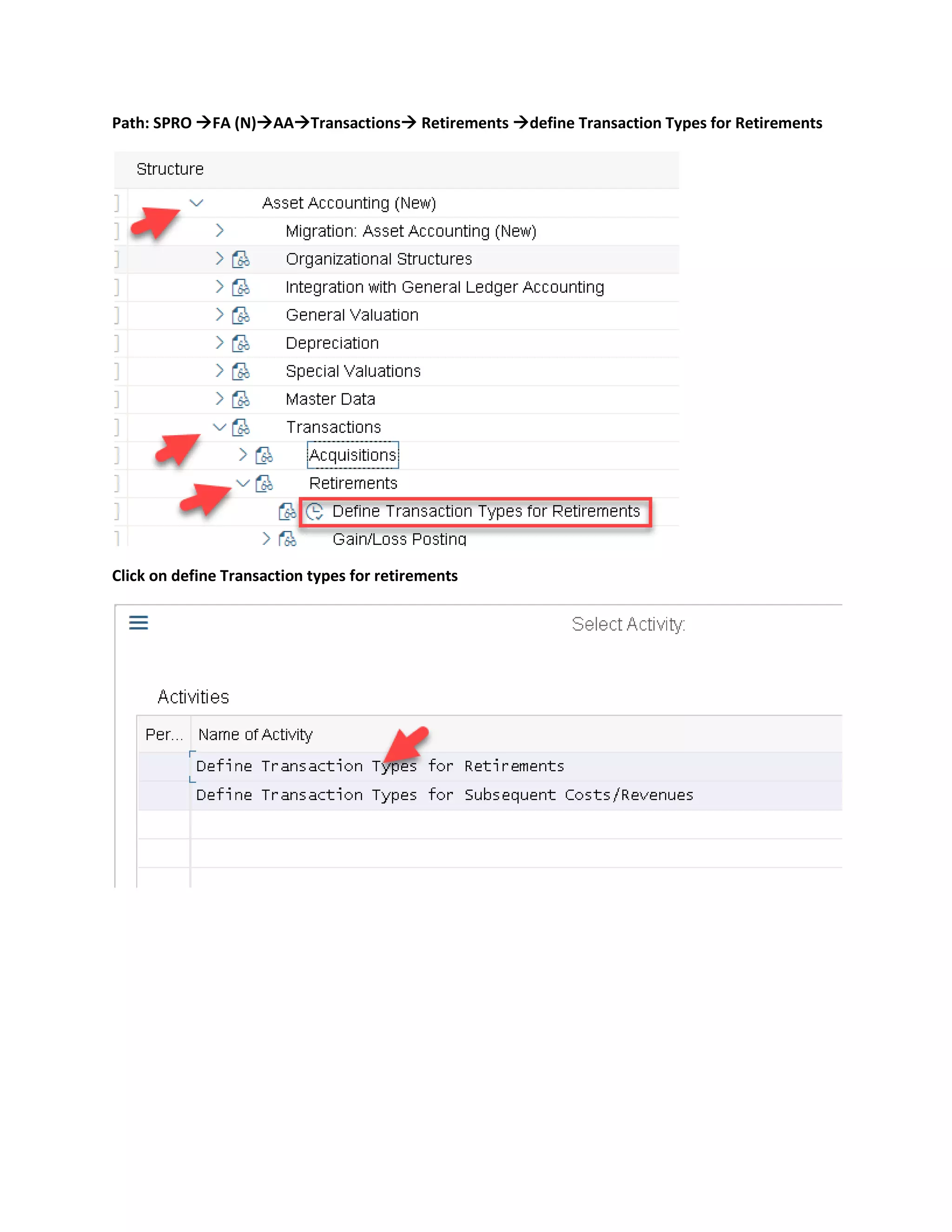
Path: SPRO →FA (N)→AA→Transactions→ Retirements →define Transaction Types for Retirements
Click on define Transaction types for retirements
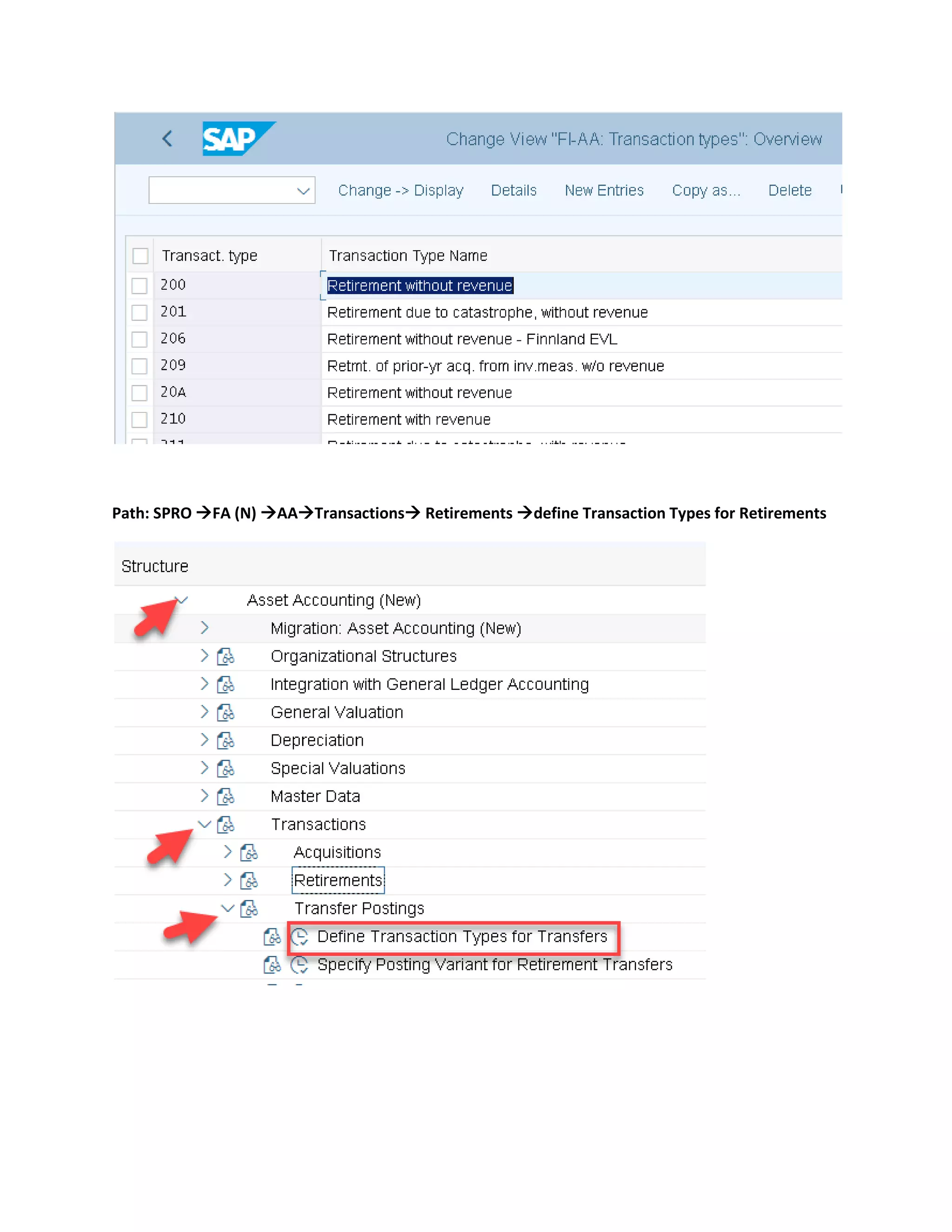
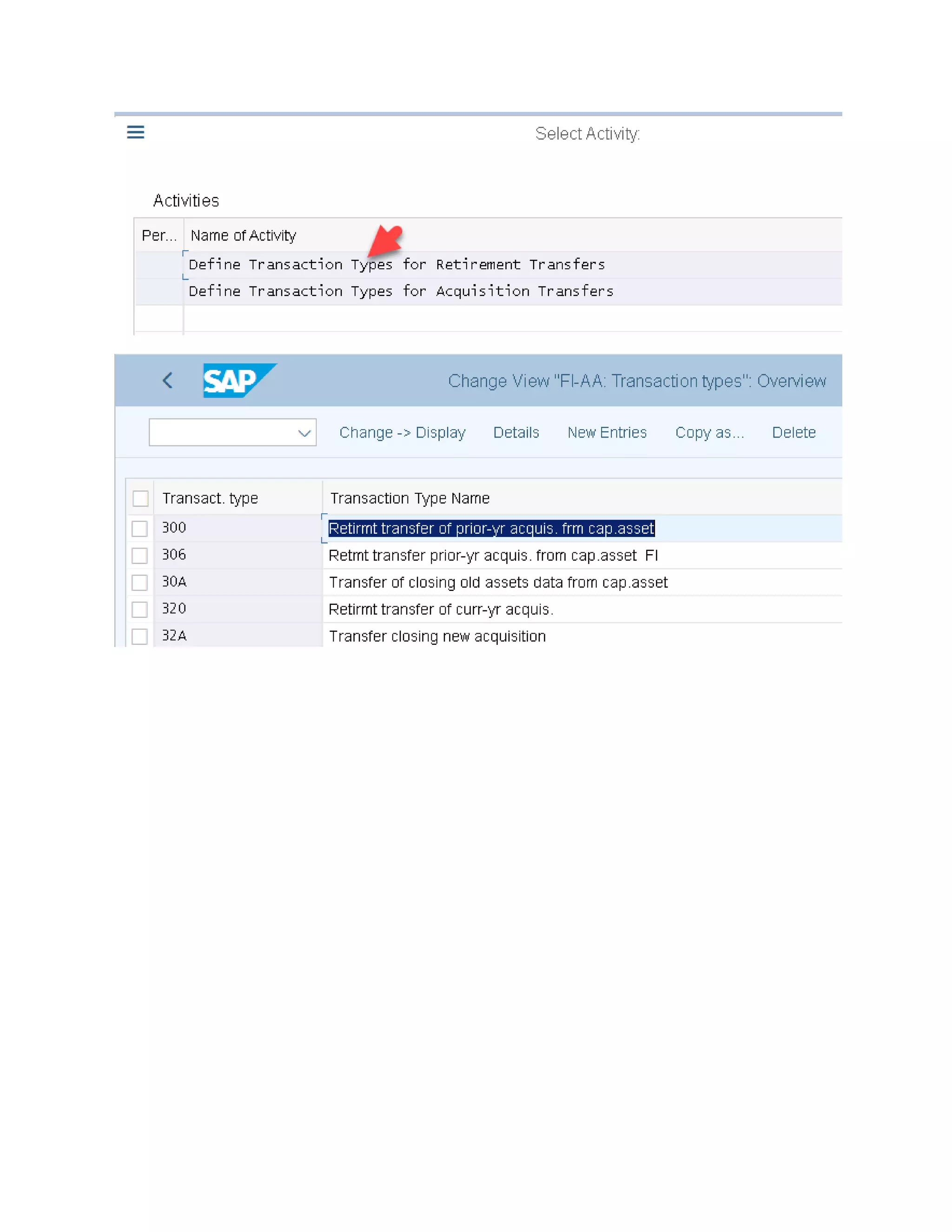
Path: SPRO →FA (N) →AA→Transactions→ Retirements →define Transaction Types for Retirements
Testing of Asset Management
Asset Master:
The Asset Master is master data of Asset Account using which an all Asset Transactions will be posted
The Asset parameters like Capitalization date, Account Assignment objects, Asset location information,
Depreciation Terms are stored under Asset Transactions
Note:
Asset master are created with Asset Class on Creation of Asset Master System will derived screen layout
rules, number range, Account determination from the Asset class
Asset Master can be created as
1. Main Asset
2. Sub Asset
The Main Asset will be identify with Asset number followed by zero (0)
The sub Asset follows main Asset number ending with [1 to 999]
Step: 1 create Main Asset master
Path: Accounting→FA (N)→ Fixed Asset→Asset→Create→Asset (AS01)

Asset Accouting Configuration.pdf

  • 1.
    Configuration Document FI –Asset Accounting Configuration 2022
  • 2.
    Configuration Settings ofAssets A/C 1. Copy Reference chart of Depreciation (EC08) Chart of Depreciation is organization unit of Asset A/c and consists of Depreciation Area. We must assign chart of Depreciation to company code. The company code belongs to same country can use same chart of depreciation. Note: The cod contains all the rules used to valuate fixed Assets as for country requirements. SAP delivered cod templates at the country level which can be copied as for county for company code requirements. The templates consists of all necessary depreciation areas for that country to meet legal and business requirements Path: SPRO→Financial Accounting (New)→Asset Accounting (New)→organizational structure→copy reference chart of depreciation/Depreciation Areas
  • 3.
    Click on Specifydescription of chart of depreciation and click on choose Click on save
  • 4.
    Here Data wasalready saved Again click on copy/Delete Depreciation Areas and click on choose
  • 5.
    Enter the Chartof Dep as 1010 and click on enter Here we see different depreciation Areas The Depreciation Areas are two types: 1. Real depreciation Area: The Assets values automatically updated. If the real Depreciation Areas indicator is set then the areas is selected automatically updated for all Asset Transactions on real time basis 2. Derived Depreciation Area: If the Real Areas indicator is not set than the depreciation Areas is called as Derived Depreciation Areas. The Values of this Areas gets updated based on differences of real depreciation Areas (on Formula basis) Note: From the list of depreciation Area we can delete unwanted Areas and also we can create new depreciation Areas. We can use maximum of 99 Areas. It’s mandatory to use Book depreciation Area (Legal requirement/as per A/C standard of a country)
  • 6.
    Click on save HereData was saved
  • 7.
    2. G/L Indicators: EachDepreciation Areas one must assign G/L Indicator. The Indicator control the Asset value of depreciation areas should be updated to G/L Account or not ➢ Create G/L Account for Fixed Assets Enter the t-code as FS00 and click on enter Enter G/L Account and company code as 1010 and click on create In the type/Description tab, enter G/L Account Type as Balance Sheet Account Account group as Fixed Assets accounts
  • 8.
    Enter the shorttext and long text In the control Data tab, enter the Account currency as EUR Enter the Reconciliation Account for Account Type as Assets and sort key as 018 (Asset Number)
  • 9.
    In the Create/bank/interesttab, enter Field Status Group as YB67 (Reconciliation accounts) Click on save
  • 10.
  • 11.
    Enter t-code asobd4 for giving G/L number ranges to the Account groups Enter new entries
  • 12.
    Enter below detailsand click on enter Click on Save Click on continue
  • 13.
    Here data wassaved ➢ Accumulated depreciation Enter the G/L account and company code and click on create Enter G/l Account type and Account group
  • 14.
    Enter short textand long text In the control Data tab, enter currency as EUR Enter Reconciliation Account type as Assets
  • 15.
    Enter the sortkey as 018 In the create/bank/interest tab, enter field status group as YB67
  • 16.
  • 17.
    Here data wassaved Enter t-code ODB4 and click on enter Click on new entries
  • 18.
    Enter below detailsand click on save Here data was saved
  • 19.
    ➢ Create G/Lfor Depreciation Enter T-code as FS00 Enter the G/L account and company code and click on create In the Type/Description tab, Enter G/l Account type and Account group as Depreciation
  • 20.
    Enter short textand long text In the control Data tab, enter currency as EUR Enter the sort key as 018 and cost element category as 21
  • 21.
    In the create/bank/interesttab, enter field status group as YB01 Click on save Here data was saved
  • 22.
    ➢ Create G/lAccount for Sales Enter the G/L account and company code and click on create Enter G/l Account type and Account group Enter short text and long text
  • 23.
    In the controlData tab, enter currency as EUR Enter the sort key as 001 and cost element category as 11 In the create/bank/interest tab, enter field status group as YB52
  • 24.
    Click on save Heredata was saved
  • 25.
    ➢ Create G/LAccount for Other Income: Enter the G/L account and company code and click on create Enter G/l Account type and Account group
  • 26.
    Enter short textand long text In the control Data tab, enter the sort key as 001 and cost element category as 11
  • 27.
    In the create/bank/interesttab, enter field status group as YB01 and click on save Here data was saved
  • 28.
    ➢ Create G/LAccount for financial expenses Enter the G/L account and company code and click on create
  • 29.
    Enter G/l Accounttype and Account group Enter short text and long text In the control Data tab, enter the sort key as 001 and cost element category as 21
  • 30.
    In the create/bank/interesttab, enter field status group as YB01 and Click on save Here data was saved
  • 31.
    ➢ Create G/LAccount for Financial expenses Enter the G/L account and company code and click on create Enter G/l Account type and Account group Enter short text and long text
  • 32.
    In the controlData tab, enter the sort key as 001 and cost element category as 21 In the create/bank/interest tab, enter field status group as YB01 and click on save
  • 33.
  • 34.
    3. Parallel Currencyfor company code Against company Code we can activate maximum of 3 Level Local Currency’s in Asset Accounting. Each parallel currency’s Activated for company code must be assign to separate Depreciation Area Enter T-code ob22 and click on enter Click on continue Double click on 1010 company code
  • 35.
    Here we seethe currency types are already maintained 4. View Client Currency’s: System considers client currency as group currency which is used to generate consolidated reports Enter T-code as SCC4 and click on enter
  • 36.
    Our client numberis 400 and double click on client Here client details will be displayed
  • 37.
    5. Maintain Conversionfactors Enter t-code as OBBS and click on enter Click on yes Click on new entries
  • 38.
    Enter below detailsand click on enter Click on save Click on continue
  • 39.
    Here data wasSaved 6. Maintain exchange rates (INR to EUR) Enter T-code as Ob08 and click on enter Click on new entries
  • 40.
    Enter below detailsand click on enter Click on save Click on continue
  • 41.
    Here Data wassaved 7. Specify the use of parallel currency’s Path: SPRO→FA (N)→AA/C→General Valuation →currencies→Specify the use of Parallel currencies
  • 42.
    Enter Chart ofdepreciation as 1010 and click on continue ValAd: Adoption Value from dep Area This field used specify the reference depreciation area used for posting of Asset transactions
  • 43.
    IDAPC: Identical Transferof Acquisition value If this indicator is set the Business doesn’t have options Aqcuisition value inAreas TTr- Transfer of depreciation Terms from Depreciation Area: The depreciation terms for a Area will be copied from another Area Idnt Trm-Identical Depreciation Terms: If this indiactor is set the business doesn’t have options to cahnge the depreciation terms of Area Click on save it
  • 44.
    8. Assign non-Taxable/Exempted Tax Code to the company code: Path: SPRO→FA (N)→financial global Settings (N)→tax on Sales/Purchases→postings→Assign Tax Codes for Non-Taxable transactions Enter T-code as OBCL Here we see Input Tax and Output tax Save it
  • 45.
    9. Assign ChartOf depreciation to company code Path: SPRO→FN (N)→AA/c→organizational structure→Assign Chart Of depreciation to company code Here we see for company code 1010 the chart depreciation is assigned 1010 Save it.
  • 46.
    10. Settings relatedto Asset Class: The Asset Master are created with reference to asset class The Asset class is assign to 1. Account determination 2. Screen Layout rules 3. Number Ranges 1. Specify Account determination: The G/L Account for Asset Transactions are maintain under Account determination Path: SPRO→FA (N) →Asset accounting →organizational structure→Asset Classes→ Specify Account determination
  • 47.
    Click on newentries Enter Acct determination and name of the Account determination and click on save Click on continue
  • 48.
    Here data wassaved 2. Define number ranges interval Path: SPRO→FA (N) →Asset accounting →organizational structure→Asset Classes→ Define number ranges interval
  • 49.
    Enter company codeas 1010 and click on change interval Click on insert line Enter below details and click on enter Save it
  • 50.
    3. Define screenlayout rules Path: SPRO→FA (N) →Asset accounting →Master Data→Screen Layout→ Define screen layout for Asset Master Data Double click on create screen Layout rules for Asset Master Record and click on choose
  • 51.
    Select Real EstateScreen layout and click on copy as Enter below details and click on next Click on save
  • 52.
    Click on createrequest Enter description and click on save
  • 53.
    Click on continue Heredata was saved
  • 54.
    Click on backarrow Again click on define screen Layout for Asset Master Data and click on choose
  • 55.
    Select the layoutand double click on Logical fields groups
  • 56.
    Select 3- Time-dependentdata field group and double click on Field group rules Select cost center as optional and Business Area as Required
  • 57.
  • 58.
    Here Data wassaved Click on back arrow
  • 59.
    11. Define Screenlayout for Asset depreciation Areas Path: SPRO→ FA (new)→ Asset Accounting→ Master Data→Screen Layout→ Define Screen layout for Asset depreciation Areas
  • 60.
    Select 2000 andClick on copy as button Enter below details and click on next
  • 61.
  • 62.
    click on createrequest Enter description and click on save
  • 63.
    Click on continue Heredata was saved
  • 64.
    12. Define AssetClasses Path: SPRO→ FA (new)→ Asset Accounting→ organizational structure→Asset Classes→ Define Asset Classes
  • 65.
    Click on newentries Enter Asset class and short text and asset type
  • 66.
    Enter number rangeas A2 and select checkbox of include Asset and No AUC or Summary Management of AUC
  • 67.
    Click on save Clickon create request
  • 68.
    Enter description andclick on choose Click on continue
  • 69.
  • 70.
    12. Depreciation Terms Inthe Asset Accounting the dep calculation is based on calculation methods Assign Against dep key Depreciation key: The dep Settings of FA are control at dep key Dep key= dep calculation method+dep%dep class The Calculation methods are 1. Base Method 2. Declining –Balance method 3. Multi level method 4. Period Control Method 1. Define Base Method Path: SPRO→Financial Accounting (New)→Asset Accounting →Depreciation→Valuation Method→Depreciation Key→Calculation Method→Define Base Method
  • 71.
    Click on newentries
  • 72.
    Enter Base Method,type of depreciation, dep. Method and click on save Click on create request
  • 73.
    Enter description andclick on save Click on enter
  • 74.
  • 75.
    2. Define DecliningBalance Method Path: SPRO→Financial Accounting (New)→Asset Accounting →Depreciation→Valuation Method→Depreciation Key→Calculation Method→ Define Declining Balance Method
  • 76.
    Enter Chart ofdepreciation as 1010 and click on continue This is standard method click on save
  • 77.
    Here data wasalready saved 3. Define Multi-Level Methods Path: SPRO→Financial Accounting (New)→Asset Accounting →Depreciation→Valuation Method→Depreciation Key→Calculation Method→ Define Multi-Level Methods
  • 78.
    Click on newentries Enter Multilevel Method and validity start and double click on levels field in the Dialog Structure Again click on new entries
  • 79.
  • 80.
    Click on createrequest Enter description and click on save
  • 81.
    Click on continue Heredata was saved
  • 82.
    4. Maintain PeriodControl Methods Path: SPRO→Financial Accounting (New)→Asset Accounting →Depreciation→Valuation Method→Depreciation Key→Calculation Method→ Maintain Period Control Methods Here 01- Pro data at period start date 02-pro data up to mid-period start date 03-pro data at mid-period 04-First year conversion at half year start date 05-Year start date/Mid-year/Year-end 06-at the start of the year 07-At Mid-year 08-At the end of the year
  • 83.
    Click on Save HereData was saved
  • 84.
    13. Cut-off key(Salvage Value/ Scrap Value) Same country’s have legal requirements of retaining same % of FA as salvage of Cut-Off Amount Depreciation should be calculated till the cut-off % and reset off the balance will remain against FA until Asset is retire Path: SPRO→Financial Accounting (New)→depreciation→Valuation Methods→Further Settings → Define the Cutoff Value Key Click on new entries
  • 85.
    Enter the cutoff value key as AD2 and select the Scrap Value Deduction from basis value indicator If this indicator is set system reduces scrap value from the FA and calculates depreciation on reset of the Asset Value If this indicator is not set system will calculate 100% of depreciation on APC and stop depreciation posting when it is reaches scrap %
  • 86.
    Click on Levelsfolder in Dialog Structure Click on New entries
  • 87.
    Enter below detailsand click on save Click on create request
  • 88.
    Enter description andclick on save Click on continue
  • 89.
    Here Data wassaved Click on back arrow Enter description for cut off value and click on save
  • 90.
    14. Maintain DepreciationKey Path: SPRO→Financial Accounting (New)→ Asset Accounting (New)→Depreciation→Valuation Method→Depreciation Key→Maintain Depreciation Key Enter chart of depreciation as 1010 and click on continue
  • 91.
    Check 0000 andGWG are in active status or not, if it is not in active then activate it using Activate button Click on new entries Enter Depreciation key as AD2 and description and click on Assignment of calculation method
  • 92.
    Click on Newentries Enter below details and click on save
  • 93.
    Click on continue Clickon create request
  • 94.
    Enter description andclick on save Click on continue
  • 95.
    Here data wassaved Click on back arow Here we check status is in inactive position, so we need to activate it
  • 96.
    Click on Morebutton and click on Activate Depreciation key button Click on continue Click on save
  • 97.
    15. Set Chartof Deprecation Path: SPRO →Financial Accounting (New)→Asset Accounting (New) →General Valuation→ Set Chart of Depreciation Enter Chart of Depreciation as 1010 and click on continue
  • 98.
    Here chart ofDepreciation 1010 was set 16. Determine Depreciation Area In the Asset Class This setting is used to activate depreciation Areas. Against Asset Classes and to maintain default depreciation keys and useful life of the Assets Note: While creation of Asset Master this value will be defaulted from the Asset Classes.
  • 99.
    Path: SPRO→FN (New)→AA/C (New)→General Valuation→Depreciation Areas→ Determine Set of depreciation Terms in the Asset Class Select Asset Class and double click on Depreciation areas
  • 100.
    Enter layout forall depreciation Area Deselect he all depreciation Areas
  • 101.
    Enter the DepreciationKey and use and click on enter Click on Save
  • 102.
    Click on createrequest Enter description and click on save
  • 103.
    Click on continue Heredata was saved
  • 104.
    17. Generate periodcontrol Path: SPRO→FN (New)→A A/C→Depreciation→Valuation Method→period control→Generate Period controls
  • 105.
    Enter below detailsand click on execute For checking all periods
  • 106.
    Click on backarrow Deselect the test Run and click on execute Click on create Request
  • 107.
    Enter description andclick on save Click on continue
  • 108.
  • 109.
    18. Define Integrationwith the G/L Settings Step: 1 create G/L A/C Step: 2 Assign G/L Account Path: SPRO→FA (n) →AA→integration with the G/L→Assign G/L Account Select chart of Accounts as YCOA and click on Account Determination
  • 110.
    Select our Accountdetermination As AD02 and double click on Balance Sheet Account Double click on ‘1’ Area as Book depreciation
  • 111.
    In the AcquisitionAccount Assignment tab enter balance Sheet Account APC as 200000 Under retirement Account Assignment tab, enter below details
  • 112.
    Double click ondepreciation Double click on ‘1- Book depreciation’ Enter below details
  • 113.
    Click on Accountdetermination Click on back arrow Click on 32-IFRS local currency and click on Balance sheet Accounts
  • 114.
    Enter below details Enterbelow details in the retirement account Assignment and double click on depreciation Double click on ’32-IFRS in Local currency’
  • 115.
    Enter below detailsand click on save Click on enter
  • 116.
    Here data wassaved 19. Specify posting key for Asset Posting Path: SPRO→Financial Accounting (New)→Asset Accounting (New)→Integration with general ledger Accounting→Specify posting key for Asset posting
  • 117.
    Click on ANL Checkthe debit and credit and click on save
  • 118.
    20. Specify documenttype for posting of depreciation Path: SPRO→FA (N)→AA (N)→Integration with General Ledger Accounting →Posting Depreciation to GL Accounting →Specify document type for posting of Depreciation
  • 119.
    Click on DefineDocument types Double click on AF Depreciation Postings
  • 120.
    Here we seenumber range as 03 and click on number range Information button Enter company code as 1010 and change intervals
  • 121.
    Here we seethe number range 03 and click on save Click on Specify Document Type for Posting of Depreciation and click on choose
  • 122.
    Here document typeAF was assigned to the Company Code to 1010 and click on save Here Data was saved
  • 123.
    21. Specify intervalsand posting rules Path: SPRO→FA (N)→AA (N)→Integration with GL Accounting→ Posting Depreciation to GL Accounting →Specify intervals and posting Rules Select the company code as 1010 and double click on Posting Rules
  • 124.
    Double click onDepreciation Area 01-Book Depreciation Select the Monthly posting check box
  • 125.
    Select the postRevaluation checkbox and click on save Click on back arrow Double click on 32-IFRS in local currency
  • 126.
    Select the monthlyperiod checkbox Select the post Revaluation checkbox and click on save
  • 127.
  • 128.
    22. Account A/cAssignment objects This settings is required to activate Account Assignment objects like 1. Cost center 2. Investment order 3. Internal order 4. Wbs etc. Path: SPRO→FA (N)→AA (N)→Integration with G/L→Additional account assignment objects→Activate Account Assignment objects
  • 129.
    Check the AccountAssignment objects are Active (CAUFN, EAUFN, FKBER, KOSTL) Active Indicator: If this active indicator is set Business can use Account Assignment object in Asset Accounting Balance Sheet indicator: The balance sheet indicator is set the object will be balance sheet Account as well. Ones the Asset is capitalize it’s no longer possible to change Assignment object in Asset Master Agreement Indicator: If this Indicator is set the Account object of the Asset Transaction must be same as object maintain in Asset Master
  • 130.
    23. Specify AccountAssignment Type for Account Assignment object Path: SPRO→FA (N)→AA (N)→ Integration with G/L→Additional account assignment objects→ Specify Account Assignment Type for Account Assignment object Select the company code 1010 and click on Depreciation Area in the dialog Structure
  • 131.
    Select the 1-Bookdepreciation and double click on Account assignment object Click on new entries Enter below details
  • 132.
    Click on back Selectthe 15-LocTaxLocCry and click on Account Assignment object Click on new entries
  • 133.
    Enter below details Clickon back Select the 31-LocGAAPGRCry and click on Account Assignment object Click on new entries
  • 134.
    Enter below details Clickon back Select the 32-IFRS loc Cur and click on Account Assignment object Click on new entries
  • 135.
    Enter below details Clickon back Select the 33-IFRS grp cur and click on Account Assignment object Click on new entries
  • 136.
    Enter below detailsand click on save Here Data was Saved 24. Asset Transaction types: For all Asset postings the business must provide Asset transaction type (Acquisition, Transfer, additions, Scraping, Retirement, AUC Asset posting etc) The transaction type controls 1. The Asset to be debited/credited 2. The Asset to capitalize/Retire 3. Document Type used for Asset Postings 4. The Asset Value is Gross/Net Amount 5. The Asset transaction is relevant to any Intercompany postings are not
  • 137.
    List of transactionsType: Path: SPRO →FA (N)→AA→Transactions→Acquisitions→define Transaction Types for Acquisitions
  • 138.
    Transaction Type TransType Name 100 External asset acquisition 110 In-house acquisition 120 Goods receipt
  • 139.
    Path: SPRO →FA(N)→AA→Transactions→ Retirements →define Transaction Types for Retirements Click on define Transaction types for retirements
  • 140.
    Path: SPRO →FA(N) →AA→Transactions→ Retirements →define Transaction Types for Retirements
  • 142.
    Testing of AssetManagement Asset Master: The Asset Master is master data of Asset Account using which an all Asset Transactions will be posted The Asset parameters like Capitalization date, Account Assignment objects, Asset location information, Depreciation Terms are stored under Asset Transactions Note: Asset master are created with Asset Class on Creation of Asset Master System will derived screen layout rules, number range, Account determination from the Asset class Asset Master can be created as 1. Main Asset 2. Sub Asset The Main Asset will be identify with Asset number followed by zero (0) The sub Asset follows main Asset number ending with [1 to 999] Step: 1 create Main Asset master Path: Accounting→FA (N)→ Fixed Asset→Asset→Create→Asset (AS01)