239
Excel
Keyboard
Shortcuts
WORK FASTER AND MORE EFFICIENTLY WITH THESE CLEARLY
ILLUSTRATED EXCEL SHORTCUTS.
My Online Training Hub
https://www.myonlinetraininghub.com/
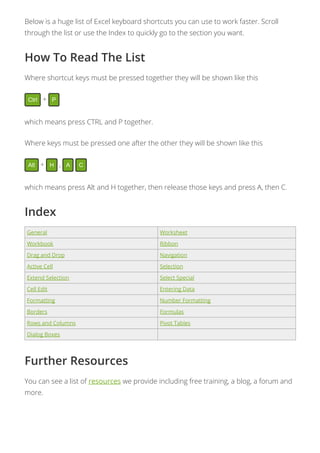
Below is a huge list of Excel keyboard shortcuts you can use to work faster. Scroll
through the list or use the Index to quickly go to the section you want.
How To Read The List
Where shortcut keys must be pressed together they will be shown like this
Ctrl + P
which means press CTRL and P together.
Where keys must be pressed one after the other they will be shown like this
Alt + H , A C
which means press Alt and H together, then release those keys and press A, then C.
Index
General Worksheet
Workbook Ribbon
Drag and Drop Navigation
Active Cell Selection
Extend Selection Select Special
Cell Edit Entering Data
Formatting Number Formatting
Borders Formulas
Rows and Columns Pivot Tables
Dialog Boxes
Further Resources
You can see a list of resources we provide including free training, a blog, a forum and
more.
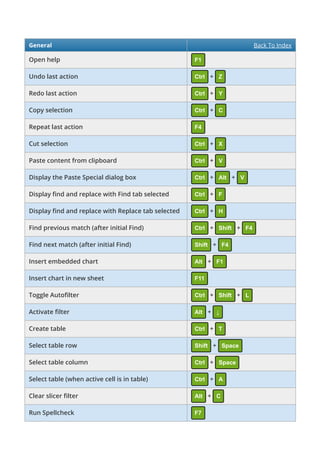
General Back To Index
Open help F1
Undo last action Ctrl + Z
Redo last action Ctrl + Y
Copy selection Ctrl + C
Repeat last action F4
Cut selection Ctrl + X
Paste content from clipboard Ctrl + V
Display the Paste Special dialog box Ctrl + Alt + V
Display nd and replace with Find tab selected Ctrl + F
Display nd and replace with Replace tab selected Ctrl + H
Find previous match (after initial Find) Ctrl + Shift + F4
Find next match (after initial Find) Shift + F4
Insert embedded chart Alt + F1
Insert chart in new sheet F11
Toggle Auto lter Ctrl + Shift + L
Activate lter Alt + ↓
Create table Ctrl + T
Select table row Shift + Space
Select table column Ctrl + Space
Select table (when active cell is in table) Ctrl + A
Clear slicer lter Alt + C
Run Spellcheck F7
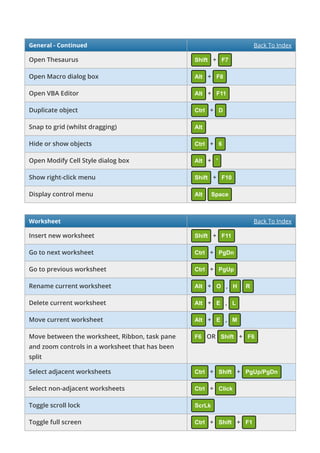
General - Continued Back To Index
Open Thesaurus Shift + F7
Open Macro dialog box Alt + F8
Open VBA Editor Alt + F11
Duplicate object Ctrl + D
Snap to grid (whilst dragging) Alt
Hide or show objects Ctrl + 6
Open Modify Cell Style dialog box Alt + '
Show right-click menu Shift + F10
Display control menu Alt Space
Worksheet Back To Index
Insert new worksheet Shift + F11
Go to next worksheet Ctrl + PgDn
Go to previous worksheet Ctrl + PgUp
Rename current worksheet Alt + O , H R
Delete current worksheet Alt + E , L
Move current worksheet Alt + E , M
Move between the worksheet, Ribbon, task pane
and zoom controls in a worksheet that has been
split
F6 OR Shift + F6
Select adjacent worksheets Ctrl + Shift + PgUp/PgDn
Select non-adjacent worksheets Ctrl + Click
Toggle scroll lock ScrLk
Toggle full screen Ctrl + Shift + F1
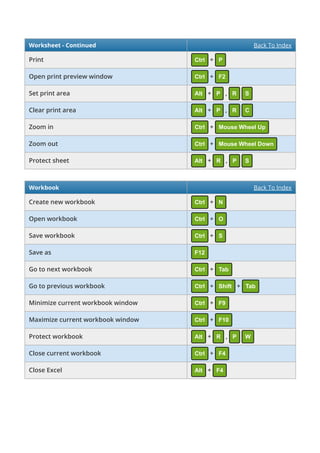
Worksheet - Continued Back To Index
Print Ctrl + P
Open print preview window Ctrl + F2
Set print area Alt + P , R S
Clear print area Alt + P , R C
Zoom in Ctrl + Mouse Wheel Up
Zoom out Ctrl + Mouse Wheel Down
Protect sheet Alt + R , P S
Workbook Back To Index
Create new workbook Ctrl + N
Open workbook Ctrl + O
Save workbook Ctrl + S
Save as F12
Go to next workbook Ctrl + Tab
Go to previous workbook Ctrl + Shift + Tab
Minimize current workbook window Ctrl + F9
Maximize current workbook window Ctrl + F10
Protect workbook Alt + R , P W
Close current workbook Ctrl + F4
Close Excel Alt + F4
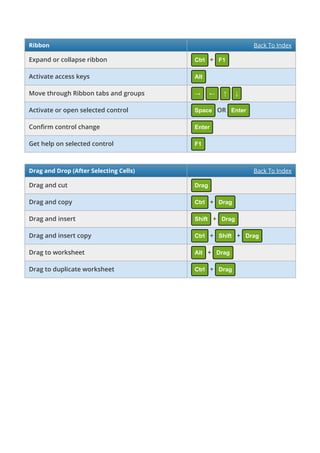
Ribbon Back To Index
Expand or collapse ribbon Ctrl + F1
Activate access keys Alt
Move through Ribbon tabs and groups → ← ↑ ↓
Activate or open selected control Space OR Enter
Con rm control change Enter
Get help on selected control F1
Drag and Drop (After Selecting Cells) Back To Index
Drag and cut Drag
Drag and copy Ctrl + Drag
Drag and insert Shift + Drag
Drag and insert copy Ctrl + Shift + Drag
Drag to worksheet Alt + Drag
Drag to duplicate worksheet Ctrl + Drag
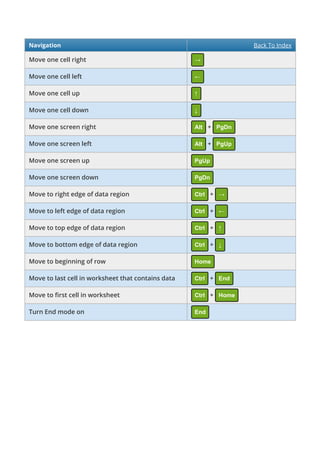
Navigation Back To Index
Move one cell right →
Move one cell left ←
Move one cell up ↑
Move one cell down ↓
Move one screen right Alt + PgDn
Move one screen left Alt + PgUp
Move one screen up PgUp
Move one screen down PgDn
Move to right edge of data region Ctrl + →
Move to left edge of data region Ctrl + ←
Move to top edge of data region Ctrl + ↑
Move to bottom edge of data region Ctrl + ↓
Move to beginning of row Home
Move to last cell in worksheet that contains data Ctrl + End
Move to rst cell in worksheet Ctrl + Home
Turn End mode on End
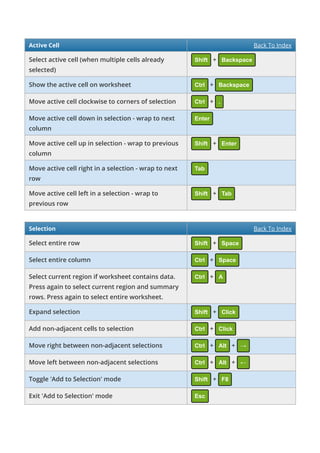
Active Cell Back To Index
Select active cell (when multiple cells already
selected)
Shift + Backspace
Show the active cell on worksheet Ctrl + Backspace
Move active cell clockwise to corners of selection Ctrl + .
Move active cell down in selection - wrap to next
column
Enter
Move active cell up in selection - wrap to previous
column
Shift + Enter
Move active cell right in a selection - wrap to next
row
Tab
Move active cell left in a selection - wrap to
previous row
Shift + Tab
Selection Back To Index
Select entire row Shift + Space
Select entire column Ctrl + Space
Select current region if worksheet contains data.
Press again to select current region and summary
rows. Press again to select entire worksheet.
Ctrl + A
Expand selection Shift + Click
Add non-adjacent cells to selection Ctrl + Click
Move right between non-adjacent selections Ctrl + Alt + →
Move left between non-adjacent selections Ctrl + Alt + ←
Toggle 'Add to Selection' mode Shift + F8
Exit 'Add to Selection' mode Esc
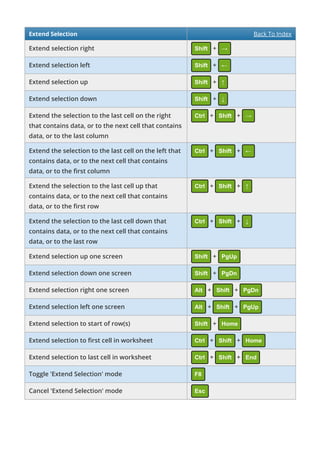
Extend Selection Back To Index
Extend selection right Shift + →
Extend selection left Shift + ←
Extend selection up Shift + ↑
Extend selection down Shift + ↓
Extend the selection to the last cell on the right
that contains data, or to the next cell that contains
data, or to the last column
Ctrl + Shift + →
Extend the selection to the last cell on the left that
contains data, or to the next cell that contains
data, or to the rst column
Ctrl + Shift + ←
Extend the selection to the last cell up that
contains data, or to the next cell that contains
data, or to the rst row
Ctrl + Shift + ↑
Extend the selection to the last cell down that
contains data, or to the next cell that contains
data, or to the last row
Ctrl + Shift + ↓
Extend selection up one screen Shift + PgUp
Extend selection down one screen Shift + PgDn
Extend selection right one screen Alt + Shift + PgDn
Extend selection left one screen Alt + Shift + PgUp
Extend selection to start of row(s) Shift + Home
Extend selection to rst cell in worksheet Ctrl + Shift + Home
Extend selection to last cell in worksheet Ctrl + Shift + End
Toggle 'Extend Selection' mode F8
Cancel 'Extend Selection' mode Esc
Select Special Back To Index
Display 'Go To' dialog box Ctrl + G OR F5
Select cells with comments Ctrl + Shift + O
Select current region around active cell Ctrl + Shift + *
Select current region Ctrl + A
Select direct precedents Ctrl + [
Select all precedents Ctrl + Shift + {
Select direct dependents Ctrl + ]
Select all dependents Ctrl + Shift + }
Select visible cells only Alt + ;
Cell Edit Mode Back To Index
Edit the active cell F2
Insert or edit comment Shift + F2
Delete comment Shift + F10 , M
Cancel editing Esc
Select one character right Shift + →
Select one character left Shift + ←
Move one word right Ctrl + →
Move one word left Ctrl + ←
Select one word right Ctrl + Shift + →
Select one word left Ctrl + Shift + ←
Select to beginning of cell Shift + Home
Select to end of cell Shift + End
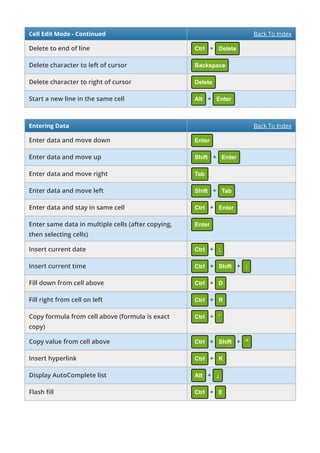
Cell Edit Mode - Continued Back To Index
Delete to end of line Ctrl + Delete
Delete character to left of cursor Backspace
Delete character to right of cursor Delete
Start a new line in the same cell Alt + Enter
Entering Data Back To Index
Enter data and move down Enter
Enter data and move up Shift + Enter
Enter data and move right Tab
Enter data and move left Shift + Tab
Enter data and stay in same cell Ctrl + Enter
Enter same data in multiple cells (after copying,
then selecting cells)
Enter
Insert current date Ctrl + ;
Insert current time Ctrl + Shift + :
Fill down from cell above Ctrl + D
Fill right from cell on left Ctrl + R
Copy formula from cell above (formula is exact
copy)
Ctrl + '
Copy value from cell above Ctrl + Shift + "
Insert hyperlink Ctrl + K
Display AutoComplete list Alt + ↓
Flash ll Ctrl + E
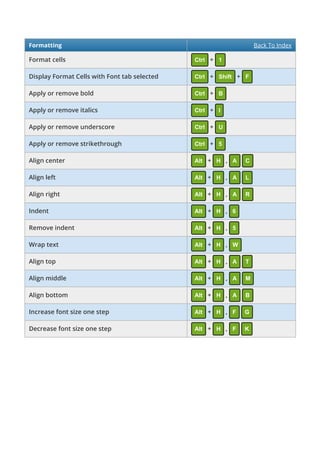
Formatting Back To Index
Format cells Ctrl + 1
Display Format Cells with Font tab selected Ctrl + Shift + F
Apply or remove bold Ctrl + B
Apply or remove italics Ctrl + I
Apply or remove underscore Ctrl + U
Apply or remove strikethrough Ctrl + 5
Align center Alt + H , A C
Align left Alt + H , A L
Align right Alt + H , A R
Indent Alt + H , 6
Remove indent Alt + H , 5
Wrap text Alt + H , W
Align top Alt + H , A T
Align middle Alt + H , A M
Align bottom Alt + H , A B
Increase font size one step Alt + H , F G
Decrease font size one step Alt + H , F K
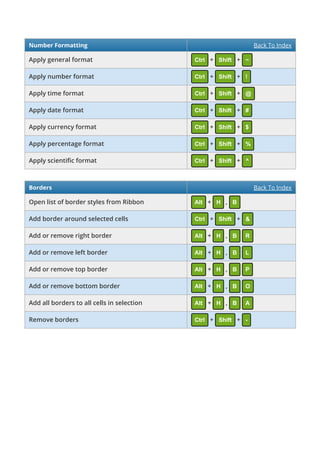
Number Formatting Back To Index
Apply general format Ctrl + Shift + ~
Apply number format Ctrl + Shift + !
Apply time format Ctrl + Shift + @
Apply date format Ctrl + Shift + #
Apply currency format Ctrl + Shift + $
Apply percentage format Ctrl + Shift + %
Apply scienti c format Ctrl + Shift + ^
Borders Back To Index
Open list of border styles from Ribbon Alt + H , B
Add border around selected cells Ctrl + Shift + &
Add or remove right border Alt + H , B R
Add or remove left border Alt + H , B L
Add or remove top border Alt + H , B P
Add or remove bottom border Alt + H , B O
Add all borders to all cells in selection Alt + H , B A
Remove borders Ctrl + Shift + -
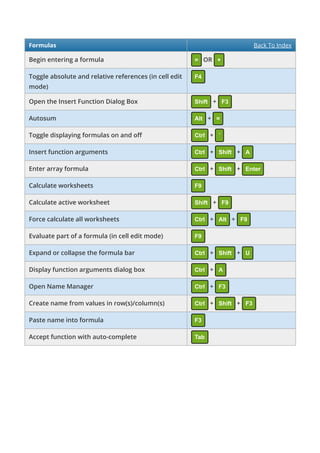
Formulas Back To Index
Begin entering a formula = OR +
Toggle absolute and relative references (in cell edit
mode)
F4
Open the Insert Function Dialog Box Shift + F3
Autosum Alt + =
Toggle displaying formulas on and o Ctrl + `
Insert function arguments Ctrl + Shift + A
Enter array formula Ctrl + Shift + Enter
Calculate worksheets F9
Calculate active worksheet Shift + F9
Force calculate all worksheets Ctrl + Alt + F9
Evaluate part of a formula (in cell edit mode) F9
Expand or collapse the formula bar Ctrl + Shift + U
Display function arguments dialog box Ctrl + A
Open Name Manager Ctrl + F3
Create name from values in row(s)/column(s) Ctrl + Shift + F3
Paste name into formula F3
Accept function with auto-complete Tab
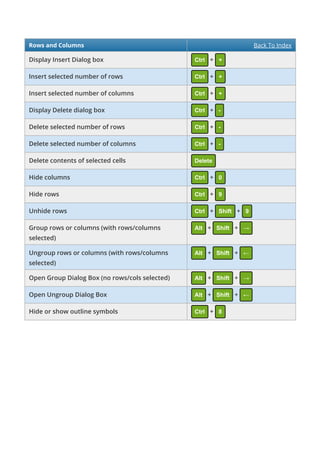
Rows and Columns Back To Index
Display Insert Dialog box Ctrl + +
Insert selected number of rows Ctrl + +
Insert selected number of columns Ctrl + +
Display Delete dialog box Ctrl + -
Delete selected number of rows Ctrl + -
Delete selected number of columns Ctrl + -
Delete contents of selected cells Delete
Hide columns Ctrl + 0
Hide rows Ctrl + 9
Unhide rows Ctrl + Shift + 9
Group rows or columns (with rows/columns
selected)
Alt + Shift + →
Ungroup rows or columns (with rows/columns
selected)
Alt + Shift + ←
Open Group Dialog Box (no rows/cols selected) Alt + Shift + →
Open Ungroup Dialog Box Alt + Shift + ←
Hide or show outline symbols Ctrl + 8
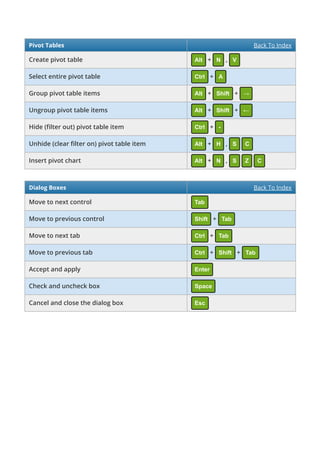
Pivot Tables Back To Index
Create pivot table Alt + N , V
Select entire pivot table Ctrl + A
Group pivot table items Alt + Shift + →
Ungroup pivot table items Alt + Shift + ←
Hide ( lter out) pivot table item Ctrl + -
Unhide (clear lter on) pivot table item Alt + H , S C
Insert pivot chart Alt + N , S Z C
Dialog Boxes Back To Index
Move to next control Tab
Move to previous control Shift + Tab
Move to next tab Ctrl + Tab
Move to previous tab Ctrl + Shift + Tab
Accept and apply Enter
Check and uncheck box Space
Cancel and close the dialog box Esc
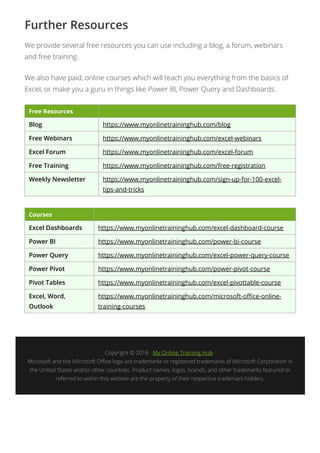
Further Resources
We provide several free resources you can use including a blog, a forum, webinars
and free training.
We also have paid, online courses which will teach you everything from the basics of
Excel, or make you a guru in things like Power BI, Power Query and Dashboards.
Free Resources
Blog https://www.myonlinetraininghub.com/blog
Free Webinars https://www.myonlinetraininghub.com/excel-webinars
Excel Forum https://www.myonlinetraininghub.com/excel-forum
Free Training https://www.myonlinetraininghub.com/free-registration
Weekly Newsletter https://www.myonlinetraininghub.com/sign-up-for-100-excel-
tips-and-tricks
Courses
Excel Dashboards https://www.myonlinetraininghub.com/excel-dashboard-course
Power BI https://www.myonlinetraininghub.com/power-bi-course
Power Query https://www.myonlinetraininghub.com/excel-power-query-course
Power Pivot https://www.myonlinetraininghub.com/power-pivot-course
Pivot Tables https://www.myonlinetraininghub.com/excel-pivottable-course
Excel, Word,
Outlook
https://www.myonlinetraininghub.com/microsoft-o ce-online-
training-courses
Copyright Ā© 2018 Ā· My Online Training Hub Ā·
Microsoft and the Microsoft O ce logo are trademarks or registered trademarks of Microsoft Corporation in
the United States and/or other countries. Product names, logos, brands, and other trademarks featured or
referred to within this website are the property of their respective trademark holders.

Artificial intelligence gexvl shrtct.pdf

  • 1.
    239 Excel Keyboard Shortcuts WORK FASTER ANDMORE EFFICIENTLY WITH THESE CLEARLY ILLUSTRATED EXCEL SHORTCUTS. My Online Training Hub https://www.myonlinetraininghub.com/
  • 2.
    Below is ahuge list of Excel keyboard shortcuts you can use to work faster. Scroll through the list or use the Index to quickly go to the section you want. How To Read The List Where shortcut keys must be pressed together they will be shown like this Ctrl + P which means press CTRL and P together. Where keys must be pressed one after the other they will be shown like this Alt + H , A C which means press Alt and H together, then release those keys and press A, then C. Index General Worksheet Workbook Ribbon Drag and Drop Navigation Active Cell Selection Extend Selection Select Special Cell Edit Entering Data Formatting Number Formatting Borders Formulas Rows and Columns Pivot Tables Dialog Boxes Further Resources You can see a list of resources we provide including free training, a blog, a forum and more.
  • 3.
    General Back ToIndex Open help F1 Undo last action Ctrl + Z Redo last action Ctrl + Y Copy selection Ctrl + C Repeat last action F4 Cut selection Ctrl + X Paste content from clipboard Ctrl + V Display the Paste Special dialog box Ctrl + Alt + V Display nd and replace with Find tab selected Ctrl + F Display nd and replace with Replace tab selected Ctrl + H Find previous match (after initial Find) Ctrl + Shift + F4 Find next match (after initial Find) Shift + F4 Insert embedded chart Alt + F1 Insert chart in new sheet F11 Toggle Auto lter Ctrl + Shift + L Activate lter Alt + ↓ Create table Ctrl + T Select table row Shift + Space Select table column Ctrl + Space Select table (when active cell is in table) Ctrl + A Clear slicer lter Alt + C Run Spellcheck F7
  • 4.
    General - ContinuedBack To Index Open Thesaurus Shift + F7 Open Macro dialog box Alt + F8 Open VBA Editor Alt + F11 Duplicate object Ctrl + D Snap to grid (whilst dragging) Alt Hide or show objects Ctrl + 6 Open Modify Cell Style dialog box Alt + ' Show right-click menu Shift + F10 Display control menu Alt Space Worksheet Back To Index Insert new worksheet Shift + F11 Go to next worksheet Ctrl + PgDn Go to previous worksheet Ctrl + PgUp Rename current worksheet Alt + O , H R Delete current worksheet Alt + E , L Move current worksheet Alt + E , M Move between the worksheet, Ribbon, task pane and zoom controls in a worksheet that has been split F6 OR Shift + F6 Select adjacent worksheets Ctrl + Shift + PgUp/PgDn Select non-adjacent worksheets Ctrl + Click Toggle scroll lock ScrLk Toggle full screen Ctrl + Shift + F1
  • 5.
    Worksheet - ContinuedBack To Index Print Ctrl + P Open print preview window Ctrl + F2 Set print area Alt + P , R S Clear print area Alt + P , R C Zoom in Ctrl + Mouse Wheel Up Zoom out Ctrl + Mouse Wheel Down Protect sheet Alt + R , P S Workbook Back To Index Create new workbook Ctrl + N Open workbook Ctrl + O Save workbook Ctrl + S Save as F12 Go to next workbook Ctrl + Tab Go to previous workbook Ctrl + Shift + Tab Minimize current workbook window Ctrl + F9 Maximize current workbook window Ctrl + F10 Protect workbook Alt + R , P W Close current workbook Ctrl + F4 Close Excel Alt + F4
  • 6.
    Ribbon Back ToIndex Expand or collapse ribbon Ctrl + F1 Activate access keys Alt Move through Ribbon tabs and groups → ← ↑ ↓ Activate or open selected control Space OR Enter Con rm control change Enter Get help on selected control F1 Drag and Drop (After Selecting Cells) Back To Index Drag and cut Drag Drag and copy Ctrl + Drag Drag and insert Shift + Drag Drag and insert copy Ctrl + Shift + Drag Drag to worksheet Alt + Drag Drag to duplicate worksheet Ctrl + Drag
  • 7.
    Navigation Back ToIndex Move one cell right → Move one cell left ← Move one cell up ↑ Move one cell down ↓ Move one screen right Alt + PgDn Move one screen left Alt + PgUp Move one screen up PgUp Move one screen down PgDn Move to right edge of data region Ctrl + → Move to left edge of data region Ctrl + ← Move to top edge of data region Ctrl + ↑ Move to bottom edge of data region Ctrl + ↓ Move to beginning of row Home Move to last cell in worksheet that contains data Ctrl + End Move to rst cell in worksheet Ctrl + Home Turn End mode on End
  • 8.
    Active Cell BackTo Index Select active cell (when multiple cells already selected) Shift + Backspace Show the active cell on worksheet Ctrl + Backspace Move active cell clockwise to corners of selection Ctrl + . Move active cell down in selection - wrap to next column Enter Move active cell up in selection - wrap to previous column Shift + Enter Move active cell right in a selection - wrap to next row Tab Move active cell left in a selection - wrap to previous row Shift + Tab Selection Back To Index Select entire row Shift + Space Select entire column Ctrl + Space Select current region if worksheet contains data. Press again to select current region and summary rows. Press again to select entire worksheet. Ctrl + A Expand selection Shift + Click Add non-adjacent cells to selection Ctrl + Click Move right between non-adjacent selections Ctrl + Alt + → Move left between non-adjacent selections Ctrl + Alt + ← Toggle 'Add to Selection' mode Shift + F8 Exit 'Add to Selection' mode Esc
  • 9.
    Extend Selection BackTo Index Extend selection right Shift + → Extend selection left Shift + ← Extend selection up Shift + ↑ Extend selection down Shift + ↓ Extend the selection to the last cell on the right that contains data, or to the next cell that contains data, or to the last column Ctrl + Shift + → Extend the selection to the last cell on the left that contains data, or to the next cell that contains data, or to the rst column Ctrl + Shift + ← Extend the selection to the last cell up that contains data, or to the next cell that contains data, or to the rst row Ctrl + Shift + ↑ Extend the selection to the last cell down that contains data, or to the next cell that contains data, or to the last row Ctrl + Shift + ↓ Extend selection up one screen Shift + PgUp Extend selection down one screen Shift + PgDn Extend selection right one screen Alt + Shift + PgDn Extend selection left one screen Alt + Shift + PgUp Extend selection to start of row(s) Shift + Home Extend selection to rst cell in worksheet Ctrl + Shift + Home Extend selection to last cell in worksheet Ctrl + Shift + End Toggle 'Extend Selection' mode F8 Cancel 'Extend Selection' mode Esc
  • 10.
    Select Special BackTo Index Display 'Go To' dialog box Ctrl + G OR F5 Select cells with comments Ctrl + Shift + O Select current region around active cell Ctrl + Shift + * Select current region Ctrl + A Select direct precedents Ctrl + [ Select all precedents Ctrl + Shift + { Select direct dependents Ctrl + ] Select all dependents Ctrl + Shift + } Select visible cells only Alt + ; Cell Edit Mode Back To Index Edit the active cell F2 Insert or edit comment Shift + F2 Delete comment Shift + F10 , M Cancel editing Esc Select one character right Shift + → Select one character left Shift + ← Move one word right Ctrl + → Move one word left Ctrl + ← Select one word right Ctrl + Shift + → Select one word left Ctrl + Shift + ← Select to beginning of cell Shift + Home Select to end of cell Shift + End
  • 11.
    Cell Edit Mode- Continued Back To Index Delete to end of line Ctrl + Delete Delete character to left of cursor Backspace Delete character to right of cursor Delete Start a new line in the same cell Alt + Enter Entering Data Back To Index Enter data and move down Enter Enter data and move up Shift + Enter Enter data and move right Tab Enter data and move left Shift + Tab Enter data and stay in same cell Ctrl + Enter Enter same data in multiple cells (after copying, then selecting cells) Enter Insert current date Ctrl + ; Insert current time Ctrl + Shift + : Fill down from cell above Ctrl + D Fill right from cell on left Ctrl + R Copy formula from cell above (formula is exact copy) Ctrl + ' Copy value from cell above Ctrl + Shift + " Insert hyperlink Ctrl + K Display AutoComplete list Alt + ↓ Flash ll Ctrl + E
  • 12.
    Formatting Back ToIndex Format cells Ctrl + 1 Display Format Cells with Font tab selected Ctrl + Shift + F Apply or remove bold Ctrl + B Apply or remove italics Ctrl + I Apply or remove underscore Ctrl + U Apply or remove strikethrough Ctrl + 5 Align center Alt + H , A C Align left Alt + H , A L Align right Alt + H , A R Indent Alt + H , 6 Remove indent Alt + H , 5 Wrap text Alt + H , W Align top Alt + H , A T Align middle Alt + H , A M Align bottom Alt + H , A B Increase font size one step Alt + H , F G Decrease font size one step Alt + H , F K
  • 13.
    Number Formatting BackTo Index Apply general format Ctrl + Shift + ~ Apply number format Ctrl + Shift + ! Apply time format Ctrl + Shift + @ Apply date format Ctrl + Shift + # Apply currency format Ctrl + Shift + $ Apply percentage format Ctrl + Shift + % Apply scienti c format Ctrl + Shift + ^ Borders Back To Index Open list of border styles from Ribbon Alt + H , B Add border around selected cells Ctrl + Shift + & Add or remove right border Alt + H , B R Add or remove left border Alt + H , B L Add or remove top border Alt + H , B P Add or remove bottom border Alt + H , B O Add all borders to all cells in selection Alt + H , B A Remove borders Ctrl + Shift + -
  • 14.
    Formulas Back ToIndex Begin entering a formula = OR + Toggle absolute and relative references (in cell edit mode) F4 Open the Insert Function Dialog Box Shift + F3 Autosum Alt + = Toggle displaying formulas on and o Ctrl + ` Insert function arguments Ctrl + Shift + A Enter array formula Ctrl + Shift + Enter Calculate worksheets F9 Calculate active worksheet Shift + F9 Force calculate all worksheets Ctrl + Alt + F9 Evaluate part of a formula (in cell edit mode) F9 Expand or collapse the formula bar Ctrl + Shift + U Display function arguments dialog box Ctrl + A Open Name Manager Ctrl + F3 Create name from values in row(s)/column(s) Ctrl + Shift + F3 Paste name into formula F3 Accept function with auto-complete Tab
  • 15.
    Rows and ColumnsBack To Index Display Insert Dialog box Ctrl + + Insert selected number of rows Ctrl + + Insert selected number of columns Ctrl + + Display Delete dialog box Ctrl + - Delete selected number of rows Ctrl + - Delete selected number of columns Ctrl + - Delete contents of selected cells Delete Hide columns Ctrl + 0 Hide rows Ctrl + 9 Unhide rows Ctrl + Shift + 9 Group rows or columns (with rows/columns selected) Alt + Shift + → Ungroup rows or columns (with rows/columns selected) Alt + Shift + ← Open Group Dialog Box (no rows/cols selected) Alt + Shift + → Open Ungroup Dialog Box Alt + Shift + ← Hide or show outline symbols Ctrl + 8
  • 16.
    Pivot Tables BackTo Index Create pivot table Alt + N , V Select entire pivot table Ctrl + A Group pivot table items Alt + Shift + → Ungroup pivot table items Alt + Shift + ← Hide ( lter out) pivot table item Ctrl + - Unhide (clear lter on) pivot table item Alt + H , S C Insert pivot chart Alt + N , S Z C Dialog Boxes Back To Index Move to next control Tab Move to previous control Shift + Tab Move to next tab Ctrl + Tab Move to previous tab Ctrl + Shift + Tab Accept and apply Enter Check and uncheck box Space Cancel and close the dialog box Esc
  • 17.
    Further Resources We provideseveral free resources you can use including a blog, a forum, webinars and free training. We also have paid, online courses which will teach you everything from the basics of Excel, or make you a guru in things like Power BI, Power Query and Dashboards. Free Resources Blog https://www.myonlinetraininghub.com/blog Free Webinars https://www.myonlinetraininghub.com/excel-webinars Excel Forum https://www.myonlinetraininghub.com/excel-forum Free Training https://www.myonlinetraininghub.com/free-registration Weekly Newsletter https://www.myonlinetraininghub.com/sign-up-for-100-excel- tips-and-tricks Courses Excel Dashboards https://www.myonlinetraininghub.com/excel-dashboard-course Power BI https://www.myonlinetraininghub.com/power-bi-course Power Query https://www.myonlinetraininghub.com/excel-power-query-course Power Pivot https://www.myonlinetraininghub.com/power-pivot-course Pivot Tables https://www.myonlinetraininghub.com/excel-pivottable-course Excel, Word, Outlook https://www.myonlinetraininghub.com/microsoft-o ce-online- training-courses Copyright Ā© 2018 Ā· My Online Training Hub Ā· Microsoft and the Microsoft O ce logo are trademarks or registered trademarks of Microsoft Corporation in the United States and/or other countries. Product names, logos, brands, and other trademarks featured or referred to within this website are the property of their respective trademark holders.