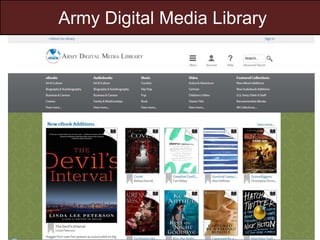
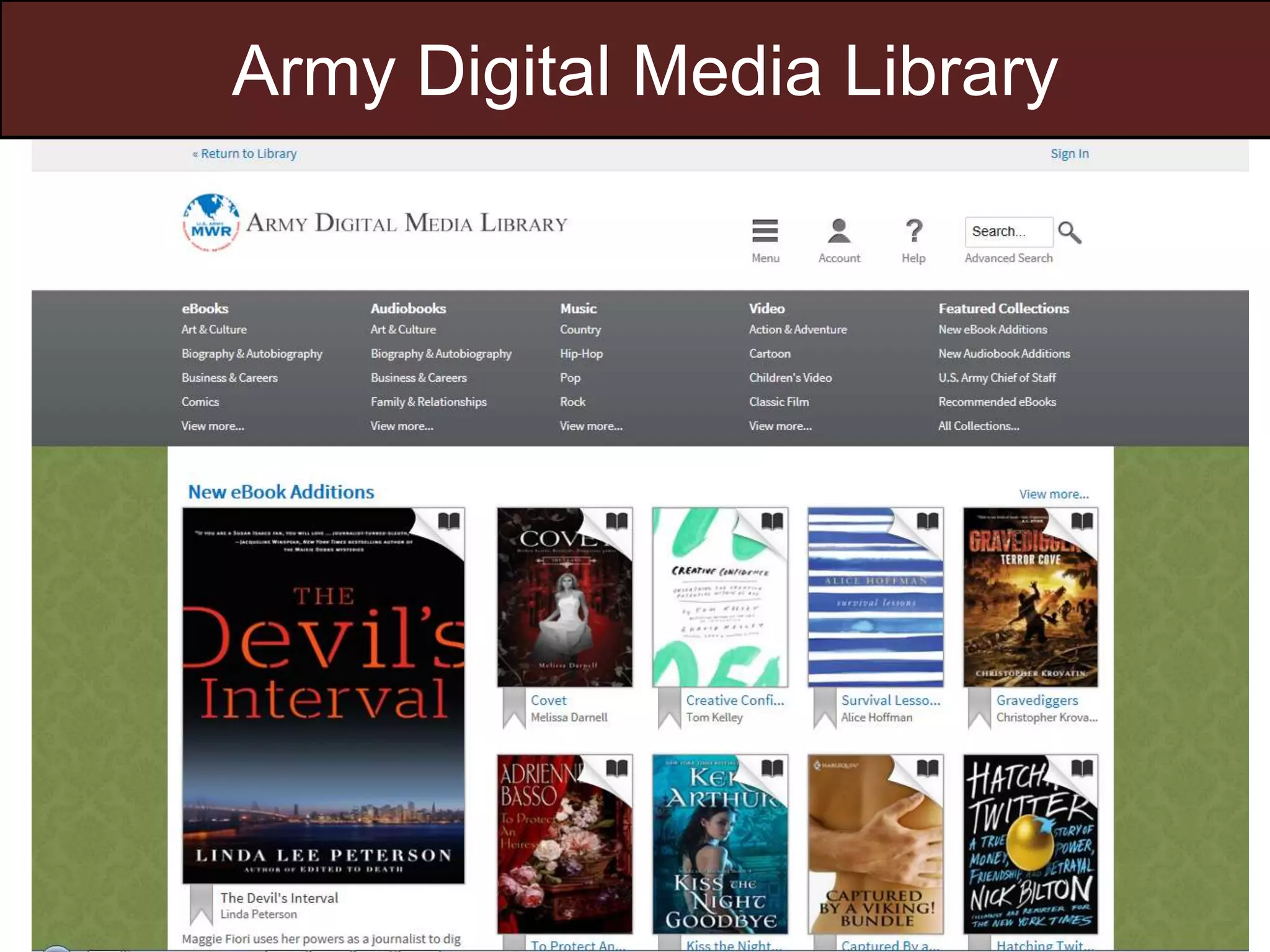
Army Digital Media Library
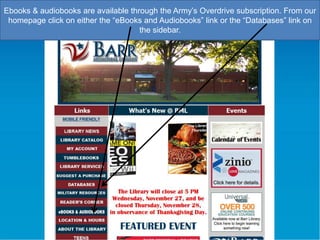
Ebooks & audiobooks are available through the Army‟s Overdrive subscription. From our
homepage click on either the “eBooks and Audiobooks” link or the “Databases” link on
the sidebar.
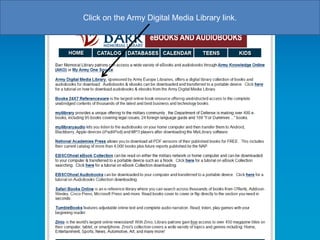
Click on the Army Digital Media Library link.
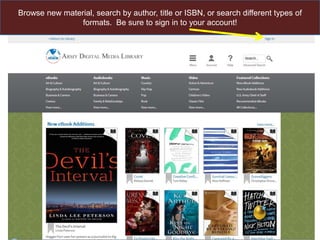
Browse new material, search by author, title or ISBN, or search different types of
formats. Be sure to sign in to your account!
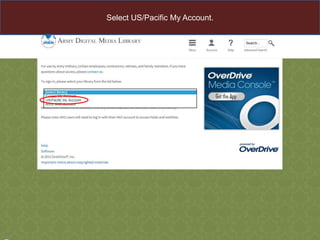
Select US/Pacific My Account.
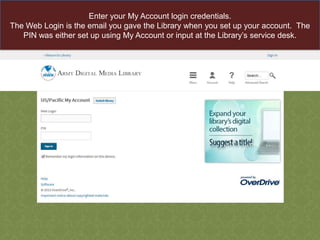
Enter your My Account login credentials.
The Web Login is the email you gave the Library when you set up your account. The
PIN was either set up using My Account or input at the Library‟s service desk.
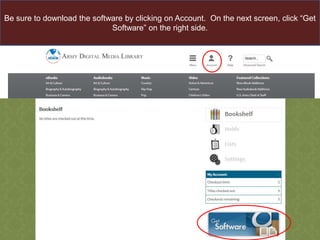
Be sure to download the software by clicking on Account. On the next screen, click “Get
Software” on the right side.
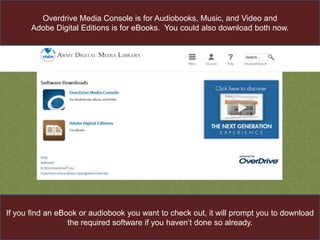
Overdrive Media Console is for Audiobooks, Music, and Video and
Adobe Digital Editions is for eBooks. You could also download both now.

If you find an eBook or audiobook you want to check out, it will prompt you to download
the required software if you haven‟t done so already.
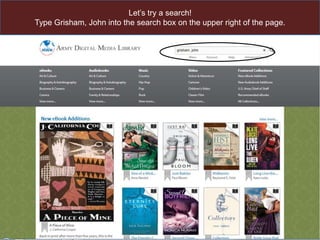
Let‟s try a search!
Type Grisham, John into the search box on the upper right of the page.
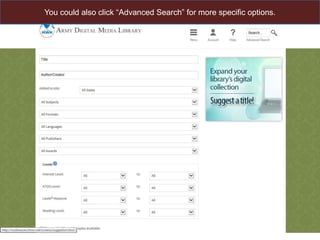
You could also click “Advanced Search” for more specific options.
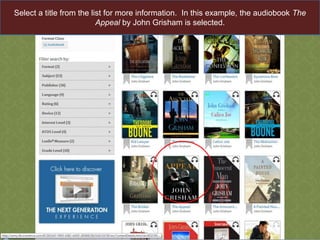
Select a title from the list for more information. In this example, the audiobook The
Appeal by John Grisham is selected.
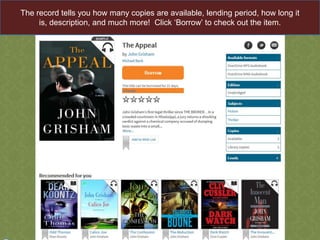
The record tells you how many copies are available, lending period, how long it
is, description, and much more! Click „Borrow‟ to check out the item.
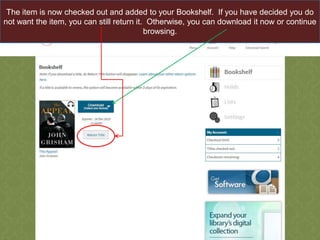
The item is now checked out and added to your Bookshelf. If you have decided you do
not want the item, you can still return it. Otherwise, you can download it now or continue
browsing.
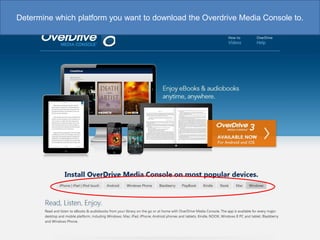
Determine which platform you want to download the Overdrive Media Console to.
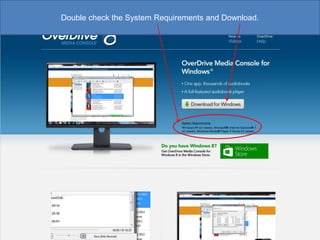
Double check the System Requirements and Download.
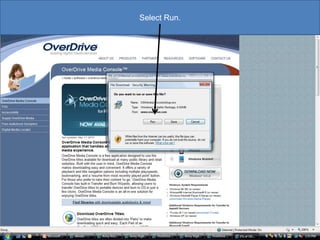
Select Run.
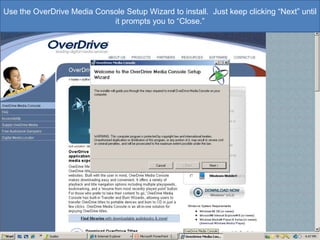
Use the OverDrive Media Console Setup Wizard to install. Just keep clicking “Next” until
it prompts you to “Close.”
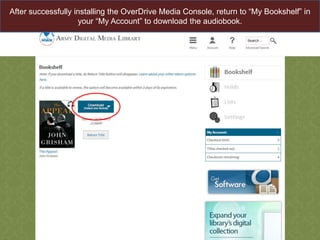
After successfully installing the OverDrive Media Console, return to “My Bookshelf” in
your “My Account” to download the audiobook.
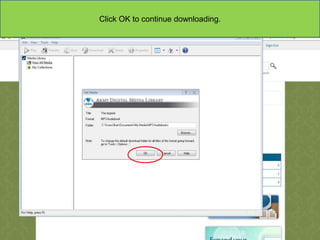
Click OK to continue downloading.
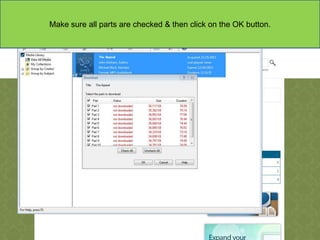
Make sure all parts are checked & then click on the OK button.
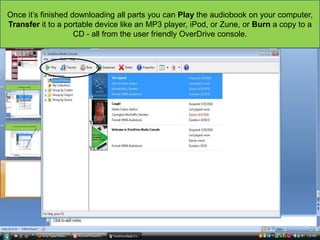
Once it‟s finished downloading all parts you can Play the audiobook on your computer,
Transfer it to a portable device like an MP3 player, iPod, or Zune, or Burn a copy to a
CD - all from the user friendly OverDrive console.
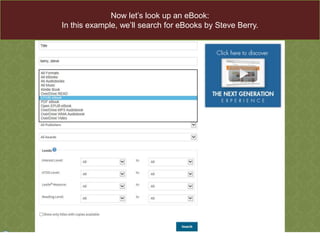
Now let‟s look up an eBook:
In this example, we‟ll search for eBooks by Steve Berry.
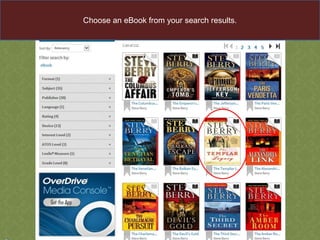
Choose an eBook from your search results.
Click „Borrow‟ to add it to your Bookshelf.
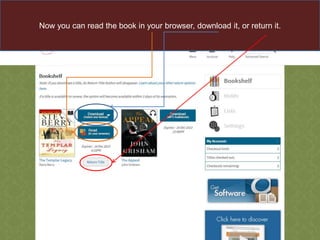
Now you can read the book in your browser, download it, or return it.
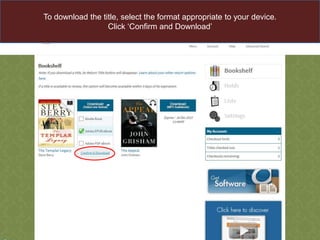
To download the title, select the format appropriate to your device.
Click „Confirm and Download‟
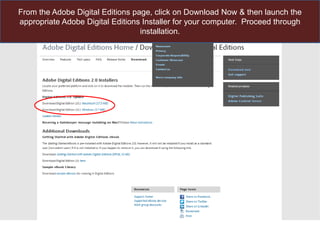
From the Adobe Digital Editions page, click on Download Now & then launch the
appropriate Adobe Digital Editions Installer for your computer. Proceed through
installation.
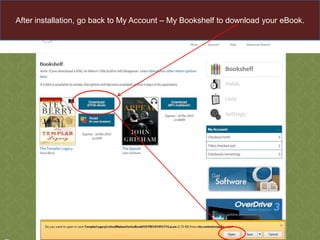
After installation, go back to My Account – My Bookshelf to download your eBook.
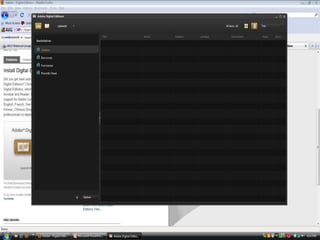
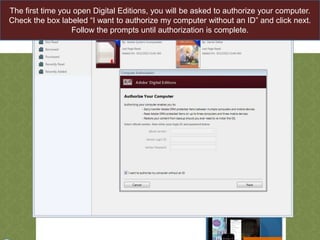
The first time you open Digital Editions, you will be asked to authorize your computer.
Check the box labeled “I want to authorize my computer without an ID” and click next.
Follow the prompts until authorization is complete.
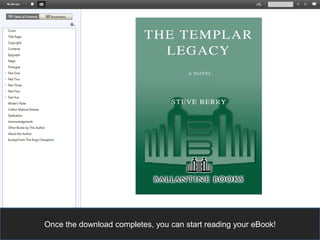
Once the download completes, you can start reading your eBook!
Questions or comments?
Please call the Library at 502-624-1232

Army Digital Media Library Walkthrough

  • 1.
  • 2.
    Ebooks & audiobooksare available through the Army‟s Overdrive subscription. From our homepage click on either the “eBooks and Audiobooks” link or the “Databases” link on the sidebar.
  • 3.
    Click on theArmy Digital Media Library link.
  • 4.
    Browse new material,search by author, title or ISBN, or search different types of formats. Be sure to sign in to your account!
  • 5.
  • 6.
    Enter your MyAccount login credentials. The Web Login is the email you gave the Library when you set up your account. The PIN was either set up using My Account or input at the Library‟s service desk.
  • 7.
    Be sure todownload the software by clicking on Account. On the next screen, click “Get Software” on the right side.
  • 8.
    Overdrive Media Consoleis for Audiobooks, Music, and Video and Adobe Digital Editions is for eBooks. You could also download both now. If you find an eBook or audiobook you want to check out, it will prompt you to download the required software if you haven‟t done so already.
  • 9.
    Let‟s try asearch! Type Grisham, John into the search box on the upper right of the page.
  • 10.
    You could alsoclick “Advanced Search” for more specific options.
  • 11.
    Select a titlefrom the list for more information. In this example, the audiobook The Appeal by John Grisham is selected.
  • 12.
    The record tellsyou how many copies are available, lending period, how long it is, description, and much more! Click „Borrow‟ to check out the item.
  • 13.
    The item isnow checked out and added to your Bookshelf. If you have decided you do not want the item, you can still return it. Otherwise, you can download it now or continue browsing.
  • 14.
    Determine which platformyou want to download the Overdrive Media Console to.
  • 15.
    Double check theSystem Requirements and Download.
  • 16.
  • 17.
    Use the OverDriveMedia Console Setup Wizard to install. Just keep clicking “Next” until it prompts you to “Close.”
  • 18.
    After successfully installingthe OverDrive Media Console, return to “My Bookshelf” in your “My Account” to download the audiobook.
  • 19.
    Click OK tocontinue downloading.
  • 20.
    Make sure allparts are checked & then click on the OK button.
  • 21.
    Once it‟s finisheddownloading all parts you can Play the audiobook on your computer, Transfer it to a portable device like an MP3 player, iPod, or Zune, or Burn a copy to a CD - all from the user friendly OverDrive console.
  • 22.
    Now let‟s lookup an eBook: In this example, we‟ll search for eBooks by Steve Berry.
  • 23.
    Choose an eBookfrom your search results.
  • 24.
    Click „Borrow‟ toadd it to your Bookshelf.
  • 25.
    Now you canread the book in your browser, download it, or return it.
  • 26.
    To download thetitle, select the format appropriate to your device. Click „Confirm and Download‟
  • 27.
    From the AdobeDigital Editions page, click on Download Now & then launch the appropriate Adobe Digital Editions Installer for your computer. Proceed through installation.
  • 29.
    After installation, goback to My Account – My Bookshelf to download your eBook.
  • 30.
    The first timeyou open Digital Editions, you will be asked to authorize your computer. Check the box labeled “I want to authorize my computer without an ID” and click next. Follow the prompts until authorization is complete.
  • 31.
    Once the downloadcompletes, you can start reading your eBook!
  • 32.
    Questions or comments? Pleasecall the Library at 502-624-1232