Accelerated ReaderAccelerated Reader
TrainingTraining
August 2013August 2013
How AR Works
• Student selects and reads a book
• Student takes AR Reading Practice Quiz
• Computer adds quiz results to database;
student gives report to teacher
• Students accumulate points
• Students MUST have Internet permission to
use AR
Login - Teachers
• Go to https://hosted82.renlearn.com/
• Login as Teacher/Administrator
• Login using your first and last name
ex. denisesumida
• Password sharks1
• er reports available
Key AR Reports for
Teachers
• TOPS - Three Opportunites to Praise the
Student
– Should be printed out after each quiz taken
– Keep in folder?
• Diagnostic Report
– Run weekly (recommended)
• Tons of other reports available
ZPD from STAR test
• Zone of Proximal Development
• Scores above 85% on quizzes means
reading in right “ZONE”
• ZPD is a wide range, start at low end
• Use the Goal Setting Chart to help determine
the ZPD of students
• Nonfiction books should be 0.5-1.0 below the
ZPD
• STAR test will be administered quarterly
during computer appointments
Taking AR Quizzes
• Should be done 1-2 days after child has
finished the book
• Library will be available for quiz taking from
8:00-9:00 M, T, Th, F
• Students may also take quizzes on your
classroom computers or NEO2s
• Students should not take the quizzes at
home
How do students take the quizzes?
• Go to https://hosted82.renlearn.com/
• Login as Student
• Login using student login
Can use “Forgot Your User Name” option
• Password “sharks”
• Under Accelerated Reader – Start Working
• Type in quiz number OR title of book
• Choose “Read to”, “Read with” or “Read
Independently”
• TOPS report printed automatically to default
printer
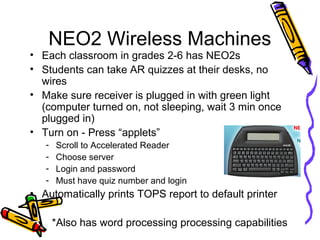
NEO2 Wireless Machines
• Each classroom in grades 2-6 has NEO2s
• Students can take AR quizzes at their desks, no
wires
• Make sure receiver is plugged in with green light
(computer turned on, not sleeping, wait 3 min once
plugged in)
• Turn on - Press “applets”
- Scroll to Accelerated Reader
- Choose server
- Login and password
- Must have quiz number and login
• Automatically prints TOPS report to default printer
* *Also has word processing processing capabilities
Clearing Lockouts
• Student accounts are locked out if they login
incorrectly 3 times
• Under Renaissance Place tab, click on
Personnel, Students, and Parents
• Click on Clear Locked Students
• Click on blue “clear” next to student’s name
Or you can email Denise
Problems you may
encounter
• In the beginning, most problems occur
because book is too high in ZPD range
and/or too long
• Student may need instruction and
guidance on book selection
• Graphic organizers for students when
reading?
AR Goal Setting
• Point Goals
• Book-Level Goals
• PHES Incentives
New Students
• Linda will add new students to your
class
• Denise will prepare introductory AR
packet for each student
So what do I do next?
• Students should choose books at the lower
end of the ZPD
– ex. ZPD range 1.9-2.8
– Student choose books in 1.9-2.2 range
• When they pass 3 quizzes with 85% or better
then move them up the ZPD
– Try the 2.3-2.6 range
• If they fail 3 quizzes in a row, move them
down
– 1.6-1.8 range
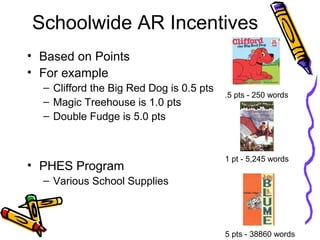
Schoolwide AR Incentives
• Based on Points
• For example
– Clifford the Big Red Dog is 0.5 pts
– Magic Treehouse is 1.0 pts
– Double Fudge is 5.0 pts
• PHES Program
– Various School Supplies
5 pts - 38860 words
1 pt - 5,245 words
.5 pts - 250 words
PHES Program Gr 2-4
• 1 Pencil
– 2 Clifford Books or
– 1 Magic Treehouse
• 1 Bookmark
– 20 Clifford Books or
– 10 Magic Treehouse books
• Recognition in Parent Newsletter
– 30 Clifford Books or
– 15 Magic Treehouse books
PHES Program Gr 5-6
(amounts are doubled)
• 1 Pencil
– 4 Amber Brown Books or
– 2 Sign of Beaver
• 1 Bookmark
– 8 Amber Brown books or
– 4 Sign of Beaver books
• Recognition in Parent Newsletter
– 12 Amber Brown books
– 6 Sign of Beaver
Future Session
• Many more features of AR available
• Advanced Topics with AR Trainer on
September 19th
– Goal Setting for Students
– Using STAR reports
AR Student Folders
• Student Reading Log
• TOPS reports from quizzes
• Student reading plan/goals

Ar presentation

  • 1.
  • 2.
    How AR Works •Student selects and reads a book • Student takes AR Reading Practice Quiz • Computer adds quiz results to database; student gives report to teacher • Students accumulate points • Students MUST have Internet permission to use AR
  • 3.
    Login - Teachers •Go to https://hosted82.renlearn.com/ • Login as Teacher/Administrator • Login using your first and last name ex. denisesumida • Password sharks1 • er reports available
  • 4.
    Key AR Reportsfor Teachers • TOPS - Three Opportunites to Praise the Student – Should be printed out after each quiz taken – Keep in folder? • Diagnostic Report – Run weekly (recommended) • Tons of other reports available
  • 5.
    ZPD from STARtest • Zone of Proximal Development • Scores above 85% on quizzes means reading in right “ZONE” • ZPD is a wide range, start at low end • Use the Goal Setting Chart to help determine the ZPD of students • Nonfiction books should be 0.5-1.0 below the ZPD • STAR test will be administered quarterly during computer appointments
  • 6.
    Taking AR Quizzes •Should be done 1-2 days after child has finished the book • Library will be available for quiz taking from 8:00-9:00 M, T, Th, F • Students may also take quizzes on your classroom computers or NEO2s • Students should not take the quizzes at home
  • 7.
    How do studentstake the quizzes? • Go to https://hosted82.renlearn.com/ • Login as Student • Login using student login Can use “Forgot Your User Name” option • Password “sharks” • Under Accelerated Reader – Start Working • Type in quiz number OR title of book • Choose “Read to”, “Read with” or “Read Independently” • TOPS report printed automatically to default printer
  • 8.
    NEO2 Wireless Machines •Each classroom in grades 2-6 has NEO2s • Students can take AR quizzes at their desks, no wires • Make sure receiver is plugged in with green light (computer turned on, not sleeping, wait 3 min once plugged in) • Turn on - Press “applets” - Scroll to Accelerated Reader - Choose server - Login and password - Must have quiz number and login • Automatically prints TOPS report to default printer * *Also has word processing processing capabilities
  • 9.
    Clearing Lockouts • Studentaccounts are locked out if they login incorrectly 3 times • Under Renaissance Place tab, click on Personnel, Students, and Parents • Click on Clear Locked Students • Click on blue “clear” next to student’s name Or you can email Denise
  • 10.
    Problems you may encounter •In the beginning, most problems occur because book is too high in ZPD range and/or too long • Student may need instruction and guidance on book selection • Graphic organizers for students when reading?
  • 11.
    AR Goal Setting •Point Goals • Book-Level Goals • PHES Incentives
  • 12.
    New Students • Lindawill add new students to your class • Denise will prepare introductory AR packet for each student
  • 13.
    So what doI do next? • Students should choose books at the lower end of the ZPD – ex. ZPD range 1.9-2.8 – Student choose books in 1.9-2.2 range • When they pass 3 quizzes with 85% or better then move them up the ZPD – Try the 2.3-2.6 range • If they fail 3 quizzes in a row, move them down – 1.6-1.8 range
  • 14.
    Schoolwide AR Incentives •Based on Points • For example – Clifford the Big Red Dog is 0.5 pts – Magic Treehouse is 1.0 pts – Double Fudge is 5.0 pts • PHES Program – Various School Supplies 5 pts - 38860 words 1 pt - 5,245 words .5 pts - 250 words
  • 15.
    PHES Program Gr2-4 • 1 Pencil – 2 Clifford Books or – 1 Magic Treehouse • 1 Bookmark – 20 Clifford Books or – 10 Magic Treehouse books • Recognition in Parent Newsletter – 30 Clifford Books or – 15 Magic Treehouse books
  • 16.
    PHES Program Gr5-6 (amounts are doubled) • 1 Pencil – 4 Amber Brown Books or – 2 Sign of Beaver • 1 Bookmark – 8 Amber Brown books or – 4 Sign of Beaver books • Recognition in Parent Newsletter – 12 Amber Brown books – 6 Sign of Beaver
  • 17.
    Future Session • Manymore features of AR available • Advanced Topics with AR Trainer on September 19th – Goal Setting for Students – Using STAR reports
  • 18.
    AR Student Folders •Student Reading Log • TOPS reports from quizzes • Student reading plan/goals