- Karthik Selvaraj
Agenda
What’s Pub Sub Model
Business Use case of Pub Sub
Model
Pub Sub with Anypoint MQ
Pub Sub Operations
Pub Sub Model
 Publish–Subscribe is a messaging pattern where senders
of messages(Publishers) do not program the messages to be
sent directly to specific receivers (subscribers), but instead
publish the messages with a topic without knowledge of their
subscribers. Similarly, subscribers express interest to one or
more topics and only receive messages that are of interest,
without knowledge of who the publishers of the messages are.
Pub Sub – Use case
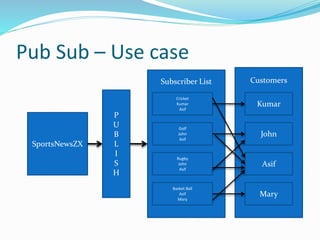
 Let’s consider a mobile app named SportsNewsZX, which
provides customised sports news for customers based on their
interest.
 Currently their operations provide update for Cricket, Basket
ball, Golf and Rugby.
 Their customers are Kumar,John,Mary and Asif.
 Each person has their own interest.
 Kumar needs only cricket updates.
 John loves Rubgy and golf.
 Mary wants only Basket Ball updates.
 Asif is interested in all sports.
Pub Sub – Use case
SportsNewsZX
P
U
B
L
I
S
H
Subscriber List
Golf
John
Asif
Rugby
John
Asif
Cricket
Kumar
Asif
Basket Ball
Asif
Mary
Customers
Kumar
Asif
John
Mary
Pub Sub – Use case
 So SportsNewsZX don’t directly send the messages to the
customers, instead they publish a message with a topic tagged
among the four sports topic (Cricket, basket ball, golf and
Rubgy).
 A subscriber list is maintained and if the customers need
updates on any topic, they can subscribe to it to get updates.
 A subscriber can unsubscribe from a topic as well.
 In this scenario this approach Pub Sub model is best suited and
it provides assured delivery of message for the customers who
have subscribed.
Pub Sub with Anypoint MQ
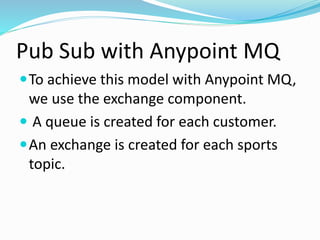
To achieve this model with Anypoint MQ,
we use the exchange component.
 A queue is created for each customer.
An exchange is created for each sports
topic.
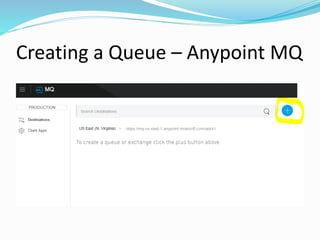
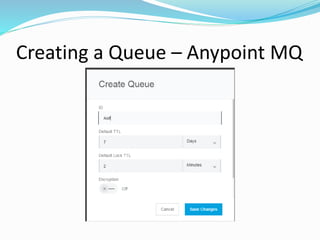
Creating a Queue – Anypoint MQ
Repeat the same process and create the
queue for all customers.
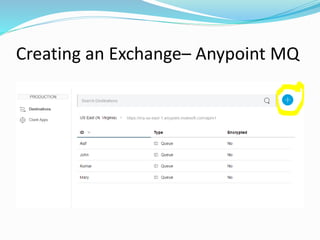
Once created , we need to create
exchange for each sports topic as well.
Creating an Exchange– Anypoint MQ
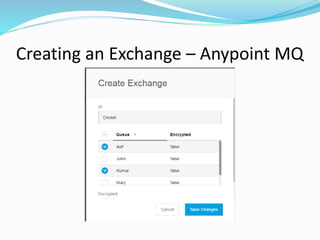
Creating an Exchange – Anypoint MQ
Create the Exchange and select the
queue/customers who are interested in
those specific sports topics.
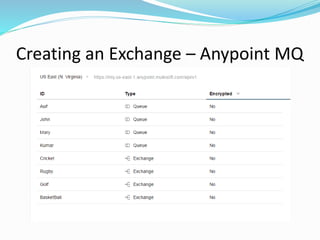
Repeat the same and create exchange for
all other sport topics as well.
Creating an Exchange – Anypoint MQ
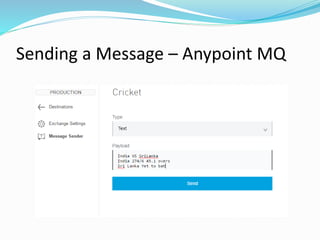
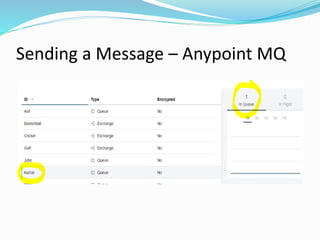
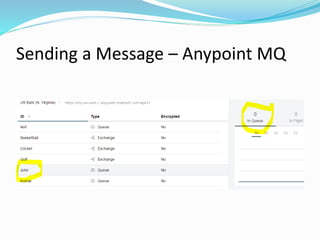
Sending a Message – Anypoint MQ
To send a message for a sport topic, click
the exchange for the particular news to
be published.
In this example we can publish a cricket
message.
Sending a Message – Anypoint MQ
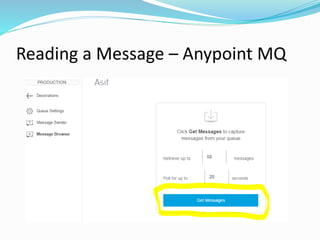
Reading a Message – Anypoint MQ
To read a message from a queue, click the
queue and select message browser
option to see the messages.
Then, select get messages option.
Click the ID column to view the message
content.
Reading a Message – Anypoint MQ
Reference
 https://docs.mulesoft.com/anypoint-mq/mq-understanding
 https://docs.mulesoft.com/anypoint-mq/mq-tutorial
 https://en.wikipedia.org/wiki/Message_queuing_service
 https://docs.mulesoft.com/anypoint-mq/mq-ack-mode
 https://anypoint.mulesoft.com/
 https://docs.mulesoft.com/release-notes/mq-release-notes
 https://docs.mulesoft.com/release-notes/mq-connector-
release-notes
Reference
 https://docs.mulesoft.com/anypoint-mq/mq-ack-mode
 https://docs.mulesoft.com/anypoint-mq/mq-faq
 https://docs.mulesoft.com/anypoint-mq/mq-apis
 https://docs.mulesoft.com/release-notes/anypoint-studio
 https://en.wikipedia.org/wiki/Publish%E2%80%93subscribe_
pattern
Pub Sub - Anypoint MQ
Thank You

Anypoint mq (mulesoft) pub sub model

  • 1.
  • 2.
    Agenda What’s Pub SubModel Business Use case of Pub Sub Model Pub Sub with Anypoint MQ Pub Sub Operations
  • 3.
    Pub Sub Model Publish–Subscribe is a messaging pattern where senders of messages(Publishers) do not program the messages to be sent directly to specific receivers (subscribers), but instead publish the messages with a topic without knowledge of their subscribers. Similarly, subscribers express interest to one or more topics and only receive messages that are of interest, without knowledge of who the publishers of the messages are.
  • 4.
    Pub Sub –Use case  Let’s consider a mobile app named SportsNewsZX, which provides customised sports news for customers based on their interest.  Currently their operations provide update for Cricket, Basket ball, Golf and Rugby.  Their customers are Kumar,John,Mary and Asif.  Each person has their own interest.  Kumar needs only cricket updates.  John loves Rubgy and golf.  Mary wants only Basket Ball updates.  Asif is interested in all sports.
  • 5.
    Pub Sub –Use case SportsNewsZX P U B L I S H Subscriber List Golf John Asif Rugby John Asif Cricket Kumar Asif Basket Ball Asif Mary Customers Kumar Asif John Mary
  • 6.
    Pub Sub –Use case  So SportsNewsZX don’t directly send the messages to the customers, instead they publish a message with a topic tagged among the four sports topic (Cricket, basket ball, golf and Rubgy).  A subscriber list is maintained and if the customers need updates on any topic, they can subscribe to it to get updates.  A subscriber can unsubscribe from a topic as well.  In this scenario this approach Pub Sub model is best suited and it provides assured delivery of message for the customers who have subscribed.
  • 7.
    Pub Sub withAnypoint MQ To achieve this model with Anypoint MQ, we use the exchange component.  A queue is created for each customer. An exchange is created for each sports topic.
  • 8.
    Creating a Queue– Anypoint MQ
  • 9.
    Creating a Queue– Anypoint MQ
  • 10.
    Creating a Queue– Anypoint MQ
  • 11.
    Creating a Queue– Anypoint MQ Repeat the same process and create the queue for all customers. Once created , we need to create exchange for each sports topic as well.
  • 12.
  • 13.
    Creating an Exchange– Anypoint MQ
  • 14.
    Creating an Exchange– Anypoint MQ
  • 15.
    Creating an Exchange– Anypoint MQ Create the Exchange and select the queue/customers who are interested in those specific sports topics. Repeat the same and create exchange for all other sport topics as well.
  • 16.
    Creating an Exchange– Anypoint MQ
  • 17.
    Sending a Message– Anypoint MQ To send a message for a sport topic, click the exchange for the particular news to be published. In this example we can publish a cricket message.
  • 18.
    Sending a Message– Anypoint MQ
  • 19.
    Sending a Message– Anypoint MQ
  • 20.
    Sending a Message– Anypoint MQ
  • 21.
    Sending a Message– Anypoint MQ
  • 22.
    Sending a Message– Anypoint MQ
  • 23.
    Sending a Message– Anypoint MQ
  • 24.
    Reading a Message– Anypoint MQ To read a message from a queue, click the queue and select message browser option to see the messages. Then, select get messages option. Click the ID column to view the message content.
  • 25.
    Reading a Message– Anypoint MQ
  • 26.
    Reading a Message– Anypoint MQ
  • 27.
    Reading a Message– Anypoint MQ
  • 28.
    Reference  https://docs.mulesoft.com/anypoint-mq/mq-understanding  https://docs.mulesoft.com/anypoint-mq/mq-tutorial https://en.wikipedia.org/wiki/Message_queuing_service  https://docs.mulesoft.com/anypoint-mq/mq-ack-mode  https://anypoint.mulesoft.com/  https://docs.mulesoft.com/release-notes/mq-release-notes  https://docs.mulesoft.com/release-notes/mq-connector- release-notes
  • 29.
    Reference  https://docs.mulesoft.com/anypoint-mq/mq-ack-mode  https://docs.mulesoft.com/anypoint-mq/mq-faq https://docs.mulesoft.com/anypoint-mq/mq-apis  https://docs.mulesoft.com/release-notes/anypoint-studio  https://en.wikipedia.org/wiki/Publish%E2%80%93subscribe_ pattern
  • 30.
    Pub Sub -Anypoint MQ Thank You