Microsoft Dynamics™ GP
Analysis Cubes (Microsoft SQL Server™ 2005)
Copyright                 Copyright © 2007 Microsoft Corporation. All rights reserved.

                          Complying with all applicable copyright laws is the responsibility of the user. Without limiting the
                          rights under copyright, no part of this document may be reproduced, stored in or introduced into
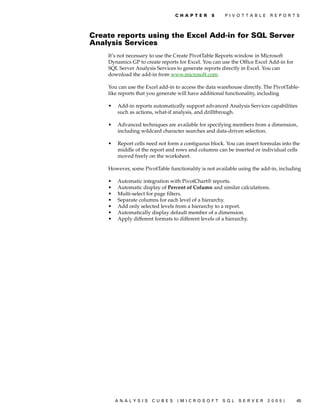
                          a retrieval system, or transmitted in any form or by any means (electronic, mechanical,
                          photocopying, recording, or otherwise), or for any purpose, without the express written
                          permission of Microsoft Corporation. Notwithstanding the foregoing, the licensee of the software
                          with which this document was provided may make a reasonable number of copies of this
                          document solely for internal use.


Trademarks                Microsoft, Excel, Microsoft Dynamics,, PivotTable, SQL Server, Visual Studio, and Windows are
                          either registered trademarks or trademarks of Microsoft Corporation or FRx Software Corporation
                          or its affiliates. FairCom and c-tree Plus are trademarks of FairCom Corporation and are registered
                          in the United States and other countries.

                          The names of actual companies and products mentioned herein may be trademarks or registered
                          marks - in the United States and/or other countries - of their respective owners.

                          Unless otherwise noted, the example companies, organizations, products, domain names, e-mail
                          addresses, logos, people, places, and events depicted herein are fictitious. No association with
                          any real company, organization, product, domain name, e-mail address, logo, person, place, or
                          event is intended or should be inferred.


Intellectual property     Microsoft may have patents, patent applications, trademarks, copyrights, or other intellectual
                          property rights covering subject matter in this document. Except as expressly provided in any
                          written license agreement from Microsoft, the furnishing of this document does not give you any
                          license to these patents, trademarks, copyrights, or other intellectual property.


Warranty disclaimer       Microsoft Corporation disclaims any warranty regarding the sample code contained in this
                          documentation, including the warranties of merchantability and fitness for a particular purpose.


Limitation of liability   The content of this document is furnished for informational use only, is subject to change without
                          notice, and should not be construed as a commitment by Microsoft Corporation. Microsoft
                          Corporation assumes no responsibility or liability for any errors or inaccuracies that may appear
                          in this manual. Neither Microsoft Corporation nor anyone else who has been involved in the
                          creation, production or delivery of this documentation shall be liable for any indirect, incidental,
                          special, exemplary or consequential damages, including but not limited to any loss of anticipated
                          profit or benefits, resulting from the use of this documentation or sample code.


License agreement         Use of this product is covered by a license agreement provided with the software product. If you
                          have any questions, please call the Microsoft Dynamics GP Customer Assistance Department at
                          800-456-0025 (in the U.S. or Canada) or +1-701-281-6500.


Publication date          April 2007
Contents
   Introduction ............................................................................................................................................... 1
          What’s in this manual...................................................................................................................................1
          Symbols and conventions ............................................................................................................................2
          Resources available from the Help menu..................................................................................................2
          Send us your documentation comments ...................................................................................................3

   Chapter 1: System requirements ........................................................................................... 5
          Microsoft Dynamics GP and Analysis Cubes on the same server.........................................................5
          Microsoft Dynamics GP and Analysis Cubes on separate servers ........................................................6
          Multiple Analysis Cubes servers ................................................................................................................8
          Client workstation requirements ................................................................................................................9

   Chapter 2: Installation and configuration ................................................................... 11
          Before you upgrade .................................................................................................................................... 11
          Installation and configuration checklist ..................................................................................................12
          Security requirements for installing and configuring server components.........................................13
          Information required for configuring server components....................................................................13
          Use the server setup wizard ......................................................................................................................14
          Use the server configuration wizard........................................................................................................14
          Configure the SSIS service to use a named instance..............................................................................18
          Populate the data warehouse database ...................................................................................................19
          Process the cubes.........................................................................................................................................19
          Specify budget IDs for Budget and Forecast values ..............................................................................20
          Assign users to Analysis Services database roles...................................................................................20
          Account category descriptions must match............................................................................................20
          Security requirements for installing and configuring the client ..........................................................22
          Use the client setup wizard .......................................................................................................................22
          Set up Analysis Services information for the client ...............................................................................23
          Reconfiguring the Analysis Cubes server databases.............................................................................24

   Chapter 3: Customization .......................................................................................................... 25
          Modify cubes using Business Intelligence Development Studio.........................................................25
          Drillthrough dimensions ...........................................................................................................................25
          Customize Business Portal using Web parts to include cube data ......................................................28

   Chapter 4: Cubes................................................................................................................................ 29
          What are cubes?...........................................................................................................................................29
          How cubes are updated .............................................................................................................................29
          Cubes and dimensions ...............................................................................................................................30
          Dimensions and attributes.........................................................................................................................31
          Hierarchies for organizing attributes .......................................................................................................35
          Cubes and measures...................................................................................................................................37
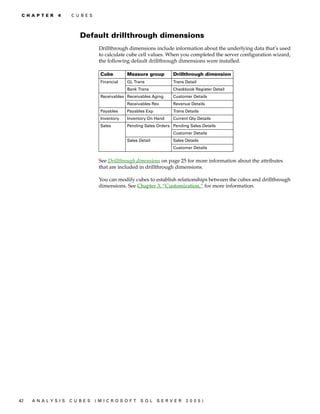
          Default drillthrough dimensions ..............................................................................................................42


                      ANALYSIS                     CUBES              (MICROSOFT                         SQL         SERVER                 2005)                    i
C O N T E N T S


                          Chapter 5: PivotTable reports ................................................................................................ 43
                                 Create PivotTable reports using Microsoft Dynamics GP.....................................................................43
                                 Create reports using the Excel Add-in for SQL Server Analysis Services..........................................45

                          Index .............................................................................................................................................................. 47


ii   A N A LY S I S   C U B E S      (M I C R O S O F T                  S Q L        S E R V ER             20 05 )
Introduction
               This document includes information for system administrators about how to install,
               configure, and maintain Analysis Cubes for Microsoft Dynamics™ GP (Microsoft®
               SQL Server™ 2005) on server and client computers. It also includes information for
               developers about customizing cubes.

               For business intelligence analysts, this document includes information about the
               dimensions, attributes, and measures for the cubes. It also includes information
               about how to create Microsoft Office Excel® worksheets with PivotTable® reports
               and other PivotTable-like reports using data from the cubes.

               The following topics are discussed:

               •   What’s in this manual
               •   Symbols and conventions
               •   Resources available from the Help menu
               •   Send us your documentation comments

           What’s in this manual
               This manual is designed to give you an understanding of how to install, configure,
               customize, and use Analysis Cubes. To make best use of the product, you should be
               familiar with Windows®, Microsoft Dynamics GP, SQL Server, OLAP cubes, and
               Excel PivotTable reports.

               You might also need to be familiar with features described in the documentation for
               the General Ledger, Multidimensional Analysis, Receivables Management,
               Payables Management, Inventory Control, Sales Order Processing, Purchase Order
               Processing, and Multicurrency Management modules for Microsoft Dynamics GP.

               To view information about the release of Microsoft Dynamics GP that you’re using
               and which modules or features you are registered to use, choose Help > About
               Microsoft Dynamics GP.

               The manual is divided into the following chapters.

               •   Chapter 1, “System requirements,” includes information for the system
                   administrator about the infrastructure that must be in place before installing
                   Analysis Cubes.

               •   Chapter 2, “Installation and configuration,” includes information for the system
                   administrator about how to install and configure Analysis Cubes on server and
                   client computers.

               •   Chapter 3, “Customization,” includes information for developers about
                   customizing cubes.

               •   Chapter 4, “Cubes,” includes information about the perspectives, dimensions,
                   attributes, and measures for the cubes.

               •   Chapter 5, “PivotTable reports,” includes information about how to create Excel
                   worksheets with PivotTable reports and other PivotTable-like reports using data
                   from the cubes.


                   ANALYSIS       CUBES      (MICROSOFT          SQL    SERVER       2005)          1
I N T R O D U C T I O N


                          Symbols and conventions
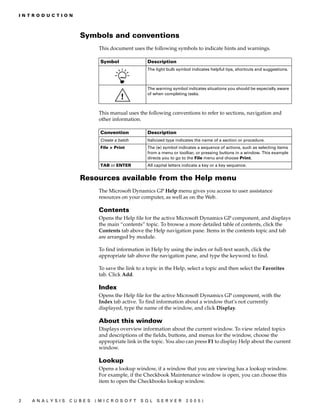
                                   This document uses the following symbols to indicate hints and warnings.

                                    Symbol                Description
                                                          The light bulb symbol indicates helpful tips, shortcuts and suggestions.


                                                          The warning symbol indicates situations you should be especially aware
                                                          of when completing tasks.


                                   This manual uses the following conventions to refer to sections, navigation and
                                   other information.

                                    Convention            Description
                                    Create a batch        Italicized type indicates the name of a section or procedure.
                                    File > Print          The (>) symbol indicates a sequence of actions, such as selecting items
                                                          from a menu or toolbar, or pressing buttons in a window. This example
                                                          directs you to go to the File menu and choose Print.
                                    TAB or ENTER          All capital letters indicate a key or a key sequence.


                          Resources available from the Help menu
                                   The Microsoft Dynamics GP Help menu gives you access to user assistance
                                   resources on your computer, as well as on the Web.

                                   Contents
                                   Opens the Help file for the active Microsoft Dynamics GP component, and displays
                                   the main “contents” topic. To browse a more detailed table of contents, click the
                                   Contents tab above the Help navigation pane. Items in the contents topic and tab
                                   are arranged by module.

                                   To find information in Help by using the index or full-text search, click the
                                   appropriate tab above the navigation pane, and type the keyword to find.

                                   To save the link to a topic in the Help, select a topic and then select the Favorites
                                   tab. Click Add.

                                   Index
                                   Opens the Help file for the active Microsoft Dynamics GP component, with the
                                   Index tab active. To find information about a window that’s not currently
                                   displayed, type the name of the window, and click Display.

                                   About this window
                                   Displays overview information about the current window. To view related topics
                                   and descriptions of the fields, buttons, and menus for the window, choose the
                                   appropriate link in the topic. You also can press F1 to display Help about the current
                                   window.

                                   Lookup
                                   Opens a lookup window, if a window that you are viewing has a lookup window.
                                   For example, if the Checkbook Maintenance window is open, you can choose this
                                   item to open the Checkbooks lookup window.


2    AN A L Y S I S   C U B E S   ( M I C R O S O F T   S Q L   S E R V ER    20 05 )
IN T RO D U C T IO N


    Show Required Fields
    Highlights fields that are required to have entries. Required fields must contain
    information before you can save the record and close the window. To change the
    way required fields are highlighted, choose Tools > Setup > User Preferences >
    Display, and specify a different color and type style.

    Printable Manuals
    Displays a list of manuals in Adobe Acrobat .pdf format, which you can print or
    view.

    Microsoft Dynamics GP Online
    Opens a Web page that provides links to a variety of Web-based user assistance
    resources. Access to some items requires registration for a paid support plan.

    Customer Feedback Options
    Provides information about how you can join the Customer Experience
    Improvement Program to improve the quality, reliability, and performance of
    Microsoft software and services.

Send us your documentation comments
    We welcome comments regarding the usefulness of the Microsoft Dynamics GP
    documentation. If you have specific suggestions or find any errors in this manual,
    send your comments by e-mail to the following address: bizdoc@microsoft.com. To
    send comments about specific topics from within Help, click the Documentation
    Feedback link, which is located at the bottom of each Help topic.

    Note: By offering any suggestions to Microsoft, you give Microsoft full permission to use
    them freely.


       ANALYSIS         CUBES       (MICROSOFT            SQL     SERVER       2005)            3
4   AN A L Y S I S   C U B E S   ( M I C R O S O F T   S Q L   S E R V ER   20 05 )
Chapter 1:   System requirements
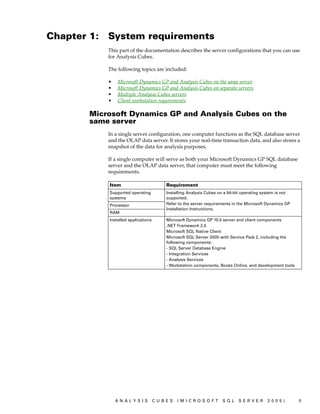
             This part of the documentation describes the server configurations that you can use
             for Analysis Cubes.

             The following topics are included:

             •   Microsoft Dynamics GP and Analysis Cubes on the same server
             •   Microsoft Dynamics GP and Analysis Cubes on separate servers
             •   Multiple Analysis Cubes servers
             •   Client workstation requirements

        Microsoft Dynamics GP and Analysis Cubes on the
        same server
             In a single server configuration, one computer functions as the SQL database server
             and the OLAP data server. It stores your real-time transaction data, and also stores a
             snapshot of the data for analysis purposes.

             If a single computer will serve as both your Microsoft Dynamics GP SQL database
             server and the OLAP data server, that computer must meet the following
             requirements.

             Item                        Requirement
             Supported operating         Installing Analysis Cubes on a 64-bit operating system is not
             systems                     supported.
             Processor                   Refer to the server requirements in the Microsoft Dynamics GP
                                         Installation Instructions.
             RAM
             Installed applications      Microsoft Dynamics GP 10.0 server and client components
                                         .NET Framework 2.0
                                         Microsoft SQL Native Client
                                         Microsoft SQL Server 2005 with Service Pack 2, including the
                                         following components:
                                         - SQL Server Database Engine
                                         - Integration Services
                                         - Analysis Services
                                         - Workstation components, Books Online, and development tools


                 ANALYSIS             CUBES   (MICROSOFT            SQL     SERVER        2005)          5
C H A P T E R   1     S Y S T E M    R E Q U I R E M EN T S


                          Microsoft Dynamics GP and Analysis Cubes on
                          separate servers
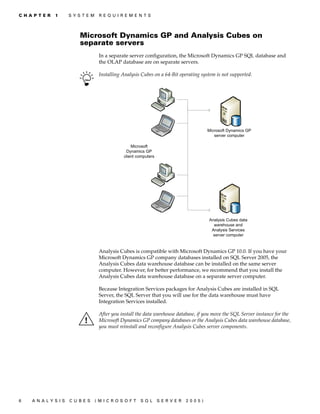
                                     In a separate server configuration, the Microsoft Dynamics GP SQL database and
                                     the OLAP database are on separate servers.
                                     Installing Analysis Cubes on a 64-Bit operating system is not supported.


                                                                                           Microsoft Dynamics GP
                                                                                              server computer

                                                     Microsoft
                                                  Dynamics GP
                                                 client computers


                                                                                           Analysis Cubes data
                                                                                             warehouse and
                                                                                            Analysis Services
                                                                                            server computer


                                     Analysis Cubes is compatible with Microsoft Dynamics GP 10.0. If you have your
                                     Microsoft Dynamics GP company databases installed on SQL Server 2005, the
                                     Analysis Cubes data warehouse database can be installed on the same server
                                     computer. However, for better performance, we recommend that you install the
                                     Analysis Cubes data warehouse database on a separate server computer.

                                     Because Integration Services packages for Analysis Cubes are installed in SQL
                                     Server, the SQL Server that you will use for the data warehouse must have
                                     Integration Services installed.

                                     After you install the data warehouse database, if you move the SQL Server instance for the
                                     Microsoft Dynamics GP company databases or the Analysis Cubes data warehouse database,
                                     you must reinstall and reconfigure Analysis Cubes server components.


6    AN A L Y S I S   C U B E S     ( M I C R O S O F T   S Q L     S E R V ER   20 05 )
C H A PT E R       1      S Y S T E M     R E Q U I R E M E N T S


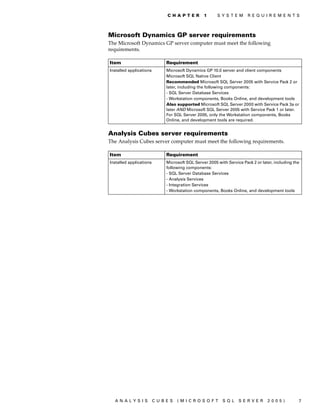
Microsoft Dynamics GP server requirements
The Microsoft Dynamics GP server computer must meet the following
requirements.

Item                        Requirement
Installed applications      Microsoft Dynamics GP 10.0 server and client components
                            Microsoft SQL Native Client
                            Recommended Microsoft SQL Server 2005 with Service Pack 2 or
                            later, including the following components:
                            - SQL Server Database Services
                            - Workstation components, Books Online, and development tools
                            Also supported Microsoft SQL Server 2000 with Service Pack 3a or
                            later AND Microsoft SQL Server 2005 with Service Pack 1 or later.
                            For SQL Server 2005, only the Workstation components, Books
                            Online, and development tools are required.


Analysis Cubes server requirements
The Analysis Cubes server computer must meet the following requirements.

Item                        Requirement
Installed applications      Microsoft SQL Server 2005 with Service Pack 2 or later, including the
                            following components:
                            - SQL Server Database Services
                            - Analysis Services
                            - Integration Services
                            - Workstation components, Books Online, and development tools


  ANALYSIS               CUBES   (MICROSOFT              SQL     SERVER         2005)           7
C H A P T E R   1     S Y S T E M    R E Q U I R E M EN T S


                          Multiple Analysis Cubes servers
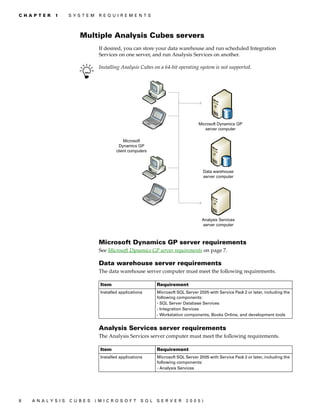
                                     If desired, you can store your data warehouse and run scheduled Integration
                                     Services on one server, and run Analysis Services on another.

                                     Installing Analysis Cubes on a 64-bit operating system is not supported.


                                                                                        Microsoft Dynamics GP
                                                                                           server computer

                                                  Microsoft
                                               Dynamics GP
                                              client computers


                                                                                          Data warehouse
                                                                                          server computer


                                                                                          Analysis Services
                                                                                          server computer


                                     Microsoft Dynamics GP server requirements
                                     See Microsoft Dynamics GP server requirements on page 7.

                                     Data warehouse server requirements
                                     The data warehouse server computer must meet the following requirements.

                                      Item                         Requirement
                                      Installed applications       Microsoft SQL Server 2005 with Service Pack 2 or later, including the
                                                                   following components:
                                                                   - SQL Server Database Services
                                                                   - Integration Services
                                                                   - Workstation components, Books Online, and development tools


                                     Analysis Services server requirements
                                     The Analysis Services server computer must meet the following requirements.

                                      Item                         Requirement
                                      Installed applications       Microsoft SQL Server 2005 with Service Pack 2 or later, including the
                                                                   following components:
                                                                   - Analysis Services


8    AN A L Y S I S   C U B E S     ( M I C R O S O F T    S Q L   S E R V ER     20 05 )
C H A PT E R      1      S Y S T E M    R E Q U I R E M E N T S


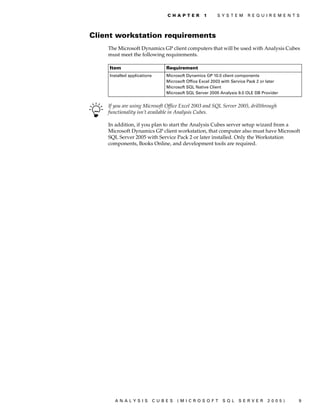
Client workstation requirements
    The Microsoft Dynamics GP client computers that will be used with Analysis Cubes
    must meet the following requirements.

    Item                        Requirement
    Installed applications      Microsoft Dynamics GP 10.0 client components
                                Microsoft Office Excel 2003 with Service Pack 2 or later
                                Microsoft SQL Native Client
                                Microsoft SQL Server 2005 Analysis 9.0 OLE DB Provider


    If you are using Microsoft Office Excel 2003 and SQL Server 2005, drillthrough
    functionality isn’t available in Analysis Cubes.

    In addition, if you plan to start the Analysis Cubes server setup wizard from a
    Microsoft Dynamics GP client workstation, that computer also must have Microsoft
    SQL Server 2005 with Service Pack 2 or later installed. Only the Workstation
    components, Books Online, and development tools are required.


       ANALYSIS              CUBES   (MICROSOFT             SQL     SERVER        2005)       9
10   A N A LY S I S   C U B E S   (M I C R O S O F T   S Q L   S E R V ER   20 05 )
Chapter 2:   Installation and configuration
             This part of the documentation includes information for the system administrator
             about how to install and configure Analysis Cubes on server and client computers.

             The following topics are discussed:

             •   Before you upgrade
             •   Installation and configuration checklist
             •   Security requirements for installing and configuring server components
             •   Information required for configuring server components
             •   Use the server setup wizard
             •   Use the server configuration wizard
             •   Configure the SSIS service to use a named instance
             •   Populate the data warehouse database
             •   Process the cubes
             •   Specify budget IDs for Budget and Forecast values
             •   Assign users to Analysis Services database roles
             •   Account category descriptions must match
             •   Security requirements for installing and configuring the client
             •   Use the client setup wizard
             •   Set up Analysis Services information for the client
             •   Reconfiguring the Analysis Cubes server databases

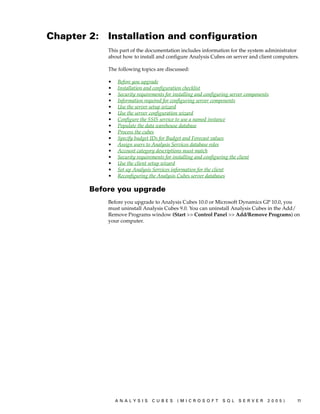
        Before you upgrade
             Before you upgrade to Analysis Cubes 10.0 or Microsoft Dynamics GP 10.0, you
             must uninstall Analysis Cubes 9.0. You can uninstall Analysis Cubes in the Add/
             Remove Programs window (Start >> Control Panel >> Add/Remove Programs) on
             your computer.


                 ANALYSIS       CUBES       (MICROSOFT           SQL     SERVER       2005)   11
C H A P T E R   2    I N S T A L L A T I O N   A N D   C O N F I G U R A T I O N


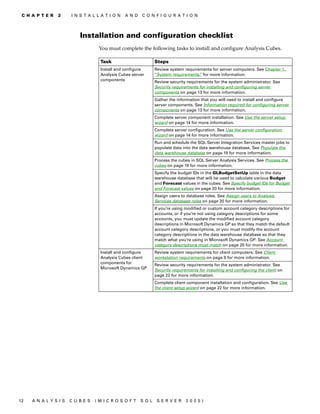
                          Installation and configuration checklist
                                   You must complete the following tasks to install and configure Analysis Cubes.

                                    Task                        Steps
                                    Install and configure       Review system requirements for server computers. See Chapter 1,
                                    Analysis Cubes server       “System requirements, for more information.
                                                                                     ”
                                    components                  Review security requirements for the system administrator. See
                                                                Security requirements for installing and configuring server
                                                                components on page 13 for more information.
                                                                Gather the information that you will need to install and configure
                                                                server components. See Information required for configuring server
                                                                components on page 13 for more information.
                                                                Complete server component installation. See Use the server setup
                                                                wizard on page 14 for more information.
                                                                Complete server configuration. See Use the server configuration
                                                                wizard on page 14 for more information.
                                                                Run and schedule the SQL Server Integration Services master jobs to
                                                                populate data into the data warehouse database. See Populate the
                                                                data warehouse database on page 19 for more information.
                                                                Process the cubes in SQL Server Analysis Services. See Process the
                                                                cubes on page 19 for more information.
                                                                Specify the budget IDs in the GLBudgetSetUp table in the data
                                                                warehouse database that will be used to calculate various Budget
                                                                and Forecast values in the cubes. See Specify budget IDs for Budget
                                                                and Forecast values on page 20 for more information.
                                                                Assign users to database roles. See Assign users to Analysis
                                                                Services database roles on page 20 for more information.
                                                                If you’re using modified or custom account category descriptions for
                                                                accounts, or if you’re not using category descriptions for some
                                                                accounts, you must update the modified account category
                                                                descriptions in Microsoft Dynamics GP so that they match the default
                                                                account category descriptions, or you must modify the account
                                                                category descriptions in the data warehouse database so that they
                                                                match what you’re using in Microsoft Dynamics GP. See Account
                                                                category descriptions must match on page 20 for more information.
                                    Install and configure       Review system requirements for client computers. See Client
                                    Analysis Cubes client       workstation requirements on page 9 for more information.
                                    components for
                                                                Review security requirements for the system administrator. See
                                    Microsoft Dynamics GP
                                                                Security requirements for installing and configuring the client on
                                                                page 22 for more information.
                                                                Complete client component installation and configuration. See Use
                                                                the client setup wizard on page 22 for more information.


12   A N A LY S I S   C U B E S   (M I C R O S O F T    S Q L    S E R V ER     20 05 )
C H A P T E R     2     I N S T A L L A T I O N    A N D    C O N F I G U R A T I O N


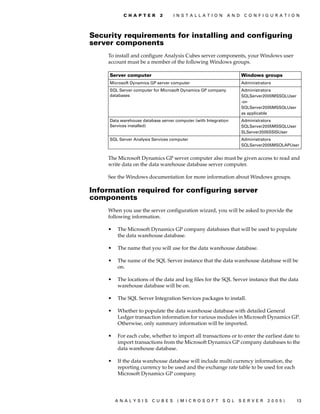
Security requirements for installing and configuring
server components
    To install and configure Analysis Cubes server components, your Windows user
    account must be a member of the following Windows groups.

     Server computer                                                  Windows groups
     Microsoft Dynamics GP server computer                            Administrators
     SQL Server computer for Microsoft Dynamics GP company            Administrators
     databases                                                        SQLServer2000MSSQLUser
                                                                      -or-
                                                                      SQLServer2005MSSQLUser
                                                                      as applicable
     Data warehouse database server computer (with Integration        Administrators
     Services installed)                                              SQLServer2005MSSQLUser
                                                                      SLServer2005SSISUser
     SQL Server Analysis Services computer                            Administrators
                                                                      SQLServer2005MSOLAPUser


    The Microsoft Dynamics GP server computer also must be given access to read and
    write data on the data warehouse database server computer.

    See the Windows documentation for more information about Windows groups.

Information required for configuring server
components
    When you use the server configuration wizard, you will be asked to provide the
    following information.

    •   The Microsoft Dynamics GP company databases that will be used to populate
        the data warehouse database.

    •   The name that you will use for the data warehouse database.

    •   The name of the SQL Server instance that the data warehouse database will be
        on.

    •   The locations of the data and log files for the SQL Server instance that the data
        warehouse database will be on.

    •   The SQL Server Integration Services packages to install.

    •   Whether to populate the data warehouse database with detailed General
        Ledger transaction information for various modules in Microsoft Dynamics GP.
        Otherwise, only summary information will be imported.

    •   For each cube, whether to import all transactions or to enter the earliest date to
        import transactions from the Microsoft Dynamics GP company databases to the
        data warehouse database.

    •   If the data warehouse database will include multi currency information, the
        reporting currency to be used and the exchange rate table to be used for each
        Microsoft Dynamics GP company.


        ANALYSIS         CUBES       (MICROSOFT              SQL   SERVER         2005)        13
C H A P T E R   2    I N S T A L L A T I O N   A N D   C O N F I G U R A T I O N


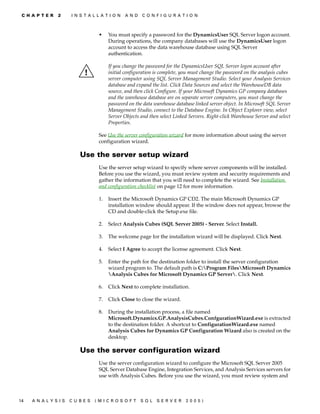
                                   •    You must specify a password for the DynamicsUser SQL Server logon account.
                                        During operations, the company databases will use the DynamicsUser logon
                                        account to access the data warehouse database using SQL Server
                                        authentication.

                                        If you change the password for the DynamicsUser SQL Server logon account after
                                        initial configuration is complete, you must change the password on the analysis cubes
                                        server computer using SQL Server Management Studio. Select your Analysis Services
                                        database and expand the list. Click Data Sources and select the WarehouseDB data
                                        source, and then click Configure. If your Microsoft Dynamics GP company databases
                                        and the warehouse database are on separate server computers, you must change the
                                        password on the data warehouse database linked server object. In Microsoft SQL Server
                                        Management Studio, connect to the Database Engine. In Object Explorer view, select
                                        Server Objects and then select Linked Servers. Right-click Warehouse Server and select
                                        Properties.

                                   See Use the server configuration wizard for more information about using the server
                                   configuration wizard.

                          Use the server setup wizard
                                   Use the server setup wizard to specify where server components will be installed.
                                   Before you use the wizard, you must review system and security requirements and
                                   gather the information that you will need to complete the wizard. See Installation
                                   and configuration checklist on page 12 for more information.

                                   1.   Insert the Microsoft Dynamics GP CD2. The main Microsoft Dynamics GP
                                        installation window should appear. If the window does not appear, browse the
                                        CD and double-click the Setup.exe file.

                                   2.   Select Analysis Cubes (SQL Server 2005) - Server. Select Install.

                                   3.   The welcome page for the installation wizard will be displayed. Click Next.

                                   4.   Select I Agree to accept the license agreement. Click Next.

                                   5.   Enter the path for the destination folder to install the server configuration
                                        wizard program to. The default path is C:Program FilesMicrosoft Dynamics
                                        Analysis Cubes for Microsoft Dynamics GP Server. Click Next.

                                   6.   Click Next to complete installation.

                                   7.   Click Close to close the wizard.

                                   8.   During the installation process, a file named
                                        Microsoft.Dynamics.GP.AnalysisCubes.ConfgurationWizard.exe is extracted
                                        to the destination folder. A shortcut to ConfigurationWizard.exe named
                                        Analysis Cubes for Dynamics GP Configuration Wizard also is created on the
                                        desktop.

                          Use the server configuration wizard
                                   Use the server configuration wizard to configure the Microsoft SQL Server 2005
                                   SQL Server Database Engine, Integration Services, and Analysis Services servers for
                                   use with Analysis Cubes. Before you use the wizard, you must review system and


14   A N A LY S I S   C U B E S   (M I C R O S O F T    S Q L   S E R V ER   20 05 )
C H A P T E R   2      I N S T A L L A T I O N    A N D   C O N F I G U R A T I O N


security requirements and gather the information that you will need to complete the
wizard. See Installation and configuration checklist on page 12 for more information.

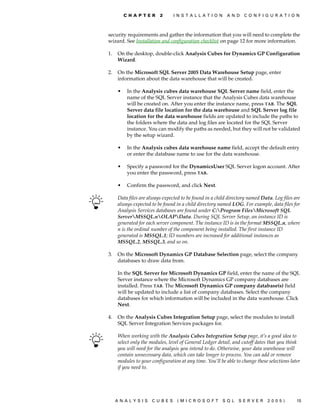
1.   On the desktop, double-click Analysis Cubes for Dynamics GP Configuration
     Wizard.

2.   On the Microsoft SQL Server 2005 Data Warehouse Setup page, enter
     information about the data warehouse that will be created.

     •    In the Analysis cubes data warehouse SQL Server name field, enter the
          name of the SQL Server instance that the Analysis Cubes data warehouse
          will be created on. After you enter the instance name, press TAB. The SQL
          Server data file location for the data warehouse and SQL Server log file
          location for the data warehouse fields are updated to include the paths to
          the folders where the data and log files are located for the SQL Server
          instance. You can modify the paths as needed, but they will not be validated
          by the setup wizard.

     •    In the Analysis cubes data warehouse name field, accept the default entry
          or enter the database name to use for the data warehouse.

     •    Specify a password for the DynamicsUser SQL Server logon account. After
          you enter the password, press TAB.

     •    Confirm the password, and click Next.

     Data files are always expected to be found in a child directory named Data. Log files are
     always expected to be found in a child directory named LOG. For example, data files for
     Analysis Services databases are found under C:Program FilesMicrosoft SQL
     ServerMSSQL.nOLAPData. During SQL Server Setup, an instance ID is
     generated for each server component. The instance ID is in the format MSSQL.n, where
     n is the ordinal number of the component being installed. The first instance ID
     generated is MSSQL.1; ID numbers are increased for additional instances as
     MSSQL.2, MSSQL.3, and so on.

3.   On the Microsoft Dynamics GP Database Selection page, select the company
     databases to draw data from.

     In the SQL Server for Microsoft Dynamics GP field, enter the name of the SQL
     Server instance where the Microsoft Dynamics GP company databases are
     installed. Press TAB. The Microsoft Dynamics GP company database(s) field
     will be updated to include a list of company databases. Select the company
     databases for which information will be included in the data warehouse. Click
     Next.

4.   On the Analysis Cubes Integration Setup page, select the modules to install
     SQL Server Integration Services packages for.

     When working with the Analysis Cubes Integration Setup page, it’s a good idea to
     select only the modules, level of General Ledger detail, and cutoff dates that you think
     you will need for the analysis you intend to do. Otherwise, your data warehouse will
     contain unnecessary data, which can take longer to process. You can add or remove
     modules to your configuration at any time. You’ll be able to change these selections later
     if you need to.


     ANALYSIS        CUBES        (MICROSOFT              SQL   SERVER        2005)          15
C H A P T E R   2    I N S T A L L A T I O N   A N D   C O N F I G U R A T I O N


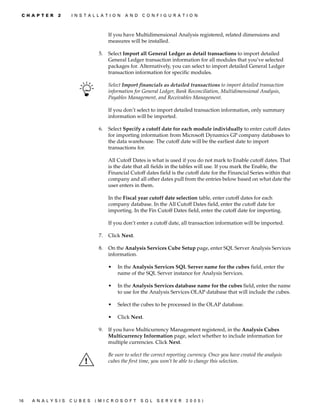
                                        If you have Multidimensional Analysis registered, related dimensions and
                                        measures will be installed.

                                   5.   Select Import all General Ledger as detail transactions to import detailed
                                        General Ledger transaction information for all modules that you’ve selected
                                        packages for. Alternatively, you can select to import detailed General Ledger
                                        transaction information for specific modules.

                                        Select Import financials as detailed transactions to import detailed transaction
                                        information for General Ledger, Bank Reconciliation, Multidimensional Analysis,
                                        Payables Management, and Receivables Management.

                                        If you don’t select to import detailed transaction information, only summary
                                        information will be imported.

                                   6.   Select Specify a cutoff date for each module individually to enter cutoff dates
                                        for importing information from Microsoft Dynamics GP company databases to
                                        the data warehouse. The cutoff date will be the earliest date to import
                                        transactions for.

                                        All Cutoff Dates is what is used if you do not mark to Enable cutoff dates. That
                                        is the date that all fields in the tables will use. If you mark the Enable, the
                                        Financial Cutoff dates field is the cutoff date for the Financial Series within that
                                        company and all other dates pull from the entries below based on what date the
                                        user enters in them.

                                        In the Fiscal year cutoff date selection table, enter cutoff dates for each
                                        company database. In the All Cutoff Dates field, enter the cutoff date for
                                        importing. In the Fin Cutoff Dates field, enter the cutoff date for importing.

                                        If you don’t enter a cutoff date, all transaction information will be imported.

                                   7.   Click Next.

                                   8.   On the Analysis Services Cube Setup page, enter SQL Server Analysis Services
                                        information.

                                        •   In the Analysis Services SQL Server name for the cubes field, enter the
                                            name of the SQL Server instance for Analysis Services.

                                        •   In the Analysis Services database name for the cubes field, enter the name
                                            to use for the Analysis Services OLAP database that will include the cubes.

                                        •   Select the cubes to be processed in the OLAP database.

                                        •   Click Next.

                                   9.   If you have Multicurrency Management registered, in the Analysis Cubes
                                        Multicurrency Information page, select whether to include information for
                                        multiple currencies. Click Next.

                                        Be sure to select the correct reporting currency. Once you have created the analysis
                                        cubes the first time, you won’t be able to change this selection.


16   A N A LY S I S   C U B E S   (M I C R O S O F T    S Q L   S E R V ER   20 05 )
C H A P T E R   2    I N S T A L L A T I O N    A N D   C O N F I G U R A T I O N


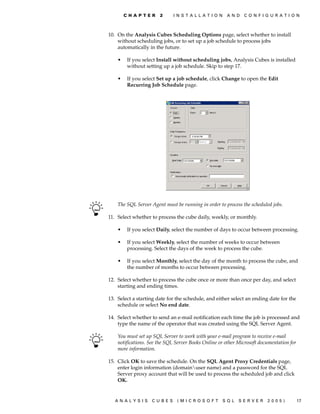
10. On the Analysis Cubes Scheduling Options page, select whether to install
    without scheduling jobs, or to set up a job schedule to process jobs
    automatically in the future.

    •    If you select Install without scheduling jobs, Analysis Cubes is installed
         without setting up a job schedule. Skip to step 17.

    •    If you select Set up a job schedule, click Change to open the Edit
         Recurring Job Schedule page.


    The SQL Server Agent must be running in order to process the scheduled jobs.

11. Select whether to process the cube daily, weekly, or monthly.

    •    If you select Daily, select the number of days to occur between processing.

    •    If you select Weekly, select the number of weeks to occur between
         processing. Select the days of the week to process the cube.

    •    If you select Monthly, select the day of the month to process the cube, and
         the number of months to occur between processing.

12. Select whether to process the cube once or more than once per day, and select
    starting and ending times.

13. Select a starting date for the schedule, and either select an ending date for the
    schedule or select No end date.

14. Select whether to send an e-mail notification each time the job is processed and
    type the name of the operator that was created using the SQL Server Agent.

    You must set up SQL Server to work with your e-mail program to receive e-mail
    notifications. See the SQL Server Books Online or other Microsoft documentation for
    more information.

15. Click OK to save the schedule. On the SQL Agent Proxy Credentials page,
    enter login information (domainuser name) and a password for the SQL
    Server proxy account that will be used to process the scheduled job and click
    OK.


   ANALYSIS        CUBES       (MICROSOFT              SQL   SERVER       2005)           17
C H A P T E R   2    I N S T A L L A T I O N   A N D   C O N F I G U R A T I O N


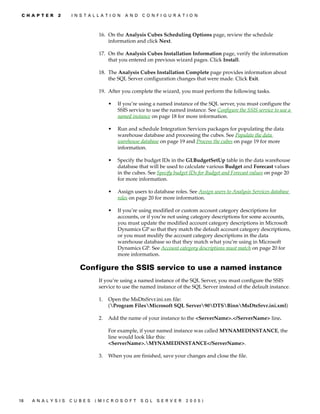
                                   16. On the Analysis Cubes Scheduling Options page, review the schedule
                                       information and click Next.

                                   17. On the Analysis Cubes Installation Information page, verify the information
                                       that you entered on previous wizard pages. Click Install.

                                   18. The Analysis Cubes Installation Complete page provides information about
                                       the SQL Server configuration changes that were made. Click Exit.

                                   19. After you complete the wizard, you must perform the following tasks.

                                        •   If you’re using a named instance of the SQL server, you must configure the
                                            SSIS service to use the named instance. See Configure the SSIS service to use a
                                            named instance on page 18 for more information.

                                        •   Run and schedule Integration Services packages for populating the data
                                            warehouse database and processing the cubes. See Populate the data
                                            warehouse database on page 19 and Process the cubes on page 19 for more
                                            information.

                                        •   Specify the budget IDs in the GLBudgetSetUp table in the data warehouse
                                            database that will be used to calculate various Budget and Forecast values
                                            in the cubes. See Specify budget IDs for Budget and Forecast values on page 20
                                            for more information.

                                        •   Assign users to database roles. See Assign users to Analysis Services database
                                            roles on page 20 for more information.

                                        •   If you’re using modified or custom account category descriptions for
                                            accounts, or if you’re not using category descriptions for some accounts,
                                            you must update the modified account category descriptions in Microsoft
                                            Dynamics GP so that they match the default account category descriptions,
                                            or you must modify the account category descriptions in the data
                                            warehouse database so that they match what you’re using in Microsoft
                                            Dynamics GP. See Account category descriptions must match on page 20 for
                                            more information.

                          Configure the SSIS service to use a named instance
                                   If you’re using a named instance of the SQL Server, you must configure the SSIS
                                   service to use the named instance of the SQL Server instead of the default instance.

                                   1.   Open the MsDtsSrvr.ini.xm file:
                                        (Program FilesMicrosoft SQL Server90DTSBinnMsDtsSrvr.ini.xml)

                                   2.   Add the name of your instance to the <ServerName>.</ServerName> line.

                                        For example, if your named instance was called MYNAMEDINSTANCE, the
                                        line would look like this:
                                        <ServerName>.MYNAMEDINSTANCE</ServerName>.

                                   3.   When you are finished, save your changes and close the file.


18   A N A LY S I S   C U B E S   (M I C R O S O F T    S Q L   S E R V ER   20 05 )
C H A P T E R    2     I N S T A L L A T I O N    A N D   C O N F I G U R A T I O N


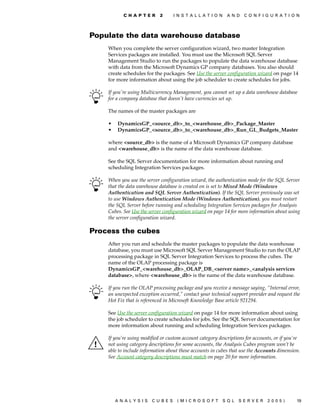
Populate the data warehouse database
    When you complete the server configuration wizard, two master Integration
    Services packages are installed. You must use the Microsoft SQL Server
    Management Studio to run the packages to populate the data warehouse database
    with data from the Microsoft Dynamics GP company databases. You also should
    create schedules for the packages. See Use the server configuration wizard on page 14
    for more information about using the job scheduler to create schedules for jobs.

    If you're using Multicurrency Management, you cannot set up a data warehouse database
    for a company database that doesn't have currencies set up.

    The names of the master packages are

    •   DynamicsGP_<source_db>_to_<warehouse_db>_Package_Master
    •   DynamicsGP_<source_db>_to_<warehouse_db>_Run_GL_Budgets_Master

    where <source_db> is the name of a Microsoft Dynamics GP company database
    and <warehouse_db> is the name of the data warehouse database.

    See the SQL Server documentation for more information about running and
    scheduling Integration Services packages.

    When you use the server configuration wizard, the authentication mode for the SQL Server
    that the data warehouse database is created on is set to Mixed Mode (Windows
    Authentication and SQL Server Authentication). If the SQL Server previously was set
    to use Windows Authentication Mode (Windows Authentication), you must restart
    the SQL Server before running and scheduling Integration Services packages for Analysis
    Cubes. See Use the server configuration wizard on page 14 for more information about using
    the server configuration wizard.

Process the cubes
    After you run and schedule the master packages to populate the data warehouse
    database, you must use Microsoft SQL Server Management Studio to run the OLAP
    processing package in SQL Server Integration Services to process the cubes. The
    name of the OLAP processing package is
    DynamicsGP_<warehouse_db>_OLAP_DB_<server name>_<analysis services
    database>, where <warehouse_db> is the name of the data warehouse database.

    If you run the OLAP processing package and you receive a message saying, “Internal error,
    an unexpected exception occurred,” contact your technical support provider and request the
    Hot Fix that is referenced in Microsoft Knowledge Base article 921294.

    See Use the server configuration wizard on page 14 for more information about using
    the job scheduler to create schedules for jobs. See the SQL Server documentation for
    more information about running and scheduling Integration Services packages.

    If you’re using modified or custom account category descriptions for accounts, or if you’re
    not using category descriptions for some accounts, the Analysis Cubes program won’t be
    able to include information about those accounts in cubes that use the Accounts dimension.
    See Account category descriptions must match on page 20 for more information.


        ANALYSIS        CUBES       (MICROSOFT              SQL   SERVER       2005)         19
C H A P T E R   2    I N S T A L L A T I O N   A N D   C O N F I G U R A T I O N


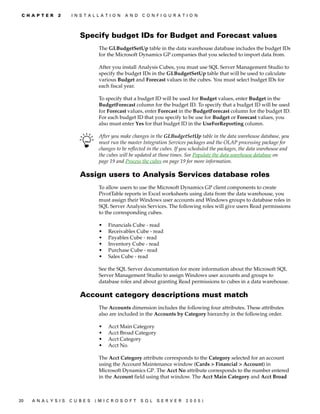
                          Specify budget IDs for Budget and Forecast values
                                   The GLBudgetSetUp table in the data warehouse database includes the budget IDs
                                   for the Microsoft Dynamics GP companies that you selected to import data from.

                                   After you install Analysis Cubes, you must use SQL Server Management Studio to
                                   specify the budget IDs in the GLBudgetSetUp table that will be used to calculate
                                   various Budget and Forecast values in the cubes. You must select budget IDs for
                                   each fiscal year.

                                   To specify that a budget ID will be used for Budget values, enter Budget in the
                                   BudgetForecast column for the budget ID. To specify that a budget ID will be used
                                   for Forecast values, enter Forecast in the BudgetForecast column for the budget ID.
                                   For each budget ID that you specify to be use for Budget or Forecast values, you
                                   also must enter Yes for that budget ID in the UseForReporting column.

                                   After you make changes in the GLBudgetSetUp table in the data warehouse database, you
                                   must run the master Integration Services packages and the OLAP processing package for
                                   changes to be reflected in the cubes. If you scheduled the packages, the data warehouse and
                                   the cubes will be updated at those times. See Populate the data warehouse database on
                                   page 19 and Process the cubes on page 19 for more information.

                          Assign users to Analysis Services database roles
                                   To allow users to use the Microsoft Dynamics GP client components to create
                                   PivotTable reports in Excel worksheets using data from the data warehouse, you
                                   must assign their Windows user accounts and Windows groups to database roles in
                                   SQL Server Analysis Services. The following roles will give users Read permissions
                                   to the corresponding cubes.

                                   •   Financials Cube - read
                                   •   Receivables Cube - read
                                   •   Payables Cube - read
                                   •   Inventory Cube - read
                                   •   Purchase Cube - read
                                   •   Sales Cube - read

                                   See the SQL Server documentation for more information about the Microsoft SQL
                                   Server Management Studio to assign Windows user accounts and groups to
                                   database roles and about granting Read permissions to cubes in a data warehouse.

                          Account category descriptions must match
                                   The Accounts dimension includes the following four attributes. These attributes
                                   also are included in the Accounts by Category hierarchy in the following order.

                                   •   Acct Main Category
                                   •   Acct Broad Category
                                   •   Acct Category
                                   •   Acct No.

                                   The Acct Category attribute corresponds to the Category selected for an account
                                   using the Account Maintenance window (Cards > Financial > Account) in
                                   Microsoft Dynamics GP. The Acct No attribute corresponds to the number entered
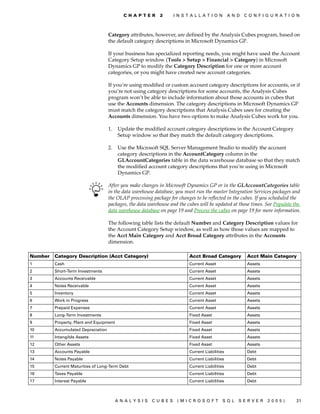
                                   in the Account field using that window. The Acct Main Category and Acct Broad


20   A N A LY S I S   C U B E S   (M I C R O S O F T    S Q L   S E R V ER   20 05 )
C H A P T E R    2     I N S T A L L A T I O N       A N D   C O N F I G U R A T I O N


                                    Category attributes, however, are defined by the Analysis Cubes program, based on
                                    the default category descriptions in Microsoft Dynamics GP.

                                    If your business has specialized reporting needs, you might have used the Account
                                    Category Setup window (Tools > Setup > Financial > Category) in Microsoft
                                    Dynamics GP to modify the Category Description for one or more account
                                    categories, or you might have created new account categories.

                                    If you’re using modified or custom account category descriptions for accounts, or if
                                    you’re not using category descriptions for some accounts, the Analysis Cubes
                                    program won’t be able to include information about those accounts in cubes that
                                    use the Accounts dimension. The category descriptions in Microsoft Dynamics GP
                                    must match the category descriptions that Analysis Cubes uses for creating the
                                    Accounts dimension. You have two options to make Analysis Cubes work for you.

                                    1.   Update the modified account category descriptions in the Account Category
                                         Setup window so that they match the default category descriptions.

                                    2.   Use the Microsoft SQL Server Management Studio to modify the account
                                         category descriptions in the AccountCategory column in the
                                         GLAccountCategories table in the data warehouse database so that they match
                                         the modified account category descriptions that you’re using in Microsoft
                                         Dynamics GP.

                                    After you make changes in Microsoft Dynamics GP or in the GLAccountCategories table
                                    in the data warehouse database, you must run the master Integration Services packages and
                                    the OLAP processing package for changes to be reflected in the cubes. If you scheduled the
                                    packages, the data warehouse and the cubes will be updated at those times. See Populate the
                                    data warehouse database on page 19 and Process the cubes on page 19 for more information.

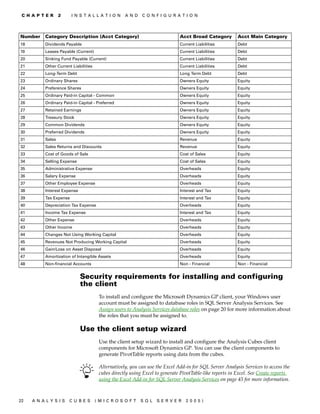
                                    The following table lists the default Number and Category Description values for
                                    the Account Category Setup window, as well as how those values are mapped to
                                    the Acct Main Category and Acct Broad Category attributes in the Accounts
                                    dimension.

Number   Category Description (Acct Category)                             Acct Broad Category            Acct Main Category
1        Cash                                                             Current Asset                  Assets
2        Short-Term Investments                                           Current Asset                  Assets
3        Accounts Receivable                                              Current Asset                  Assets
4        Notes Receivable                                                 Current Asset                  Assets
5        Inventory                                                        Current Asset                  Assets
6        Work in Progress                                                 Current Asset                  Assets
7        Prepaid Expenses                                                 Current Asset                  Assets
8        Long-Term Investments                                            Fixed Asset                    Assets
9        Property, Plant and Equipment                                    Fixed Asset                    Assets
10       Accumulated Depreciation                                         Fixed Asset                    Assets
11       Intangible Assets                                                Fixed Asset                    Assets
12       Other Assets                                                     Fixed Asset                    Assets
13       Accounts Payable                                                 Current Liabilities            Debt
14       Notes Payable                                                    Current Liabilities            Debt
15       Current Maturities of Long-Term Debt                             Current Liabilities            Debt
16       Taxes Payable                                                    Current Liabilities            Debt
17       Interest Payable                                                 Current Liabilities            Debt


                                         ANALYSIS       CUBES       (MICROSOFT              SQL     SERVER        2005)        21
C H A P T E R    2     I N S T A L L A T I O N    A N D   C O N F I G U R A T I O N


Number    Category Description (Acct Category)                               Acct Broad Category         Acct Main Category
18        Dividends Payable                                                  Current Liabilities         Debt
19        Leases Payable (Current)                                           Current Liabilities         Debt
20        Sinking Fund Payable (Current)                                     Current Liabilities         Debt
21        Other Current Liabilities                                          Current Liabilities         Debt
22        Long-Term Debt                                                     Long Term Debt              Debt
23        Ordinary Shares                                                    Owners Equity               Equity
24        Preference Shares                                                  Owners Equity               Equity
25        Ordinary Paid-in Capital - Common                                  Owners Equity               Equity
26        Ordinary Paid-in Capital - Preferred                               Owners Equity               Equity
27        Retained Earnings                                                  Owners Equity               Equity
28        Treasury Stock                                                     Owners Equity               Equity
29        Common Dividends                                                   Owners Equity               Equity
30        Preferred Dividends                                                Owners Equity               Equity
31        Sales                                                              Revenue                     Equity
32        Sales Returns and Discounts                                        Revenue                     Equity
33        Cost of Goods of Sale                                              Cost of Sales               Equity
34        Selling Expense                                                    Cost of Sales               Equity
35        Administrative Expense                                             Overheads                   Equity
36        Salary Expense                                                     Overheads                   Equity
37        Other Employee Expense                                             Overheads                   Equity
38        Interest Expense                                                   Interest and Tax            Equity
39        Tax Expense                                                        Interest and Tax            Equity
40        Depreciation Tax Expense                                           Overheads                   Equity
41        Income Tax Expense                                                 Interest and Tax            Equity
42        Other Expense                                                      Overheads                   Equity
43        Other Income                                                       Overheads                   Equity
44        Changes Not Using Working Capital                                  Overheads                   Equity
45        Revenues Not Producing Working Capital                             Overheads                   Equity
46        Gain/Loss on Asset Disposal                                        Overheads                   Equity
47        Amortization of Intangible Assets                                  Overheads                   Equity
48        Non-financial Accounts                                             Non - Financial             Non - Financial


                             Security requirements for installing and configuring
                             the client
                                       To install and configure the Microsoft Dynamics GP client, your Windows user
                                       account must be assigned to database roles in SQL Server Analysis Services. See
                                       Assign users to Analysis Services database roles on page 20 for more information about
                                       the roles that you must be assigned to.

                             Use the client setup wizard
                                       Use the client setup wizard to install and configure the Analysis Cubes client
                                       components for Microsoft Dynamics GP. You can use the client components to
                                       generate PivotTable reports using data from the cubes.

                                       Alternatively, you can use the Excel Add-in for SQL Server Analysis Services to access the
                                       cubes directly using Excel to generate PivotTable-like reports in Excel. See Create reports
                                       using the Excel Add-in for SQL Server Analysis Services on page 45 for more information.


22   A N A LY S I S   C U B E S       (M I C R O S O F T   S Q L   S E R V ER   20 05 )
C H A P T E R    2      I N S T A L L A T I O N    A N D   C O N F I G U R A T I O N


    Before you use the wizard, you must review system and security requirements and
    gather the information that you will need to install and configure client
    components. See Installation and configuration checklist on page 12 for more
    information.

    To install the client, SQL Server Analysis Services must be started.

    1.   Insert the Microsoft Dynamics GP CD2. The main Microsoft Dynamics GP
         installation window should appear. If the window does not appear, browse the
         CD and double-click the Setup.exe file.

    2.   Select Analysis Cubes (SQL Server 2005) - Client. Select Install.

    3.   The welcome page of the installation wizard will be displayed. Click Next.

    4.   Select I Agree to accept the license agreement. Click Next.

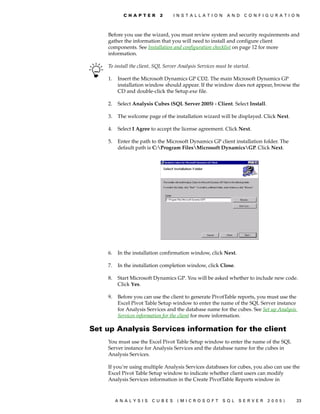
    5.   Enter the path to the Microsoft Dynamics GP client installation folder. The
         default path is C:Program FilesMicrosoft DynamicsGP. Click Next.


    6.   In the installation confirmation window, click Next.

    7.   In the installation completion window, click Close.

    8.   Start Microsoft Dynamics GP. You will be asked whether to include new code.
         Click Yes.

    9.   Before you can use the client to generate PivotTable reports, you must use the
         Excel Pivot Table Setup window to enter the name of the SQL Server instance
         for Analysis Services and the database name for the cubes. See Set up Analysis
         Services information for the client for more information.

Set up Analysis Services information for the client
    You must use the Excel Pivot Table Setup window to enter the name of the SQL
    Server instance for Analysis Services and the database name for the cubes in
    Analysis Services.

    If you’re using multiple Analysis Services databases for cubes, you also can use the
    Excel Pivot Table Setup window to indicate whether client users can modify
    Analysis Services information in the Create PivotTable Reports window in


         ANALYSIS        CUBES       (MICROSOFT              SQL   SERVER       2005)        23
C H A P T E R   2    I N S T A L L A T I O N   A N D   C O N F I G U R A T I O N


                                   Microsoft Dynamics GP. See Create PivotTable reports using Microsoft Dynamics GP on
                                   page 43 for more information about using the Create PivotTable Reports window.

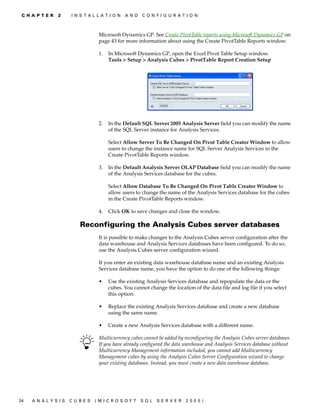
                                   1.   In Microsoft Dynamics GP, open the Excel Pivot Table Setup window.
                                        Tools > Setup > Analysis Cubes > PivotTable Report Creation Setup


                                   2.   In the Default SQL Server 2005 Analysis Server field you can modify the name
                                        of the SQL Server instance for Analysis Services.

                                        Select Allow Server To Be Changed On Pivot Table Creator Window to allow
                                        users to change the instance name for SQL Server Analysis Services in the
                                        Create PivotTable Reports window.

                                   3.   In the Default Analysis Server OLAP Database field you can modify the name
                                        of the Analysis Services database for the cubes.

                                        Select Allow Database To Be Changed On Pivot Table Creator Window to
                                        allow users to change the name of the Analysis Services database for the cubes
                                        in the Create PivotTable Reports window.

                                   4.   Click OK to save changes and close the window.

                          Reconfiguring the Analysis Cubes server databases
                                   It is possible to make changes to the Analysis Cubes server configuration after the
                                   data warehouse and Analysis Services databases have been configured. To do so,
                                   use the Analysis Cubes server configuration wizard.

                                   If you enter an existing data warehouse database name and an existing Analysis
                                   Services database name, you have the option to do one of the following things:

                                   •    Use the existing Analysis Services database and repopulate the data or the
                                        cubes. You cannot change the location of the data file and log file if you select
                                        this option.

                                   •    Replace the existing Analysis Services database and create a new database
                                        using the same name.

                                   •    Create a new Analysis Services database with a different name.

                                   Multicurrency cubes cannot be added by reconfiguring the Analysis Cubes server databases.
                                   If you have already configured the data warehouse and Analysis Services database without
                                   Multicurrency Management information included, you cannot add Multicurrency
                                   Management cubes by using the Analysis Cubes Server Configuration wizard to change
                                   your existing databases. Instead, you must create a new data warehouse database.


24   A N A LY S I S   C U B E S   (M I C R O S O F T    S Q L   S E R V ER   20 05 )
Chapter 3:   Customization
             This part of the documentation includes information for developers about
             customizing cubes.

             The following topics are discussed:

             •   Modify cubes using Business Intelligence Development Studio
             •   Drillthrough dimensions
             •   Customize Business Portal using Web parts to include cube data

        Modify cubes using Business Intelligence
        Development Studio
             SQL Server 2005 includes the Business Intelligence Development Studio, an
             integrated development environment based on Microsoft Visual Studio® 2005. You
             can use the Business Intelligence Development Studio to modify cubes.

             If you choose to modify cubes, bear in mind the following recommendations.

             •   Overusing measure groups in a cube will result in decreased data warehouse
                 performance. We recommend using multiple cubes with a small number of
                 measure groups in each cube. You can use linked measure groups to present
                 data from multiple cubes together.

             •   In a single cube, include only measure groups that share common dimensions
                 and that will be queried together frequently.

             •   Avoid using calculated measures that always must be calculated at the leaf
                 level.

             •   Attributes increase the size and decrease the performance of the data
                 warehouse. Therefore, do not make every column in a dimension table an
                 attribute. Include only those columns that must be accessed by the end user.

             •   Attribute hierarchies increase the size and decrease the performance of the data
                 warehouse. Therefore, do not enable attribute hierarchies for all attributes.
                 Enable attribute hierarchies only for those attributes that frequently will be
                 used for analysis.

             •   In large dimensions, natural hierarchies are essential for improving the
                 performance of queries. You should identify attribute relationships between the
                 levels of natural hierarchies.

             If you modify a default Analysis Cubes cube, you might not be able to update that cube when
             you upgrade to a future release of Analysis Cubes.

        Drillthrough dimensions
             You can modify cubes to establish relationships between the cubes and drillthrough
             dimensions. Default drillthrough dimensions were installed when you completed
             the server configuration wizard. See Default drillthrough dimensions on page 42 for
             more information.


                 ANALYSIS        CUBES       (MICROSOFT            SQL    SERVER        2005)         25
C H A P T E R   3    C U S T O M I ZA T I O N


                                   The following table lists the available drillthrough dimensions and attributes.

                                    Drillthrough dimensions          Attributes
                                    Customer Details                 Bill To City
                                                                     Bill To Country or Region
                                                                     Bill To State
                                                                     Bill To ZIP
                                                                     Credit Limit Amt
                                                                     Customer Bal
                                                                     Customer Class
                                                                     Customer Name
                                                                     Sales Mgr Name
                                                                     Salesperson Name
                                                                     Sales Terr
                                    Sales Details                    Co ID
                                                                     Customer Class
                                                                     Customer Name
                                                                     Doc Date
                                                                     Doc No
                                                                     Doc Type
                                                                     Item Description
                                                                     Item Location Code
                                                                     Item No
                                                                     Over Credit Limit
                                                                     Requested Ship Date
                                                                     Salesperson Name
                                                                     Ship To City
                                                                     Ship To Country or Region
                                                                     Ship To State
                                                                     Ship To ZIP
                                                                     Shipping Method
                                    Pending Sales Details            Co ID
                                                                     Customer Class
                                                                     Customer Name
                                                                     Doc Date
                                                                     Doc No
                                                                     Doc Type
                                                                     Item Description
                                                                     Item Location Code
                                                                     Item No
                                                                     Over Credit Limit
                                                                     Requested Ship Date
                                                                     Salesperson Name
                                                                     Ship To City
                                                                     Ship To Country or Region
                                                                     Ship To State
                                                                     Ship To ZIP
                                                                     Shipping Method


26   A N A LY S I S   C U B E S   (M I C R O S O F T   S Q L   S E R V ER    20 05 )
C H A P T E R   3    C U S T O M I ZA T I O N


Drillthrough dimensions         Attributes
                                Sales Terr
Current Qty Details             Co ID
                                Current Cost
                                Item Description
                                Item No
                                Item Type
                                Qty Allocated
                                Qty Committed
                                Qty Damaged
                                Qty In Service
                                Qty In Use
                                Qty On Back Order
                                Qty On Hand
                                Qty On Order
                                Qty Returned
                                Qty Sold
                                Standard Cost
                                Unit Cost
Payables Exp Details            Acct Alias
                                Acct Index
                                Acct Posting Type
                                Cur ID
                                Discount
                                Distribution Type
                                Doc Date
                                Doc No
                                Due Date
                                Entry Type
                                Fiscal Year
                                Freight
                                GST
                                Outstanding Amt
                                Period Name
                                Purchase Amt
                                Tax
                                Total Amt
                                Trans Status


  ANALYSIS             CUBES   (MICROSOFT           SQL     SERVER     2005)       27
C H A P T E R   3    C U S T O M I ZA T I O N


                                    Drillthrough dimensions           Attributes
                                    Revenue Details                   Acct Index
                                                                      Commission
                                                                      Cost Of Sales
                                                                      Cur ID
                                                                      Customer No
                                                                      Distribution Type
                                                                      Doc Date
                                                                      Doc No
                                                                      Doc Type
                                                                      Freight
                                                                      GST
                                                                      Misc
                                                                      Payment Terms
                                                                      Revenue
                                                                      Salesperson Name
                                                                      Sales Terr
                                                                      Shipping Method
                                                                      Tax
                                                                      Trade Disc
                                                                      Trans Status
                                    Trans Detail                      Acct Number
                                                                      Acct Type
                                                                      Credit Amt
                                                                      Currency ID
                                                                      Debit Amt
                                                                      Orig Credit Amt
                                                                      Orig Debit Amt
                                                                      Trans Date
                                    Checkbook Register Detail         Amount
                                                                      Checkbook Name
                                                                      C ID
                                                                      Paid to Received From
                                                                      Trans Date
                                                                      Trans No
                                                                      Trans Type


                          Customize Business Portal using Web parts to include
                          cube data
                                   You can customize Business Portal for Microsoft Dynamics GP using Web parts to
                                   include cube data. See the Business Portal SDK documentation for more
                                   information about creating Web parts.


28   A N A LY S I S   C U B E S   (M I C R O S O F T   S Q L    S E R V ER     20 05 )
Chapter 4:   Cubes
             This part of the documentation includes information about the dimensions,
             attributes, and measures for the cubes.

             The following topics are discussed:

             •   What are cubes?
             •   How cubes are updated
             •   Cubes and dimensions
             •   Dimensions and attributes
             •   Hierarchies for organizing attributes
             •   Cubes and measures
             •   Default drillthrough dimensions

        What are cubes?
             Using an Excel worksheet, you can gain a two-dimensional view of the
             relationships between data. OLAP cubes, however, offer more than two dimensions.
             And while physical cubes offer three dimensions, OLAP cubes can be multi-
             dimensional. See Cubes and dimensions on page 30 for more information about the
             dimensions for each cube.

             A single cube dimension includes related attributes. For example, the Customers
             dimension includes information about customer balances, credit limits, and the
             salespersons assigned to those customers. The Salesperson dimension includes
             information about sales managers and sales territories. See Dimensions and attributes
             on page 31 for more information about the attributes for each cube dimension.

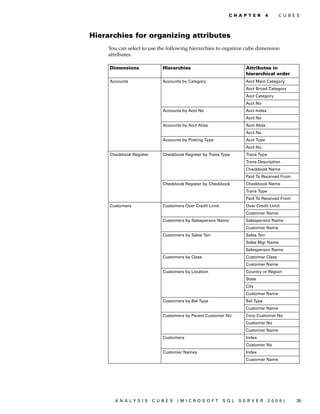
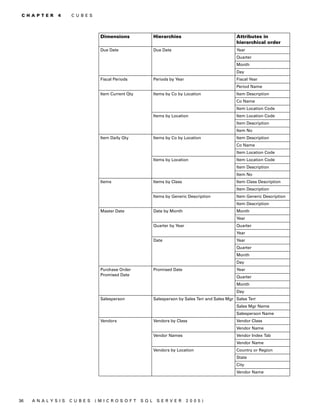
             The attributes of a dimension are organized into hierarchies. The hierarchical
             relationship between two attributes depends on how data is being viewed. For
             example, if you select to view customers by salesperson name, the salesperson
             names will be at the top of the hierarchy, followed by customer names. See
             Hierarchies for organizing attributes on page 35 for more information about the
             hierarchies that are available for organizing cube dimension attributes.

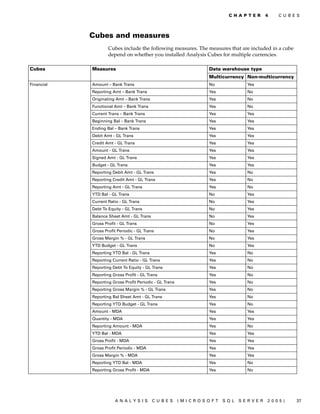
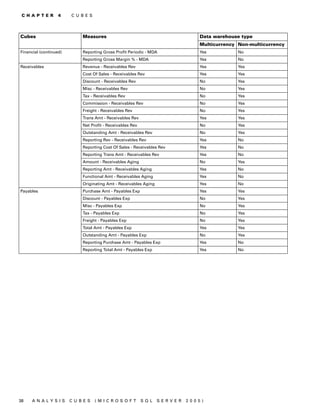
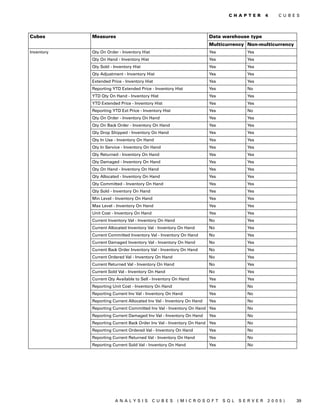
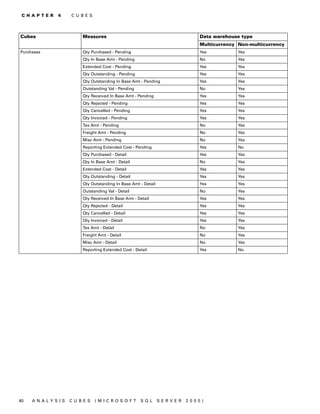
             The values that lie at the intersections of attributes are called measures. Measures
             can be static or calculated values. For example, the extended cost for an item is a
             static measure, while the margin percentage is a calculated measure. See Cubes and
             measures on page 37 for more information about the measures for each cube.

        How cubes are updated
             The Analysis Cubes server components include a SQL Server Analysis Services
             online analytical processing (OLAP) database that is designed specifically to help
             you analyze business data.

             To populate the OLAP database and its cubes with data, Integration Services first
             extracts data from your Microsoft Dynamics GP transactional company databases
             and then stores that data in a data warehouse database. Analysis Services then
             aggregates the data in the data warehouse into totals and subtotals and then stores
             the aggregate data in an Analysis Services database in arrays called cubes. See What
             are cubes? for more information about cubes.


                 ANALYSIS        CUBES       (MICROSOFT        SQL    SERVER       2005)          29
C H A P T E R   4    C U B E S


                                   Typically, the data warehouse database is updated and the OLAP cubes are
                                   processed automatically using schedules. Between updates, the data is static and
                                   isn’t affected by entries made into the Microsoft Dynamics GP company databases.
                                   Because the data warehouse and the OLAP cubes are isolated from the Microsoft
                                   Dynamics GP company databases, data can be retrieved more quickly.

                          Cubes and dimensions
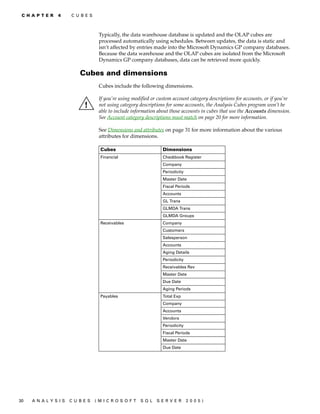
                                   Cubes include the following dimensions.

                                   If you’re using modified or custom account category descriptions for accounts, or if you’re
                                   not using category descriptions for some accounts, the Analysis Cubes program won’t be
                                   able to include information about those accounts in cubes that use the Accounts dimension.
                                   See Account category descriptions must match on page 20 for more information.

                                   See Dimensions and attributes on page 31 for more information about the various
                                   attributes for dimensions.

                                    Cubes                        Dimensions
                                    Financial                    Checkbook Register
                                                                 Company
                                                                 Periodicity
                                                                 Master Date
                                                                 Fiscal Periods
                                                                 Accounts
                                                                 GL Trans
                                                                 GLMDA Trans
                                                                 GLMDA Groups
                                    Receivables                  Company
                                                                 Customers
                                                                 Salesperson
                                                                 Accounts
                                                                 Aging Details
                                                                 Periodicity
                                                                 Receivables Rev
                                                                 Master Date
                                                                 Due Date
                                                                 Aging Periods
                                    Payables                     Total Exp
                                                                 Company
                                                                 Accounts
                                                                 Vendors
                                                                 Periodicity
                                                                 Fiscal Periods
                                                                 Master Date
                                                                 Due Date


30   A N A LY S I S   C U B E S   (M I C R O S O F T   S Q L   S E R V ER      20 05 )
C H A P T E R   4   C U B E S


    Cubes                      Dimensions
    Inventory                  Company
                               Items
                               Item Daily Qty
                               Item Current Qty
                               Master Date
    Purchases                  Company
                               Items
                               Vendors
                               Purchase Order Promised Date
                               Pending Purchase Orders
                               Master Date
                               Purchase Order Detail
                               Periodicity
    Sales                      Customers
                               Periodicity
                               Company
                               Items
                               Master Date
                               Pending Sales
                               Sales Detail


Dimensions and attributes
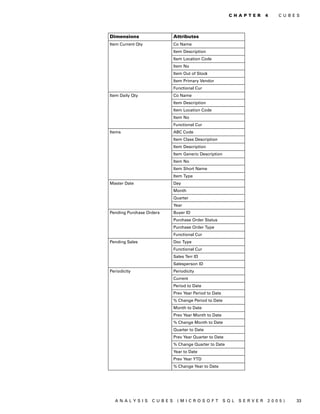
    Cube dimensions include the following attributes. The Functional Cur attribute is
    available in a dimension only if you installed Analysis Cubes for multiple
    currencies. The number of Acct Segment Description and Acct Segment attributes
    that are available for the Accounts dimension depend on how many account
    segments you’re using in Microsoft Dynamics GP 10.0. See Hierarchies for organizing
    attributes on page 35 for more information about the hierarchies that are available
    for organizing cube dimension attributes.

    Dimensions                  Attributes
    Accounts                    Acct Alias
                                Acct Broad Category
                                Acct Category
                                Acct Description
                                Acct Index
                                Acct Main Category
                                Acct No
                                Acct Segment Description 1
                                Acct Segment Description 2
                                Acct Segment Description 3
                                Acct Segment 1
                                Acct Segment 2
                                Acct Segment 3
                                Acct Type
    Aging Periods               Period


      ANALYSIS        CUBES      (MICROSOFT              SQL     SERVER      2005)      31
C H A P T E R   4    C U B E S


                                    Dimensions                     Attributes
                                    Checkbook Register             Checkbook Name
                                                                   Paid To Received From
                                                                   Trans Description
                                                                   Trans Type
                                                                   Functional Cur
                                    Company                        Co Name
                                    Customers                      Bal Type
                                                                   City
                                                                   Collection Mgr
                                                                   Corp Customer No
                                                                   Country or Region
                                                                   Customer Class
                                                                   Customer Name
                                                                   Customer No
                                                                   Index
                                                                   Over Credit Limit
                                                                   Sales Mgr Name
                                                                   Salesperson ID
                                                                   Salesperson Name
                                                                   Sales Terr
                                                                   State
                                                                   ZIP
                                    Due Date                       Day
                                                                   Month
                                                                   Quarter
                                                                   Year
                                    Fiscal Periods                 Fiscal Year
                                                                   Period Name
                                    GL Trans                       Bal Type
                                                                   Cur ID
                                                                   Entry Type
                                                                   Series
                                                                   Functional Cur
                                                                   Voided
                                    GLMDA Groups                   MDA Group ID
                                                                   MDA Group Description
                                                                   MDA Code ID
                                                                   MDA Code Description
                                    GLMDA Trans                    Posting Status
                                                                   Series
                                                                   Document Type
                                                                   Functional Cur


32   A N A LY S I S   C U B E S   (M I C R O S O F T     S Q L   S E R V ER      20 05 )
C H A P T E R   4   C U B E S


Dimensions                 Attributes
Item Current Qty           Co Name
                           Item Description
                           Item Location Code
                           Item No
                           Item Out of Stock
                           Item Primary Vendor
                           Functional Cur
Item Daily Qty             Co Name
                           Item Description
                           Item Location Code
                           Item No
                           Functional Cur
Items                      ABC Code
                           Item Class Description
                           Item Description
                           Item Generic Description
                           Item No
                           Item Short Name
                           Item Type
Master Date                Day
                           Month
                           Quarter
                           Year
Pending Purchase Orders    Buyer ID
                           Purchase Order Status
                           Purchase Order Type
                           Functional Cur
Pending Sales              Doc Type
                           Functional Cur
                           Sales Terr ID
                           Salesperson ID
Periodicity                Periodicity
                           Current
                           Period to Date
                           Prev Year Period to Date
                           % Change Period to Date
                           Month to Date
                           Prev Year Month to Date
                           % Change Month to Date
                           Quarter to Date
                           Prev Year Quarter to Date
                           % Change Quarter to Date
                           Year to Date
                           Prev Year YTD
                           % Change Year to Date


  ANALYSIS         CUBES     (MICROSOFT               SQL   SERVER     2005)      33
C H A P T E R   4    C U B E S


                                    Dimensions                   Attributes
                                    Purchase Order Promised Date Day
                                                                 Month
                                                                 Quarter
                                                                 Year
                                    Purchase Order Detail        Buyer ID
                                                                 Purchase Order Status
                                                                 Purchase Order Type
                                                                 Functional Cur
                                    Receivables Rev              Distribution Type
                                                                 Doc Type
                                                                 Payment Terms
                                                                 Trans Status
                                                                 Functional Cur
                                    Sales Detail                 Customer Name
                                                                 Customer No
                                                                 Doc Type
                                                                 Functional Cur
                                                                 Salesperson ID
                                                                 Sales Territory
                                    Salesperson                  Sales Mgr Name
                                                                 Salesperson ID
                                                                 Salesperson Index Tab
                                                                 Salesperson Name
                                                                 Sales Terr
                                    Total Exp                    Control Type
                                                                 Distribution Type
                                                                 Payment Entry Type
                                                                 Payment Terms
                                                                 Shipping Method
                                                                 Trans Status
                                                                 Functional Cur
                                    Vendors                      City
                                                                 Corp Vendor No
                                                                 Country or Region
                                                                 Credit Limit Amt
                                                                 Cur ID
                                                                 Primary Payment Terms
                                                                 Shipping Method
                                                                 State
                                                                 UPS Zone
                                                                 Vendor Class
                                                                 Vendor Index Tab
                                                                 Vendor Name
                                                                 Vendor No
                                                                 Vendor Status
                                    Aging Details                Functional Cur


34   A N A LY S I S   C U B E S   (M I C R O S O F T   S Q L   S E R V ER     20 05 )
C H A P T E R       4   C U B E S


Hierarchies for organizing attributes
    You can select to use the following hierarchies to organize cube dimension
    attributes.

     Dimensions             Hierarchies                            Attributes in
                                                                   hierarchical order
     Accounts               Accounts by Category                   Acct Main Category
                                                                   Acct Broad Category
                                                                   Acct Category
                                                                   Acct No
                            Accounts by Acct No                    Acct Index
                                                                   Acct No
                            Accounts by Acct Alias                 Acct Alias
                                                                   Acct No
                            Accounts by Posting Type               Acct Type
                                                                   Acct No
     Checkbook Register     Checkbook Register by Trans Type       Trans Type
                                                                   Trans Description
                                                                   Checkbook Name
                                                                   Paid To Received From
                            Checkbook Register by Checkbook        Checkbook Name
                                                                   Trans Type
                                                                   Paid To Received From
     Customers              Customers Over Credit Limit            Over Credit Limit
                                                                   Customer Name
                            Customers by Salesperson Name          Salesperson Name
                                                                   Customer Name
                            Customers by Sales Terr                Sales Terr
                                                                   Sales Mgr Name
                                                                   Salesperson Name
                            Customers by Class                     Customer Class
                                                                   Customer Name
                            Customers by Location                  Country or Region
                                                                   State
                                                                   City
                                                                   Customer Name
                            Customers by Bal Type                  Bal Type
                                                                   Customer Name
                            Customers by Parent Customer No        Corp Customer No
                                                                   Customer No
                                                                   Customer Name
                            Customers                              Index
                                                                   Customer No
                            Customer Names                         Index
                                                                   Customer Name


       ANALYSIS           CUBES    (MICROSOFT             SQL   SERVER          2005)      35
C H A P T E R   4    C U B E S


                                    Dimensions                 Hierarchies                             Attributes in
                                                                                                       hierarchical order
                                    Due Date                   Due Date                                Year
                                                                                                       Quarter
                                                                                                       Month
                                                                                                       Day
                                    Fiscal Periods             Periods by Year                         Fiscal Year
                                                                                                       Period Name
                                    Item Current Qty           Items by Co by Location                 Item Description
                                                                                                       Co Name
                                                                                                       Item Location Code
                                                               Items by Location                       Item Location Code
                                                                                                       Item Description
                                                                                                       Item No
                                    Item Daily Qty             Items by Co by Location                 Item Description
                                                                                                       Co Name
                                                                                                       Item Location Code
                                                               Items by Location                       Item Location Code
                                                                                                       Item Description
                                                                                                       Item No
                                    Items                      Items by Class                          Item Class Description
                                                                                                       Item Description
                                                               Items by Generic Description            Item Generic Description
                                                                                                       Item Description
                                    Master Date                Date by Month                           Month
                                                                                                       Year
                                                               Quarter by Year                         Quarter
                                                                                                       Year
                                                               Date                                    Year
                                                                                                       Quarter
                                                                                                       Month
                                                                                                       Day
                                    Purchase Order             Promised Date                           Year
                                    Promised Date                                                      Quarter
                                                                                                       Month
                                                                                                       Day
                                    Salesperson                Salesperson by Sales Terr and Sales Mgr Sales Terr
                                                                                                       Sales Mgr Name
                                                                                                       Salesperson Name
                                    Vendors                    Vendors by Class                        Vendor Class
                                                                                                       Vendor Name
                                                               Vendor Names                            Vendor Index Tab
                                                                                                       Vendor Name
                                                               Vendors by Location                     Country or Region
                                                                                                       State
                                                                                                       City
                                                                                                       Vendor Name


36   A N A LY S I S   C U B E S   (M I C R O S O F T   S Q L    S E R V ER       20 05 )
C H A P T E R   4   C U B E S


            Cubes and measures
                    Cubes include the following measures. The measures that are included in a cube
                    depend on whether you installed Analysis Cubes for multiple currencies.

Cubes       Measures                                            Data warehouse type
                                                                Multicurrency Non-multicurrency
Financial   Amount – Bank Trans                                 No            Yes
            Reporting Amt – Bank Trans                          Yes           No
            Originating Amt – Bank Trans                        Yes           No
            Functional Amt – Bank Trans                         Yes           No
            Current Trans – Bank Trans                          Yes           Yes
            Beginning Bal – Bank Trans                          Yes           Yes
            Ending Bal – Bank Trans                             Yes           Yes
            Debit Amt - GL Trans                                Yes           Yes
            Credit Amt - GL Trans                               Yes           Yes
            Amount - GL Trans                                   Yes           Yes
            Signed Amt - GL Trans                               Yes           Yes
            Budget - GL Trans                                   Yes           Yes
            Reporting Debit Amt - GL Trans                      Yes           No
            Reporting Credit Amt - GL Trans                     Yes           No
            Reporting Amt - GL Trans                            Yes           No
            YTD Bal - GL Trans                                  No            Yes
            Current Ratio - GL Trans                            No            Yes
            Debt To Equity - GL Trans                           No            Yes
            Balance Sheet Amt - GL Trans                        No            Yes
            Gross Profit - GL Trans                             No            Yes
            Gross Profit Periodic - GL Trans                    No            Yes
            Gross Margin % - GL Trans                           No            Yes
            YTD Budget - GL Trans                               No            Yes
            Reporting YTD Bal - GL Trans                        Yes           No
            Reporting Current Ratio - GL Trans                  Yes           No
            Reporting Debt To Equity - GL Trans                 Yes           No
            Reporting Gross Profit - GL Trans                   Yes           No
            Reporting Gross Profit Periodic - GL Trans          Yes           No
            Reporting Gross Margin % - GL Trans                 Yes           No
            Reporting Bal Sheet Amt - GL Trans                  Yes           No
            Reporting YTD Budget - GL Trans                     Yes           No
            Amount - MDA                                        Yes           Yes
            Quantity - MDA                                      Yes           Yes
            Reporting Amount - MDA                              Yes           No
            YTD Bal - MDA                                       Yes           Yes
            Gross Profit - MDA                                  Yes           Yes
            Gross Profit Periodic - MDA                         Yes           Yes
            Gross Margin % - MDA                                Yes           Yes
            Reporting YTD Bal - MDA                             Yes           No
            Reporting Gross Profit - MDA                        Yes           No


                       ANALYSIS            CUBES         (MICROSOFT   SQL   SERVER     2005)         37
C H A P T E R     4    C U B E S


Cubes                        Measures                                                 Data warehouse type
                                                                                      Multicurrency Non-multicurrency
Financial (continued)        Reporting Gross Profit Periodic - MDA                    Yes          No
                             Reporting Gross Margin % - MDA                           Yes          No
Receivables                  Revenue - Receivables Rev                                Yes          Yes
                             Cost Of Sales - Receivables Rev                          Yes          Yes
                             Discount - Receivables Rev                               No           Yes
                             Misc - Receivables Rev                                   No           Yes
                             Tax - Receivables Rev                                    No           Yes
                             Commission - Receivables Rev                             No           Yes
                             Freight - Receivables Rev                                No           Yes
                             Trans Amt - Receivables Rev                              Yes          Yes
                             Net Profit - Receivables Rev                             No           Yes
                             Outstanding Amt - Receivables Rev                        No           Yes
                             Reporting Rev - Receivables Rev                          Yes          No
                             Reporting Cost Of Sales - Receivables Rev                Yes          No
                             Reporting Trans Amt - Receivables Rev                    Yes          No
                             Amount - Receivables Aging                               No           Yes
                             Reporting Amt - Receivables Aging                        Yes          No
                             Functional Amt - Receivables Aging                       Yes          No
                             Originating Amt - Receivables Aging                      Yes          No
Payables                     Purchase Amt - Payables Exp                              Yes          Yes
                             Discount - Payables Exp                                  No           Yes
                             Misc - Payables Exp                                      No           Yes
                             Tax - Payables Exp                                       No           Yes
                             Freight - Payables Exp                                   No           Yes
                             Total Amt - Payables Exp                                 Yes          Yes
                             Outstanding Amt - Payables Exp                           No           Yes
                             Reporting Purchase Amt - Payables Exp                    Yes          No
                             Reporting Total Amt - Payables Exp                       Yes          No


38   A N A LY S I S     C U B E S   (M I C R O S O F T      S Q L   S E R V ER   20 05 )
C H A P T E R   4   C U B E S


Cubes       Measures                                                  Data warehouse type
                                                                      Multicurrency Non-multicurrency
Inventory   Qty On Order - Inventory Hist                             Yes           Yes
            Qty On Hand - Inventory Hist                              Yes           Yes
            Qty Sold - Inventory Hist                                 Yes           Yes
            Qty Adjustment - Inventory Hist                           Yes           Yes
            Extended Price - Inventory Hist                           Yes           Yes
            Reporting YTD Extended Price - Inventory Hist             Yes           No
            YTD Qty On Hand - Inventory Hist                          Yes           Yes
            YTD Extended Price - Inventory Hist                       Yes           Yes
            Reporting YTD Ext Price - Inventory Hist                  Yes           No
            Qty On Order - Inventory On Hand                          Yes           Yes
            Qty On Back Order - Inventory On Hand                     Yes           Yes
            Qty Drop Shipped - Inventory On Hand                      Yes           Yes
            Qty In Use - Inventory On Hand                            Yes           Yes
            Qty In Service - Inventory On Hand                        Yes           Yes
            Qty Returned - Inventory On Hand                          Yes           Yes
            Qty Damaged - Inventory On Hand                           Yes           Yes
            Qty On Hand - Inventory On Hand                           Yes           Yes
            Qty Allocated - Inventory On Hand                         Yes           Yes
            Qty Committed - Inventory On Hand                         Yes           Yes
            Qty Sold - Inventory On Hand                              Yes           Yes
            Min Level - Inventory On Hand                             Yes           Yes
            Max Level - Inventory On Hand                             Yes           Yes
            Unit Cost - Inventory On Hand                             Yes           Yes
            Current Inventory Val - Inventory On Hand                 No            Yes
            Current Allocated Inventory Val - Inventory On Hand       No            Yes
            Current Committed Inventory Val - Inventory On Hand       No            Yes
            Current Damaged Inventory Val - Inventory On Hand         No            Yes
            Current Back Order Inventory Val - Inventory On Hand      No            Yes
            Current Ordered Val - Inventory On Hand                   No            Yes
            Current Returned Val - Inventory On Hand                  No            Yes
            Current Sold Val - Inventory On Hand                      No            Yes
            Current Qty Available to Sell - Inventory On Hand         Yes           Yes
            Reporting Unit Cost - Inventory On Hand                   Yes           No
            Reporting Current Inv Val - Inventory On Hand             Yes           No
            Reporting Current Allocated Inv Val - Inventory On Hand   Yes           No
            Reporting Current Committed Inv Val - Inventory On Hand Yes             No
            Reporting Current Damaged Inv Val - Inventory On Hand     Yes           No
            Reporting Current Back Order Inv Val - Inventory On Hand Yes            No
            Reporting Current Ordered Val - Inventory On Hand         Yes           No
            Reporting Current Returned Val - Inventory On Hand        Yes           No
            Reporting Current Sold Val - Inventory On Hand            Yes           No


                       ANALYSIS             CUBES       (MICROSOFT          SQL   SERVER     2005)      39
C H A P T E R   4    C U B E S


Cubes                      Measures                                                 Data warehouse type
                                                                                    Multicurrency Non-multicurrency
Purchases                  Qty Purchased - Pending                                  Yes          Yes
                           Qty In Base Amt - Pending                                No           Yes
                           Extended Cost - Pending                                  Yes          Yes
                           Qty Outstanding - Pending                                Yes          Yes
                           Qty Outstanding In Base Amt - Pending                    Yes          Yes
                           Outstanding Val - Pending                                No           Yes
                           Qty Received In Base Amt - Pending                       Yes          Yes
                           Qty Rejected - Pending                                   Yes          Yes
                           Qty Cancelled - Pending                                  Yes          Yes
                           Qty Invoiced - Pending                                   Yes          Yes
                           Tax Amt - Pending                                        No           Yes
                           Freight Amt - Pending                                    No           Yes
                           Misc Amt - Pending                                       No           Yes
                           Reporting Extended Cost - Pending                        Yes          No
                           Qty Purchased - Detail                                   Yes          Yes
                           Qty In Base Amt - Detail                                 No           Yes
                           Extended Cost - Detail                                   Yes          Yes
                           Qty Outstanding - Detail                                 Yes          Yes
                           Qty Outstanding In Base Amt - Detail                     Yes          Yes
                           Outstanding Val - Detail                                 No           Yes
                           Qty Received In Base Amt - Detail                        Yes          Yes
                           Qty Rejected - Detail                                    Yes          Yes
                           Qty Cancelled - Detail                                   Yes          Yes
                           Qty Invoiced - Detail                                    Yes          Yes
                           Tax Amt - Detail                                         No           Yes
                           Freight Amt - Detail                                     No           Yes
                           Misc Amt - Detail                                        No           Yes
                           Reporting Extended Cost - Detail                         Yes          No


40   A N A LY S I S   C U B E S   (M I C R O S O F T   S Q L      S E R V ER   20 05 )
C H A P T E R   4   C U B E S


Cubes   Measures                                        Data warehouse type
                                                        Multicurrency Non-multicurrency
Sales   Extended Price - Pending                        Yes           Yes
        Extended Cost - Pending                         Yes           Yes
        Qty Sold - Pending                              Yes           Yes
        Base Qty Sold - Pending                         Yes           Yes
        Trade Disc Amt - Pending                        No            Yes
        Markdown Amt - Pending Sales Orders             No            Yes
        Tax Amt - Pending                               No            Yes
        Freight Amt - Pending                           No            Yes
        Misc Amt - Pending                              No            Yes
        Terms Disc Amt - Pending                        No            Yes
        Profit - Pending                                Yes           Yes
        Reporting Extended Price - Pending              Yes           No
        Reporting Extended Cost - Pending               Yes           No
        Reporting Profit - Pending                      Yes           No
        Margin % - Pending                              No            Yes
        Markdown % - Pending                            No            Yes
        Trade Disc Amt % - Pending                      No            Yes
        Terms Disc Amt % - Pending                      No            Yes
        YTD Extended Price - Pending                    No            Yes
        YTD Profit - Pending                            No            Yes
        Reporting YTD Profit - Pending                  Yes           No
        Reporting YTD Extended Price - Pending          Yes           No
        Reporting Margin % - Pending                    Yes           No
        Extended Price - Detail                         Yes           Yes
        Extended Cost - Detail                          Yes           Yes
        Qty Sold - Detail                               Yes           Yes
        Base Qty Sold - Detail                          Yes           Yes
        Trade Disc Amt - Detail                         No            Yes
        Markdown Amt - Detail                           No            Yes
        Tax Amt - Detail                                No            Yes
        Freight Amt - Detail                            No            Yes
        Misc Amt - Detail                               No            Yes
        Terms Disc Amt - Detail                         No            Yes
        Reporting Extended Price - Detail               Yes           No
        Reporting Extended Cost - Detail                Yes           No
        Reporting Profit - Detail                       Yes           No
        Profit - Detail                                 Yes           Yes
        Margin % - Detail                               No            Yes
        Markdown % - Detail                             No            Yes
        Trade Disc Amt % - Detail                       No            Yes
        Terms Disc Amt % - Detail                       No            Yes
        YTD Extended Price - Detail                     No            Yes
        YTD Profit - Detail                             No            Yes
        Reporting YTD Profit - Detail                   Yes           No
        Reporting YTD Extended Price - Detail           Yes           No
        Reporting Margin % - Detail                     Yes           No


                     ANALYSIS           CUBES    (MICROSOFT   SQL   SERVER     2005)      41
C H A P T E R   4    C U B E S


                          Default drillthrough dimensions
                                   Drillthrough dimensions include information about the underlying data that’s used
                                   to calculate cube cell values. When you completed the server configuration wizard,
                                   the following default drillthrough dimensions were installed.

                                    Cube        Measure group        Drillthrough dimension
                                    Financial   GL Trans             Trans Detail
                                                Bank Trans           Checkbook Register Detail
                                    Receivables Receivables Aging    Customer Details
                                                Receivables Rev      Revenue Details
                                    Payables    Payables Exp         Trans Details
                                    Inventory   Inventory On Hand    Current Qty Details
                                    Sales       Pending Sales Orders Pending Sales Details
                                                                     Customer Details
                                                Sales Detail         Sales Details
                                                                     Customer Details


                                   See Drillthrough dimensions on page 25 for more information about the attributes
                                   that are included in drillthrough dimensions.

                                   You can modify cubes to establish relationships between the cubes and drillthrough
                                   dimensions. See Chapter 3, “Customization,” for more information.


42   A N A LY S I S   C U B E S   (M I C R O S O F T   S Q L   S E R V ER   20 05 )
Chapter 5:   PivotTable reports
             This part of the documentation includes information about how to create Excel
             worksheets with PivotTable reports and other PivotTable-like reports using data
             from cubes.

             The following topics are discussed:

             •    Create PivotTable reports using Microsoft Dynamics GP
             •    Create reports using the Excel Add-in for SQL Server Analysis Services

        Create PivotTable reports using Microsoft Dynamics
        GP
             After you install the Analysis Cubes client, you can use the Create PivotTable
             Reports window in Microsoft Dynamics GP to create Excel worksheets with
             PivotTable reports that use data from the cubes.

             1.   In Microsoft Dynamics GP, open the Create PivotTable Reports window.
                  Tools > Analysis Cubes > Create PivotTable Reports


             2.   Enter the definition ID for the PivotTable report that you’re creating. The
                  definition ID is used to save your selections so that you can generate the same
                  PivotTable reports again in the future.

             3.   Enter a description for the definition ID.

             4.   You might be able to change the following Analysis Services information.

                  •   If Allow Server To Be Changed On Pivot Table Creator Window is
                      selected in the Excel Pivot Table Setup window, you can change the instance
                      name for SQL Server Analysis Services in the Server field.

                  •   If Allow Database To Be Changed On Pivot Table Creator Window is
                      selected in the Excel Pivot Table Setup window, you can change the name of
                      the Analysis Services database for the cubes in the OLAP Database field.


                  ANALYSIS       CUBES       (MICROSOFT           SQL    SERVER        2005)    43
C H A P T E R   5    P IV O T T AB L E     R E P O R T S


                                            See Set up Analysis Services information for the client on page 23 for more
                                            information.

                                   5.   Select a cube. The cubes that you can select depend on the Analysis Services
                                        database roles that you’ve been assigned to. See Assign users to Analysis Services
                                        database roles on page 20 for more information.

                                   6.   In the PivotTable Field List, select the attributes, hierarchies, and measures to
                                        include on the PivotTable report. The dimensions, attributes, hierarchies, and
                                        measures that you can select depend on the cube that you choose to use. See
                                        Chapter 4, “Cubes,” for more information.

                                        Click the plus sign (+) next to a dimension name to view the attributes and
                                        hierarchies for that dimension. Select an attribute or hierarchy and click the
                                        right arrow button to add the attribute to the PivotTable Report Filters,
                                        PivotTable Report Columns, or PivotTable Report Rows list.

                                        Click the plus sign (+) next to Values to view the measures for the cube. Select a
                                        measure and click the right arrow button to add the measure to the PivotTable
                                        Report Values list.

                                        You can remove an item from the PivotTable Report Columns, PivotTable Report
                                        Rows, PivotTable Report Data, and PivotTable Report Filters lists by selecting
                                        the item and then clicking the left arrow button. Click Clear to remove all items from
                                        the lists.

                                   7.   Select Save To Business Portal to save the Excel worksheet with the PivotTable
                                        report that you’re generating to the reports catalog in Business Portal for
                                        Microsoft Dynamics GP. The report will be published in the Sales Center in
                                        Business Portal by default. You must be assigned to the proper role in Business
                                        Portal to view the report. See the Business Portal Administrator’s Guide for
                                        more information about roles and reports.

                                   8.   Click Save to save the definition. The window will clear. Enter the definition ID
                                        again and then click Excel to open a new Excel worksheet with the PivotTable
                                        report.

                                        You can right-click a data field in the Excel worksheet and select Drill to Detail. A
                                        window will open, displaying a list of the transactions that were entered in Microsoft
                                        Dynamics GP that affect the calculation in the data field.


44   A N A LY S I S   C U B E S   (M I C R O S O F T   S Q L   S E R V ER    20 05 )
C H A PT E R   5     P IV O T T AB LE     R E P O R T S


Create reports using the Excel Add-in for SQL Server
Analysis Services
    It’s not necessary to use the Create PivotTable Reports window in Microsoft
    Dynamics GP to create reports for Excel. You can use the Office Excel Add-in for
    SQL Server Analysis Services to generate reports directly in Excel. You can
    download the add-in from www.microsoft.com.

    You can use the Excel add-in to access the data warehouse directly. The PivotTable-
    like reports that you generate will have additional functionality, including

    •   Add-in reports automatically support advanced Analysis Services capabilities
        such as actions, what-if analysis, and drillthrough.

    •   Advanced techniques are available for specifying members from a dimension,
        including wildcard character searches and data-driven selection.

    •   Report cells need not form a contiguous block. You can insert formulas into the
        middle of the report and rows and columns can be inserted or individual cells
        moved freely on the worksheet.

    However, some PivotTable functionality is not available using the add-in, including

    •   Automatic integration with PivotChart® reports.
    •   Automatic display of Percent of Column and similar calculations.
    •   Multi-select for page filters.
    •   Separate columns for each level of a hierarchy.
    •   Add only selected levels from a hierarchy to a report.
    •   Automatically display default member of a dimension.
    •   Apply different formats to different levels of a hierarchy.


        ANALYSIS       CUBES     (MICROSOFT          SQL    SERVER       2005)         45
46   A N A LY S I S   C U B E S   (M I C R O S O F T   S Q L   S E R V ER   20 05 )
Index                                          documentation (continued)
                                                    symbols and conventions 2
                                                                                             roles
                                                                                                  for installing client components 26
                                               drillthrough dimensions                            granting users access to cubes 24
A                                                   attributes 11
account categories, requirements 24                 default drillthrough dimensions 42       S
accounts, account category requirements             list of 11                               Scheduling Options window, displaying
   24                                                                                          20
Analysis Cubes server database,                E                                             security
   reconfiguring 28                            Edit Recurring Job Schedule window,                client installation requirements 26
Analysis Services, modifying information         displaying 21                                    server installation requirements 17
   for the client 27                                                                         servers, reconfiguring Analysis Cubes
attributes                                     H                                               database 28
     drillthrough dimensions 11                help, displaying 2                            symbols, used in manual 2
     for dimensions 31                         Help menu, described 2                        system requirements
     hierarchies 35                            hierarchies                                        accessing on the Web 3
     overview 29                                    for attributes 35                             client 9
                                                    overview 29                                   server 5, 6, 8
B                                              I
                                                                                                  server components 16
budget IDs, specifying budgets for cube
  values 24                                    icons, used in manual 2                       U
Business Portal, customizing to include        installation                                  upgrade information, accessing on the
  cube data 14                                      client setup wizard 26                     Web 3
                                                    sever setup wizard 18                    upgrading, uninstall previous version 15
C                                              installation instructions, accessing on the
checklist, installing Analysis Cubes 16           Web 3                                      W
configure SSIS service, for named              Integration Services packages                 Windows groups, server installation
  instances 22                                      populating the data warehouse             requirements 17
Create PivotTable Reports window                       database 23                           Windows user accounts, server
    creating PivotTable reports 43                  processing the cubes 23                   installation requirements 17
    opening the window 43
cubes                                          L
    attribute hierarchies 35                   lookup window, displaying 2
    creating PivotTable reports using
       cubes 43
                                               M
                                               measures
    creating reports using the Excel
                                                  for cubes 37
       Add-in for SQL Server Analysis
                                                  overview 29
       Services 45
    dimension attributes 31                    N
    dimensions 30                              named instances, configure SSIS service 22
    granting users access 24                   navigation, symbols used for 2
    how they are updated 29
    Integration Services packages for          P
       processing 23                           PivotTable Report Creation Setup window
    measures 37                                    modifying Analysis Services
    modifying 11                                     information for the client 27
    overview 29                                    opening the window 27
current installation instructions, accessing   PivotTable reports
  on the Web 3                                     creating reports using the Excel
current upgrade information, accessing on            Add-in for SQL Server Analysis
  the Web 3                                          Services 45
                                                   creating using Microsoft Dynamics
D                                                    GP 43
data warehouse database, Integration           previous versions, uninstalling 15
  Services packages for populating 23          product documentation, accessing on the
dimensions                                       Web 3
    attributes 31
    default drillthrough dimensions 42         R
    drillthrough dimensions 11                 Reconfigure, Analysis Cubes server
    for cubes 30                                 database 28
    overview 29                                required fields, described 3
documentation                                  resources, documentation 2
    accessing on the Web 3


                                           ANALYSIS           CUBES        (MICROSOFT            SQL     SERVER        2005)            47
48   A N A LY S I S   C U B E S   (M I C R O S O F T   S Q L   S E R V ER   20 05 )

Analysis cubes

  • 1.
    Microsoft Dynamics™ GP AnalysisCubes (Microsoft SQL Server™ 2005)
  • 2.
    Copyright Copyright © 2007 Microsoft Corporation. All rights reserved. Complying with all applicable copyright laws is the responsibility of the user. Without limiting the rights under copyright, no part of this document may be reproduced, stored in or introduced into a retrieval system, or transmitted in any form or by any means (electronic, mechanical, photocopying, recording, or otherwise), or for any purpose, without the express written permission of Microsoft Corporation. Notwithstanding the foregoing, the licensee of the software with which this document was provided may make a reasonable number of copies of this document solely for internal use. Trademarks Microsoft, Excel, Microsoft Dynamics,, PivotTable, SQL Server, Visual Studio, and Windows are either registered trademarks or trademarks of Microsoft Corporation or FRx Software Corporation or its affiliates. FairCom and c-tree Plus are trademarks of FairCom Corporation and are registered in the United States and other countries. The names of actual companies and products mentioned herein may be trademarks or registered marks - in the United States and/or other countries - of their respective owners. Unless otherwise noted, the example companies, organizations, products, domain names, e-mail addresses, logos, people, places, and events depicted herein are fictitious. No association with any real company, organization, product, domain name, e-mail address, logo, person, place, or event is intended or should be inferred. Intellectual property Microsoft may have patents, patent applications, trademarks, copyrights, or other intellectual property rights covering subject matter in this document. Except as expressly provided in any written license agreement from Microsoft, the furnishing of this document does not give you any license to these patents, trademarks, copyrights, or other intellectual property. Warranty disclaimer Microsoft Corporation disclaims any warranty regarding the sample code contained in this documentation, including the warranties of merchantability and fitness for a particular purpose. Limitation of liability The content of this document is furnished for informational use only, is subject to change without notice, and should not be construed as a commitment by Microsoft Corporation. Microsoft Corporation assumes no responsibility or liability for any errors or inaccuracies that may appear in this manual. Neither Microsoft Corporation nor anyone else who has been involved in the creation, production or delivery of this documentation shall be liable for any indirect, incidental, special, exemplary or consequential damages, including but not limited to any loss of anticipated profit or benefits, resulting from the use of this documentation or sample code. License agreement Use of this product is covered by a license agreement provided with the software product. If you have any questions, please call the Microsoft Dynamics GP Customer Assistance Department at 800-456-0025 (in the U.S. or Canada) or +1-701-281-6500. Publication date April 2007
  • 3.
    Contents Introduction ............................................................................................................................................... 1 What’s in this manual...................................................................................................................................1 Symbols and conventions ............................................................................................................................2 Resources available from the Help menu..................................................................................................2 Send us your documentation comments ...................................................................................................3 Chapter 1: System requirements ........................................................................................... 5 Microsoft Dynamics GP and Analysis Cubes on the same server.........................................................5 Microsoft Dynamics GP and Analysis Cubes on separate servers ........................................................6 Multiple Analysis Cubes servers ................................................................................................................8 Client workstation requirements ................................................................................................................9 Chapter 2: Installation and configuration ................................................................... 11 Before you upgrade .................................................................................................................................... 11 Installation and configuration checklist ..................................................................................................12 Security requirements for installing and configuring server components.........................................13 Information required for configuring server components....................................................................13 Use the server setup wizard ......................................................................................................................14 Use the server configuration wizard........................................................................................................14 Configure the SSIS service to use a named instance..............................................................................18 Populate the data warehouse database ...................................................................................................19 Process the cubes.........................................................................................................................................19 Specify budget IDs for Budget and Forecast values ..............................................................................20 Assign users to Analysis Services database roles...................................................................................20 Account category descriptions must match............................................................................................20 Security requirements for installing and configuring the client ..........................................................22 Use the client setup wizard .......................................................................................................................22 Set up Analysis Services information for the client ...............................................................................23 Reconfiguring the Analysis Cubes server databases.............................................................................24 Chapter 3: Customization .......................................................................................................... 25 Modify cubes using Business Intelligence Development Studio.........................................................25 Drillthrough dimensions ...........................................................................................................................25 Customize Business Portal using Web parts to include cube data ......................................................28 Chapter 4: Cubes................................................................................................................................ 29 What are cubes?...........................................................................................................................................29 How cubes are updated .............................................................................................................................29 Cubes and dimensions ...............................................................................................................................30 Dimensions and attributes.........................................................................................................................31 Hierarchies for organizing attributes .......................................................................................................35 Cubes and measures...................................................................................................................................37 Default drillthrough dimensions ..............................................................................................................42 ANALYSIS CUBES (MICROSOFT SQL SERVER 2005) i
  • 4.
    C O NT E N T S Chapter 5: PivotTable reports ................................................................................................ 43 Create PivotTable reports using Microsoft Dynamics GP.....................................................................43 Create reports using the Excel Add-in for SQL Server Analysis Services..........................................45 Index .............................................................................................................................................................. 47 ii A N A LY S I S C U B E S (M I C R O S O F T S Q L S E R V ER 20 05 )
  • 5.
    Introduction This document includes information for system administrators about how to install, configure, and maintain Analysis Cubes for Microsoft Dynamics™ GP (Microsoft® SQL Server™ 2005) on server and client computers. It also includes information for developers about customizing cubes. For business intelligence analysts, this document includes information about the dimensions, attributes, and measures for the cubes. It also includes information about how to create Microsoft Office Excel® worksheets with PivotTable® reports and other PivotTable-like reports using data from the cubes. The following topics are discussed: • What’s in this manual • Symbols and conventions • Resources available from the Help menu • Send us your documentation comments What’s in this manual This manual is designed to give you an understanding of how to install, configure, customize, and use Analysis Cubes. To make best use of the product, you should be familiar with Windows®, Microsoft Dynamics GP, SQL Server, OLAP cubes, and Excel PivotTable reports. You might also need to be familiar with features described in the documentation for the General Ledger, Multidimensional Analysis, Receivables Management, Payables Management, Inventory Control, Sales Order Processing, Purchase Order Processing, and Multicurrency Management modules for Microsoft Dynamics GP. To view information about the release of Microsoft Dynamics GP that you’re using and which modules or features you are registered to use, choose Help > About Microsoft Dynamics GP. The manual is divided into the following chapters. • Chapter 1, “System requirements,” includes information for the system administrator about the infrastructure that must be in place before installing Analysis Cubes. • Chapter 2, “Installation and configuration,” includes information for the system administrator about how to install and configure Analysis Cubes on server and client computers. • Chapter 3, “Customization,” includes information for developers about customizing cubes. • Chapter 4, “Cubes,” includes information about the perspectives, dimensions, attributes, and measures for the cubes. • Chapter 5, “PivotTable reports,” includes information about how to create Excel worksheets with PivotTable reports and other PivotTable-like reports using data from the cubes. ANALYSIS CUBES (MICROSOFT SQL SERVER 2005) 1
  • 6.
    I N TR O D U C T I O N Symbols and conventions This document uses the following symbols to indicate hints and warnings. Symbol Description The light bulb symbol indicates helpful tips, shortcuts and suggestions. The warning symbol indicates situations you should be especially aware of when completing tasks. This manual uses the following conventions to refer to sections, navigation and other information. Convention Description Create a batch Italicized type indicates the name of a section or procedure. File > Print The (>) symbol indicates a sequence of actions, such as selecting items from a menu or toolbar, or pressing buttons in a window. This example directs you to go to the File menu and choose Print. TAB or ENTER All capital letters indicate a key or a key sequence. Resources available from the Help menu The Microsoft Dynamics GP Help menu gives you access to user assistance resources on your computer, as well as on the Web. Contents Opens the Help file for the active Microsoft Dynamics GP component, and displays the main “contents” topic. To browse a more detailed table of contents, click the Contents tab above the Help navigation pane. Items in the contents topic and tab are arranged by module. To find information in Help by using the index or full-text search, click the appropriate tab above the navigation pane, and type the keyword to find. To save the link to a topic in the Help, select a topic and then select the Favorites tab. Click Add. Index Opens the Help file for the active Microsoft Dynamics GP component, with the Index tab active. To find information about a window that’s not currently displayed, type the name of the window, and click Display. About this window Displays overview information about the current window. To view related topics and descriptions of the fields, buttons, and menus for the window, choose the appropriate link in the topic. You also can press F1 to display Help about the current window. Lookup Opens a lookup window, if a window that you are viewing has a lookup window. For example, if the Checkbook Maintenance window is open, you can choose this item to open the Checkbooks lookup window. 2 AN A L Y S I S C U B E S ( M I C R O S O F T S Q L S E R V ER 20 05 )
  • 7.
    IN T ROD U C T IO N Show Required Fields Highlights fields that are required to have entries. Required fields must contain information before you can save the record and close the window. To change the way required fields are highlighted, choose Tools > Setup > User Preferences > Display, and specify a different color and type style. Printable Manuals Displays a list of manuals in Adobe Acrobat .pdf format, which you can print or view. Microsoft Dynamics GP Online Opens a Web page that provides links to a variety of Web-based user assistance resources. Access to some items requires registration for a paid support plan. Customer Feedback Options Provides information about how you can join the Customer Experience Improvement Program to improve the quality, reliability, and performance of Microsoft software and services. Send us your documentation comments We welcome comments regarding the usefulness of the Microsoft Dynamics GP documentation. If you have specific suggestions or find any errors in this manual, send your comments by e-mail to the following address: bizdoc@microsoft.com. To send comments about specific topics from within Help, click the Documentation Feedback link, which is located at the bottom of each Help topic. Note: By offering any suggestions to Microsoft, you give Microsoft full permission to use them freely. ANALYSIS CUBES (MICROSOFT SQL SERVER 2005) 3
  • 8.
    4 AN A L Y S I S C U B E S ( M I C R O S O F T S Q L S E R V ER 20 05 )
  • 9.
    Chapter 1: System requirements This part of the documentation describes the server configurations that you can use for Analysis Cubes. The following topics are included: • Microsoft Dynamics GP and Analysis Cubes on the same server • Microsoft Dynamics GP and Analysis Cubes on separate servers • Multiple Analysis Cubes servers • Client workstation requirements Microsoft Dynamics GP and Analysis Cubes on the same server In a single server configuration, one computer functions as the SQL database server and the OLAP data server. It stores your real-time transaction data, and also stores a snapshot of the data for analysis purposes. If a single computer will serve as both your Microsoft Dynamics GP SQL database server and the OLAP data server, that computer must meet the following requirements. Item Requirement Supported operating Installing Analysis Cubes on a 64-bit operating system is not systems supported. Processor Refer to the server requirements in the Microsoft Dynamics GP Installation Instructions. RAM Installed applications Microsoft Dynamics GP 10.0 server and client components .NET Framework 2.0 Microsoft SQL Native Client Microsoft SQL Server 2005 with Service Pack 2, including the following components: - SQL Server Database Engine - Integration Services - Analysis Services - Workstation components, Books Online, and development tools ANALYSIS CUBES (MICROSOFT SQL SERVER 2005) 5
  • 10.
    C H AP T E R 1 S Y S T E M R E Q U I R E M EN T S Microsoft Dynamics GP and Analysis Cubes on separate servers In a separate server configuration, the Microsoft Dynamics GP SQL database and the OLAP database are on separate servers. Installing Analysis Cubes on a 64-Bit operating system is not supported. Microsoft Dynamics GP server computer Microsoft Dynamics GP client computers Analysis Cubes data warehouse and Analysis Services server computer Analysis Cubes is compatible with Microsoft Dynamics GP 10.0. If you have your Microsoft Dynamics GP company databases installed on SQL Server 2005, the Analysis Cubes data warehouse database can be installed on the same server computer. However, for better performance, we recommend that you install the Analysis Cubes data warehouse database on a separate server computer. Because Integration Services packages for Analysis Cubes are installed in SQL Server, the SQL Server that you will use for the data warehouse must have Integration Services installed. After you install the data warehouse database, if you move the SQL Server instance for the Microsoft Dynamics GP company databases or the Analysis Cubes data warehouse database, you must reinstall and reconfigure Analysis Cubes server components. 6 AN A L Y S I S C U B E S ( M I C R O S O F T S Q L S E R V ER 20 05 )
  • 11.
    C H APT E R 1 S Y S T E M R E Q U I R E M E N T S Microsoft Dynamics GP server requirements The Microsoft Dynamics GP server computer must meet the following requirements. Item Requirement Installed applications Microsoft Dynamics GP 10.0 server and client components Microsoft SQL Native Client Recommended Microsoft SQL Server 2005 with Service Pack 2 or later, including the following components: - SQL Server Database Services - Workstation components, Books Online, and development tools Also supported Microsoft SQL Server 2000 with Service Pack 3a or later AND Microsoft SQL Server 2005 with Service Pack 1 or later. For SQL Server 2005, only the Workstation components, Books Online, and development tools are required. Analysis Cubes server requirements The Analysis Cubes server computer must meet the following requirements. Item Requirement Installed applications Microsoft SQL Server 2005 with Service Pack 2 or later, including the following components: - SQL Server Database Services - Analysis Services - Integration Services - Workstation components, Books Online, and development tools ANALYSIS CUBES (MICROSOFT SQL SERVER 2005) 7
  • 12.
    C H AP T E R 1 S Y S T E M R E Q U I R E M EN T S Multiple Analysis Cubes servers If desired, you can store your data warehouse and run scheduled Integration Services on one server, and run Analysis Services on another. Installing Analysis Cubes on a 64-bit operating system is not supported. Microsoft Dynamics GP server computer Microsoft Dynamics GP client computers Data warehouse server computer Analysis Services server computer Microsoft Dynamics GP server requirements See Microsoft Dynamics GP server requirements on page 7. Data warehouse server requirements The data warehouse server computer must meet the following requirements. Item Requirement Installed applications Microsoft SQL Server 2005 with Service Pack 2 or later, including the following components: - SQL Server Database Services - Integration Services - Workstation components, Books Online, and development tools Analysis Services server requirements The Analysis Services server computer must meet the following requirements. Item Requirement Installed applications Microsoft SQL Server 2005 with Service Pack 2 or later, including the following components: - Analysis Services 8 AN A L Y S I S C U B E S ( M I C R O S O F T S Q L S E R V ER 20 05 )
  • 13.
    C H APT E R 1 S Y S T E M R E Q U I R E M E N T S Client workstation requirements The Microsoft Dynamics GP client computers that will be used with Analysis Cubes must meet the following requirements. Item Requirement Installed applications Microsoft Dynamics GP 10.0 client components Microsoft Office Excel 2003 with Service Pack 2 or later Microsoft SQL Native Client Microsoft SQL Server 2005 Analysis 9.0 OLE DB Provider If you are using Microsoft Office Excel 2003 and SQL Server 2005, drillthrough functionality isn’t available in Analysis Cubes. In addition, if you plan to start the Analysis Cubes server setup wizard from a Microsoft Dynamics GP client workstation, that computer also must have Microsoft SQL Server 2005 with Service Pack 2 or later installed. Only the Workstation components, Books Online, and development tools are required. ANALYSIS CUBES (MICROSOFT SQL SERVER 2005) 9
  • 14.
    10 A N A LY S I S C U B E S (M I C R O S O F T S Q L S E R V ER 20 05 )
  • 15.
    Chapter 2: Installation and configuration This part of the documentation includes information for the system administrator about how to install and configure Analysis Cubes on server and client computers. The following topics are discussed: • Before you upgrade • Installation and configuration checklist • Security requirements for installing and configuring server components • Information required for configuring server components • Use the server setup wizard • Use the server configuration wizard • Configure the SSIS service to use a named instance • Populate the data warehouse database • Process the cubes • Specify budget IDs for Budget and Forecast values • Assign users to Analysis Services database roles • Account category descriptions must match • Security requirements for installing and configuring the client • Use the client setup wizard • Set up Analysis Services information for the client • Reconfiguring the Analysis Cubes server databases Before you upgrade Before you upgrade to Analysis Cubes 10.0 or Microsoft Dynamics GP 10.0, you must uninstall Analysis Cubes 9.0. You can uninstall Analysis Cubes in the Add/ Remove Programs window (Start >> Control Panel >> Add/Remove Programs) on your computer. ANALYSIS CUBES (MICROSOFT SQL SERVER 2005) 11
  • 16.
    C H AP T E R 2 I N S T A L L A T I O N A N D C O N F I G U R A T I O N Installation and configuration checklist You must complete the following tasks to install and configure Analysis Cubes. Task Steps Install and configure Review system requirements for server computers. See Chapter 1, Analysis Cubes server “System requirements, for more information. ” components Review security requirements for the system administrator. See Security requirements for installing and configuring server components on page 13 for more information. Gather the information that you will need to install and configure server components. See Information required for configuring server components on page 13 for more information. Complete server component installation. See Use the server setup wizard on page 14 for more information. Complete server configuration. See Use the server configuration wizard on page 14 for more information. Run and schedule the SQL Server Integration Services master jobs to populate data into the data warehouse database. See Populate the data warehouse database on page 19 for more information. Process the cubes in SQL Server Analysis Services. See Process the cubes on page 19 for more information. Specify the budget IDs in the GLBudgetSetUp table in the data warehouse database that will be used to calculate various Budget and Forecast values in the cubes. See Specify budget IDs for Budget and Forecast values on page 20 for more information. Assign users to database roles. See Assign users to Analysis Services database roles on page 20 for more information. If you’re using modified or custom account category descriptions for accounts, or if you’re not using category descriptions for some accounts, you must update the modified account category descriptions in Microsoft Dynamics GP so that they match the default account category descriptions, or you must modify the account category descriptions in the data warehouse database so that they match what you’re using in Microsoft Dynamics GP. See Account category descriptions must match on page 20 for more information. Install and configure Review system requirements for client computers. See Client Analysis Cubes client workstation requirements on page 9 for more information. components for Review security requirements for the system administrator. See Microsoft Dynamics GP Security requirements for installing and configuring the client on page 22 for more information. Complete client component installation and configuration. See Use the client setup wizard on page 22 for more information. 12 A N A LY S I S C U B E S (M I C R O S O F T S Q L S E R V ER 20 05 )
  • 17.
    C H AP T E R 2 I N S T A L L A T I O N A N D C O N F I G U R A T I O N Security requirements for installing and configuring server components To install and configure Analysis Cubes server components, your Windows user account must be a member of the following Windows groups. Server computer Windows groups Microsoft Dynamics GP server computer Administrators SQL Server computer for Microsoft Dynamics GP company Administrators databases SQLServer2000MSSQLUser -or- SQLServer2005MSSQLUser as applicable Data warehouse database server computer (with Integration Administrators Services installed) SQLServer2005MSSQLUser SLServer2005SSISUser SQL Server Analysis Services computer Administrators SQLServer2005MSOLAPUser The Microsoft Dynamics GP server computer also must be given access to read and write data on the data warehouse database server computer. See the Windows documentation for more information about Windows groups. Information required for configuring server components When you use the server configuration wizard, you will be asked to provide the following information. • The Microsoft Dynamics GP company databases that will be used to populate the data warehouse database. • The name that you will use for the data warehouse database. • The name of the SQL Server instance that the data warehouse database will be on. • The locations of the data and log files for the SQL Server instance that the data warehouse database will be on. • The SQL Server Integration Services packages to install. • Whether to populate the data warehouse database with detailed General Ledger transaction information for various modules in Microsoft Dynamics GP. Otherwise, only summary information will be imported. • For each cube, whether to import all transactions or to enter the earliest date to import transactions from the Microsoft Dynamics GP company databases to the data warehouse database. • If the data warehouse database will include multi currency information, the reporting currency to be used and the exchange rate table to be used for each Microsoft Dynamics GP company. ANALYSIS CUBES (MICROSOFT SQL SERVER 2005) 13
  • 18.
    C H AP T E R 2 I N S T A L L A T I O N A N D C O N F I G U R A T I O N • You must specify a password for the DynamicsUser SQL Server logon account. During operations, the company databases will use the DynamicsUser logon account to access the data warehouse database using SQL Server authentication. If you change the password for the DynamicsUser SQL Server logon account after initial configuration is complete, you must change the password on the analysis cubes server computer using SQL Server Management Studio. Select your Analysis Services database and expand the list. Click Data Sources and select the WarehouseDB data source, and then click Configure. If your Microsoft Dynamics GP company databases and the warehouse database are on separate server computers, you must change the password on the data warehouse database linked server object. In Microsoft SQL Server Management Studio, connect to the Database Engine. In Object Explorer view, select Server Objects and then select Linked Servers. Right-click Warehouse Server and select Properties. See Use the server configuration wizard for more information about using the server configuration wizard. Use the server setup wizard Use the server setup wizard to specify where server components will be installed. Before you use the wizard, you must review system and security requirements and gather the information that you will need to complete the wizard. See Installation and configuration checklist on page 12 for more information. 1. Insert the Microsoft Dynamics GP CD2. The main Microsoft Dynamics GP installation window should appear. If the window does not appear, browse the CD and double-click the Setup.exe file. 2. Select Analysis Cubes (SQL Server 2005) - Server. Select Install. 3. The welcome page for the installation wizard will be displayed. Click Next. 4. Select I Agree to accept the license agreement. Click Next. 5. Enter the path for the destination folder to install the server configuration wizard program to. The default path is C:Program FilesMicrosoft Dynamics Analysis Cubes for Microsoft Dynamics GP Server. Click Next. 6. Click Next to complete installation. 7. Click Close to close the wizard. 8. During the installation process, a file named Microsoft.Dynamics.GP.AnalysisCubes.ConfgurationWizard.exe is extracted to the destination folder. A shortcut to ConfigurationWizard.exe named Analysis Cubes for Dynamics GP Configuration Wizard also is created on the desktop. Use the server configuration wizard Use the server configuration wizard to configure the Microsoft SQL Server 2005 SQL Server Database Engine, Integration Services, and Analysis Services servers for use with Analysis Cubes. Before you use the wizard, you must review system and 14 A N A LY S I S C U B E S (M I C R O S O F T S Q L S E R V ER 20 05 )
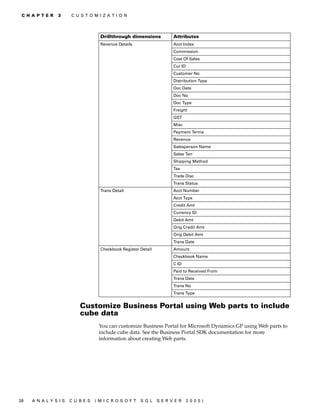
  • 19.
    C H AP T E R 2 I N S T A L L A T I O N A N D C O N F I G U R A T I O N security requirements and gather the information that you will need to complete the wizard. See Installation and configuration checklist on page 12 for more information. 1. On the desktop, double-click Analysis Cubes for Dynamics GP Configuration Wizard. 2. On the Microsoft SQL Server 2005 Data Warehouse Setup page, enter information about the data warehouse that will be created. • In the Analysis cubes data warehouse SQL Server name field, enter the name of the SQL Server instance that the Analysis Cubes data warehouse will be created on. After you enter the instance name, press TAB. The SQL Server data file location for the data warehouse and SQL Server log file location for the data warehouse fields are updated to include the paths to the folders where the data and log files are located for the SQL Server instance. You can modify the paths as needed, but they will not be validated by the setup wizard. • In the Analysis cubes data warehouse name field, accept the default entry or enter the database name to use for the data warehouse. • Specify a password for the DynamicsUser SQL Server logon account. After you enter the password, press TAB. • Confirm the password, and click Next. Data files are always expected to be found in a child directory named Data. Log files are always expected to be found in a child directory named LOG. For example, data files for Analysis Services databases are found under C:Program FilesMicrosoft SQL ServerMSSQL.nOLAPData. During SQL Server Setup, an instance ID is generated for each server component. The instance ID is in the format MSSQL.n, where n is the ordinal number of the component being installed. The first instance ID generated is MSSQL.1; ID numbers are increased for additional instances as MSSQL.2, MSSQL.3, and so on. 3. On the Microsoft Dynamics GP Database Selection page, select the company databases to draw data from. In the SQL Server for Microsoft Dynamics GP field, enter the name of the SQL Server instance where the Microsoft Dynamics GP company databases are installed. Press TAB. The Microsoft Dynamics GP company database(s) field will be updated to include a list of company databases. Select the company databases for which information will be included in the data warehouse. Click Next. 4. On the Analysis Cubes Integration Setup page, select the modules to install SQL Server Integration Services packages for. When working with the Analysis Cubes Integration Setup page, it’s a good idea to select only the modules, level of General Ledger detail, and cutoff dates that you think you will need for the analysis you intend to do. Otherwise, your data warehouse will contain unnecessary data, which can take longer to process. You can add or remove modules to your configuration at any time. You’ll be able to change these selections later if you need to. ANALYSIS CUBES (MICROSOFT SQL SERVER 2005) 15
  • 20.
    C H AP T E R 2 I N S T A L L A T I O N A N D C O N F I G U R A T I O N If you have Multidimensional Analysis registered, related dimensions and measures will be installed. 5. Select Import all General Ledger as detail transactions to import detailed General Ledger transaction information for all modules that you’ve selected packages for. Alternatively, you can select to import detailed General Ledger transaction information for specific modules. Select Import financials as detailed transactions to import detailed transaction information for General Ledger, Bank Reconciliation, Multidimensional Analysis, Payables Management, and Receivables Management. If you don’t select to import detailed transaction information, only summary information will be imported. 6. Select Specify a cutoff date for each module individually to enter cutoff dates for importing information from Microsoft Dynamics GP company databases to the data warehouse. The cutoff date will be the earliest date to import transactions for. All Cutoff Dates is what is used if you do not mark to Enable cutoff dates. That is the date that all fields in the tables will use. If you mark the Enable, the Financial Cutoff dates field is the cutoff date for the Financial Series within that company and all other dates pull from the entries below based on what date the user enters in them. In the Fiscal year cutoff date selection table, enter cutoff dates for each company database. In the All Cutoff Dates field, enter the cutoff date for importing. In the Fin Cutoff Dates field, enter the cutoff date for importing. If you don’t enter a cutoff date, all transaction information will be imported. 7. Click Next. 8. On the Analysis Services Cube Setup page, enter SQL Server Analysis Services information. • In the Analysis Services SQL Server name for the cubes field, enter the name of the SQL Server instance for Analysis Services. • In the Analysis Services database name for the cubes field, enter the name to use for the Analysis Services OLAP database that will include the cubes. • Select the cubes to be processed in the OLAP database. • Click Next. 9. If you have Multicurrency Management registered, in the Analysis Cubes Multicurrency Information page, select whether to include information for multiple currencies. Click Next. Be sure to select the correct reporting currency. Once you have created the analysis cubes the first time, you won’t be able to change this selection. 16 A N A LY S I S C U B E S (M I C R O S O F T S Q L S E R V ER 20 05 )
  • 21.
    C H AP T E R 2 I N S T A L L A T I O N A N D C O N F I G U R A T I O N 10. On the Analysis Cubes Scheduling Options page, select whether to install without scheduling jobs, or to set up a job schedule to process jobs automatically in the future. • If you select Install without scheduling jobs, Analysis Cubes is installed without setting up a job schedule. Skip to step 17. • If you select Set up a job schedule, click Change to open the Edit Recurring Job Schedule page. The SQL Server Agent must be running in order to process the scheduled jobs. 11. Select whether to process the cube daily, weekly, or monthly. • If you select Daily, select the number of days to occur between processing. • If you select Weekly, select the number of weeks to occur between processing. Select the days of the week to process the cube. • If you select Monthly, select the day of the month to process the cube, and the number of months to occur between processing. 12. Select whether to process the cube once or more than once per day, and select starting and ending times. 13. Select a starting date for the schedule, and either select an ending date for the schedule or select No end date. 14. Select whether to send an e-mail notification each time the job is processed and type the name of the operator that was created using the SQL Server Agent. You must set up SQL Server to work with your e-mail program to receive e-mail notifications. See the SQL Server Books Online or other Microsoft documentation for more information. 15. Click OK to save the schedule. On the SQL Agent Proxy Credentials page, enter login information (domainuser name) and a password for the SQL Server proxy account that will be used to process the scheduled job and click OK. ANALYSIS CUBES (MICROSOFT SQL SERVER 2005) 17
  • 22.
    C H AP T E R 2 I N S T A L L A T I O N A N D C O N F I G U R A T I O N 16. On the Analysis Cubes Scheduling Options page, review the schedule information and click Next. 17. On the Analysis Cubes Installation Information page, verify the information that you entered on previous wizard pages. Click Install. 18. The Analysis Cubes Installation Complete page provides information about the SQL Server configuration changes that were made. Click Exit. 19. After you complete the wizard, you must perform the following tasks. • If you’re using a named instance of the SQL server, you must configure the SSIS service to use the named instance. See Configure the SSIS service to use a named instance on page 18 for more information. • Run and schedule Integration Services packages for populating the data warehouse database and processing the cubes. See Populate the data warehouse database on page 19 and Process the cubes on page 19 for more information. • Specify the budget IDs in the GLBudgetSetUp table in the data warehouse database that will be used to calculate various Budget and Forecast values in the cubes. See Specify budget IDs for Budget and Forecast values on page 20 for more information. • Assign users to database roles. See Assign users to Analysis Services database roles on page 20 for more information. • If you’re using modified or custom account category descriptions for accounts, or if you’re not using category descriptions for some accounts, you must update the modified account category descriptions in Microsoft Dynamics GP so that they match the default account category descriptions, or you must modify the account category descriptions in the data warehouse database so that they match what you’re using in Microsoft Dynamics GP. See Account category descriptions must match on page 20 for more information. Configure the SSIS service to use a named instance If you’re using a named instance of the SQL Server, you must configure the SSIS service to use the named instance of the SQL Server instead of the default instance. 1. Open the MsDtsSrvr.ini.xm file: (Program FilesMicrosoft SQL Server90DTSBinnMsDtsSrvr.ini.xml) 2. Add the name of your instance to the <ServerName>.</ServerName> line. For example, if your named instance was called MYNAMEDINSTANCE, the line would look like this: <ServerName>.MYNAMEDINSTANCE</ServerName>. 3. When you are finished, save your changes and close the file. 18 A N A LY S I S C U B E S (M I C R O S O F T S Q L S E R V ER 20 05 )
  • 23.
    C H AP T E R 2 I N S T A L L A T I O N A N D C O N F I G U R A T I O N Populate the data warehouse database When you complete the server configuration wizard, two master Integration Services packages are installed. You must use the Microsoft SQL Server Management Studio to run the packages to populate the data warehouse database with data from the Microsoft Dynamics GP company databases. You also should create schedules for the packages. See Use the server configuration wizard on page 14 for more information about using the job scheduler to create schedules for jobs. If you're using Multicurrency Management, you cannot set up a data warehouse database for a company database that doesn't have currencies set up. The names of the master packages are • DynamicsGP_<source_db>_to_<warehouse_db>_Package_Master • DynamicsGP_<source_db>_to_<warehouse_db>_Run_GL_Budgets_Master where <source_db> is the name of a Microsoft Dynamics GP company database and <warehouse_db> is the name of the data warehouse database. See the SQL Server documentation for more information about running and scheduling Integration Services packages. When you use the server configuration wizard, the authentication mode for the SQL Server that the data warehouse database is created on is set to Mixed Mode (Windows Authentication and SQL Server Authentication). If the SQL Server previously was set to use Windows Authentication Mode (Windows Authentication), you must restart the SQL Server before running and scheduling Integration Services packages for Analysis Cubes. See Use the server configuration wizard on page 14 for more information about using the server configuration wizard. Process the cubes After you run and schedule the master packages to populate the data warehouse database, you must use Microsoft SQL Server Management Studio to run the OLAP processing package in SQL Server Integration Services to process the cubes. The name of the OLAP processing package is DynamicsGP_<warehouse_db>_OLAP_DB_<server name>_<analysis services database>, where <warehouse_db> is the name of the data warehouse database. If you run the OLAP processing package and you receive a message saying, “Internal error, an unexpected exception occurred,” contact your technical support provider and request the Hot Fix that is referenced in Microsoft Knowledge Base article 921294. See Use the server configuration wizard on page 14 for more information about using the job scheduler to create schedules for jobs. See the SQL Server documentation for more information about running and scheduling Integration Services packages. If you’re using modified or custom account category descriptions for accounts, or if you’re not using category descriptions for some accounts, the Analysis Cubes program won’t be able to include information about those accounts in cubes that use the Accounts dimension. See Account category descriptions must match on page 20 for more information. ANALYSIS CUBES (MICROSOFT SQL SERVER 2005) 19
  • 24.
    C H AP T E R 2 I N S T A L L A T I O N A N D C O N F I G U R A T I O N Specify budget IDs for Budget and Forecast values The GLBudgetSetUp table in the data warehouse database includes the budget IDs for the Microsoft Dynamics GP companies that you selected to import data from. After you install Analysis Cubes, you must use SQL Server Management Studio to specify the budget IDs in the GLBudgetSetUp table that will be used to calculate various Budget and Forecast values in the cubes. You must select budget IDs for each fiscal year. To specify that a budget ID will be used for Budget values, enter Budget in the BudgetForecast column for the budget ID. To specify that a budget ID will be used for Forecast values, enter Forecast in the BudgetForecast column for the budget ID. For each budget ID that you specify to be use for Budget or Forecast values, you also must enter Yes for that budget ID in the UseForReporting column. After you make changes in the GLBudgetSetUp table in the data warehouse database, you must run the master Integration Services packages and the OLAP processing package for changes to be reflected in the cubes. If you scheduled the packages, the data warehouse and the cubes will be updated at those times. See Populate the data warehouse database on page 19 and Process the cubes on page 19 for more information. Assign users to Analysis Services database roles To allow users to use the Microsoft Dynamics GP client components to create PivotTable reports in Excel worksheets using data from the data warehouse, you must assign their Windows user accounts and Windows groups to database roles in SQL Server Analysis Services. The following roles will give users Read permissions to the corresponding cubes. • Financials Cube - read • Receivables Cube - read • Payables Cube - read • Inventory Cube - read • Purchase Cube - read • Sales Cube - read See the SQL Server documentation for more information about the Microsoft SQL Server Management Studio to assign Windows user accounts and groups to database roles and about granting Read permissions to cubes in a data warehouse. Account category descriptions must match The Accounts dimension includes the following four attributes. These attributes also are included in the Accounts by Category hierarchy in the following order. • Acct Main Category • Acct Broad Category • Acct Category • Acct No. The Acct Category attribute corresponds to the Category selected for an account using the Account Maintenance window (Cards > Financial > Account) in Microsoft Dynamics GP. The Acct No attribute corresponds to the number entered in the Account field using that window. The Acct Main Category and Acct Broad 20 A N A LY S I S C U B E S (M I C R O S O F T S Q L S E R V ER 20 05 )
  • 25.
    C H AP T E R 2 I N S T A L L A T I O N A N D C O N F I G U R A T I O N Category attributes, however, are defined by the Analysis Cubes program, based on the default category descriptions in Microsoft Dynamics GP. If your business has specialized reporting needs, you might have used the Account Category Setup window (Tools > Setup > Financial > Category) in Microsoft Dynamics GP to modify the Category Description for one or more account categories, or you might have created new account categories. If you’re using modified or custom account category descriptions for accounts, or if you’re not using category descriptions for some accounts, the Analysis Cubes program won’t be able to include information about those accounts in cubes that use the Accounts dimension. The category descriptions in Microsoft Dynamics GP must match the category descriptions that Analysis Cubes uses for creating the Accounts dimension. You have two options to make Analysis Cubes work for you. 1. Update the modified account category descriptions in the Account Category Setup window so that they match the default category descriptions. 2. Use the Microsoft SQL Server Management Studio to modify the account category descriptions in the AccountCategory column in the GLAccountCategories table in the data warehouse database so that they match the modified account category descriptions that you’re using in Microsoft Dynamics GP. After you make changes in Microsoft Dynamics GP or in the GLAccountCategories table in the data warehouse database, you must run the master Integration Services packages and the OLAP processing package for changes to be reflected in the cubes. If you scheduled the packages, the data warehouse and the cubes will be updated at those times. See Populate the data warehouse database on page 19 and Process the cubes on page 19 for more information. The following table lists the default Number and Category Description values for the Account Category Setup window, as well as how those values are mapped to the Acct Main Category and Acct Broad Category attributes in the Accounts dimension. Number Category Description (Acct Category) Acct Broad Category Acct Main Category 1 Cash Current Asset Assets 2 Short-Term Investments Current Asset Assets 3 Accounts Receivable Current Asset Assets 4 Notes Receivable Current Asset Assets 5 Inventory Current Asset Assets 6 Work in Progress Current Asset Assets 7 Prepaid Expenses Current Asset Assets 8 Long-Term Investments Fixed Asset Assets 9 Property, Plant and Equipment Fixed Asset Assets 10 Accumulated Depreciation Fixed Asset Assets 11 Intangible Assets Fixed Asset Assets 12 Other Assets Fixed Asset Assets 13 Accounts Payable Current Liabilities Debt 14 Notes Payable Current Liabilities Debt 15 Current Maturities of Long-Term Debt Current Liabilities Debt 16 Taxes Payable Current Liabilities Debt 17 Interest Payable Current Liabilities Debt ANALYSIS CUBES (MICROSOFT SQL SERVER 2005) 21
  • 26.
    C H AP T E R 2 I N S T A L L A T I O N A N D C O N F I G U R A T I O N Number Category Description (Acct Category) Acct Broad Category Acct Main Category 18 Dividends Payable Current Liabilities Debt 19 Leases Payable (Current) Current Liabilities Debt 20 Sinking Fund Payable (Current) Current Liabilities Debt 21 Other Current Liabilities Current Liabilities Debt 22 Long-Term Debt Long Term Debt Debt 23 Ordinary Shares Owners Equity Equity 24 Preference Shares Owners Equity Equity 25 Ordinary Paid-in Capital - Common Owners Equity Equity 26 Ordinary Paid-in Capital - Preferred Owners Equity Equity 27 Retained Earnings Owners Equity Equity 28 Treasury Stock Owners Equity Equity 29 Common Dividends Owners Equity Equity 30 Preferred Dividends Owners Equity Equity 31 Sales Revenue Equity 32 Sales Returns and Discounts Revenue Equity 33 Cost of Goods of Sale Cost of Sales Equity 34 Selling Expense Cost of Sales Equity 35 Administrative Expense Overheads Equity 36 Salary Expense Overheads Equity 37 Other Employee Expense Overheads Equity 38 Interest Expense Interest and Tax Equity 39 Tax Expense Interest and Tax Equity 40 Depreciation Tax Expense Overheads Equity 41 Income Tax Expense Interest and Tax Equity 42 Other Expense Overheads Equity 43 Other Income Overheads Equity 44 Changes Not Using Working Capital Overheads Equity 45 Revenues Not Producing Working Capital Overheads Equity 46 Gain/Loss on Asset Disposal Overheads Equity 47 Amortization of Intangible Assets Overheads Equity 48 Non-financial Accounts Non - Financial Non - Financial Security requirements for installing and configuring the client To install and configure the Microsoft Dynamics GP client, your Windows user account must be assigned to database roles in SQL Server Analysis Services. See Assign users to Analysis Services database roles on page 20 for more information about the roles that you must be assigned to. Use the client setup wizard Use the client setup wizard to install and configure the Analysis Cubes client components for Microsoft Dynamics GP. You can use the client components to generate PivotTable reports using data from the cubes. Alternatively, you can use the Excel Add-in for SQL Server Analysis Services to access the cubes directly using Excel to generate PivotTable-like reports in Excel. See Create reports using the Excel Add-in for SQL Server Analysis Services on page 45 for more information. 22 A N A LY S I S C U B E S (M I C R O S O F T S Q L S E R V ER 20 05 )
  • 27.
    C H AP T E R 2 I N S T A L L A T I O N A N D C O N F I G U R A T I O N Before you use the wizard, you must review system and security requirements and gather the information that you will need to install and configure client components. See Installation and configuration checklist on page 12 for more information. To install the client, SQL Server Analysis Services must be started. 1. Insert the Microsoft Dynamics GP CD2. The main Microsoft Dynamics GP installation window should appear. If the window does not appear, browse the CD and double-click the Setup.exe file. 2. Select Analysis Cubes (SQL Server 2005) - Client. Select Install. 3. The welcome page of the installation wizard will be displayed. Click Next. 4. Select I Agree to accept the license agreement. Click Next. 5. Enter the path to the Microsoft Dynamics GP client installation folder. The default path is C:Program FilesMicrosoft DynamicsGP. Click Next. 6. In the installation confirmation window, click Next. 7. In the installation completion window, click Close. 8. Start Microsoft Dynamics GP. You will be asked whether to include new code. Click Yes. 9. Before you can use the client to generate PivotTable reports, you must use the Excel Pivot Table Setup window to enter the name of the SQL Server instance for Analysis Services and the database name for the cubes. See Set up Analysis Services information for the client for more information. Set up Analysis Services information for the client You must use the Excel Pivot Table Setup window to enter the name of the SQL Server instance for Analysis Services and the database name for the cubes in Analysis Services. If you’re using multiple Analysis Services databases for cubes, you also can use the Excel Pivot Table Setup window to indicate whether client users can modify Analysis Services information in the Create PivotTable Reports window in ANALYSIS CUBES (MICROSOFT SQL SERVER 2005) 23
  • 28.
    C H AP T E R 2 I N S T A L L A T I O N A N D C O N F I G U R A T I O N Microsoft Dynamics GP. See Create PivotTable reports using Microsoft Dynamics GP on page 43 for more information about using the Create PivotTable Reports window. 1. In Microsoft Dynamics GP, open the Excel Pivot Table Setup window. Tools > Setup > Analysis Cubes > PivotTable Report Creation Setup 2. In the Default SQL Server 2005 Analysis Server field you can modify the name of the SQL Server instance for Analysis Services. Select Allow Server To Be Changed On Pivot Table Creator Window to allow users to change the instance name for SQL Server Analysis Services in the Create PivotTable Reports window. 3. In the Default Analysis Server OLAP Database field you can modify the name of the Analysis Services database for the cubes. Select Allow Database To Be Changed On Pivot Table Creator Window to allow users to change the name of the Analysis Services database for the cubes in the Create PivotTable Reports window. 4. Click OK to save changes and close the window. Reconfiguring the Analysis Cubes server databases It is possible to make changes to the Analysis Cubes server configuration after the data warehouse and Analysis Services databases have been configured. To do so, use the Analysis Cubes server configuration wizard. If you enter an existing data warehouse database name and an existing Analysis Services database name, you have the option to do one of the following things: • Use the existing Analysis Services database and repopulate the data or the cubes. You cannot change the location of the data file and log file if you select this option. • Replace the existing Analysis Services database and create a new database using the same name. • Create a new Analysis Services database with a different name. Multicurrency cubes cannot be added by reconfiguring the Analysis Cubes server databases. If you have already configured the data warehouse and Analysis Services database without Multicurrency Management information included, you cannot add Multicurrency Management cubes by using the Analysis Cubes Server Configuration wizard to change your existing databases. Instead, you must create a new data warehouse database. 24 A N A LY S I S C U B E S (M I C R O S O F T S Q L S E R V ER 20 05 )
  • 29.
    Chapter 3: Customization This part of the documentation includes information for developers about customizing cubes. The following topics are discussed: • Modify cubes using Business Intelligence Development Studio • Drillthrough dimensions • Customize Business Portal using Web parts to include cube data Modify cubes using Business Intelligence Development Studio SQL Server 2005 includes the Business Intelligence Development Studio, an integrated development environment based on Microsoft Visual Studio® 2005. You can use the Business Intelligence Development Studio to modify cubes. If you choose to modify cubes, bear in mind the following recommendations. • Overusing measure groups in a cube will result in decreased data warehouse performance. We recommend using multiple cubes with a small number of measure groups in each cube. You can use linked measure groups to present data from multiple cubes together. • In a single cube, include only measure groups that share common dimensions and that will be queried together frequently. • Avoid using calculated measures that always must be calculated at the leaf level. • Attributes increase the size and decrease the performance of the data warehouse. Therefore, do not make every column in a dimension table an attribute. Include only those columns that must be accessed by the end user. • Attribute hierarchies increase the size and decrease the performance of the data warehouse. Therefore, do not enable attribute hierarchies for all attributes. Enable attribute hierarchies only for those attributes that frequently will be used for analysis. • In large dimensions, natural hierarchies are essential for improving the performance of queries. You should identify attribute relationships between the levels of natural hierarchies. If you modify a default Analysis Cubes cube, you might not be able to update that cube when you upgrade to a future release of Analysis Cubes. Drillthrough dimensions You can modify cubes to establish relationships between the cubes and drillthrough dimensions. Default drillthrough dimensions were installed when you completed the server configuration wizard. See Default drillthrough dimensions on page 42 for more information. ANALYSIS CUBES (MICROSOFT SQL SERVER 2005) 25
  • 30.
    C H AP T E R 3 C U S T O M I ZA T I O N The following table lists the available drillthrough dimensions and attributes. Drillthrough dimensions Attributes Customer Details Bill To City Bill To Country or Region Bill To State Bill To ZIP Credit Limit Amt Customer Bal Customer Class Customer Name Sales Mgr Name Salesperson Name Sales Terr Sales Details Co ID Customer Class Customer Name Doc Date Doc No Doc Type Item Description Item Location Code Item No Over Credit Limit Requested Ship Date Salesperson Name Ship To City Ship To Country or Region Ship To State Ship To ZIP Shipping Method Pending Sales Details Co ID Customer Class Customer Name Doc Date Doc No Doc Type Item Description Item Location Code Item No Over Credit Limit Requested Ship Date Salesperson Name Ship To City Ship To Country or Region Ship To State Ship To ZIP Shipping Method 26 A N A LY S I S C U B E S (M I C R O S O F T S Q L S E R V ER 20 05 )
  • 31.
    C H AP T E R 3 C U S T O M I ZA T I O N Drillthrough dimensions Attributes Sales Terr Current Qty Details Co ID Current Cost Item Description Item No Item Type Qty Allocated Qty Committed Qty Damaged Qty In Service Qty In Use Qty On Back Order Qty On Hand Qty On Order Qty Returned Qty Sold Standard Cost Unit Cost Payables Exp Details Acct Alias Acct Index Acct Posting Type Cur ID Discount Distribution Type Doc Date Doc No Due Date Entry Type Fiscal Year Freight GST Outstanding Amt Period Name Purchase Amt Tax Total Amt Trans Status ANALYSIS CUBES (MICROSOFT SQL SERVER 2005) 27
  • 32.
    C H AP T E R 3 C U S T O M I ZA T I O N Drillthrough dimensions Attributes Revenue Details Acct Index Commission Cost Of Sales Cur ID Customer No Distribution Type Doc Date Doc No Doc Type Freight GST Misc Payment Terms Revenue Salesperson Name Sales Terr Shipping Method Tax Trade Disc Trans Status Trans Detail Acct Number Acct Type Credit Amt Currency ID Debit Amt Orig Credit Amt Orig Debit Amt Trans Date Checkbook Register Detail Amount Checkbook Name C ID Paid to Received From Trans Date Trans No Trans Type Customize Business Portal using Web parts to include cube data You can customize Business Portal for Microsoft Dynamics GP using Web parts to include cube data. See the Business Portal SDK documentation for more information about creating Web parts. 28 A N A LY S I S C U B E S (M I C R O S O F T S Q L S E R V ER 20 05 )
  • 33.
    Chapter 4: Cubes This part of the documentation includes information about the dimensions, attributes, and measures for the cubes. The following topics are discussed: • What are cubes? • How cubes are updated • Cubes and dimensions • Dimensions and attributes • Hierarchies for organizing attributes • Cubes and measures • Default drillthrough dimensions What are cubes? Using an Excel worksheet, you can gain a two-dimensional view of the relationships between data. OLAP cubes, however, offer more than two dimensions. And while physical cubes offer three dimensions, OLAP cubes can be multi- dimensional. See Cubes and dimensions on page 30 for more information about the dimensions for each cube. A single cube dimension includes related attributes. For example, the Customers dimension includes information about customer balances, credit limits, and the salespersons assigned to those customers. The Salesperson dimension includes information about sales managers and sales territories. See Dimensions and attributes on page 31 for more information about the attributes for each cube dimension. The attributes of a dimension are organized into hierarchies. The hierarchical relationship between two attributes depends on how data is being viewed. For example, if you select to view customers by salesperson name, the salesperson names will be at the top of the hierarchy, followed by customer names. See Hierarchies for organizing attributes on page 35 for more information about the hierarchies that are available for organizing cube dimension attributes. The values that lie at the intersections of attributes are called measures. Measures can be static or calculated values. For example, the extended cost for an item is a static measure, while the margin percentage is a calculated measure. See Cubes and measures on page 37 for more information about the measures for each cube. How cubes are updated The Analysis Cubes server components include a SQL Server Analysis Services online analytical processing (OLAP) database that is designed specifically to help you analyze business data. To populate the OLAP database and its cubes with data, Integration Services first extracts data from your Microsoft Dynamics GP transactional company databases and then stores that data in a data warehouse database. Analysis Services then aggregates the data in the data warehouse into totals and subtotals and then stores the aggregate data in an Analysis Services database in arrays called cubes. See What are cubes? for more information about cubes. ANALYSIS CUBES (MICROSOFT SQL SERVER 2005) 29
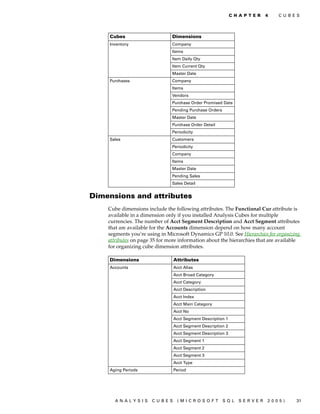
  • 34.
    C H AP T E R 4 C U B E S Typically, the data warehouse database is updated and the OLAP cubes are processed automatically using schedules. Between updates, the data is static and isn’t affected by entries made into the Microsoft Dynamics GP company databases. Because the data warehouse and the OLAP cubes are isolated from the Microsoft Dynamics GP company databases, data can be retrieved more quickly. Cubes and dimensions Cubes include the following dimensions. If you’re using modified or custom account category descriptions for accounts, or if you’re not using category descriptions for some accounts, the Analysis Cubes program won’t be able to include information about those accounts in cubes that use the Accounts dimension. See Account category descriptions must match on page 20 for more information. See Dimensions and attributes on page 31 for more information about the various attributes for dimensions. Cubes Dimensions Financial Checkbook Register Company Periodicity Master Date Fiscal Periods Accounts GL Trans GLMDA Trans GLMDA Groups Receivables Company Customers Salesperson Accounts Aging Details Periodicity Receivables Rev Master Date Due Date Aging Periods Payables Total Exp Company Accounts Vendors Periodicity Fiscal Periods Master Date Due Date 30 A N A LY S I S C U B E S (M I C R O S O F T S Q L S E R V ER 20 05 )
  • 35.
    C H AP T E R 4 C U B E S Cubes Dimensions Inventory Company Items Item Daily Qty Item Current Qty Master Date Purchases Company Items Vendors Purchase Order Promised Date Pending Purchase Orders Master Date Purchase Order Detail Periodicity Sales Customers Periodicity Company Items Master Date Pending Sales Sales Detail Dimensions and attributes Cube dimensions include the following attributes. The Functional Cur attribute is available in a dimension only if you installed Analysis Cubes for multiple currencies. The number of Acct Segment Description and Acct Segment attributes that are available for the Accounts dimension depend on how many account segments you’re using in Microsoft Dynamics GP 10.0. See Hierarchies for organizing attributes on page 35 for more information about the hierarchies that are available for organizing cube dimension attributes. Dimensions Attributes Accounts Acct Alias Acct Broad Category Acct Category Acct Description Acct Index Acct Main Category Acct No Acct Segment Description 1 Acct Segment Description 2 Acct Segment Description 3 Acct Segment 1 Acct Segment 2 Acct Segment 3 Acct Type Aging Periods Period ANALYSIS CUBES (MICROSOFT SQL SERVER 2005) 31
  • 36.
    C H AP T E R 4 C U B E S Dimensions Attributes Checkbook Register Checkbook Name Paid To Received From Trans Description Trans Type Functional Cur Company Co Name Customers Bal Type City Collection Mgr Corp Customer No Country or Region Customer Class Customer Name Customer No Index Over Credit Limit Sales Mgr Name Salesperson ID Salesperson Name Sales Terr State ZIP Due Date Day Month Quarter Year Fiscal Periods Fiscal Year Period Name GL Trans Bal Type Cur ID Entry Type Series Functional Cur Voided GLMDA Groups MDA Group ID MDA Group Description MDA Code ID MDA Code Description GLMDA Trans Posting Status Series Document Type Functional Cur 32 A N A LY S I S C U B E S (M I C R O S O F T S Q L S E R V ER 20 05 )
  • 37.
    C H AP T E R 4 C U B E S Dimensions Attributes Item Current Qty Co Name Item Description Item Location Code Item No Item Out of Stock Item Primary Vendor Functional Cur Item Daily Qty Co Name Item Description Item Location Code Item No Functional Cur Items ABC Code Item Class Description Item Description Item Generic Description Item No Item Short Name Item Type Master Date Day Month Quarter Year Pending Purchase Orders Buyer ID Purchase Order Status Purchase Order Type Functional Cur Pending Sales Doc Type Functional Cur Sales Terr ID Salesperson ID Periodicity Periodicity Current Period to Date Prev Year Period to Date % Change Period to Date Month to Date Prev Year Month to Date % Change Month to Date Quarter to Date Prev Year Quarter to Date % Change Quarter to Date Year to Date Prev Year YTD % Change Year to Date ANALYSIS CUBES (MICROSOFT SQL SERVER 2005) 33
  • 38.
    C H AP T E R 4 C U B E S Dimensions Attributes Purchase Order Promised Date Day Month Quarter Year Purchase Order Detail Buyer ID Purchase Order Status Purchase Order Type Functional Cur Receivables Rev Distribution Type Doc Type Payment Terms Trans Status Functional Cur Sales Detail Customer Name Customer No Doc Type Functional Cur Salesperson ID Sales Territory Salesperson Sales Mgr Name Salesperson ID Salesperson Index Tab Salesperson Name Sales Terr Total Exp Control Type Distribution Type Payment Entry Type Payment Terms Shipping Method Trans Status Functional Cur Vendors City Corp Vendor No Country or Region Credit Limit Amt Cur ID Primary Payment Terms Shipping Method State UPS Zone Vendor Class Vendor Index Tab Vendor Name Vendor No Vendor Status Aging Details Functional Cur 34 A N A LY S I S C U B E S (M I C R O S O F T S Q L S E R V ER 20 05 )
  • 39.
    C H AP T E R 4 C U B E S Hierarchies for organizing attributes You can select to use the following hierarchies to organize cube dimension attributes. Dimensions Hierarchies Attributes in hierarchical order Accounts Accounts by Category Acct Main Category Acct Broad Category Acct Category Acct No Accounts by Acct No Acct Index Acct No Accounts by Acct Alias Acct Alias Acct No Accounts by Posting Type Acct Type Acct No Checkbook Register Checkbook Register by Trans Type Trans Type Trans Description Checkbook Name Paid To Received From Checkbook Register by Checkbook Checkbook Name Trans Type Paid To Received From Customers Customers Over Credit Limit Over Credit Limit Customer Name Customers by Salesperson Name Salesperson Name Customer Name Customers by Sales Terr Sales Terr Sales Mgr Name Salesperson Name Customers by Class Customer Class Customer Name Customers by Location Country or Region State City Customer Name Customers by Bal Type Bal Type Customer Name Customers by Parent Customer No Corp Customer No Customer No Customer Name Customers Index Customer No Customer Names Index Customer Name ANALYSIS CUBES (MICROSOFT SQL SERVER 2005) 35
  • 40.
    C H AP T E R 4 C U B E S Dimensions Hierarchies Attributes in hierarchical order Due Date Due Date Year Quarter Month Day Fiscal Periods Periods by Year Fiscal Year Period Name Item Current Qty Items by Co by Location Item Description Co Name Item Location Code Items by Location Item Location Code Item Description Item No Item Daily Qty Items by Co by Location Item Description Co Name Item Location Code Items by Location Item Location Code Item Description Item No Items Items by Class Item Class Description Item Description Items by Generic Description Item Generic Description Item Description Master Date Date by Month Month Year Quarter by Year Quarter Year Date Year Quarter Month Day Purchase Order Promised Date Year Promised Date Quarter Month Day Salesperson Salesperson by Sales Terr and Sales Mgr Sales Terr Sales Mgr Name Salesperson Name Vendors Vendors by Class Vendor Class Vendor Name Vendor Names Vendor Index Tab Vendor Name Vendors by Location Country or Region State City Vendor Name 36 A N A LY S I S C U B E S (M I C R O S O F T S Q L S E R V ER 20 05 )
  • 41.
    C H AP T E R 4 C U B E S Cubes and measures Cubes include the following measures. The measures that are included in a cube depend on whether you installed Analysis Cubes for multiple currencies. Cubes Measures Data warehouse type Multicurrency Non-multicurrency Financial Amount – Bank Trans No Yes Reporting Amt – Bank Trans Yes No Originating Amt – Bank Trans Yes No Functional Amt – Bank Trans Yes No Current Trans – Bank Trans Yes Yes Beginning Bal – Bank Trans Yes Yes Ending Bal – Bank Trans Yes Yes Debit Amt - GL Trans Yes Yes Credit Amt - GL Trans Yes Yes Amount - GL Trans Yes Yes Signed Amt - GL Trans Yes Yes Budget - GL Trans Yes Yes Reporting Debit Amt - GL Trans Yes No Reporting Credit Amt - GL Trans Yes No Reporting Amt - GL Trans Yes No YTD Bal - GL Trans No Yes Current Ratio - GL Trans No Yes Debt To Equity - GL Trans No Yes Balance Sheet Amt - GL Trans No Yes Gross Profit - GL Trans No Yes Gross Profit Periodic - GL Trans No Yes Gross Margin % - GL Trans No Yes YTD Budget - GL Trans No Yes Reporting YTD Bal - GL Trans Yes No Reporting Current Ratio - GL Trans Yes No Reporting Debt To Equity - GL Trans Yes No Reporting Gross Profit - GL Trans Yes No Reporting Gross Profit Periodic - GL Trans Yes No Reporting Gross Margin % - GL Trans Yes No Reporting Bal Sheet Amt - GL Trans Yes No Reporting YTD Budget - GL Trans Yes No Amount - MDA Yes Yes Quantity - MDA Yes Yes Reporting Amount - MDA Yes No YTD Bal - MDA Yes Yes Gross Profit - MDA Yes Yes Gross Profit Periodic - MDA Yes Yes Gross Margin % - MDA Yes Yes Reporting YTD Bal - MDA Yes No Reporting Gross Profit - MDA Yes No ANALYSIS CUBES (MICROSOFT SQL SERVER 2005) 37
  • 42.
    C H AP T E R 4 C U B E S Cubes Measures Data warehouse type Multicurrency Non-multicurrency Financial (continued) Reporting Gross Profit Periodic - MDA Yes No Reporting Gross Margin % - MDA Yes No Receivables Revenue - Receivables Rev Yes Yes Cost Of Sales - Receivables Rev Yes Yes Discount - Receivables Rev No Yes Misc - Receivables Rev No Yes Tax - Receivables Rev No Yes Commission - Receivables Rev No Yes Freight - Receivables Rev No Yes Trans Amt - Receivables Rev Yes Yes Net Profit - Receivables Rev No Yes Outstanding Amt - Receivables Rev No Yes Reporting Rev - Receivables Rev Yes No Reporting Cost Of Sales - Receivables Rev Yes No Reporting Trans Amt - Receivables Rev Yes No Amount - Receivables Aging No Yes Reporting Amt - Receivables Aging Yes No Functional Amt - Receivables Aging Yes No Originating Amt - Receivables Aging Yes No Payables Purchase Amt - Payables Exp Yes Yes Discount - Payables Exp No Yes Misc - Payables Exp No Yes Tax - Payables Exp No Yes Freight - Payables Exp No Yes Total Amt - Payables Exp Yes Yes Outstanding Amt - Payables Exp No Yes Reporting Purchase Amt - Payables Exp Yes No Reporting Total Amt - Payables Exp Yes No 38 A N A LY S I S C U B E S (M I C R O S O F T S Q L S E R V ER 20 05 )
  • 43.
    C H AP T E R 4 C U B E S Cubes Measures Data warehouse type Multicurrency Non-multicurrency Inventory Qty On Order - Inventory Hist Yes Yes Qty On Hand - Inventory Hist Yes Yes Qty Sold - Inventory Hist Yes Yes Qty Adjustment - Inventory Hist Yes Yes Extended Price - Inventory Hist Yes Yes Reporting YTD Extended Price - Inventory Hist Yes No YTD Qty On Hand - Inventory Hist Yes Yes YTD Extended Price - Inventory Hist Yes Yes Reporting YTD Ext Price - Inventory Hist Yes No Qty On Order - Inventory On Hand Yes Yes Qty On Back Order - Inventory On Hand Yes Yes Qty Drop Shipped - Inventory On Hand Yes Yes Qty In Use - Inventory On Hand Yes Yes Qty In Service - Inventory On Hand Yes Yes Qty Returned - Inventory On Hand Yes Yes Qty Damaged - Inventory On Hand Yes Yes Qty On Hand - Inventory On Hand Yes Yes Qty Allocated - Inventory On Hand Yes Yes Qty Committed - Inventory On Hand Yes Yes Qty Sold - Inventory On Hand Yes Yes Min Level - Inventory On Hand Yes Yes Max Level - Inventory On Hand Yes Yes Unit Cost - Inventory On Hand Yes Yes Current Inventory Val - Inventory On Hand No Yes Current Allocated Inventory Val - Inventory On Hand No Yes Current Committed Inventory Val - Inventory On Hand No Yes Current Damaged Inventory Val - Inventory On Hand No Yes Current Back Order Inventory Val - Inventory On Hand No Yes Current Ordered Val - Inventory On Hand No Yes Current Returned Val - Inventory On Hand No Yes Current Sold Val - Inventory On Hand No Yes Current Qty Available to Sell - Inventory On Hand Yes Yes Reporting Unit Cost - Inventory On Hand Yes No Reporting Current Inv Val - Inventory On Hand Yes No Reporting Current Allocated Inv Val - Inventory On Hand Yes No Reporting Current Committed Inv Val - Inventory On Hand Yes No Reporting Current Damaged Inv Val - Inventory On Hand Yes No Reporting Current Back Order Inv Val - Inventory On Hand Yes No Reporting Current Ordered Val - Inventory On Hand Yes No Reporting Current Returned Val - Inventory On Hand Yes No Reporting Current Sold Val - Inventory On Hand Yes No ANALYSIS CUBES (MICROSOFT SQL SERVER 2005) 39
  • 44.
    C H AP T E R 4 C U B E S Cubes Measures Data warehouse type Multicurrency Non-multicurrency Purchases Qty Purchased - Pending Yes Yes Qty In Base Amt - Pending No Yes Extended Cost - Pending Yes Yes Qty Outstanding - Pending Yes Yes Qty Outstanding In Base Amt - Pending Yes Yes Outstanding Val - Pending No Yes Qty Received In Base Amt - Pending Yes Yes Qty Rejected - Pending Yes Yes Qty Cancelled - Pending Yes Yes Qty Invoiced - Pending Yes Yes Tax Amt - Pending No Yes Freight Amt - Pending No Yes Misc Amt - Pending No Yes Reporting Extended Cost - Pending Yes No Qty Purchased - Detail Yes Yes Qty In Base Amt - Detail No Yes Extended Cost - Detail Yes Yes Qty Outstanding - Detail Yes Yes Qty Outstanding In Base Amt - Detail Yes Yes Outstanding Val - Detail No Yes Qty Received In Base Amt - Detail Yes Yes Qty Rejected - Detail Yes Yes Qty Cancelled - Detail Yes Yes Qty Invoiced - Detail Yes Yes Tax Amt - Detail No Yes Freight Amt - Detail No Yes Misc Amt - Detail No Yes Reporting Extended Cost - Detail Yes No 40 A N A LY S I S C U B E S (M I C R O S O F T S Q L S E R V ER 20 05 )
  • 45.
    C H AP T E R 4 C U B E S Cubes Measures Data warehouse type Multicurrency Non-multicurrency Sales Extended Price - Pending Yes Yes Extended Cost - Pending Yes Yes Qty Sold - Pending Yes Yes Base Qty Sold - Pending Yes Yes Trade Disc Amt - Pending No Yes Markdown Amt - Pending Sales Orders No Yes Tax Amt - Pending No Yes Freight Amt - Pending No Yes Misc Amt - Pending No Yes Terms Disc Amt - Pending No Yes Profit - Pending Yes Yes Reporting Extended Price - Pending Yes No Reporting Extended Cost - Pending Yes No Reporting Profit - Pending Yes No Margin % - Pending No Yes Markdown % - Pending No Yes Trade Disc Amt % - Pending No Yes Terms Disc Amt % - Pending No Yes YTD Extended Price - Pending No Yes YTD Profit - Pending No Yes Reporting YTD Profit - Pending Yes No Reporting YTD Extended Price - Pending Yes No Reporting Margin % - Pending Yes No Extended Price - Detail Yes Yes Extended Cost - Detail Yes Yes Qty Sold - Detail Yes Yes Base Qty Sold - Detail Yes Yes Trade Disc Amt - Detail No Yes Markdown Amt - Detail No Yes Tax Amt - Detail No Yes Freight Amt - Detail No Yes Misc Amt - Detail No Yes Terms Disc Amt - Detail No Yes Reporting Extended Price - Detail Yes No Reporting Extended Cost - Detail Yes No Reporting Profit - Detail Yes No Profit - Detail Yes Yes Margin % - Detail No Yes Markdown % - Detail No Yes Trade Disc Amt % - Detail No Yes Terms Disc Amt % - Detail No Yes YTD Extended Price - Detail No Yes YTD Profit - Detail No Yes Reporting YTD Profit - Detail Yes No Reporting YTD Extended Price - Detail Yes No Reporting Margin % - Detail Yes No ANALYSIS CUBES (MICROSOFT SQL SERVER 2005) 41
  • 46.
    C H AP T E R 4 C U B E S Default drillthrough dimensions Drillthrough dimensions include information about the underlying data that’s used to calculate cube cell values. When you completed the server configuration wizard, the following default drillthrough dimensions were installed. Cube Measure group Drillthrough dimension Financial GL Trans Trans Detail Bank Trans Checkbook Register Detail Receivables Receivables Aging Customer Details Receivables Rev Revenue Details Payables Payables Exp Trans Details Inventory Inventory On Hand Current Qty Details Sales Pending Sales Orders Pending Sales Details Customer Details Sales Detail Sales Details Customer Details See Drillthrough dimensions on page 25 for more information about the attributes that are included in drillthrough dimensions. You can modify cubes to establish relationships between the cubes and drillthrough dimensions. See Chapter 3, “Customization,” for more information. 42 A N A LY S I S C U B E S (M I C R O S O F T S Q L S E R V ER 20 05 )
  • 47.
    Chapter 5: PivotTable reports This part of the documentation includes information about how to create Excel worksheets with PivotTable reports and other PivotTable-like reports using data from cubes. The following topics are discussed: • Create PivotTable reports using Microsoft Dynamics GP • Create reports using the Excel Add-in for SQL Server Analysis Services Create PivotTable reports using Microsoft Dynamics GP After you install the Analysis Cubes client, you can use the Create PivotTable Reports window in Microsoft Dynamics GP to create Excel worksheets with PivotTable reports that use data from the cubes. 1. In Microsoft Dynamics GP, open the Create PivotTable Reports window. Tools > Analysis Cubes > Create PivotTable Reports 2. Enter the definition ID for the PivotTable report that you’re creating. The definition ID is used to save your selections so that you can generate the same PivotTable reports again in the future. 3. Enter a description for the definition ID. 4. You might be able to change the following Analysis Services information. • If Allow Server To Be Changed On Pivot Table Creator Window is selected in the Excel Pivot Table Setup window, you can change the instance name for SQL Server Analysis Services in the Server field. • If Allow Database To Be Changed On Pivot Table Creator Window is selected in the Excel Pivot Table Setup window, you can change the name of the Analysis Services database for the cubes in the OLAP Database field. ANALYSIS CUBES (MICROSOFT SQL SERVER 2005) 43
  • 48.
    C H AP T E R 5 P IV O T T AB L E R E P O R T S See Set up Analysis Services information for the client on page 23 for more information. 5. Select a cube. The cubes that you can select depend on the Analysis Services database roles that you’ve been assigned to. See Assign users to Analysis Services database roles on page 20 for more information. 6. In the PivotTable Field List, select the attributes, hierarchies, and measures to include on the PivotTable report. The dimensions, attributes, hierarchies, and measures that you can select depend on the cube that you choose to use. See Chapter 4, “Cubes,” for more information. Click the plus sign (+) next to a dimension name to view the attributes and hierarchies for that dimension. Select an attribute or hierarchy and click the right arrow button to add the attribute to the PivotTable Report Filters, PivotTable Report Columns, or PivotTable Report Rows list. Click the plus sign (+) next to Values to view the measures for the cube. Select a measure and click the right arrow button to add the measure to the PivotTable Report Values list. You can remove an item from the PivotTable Report Columns, PivotTable Report Rows, PivotTable Report Data, and PivotTable Report Filters lists by selecting the item and then clicking the left arrow button. Click Clear to remove all items from the lists. 7. Select Save To Business Portal to save the Excel worksheet with the PivotTable report that you’re generating to the reports catalog in Business Portal for Microsoft Dynamics GP. The report will be published in the Sales Center in Business Portal by default. You must be assigned to the proper role in Business Portal to view the report. See the Business Portal Administrator’s Guide for more information about roles and reports. 8. Click Save to save the definition. The window will clear. Enter the definition ID again and then click Excel to open a new Excel worksheet with the PivotTable report. You can right-click a data field in the Excel worksheet and select Drill to Detail. A window will open, displaying a list of the transactions that were entered in Microsoft Dynamics GP that affect the calculation in the data field. 44 A N A LY S I S C U B E S (M I C R O S O F T S Q L S E R V ER 20 05 )
  • 49.
    C H APT E R 5 P IV O T T AB LE R E P O R T S Create reports using the Excel Add-in for SQL Server Analysis Services It’s not necessary to use the Create PivotTable Reports window in Microsoft Dynamics GP to create reports for Excel. You can use the Office Excel Add-in for SQL Server Analysis Services to generate reports directly in Excel. You can download the add-in from www.microsoft.com. You can use the Excel add-in to access the data warehouse directly. The PivotTable- like reports that you generate will have additional functionality, including • Add-in reports automatically support advanced Analysis Services capabilities such as actions, what-if analysis, and drillthrough. • Advanced techniques are available for specifying members from a dimension, including wildcard character searches and data-driven selection. • Report cells need not form a contiguous block. You can insert formulas into the middle of the report and rows and columns can be inserted or individual cells moved freely on the worksheet. However, some PivotTable functionality is not available using the add-in, including • Automatic integration with PivotChart® reports. • Automatic display of Percent of Column and similar calculations. • Multi-select for page filters. • Separate columns for each level of a hierarchy. • Add only selected levels from a hierarchy to a report. • Automatically display default member of a dimension. • Apply different formats to different levels of a hierarchy. ANALYSIS CUBES (MICROSOFT SQL SERVER 2005) 45
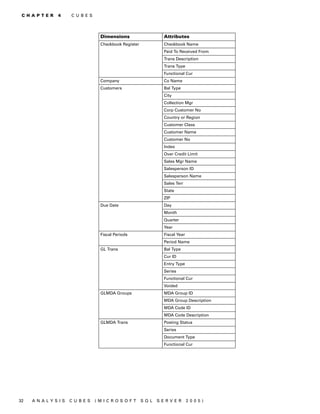
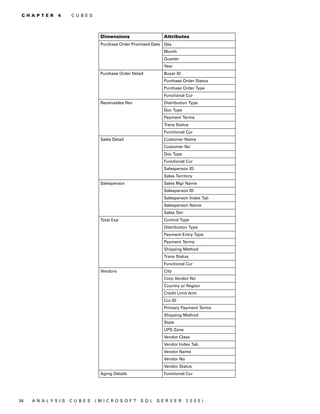
  • 50.
    46 A N A LY S I S C U B E S (M I C R O S O F T S Q L S E R V ER 20 05 )
  • 51.
    Index documentation (continued) symbols and conventions 2 roles for installing client components 26 drillthrough dimensions granting users access to cubes 24 A attributes 11 account categories, requirements 24 default drillthrough dimensions 42 S accounts, account category requirements list of 11 Scheduling Options window, displaying 24 20 Analysis Cubes server database, E security reconfiguring 28 Edit Recurring Job Schedule window, client installation requirements 26 Analysis Services, modifying information displaying 21 server installation requirements 17 for the client 27 servers, reconfiguring Analysis Cubes attributes H database 28 drillthrough dimensions 11 help, displaying 2 symbols, used in manual 2 for dimensions 31 Help menu, described 2 system requirements hierarchies 35 hierarchies accessing on the Web 3 overview 29 for attributes 35 client 9 overview 29 server 5, 6, 8 B I server components 16 budget IDs, specifying budgets for cube values 24 icons, used in manual 2 U Business Portal, customizing to include installation upgrade information, accessing on the cube data 14 client setup wizard 26 Web 3 sever setup wizard 18 upgrading, uninstall previous version 15 C installation instructions, accessing on the checklist, installing Analysis Cubes 16 Web 3 W configure SSIS service, for named Integration Services packages Windows groups, server installation instances 22 populating the data warehouse requirements 17 Create PivotTable Reports window database 23 Windows user accounts, server creating PivotTable reports 43 processing the cubes 23 installation requirements 17 opening the window 43 cubes L attribute hierarchies 35 lookup window, displaying 2 creating PivotTable reports using cubes 43 M measures creating reports using the Excel for cubes 37 Add-in for SQL Server Analysis overview 29 Services 45 dimension attributes 31 N dimensions 30 named instances, configure SSIS service 22 granting users access 24 navigation, symbols used for 2 how they are updated 29 Integration Services packages for P processing 23 PivotTable Report Creation Setup window measures 37 modifying Analysis Services modifying 11 information for the client 27 overview 29 opening the window 27 current installation instructions, accessing PivotTable reports on the Web 3 creating reports using the Excel current upgrade information, accessing on Add-in for SQL Server Analysis the Web 3 Services 45 creating using Microsoft Dynamics D GP 43 data warehouse database, Integration previous versions, uninstalling 15 Services packages for populating 23 product documentation, accessing on the dimensions Web 3 attributes 31 default drillthrough dimensions 42 R drillthrough dimensions 11 Reconfigure, Analysis Cubes server for cubes 30 database 28 overview 29 required fields, described 3 documentation resources, documentation 2 accessing on the Web 3 ANALYSIS CUBES (MICROSOFT SQL SERVER 2005) 47
  • 52.
    48 A N A LY S I S C U B E S (M I C R O S O F T S Q L S E R V ER 20 05 )