Upgrading Active Directory Domains to
Windows Server 2008 and Windows Server
2008 R2 AD DS Domains
Microsoft Corporation
Published: November 2009
Writer: Justin Hall
Editor: Jim Becker
Abstract
This guide explains the process for upgrading Active Directory domains to Windows Server 2008
and Windows Server 2008 R2, how to upgrade the operating system of domain controllers, and
how to add domain controllers that run Windows Server 2008 or Windows Server 2008 R2 to an
existing domain.
Copyright Information
This document supports a preliminary release of a software product that may be changed
substantially prior to final commercial release, and is the confidential and proprietary information
of Microsoft Corporation. It is disclosed pursuant to a non-disclosure agreement between the
recipient and Microsoft. This document is provided for informational purposes only and Microsoft
makes no warranties, either express or implied, in this document. Information in this document,
including URL and other Internet Web site references, is subject to change without notice. The
entire risk of the use or the results from the use of this document remains with the user. Unless
otherwise noted, the example companies, organizations, products, domain names, e-mail
addresses, logos, people, places, and events depicted herein are fictitious, and no association
with any real company, organization, product, domain name, e-mail address, logo, person, place,
or event is intended or should be inferred. Complying with all applicable copyright laws is the
responsibility of the user. Without limiting the rights under copyright, no part of this document may
be reproduced, stored in or introduced into a retrieval system, or transmitted in any form or by
any means (electronic, mechanical, photocopying, recording, or otherwise), or for any purpose,
without the express written permission of Microsoft Corporation.
Microsoft may have patents, patent applications, trademarks, copyrights, or other intellectual
property rights covering subject matter in this document. Except as expressly provided in any
written license agreement from Microsoft, the furnishing of this document does not give you any
license to these patents, trademarks, copyrights, or other intellectual property.
© 2009 Microsoft Corporation. All rights reserved.
Active Directory, Microsoft, Windows, and Windows Server are either registered trademarks or
trademarks of Microsoft Corporation in the United States and/or other countries.
All other trademarks are property of their respective owners.
Contents
Upgrading Active Directory Domains to Windows Server 2008 and Windows Server 2008 R2 AD
DS Domains................................................................................................................................1
Abstract....................................................................................................................................1
Copyright Information......................................................................................................................2
Contents.......................................................................................................................................... 3
Upgrading Active Directory Domains to Windows Server 2008 and Windows Server 2008 R2 AD
DS Domains................................................................................................................................7
About this guide...........................................................................................................................7
In this guide.................................................................................................................................7
Related information......................................................................................................................7
Overview of Upgrading Active Directory Domains...........................................................................8
Planning to Upgrade Active Directory Domains..............................................................................8
In this guide.................................................................................................................................8
Checklist: Preupgrade Tasks...........................................................................................................9
Assign Appropriate Credentials.....................................................................................................10
Introduce a Member Server That Runs Windows Server 2008 or Windows Server 2008 R2......12
Determine Supported Software Upgrades....................................................................................13
Assess Hardware Requirements...................................................................................................15
Disk space requirements for upgrading to Windows Server 2008.............................................16
Disk space requirements for upgrading to Windows Server 2008 R2........................................17
Determine Domain Controller Upgrade Order...............................................................................20
Develop a Test Plan for Your Domain Upgrade Process...............................................................21
Determine Service Pack Levels....................................................................................................22
Back Up Domain Data...................................................................................................................24
Resolve Upgrade and Application Compatibility Problems............................................................24
Known issues for upgrading to Windows Server 2003...............................................................24
Performing the Upgrade of Active Directory Domains...................................................................26
In this guide...............................................................................................................................26
Checklist: Upgrade Tasks..............................................................................................................26
Prepare Your Infrastructure for Upgrade.......................................................................................27
Install Active Directory Domain Services on the Member Server That Runs Windows Server 2008
or Windows Server 2008 R2......................................................................................................28
Upgrade Existing Domain Controllers...........................................................................................30
Unattended upgrade .................................................................................................................31
Modify Default Security Policies....................................................................................................35
Update Group Policy Permissions................................................................................................38
Perform Clean-up Tasks................................................................................................................39
Completing the Upgrade of Active Directory Domains..................................................................39
In this guide...............................................................................................................................39
Checklist: Post-Upgrade Tasks.....................................................................................................40
Raise the Functional Levels of Domains and Forests...................................................................41
Move DNS Data into DNS Application Directory Partitions...........................................................42
Redirect Users and Computers.....................................................................................................43
Complete the Upgrade..................................................................................................................45
Finding Additional Information About Upgrading Active Directory Domains..................................45
Appendix A: Background Information for Upgrading Active Directory Domains............................46
Active Directory preparation tool................................................................................................47
Application directory partitions for DNS.....................................................................................47
Service (SRV) resource records.............................................................................................48
_msdcs.domain_name subdomain.........................................................................................48
_msdcs.forest_root_domain subdomain.................................................................................48
Intrasite replication frequency.................................................................................................49
New groups and new group memberships that are created after upgrading the PDC...............50
Security policy considerations when upgrading from Windows 2000 to Windows Server 2003.52
SMB packet signing................................................................................................................52
Secure channel signing and encryption..................................................................................52
Microsoft Support Quick Start for Adding Windows Server 2008 or Windows Server 2008 R2
Domain Controllers to Existing Domains...................................................................................53
What’s new in AD DS in Windows Server 2008 and Windows Server 2008 R2........................54
System requirements for installing Windows Server 2008 and Windows Server 2008 R2........55
Supported in-place upgrade paths.............................................................................................56
Functional level features and requirements...............................................................................57
Client, server, and application interoperability...........................................................................57
Secure default settings in Windows Server 2008 and Windows Server 2008 R2......................58
Virtualized domain controllers on Hyper-V™, VMware, and other virtualization software..........58
Administration, remote administration, and cross-version administration..................................59
Configuring the Windows Time service for Windows Server 2008 and Windows Server 2008 R2
............................................................................................................................................... 60
Known issues for upgrades to Windows Server 2008 and Windows Server 2008 R2...............61
Verifications you can make and recommended hotfixes you can install before you begin.........62
Run Adprep commands.............................................................................................................65
Add schema changes using adprep /forestprep.....................................................................65
If you are deploying RODCs, run adprep /rodcprep...............................................................67
Run adprep /domainprep /gpprep...........................................................................................67
Upgrade domain controllers.......................................................................................................68
Background information about the in-place upgrade process................................................68
Upgrading and promoting new domain controllers into an existing domain............................69
Post-installation tasks.............................................................................................................70
Fixes to install after AD DS installation...................................................................................71
Troubleshooting errors...............................................................................................................71
Adprep errors.........................................................................................................................72
Forestprep errors................................................................................................................72
Domainprep errors..............................................................................................................72
Rodcprep errors..................................................................................................................72
Dcpromo errors......................................................................................................................73
Upgrading Active Directory Domains to
Windows Server 2008 and Windows Server
2008 R2 AD DS Domains
Upgrading your network operating system requires minimal network configuration and typically
has a low impact on user operations. The upgrade process is straightforward, efficient, and allows
your organization to take advantage of the improved security that is offered by the
Windows Server® 2008 and Windows Server 2008 R2 operating systems.
About this guide
This guide is intended for use by system administrators and system engineers. It provides
detailed guidance for upgrading Windows 2000 or Windows Server 2003 Active Directory
domains to Active Directory Domain Services (AD DS) domains that have domain controllers
running Windows Server 2008 or Windows Server 2008 R2. For a seamless deployment
experience, use the checklists that are provided in this guide and complete the tasks in the order
in which they are presented.
In this guide
• Overview of Upgrading Active Directory Domains
• Planning to Upgrade Active Directory Domains
• Performing the Upgrade of Active Directory Domains
• Completing the Upgrade of Active Directory Domains
• Finding Additional Information About Upgrading Active Directory Domains
• Appendix A: Background Information for Upgrading Active Directory Domains
• Microsoft Support Quick Start for Adding Windows Server 2008 or Windows Server 2008
R2 Domain Controllers to Existing Domains
Related information
• For more information about the AD DS logical structure and the Domain Name System
(DNS) infrastructure that is necessary to support AD DS, see Designing the Logical
Structure for Windows Server 2008 AD DS [LH].
• For more information about AD DS functional levels, see Enabling Advanced Features
for AD DS.
• For more information about installing and configuring a DNS server, see Deploying
Domain Name System (DNS) (http://go.microsoft.com/fwlink/?LinkId=93656).
7
Overview of Upgrading Active Directory
Domains
By upgrading your network operating system, you can maintain your current network and domain
configuration while improving the security, scalability, and manageability of your network
infrastructure.
Before you upgrade your Windows 2000 or Windows Server 2003 Active Directory domains,
review your business objectives and decide how they relate to your existing Active Directory
infrastructure. Although your objectives might not require other significant changes to your
existing environment, the operating system upgrade is an opportune time to review your existing
Active Directory design, including your Active Directory logical structure, site topology, and
domain controller capacity. You might find opportunities for increased efficiencies and cost
savings that you can incorporate into your upgrade process. In addition, ensure that you test your
upgrade process in a lab and pilot program.
When the domain upgrade process is complete, all domain controllers will be running Windows
Server 2008 or Windows Server 2008 R2, and the Active Directory Domain Services (AD DS)
domains and forest will be operating at the Windows Server 2008 or Windows Server 2008 R2
functional level. At the Windows Server 2008 R2 forest functional level, you can take advantage
of all the advanced AD DS features. For more information about advanced AD DS features for
AD DS functional levels, see Enabling Advanced Features for AD DS.
Planning to Upgrade Active Directory
Domains
To plan the upgrade of your Active Directory domains, complete the tasks in Checklist:
Preupgrade Tasks.
In this guide
• Checklist: Preupgrade Tasks
• Assign Appropriate Credentials
• Introduce a Member Server That Runs Windows Server 2008 or Windows Server 2008
R2
• Determine Supported Software Upgrades
• Assess Hardware Requirements
• Determine Domain Controller Upgrade Order
• Develop a Test Plan for Your Domain Upgrade Process
• Determine Service Pack Levels
• Back Up Domain Data
8
• Resolve Upgrade and Application Compatibility Problems
Checklist: Preupgrade Tasks
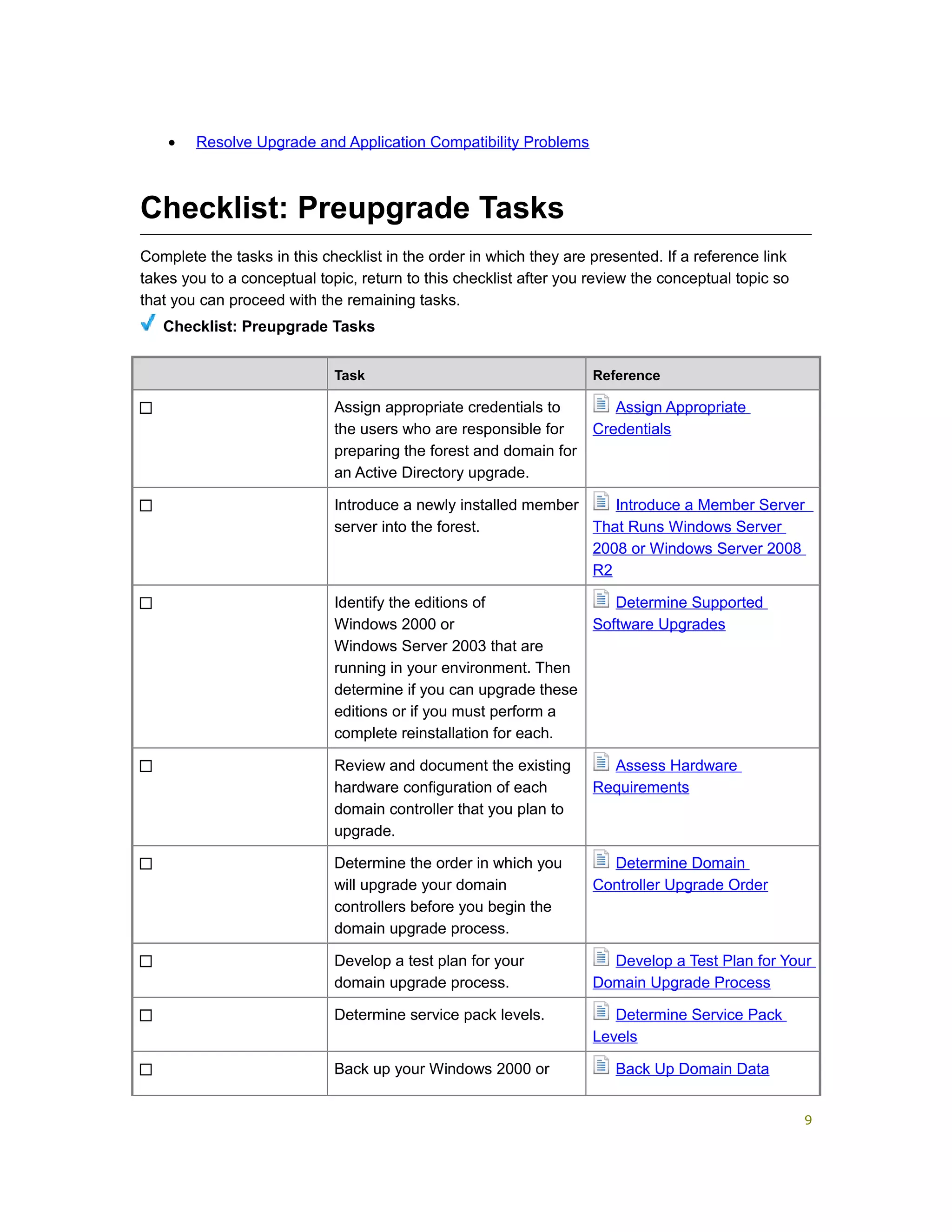
Complete the tasks in this checklist in the order in which they are presented. If a reference link
takes you to a conceptual topic, return to this checklist after you review the conceptual topic so
that you can proceed with the remaining tasks.
Checklist: Preupgrade Tasks
Task Reference
Assign appropriate credentials to
the users who are responsible for
preparing the forest and domain for
an Active Directory upgrade.
Assign Appropriate
Credentials
Introduce a newly installed member
server into the forest.
Introduce a Member Server
That Runs Windows Server
2008 or Windows Server 2008
R2
Identify the editions of
Windows 2000 or
Windows Server 2003 that are
running in your environment. Then
determine if you can upgrade these
editions or if you must perform a
complete reinstallation for each.
Determine Supported
Software Upgrades
Review and document the existing
hardware configuration of each
domain controller that you plan to
upgrade.
Assess Hardware
Requirements
Determine the order in which you
will upgrade your domain
controllers before you begin the
domain upgrade process.
Determine Domain
Controller Upgrade Order
Develop a test plan for your
domain upgrade process.
Develop a Test Plan for Your
Domain Upgrade Process
Determine service pack levels. Determine Service Pack
Levels
Back up your Windows 2000 or Back Up Domain Data
9
Task Reference
Windows Server 2003 domain data
before you begin the upgrade.
Resolve upgrade and application
compatibility problems.
Resolve Upgrade and
Application Compatibility
Problems
Assign Appropriate Credentials
Assign appropriate credentials to the users who are responsible for preparing the forest and
domain for an Active Directory upgrade. The adprep /forestprep command requires a user
account that is a member of the Schema Admins, Enterprise Admins, and Domain Admins
groups. The adprep /domainprep command requires a user account that is a member of the
Domain Admins group in the targeted domain. The adprep /rodcprep command requires a user
account that is a member of the Enterprise Admins group.
In addition, the security context can affect the ability of an administrator to complete the upgrade
of domain controllers. Members of the BuiltinAdministrators group can upgrade the operating
system and install software on a computer. The following groups are members of the
BuiltinAdministrators group by default:
• The Enterprise Admins group is a member of BuiltinAdministrators in the forest root
domain and in each regional domain in the forest.
• The Domain Admins group is a member of BuiltinAdministrators in their domain.
• The Domain Admins group is a member of BuiltinAdministrators on member servers in
their domain.
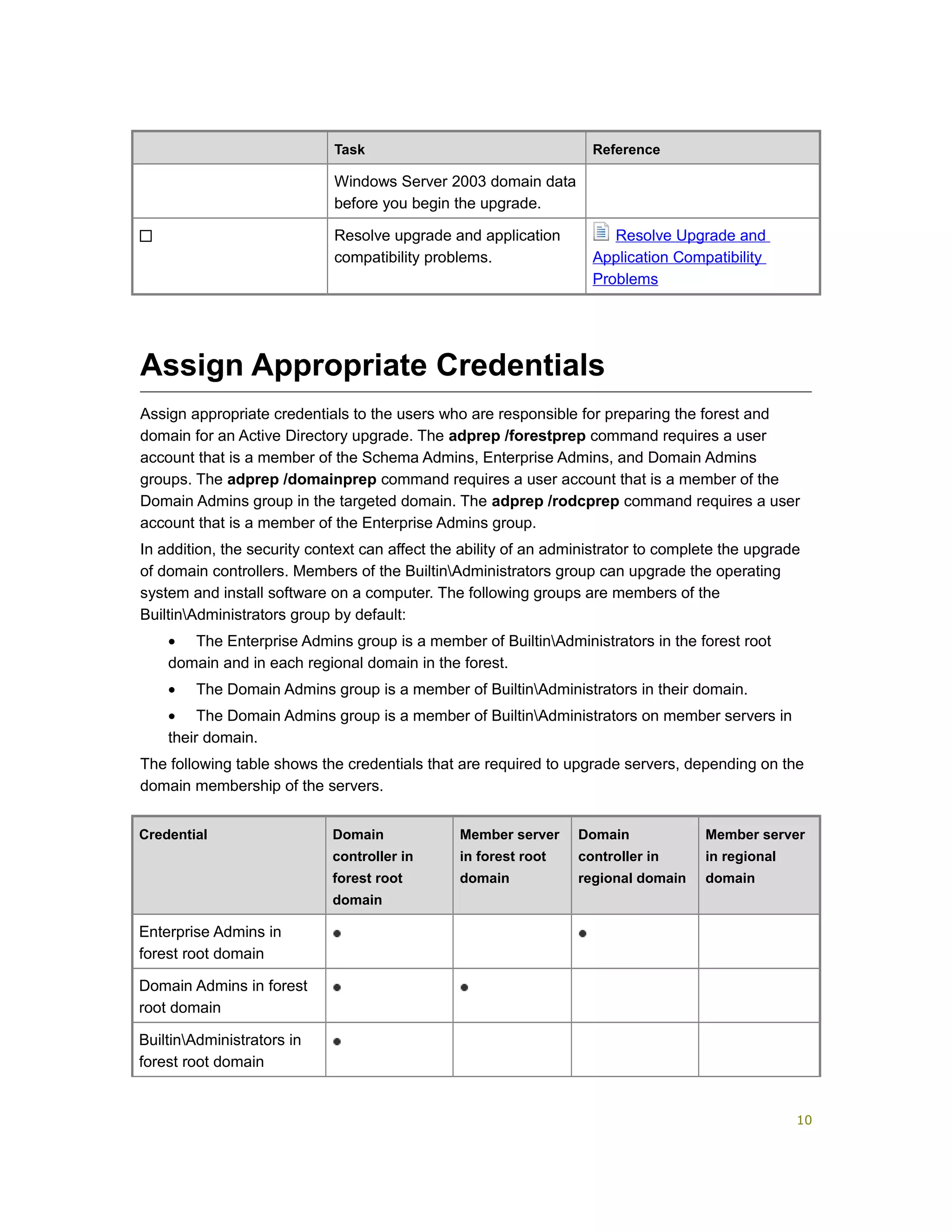
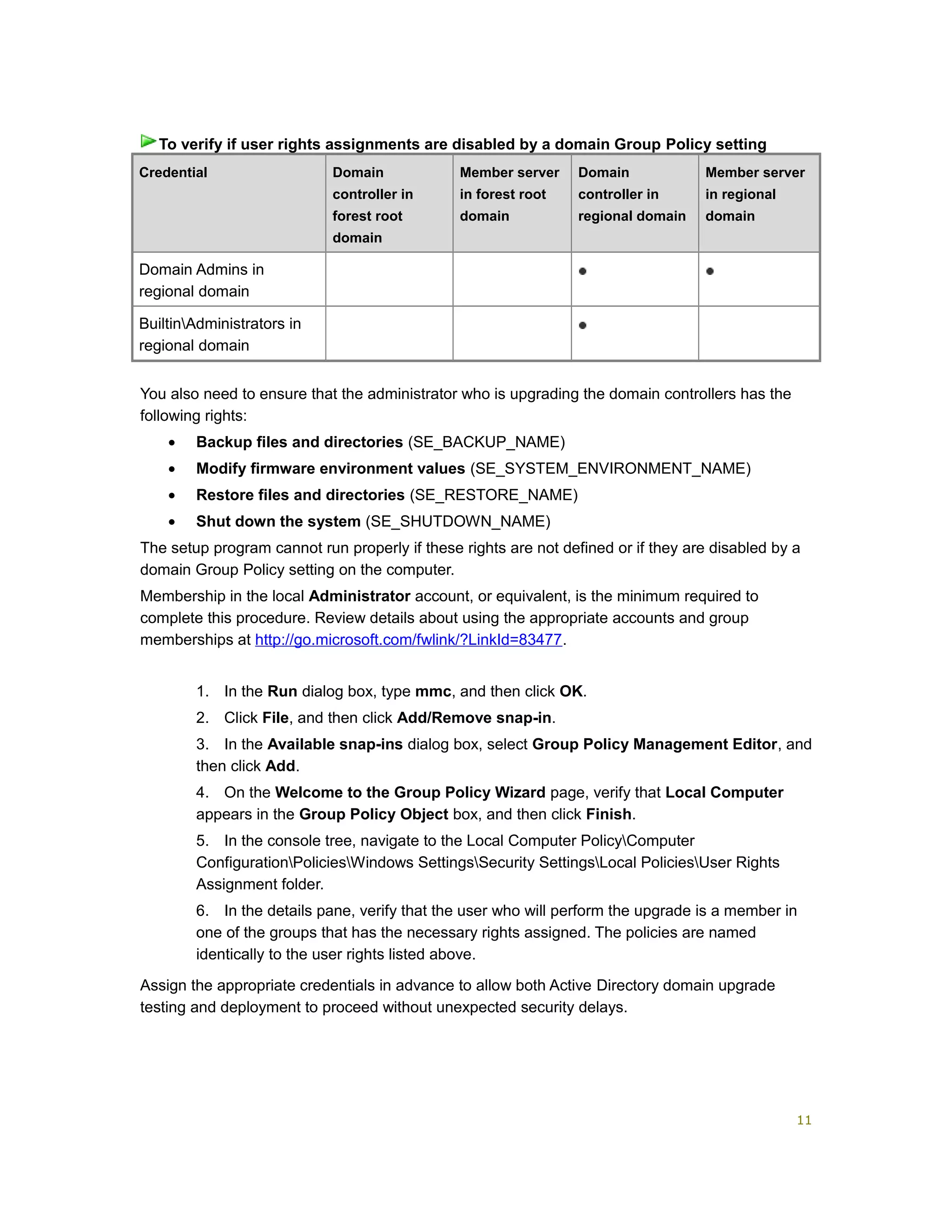
The following table shows the credentials that are required to upgrade servers, depending on the
domain membership of the servers.
Credential Domain
controller in
forest root
domain
Member server
in forest root
domain
Domain
controller in
regional domain
Member server
in regional
domain
Enterprise Admins in
forest root domain
Domain Admins in forest
root domain
BuiltinAdministrators in
forest root domain
10
Credential Domain
controller in
forest root
domain
Member server
in forest root
domain
Domain
controller in
regional domain
Member server
in regional
domain
Domain Admins in
regional domain
BuiltinAdministrators in
regional domain
You also need to ensure that the administrator who is upgrading the domain controllers has the
following rights:
• Backup files and directories (SE_BACKUP_NAME)
• Modify firmware environment values (SE_SYSTEM_ENVIRONMENT_NAME)
• Restore files and directories (SE_RESTORE_NAME)
• Shut down the system (SE_SHUTDOWN_NAME)
The setup program cannot run properly if these rights are not defined or if they are disabled by a
domain Group Policy setting on the computer.
Membership in the local Administrator account, or equivalent, is the minimum required to
complete this procedure. Review details about using the appropriate accounts and group
memberships at http://go.microsoft.com/fwlink/?LinkId=83477.
1. In the Run dialog box, type mmc, and then click OK.
2. Click File, and then click Add/Remove snap-in.
3. In the Available snap-ins dialog box, select Group Policy Management Editor, and
then click Add.
4. On the Welcome to the Group Policy Wizard page, verify that Local Computer
appears in the Group Policy Object box, and then click Finish.
5. In the console tree, navigate to the Local Computer PolicyComputer
ConfigurationPoliciesWindows SettingsSecurity SettingsLocal PoliciesUser Rights
Assignment folder.
6. In the details pane, verify that the user who will perform the upgrade is a member in
one of the groups that has the necessary rights assigned. The policies are named
identically to the user rights listed above.
Assign the appropriate credentials in advance to allow both Active Directory domain upgrade
testing and deployment to proceed without unexpected security delays.
To verify if user rights assignments are disabled by a domain Group Policy setting
11
Introduce a Member Server That Runs
Windows Server 2008 or Windows Server
2008 R2
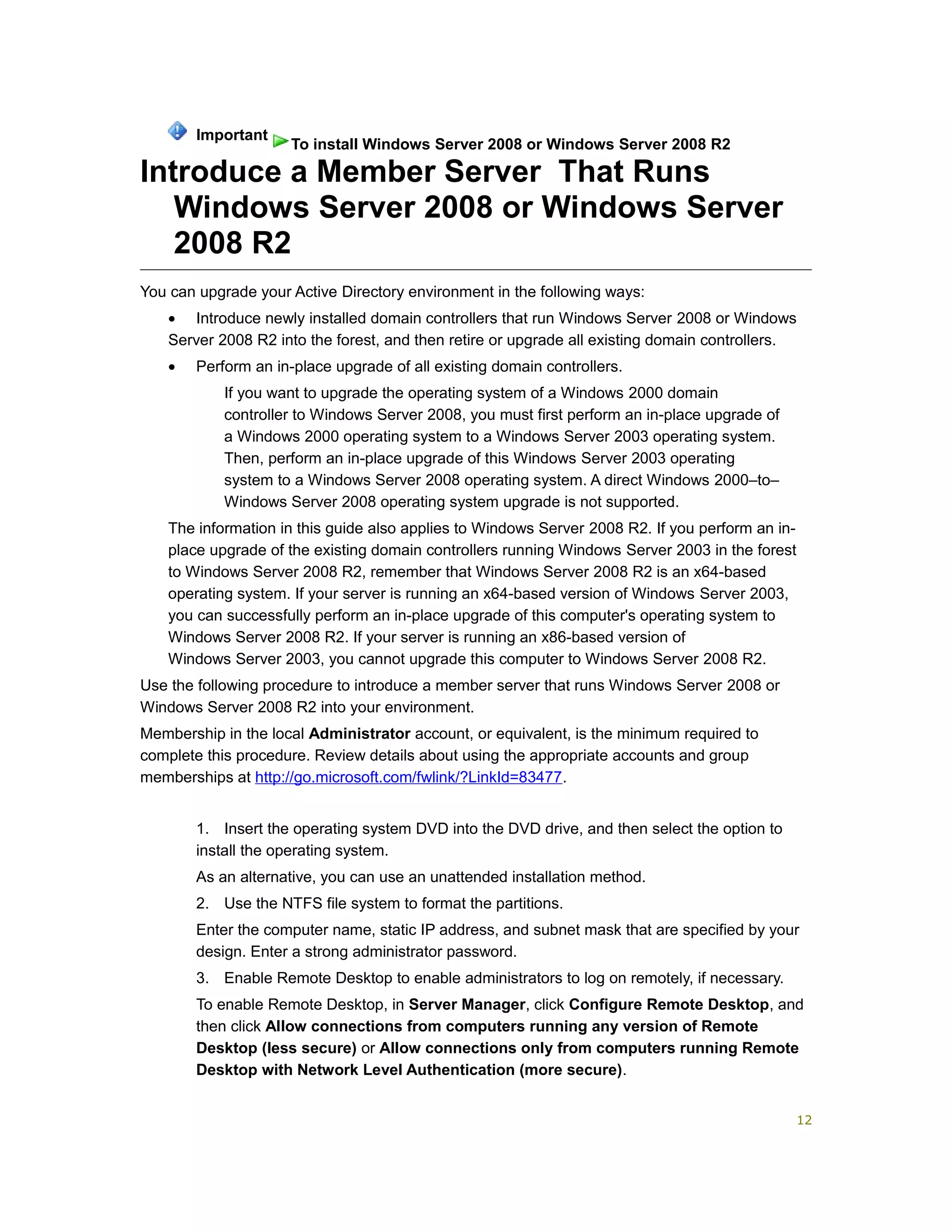
You can upgrade your Active Directory environment in the following ways:
• Introduce newly installed domain controllers that run Windows Server 2008 or Windows
Server 2008 R2 into the forest, and then retire or upgrade all existing domain controllers.
• Perform an in-place upgrade of all existing domain controllers.
If you want to upgrade the operating system of a Windows 2000 domain
controller to Windows Server 2008, you must first perform an in-place upgrade of
a Windows 2000 operating system to a Windows Server 2003 operating system.
Then, perform an in-place upgrade of this Windows Server 2003 operating
system to a Windows Server 2008 operating system. A direct Windows 2000–to–
Windows Server 2008 operating system upgrade is not supported.
The information in this guide also applies to Windows Server 2008 R2. If you perform an in-
place upgrade of the existing domain controllers running Windows Server 2003 in the forest
to Windows Server 2008 R2, remember that Windows Server 2008 R2 is an x64-based
operating system. If your server is running an x64-based version of Windows Server 2003,
you can successfully perform an in-place upgrade of this computer's operating system to
Windows Server 2008 R2. If your server is running an x86-based version of
Windows Server 2003, you cannot upgrade this computer to Windows Server 2008 R2.
Use the following procedure to introduce a member server that runs Windows Server 2008 or
Windows Server 2008 R2 into your environment.
Membership in the local Administrator account, or equivalent, is the minimum required to
complete this procedure. Review details about using the appropriate accounts and group
memberships at http://go.microsoft.com/fwlink/?LinkId=83477.
1. Insert the operating system DVD into the DVD drive, and then select the option to
install the operating system.
As an alternative, you can use an unattended installation method.
2. Use the NTFS file system to format the partitions.
Enter the computer name, static IP address, and subnet mask that are specified by your
design. Enter a strong administrator password.
3. Enable Remote Desktop to enable administrators to log on remotely, if necessary.
To enable Remote Desktop, in Server Manager, click Configure Remote Desktop, and
then click Allow connections from computers running any version of Remote
Desktop (less secure) or Allow connections only from computers running Remote
Desktop with Network Level Authentication (more secure).
Important
To install Windows Server 2008 or Windows Server 2008 R2
12
You can introduce this member server to any domain in the forest. However, if your forest root
domain is a dedicated root, introduce the member server into the forest root domain. Placing this
member server into a dedicated root domain has the lowest impact on your environment because
users generally do not log on to a dedicated forest root domain. Therefore, user authentications
are minimal.
After you prepare your forest and domains for the upgrade (see Prepare Your Infrastructure for
Upgrade), install AD DS on the new member server (see Install Active Directory Domain Services
on the Member Server That Runs Windows Server 2008 or Windows Server 2008 R2).
Determine Supported Software Upgrades
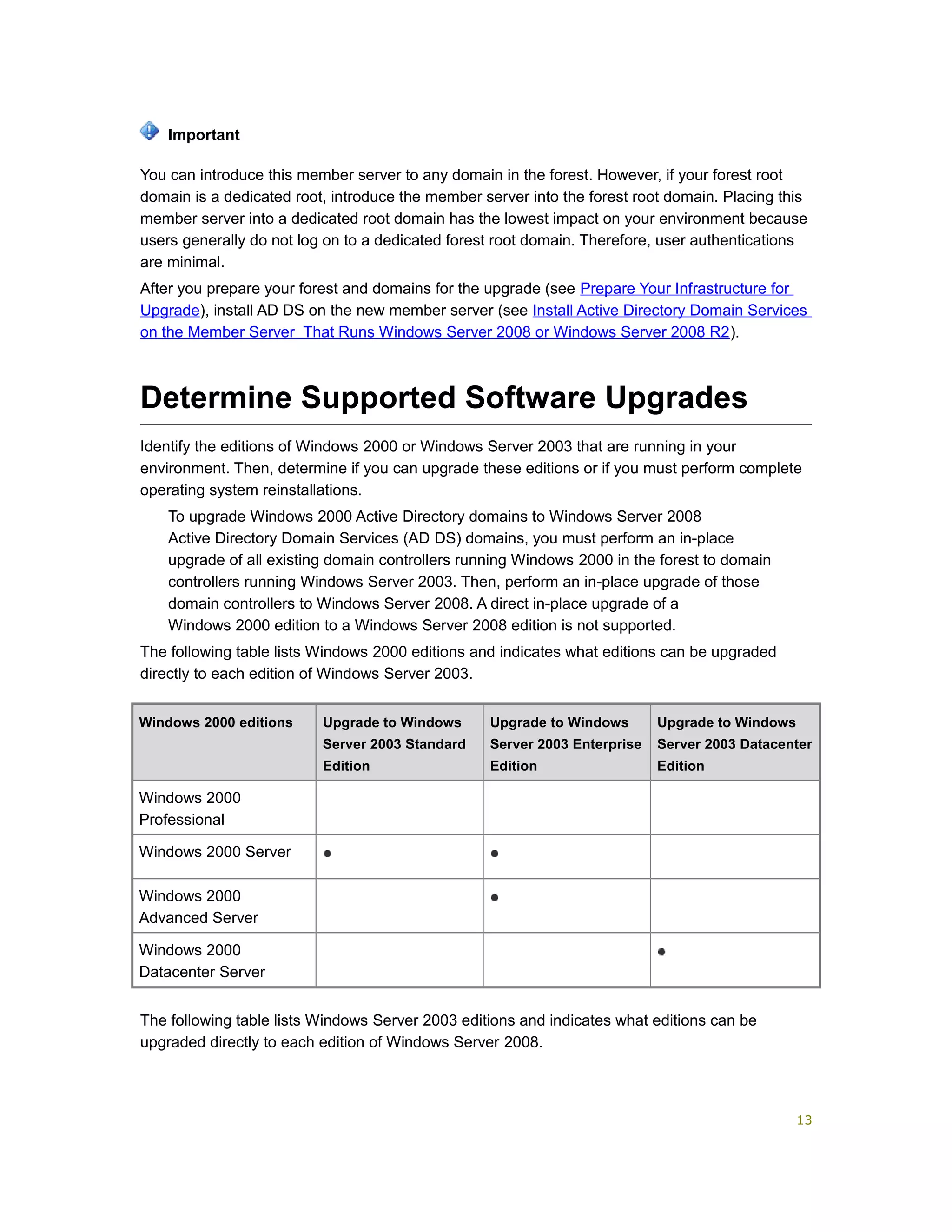
Identify the editions of Windows 2000 or Windows Server 2003 that are running in your
environment. Then, determine if you can upgrade these editions or if you must perform complete
operating system reinstallations.
To upgrade Windows 2000 Active Directory domains to Windows Server 2008
Active Directory Domain Services (AD DS) domains, you must perform an in-place
upgrade of all existing domain controllers running Windows 2000 in the forest to domain
controllers running Windows Server 2003. Then, perform an in-place upgrade of those
domain controllers to Windows Server 2008. A direct in-place upgrade of a
Windows 2000 edition to a Windows Server 2008 edition is not supported.
The following table lists Windows 2000 editions and indicates what editions can be upgraded
directly to each edition of Windows Server 2003.
Windows 2000 editions Upgrade to Windows
Server 2003 Standard
Edition
Upgrade to Windows
Server 2003 Enterprise
Edition
Upgrade to Windows
Server 2003 Datacenter
Edition
Windows 2000
Professional
Windows 2000 Server
Windows 2000
Advanced Server
Windows 2000
Datacenter Server
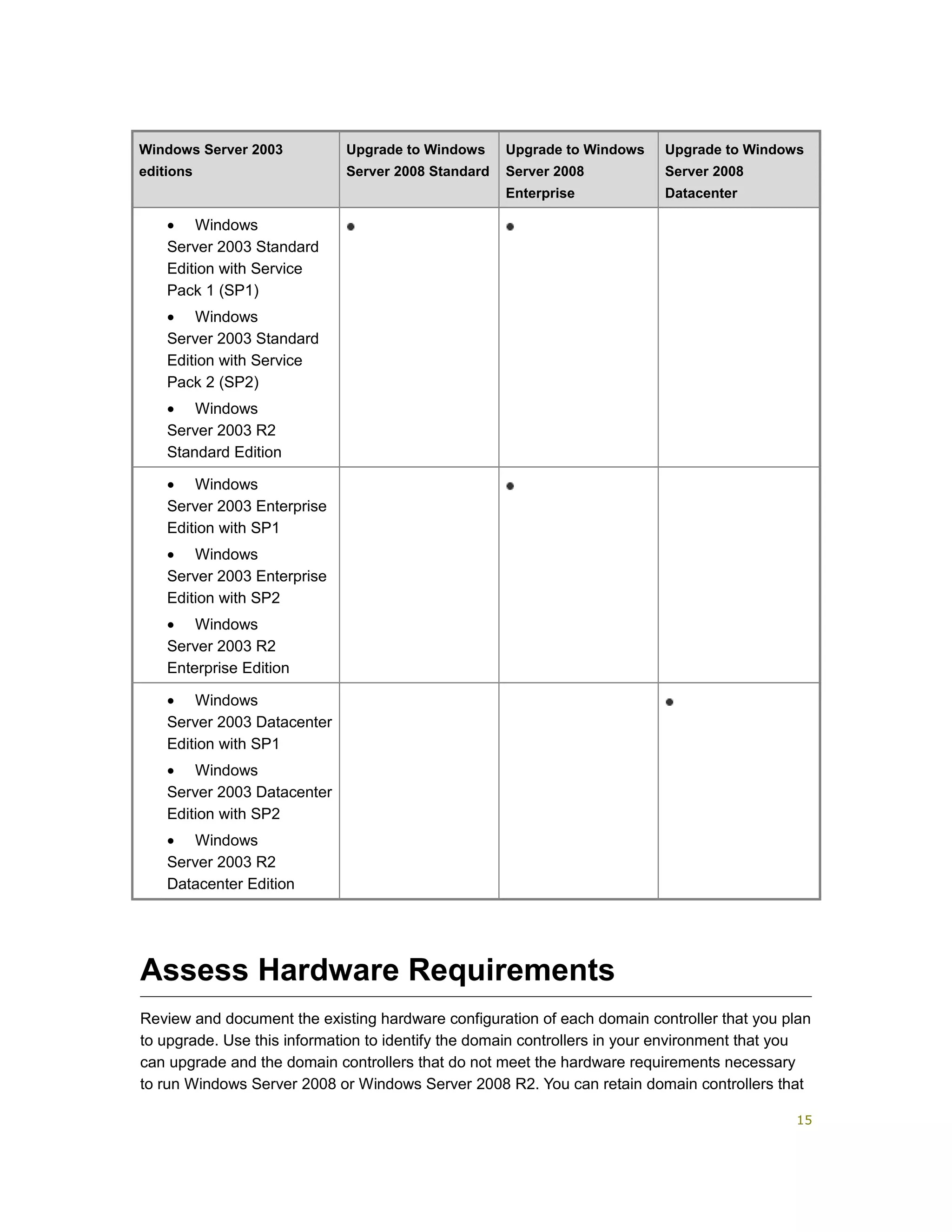
The following table lists Windows Server 2003 editions and indicates what editions can be
upgraded directly to each edition of Windows Server 2008.
Important
13
With the exception of Windows Server 2008 editions for Itanium-Based Systems, this
table applies equally to 32-bit and 64-bit Windows Server 2008 editions. However,
upgrades from 32-bit to 64-bit (and from 64-bit to 32-bit) are not supported.
The information in this guide also applies to Windows Server 2008 R2. If you perform an
in-place upgrade of the existing domain controllers running Windows Server 2003 in the
forest to Windows Server 2008 R2, remember that Windows Server 2008 R2 is an x64-
based operating system. If your server is running an x64-based version of
Windows Server 2003, you can successfully perform an in-place upgrade of this
computer's operating system to Windows Server 2008 R2. If your server is running an
x86-based version of Windows Server 2003, you cannot upgrade this computer to
Windows Server 2008 R2. For more information about supported upgrade options, see
Supported in-place upgrade paths.
Notes
14
Windows Server 2003
editions
Upgrade to Windows
Server 2008 Standard
Upgrade to Windows
Server 2008
Enterprise
Upgrade to Windows
Server 2008
Datacenter
• Windows
Server 2003 Standard
Edition with Service
Pack 1 (SP1)
• Windows
Server 2003 Standard
Edition with Service
Pack 2 (SP2)
• Windows
Server 2003 R2
Standard Edition
• Windows
Server 2003 Enterprise
Edition with SP1
• Windows
Server 2003 Enterprise
Edition with SP2
• Windows
Server 2003 R2
Enterprise Edition
• Windows
Server 2003 Datacenter
Edition with SP1
• Windows
Server 2003 Datacenter
Edition with SP2
• Windows
Server 2003 R2
Datacenter Edition
Assess Hardware Requirements
Review and document the existing hardware configuration of each domain controller that you plan
to upgrade. Use this information to identify the domain controllers in your environment that you
can upgrade and the domain controllers that do not meet the hardware requirements necessary
to run Windows Server 2008 or Windows Server 2008 R2. You can retain domain controllers that
15
do not meet the necessary hardware requirements to serve as rollback servers if you must roll
back your deployment. In most cases, a Windows 2000–based domain controller meets the
requirements to be upgraded to Windows Server 2008 as long as it has adequate disk space.
At minimum, a domain controller requires available free disk space for the Active Directory
Domain Services (AD DS) database, AD DS log files, SYSVOL, and the operating system. Use
the following guidelines to determine how much disk space to allot for your AD DS installation:
• On the drive that will contain the AD DS database, NTDS.dit, provide 0.4 gigabytes (GB)
of storage for each 1,000 users. For example, for a forest with two domains (domain A and
domain B) with 10,000 users and 5,000 users, respectively, provide a minimum of 4 GB of
disk space for each domain controller that hosts domain A and provide a minimum of 2 GB of
disk space for each domain controller that hosts domain B. Available space must equal at
least 10 percent of your existing database size or at least 250 megabytes (MB), whichever is
greater.
• On the drive containing the AD DS log files, provide at least 500 MB of available space.
• On the drive containing the SYSVOL shared folder, provide at least 500 MB of available
space.
• On the drive containing the operating system files, to run setup, provide at least 1.25 GB
to 2 GB of available space.
Disk space requirements for upgrading to
Windows Server 2008
The upgrade process from Windows Server 2003 to Windows Server 2008 requires free disk
space for the new operating system image, for the Setup process, and for any installed server
roles. An error is logged when the domain controller role detects insufficient disk space to perform
the upgrade.
Additional disk space information may appear in the compatibility report that Setup displays.
For the domain controller role, the volume or volumes that host the following resources also have
specific free disk space requirements:
• Application Data (%AppData%)
• Program Files (%ProgramFiles%)
• Users Data (%SystemDrive%Documents and Settings)
• Windows Directory (%WinDir%)
The free space on the %WinDir% volume must be equal or greater than the current size of the
resources listed above and their subordinate folders when they are located on the %WinDir%
volume. By default, Dcpromo.exe places the Active Directory database and log files under
%Windir%, in which case, their size is included in the free disk space requirements for the
%Windir% folder.
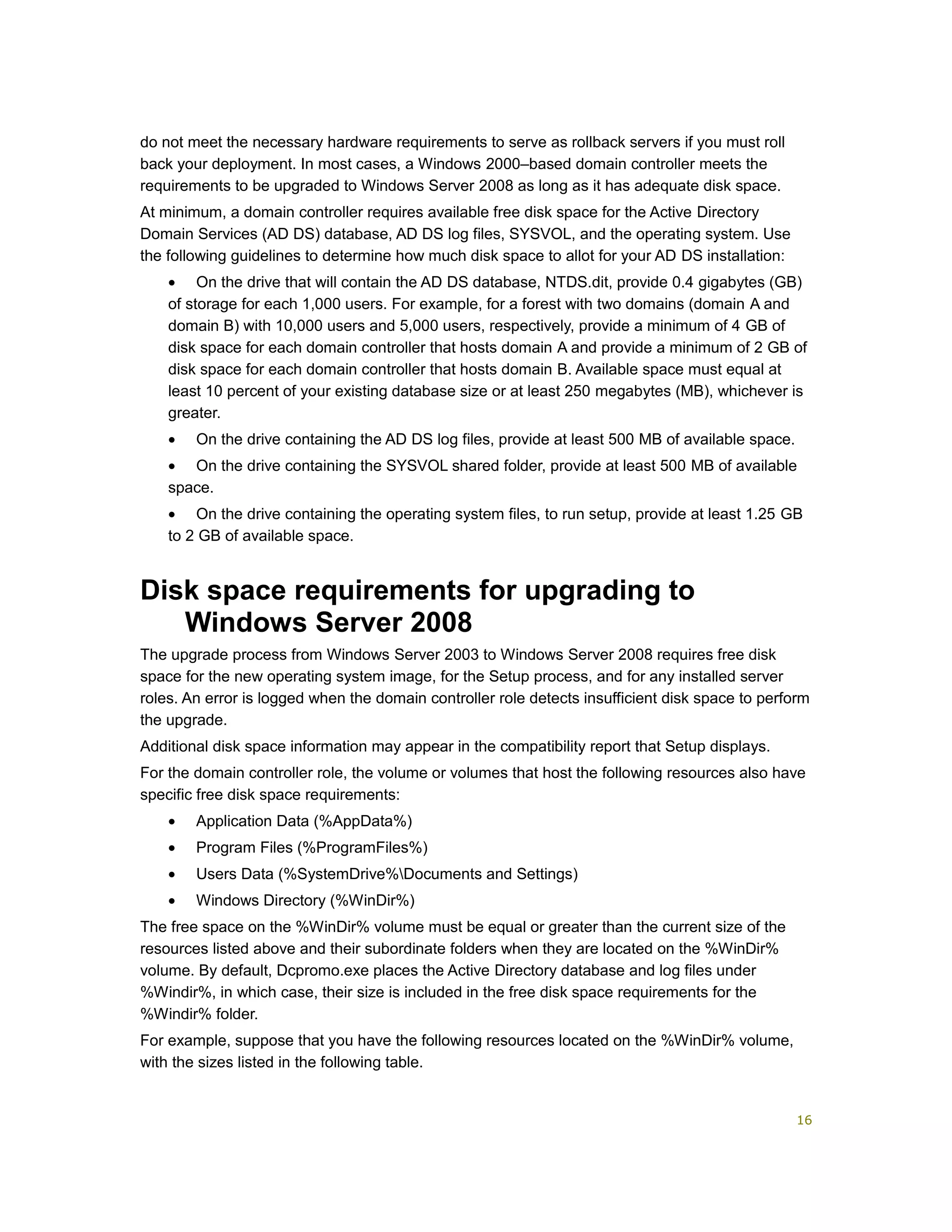
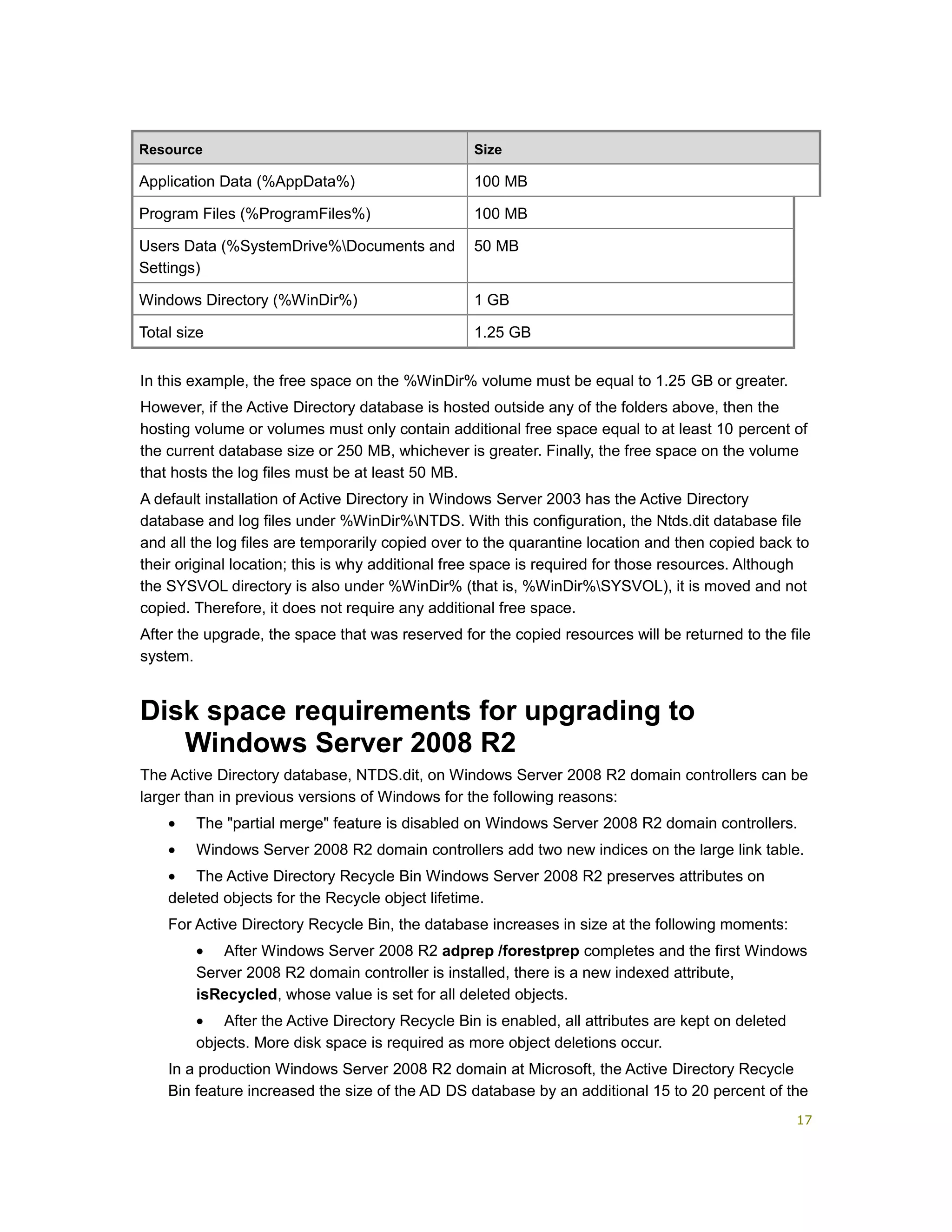
For example, suppose that you have the following resources located on the %WinDir% volume,
with the sizes listed in the following table.
16
Resource Size
Application Data (%AppData%) 100 MB
Program Files (%ProgramFiles%) 100 MB
Users Data (%SystemDrive%Documents and
Settings)
50 MB
Windows Directory (%WinDir%) 1 GB
Total size 1.25 GB
In this example, the free space on the %WinDir% volume must be equal to 1.25 GB or greater.
However, if the Active Directory database is hosted outside any of the folders above, then the
hosting volume or volumes must only contain additional free space equal to at least 10 percent of
the current database size or 250 MB, whichever is greater. Finally, the free space on the volume
that hosts the log files must be at least 50 MB.
A default installation of Active Directory in Windows Server 2003 has the Active Directory
database and log files under %WinDir%NTDS. With this configuration, the Ntds.dit database file
and all the log files are temporarily copied over to the quarantine location and then copied back to
their original location; this is why additional free space is required for those resources. Although
the SYSVOL directory is also under %WinDir% (that is, %WinDir%SYSVOL), it is moved and not
copied. Therefore, it does not require any additional free space.
After the upgrade, the space that was reserved for the copied resources will be returned to the file
system.
Disk space requirements for upgrading to
Windows Server 2008 R2
The Active Directory database, NTDS.dit, on Windows Server 2008 R2 domain controllers can be
larger than in previous versions of Windows for the following reasons:
• The "partial merge" feature is disabled on Windows Server 2008 R2 domain controllers.
• Windows Server 2008 R2 domain controllers add two new indices on the large link table.
• The Active Directory Recycle Bin Windows Server 2008 R2 preserves attributes on
deleted objects for the Recycle object lifetime.
For Active Directory Recycle Bin, the database increases in size at the following moments:
• After Windows Server 2008 R2 adprep /forestprep completes and the first Windows
Server 2008 R2 domain controller is installed, there is a new indexed attribute,
isRecycled, whose value is set for all deleted objects.
• After the Active Directory Recycle Bin is enabled, all attributes are kept on deleted
objects. More disk space is required as more object deletions occur.
In a production Windows Server 2008 R2 domain at Microsoft, the Active Directory Recycle
Bin feature increased the size of the AD DS database by an additional 15 to 20 percent of the
17
original database size, using the default deletedObjectLifetime and
recycledObjectLifetime values of 180 days. Additional space requirements depend on the
size and count of the objects that are recycled.
An in-place upgrade of a domain controller to Windows Server 2008 R2 requires sufficient disk
space for the upgrade process to copy the following folders:
• %SystemRoot%
• %ProgramFiles%
• %SystemDrive%Program Files
• %ProgramFiles(x86)%
• %SystemDrive%build
• %SystemDrive%InstalledRepository
• %ProfilesFolder%
• %ProgramData%
• %SystemDrive%Documents and Settings
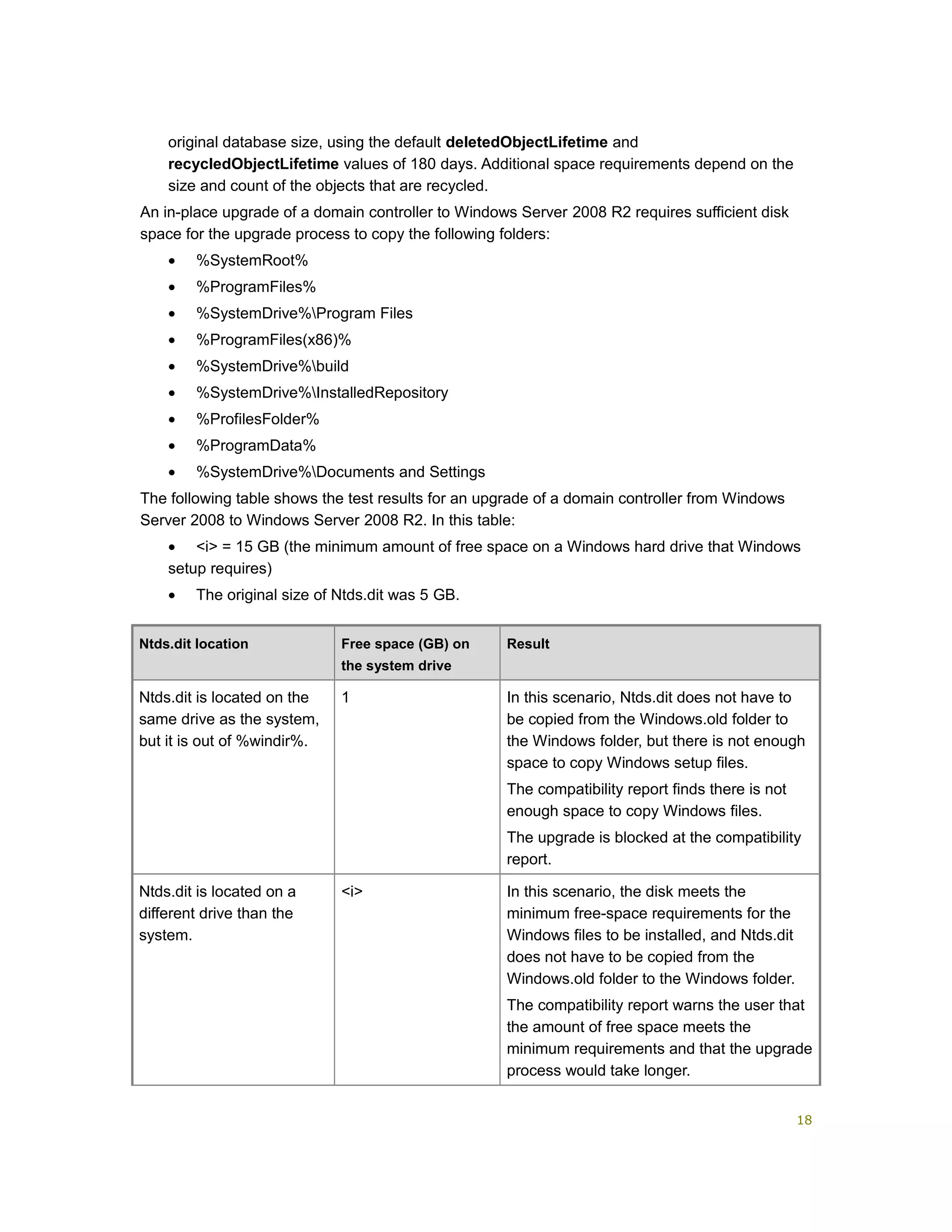
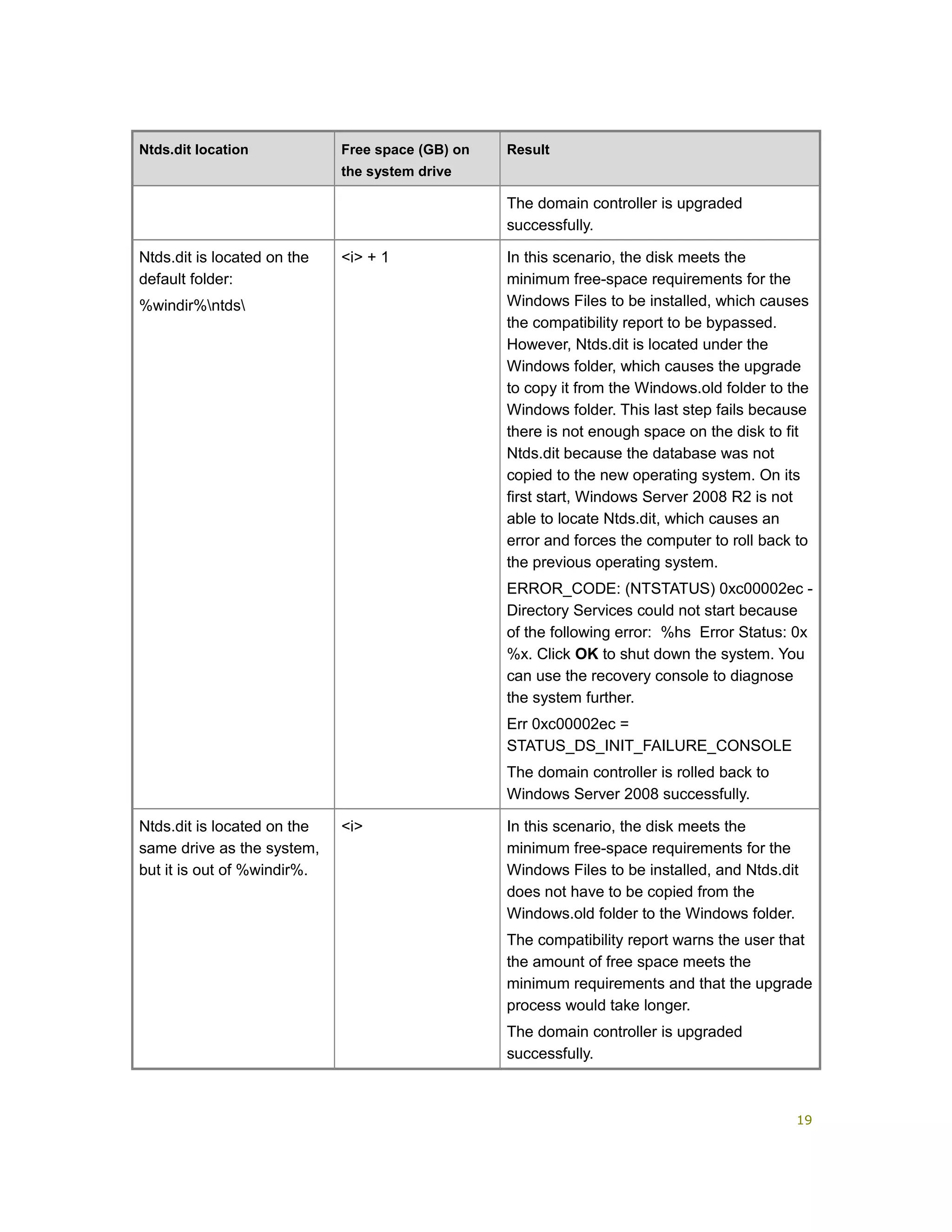
The following table shows the test results for an upgrade of a domain controller from Windows
Server 2008 to Windows Server 2008 R2. In this table:
• <i> = 15 GB (the minimum amount of free space on a Windows hard drive that Windows
setup requires)
• The original size of Ntds.dit was 5 GB.
Ntds.dit location Free space (GB) on
the system drive
Result
Ntds.dit is located on the
same drive as the system,
but it is out of %windir%.
1 In this scenario, Ntds.dit does not have to
be copied from the Windows.old folder to
the Windows folder, but there is not enough
space to copy Windows setup files.
The compatibility report finds there is not
enough space to copy Windows files.
The upgrade is blocked at the compatibility
report.
Ntds.dit is located on a
different drive than the
system.
<i> In this scenario, the disk meets the
minimum free-space requirements for the
Windows files to be installed, and Ntds.dit
does not have to be copied from the
Windows.old folder to the Windows folder.
The compatibility report warns the user that
the amount of free space meets the
minimum requirements and that the upgrade
process would take longer.
18
Ntds.dit location Free space (GB) on
the system drive
Result
The domain controller is upgraded
successfully.
Ntds.dit is located on the
default folder:
%windir%ntds
<i> + 1 In this scenario, the disk meets the
minimum free-space requirements for the
Windows Files to be installed, which causes
the compatibility report to be bypassed.
However, Ntds.dit is located under the
Windows folder, which causes the upgrade
to copy it from the Windows.old folder to the
Windows folder. This last step fails because
there is not enough space on the disk to fit
Ntds.dit because the database was not
copied to the new operating system. On its
first start, Windows Server 2008 R2 is not
able to locate Ntds.dit, which causes an
error and forces the computer to roll back to
the previous operating system.
ERROR_CODE: (NTSTATUS) 0xc00002ec -
Directory Services could not start because
of the following error: %hs Error Status: 0x
%x. Click OK to shut down the system. You
can use the recovery console to diagnose
the system further.
Err 0xc00002ec =
STATUS_DS_INIT_FAILURE_CONSOLE
The domain controller is rolled back to
Windows Server 2008 successfully.
Ntds.dit is located on the
same drive as the system,
but it is out of %windir%.
<i> In this scenario, the disk meets the
minimum free-space requirements for the
Windows Files to be installed, and Ntds.dit
does not have to be copied from the
Windows.old folder to the Windows folder.
The compatibility report warns the user that
the amount of free space meets the
minimum requirements and that the upgrade
process would take longer.
The domain controller is upgraded
successfully.
19
Determine Domain Controller Upgrade Order
Determine the order in which you will upgrade your domain controllers before you begin the
domain upgrade process. Record the name, IP address, the domain in which the domain
controller will be located, and the operations master roles held by each domain controller before
and after the upgrade. Finally, record the order in which you will upgrade the operating system on
each domain controller.
One possible order for upgrading domain controllers is as follows:
• Install Active Directory Domain Services (AD DS) on a member server that runs Windows
Server 2008 or Windows Server 2008 R2 in the forest root domain by using the
Active Directory Domain Services Installation Wizard (Dcpromo.exe).
• In each domain, upgrade the operating system on the domain controller that holds the
primary domain controller (PDC) emulator operations master role, or transfer the role to a
domain controller that runs Windows Server 2008 or Windows Server 2008 R2.
Some tasks, such as creation of the Enterprise Read-Only Domain Controllers group, are
performed on the PDC emulator only if it is running Windows Server 2008 or Windows
Server 2008 R2. It may be preferable to upgrade the PDC emulator for that reason, but it is
not a requirement. If the PDC emulator is not upgraded, the Enterprise Read-Only Domain
Controllers group is created when the first read-only domain controller (RODC) is added to
the domain.
• Continue upgrading domain controllers or retiring domain controllers that you no longer
want to keep in your infrastructure, until the domain upgrade is complete.
This order for upgrading or adding new domain controllers is a recommendation only. It is
safe to upgrade the domain controllers holding any operations master role at any time in
the upgrade process.
Similarly, you can independently upgrade each domain within a forest that has multiple
domains. For example, you can begin upgrading domain controllers in a child domain
before you upgrade domain controllers in the root domain of the same forest.
Use a domain controller documentation table to document information about each domain
controller in the forest. For a worksheet to assist in documenting your domain controller
information, see Job Aids for Windows Server 2003 Deployment Kit
(http://go.microsoft.com/fwlink/?LinkID=102558). Download
Job_Aids_Designing_and_Deploying_Directory_and_Security_Services.zip, and then open
DSSUPWN_2.doc.
Notes
20
Develop a Test Plan for Your Domain
Upgrade Process
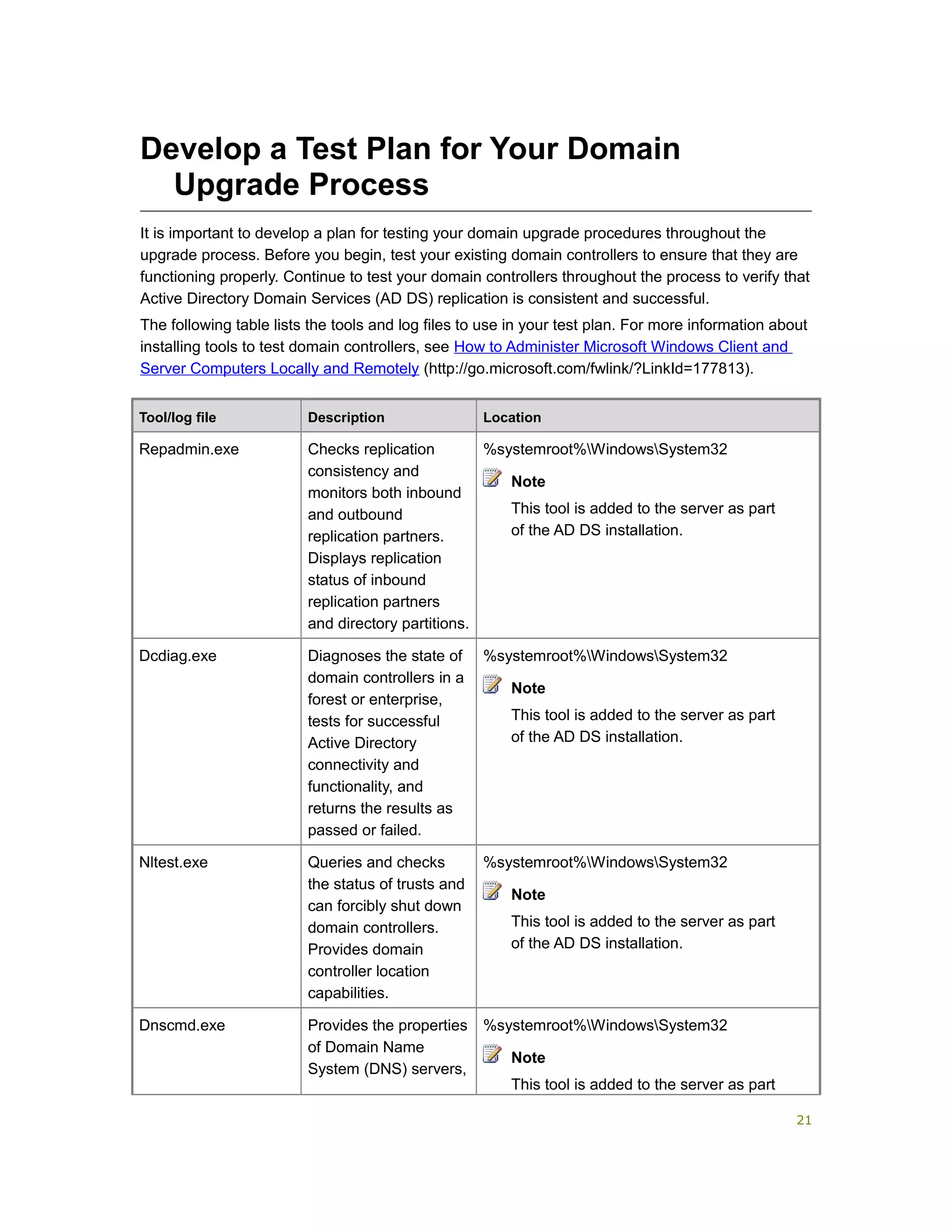
It is important to develop a plan for testing your domain upgrade procedures throughout the
upgrade process. Before you begin, test your existing domain controllers to ensure that they are
functioning properly. Continue to test your domain controllers throughout the process to verify that
Active Directory Domain Services (AD DS) replication is consistent and successful.
The following table lists the tools and log files to use in your test plan. For more information about
installing tools to test domain controllers, see How to Administer Microsoft Windows Client and
Server Computers Locally and Remotely (http://go.microsoft.com/fwlink/?LinkId=177813).
Tool/log file Description Location
Repadmin.exe Checks replication
consistency and
monitors both inbound
and outbound
replication partners.
Displays replication
status of inbound
replication partners
and directory partitions.
%systemroot%WindowsSystem32
Note
This tool is added to the server as part
of the AD DS installation.
Dcdiag.exe Diagnoses the state of
domain controllers in a
forest or enterprise,
tests for successful
Active Directory
connectivity and
functionality, and
returns the results as
passed or failed.
%systemroot%WindowsSystem32
Note
This tool is added to the server as part
of the AD DS installation.
Nltest.exe Queries and checks
the status of trusts and
can forcibly shut down
domain controllers.
Provides domain
controller location
capabilities.
%systemroot%WindowsSystem32
Note
This tool is added to the server as part
of the AD DS installation.
Dnscmd.exe Provides the properties
of Domain Name
System (DNS) servers,
%systemroot%WindowsSystem32
Note
This tool is added to the server as part
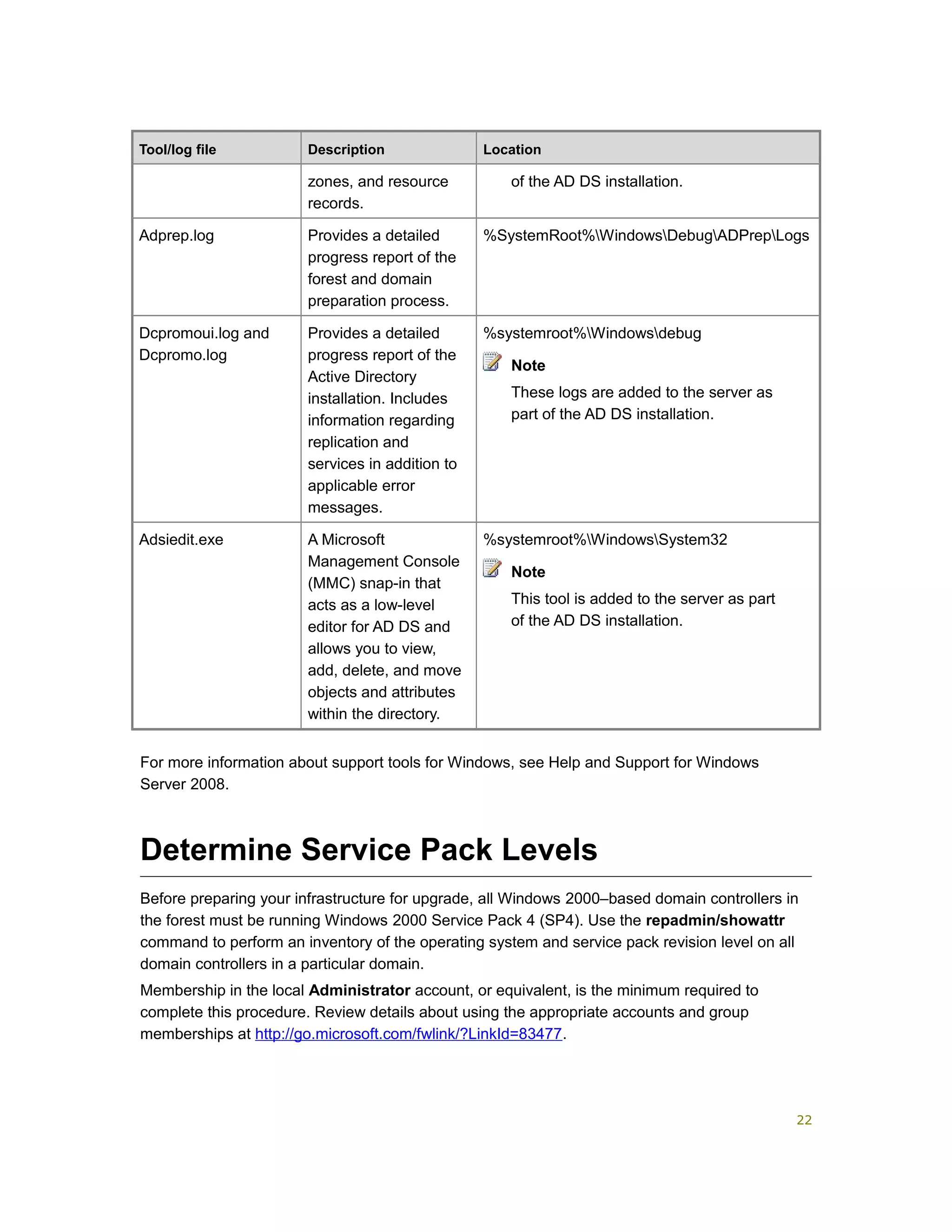
21
Tool/log file Description Location
zones, and resource
records.
of the AD DS installation.
Adprep.log Provides a detailed
progress report of the
forest and domain
preparation process.
%SystemRoot%WindowsDebugADPrepLogs
Dcpromoui.log and
Dcpromo.log
Provides a detailed
progress report of the
Active Directory
installation. Includes
information regarding
replication and
services in addition to
applicable error
messages.
%systemroot%Windowsdebug
Note
These logs are added to the server as
part of the AD DS installation.
Adsiedit.exe A Microsoft
Management Console
(MMC) snap-in that
acts as a low-level
editor for AD DS and
allows you to view,
add, delete, and move
objects and attributes
within the directory.
%systemroot%WindowsSystem32
Note
This tool is added to the server as part
of the AD DS installation.
For more information about support tools for Windows, see Help and Support for Windows
Server 2008.
Determine Service Pack Levels
Before preparing your infrastructure for upgrade, all Windows 2000–based domain controllers in
the forest must be running Windows 2000 Service Pack 4 (SP4). Use the repadmin/showattr
command to perform an inventory of the operating system and service pack revision level on all
domain controllers in a particular domain.
Membership in the local Administrator account, or equivalent, is the minimum required to
complete this procedure. Review details about using the appropriate accounts and group
memberships at http://go.microsoft.com/fwlink/?LinkId=83477.
22
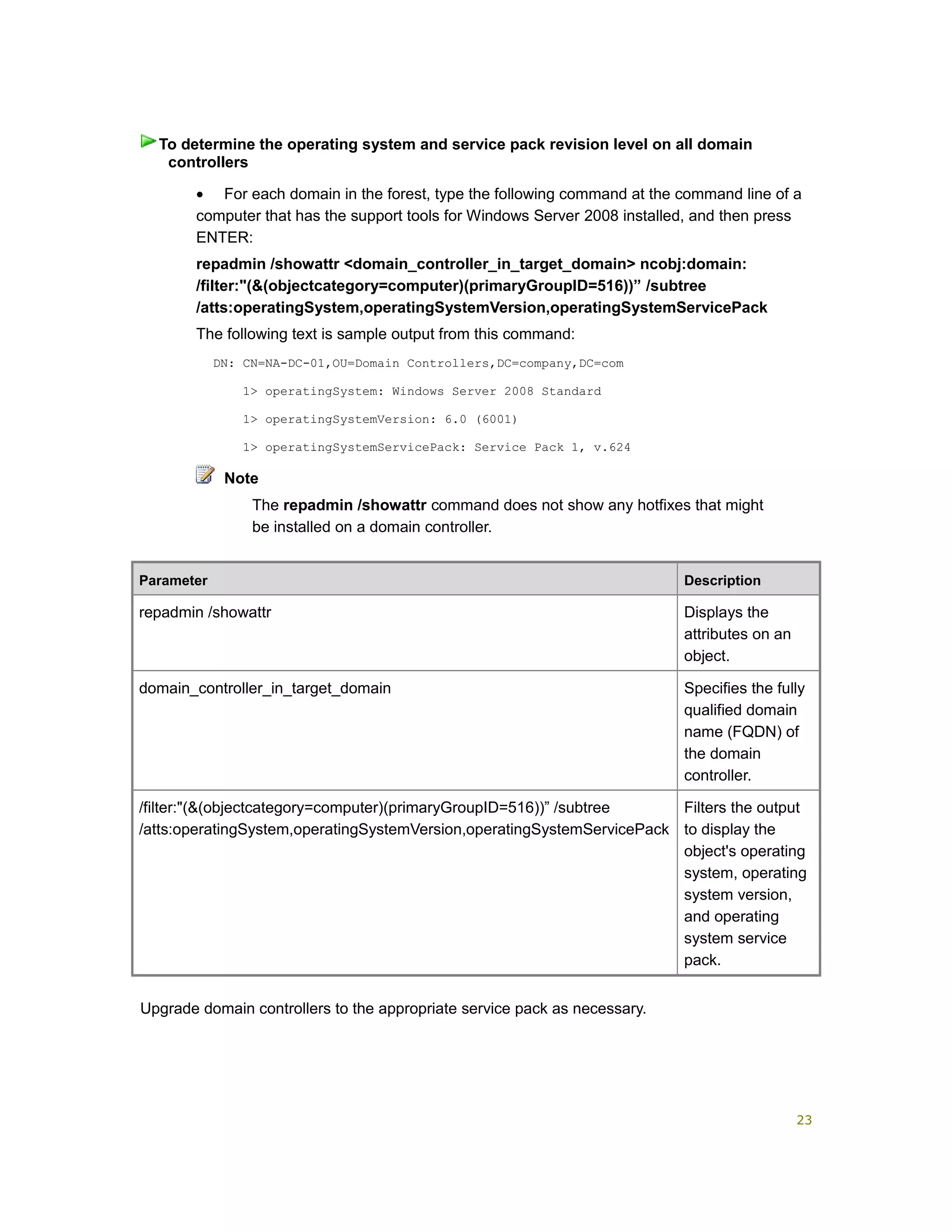
• For each domain in the forest, type the following command at the command line of a
computer that has the support tools for Windows Server 2008 installed, and then press
ENTER:
repadmin /showattr <domain_controller_in_target_domain> ncobj:domain:
/filter:"(&(objectcategory=computer)(primaryGroupID=516))” /subtree
/atts:operatingSystem,operatingSystemVersion,operatingSystemServicePack
The following text is sample output from this command:
DN: CN=NA-DC-01,OU=Domain Controllers,DC=company,DC=com
1> operatingSystem: Windows Server 2008 Standard
1> operatingSystemVersion: 6.0 (6001)
1> operatingSystemServicePack: Service Pack 1, v.624
Note
The repadmin /showattr command does not show any hotfixes that might
be installed on a domain controller.
Parameter Description
repadmin /showattr Displays the
attributes on an
object.
domain_controller_in_target_domain Specifies the fully
qualified domain
name (FQDN) of
the domain
controller.
/filter:"(&(objectcategory=computer)(primaryGroupID=516))” /subtree
/atts:operatingSystem,operatingSystemVersion,operatingSystemServicePack
Filters the output
to display the
object's operating
system, operating
system version,
and operating
system service
pack.
Upgrade domain controllers to the appropriate service pack as necessary.
To determine the operating system and service pack revision level on all domain
controllers
23
Back Up Domain Data
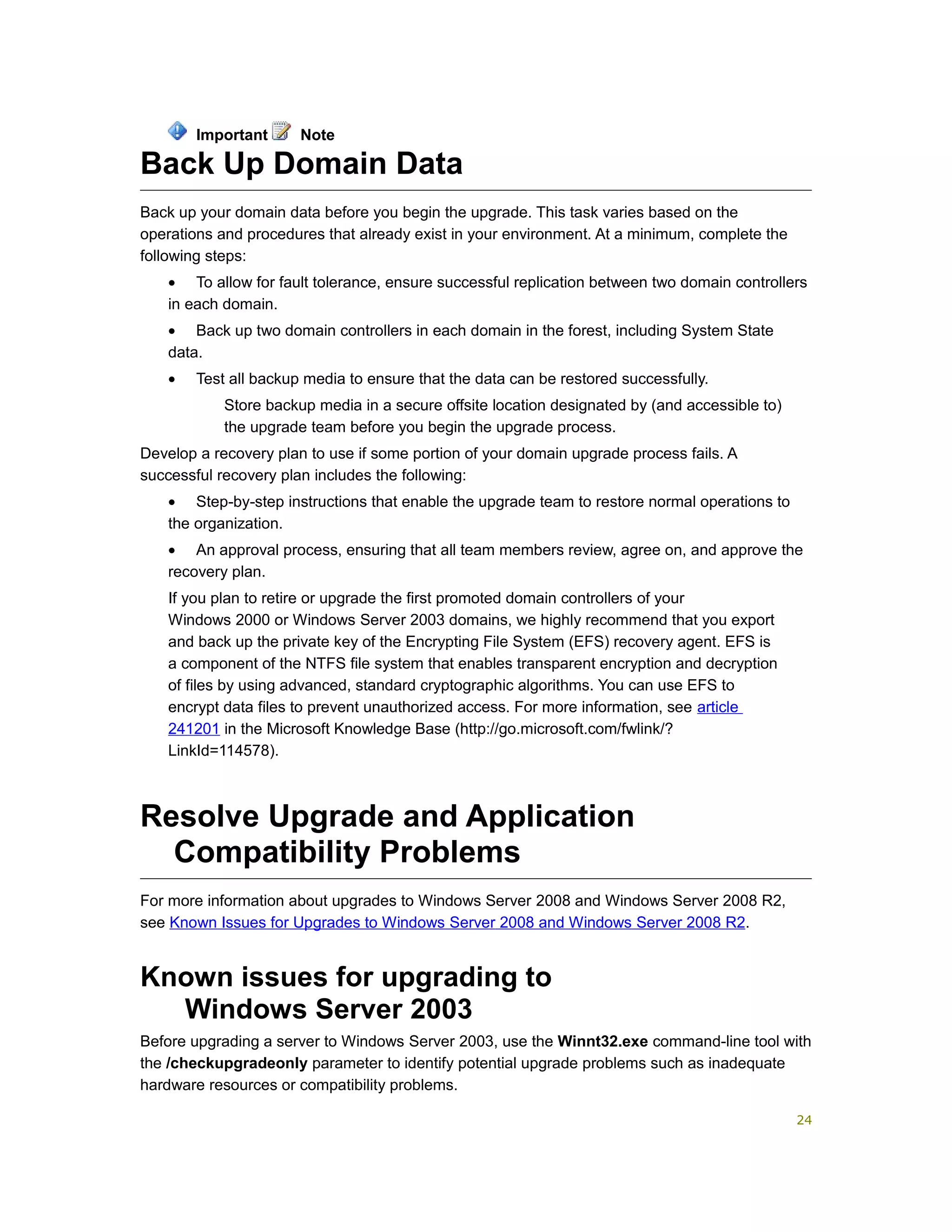
Back up your domain data before you begin the upgrade. This task varies based on the
operations and procedures that already exist in your environment. At a minimum, complete the
following steps:
• To allow for fault tolerance, ensure successful replication between two domain controllers
in each domain.
• Back up two domain controllers in each domain in the forest, including System State
data.
• Test all backup media to ensure that the data can be restored successfully.
Store backup media in a secure offsite location designated by (and accessible to)
the upgrade team before you begin the upgrade process.
Develop a recovery plan to use if some portion of your domain upgrade process fails. A
successful recovery plan includes the following:
• Step-by-step instructions that enable the upgrade team to restore normal operations to
the organization.
• An approval process, ensuring that all team members review, agree on, and approve the
recovery plan.
If you plan to retire or upgrade the first promoted domain controllers of your
Windows 2000 or Windows Server 2003 domains, we highly recommend that you export
and back up the private key of the Encrypting File System (EFS) recovery agent. EFS is
a component of the NTFS file system that enables transparent encryption and decryption
of files by using advanced, standard cryptographic algorithms. You can use EFS to
encrypt data files to prevent unauthorized access. For more information, see article
241201 in the Microsoft Knowledge Base (http://go.microsoft.com/fwlink/?
LinkId=114578).
Resolve Upgrade and Application
Compatibility Problems
For more information about upgrades to Windows Server 2008 and Windows Server 2008 R2,
see Known Issues for Upgrades to Windows Server 2008 and Windows Server 2008 R2.
Known issues for upgrading to
Windows Server 2003
Before upgrading a server to Windows Server 2003, use the Winnt32.exe command-line tool with
the /checkupgradeonly parameter to identify potential upgrade problems such as inadequate
hardware resources or compatibility problems.
Important Note
24
Two application compatibility problems you might need to resolve include the following:
• Distributed File System (DFS) root shares are not supported if they are hosted on a file
allocation table (FAT) partition.
In Windows Server 2003, DFS root shares must be located on NTFS partitions with no files or
directories under the DFS link.
For more information about deploying DFS, see Designing and Deploying File Servers
(http://go.microsoft.com/fwlink/?LinkID=27928).
• Windows 2000–based computers running Windows Deployment Services might cause
errors in a Windows Server 2003 Active Directory domain.
When using a Windows 2000–based Windows Deployment Services server in your
Windows Server 2003 Active Directory domain, you might receive the following error when
using the Client Installation Wizard:
" Unable to create or Modify Computer account"
Error: 00004E4F
This error occurs because Windows Server 2003 creates machine account objects differently
from Windows 2000. To prevent this error from occurring when creating machine accounts,
configure the Windows 2000–based Windows Deployment Services servers in your
environment to point to a domain controller running Windows 2000. This is done by adding
the DefaultServer registry parameter to the Windows 2000–based Windows Deployment
Services servers.
For more information about configuring optional registry parameters for the Boot Information
Negotiation Layer (BINL) service, see article 235979 in the Microsoft Knowledge Base
(http://go.microsoft.com/fwlink/?LinkId=106488).
You must remove the Windows 2000 Administration Tools Pack before upgrading to
Windows Server 2003. For more information about Windows 2000 administration tools and
upgrade issues, see article 304718 in the Microsoft Knowledge Base
(http://go.microsoft.com/fwlink/?LinkId=106490).
Membership in the local Administrator account, or equivalent, is the minimum required to
complete this procedure. Review details about using the appropriate accounts and group
memberships at http://go.microsoft.com/fwlink/?LinkId=83477.
• At the command line, connect to the I386 directory at your installation source, type
the following command, and then press ENTER:
winnt32 /checkupgradeonly
Parameter Description
winnt32 /checkupgradeonly Checks your computer for upgrade compatibility
with products in the Windows Server 2003
To identify potential upgrade and compatibility problems
25
Parameter Description
family.
Performing the Upgrade of Active Directory
Domains
To upgrade your Active Directory domains, complete the tasks in Checklist: Upgrade Tasks.
In this guide
• Checklist: Upgrade Tasks
• Prepare Your Infrastructure for Upgrade
• Install Active Directory Domain Services on the Member Server That Runs Windows
Server 2008 or Windows Server 2008 R2
• Upgrade Existing Domain Controllers
• Modify Default Security Policies
• Update Group Policy Permissions
• Perform Clean-up Tasks
Checklist: Upgrade Tasks
Complete the tasks in this checklist in the order in which they are presented. If a reference link
takes you to a conceptual topic, return to this checklist after you review the conceptual topic so
that you can proceed with the remaining tasks.
Checklist: Upgrade Tasks
Task Reference
Prepare your Active Directory
infrastructure for upgrade.
Prepare Your Infrastructure
for Upgrade
Install Active Directory Domain
Services (AD DS) on a member
server that runs Windows
Server 2008 or Windows
Server 2008 R2 in the forest root
domain.
Install Active Directory
Domain Services on the
Member Server That Runs
Windows Server 2008 or
Windows Server 2008 R2
Upgrade existing domain Upgrade Existing Domain
26
Task Reference
controllers. Controllers
Modify default security policies as
needed.
Modify Default Security
Policies
Update Group Policy permissions.
Note
This step is required only if
you are upgrading
Windows 2000
Active Directory domains.
Update Group Policy
Permissions
Perform clean-up tasks. Perform Clean-up Tasks
Prepare Your Infrastructure for Upgrade
Preparing your Active Directory infrastructure for upgrade includes the following tasks:
• Prepare the forest schema by running adprep /foretsprep.
• Prepare each domain where you want to install a domain controller that runs Windows
Server 2008 or Windows Server 2008 R2 by running adprep /domainprep /gpprep.
• Prepare the forest for read-only domain controllers (RODCs), if you plan to install them,
by running adprep /rodcprep.
Review the list of operations that Adprep.exe performs in Windows Server 2008, and test
the schema updates in a lab environment to ensure that they will not conflict with any
applications that run in your environment. There should not be any conflicts if your
applications use RFC-compliant object and attribute definitions. For a list of specific
operations that are performed when you update the Active Directory schema, see
Windows Server 2008: Appendix of Changes to Adprep.exe to Support AD DS and
Windows Server 2008 R2: Appendix of Changes to Adprep.exe to Support AD DS.
For more information about running Adprep.exe, see Run Adprep commands.
Important
27
Install Active Directory Domain Services on
the Member Server That Runs Windows
Server 2008 or Windows Server 2008 R2
Install Active Directory Domain Services (AD DS) on a member server that runs Windows
Server 2008 or Windows Server 2008 R2 by using the Active Directory Domain Services
Installation Wizard (Dcpromo.exe). The member server should be located in the forest root
domain. After you install AD DS successfully, the member server will become a domain controller.
You can install AD DS on any member server that meets the domain controller hardware
requirements.
You can install AD DS using the Windows user interface (UI). The Windows UI provides two
wizards that guide you through the installation process for AD DS. One wizard is the Add Roles
Wizard, which you can access in Server Manager. The other wizard is the Active Directory
Domain Services Installation Wizard (Dcpromo.exe), which you can access in either of the
following ways:
• When you complete the steps in the Add Roles Wizard, click the link to start the
Active Directory Domain Services Installation Wizard.
• Click Start, click Run, type dcpromo.exe, and then click OK.
Membership in the local Administrator account, or equivalent, is the minimum required to
complete this procedure. Review details about using the appropriate accounts and group
memberships at http://go.microsoft.com/fwlink/?LinkId=83477.
Depending on the operating system installation options that you selected for the computer, the
local Administrator password might be blank or it might not be required. In this case, run the
following command at a command prompt before you start to install AD DS:
net user Administrator password/passwordreq:yes
Replace password with a strong password.
1. Click Start, and then click Server Manager.
2. In Roles Summary, click Add Roles.
3. If necessary, review the information on the Before You Begin page, and then click
Next.
4. On the Select Server Roles page, select the Active Directory Domain Services
check box, and then click Next.
5. If necessary, review the information on the Active Directory Domain Services page,
and then click Next.
6. On the Confirm Installation Selections page, click Install.
7. On the Installation Results page, click Close this wizard and launch the Active
Directory Domain Services Installation Wizard (dcpromo.exe).
To install AD DS on a member server by using the Windows interface
28
8. On the Welcome to the Active Directory Domain Services Installation Wizard
page, click Next.
If you want to install from media, identify the source domain controller for AD DS
replication, or specify the Password Replication Policy (PRP) for an RODC as part of the
installation of the additional domain controller, click Use advanced mode installation.
9. On the Operating System Compatibility page, review the warning about the default
security settings for Windows Server 2008 domain controllers, and then click Next.
10. On the Choose a Deployment Configuration page, click Existing forest, click Add
a domain controller to an existing domain, and then click Next.
11. On the Network Credentials page, type the name of any existing domain in the
forest where you plan to install the additional domain controller. Under Specify the
account credentials to use to perform the installation, click My current logged on
credentials or click Alternate credentials, and then click Set. In the Windows Security
dialog box, provide the user name and password for an account that can install the
additional domain controller. To install an additional domain controller, you must be a
member of the Enterprise Admins group or the Domain Admins group. When you are
finished providing credentials, click Next.
12. On the Select a Domain page, select the domain of the new domain controller, and
then click Next.
13. On the Select a Site page, select a site from the list or select the option to install the
domain controller in the site that corresponds to its IP address, and then click Next.
14. On the Additional Domain Controller Options page, make the following selections,
and then click Next:
• DNS server: This option is selected by default so that your domain controller can
function as a DNS server. If you do not want the domain controller to be a DNS
server, clear this option.
Note
If you select the option to install DNS server, you might receive a message
that indicates that a DNS delegation for the DNS server could not be created
and that you should manually create a DNS delegation to the DNS server to
ensure reliable name resolution. If you are installing an additional domain
controller in either the forest root domain or a tree root domain, you do not
have to create the DNS delegation. In this case, click Yes and disregard the
message.
• Global Catalog: This option is selected by default. It adds the global catalog,
read-only directory partitions to the domain controller, and it enables global catalog
search functionality.
• Read-only domain controller. This option is not selected by default. It makes
the additional domain controller read only.
15. If you selected Use advanced mode installation on the Welcome page, the Install
from Media page appears. You can provide the location of installation media to be used
29
to create the domain controller and configure AD DS, or you can have all the replication
done over the network. Note that some data will be replicated over the network even if
you install from media. For information about using this method to install the domain
controller, see Installing AD DS From Media.
16. If you selected Use advanced mode installation on the Welcome page, the Source
Domain Controller page appears. Click Let the wizard choose an appropriate
domain controller or click Use this specific domain controller to specify a domain
controller that you want to provide as a source for replication to create the new domain
controller, and then click Next. If you do not choose to install from media, all data will be
replicated from this source domain controller.
17. On the Location for Database, Log Files, and SYSVOL page, type or browse to the
volume and folder locations for the database file, the directory service log files, and the
system volume (SYSVOL) files, and then click Next.
Windows Server Backup backs up the directory service by volume. For backup and
recovery efficiency, store these files on separate volumes that do not contain applications
or other nondirectory files.
18. On the Directory Services Restore Mode Administrator Password page, type and
confirm the restore mode password, and then click Next. This password must be used to
start AD DS in Directory Service Restore Mode (DSRM) for tasks that must be performed
offline.
19. On the Summary page, review your selections. Click Back to change any selections,
if necessary.
To save the settings that you have selected to an answer file that you can use to
automate subsequent Active Directory operations, click Export settings. Type the name
for your answer file, and then click Save.
When you are sure that your selections are accurate, click Next to install AD DS.
20. On the Completing the Active Directory Domain Services Installation Wizard
page, click Finish.
21. You can either select the Reboot on completion check box to have the server
restart automatically or you can restart the server to complete the AD DS installation
when you are prompted to do so.
For information about installing AD DS by using a command line or an answer file, see Installing
an Additional Domain Controller.
Upgrade Existing Domain Controllers
When you upgrade the operating system on domain controllers, the computer immediately
assumes the role of domain controller after the final restart of the computer. It is not necessary to
install Active Directory Domain Services (AD DS) by using the Active Directory Domain Services
Installation Wizard (Dcpromo.exe).
30
If you want to upgrade the operating system of a Windows 2000 domain controller to
Windows Server 2008, you must first perform an in-place upgrade of a Windows 2000
operating system to a Windows Server 2003 operating system. Then, perform an in-place
upgrade of this Windows Server 2003 operating system to a Windows Server 2008
operating system. A direct Windows 2000–to–Windows Server 2008 operating system
upgrade is not supported.
The information in this guide also applies to Windows Server 2008 R2. If you want to
perform an in-place upgrade of the existing domain controllers running
Windows Server 2003 in the forest to Windows Server 2008 R2, remember that Windows
Server 2008 R2 is an x64-based operating system. If your server is running an x64-based
version of Windows Server 2003, you can successfully perform an in-place upgrade of
this computer's operating system to Windows Server 2008 R2. If your server is running
an x86-based version of Windows Server 2003, you cannot upgrade this computer to
Windows Server 2008 R2.
To initiate the installation of the Windows Server 2003 operating system on a Windows 2000–
based domain controller, insert the Windows Server 2003 operating system CD on the domain
controller. Or, if the Windows Server 2003 media are shared over the network, run the
Winnt32.exe command-line tool. You can also perform an unattended installation of
Windows Server 2003. Instructions for creating an answer file for an Active Directory installation
are located in the Deploy.cab file in the SupportTools folder on the Windows Server 2003
operating system CD. Inside the Deploy.cab file, open Ref.chm to access the Unattend.txt file.
Expand Unattend.txt in the left pane, and then click DCInstall.
To initiate the installation of the Windows Server 2008 or Windows Server 2008 R2 operating
system on a Windows Server 2003–based domain controller, insert the operating system DVD on
the domain controller. Or, if the operating system installation media are shared over the network,
run the Setup.exe command-line tool.
Unattended upgrade
You can also perform an unattended upgrade by using an answer file. For more information about
how to create a new answer file, see "Step 2: Building an Answer File" in the Windows Vista
Deployment Step-by-Step Guide (http://go.microsoft.com/fwlink/?LinkID=66066).
Here is a sample of an answer file that can be used to perform an unattended upgrade to
Windows Server 2008:
<?xml version='1.0' encoding='utf-8'?>
<unattend xmlns="urn:schemas-microsoft-com:unattend"
xmlns:wcm="http://schemas.microsoft.com/WMIConfig/2002/State">
<settings pass="specialize" wasPassProcessed="true">
<component name="Microsoft-Windows-Shell-Setup" publicKeyToken="31bf3856ad364e35"
language="neutral" versionScope="nonSxS" processorArchitecture="amd64">
Important Important
31
<ComputerName>Machine Name</ComputerName>
</component>
</settings>
<settings pass="windowsPE" wasPassProcessed="true">
<component name="Microsoft-Windows-Setup" publicKeyToken="31bf3856ad364e35"
language="neutral" versionScope="nonSxS" processorArchitecture="amd64">
<UserData>
<ProductKey>Product-Key</ProductKey>
<AcceptEula>True</AcceptEula>
<FullName>User Name</FullName>
<Organization>Organization Name</Organization>
</UserData>
<ImageInstall>
<OSImage>
<WillShowUI>Never</WillShowUI>
<InstallTo>
<DiskID>0</DiskID>
<PartitionID>1</PartitionID>
</InstallTo>
<InstallFrom>
<MetaData>
<Key>Image/Name</Key>
<Value>W2K8S</Value>
</MetaData>
</InstallFrom>
</OSImage>
</ImageInstall>
<DiskConfiguration>
<WillShowUI>Never</WillShowUI>
<Disk>
<DiskID>0</DiskID>
<WillWipeDisk>False</WillWipeDisk>
<ModifyPartitions>
<ModifyPartition>
<Order>1</Order>
32
<PartitionID>1</PartitionID>
<Letter>C</Letter>
<Active>True</Active>
</ModifyPartition>
</ModifyPartitions>
</Disk>
</DiskConfiguration>
<UpgradeData>
<Upgrade>True</Upgrade>
</UpgradeData>
<Diagnostics>
<OptIn>True</OptIn>
</Diagnostics>
</component>
<component name="Microsoft-Windows-International-Core-WinPE"
publicKeyToken="31bf3856ad364e35" language="neutral" versionScope="nonSxS"
processorArchitecture="amd64">
<UILanguage>EN-US</UILanguage>
</component>
</settings>
<settings pass="oobeSystem" wasPassProcessed="true">
<component name="Microsoft-Windows-Shell-Setup" publicKeyToken="31bf3856ad364e35"
language="neutral" versionScope="nonSxS" processorArchitecture="amd64">
<UserAccounts>
<DomainAccounts>
<DomainAccountList>
<Domain>Domain Name</Domain>
<DomainAccount>
<Name>Administrator</Name>
<Group>Administrators</Group>
</DomainAccount>
</DomainAccountList>
</DomainAccounts>
</UserAccounts>
<AutoLogon>
33
<Enabled>True</Enabled>
<Domain>Domain Name</Domain>
<Username>User Name</Username>
<Password>User Password</Password>
<LogonCount>9999</LogonCount>
</AutoLogon>
<FirstLogonCommands>
<SynchronousCommand>
<Order>1</Order>
<CommandLine>Command To Execute</CommandLine>
<Description>"RunOnceItem0"</Description>
</SynchronousCommand>
<SynchronousCommand>
<Order>2</Order>
<CommandLine>Command To Execute</CommandLine>
<Description>"Post Install Command Execute"</Description>
</SynchronousCommand>
</FirstLogonCommands>
<OOBE>
<SkipMachineOOBE>True</SkipMachineOOBE>
<SkipUserOOBE>True</SkipUserOOBE>
</OOBE>
</component>
</settings>
</unattend>
After you create the answer file, use the following procedure to perform an unattended upgrade of
a Windows Server 2003–based domain controller.
Membership in the local Administrator account, or equivalent, is the minimum required to
complete this procedure. Review details about using the appropriate accounts and group
memberships at http://go.microsoft.com/fwlink/?LinkId=83477.
Depending on the operating system installation options that you selected for the computer, the
local Administrator password might be blank or it might not be required. In this case, run the
following command at a command prompt before you start to install AD DS:
net user Administrator password/passwordreq:yes
Replace password with a strong password.
34
1. At the command prompt, type the following:
setup.exe /unattend:"path to the answer file"
2. Press ENTER.
Modify Default Security Policies
To increase security, domain controllers that run Windows Server 2008 and Windows
Server 2008 R2 require (by default) that all client computers attempting to authenticate to them
perform Server Message Block (SMB) packet signing and secure channel signing. If your
production environment includes client computers that run platforms that do not support SMB
packet signing (for example, Microsoft Windows NT® 4.0 with Service Pack 2 (SP2)) or if it
includes client computers that run platforms that do not support secure channel signing (for
example, Windows NT 4.0 with Service Pack 3 (SP3)), you might have to modify default security
policies to ensure that client computers running older versions of the Windows operating system
or non-Microsoft operating systems will be able to access domain resources in the upgraded
domain.
By modifying the settings of the default security policies, you are weakening the default
security policies in your environment. Therefore, we recommend that you upgrade your
Windows–based client computers as soon as possible. After all client computers in your
environment are running versions of Windows that support SMB packet signing and
secure channel signing, you can re-enable default security policies to increase security.
To configure a domain controller to not require SMB packet signing or secure channel signing,
disable the following settings in the Default Domain Controllers Policy:
• Microsoft network server: Digitally sign communications (always)
• Domain member: Digitally encrypt or sign secure channel data (always)
Back up the Default Domain Controllers Policy Group Policy object (GPO) before you modify it.
Use the Group Policy Management Console (GPMC) to back up the GPO so that it can be
restored, if necessary.
Membership in Domain Admins or Enterprise Admins, or equivalent, is the minimum required
to complete this procedure. Review details about using the appropriate accounts and group
memberships at http://go.microsoft.com/fwlink/?LinkId=83477.
1. To open GPMC, click Start, click Run, type gpmc.msc, and then click OK.
2. In the console tree, right-click Default Domain Controllers Policy in
DomainsCurrent Domain NameGroup Policy objectsDefault Domain Controllers Policy,
and then click Edit.
3. In the Group Policy Management Editor window, in the console tree, go to
To perform an in-place domain controller upgrade by using an answer file
Note
To disable SMB packet signing enforcement based domain controllers
35
Computer Configuration/Policies/Windows Settings/Security Settings/Local
Policies/Security Options.
4. In the details pane, double-click Microsoft network server: Digitally sign
communications (always).
5. Verify that the Define this policy setting check box is selected, click Disabled to
prevent SMB packet signing from being required, and then click OK.
To apply the Group Policy change immediately, either restart the domain controller or
open a command prompt, type the following command, and then press ENTER:
gpupdate /force
Note
Modifying these settings in the Domain Controllers container will change
the Default Domain Controllers Policy. Policy changes that you make here
will be replicated to all other domain controllers in the domain. Therefore, you
only have to modify these policies one time to affect the Default Domain
Controllers Policy on all domain controllers.
Membership in Domain Admins or Enterprise Admins, or equivalent, is the minimum required
to complete this procedure. Review details about using the appropriate accounts and group
memberships at http://go.microsoft.com/fwlink/?LinkId=83477.
1. To open GPMC, click Start, click Run, type gpmc.msc, and then click OK.
2. In the console tree, right-click Default Domain Controllers Policy in
Domains/Current Domain Name/Group Policy objects/Default Domain Controllers Policy,
and then click Edit.
3. In the Group Policy Management Editor window, in the console tree, go to
Computer Configuration/Policies/Windows Settings/Security Settings/Local
Policies/Security Options.
4. In the details pane, double-click Domain member: Digitally encrypt or sign secure
channel data (always), click Disabled to prevent secure channel signing from being
required, and then click OK.
To apply the Group Policy change immediately, either restart the domain controller or
open a command prompt, type the following command, and then press ENTER:
gpupdate /force
Note
Modifying these settings in the Domain Controllers container will change the
Default Domain Controllers Policy. Policy changes that you make here will
be replicated to all other domain controllers in the domain. Therefore, you
only have to modify these policies one time to affect the Default Domain
Controllers Policy on all domain controllers.
To disable secure channel signing enforcement on domain controllers
36
For more information about SMB packet signing and secure channel signing, see Appendix A:
Background Information for Upgrading Active Directory Domains.
By default, domain controllers that run Windows Server 2008 and Windows Server 2008 R2 also
prohibit clients running non-Microsoft operating systems or Windows NT 4.0 operating systems to
establish security channels using weak Windows NT 4.0 style cryptography algorithms. Any
security channel dependent operation that is initiated by clients running older versions of the
Windows operating system or non-Microsoft operating systems that do not support strong
cryptographic algorithms will fail against a Windows Server 2008-based domain controller.
Until you are able to upgrade all of the clients in your infrastructure, you can temporarily relax this
requirement by modifying the following default domain policy setting on your domain controllers:
• Allow cryptography algorithms compatible with Windows NT 4.0
Membership in Domain Admins or Enterprise Admins, or equivalent, is the minimum required
to complete this procedure. Review details about using the appropriate accounts and group
memberships at http://go.microsoft.com/fwlink/?LinkId=83477.
1. To open GPMC, click Start, click Run, type gpmc.msc, and then click OK.
2. In the console tree, right-click Default Domain Controllers Policy in
Domains/Current Domain Name/Group Policy objects/Default Domain Controllers Policy,
and then click Edit.
3. In the Group Policy Management Editor window, in the console tree, go to
Computer Configuration/Administrative Templates: Policy definitions (ADMX files)
retrieved from the local machine/System/Net Logon.
4. In the details pane, double-click Allow cryptography algorithms compatible with
Windows NT 4.0, and then click Enabled.
Note
By default, the Not Configured option is selected, but, programmatically,
after you upgrade a server to Windows Server 2008 domain controller status,
this policy is set to Disabled.
To apply the Group Policy change immediately, either restart the domain controller or
open command line, type the following command, and then press ENTER:
gpupdate /force
Note
Modifying these settings in the Domain Controllers container will change the
Default Domain Controllers Policy. Policy changes that are made here will
be replicated to all other domain controllers in the domain. Therefore, you
only have to modify these policies one time to affect the Default Domain
Controllers Policy on all domain controllers.
To allow cryptography algorithms that are compatible with Windows NT 4.0
37
For more information, see Effects of netlogon cryptographic support changes in Windows
Server 2008 (http://go.microsoft.com/fwlink/?LinkId=106380). For more information about
additional security policy changes in Windows 7 and Windows Server 2008 R2, see Secure
default settings in Windows Server 2008 and Windows Server 2008 R2.
Update Group Policy Permissions
Group Policy Modeling is a feature of the Group Policy Management Console (GPMC) that
simulates the resultant set of policy for a particular configuration. The simulation is performed by
a service that runs on domain controllers. To perform the simulation across domains, the service
must have read access to all Group Policy objects (GPOs) in the forest.
The procedure in this topic is required only if you are upgrading Windows 2000
Active Directory domains. If you are upgrading Windows Server 2003 Active Directory
domains or creating a new domain with domain controllers that run Windows Server 2008
or Windows Server 2008 R2, the Enterprise Domain Controllers group will automatically
have read access to all newly created GPOs and all GPOs that were created before the
upgrade.
However, if the domain was upgraded from Windows 2000, the Enterprise Domain Controllers
group will not have read access to any existing GPOs that were created before the upgrade. The
GPMC detects this when you click a GPO, and then it notifies the user that the Enterprise Domain
Controllers group does not have read access to all GPOs in this domain. To solve this problem,
use the sample script named GrantPermissionOnAllGPOs.wsf that is provided with the GPMC.
This script will update the permissions on all GPOs in the domain. To download GPMC sample
scripts (including GrantPermissionOnAllGPOs.wsf), see Group Policy Management Console
Sample Scripts (http://go.microsoft.com/fwlink/?LinkId=106342). After the download is complete,
%programfiles%Microsoft Group PolicyGPMC Sample Scripts folder will be created.
Membership in Domain Admins, or equivalent, is the minimum required to complete this
procedure. Review details about using the appropriate accounts and group memberships at
http://go.microsoft.com/fwlink/?LinkId=83477.
1. At a command prompt, type the following, and then press ENTER:
cd /d %programfiles%Microsoft Group PolicyGPMC Sample Scripts
2. Type the following, and then press ENTER:
Cscript GrantPermissionOnAllGPOs.wsf “Enterprise Domain Controllers”
/permission:read /domain:DNSDomainName /Replace
Using the Replace switch removes existing permissions for the group or user before
making the change. If a group or user is already granted a permission type that is higher
than the new permission type, and you do not specify Replace, no change is made.
Note
To update permissions on all GPOs in a domain
38
Perform Clean-up Tasks
After upgrading your Active Directory infrastructure to Active Directory Domain Services (AD DS),
perform the following clean-up operations:
• After the security descriptor propagator has finished building the single-instance store,
perform an offline defragmentation of the database on each upgraded domain controller. This
reduces the size of AD DS on the file system by up to 40 percent, reduces the memory
footprint, and updates pages in the database to the new format. For more information, see
Compact the directory database file (offline defragmentation) (http://go.microsoft.com/fwlink/?
LinkID=106343).
This task is relevant only when you are performing an in-place upgrade from
Windows 2000 to Windows Server 2003. If you are upgrading a Windows 2000
domain controller to Windows Server 2008 (which requires an in-place upgrade
from Windows 2000 to Windows Server 2003, followed by an in-place upgrade
from Windows Server 2003 to Windows Server 2008), we recommend that you
perform this task after your domain controller is upgraded to
Windows Server 2003.
• Create a new System State backup for at least two domain controllers in your
environment. For more information about backing up AD DS, see the AD DS Backup and
Recovery Step-by-Step Guide (http://go.microsoft.com/fwlink/?LinkID=93077). Be sure to
label all backup tapes with the operating system version that the domain controller is running,
including service packs and hotfixes.
Completing the Upgrade of Active Directory
Domains
To complete the upgrade of your Active Directory domains, perform the tasks in Checklist: Post-
Upgrade Tasks.
In this guide
• Checklist: Post-Upgrade Tasks
• Raise the Functional Levels of Domains and Forests
• Move DNS Data into DNS Application Directory Partitions
• Redirect Users and Computers
• Complete the Upgrade
Note
39
Checklist: Post-Upgrade Tasks
Complete the tasks in this checklist in the order in which they are presented.
Checklist: Post-Upgrade Tasks
Task Reference
Raise the functional levels of domains
and forests to enable all advanced
features of Active Directory Domain
Services (AD DS).
Raise the Functional
Levels of Domains and
Forests
Move Domain Name System (DNS)
zones into DNS application directory
partitions.
Note
This step is optional. If you are
upgrading
Windows Server 2003
Active Directory domains, your
DNS zones have already been
stored in the DNS application
directory partitions. However, if
you are upgrading
Windows 2000
Active Directory domains, you
might choose to move your
DNS zones into the newly
created DNS application
directory partitions.
Move DNS Data into DNS
Application Directory
Partitions
Redirect users and computers to
organizational units (OUs).
Note
The procedures described in
this section are required only if
you are upgrading
Windows 2000
Active Directory domains. A
Windows Server 2003
Active Directory domain OU
structure will remain the same
after the upgrade is complete.
Redirect Users and
Computers
40
Task Reference
Complete the upgrade. Complete the Upgrade
Raise the Functional Levels of Domains and
Forests
To enable all Windows Server 2008 advanced features in Active Directory Domain Services
(AD DS), raise the functional level of your forest to Windows Server 2008. This will automatically
raise the functional level of all domains to Windows Server 2008. To enable all Windows
Server 2008 R2 advanced AD DS features, raise the functional level of your forest to Windows
Server 2008 R2. This will automatically raise the functional level of all domains to Windows
Server 2008 R2.
Do not raise the forest functional level to Windows Server 2008 R2 if you have or will
have any domain controllers running Windows Server 2008 or earlier.
After you set the forest functional level to a certain value, you cannot roll back or lower
the forest functional level, with one exception: when you raise the forest functional level
to Windows Server 2008 R2 and if Active Directory Recycle Bin is not enabled, you have
the option of rolling the forest functional level back to Windows Server 2008. You can
lower the forest functional level only from Windows Server 2008 R2 to Windows
Server 2008. If the forest functional level is set to Windows Server 2008 R2, it cannot be
rolled back, for example, to Windows Server 2003.
For more information about the Active Directory Recycle Bin, see Active Directory
Recycle Bin Step-by-Step Guide (http://go.microsoft.com/fwlink/?LinkId=133971).
Use the following procedure to raise the forest functional level to Windows Server 2008.
Membership in Domain Admins or Enterprise Admins, or equivalent, is the minimum required
to complete this procedure. Review details about using the appropriate accounts and group
memberships at http://go.microsoft.com/fwlink/?LinkId=83477.
1. Open the Active Directory Domains and Trusts snap-in. Click Start, click
Administrative Tools, and then click Active Directory Domains and Trusts.
2. In the console tree, right-click Active Directory Domains and Trusts, and then click
Raise Forest Functional Level.
3. In Select an available forest functional level, do one of the following:
• To raise the forest functional level to Windows Server 2003, click
Windows Server 2003, and then click Raise.
• To raise the forest functional level to Windows Server 2008, click Windows
Caution Important
To raise the forest functional level
41
Server 2008, and then click Raise.
• To raise the forest functional level to Windows Server 2008 R2, click Windows
Server 2008 R2, and then click Raise.
For more information about Windows Server 2008 advanced AD DS features, see Enabling
Advanced Features for AD DS.
Move DNS Data into DNS Application
Directory Partitions
The procedures in this topic are optional. If you are upgrading Windows Server 2003
Active Directory domains, your Domain Name System (DNS) zones have already been
stored in the DNS application directory partitions. However, if you are upgrading
Windows 2000 Active Directory domains, you might choose to move your DNS zones into
the newly created DNS application directory partitions.
To reduce replication traffic and the amount of data stored in the global catalog, you can use
application directory partitions for Active Directory–integrated DNS zones.
After completing the upgrade of all Windows 2000–based domain controllers in the forest, move
the Active Directory–integrated DNS data on all DNS servers from the domain partition into the
newly created DNS application directory partitions. You can do this by changing the replication
scope of the DNS zones.
Move the DNS zones that you want to replicate to all DNS servers in the forest to the forest-wide
DNS application directory partition, ForestDnsZones. For each domain in the forest, move the
DNS zones that you want to replicate to all DNS servers in the domain to the domain-wide DNS
application directory partition, DomainDnsZones.
Before you attempt to move DNS data to an application directory partition, make sure that
the domain naming operations master is hosted on at least a Windows Server 2003–
based version domain controller.
If the _msdcs.forest_root_domain zone is not present as a separate zone on your DNS server,
you do not need to perform this procedure because the DNS data that is stored in the
_msdcs.forest_root_domain is moved with the forest root domain zone to the domain-wide
application directory partition, DomainDnsZones.
For more information about DNS and application directory partitions, see Appendix A:
Background Information for Upgrading Active Directory Domains.
Membership in Domain Admins or Enterprise Admins, or equivalent, is the minimum required
to complete this procedure. Review details about using the appropriate accounts and group
memberships at http://go.microsoft.com/fwlink/?LinkId=83477.
1. On a domain controller that hosts a DNS server in a particular domain, click Start,
Note Important Note
To change the replication scope of the domain-wide DNS zone by using a DNS
application directory partition
42
click Administrative Tools, and then click DNS to open the DNS Manager.
2. Right-click the DNS zone that uses the fully qualified domain name (FQDN) of the
Active Directory domain, and then click Properties.
3. Click the Change button next to Replication: All DNS servers in this domain.
4. Click To all DNS servers in this domain:<domain_name>, and then click OK.
Membership in Domain Admins or Enterprise Admins, or equivalent, is the minimum required
to complete this procedure. Review details about using the appropriate accounts and group
memberships at http://go.microsoft.com/fwlink/?LinkId=83477.
1. On a domain controller that hosts a DNS server in the forest root domain, click Start,
click Administrative Tools, and then click DNS to open DNS Manager.
2. Right-click the _msdcs.<forest_root_domain> DNS zone, and then click Properties.
3. Click the Change button next to Replication: All DNS servers in this forest.
4. Click To all DNS servers in this forest:<forest_name>, and then click OK.
For more information, see Deploying Domain Name System (DNS)
(http://go.microsoft.com/fwlink/?LinkId=93656).
Redirect Users and Computers
The procedures in this topic are required only if you are upgrading Windows 2000
Active Directory domains. A Windows Server 2003 Active Directory domain organizational
unit (OU) structure will remain the same after the upgrade is complete.
The default CN=Users and CN=Computers containers that are created when AD DS is installed
are not OUs. Objects in the default containers are more difficult to manage because Group Policy
cannot be applied directly to them. New user accounts, computer accounts, and security groups
that are created by using earlier versions of user interface (UI) and command-line management
tools do not allow administrators to specify a target OU. For this reason, administrators are not
allowed to create these objects in either the CN=Computers container or the CN=User container,
by default. Examples of these earlier versions include the net user and net computer
commands, the net group command, or the netdom add command where the /ou parameter is
either not specified or not supported.
We recommend that administrators who upgrade Windows 2000–based domain controllers
redirect the well-known path for the CN=Users and CN=Computers containers to an OU that is
specified by the administrator so that Group Policy can be applied to containers hosting newly
created objects. For more information about creating an OU design, see Designing the Logical
Structure for Windows Server 2008 AD DS [LH].
To change the replication scope of the _msdcs.forest_root_domain DNS zone by using
a DNS application directory partition
Note
43
The CN=Users and CN=Computers containers are computer-protected objects. For
backward-compatibility reasons, you cannot (and must not) remove them. However, you
can rename these objects.
When the domain functional level has been raised to Windows Server 2003, you can redirect the
default CN=Users and CN=Computers containers to OUs that you specify so that each can
support Group Policy, making them easier to manage.
Membership in Domain Admins or Enterprise Admins, or equivalent, is the minimum required
to complete this procedure. Review details about using the appropriate accounts and group
memberships at http://go.microsoft.com/fwlink/?LinkId=83477.
1. Use the Active Directory Users and Computers snap-in to create an OU container to
which you will redirect user objects that were created with earlier versions of UI and
command-line management tools:
a. To open the Active Directory Users and Computers snap-in, click Start, click
Control Panel, double-click Administrative Tools, and then double-click Active
Directory Users and Computers.
b. In the console tree, right-click the domain name.
c. Point to New, and then click Organizational Unit.
d. Type the name of the OU.
2. At the command line, change to the System32 folder by typing:
cd %systemroot%system32
3. Type the following, where <newuserou> is the name of the new user OU, and
<domainname> is the name of the domain:
redirusr ou=<newuserou>,DC=<domainname>,dc=com
1. Use the Active Directory Users and Computers snap-in to create an OU container to
which you will redirect computer objects that were created with earlier versions of UI and
command-line management tools.
a. To open Active Directory Users and Computers, click Start, click Control Panel,
double-click Administrative Tools, and then double-click Active Directory Users
and Computers.
b. In the console tree, right-click the domain name.
c. Point to New, and then click Organizational Unit.
d. Type the name of the OU.
2. At the command line, change to the System32 folder by typing:
cd %systemroot%system32
3. Type the following, where <newcomputerou> is the name of the new computer OU,
Important
To redirect the CN=Users container To redirect the CN=Computers container
44
and <domainname> is the name of the domain:
redircmp ou=<newcomputerou>,DC=<domainname>,dc=com
Complete the Upgrade
Complete the following tasks to finalize the process:
• Review, update, and document the domain architecture to reflect any changes that you
made during the domain upgrade process.
• Verify that the NETLOGON and SYSVOL shared folders exist and that the File
Replication Service (FRS) or Distributed File Service (DFS) Replication is functioning without
error by checking Event Viewer.
• Verify that Group Policy is being applied successfully by checking the application log in
Event Viewer for Event ID 1704.
• Verify that all service (SRV), alias (CNAME), and host (A) resource records have been
registered in Domain Name System (DNS).
• Verify Windows Firewall status.
Although the default behavior for Windows Server 2008 and Windows
Server 2008 R2 is that Windows Firewall is turned on, if you upgrade a
Windows Server 2003 computer that had Windows Firewall turned off, the firewall
will remain off after the upgrade unless you turn it on using the Windows Firewall
control panel.
• Continuously monitor your domain controllers and Active Directory Domain Services
(AD DS). Using a monitoring solution (such as Microsoft Operations Manager (MOM)) to
monitor distributed Active Directory Domain Services (AD DS)—and the services that it relies
on—helps maintain consistent directory data and a consistent level of service throughout the
forest.
After these tasks have been completed successfully, you will have completed the in-place
upgrade process.
Finding Additional Information About
Upgrading Active Directory Domains
You can find the following documentation about Active Directory Domain Services (AD DS) on the
Windows Server 2003 and Windows Server 2008 TechCenter Web sites:
• For more information about advanced AD DS features that are related to AD DS
functional levels, see Enabling Advanced Features for AD DS.
Important
45
• For a worksheet to assist you in documenting your domain controller information, see Job
Aids for Windows Server 2003 Deployment Kit (http://go.microsoft.com/fwlink/?
LinkID=102558). Download
Job_Aids_Planning_Testing_and_Piloting_Deployment_Projects.zip and open
DSSUPWN_2.doc.
• For more information about deploying Distributed File System (DFS), see Designing and
Deploying File Servers (http://go.microsoft.com/fwlink/?LinkID=27928).
• For more information about configuring optional registry parameters for the Boot
Information Negotiation Layer (BINL) service, see article 235979 in the Microsoft Knowledge
Base (http://go.microsoft.com/fwlink/?LinkID=106488).
• For more information about Windows 2000 administration tools and upgrade issues, see
article 304718 in the Microsoft Knowledge Base (http://go.microsoft.com/fwlink/?
LinkId=106490).
• For more information about read-only domain controllers (RODCs), see Read-Only
Domain Controller Planning and Deployment Guide (http://go.microsoft.com/fwlink/?
LinkId=135993).
• For more information about Windows Services for UNIX 2.0 application compatibility
issues and the hotfix installation file, see article 293783 in the Microsoft Knowledge Base
(http://go.microsoft.com/fwlink/?LinkID=106317).
• For information about installing AD DS by using a command line or an answer file, see
Installing a New Forest (http://go.microsoft.com/fwlink/?LinkId=101704).
• For more information, see Effects of netlogon cryptographic support changes in Windows
Server 2008 (http://go.microsoft.com/fwlink/?LinkId=164558).
• For more information, see Compact the directory database file (offline defragmentation)
(http://go.microsoft.com/fwlink/?LinkID=106343).
• For more information about backing up AD DS, see the AD DS Backup and Recovery
Step-by-Step Guide (http://go.microsoft.com/fwlink/?LinkID=93077).
• For more information about DNS, see Deploying Domain Name System (DNS)
(http://go.microsoft.com/fwlink/?LinkId=93656).
• For more information about creating an organizational unit (OU) design, see Designing
the Logical Structure for Windows Server 2008 AD DS [LH].
Appendix A: Background Information for
Upgrading Active Directory Domains
Before you begin the process of upgrading your Windows 2000 or Windows Server 2003
Active Directory environment to Active Directory Domain Services (AD DS), become familiar with
some important issues that affect the upgrade process.
46
Active Directory preparation tool
To prepare Windows 2000 or Windows Server 2003 forests and domains for upgrade, or for the
introduction of a domain controller that runs Windows Server 2008 or Windows Server 2008 R2,
you must use the Active Directory preparation tool (Adprep.exe). Adprep.exe is located in the
sourcesadprep folder of the Windows Server 2008 operating system DVD and in the
supportadprep folder of the Windows Server 2008 R2 operating system DVD. The Windows
Server 2008 R2 versions of Adprep are 64-bit and 32-bit (Adprep32.exe).
Adprep.exe prepares the forests and domains for an upgrade to AD DS by performing a collection
of operations. These operations include the following:
• Extending your current schema with new schema information that the Adprep.exe tool
provides, while preserving previous schema modifications in your environment
• Resetting permissions on containers and objects throughout the directory for improved
security and interoperability
• Copying administrative tools to manage Windows Server 2008 domains to the local
computer
For more information about using Adprep.exe to prepare your environment, see Prepare Your
Infrastructure for Upgrade.
Application directory partitions for DNS
Application directory partitions provide storage for application-specific data that can be replicated
to a specific set of domain controllers in the same forest. If you have at least one domain
controller in your forest running Windows Server 2003, Windows Server 2008, or Windows
Server 2008 R2, and the domain naming operations master is also running
Windows Server 2003, Windows Server 2008, or Windows Server 2008 R2, you can take
advantage of application directory partitions.
For example, you can use application directory partitions to store Domain Name System (DNS)
data on Windows Server 2003–based domain controllers. DNS-specific application directory
partitions are automatically created in the forest and in each domain when the DNS Server
service is installed on new or upgraded domain controllers. If application directory partition
creation fails during AD DS installation, DNS attempts to create the partitions every time that the
service starts. The creation and deletion of application directory partitions (including the default
DNS application directory partitions) requires the domain naming master role holder to reside on
a domain controller that runs Windows Server 2003, Windows Server 2008, or Windows
Server 2008 R2.
The following DNS-specific application directory partitions are created during AD DS installation:
• ForestDnsZones—A forest-wide application directory partition that is shared by all DNS
servers in the same forest
• DomainDnsZones—Domain-wide application directory partitions for each DNS server in
the same domain
47
Service (SRV) resource records
A Windows Server 2008–based domain controller Net Logon service uses dynamic updates to
register service (SRV) resource records in the DNS database. This service (SRV) resource record
is used to map the name of a service (such as the Lightweight Directory Access Protocol (LDAP)
service) to the DNS computer name of a server that offers that service. In a Windows
Server 2008 network, an LDAP resource record locates a domain controller. A workstation that is
logging on to a Windows Server 2008–based domain queries DNS for service (SRV) resource
records in the general form:
_<Service>._<Protocol>.<DnsDomainName>
Where <Service> is the service requested, <Protocol> is the protocol requested, and
<DnsDomainName> is the fully qualified DNS name of the AD DS domain.
AD DS servers offer the LDAP service over the TCP protocol; therefore, client computers find an
LDAP server by querying DNS for a record of the form:
_ldap._tcp.<DnsDomainName>
The service and protocol strings require an underscore ( _ ) prefix to prevent potential
collisions with existing names in the namespace.
This format is applicable for implementations of LDAP servers other than Windows Server 2008–
based domain controllers and also possible implementations of LDAP directory services that
employ global catalog servers other than servers running Windows Server 2008.
_msdcs.domain_name subdomain
This Microsoft-specific subdomain allows location of domain controllers that have Windows
Server 2008–specific roles in the domain. This subdomain also allows location of domain
controllers by the globally unique identifier (GUID) when a domain has been renamed.
To facilitate location of Windows Server 2008–based domain controllers, the Net Logon service
(in addition to the standard _Service._Protocol.<DnsDomainName> format records) also registers
service (SRV) resource records that identify the well-known server-type pseudonyms "dc"
(domain controller), "gc" (global catalog), "pdc" (primary domain controller), and "domains"
(GUID) as prefixes in the _msdcs.<domain_name> subdomain. To accommodate the location of
domain controllers by server type or by GUID (abbreviated "dctype"), Windows Server 2008–
based domain controllers register service (SRV) resource records in the following form in the
_msdcs.<domain_name> subdomain:
_Service._Protocol.DcTyle._msdcs.<DnsDomainName>
_msdcs.forest_root_domain subdomain
The _msdcs.forest_root_domain subdomain stores forest-wide resource records that are of
interest to client computers and domain controllers from all parts of the forest. For example, all
domain controllers in the forest register alias (CNAME) and LDAP, Kerberos, and gc service
(SRV) resource records in the _msdcs.forest_root_domain subdomain. The alias (CNAME)
Note
48
resource records are used by the replication system to locate replication partners, and the gc
service (SRV) resource records are used by client computers to look up global catalog servers.
For any two domain controllers to replicate with each other, including two domain controllers from
the same domain, they must be able to look up forest-wide locator records. For a newly created
domain controller to participate in replication, it must be able to register its forest-wide records in
DNS, and other domain controllers must be able to look up these records. Therefore, the DNS
servers that are authoritative for the _msdcs.forest_root_domain subdomain need to be available
for replication and global catalog lookups.
For this reason, we recommend that you create a separate _msdcs.forest_root_domain zone and
define its replication scope so that it is replicated to all DNS servers in the forest.
Some organizations running Windows 2000 Active Directory have already created an
_msdcs.forest_root_domain to help client computers locate domain controllers more efficiently. If
an _msdcs.forest_root_domain already exists in your Windows 2000 environment, we
recommend that you move the zone to the ForestDnsZones application directory partition after all
domain controllers in the forest are upgraded. In addition, for each domain in the forest, move the
_msdcs.<domain_name> zone to the DomainDnsZones application directory partition for that
domain.
Moving the Active Directory–integrated DNS zones into the domain and forest-wide application
directory partitions provides the following benefits:
• Because the forest-wide application directory partition can replicate outside a specified
domain, and because moving the _msdcs.forest_root_domain into the forest-wide application
directory partition replicates it to all domain controllers in the forest that are running the DNS
Server service, you do not have to use DNS zone transfer to replicate the zone file
information to DNS servers that are outside the domain.
• Domain-wide replication can be targeted to minimize replication traffic because
administrators can specify which of the domain controllers running the DNS Server service
can receive the DNS zone data.
• Forest-wide replication can be targeted to minimize replication traffic because DNS data
is no longer replicated to the global catalog.
• DNS records located on global catalog servers in the forest are removed, minimizing the
amount of information replicated with the global catalog.
For more information about using application directory partitions to store DNS data, see Move
DNS Data into DNS Application Directory Partitions.
Intrasite replication frequency
Windows 2000–based domain controllers that are upgraded maintain their default intrasite
replication frequency of 300/30. That is, any changes that are made to AD DS replicate to all
other domain controllers in the same site 5 minutes (300 seconds) after a change is made—with
a 30-second offset before notifying the next domain controller—until the forest functional level is
raised to Windows Server 2003. When the forest functional level is raised to
Windows Server 2003, the replication frequency of AD DS is changed to the
Windows Server 2003default setting of 15/3. That is, changes will replicate to all domain
49
controllers in the same site 15 seconds after a change is made—with a 3-second offset before
notifying the next domain controller. If you modified the 300/30 default replication frequency
setting in Windows 2000, the setting does not change to the 15/3 default setting in
Windows Server 2003 after you complete the upgrade. However, a new installation of
Windows Server 2003 will always use the 15/3 intrasite replication frequency setting.
Do not modify the default 300/30 intrasite replication frequency on Windows 2000–based
domain controllers. Instead, upgrade your Windows 2000–based domain to
Windows Server 2003, and raise the forest functional level to Windows Server 2003 to
take advantage of the 15/3 intrasite replication frequency.
New groups and new group memberships that are
created after upgrading the PDC
After you upgrade the Windows 2000–based domain controller holding the role of the primary
domain controller (PDC) emulator operations master (also known as flexible single master
operations or FSMO) in each domain in the forest to Windows Server 2003, several new, well-
known, and built-in groups are created. Also, some new group memberships are established. If
you transfer the PDC emulator operations master role to a Windows Server 2003–based or a
Windows Server 2008–based domain controller instead of upgrading it, these groups will be
created when the role is transferred. The new, well-known, and built-in groups include the
following:
• BuiltinRemote Desktop Users
• BuiltinNetwork Configuration Operators
• Performance Monitor Users
• Performance Log Users
• BuiltinIncoming Forest Trust Builders
• BuiltinPerformance Monitoring Users
• BuiltinPerformance Logging Users
• BuiltinWindows Authorization Access Group
• BuiltinTerminal Server License Servers
The newly established group memberships include the following:
• If the Everyone group is in the Pre–Windows 2000 Compatible Access group, the
Anonymous Logon group and the Authenticated Users group are also added to the Pre–
Windows 2000 Compatible Access group.
• The Network Servers group is added to the Performance Monitoring alias.
• The Enterprise Domain Controllers group is added to the Windows Authorization Access
group.
Important
50
In addition, when upgrading the Windows 2000–based domain controller that holds the role of the
PDC emulator master in the forest root domain, the following additional security principals are
created:
• LocalService
• NetworkService
• NTLM Authentication
• Other Organization
• Remote Interactive Logon
• SChannel Authentication
• This Organization
After you upgrade the Windows Server 2003–based domain controller holding the role of the PDC
emulator master in each domain in the forest to Windows Server 2008, or after you move the
PDC emulator operations master role to a Windows Server 2008-based domain controller, or after
you add a read-only domain controller (RODC) to your domain, the following new well-known and
built-in groups are created:
• BuiltinIIS_IUSRS
• BuiltinCryptographic Operators
• Allowed RODC Password Replication Group
• Denied RODC Password Replication Group
• Read-only Domain Controllers
• BuiltinEvent Log Readers
• Enterprise Read-only Domain Controllers (created only on the forest root domain)
• BuiltinCertificate Service DCOM Access
The newly established group memberships are:
• IUSR security principal added to the BuiltinIIS_IUSRS group
• The following groups added to the Denied RODC Password Replication Group:
• Group Policy Creator Owners
• Domain Admins
• Cert Publishers
• Domain Controllers
• Krbtgt
• Enterprise Admins
• Schema Admins
• Read-only Domain Controllers
• Network Service security principal added to BuiltinPerformance Log Users
• Also, the following new, additional security principals are created in the forest root
domain:
• IUSR
51
• Owner Rights
• Well-Known-Security-Id-System security principal is renamed to System
If you move the PDC emulator master role from a Windows 2000–based domain
controller to a Windows Server 2008-based domain controller, all the new, well-
known, and built-in groups and newly established group memberships mentioned
above will be created.
Security policy considerations when upgrading
from Windows 2000 to Windows Server 2003
Server Message Block (SMB) packet signing and secure channel signing are security policies
that are enabled by default on Windows Server 2008–based domain controllers. To allow client
computers running earlier versions of Windows to communicate with domain controllers running
Windows Server 2008, you might have to temporarily disable these security policies during the
upgrade process.
SMB packet signing
SMB packet signing is a security mechanism that protects the data integrity of SMB traffic
between client computers and servers, and it prevents malicious software attacks by providing a
form of mutual authentication. This is done by placing a digital security signature into each SMB
packet, which is then verified by the receiving party. Server-side SMB signing is required by
default on Windows Server 2008–based domain controllers; that is, all client computers are
required to have SMB packet signing enabled.
Client computers running Windows NT 4.0 with Service Pack 2 (SP2) or earlier, or particular non-
Microsoft operating systems, do not support SMB packet signing. These client computers will not
be able to authenticate to a Windows Server 2008–based domain controller. To ensure successful
authentication, upgrade these client computers to a later version of the operating system or
service pack. However, if you cannot upgrade your client computers, you can allow them to be
authenticated by configuring SMB packet signing on all Windows Server 2008–based domain
controllers so that SMB packet signing is allowed but not required.
For more information about configuring SMB packet signing on Windows Server 2008–based
domain controllers, see Modify Default Security Policies.
Secure channel signing and encryption
When a computer becomes a member of a domain, a computer account is created. Each time the
computer starts, it uses the computer account password to create a secure channel with a
domain controller for its domain. This secure channel is used to ensure secure communications
between a domain member and a domain controller for its domain. Secure channel signing is
required by default on Windows Server 2008–based domain controllers; that is, all client
computers must enable secure channel signing and encryption.
Note
52
Client computers running Windows NT 4.0 with Service Pack 3 (SP3) or earlier installed do not
support secure channel signing. These client computers will not be able to establish
communications with a Windows Server 2008–based domain controller. To ensure successful
communication, upgrade these client computers to a later version of the operating system or
service pack. However, if you cannot upgrade your client computers, you must disable secure
channel signing on all Windows Server 2008–based domain controllers so that the traffic passing
through the secure channel is not required to be signed or encrypted.
For more information about configuring secure channel signing on Windows Server 2003–based
domain controllers, see Modify Default Security Policies.
Microsoft Support Quick Start for Adding
Windows Server 2008 or Windows Server
2008 R2 Domain Controllers to Existing
Domains
This topic explains the process for upgrading domain controllers to Windows Server 2008 or
Windows Server 2008 R2. This information is based on the experience of the Microsoft Customer
Service and Support team. This topic includes links to related information about the upgrade
process.
• What’s new in AD DS in Windows Server 2008 and Windows Server 2008 R2
• System requirements for installing Windows Server 2008 and Windows Server 2008 R2
• Supported in-place upgrade paths
• Functional level features and requirements
• Client, server, and application interoperability
• Secure default settings in Windows Server 2008 and Windows Server 2008 R2
• Virtualized domain controllers on Hyper-V, VMWARE, and other virtualization software
• Administration, remote administration, and cross-version administration
• Configuring the Windows Time service for Windows Server 2008 and
Windows Server 2008 R2
• Known issues for upgrades to Windows Server 2008 and Windows Server 2008 R2
• Verifications you can make and recommended hotfixes you can install before you begin
• Run Adprep commands
• Upgrade domain controllers
• Troubleshooting errors
53
What’s new in AD DS in Windows Server 2008 and
Windows Server 2008 R2
The following table has links to more information about new features and functionality in Windows
Server 2008 and Windows Server 2008 R2.
Operating system What’s new
Windows Server 2008 For information about each feature, special
considerations, and how to prepare for
deployment, see Changes in Functionality from
Windows Server 2003 with Service Pack 1
(SP1) to Windows Server 2008
(http://go.microsoft.com/fwlink/?LinkId=164410).
For information about specific features in
Active Directory Domain Services (AD DS) in
Windows Server 2008, see Active Directory
Domain Services Role
(http://go.microsoft.com/fwlink/?LinkId=164414).
Some functionality that was available in previous
versions of Windows Server is deprecated in
Windows Server 2008. For example, SMTP
Replication is removed by default. For more
information, see article 947057 in the Microsoft
Knowledge base
(http://go.microsoft.com/fwlink/?LinkId=164416).
The Browser Service is disabled by default in
Windows Server 2008 and Windows
Server 2008 R2 domain controllers.
Windows Server 2008 R2 For information about each feature, special
considerations, and how to prepare for
deployment, see Changes in Functionality from
Windows Server 2008 to
Windows Server 2008 R2
(http://go.microsoft.com/fwlink/?LinkID=139049).
For information about specific features in AD DS
in Windows Server 2008 R2, see What's New in
Active Directory Domain Services
(http://go.microsoft.com/fwlink/?LinkID=139655).
In Windows Server 2008 R2, Dcpromo.exe does
not allow the creation of a domain that has a
single-label Domain Name System (DNS) name.
If you try to promote an additional domain
54
Operating system What’s new
controller in a domain that has a single-label
DNS name (such as contoso, instead of
contoso.com), the check box to install a DNS
server is not available in Dcpromo.exe.
Upgrading Windows Server 2003 domain
controllers in Windows Server 2008 R2 and
Windows Server 2008 R2 single-label domains
is supported. Promoting additional Windows
Server 2008 R2 and Windows Server 2008 R2
domain controllers into existing single-label DNS
domains is supported.
Windows Server 2008 R2 does not support
MSMQ in domain mode for Windows NT 4 and
Windows 2000 MSMQ clients running against
Windows Server 2008 R2 domain controllers
that have no Windows Server 2003 or Windows
Server 2008 domain controllers in the same
environment.
For more information about other functionality in
Windows Server 2003 that is deprecated in
Windows 7 and Windows Server 2008 R2, see
Deprecated Features for Windows 7 and
Windows Server 2008 R2
(http://go.microsoft.com/fwlink/?LinkId=177815).
For more information about other known issues for AD DS, see Known Issues for Installing and
Removing AD DS (http://go.microsoft.com/fwlink/?LinkId=164418).
System requirements for installing
Windows Server 2008 and
Windows Server 2008 R2
For system requirements for Windows Server 2008, see “System Requirements” in Installing
Windows Server 2008 (http://go.microsoft.com/fwlink/?LinkId=164421).
For disk-space requirements for AD DS in Windows Server 2008, see Disk space and component
location issues in Known Issues for Installing and Removing AD DS
(http://go.microsoft.com/fwlink/?LinkId=164423).
For system requirements for Windows Server 2008 R2, see Installing Windows Server 2008 R2
(http://go.microsoft.com/fwlink/?LinkID=160341).
55
For disk-space requirements for AD DS in Windows Server 2008 R2, see Disk space and
component location issues in Known Issues for Installing and Removing AD DS
(http://go.microsoft.com/fwlink/?LinkID=164423).
The AD DS database (Ntds.dit) on Windows Server 2008 R2 domain controllers can be larger
than in previous versions of Windows, for the following reasons:
• There are changes in the online defragmentation process on Windows Server 2008 R2
domain controllers.
• Windows Server 2008 R2 Adprep /forestprep adds two new indices on the large link
table.
• The Windows Server 2008 R2 Active Directory Recycle Bin feature, when it is enabled,
preserves attributes on deleted objects for the recycled object lifetime.
The Active Directory database on a Windows Server 2008 domain controller that is promoted into
a Windows 2000 domain should be a size that is similar to the size of the Active Directory
databases on the Windows 2000 domain controllers. While Windows Server 2008 R2 additions
increase the database size, the addition of a single-instance store that is supported by domain
controllers that run Windows Server 2003, Windows Server 2003 R2, Windows Server 2008, or
Windows Server 2008 R2 offsets that increase. Windows Server 2008 R2 domain controllers are
estimated to be 10 percent larger than Windows Server 2008 domain controllers, not counting the
Active Directory Recycle Bin.
In a production Windows Server 2008 R2 domain at Microsoft, the Active Directory Recycle Bin
feature increased the database size by an additional 15 to 20 percent of the original AD DS
database size, using the default deletedObjectLifetime and recycledObjectLifetime values of
180 days. Additional space requirements depend on the size and count of the objects that can be
recycled.
If an in-place upgrade to Windows Server 2008 or Windows Server 2008 R2 rolls back silently to
the previous operating system version, check for sufficient free disk space on the partitions that
host the AD DS database and log files.
Supported in-place upgrade paths
For upgrades to Windows Server 2008, see “Supported upgrade paths” in Guide for Upgrading to
Windows Server 2008 (http://go.microsoft.com/fwlink/?LinkID=146616).
For upgrades to Windows Server 2008 R2, see “Supported upgrade paths” in Installing
Windows Server 2008 R2 (http://go.microsoft.com/fwlink/?LinkID=160341) and
Windows Server 2008 R2 Upgrade Paths (http://go.microsoft.com/fwlink/?LinkID=154894).
If you replace domain controllers, use the metadata cleanup method in Windows Server 2008 and
remove DNS and Windows Internet Name Service (WINS) records for the original role holder. For
more information, see Cleaning metadata of removed writable domain controllers in Appendix A:
Forest Recovery Procedures (http://go.microsoft.com/fwlink/?LinkId=164553).
If you want to migrate the AD DS server role, DNS server roles, IP address, computer name, and
supporting configuration state, from an existing server to a new Windows Server 2008 or
Windows Server 2008 R2 destination server, see AD DS and DNS Server Migration: Migrating
56
the AD DS and DNS Server Roles (http://go.microsoft.com/fwlink/?LinkId=177812). For example,
refer to this article if you want to ensure that the new server has the same IP address or server
name as the legacy server, or if you have made configuration changes, such as registry changes
or file-based DNS zones, on the legacy DNS server and you want them retained on the new DNS
server.
Functional level features and requirements
Features that are enabled for Windows Server 2008 and Windows Server 2008 R2 domain and
forest functional levels are documented in Understanding Domain and Forest Functionality
(http://go.microsoft.com/fwlink/?LinkId=164555). Domain and forest functional level requirements
for the deployment of Windows Server 2008 and Windows Server 2008 R2 domain controllers are
as follows:
• Adprep /forestprep does not have any domain or forest functional level requirements.
• Adprep /domainprep requires a Windows 2000 native or higher domain functional level
in each target domain.
• Adprep /rodcprep does not have any functional-level requirements.
• You can install Windows 2000, Windows Server 2003, Windows Server 2008, and
Windows Server 2008 R2 domain controllers in the same domain or forest without any
functional-level requirement.
• For installation of a read-only domain controller (RODC), the forest functional level must
be Windows Server 2003 or higher.
Client, server, and application interoperability
• Windows NT 4.0 computers cannot be joined to Windows Server 2008 and Windows
Server 2008 R2 domains or domain controllers.
• Windows 2000, Windows XP, Windows Server 2003, Windows Vista, and Windows 7
client computers are fully compatible with writable Windows Server 2008 and Windows
Server 2008 R2 domain controllers. For member-computer interoperability with RODCs, see
Known Issues for Deploying RODCs (http://go.microsoft.com/fwlink/?LinkID=164418).
• For more information about which versions of Microsoft Exchange Server can
interoperate with different versions of Windows, see Exchange Server Supportability Matrix
(http://go.microsoft.com/fwlink/?LinkID=165034).
• For a list of applications that are compatible with RODCs, see Applications That Are
Known to Work with RODCs (http://go.microsoft.com/fwlink/?LinkID=133779). Exchange
Server requires a writable domain controller; therefore, it does not work with RODCs.
57
Secure default settings in Windows Server 2008
and Windows Server 2008 R2
Windows Server 2008 and Windows Server 2008 R2 domain controllers have the following
secure default settings, compared to Windows 2000 and Windows Server 2003 domain
controllers.
Encryption type
or policy
Windows
Server 200
8 default
Windows
Server 2008 R
2 default
Comment
AllowNT4Crypt
o
Disabled Disabled Third-party Server Message Block (SMB)
clients may be incompatible with the secure
default settings on Windows Server 2008 and
Windows Server 2008 R2 domain controllers. In
all cases, these settings can be relaxed to allow
interoperability at the expense of security. For
more information, see article 942564 in the
Microsoft Knowledge Base
(http://go.microsoft.com/fwlink/?
LinkId=164558).
DES Enabled Disabled Article 977321 in the Microsoft Knowledge Base
(http://go.microsoft.com/fwlink/?LinkId=177717)
CBT/Extended
Protection for
Integrated
Authentication
N/A Enabled See Microsoft Security Advisory (937811)
(http://go.microsoft.com/fwlink/?LinkId=164559)
and article 976918 in the Microsoft Knowledge
Base (http://go.microsoft.com/fwlink/?
LinkId=178251).
LMv2 Enabled Disabled Article 976918 in the Microsoft Knowledge Base
(http://go.microsoft.com/fwlink/?LinkId=178251)
Virtualized domain controllers on Hyper-V™,
VMware, and other virtualization software
Regardless of the virtual host software product that you are using, read Running Domain
Controllers in Hyper-V (http://go.microsoft.com/fwlink/?LinkID=139651) for special requirements
related to running virtualized domain controllers. Specific requirements include the following:
• Do not stop or pause domain controllers.
• Do not restore snapshots of domain controller role computers. This action causes an
update sequence number (USN) rollback that can result in permanent inconsistencies
between domain controller databases.
58
• All physical-to-virtual (P2V) conversions for domain controller role computers should be
done in offline mode. System Center Virtual Machine Manager enforces this for Hyper-V. For
information about other virtualization software, see the vendor documentation.
• Configure virtualized domain controllers to synchronize with a time source in accordance
with the recommendations for your hosting software.
• For more considerations about running domain controllers in virtual machines, see article
888794 in the Microsoft Knowledge Base (http://go.microsoft.com/fwlink/?LinkID=141292).
Administration, remote administration, and cross-
version administration
The following changes have been made to local and remote administration tools for the Windows
Server 2008 and Windows Server 2008 R2 operating systems.
• The installation of a server role, such as Active Directory Domain Services, by Server
Manager also locally installs all GUI and command-line tools that you can use to administer
that role. To install tools locally to manage other server roles, click Add Features in Server
Manager.
• The GUI and command-line tools that were formerly in the Administrative Tools Pack
(ADMINPACK.MSI), Support Tools (SUPPTOOLS.MSI), and Resource Kit tools have been
consolidated into a single collection called Remote Server Administration Tools (RSAT), which
you can obtaine from the Microsoft Download Center.
• As 64-bit hardware and operating systems became more popular, x86-based (32-bit) and
x64-based (64-bit) versions of administration tools were released.
• Additional steps are required to make the administration tools that RSAT installs appear
in the Start menu of Windows Vista computers. For these additional steps, see the following
procedure.
As a general rule, the administrative tools only install and run correctly on the operating system
versions with which they were released. For example, the Windows Server 2008 administration
tools install and run only on Windows Vista client computers and Windows Server 2008 server
computers.
Administration tools whose files are copied from the server operating system disk will generally
not execute on the corresponding client operating system and are not supported. For example,
tools that are copied from the Windows Server 2008 operating system disk to Windows Vista will
not work. Instead of copying the tools, download the correct version of RSAT for the client
computers that you use to administer servers.
For more information, see How to Administer Microsoft Windows Client and Server Computers
Locally and Remotely (http://go.microsoft.com/fwlink/?LinkId=177813).
1. Right-click Start, and then click Properties.
To display the administration tools on the Start menu
59
2. On the Start Menu tab, click Customize.
3. In the Customize Start Menu dialog box, scroll down to System administrative
tools, and then click Display on the All Programs menu and the Start menu.
4. Click OK.
For more information, see Installing Remote Server Administration Tools
(http://go.microsoft.com/fwlink/?LinkID=153624).
Configuring the Windows Time service for
Windows Server 2008 and
Windows Server 2008 R2
Make sure that you have the following domain controller roles configured properly to synchronize
the Windows Time service (W32time).
The forest-root primary domain controller (PDC) on a physical computer should synchronize time
from a reliable external time source. For more information, see Configure the Windows Time
service on the PDC emulator (http://go.microsoft.com/fwlink/?LinkId=91969).
All other domain controllers that are installed on physical hardware or Hyper-V should use the
default domain hierarchy (no configuration change required).
For domain controllers running on non-Microsoft virtualization software, consult the vendor.
Windows Server 2008 and Windows Server 2008 R2 domain controllers added time-rollback
protection to help prevent domain controllers from adopting bad time. Microsoft recommend that
you add time-rollback protection on Windows Server 2003 domain controllers by using
Group Policy, making sure that you have the policy detail fixes in place before you do. . For more
information, see article 884776 in the Microsoft Knowledge Base (http://go.microsoft.com/fwlink/?
LinkId=178255).
Finally, time on workgroup and domain-joined virtual host computers should be configured as
follows:
For workgroup host computers:
•
HKEY_LOCAL_MACHINESYSTEMCurrentControlSetservicesW32TimeParametersT
YPE (REG_SZ) = NTP
• HKLMsystemCurrentControlSetServicesW32TimeTimeProvidersNtpServer
(REG_DWORD) = <fully qualified host name of time server. such as
time.windows.com>,0x08
•
HKEY_LOCAL_MACHINESYSTEMCurrentControlSetServicesW32TimeTimeProvider
sNtpClientSpecialPollInterval (REG_DWORD) = 900 (decimal)
•
60
HKEY_LOCAL_MACHINESYSTEMCurrentControlSetServicesW32TimeConfigMaxPo
sPhaseCorrection (REG_DWORD): 2a300 (hexadecimal) or 172800 (decimal)
•
HKEY_LOCAL_MACHINESYSTEMCurrentControlSetServicesW32TimeConfigMaxNe
gPhaseCorrection (REG_DWORD): 2a300 (hexadecimal) or 172800 (decimal)
For domain-joined host computers:
•
HKEY_LOCAL_MACHINESYSTEMCurrentControlSetServicesW32timeConfigMinPol
lInterval (REG_DWORD): 6 (decimal)
•
HKEY_LOCAL_MACHINESYSTEMCurrentControlSetServicesW32timeConfigMaxPol
lInterval (REG_DWORD): 10 (decimal)
•
HKEY_LOCAL_MACHINESYSTEMCurrentControlSetServicesW32TimeConfigMaxPo
sPhaseCorrection (REG_DWORD): 2a300 (hexadecimal) or 172800 (decimal)
•
HKEY_LOCAL_MACHINESYSTEMCurrentControlSetServicesW32TimeConfigMaxNe
gPhaseCorrection (REG_DWORD): 2a300 (hexadecimal) or 172800 (decimal)
Known issues for upgrades to
Windows Server 2008 and
Windows Server 2008 R2
Read the following release notes for more information about specific issues that can affect these
versions of Windows Server:
Release notes for Windows Server 2008 (http://go.microsoft.com/fwlink/?LinkID=99299)
Release notes for Windows Server 2008 R2 (http://go.microsoft.com/fwlink/?LinkID=139330)
Extension mechanisms for DNS (EDNS) are enabled by default on Windows Server 2008 R2. If
you notice queries that used to work on DNS servers that run Windows 2000,
Windows Server 2003, or Windows Server 2008 fail after those DNS servers are upgraded or
replaced with DNS servers that run Windows Server 2008 R2, or queries that the old DNS
servers can resolve cannot be resolved by Windows Server 2008 R2 DNS servers, then disable
EDNS using the command:dnscmd /Config /EnableEDnsProbes 0
61
Verifications you can make and recommended
hotfixes you can install before you begin
1. All domain controllers in the forest should meet the following conditions:
a. Be online.
b. Be healthy (Run dcdiag /v to see if there are any problems.)
c. Have successfully inbound-replicated and outbound-replicated all locally held
Active Directory partitions (repadmin /showrepl * /csv viewed in Excel). For more
information, see “CSV Format” in Repadmin Requirements, Syntax, and Parameter
Descriptions (http://go.microsoft.com/fwlink/?LinkID=147380).
d. Have successfully inbound-replicated and outbound-replicated SYSVOL.
e. Metadata for stale or nonexistent domain controllers, or domain controllers that
cannot be made to replicate, should be removed from their respective domains. For more
information, see Cleaning metadata of removed writable domain controllers in
Appendix A: Forest Recovery Procedures (http://go.microsoft.com/fwlink/?
LinkID=164553).
f. All domains must be at the Windows 2000 native functional level or higher to run
adprep /domainprep. Windows NT 4.0 domain controllers are not permitted in this
functional level.
g. Have sufficient free disk space to accommodate the upgrade.
For more information about disk-space requirements for Windows Server 2008 and
Windows Server 2008 R2, see System requirements for installing Windows Server 2008
and Windows Server 2008 R2. The task for administrators is to accurately forecast the
immediate and long-term growth for Ntds.dit files on Windows Server 2008 and Windows
Server 2008 R2 domain controllers so that hard drives and partitions that host
Active Directory files can be sized properly on physical and virtual domain controllers.
2. Check for incompatibilities with secure defaults in Windows Server 2008 and Windows
Server 2008 R2. For more information, see Secure default settings in Windows Server 2008
and Windows Server 2008 R2.
3. Download the latest service pack and relevant hotfixes that apply to your Active Directory
forest before you deploy Windows Server 2008 or Windows Server 2008 R2 domain
controllers.
a. For upgrades to either Windows Server 2008 or Windows Server 2008 R2, create
integrated installation media (“slipstream”) by adding the latest service pack and hotfixes
for your operating system. As of September 2009, the latest service pack for
Windows Server 2008 is Service Pack 2 (SP2). For information about obtaining the latest
service pack, see article 968849 in the Microsoft Knowledge base
(http://go.microsoft.com/fwlink/?LinkId=164585) and see Installing Windows Server 2008
with Service Pack 2 (http://go.microsoft.com/fwlink/?LinkId=164586). Windows
Server 2008 R2 includes updates from Windows Server 2008 SP2. To make sure that
you have all of the latest updates, see Windows Update (http://go.microsoft.com/fwlink/?
62
LinkID=47290) or see article 968849 in the Microsoft Knowledge Base
(http://go.microsoft.com/fwlink/?LinkID=164585) for download information.
i. If you are deploying RODCs, review article 944043 in the Microsoft Knowledge
Base (http://go.microsoft.com/fwlink/?LinkID=122974). Download and install the
hotfixes on the Windows computers and scenarios that apply to your computing
environment.
ii. For Windows Server 2008 R2: If Active Directory Management Tool (ADMT) 3.1
is installed on Windows Server 2008 computers that are being upgraded in-place to
Windows Server 2008 R2, remove ADMT 3.1 before the upgrade; otherwise, it
cannot be uninstalled. In addition, ADMT 3.1 cannot be installed on Windows
Server 2008 R2 computers.
iii. The following table lists hotfixes for Windows Server 2008. You can install a
hotfix individually, or you can install the service pack that includes it.
Description Microsoft Knowledge Base article Service pack
Domain controllers that
are configured to use the
Japanese language locale
949189 (http://go.microsoft.com/fwlink/?
LinkId=164588)
Windows
Server 2008 SP2
EFS file access encrypted
on a
Windows Server 2003 file
server upgraded to
Windows Server 2008
948690 (http://go.microsoft.com/fwlink/?
LinkID=106115)
Not included in
any Windows
Server 2008
Service Pack
Records on
Windows Server 2008
secondary DNS server
are deleted following zone
transfer
953317 (http://go.microsoft.com/fwlink/?
LinkId=164590)
Windows
Server 2008 SP2
Use root hints if no
forwarders are available
2001154 (http://go.microsoft.com/fwlink/?
LinkId=165959)
Setting Locale info in GPP
causes Event Log and
dependent services to fail.
If you change “Regional
Option – User Locale –
enabled,” the Windows
Event Log Service, DNS
Server Service, task
Scheduler Service fail to
start.
For prevention and resolution, see 951430
(http://go.microsoft.com/fwlink/?LinkId=165960).
To be included in
Windows
Server 2008 SP3
GPMC Filter fix 949360 Windows
63
Server 2008 SP2
If you use devolution to
resolve DNS names
(instead of suffix search
list), apply the DNS
devolution hotfix.
957579 (http://go.microsoft.com/fwlink/?
LinkId=178224)
Windows
Server 2008 SP2
Group Policy Preferences
rerelease
943729 (http://go.microsoft.com/fwlink/?
LinkId=164591)
974266 (http://go.microsoft.com/fwlink/?
LinkID=165035)
Windows
Server 2008 SP2
Synchronize the Directory
Services Restore Mode
(DSRM) Administrator
password with a domain
user account
961320 (http://go.microsoft.com/fwlink/?
LinkId=177814)
The following table lists hotfixes for Windows Server 2008 R2.
Description Microsoft Knowledge Base article Comment
Windows
Server 2008 R2
Dynamic DNS updates
to BIND servers log
NETLOGON event 5774
with error status 9502
2002490 (http://go.microsoft.com/fwlink/?
LinkId=178225)
[The article will
include a hotfix.]
Event ID 1202 logged
with status 0x534 if
security policy modified
2000705 (http://go.microsoft.com/fwlink/?
LinkId=165961)
Hotfix is in
progress. Also
scheduled for
Windows
Server 2008 R2
SP1.
TimeZoneKeyName
registry entry name is
corrupt on 64-bit
upgrades
2001086 (http://go.microsoft.com/fwlink/?
LinkId=178226)
Occurs only on x64-
based server
upgrades in
Dynamic DST time
zones. To see if
your servers are
affected, click the
taskbar clock. If the
clock fly-out
indicates a time
64
zone problem, click
the link to open the
date and time
control panel.
Deploying the first
Windows
Server 2008 R2 domain
controller in an existing
Active Directory forest
may temporarily halt
Active Directory
replication to strict-mode
destination domain
controllers.
2002034
Run Adprep commands
This section describes how to run the following adprep commands.
• Add schema changes using adprep /forestprep
• If you are deploying RODCs, run adprep /rodcprep
• Run adprep /domainprep /gpprep
If you encounter errors when you run an Adprep command, see Adprep errors.
Add schema changes using adprep /forestprep
1. Identify the domain controller that holds the schema operations master role (also known
as flexible single master operations or FSMO role) and verify that it has inbound-replicated
the schema partition since startup:
a. Run the dcdiag /test:knowsofroleholders command. If the schema role is assigned
to a domain controller with a deleted NTDS settings object, follow the steps in article
255504 in the Microsoft Knowledge Base (http://go.microsoft.com/fwlink/?LinkID=70776)
to seize the role to a live domain controller in the forest root domain.
b. Log on to the schema operations master with an account that has Enterprise Admins,
Schema Admins, and Domain Admins credentials in the forest root domain. By default,
the built-in administrator account in a forest root domain has these credentials.
c. On the schema master, run the repadmin /showreps command. If schema master
has inbound-replicated the schema partition since startup, continue to the next step.
Otherwise, use the replicate now command Dssite.msc to trigger inbound replication of
the schema partition to the schema master. (See Force replication over a connection
(http://go.microsoft.com/fwlink/?LinkId=164634)). You can also use the repadmin
/replicate <name of schema master> <GUID of replication partner> command. The
65
showreps command returns the globally unique identifier (GUID) of all replication
partners of the schema master.
2. Locate the correct version of Adprep for your upgrade:
• The Windows Server 2008 installation media contain one version of adprep,
Adprep.exe, in the sourcesadprep folder Windows Server 2008 installation disk, that
runs on both x86-based and x64-based operations masters.
• Windows Server 2008 R2 installation media contain both x86-based (Adprep32.exe)
and x64-based (Adprep.exe) versions of adprep in the supportadprep folder of the
Windows Server 2008 R2 installation disk.
• Windows Server 2008 and Windows Server 2008 R2 schema updates can be added
directly to forests with Windows 2000 Server, Windows Server 2003, or Windows
Server 2008 schema versions.
• Windows Server 2008 and Windows Server 2008 R2 versions of adprep.exe can be
run directly on Windows Server 2000 SP4, Windows Server 2003,
Windows Server 2003 R2, and Windows Server 2008 (for Windows Server 2008 R2)
operations masters.
• If you copy Adprep.exe from the installation media to a local computer or a network
share, copy the entire adprep folder and provide the full path to the Adprep.exe file.
3. Update the forest schema with adprep /forestprep.
While you are still logged on to the console of the schema master with an account that has
Enterprise Admins, Schema Admin, and Domain Admin credentials, run the appropriate
version of adprep /forestprep from the Windows Server 2008 or Windows Server 2008 R2
installation media. Specify the full path to Adprep.exe to prevent running another version of
Adprep that may be present in the PATH environment variable.
For example, if you are running the Windows Server 2008 version of Adprep from a DVD
drive or network path that is assigned the drive letter D:, the command to run is as follows:
>D:sourcesadprepadprep /forestprep
The syntax for running Windows Server 2008 R2 Adprep on a 64-bit schema master is as
follows:
<dvd drive letter>:supportadprepadprep /forestprep
The syntax for running Windows Server 2008 R2 Adprep on a 32-bit, x86-based schema
master is as follows:
D:supportadprepadprep32 /forestprep
For a list of operations that Windows Server 2008 adprep /forestprep performs, see
Windows Server 2008: Forest-Wide Updates (http://go.microsoft.com/fwlink/?LinkId=164636).
For a list of operations that Windows Server 2008 R2 adprep /forestprep performs , see
Windows Server 2008 R2: Forest-Wide Updates (http://go.microsoft.com/fwlink/?
LinkId=164637).
If you encounter errors, see “Forestprep errors” later in this topic.
66
If you are deploying RODCs, run adprep /rodcprep
Run Windows Server 2008 R2 adprep /rodcprep in a forest that has already been prepared with
Windows Server 2008 adprep /rodcprep. Proceed to adprep /domainprepprep.
If you are deploying RODCs for the first time:
While still logged on with Enterprise Admins credentials on the schema master, run adprep
/rodcprep.
Rodcprep will run on any member computer or domain controller in the forest if you are
logged on with Enterprise Admin credentials. You can run adprep /rodcprep before or
after adprep /domainprep. We recommend running adprep /rodcprep on the schema
master immediately after adprep /forestprep as a matter of convenience because that
operation also requires Enterprise Admins credentials.
For Windows Server 2008 Rodcprep, specify the full path to Adprep. For example, if the DVD or
network path is assigned drive D:, run the following command:
c:windows >D:sourcesadprepadprep /rodcprep
For Windows Server 2008 R2:
1. If the computer where you run Rodcprep is a 64-bit computer, run the following
command:
D:supportadprepadprep /rodcprep
2. If the computer where you run Rodcprep is a 32-bit computer, run the following
command:
D:supportadprepadprep32 /rodcprep
If you encounter errors, see “Rodcprep errors” later in this topic.
Run adprep /domainprep /gpprep
For each domain that you intend to add Windows Server 2008 or Windows Server 2008 R2
domain controllers to:
1. Run netdom query fsmo or dcdiag /test:<name of FSMO test> to identify the
infrastructure operations master.
2. If operations master roles are assigned to deleted or offline domain controllers, transfer
or seize the roles as required.
3. Log on to the infrastructure master with an account that has Domain Admins credentials.
4. Run Windows Server 2008 adprep /domainprep /gpprep from the Windows
Server 2008 operating system disk using the following syntax:
You do not have to add the /gpprep parameter in the following command if you
already ran it for Windows Server 2003.
<drive>:<path>adprep /domainprep /gpprep
For example, if the DVD or network path is assigned drive D, use the following syntax:
D:sourcesadprepadprep /domainprep /gpprep
Note Note
67
For Windows Server 2008 R2:
If the infrastructure master is 64-bit, use the following syntax:
D:supportadprepadprep /domainprep /gpprep
If the infrastructure master is 32-bit, use the following syntax:
D:supportadprepadprep32 /domainprep /gpprep
If you encounter errors, see “Domainprep errors” later in this topic
Upgrade domain controllers
This section includes the following topics:
• Background information about the in-place upgrade process
• Upgrading and promoting new domain controllers into an existing domain
• Post-installation tasks
• Fixes to install after AD DS installation
Background information about the in-place upgrade process
When you upgrade existing domain controllers or promote new domain controllers into existing
domains, consider the following:
Computers running Windows 2000 Server cannot be upgraded in place to Windows Server 2008
or Windows Server 2008 R2.
In-place upgrades from Windows Server 2003 or Windows Server 2003 R2 to Windows
Server 2008 or Windows Server 2008 R2 are supported, with the following exception: x86-
based operating systems cannot be upgraded in place to x64-based versions of Windows
Server 2008 or Windows Server 2008 R2 (which supports only the x64-based architecture).
A writeable domain controller cannot be upgraded to be an RODC. The reverse is also true.
A server that runs the full installation of Windows Server 2008 R2 cannot be upgraded to be a
server that runs a Server Core installation of Windows Server 2008 R2. The reverse is also
true.
For more information about supported and unsupported upgrades, see Windows Server 2008 R2
Upgrade Paths (http://go.microsoft.com/fwlink/?LinkID=154894).
Windows Server 2008 and Windows Server 2008 R2 both auto-install Internet Protocol version 6
(IPv6). Do not arbitrarily disable or remove IPv6.
To promote RODCs:
• The adprep[32] /rodcprep command must have completed successfully.
• The forest functional level must be Windows Server 2003 or higher.
• A writable (or “full”) domain controller that runs Windows Server 2008 or Windows
Server 2008 R2 must exist in the target domain.
68
Upgrading and promoting new domain controllers into an
existing domain
Complete the following steps if you are performing either of these in-place upgrades:
• Upgrading to Windows Server 2008 or Windows Server 2008 R2 from
Windows Server 2003 domain controllers
• Upgrading to Windows Server 2008 R2 from Windows Server 2008 or
Windows Server 2003 or domain controllers
1. If you have the Japanese language locale installed on Windows Server 2003 domain
controllers that are being upgraded in place to Windows Server 2008, read and comply with
article 949189 in the Microsoft Knowledge Base (http://go.microsoft.com/fwlink/?
LinkID=164588).
2. If the Active Directory Migration Tool (ADMT) version 3.1 is installed on a
Windows Server 2003 or Windows Server 2008 domain controller that is being upgraded to
Windows Server 2008 R2, uninstall ADMT 3.1 before the upgrade.
3. When promoting new domain controllers, make sure that object information about the
newly promoted domain controllers (the computer account in the domain partition and the
NTDS Settings object in the configuration partition) has outbound replicated to a sufficient
number of domain controllers that are remaining in the forest before you retire the only
domain controller in the forest that has that object information. For example, if you promote
DC2 and use DC1 as the helper domain controller, then make sure that DC1 has outbound
replicated object information about DC2 to other domain controllers before you retire DC1.
This is particularly an issue where the helper domain controllers used by newly promoted
domain controllers are rapidly demoted before outbound reapplication takes place.
4. Run <dvd or network path>:setup.exe.
5. Read article 942564 in the Microsoft Knowledge Base (http://go.microsoft.com/fwlink/?
LinkID=164558) and consider the right setting for the AllowNT4Cryto policy for your
environment.
6. If dcpromo.exe fails, see Dcpromo errors.
7. If you have remotely encrypted Encrypting File System (EFS) files on
Windows Server 2003 computers that are being upgraded in place to Windows Server 2008,
read and comply with article 948690 in the Microsoft Knowledge Base
(http://go.microsoft.com/fwlink/?LinkID=106115). This problem does not apply to domain
controllers that are upgraded to Windows Server 2008 R2.
8. Consider installing the following fixes after the in-place upgrade unless they are
integrated into your installation media:
• If you are installing Windows Server 2008, install Service Pack 2 (SP2). Windows
Server 2008 R2 includes Windows Server 2008 SP2 fixes.
• If you are using Group Policy Preferences on Windows Vista or
Windows Server 2008 computers, download the July 2009 update to article 943729 in the
Microsoft Knowledge Base (http://go.microsoft.com/fwlink/?LinkID=164591).
69
• Download the fix for a GPMC filter bug in article 949360 in the Microsoft Knowledge
Base.
• If you use devolution (as opposed to suffix search lists) to resolve DNS queries for
single-label and non-fully-qualified DNS names, download the DNS devolution fix. See
article 957579 in the Microsoft Knowledge Base (http://go.microsoft.com/fwlink/?
LinkId=166140).
Complete the following steps if you are performing an in-place upgrade of Windows Server 2008
or Windows Server 2008 R2 writable domain controllers into existing Windows 2000 Server,
Windows Server 2003 or Windows Server 2008 domains:
1. Verify that the target domain is at the Windows 2000 native domain functional level or
higher.
2. If you are promoting Windows Server 2008 domain controllers that are configured to use
the Japanese language, read and comply with article 949189 in the Microsoft Knowledge
base (http://go.microsoft.com/fwlink/?LinkID=164588). The hotfix should be installed
immediately after promotion and before the first boot into normal mode.
3. From the Windows Start menu, run Dcpromo.exe (or install the Active Directory Domain
Services Role in Server Manager, and then run Dcpromo).
4. When the AllowNT4Crytpo page appears, read article 942564 in the Microsoft Knowledge
Base (http://go.microsoft.com/fwlink/?LinkID=164558) consider the right setting for
AllowNT4Cryto for your environment.
5. If you encounter an error, see the list of Dcpromo errors at the end of this topic.
Do the following if you are performing an in-place upgrade of Windows Server 2008 RODCs into
existing Windows Server 2003 domains, Windows Server 2008 domains, or domains that have a
mix of those operating systems:
1. If the option to install RODC is not available in Dcpromo, verify that the forest functional
level is Windows Server 2003 or higher.
2. If the option to install RODC is not available and the error message indicates that there is
no Windows Server 2008 in the domain, verify that a Windows Server 2008 domain controller
exists in the domain and that it is accessible on the network to the RODC that you are
promoting.
3. If an error message indicates that access is denied, see the Microsoft Knowledge Base.
Post-installation tasks
For all domain controllers:
• Configure the forest root PDC with an external time source. For more information, see
Configure the forest root PDC with an external time source (http://go.microsoft.com/fwlink/?
LinkId=91969).
• Enable delete protection on organizational units (OUs) and other strategic containers to
prevent accidental deletions.
70
• Use only Active Directory–aware backup applications to restore domain controllers or roll
back the contents of AD DS. Restoring snapshots that were created by imaging software is
not supported on domain controllers.
Fixes to install after AD DS installation
After installation of AD DS, install the following hotfixes.
It is impossible to provide an exhaustive list of hotfixes. The following is a list of fixes that
are available in October 2009.
Hotfix Windows Server 2008
SP1 (RTM)
Windows Server 2008
SP2
Windows
Server 2008 R2
Article 949360:
GPMC filter bug
Yes No No
Article 957959: DNS
devolution fix
Yes Yes No
Article 943729: GPP
rerelease
Yes Yes No
Article 949189:
Japanese Language
Locale
Yes No No
For RODCs:
• If you are deploying RODCs, install the hotfix in article 953392 in the Microsoft
Knowledge Base (http://go.microsoft.com/fwlink/?LinkID=150337) on all Windows
Server 2008 writable domain controllers. This fix is not required on Windows Server 2008 R2
writable domain controllers.
• Read article 944043 in the Microsoft Knowledge Base (http://go.microsoft.com/fwlink/?
LinkID=122974), and install the corrective fixes on the Windows client and server computers
that are affected by the scenarios that are listed in the Knowledge Base article.
Troubleshooting errors
This section describes errors in Adprep.exe and Dcpromo.exe. If you encounter an error that is
not covered, search site:Microsoft.com: “error description” or post your problem to the following
community sites:
• Directory Services Directory Services (http://go.microsoft.com/fwlink/?LinkId=166141)
• Discussions in microsoft.public.windows.server.active_directory
(http://go.microsoft.com/fwlink/?LinkId=166142)
Note
71
Adprep errors
These sections describe errors for the forestprep, domainprep, and rodcprep commands.
Forestprep errors
• If an error message indicates that the schema operations master is assigned to a deleted
domain controller, see the Microsoft Knowledge Base.
• If the error message says “Adprep was unable to extend the schema” or “Adprep failed to
verify whether the schema master has completed a replication cycle after last reboot,” verify
that the schema master has inbound-replicated the schema partition since the reboot. See
Force a replication event with all partners in Forcing Replication
(http://go.microsoft.com/fwlink/?LinkId=164668), and run the repadmin /syncall command.
• If the error message says “The callback function failed,” see Adprep was unable to
complete because the call back function failed in Running Adprep.exe
(http://go.microsoft.com/fwlink/?LinkId=164669).
• If the error message says “There is a schema conflict with Exchange 2000. The schema
is not upgraded.”, see article 314649 in the Microsoft Knowledge Base
(http://go.microsoft.com/fwlink/?LinkId=166190).
• If the error message says ”An attribute with the same link identifier already exists,” see
article 969307 in the Microsoft Knowledge Base (http://go.microsoft.com/fwlink/?
LinkId=164670).
• For all other error messages, run a query for the error message that is enclosed in
quotation marks at Microsoft Help and Support (http://go.microsoft.com/fwlink/?
LinkID=56290).
Domainprep errors
1. If the error message says “Adprep detected that the domain is not in native mode,” see
Raise the domain functional level (http://go.microsoft.com/fwlink/?LinkID=141249).
2. If the error message indicates that the callback function failed, see Adprep was unable to
complete because the call back function failed in Running Adprep.exe
(http://go.microsoft.com/fwlink/?LinkID=164669).
3. For all other error messages, run a query for the error message that is enclosed in
quotation marks at Microsoft Help and Support (http://go.microsoft.com/fwlink/?
LinkID=56290).
Rodcprep errors
1. If Rodcprep fails with the error message “Adprep could not contact a replica for partition
<distinguished name for the forest-wide or domain-wide DNS application partition>” that is
documented in article 949257 in the Microsoft Knowledge Base
(http://go.microsoft.com/fwlink/?LinkID=140285), run the Fixfsmo.vbs script in the same
article, and then rerun Rodcprep until it runs successfully.
72
2. For all other error messages, run a query for the error message that is enclosed in
quotation marks at Microsoft Help and Support (http://go.microsoft.com/fwlink/?
LinkID=56290).
Dcpromo errors
1. If the upgrade rolls back without any onscreen error or recorded error in a debug log,
verify that you have sufficient free disk space on the volumes that are hosting %systemdrive,
Ntds.dit, and SYSVOL.
2. If an error message says "To install a domain controller into this Active Directory forest,
you must first prepare the forest using ""adprep /forestprep""… ", verify that /forestprep has
been run and that the helper domain controller has inbound-replicated /forestprep changes.
For more information, see Running adprep.exe (http://go.microsoft.com/fwlink/?
LinkID=142597).
3. If an error message says "To install a domain controller into this Active Directory domain,
you must first prepare the forest using ""adprep /domainprep""…” and verify that
/domainprep has been run and that the helper domain controller has inbound-replicated
/domainprep changes. For more information, see Running adprep.exe
(http://go.microsoft.com/fwlink/?LinkID=142597).
4. If an error message says “the specified user already exists,” delete the stale machine
account and verify that the helper domain controller has inbound-replicated that deletion. As
an alternative, try another helper domain controller.
5. If an error message says “You cannot install an additional domain controller at this time
because the RID master <domain controller name> is offline.” or “You will not be able to
install a writable domain controller at this time because the RID master <domain controller
name> is offline. Do you want to continue?”, complete the following steps to recover.
a. Run NETDOM QUERY FSMO or DCDIAG /TEST:<name of FSMO test>
b. If the distinguished name path that is returned from the command in the previous
step is mangled or assigned to a deleted domain controller, remove the metadata for that
domain controller and seize the role to a live domain controller that hosts a writable copy
of the domain partition.
c. Verify that RID master role is assigned to a live domain controller that has
successfully inbound replicated the domain directory partition since boot from at least one
other domain controller in the same domain.
d. If the current role holder is the only live domain controller in the domain but its copy
of Active Directory refers to domain controllers that no longer exist, remove the stale
metadata for those domain controllers and reboot the live domain controller and retry
promotion.
6. If a warning indicates that there is no static IP address configured for an IPv6 address on
a Windows Server 2008 domain controller, click Yes and complete the wizard.
73
7. If the check box for installing the DNS Server role is unavailable, either the
Active Directory domain has a single-label DNS name or Dcpromo.exe cannot discover
another Microsoft DNS server in the domain.
8. If you see the error message “A delegation for this DNS Server cannot be created
because the authoritative parent zone cannot be found…,” see Known Issues for Installing
and Removing AD DS (http://go.microsoft.com/fwlink/?LinkId=164418).
9. If you see the error message “The DNS zone could not be created...," see the Microsoft
Knowledge Base.
10. If you see the logging event <unable to obtain local RID pool>, see the Microsoft
Knowledge Base.
11. If the system is unable to share SYSVOL, see the Microsoft Knowledge Base.
12. If Dcpromo fails with an error message that says “Failed to modify the necessary
properties for the machine account. Access is denied”, make sure that administrators are
granted the Enable computer and user accounts to be trusted for delegation permission
in Default Domain Controllers Policy and that the policy has been linked to the Domain
Controllers OU. Also make sure that the helper domain controller’s machine account resides
in the Domain Controllers OU and that it has successfully applied policy. For more
information, see article 232070 in the Microsoft Knowledge Base
(http://go.microsoft.com/fwlink/?LinkId=166198).
74

Adds domain upgrade

  • 1.
    Upgrading Active DirectoryDomains to Windows Server 2008 and Windows Server 2008 R2 AD DS Domains Microsoft Corporation Published: November 2009 Writer: Justin Hall Editor: Jim Becker Abstract This guide explains the process for upgrading Active Directory domains to Windows Server 2008 and Windows Server 2008 R2, how to upgrade the operating system of domain controllers, and how to add domain controllers that run Windows Server 2008 or Windows Server 2008 R2 to an existing domain.
  • 2.
    Copyright Information This documentsupports a preliminary release of a software product that may be changed substantially prior to final commercial release, and is the confidential and proprietary information of Microsoft Corporation. It is disclosed pursuant to a non-disclosure agreement between the recipient and Microsoft. This document is provided for informational purposes only and Microsoft makes no warranties, either express or implied, in this document. Information in this document, including URL and other Internet Web site references, is subject to change without notice. The entire risk of the use or the results from the use of this document remains with the user. Unless otherwise noted, the example companies, organizations, products, domain names, e-mail addresses, logos, people, places, and events depicted herein are fictitious, and no association with any real company, organization, product, domain name, e-mail address, logo, person, place, or event is intended or should be inferred. Complying with all applicable copyright laws is the responsibility of the user. Without limiting the rights under copyright, no part of this document may be reproduced, stored in or introduced into a retrieval system, or transmitted in any form or by any means (electronic, mechanical, photocopying, recording, or otherwise), or for any purpose, without the express written permission of Microsoft Corporation. Microsoft may have patents, patent applications, trademarks, copyrights, or other intellectual property rights covering subject matter in this document. Except as expressly provided in any written license agreement from Microsoft, the furnishing of this document does not give you any license to these patents, trademarks, copyrights, or other intellectual property. © 2009 Microsoft Corporation. All rights reserved. Active Directory, Microsoft, Windows, and Windows Server are either registered trademarks or trademarks of Microsoft Corporation in the United States and/or other countries. All other trademarks are property of their respective owners.
  • 3.
    Contents Upgrading Active DirectoryDomains to Windows Server 2008 and Windows Server 2008 R2 AD DS Domains................................................................................................................................1 Abstract....................................................................................................................................1 Copyright Information......................................................................................................................2 Contents.......................................................................................................................................... 3 Upgrading Active Directory Domains to Windows Server 2008 and Windows Server 2008 R2 AD DS Domains................................................................................................................................7 About this guide...........................................................................................................................7 In this guide.................................................................................................................................7 Related information......................................................................................................................7 Overview of Upgrading Active Directory Domains...........................................................................8 Planning to Upgrade Active Directory Domains..............................................................................8 In this guide.................................................................................................................................8 Checklist: Preupgrade Tasks...........................................................................................................9 Assign Appropriate Credentials.....................................................................................................10 Introduce a Member Server That Runs Windows Server 2008 or Windows Server 2008 R2......12 Determine Supported Software Upgrades....................................................................................13 Assess Hardware Requirements...................................................................................................15 Disk space requirements for upgrading to Windows Server 2008.............................................16 Disk space requirements for upgrading to Windows Server 2008 R2........................................17 Determine Domain Controller Upgrade Order...............................................................................20 Develop a Test Plan for Your Domain Upgrade Process...............................................................21 Determine Service Pack Levels....................................................................................................22 Back Up Domain Data...................................................................................................................24 Resolve Upgrade and Application Compatibility Problems............................................................24 Known issues for upgrading to Windows Server 2003...............................................................24 Performing the Upgrade of Active Directory Domains...................................................................26 In this guide...............................................................................................................................26
  • 4.
    Checklist: Upgrade Tasks..............................................................................................................26 PrepareYour Infrastructure for Upgrade.......................................................................................27 Install Active Directory Domain Services on the Member Server That Runs Windows Server 2008 or Windows Server 2008 R2......................................................................................................28 Upgrade Existing Domain Controllers...........................................................................................30 Unattended upgrade .................................................................................................................31 Modify Default Security Policies....................................................................................................35 Update Group Policy Permissions................................................................................................38 Perform Clean-up Tasks................................................................................................................39 Completing the Upgrade of Active Directory Domains..................................................................39 In this guide...............................................................................................................................39 Checklist: Post-Upgrade Tasks.....................................................................................................40 Raise the Functional Levels of Domains and Forests...................................................................41 Move DNS Data into DNS Application Directory Partitions...........................................................42 Redirect Users and Computers.....................................................................................................43 Complete the Upgrade..................................................................................................................45 Finding Additional Information About Upgrading Active Directory Domains..................................45 Appendix A: Background Information for Upgrading Active Directory Domains............................46 Active Directory preparation tool................................................................................................47 Application directory partitions for DNS.....................................................................................47 Service (SRV) resource records.............................................................................................48 _msdcs.domain_name subdomain.........................................................................................48 _msdcs.forest_root_domain subdomain.................................................................................48 Intrasite replication frequency.................................................................................................49 New groups and new group memberships that are created after upgrading the PDC...............50 Security policy considerations when upgrading from Windows 2000 to Windows Server 2003.52 SMB packet signing................................................................................................................52 Secure channel signing and encryption..................................................................................52 Microsoft Support Quick Start for Adding Windows Server 2008 or Windows Server 2008 R2 Domain Controllers to Existing Domains...................................................................................53 What’s new in AD DS in Windows Server 2008 and Windows Server 2008 R2........................54 System requirements for installing Windows Server 2008 and Windows Server 2008 R2........55 Supported in-place upgrade paths.............................................................................................56 Functional level features and requirements...............................................................................57
  • 5.
    Client, server, andapplication interoperability...........................................................................57 Secure default settings in Windows Server 2008 and Windows Server 2008 R2......................58 Virtualized domain controllers on Hyper-V™, VMware, and other virtualization software..........58 Administration, remote administration, and cross-version administration..................................59 Configuring the Windows Time service for Windows Server 2008 and Windows Server 2008 R2 ............................................................................................................................................... 60 Known issues for upgrades to Windows Server 2008 and Windows Server 2008 R2...............61 Verifications you can make and recommended hotfixes you can install before you begin.........62 Run Adprep commands.............................................................................................................65 Add schema changes using adprep /forestprep.....................................................................65 If you are deploying RODCs, run adprep /rodcprep...............................................................67 Run adprep /domainprep /gpprep...........................................................................................67 Upgrade domain controllers.......................................................................................................68 Background information about the in-place upgrade process................................................68 Upgrading and promoting new domain controllers into an existing domain............................69 Post-installation tasks.............................................................................................................70 Fixes to install after AD DS installation...................................................................................71 Troubleshooting errors...............................................................................................................71 Adprep errors.........................................................................................................................72 Forestprep errors................................................................................................................72 Domainprep errors..............................................................................................................72 Rodcprep errors..................................................................................................................72 Dcpromo errors......................................................................................................................73
  • 6.
    Upgrading Active DirectoryDomains to Windows Server 2008 and Windows Server 2008 R2 AD DS Domains Upgrading your network operating system requires minimal network configuration and typically has a low impact on user operations. The upgrade process is straightforward, efficient, and allows your organization to take advantage of the improved security that is offered by the Windows Server® 2008 and Windows Server 2008 R2 operating systems. About this guide This guide is intended for use by system administrators and system engineers. It provides detailed guidance for upgrading Windows 2000 or Windows Server 2003 Active Directory domains to Active Directory Domain Services (AD DS) domains that have domain controllers running Windows Server 2008 or Windows Server 2008 R2. For a seamless deployment experience, use the checklists that are provided in this guide and complete the tasks in the order in which they are presented. In this guide • Overview of Upgrading Active Directory Domains • Planning to Upgrade Active Directory Domains • Performing the Upgrade of Active Directory Domains • Completing the Upgrade of Active Directory Domains • Finding Additional Information About Upgrading Active Directory Domains • Appendix A: Background Information for Upgrading Active Directory Domains • Microsoft Support Quick Start for Adding Windows Server 2008 or Windows Server 2008 R2 Domain Controllers to Existing Domains Related information • For more information about the AD DS logical structure and the Domain Name System (DNS) infrastructure that is necessary to support AD DS, see Designing the Logical Structure for Windows Server 2008 AD DS [LH]. • For more information about AD DS functional levels, see Enabling Advanced Features for AD DS. • For more information about installing and configuring a DNS server, see Deploying Domain Name System (DNS) (http://go.microsoft.com/fwlink/?LinkId=93656). 7
  • 7.
    Overview of UpgradingActive Directory Domains By upgrading your network operating system, you can maintain your current network and domain configuration while improving the security, scalability, and manageability of your network infrastructure. Before you upgrade your Windows 2000 or Windows Server 2003 Active Directory domains, review your business objectives and decide how they relate to your existing Active Directory infrastructure. Although your objectives might not require other significant changes to your existing environment, the operating system upgrade is an opportune time to review your existing Active Directory design, including your Active Directory logical structure, site topology, and domain controller capacity. You might find opportunities for increased efficiencies and cost savings that you can incorporate into your upgrade process. In addition, ensure that you test your upgrade process in a lab and pilot program. When the domain upgrade process is complete, all domain controllers will be running Windows Server 2008 or Windows Server 2008 R2, and the Active Directory Domain Services (AD DS) domains and forest will be operating at the Windows Server 2008 or Windows Server 2008 R2 functional level. At the Windows Server 2008 R2 forest functional level, you can take advantage of all the advanced AD DS features. For more information about advanced AD DS features for AD DS functional levels, see Enabling Advanced Features for AD DS. Planning to Upgrade Active Directory Domains To plan the upgrade of your Active Directory domains, complete the tasks in Checklist: Preupgrade Tasks. In this guide • Checklist: Preupgrade Tasks • Assign Appropriate Credentials • Introduce a Member Server That Runs Windows Server 2008 or Windows Server 2008 R2 • Determine Supported Software Upgrades • Assess Hardware Requirements • Determine Domain Controller Upgrade Order • Develop a Test Plan for Your Domain Upgrade Process • Determine Service Pack Levels • Back Up Domain Data 8
  • 8.
    • Resolve Upgradeand Application Compatibility Problems Checklist: Preupgrade Tasks Complete the tasks in this checklist in the order in which they are presented. If a reference link takes you to a conceptual topic, return to this checklist after you review the conceptual topic so that you can proceed with the remaining tasks. Checklist: Preupgrade Tasks Task Reference Assign appropriate credentials to the users who are responsible for preparing the forest and domain for an Active Directory upgrade. Assign Appropriate Credentials Introduce a newly installed member server into the forest. Introduce a Member Server That Runs Windows Server 2008 or Windows Server 2008 R2 Identify the editions of Windows 2000 or Windows Server 2003 that are running in your environment. Then determine if you can upgrade these editions or if you must perform a complete reinstallation for each. Determine Supported Software Upgrades Review and document the existing hardware configuration of each domain controller that you plan to upgrade. Assess Hardware Requirements Determine the order in which you will upgrade your domain controllers before you begin the domain upgrade process. Determine Domain Controller Upgrade Order Develop a test plan for your domain upgrade process. Develop a Test Plan for Your Domain Upgrade Process Determine service pack levels. Determine Service Pack Levels Back up your Windows 2000 or Back Up Domain Data 9
  • 9.
    Task Reference Windows Server2003 domain data before you begin the upgrade. Resolve upgrade and application compatibility problems. Resolve Upgrade and Application Compatibility Problems Assign Appropriate Credentials Assign appropriate credentials to the users who are responsible for preparing the forest and domain for an Active Directory upgrade. The adprep /forestprep command requires a user account that is a member of the Schema Admins, Enterprise Admins, and Domain Admins groups. The adprep /domainprep command requires a user account that is a member of the Domain Admins group in the targeted domain. The adprep /rodcprep command requires a user account that is a member of the Enterprise Admins group. In addition, the security context can affect the ability of an administrator to complete the upgrade of domain controllers. Members of the BuiltinAdministrators group can upgrade the operating system and install software on a computer. The following groups are members of the BuiltinAdministrators group by default: • The Enterprise Admins group is a member of BuiltinAdministrators in the forest root domain and in each regional domain in the forest. • The Domain Admins group is a member of BuiltinAdministrators in their domain. • The Domain Admins group is a member of BuiltinAdministrators on member servers in their domain. The following table shows the credentials that are required to upgrade servers, depending on the domain membership of the servers. Credential Domain controller in forest root domain Member server in forest root domain Domain controller in regional domain Member server in regional domain Enterprise Admins in forest root domain Domain Admins in forest root domain BuiltinAdministrators in forest root domain 10
  • 10.
    Credential Domain controller in forestroot domain Member server in forest root domain Domain controller in regional domain Member server in regional domain Domain Admins in regional domain BuiltinAdministrators in regional domain You also need to ensure that the administrator who is upgrading the domain controllers has the following rights: • Backup files and directories (SE_BACKUP_NAME) • Modify firmware environment values (SE_SYSTEM_ENVIRONMENT_NAME) • Restore files and directories (SE_RESTORE_NAME) • Shut down the system (SE_SHUTDOWN_NAME) The setup program cannot run properly if these rights are not defined or if they are disabled by a domain Group Policy setting on the computer. Membership in the local Administrator account, or equivalent, is the minimum required to complete this procedure. Review details about using the appropriate accounts and group memberships at http://go.microsoft.com/fwlink/?LinkId=83477. 1. In the Run dialog box, type mmc, and then click OK. 2. Click File, and then click Add/Remove snap-in. 3. In the Available snap-ins dialog box, select Group Policy Management Editor, and then click Add. 4. On the Welcome to the Group Policy Wizard page, verify that Local Computer appears in the Group Policy Object box, and then click Finish. 5. In the console tree, navigate to the Local Computer PolicyComputer ConfigurationPoliciesWindows SettingsSecurity SettingsLocal PoliciesUser Rights Assignment folder. 6. In the details pane, verify that the user who will perform the upgrade is a member in one of the groups that has the necessary rights assigned. The policies are named identically to the user rights listed above. Assign the appropriate credentials in advance to allow both Active Directory domain upgrade testing and deployment to proceed without unexpected security delays. To verify if user rights assignments are disabled by a domain Group Policy setting 11
  • 11.
    Introduce a MemberServer That Runs Windows Server 2008 or Windows Server 2008 R2 You can upgrade your Active Directory environment in the following ways: • Introduce newly installed domain controllers that run Windows Server 2008 or Windows Server 2008 R2 into the forest, and then retire or upgrade all existing domain controllers. • Perform an in-place upgrade of all existing domain controllers. If you want to upgrade the operating system of a Windows 2000 domain controller to Windows Server 2008, you must first perform an in-place upgrade of a Windows 2000 operating system to a Windows Server 2003 operating system. Then, perform an in-place upgrade of this Windows Server 2003 operating system to a Windows Server 2008 operating system. A direct Windows 2000–to– Windows Server 2008 operating system upgrade is not supported. The information in this guide also applies to Windows Server 2008 R2. If you perform an in- place upgrade of the existing domain controllers running Windows Server 2003 in the forest to Windows Server 2008 R2, remember that Windows Server 2008 R2 is an x64-based operating system. If your server is running an x64-based version of Windows Server 2003, you can successfully perform an in-place upgrade of this computer's operating system to Windows Server 2008 R2. If your server is running an x86-based version of Windows Server 2003, you cannot upgrade this computer to Windows Server 2008 R2. Use the following procedure to introduce a member server that runs Windows Server 2008 or Windows Server 2008 R2 into your environment. Membership in the local Administrator account, or equivalent, is the minimum required to complete this procedure. Review details about using the appropriate accounts and group memberships at http://go.microsoft.com/fwlink/?LinkId=83477. 1. Insert the operating system DVD into the DVD drive, and then select the option to install the operating system. As an alternative, you can use an unattended installation method. 2. Use the NTFS file system to format the partitions. Enter the computer name, static IP address, and subnet mask that are specified by your design. Enter a strong administrator password. 3. Enable Remote Desktop to enable administrators to log on remotely, if necessary. To enable Remote Desktop, in Server Manager, click Configure Remote Desktop, and then click Allow connections from computers running any version of Remote Desktop (less secure) or Allow connections only from computers running Remote Desktop with Network Level Authentication (more secure). Important To install Windows Server 2008 or Windows Server 2008 R2 12
  • 12.
    You can introducethis member server to any domain in the forest. However, if your forest root domain is a dedicated root, introduce the member server into the forest root domain. Placing this member server into a dedicated root domain has the lowest impact on your environment because users generally do not log on to a dedicated forest root domain. Therefore, user authentications are minimal. After you prepare your forest and domains for the upgrade (see Prepare Your Infrastructure for Upgrade), install AD DS on the new member server (see Install Active Directory Domain Services on the Member Server That Runs Windows Server 2008 or Windows Server 2008 R2). Determine Supported Software Upgrades Identify the editions of Windows 2000 or Windows Server 2003 that are running in your environment. Then, determine if you can upgrade these editions or if you must perform complete operating system reinstallations. To upgrade Windows 2000 Active Directory domains to Windows Server 2008 Active Directory Domain Services (AD DS) domains, you must perform an in-place upgrade of all existing domain controllers running Windows 2000 in the forest to domain controllers running Windows Server 2003. Then, perform an in-place upgrade of those domain controllers to Windows Server 2008. A direct in-place upgrade of a Windows 2000 edition to a Windows Server 2008 edition is not supported. The following table lists Windows 2000 editions and indicates what editions can be upgraded directly to each edition of Windows Server 2003. Windows 2000 editions Upgrade to Windows Server 2003 Standard Edition Upgrade to Windows Server 2003 Enterprise Edition Upgrade to Windows Server 2003 Datacenter Edition Windows 2000 Professional Windows 2000 Server Windows 2000 Advanced Server Windows 2000 Datacenter Server The following table lists Windows Server 2003 editions and indicates what editions can be upgraded directly to each edition of Windows Server 2008. Important 13
  • 13.
    With the exceptionof Windows Server 2008 editions for Itanium-Based Systems, this table applies equally to 32-bit and 64-bit Windows Server 2008 editions. However, upgrades from 32-bit to 64-bit (and from 64-bit to 32-bit) are not supported. The information in this guide also applies to Windows Server 2008 R2. If you perform an in-place upgrade of the existing domain controllers running Windows Server 2003 in the forest to Windows Server 2008 R2, remember that Windows Server 2008 R2 is an x64- based operating system. If your server is running an x64-based version of Windows Server 2003, you can successfully perform an in-place upgrade of this computer's operating system to Windows Server 2008 R2. If your server is running an x86-based version of Windows Server 2003, you cannot upgrade this computer to Windows Server 2008 R2. For more information about supported upgrade options, see Supported in-place upgrade paths. Notes 14
  • 14.
    Windows Server 2003 editions Upgradeto Windows Server 2008 Standard Upgrade to Windows Server 2008 Enterprise Upgrade to Windows Server 2008 Datacenter • Windows Server 2003 Standard Edition with Service Pack 1 (SP1) • Windows Server 2003 Standard Edition with Service Pack 2 (SP2) • Windows Server 2003 R2 Standard Edition • Windows Server 2003 Enterprise Edition with SP1 • Windows Server 2003 Enterprise Edition with SP2 • Windows Server 2003 R2 Enterprise Edition • Windows Server 2003 Datacenter Edition with SP1 • Windows Server 2003 Datacenter Edition with SP2 • Windows Server 2003 R2 Datacenter Edition Assess Hardware Requirements Review and document the existing hardware configuration of each domain controller that you plan to upgrade. Use this information to identify the domain controllers in your environment that you can upgrade and the domain controllers that do not meet the hardware requirements necessary to run Windows Server 2008 or Windows Server 2008 R2. You can retain domain controllers that 15
  • 15.
    do not meetthe necessary hardware requirements to serve as rollback servers if you must roll back your deployment. In most cases, a Windows 2000–based domain controller meets the requirements to be upgraded to Windows Server 2008 as long as it has adequate disk space. At minimum, a domain controller requires available free disk space for the Active Directory Domain Services (AD DS) database, AD DS log files, SYSVOL, and the operating system. Use the following guidelines to determine how much disk space to allot for your AD DS installation: • On the drive that will contain the AD DS database, NTDS.dit, provide 0.4 gigabytes (GB) of storage for each 1,000 users. For example, for a forest with two domains (domain A and domain B) with 10,000 users and 5,000 users, respectively, provide a minimum of 4 GB of disk space for each domain controller that hosts domain A and provide a minimum of 2 GB of disk space for each domain controller that hosts domain B. Available space must equal at least 10 percent of your existing database size or at least 250 megabytes (MB), whichever is greater. • On the drive containing the AD DS log files, provide at least 500 MB of available space. • On the drive containing the SYSVOL shared folder, provide at least 500 MB of available space. • On the drive containing the operating system files, to run setup, provide at least 1.25 GB to 2 GB of available space. Disk space requirements for upgrading to Windows Server 2008 The upgrade process from Windows Server 2003 to Windows Server 2008 requires free disk space for the new operating system image, for the Setup process, and for any installed server roles. An error is logged when the domain controller role detects insufficient disk space to perform the upgrade. Additional disk space information may appear in the compatibility report that Setup displays. For the domain controller role, the volume or volumes that host the following resources also have specific free disk space requirements: • Application Data (%AppData%) • Program Files (%ProgramFiles%) • Users Data (%SystemDrive%Documents and Settings) • Windows Directory (%WinDir%) The free space on the %WinDir% volume must be equal or greater than the current size of the resources listed above and their subordinate folders when they are located on the %WinDir% volume. By default, Dcpromo.exe places the Active Directory database and log files under %Windir%, in which case, their size is included in the free disk space requirements for the %Windir% folder. For example, suppose that you have the following resources located on the %WinDir% volume, with the sizes listed in the following table. 16
  • 16.
    Resource Size Application Data(%AppData%) 100 MB Program Files (%ProgramFiles%) 100 MB Users Data (%SystemDrive%Documents and Settings) 50 MB Windows Directory (%WinDir%) 1 GB Total size 1.25 GB In this example, the free space on the %WinDir% volume must be equal to 1.25 GB or greater. However, if the Active Directory database is hosted outside any of the folders above, then the hosting volume or volumes must only contain additional free space equal to at least 10 percent of the current database size or 250 MB, whichever is greater. Finally, the free space on the volume that hosts the log files must be at least 50 MB. A default installation of Active Directory in Windows Server 2003 has the Active Directory database and log files under %WinDir%NTDS. With this configuration, the Ntds.dit database file and all the log files are temporarily copied over to the quarantine location and then copied back to their original location; this is why additional free space is required for those resources. Although the SYSVOL directory is also under %WinDir% (that is, %WinDir%SYSVOL), it is moved and not copied. Therefore, it does not require any additional free space. After the upgrade, the space that was reserved for the copied resources will be returned to the file system. Disk space requirements for upgrading to Windows Server 2008 R2 The Active Directory database, NTDS.dit, on Windows Server 2008 R2 domain controllers can be larger than in previous versions of Windows for the following reasons: • The "partial merge" feature is disabled on Windows Server 2008 R2 domain controllers. • Windows Server 2008 R2 domain controllers add two new indices on the large link table. • The Active Directory Recycle Bin Windows Server 2008 R2 preserves attributes on deleted objects for the Recycle object lifetime. For Active Directory Recycle Bin, the database increases in size at the following moments: • After Windows Server 2008 R2 adprep /forestprep completes and the first Windows Server 2008 R2 domain controller is installed, there is a new indexed attribute, isRecycled, whose value is set for all deleted objects. • After the Active Directory Recycle Bin is enabled, all attributes are kept on deleted objects. More disk space is required as more object deletions occur. In a production Windows Server 2008 R2 domain at Microsoft, the Active Directory Recycle Bin feature increased the size of the AD DS database by an additional 15 to 20 percent of the 17
  • 17.
    original database size,using the default deletedObjectLifetime and recycledObjectLifetime values of 180 days. Additional space requirements depend on the size and count of the objects that are recycled. An in-place upgrade of a domain controller to Windows Server 2008 R2 requires sufficient disk space for the upgrade process to copy the following folders: • %SystemRoot% • %ProgramFiles% • %SystemDrive%Program Files • %ProgramFiles(x86)% • %SystemDrive%build • %SystemDrive%InstalledRepository • %ProfilesFolder% • %ProgramData% • %SystemDrive%Documents and Settings The following table shows the test results for an upgrade of a domain controller from Windows Server 2008 to Windows Server 2008 R2. In this table: • <i> = 15 GB (the minimum amount of free space on a Windows hard drive that Windows setup requires) • The original size of Ntds.dit was 5 GB. Ntds.dit location Free space (GB) on the system drive Result Ntds.dit is located on the same drive as the system, but it is out of %windir%. 1 In this scenario, Ntds.dit does not have to be copied from the Windows.old folder to the Windows folder, but there is not enough space to copy Windows setup files. The compatibility report finds there is not enough space to copy Windows files. The upgrade is blocked at the compatibility report. Ntds.dit is located on a different drive than the system. <i> In this scenario, the disk meets the minimum free-space requirements for the Windows files to be installed, and Ntds.dit does not have to be copied from the Windows.old folder to the Windows folder. The compatibility report warns the user that the amount of free space meets the minimum requirements and that the upgrade process would take longer. 18
  • 18.
    Ntds.dit location Freespace (GB) on the system drive Result The domain controller is upgraded successfully. Ntds.dit is located on the default folder: %windir%ntds <i> + 1 In this scenario, the disk meets the minimum free-space requirements for the Windows Files to be installed, which causes the compatibility report to be bypassed. However, Ntds.dit is located under the Windows folder, which causes the upgrade to copy it from the Windows.old folder to the Windows folder. This last step fails because there is not enough space on the disk to fit Ntds.dit because the database was not copied to the new operating system. On its first start, Windows Server 2008 R2 is not able to locate Ntds.dit, which causes an error and forces the computer to roll back to the previous operating system. ERROR_CODE: (NTSTATUS) 0xc00002ec - Directory Services could not start because of the following error: %hs Error Status: 0x %x. Click OK to shut down the system. You can use the recovery console to diagnose the system further. Err 0xc00002ec = STATUS_DS_INIT_FAILURE_CONSOLE The domain controller is rolled back to Windows Server 2008 successfully. Ntds.dit is located on the same drive as the system, but it is out of %windir%. <i> In this scenario, the disk meets the minimum free-space requirements for the Windows Files to be installed, and Ntds.dit does not have to be copied from the Windows.old folder to the Windows folder. The compatibility report warns the user that the amount of free space meets the minimum requirements and that the upgrade process would take longer. The domain controller is upgraded successfully. 19
  • 19.
    Determine Domain ControllerUpgrade Order Determine the order in which you will upgrade your domain controllers before you begin the domain upgrade process. Record the name, IP address, the domain in which the domain controller will be located, and the operations master roles held by each domain controller before and after the upgrade. Finally, record the order in which you will upgrade the operating system on each domain controller. One possible order for upgrading domain controllers is as follows: • Install Active Directory Domain Services (AD DS) on a member server that runs Windows Server 2008 or Windows Server 2008 R2 in the forest root domain by using the Active Directory Domain Services Installation Wizard (Dcpromo.exe). • In each domain, upgrade the operating system on the domain controller that holds the primary domain controller (PDC) emulator operations master role, or transfer the role to a domain controller that runs Windows Server 2008 or Windows Server 2008 R2. Some tasks, such as creation of the Enterprise Read-Only Domain Controllers group, are performed on the PDC emulator only if it is running Windows Server 2008 or Windows Server 2008 R2. It may be preferable to upgrade the PDC emulator for that reason, but it is not a requirement. If the PDC emulator is not upgraded, the Enterprise Read-Only Domain Controllers group is created when the first read-only domain controller (RODC) is added to the domain. • Continue upgrading domain controllers or retiring domain controllers that you no longer want to keep in your infrastructure, until the domain upgrade is complete. This order for upgrading or adding new domain controllers is a recommendation only. It is safe to upgrade the domain controllers holding any operations master role at any time in the upgrade process. Similarly, you can independently upgrade each domain within a forest that has multiple domains. For example, you can begin upgrading domain controllers in a child domain before you upgrade domain controllers in the root domain of the same forest. Use a domain controller documentation table to document information about each domain controller in the forest. For a worksheet to assist in documenting your domain controller information, see Job Aids for Windows Server 2003 Deployment Kit (http://go.microsoft.com/fwlink/?LinkID=102558). Download Job_Aids_Designing_and_Deploying_Directory_and_Security_Services.zip, and then open DSSUPWN_2.doc. Notes 20
  • 20.
    Develop a TestPlan for Your Domain Upgrade Process It is important to develop a plan for testing your domain upgrade procedures throughout the upgrade process. Before you begin, test your existing domain controllers to ensure that they are functioning properly. Continue to test your domain controllers throughout the process to verify that Active Directory Domain Services (AD DS) replication is consistent and successful. The following table lists the tools and log files to use in your test plan. For more information about installing tools to test domain controllers, see How to Administer Microsoft Windows Client and Server Computers Locally and Remotely (http://go.microsoft.com/fwlink/?LinkId=177813). Tool/log file Description Location Repadmin.exe Checks replication consistency and monitors both inbound and outbound replication partners. Displays replication status of inbound replication partners and directory partitions. %systemroot%WindowsSystem32 Note This tool is added to the server as part of the AD DS installation. Dcdiag.exe Diagnoses the state of domain controllers in a forest or enterprise, tests for successful Active Directory connectivity and functionality, and returns the results as passed or failed. %systemroot%WindowsSystem32 Note This tool is added to the server as part of the AD DS installation. Nltest.exe Queries and checks the status of trusts and can forcibly shut down domain controllers. Provides domain controller location capabilities. %systemroot%WindowsSystem32 Note This tool is added to the server as part of the AD DS installation. Dnscmd.exe Provides the properties of Domain Name System (DNS) servers, %systemroot%WindowsSystem32 Note This tool is added to the server as part 21
  • 21.
    Tool/log file DescriptionLocation zones, and resource records. of the AD DS installation. Adprep.log Provides a detailed progress report of the forest and domain preparation process. %SystemRoot%WindowsDebugADPrepLogs Dcpromoui.log and Dcpromo.log Provides a detailed progress report of the Active Directory installation. Includes information regarding replication and services in addition to applicable error messages. %systemroot%Windowsdebug Note These logs are added to the server as part of the AD DS installation. Adsiedit.exe A Microsoft Management Console (MMC) snap-in that acts as a low-level editor for AD DS and allows you to view, add, delete, and move objects and attributes within the directory. %systemroot%WindowsSystem32 Note This tool is added to the server as part of the AD DS installation. For more information about support tools for Windows, see Help and Support for Windows Server 2008. Determine Service Pack Levels Before preparing your infrastructure for upgrade, all Windows 2000–based domain controllers in the forest must be running Windows 2000 Service Pack 4 (SP4). Use the repadmin/showattr command to perform an inventory of the operating system and service pack revision level on all domain controllers in a particular domain. Membership in the local Administrator account, or equivalent, is the minimum required to complete this procedure. Review details about using the appropriate accounts and group memberships at http://go.microsoft.com/fwlink/?LinkId=83477. 22
  • 22.
    • For eachdomain in the forest, type the following command at the command line of a computer that has the support tools for Windows Server 2008 installed, and then press ENTER: repadmin /showattr <domain_controller_in_target_domain> ncobj:domain: /filter:"(&(objectcategory=computer)(primaryGroupID=516))” /subtree /atts:operatingSystem,operatingSystemVersion,operatingSystemServicePack The following text is sample output from this command: DN: CN=NA-DC-01,OU=Domain Controllers,DC=company,DC=com 1> operatingSystem: Windows Server 2008 Standard 1> operatingSystemVersion: 6.0 (6001) 1> operatingSystemServicePack: Service Pack 1, v.624 Note The repadmin /showattr command does not show any hotfixes that might be installed on a domain controller. Parameter Description repadmin /showattr Displays the attributes on an object. domain_controller_in_target_domain Specifies the fully qualified domain name (FQDN) of the domain controller. /filter:"(&(objectcategory=computer)(primaryGroupID=516))” /subtree /atts:operatingSystem,operatingSystemVersion,operatingSystemServicePack Filters the output to display the object's operating system, operating system version, and operating system service pack. Upgrade domain controllers to the appropriate service pack as necessary. To determine the operating system and service pack revision level on all domain controllers 23
  • 23.
    Back Up DomainData Back up your domain data before you begin the upgrade. This task varies based on the operations and procedures that already exist in your environment. At a minimum, complete the following steps: • To allow for fault tolerance, ensure successful replication between two domain controllers in each domain. • Back up two domain controllers in each domain in the forest, including System State data. • Test all backup media to ensure that the data can be restored successfully. Store backup media in a secure offsite location designated by (and accessible to) the upgrade team before you begin the upgrade process. Develop a recovery plan to use if some portion of your domain upgrade process fails. A successful recovery plan includes the following: • Step-by-step instructions that enable the upgrade team to restore normal operations to the organization. • An approval process, ensuring that all team members review, agree on, and approve the recovery plan. If you plan to retire or upgrade the first promoted domain controllers of your Windows 2000 or Windows Server 2003 domains, we highly recommend that you export and back up the private key of the Encrypting File System (EFS) recovery agent. EFS is a component of the NTFS file system that enables transparent encryption and decryption of files by using advanced, standard cryptographic algorithms. You can use EFS to encrypt data files to prevent unauthorized access. For more information, see article 241201 in the Microsoft Knowledge Base (http://go.microsoft.com/fwlink/? LinkId=114578). Resolve Upgrade and Application Compatibility Problems For more information about upgrades to Windows Server 2008 and Windows Server 2008 R2, see Known Issues for Upgrades to Windows Server 2008 and Windows Server 2008 R2. Known issues for upgrading to Windows Server 2003 Before upgrading a server to Windows Server 2003, use the Winnt32.exe command-line tool with the /checkupgradeonly parameter to identify potential upgrade problems such as inadequate hardware resources or compatibility problems. Important Note 24
  • 24.
    Two application compatibilityproblems you might need to resolve include the following: • Distributed File System (DFS) root shares are not supported if they are hosted on a file allocation table (FAT) partition. In Windows Server 2003, DFS root shares must be located on NTFS partitions with no files or directories under the DFS link. For more information about deploying DFS, see Designing and Deploying File Servers (http://go.microsoft.com/fwlink/?LinkID=27928). • Windows 2000–based computers running Windows Deployment Services might cause errors in a Windows Server 2003 Active Directory domain. When using a Windows 2000–based Windows Deployment Services server in your Windows Server 2003 Active Directory domain, you might receive the following error when using the Client Installation Wizard: " Unable to create or Modify Computer account" Error: 00004E4F This error occurs because Windows Server 2003 creates machine account objects differently from Windows 2000. To prevent this error from occurring when creating machine accounts, configure the Windows 2000–based Windows Deployment Services servers in your environment to point to a domain controller running Windows 2000. This is done by adding the DefaultServer registry parameter to the Windows 2000–based Windows Deployment Services servers. For more information about configuring optional registry parameters for the Boot Information Negotiation Layer (BINL) service, see article 235979 in the Microsoft Knowledge Base (http://go.microsoft.com/fwlink/?LinkId=106488). You must remove the Windows 2000 Administration Tools Pack before upgrading to Windows Server 2003. For more information about Windows 2000 administration tools and upgrade issues, see article 304718 in the Microsoft Knowledge Base (http://go.microsoft.com/fwlink/?LinkId=106490). Membership in the local Administrator account, or equivalent, is the minimum required to complete this procedure. Review details about using the appropriate accounts and group memberships at http://go.microsoft.com/fwlink/?LinkId=83477. • At the command line, connect to the I386 directory at your installation source, type the following command, and then press ENTER: winnt32 /checkupgradeonly Parameter Description winnt32 /checkupgradeonly Checks your computer for upgrade compatibility with products in the Windows Server 2003 To identify potential upgrade and compatibility problems 25
  • 25.
    Parameter Description family. Performing theUpgrade of Active Directory Domains To upgrade your Active Directory domains, complete the tasks in Checklist: Upgrade Tasks. In this guide • Checklist: Upgrade Tasks • Prepare Your Infrastructure for Upgrade • Install Active Directory Domain Services on the Member Server That Runs Windows Server 2008 or Windows Server 2008 R2 • Upgrade Existing Domain Controllers • Modify Default Security Policies • Update Group Policy Permissions • Perform Clean-up Tasks Checklist: Upgrade Tasks Complete the tasks in this checklist in the order in which they are presented. If a reference link takes you to a conceptual topic, return to this checklist after you review the conceptual topic so that you can proceed with the remaining tasks. Checklist: Upgrade Tasks Task Reference Prepare your Active Directory infrastructure for upgrade. Prepare Your Infrastructure for Upgrade Install Active Directory Domain Services (AD DS) on a member server that runs Windows Server 2008 or Windows Server 2008 R2 in the forest root domain. Install Active Directory Domain Services on the Member Server That Runs Windows Server 2008 or Windows Server 2008 R2 Upgrade existing domain Upgrade Existing Domain 26
  • 26.
    Task Reference controllers. Controllers Modifydefault security policies as needed. Modify Default Security Policies Update Group Policy permissions. Note This step is required only if you are upgrading Windows 2000 Active Directory domains. Update Group Policy Permissions Perform clean-up tasks. Perform Clean-up Tasks Prepare Your Infrastructure for Upgrade Preparing your Active Directory infrastructure for upgrade includes the following tasks: • Prepare the forest schema by running adprep /foretsprep. • Prepare each domain where you want to install a domain controller that runs Windows Server 2008 or Windows Server 2008 R2 by running adprep /domainprep /gpprep. • Prepare the forest for read-only domain controllers (RODCs), if you plan to install them, by running adprep /rodcprep. Review the list of operations that Adprep.exe performs in Windows Server 2008, and test the schema updates in a lab environment to ensure that they will not conflict with any applications that run in your environment. There should not be any conflicts if your applications use RFC-compliant object and attribute definitions. For a list of specific operations that are performed when you update the Active Directory schema, see Windows Server 2008: Appendix of Changes to Adprep.exe to Support AD DS and Windows Server 2008 R2: Appendix of Changes to Adprep.exe to Support AD DS. For more information about running Adprep.exe, see Run Adprep commands. Important 27
  • 27.
    Install Active DirectoryDomain Services on the Member Server That Runs Windows Server 2008 or Windows Server 2008 R2 Install Active Directory Domain Services (AD DS) on a member server that runs Windows Server 2008 or Windows Server 2008 R2 by using the Active Directory Domain Services Installation Wizard (Dcpromo.exe). The member server should be located in the forest root domain. After you install AD DS successfully, the member server will become a domain controller. You can install AD DS on any member server that meets the domain controller hardware requirements. You can install AD DS using the Windows user interface (UI). The Windows UI provides two wizards that guide you through the installation process for AD DS. One wizard is the Add Roles Wizard, which you can access in Server Manager. The other wizard is the Active Directory Domain Services Installation Wizard (Dcpromo.exe), which you can access in either of the following ways: • When you complete the steps in the Add Roles Wizard, click the link to start the Active Directory Domain Services Installation Wizard. • Click Start, click Run, type dcpromo.exe, and then click OK. Membership in the local Administrator account, or equivalent, is the minimum required to complete this procedure. Review details about using the appropriate accounts and group memberships at http://go.microsoft.com/fwlink/?LinkId=83477. Depending on the operating system installation options that you selected for the computer, the local Administrator password might be blank or it might not be required. In this case, run the following command at a command prompt before you start to install AD DS: net user Administrator password/passwordreq:yes Replace password with a strong password. 1. Click Start, and then click Server Manager. 2. In Roles Summary, click Add Roles. 3. If necessary, review the information on the Before You Begin page, and then click Next. 4. On the Select Server Roles page, select the Active Directory Domain Services check box, and then click Next. 5. If necessary, review the information on the Active Directory Domain Services page, and then click Next. 6. On the Confirm Installation Selections page, click Install. 7. On the Installation Results page, click Close this wizard and launch the Active Directory Domain Services Installation Wizard (dcpromo.exe). To install AD DS on a member server by using the Windows interface 28
  • 28.
    8. On theWelcome to the Active Directory Domain Services Installation Wizard page, click Next. If you want to install from media, identify the source domain controller for AD DS replication, or specify the Password Replication Policy (PRP) for an RODC as part of the installation of the additional domain controller, click Use advanced mode installation. 9. On the Operating System Compatibility page, review the warning about the default security settings for Windows Server 2008 domain controllers, and then click Next. 10. On the Choose a Deployment Configuration page, click Existing forest, click Add a domain controller to an existing domain, and then click Next. 11. On the Network Credentials page, type the name of any existing domain in the forest where you plan to install the additional domain controller. Under Specify the account credentials to use to perform the installation, click My current logged on credentials or click Alternate credentials, and then click Set. In the Windows Security dialog box, provide the user name and password for an account that can install the additional domain controller. To install an additional domain controller, you must be a member of the Enterprise Admins group or the Domain Admins group. When you are finished providing credentials, click Next. 12. On the Select a Domain page, select the domain of the new domain controller, and then click Next. 13. On the Select a Site page, select a site from the list or select the option to install the domain controller in the site that corresponds to its IP address, and then click Next. 14. On the Additional Domain Controller Options page, make the following selections, and then click Next: • DNS server: This option is selected by default so that your domain controller can function as a DNS server. If you do not want the domain controller to be a DNS server, clear this option. Note If you select the option to install DNS server, you might receive a message that indicates that a DNS delegation for the DNS server could not be created and that you should manually create a DNS delegation to the DNS server to ensure reliable name resolution. If you are installing an additional domain controller in either the forest root domain or a tree root domain, you do not have to create the DNS delegation. In this case, click Yes and disregard the message. • Global Catalog: This option is selected by default. It adds the global catalog, read-only directory partitions to the domain controller, and it enables global catalog search functionality. • Read-only domain controller. This option is not selected by default. It makes the additional domain controller read only. 15. If you selected Use advanced mode installation on the Welcome page, the Install from Media page appears. You can provide the location of installation media to be used 29
  • 29.
    to create thedomain controller and configure AD DS, or you can have all the replication done over the network. Note that some data will be replicated over the network even if you install from media. For information about using this method to install the domain controller, see Installing AD DS From Media. 16. If you selected Use advanced mode installation on the Welcome page, the Source Domain Controller page appears. Click Let the wizard choose an appropriate domain controller or click Use this specific domain controller to specify a domain controller that you want to provide as a source for replication to create the new domain controller, and then click Next. If you do not choose to install from media, all data will be replicated from this source domain controller. 17. On the Location for Database, Log Files, and SYSVOL page, type or browse to the volume and folder locations for the database file, the directory service log files, and the system volume (SYSVOL) files, and then click Next. Windows Server Backup backs up the directory service by volume. For backup and recovery efficiency, store these files on separate volumes that do not contain applications or other nondirectory files. 18. On the Directory Services Restore Mode Administrator Password page, type and confirm the restore mode password, and then click Next. This password must be used to start AD DS in Directory Service Restore Mode (DSRM) for tasks that must be performed offline. 19. On the Summary page, review your selections. Click Back to change any selections, if necessary. To save the settings that you have selected to an answer file that you can use to automate subsequent Active Directory operations, click Export settings. Type the name for your answer file, and then click Save. When you are sure that your selections are accurate, click Next to install AD DS. 20. On the Completing the Active Directory Domain Services Installation Wizard page, click Finish. 21. You can either select the Reboot on completion check box to have the server restart automatically or you can restart the server to complete the AD DS installation when you are prompted to do so. For information about installing AD DS by using a command line or an answer file, see Installing an Additional Domain Controller. Upgrade Existing Domain Controllers When you upgrade the operating system on domain controllers, the computer immediately assumes the role of domain controller after the final restart of the computer. It is not necessary to install Active Directory Domain Services (AD DS) by using the Active Directory Domain Services Installation Wizard (Dcpromo.exe). 30
  • 30.
    If you wantto upgrade the operating system of a Windows 2000 domain controller to Windows Server 2008, you must first perform an in-place upgrade of a Windows 2000 operating system to a Windows Server 2003 operating system. Then, perform an in-place upgrade of this Windows Server 2003 operating system to a Windows Server 2008 operating system. A direct Windows 2000–to–Windows Server 2008 operating system upgrade is not supported. The information in this guide also applies to Windows Server 2008 R2. If you want to perform an in-place upgrade of the existing domain controllers running Windows Server 2003 in the forest to Windows Server 2008 R2, remember that Windows Server 2008 R2 is an x64-based operating system. If your server is running an x64-based version of Windows Server 2003, you can successfully perform an in-place upgrade of this computer's operating system to Windows Server 2008 R2. If your server is running an x86-based version of Windows Server 2003, you cannot upgrade this computer to Windows Server 2008 R2. To initiate the installation of the Windows Server 2003 operating system on a Windows 2000– based domain controller, insert the Windows Server 2003 operating system CD on the domain controller. Or, if the Windows Server 2003 media are shared over the network, run the Winnt32.exe command-line tool. You can also perform an unattended installation of Windows Server 2003. Instructions for creating an answer file for an Active Directory installation are located in the Deploy.cab file in the SupportTools folder on the Windows Server 2003 operating system CD. Inside the Deploy.cab file, open Ref.chm to access the Unattend.txt file. Expand Unattend.txt in the left pane, and then click DCInstall. To initiate the installation of the Windows Server 2008 or Windows Server 2008 R2 operating system on a Windows Server 2003–based domain controller, insert the operating system DVD on the domain controller. Or, if the operating system installation media are shared over the network, run the Setup.exe command-line tool. Unattended upgrade You can also perform an unattended upgrade by using an answer file. For more information about how to create a new answer file, see "Step 2: Building an Answer File" in the Windows Vista Deployment Step-by-Step Guide (http://go.microsoft.com/fwlink/?LinkID=66066). Here is a sample of an answer file that can be used to perform an unattended upgrade to Windows Server 2008: <?xml version='1.0' encoding='utf-8'?> <unattend xmlns="urn:schemas-microsoft-com:unattend" xmlns:wcm="http://schemas.microsoft.com/WMIConfig/2002/State"> <settings pass="specialize" wasPassProcessed="true"> <component name="Microsoft-Windows-Shell-Setup" publicKeyToken="31bf3856ad364e35" language="neutral" versionScope="nonSxS" processorArchitecture="amd64"> Important Important 31
  • 31.
    <ComputerName>Machine Name</ComputerName> </component> </settings> <settings pass="windowsPE"wasPassProcessed="true"> <component name="Microsoft-Windows-Setup" publicKeyToken="31bf3856ad364e35" language="neutral" versionScope="nonSxS" processorArchitecture="amd64"> <UserData> <ProductKey>Product-Key</ProductKey> <AcceptEula>True</AcceptEula> <FullName>User Name</FullName> <Organization>Organization Name</Organization> </UserData> <ImageInstall> <OSImage> <WillShowUI>Never</WillShowUI> <InstallTo> <DiskID>0</DiskID> <PartitionID>1</PartitionID> </InstallTo> <InstallFrom> <MetaData> <Key>Image/Name</Key> <Value>W2K8S</Value> </MetaData> </InstallFrom> </OSImage> </ImageInstall> <DiskConfiguration> <WillShowUI>Never</WillShowUI> <Disk> <DiskID>0</DiskID> <WillWipeDisk>False</WillWipeDisk> <ModifyPartitions> <ModifyPartition> <Order>1</Order> 32
  • 32.
    <PartitionID>1</PartitionID> <Letter>C</Letter> <Active>True</Active> </ModifyPartition> </ModifyPartitions> </Disk> </DiskConfiguration> <UpgradeData> <Upgrade>True</Upgrade> </UpgradeData> <Diagnostics> <OptIn>True</OptIn> </Diagnostics> </component> <component name="Microsoft-Windows-International-Core-WinPE" publicKeyToken="31bf3856ad364e35" language="neutral"versionScope="nonSxS" processorArchitecture="amd64"> <UILanguage>EN-US</UILanguage> </component> </settings> <settings pass="oobeSystem" wasPassProcessed="true"> <component name="Microsoft-Windows-Shell-Setup" publicKeyToken="31bf3856ad364e35" language="neutral" versionScope="nonSxS" processorArchitecture="amd64"> <UserAccounts> <DomainAccounts> <DomainAccountList> <Domain>Domain Name</Domain> <DomainAccount> <Name>Administrator</Name> <Group>Administrators</Group> </DomainAccount> </DomainAccountList> </DomainAccounts> </UserAccounts> <AutoLogon> 33
  • 33.
    <Enabled>True</Enabled> <Domain>Domain Name</Domain> <Username>User Name</Username> <Password>UserPassword</Password> <LogonCount>9999</LogonCount> </AutoLogon> <FirstLogonCommands> <SynchronousCommand> <Order>1</Order> <CommandLine>Command To Execute</CommandLine> <Description>"RunOnceItem0"</Description> </SynchronousCommand> <SynchronousCommand> <Order>2</Order> <CommandLine>Command To Execute</CommandLine> <Description>"Post Install Command Execute"</Description> </SynchronousCommand> </FirstLogonCommands> <OOBE> <SkipMachineOOBE>True</SkipMachineOOBE> <SkipUserOOBE>True</SkipUserOOBE> </OOBE> </component> </settings> </unattend> After you create the answer file, use the following procedure to perform an unattended upgrade of a Windows Server 2003–based domain controller. Membership in the local Administrator account, or equivalent, is the minimum required to complete this procedure. Review details about using the appropriate accounts and group memberships at http://go.microsoft.com/fwlink/?LinkId=83477. Depending on the operating system installation options that you selected for the computer, the local Administrator password might be blank or it might not be required. In this case, run the following command at a command prompt before you start to install AD DS: net user Administrator password/passwordreq:yes Replace password with a strong password. 34
  • 34.
    1. At thecommand prompt, type the following: setup.exe /unattend:"path to the answer file" 2. Press ENTER. Modify Default Security Policies To increase security, domain controllers that run Windows Server 2008 and Windows Server 2008 R2 require (by default) that all client computers attempting to authenticate to them perform Server Message Block (SMB) packet signing and secure channel signing. If your production environment includes client computers that run platforms that do not support SMB packet signing (for example, Microsoft Windows NT® 4.0 with Service Pack 2 (SP2)) or if it includes client computers that run platforms that do not support secure channel signing (for example, Windows NT 4.0 with Service Pack 3 (SP3)), you might have to modify default security policies to ensure that client computers running older versions of the Windows operating system or non-Microsoft operating systems will be able to access domain resources in the upgraded domain. By modifying the settings of the default security policies, you are weakening the default security policies in your environment. Therefore, we recommend that you upgrade your Windows–based client computers as soon as possible. After all client computers in your environment are running versions of Windows that support SMB packet signing and secure channel signing, you can re-enable default security policies to increase security. To configure a domain controller to not require SMB packet signing or secure channel signing, disable the following settings in the Default Domain Controllers Policy: • Microsoft network server: Digitally sign communications (always) • Domain member: Digitally encrypt or sign secure channel data (always) Back up the Default Domain Controllers Policy Group Policy object (GPO) before you modify it. Use the Group Policy Management Console (GPMC) to back up the GPO so that it can be restored, if necessary. Membership in Domain Admins or Enterprise Admins, or equivalent, is the minimum required to complete this procedure. Review details about using the appropriate accounts and group memberships at http://go.microsoft.com/fwlink/?LinkId=83477. 1. To open GPMC, click Start, click Run, type gpmc.msc, and then click OK. 2. In the console tree, right-click Default Domain Controllers Policy in DomainsCurrent Domain NameGroup Policy objectsDefault Domain Controllers Policy, and then click Edit. 3. In the Group Policy Management Editor window, in the console tree, go to To perform an in-place domain controller upgrade by using an answer file Note To disable SMB packet signing enforcement based domain controllers 35
  • 35.
    Computer Configuration/Policies/Windows Settings/SecuritySettings/Local Policies/Security Options. 4. In the details pane, double-click Microsoft network server: Digitally sign communications (always). 5. Verify that the Define this policy setting check box is selected, click Disabled to prevent SMB packet signing from being required, and then click OK. To apply the Group Policy change immediately, either restart the domain controller or open a command prompt, type the following command, and then press ENTER: gpupdate /force Note Modifying these settings in the Domain Controllers container will change the Default Domain Controllers Policy. Policy changes that you make here will be replicated to all other domain controllers in the domain. Therefore, you only have to modify these policies one time to affect the Default Domain Controllers Policy on all domain controllers. Membership in Domain Admins or Enterprise Admins, or equivalent, is the minimum required to complete this procedure. Review details about using the appropriate accounts and group memberships at http://go.microsoft.com/fwlink/?LinkId=83477. 1. To open GPMC, click Start, click Run, type gpmc.msc, and then click OK. 2. In the console tree, right-click Default Domain Controllers Policy in Domains/Current Domain Name/Group Policy objects/Default Domain Controllers Policy, and then click Edit. 3. In the Group Policy Management Editor window, in the console tree, go to Computer Configuration/Policies/Windows Settings/Security Settings/Local Policies/Security Options. 4. In the details pane, double-click Domain member: Digitally encrypt or sign secure channel data (always), click Disabled to prevent secure channel signing from being required, and then click OK. To apply the Group Policy change immediately, either restart the domain controller or open a command prompt, type the following command, and then press ENTER: gpupdate /force Note Modifying these settings in the Domain Controllers container will change the Default Domain Controllers Policy. Policy changes that you make here will be replicated to all other domain controllers in the domain. Therefore, you only have to modify these policies one time to affect the Default Domain Controllers Policy on all domain controllers. To disable secure channel signing enforcement on domain controllers 36
  • 36.
    For more informationabout SMB packet signing and secure channel signing, see Appendix A: Background Information for Upgrading Active Directory Domains. By default, domain controllers that run Windows Server 2008 and Windows Server 2008 R2 also prohibit clients running non-Microsoft operating systems or Windows NT 4.0 operating systems to establish security channels using weak Windows NT 4.0 style cryptography algorithms. Any security channel dependent operation that is initiated by clients running older versions of the Windows operating system or non-Microsoft operating systems that do not support strong cryptographic algorithms will fail against a Windows Server 2008-based domain controller. Until you are able to upgrade all of the clients in your infrastructure, you can temporarily relax this requirement by modifying the following default domain policy setting on your domain controllers: • Allow cryptography algorithms compatible with Windows NT 4.0 Membership in Domain Admins or Enterprise Admins, or equivalent, is the minimum required to complete this procedure. Review details about using the appropriate accounts and group memberships at http://go.microsoft.com/fwlink/?LinkId=83477. 1. To open GPMC, click Start, click Run, type gpmc.msc, and then click OK. 2. In the console tree, right-click Default Domain Controllers Policy in Domains/Current Domain Name/Group Policy objects/Default Domain Controllers Policy, and then click Edit. 3. In the Group Policy Management Editor window, in the console tree, go to Computer Configuration/Administrative Templates: Policy definitions (ADMX files) retrieved from the local machine/System/Net Logon. 4. In the details pane, double-click Allow cryptography algorithms compatible with Windows NT 4.0, and then click Enabled. Note By default, the Not Configured option is selected, but, programmatically, after you upgrade a server to Windows Server 2008 domain controller status, this policy is set to Disabled. To apply the Group Policy change immediately, either restart the domain controller or open command line, type the following command, and then press ENTER: gpupdate /force Note Modifying these settings in the Domain Controllers container will change the Default Domain Controllers Policy. Policy changes that are made here will be replicated to all other domain controllers in the domain. Therefore, you only have to modify these policies one time to affect the Default Domain Controllers Policy on all domain controllers. To allow cryptography algorithms that are compatible with Windows NT 4.0 37
  • 37.
    For more information,see Effects of netlogon cryptographic support changes in Windows Server 2008 (http://go.microsoft.com/fwlink/?LinkId=106380). For more information about additional security policy changes in Windows 7 and Windows Server 2008 R2, see Secure default settings in Windows Server 2008 and Windows Server 2008 R2. Update Group Policy Permissions Group Policy Modeling is a feature of the Group Policy Management Console (GPMC) that simulates the resultant set of policy for a particular configuration. The simulation is performed by a service that runs on domain controllers. To perform the simulation across domains, the service must have read access to all Group Policy objects (GPOs) in the forest. The procedure in this topic is required only if you are upgrading Windows 2000 Active Directory domains. If you are upgrading Windows Server 2003 Active Directory domains or creating a new domain with domain controllers that run Windows Server 2008 or Windows Server 2008 R2, the Enterprise Domain Controllers group will automatically have read access to all newly created GPOs and all GPOs that were created before the upgrade. However, if the domain was upgraded from Windows 2000, the Enterprise Domain Controllers group will not have read access to any existing GPOs that were created before the upgrade. The GPMC detects this when you click a GPO, and then it notifies the user that the Enterprise Domain Controllers group does not have read access to all GPOs in this domain. To solve this problem, use the sample script named GrantPermissionOnAllGPOs.wsf that is provided with the GPMC. This script will update the permissions on all GPOs in the domain. To download GPMC sample scripts (including GrantPermissionOnAllGPOs.wsf), see Group Policy Management Console Sample Scripts (http://go.microsoft.com/fwlink/?LinkId=106342). After the download is complete, %programfiles%Microsoft Group PolicyGPMC Sample Scripts folder will be created. Membership in Domain Admins, or equivalent, is the minimum required to complete this procedure. Review details about using the appropriate accounts and group memberships at http://go.microsoft.com/fwlink/?LinkId=83477. 1. At a command prompt, type the following, and then press ENTER: cd /d %programfiles%Microsoft Group PolicyGPMC Sample Scripts 2. Type the following, and then press ENTER: Cscript GrantPermissionOnAllGPOs.wsf “Enterprise Domain Controllers” /permission:read /domain:DNSDomainName /Replace Using the Replace switch removes existing permissions for the group or user before making the change. If a group or user is already granted a permission type that is higher than the new permission type, and you do not specify Replace, no change is made. Note To update permissions on all GPOs in a domain 38
  • 38.
    Perform Clean-up Tasks Afterupgrading your Active Directory infrastructure to Active Directory Domain Services (AD DS), perform the following clean-up operations: • After the security descriptor propagator has finished building the single-instance store, perform an offline defragmentation of the database on each upgraded domain controller. This reduces the size of AD DS on the file system by up to 40 percent, reduces the memory footprint, and updates pages in the database to the new format. For more information, see Compact the directory database file (offline defragmentation) (http://go.microsoft.com/fwlink/? LinkID=106343). This task is relevant only when you are performing an in-place upgrade from Windows 2000 to Windows Server 2003. If you are upgrading a Windows 2000 domain controller to Windows Server 2008 (which requires an in-place upgrade from Windows 2000 to Windows Server 2003, followed by an in-place upgrade from Windows Server 2003 to Windows Server 2008), we recommend that you perform this task after your domain controller is upgraded to Windows Server 2003. • Create a new System State backup for at least two domain controllers in your environment. For more information about backing up AD DS, see the AD DS Backup and Recovery Step-by-Step Guide (http://go.microsoft.com/fwlink/?LinkID=93077). Be sure to label all backup tapes with the operating system version that the domain controller is running, including service packs and hotfixes. Completing the Upgrade of Active Directory Domains To complete the upgrade of your Active Directory domains, perform the tasks in Checklist: Post- Upgrade Tasks. In this guide • Checklist: Post-Upgrade Tasks • Raise the Functional Levels of Domains and Forests • Move DNS Data into DNS Application Directory Partitions • Redirect Users and Computers • Complete the Upgrade Note 39
  • 39.
    Checklist: Post-Upgrade Tasks Completethe tasks in this checklist in the order in which they are presented. Checklist: Post-Upgrade Tasks Task Reference Raise the functional levels of domains and forests to enable all advanced features of Active Directory Domain Services (AD DS). Raise the Functional Levels of Domains and Forests Move Domain Name System (DNS) zones into DNS application directory partitions. Note This step is optional. If you are upgrading Windows Server 2003 Active Directory domains, your DNS zones have already been stored in the DNS application directory partitions. However, if you are upgrading Windows 2000 Active Directory domains, you might choose to move your DNS zones into the newly created DNS application directory partitions. Move DNS Data into DNS Application Directory Partitions Redirect users and computers to organizational units (OUs). Note The procedures described in this section are required only if you are upgrading Windows 2000 Active Directory domains. A Windows Server 2003 Active Directory domain OU structure will remain the same after the upgrade is complete. Redirect Users and Computers 40
  • 40.
    Task Reference Complete theupgrade. Complete the Upgrade Raise the Functional Levels of Domains and Forests To enable all Windows Server 2008 advanced features in Active Directory Domain Services (AD DS), raise the functional level of your forest to Windows Server 2008. This will automatically raise the functional level of all domains to Windows Server 2008. To enable all Windows Server 2008 R2 advanced AD DS features, raise the functional level of your forest to Windows Server 2008 R2. This will automatically raise the functional level of all domains to Windows Server 2008 R2. Do not raise the forest functional level to Windows Server 2008 R2 if you have or will have any domain controllers running Windows Server 2008 or earlier. After you set the forest functional level to a certain value, you cannot roll back or lower the forest functional level, with one exception: when you raise the forest functional level to Windows Server 2008 R2 and if Active Directory Recycle Bin is not enabled, you have the option of rolling the forest functional level back to Windows Server 2008. You can lower the forest functional level only from Windows Server 2008 R2 to Windows Server 2008. If the forest functional level is set to Windows Server 2008 R2, it cannot be rolled back, for example, to Windows Server 2003. For more information about the Active Directory Recycle Bin, see Active Directory Recycle Bin Step-by-Step Guide (http://go.microsoft.com/fwlink/?LinkId=133971). Use the following procedure to raise the forest functional level to Windows Server 2008. Membership in Domain Admins or Enterprise Admins, or equivalent, is the minimum required to complete this procedure. Review details about using the appropriate accounts and group memberships at http://go.microsoft.com/fwlink/?LinkId=83477. 1. Open the Active Directory Domains and Trusts snap-in. Click Start, click Administrative Tools, and then click Active Directory Domains and Trusts. 2. In the console tree, right-click Active Directory Domains and Trusts, and then click Raise Forest Functional Level. 3. In Select an available forest functional level, do one of the following: • To raise the forest functional level to Windows Server 2003, click Windows Server 2003, and then click Raise. • To raise the forest functional level to Windows Server 2008, click Windows Caution Important To raise the forest functional level 41
  • 41.
    Server 2008, andthen click Raise. • To raise the forest functional level to Windows Server 2008 R2, click Windows Server 2008 R2, and then click Raise. For more information about Windows Server 2008 advanced AD DS features, see Enabling Advanced Features for AD DS. Move DNS Data into DNS Application Directory Partitions The procedures in this topic are optional. If you are upgrading Windows Server 2003 Active Directory domains, your Domain Name System (DNS) zones have already been stored in the DNS application directory partitions. However, if you are upgrading Windows 2000 Active Directory domains, you might choose to move your DNS zones into the newly created DNS application directory partitions. To reduce replication traffic and the amount of data stored in the global catalog, you can use application directory partitions for Active Directory–integrated DNS zones. After completing the upgrade of all Windows 2000–based domain controllers in the forest, move the Active Directory–integrated DNS data on all DNS servers from the domain partition into the newly created DNS application directory partitions. You can do this by changing the replication scope of the DNS zones. Move the DNS zones that you want to replicate to all DNS servers in the forest to the forest-wide DNS application directory partition, ForestDnsZones. For each domain in the forest, move the DNS zones that you want to replicate to all DNS servers in the domain to the domain-wide DNS application directory partition, DomainDnsZones. Before you attempt to move DNS data to an application directory partition, make sure that the domain naming operations master is hosted on at least a Windows Server 2003– based version domain controller. If the _msdcs.forest_root_domain zone is not present as a separate zone on your DNS server, you do not need to perform this procedure because the DNS data that is stored in the _msdcs.forest_root_domain is moved with the forest root domain zone to the domain-wide application directory partition, DomainDnsZones. For more information about DNS and application directory partitions, see Appendix A: Background Information for Upgrading Active Directory Domains. Membership in Domain Admins or Enterprise Admins, or equivalent, is the minimum required to complete this procedure. Review details about using the appropriate accounts and group memberships at http://go.microsoft.com/fwlink/?LinkId=83477. 1. On a domain controller that hosts a DNS server in a particular domain, click Start, Note Important Note To change the replication scope of the domain-wide DNS zone by using a DNS application directory partition 42
  • 42.
    click Administrative Tools,and then click DNS to open the DNS Manager. 2. Right-click the DNS zone that uses the fully qualified domain name (FQDN) of the Active Directory domain, and then click Properties. 3. Click the Change button next to Replication: All DNS servers in this domain. 4. Click To all DNS servers in this domain:<domain_name>, and then click OK. Membership in Domain Admins or Enterprise Admins, or equivalent, is the minimum required to complete this procedure. Review details about using the appropriate accounts and group memberships at http://go.microsoft.com/fwlink/?LinkId=83477. 1. On a domain controller that hosts a DNS server in the forest root domain, click Start, click Administrative Tools, and then click DNS to open DNS Manager. 2. Right-click the _msdcs.<forest_root_domain> DNS zone, and then click Properties. 3. Click the Change button next to Replication: All DNS servers in this forest. 4. Click To all DNS servers in this forest:<forest_name>, and then click OK. For more information, see Deploying Domain Name System (DNS) (http://go.microsoft.com/fwlink/?LinkId=93656). Redirect Users and Computers The procedures in this topic are required only if you are upgrading Windows 2000 Active Directory domains. A Windows Server 2003 Active Directory domain organizational unit (OU) structure will remain the same after the upgrade is complete. The default CN=Users and CN=Computers containers that are created when AD DS is installed are not OUs. Objects in the default containers are more difficult to manage because Group Policy cannot be applied directly to them. New user accounts, computer accounts, and security groups that are created by using earlier versions of user interface (UI) and command-line management tools do not allow administrators to specify a target OU. For this reason, administrators are not allowed to create these objects in either the CN=Computers container or the CN=User container, by default. Examples of these earlier versions include the net user and net computer commands, the net group command, or the netdom add command where the /ou parameter is either not specified or not supported. We recommend that administrators who upgrade Windows 2000–based domain controllers redirect the well-known path for the CN=Users and CN=Computers containers to an OU that is specified by the administrator so that Group Policy can be applied to containers hosting newly created objects. For more information about creating an OU design, see Designing the Logical Structure for Windows Server 2008 AD DS [LH]. To change the replication scope of the _msdcs.forest_root_domain DNS zone by using a DNS application directory partition Note 43
  • 43.
    The CN=Users andCN=Computers containers are computer-protected objects. For backward-compatibility reasons, you cannot (and must not) remove them. However, you can rename these objects. When the domain functional level has been raised to Windows Server 2003, you can redirect the default CN=Users and CN=Computers containers to OUs that you specify so that each can support Group Policy, making them easier to manage. Membership in Domain Admins or Enterprise Admins, or equivalent, is the minimum required to complete this procedure. Review details about using the appropriate accounts and group memberships at http://go.microsoft.com/fwlink/?LinkId=83477. 1. Use the Active Directory Users and Computers snap-in to create an OU container to which you will redirect user objects that were created with earlier versions of UI and command-line management tools: a. To open the Active Directory Users and Computers snap-in, click Start, click Control Panel, double-click Administrative Tools, and then double-click Active Directory Users and Computers. b. In the console tree, right-click the domain name. c. Point to New, and then click Organizational Unit. d. Type the name of the OU. 2. At the command line, change to the System32 folder by typing: cd %systemroot%system32 3. Type the following, where <newuserou> is the name of the new user OU, and <domainname> is the name of the domain: redirusr ou=<newuserou>,DC=<domainname>,dc=com 1. Use the Active Directory Users and Computers snap-in to create an OU container to which you will redirect computer objects that were created with earlier versions of UI and command-line management tools. a. To open Active Directory Users and Computers, click Start, click Control Panel, double-click Administrative Tools, and then double-click Active Directory Users and Computers. b. In the console tree, right-click the domain name. c. Point to New, and then click Organizational Unit. d. Type the name of the OU. 2. At the command line, change to the System32 folder by typing: cd %systemroot%system32 3. Type the following, where <newcomputerou> is the name of the new computer OU, Important To redirect the CN=Users container To redirect the CN=Computers container 44
  • 44.
    and <domainname> isthe name of the domain: redircmp ou=<newcomputerou>,DC=<domainname>,dc=com Complete the Upgrade Complete the following tasks to finalize the process: • Review, update, and document the domain architecture to reflect any changes that you made during the domain upgrade process. • Verify that the NETLOGON and SYSVOL shared folders exist and that the File Replication Service (FRS) or Distributed File Service (DFS) Replication is functioning without error by checking Event Viewer. • Verify that Group Policy is being applied successfully by checking the application log in Event Viewer for Event ID 1704. • Verify that all service (SRV), alias (CNAME), and host (A) resource records have been registered in Domain Name System (DNS). • Verify Windows Firewall status. Although the default behavior for Windows Server 2008 and Windows Server 2008 R2 is that Windows Firewall is turned on, if you upgrade a Windows Server 2003 computer that had Windows Firewall turned off, the firewall will remain off after the upgrade unless you turn it on using the Windows Firewall control panel. • Continuously monitor your domain controllers and Active Directory Domain Services (AD DS). Using a monitoring solution (such as Microsoft Operations Manager (MOM)) to monitor distributed Active Directory Domain Services (AD DS)—and the services that it relies on—helps maintain consistent directory data and a consistent level of service throughout the forest. After these tasks have been completed successfully, you will have completed the in-place upgrade process. Finding Additional Information About Upgrading Active Directory Domains You can find the following documentation about Active Directory Domain Services (AD DS) on the Windows Server 2003 and Windows Server 2008 TechCenter Web sites: • For more information about advanced AD DS features that are related to AD DS functional levels, see Enabling Advanced Features for AD DS. Important 45
  • 45.
    • For aworksheet to assist you in documenting your domain controller information, see Job Aids for Windows Server 2003 Deployment Kit (http://go.microsoft.com/fwlink/? LinkID=102558). Download Job_Aids_Planning_Testing_and_Piloting_Deployment_Projects.zip and open DSSUPWN_2.doc. • For more information about deploying Distributed File System (DFS), see Designing and Deploying File Servers (http://go.microsoft.com/fwlink/?LinkID=27928). • For more information about configuring optional registry parameters for the Boot Information Negotiation Layer (BINL) service, see article 235979 in the Microsoft Knowledge Base (http://go.microsoft.com/fwlink/?LinkID=106488). • For more information about Windows 2000 administration tools and upgrade issues, see article 304718 in the Microsoft Knowledge Base (http://go.microsoft.com/fwlink/? LinkId=106490). • For more information about read-only domain controllers (RODCs), see Read-Only Domain Controller Planning and Deployment Guide (http://go.microsoft.com/fwlink/? LinkId=135993). • For more information about Windows Services for UNIX 2.0 application compatibility issues and the hotfix installation file, see article 293783 in the Microsoft Knowledge Base (http://go.microsoft.com/fwlink/?LinkID=106317). • For information about installing AD DS by using a command line or an answer file, see Installing a New Forest (http://go.microsoft.com/fwlink/?LinkId=101704). • For more information, see Effects of netlogon cryptographic support changes in Windows Server 2008 (http://go.microsoft.com/fwlink/?LinkId=164558). • For more information, see Compact the directory database file (offline defragmentation) (http://go.microsoft.com/fwlink/?LinkID=106343). • For more information about backing up AD DS, see the AD DS Backup and Recovery Step-by-Step Guide (http://go.microsoft.com/fwlink/?LinkID=93077). • For more information about DNS, see Deploying Domain Name System (DNS) (http://go.microsoft.com/fwlink/?LinkId=93656). • For more information about creating an organizational unit (OU) design, see Designing the Logical Structure for Windows Server 2008 AD DS [LH]. Appendix A: Background Information for Upgrading Active Directory Domains Before you begin the process of upgrading your Windows 2000 or Windows Server 2003 Active Directory environment to Active Directory Domain Services (AD DS), become familiar with some important issues that affect the upgrade process. 46
  • 46.
    Active Directory preparationtool To prepare Windows 2000 or Windows Server 2003 forests and domains for upgrade, or for the introduction of a domain controller that runs Windows Server 2008 or Windows Server 2008 R2, you must use the Active Directory preparation tool (Adprep.exe). Adprep.exe is located in the sourcesadprep folder of the Windows Server 2008 operating system DVD and in the supportadprep folder of the Windows Server 2008 R2 operating system DVD. The Windows Server 2008 R2 versions of Adprep are 64-bit and 32-bit (Adprep32.exe). Adprep.exe prepares the forests and domains for an upgrade to AD DS by performing a collection of operations. These operations include the following: • Extending your current schema with new schema information that the Adprep.exe tool provides, while preserving previous schema modifications in your environment • Resetting permissions on containers and objects throughout the directory for improved security and interoperability • Copying administrative tools to manage Windows Server 2008 domains to the local computer For more information about using Adprep.exe to prepare your environment, see Prepare Your Infrastructure for Upgrade. Application directory partitions for DNS Application directory partitions provide storage for application-specific data that can be replicated to a specific set of domain controllers in the same forest. If you have at least one domain controller in your forest running Windows Server 2003, Windows Server 2008, or Windows Server 2008 R2, and the domain naming operations master is also running Windows Server 2003, Windows Server 2008, or Windows Server 2008 R2, you can take advantage of application directory partitions. For example, you can use application directory partitions to store Domain Name System (DNS) data on Windows Server 2003–based domain controllers. DNS-specific application directory partitions are automatically created in the forest and in each domain when the DNS Server service is installed on new or upgraded domain controllers. If application directory partition creation fails during AD DS installation, DNS attempts to create the partitions every time that the service starts. The creation and deletion of application directory partitions (including the default DNS application directory partitions) requires the domain naming master role holder to reside on a domain controller that runs Windows Server 2003, Windows Server 2008, or Windows Server 2008 R2. The following DNS-specific application directory partitions are created during AD DS installation: • ForestDnsZones—A forest-wide application directory partition that is shared by all DNS servers in the same forest • DomainDnsZones—Domain-wide application directory partitions for each DNS server in the same domain 47
  • 47.
    Service (SRV) resourcerecords A Windows Server 2008–based domain controller Net Logon service uses dynamic updates to register service (SRV) resource records in the DNS database. This service (SRV) resource record is used to map the name of a service (such as the Lightweight Directory Access Protocol (LDAP) service) to the DNS computer name of a server that offers that service. In a Windows Server 2008 network, an LDAP resource record locates a domain controller. A workstation that is logging on to a Windows Server 2008–based domain queries DNS for service (SRV) resource records in the general form: _<Service>._<Protocol>.<DnsDomainName> Where <Service> is the service requested, <Protocol> is the protocol requested, and <DnsDomainName> is the fully qualified DNS name of the AD DS domain. AD DS servers offer the LDAP service over the TCP protocol; therefore, client computers find an LDAP server by querying DNS for a record of the form: _ldap._tcp.<DnsDomainName> The service and protocol strings require an underscore ( _ ) prefix to prevent potential collisions with existing names in the namespace. This format is applicable for implementations of LDAP servers other than Windows Server 2008– based domain controllers and also possible implementations of LDAP directory services that employ global catalog servers other than servers running Windows Server 2008. _msdcs.domain_name subdomain This Microsoft-specific subdomain allows location of domain controllers that have Windows Server 2008–specific roles in the domain. This subdomain also allows location of domain controllers by the globally unique identifier (GUID) when a domain has been renamed. To facilitate location of Windows Server 2008–based domain controllers, the Net Logon service (in addition to the standard _Service._Protocol.<DnsDomainName> format records) also registers service (SRV) resource records that identify the well-known server-type pseudonyms "dc" (domain controller), "gc" (global catalog), "pdc" (primary domain controller), and "domains" (GUID) as prefixes in the _msdcs.<domain_name> subdomain. To accommodate the location of domain controllers by server type or by GUID (abbreviated "dctype"), Windows Server 2008– based domain controllers register service (SRV) resource records in the following form in the _msdcs.<domain_name> subdomain: _Service._Protocol.DcTyle._msdcs.<DnsDomainName> _msdcs.forest_root_domain subdomain The _msdcs.forest_root_domain subdomain stores forest-wide resource records that are of interest to client computers and domain controllers from all parts of the forest. For example, all domain controllers in the forest register alias (CNAME) and LDAP, Kerberos, and gc service (SRV) resource records in the _msdcs.forest_root_domain subdomain. The alias (CNAME) Note 48
  • 48.
    resource records areused by the replication system to locate replication partners, and the gc service (SRV) resource records are used by client computers to look up global catalog servers. For any two domain controllers to replicate with each other, including two domain controllers from the same domain, they must be able to look up forest-wide locator records. For a newly created domain controller to participate in replication, it must be able to register its forest-wide records in DNS, and other domain controllers must be able to look up these records. Therefore, the DNS servers that are authoritative for the _msdcs.forest_root_domain subdomain need to be available for replication and global catalog lookups. For this reason, we recommend that you create a separate _msdcs.forest_root_domain zone and define its replication scope so that it is replicated to all DNS servers in the forest. Some organizations running Windows 2000 Active Directory have already created an _msdcs.forest_root_domain to help client computers locate domain controllers more efficiently. If an _msdcs.forest_root_domain already exists in your Windows 2000 environment, we recommend that you move the zone to the ForestDnsZones application directory partition after all domain controllers in the forest are upgraded. In addition, for each domain in the forest, move the _msdcs.<domain_name> zone to the DomainDnsZones application directory partition for that domain. Moving the Active Directory–integrated DNS zones into the domain and forest-wide application directory partitions provides the following benefits: • Because the forest-wide application directory partition can replicate outside a specified domain, and because moving the _msdcs.forest_root_domain into the forest-wide application directory partition replicates it to all domain controllers in the forest that are running the DNS Server service, you do not have to use DNS zone transfer to replicate the zone file information to DNS servers that are outside the domain. • Domain-wide replication can be targeted to minimize replication traffic because administrators can specify which of the domain controllers running the DNS Server service can receive the DNS zone data. • Forest-wide replication can be targeted to minimize replication traffic because DNS data is no longer replicated to the global catalog. • DNS records located on global catalog servers in the forest are removed, minimizing the amount of information replicated with the global catalog. For more information about using application directory partitions to store DNS data, see Move DNS Data into DNS Application Directory Partitions. Intrasite replication frequency Windows 2000–based domain controllers that are upgraded maintain their default intrasite replication frequency of 300/30. That is, any changes that are made to AD DS replicate to all other domain controllers in the same site 5 minutes (300 seconds) after a change is made—with a 30-second offset before notifying the next domain controller—until the forest functional level is raised to Windows Server 2003. When the forest functional level is raised to Windows Server 2003, the replication frequency of AD DS is changed to the Windows Server 2003default setting of 15/3. That is, changes will replicate to all domain 49
  • 49.
    controllers in thesame site 15 seconds after a change is made—with a 3-second offset before notifying the next domain controller. If you modified the 300/30 default replication frequency setting in Windows 2000, the setting does not change to the 15/3 default setting in Windows Server 2003 after you complete the upgrade. However, a new installation of Windows Server 2003 will always use the 15/3 intrasite replication frequency setting. Do not modify the default 300/30 intrasite replication frequency on Windows 2000–based domain controllers. Instead, upgrade your Windows 2000–based domain to Windows Server 2003, and raise the forest functional level to Windows Server 2003 to take advantage of the 15/3 intrasite replication frequency. New groups and new group memberships that are created after upgrading the PDC After you upgrade the Windows 2000–based domain controller holding the role of the primary domain controller (PDC) emulator operations master (also known as flexible single master operations or FSMO) in each domain in the forest to Windows Server 2003, several new, well- known, and built-in groups are created. Also, some new group memberships are established. If you transfer the PDC emulator operations master role to a Windows Server 2003–based or a Windows Server 2008–based domain controller instead of upgrading it, these groups will be created when the role is transferred. The new, well-known, and built-in groups include the following: • BuiltinRemote Desktop Users • BuiltinNetwork Configuration Operators • Performance Monitor Users • Performance Log Users • BuiltinIncoming Forest Trust Builders • BuiltinPerformance Monitoring Users • BuiltinPerformance Logging Users • BuiltinWindows Authorization Access Group • BuiltinTerminal Server License Servers The newly established group memberships include the following: • If the Everyone group is in the Pre–Windows 2000 Compatible Access group, the Anonymous Logon group and the Authenticated Users group are also added to the Pre– Windows 2000 Compatible Access group. • The Network Servers group is added to the Performance Monitoring alias. • The Enterprise Domain Controllers group is added to the Windows Authorization Access group. Important 50
  • 50.
    In addition, whenupgrading the Windows 2000–based domain controller that holds the role of the PDC emulator master in the forest root domain, the following additional security principals are created: • LocalService • NetworkService • NTLM Authentication • Other Organization • Remote Interactive Logon • SChannel Authentication • This Organization After you upgrade the Windows Server 2003–based domain controller holding the role of the PDC emulator master in each domain in the forest to Windows Server 2008, or after you move the PDC emulator operations master role to a Windows Server 2008-based domain controller, or after you add a read-only domain controller (RODC) to your domain, the following new well-known and built-in groups are created: • BuiltinIIS_IUSRS • BuiltinCryptographic Operators • Allowed RODC Password Replication Group • Denied RODC Password Replication Group • Read-only Domain Controllers • BuiltinEvent Log Readers • Enterprise Read-only Domain Controllers (created only on the forest root domain) • BuiltinCertificate Service DCOM Access The newly established group memberships are: • IUSR security principal added to the BuiltinIIS_IUSRS group • The following groups added to the Denied RODC Password Replication Group: • Group Policy Creator Owners • Domain Admins • Cert Publishers • Domain Controllers • Krbtgt • Enterprise Admins • Schema Admins • Read-only Domain Controllers • Network Service security principal added to BuiltinPerformance Log Users • Also, the following new, additional security principals are created in the forest root domain: • IUSR 51
  • 51.
    • Owner Rights •Well-Known-Security-Id-System security principal is renamed to System If you move the PDC emulator master role from a Windows 2000–based domain controller to a Windows Server 2008-based domain controller, all the new, well- known, and built-in groups and newly established group memberships mentioned above will be created. Security policy considerations when upgrading from Windows 2000 to Windows Server 2003 Server Message Block (SMB) packet signing and secure channel signing are security policies that are enabled by default on Windows Server 2008–based domain controllers. To allow client computers running earlier versions of Windows to communicate with domain controllers running Windows Server 2008, you might have to temporarily disable these security policies during the upgrade process. SMB packet signing SMB packet signing is a security mechanism that protects the data integrity of SMB traffic between client computers and servers, and it prevents malicious software attacks by providing a form of mutual authentication. This is done by placing a digital security signature into each SMB packet, which is then verified by the receiving party. Server-side SMB signing is required by default on Windows Server 2008–based domain controllers; that is, all client computers are required to have SMB packet signing enabled. Client computers running Windows NT 4.0 with Service Pack 2 (SP2) or earlier, or particular non- Microsoft operating systems, do not support SMB packet signing. These client computers will not be able to authenticate to a Windows Server 2008–based domain controller. To ensure successful authentication, upgrade these client computers to a later version of the operating system or service pack. However, if you cannot upgrade your client computers, you can allow them to be authenticated by configuring SMB packet signing on all Windows Server 2008–based domain controllers so that SMB packet signing is allowed but not required. For more information about configuring SMB packet signing on Windows Server 2008–based domain controllers, see Modify Default Security Policies. Secure channel signing and encryption When a computer becomes a member of a domain, a computer account is created. Each time the computer starts, it uses the computer account password to create a secure channel with a domain controller for its domain. This secure channel is used to ensure secure communications between a domain member and a domain controller for its domain. Secure channel signing is required by default on Windows Server 2008–based domain controllers; that is, all client computers must enable secure channel signing and encryption. Note 52
  • 52.
    Client computers runningWindows NT 4.0 with Service Pack 3 (SP3) or earlier installed do not support secure channel signing. These client computers will not be able to establish communications with a Windows Server 2008–based domain controller. To ensure successful communication, upgrade these client computers to a later version of the operating system or service pack. However, if you cannot upgrade your client computers, you must disable secure channel signing on all Windows Server 2008–based domain controllers so that the traffic passing through the secure channel is not required to be signed or encrypted. For more information about configuring secure channel signing on Windows Server 2003–based domain controllers, see Modify Default Security Policies. Microsoft Support Quick Start for Adding Windows Server 2008 or Windows Server 2008 R2 Domain Controllers to Existing Domains This topic explains the process for upgrading domain controllers to Windows Server 2008 or Windows Server 2008 R2. This information is based on the experience of the Microsoft Customer Service and Support team. This topic includes links to related information about the upgrade process. • What’s new in AD DS in Windows Server 2008 and Windows Server 2008 R2 • System requirements for installing Windows Server 2008 and Windows Server 2008 R2 • Supported in-place upgrade paths • Functional level features and requirements • Client, server, and application interoperability • Secure default settings in Windows Server 2008 and Windows Server 2008 R2 • Virtualized domain controllers on Hyper-V, VMWARE, and other virtualization software • Administration, remote administration, and cross-version administration • Configuring the Windows Time service for Windows Server 2008 and Windows Server 2008 R2 • Known issues for upgrades to Windows Server 2008 and Windows Server 2008 R2 • Verifications you can make and recommended hotfixes you can install before you begin • Run Adprep commands • Upgrade domain controllers • Troubleshooting errors 53
  • 53.
    What’s new inAD DS in Windows Server 2008 and Windows Server 2008 R2 The following table has links to more information about new features and functionality in Windows Server 2008 and Windows Server 2008 R2. Operating system What’s new Windows Server 2008 For information about each feature, special considerations, and how to prepare for deployment, see Changes in Functionality from Windows Server 2003 with Service Pack 1 (SP1) to Windows Server 2008 (http://go.microsoft.com/fwlink/?LinkId=164410). For information about specific features in Active Directory Domain Services (AD DS) in Windows Server 2008, see Active Directory Domain Services Role (http://go.microsoft.com/fwlink/?LinkId=164414). Some functionality that was available in previous versions of Windows Server is deprecated in Windows Server 2008. For example, SMTP Replication is removed by default. For more information, see article 947057 in the Microsoft Knowledge base (http://go.microsoft.com/fwlink/?LinkId=164416). The Browser Service is disabled by default in Windows Server 2008 and Windows Server 2008 R2 domain controllers. Windows Server 2008 R2 For information about each feature, special considerations, and how to prepare for deployment, see Changes in Functionality from Windows Server 2008 to Windows Server 2008 R2 (http://go.microsoft.com/fwlink/?LinkID=139049). For information about specific features in AD DS in Windows Server 2008 R2, see What's New in Active Directory Domain Services (http://go.microsoft.com/fwlink/?LinkID=139655). In Windows Server 2008 R2, Dcpromo.exe does not allow the creation of a domain that has a single-label Domain Name System (DNS) name. If you try to promote an additional domain 54
  • 54.
    Operating system What’snew controller in a domain that has a single-label DNS name (such as contoso, instead of contoso.com), the check box to install a DNS server is not available in Dcpromo.exe. Upgrading Windows Server 2003 domain controllers in Windows Server 2008 R2 and Windows Server 2008 R2 single-label domains is supported. Promoting additional Windows Server 2008 R2 and Windows Server 2008 R2 domain controllers into existing single-label DNS domains is supported. Windows Server 2008 R2 does not support MSMQ in domain mode for Windows NT 4 and Windows 2000 MSMQ clients running against Windows Server 2008 R2 domain controllers that have no Windows Server 2003 or Windows Server 2008 domain controllers in the same environment. For more information about other functionality in Windows Server 2003 that is deprecated in Windows 7 and Windows Server 2008 R2, see Deprecated Features for Windows 7 and Windows Server 2008 R2 (http://go.microsoft.com/fwlink/?LinkId=177815). For more information about other known issues for AD DS, see Known Issues for Installing and Removing AD DS (http://go.microsoft.com/fwlink/?LinkId=164418). System requirements for installing Windows Server 2008 and Windows Server 2008 R2 For system requirements for Windows Server 2008, see “System Requirements” in Installing Windows Server 2008 (http://go.microsoft.com/fwlink/?LinkId=164421). For disk-space requirements for AD DS in Windows Server 2008, see Disk space and component location issues in Known Issues for Installing and Removing AD DS (http://go.microsoft.com/fwlink/?LinkId=164423). For system requirements for Windows Server 2008 R2, see Installing Windows Server 2008 R2 (http://go.microsoft.com/fwlink/?LinkID=160341). 55
  • 55.
    For disk-space requirementsfor AD DS in Windows Server 2008 R2, see Disk space and component location issues in Known Issues for Installing and Removing AD DS (http://go.microsoft.com/fwlink/?LinkID=164423). The AD DS database (Ntds.dit) on Windows Server 2008 R2 domain controllers can be larger than in previous versions of Windows, for the following reasons: • There are changes in the online defragmentation process on Windows Server 2008 R2 domain controllers. • Windows Server 2008 R2 Adprep /forestprep adds two new indices on the large link table. • The Windows Server 2008 R2 Active Directory Recycle Bin feature, when it is enabled, preserves attributes on deleted objects for the recycled object lifetime. The Active Directory database on a Windows Server 2008 domain controller that is promoted into a Windows 2000 domain should be a size that is similar to the size of the Active Directory databases on the Windows 2000 domain controllers. While Windows Server 2008 R2 additions increase the database size, the addition of a single-instance store that is supported by domain controllers that run Windows Server 2003, Windows Server 2003 R2, Windows Server 2008, or Windows Server 2008 R2 offsets that increase. Windows Server 2008 R2 domain controllers are estimated to be 10 percent larger than Windows Server 2008 domain controllers, not counting the Active Directory Recycle Bin. In a production Windows Server 2008 R2 domain at Microsoft, the Active Directory Recycle Bin feature increased the database size by an additional 15 to 20 percent of the original AD DS database size, using the default deletedObjectLifetime and recycledObjectLifetime values of 180 days. Additional space requirements depend on the size and count of the objects that can be recycled. If an in-place upgrade to Windows Server 2008 or Windows Server 2008 R2 rolls back silently to the previous operating system version, check for sufficient free disk space on the partitions that host the AD DS database and log files. Supported in-place upgrade paths For upgrades to Windows Server 2008, see “Supported upgrade paths” in Guide for Upgrading to Windows Server 2008 (http://go.microsoft.com/fwlink/?LinkID=146616). For upgrades to Windows Server 2008 R2, see “Supported upgrade paths” in Installing Windows Server 2008 R2 (http://go.microsoft.com/fwlink/?LinkID=160341) and Windows Server 2008 R2 Upgrade Paths (http://go.microsoft.com/fwlink/?LinkID=154894). If you replace domain controllers, use the metadata cleanup method in Windows Server 2008 and remove DNS and Windows Internet Name Service (WINS) records for the original role holder. For more information, see Cleaning metadata of removed writable domain controllers in Appendix A: Forest Recovery Procedures (http://go.microsoft.com/fwlink/?LinkId=164553). If you want to migrate the AD DS server role, DNS server roles, IP address, computer name, and supporting configuration state, from an existing server to a new Windows Server 2008 or Windows Server 2008 R2 destination server, see AD DS and DNS Server Migration: Migrating 56
  • 56.
    the AD DSand DNS Server Roles (http://go.microsoft.com/fwlink/?LinkId=177812). For example, refer to this article if you want to ensure that the new server has the same IP address or server name as the legacy server, or if you have made configuration changes, such as registry changes or file-based DNS zones, on the legacy DNS server and you want them retained on the new DNS server. Functional level features and requirements Features that are enabled for Windows Server 2008 and Windows Server 2008 R2 domain and forest functional levels are documented in Understanding Domain and Forest Functionality (http://go.microsoft.com/fwlink/?LinkId=164555). Domain and forest functional level requirements for the deployment of Windows Server 2008 and Windows Server 2008 R2 domain controllers are as follows: • Adprep /forestprep does not have any domain or forest functional level requirements. • Adprep /domainprep requires a Windows 2000 native or higher domain functional level in each target domain. • Adprep /rodcprep does not have any functional-level requirements. • You can install Windows 2000, Windows Server 2003, Windows Server 2008, and Windows Server 2008 R2 domain controllers in the same domain or forest without any functional-level requirement. • For installation of a read-only domain controller (RODC), the forest functional level must be Windows Server 2003 or higher. Client, server, and application interoperability • Windows NT 4.0 computers cannot be joined to Windows Server 2008 and Windows Server 2008 R2 domains or domain controllers. • Windows 2000, Windows XP, Windows Server 2003, Windows Vista, and Windows 7 client computers are fully compatible with writable Windows Server 2008 and Windows Server 2008 R2 domain controllers. For member-computer interoperability with RODCs, see Known Issues for Deploying RODCs (http://go.microsoft.com/fwlink/?LinkID=164418). • For more information about which versions of Microsoft Exchange Server can interoperate with different versions of Windows, see Exchange Server Supportability Matrix (http://go.microsoft.com/fwlink/?LinkID=165034). • For a list of applications that are compatible with RODCs, see Applications That Are Known to Work with RODCs (http://go.microsoft.com/fwlink/?LinkID=133779). Exchange Server requires a writable domain controller; therefore, it does not work with RODCs. 57
  • 57.
    Secure default settingsin Windows Server 2008 and Windows Server 2008 R2 Windows Server 2008 and Windows Server 2008 R2 domain controllers have the following secure default settings, compared to Windows 2000 and Windows Server 2003 domain controllers. Encryption type or policy Windows Server 200 8 default Windows Server 2008 R 2 default Comment AllowNT4Crypt o Disabled Disabled Third-party Server Message Block (SMB) clients may be incompatible with the secure default settings on Windows Server 2008 and Windows Server 2008 R2 domain controllers. In all cases, these settings can be relaxed to allow interoperability at the expense of security. For more information, see article 942564 in the Microsoft Knowledge Base (http://go.microsoft.com/fwlink/? LinkId=164558). DES Enabled Disabled Article 977321 in the Microsoft Knowledge Base (http://go.microsoft.com/fwlink/?LinkId=177717) CBT/Extended Protection for Integrated Authentication N/A Enabled See Microsoft Security Advisory (937811) (http://go.microsoft.com/fwlink/?LinkId=164559) and article 976918 in the Microsoft Knowledge Base (http://go.microsoft.com/fwlink/? LinkId=178251). LMv2 Enabled Disabled Article 976918 in the Microsoft Knowledge Base (http://go.microsoft.com/fwlink/?LinkId=178251) Virtualized domain controllers on Hyper-V™, VMware, and other virtualization software Regardless of the virtual host software product that you are using, read Running Domain Controllers in Hyper-V (http://go.microsoft.com/fwlink/?LinkID=139651) for special requirements related to running virtualized domain controllers. Specific requirements include the following: • Do not stop or pause domain controllers. • Do not restore snapshots of domain controller role computers. This action causes an update sequence number (USN) rollback that can result in permanent inconsistencies between domain controller databases. 58
  • 58.
    • All physical-to-virtual(P2V) conversions for domain controller role computers should be done in offline mode. System Center Virtual Machine Manager enforces this for Hyper-V. For information about other virtualization software, see the vendor documentation. • Configure virtualized domain controllers to synchronize with a time source in accordance with the recommendations for your hosting software. • For more considerations about running domain controllers in virtual machines, see article 888794 in the Microsoft Knowledge Base (http://go.microsoft.com/fwlink/?LinkID=141292). Administration, remote administration, and cross- version administration The following changes have been made to local and remote administration tools for the Windows Server 2008 and Windows Server 2008 R2 operating systems. • The installation of a server role, such as Active Directory Domain Services, by Server Manager also locally installs all GUI and command-line tools that you can use to administer that role. To install tools locally to manage other server roles, click Add Features in Server Manager. • The GUI and command-line tools that were formerly in the Administrative Tools Pack (ADMINPACK.MSI), Support Tools (SUPPTOOLS.MSI), and Resource Kit tools have been consolidated into a single collection called Remote Server Administration Tools (RSAT), which you can obtaine from the Microsoft Download Center. • As 64-bit hardware and operating systems became more popular, x86-based (32-bit) and x64-based (64-bit) versions of administration tools were released. • Additional steps are required to make the administration tools that RSAT installs appear in the Start menu of Windows Vista computers. For these additional steps, see the following procedure. As a general rule, the administrative tools only install and run correctly on the operating system versions with which they were released. For example, the Windows Server 2008 administration tools install and run only on Windows Vista client computers and Windows Server 2008 server computers. Administration tools whose files are copied from the server operating system disk will generally not execute on the corresponding client operating system and are not supported. For example, tools that are copied from the Windows Server 2008 operating system disk to Windows Vista will not work. Instead of copying the tools, download the correct version of RSAT for the client computers that you use to administer servers. For more information, see How to Administer Microsoft Windows Client and Server Computers Locally and Remotely (http://go.microsoft.com/fwlink/?LinkId=177813). 1. Right-click Start, and then click Properties. To display the administration tools on the Start menu 59
  • 59.
    2. On theStart Menu tab, click Customize. 3. In the Customize Start Menu dialog box, scroll down to System administrative tools, and then click Display on the All Programs menu and the Start menu. 4. Click OK. For more information, see Installing Remote Server Administration Tools (http://go.microsoft.com/fwlink/?LinkID=153624). Configuring the Windows Time service for Windows Server 2008 and Windows Server 2008 R2 Make sure that you have the following domain controller roles configured properly to synchronize the Windows Time service (W32time). The forest-root primary domain controller (PDC) on a physical computer should synchronize time from a reliable external time source. For more information, see Configure the Windows Time service on the PDC emulator (http://go.microsoft.com/fwlink/?LinkId=91969). All other domain controllers that are installed on physical hardware or Hyper-V should use the default domain hierarchy (no configuration change required). For domain controllers running on non-Microsoft virtualization software, consult the vendor. Windows Server 2008 and Windows Server 2008 R2 domain controllers added time-rollback protection to help prevent domain controllers from adopting bad time. Microsoft recommend that you add time-rollback protection on Windows Server 2003 domain controllers by using Group Policy, making sure that you have the policy detail fixes in place before you do. . For more information, see article 884776 in the Microsoft Knowledge Base (http://go.microsoft.com/fwlink/? LinkId=178255). Finally, time on workgroup and domain-joined virtual host computers should be configured as follows: For workgroup host computers: • HKEY_LOCAL_MACHINESYSTEMCurrentControlSetservicesW32TimeParametersT YPE (REG_SZ) = NTP • HKLMsystemCurrentControlSetServicesW32TimeTimeProvidersNtpServer (REG_DWORD) = <fully qualified host name of time server. such as time.windows.com>,0x08 • HKEY_LOCAL_MACHINESYSTEMCurrentControlSetServicesW32TimeTimeProvider sNtpClientSpecialPollInterval (REG_DWORD) = 900 (decimal) • 60
  • 60.
    HKEY_LOCAL_MACHINESYSTEMCurrentControlSetServicesW32TimeConfigMaxPo sPhaseCorrection (REG_DWORD): 2a300(hexadecimal) or 172800 (decimal) • HKEY_LOCAL_MACHINESYSTEMCurrentControlSetServicesW32TimeConfigMaxNe gPhaseCorrection (REG_DWORD): 2a300 (hexadecimal) or 172800 (decimal) For domain-joined host computers: • HKEY_LOCAL_MACHINESYSTEMCurrentControlSetServicesW32timeConfigMinPol lInterval (REG_DWORD): 6 (decimal) • HKEY_LOCAL_MACHINESYSTEMCurrentControlSetServicesW32timeConfigMaxPol lInterval (REG_DWORD): 10 (decimal) • HKEY_LOCAL_MACHINESYSTEMCurrentControlSetServicesW32TimeConfigMaxPo sPhaseCorrection (REG_DWORD): 2a300 (hexadecimal) or 172800 (decimal) • HKEY_LOCAL_MACHINESYSTEMCurrentControlSetServicesW32TimeConfigMaxNe gPhaseCorrection (REG_DWORD): 2a300 (hexadecimal) or 172800 (decimal) Known issues for upgrades to Windows Server 2008 and Windows Server 2008 R2 Read the following release notes for more information about specific issues that can affect these versions of Windows Server: Release notes for Windows Server 2008 (http://go.microsoft.com/fwlink/?LinkID=99299) Release notes for Windows Server 2008 R2 (http://go.microsoft.com/fwlink/?LinkID=139330) Extension mechanisms for DNS (EDNS) are enabled by default on Windows Server 2008 R2. If you notice queries that used to work on DNS servers that run Windows 2000, Windows Server 2003, or Windows Server 2008 fail after those DNS servers are upgraded or replaced with DNS servers that run Windows Server 2008 R2, or queries that the old DNS servers can resolve cannot be resolved by Windows Server 2008 R2 DNS servers, then disable EDNS using the command:dnscmd /Config /EnableEDnsProbes 0 61
  • 61.
    Verifications you canmake and recommended hotfixes you can install before you begin 1. All domain controllers in the forest should meet the following conditions: a. Be online. b. Be healthy (Run dcdiag /v to see if there are any problems.) c. Have successfully inbound-replicated and outbound-replicated all locally held Active Directory partitions (repadmin /showrepl * /csv viewed in Excel). For more information, see “CSV Format” in Repadmin Requirements, Syntax, and Parameter Descriptions (http://go.microsoft.com/fwlink/?LinkID=147380). d. Have successfully inbound-replicated and outbound-replicated SYSVOL. e. Metadata for stale or nonexistent domain controllers, or domain controllers that cannot be made to replicate, should be removed from their respective domains. For more information, see Cleaning metadata of removed writable domain controllers in Appendix A: Forest Recovery Procedures (http://go.microsoft.com/fwlink/? LinkID=164553). f. All domains must be at the Windows 2000 native functional level or higher to run adprep /domainprep. Windows NT 4.0 domain controllers are not permitted in this functional level. g. Have sufficient free disk space to accommodate the upgrade. For more information about disk-space requirements for Windows Server 2008 and Windows Server 2008 R2, see System requirements for installing Windows Server 2008 and Windows Server 2008 R2. The task for administrators is to accurately forecast the immediate and long-term growth for Ntds.dit files on Windows Server 2008 and Windows Server 2008 R2 domain controllers so that hard drives and partitions that host Active Directory files can be sized properly on physical and virtual domain controllers. 2. Check for incompatibilities with secure defaults in Windows Server 2008 and Windows Server 2008 R2. For more information, see Secure default settings in Windows Server 2008 and Windows Server 2008 R2. 3. Download the latest service pack and relevant hotfixes that apply to your Active Directory forest before you deploy Windows Server 2008 or Windows Server 2008 R2 domain controllers. a. For upgrades to either Windows Server 2008 or Windows Server 2008 R2, create integrated installation media (“slipstream”) by adding the latest service pack and hotfixes for your operating system. As of September 2009, the latest service pack for Windows Server 2008 is Service Pack 2 (SP2). For information about obtaining the latest service pack, see article 968849 in the Microsoft Knowledge base (http://go.microsoft.com/fwlink/?LinkId=164585) and see Installing Windows Server 2008 with Service Pack 2 (http://go.microsoft.com/fwlink/?LinkId=164586). Windows Server 2008 R2 includes updates from Windows Server 2008 SP2. To make sure that you have all of the latest updates, see Windows Update (http://go.microsoft.com/fwlink/? 62
  • 62.
    LinkID=47290) or seearticle 968849 in the Microsoft Knowledge Base (http://go.microsoft.com/fwlink/?LinkID=164585) for download information. i. If you are deploying RODCs, review article 944043 in the Microsoft Knowledge Base (http://go.microsoft.com/fwlink/?LinkID=122974). Download and install the hotfixes on the Windows computers and scenarios that apply to your computing environment. ii. For Windows Server 2008 R2: If Active Directory Management Tool (ADMT) 3.1 is installed on Windows Server 2008 computers that are being upgraded in-place to Windows Server 2008 R2, remove ADMT 3.1 before the upgrade; otherwise, it cannot be uninstalled. In addition, ADMT 3.1 cannot be installed on Windows Server 2008 R2 computers. iii. The following table lists hotfixes for Windows Server 2008. You can install a hotfix individually, or you can install the service pack that includes it. Description Microsoft Knowledge Base article Service pack Domain controllers that are configured to use the Japanese language locale 949189 (http://go.microsoft.com/fwlink/? LinkId=164588) Windows Server 2008 SP2 EFS file access encrypted on a Windows Server 2003 file server upgraded to Windows Server 2008 948690 (http://go.microsoft.com/fwlink/? LinkID=106115) Not included in any Windows Server 2008 Service Pack Records on Windows Server 2008 secondary DNS server are deleted following zone transfer 953317 (http://go.microsoft.com/fwlink/? LinkId=164590) Windows Server 2008 SP2 Use root hints if no forwarders are available 2001154 (http://go.microsoft.com/fwlink/? LinkId=165959) Setting Locale info in GPP causes Event Log and dependent services to fail. If you change “Regional Option – User Locale – enabled,” the Windows Event Log Service, DNS Server Service, task Scheduler Service fail to start. For prevention and resolution, see 951430 (http://go.microsoft.com/fwlink/?LinkId=165960). To be included in Windows Server 2008 SP3 GPMC Filter fix 949360 Windows 63
  • 63.
    Server 2008 SP2 Ifyou use devolution to resolve DNS names (instead of suffix search list), apply the DNS devolution hotfix. 957579 (http://go.microsoft.com/fwlink/? LinkId=178224) Windows Server 2008 SP2 Group Policy Preferences rerelease 943729 (http://go.microsoft.com/fwlink/? LinkId=164591) 974266 (http://go.microsoft.com/fwlink/? LinkID=165035) Windows Server 2008 SP2 Synchronize the Directory Services Restore Mode (DSRM) Administrator password with a domain user account 961320 (http://go.microsoft.com/fwlink/? LinkId=177814) The following table lists hotfixes for Windows Server 2008 R2. Description Microsoft Knowledge Base article Comment Windows Server 2008 R2 Dynamic DNS updates to BIND servers log NETLOGON event 5774 with error status 9502 2002490 (http://go.microsoft.com/fwlink/? LinkId=178225) [The article will include a hotfix.] Event ID 1202 logged with status 0x534 if security policy modified 2000705 (http://go.microsoft.com/fwlink/? LinkId=165961) Hotfix is in progress. Also scheduled for Windows Server 2008 R2 SP1. TimeZoneKeyName registry entry name is corrupt on 64-bit upgrades 2001086 (http://go.microsoft.com/fwlink/? LinkId=178226) Occurs only on x64- based server upgrades in Dynamic DST time zones. To see if your servers are affected, click the taskbar clock. If the clock fly-out indicates a time 64
  • 64.
    zone problem, click thelink to open the date and time control panel. Deploying the first Windows Server 2008 R2 domain controller in an existing Active Directory forest may temporarily halt Active Directory replication to strict-mode destination domain controllers. 2002034 Run Adprep commands This section describes how to run the following adprep commands. • Add schema changes using adprep /forestprep • If you are deploying RODCs, run adprep /rodcprep • Run adprep /domainprep /gpprep If you encounter errors when you run an Adprep command, see Adprep errors. Add schema changes using adprep /forestprep 1. Identify the domain controller that holds the schema operations master role (also known as flexible single master operations or FSMO role) and verify that it has inbound-replicated the schema partition since startup: a. Run the dcdiag /test:knowsofroleholders command. If the schema role is assigned to a domain controller with a deleted NTDS settings object, follow the steps in article 255504 in the Microsoft Knowledge Base (http://go.microsoft.com/fwlink/?LinkID=70776) to seize the role to a live domain controller in the forest root domain. b. Log on to the schema operations master with an account that has Enterprise Admins, Schema Admins, and Domain Admins credentials in the forest root domain. By default, the built-in administrator account in a forest root domain has these credentials. c. On the schema master, run the repadmin /showreps command. If schema master has inbound-replicated the schema partition since startup, continue to the next step. Otherwise, use the replicate now command Dssite.msc to trigger inbound replication of the schema partition to the schema master. (See Force replication over a connection (http://go.microsoft.com/fwlink/?LinkId=164634)). You can also use the repadmin /replicate <name of schema master> <GUID of replication partner> command. The 65
  • 65.
    showreps command returnsthe globally unique identifier (GUID) of all replication partners of the schema master. 2. Locate the correct version of Adprep for your upgrade: • The Windows Server 2008 installation media contain one version of adprep, Adprep.exe, in the sourcesadprep folder Windows Server 2008 installation disk, that runs on both x86-based and x64-based operations masters. • Windows Server 2008 R2 installation media contain both x86-based (Adprep32.exe) and x64-based (Adprep.exe) versions of adprep in the supportadprep folder of the Windows Server 2008 R2 installation disk. • Windows Server 2008 and Windows Server 2008 R2 schema updates can be added directly to forests with Windows 2000 Server, Windows Server 2003, or Windows Server 2008 schema versions. • Windows Server 2008 and Windows Server 2008 R2 versions of adprep.exe can be run directly on Windows Server 2000 SP4, Windows Server 2003, Windows Server 2003 R2, and Windows Server 2008 (for Windows Server 2008 R2) operations masters. • If you copy Adprep.exe from the installation media to a local computer or a network share, copy the entire adprep folder and provide the full path to the Adprep.exe file. 3. Update the forest schema with adprep /forestprep. While you are still logged on to the console of the schema master with an account that has Enterprise Admins, Schema Admin, and Domain Admin credentials, run the appropriate version of adprep /forestprep from the Windows Server 2008 or Windows Server 2008 R2 installation media. Specify the full path to Adprep.exe to prevent running another version of Adprep that may be present in the PATH environment variable. For example, if you are running the Windows Server 2008 version of Adprep from a DVD drive or network path that is assigned the drive letter D:, the command to run is as follows: >D:sourcesadprepadprep /forestprep The syntax for running Windows Server 2008 R2 Adprep on a 64-bit schema master is as follows: <dvd drive letter>:supportadprepadprep /forestprep The syntax for running Windows Server 2008 R2 Adprep on a 32-bit, x86-based schema master is as follows: D:supportadprepadprep32 /forestprep For a list of operations that Windows Server 2008 adprep /forestprep performs, see Windows Server 2008: Forest-Wide Updates (http://go.microsoft.com/fwlink/?LinkId=164636). For a list of operations that Windows Server 2008 R2 adprep /forestprep performs , see Windows Server 2008 R2: Forest-Wide Updates (http://go.microsoft.com/fwlink/? LinkId=164637). If you encounter errors, see “Forestprep errors” later in this topic. 66
  • 66.
    If you aredeploying RODCs, run adprep /rodcprep Run Windows Server 2008 R2 adprep /rodcprep in a forest that has already been prepared with Windows Server 2008 adprep /rodcprep. Proceed to adprep /domainprepprep. If you are deploying RODCs for the first time: While still logged on with Enterprise Admins credentials on the schema master, run adprep /rodcprep. Rodcprep will run on any member computer or domain controller in the forest if you are logged on with Enterprise Admin credentials. You can run adprep /rodcprep before or after adprep /domainprep. We recommend running adprep /rodcprep on the schema master immediately after adprep /forestprep as a matter of convenience because that operation also requires Enterprise Admins credentials. For Windows Server 2008 Rodcprep, specify the full path to Adprep. For example, if the DVD or network path is assigned drive D:, run the following command: c:windows >D:sourcesadprepadprep /rodcprep For Windows Server 2008 R2: 1. If the computer where you run Rodcprep is a 64-bit computer, run the following command: D:supportadprepadprep /rodcprep 2. If the computer where you run Rodcprep is a 32-bit computer, run the following command: D:supportadprepadprep32 /rodcprep If you encounter errors, see “Rodcprep errors” later in this topic. Run adprep /domainprep /gpprep For each domain that you intend to add Windows Server 2008 or Windows Server 2008 R2 domain controllers to: 1. Run netdom query fsmo or dcdiag /test:<name of FSMO test> to identify the infrastructure operations master. 2. If operations master roles are assigned to deleted or offline domain controllers, transfer or seize the roles as required. 3. Log on to the infrastructure master with an account that has Domain Admins credentials. 4. Run Windows Server 2008 adprep /domainprep /gpprep from the Windows Server 2008 operating system disk using the following syntax: You do not have to add the /gpprep parameter in the following command if you already ran it for Windows Server 2003. <drive>:<path>adprep /domainprep /gpprep For example, if the DVD or network path is assigned drive D, use the following syntax: D:sourcesadprepadprep /domainprep /gpprep Note Note 67
  • 67.
    For Windows Server2008 R2: If the infrastructure master is 64-bit, use the following syntax: D:supportadprepadprep /domainprep /gpprep If the infrastructure master is 32-bit, use the following syntax: D:supportadprepadprep32 /domainprep /gpprep If you encounter errors, see “Domainprep errors” later in this topic Upgrade domain controllers This section includes the following topics: • Background information about the in-place upgrade process • Upgrading and promoting new domain controllers into an existing domain • Post-installation tasks • Fixes to install after AD DS installation Background information about the in-place upgrade process When you upgrade existing domain controllers or promote new domain controllers into existing domains, consider the following: Computers running Windows 2000 Server cannot be upgraded in place to Windows Server 2008 or Windows Server 2008 R2. In-place upgrades from Windows Server 2003 or Windows Server 2003 R2 to Windows Server 2008 or Windows Server 2008 R2 are supported, with the following exception: x86- based operating systems cannot be upgraded in place to x64-based versions of Windows Server 2008 or Windows Server 2008 R2 (which supports only the x64-based architecture). A writeable domain controller cannot be upgraded to be an RODC. The reverse is also true. A server that runs the full installation of Windows Server 2008 R2 cannot be upgraded to be a server that runs a Server Core installation of Windows Server 2008 R2. The reverse is also true. For more information about supported and unsupported upgrades, see Windows Server 2008 R2 Upgrade Paths (http://go.microsoft.com/fwlink/?LinkID=154894). Windows Server 2008 and Windows Server 2008 R2 both auto-install Internet Protocol version 6 (IPv6). Do not arbitrarily disable or remove IPv6. To promote RODCs: • The adprep[32] /rodcprep command must have completed successfully. • The forest functional level must be Windows Server 2003 or higher. • A writable (or “full”) domain controller that runs Windows Server 2008 or Windows Server 2008 R2 must exist in the target domain. 68
  • 68.
    Upgrading and promotingnew domain controllers into an existing domain Complete the following steps if you are performing either of these in-place upgrades: • Upgrading to Windows Server 2008 or Windows Server 2008 R2 from Windows Server 2003 domain controllers • Upgrading to Windows Server 2008 R2 from Windows Server 2008 or Windows Server 2003 or domain controllers 1. If you have the Japanese language locale installed on Windows Server 2003 domain controllers that are being upgraded in place to Windows Server 2008, read and comply with article 949189 in the Microsoft Knowledge Base (http://go.microsoft.com/fwlink/? LinkID=164588). 2. If the Active Directory Migration Tool (ADMT) version 3.1 is installed on a Windows Server 2003 or Windows Server 2008 domain controller that is being upgraded to Windows Server 2008 R2, uninstall ADMT 3.1 before the upgrade. 3. When promoting new domain controllers, make sure that object information about the newly promoted domain controllers (the computer account in the domain partition and the NTDS Settings object in the configuration partition) has outbound replicated to a sufficient number of domain controllers that are remaining in the forest before you retire the only domain controller in the forest that has that object information. For example, if you promote DC2 and use DC1 as the helper domain controller, then make sure that DC1 has outbound replicated object information about DC2 to other domain controllers before you retire DC1. This is particularly an issue where the helper domain controllers used by newly promoted domain controllers are rapidly demoted before outbound reapplication takes place. 4. Run <dvd or network path>:setup.exe. 5. Read article 942564 in the Microsoft Knowledge Base (http://go.microsoft.com/fwlink/? LinkID=164558) and consider the right setting for the AllowNT4Cryto policy for your environment. 6. If dcpromo.exe fails, see Dcpromo errors. 7. If you have remotely encrypted Encrypting File System (EFS) files on Windows Server 2003 computers that are being upgraded in place to Windows Server 2008, read and comply with article 948690 in the Microsoft Knowledge Base (http://go.microsoft.com/fwlink/?LinkID=106115). This problem does not apply to domain controllers that are upgraded to Windows Server 2008 R2. 8. Consider installing the following fixes after the in-place upgrade unless they are integrated into your installation media: • If you are installing Windows Server 2008, install Service Pack 2 (SP2). Windows Server 2008 R2 includes Windows Server 2008 SP2 fixes. • If you are using Group Policy Preferences on Windows Vista or Windows Server 2008 computers, download the July 2009 update to article 943729 in the Microsoft Knowledge Base (http://go.microsoft.com/fwlink/?LinkID=164591). 69
  • 69.
    • Download thefix for a GPMC filter bug in article 949360 in the Microsoft Knowledge Base. • If you use devolution (as opposed to suffix search lists) to resolve DNS queries for single-label and non-fully-qualified DNS names, download the DNS devolution fix. See article 957579 in the Microsoft Knowledge Base (http://go.microsoft.com/fwlink/? LinkId=166140). Complete the following steps if you are performing an in-place upgrade of Windows Server 2008 or Windows Server 2008 R2 writable domain controllers into existing Windows 2000 Server, Windows Server 2003 or Windows Server 2008 domains: 1. Verify that the target domain is at the Windows 2000 native domain functional level or higher. 2. If you are promoting Windows Server 2008 domain controllers that are configured to use the Japanese language, read and comply with article 949189 in the Microsoft Knowledge base (http://go.microsoft.com/fwlink/?LinkID=164588). The hotfix should be installed immediately after promotion and before the first boot into normal mode. 3. From the Windows Start menu, run Dcpromo.exe (or install the Active Directory Domain Services Role in Server Manager, and then run Dcpromo). 4. When the AllowNT4Crytpo page appears, read article 942564 in the Microsoft Knowledge Base (http://go.microsoft.com/fwlink/?LinkID=164558) consider the right setting for AllowNT4Cryto for your environment. 5. If you encounter an error, see the list of Dcpromo errors at the end of this topic. Do the following if you are performing an in-place upgrade of Windows Server 2008 RODCs into existing Windows Server 2003 domains, Windows Server 2008 domains, or domains that have a mix of those operating systems: 1. If the option to install RODC is not available in Dcpromo, verify that the forest functional level is Windows Server 2003 or higher. 2. If the option to install RODC is not available and the error message indicates that there is no Windows Server 2008 in the domain, verify that a Windows Server 2008 domain controller exists in the domain and that it is accessible on the network to the RODC that you are promoting. 3. If an error message indicates that access is denied, see the Microsoft Knowledge Base. Post-installation tasks For all domain controllers: • Configure the forest root PDC with an external time source. For more information, see Configure the forest root PDC with an external time source (http://go.microsoft.com/fwlink/? LinkId=91969). • Enable delete protection on organizational units (OUs) and other strategic containers to prevent accidental deletions. 70
  • 70.
    • Use onlyActive Directory–aware backup applications to restore domain controllers or roll back the contents of AD DS. Restoring snapshots that were created by imaging software is not supported on domain controllers. Fixes to install after AD DS installation After installation of AD DS, install the following hotfixes. It is impossible to provide an exhaustive list of hotfixes. The following is a list of fixes that are available in October 2009. Hotfix Windows Server 2008 SP1 (RTM) Windows Server 2008 SP2 Windows Server 2008 R2 Article 949360: GPMC filter bug Yes No No Article 957959: DNS devolution fix Yes Yes No Article 943729: GPP rerelease Yes Yes No Article 949189: Japanese Language Locale Yes No No For RODCs: • If you are deploying RODCs, install the hotfix in article 953392 in the Microsoft Knowledge Base (http://go.microsoft.com/fwlink/?LinkID=150337) on all Windows Server 2008 writable domain controllers. This fix is not required on Windows Server 2008 R2 writable domain controllers. • Read article 944043 in the Microsoft Knowledge Base (http://go.microsoft.com/fwlink/? LinkID=122974), and install the corrective fixes on the Windows client and server computers that are affected by the scenarios that are listed in the Knowledge Base article. Troubleshooting errors This section describes errors in Adprep.exe and Dcpromo.exe. If you encounter an error that is not covered, search site:Microsoft.com: “error description” or post your problem to the following community sites: • Directory Services Directory Services (http://go.microsoft.com/fwlink/?LinkId=166141) • Discussions in microsoft.public.windows.server.active_directory (http://go.microsoft.com/fwlink/?LinkId=166142) Note 71
  • 71.
    Adprep errors These sectionsdescribe errors for the forestprep, domainprep, and rodcprep commands. Forestprep errors • If an error message indicates that the schema operations master is assigned to a deleted domain controller, see the Microsoft Knowledge Base. • If the error message says “Adprep was unable to extend the schema” or “Adprep failed to verify whether the schema master has completed a replication cycle after last reboot,” verify that the schema master has inbound-replicated the schema partition since the reboot. See Force a replication event with all partners in Forcing Replication (http://go.microsoft.com/fwlink/?LinkId=164668), and run the repadmin /syncall command. • If the error message says “The callback function failed,” see Adprep was unable to complete because the call back function failed in Running Adprep.exe (http://go.microsoft.com/fwlink/?LinkId=164669). • If the error message says “There is a schema conflict with Exchange 2000. The schema is not upgraded.”, see article 314649 in the Microsoft Knowledge Base (http://go.microsoft.com/fwlink/?LinkId=166190). • If the error message says ”An attribute with the same link identifier already exists,” see article 969307 in the Microsoft Knowledge Base (http://go.microsoft.com/fwlink/? LinkId=164670). • For all other error messages, run a query for the error message that is enclosed in quotation marks at Microsoft Help and Support (http://go.microsoft.com/fwlink/? LinkID=56290). Domainprep errors 1. If the error message says “Adprep detected that the domain is not in native mode,” see Raise the domain functional level (http://go.microsoft.com/fwlink/?LinkID=141249). 2. If the error message indicates that the callback function failed, see Adprep was unable to complete because the call back function failed in Running Adprep.exe (http://go.microsoft.com/fwlink/?LinkID=164669). 3. For all other error messages, run a query for the error message that is enclosed in quotation marks at Microsoft Help and Support (http://go.microsoft.com/fwlink/? LinkID=56290). Rodcprep errors 1. If Rodcprep fails with the error message “Adprep could not contact a replica for partition <distinguished name for the forest-wide or domain-wide DNS application partition>” that is documented in article 949257 in the Microsoft Knowledge Base (http://go.microsoft.com/fwlink/?LinkID=140285), run the Fixfsmo.vbs script in the same article, and then rerun Rodcprep until it runs successfully. 72
  • 72.
    2. For allother error messages, run a query for the error message that is enclosed in quotation marks at Microsoft Help and Support (http://go.microsoft.com/fwlink/? LinkID=56290). Dcpromo errors 1. If the upgrade rolls back without any onscreen error or recorded error in a debug log, verify that you have sufficient free disk space on the volumes that are hosting %systemdrive, Ntds.dit, and SYSVOL. 2. If an error message says "To install a domain controller into this Active Directory forest, you must first prepare the forest using ""adprep /forestprep""… ", verify that /forestprep has been run and that the helper domain controller has inbound-replicated /forestprep changes. For more information, see Running adprep.exe (http://go.microsoft.com/fwlink/? LinkID=142597). 3. If an error message says "To install a domain controller into this Active Directory domain, you must first prepare the forest using ""adprep /domainprep""…” and verify that /domainprep has been run and that the helper domain controller has inbound-replicated /domainprep changes. For more information, see Running adprep.exe (http://go.microsoft.com/fwlink/?LinkID=142597). 4. If an error message says “the specified user already exists,” delete the stale machine account and verify that the helper domain controller has inbound-replicated that deletion. As an alternative, try another helper domain controller. 5. If an error message says “You cannot install an additional domain controller at this time because the RID master <domain controller name> is offline.” or “You will not be able to install a writable domain controller at this time because the RID master <domain controller name> is offline. Do you want to continue?”, complete the following steps to recover. a. Run NETDOM QUERY FSMO or DCDIAG /TEST:<name of FSMO test> b. If the distinguished name path that is returned from the command in the previous step is mangled or assigned to a deleted domain controller, remove the metadata for that domain controller and seize the role to a live domain controller that hosts a writable copy of the domain partition. c. Verify that RID master role is assigned to a live domain controller that has successfully inbound replicated the domain directory partition since boot from at least one other domain controller in the same domain. d. If the current role holder is the only live domain controller in the domain but its copy of Active Directory refers to domain controllers that no longer exist, remove the stale metadata for those domain controllers and reboot the live domain controller and retry promotion. 6. If a warning indicates that there is no static IP address configured for an IPv6 address on a Windows Server 2008 domain controller, click Yes and complete the wizard. 73
  • 73.
    7. If thecheck box for installing the DNS Server role is unavailable, either the Active Directory domain has a single-label DNS name or Dcpromo.exe cannot discover another Microsoft DNS server in the domain. 8. If you see the error message “A delegation for this DNS Server cannot be created because the authoritative parent zone cannot be found…,” see Known Issues for Installing and Removing AD DS (http://go.microsoft.com/fwlink/?LinkId=164418). 9. If you see the error message “The DNS zone could not be created...," see the Microsoft Knowledge Base. 10. If you see the logging event <unable to obtain local RID pool>, see the Microsoft Knowledge Base. 11. If the system is unable to share SYSVOL, see the Microsoft Knowledge Base. 12. If Dcpromo fails with an error message that says “Failed to modify the necessary properties for the machine account. Access is denied”, make sure that administrators are granted the Enable computer and user accounts to be trusted for delegation permission in Default Domain Controllers Policy and that the policy has been linked to the Domain Controllers OU. Also make sure that the helper domain controller’s machine account resides in the Domain Controllers OU and that it has successfully applied policy. For more information, see article 232070 in the Microsoft Knowledge Base (http://go.microsoft.com/fwlink/?LinkId=166198). 74