When working with Selenium for UI automation, handling complex
user interactions like drag-and-drop, hovering, or simulating
keyboard actions often requires going beyond the basic WebDriver
commands. The Action and Robot classes in Java provide powerful
tools for automating user interactions in web applications.
In this blog, we will explore the common challenges faced when using
both the Action and Robot classes in Java, along with practical
solutions to overcome these hurdles. From addressing inconsistent
element interactions and managing cross-browsercompatibilityto
implementing effective error handling and optimizing performance,
we will provide insights that can enhance your automation scripts.
Whetheryou are a seasoned Selenium user or just starting out,
AUTOMATED TESTING ROBOT CLASS SELENIUM WITH JAVA
BeyondBasics:AdvancedSelenium
AutomationwithActionsandJava’sRobot
Class
• •
BY QATEAM
understanding these challenges and their solutions will empoweryou
to create more robust and effective automated tests. Let’s dive in!
Table ofContent
Using the Actions Class for Complex Interactions
Understanding the Action Class
Methods ofAction Class
Handling Mouse Actions
Handling Keyboard Actions
Common Challenges and Their Solutions with action class
Using the Robot Class forAdvanced Automation Testing
Understanding the Robot Class
Methods of Robot Class
Handling Mouse Actions
Key Keyboard Actions with the Robot Class
Common Challenges and Their Solutions with Robot
class
Conclusion
Using theActions Class forComplex
Interactions
Understanding theAction Class
The Action class, part ofthe Selenium framework, is specifically
designed for handling complex user interactions such as mouse
movements, clicks, keyboard inputs, and drag-and-drop operations.
This class enhances the capabilities of Selenium by allowing
developers to simulate intricate user actions that cannot be achieved
with basic WebDriver commands.
Methods ofAction Class
The things you can do in a browser are mainly divided into two types.
Action class is useful mainlyfor mouse and keyboard actions.
Handling MouseActions
Mouse actions in Selenium are the actions that can be performed
using a mouse, such as clicking, double-clicking, right-clicking,
dragging and dropping, etc. These actions simulate a user’s
interactions with a website through the mouse.
The Actions class in Selenium WebDriver provides the following
mouse action:
ClickusingtheActions class
The click() method in the Actions class simulates a simple mouse
click on an element. This can be particularly useful when interacting
with elements that are not clickable through the traditional WebDriver
methods.
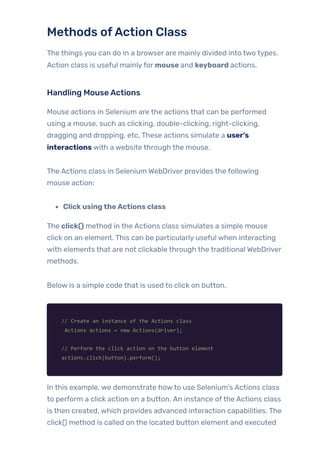
Below is a simple code that is used to click on button.
// Create an instance of the Actions class
Actions actions = new Actions(driver);
// Perform the click action on the button element
actions.click(button).perform();
In this example, we demonstrate howto use Selenium’s Actions class
to perform a click action on a button. An instance ofthe Actions class
is then created, which provides advanced interaction capabilities. The
click() method is called on the located button element and executed
with .perform(), simulating a mouse click on the button.
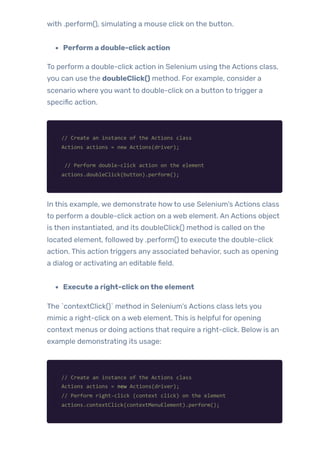
Perform a double-clickaction
To perform a double-click action in Selenium using the Actions class,
you can use the doubleClick() method. For example, consider a
scenario where you want to double-click on a button to trigger a
specific action.
// Create an instance of the Actions class
Actions actions = new Actions(driver);
// Perform double-click action on the element
actions.doubleClick(button).perform();
In this example, we demonstrate howto use Selenium’s Actions class
to perform a double-click action on a web element. An Actions object
is then instantiated, and its doubleClick() method is called on the
located element, followed by .perform() to execute the double-click
action. This action triggers any associated behavior, such as opening
a dialog or activating an editable field.
Execute a right-clickonthe element
The `contextClick()` method in Selenium’s Actions class lets you
mimic a right-click on a web element. This is helpful for opening
context menus or doing actions that require a right-click. Below is an
example demonstrating its usage:
// Create an instance of the Actions class
Actions actions = new Actions(driver);
// Perform right-click (context click) on the element
actions.contextClick(contextMenuElement).perform();
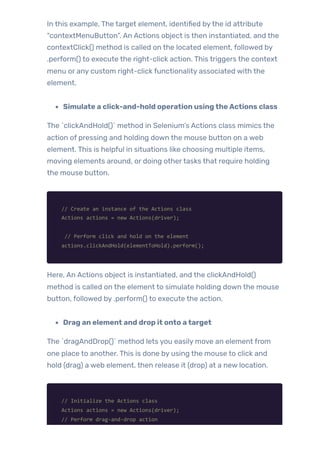
In this example, The target element, identified bythe id attribute
“contextMenuButton”. An Actions object is then instantiated, and the
contextClick() method is called on the located element, followed by
.perform() to execute the right-click action. This triggers the context
menu or any custom right-click functionality associated with the
element.
Simulate a click-and-hold operation usingtheActions class
The `clickAndHold()` method in Selenium’s Actions class mimics the
action of pressing and holding down the mouse button on a web
element. This is helpful in situations like choosing multiple items,
moving elements around, or doing othertasks that require holding
the mouse button.
// Create an instance of the Actions class
Actions actions = new Actions(driver);
// Perform click and hold on the element
actions.clickAndHold(elementToHold).perform();
Here, An Actions object is instantiated, and the clickAndHold()
method is called on the element to simulate holding down the mouse
button, followed by .perform() to execute the action.
Drag an element and drop it onto atarget
The `dragAndDrop()` method lets you easily move an element from
one place to another. This is done by using the mouse to click and
hold (drag) a web element, then release it (drop) at a new location.
// Initialize the Actions class
Actions actions = new Actions(driver);
// Perform drag-and-drop action
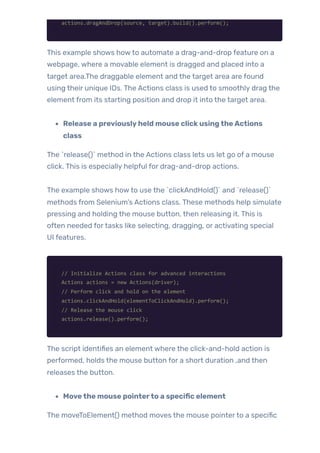
actions.dragAndDrop(source, target).build().perform();
This example shows howto automate a drag-and-drop feature on a
webpage, where a movable element is dragged and placed into a
target area.The draggable element and the target area are found
using their unique IDs. The Actions class is used to smoothly drag the
element from its starting position and drop it into the target area.
Release a previouslyheld mouse clickusingtheActions
class
The `release()` method in the Actions class lets us let go of a mouse
click. This is especially helpful for drag-and-drop actions.
The example shows howto use the `clickAndHold()` and `release()`
methods from Selenium’s Actions class. These methods help simulate
pressing and holding the mouse button, then releasing it. This is
often needed fortasks like selecting, dragging, or activating special
UI features.
// Initialize Actions class for advanced interactions
Actions actions = new Actions(driver);
// Perform click and hold on the element
actions.clickAndHold(elementToClickAndHold).perform();
// Release the mouse click
actions.release().perform();
The script identifies an element where the click-and-hold action is
performed, holds the mouse button for a short duration ,and then
releases the button.
Movethe mouse pointerto a specific element
The moveToElement() method moves the mouse pointerto a specific
web element. It is helpful for hovering over menus to reveal hidden
dropdowns.
// Initialize Actions class for advanced interactions
Actions actions = new Actions(driver);
// Hover over the menu to reveal the dropdown
actions.moveToElement(menu).perform();
// Locate the sub-menu element and click on it
submenu.click();
This example shows howto automatically move the mouse over a
menu element to open a dropdown and then click on an sub-menu
using Selenium’s `moveToElement()` method. Using the
moveToElement() method from the Actions class, it hovers overthe
menu, making the dropdown options visible. It then clicks a specific
option from the dropdown.
Real-World Scenario:Automatingweb-basedfile
management system usingAction class
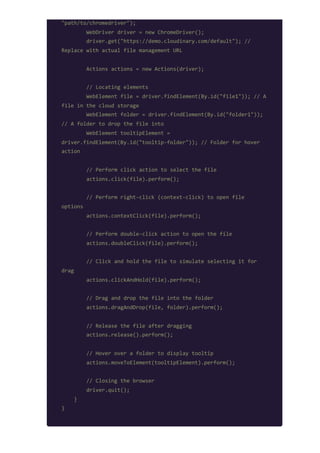
Let’s consider a real-world scenario where we are testing a web-
based file management system that allows users to interact with files
using various mouse actions.
Imagine you are testing a cloud storage web application (similarto
Google Drive or Dropbox). The application has files and folders that
users can interact with using mouse actions. The test case involves
selecting a file, right-clicking to open a context menu, double-clicking
to open it, dragging it into a folder, and hovering over a folderto see a
tooltip.
public class FileManagementActions {
public static void main(String[] args) {
System.setProperty("webdriver.chrome.driver",
"path/to/chromedriver");
WebDriver driver = new ChromeDriver();
driver.get("https://demo.cloudinary.com/default"); //
Replace with actual file management URL
Actions actions = new Actions(driver);
// Locating elements
WebElement file = driver.findElement(By.id("file1")); // A
file in the cloud storage
WebElement folder = driver.findElement(By.id("folder1"));
// A folder to drop the file into
WebElement tooltipElement =
driver.findElement(By.id("tooltip-folder")); // Folder for hover
action
// Perform click action to select the file
actions.click(file).perform();
// Perform right-click (context-click) to open file
options
actions.contextClick(file).perform();
// Perform double-click action to open the file
actions.doubleClick(file).perform();
// Click and hold the file to simulate selecting it for
drag
actions.clickAndHold(file).perform();
// Drag and drop the file into the folder
actions.dragAndDrop(file, folder).perform();
// Release the file after dragging
actions.release().perform();
// Hover over a folder to display tooltip
actions.moveToElement(tooltipElement).perform();
// Closing the browser
driver.quit();
}
}
This scenario mimics real-world interactions in a cloud-based file
storage application. The script first clicks on a file to select it, then
right-clicks to open a context menu forfile options. Afterthat, it
double-clicks to open the file. To simulate moving the file, the script
clicks and holds it, then drags it into a folder before releasing it.
Lastly, it hovers over anotherfolderto trigger a tooltip display. These
actions replicate how users typically interact with files in web-based
file managers, ensuring all mouse events are covered effectively.
Handling KeyboardActions
Keyboard actions in Selenium encompass the various interactions
that can be performed using a keyboard, such as pressing, holding,
and releasing keys
Some ofthe commonly used keyword actions in Selenium are
mentioned below:
Entertext orkeys usingtheActions class
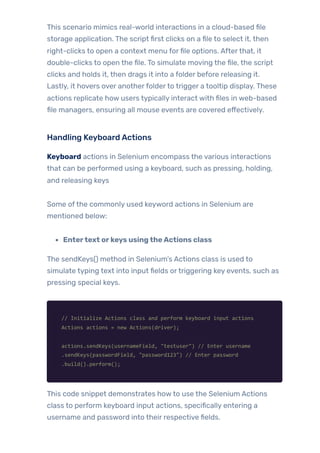
The sendKeys() method in Selenium’s Actions class is used to
simulate typing text into input fields ortriggering key events, such as
pressing special keys.
// Initialize Actions class and perform keyboard input actions
Actions actions = new Actions(driver);
actions.sendKeys(usernameField, "testuser") // Enter username
.sendKeys(passwordField, "password123") // Enter password
.build().perform();
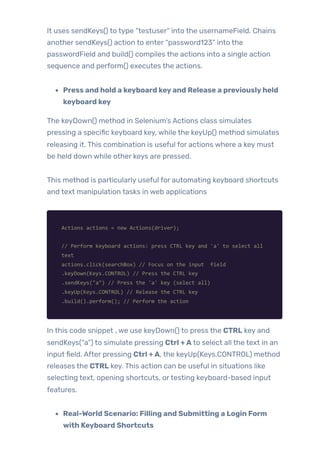
This code snippet demonstrates howto use the Selenium Actions
class to perform keyboard input actions, specifically entering a
username and password into their respective fields.
It uses sendKeys() to type “testuser” into the usernameField. Chains
another sendKeys() action to enter “password123” into the
passwordField and build() compiles the actions into a single action
sequence and perform() executes the actions.
Press and hold a keyboard keyand Release a previouslyheld
keyboard key
The keyDown() method in Selenium’s Actions class simulates
pressing a specific keyboard key, while the keyUp() method simulates
releasing it. This combination is useful for actions where a key must
be held down while other keys are pressed.
This method is particularly useful for automating keyboard shortcuts
and text manipulation tasks in web applications
Actions actions = new Actions(driver);
// Perform keyboard actions: press CTRL key and 'a' to select all
text
actions.click(searchBox) // Focus on the input field
.keyDown(Keys.CONTROL) // Press the CTRL key
.sendKeys("a") // Press the 'a' key (select all)
.keyUp(Keys.CONTROL) // Release the CTRL key
.build().perform(); // Perform the action
In this code snippet , we use keyDown() to press the CTRL key and
sendKeys(“a”) to simulate pressing Ctrl +A to select all the text in an
input field. After pressing Ctrl +A, the keyUp(Keys.CONTROL) method
releases the CTRL key. This action can be useful in situations like
selecting text, opening shortcuts, ortesting keyboard-based input
features.
Real-World Scenario: Filling and Submitting a Login Form
with Keyboard Shortcuts
Imagine you are testing a login form where users entertheir
credentials and submit the form using only keyboard actions. The test
case involves typing the username and password, holding the SHIFT
keyto enter a capitalized password, releasing it, and then pressing
ENTER to submit the form.
public class KeyboardActionsExample {
public static void main(String[] args) {
System.setProperty("webdriver.chrome.driver",
"path/to/chromedriver");
WebDriver driver = new ChromeDriver();
driver.get("https://practicetestautomation.com/practice-
test-login/"); // Replace with actual login page
Actions actions = new Actions(driver);
// Locate username and password fields
WebElement usernameField =
driver.findElement(By.xpath("//input[@id='username']"));
WebElement passwordField =
driver.findElement(By.xpath("//input[@id='password']"));
// Enter username
actions.sendKeys(usernameField, "testuser").perform();
// Press and hold SHIFT, enter password in uppercase, then
release SHIFT
actions.keyDown(Keys.SHIFT)
.sendKeys(passwordField, "password")
.keyUp(Keys.SHIFT)
.perform();
// Press ENTER to submit the form
actions.sendKeys(Keys.ENTER).perform();
// Closing the browser
driver.quit();
}
}
This script automates a login process using keyboard interactions via
the Actions class in Selenium. It first enters the username in the
designated field using sendKeys(). Next, it simulates holding the
SHIFT keywhile typing the password to enter it in uppercase and
then releases SHIFT using keyUp(). Finally, it presses the ENTER key
to submit the login form, mimicking a real user’s keyboard actions.
This ensures that keyboard-based navigation and form submission
work smoothlywithout relying on mouse clicks.
Common Challenges andTheirSolutions
with action class
Action Class is a powerful tool for automating complex user
interactions like mouse movements, drag-and-drop actions, and
keyboard operations. However, using the Action Class effectively can
present some challenges. Let’s explore the most common issues
faced and their practical solutions.
1. Inconsistent Element Interaction
2. Issues with Drag-and-Drop Actions
3. HoverActions Not Working Consistently
4. Cross-Browser Inconsistencies
Inconsistent Element Interaction
Problem: Actions like click() or doubleClick() may not always work if
elements are not properly loaded orvisible.
Solution: Use WebDriverWait to ensure elements are ready before
performing actions.
Issueswith Drag-and-DropActions
Problem: The dragAndDrop() method mayfail ifthe source ortarget
elements are not interactable.
Solution: Break the action into smaller steps using clickAndHold(),
moveToElement(), and release().
HoverActions NotWorking Consistently
Problem: Hover actions mayfail ifthe element is hidden or requires
additional loading time.
Solution: Use moveToElement() combined with pause() for better
stability.
Cross-BrowserInconsistencies
Problem: Some actions maywork in one browser but fail in another
due to differences in event handling.
Solution: Always test in multiple browsers and considerWebDriver
options for compatibility.
Using the Robot Class forAdvanced
AutomationTesting
Understanding the Robot Class
The Robot class in Selenium is a powerful utilitythat enables
advanced automation by simulating keyboard and mouse actions.
This class is particularly useful for handling complex user interactions
that standard Selenium WebDriver cannot manage, such as file
uploads and system-level pop-ups. It provides functionalities that go
beyond Selenium’s standard capabilities, such as handling OS-level
popups, simulating user input, and performing custom delays.The
Robot Class is part ofthe java.awt package, enabling it to interact
with the operating system’s GUI.
Methods ofRobot Class
The actions that can be performed in a browser are broadly classified
into two categories. The Robot class is useful mainlyfor mouse and
keyboard actions.
Handling MouseActions
Handling mouse events is one ofthe primary use cases forthe Robot
class. While WebDriver offers methods like click() and
moveToElement() to interact with elements, the Robot class provides
additional functionalityto simulate more complex mouse
interactions. Below are some ofthe key mouse actions that can be
performed using the Robot class.
Before moving to mouse actions, let’s understand the Mouse button
constants.
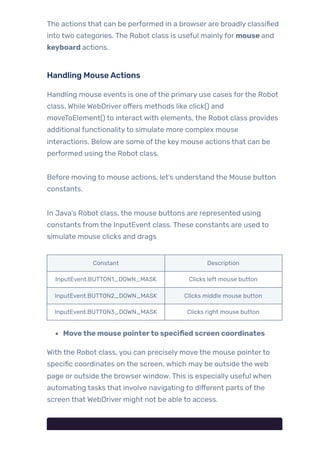
In Java’s Robot class, the mouse buttons are represented using
constants from the InputEvent class. These constants are used to
simulate mouse clicks and drags
Constant Description
InputEvent.BUTTON1_DOWN_MASK Clicks left mouse button
InputEvent.BUTTON2_DOWN_MASK Clicks middle mouse button
InputEvent.BUTTON3_DOWN_MASK Clicks right mouse button
Movethe mouse pointerto specified screen coordinates
With the Robot class, you can precisely move the mouse pointerto
specific coordinates on the screen, which may be outside the web
page or outside the browserwindow. This is especially useful when
automating tasks that involve navigating to different parts ofthe
screen that WebDriver might not be able to access.
// Use Robot class to move the mouse to specific screen
coordinates
Robot robot = new Robot();
// Move mouse to coordinates (500, 300) on the screen
robot.mouseMove(500, 300);
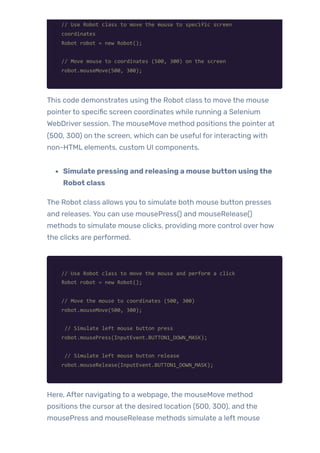
This code demonstrates using the Robot class to move the mouse
pointerto specific screen coordinates while running a Selenium
WebDriver session. The mouseMove method positions the pointer at
(500, 300) on the screen, which can be useful for interacting with
non-HTML elements, custom UI components.
Simulate pressing and releasing a mouse button usingthe
Robot class
The Robot class allows you to simulate both mouse button presses
and releases. You can use mousePress() and mouseRelease()
methods to simulate mouse clicks, providing more control over how
the clicks are performed.
// Use Robot class to move the mouse and perform a click
Robot robot = new Robot();
// Move the mouse to coordinates (500, 300)
robot.mouseMove(500, 300);
// Simulate left mouse button press
robot.mousePress(InputEvent.BUTTON1_DOWN_MASK);
// Simulate left mouse button release
robot.mouseRelease(InputEvent.BUTTON1_DOWN_MASK);
Here, After navigating to a webpage, the mouseMove method
positions the cursor at the desired location (500, 300), and the
mousePress and mouseRelease methods simulate a left mouse
button click. This technique is particularly useful for interacting with
non-HTML elements, popups, or custom UI components that require
precise mouse actions.
Simulate draggingthe mouse pointerfrom one locationto
anotherusingthe Robot class
The Robot class also allows simulating mouse dragging, which is
often needed in tests that involve dragging and dropping elements.
You can simulate a mouse drag by moving the pointerto a starting
position, pressing the mouse button, moving to a destination, and
releasing the mouse button.
// Create Robot instance
Robot robot = new Robot();
// Move the mouse to the element
robot.mouseMove(x, y);
// Press mouse button
robot.mousePress(InputEvent.BUTTON1_MASK);
// Move the mouse to a new location (dragging)
robot.mouseMove(x + 100, y + 100);
// Release the mouse button
robot.mouseRelease(InputEvent.BUTTON1_MASK);
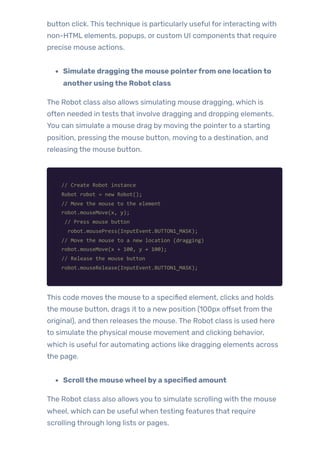
This code moves the mouse to a specified element, clicks and holds
the mouse button, drags it to a new position (100px offset from the
original), and then releases the mouse. The Robot class is used here
to simulate the physical mouse movement and clicking behavior,
which is useful for automating actions like dragging elements across
the page.
Scrollthe mousewheel bya specified amount
The Robot class also allows you to simulate scrolling with the mouse
wheel, which can be useful when testing features that require
scrolling through long lists or pages.
// Create Robot instance
Robot robot = new Robot();
// Scroll down by 3 clicks
robot.mouseWheel(3); // Positive value for scrolling down
// Scroll up by 3 clicks
robot.mouseWheel(-3); // Negative value for scrolling up
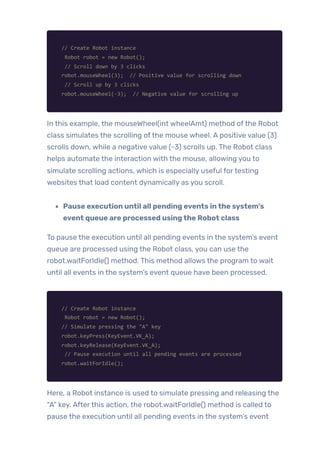
In this example, the mouseWheel(int wheelAmt) method ofthe Robot
class simulates the scrolling ofthe mouse wheel. A positive value (3)
scrolls down, while a negative value (-3) scrolls up. The Robot class
helps automate the interaction with the mouse, allowing you to
simulate scrolling actions, which is especially useful fortesting
websites that load content dynamically as you scroll.
Pause execution until all pending events inthe system’s
event queue are processed usingthe Robot class
To pause the execution until all pending events in the system’s event
queue are processed using the Robot class, you can use the
robot.waitForIdle() method. This method allows the program to wait
until all events in the system’s event queue have been processed.
// Create Robot instance
Robot robot = new Robot();
// Simulate pressing the "A" key
robot.keyPress(KeyEvent.VK_A);
robot.keyRelease(KeyEvent.VK_A);
// Pause execution until all pending events are processed
robot.waitForIdle();
Here, a Robot instance is used to simulate pressing and releasing the
“A” key. Afterthis action, the robot.waitForIdle() method is called to
pause the execution until all pending events in the system’s event
queue, including the key press, are processed. This ensures that the
key press is fully handled before continuing with the next step.
Introduce a delay(in milliseconds) between actions using
the Robot class
To introduce a delay between actions using the Robot class, you can
use the robot.delay(int ms) method, where the argument ms
represents the delay in milliseconds. This can be useful to simulate
real human behavior orto ensure the system has enough time to
process each action before proceeding. Here’s an example that
demonstrates howto add a delay between mouse movement, mouse
press, and key presses.
// Create Robot instance
Robot robot = new Robot()
// Move the mouse to a specific location (x = 200, y = 200)
robot.mouseMove(200, 200);
// Introduce a delay of 500 milliseconds before pressing the left
mouse button
robot.delay(500);
robot.mousePress(InputEvent.BUTTON1_MASK);
// Introduce a delay of 500 milliseconds before releasing the
mouse button
robot.delay(500);
robot.mouseRelease(InputEvent.BUTTON1_MASK);
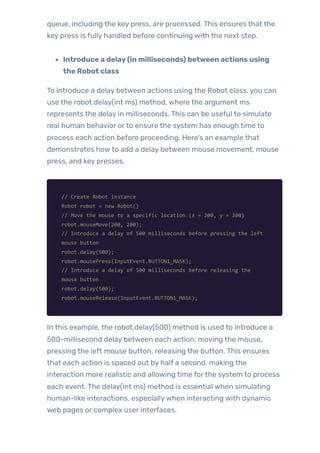
In this example, the robot.delay(500) method is used to introduce a
500-millisecond delay between each action: moving the mouse,
pressing the left mouse button, releasing the button. This ensures
that each action is spaced out by half a second, making the
interaction more realistic and allowing time forthe system to process
each event. The delay(int ms) method is essential when simulating
human-like interactions, especiallywhen interacting with dynamic
web pages or complex user interfaces.
Real-World Scenario:Automating a Drag-and-DropAction in
a Graphic DesignTool
Imagine you are testing a web-based graphic design tool (similarto
Canva or Figma) where users can move, drag, and drop elements
using the mouse. The test case involves moving the mouse to a
shape, clicking and holding it, dragging it to a new location, scrolling
the mouse wheel to zoom in, and then releasing the shape.
Additionally, delays are introduced to simulate real-user interactions,
and waitForIdle() ensures all events are processed before proceeding.
import java.awt.AWTException;
import java.awt.Robot;
import java.awt.event.InputEvent;
import org.openqa.selenium.WebDriver;
import org.openqa.selenium.chrome.ChromeDriver;
public class MouseActionsWithRobotClass {
public static void main(String[] args) throws AWTException {
// Set ChromeDriver path
System.setProperty("webdriver.chrome.driver",
"path/to/chromedriver");
// Initialize WebDriver
WebDriver driver = new ChromeDriver();
driver.get("https://www.globalsqa.com/demo-
site/draganddrop/#google_vignette");
// Initialize Robot class
Robot robot = new Robot();
// Move mouse to a shape at coordinates (483, 308)
robot.mouseMove(483, 308);
robot.delay(500); // Introduce a short delay for natural
interaction
// Simulate mouse press (left button down)
robot.mousePress(InputEvent.BUTTON1_DOWN_MASK);
robot.delay(500); // Hold the mouse button for half a
second
// Drag the mouse to a new position (605, 319)
robot.mouseMove(605, 319);
robot.delay(500); // Simulate a dragging motion
// Release the mouse button to drop the shape
robot.mouseRelease(InputEvent.BUTTON1_DOWN_MASK);
// Scroll the mouse wheel (zoom in)
robot.delay(500);
robot.mouseWheel(-5); // Scroll up (negative value) to
zoom in
// Wait for all events to be processed
robot.waitForIdle();
System.out.println("Mouse actions performed
successfully.");
}
}
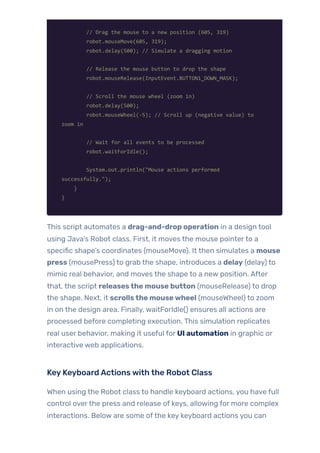
This script automates a drag-and-drop operation in a design tool
using Java’s Robot class. First, it moves the mouse pointerto a
specific shape’s coordinates (mouseMove). It then simulates a mouse
press (mousePress) to grab the shape, introduces a delay (delay) to
mimic real behavior, and moves the shape to a new position. After
that, the script releasesthe mouse button (mouseRelease) to drop
the shape. Next, it scrollsthe mousewheel (mouseWheel) to zoom
in on the design area. Finally, waitForIdle() ensures all actions are
processed before completing execution. This simulation replicates
real user behavior, making it useful for UI automation in graphic or
interactive web applications.
KeyKeyboardActionswith the Robot Class
When using the Robot class to handle keyboard actions, you have full
control overthe press and release of keys, allowing for more complex
interactions. Below are some ofthe key keyboard actions you can
simulate using the Robot class.
Simulate pressing a specific keyusingthe Robot class
The keyPress() method allows you to simulate pressing a key on the
keyboard. You can pass the key code ofthe keyyou want to press.
This method doesn’t release the key, so it’s generallyfollowed by a
call to keyRelease().
Simulate releasing a previouslypressed keyusingthe Robot
class
The keyRelease() method simulates the release of a key. It’s usually
paired with the keyPress() method to complete the simulation of a key
stroke.
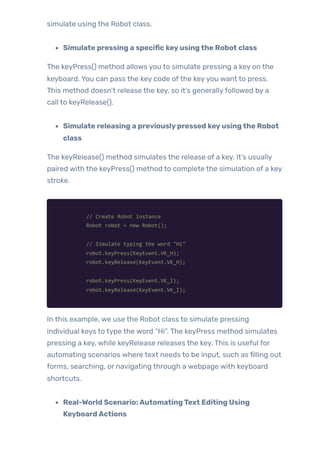
// Create Robot instance
Robot robot = new Robot();
// Simulate typing the word "Hi"
robot.keyPress(KeyEvent.VK_H);
robot.keyRelease(KeyEvent.VK_H);
robot.keyPress(KeyEvent.VK_I);
robot.keyRelease(KeyEvent.VK_I);
In this example, we use the Robot class to simulate pressing
individual keys to type the word “Hi”. The keyPress method simulates
pressing a key, while keyRelease releases the key. This is useful for
automating scenarios where text needs to be input, such as filling out
forms, searching, or navigating through a webpage with keyboard
shortcuts.
Real-World Scenario:AutomatingText Editing Using
KeyboardActions
Imagine you are testing a web-based text editor (similarto Google
Docs or Microsoft Word Online). The test case involves typing some
text into the editor, selecting it using Ctrl+A, copying it with Ctrl+C,
then pasting it with Ctrl+V. Finally, the user presses Backspace to
delete the text. The Robot class is used to simulate these keyboard
actions.
public class RobotKeyboardActions {
public static void main(String[] args) throws AWTException {
Robot robot = new Robot();
// Simulate typing "Hello" into the text editor
robot.keyPress(KeyEvent.VK_H);
robot.keyRelease(KeyEvent.VK_H);
robot.delay(100);
robot.keyPress(KeyEvent.VK_E);
robot.keyRelease(KeyEvent.VK_E);
robot.delay(100);
robot.keyPress(KeyEvent.VK_L);
robot.keyRelease(KeyEvent.VK_L);
robot.delay(100);
robot.keyPress(KeyEvent.VK_L);
robot.keyRelease(KeyEvent.VK_L);
robot.delay(100);
robot.keyPress(KeyEvent.VK_O);
robot.keyRelease(KeyEvent.VK_O);
robot.delay(100);
// Press SPACE
robot.keyPress(KeyEvent.VK_SPACE);
robot.keyRelease(KeyEvent.VK_SPACE);
robot.delay(100);
// Press Ctrl + A to select all text
robot.keyPress(KeyEvent.VK_CONTROL);
robot.keyPress(KeyEvent.VK_A);
robot.keyRelease(KeyEvent.VK_A);
robot.keyRelease(KeyEvent.VK_CONTROL);
robot.delay(500);
// Press Ctrl + C to copy the text
robot.keyPress(KeyEvent.VK_CONTROL);
robot.keyPress(KeyEvent.VK_C);
robot.keyRelease(KeyEvent.VK_C);
robot.keyRelease(KeyEvent.VK_CONTROL);
robot.delay(500);
// Press Ctrl + V to paste the text
robot.keyPress(KeyEvent.VK_CONTROL);
robot.keyPress(KeyEvent.VK_V);
robot.keyRelease(KeyEvent.VK_V);
robot.keyRelease(KeyEvent.VK_CONTROL);
robot.delay(500);
// Press Backspace to delete the pasted text
robot.keyPress(KeyEvent.VK_BACK_SPACE);
robot.keyRelease(KeyEvent.VK_BACK_SPACE);
System.out.println("Text editing actions performed
successfully.");
}
}
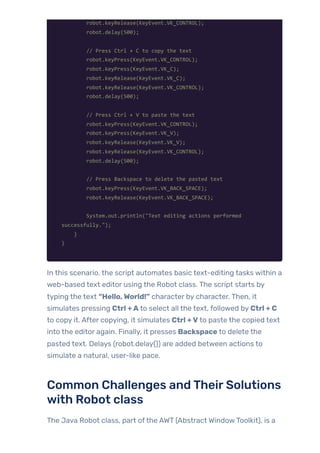
In this scenario, the script automates basic text-editing tasks within a
web-based text editor using the Robot class. The script starts by
typing the text “Hello,World!” character by character. Then, it
simulates pressing Ctrl +A to select all the text, followed by Ctrl + C
to copy it. After copying, it simulates Ctrl +V to paste the copied text
into the editor again. Finally, it presses Backspace to delete the
pasted text. Delays (robot.delay()) are added between actions to
simulate a natural, user-like pace.
Common Challenges andTheirSolutions
with Robot class
The Java Robot class, part ofthe AWT (Abstract WindowToolkit), is a
powerful utilityfor automating user interactions with the keyboard
and mouse. While it provides significant functionalityfortasks such
as GUI testing and automation, developers often encountervarious
challenges when using this class. Here, we explore some common
challenges and their potential solutions.
1. The Robot class has limitations due to its reliance on pixel-
based control.
2. Timing issues can occurwhen using the Robot class for
automation tasks.
3. The Robot class provides limited interaction capabilitieswith
modern UI components.
4. Cross-platform inconsistencies can arise when using the
Robot class for automation.
5. Securityrestrictions may limit the functionality ofthe Robot
class in certain environments.
Pixel-Based Control Limitation
Challenge: The Robot class relies on pixel-based control, making it
dependent on screen resolution and element positioning. This can
lead to inconsistencies across different screen setups.
Solution: Use screen resolution detection and dynamic positioning to
calculate element locations. Combine GraphicsEnvironment and
Toolkit to fetch the screen dimensions and adjust mouse actions
accordingly.
public class RobotExample {
public static void main(String[] args) {
try {
// Create an instance of the Robot class
Robot robot = new Robot();
// Get the screen size using Toolkit
Dimension screenSize =
Toolkit.getDefaultToolkit().getScreenSize();
// Calculate the center coordinates of the screen
int x = (int) (screenSize.getWidth() / 2);
int y = (int) (screenSize.getHeight() / 2);
// Move the mouse pointer to the center of the screen
robot.mouseMove(x, y);
// Display a confirmation message
System.out.println("Mouse moved to the center of the
screen.");
} catch (AWTException e) {
e.printStackTrace();
}
}
}
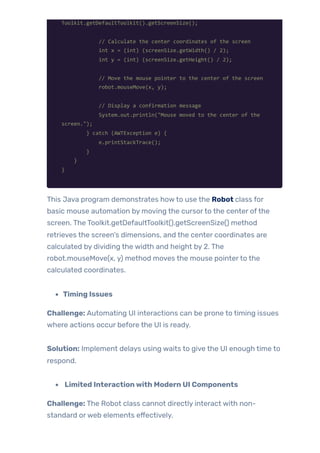
This Java program demonstrates howto use the Robot class for
basic mouse automation by moving the cursorto the center ofthe
screen. The Toolkit.getDefaultToolkit().getScreenSize() method
retrieves the screen’s dimensions, and the center coordinates are
calculated by dividing the width and height by 2. The
robot.mouseMove(x, y) method moves the mouse pointerto the
calculated coordinates.
Timing Issues
Challenge: Automating UI interactions can be prone to timing issues
where actions occur before the UI is ready.
Solution: Implement delays using waits to give the UI enough time to
respond.
Limited Interactionwith Modern UI Components
Challenge: The Robot class cannot directly interact with non-
standard orweb elements effectively.
Solution: Combine the Robot class with othertools like Selenium for
more complex UI testing.
Cross-Platform Inconsistencies
Challenge: Behavior can vary across different operating systems due
to varying screen rendering techniques.
Solution: Test on multiple platforms and use condition checks for
OS-specific behavior.
Conclusion
In conclusion, both the Action and Robot classes in Java provide
essential capabilities for automating user interactions in web
applications. The Action class excels at handling complex user
gestures within the context ofweb testing, allowing developers to
simulate mouse movements, clicks, and keyboard inputs with
precision. However, challenges such as inconsistent element
interactions and cross-browser compatibility can arise, necessitating
effective solutions like using WebDriverWait and breaking actions into
smaller steps.
On the other hand, the Robot class extends automation capabilities
beyond the browser, enabling interactions with the operating
system’s GUI. It is particularly useful for scenarios that require
simulating keyboard and mouse actions at a system level, such as
handling file uploads or responding to OS-level pop-ups. Despite its
power, developers may encounter issues like managing delays and
ensuring accurate mouse movements.
By understanding these challenges and implementing the suggested
solutions, developers can enhance their automated testing
strategies, ensuring more reliable and efficient interactions within
their applications. Mastering the use of both the Action and Robot
classes will empoweryou to create robust automation scripts that
caterto a wide range oftesting scenarios, ultimately leading to
improved software quality and user experience.
Witness howourmeticulous approach and cutting-edge
solutions elevated qualityand performanceto newheights.
Beginyourjourneyintotheworld ofsoftwaretesting excellence.
To knowmore refertoTools &Technologies & QAServices.
Ifyouwould liketo learn more aboutthe awesome serviceswe
provide, be sureto reach out.
HappyTesting 🙂
TAGS:
Comprehensive G…

PREVIOUS POST
 KeyJava Concept… 
NEXT POST
Related Blogs

Advanced Selenium Automation with Actions & Robot Class

  • 1.
    When working withSelenium for UI automation, handling complex user interactions like drag-and-drop, hovering, or simulating keyboard actions often requires going beyond the basic WebDriver commands. The Action and Robot classes in Java provide powerful tools for automating user interactions in web applications. In this blog, we will explore the common challenges faced when using both the Action and Robot classes in Java, along with practical solutions to overcome these hurdles. From addressing inconsistent element interactions and managing cross-browsercompatibilityto implementing effective error handling and optimizing performance, we will provide insights that can enhance your automation scripts. Whetheryou are a seasoned Selenium user or just starting out, AUTOMATED TESTING ROBOT CLASS SELENIUM WITH JAVA BeyondBasics:AdvancedSelenium AutomationwithActionsandJava’sRobot Class • • BY QATEAM
  • 2.
    understanding these challengesand their solutions will empoweryou to create more robust and effective automated tests. Let’s dive in! Table ofContent Using the Actions Class for Complex Interactions Understanding the Action Class Methods ofAction Class Handling Mouse Actions Handling Keyboard Actions Common Challenges and Their Solutions with action class Using the Robot Class forAdvanced Automation Testing Understanding the Robot Class Methods of Robot Class Handling Mouse Actions Key Keyboard Actions with the Robot Class Common Challenges and Their Solutions with Robot class Conclusion Using theActions Class forComplex Interactions Understanding theAction Class The Action class, part ofthe Selenium framework, is specifically designed for handling complex user interactions such as mouse movements, clicks, keyboard inputs, and drag-and-drop operations. This class enhances the capabilities of Selenium by allowing developers to simulate intricate user actions that cannot be achieved with basic WebDriver commands.
  • 3.
    Methods ofAction Class Thethings you can do in a browser are mainly divided into two types. Action class is useful mainlyfor mouse and keyboard actions. Handling MouseActions Mouse actions in Selenium are the actions that can be performed using a mouse, such as clicking, double-clicking, right-clicking, dragging and dropping, etc. These actions simulate a user’s interactions with a website through the mouse. The Actions class in Selenium WebDriver provides the following mouse action: ClickusingtheActions class The click() method in the Actions class simulates a simple mouse click on an element. This can be particularly useful when interacting with elements that are not clickable through the traditional WebDriver methods. Below is a simple code that is used to click on button. // Create an instance of the Actions class Actions actions = new Actions(driver); // Perform the click action on the button element actions.click(button).perform(); In this example, we demonstrate howto use Selenium’s Actions class to perform a click action on a button. An instance ofthe Actions class is then created, which provides advanced interaction capabilities. The click() method is called on the located button element and executed
  • 4.
    with .perform(), simulatinga mouse click on the button. Perform a double-clickaction To perform a double-click action in Selenium using the Actions class, you can use the doubleClick() method. For example, consider a scenario where you want to double-click on a button to trigger a specific action. // Create an instance of the Actions class Actions actions = new Actions(driver); // Perform double-click action on the element actions.doubleClick(button).perform(); In this example, we demonstrate howto use Selenium’s Actions class to perform a double-click action on a web element. An Actions object is then instantiated, and its doubleClick() method is called on the located element, followed by .perform() to execute the double-click action. This action triggers any associated behavior, such as opening a dialog or activating an editable field. Execute a right-clickonthe element The `contextClick()` method in Selenium’s Actions class lets you mimic a right-click on a web element. This is helpful for opening context menus or doing actions that require a right-click. Below is an example demonstrating its usage: // Create an instance of the Actions class Actions actions = new Actions(driver); // Perform right-click (context click) on the element actions.contextClick(contextMenuElement).perform();
  • 5.
    In this example,The target element, identified bythe id attribute “contextMenuButton”. An Actions object is then instantiated, and the contextClick() method is called on the located element, followed by .perform() to execute the right-click action. This triggers the context menu or any custom right-click functionality associated with the element. Simulate a click-and-hold operation usingtheActions class The `clickAndHold()` method in Selenium’s Actions class mimics the action of pressing and holding down the mouse button on a web element. This is helpful in situations like choosing multiple items, moving elements around, or doing othertasks that require holding the mouse button. // Create an instance of the Actions class Actions actions = new Actions(driver); // Perform click and hold on the element actions.clickAndHold(elementToHold).perform(); Here, An Actions object is instantiated, and the clickAndHold() method is called on the element to simulate holding down the mouse button, followed by .perform() to execute the action. Drag an element and drop it onto atarget The `dragAndDrop()` method lets you easily move an element from one place to another. This is done by using the mouse to click and hold (drag) a web element, then release it (drop) at a new location. // Initialize the Actions class Actions actions = new Actions(driver); // Perform drag-and-drop action
  • 6.
    actions.dragAndDrop(source, target).build().perform(); This exampleshows howto automate a drag-and-drop feature on a webpage, where a movable element is dragged and placed into a target area.The draggable element and the target area are found using their unique IDs. The Actions class is used to smoothly drag the element from its starting position and drop it into the target area. Release a previouslyheld mouse clickusingtheActions class The `release()` method in the Actions class lets us let go of a mouse click. This is especially helpful for drag-and-drop actions. The example shows howto use the `clickAndHold()` and `release()` methods from Selenium’s Actions class. These methods help simulate pressing and holding the mouse button, then releasing it. This is often needed fortasks like selecting, dragging, or activating special UI features. // Initialize Actions class for advanced interactions Actions actions = new Actions(driver); // Perform click and hold on the element actions.clickAndHold(elementToClickAndHold).perform(); // Release the mouse click actions.release().perform(); The script identifies an element where the click-and-hold action is performed, holds the mouse button for a short duration ,and then releases the button. Movethe mouse pointerto a specific element The moveToElement() method moves the mouse pointerto a specific
  • 7.
    web element. Itis helpful for hovering over menus to reveal hidden dropdowns. // Initialize Actions class for advanced interactions Actions actions = new Actions(driver); // Hover over the menu to reveal the dropdown actions.moveToElement(menu).perform(); // Locate the sub-menu element and click on it submenu.click(); This example shows howto automatically move the mouse over a menu element to open a dropdown and then click on an sub-menu using Selenium’s `moveToElement()` method. Using the moveToElement() method from the Actions class, it hovers overthe menu, making the dropdown options visible. It then clicks a specific option from the dropdown. Real-World Scenario:Automatingweb-basedfile management system usingAction class Let’s consider a real-world scenario where we are testing a web- based file management system that allows users to interact with files using various mouse actions. Imagine you are testing a cloud storage web application (similarto Google Drive or Dropbox). The application has files and folders that users can interact with using mouse actions. The test case involves selecting a file, right-clicking to open a context menu, double-clicking to open it, dragging it into a folder, and hovering over a folderto see a tooltip. public class FileManagementActions { public static void main(String[] args) { System.setProperty("webdriver.chrome.driver",
  • 8.
    "path/to/chromedriver"); WebDriver driver =new ChromeDriver(); driver.get("https://demo.cloudinary.com/default"); // Replace with actual file management URL Actions actions = new Actions(driver); // Locating elements WebElement file = driver.findElement(By.id("file1")); // A file in the cloud storage WebElement folder = driver.findElement(By.id("folder1")); // A folder to drop the file into WebElement tooltipElement = driver.findElement(By.id("tooltip-folder")); // Folder for hover action // Perform click action to select the file actions.click(file).perform(); // Perform right-click (context-click) to open file options actions.contextClick(file).perform(); // Perform double-click action to open the file actions.doubleClick(file).perform(); // Click and hold the file to simulate selecting it for drag actions.clickAndHold(file).perform(); // Drag and drop the file into the folder actions.dragAndDrop(file, folder).perform(); // Release the file after dragging actions.release().perform(); // Hover over a folder to display tooltip actions.moveToElement(tooltipElement).perform(); // Closing the browser driver.quit(); } }
  • 9.
    This scenario mimicsreal-world interactions in a cloud-based file storage application. The script first clicks on a file to select it, then right-clicks to open a context menu forfile options. Afterthat, it double-clicks to open the file. To simulate moving the file, the script clicks and holds it, then drags it into a folder before releasing it. Lastly, it hovers over anotherfolderto trigger a tooltip display. These actions replicate how users typically interact with files in web-based file managers, ensuring all mouse events are covered effectively. Handling KeyboardActions Keyboard actions in Selenium encompass the various interactions that can be performed using a keyboard, such as pressing, holding, and releasing keys Some ofthe commonly used keyword actions in Selenium are mentioned below: Entertext orkeys usingtheActions class The sendKeys() method in Selenium’s Actions class is used to simulate typing text into input fields ortriggering key events, such as pressing special keys. // Initialize Actions class and perform keyboard input actions Actions actions = new Actions(driver); actions.sendKeys(usernameField, "testuser") // Enter username .sendKeys(passwordField, "password123") // Enter password .build().perform(); This code snippet demonstrates howto use the Selenium Actions class to perform keyboard input actions, specifically entering a username and password into their respective fields.
  • 10.
    It uses sendKeys()to type “testuser” into the usernameField. Chains another sendKeys() action to enter “password123” into the passwordField and build() compiles the actions into a single action sequence and perform() executes the actions. Press and hold a keyboard keyand Release a previouslyheld keyboard key The keyDown() method in Selenium’s Actions class simulates pressing a specific keyboard key, while the keyUp() method simulates releasing it. This combination is useful for actions where a key must be held down while other keys are pressed. This method is particularly useful for automating keyboard shortcuts and text manipulation tasks in web applications Actions actions = new Actions(driver); // Perform keyboard actions: press CTRL key and 'a' to select all text actions.click(searchBox) // Focus on the input field .keyDown(Keys.CONTROL) // Press the CTRL key .sendKeys("a") // Press the 'a' key (select all) .keyUp(Keys.CONTROL) // Release the CTRL key .build().perform(); // Perform the action In this code snippet , we use keyDown() to press the CTRL key and sendKeys(“a”) to simulate pressing Ctrl +A to select all the text in an input field. After pressing Ctrl +A, the keyUp(Keys.CONTROL) method releases the CTRL key. This action can be useful in situations like selecting text, opening shortcuts, ortesting keyboard-based input features. Real-World Scenario: Filling and Submitting a Login Form with Keyboard Shortcuts
  • 11.
    Imagine you aretesting a login form where users entertheir credentials and submit the form using only keyboard actions. The test case involves typing the username and password, holding the SHIFT keyto enter a capitalized password, releasing it, and then pressing ENTER to submit the form. public class KeyboardActionsExample { public static void main(String[] args) { System.setProperty("webdriver.chrome.driver", "path/to/chromedriver"); WebDriver driver = new ChromeDriver(); driver.get("https://practicetestautomation.com/practice- test-login/"); // Replace with actual login page Actions actions = new Actions(driver); // Locate username and password fields WebElement usernameField = driver.findElement(By.xpath("//input[@id='username']")); WebElement passwordField = driver.findElement(By.xpath("//input[@id='password']")); // Enter username actions.sendKeys(usernameField, "testuser").perform(); // Press and hold SHIFT, enter password in uppercase, then release SHIFT actions.keyDown(Keys.SHIFT) .sendKeys(passwordField, "password") .keyUp(Keys.SHIFT) .perform(); // Press ENTER to submit the form actions.sendKeys(Keys.ENTER).perform(); // Closing the browser driver.quit(); } }
  • 12.
    This script automatesa login process using keyboard interactions via the Actions class in Selenium. It first enters the username in the designated field using sendKeys(). Next, it simulates holding the SHIFT keywhile typing the password to enter it in uppercase and then releases SHIFT using keyUp(). Finally, it presses the ENTER key to submit the login form, mimicking a real user’s keyboard actions. This ensures that keyboard-based navigation and form submission work smoothlywithout relying on mouse clicks. Common Challenges andTheirSolutions with action class Action Class is a powerful tool for automating complex user interactions like mouse movements, drag-and-drop actions, and keyboard operations. However, using the Action Class effectively can present some challenges. Let’s explore the most common issues faced and their practical solutions. 1. Inconsistent Element Interaction 2. Issues with Drag-and-Drop Actions 3. HoverActions Not Working Consistently 4. Cross-Browser Inconsistencies Inconsistent Element Interaction Problem: Actions like click() or doubleClick() may not always work if elements are not properly loaded orvisible. Solution: Use WebDriverWait to ensure elements are ready before performing actions. Issueswith Drag-and-DropActions Problem: The dragAndDrop() method mayfail ifthe source ortarget elements are not interactable.
  • 13.
    Solution: Break theaction into smaller steps using clickAndHold(), moveToElement(), and release(). HoverActions NotWorking Consistently Problem: Hover actions mayfail ifthe element is hidden or requires additional loading time. Solution: Use moveToElement() combined with pause() for better stability. Cross-BrowserInconsistencies Problem: Some actions maywork in one browser but fail in another due to differences in event handling. Solution: Always test in multiple browsers and considerWebDriver options for compatibility. Using the Robot Class forAdvanced AutomationTesting Understanding the Robot Class The Robot class in Selenium is a powerful utilitythat enables advanced automation by simulating keyboard and mouse actions. This class is particularly useful for handling complex user interactions that standard Selenium WebDriver cannot manage, such as file uploads and system-level pop-ups. It provides functionalities that go beyond Selenium’s standard capabilities, such as handling OS-level popups, simulating user input, and performing custom delays.The Robot Class is part ofthe java.awt package, enabling it to interact with the operating system’s GUI. Methods ofRobot Class
  • 14.
    The actions thatcan be performed in a browser are broadly classified into two categories. The Robot class is useful mainlyfor mouse and keyboard actions. Handling MouseActions Handling mouse events is one ofthe primary use cases forthe Robot class. While WebDriver offers methods like click() and moveToElement() to interact with elements, the Robot class provides additional functionalityto simulate more complex mouse interactions. Below are some ofthe key mouse actions that can be performed using the Robot class. Before moving to mouse actions, let’s understand the Mouse button constants. In Java’s Robot class, the mouse buttons are represented using constants from the InputEvent class. These constants are used to simulate mouse clicks and drags Constant Description InputEvent.BUTTON1_DOWN_MASK Clicks left mouse button InputEvent.BUTTON2_DOWN_MASK Clicks middle mouse button InputEvent.BUTTON3_DOWN_MASK Clicks right mouse button Movethe mouse pointerto specified screen coordinates With the Robot class, you can precisely move the mouse pointerto specific coordinates on the screen, which may be outside the web page or outside the browserwindow. This is especially useful when automating tasks that involve navigating to different parts ofthe screen that WebDriver might not be able to access.
  • 15.
    // Use Robotclass to move the mouse to specific screen coordinates Robot robot = new Robot(); // Move mouse to coordinates (500, 300) on the screen robot.mouseMove(500, 300); This code demonstrates using the Robot class to move the mouse pointerto specific screen coordinates while running a Selenium WebDriver session. The mouseMove method positions the pointer at (500, 300) on the screen, which can be useful for interacting with non-HTML elements, custom UI components. Simulate pressing and releasing a mouse button usingthe Robot class The Robot class allows you to simulate both mouse button presses and releases. You can use mousePress() and mouseRelease() methods to simulate mouse clicks, providing more control over how the clicks are performed. // Use Robot class to move the mouse and perform a click Robot robot = new Robot(); // Move the mouse to coordinates (500, 300) robot.mouseMove(500, 300); // Simulate left mouse button press robot.mousePress(InputEvent.BUTTON1_DOWN_MASK); // Simulate left mouse button release robot.mouseRelease(InputEvent.BUTTON1_DOWN_MASK); Here, After navigating to a webpage, the mouseMove method positions the cursor at the desired location (500, 300), and the mousePress and mouseRelease methods simulate a left mouse
  • 16.
    button click. Thistechnique is particularly useful for interacting with non-HTML elements, popups, or custom UI components that require precise mouse actions. Simulate draggingthe mouse pointerfrom one locationto anotherusingthe Robot class The Robot class also allows simulating mouse dragging, which is often needed in tests that involve dragging and dropping elements. You can simulate a mouse drag by moving the pointerto a starting position, pressing the mouse button, moving to a destination, and releasing the mouse button. // Create Robot instance Robot robot = new Robot(); // Move the mouse to the element robot.mouseMove(x, y); // Press mouse button robot.mousePress(InputEvent.BUTTON1_MASK); // Move the mouse to a new location (dragging) robot.mouseMove(x + 100, y + 100); // Release the mouse button robot.mouseRelease(InputEvent.BUTTON1_MASK); This code moves the mouse to a specified element, clicks and holds the mouse button, drags it to a new position (100px offset from the original), and then releases the mouse. The Robot class is used here to simulate the physical mouse movement and clicking behavior, which is useful for automating actions like dragging elements across the page. Scrollthe mousewheel bya specified amount The Robot class also allows you to simulate scrolling with the mouse wheel, which can be useful when testing features that require scrolling through long lists or pages.
  • 17.
    // Create Robotinstance Robot robot = new Robot(); // Scroll down by 3 clicks robot.mouseWheel(3); // Positive value for scrolling down // Scroll up by 3 clicks robot.mouseWheel(-3); // Negative value for scrolling up In this example, the mouseWheel(int wheelAmt) method ofthe Robot class simulates the scrolling ofthe mouse wheel. A positive value (3) scrolls down, while a negative value (-3) scrolls up. The Robot class helps automate the interaction with the mouse, allowing you to simulate scrolling actions, which is especially useful fortesting websites that load content dynamically as you scroll. Pause execution until all pending events inthe system’s event queue are processed usingthe Robot class To pause the execution until all pending events in the system’s event queue are processed using the Robot class, you can use the robot.waitForIdle() method. This method allows the program to wait until all events in the system’s event queue have been processed. // Create Robot instance Robot robot = new Robot(); // Simulate pressing the "A" key robot.keyPress(KeyEvent.VK_A); robot.keyRelease(KeyEvent.VK_A); // Pause execution until all pending events are processed robot.waitForIdle(); Here, a Robot instance is used to simulate pressing and releasing the “A” key. Afterthis action, the robot.waitForIdle() method is called to pause the execution until all pending events in the system’s event
  • 18.
    queue, including thekey press, are processed. This ensures that the key press is fully handled before continuing with the next step. Introduce a delay(in milliseconds) between actions using the Robot class To introduce a delay between actions using the Robot class, you can use the robot.delay(int ms) method, where the argument ms represents the delay in milliseconds. This can be useful to simulate real human behavior orto ensure the system has enough time to process each action before proceeding. Here’s an example that demonstrates howto add a delay between mouse movement, mouse press, and key presses. // Create Robot instance Robot robot = new Robot() // Move the mouse to a specific location (x = 200, y = 200) robot.mouseMove(200, 200); // Introduce a delay of 500 milliseconds before pressing the left mouse button robot.delay(500); robot.mousePress(InputEvent.BUTTON1_MASK); // Introduce a delay of 500 milliseconds before releasing the mouse button robot.delay(500); robot.mouseRelease(InputEvent.BUTTON1_MASK); In this example, the robot.delay(500) method is used to introduce a 500-millisecond delay between each action: moving the mouse, pressing the left mouse button, releasing the button. This ensures that each action is spaced out by half a second, making the interaction more realistic and allowing time forthe system to process each event. The delay(int ms) method is essential when simulating human-like interactions, especiallywhen interacting with dynamic web pages or complex user interfaces.
  • 19.
    Real-World Scenario:Automating aDrag-and-DropAction in a Graphic DesignTool Imagine you are testing a web-based graphic design tool (similarto Canva or Figma) where users can move, drag, and drop elements using the mouse. The test case involves moving the mouse to a shape, clicking and holding it, dragging it to a new location, scrolling the mouse wheel to zoom in, and then releasing the shape. Additionally, delays are introduced to simulate real-user interactions, and waitForIdle() ensures all events are processed before proceeding. import java.awt.AWTException; import java.awt.Robot; import java.awt.event.InputEvent; import org.openqa.selenium.WebDriver; import org.openqa.selenium.chrome.ChromeDriver; public class MouseActionsWithRobotClass { public static void main(String[] args) throws AWTException { // Set ChromeDriver path System.setProperty("webdriver.chrome.driver", "path/to/chromedriver"); // Initialize WebDriver WebDriver driver = new ChromeDriver(); driver.get("https://www.globalsqa.com/demo- site/draganddrop/#google_vignette"); // Initialize Robot class Robot robot = new Robot(); // Move mouse to a shape at coordinates (483, 308) robot.mouseMove(483, 308); robot.delay(500); // Introduce a short delay for natural interaction // Simulate mouse press (left button down) robot.mousePress(InputEvent.BUTTON1_DOWN_MASK); robot.delay(500); // Hold the mouse button for half a second
  • 20.
    // Drag themouse to a new position (605, 319) robot.mouseMove(605, 319); robot.delay(500); // Simulate a dragging motion // Release the mouse button to drop the shape robot.mouseRelease(InputEvent.BUTTON1_DOWN_MASK); // Scroll the mouse wheel (zoom in) robot.delay(500); robot.mouseWheel(-5); // Scroll up (negative value) to zoom in // Wait for all events to be processed robot.waitForIdle(); System.out.println("Mouse actions performed successfully."); } } This script automates a drag-and-drop operation in a design tool using Java’s Robot class. First, it moves the mouse pointerto a specific shape’s coordinates (mouseMove). It then simulates a mouse press (mousePress) to grab the shape, introduces a delay (delay) to mimic real behavior, and moves the shape to a new position. After that, the script releasesthe mouse button (mouseRelease) to drop the shape. Next, it scrollsthe mousewheel (mouseWheel) to zoom in on the design area. Finally, waitForIdle() ensures all actions are processed before completing execution. This simulation replicates real user behavior, making it useful for UI automation in graphic or interactive web applications. KeyKeyboardActionswith the Robot Class When using the Robot class to handle keyboard actions, you have full control overthe press and release of keys, allowing for more complex interactions. Below are some ofthe key keyboard actions you can
  • 21.
    simulate using theRobot class. Simulate pressing a specific keyusingthe Robot class The keyPress() method allows you to simulate pressing a key on the keyboard. You can pass the key code ofthe keyyou want to press. This method doesn’t release the key, so it’s generallyfollowed by a call to keyRelease(). Simulate releasing a previouslypressed keyusingthe Robot class The keyRelease() method simulates the release of a key. It’s usually paired with the keyPress() method to complete the simulation of a key stroke. // Create Robot instance Robot robot = new Robot(); // Simulate typing the word "Hi" robot.keyPress(KeyEvent.VK_H); robot.keyRelease(KeyEvent.VK_H); robot.keyPress(KeyEvent.VK_I); robot.keyRelease(KeyEvent.VK_I); In this example, we use the Robot class to simulate pressing individual keys to type the word “Hi”. The keyPress method simulates pressing a key, while keyRelease releases the key. This is useful for automating scenarios where text needs to be input, such as filling out forms, searching, or navigating through a webpage with keyboard shortcuts. Real-World Scenario:AutomatingText Editing Using KeyboardActions
  • 22.
    Imagine you aretesting a web-based text editor (similarto Google Docs or Microsoft Word Online). The test case involves typing some text into the editor, selecting it using Ctrl+A, copying it with Ctrl+C, then pasting it with Ctrl+V. Finally, the user presses Backspace to delete the text. The Robot class is used to simulate these keyboard actions. public class RobotKeyboardActions { public static void main(String[] args) throws AWTException { Robot robot = new Robot(); // Simulate typing "Hello" into the text editor robot.keyPress(KeyEvent.VK_H); robot.keyRelease(KeyEvent.VK_H); robot.delay(100); robot.keyPress(KeyEvent.VK_E); robot.keyRelease(KeyEvent.VK_E); robot.delay(100); robot.keyPress(KeyEvent.VK_L); robot.keyRelease(KeyEvent.VK_L); robot.delay(100); robot.keyPress(KeyEvent.VK_L); robot.keyRelease(KeyEvent.VK_L); robot.delay(100); robot.keyPress(KeyEvent.VK_O); robot.keyRelease(KeyEvent.VK_O); robot.delay(100); // Press SPACE robot.keyPress(KeyEvent.VK_SPACE); robot.keyRelease(KeyEvent.VK_SPACE); robot.delay(100); // Press Ctrl + A to select all text robot.keyPress(KeyEvent.VK_CONTROL); robot.keyPress(KeyEvent.VK_A); robot.keyRelease(KeyEvent.VK_A);
  • 23.
    robot.keyRelease(KeyEvent.VK_CONTROL); robot.delay(500); // Press Ctrl+ C to copy the text robot.keyPress(KeyEvent.VK_CONTROL); robot.keyPress(KeyEvent.VK_C); robot.keyRelease(KeyEvent.VK_C); robot.keyRelease(KeyEvent.VK_CONTROL); robot.delay(500); // Press Ctrl + V to paste the text robot.keyPress(KeyEvent.VK_CONTROL); robot.keyPress(KeyEvent.VK_V); robot.keyRelease(KeyEvent.VK_V); robot.keyRelease(KeyEvent.VK_CONTROL); robot.delay(500); // Press Backspace to delete the pasted text robot.keyPress(KeyEvent.VK_BACK_SPACE); robot.keyRelease(KeyEvent.VK_BACK_SPACE); System.out.println("Text editing actions performed successfully."); } } In this scenario, the script automates basic text-editing tasks within a web-based text editor using the Robot class. The script starts by typing the text “Hello,World!” character by character. Then, it simulates pressing Ctrl +A to select all the text, followed by Ctrl + C to copy it. After copying, it simulates Ctrl +V to paste the copied text into the editor again. Finally, it presses Backspace to delete the pasted text. Delays (robot.delay()) are added between actions to simulate a natural, user-like pace. Common Challenges andTheirSolutions with Robot class The Java Robot class, part ofthe AWT (Abstract WindowToolkit), is a
  • 24.
    powerful utilityfor automatinguser interactions with the keyboard and mouse. While it provides significant functionalityfortasks such as GUI testing and automation, developers often encountervarious challenges when using this class. Here, we explore some common challenges and their potential solutions. 1. The Robot class has limitations due to its reliance on pixel- based control. 2. Timing issues can occurwhen using the Robot class for automation tasks. 3. The Robot class provides limited interaction capabilitieswith modern UI components. 4. Cross-platform inconsistencies can arise when using the Robot class for automation. 5. Securityrestrictions may limit the functionality ofthe Robot class in certain environments. Pixel-Based Control Limitation Challenge: The Robot class relies on pixel-based control, making it dependent on screen resolution and element positioning. This can lead to inconsistencies across different screen setups. Solution: Use screen resolution detection and dynamic positioning to calculate element locations. Combine GraphicsEnvironment and Toolkit to fetch the screen dimensions and adjust mouse actions accordingly. public class RobotExample { public static void main(String[] args) { try { // Create an instance of the Robot class Robot robot = new Robot(); // Get the screen size using Toolkit Dimension screenSize =
  • 25.
    Toolkit.getDefaultToolkit().getScreenSize(); // Calculate thecenter coordinates of the screen int x = (int) (screenSize.getWidth() / 2); int y = (int) (screenSize.getHeight() / 2); // Move the mouse pointer to the center of the screen robot.mouseMove(x, y); // Display a confirmation message System.out.println("Mouse moved to the center of the screen."); } catch (AWTException e) { e.printStackTrace(); } } } This Java program demonstrates howto use the Robot class for basic mouse automation by moving the cursorto the center ofthe screen. The Toolkit.getDefaultToolkit().getScreenSize() method retrieves the screen’s dimensions, and the center coordinates are calculated by dividing the width and height by 2. The robot.mouseMove(x, y) method moves the mouse pointerto the calculated coordinates. Timing Issues Challenge: Automating UI interactions can be prone to timing issues where actions occur before the UI is ready. Solution: Implement delays using waits to give the UI enough time to respond. Limited Interactionwith Modern UI Components Challenge: The Robot class cannot directly interact with non- standard orweb elements effectively.
  • 26.
    Solution: Combine theRobot class with othertools like Selenium for more complex UI testing. Cross-Platform Inconsistencies Challenge: Behavior can vary across different operating systems due to varying screen rendering techniques. Solution: Test on multiple platforms and use condition checks for OS-specific behavior. Conclusion In conclusion, both the Action and Robot classes in Java provide essential capabilities for automating user interactions in web applications. The Action class excels at handling complex user gestures within the context ofweb testing, allowing developers to simulate mouse movements, clicks, and keyboard inputs with precision. However, challenges such as inconsistent element interactions and cross-browser compatibility can arise, necessitating effective solutions like using WebDriverWait and breaking actions into smaller steps. On the other hand, the Robot class extends automation capabilities beyond the browser, enabling interactions with the operating system’s GUI. It is particularly useful for scenarios that require simulating keyboard and mouse actions at a system level, such as handling file uploads or responding to OS-level pop-ups. Despite its power, developers may encounter issues like managing delays and ensuring accurate mouse movements. By understanding these challenges and implementing the suggested solutions, developers can enhance their automated testing strategies, ensuring more reliable and efficient interactions within
  • 27.
    their applications. Masteringthe use of both the Action and Robot classes will empoweryou to create robust automation scripts that caterto a wide range oftesting scenarios, ultimately leading to improved software quality and user experience. Witness howourmeticulous approach and cutting-edge solutions elevated qualityand performanceto newheights. Beginyourjourneyintotheworld ofsoftwaretesting excellence. To knowmore refertoTools &Technologies & QAServices. Ifyouwould liketo learn more aboutthe awesome serviceswe provide, be sureto reach out. HappyTesting 🙂 TAGS: Comprehensive G…  PREVIOUS POST  KeyJava Concept…  NEXT POST Related Blogs